Mine Site Technologies MP70 MP70 MINE PHONE HANDSET USES 802.11B/G WI-FI, VOIP User Manual USERS MANUAL 2
Mine Site Technologies Pty Ltd MP70 MINE PHONE HANDSET USES 802.11B/G WI-FI, VOIP USERS MANUAL 2
Contents
- 1. USERS MANUAL 1
- 2. USERS MANUAL 2
USERS MANUAL 2
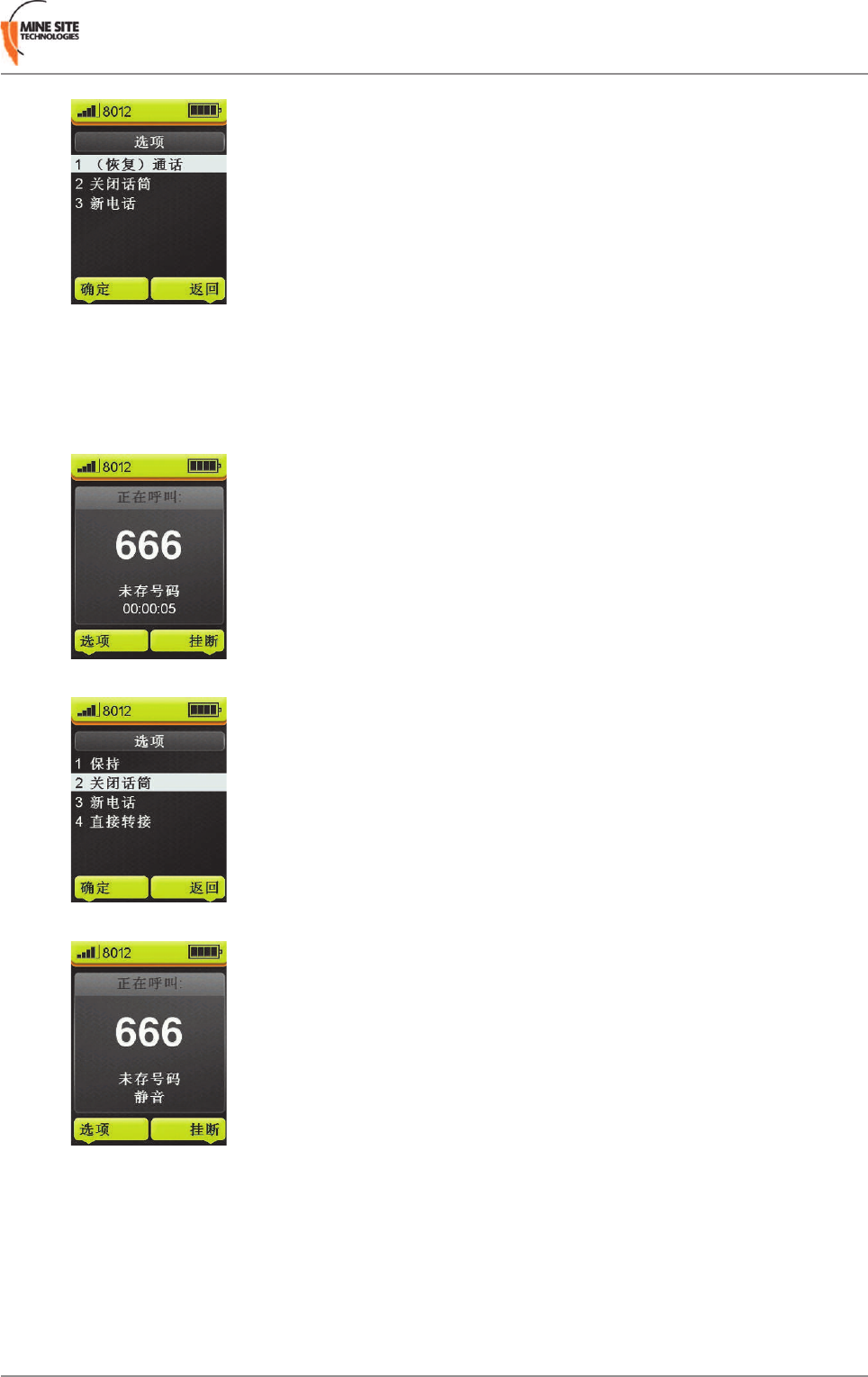
3.2.4 Mute a Call
To mute a call:
1. During a call select Option.
2. Use the Navigation key to scroll to Mute and press Select.
3. The call will be muted.
4. To remove the call from mute, press the Option key, then select Unmute.
MP70 MinePhone User Guide31Revision D
Voice Communications
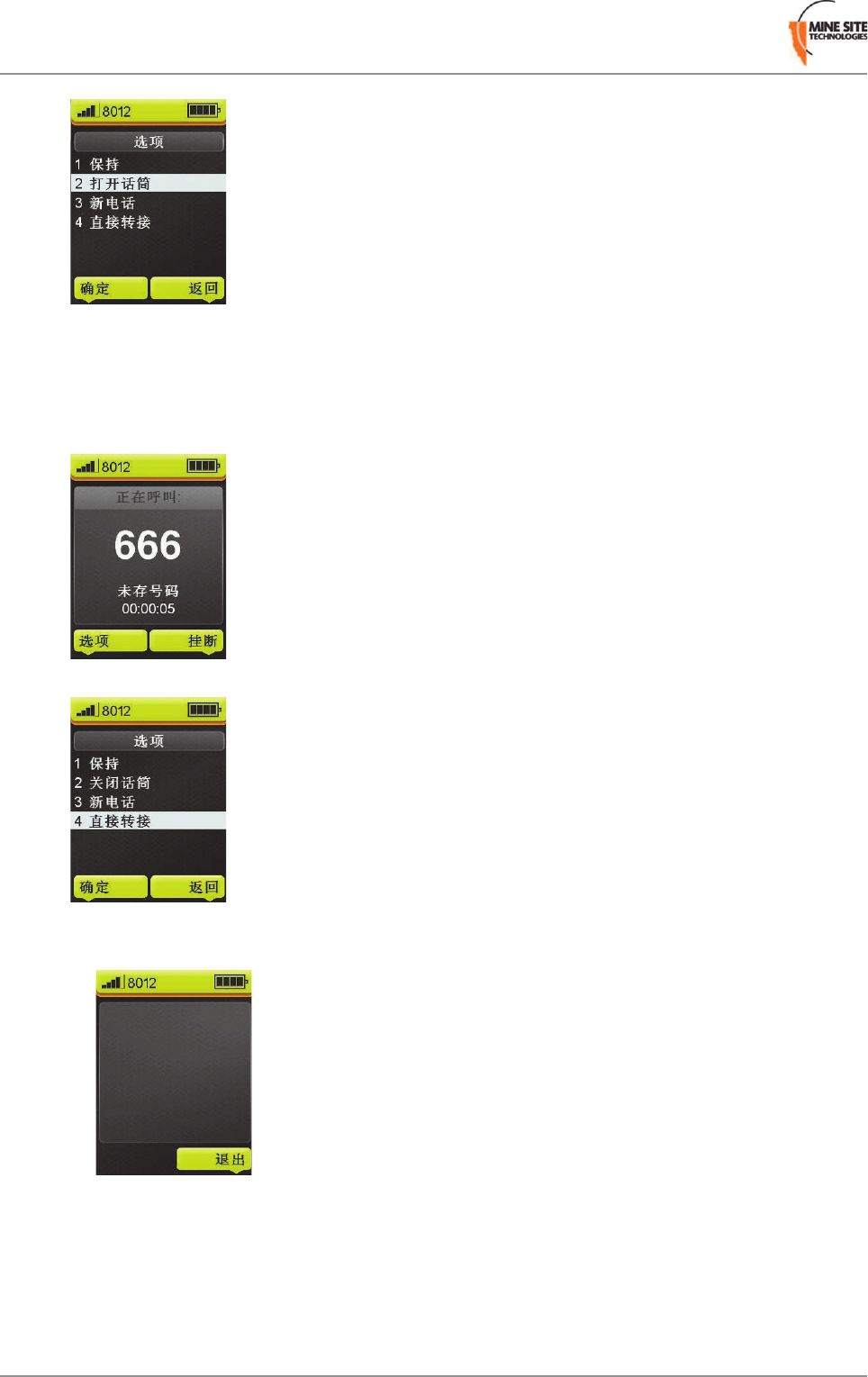
3.2.5 Transfer a Call
A call in progress can be transferred to another user. A procedure is described below.
1. During a call, press Option.
2. Scroll to Transfer call and press Select.
3. If you do not know the contact number, follow the substeps below, otherwise skip to the next step.
a) Press Contacts.
b) Use the Navigation keys to select the contact, or use the keypad to enter part of the contact name,
and press Details to view the number.
Revision D32MP70 MinePhone User Guide
Voice Communications
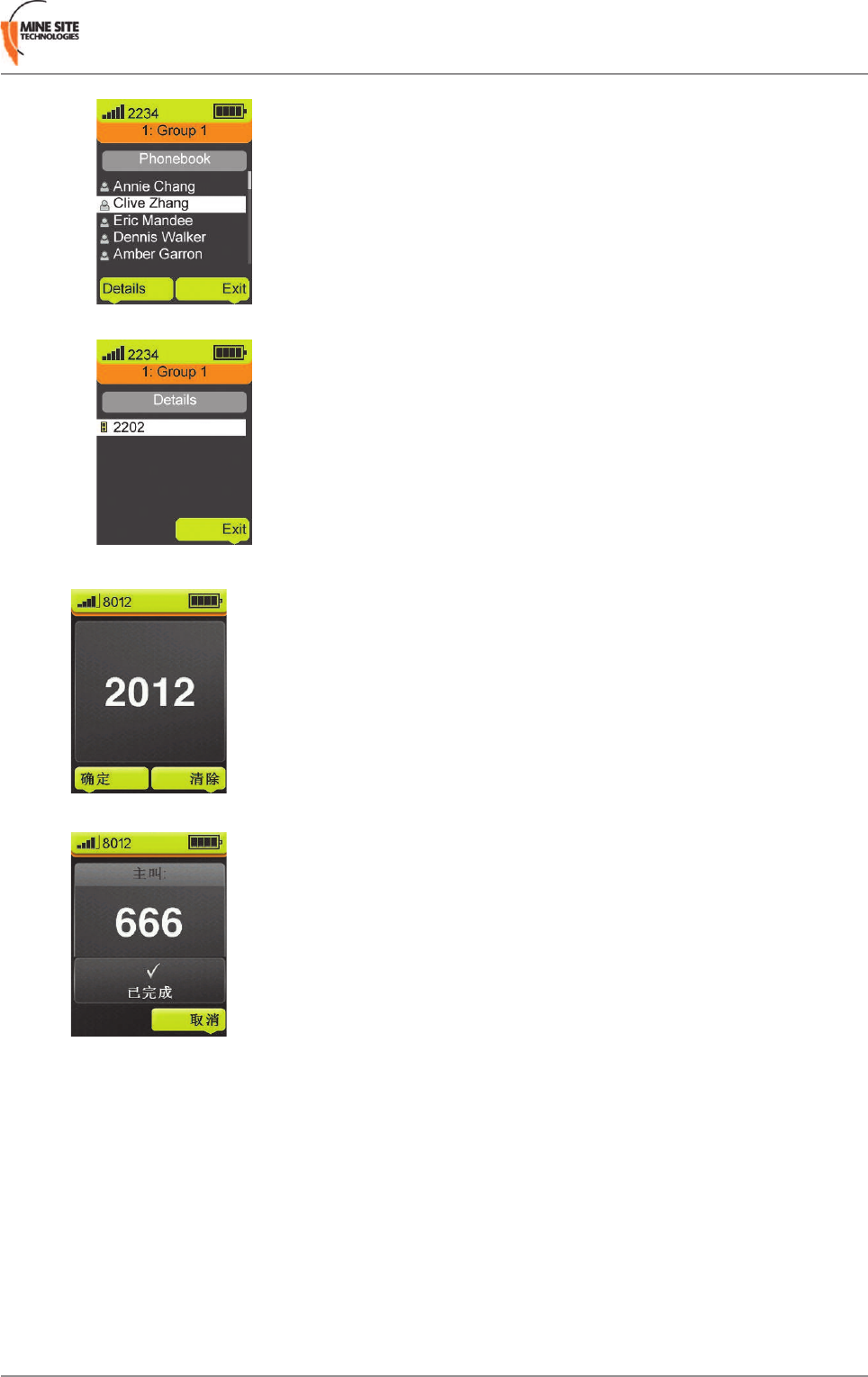
c) Press Exit twice, then go to the next step.
4. Type the contact number using the keypad and press Select.
5. The call will be transferred.
3.2.6 Call Waiting
The Call Waiting feature tells you if another caller is contacting when you are on a call. This feature is
enabled at an Administrator level.
1. The MinePhone will display when another caller is contacting you during a call. Press Answer to
accept the call and put the current caller on hold.
MP70 MinePhone User Guide33Revision D
Voice Communications
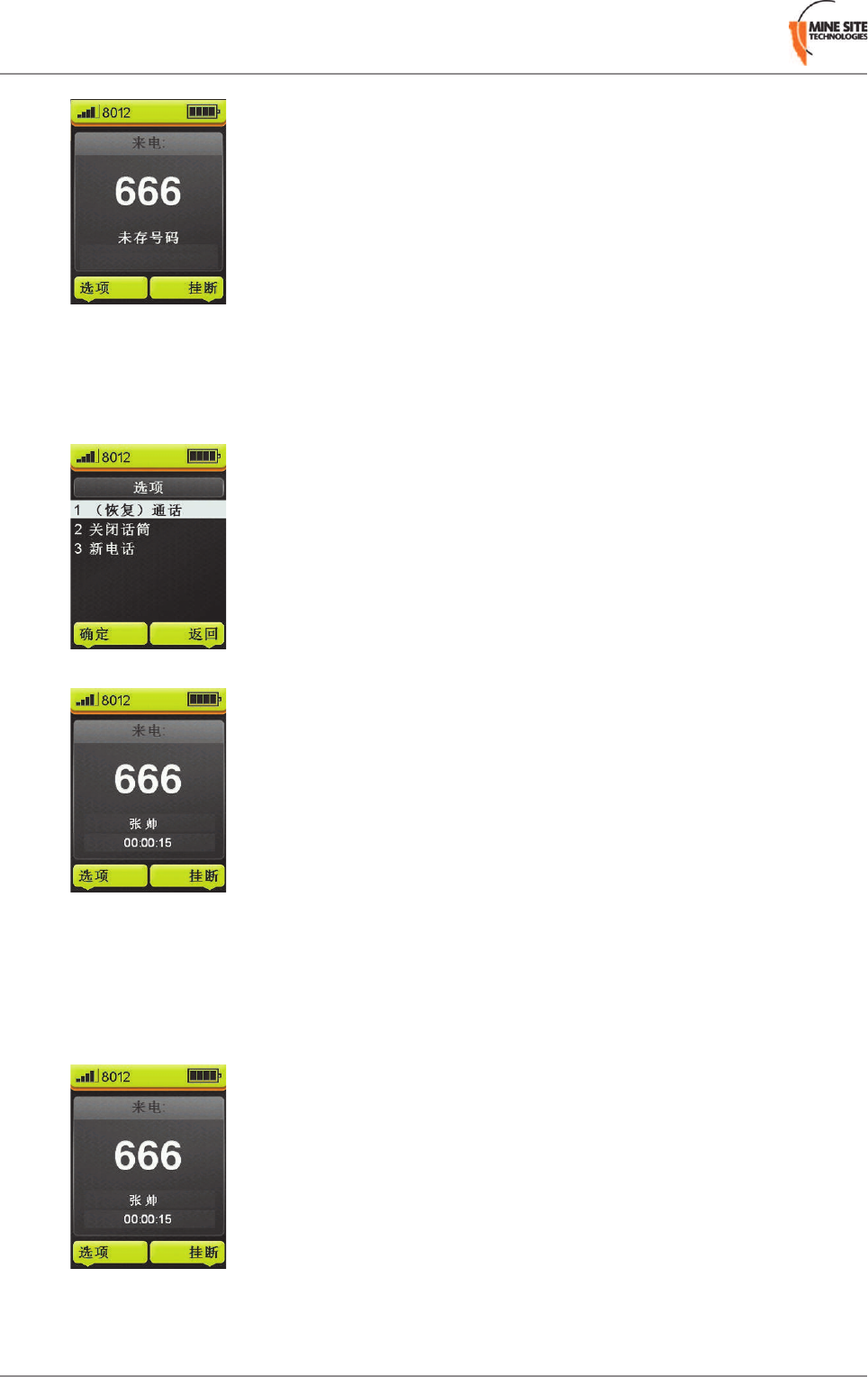
2. During a call you can press Options to access the following call waiting options:
• End Call on Hold — Hang up the caller on hold
• Swap — Revert the phone call to the caller on hold
• Mute — Mute the current call.
3. Press Hang up to end the call.
3.2.7 Handsfree
The MinePhone allows handsfree conversations during calls, using the speaker and bottom microphone.
To activate handsfree operation:
1. During a call, press the left softkey to select Options.
2. Select Handfree.
Revision D34MP70 MinePhone User Guide
Voice Communications

3. To switch back to handset mode, access the Option menu again and select Handset.
MP70 MinePhone User Guide35Revision D
Voice Communications

Chapter
4
Remote Speaker Microphone
A third party Remote Speaker Microphone (RSM) can be attached to
the MinePhone, which enables PTT calls without holding the handset.
Topics:
•Attaching a Remote Speaker
Microphone The RSM can only be used on MinePhones deployed in the Hard Rock
mining environment. MinePhones used in an Intrinsically Safe
environment cannot use the RSM feature.
•Using the RSM on PTT Calls
MP70 MinePhone User Guide37Revision D
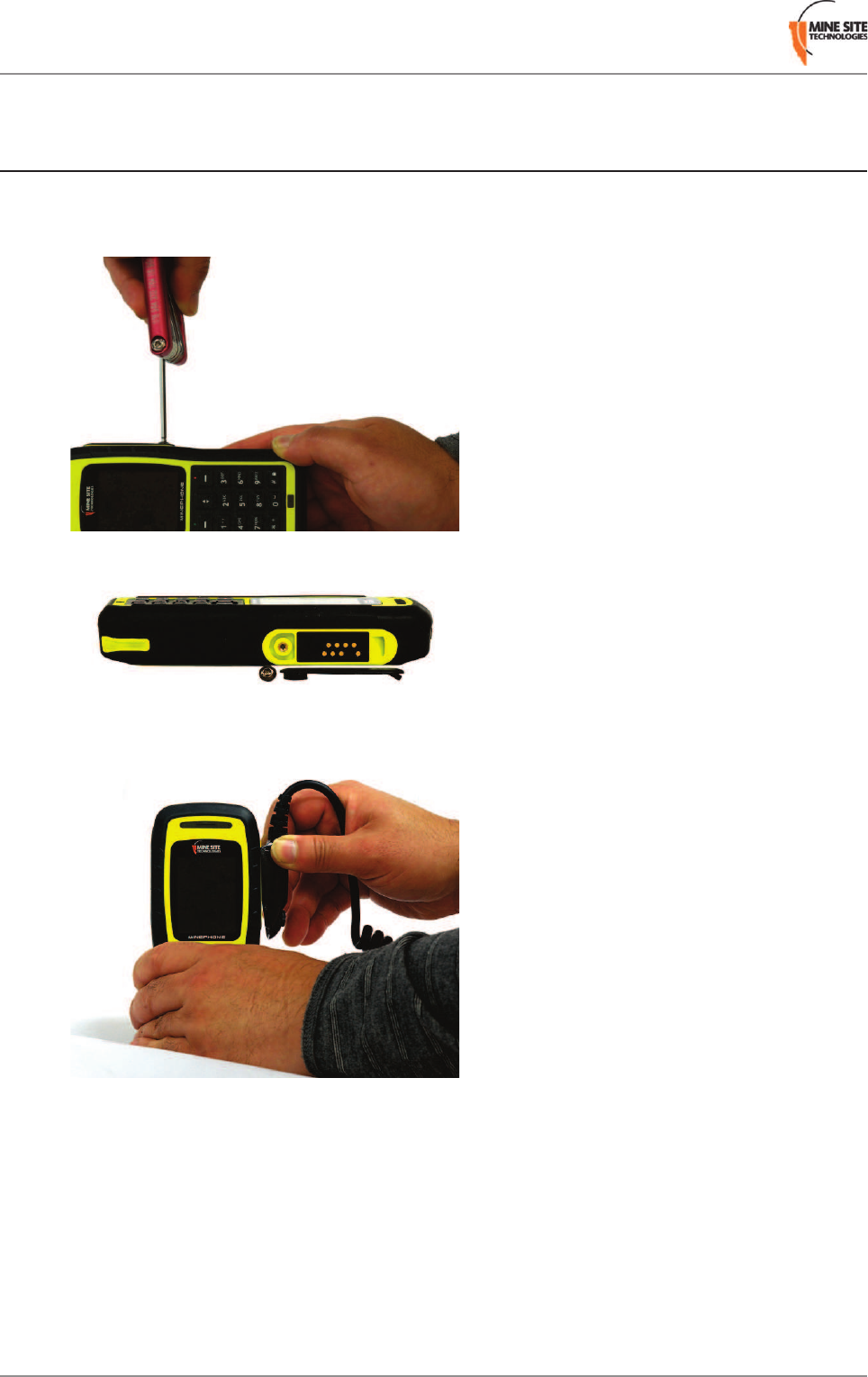
4.1 Attaching a Remote Speaker Microphone
The procedure below describes attaching the RSM to the MinePhone.
1. Turn off the phone and loosen the screw holding the RSM cover.
2. Remove the cover.
3. Align the RSM plug to the MinePhone socket.
4. Use a flathead screwdriver to tighten the screw on the RSM jack to the MinePhone.
Revision D38MP70 MinePhone User Guide
Remote Speaker Microphone
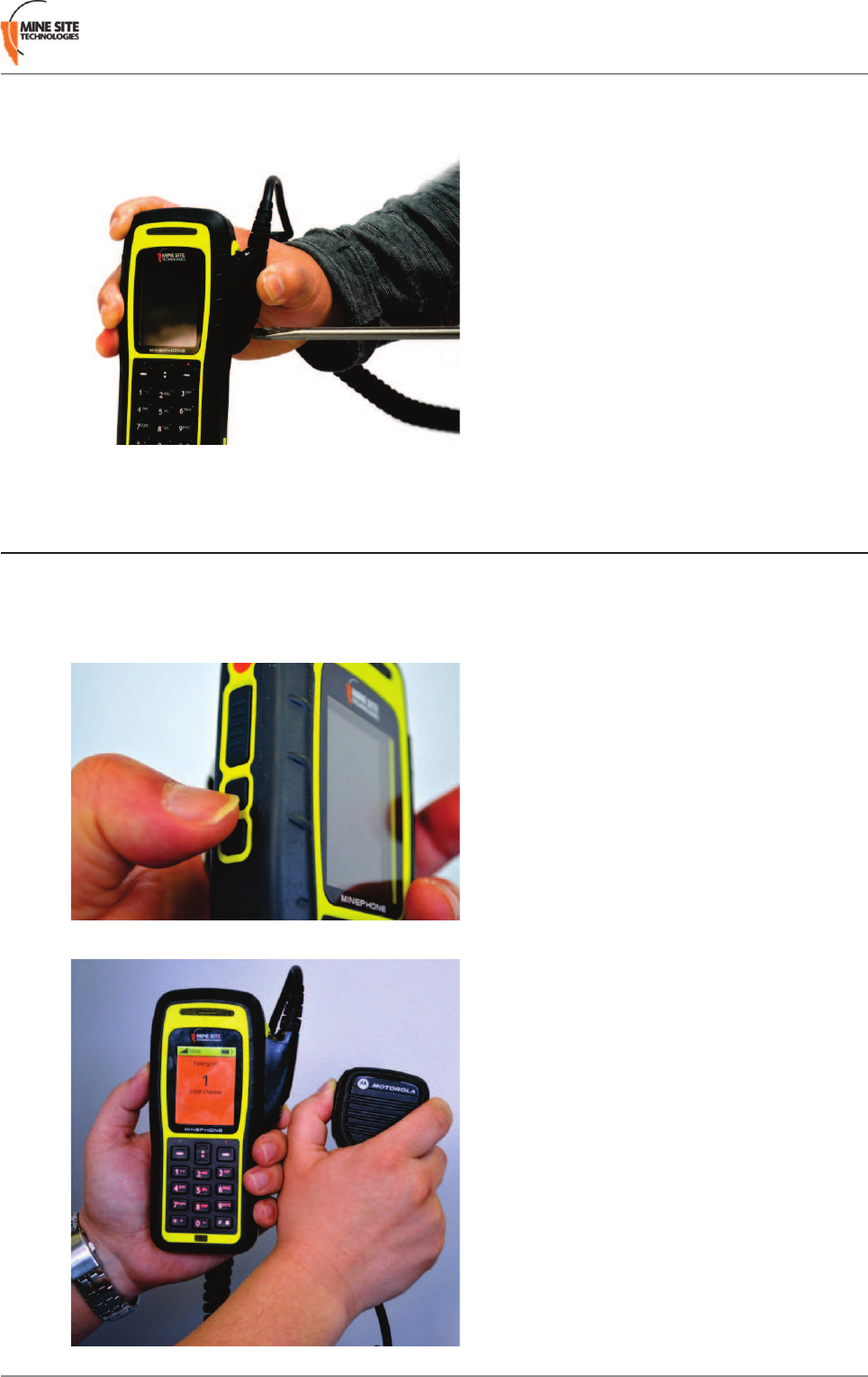
4.2 Using the RSM on PTT Calls
To make a Push to Talk call using the Remote Speaker Microphone:
1. Select the PTT group channel using the Channel Up Channel Down keys on the side of the handset.
Make sure you and the recipient are on the same channel.
2. Press and hold the side button on the RSM. Wait for the short beep before speaking.
MP70 MinePhone User Guide39Revision D
Remote Speaker Microphone

3. When you have finished speaking, release the side button on the RSM. This will allow you to hear
recipients to talk back on the PTT group.
Revision D40MP70 MinePhone User Guide
Remote Speaker Microphone

Chapter
5
Other Phone Functions
This chapter describes configuring the keypad lock, viewing text
messages and viewing network settings.
Topics:
•Keypad Lock
•Managing Messages
•Viewing Network Details
•Locator App
MP70 MinePhone User Guide41Revision D
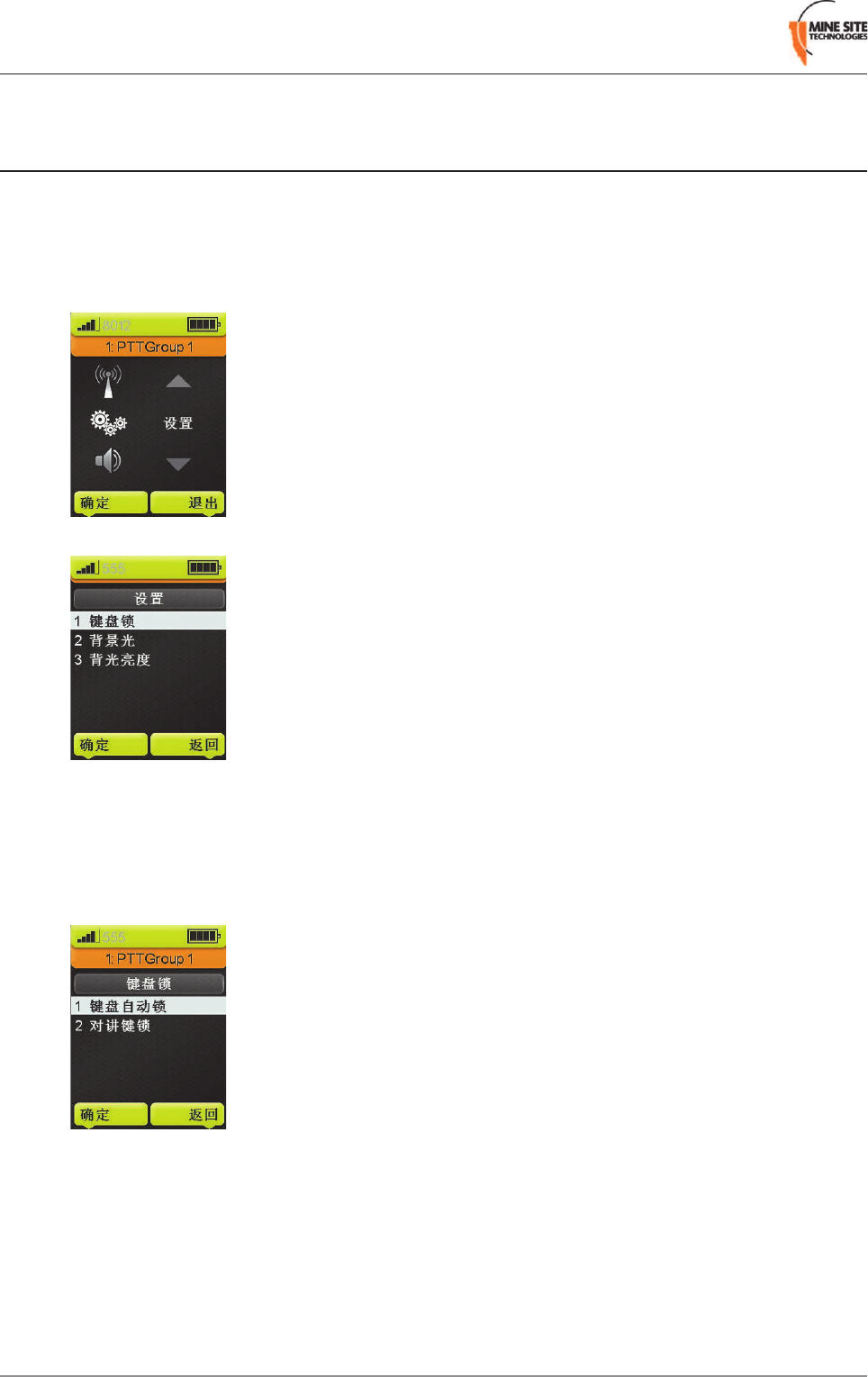
5.1 Keypad Lock
The MinePhone keypad can be manually locked and unlocked by pressing and holding the #key for 2
seconds. .
The keypad and PTT key can also be configured to auto lock after 60 seconds. .
1. Press Menu on the Home screen, scroll to the Settings option and press Select.
2. Auto Lock Key will be highlighted. Press Select.
3. Scroll to select one of the three menu options and press Select.
•Keypad Auto Lock: The keypad will auto lock after 60 seconds, but the PTT button will still
function
•Keypad & PTT Auto Lock: The keypad and PTT button will auto lock after 60 seconds
•Disable: All auto lock options are disabled.
4. When the keypad and PTT button are locked, padlock icon is displayed on the top right of the screen.
Revision D42MP70 MinePhone User Guide
Other Phone Functions
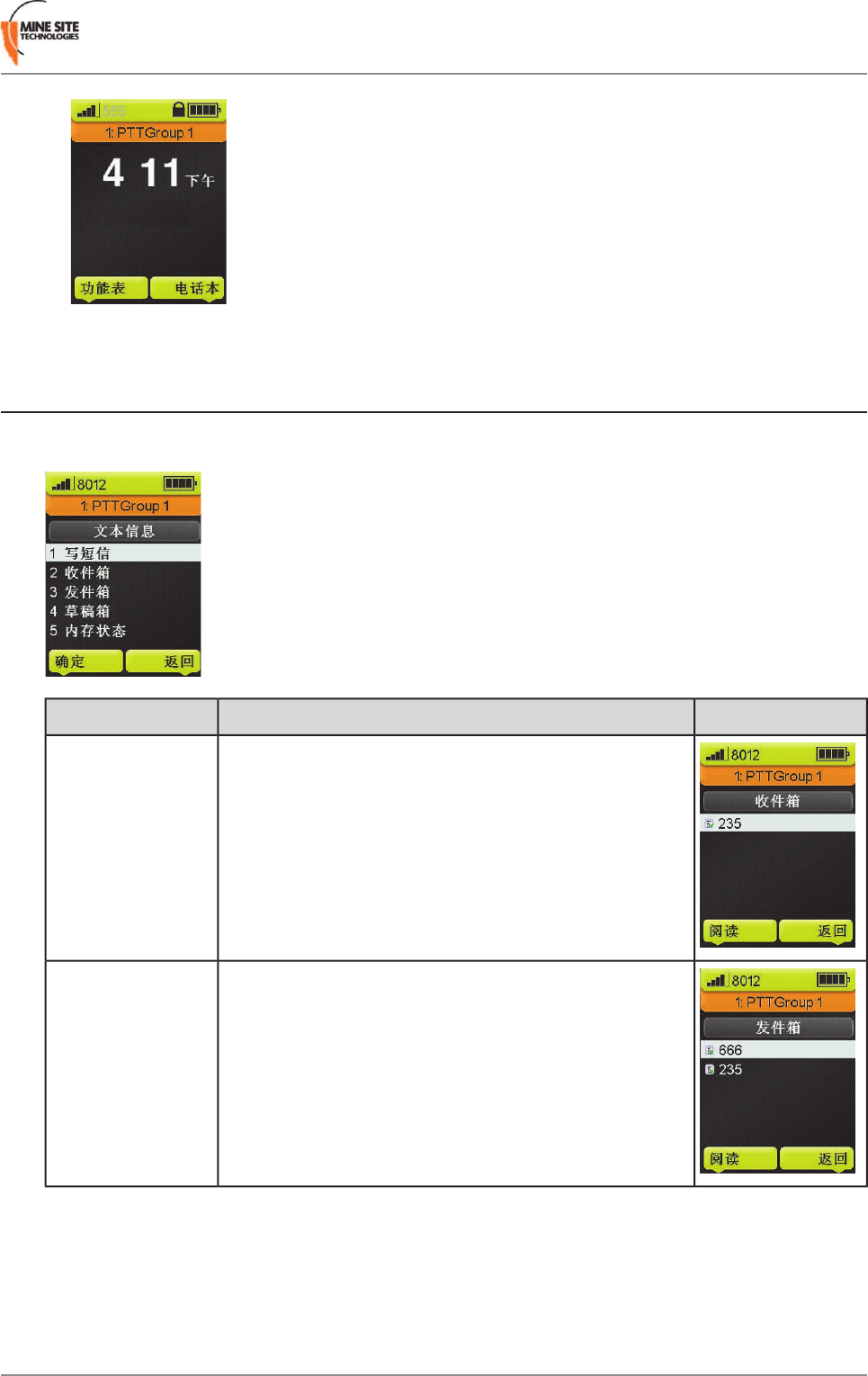
5.2 Managing Messages
Selecting Menu >Messages will display the options for text messages as described below.
PictureDescriptionMessage folder
Up to 100 received messages are contained in the Inbox
folder.
Inbox
Up to 100 sent messages are contained in the Outbox.Outbox
MP70 MinePhone User Guide43Revision D
Other Phone Functions
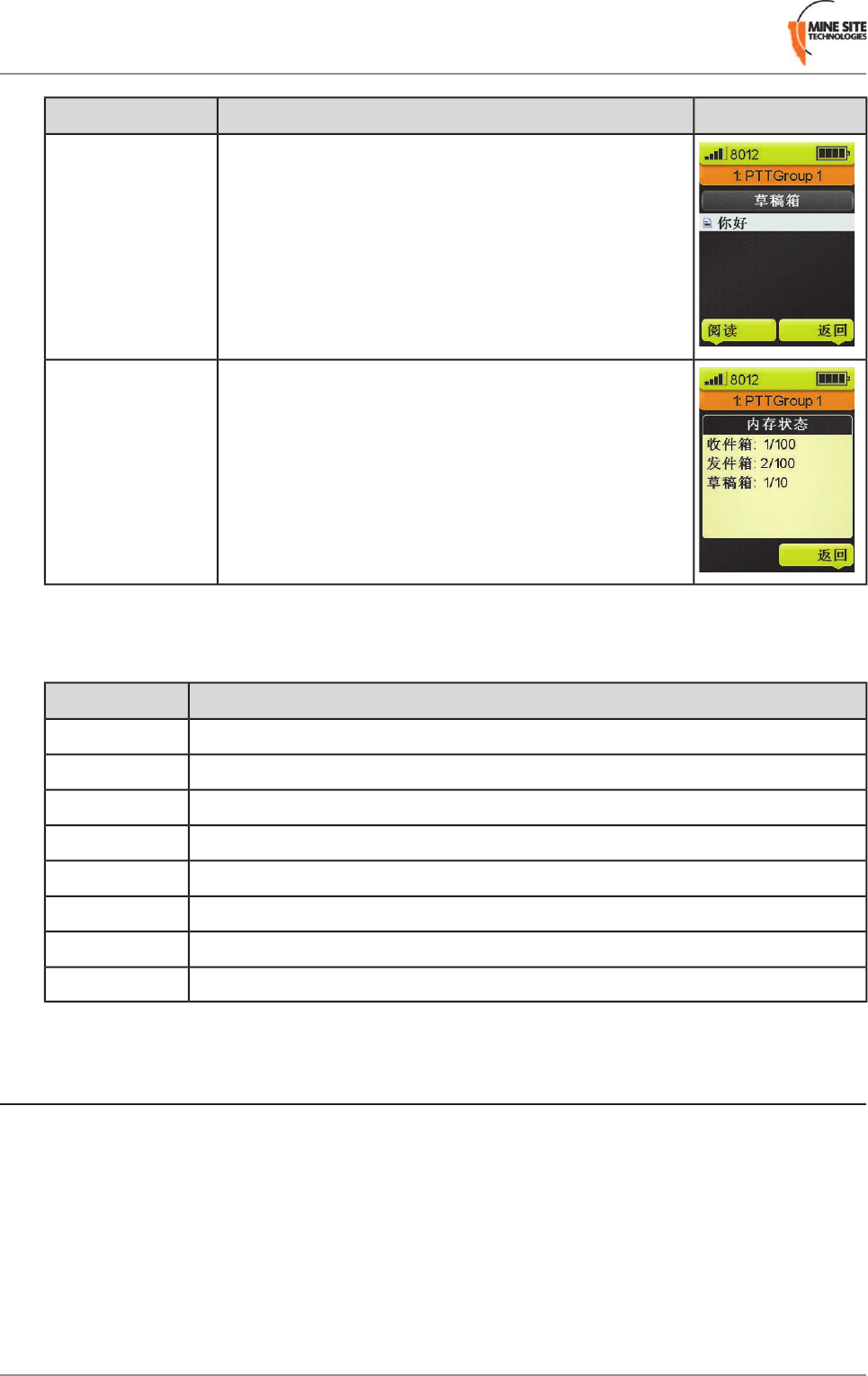
PictureDescriptionMessage folder
Up to 10 saved messages that are not sent are stored in Draft
folder.
Draft
Displays the number of messages in the Inbox,Outbox and
Draft.
Status
Message Options
Each message folder selection has options for modifying or sending a message.
FunctionMessage Option
Open the message to read.Read
Edit the selected message.Edit
Send the selected message.Send
Delete the selected message.Delete
Reply to the received message.Reply
Message is forwarded to another contact.Forward
Delete all messages in the folder.Delete All
Call the message sender.Call Back
5.3 Viewing Network Details
Network details can be viewed by selecting Menu >Network >Network Info . Use the Navigation
keys to scroll down the screen to view the details.
Revision D44MP70 MinePhone User Guide
Other Phone Functions
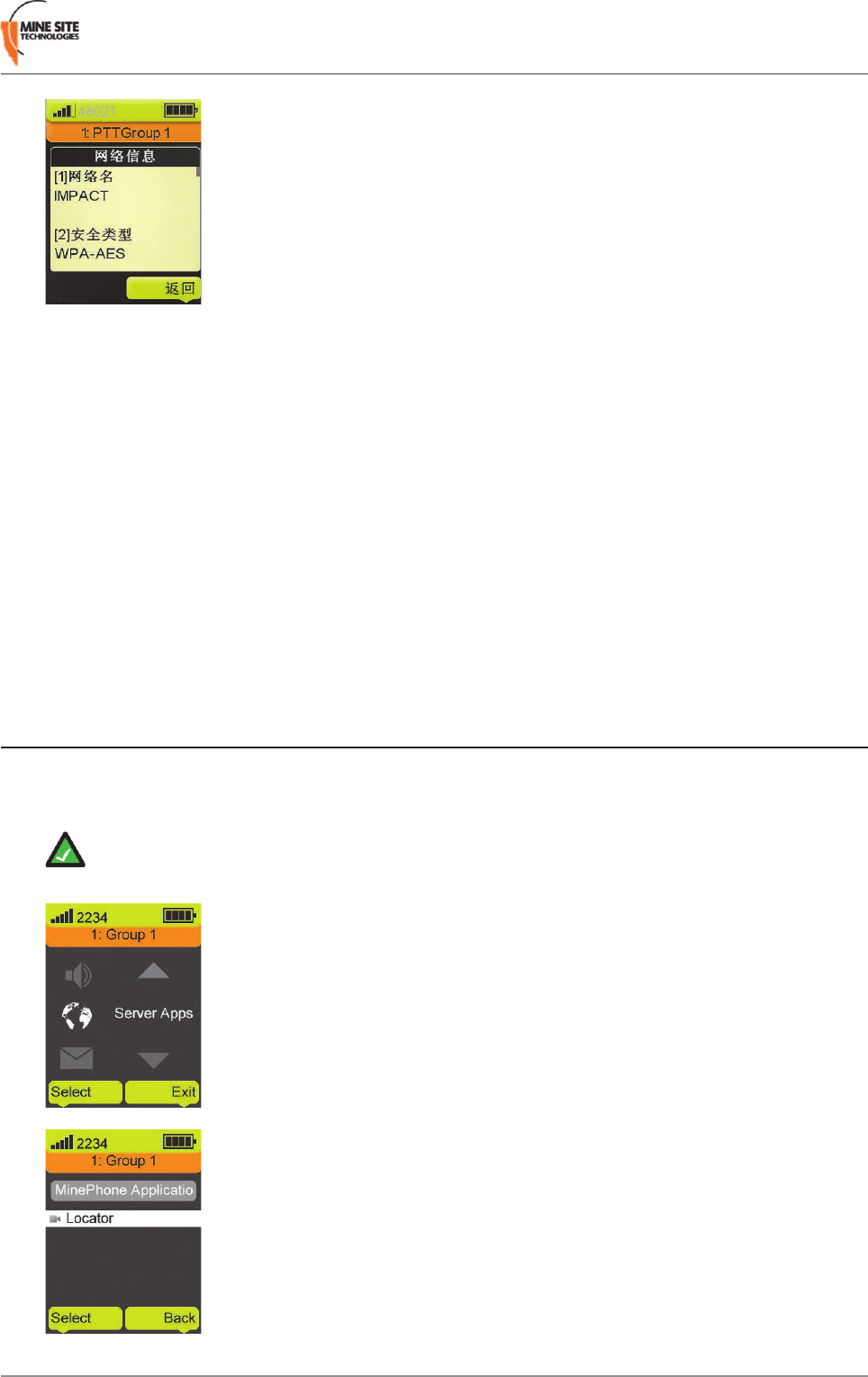
This screen contains useful troubleshooting information that may be requested by Technical Support
personnel. It contains the following information:
•SSID
•Security Type
•IP Address
•Subnet Mask
•Gateway IP Address
•DNS Address
•TFTP Server (IP Address)
•SIP Server (IP Address)
•MAC Address
•Control Port
5.4 Locator App
The Locator app can be used to check the current zone in which a selected entity is located, or to see all
entities in a selected zone. If activated, the app can be accessed in Menu >Server Apps >Locator .
Note: This feature is only available if operating the phone with the MST ImPact Communications
Appliance (ICA) version 1.4 or greater.
MP70 MinePhone User Guide45Revision D
Other Phone Functions
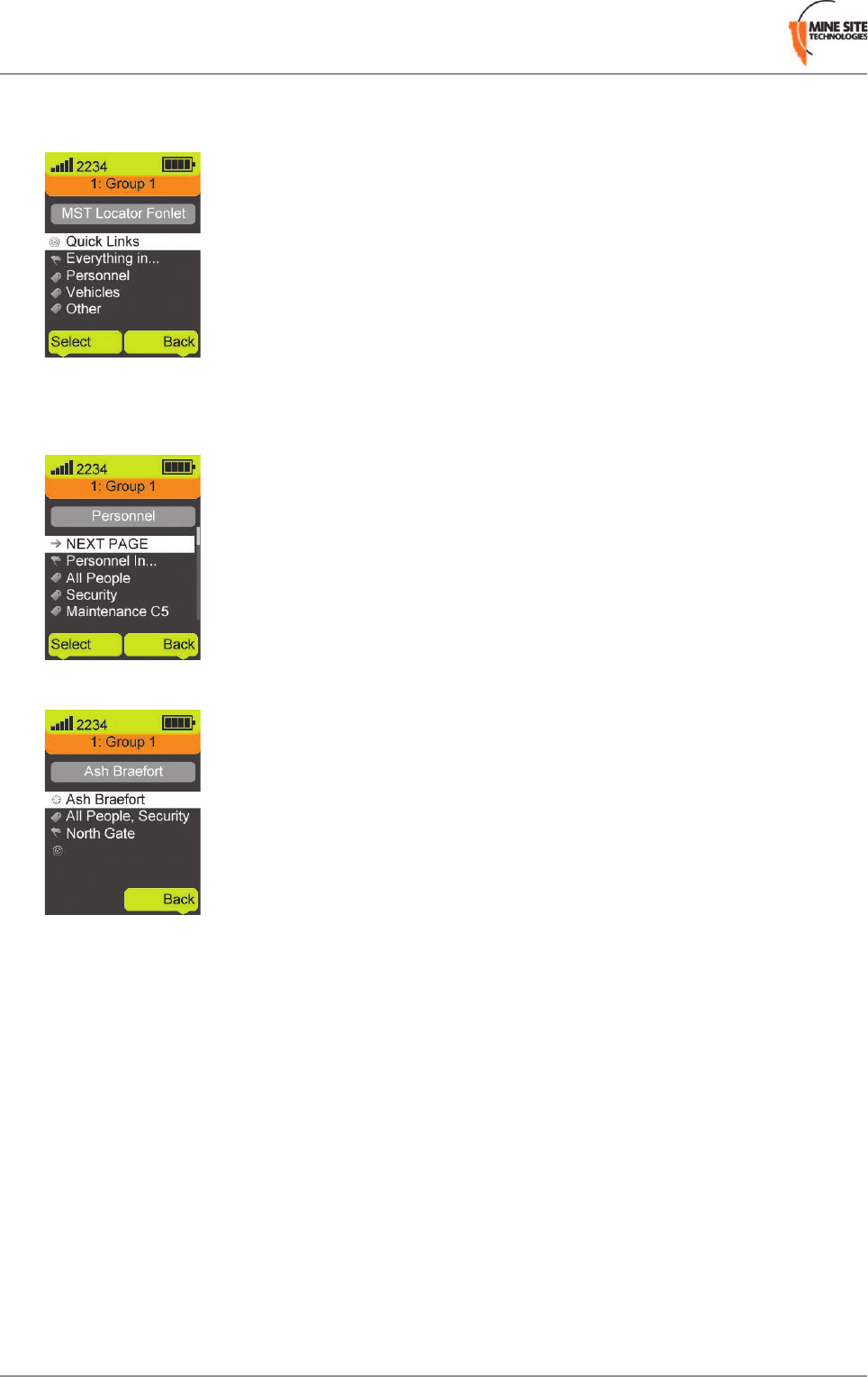
On the Locator menu, the Everything in... shows all entities in a specific zone, or a specific entity type
can be selected.
Once an entity type is selected, a page of groups and entities is displayed. The Personnel/Vehicles/Other
in... option will show all entities of that type in a selected zone, or scroll down to select an group/entity
on that page. Use the NEXT PAGE / PREVIOUS PAGE options to move through the pages.
Once an entity is selected, their name, group(s), and current zone will be displayed.
Revision D46MP70 MinePhone User Guide
Other Phone Functions

Chapter
6
Call Logs
This chapter describes how to use call logs on the MinePhone.
Topics:
•Viewing Call Logs
MP70 MinePhone User Guide47Revision D
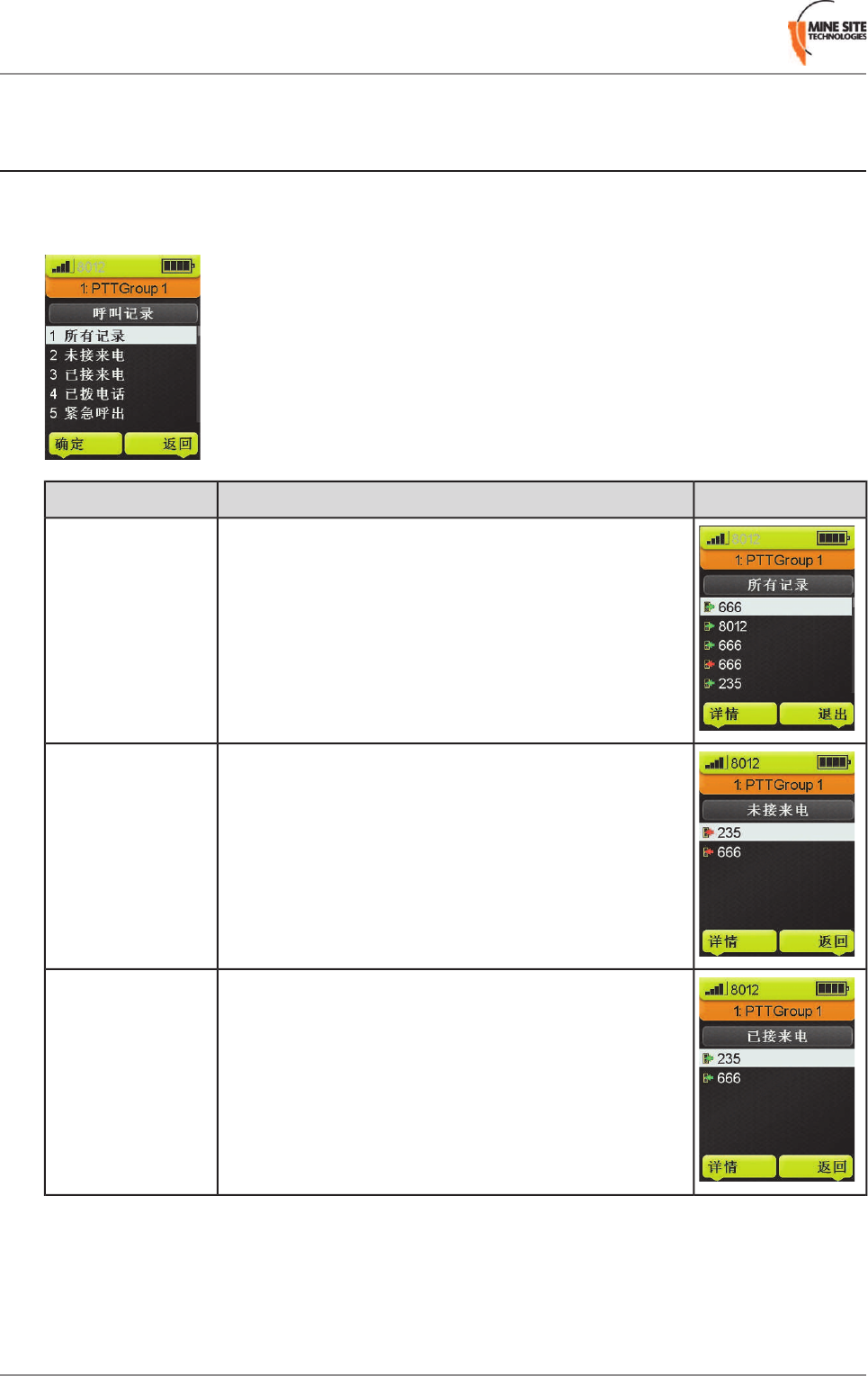
6.1 Viewing Call Logs
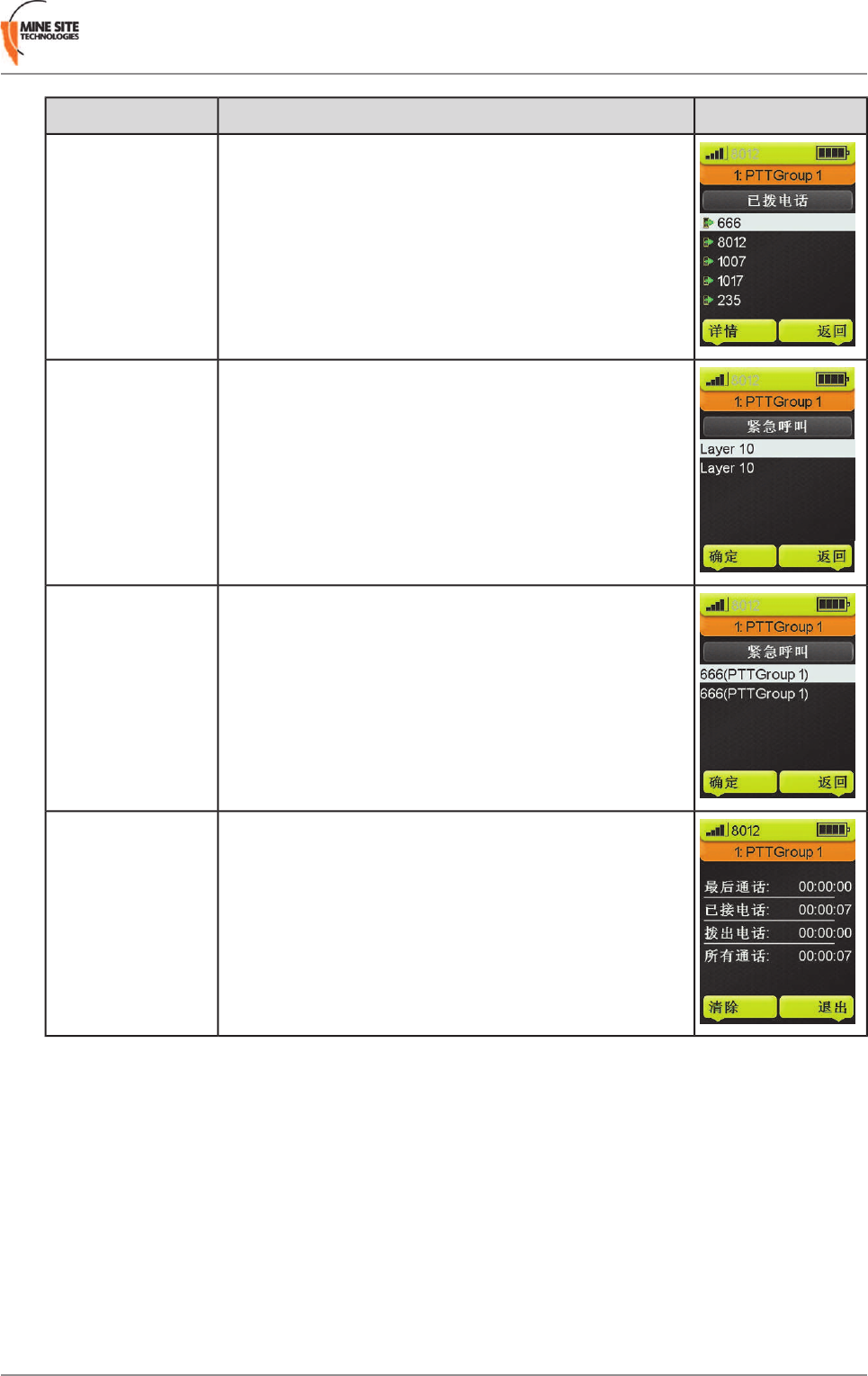
Call logs can be accessed by selecting Menu >Call Log . A list of call log options are displayed and
described below.
PictureDescriptionCall Log Menu
Lists all call types.All Calls
Lists the last 20 missed calls.Missed Call
Lists the last 20 calls received.Received
Revision D48MP70 MinePhone User Guide
Call Logs
PictureDescriptionCall Log Menu
Lists the last 20 dialled calls.Dialled
Lists the last 20 emergency calls sent from the handset.Emergency Sent
Lists the last 20 emergency calls received.Emergency
Received
Lists the total duration of all calls.Duration
MP70 MinePhone User Guide49Revision D
Call Logs

Appendix
A
Troubleshooting Guide
SolutionCauseProblem
Charge the handset in the supplied
charging dock.
Handset is not charged.MinePhone does not turn on.
Return to a MST support centre
to be repaired. MinePhones are
The MinePhone's internal
electronics are damaged.
not field serviceable and must be
serviced in a workshop by
technicians certified to repair
Intrinsically Safe devices.
Check charger is plugged into an
active power source.
The charger's power adaptor is not
energised.
Battery is not charging.
Please contact an MST support
centre for repair.
Internal battery is at the end of its
life cycle.
Please contact an MST support
centre for repair.
The battery has failed.
Battery operation time can be
increased by reducing backlight
time and brightness.
Battery operation time will be
shorter depending on phone
settings and the amount of talk
time.
Battery operation time is shorter
than expected.
Check the charger is plugged into
a power adaptor that is switched
on.
Charging dock is not plugged into
the power adaptor or switched on.
No indicator light on the charging
dock when charging the phone.
Please contact an MST support
centre for repair.
Battery failure.Phone takes more than 3 hours to
charge.
Adjust the volume settings.Volume setting is low or turned
off.
No sound.
Please consult your network
administrator or MST System
Engineer.
Phone is not configured correctly.MinePhone cannot connect to the
network.
Make sure you press the Call
button after entering the phone
number.
Call button was not pressed.The MinePhone does not dial
when making a call.
Stand in closer proximity to a
wireless access point or improve
the wireless network coverage.
Poor network signal strength.Poor audio quality during a call.
MP70 MinePhone User Guide51Revision D
Appendix
B
MP70 MinePhone Specification
Physical
150mm (W) x 75mm (D) x 35mm (H)Dimensions
250gWeight
240 x 320 Colour TFTDisplay
1100mAhBattery (internal)
4 hours talktime
48 hours standby time
Battery life
+17dBmTransmit Power
IP54Enclosure Ingress
Protection (IP) rating
Network Protocols
• TCP / UDP / IP, IPV4, DNS ARP, Static IP, DHCP
• Caller ID
• Real Time Transfer Protocol (RTP). RFC 1889 / RFC 1890
• Session Description Protocol (SDP) RFC 2327
• Session Announcement Protocol (SAP)
• Session Initiation Protocol (SIP) RFC 3621, 3624 & 3515 V2
• Call control & text messaging (RFC 3261 & DPRFC 2321)
• DTMF RFC 2833
• Software updates by TFTP
WLAN and Voice Communications
Wi-Fi 802.11b/gTransmitter
InternalAntenna Type
Wi-Fi — 1-11
PTT — 32 channels available
Operating Channels
WEP (64/128 bit encryption)
WPA
Wireless Security
WPA2
G.711 (A-Law & u-Law 64kbps)
G.729A (8kbps)
Voice Features
MP70 MinePhone User Guide53Revision D

Acoustic echo cancellation
Background noise cancellation
Jitter buffer control (default 80ms, max 320ms)
Voice-over-IP (P2P, PBX, PTT)
Voice
Communication
IEEE 802.11 b/g
SIP support
Call forwarding
Caller ID
Telephony features
Call waiting
Call mute
Re-dial (last 20 calls)
Hot-key dialling
Text messaging (stores up to 100 messages)
Multiple ring tones
Phone book (up to 200 records)
Power saving mode
Speaker volume control
Vibrating alert
32 Push to talk (PTT) channels
Specific features
Emergency "man down" override
External headset (non I.S. versions only)
Regulatory Compliance
Exia IECEx TSA 10.0023XIEC
Exia 23-A100006-0MSHA
This device complies with part 15 of the FCC Rules. Operation is subject to the
following two conditions: (1) This device may not cause harmful interference,
FCC Statement
and (2) this device must accept any interference received, including interference
that may cause undesired operation.
Note:
THE MANUFACTURER IS NOT RESPONSIBLE FOR ANY RADIO OR TV INTERFERENCE
CAUSED BY UNAUTHORIZED MODIFICATIONS TO THIS EQUIPMENT. SUCH
MODIFICATIONS COULD VOID THE USER’S AUTHORITY TO OPERATE THE
EQUIPMENT.
Revision D54MP70 MinePhone User Guide
MP70 MinePhone Specification

Appendix
C
Acronyms
MeaningAcronym
Access PointAP
Dynamic Host Configuration ProtocolDHCP
ImPact Communication ApplianceICA
Media Access ControlMAC
Mine Site TechnologiesMST
Network Time ProtocolNTP
Push To TalkPTT
Peer to PeerP2P
Remote Speaker MicrophoneRSM
Received Signal Strength IndicatorRSSI
Real Transport ProtocolRTP
Session Initiation ProtocolSIP
Service Set IdentifierSSID
Wired Equivalent PrivacyWEP
Wi-Fi Protected AccessWPA
MP70 MinePhone User Guide55Revision D

Appendix
D
Hardware Warranty
Mine Site Technologies provide a 12 month warranty for hardware supplied to the original purchaser.
Mine Site Technologies warrants that the hardware supplied will be free from material defects in
workmanship and materials from the date of original purchase.
Mine Site Technologies will repair or replace the defective hardware during the warranty period at no
charge to the original owner. Such repair or replacement will be rendered by Mine Site Technologies.
Mine Site Technologies may at its sole discretion replace the defective hardware (or any part thereof)
with a reconditioned product or parts that Mine Site Technologies determines is substantially equivalent
(or superior) to the defective hardware. Repaired or replacement hardware will be warranted for the
remainder of the original warranty period from the date of original purchase. All hardware (or part thereof)
that is replaced by Mine Site Technologies shall become the property of Mine Site Technologies upon
replacement.
MP70 MinePhone User Guide57Revision D

Appendix
E
Firmware End User License Agreement
IMPORTANT: PLEASE READ CAREFULLY BEFORE USING THIS EQUIPMENT.
Mine Site Technologies End-User License Agreement ("EULA") is a legal agreement between you (either
an individual or a single entity) and Mine Site Technologies. Mine Site Technologies (MST) firmware
may include associated software components, media, printed materials and electronic documentation. By
installing, copying or otherwise using MST firmware, you agree to be bound by the terms of this EULA.
This license agreement represents the entire agreement concerning the program between you and Mine
Site Technologies, and it supersedes any prior proposal, representation or understanding between the
parties. If you do not agree to the terms of this EULA, do not install or use the software.
1. GRANT OF LICENSE
The MST firmware is licensed as follows:
(a) Installation and Use
Mine Site Technologies grants you the right to install and use copies of the MST firmware on associated
MST hardware.
(b) Backup Copies
You may also make copies of the MST firmware if necessary for backup and archival purposes.
2. DESCRIPTION OF OTHER RIGHTS AND LIMITATIONS
(a) Maintenance of Copyright Notices
You must not remove or alter any copyright notices on any and all copies of the MST firmware.
(b) Distribution
You may not distribute copies of MST firmware to third parties.
(c) Prohibition on Reverse Engineering, Decompilation, and Disassembly
You may not reverse engineer, decompile, or disassemble the MST firmware.
(d) Rental
You may not rent, lease, or lend MST firmware.
(e) Support Services
Mine Site Technologies may provide you with support services related to the MST firmware. Any
supplemental activation codes provided to you shall be considered part of the MST firmware and subject
to the terms and conditions of this EULA.
(f) Compliance with Applicable Laws
You must comply with all applicable laws regarding use of the MST firmware.
MP70 MinePhone User Guide59Revision D

3. TERMINATION
Without prejudice to any other rights, Mine Site Technologies may terminate this EULA if you fail to
comply with the terms and conditions of this EULA. In such event, you must destroy all copies of the
MST firmware in your possession.
4. COPYRIGHT
All title, including but not limited to copyrights, in and to the MST firmware and any copies thereof are
owned by Mine Site Technologies. All title and intellectual property rights in and to the content which
may be accessed through use of the MST firmware is the property of the respective content owner and
may be protected by applicable copyright or other intellectual property laws and treaties. This EULA
grants you no rights to use such content. All rights not expressly granted are reserved by Mine Site
Technologies.
5. NO WARRANTIES
Mine Site Technologies disclaims any warranty for the MST firmware. The MST firmware is provided
'as is' without any warranty of any kind, including but not limited to any warranties of merchantability,
non-infringement, or fitness of a particular purpose. Mine Site Technologies does not warrant or assume
responsibility for the accuracy or completeness of any information, text, graphics, links or other items
contained within the MST firmware. Mine Site Technologies makes no warranties respecting any harm
that may be caused by the transmission of a computer virus, worm, time bomb, logic bomb, or other such
computer program. Mine Site Technologies disclaims any warranty or representation to authorised users
or to any third party.
6. LIMITATION OF LIABILITY
In no event shall Mine Site Technologies be liable for any damages (including, without limitation, lost
profits, business interruption, or lost information) rising out of 'authorised users' use of or inability to use
the MST firmware, even if Mine Site Technologies has been advised of the possibility of such damages.
In no event will Mine Site Technologies be liable for loss of data or for indirect, special, incidental,
consequential (including lost profit), or other damages based in contract, tort or otherwise. Mine Site
Technologies shall have no liability with respect to the content of the MST firmware or any part thereof,
including but not limited to errors or omissions contained therein, libel, infringements of rights of publicity,
privacy, trademark rights, business interruption, personal injury, loss of privacy, moral rights or the
disclosure of confidential information.
Revision D60MP70 MinePhone User Guide
Firmware End User License Agreement