Mini Mitter AWR1 ACTIREADER User Manual USERS MANUAL 1
Mini Mitter Co. Inc. ACTIREADER USERS MANUAL 1
Contents
- 1. USERS MANUAL 1
- 2. USERES MANUAL 2
- 3. USERS MANUAL 3
USERS MANUAL 1

5015 B.U. Bowman Drive Buford, GA 30518 USA Voice: 770-831-8048 Fax: 770-831-8598
Certification Exhibit
FCC ID: JIAAWR1
IC: 6041A-AWR1
FCC Rule Part: 15.209
IC Radio Standards Specification: RSS-210
ACS Report Number 08-0085 - 15C
Manufacturer: Mini Mitter Company, Inc.
Model(s): ActiReader
Manual
(Part 1 of 3)

Instruction Manual
Actiwatch Communication and
Sleep Analysis Software
Actiware® 5.0 and Actiware-CT 5.1
Actiwatch-16, -64, -Score, -L
Actireader

Actiwatch®-16 / Actiwatch®-64
Actiwatch®-L / Actiwatch®-Score
Actiware® 5.0 / Actiware®-CT 5.1
Actiwatch Communication and
Sleep Analysis Software
Instruction Manual
Respironics, Mini-Mitter, Actiwatch, and Actiware are registered trademarks of Respironics, Inc. and its afliates.
Windows is a registered trademark of Microsoft Corporation.
Pentium is a registered trademark of Intel.
ActiReader is covered by the following US patent numbers: 6,129,663. Other patents pending.
© 2006 Respironics, Inc. and its afliates. All rights reserved.
iii
Mini Mitter, a Respironics Company
WARRANTY POLICY
1. WARRANTY : Mini Mitter, a Respironics Company, warrants that upon delivery the goods sold hereunder will be free of defects
in materials and workmanship, and such goods will substantially conform to the specifications furnished by the Seller, and to any
drawings or specifications furnished to the Buyer by the Manufacturer (Mini Mitter, a Respironics Company) if approved by the
Manufacturer.
a) Commencement of Warranty – The warranty period begins on the date of delivery.
b) Duration of Warranty – The goods sold hereunder are warranted for a period of twelve months, except PDT-4000 and PDT-
4000HR, which are warranted for two years.
c) Third Party Product Warranty – Third party products purchased by Buyer through the Manufacturer are covered by the third
party’s warranty and ARE NOT COVERED BY THE MANUFACTURER WARRANTY.
d) Place of Repair or Replacement. Buyer must return the defective or nonconforming goods upon request to Mini Mitter, a
Respironics Company, at 20300 Empire Avenue, Building B-3; Bend, OR 97701, 800-685-2999 (US or Canada only) or 1-541-598-
3800, not later than 15 days after the Manufacturer’s receipt of notice of the alleged defect or nonconformance. Buyer shall
prepay transportation charges. The Manufacturer shall pay for the return of the goods to Buyer. No goods are to be returned to
the Manufacturer without prior authorization and a valid Return Authorization (RA) number.
e) Limitation of Warranty – The foregoing warranty shall not apply to defects resulting from (a) improper or inadequate
maintenance by Buyer; (b) unauthorized modification of the goods; (c) operation of the goods outside of the environmental
specifications for the goods; (d) neglect, misuse or abuse of the goods or (e) modification or integration with other goods not
covered by a Mini Mitter, a Respironics Company, warranty when such modification or integration increases the likelihood of
damage to the goods.
f) Technical assistance – The warranty set forth above shall not be enlarged, diminished or affected by and no obligation or
liability shall arise from the Manufacturer’s rendering of technical advice, assistance or services in connection with Buyer’s order
of the goods furnished hereunder. The Buyer is not relying on the Manufacturer’s skill or judgment to select or furnish suitable
goods.
THE WARRANTY SET FORTH ABOVE IS EXCLUSIVE AND THE MANUFACTURER GIVES NO OTHER WARRANTY WRITTEN
OR VERBAL, EXPRESS OR IMPLIED. MINI MITTER, A RESPIRONICS COMPANY, SPECIFICALLY DISCLAIMS THE IMPLIED
WARRANTIES OF MERCHANTABILITY AND FITNESS FOR A PARTICULAR PURPOSE. THE MANUFACTURER’S STANDARD
WARRANTY POLICY COVERING ANY OF THE MANUFACTURER’S PRODUCTS SHALL BE NULL, VOID, AND OF NO EFFECT IF THE
BUYER OR ANY THIRD PARTY USES THAT PRODUCT FOR ANY USE OTHER THAN THE INTENDED USE OF THAT PRODUCT.
2. LIMITATION OF REMEDIES AND LIABILITY. The remedies provided herein are Buyer’s sole and exclusive remedies.
The Manufacturer shall have no responsibility other than, at the Manufacturer’s option, to repair or replace defective or
nonconforming goods or to refund the purchase price of defective or nonconforming goods in the event of breach of
any warranty. IN NO EVENT SHALL THE MANUFACTURER BE LIABLE FOR ANY DIRECT, INDIRECT, SPECIAL, INCIDENTAL OR
CONSEQUENTIAL DAMAGES (INCLUDING LOSS OF PROFITS) WHETHER BASED ON CONTRACT, TORT OR ANY OTHER LEGAL
THEORY. In the event that any limitation of warranty or disclaimer of liability is found to be unlawful or inapplicable, or to have
failed of its essential purpose, the Manufacturer’s liability shall be limited to the amount paid by the Buyer for the specific goods
that caused such liability.

iv
MINI MITTER, a Respironics Company
SOFTWARE LICENSE AGREEMENT
NOTICE TO USER: BY CLICKING THE “I ACCEPT THE TERMS IN THE LICENSE AGREEMENT” BUTTON, THE USER (“YOU”) AGREE(S) TO BE
BOUND BY THE TERMS OF THIS SOFTWARE LICENSE AGREEMENT (“AGREEMENT”). BY CLICKING YES YOU ACCEPT ALL THE TERMS
AND CONDITIONS OF THIS AGREEMENT, INCLUDING WITHOUT LIMITATION, THE RESTRICTIONS ON: USE CONTAINED IN SECTION
2; TRANSFERABILITY IN SECTION 4; WARRANTY IN SECTION 6; AND LIABILITY IN SECTION 7. YOU AGREE THAT THIS AGREEMENT IS
ENFORCEABLE LIKE ANY WRITTEN NEGOTIATED AGREEMENT SIGNED BY YOU. IF YOU DO NOT AGREE TO BE BOUND TO THE TERMS AND
CONDITIONS OF THIS AGREEMENT, YOU MAY OBTAIN A REFUND OF ANY AMOUNT YOU ORIGINALLY PAID IF YOU: (A) DO NOT USE THE
SOFTWARE AND (B) RETURN THE SOFTWARE, WITH PROOF OF PAYMENT, TO THE LOCATION FROM WHICH IT WAS OBTAINED WITHIN
THIRTY (30) DAYS OF THE PURCHASE DATE.
1. Definitions. “Software” means (a) all of the contents of the files, disk(s), CD-ROM(s) or other media with which this Agreement
is provided, including but not limited to (i) MINI MITTER or third party computer information or software; (ii) related explanatory
written materials or files (“Documentation”); and (b) upgrades, modified versions, updates, additions, and copies of the Software,
if any, licensed to you by MINI MITTER (collectively, “Updates”). “Use” or “Using” means to access, install, download, copy or
otherwise benefit from using the functionality of the Software in accordance with the Documentation. “Permitted Number”
means one (1) unless otherwise indicated under a valid license (e.g. volume license) granted by MINI MITTER. “Computer” means
an electronic device that accepts information in digital or similar form and manipulates it for a specific result based on a sequence
of instructions. “MINI MITTER” means MINI MITTER, a Respironics Company, 20300 Empire Ave., Bldg B-3, Bend, Oregon 97701.
2. Software License.
2.1 Grant. MINI MITTER owns all intellectual property in the Software. MINI MITTER hereby grants you a limited, non-exclusive
license to Use the Software only in accordance with the terms of this Agreement and for the purposes described in the
Documentation. Use of some third party materials included in the Software may be subject to other terms and conditions found
in a separate license agreement.
2.2 General Use. You may install and Use a copy of the Software on your compatible Computer, up to the Permitted Number of
Computers.
2.3 Backup Copy. You may make one backup copy of the Software, provided your backup copy is not installed or used on
any Computer. You may not transfer the rights to a backup copy unless you transfer all rights in the Software as provided under
Section 4.
2.4 No Modification. You may not alter or modify the Software or create a new installer for the Software. The Software is
licensed and distributed by MINI MITTER for Use with its data collection hardware products.
3. Intellectual Property Ownership and Copyright Protection. The Software and any authorized copies that you make are the
intellectual property of and are owned by MINI MITTER. The structure, organization and code of the Software are the valuable
trade secrets and confidential information of MINI MITTER. The Software is protected by law, including without limitation, the
copyright laws of the United States and other countries, and by international treaty provisions. Except as expressly stated
herein, this Agreement does not grant you any intellectual property rights in the Software and all rights not expressly granted
are reserved by MINI MITTER. You hereby recognize that MINI MITTER retains all intellectual property rights in the Software,
Documentation and all MINI MITTER confidential information, including without limitation, all corrections, modifications and
other derivative works to the Software. You hereby assign to MINI MITTER all intellectual property rights you may now or hereafter
possess in the Software, Documentation and MINI MITTER confidential information, and all derivative works thereof and you
agree to execute all documents, and take all actions, that may be necessary to confirm such rights. You agree to observe complete
confidentiality with respect to the MINI MITTER confidential information; not to disclose, or permit any third party or entity access
to, the MINI MITTER confidential information (or any portion thereof) without prior written permission of MINI MITTER, and to
insure that any employees, or any third parties who receive access to the MINI MITTER confidential information, are advised of the
confidential and proprietary nature thereof and are prohibited from copying, utilizing or otherwise revealing the MINI MITTER
confidential information. You agree to employ with regard to the MINI MITTER confidential information commercially reasonable
procedures that are no less restrictive than the strictest procedures used by it to protect its own confidential and proprietary
information.
4. Restrictions.
4.1 Notices. You shall not copy the Software except as set forth in Section 2. Any copy of the Software that you make must
contain the same copyright and other proprietary notices that appear on or in the Software, indicating that the Software are
owned by MINI MITTER.
4.2 No Modifications. You shall not modify, adapt or translate the Software. You shall not reverse engineer, decompile,
disassemble or otherwise attempt to discover the source code of the Software.

v
4.3 Transfer. You may not, rent, lease, sublicense, assign or transfer your rights in the Software, or authorize all or any portion of
the Software to be copied onto another user’s Computer except as may be expressly permitted herein. You may, however, transfer
all your rights to Use the Software to another person or legal entity provided that: (a) you also transfer (i) this Agreement, and (ii)
the Software and all other software bundled or pre-installed with the Software, including all copies, Updates and prior versions,
to such person or entity; (b) you retain no copies, including backups and copies stored on a Computer; and (c) the receiving party
accepts the terms and conditions of this Agreement and any other terms and conditions upon which you legally purchased a
license to the Software. Notwithstanding the foregoing, you may not transfer education, pre-release, or not for resale copies of the
Software.
5. Updates. If the Software is an Update to a previous version of the Software, you must possess a valid license to such previous
version in order to Use such Update. All Updates are provided to you on a license exchange basis. You agree that by Using an
Update you voluntarily terminate your right to Use any previous version of the Software. As an exception, you may continue to
Use previous versions of the Software on your Computer after you Use the Update but only to assist you in the transition to the
Update, provided that: (a) the Update and the previous versions are installed on the same computer; (b) the previous versions
or copies thereof are not transferred to another party or Computer unless all copies of the Update are also transferred to such
party or Computer; and (c) you acknowledge that any obligation MINI MITTER may have to support the previous versions of the
Software may be ended upon availability of the Update. All Updates will be provided to you in the sole discretion of MINI MITTER.
6. LIMITED WARRANTY.
6.1 Limited Warranty. MINI MITTER warrants for a period of twelve (12) months after the date of delivery to you (the “Warranty
Period”), the following: (a) that the Software will perform in substantial compliance with the Documentation, provided that it is
used with the data collection hardware, Computer hardware and with the operating system for which it was designed, (b) that
the media on which the Software is distributed is substantially free from significant defects in materials and workmanship. MINI
MITTER shall have no obligation to provide warranty services if the defect in the Software is caused by malfunction of non-MINI
MITTER hardware or software, by modification of the Software not made by MINI MITTER, by operator error, or by use of the
Software that is not in accordance with the operating instructions and Documentation for the Software.
6.2 Disclaimer. EXCEPT AS PROVIDED IN SECTION 6.1, MINI MITTER AND ITS SUPPLIERS MAKE NO WARRANTIES OR
REPRESENTATIONS, WHETHER EXPRESS OR IMPLIED WHETHER BY STATUTE, COMMON LAW, CUSTOM, USAGE OR OTHERWISE,
AS TO ANY MATTER INCLUDING WITHOUT LIMITATION NONINFRINGEMENT OF THIRD PARTY RIGHTS, MERCHANTABILITY,
INTEGRATION, SATISFACTORY QUALITY, OR FITNESS FOR ANY PARTICULAR PURPOSE. The provisions of Section 6 and Section 7
shall survive the termination of this Agreement, howsoever caused, but this shall not imply or create any continued right to Use
the Software after termination of this Agreement.
6.3 Warranty Claims. Warranty claims must be made in writing during the Warranty Period and within seven (7) days of the
observation of the defect, accompanied by evidence satisfactory to MINI MITTER. All Software should be returned to MINI
MITTER or the MINI MITTER distributor from which it was purchased and shall be shipped by the returning party with freight and
insurance paid.
7. LIMITATION OF LIABILITY. IN NO EVENT WILL MINI MITTER OR ITS SUPPLIERS BE LIABLE TO YOU FOR ANY DAMAGES, CLAIMS
OR COSTS WHATSOEVER OR ANY CONSEQUENTIAL, INDIRECT, INCIDENTAL DAMAGES, OR ANY LOST PROFITS OR LOST SAVINGS,
EVEN IF A MINI MITTER REPRESENTATIVE HAS BEEN ADVISED OF THE POSSIBILITY OF SUCH LOSS, DAMAGES, CLAIMS OR COSTS
OR FOR ANY CLAIM BY ANY THIRD PARTY. THE FOREGOING LIMITATIONS AND EXCLUSIONS APPLY TO THE EXTENT PERMITTED
BY APPLICABLE LAW IN YOUR JURISDICTION. MINI MITTER’S AGGREGATE LIABILITY AND THAT OF ITS SUPPLIERS UNDER OR IN
CONNECTION WITH THIS AGREEMENT SHALL BE LIMITED TO THE AMOUNT PAID FOR THE SOFTWARE, IF ANY. MINI MITTER is acting
on behalf of its suppliers for the purpose of disclaiming, excluding and/or limiting obligations, warranties and liability as provided
in this Agreement, but in no other respects and for no other purpose.
8. Export Rules. You agree that the Software will not be shipped, transferred or exported into any country or used in any manner
prohibited by the United States Export Administration Act or any other export laws, restrictions or regulations (collectively the
“Export Laws”). In addition, if the Software is identified as export controlled items under the Export Laws, you represent and
warrant that you are not a citizen, or otherwise located within, an embargoed nation (including without limitation Iran, Iraq, Syria,
Sudan, Libya, Cuba, North Korea, and Serbia) and that you are not otherwise prohibited under the Export Laws from receiving the
Software. All rights to Use the Software are granted on condition that such rights are forfeited if you fail to comply with the terms
of this Agreement.
9. Governing Law. This Agreement will be governed by and construed in accordance with the substantive laws in force in the State
of Oregon, USA, without regards to its conflicts of laws principles.
10. Term. The term of this Agreement shall begin on your acceptance and continue until the Agreement is terminated.
10.1 Termination for Cause. In the event of any material breach of this Agreement, the non-breaching party may terminate this
Agreement by giving thirty (30) days’ prior written notice to the other party; provided, however, that this Agreement shall not
terminate if the other party has cured the breach prior to the expiration of such thirty (30) day period.
10.2 Termination for Insolvency. Either party may terminate this Agreement, without notice, (i) upon the institution by or
against the other party of insolvency, receivership or bankruptcy proceedings, (ii) upon the other party’s making an assignment
for the benefit of creditors, or (iii) upon the other party’s dissolution or ceasing to do business.

vi
10.3 Return of Materials. Upon termination of this Agreement for any reason, you shall return to MINI MITTER all copies of the
Software, confidential information, Documentation and all other tangible materials related to the Software, including without
limitation, all modifications and derivative works thereof.
11. General Provisions. If any part of this Agreement is found void and unenforceable, it will not affect the validity of the balance of
this Agreement, which shall remain valid and enforceable according to its terms. This Agreement shall not prejudice the statutory
rights of any party dealing as a consumer. This Agreement may only be modified by a writing signed by an authorized officer of
MINI MITTER. Updates may be licensed to you by MINI MITTER with additional or different terms. This is the entire Agreement
between MINI MITTER and you relating to the Software and it supersedes any prior representations, discussions, undertakings,
communications or advertising relating to the Software.
12. Notice to U.S. Government End Users. The Software and Documentation are “Commercial Items,” as that term is defined at
48 C.F.R. §2.101, consisting of “Commercial Computer Software” and “Commercial Computer Software Documentation,” as such
terms are used in 48 C.F.R. §12.212 or 48 C.F.R. §227.7202, as applicable. Consistent with 48 C.F.R. §12.212 or 48 C.F.R. §§227.7202-
1 through 227.7202-4, as applicable, the Commercial Computer Software and Commercial Computer Software Documentation
are being licensed to U.S. Government end users (a) only as Commercial Items and (b) with only those rights as are granted to all
other end users pursuant to the terms and conditions herein. Unpublished-rights reserved under the copyright laws of the United
States. Manufacturer is MINI MITTER, a Respironics. Company, 20300 Empire Ave., Bldg B-3, Bend, Oregon 97701, USA. For U.S.
Government End Users, MINI MITTER agrees to comply with all applicable equal opportunity laws including, if appropriate, the
provisions of Executive Order 11246, as amended, Section 402 of the Vietnam Era Veterans Readjustment Assistance Act of 1974
(38 USC 4212), and Section 503 of the Rehabilitation Act of 1973, as amended, and the regulations at 41 CFR Parts 60-1 through
60-60, 60-250, and 60-741.
13. Compliance with Licenses. You agree that upon request from MINI MITTER or MINI MITTER’s authorized representative, you will
within thirty (30) days fully document and certify that Use of any and all Software at the time of the request is in conformity with
your valid license from MINI MITTER.
14. Specific Exceptions.
14.1 Pre-release Product Additional Terms. If the product you have received with this license is pre-commercial release or beta
Software (“Pre-release Software”), then the following Section applies. To the extent that any provision in this Section is in conflict
with any other term or condition in this Agreement, this Section shall supersede such other term(s) and condition(s) with respect
to the Pre-release Software, but only to the extent necessary to resolve the conflict. You acknowledge that the Software is a pre-
release version, does not represent final product from MINI MITTER, and may contain bugs, errors and other problems that could
cause system or other failures and data loss. Consequently, the Pre-release Software is provided to you “AS-IS”, and MINI MITTER
disclaims any warranty or liability obligations to you of any kind. WHERE LIABILITY CANNOT BE EXCLUDED FOR PRE-RELEASE
SOFTWARE, BUT IT MAY BE LIMITED, MINI MITTER’S LIABILITY AND THAT OF ITS SUPPLIERS SHALL BE LIMITED TO THE SUM OF
FIFTY DOLLARS (U.S. $50) IN TOTAL. You acknowledge that MINI MITTER has not promised or guaranteed to you that Pre-release
Software will be announced or made available to anyone in the future, MINI MITTER has no express or implied obligation to you to
announce or introduce the Pre-release Software and that MINI MITTER may not introduce a product similar to or compatible with
the Pre-release Software. Accordingly, you acknowledge that any research or development that you perform regarding the Pre-
release Software or any product associated with the Pre-release Software is done entirely at your own risk. During the term of this
Agreement, if requested by MINI MITTER, you will provide feedback to MINI MITTER regarding testing and use of the Pre-release
Software, including error or bug reports. If you have been provided the Pre-release Software pursuant to a separate written
agreement, your use of the Software is also governed by such agreement. You agree that you may not and certify that you will
not sublicense, lease, loan, rent, assign or transfer the Pre-release Software. Upon receipt of a later unreleased version of the Pre-
release Software or release by MINI MITTER of a publicly released commercial version of the Software, whether as a stand-alone
product or as part of a larger product, you agree to return or destroy all earlier Pre-release Software received from MINI MITTER
and to abide by the terms of the license agreement for any such later versions of the Pre-release Software. Notwithstanding
anything in this Section to the contrary, if you are located outside the United States of America, you agree that you will return
or destroy all unreleased versions of the Pre-release Software within thirty (30) days of the completion of your testing of the
Software when such date is earlier than the date for MINI MITTER’s first commercial shipment of the publicly released (commercial)
Software.
If you have any questions regarding this Agreement or if you wish to request any information from MINI MITTER please use the address
and contact information included with this product to contact us.

vii
Thank You! ... for purchasing products from Mini Mitter, a Respironics Company. If
you need assistance with Actiwatch; remember, support continues after
the purchase. If you have any problems or questions, please call our
Technical Support staff of technicians, engineers, and scientists. We are
available by telephone, fax, e-mail, or web site.
Contacting Technical Support
Mini Mitter, a Respironics Company
20300 Empire Avenue, Bldg. B-3
Bend, OR 97701 USA
Mailing and
Shipping
Address
(800) 685-2999 (US and Canada only)
(541) 598-3800
Telephone
(541) 322-7277
Fax
mm@respironics.com
E-Mail
www.minimitter.com
www.respironics.com
Web site
viii
ix
Software License Agreement ........................................................................................................................................iv
Contacting Technical Support ......................................................................................................................................vii
I
NTRODUCTION AND
S
ETUP ....................................................................................................................................1-1
Indications for Use .......................................................................................................................................................1-2
Intended Use .................................................................................................................................................................1-2
Warnings and Cautions ...............................................................................................................................................1-3
Symbols.........................................................................................................................................................................1-5
Installation Prerequisites .............................................................................................................................................1-6
Installing from a CD ......................................................................................................................................................1-7
Uninstallation Procedures ........................................................................................................................................1-11
ActiReader Setup........................................................................................................................................................1-14
Actiwatch Reader .......................................................................................................................................................1-20
ActiReader Battery Replacement Procedures .........................................................................................................1-21
G
ETTING
S
TARTED ....................................................................................................................................................2-1
Main Window .................................................................................................................................................................2-2
Actogram .......................................................................................................................................................................2-8
Setting Intervals..........................................................................................................................................................2-10
Viewing Statistics .......................................................................................................................................................2-17
Exporting Data ............................................................................................................................................................2-19
Print Report .................................................................................................................................................................2-21
New Subject ................................................................................................................................................................2-22
Deleting/Hiding Subjects ...........................................................................................................................................2-23
C
OMMUNICATIONS ....................................................................................................................................................3-1
Congure Actiwatch .....................................................................................................................................................3-1
Retrieve Data from Actiwatch ......................................................................................................................................3-7
A
DVANCED
U
SAGE ....................................................................................................................................................4-1
Program Options ..........................................................................................................................................................4-2
Analysis Parameter Denitions...................................................................................................................................4-4
Data List ......................................................................................................................................................................4-10
Text File Batch Export ................................................................................................................................................4-11
Import AWD Files ........................................................................................................................................................4-14
Graph ...........................................................................................................................................................................4-16
C
LINICAL
T
RIALS .........................................................................................................................................................5-1
Audit Trail ......................................................................................................................................................................5-3
Introduction to Electronic Signatures ........................................................................................................................5-6
Database Validation and Back-up ...............................................................................................................................5-7
Export Files ...................................................................................................................................................................5-7
S
LEEP/
W
AKE
A
NALYSIS ...........................................................................................................................................A-1
S
TATISTIC
D
EFINITIONS .............................................................................................................................................B-1
A
CTIWATCH
H
ARDWARE ..........................................................................................................................................C-1
ACTIWATCH-L ..............................................................................................................................................................C-5
ACTIWATCH-SCORE ................................................................................................................................................... C-8
Actiwatch Battery Replacement Procedure ............................................................................................................ C-13
Actiwatch Cleaning Procedure.................................................................................................................................C-17
S
PECIFICATION ........................................................................................................................................................... D-1
EMC I
NFORMATION .................................................................................................................................................... E-1
Table of Contents
x
1-1
S
ECTION
1
I
NTRODUCTION AND
S
ETUP
Actiware / Actiware-CT
Actiware and Actiware-CT are Windows® based application software packages
that are designed to do the following:
●Managesubject(patient)information
●Configure Actiwatch devices for data collection
●RetrieveclinicaldatafromActiwatchdevices
●View clinical data
●Analyzedataforsleepparametersandrhythmicity
●Exportrawdataorstatisticsforexternalanalysisorarchive
Actiware-CT is also capable of clinical trial tracking and auditing in accordance
with 21 CFR Part 11.
This manual describes the functions of the Actiwatch and outlines the data
analysis and file management features available in the Actiware and Actiware-
CT software applications. Both applications are part of the Actiwatch activity
monitoringsystem.Youcanviewandanalyzetherhythmicityoflong-term
activity-rest patterns.

1-2 Introduction and Setup
Intended Use
Actiware / Actiware-CT is for use only in a clinical, research, or home care
provider setting.
Actiwatch-16/64
The Actiwatch®-16 or -64 is an ultra-compact, lightweight, wrist-worn activity
monitorthatcanbeusedtoanalyzecircadian rhythms, automatically collect
and score data for sleep parameters, and assess activity in any instance where
quantifiable analysis of physical motion is desirable. An Event Marker button is
availablethatallowsthesubject(patient)toentertime-stampedinformationand
events of significance.
Actiwatch-L
The Actiwatch®-L is an ultra-compact, lightweight, wrist-worn activity and
illuminancemonitorthatcanbeusedtoanalyzecircadianrhythms,automatically
collect and score data for sleep parameters, and assess activity in any instance
where quantifiable analysis of physical motion is desirable. The Actiwatch-L
does not have an Event Marker button.
Actiwatch-Score
The Actiwatch®-Score is a compact, lightweight, wrist-worn activity monitor
thatcanbeusedtoanalyzecircadianrhythms,automaticallycollectandanalyze
data for sleep parameters, and assess activity in any instance where quantifiable
analysis of physical motion is desirable. In addition, the Actiwatch-Score has
abuilt-inscorepadthatallowsthesubjecttosubjectivelyassignandentera
score from 0 to 15. The score pad can be used as a substitute or in addition to the
traditionalpatientdiaryusedinconjunctionwithactivitymonitoring.
This system is designed to conform to the following standards:
• IEC 60601-1 Medical Electrical Equipment - Part 1: General Requirements
for Safety
• IEC 60601-1-1 Medical Electrical Equipment - Part 1-1: General
Requirements for Safety - Collateral Standard: Safety Requirements for
Medical Electrical Systems for Safety
• IEC 60601-1-2 Medical Electrical Equipment - Part 1-2: General
Requirements for Safety - Collateral Standard: Electromagnetic
Compatibility - Requirements and Tests
• IEC 60950-1 Information Technology Equipment - Part 1: General
Requirements for Safety
Indications for Use
Important! Actiwatch 16/64, -L, -Score are not intended for use as
diagnostic devices; they are intended for use as physiological parameter
recorders.

1-3
WARNING!
A warning
indicates the
possibility
of injury to
the user or
operator.
WARNING:
• The provider should read and understand this entire manual before using
this device.
• This manual serves as a reference. The instructions in this manual are not
intended to supersede the health care professional’s instructions regarding
the use of this device.
• Do not dispose of lithium batteries in fire or flame. An explosion may
result. Only dispose in accordance with manufacturer’s recommendation or
local regulations.
• Operation of the device may be adversely affected by:
— Electromagnetic fields exceeding the level of 10 V/m in the test
conditions of EN 60601-1-2
— Operation of high frequency (diathermy) equipment
— Defibrillators or short wave therapy equipment
— Radiation (e.g., x-ray, CT)
— Magnetic fields (e.g., MRI)
• Do not use this device in the presence of a flammable anaesthetic mixture
in combination with oxygen or air, or in the presence of nitrous oxide.
• If you notice any unexplained changes in the performance of this device, if
it is making unusual or harsh sounds, if it has been dropped or mishandled,
or if the enclosure is broken, discontinue use. Contact Mini Mitter/
Respironics Technical Support and replace any damaged parts before
continuing use.
• ActiReader Only - To avoid electrical shock, disconnect the AC power
supply before cleaning. DO NOT immerse the AC power supply in any
fluids.
Warnings and Cautions
CAUTION! US federal law restricts this device to sale by or on the order of a physician.

1-4 Introduction and Setup
CAUTION:
• RepairsandadjustmentsmustbeperformedbyMiniMitter/Respironics
authorizedservicepersonnelonly.Unauthorizedservicecouldcauseinjury,
invalidate the warranty, or result in costly damage.
• Dispose of these devices in accordance with local regulations.
CAUTION!
A caution
indicates the
possibility of
damage to the
device.
Note: Additional Warnings, Cautions, and Notes may appear
throughout this manual.
Note
Places
emphasis on
an operating
characteristic.
1-5
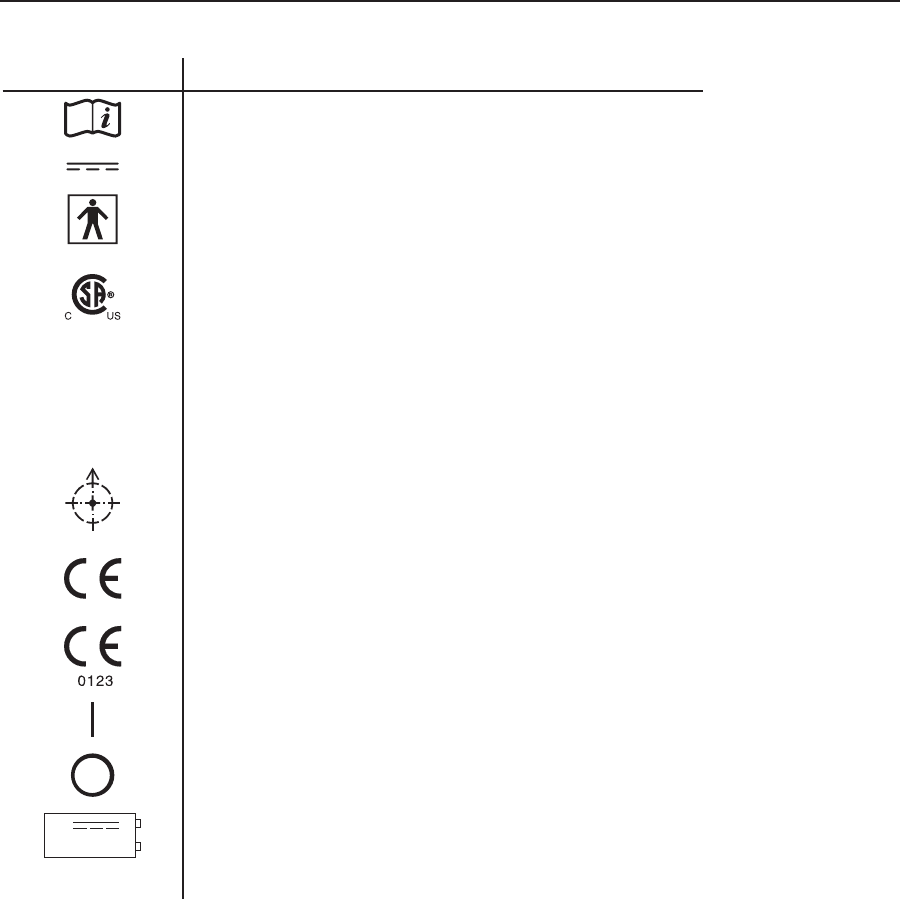
Symbols
Symbol Meaning
Attention, consult accompaning documents
DC Power
Type BF Applied Part
Canadian/US Safety Certification
IPX2
Protected against vertically falling water drops when
enclosure tilts up to 15 degrees.
IPX7
Protected against the effects of temporary immersion in
water (Actiwatch 64, Actiwatch 16, Actiwatch-Light)
Alignment Indicator (ActiReader)
European Declaration of Conformity (conformance to
Radio and Telecommunications Terminal Equipment
(RTTE) Directive)
European Declaration of Conformity (conformance to
Medical Device Directive (MDD))
On (Power)
Off (Power)
9V
Lithium only
Use 9V Lithium battery only

1-6 Introduction and Setup
Installation Prerequisites
System
Requirements
• Microsoft Windows® 2000 or XP operating system
Windows XP Professional required for Actiware-CT
•Computerwith2GHzorhigherprocessclockspeedrecommended;
500MHzminimumrequirement
• 512 MB RAM; 128 MB RAM minimum requirement
• 300 MB or higher recommended; 50 MB required for installation
• Super VGA (1280 x 1024) resolution video adapter and display
recommended; SVGA (800 x 600) minimum requirement
• CD-ROM or DVD drive (for installation)
• Keyboard and Microsoft Mouse or compatible pointing device
• 9-pin or 25-pin RS-232 communications serial port
• UL 1950, IEC 60950, or EN60950 approved computer
• Printer (optional)
• Note: Data for use by Actiware must reside on the local hard drive. It is not
recommended to install the program files or data on a network drive.
Note: Before beginning the installation procedure, make sure that no
other applications are currently running on the computer. This includes
Microsoft Ofce® and any other utilities. These can interfere with proper
installation, resulting in software conicts.
Note: Actiware / Actiware-CT was created for use with Windows®.
Windows is a registered trademark of the Microsoft® Corporation.
1-7
Upgrading If you are upgrading from a previous version of Actiware (or Sleepwatch or
Rhythmwatch) you should remove any previously installed versions.
See Uninstallation Procedures later in this section.
CAUTION! Before proceeding, back up any previously gathered data
prior to installation. Store in a secure location, either on a oppy disk,
CD-ROM, or within a separate drive space.
First Time
Installation
If this is the first time Actiware will be installed, please continue to Installing
Actiware later in this section.
Installing Actiware / Actiware-CT
Installing from a CD
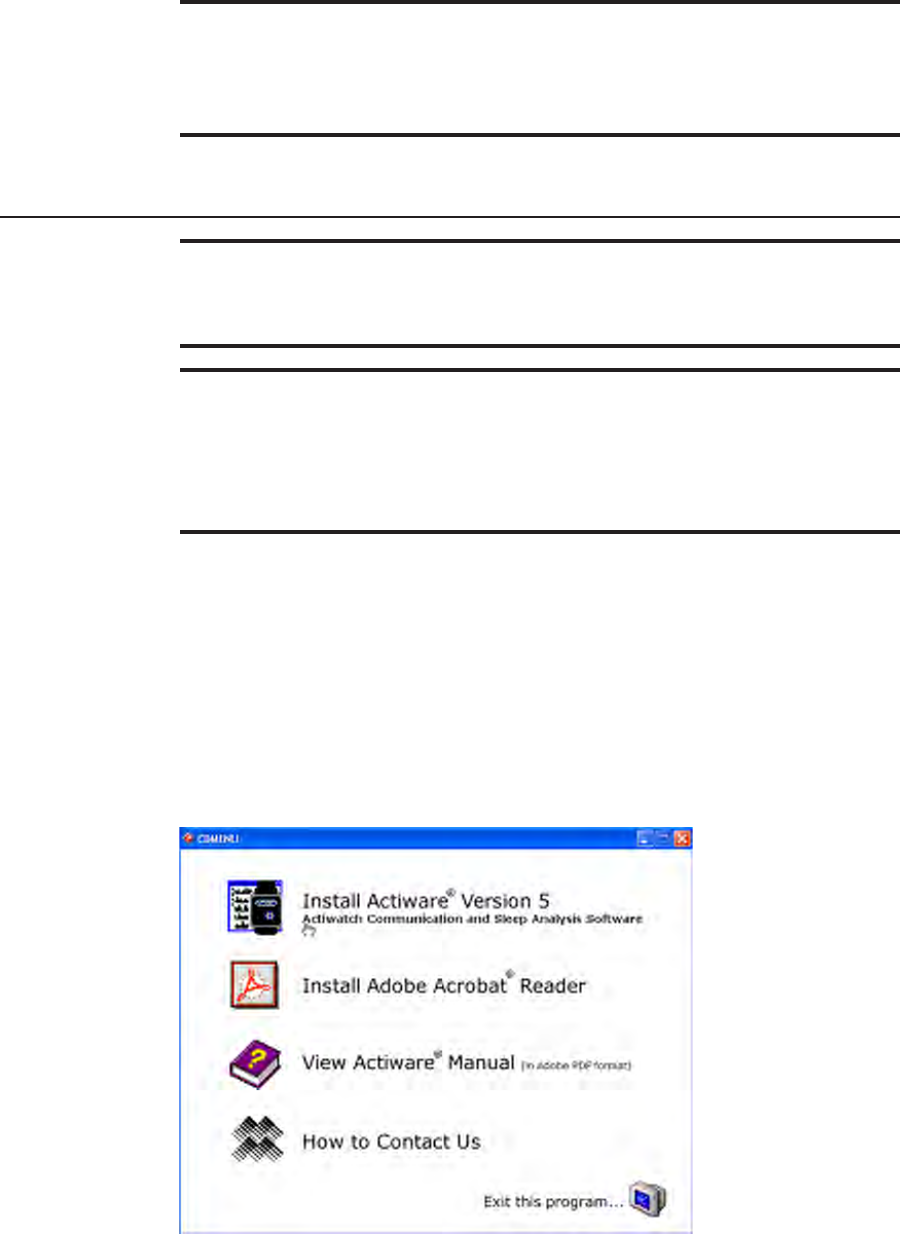
1. Insert the CD-ROM into the CD/DVD drive and wait a moment for the
Installation Menu to appear. If the CD/DVD drive does not accommodate the
autorun function, then select Start > My Computer and select the CD/DVD
drive from the list and double-click to access the files.
Select CDMENU.EXE and double-click.
2. Select Install Actiware Version 5 from the menu.
Note: You must be a member of the Administrator’s group in order to
install this software.
Note: Users of Actiware (Research Version) must be a member of the
Power User or Administrator’s group in order to run the software.
Actiware-CT (version 5.1 or greater) users do not need to be a member of
the Power User or Administrative group.
Installation Menu provides several options: Install Actiware, Install Adobe Reader, View Manual,
Contact Mini Mitter.
1-8 Introduction and Setup
3. TheInstallShield™Wizardwillguideyouthroughtheinstallationprocess.
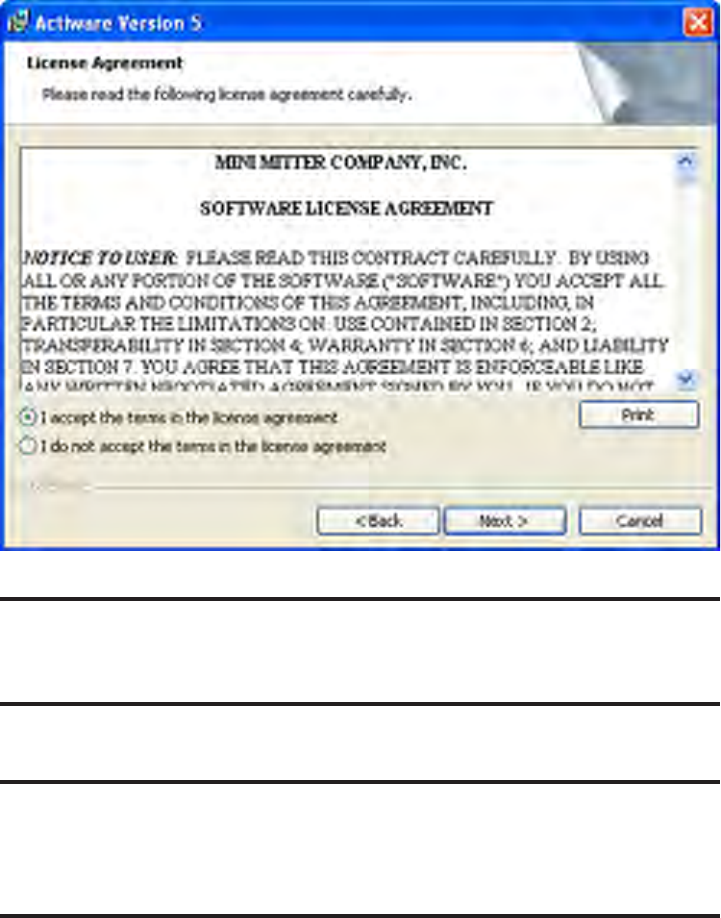
4. Check the radio button for I accept the terms in the license agreement.
Click the Next button to continue.
Important! The Software License Agreement must be accepted before
installation will occur.
Note: Actiware-CT requires the user to authenticate using their Windows
or Network username and password. Please contact your local
administrator with any issues or questions.
End-User License Agreement
1-9
When you purchase Actiware, a Proof of Purchase certificate will be shipped
with the installation CD. There will be a Proof of Purchase code printed on the
certificate. This code will always begin with “POP-xxxx-xxxx…” and cannot be
entered into the software and applied as an activation key. To obtain an activation
key, you will need to contact Mini Mitter/Respironics and give the Proof of
Purchase code to a customer service associate. The best and most efficient
method to contact technical support is via e-mail (mm@respironics.com). You
may also call technical support at 800.685.2999 during normal business hours of
8 am to 5 pm PST. The associate will then generate an activation key and e-mail
it to you. Once the activation key is applied to Actiware, it will never expire and
will be valid for all future versions of Actiware 5.x. The key however, will not
work in a future version 6.0 or greater.
Registering Actiware
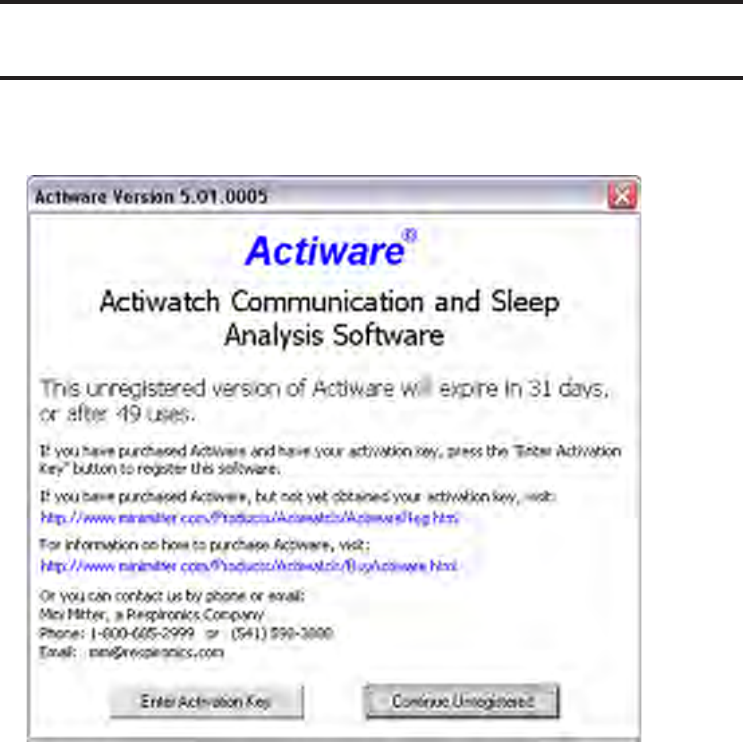
Both versions of Actiware have a “try it before you buy it” feature. You may
download or otherwise obtain an evaluation copy of Actiware and use the
software prior to purchasing it. An activation key cannot be obtained without
first paying for a license; however this does not prevent you from installing and
running a full featured copy of Actiware for 30 days or 50 uses. Even if you have
purchased Actiware, it is not necessary to immediately register Actiware. Please
press the Continue Unregistered button to access Actiware software and contact
technical support via e-mail (mm@respironics.com) at a convenient time to
obtain your activation key.
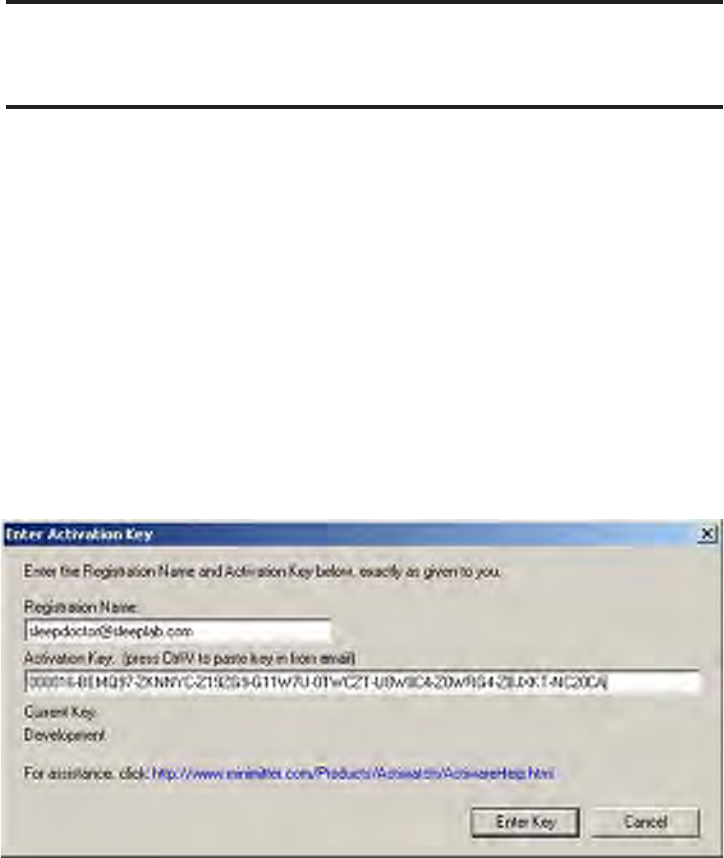
Actiware activation window
NOTE: Registration is not needed for Actiware-CT 5.1 or greater.
1-10 Introduction and Setup
Note: To deter the misuse of activation keys, the key can only be applied
for 7 days after it is generated.
There are two parts to an activation key: the e-mail address of the registered user
and the key itself. A key is very long and will look something like the following:
sleepdoctor@sleeplab.com
000016-BEMQ97-ZKNNYC-Z19ZG9-G11W7U-0TWCZT-U8W8C4-Z0WRG4-
ZBJXKT-NC20CA
When you receive your activation key, cut and paste the Registered User’s e-mail
and key as shown and press Enter Key.
Registration entitles the registered user access to technical support. When
contacting technical support, you may be required to provide your registration
information.
Enter the Activation Key

1-11
Uninstallation Procedures
CAUTION! Before uninstalling, back up any previously gathered data
and store in a secure location, either on a oppy disk, CD-ROM, or within
a separate drive space.
Automatically Uninstalling Previous Actiware Versions
1. Select Start > Control Panel > Add or Remove Programs.
2. Review the list for any Actiware application currently installed (Actiware-
Rhythm, Actiware-Sleep, RhythmWatch, SleepWatch). Select the Actiware
version from the list. If the Actiware software is not in the list, a manual
uninstallation will be required.
3. Click the Remove button.
4. When the confirmation pop-up window appears, select Yes to remove
Actiware.
This completes the automatic uninstall process. Delete any desktop or toolbar
icon shortcuts you may have created.
Manually Uninstalling RhythmWatch 2.82 or earlier
1. Using Windows Explorer, review the contents of the RhythmWatch
installation folder (commonly C:\RHYTHMW). Copy any .AWD data files
to a secure location such as a floppy disk or separate drive space.
2. Delete the installation folder (C:\RHYTHMW) and its contents.
3. Remove the RhythmWatch program folder from the Start menu. This can be
accomplished using the Start > Settings > Taskbar and Start Menu item, or
by right-clicking on the Start button and selecting Open. Also, delete any
desktop icon shortcuts you may have created.
This completes the uninstall process for RhythmWatch 2.82 or earlier.
1-12 Introduction and Setup
Manually Uninstalling Actiware-Rhythm or Actiware-Sleep 3.0
1. Using Windows Explorer, review the contents of the Actiware installation
folder (commonly C:\ACTIWARE for version 3.0). Copy any .AWD and
.AWS data files to a secure location such as a floppy disk or separate drive
space.
2. Delete the installation folder (C:\ACTIWARE) and its contents.
3. Remove the Actiware-Sleep or Actiware-Rhythm program folder from the
Start menu. This can be accomplished using the Start > Settings > Taskbar
and Start Menu item, or by right-clicking on the Start button and selecting
Open. In addition, delete any desktop icon shortcuts you have created.
This completes the uninstall process for Actiware 3.0.
Manually Uninstalling SleepWatch 2.82 or earlier
1. Using Windows Explorer, review the contents of the SleepWatch installation
folder (commonly C:\SLEEPW). Copy any .AWD and .AWS data files to a
secure location such as a floppy disk or separate drive space.
2. Delete the installation folder (C:\SLEEPW) and its contents.
3. Remove the SleepWatch program folder from the Start menu. This can be
accomplished using the Start > Settings > Taskbar and Start Menu item, or
by right-clicking on the Start button and selecting Open. Also, delete any
desktop icon shortcuts you have created.
This completes the uninstall process for SleepWatch 2.82 or earlier.
Manually Uninstalling Actiware-Rhythm or Actiware-Sleep 3.1
or later
1. Using Windows Explorer, review the contents of the Actiware installation
folder (commonly C:\Program Files\Actiware). Copy any .AWD, .AWS and
.SWS data files to a secure location such as a floppy disk or separate drive
space.
2. Remove the installed version of Actiware using the Add/Remove Programs
icon in Control Panel. An item labeled Actiware – Sleep or Actiware
– Rhythm should be listed here. Select it and click the Add/Remove button.
3. Follow the online instructions. Once the uninstall program has completed, all
program files and shortcuts will have been removed. Also, delete any desktop
icon shortcuts you created.
This completes the uninstall process for Actiware 3.1 or later.
1-13
Manually Uninstalling Actiware-Rhythm or Actiware-Sleep 4.0
or later
1. Using Windows Explorer, review the contents of the Actiware installation
folder (commonly C:\Program Files\Actiware). Copy any .AWD, .AWS and
.SWS data files to a secure location such as a floppy disk or separate drive
space.
2. Remove the installed version of Actiware using the Add/Remove Programs
icon in Control Panel. An item labeled Actiware – Sleep or Actiware
– Rhythm should be listed here. Select it and click the Add/Remove button.
3. Follow the online instructions. Once the uninstall program has completed, all
program files and shortcuts will have been removed. Also, delete any desktop
icon shortcuts you created.
This completes the uninstall process for Actiware 4.0 or later.
Automatically Uninstalling Actiware / Actiware-CT 5.0 or later
1. Select Start > Control Panel > Add or Remove Programs.
2. Select Actiware Version 5 from the list. Click the Remove button.
3. When the confirmation pop-up window appears, select Yes to remove
Actiware.
This completes the uninstall process for Actiware 5.0 or later. Also, delete any
desktop icon shortcuts you created.
1-14 Introduction and Setup
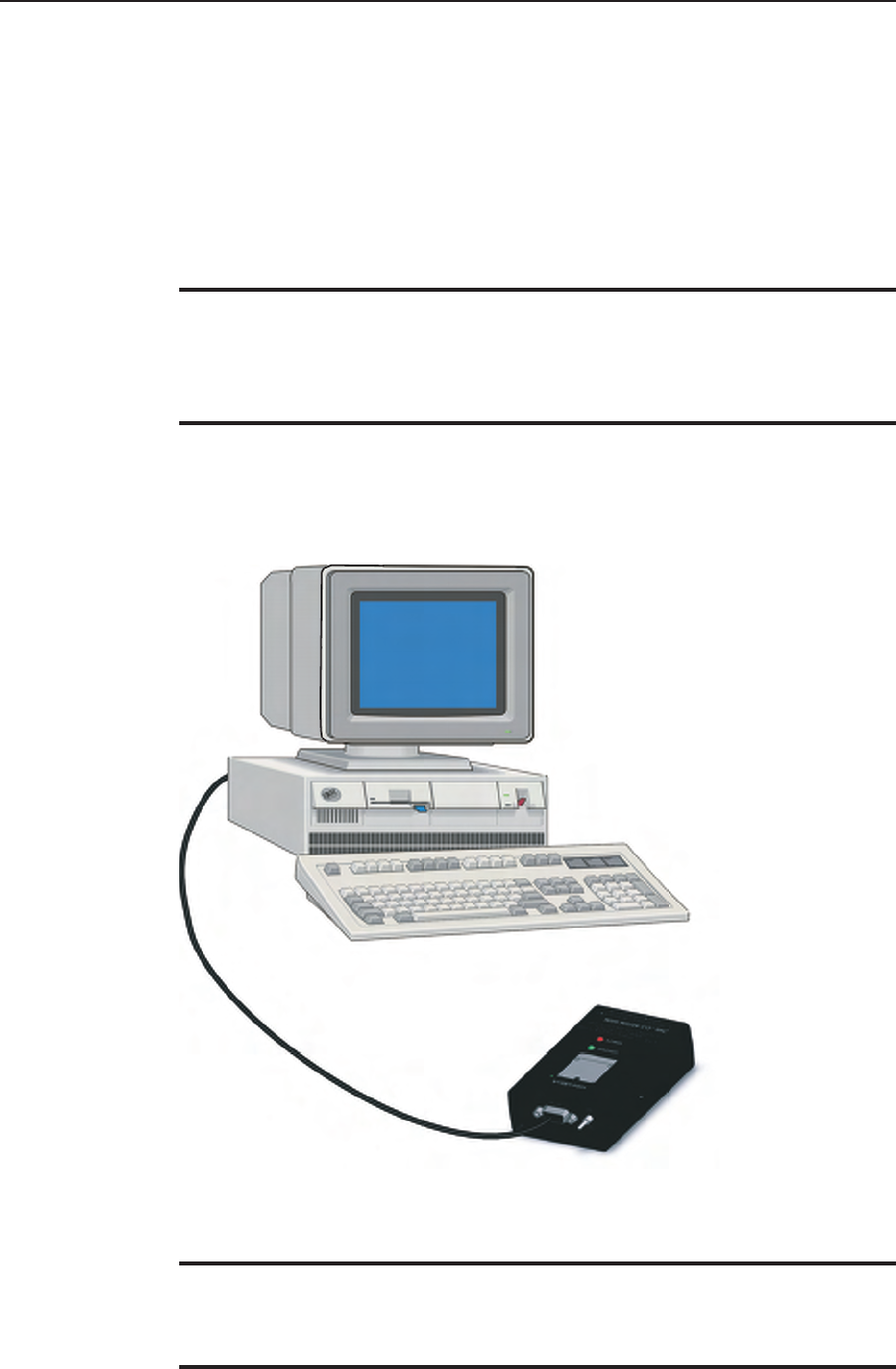
ActiReader Setup
Connecting ActiReader
ActiReader or an Actiwatch Reader is necessary to communicate with an
Actiwatch. Connection to a desktop computer or a laptop computer is very
similar to any other peripheral device. Upon starting Actiware, you will be
prompted to set up the COMporttorecognizetheActiReader.
Computer with ActiReader
Note: If you have an earlier design of Actiwatch Reader, refer to
Actiwatch Reader later in this manual.
Note: Follow the recommendations supplied with your computer when
connecting peripheral devices. Most manufacturers suggest powering
down the computer while connecting hardware.
1-15
ActiReader
1. Connect the serial communication cable (supplied) to a COM port on your
computer. Actiware’s Select COMPortWizardwillassistindeterminingand
setting up the appropriate COM port. The COM port can be changed at
anytime.
2. Connect the other end of the communication cable to ActiReader.
ActiReader power must be ON and the red LED Power light should be
blinking. If the Power light is not blinking, the battery must be replaced (See
Replacing the ActiReader Battery later in this manual) or the external power
supply must be used.
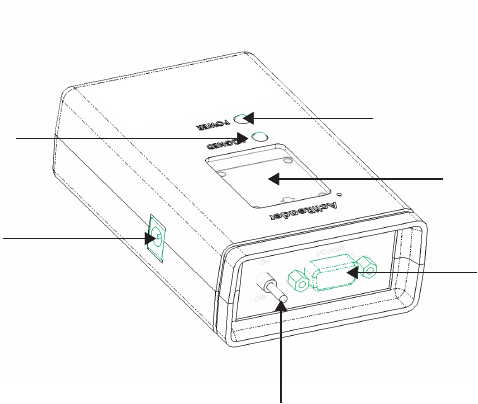
• External Power Source
ActiReader can be powered from an external power source (supplied).
When plugged in, it will disconnect the battery to conserve it.
• Power ON/OFF switch
This switch will disconnect ActiReader from its power source, whether
AC or battery.
• POWER (Red LED)
Whether using external power or the internal battery, the red LED will
light when the Power switch is ON.
ActiReader Features
Power indicator
(Red LED)
A
ligned or Ready
(Green LED)
RS-232 port
Power ON/OFF
Communication
Pad
External
power input
1-16 Introduction and Setup
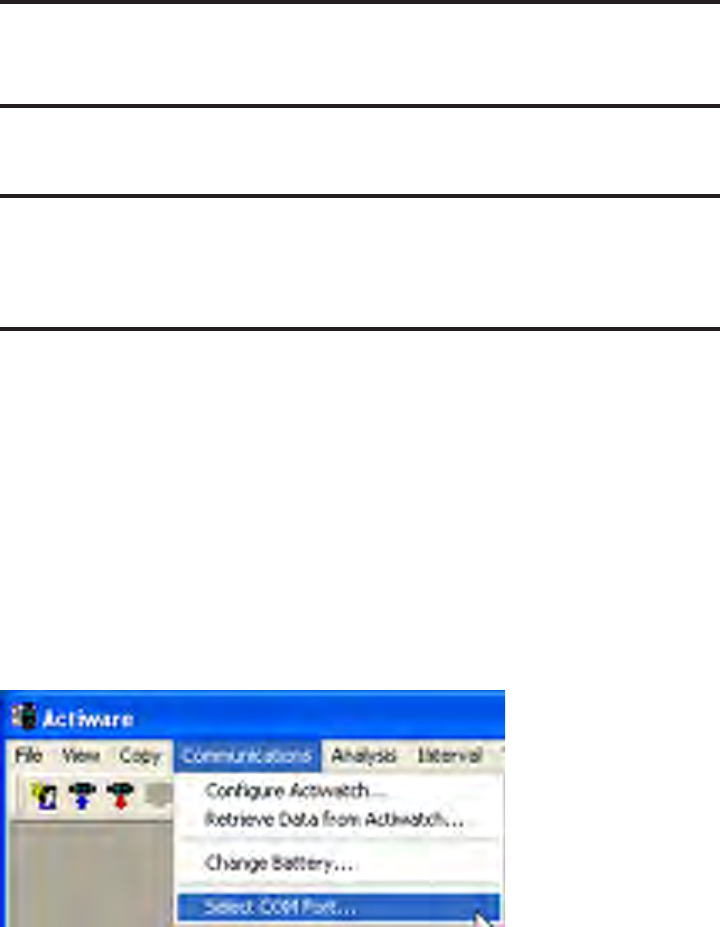
Selecting the COM Port
1. Open the Actiware software program.
2. From the menu toolbar, select Communications > Select COM Port.
This will start the COMPortWizardwhichwillassistyouinsearchingforan
available serial communication port on the computer (See illustration on next
page).
• ALIGNED (Green LED)
WhentheActiwatchisalignedproperlyandthecommunicationwizardis
active, this green LED will light.
• Communication Pad
This slot ensures Actiwatch is placed properly. On the back of the
Actiwatch is a green dot in one corner. When the dot is aligned with the
green dot on ActiReader, the green LED on the ActiReader will light. This
indicates that communication between the two devices is possible.
• Serial Port
This is where the serial cable connects to ActiReader. The other end
connects to the COM port on the computer.
Note: The “back” of the Actiwatch is metal. The “front” or “face” of the
device is plastic.
Note: The ‘ALIGNED’ green LED will not light until appropriate portions
of the Communications Wizard are in use when the COM port is on (see
page 3-1, later in this manual).
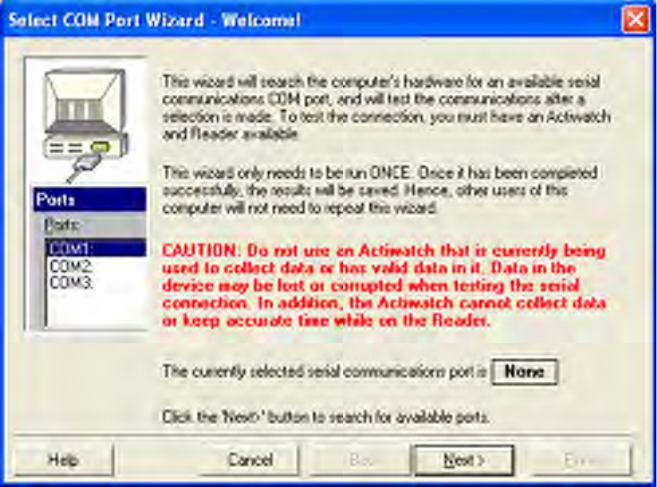
Start the COM Port Wizard
1-17
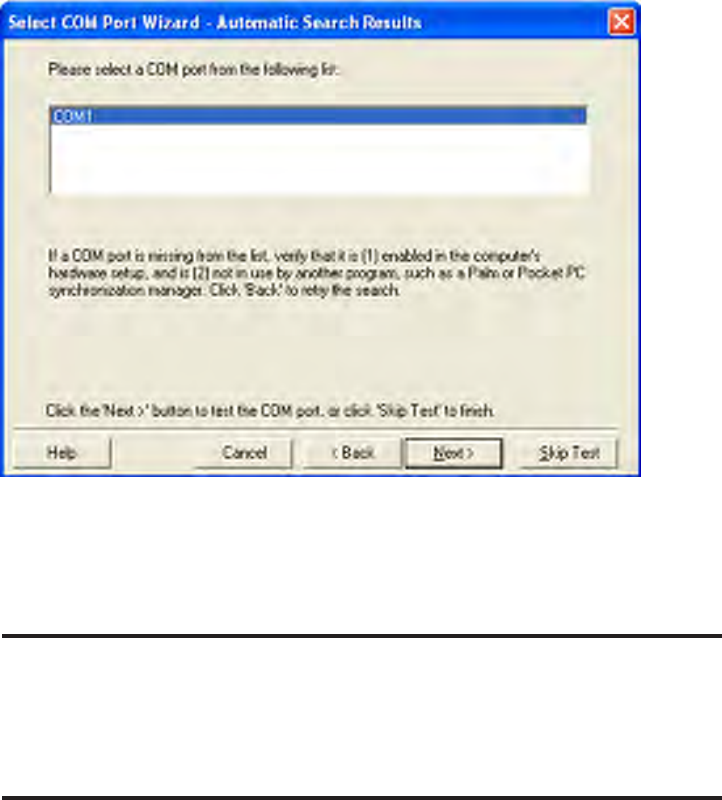
3. Click the NextbuttonandtheWizardwillsearchforavailableCOMports
When the search is completed, use your mouse to highlight the COM port to
which you connected the ActiReader.
COM Port Wizard Welcome window
1-18 Introduction and Setup
Note: The ActiReader must be functioning correctly and be connected to
the computer to complete the COM port selection. The Actiwatch must be
metal side up (Serial Number up) to successfully communicate with the
ActiReader.
4. Click Next to proceed to the Communications Port Test.
Select the COM port from the list provided by the Automatic Search Results
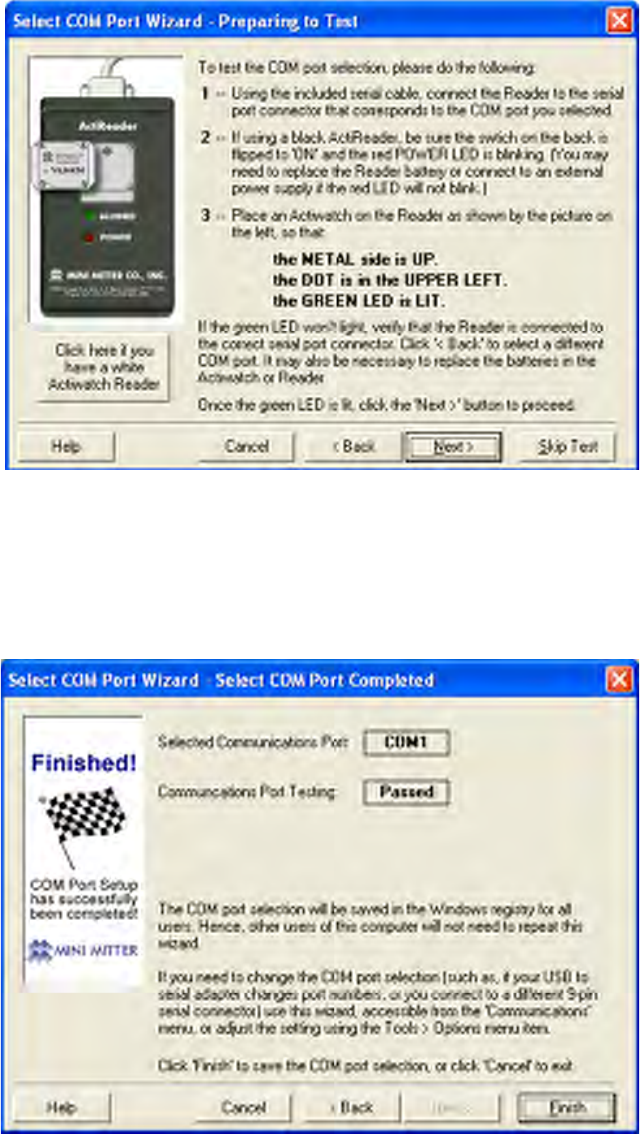
5. Verify that ActiReader is connected correctly using the 3-point checklist.
If correct, select the Next button. You can also use the Skip Test button, but
the connection between the computer and ActiReader will not be tested.
If using a white ActiwatchReader,clicktheappropriatebuttoninthewizardor
see Actiwatch Reader later in this section.
1-19
3-point check list and Actiwatch Reader differences are embedded in the COM Port Wizard
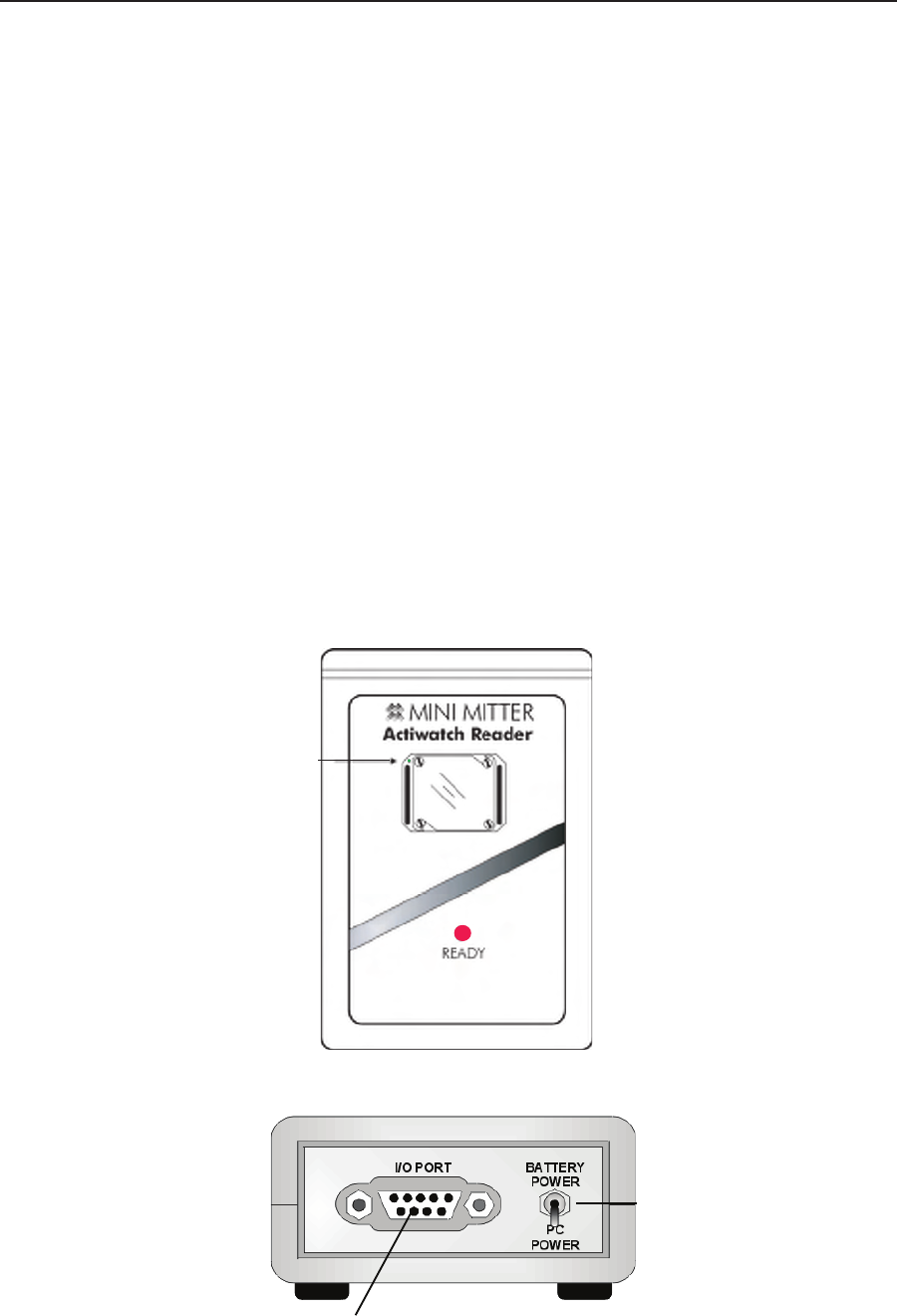
6. Select Finishtoexitthewizard.
UponcompletingtheCOMPortWizard,youcanconfigureanActiwatchfor
subjectuseorretrievecollecteddata(seeCommunications in Section 3 of this
manual).
If the Communications Test fails, a help window will appear to assist with
troubleshooting potential causes. Review each possible explanation.
When ActiReader is successfully connected to the computer, the Finished!
window will appear.
1-20 Introduction and Setup
Actiwatch Reader
Actiwatch Reader and ActiReader are very similar in their operation. Installation
and setup are the same.
However, please keep the following in mind when using the Actiwatch Reader:
• The Actiwatch Reader is white. The ActiReader is black.
• Instead of a slot for aligning the Actiwatch, place the Actiwatch over the
image and slide it up and down until the Ready LED is lit.
• The small dot on Actiwatch must be in the same corner as the small dot
on the reader.
• Researchers with laptop computers may switch the Actiwatch Reader to
Battery Power for proper function.
• If using battery power, you may need to replace the reader battery
periodically (see Replacing ActiReader Battery later in this section).
• As with the ActiReader, the COM port selection in the software must be
correct,andthecommunicationswizardmustberunning,fortheReady
LED to be lit.
Actiwatch Reader top panel with orientation dot
Green dot
Serial I/O Port
Power Toggle Switch
Actiwatch Reader

1-21
ActiReader Battery Replacement Procedures
CAUTION! The black ActiReader model uses a 9V Lithium battery. The
white Actiwatch Reader uses a standard 9V battery. These batteries are
not interchangeable, and may result in damage to your device. Use of the
improper battery will void the warranty.
CAUTION! It is important that you thoroughly read the following
information prior to changing the battery. Failure to follow procedures
may result in immediate or subsequent damage to the device.
Battery Replacement
1. Disconnect the AC electrical supply and set the Power toggle switch to OFF.
2. Turn the ActiReader over so the battery cover is facing up.
3. Slide the battery cover in the direction of the arrow.
4. Carefully remove the battery from the housing unit and gently disconnect
the battery terminals.
5. Replace the battery.
6. Slide the battery cover back into place on the ActiReader.
7. Set the Power toggle switch to the ON position.
8. Verify the red LED Power light is blinking.
WARNING! Do not dispose of lithium batteries in re or ame. An
explosion may result. Only dispose in accordance with manufacturer’s
recommendation or local codes.
1-22 Introduction and Setup