Mitsubishi Electric Sanda Works NR213 HEADUNIT A-HIGH User Manual NR 213 1

Mitsubishi Electric Corporation Sanda Works HEADUNIT A-HIGH NR 213 1

Contents

Users manual1

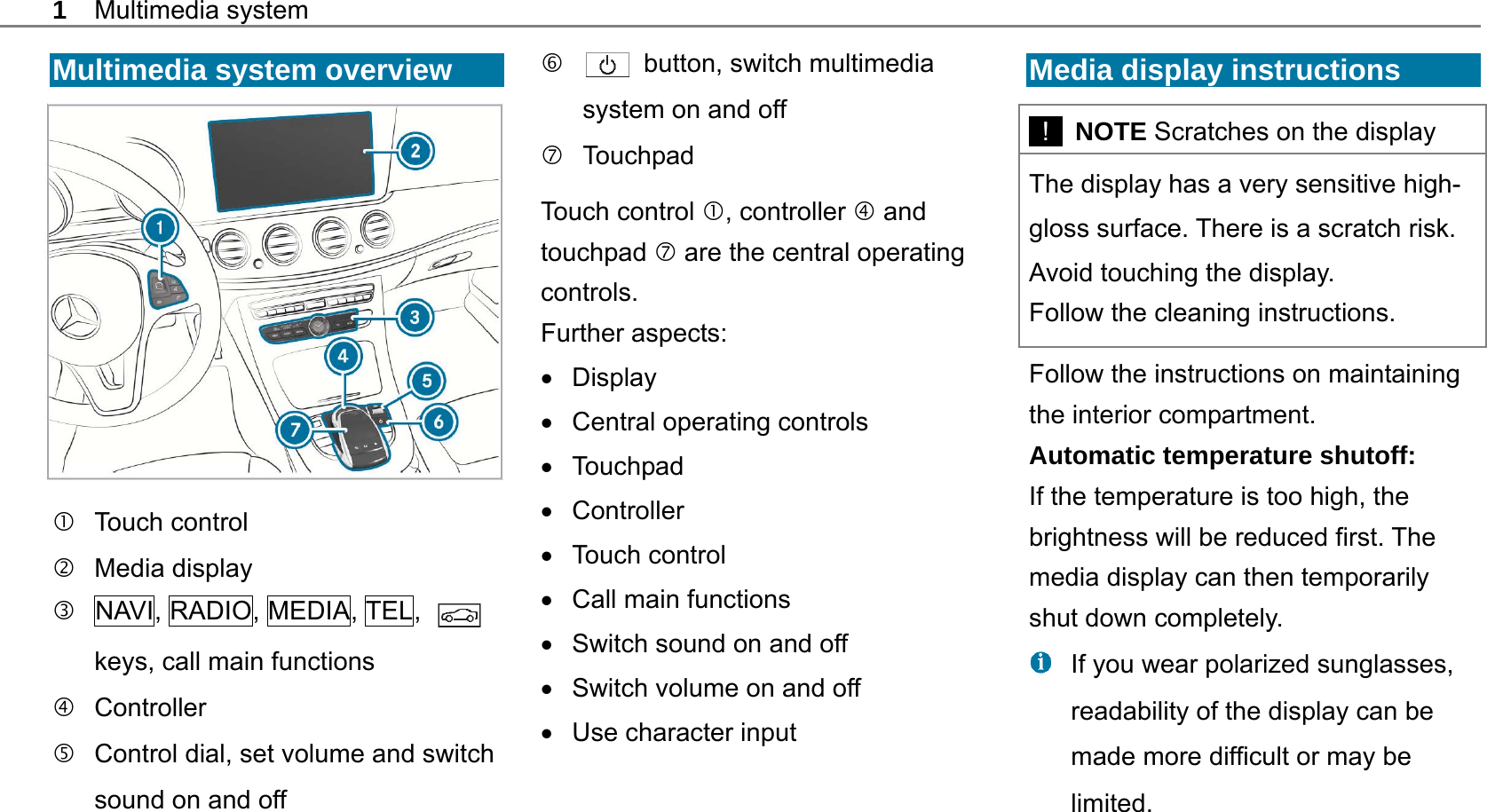
1 Multimedia system  Multimedia system overview    Touch control  Media display   NAVI, RADIO, MEDIA, TEL,   keys, call main functions  Controller    Control dial, set volume and switch sound on and off    button, switch multimedia system on and off  Touchpad Touch control , controller  and touchpad  are the central operating controls. Further aspects:  Display  Central operating controls   Touchpad  Controller   Touch control    Call main functions     Switch sound on and off     Switch volume on and off    Use character input  Media display instructions   !  NOTE Scratches on the display The display has a very sensitive high-gloss surface. There is a scratch risk. Avoid touching the display. Follow the cleaning instructions. Follow the instructions on maintaining the interior compartment. Automatic temperature shutoff: If the temperature is too high, the brightness will be reduced first. The media display can then temporarily shut down completely.   If you wear polarized sunglasses, readability of the display can be made more difficult or may be limited.
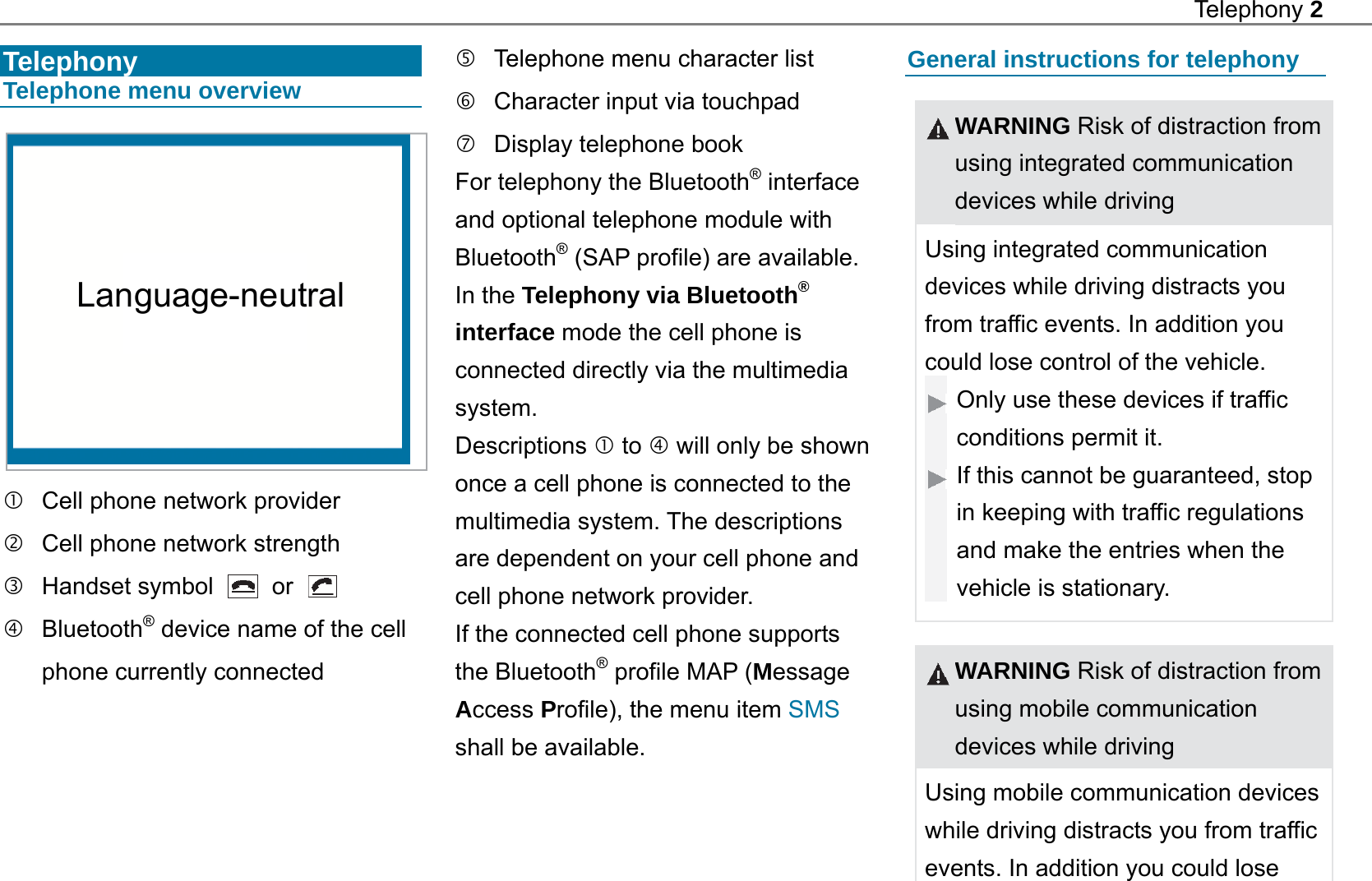
Telephony 2   Telephony Telephone menu overview     Cell phone network provider   Cell phone network strength  Handset symbol   or    Bluetooth® device name of the cell phone currently connected     Telephone menu character list   Character input via touchpad   Display telephone book For telephony the Bluetooth® interface and optional telephone module with Bluetooth® (SAP profile) are available. In the Telephony via Bluetooth® interface mode the cell phone is connected directly via the multimedia system. Descriptions  to  will only be shown once a cell phone is connected to the multimedia system. The descriptions are dependent on your cell phone and cell phone network provider. If the connected cell phone supports the Bluetooth® profile MAP (Message Access Profile), the menu item SMS shall be available.  General instructions for telephony  WARNING Risk of distraction from using integrated communication devices while driving Using integrated communication devices while driving distracts you from traffic events. In addition you could lose control of the vehicle. Only use these devices if traffic conditions permit it. If this cannot be guaranteed, stop in keeping with traffic regulations and make the entries when the vehicle is stationary.   WARNING Risk of distraction from using mobile communication devices while driving Using mobile communication devices while driving distracts you from traffic events. In addition you could lose Language-neutral
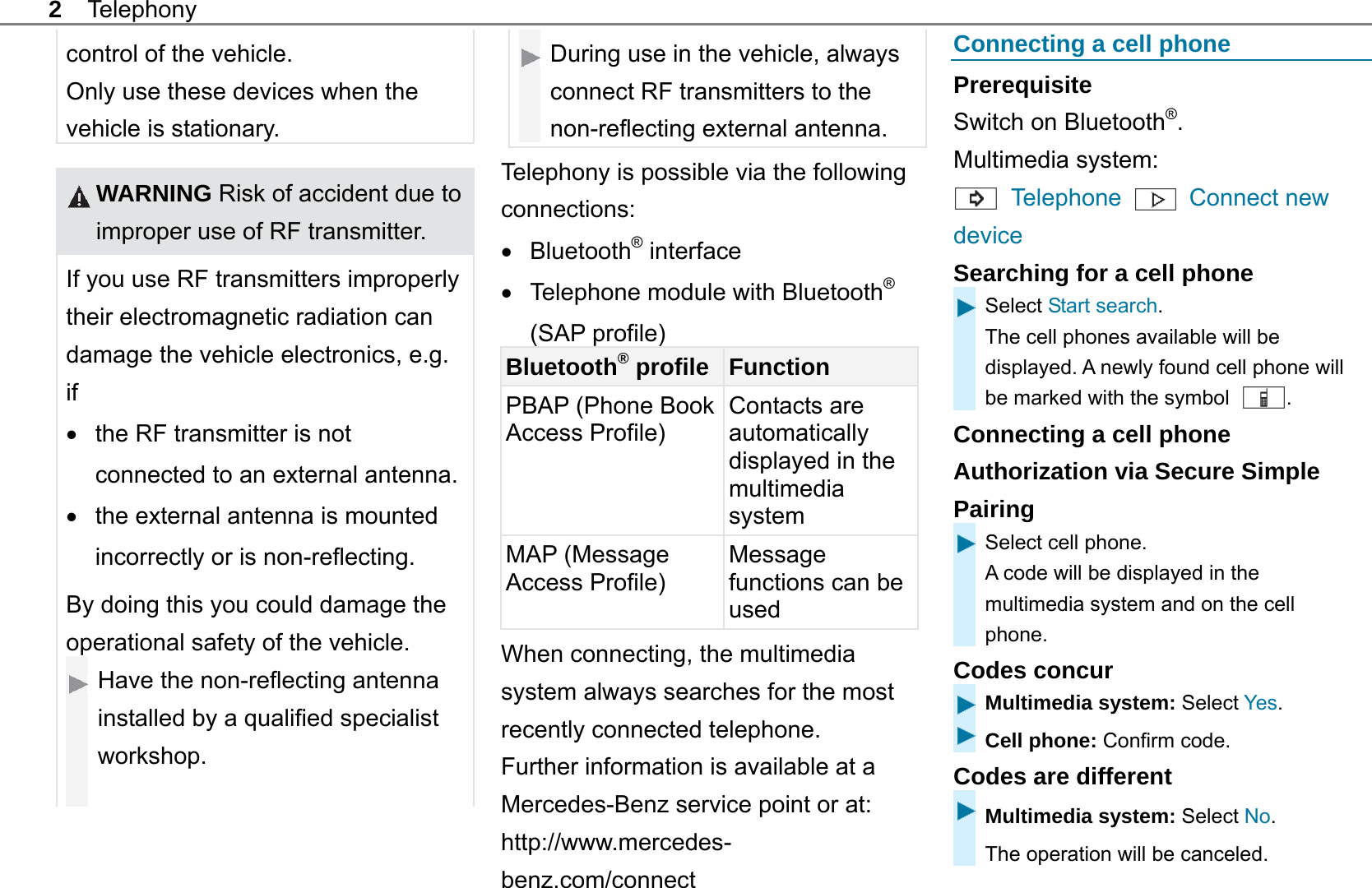
2 Telephony control of the vehicle. Only use these devices when the vehicle is stationary.   WARNING Risk of accident due to improper use of RF transmitter. If you use RF transmitters improperly their electromagnetic radiation can damage the vehicle electronics, e.g. if   the RF transmitter is not connected to an external antenna.  the external antenna is mounted incorrectly or is non-reflecting. By doing this you could damage the operational safety of the vehicle. Have the non-reflecting antenna installed by a qualified specialist workshop.   During use in the vehicle, always connect RF transmitters to the non-reflecting external antenna.  Telephony is possible via the following connections:  Bluetooth® interface   Telephone module with Bluetooth® (SAP profile) Bluetooth® profile Function PBAP (Phone Book Access Profile) Contacts are automatically displayed in the multimedia system MAP (Message Access Profile)   Message functions can be used When connecting, the multimedia system always searches for the most recently connected telephone. Further information is available at a Mercedes-Benz service point or at:   http://www.mercedes-benz.com/connect  Connecting a cell phone Prerequisite Switch on Bluetooth®. Multimedia system:  Telephone    Connect new device Searching for a cell phone Select Start search. The cell phones available will be displayed. A newly found cell phone will be marked with the symbol  . Connecting a cell phone Authorization via Secure Simple Pairing Select cell phone. A code will be displayed in the multimedia system and on the cell phone. Codes concur Multimedia system: Select Yes. Cell phone: Confirm code. Codes are different Multimedia system: Select No.  The operation will be canceled.
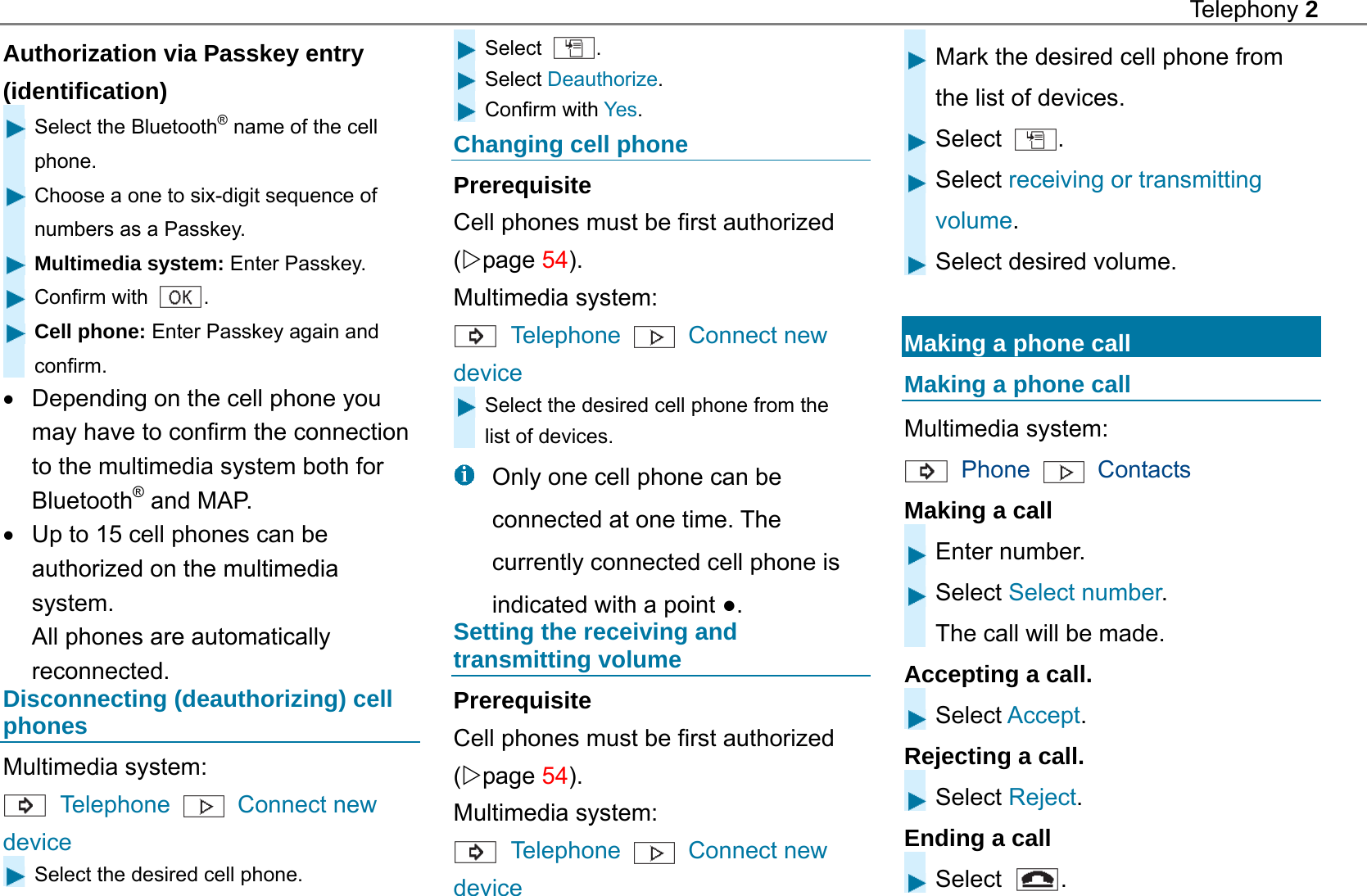
Telephony 2  Authorization via Passkey entry (identification)  Select the Bluetooth® name of the cell phone.  Choose a one to six-digit sequence of numbers as a Passkey.  Multimedia system: Enter Passkey.  Confirm with  .  Cell phone: Enter Passkey again and confirm.   Depending on the cell phone you may have to confirm the connection to the multimedia system both for Bluetooth® and MAP.   Up to 15 cell phones can be authorized on the multimedia system. All phones are automatically reconnected. Disconnecting (deauthorizing) cell phones Multimedia system:    Telephone   Connect new device  Select the desired cell phone. Select  . Select Deauthorize. Confirm with Yes. Changing cell phone Prerequisite Cell phones must be first authorized (page 54). Multimedia system:    Telephone    Connect new device Select the desired cell phone from the list of devices.   Only one cell phone can be connected at one time. The currently connected cell phone is indicated with a point ●. Setting the receiving and transmitting volume Prerequisite Cell phones must be first authorized (page 54). Multimedia system:  Telephone    Connect new device Mark the desired cell phone from the list of devices. Select  . Select receiving or transmitting volume. Select desired volume.  Making a phone call Making a phone call Multimedia system:    Phone    Contacts Making a call Enter number. Select Select number. The call will be made. Accepting a call. Select Accept. Rejecting a call. Select Reject. Ending a call Select  .
Online and Internet functions 3   Internet connection   Internet connection restrictions   WARNING Risk of distraction from information systems and communications devices Using information systems and communication devices while driving distracts you from traffic events. In addition you could lose control of the vehicle. Only use these devices if traffic conditions permit it. If this cannot be guaranteed, stop in keeping with traffic regulations and make the entries when the vehicle is stationary.   Unhandled element [section/context] When using the multimedia system, observe the legal requirements of the country in which you are located at the time.  Internet access may be impaired or not functional if:   The cell phone is switched off.   There is insufficient cell phone network coverage.   Internet access has not been enabled on the cell phone.  The Bluetooth® function on the multimedia system is switched off and the desired phone is supposed to be connected via Bluetooth®.  The Bluetooth® function on the cell phone is switched off and the phone needs to be connected via Bluetooth®.   The cell phone network or the cell phone do not allow a phone and Internet connection to be used simultaneously.   Internet capability via Bluetooth® is not enabled on the cell phone.   While driving, the Internet functions can only be used to a limited extent.  Establishing an Internet connection Prerequisites   Connect a cell phone to the multimedia system via Bluetooth® or USB.   Set up the login details of the cell phone network provider for the connected cell phone in the multimedia system. Using incorrect login details can incur additional charges.   If you use the telephone module for the Internet function, you require a SIM card in the phone module or a Bluetooth®-enabled cell phone. In order to connect via Bluetooth® the cell phone must support one of the following Bluetooth® profiles:   DUN (Dial-Up Networking)     PAN (Personal Area Network)
3  Online and Internet functions In order to connect via USB the cell phone must support one of the following USB classes:   RNDIS (Remote Network Driver Interface Specification)     CDC/NCM (Network Control Model)     CDC/ECM (Ethernet Control Model)     CDC/ACM (Access Control Model)   More details are available at http:// www.mercedes-benz.com/connect or at a Mercedes-Benz service point. Multimedia system:  System settings  Connectivity   Internet settings Select cell phone. Select  . Select Change configuration. Switch on Automatic configuration. If the cell phone supports the Bluetooth® profile PAN or the USB classes RNDIS, CDC/NCM or CDC/ECM, an Internet connection will be established. You can use the Internet function. If the cell phone does not support the specified Bluetooth® profile or USB classes, pre-defined or manual login details must be set up. Selecting pre-defined cell phone network provider login details Select Configure using COMAND.Select Pre-defined settings. Select your cell phone network provider's country. A list of the available providers will appear. Select your own cell phone network provider. An overview of the provider settings will appear. Select Confirm setting. Manually setting up cell phone network provider login details Select Configure using COMAND.Select Manual settings. An overview of the provider settings will appear. Set up the login details. Select Confirm setting.   Set the login details up according to your data tariff. You can request the exact login details from your cell phone network provider. Setting up an Internet connection Prerequisites   Hermes data module is activated and ready for use.   Hermes data module is activated for Mercedes-Benz Apps and Internet access.   Mercedes-Benz Connect is activated and ready for use.   Mercedes-Benz Connect is activated for Mercedes-Benz Apps and Internet access. USA: In order to use Mercedes-Benz Apps and Internet access, mbrace must be activated and ready for use. In addition, mbrace must be activated for Mercedes-Benz Apps and Internet access.
Online and Internet functions 3  Canada: Cell phones must be connected to the multimedia system via Bluetooth® or USB. In addition, you require a valid cell phone contract with a data option through which the connection costs arising are charged. Multimedia system:  Connect   e.g. Select Browser Editing login details Multimedia system:  System settings  Connectivity  Internet settings   Select cell phone.  Select  .  Select Change configuration.  Select Configure using COMAND. Select Predefined Settings or Manual settings.  The provider's settings will be displayed.  Set up login details.  Removing a cell phone's Internet access Multimedia system:  System settings  Connectivity  Internet settings  Select cell phone. Select  . Select Delete configuration. Select Yes. Displaying cell phone details Multimedia system:  System settings  Connectivity  Internet settings  Select cell phone. Select  . Select Details. Setting up a permanent Internet connection Multimedia system:  System settings  Connectivity  Internet settings  Select cell phone. Select  . Select Permanent Internet connection. Switch function off   or on  . Setting up an automatic Internet disconnection Multimedia system:  System settings  Connectivity  Internet settings  Select cell phone. Select  . Select Disconnect if inactive. Select 5 minutes, 10 minutes or Unlimited.  Connection status
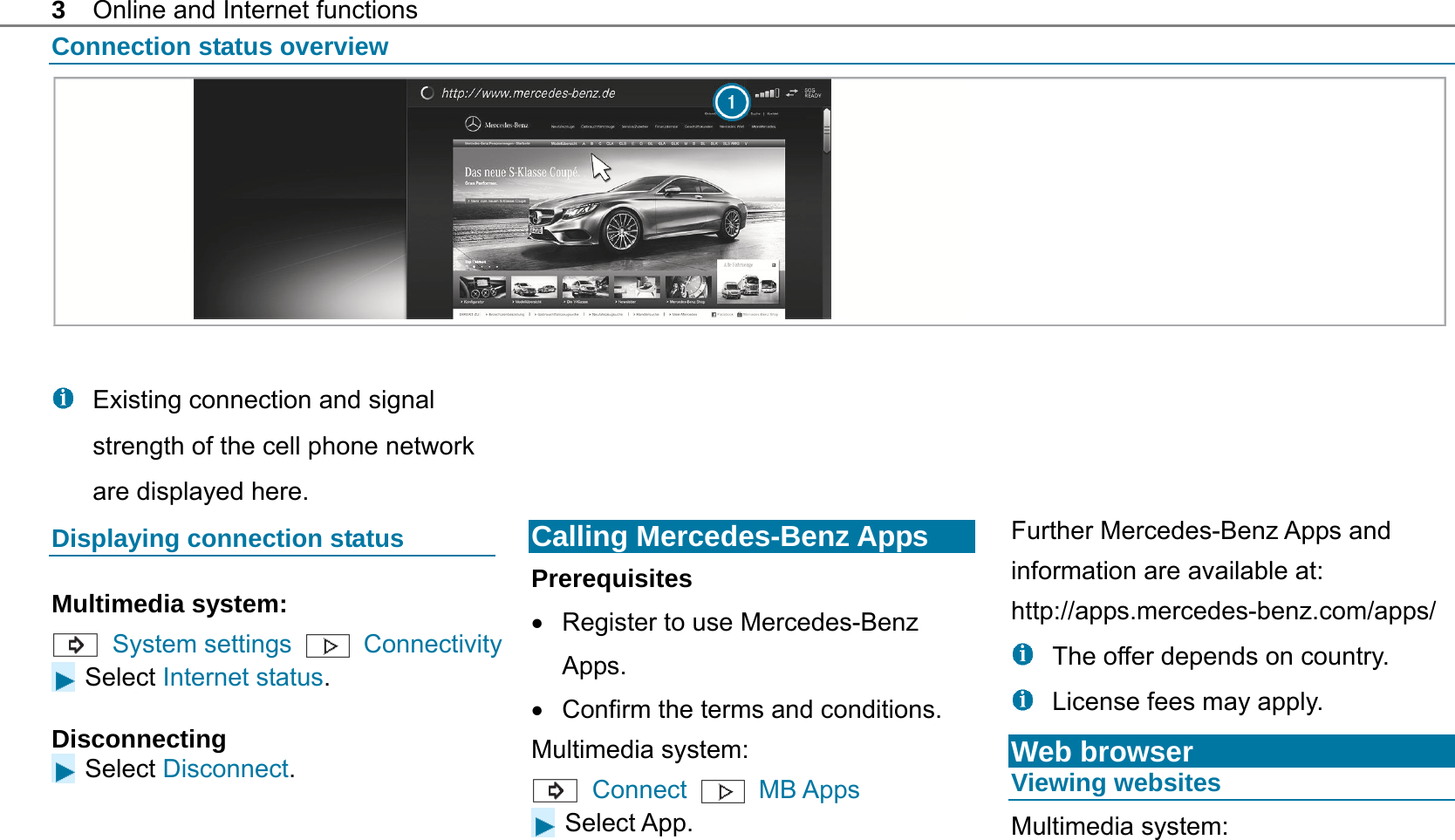
3  Online and Internet functions Connection status overview     Existing connection and signal strength of the cell phone network are displayed here. Displaying connection status Multimedia system:  System settings    Connectivity  Select Internet status. Disconnecting Select Disconnect.        Calling Mercedes-Benz Apps Prerequisites   Register to use Mercedes-Benz Apps.   Confirm the terms and conditions. Multimedia system:  Connect  MB Apps  Select App.       Further Mercedes-Benz Apps and information are available at: http://apps.mercedes-benz.com/apps/    The offer depends on country.   License fees may apply. Web browser Viewing websites Multimedia system:
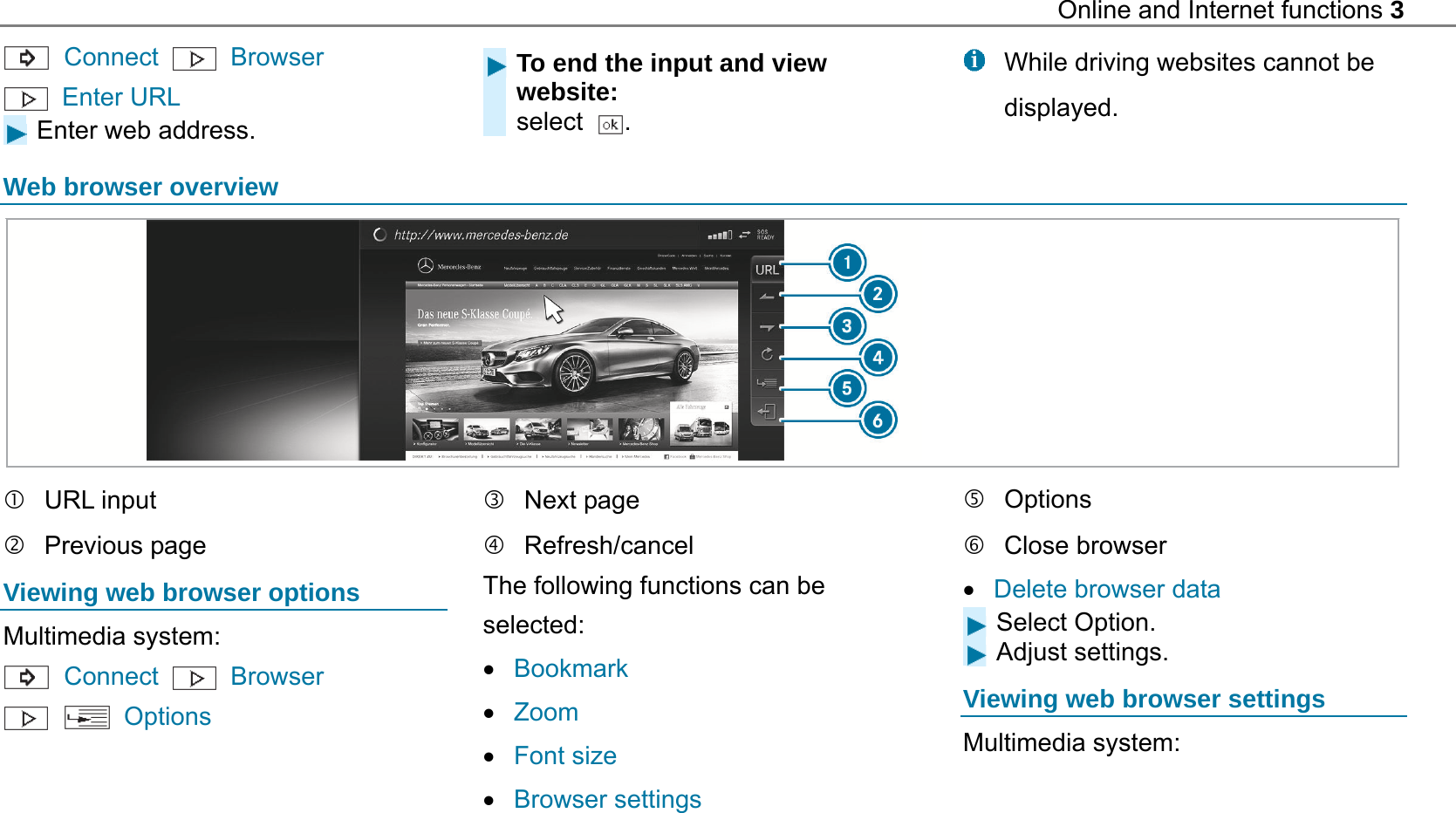
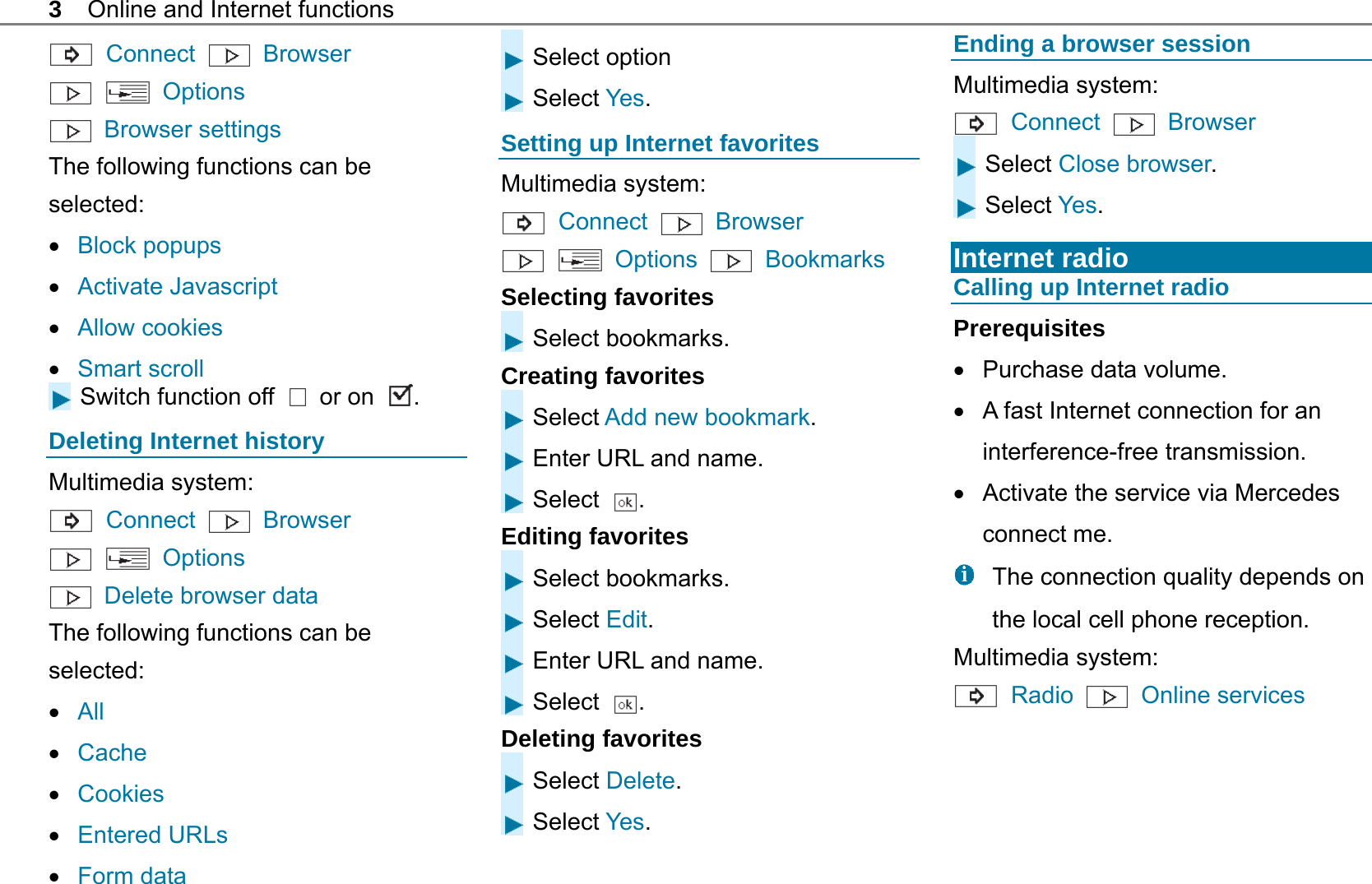
Online and Internet functions 3   Connect   Browser   Enter URL   Enter web address.  To end the input and view website: select  .   While driving websites cannot be displayed.  Web browser overview   URL input  Previous page Viewing web browser options Multimedia system:  Connect   Browser     Options  Next page  Refresh/cancel The following functions can be selected:  Bookmark  Zoom  Font size  Browser settings  Options  Close browser  Delete browser data  Select Option. Adjust settings. Viewing web browser settings Multimedia system:
3  Online and Internet functions  Connect   Browser    Options  Browser settings The following functions can be selected:  Block popups  Activate Javascript  Allow cookies  Smart scroll Switch function off   or on  . Deleting Internet history Multimedia system:  Connect  Browser    Options   Delete browser data The following functions can be selected:  All  Cache  Cookies  Entered URLs  Form data Select option Select Yes. Setting up Internet favorites Multimedia system:  Connect   Browser    Options   Bookmarks Selecting favorites Select bookmarks. Creating favorites Select Add new bookmark. Enter URL and name. Select  . Editing favorites Select bookmarks. Select Edit. Enter URL and name. Select  . Deleting favorites Select Delete. Select Yes. Ending a browser session Multimedia system:  Connect   Browser  Select Close browser. Select Yes.  Internet radio Calling up Internet radio Prerequisites   Purchase data volume.   A fast Internet connection for an interference-free transmission.   Activate the service via Mercedes connect me.   The connection quality depends on the local cell phone reception. Multimedia system:  Radio   Online services
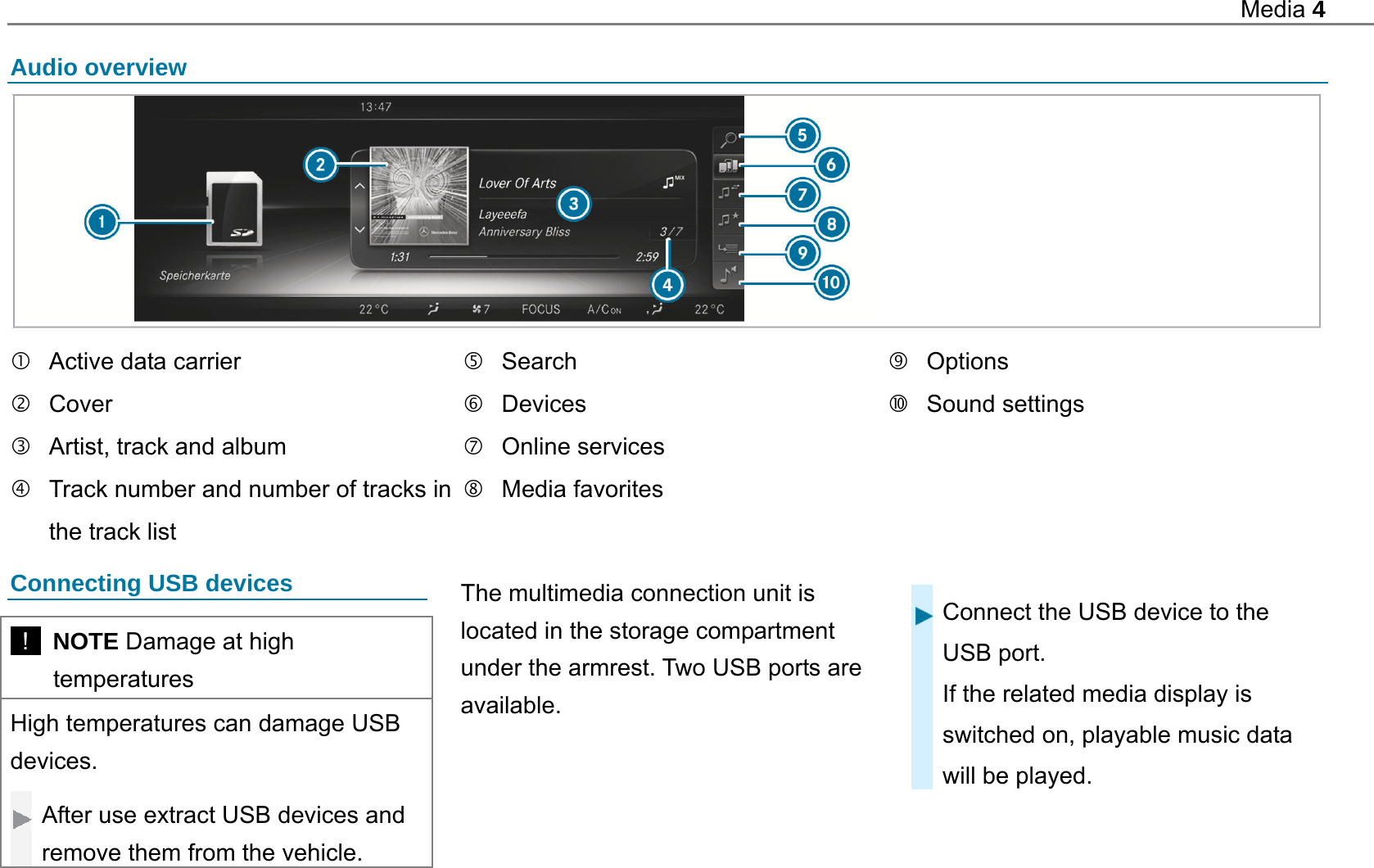
Media 4  Audio overview     Active data carrier  Cover   Artist, track and album   Track number and number of tracks in the track list  Search  Devices  Online services  Media favorites  Options  Sound settings  Connecting USB devices   !  NOTE Damage at high temperatures High temperatures can damage USB devices.  After use extract USB devices and remove them from the vehicle.   The multimedia connection unit is located in the storage compartment under the armrest. Two USB ports are available.  Connect the USB device to the USB port. If the related media display is switched on, playable music data will be played.
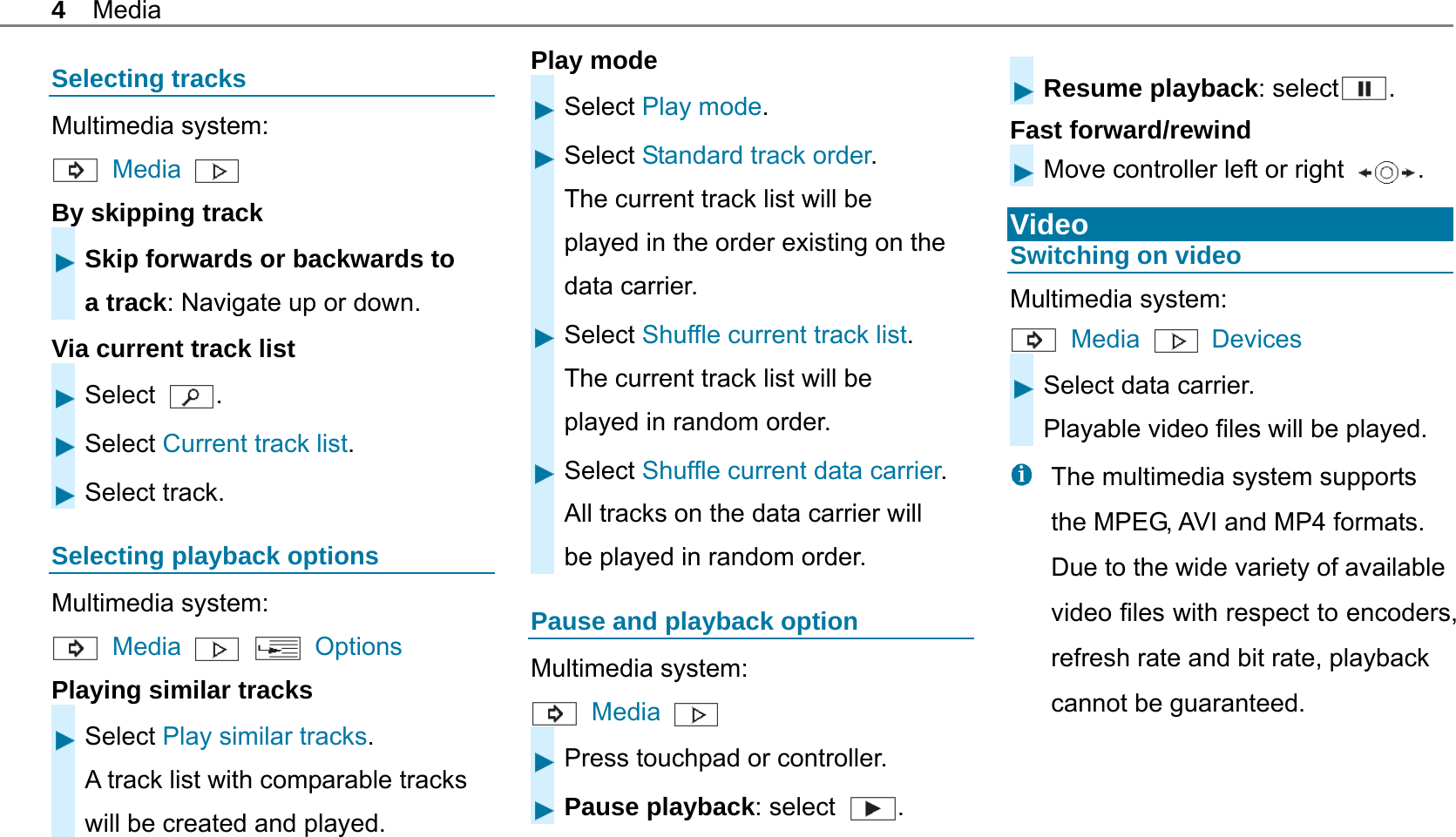
4 Media Selecting tracks Multimedia system:  Media  By skipping track Skip forwards or backwards to a track: Navigate up or down. Via current track list Select  . Select Current track list. Select track. Selecting playback options Multimedia system:  Media     Options Playing similar tracks Select Play similar tracks. A track list with comparable tracks will be created and played. Play mode Select Play mode. Select Standard track order. The current track list will be played in the order existing on the data carrier. Select Shuffle current track list. The current track list will be played in random order. Select Shuffle current data carrier.All tracks on the data carrier will be played in random order. Pause and playback option Multimedia system:  Media    Press touchpad or controller. Pause playback: select  .   Resume playback: select . Fast forward/rewind Move controller left or right  .  Video Switching on video Multimedia system:  Media   Devices Select data carrier. Playable video files will be played.   The multimedia system supports the MPEG, AVI and MP4 formats. Due to the wide variety of available video files with respect to encoders, refresh rate and bit rate, playback cannot be guaranteed.
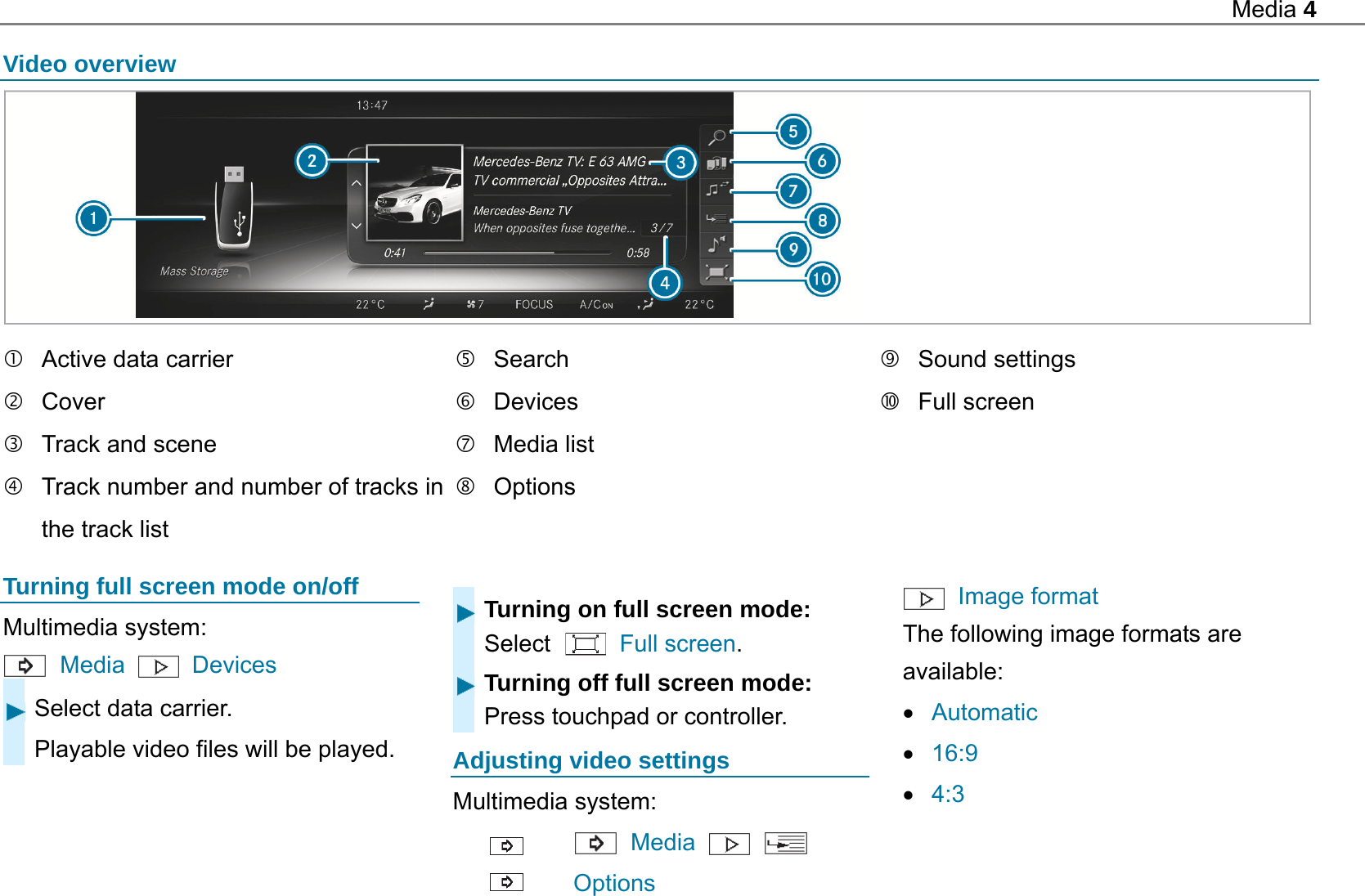
Media 4  Video overview     Active data carrier  Cover   Track and scene   Track number and number of tracks in the track list  Search  Devices  Media list  Options  Sound settings  Full screen  Turning full screen mode on/off Multimedia system:  Media   Devices  Select data carrier. Playable video files will be played.  Turning on full screen mode: Select   Full screen. Turning off full screen mode: Press touchpad or controller.  Adjusting video settings Multimedia system:   Media       Options  Image format The following image formats are available:  Automatic  16:9  4:3
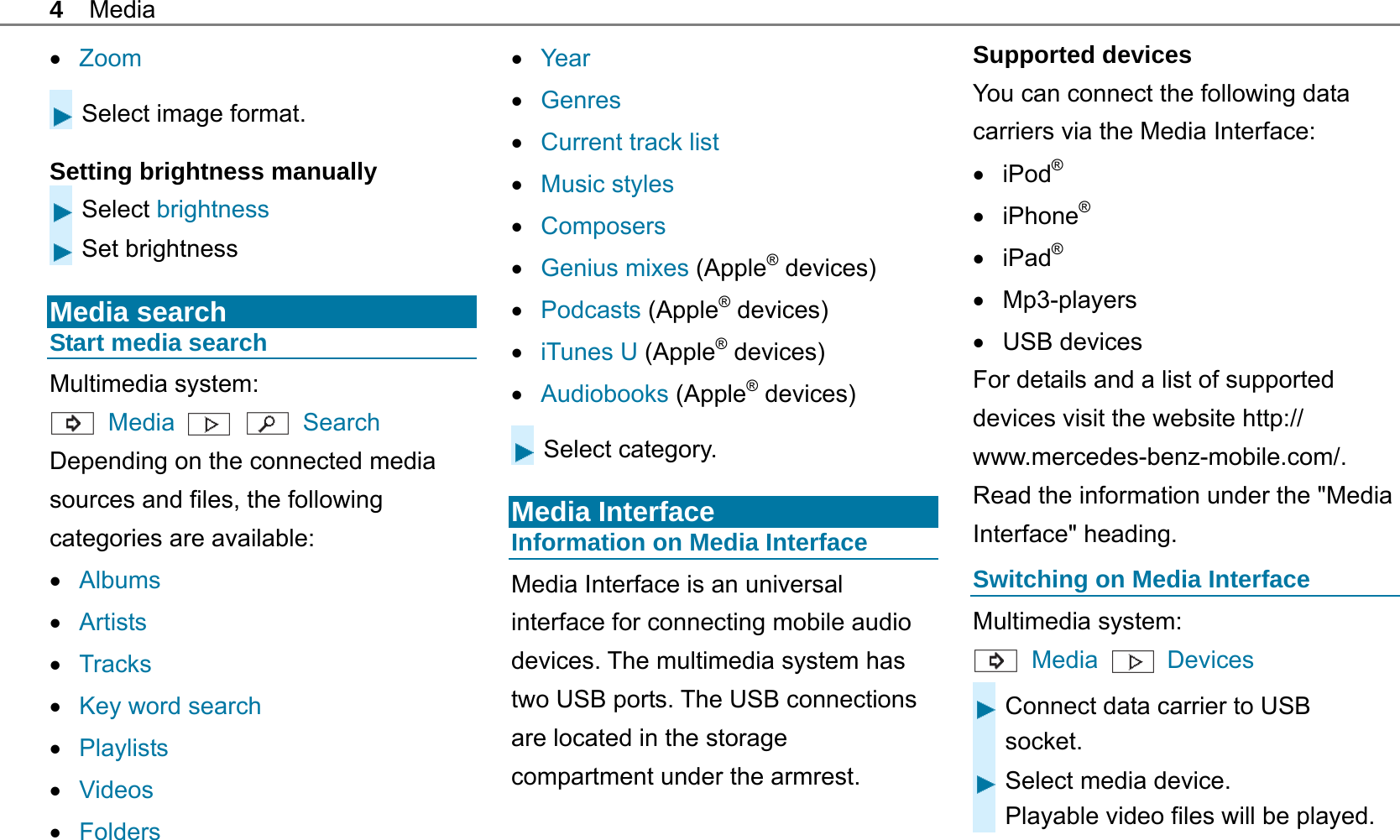
4 Media  Zoom Select image format. Setting brightness manually Select brightness Set brightness  Media search Start media search Multimedia system:  Media    Search Depending on the connected media sources and files, the following categories are available:    Albums  Artists  Tracks  Key word search  Playlists  Videos  Folders  Year  Genres  Current track list  Music styles  Composers  Genius mixes (Apple® devices)  Podcasts (Apple® devices)  iTunes U (Apple® devices)  Audiobooks (Apple® devices) Select category.  Media Interface Information on Media Interface Media Interface is an universal interface for connecting mobile audio devices. The multimedia system has two USB ports. The USB connections are located in the storage compartment under the armrest.   Supported devices You can connect the following data carriers via the Media Interface:  iPod®  iPhone®  iPad®  Mp3-players  USB devices For details and a list of supported devices visit the website http:// www.mercedes-benz-mobile.com/. Read the information under the "Media Interface" heading. Switching on Media Interface Multimedia system:  Media  Devices Connect data carrier to USB socket. Select media device. Playable video files will be played.
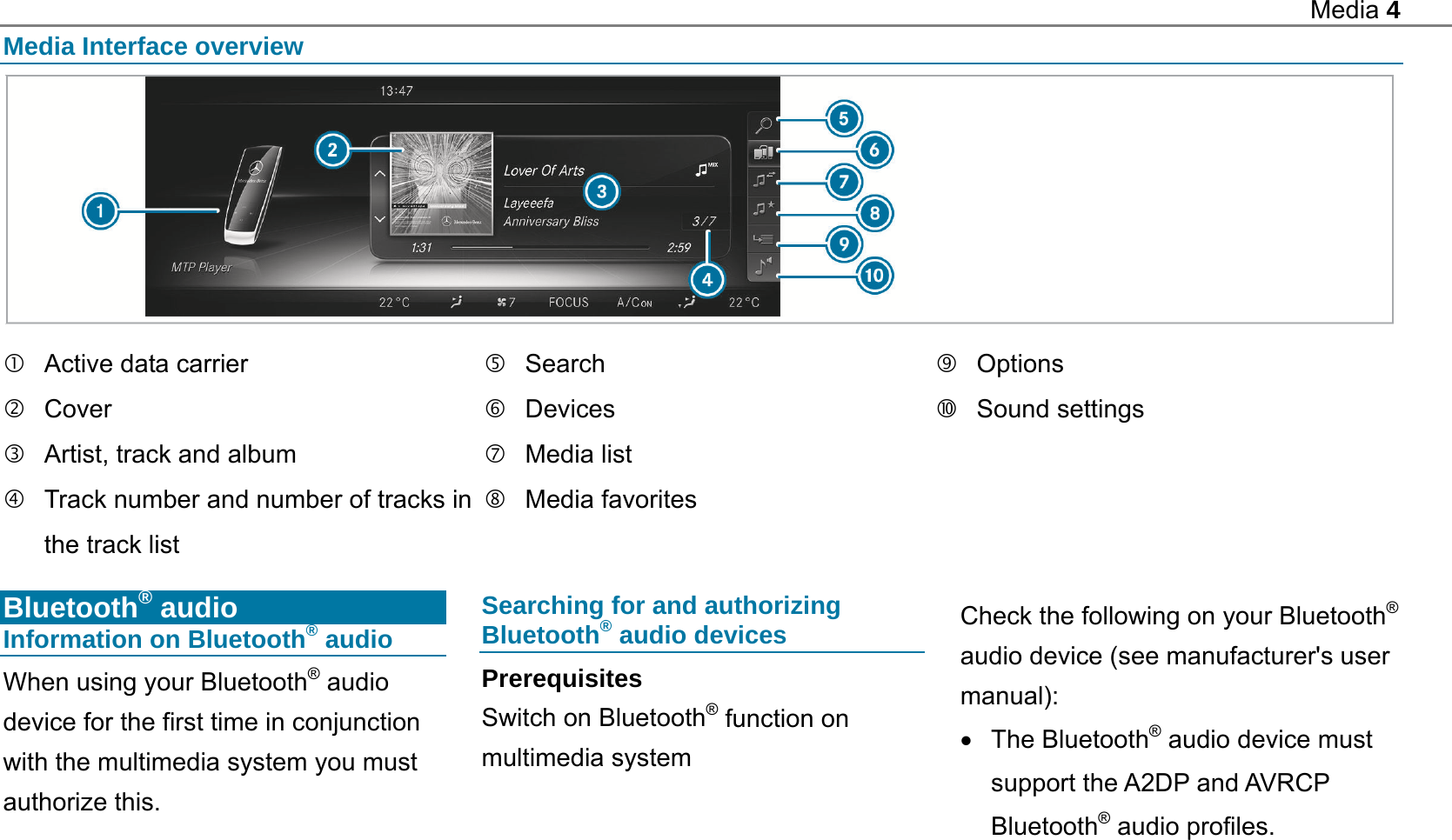
Media 4  Media Interface overview    Active data carrier  Cover   Artist, track and album   Track number and number of tracks in the track list  Search  Devices  Media list  Media favorites  Options  Sound settings  Bluetooth® audio Information on Bluetooth® audio When using your Bluetooth® audio device for the first time in conjunction with the multimedia system you must authorize this. Searching for and authorizing Bluetooth® audio devices Prerequisites Switch on Bluetooth® function on multimedia system Check the following on your Bluetooth® audio device (see manufacturer's user manual):  The Bluetooth® audio device must support the A2DP and AVRCP Bluetooth® audio profiles.
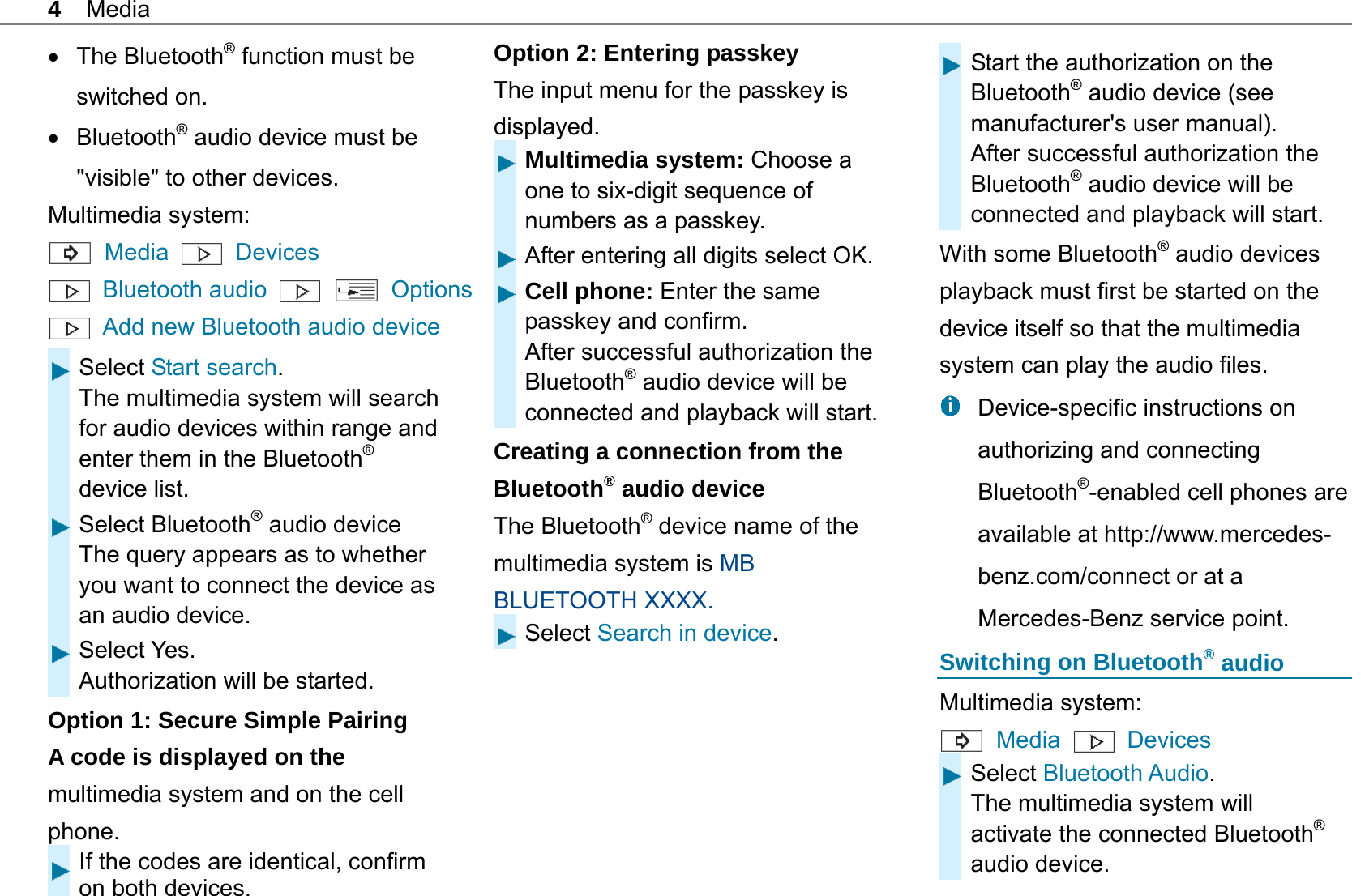
4 Media  The Bluetooth® function must be switched on.  Bluetooth® audio device must be "visible" to other devices. Multimedia system:  Media   Devices  Bluetooth audio    Options  Add new Bluetooth audio device Select Start search. The multimedia system will search for audio devices within range and enter them in the Bluetooth® device list. Select Bluetooth® audio device The query appears as to whether you want to connect the device as an audio device. Select Yes. Authorization will be started. Option 1: Secure Simple Pairing   A code is displayed on the multimedia system and on the cell phone. If the codes are identical, confirm on both devices. Option 2: Entering passkey The input menu for the passkey is displayed.  Multimedia system: Choose a one to six-digit sequence of numbers as a passkey. After entering all digits select OK.Cell phone: Enter the same passkey and confirm. After successful authorization the Bluetooth® audio device will be connected and playback will start.Creating a connection from the Bluetooth® audio device The Bluetooth® device name of the multimedia system is MB BLUETOOTH XXXX. Select Search in device.   Start the authorization on the Bluetooth® audio device (see manufacturer's user manual). After successful authorization the Bluetooth® audio device will be connected and playback will start. With some Bluetooth® audio devices playback must first be started on the device itself so that the multimedia system can play the audio files.   Device-specific instructions on authorizing and connecting Bluetooth®-enabled cell phones are available at http://www.mercedes-benz.com/connect or at a Mercedes-Benz service point. Switching on Bluetooth® audio Multimedia system:  Media   Devices Select Bluetooth Audio. The multimedia system will activate the connected Bluetooth® audio device.
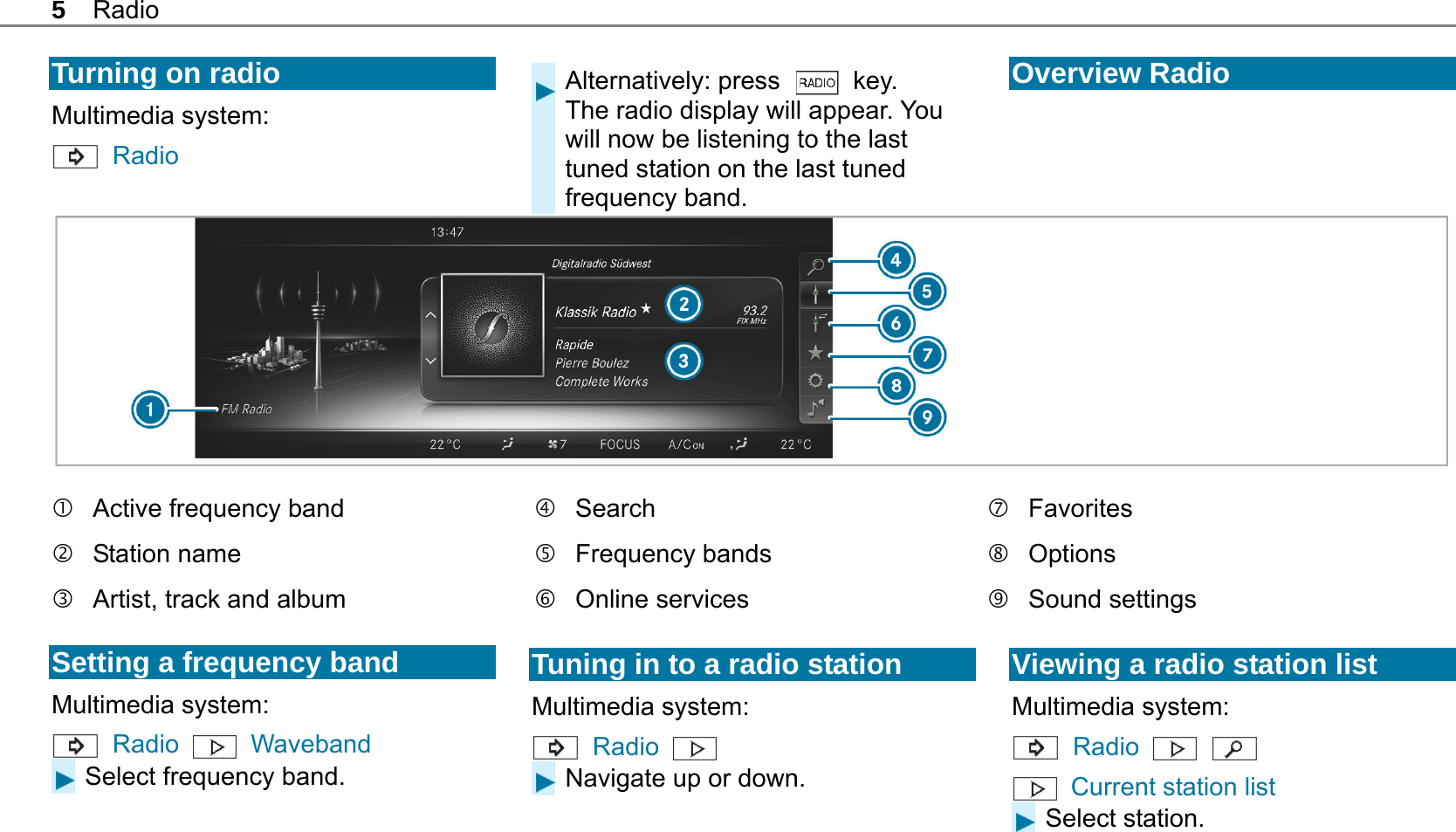
5 Radio  Turning on radio Multimedia system:  Radio  Alternatively: press   key. The radio display will appear. You will now be listening to the last tuned station on the last tuned frequency band.  Overview Radio    Active frequency band  Station name   Artist, track and album  Search  Frequency bands  Online services  Favorites  Options  Sound settings  Setting a frequency band Multimedia system:  Radio   Waveband Select frequency band.   Tuning in to a radio station Multimedia system:  Radio   Navigate up or down.   Viewing a radio station list Multimedia system:  Radio     Current station list Select station.
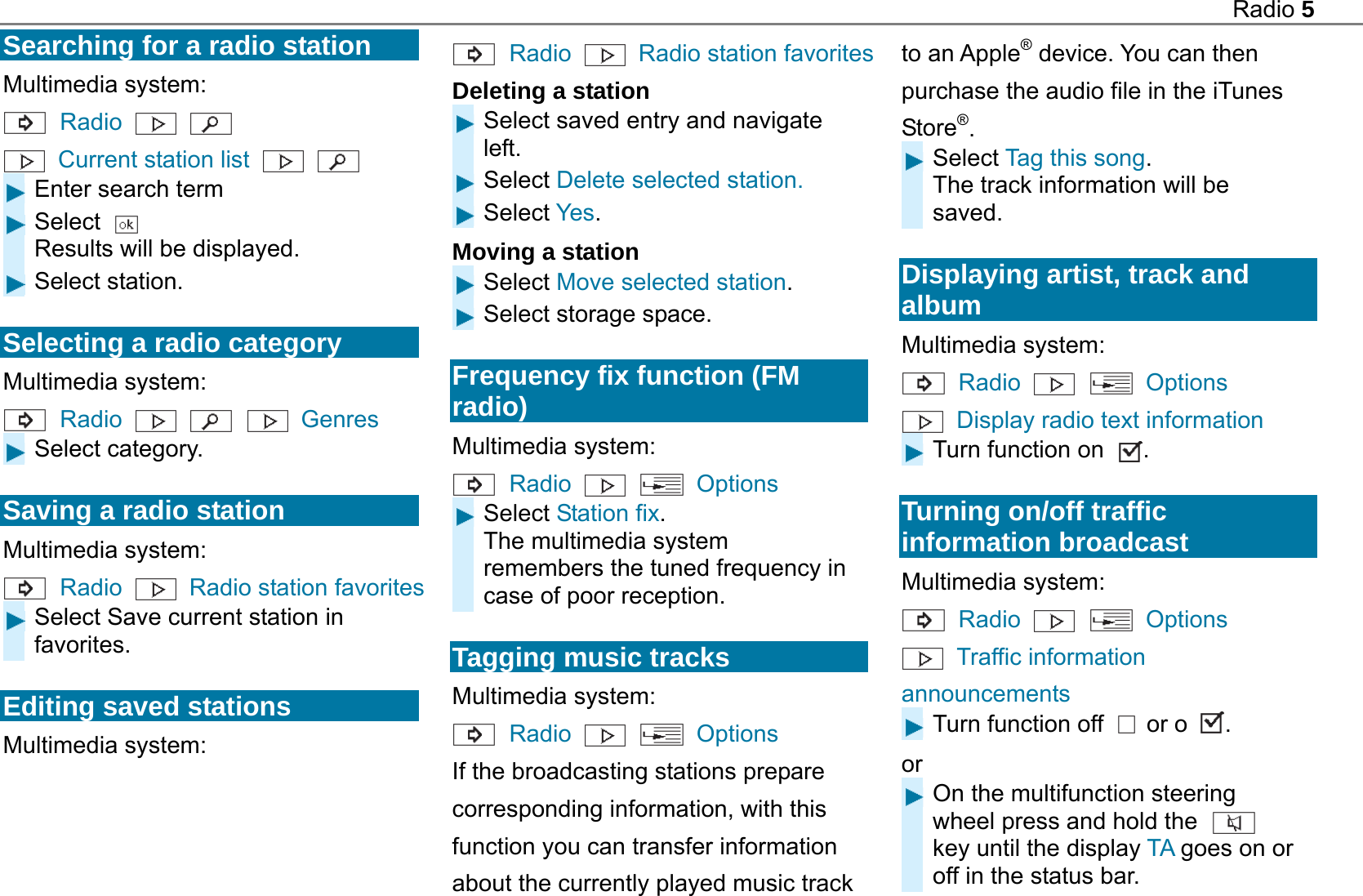
Radio 5  Searching for a radio station Multimedia system:  Radio     Current station list    Enter search term  Select   Results will be displayed.  Select station.  Selecting a radio category Multimedia system:  Radio     Genres  Select category.  Saving a radio station Multimedia system:  Radio   Radio station favorites  Select Save current station in favorites.  Editing saved stations Multimedia system:  Radio   Radio station favorites Deleting a station Select saved entry and navigate left. Select Delete selected station. Select Yes. Moving a station Select Move selected station. Select storage space.  Frequency fix function (FM radio) Multimedia system:  Radio    Options Select Station fix. The multimedia system remembers the tuned frequency in case of poor reception.  Tagging music tracks Multimedia system:  Radio    Options If the broadcasting stations prepare corresponding information, with this function you can transfer information about the currently played music track to an Apple® device. You can then purchase the audio file in the iTunes Store®. Select Tag this song. The track information will be saved.  Displaying artist, track and album Multimedia system:  Radio    Options  Display radio text information Turn function on  .  Turning on/off traffic information broadcast Multimedia system:  Radio    Options  Traffic information announcements Turn function off   or o . or On the multifunction steering wheel press and hold the   key until the display TA goes on or off in the status bar.

Navigation menu