Mobilicom MSH-10 Point-to-Point and Point-to-Multipoint communication unit enabling broadband connectivity of data. User Manual Mobilicom s

Mobilicom ltd. Point-to-Point and Point-to-Multipoint communication unit enabling broadband connectivity of data. Mobilicom s

User manual

    User Manual
  User Manual      Page : 2 / 31    SkyHopper Pro  www.skyhopper.biz support@skyhopper.biz  Confidential
  User Manual      Page : 3 / 31  Notice  This manual contains information that is proprietary to Mobilicom Ltd.  No  part  of  this  publication  may  be  reproduced  in  any  form  whatsoever  without  prior written approval by Mobilicom. License Terms  Mobilicom  hereby  grants  a  non-exclusive,  nontransferable  worldwide  license  to  the licensee of this software product to use the SkyHopper Pro Graphical User Interface (GUI), in  object  code  only  for  the  sole  and  internal  purpose  of  configuring,  monitoring  and managing Mobilicom's SkyHopper Pro.  Warranty Mobilicom does not warrant that this software product is free from errors and/or will run properly on all computer hardware and/or operating systems. Mobilicom does not warrant that this software will operate in the combinations  that may be selected for use by end users or that the operation of this software product will be uninterrupted or error free.  Limitation of Liability Mobilicom’s cumulative liability to you or any other party for any loss or damage resulting from any claims, demands, or actions arising out of, or relating to, this agreement and the Web GUI shall not exceed the sum paid to Mobilicom for the purchase of the Web GUI. In no  event  shall  Mobilicom  be  liable  for  any  indirect,  incidental,  consequential,  special  or exemplary damages or lost profits, even if Mobilicom has been advised of the possibility of such damages. This agreement shall be construed and governed in accordance with the laws of the State of Israel.
  User Manual      Page : 4 / 31  Federal Communications Commission (FCC) Statement  Labelling requirement for small device statement (FCC15.19(3)) This device complies with part 15 of the FCC Rules. Operation is subject to the following two conditions: (1) This device may not cause harmful interference, and (2) this device must accept any interference received, including interference that may cause undesired operation.  Radio Frequency Interference (RFI) (FCC 15.105) This equipment has been tested and found to comply with the limits for Class B digital devices pursuant to Part 15 of the FCC Rules. These limits are designed to provide reasonable protection against harmful interference in a residential environment. This equipment generates, uses, and can radiate radio frequency energy, and if not installed  and  used  in  accordance  with  the  instruction  manual,  may  cause  harmful  interference  to  radio communications. However, there is no guarantee that interference will not occur in a particular installation. If this equipment does cause harmful interference to radio or television reception, which can be determined by turning the equipment off and on, the user is encouraged to try and correct the interference by one or more of the following measures:  Reorient or relocate the receiving antenna.  Increase the separation between the equipment and the receiver.  Connect the equipment into an outlet on a circuit different from that to which the receiver is connected.  Consult the dealer or an experienced radio/TV technician for help.  Labeling Requirements (FCC 15.19) This device  complies  with Part  15 of FCC  rules.  Operation  is  subject to the following  two  conditions:  (1)  this device may not cause harmful interference, and (2) this device must accept any interference received, including interference that may cause undesired operation.  Modifications (FCC 15.21) Changes  or  modifications  to  this  equipment  not  expressly  approved  by  Mobilicom  Ltd.  may  void  the  user’s authority to operate this equipment.  RF Exposure info ( FCC 2.1093)-for module radio  This equipment has been approved for mobile applications where the equipment should be used at distances greater than 20cm from the human body (with the Exception of hands, wrists, feet and ankles). Operation at distances less than 20 cm is strictly prohibited.
  User Manual      Page : 5 / 31  Contents 1 ABBREVIATION LIST ............................................................................................... 8 2 OVERVIEW .......................................................................................................... 10 2.1 NETWORK TOPOLOGIES AND APPLICATIONS ............................................................... 10 2.1.1 Point-to-Point (PTP) ................................................................................... 10 2.2 SKYHOPPER PRO MAIN FEATURES .......................................................................... 11 2.3 PACKETS SUPPORTED BY THE SKYHOPPER PRO NETWORK ................................................ 11 3 PHYSICAL DESCRIPTION ....................................................................................... 13 3.1 FRONT VIEW CONNECTORS ................................................................................... 13 3.2 UNIT CABLES: TYPE & USAGE ................................................................................ 13 4 MECHANICAL SPECIFICATIONS ............................................................................. 14 5 TECHNICAL SPECIFICATIONS ................................................................................. 14 5.1 RADIO AND MODEM SPECIFICATIONS ....................................................................... 14 5.1.1 Frequency bands available: ........................................................................ 14 5.1.2 Antennas .................................................................................................. 14 5.1.3 RF Characteristics ...................................................................................... 15 5.2 POWER SPECIFICATIONS ...................................................................................... 16 5.3 ENVIRONMENTAL SPECIFICATIONS ........................................................................... 16 5.4 EMBEDDED GPS CHARACTERISTICS ......................................................................... 16 6 TDMA ................................................................................................................. 17 7 PTP (POINT-TO-POINT)......................................................................................... 18 7.1 PTP LINK STEP-BY-STEP CONFIGURATION ................................................................. 19 7.2 SKYHOPPER PRO LED INDICATOR ........................................................................... 21 9 INSTALLATION AND SETUP ................................................................................... 22 9.1 PACKAGE CONTENTS .......................................................................................... 22 9.2 CONNECTING THE ANTENNAS ................................................................................ 22 9.3 CONNECTING THE POWER .................................................................................... 22 APPENDIX A - SPECIFICATIONS ................................................................................. 23 APPENDIX B - MECHANICAL DRAWINGS ....................................................................... 25 APPENDIX C – CONNECTORS’ PINOUT .......................................................................... 26 1. RS-232/1PPS .................................................................................................... 26 2. POWER CABLE ..................................................................................................... 27 APPENDIX D – SETTING UP A PIXHAWK BASED SYSTEM ................................................. 28
  User Manual      Page : 6 / 31  1. SKYHOPPER SETUP ................................................................................................ 28 2. PHYSICAL CONNECTION ........................................................................................... 28 3. UART TO ETHERNET .............................................................................................. 29 APPENDIX E –TROUBLESHOOTING ............................................................................... 30
  User Manual      Page : 7 / 31  List of Figures  Figure 1: SkyHopper Pro .......................................................................................... 10 Figure 2: Asymmetric Link Configuration .................................................................. 11 Figure 3: SkyHopper Pro Front View ........................................................................ 13 Figure 4: SkyHopper Pro Connector Side view ........................................................ 14 Figure 5: Transmit frames of the remote unit and controller unit from Power Up...... 18 Figure 6: Web GUI main screen ............................................................................... 19 Figure 7: Web GUI “Advanced configuration” screen ............................................... 20    List of Tables Table 1: Abbreviation List........................................................................................... 9 Table 2: SkyHopper Pro Mechanical Specifications ................................................. 14 Table 3: SkyHopper Pro Power Specifications ......................................................... 16 Table 4: SkyHopper Pro Environmental Specifications ............................................ 16 Table 5: Embedded GPS Characteristics of SkyHopper Pro ................................... 17
  User Manual      Page : 8 / 31  1 Abbreviation List  Abbreviation Syntax BPS Bits Per Second BW Bandwidth CEP Circular Error Probable (Accuracy) CINR   Carrier to Interference and Noise Ratio (Signal to Noise Ratio) CPLD Complex Programmable Logic Device CRC Cyclic Redundancy Code dB Decibel dBm Power ratio in decibels of the measured power referenced to one milliwatt  CDD Cyclic Delay Diversity Controller Unit A SkyHopper Pro Unit, In PTP setup, which acts as an endpoint communication unit. Typically a Ground Unit. CTC Convolutional Turbo Code DC Direct Current EMI Electromagnetic Interference ETH Ethernet ETSI European Telecommunication Standard Institute  FAE Field Application Engineer FCC Federal Communications Commission FEC Forward Error Correction FFT Fast Fourier Transform Freq. Frequency FW   Firmware  GHz Gigahertz GPS  Global Positioning System HD High Definition (Video) HW   Hardware ID Identification (Number) IP   Internet Protocol LAN Local Area Network LAT Latitude LED Light Emitting Diode
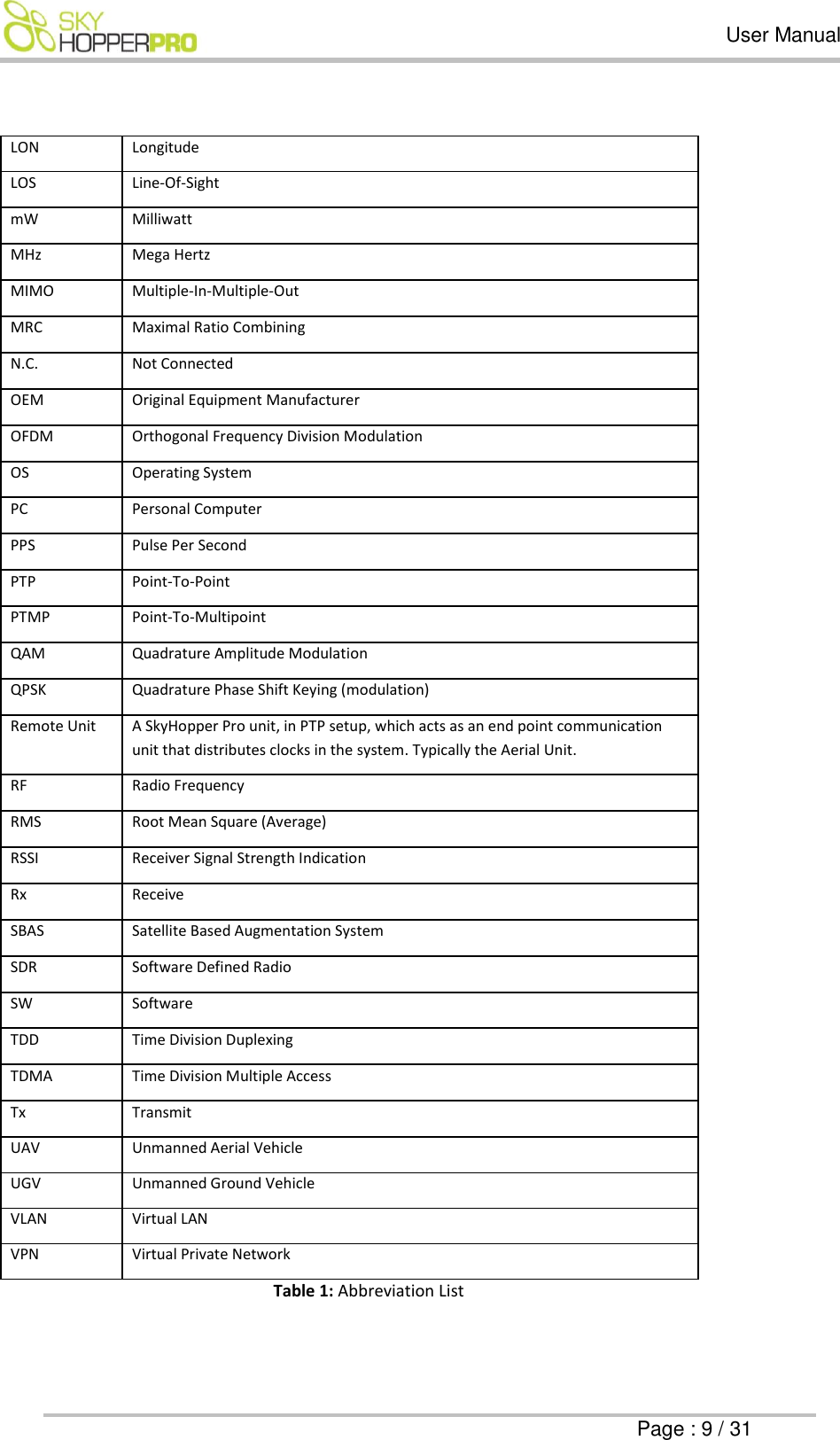
  User Manual      Page : 9 / 31  LON Longitude LOS Line-Of-Sight mW Milliwatt MHz Mega Hertz MIMO Multiple-In-Multiple-Out MRC Maximal Ratio Combining  N.C. Not Connected OEM Original Equipment Manufacturer  OFDM Orthogonal Frequency Division Modulation OS Operating System PC Personal Computer PPS  Pulse Per Second PTP Point-To-Point PTMP Point-To-Multipoint QAM Quadrature Amplitude Modulation  QPSK Quadrature Phase Shift Keying (modulation) Remote Unit A SkyHopper Pro unit, in PTP setup, which acts as an end point communication unit that distributes clocks in the system. Typically the Aerial Unit. RF Radio Frequency RMS Root Mean Square (Average)  RSSI   Receiver Signal Strength Indication Rx Receive   SBAS Satellite Based Augmentation System  SDR Software Defined Radio SW   Software TDD Time Division Duplexing  TDMA Time Division Multiple Access Tx Transmit UAV Unmanned Aerial Vehicle UGV Unmanned Ground Vehicle VLAN Virtual LAN VPN Virtual Private Network                                                Table 1: Abbreviation List
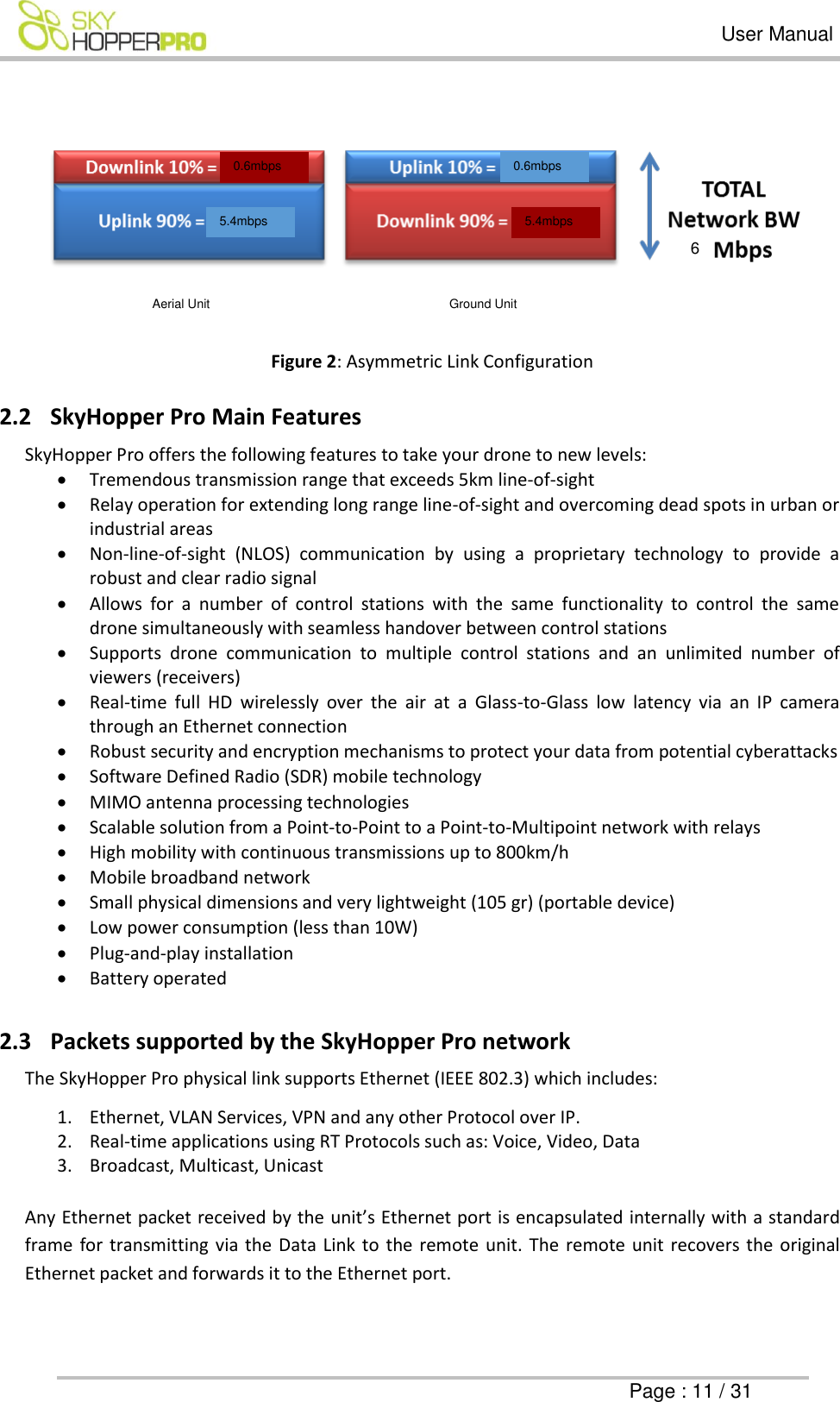
  User Manual      Page : 10 / 31  2 Overview The  SkyHopper  PRO  offers  a  bi-directional  Data  Link  specifically  designed  for  commercial  and industrial  drones,  and  provides  the  best  solution  for  fleet  management  and  autonomous  UAV systems. By employing leading wireless technologies, SkyHopper PRO delivers long range  and Non-Line  of  Sight  (N-LOS)  communication  that  supports  broadcast,  multicast  and  unicast  transmission modes.   SkyHopper  PRO  supports  Point-to-Point  and  Point-to-Multipoint  communication,  thereby  enabling various  modes  of  operation  such  as  communication  for  multi-drone  operations  and  drone communication to multiple ground units and viewers (receivers).  An additional benefit of your SkyHopper Pro is that it offers Control, Telemetry and Payload all in one RF channel. No need for separate solutions for each, no need for excess items to weigh down your drone.  Figure 1: SkyHopper Pro 2.1 Network Topologies and Applications 2.1.1 Point-to-Point (PTP)  A  Point-to-Point  system  includes  2  units,  with  the  bandwidth  ratio  between  the  two  units configurable according to the application. It can be symmetric when a full duplex communication is required (50%  to each unit) or asymmetric up to  10% to one unit  (Controller or  Remote Unit) and 90% to the other  unit (i.e. drone/robot that transmits video to the ground/controller unit and that controls the camera).  Example  for  an  asymmetric  link:  6Mbps  configuration, where  10%  of  available  BW  is allocated for uplink and 90% is allocated for downlink.
  User Manual      Page : 11 / 31   Figure 2: Asymmetric Link Configuration  2.2 SkyHopper Pro Main Features  SkyHopper Pro offers the following features to take your drone to new levels:  Tremendous transmission range that exceeds 5km line-of-sight  Relay operation for extending long range line-of-sight and overcoming dead spots in urban or industrial areas  Non-line-of-sight  (NLOS)  communication  by  using  a  proprietary  technology  to  provide  a robust and clear radio signal  Allows  for  a  number  of  control  stations  with  the  same  functionality  to  control  the  same drone simultaneously with seamless handover between control stations  Supports  drone  communication  to  multiple  control  stations  and  an  unlimited  number  of viewers (receivers)  Real-time  full  HD  wirelessly  over  the  air  at  a  Glass-to-Glass  low  latency  via  an  IP  camera through an Ethernet connection   Robust security and encryption mechanisms to protect your data from potential cyberattacks  Software Defined Radio (SDR) mobile technology  MIMO antenna processing technologies  Scalable solution from a Point-to-Point to a Point-to-Multipoint network with relays   High mobility with continuous transmissions up to 800km/h   Mobile broadband network  Small physical dimensions and very lightweight (105 gr) (portable device)     Low power consumption (less than 10W)  Plug-and-play installation   Battery operated  2.3 Packets supported by the SkyHopper Pro network  The SkyHopper Pro physical link supports Ethernet (IEEE 802.3) which includes: 1. Ethernet, VLAN Services, VPN and any other Protocol over IP. 2. Real-time applications using RT Protocols such as: Voice, Video, Data 3. Broadcast, Multicast, Unicast  Any Ethernet packet received by the unit’s Ethernet port is encapsulated internally with a standard frame  for transmitting via the Data Link to the remote  unit. The  remote unit recovers the  original Ethernet packet and forwards it to the Ethernet port.   6 0.6mbps 5.4mbps 0.6mbps 5.4mbps Aerial Unit Ground Unit
  User Manual      Page : 12 / 31     NOTE – The unit is similar to Ethernet layer 1 (physical layer), which makes integration with your equipment nothing more than connecting the Ethernet cable.
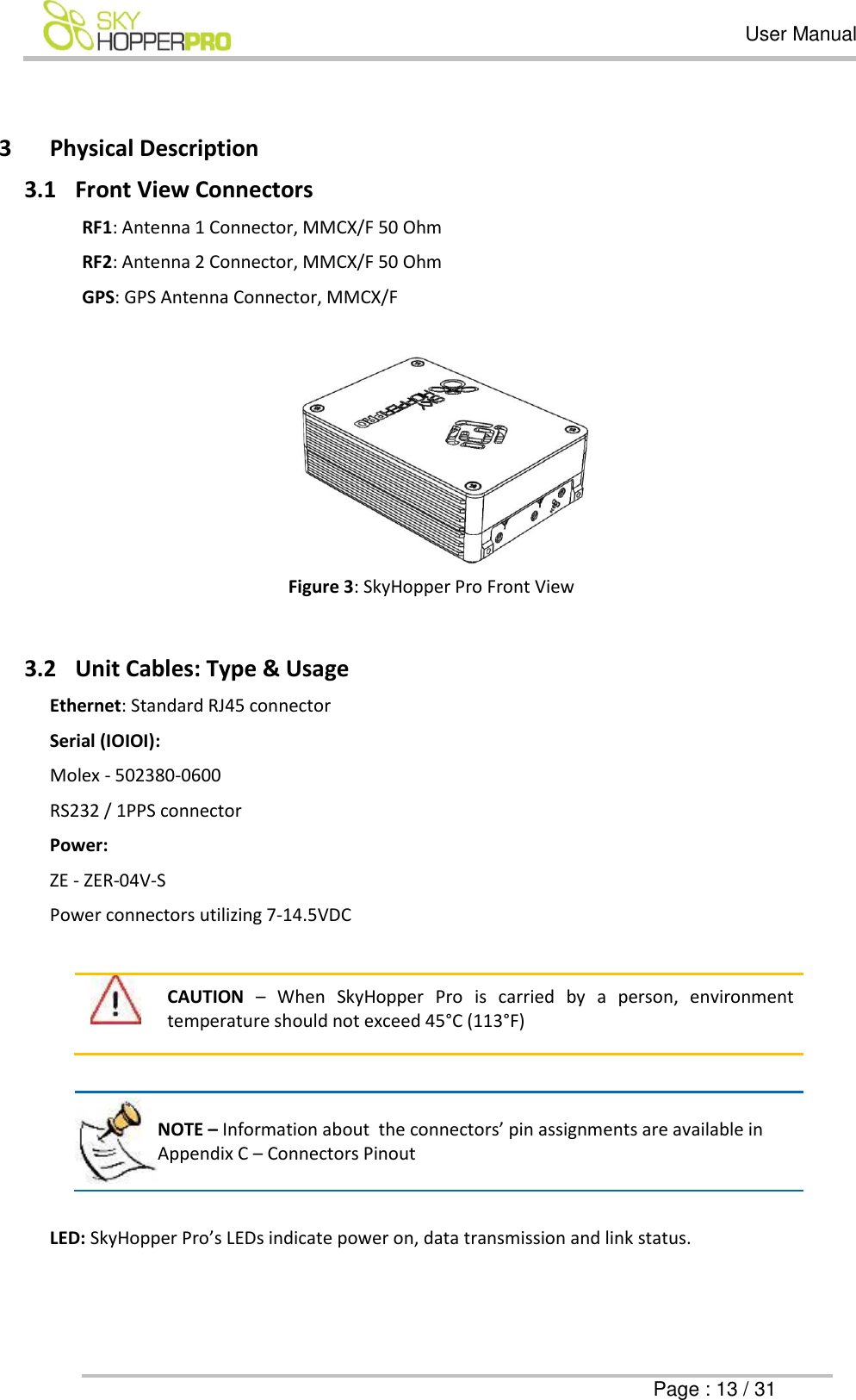
  User Manual      Page : 13 / 31  3 Physical Description 3.1 Front View Connectors RF1: Antenna 1 Connector, MMCX/F 50 Ohm  RF2: Antenna 2 Connector, MMCX/F 50 Ohm  GPS: GPS Antenna Connector, MMCX/F    Figure 3: SkyHopper Pro Front View  3.2 Unit Cables: Type & Usage  Ethernet: Standard RJ45 connector Serial (IOIOI): Molex - 502380-0600 RS232 / 1PPS connector Power:  ZE - ZER-04V-S Power connectors utilizing 7-14.5VDC     CAUTION –  When  SkyHopper  Pro  is  carried  by  a  person,  environment temperature should not exceed 45°C (113°F)   NOTE – Information about  the connectors’ pin assignments are available in Appendix C – Connectors Pinout   LED: SkyHopper Pro’s LEDs indicate power on, data transmission and link status.
  User Manual      Page : 14 / 31   Figure 4: SkyHopper Pro Connector Side view 4 Mechanical Specifications The SkyHopper Pro unit is lightweight and has small form-factor. Dimensions [HxWxD] (mm) [HxWxD] (inch) Weight (gr) Weight (oz.)  26 x 54 x 74 1.0 x 2.1 x 2.9 105 3.7  Table 2: SkyHopper Pro Mechanical Specifications  5 Technical Specifications 5.1 Radio and Modem Specifications 5.1.1 Frequency bands available:  2.4GHz unlicensed band Note: This product is configured to operate within the FCC or CE limitations based on the country of ordering. It is configured within the 2.4 ISM frequency band. Mobilicom takes no responsibility should you choose to take and/or operate this product outside of FCC or CE limits and/or in a country that does not comply with FCC or CE regulations. Please note that SkyHopper specifications vary based on FCC or CE regulations.  5.1.2 Antennas  Various standard antennas can be supported using an MMCX/M connector. Some antennas with a different connector (such as SMA) can be used with an adaptor or adaptor cable. The Ground Unit has a mounting kit supplied with an MMCX to SMA connecting cable and SMA/M antennas.
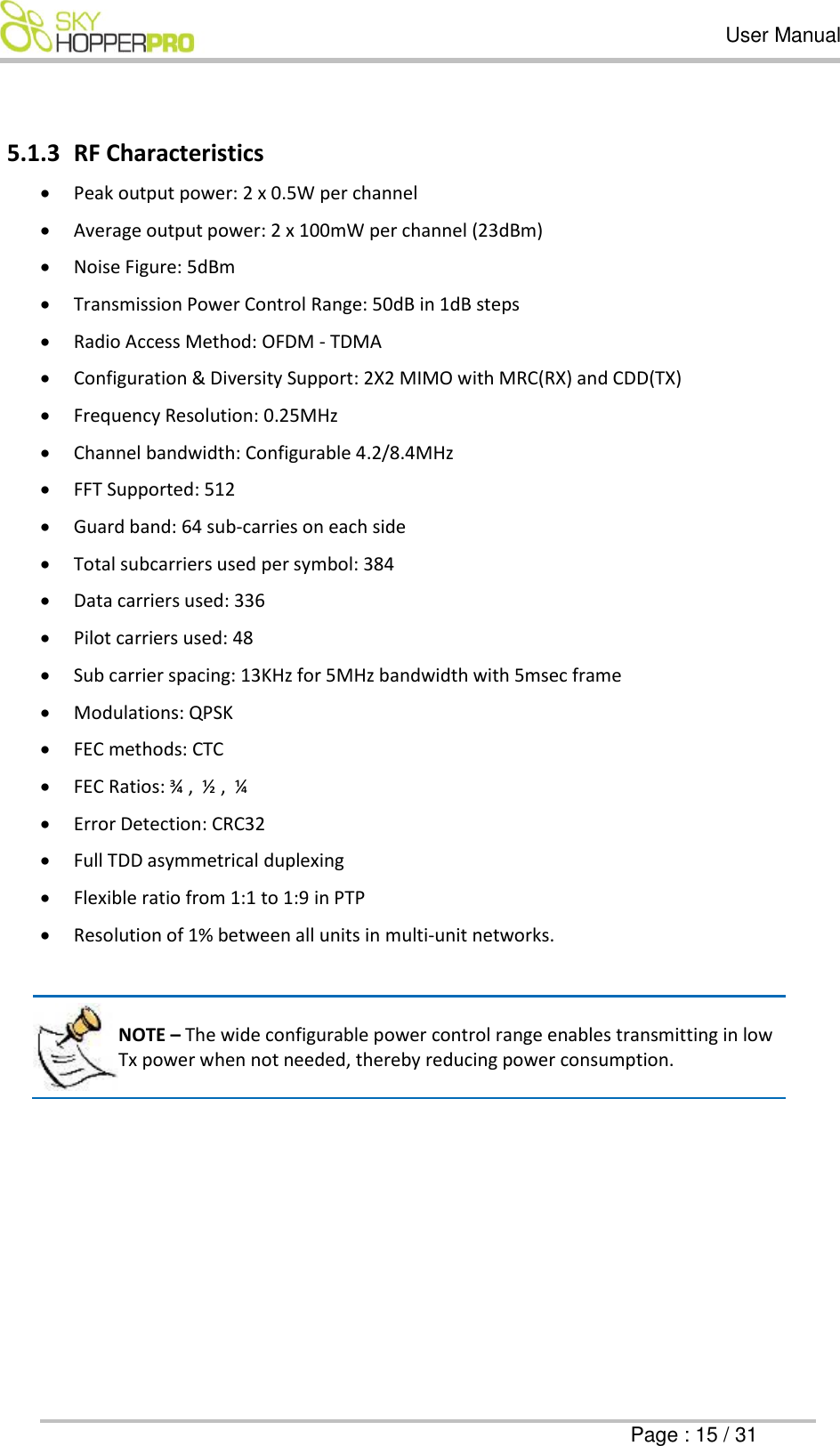
  User Manual      Page : 15 / 31  5.1.3 RF Characteristics   Peak output power: 2 x 0.5W per channel   Average output power: 2 x 100mW per channel (23dBm)  Noise Figure: 5dBm  Transmission Power Control Range: 50dB in 1dB steps  Radio Access Method: OFDM - TDMA   Configuration & Diversity Support: 2X2 MIMO with MRC(RX) and CDD(TX)  Frequency Resolution: 0.25MHz  Channel bandwidth: Configurable 4.2/8.4MHz   FFT Supported: 512  Guard band: 64 sub-carries on each side  Total subcarriers used per symbol: 384  Data carriers used: 336  Pilot carriers used: 48  Sub carrier spacing: 13KHz for 5MHz bandwidth with 5msec frame   Modulations: QPSK  FEC methods: CTC  FEC Ratios: ¾ ,  ½ ,  ¼  Error Detection: CRC32  Full TDD asymmetrical duplexing   Flexible ratio from 1:1 to 1:9 in PTP  Resolution of 1% between all units in multi-unit networks.    NOTE – The wide configurable power control range enables transmitting in low Tx power when not needed, thereby reducing power consumption.
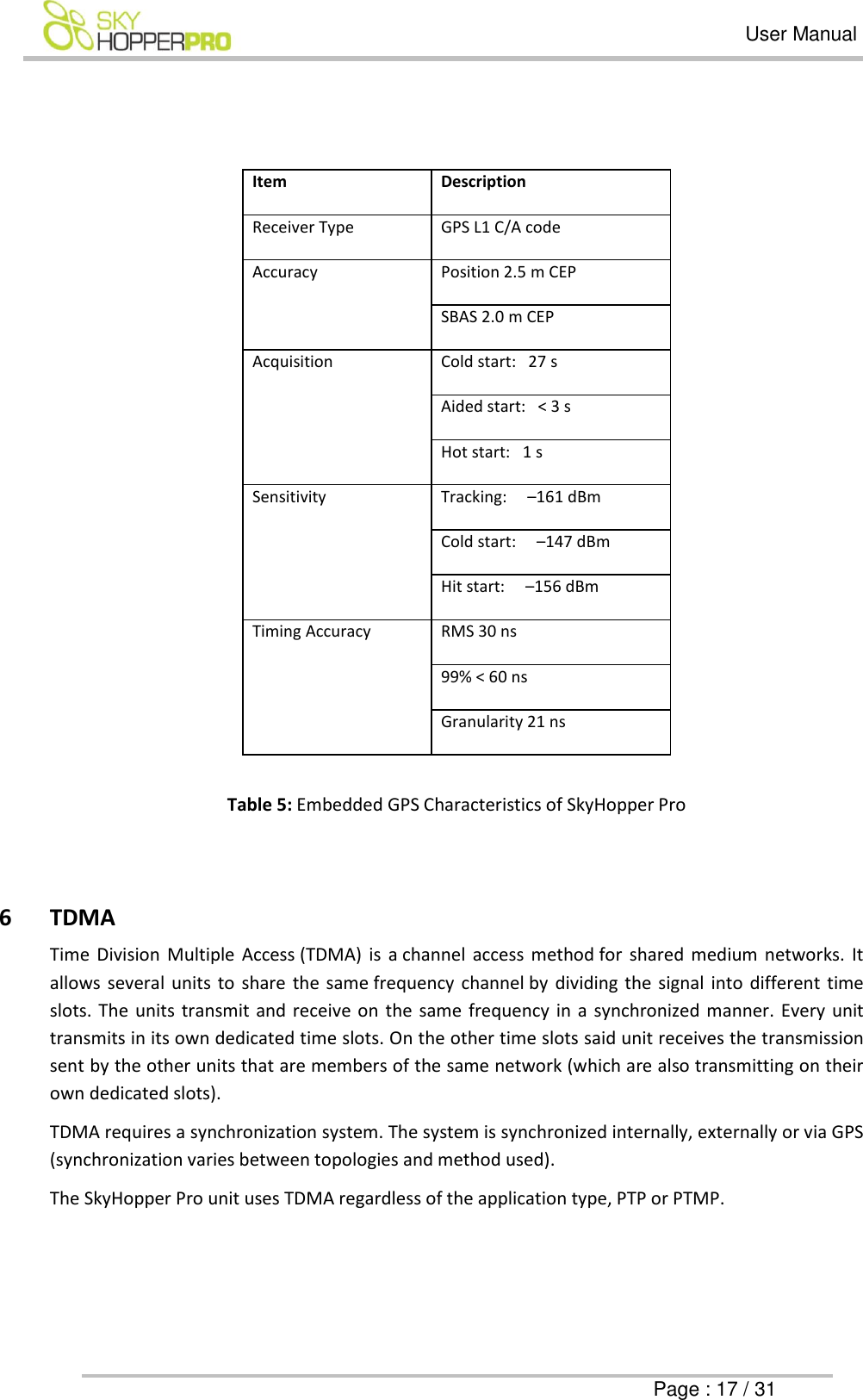
  User Manual      Page : 16 / 31  5.2 Power Specifications SkyHopper  Pro  is  designed  to  be  battery  operated  (DC)  with  low  power  consumption.  Its  design allows for multiple battery cell configurations (different voltages). Power - LF10WBRB-4P DC Voltage (Battery Operated) 7-14.5VDC  Power Consumption 8 Watts average use Up to 12 Watts depending on the operational scenario  (TX:RX Ratio)  Table 3: SkyHopper Pro Power Specifications  5.3 Environmental Specifications SkyHopper  Pro  is  designed  to  meet  international  EMI,  Radio  &  Environmental  Standards,  such  as wireless ETSI & FCC etc. Environmental Temperature Range Operating Storage  -10°C to 40°C -50°C to 85°C Humidity 5 to 95%  Table 4: SkyHopper Pro Environmental Specifications  5.4 Embedded GPS Characteristics  SkyHopper Pro has a built-in GPS receiver. In a PTP network configuration it is used for location information only (which can be operated by the customer via the SkyHopper API). In a Multi-Unit network, it is used for synchronization and can also be used by the customer for location purposes. SkyHopper Pro uses active GPS antennas. The power for the active antenna is provided by the unit via the regular GPS MMCX connector.
  User Manual      Page : 17 / 31   Item Description Receiver Type   GPS L1 C/A code Accuracy Position 2.5 m CEP SBAS 2.0 m CEP Acquisition Cold start:   27 s Aided start:   < 3 s Hot start:   1 s Sensitivity Tracking:     –161 dBm  Cold start:     –147 dBm Hit start:     –156 dBm Timing Accuracy RMS 30 ns 99% < 60 ns Granularity 21 ns  Table 5: Embedded GPS Characteristics of SkyHopper Pro    6 TDMA Time  Division  Multiple  Access (TDMA)  is  a channel  access method for  shared  medium  networks.  It allows  several units to  share the same frequency  channel by  dividing the signal into different time slots.  The  units transmit and receive on  the  same  frequency in a  synchronized manner.  Every  unit transmits in its own dedicated time slots. On the other time slots said unit receives the transmission sent by the other units that are members of the same network (which are also transmitting on their own dedicated slots).  TDMA requires a synchronization system. The system is synchronized internally, externally or via GPS (synchronization varies between topologies and method used). The SkyHopper Pro unit uses TDMA regardless of the application type, PTP or PTMP.
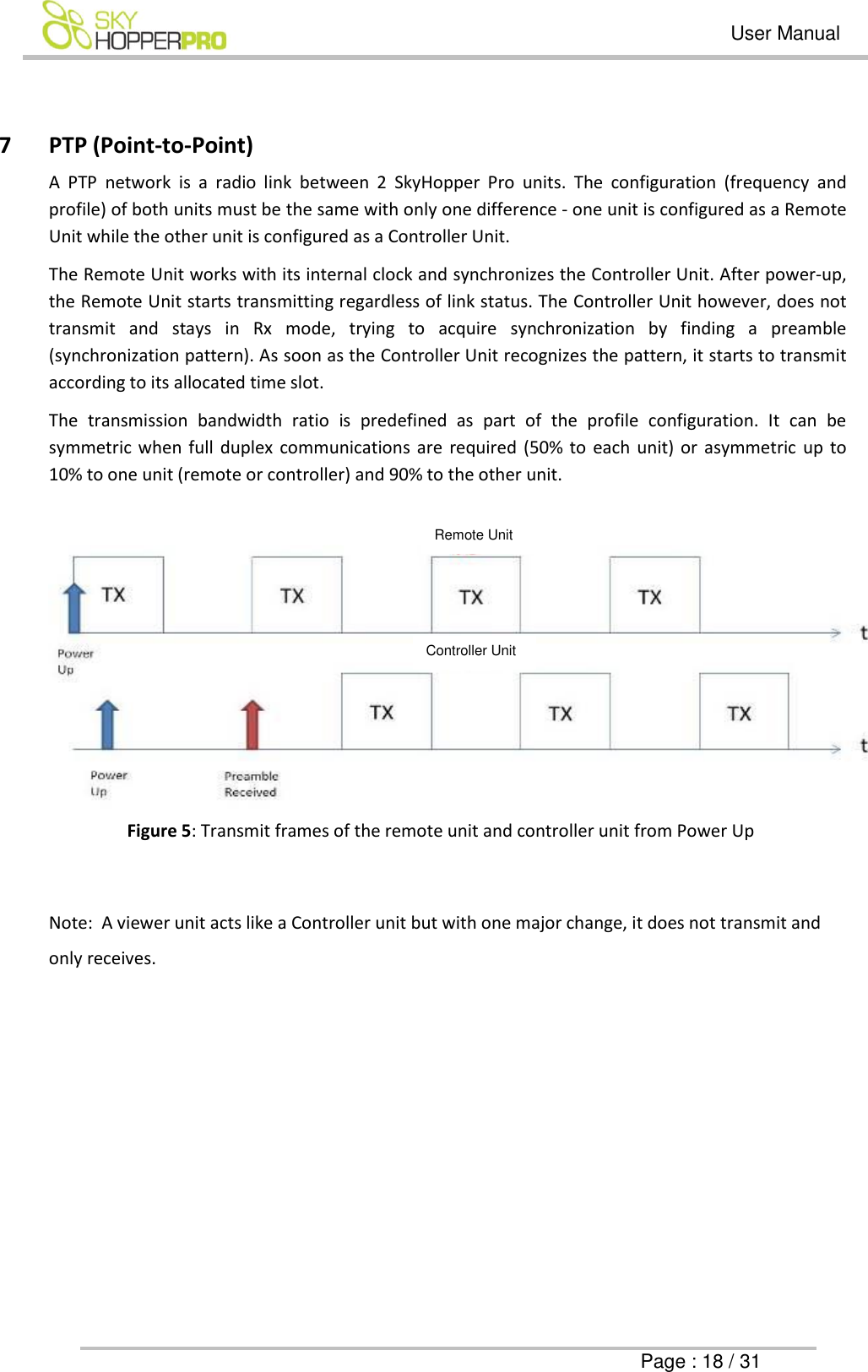
  User Manual      Page : 18 / 31  7 PTP (Point-to-Point)  A  PTP  network  is  a  radio  link  between  2  SkyHopper  Pro  units.  The  configuration  (frequency  and profile) of both units must be the same with only one difference - one unit is configured as a Remote Unit while the other unit is configured as a Controller Unit. The Remote Unit works with its internal clock and synchronizes the Controller Unit. After power-up, the Remote Unit starts transmitting regardless of link status. The Controller Unit however, does not transmit  and  stays  in  Rx  mode,  trying  to  acquire  synchronization  by  finding  a  preamble (synchronization pattern). As soon as the Controller Unit recognizes the pattern, it starts to transmit according to its allocated time slot. The  transmission  bandwidth  ratio  is  predefined  as  part  of  the  profile  configuration.  It  can  be symmetric when full duplex  communications are  required (50% to each unit) or asymmetric up  to 10% to one unit (remote or controller) and 90% to the other unit.    Figure 5: Transmit frames of the remote unit and controller unit from Power Up  Note:  A viewer unit acts like a Controller unit but with one major change, it does not transmit and only receives. Remote Unit Controller Unit
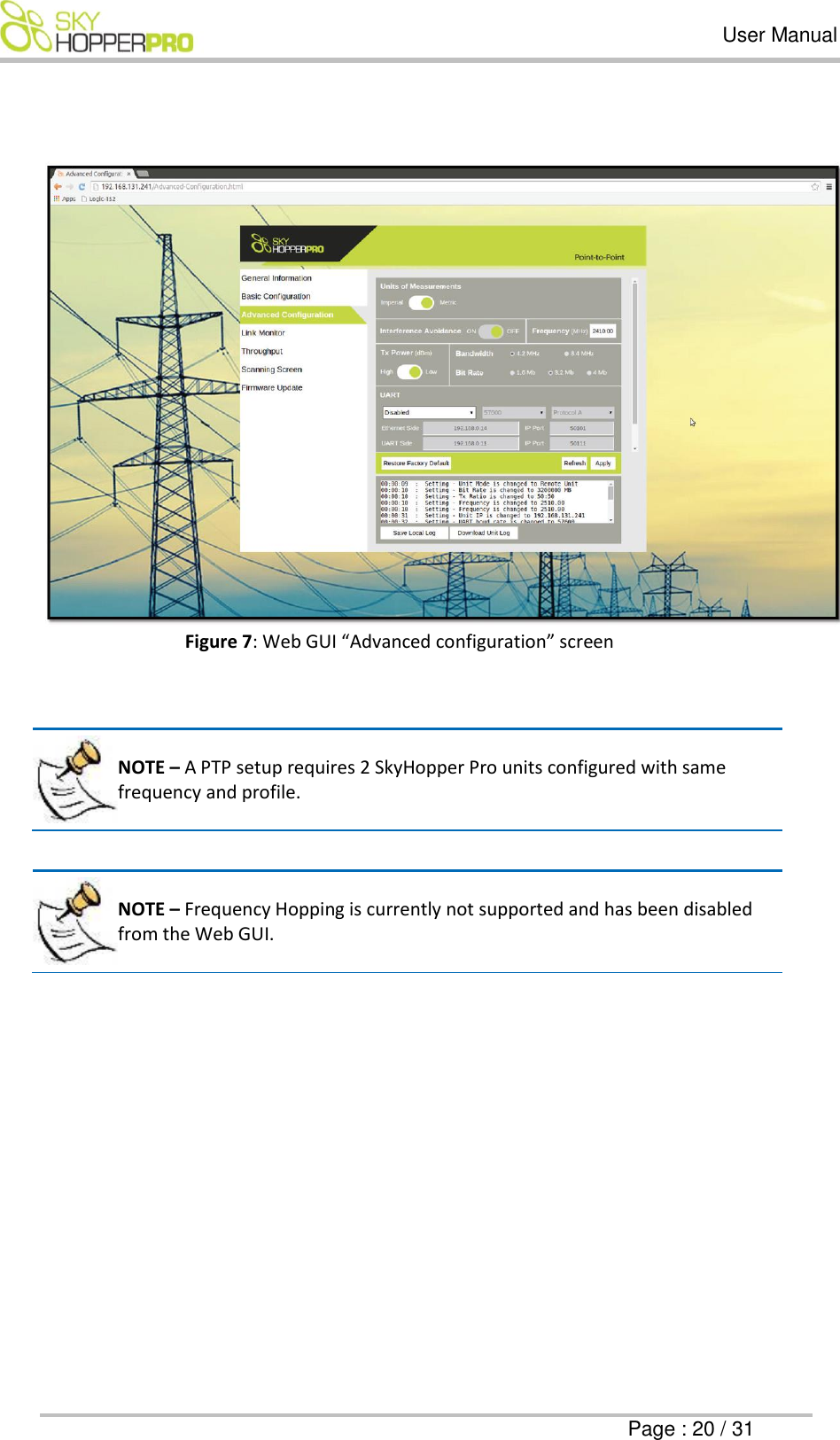
  User Manual      Page : 19 / 31  7.1 PTP Link Step-by-Step Configuration  In order to build a PTP link, two SkyHopper Pro units are required. One unit acts as a remote unit, while the other as a controller unit. 1. Connect antennas to RF1 and RF2 connectors, and power up the unit.    CAUTION –  Powering  up  a  unit  without  connecting  the  antennas  can cause irreparable damage to the unit.   2. Connect the unit to a PC using a standard Ethernet Cat 5 cable. 3. Set static IP in the 192.168.131.xxx subnet (For more information, see the Web GUI Instructional Manual). 4. Using the Web GUI: Open a web browser installed on your PC / laptop (Chrome, Firefox, Internet Explorer, etc.) and input in the address line: 192.168.131.241. That should connect you to the Web GUI interface, as shown on Figure 6:   Figure 6: Web GUI main screen  5. To change the frequency to the required frequency, click on “Advanced Configuration” (third tab on the left corner) and on the “Frequency” line and write the desired frequency within the frequency range set in your unit.  6. Set the profile as required (RF bandwidth, bitrate and ratio) and click on the “Apply” button as shown on Figure 7. The unit will reboot. 7. Repeat stages 1-4 with the 2nd unit.
  User Manual      Page : 20 / 31    Figure 7: Web GUI “Advanced configuration” screen    NOTE – A PTP setup requires 2 SkyHopper Pro units configured with same frequency and profile.   NOTE – Frequency Hopping is currently not supported and has been disabled from the Web GUI.
  User Manual      Page : 21 / 31  7.2 SkyHopper Pro LED indicator By  following  the  LED  on  the  unit,  the  power  and  link  status  can  be  monitored.  It  is  described  as follows: 1) ACTV LED: a) Off – Power Down b) On -  Booting Up  c) Slow Blinking – Remote unit is transmitting, controller unit receiving (P2P search)  d) Fast Blinking – Air Link is up  2) DATA LED a) Off – No Ethernet detected b) On –  Ethernet Cable is connected to a working device on host – No Data c) Slow Blink – Error (synced to ACTV LED) d) Fast Blink – Tx & Rx Air Traffic active Should  there  be  an  error  in  your  SkyHopper  Pro  unit,  both  the  ACTV  and  DATA  LEDs  will  be simultaneously slow blinking. Link status, CINR, RSSI, throughput and unit log information is available in the Web GUI, which can be found online at www.skyhopper.biz/prosupport.
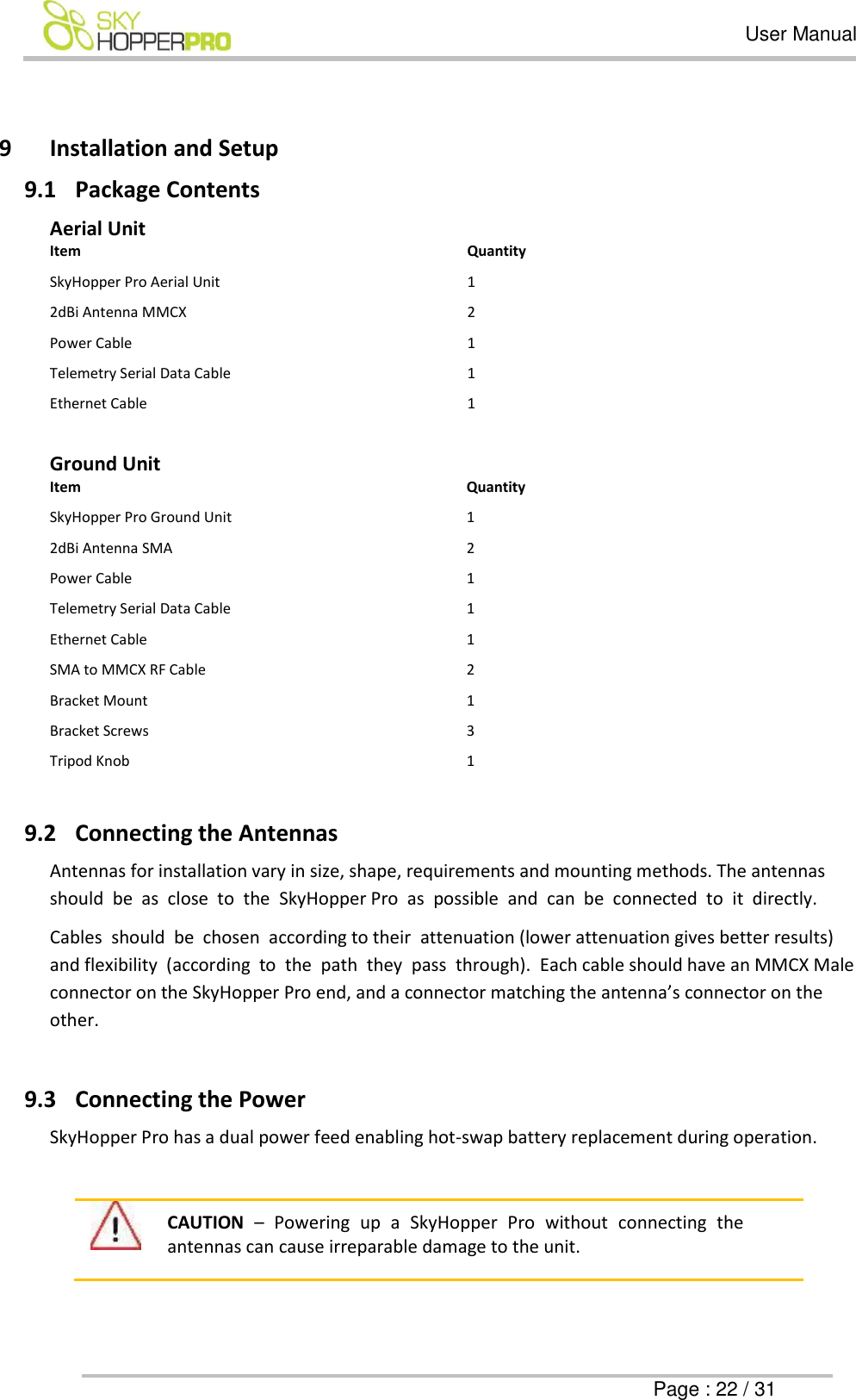
  User Manual      Page : 22 / 31  9 Installation and Setup 9.1 Package Contents  Aerial Unit Item Quantity SkyHopper Pro Aerial Unit 1 2dBi Antenna MMCX 2 Power Cable 1 Telemetry Serial Data Cable 1 Ethernet Cable 1  Ground Unit Item Quantity SkyHopper Pro Ground Unit 1 2dBi Antenna SMA 2 Power Cable 1 Telemetry Serial Data Cable 1 Ethernet Cable 1 SMA to MMCX RF Cable 2 Bracket Mount 1 Bracket Screws 3 Tripod Knob 1  9.2 Connecting the Antennas Antennas for installation vary in size, shape, requirements and mounting methods. The antennas should  be  as  close  to  the  SkyHopper Pro  as  possible  and  can  be  connected  to  it  directly.  Cables  should  be  chosen  according to their  attenuation (lower attenuation gives better results) and flexibility  (according  to  the  path  they  pass  through).  Each cable should have an MMCX Male connector on the SkyHopper Pro end, and a connector matching the antenna’s connector on the other.   9.3 Connecting the Power SkyHopper Pro has a dual power feed enabling hot-swap battery replacement during operation.   CAUTION –  Powering  up  a  SkyHopper  Pro  without  connecting  the antennas can cause irreparable damage to the unit.
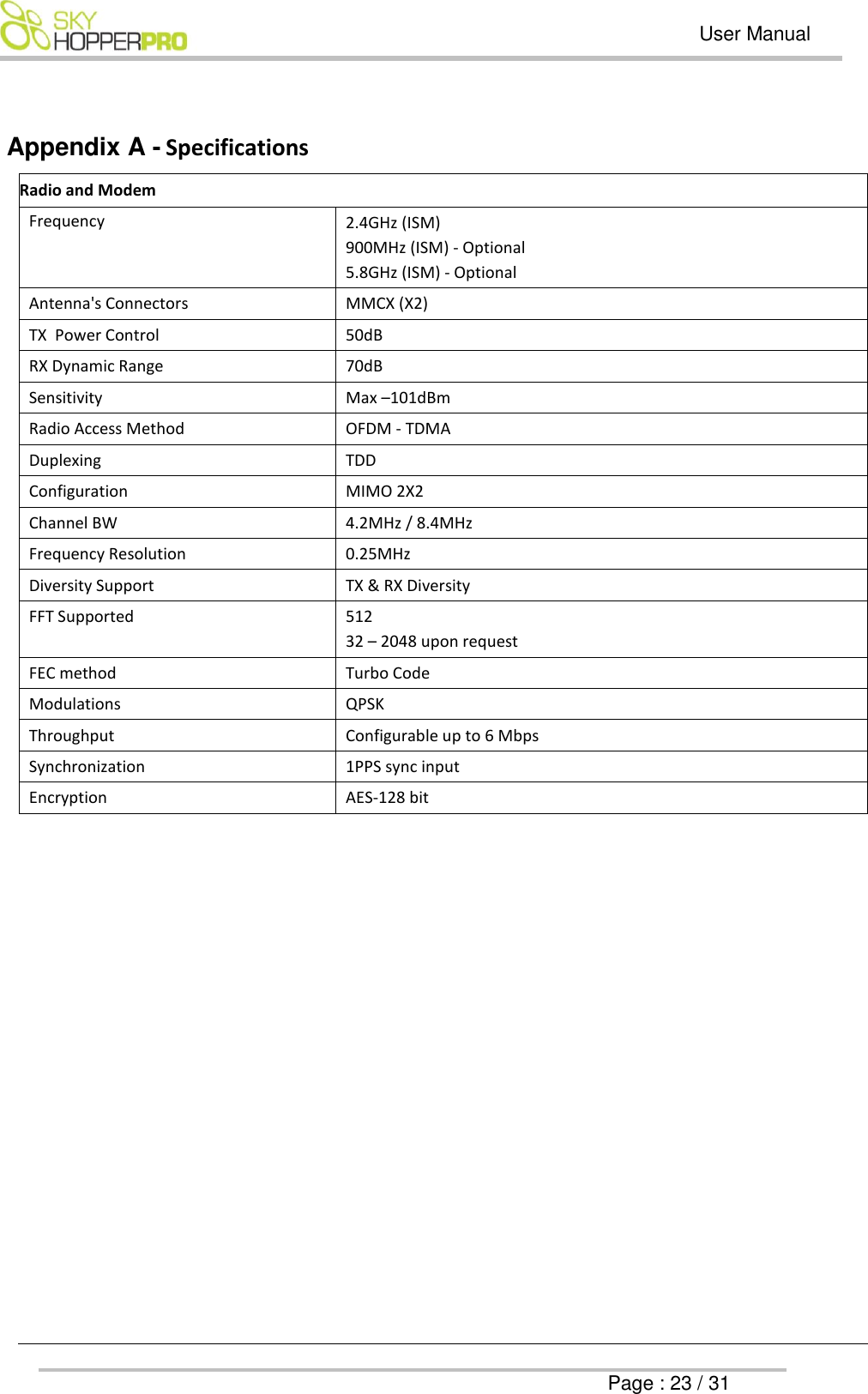
  User Manual      Page : 23 / 31  Appendix A - Specifications  Radio and Modem Frequency 2.4GHz (ISM) 900MHz (ISM) - Optional 5.8GHz (ISM) - Optional Antenna's Connectors MMCX (X2) TX  Power Control 50dB RX Dynamic Range 70dB Sensitivity Max –101dBm Radio Access Method OFDM - TDMA Duplexing TDD  Configuration MIMO 2X2 Channel BW 4.2MHz / 8.4MHz Frequency Resolution 0.25MHz Diversity Support TX & RX Diversity FFT Supported 512 32 – 2048 upon request FEC method Turbo Code Modulations QPSK  Throughput Configurable up to 6 Mbps Synchronization 1PPS sync input  Encryption AES-128 bit
  User Manual      Page : 24 / 31   Environmental Temperature Range Operating Storage  -10°C to 40°C -50°C to 85°C Humidity 5 to 95% Interfaces Data Ethernet, RS232 Full Ethernet Protocol Transparency IP,TCP,UDP, RTP, HTTP  Broadcast, Multicast, Unicast  Ethernet, VLAN, VPN Serial Data RS232  USB Optional  Dimensions [HxWxD] mm [HxWxD] inch Embedded  Package 26 x 54 x 74 1.0 x 2.1 x 2.9 Weight                Grams Ounce Embedded  Package 105 gr. 3.7 oz.   Power  DC Voltage (Battery Operated) 7-14.5V DC  Power Consumption Up to 12 Watt  8W Average     Configuration and Management Unit Monitoring Application Web-Based Application Program Interface API, Code Lib. (Optional)   Integrated Options Video Encoder/Decoder H.264 very low latency HD/SD Video Formats up to: 1920x1080p Video Inputs / Outputs  Micro HDMI (Input/Output) Analog (Input) Audio Inputs / Outputs Embedded Audio over HDMI, Analog
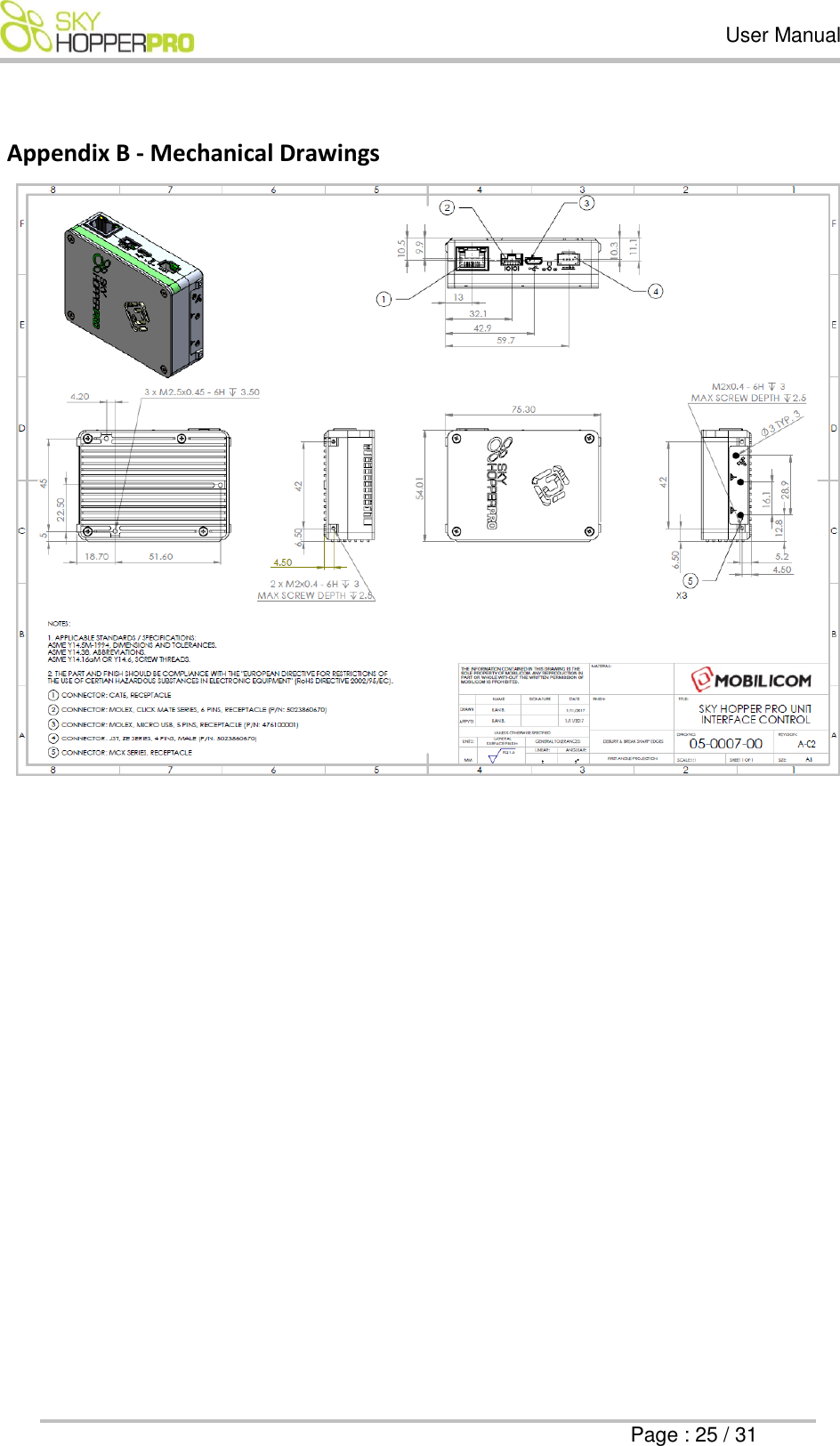
  User Manual      Page : 25 / 31  Appendix B - Mechanical Drawings
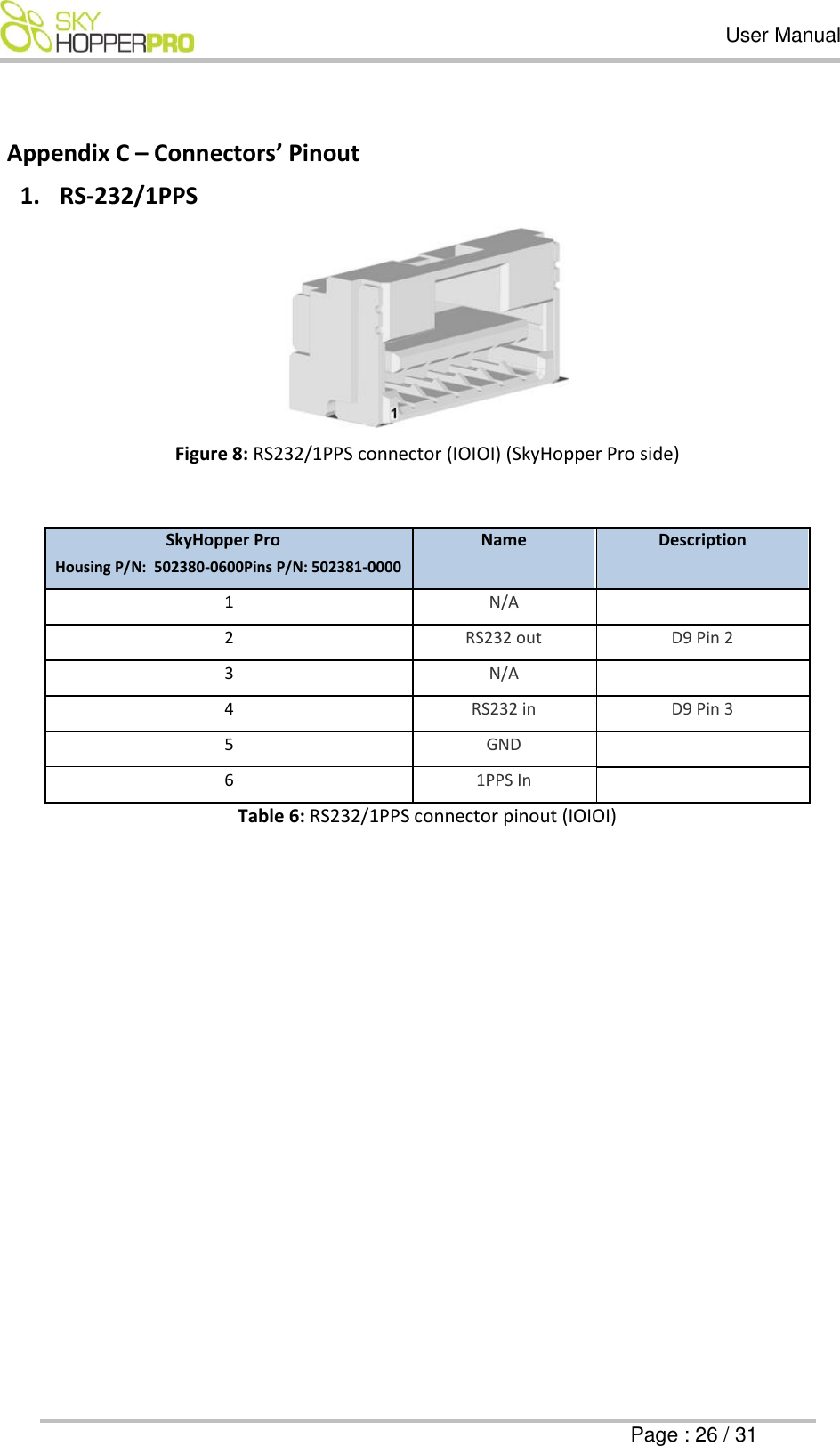
  User Manual      Page : 26 / 31  Appendix C – Connectors’ Pinout 1. RS-232/1PPS  Figure 8: RS232/1PPS connector (IOIOI) (SkyHopper Pro side)  SkyHopper Pro Housing P/N:  502380-0600Pins P/N: 502381-0000 Name Description 1 N/A  2 RS232 out D9 Pin 2 3 N/A  4 RS232 in D9 Pin 3 5 GND  6 1PPS In  Table 6: RS232/1PPS connector pinout (IOIOI)
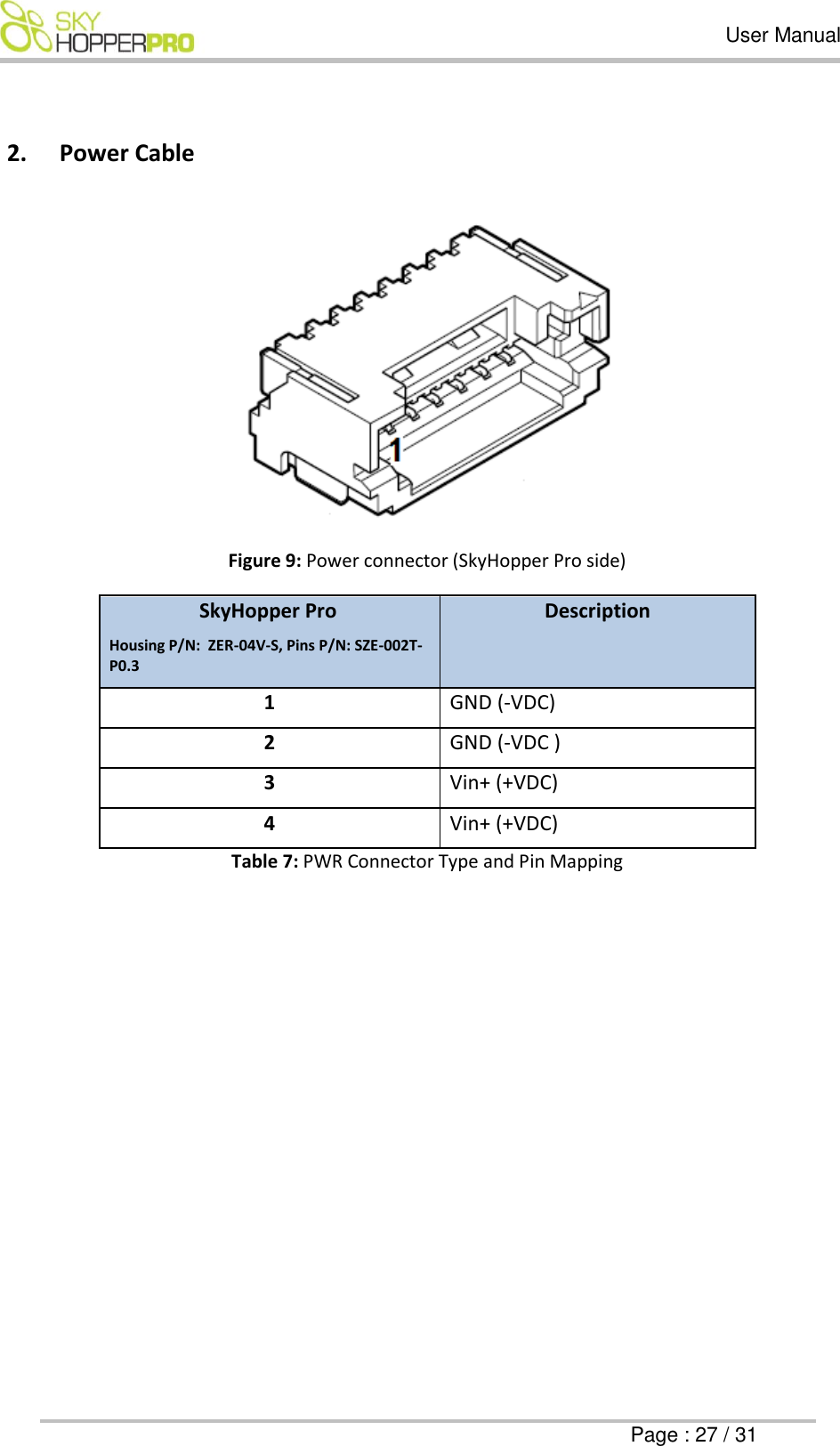
  User Manual      Page : 27 / 31  2. Power Cable                                        Figure 9: Power connector (SkyHopper Pro side) SkyHopper Pro Housing P/N:  ZER-04V-S, Pins P/N: SZE-002T-P0.3 Description 1 GND (-VDC) 2 GND (-VDC ) 3 Vin+ (+VDC) 4 Vin+ (+VDC) Table 7: PWR Connector Type and Pin Mapping
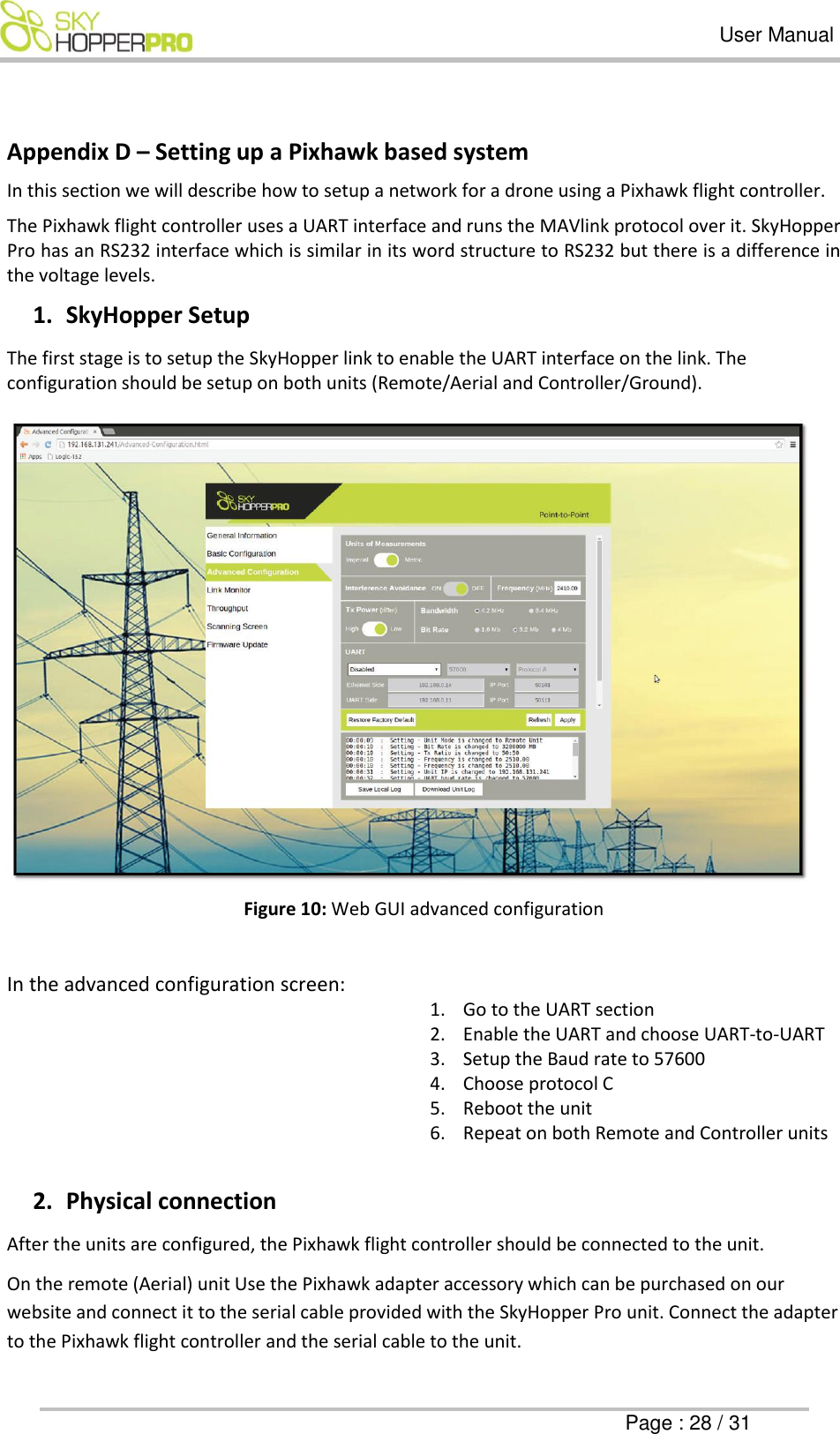
  User Manual      Page : 28 / 31  Appendix D – Setting up a Pixhawk based system In this section we will describe how to setup a network for a drone using a Pixhawk flight controller.  The Pixhawk flight controller uses a UART interface and runs the MAVlink protocol over it. SkyHopper Pro has an RS232 interface which is similar in its word structure to RS232 but there is a difference in the voltage levels.  1. SkyHopper Setup The first stage is to setup the SkyHopper link to enable the UART interface on the link. The configuration should be setup on both units (Remote/Aerial and Controller/Ground).    Figure 10: Web GUI advanced configuration  In the advanced configuration screen: 1. Go to the UART section 2. Enable the UART and choose UART-to-UART  3. Setup the Baud rate to 57600 4. Choose protocol C 5. Reboot the unit 6. Repeat on both Remote and Controller units  2. Physical connection After the units are configured, the Pixhawk flight controller should be connected to the unit.  On the remote (Aerial) unit Use the Pixhawk adapter accessory which can be purchased on our website and connect it to the serial cable provided with the SkyHopper Pro unit. Connect the adapter to the Pixhawk flight controller and the serial cable to the unit.
  User Manual      Page : 29 / 31  On the controller (Ground) unit, connect the D-Type/9-pin accessory adapter to the serial cable supplied and connect the cable to the unit. If the Tablet/PC has a serial port, connect it directly, if not, a USB-RS232 adapter should be used.  3. UART to Ethernet  There is an option to configure the system to work with a UART-to-Ethernet configuration, which eliminates the use of the serial cable on the Ground Unit. Please refer to the UART-to-Ethernet Connection Guide online at www.skyhopper.biz/prosupport.
  User Manual      Page : 30 / 31  Appendix E –Troubleshooting Symptom Possible Cause Action Needed LED is off Not connected to power source or battery is empty    1. Verify power cable properly connected to the SkyHopper Pro PWR connector. 2. Verify that the battery or power supply is connected to the SkyHopper Pro power cable and to a power outlet.  3. Replace the battery or check the outlet. 4. Replace the power cable. LED light is always on  PTP – Unit is in boot mode PTP  1. Check the power source  2. Reboot the SkyHopper Pro.  Cannot connect to SkyHopper Pro using Web GUI 1. The PC isn’t configured with a correct static IP 2. Unit isn’t powered up 3. Ethernet cable isn’t connected or data cable is damaged 4. Firewall is blocking traffic 5. ETH port set to “auto negotiation off” with 1GE 6. Trying to connect to remote unit when link is down.  1. Verify your PC is set with a static IP in the subnet of 192.168.131.xxx. 2. Check that the ETH port is set to “auto negotiation on”. 3. Verify the unit is powered up. 4. Verify that the PC ETH port status isn’t unplugged or disabled.  5. Disable the PC firewall. 6. Verify ETH cable is connected to the PCs ETH port and to the SkyHopper Pro MAIN connector.  If needed: replace cables. 7. Ping the unit. 8. Try to connect to the local unit and verify link is up. No link between SkyHopper Pro units 1. Configuration isn’t the same on all of the SkyHopper Pro units. 2. PTP – both units set as VC or both as Node.  3. The units aren’t within reception range. 1. Connect to each unit and verify they have the same configuration.  2. PTP -Verify 1 unit is set as a VC and the other as a Node. MPTMP - verify each transmitting unit has a different unit ID. 3. Verify that TX power is set to the maximum. 4. Verify the antennas fit the Frequency used (antenna spec).  Data with high delay and disconnecting data Trying to send a higher amount of data than the allocated bandwidth sent to the unit. 1. Verify that the data bandwidth sent to the unit from the connected device(s) does not exceed the allocated bandwidth (in its configuration). 2. Decrease the data received by the data source or change the allocated bandwidth via the Web GUI.
  User Manual      Page : 31 / 31        Technical Support Inquiries For technical support for SkyHopper PRO, please contact: Support@skyhopper.biz Telephone: +972 777 10 30 60

Navigation menu