Nanjing Hanlong Technology UC92SERIAL IP PHONE User Manual A9R2214 tmp
Nanjing Hanlong Technology Co.,Ltd. IP PHONE A9R2214 tmp
User manual
support@h-tek.com
www.h-tek.com
Nanjing Hanlong Technology Co., Ltd
USER GUIDE
UC926
Version:1.0.0.1
GIGABIT COLOR IP PHONE
86-25-84608050

Notices Information
1
Notices Information
Copyright
Copyright © 2005 - 2016 Nanjing Hanlong Technology CO., LTD. All rights reserved.
Nanjing Hanlong Technology Co., LTD. owns all the right to revise and change this document at
any time. And all the illustrations and instructions in this paper are subject to the copyright
protection of legal law. No parts of this document may be used or reproduced, transmitted by the
third parties for any purposes without the express written permission of Nanjing Hanlong
Technology Co., LTD.
When this document is made available on www.h-tek.com , hanlong Technology Co., LTD. gives
its right to download and print copies of this content only for private use as a user manual. No
parts shall have the right to alter, modify or use as commercial means without the express written
permission of Nanjing Hanlong Technology Co., LTD.
Safety cautions
z To use the Phone follow the instructions in this manual.
z To use the power adapter that delivered with the phone. Other power adapters may damage
the phone.
z The phone is only for indoor use. And also avoid in high humidity, water and some other
liquids.
z Do not use the phone during thunderstorms.
z CE
z FCC
WEEE Warning
To avoid the potential effects on the environment and human health as a result of the
presence of hazardous substances in electrical and electronic equipment, end users of
electrical and electronic equipment should understand the meaning of the
crossed-out wheeled bin symbol. Do not dispose of WEEE as unsorted municipal
waste and have to collect such WEEE separately.
Cleaning
To clean the device, use an anti-static cloth. Please avoid cleaning liquids as they might damage
the surface or internal electronics of the phone.

Notices Information
2
FCC Statement
1. This device complies with Part 15 of the FCC Rules. Operation is subject to the following two
conditions:
(1) This device may not cause harmful interference.
(2) This device must accept any interference received, including interference that may cause
undesired operation.
2. Changes or modifications not expressly approved by the party responsible for compliance could
void the user's authority to operate the equipment.
NOTE: This equipment has been tested and found to comply with the limits for a Class B digital
device, pursuant to Part 15 of the FCC Rules. These limits are designed to provide reasonable
protection against harmful interference in a residential installation.
This equipment generates uses and can radiate radio frequency energy and, if not installed and
used in accordance with the instructions, may cause harmful interference to radio communications.
However, there is no guarantee that interference will not occur in a particular installation. If this
equipment does cause harmful interference to radio or television reception, which can be
determined by turning the equipment off and on, the user is encouraged to try to correct the
interference by one or more of the following measures:
Reorient or relocate the receiving antenna.
Increase the separation between the equipment and receiver.
Connect the equipment into an outlet on a circuit different from that to which the receiver is
connected.
Consult the dealer or an experienced radio/TV technician for help.

Table of Content
3
Table of Content
Notices Information ........................................................................................................................ 1
Copyright .................................................................................................................................. 1
Safety cautions .......................................................................................................................... 1
WEEE Warning ......................................................................................................................... 1
Cleaning .................................................................................................................................... 1
FCC Statement .......................................................................................................................... 2
Table of Content ............................................................................................................................. 3
Getting Started ................................................................................................................................ 7
Packing List .............................................................................................................................. 7
Phone Installation ...................................................................................................................... 9
1. Attach the Foot stand ..................................................................................................... 9
2. Connect the Handset and optional Headset ................................................................. 10
3. Connect the Network and Power ................................................................................. 10
Initialization ............................................................................................................................ 11
Status ....................................................................................................................................... 12
Registration ............................................................................................................................. 14
Idle Screen .............................................................................................................................. 16
Getting Familiar with Your Phone............................................................................................... 17
Hardware Components Preview .............................................................................................. 18
Icon Preview ........................................................................................................................... 20
LED Instruction....................................................................................................................... 24
Power Indicator LED ...................................................................................................... 24
Line LED:(Line or Line Key set as Line) ....................................................................... 24
BLF or BLF List Key LED :( Line/Line Key set as BLF) .............................................. 25
Shared Line LED: ........................................................................................................... 25
Other Key Led ................................................................................................................. 26
Info Key Instruction ................................................................................................................ 26
User Interface .......................................................................................................................... 28
Line Key Function Overview .................................................................................................. 29
Basic Setting Configuration ........................................................................................................ 32
Web Login ............................................................................................................................... 32
Administrator Password .......................................................................................................... 33
Basic Network Setting ............................................................................................................ 34
WAN Port ........................................................................................................................ 34
PC Port ............................................................................................................................ 37
Display Mode .......................................................................................................................... 39
Language ................................................................................................................................. 40
Time and Date ......................................................................................................................... 42
Ring Tone ................................................................................................................................ 45
Volume .................................................................................................................................... 48
Wallpaper ................................................................................................................................ 50
Screen Saver ............................................................................................................................ 51

Table of Content
4
LED Status Setting .................................................................................................................. 54
Backlight ................................................................................................................................. 54
Contact Management .............................................................................................................. 55
Local Directory ....................................................................................................................... 55
Remote Phonebook ................................................................................................................. 60
Call History ............................................................................................................................. 61
LDAP Phonebook ................................................................................................................... 64
Search Contact: ....................................................................................................................... 66
Other features settings ................................................................................................................ 68
Dial Plan .................................................................................................................................. 68
Emergency Call ....................................................................................................................... 69
LED Status Setting .................................................................................................................. 70
Action URL ............................................................................................................................. 71
Softkey Layout ........................................................................................................................ 72
Programmable Key ................................................................................................................. 73
Exp Key .................................................................................................................................. 73
Basic Call Features ...................................................................................................................... 74
Place a Call ............................................................................................................................. 74
End a Call ................................................................................................................................ 76
Redial a Call ............................................................................................................................ 76
Receive a Call ......................................................................................................................... 76
Incoming Call Show Mode ..................................................................................................... 77
Auto Answer ........................................................................................................................... 78
Call Hold ................................................................................................................................. 79
Call Transfer ............................................................................................................................ 79
Call Conference....................................................................................................................... 82
Call Forward ........................................................................................................................... 84
Call Return .............................................................................................................................. 88
Call Waiting Tone .................................................................................................................... 89
Hide Caller ID ......................................................................................................................... 90
Reject Anonymous .................................................................................................................. 91
Call Mute ................................................................................................................................ 92
DND ........................................................................................................................................ 93
Key as Send ............................................................................................................................. 93
No Key Entry Timeout ............................................................................................................ 94
Dail-Now Timeout .................................................................................................................. 95
Keypad Lock ........................................................................................................................... 95
Hot Line .................................................................................................................................. 97
Function Key Features Settings ................................................................................................. 98
Line ......................................................................................................................................... 98
Speed Dial ............................................................................................................................... 99
BLF ....................................................................................................................................... 100
BLF List ................................................................................................................................ 102
Voice Message ....................................................................................................................... 103
Direct Pickup ........................................................................................................................ 105

Table of Content
5
Group Pickup ........................................................................................................................ 106
Call Park ................................................................................................................................ 107
Intercom ................................................................................................................................ 108
DTMF ................................................................................................................................... 110
Prefix ..................................................................................................................................... 111
Local Group .......................................................................................................................... 112
XML Group ........................................................................................................................... 113
LDAP .................................................................................................................................... 114
XML Browser ....................................................................................................................... 115
Broadsoft Group .................................................................................................................... 116
Conference ............................................................................................................................ 117
Forward ................................................................................................................................. 117
Transfer ................................................................................................................................. 118
Hold....................................................................................................................................... 119
Group Listening .................................................................................................................... 119
DND ...................................................................................................................................... 120
Redial .................................................................................................................................... 121
SMS....................................................................................................................................... 121
Send SMS ...................................................................................................................... 121
Set SMS Line Key ......................................................................................................... 122
Record ................................................................................................................................... 123
URL Record .......................................................................................................................... 124
Paging ................................................................................................................................... 125
Shared Line ........................................................................................................................... 125
Public Hold ........................................................................................................................... 127
Private Hold .......................................................................................................................... 128
Share line .............................................................................................................................. 129
Hot Desking .......................................................................................................................... 130
ACD ...................................................................................................................................... 131
Zero Touch ............................................................................................................................ 132
Multicast Paging ................................................................................................................... 133
Sending RTP Stream ..................................................................................................... 133
Receiving RTP Stream .................................................................................................. 134
Advanced Setting Configuration .............................................................................................. 136
Upgrade ....................................................................................................................................... 136
Factory Reset ........................................................................................................................ 136
Pcap Feature .......................................................................................................................... 136
System Log ........................................................................................................................... 137
Upgrade ................................................................................................................................. 138
Configuration File ................................................................................................................. 140
Troubleshooting .......................................................................................................................... 141
Why is the phone LCD screen blank? ................................................................................... 141
Why does the phone display “Network Unavailable”? ......................................................... 141
Why can’t I get a dial tone? .................................................................................................. 141
Where to set the tone? ........................................................................................................... 142

Table of Content
6
How to download XML Configuration? ............................................................................... 142
How to Import Trusted CA certificate? ................................................................................. 142
How to Import Server CA certificate? .................................................................................. 143
How to use Vlan? .................................................................................................................. 143
How to use LLDP? ................................................................................................................ 143
How to Set LCD and Web GUI˖ ......................................................................................... 144
How to Upgrade via FTP? .................................................................................................... 144
How to make Ringtone? ........................................................................................................ 144
How to use Open VPN? ........................................................................................................ 144
Provisioning Guide on Free PBX:......................................................................................... 144
Failover Notes ....................................................................................................................... 144
How to Upload Wallpaper? ................................................................................................... 145
How to Use Auto Provision Phonebook? .............................................................................. 145
All Documents ...................................................................................................................... 145
Getting Started
7
Getting Started
Packing List
The package contains the following parts, please check if all the items are not missed:
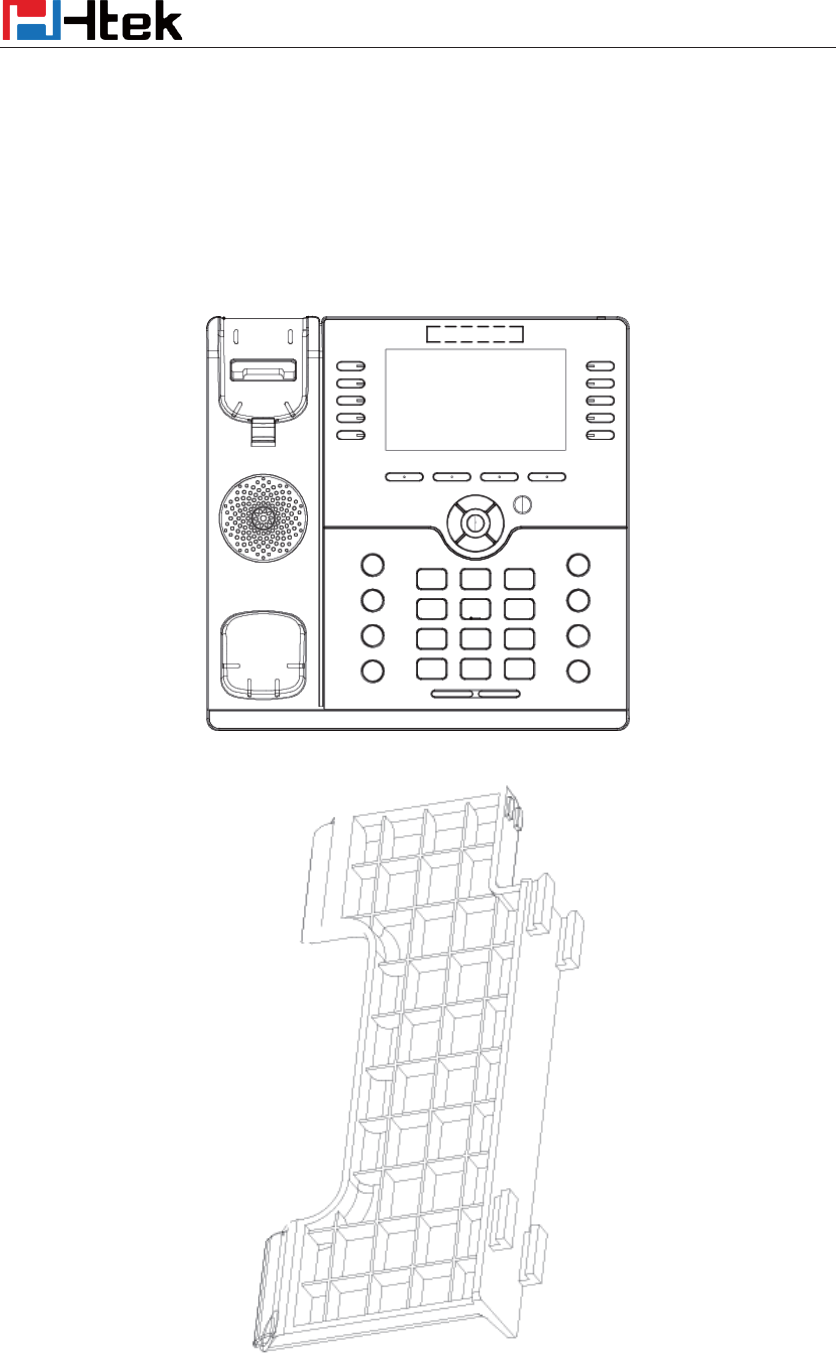
1. The phone device
2. The footstand
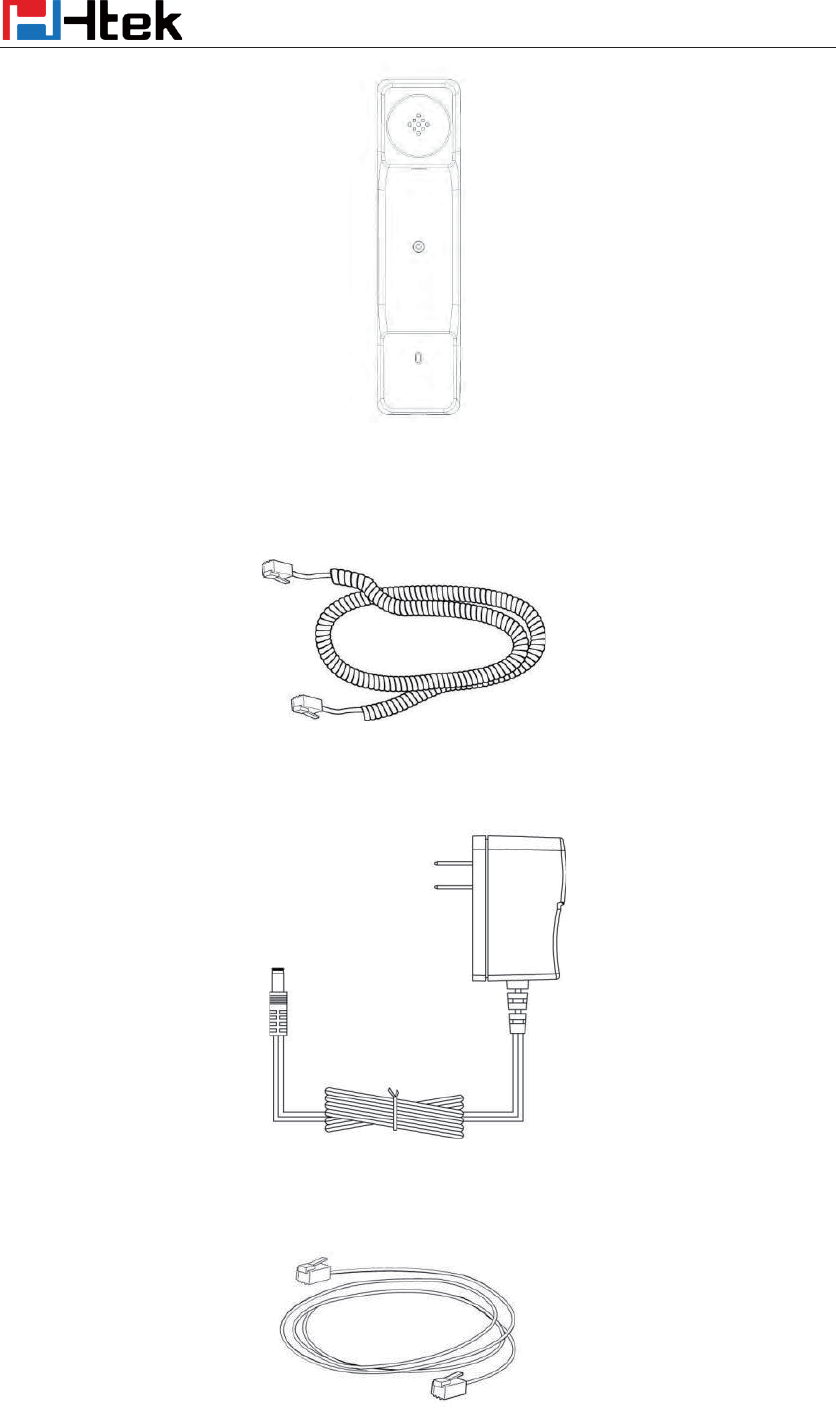
3. Handset
Getting Started
8
4. Headset cord
5. Power adapter
6. Ethernet cable
Getting Started
9
7. Quick installation reference
Phone Installation
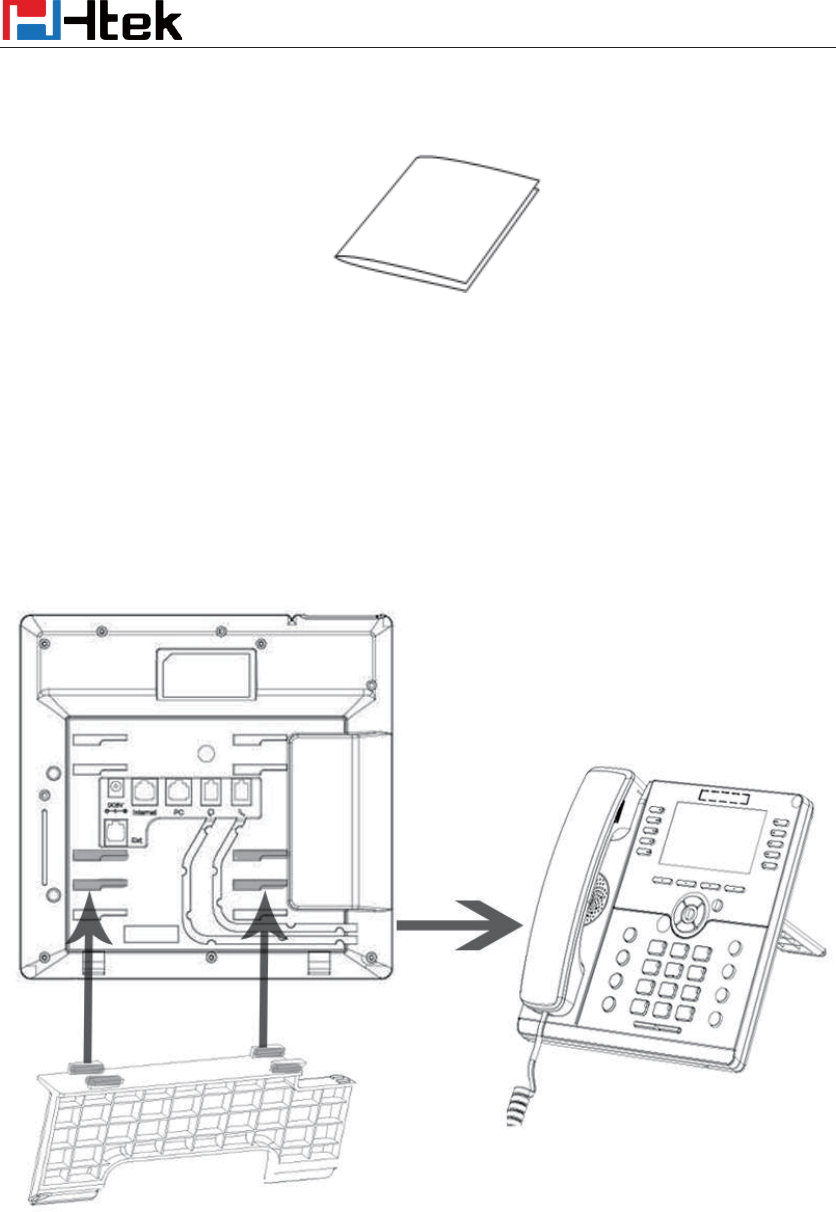
1. Attach the Foot stand
Getting Started
10
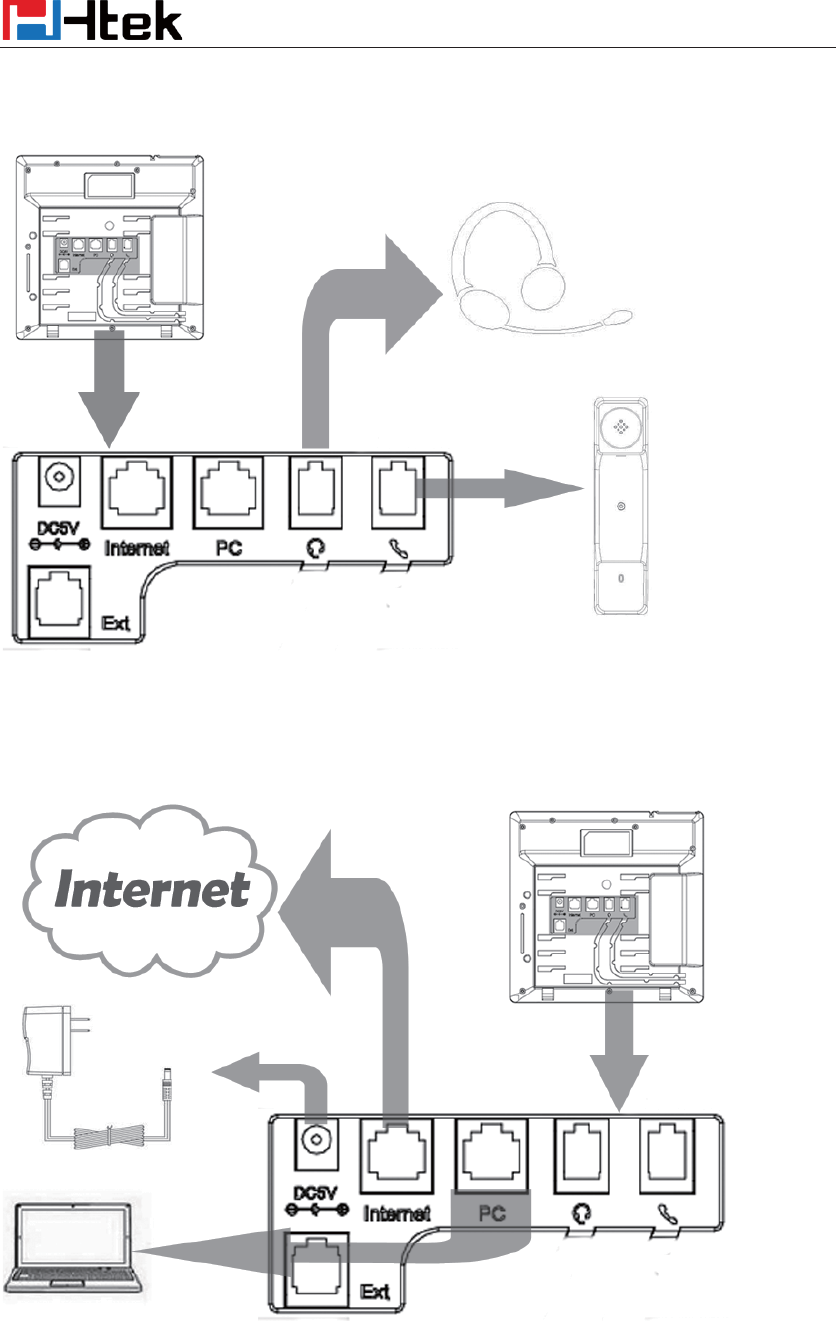
2. Connect the Handset and optional Headset
3. Connect the Network and Power
Getting Started
11
Initialization
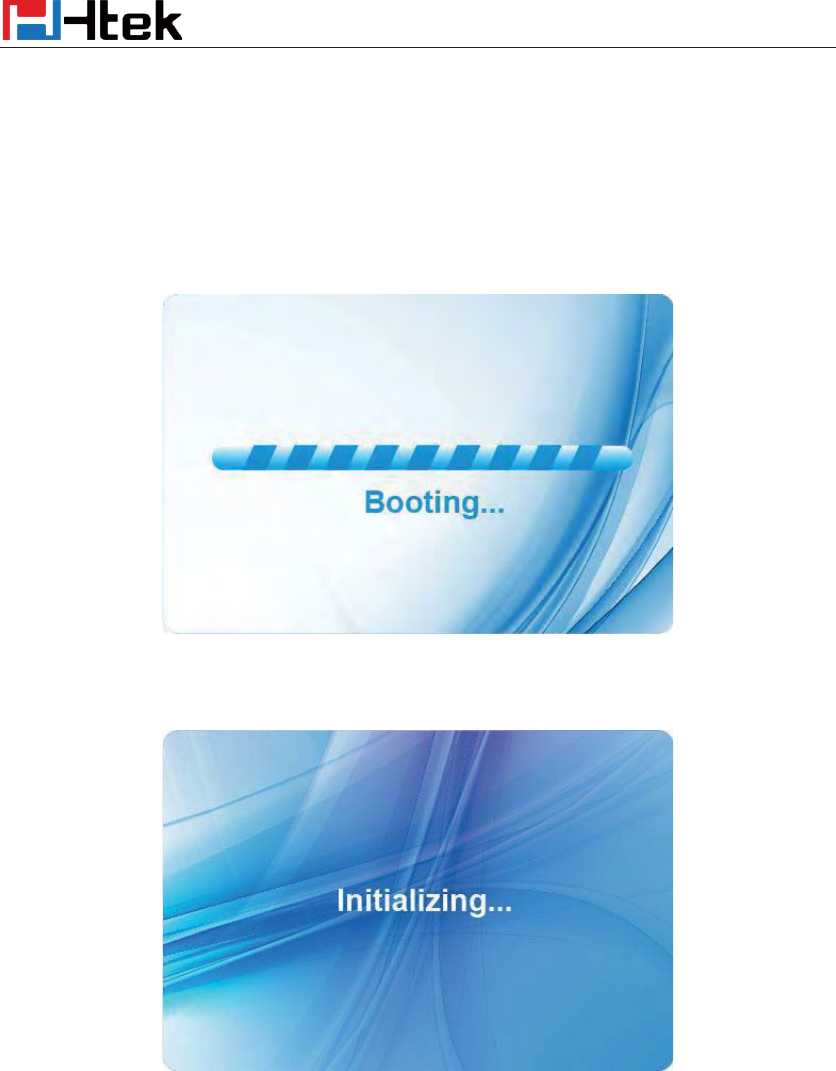
After your phone has been powered up, the system boots up and performs the following steps:
Automatic Phone Initialization
The phone finishes the initialization process by loading the saved configuration. The phone LCD
screen will display “Booting”
And then show “Initializing “during the initialization.
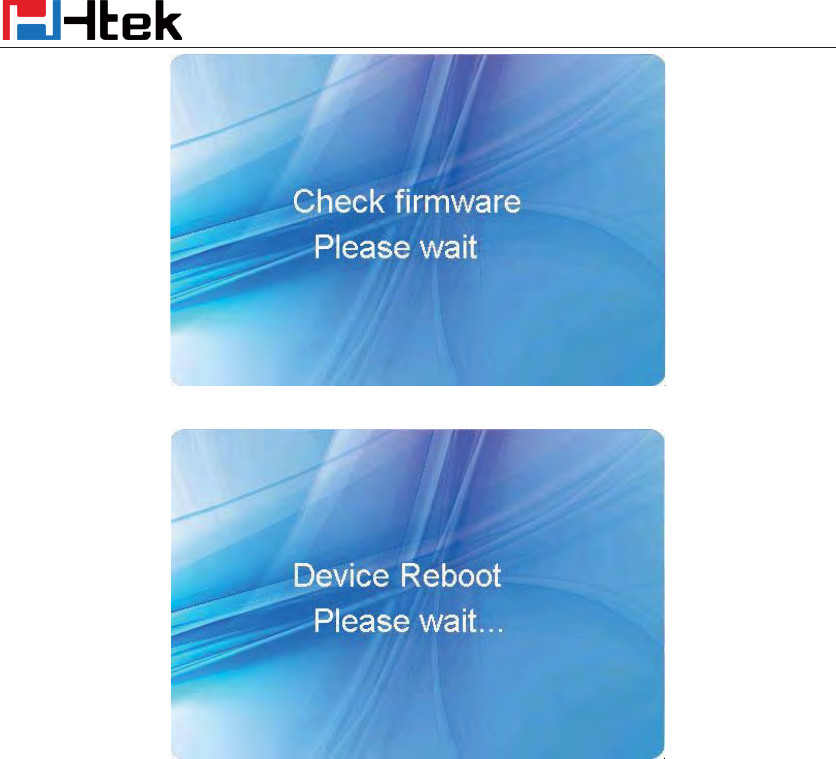
The IP Phone will upgrade the firmware if there is a new firmware on your server. And the IP
Phone will show “Check firmware, please waitg…” after initialization.
Getting Started
12
Then IP Phone will show Reboot information:
By default the phone attempts to contact a DHCP server in your network in order to obtain its
valid network settings, e.g. IP address, subnet mask, default gateway, DNS server.
Status
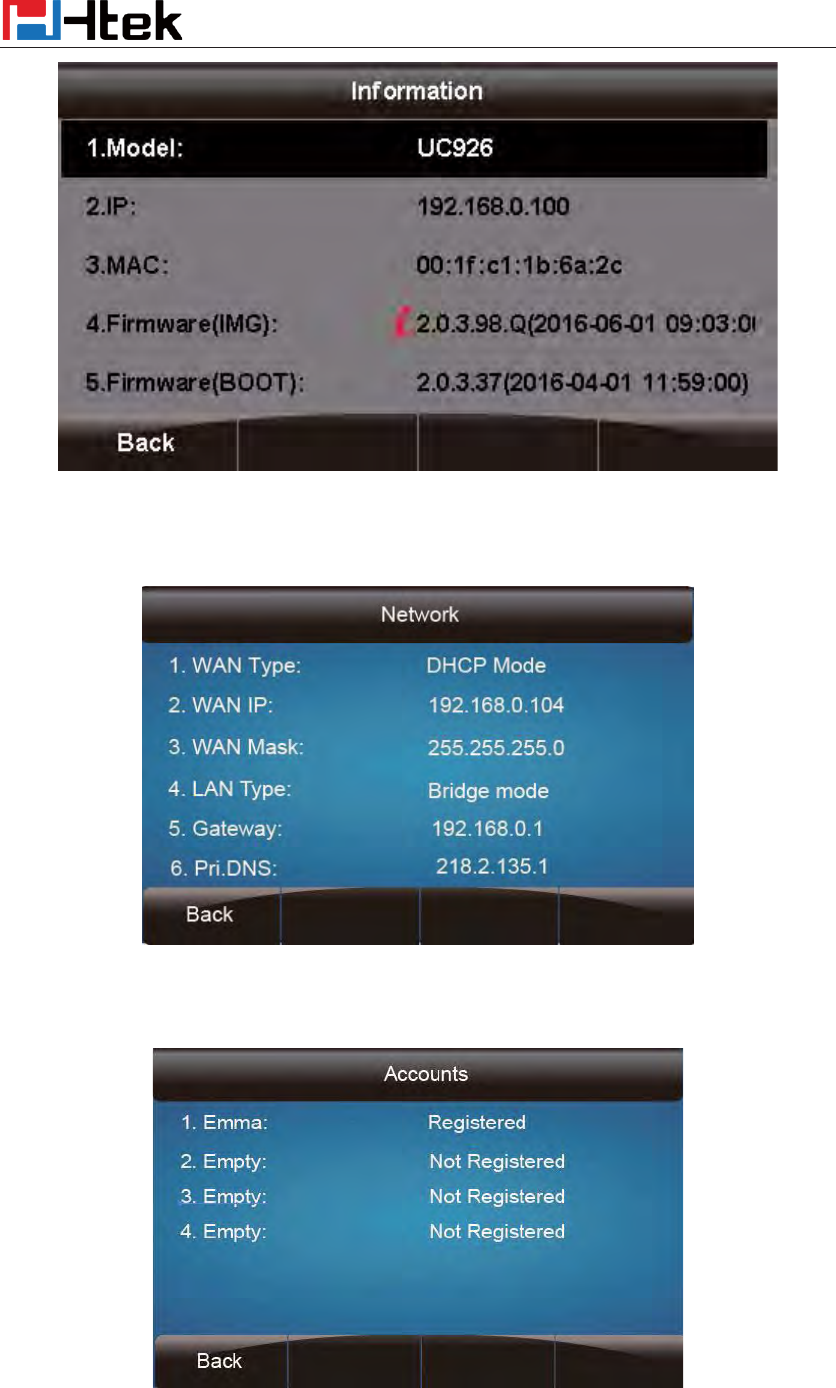
You can view the system status of your phone via phone user interface or web user interface. The
information of phone status includes: Information (e.g., Model, IP, MAC, Firmware, Hardware),
Network (e.g., WAN Type, IP, Mask, LAN Type, Gateway, DNS …) Account (e.g., register status
of accounts)
To view the phone status via phone interface:
1. Press Menu ėStatus ėInformation Network/ Account
Getting Started
13
2. Press Menu ėStatus ėNetwork
3. Press Menu ėStatus ėAccount(UC926 support six accounts)
To view the phone status via Web interface:
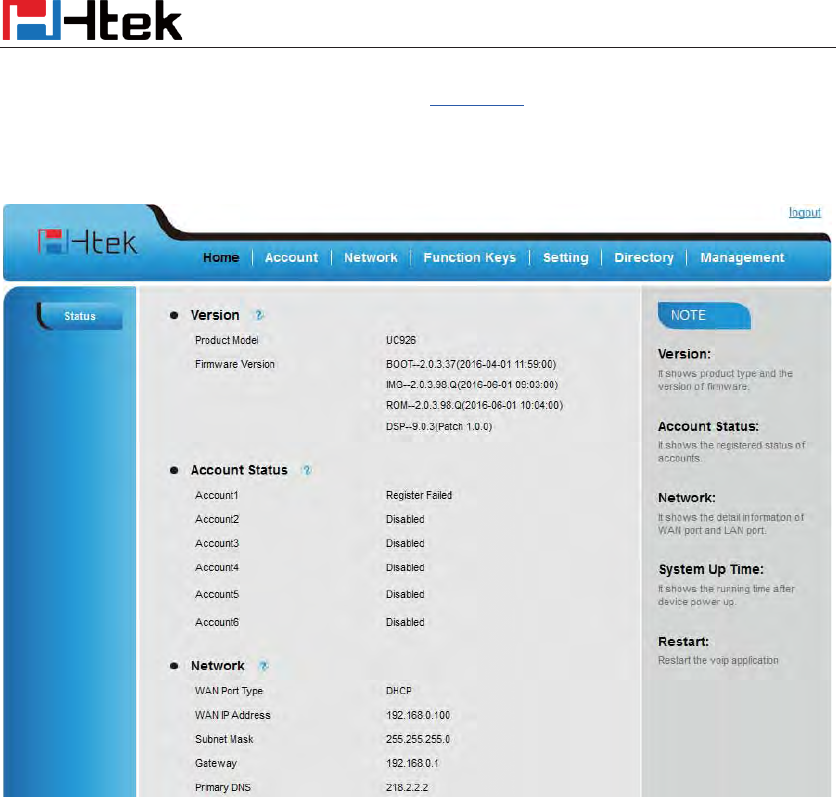
Getting Started
14
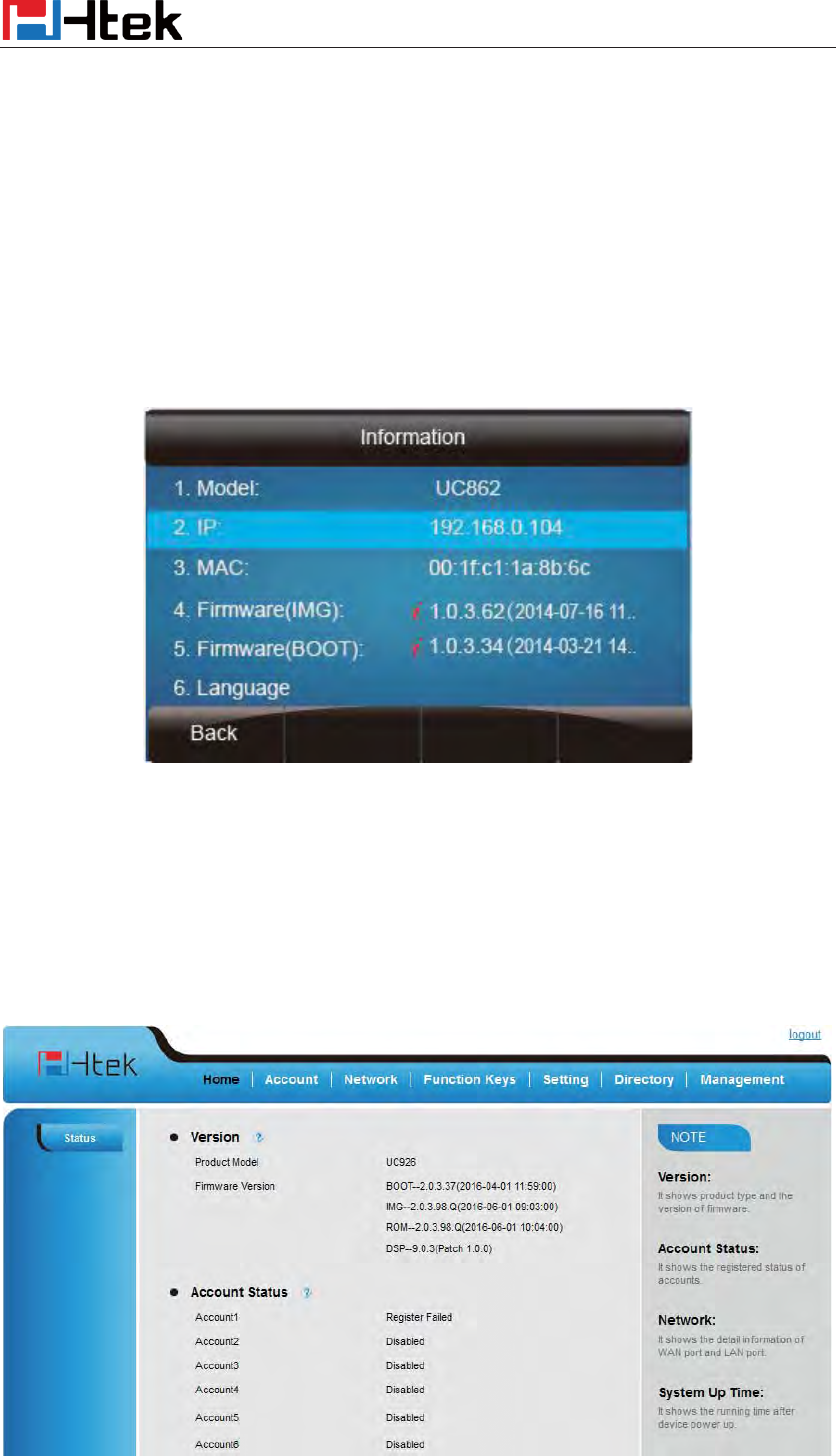
Login webpage ( For How to login, please refer to Web Login)
View the information of Version, Account and Network.
Registration
To register via phone interface:
1. Press MenuÆ SettingÆAdvanced setting (default password:admin)ÆAccounts
2. Select the desired account
3. Select Enable for Account active
4. Filled the SIP Server
5. Filled the Failover SIP server if need (Optional)
6. Filled the Outbound Proxy (Optional)
7. Filled the SIP User ID, Authenticate ID
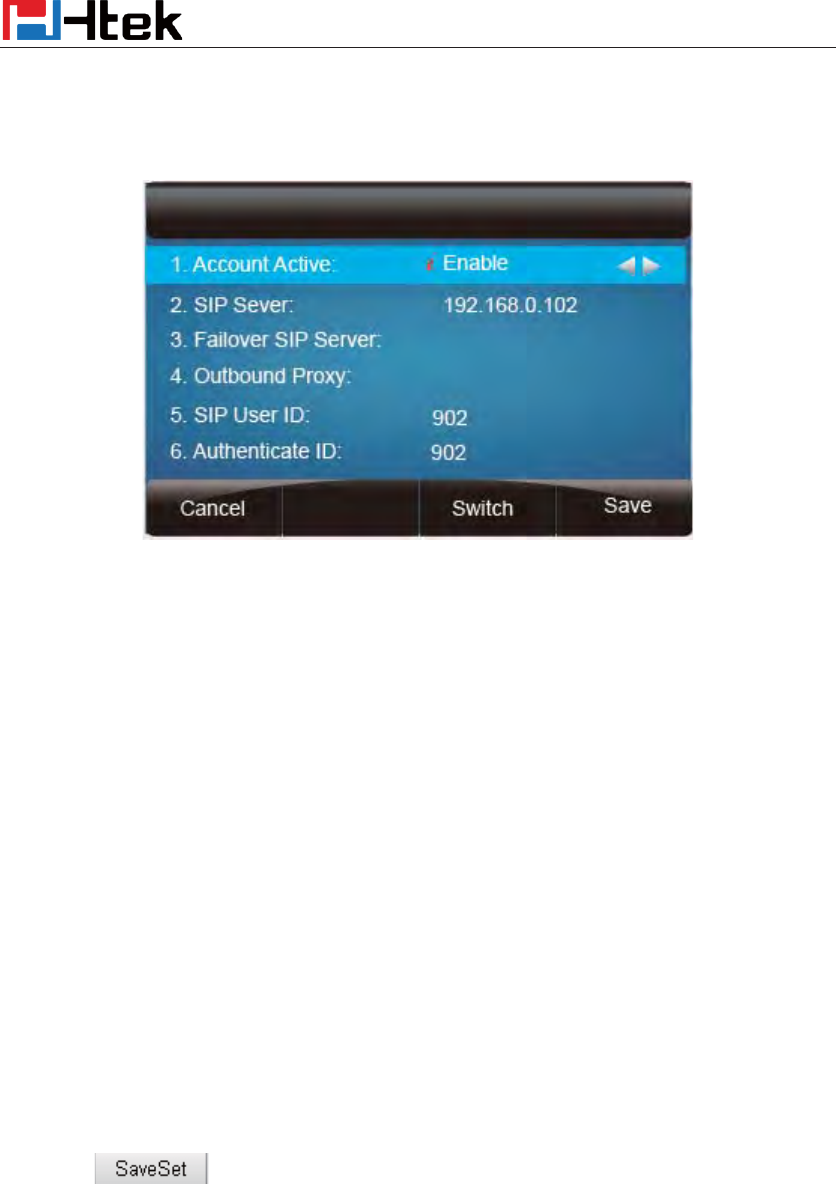
Getting Started
15
8. Filled the password, Name (shown on LCD) and Ringtone.
9. Press Save to save the configuration.
Note:
If there is a port of sip server, you need to press “1” on the keypad, then you will find the “:”.
Additional Information:
When the current input method is ABC/abc/2ab,
Pressing “1”, you will find “, . ?:;”
Pressing “0”, you will find “ < >(){}[]”
Pressing “*”, you will find “*/”!@$”
Pressing “#”, you will find “#’%&*|”
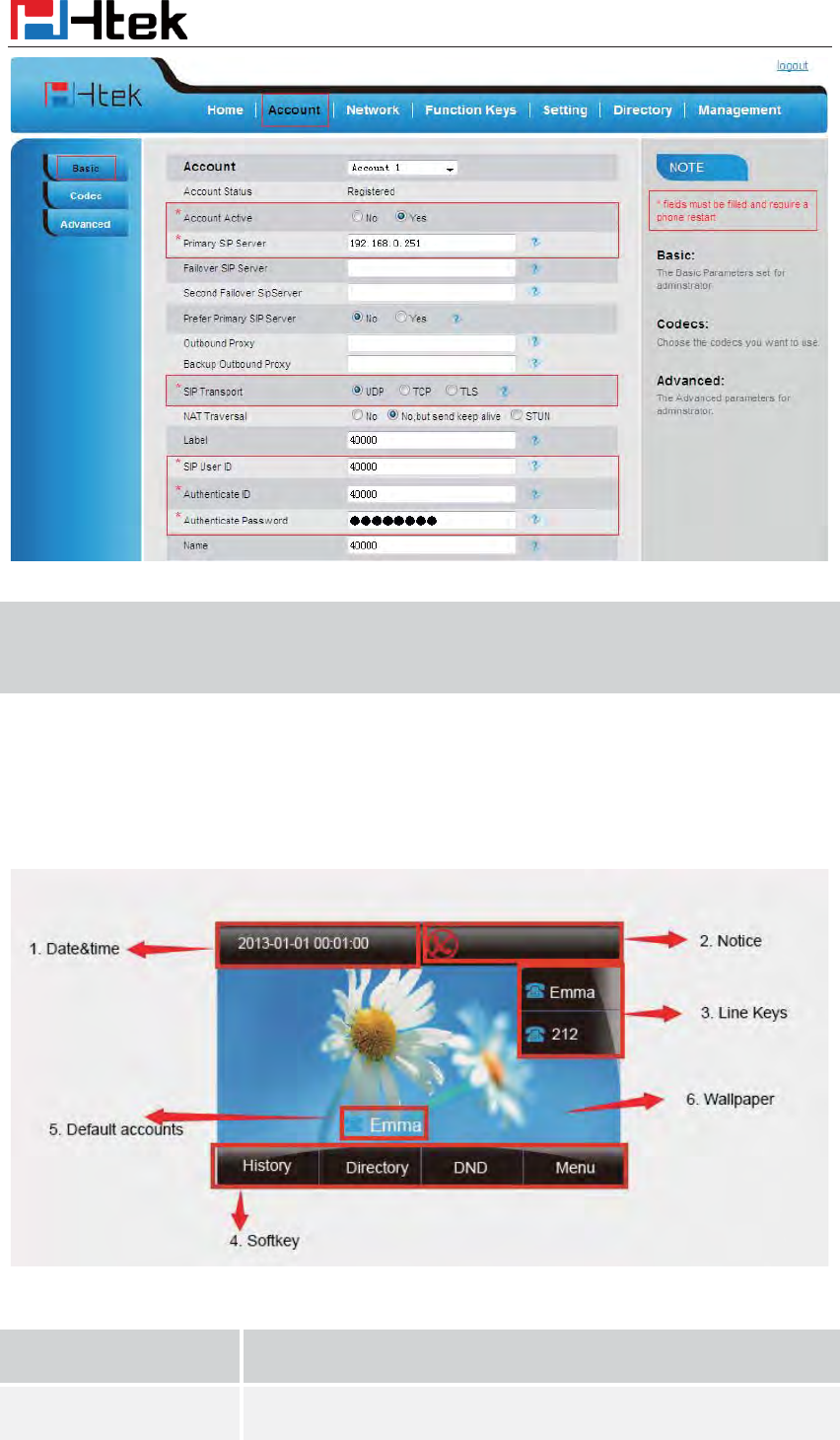
To register via web interface:
1. Login webpage and Click AccountÆBasic
2. Select the desired Account
3. Select Yes for Account Active
4. Filled the Primary SIP SERVER and other account information
5. Click to save the configuration.
Getting Started
16
Note:
1.
All fields with * must be filled. If changed, it requires a phone restart.
2. Account Status says the account registered successfully or not.
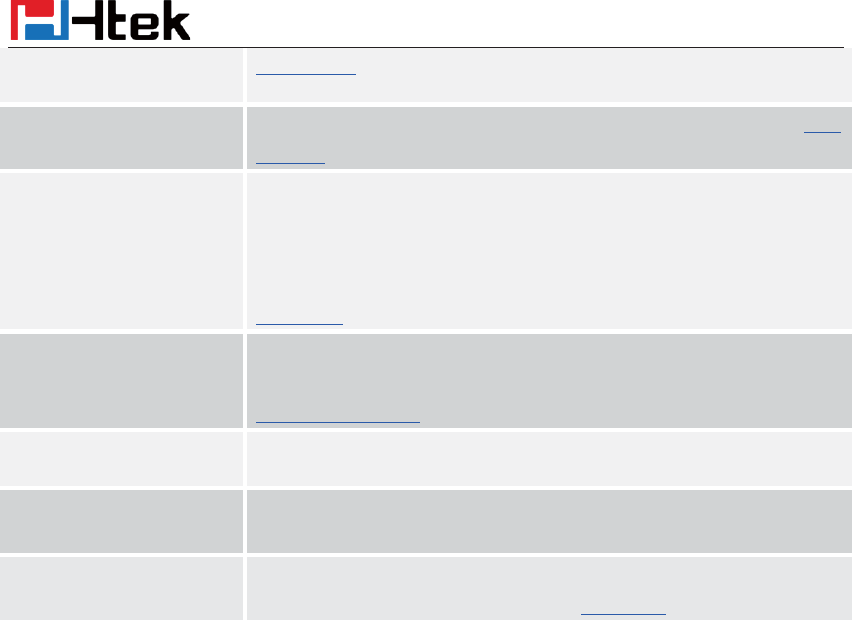
Idle Screen
Name Description
1. Date&Time
It shows the
phone’s time & date
. For Date&time setting, see
Getting Familiar with Your Phone
17
Time&Date
2. Notice
It shows the phone features status and detail status, More see Icon
Preview
3. Line Keys
This area shows the line key labels. The current account is
highlighted. you can switch the account by pressing right or left
navigation key. The L
ine keys are also can be used as
other function
keys
. For more information you can refer to
Line Keys
4. Soft Key
This area shows the soft key labels. The default soft key labels are
“History
”, “Directory”, “DND” and “Menu”.
More to see
Programmable Key
5. DSS key
The L
ine keys are can be used as other function keys(e.g.: BLF)
6.Multipage key
UC924 support 36 keys,you can configure different type.you can
view and use these keys by pressing the multipage key.
7. Wallpaper
This shows the backgrounds picture. You can also change it.
For more information you can refer to Wallpaper.
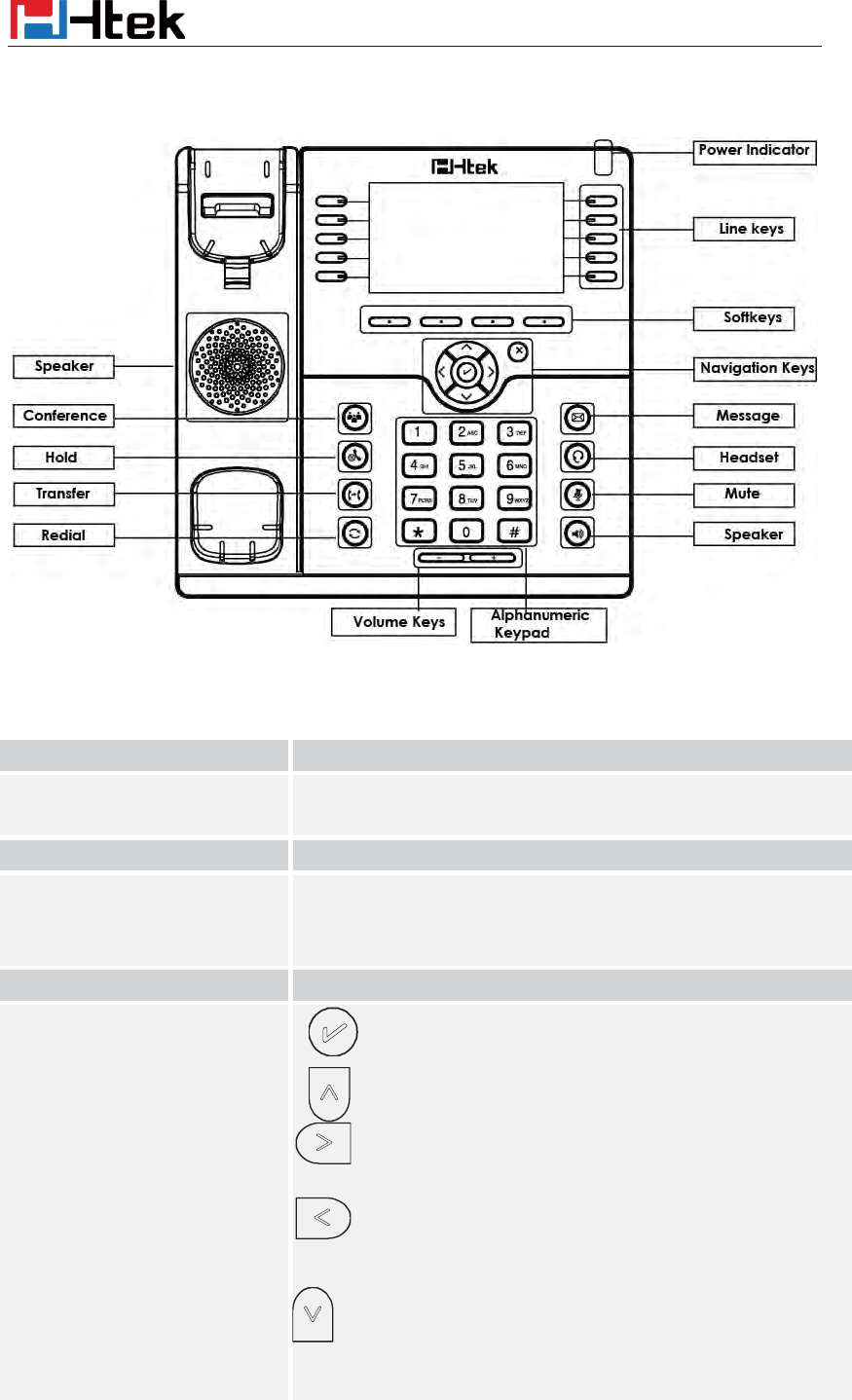
Getting Familiar with Your Phone
Getting Familiar with Your Phone
18
Hardware Components Preview
Item
Description
LCD screen
To Presentation all information about the date& time, accounts,
soft keys, messages, calls and other some information.
Power Indicator LED
To indicate the power status
Line keys
The phone supported up to 4 accounts
1.
Steady green: idle interface, during a call..
2. Blink red: a call incoming
Soft keys
Labels automatically to identity their context-sensitive features.
Navigation keys
1. OK.
Up arrow key: To move up
of the selection shows on the
screen.
Right arrow key: To move right of the selection
shows on the screen.
Left arrow key: To move left of the
selection shows on
the screen.
Down arrow key:
To move down of the selection
shows on the screen.

Getting Familiar with Your Phone
19
1. To return to idle screen.
2. To cancel the information or call on the screen.
Mute key 1. To mute the voice during the call (Red light).
2. To un-mute the call.
Conference To place a conference call
Line Keys
To be configured as different function as:
1. Line
2. Speed Dial
3. BLF
4. BLF List
5. Voice mail
6. Direct Pickup
7. Group Pickup
8. Call Park
9. Intercom
10. DTMF
11. Prefix
12. Hold
13. Conference
14. DND
15. Redial
16. Transfer
17. SMS
18. Hot -desking
19. Call Return
20. Paging
21. Record
22. Shared Line
The LED lights status when set as Shared line:
Stay green: Idle
Stay red: Busy
Blinked green: Ring Back
Blinked red: A call incoming
Steady orange: During a call
Blinked orange: Public Hold
Blinked green: Private Hold
Light Drown: Unregistered
23. Hot desking
24. ACD
25. Zero Touch
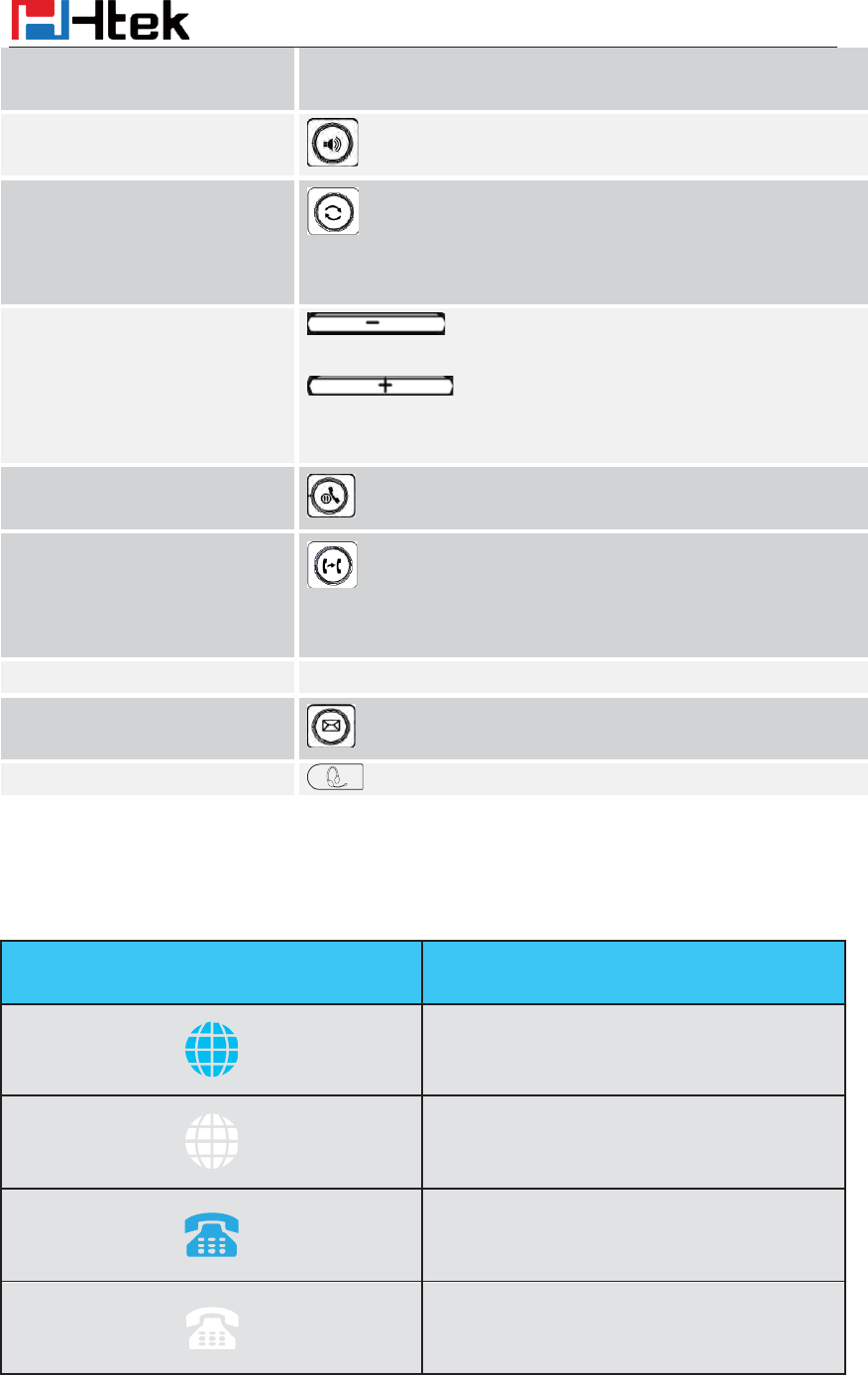
Getting Familiar with Your Phone
20
26. Multicast paging
Speaker
Press this button to place a call in hands-free mode.
Redial
To dial the previous
dialed number.
To act as send key.
Vo lu m e
To d
ecrease the volume.
T
o increase the volume.
Hold To hold or to resume a call during a conversation.
Transfer
T
o transfer a call to a third party.
To enable or disable Forward feature during the idle page.
Alphanumeric keypad
To enter the phone numbers, letters and so on.
Message To indicator the New message, and press to read.
Headset
To indicate that the phone is or not in Headset mode.
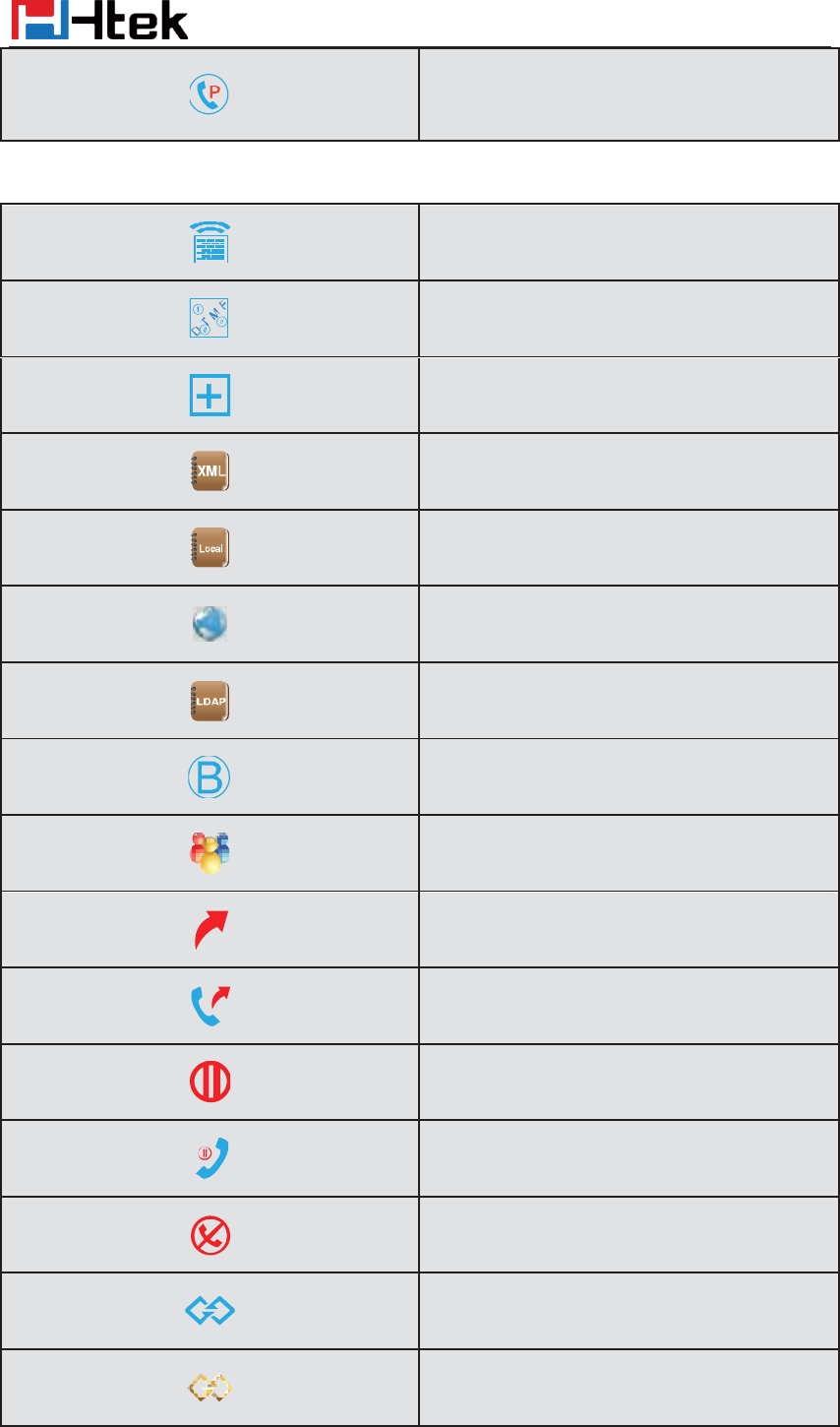
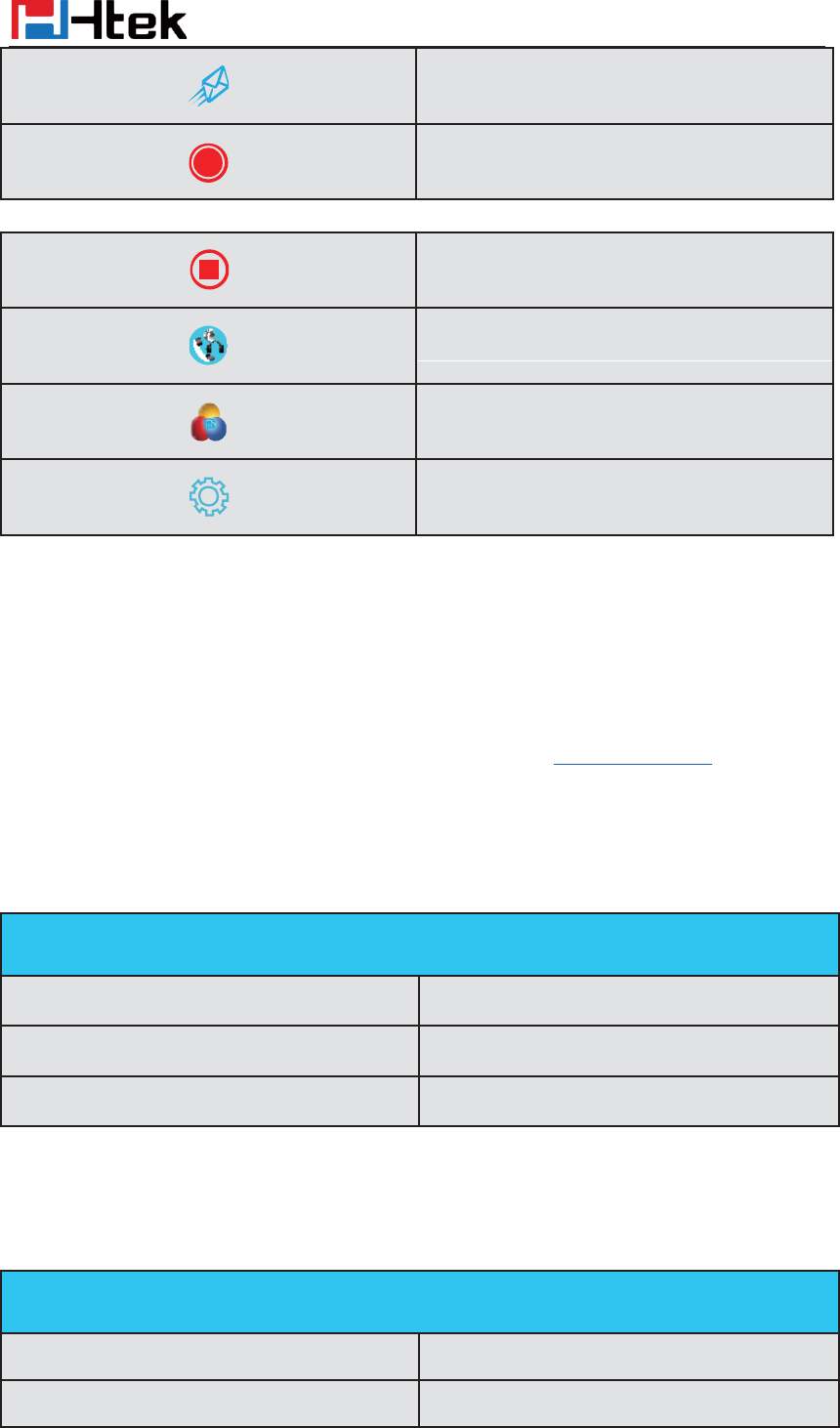
Icon Preview
Icon Description
Network available
Network down
Line(Registered succeed)
Line (Unregistered)
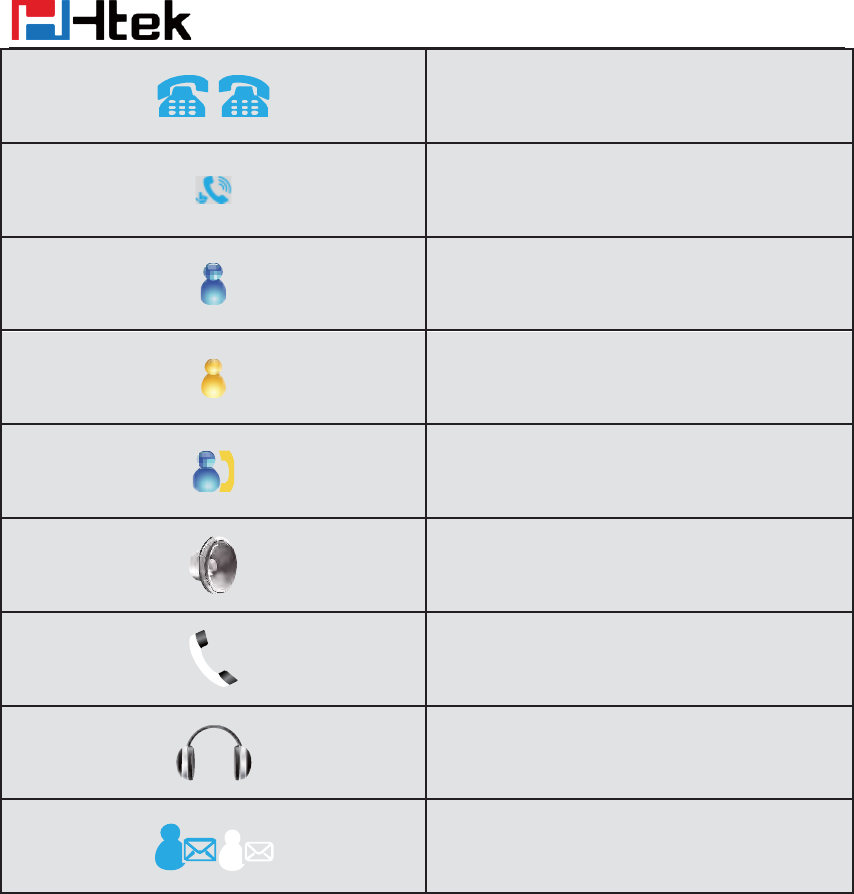
Getting Familiar with Your Phone
21
Line(Ringing)
Speed Dial
BLF
BLF(Ringing)
BLF(Talking)
Speakerphone mode
Handset mode
Headset mode
Voice messages
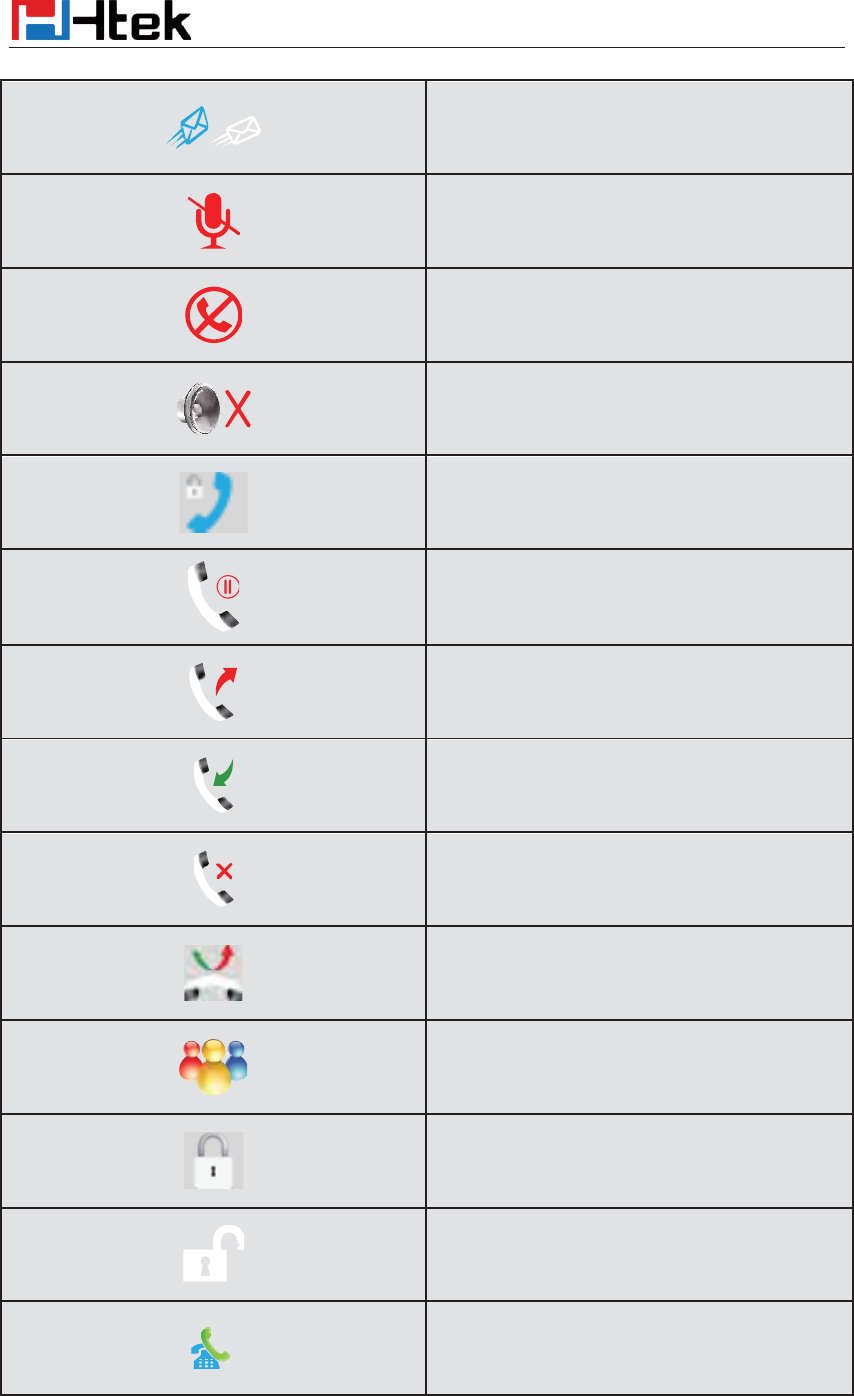
Getting Familiar with Your Phone
22
Text message
Mute
Do Not Disturb
Volume is 0
SRTP
Hold
Dialed calls
Received calls
Missed calls
Forward calls
Conference
Keypad locked
Keypad unlocked
Pick up
Getting Familiar with Your Phone
23
Call Park
Intercom/Paging
DTMF
Prefix
XML Group
Local Group
XML Browser
LDAP
Broadsoft Group
Conference
Forward
Transfer
Hold
Line on Hold
DND
Redial
Call Return
Getting Familiar with Your Phone
24
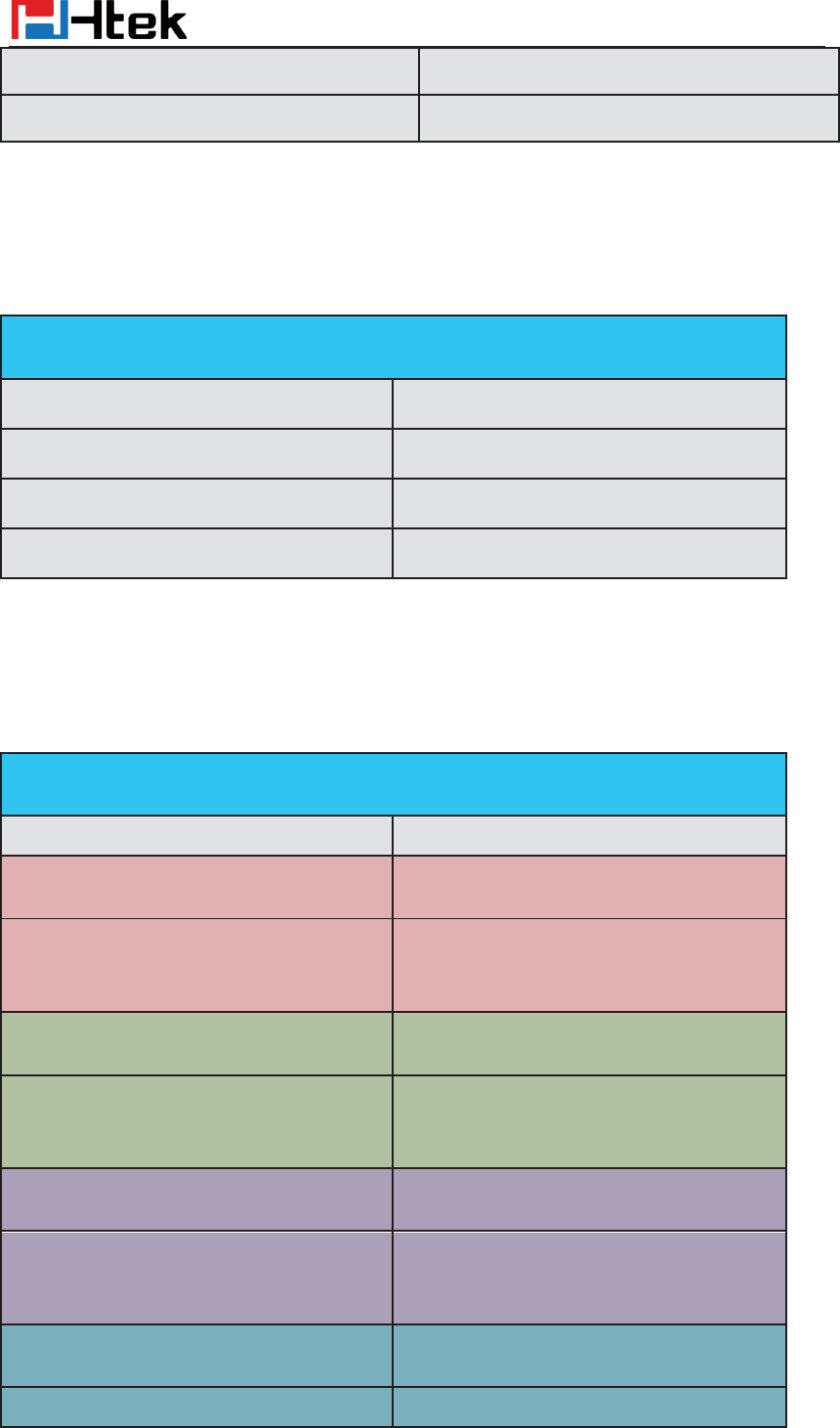
LED Instruction
This part mainly instructs the LED status. The Power LED Status describe on the premise that the
LED setting all set as Yes. For LED status setting, please refer to: LED Status Setting
Power Indicator LED
Line LED:(Line or Line Key set as Line)
SMS
Record
Recording
Group Listening
Shared Line
Other Functions
LED Status Description
Blinked green
R
inging or have missed call
Steady Green
Idle status(Power on)
Off
P
owered off.
LED Status Description
Steady Green
Hold
Steady Green
O
ffhook or during a conversation.
Getting Familiar with Your Phone
25
BLF or BLF List Key LED :( Line/Line Key set as BLF)
LED Status Description
Steady Green
Idle status for the monitored line
Steady Red
The monitored line is calling or during a call
Blinked red
The monitored line is ringing.
Off
All
other unknown status
Shared Line LED:
Blinked red
Ringing.
Off
Idle staus
LED Status Description
off
Idle status
Stay green
a member of the SCA group in off-hook
status
Stay red
Other member of the SCA group’s led status
when
a member of the SCA group
in
off-hook status
Blinked green every 500ms
a member of the SCA group in Private hold
status.
Stay red
Other member of the SCA group’s led status
when
a member of the SCA group in
Private
hold status
Blinked green every 500ms
a member of the SCA group in public hold
status
Blinked red every 500ms
Other member of the SCA group’s led status
when
a member of the SCA group in
public
hold status
Blinked green every 500ms
a member of the SCA group in progressing
status
Stay red
O
ther member of the SCA group’
s led status
Getting Familiar with Your Phone
26
Other Key Led
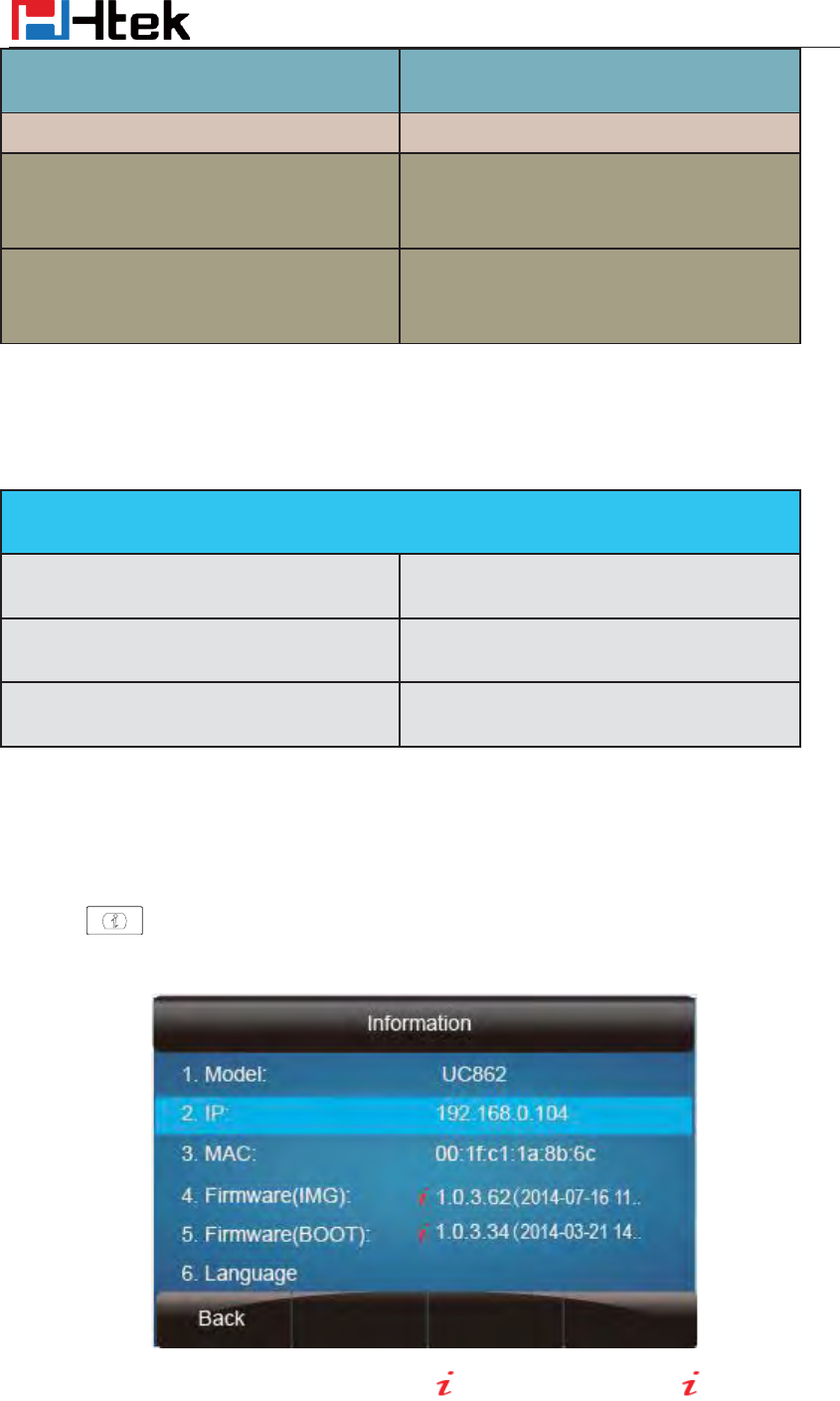
Info Key Instruction
Info Key plays many roles in this phone:
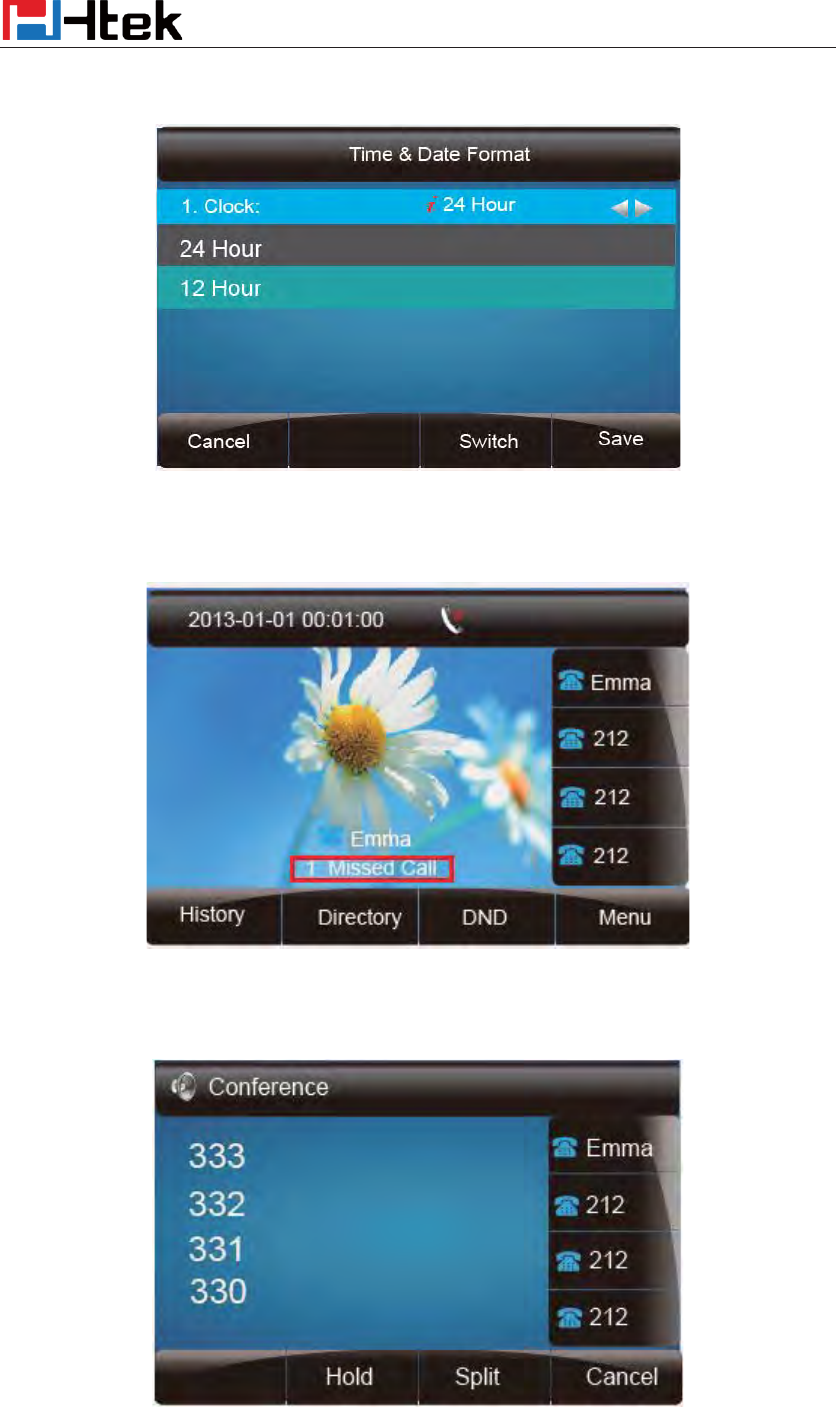
1. Quick get the Information page.
2. Get the full information of the item with . When the item with , it means the
information is not full display or there more options for the item. Press info key, you can get
when a member of the SCA group in
progressing status
Blinked red every 100ms
Alerting
Stay green
a member of the SCA group in active
status
when
there is an incoming call
designated for the SCA group
Stay red
Other member of the SCA group’s led status
when a
member of the SCA group
in active
status
Key Description
Headset Key
When use in headset mode, the led is steady
green or the LED is off.
Message Key
Blinked green when there is a new message
or the LED is off.
Mute Key
Red when the mute the call, or the LED is
off.
Getting Familiar with Your Phone
27
the complete content or the prompt list for all options.
3. Fast access to the new missed or Forward calls, New Voicemail or Text Message.
4. Get all other parties information during a conference.
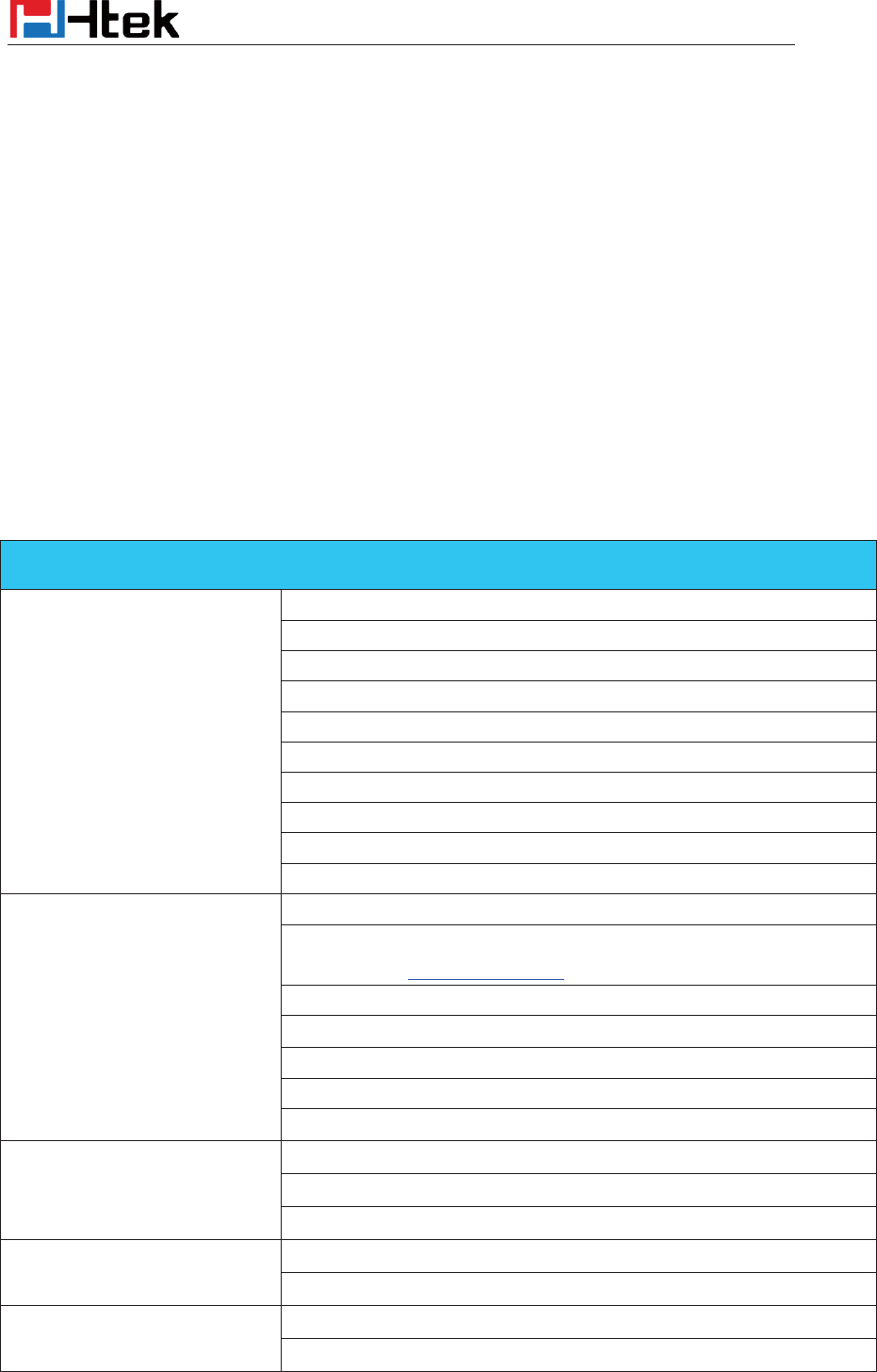
Getting Familiar with Your Phone
28
User Interface
There are two ways to customize specific configurations on your IP phone:
z The user interface on the IP phone
z The user interface in a web browser on your PC
The hardware components keypad and LCD screen constitute the phone user interface, which
allows the user to execute all call operation tasks and basic configuration changes directly on the
phone. In addition, you can use the web user interface to access all configuration settings. In many
instances, it is possible to use both the phone user interface and the web user interface to operate
the phone and change settings. However, in some instances, it is only possible to use the phone or
the web user interface.
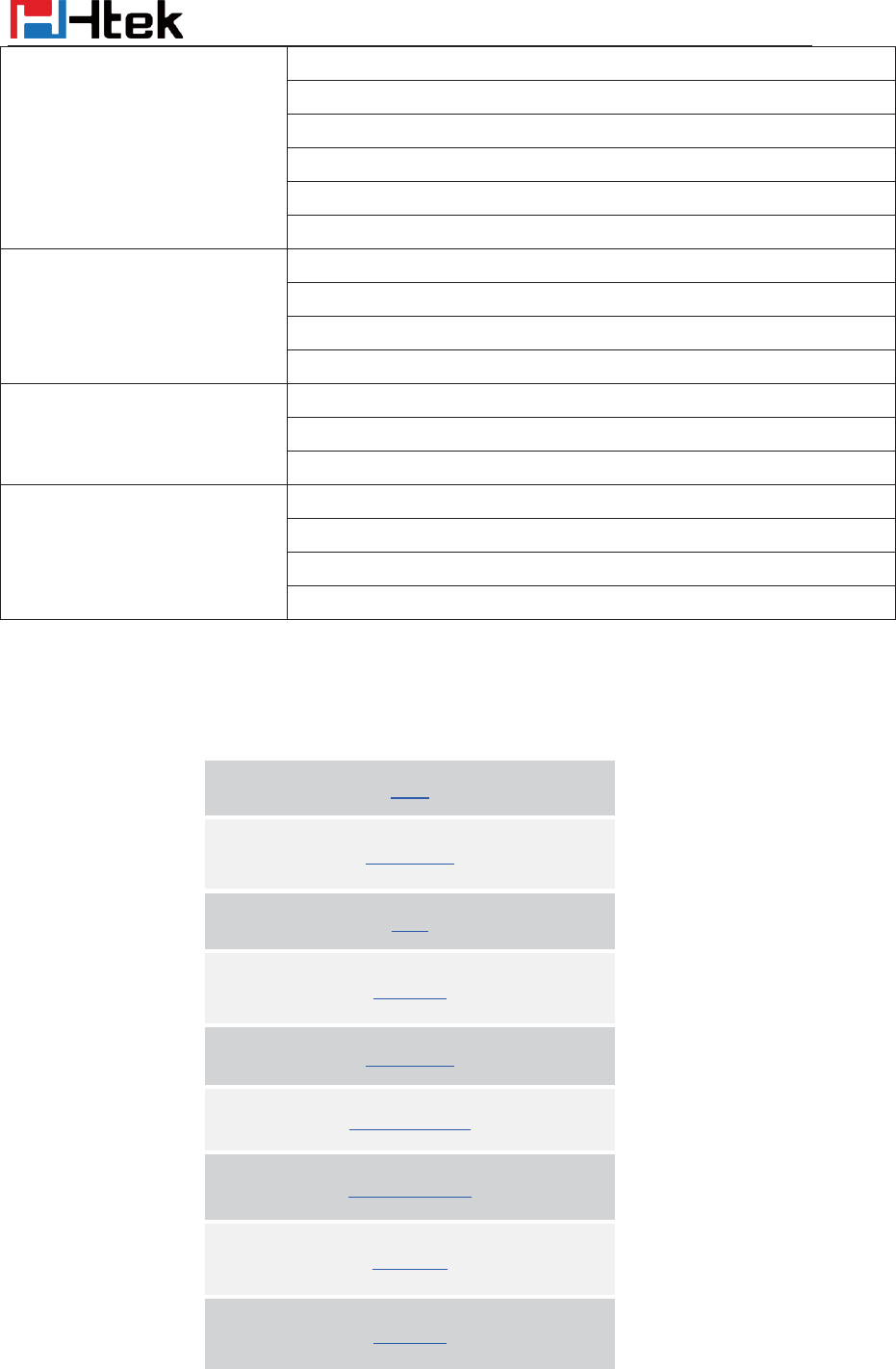
Phone Interface Overview
Option
Status
Model
IP
MAC
Firmware(IMG,BOOT,ROM)
Device Cert
Language
Expansion Module
EHS Version
Network
Account
Features
Call Forward
Function Key(Line and Line Key setting)
More Key see Line Key Overview
Key as Send
Hot Line
Anonymous Call
DND Code
History Setting
Directory
All Contacts
Local Contacts
Blacklist Contacts
History
Local History
Network CallLog
Message
Voice Mail set and View.
Text Message view and set.
Getting Familiar with Your Phone
29
Basic Settings
Language
Time & Date
Time & Date Format
DHCP Time
Ring tone
Headset
Advanced Settings
Account
Network
Phone Setting
Auto provision
Display
Display Mode
Wallpaper
Screensaver
Others
Factory Function
System Restart
Device Reboot
Pcap Feature
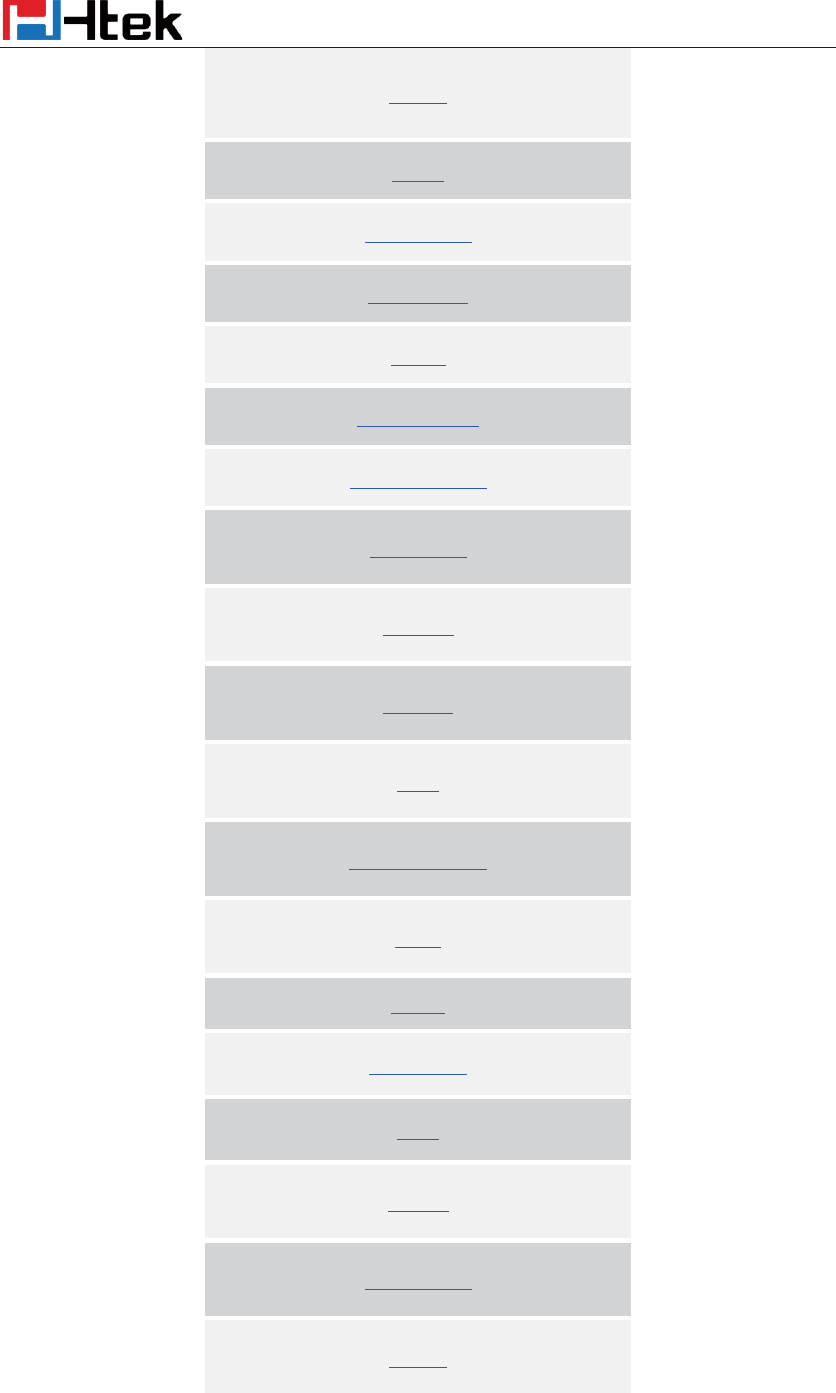
Line Key Function Overview
Line
Speed Dial
BLF
BLF List
Voice Mail
Direct Pick Up
Group Pick Up
Call Park
Intercom
Getting Familiar with Your Phone
30
DTMF
Prefix
Local Group
XML group
LDAP
XML Browser
Broadsoft group
Conference
Forward
Transfer
Hold
Group Listening
DND
Redial
Call Return
SMS
Record
URL Record
Paging
Getting Familiar with Your Phone
31
Shared Line
Public Hold
Private Hold
Hot Desking
ACD
Zero Touch
Multicast Paging
Basic Setting Configuration
32
Basic Setting Configuration
This part will mainly introduce the basic configuration as the Time, Language, and Volume…
Web Login
1. Get the IP address: Press Menu ėStatus ėInformation.
2. Input the IP Address in the web browser.
3. Input the user name (default is admin), password (default is admin).
4. Login successfully.
Basic Setting Configuration
33
Note:
The
PC and phone should be in the same segment.
W
hen register the accounts in web and the server port is not “5060”, then “
SIP Server”
should be set as “SIP Server’s IP address: server port.”, for example, “192.168.0.122: 5090”.
Administrator Password
The password is mainly used for login the web interface or set the advanced settings through
phone interface. And the default password of the administrator is: admin
To change to password via Phone Interface
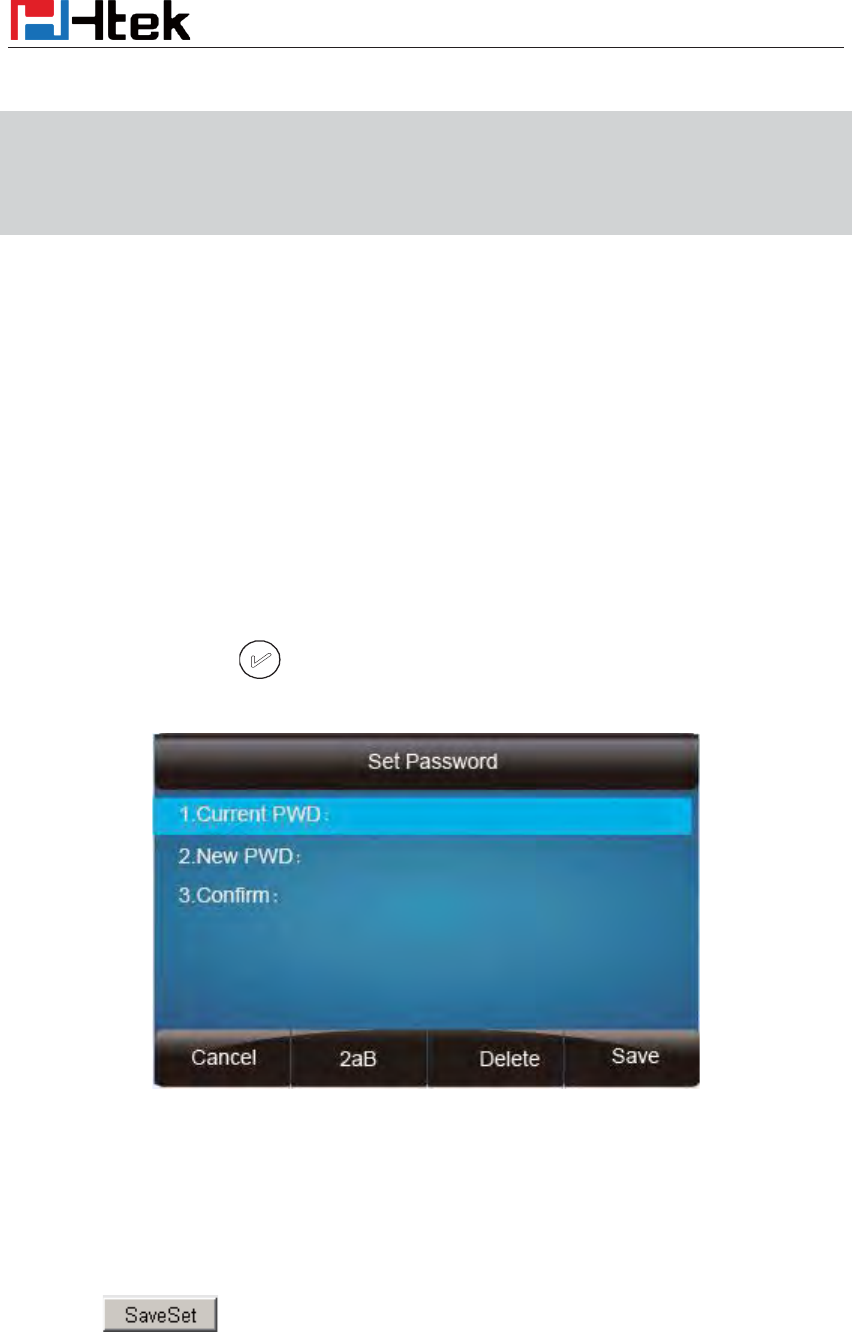
1. Press Menu ė setting ė Advanced settings ė password (default admin) ėPhone
Setting ė Set Password
2. Enter the current PWD (password), new password and confirm the new password.
3. Press save soft key or to save the new password.
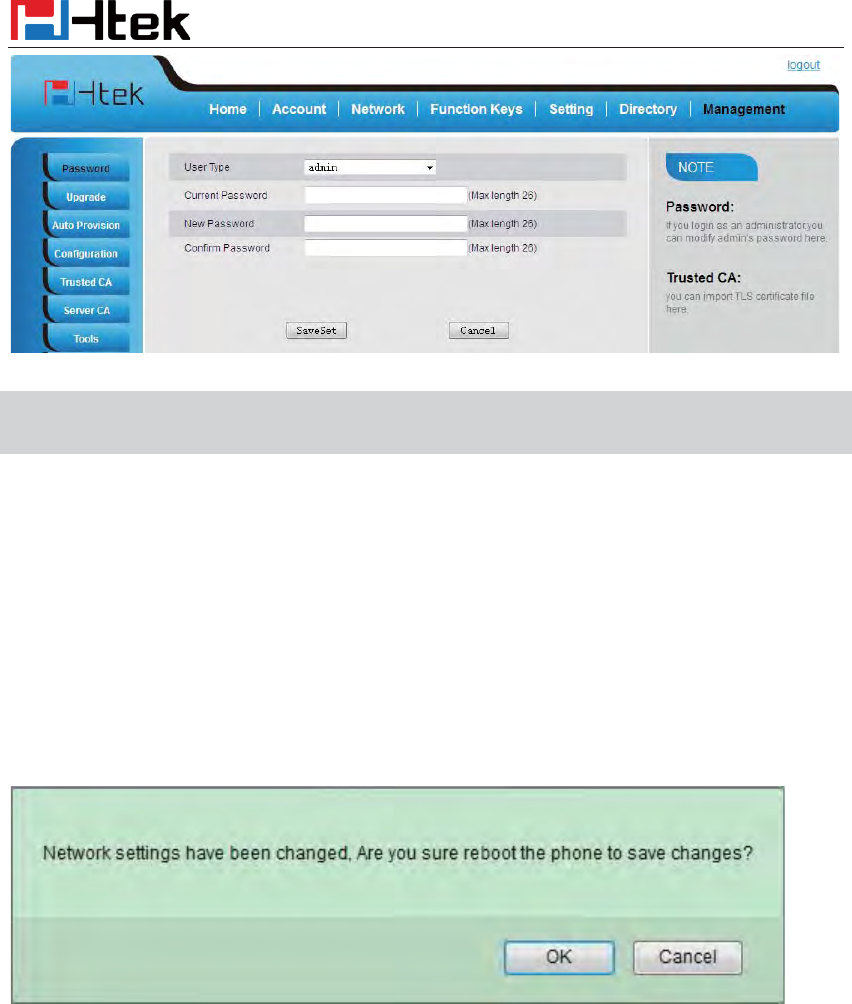
To change to password via Web Interface
1. Management ė Password
2. Fill the value
3. Click to save the configuration.
Basic Setting Configuration
34
Note:
When you use the web interface: user name: admin password: admin(default)
Basic Network Setting
Htek IP Phone supports three mode of Network: DHCP, Static, and PPPoE. The default mode is
DHCP, it will obtain IP address and other information automatically.
If your phone cannot contact a DHCP server for any reason, you need to configure a static IP
address manually.
When switch DHCP, Static IP and PPPoE to each other, or change the Static IP on webpage, it
will show the warning of restart as following.
WAN Port
To configure a static IP address via phone interface:
1. Press MenuÆSettingÆAdvanced Settings (password: admin) ÆNetworkÆWANPort
ÆStatic mode.
2. Enter the parameters: IP, Netmask, Gateway, Pri. DNS(primary dns), sec. DNS(second DNS)
in the corresponding fields.
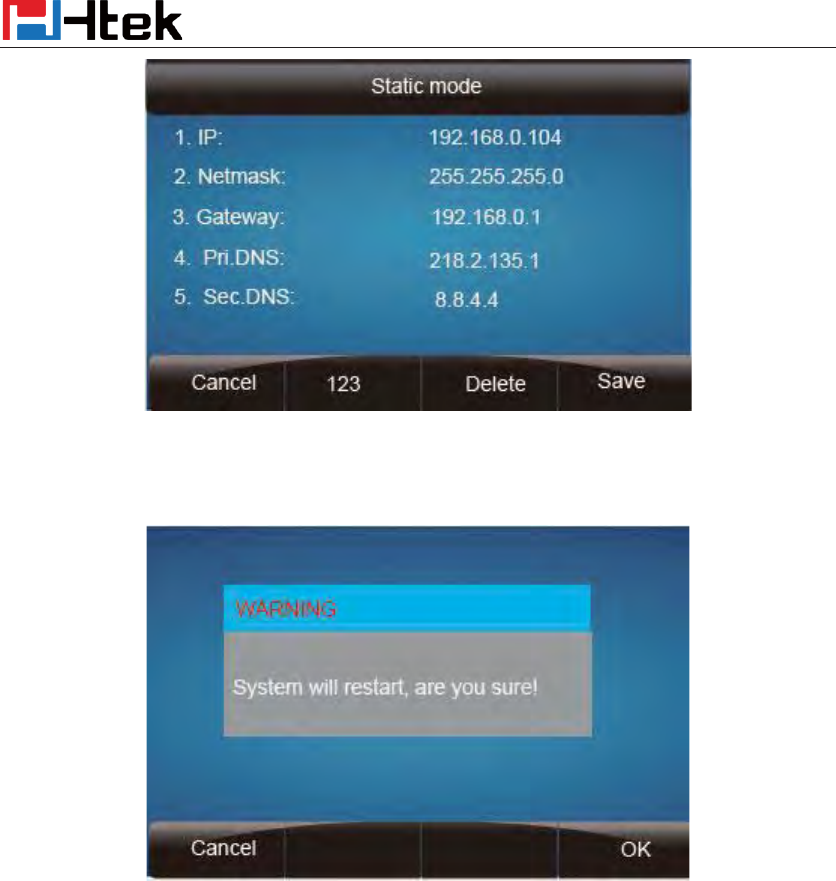
Basic Setting Configuration
35
3. Click Save and restart the phone.
Press the Save soft key to accept the change or the Cancel soft key to cancel. If you are using an
xDSL modem, you can connect your phone to the Internet via PPPoE mode. You can set a WAN
port to be a PPPoE port. The PPPoE port will perform a PPP negotiation to obtain the IP address.
Contact your system administrator for the PPPoE user name and password.
To configure PPPoE via phone interface:
1. Press MenuÆSettingÆAdvanced Settings (password: admin) ÆNetworkÆWANPort
ÆPPPoE mode.
2. Enter the User ID and password
3. Click Save and restart the phone.
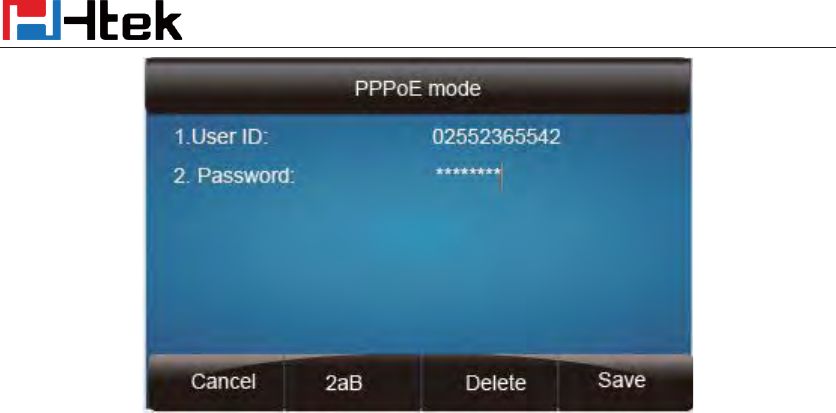
Basic Setting Configuration
36
To configure DHCP via phone interface:
1. Press MenuÆSettingÆAdvanced Settings (password: admin) ÆNetworkÆWAN Port
ÆDHCP mode.
2. Click Save and restart the phone.
To configure Network via web interface:
1. Click NetworkÆBasic
2. Select the desired Type: DHCP, Static or PPPoE
3. Filled the necessary information.
4. Click the SaveSet and restart the phone.
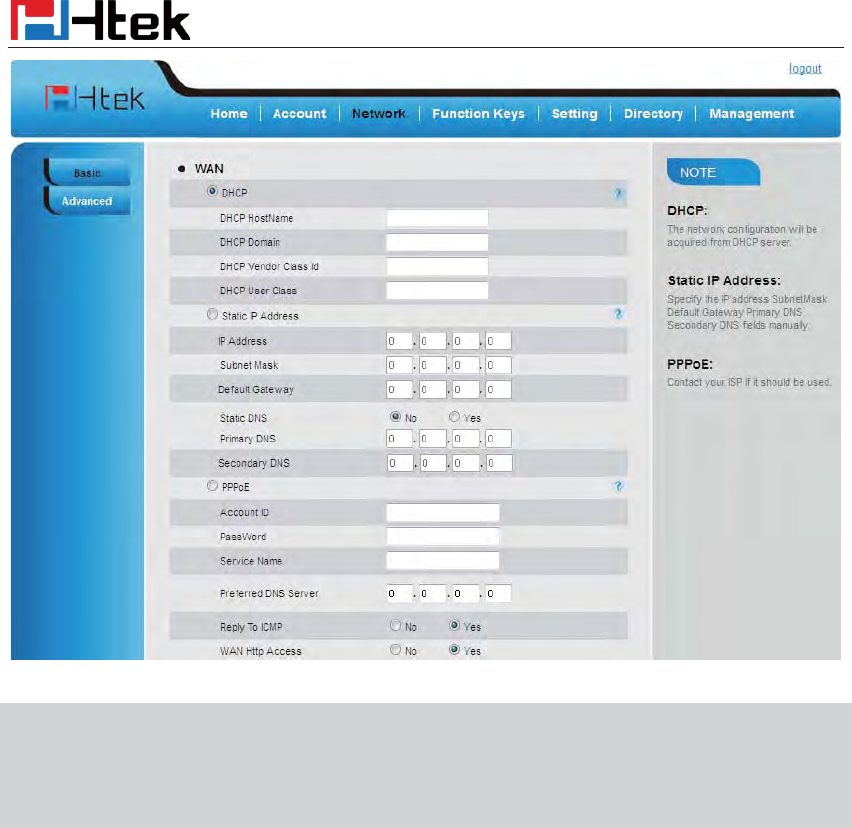
Basic Setting Configuration
37
Note:
Wrong network parameters may result in inaccessibility of your phone and may also have
an impact on your network performance. For more information about these parameters,
contact your system administrator.
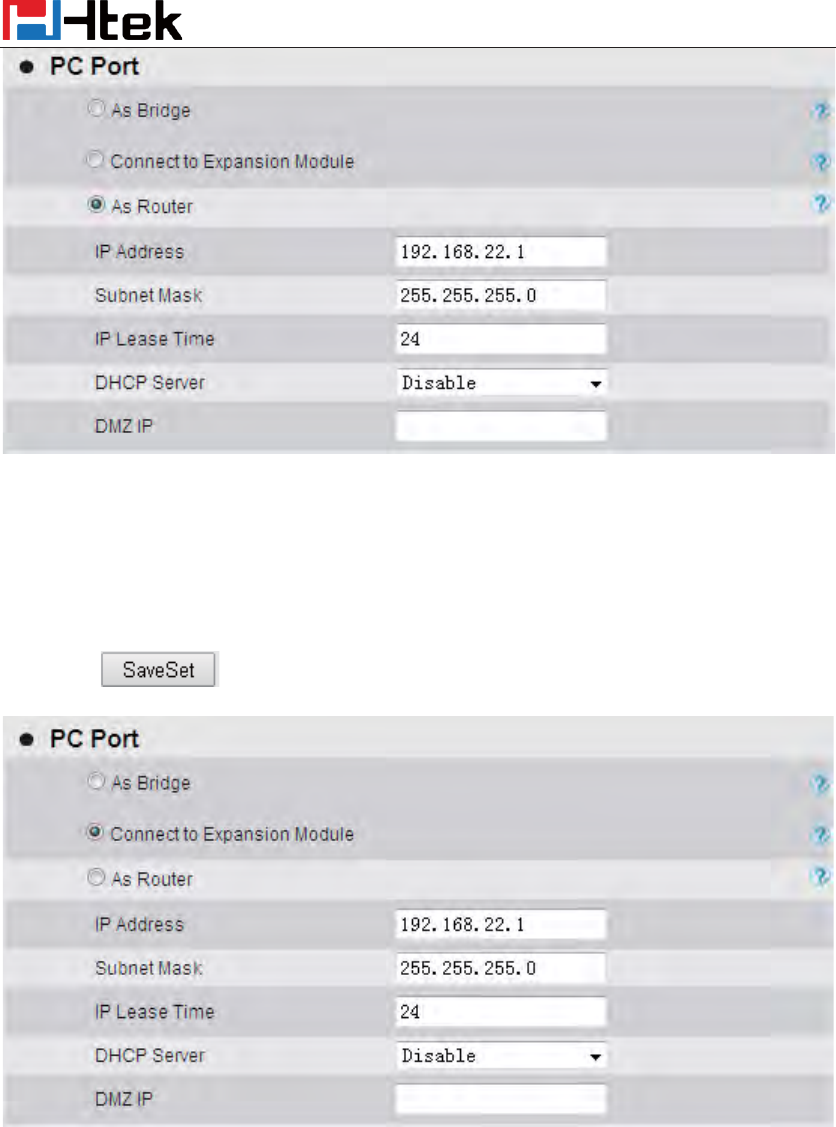
PC Port
Three modes for PC port: bridge, connect to Expansion Module and router.
To configure PC Bridge via Phone interface:
1. Press MenuÆSettingÆAdvanced Settings (password: admin) ÆNetworkÆPC Port ÆBridge
mode.
2. Click Save
3. Click the OK button, then the phone will reboot.
To configure PC router via Phone interface:
1. Press MenuÆSettingÆAdvanced Settings (password: admin) ÆNetworkÆPC Port ÆRouter
mode.
Basic Setting Configuration
38
2. Enter the IP, Netmask and DHCP server
3. Click Save
4. Click the OK button, then the phone will reboot
To configure PC Connect to Expansion Module via Phone interface:
1. Press MenuÆSettingÆAdvanced Settings (password: admin) ÆNetworkÆPC Port Æ
Connect to Expansion Module.
2. Click Save
3. Click the OK button, then the phone will reboot
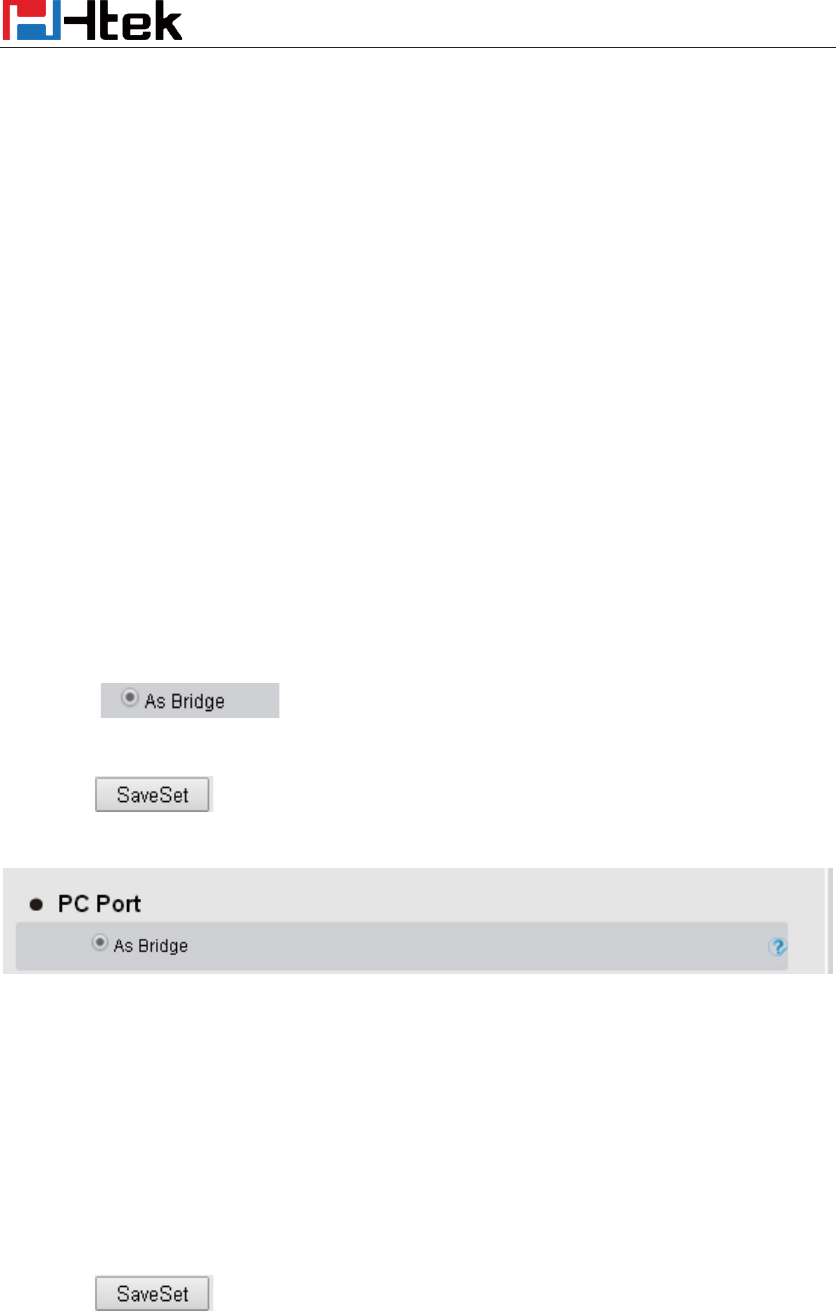
To configure Bridge via web interface:
1. Click NetworkÆBasic
2. Select
3. Click and the phone will reboot automatically
To configure Router via web interface:
1. Click NetworkÆBasic
2. Select As Router
3. Fill the IP address and other necessary information.
4. Click and the phone will reboot automatically
Basic Setting Configuration
39
To configure PC Connect to Expansion Module via web interface:
1. Click NetworkÆBasic
2. Select As Connect to Expansion Module
3. Click and the phone will reboot automatically
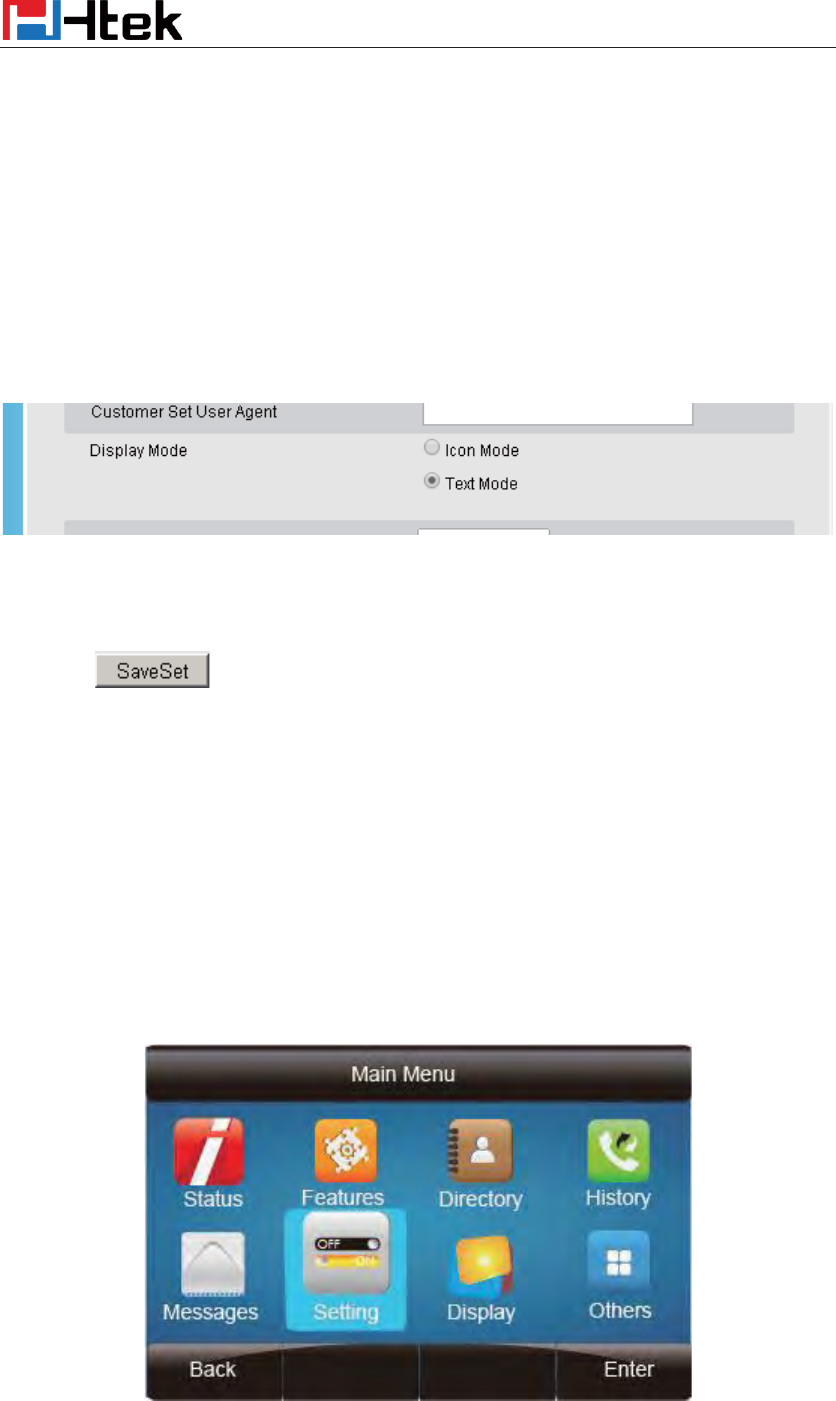
Display Mode
This phone support two Display mode: Text and Icon.
Icon Mode: all Items are shown same as the main with Icon.
Text Mode: Only the 8 main items will be shown as icon, and others all text description.
To Configure Display mode via phone interface:
Basic Setting Configuration
40
1. Press MenuÆ DisplayÆDisplay Mode
2. Select Text or Icon
3. Press Save soft key to save the configuration.
To Configure Display mode via web interface:
1. Login web interface, and click SettingÆ Preference
2. Select Icon Mode or Text Mode for the Display mode
3. Click to save the configuration.
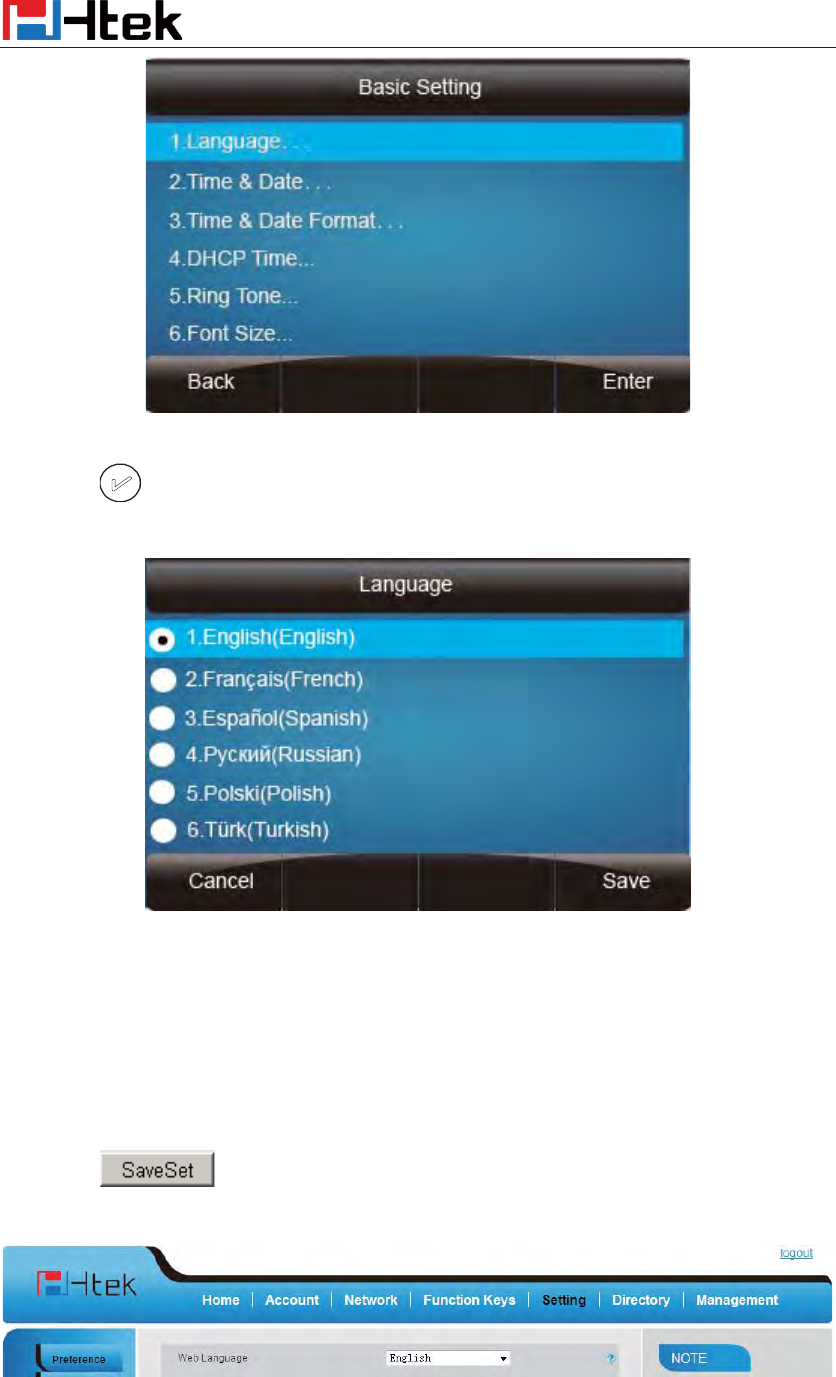
Language
The default Phone interface language is English.
To change the language via Phone interface
1. Press Menu ė Setting ė Basic Settings ė Language.
Basic Setting Configuration
41
2. Press or Save soft key to save the configuration.
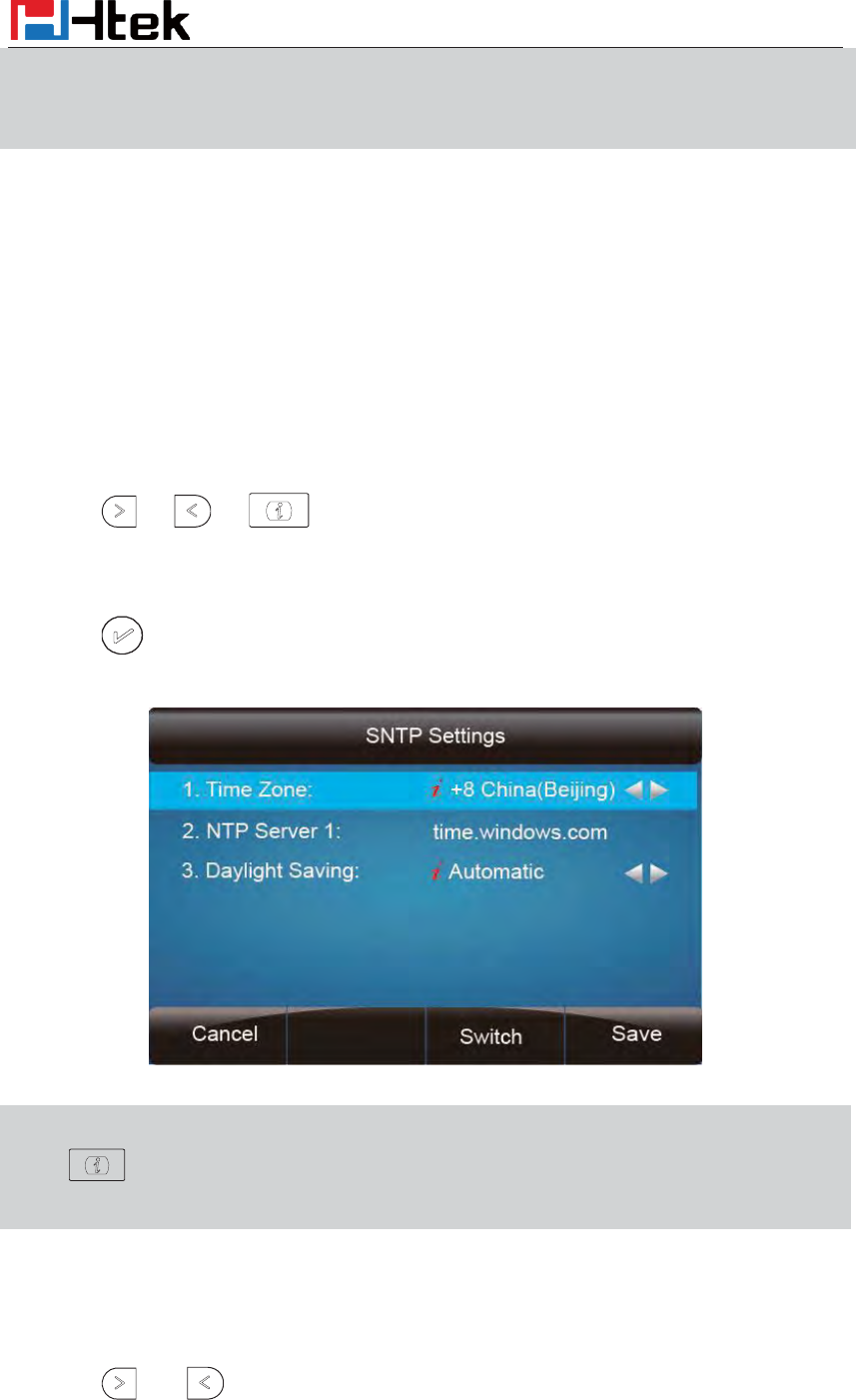
To change the language via Web Interface
1. Setting ė Preference ėWeb Language
2. Select the necessary one.
3. Press to save the configuration.
Basic Setting Configuration
42
Note:
All languages may not be available for s
election. The available languages depend on
the
language packs currently loaded to the IP phone.
Time and Date
The time and date show on the idle page, and it can be set and change by SNTP server
automatically or manual setting.
To configure the time and Date by SNTP setting via phone interface
1. To press Menu ė Setting ė Basic setting ė Time & Date ė SNTP Settings
2. Press or , or to change the Time zone.
3. Fill the NTP server1, NTP Server2, and Daylight Saving.
4. Press or Save soft key to save the configuration.
Note:
Press
, all zone will
show on the display, select the one you want and press save or
confirm key to save the configuration.
To configure time and date manually via phone interface
1. To press Menu ė Setting ė Basic setting ė Time & Date ė Manual Settings
2. Press and or change the right time, or you can input the right time.
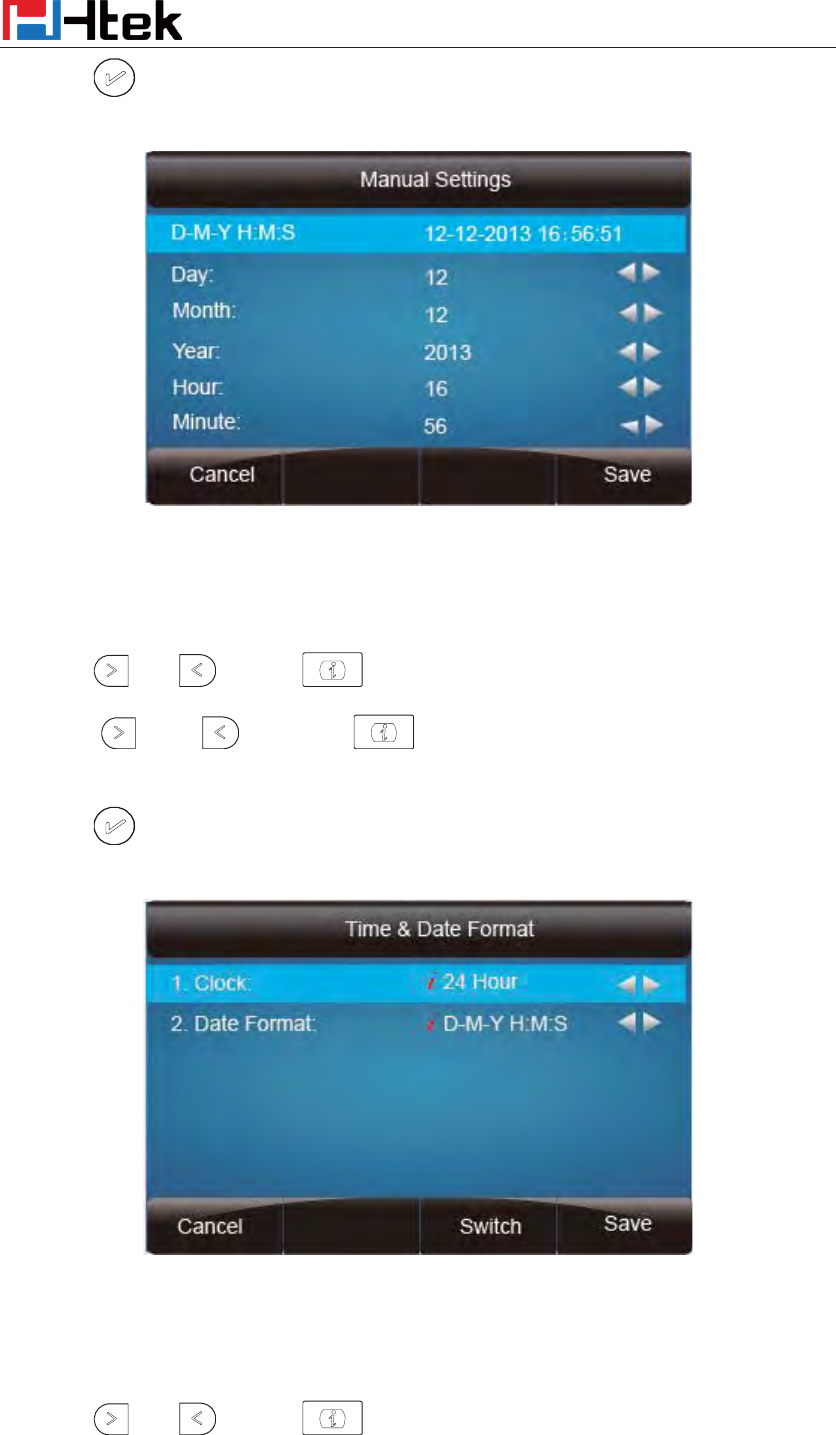
Basic Setting Configuration
43
3. Press or Save soft key to save the configuration.
To configure the Time & Date Format via phone interface
1. To press Menu ė Setting ė Basic setting ė Time & Date Format
2. Press and or press to change between 12 Hour or 24 Hour.
3. Press and or press to change among Y-M-D(year-month-day),
M-D-Y(month-day-year), D-M-Y(day-month-year).
4. Press or Save soft key to save the configuration.
To configure the DHCP time via phone interface
1. To press Menu ė Setting ė Basic setting ė DHCP time
2. Press and or press to change between Disable and Enable.
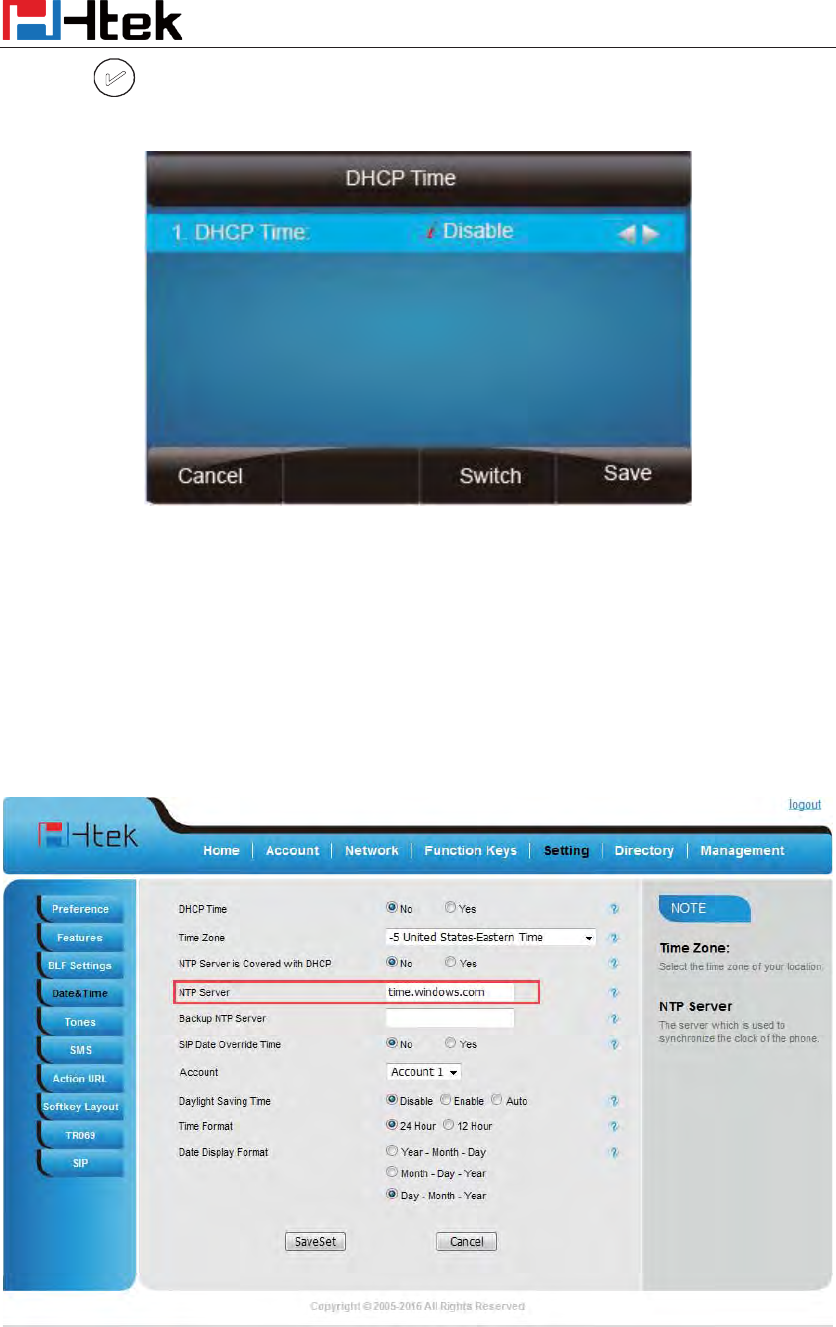
Basic Setting Configuration
44
3. Press or Save soft key to save the configuration.
To configure the NTP Server by web interface
1. Login
Login name: admin, password: admin(default)
2. Setting ė Date &Time ėNTP Server
3. Fill the value in the blank.
To change the Time Zone and Date Display Format via web interface
1. Setting ė Date &Time
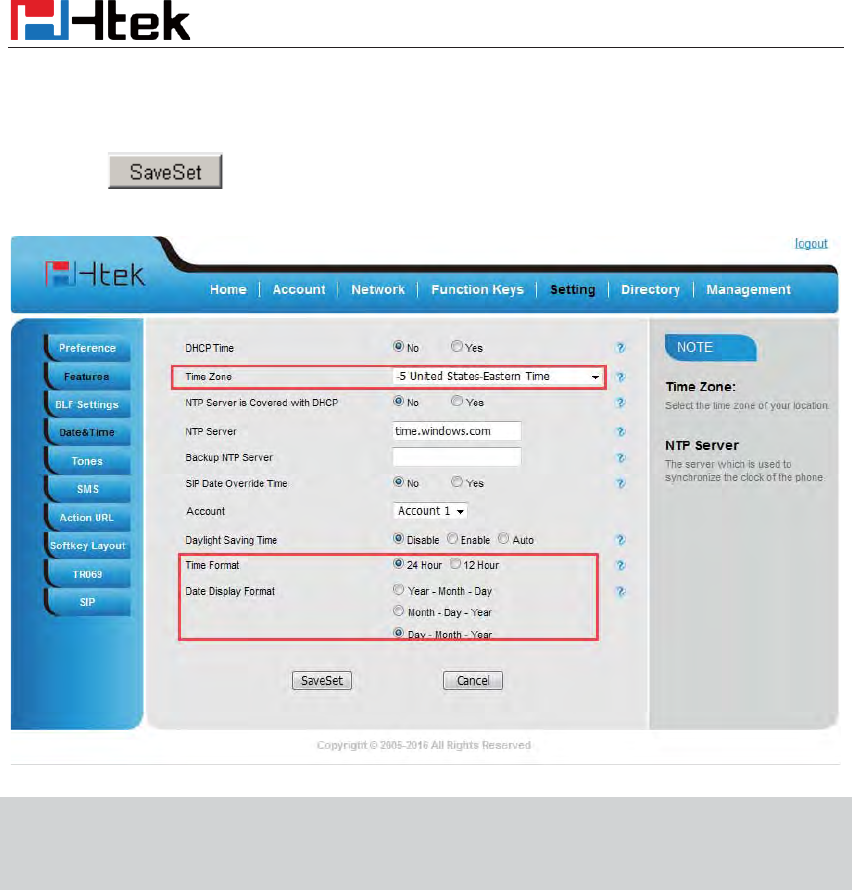
Basic Setting Configuration
45
2. Select the necessary one.
3. Press to save the configuration.
Note:
If the IP Phone
cannot obta
in the time and date from the Simple Network Time Protocol
(SNTP) server, please contact your system administrator for more information.
Daylight Saving Time
Daylight Saving Time (DST) is the practice of temporary advancing clocks during the summertime so that
evenings have more daylight and mornings have less. Typically, clocks are adjusted forward one hour at the
start of spring and backward in autumn. Many countries have used the DST at various times, details vary by
location. The DST can be adjusted automatically from the time zone configuration. Typically, there is no need to
change this setting
Ring Tone
You can adjust the type and volume of the ring tone.
To adjust the Ring Tone Type via Phone interface:
1. Press Menu ė Setting ė Basic Settings ė Ring Tone.
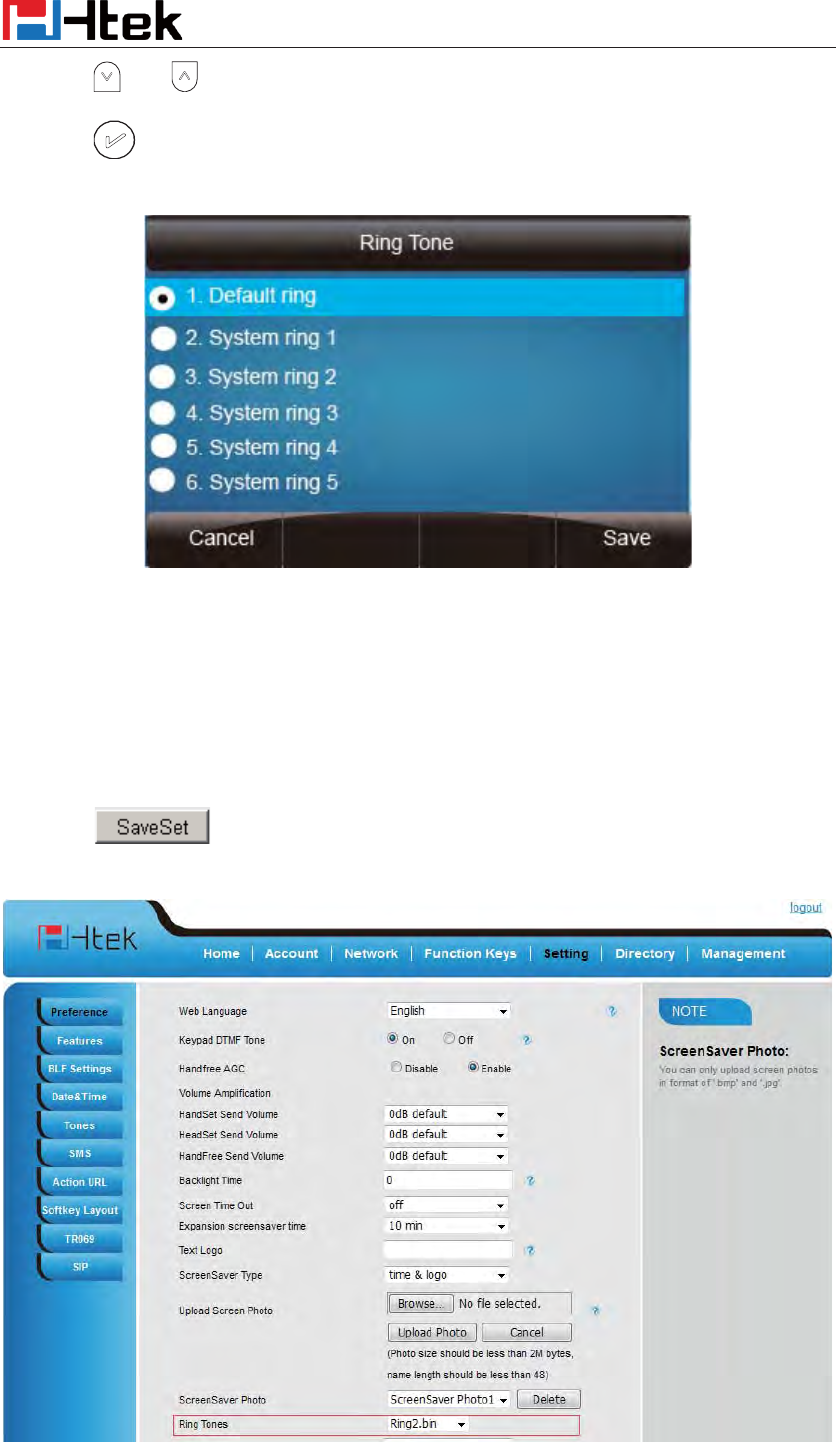
Basic Setting Configuration
46
2. Press and to select the aimed one.
3. Press or Save soft key to save the configuration.
To adjust the Ring Tone Type via Web Interface
1. Setting ė Preference ė Ring Tone
2. Select the wanted one
3. Click to save the configuration.
Basic Setting Configuration
47
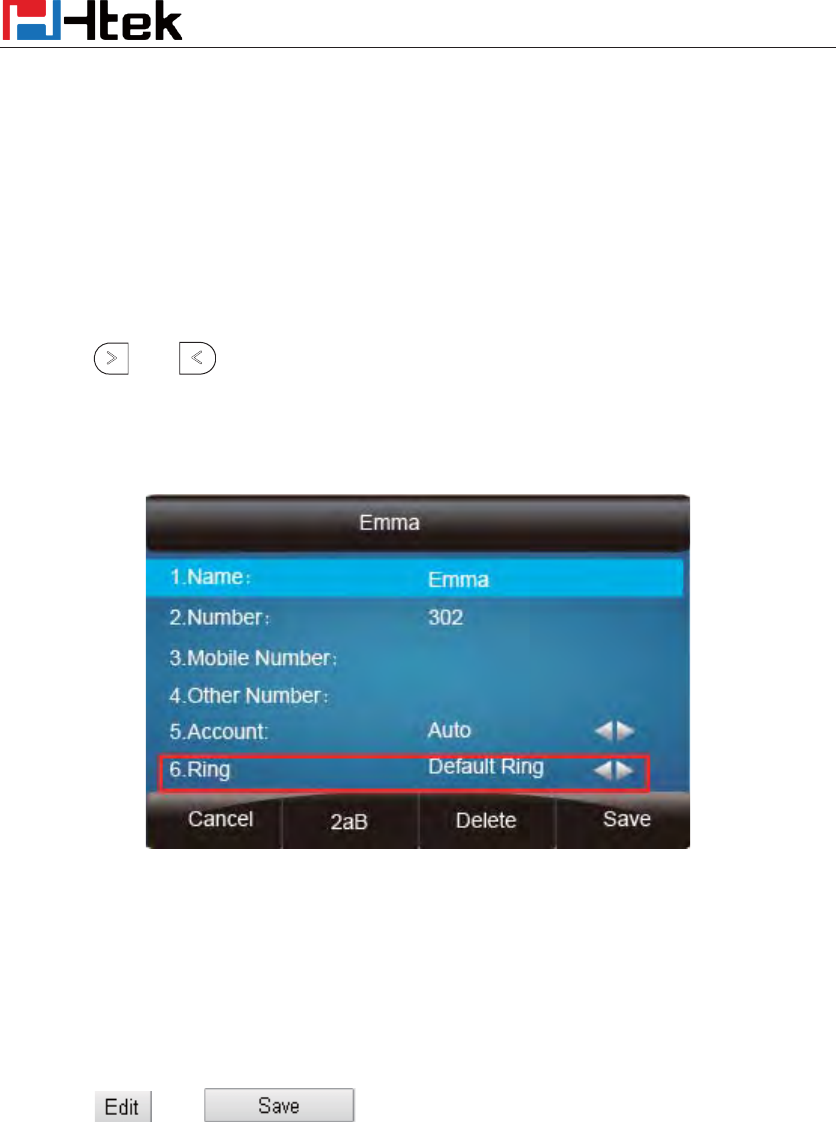
To configure Distinctive Ring Tone via Phone Interface
1. Press Directory
2. Select the target contact
3. Press Detail soft key to edit the contact.
4. Press and to select the wanted Ring Tone for the contact
5. Press Save soft key to save the contact.
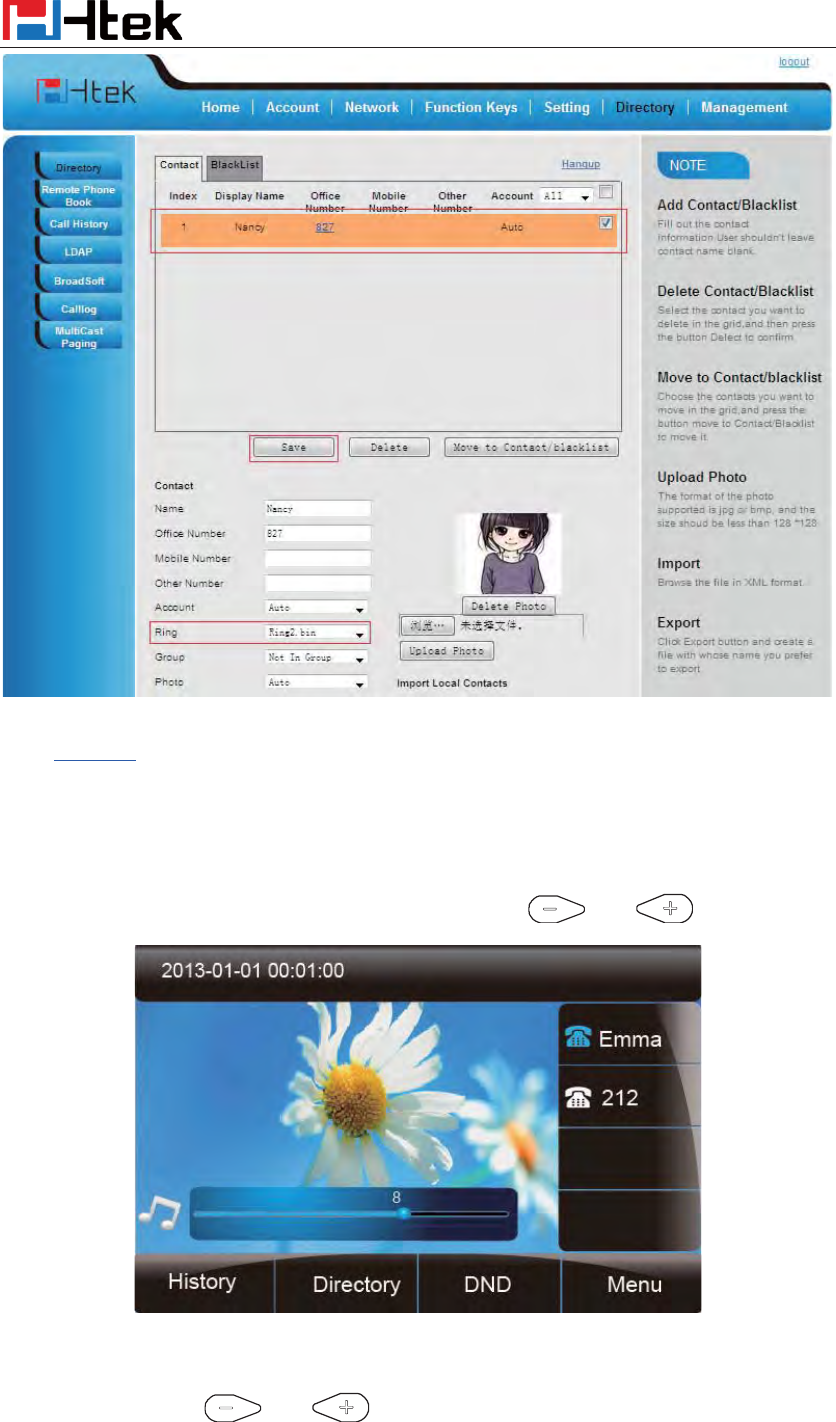
To configure Distinctive Ring Tone via Web Interface
1. Directory ė Directory ė Contact
2. Choose the Ring Tone you want to use.
3. Click ė to save the configuration.
Basic Setting Configuration
48
Click Ring tone for more information.
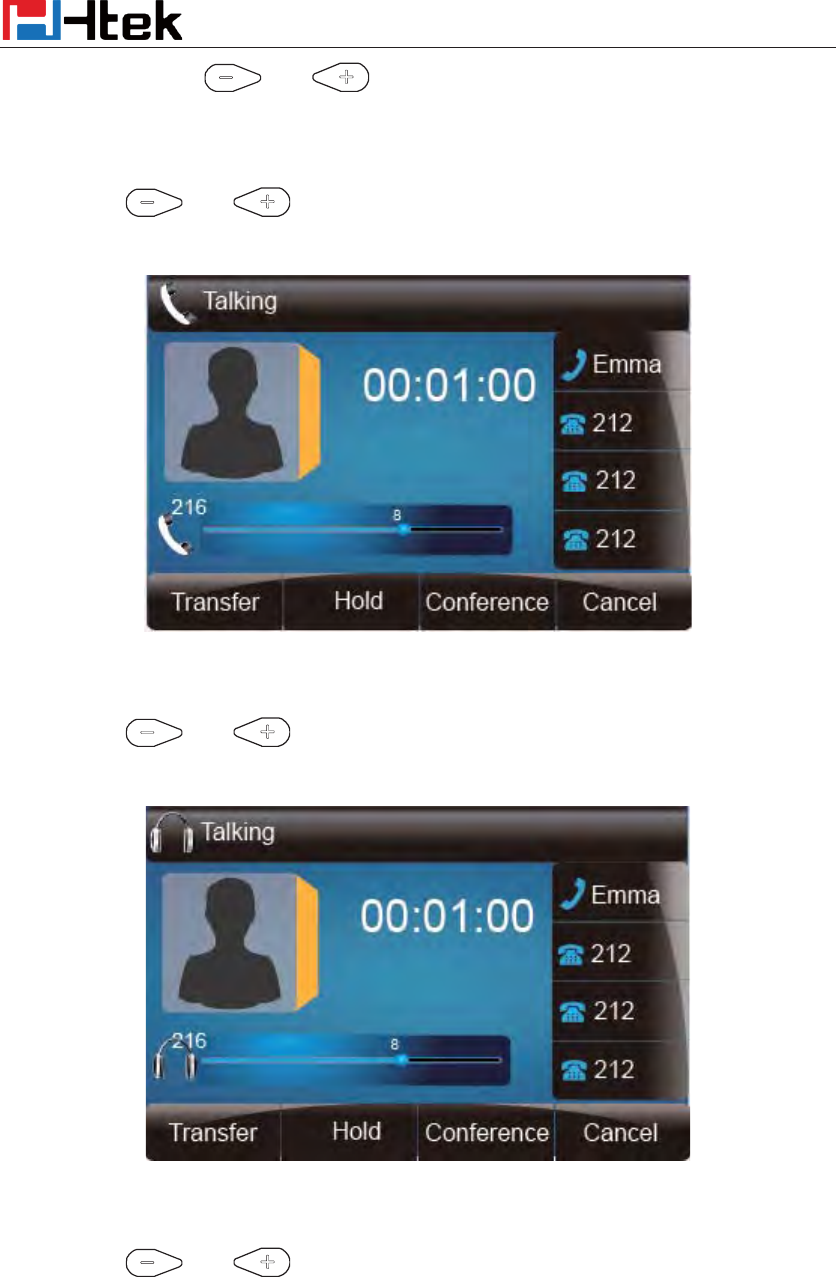
Volume
You can adjust the volume for the phone by the volume keys: and .
To adjust the Ring tone volume via phone interface:
1. Option 1: To press and on the idle page
Basic Setting Configuration
49
2. Option 2: To press and during the call is ringing.
To adjust the handset volume via phone interface:
To press and during a call in handset mode.
To adjust the headset volume via phone interface:
To press and during a call in headset mode.
To adjust the speaker Volume via phone interface:
To press and during a call in speaker mode.
Basic Setting Configuration
50
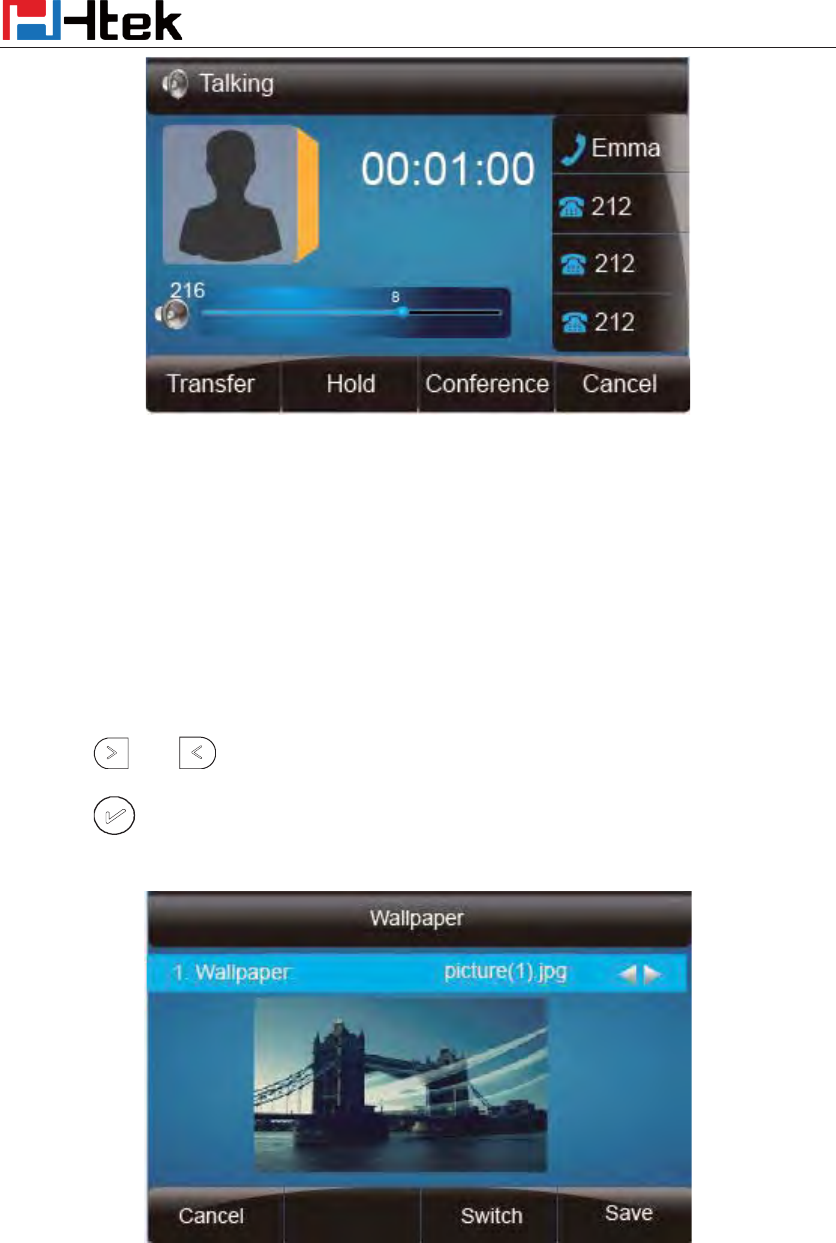
Wallpaper
To change the preferred one picture for you by the following steps:
To change the wallpaper via phone interface:
1. To press Menu ė Display ė wallpaper
2. Press and or press Switch soft key to display the different pictures.
3. Press or Save soft key to save the selected picture as the wallpaper.
To change the wallpaper via web interface:
1. Click SettingÆPreference
2. Select the desired wallpaper picture to upload.
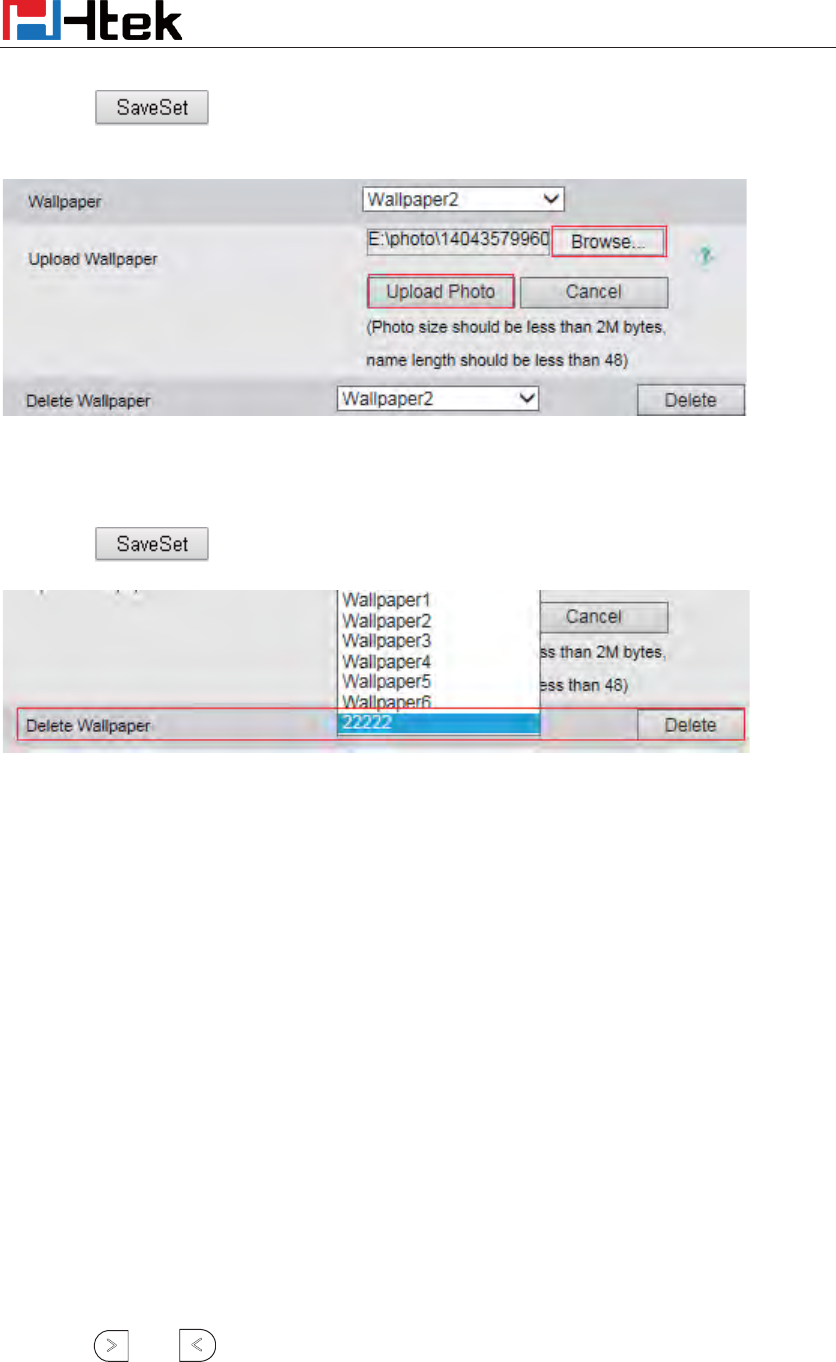
Basic Setting Configuration
51
3. Click to save the setting.
To delete the wallpaper via web interface:
1. Click SettingÆPreference
2. Select the desired wallpaper to delete.
3. Click to save the setting.
Note:
System wallpaper (Wallpaper1-Wallpaper6) cannot be deleted and only color IP Phone support
upload wallpaper.
Screen Saver
There are three types of screen saver: Time & Logo, Photo Switch and Photo.
Time & Logo: when the screensaver works, it will show Time and logo in turns.
Photo Switch: all screensaver pictures display one by one.
Phone: Only the select phone display as screensaver.
Text logo: It works with the Time & Logo, when enter the value, it will display the time and the
entered value in turns.
To enable screen saver via Phone interface:
1. To press Menu ė Display ė Screensaver...
2. Press and or press Switch soft key to Choose the Time-out as 1 min or 2/5/10/30
minute.
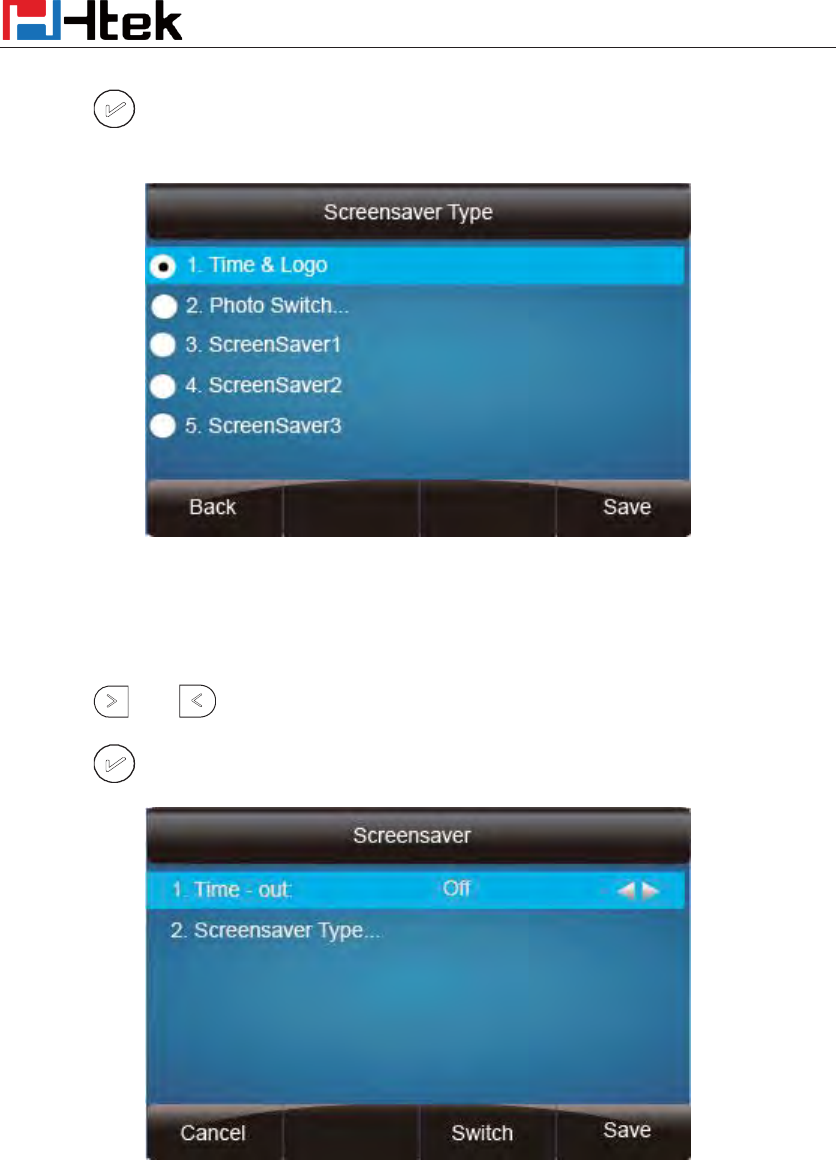
Basic Setting Configuration
52
3. Enter the Screensaver Type to choose one of the type: Backlight off, Time & Logo and Photo
4. Press or Save soft key to save the selected configuration.
To disable screen saver via Phone interface
1. To press Menu ė Display ė Screensaver...
2. Press and or press Switch soft key to Choose the Time-out as off.
3. Press or Save soft key to save the selected configuration.
To upload screen saver via Web interface:
1. Setting ė Preference
2. Choose the picture wanted to use as screen saver
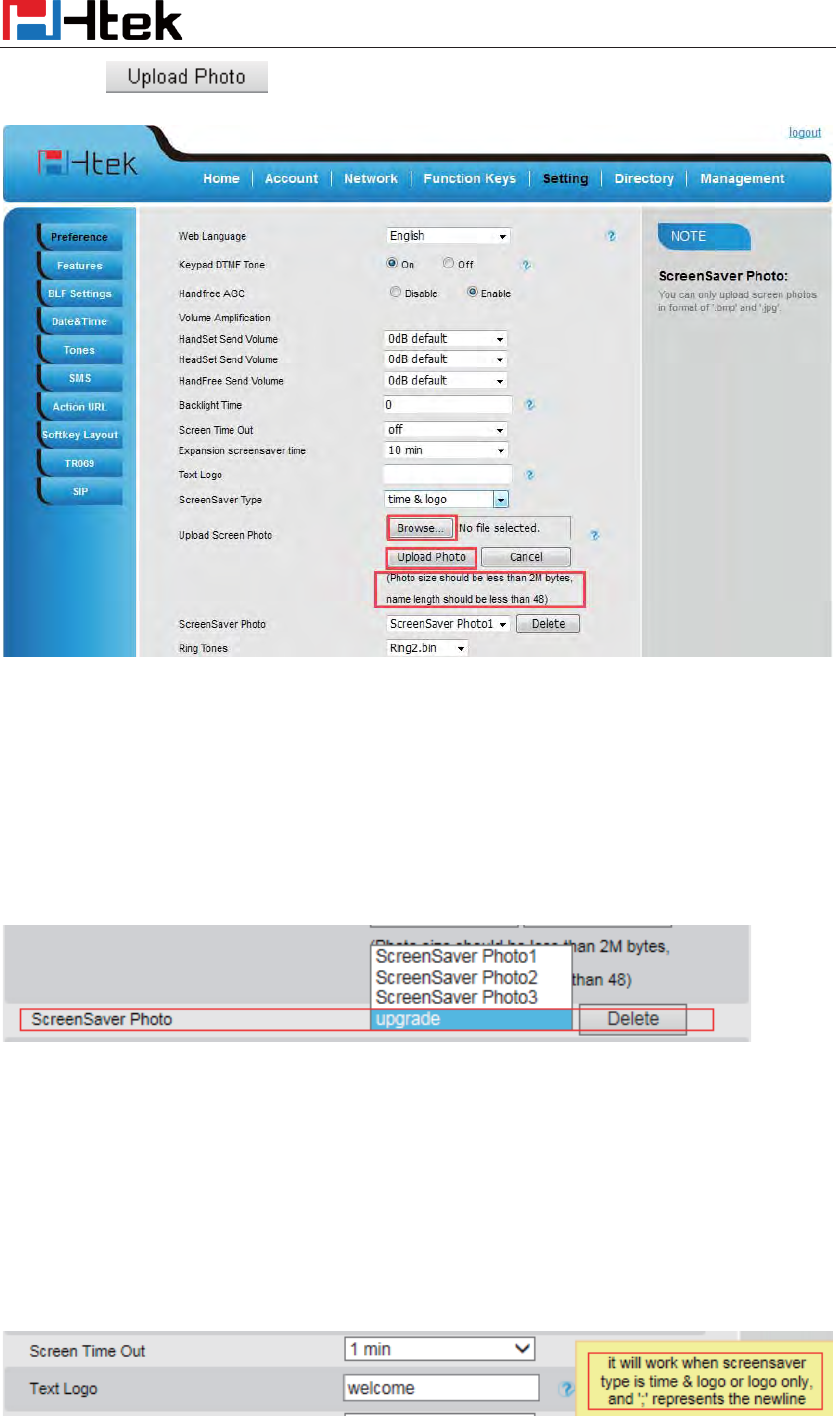
Basic Setting Configuration
53
3. Click to save the upload picture
To delete upload screen saver phone via Web interface:
1. Setting ė Preference
2. Select the photo that to delete.
3. Click Delete to delete the photo.
Note:
System Screen Photo (ScreenSaver1-ScreenSaver3) cannot be deleted and only color IP Phone
support upload wallpaper.
To custom text logo via web interface:
1. Click SettingÆPreference.
2. choose the Time-out as 1 min or 2/5/10/30 minute.
3. Enter the desired value in the Text Logo field.
4. Click Saveset to save the configuration.
To wake up screen saver via Web interface:
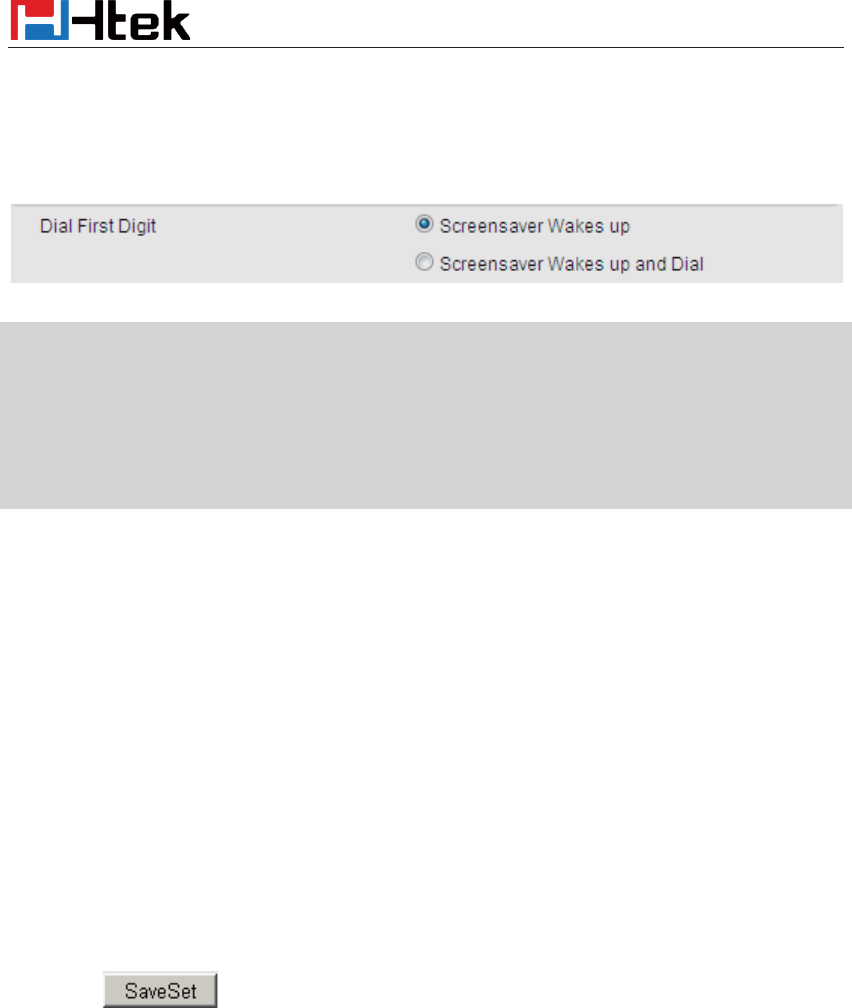
Basic Setting Configuration
54
1. Setting ė Preference
2. Choose Dial First Digit: Screensaver Wakes up or Screensaver Wakes up and Dial
Note:
1.
The upload
Photo size should be less than 2M bytes, name length should be less than 48,
and the File name should be letters, numbers or underline '_'
and photo number should
be less than 9.
2.
The default screensaver photos cannot be deleted.
3. You can only upload screen photos in format of '.bmp' and '.jpg'.
LED Status Setting
Backlight
To set Backlight via web interface:
1. Click settingÆPreference
2. Enter the time for Backlight time (In seconds).
3. Click to save the configuration.
The default is 0, which means Backlight is always on.
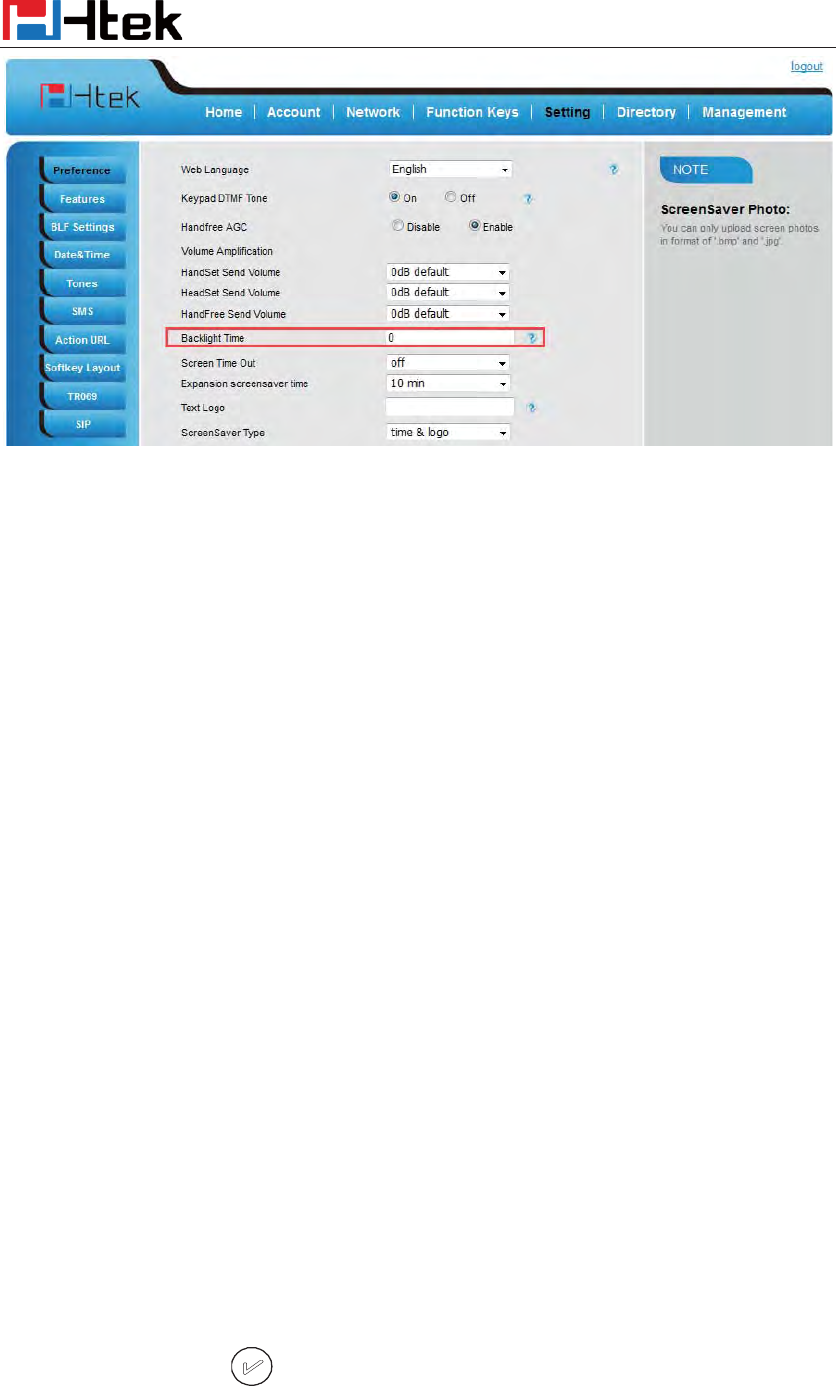
Basic Setting Configuration
55
Contact Management
This section provides the operating instructions for managing contacts. The topics include:
z Local Directory
z Blacklist
z Remote Phonebook
z Call History
z LDAP
z Network Directory
z Search Contact
Local Directory
In the directory, you can add or delete your friends, business partner or anyone others’ phone No.
so you will not forget their number. Or put some anonymous phone No. in the blacklist to prevent
from being disturbed. The local Directory can add up to 1000 contacts.
A. To add contacts list into local directory
To add contacts manually via phone interface
1. Press Menu ė Directory ė Local Directory
2. Press Add soft key.
3. Enter the necessary information as Name, Phone number…
4. Press save soft key or to add the contacts successfully.
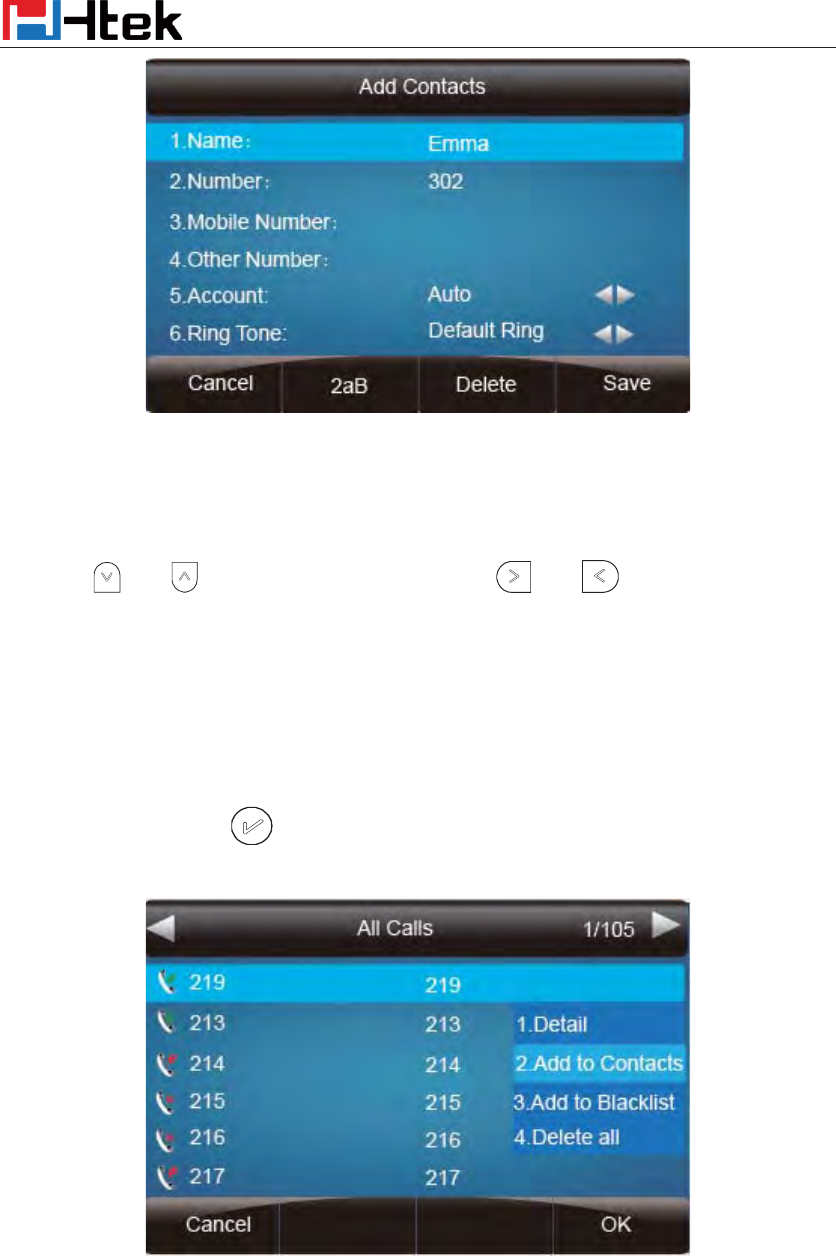
Basic Setting Configuration
56
To add contacts from history via phone interface:
1. Press History soft key or press Menu ė History ė Local history
2. Press and to select the targeted one. (Press and switched among the All
calls, Dialed calls, Received calls, Missed Calls and Forward Calls).
3. Press Option soft key ė Add to Contacts
4. Edit the necessary information as Name, Phone number…
5. Press save soft key or to add the contacts successfully.
To add contacts via web interface:
1. Click DirectoryÆDirectory
2. Enter the name, number and some other information.
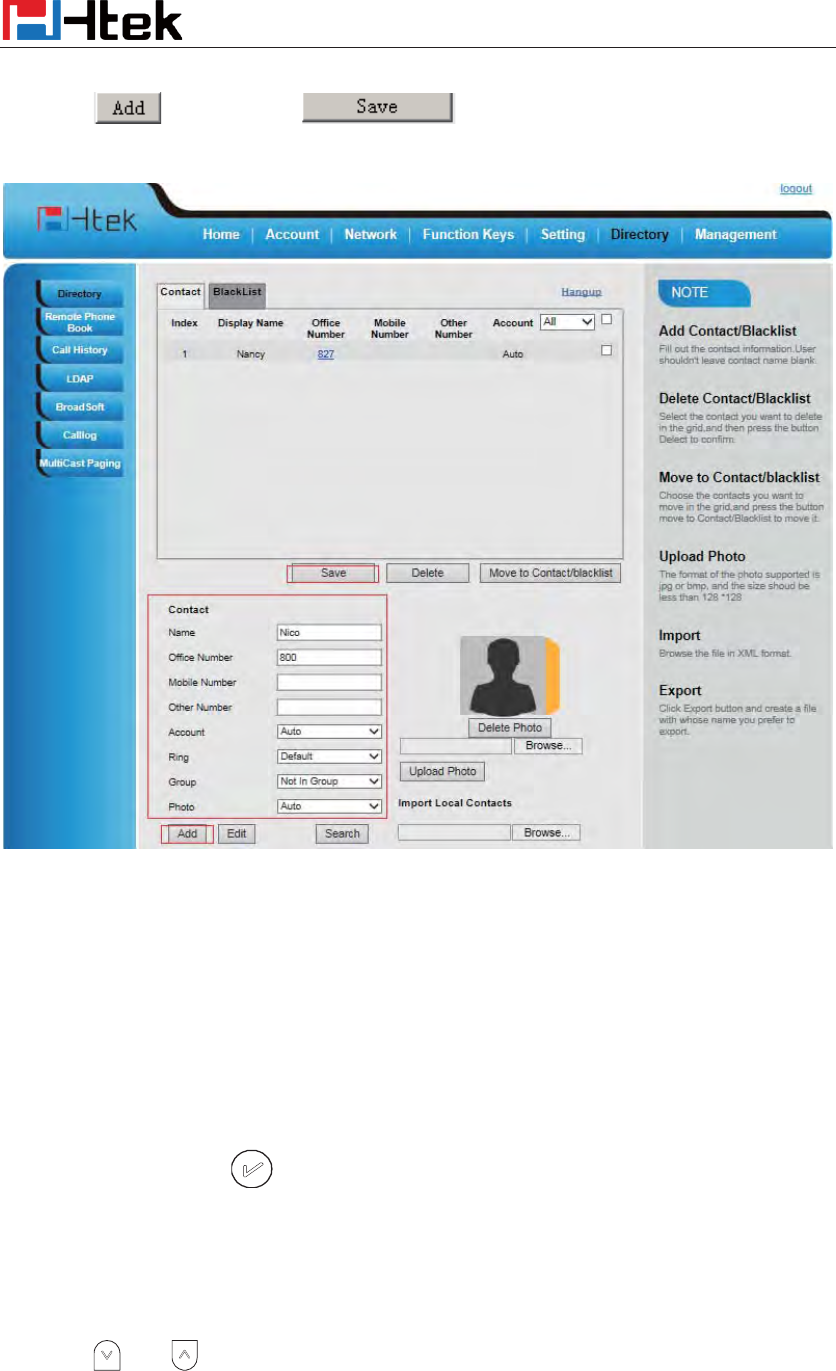
Basic Setting Configuration
57
3. Press and then press button.
B: To add contacts into blacklist
To add blacklist manually via phone interface:
1. Press Menu ė Directory ė Blacklist
2. Press Add soft key.
3. Enter the necessary information as Name, Phone number…
4. Press save soft key or to add the contacts successfully.
To add blacklist from history via phone interface:
1. Press History soft key or press Menu ė History ė Local history
2. Press and to select the targeted one.
3. Press Option soft key ė Add to Blacklist
4. Edit the necessary information as Name, Phone number…
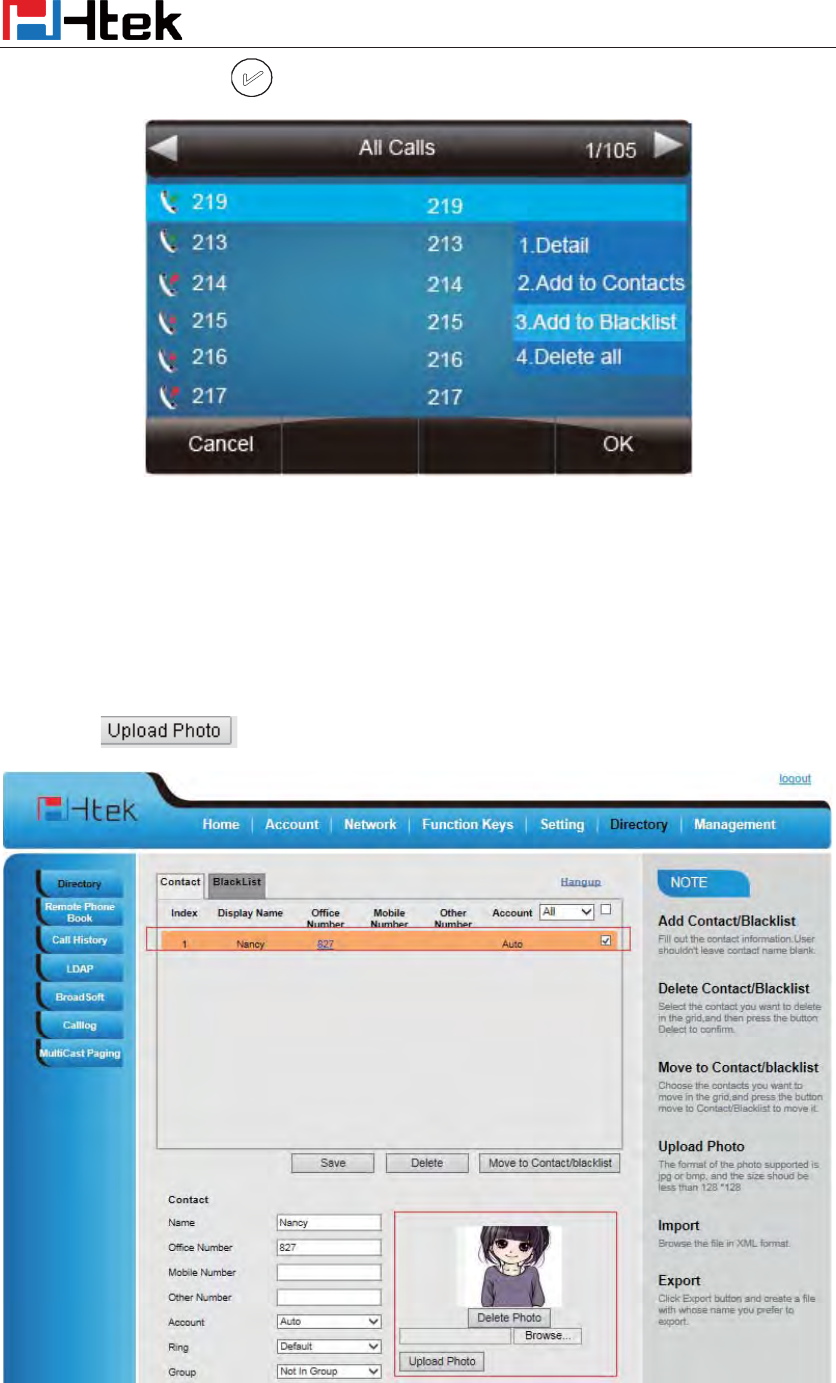
Basic Setting Configuration
58
5. Press save soft key or to add successfully.
Upload Contacts photo via web interface:
1. Click Directory and select the desired contact.
2. Click Choose file to select the photo for the contact
3. Click to upload the photo.
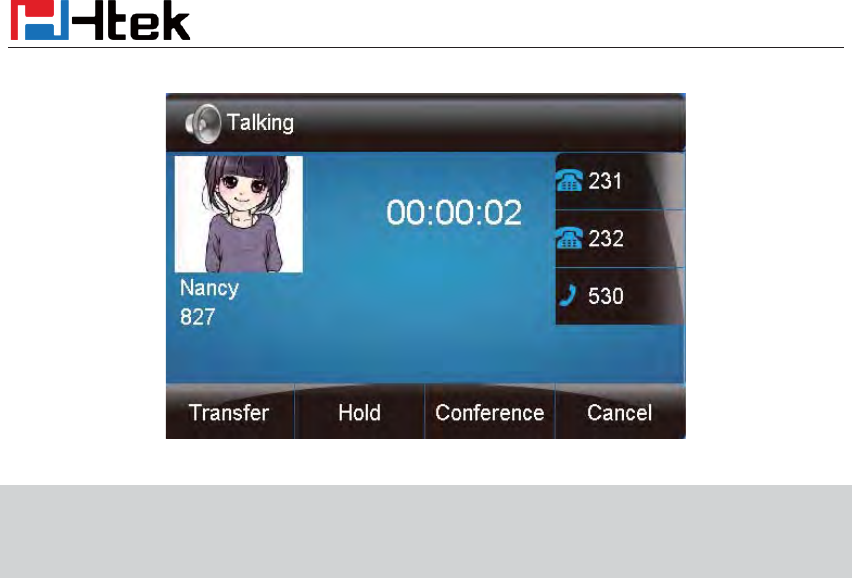
When you place a call from the contact, the phone idle screen will show the contact photo.
Basic Setting Configuration
59
Note:
The format of th
e photo supported is jpg or bmp
Photo size should be less than 2M bytes, name length should be less than 48.
To import or export the contact list
You can manage your phone’s local directory via phone or web user interface. But you can only
import or export the contact list via web interface.
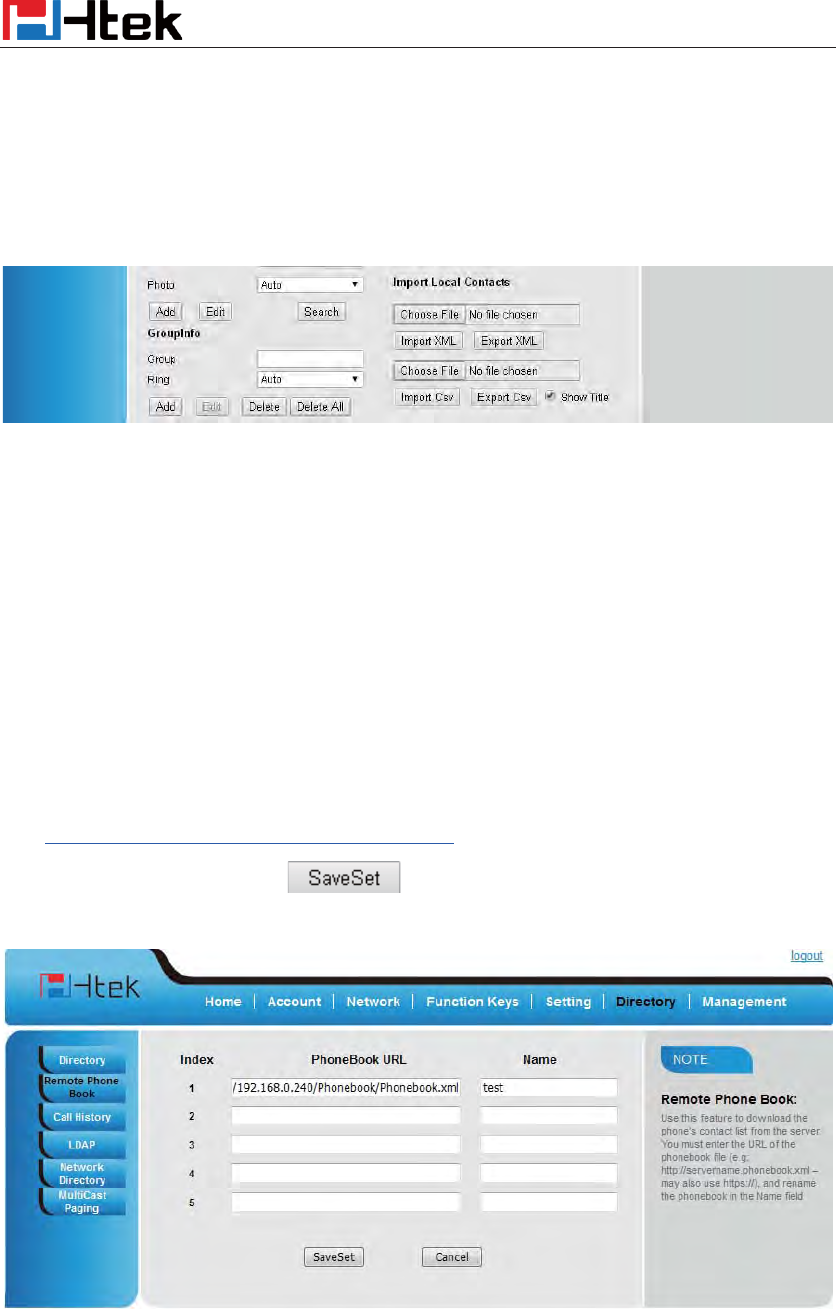
To import an XML file of contact list via web interface:
1. Click on Directory
2. Click Browse to select a contact list file (file format must be .xml) from your local system.
3. Click Import XML to import the contact list.
To export an XML file of contact list via web interface:
1. Click on Directory
2. Click Export XML to import the contact list.
To import a CSV file of contact list via web interface:
1. Click on Directory
2. Click Browse to select a contact list file (file format must be .csv) from your local system.
3. Click Import Csv to import the contact list.
Basic Setting Configuration
60
To export a CSV file of contact list via web interface:
1. Click on Directory
2. Click Export Csv to import the contact list.
Note:
If the xml file and CSV file more than 1000 contacts, the phone will only upload 1000 contacts.
Remote Phonebook
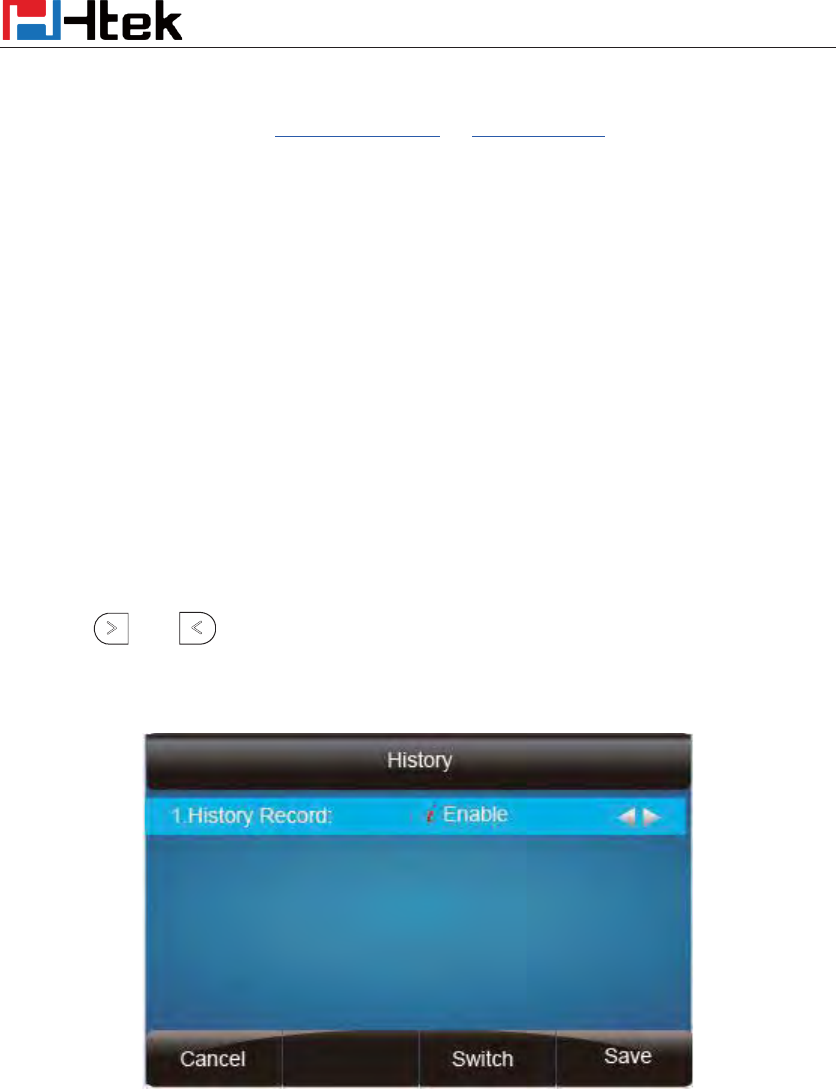
To set Remote PhoneBook via web interface:
1. Login the webpage and click DirectoryÆRemote Phone Book
2. Fill the path of the remote file in the Phone Book URL field.
For example,
http://192.168.0.240/Phonebook/Phonebook.xml
3. Fill the Name and then click to save the configuration.
To check the contacts via phone interface:
Press DirectoryÆLeft ButtonÆLeft Button, and then you can see the item you set, press enter you
Basic Setting Configuration
61
will find the detail.
For More detail, please refer to: Remote Phonebook on www.h-tek.com .
Note:
Every remote contact only supports 1000 contacts.
Call History
This phone maintains call history lists of Dialed Calls, Received Calls, Missed Calls and
Forwarded Calls. The call history list supports up to100 entries in all on phone interface and more
than 1500 items. You can check the call history, dial a call, add a contact or delete an entry from
the call history list. You should enable the history record feature in advance.
To enable the history record feature via phone interface:
1. Press MenuÆFeatureÆHistory Setting
2. Press and or Switch soft key to enable History record.
3. Press Save soft key to save the configuration.
To check the call history via phone interface:
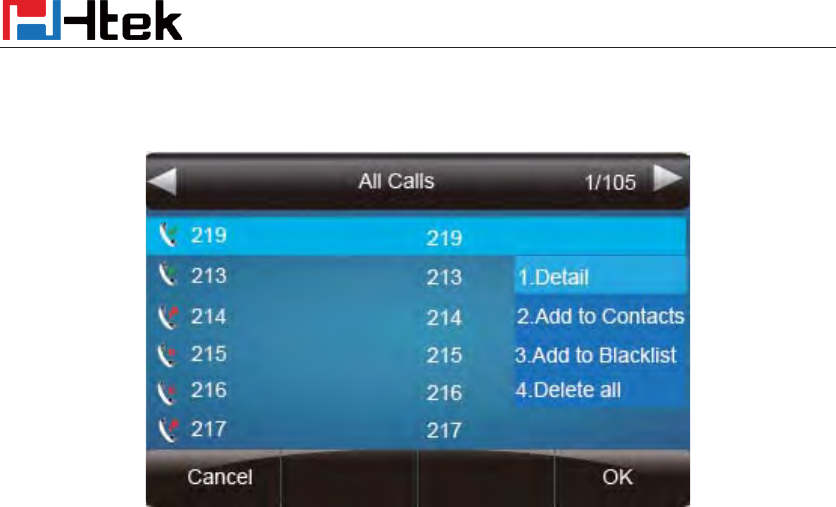
1. Press the History soft key. The LCD screen displays All Calls list.
2. Press Right or Left Key to switch among All Calls, Missed Calls, Received Calls, Dialed
Calls and Forwarded Calls.
3. Press to select the desired entry.
4. Press the Option soft key, and then select Detail from the prompt list.
Basic Setting Configuration
62
5. The detailed information of the entry appears on the LCD screen.
To delete an entry from the call history list via phone interface:
1. Press the History soft key.
2. Press Right or Left Key to switch among All Calls, Missed Calls, Received Calls, Dialed Calls
and Forwarded Calls.
3. Press UP or DOWN key to select the desired entry.
4. Press the Delete soft key.
To delete all entries from the call history list via phone interface:
1. Press the History soft key.
2. Press Right or Left Key to switch among All Calls, Missed Calls, Received Calls, Dialed Calls
and Forwarded Calls.
3. Press the Option soft key, and then select Delete All from the prompt list.
4. Press the OK soft key.
5. Press the OK soft key to confirm the deleting or the Cancel soft key to cancel.
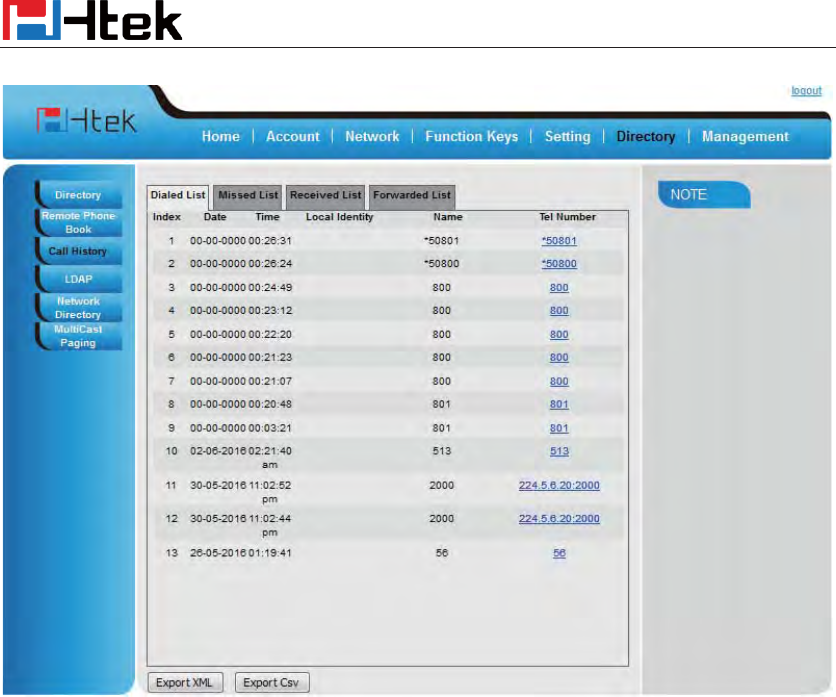
To check the call history via web interface:
1. Click DirectoryÆ Call History
2. Click Dialed List, Missed List, Received List, Forwarded List then you can see the history
list.
Basic Setting Configuration
63
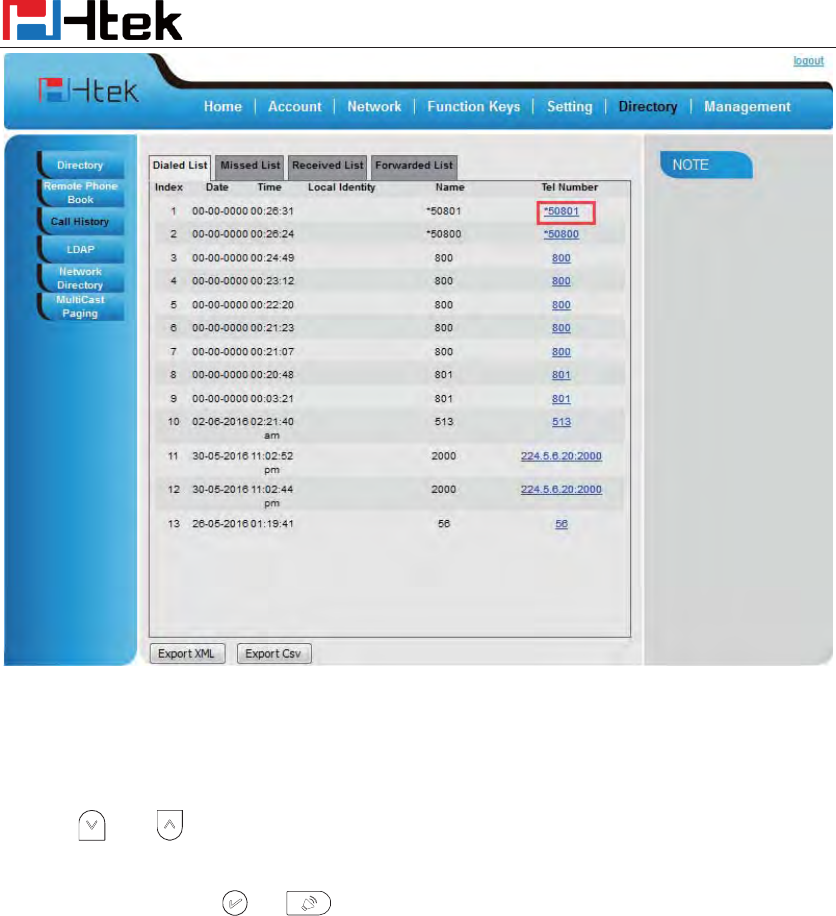
To Dial a call from Call History via web interface:
1. Click DirectoryÆCall History
2. Select the desired history item, and click Tel Number.
3. Then the call is dialed on phone.
Basic Setting Configuration
64
To Dial a call from Call History via phone interface:
1. Press History soft key or press Menu ė History ė Local history
2. Press and to select the targeted one.
3. Press the Send soft key, , or , or the corresponding line key.
LDAP Phonebook
When use the LDAP feature, you can get the LDAP Phonebook directly.
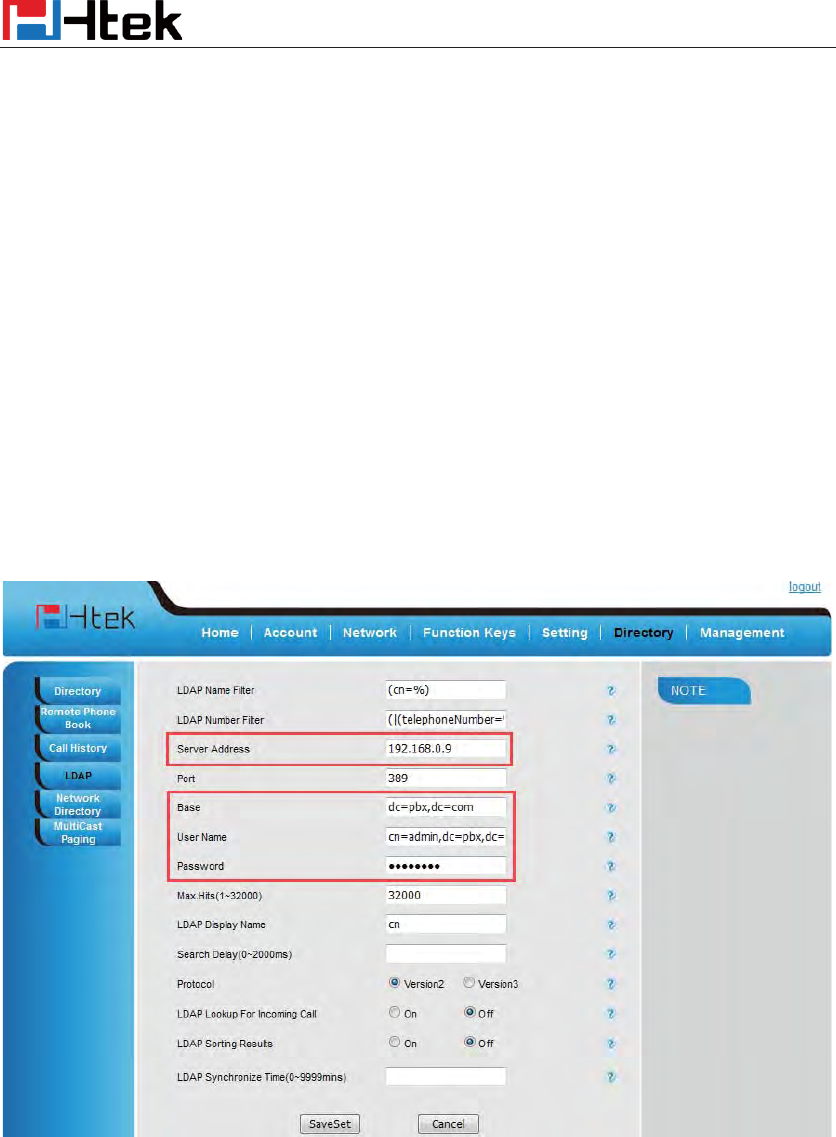
To configure LDAP via web interface:
1. Login webpage and click DirectoryÆLDAP
2. Filled the LDAP Name Filter:
a) This parameter specifies the name attributes for LDAP searching. The “%” symbol in
the filter stands for the entering string used as the prefix of the filter condition.
b) For example (cn=%), when the name prefix of the cn of the contact record matches the
search criteria, the record will be displayed on the IP PHONE LCD.
3. Filled LDAP Number Filter:
Basic Setting Configuration
65
This This parameter specifies the number attributes for LDAP searching.
4. Filled Server Address: Fill the domain name or IP address of the LDAP Server.
For example: 192.168.0.9
5. Port(the port of the LDAP Serve) Base, User Name, Password
6. Max.Hits(1-32000): the maximum number of the search results to be returned by the LDAP
server.
7. LDAP Display Name: the display name of the contact record displayed on the LCD screen.
8. Filled the relative value and then click save button the save the settings.
Following is the example screenshot for the configuration.
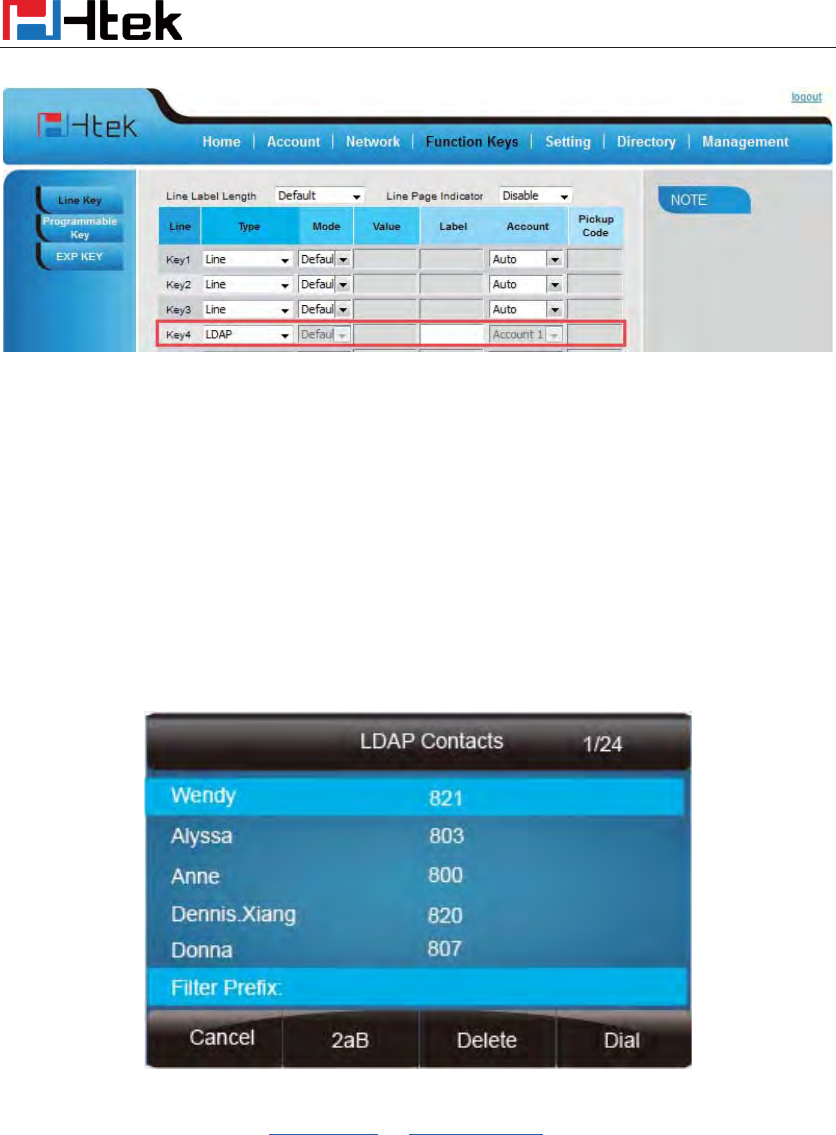
To Configure LDAP Key
To configure LDAP Key via web interface:
1. Click Function KeyÆLine KeyÆ choose Line Key 1(for example)
2. Select LDAP in the Type field.
3. Click Saveset to save the configuration.
Basic Setting Configuration
66
To Configure LDAP Key via phone interface:
1. Press MenuÆFeatureÆFunction KeysÆLine Keys as Function KeysÆLine Key 1
2. Select LDAP in the Type field
3. Press save or OK key to save the configuration.
When press the LDAP Key the LCD will display as following:
For More detail, please refer to LDAP Notes on www.h-tek.com
Search Contact:
You can search contact in all contacts, local contacts, remote contacts and LDAP contact.
To search contact in all contacts:
1. Click the Directory softkey on Idle interface.
2. Click the More Softkey, then you can see the Search softkey
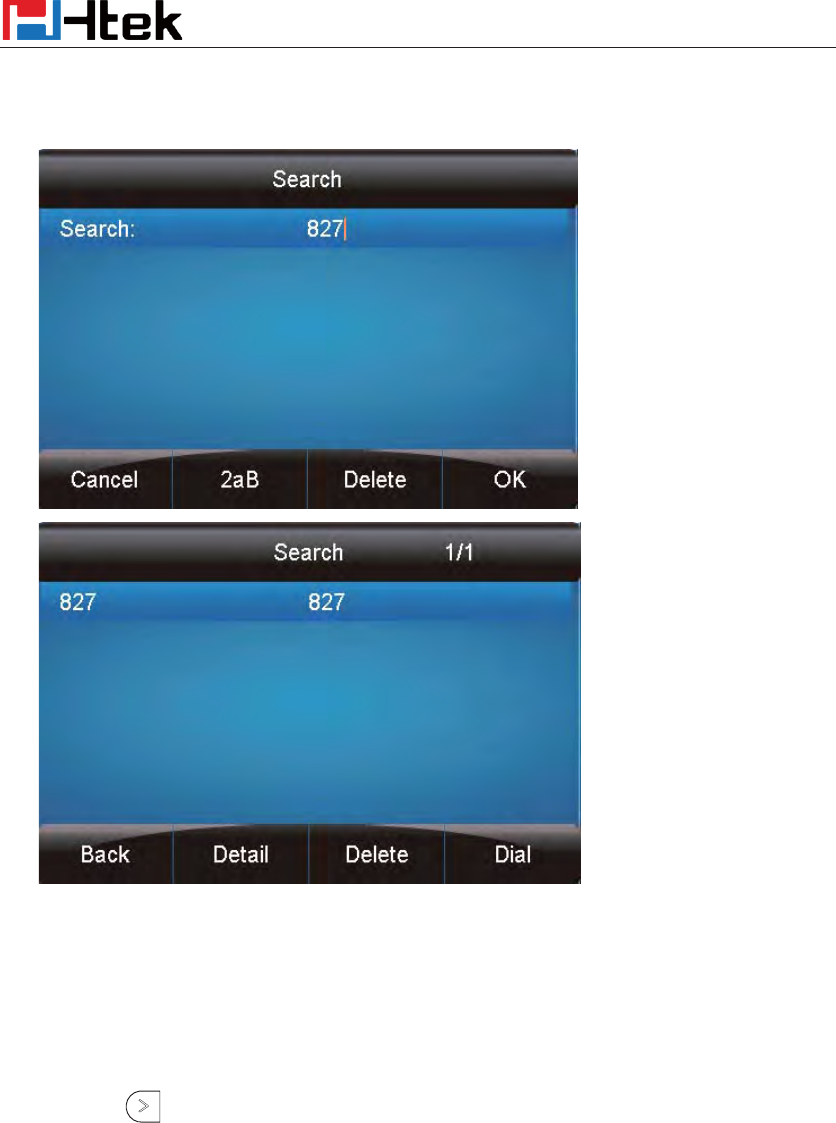
Basic Setting Configuration
67
3. Click the Search softkey, you can enter the desired part of name or part of number.
4. Click Ok softkey, then with the search content to match the contact will be displayed on the
LCD.
Note:
If you don’t click the OK softkey, then IP Phone will display the relevant contacts automatically
within 5 seconds
To search contact in Local contacts:
1. Click the Directory softkey on Idle interface.
2. Click the button and select the Local contacts list.
3. Click the More Softkey, then you can see the Search softkey
4. Click the Search softkey, you can enter the desired part of name or part of number.
5. Click Ok softkey, then with the search content to match the contact will be displayed on the
LCD.
Note:
If you don’t click the OK softkey, then IP Phone will display the relevant contacts automatically
within 5 seconds
To search contact in Remote contacts:
1. Click the Directory softkey on Idle interface.
Other features settings
68
2. Click the button and select the remote contacts list.
3. Select the desired the remote contact and click Enter softkey.
4. Click the Search softkey, you can enter the desired part of name or part of number.
5. Click Ok softkey, then with the search content to match the contact will be displayed on the
LCD.
Note:
If you don’t click the OK softkey, then IP Phone will display the relevant contacts automatically
within 5 seconds
To search contact in LDAP contacts:
1. Click the LDAP function key.
2. Enter the first character or more of contact’s name.
3. Select the desired the remote contact and click Enter softkey.
4. Then IP Phone will display the relevant contacts automatically within Search Delay.
Other features settings
Dial Plan
Dial plan is a string of characters that governs the way this phone processes the inputs received
from your phone keypad. This phone supports dial plan with following accept digits:
1,2,3,4,5,6,7,8,9,0,*,#
Grammer
Description
x
any digit from 0-9;
xx+
at least 2 digit number;
^
exclude;
,
hear dial tone;
[3-5]
any digit of 3, 4, or 5;
[147]
any digit 1, 4, or 7;
<2=011>
replace digit 2 with 011 when dialing.
To configure dial plan via web interface:
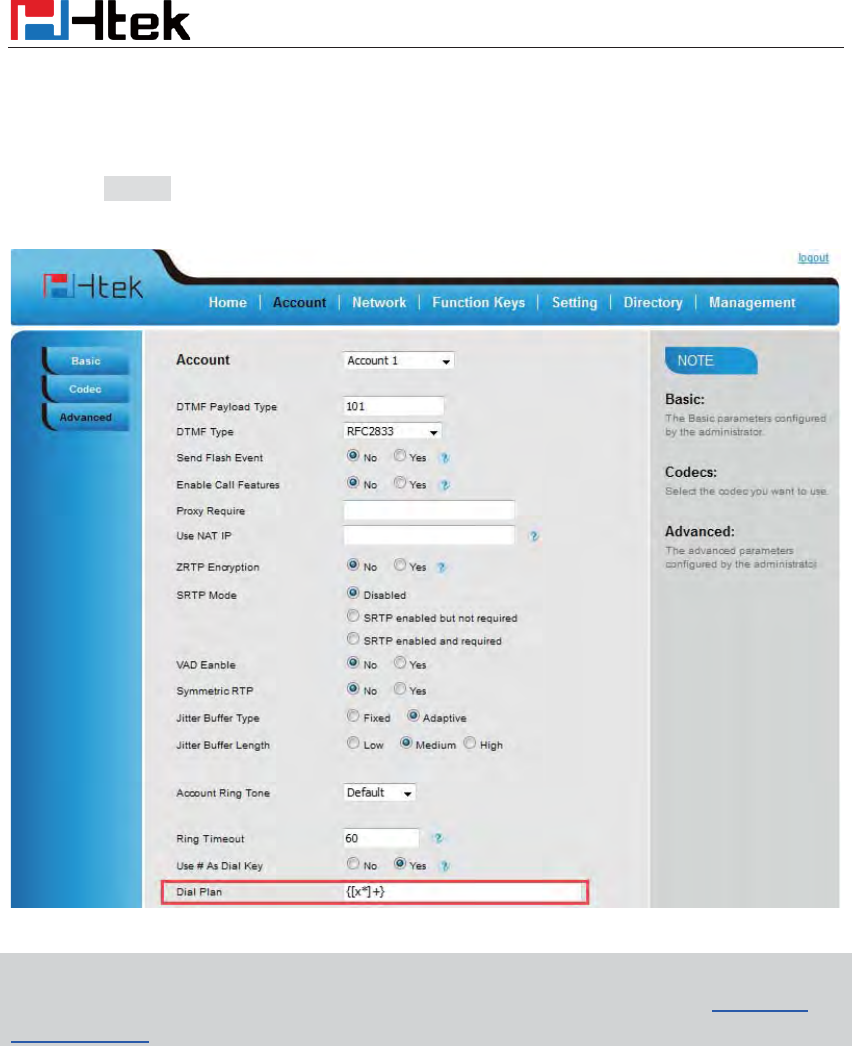
Other features settings
69
1. Click Account—Advanced—Dial Plan.
2. Filled the value in dial plan field.
3. Click SaveSet to save the configuration.
Note:
Illegal input will fall back to default
: {[x*]+}. For More, please refer to dial plan
on
www.h-tek.com
Emergency Call
Public telephone networks in countries around the world have a single emergency telephone
number (emergency services number), that allows a caller to contact local emergency services for
assistance when required. The emergency telephone number may differ from country to country. It
is typically a three-digit number so that it can be easily remembered and dialed quickly. Some
countries have a different emergency number for each of the different emergency services.
You can specify the emergency telephone numbers on the IP phone for contacting the emergency
services in an emergency situation.
Other features settings
70
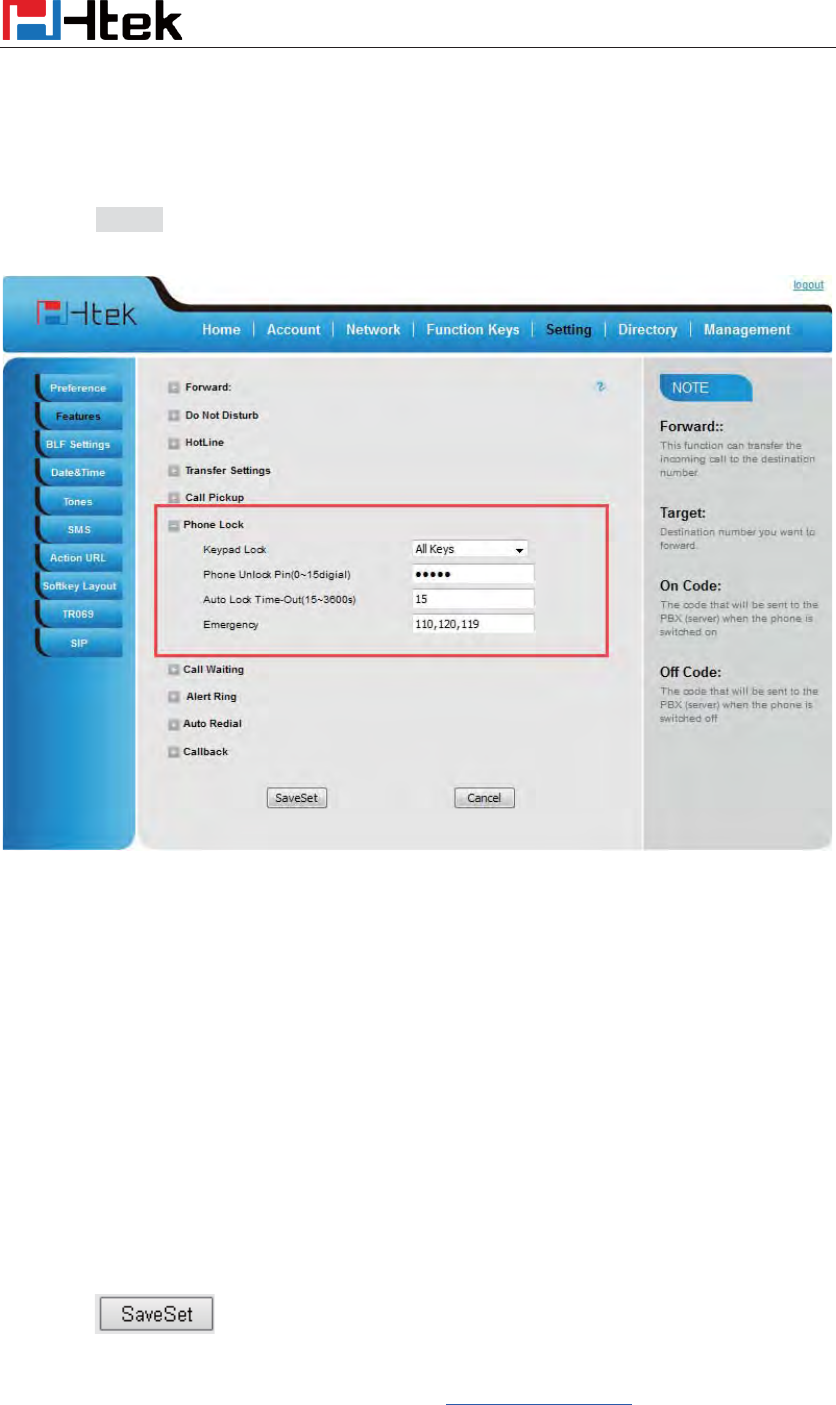
To configure emergency call via web interface:
1. Click SettingÆFeaturesÆPhone Lock
2. Enter the emergency services number(e.g.110,119,120) in the Emergency field,
3. Click SaveSet to save the configuration.
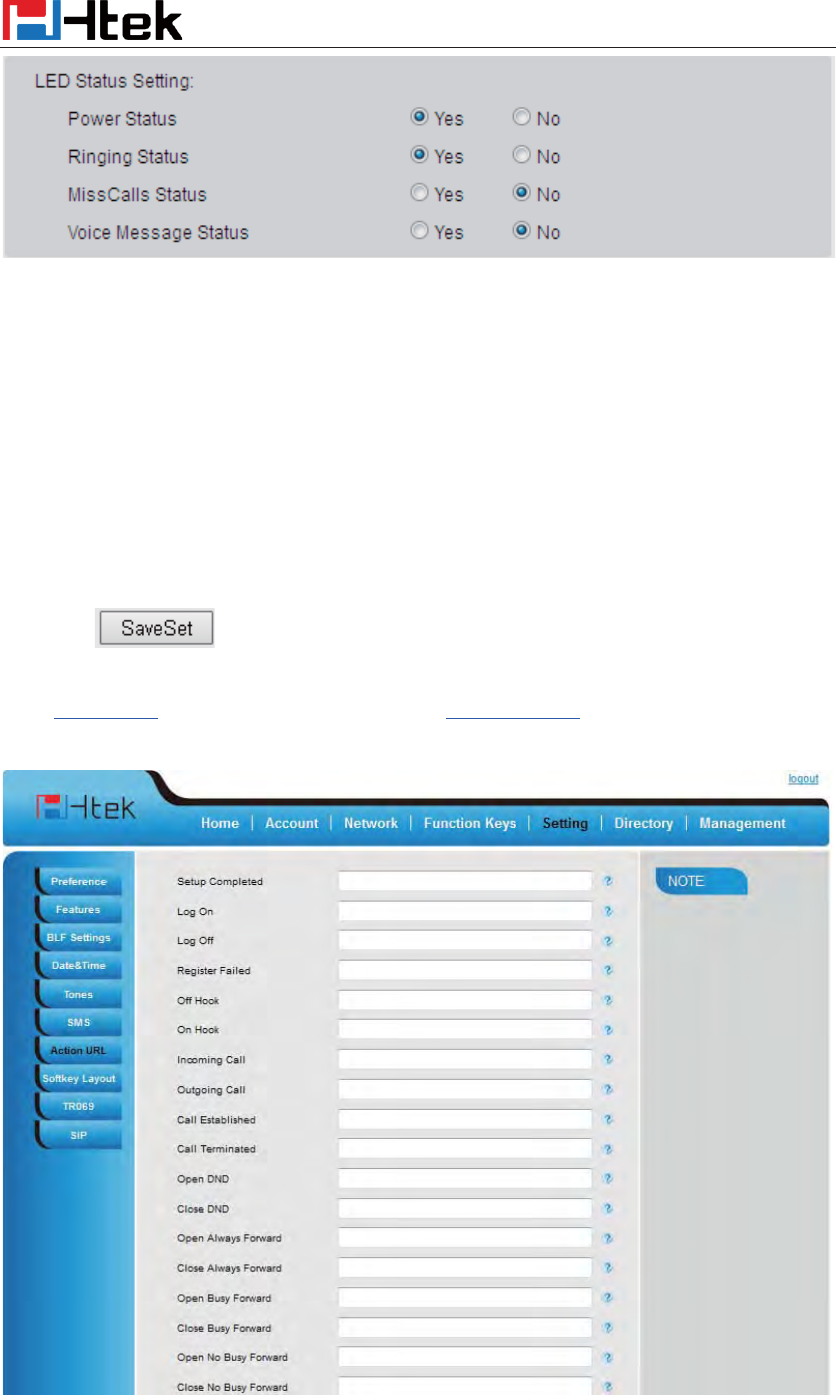
LED Status Setting
The LED Status setting mainly defines the power indicator LED.
To configure LED Status via web interface:
1. Click SettingÆPreference
2. Select Yes or No for Power Status, Ringing Status, Miss Calls Status and Voice Message
Status.
3. Click for the setting.
For the LED status description, see: LED Instruction Power Indicator LED
Other features settings
71
Action URL
To configure action url via web interface:
1. Click SettingÆAction URL
2. Filled the needed value in the necessary blank.
3. Click to save the setting.
Click Action URL for more how to use, or check on www.h-tek.com
Other features settings
72
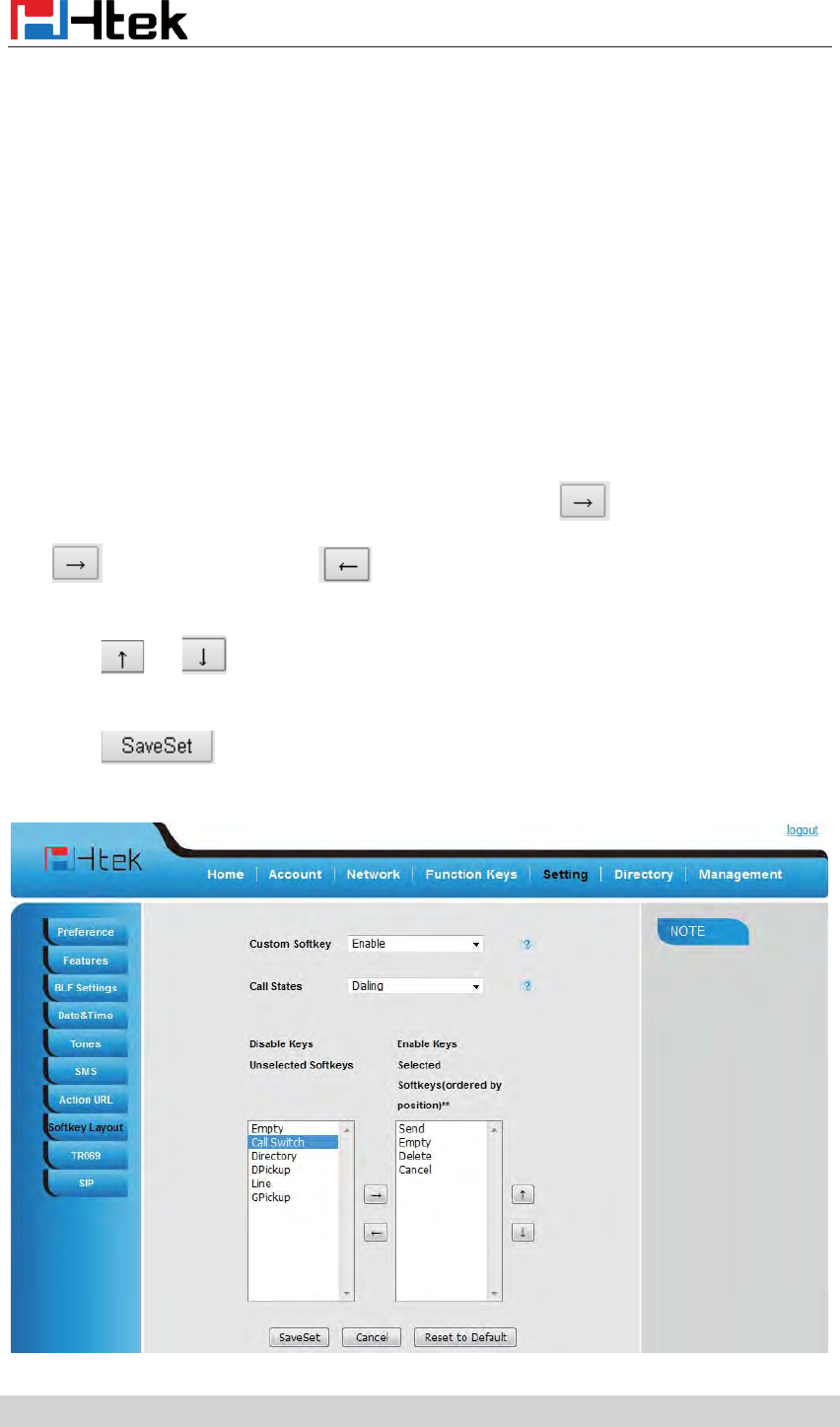
Softkey Layout
This feature mainly defines which shown on the soft key in some status. For example, what the
soft key displays when dialing, or talking.
To configure Soft key via web interface:
4. Click SettingÆSoftkey Layout
5. Select Enable for Custom Softkey
6. Select call States.
7. Select the feature form the disable key to enable key field by
Disable to Enable field. Delete the Enable, and it will back to Disable field.
8. Click or to change to position or each feature.
9. Click to save the configuration.
Note:
Other features settings
73
1. When there more than 5 items in the Enable field, the last softkey will display More, and
last two item will show in the next page softkey, you can check by press more.
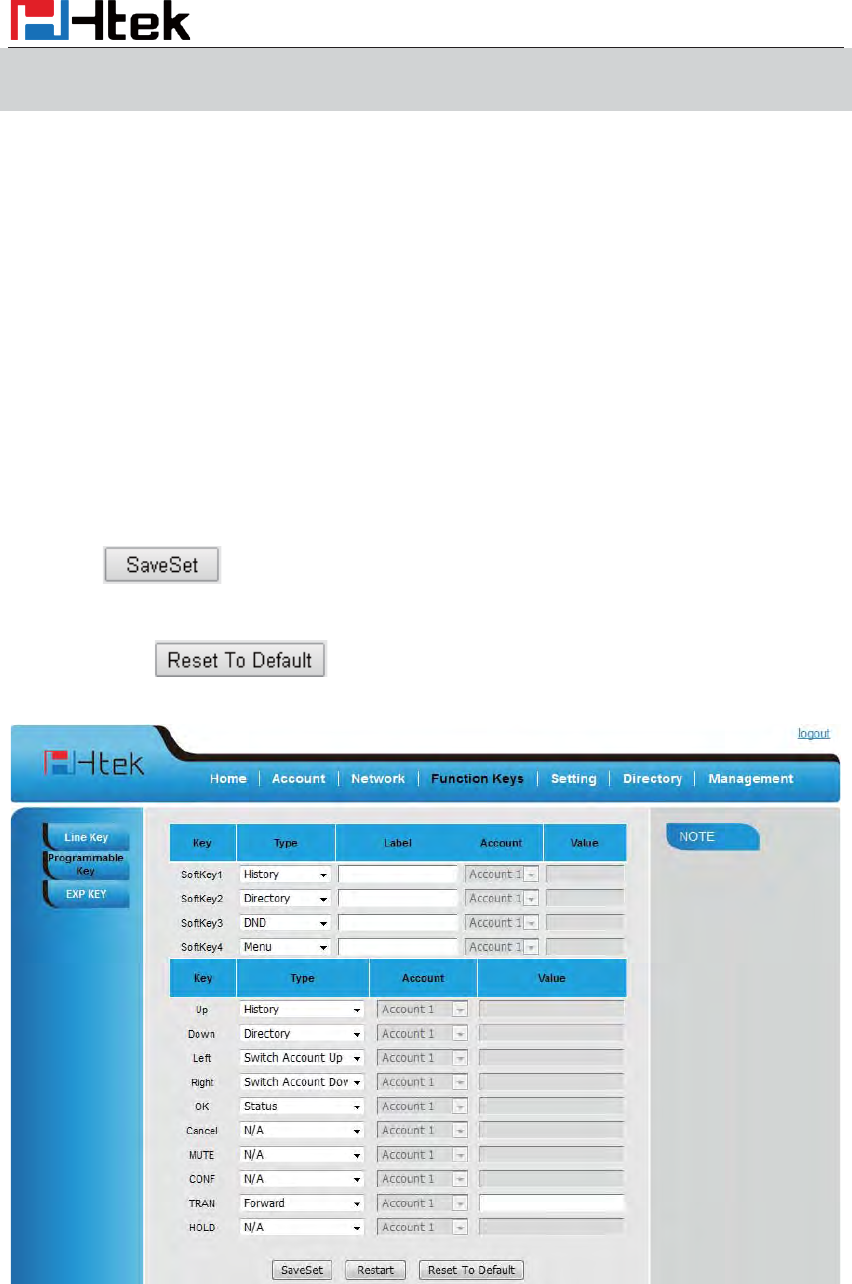
Programmable Key
For the default keys as Soft keys, Navigation keys and so on, you can define them as some
specific feature, and it works only on the idle page.
To configure Programmable Key via web interface:
1. Click Function KeysÆProgrammable Keys
2. Select the desired Key to set.
3. Click to save the setting.
4. By clicking , all setting of the keys will be back to default.
Exp Key
It only works when there is expansion module connected with the phone.

Basic Call Features
74
For Exp Key configuration, please refer to: UC40 User manual.
Basic Call Features
Place a Call
There are three ways to dialing a call: Handset, Headset and Hands-free speakerphone.
To place a call by Handset
1. Pick up the handset, or press a line key and dial the necessary number.
2. Press or or press the send softkey, then the call is sending.
To place a call by Headset:
1. Press the ( light is Green),
2. Enter the desired number.
3. Press or , or press the Send softkey, then the call is sending.
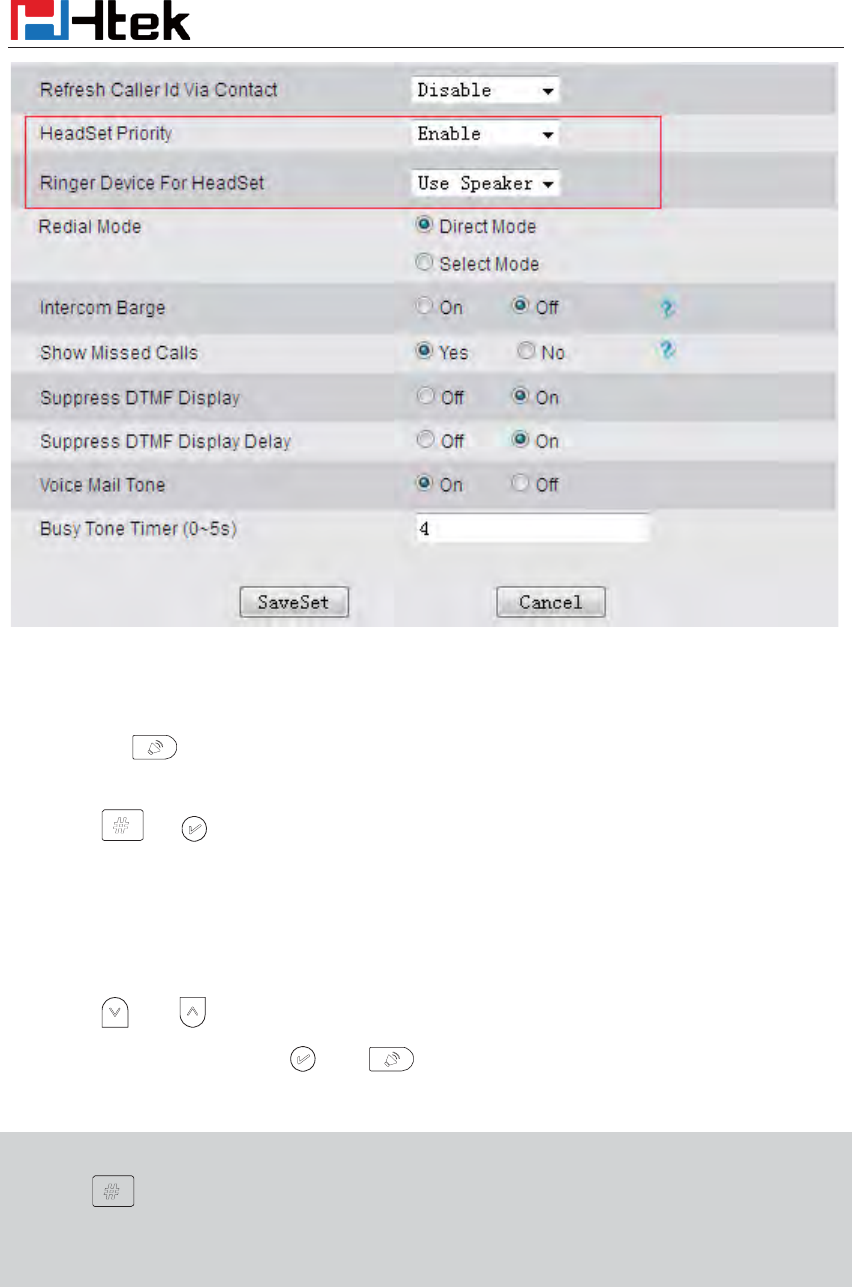
Using headset to place and answer calls for all time
1. Click webpage Setting ÆPreference
2. HeadSet Priority ÆEnable
3. Ring Device For HeadSet ÆUser Headset
4. Press
Basic Call Features
75
Placing a call by hands-free speakerphone
1. Press the , or press the Line key, then you can hear the dial tone.
2. Press the number.
3. Press or press the Send soft key, then the call is sending.
To place a call by call history or Directory via phone interface.
1. Press the History soft key (On the idle page) or Menu ė History /Directory
2. Press and to select the targeted one.
3. Press the Send soft key, or , or , or the corresponding line key, then the call is
sending.
Note:
1.
The key is set to be a send key.
For more information, refer to the Key as Send on
page
2. During the call, you can also change among Headset, Handset or Free-speaker mode.
Making two calls with one line and one account
1. Press a line key and dial one phone number, then make a call.

Basic Call Features
76
2. Press the corresponding line key
3. Dial another phone number,
4. Press the Send soft key, or , then make the second call.
End a Call
Here shows to end a call during three modes:
To end a call by Handset
Press the Cancel soft key or hang up the handset, or press
To end a call under Headset Mode
Press the Cancel soft key or press , or press .
To end a call under hands-free speakerphone Mode
Press the Cancel soft key or press , or press .
Note:
1. During the conference, to end the call is same as mentioned above.
Redial a Call
1. To redial the last placed call from the IP Phone
2. Press directly when LCD is on the idle interface.
Receive a Call
There are three ways to receive a call when the phone is ringing:
To receive a call by handset
Pick up the handset the conversation is built.
To receive a call by headset
Press and now the conversation is built.
Basic Call Features
77
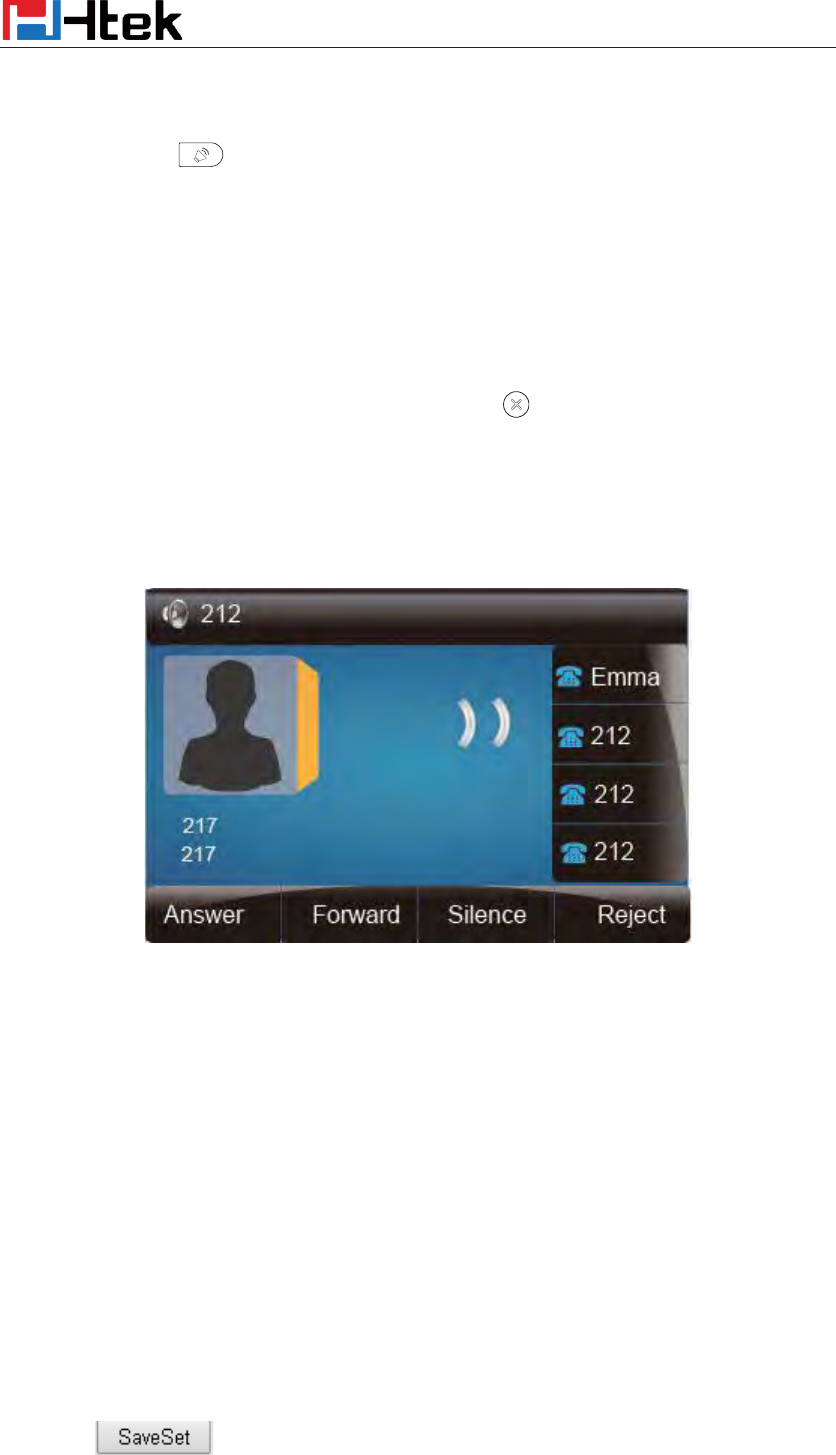
To receive a call by hands-free speaker
1. Option 1: Press directly.
2. Option 2: Press Answer soft key.
3. Option 3: Press the Line key (flashes red).
Moreover, some other action can be done by soft key when the call is coming.
1. To press the Reject soft key to reject the call. Or press to reject the current call.
2. To press Forward to forward to another phone.
3. To press Silence soft key, and then the call will keep silent, no ring tone display.
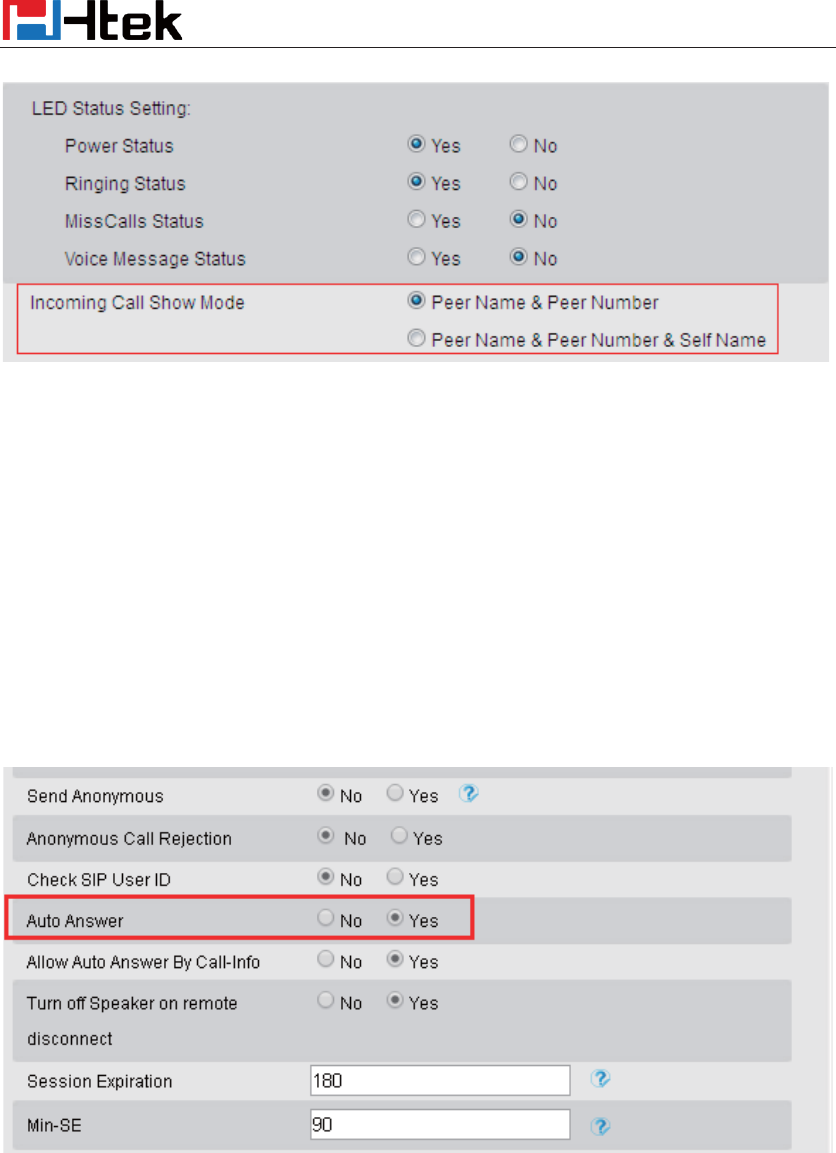
Incoming Call Show Mode
There are two incoming call show modes for this phone:
1. name and number of the contacts
2. name and number of the incoming call and the account which is connecting
To set incoming call show mode via web interface:
1. Click settingÆ preference
2. Select the desire mode for the incoming call show mode
3. Click to save the setting.
Basic Call Features
78
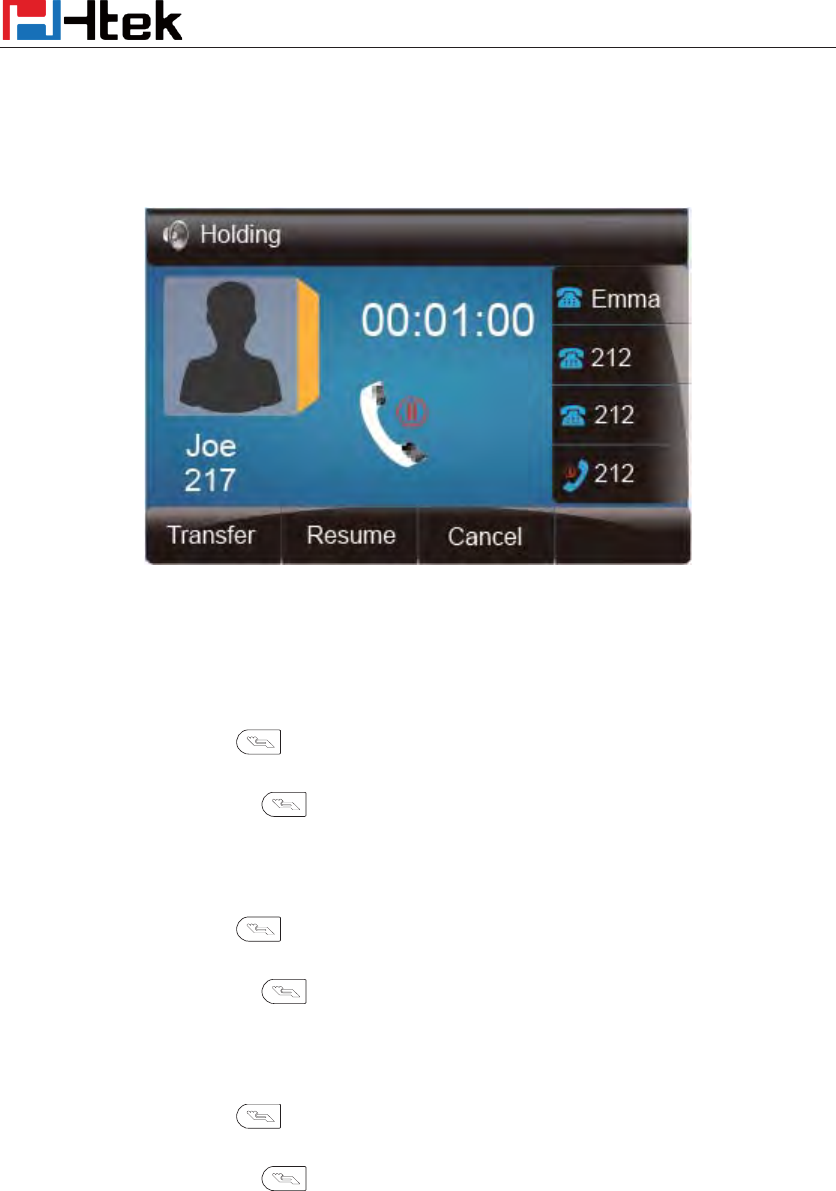
Auto Answer
Enable auto answer feature, you will answer all incoming call automatically.
To enable Auto Answer via Web interface
1. To Click Account ė Advanced
2. To choose Yes for the Auto Answer.
3. To click Saveset to save the configuration.
To Disable Auto Answer via Webpage
1. To Click Account ė Advanced
2. To choose No for the Auto Answer.
3. To click Saveset to save the configuration.
Basic Call Features
79
Call Hold
When use hold feature, the Hold icon will show on the display.
To make a call on hold during three modes:
To hold a call under handset mode:
1. Press Hold soft key or to hold the current call.
2. Press Resume soft key or to resume the call on hold.
To hold a call under headset mode:
1. Press Hold soft key or to hold the current call.
2. Press Resume soft key or to resume the call on hold.
To hold a call during the speaker mode:
1. Press Hold soft key or to hold the current call.
2. Press Resume soft key or to resume the call on hold.
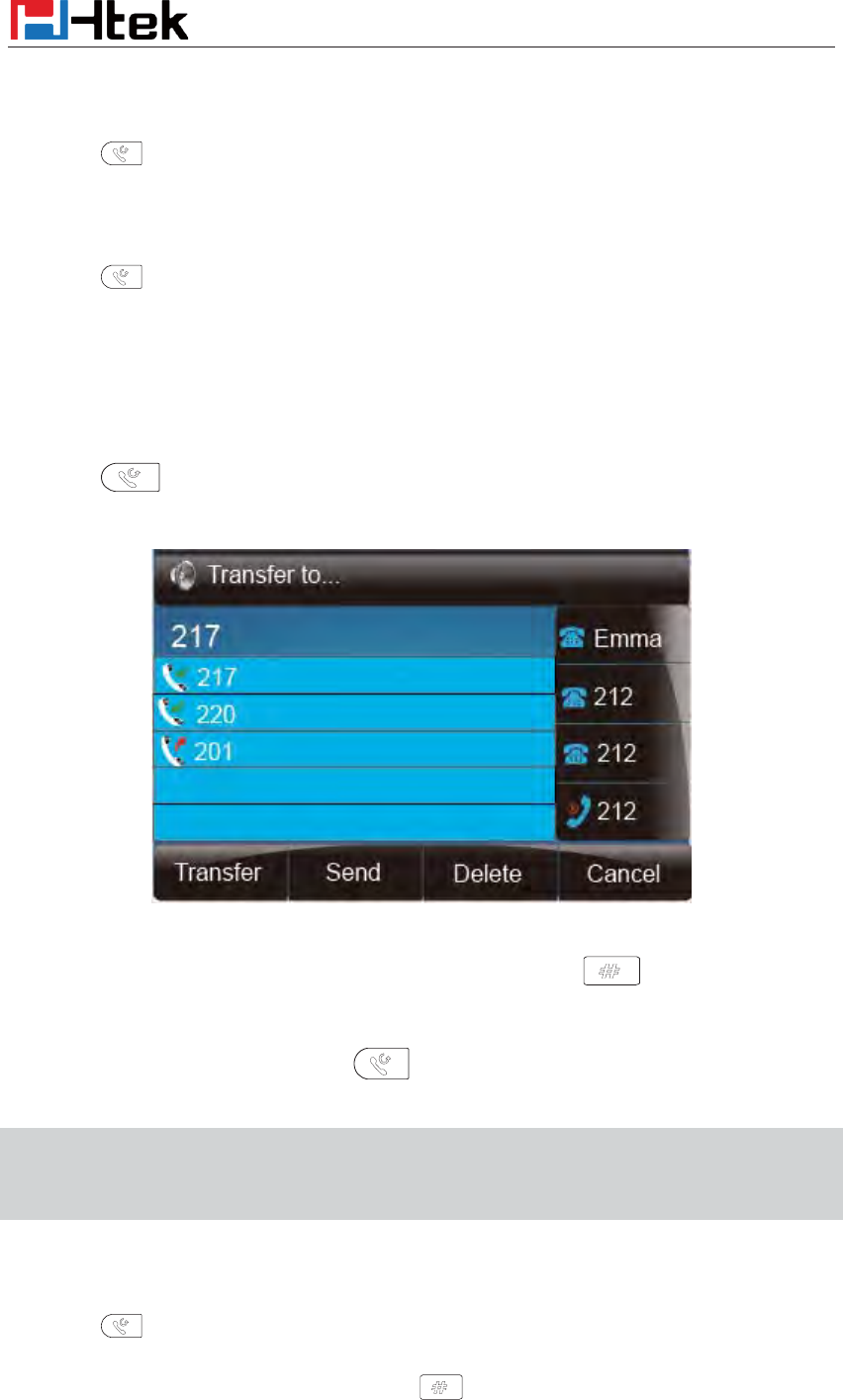
Call Transfer
This phone supports blind, attended and Semi-Attended Transfer.
Blind Transfer
Basic Call Features
80
When you use this feature, you can transfer
1. Press or Transfer soft key during the conversation, the call is on hold now.
2. Enter the number that transfers to.
3. Press , and now the blind transfer completed.
Attended Transfer
When you use this feature, you can
1. Press or transfer soft key during the conversation, the call is on hold now.
2. Enter the number that transfer to, and press the send soft key or .
3. Start the second conversation, press or transfer soft key, then, transfer completed.
NOTE:
To transfer calls across SIP domains, SIP service providers must support transfer across SIP
domains. Blind transfer will usually use the primary account SIP profile.
Semi-Attended Transfer
1. Press or transfer soft key during the conversation, the call is on hold now.
2. Enter the number transfer to, and then press , then you can hear the ring tone.
Basic Call Features
81
3. Press or the Tran soft key, and now the Semi-attended transfer completed.
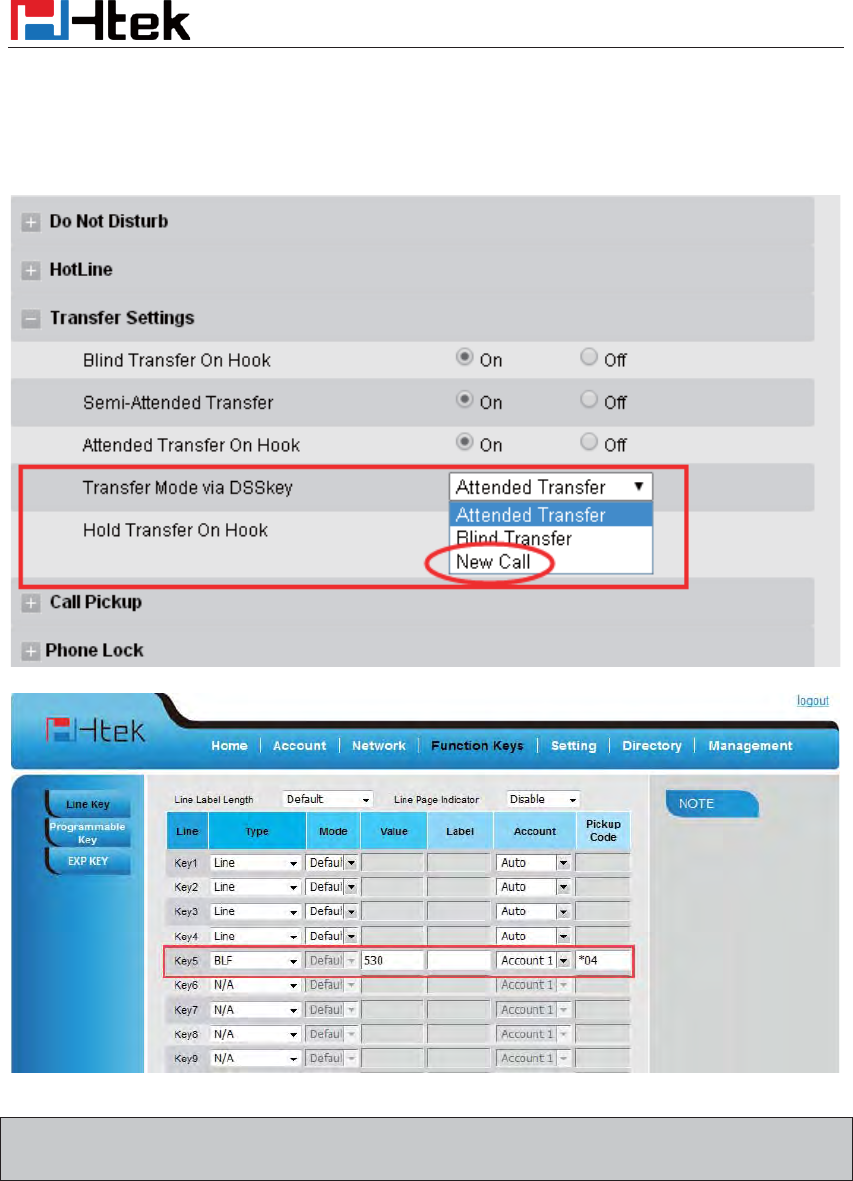
BLF Transfer
1. Set a Programmable Key or line key is set as BLF. For how to set BLF, please refer to BLF
2. Press or transfer soft key during the conversation, the call is on hold now.
3. Press BLF key then realize blind, attended and Semi-Attended Transfer.
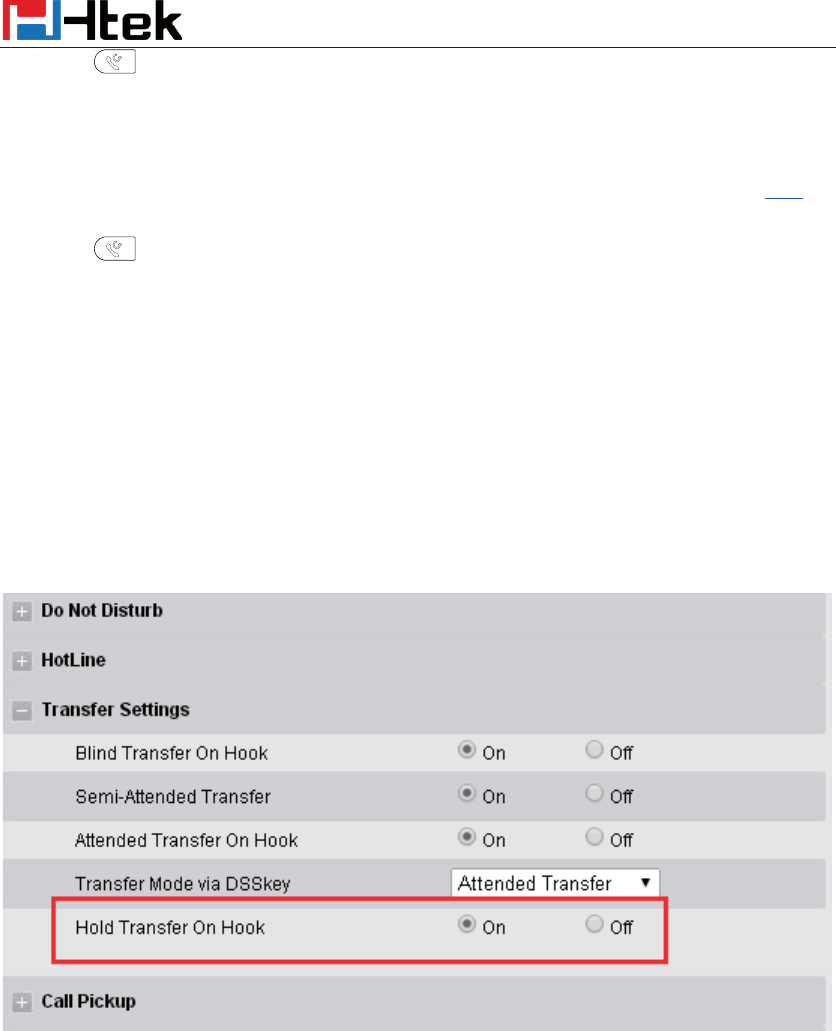
Hold transfer on hook:
1. Setting Æ Features Æ Transfer Setting: Hold Transfer On Hook: ON.
2. A place a call to B, B answer, A press the hold softkey and place a call to C, A cancel the call
when C is ringing or answering, then C and B in the same call and the transfer is successful.
Hold transfer on Three Way conference:
1. Setting Æ Features Æ Three Way Call Release Type: Transfer.
2. A place a call to B, B answer, A place a call to C again, C answer, A press the conference then
A , B and C will establish meeting.
3. A press the Cancel softkey or on-hook to exit the meeting in the process of talking.
4. Then B and C will continue to talk.
Transfer to New Call via web interface
1. Click Setting ė Feature
2. Select Transfer Mode via DSS key ė New Call
Basic Call Features
82
3. Select the desired Line or Line Key and select Transfer in the Type.
4. Enter the phone number in the Value field.
NOTE: if the person that wanted to be spoken to do not want to answer the call, then the person
that answered the coming call could use this function.
Call Conference
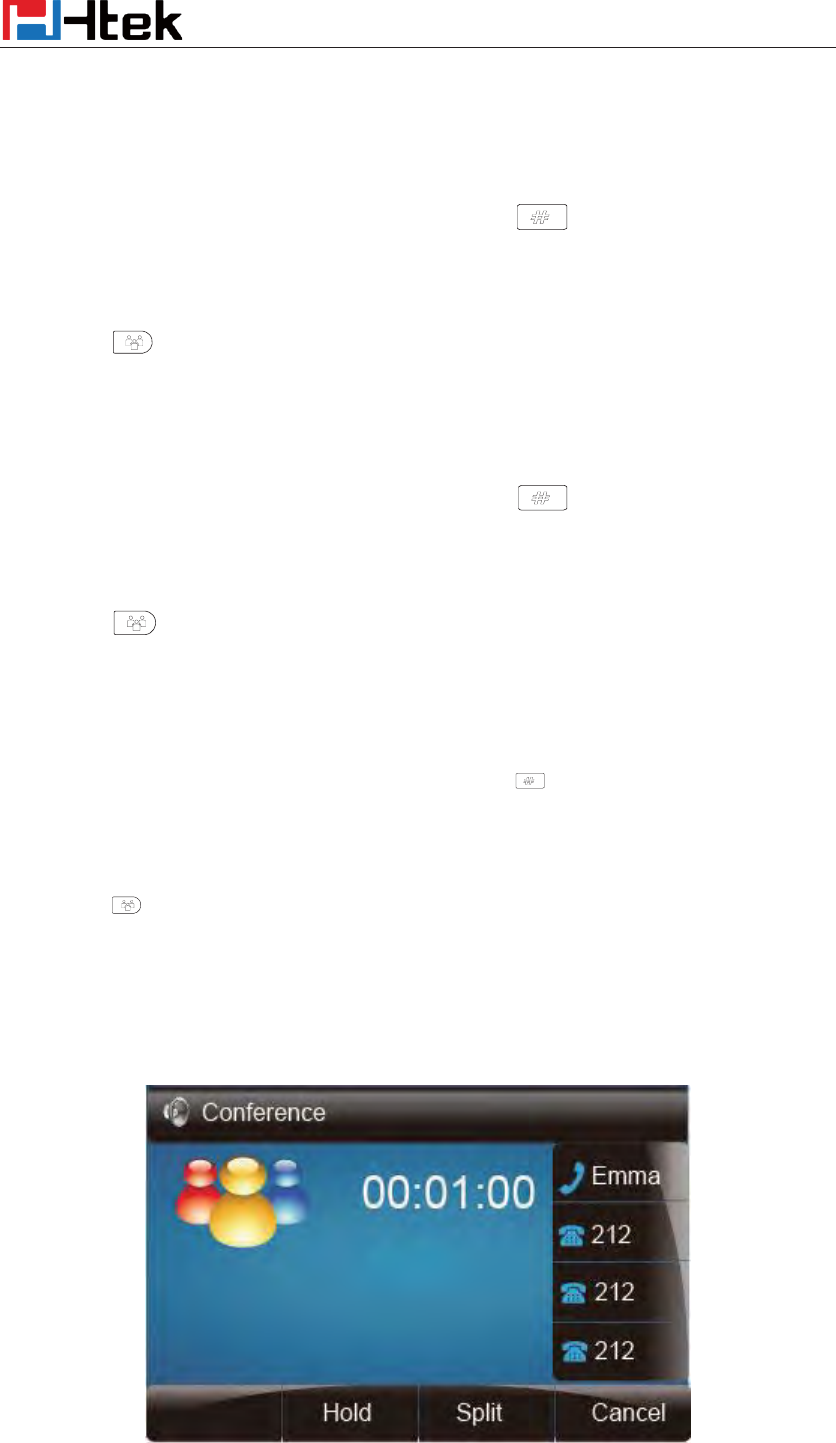
This IP Phone supports up to 5-way conference.
5-way conference
Basic Call Features
83
1. Assuming that call party A and B are in conversation. A wants to bring C, D and E in a
conference
2. A press line 2 key, the call is placed on hold.
3. A enter the number of C and then press send soft key or .
4. C answering the call.
5. A press or the conference soft key, then A, B and C are now in a conference.(and now
this is 3-way conference)
6. A press line 3 key, the current 3-way conference is placed on hold.
7. A enter the number of D and then press send soft key or .
8. D answering the call.
9. A press or the conference soft key, then A, B, C and D are now in a conference.(and
now this is 4-way conference)
10. A press line 4 key, the call is placed on hold.
11. A enter the number of E and then press send soft key or .
12. E answering the call.
13. A press or the conference soft key, then A, B, C, D and E are now the 5-way conference
is built.
14. A end the call, the conference is finished.
Basic Call Features
84
Note:
1.
If C does not answer the call, A can back to continue the conversation with B;
2.
Once A hangs up the call, the conference is ended, while if B or C drops the call, A&C or
A&B conversation continues.
3.
The
conference feature is not available on all servers. For more information, contact your
system administrator.
4. To realize the 5 way conference, the line should be all available.
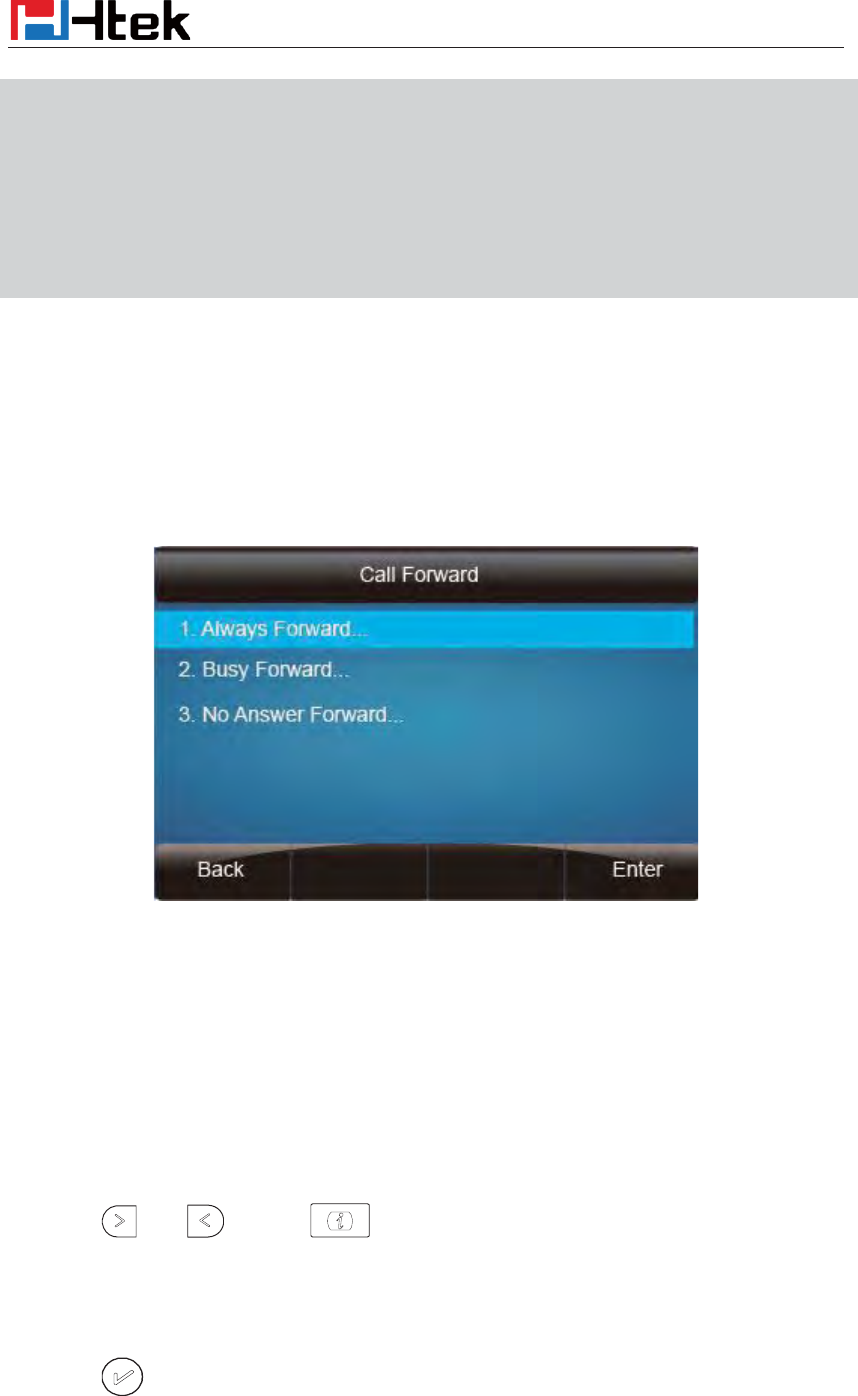
Call Forward
This phone supports static forward (always forward, busy forward and no answer forward) and
dynamic forward
To configure static forward
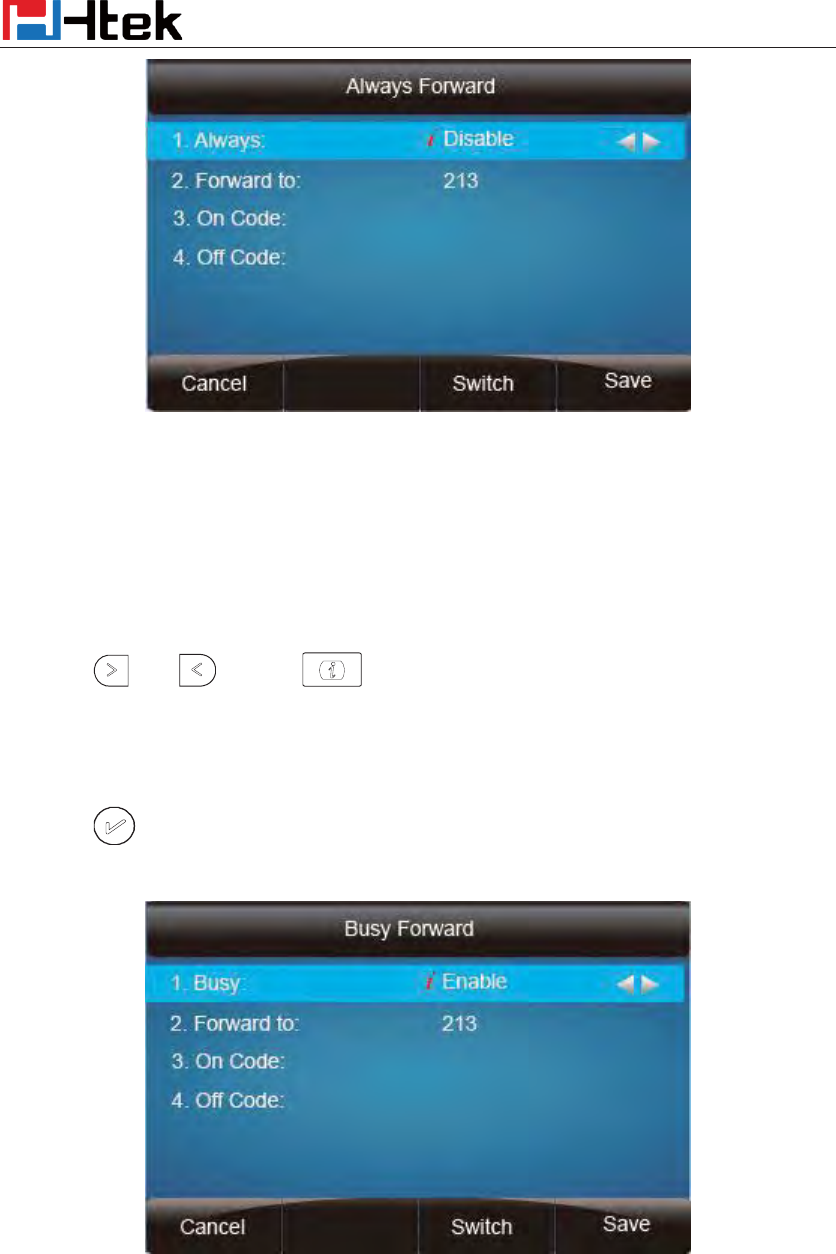
To configure always forward
With this feature, all incoming calls will forward immediately to configured number.
1. Press Menu ė Features ė Call forward ėAlways Forward.
2. Press and or press to select the enable choice
3. Enter the forward to number and on code (optional), off code (optional).
4. Press or Save soft key to save the configuration.
Basic Call Features
85
To configure busy forward
With this feature, the incoming calls are immediately forwarded if the phone is busy.
1. Press Menu ėFeatures ė Call forward ėBusy forward.
2. Press and or press to select the enable choice.
3. Enter the forward to number and on code (optional), off code (optional).
4. Press or Save soft key to save the configuration.
To configure no answer forward
No Answer Forward: Incoming calls are forwarded if not answered after some time.
1. Press Menu ėFeatures ė Call forward ėNo answer forward.
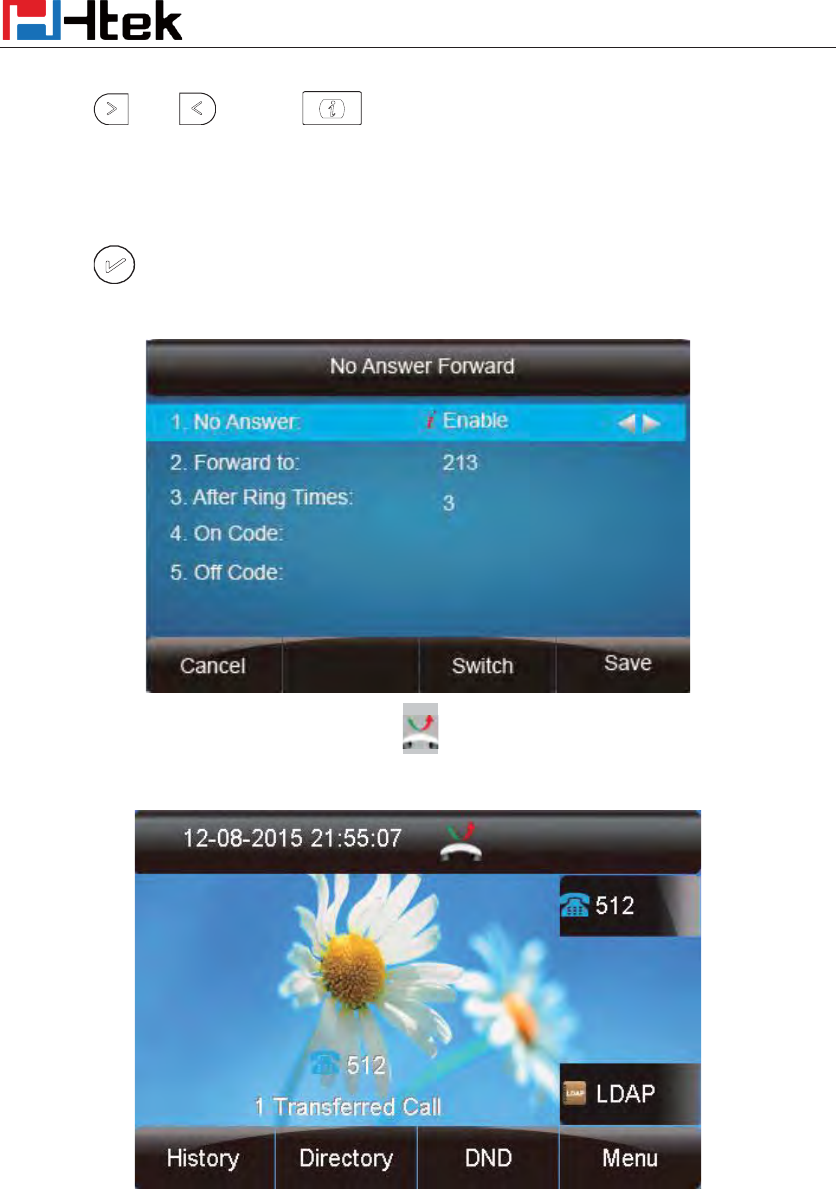
Basic Call Features
86
2. Press and or press to select the enable choice
3. Enter the forward to number and on code (optional), off code (optional).
4. Press or Save soft key to save the configuration.
When the Forward feature is enabled, the Icon will display on Top of the LCD.
To configure Forward via Web Interface
1. Setting ė Features
2. Click On for the Always/Busy/No Answer
3. Fill the Forward to Number
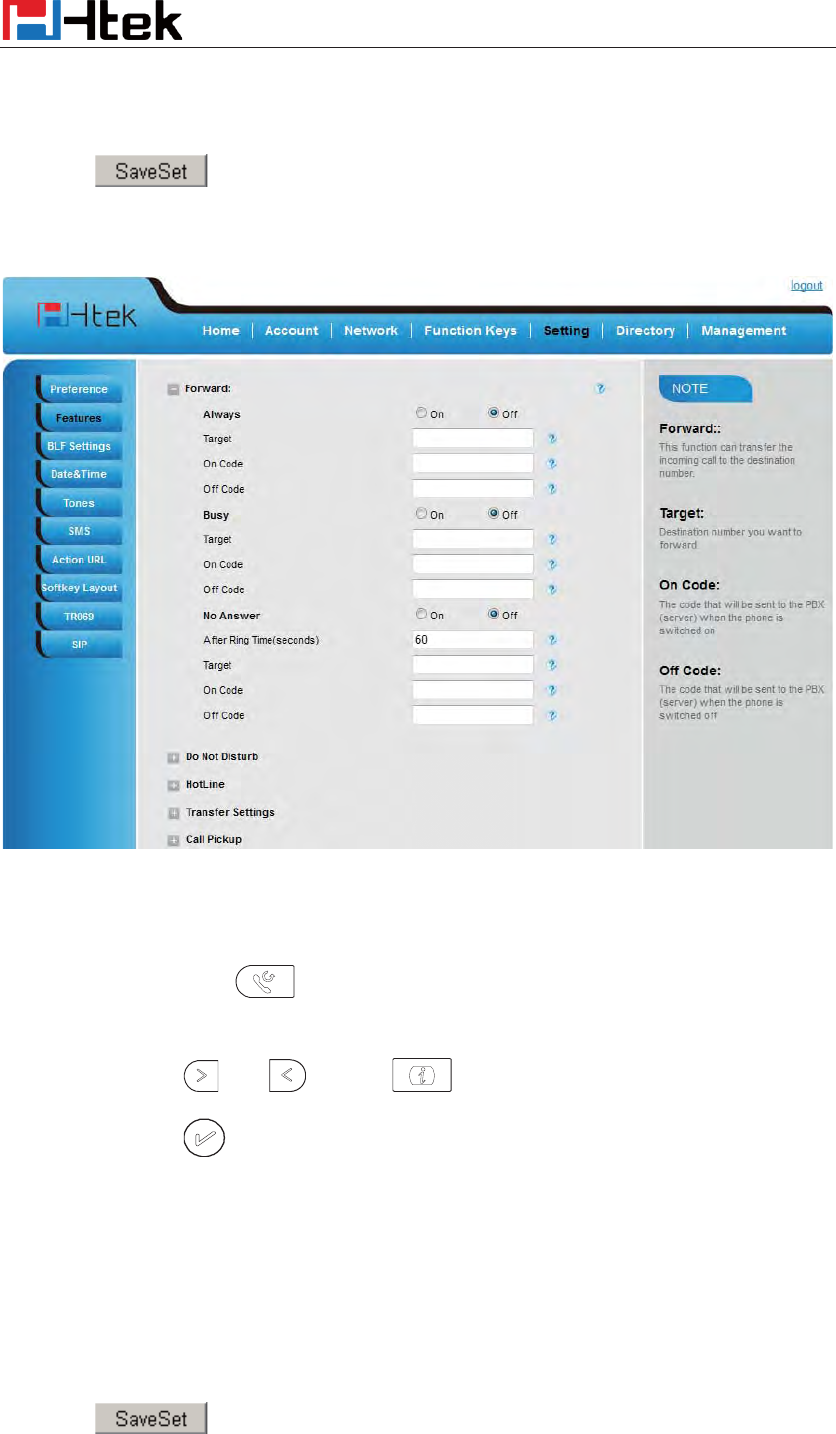
Basic Call Features
87
4. (Optional) fill the on/off code
5. Click to save the configuration
To cancel the forward feature via Phone Interface
1. Option 1: To press the key to disable the forward feature.
2. Option 2: Press Menu ėFeatures ė Call forwardėAlways/Busy/No answer Forward
Press and or press to select the disable choice
Press or Save soft key to save the configuration.
To cancel the forward feature via Web Interface
1. Setting ė Features
2. Click Off for the Always/Busy/No Answer
3. Click to save the configuration
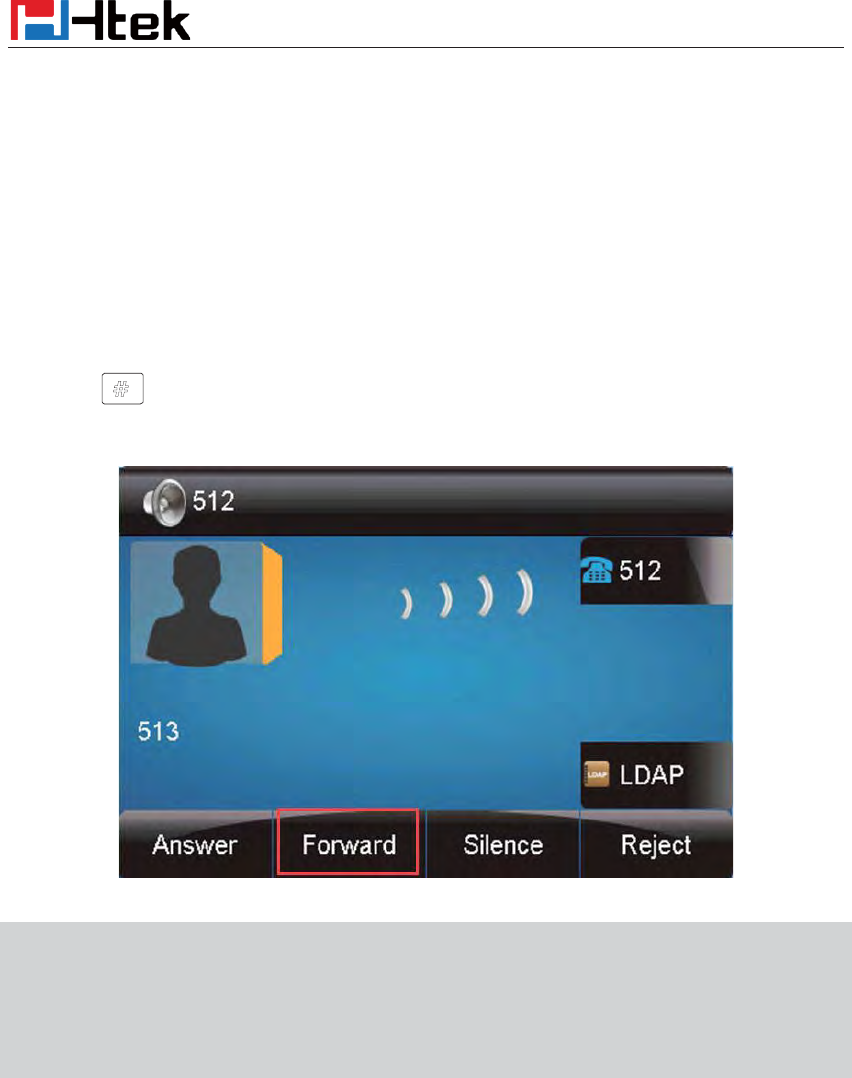
Basic Call Features
88
To configure dynamic forward
Forward an incoming call during the ringing.
1. When the phone is ringing, press Forward soft key.
2. Enter the forward number or select the desired number from Directory softkey (Precondition:
local directory has a or more contacts).
3. Press or press the send soft key, then the call is forwarded.
Note:
If the
Programmable Key or line key is set as BLF, when
an incoming call ringing, press this
BLF key directly to realize the dynamic forward
.
Y
ou can choose a desired forward
number from the Directory when you press the Forward
key.
Call Return
This feature allows you to dial the last phone call you received.
To configure the Call Return via phone interface
1. Press Menu ėFeatures ėFunction KeysėLine or Line Keys as Function Keys ė Line
Key1(for example)
2. Select the wanted Line or Line Key.
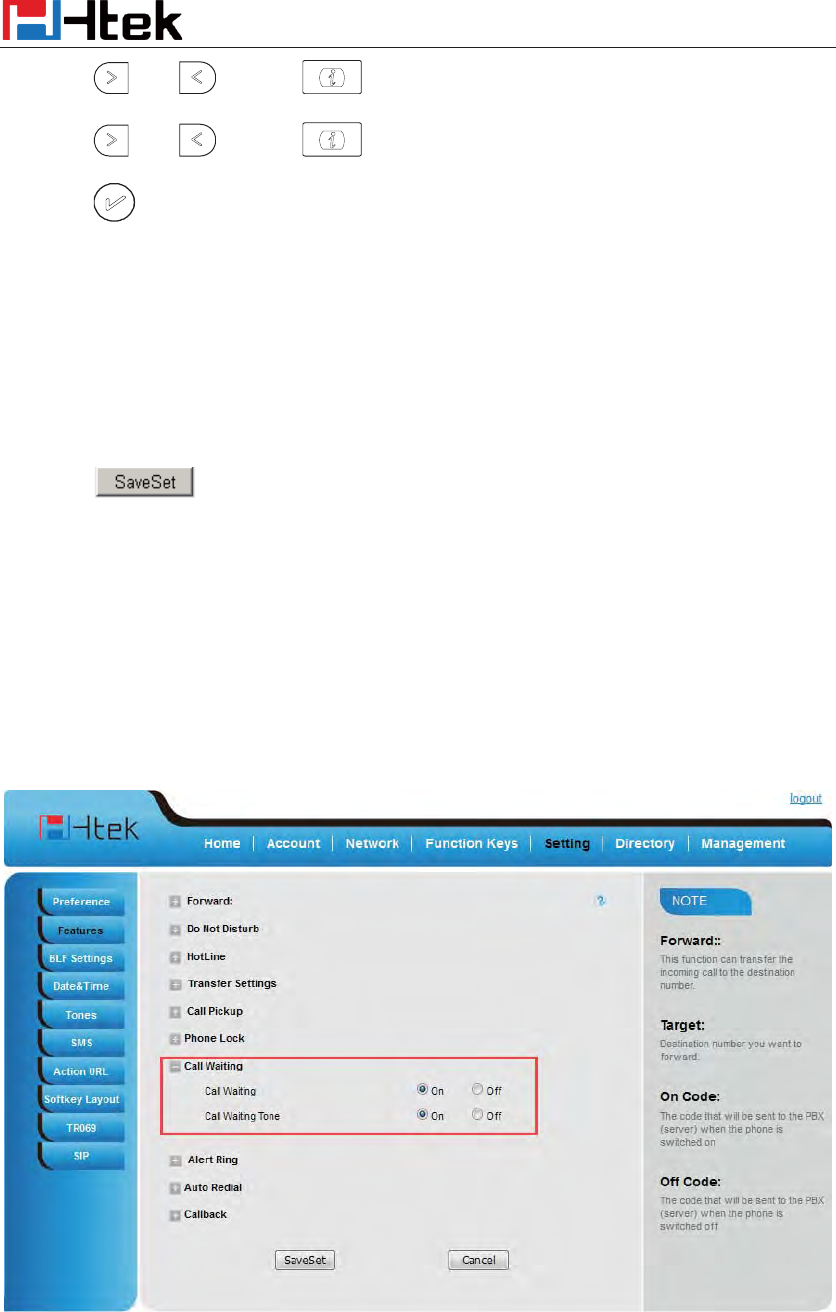
Basic Call Features
89
3. Press and or press key to select the Key Event in the type field.
4. Press and or press key to select the Call Return.
5. Press or Save soft key to save the configuration
To configure the Call Return via Web interface
1. Click Function keys ė Line or Line Key.
2. Select the desired Line or Line Key and select Call Return in the Type.
3. Click to save the configuration.
Call Waiting Tone
1. Click Setting ė Features
2. Select Call Waiting: On and Call Waiting Tone: On
To Change the Call Waiting Tone time via Web interface
1. Click Setting ė Tone
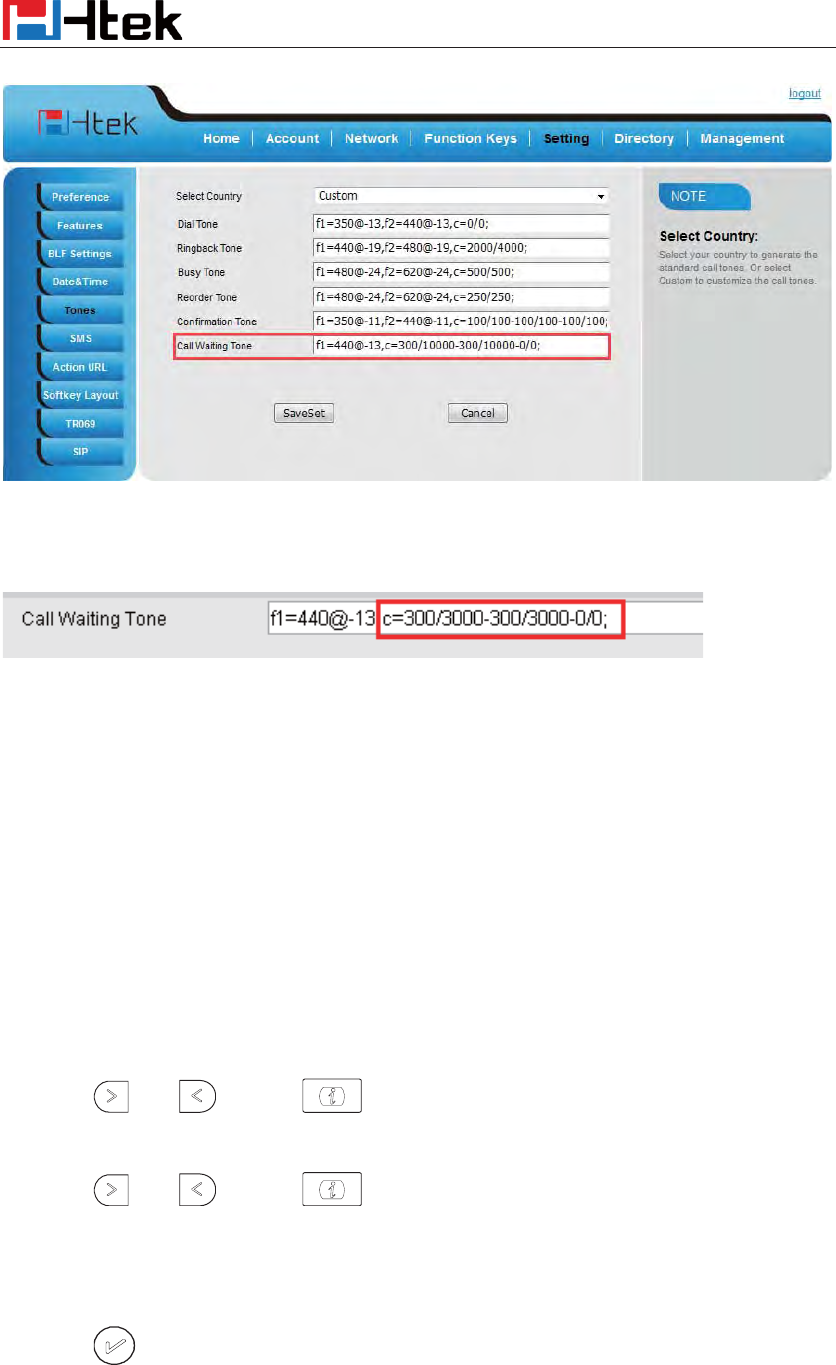
Basic Call Features
90
2. Change the Tone Time as you want (for example 3s)
Hide Caller ID
Just enable the anonymous call feature, you can set your ID do not appear on the other phone that
you called.
To configure anonymous call
1. Press Menu ėFeatures ėAnonymous Call
2. Press and or press to change the Line ID
3. Press and or press to select the enable choice in Anonymous Call filed.
4. Enter the call on code (optional), call off code (optional).
5. Press or Save soft key to save the configuration.
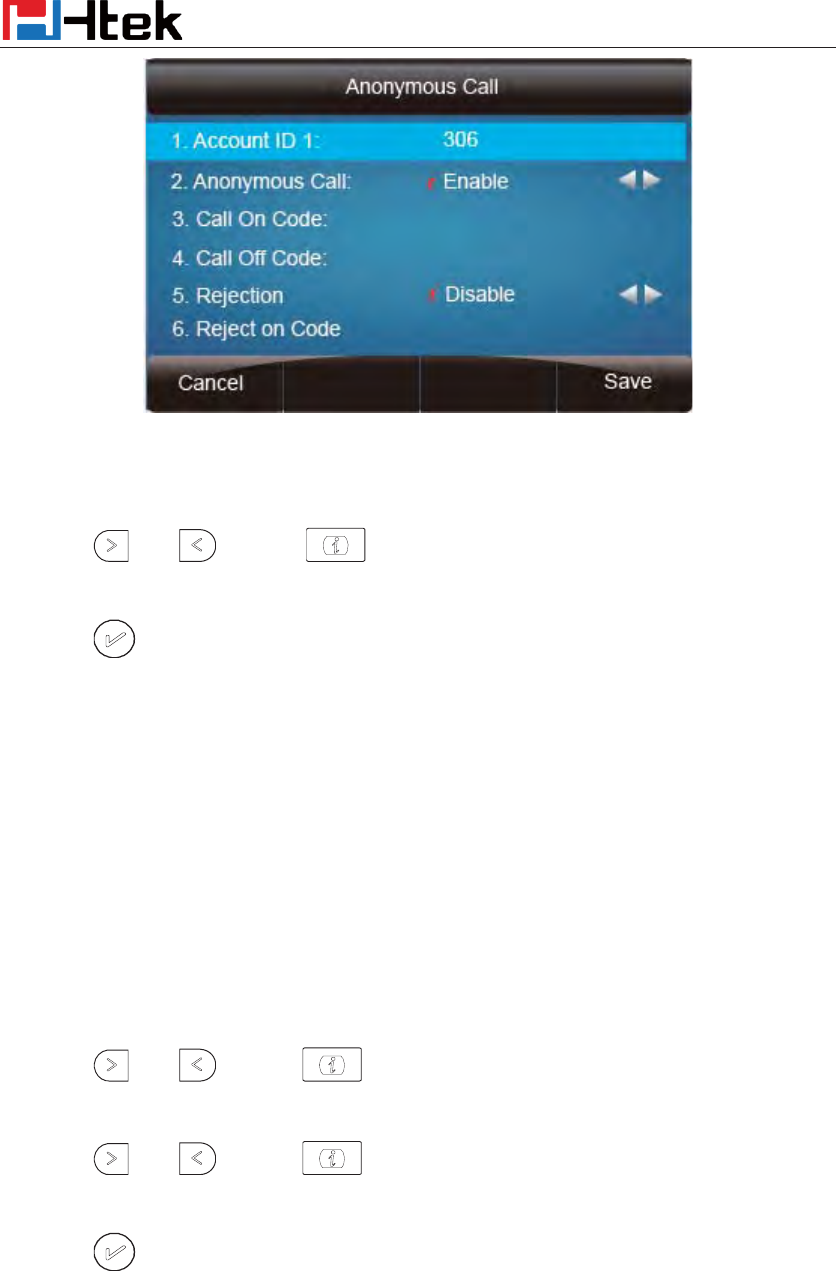
Basic Call Features
91
To cancel anonymous call feature
1. Press Menu ėFeatures ėAnonymous Call
2. Press and or press key to select the disable choice in Anonymous Call
filed.
3. Press or Save soft key to save the configuration.
Reject Anonymous
If you do not want to be disturb by anonymous calls, you can set the reject anonymous call
features, so you will not hear the unknown calls
To configure rejecting anonymous call
1. Press Menu ėFeatures ėAnonymous Call
2. Press and or press key to change the Line ID
3. Press and or press key to select the enable choice in Rejection filed.
4. Press or Save soft key to save the configuration
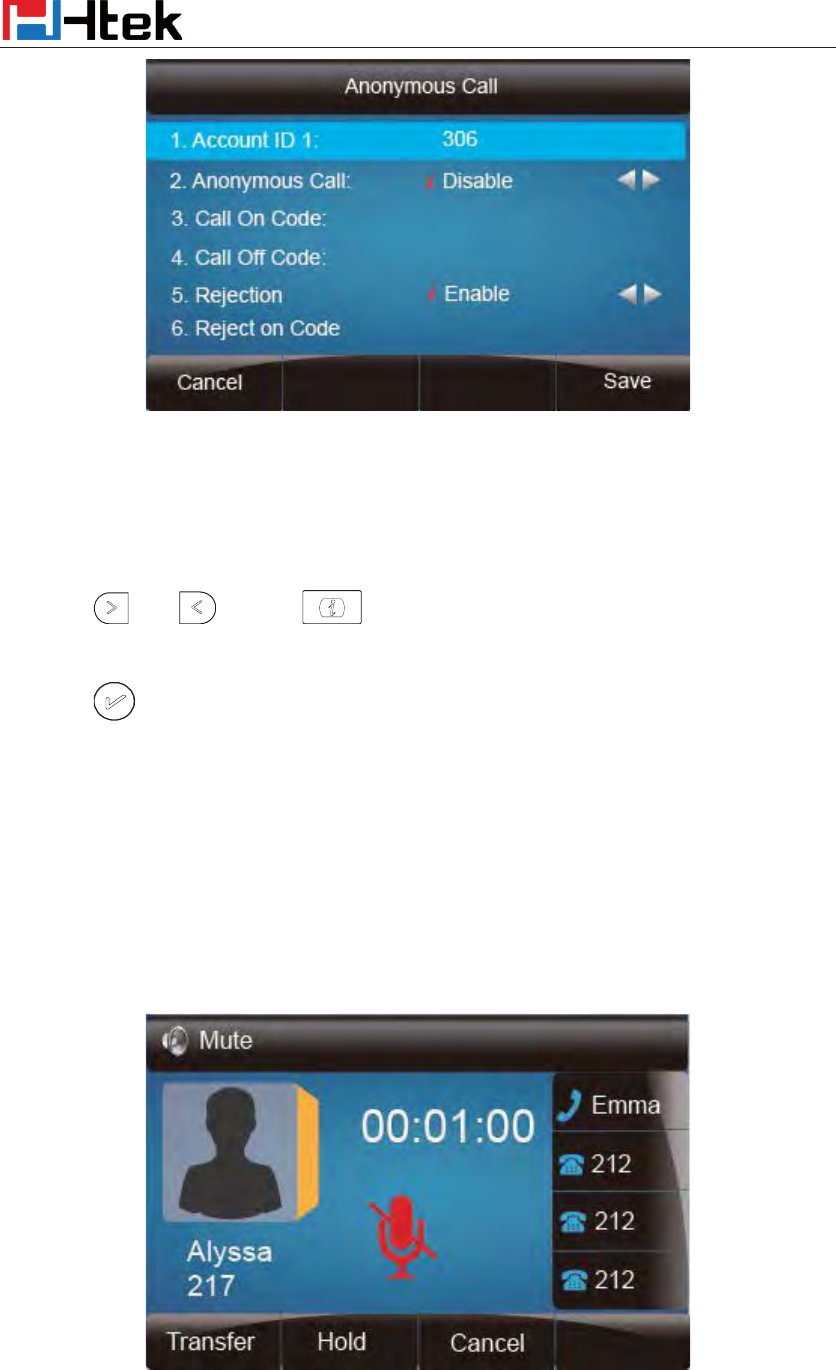
Basic Call Features
92
To cancel rejecting anonymous call
1. Press Menu ėFeatures ėAnonymous Call
2. Press and or press key to select the disable choice in Rejection filed.
3. Press or Save soft key to save the configuration.
Call Mute
When you use the Mute feature, the other parties will not hear your voice while you can hear their
voice. Call mute applies to all modes (handset, headset, and speakerphone).
To mute the call during a call (including a conference call)
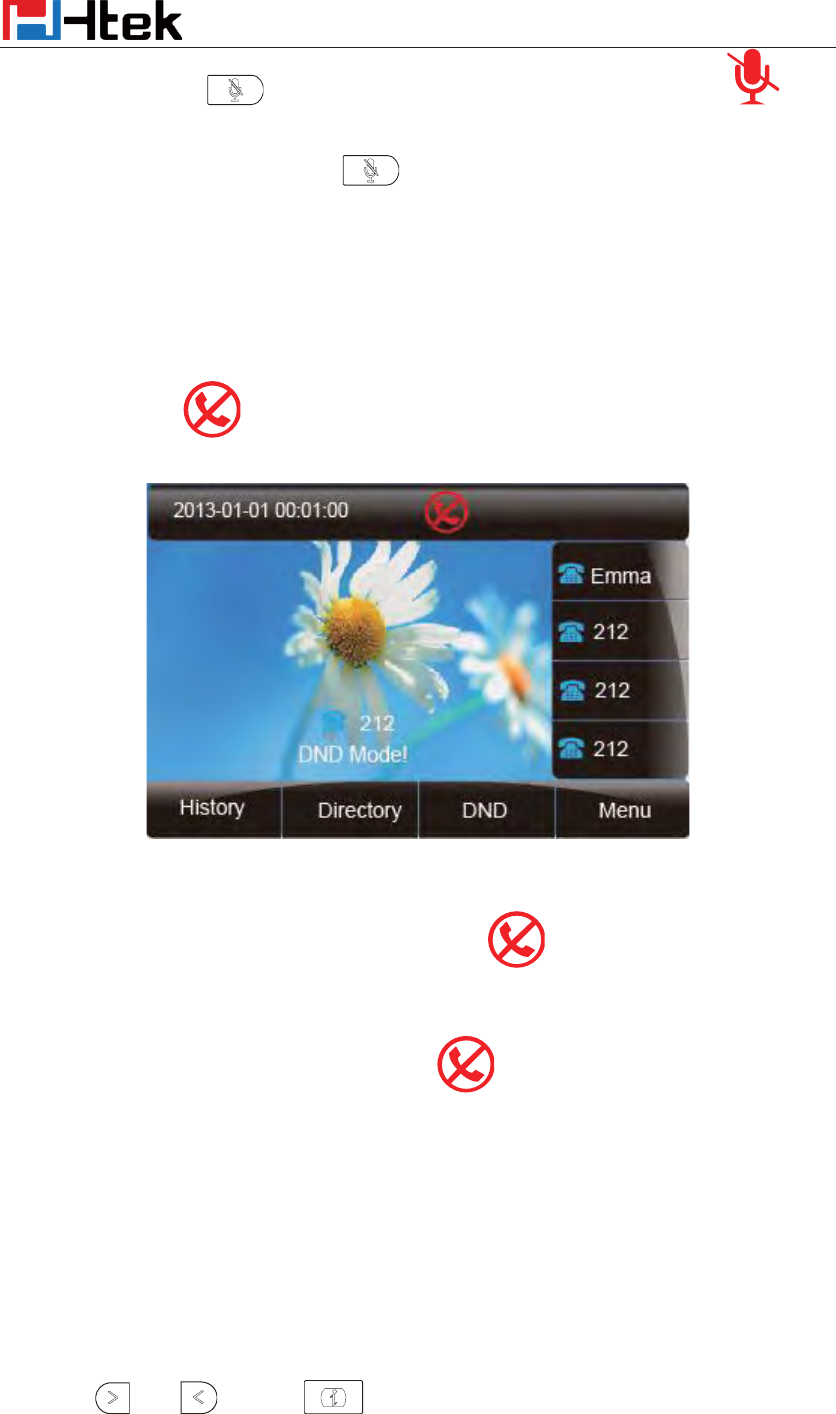
Basic Call Features
93
1. Press the mute key , then the mute key glows green, and the LCD display
2. To disable the mute function, press again.
DND
When you use the DND feature, the phone is to reject all incoming calls automatically and you
can see the mute icon shown on the Top of the LCD on idle page.
To enable DND feature via phone interface:
Press the DND soft key when the phone is idle, and then shown on the LCD.
To disable DND feature via phone interface:
Press the DND soft key again, and then there is no on the LCD.
Key as Send
To configure Key as Send via phone interface:
1. Press Menu ėFeatures ė Key as Send
2. Press and or press key to select the enable choice.
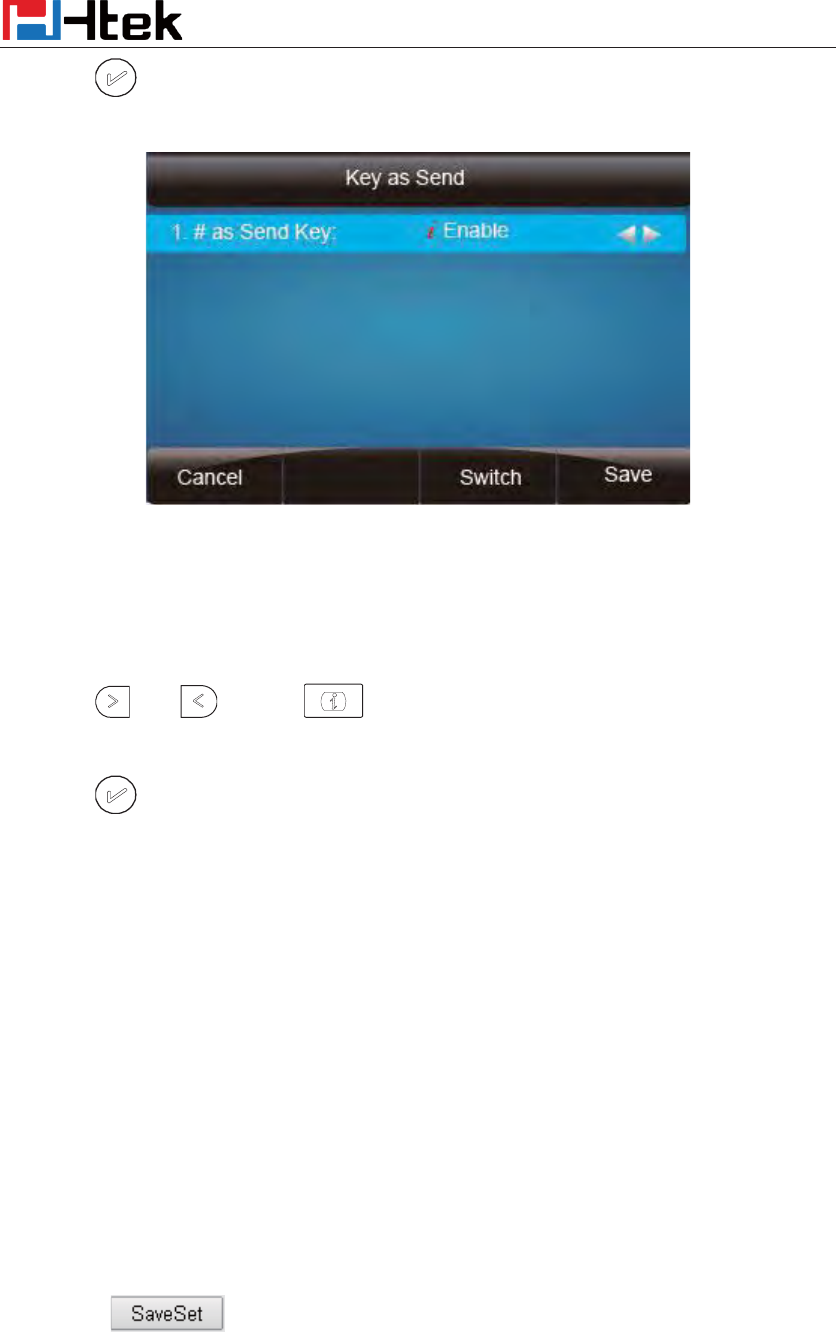
Basic Call Features
94
3. Press or Save soft key to save the configuration
To cancel # Key as Send via phone interface:
1. Press Menu ėFeatures ė Key as Send
2. Press and or press key to select the disable choice.
3. Press or Save soft key to save the configuration
No Key Entry Timeout
No Key Entry Timeout means that when you entry the number, it will dial out automatically after
some time when you stop enter the number.
To configure No Key Entry Timeout via web interface:
1. Click Webpage Setting ė Preference
2. Fill the blank of No Key Entry Timeout: for example 5(seconds).(0 means never timeout, you
should press the send key the dial out the number.
3. Click the button to save the configuration.
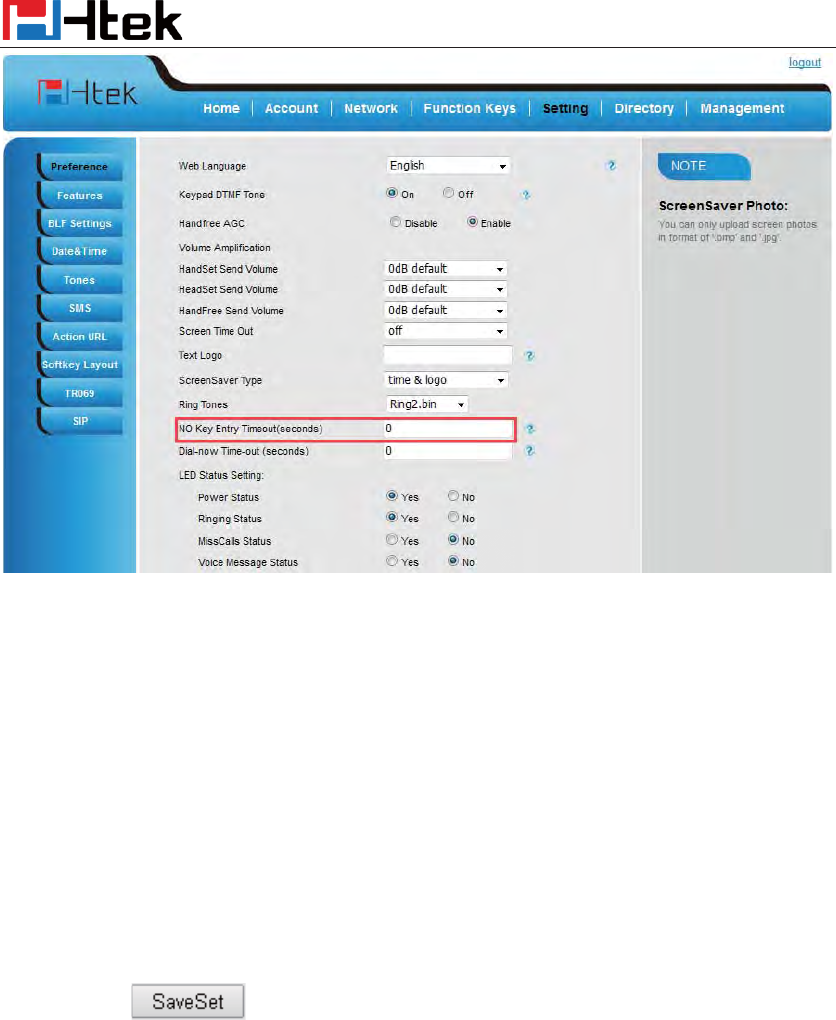
Basic Call Features
95
Dail-Now Timeout
Dial-Now Timeout means that when you entry the number which matching with dial plan, it will
dial out automatically after some time when you stop enter the number.
To configure Dial-Now Timeout via web interface:
1. Click Webpage Setting ė Preference
2. Fill the blank of Dial-Now Timeout: for example 5(seconds).(0 means dial out immediately).
3. Click the button to save the configuration
Keypad Lock
To enable Keypad Lock via Phone
1. Press Menu--Settings--Advanced Setting--Phone Setting--Lock
2. Press Info or Switch to change choose lock type: All Keys Menu Key Function Key Lock &
Answer
3. Press Save or OK key to save the configuration.
To disable Keypad Lock via Phone
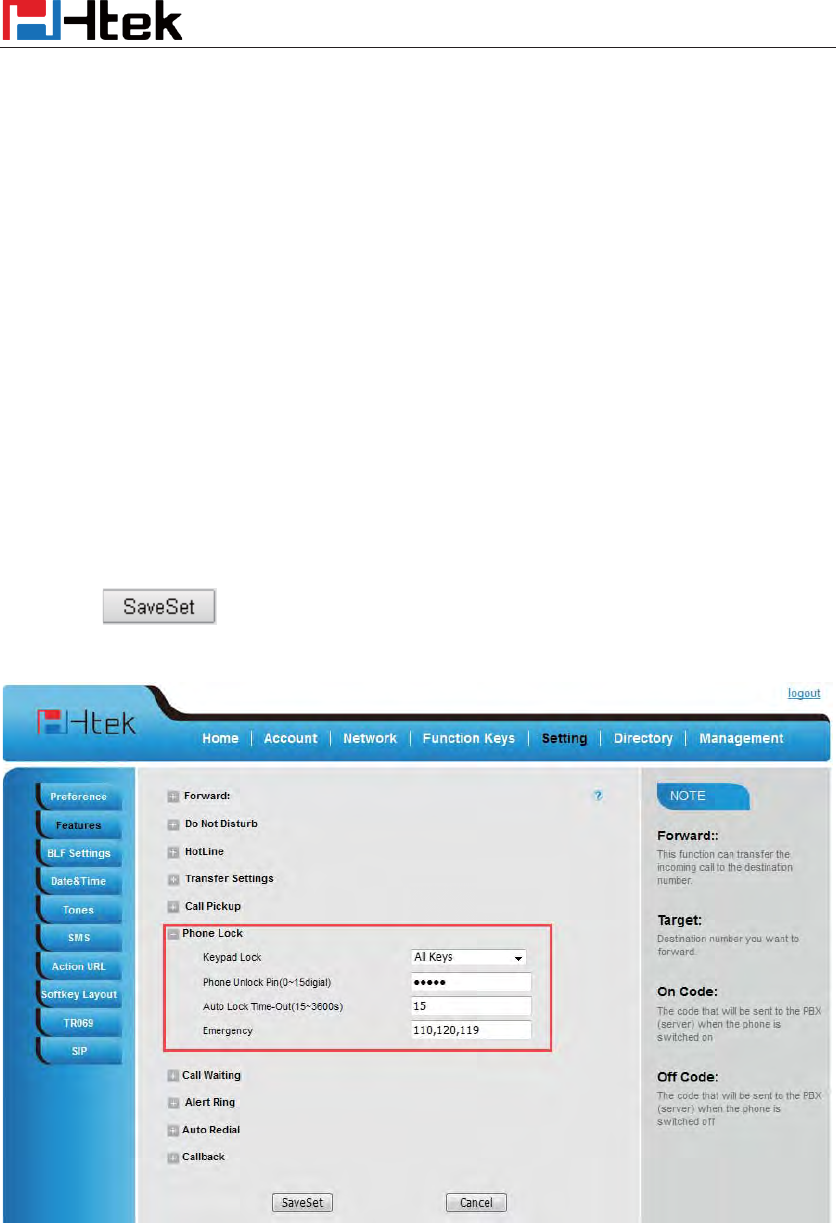
Basic Call Features
96
1. Press Menu--Settings--Advanced Setting--Phone Setting--Lock
2. Press Info or Switch to change to choose Off.
3. Press Save or OK key to save the configuration.
To enable Keypad Lock via Webpage
1. Click Webpage Setting ė Features
2. To choose the Phone Lock.
3. To fill the unlock PIN and auto lock time
4. Fill the Emergence Number, when the phone is Lock, only Emergency Number can be sent.
5. To click to save the configuration.
To Disable Keypad Lock via Webpage
1. Click Webpage Setting ėFeatures
2. To choose Disable for the Phone Lock.
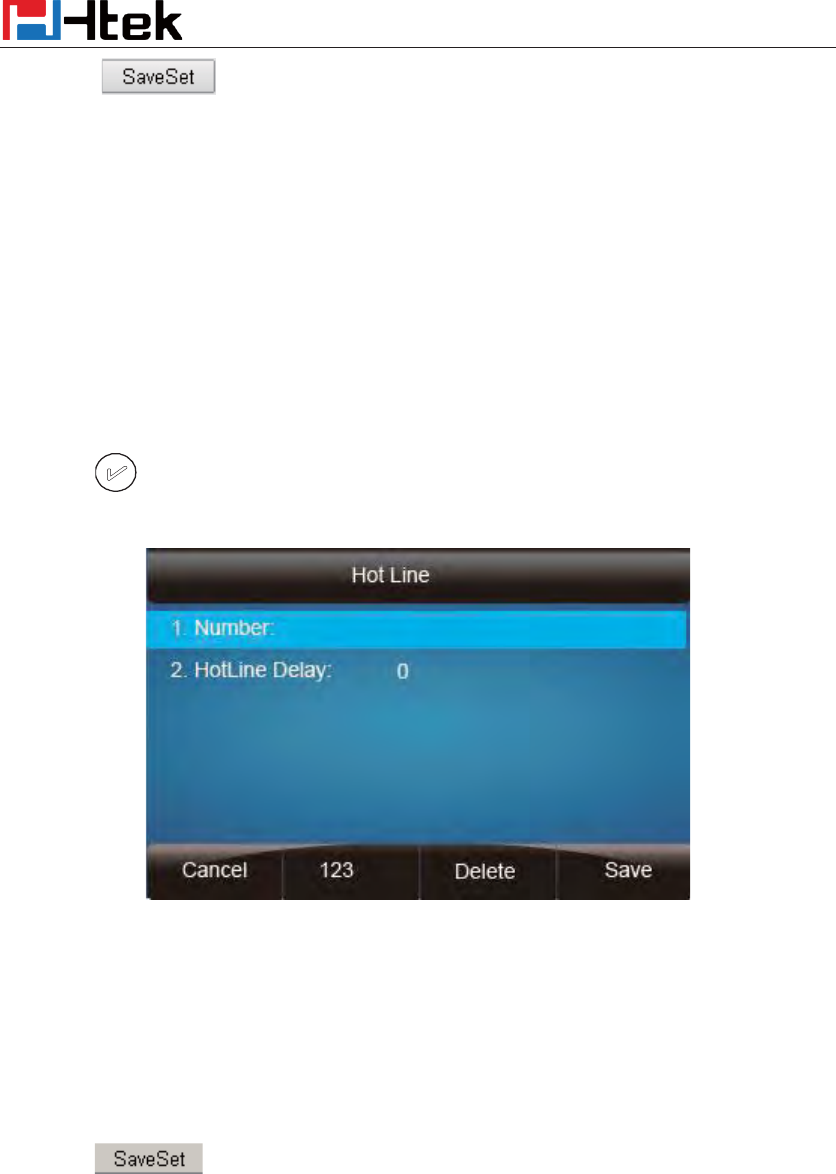
Basic Call Features
97
3. To click to save the configuration.
Hot Line
To configure Hot Line
1. Press Menu ėFeatures ė Hot Line
2. Enter the Number and delay time (as present, we support off hook auto dial).
3. Press or Save soft key to save the configuration
To configure Hotline auto dial via Web Interface
1. Setting ė Features.
2. Fill the number in the Hotline Number and Hotline Time-out.
3. Click to save the configuration.
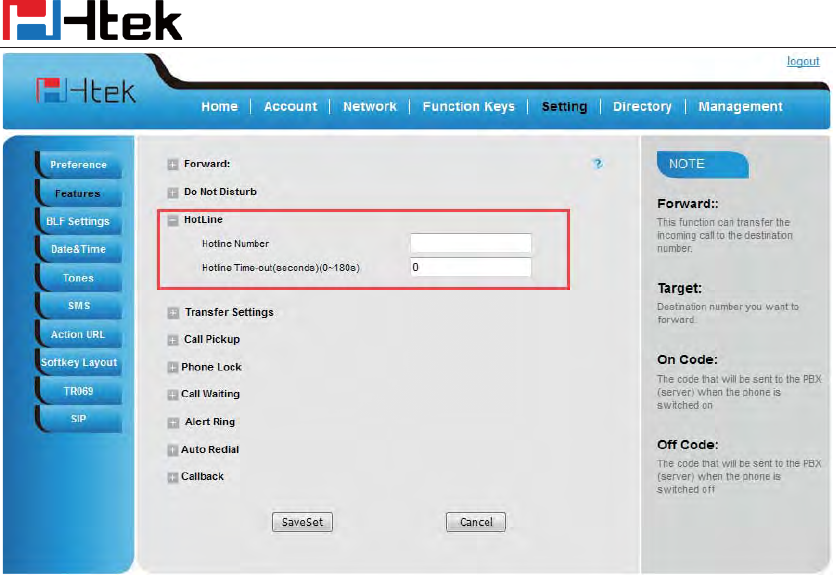
Function Key Features Settings
98
Delete the hotline number and save the configuration, and then now the Hotline auto dial is
cancelled.
Function Key Features Settings
The function key supports the Line Label Length and Line Page Indicator:
Line Label Length: if this option is set Long label, then the label’s length will be longer, it is
used for string is too long.
Line Page Indicator: enable this option.when the phone have be configured four pages and
current page is first page, the forth page has a BLF and BLF’s status is changed, then the forth
page’s button will flash red.
Line
It works same as Line keys.
Line support three Mode (Default, lock and float)
Default mode: If the phone has a incoming call, it means that the phone will not jump to the first
page when the first page set the line type and current page is four page.
Lock mode: it means that the other page’s same position has the same line when the first page set
the line type.
Float mode: If the phone has a incoming call, it means that the phone will jump to the first page
when the first page set the line type and current page is four page.
To configure Line Feature via Web Interface
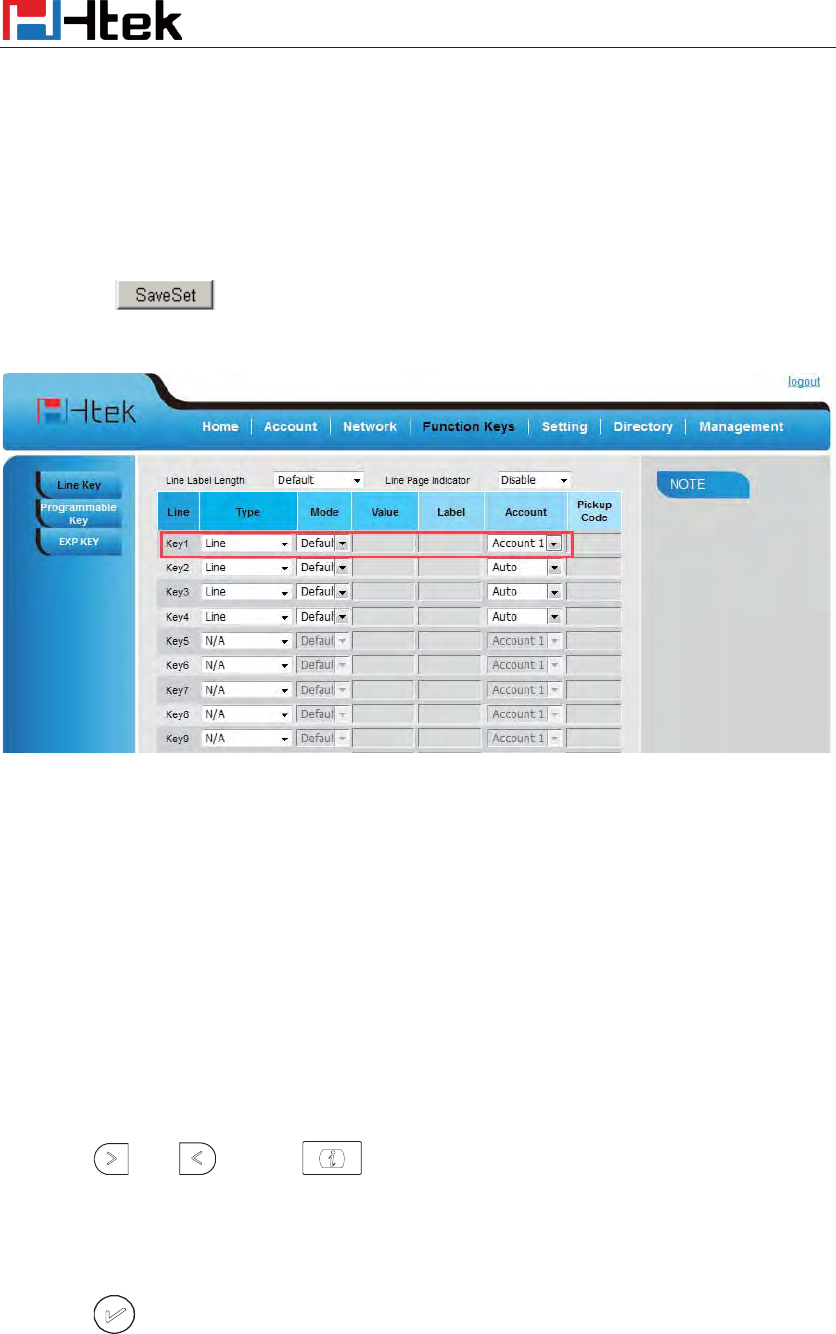
Function Key Features Settings
99
1. Click Function keys ė Line or Line Key.
2. Select the wanted Key and set as Line.
3. Select the Account.
4. Click the button to save the configuration.
Speed Dial
With this feature, you can dial one directory by press the definite key.
To configure Speed Dial feature via phone interface
1. Press Menu ėFeatures ėFunction KeysėLine or Line Keys as Function Keys ė Line
Key1(for example)
2. Press and or press key to select the Speed Dial in the type field.
3. Enter the targeted Number.
4. Press or Save soft key to save the configuration
Then the selected Line or Line Key will work as Speed Dial.
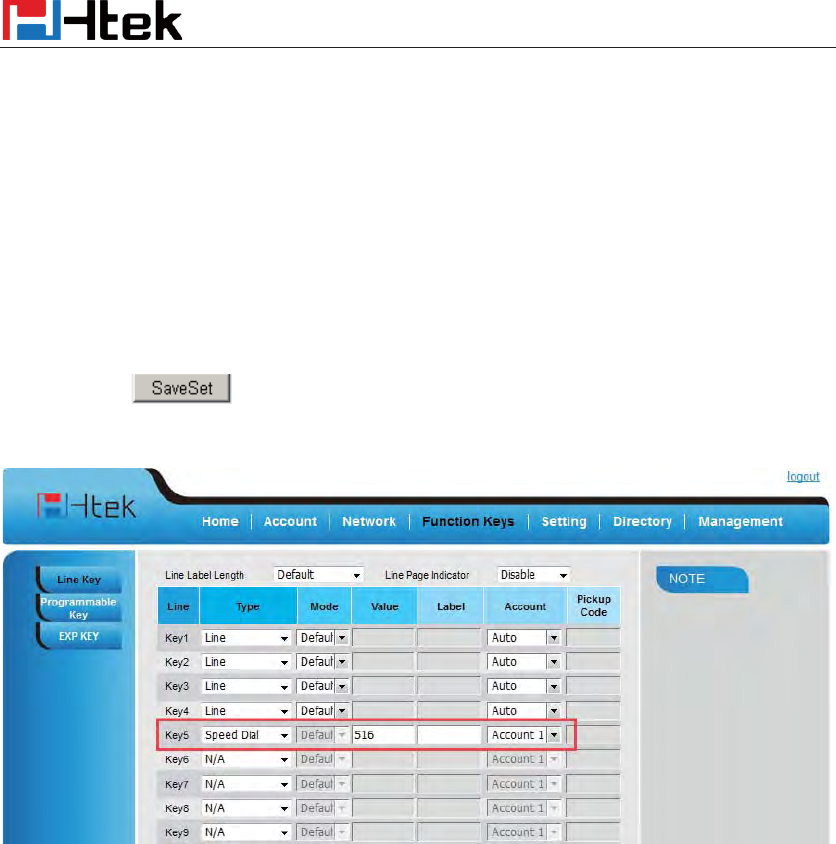
Function Key Features Settings
100
To configure Speed Dial feature via Web Interface
1. Click Function keys ė Line or Line Key.
2. Select the wanted Line or Line Key and set as Speed Dial.
3. Enter the desired phone number in the Value field.
4. Select the Account ID
5. Click the button to save the configuration.
BLF
You can use the BLF (Busy Lamp Field) feature to monitor a specific one whether his phone is
busy or free.
1. When the monitored line is idle, the light is steady green.
2. When the monitored line is ringing, the light is blinking red, press the BLF key to pick the
phone up directly.
3. When the monitored line is calling or in a conversation, the light is steady red.
To configure a BLF key by phone
1. Press Menu ėFeatures ėFunction KeysėLine or Line Keys as Function Keys ė Line
Key1(for example).
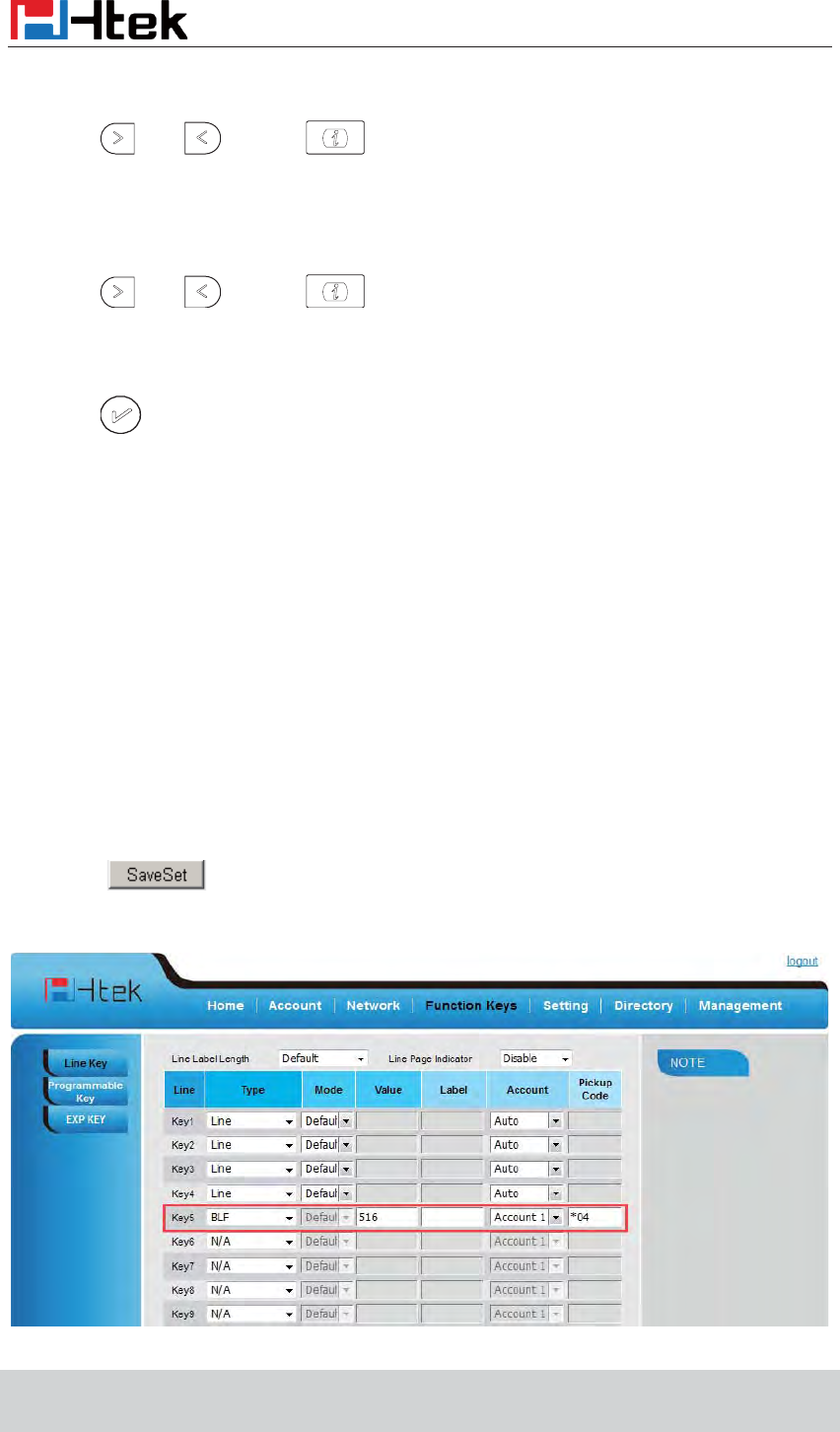
Function Key Features Settings
101
2. Select the targeted Line or Line Key.
3. Press and or press key to select the BLF in the type field.
4. Enter the targeted Value Number.
5. Press and or press key to select the Account ID.
6. Enter the Pickup Code.
7. Press or Save soft key to save the configuration
To configure a BLF key by web
1. Click Function keys ė Line or Line Key.
2. Select the desired Line or Line Key and select BLF in the Type.
3. Enter the monitored phone number in the Value field.
4. Select the Account ID
5. Filled the Pickup code.
6. Click to save the configuration.
Note˖˖
This feature is not available on all servers. For more information, contact your system
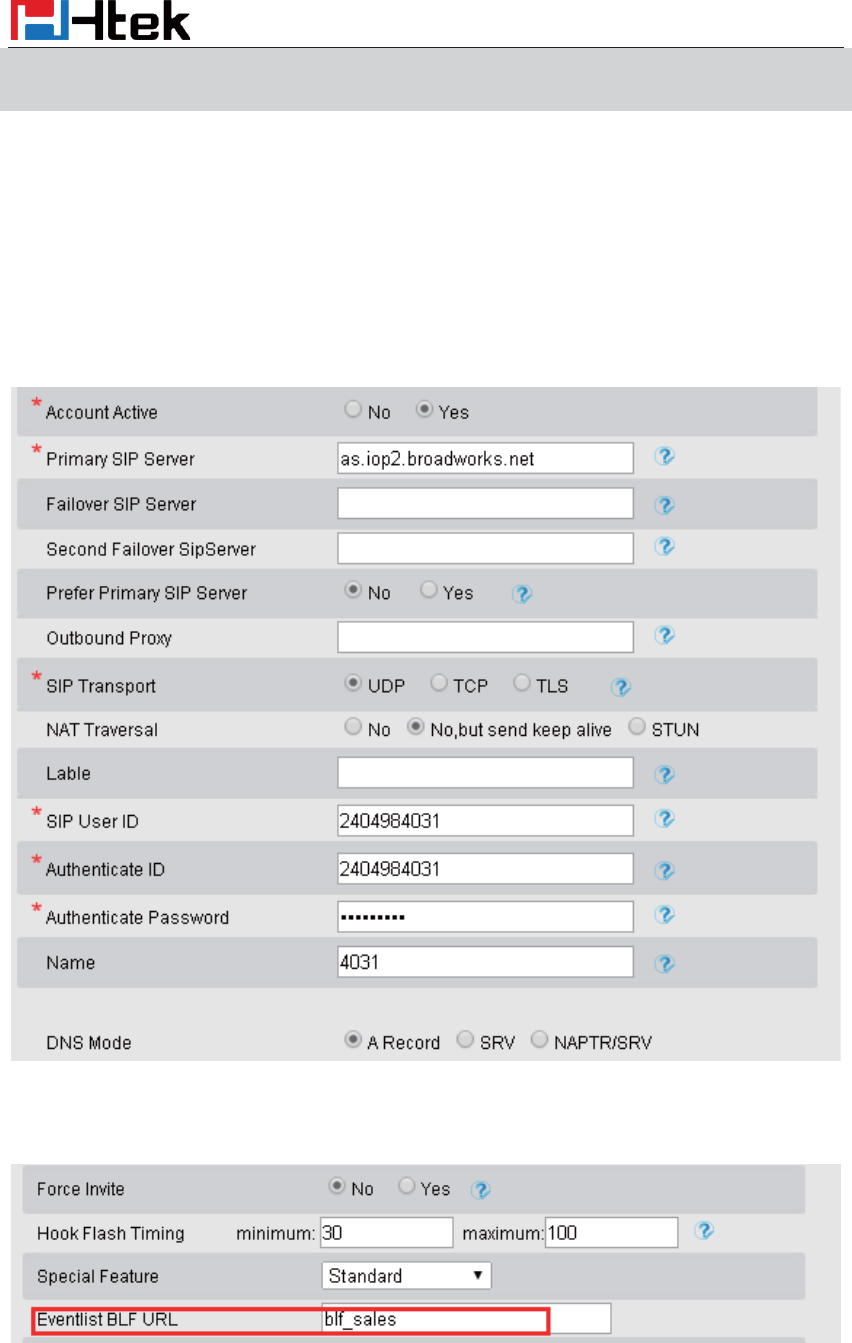
Function Key Features Settings
102
administrator.
After setting the BLF key, do not need to restart the phone.
BLF List
To configure BLF List via web interface:
1. Login and click Account
2. Click Advanced and then fill the Eventlist BLF URL.
3. To configure BLF List Keys
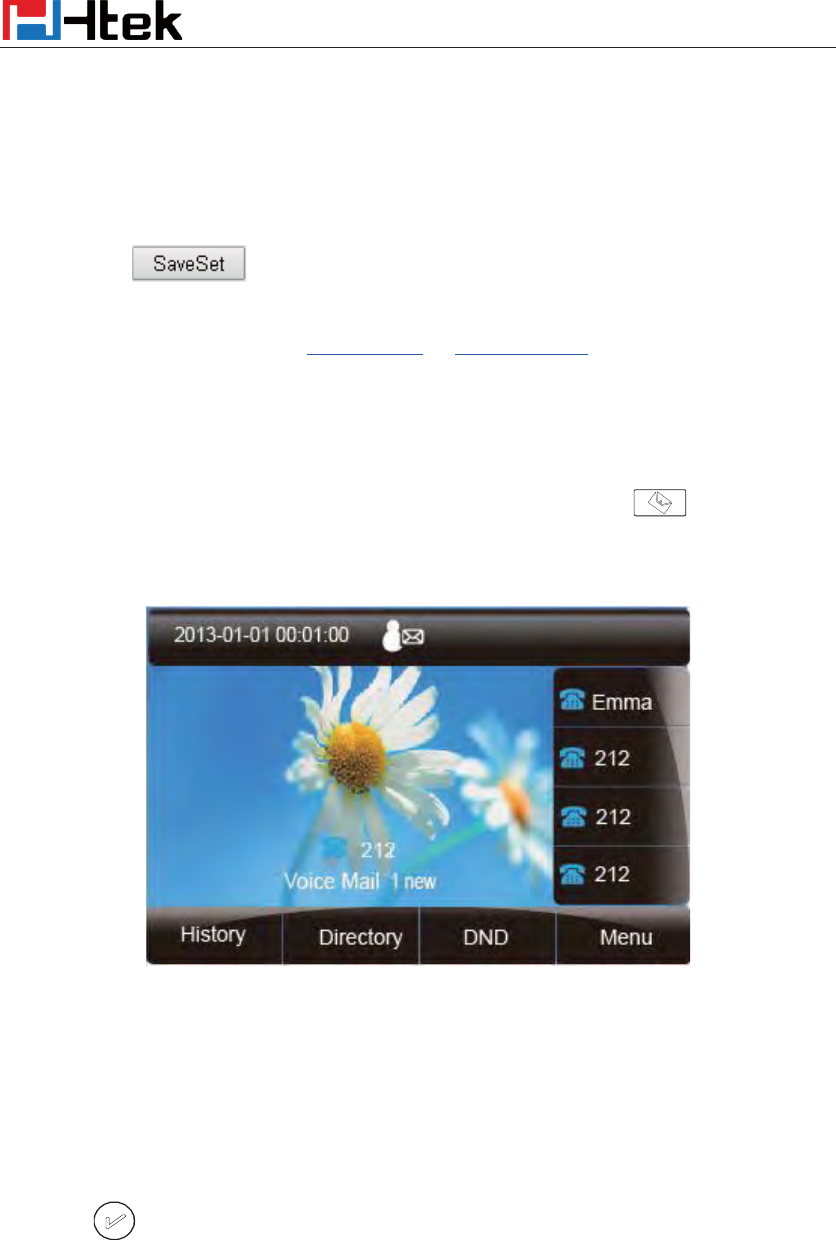
Function Key Features Settings
103
3.1 ClickÆFunction KeysÆLine Key
3.2 Select the BLF List in the Type Field.
3.3. Select Account
3.4 Click to save the configuration.
For more information, please check BLF list Note on www.h-tek.com .
Voice Message
This phone supports Voicemail, and when there is message, the message will light green.
Moreover, when pick up the handset, or press speaker key, you will hear some quick busy tone.
To configure the Voice mail feature via phone interface:
1. Press MenuėMessagesėVoice MailėSet Voice Mail.
2. Enter the Account1/2/3/4 NO.
3. Press or Save soft key to save the configuration
To configure Voice Mail Line Key via Web Interface:
1. Click Function keys ė Line Key.
2. Select the wanted Key.
Function Key Features Settings
104
3. Enter the desired voicemail feature codes in the Value field.
4. Filled the Label displayed on LCD.
5. Select the Account.
6. Click to save the configuration.
To configure a Voice mail key by phone interface:
1. Press Menu ėFeatures ėFunction KeysėLine or Line Keys as Function Keys ė Line
Key1(for example).
2. Select the targeted Line or Line Key.
3. Press and or press key to select the Voice mail in the type field.
4. Enter the Value Number.
5. Press and or press key to select the Account ID.
6. Press or Save soft key to save the configuration
To leave a voice mail:
You can leave a voice mail for someone else when he/she is busy or inconvenient to answer the
call. Follow the voice prompt from the system server to leave a voice mail, and then hang up.
To listen to voice mails:
When the phone interface prompts receiving new voice mail’s icon, the power indicator LED
flashes red(Setting->Preference: Enable Voice Message Status) and the voice message button
flashes green.
1. Pressing or the targeted Line or Line Key to dial out the voice mail access code.
2. Follow the voice prompt to listen to voice mail.
To view the voicemail via phone interface:
Press Menu->Messages->Voice Mail->View Voice Mail.
The LCD screen displays the amount of new and old voice mails
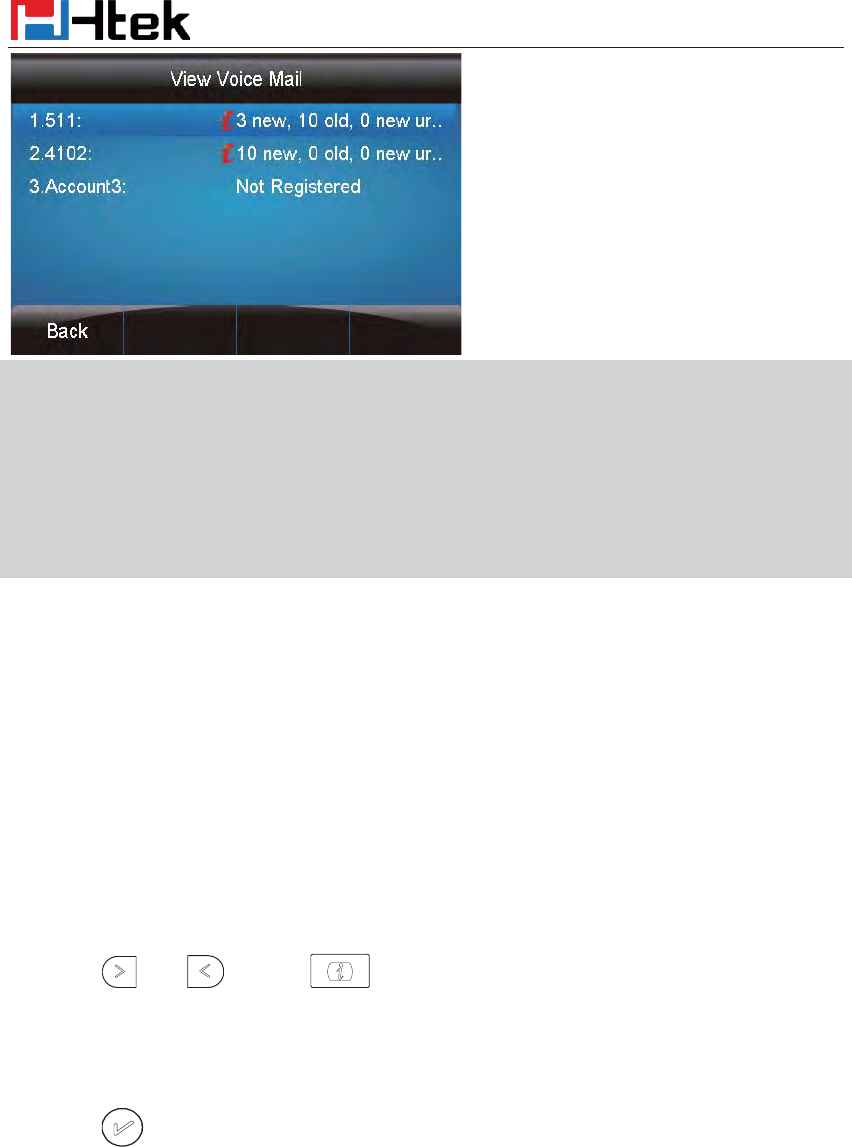
Function Key Features Settings
105
Note˖˖
Th
is feature is not available on all servers. For more information, contact your system
administrator.
Before listening to
voice mails, make sure the voice mail access code has been configured.
When all new voice mails are retrieved, the
power indicator LED, voice mail
indicator LED
and targeted
Line or Line Key will go out.
Direct Pickup
With this feature, you can pick up the set line when it ringing.
To configure Direct Pickup feature via phone interface
1. Press Menu ėFeatures ėFunction KeysėLine or Line Keys as Function Keys ė Line
Key1(for example)
2. Press and or press key to select the Speed Dial in the type field.
3. Enter the value.
4. Press or Save soft key to save the configuration
Then the selected Line or Line Key will work as Direct Pickup.
To configure Direct Pickup feature via Web Interface
1. Click Function keys ė Line or Line Key.
2. Select the wanted Line or Line Key and set as Direct Pickup.
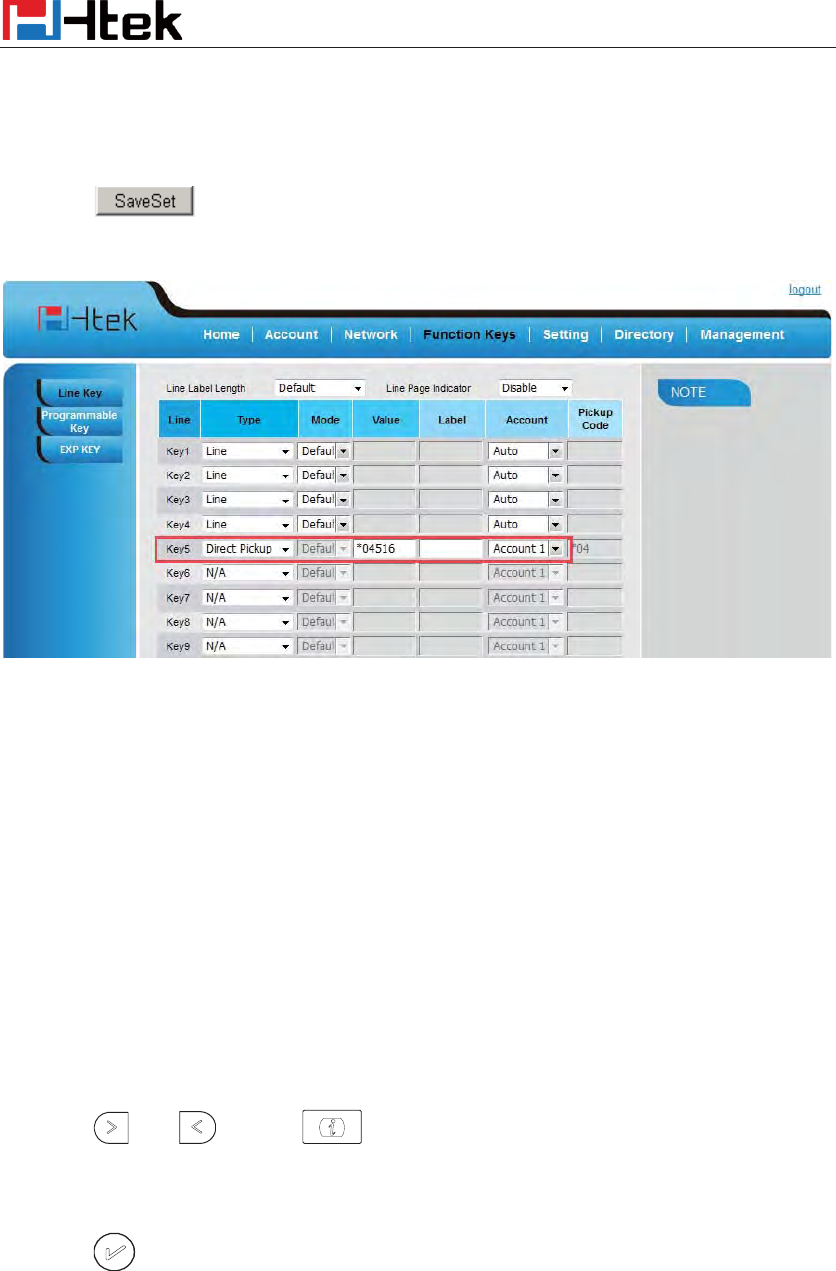
Function Key Features Settings
106
3. Enter the pickup code and followed the desired phone number in the Value field.
4. Select the Account ID
5. Click to save the configuration.
Group Pickup
With this feature, you can pick up the specified group that you want incoming calls.
To configure the Pickup via phone interface
1. Press Menu ėFeatures ėFunction KeysėLine or Line Keys as Function Keys ė Line
Key1(for example)
2. Select the wanted Line or Line Key.
3. Press and or press key to select the Group Pickup in the type field.
4. Enter pickup code and followed the desired group number
5. Press or Save soft key to save the configuration
To configure the Group Pickup via Web interface
1. Click Function keys ė Line or Line Key.
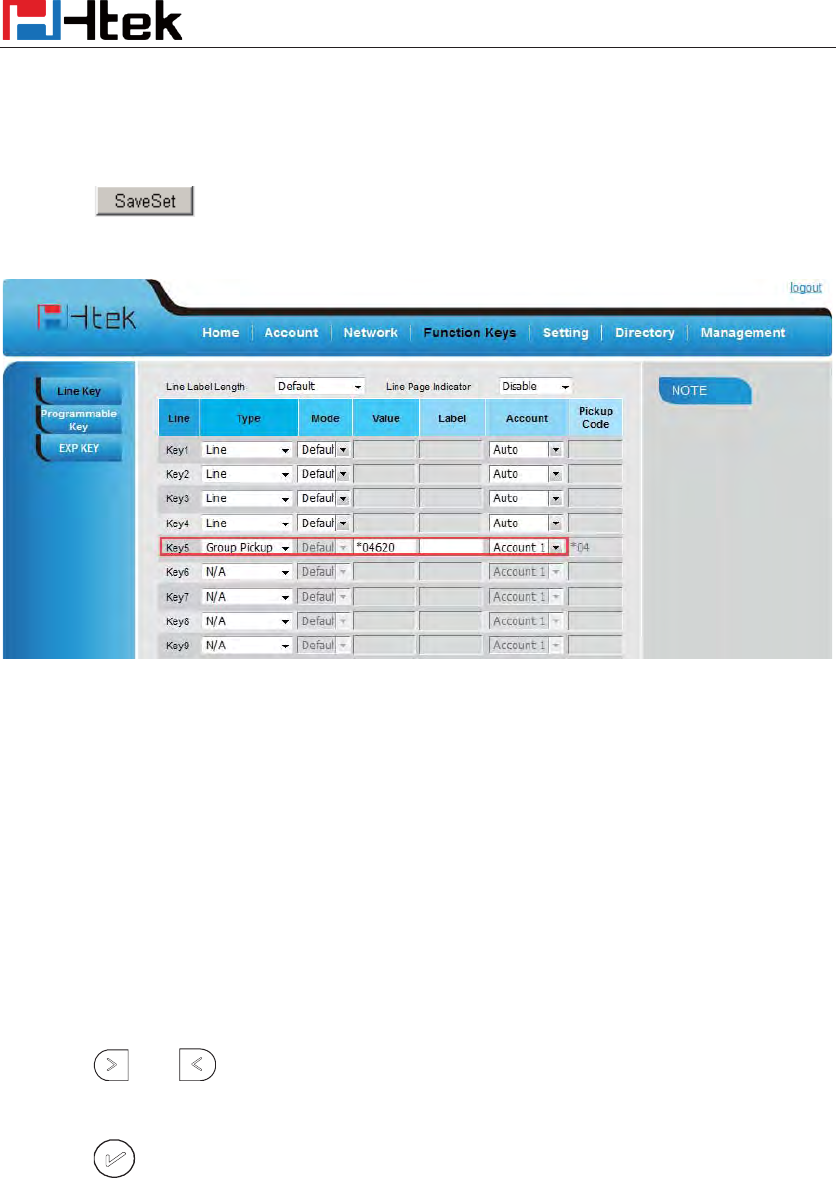
Function Key Features Settings
107
2. Select the desired Line or Line Key and select Group Pickup in the Type.
3. Enter the pickup code and followed the desired Group number in the Value field.
4. Click to save the configuration.
Call Park
With this feature, you can put a call on hold and continue the conversation from another phone.
To configure the Call Park via phone interface
1. Press Menu ėFeatures ėFunction KeysėLine or Line Keys as Function Keys ė Line
Key1(for example)
2. Press and or press Switch soft key to select the Call Park.
3. Press or Save soft key to save the configuration
To configure the Call Park via Web interface
1. Click Function key ė Line or Line Key.
2. Select the desired Line or Line Key and select call park in the Type.
3. Enter the call park code in the value field.
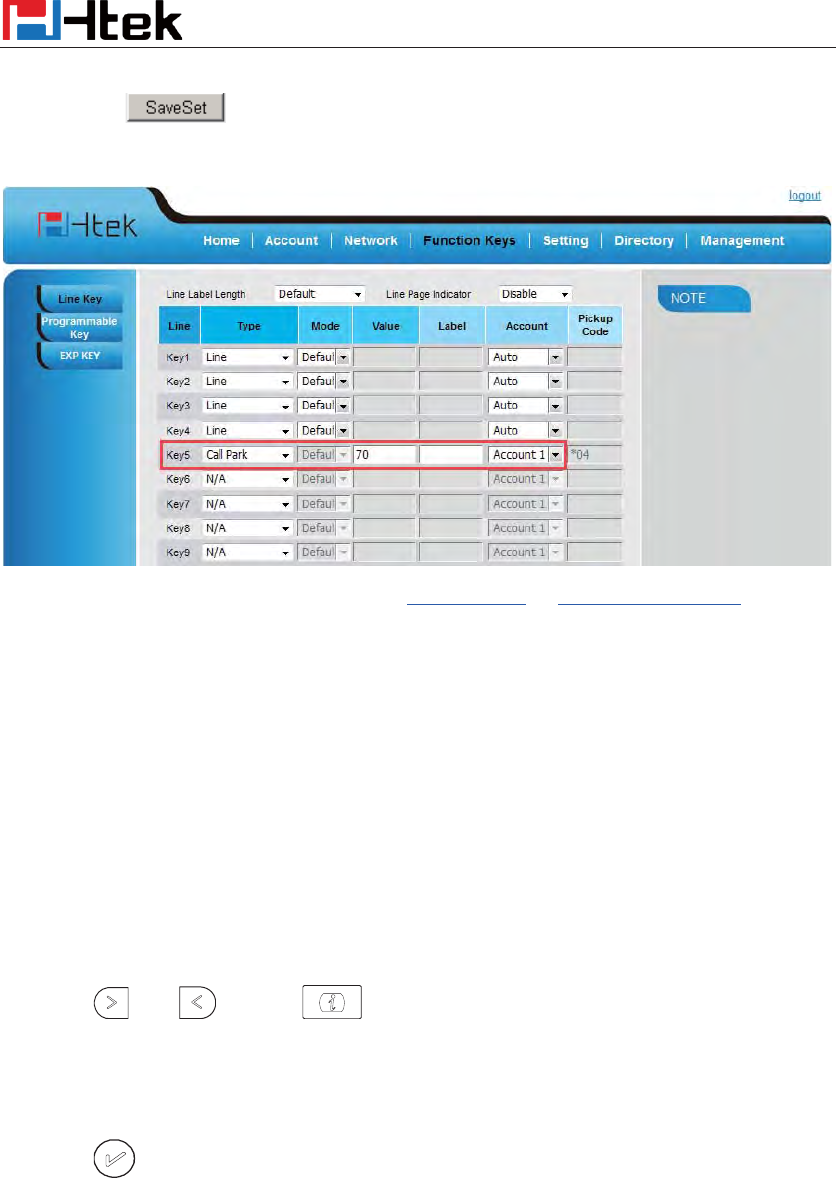
Function Key Features Settings
108
4. Click the button to save the configuration.
For More information for Call Park, please see: Call park note on http://www.h-tek.com
Intercom
When use the intercom feature, you can quickly get access connect to the configured one.
To configure intercom feature via phone interface
1. Press Menu ėFeatures ėFunction KeysėLine or Line Keys as Function Keys ė Line
Key1(for example)
2. Press and or press key to select the intercom in the type field.
3. Enter the intercom codes followed by desired number.
4. Press or Save soft key to save the configuration
Then the selected Line or Line Key will work as intercom.
To configure Intercom feature via Web Interface
1. Click Function keys ė Line or Line Key.
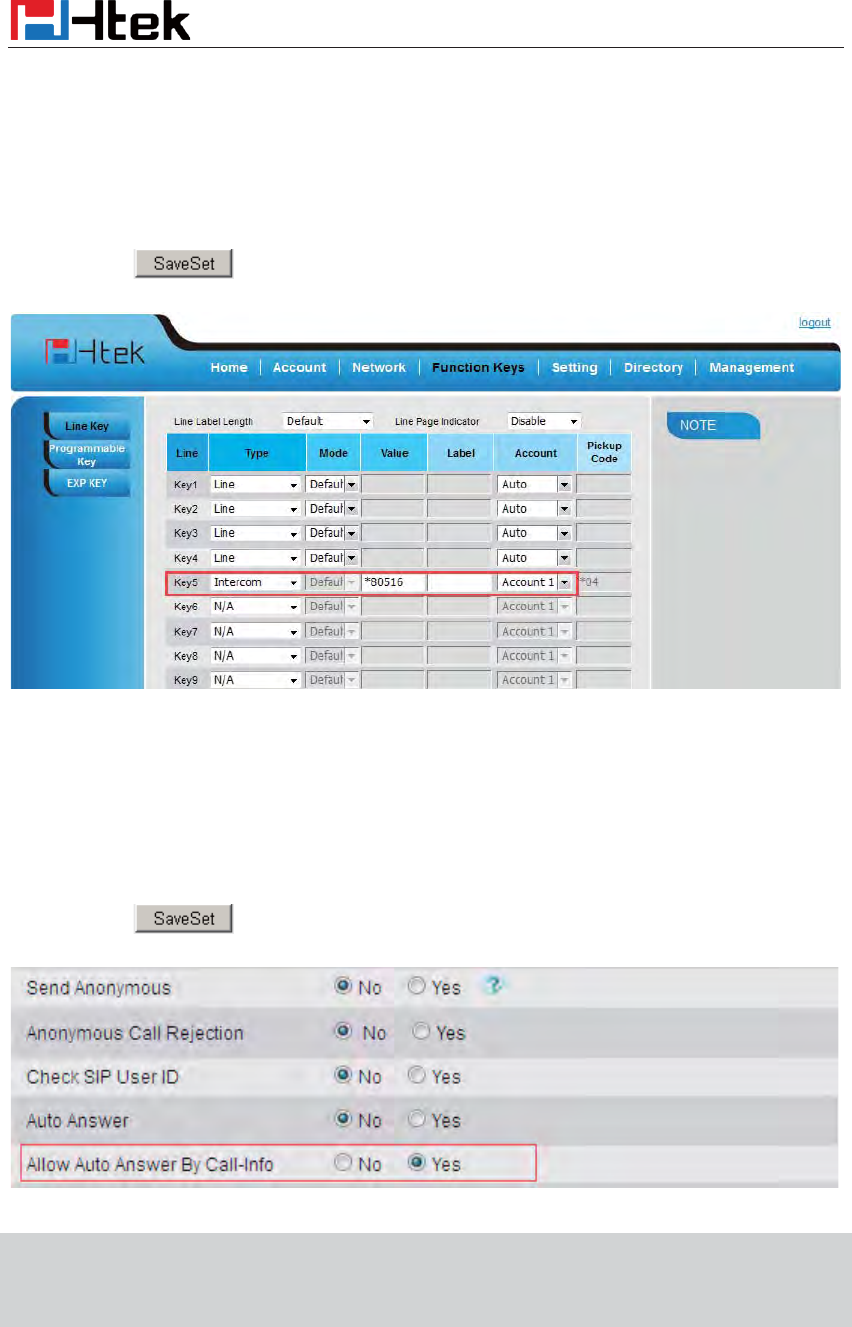
Function Key Features Settings
109
2. Select the wanted Line or Line Key.
3. Enter intercom codes followed by desired number in the Value field.
4. Select the Account ID
5. Click the button to save the configuration.
If you want to achieve the intercom feature, you must enable the “Allow Auto Answer By
Call-Info”
1. Click the account
2. Select the desired account from the pull-down list of Account in the Account field.
3. Click the advanced
4. Enable the “Allow Auto Answer By Call-Info”
5. Click the button to save the configuration.
Note˖˖
Th
is feature is not available on all servers.
For more information, contact your system
administrator.
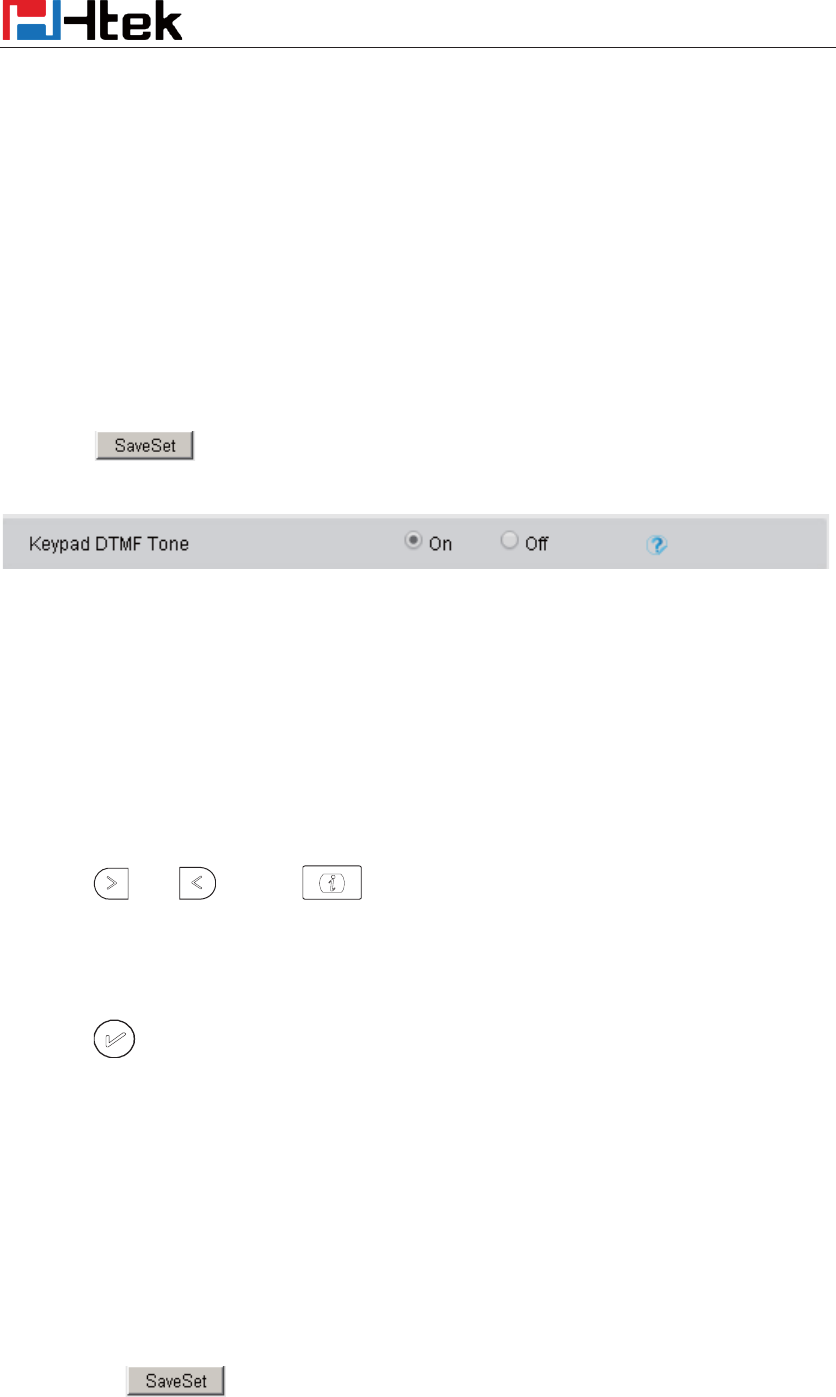
Function Key Features Settings
110
DTMF
When the key is configured as DTMF key, you are allowed to send out the desired DTMF number
during the conversation.
To use this feature, you should sure that the DTMF Tone is on.
To configure the DTMF via Web Interface
1. Click SettingÆPreference
2. Select On for Keypad DTMF Tone.
3. Click to save the configuration.
To configure the DTMF via Phone Interface
1. Press Menu ėFeatures ėFunction KeysėLine or Line Keys as Function Keys ė Line
Key1(for example)
2. Select the wanted Line or Line Key.
3. Press and or press key to select the DTMF in the type field.
4. Enter the value with the Desired DTMF number
5. Press or Save soft key to save the configuration
To configure the DTMF via Web interface
1. Click Function keys ė Line or Line Key.
2. Select the desired Line or Line Key and select DTMF in the Type.
3. Fill the value with the Desired DTMF number.
4. Click the to save the configuration.
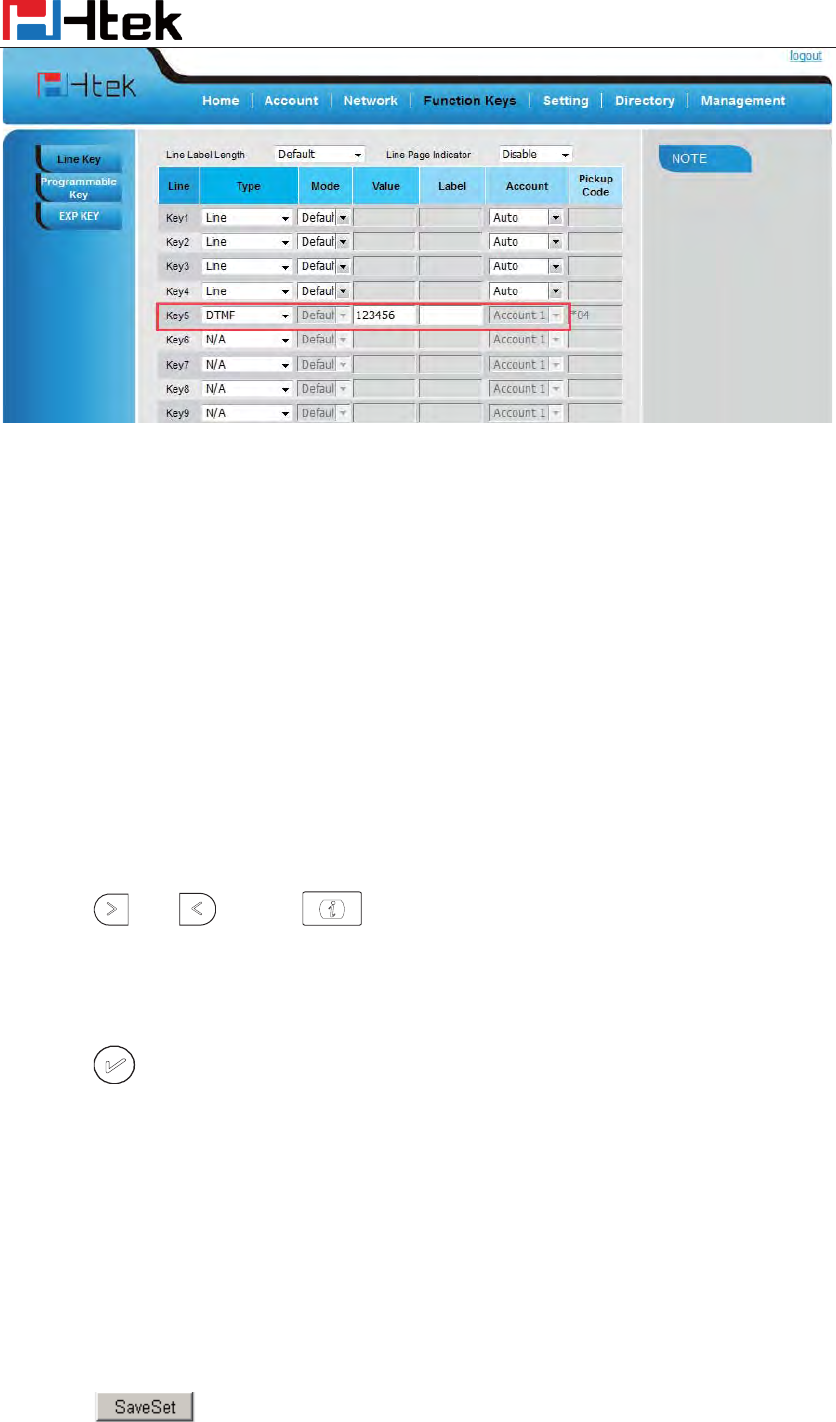
Function Key Features Settings
111
Prefix
If the key is configured as Prefix key, you can set the number prefix (e.g. Before the number plus
9), then you don't input 9, press the key and 9 will display on the LCD interface.
To configure the Prefix via Phone Interface
1. Press Menu ėFeatures ėFunction KeysėLine or Line Keys as Function Keys ė Line
Key1(for example)
2. Select the wanted Line or Line Key.
3. Press and or press key to select the Prefix in the type field.
4. Enter the value with number that you want to set as prefix
5. Press or Save soft key to save the configuration
To configure the Prefix via Web interface
1. Click Function key ė Line or Line Key.
2. Select the desired Line or Line Key and select Prefix in the Type.
3. Fill the value.
4. Click to save the configuration.
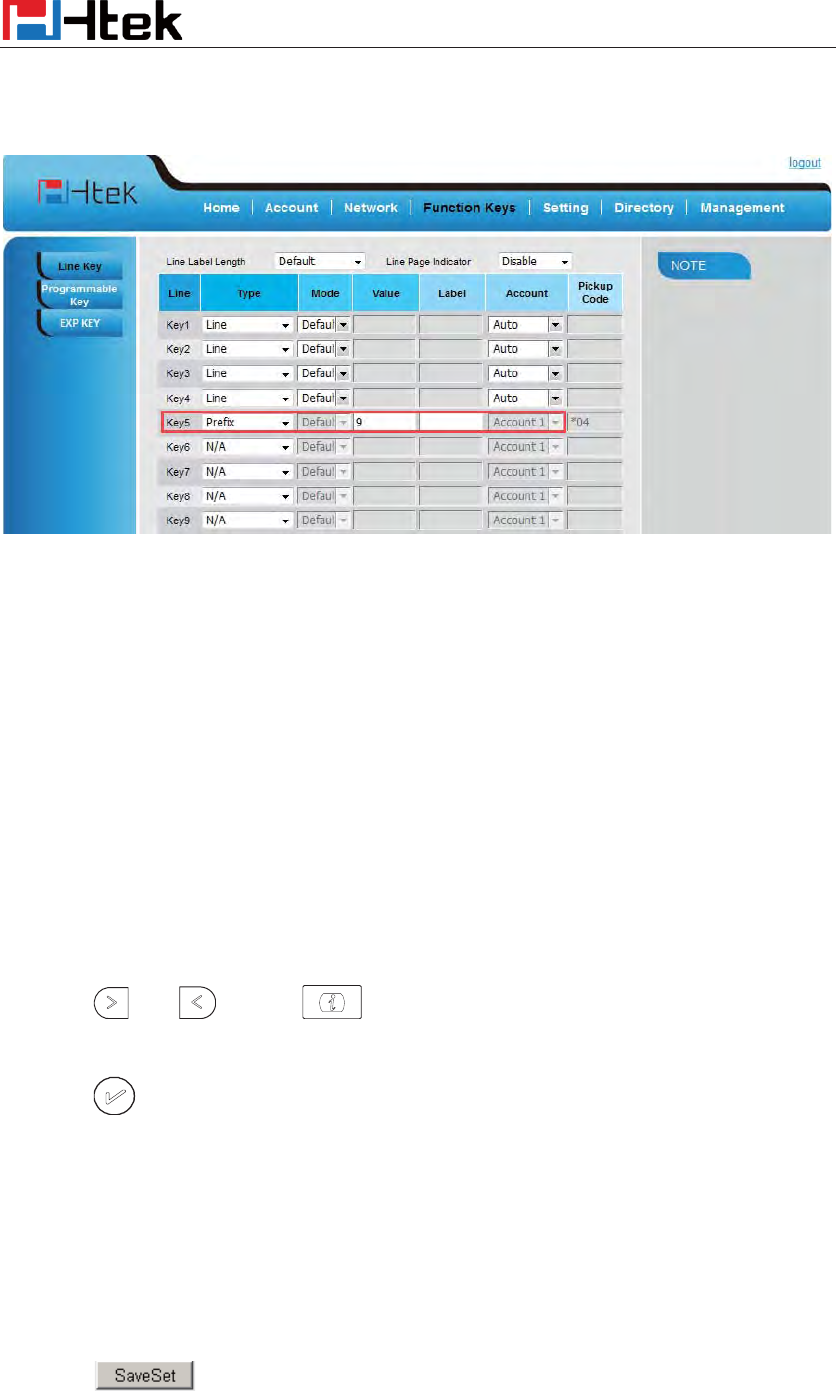
Function Key Features Settings
112
Then when you press this key, the set value is input directly.
Local Group
When use the Local Group feature, press the key and enter the local Contacts interface quickly.
To configure the Local group via Phone Interface
1. Press Menu ėFeatures ėFunction KeysėLine Keys as Function Keys ė Line Key1(for
example)
2. Select the wanted Line Key.
3. Press and or press key to select the Local group in the type field.
4. Press or Save soft key to save the configuration
To configure the Local Group via Web interface
1. Click Function key ė Line Key.
2. Select the desired Key and select Local group in the Type.
3. Click to save the configuration.
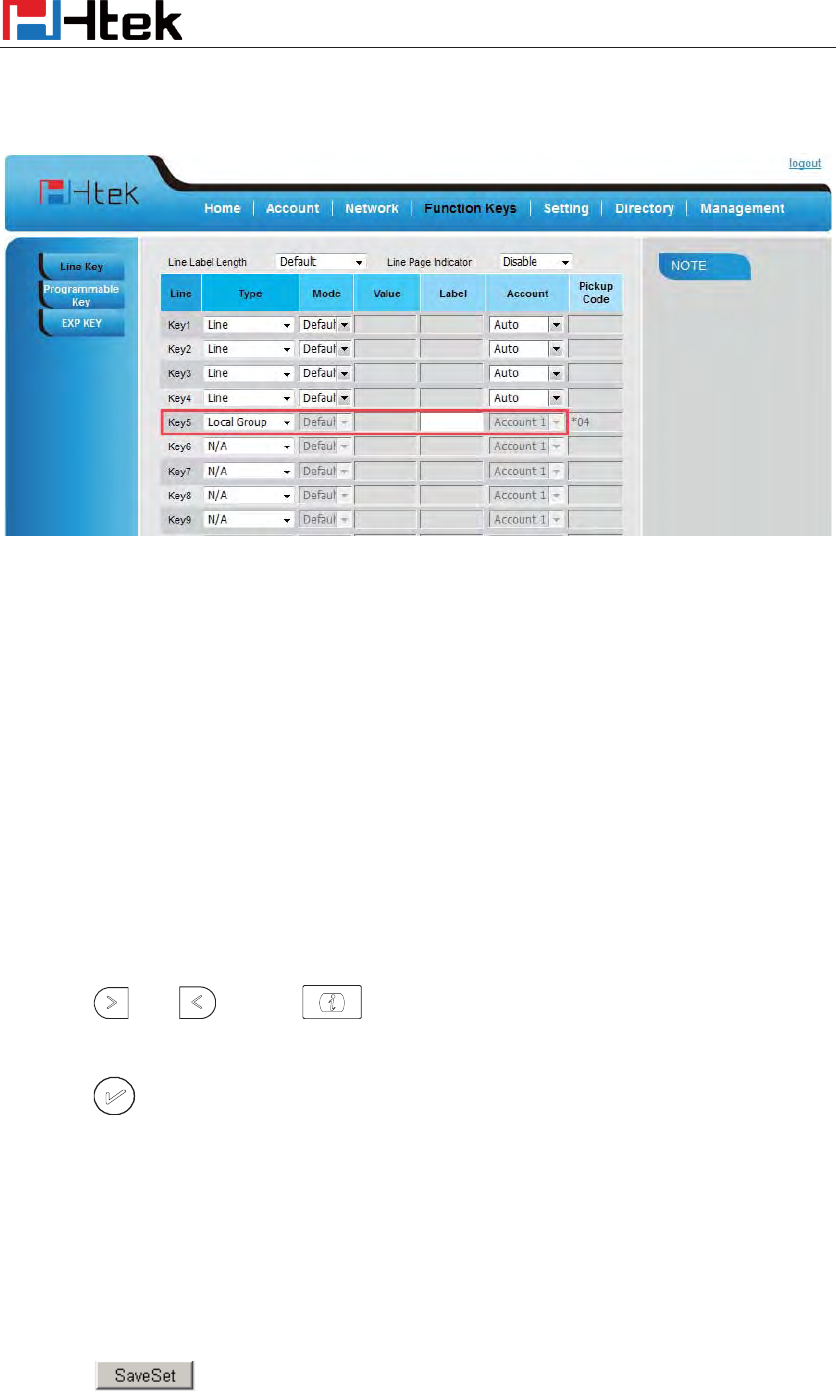
Function Key Features Settings
113
Then you can press the local group key to access the pre-defined contact group in the local
directory quickly.
XML Group
When use the XML Group feature, press the key and enter the Remote Contacts interface quickly.
To configure the XML group via Phone Interface
1. Press Menu ėFeatures ėFunction KeysėLine Keys as Function Keys ė Line Key1(for
example)
2. Select the wanted Line Key.
3. Press and or press key to select the XML group in the type field.
4. Press or Save soft key to save the configuration
To configure the XML Group via Web interface
1. Click Function key ė Line Key.
2. Select the desired Key and select XML group in the Type.
3. Click to save the configuration.
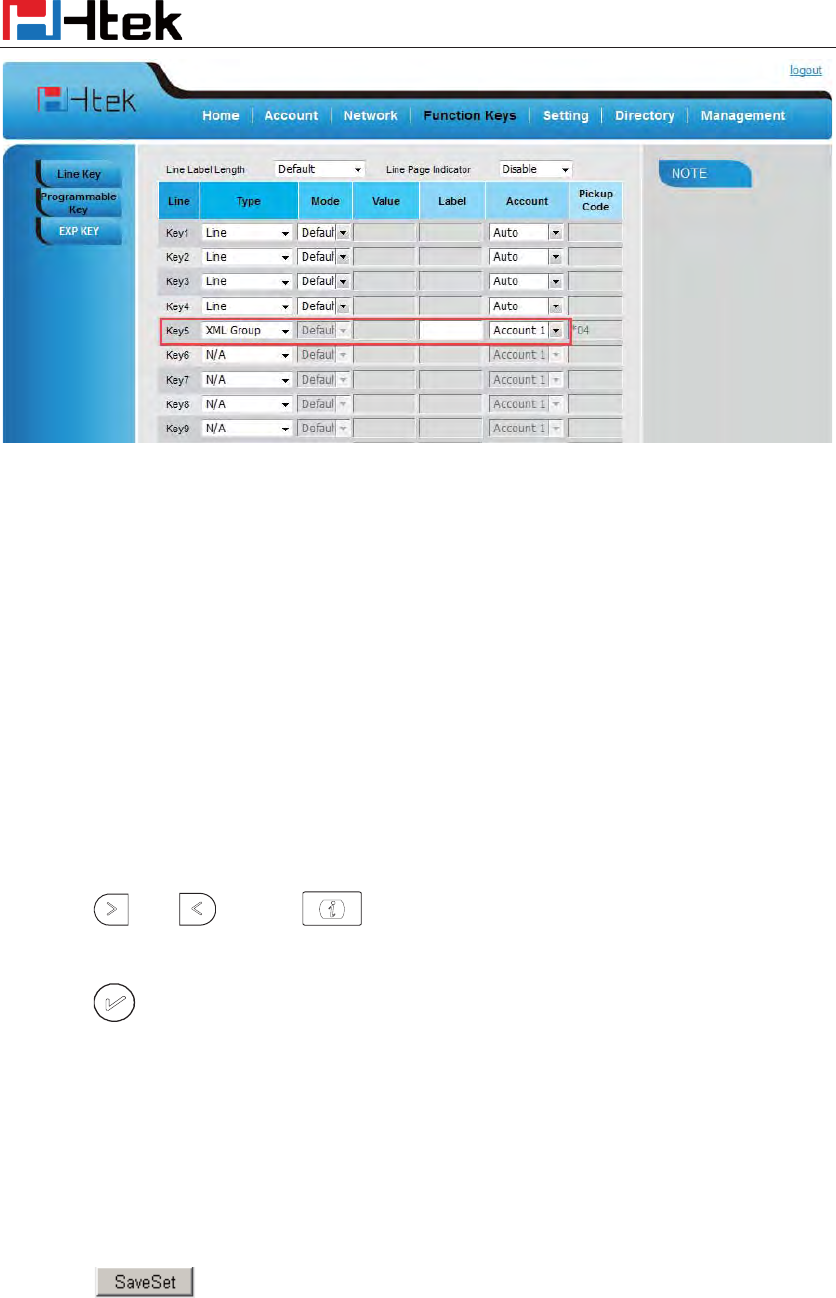
Function Key Features Settings
114
LDAP
When use the LDAP feature, you can get the LDAP Phonebook directly.
To configure the LDAP via Phone Interface
1. Press Menu ėFeatures ėFunction KeysėLine Keys as Function Keys ė Line Key1(for
example)
2. Select the wanted Line Key.
3. Press and or press key to select the LDAP in the type field.
4. Press or Save soft key to save the configuration
To configure the LDAP via Web interface
1. Click Function key ė Line Key.
2. Select the desired Key and select LDAP in the Type.
3. Click to save the configuration.
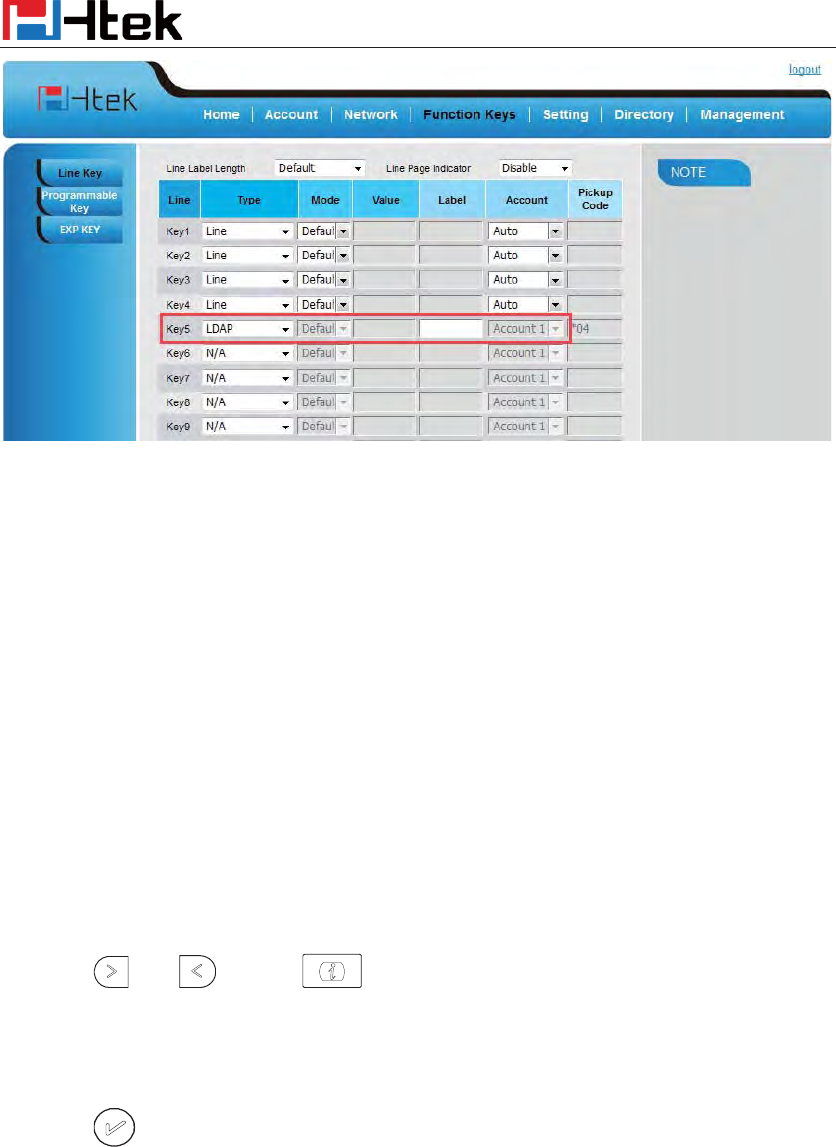
Function Key Features Settings
115
XML Browser
You can use this key feature to access the Xml browser quickly. The Xml browser allows you to
create custom services which meet your functional requirements on the server. You can customize
practical applications, such as weather report, stock information, Google search, etc.
To configure the XML Browser via Phone Interface
1. Press Menu ėFeatures ėFunction KeysėLine Keys as Function Keys ė Line Key1(for
example)
2. Select the wanted Line Key.
3. Press and or press key to select the XML Browser in the type field.
4. Filled the access URL for xml browser
5. Press or Save soft key to save the configuration
To configure the XML Browser via Web interface
1. Click Function key ė Line Key.
2. Select the desired Key and select xml browser in the Type.
3. Filled the access URL for xml browser (e.g.: http://192.168.0.240:8080/xmlbrowser/text.xml)
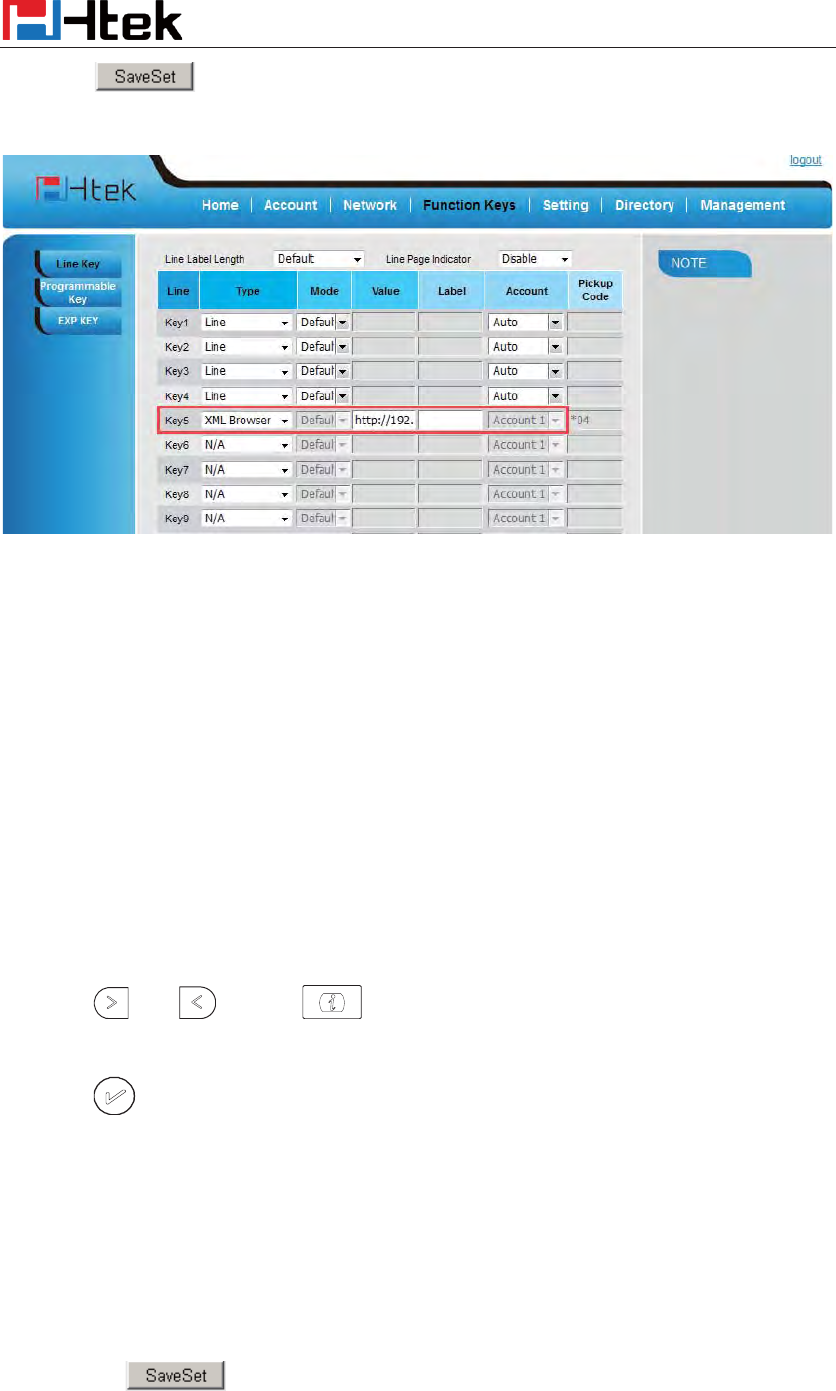
Function Key Features Settings
116
4. Click button to save the configuration.
Broadsoft Group
When use the BroadSoft Group feature, press the key and enter the Broadsoft Contacts interface
quickly.
To configure the Broadsoft group via Phone Interface
1. Press Menu ėFeatures ėFunction KeysėLine Keys as Function Keys ė Line Key1(for
example)
2. Select the wanted Line Key.
3. Press and or press key to select the Broadsoft group in the type field.
4. Press or Save soft key to save the configuration
To configure the Broadsoft group via Web interface
1. Click Function key ė Line Key.
2. Select the desired Key and select Broadsoft group in the Type.
3. Click the button to save the configuration.

Function Key Features Settings
117
Conference
The Htek IP Phone supports up to 5-way conference. You are allowed to configure the
programmable key to be used as a conference key. This key works same as .
To configure the Conference via Phone Interface
1. Press Menu ėFeatures ėFunction KeysėLine Keys as Function Keys ė Line Key1(for
example)
2. Select the wanted Line Key.
3. Press and or press key to select the Conference in the type field.
4. Press or Save soft key to save the configuration
To configure Conference via Web Interface
1. Click Function keys ėLine Key.
2. Select the desired Key and select Conference in the Type.
3. Click the button to save the configuration.
Forward
If the key is configured as Forward key, press this key under the idle status, the IP phone will turn
to the Always Forward interface and you can set the Forward to number, then when there is any
call to the number will be forwarded to the set number automatically.
To configure the Forward via Phone Interface
1. Press Menu ėFeatures ėFunction KeysėLine Keys as Function Keys ė Line Key1(for
example)
2. Select the wanted Line Key.
Function Key Features Settings
118
3. Press and or press key to select the Forward in the type field.
4. Enter the Number that to forward.
5. Press or Save soft key to save the configuration
To configure Forward via Web Interface
1. Click Function keys ėLine Key.
2. Select the desired Key and select Forward in the Type.
3. Enter the Value with the number you want to forward
4. Click the button to save the configuration.
Transfer
You are able to configure the key as a transfer key to perform the Attended/Semi-Attended
Transfer.
To configure the Transfer via Phone Interface
1. Press Menu ėFeatures ėFunction KeysėLine Keys as Function Keys ė Line Key1(for
example)
2. Select the wanted Line Key.
3. Press and or press key to select the Transfer in the type field.
4. Enter the Number that transfer to
5. Press or Save soft key to save the configuration
To configure Transfer via Web Interface
Function Key Features Settings
119
1. Click Function keys ėLine Key.
2. Select the desired Key and select Transfer in the Type.
3. Enter the Value with the number that wanted transfer to
4. Click the button to save the configuration.
Hold
The key can be configured as a hold key. You can use this key to hold and resume a call during the
conversation.
To configure the Hold via Phone Interface
1. Press Menu ėFeatures ėFunction KeysėLine Keys as Function Keys ė Line Key1(for
example)
2. Select the wanted Line Key.
3. Press and or press key to select the Hold in the type field.
4. Press or Save soft key to save the configuration
To configure Hold via Web Interface
1. Click Function keys ėLine Key.
2. Select the desired Key and select Hold in the Type.
3. Click the button to save the configuration.
Group Listening
With this feature, when you active a call, you can listen using Handset and Free-speaker, but only
can use the handset to speak.
Function Key Features Settings
120
To configure the Group listening via Phone Interface
1. Press Menu ėFeatures ėFunction KeysėLine Keys as Function Keys ė Line Key1(for
example)
2. Select the wanted Line Key.
3. Press and or press key to select the group listening in the type field.
4. Press or Save soft key to save the configuration
To configure Group listening via Web Interface
1. Click Function keys ėLine Key.
2. Select the desired Key and select Group listening in the Type.
3. Click to save the configuration.
DND
If the key is configured as DND key, you are allowed to active the DND function immediately
when you press it and the phone is to reject all incoming calls automatically. Press it again to
deactivate DND mode.
To configure the DND via Phone Interface
1. Press Menu ėFeatures ėFunction KeysėLine Keys as Function Keys ė Line Key1(for
example)
2. Select the wanted Line Key.
3. Press and key to select the DND in the type field.
4. Press or Save soft key to save the configuration
To configure DND via Web Interface

Function Key Features Settings
121
1. Click Function keys ėLine Key.
2. Select the desired Key and select DND in the Type.
3. Click the button to save the configuration.
To enable DND feature
Press the DND soft key when the phone is idle status, and then DND icon shown on the LCD.
To disable DND feature
Press the DND soft key again, then there is no DND icon on the LCD.
Redial
If the key is configured as Redial key, you can redial the last placed call from the IP Phone.
To configure Redial via Web Interface
1. Click Function keys ėLine key/Line Key
2. Select the desired Key and select redial in the Type.
3. Enter the Label displayed on LCD.
4. Click the button to save the configuration.
SMS
Send SMS
To send SMS via web Interface
1. Click SettingÆSMS
2. Select the account(from which account the SMS sent)
3. Enter the target number
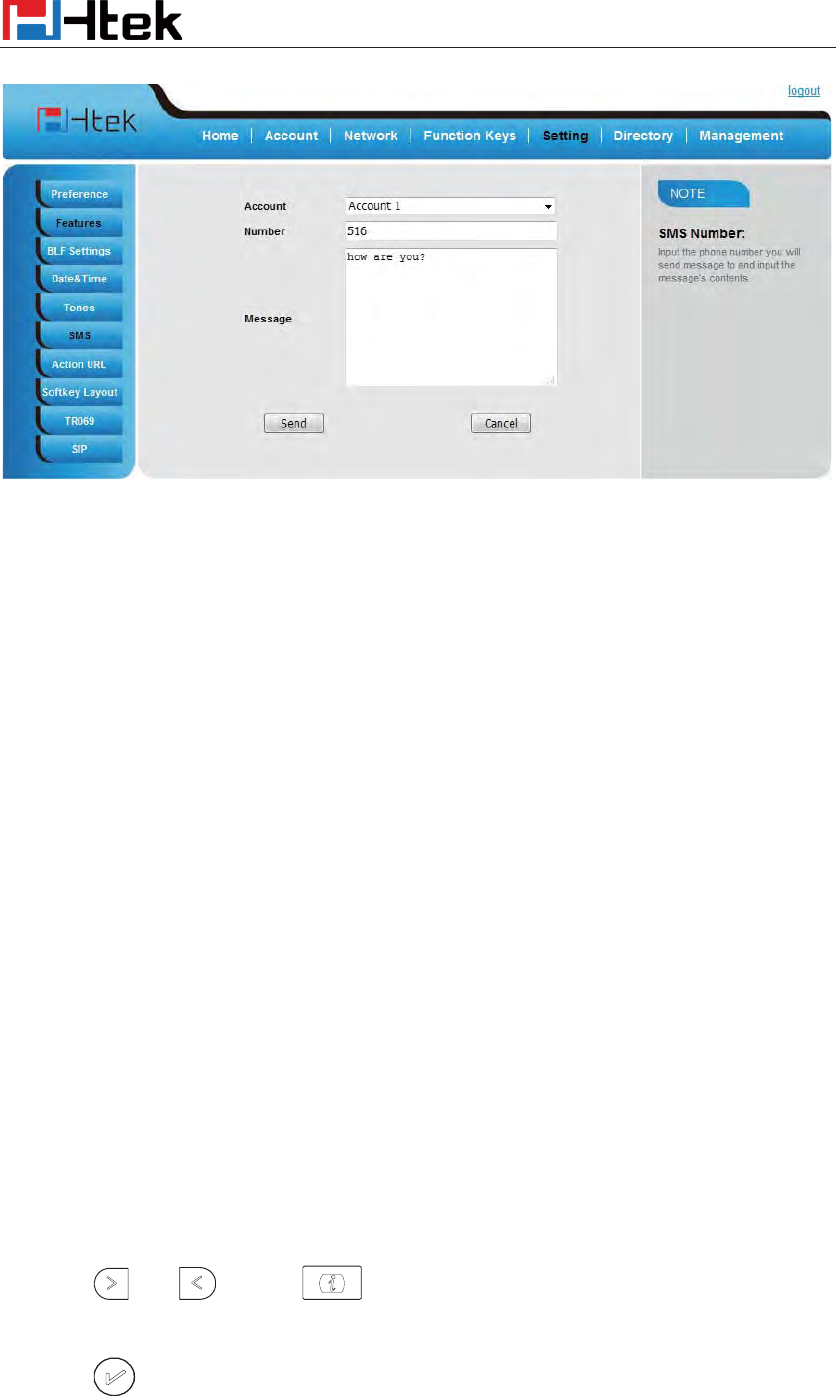
Function Key Features Settings
122
4. Input the content of SMS, and click Send.
To send SMS via phone interface:
1. Click MenuÆMessageÆText MessageÆSet SMS
2. Enter the contents in the white field.
3. Press the save button
4. Select the account (from which account the SMS sent)
5. Enter the target number (to which account the number sent)
6. Press the Send button.
Set SMS Line Key
To configure the SMS via Phone Interface
1. Press Menu ėFeatures ėFunction KeysėLine Keys as Function Keys ė Line Key1(for
example)
2. Select the wanted Line Key.
3. Press and or press key to select the SMS in the type field.
4. Press or Save soft key to save the configuration
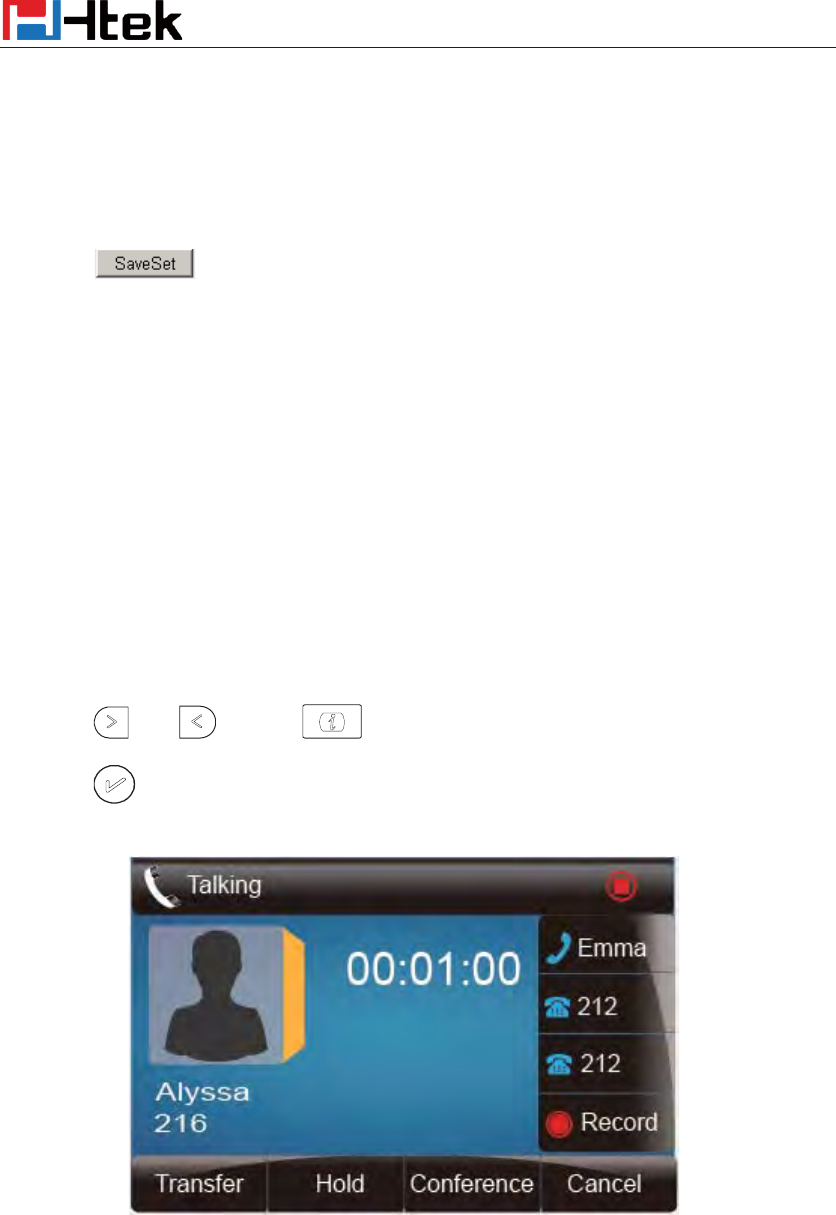
Function Key Features Settings
123
To configure SMS via Web Interface
1. Click Function keys ėLine Key.
2. Select the desired Key and select SMS in the Type.
3. Click to save the configuration.
Record
With record feature, you can record calls by pressing a record key on the phone.
To configure the record via phone interface
1. Press Menu ėFeatures ėFunction KeysėLine or Line Keys as Function Keys ė Line
Key1(for example)
2. Select the wanted Line or Line Key.
3. Press and or press key to select the Record.
4. Press or Save soft key to save the configuration
To configure the record via Web Interface
1. Click Function keys ė Line or Line Key.
2. Select the desired Line or Line Key and select Record in the Type.
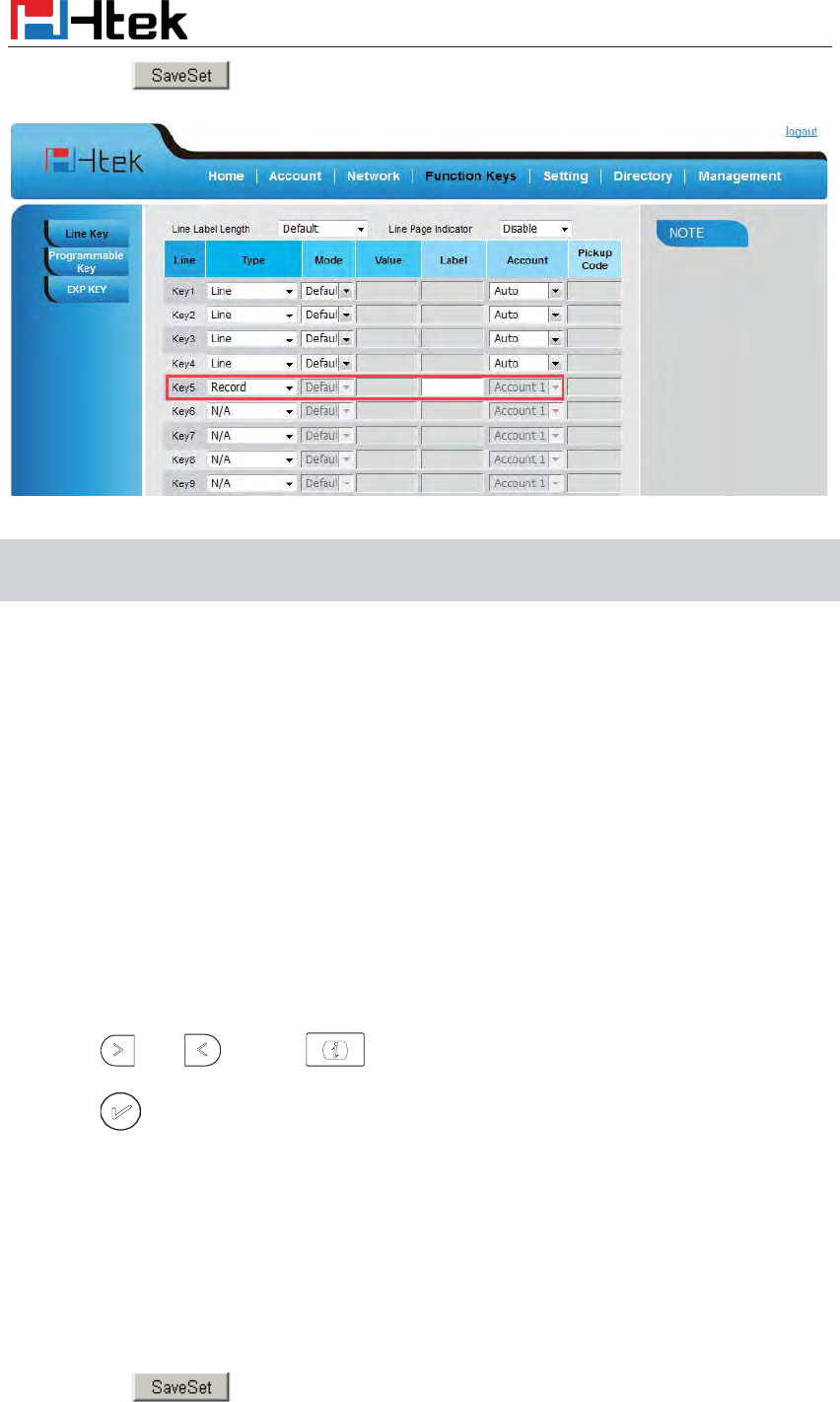
Function Key Features Settings
124
3. Click the button to save the configuration.
Note:
Please contact the system administrator whether support this feature or not.
URL Record
The phone sends HTTP URL request to trigger a recording. Contact your system administrator for
the predefined URL.
To configure the URL record via phone interface
1. Press Menu ėFeatures ėFunction Keysė Line Keys as Function Keys ė Line Key1(for
example)
2. Select the wanted Line or Line Key.
3. Press and or press key to select the URL Record.
4. Press or Save soft key to save the configuration
To configure the record via Web Interface
1. Click Function keys ė Line Key.
2. Select the desired Line or Line Key and select URL Record in the Type.
3. Click the button to save the configuration.
Function Key Features Settings
125
Paging
With this feature, you can call a paging group directly.
To configure the paging via phone interface
1. Press Menu ėFeatures ėFunction KeysėLine Keys as Function Keys ė Line Key1(for
example)
2. Select the wanted Line or Line Key.
3. Press and or press key to select the Paging.
4. Enter the paging code followed the number.
5. Press or Save soft key to save the configuration
To configure the Paging via Web interface
1. Click Function keys ė Line Key.
2. Select the desired Line Key and select Paging in the Type.
3. Enter the paging code followed the number.
4. Click the button to save the configuration.
Shared Line
Htek IP Phone supports shared call appearance by Broadsoft and XCast standard. This feature
allows members of the SCA group to shared SIP lines and provides status monitoring (idle, active,
progressing, hold) of the shared line. When there is an incoming call designated for the SCA group,
all of the members of the group will be notified of an incoming call and will be able to answer the
call from the phone with the SCA extension registered.
All the users that belong to the same SCA group will be notified by visual indicator when a user
seizes the line and places an outgoing call, and all the users of this group will not be able to seize
the line until the line goes back to an idle state or when the call is placed on hold (with the

Function Key Features Settings
126
exception of when multiple call appearances are enabled on the server side).
In the middle of the conversation, there are two types of hold: Public Hold and Private Hold.
When a member of the group places the call on public hold, the other users of the SCA group will
be notified of this by the red-flashing button and they will be able to resume the call from their
phone by pressing the line button. However, if this call is placed on private-hold, no other member
of the SCA group will be able to resume that call.
To enable shared call appearance, the user would need to register the shared line account on the
phone. In addition, they would need to navigate to “Account” ->“Advanced” on the webpage and
set the line to “Shared Line” and “SIP Server Type”, and configure the line key or Line Key as
“line” type with the desired account on webpage or LCD. If the user requires more shared call
appearances, the user can configure multiple line keys (Function keys->Line key) to be “line” type
associated with the account.
This feature is very useful in the boss and secretary scenario. For example, the secretary can share
the boss' extension number on her phone. When there is an incoming call to the extension number
of the boss, both the phones of the boss and the secretary will ring simultaneously. Either the boss
or the secretary can answer the call. Calls on shared line can be placed on hold or barged in.
To configure the line key as line via phone interface
1. Press Menu ėFeatures ėFunction KeysėLine or Line Keys as Function Keys ė Line
Key1(for example)
2. Select the wanted Line or Line Key.
3. Press and or press key to select the Line in the type field.
4. Press and or press key to select the Account ID.
5. Enter the Label
6. Enter the Value
7. Press or Save soft key to save the configuration
To configure the line key as line via Web Interface
1. Click Function keys ė Line or Line Key.
2. Select the desired Line or Line Key and select Line in the Type.
Function Key Features Settings
127
3. Enter the Value.
4. Enter the Label.
5. Select the Account ID
6. Click the button to save the configuration and then restart.
Note˖˖
Th
is feature is not available on all servers. For more information, conta
ct your system
administrator.
Public Hold
The key can be configured as a public hold key. During a conversation, all members belonging to
that particular SLA group can use this key to hold or resume a call.
To configure the Public hold via phone interface
1. Press Menu ėFeatures ėFunction KeysėLine or Line Keys as Function Keys ė Line
Key1(for example)
2. Select the wanted Line or Line Key.
3. Press and or press key to select the Public Hold.
4. Press or Save soft key to save the configuration
To configure public hold via Web Interface
1. Click Function keys ėLine Key.
2. Select the desired Key and select public hold in the Type.
3. Click the button to save the configuration.
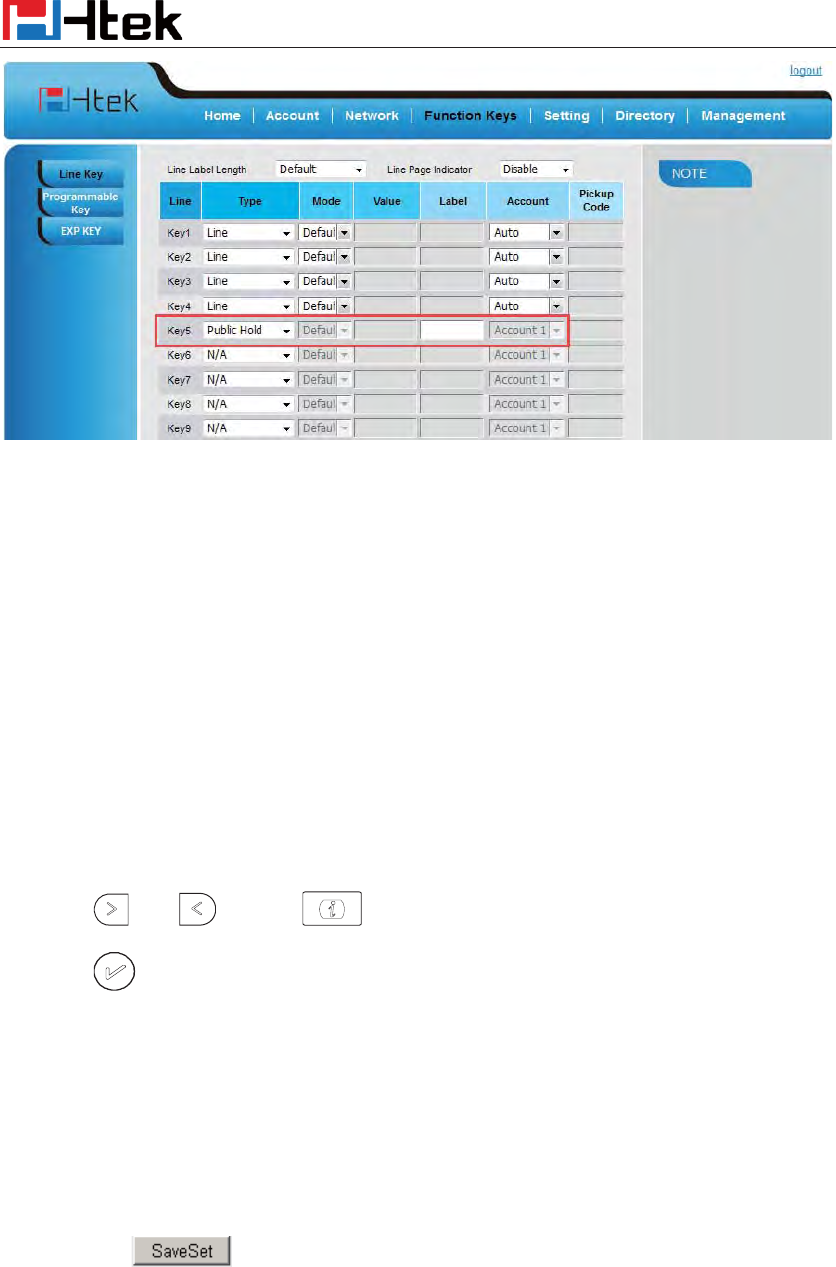
Function Key Features Settings
128
Private Hold
The key can be configured as a private hold key. During a conversation, all members belonging to
that particular SLA group can use this key to hold the call, but only the initiator can resume the
call.
To configure the Private hold via phone interface
1. Press Menu ėFeatures ėFunction KeysėLine or Line Keys as Function Keys ė Line
Key1(for example)
2. Select the wanted Line or Line Key.
3. Press and or press key to select the Private Hold.
4. Press or Save soft key to save the configuration
To configure private hold via Web Interface
1. Click Function keys ėLine Key.
2. Select the desired Key and select Private hold in the Type.
3. Click the button to save the configuration.
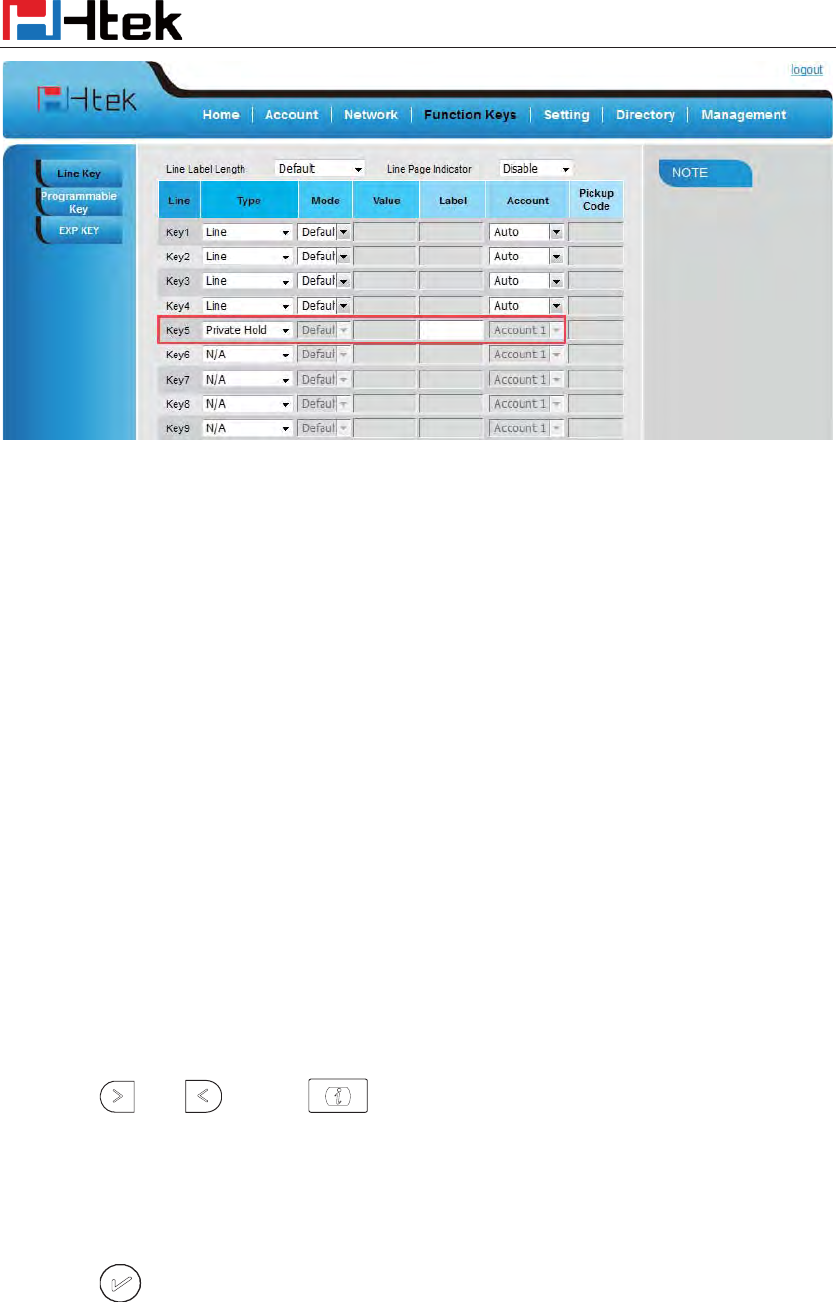
Function Key Features Settings
129
Share line
Shared line is configured by assigning the same extension number to multiple lines. You can use
the shared line feature to share an extension number which is used on two or more IP phones at the
same time. An incoming call to that number will cause all phones to ring simultaneously. The
incoming call can be answered on one of the phones but not all of them. This feature is very useful
in the boss and secretary scenario. For example, the secretary can share the boss' extension
number on her phone. When there is an incoming call to the extension number of the boss, both
the phones of the boss and the secretary will ring simultaneously. Either the boss or the secretary
can answer the call. Calls on shared line can be placed on hold or barged in.
To configure the share line via phone interface
1. Press Menu ėFeatures ėFunction KeysėLine or Line Keys as Function Keys ė Line
Key1(for example)
2. Select the wanted Line or Line Key.
3. Press and or press key to select the share line.
4. Enter the number in the value field.
5. Select the desired account in the Account field.
6. Press or Save soft key to save the configuration
To configure the share line feature via web interface:
1. Click Function keys ėLine Key.

Function Key Features Settings
130
2. Select the desired Key and select share line in the Type.
3. Enter the number in the value field.
4. Select the desired account from the pull-down list of Account field.
5. Click the button to save the configuration.
Note˖
˖
This feature is not available on all servers. For more information, contact your system
administrator.
Hot Desking
Hot Desking originates from the definition of being the temporary physical occupant of a work
station or surface by a particular employee. A primary motivation for Hot Desking is cost
reduction. This feature is regularly used in places where not all the employees are in the office at
the same time, or not in the office for very long at all, which means actual personal offices would
be often vacant, consuming valuable space and resources.
You can use Hot Desking on the IP phone to logout the existing accounts and then log in a new
account, that is, many users can share the phone resource in different time. To use this feature, you
need to configure a Hot Desking key in advance.
This feature is supported on the version 1.0.3.82 or later
To configure the hot desking via phone interface
1. Press Menu ėFeatures ėFunction KeysėLine or Line Keys as Function Keys ė Line
Key1(for example)
2. Select the wanted Line or Line Key.
3. Press and or press key to select the hot desking.
4. Enter the display name in the value field.
5. Press or Save soft key to save the configuration
To configure the hot desking via web interface:
1. Click Function keys ėLine Key.
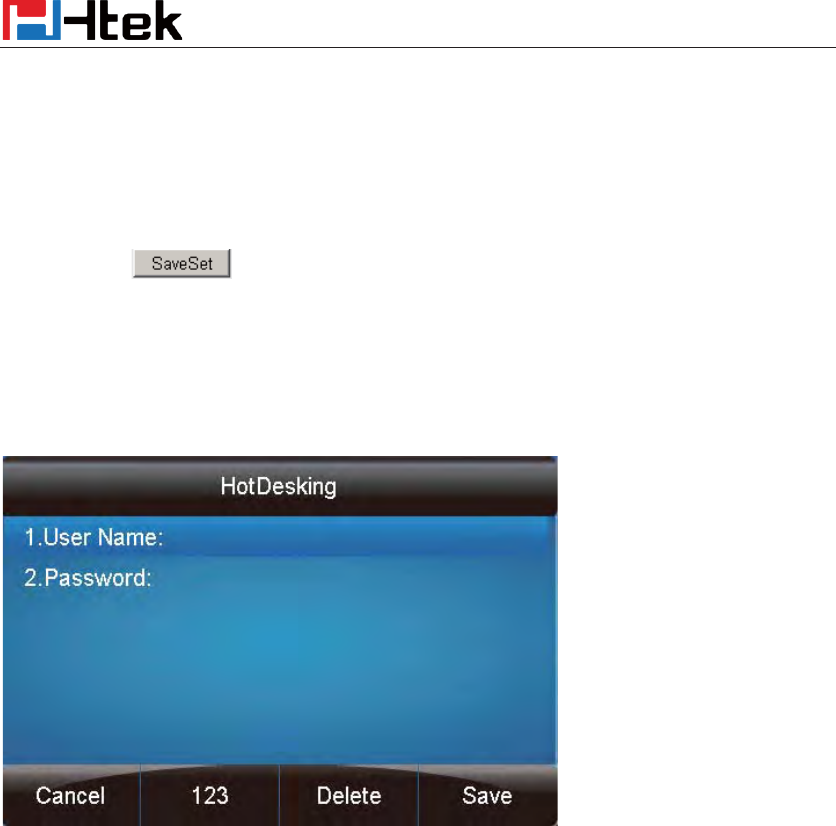
Function Key Features Settings
131
2. Select the desired Key and select hot desking in the Type.
3. Enter the number in the value field.
4. Select the desired account from the pull-down list of Account field.
5. Click the button to save the configuration.
To use the Hot desking feature on the user interface:
1. Press the Hot desking key when the IP Phone is idle.
2. Enter the Extension number and password
3. Click Save softkey
You can see the account information which has changed.
Note˖
˖
This feature is not available on all servers. For more information, contact your system
administrator.
ACD
ACD feature is often used in offices for customer service, such as call center. The ACD system
handles large volumes of incoming calls from callers who have no need to talk to a specific person
but who require assistance from any of multiple persons at the earliest opportunity. The ACD
feature on the Htek IP Phone allows the ACD system to distribute calls from large volumes of
incoming calls to the registered IP phone users. To use this feature, you should configure an ACD
key in advance.
To configure the ACD via phone interface
Function Key Features Settings
132
1. Press Menu ėFeatures ėFunction KeysėLine or Line Keys as Function Keys ė Line
Key1(for example)
2. Select the wanted Line or Line Key.
3. Press and or press key to select the ACD.
4. Enter the label in the label field.
5. Select the desired account in the Account field.
6. Press or Save soft key to save the configuration
To configure the ACD via web interface:
1. Click Function keys ėLine Key.
2. Select the desired Key and select ACD in the Type.
3. Enter the label in the label field.
4. Select the desired account from the pull-down list of Account field.
5. Click the button to save the configuration.
Note˖
˖
This feature is not available on all servers. For more information, contact your system
administrator.
Zero Touch
You can use this key feature to configure auto provision and network parameters quickly.
This feature is supported on the version 1.0.3.82 or later
To configure the zero touch via phone interface
1. Press Menu ėFeatures ėFunction KeysėLine or Line Keys as Function Keys ė Line
Key1(for example)
2. Select the wanted Line or Line Key.
3. Press and or press key to select the zero touch
Function Key Features Settings
133
4. Press or Save soft key to save the configuration
To configure the zero touch via web interface:
1. Click Function keys ėLine Key.
2. Select the desired Key and select zero touch in the Type.
3. Click the button to save the configuration.
To use the zero touch feature on the user interface:
1. Press the zero touch key when the IP Phone is idle.
2. The IP Phone will enter the WAN Port interface, you can change the WAN Type by pressing
the Navigation keys.
3. Press the Next softkey to enter Network interface, then you can configure some information.
4. Press the Next softkey again, you can configure auto provision information.
5. When you finish the setting, you can press the OK to accept the changes.
Note˖
˖
This feature is not available on all servers. For more information, contact your system
administrator.
Multicast Paging
You can use multicast paging to quickly and easily forward out time sensitive announcements to
people within the multicast group. You can configure a multicast paging key or a paging list key
on the phone, which allows you to send a Real Time Transport Protocol (RTP) stream to the
pre-configured multicast address(es) without involving SIP signaling. You can configure the phone
to receive an RTP stream from pre-configured multicast listening address(es) without involving
SIP signaling. You can specify up to 10 multicast listening addresses.
Sending RTP Stream
To configure a multicast paging key via phone interface
1. Press MenuėFeature ėline or Line KeyėLine Key1˄e.g.˅
Function Key Features Settings
134
2. Press and or switch key to select the multicast paging in the type field.
3. Enter the multicast IP address and port number (e.g., 224.5.6.20:2000) in the Value field.
4. The valid multicast IP addresses range from 224.0.0.0 to 239.255.255.255.
5. Press or Save soft key to save the configuration
To configure a multicast paging key via web interface
1. Function keys->line key˖
2. Select the desired Key and select multicast paging in the Type.
3. Enter the multicast IP address and port number (e.g., 224.5.6.20:2000) in the Value field.
The valid multicast IP addresses range from 224.0.0.0 to 239.255.255.255.
4. Click the button to save the configuration.
Sending RTP Stream˖
˖
Press the multicast paging key when the phone is idle.
The phone sends RTP to a preconfigured multicast address (IP: Port). Any phone in the local
network then listens to the RTP on the preconfigured multicast address (IP:Port). For both sending
and receiving of the multicast RTP, there is no SIP signaling involved.
The multicast paging key LED illuminates solid green.
Receiving RTP Stream
You can configure the phone to receive a Real Time Transport Protocol (RTP) stream from the
pre-configured multicast address(es) without involving SIP signaling. You can specify up to 10
multicast addresses that the phone listens to on the network.
How the phone handles incoming multicast paging calls depends on Paging Barge and Paging
Priority Active parameters configured via web user interface.
Paging Barge
The paging barge parameter defines the priority of the voice call in progress. If the priority of an
incoming multicast paging call is lower than that of the active call, it will be ignored automatically.
If Disabled is selected from the pull-down list of Paging Barge, the voice call in progress will take
precedence over all incoming multicast paging calls.
Valid values in the Paging Barge field:
z 1 to 10: Define the priority of the active call, 1 with the highest priority, 10 with the lowest.
z Disabled: The voice call in progress will take precedence over all incoming paging calls.
Paging Priority Active
The paging priority active parameter decides how the phone handles incoming multicast paging
calls when there is already a multicast paging call on the phone. If enabled, the phone will ignore
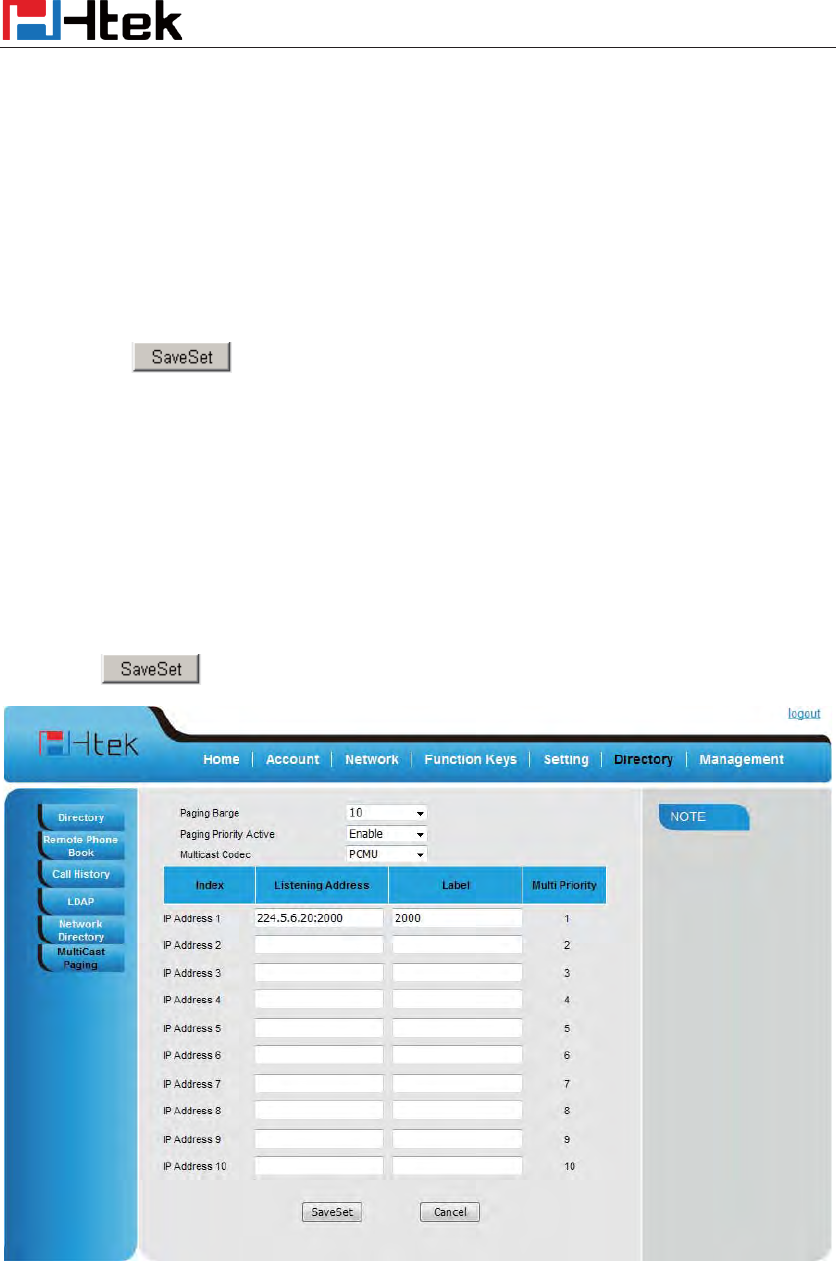
Function Key Features Settings
135
incoming multicast paging calls with lower priorities, otherwise, the phone will answer incoming
multicast paging calls automatically and place the previous multicast paging call on hold. If
disabled, the phone will automatically ignore all incoming multicast paging calls.
Multicast Codec˖
˖
You can only configure the codec by web interface.
To configure multicast codec key via web interface
1. Click Directory ->Multicast Paging˖
2. Select the desired codec from the pull-down list of Multicast Codec
3. Click the button to save the configuration.
To configure multicast listening addresses via web interface:
1. Click Directory->Multicast pagingDŽ
2. Select the desired value from the pull-down list of Paging Barge.
3. Select the desired value from the pull-down list of Paging Priority Active.
4. Enter the multicast IP address(es) and port number (e.g., 224.5.6.20:2000) which the phone
listens to for incoming RTP multicast in the Listening Address field.
5. Enter the label in the Label field.
6. Click button to save the configuration.
Note:
The priorities of listening addresses are predefined: 1 with the highest priority, 10 with the lowest.
Both the multicast paging sender and receiver’s phones play a warning tone when establishing a
multicast paging call. Multicast listening addresses are configurable via web interface only.
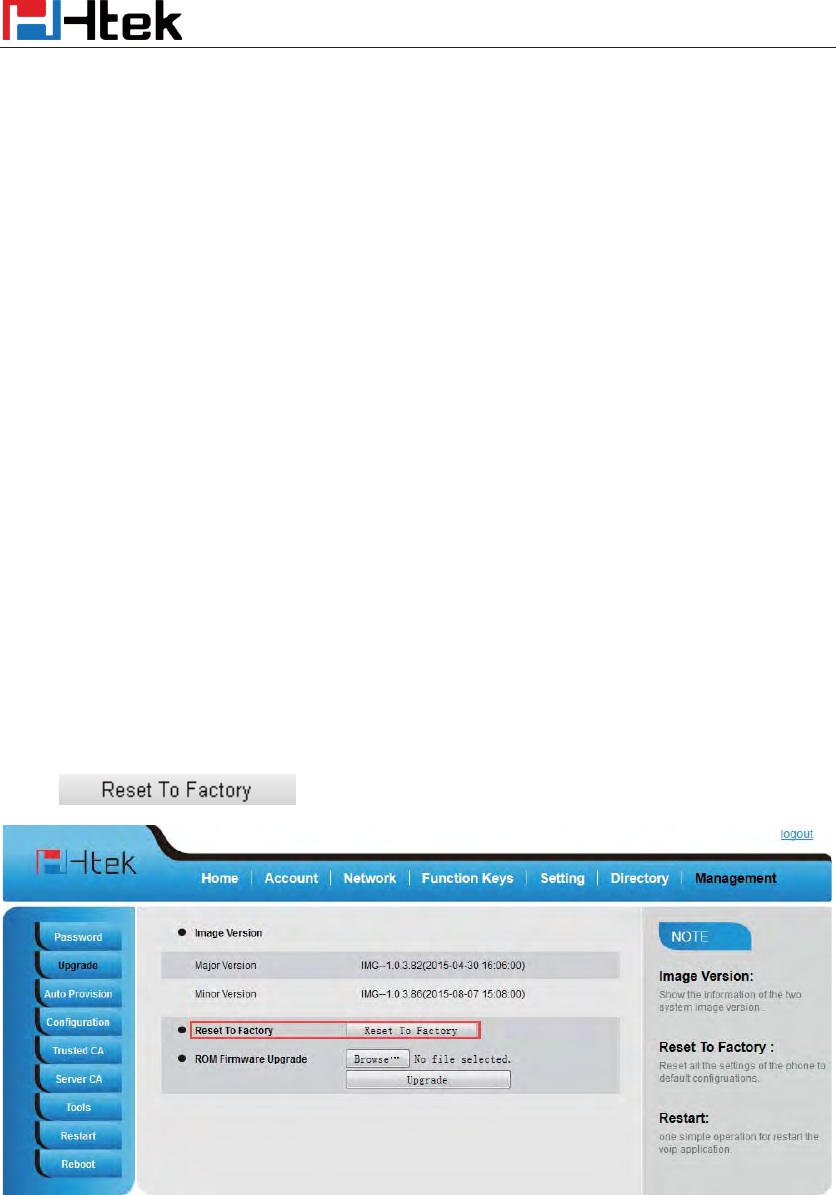
Advanced Setting Configuration
136
Advanced Setting Configuration
Account setting
Upgrade
Factory Reset
To set Factory Reset by phone interface
1. Press Menu ė Setting ė Advanced Setting( default password: admin)ė Factory Reset
2. Press OK soft key in the warning page.
To set Factory Reset via web interface
Click Management ė Upgrade
Click and then confirm the setting.
Pcap Feature
To use pcap via web interface:
1. Click ManagementÆTools
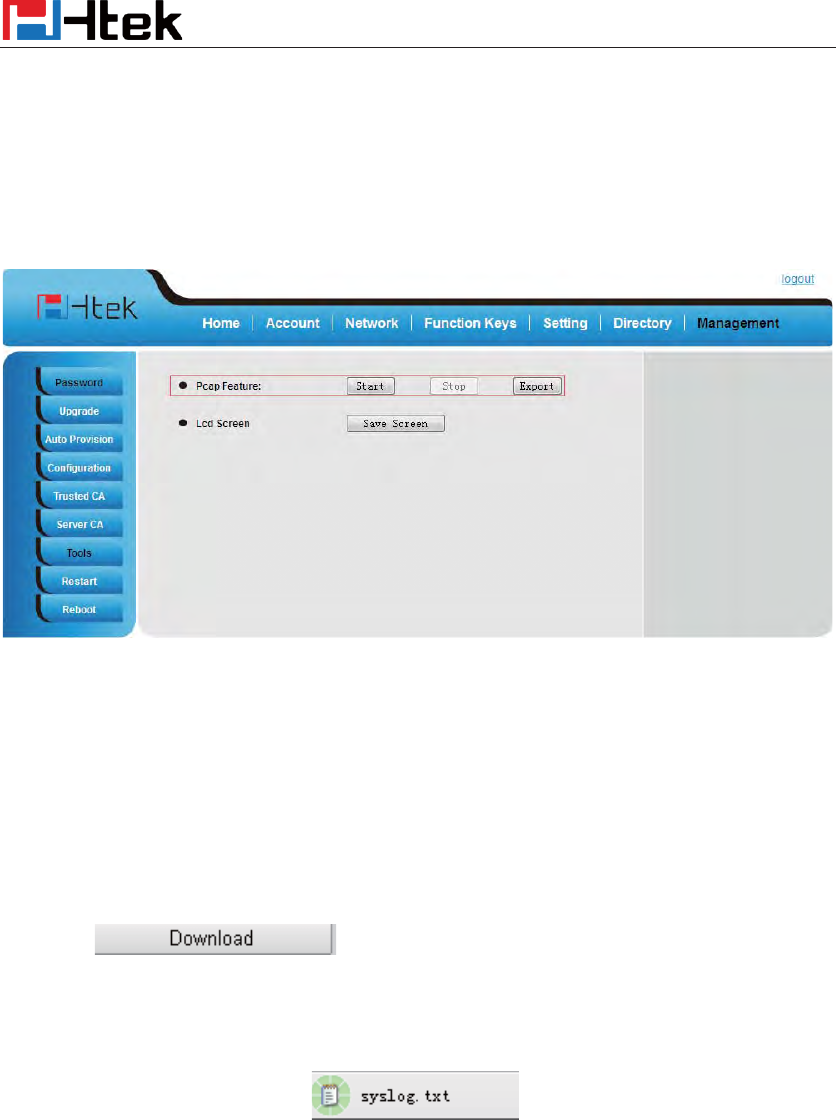
Upgrade
137
2. Click Start and then operation the phone
3. When finish the operation, click stop and then click Export.
4. Then you’ll get the Pacp captures.
System Log
To download system log via web interface:
1. Click ManagementÆConfiguration
2. Click of the system Log
3. Then you’ll get a txt file: syslog.txt.
.
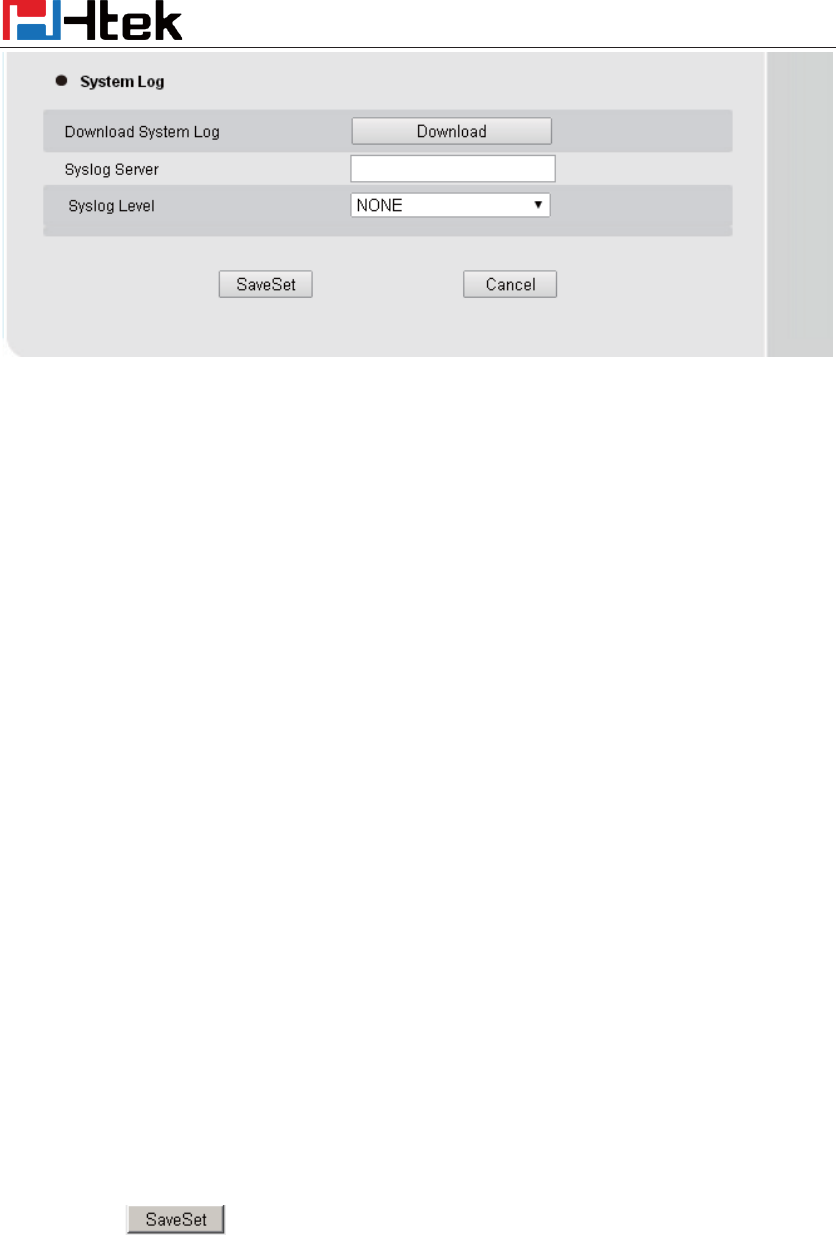
Upgrade
138
Upgrade
To upgrade via HTTP, the “Management”->“auto provision” ->“ Firmware Upgrade”-> “Upgrade
Mode” field needs to be set to HTTP, respectively. “Firmware Server Path” needs to be set to a
valid URL of a HTTP server, server name can be in either FQDN or IP address format. Here are
examples of some valid URL.
e.g. firmware.mycompany.com:5688/Hanlong
e.g. www.mycompany.com:5688/fm/ Hanlong
e.g. 218.2.83.110
Instructions for firmware upgrade via HTTP:
(1) End users can choose to download the free HTTP server from http://httpd.apache.org/ or use
Microsoft IIS web server. Then setup HTTP server.
(2) Unzip the firmware file and put all of them under the root/fm directory of the HTTP server.
(3) Visiting “HTTP:\\192.168.0.254\fm\fw8xx.rom on localhost by browser” to verify the HTTP
Server. If visiting “HTTP: \\192.168.0.254\fm\fw8xx.rom on other computer is no prompt to
download fw8xx.rom file, please check the firewall (Suggest close the firewall).
To configure the server path via web interface:
1. Click ManagementÆAuto provision:
2. Select the upgrade mode in the upgrade mode field
3. Enter the Firmware server path and config server path (192.168.0.254 is HTTP server).
4. Enter the HTTP server’s username and password (optional).
5. Click the button to save the configuration.
6. Restart the UC8xx, IP Phone will restart and auto-get firmware files from HTTP server.
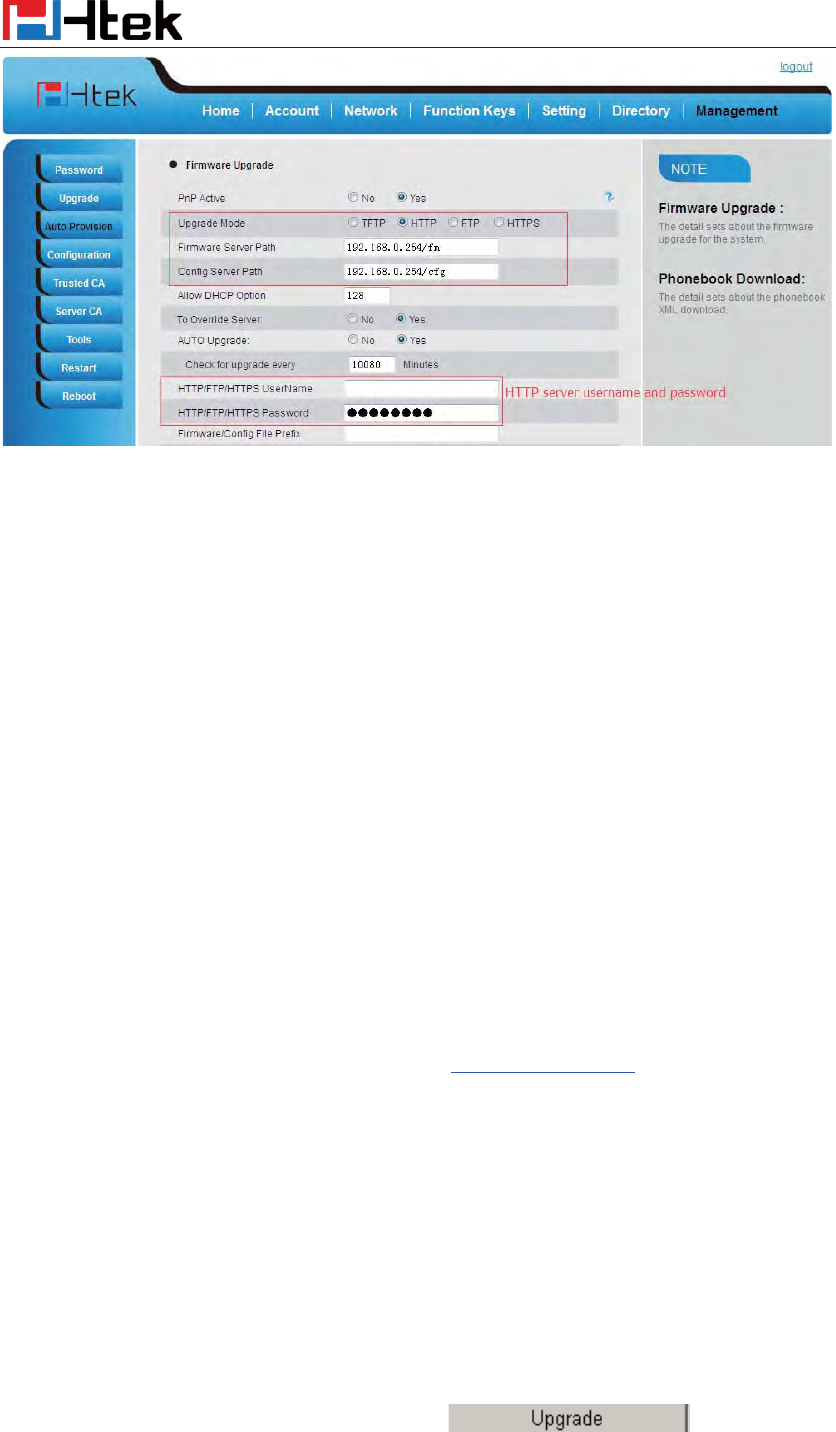
Upgrade
139
NOTES:
¾ Hanlong recommends end-user use the Hanlong HTTP server. For large companies, we
recommend to maintain their own TFTP/HTTP/FTP/HTTPS server for upgrade and
provisioning procedures.
¾ Once a “Firmware Server Path” is set, user needs to update the settings and restart the IP
Phone. If the configured firmware server is found and a new code image is available, the
UC8xx will attempt to retrieve the new image files by downloading them into the
UC8xx’s SDRAM. During this stage, the UC8xx’s LEDs will blink fastly until the
checking/downloading process is completed. Upon verification of checksum, the new
code image will then be saved into the Flash. If TFTP/HTTP/FTP/HTTPS fails for any
reason (e.g. TFTP/HTTP/FTP/HTTPS server is not responding, there are no code image
files available for upgrade, or checksum test fails, etc), the UC8xx will stop the
TFTP/HTTP/FTP/HTTPS process and simply boot using the existing code image in the
flash.
¾ Firmware upgrade may take as long as 3 to 8 minutes over Internet, or just 1 minutes if
it is performed on a LAN. It is recommended to conduct firmware upgrade in a
controlled LAN environment if possible. For users who do not have a local firmware
upgrade server.
¾ Hanlong’s latest firmware is available at http://www.h-tek.com ÆSupportÆFirmware
Download.
¾ Oversea users are strongly recommended to download the binary files and upgrade
firmware locally in a controlled LAN environment.
To upgrade manually via the Web configuration interface
1. Click Management ė Upgrade
2. Click Brower or the blank.
3. Select the firmware (fw8xx.rom )and then click .
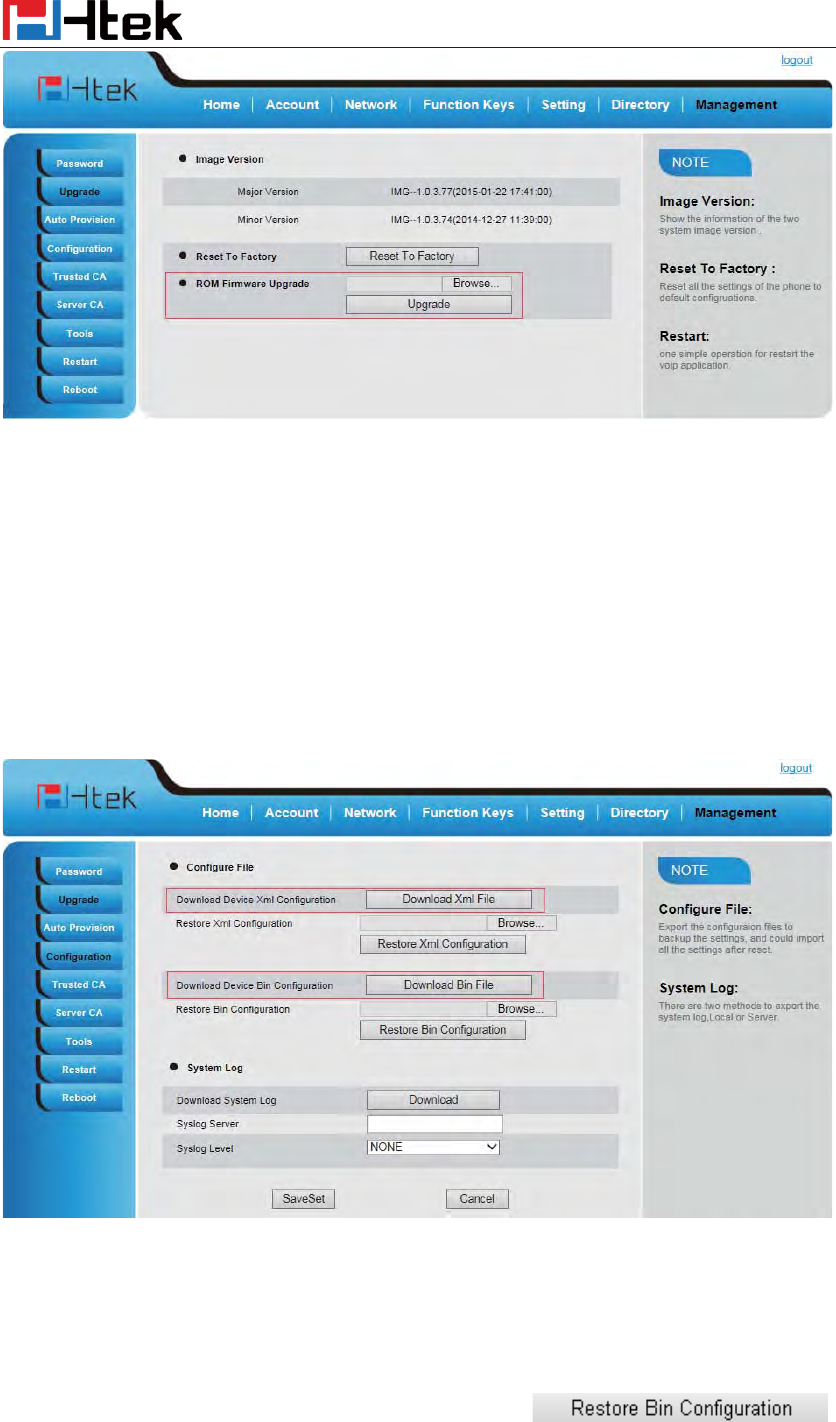
Upgrade
140
Configuration File
To download configuration file:
1. Click Management Æ Configuration ÆDownload Device Configuration
2. Then you can get a file: cfg.bin or cfg.xml
To Restore a configuration file:
1. Click Management Æ Configuration Æ Restore configuration
2. Select the xxx.bin or xxx.xml file, and then Click the ,
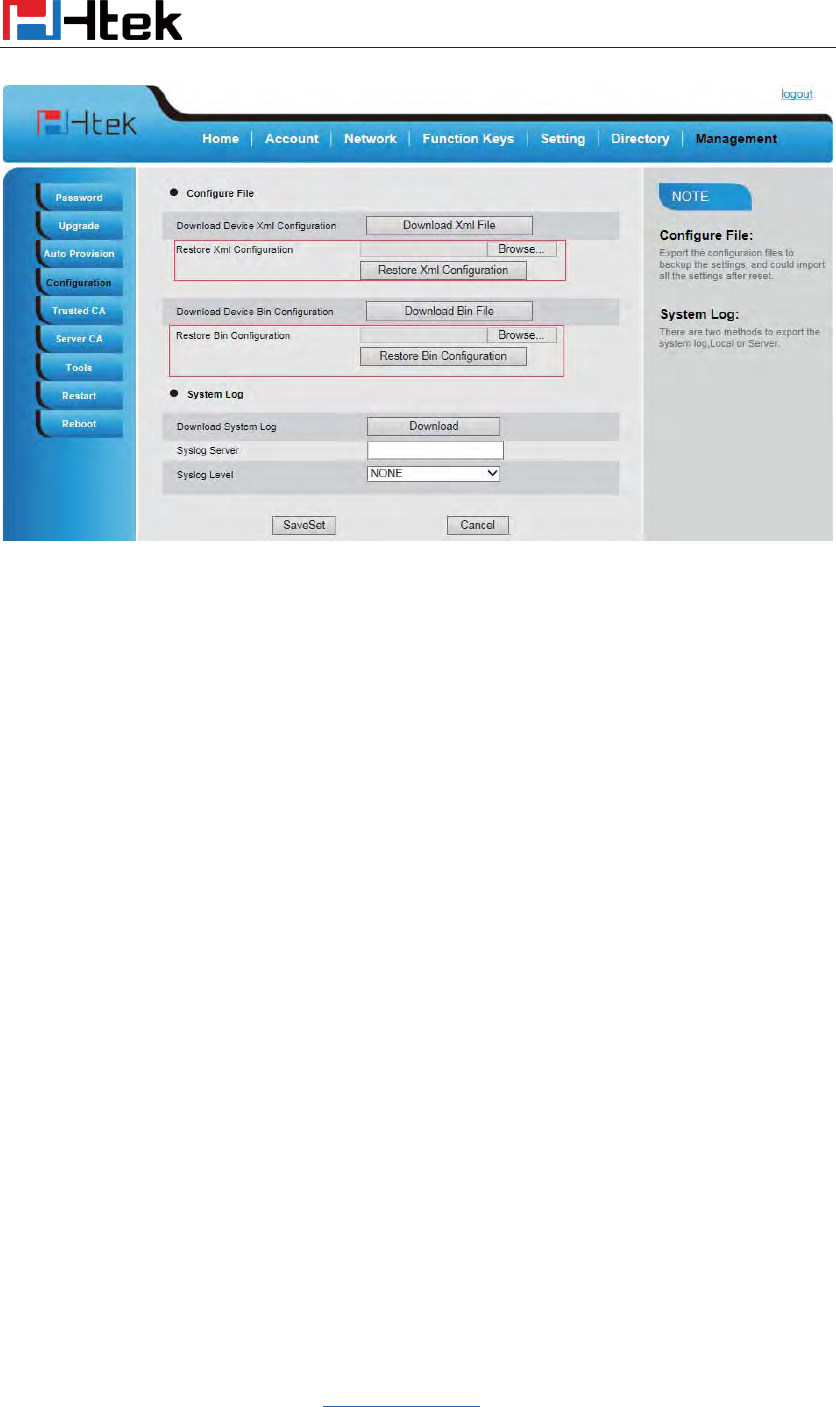
Troubleshooting
141
then IP Phone will reboot.
Troubleshooting
Why is the phone LCD screen blank?
1. Ensure your phone is properly plugged into a functional AC outlet.
2. Ensure that the phone isn’t plugged into a plug controlled by a switch that is off.
3. If the phone is plugged into a power strip, try plugging it directly into a wall outlet instead.
4. If your phone is powered from PoE, ensure you use a PoE compliant switch or hub, or contact
your system administrator for more information.
5. Check that the power LED is on to ensure the phone is powered on.
Why does the phone display “Network Unavailable”?
z Ensure that the Ethernet cable is plugged into the Internet port on the phone and the Ethernet
cable is not loose.
z Ensure that the switch or hub in your network is operational.
z Contact your system administrator for more information.
Why can’t I get a dial tone?
z Check for any loose connections and that the phone has been installed properly. For the
Installation instructions, refer to HU Phone InstallationUH.
z Check whether dial tone is present on one of the audio modes.
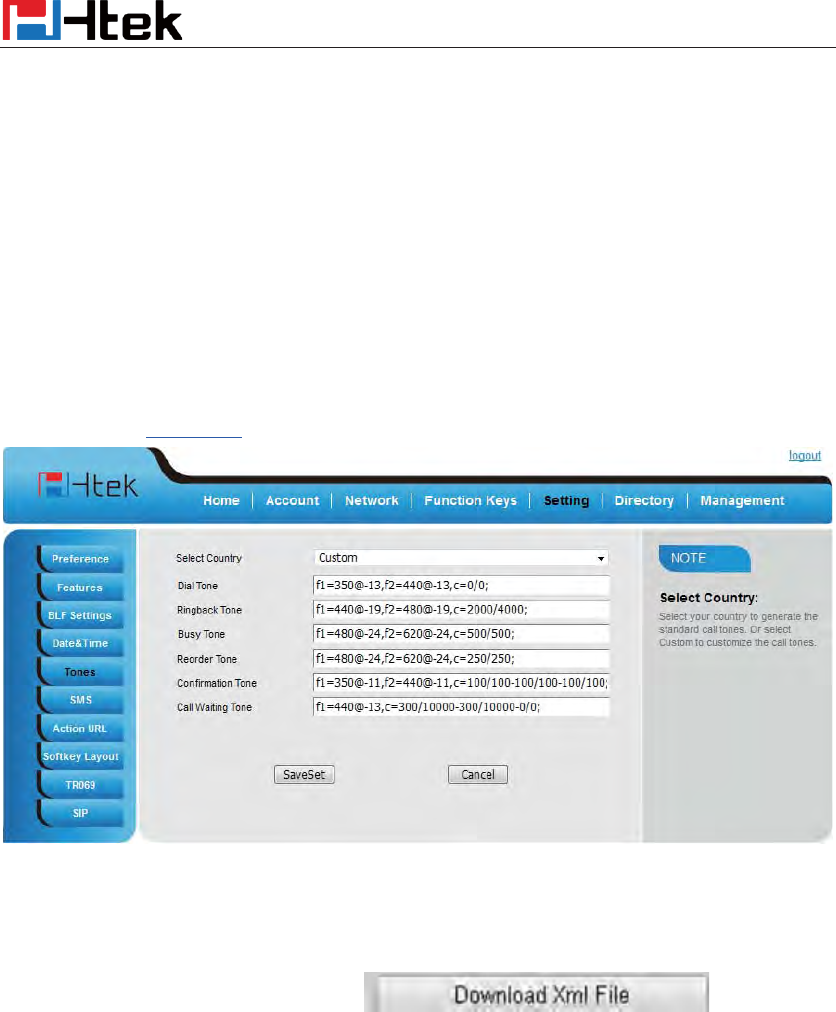
Troubleshooting
142
z Switch between the Handset, Headset (if present) or Hands-Free Speakerphone to check
whether dial tone is present for one of the audio modes.
z If the dial tone exists on another audio mode, connect a different handset or headset to isolate
the problem.
Where to set the tone?
You can set the tone on web interface:
z Click SettingÆTones
z Define the dial tone, ringing, busy tone…
z For the tones, you can check with your system administrator.
z More Click Tone Notes.
How to download XML Configuration?
z Click ManagementÆConfigurationÆ
How to Import Trusted CA certificate?
z Click ManagementÆTrusted CA
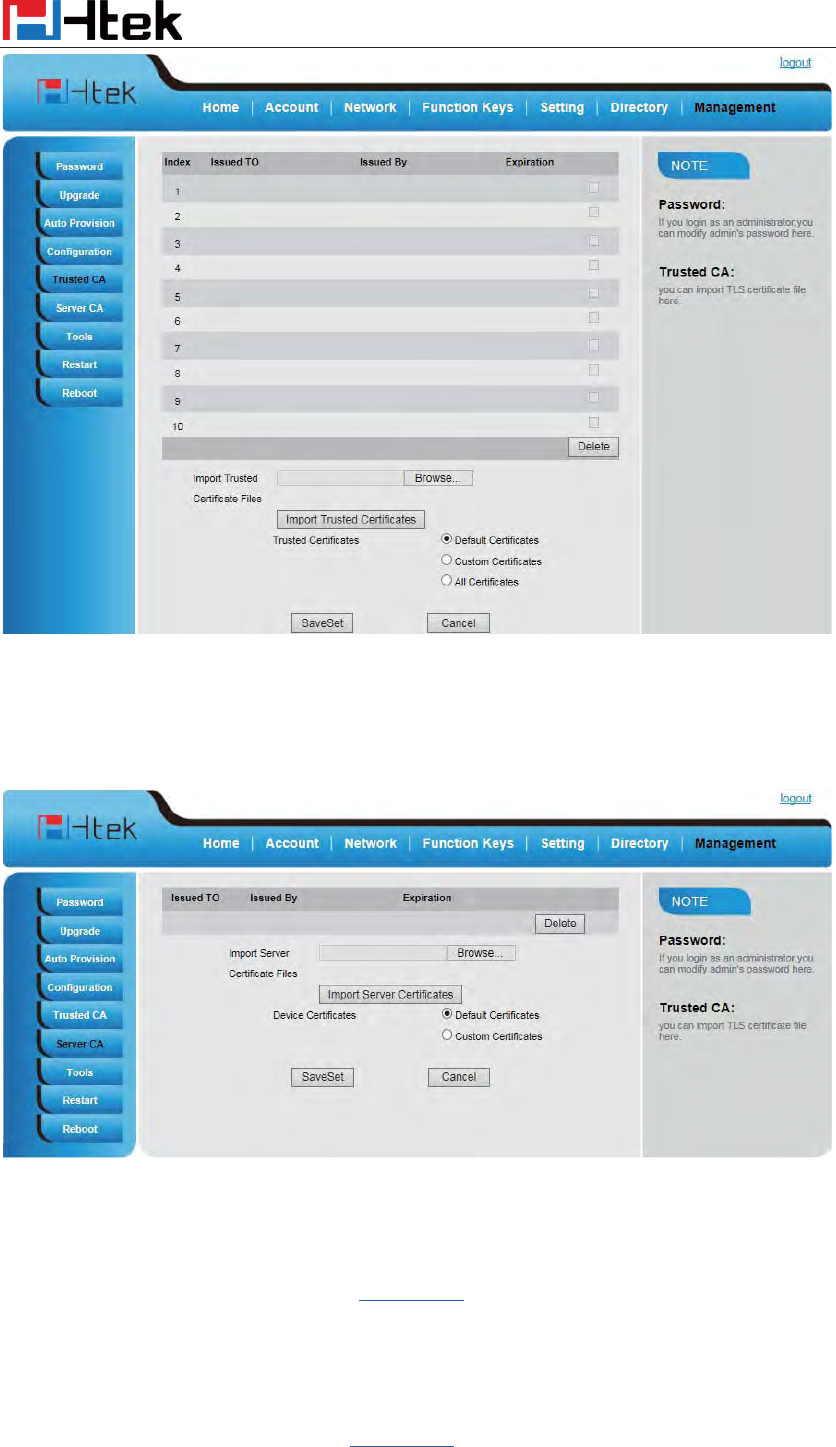
Troubleshooting
143
How to Import Server CA certificate?
z Click ManagementÆServer CA
How to use Vlan?
z For Vlan information, please click VLAN Note
How to use LLDP?
z For LLDP information, please click VLAN Note

Troubleshooting
144
z VLAN Notes including:
1. Voice VLAN
2. Major Benefits of Using VLANs
3. VLAN discovery method on Htek ip phones
4. LLDP Feature on Htek IP Phones
5. Supported TLVS of IP Phones
6. Configuring LLDP Feature
7. DHCP VLAN
8. Open the DHCP VLAN on the Htek IP Phones
9. VLAN under Bridge Mode
10. VLAN underNAT Mode
How to Set LCD and Web GUIφ
φ
z Click LCD and Web GUI custom Guide
How to Upgrade via FTP?
z Click How to Upgrade Note
How to make Ringtone?
z Click How to Make Ringtone
How to use Open VPN?
z Click Open VPN note
Provisioning Guide on Free PBX:
z Click Set Auto Provision on FreePBX
Failover Notes
z Click Failover Note

Troubleshooting
145
How to Upload Wallpaper?
z Click Wallpaper Upload Notes
How to Use Auto Provision Phonebook?
z Click About AP Phonebook
All Documents
z Click Documents Guide, you can get all tech files.