New focus Lighting and Power Technology 7967 Bluetooth module User Manual APP 20141222
New Focus Lighting & Power Technology(Shanghai)Co. Bluetooth module APP 20141222
User manual
8
Error Code Solution
LUP Low battery voltage. Please charge the car battery
or replace it with a new one.
OUP Remove all appliances and turn off the inverter.
Check the battery voltage, make sure it is
within 11-15V.
OCP Remove all the appliances and turn off the inverter.
Let it cool down for 15 minutes before turning on
again.
OPP OR
OLP
Overload protection. Turn off the inverter and
remove all appliances. Use appliance(s) with
smaller power consumption.
8. How to select a suitable gauge for the Input cable?
9. You will see Fault Codes on the Digital Display of the
inverter when Self-Protection is activated. What
does it mean? How do you solve the problem?
The inverter can be used in a distance from the battery
POWERDRIVE model#
PD3000
4AWG
4AWG
3AWG
2AWG
1AWG
1/0AWG
2/0AWG
3/0AWG
3/0AWG
3/0AWG
PD2000
6AWG
5AWG
5AWG
3AWG
2AWG
2AWG
1AWG
1/0AWG
2/0AWG
2/0AWG
PD1500
8AWG
7AWG
6AWG
5AWG
4AWG
4AWG
3AWG
3AWG
2AWG
2AWG
PD1000
9AWG
8AWG
8AWG
6AWG
5AWG
5AWG
4AWG
4AWG
3AWG
3AWG
Working distance
1ft
2ft
3ft
4ft
5ft
6ft
7ft
8ft
9ft
10ft
1
1. General Information
The POWERDRIVE Inverter App can be installed and
used on smart phones with Andriod or IOS.
Supports Andriod 4.2 or above
Supports IOS 7.0 or above
2. How to download the App?
Android phone:
Go into Google Play and search "POWERDRIVE".
Iphone:
Go into the App Store and search "POWERDRIVE".
3. How to set up the connection between your smart
phone and inverter ?
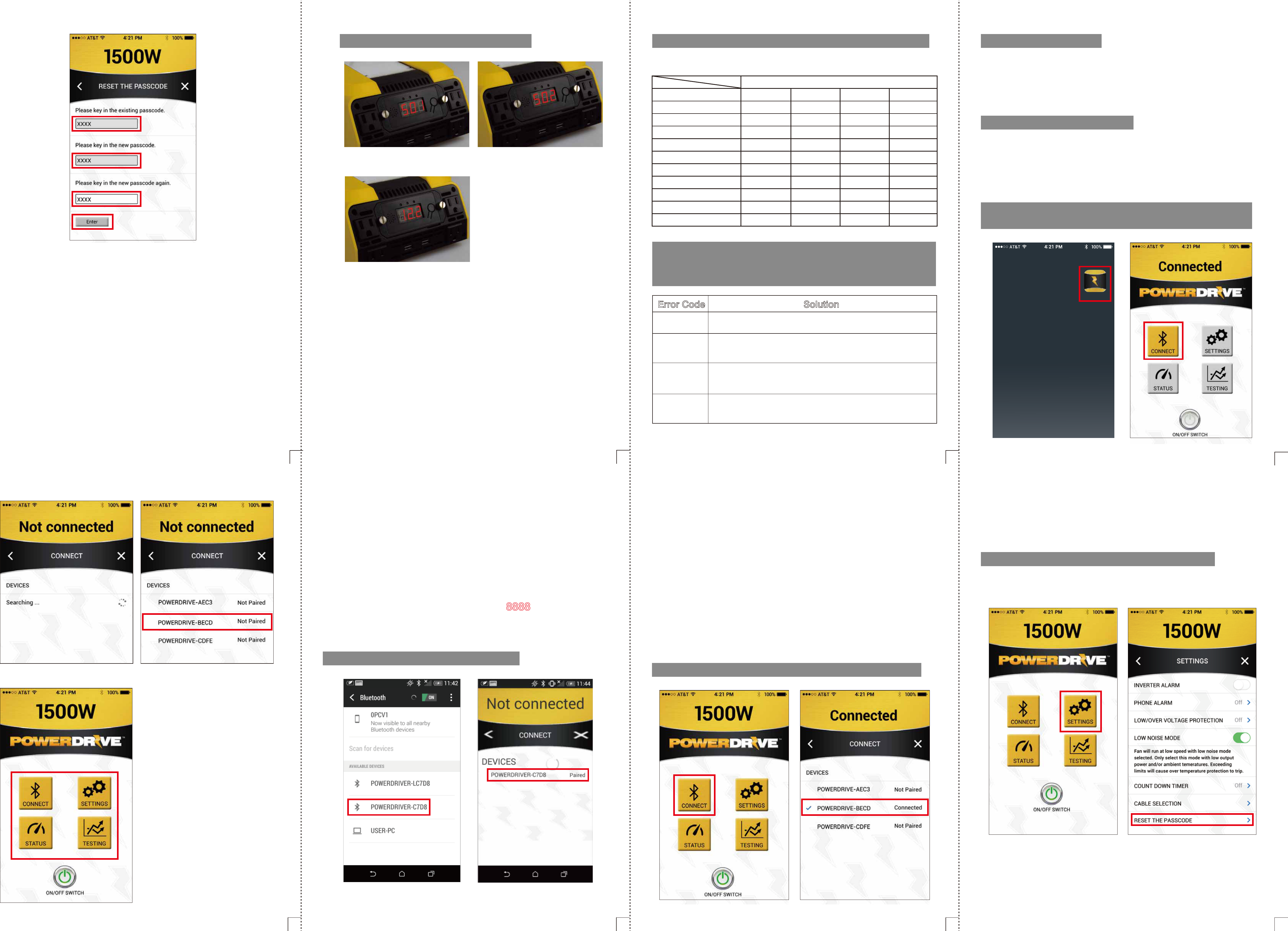
PowerDrive
Photo 1 Photo 2
2
Photo 3 Photo 4
Photo 5
3
5. How to disconnect your smart phone and inverter?
4. Operation tip on the Andriod phone
(1) Please ensure the Bluetooth on your phone is ON.
(2) Click the icon on the desktop to activate the APP
(Photo 1)
(3) Click the "CONNECT" icon (Photo 2).
(4) Your phone will automatically search the inverter
(Photo 3). Click the Device name to set up the
connection (Photo 4).
(5) Your phone will ask you to key in a code to set up the
connection. The default code is “8888”.
(6) Once the connection has been made, all 4 working
modes are available to use (Photo 5).
(1) On occasions the Andriod phone will unable to detect
the inverter in the app.
If this happens, go to the Bluetooth page on your
phone’s "Settings" to pair with the inverter.
(2) If your Andriod phone has Bluetooth 4.0 or above,
you will see two devices in the bluetooth page, one
with an "L" in its name and one without.
Always select the one without the "L" in its name in
your Andriod phone(Photo 6)
(3) Then go into the app and click the “CONNECT” icon.
Select the device name without an "L" to connect with
the inverter.(Photo 7)
Photo 8 Photo 9
Photo 6 Photo 7
4
6. How to reset the passcode of the inverter?
(1) Click the "CONNECT" icon. (Photo 8)
(2) Click the name of your inverter, your smart phone and
inverter are now disconnected.
(To avoid other people connecting with your inverter by
mistake)
Photo 10
5
(1) Click the "SETTINGS" icon (Photo 10).
(2) Click the "Reset the passcode" and proceed to follow
the instructions in Photo 11 & 12.
6
7. If you forgot what the passcode is
Photo 13(S01) Photo 14(S02)
7
(1) Ensure your inverter is connected with a battery
successfully.
(2) Turn off the inverter
(3) Press and hold the ON/OFF switch for 5 seconds. You
will see the digital display flash "S01" twice (Photo 13),
then flash "S02" thrice (Photo 14). Finally, it will show
the voltage of the battery (Photo 15). (Do not let go of
the ON/OFF switch until you see the digital display
show the battery voltage.
(4) This means the passcode has reset back to 8888
successfully.
Photo 15(Battery voltage)
Photo 11
Photo 12
Note:The product is used for vehicle and powered by vehicle battery .
This device complies with Industry Canada’s licence-exempt RSSs. Operation is
subject to the following two conditions:
(1) This device may not cause interference; and
(2) This device must accept any interference, including interference that may cause
undesired operation of the device.