OKAYO Electronics AT-200ID Audio Guide using 125kHz RFID technology User Manual

OKAYO Electronics Co., Ltd. Audio Guide using 125kHz RFID technology

User manual

AT-200iD-MTAudio GuideUser Manual
Most users do not need a license to operate this wireless microphone system. Nevertheless, operating this microphone system without  a  license is subject to certain restrictions: The system may not cause harmful interference; it must operate at a low power level (not in excess of 50 milliwatts); and it has no protection from interference received from any other device. Purchasers should also be aware that the FCC is currently evaluating use of wireless microphone systems, and these rules are subject to change. For more information, call the FCC at 1–888–CALL–FCC (TTY: 1–888–TELL–FCC) or visit the FCC’s wireless microphone  Web                                       ments and void user’s authority to operate the device.Consumer Alertsite at http://www.fcc.gov/cgb/wirelessmicrophones.Notice: The changes or modifications not expressly approved by the party responsible for                compliance could void the user’s authority to operate the equipment.IMPORTANT NOTE: To comply with the FCC RF exposure compliance requirements, no change                               to the antenna or the device is permitted. Any change to the antenna or                                the device could result in the device exceeding the RF exposure require-If this equipment does cause harmful interference to radio or television reception, which can be determined by turning the equipment off and on, the user is encouraged to try to correct the interference by one or more of the following measures:—Reorient or relocate the receiving antenna.—Increase the separation between the equipment and receiver.—Connect the equipment into an outlet on a circuit different from that to which the receiver      is connected.—Consult the dealer or an experienced radio/ TV technician for help.This equipment generates, uses and can radiate radio frequency energy and, if not installed and used in accordance with the instructions, may cause harmful interference to radio communications.However, there is no guarantee that interference will not occur in  a  particular installation. NOTE: This equipment has been tested and found to comply with the limits for a Class B digital   device, pursuant to part 15 of the FCC Rules. These limits are designed to provide     reasonable protection against harmful interference in  a  residential installation. Notice: The changes or modifications not expressly approved by the party responsible for                compliance could void the user’s authority to operate the equipment.This device complies with Part 15 of the FCC Rules. Operation is subject to the following two conditions: (1) this device may not cause harmful interference, and (2) this device must accept any interference received, including interference that may cause undesired operation.
PrefaceThank you for the purchase of Audio Guide AT-200. This user manual contains comprehensive instructions and operation of the unit, please read it over before your use for the first time.FeaturesHigh fidelity DSP technology, offering up to 20 hours stereo audio playback with built-in 2GB memory card.Access audio content through built-in speaker or external earphone jacks. 2  earphone jacks available for couple or kids and parents.Backlit display and keypad for ease of use.Raised dot  5  for visual impaired people.Chargeable. Audio Guide can be recharged with chargers. Each charge can run operation up to 12 hours.Fast audio content update through Audio Master and Audio Guide Uploader.
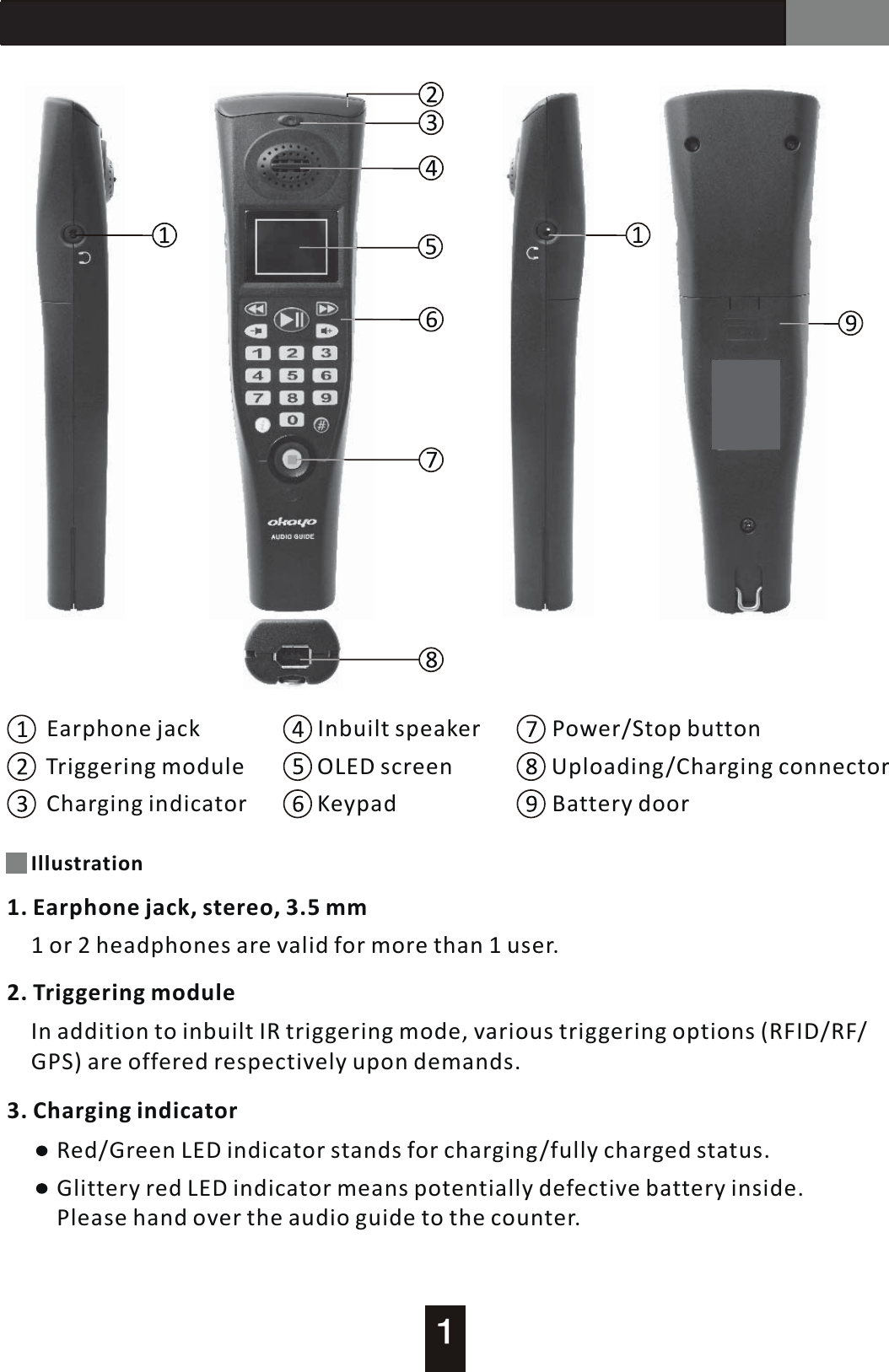
AT-200 Audio GuideEarphone jackTriggering moduleCharging indicatorInbuilt speakerOLED screenKeypadPower/Stop buttonUploading/Charging connector Battery doorIllustration1. Earphone jack, stereo, 3.5 mm1  or 2 headphones are valid for more than 1 user.2. Triggering moduleIn addition to inbuilt IR triggering mode, various triggering options (RFID/RF/GPS) are offered respectively upon demands.3. Charging indicatorGlittery red LED indicator means potentially defective battery inside. Please hand over the audio guide to the counter.Red/Green LED indicator stands for charging/fully charged status.
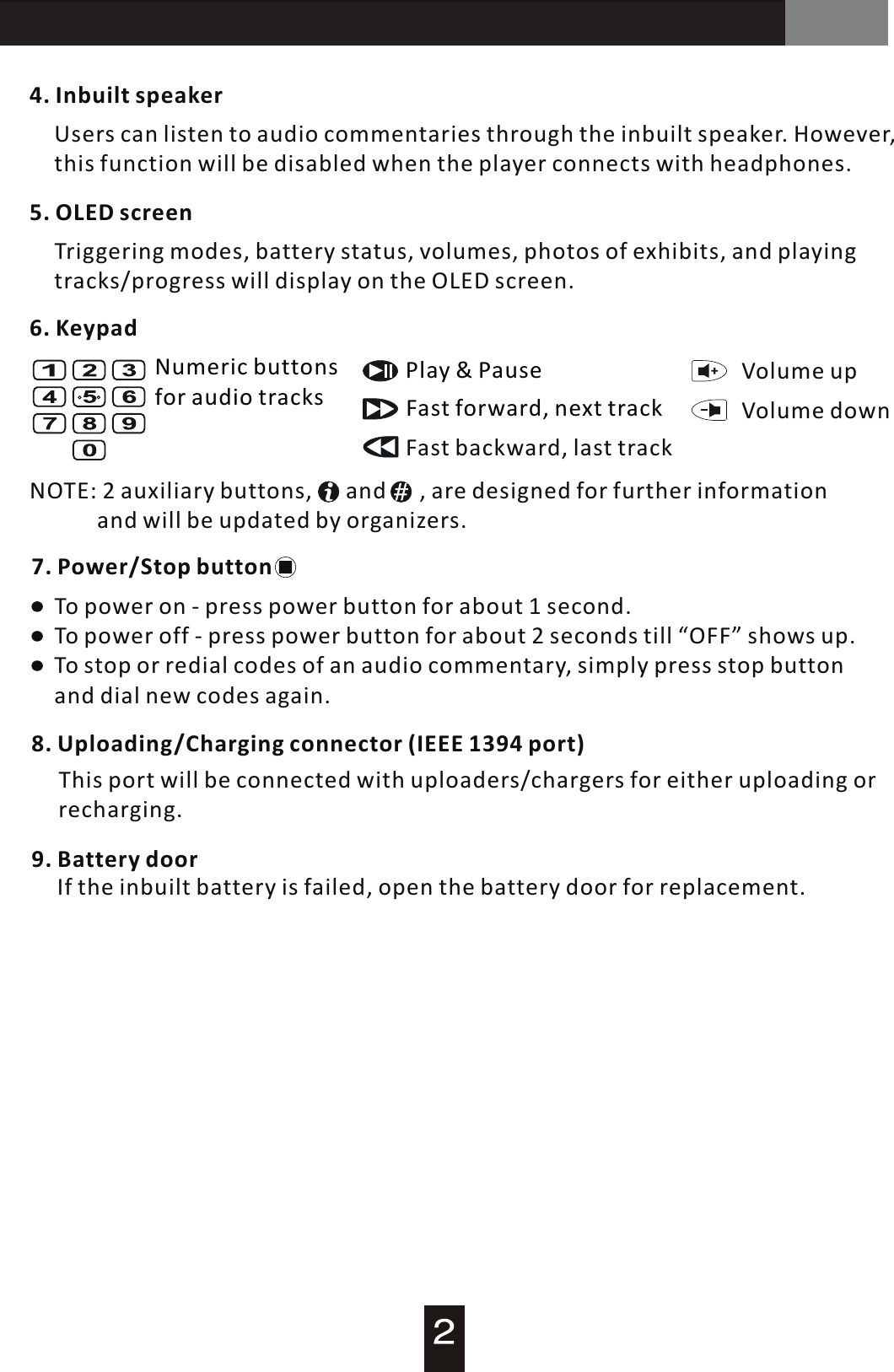
AT-200 Audio Guide7. Power/Stop button4. Inbuilt speakerUsers can listen to audio commentaries through the inbuilt speaker. However, this function will be disabled when the player connects with headphones.5. OLED screenTriggering modes, battery status, volumes, photos of exhibits, and playing tracks/progress will display on the OLED screen.6. KeypadNumeric buttons for audio tracks Fast forward, next trackFast backward, last trackPlay  &  Pause Volume  up Volume  down NOTE: 2 auxiliary buttons,      and      , are designed for further information             and will be updated by organizers.To power on - press power button for about 1 second.To power off  -  press power button for about 2 seconds till “OFF” shows up.To stop or redial codes of an audio commentary, simply press stop button and dial new codes again.9. Battery door        If the inbuilt battery is failed, open the battery door for replacement.8. Uploading/Charging connector (IEEE 1394 port)   This port will be connected with uploaders/chargers for either uploading or recharging.
AT-200 Audio GuideOperationPower ON/OFFPress and hold power    button      for 1 second until  a  beep to power on. Press and hold the button for 2 seconds until an OFF sign shown in display and beeps twice to power off. (* Alarm is still working even audio guide is off.)Auto Power OFFWhen audio guide is not operated for 30 minutes (factory default), it will switchoff automatically. (* Alarm is still working.)Auto  Power  Off can be changed or defined through software “Audio Master G2”.Automatic audio play is only working with specific devices : IT-200, RT-200, iD-200, which are optional on demand.Choose LanguageChange and choose a desired language by entering  3  number codes with # and press         to activate.  A  prompt audio and display will give assistive information to your change when the change is successful. (Language code is available from 951 to 982. 951 is the factory default.)Manual Play and Auto PlayThere are two ways to activate  a  picked audio content  –  manually or automatic-ally. In manual mode, the audio content shall be activated with  a  4-digit numbercode and play                .  (Number code is available from 0001 to 9999.) In automatic mode, when an audio guide is in the service coverage, the number code will showup in display and audio content will be played automatically. (* Semi-automatic mode is available in Audio Master G2)Delete Number CodeWhen a wrong number code is entered, simply press STOP key      to delete it andthen enter correct number code again.
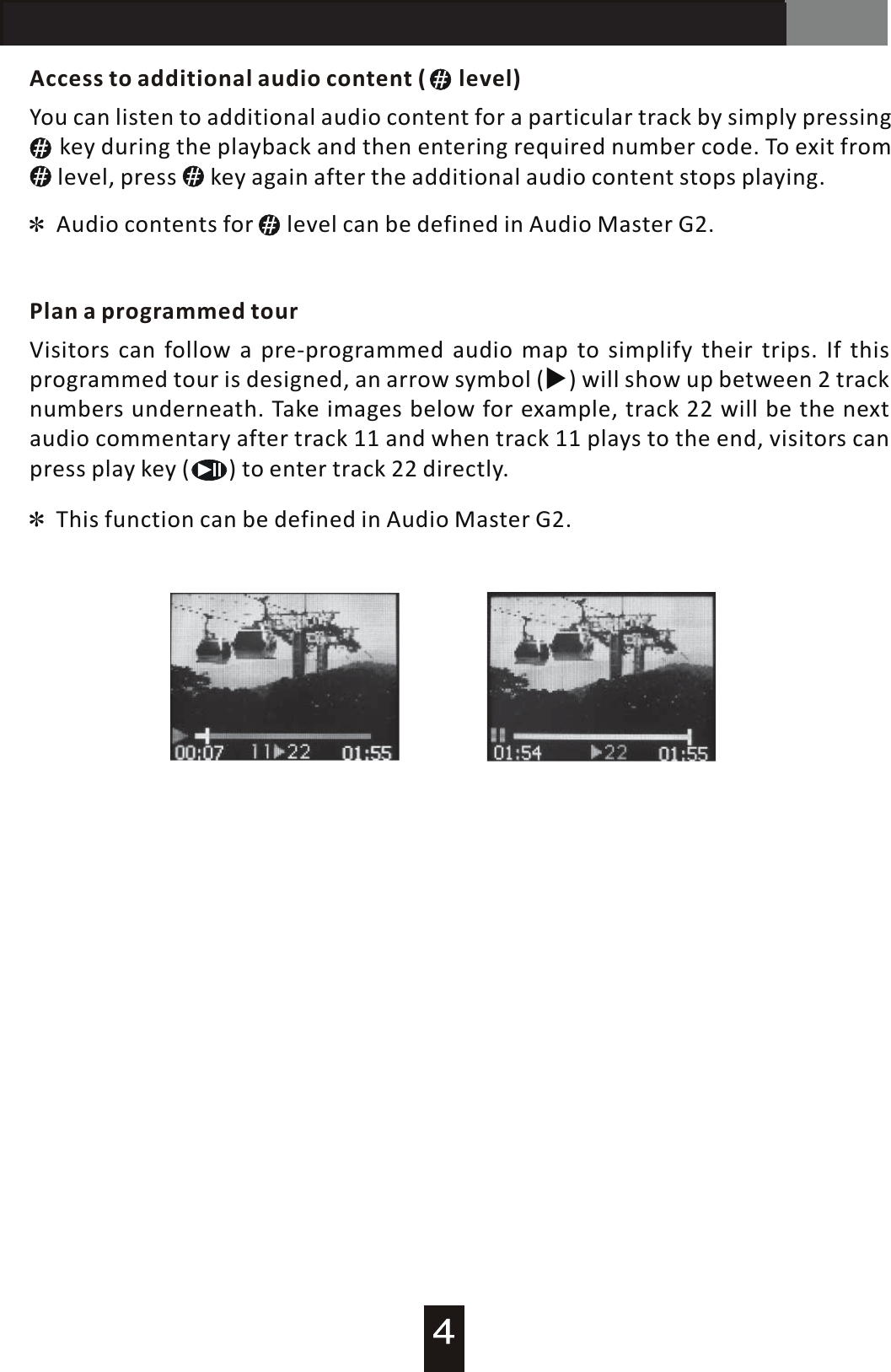
AT-200 Audio GuideAccess to additional audio content  (      level)Plan a programmed tourAudio contents for      level can be defined in Audio Master G2.You can listen to additional audio content for  a  particular track by simply pressing           key  during the playback and then entering required number code. To exit from     level, press      key again after the additional audio content stops playing.Visitors can follow  a  pre-programmed audio map to simplify their trips. If this programmed tour is designed, an arrow symbol will show up between 2 track numbers underneath. Take images below for example, track 22 will be the next audio commentary after track 11 and when track 11 plays to the end, visitors can press play key (       ) to enter track 22 directly.  (▶) This function can be defined in Audio Master G2.
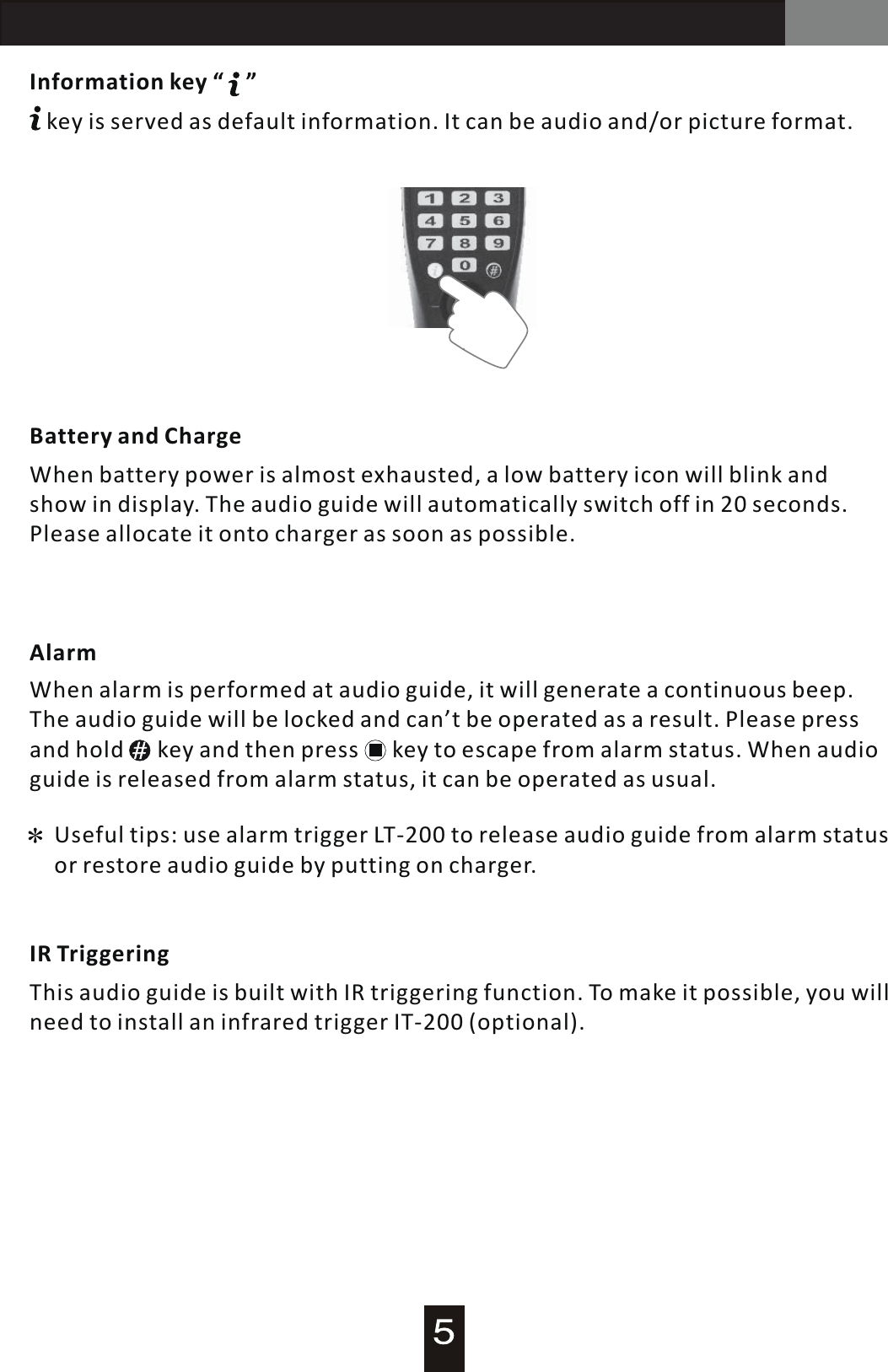
AT-200 Audio GuideInformation key “    ”   key is served as default information. It can be audio and/or picture format. Battery and ChargeWhen battery power is almost exhausted,  a  low battery icon will blink and show in display. The audio guide will automatically switch off in 20 seconds. Please allocate it onto charger as soon as possible.AlarmIR TriggeringWhen alarm is performed at audio guide, it will generate  a  continuous beep. The audio guide will be locked and can’t be operated as  a  result. Please press and hold      key and then press      key to escape from alarm status. When audio guide is released from alarm status, it can be operated as usual.Useful tips: use alarm trigger LT-200 to release audio guide from alarm status or restore audio guide by putting on charger.This audio guide is built with IR triggering function. To make it possible, you will need to install an infrared trigger IT-200 (optional).
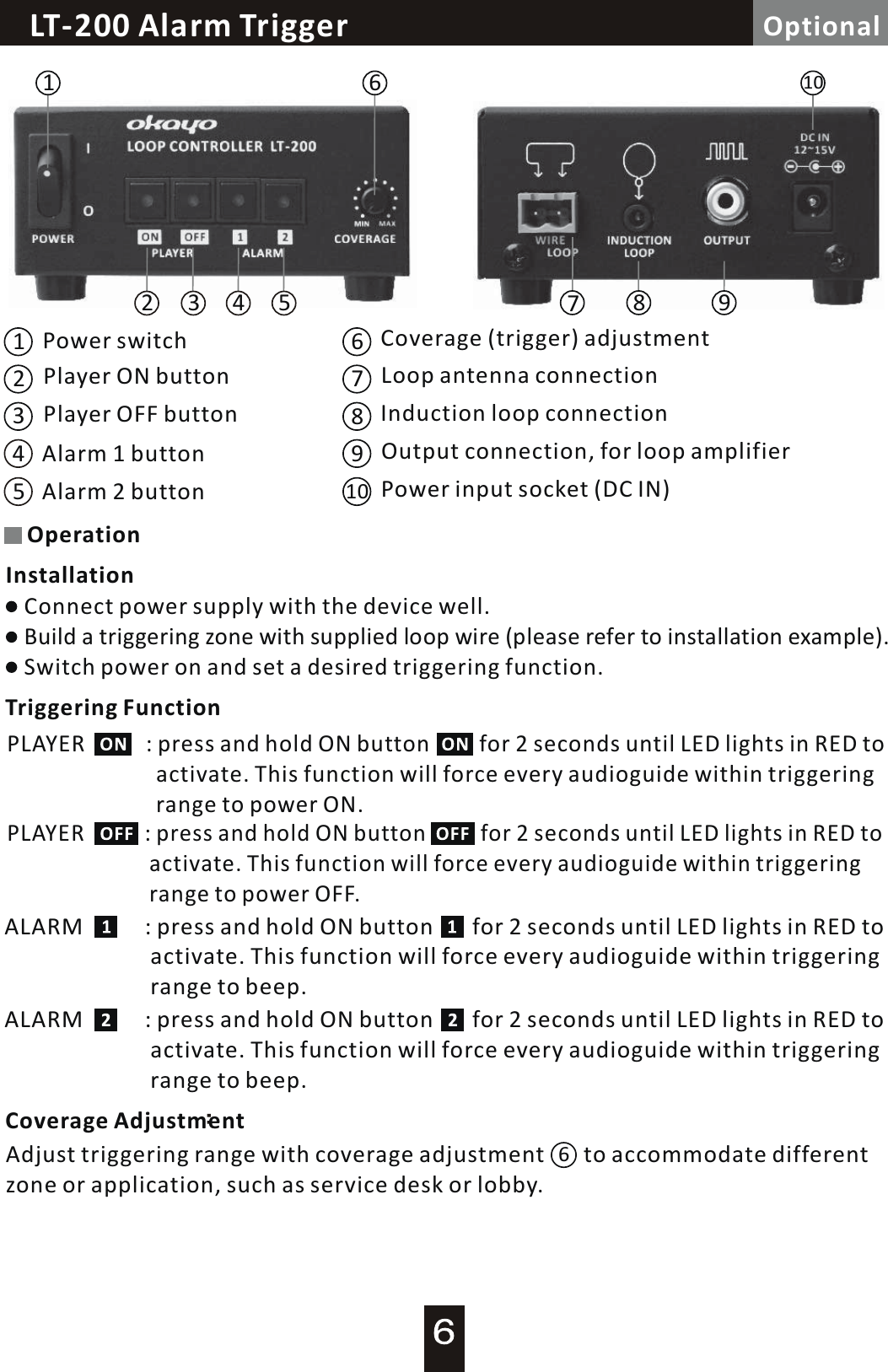
112233667788101099Power switchPlayer ON buttonPlayer OFF buttonAlarm 1 buttonAlarm 2 buttonCoverage (trigger) adjustmentLoop antenna connectionInduction loop connectionOutput connection, for loop amplifierPower input socket (DC IN)4455Connect power supply with the device well.Build a triggering zone  with  supplied  loop  wire  (plea se  refer  to  installation example).Switch power on and set a desired triggering function.OperationInstallationPLAYER           : press and hold ON button         for 2 seconds until LED lights in RED to                            activate. This function will force every audioguide within triggering                            range to power ON.PLAYER           : press and hold ON button          for  2  seconds until LED lights in RED to                           activate. This function will force every audioguide within triggering                           range to power OFF.Triggering FunctionALARM           : press and hold ON button       for 2 seconds until LED lights in RED to                           activate. This function will force every audioguide within triggering                          range to beep.ALARM           : press and hold ON button       for  2  seconds until LED lights in RED to                          activate. This function will force every audioguide within triggering                           range to beep.Coverage AdjustmentAdjust triggering range with coverage adjustment       to accommodate differentzone or application, such as service desk or lobby.6Loop Controller / Alarm  TriggerLT-200 Alarm  Trigger Optional
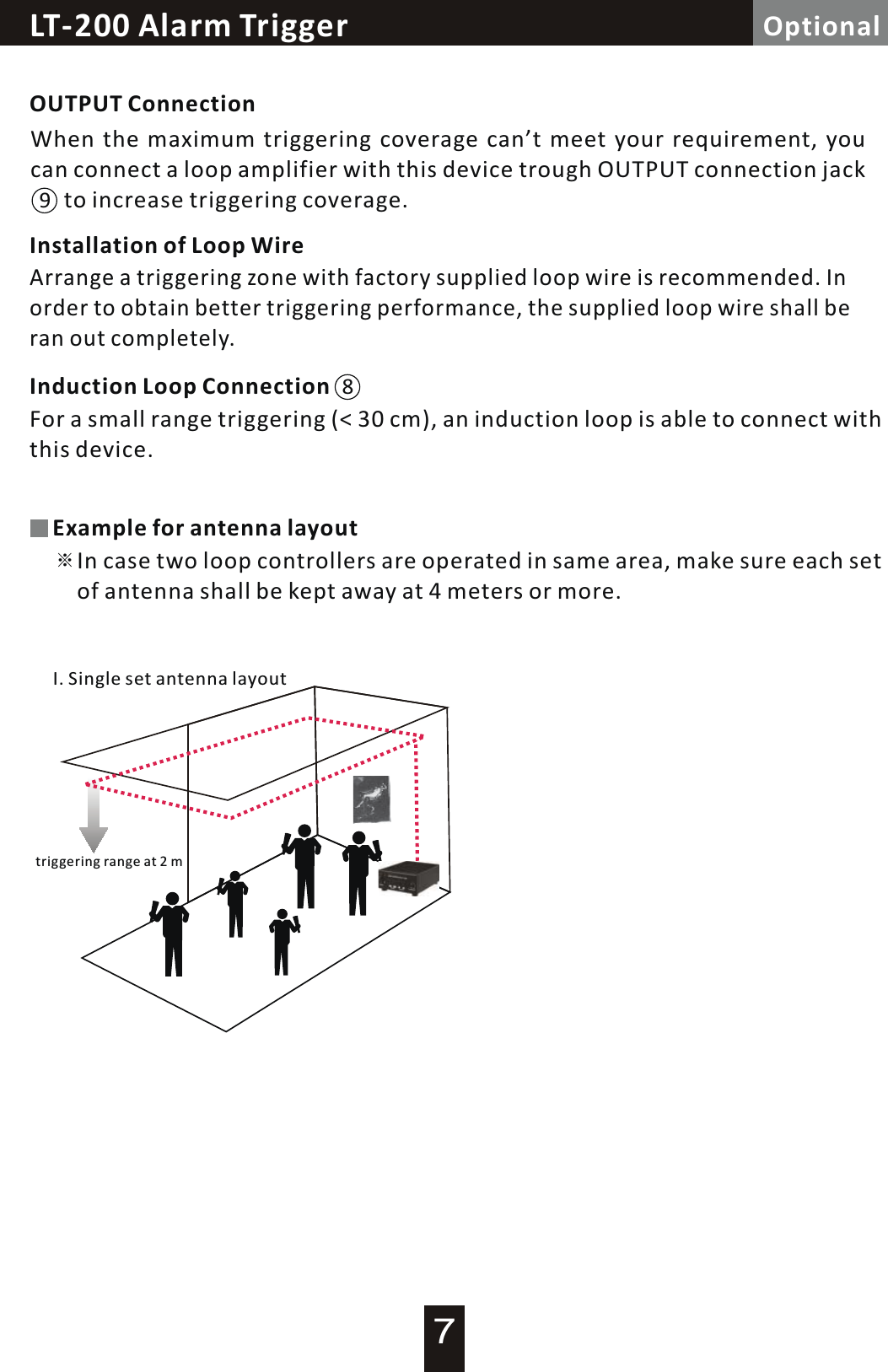
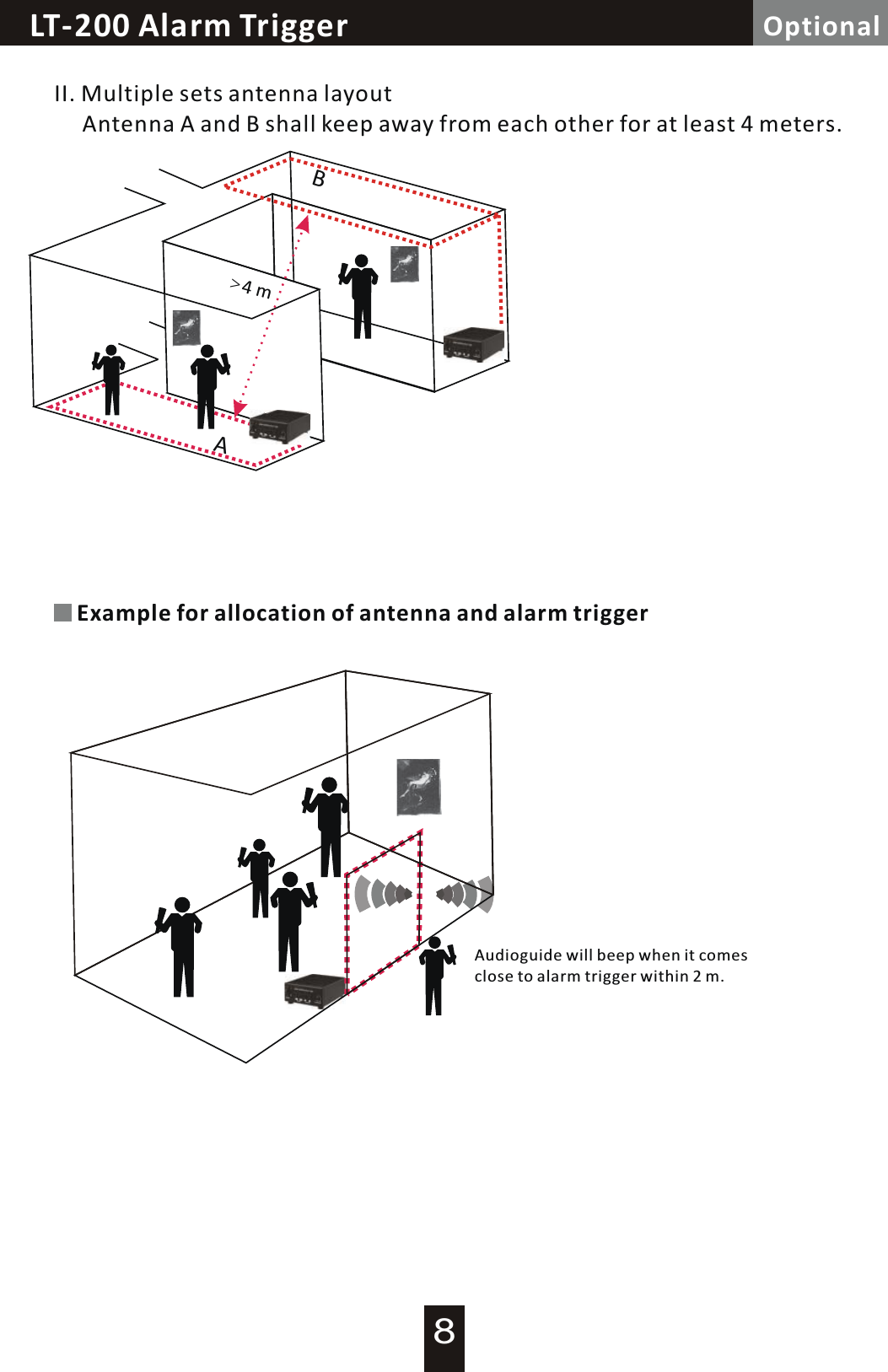
Loop Controller / Alarm  TriggerLT-200 Alarm  Trigger Optional9OUTPUT ConnectionWhen the maximum triggering coverage can’t meet your requirement, you can connect  a  loop amplifier with this device trough OUTPUT connection jack            to increase triggering coverage.Installation of Loop WireArrange a triggering  zone  with factory supplied loop wire is recommended. In order to obtain better triggering performance, the supplied loop wire shall be ran out completely.8Induction Loop Connection For a small range triggering (< 30 cm), an induction loop is able to connect with this device.※Example for antenna layoutIn case two loop controllers are operated in same area, make sure each setof antenna shall be kept away at 4 meters or more.I. Single set antenna layouttriggering range at  2  m7
Loop Controller / Alarm  TriggerLT-200 Alarm  TriggerAB>4  mII. Multiple sets antenna layout     Antenna A and B shall keep away from each other for at least 4 meters.Example for allocation of antenna and alarm triggerAudioguide will beep when it comesclose to alarm trigger within 2 m.Optional8
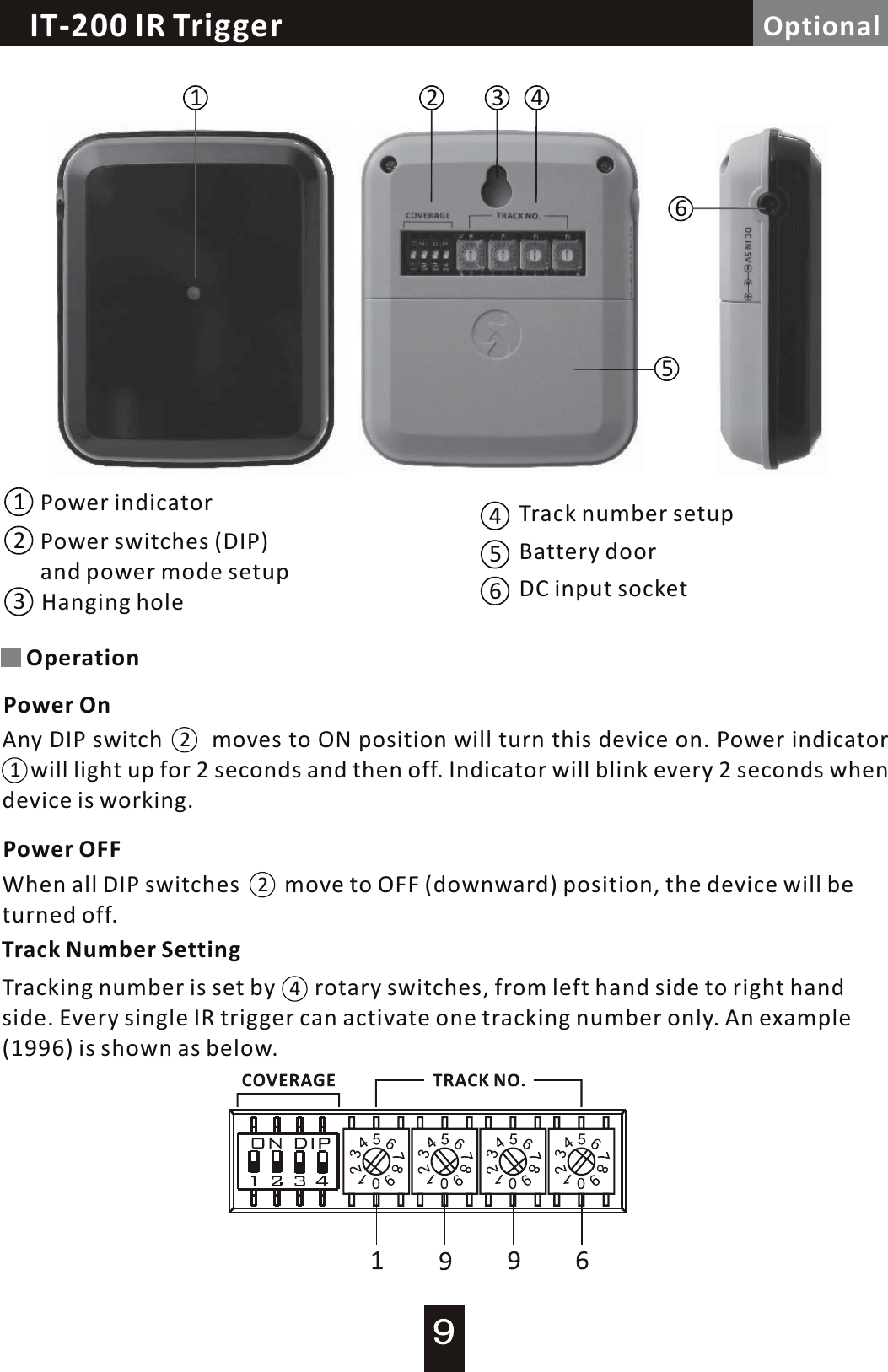
Loop Controller / Alarm  TriggerIT-200 IR  Trigger Optional56123 4123456Power indicatorPower switches (DIP) and power mode setupHanging holeTrack number setupBattery doorDC input socketOperationPower On12Any DIP switch              moves to ON position will turn this device on. Power indicator      will light up for 2 seconds and then off. Indicator will blink every 2 seconds when device is working.Power OFFWhen all DIP switches        move to OFF (downward) position, the device will be turned off.2Track  Number SettingTracking number is set by       rotary switches, from left hand side to right hand side. Every single IR trigger can activate one tracking number only. An example (1996) is shown as below.4
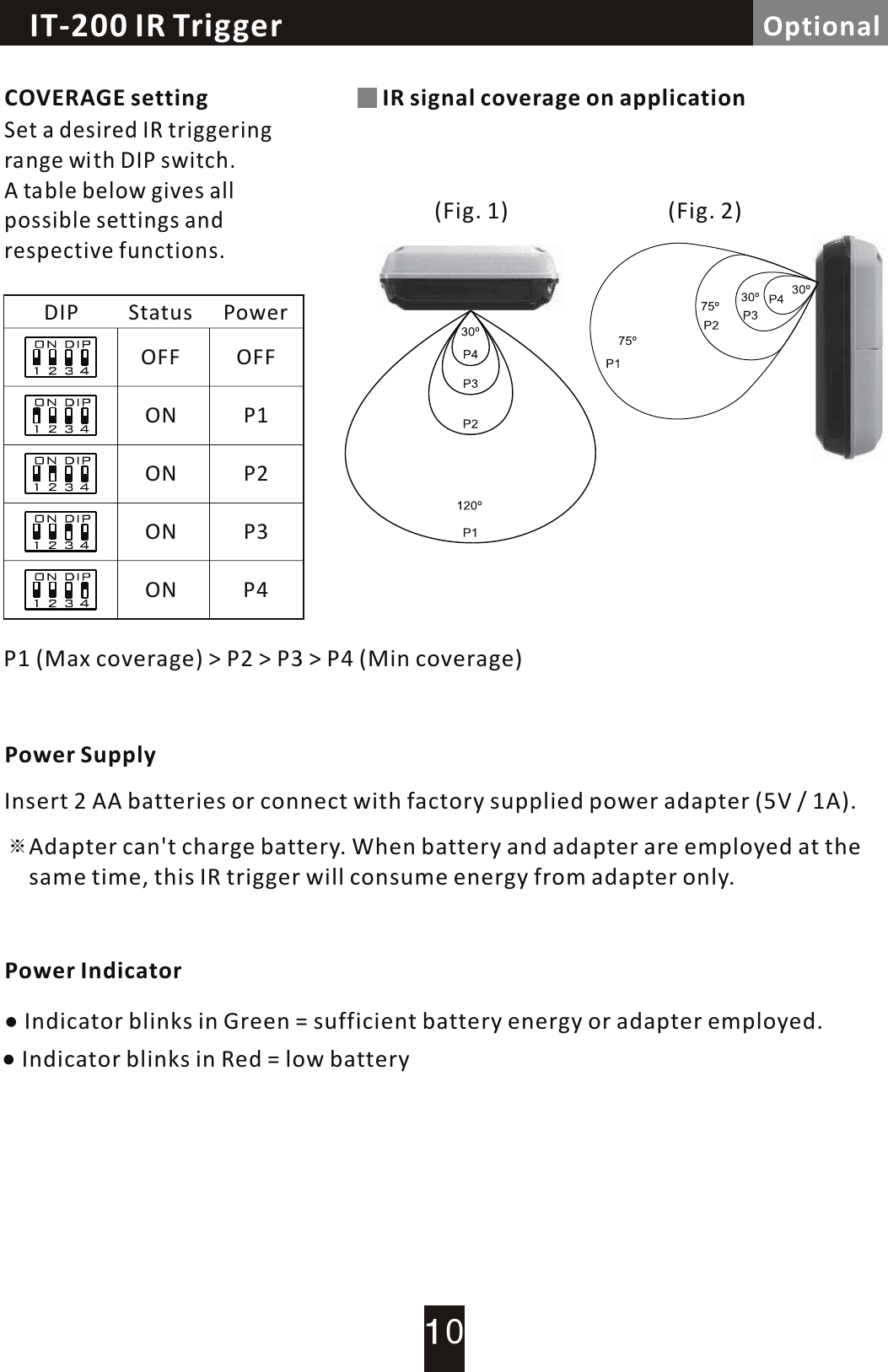
Loop Controller / Alarm  TriggerIT-200 IR  Trigger OptionalIR signal coverage on application(Fig. 1) (Fig. 2)COVERAGE settingSet a desired IR triggering range  with  DIP switch. A  table  below gives all possible settings and respective functions.P1 (Max coverage) > P2  >  P3  >  P4 (Min coverage)P1P2P3P4OFFONONONONOFFDIP Status PowerIndicator blinks in Red = low batteryIndicator blinks in Green = sufficient battery energy or adapter employed.※Adapter can't charge battery. When battery and adapter are employed at the same time, this IR trigger will consume energy from adapter only.Power SupplyInsert 2 AA batteries or connect with factory supplied power adapter (5V / 1A). Power Indicator0
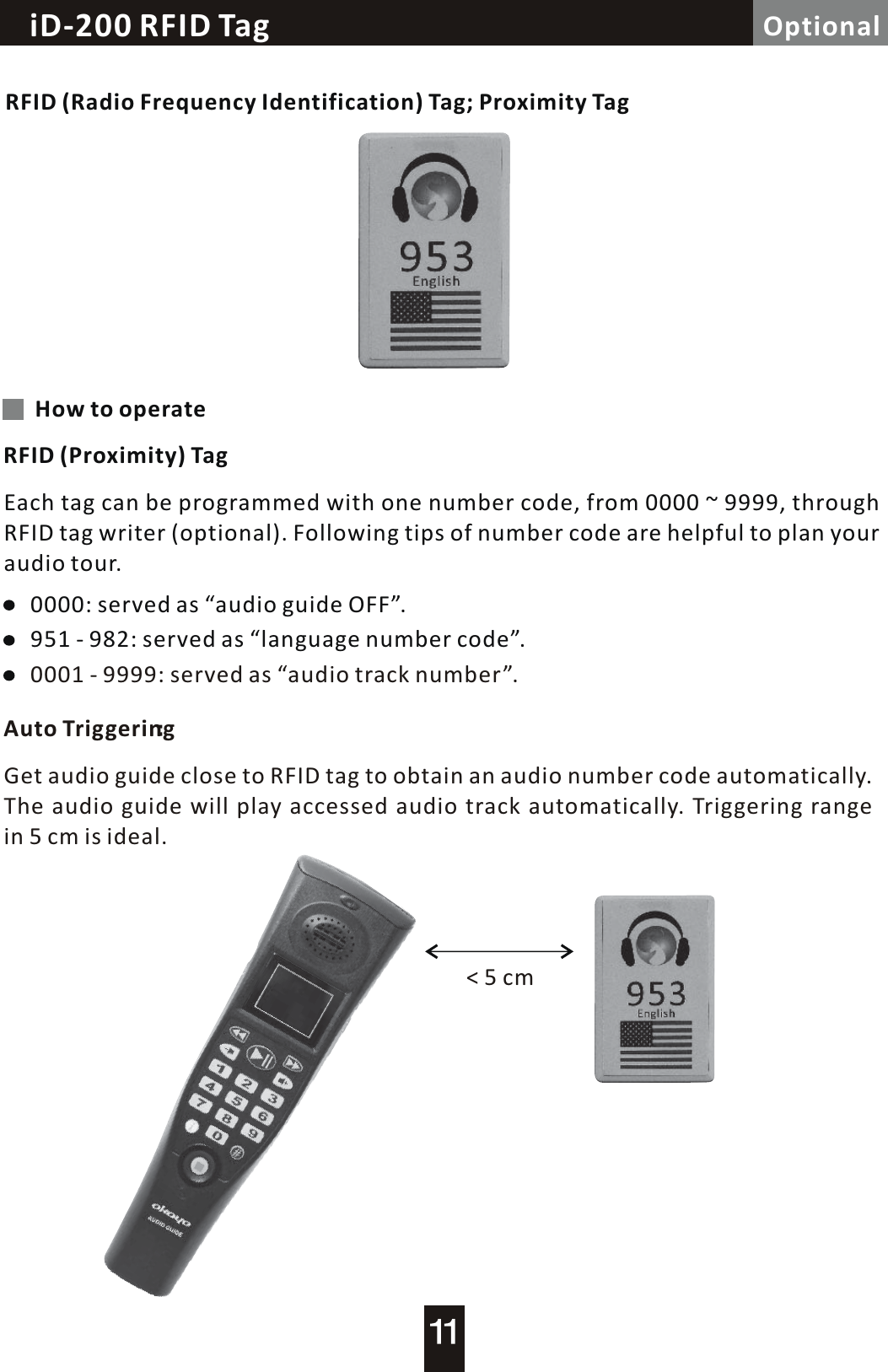
Loop Controller / Alarm  TriggeriD-200 RFID Tag OptionalRFID (Radio Frequency Identification) Tag; Proximity TagHow to operateRFID (Proximity) TagEach tag can be programmed with one number code, from 0000  ~  9999, through RFID tag writer (optional). Following tips of number code are helpful to plan your audio tour.Auto Triggering0000: served as “audio guide OFF”.951 - 982: served as “language number code”.0001 - 9999: served as “audio track number”.Get audio guide close to RFID tag to obtain an audio number code automatically.The audio guide will play accessed audio track automatically. Triggering range in 5 cm is ideal.<  5  cm
Caution / Troubleshooting / MaintenanceCautionTroubleshootingNo SoundNo PictureFailed to  Turn  ONMaintenance1. DON'T operate the device in the rain or in humid circumstance.2. Prevent the device from dropping.3. Employ factory supplied Li-Poly battery only, to prevent feasible damage      and danger.4. DON'T tear battery apart in case it explodes.5. Dispose battery with insulated package in case it explodes.Make sure audio guide is uploaded / duplicated with audio content.Make sure memory card is available in device.Return audio guide to the dealer when you can't fix it with above check points.Make sure Li-Poly battery is available in device.Return audio guide to the dealer when you can't fix it with above check point.Make sure audio guide is uploaded  /  duplicated with picture content.Make sure memory card is available in device.Return audio guide to the dealer when you can't fix it with above check points.1. Prevent operating audio guide in high temperature and high humidity for  a        long time.2. Charge audio guide at least 8 hours long, for first-time use.3. Charge audio guide once a month when you don't use it for a long time.4. Do not change Li-Poly battery by yourself. Contact your dealer for this     service.

Navigation menu