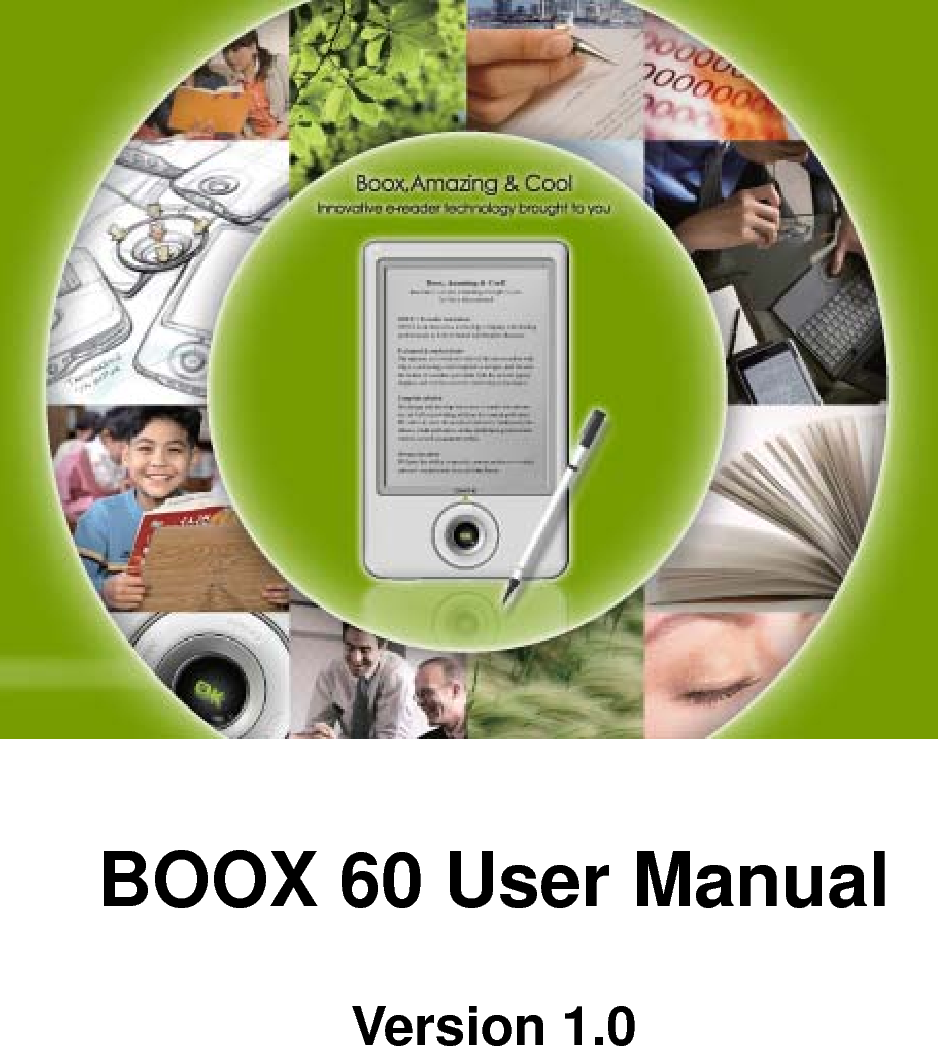
ONYX BOOX60 BOOX User Manual 1 Preface 8

ONYX INTERNATIONAL INC. BOOX 1 Preface 8

user manual

 BOOX 60 User Manual  Version 1.0
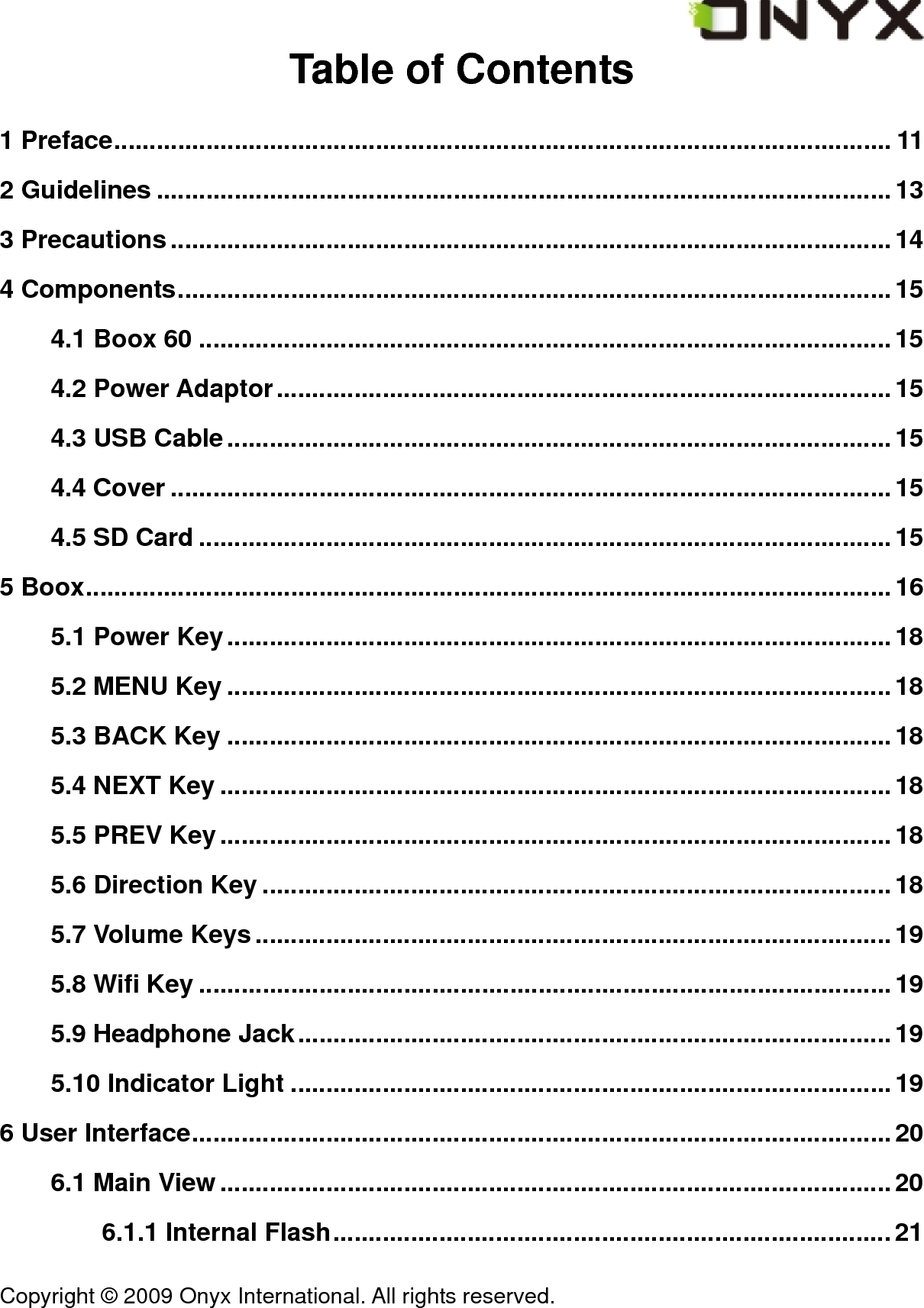
 Copyright © 2009 Onyx International. All rights reserved.                                 Table of Contents 1 Preface.............................................................................................................. 11 2 Guidelines ........................................................................................................13 3 Precautions......................................................................................................14 4 Components.....................................................................................................15 4.1 Boox 60 ..................................................................................................15 4.2 Power Adaptor.......................................................................................15 4.3 USB Cable..............................................................................................15 4.4 Cover ......................................................................................................15 4.5 SD Card ..................................................................................................15 5 Boox..................................................................................................................16 5.1 Power Key..............................................................................................18 5.2 MENU Key ..............................................................................................18 5.3 BACK Key ..............................................................................................18 5.4 NEXT Key ...............................................................................................18 5.5 PREV Key...............................................................................................18 5.6 Direction Key .........................................................................................18 5.7 Volume Keys..........................................................................................19 5.8 Wifi Key ..................................................................................................19 5.9 Headphone Jack....................................................................................19 5.10 Indicator Light .....................................................................................19 6 User Interface...................................................................................................20 6.1 Main View ...............................................................................................20 6.1.1 Internal Flash...............................................................................21
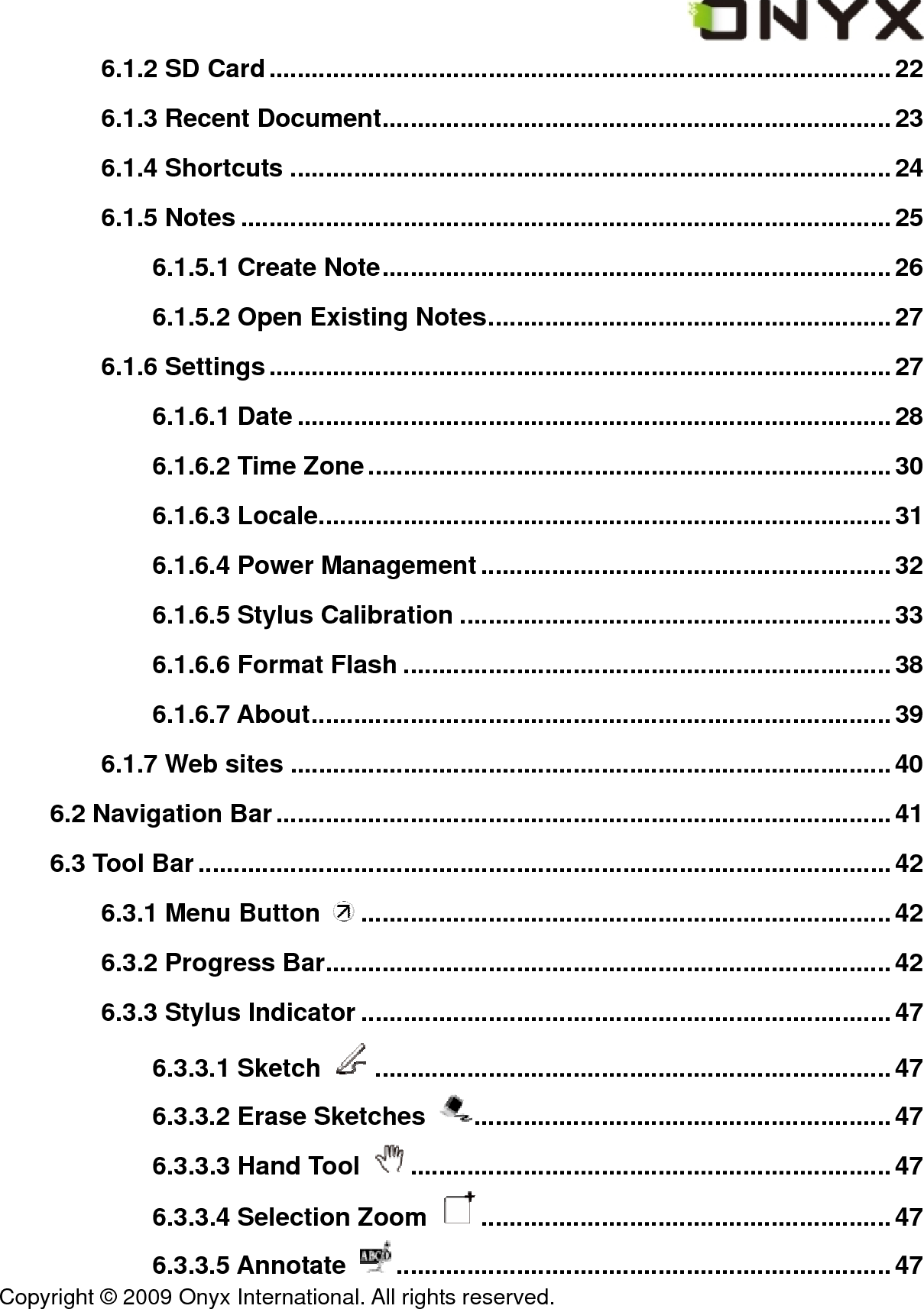
 Copyright © 2009 Onyx International. All rights reserved.                                 6.1.2 SD Card........................................................................................22 6.1.3 Recent Document........................................................................23 6.1.4 Shortcuts .....................................................................................24 6.1.5 Notes ............................................................................................25 6.1.5.1 Create Note........................................................................ 26 6.1.5.2 Open Existing Notes......................................................... 27 6.1.6 Settings........................................................................................27 6.1.6.1 Date ....................................................................................28 6.1.6.2 Time Zone..........................................................................30 6.1.6.3 Locale.................................................................................31 6.1.6.4 Power Management..........................................................32 6.1.6.5 Stylus Calibration .............................................................33 6.1.6.6 Format Flash .....................................................................38 6.1.6.7 About..................................................................................39 6.1.7 Web sites .....................................................................................40 6.2 Navigation Bar.......................................................................................41 6.3 Tool Bar..................................................................................................42 6.3.1 Menu Button  ...........................................................................42 6.3.2 Progress Bar................................................................................42 6.3.3 Stylus Indicator ...........................................................................47 6.3.3.1 Sketch  .........................................................................47 6.3.3.2 Erase Sketches  ...........................................................47 6.3.3.3 Hand Tool  ....................................................................47 6.3.3.4 Selection Zoom  ..........................................................47 6.3.3.5 Annotate  ......................................................................47
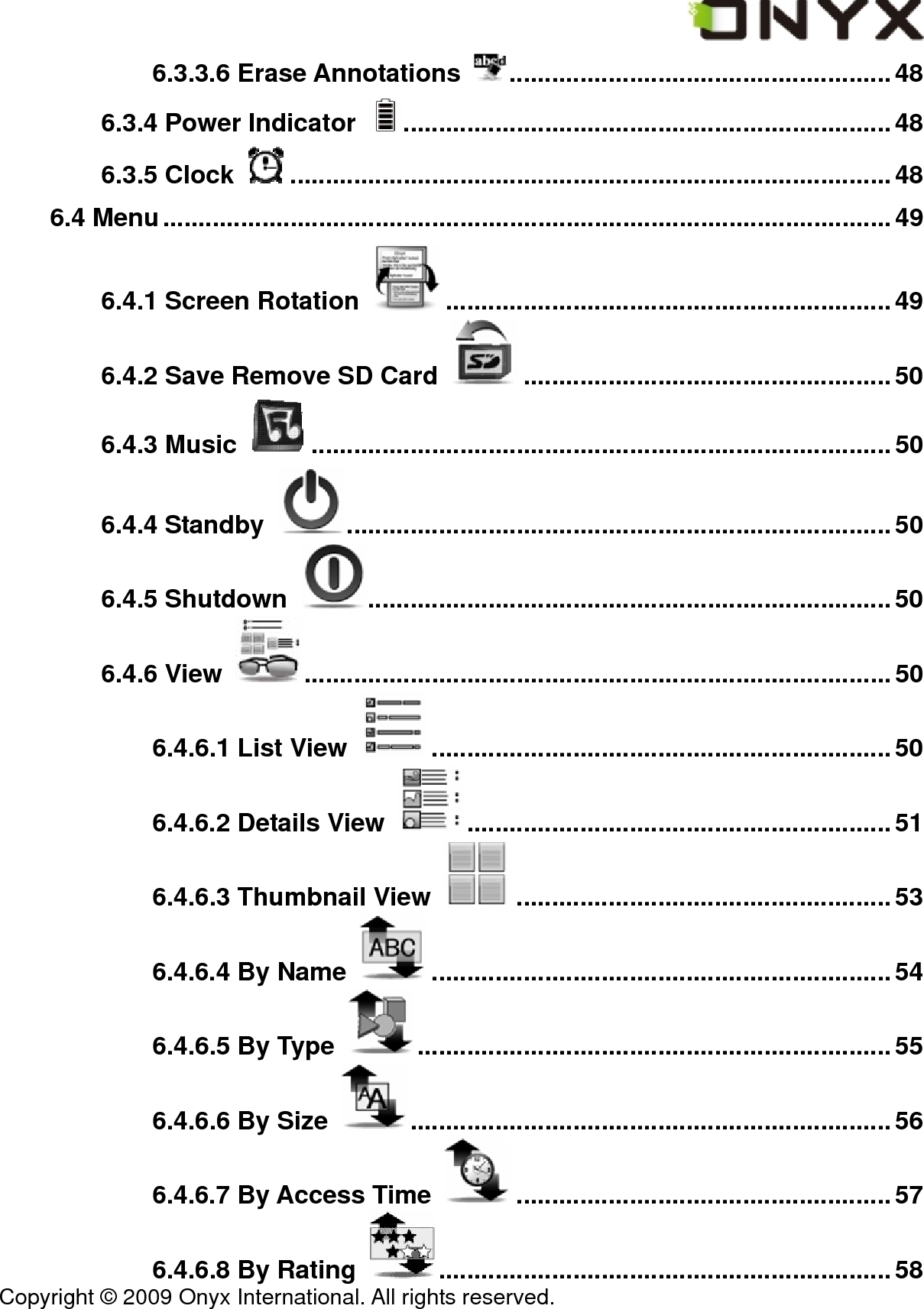
 Copyright © 2009 Onyx International. All rights reserved.                                 6.3.3.6 Erase Annotations  ......................................................48 6.3.4 Power Indicator  .....................................................................48 6.3.5 Clock  .....................................................................................48 6.4 Menu.......................................................................................................49 6.4.1 Screen Rotation  ...............................................................49 6.4.2 Save Remove SD Card  ....................................................50 6.4.3 Music  ..................................................................................50 6.4.4 Standby  .............................................................................50 6.4.5 Shutdown  ..........................................................................50 6.4.6 View  ...................................................................................50 6.4.6.1 List View  .................................................................50 6.4.6.2 Details View  ............................................................51 6.4.6.3 Thumbnail View  .....................................................53 6.4.6.4 By Name  .................................................................54 6.4.6.5 By Type  ...................................................................55 6.4.6.6 By Size  ....................................................................56 6.4.6.7 By Access Time  .....................................................57 6.4.6.8 By Rating  ................................................................58
 Copyright © 2009 Onyx International. All rights reserved.                                 6.4.6.9 Ascending..........................................................................59 6.4.6.10 Descending......................................................................60 6.4.7 File  .....................................................................................60 6.4.7.1 Delete  ......................................................................61 6.4.7.2 Search  .....................................................................62 6.4.7.3 Create shortcut  .......................................................63 6.4.7.4 Return Book  ............................................................64 6.4.8 Settings  .............................................................................64 6.4.8.1 Date Settings  ..........................................................64 6.4.8.2 Locale Settings  ......................................................64 6.4.8.3 Power Management  ............................................... 64 6.4.8.4 Screen Calibration  .................................................64 6.4.8.5 Format Flash .....................................................................65 6.4.8.6 About  ......................................................................65 6.4.9 Font  ...................................................................................65 6.4.9.1 By Levels ........................................................................... 66 6.4.9.2 By Numbers....................................................................... 67 6.4.9.3 By Ratio .............................................................................68 6.4.9.4 Bold....................................................................................69
 Copyright © 2009 Onyx International. All rights reserved.                                 6.4.9.5 Italic....................................................................................70 6.4.10 Zooming  ..........................................................................71 6.4.10.1 To Page  .................................................................71 6.4.10.2 To Width  ................................................................ 71 6.4.10.3 To Height  ..............................................................71 6.4.10.4 Selection Zoom  ....................................................72 6.4.10.5 By Ratio ...........................................................................74 6.4.11 Annotations  ....................................................................75 6.4.11.1 Add Annotation  ....................................................75 6.4.11.2 Erase Annotation  .................................................77 6.4.11.3 All Annotations  .....................................................78 6.4.11.4 Sketch  ...................................................................79 6.4.11.5 Erase Sketch  ........................................................80 6.4.11.6 Sketch Colors  .......................................................80 6.4.11.7 Sketch Shapes  .....................................................82 6.4.12 Layout  .............................................................................83 6.4.12.1 Single Page  .......................................................... 83
 Copyright © 2009 Onyx International. All rights reserved.                                 6.4.12.2 Scroll Pages  .........................................................84 6.4.13 Tools  ................................................................................85 6.4.13.1 Search  ...................................................................85 6.4.13.2 Dictionary Lookup  ...............................................88 6.4.13.3 Add Bookmark  .....................................................90 6.4.13.4 Delete Bookmark  .................................................91 6.4.13.5 Show Bookmarks  ................................................91 6.4.13.6 Hand Tool  .............................................................92 6.4.13.7 Previous View  ........................................................93 6.4.13.8 Next View  ................................................................93 6.4.13.9 Slide Show  ........................................................... 94 6.4.13.10 Thumbnail View  .................................................95 6.4.13.11 Table of Content  .................................................96 6.4.13.12 Export  .................................................................97 6.4.13.13 Insert Page  ..........................................................97 6.4.13.14 Remove Page  ......................................................97 6.4.14 Font Family  .....................................................................98
 Copyright © 2009 Onyx International. All rights reserved.                                 6.4.15 Encoding  .........................................................................99 6.4.16 Full Refresh Switch  .....................................................100 6.4.17 Navigation  ....................................................................100 6.4.17.1 Backward  ..............................................................100 6.4.17.2 Forward  ................................................................100 6.4.17.3 Home  ...................................................................100 6.4.18 Network  .........................................................................100 6.4.18.1 Wifi  ...................................................................... 100 6.5 Web Browser .......................................................................................101 6.5.1 Tool Bar......................................................................................102 6.5.2 Input by Keyboard..................................................................... 102 6.6 Music Player ........................................................................................103 6.6.1 Playlist........................................................................................104 6.6.2 Minimize Button  ..............................................................104 6.6.3 Close Button  ....................................................................105 6.6.4 Repeat Playlist Button  ....................................................105 6.6.5 Shuffle Switch Button  ..........................................105 6.6.6 Previous Song Button  ....................................................105
 Copyright © 2009 Onyx International. All rights reserved.                                 6.6.7 Play/Pause Switch Button   .................................105 6.6.8 Stop Button  .....................................................................105 6.6.9 Next Song Button  ............................................................105 6.6.10 Repeat Current Song Button  ........................................106 6.6.11 Previous Page Button  .........................................................106 6.6.12 Next Page Button  ................................................................106 6.6.13 Playing Status Bar...................................................................107 6.7 Keyboard.............................................................................................. 108 6.7.1 Number Keys.............................................................................108 6.7.2 Character Keys..........................................................................108 6.7.3 Caps Key.................................................................................... 108 6.7.4 Back Key....................................................................................109 6.7.5 Space Key ..................................................................................109 6.7.6 Shift Key.....................................................................................109 6.8 Search View ......................................................................................... 110 6.8.1 Free Text Search ....................................................................... 110 6.8.1.1 Input Box ......................................................................... 111 6.8.1.2 Search Button ................................................................. 111 6.8.1.3 Clear Button .................................................................... 112 6.8.2 File Search................................................................................. 113 6.8.2.1 Input Box ......................................................................... 113 6.8.2.2 Search Button ................................................................. 114 6.8.2.3 Clear Button .................................................................... 115
 Copyright © 2009 Onyx International. All rights reserved.                                 6.8.2.4 Check Button of Including Subdirectories................... 115 6.9 Dictionary View.................................................................................... 115 6.9.1 Content View ............................................................................. 116 6.9.2 Explanation Button ................................................................... 116 6.9.3 Similar Words Button ............................................................... 117 6.9.4 Dictionaries Button................................................................... 117 6.10 Annotations View .............................................................................. 118 6.11 Bookmarks View................................................................................ 119 6.12 Wifi Configuration Dialog ................................................................. 119 6.12.1 Scanning List...........................................................................121 6.12 2 Connecting Message Area .....................................................121 6.12.3 Refresh Button ........................................................................ 121 6.12.4 Configuring WPA Security Access Point..............................122 6.12.5 Configuring WEP Security Access Point..............................123 7 Sketch.............................................................................................................124 7.1 Make new sketches.............................................................................124 7.2 Erase..................................................................................................... 125 8 Annotation......................................................................................................126 8.1 Add Annotation....................................................................................126 8.2 Erase Annotations...............................................................................127 9 OTA Functionalities.......................................................................................128 9.1 Activate Boox 60..................................................................................128 9.2 Fulfillment ............................................................................................130 10 Software Update ..........................................................................................133 11 Connect to PC.............................................................................................. 135
 Copyright © 2009 Onyx International. All rights reserved.                                 12 Charge ..........................................................................................................136 FCC Class B Notice..........................................................................................136 1 Preface Boox, presented by Onyx International, a group of professionals who dedicate themselves in designing state-of-the-art reading terminal. The beauty of the Boox is embodied in both its simplicity and its power. As we are going to show you, Boox is an open and flexible platform for both consumers and content providers. Boox is powered by an 8-level grayscale e-ink screen that looks and feels like paper. Passive lighting and diffuse surface relaxes your eyes and reduces eye strain. The hand-writing system lets you take notes while reading and sketch up ideas that happen to emerge. Boox takes full advantage of new-generation e-ink screens: extremely low power consumption. Each full charge can sustain a few weeks' reading. By reducing paper consumption while providing a realistic paper-like reading experience, digital content helps to protect the environment without sacrificing convenience or life style. Boox comes with viewers for most popular ebook and image formats, including PDF, HTML, CHM, EPub, TXT, and MobiPocket(NON-DRM). For content partners, we also provide support for custom formats and digital rights management solutions. All of our viewers have standard features such as layout management, font adjustment, full text search, zooming, and page flow.   For a next-generation information device, connectivity is essential. The user can connect to the Internet with build-in WiFi or other add-on modules to download new content or just surf the web. The web browser on Boox uses WebKit, the same software
 Copyright © 2009 Onyx International. All rights reserved.                                 engine that powers desktop browsers such as Safari and Chrome, customized for the e-ink screen.    Boox, the new reading experience.
 Copyright © 2009 Onyx International. All rights reserved.                                 2 Guidelines Please read this manual before using the product. The product should only be used in the manner described in this manual. The latest downloads and information are available at our website: www.onyx-international.com. The outer layer of the display is scratch resistant, but if handled roughly it can still be damaged. Operating temperature is 0°C to 50°C Storage temperature is –20°C to 70°C
 Copyright © 2009 Onyx International. All rights reserved.                                 3 Precautions Avoid applying excessive force to the display. The device uses a glass based display is thus liable to break if mistreated. Never open the device as this will invalidate any warranty or manufacturer’s responsibility. Please contact your Onyx retailer if you have any technical difficulties. Do NOT expose the device to excessive moisture, rain or heat sources caused by heating equipment.
 Copyright © 2009 Onyx International. All rights reserved.                                 4 Components 4.1 Boox 60 4.2 Power Adaptor 4.3 USB Cable 4.4 Cover 4.5 SD Card
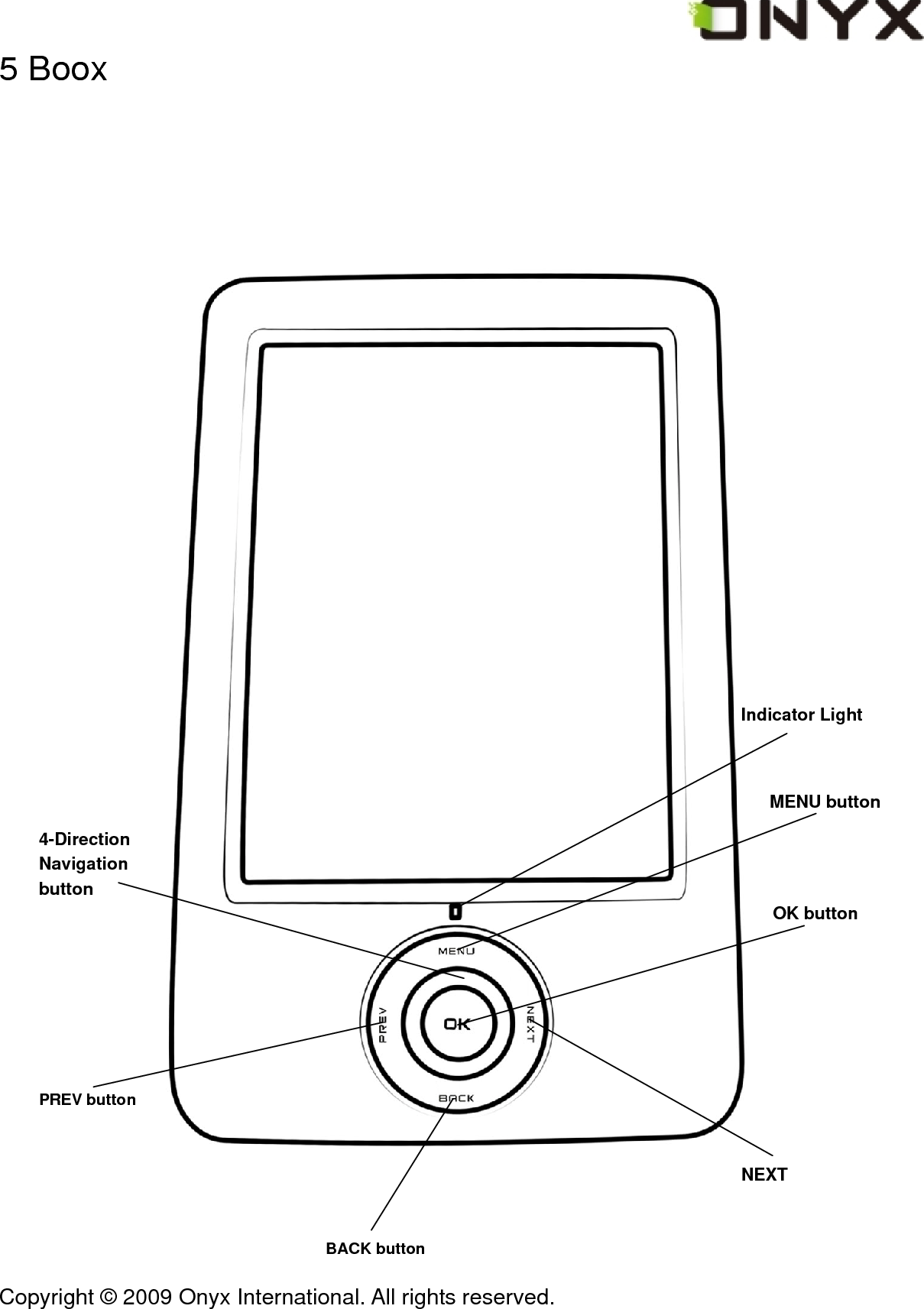
 Copyright © 2009 Onyx International. All rights reserved.                                 4-Direction Navigation button PREV button BACK button NEXT MENU button 5 Boox              Indicator Light    OK button
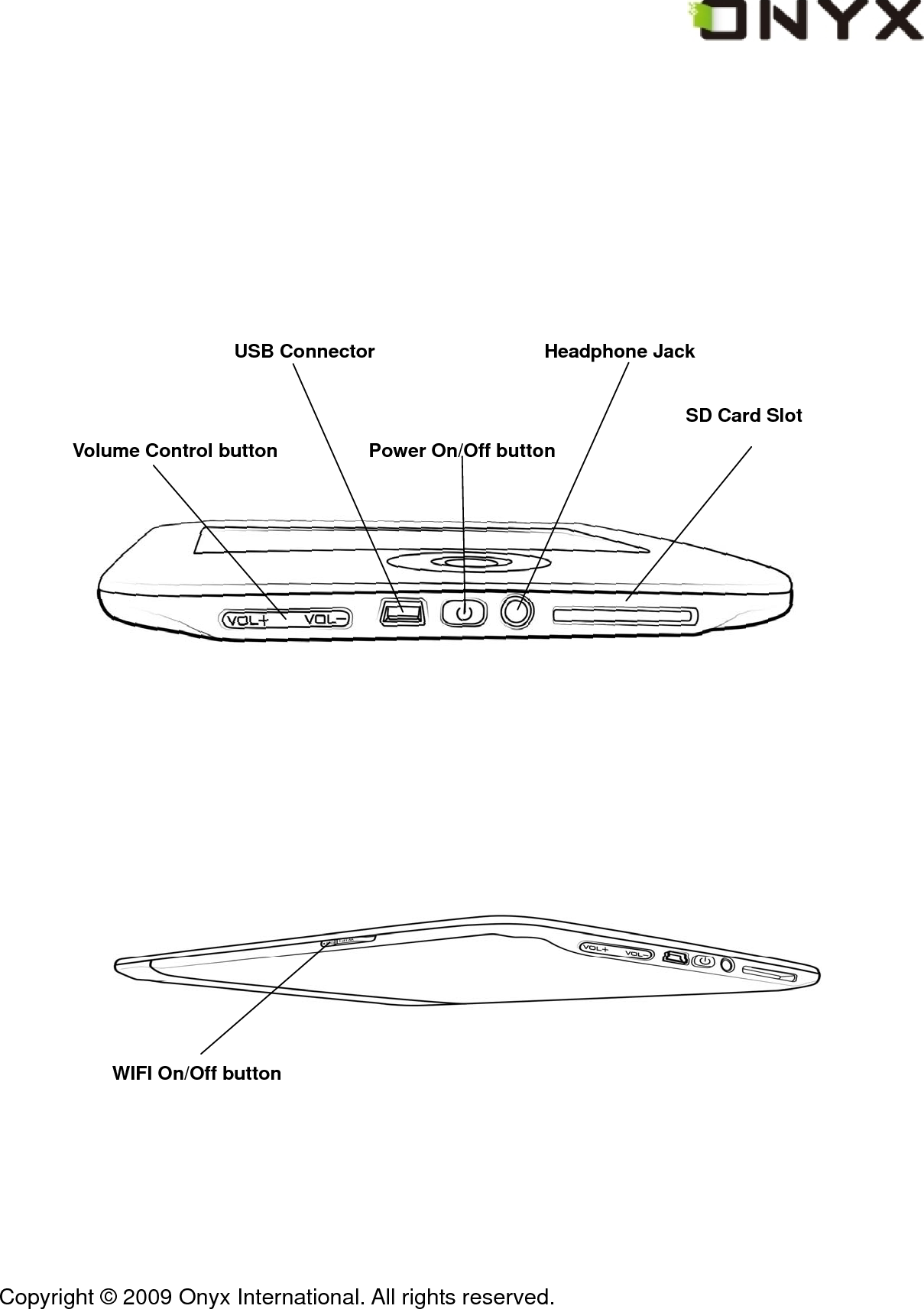
 Copyright © 2009 Onyx International. All rights reserved.                                         SD Card SlotPower On/Off button Headphone Jack USB Connector  Volume Control button             WIFI On/Off button
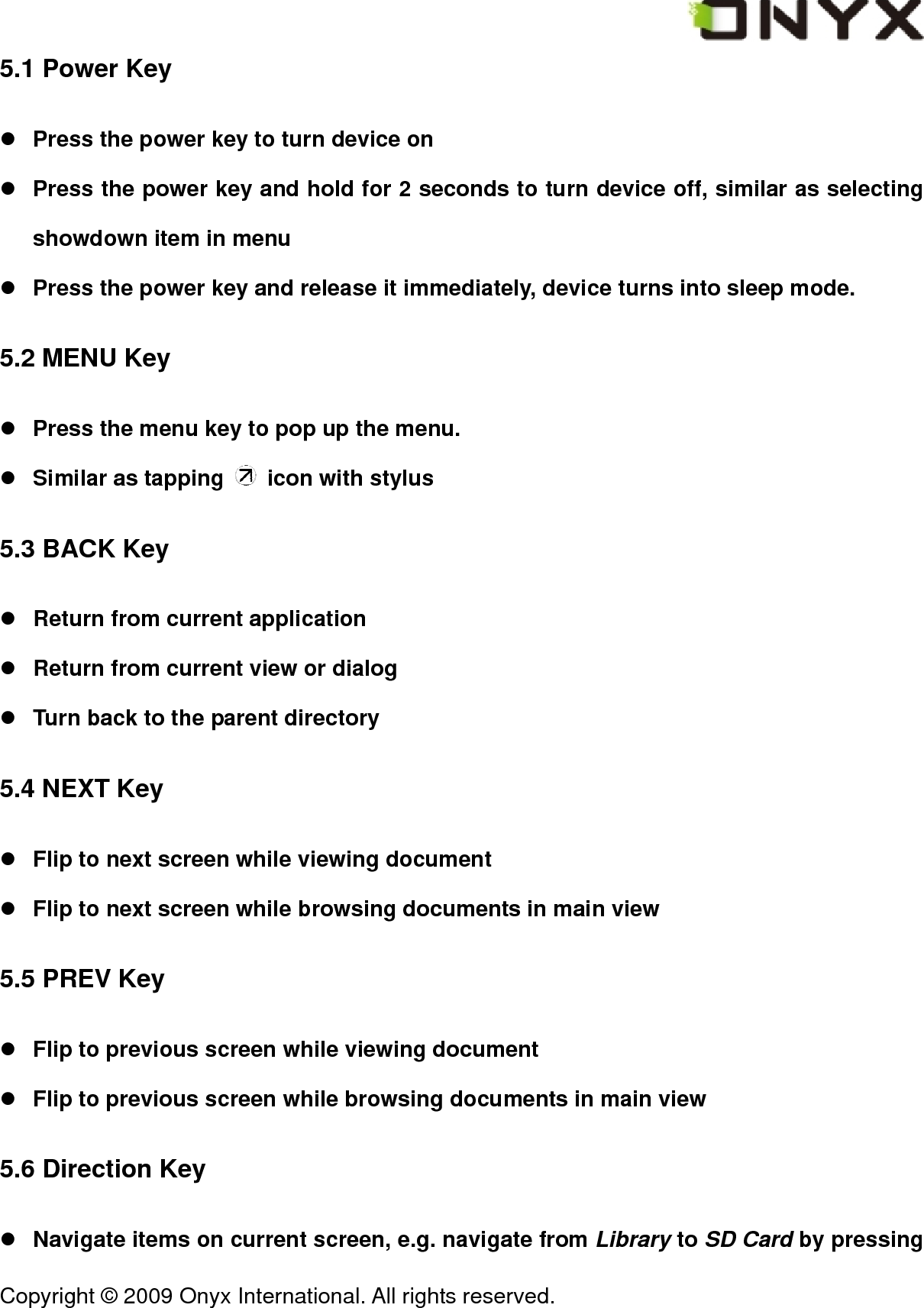
 Copyright © 2009 Onyx International. All rights reserved.                                 5.1 Power Key z Press the power key to turn device on z Press the power key and hold for 2 seconds to turn device off, similar as selecting showdown item in menu z Press the power key and release it immediately, device turns into sleep mode. 5.2 MENU Key z Press the menu key to pop up the menu. z Similar as tapping    icon with stylus 5.3 BACK Key z Return from current application z Return from current view or dialog z Turn back to the parent directory 5.4 NEXT Key z Flip to next screen while viewing document z Flip to next screen while browsing documents in main view 5.5 PREV Key z Flip to previous screen while viewing document z Flip to previous screen while browsing documents in main view 5.6 Direction Key z Navigate items on current screen, e.g. navigate from Library to SD Card by pressing
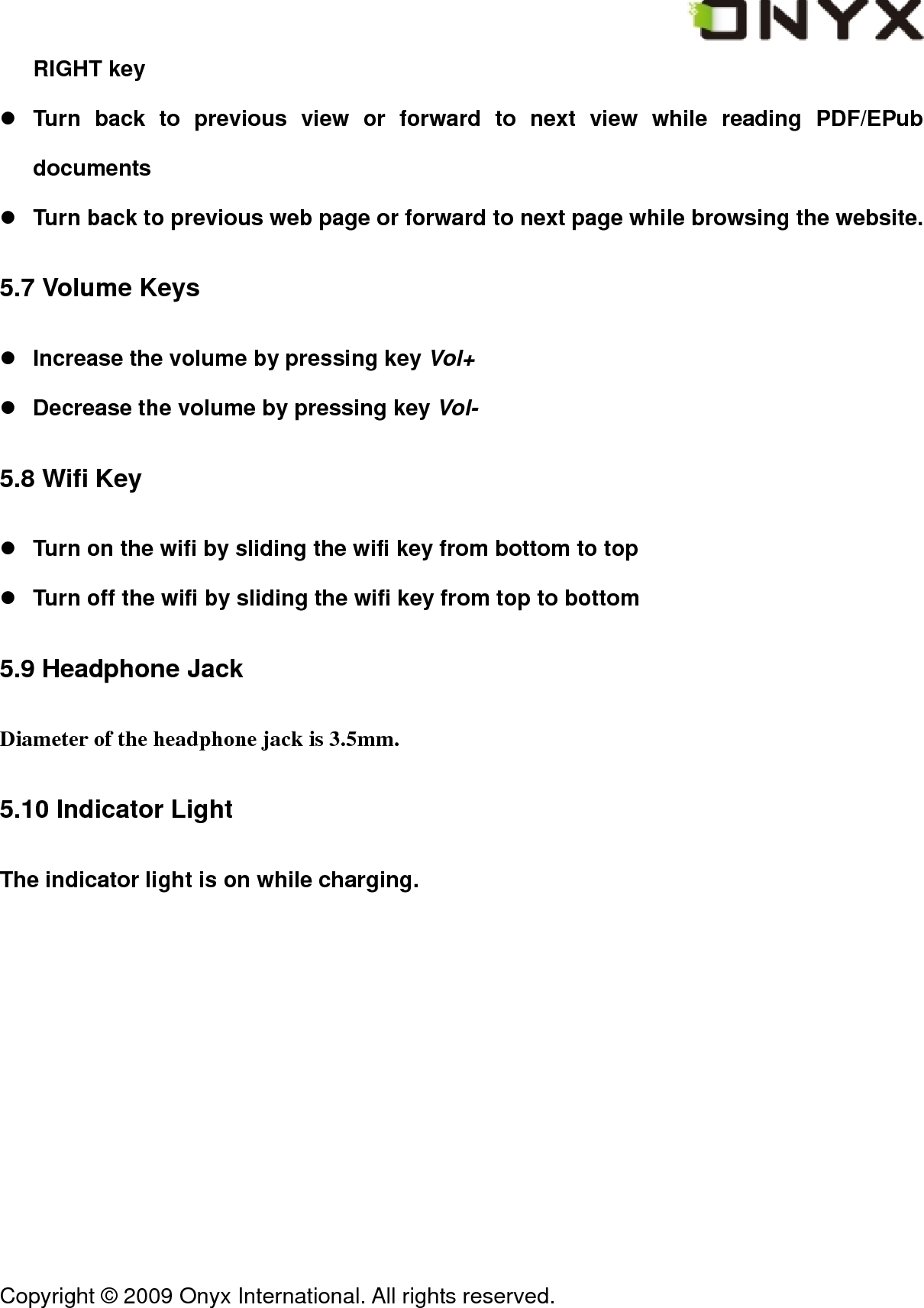
 Copyright © 2009 Onyx International. All rights reserved.                                 RIGHT key z Turn back to previous view or forward to next view while reading PDF/EPub documents z Turn back to previous web page or forward to next page while browsing the website. 5.7 Volume Keys z Increase the volume by pressing key Vol+ z Decrease the volume by pressing key Vol- 5.8 Wifi Key z Turn on the wifi by sliding the wifi key from bottom to top z Turn off the wifi by sliding the wifi key from top to bottom 5.9 Headphone Jack Diameter of the headphone jack is 3.5mm. 5.10 Indicator Light The indicator light is on while charging.
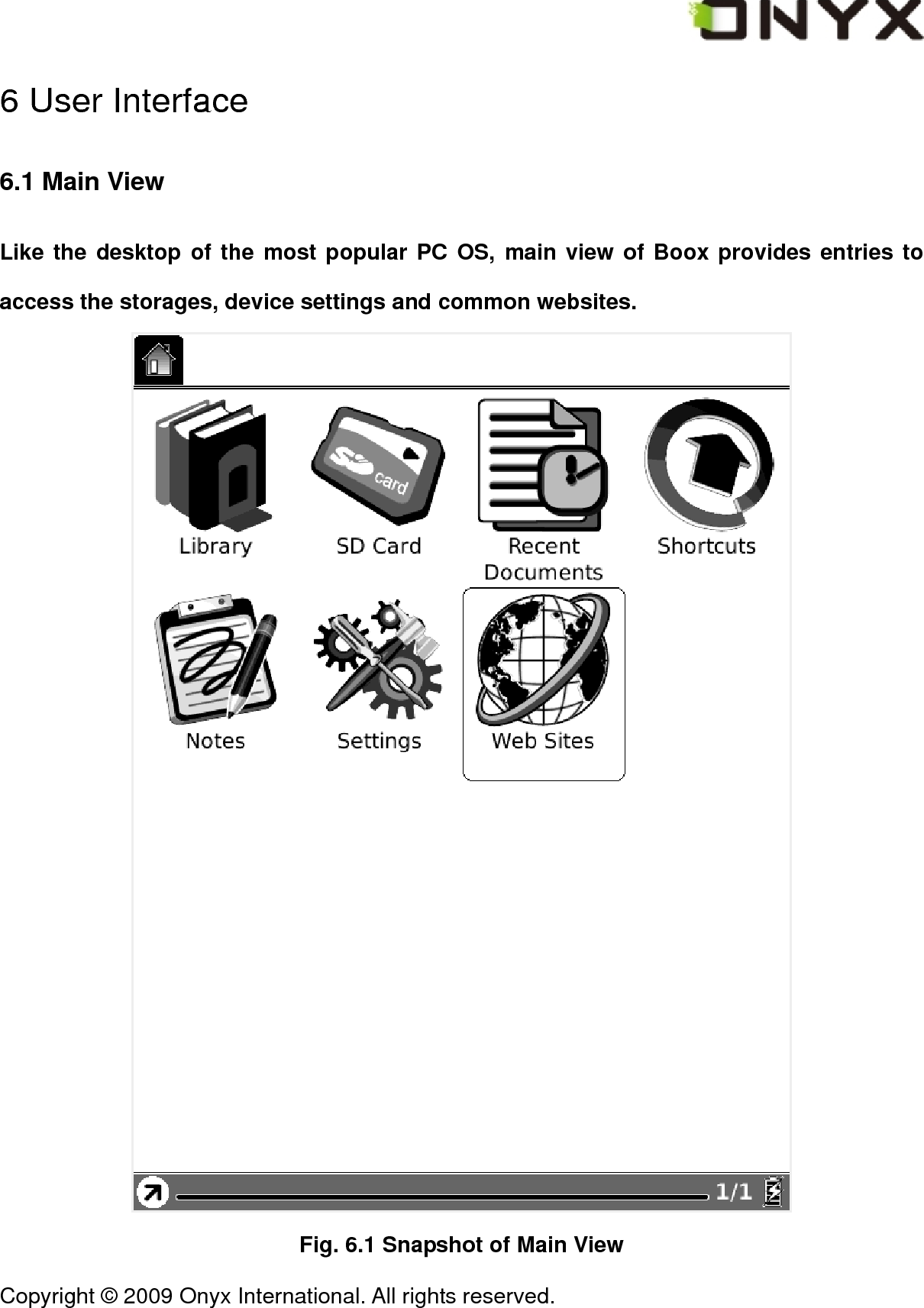
 Copyright © 2009 Onyx International. All rights reserved.                                 6 User Interface 6.1 Main View Like the desktop of the most popular PC OS, main view of Boox provides entries to access the storages, device settings and common websites.  Fig. 6.1 Snapshot of Main View
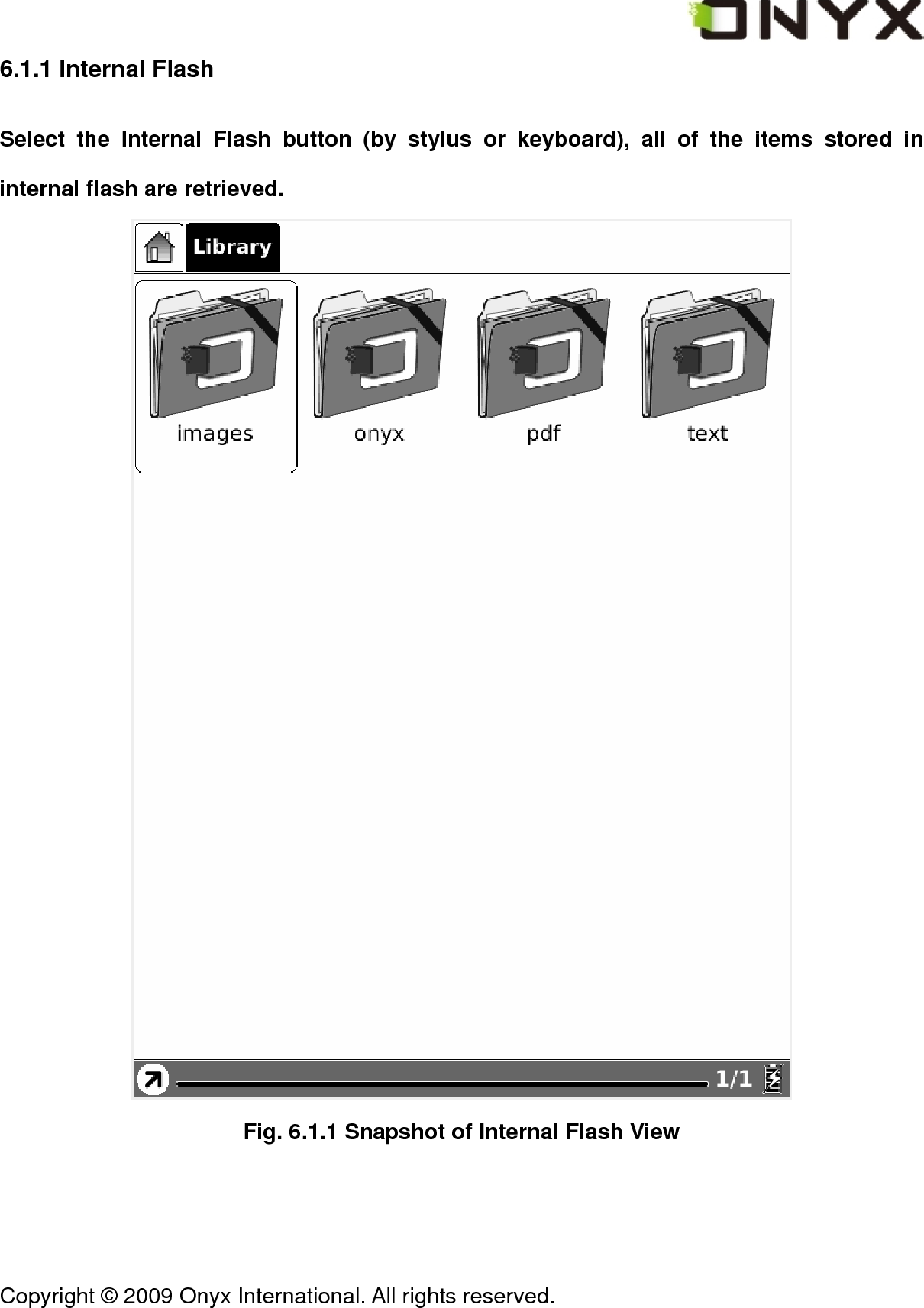
 Copyright © 2009 Onyx International. All rights reserved.                                 6.1.1 Internal Flash Select the Internal Flash button (by stylus or keyboard), all of the items stored in internal flash are retrieved.  Fig. 6.1.1 Snapshot of Internal Flash View
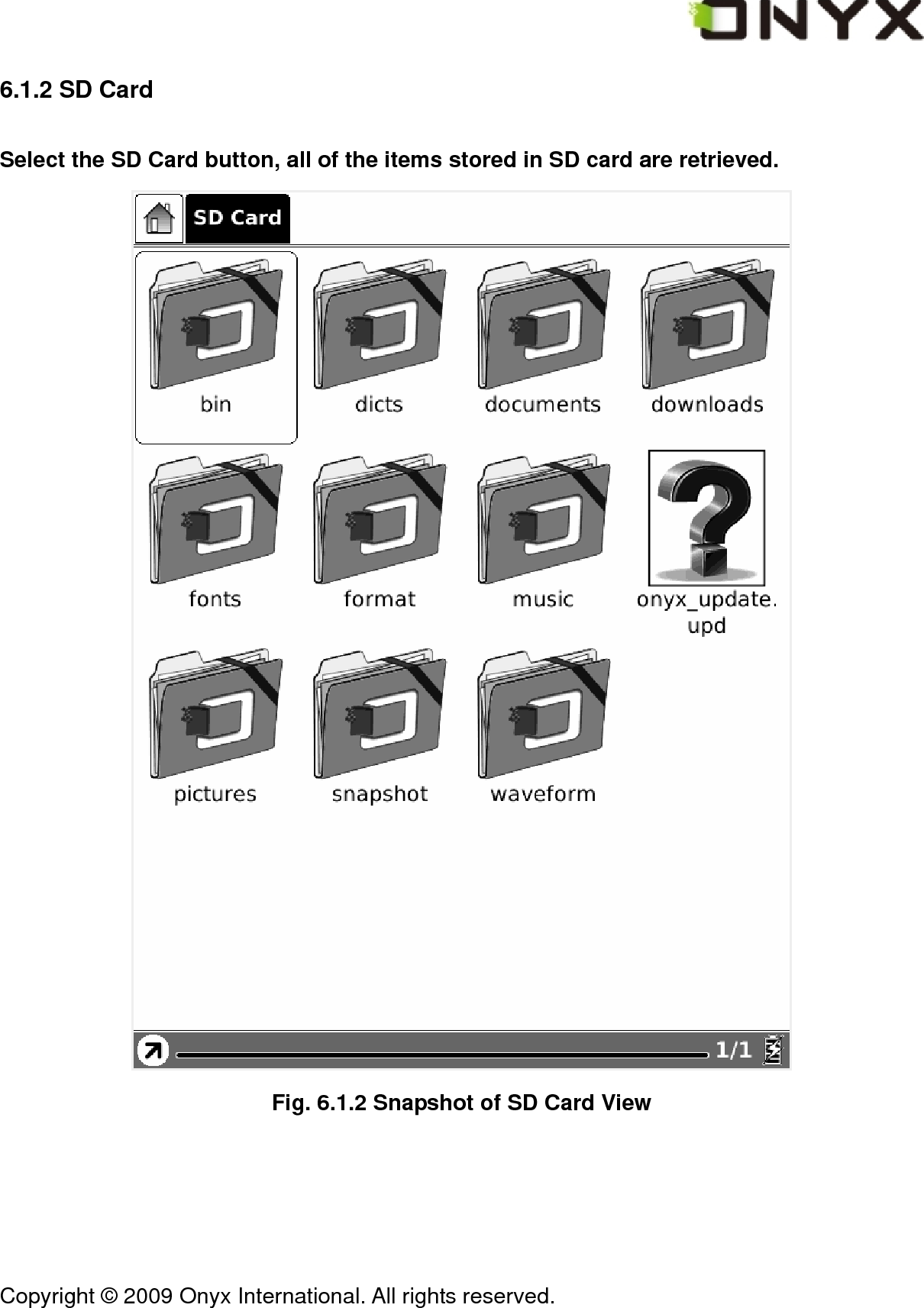
 Copyright © 2009 Onyx International. All rights reserved.                                 6.1.2 SD Card Select the SD Card button, all of the items stored in SD card are retrieved.  Fig. 6.1.2 Snapshot of SD Card View
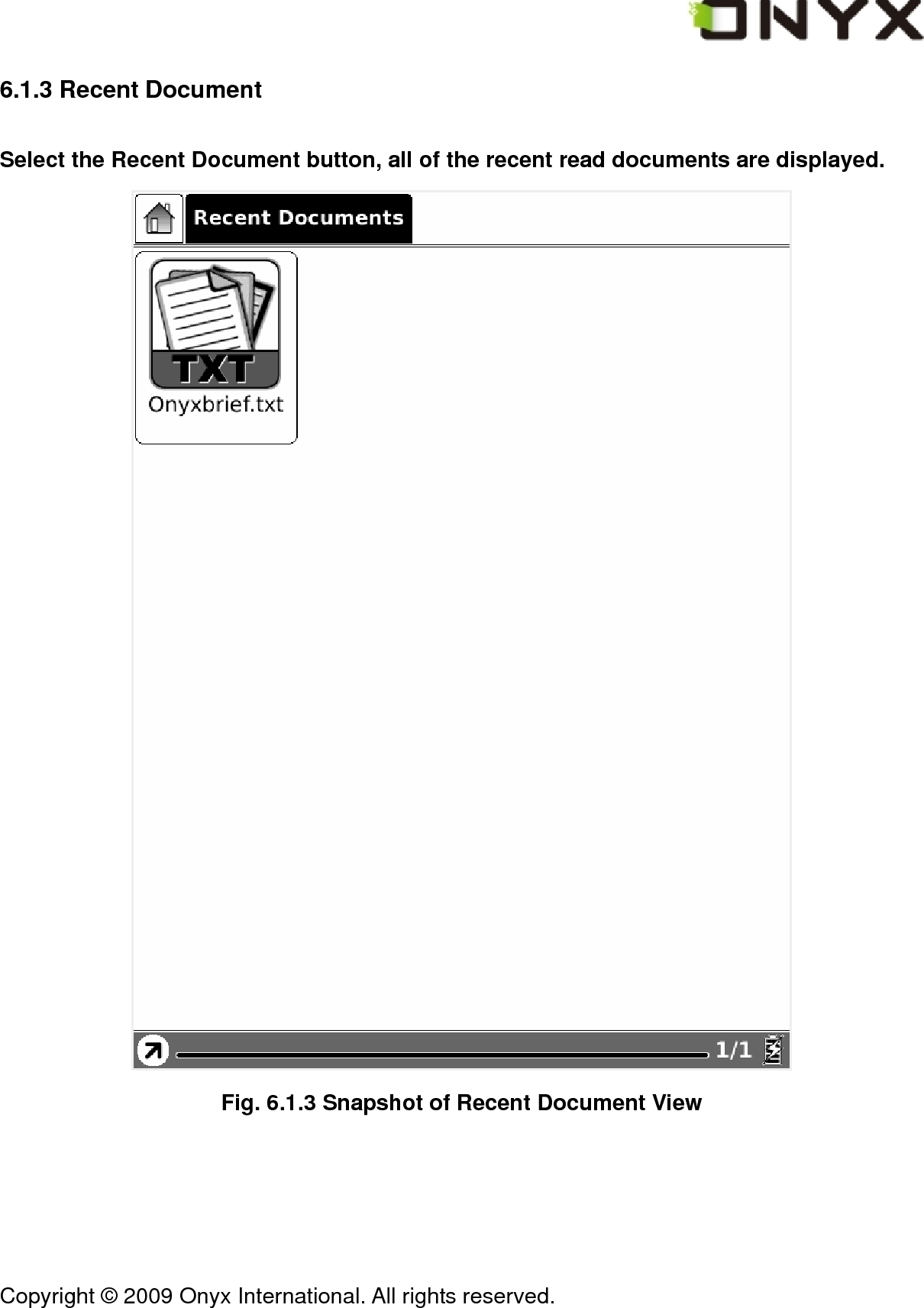
 Copyright © 2009 Onyx International. All rights reserved.                                 6.1.3 Recent Document Select the Recent Document button, all of the recent read documents are displayed.  Fig. 6.1.3 Snapshot of Recent Document View
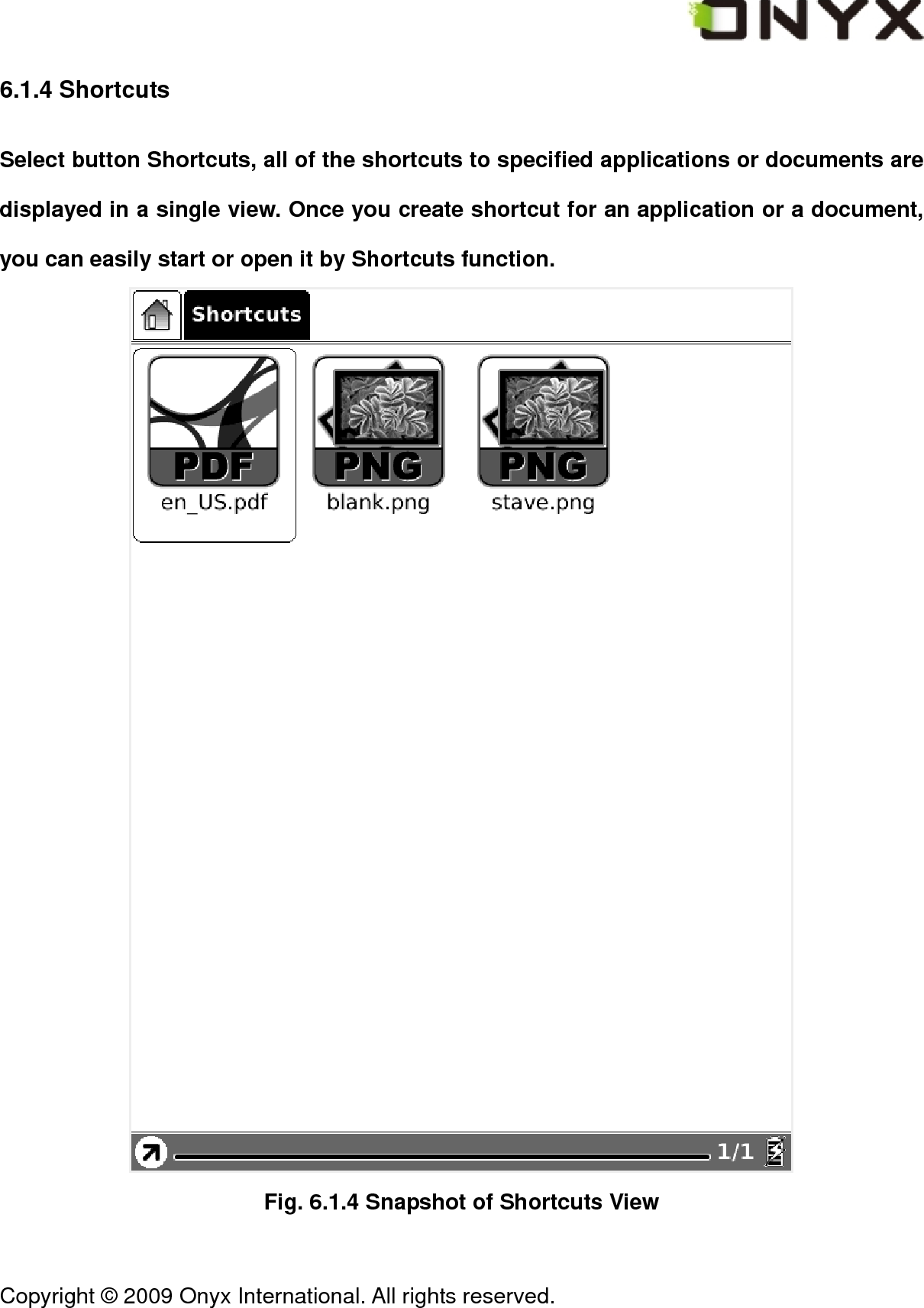
 Copyright © 2009 Onyx International. All rights reserved.                                 6.1.4 Shortcuts Select button Shortcuts, all of the shortcuts to specified applications or documents are displayed in a single view. Once you create shortcut for an application or a document, you can easily start or open it by Shortcuts function.  Fig. 6.1.4 Snapshot of Shortcuts View
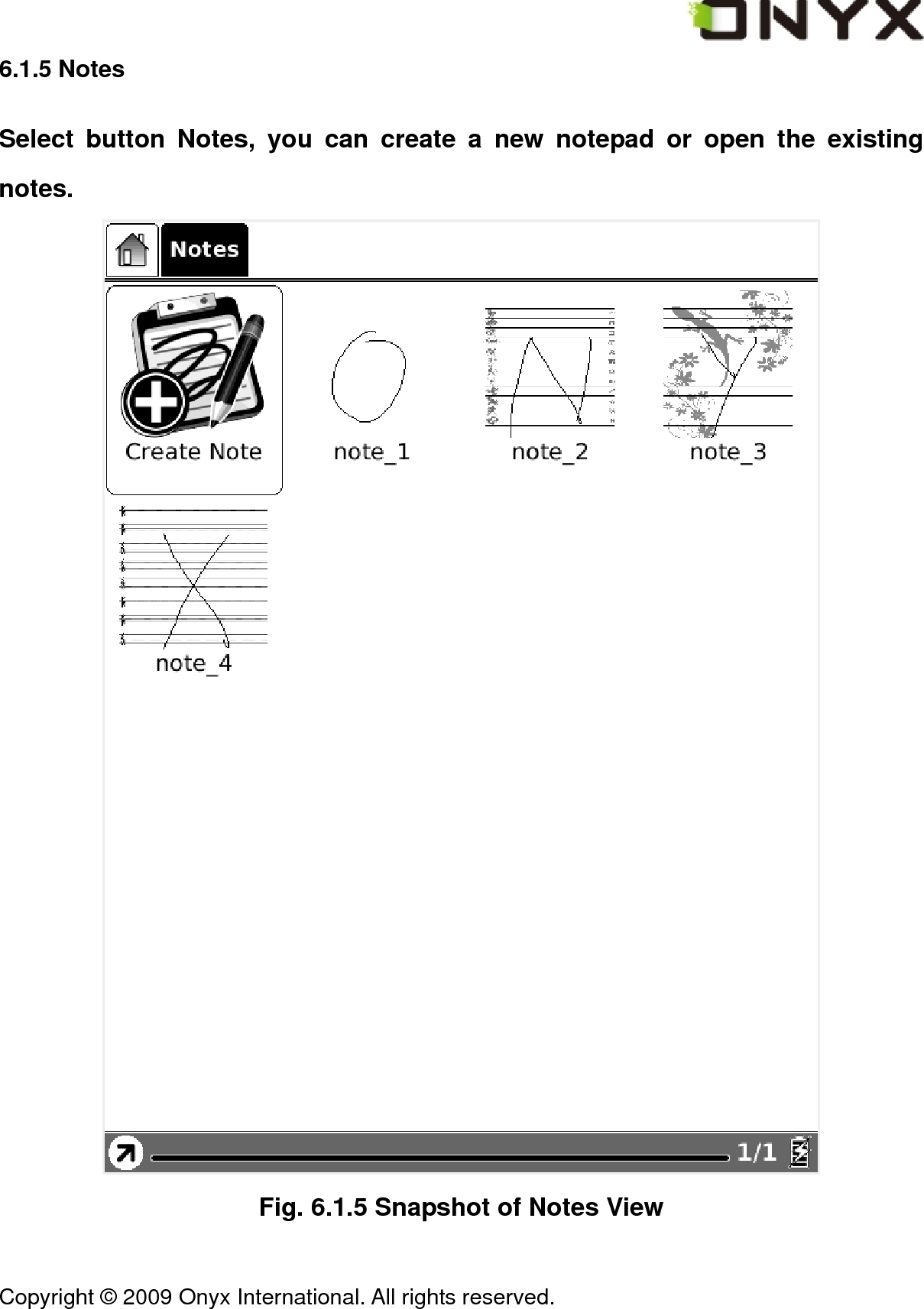
 Copyright © 2009 Onyx International. All rights reserved.                                 6.1.5 Notes Select button Notes, you can create a new notepad or open the existing notes.  Fig. 6.1.5 Snapshot of Notes View
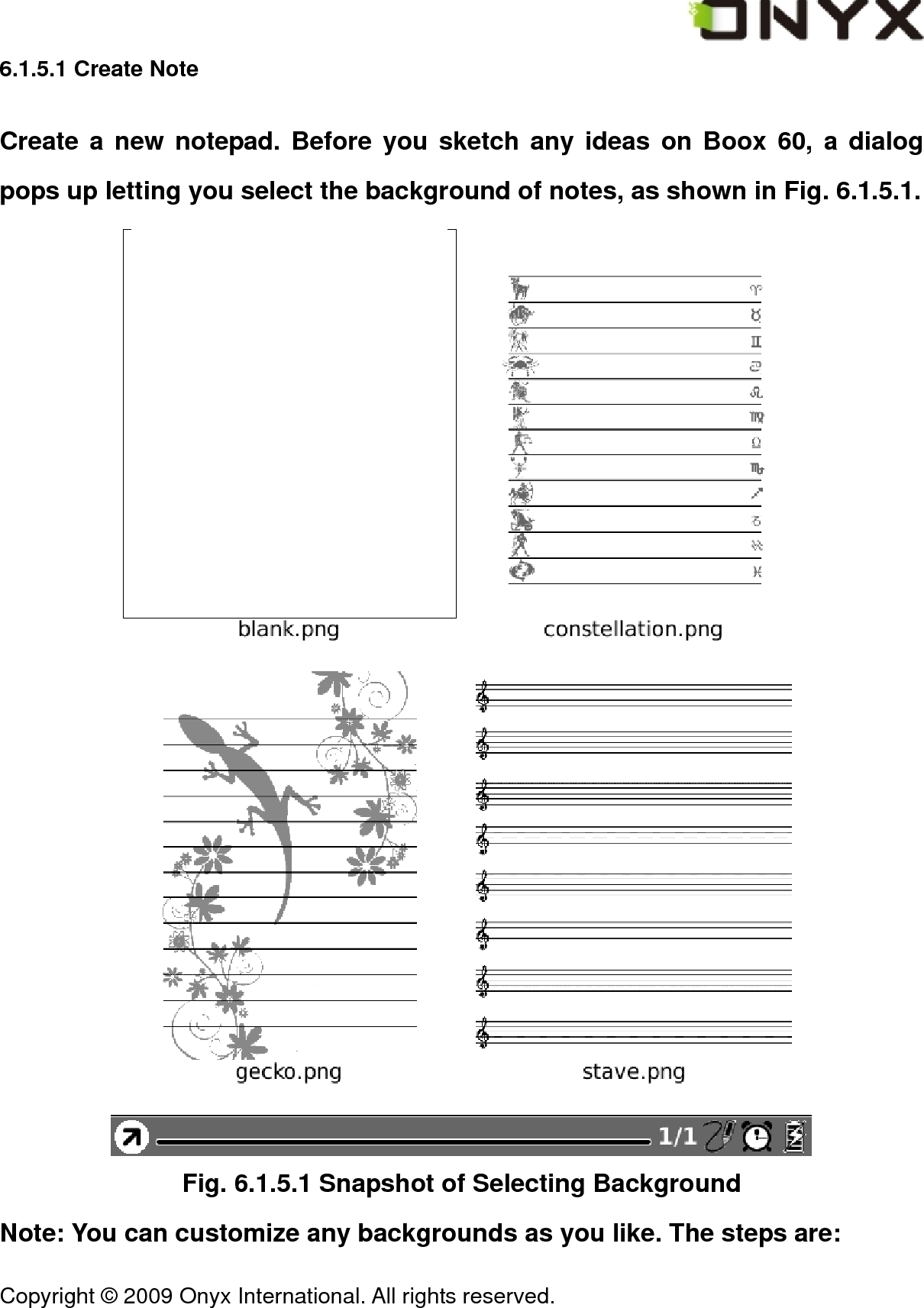
 Copyright © 2009 Onyx International. All rights reserved.                                 6.1.5.1 Create Note Create a new notepad. Before you sketch any ideas on Boox 60, a dialog pops up letting you select the background of notes, as shown in Fig. 6.1.5.1.  Fig. 6.1.5.1 Snapshot of Selecting Background Note: You can customize any backgrounds as you like. The steps are:
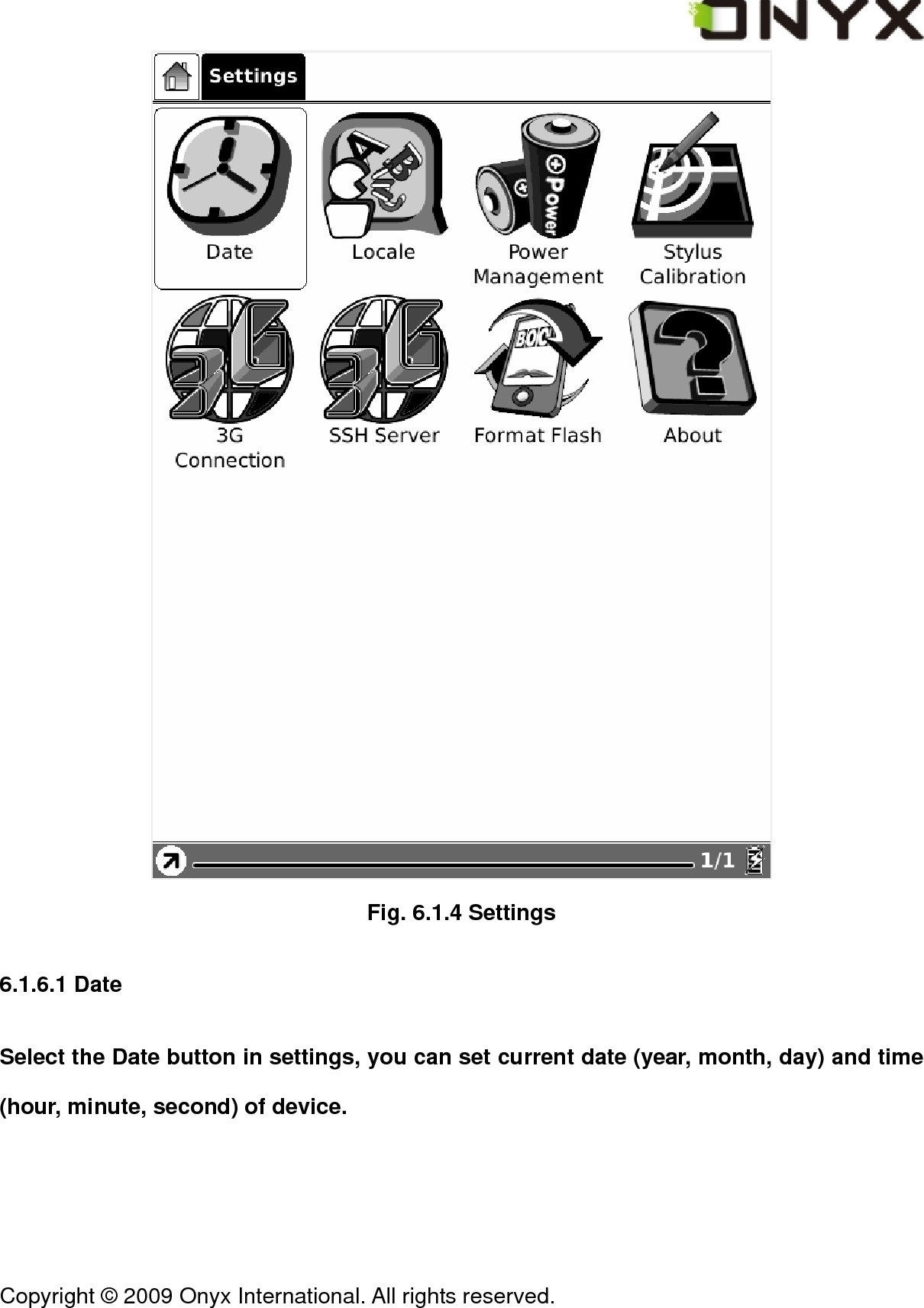
 Copyright © 2009 Onyx International. All rights reserved.                                 1. Create a folder notes_template in your SD card. 2. Put the background images in that folder. Onyx recommends you use images with dimensions 600  ×  800 then you will get best performance. 6.1.5.2 Open Existing Notes Any notes are saved in internal flash of Boox 60. You can see and open them in Notes view, just like opening a normal document. The thumbnail of first sketched page will be display in Notes view. 6.1.6 Settings Select Settings button, you can enter the device settings view. Now the configuration of date, locale, power management are supported. Stylus calibration, format flash and about view are also listed here.
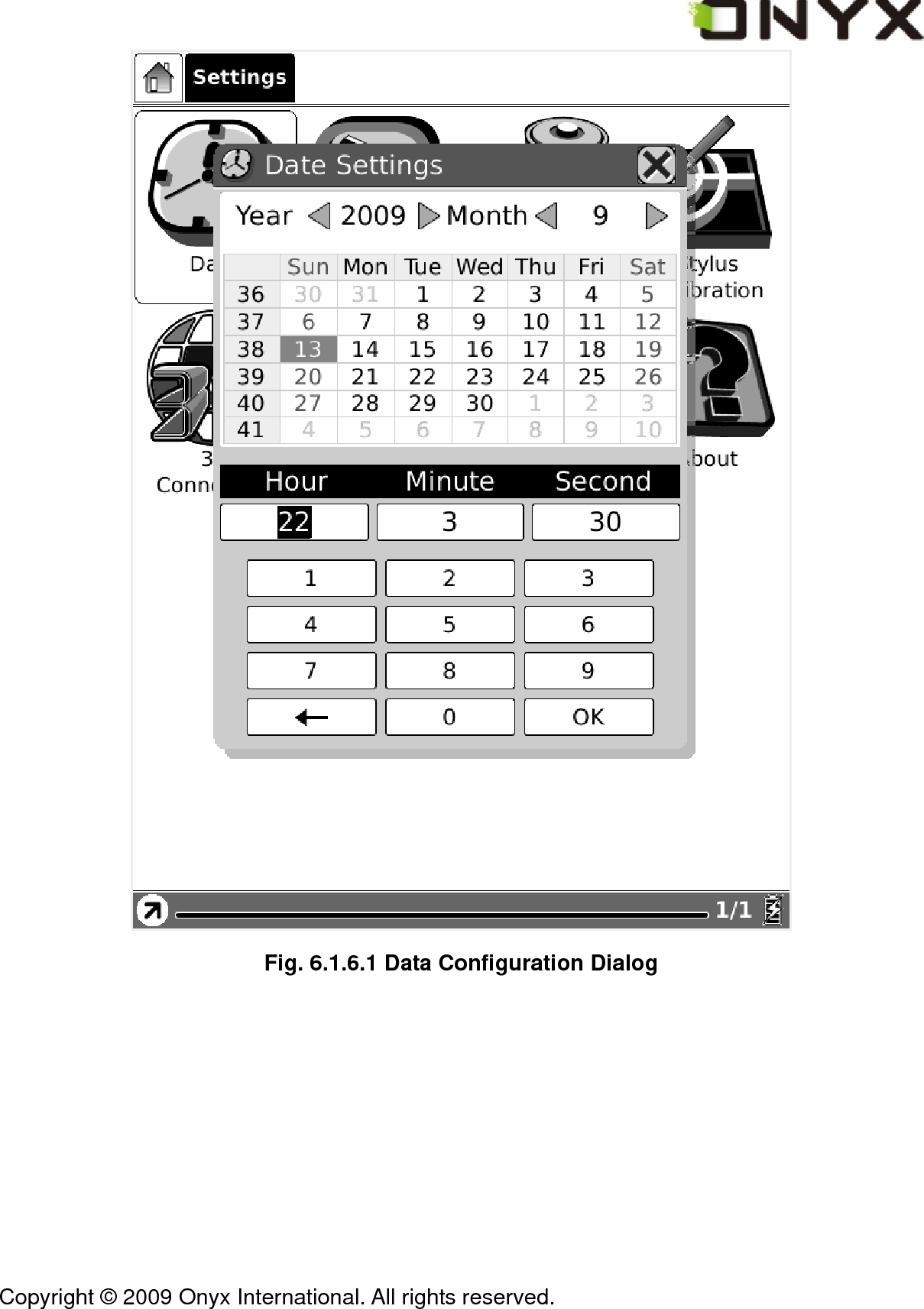
 Copyright © 2009 Onyx International. All rights reserved.                                  Fig. 6.1.4 Settings 6.1.6.1 Date Select the Date button in settings, you can set current date (year, month, day) and time (hour, minute, second) of device.
 Copyright © 2009 Onyx International. All rights reserved.                                  Fig. 6.1.6.1 Data Configuration Dialog
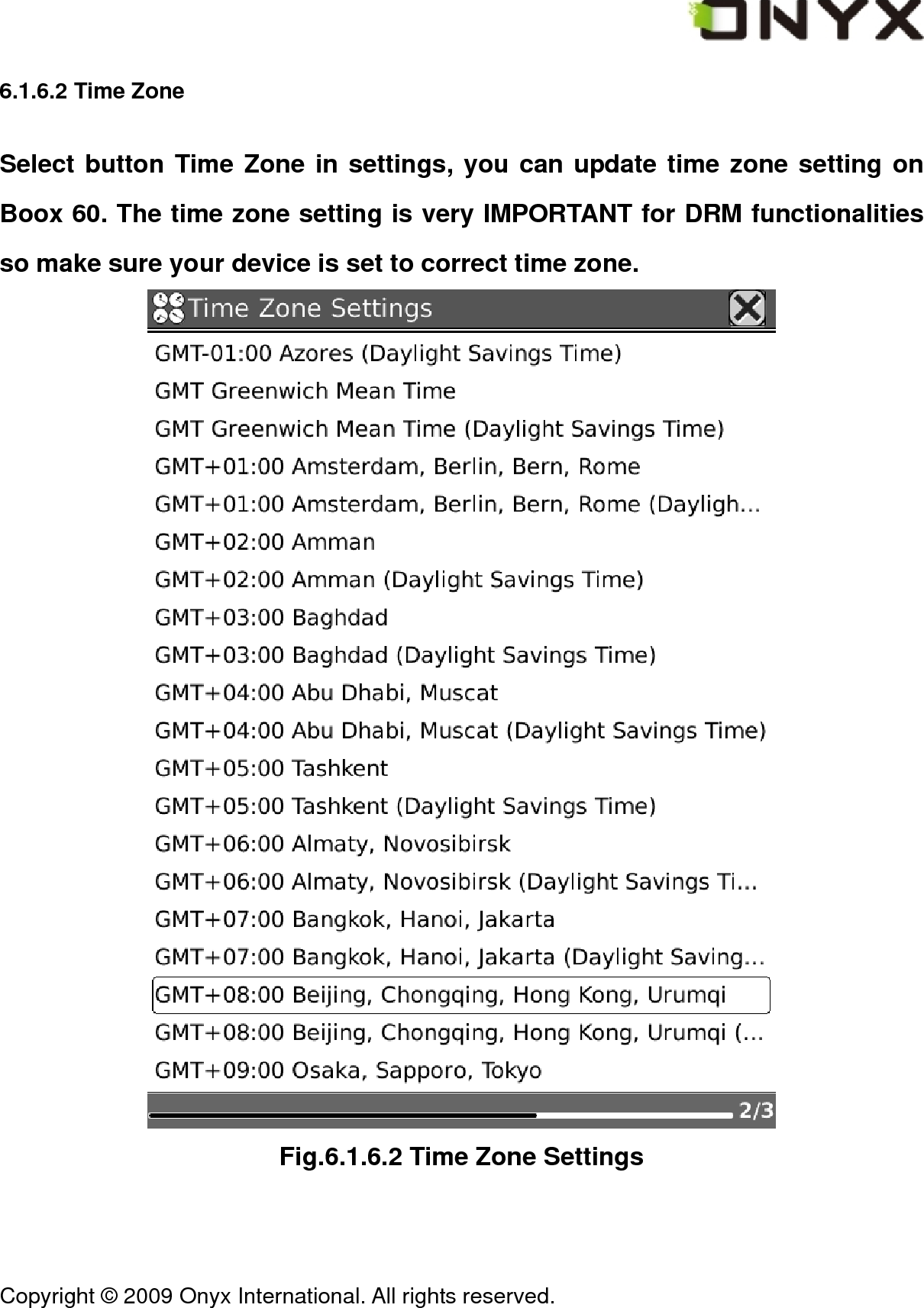
 Copyright © 2009 Onyx International. All rights reserved.                                 6.1.6.2 Time Zone Select button Time Zone in settings, you can update time zone setting on Boox 60. The time zone setting is very IMPORTANT for DRM functionalities so make sure your device is set to correct time zone.  Fig.6.1.6.2 Time Zone Settings
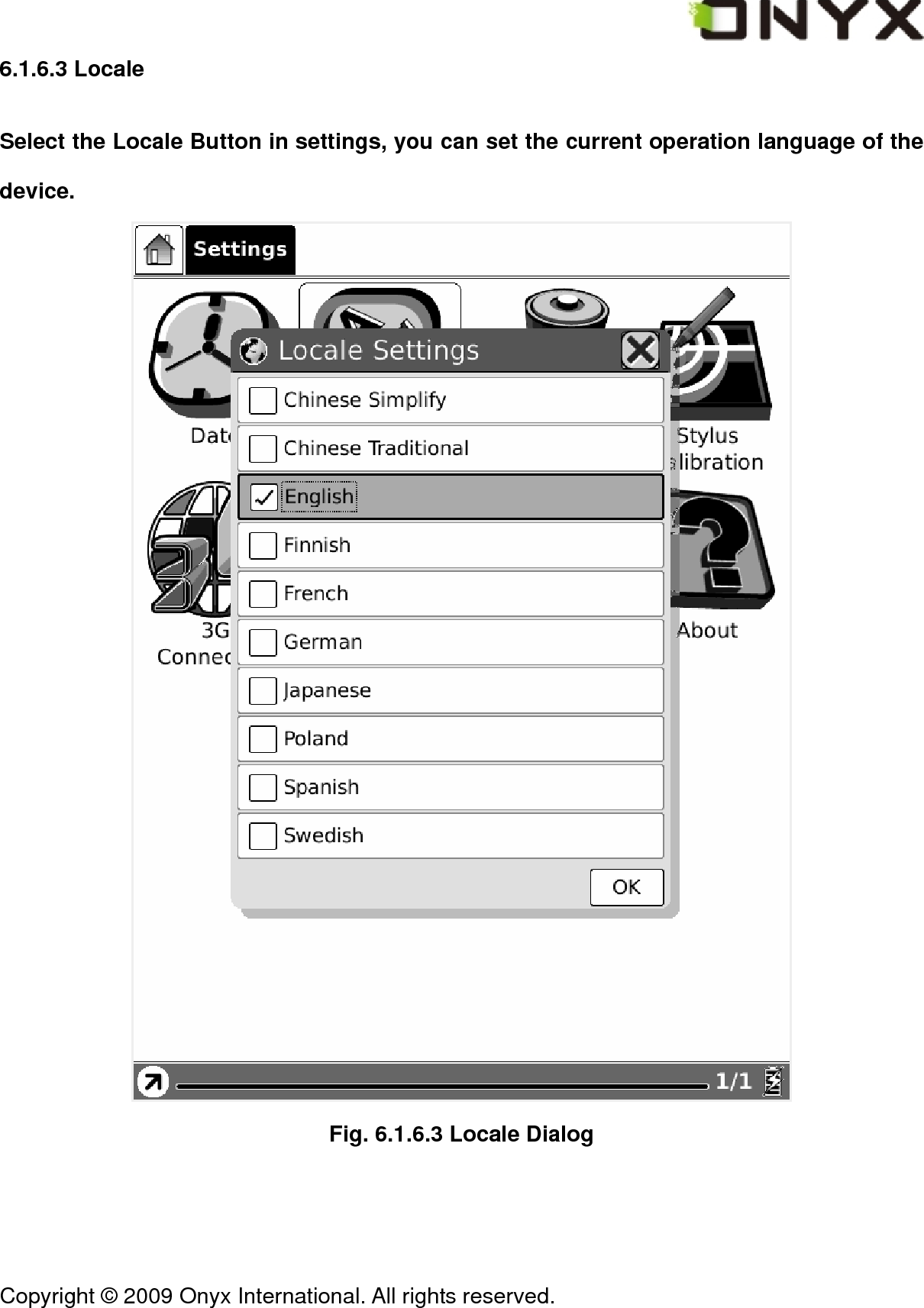
 Copyright © 2009 Onyx International. All rights reserved.                                 6.1.6.3 Locale Select the Locale Button in settings, you can set the current operation language of the device.  Fig. 6.1.6.3 Locale Dialog
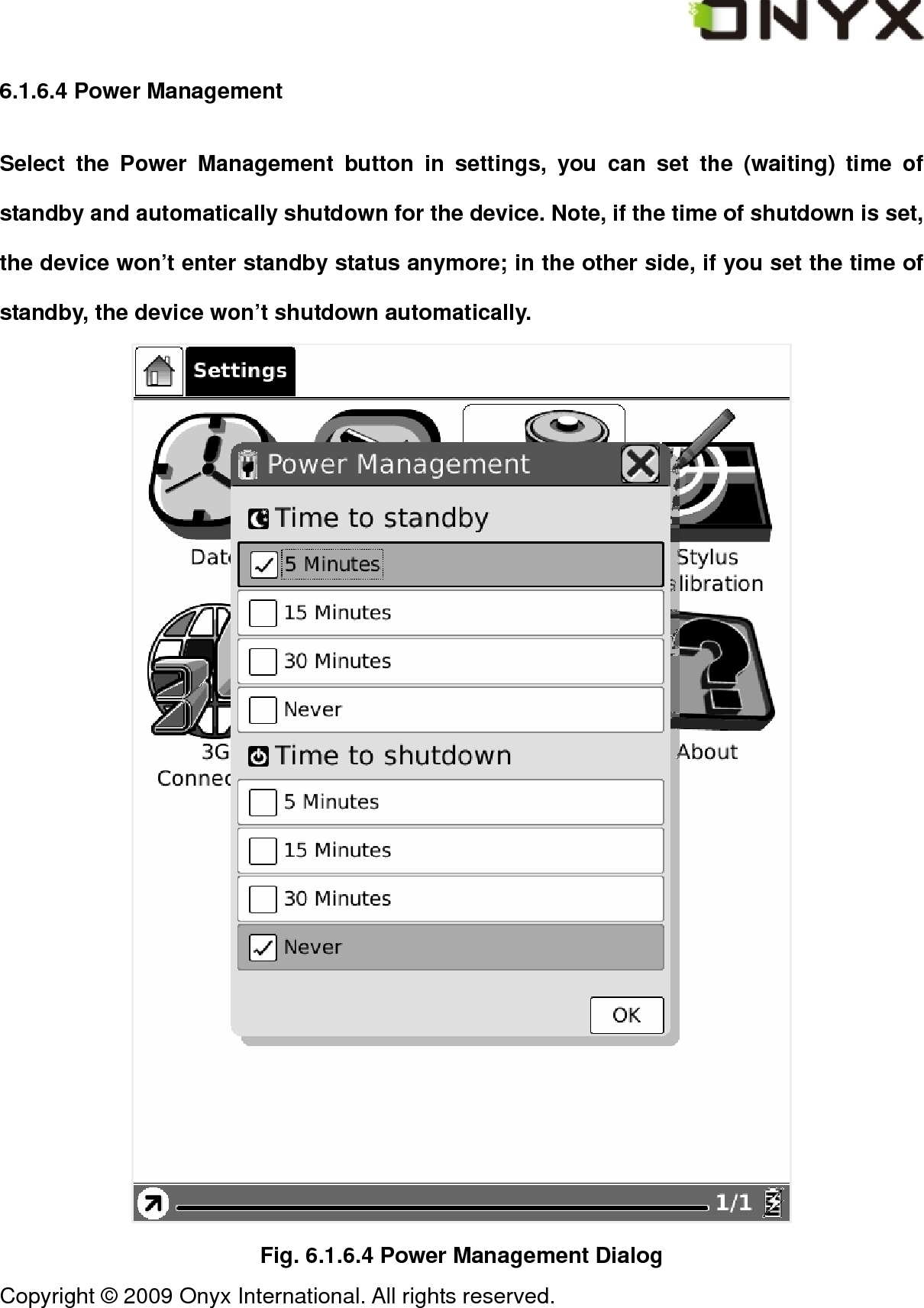
 Copyright © 2009 Onyx International. All rights reserved.                                 6.1.6.4 Power Management Select the Power Management button in settings, you can set the (waiting) time of standby and automatically shutdown for the device. Note, if the time of shutdown is set, the device won’t enter standby status anymore; in the other side, if you set the time of standby, the device won’t shutdown automatically.  Fig. 6.1.6.4 Power Management Dialog
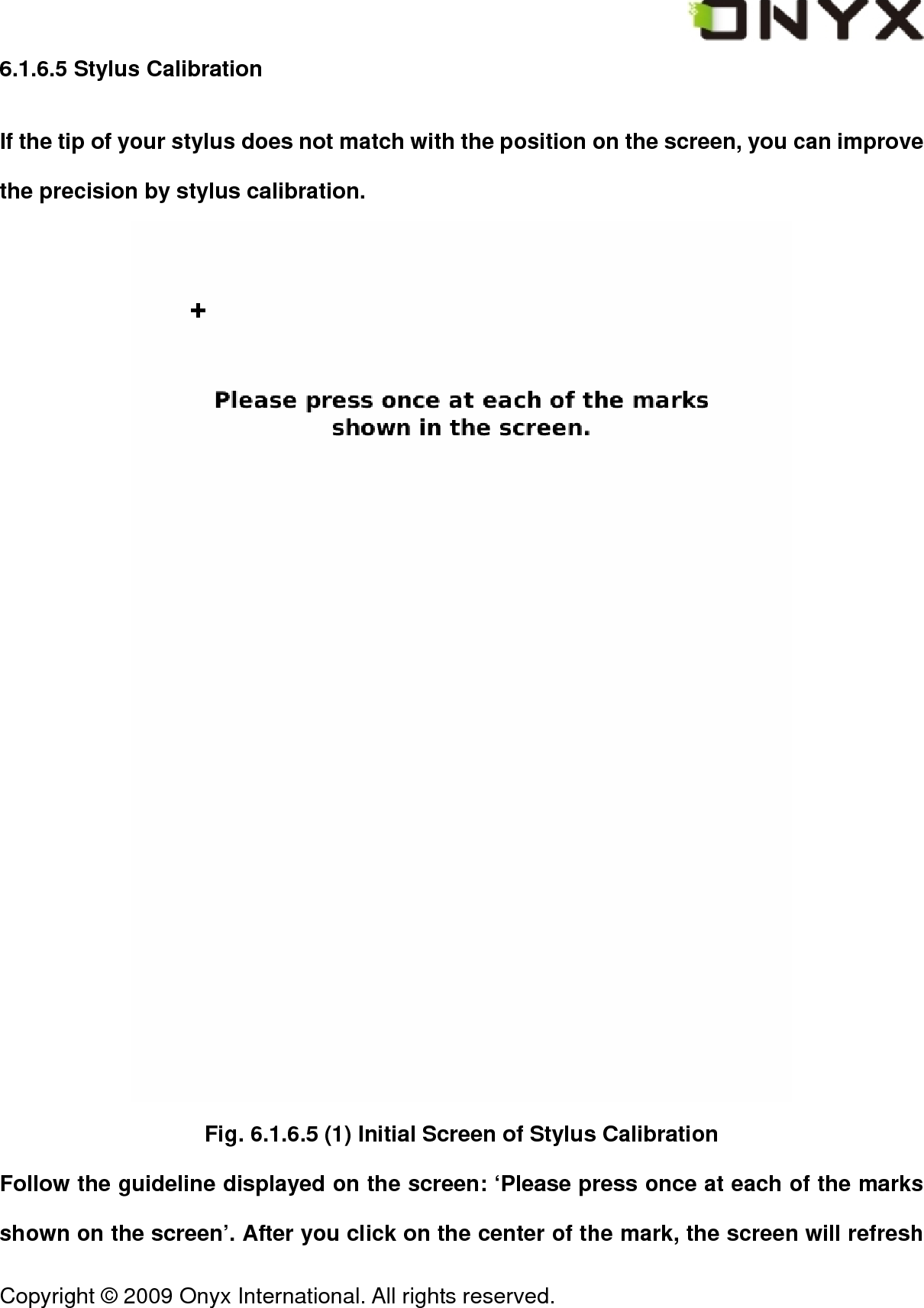
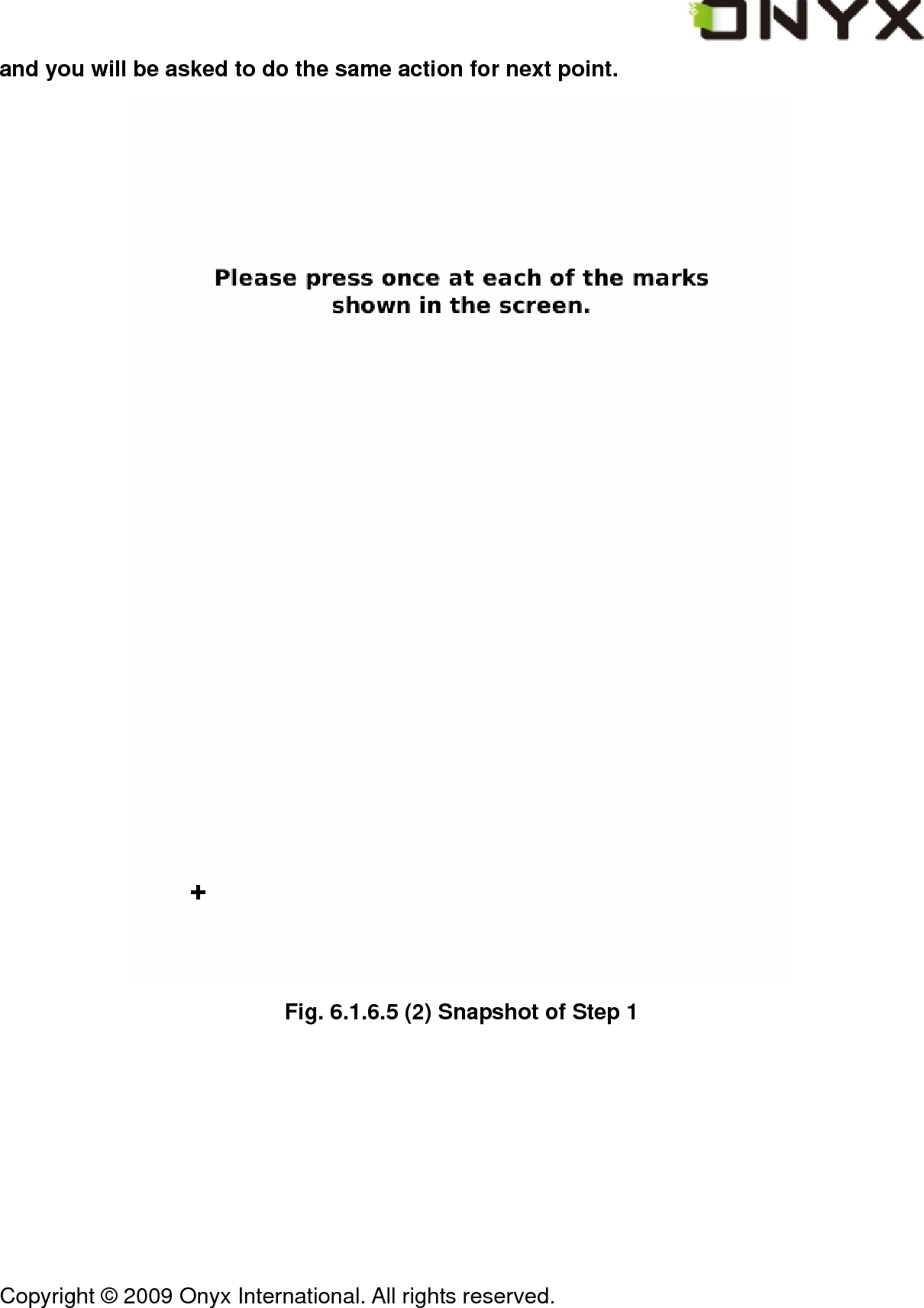
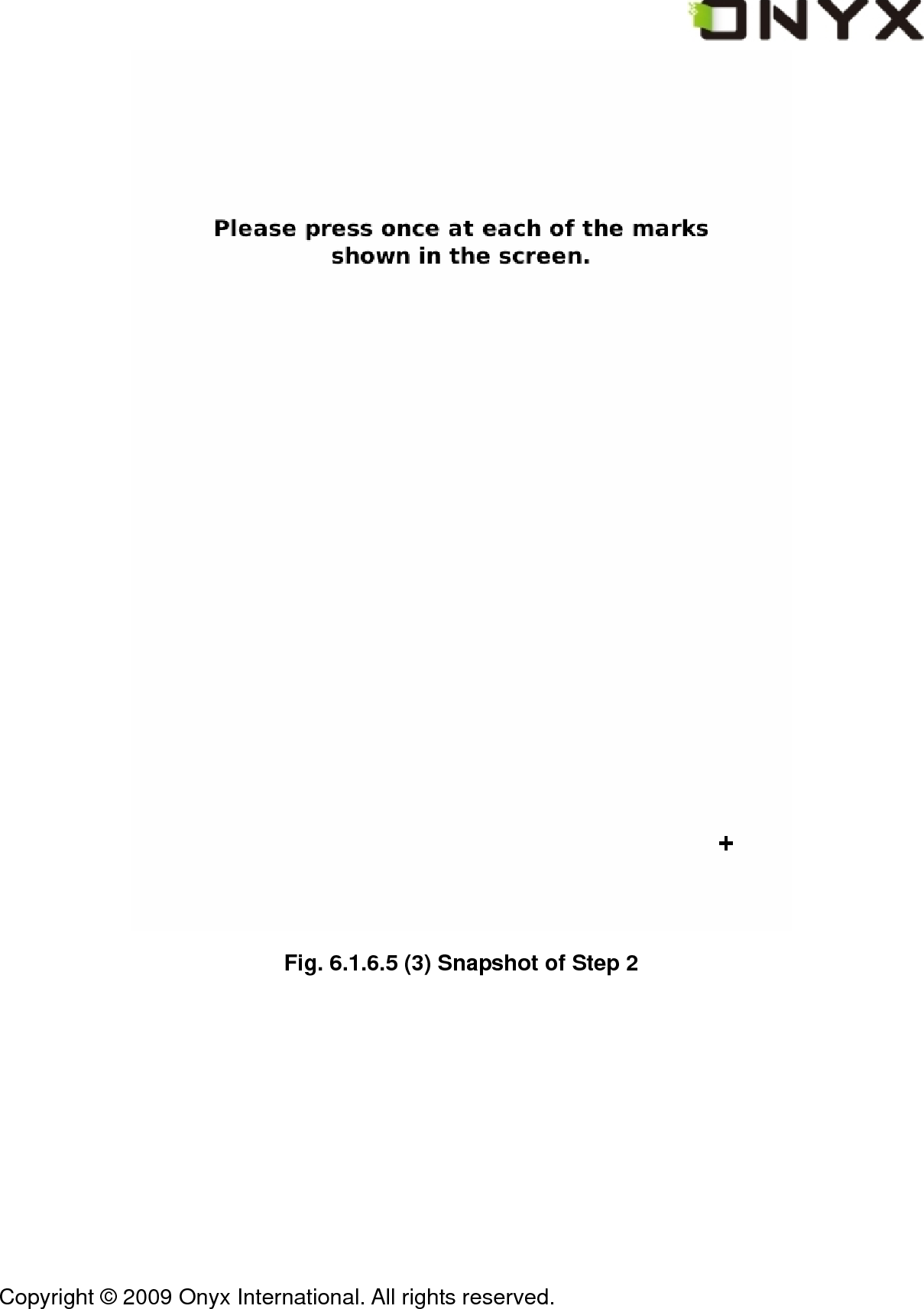
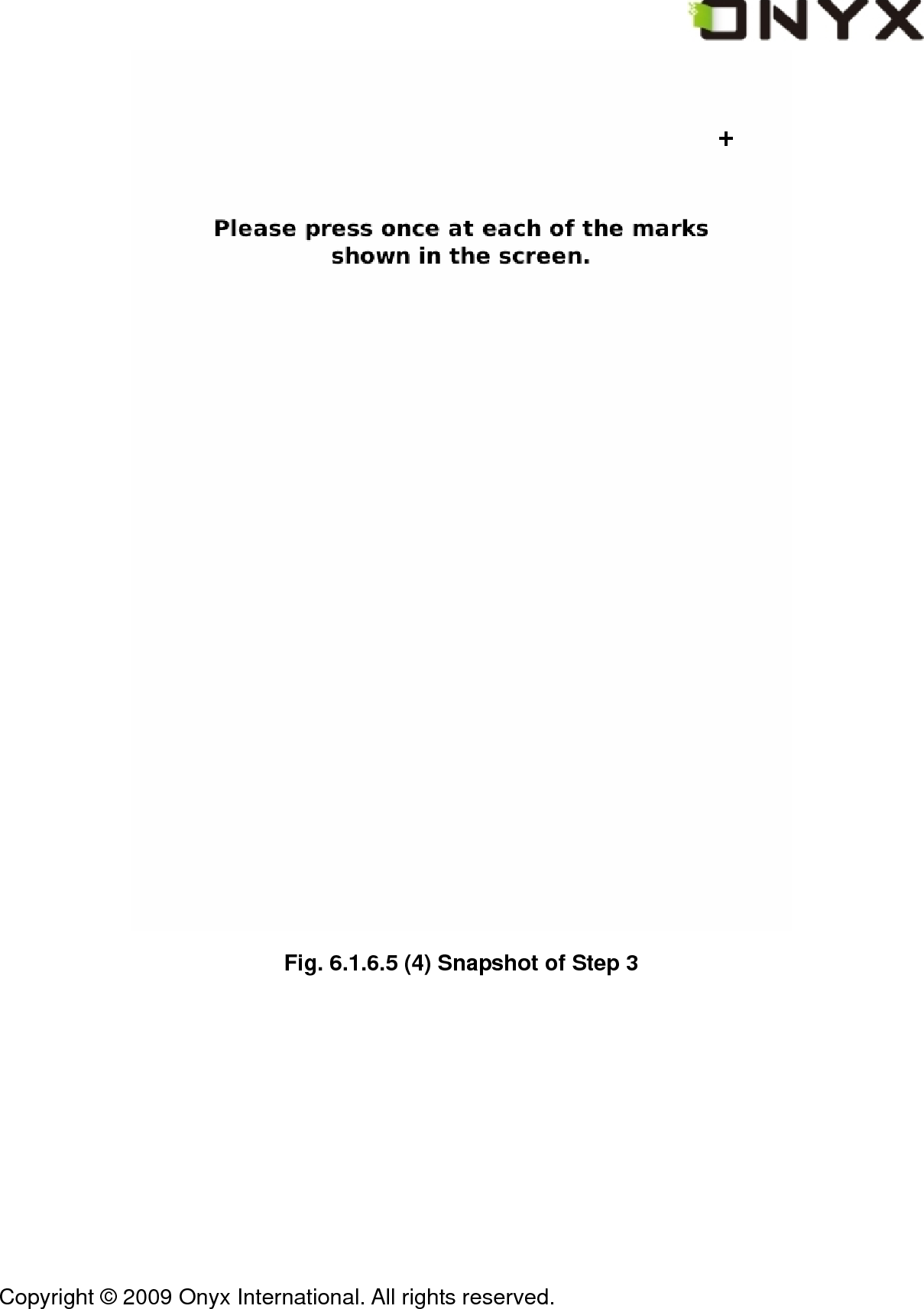
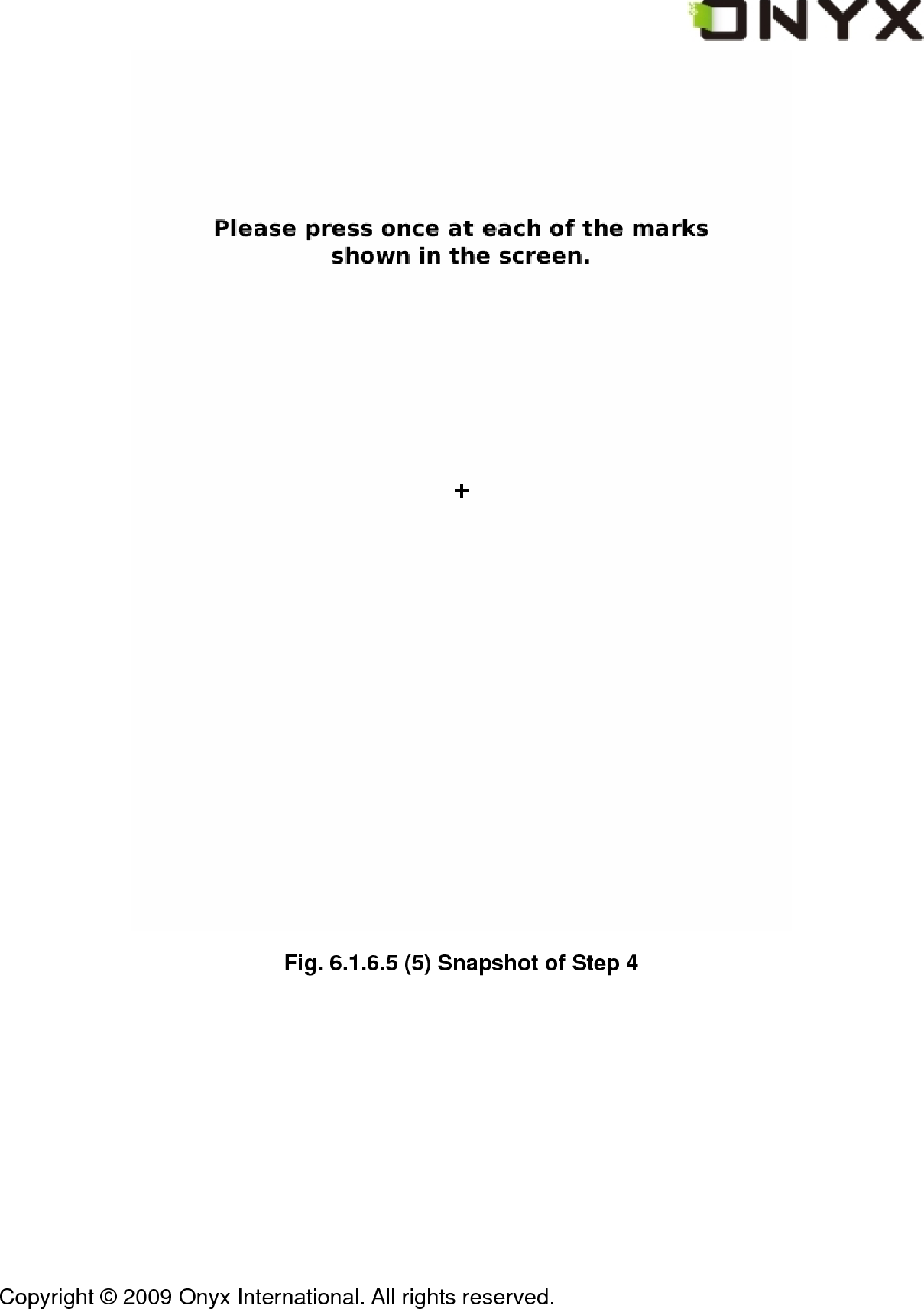
 Copyright © 2009 Onyx International. All rights reserved.                                 6.1.6.5 Stylus Calibration If the tip of your stylus does not match with the position on the screen, you can improve the precision by stylus calibration.    Fig. 6.1.6.5 (1) Initial Screen of Stylus Calibration Follow the guideline displayed on the screen: ‘Please press once at each of the marks shown on the screen’. After you click on the center of the mark, the screen will refresh
 Copyright © 2009 Onyx International. All rights reserved.                                 and you will be asked to do the same action for next point.  Fig. 6.1.6.5 (2) Snapshot of Step 1
 Copyright © 2009 Onyx International. All rights reserved.                                  Fig. 6.1.6.5 (3) Snapshot of Step 2
 Copyright © 2009 Onyx International. All rights reserved.                                  Fig. 6.1.6.5 (4) Snapshot of Step 3
 Copyright © 2009 Onyx International. All rights reserved.                                  Fig. 6.1.6.5 (5) Snapshot of Step 4
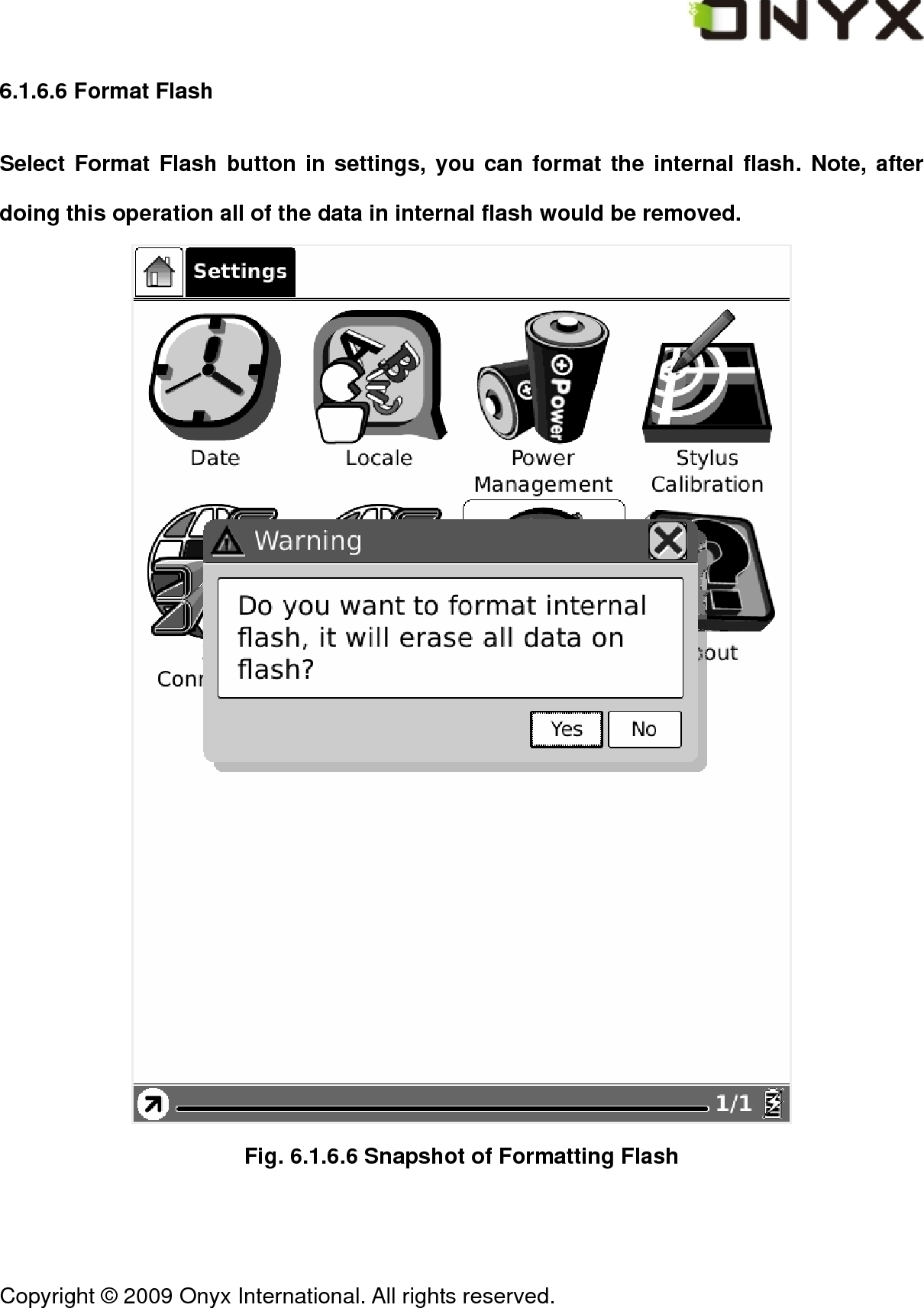
 Copyright © 2009 Onyx International. All rights reserved.                                 6.1.6.6 Format Flash Select Format Flash button in settings, you can format the internal flash. Note, after doing this operation all of the data in internal flash would be removed.  Fig. 6.1.6.6 Snapshot of Formatting Flash
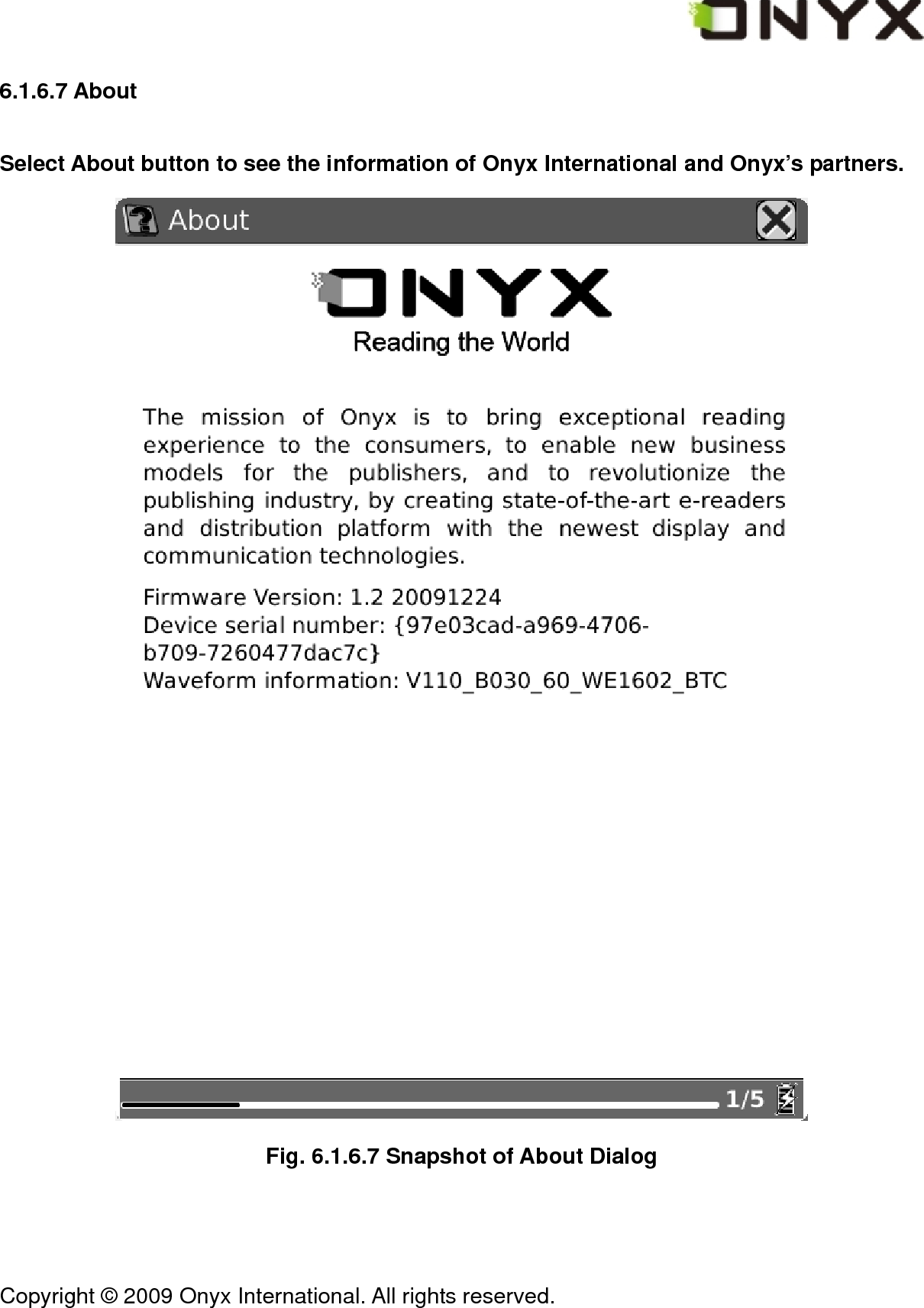
 Copyright © 2009 Onyx International. All rights reserved.                                 6.1.6.7 About Select About button to see the information of Onyx International and Onyx’s partners.  Fig. 6.1.6.7 Snapshot of About Dialog
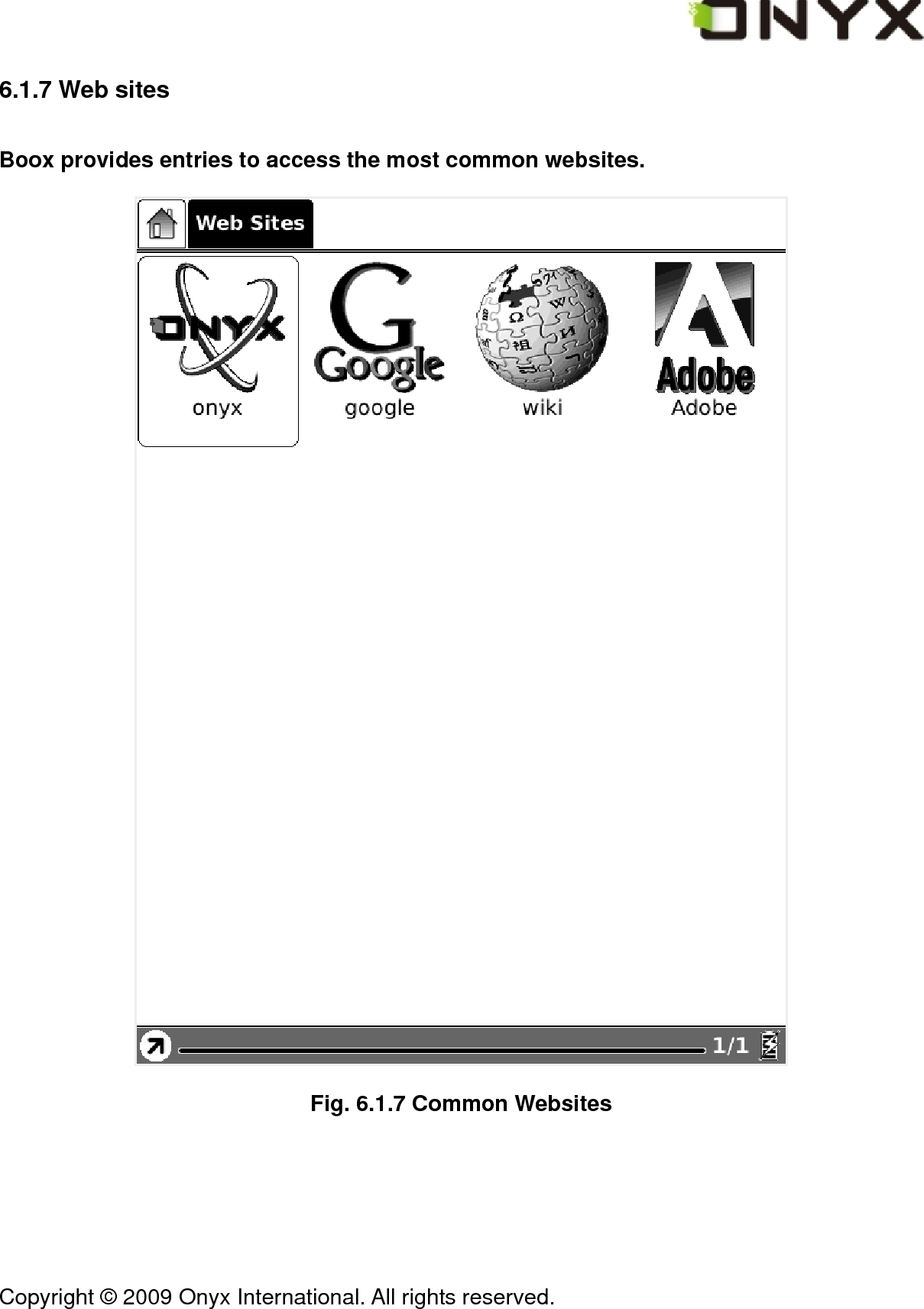
 Copyright © 2009 Onyx International. All rights reserved.                                 6.1.7 Web sites Boox provides entries to access the most common websites.  Fig. 6.1.7 Common Websites
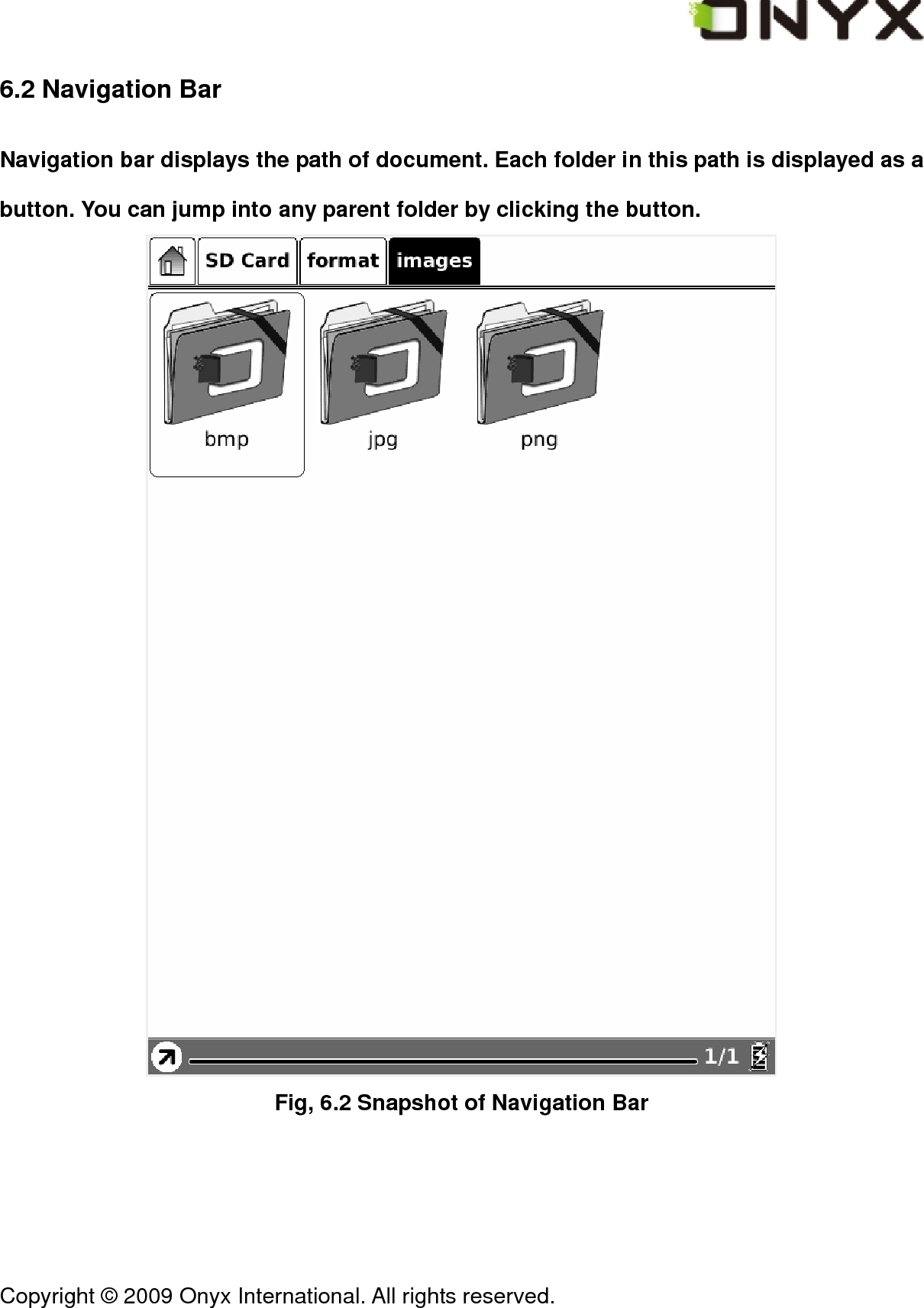
 Copyright © 2009 Onyx International. All rights reserved.                                 6.2 Navigation Bar Navigation bar displays the path of document. Each folder in this path is displayed as a button. You can jump into any parent folder by clicking the button.  Fig, 6.2 Snapshot of Navigation Bar
 Copyright © 2009 Onyx International. All rights reserved.                                 6.3 Tool Bar  Fig. 6.3 Snapshot of Tool Bar 6.3.1 Menu Button   Select the Menu button then the menu pops up. Most of the operations to Boox should be done by accessing the menu. 6.3.2 Progress Bar Progress bar displays the reading progress of viewing documents. The number of current page and the total pages are displayed on the right of the progress bar. Clicking or dragging on the progress bar leads to flipping screens.
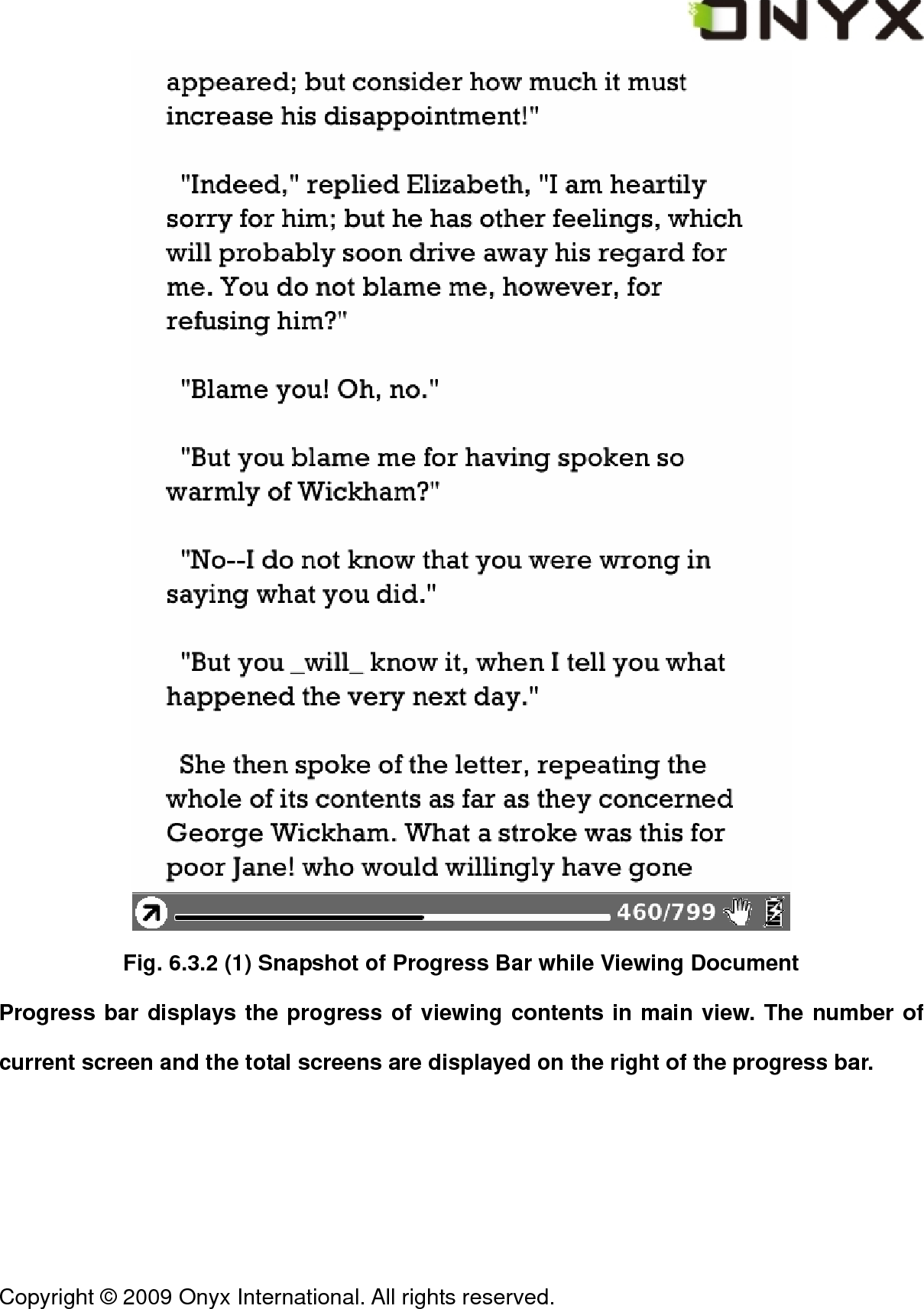
 Copyright © 2009 Onyx International. All rights reserved.                                  Fig. 6.3.2 (1) Snapshot of Progress Bar while Viewing Document Progress bar displays the progress of viewing contents in main view. The number of current screen and the total screens are displayed on the right of the progress bar.
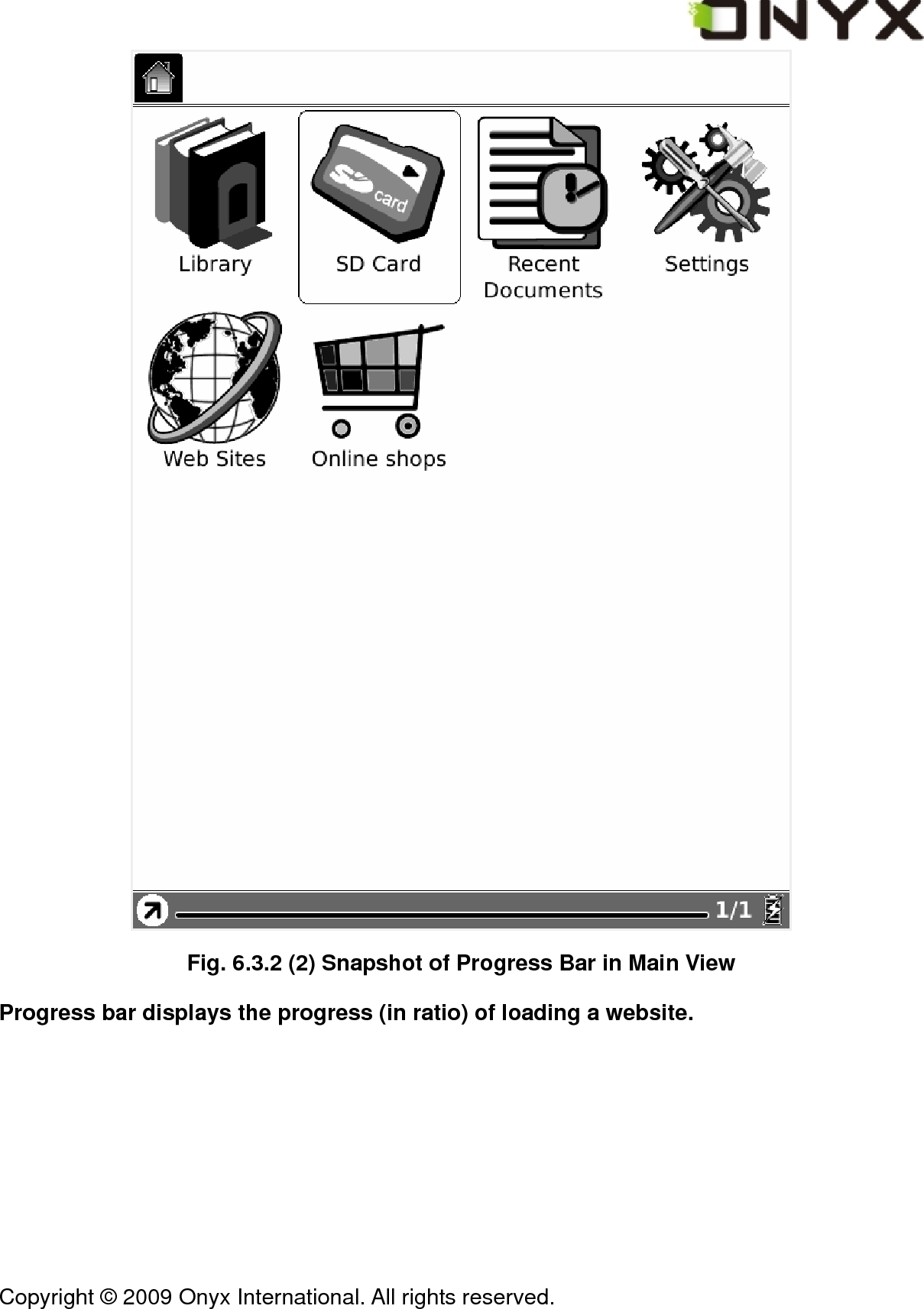
 Copyright © 2009 Onyx International. All rights reserved.                                  Fig. 6.3.2 (2) Snapshot of Progress Bar in Main View Progress bar displays the progress (in ratio) of loading a website.
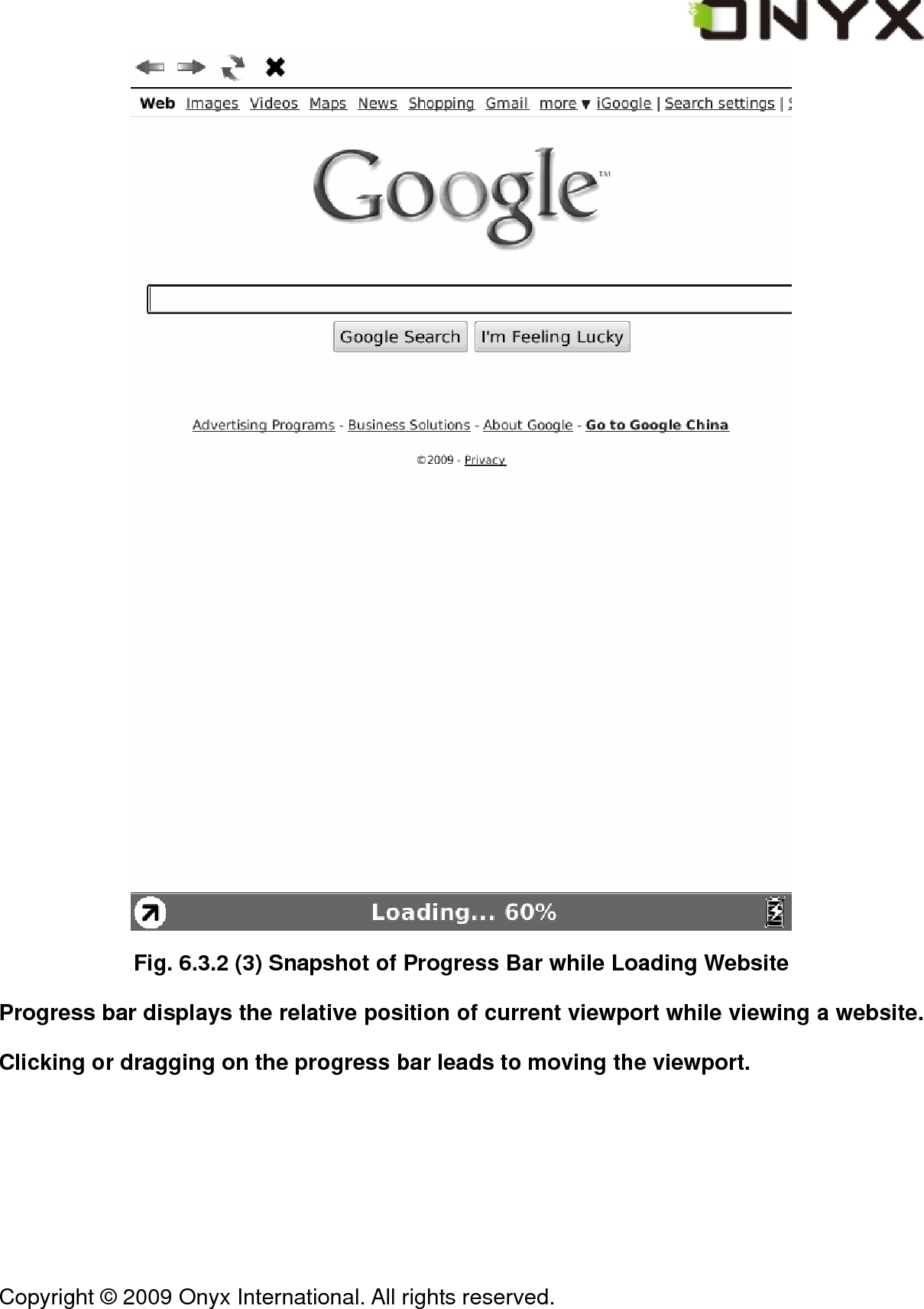
 Copyright © 2009 Onyx International. All rights reserved.                                  Fig. 6.3.2 (3) Snapshot of Progress Bar while Loading Website Progress bar displays the relative position of current viewport while viewing a website. Clicking or dragging on the progress bar leads to moving the viewport.
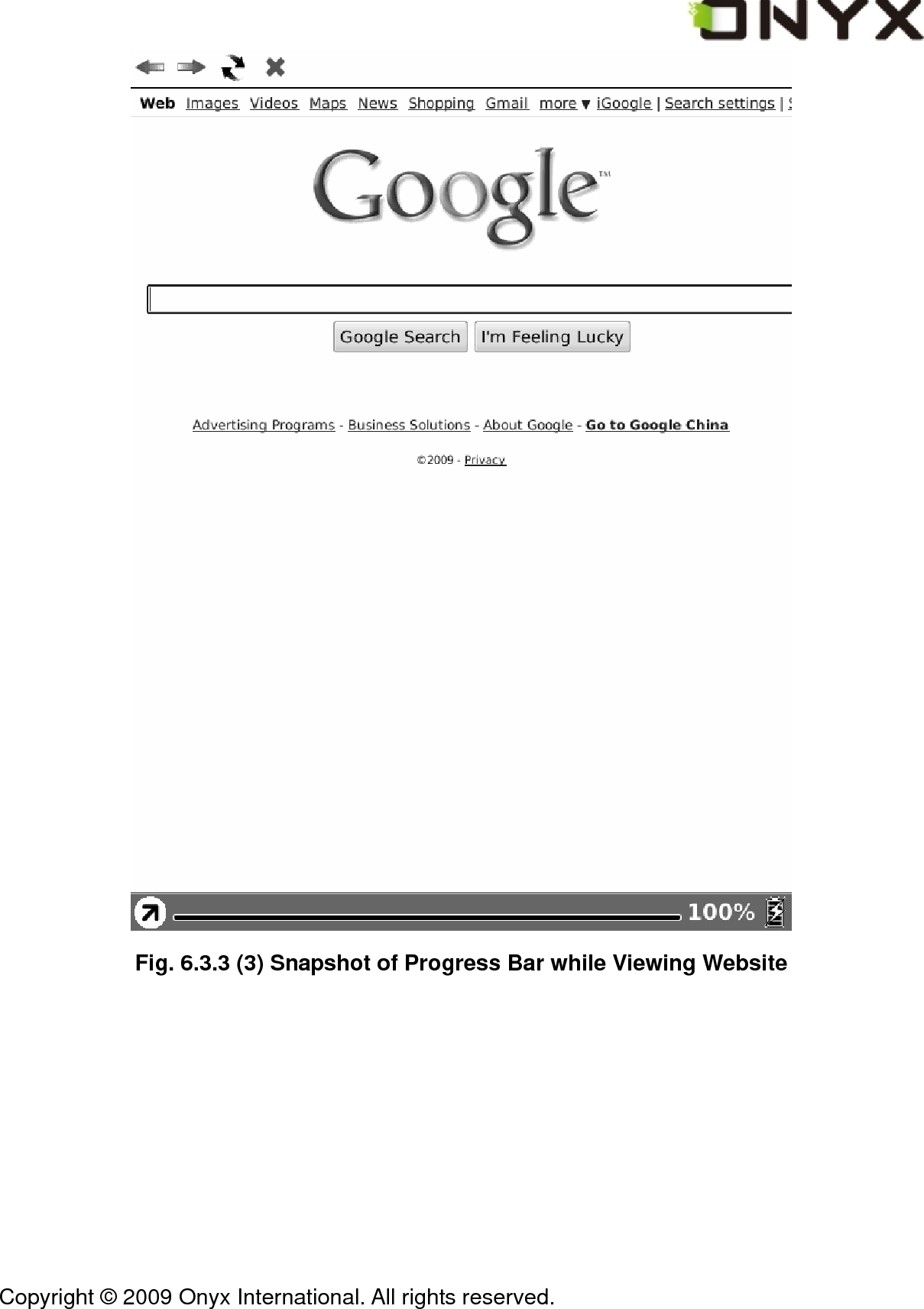
 Copyright © 2009 Onyx International. All rights reserved.                                  Fig. 6.3.3 (3) Snapshot of Progress Bar while Viewing Website
 Copyright © 2009 Onyx International. All rights reserved.                                 6.3.3 Stylus Indicator The stylus indicator is shown while viewing PDF/EPub/Image document. 6.3.3.1 Sketch   This icon appears when device enters sketch status. You can sketch on the drawing area of the screen. 6.3.3.2 Erase Sketches   This icon appears when device enters erasing sketch status. You can erase the sketches displayed on screen. If the pen hits the notes, the notes disappear immediately. 6.3.3.3 Hand Tool   This icon appears when device enters dragging status. You can drag the content by stylus as using the hand. 6.3.3.4 Selection Zoom   This icon appears when device enters selection zoom status. You can zoom in the content you are interested by stylus. A box appears following the track of the pen, then the area of the box would be zoomed in to fit the screen. 6.3.3.5 Annotate   This icon appears when device enters annotation status. You can take annotations on the text-based content. The annotated texts are highlighted following the track of the
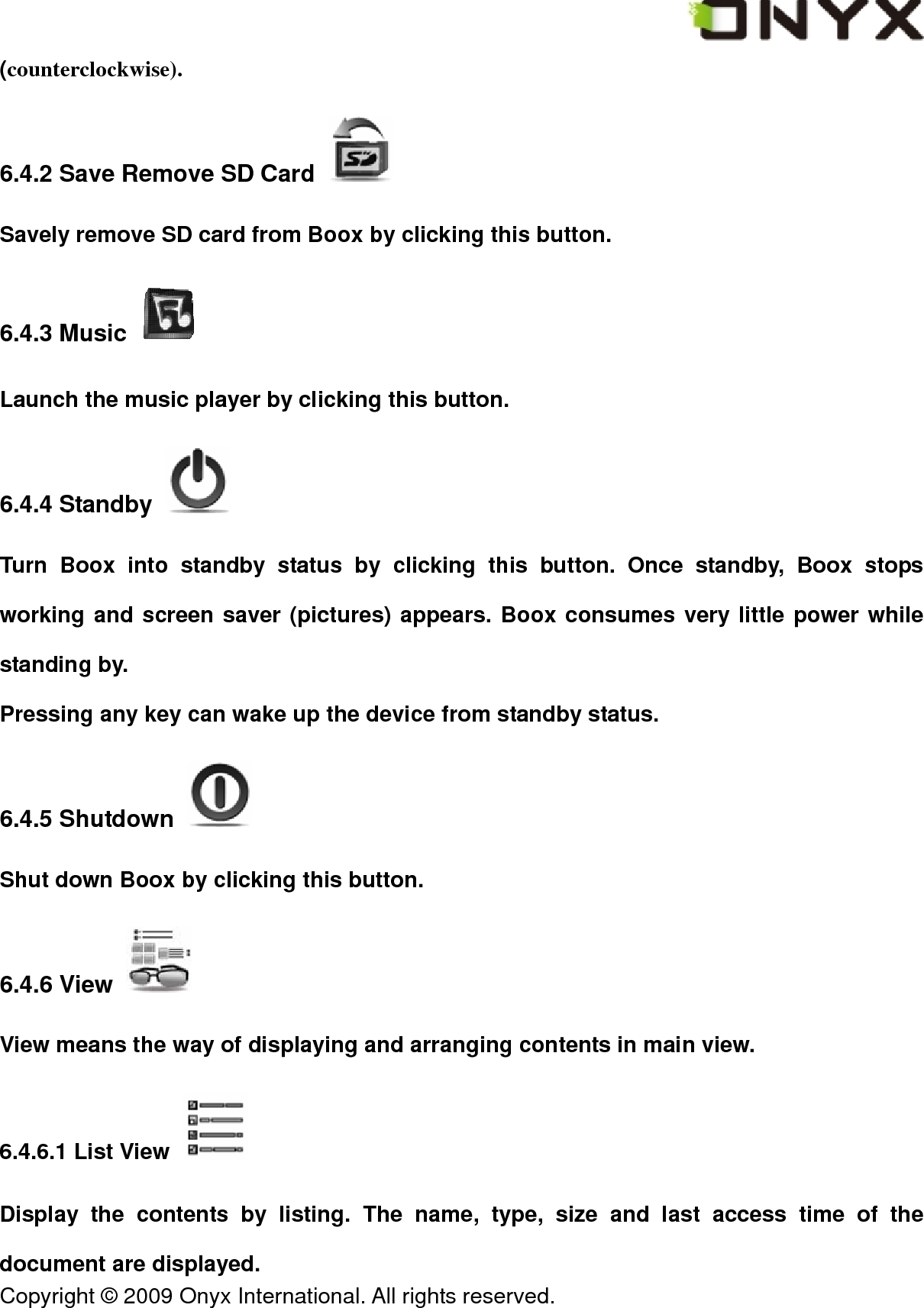
 Copyright © 2009 Onyx International. All rights reserved.                                 pen. 6.3.3.6 Erase Annotations   This icon appears when device enters erasing annotation status. You can erase the annotations displayed on screen by stylus. If the pen hits the highlighted texts, the highlighting effect on these texts disappears. 6.3.4 Power Indicator   Power indicator shows current status of the battery. 6.3.5 Clock   The current date time as well as the reading time are displayed if you click the clock on toolbar.
 Copyright © 2009 Onyx International. All rights reserved.                                  Fig.6.3.4 Snapshot of Clock 6.4 Menu 6.4.1 Screen Rotation   Rotate the screen by clicking this button. The screen rotates between 0° and 270°
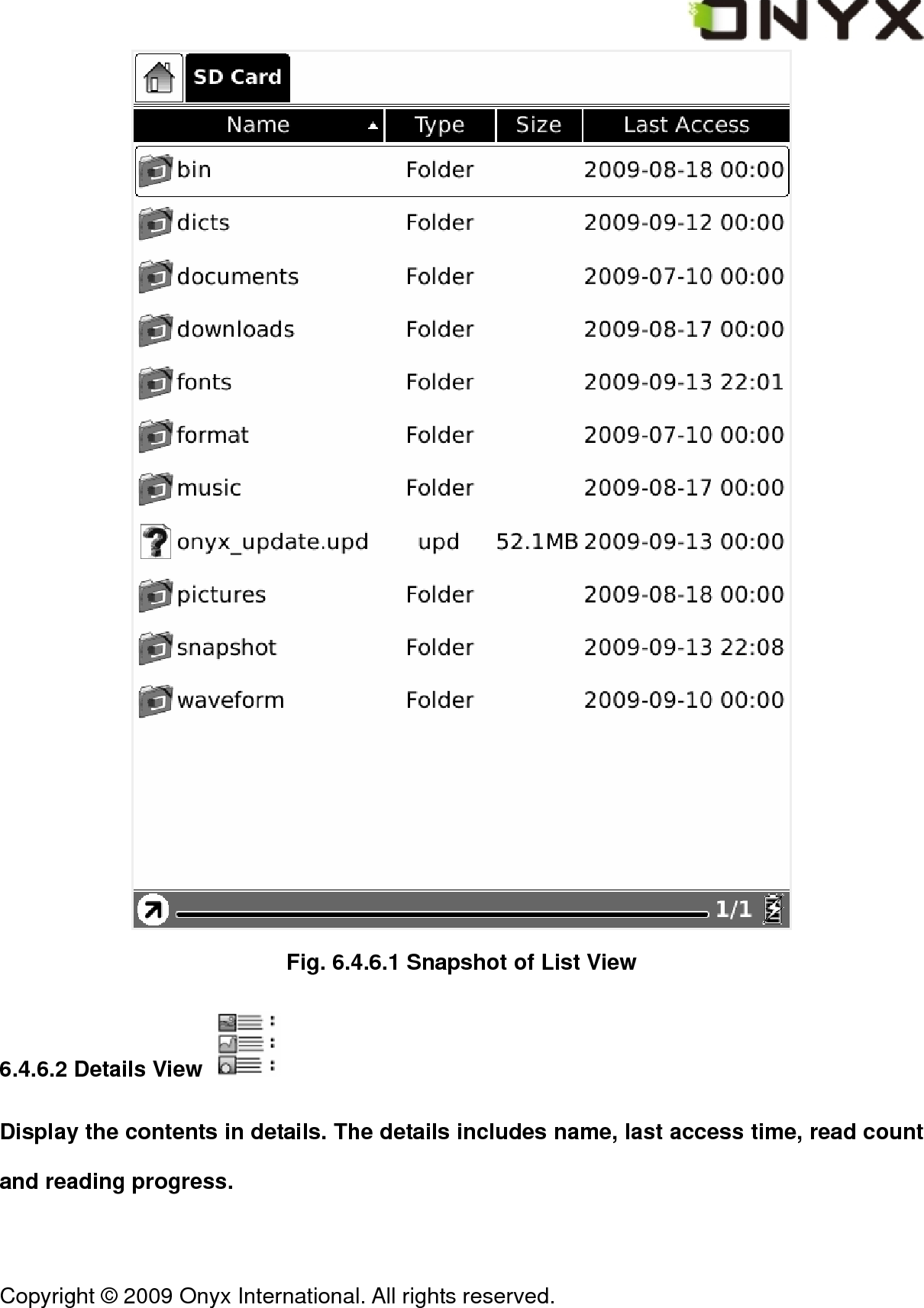
 Copyright © 2009 Onyx International. All rights reserved.                                 (counterclockwise). 6.4.2 Save Remove SD Card   Savely remove SD card from Boox by clicking this button. 6.4.3 Music   Launch the music player by clicking this button. 6.4.4 Standby   Turn Boox into standby status by clicking this button. Once standby, Boox stops working and screen saver (pictures) appears. Boox consumes very little power while standing by. Pressing any key can wake up the device from standby status. 6.4.5 Shutdown   Shut down Boox by clicking this button. 6.4.6 View   View means the way of displaying and arranging contents in main view. 6.4.6.1 List View   Display the contents by listing. The name, type, size and last access time of the document are displayed.
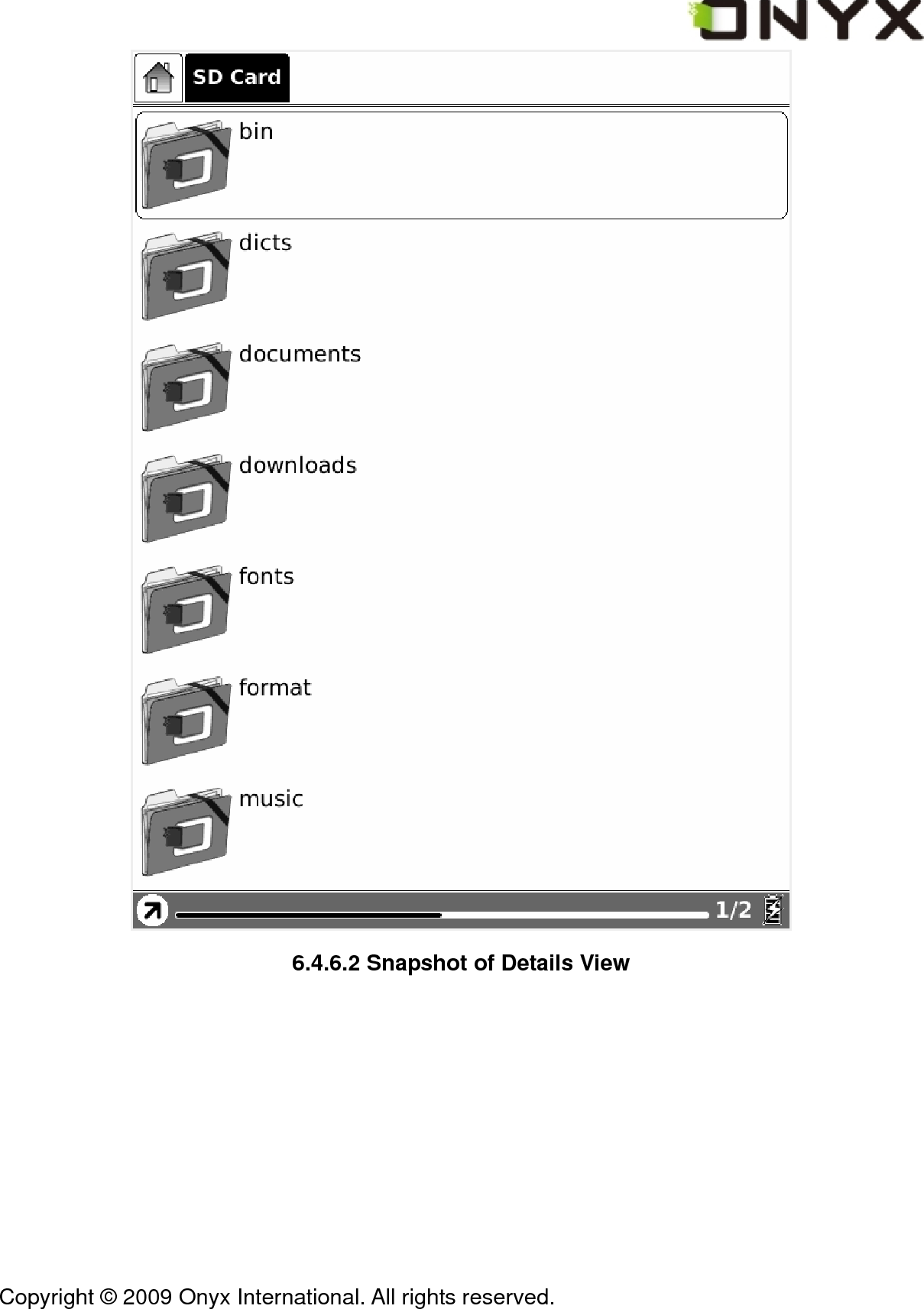
 Copyright © 2009 Onyx International. All rights reserved.                                  Fig. 6.4.6.1 Snapshot of List View 6.4.6.2 Details View   Display the contents in details. The details includes name, last access time, read count and reading progress.
 Copyright © 2009 Onyx International. All rights reserved.                                  6.4.6.2 Snapshot of Details View
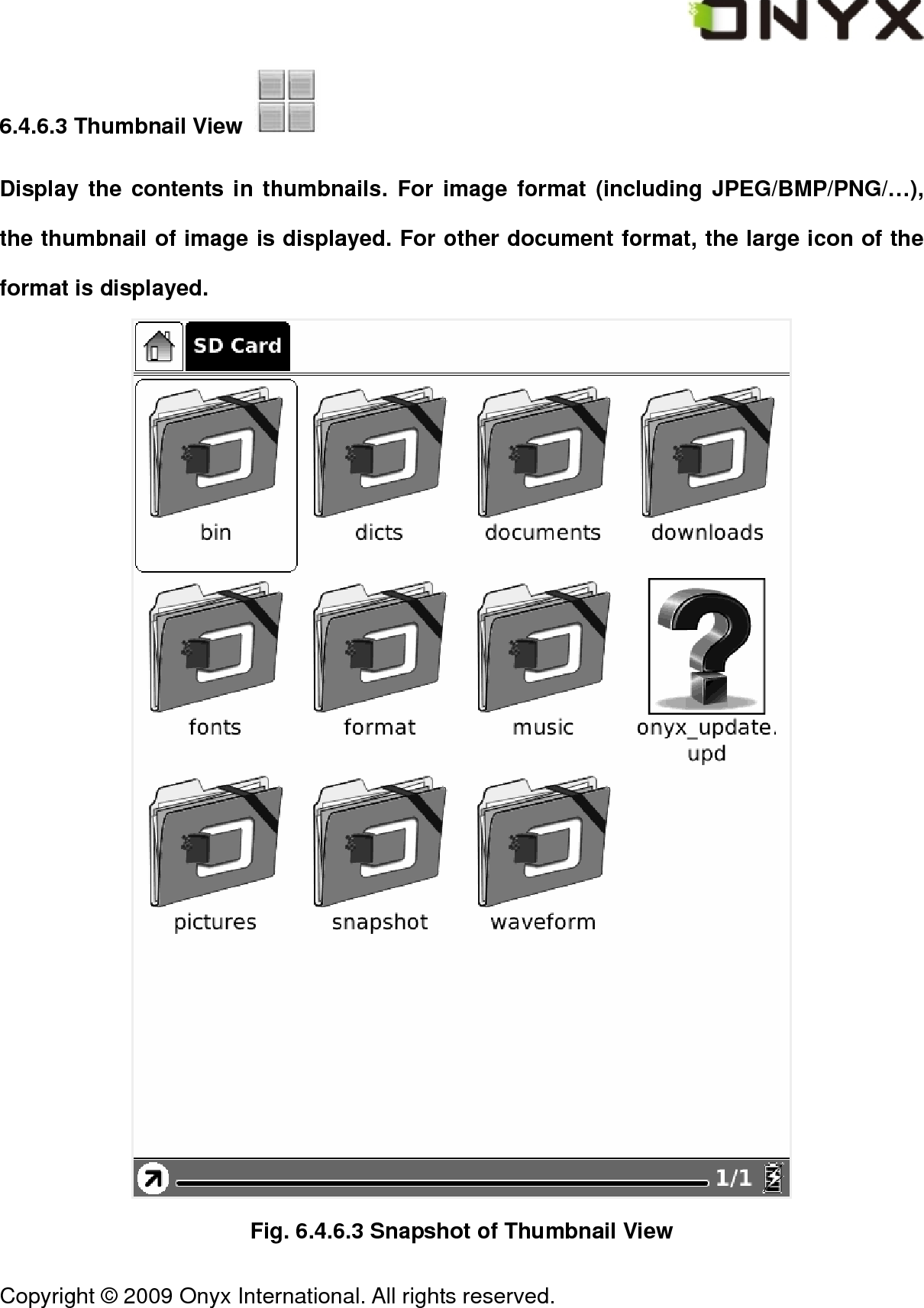
 Copyright © 2009 Onyx International. All rights reserved.                                 6.4.6.3 Thumbnail View   Display the contents in thumbnails. For image format (including JPEG/BMP/PNG/…), the thumbnail of image is displayed. For other document format, the large icon of the format is displayed.  Fig. 6.4.6.3 Snapshot of Thumbnail View
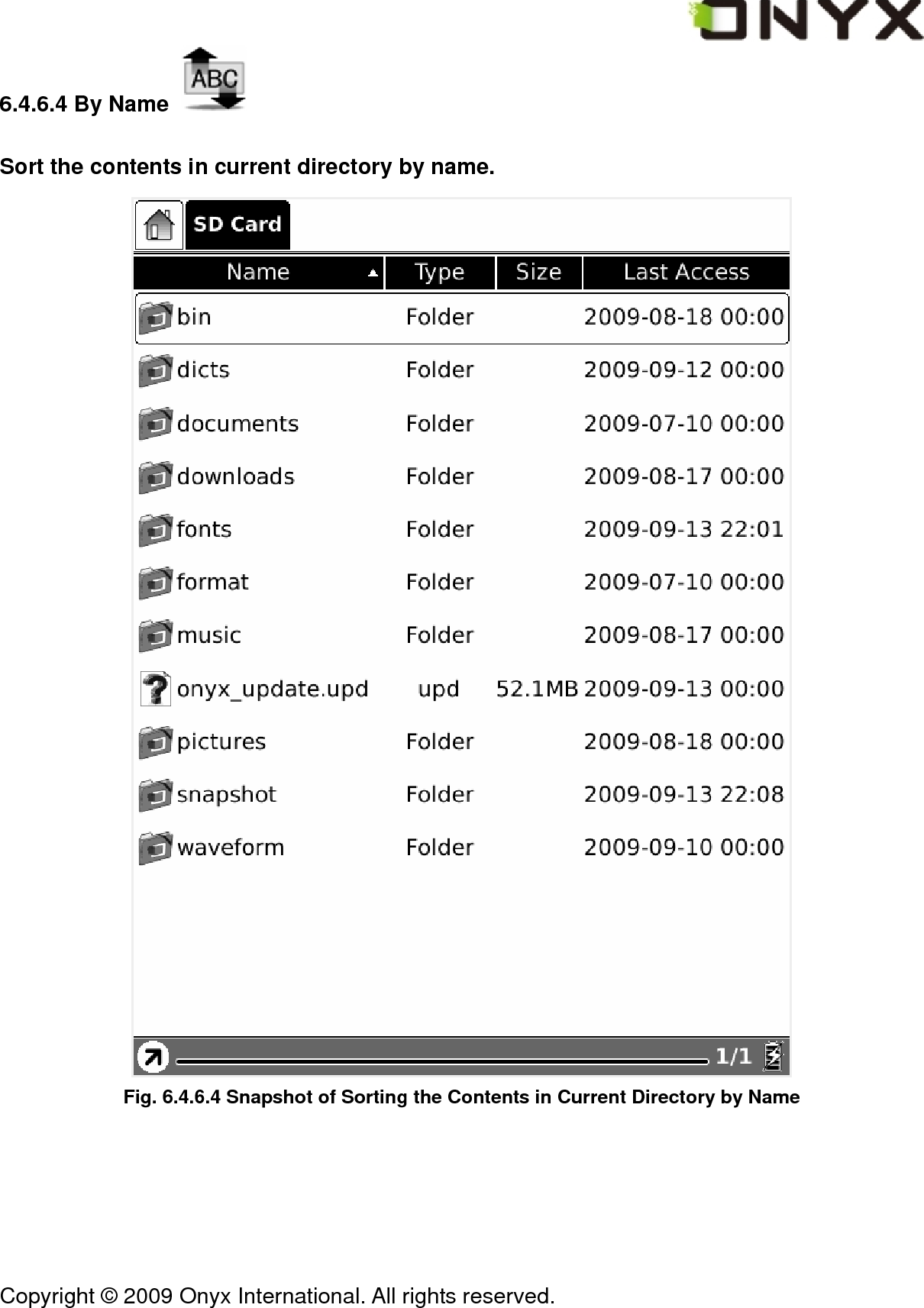
 Copyright © 2009 Onyx International. All rights reserved.                                 6.4.6.4 By Name   Sort the contents in current directory by name.  Fig. 6.4.6.4 Snapshot of Sorting the Contents in Current Directory by Name
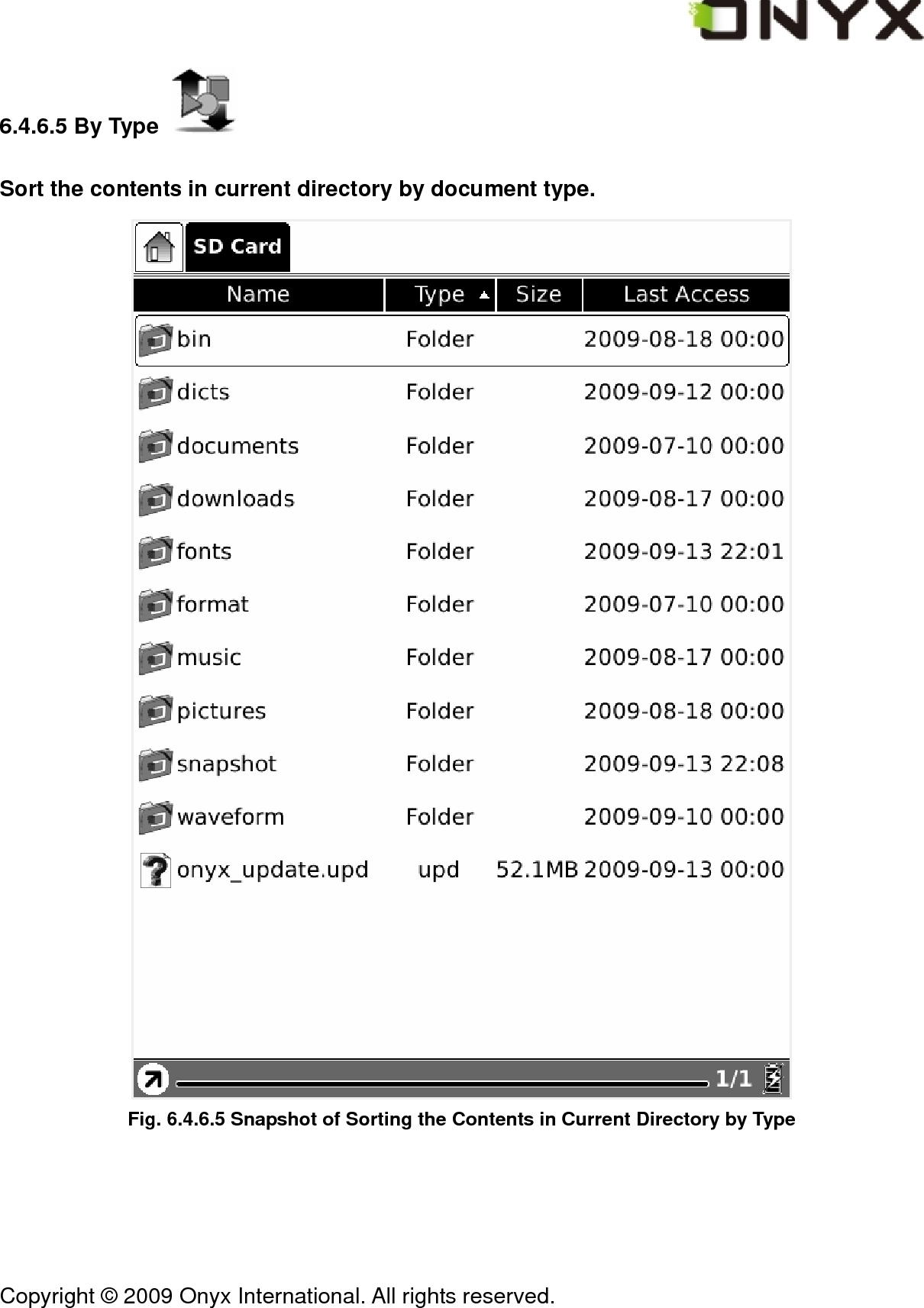
 Copyright © 2009 Onyx International. All rights reserved.                                 6.4.6.5 By Type   Sort the contents in current directory by document type.  Fig. 6.4.6.5 Snapshot of Sorting the Contents in Current Directory by Type
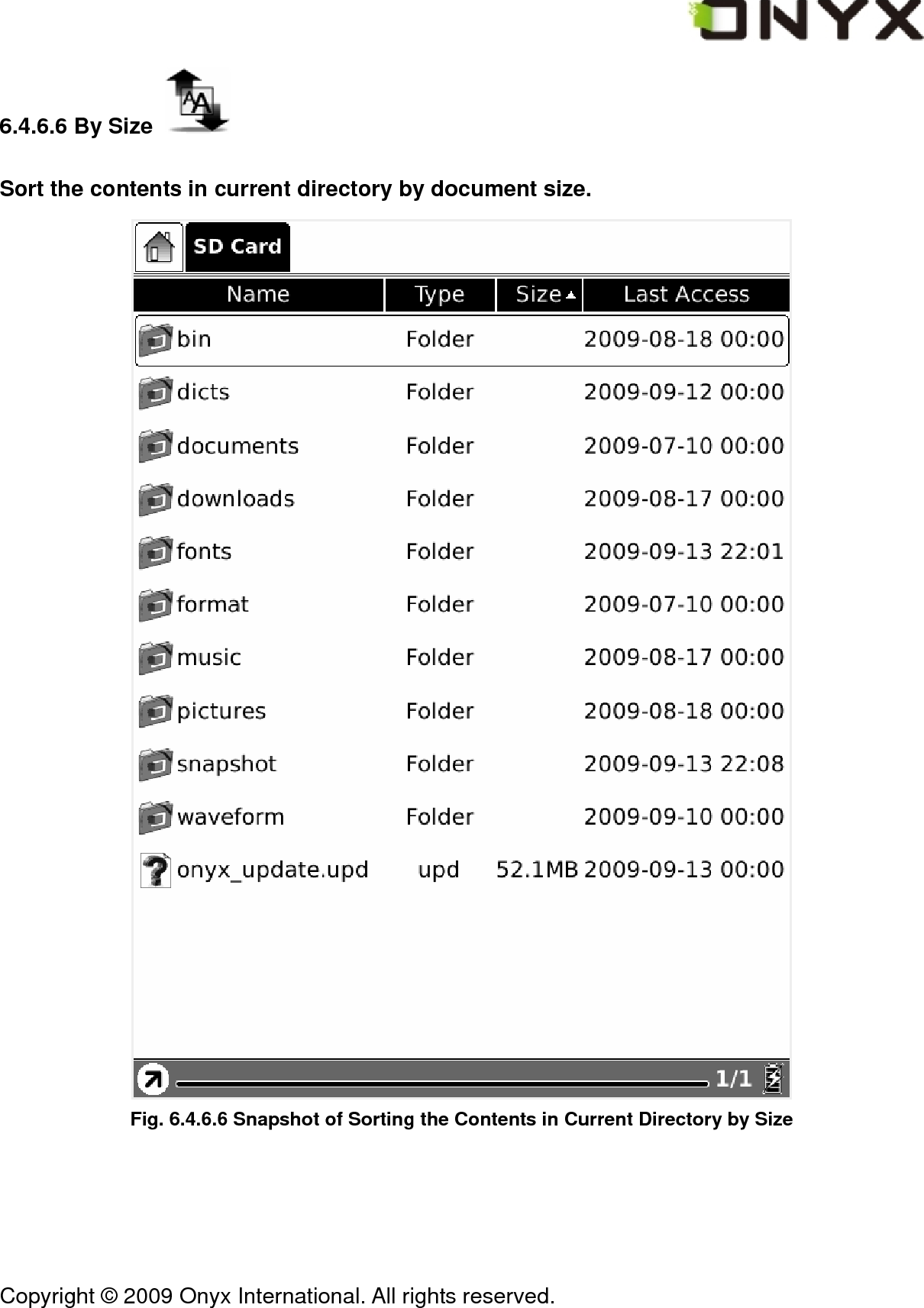
 Copyright © 2009 Onyx International. All rights reserved.                                 6.4.6.6 By Size   Sort the contents in current directory by document size.  Fig. 6.4.6.6 Snapshot of Sorting the Contents in Current Directory by Size
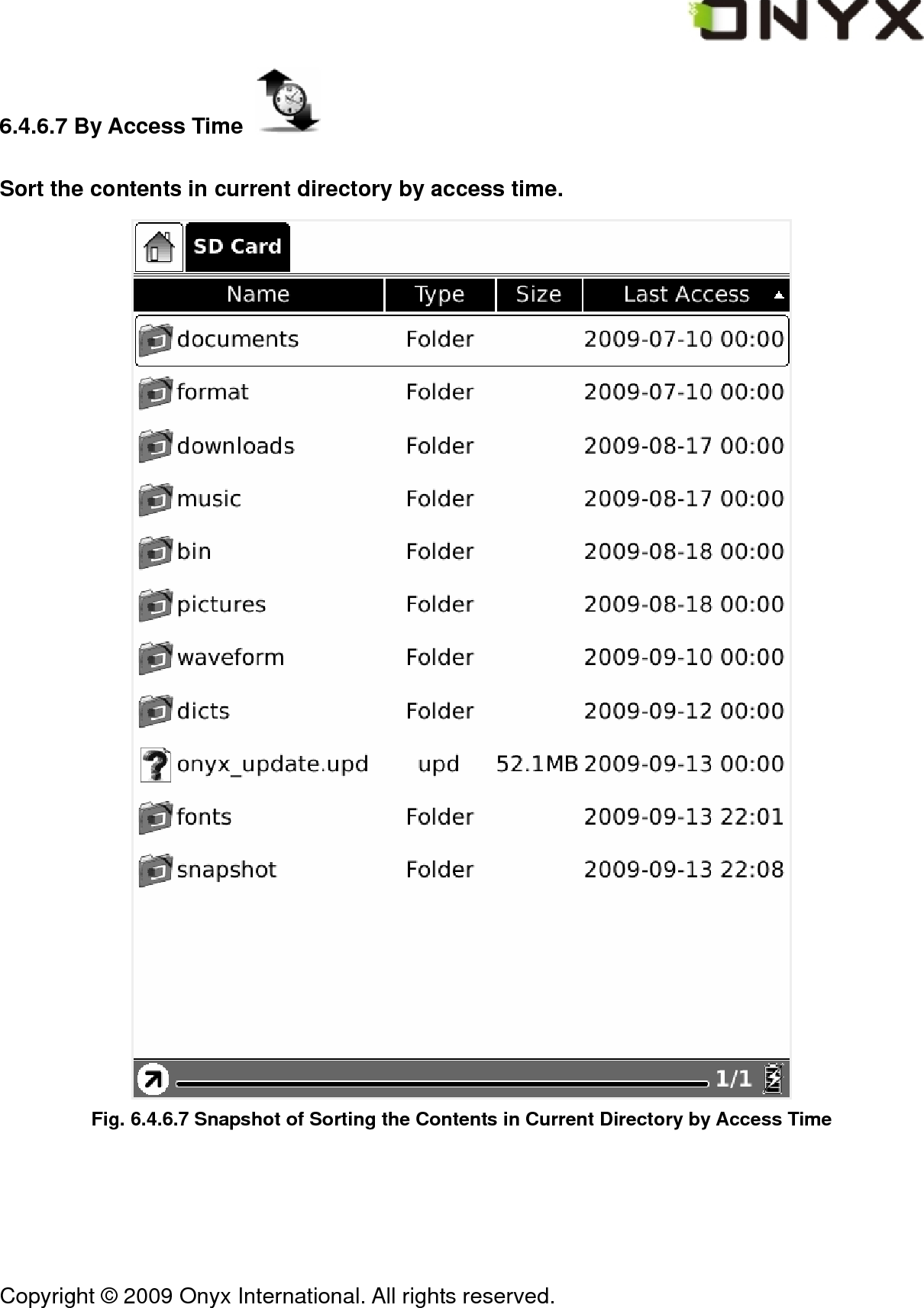
 Copyright © 2009 Onyx International. All rights reserved.                                 6.4.6.7 By Access Time   Sort the contents in current directory by access time.  Fig. 6.4.6.7 Snapshot of Sorting the Contents in Current Directory by Access Time
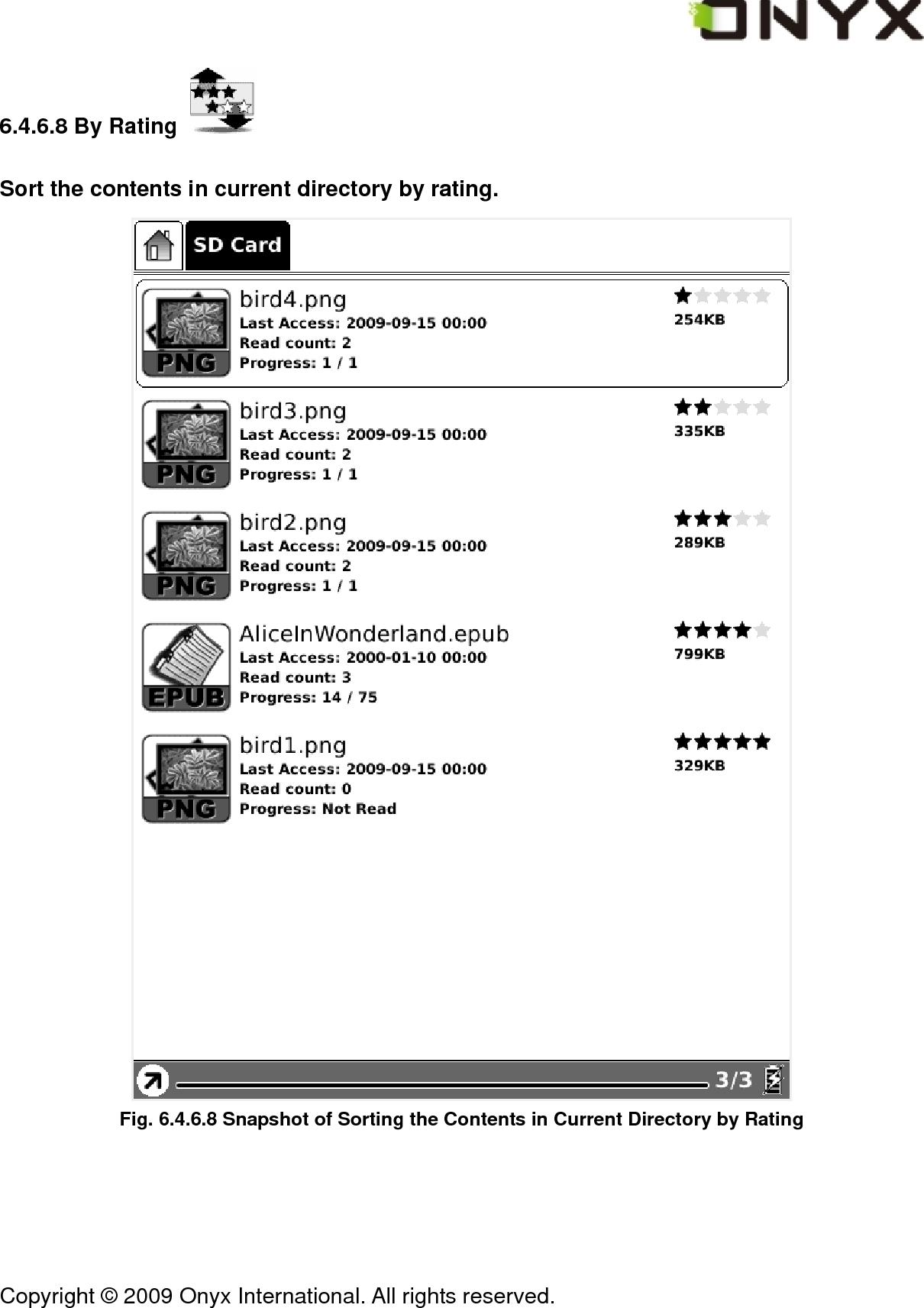
 Copyright © 2009 Onyx International. All rights reserved.                                 6.4.6.8 By Rating   Sort the contents in current directory by rating.  Fig. 6.4.6.8 Snapshot of Sorting the Contents in Current Directory by Rating
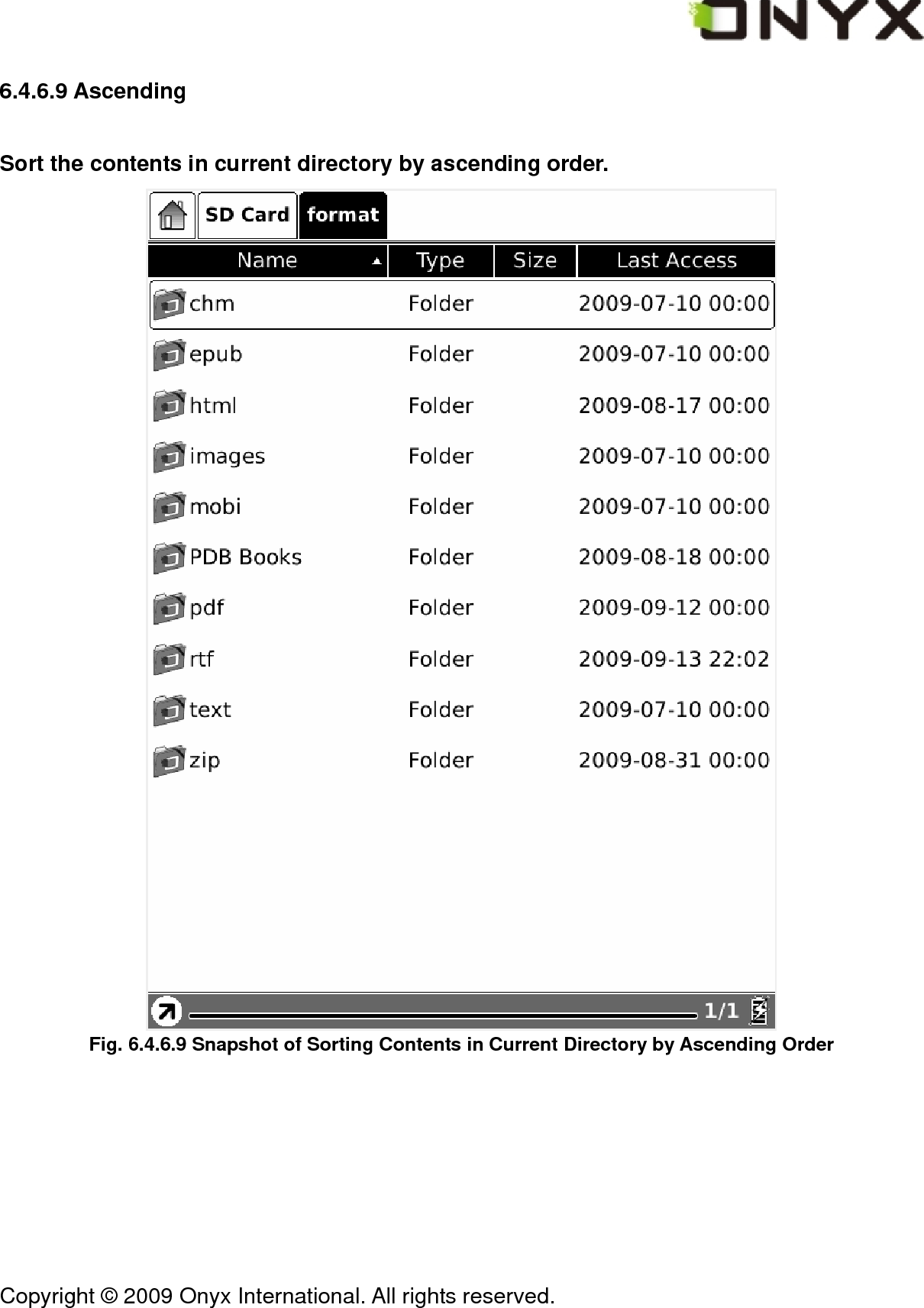
 Copyright © 2009 Onyx International. All rights reserved.                                 6.4.6.9 Ascending Sort the contents in current directory by ascending order.  Fig. 6.4.6.9 Snapshot of Sorting Contents in Current Directory by Ascending Order
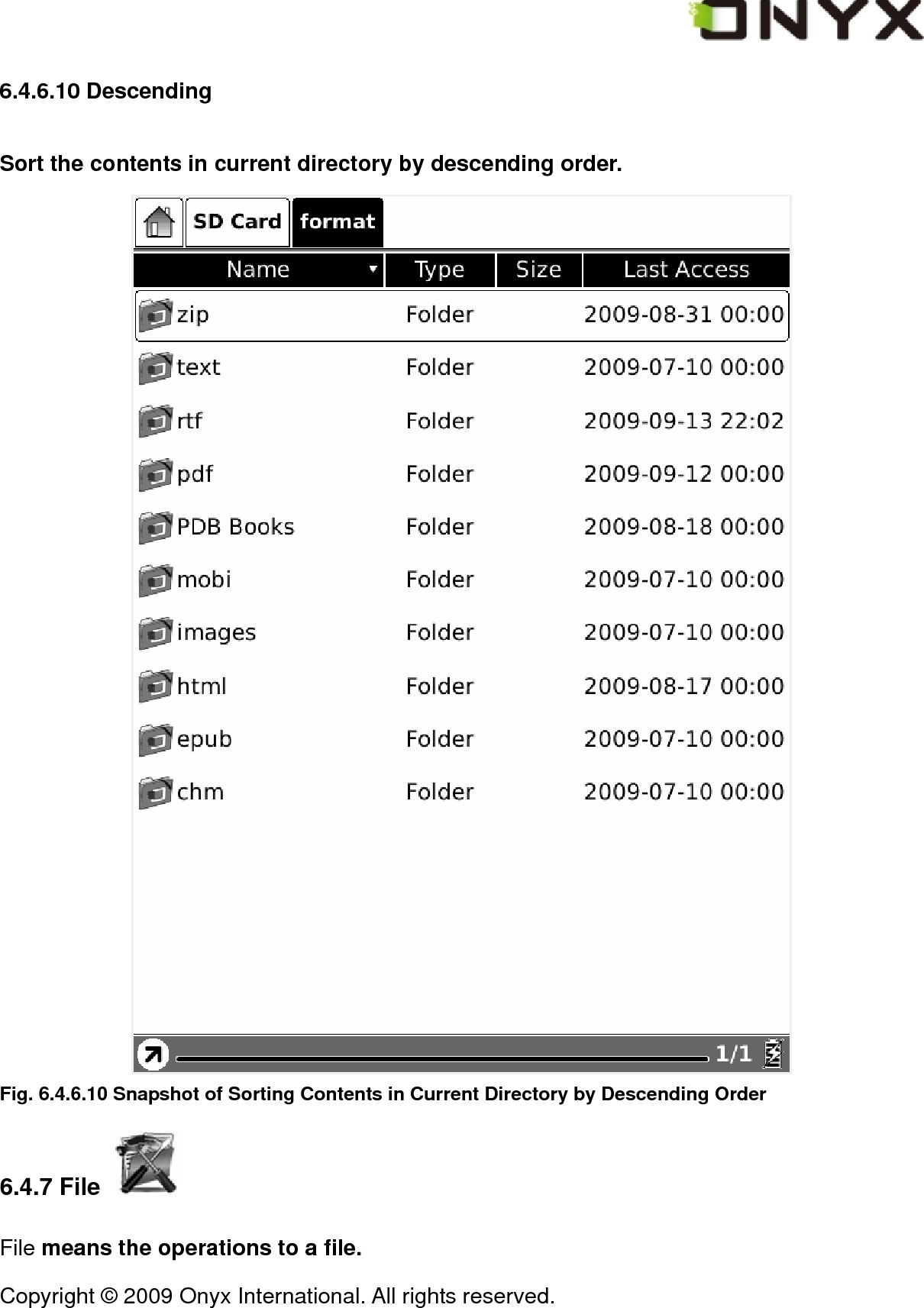
 Copyright © 2009 Onyx International. All rights reserved.                                 6.4.6.10 Descending Sort the contents in current directory by descending order.  Fig. 6.4.6.10 Snapshot of Sorting Contents in Current Directory by Descending Order 6.4.7 File   File means the operations to a file.
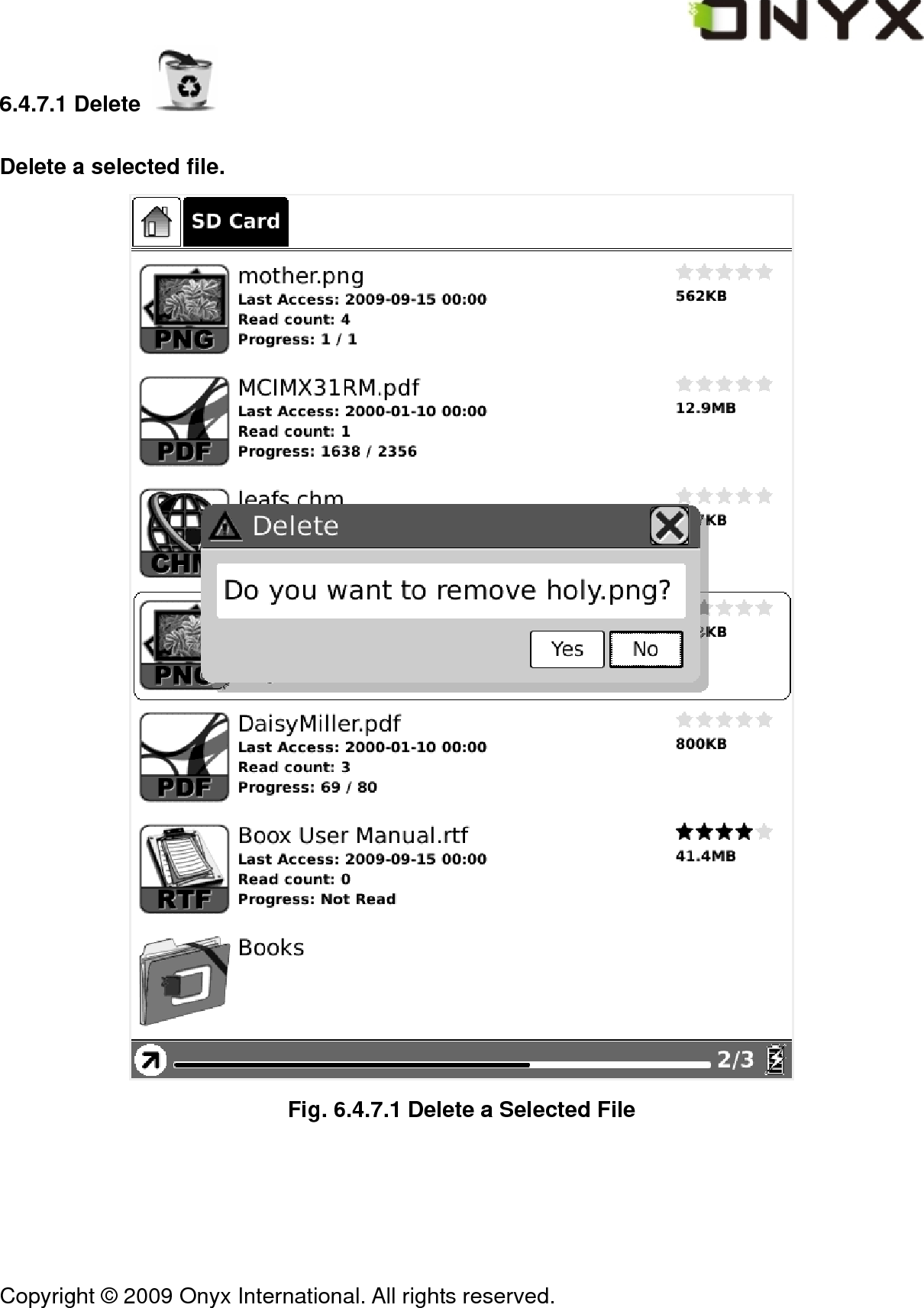
 Copyright © 2009 Onyx International. All rights reserved.                                 6.4.7.1 Delete   Delete a selected file.  Fig. 6.4.7.1 Delete a Selected File
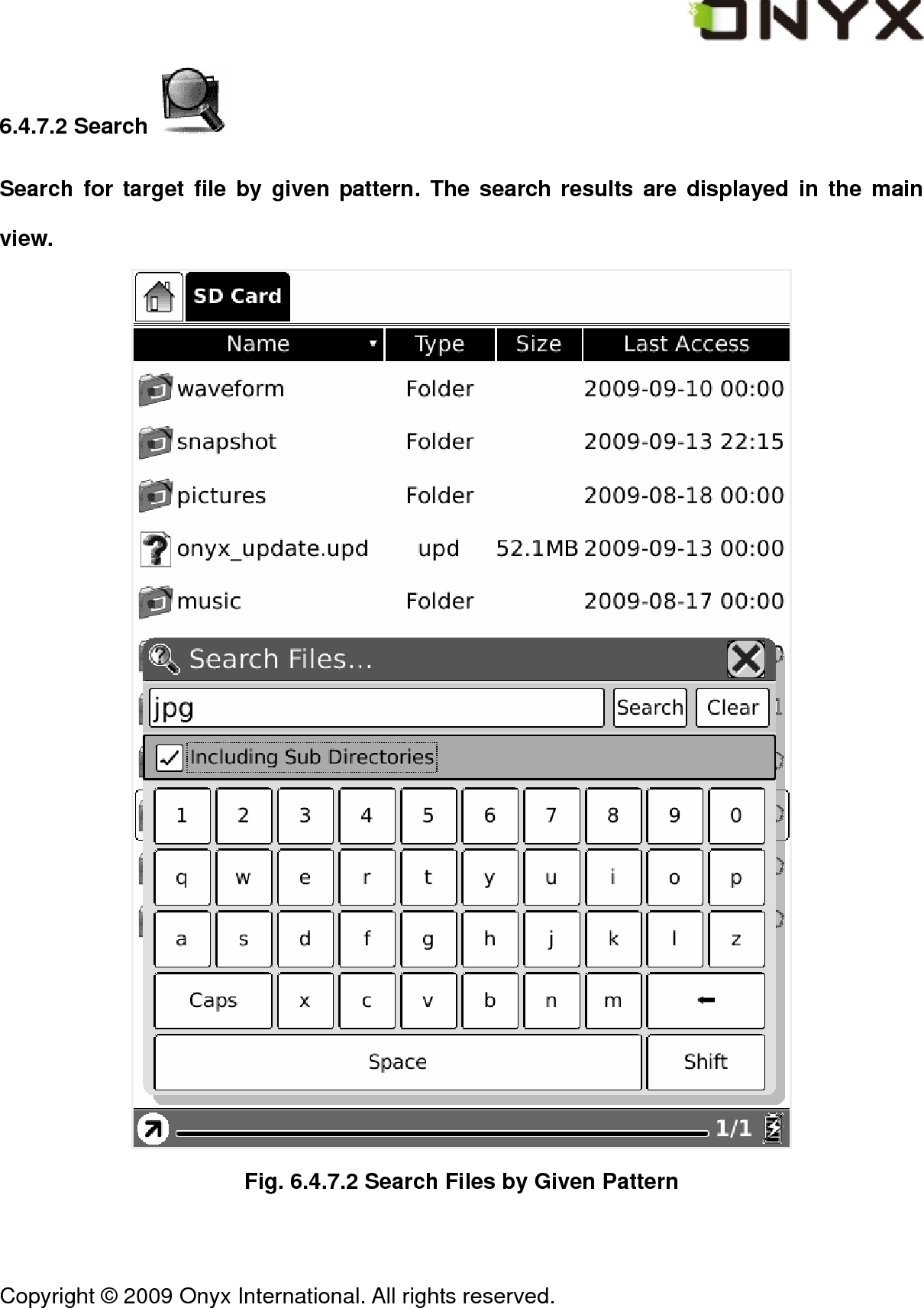
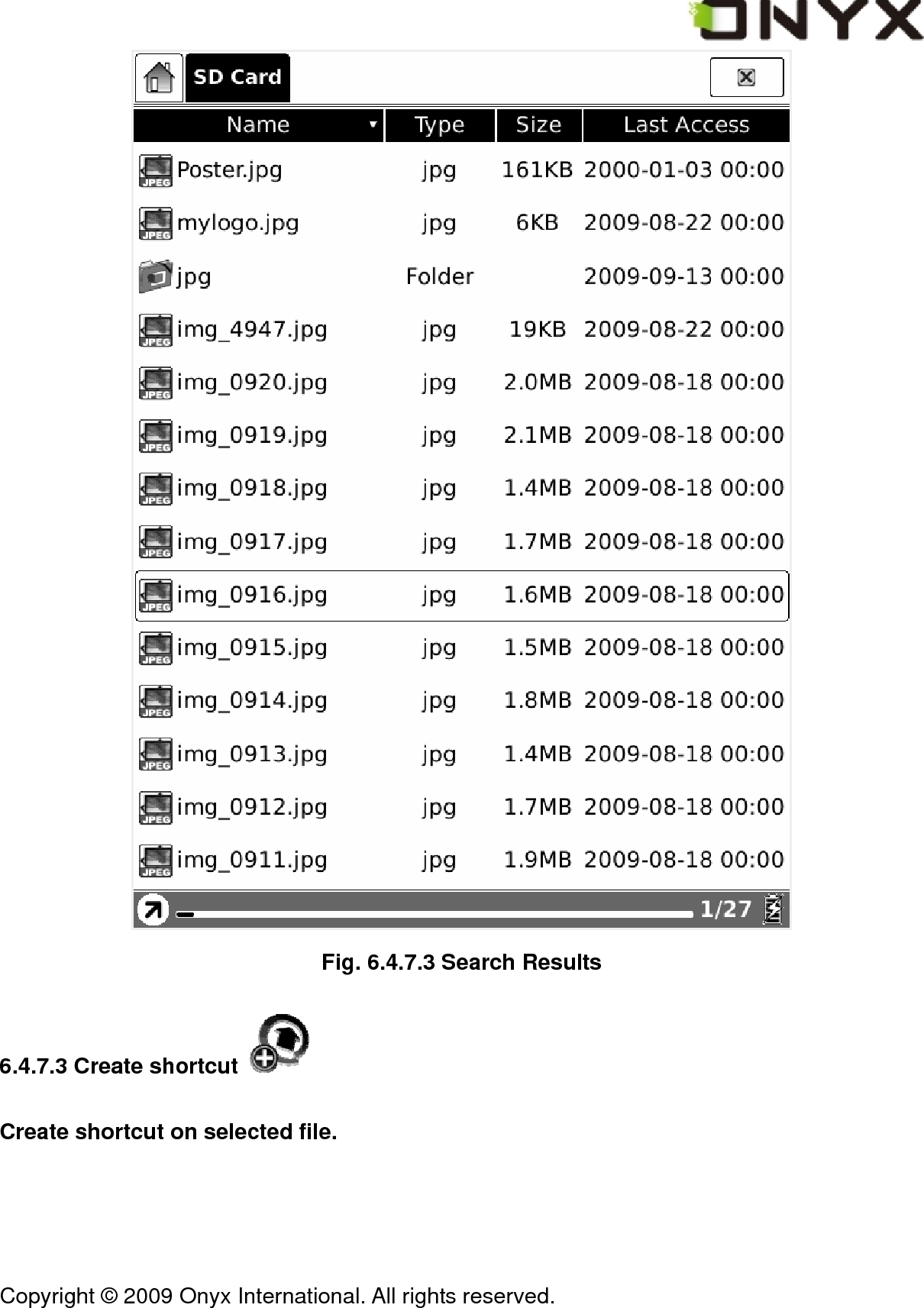
 Copyright © 2009 Onyx International. All rights reserved.                                 6.4.7.2 Search   Search for target file by given pattern. The search results are displayed in the main view.  Fig. 6.4.7.2 Search Files by Given Pattern
 Copyright © 2009 Onyx International. All rights reserved.                                  Fig. 6.4.7.3 Search Results 6.4.7.3 Create shortcut   Create shortcut on selected file.
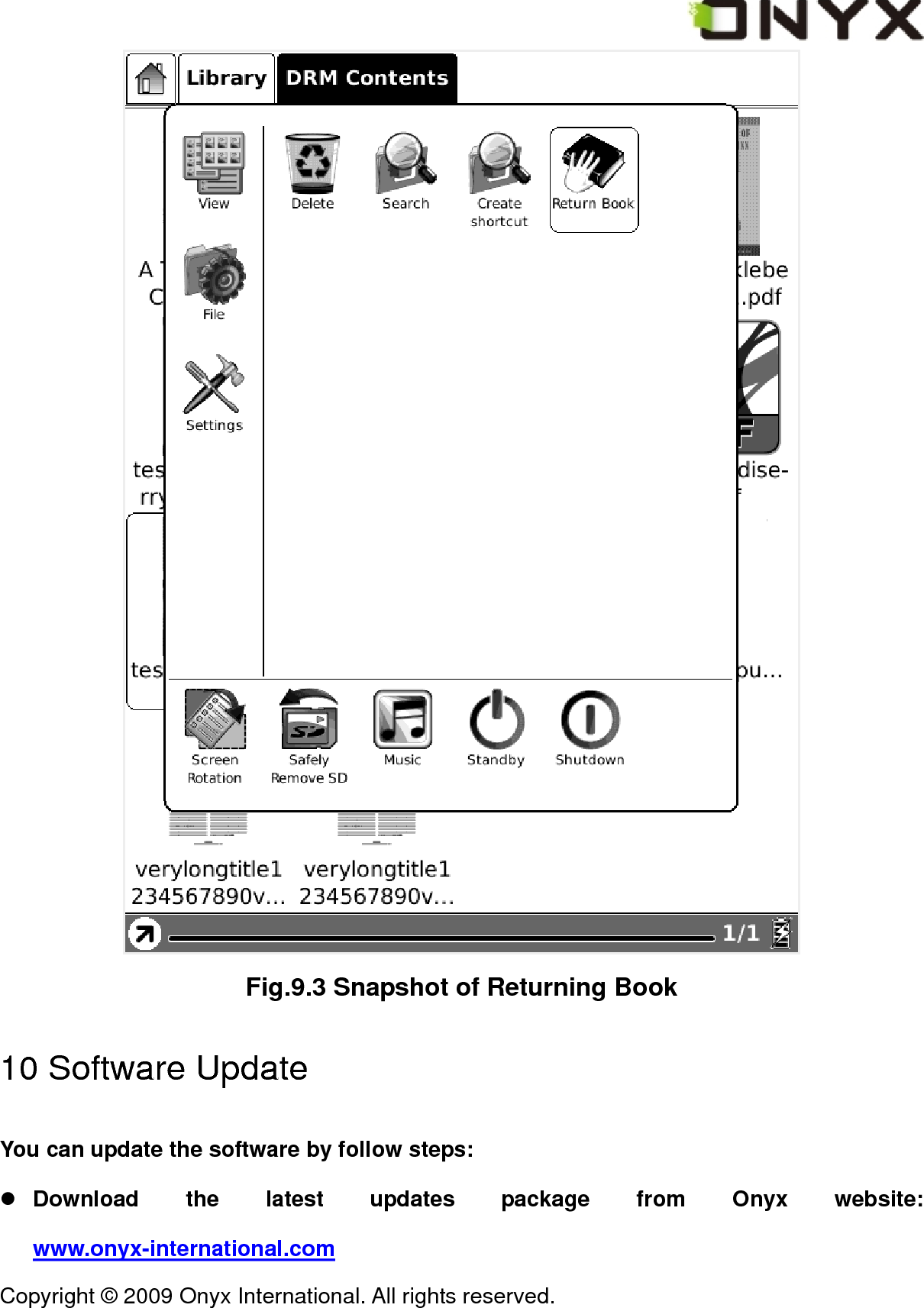
 Copyright © 2009 Onyx International. All rights reserved.                                 6.4.7.4 Return Book   Return a borrowed book.   Note: The wifi configuration dialog pops up after you decide to return a borrowed book(because the wifi is only opened when it is necessary). The returning starts after the configuration succeeds.  6.4.8 Settings   Settings in menu is identical with the Setting button in main view. Please refer to 6.1.4 for details. 6.4.8.1 Date Settings   Configure the date and time of device, as the same as 6.1.6.1. 6.4.8.2 Locale Settings   Configure the device language, as the same as 6.1.6.3. 6.4.8.3 Power Management   Configure the time of standby and automatically shutdown, as the same as 6.1.6.4. 6.4.8.4 Screen Calibration   Enter the screen calibration application, as the same as 6.1.6.5.
 Copyright © 2009 Onyx International. All rights reserved.                                 6.4.8.5 Format Flash Format the internal flash, as the same as 6.1.6.6. 6.4.8.6 About   Display the information of the device, as the same as 6.1.6.7. 6.4.9 Font   Configure the font size and/or shape while viewing document.
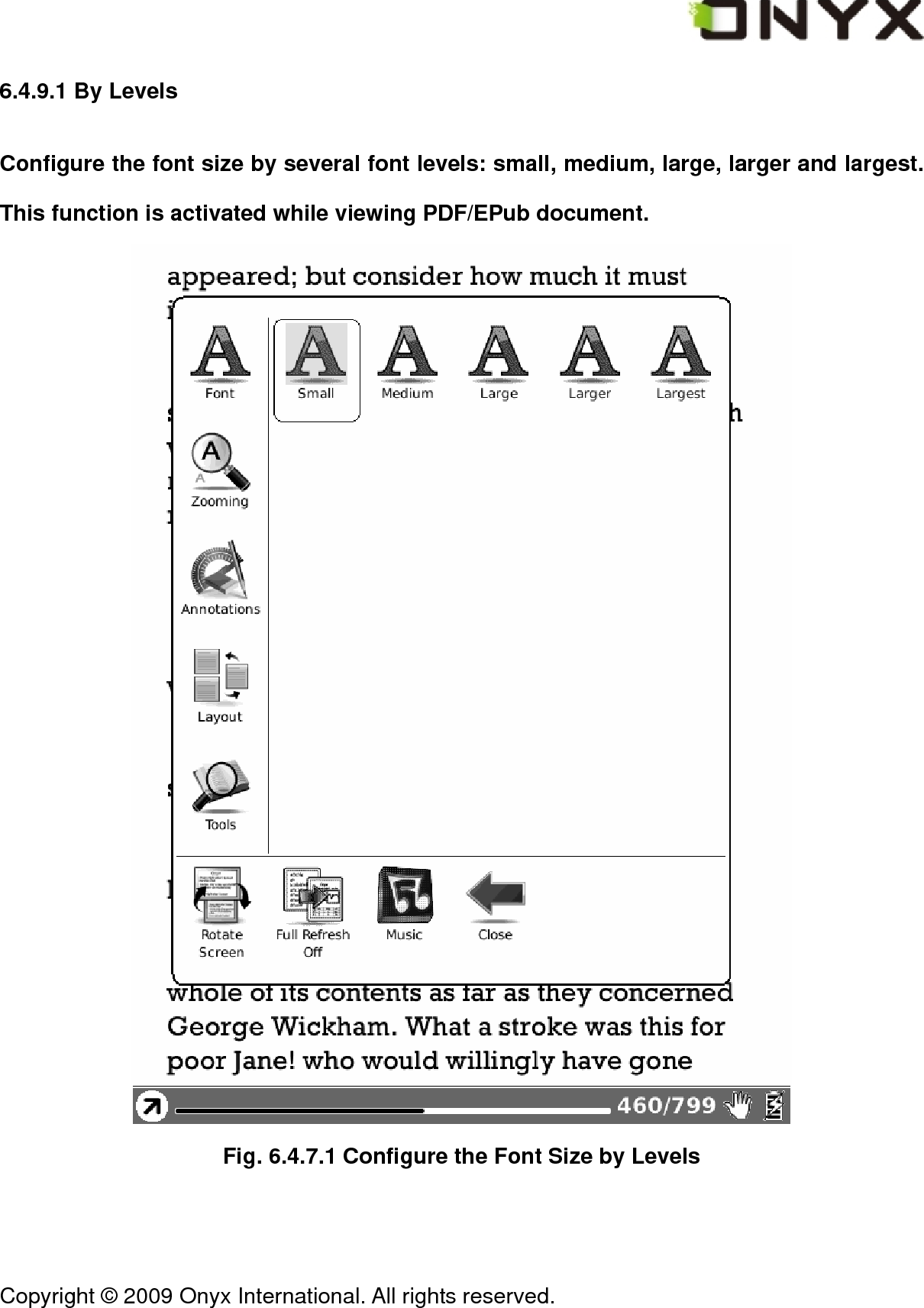
 Copyright © 2009 Onyx International. All rights reserved.                                 6.4.9.1 By Levels Configure the font size by several font levels: small, medium, large, larger and largest. This function is activated while viewing PDF/EPub document.  Fig. 6.4.7.1 Configure the Font Size by Levels
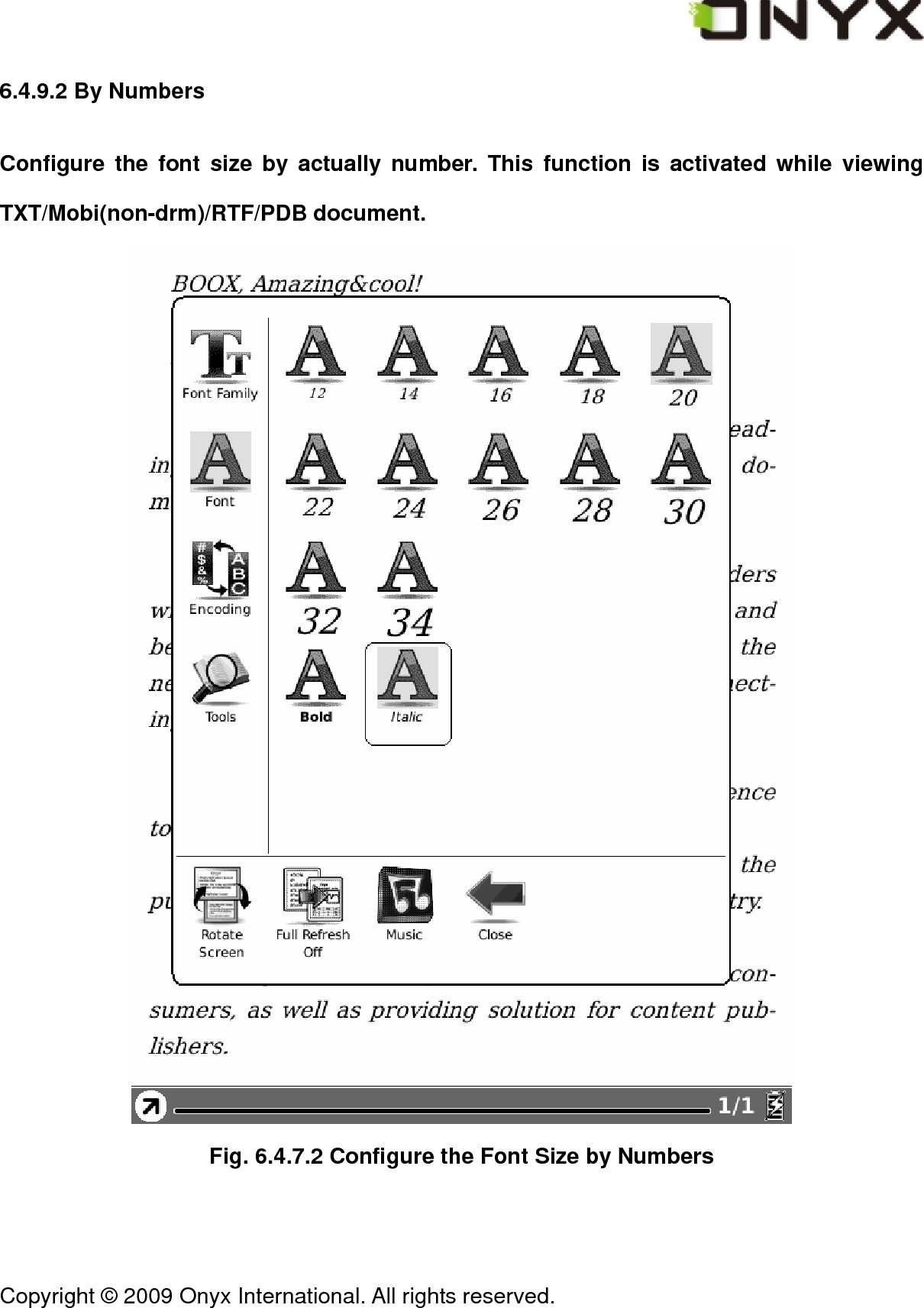
 Copyright © 2009 Onyx International. All rights reserved.                                 6.4.9.2 By Numbers Configure the font size by actually number. This function is activated while viewing TXT/Mobi(non-drm)/RTF/PDB document.  Fig. 6.4.7.2 Configure the Font Size by Numbers
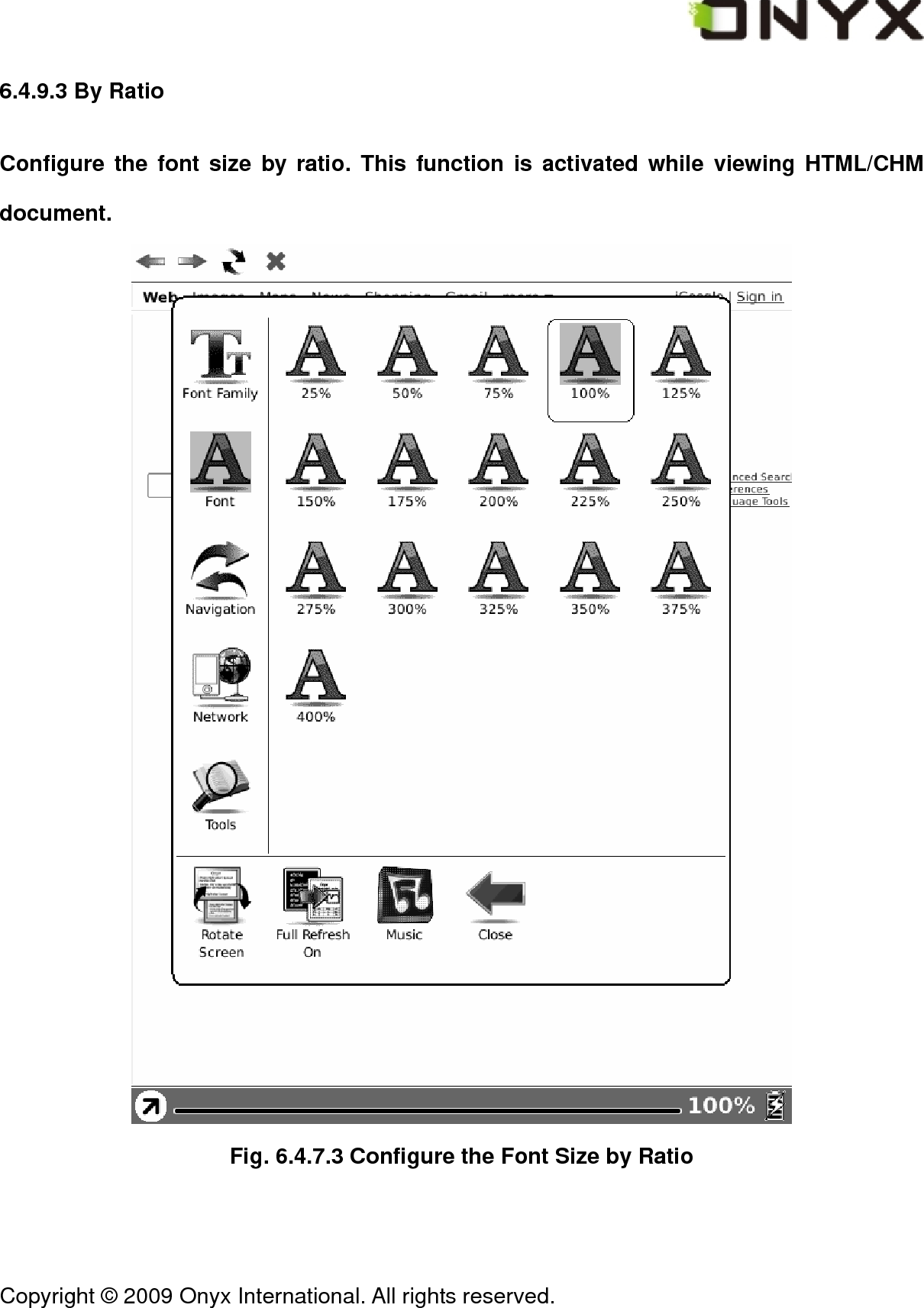
 Copyright © 2009 Onyx International. All rights reserved.                                 6.4.9.3 By Ratio Configure the font size by ratio. This function is activated while viewing HTML/CHM document.  Fig. 6.4.7.3 Configure the Font Size by Ratio
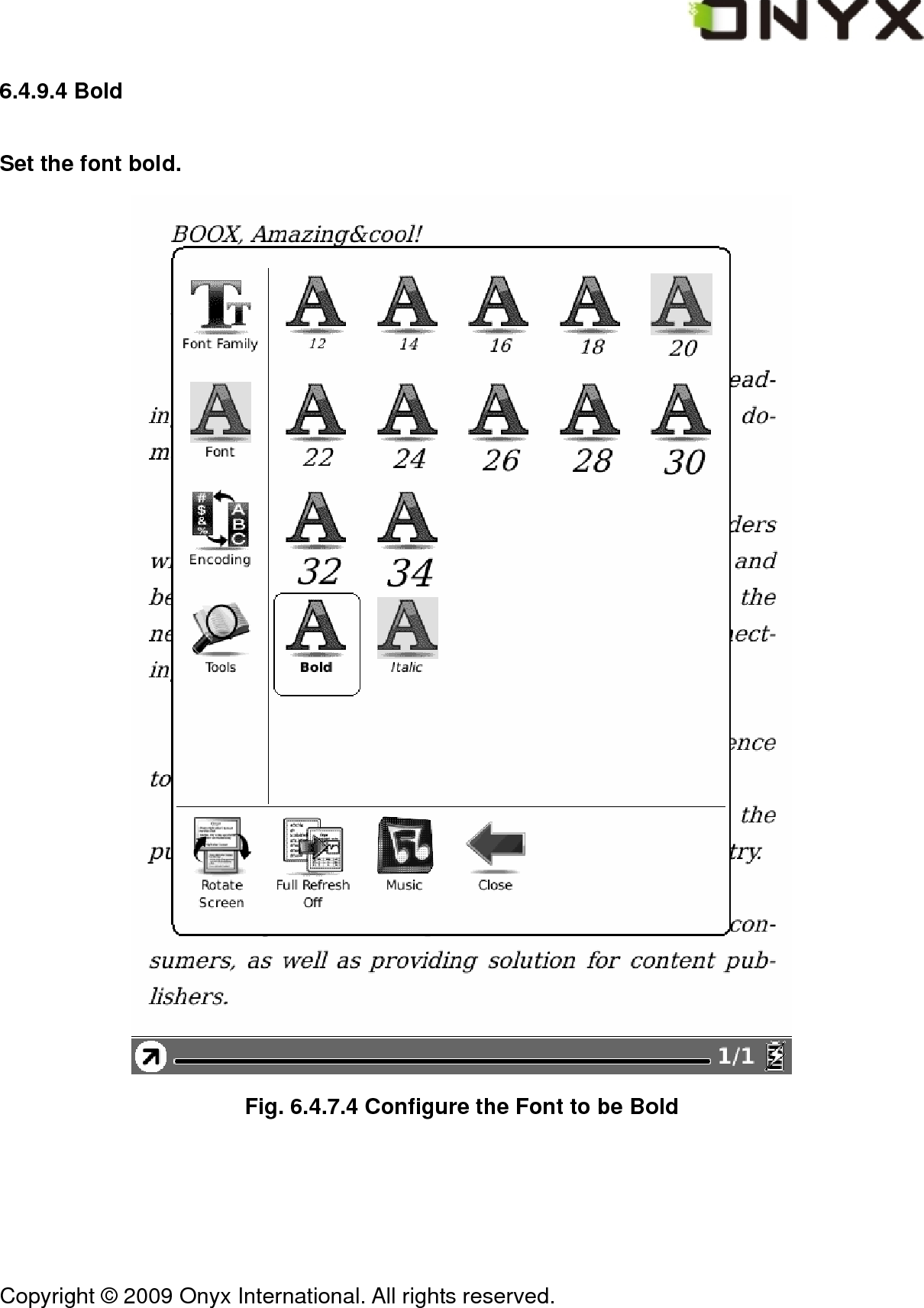
 Copyright © 2009 Onyx International. All rights reserved.                                 6.4.9.4 Bold Set the font bold.  Fig. 6.4.7.4 Configure the Font to be Bold
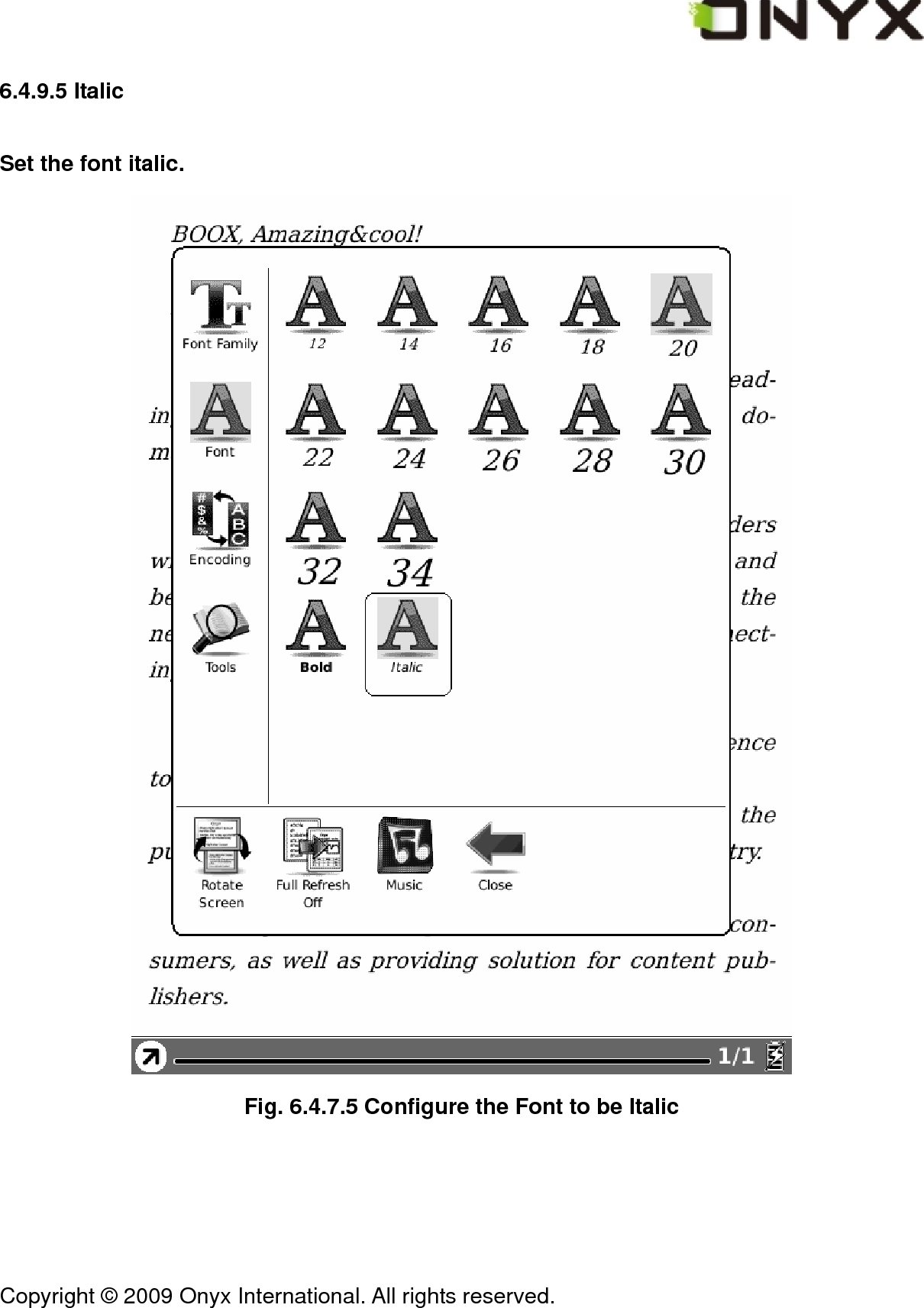
 Copyright © 2009 Onyx International. All rights reserved.                                 6.4.9.5 Italic Set the font italic.  Fig. 6.4.7.5 Configure the Font to be Italic
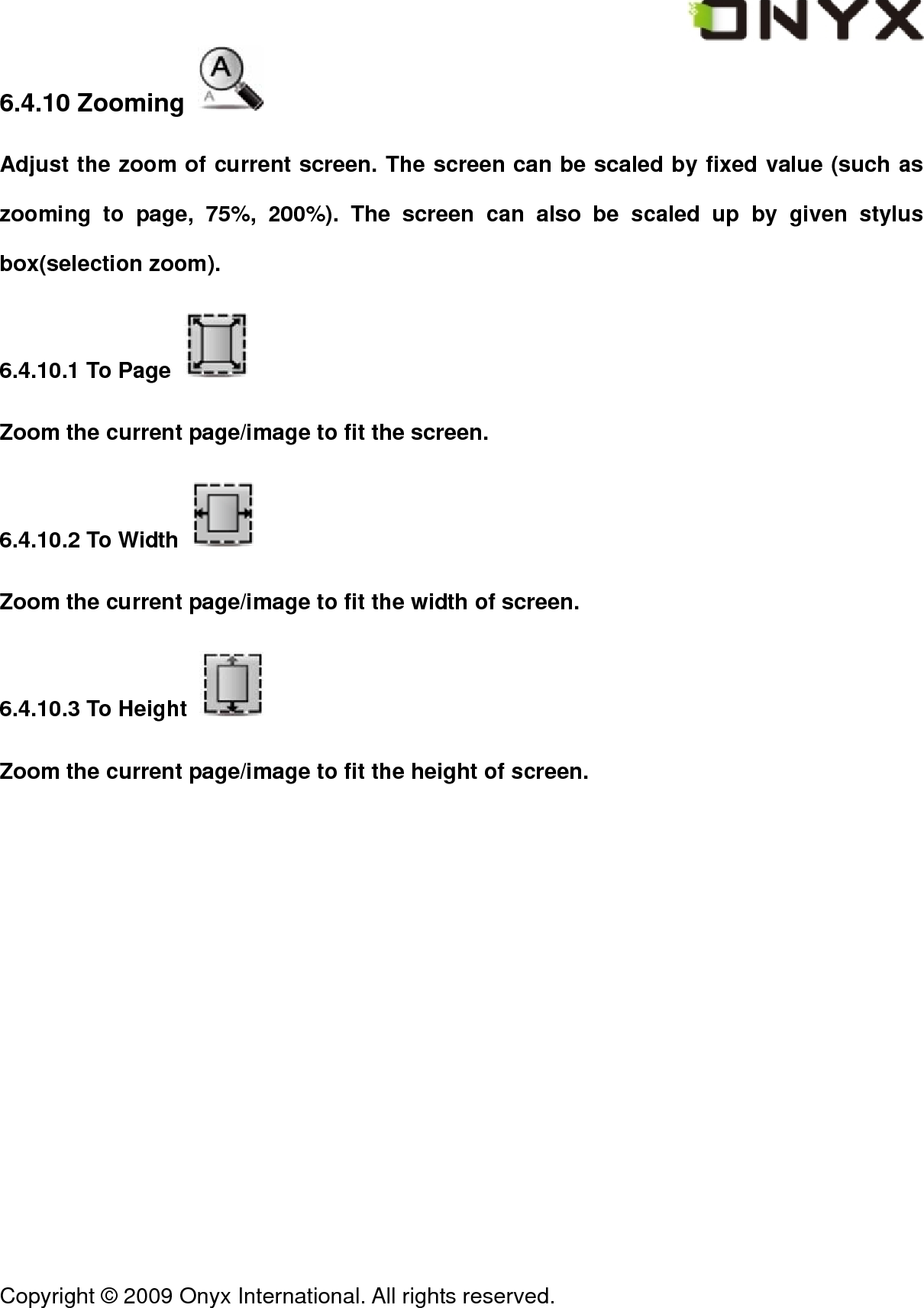
 Copyright © 2009 Onyx International. All rights reserved.                                 6.4.10 Zooming   Adjust the zoom of current screen. The screen can be scaled by fixed value (such as zooming to page, 75%, 200%). The screen can also be scaled up by given stylus box(selection zoom). 6.4.10.1 To Page   Zoom the current page/image to fit the screen. 6.4.10.2 To Width   Zoom the current page/image to fit the width of screen. 6.4.10.3 To Height   Zoom the current page/image to fit the height of screen.
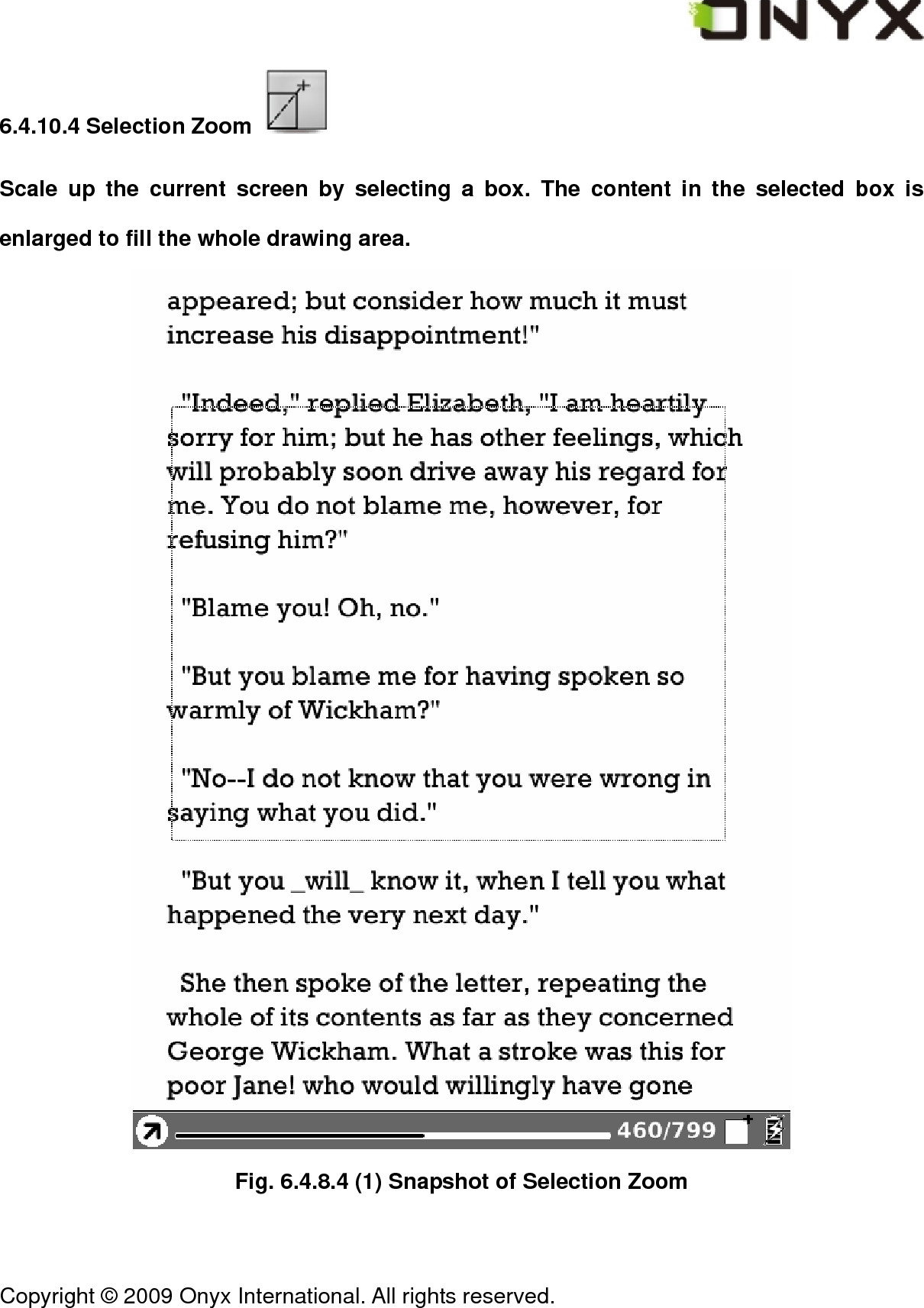
 Copyright © 2009 Onyx International. All rights reserved.                                 6.4.10.4 Selection Zoom   Scale up the current screen by selecting a box. The content in the selected box is enlarged to fill the whole drawing area.  Fig. 6.4.8.4 (1) Snapshot of Selection Zoom
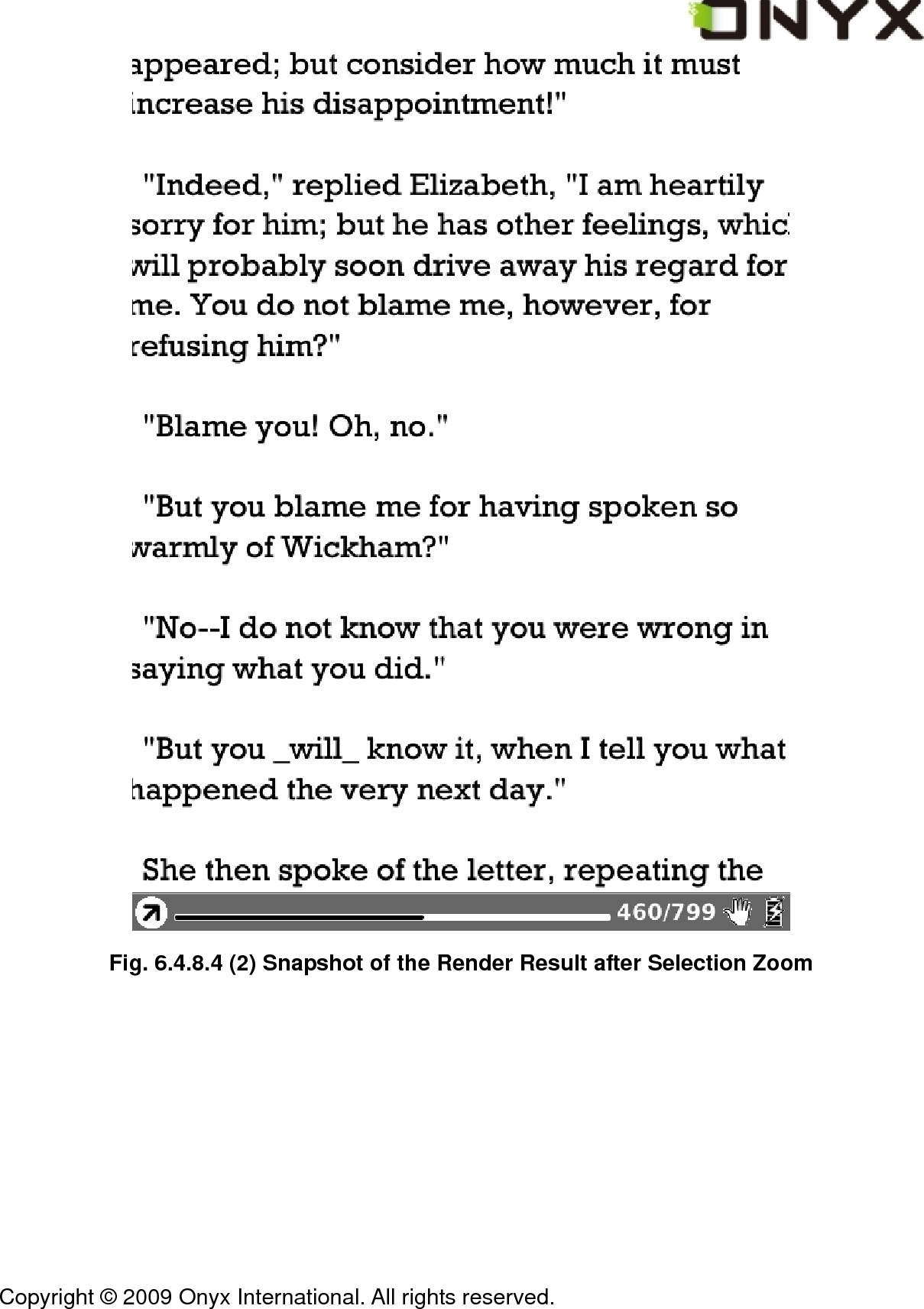
 Copyright © 2009 Onyx International. All rights reserved.                                  Fig. 6.4.8.4 (2) Snapshot of the Render Result after Selection Zoom
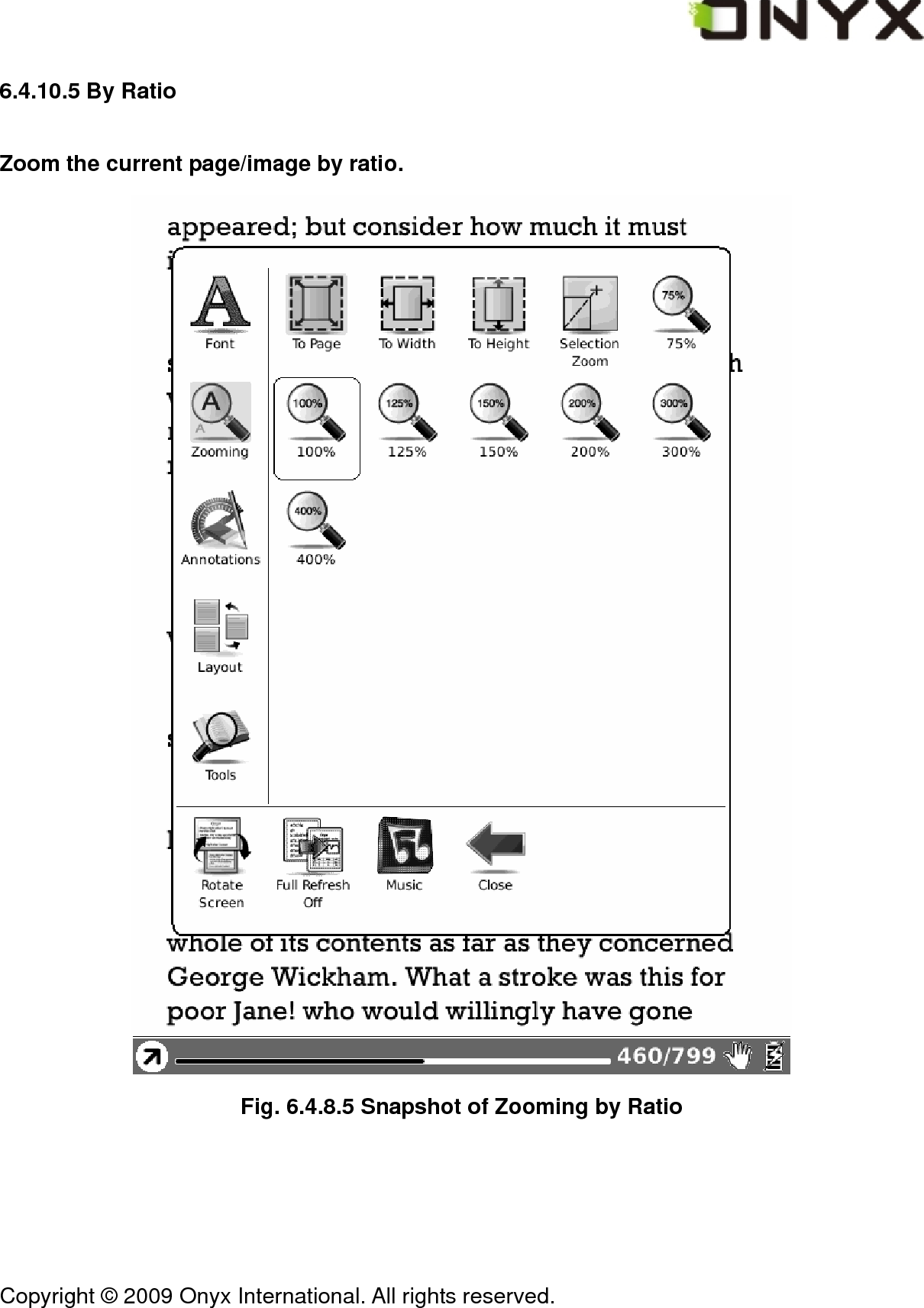
 Copyright © 2009 Onyx International. All rights reserved.                                 6.4.10.5 By Ratio Zoom the current page/image by ratio.  Fig. 6.4.8.5 Snapshot of Zooming by Ratio
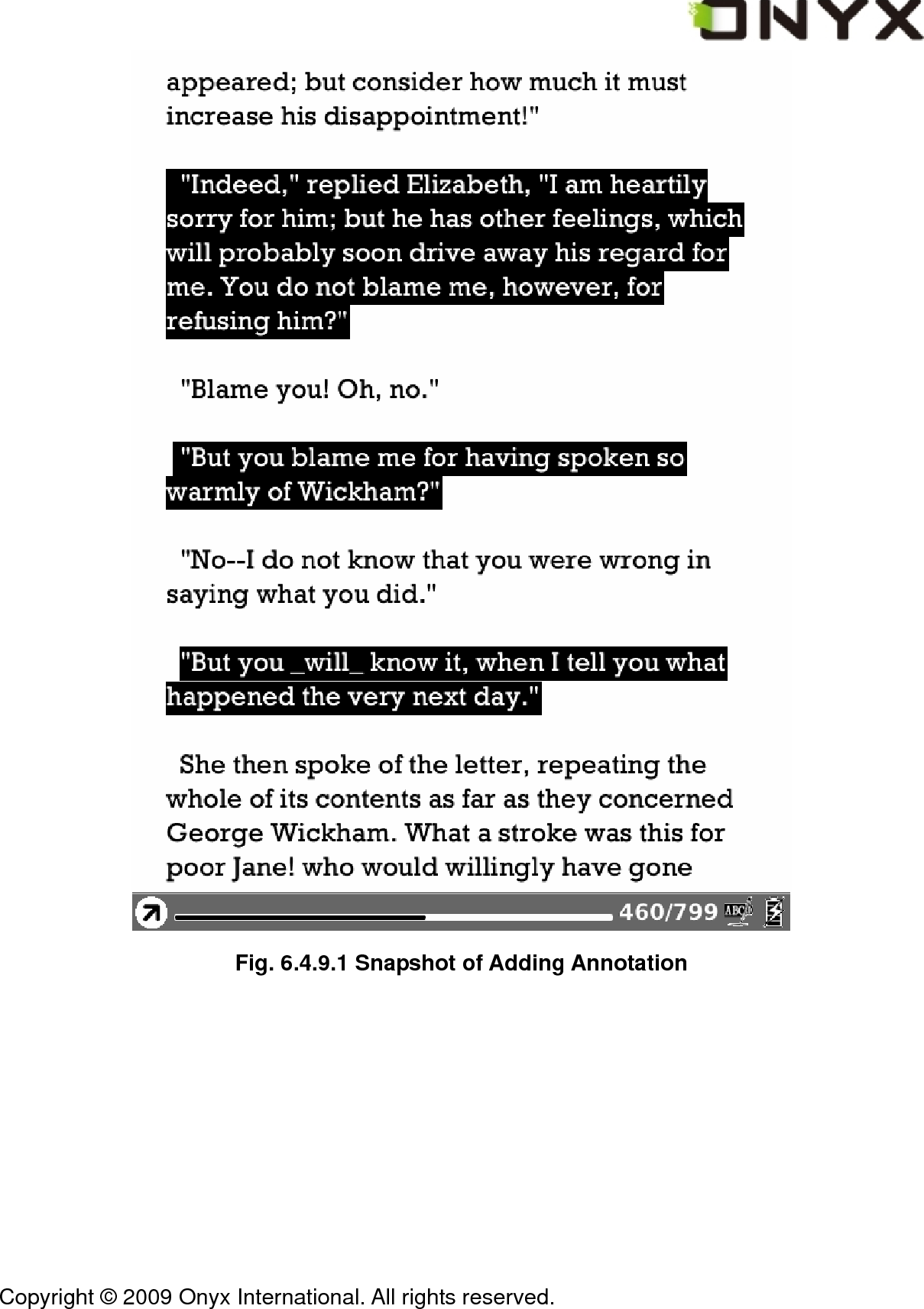
 Copyright © 2009 Onyx International. All rights reserved.                                 6.4.11 Annotations   Annotations  means a group of annotation operations, including annotating and sketching. 6.4.11.1 Add Annotation   Take annotation on the text of current screen. The annotated texts are highlighted.
 Copyright © 2009 Onyx International. All rights reserved.                                  Fig. 6.4.9.1 Snapshot of Adding Annotation
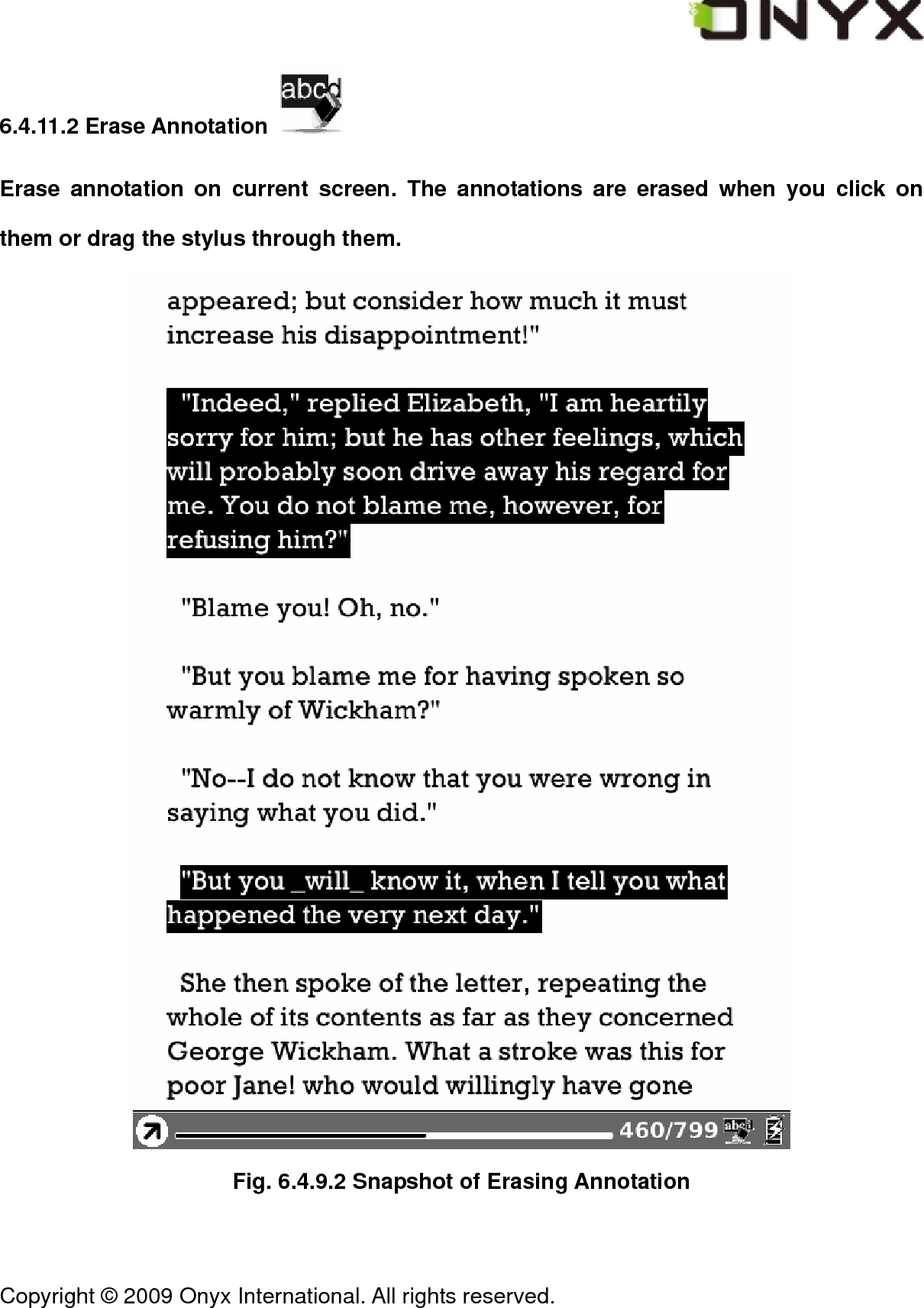
 Copyright © 2009 Onyx International. All rights reserved.                                 6.4.11.2 Erase Annotation   Erase annotation on current screen. The annotations are erased when you click on them or drag the stylus through them.  Fig. 6.4.9.2 Snapshot of Erasing Annotation
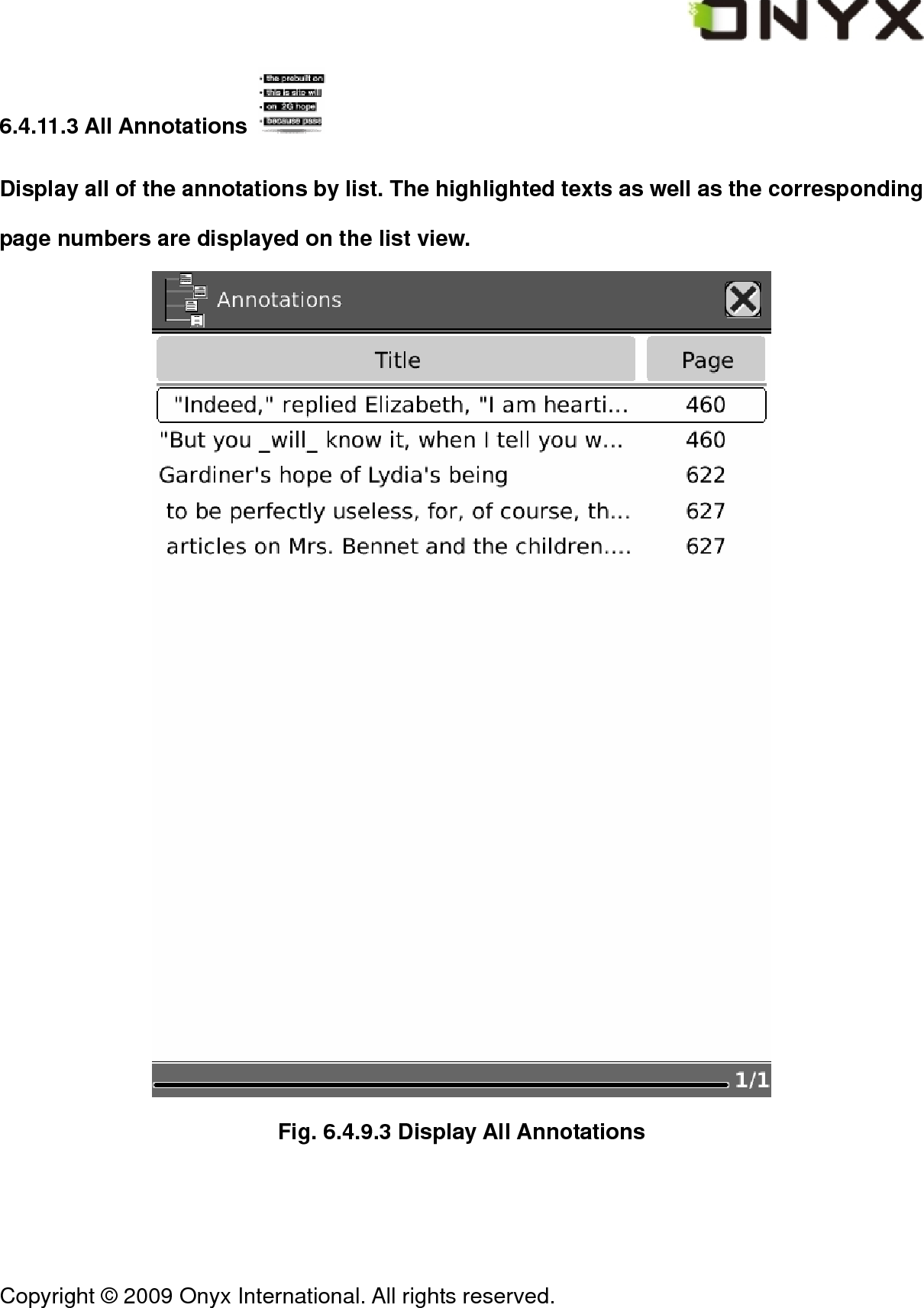
 Copyright © 2009 Onyx International. All rights reserved.                                 6.4.11.3 All Annotations   Display all of the annotations by list. The highlighted texts as well as the corresponding page numbers are displayed on the list view.  Fig. 6.4.9.3 Display All Annotations
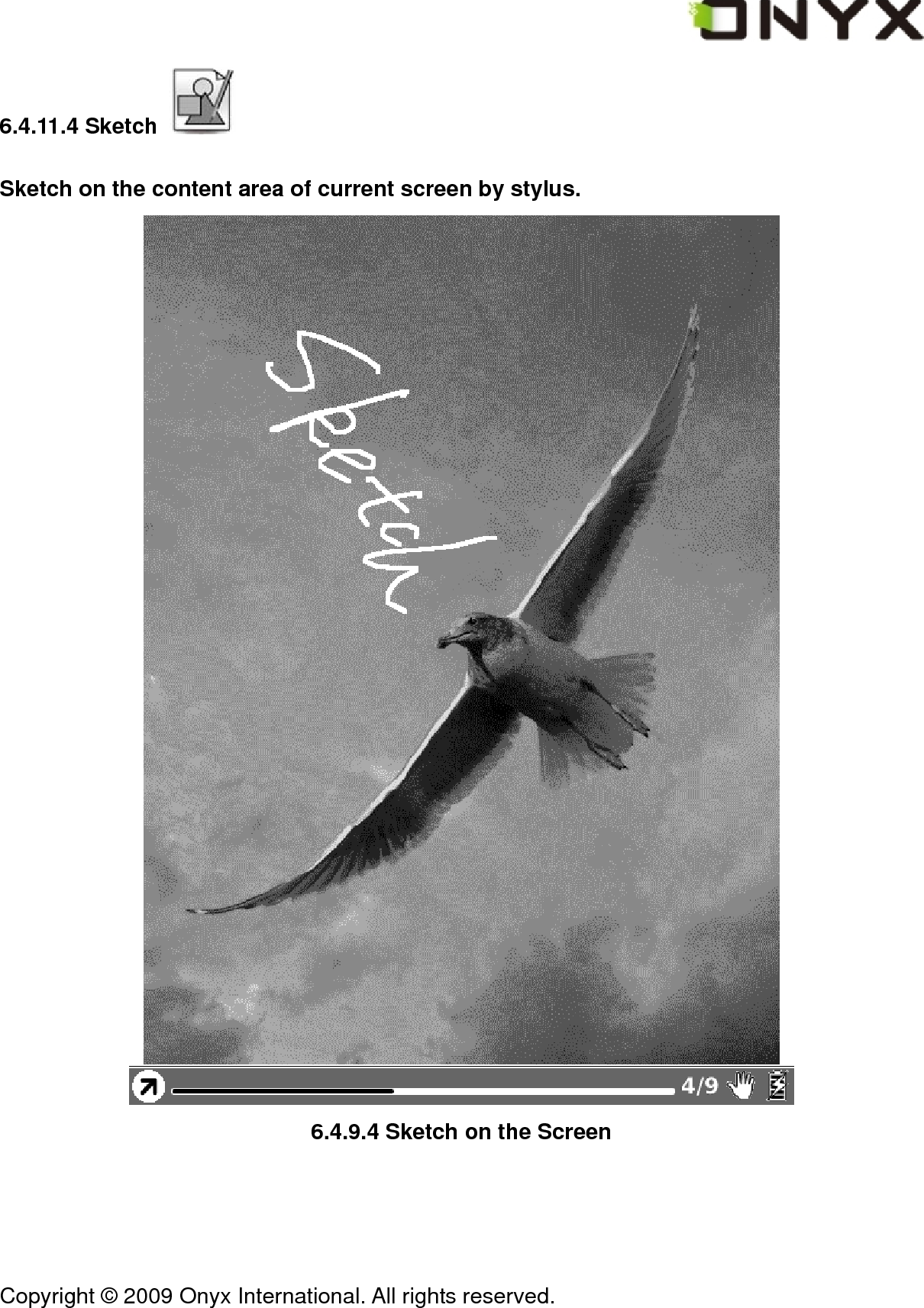
 Copyright © 2009 Onyx International. All rights reserved.                                 6.4.11.4 Sketch   Sketch on the content area of current screen by stylus.  6.4.9.4 Sketch on the Screen
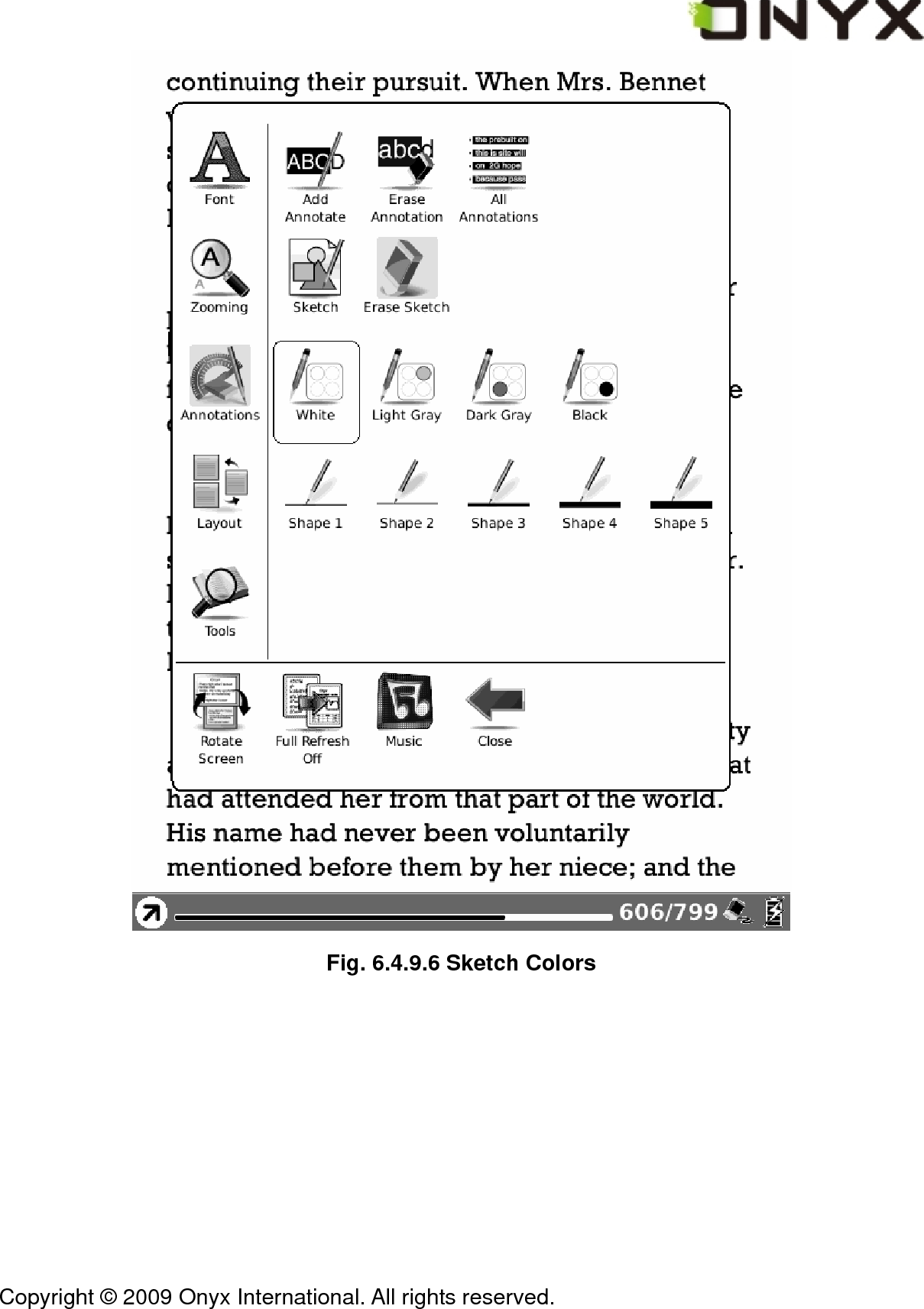
 Copyright © 2009 Onyx International. All rights reserved.                                 6.4.11.5 Erase Sketch   Erase existing sketches by stylus. The sketches are erased when you click on them or drag the stylus through them. 6.4.11.6 Sketch Colors   Select the color of sketches. Now black and white are supported.
 Copyright © 2009 Onyx International. All rights reserved.                                  Fig. 6.4.9.6 Sketch Colors
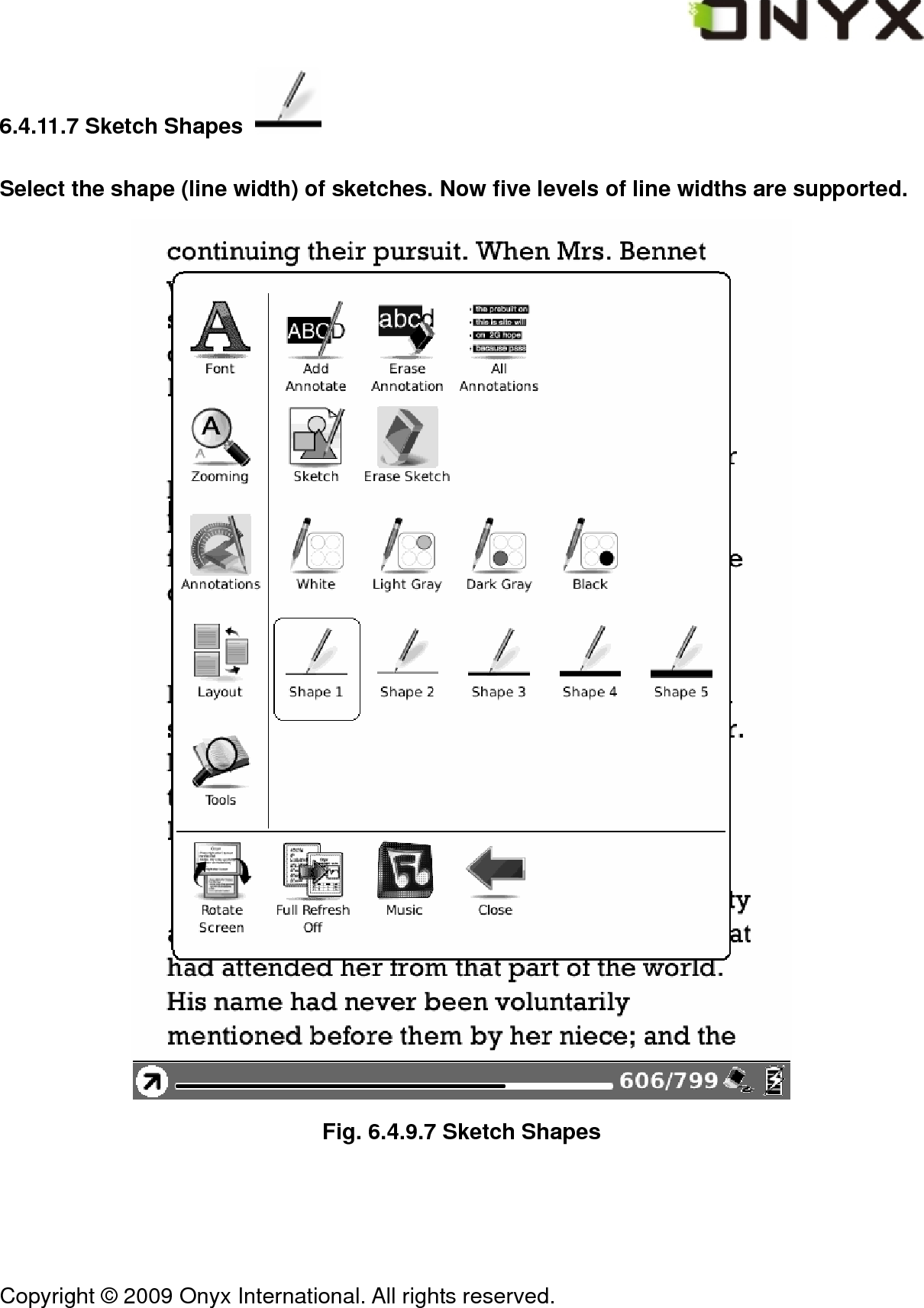
 Copyright © 2009 Onyx International. All rights reserved.                                 6.4.11.7 Sketch Shapes   Select the shape (line width) of sketches. Now five levels of line widths are supported.  Fig. 6.4.9.7 Sketch Shapes
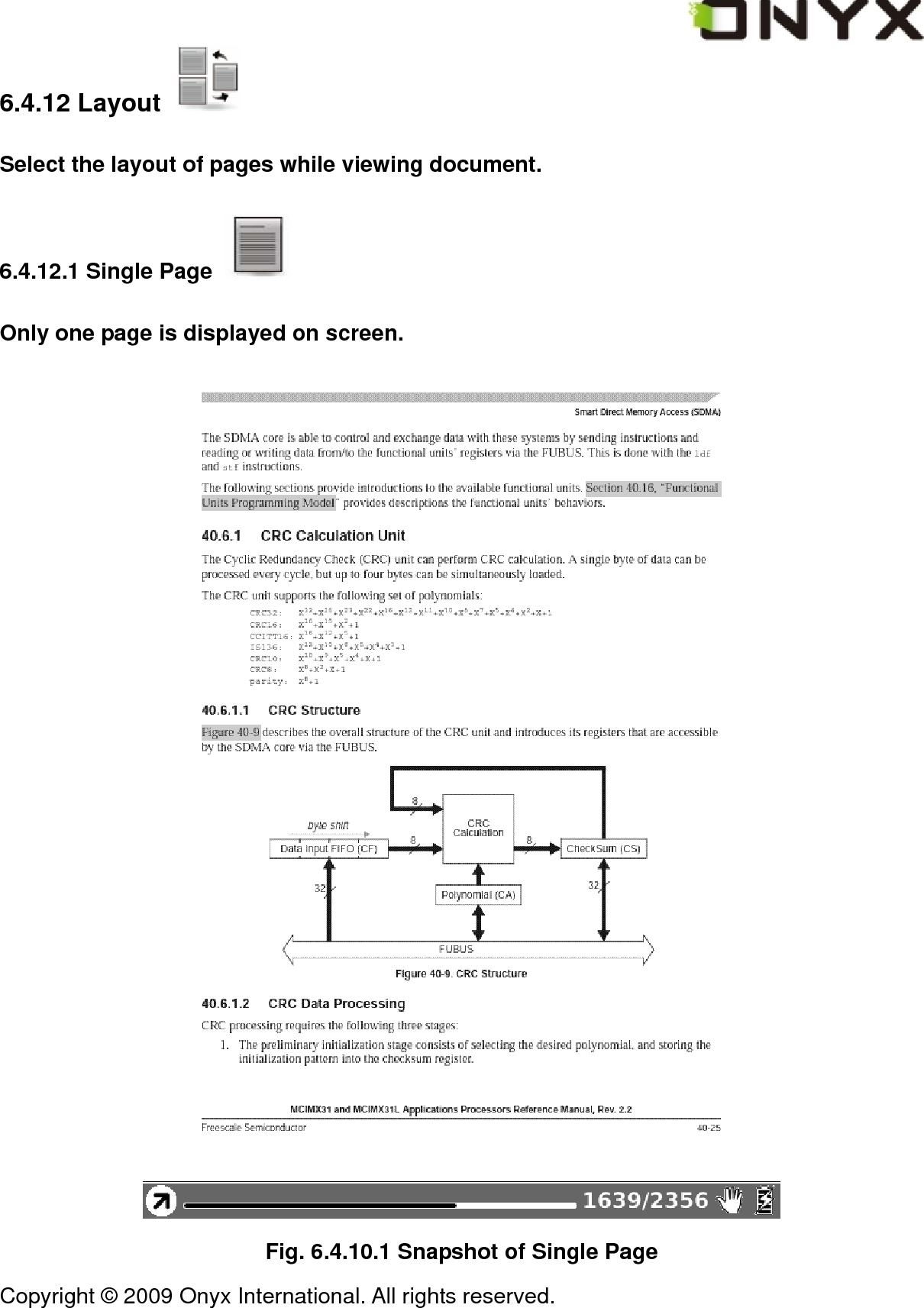
 Copyright © 2009 Onyx International. All rights reserved.                                 6.4.12 Layout   Select the layout of pages while viewing document. 6.4.12.1 Single Page   Only one page is displayed on screen.  Fig. 6.4.10.1 Snapshot of Single Page
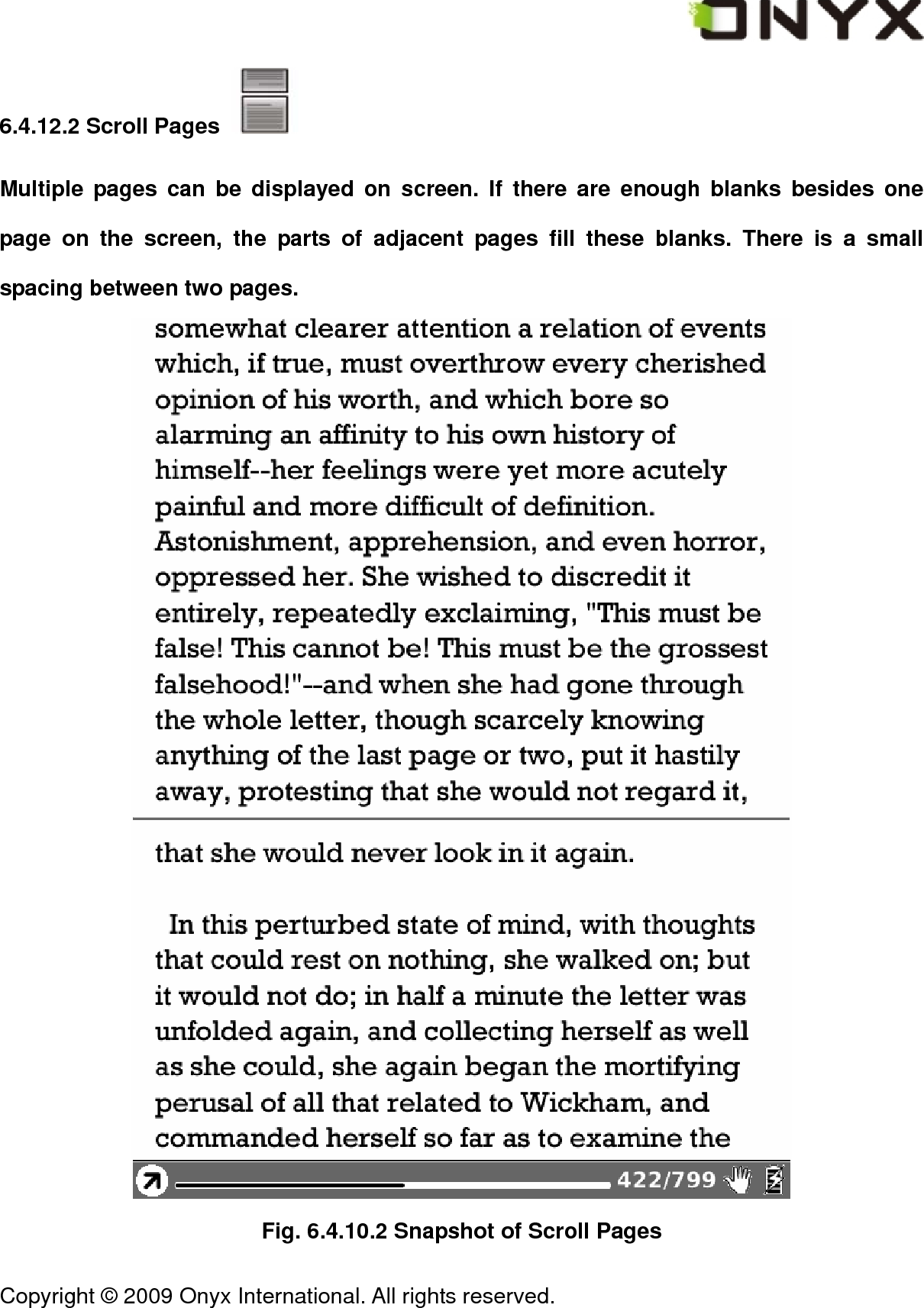
 Copyright © 2009 Onyx International. All rights reserved.                                 6.4.12.2 Scroll Pages   Multiple pages can be displayed on screen. If there are enough blanks besides one page on the screen, the parts of adjacent pages fill these blanks. There is a small spacing between two pages.  Fig. 6.4.10.2 Snapshot of Scroll Pages
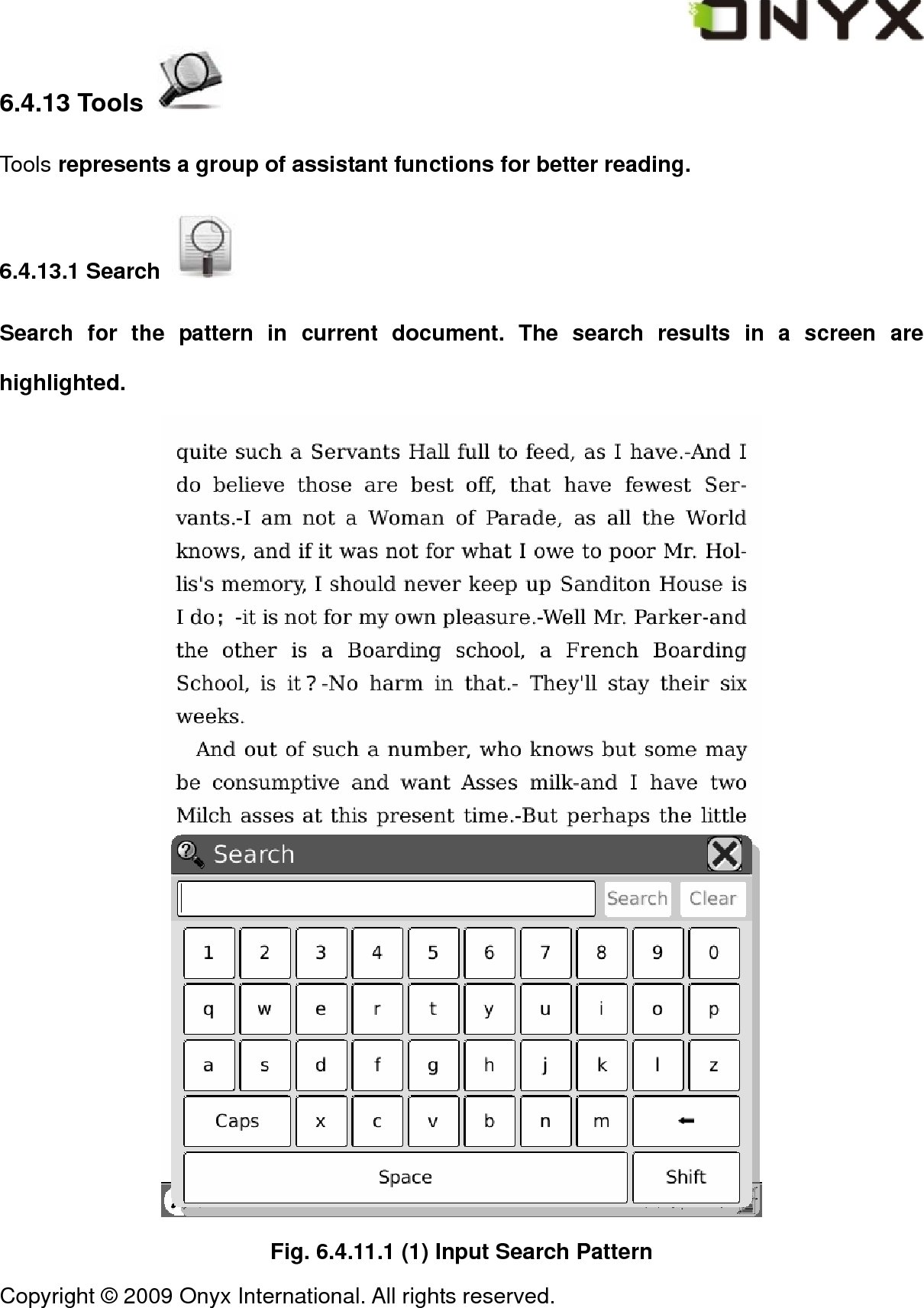
 Copyright © 2009 Onyx International. All rights reserved.                                 6.4.13 Tools   Tools represents a group of assistant functions for better reading. 6.4.13.1 Search   Search for the pattern in current document. The search results in a screen are highlighted.  Fig. 6.4.11.1 (1) Input Search Pattern
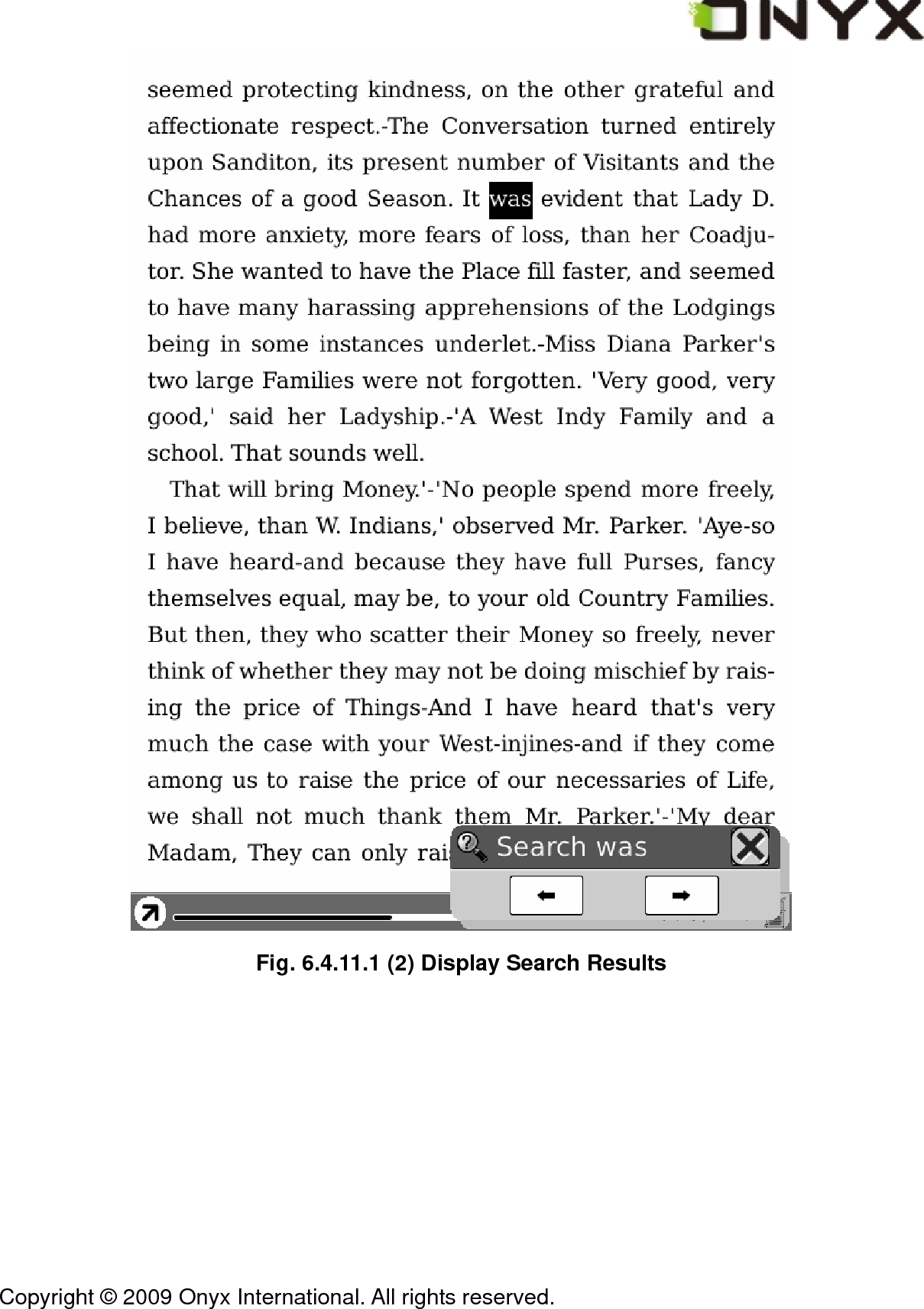
 Copyright © 2009 Onyx International. All rights reserved.                                  Fig. 6.4.11.1 (2) Display Search Results
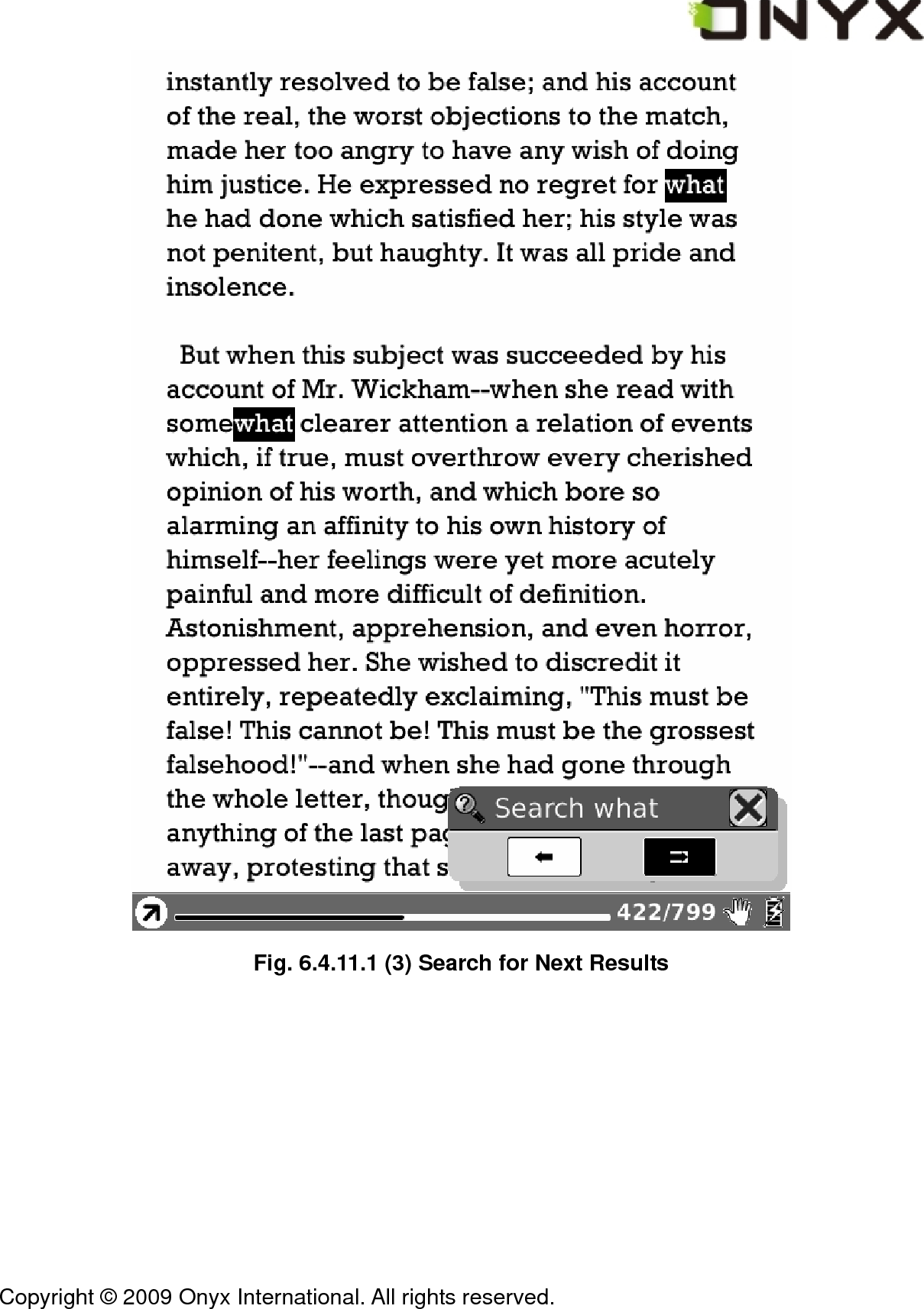
 Copyright © 2009 Onyx International. All rights reserved.                                  Fig. 6.4.11.1 (3) Search for Next Results
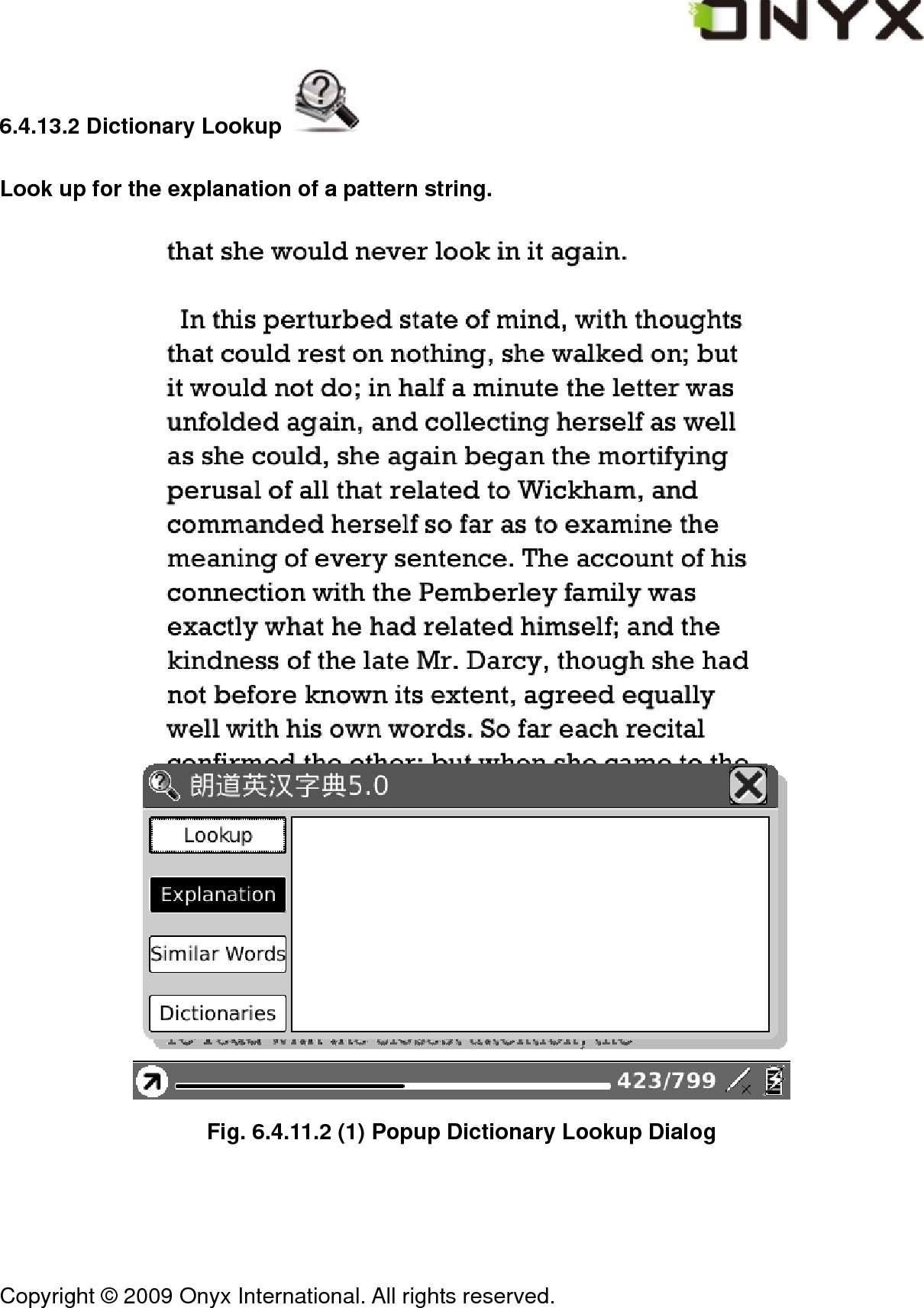
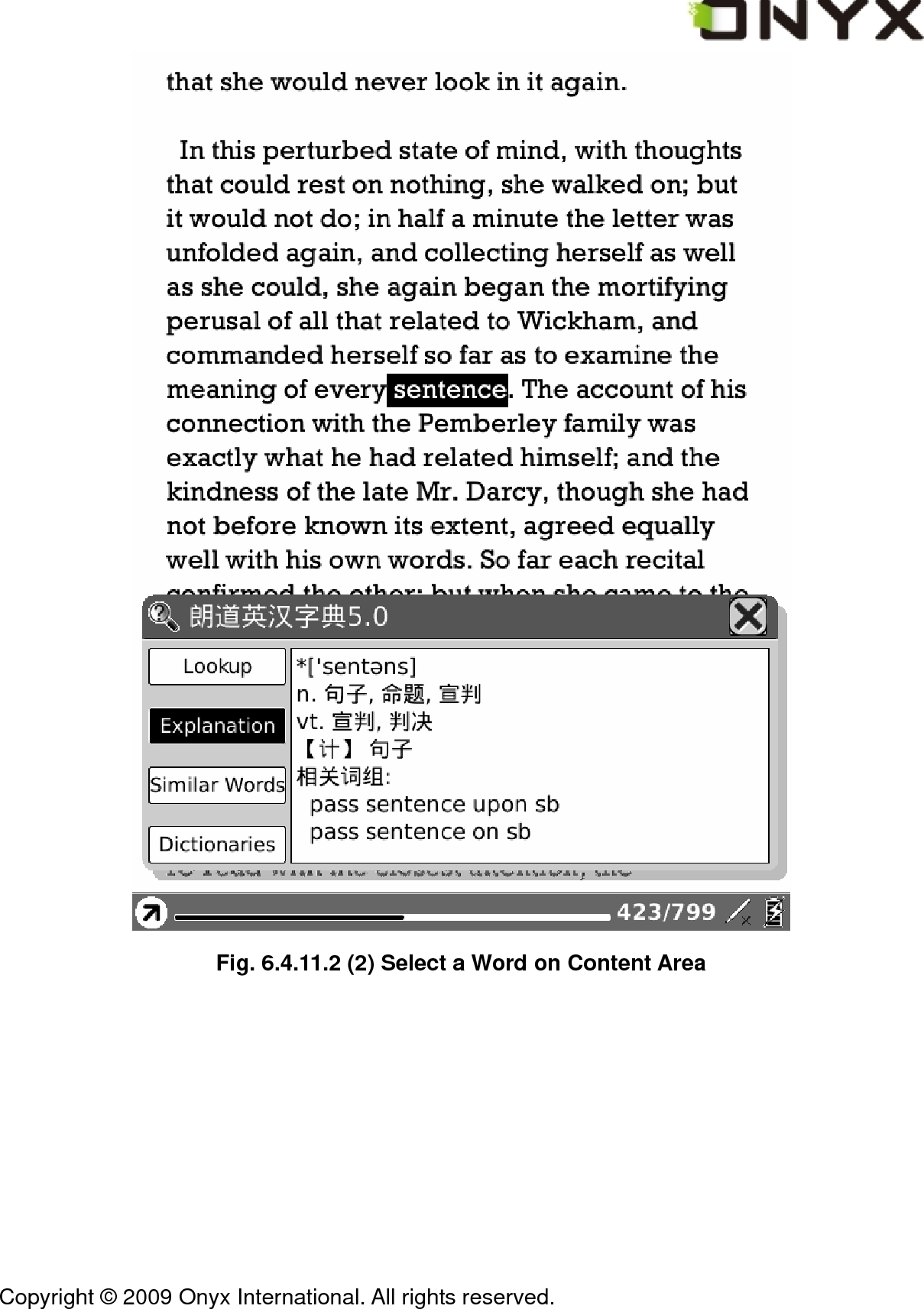
 Copyright © 2009 Onyx International. All rights reserved.                                 6.4.13.2 Dictionary Lookup   Look up for the explanation of a pattern string.  Fig. 6.4.11.2 (1) Popup Dictionary Lookup Dialog
 Copyright © 2009 Onyx International. All rights reserved.                                  Fig. 6.4.11.2 (2) Select a Word on Content Area
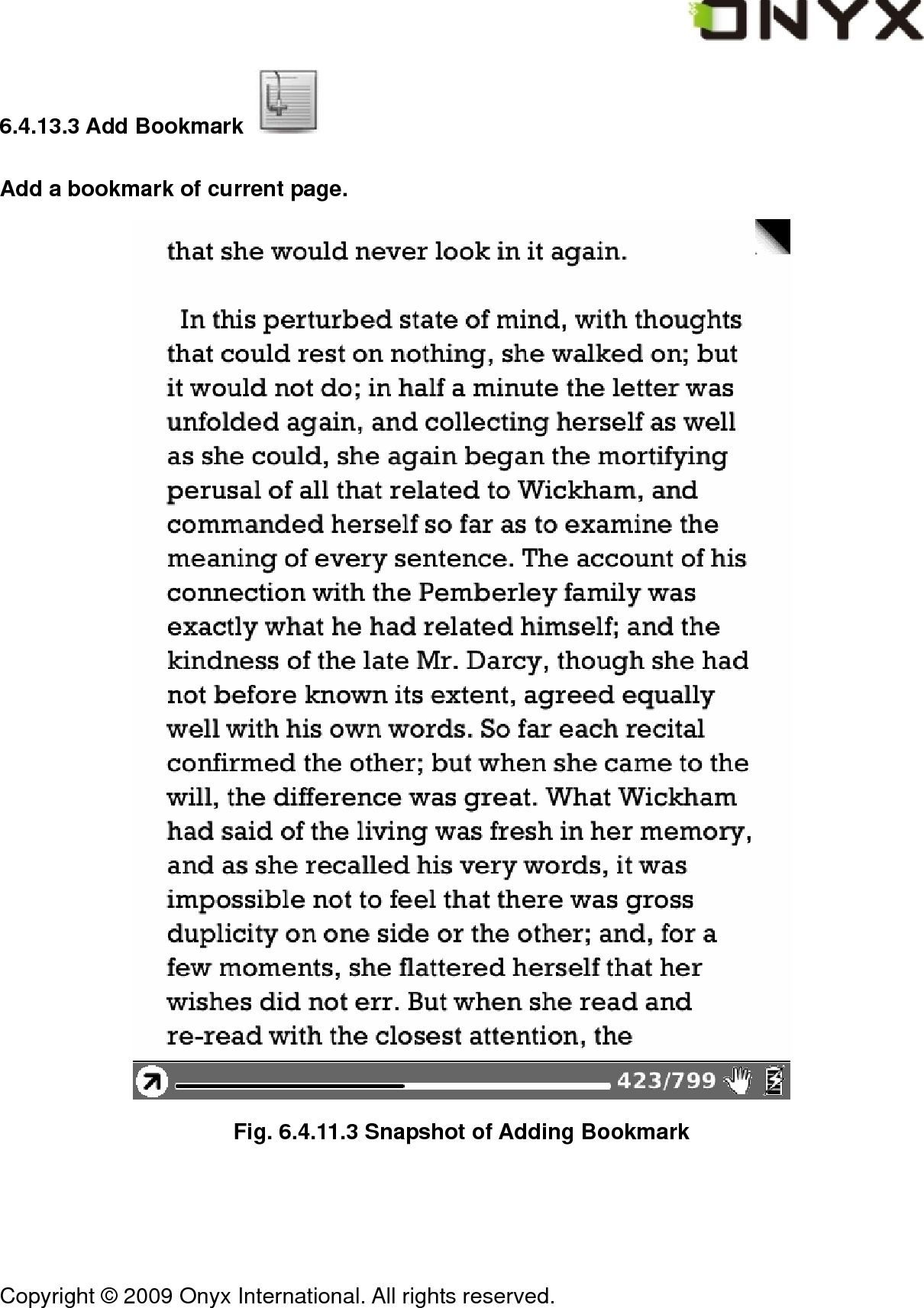
 Copyright © 2009 Onyx International. All rights reserved.                                 6.4.13.3 Add Bookmark   Add a bookmark of current page.  Fig. 6.4.11.3 Snapshot of Adding Bookmark
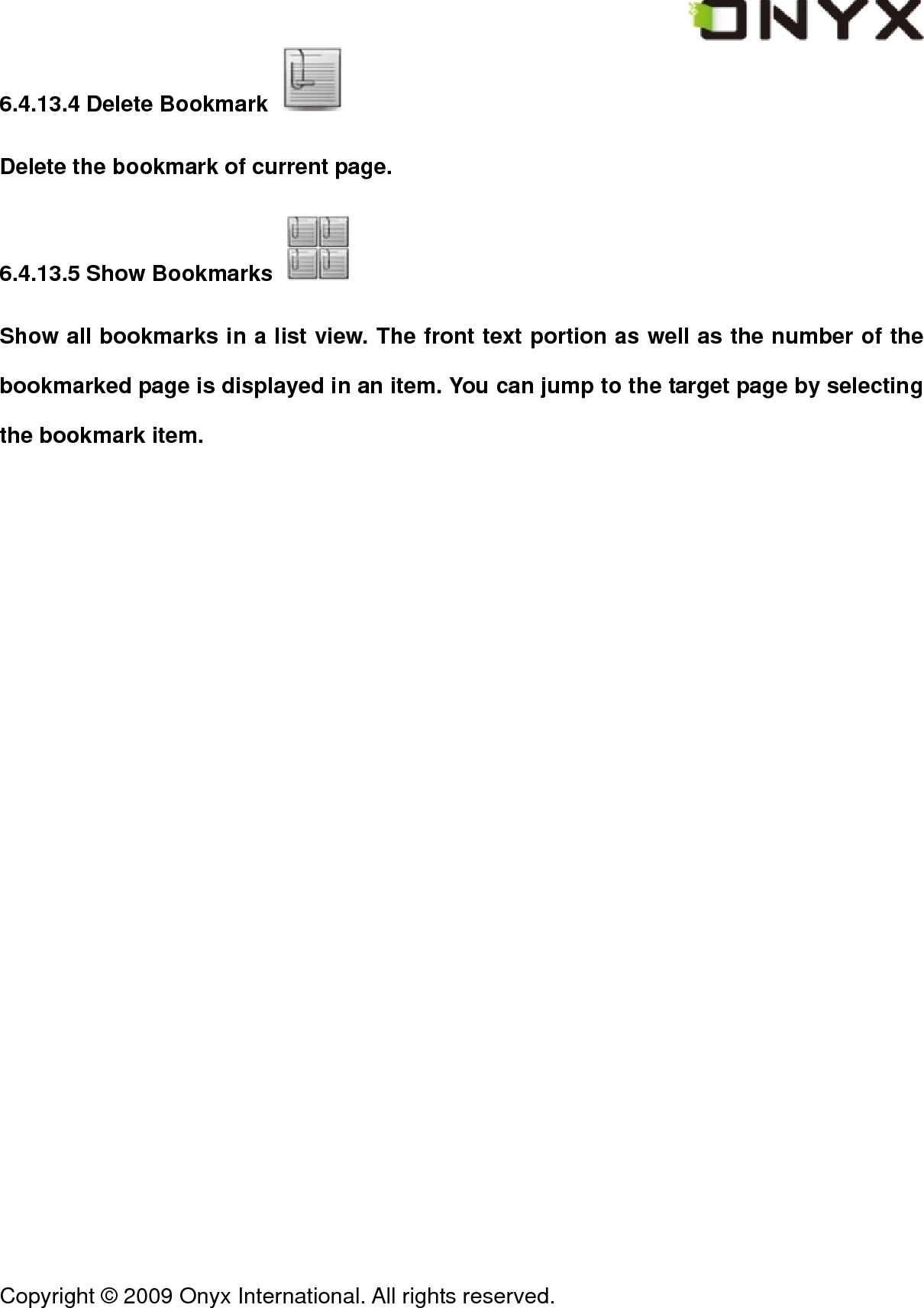
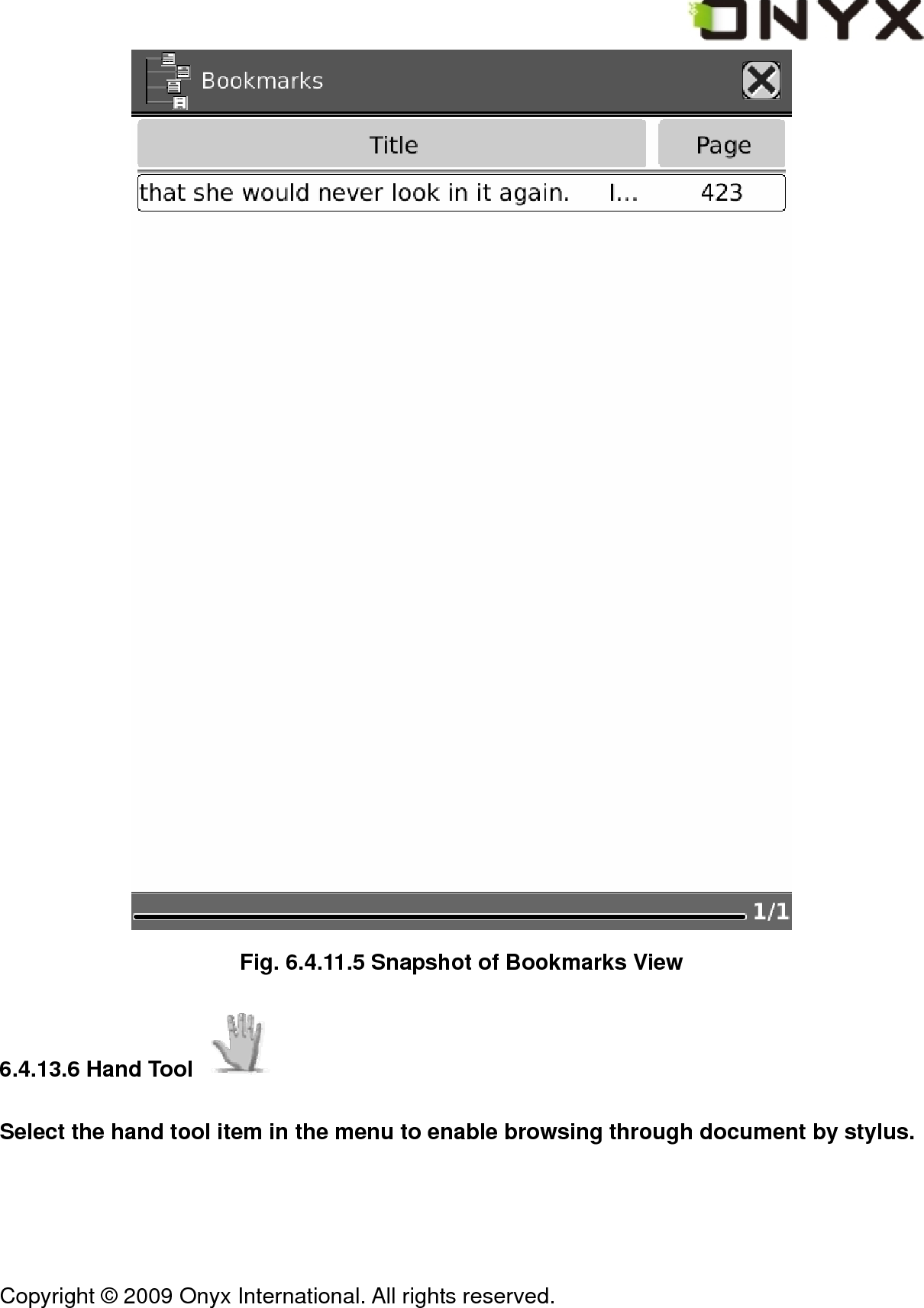
 Copyright © 2009 Onyx International. All rights reserved.                                 6.4.13.4 Delete Bookmark   Delete the bookmark of current page. 6.4.13.5 Show Bookmarks   Show all bookmarks in a list view. The front text portion as well as the number of the bookmarked page is displayed in an item. You can jump to the target page by selecting the bookmark item.
 Copyright © 2009 Onyx International. All rights reserved.                                  Fig. 6.4.11.5 Snapshot of Bookmarks View 6.4.13.6 Hand Tool   Select the hand tool item in the menu to enable browsing through document by stylus.
 Copyright © 2009 Onyx International. All rights reserved.                                 6.4.13.7 Previous View   Select previous/next view to retrace the path within a document. Select item Previous View to return to previous screen while browsing document.   6.4.13.8 Next View   Select item Next View to go to next screen while browsing document. This button is activated only if you have chosen Previous View.
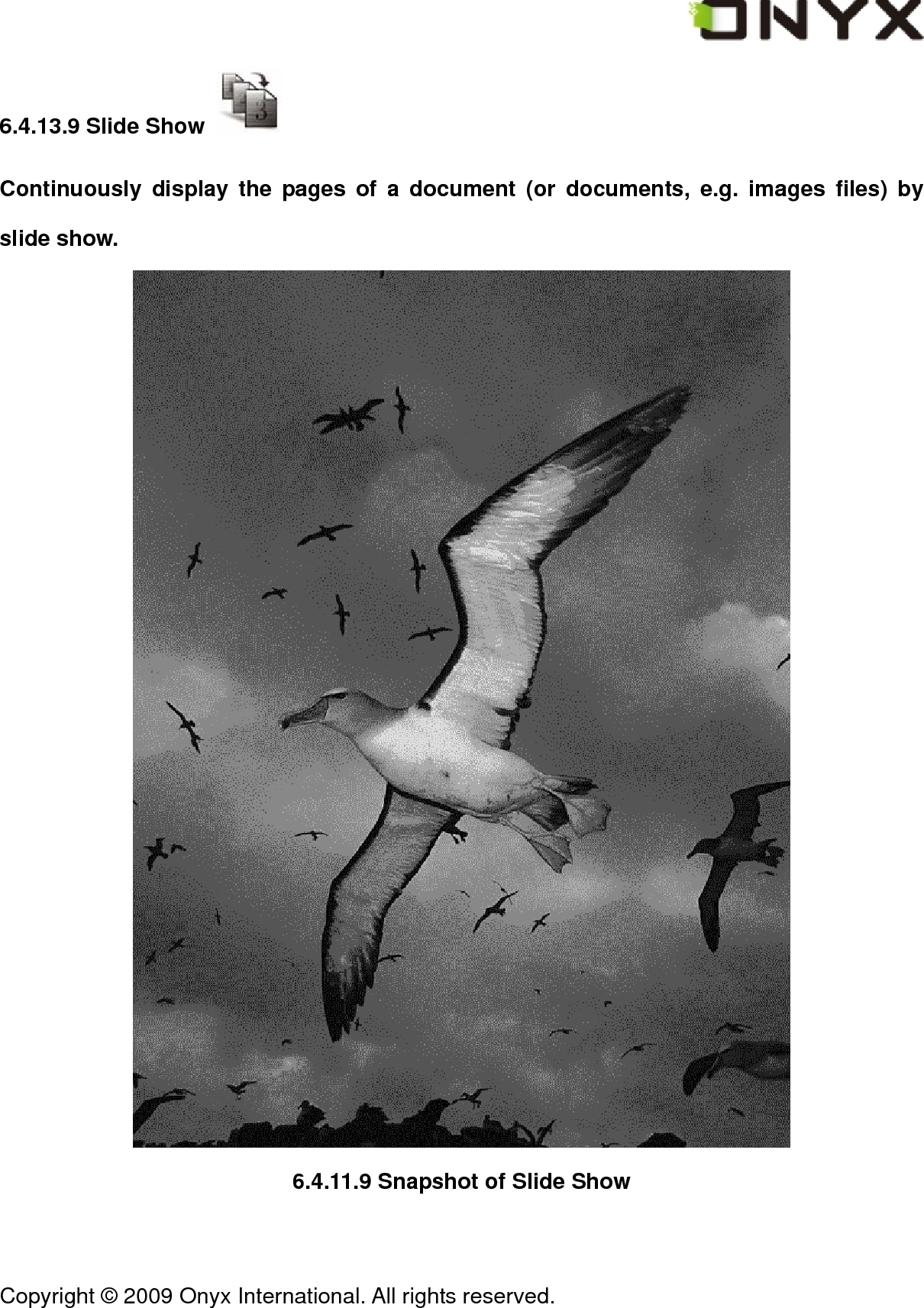
 Copyright © 2009 Onyx International. All rights reserved.                                 6.4.13.9 Slide Show   Continuously display the pages of a document (or documents, e.g. images files) by slide show.  6.4.11.9 Snapshot of Slide Show
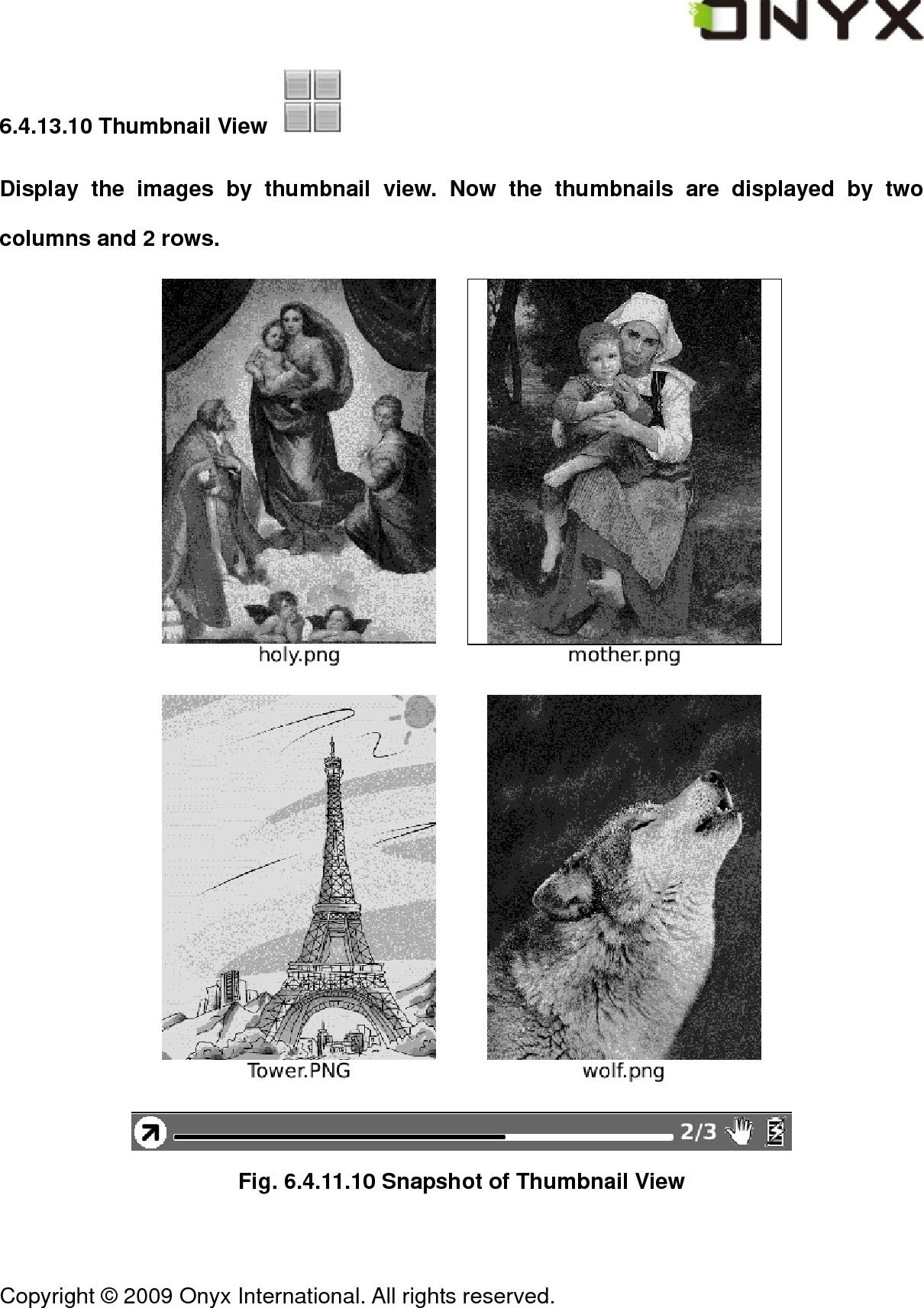
 Copyright © 2009 Onyx International. All rights reserved.                                 6.4.13.10 Thumbnail View   Display the images by thumbnail view. Now the thumbnails are displayed by two columns and 2 rows.  Fig. 6.4.11.10 Snapshot of Thumbnail View
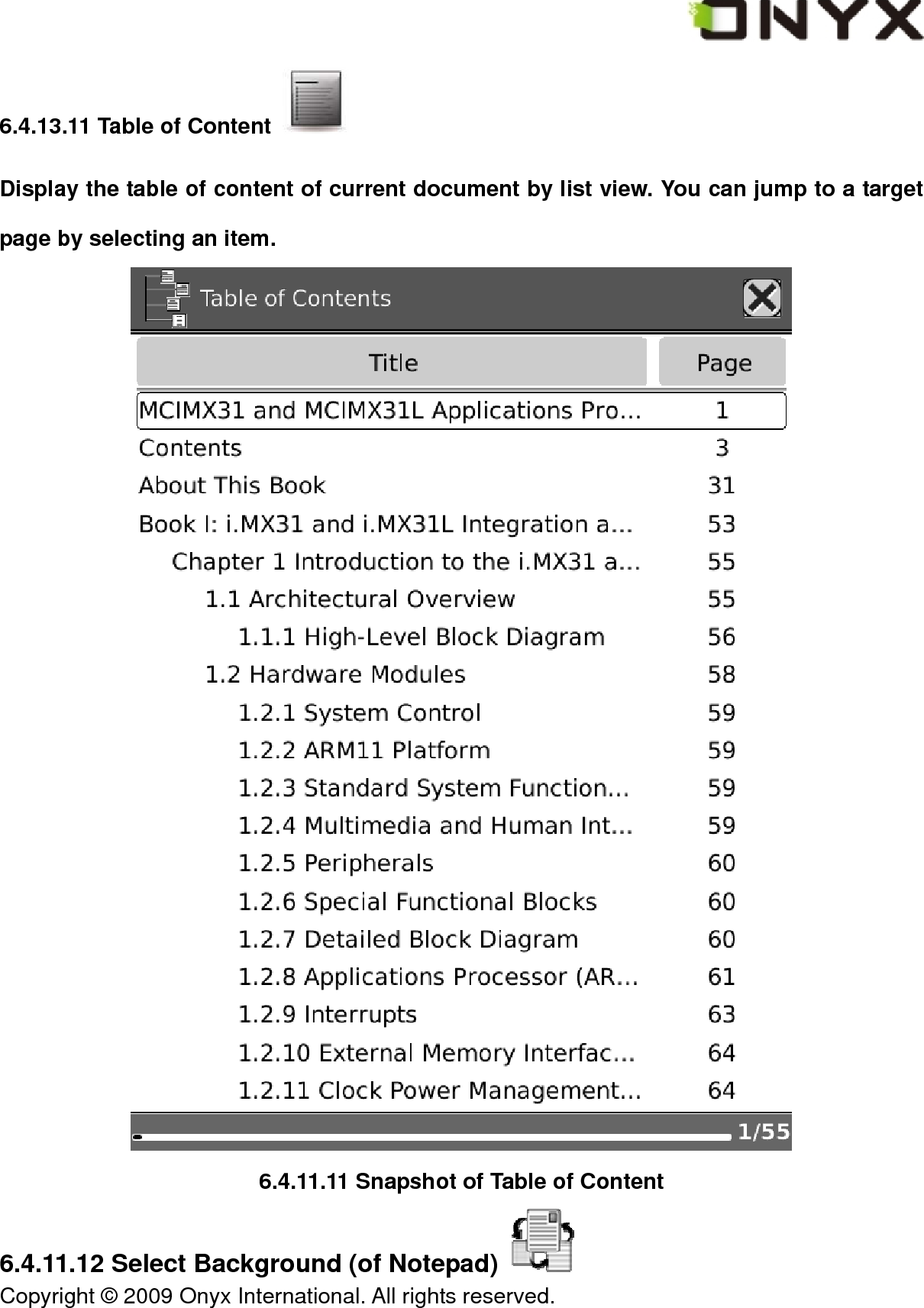
 Copyright © 2009 Onyx International. All rights reserved.                                 6.4.13.11 Table of Content   Display the table of content of current document by list view. You can jump to a target page by selecting an item.  6.4.11.11 Snapshot of Table of Content 6.4.11.12 Select Background (of Notepad)
 Copyright © 2009 Onyx International. All rights reserved.                                 Select background of notepad. The new background replaces the previous one in current page. 6.4.13.12 Export   Export all of the pages in a notepad to SD card. The exported images are saved in folder “notes” of SD card. 6.4.13.13 Insert Page   Insert a new page before current one. 6.4.13.14 Remove Page   Remove current page.
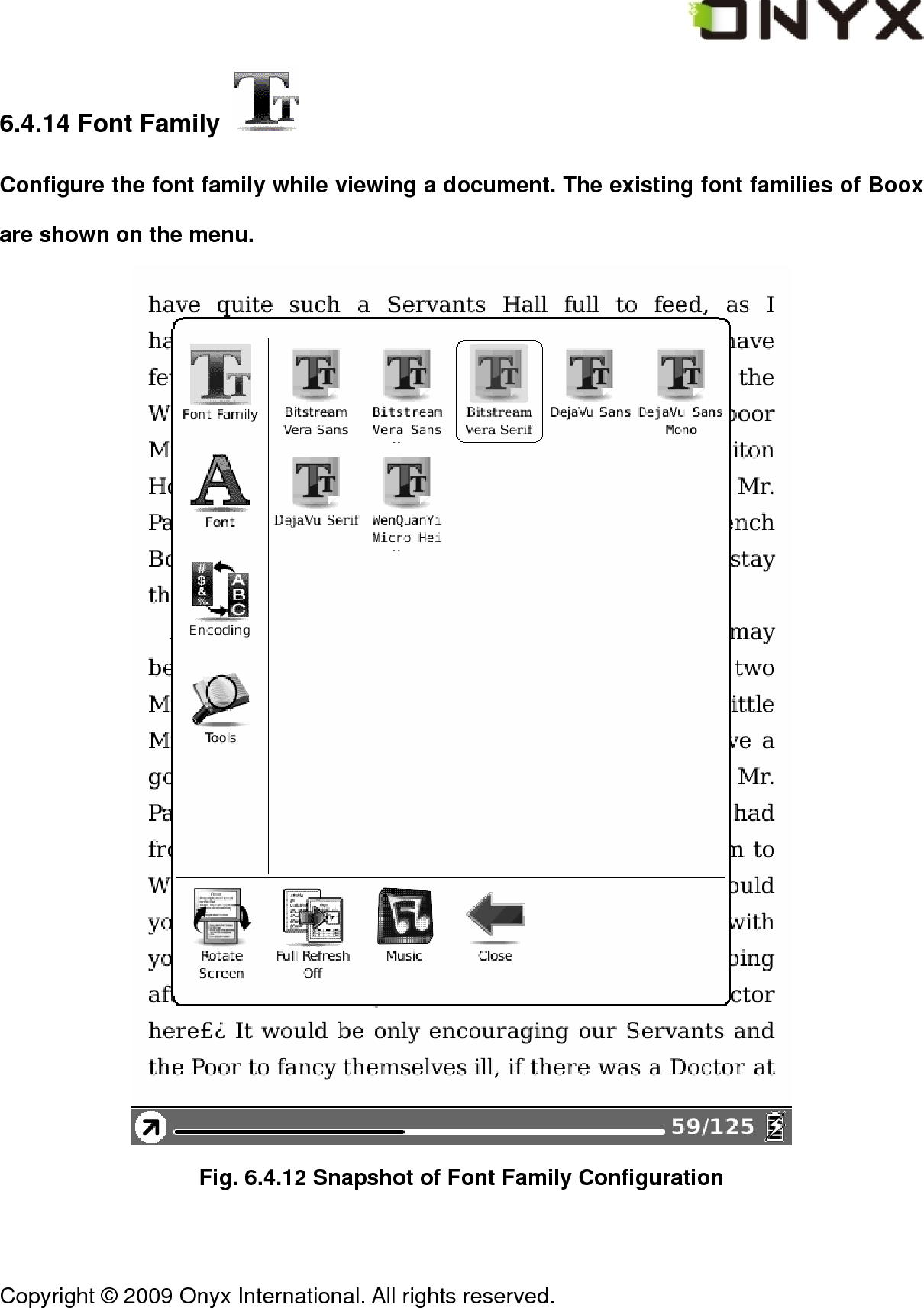
 Copyright © 2009 Onyx International. All rights reserved.                                 6.4.14 Font Family   Configure the font family while viewing a document. The existing font families of Boox are shown on the menu.  Fig. 6.4.12 Snapshot of Font Family Configuration
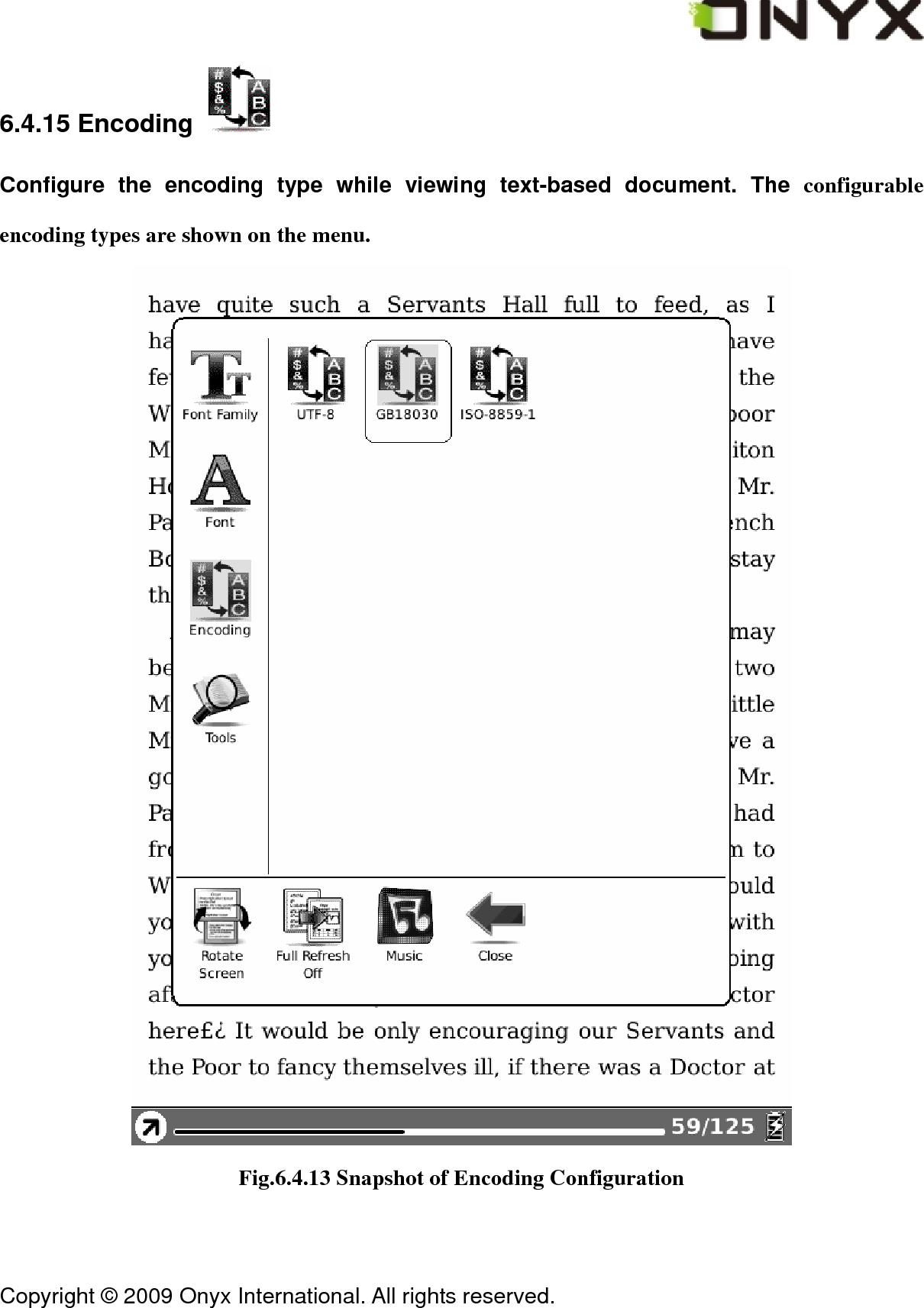
 Copyright © 2009 Onyx International. All rights reserved.                                 6.4.15 Encoding   Configure the encoding type while viewing text-based document. The configurable encoding types are shown on the menu.  Fig.6.4.13 Snapshot of Encoding Configuration
 Copyright © 2009 Onyx International. All rights reserved.                                 6.4.16 Full Refresh Switch   Set screen update type. You can turn on/off full refresh. 6.4.17 Navigation   Navigation operations are used for accessing websites and viewing html-based documents, e.g. CHM document. 6.4.17.1 Backward   Go back to previous website. 6.4.17.2 Forward   Go forward to next website. This button is activated only if you have chosen Backward. 6.4.17.3 Home   Go to the home page. 6.4.18 Network   Configure the network connection. 6.4.18.1 Wifi   Configure the wifi connection.
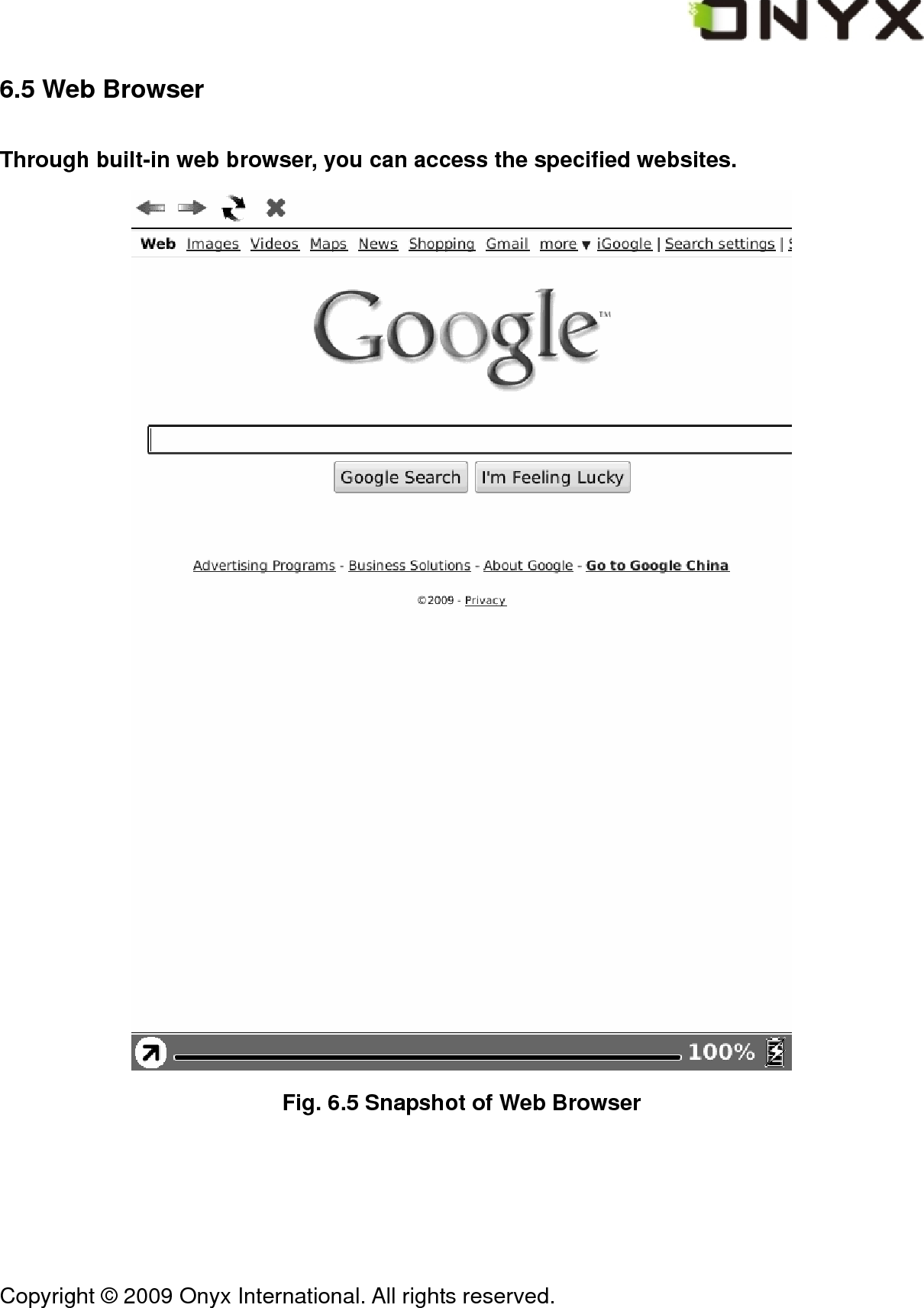
 Copyright © 2009 Onyx International. All rights reserved.                                 6.5 Web Browser Through built-in web browser, you can access the specified websites.  Fig. 6.5 Snapshot of Web Browser
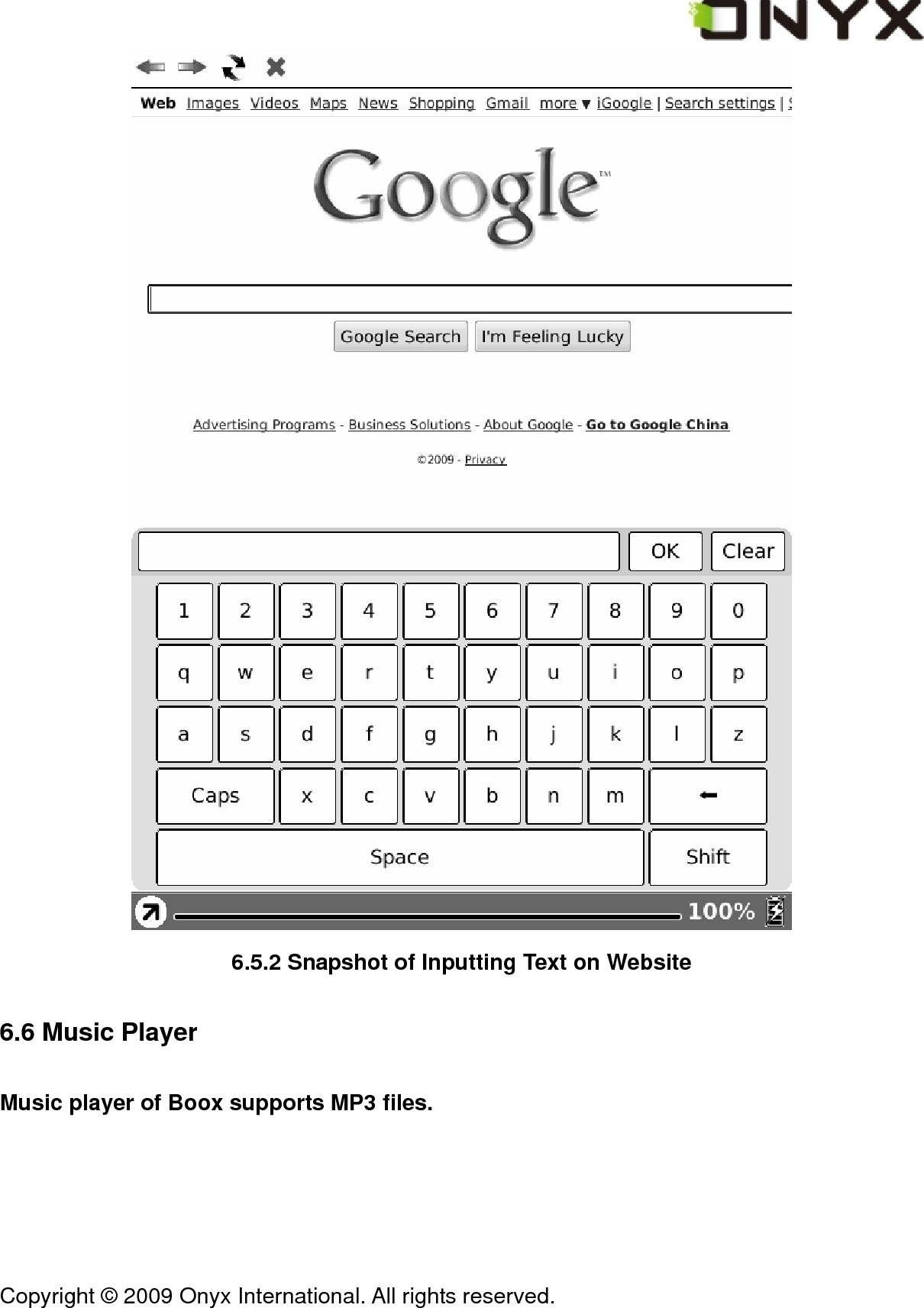
 Copyright © 2009 Onyx International. All rights reserved.                                 6.5.1 Tool Bar Tool bar provides four functions: going back to the previous website, going forward to the next website, refreshing current website, stopping the loading of current page.  6.5.1 Tool Bar of Web Browser 6.5.2 Input by Keyboard You can input text on website by stylus if the page provides standard form widget. A keyboard appears after you put focus on the form. The input text string is displayed on the form after you confirm the input is done (by clicking OK button).
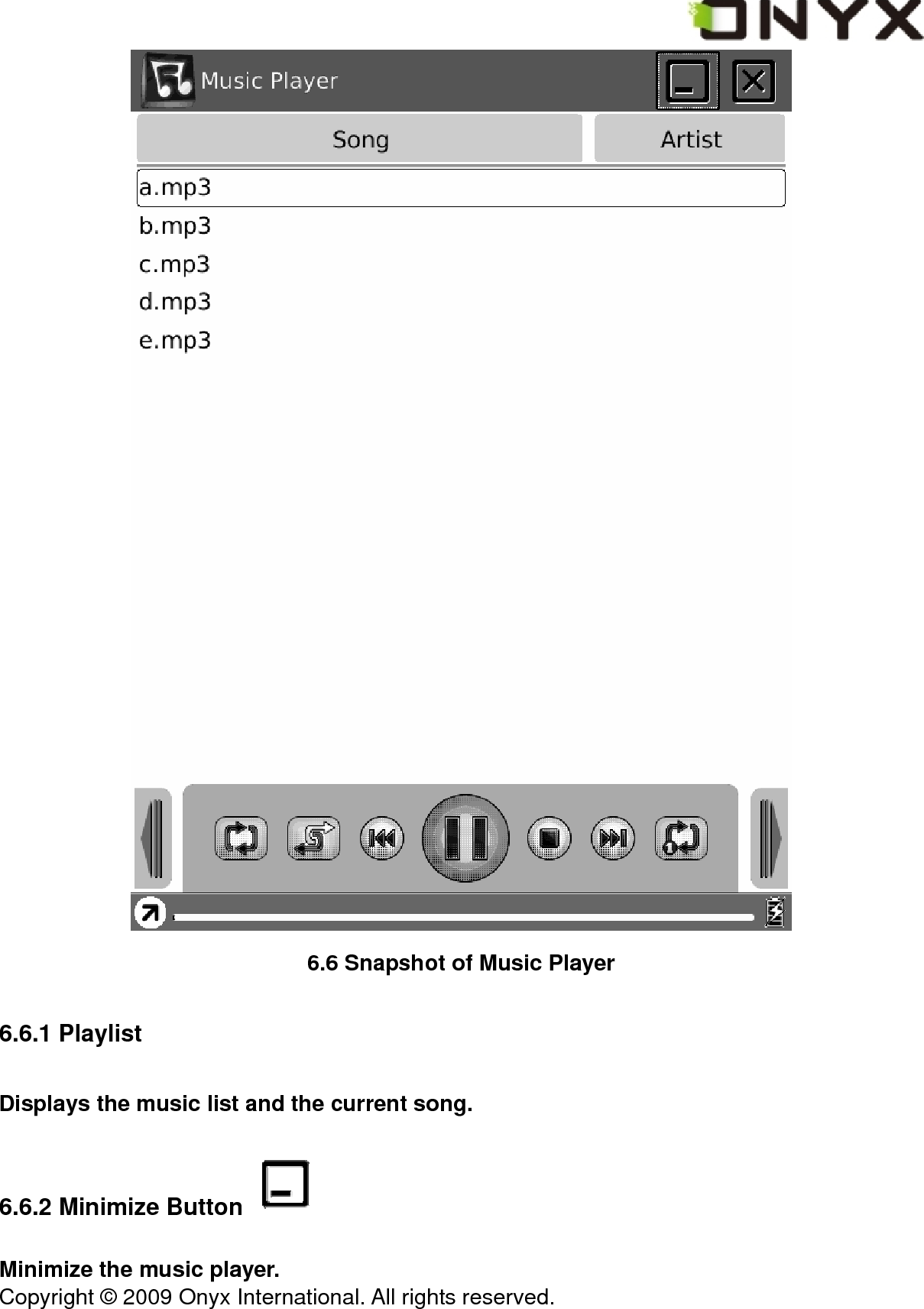
 Copyright © 2009 Onyx International. All rights reserved.                                  6.5.2 Snapshot of Inputting Text on Website 6.6 Music Player Music player of Boox supports MP3 files.
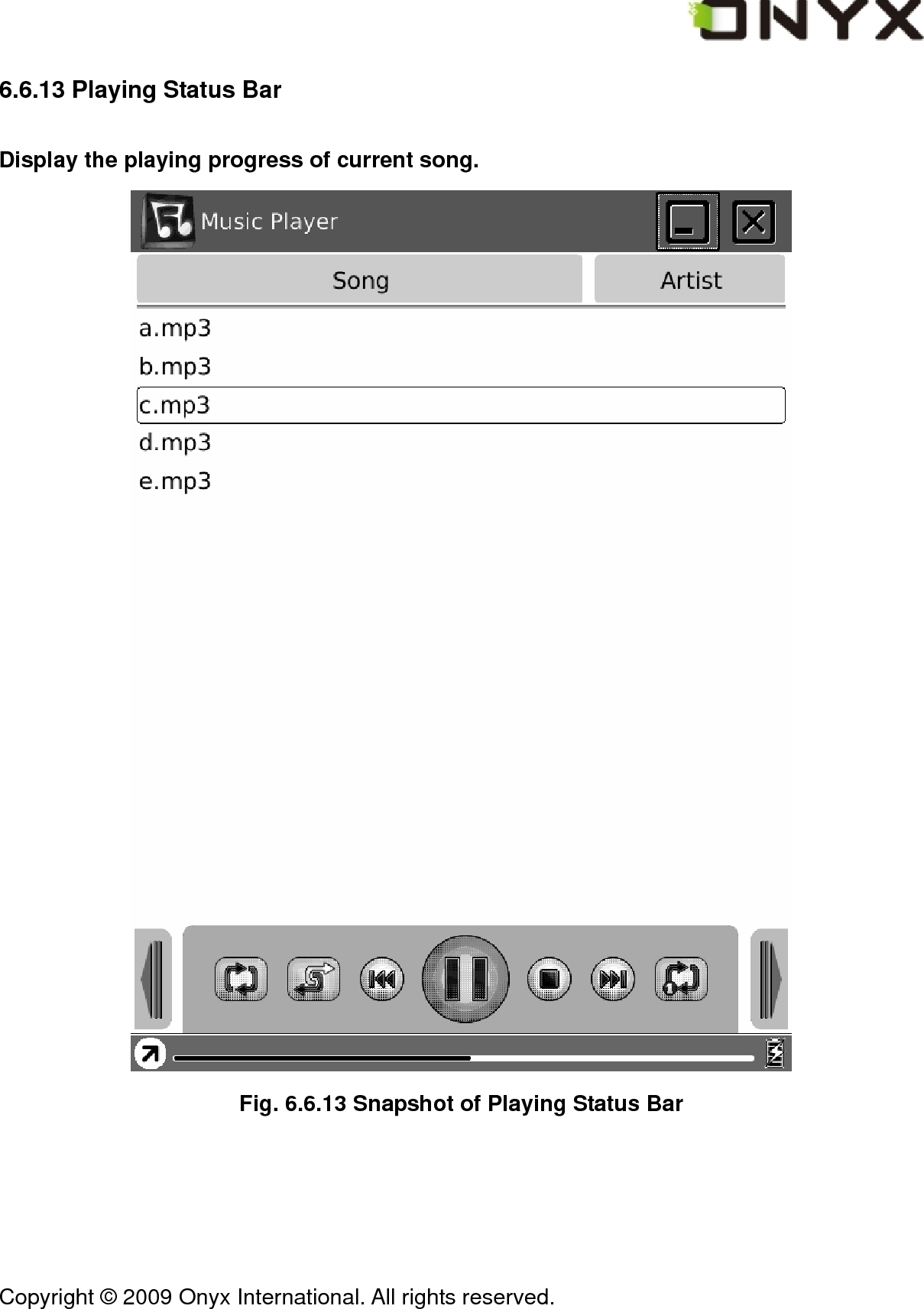
 Copyright © 2009 Onyx International. All rights reserved.                                  6.6 Snapshot of Music Player 6.6.1 Playlist Displays the music list and the current song. 6.6.2 Minimize Button   Minimize the music player.
 Copyright © 2009 Onyx International. All rights reserved.                                 6.6.3 Close Button   Close the music player. 6.6.4 Repeat Playlist Button   Repeat playing the songs of playlist. 6.6.5 Shuffle Switch Button   Switch between shuffle playing and normal playing modes. 6.6.6 Previous Song Button   Turn to previous song. 6.6.7 Play/Pause Switch Button     Switch between playing and pausing modes. 6.6.8 Stop Button   Stop the music playing. 6.6.9 Next Song Button   Turn to the next song.
 Copyright © 2009 Onyx International. All rights reserved.                                 6.6.10 Repeat Current Song Button   Repeat playing current song. 6.6.11 Previous Page Button   Turn to previous page of playlist. 6.6.12 Next Page Button   Turn to next page of playlist.
 Copyright © 2009 Onyx International. All rights reserved.                                 6.6.13 Playing Status Bar Display the playing progress of current song.  Fig. 6.6.13 Snapshot of Playing Status Bar
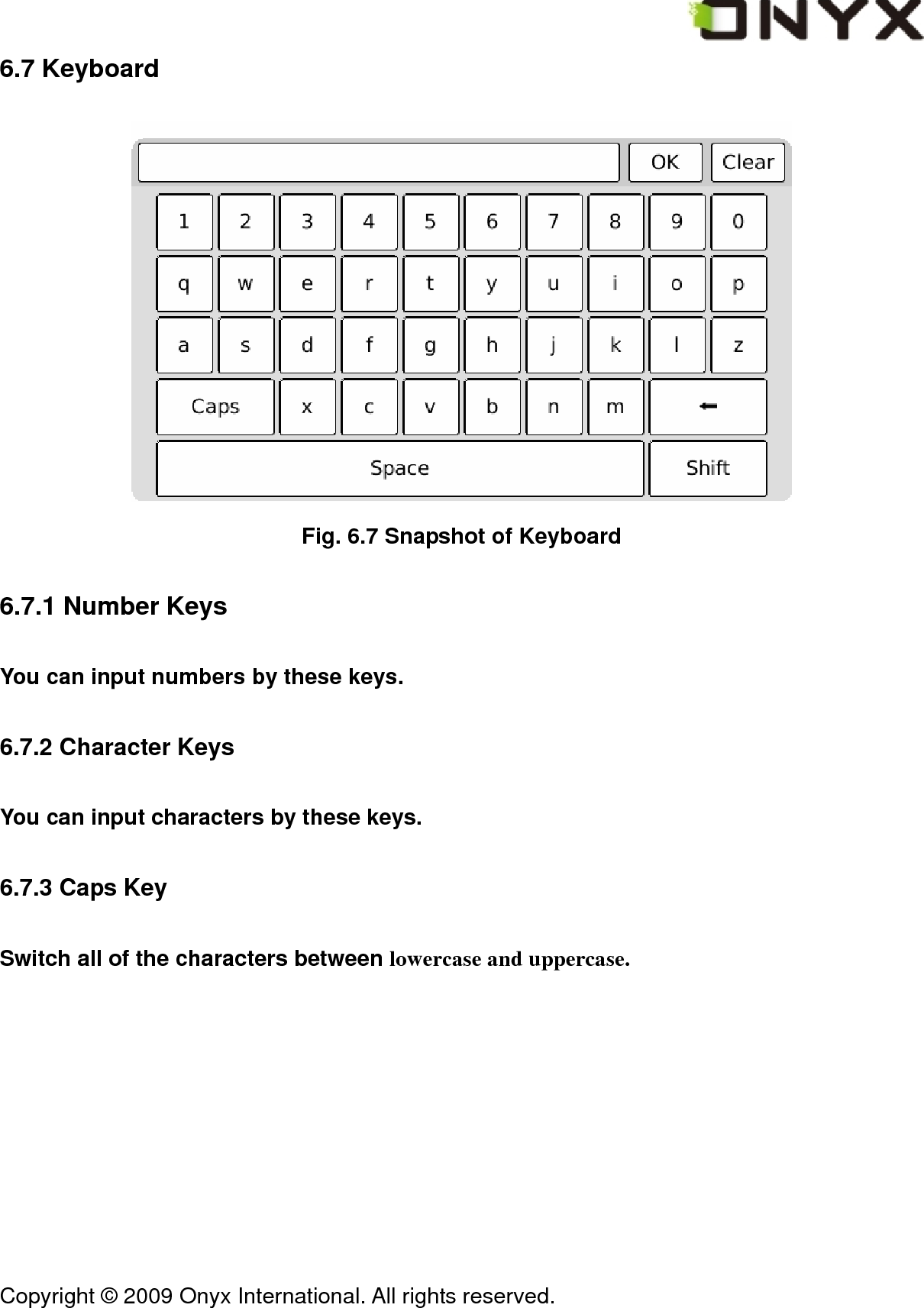
 Copyright © 2009 Onyx International. All rights reserved.                                 6.7 Keyboard  Fig. 6.7 Snapshot of Keyboard 6.7.1 Number Keys You can input numbers by these keys. 6.7.2 Character Keys You can input characters by these keys. 6.7.3 Caps Key Switch all of the characters between lowercase and uppercase.
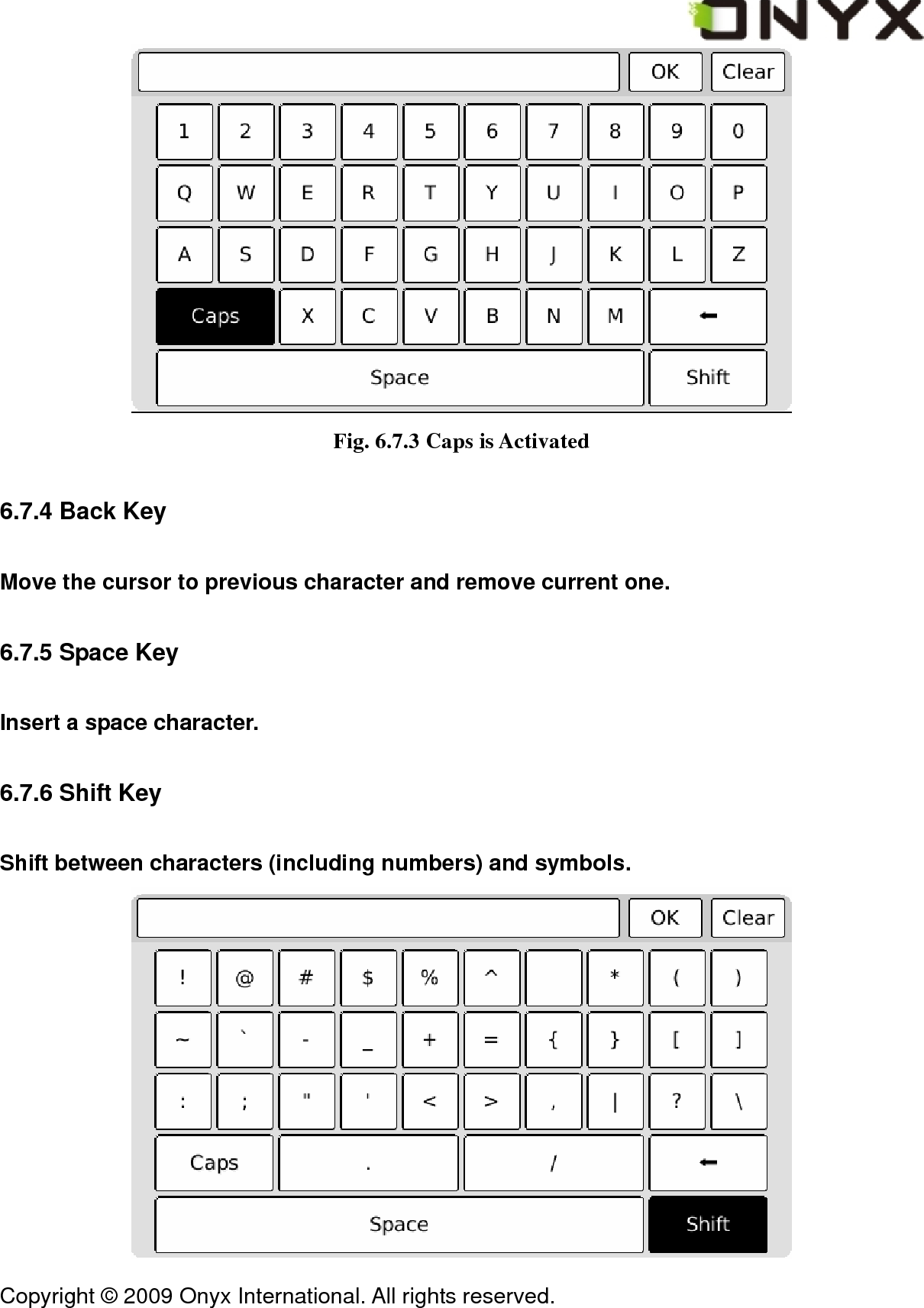
 Copyright © 2009 Onyx International. All rights reserved.                                  Fig. 6.7.3 Caps is Activated 6.7.4 Back Key Move the cursor to previous character and remove current one. 6.7.5 Space Key Insert a space character. 6.7.6 Shift Key Shift between characters (including numbers) and symbols.
 Copyright © 2009 Onyx International. All rights reserved.                                 Fig. 6.7.6 Shift Key is Activated 6.8 Search View Search view is used for inputting the pattern string and other requirements when you search for files or texts. 6.8.1 Free Text Search
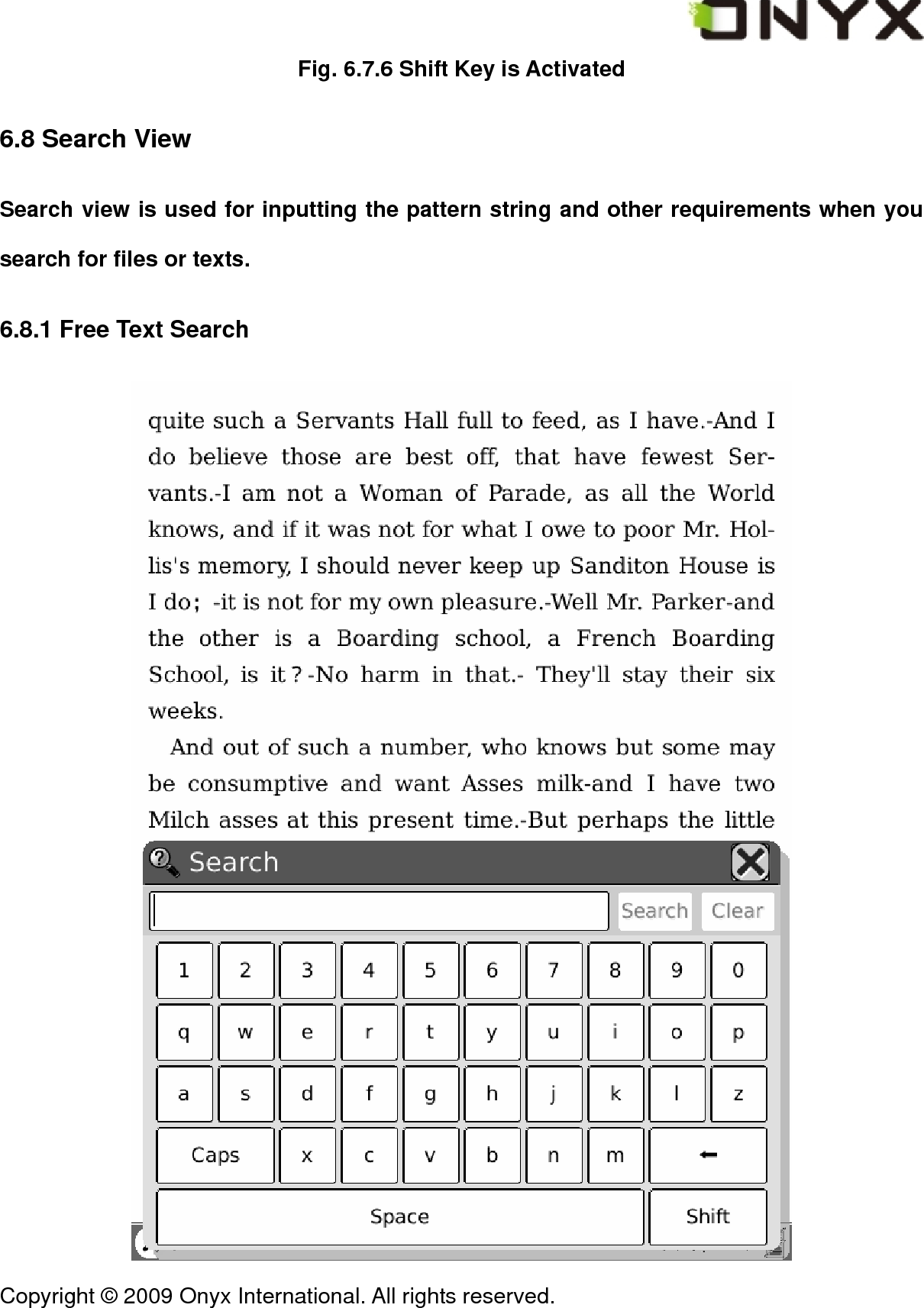
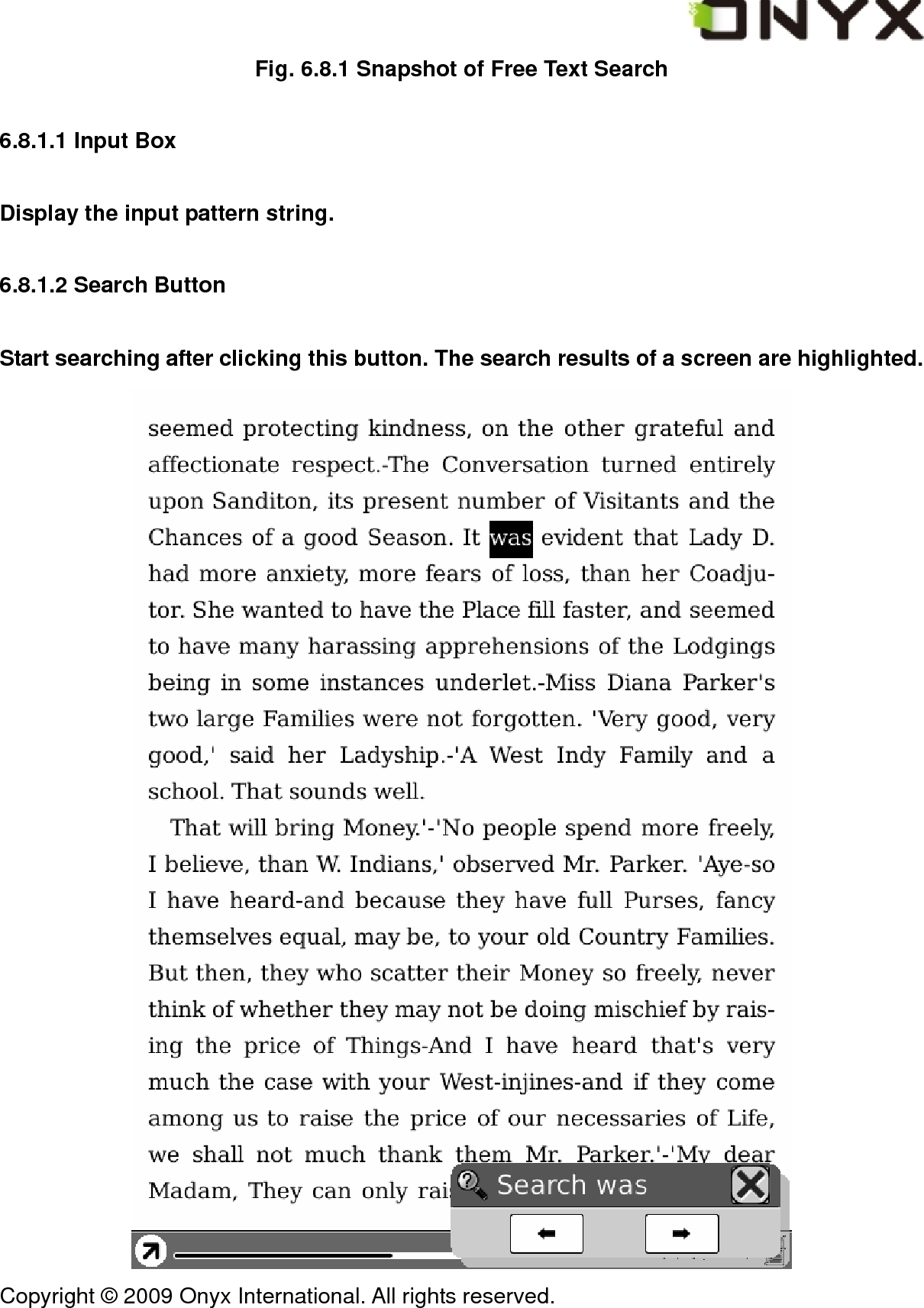
 Copyright © 2009 Onyx International. All rights reserved.                                 Fig. 6.8.1 Snapshot of Free Text Search 6.8.1.1 Input Box Display the input pattern string. 6.8.1.2 Search Button Start searching after clicking this button. The search results of a screen are highlighted.
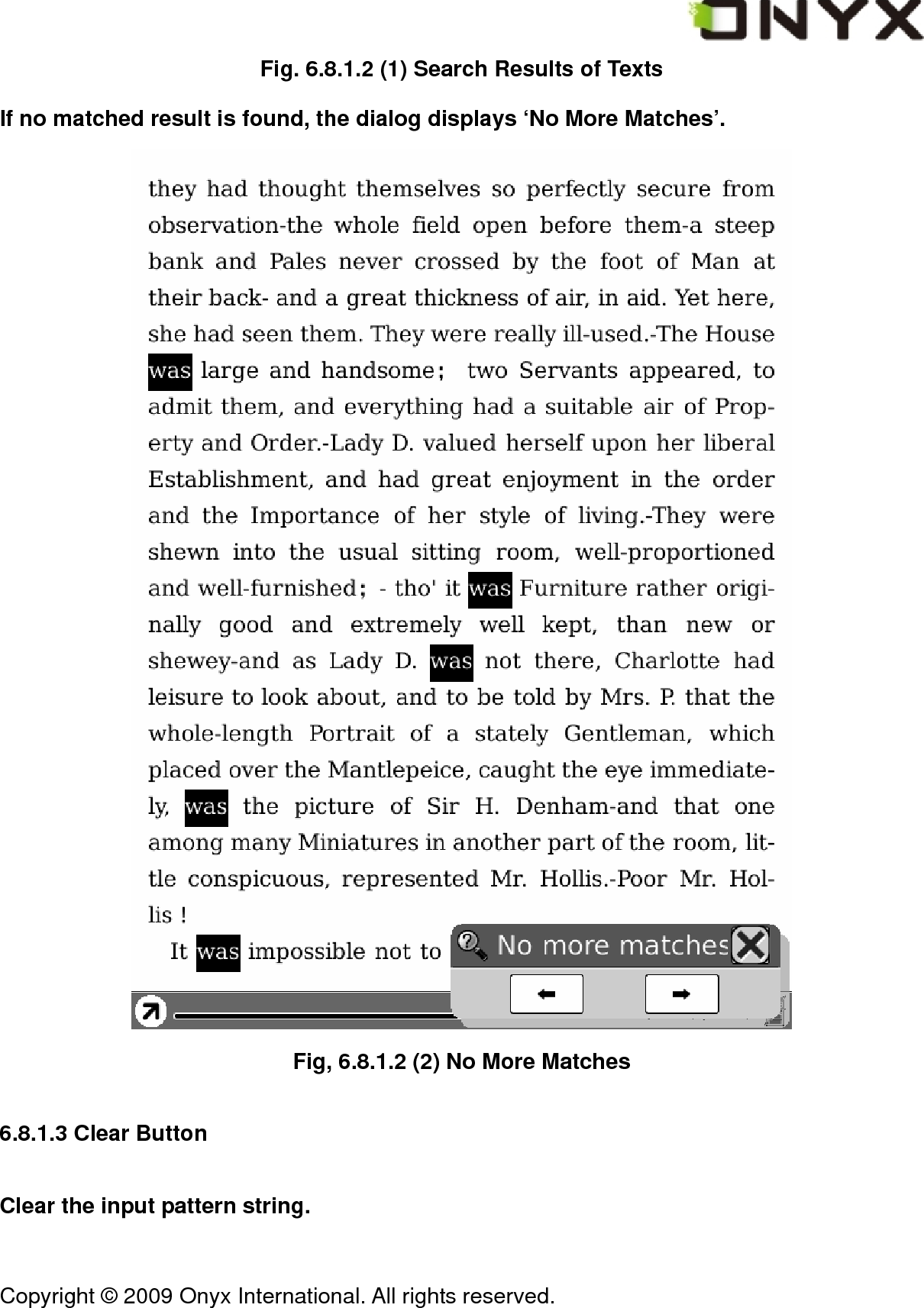
 Copyright © 2009 Onyx International. All rights reserved.                                 Fig. 6.8.1.2 (1) Search Results of Texts If no matched result is found, the dialog displays ‘No More Matches’.  Fig, 6.8.1.2 (2) No More Matches 6.8.1.3 Clear Button Clear the input pattern string.
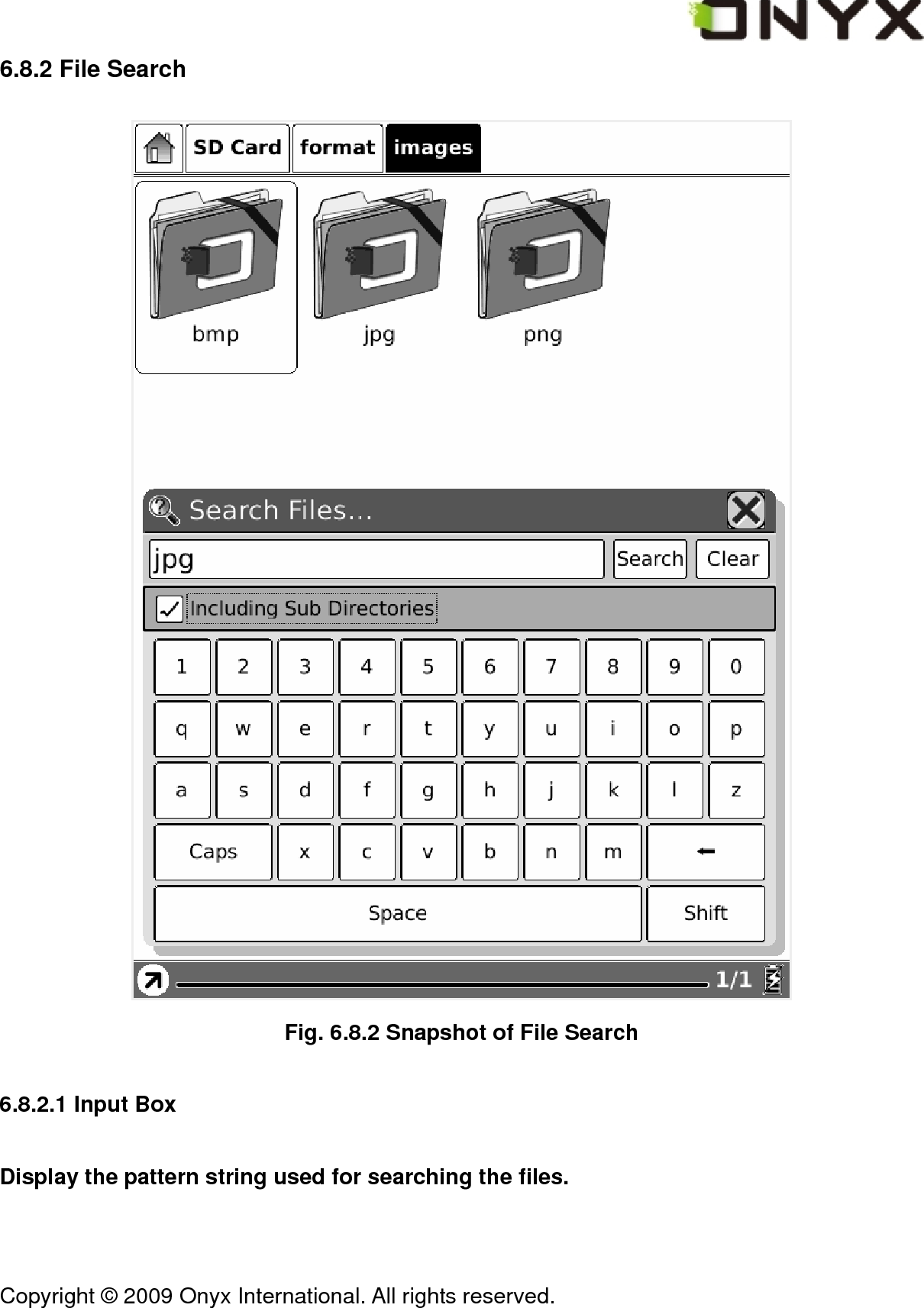
 Copyright © 2009 Onyx International. All rights reserved.                                 6.8.2 File Search  Fig. 6.8.2 Snapshot of File Search 6.8.2.1 Input Box Display the pattern string used for searching the files.
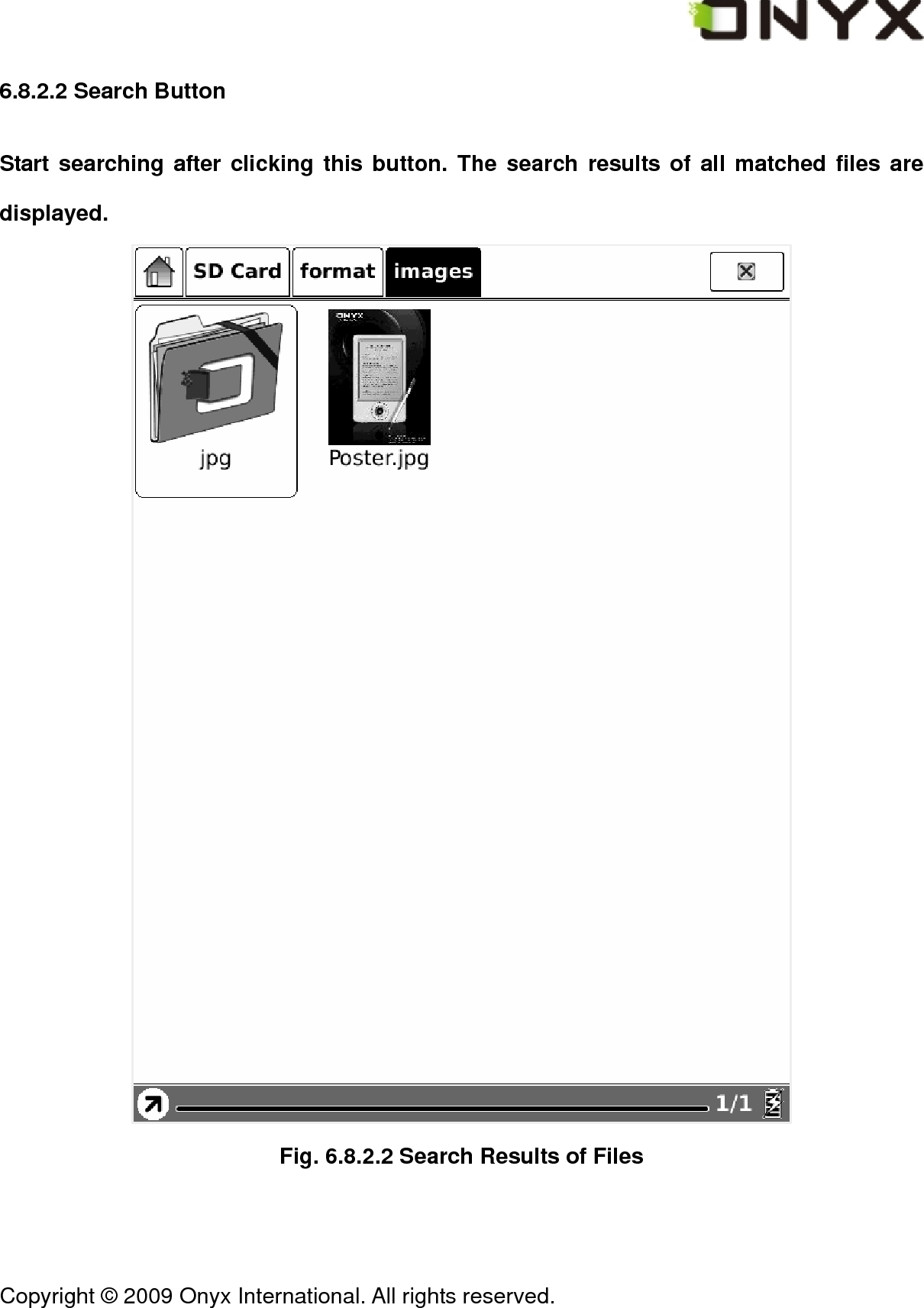
 Copyright © 2009 Onyx International. All rights reserved.                                 6.8.2.2 Search Button Start searching after clicking this button. The search results of all matched files are displayed.  Fig. 6.8.2.2 Search Results of Files
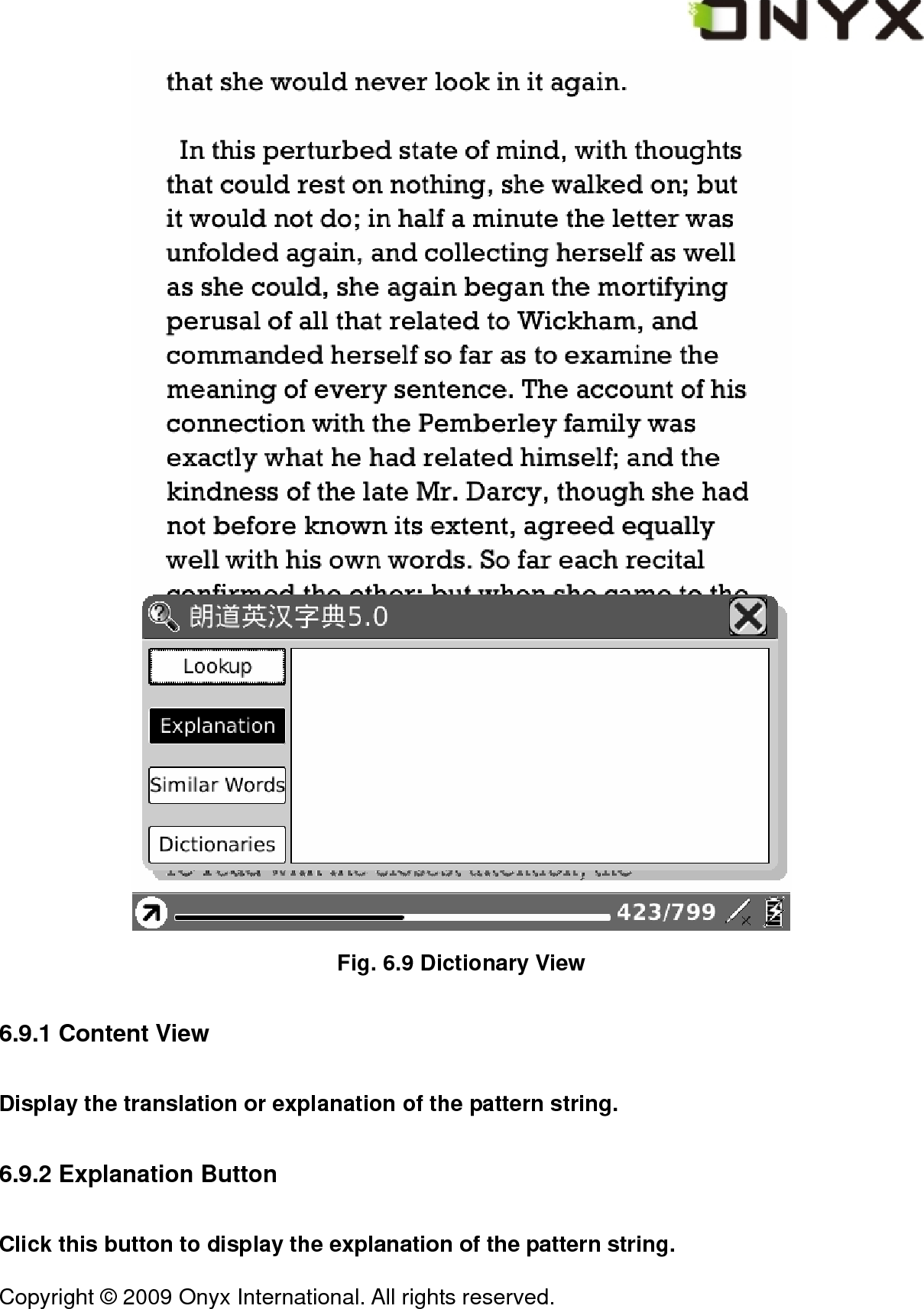
 Copyright © 2009 Onyx International. All rights reserved.                                 6.8.2.3 Clear Button Clear the input pattern string. 6.8.2.4 Check Button of Including Subdirectories Check this button to include the subdirectories for searching. 6.9 Dictionary View Dictionary view is used for translating or explaining a pattern string. You select a string from the texts of current screen, then the translation or explanation of this string displays on the content view.
 Copyright © 2009 Onyx International. All rights reserved.                                  Fig. 6.9 Dictionary View 6.9.1 Content View Display the translation or explanation of the pattern string. 6.9.2 Explanation Button Click this button to display the explanation of the pattern string.
 Copyright © 2009 Onyx International. All rights reserved.                                 6.9.3 Similar Words Button Click this button to display the similar words of the pattern string. 6.9.4 Dictionaries Button Click this button to display the translation of the pattern string.
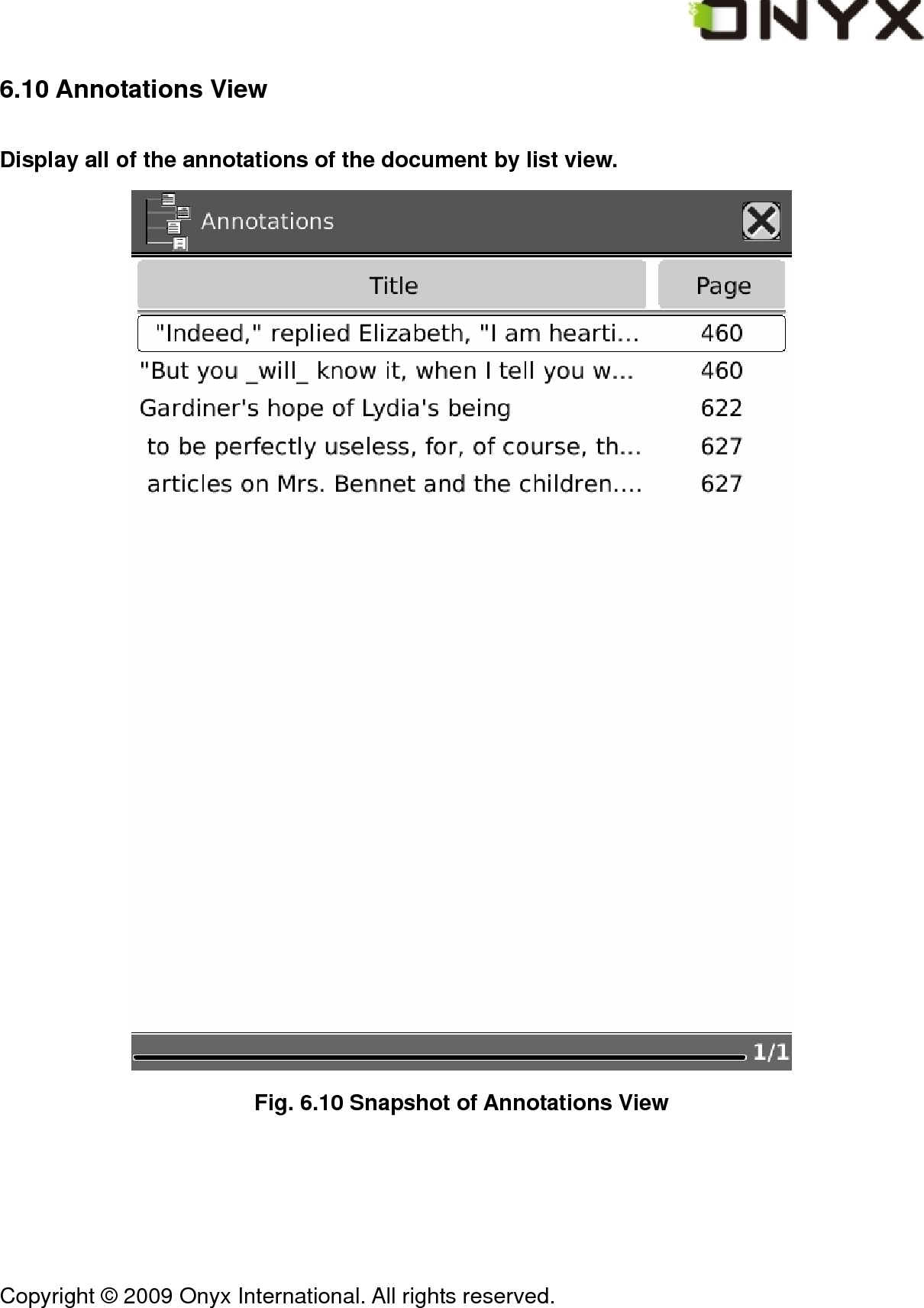
 Copyright © 2009 Onyx International. All rights reserved.                                 6.10 Annotations View Display all of the annotations of the document by list view.  Fig. 6.10 Snapshot of Annotations View
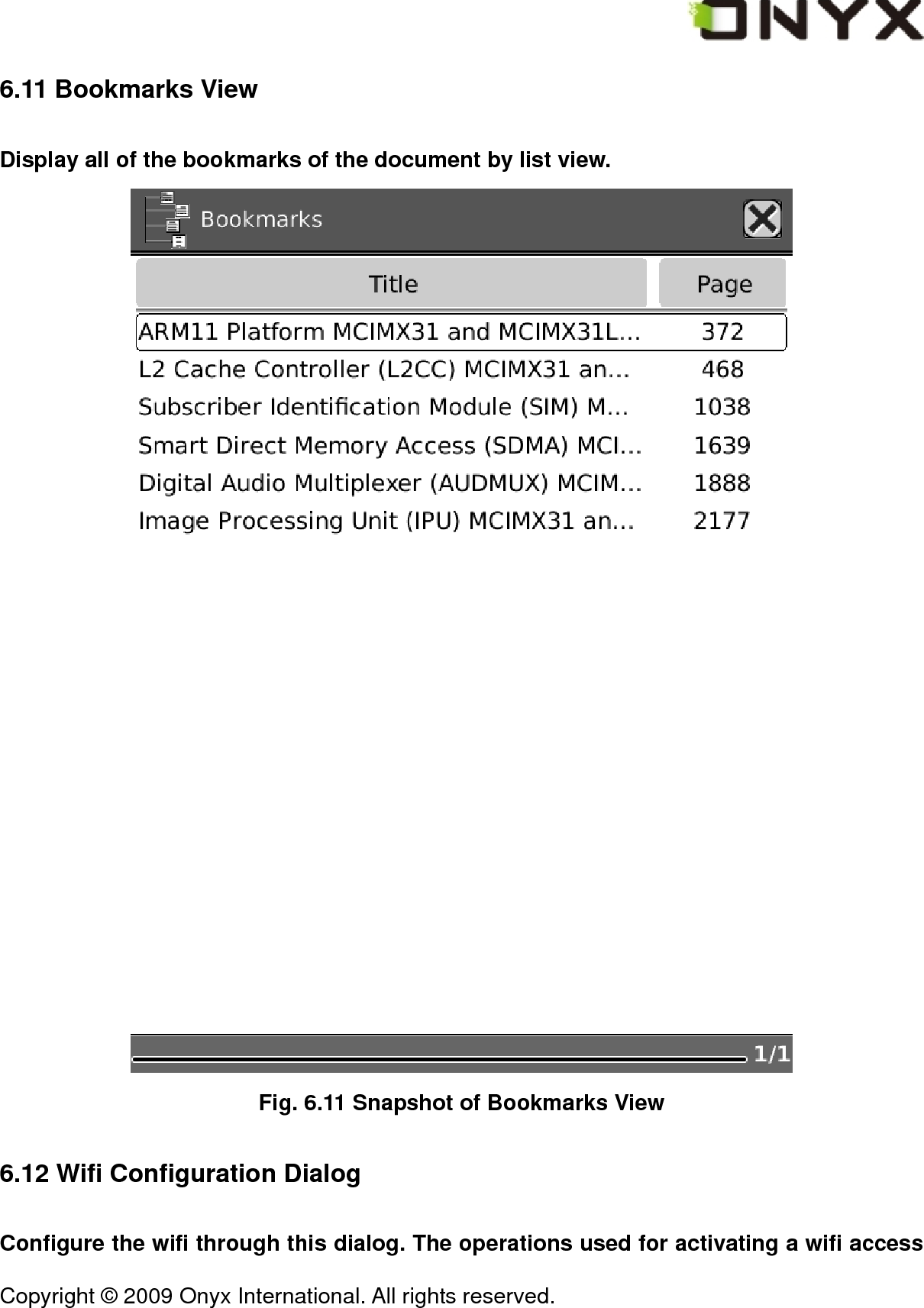
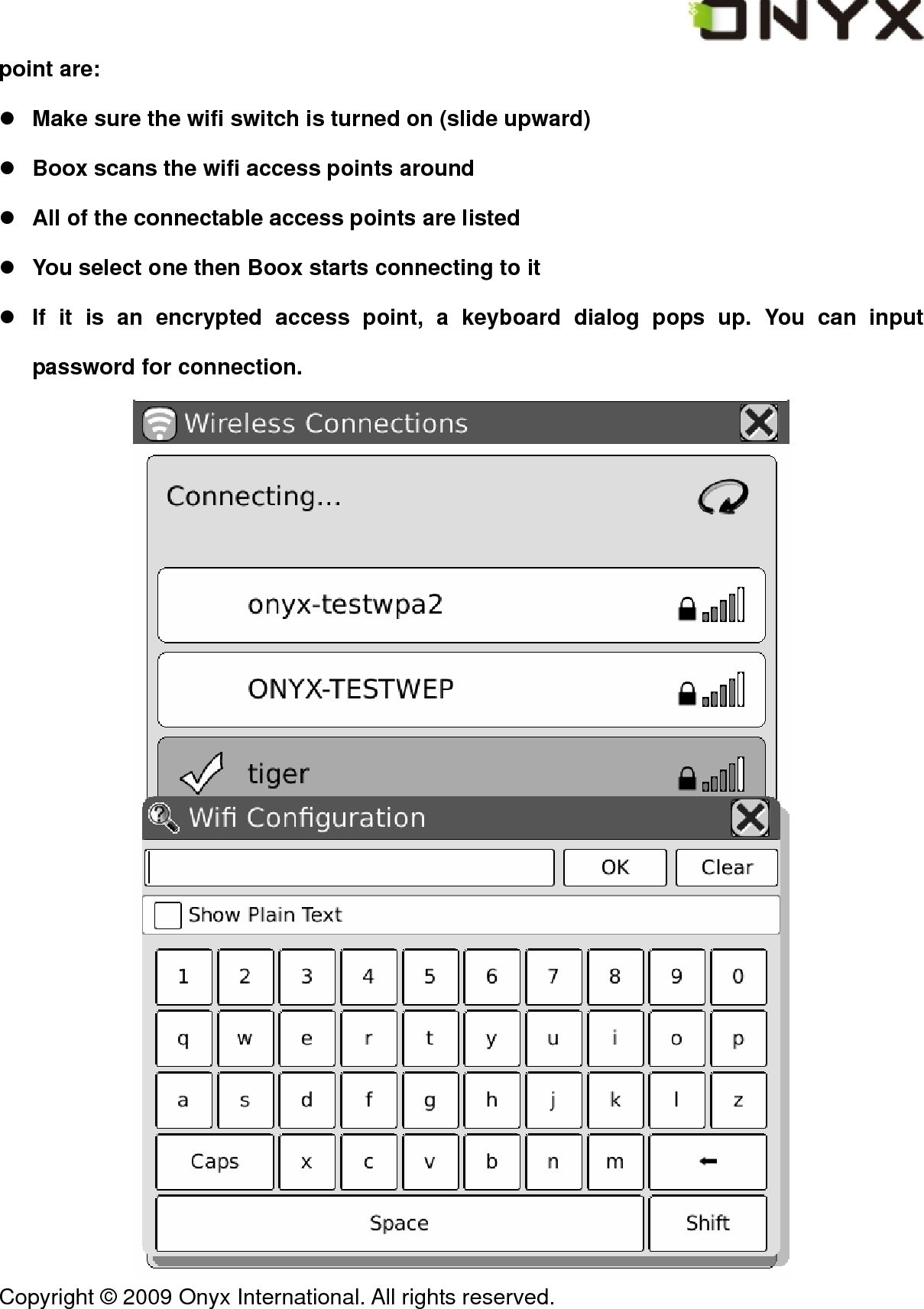
 Copyright © 2009 Onyx International. All rights reserved.                                 6.11 Bookmarks View Display all of the bookmarks of the document by list view.  Fig. 6.11 Snapshot of Bookmarks View 6.12 Wifi Configuration Dialog Configure the wifi through this dialog. The operations used for activating a wifi access
 Copyright © 2009 Onyx International. All rights reserved.                                 point are: z Make sure the wifi switch is turned on (slide upward) z Boox scans the wifi access points around z All of the connectable access points are listed z You select one then Boox starts connecting to it z If it is an encrypted access point, a keyboard dialog pops up. You can input password for connection.
 Copyright © 2009 Onyx International. All rights reserved.                                 Fig. 6.12 Snapshot of Wifi Configuration Dialog 6.12.1 Scanning List List all of the scanned results (wifi access points). 6.12 2 Connecting Message Area Display the current status of connection. 6.12.3 Refresh Button Click Refresh button to rescan the access points.
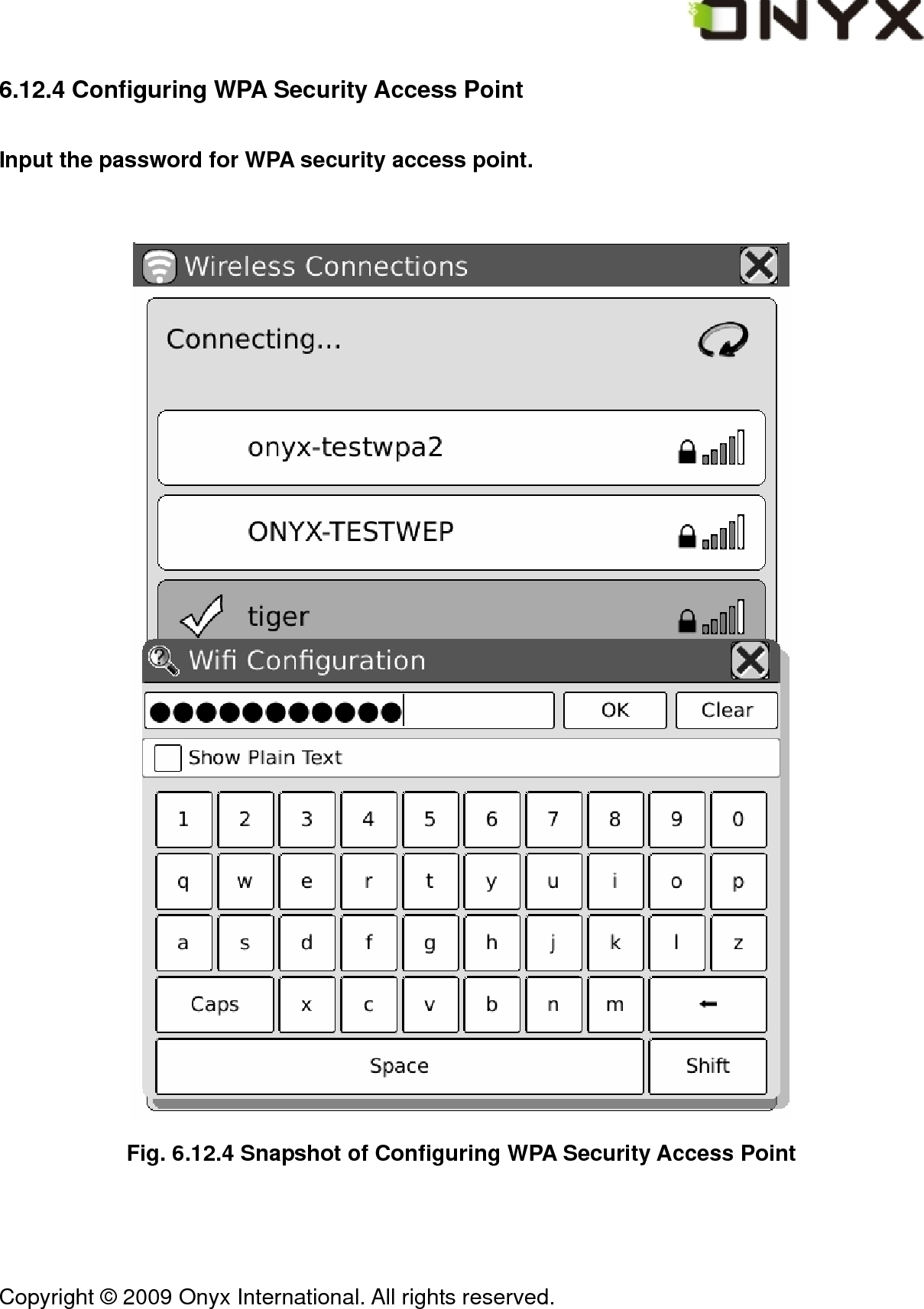
 Copyright © 2009 Onyx International. All rights reserved.                                 6.12.4 Configuring WPA Security Access Point Input the password for WPA security access point.   Fig. 6.12.4 Snapshot of Configuring WPA Security Access Point
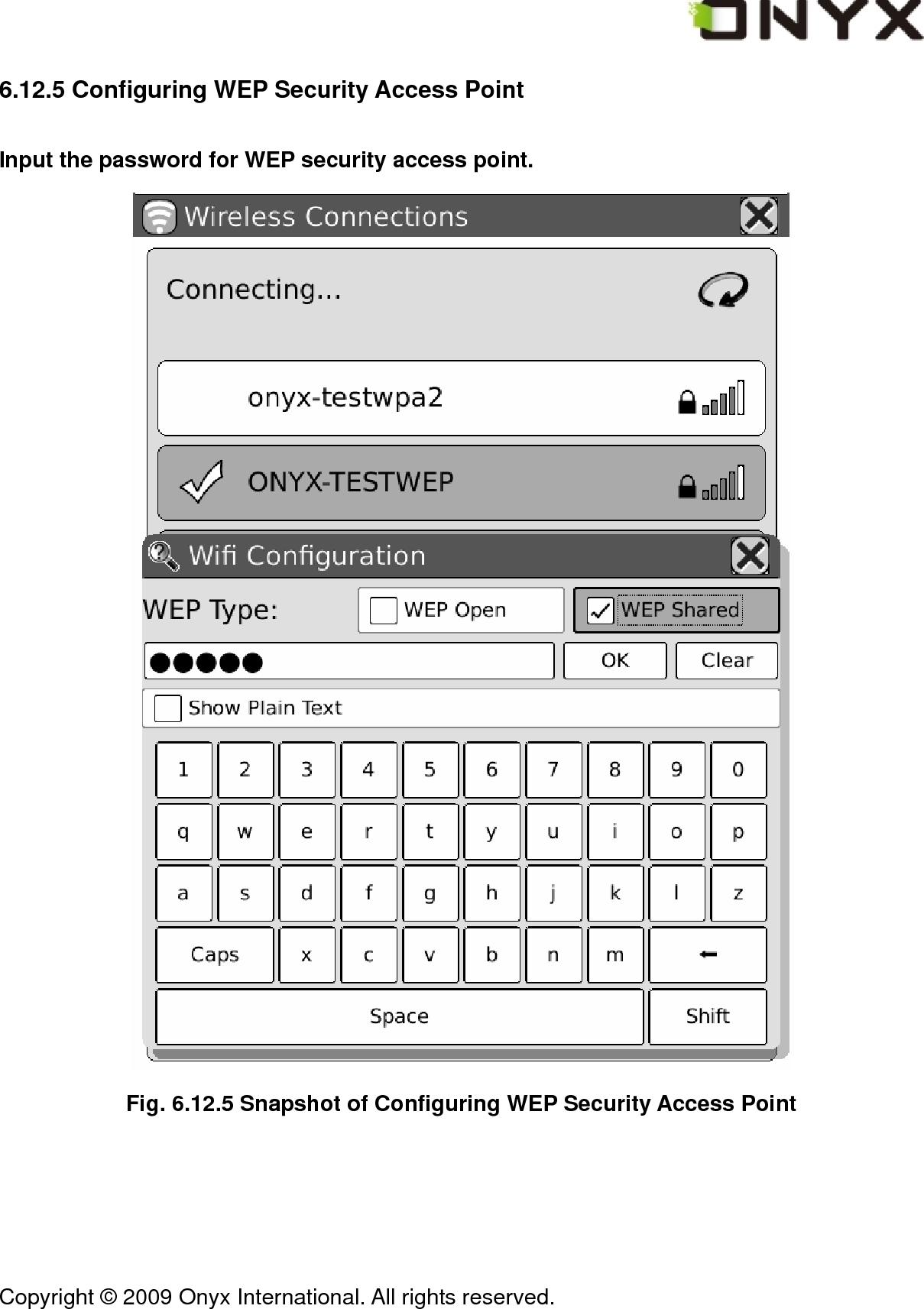
 Copyright © 2009 Onyx International. All rights reserved.                                 6.12.5 Configuring WEP Security Access Point Input the password for WEP security access point.  Fig. 6.12.5 Snapshot of Configuring WEP Security Access Point
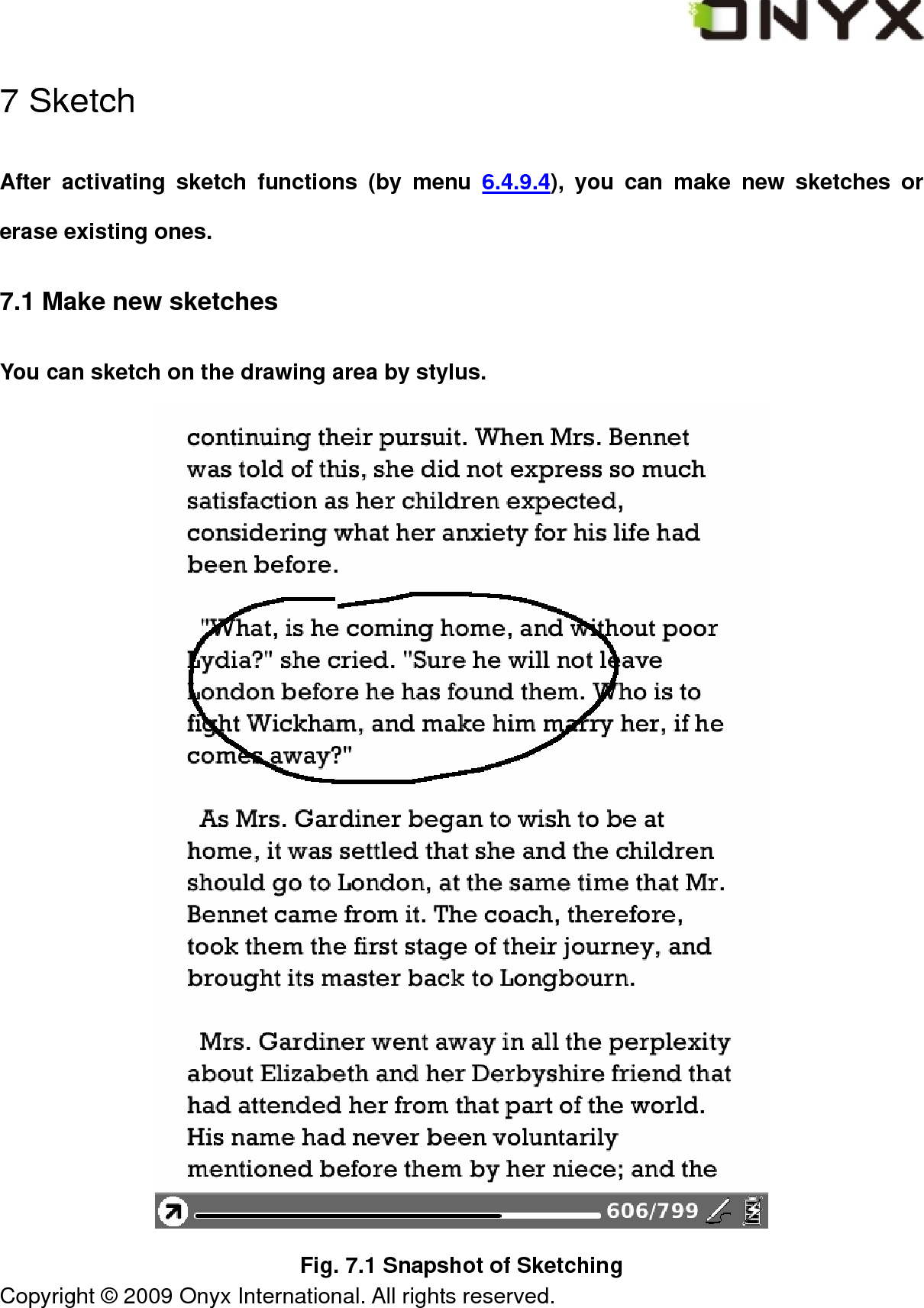
 Copyright © 2009 Onyx International. All rights reserved.                                 7 Sketch After activating sketch functions (by menu 6.4.9.4), you can make new sketches or erase existing ones. 7.1 Make new sketches You can sketch on the drawing area by stylus.  Fig. 7.1 Snapshot of Sketching
 Copyright © 2009 Onyx International. All rights reserved.                                 7.2 Erase You can erase the drawn sketches by stylus. You can click on the stroke or drag across it, then the stroke disappears immediately.
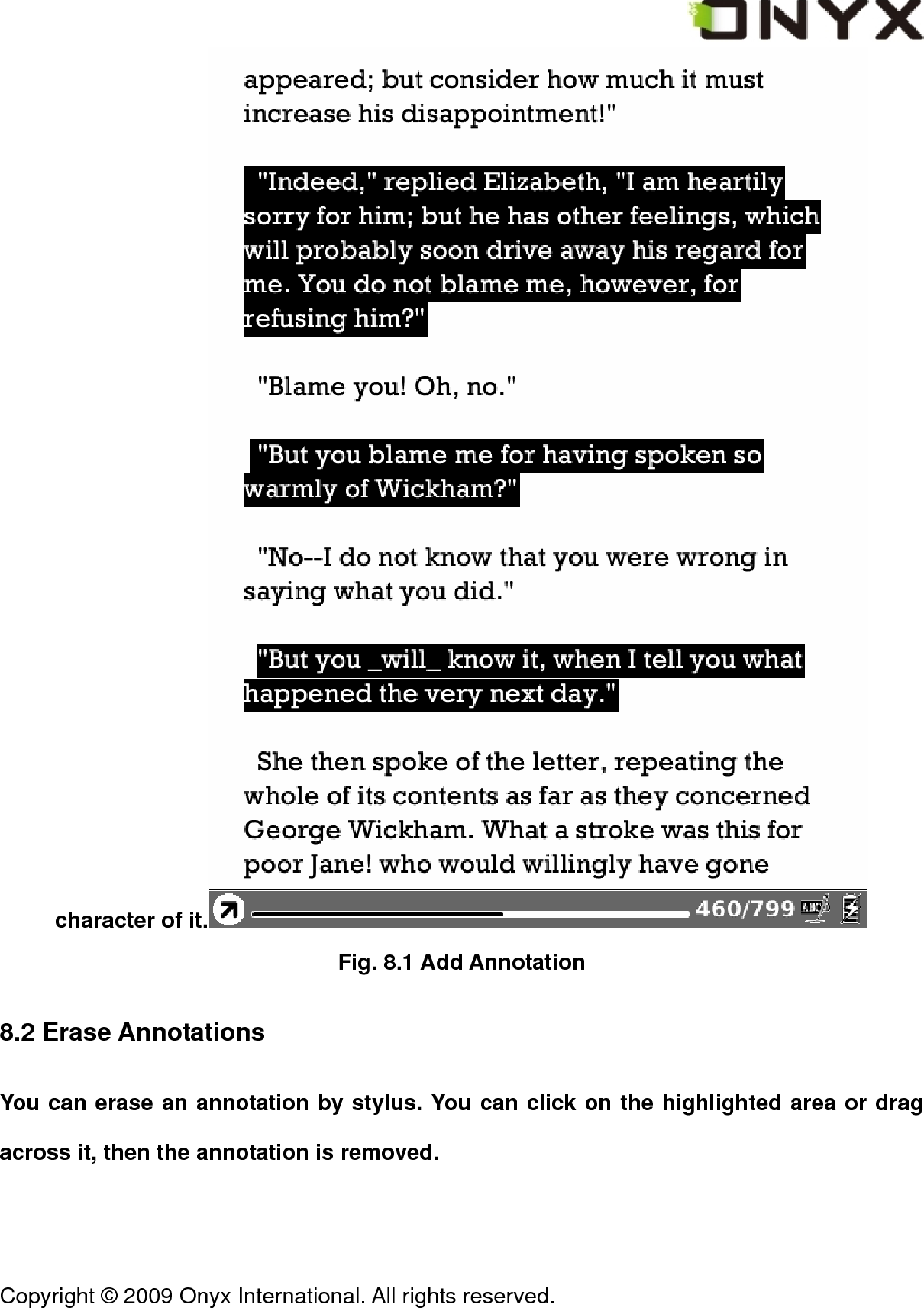
 Copyright © 2009 Onyx International. All rights reserved.                                 8 Annotation After activating annotation functions (by menu 6.4.9.1), you can make new annotations or erase existing ones. 8.1 Add Annotation After selecting function ‘Add Annotation’, you can highlight the texts you are interested on by dragging the stylus pen. You can also highlight the word by clicking any
 Copyright © 2009 Onyx International. All rights reserved.                                 character of it.  Fig. 8.1 Add Annotation 8.2 Erase Annotations You can erase an annotation by stylus. You can click on the highlighted area or drag across it, then the annotation is removed.
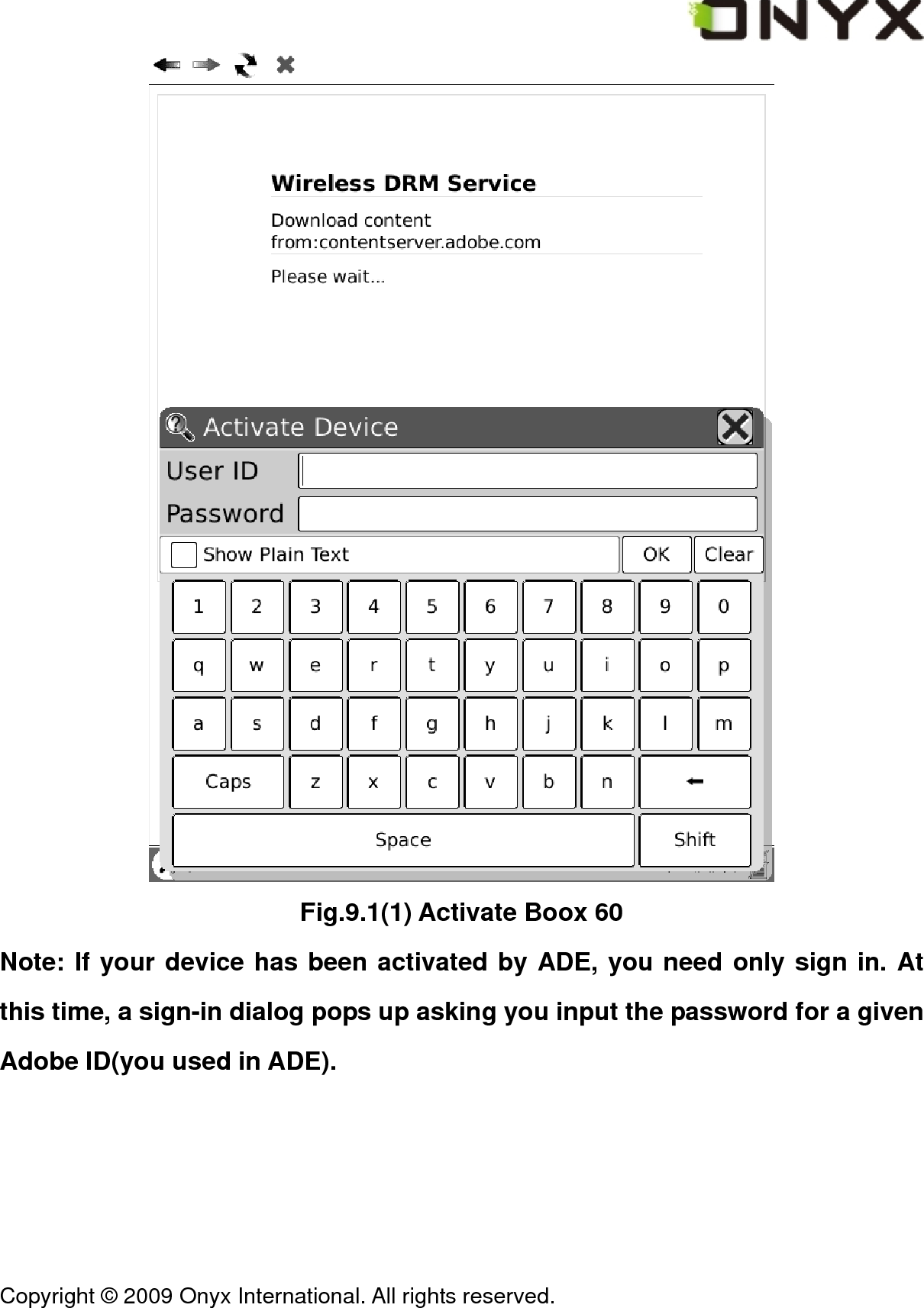
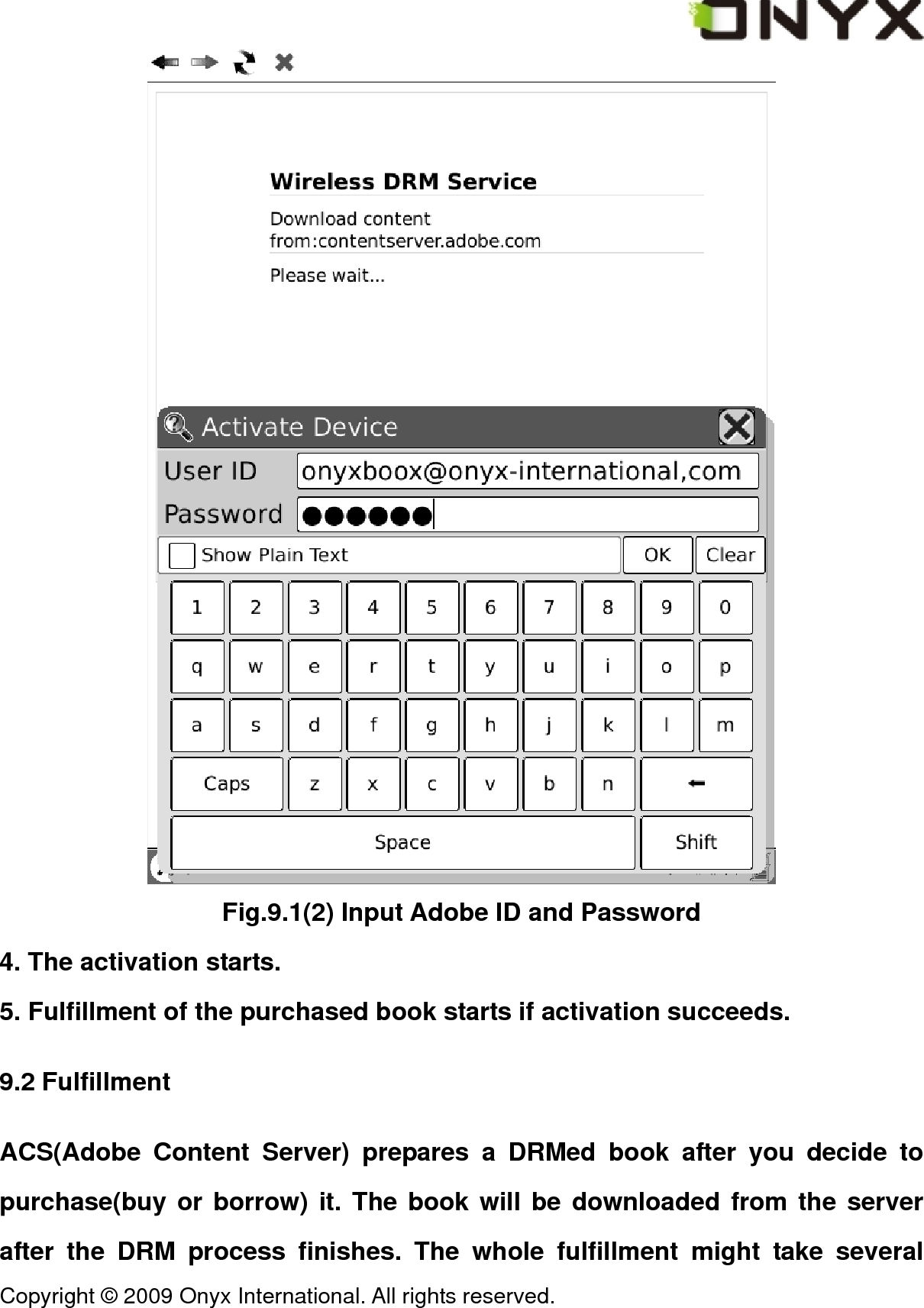
 Copyright © 2009 Onyx International. All rights reserved.                                 9 OTA Functionalities Boox 60 fully supports Adobe OTA functionalities. You can easily purchase or borrow books from any content provider who uses Adobe Content Server maintaining the DRMed contents. 9.1 Activate Boox 60 Boox 60 must be activated before you use any DRM functionalities, such as purchasing, loaning and returning. The steps of activation are: 1. Get an Adobe ID. You can create an account from the server hosted by the content provider. You can also create it from: https://www.adobe.com/cfusion/membership/index.cfm 2. Go to the online shop of your content provider and start purchasing a book. 3. A dialog of device activation pops up letting you input the Adobe ID and the password, as shown in Fig.9.1(1).
 Copyright © 2009 Onyx International. All rights reserved.                                  Fig.9.1(1) Activate Boox 60 Note: If your device has been activated by ADE, you need only sign in. At this time, a sign-in dialog pops up asking you input the password for a given Adobe ID(you used in ADE).
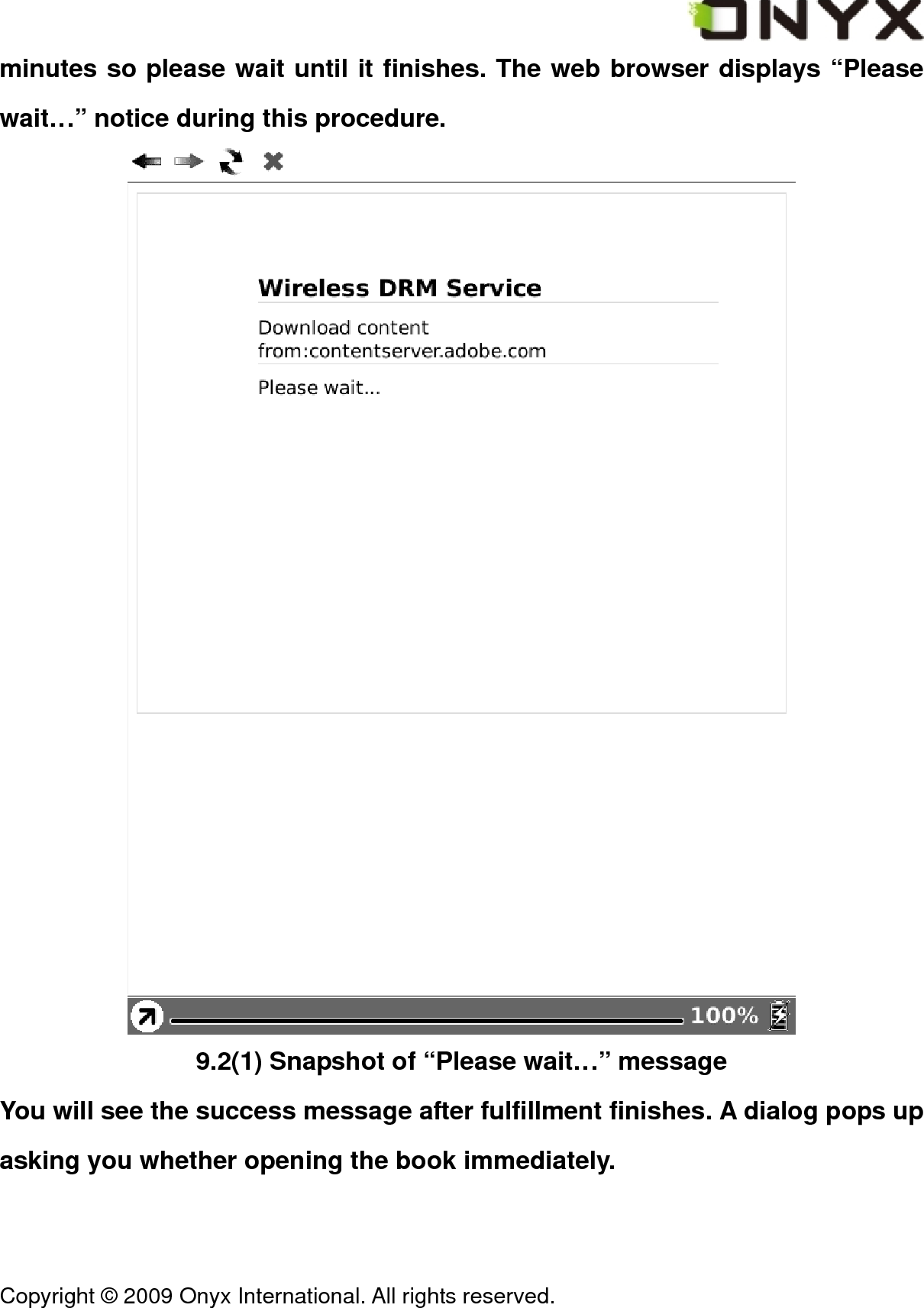
 Copyright © 2009 Onyx International. All rights reserved.                                  Fig.9.1(2) Input Adobe ID and Password 4. The activation starts. 5. Fulfillment of the purchased book starts if activation succeeds. 9.2 Fulfillment ACS(Adobe Content Server) prepares a DRMed book after you decide to purchase(buy or borrow) it. The book will be downloaded from the server after the DRM process finishes. The whole fulfillment might take several
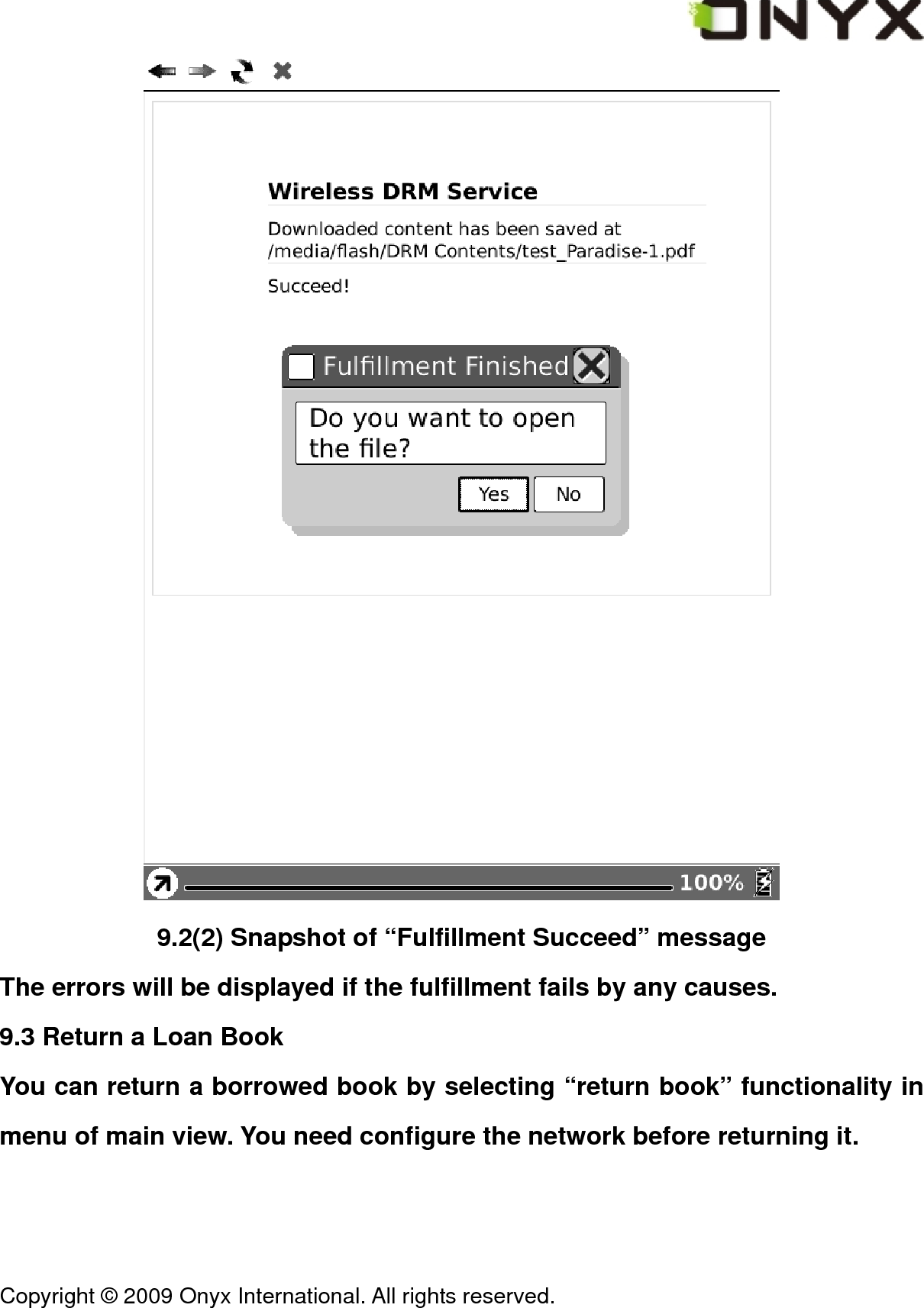
 Copyright © 2009 Onyx International. All rights reserved.                                 minutes so please wait until it finishes. The web browser displays “Please wait…” notice during this procedure.  9.2(1) Snapshot of “Please wait…” message You will see the success message after fulfillment finishes. A dialog pops up asking you whether opening the book immediately.
 Copyright © 2009 Onyx International. All rights reserved.                                  9.2(2) Snapshot of “Fulfillment Succeed” message The errors will be displayed if the fulfillment fails by any causes. 9.3 Return a Loan Book You can return a borrowed book by selecting “return book” functionality in menu of main view. You need configure the network before returning it.
 Copyright © 2009 Onyx International. All rights reserved.                                  Fig.9.3 Snapshot of Returning Book 10 Software Update You can update the software by follow steps: z Download the latest updates package from Onyx website: www.onyx-international.com
 Copyright © 2009 Onyx International. All rights reserved.                                 z Save the updates package in a SD card. z Make sure the updates package is located at the root directory of the SD card. The name should be ‘onyx_update.upd’. z Insert the SD card into Boox. z Restart Boox, press and hold the OK button. NOTE, the OK button should be pressed before the device restarts. Hold it until you see the message ‘Software update request detected, checking updates…’. z Boox updates itself automatically. It restarts after update finishes.  Reminder: Make sure Boox has enough power to finish the software update (at least 2 grids displayed).
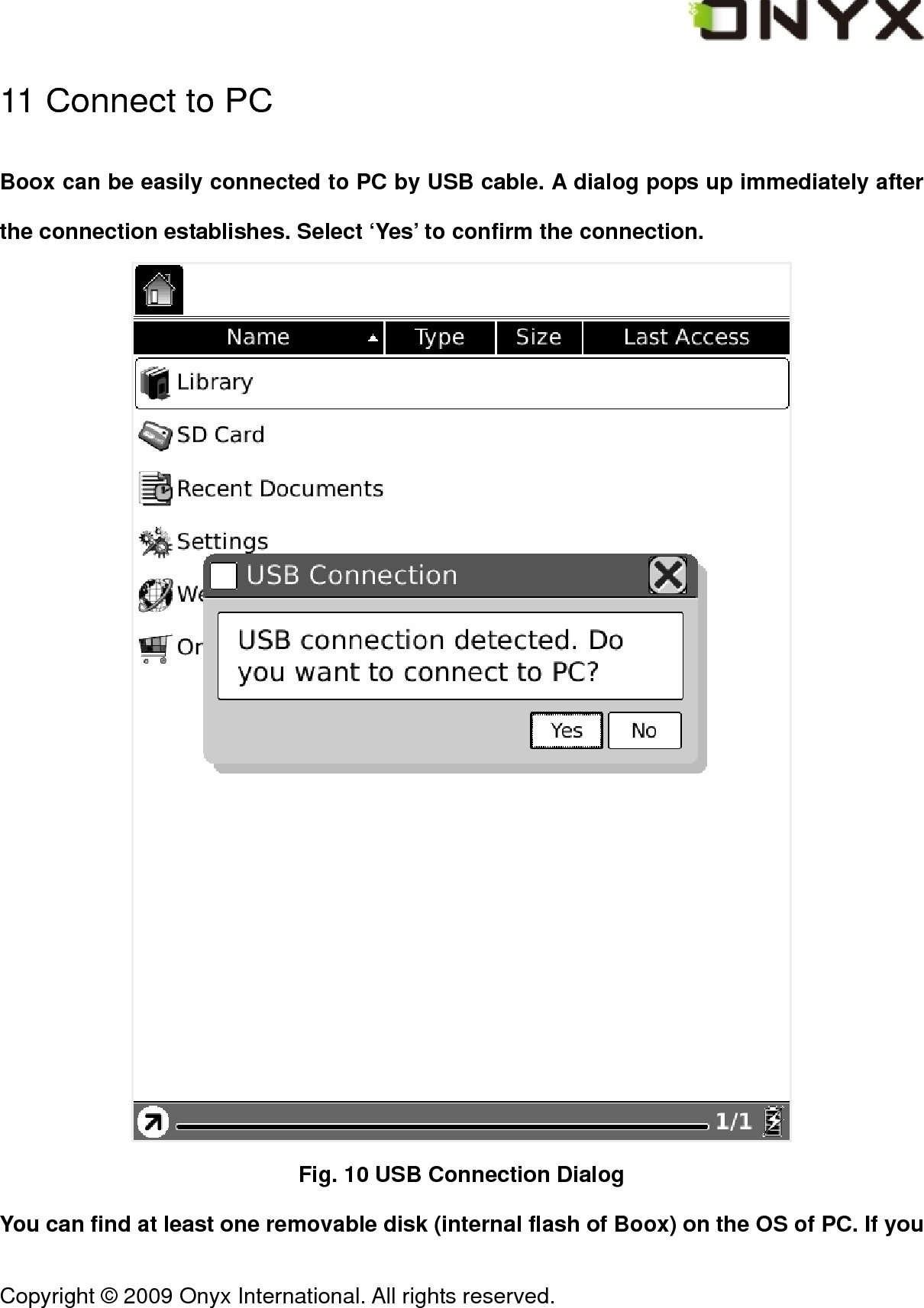
 Copyright © 2009 Onyx International. All rights reserved.                                 11 Connect to PC Boox can be easily connected to PC by USB cable. A dialog pops up immediately after the connection establishes. Select ‘Yes’ to confirm the connection.  Fig. 10 USB Connection Dialog You can find at least one removable disk (internal flash of Boox) on the OS of PC. If you
 Copyright © 2009 Onyx International. All rights reserved.                                 insert SD card in Boox, the SD card is also displayed as a removable disk. 12 Charge You can charge Boox by two ways: z Connect Boox to PC by USB cable z Charge Boox by power adaptor  FCC Class B Notice This device complies with Part 15 of the FCC Rules. Operation is subject to the following two conditions:   1. This device may not cause harmful interference.   2. This device must accept any interference received, including interference that may cause undesired operation.  Note: This equipment has been tested and found to comply with the limits for a Class B digital device, pursuant to Part 15 of the FCC Rules. These limits are designed to provide reasonable protection against harmful interference in a residential installation. This equipment generates, uses and can radiate radio frequency energy and, if not installed and used in accordance with the instructions, may cause harmful interference to radio communications. However, there is no guarantee that interference will not occur in a particular installation. If this equipment does cause harmful interference to radio or television reception, which can be determined by turning the equipment off and on, the user is encouraged to try to correct the interference by one or more of the following measures:   z Reorient or relocate the receiving antenna.   z Increase the separation between the equipment and receiver.   z Connect the equipment into an outlet on a circuit different from that to which the receiver is connected.   z Consult the dealer or an experienced radio/television technician for help.   Modifications: Any modifications made to this device that are not approved by Onyx International, Inc. may void the authority granted to the user by the FCC to operate this equipment.

Navigation menu