OQO A8YWFS Handheld Computer User Manual Start Guide part 1

OQO, Inc. Handheld Computer Start Guide part 1

Start Guide part 1

table of contents  1.   what’s in the box    2.   introducing the model 02   3.   powering up and down   4.   removing and attaching the battery   5.   using the thumb keyboard and track stick    6.   using the TouchScrollers, digital pen, and other screen features    7.   connecting to a network    8.   connecting the docking station and peripherals    9.   installing software and copying files   10.  using the model 02 security features   11.  model 02 accessories   12.  product support 34681012141618202224
what’s in the boxBegin by comparing the list below to what’s in the box. You should find:OQO model 02 computer with standard battery pre-installed screen protectoruniversal power supply and AC power cordVGA/Ethernet adapterspare track stick capMicrosoft® Start Here guide OQO start guide with Windows® XP reinstallation CDIf you ordered Windows XP Tablet PC Edition 2005 with your model 02, you will also find a digital pen and carrying case in the box. If you ordered your model 02 with integrated Wireless Wide Area Network (WWAN) technology, your box will also include an  instruction card for service activation.•••••••Any accessories you ordered will be packed separately.If anything is missing, contact us by phone at 1-877-676-6688 or email support@oqo.com.Please register your OQO model 02 by visiting http://www.oqo.com/support.3
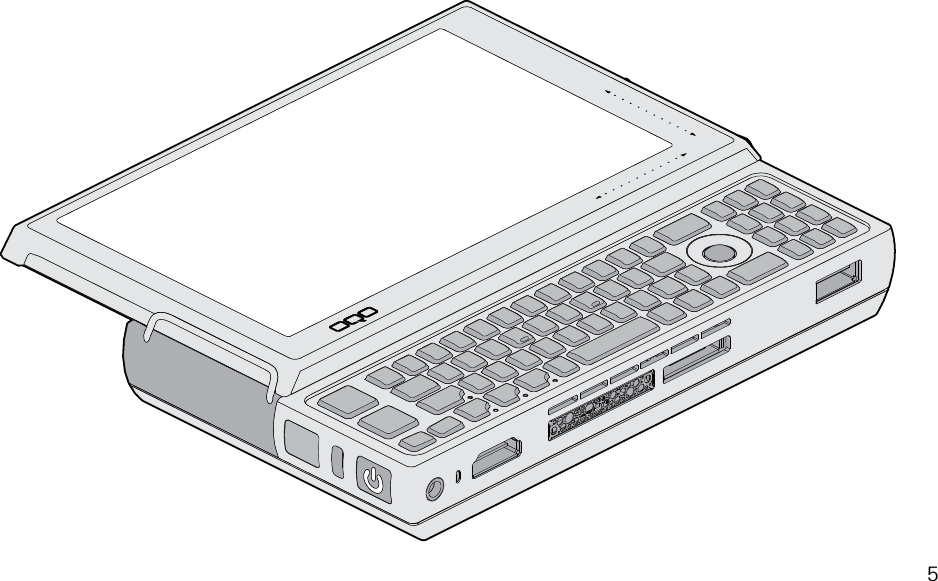
introductionWelcome to the OQO model 02 computer. The model 02 is a full-featured Windows XP computer that gives you the total productivity you need to fulfill your personal and professional requirements. mobility The model 02 is the world’s smallest Windows Vista™ Capable computer. Its mobile form factor allows you to take it anywhere and its ergonomic design facilitates usability on the go. Because the model 02 uses the Windows XP operating system, you have uncompromised access to software applications and seamless connectivity – anytime, anywhere – via WiFi, Ethernet, Bluetooth®, or Wireless Wide Area Network (WWAN) technology.flexibility While you’re on the go, the model 02 is your standalone, handheld computer with its own integrated keyboard, track stick, and capacitive TouchScrollers. The rugged, magnesium alloy chassis with shock mounted hard drive and active drop  detect technology helps protect your data in the event your model 02 is dropped. At the office, the model 02 functions as your desktop computer connected to an external monitor, keyboard, and mouse. Also available is an array of accessories and a docking station that provides additional usage modes.power The model 02 was designed to deliver the total computing performance necessary to achieve personal and professional productivity, anytime and anywhere. The model  02 – with its robust processing power, Windows XP operating system, application compatibility, memory and storage capacity, and unparalleled connectivity options – is everything you need to meet your total productivity requirements.4
5
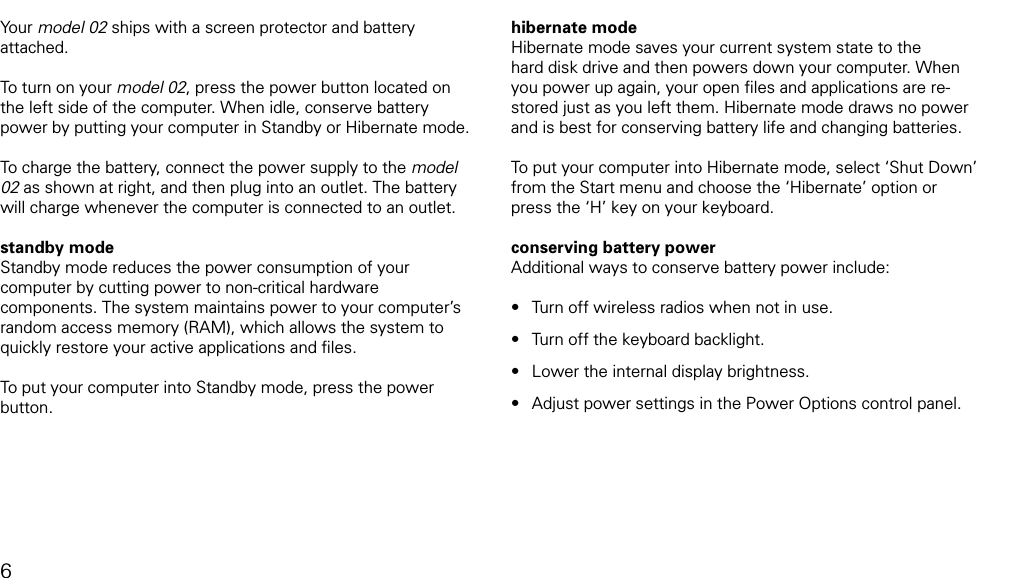
powering up and downYour model 02 ships with a screen protector and battery attached. To turn on your model 02, press the power button located on the left side of the computer. When idle, conserve battery power by putting your computer in Standby or Hibernate mode. To charge the battery, connect the power supply to the model 02 as shown at right, and then plug into an outlet. The battery will charge whenever the computer is connected to an outlet. standby modeStandby mode reduces the power consumption of your computer by cutting power to non-critical hardware components. The system maintains power to your computer’s random access memory (RAM), which allows the system to quickly restore your active applications and files.To put your computer into Standby mode, press the power button. hibernate modeHibernate mode saves your current system state to the hard disk drive and then powers down your computer. When you power up again, your open files and applications are re-stored just as you left them. Hibernate mode draws no power and is best for conserving battery life and changing batteries.To put your computer into Hibernate mode, select ‘Shut Down’ from the Start menu and choose the ‘Hibernate’ option or press the ‘H’ key on your keyboard.conserving battery powerAdditional ways to conserve battery power include:Turn off wireless radios when not in use. Turn off the keyboard backlight.Lower the internal display brightness.Adjust power settings in the Power Options control panel.••••6
docking connectorpower buttonpower supply 7power
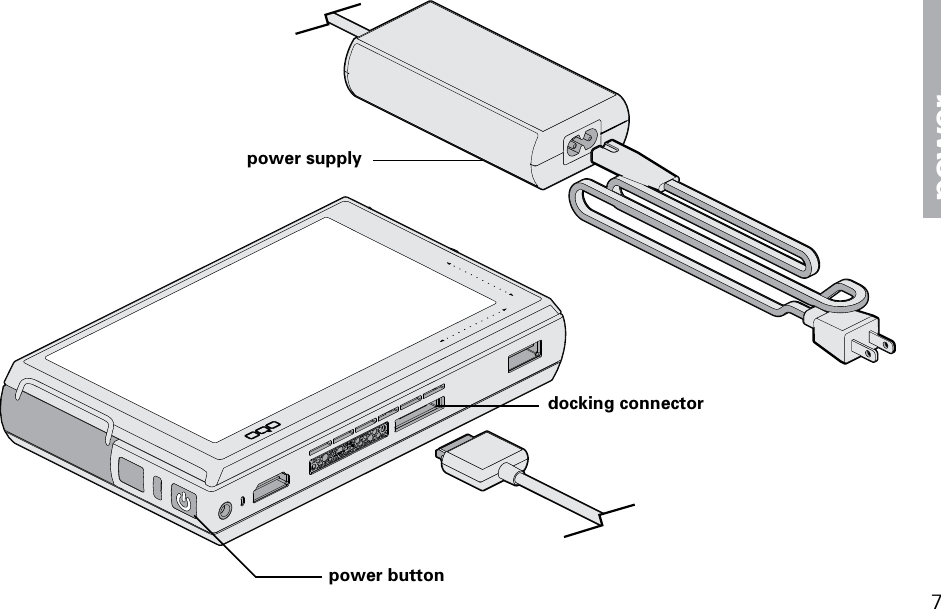
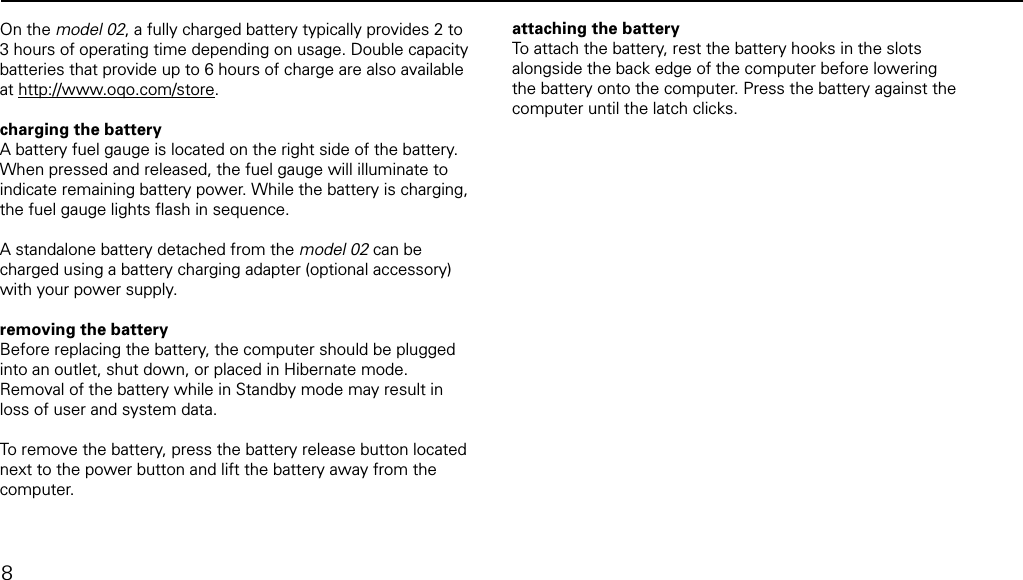
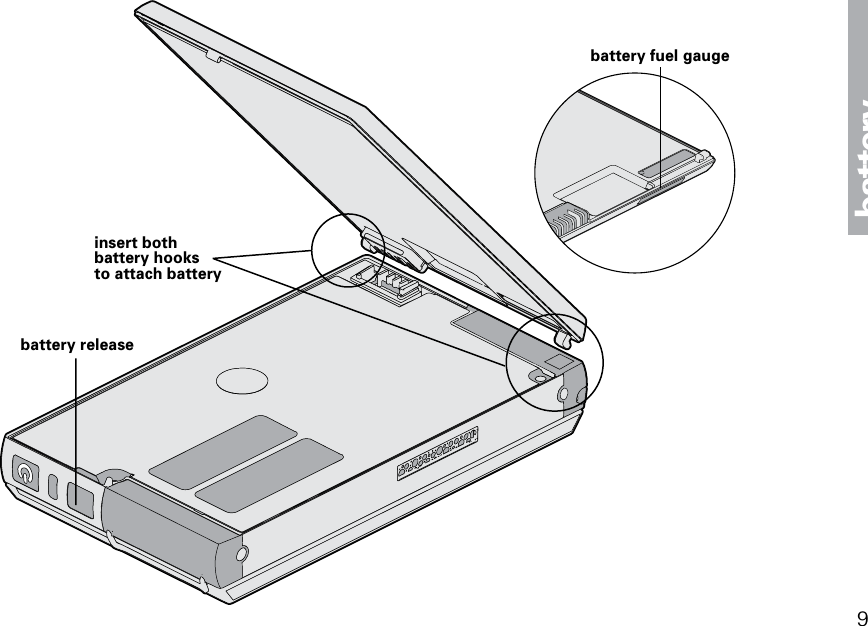
removing and attaching the batteryOn the model 02, a fully charged battery typically provides 2 to 3 hours of operating time depending on usage. Double capacity batteries that provide up to 6 hours of charge are also available at http://www.oqo.com/store.   charging the batteryA battery fuel gauge is located on the right side of the battery. When pressed and released, the fuel gauge will illuminate to indicate remaining battery power. While the battery is charging, the fuel gauge lights flash in sequence. A standalone battery detached from the model 02 can be charged using a battery charging adapter (optional accessory) with your power supply.removing the batteryBefore replacing the battery, the computer should be plugged into an outlet, shut down, or placed in Hibernate mode.  Removal of the battery while in Standby mode may result in loss of user and system data.To remove the battery, press the battery release button located next to the power button and lift the battery away from the computer.attaching the batteryTo attach the battery, rest the battery hooks in the slots alongside the back edge of the computer before lowering the battery onto the computer. Press the battery against the computer until the latch clicks. 8
batterybattery releasebattery fuel gaugeinsert bothbattery hooksto attach battery9
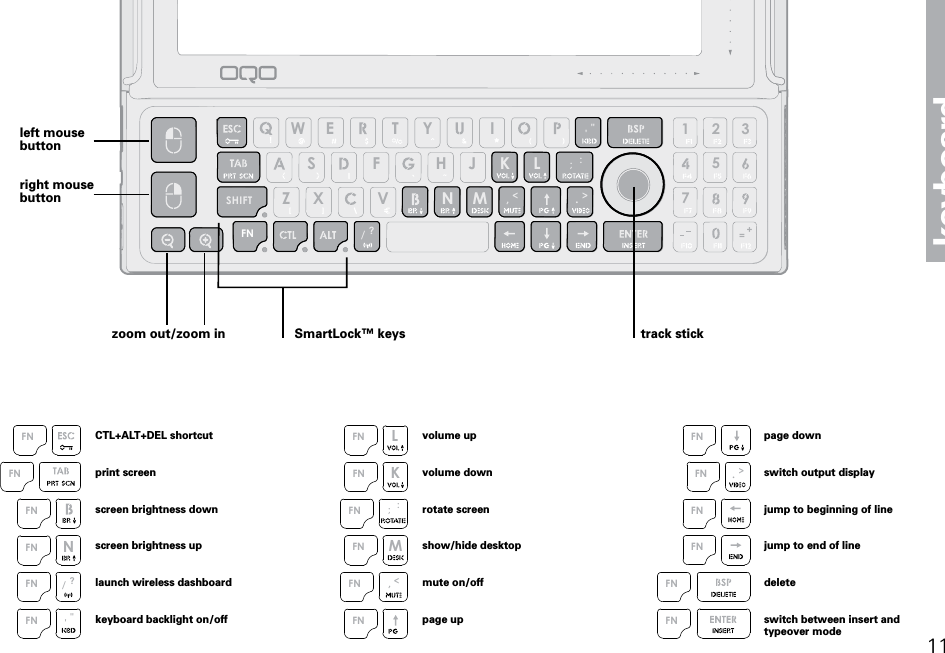
using the thumb keyboard and track stickWhen using your model 02 as a handheld computer, use the thumb keyboard and track stick for input and navigation. using the thumb keyboardSlide the screen upward to reveal the keyboard and track stick. The keyboard can be backlit to accommodate use in low light conditions. To turn the backlighting on or off, press the key sequence:The mouse buttons are located on the left edge of the key-board. Use the top mouse button to left-click and the bottom mouse button to right-click. You can control the mouse pointer by moving the track stick with your thumb.SmartLock™ keysThe OQO keyboard has four SmartLock keys: shift (SHIFT), function (FN), control (CTL), and alt (ALT). These modifier keys  let you input key combinations by pressing them sequentially instead of simultaneously. Press a SmartLock key once and the LED next to it will start to pulse. The next key you press will be modified. Press a SmartLock key twice to lock it, and the LED will remain solid. All subsequent key presses will be modified until you press the SmartLock key a third time to unlock it and the LED turns off.The model 02 provides a number of custom keyboard shortcuts for quick access to functions using SmartLock keys. Keyboard shortcuts are described in the diagram to the right. For example, on a regular keyboard, you press 3 keys (CTL, ALT, and DEL) simultaneously to pull up Windows Task Manager (default if your computer is not connected to a network domain). On the model 02 you can simply press the SmartLock key sequence below to perform the same  function: 10
11keyboardFN!57+=1 2 3"'SHIFT Z XSW EVFT Y IH J K L :;>.<,?/N M"'SHIFTK L :;>.<,?/N Mleft mousebuttonSmartLock™ keys track stickCTL+ALT+DEL shortcutprint screenscreen brightness downscreen brightness uplaunch wireless dashboardkeyboard backlight on/off"'?/NFNFNFNFNFNFNzoom out/zoom involume upvolume downrotate screenshow/hide desktopmute on/offpage upKL:;M<,FNFNFNFNFNFN>.FNFNFNFNFNFNpage downswitch output displayjump to beginning of linejump to end of linedeleteswitch between insert andtypeover moderight mousebutton
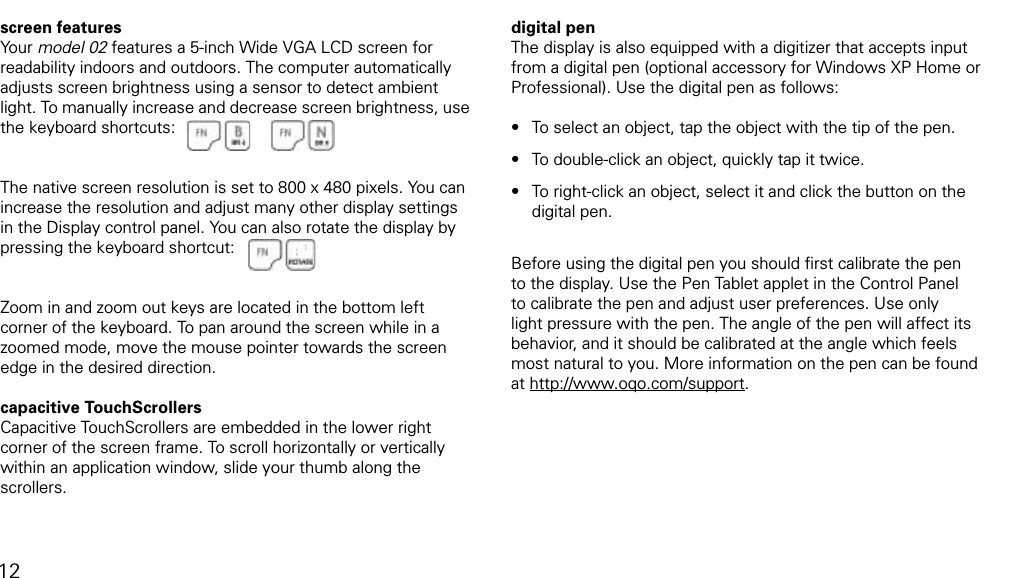
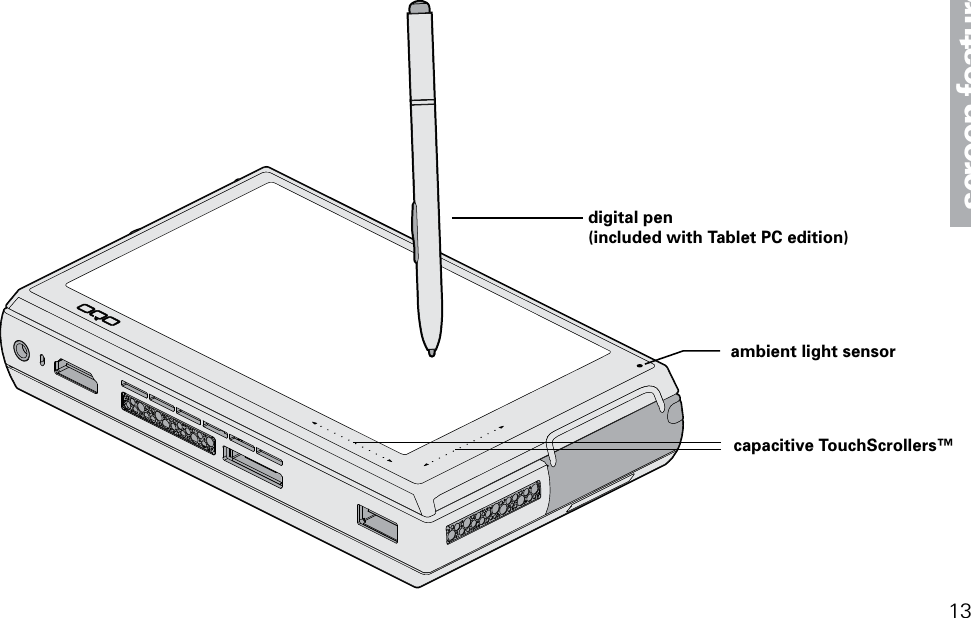
using TouchScrollers, digital pen, and other screen featuresscreen featuresYour model 02 features a 5-inch Wide VGA LCD screen for readability indoors and outdoors. The computer automatically adjusts screen brightness using a sensor to detect ambient light. To manually increase and decrease screen brightness, use the keyboard shortcuts:The native screen resolution is set to 800 x 480 pixels. You can increase the resolution and adjust many other display settings in the Display control panel. You can also rotate the display by pressing the keyboard shortcut: Zoom in and zoom out keys are located in the bottom left corner of the keyboard. To pan around the screen while in a zoomed mode, move the mouse pointer towards the screen edge in the desired direction.capacitive TouchScrollersCapacitive TouchScrollers are embedded in the lower right corner of the screen frame. To scroll horizontally or vertically within an application window, slide your thumb along the scrollers. digital penThe display is also equipped with a digitizer that accepts input from a digital pen (optional accessory for Windows XP Home or Professional). Use the digital pen as follows:To select an object, tap the object with the tip of the pen. To double-click an object, quickly tap it twice.To right-click an object, select it and click the button on the               digital pen. Before using the digital pen you should first calibrate the pen to the display. Use the Pen Tablet applet in the Control Panel to calibrate the pen and adjust user preferences. Use only light pressure with the pen. The angle of the pen will affect its behavior, and it should be calibrated at the angle which feels most natural to you. More information on the pen can be found at http://www.oqo.com/support.•••12
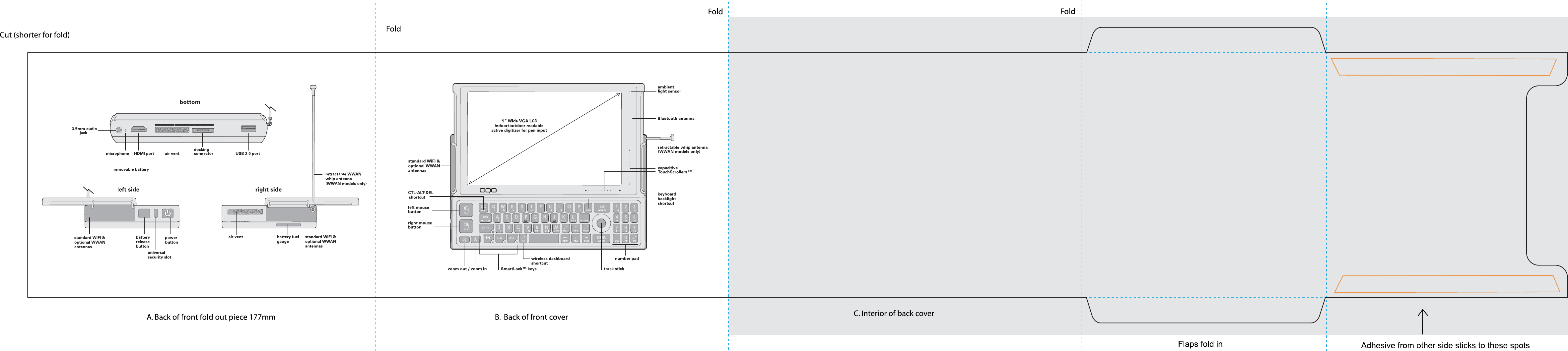
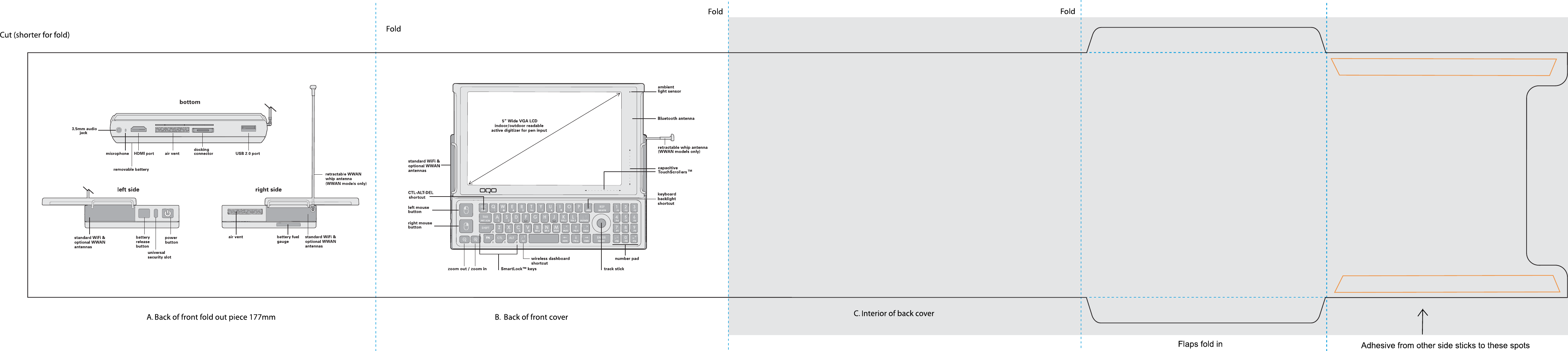
ambient light sensorcapacitive TouchScrollers™digital pen (included with Tablet PC edition)13screen features

Navigation menu