OQO A8YWFS Handheld Computer User Manual Start Guide part 2

OQO, Inc. Handheld Computer Start Guide part 2

Start Guide part 2

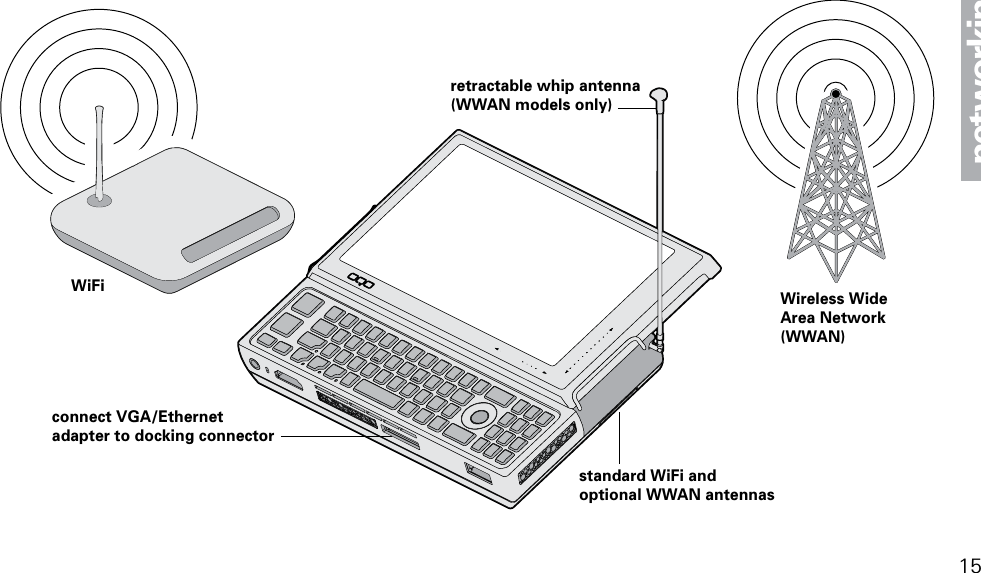
connecting to a networkThe model 02 offers a number of ways to connect your com-puter to a network:Use the integrated WiFi for high-speed wireless connections in hot spots.Use the integrated Wireless Wide Area Network* (WWAN) technology (optional) for mobile broadband connectivity.Use the VGA/Ethernet adapter to attach an Ethernet cable and connect to a Local Area Network (LAN).Use the integrated Bluetooth and a Bluetooth-enabled cel-lular phone to connect to a mobile broadband network (see http://www.oqo.com/support for more information).The OQO wireless dashboard provides fast and convenient control of your wireless connections. You can turn radios on and off and view connection status information. Additionally,  you can access device-specific configuration settings through the wireless dashboard. To access the wireless dashboard, use the keyboard shortcut:••••If you purchased your model 02 with integrated WWAN technology, you will need to activate your service following the separate instruction card in your box. For enhanced WWAN reception, your model 02 is also equipped with a retractable whip antenna.  To connect the computer to an Ethernet network, use the supplied VGA/Ethernet adapter. Plug the VGA/Ethernet adapter into the computer’s docking connector and connect the Ethernet cable to the adapter. For detailed information about configuring WiFi or Ethernet network connections, see the documentation for Windows XP.*requires activation with third party service provider14
15networkingretractable whip antenna(WWAN models only)standard WiFi and optional WWAN antennasWiFi Wireless WideArea Network (WWAN)connect VGA/Ethernet adapter to docking connector
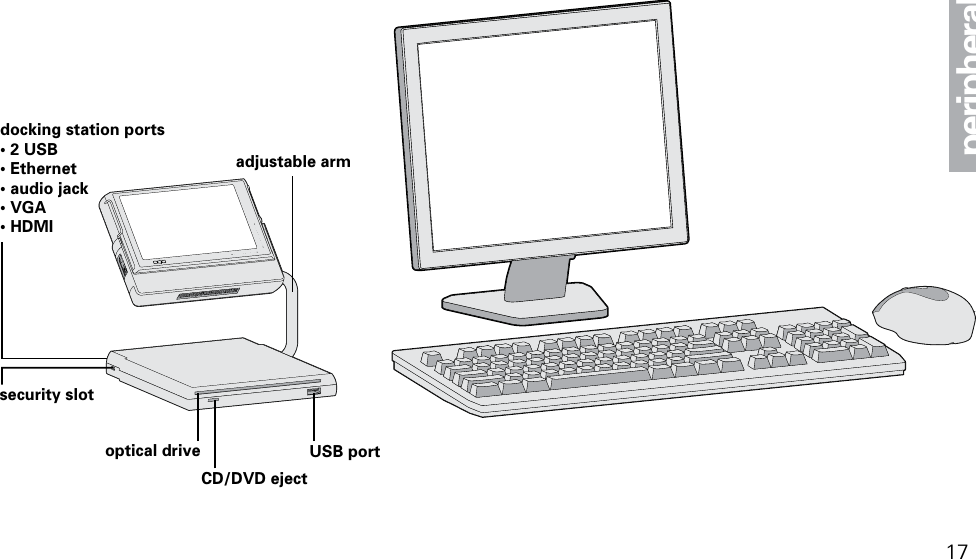
connecting the docking station and peripheralsThe model 02 offers a number of ways to connect peripherals to your computer. For USB devices, the model 02 has a USB 2.0 port for high-speed data transfer. For multiple USB devices, you can use a USB hub with the model 02. You can also connect peripherals to the computer using Bluetooth. The device and the computer must first be paired through the Toshiba Bluetooth manager.connecting an external displayThere are several ways to connect an external display or projector to the model 02:To attach a display using a VGA connection, plug the supplied VGA/Ethernet adapter into the computer’s docking connector, and connect the video cable from the display to the VGA port of the adapter. To attach a display using an HDMI connection, simply plug the video cable from the display into the model 02’s HDMI port.If the external display has a DVI connection, you’ll need to use an HDMI to DVI adapter. •••The optional OQO docking station also has VGA and HDMI ports for simultaneous output to two external displays.Once an external display is connected, the model 02 with DisplaySense™ technology should automatically detect and output to it. You can switch video output between the external display and internal only display by pressing the keyboard shortcut:Settings for external display resolution and mirrored and extended desktop mode can be found in the Display control panel.connecting a docking stationOQO docking stations with port extension and optical drive are available for the model 02. The OQO docking station is uniquely designed with an adjustable arm that can be angled for optimal screen viewing and compact storage.OQO docking stations have HDMI, VGA, Ethernet, audio jack and power ports in addition to 3 high-speed USB ports. To use the optical drive, the docking station must be powered by your computer power supply connected to an AC outlet or by a car/airplane adapter (optional).•16
docking station ports• 2 USB• Ethernet• audio jack• VGA• HDMIadjustable arm optical drive USB portCD/DVD ejectsecurity slot17peripherals
installing software18Install your own software on the model 02 or transfer files between the model 02 and another computer.software installationThere are several ways to install your own software on the model 02:For software provided on a CD or DVD, install the software either by using the optical drive in the optional docking station or by connecting to an external USB optical drive.For software downloaded over the Internet, install the software just as you would with a desktop computer.For software available on a local area network, connect to the network using the VGA/Ethernet adapter, WiFi, or optional WWAN and then install the software just as you would with a desktop computer.•••file transfersYou can transfer files between the model 02 and another  computer by doing one of the following: Use the optical drive in the optional docking station, an external USB optical drive, or a USB flash key to store files on external media for transfer to another computer. Connect the computer to a local area network using the VGA/Ethernet adapter, WiFi, or optional WWAN and transfer files over the network. Use Bluetooth to transfer files between the model 02 and another Bluetooth-enabled computer. Use an e-mail program to mail files from one computer to another.Use an FTP program to upload files from one computer and then download them to the other.•••••
19softwareUSB flash keyexternal optical driveWiFi Wireless Wide Area Network (WWAN)
using model 02 security featuresThe model 02 offers a number of features to help protect both your computer and your data. active drop detectThe model 02 detects free-fall and automatically parks the head on the computer’s hard drive if the computer is dropped. This feature helps prevent data loss that might occur if the drive heads were to contact the disk during impact.universal security slot Both the model 02 and the optional docking station have universal security slots for attaching an optional security locking cable. The slots are compatible with standard security locking cables designed for laptops. hardware security engine The VIA PadLock™ Security Engine is a hardware based security technology that provides the latest military-grade encryption and protection for your personal or corporate files. The security engine incorporates advanced protection features such as AES encryption and a secure hash algorithm.20
universalsecurity slothardware securityengineshock mounted HDD with active drop detect21security
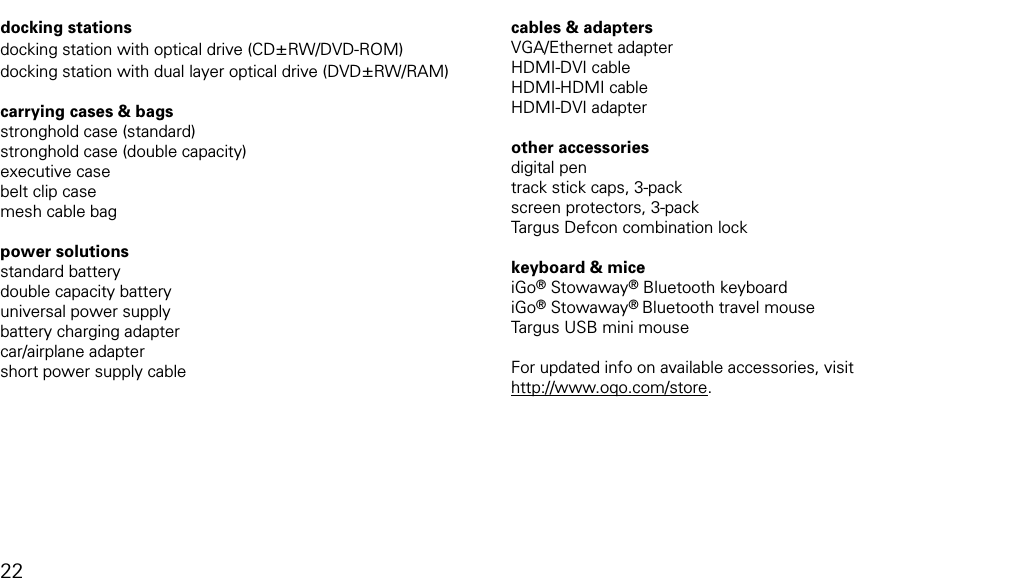
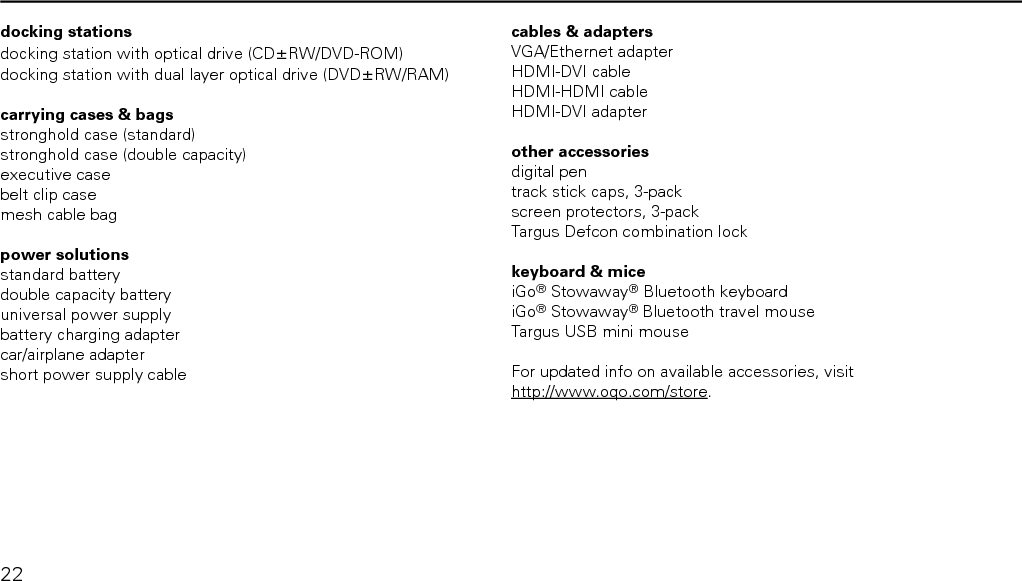
model 02 accessoriesdocking stationsdocking station with optical drive (CD±RW/DVD-ROM)docking station with dual layer optical drive (DVD±RW/RAM) carrying cases & bagsstronghold case (standard)stronghold case (double capacity)executive casebelt clip casemesh cable bag power solutionsstandard batterydouble capacity batteryuniversal power supplybattery charging adaptercar/airplane adaptershort power supply cablecables & adaptersVGA/Ethernet adapterHDMI-DVI cableHDMI-HDMI cableHDMI-DVI adapter other accessoriesdigital pentrack stick caps, 3-packscreen protectors, 3-packTargus Defcon combination lockkeyboard & miceiGo® Stowaway® Bluetooth keyboardiGo® Stowaway® Bluetooth travel mouseTargus USB mini mouseFor updated info on available accessories, visit  http://www.oqo.com/store.  22
accessories23
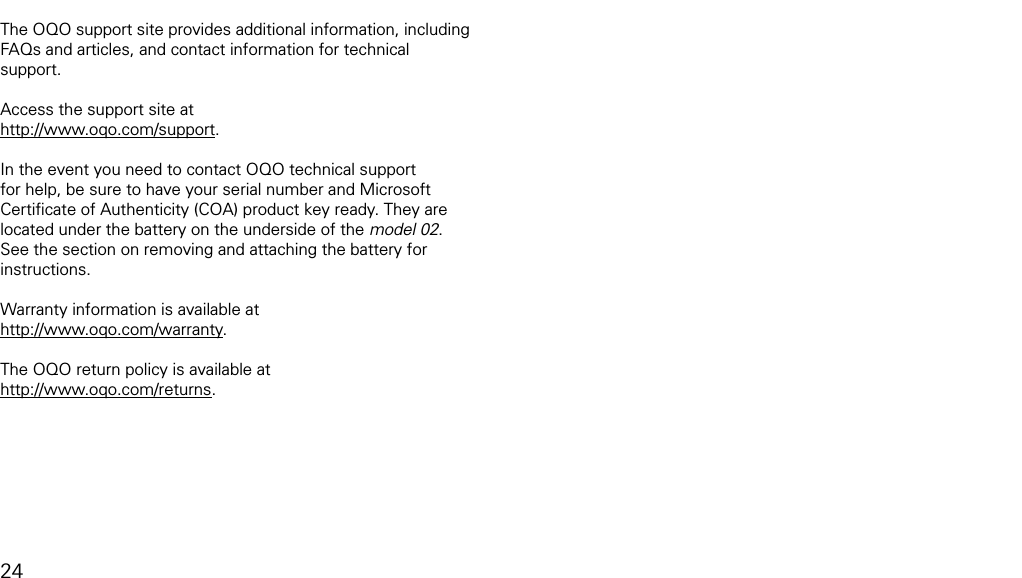
product supportThe OQO support site provides additional information, including FAQs and articles, and contact information for technical support.Access the support site at http://www.oqo.com/support.In the event you need to contact OQO technical support for help, be sure to have your serial number and Microsoft Certificate of Authenticity (COA) product key ready. They are located under the battery on the underside of the model 02. See the section on removing and attaching the battery for instructions.Warranty information is available at http://www.oqo.com/warranty. The OQO return policy is available at http://www.oqo.com/returns.24
support25
FCC StatementThis equipment has been tested and found to comply with the limits for a Class B digital device, pursuant to Part 15 of the FCC Rules. These limits are designed to provide reasonable protection against harmful interference in a residential installation. This equipment generates, uses, and can radiate radio frequency energy and, if not installed and used in accordance with the instructions, may cause harmful interference to radio communications. However, there is no guarantee that interference will not occur. If this equipment does cause harmful interference to radio or television reception, which can be determined by turning the equipment off and on, the user is encouraged to try to correct the interference by one or more of the following measures: Reorient the receiving antenna. Increase the separation between the equipment and receiver. Connect the equipment into an outlet on a circuit different from that to which the receiver is connected. Consult the dealer or an experienced technician for help.The highest SAR value for the computer when next to the body, as described in this user guide, is 1.17 W/kg. No separation from the body is required when the wireless computer is in operation, as the SAR measurements were taken with the unit “touching” the surface of the body.1)2)3)4)This device was tested for SAR compliance in the lap held configuration. If the device is purchased with the WWAN option, a whip antenna is utilized for WWAN coverage. When operating in WWAN mode, the whip antenna should be pulled out and up to the vertical position. In order to comply with FCC RF exposure requirements, and to align with the SAR test configuration, users must maintain a separation distance of 1.5 cm between the antenna and all persons, and maintain the antenna in the vertical position during WWAN operation.This Class [B] digital apparatus complies with Canadian ICES-003. Cet appareil numérique de la class [B] est conformé à la norme NMB-003 du Canada.The IEEE 802.11a device for the band 5150-5250 MHz is only for indoor usage, to reduce the potential for harmful interfer-ence to co-channel mobile satellite systems.In addition, users should also be cautioned to take note that  high-power radars are allocated as primary users (meaning they have priority) of the bands 5250-5350 MHz and 5650-5850 MHz and these radars could cause interference and/or damage to LE-LAN devices. Caution: Any changes or modifications not expressly approved by OQO for compliance will void the user’s authority to operate the equipment.
FCC Radio Frequency Exposure and SARThe available scientific evidence does not show that any health problems are associated with using low power wireless devices. There is no proof, however, that low power wireless devices are absolutely safe. The exposure standard for low power wireless devices em-ploys a unit of measurement known as the Specific Absorption Rate, or SAR. Tests for SAR are conducted using standard op-erating positions accepted by the FCC and by Industry Canada with the device transmitting at its highest certified power level in all tested frequency bands. Although the SAR is determined at the highest certified power level, the actual SAR level of the device while operating can be well below the maximum value. This is because the device is designed to operate at the mini-mum power level required to reach the network.Before a low power wireless device is available for sale to the public in the US and Canada it must be tested and certified to the FCC and the Industry Canada that it does not exceed the limit established by each government for safe exposure. The personal computer (OQO model 02) has been tested and found to comply with the Federal Communications Committee guidelines on radio frequency (RF) energy exposure. Industry Canada This Class [B] digital apparatus complies with Canadian ICES-003. Cet appareil numérique de la classe [B] est conformé à la norme NMB-003 du Canada. The term IC before the radio certification number only signifies that Industry Canada techni-cal specifications were met. FCC Declaration of Conformity We, OQO, Inc. 583 Shotwell Street, San Francisco, California, USA, 1-415-430-6200, declare under our sole responsibility that the product, OQO model 02, complies with Part 15 of FCC Rules. Operation is subject to the following two conditions: (1) This device may not cause harmful interference, and (2) This device must accept any interference received, including interference that may cause undesired operation.
CE Declaration of Conformity We, OQO, Inc. 583 Shotwell Street, San Francisco, California, USA, 1-415-430-6200, declare under our sole responsibility that the product, OQO model 02, to which this declaration relates is in conformance with the provisions of the following directives: Directive 1999/5/EC governing Radio Equipment and Telecommunications Terminal Equipment and the Mutual Recognition of their Conformity Directive 73/23/EEC governing product safety Directive 89/336/EEC governing electromagnetic compatibility using the following standards: EN 60950-1: 2001 EN 300 328-2 v1.2.1 EN 301 489-17 v1.2.1/EN 301 489-1 v1.4.11 EN 55022: 1994 w/A1 and A2 EN 55024: 1998 For a list of countries where the model 02 can be used and the restrictions, see: http://www.oqo.com/support.Copyright © 2006 OQO, Inc. All rights reserved. This manual may not be copied, in whole or in part, without the written consent of OQO. OQO, Inc.583 Shotwell StreetSan Francisco, CA 941101-415-430–6200OQO Support 1-877-676-6688http://www.oqo.comThe information in this guide is subject to change without notice. OQO makes no warranty of any kind with regard to this manual, including, but not limited to, the implied warranties of merchantability and fitness for a particular purpose. OQO shall not be held liable for errors contained herein or direct, indirect, special, incidental, or consequential damages in connection with the furnishing, performance, or use of this material.
Trademarks OQO, TouchScrollers, SmartLock, and DisplaySense are trade-marks or registered trademark of OQO, Inc. Microsoft and Windows are registered trademarks of Microsoft Corporation in the U.S. and other countries. Bluetooth is a registered trademark of Bluetooth SIG, Inc. VIA Padlock is a trademark of VIA Technologies, Inc.iGo is a registered trademark of Mobility Electronics, Inc.Stowaway is a registered trademark of Mobility California, Inc.Targus is a registered trademark of Targus Group  International, Inc.

Navigation menu