ORBCOMM License 6014901 Satellite based tracking device User Manual 6013 GD 00001 C

ORBCOMM License Corp. Satellite based tracking device 6013 GD 00001 C

User Manual

 TRACKPACK USERS MANUAL     TTTrrraaaccckkkPPPaaaccckkk   Users Manual           Comtech AeroAstro, Inc 20145 Ashbrook Place Ashburn, VA 20147 Phone: +1(866) 631.6010| +1 (571) 366.7854 Fax: +1 (703)738.7254 www.sensservice.com Doc #:6013-GD-00001-C  6/11/2009
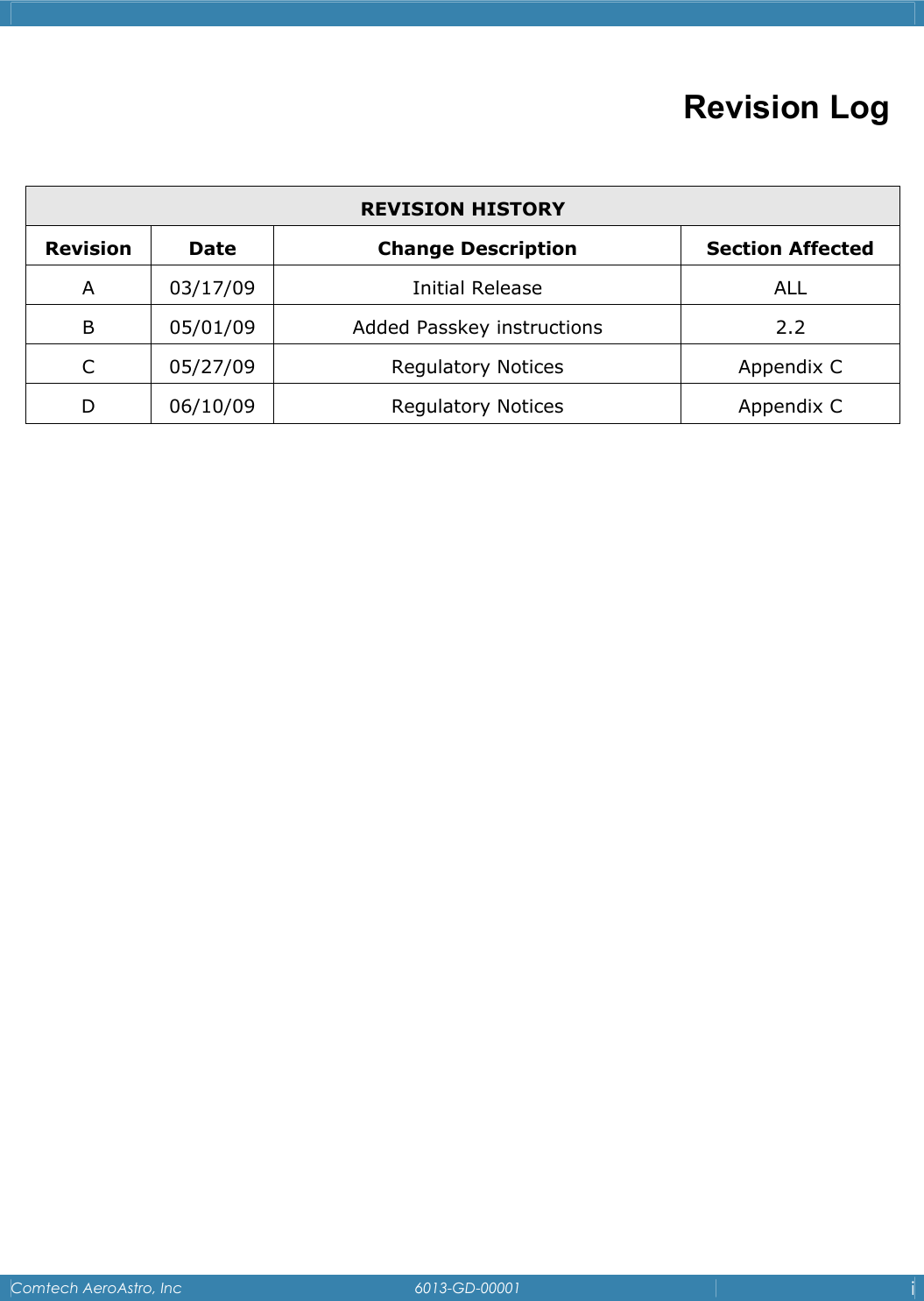
   Comtech AeroAstro, Inc   6013-GD-00001  i  Revision Log  REVISION HISTORY Revision Date  Change Description  Section Affected A 03/17/09  Initial Release  ALL B  05/01/09  Added Passkey instructions  2.2 C 05/27/09  Regulatory Notices  Appendix C D 06/10/09  Regulatory Notices  Appendix C
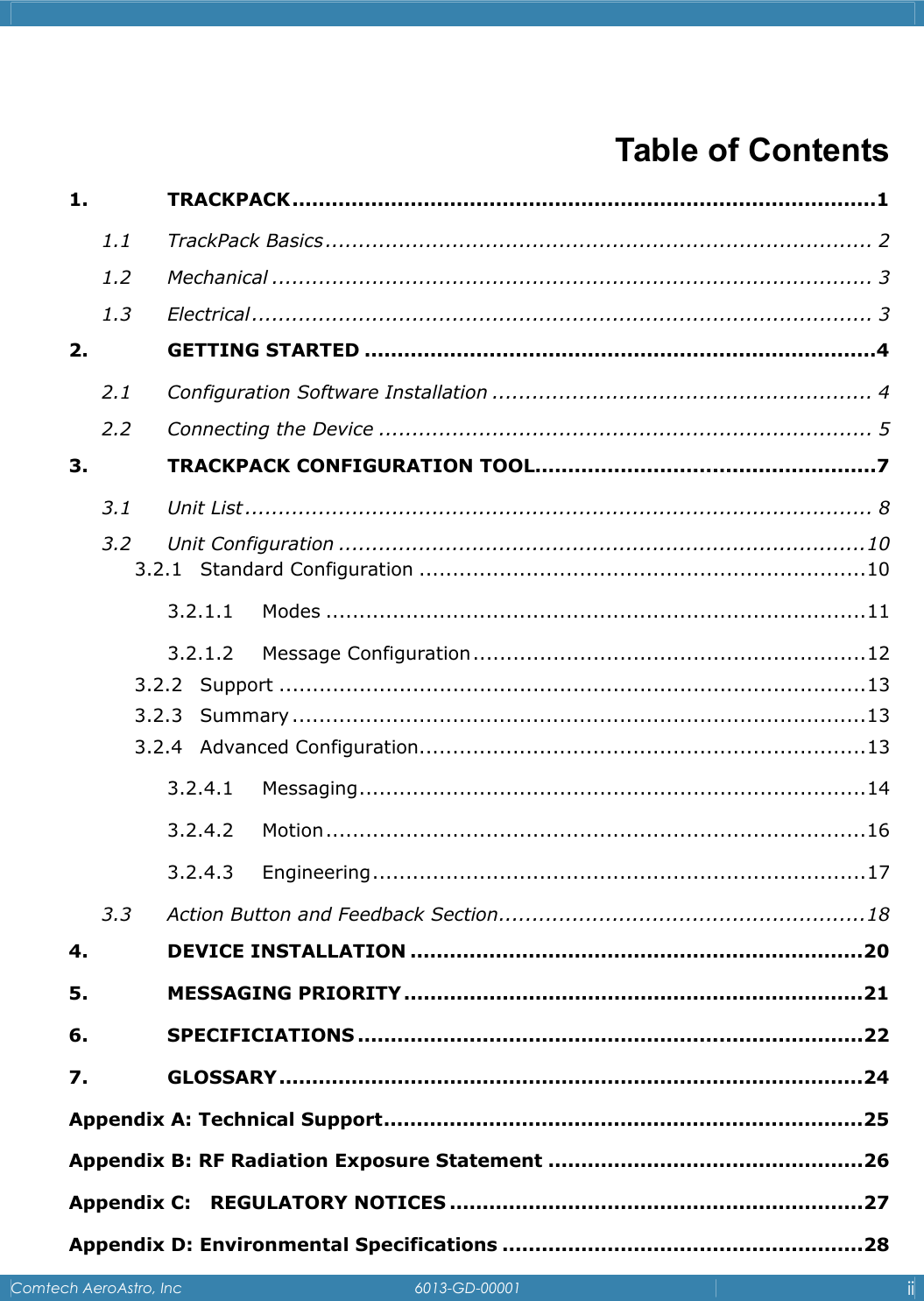
   Comtech AeroAstro, Inc   6013-GD-00001  ii   Table of Contents 1. TRACKPACK.........................................................................................1 1.1 TrackPack Basics.................................................................................. 2 1.2 Mechanical .......................................................................................... 3 1.3 Electrical............................................................................................. 3 2. GETTING STARTED ..............................................................................4 2.1 Configuration Software Installation ......................................................... 4 2.2 Connecting the Device .......................................................................... 5 3. TRACKPACK CONFIGURATION TOOL....................................................7 3.1 Unit List.............................................................................................. 8 3.2 Unit Configuration ...............................................................................10 3.2.1 Standard Configuration ...................................................................10 3.2.1.1 Modes .................................................................................11 3.2.1.2 Message Configuration...........................................................12 3.2.2 Support ........................................................................................13 3.2.3 Summary ......................................................................................13 3.2.4 Advanced Configuration...................................................................13 3.2.4.1 Messaging............................................................................14 3.2.4.2 Motion.................................................................................16 3.2.4.3 Engineering..........................................................................17 3.3 Action Button and Feedback Section.......................................................18 4. DEVICE INSTALLATION .....................................................................20 5. MESSAGING PRIORITY......................................................................21 6. SPECIFICIATIONS .............................................................................22 7. GLOSSARY.........................................................................................24 Appendix A: Technical Support.........................................................................25 Appendix B: RF Radiation Exposure Statement ................................................26 Appendix C:   REGULATORY NOTICES ...............................................................27 Appendix D: Environmental Specifications .......................................................28
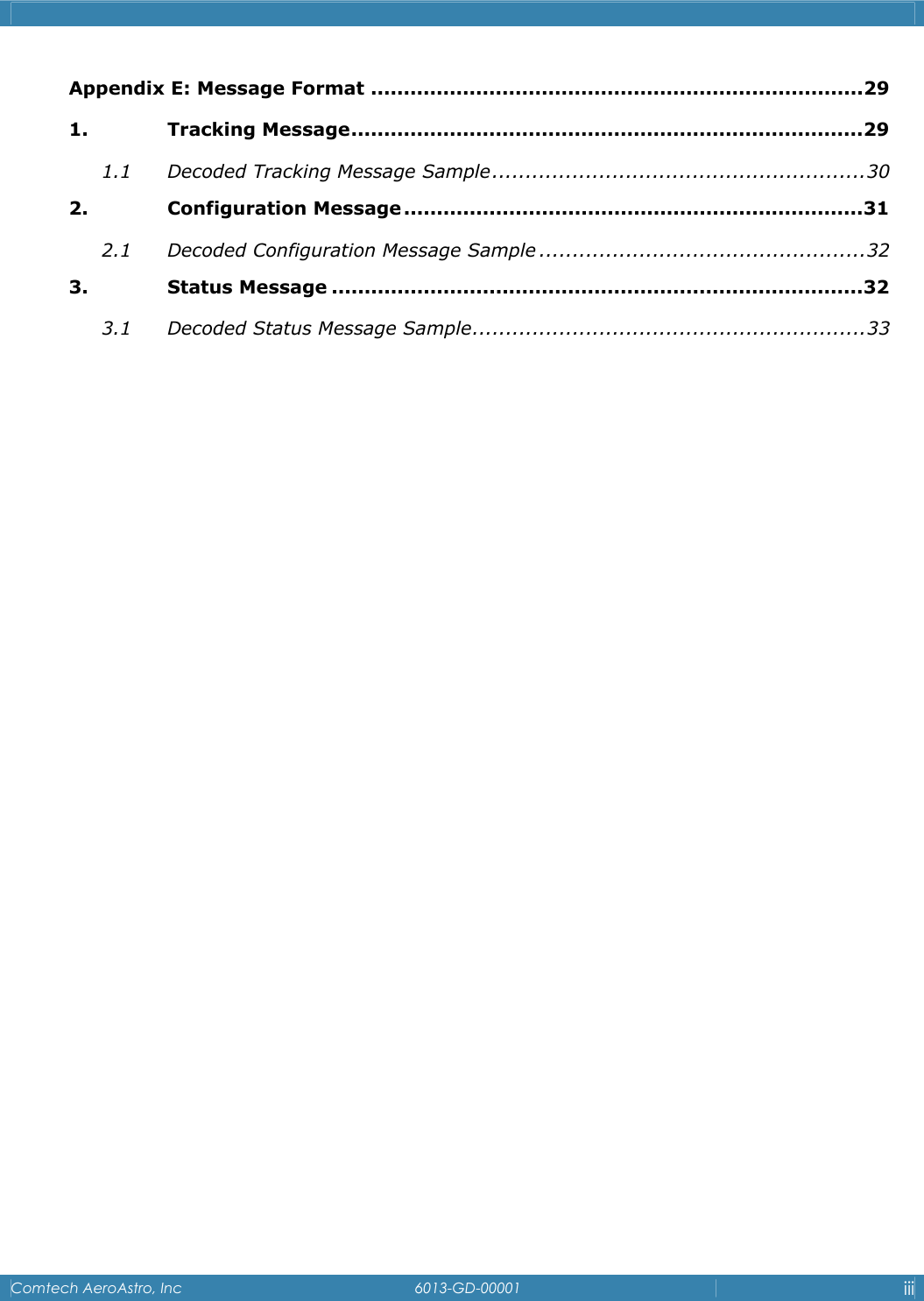
   Comtech AeroAstro, Inc   6013-GD-00001  iii  Appendix E: Message Format ...........................................................................29 1. Tracking Message..............................................................................29 1.1 Decoded Tracking Message Sample........................................................30 2. Configuration Message ......................................................................31 2.1 Decoded Configuration Message Sample .................................................32 3. Status Message .................................................................................32 3.1 Decoded Status Message Sample...........................................................33
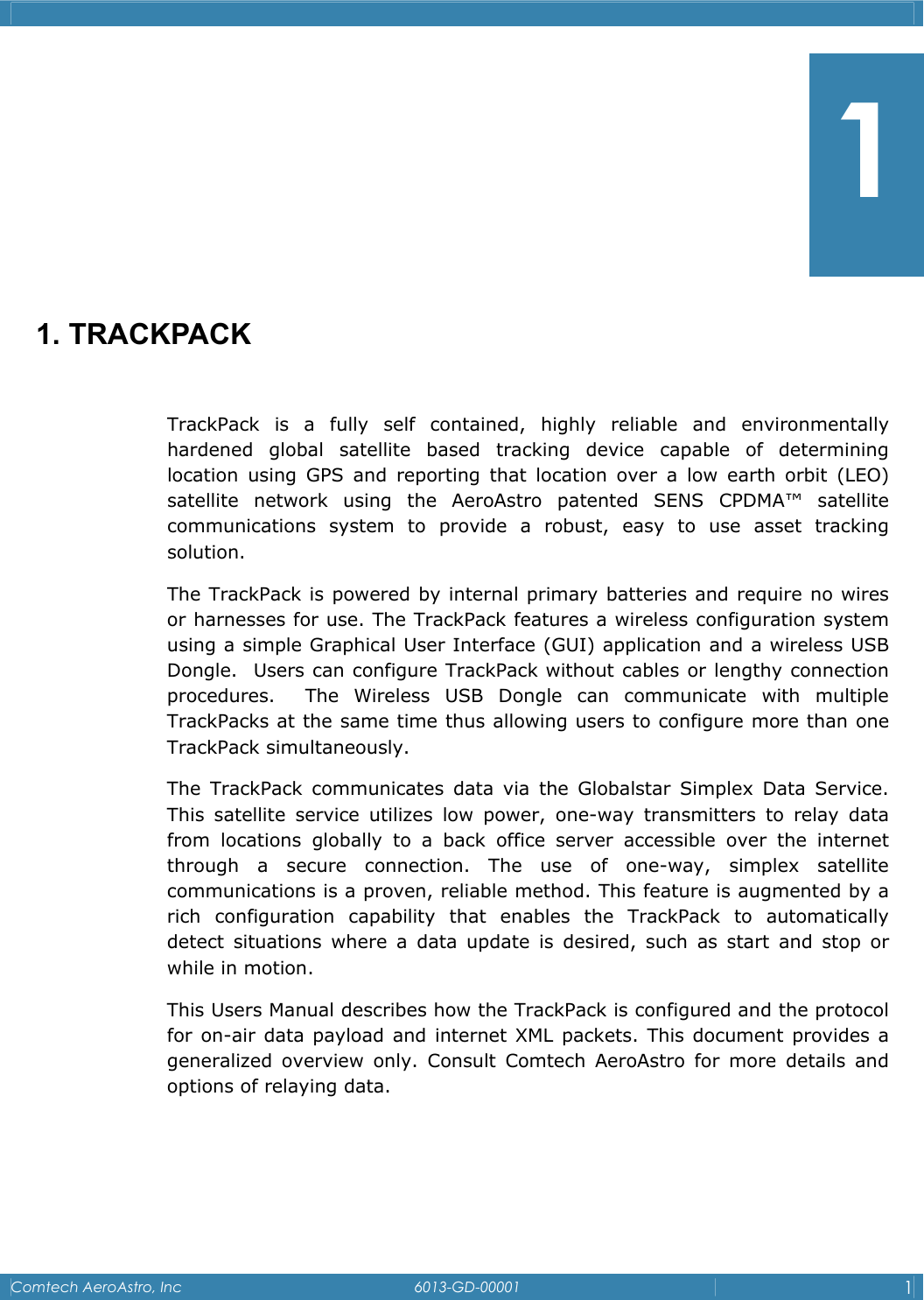
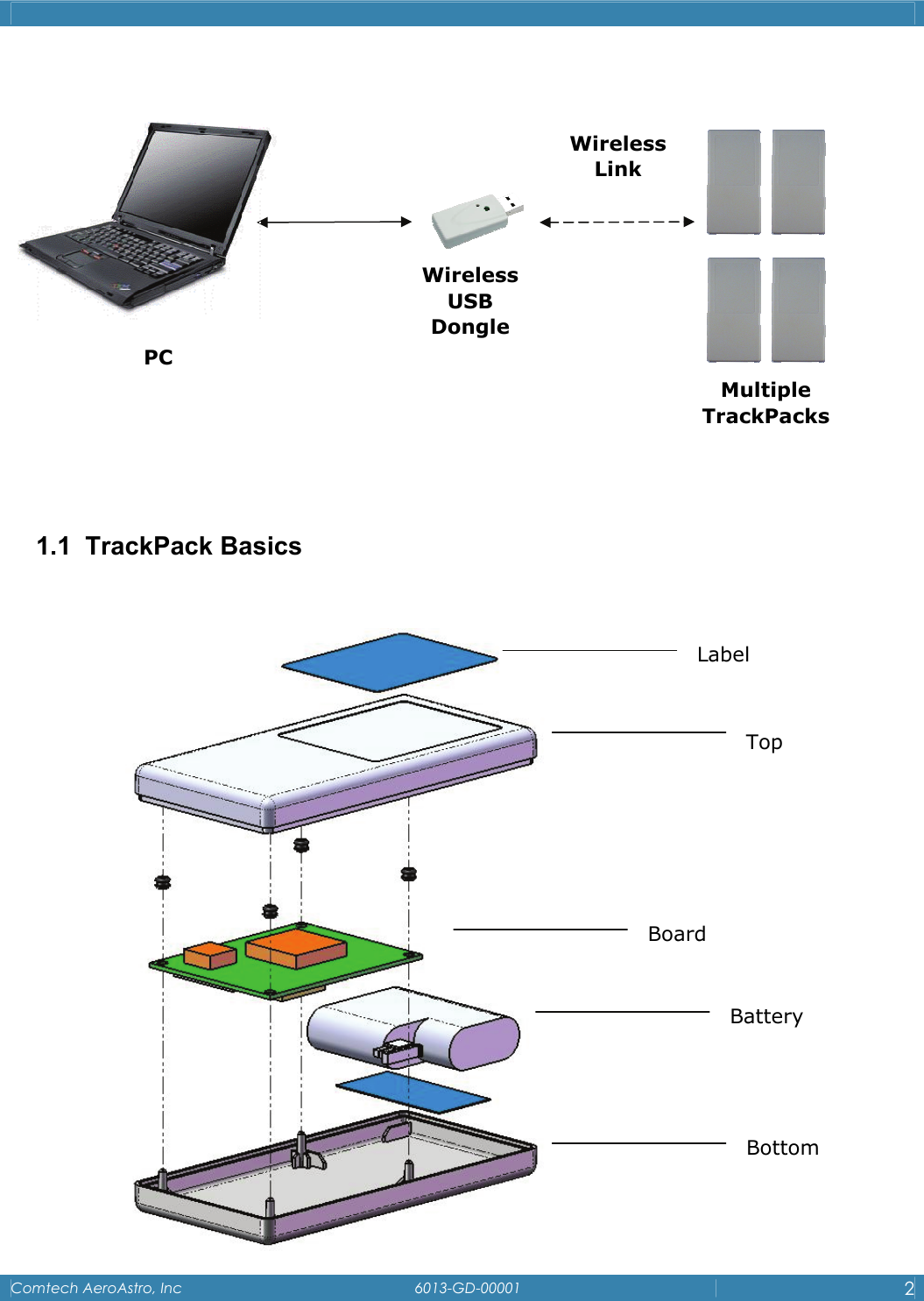
   Comtech AeroAstro, Inc   6013-GD-00001  1        1. TRACKPACK  TrackPack is a fully self contained, highly reliable and environmentally hardened global satellite based tracking device capable of determining location using GPS and reporting that location over a low earth orbit (LEO) satellite network using the AeroAstro patented SENS CPDMA™ satellite communications system to provide a robust, easy to use asset tracking solution.   The TrackPack is powered by internal primary batteries and require no wires or harnesses for use. The TrackPack features a wireless configuration system using a simple Graphical User Interface (GUI) application and a wireless USB Dongle.  Users can configure TrackPack without cables or lengthy connection procedures.  The Wireless USB Dongle can communicate with multiple TrackPacks at the same time thus allowing users to configure more than one TrackPack simultaneously.   The TrackPack communicates data via the Globalstar Simplex Data Service. This satellite service utilizes low power, one-way transmitters to relay data from locations globally to a back office server accessible over the internet through a secure connection. The use of one-way, simplex satellite communications is a proven, reliable method. This feature is augmented by a rich configuration capability that enables the TrackPack to automatically detect situations where a data update is desired, such as start and stop or while in motion. This Users Manual describes how the TrackPack is configured and the protocol for on-air data payload and internet XML packets. This document provides a generalized overview only. Consult Comtech AeroAstro for more details and options of relaying data.    1
   Comtech AeroAstro, Inc   6013-GD-00001  2                1.1 TrackPack Basics                 PC Wireless USB Dongle Wireless Link Multiple TrackPacks Label Top Board Battery Bottom
   Comtech AeroAstro, Inc   6013-GD-00001  3    1.2 Mechanical  The TrackPack is a compact assembly containing a GPS receiver, satellite transmitter, antennae and batteries.  The device is a small outline and low profile.  The TrackPack is a fully contained tracking  device suitable for extended exposure to outdoor and industrial environments.  It is 5 inches length, 1.7 inches wide,  and 0.82 inches in height.  The TrackPack device is fully enclosed and hermetically sealed to ensure no moisture ingress.  1.3 Electrical The TrackPack operates using a series of lithium iron disulfide batteries.  The Device uses 4.5V for all battery powered operation.
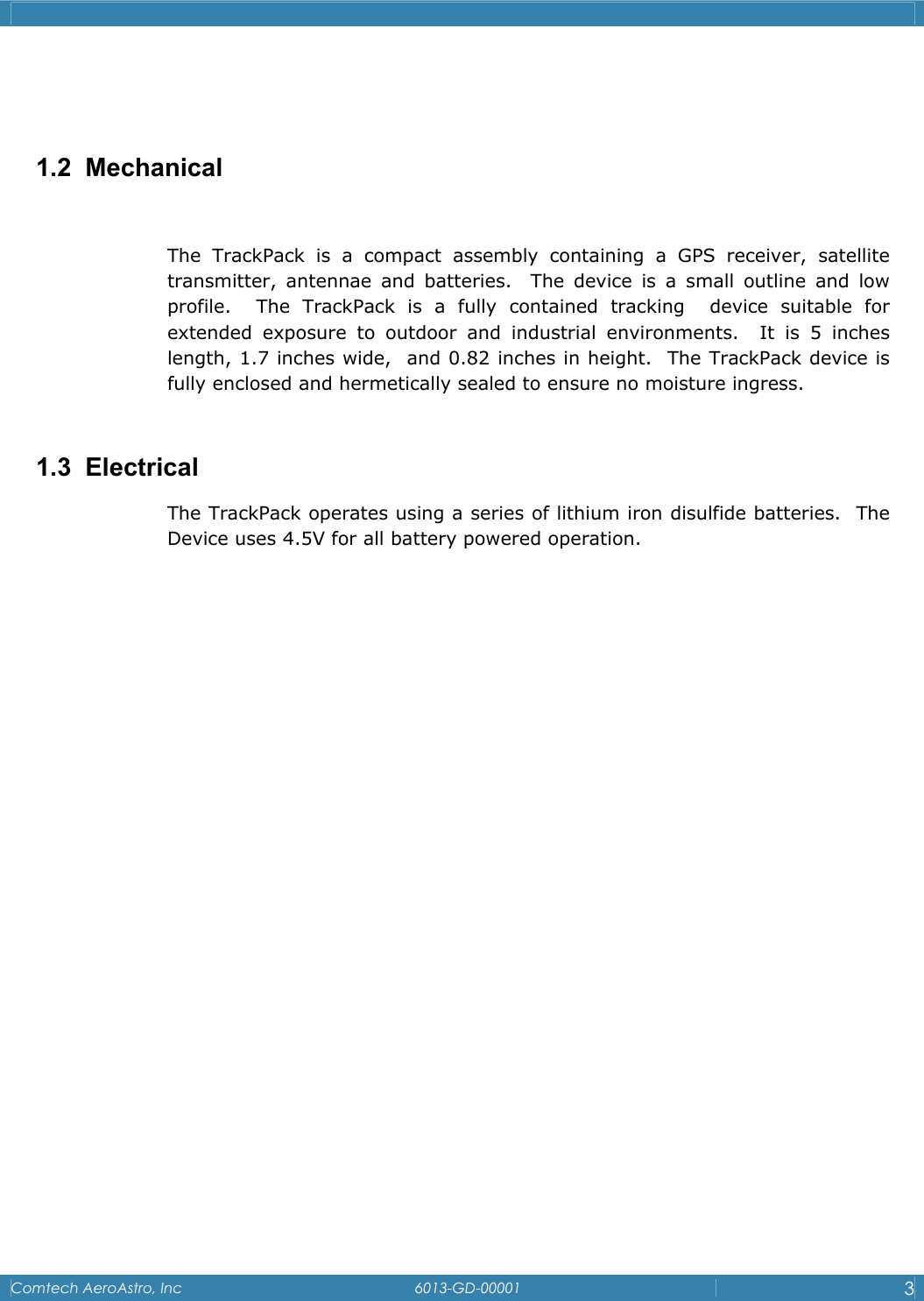
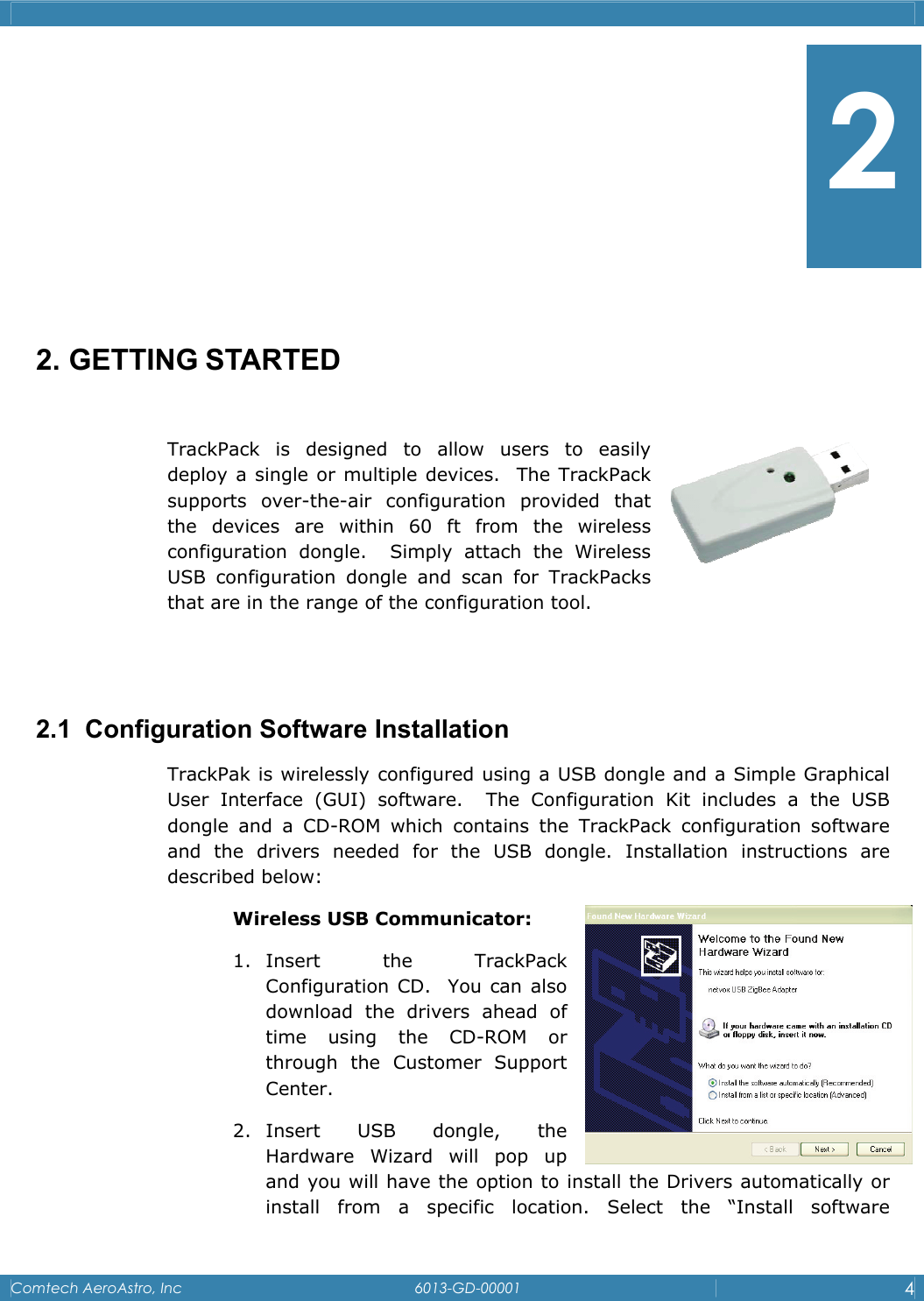
   Comtech AeroAstro, Inc   6013-GD-00001  4       2. GETTING STARTED  TrackPack is designed to allow users to easily      deploy a single or multiple devices.  The TrackPack supports over-the-air configuration provided that the devices are within 60 ft from the wireless     configuration dongle.  Simply attach the Wireless USB configuration dongle and scan for TrackPacks that are in the range of the configuration tool.   2.1  Configuration Software Installation TrackPak is wirelessly configured using a USB dongle and a Simple Graphical User Interface (GUI) software.  The Configuration Kit includes a the USB dongle and a CD-ROM which contains the TrackPack configuration software and the drivers needed for the USB dongle. Installation instructions are described below:  Wireless USB Communicator: 1. Insert the TrackPack Configuration CD.  You can also download the drivers ahead of time using the CD-ROM or through the Customer Support Center.   2. Insert USB dongle, the Hardware Wizard will pop up and you will have the option to install the Drivers automatically or install from a specific location. Select the “Install software 2
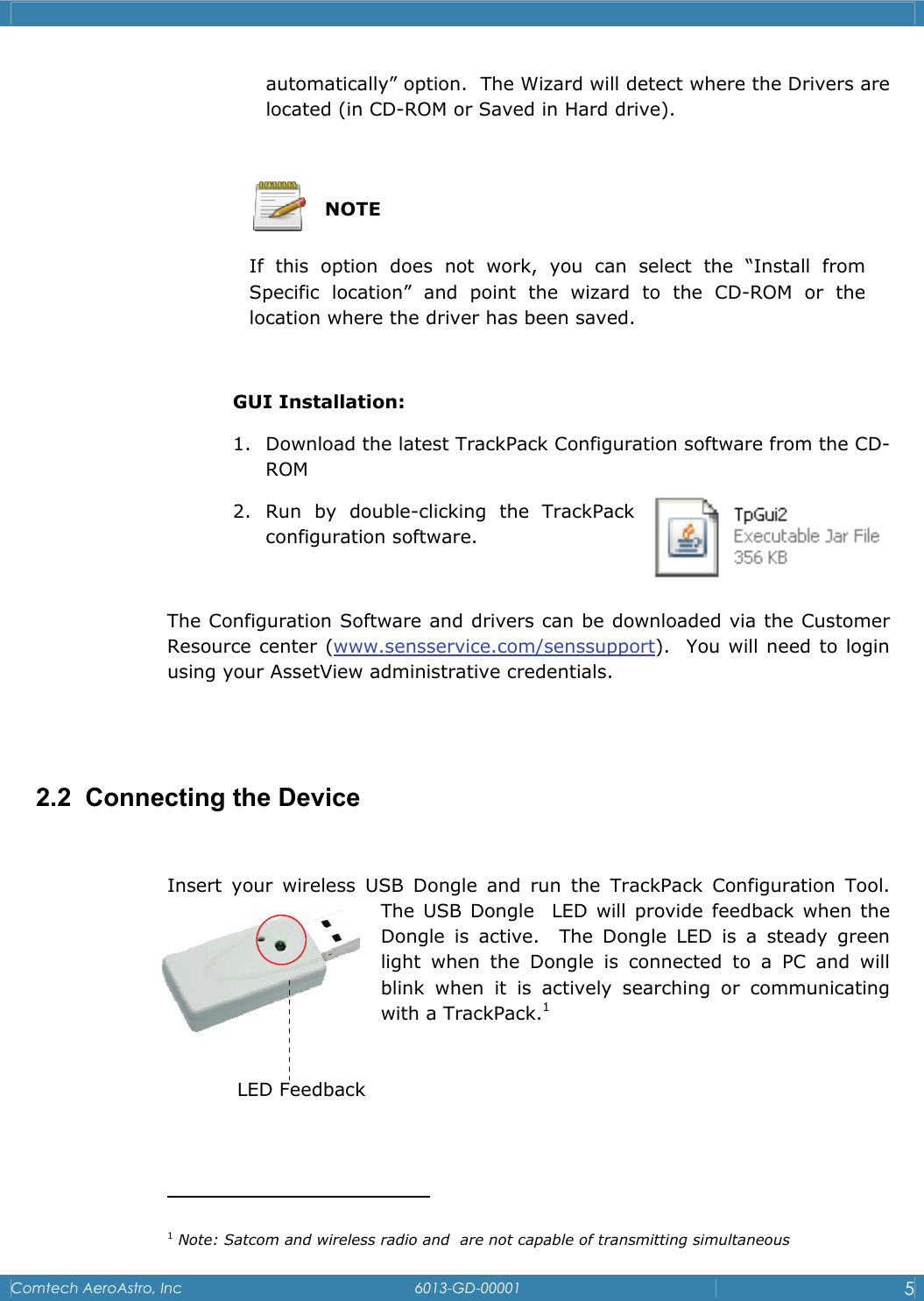
   Comtech AeroAstro, Inc   6013-GD-00001  5  automatically” option.  The Wizard will detect where the Drivers are located (in CD-ROM or Saved in Hard drive).    NOTE If this option does not work, you can select the “Install from   Specific location” and point the wizard to the CD-ROM or the   location where the driver has been saved.   GUI Installation: 1. Download the latest TrackPack Configuration software from the CD-ROM 2. Run by double-clicking the TrackPack configuration software.  The Configuration Software and drivers can be downloaded via the Customer Resource center (www.sensservice.com/senssupport).  You will need to login using your AssetView administrative credentials.     2.2  Connecting the Device  Insert your wireless USB Dongle and run the TrackPack Configuration Tool. The USB Dongle  LED will provide feedback when the Dongle is active.  The Dongle LED is a steady green light when the Dongle is connected to a PC and will blink when it is actively searching or communicating with a TrackPack.1                                          1 Note: Satcom and wireless radio and  are not capable of transmitting simultaneous LED Feedback
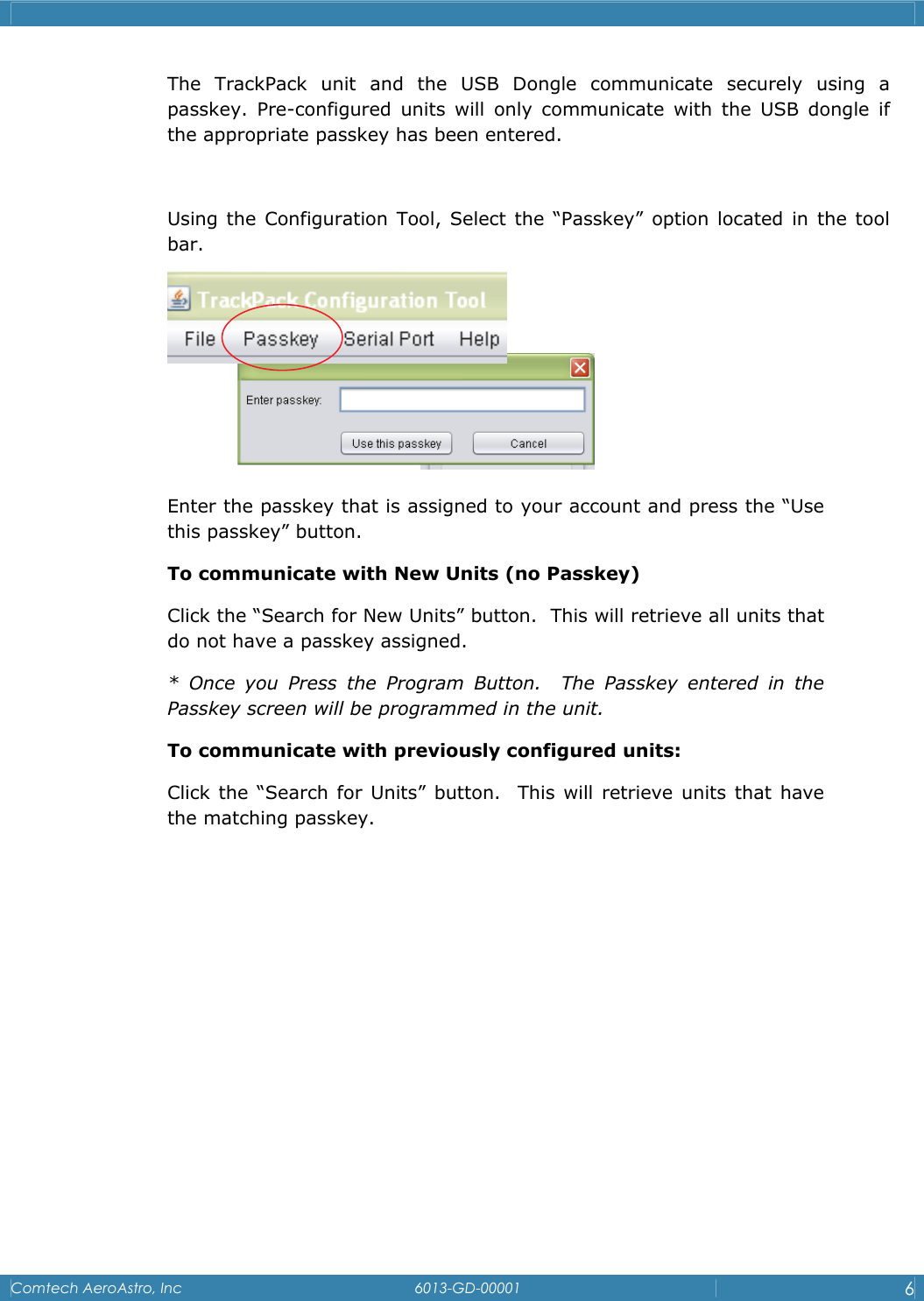
   Comtech AeroAstro, Inc   6013-GD-00001  6  The TrackPack unit and the USB Dongle communicate securely using a passkey. Pre-configured units will only communicate with the USB dongle if the appropriate passkey has been entered.   Using the Configuration Tool, Select the “Passkey” option located in the tool bar.   Enter the passkey that is assigned to your account and press the “Use this passkey” button. To communicate with New Units (no Passkey) Click the “Search for New Units” button.  This will retrieve all units that do not have a passkey assigned.  * Once you Press the Program Button.  The Passkey entered in the Passkey screen will be programmed in the unit. To communicate with previously configured units: Click the “Search for Units” button.  This will retrieve units that have the matching passkey.
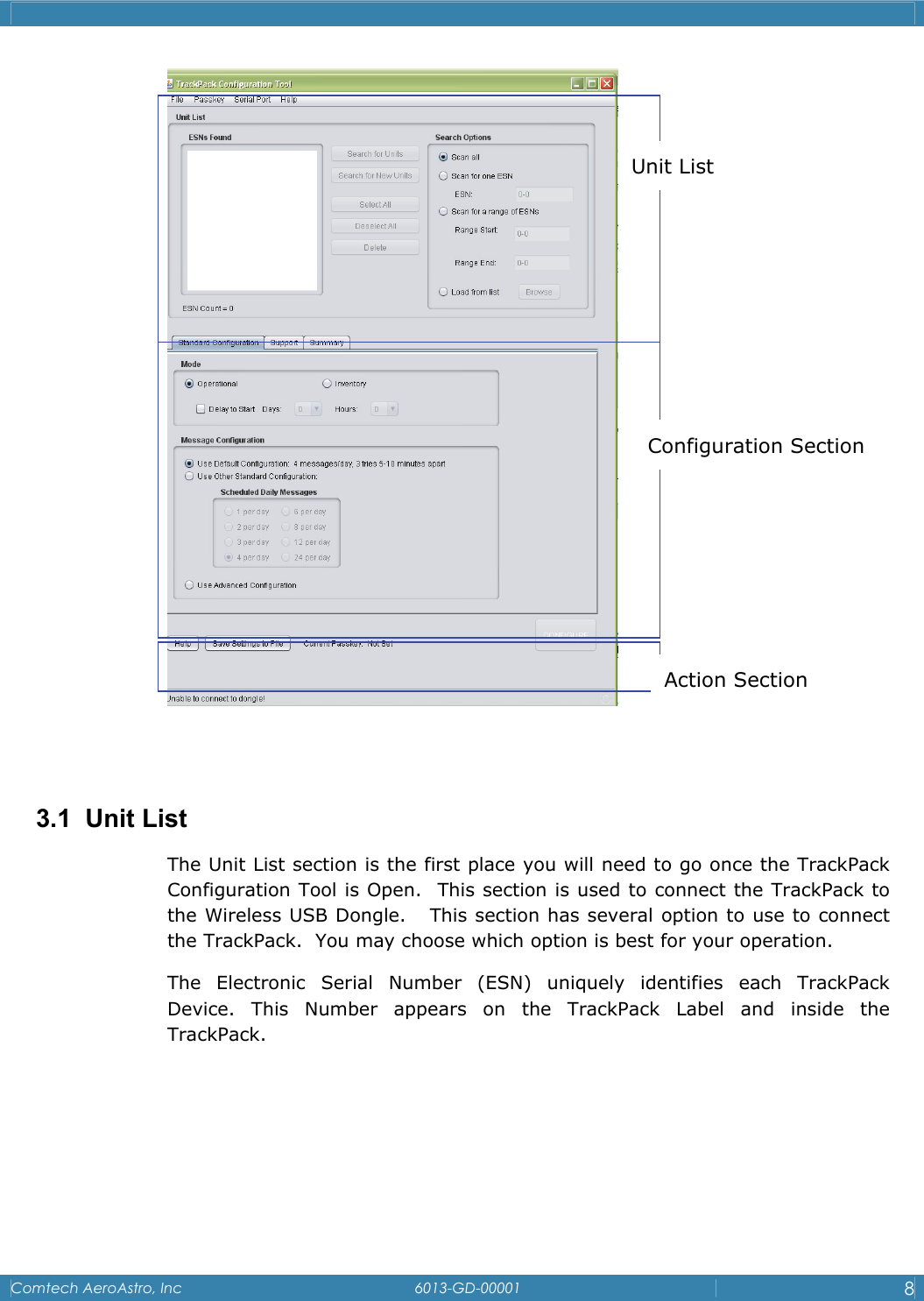
   Comtech AeroAstro, Inc   6013-GD-00001  7            3. TRACKPACK CONFIGURATION TOOL  The TackPack Configuration Tool is a Java based software program designed to access and configure TrackPack devices.  The program can simply be    copied to a directory on the host computer.  The TrackPack Configuration Tool is grouped in 3 sections.   3
   Comtech AeroAstro, Inc   6013-GD-00001  8     3.1 Unit List The Unit List section is the first place you will need to go once the TrackPack Configuration Tool is Open.  This section is used to connect the TrackPack to the Wireless USB Dongle.   This section has several option to use to connect the TrackPack.  You may choose which option is best for your operation. The Electronic Serial Number (ESN) uniquely identifies each TrackPack      Device. This Number appears on the TrackPack Label and inside the TrackPack.  Action Section Unit List Configuration Section
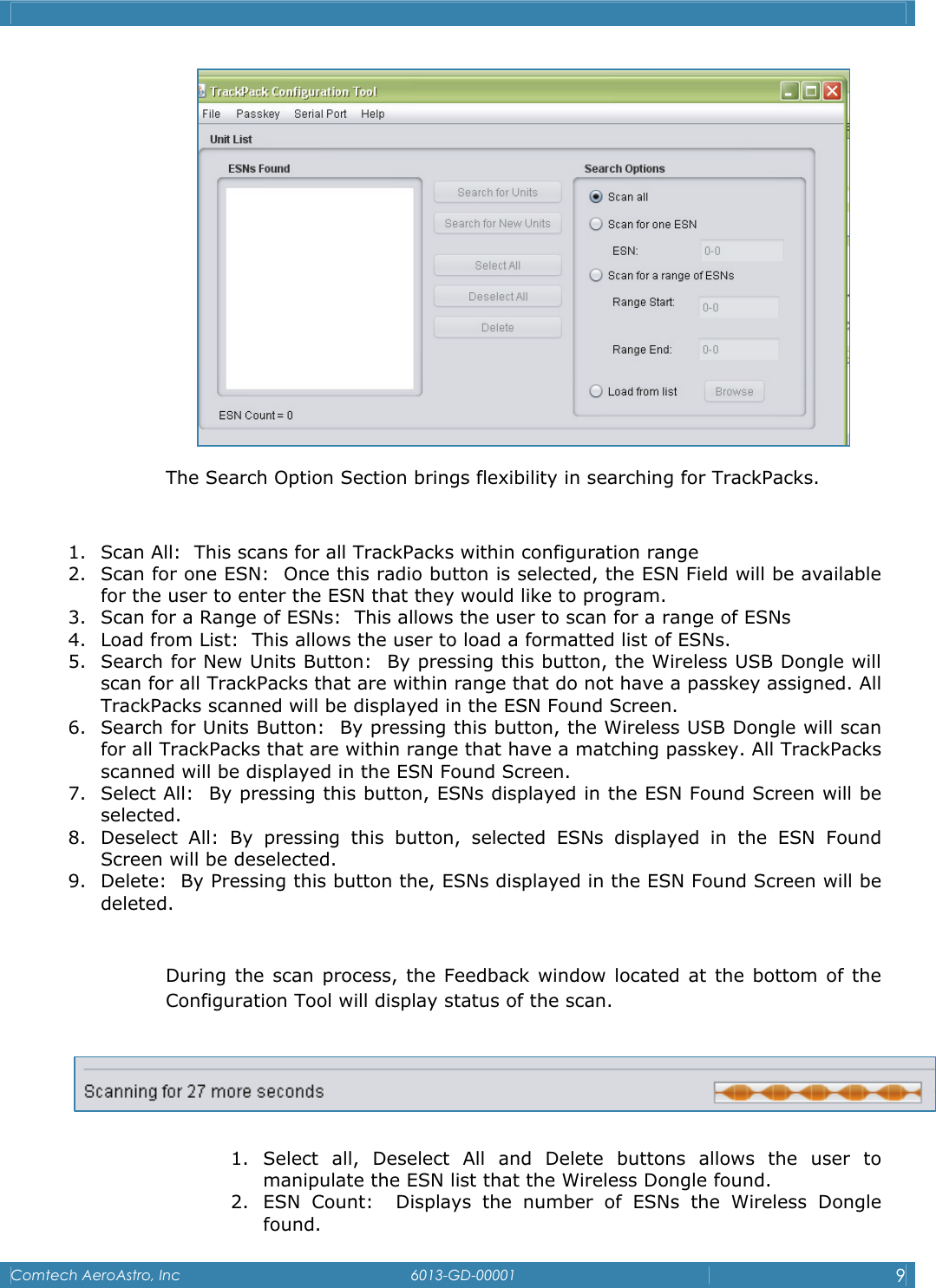
   Comtech AeroAstro, Inc   6013-GD-00001  9   The Search Option Section brings flexibility in searching for TrackPacks.  1. Scan All:  This scans for all TrackPacks within configuration range 2. Scan for one ESN:  Once this radio button is selected, the ESN Field will be available for the user to enter the ESN that they would like to program. 3. Scan for a Range of ESNs:  This allows the user to scan for a range of ESNs 4. Load from List:  This allows the user to load a formatted list of ESNs. 5. Search for New Units Button:  By pressing this button, the Wireless USB Dongle will scan for all TrackPacks that are within range that do not have a passkey assigned. All TrackPacks scanned will be displayed in the ESN Found Screen.  6. Search for Units Button:  By pressing this button, the Wireless USB Dongle will scan for all TrackPacks that are within range that have a matching passkey. All TrackPacks scanned will be displayed in the ESN Found Screen. 7. Select All:  By pressing this button, ESNs displayed in the ESN Found Screen will be selected. 8. Deselect All: By pressing this button, selected ESNs displayed in the ESN Found Screen will be deselected. 9. Delete:  By Pressing this button the, ESNs displayed in the ESN Found Screen will be deleted.  During the scan process, the Feedback window located at the bottom of the Configuration Tool will display status of the scan.    1. Select all, Deselect All and Delete buttons allows the user to manipulate the ESN list that the Wireless Dongle found. 2. ESN Count:  Displays the number of ESNs the Wireless Dongle found.
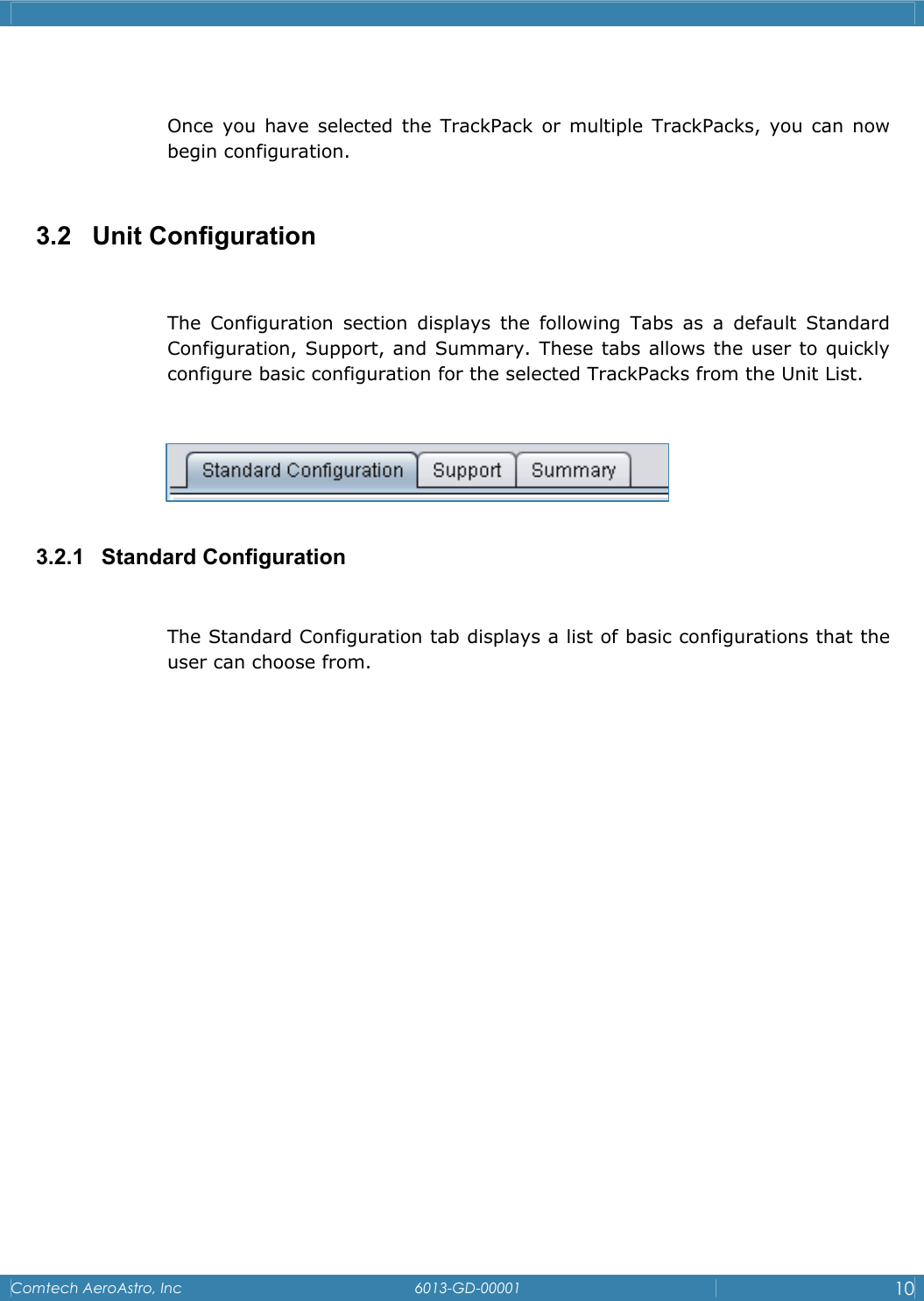
   Comtech AeroAstro, Inc   6013-GD-00001  10   Once you have selected the TrackPack or multiple TrackPacks, you can now begin configuration.  3.2   Unit Configuration  The Configuration section displays the following Tabs as a default Standard Configuration, Support, and Summary. These tabs allows the user to quickly configure basic configuration for the selected TrackPacks from the Unit List.       3.2.1 Standard Configuration  The Standard Configuration tab displays a list of basic configurations that the user can choose from.
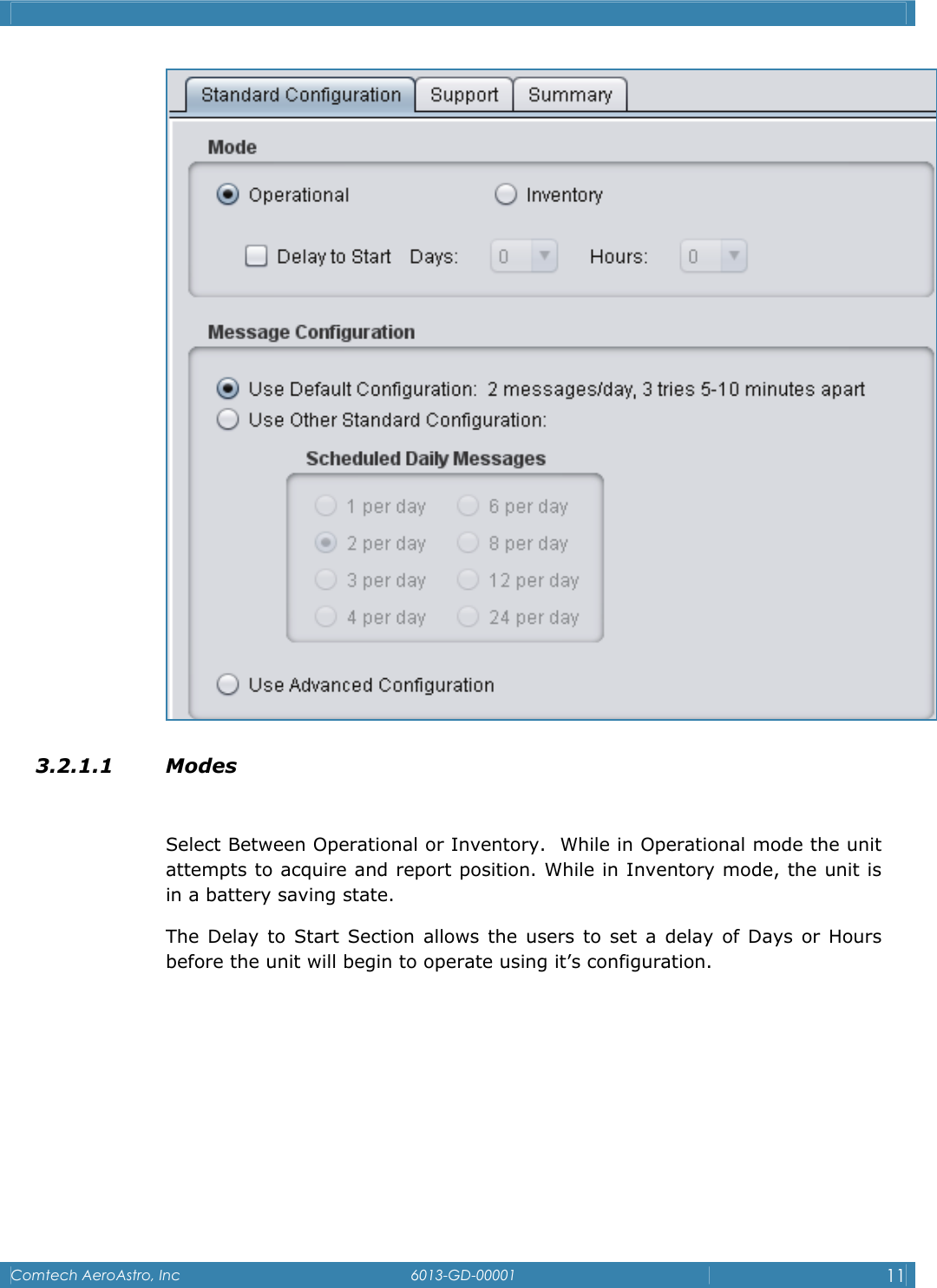
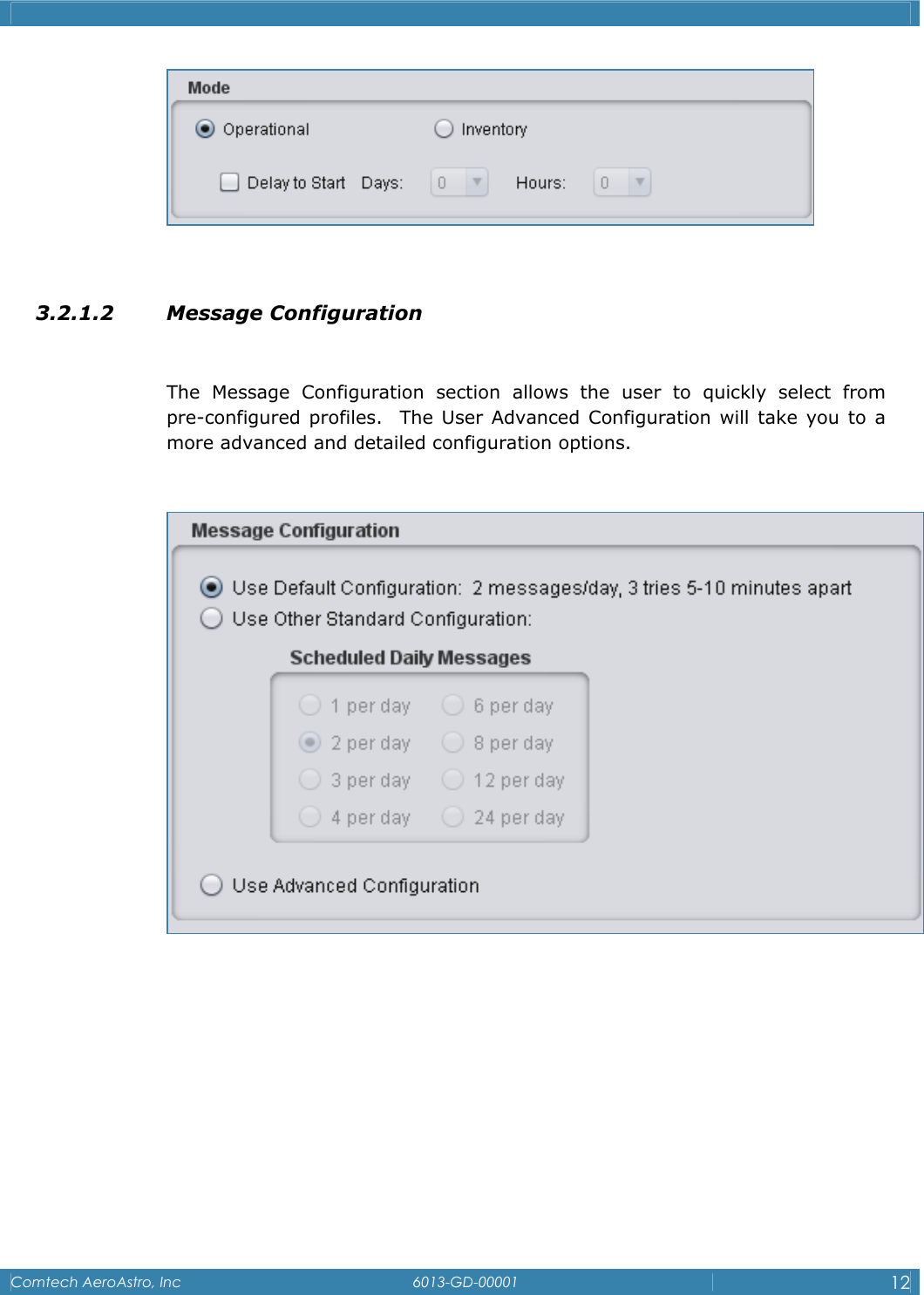
   Comtech AeroAstro, Inc   6013-GD-00001  11   3.2.1.1 Modes  Select Between Operational or Inventory.  While in Operational mode the unit attempts to acquire and report position. While in Inventory mode, the unit is in a battery saving state. The Delay to Start Section allows the users to set a delay of Days or Hours before the unit will begin to operate using it’s configuration.
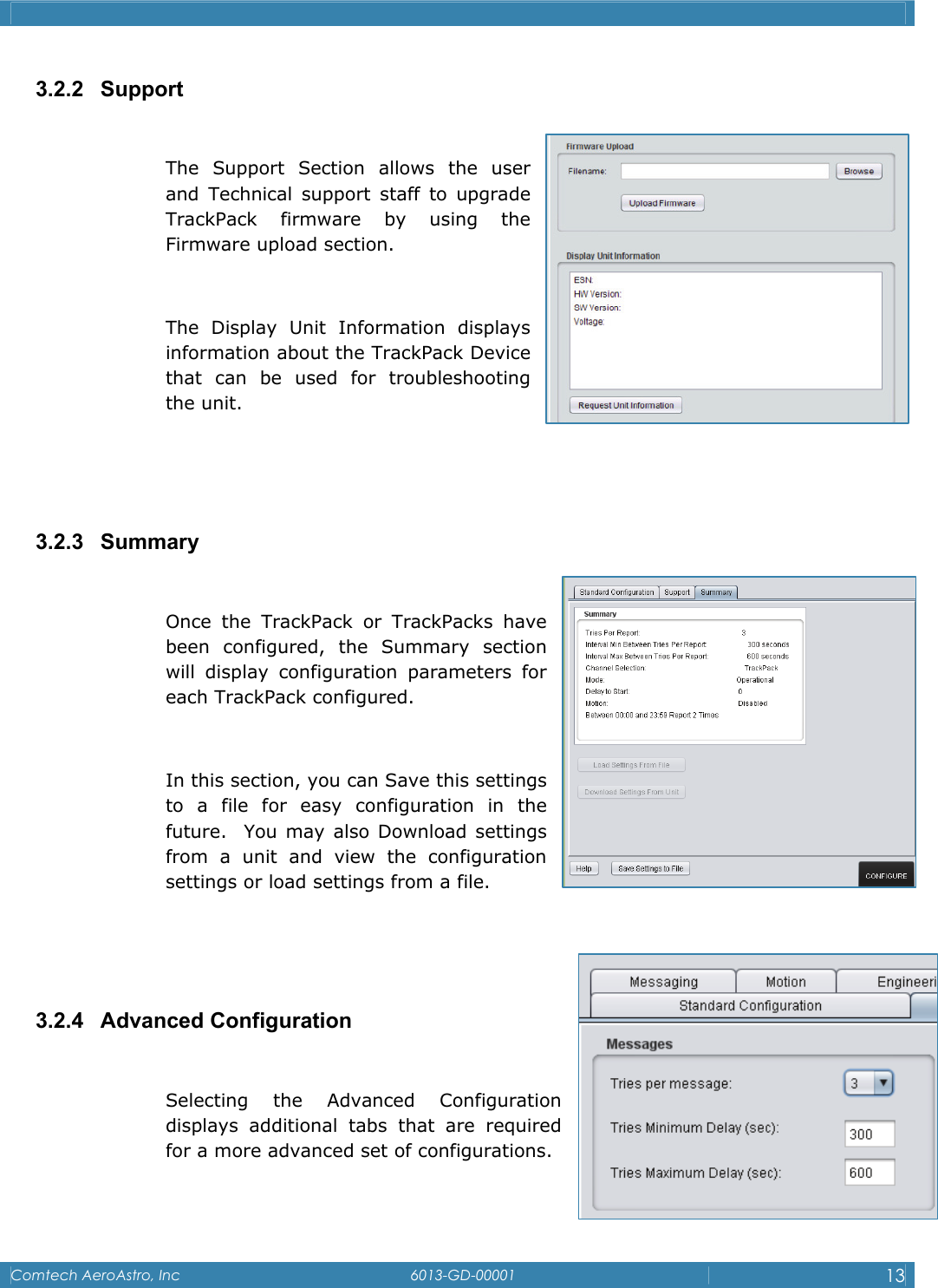
   Comtech AeroAstro, Inc   6013-GD-00001  12    3.2.1.2 Message Configuration  The Message Configuration section allows the user to quickly select from   pre-configured profiles.  The User Advanced Configuration will take you to a more advanced and detailed configuration options.
   Comtech AeroAstro, Inc   6013-GD-00001  13  3.2.2 Support  The Support Section allows the user and Technical support staff to upgrade TrackPack firmware by using the    Firmware upload section.   The Display Unit Information displays information about the TrackPack Device that can be used for troubleshooting the unit.   3.2.3 Summary  Once the TrackPack or TrackPacks have been configured, the Summary section will display configuration parameters for each TrackPack configured.  In this section, you can Save this settings to a file for easy configuration in the    future.  You may also Download settings from a unit and view the configuration settings or load settings from a file.     3.2.4 Advanced Configuration  Selecting the Advanced Configuration displays additional tabs that are required for a more advanced set of configurations.
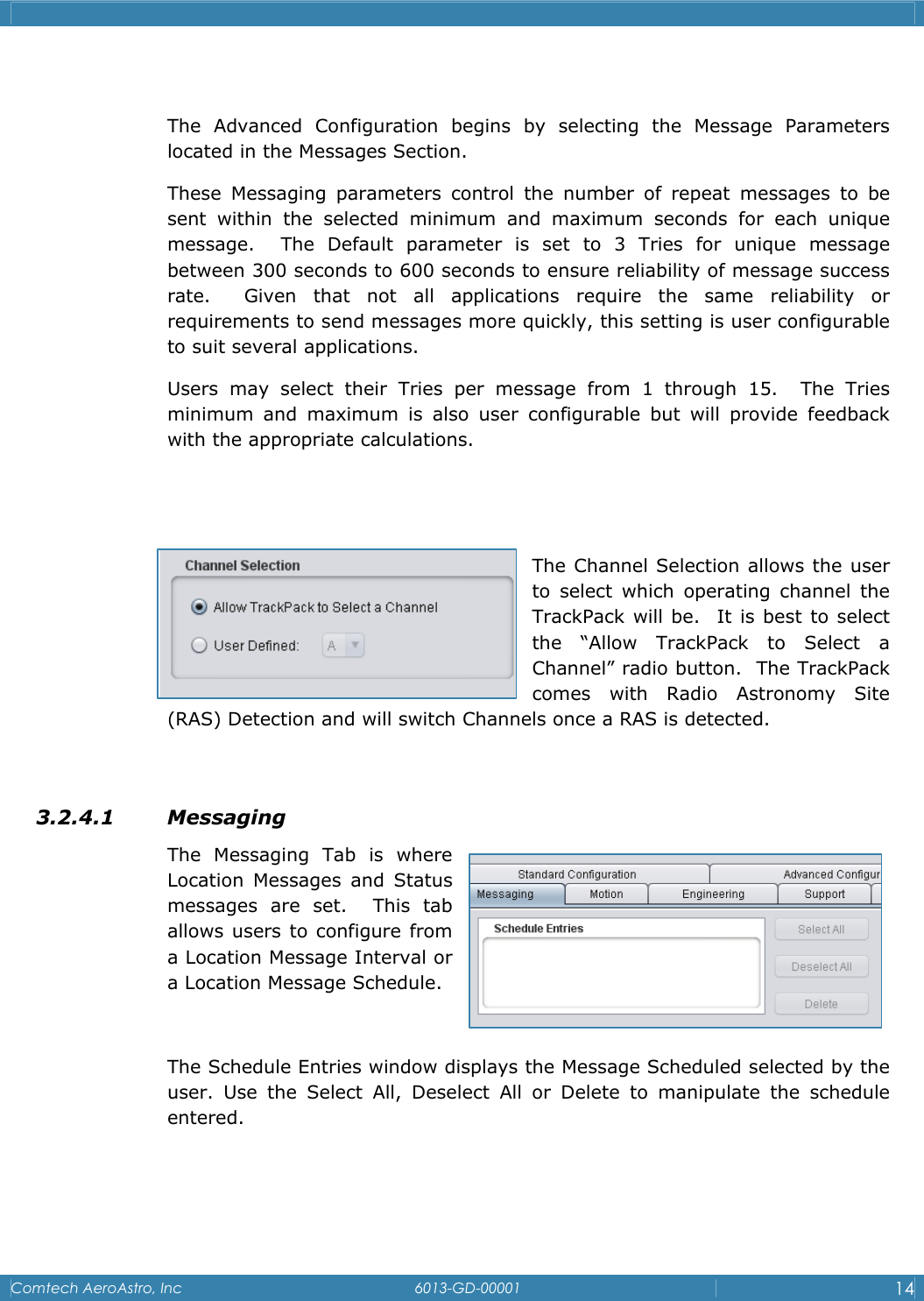
   Comtech AeroAstro, Inc   6013-GD-00001  14   The Advanced Configuration begins by selecting the Message Parameters located in the Messages Section. These Messaging parameters control the number of repeat messages to be sent within the selected minimum and maximum seconds for each unique message.  The Default parameter is set to 3 Tries for unique message        between 300 seconds to 600 seconds to ensure reliability of message success rate.  Given that not all applications require the same reliability or              requirements to send messages more quickly, this setting is user configurable to suit several applications.   Users may select their Tries per message from 1 through 15.  The Tries minimum and maximum is also user configurable but will provide feedback with the appropriate calculations.    The Channel Selection allows the user to select which operating channel the TrackPack will be.  It is best to select the “Allow TrackPack to Select a   Channel” radio button.  The TrackPack comes with Radio Astronomy Site (RAS) Detection and will switch Channels once a RAS is detected.  3.2.4.1 Messaging  The Messaging Tab is where Location Messages and Status messages are set.  This tab allows users to configure from a Location Message Interval or a Location Message Schedule.  The Schedule Entries window displays the Message Scheduled selected by the user. Use the Select All, Deselect All or Delete to manipulate the schedule entered.
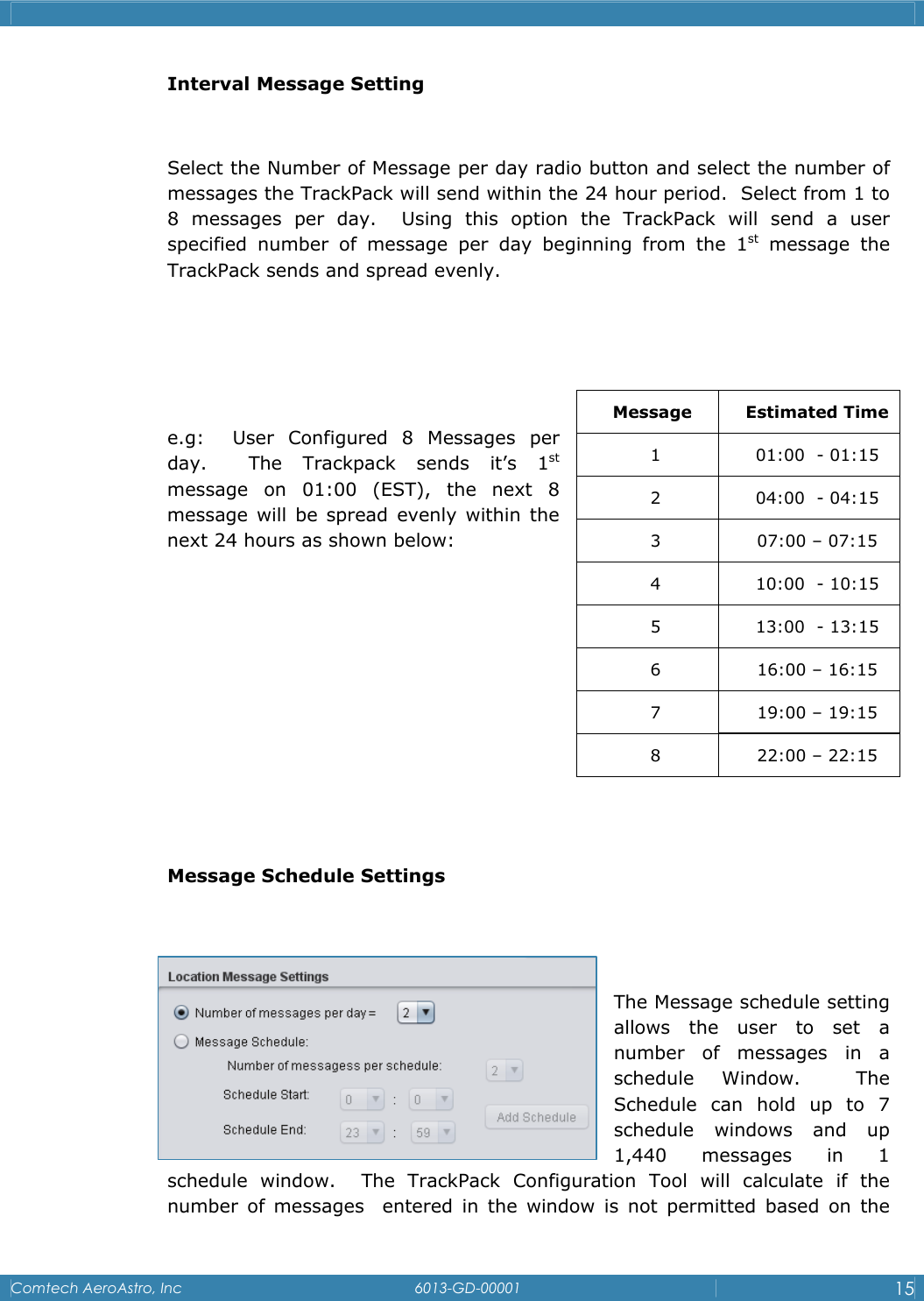
   Comtech AeroAstro, Inc   6013-GD-00001  15  Interval Message Setting  Select the Number of Message per day radio button and select the number of messages the TrackPack will send within the 24 hour period.  Select from 1 to 8 messages per day.  Using this option the TrackPack will send a user    specified number of message per day beginning from the 1st message the TrackPack sends and spread evenly.      e.g:  User Configured 8 Messages per day.  The Trackpack sends it’s 1st message on 01:00 (EST), the next 8 message will be spread evenly within the next 24 hours as shown below:        Message Schedule Settings   The Message schedule setting allows the user to set a number of messages in a schedule Window.  The Schedule can hold up to 7 schedule windows and up 1,440 messages in 1 schedule window.  The TrackPack Configuration Tool will calculate if the number of messages  entered in the window is not permitted based on the Message Estimated Time 1  01:00  - 01:15 2  04:00  - 04:15 3  07:00 – 07:15 4  10:00  - 10:15 5  13:00  - 13:15 6  16:00 – 16:15 7  19:00 – 19:15 8  22:00 – 22:15
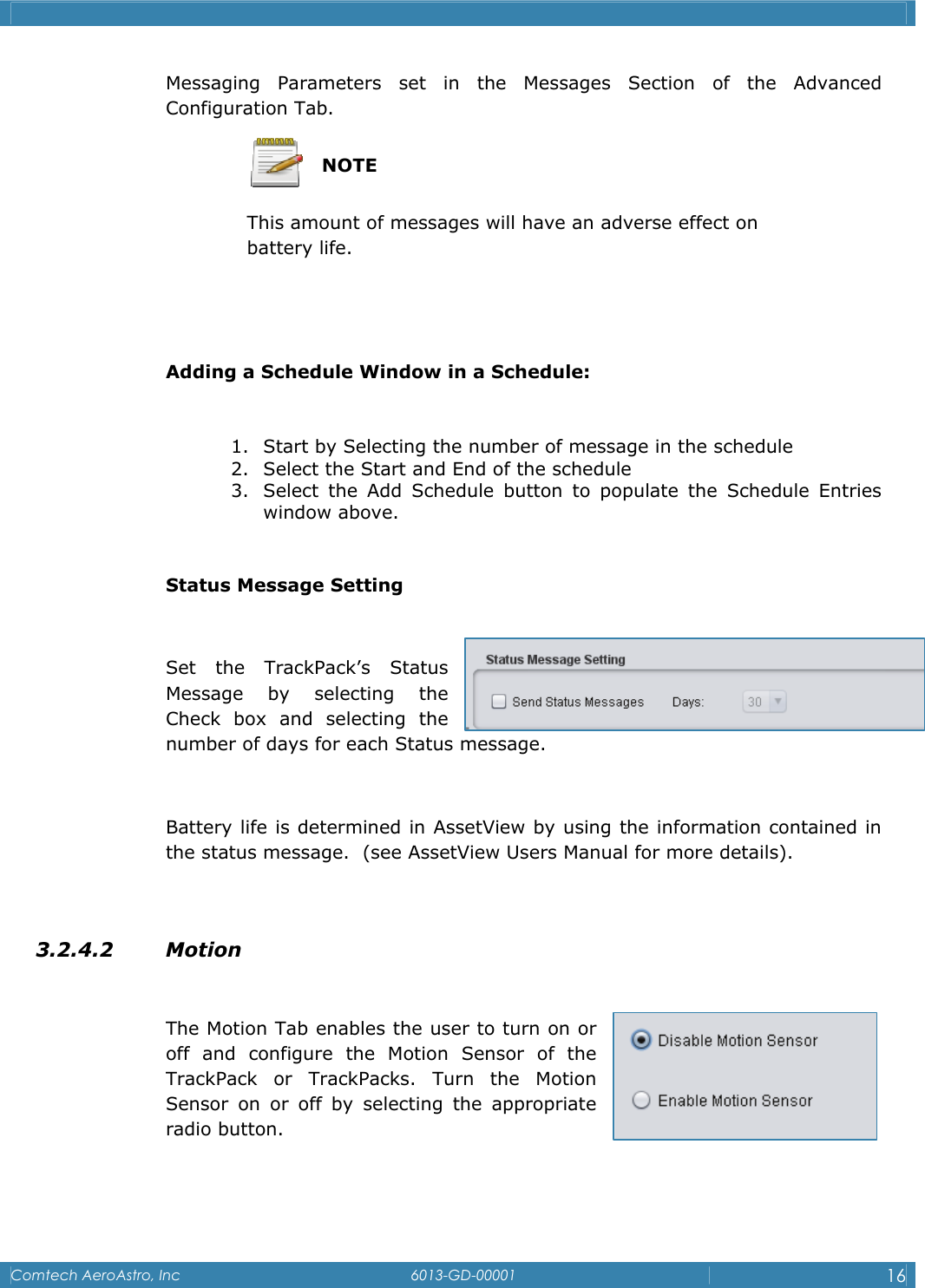
   Comtech AeroAstro, Inc   6013-GD-00001  16  Messaging Parameters set in the Messages Section of the Advanced Configuration Tab.   NOTE This amount of messages will have an adverse effect on      battery life.   Adding a Schedule Window in a Schedule:  1. Start by Selecting the number of message in the schedule 2. Select the Start and End of the schedule 3. Select the Add Schedule button to populate the Schedule Entries window above.  Status Message Setting  Set the TrackPack’s Status Message by selecting the Check box and selecting the number of days for each Status message.  Battery life is determined in AssetView by using the information contained in the status message.  (see AssetView Users Manual for more details).   3.2.4.2 Motion   The Motion Tab enables the user to turn on or off and configure the Motion Sensor of the TrackPack or TrackPacks. Turn the Motion Sensor on or off by selecting the appropriate radio button.
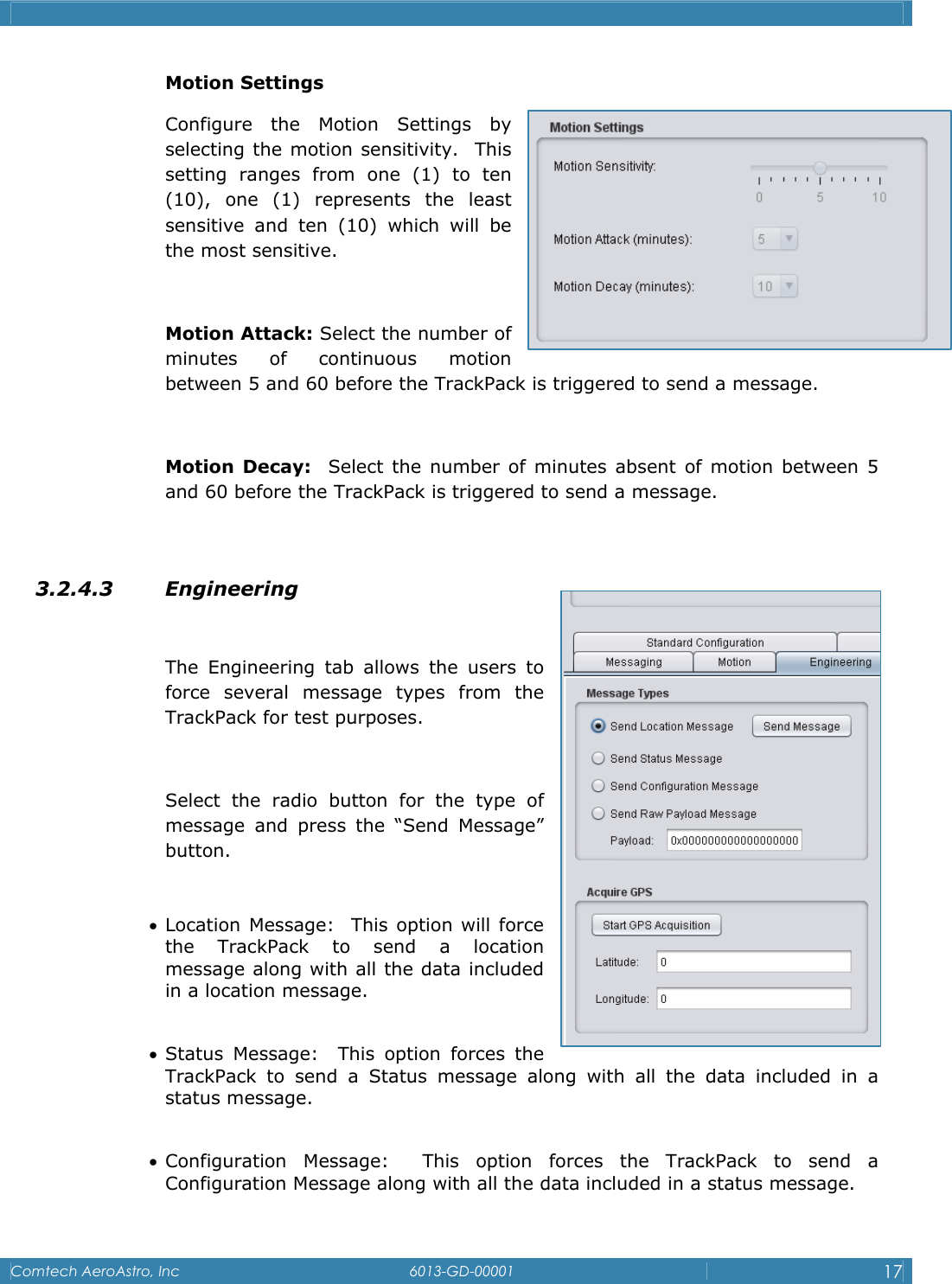
   Comtech AeroAstro, Inc   6013-GD-00001  17  Motion Settings Configure the Motion Settings by selecting the motion sensitivity.  This setting ranges from one (1) to ten (10), one (1) represents the least sensitive and ten (10) which will be the most sensitive.  Motion Attack: Select the number of minutes of continuous motion between 5 and 60 before the TrackPack is triggered to send a message.  Motion Decay:  Select the number of minutes absent of motion between 5 and 60 before the TrackPack is triggered to send a message.  3.2.4.3 Engineering  The Engineering tab allows the users to force several message types from the TrackPack for test purposes.   Select the radio button for the type of message and press the “Send Message” button.  • Location Message:  This option will force the TrackPack to send a location message along with all the data included in a location message.  • Status Message:  This option forces the TrackPack to send a Status message along with all the data included in a status message.  • Configuration Message:  This option forces the TrackPack to send a Configuration Message along with all the data included in a status message.
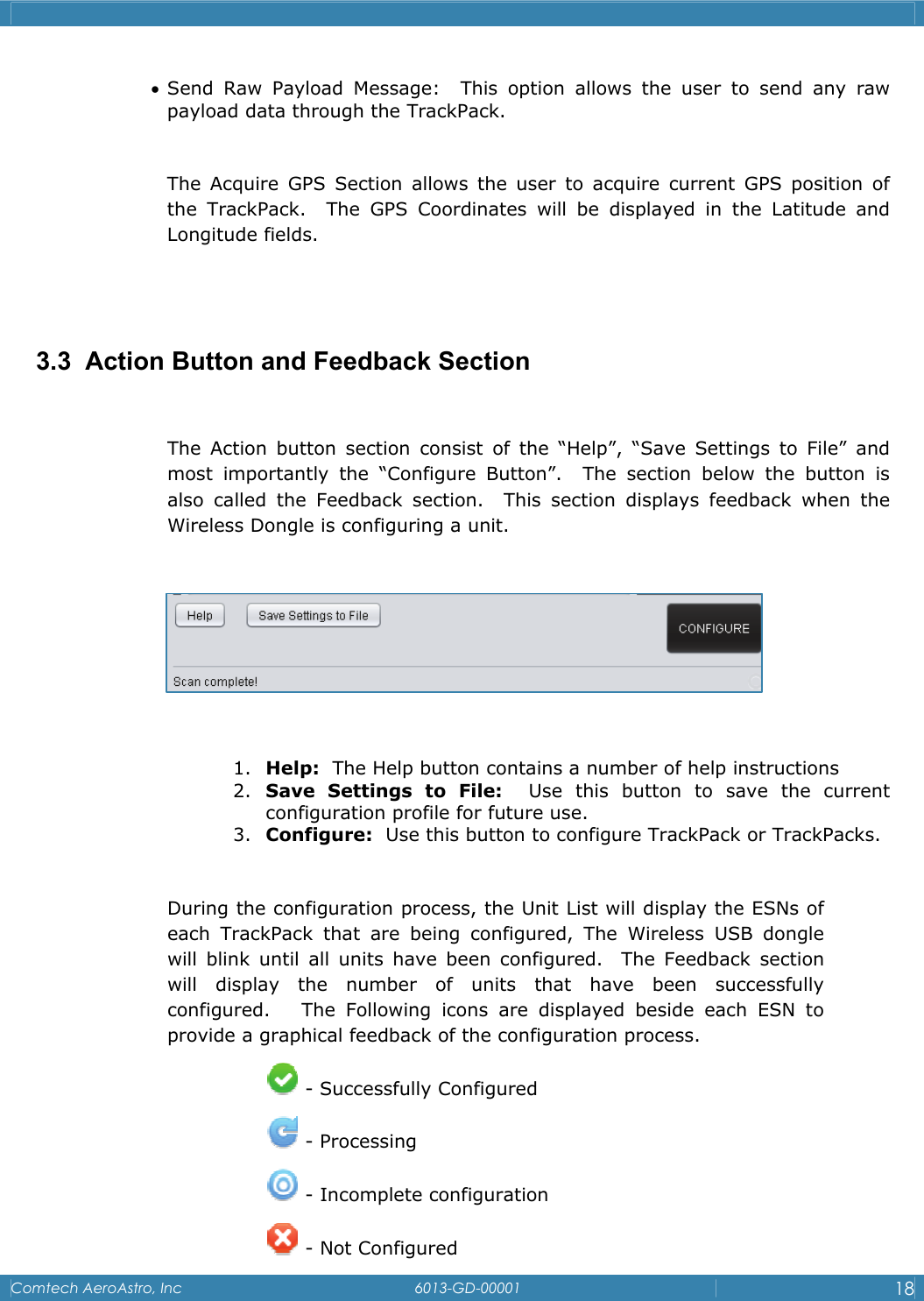
   Comtech AeroAstro, Inc   6013-GD-00001  18  • Send Raw Payload Message:  This option allows the user to send any raw payload data through the TrackPack.  The Acquire GPS Section allows the user to acquire current GPS position of the TrackPack.  The GPS Coordinates will be displayed in the Latitude and Longitude fields.   3.3  Action Button and Feedback Section  The Action button section consist of the “Help”, “Save Settings to File” and most importantly the “Configure Button”.  The section below the button is also called the Feedback section.  This section displays feedback when the Wireless Dongle is configuring a unit.      1. Help:  The Help button contains a number of help instructions 2. Save Settings to File:  Use this button to save the current configuration profile for future use. 3. Configure:  Use this button to configure TrackPack or TrackPacks.  During the configuration process, the Unit List will display the ESNs of each TrackPack that are being configured, The Wireless USB dongle will blink until all units have been configured.  The Feedback section will display the number of units that have been successfully configured.   The Following icons are displayed beside each ESN to provide a graphical feedback of the configuration process.    - Successfully Configured  - Processing  - Incomplete configuration  - Not Configured
   Comtech AeroAstro, Inc   6013-GD-00001  19   - Need to check the unit  Once the TrackPack (s) have been configured, select the Summary tab to view the configuration (s)  see the Summary Tab description in 3.2.2
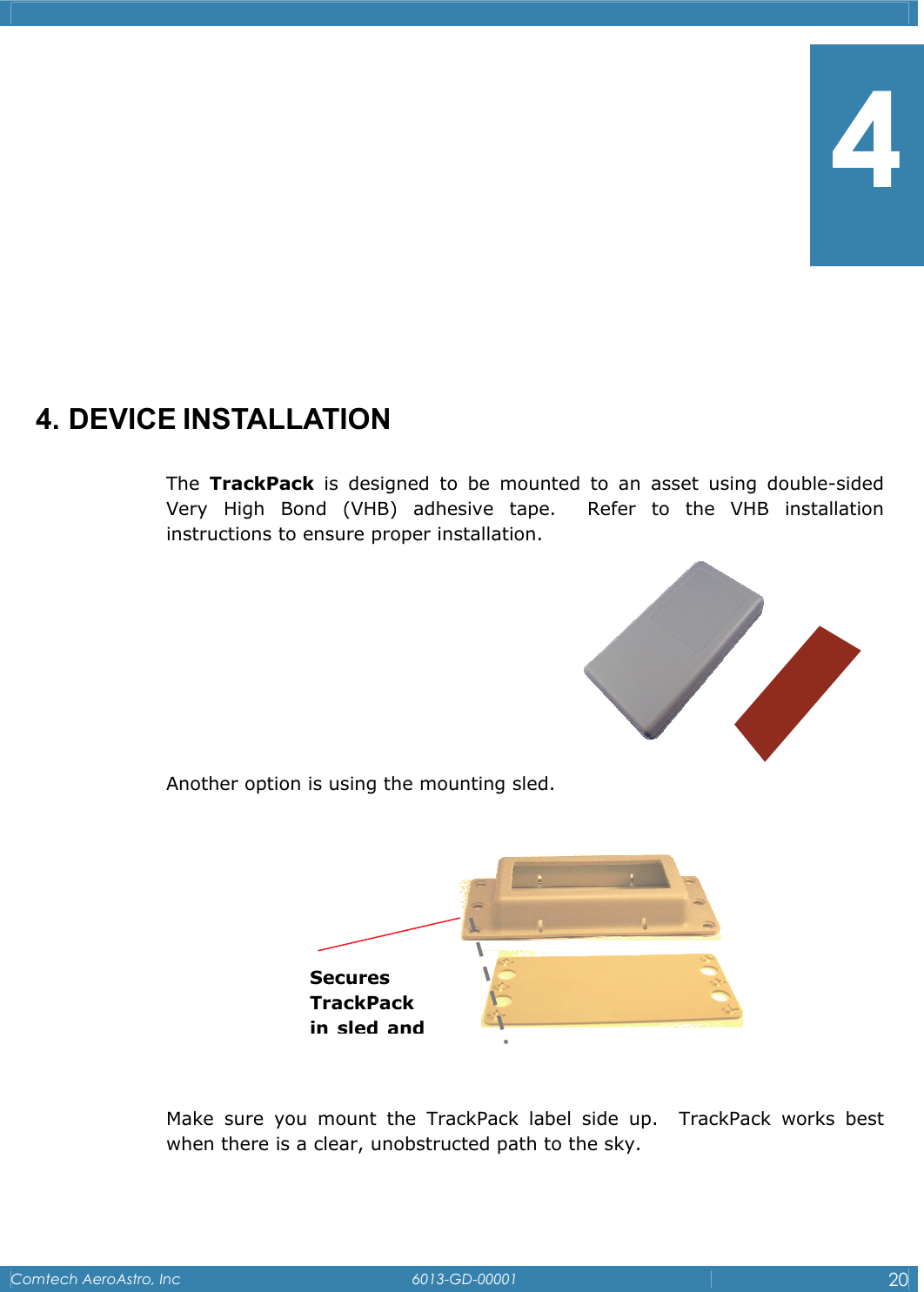
   Comtech AeroAstro, Inc   6013-GD-00001  20          4. DEVICE INSTALLATION The  TrackPack is designed to be mounted to an asset using double-sided Very High Bond (VHB) adhesive tape.  Refer to the VHB installation instructions to ensure proper installation.      Another option is using the mounting sled.    Make sure you mount the TrackPack label side up.  TrackPack works best when there is a clear, unobstructed path to the sky.    Secures TrackPack in sled and 4
   Comtech AeroAstro, Inc   6013-GD-00001  21         5. MESSAGING PRIORITY  The TrackPack has 2 types of Location Message.  These messages are Standard Location message which is configured by the user to send in an interval or a schedule mode and a Motion message which is configured by the user to be sent based on motion sensitivity, attack and decay settings.  The Messaging priority is set to the Motion Message when this function is enabled.  The TrackPack will send standard location message (s) as configured even with the motion sensor enabled.  Once motion is detected, the TrackPack will send the Motion message as a priority and will resume Standard location message configuration.            5
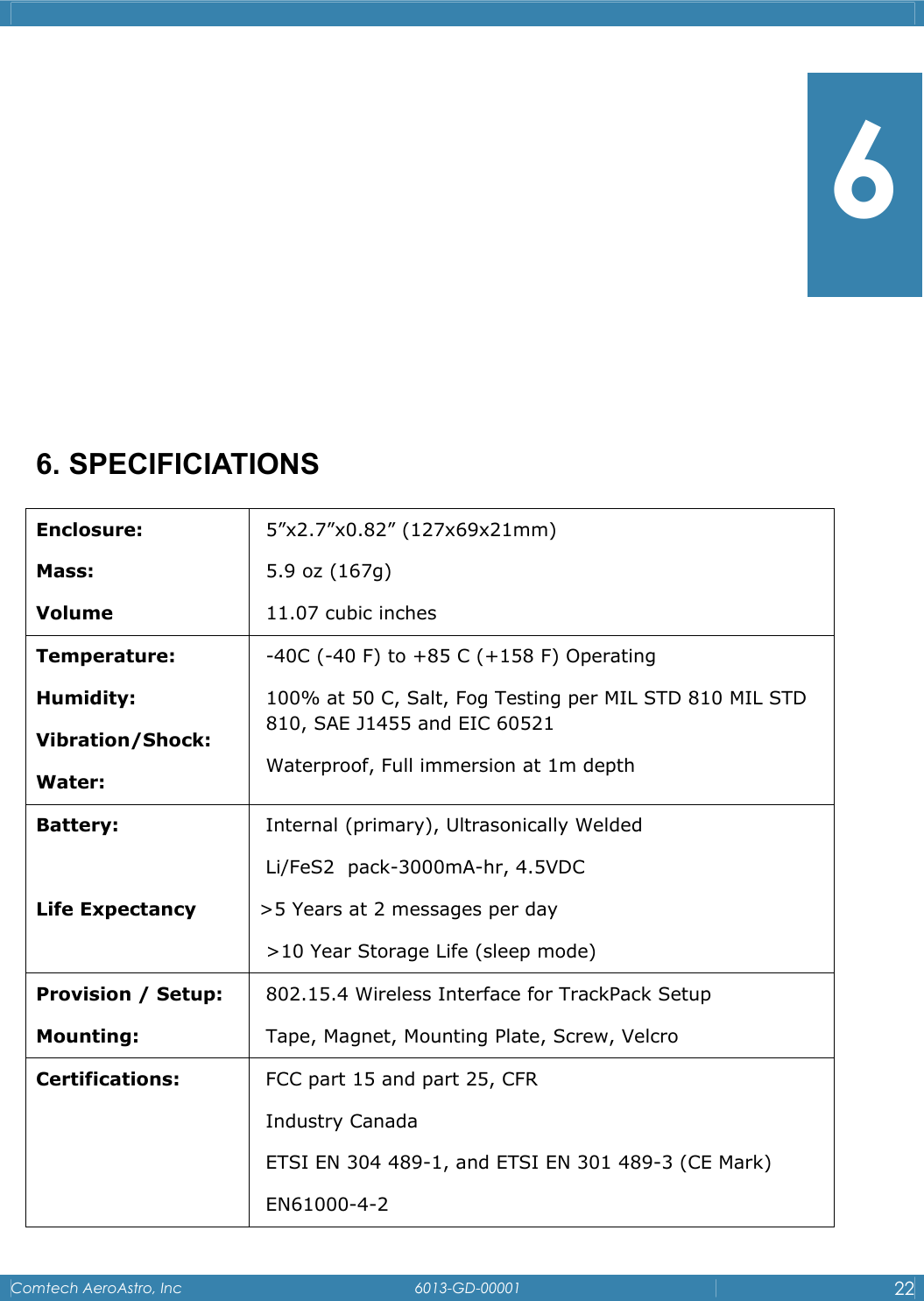
   Comtech AeroAstro, Inc   6013-GD-00001  22           6. SPECIFICIATIONS Enclosure: Mass:  Volume 5”x2.7”x0.82” (127x69x21mm) 5.9 oz (167g)  11.07 cubic inches Temperature: Humidity: Vibration/Shock:      Water: -40C (-40 F) to +85 C (+158 F) Operating 100% at 50 C, Salt, Fog Testing per MIL STD 810 MIL STD 810, SAE J1455 and EIC 60521 Waterproof, Full immersion at 1m depth Battery:             Life Expectancy Internal (primary), Ultrasonically Welded Li/FeS2  pack-3000mA-hr, 4.5VDC >5 Years at 2 messages per day >10 Year Storage Life (sleep mode) Provision / Setup: Mounting: 802.15.4 Wireless Interface for TrackPack Setup  Tape, Magnet, Mounting Plate, Screw, Velcro Certifications:    FCC part 15 and part 25, CFR Industry Canada ETSI EN 304 489-1, and ETSI EN 301 489-3 (CE Mark) EN61000-4-2 6
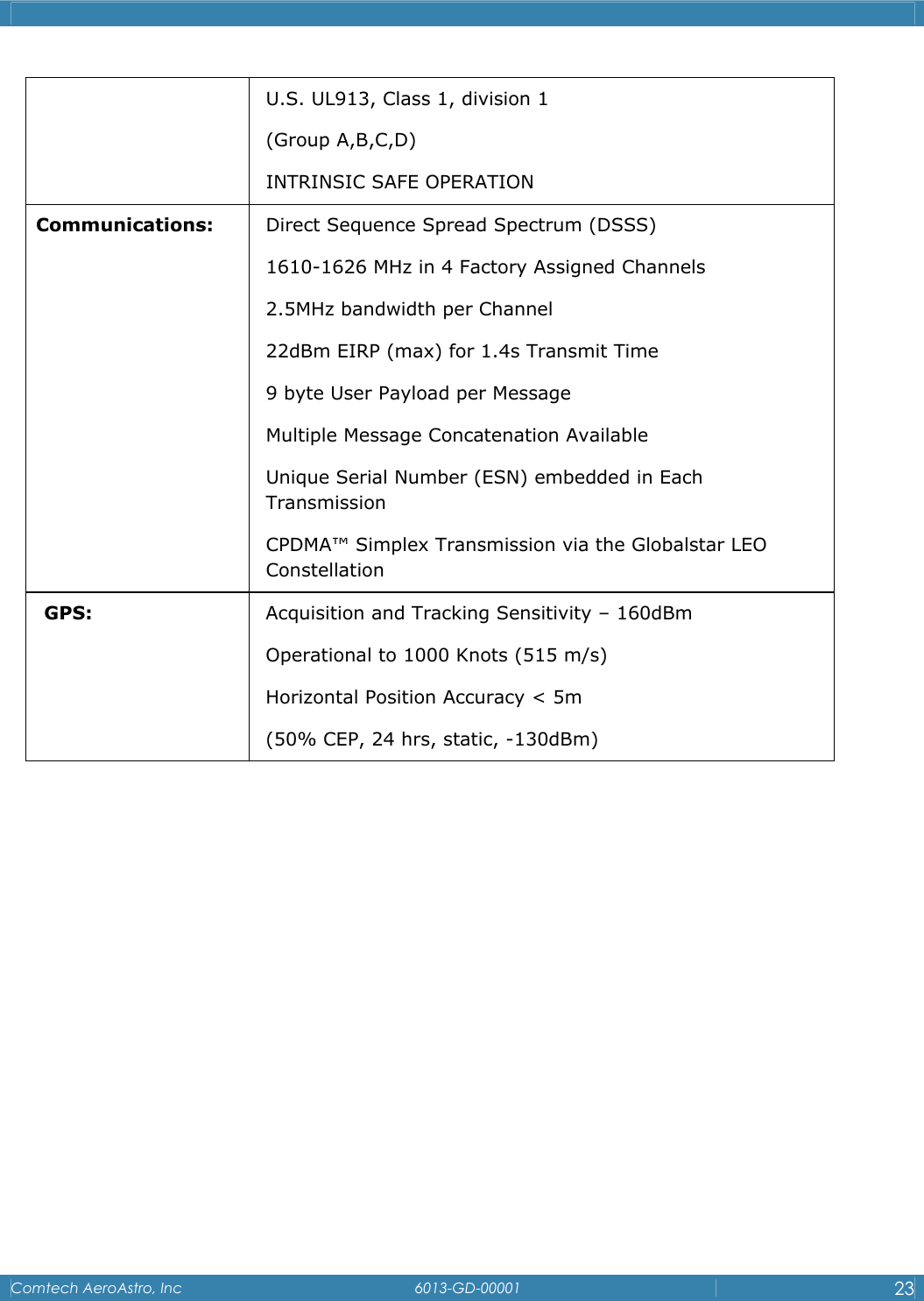
   Comtech AeroAstro, Inc   6013-GD-00001  23  U.S. UL913, Class 1, division 1  (Group A,B,C,D) INTRINSIC SAFE OPERATION Communications:  Direct Sequence Spread Spectrum (DSSS) 1610-1626 MHz in 4 Factory Assigned Channels 2.5MHz bandwidth per Channel 22dBm EIRP (max) for 1.4s Transmit Time 9 byte User Payload per Message Multiple Message Concatenation Available Unique Serial Number (ESN) embedded in Each Transmission CPDMA™ Simplex Transmission via the Globalstar LEO Constellation GPS:  Acquisition and Tracking Sensitivity – 160dBm Operational to 1000 Knots (515 m/s) Horizontal Position Accuracy < 5m (50% CEP, 24 hrs, static, -130dBm)
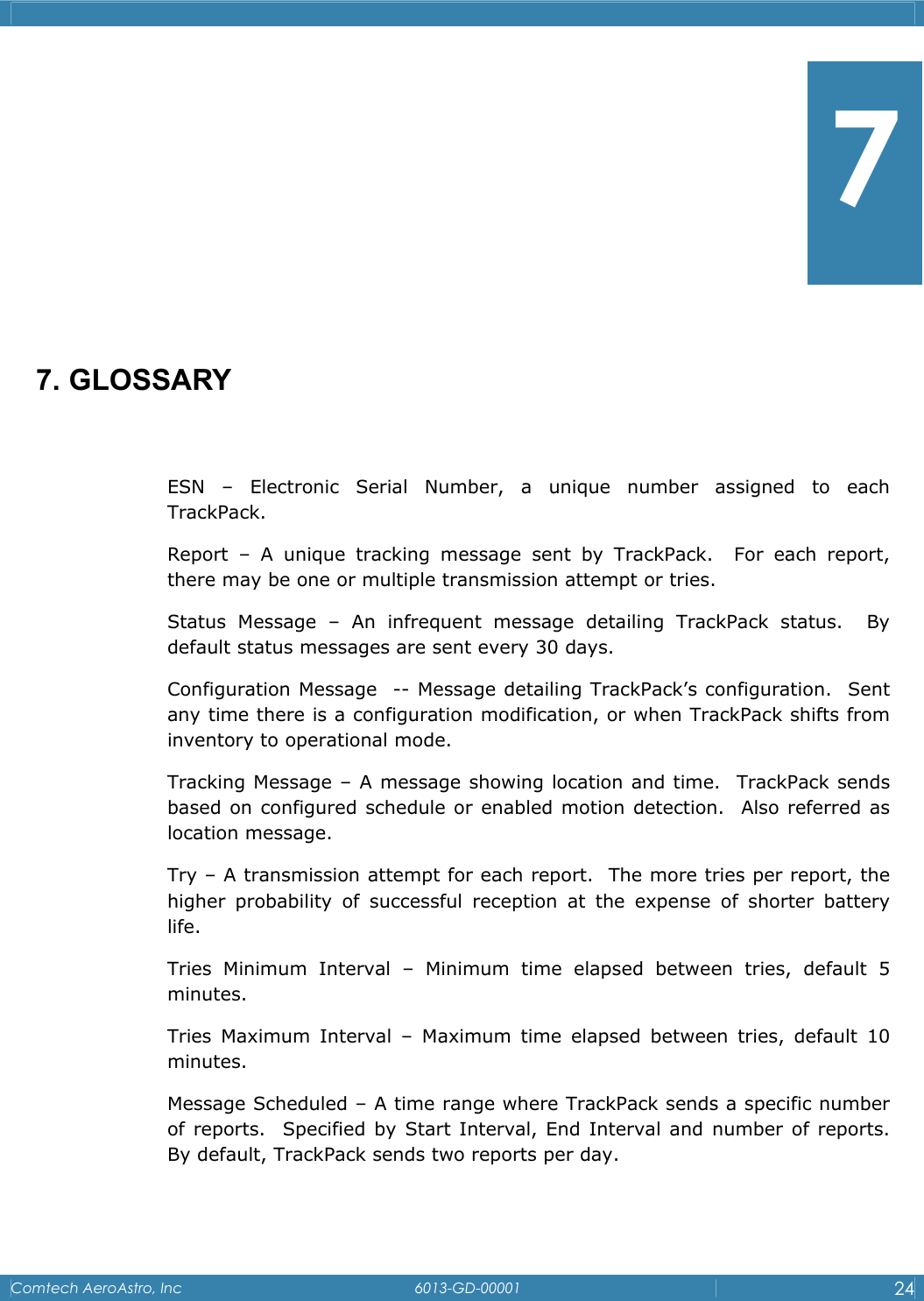
   Comtech AeroAstro, Inc   6013-GD-00001  24         7. GLOSSARY  ESN – Electronic Serial Number, a unique number assigned to each TrackPack.   Report – A unique tracking message sent by TrackPack.  For each report, there may be one or multiple transmission attempt or tries. Status Message – An infrequent message detailing TrackPack status.  By default status messages are sent every 30 days. Configuration Message  -- Message detailing TrackPack’s configuration.  Sent any time there is a configuration modification, or when TrackPack shifts from inventory to operational mode. Tracking Message – A message showing location and time.  TrackPack sends based on configured schedule or enabled motion detection.  Also referred as location message. Try – A transmission attempt for each report.  The more tries per report, the higher probability of successful reception at the expense of shorter battery life.   Tries Minimum Interval – Minimum time elapsed between tries, default 5 minutes. Tries Maximum Interval – Maximum time elapsed between tries, default 10 minutes. Message Scheduled – A time range where TrackPack sends a specific number of reports.  Specified by Start Interval, End Interval and number of reports.  By default, TrackPack sends two reports per day.  7
   Comtech AeroAstro, Inc   6013-GD-00001  25   APPENDIX A: TECHNICAL SUPPORT   Comtech AeroAstro is committed to customer care and takes great pride in offering high quality technical and customer support services to all our customers. Should you need additional assistance, our dedicated team of Technical and Customer Support group stands ready to answer your questions quickly and thoroughly.   You may contact us at help@sensservice.com or via phone at (866) 631.6010, +1 (703) 723.9800
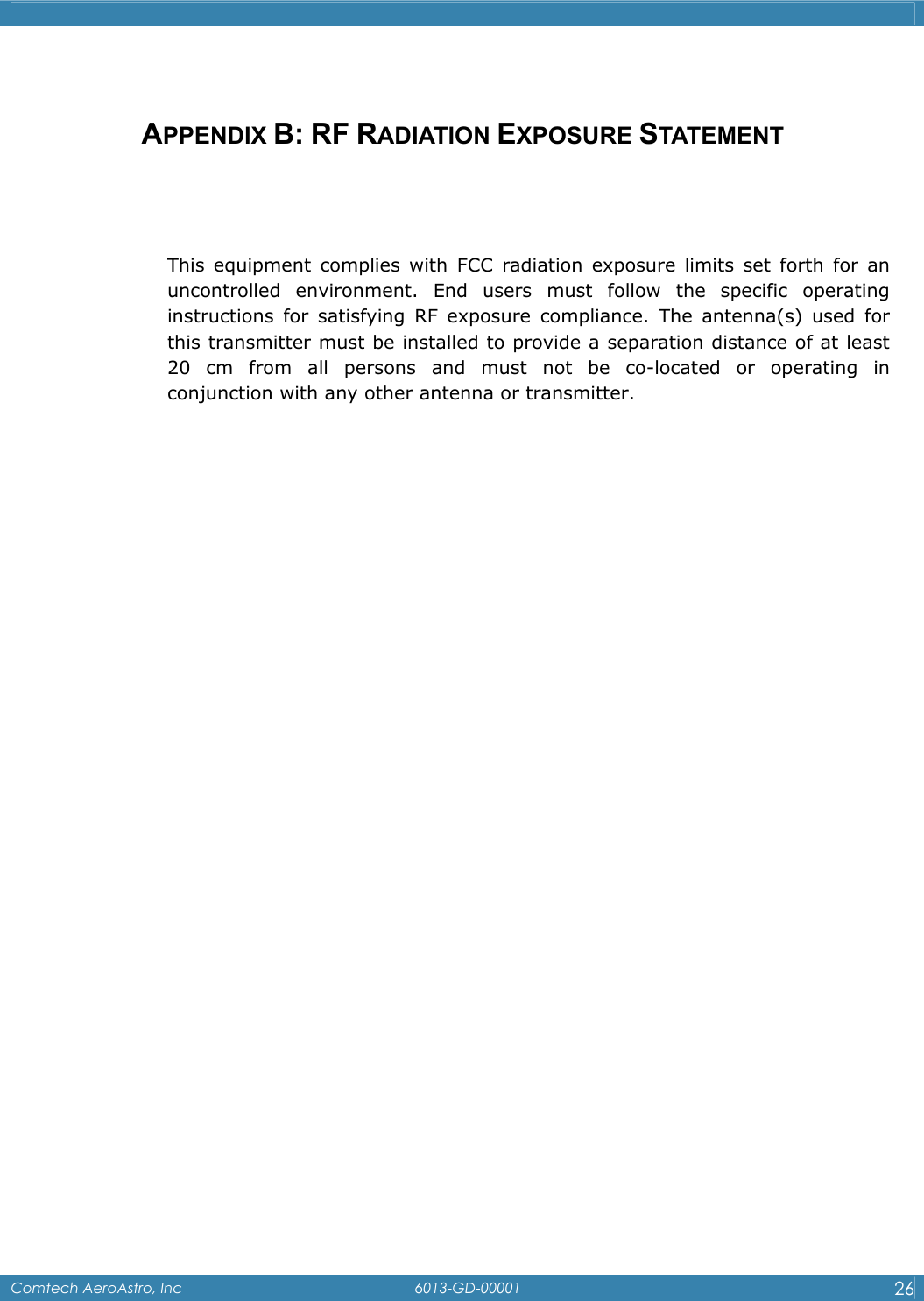
   Comtech AeroAstro, Inc   6013-GD-00001  26   APPENDIX B: RF RADIATION EXPOSURE STATEMENT   This equipment complies with FCC radiation exposure limits set forth for an uncontrolled environment. End users must follow the specific operating instructions for satisfying RF exposure compliance. The antenna(s) used for this transmitter must be installed to provide a separation distance of at least 20 cm from all persons and must not be co-located or operating in conjunction with any other antenna or transmitter.
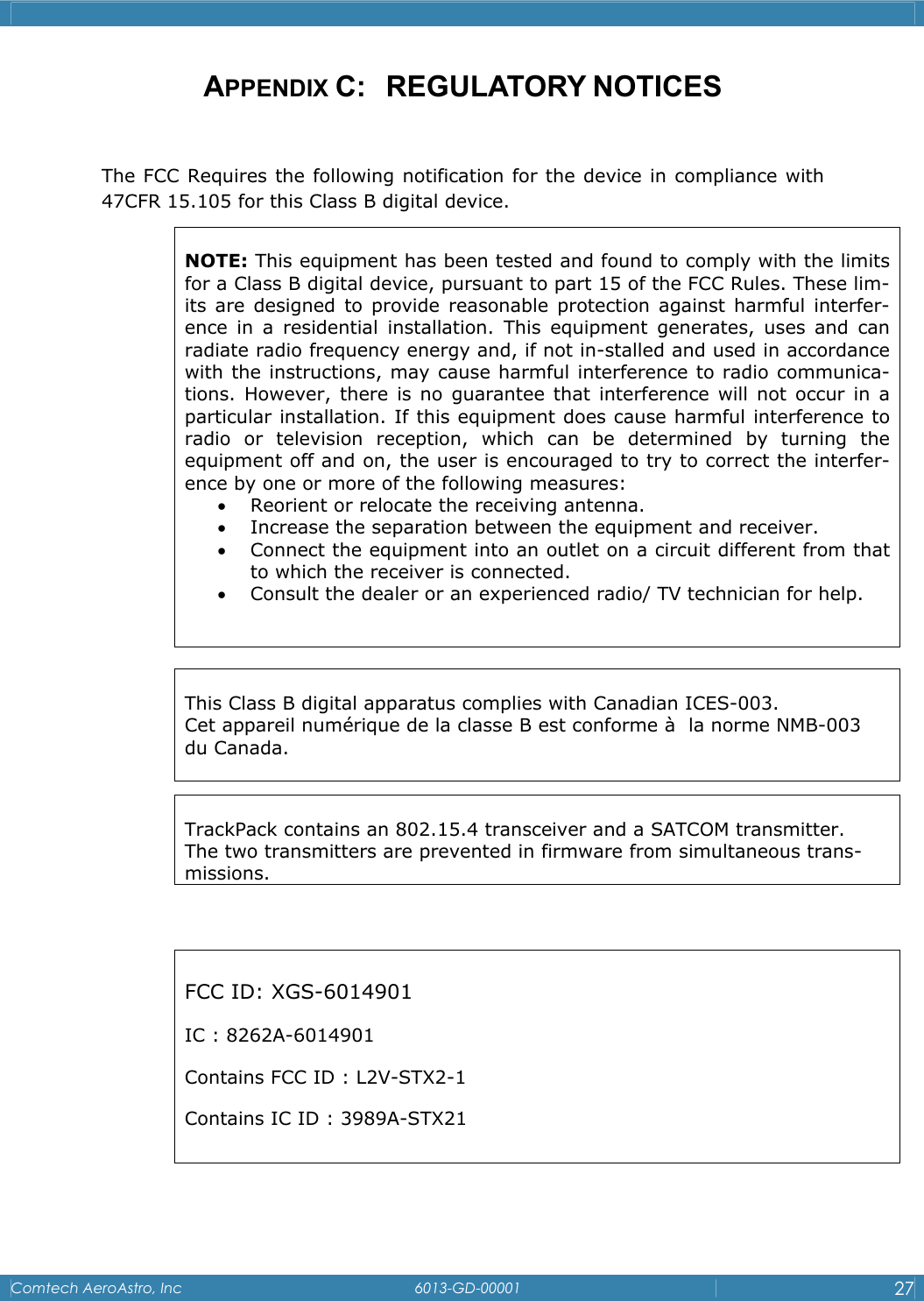
   Comtech AeroAstro, Inc   6013-GD-00001  27  APPENDIX C:   REGULATORY NOTICES  The FCC Requires the following notification for the device in compliance with 47CFR 15.105 for this Class B digital device.                           NOTE: This equipment has been tested and found to comply with the limits for a Class B digital device, pursuant to part 15 of the FCC Rules. These lim-its are designed to provide reasonable protection against harmful interfer-ence in a residential installation. This equipment generates, uses and can radiate radio frequency energy and, if not in-stalled and used in accordance with the instructions, may cause harmful interference to radio communica-tions. However, there is no guarantee that interference will not occur in a particular installation. If this equipment does cause harmful interference to radio or television reception, which can be determined by turning the equipment off and on, the user is encouraged to try to correct the interfer-ence by one or more of the following measures:  • Reorient or relocate the receiving antenna.  • Increase the separation between the equipment and receiver.  • Connect the equipment into an outlet on a circuit different from that to which the receiver is connected.  • Consult the dealer or an experienced radio/ TV technician for help.   This Class B digital apparatus complies with Canadian ICES-003. Cet appareil numérique de la classe B est conforme à  la norme NMB-003 du Canada.   FCC ID: XGS-6014901 IC : 8262A-6014901 Contains FCC ID : L2V-STX2-1 Contains IC ID : 3989A-STX21   TrackPack contains an 802.15.4 transceiver and a SATCOM transmitter.  The two transmitters are prevented in firmware from simultaneous trans-missions.
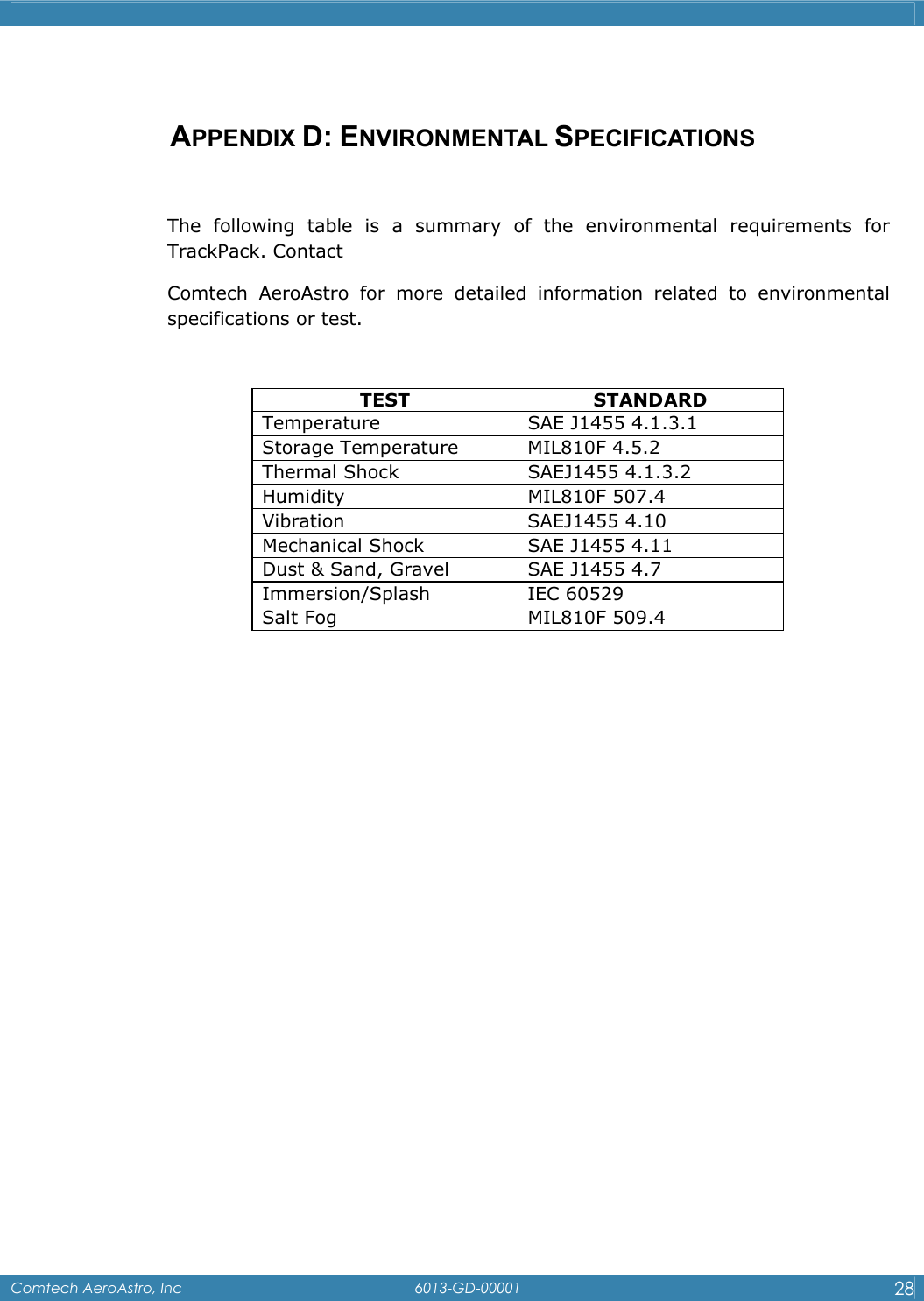
   Comtech AeroAstro, Inc   6013-GD-00001  28   APPENDIX D: ENVIRONMENTAL SPECIFICATIONS  The following table is a summary of the environmental requirements for TrackPack. Contact Comtech AeroAstro for more detailed information related to environmental specifications or test.  TEST STANDARD Temperature  SAE J1455 4.1.3.1 Storage Temperature  MIL810F 4.5.2 Thermal Shock  SAEJ1455 4.1.3.2 Humidity MIL810F 507.4 Vibration SAEJ1455 4.10 Mechanical Shock  SAE J1455 4.11 Dust & Sand, Gravel  SAE J1455 4.7 Immersion/Splash IEC 60529 Salt Fog  MIL810F 509.4
   Comtech AeroAstro, Inc   6013-GD-00001  29    APPENDIX E: MESSAGE FORMAT  TrackPack sends messages over the Globalstar satellite network in 16-btye packets.   Nine of the sixteen bytes are reserved for variable user data.  TrackPack employs three different message types: tracking (location) mes-sage, configuration message, and status message.  The user data format for each message is listed as follows:   1.  TRACKING MESSAGE  The tracking message is used to report location that is transmitted on a schedule or interval.  This type of message is also used to indicate if the mes-sage was triggered by the Motion sensor.  The Message Trigger will indicate the following: Schedule – Location messages Motion Start – indicates that motion has started Motion Stop – indicates that motion has seized.   BYTE BITS  NAME  DESCRIPTION  ENUMERATION 7:5 Message Type  Tracking Message - Al-ways 0b000   4:3 Message Trigger  Event Triggering the Transmission {3...0} = {Unde-fined, Motion Stop, Motion Start, Schedule} 2:1  GPS Acquisition Attempts Number Required to Ac-quire GPS Lock {3…0} = {3, 2, 1, No Acquisition} 1 0  GPS Accuracy  Fix Quality Indicator  {1,0} = {3D Fix, 2D Fix} 2  7:0  Latitude [2]  MSB of Latitude Indicator
   Comtech AeroAstro, Inc   6013-GD-00001  30  3 7:0 Latitude [1]  Center Byte of Latitude Indicator   4 7:0 Latitude [0]  LSB of Latitude Indica-tor   5 7:0 Longitude [2]  MSB of Longitude Indi-cator   6 7:0 Longitude [1]  Center Byte of Longi-tude Indicator   7 7:0 Longitude [0]  LSB of Longitude Indica-tor   8 7:0 GPS Acquisition Time [1]  MSB of Acquisition Time   9 7:0 GPS Acquisition Time [0]  LSB of Acquisition Time    1.1  Decoded Tracking Message Sample <?xml version="1.0" encoding="UTF-8"?> <!DOCTYPE stuMessages > <stuMessages timeStamp="20/02/2009 15:17:32 GMT" pack-etID="16deee05-372a-4a6a-91ee-113b36c3ac76">  <stuMessage> <Type>tracking_message</Type>  <SeqNo></SeqNo>  <ESN>333148</ESN>   <UnitName>INI Inc TP</UnitName>  <MessageTimeGMT>2009/02/19 21:12:30</MessageTimeGMT>  <Longitude>12.482314</Longitude>  <Latitude>41.895461</Latitude>  <MessageTrigger>Schedule</MessageTrigger>  <GPSAcquisitionAttempts>1</GPSAcquisitionAttempts>  <GPSAccuracy>3D Fix</GPSAccuracy>  <GPSAcquisitionTime>05:26:18</GPSAcquisitionTime> </stuMessage>
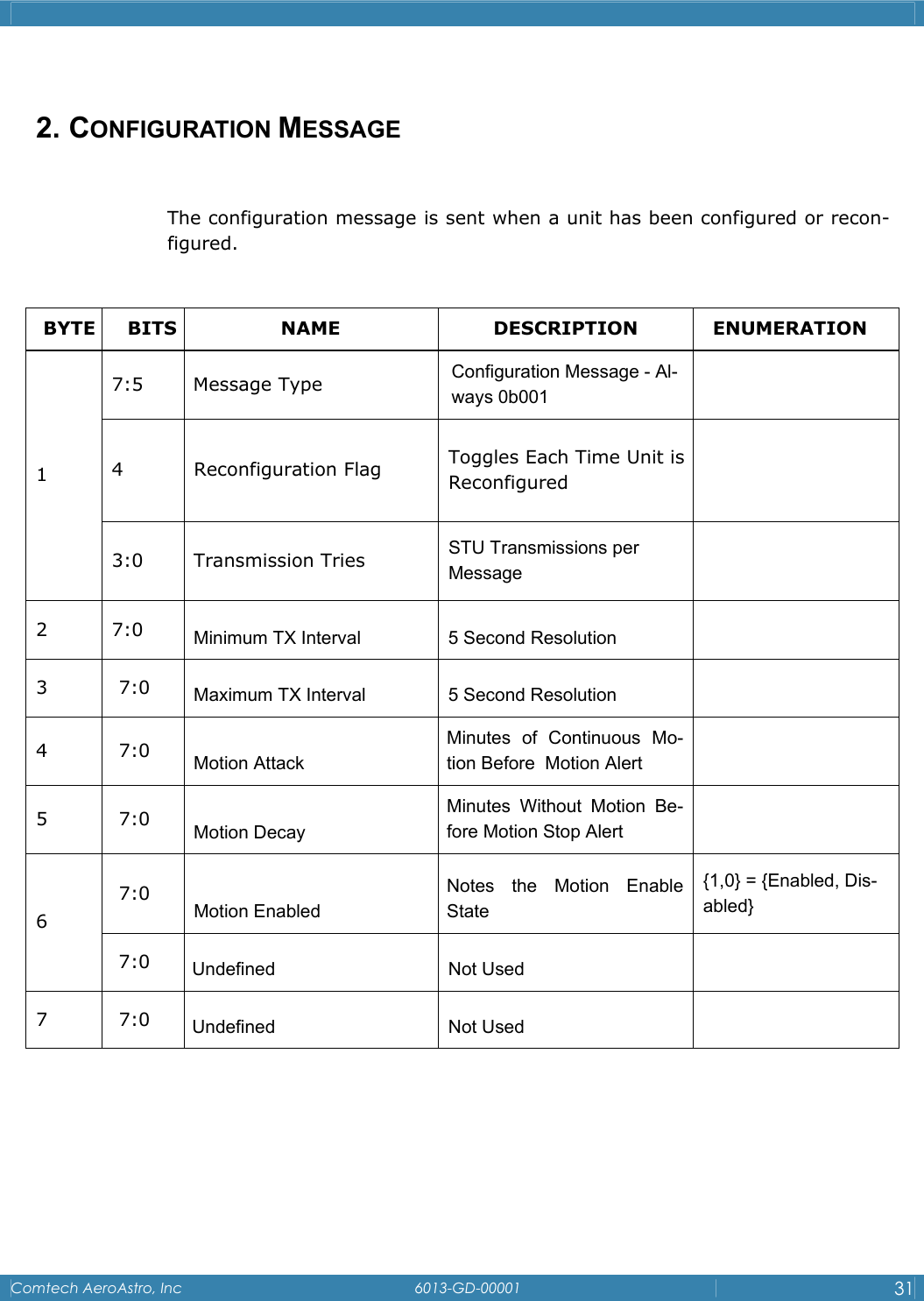
   Comtech AeroAstro, Inc   6013-GD-00001  31   2. CONFIGURATION MESSAGE  The configuration message is sent when a unit has been configured or recon-figured.    BYTE BITS  NAME  DESCRIPTION  ENUMERATION 7:5 Message Type  Configuration Message - Al-ways 0b001  4 Reconfiguration Flag Toggles Each Time Unit is Reconfigured   1 3:0 Transmission Tries  STU Transmissions per Message  2 7:0 Minimum TX Interval  5 Second Resolution   3 7:0 Maximum TX Interval  5 Second Resolution   4 7:0 Motion Attack Minutes of Continuous Mo-tion Before  Motion Alert   5 7:0 Motion Decay Minutes Without Motion Be-fore Motion Stop Alert   7:0 Motion Enabled Notes the Motion Enable State {1,0} = {Enabled, Dis-abled} 6 7:0  Undefined Not Used   7 7:0 Undefined Not Used
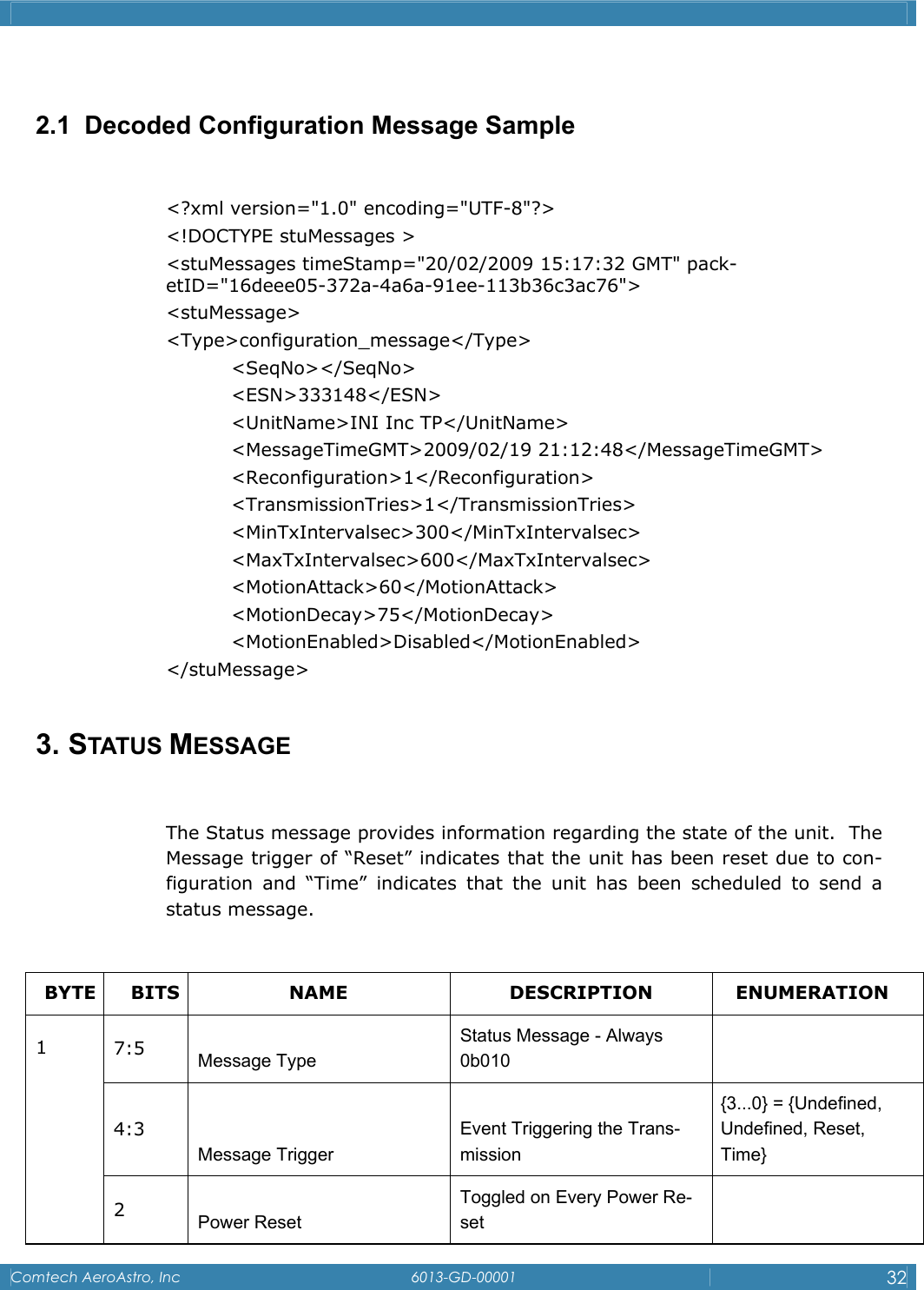
   Comtech AeroAstro, Inc   6013-GD-00001  32   2.1  Decoded Configuration Message Sample  <?xml version="1.0" encoding="UTF-8"?> <!DOCTYPE stuMessages > <stuMessages timeStamp="20/02/2009 15:17:32 GMT" pack-etID="16deee05-372a-4a6a-91ee-113b36c3ac76">  <stuMessage> <Type>configuration_message</Type>  <SeqNo></SeqNo>  <ESN>333148</ESN>   <UnitName>INI Inc TP</UnitName>  <MessageTimeGMT>2009/02/19 21:12:48</MessageTimeGMT>  <Reconfiguration>1</Reconfiguration>  <TransmissionTries>1</TransmissionTries>  <MinTxIntervalsec>300</MinTxIntervalsec>  <MaxTxIntervalsec>600</MaxTxIntervalsec>  <MotionAttack>60</MotionAttack>  <MotionDecay>75</MotionDecay>  <MotionEnabled>Disabled</MotionEnabled> </stuMessage>  3. STATUS MESSAGE  The Status message provides information regarding the state of the unit.  The Message trigger of “Reset” indicates that the unit has been reset due to con-figuration and “Time” indicates that the unit has been scheduled to send a status message.  BYTE BITS  NAME  DESCRIPTION  ENUMERATION 7:5  Message Type Status Message - Always 0b010   4:3 Message Trigger Event Triggering the Trans-mission {3...0} = {Undefined, Undefined, Reset, Time} 1 2  Power Reset Toggled on Every Power Re-set
   Comtech AeroAstro, Inc   6013-GD-00001  33  1:0  Watchdog Reset Incremented Each WDT Re-set    2 7:0 Transmissions [1] MSB of Number of Transmis-sions    3 7:0 Transmissions [0] LSB of Number of Transmis-sions    4 7:0 GPS On Time [2] MSB of Total Seconds GPS is On    5 7:0 GPS On Time [1] Center Byte of Total Seconds GPS is On    6 7:0 GPS On Time [0] LSB of Total Seconds GPS is On    7 7:0 Mean GPS Acquisition Time Average of Last 10 Success-ful Attempts    8 7:0 Failed GPS Acquisition At-tempts Number Since Last Status Message    9 7:0 Undefined Not Used    3.1  Decoded Status Message Sample <?xml version="1.0" encoding="UTF-8"?> <!DOCTYPE stuMessages > <stuMessages timeStamp="20/02/2009 15:17:32 GMT" pack-etID="16deee05-372a-4a6a-91ee-113b36c3ac76">  <stuMessage> <Type>status_message</Type>  <ESN>333148</ESN>   <UnitName>INI Inc TP</UnitName>  <MessageTimeGMT>2009/02/19 21:12:37</MessageTimeGMT>  <MessageTrigger>Reset</MessageTrigger>  <PowerReset>1</PowerReset>  <TotalTransmissions>360</TotalTransmissions>  <TotalGPSOnTimesec>30</TotalGPSOnTimesec>  <MeanGPSAquisitionTimesec>30</MeanGPSAquisitionTimesec>  <FailedGPSAquisitionAttempts>18</FailedGPSAquisitionAttempts> </stuMessage>
   Comtech AeroAstro, Inc   6013-GD-00001  34    NOTES:

Navigation menu