OSEE TECHNOLOGY LMW-230LCD LCD Monitor User Manual

OSEE TECHNOLOGY CO.,LTD. LCD Monitor Users Manual

Users Manual

       LMW-230 SERIES LCD MONITOR  USER MANUAL
     PRODUCT INFORMATION MODEL: LMW-230 SERIES LCD MONITOR   Version: V010002 Release Date: August 20, 2012     COMPANY NAME Beijing Osee Digital Technology Ltd.    CONTACT INFORMATION HEAD OFFICE Address: Room 702, Tower D, Jinyujiahua Building, No.9, 3rd Shangdi Street, Haidian District, Beijing, China   Post code: 100085   Tel: 8610-62968823 Fax: 8610-62977165 Http://www.osee-dig.com E-mail:sales@osee-dig.com
         About The USER MANUAL  The user manual applies to the following device types: z LMW-230H z LMW-230S z LMW-230V The images of LMW-230H are adopted in the following descriptions. Any of the different specifications between the device types are elaborated. Before reading the manual, please confirm the device type.   Note: These products are the commercial equipments and are not recommended being used in the household environment.
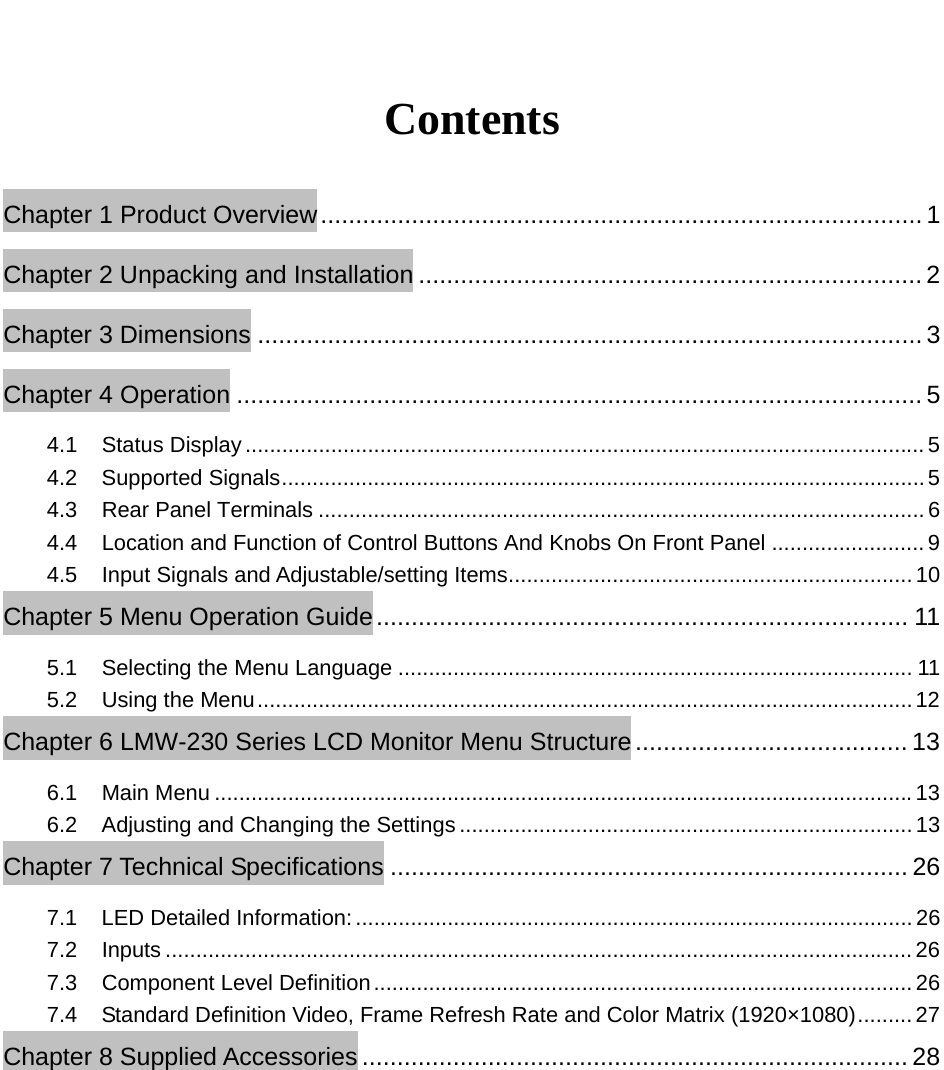
  Contents Chapter 1 Product Overview ...................................................................................... 1 Chapter 2 Unpacking and Installation ........................................................................ 2 Chapter 3 Dimensions ............................................................................................... 3 Chapter 4 Operation .................................................................................................. 5 4.1 Status Display ............................................................................................................... 5 4.2 Supported Signals ......................................................................................................... 5 4.3 Rear Panel Terminals ................................................................................................... 6 4.4  Location and Function of Control Buttons And Knobs On Front Panel ......................... 9 4.5  Input Signals and Adjustable/setting Items .................................................................. 10 Chapter 5 Menu Operation Guide ............................................................................  11 5.1 Selecting the Menu Language .................................................................................... 11 5.2 Using the Menu ........................................................................................................... 12 Chapter 6 LMW-230 Series LCD Monitor Menu Structure ....................................... 13 6.1 Main Menu .................................................................................................................. 13 6.2  Adjusting and Changing the Settings .......................................................................... 13 Chapter 7 Technical Specifications .......................................................................... 26 7.1  LED Detailed Information: ........................................................................................... 26 7.2 Inputs .......................................................................................................................... 26 7.3 Component Level Definition ........................................................................................ 26 7.4  Standard Definition Video, Frame Refresh Rate and Color Matrix (1920×1080) ......... 27 Chapter 8 Supplied Accessories .............................................................................. 28
          LMW-230 SERIES LCD MONITOR           User Manual   - 1 - Chapter 1 Product Overview Overview The LMW-230 is a cost-effective 23 inch LCD monitor that can be used for post production rooms, broadcasters and mobile units, monitoring multi-format high definition video and audio. The LMW-230 is equipped with 1920×1080 high resolution panel and capable of displaying multiple formats high definition signal at native resolution. Advanced digital video processing technology such as precise 3D de-interlace, scaling, Gamma and color correction is used to ensure high display quality.   The LMW-230 can accept Video, S-video, component, SDI and HDMI format SD/HD video signal as well as VGA or DVI PC signal. It has various On-Screen Display feature, can display 8 channels of audio meter, time code, UMD and tally on the LCD panel. Other features like H/V delay, NATIVE, blue/mono display, area marker and safety marker are standard for the monitor.  FCC Caution: Any Changes or modifications not expressly approved by the party responsible for compliance could void the user's authority to operate the equipment.       This device complies with part 15 of the FCC Rules.   Operation is subject to the following two conditions: (1) This device may not cause harmful interference, and (2) this device must accept any interference received, including interference that may cause undesired operation.  Note: This equipment has been tested and found to comply with the limits for a Class B digital device, pursuant to part 15 of the FCC Rules. These limits are designed to provide reasonable protection against harmful interference in a residential installation. This equipment generates uses and can radiate radio frequency energy and, if not installed and used in accordance with the instructions, may cause harmful interference to radio communications. However, there is no guaran-tee that interference will not occur in a particular installation. If this equipment does cause harmful interference to radio or television reception, which can be determined by turning the equipment off and on, the user is encouraged to try to correct the interference by one or more of the following measures:   Reorient or relocate the receiving antenna. Increase the separation between the equipment and receiver. Connect the equipment into an outlet on a circuit different from that to which the receiver is connected.   Consult the dealer or an experienced radio/TV technician for help.  Features  1920×1080 Native Resolution Panel  High Quality Color Reproduction  Various Area, Safety and Center Marker  H/V Delay, NATIVE, Blue/Mono Display  8 Channel Audio Meters, Time code,UMD, Tri-color Tally  Field upgradeable  Audio De-embedding for SDI Input  Build-in Speaker and Audio Line Output
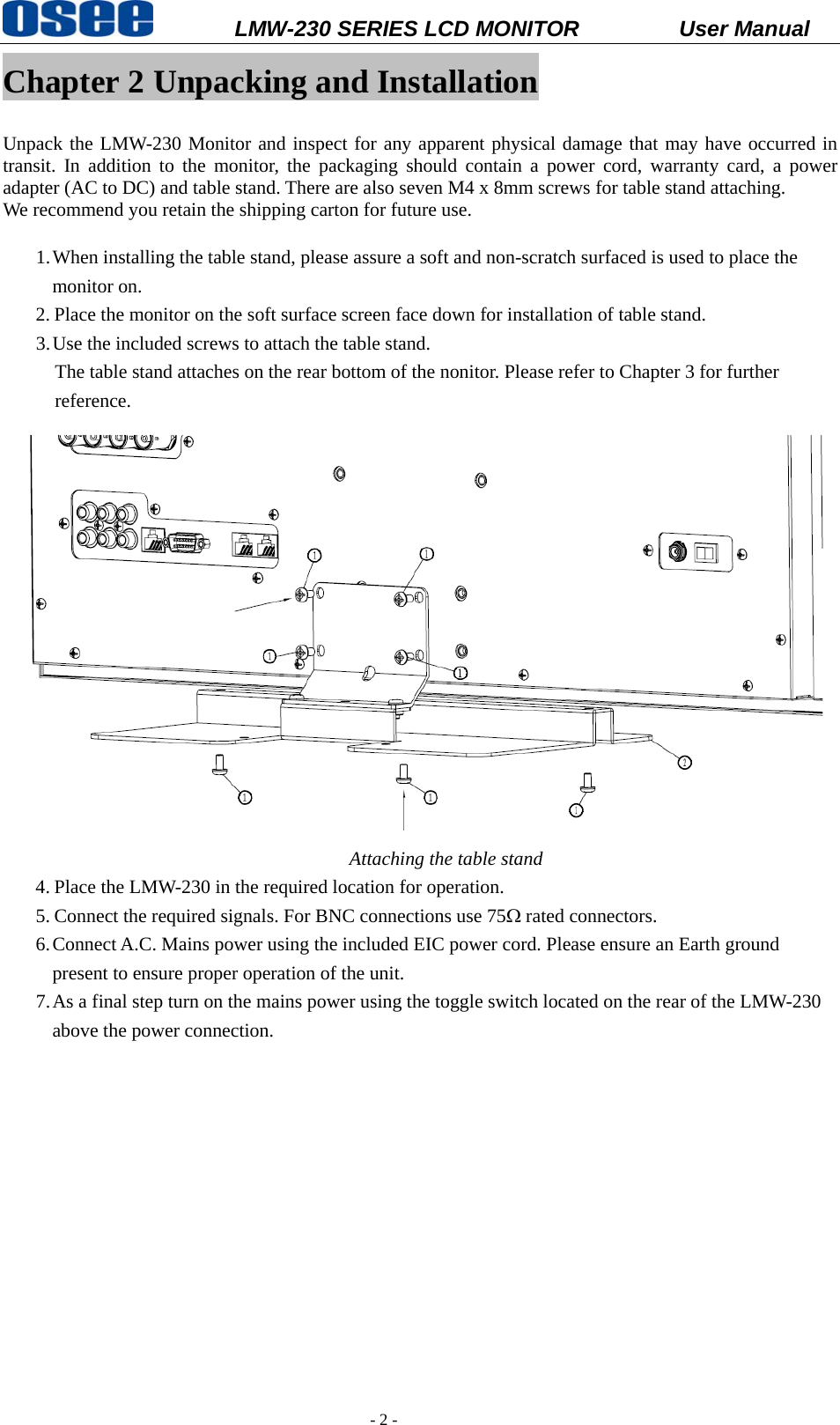
          LMW-230 SERIES LCD MONITOR           User Manual   - 2 - Chapter 2 Unpacking and Installation  Unpack the LMW-230 Monitor and inspect for any apparent physical damage that may have occurred in transit. In addition to the monitor, the packaging should contain a power cord, warranty card, a power adapter (AC to DC) and table stand. There are also seven M4 x 8mm screws for table stand attaching. We recommend you retain the shipping carton for future use.  1. When installing the table stand, please assure a soft and non-scratch surfaced is used to place the monitor on.     2. Place the monitor on the soft surface screen face down for installation of table stand. 3. Use the included screws to attach the table stand.   The table stand attaches on the rear bottom of the nonitor. Please refer to Chapter 3 for further reference.  Attaching the table stand 4. Place the LMW-230 in the required location for operation. 5. Connect the required signals. For BNC connections use 75Ω rated connectors. 6. Connect A.C. Mains power using the included EIC power cord. Please ensure an Earth ground present to ensure proper operation of the unit. 7. As a final step turn on the mains power using the toggle switch located on the rear of the LMW-230 above the power connection.
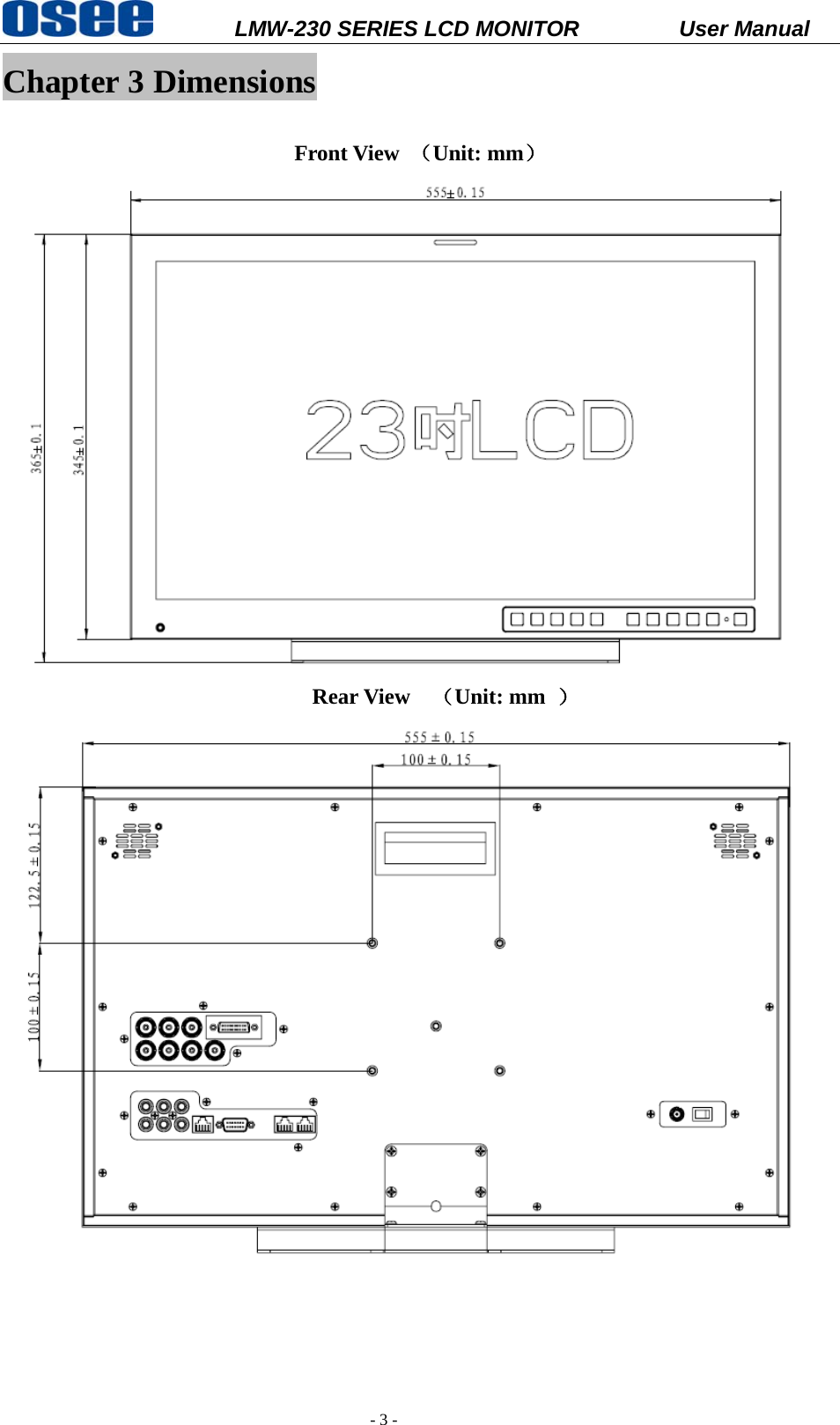
          LMW-230 SERIES LCD MONITOR           User Manual   - 3 - Chapter 3 Dimensions  Front View  (Unit: mm)                              Rear View  (Unit: mm  )
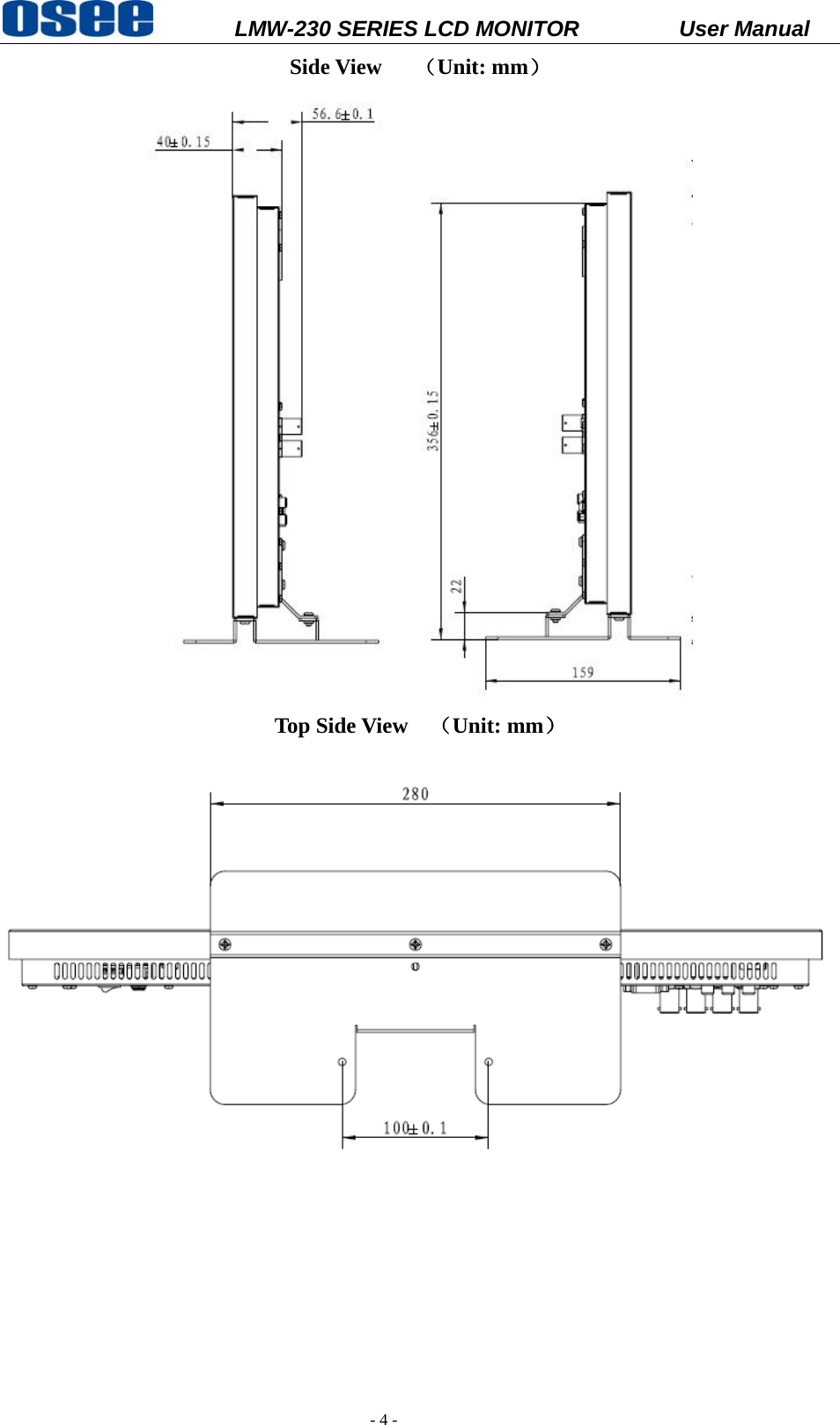
          LMW-230 SERIES LCD MONITOR           User Manual   - 4 - Side View      (Unit: mm)   Top Side View    (Unit: mm)
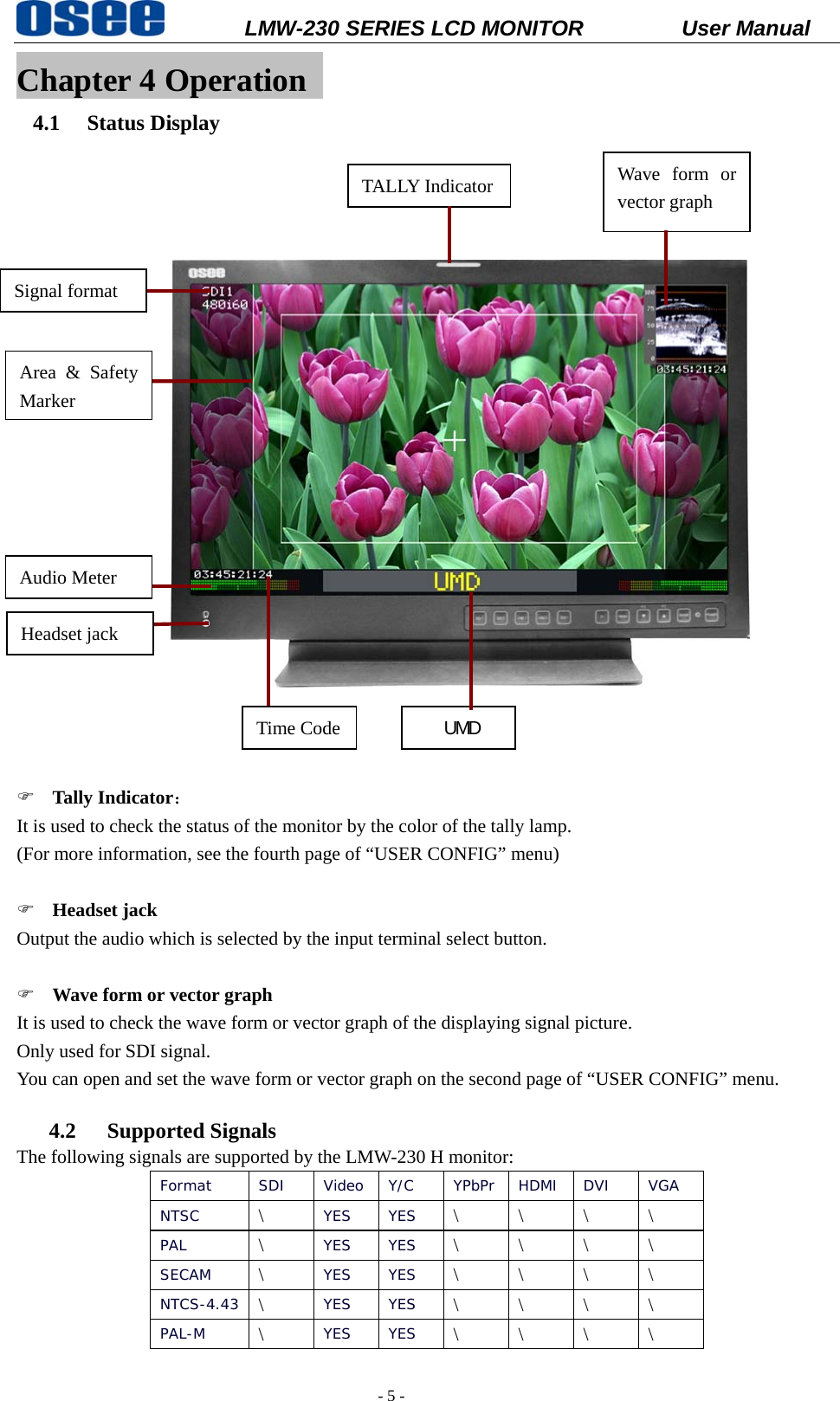
          LMW-230 SERIES LCD MONITOR           User Manual   - 5 - Chapter 4 Operation   4.1   Status Display                 ) Tally Indicator:  It is used to check the status of the monitor by the color of the tally lamp.   (For more information, see the fourth page of “USER CONFIG” menu)        ) Headset jack Output the audio which is selected by the input terminal select button.    ) Wave form or vector graph It is used to check the wave form or vector graph of the displaying signal picture.   Only used for SDI signal. You can open and set the wave form or vector graph on the second page of “USER CONFIG” menu.  4.2 Supported Signals The following signals are supported by the LMW-230 H monitor:   Format SDI Video Y/C YPbPr HDMI DVI VGA NTSC  \  YES YES \ \ \ \ PAL  \  YES YES \ \ \ \ SECAM  \  YES YES \ \ \ \ NTCS-4.43  \  YES YES \ \ \ \ PAL-M  \  YES YES \ \ \ \ Signal format Audio Meter   TALLY Indicator Headset jack Wave form or vector graph Time Code UMD Area & Safety Marker
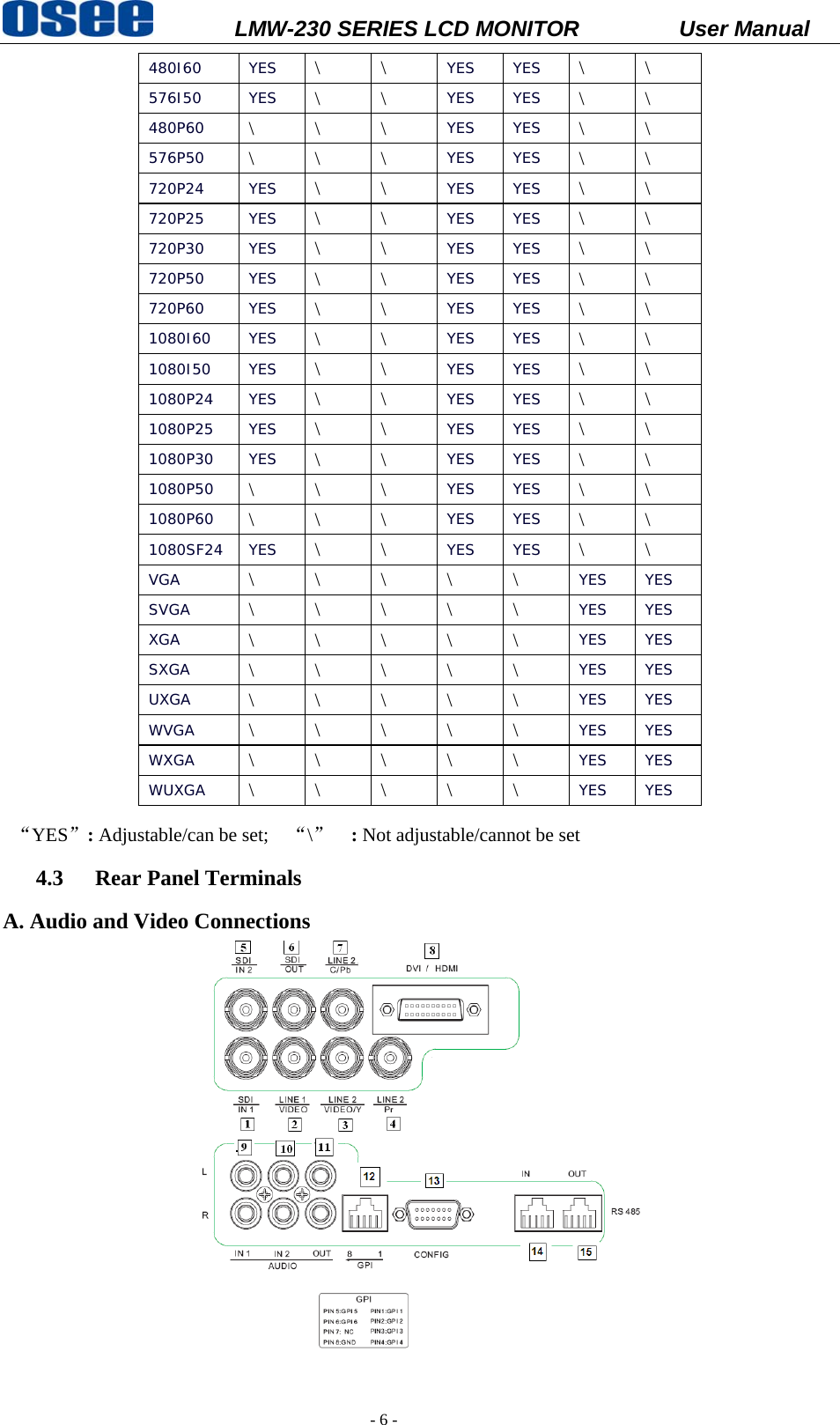
          LMW-230 SERIES LCD MONITOR           User Manual   - 6 - 480I60 YES \ \ YES YES \ \ 576I50 YES \ \ YES YES \ \ 480P60  \ \ \ YES YES \ \ 576P50  \ \ \ YES YES \ \ 720P24 YES \ \ YES YES  \ \ 720P25 YES \ \ YES YES \ \ 720P30 YES \ \ YES YES \ \ 720P50 YES \ \ YES YES \ \ 720P60 YES \ \ YES YES \ \ 1080I60 YES \ \ YES YES \ \ 1080I50 YES \ \ YES YES \ \ 1080P24 YES \ \ YES YES \ \ 1080P25 YES \ \ YES YES \ \ 1080P30 YES \ \ YES YES \ \ 1080P50  \ \ \ YES YES \ \ 1080P60  \ \ \ YES YES \ \ 1080SF24 YES  \ \ YES YES \ \ VGA  \ \ \ \ \ YES YES SVGA  \ \ \ \ \ YES YES XGA  \ \ \ \ \ YES YES SXGA  \ \ \ \ \ YES YES UXGA  \ \ \ \ \ YES YES WVGA  \ \ \ \ \ YES YES WXGA  \ \ \ \ \ YES YES WUXGA  \ \ \ \ \ YES YES  “YES”: Adjustable/can be set;    “\”  : Not adjustable/cannot be set 4.3 Rear Panel Terminals A. Audio and Video Connections
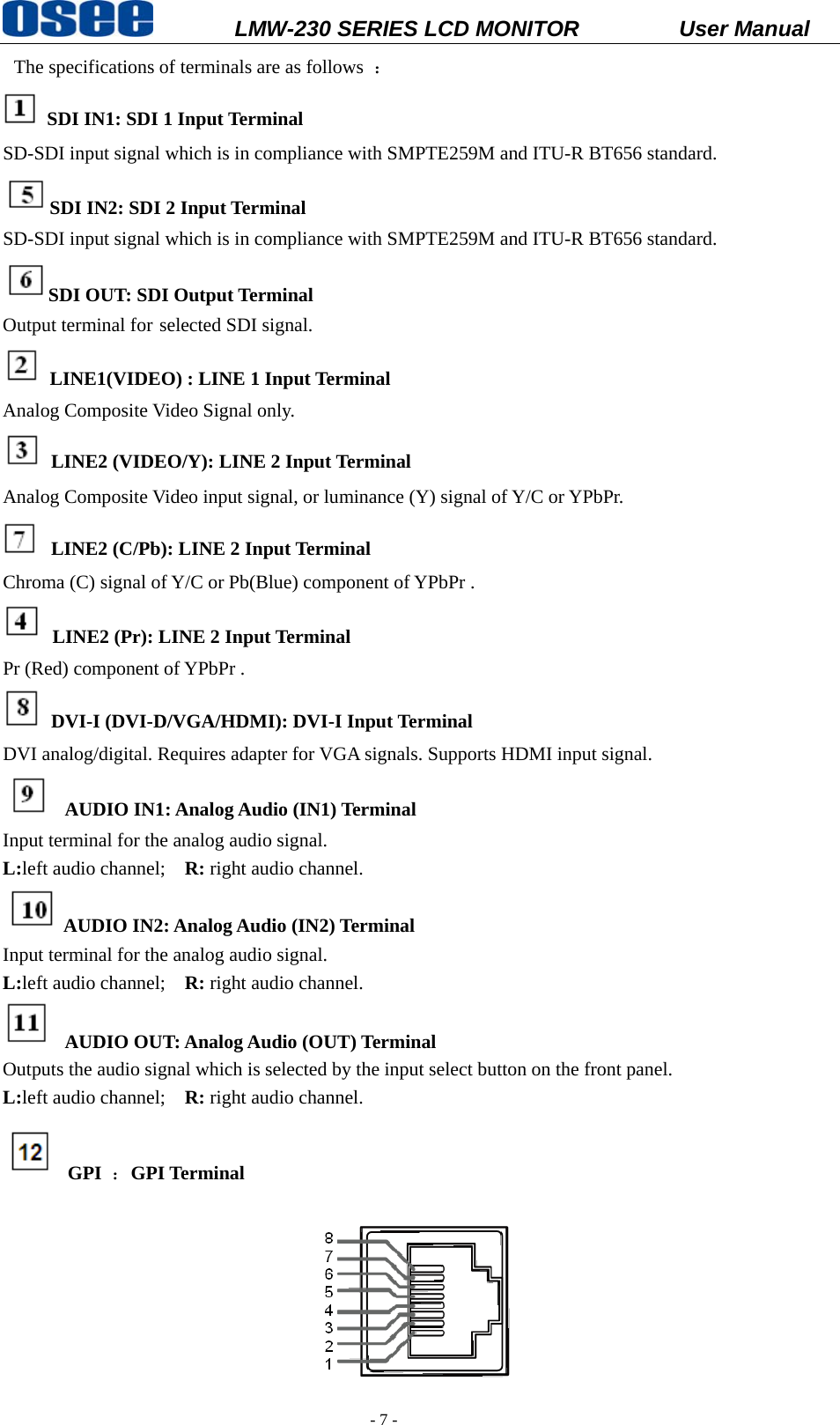
          LMW-230 SERIES LCD MONITOR           User Manual   - 7 -  The specifications of terminals are as follows  :  SDI IN1: SDI 1 Input Terminal   SD-SDI input signal which is in compliance with SMPTE259M and ITU-R BT656 standard. SDI IN2: SDI 2 Input Terminal SD-SDI input signal which is in compliance with SMPTE259M and ITU-R BT656 standard. SDI OUT: SDI Output Terminal Output terminal for selected SDI signal.   LINE1(VIDEO) : LINE 1 Input Terminal   Analog Composite Video Signal only.  LINE2 (VIDEO/Y): LINE 2 Input Terminal Analog Composite Video input signal, or luminance (Y) signal of Y/C or YPbPr.  LINE2 (C/Pb): LINE 2 Input Terminal Chroma (C) signal of Y/C or Pb(Blue) component of YPbPr .  LINE2 (Pr): LINE 2 Input Terminal Pr (Red) component of YPbPr .  DVI-I (DVI-D/VGA/HDMI): DVI-I Input Terminal DVI analog/digital. Requires adapter for VGA signals. Supports HDMI input signal.  AUDIO IN1: Analog Audio (IN1) Terminal Input terminal for the analog audio signal.   L:left audio channel;    R: right audio channel. AUDIO IN2: Analog Audio (IN2) Terminal Input terminal for the analog audio signal. L:left audio channel;    R: right audio channel.  AUDIO OUT: Analog Audio (OUT) Terminal Outputs the audio signal which is selected by the input select button on the front panel. L:left audio channel;    R: right audio channel.  GPI :GPI Terminal
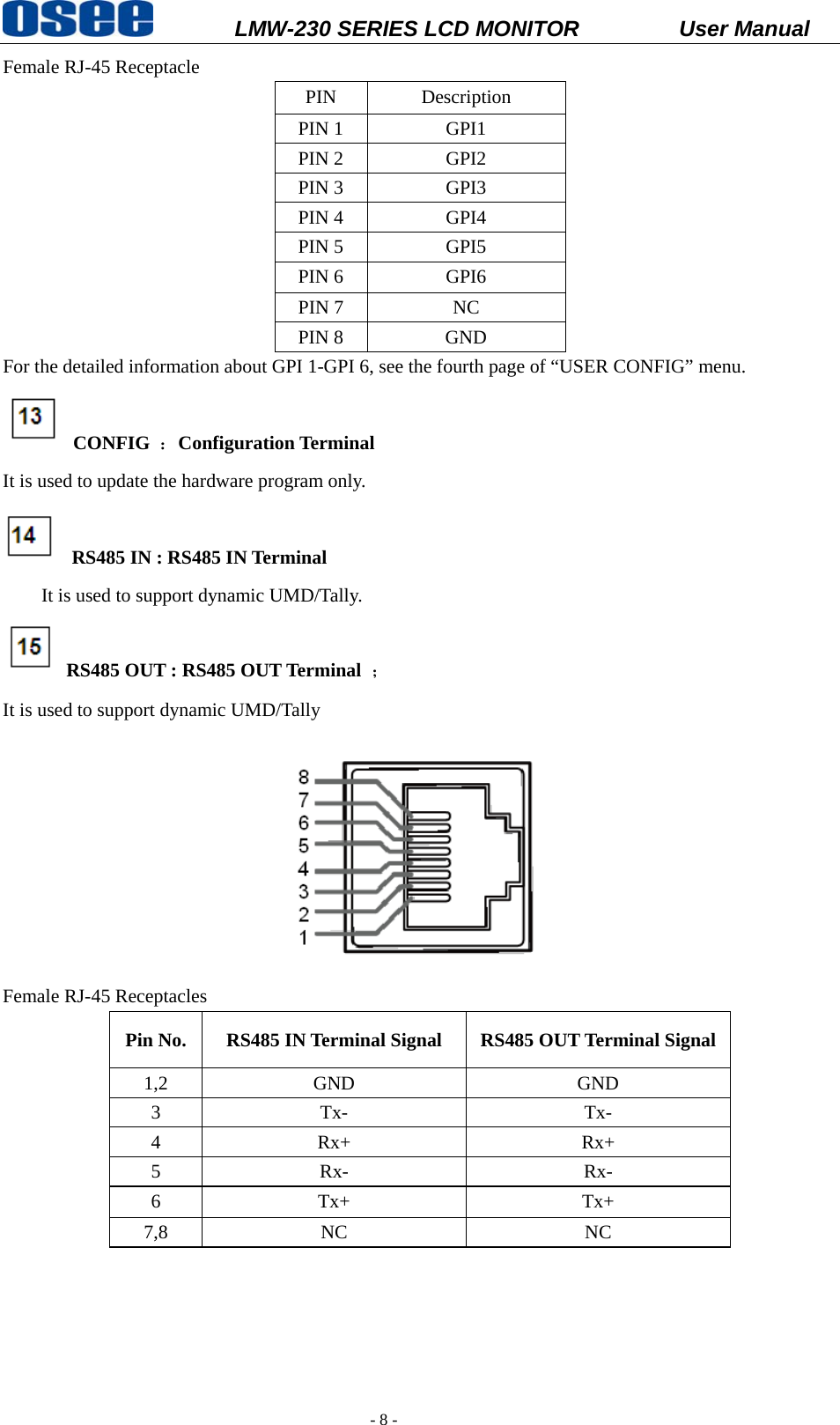
          LMW-230 SERIES LCD MONITOR           User Manual   - 8 - Female RJ-45 Receptacle PIN Description PIN 1  GPI1 PIN 2  GPI2 PIN 3  GPI3 PIN 4  GPI4 PIN 5  GPI5 PIN 6  GPI6 PIN 7  NC PIN 8  GND For the detailed information about GPI 1-GPI 6, see the fourth page of “USER CONFIG” menu.  CONFIG :Configuration Terminal It is used to update the hardware program only.   RS485 IN : RS485 IN Terminal         It is used to support dynamic UMD/Tally.   RS485 OUT : RS485 OUT Terminal  ;  It is used to support dynamic UMD/Tally  Female RJ-45 Receptacles Pin No.  RS485 IN Terminal Signal  RS485 OUT Terminal Signal 1,2 GND  GND 3 Tx-  Tx- 4 Rx+  Rx+ 5 Rx-  Rx- 6 Tx+  Tx+ 7,8 NC  NC
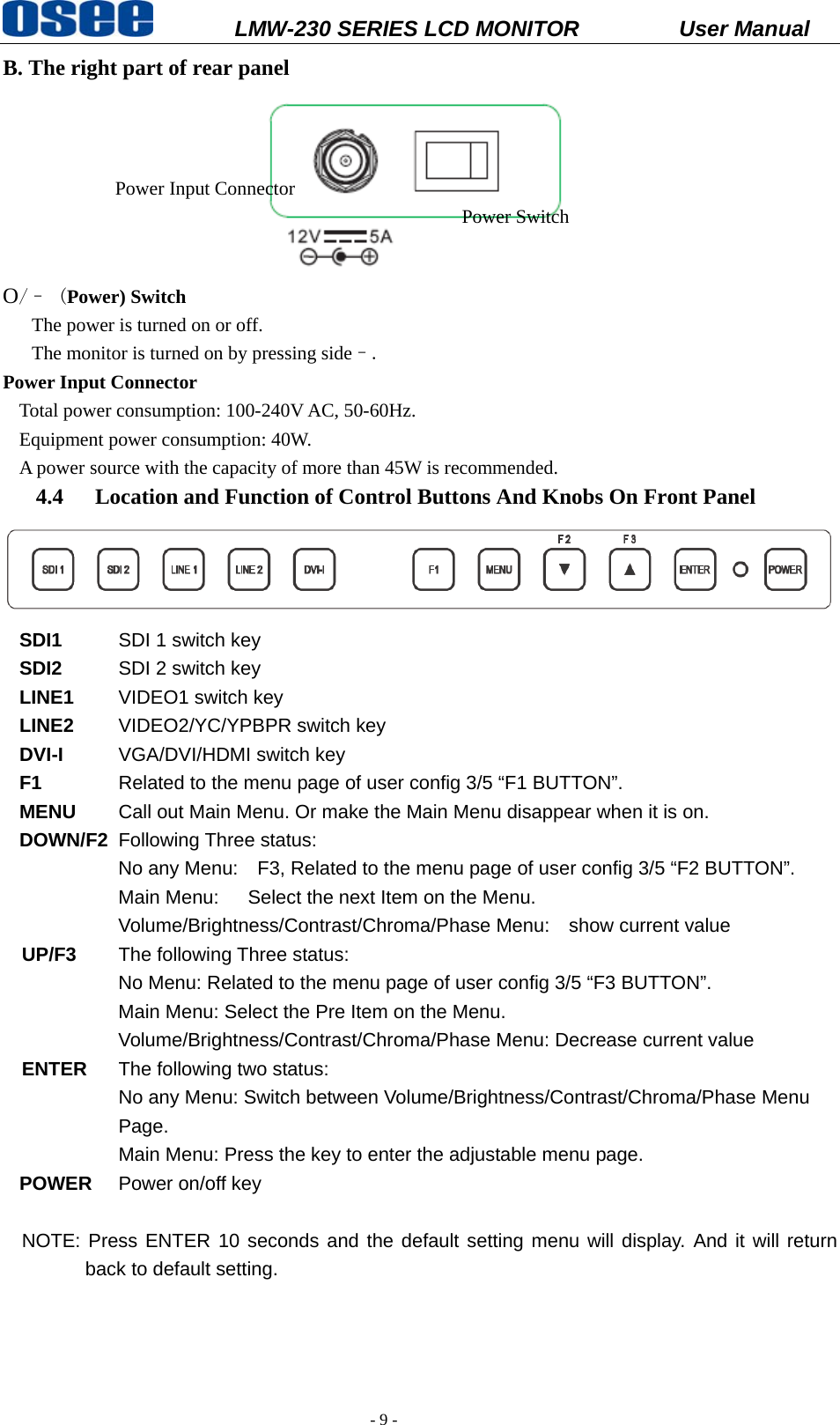
          LMW-230 SERIES LCD MONITOR           User Manual   - 9 - B. The right part of rear panel  O/– (Power) Switch                          The power is turned on or off.       The monitor is turned on by pressing side–. Power Input Connector   Total power consumption: 100-240V AC, 50-60Hz. Equipment power consumption: 40W. A power source with the capacity of more than 45W is recommended.   4.4 Location and Function of Control Buttons And Knobs On Front Panel  SDI1   SDI 1 switch key SDI2   SDI 2 switch key LINE1   VIDEO1 switch key LINE2   VIDEO2/YC/YPBPR switch key DVI-I   VGA/DVI/HDMI switch key F1  Related to the menu page of user config 3/5 “F1 BUTTON”. MENU   Call out Main Menu. Or make the Main Menu disappear when it is on. DOWN/F2  Following Three status: No any Menu:    F3, Related to the menu page of user config 3/5 “F2 BUTTON”. Main Menu:      Select the next Item on the Menu. Volume/Brightness/Contrast/Chroma/Phase Menu:    show current value  UP/F3   The following Three status:       No Menu: Related to the menu page of user config 3/5 “F3 BUTTON”. Main Menu: Select the Pre Item on the Menu. Volume/Brightness/Contrast/Chroma/Phase Menu: Decrease current value  ENTER  The following two status: No any Menu: Switch between Volume/Brightness/Contrast/Chroma/Phase Menu Page. Main Menu: Press the key to enter the adjustable menu page. POWER  Power on/off key  NOTE: Press ENTER 10 seconds and the default setting menu will display. And it will return back to default setting.    Power Input Connector Power Switch
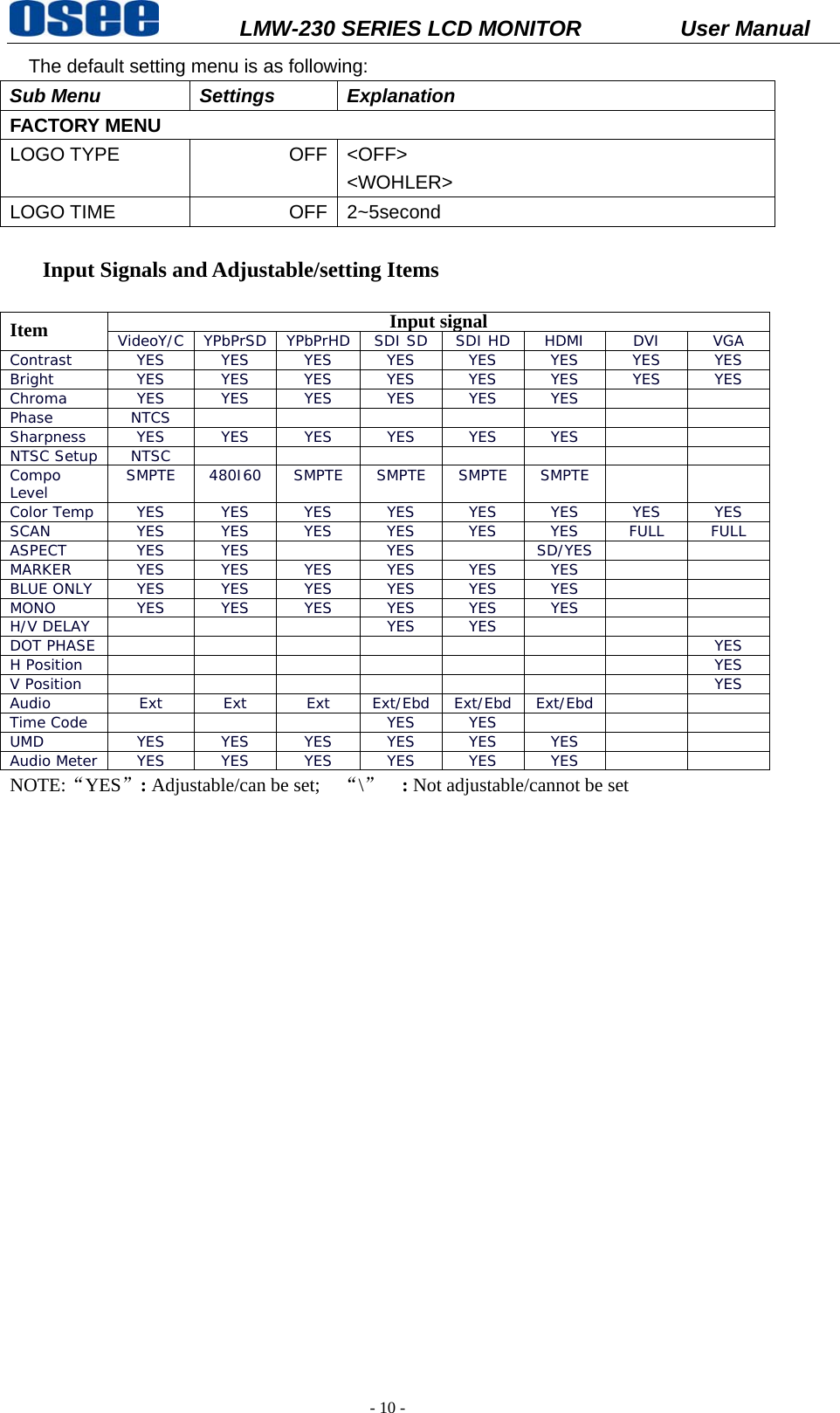
          LMW-230 SERIES LCD MONITOR           User Manual   - 10 - The default setting menu is as following: Sub Menu  Settings  Explanation FACTORY MENU LOGO TYPE  OFF <OFF> <WOHLER>  LOGO TIME  OFF 2~5second   Input Signals and Adjustable/setting Items  Item Input signal VideoY/C YPbPrSD YPbPrHD SDI SD SDI HD HDMI DVI  VGA Contrast  YES YES YES YES YES YES YES YES Bright  YES YES YES YES YES YES YES YES Chroma  YES YES YES YES YES YES     Phase NTCS        Sharpness YES YES YES YES YES YES     NTSC Setup NTSC        Compo Level  SMPTE 480I60 SMPTE SMPTE SMPTE SMPTE   Color Temp YES YES YES YES YES YES YES YES SCAN  YES YES YES YES YES YES FULL FULL ASPECT YES YES  YES  SD/YES   MARKER  YES YES YES YES YES YES     BLUE ONLY YES YES YES YES YES YES     MONO  YES YES YES YES YES YES     H/V DELAY    YES YES    DOT PHASE        YES H Position        YES V Position        YES Audio Ext Ext Ext Ext/Ebd Ext/Ebd Ext/Ebd   Time Code    YES YES    UMD  YES YES YES YES YES YES     Audio Meter YES YES YES YES YES YES     NOTE:“YES”: Adjustable/can be set;    “\”  : Not adjustable/cannot be set
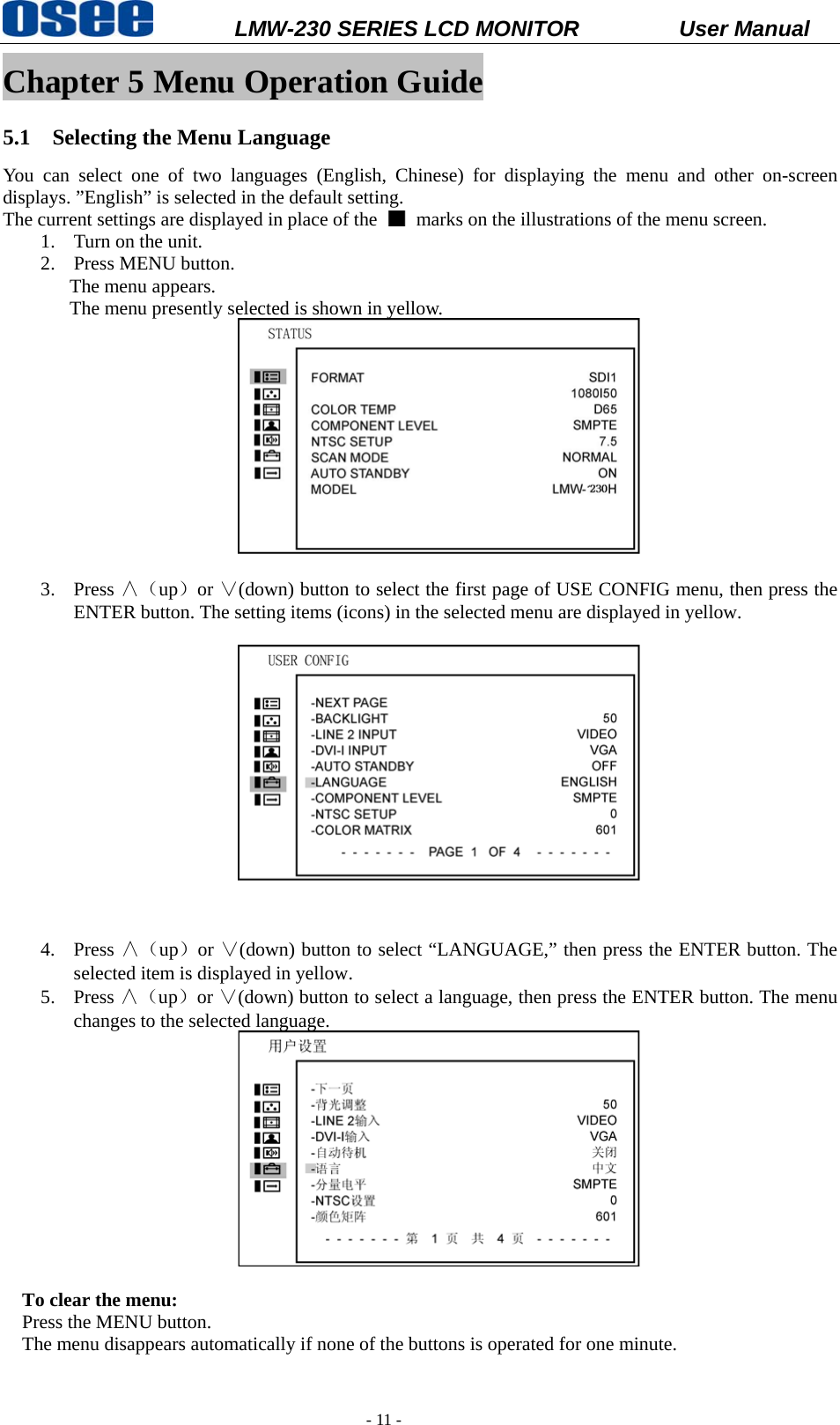
          LMW-230 SERIES LCD MONITOR           User Manual   - 11 - Chapter 5 Menu Operation Guide 5.1 Selecting the Menu Language You can select one of two languages (English, Chinese) for displaying the menu and other on-screen displays. ”English” is selected in the default setting.   The current settings are displayed in place of the    marks on the illustrations of the menu screen. 1. Turn on the unit. 2. Press MENU button. The menu appears.   The menu presently selected is shown in yellow.   3. Press ∧(up)or ∨(down) button to select the first page of USE CONFIG menu, then press the ENTER button. The setting items (icons) in the selected menu are displayed in yellow.   4. Press ∧(up)or ∨(down) button to select “LANGUAGE,” then press the ENTER button. The selected item is displayed in yellow. 5. Press ∧(up)or ∨(down) button to select a language, then press the ENTER button. The menu changes to the selected language.   To clear the menu: Press the MENU button.   The menu disappears automatically if none of the buttons is operated for one minute.
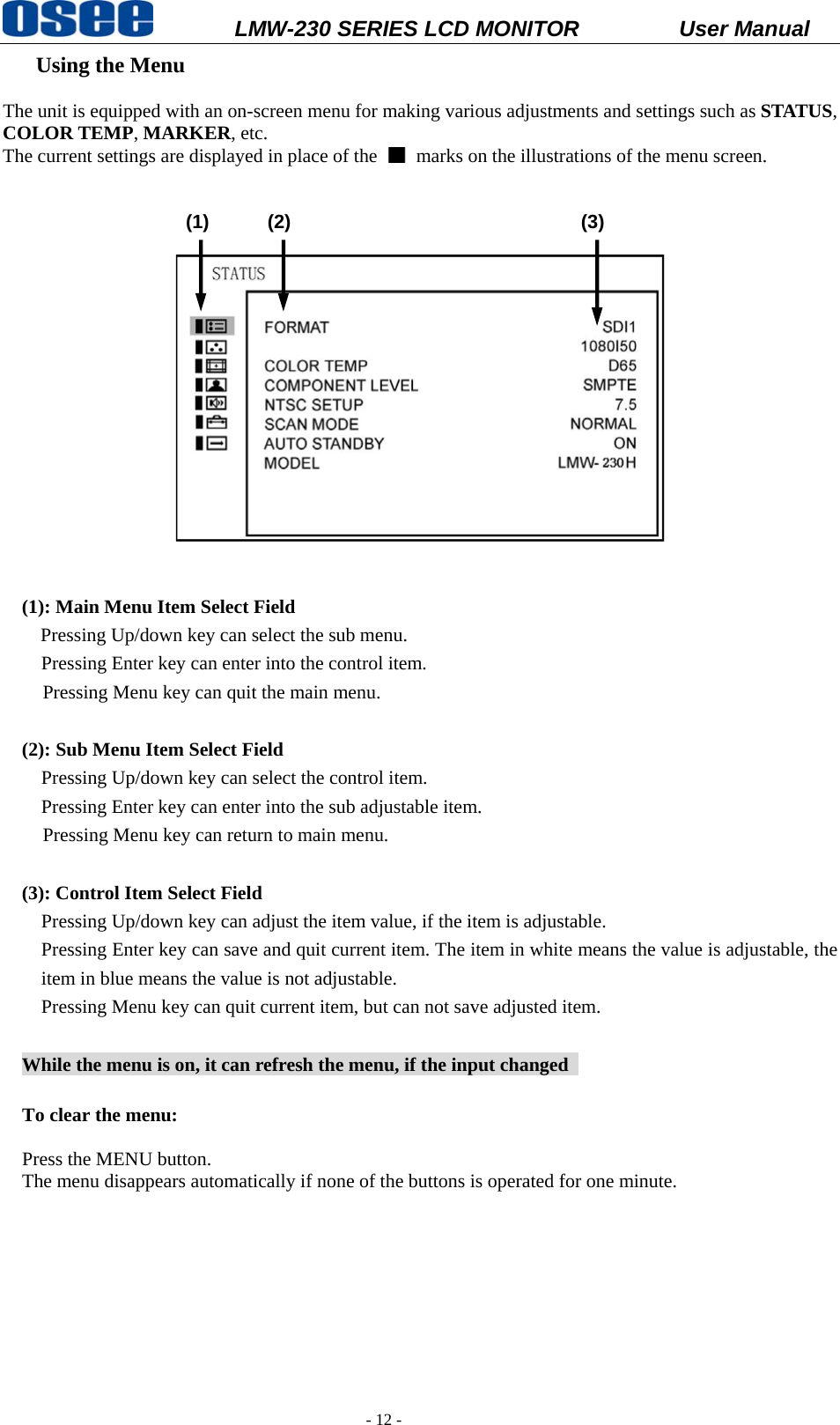
          LMW-230 SERIES LCD MONITOR           User Manual   - 12 -  Using the Menu       The unit is equipped with an on-screen menu for making various adjustments and settings such as STATUS, COLOR TEMP, MARKER, etc. The current settings are displayed in place of the    marks on the illustrations of the menu screen.                 (1)      (2)                              (3)     (1): Main Menu Item Select Field Pressing Up/down key can select the sub menu.   Pressing Enter key can enter into the control item. Pressing Menu key can quit the main menu.   (2): Sub Menu Item Select Field   Pressing Up/down key can select the control item.   Pressing Enter key can enter into the sub adjustable item. Pressing Menu key can return to main menu.  (3): Control Item Select Field Pressing Up/down key can adjust the item value, if the item is adjustable. Pressing Enter key can save and quit current item. The item in white means the value is adjustable, the item in blue means the value is not adjustable. Pressing Menu key can quit current item, but can not save adjusted item.  While the menu is on, it can refresh the menu, if the input changed    To clear the menu:  Press the MENU button.   The menu disappears automatically if none of the buttons is operated for one minute.
          LMW-230 SERIES LCD MONITOR           User Manual   - 13 - Chapter 6 LMW-230 Series LCD Monitor Menu Structure   6.1 Main Menu The screen menu of this monitor consists of the following items. [Label]  [Main Menu Item]  [Sub Menu]  STATUS 1  COLOR TEMP  1  MARKER 1  VIDEO CONFIG  1  AUDIO CONFIG  3  USER CONFIG  5  CONTROL 1 6.2 Adjusting and Changing the Settings STATUS The STATUS menu is used to display the current status of the unit. The following items are displayed. For the video inputs include SDI1, SDI2, Line1, Line2 or DVI-I (HDMI input only), the following items are displayed.  STATUS FORMAT  SDI1 1080I50COLOR TEMP  D65COMPONENT LEVEL  SMPTENTSC SETUP  7.5SCAN MODE  NORMALAUTO STANDBY  ONMODEL* LMW-230H
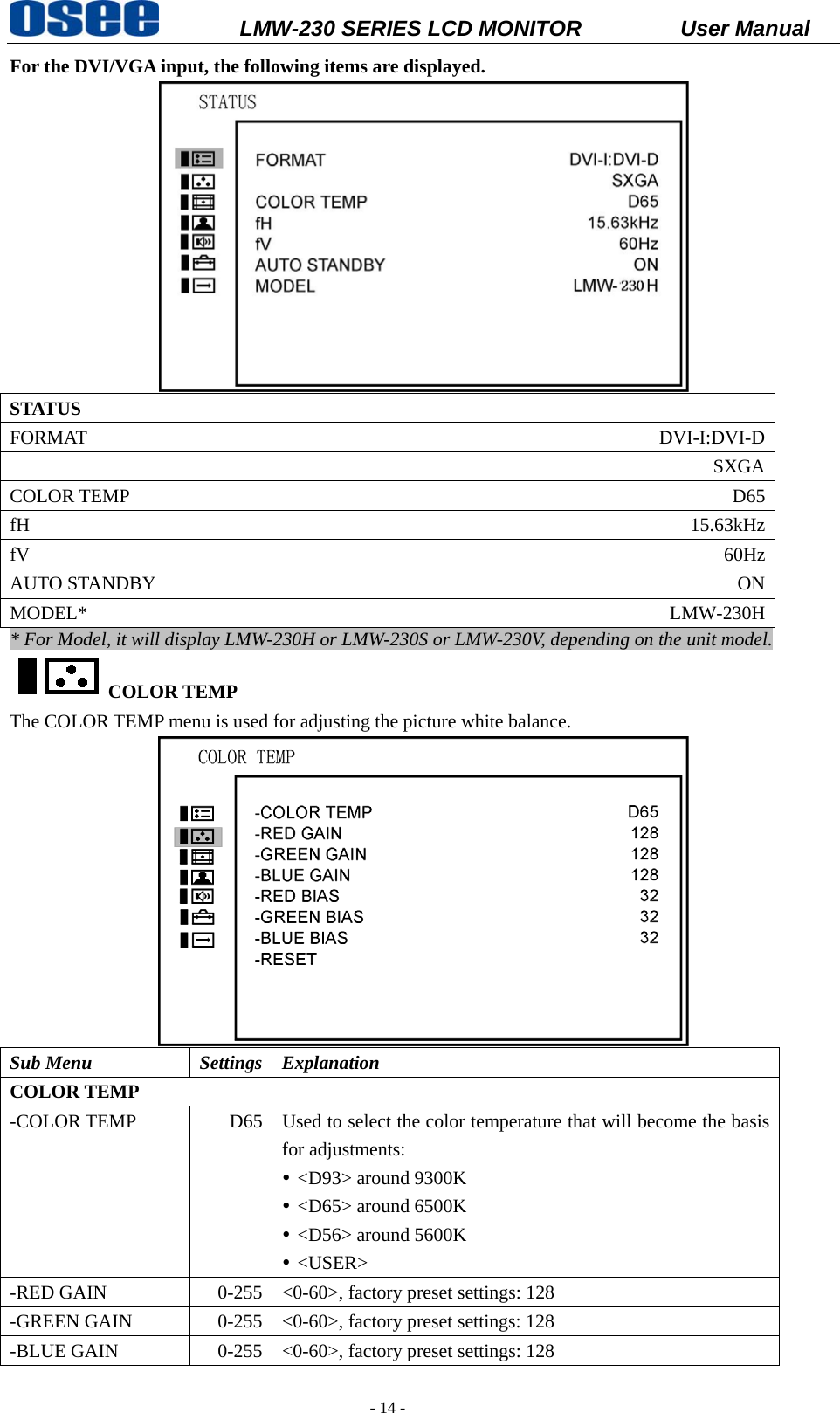
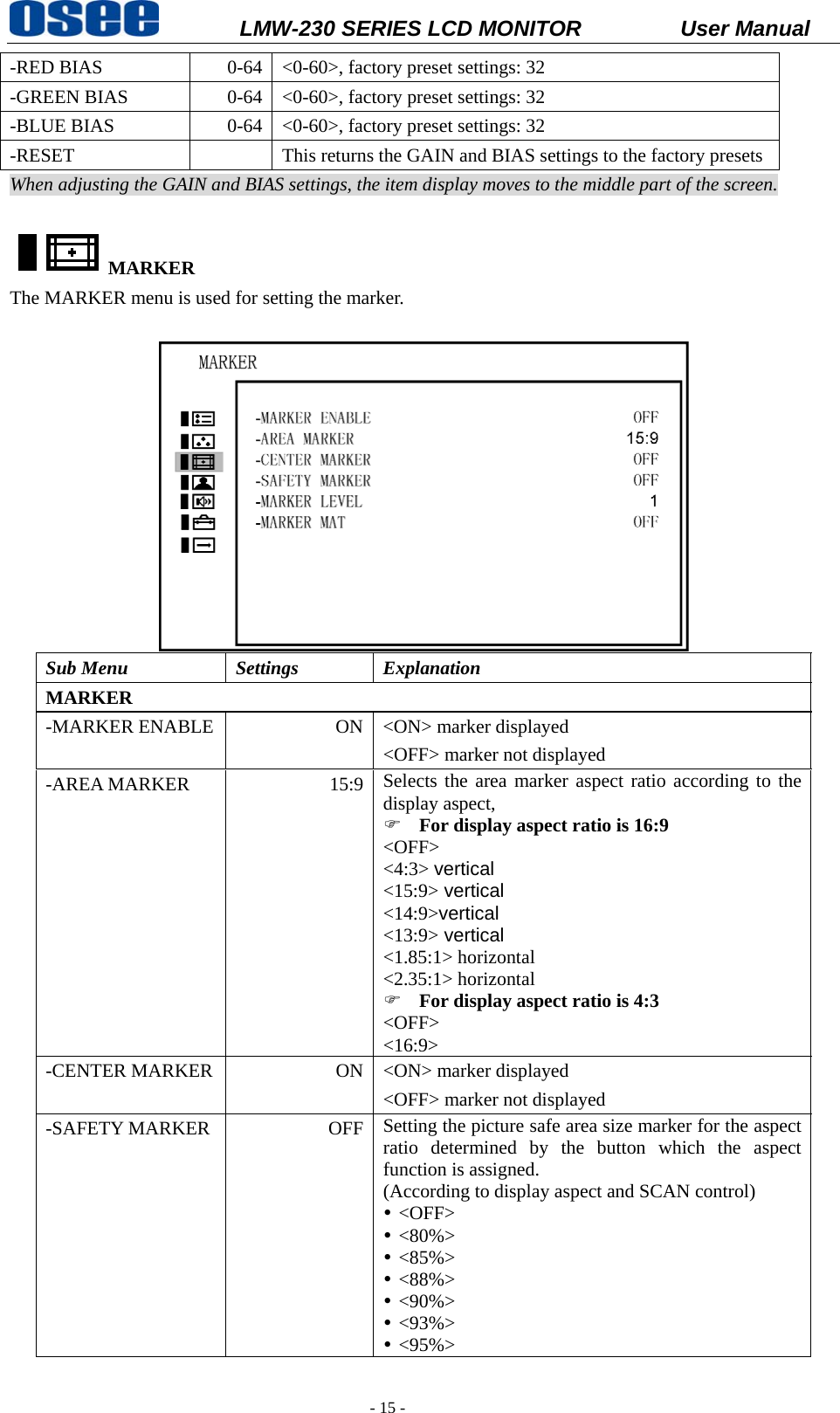
          LMW-230 SERIES LCD MONITOR           User Manual   - 14 - For the DVI/VGA input, the following items are displayed.  STATUS FORMAT DVI-I:DVI-D SXGACOLOR TEMP  D65fH  15.63kHzfV  60HzAUTO STANDBY  ONMODEL* LMW-230H* For Model, it will display LMW-230H or LMW-230S or LMW-230V, depending on the unit model. COLOR TEMP The COLOR TEMP menu is used for adjusting the picture white balance.  Sub Menu  Settings  Explanation COLOR TEMP -COLOR TEMP  D65  Used to select the color temperature that will become the basis for adjustments: y <D93> around 9300K y <D65> around 6500K y <D56> around 5600K y <USER> -RED GAIN  0-255  <0-60>, factory preset settings: 128 -GREEN GAIN  0-255  <0-60>, factory preset settings: 128 -BLUE GAIN  0-255  <0-60>, factory preset settings: 128
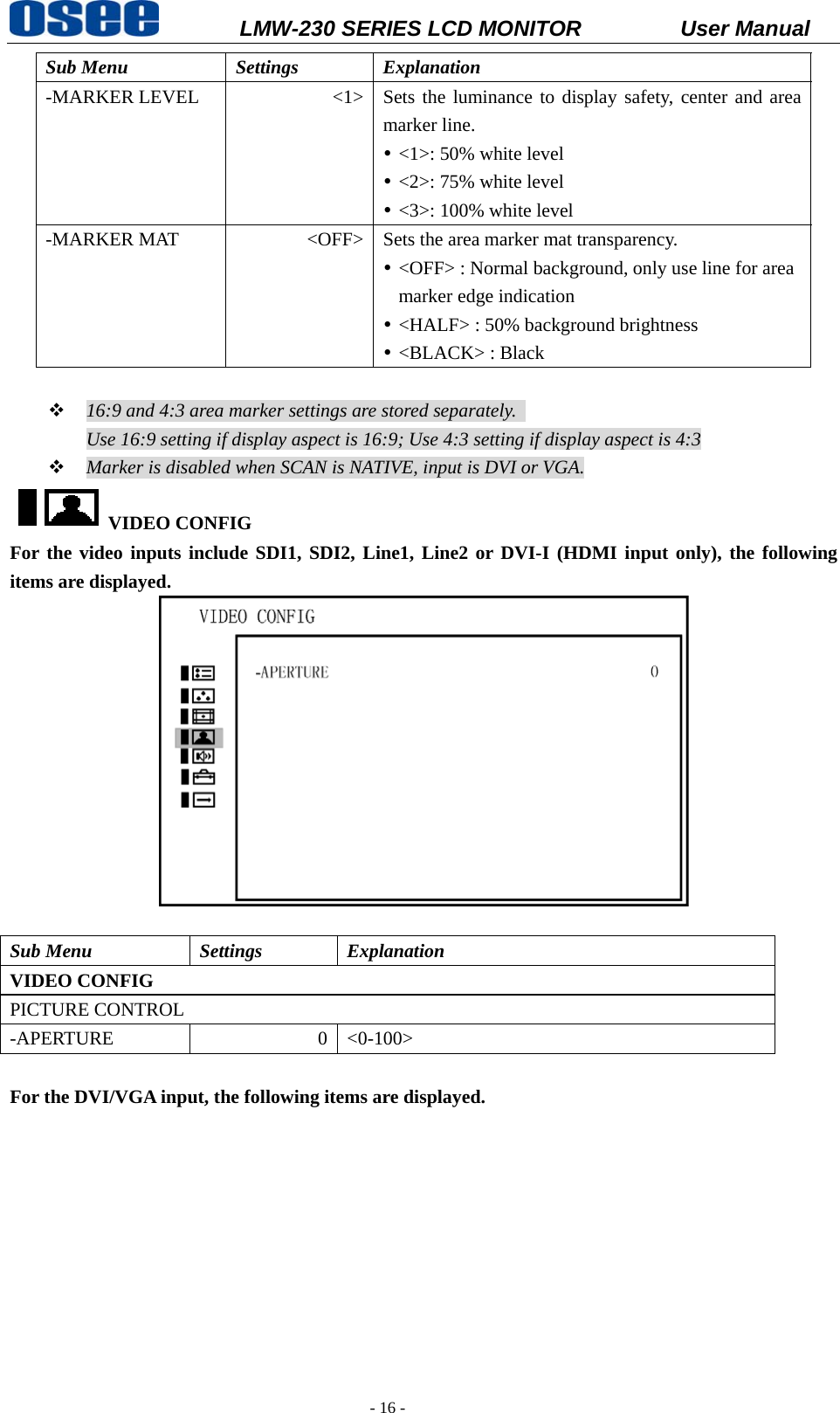
          LMW-230 SERIES LCD MONITOR           User Manual   - 15 - -RED BIAS  0-64  <0-60>, factory preset settings: 32 -GREEN BIAS  0-64  <0-60>, factory preset settings: 32 -BLUE BIAS  0-64  <0-60>, factory preset settings: 32 -RESET    This returns the GAIN and BIAS settings to the factory presetsWhen adjusting the GAIN and BIAS settings, the item display moves to the middle part of the screen.  MARKER  The MARKER menu is used for setting the marker.   Sub Menu  Settings  Explanation MARKER -MARKER ENABLE  ON <ON> marker displayed <OFF> marker not displayed -AREA MARKER  15:9 Selects the area marker aspect ratio according to the display aspect, ) For display aspect ratio is 16:9 <OFF> <4:3> vertical <15:9> vertical <14:9>vertical <13:9> vertical <1.85:1> horizontal <2.35:1> horizontal ) For display aspect ratio is 4:3 <OFF> <16:9> -CENTER MARKER  ON <ON> marker displayed <OFF> marker not displayed -SAFETY MARKER  OFF Setting the picture safe area size marker for the aspect ratio determined by the button which the aspect function is assigned. (According to display aspect and SCAN control) y <OFF> y <80%> y <85%> y <88%> y <90%> y <93%> y <95%>
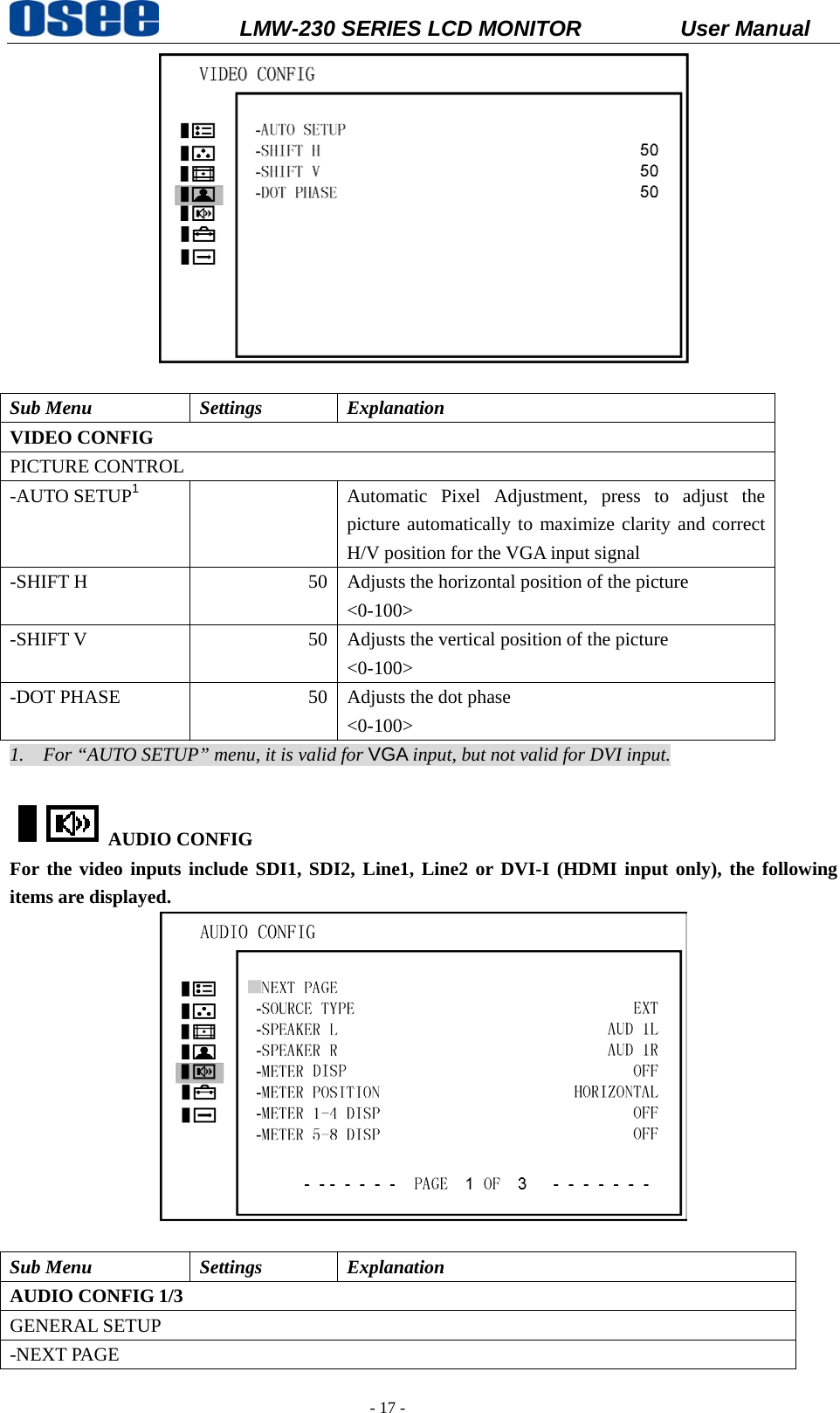
          LMW-230 SERIES LCD MONITOR           User Manual   - 16 - Sub Menu  Settings  Explanation -MARKER LEVEL  <1> Sets the luminance to display safety, center and area marker line. y <1>: 50% white level y <2>: 75% white level   y <3>: 100% white level -MARKER MAT  <OFF> Sets the area marker mat transparency.   y <OFF> : Normal background, only use line for area marker edge indication y <HALF> : 50% background brightness y <BLACK> : Black     16:9 and 4:3 area marker settings are stored separately.   Use 16:9 setting if display aspect is 16:9; Use 4:3 setting if display aspect is 4:3  Marker is disabled when SCAN is NATIVE, input is DVI or VGA. VIDEO CONFIG   For the video inputs include SDI1, SDI2, Line1, Line2 or DVI-I (HDMI input only), the following items are displayed.   Sub Menu  Settings  Explanation VIDEO CONFIG   PICTURE CONTROL -APERTURE 0 <0-100>  For the DVI/VGA input, the following items are displayed.
          LMW-230 SERIES LCD MONITOR           User Manual   - 17 -   Sub Menu  Settings  Explanation VIDEO CONFIG   PICTURE CONTROL -AUTO SETUP1  Automatic Pixel Adjustment, press to adjust the picture automatically to maximize clarity and correct H/V position for the VGA input signal -SHIFT H  50 Adjusts the horizontal position of the picture <0-100> -SHIFT V  50 Adjusts the vertical position of the picture <0-100> -DOT PHASE  50 Adjusts the dot phase <0-100> 1.    For “AUTO SETUP” menu, it is valid for VGA input, but not valid for DVI input.  AUDIO CONFIG   For the video inputs include SDI1, SDI2, Line1, Line2 or DVI-I (HDMI input only), the following items are displayed.   Sub Menu  Settings  Explanation AUDIO CONFIG 1/3 GENERAL SETUP -NEXT PAGE
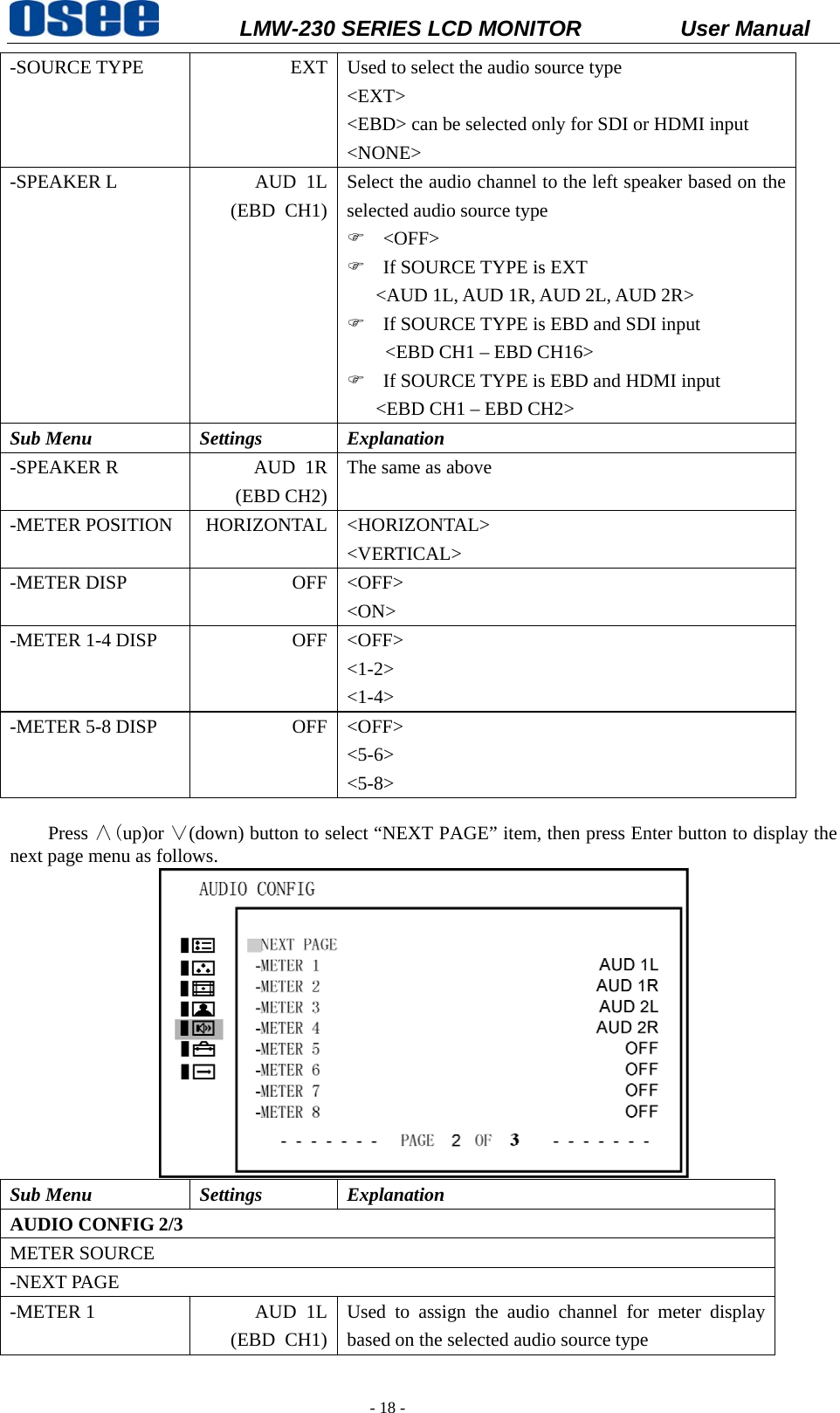
          LMW-230 SERIES LCD MONITOR           User Manual   - 18 - -SOURCE TYPE  EXT Used to select the audio source type <EXT> <EBD> can be selected only for SDI or HDMI input <NONE> -SPEAKER L  AUD  1L(EBD CH1)Select the audio channel to the left speaker based on the selected audio source type ) <OFF> ) If SOURCE TYPE is EXT <AUD 1L, AUD 1R, AUD 2L, AUD 2R> ) If SOURCE TYPE is EBD and SDI input <EBD CH1 – EBD CH16> ) If SOURCE TYPE is EBD and HDMI input <EBD CH1 – EBD CH2> Sub Menu  Settings  Explanation -SPEAKER R  AUD  1R(EBD CH2)The same as above -METER POSITION  HORIZONTAL <HORIZONTAL> <VERTICAL> -METER DISP  OFF <OFF> <ON> -METER 1-4 DISP  OFF <OFF> <1-2> <1-4> -METER 5-8 DISP  OFF <OFF> <5-6> <5-8>  Press ∧(up)or ∨(down) button to select “NEXT PAGE” item, then press Enter button to display the next page menu as follows.    Sub Menu  Settings  Explanation AUDIO CONFIG 2/3 METER SOURCE -NEXT PAGE -METER 1  AUD  1L(EBD CH1)Used to assign the audio channel for meter display based on the selected audio source type
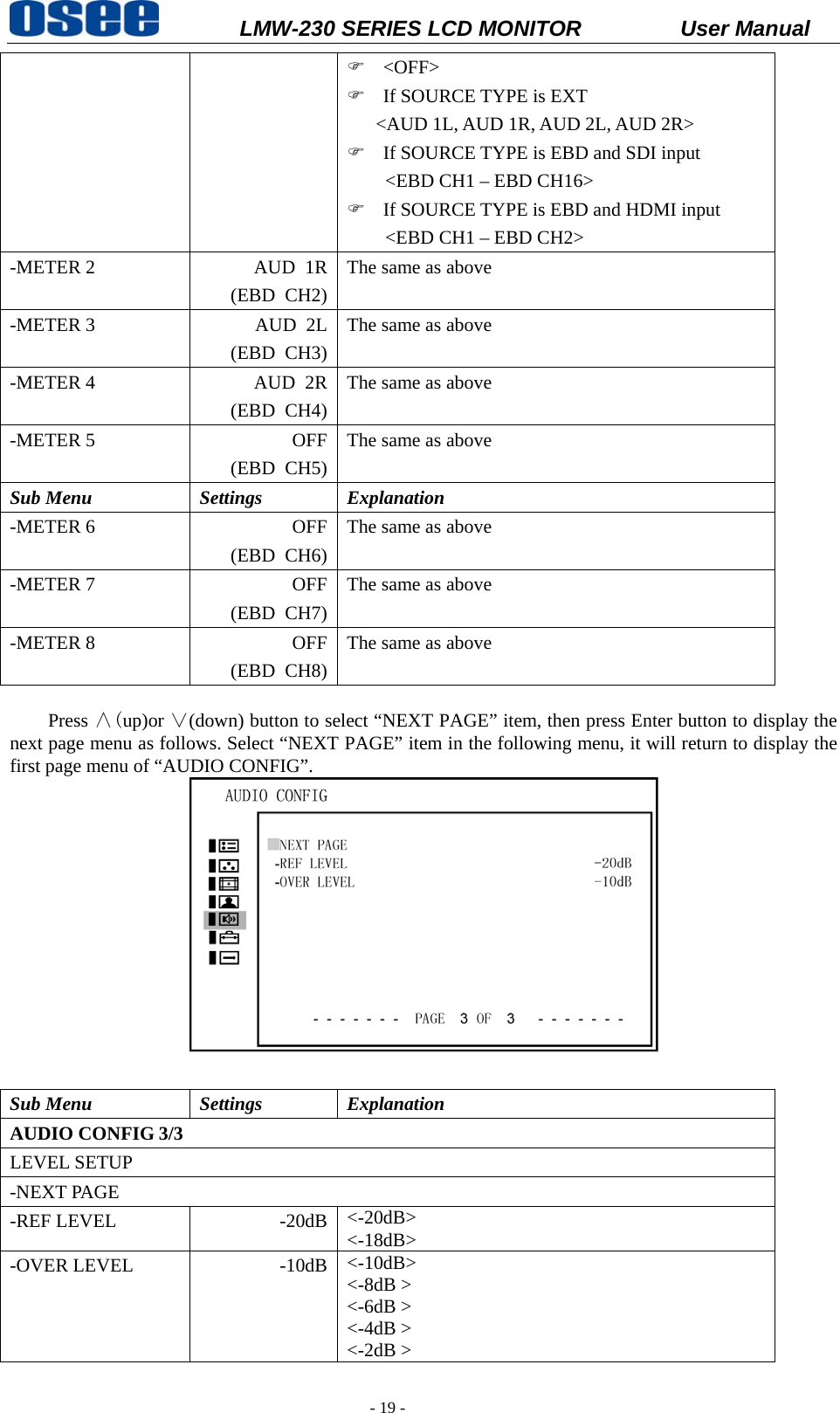
          LMW-230 SERIES LCD MONITOR           User Manual   - 19 - ) <OFF> ) If SOURCE TYPE is EXT <AUD 1L, AUD 1R, AUD 2L, AUD 2R> ) If SOURCE TYPE is EBD and SDI input <EBD CH1 – EBD CH16> ) If SOURCE TYPE is EBD and HDMI input <EBD CH1 – EBD CH2> -METER 2  AUD  1R(EBD CH2)The same as above -METER 3  AUD  2L(EBD CH3)The same as above -METER 4  AUD  2R(EBD CH4)The same as above -METER 5  OFF(EBD CH5)The same as above Sub Menu  Settings  Explanation -METER 6  OFF(EBD CH6)The same as above -METER 7  OFF(EBD CH7)The same as above -METER 8  OFF(EBD CH8)The same as above  Press ∧(up)or ∨(down) button to select “NEXT PAGE” item, then press Enter button to display the next page menu as follows. Select “NEXT PAGE” item in the following menu, it will return to display the first page menu of “AUDIO CONFIG”.  Sub Menu  Settings  Explanation AUDIO CONFIG 3/3 LEVEL SETUP -NEXT PAGE -REF LEVEL  -20dB <-20dB> <-18dB> -OVER LEVEL  -10dB <-10dB> <-8dB > <-6dB > <-4dB > <-2dB >
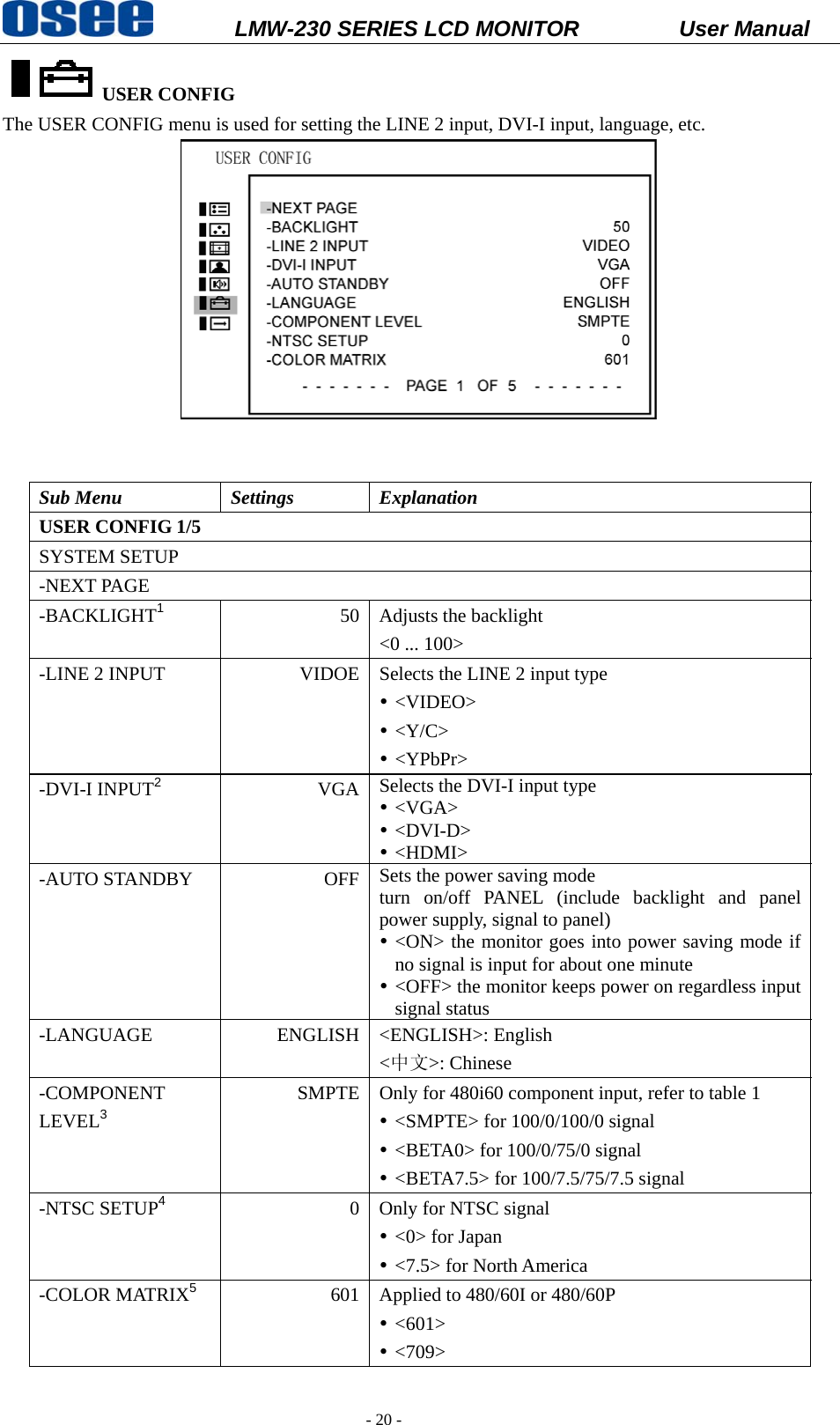
          LMW-230 SERIES LCD MONITOR           User Manual   - 20 - USER CONFIG The USER CONFIG menu is used for setting the LINE 2 input, DVI-I input, language, etc.      Sub Menu  Settings  Explanation USER CONFIG 1/5 SYSTEM SETUP -NEXT PAGE -BACKLIGHT1 50 Adjusts the backlight <0 ... 100> -LINE 2 INPUT  VIDOE Selects the LINE 2 input type y <VIDEO> y <Y/C> y <YPbPr> -DVI-I INPUT2 VGA Selects the DVI-I input type y <VGA> y <DVI-D> y <HDMI> -AUTO STANDBY  OFF Sets the power saving mode turn on/off PANEL (include backlight and panel power supply, signal to panel) y <ON> the monitor goes into power saving mode if no signal is input for about one minute y <OFF> the monitor keeps power on regardless input signal status -LANGUAGE ENGLISH <ENGLISH>: English <中文>: Chinese -COMPONENT LEVEL3 SMPTE Only for 480i60 component input, refer to table 1 y <SMPTE> for 100/0/100/0 signal y <BETA0> for 100/0/75/0 signal y <BETA7.5> for 100/7.5/75/7.5 signal -NTSC SETUP4  0 Only for NTSC signal y <0> for Japan y <7.5> for North America -COLOR MATRIX5  601 Applied to 480/60I or 480/60P y <601> y <709>
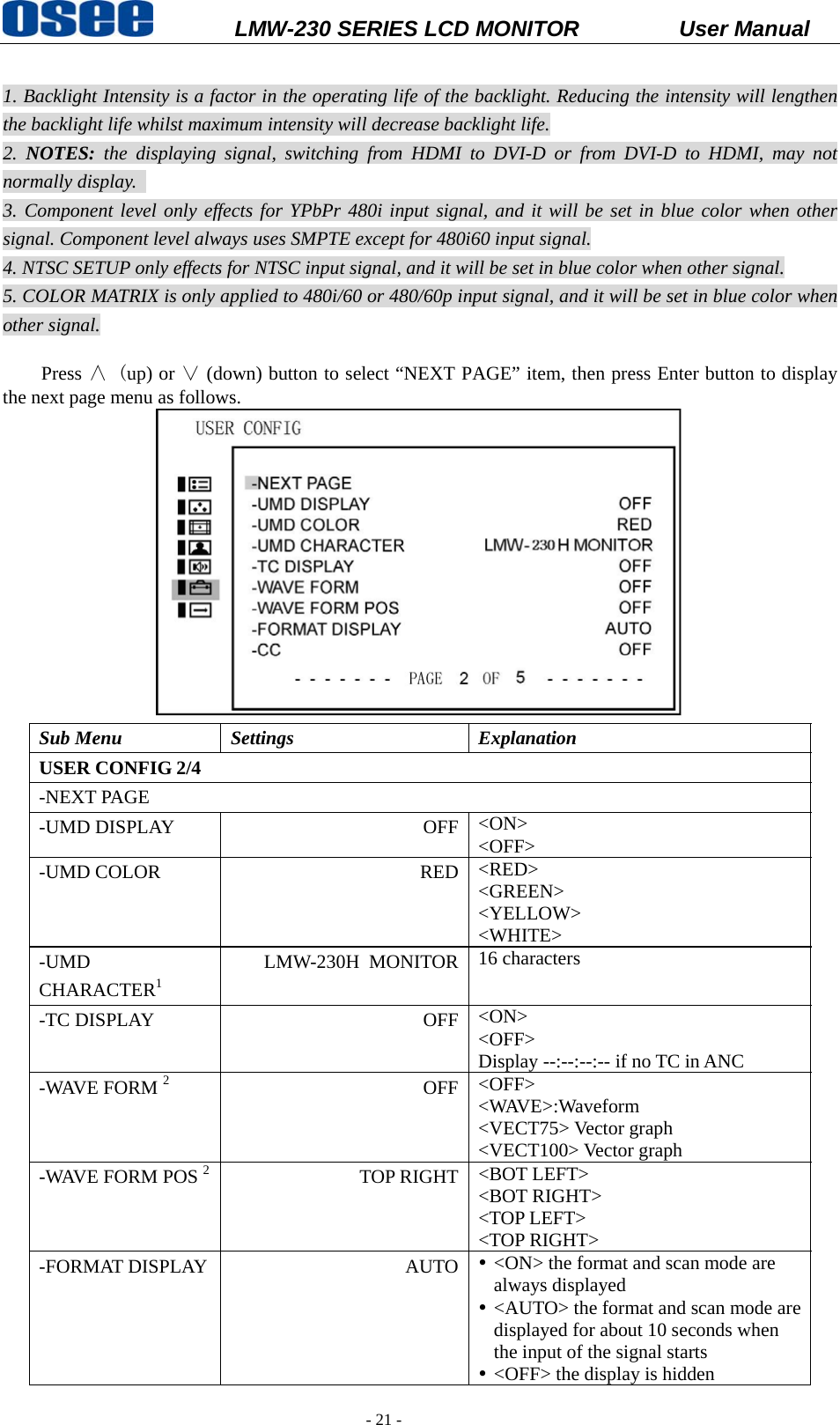
          LMW-230 SERIES LCD MONITOR           User Manual   - 21 -  1. Backlight Intensity is a factor in the operating life of the backlight. Reducing the intensity will lengthen the backlight life whilst maximum intensity will decrease backlight life. 2.  NOTES:  the displaying signal, switching from HDMI to DVI-D or from DVI-D to HDMI, may not normally display.   3. Component level only effects for YPbPr 480i input signal, and it will be set in blue color when other signal. Component level always uses SMPTE except for 480i60 input signal. 4. NTSC SETUP only effects for NTSC input signal, and it will be set in blue color when other signal. 5. COLOR MATRIX is only applied to 480i/60 or 480/60p input signal, and it will be set in blue color when other signal.  Press ∧ (up) or ∨ (down) button to select “NEXT PAGE” item, then press Enter button to display the next page menu as follows.    Sub Menu  Settings  Explanation USER CONFIG 2/4 -NEXT PAGE -UMD DISPLAY  OFF <ON> <OFF> -UMD COLOR  RED <RED> <GREEN> <YELLOW> <WHITE> -UMD CHARACTER1 LMW-230H MONITOR 16 characters -TC DISPLAY  OFF <ON> <OFF> Display --:--:--:-- if no TC in ANC -WAVE FORM 2 OFF <OFF> <WAVE>:Waveform <VECT75> Vector graph <VECT100> Vector graph -WAVE FORM POS 2   TOP RIGHT <BOT LEFT> <BOT RIGHT> <TOP LEFT> <TOP RIGHT> -FORMAT DISPLAY  AUTO y <ON> the format and scan mode are always displayed y <AUTO> the format and scan mode are displayed for about 10 seconds when the input of the signal starts y <OFF> the display is hidden
          LMW-230 SERIES LCD MONITOR           User Manual   - 22 - -CC 3 OFF <OFF> <CC1>  <CC2>  <CC3>  <CC4>  <TEXT1> <TEXT2> <TEXT3> <TEXT4> <XDS> 1. The default of “UMD CHARACTER” depends on the type of device.   2. Wave form is used to check the wave form and vector graph of the displaying signal picture.   Only used for SDI signal. 3. CC only can be used for VIDEO: NTSC and Y/C: NTSC input signal.   Press ∧(up)or ∨(down) button to select “NEXT PAGE” item, then press Enter button to display the next page menu as follows.     Sub Menu  Settings  Explanation USER CONFIG 3/4 FUNCTION BUTTON SETUP -NEXT PAGE -F1 BUTTON  MARKER F1- F3 button functions can be set as follows: y <MARKER>: Control all MARKER ON-OFF-ON y <AUD METER>: Control all audio meter display, ON-OFF-ON y <WAVEFORM>: WAVEFORM-OFF y <H/V DELAY>: OFF-H-V-H/V-OFF y <AUTO ADJ>: Press to initial auto adjustment y <NATIVE>: [ NATIVE]-OFF y <BLUE ONLY>: BLUE-NORMAL-BLUE y <MONO>: MONO-NORMAL-MONO y <ASPECT>:4:3-16:9 y <SCAN>:NORMAL-OVER y <MUTE>:OFF-MUTE y <UNDEF>: no settings -F2 BUTTON  AUD  METER-F3 BUTTON  H/V  DELAY Press ∧(up)or ∨(down) button to select “NEXT PAGE” item, then press Enter button to display the
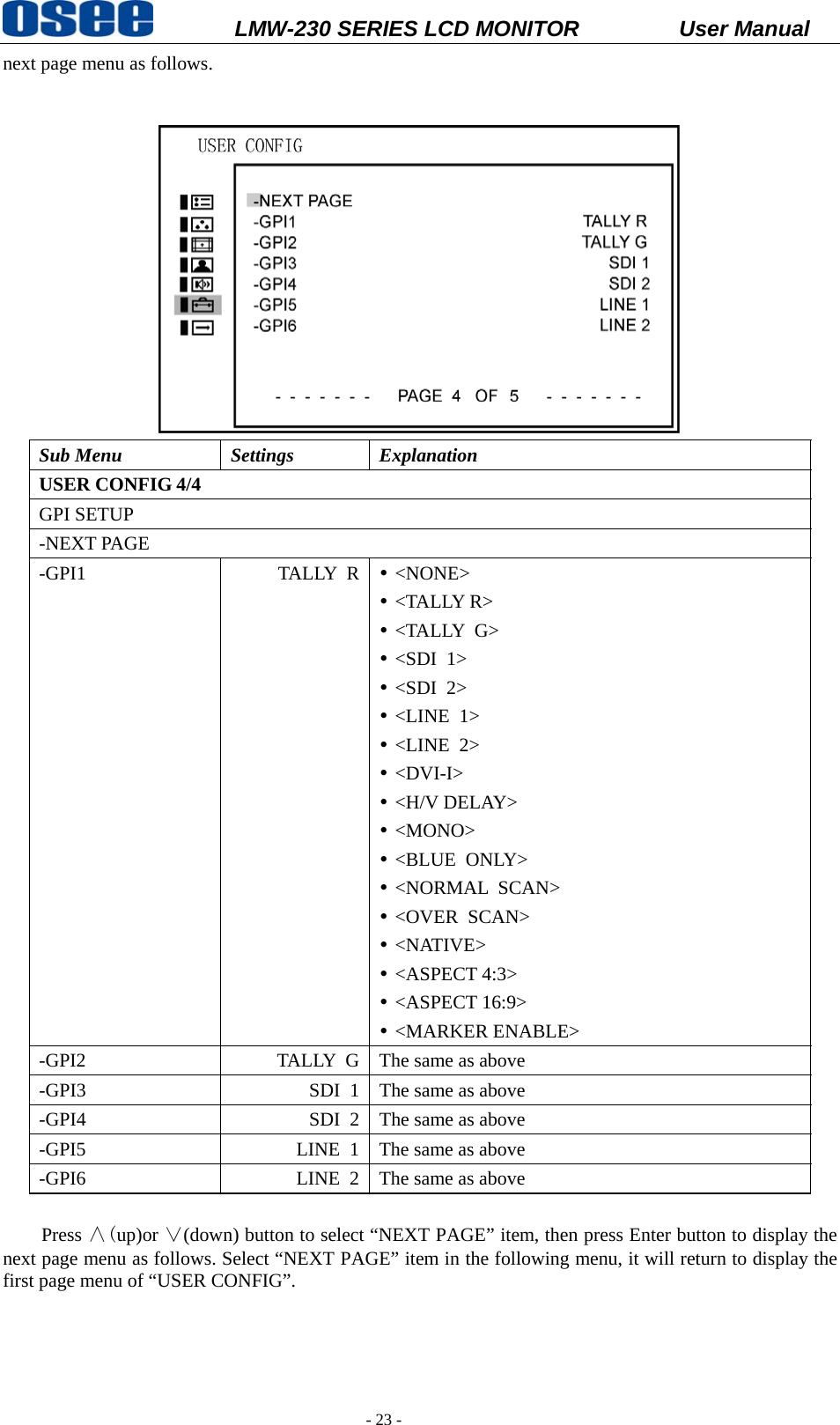
          LMW-230 SERIES LCD MONITOR           User Manual   - 23 - next page menu as follows.    Sub Menu  Settings  Explanation USER CONFIG 4/4 GPI SETUP -NEXT PAGE -GPI1 TALLY R y <NONE> y <TALLY R> y <TALLY G> y <SDI 1> y <SDI 2> y <LINE 1> y <LINE 2> y <DVI-I> y <H/V DELAY> y <MONO> y <BLUE ONLY> y <NORMAL SCAN> y <OVER SCAN> y <NATIVE> y <ASPECT 4:3> y <ASPECT 16:9> y <MARKER ENABLE> -GPI2  TALLY  G The same as above -GPI3  SDI  1 The same as above -GPI4  SDI  2 The same as above -GPI5  LINE  1 The same as above -GPI6  LINE  2 The same as above  Press ∧(up)or ∨(down) button to select “NEXT PAGE” item, then press Enter button to display the next page menu as follows. Select “NEXT PAGE” item in the following menu, it will return to display the first page menu of “USER CONFIG”.
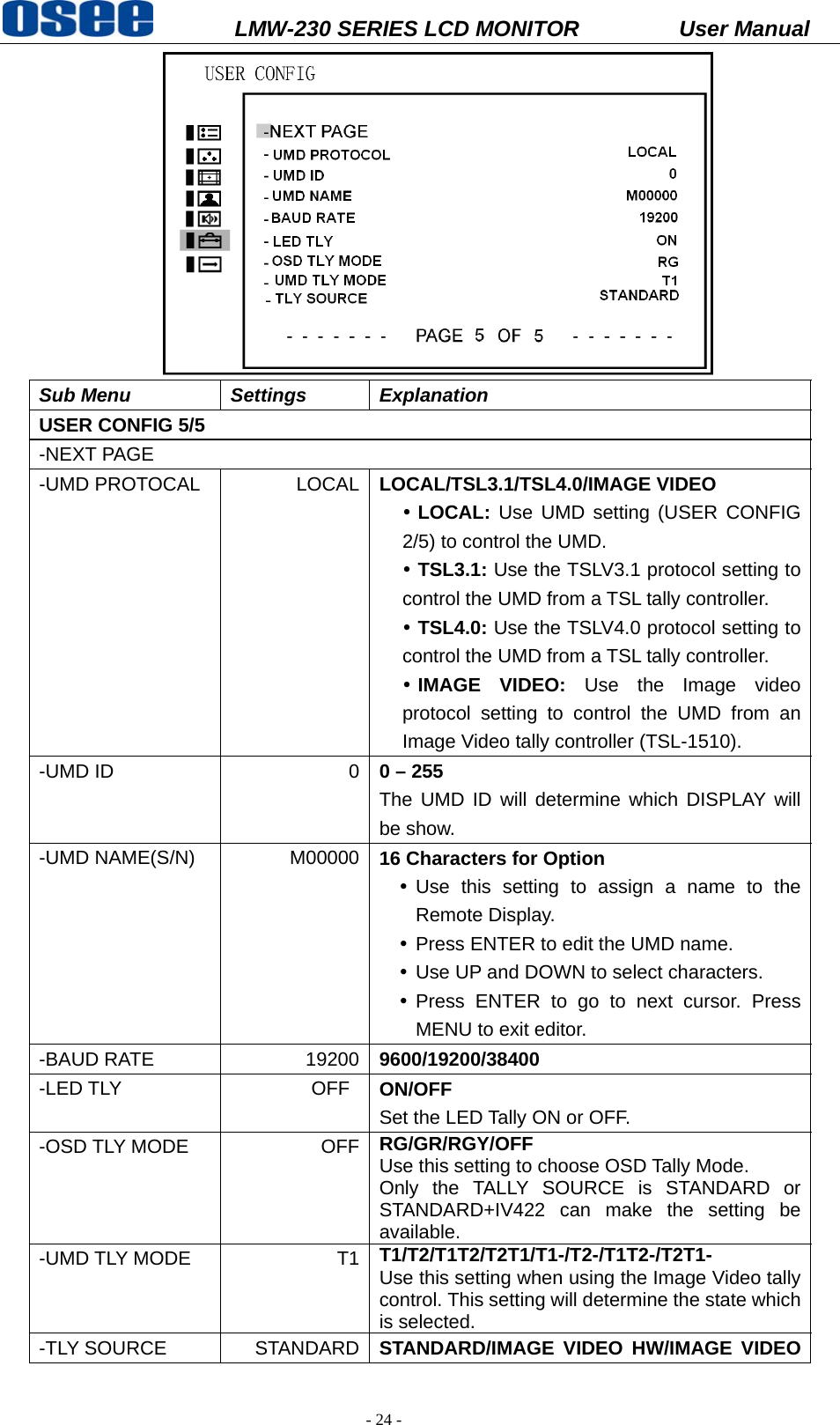
          LMW-230 SERIES LCD MONITOR           User Manual   - 24 -  Sub Menu  Settings  Explanation USER CONFIG 5/5 -NEXT PAGE -UMD PROTOCAL  LOCAL LOCAL/TSL3.1/TSL4.0/IMAGE VIDEO y LOCAL: Use UMD setting (USER CONFIG 2/5) to control the UMD. y TSL3.1: Use the TSLV3.1 protocol setting to control the UMD from a TSL tally controller.   y TSL4.0: Use the TSLV4.0 protocol setting to control the UMD from a TSL tally controller. y IMAGE VIDEO: Use the Image video protocol setting to control the UMD from an Image Video tally controller (TSL-1510). -UMD ID  0 0 – 255 The UMD ID will determine which DISPLAY will be show. -UMD NAME(S/N)  M00000 16 Characters for Option y Use this setting to assign a name to the Remote Display. y Press ENTER to edit the UMD name.   y Use UP and DOWN to select characters.   y Press ENTER to go to next cursor. Press MENU to exit editor. -BAUD RATE  19200 9600/19200/38400 -LED TLY    OFF  ON/OFF Set the LED Tally ON or OFF. -OSD TLY MODE  OFF RG/GR/RGY/OFF Use this setting to choose OSD Tally Mode.   Only the TALLY SOURCE is STANDARD or STANDARD+IV422 can make the setting be available. -UMD TLY MODE  T1 T1/T2/T1T2/T2T1/T1-/T2-/T1T2-/T2T1- Use this setting when using the Image Video tally control. This setting will determine the state which is selected. -TLY SOURCE  STANDARD STANDARD/IMAGE VIDEO HW/IMAGE VIDEO
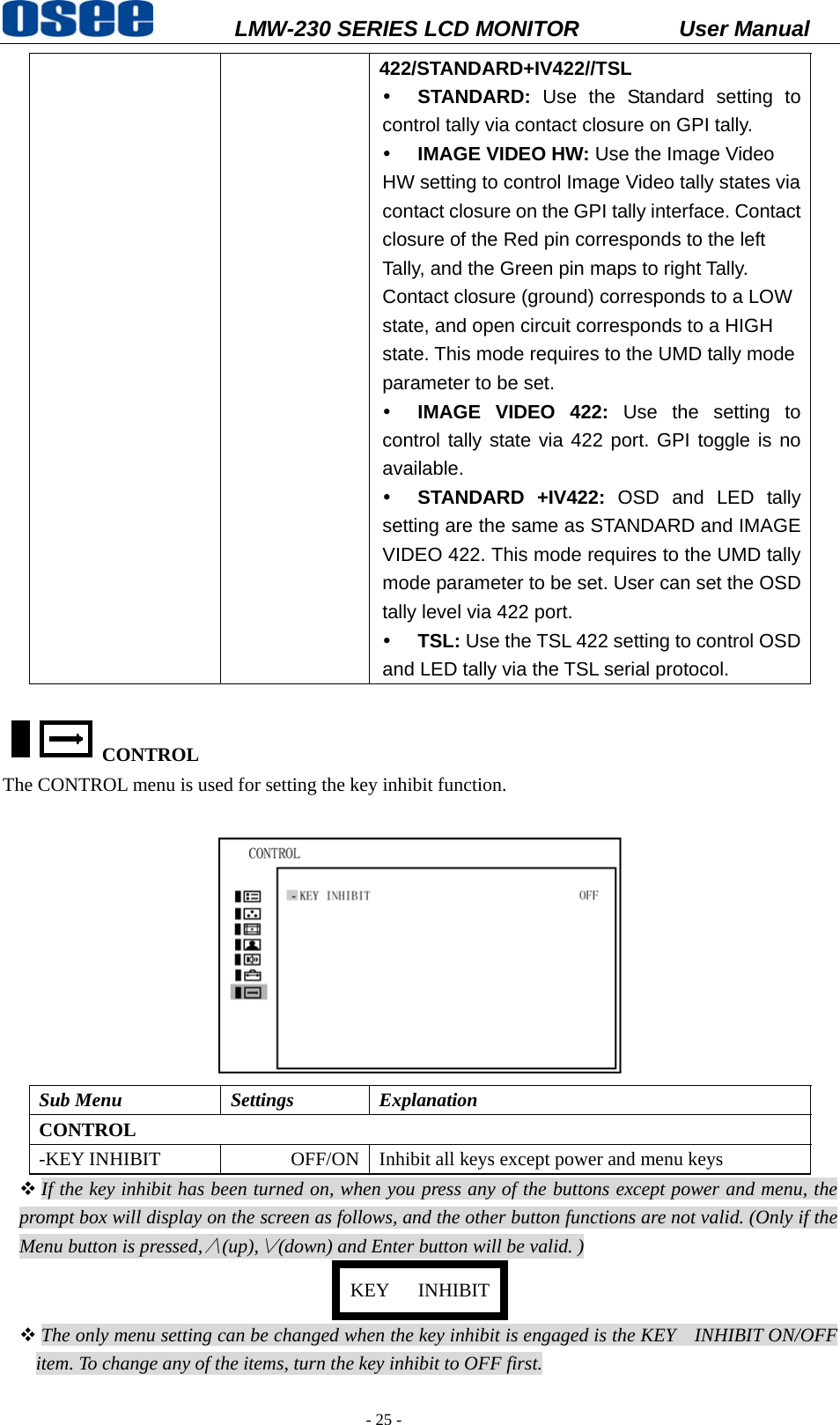
          LMW-230 SERIES LCD MONITOR           User Manual   - 25 - 422/STANDARD+IV422//TSL y STANDARD: Use the Standard setting to control tally via contact closure on GPI tally. y IMAGE VIDEO HW: Use the Image Video HW setting to control Image Video tally states via contact closure on the GPI tally interface. Contact closure of the Red pin corresponds to the left Tally, and the Green pin maps to right Tally. Contact closure (ground) corresponds to a LOW state, and open circuit corresponds to a HIGH state. This mode requires to the UMD tally mode parameter to be set.   y IMAGE VIDEO 422: Use the setting to control tally state via 422 port. GPI toggle is no available. y STANDARD +IV422: OSD and LED tally setting are the same as STANDARD and IMAGE VIDEO 422. This mode requires to the UMD tally mode parameter to be set. User can set the OSD tally level via 422 port. y TSL: Use the TSL 422 setting to control OSD and LED tally via the TSL serial protocol.  CONTROL  The CONTROL menu is used for setting the key inhibit function.   Sub Menu  Settings  Explanation CONTROL -KEY INHIBIT  OFF/ON Inhibit all keys except power and menu keys  If the key inhibit has been turned on, when you press any of the buttons except power and menu, the prompt box will display on the screen as follows, and the other button functions are not valid. (Only if the Menu button is pressed,∧(up),∨(down) and Enter button will be valid. ) KEY   INHIBIT The only menu setting can be changed when the key inhibit is engaged is the KEY    INHIBIT ON/OFF item. To change any of the items, turn the key inhibit to OFF first.
          LMW-230 SERIES LCD MONITOR           User Manual   - 26 -  Chapter 7 Technical Specifications  7.1 LED Detailed Information:    Display Area  23” diagonal, 509.184 (H) ×286.416 (V) Viewing Angles  178(H) × 178(V)) Color Depth  16.7M Resolution  1920H X 1080V Dot Pitch  0.22652(H) × 0.2652(V) Contrast Ratio  1000 :1 Response Time  <14ms  Power  100~240 V AC,50/60Hz,40Wmax   Power Consumption  40W Luminance, White  250cd/m2 Back light  White LED Back light life time(Hrs) 30,000 Operating Temperature  0° C to 50° C  7.2 Inputs  ¾ HD-SDI Inputs with Loop-through ¾ 1 Video Input ¾ 1 Configurable Video, Y/C, YPbPr Input ¾ 1 Configurable HDMI, VGA, DVI Input ¾ 4 Channels Audio Input ¾ GPI Inputs on RJ45 ¾ RS485 with Loop-through   7.3 Component Level Definition BETA 7.5  SMPTE Setup 53.37 mV  Setup 0 mV Y  714.29 mV (Peak Luma, 100% White) Y  700.00 mV (Peak Luma, 100% White) Pb/Pr  700.00 mVp-p (75% Color Bars)  933.34 mVp-p (100% Color Bars)  Pb/Pr 525.00 mVp-p (75% Color Bars)  700.00 mVp-p (100% Color Bars)  Sync  -286 mV   Sync -300 mV  BETA 0   Setup 0 mV Y  714.30 mV (Peak Luma, 100% White) Pb/Pr  756.80 mVp-p (75% Color Bars)  1009.0 mVp-p (100% Color Bars)  Sync  -286 mV
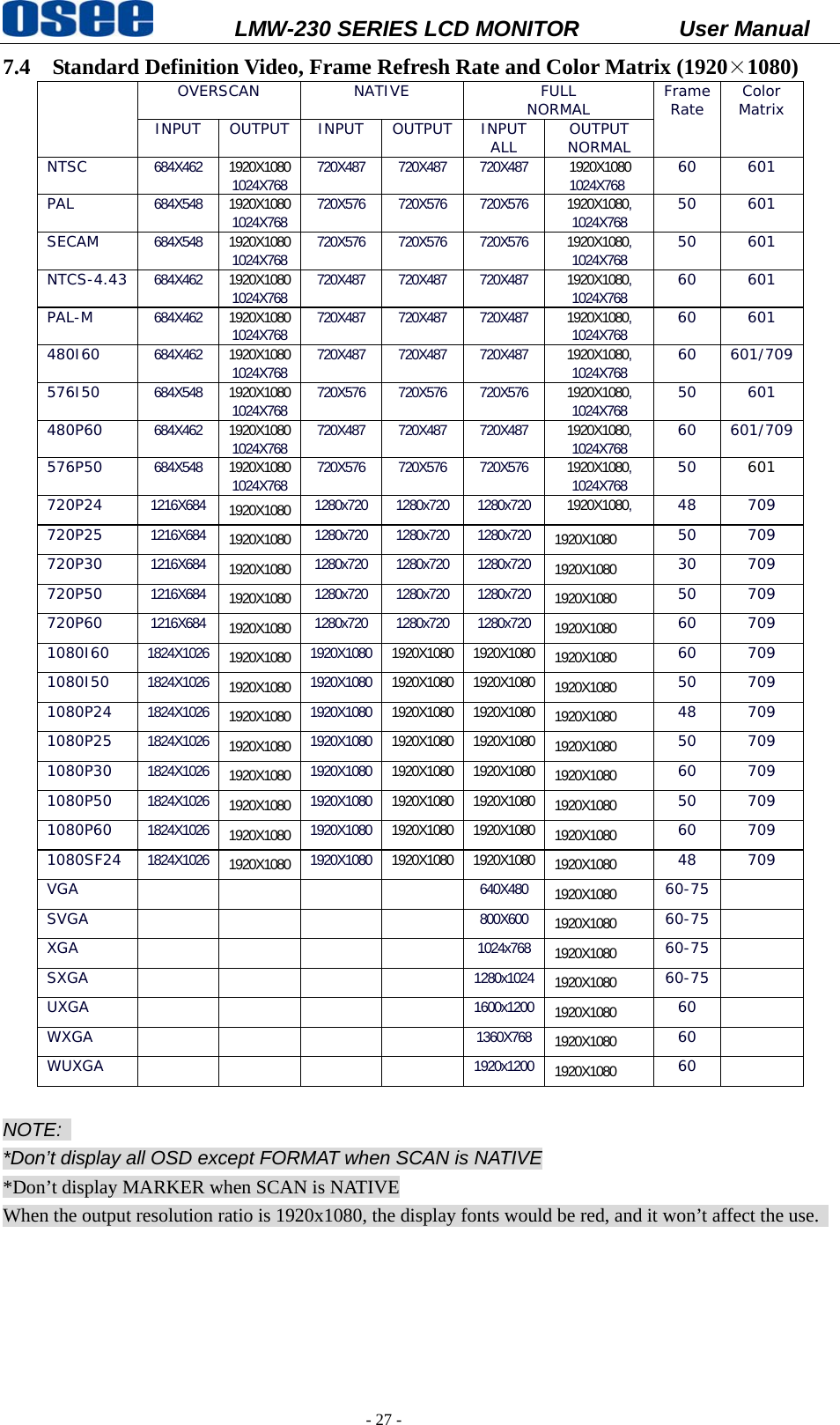
          LMW-230 SERIES LCD MONITOR           User Manual   - 27 - 7.4 Standard Definition Video, Frame Refresh Rate and Color Matrix (1920×1080)  OVERSCAN  NATIVE  FULL NORMAL  Frame Rate  Color Matrix INPUT OUTPUT INPUT OUTPUT INPUT ALL  OUTPUT NORMAL NTSC  684X462  1920X1080 1024X768 720X487 720X487 720X487  1920X1080 1024X768  60 601 PAL  684X548  1920X1080 1024X768 720X576 720X576 720X576  1920X1080, 1024X768  50 601 SECAM  684X548  1920X1080 1024X768 720X576 720X576 720X576  1920X1080, 1024X768  50 601 NTCS-4.43  684X462  1920X1080 1024X768 720X487 720X487 720X487  1920X1080, 1024X768  60 601 PAL-M  684X462  1920X1080 1024X768 720X487 720X487 720X487  1920X1080, 1024X768  60 601 480I60  684X462  1920X1080 1024X768 720X487 720X487 720X487  1920X1080, 1024X768  60 601/709 576I50  684X548  1920X1080 1024X768 720X576 720X576 720X576  1920X1080, 1024X768  50 601 480P60  684X462  1920X1080 1024X768 720X487 720X487 720X487  1920X1080, 1024X768  60 601/709 576P50  684X548  1920X1080 1024X768 720X576 720X576 720X576  1920X1080, 1024X768  50  601 720P24  1216X684  1920X1080 1280x720 1280x720 1280x720  1920X1080,  48 709 720P25  1216X684  1920X1080 1280x720 1280x720 1280x720 1920X1080 50 709 720P30  1216X684  1920X1080 1280x720 1280x720 1280x720 1920X1080 30 709 720P50  1216X684  1920X1080 1280x720 1280x720 1280x720 1920X1080 50 709 720P60  1216X684  1920X1080 1280x720 1280x720 1280x720 1920X1080 60 709 1080I60  1824X1026  1920X1080 1920X1080 1920X1080 1920X1080 1920X1080 60 709 1080I50  1824X1026  1920X1080 1920X1080 1920X1080 1920X1080 1920X1080 50 709 1080P24  1824X1026  1920X1080 1920X1080 1920X1080 1920X1080 1920X1080 48 709 1080P25  1824X1026  1920X1080 1920X1080 1920X1080 1920X1080 1920X1080 50 709 1080P30  1824X1026  1920X1080 1920X1080 1920X1080 1920X1080 1920X1080 60 709 1080P50  1824X1026  1920X1080 1920X1080 1920X1080 1920X1080 1920X1080 50 709 1080P60  1824X1026  1920X1080 1920X1080 1920X1080 1920X1080 1920X1080 60 709 1080SF24  1824X1026  1920X1080 1920X1080 1920X1080 1920X1080 1920X1080 48 709 VGA      640X480 1920X1080 60-75  SVGA      800X600 1920X1080 60-75  XGA      1024x768 1920X1080 60-75  SXGA      1280x1024 1920X1080 60-75  UXGA      1600x1200 1920X1080 60  WXGA      1360X768 1920X1080 60  WUXGA      1920x1200 1920X1080 60   NOTE:  *Don’t display all OSD except FORMAT when SCAN is NATIVE *Don’t display MARKER when SCAN is NATIVE When the output resolution ratio is 1920x1080, the display fonts would be red, and it won’t affect the use.
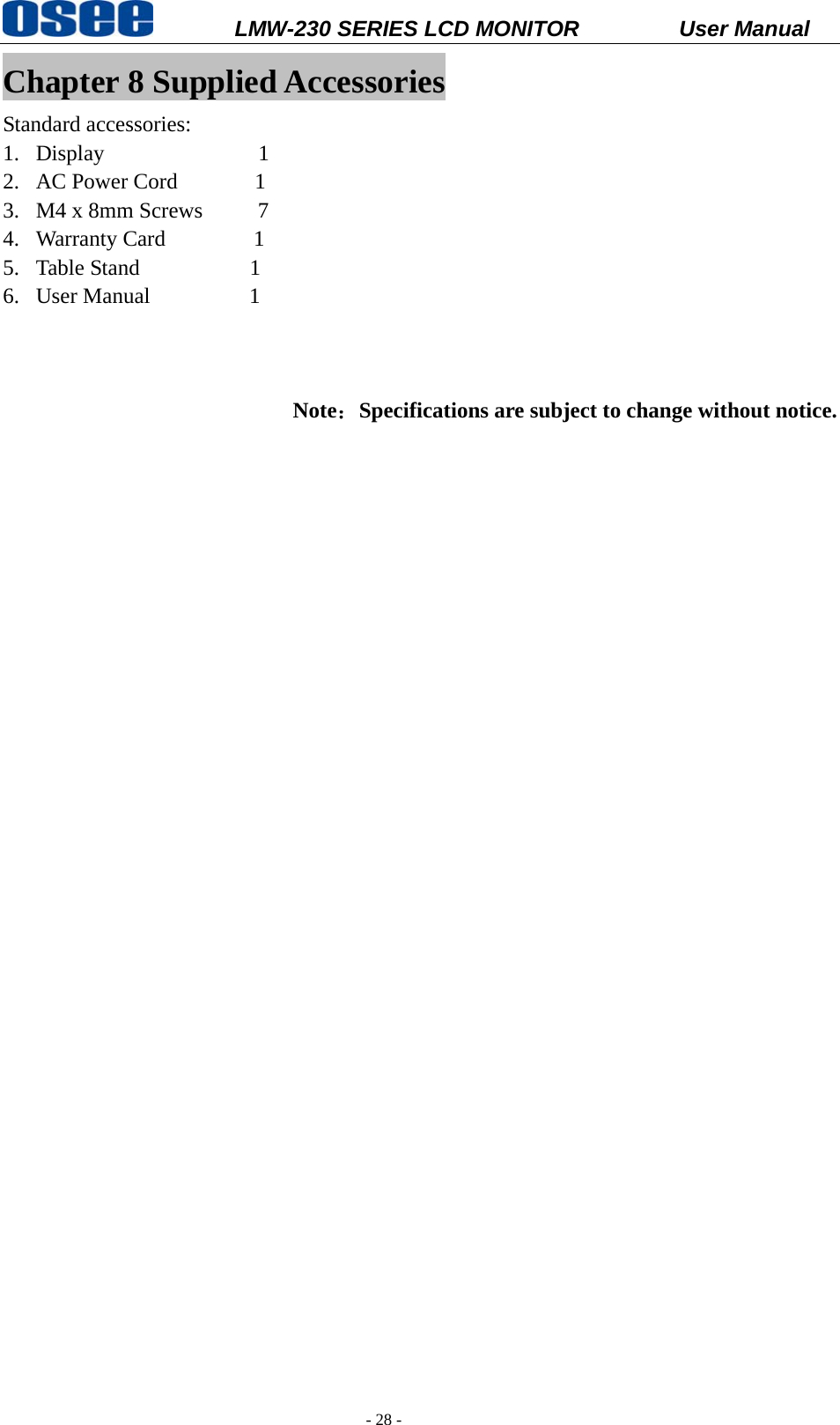
          LMW-230 SERIES LCD MONITOR           User Manual   - 28 - Chapter 8 Supplied Accessories Standard accessories: 1. Display              1 2. AC Power Cord       1 3. M4 x 8mm Screws     7 4. Warranty Card        1 5. Table Stand          1 6. User Manual         1      Note:Specifications are subject to change without notice.

Navigation menu