OSEE TECHNOLOGY XCM240LCDM LCD Monitor User Manual

OSEE TECHNOLOGY CO.,LTD. LCD Monitor Users Manual

Users Manual

          XCM-240 LCD Monitor        User Manual
    Product Information Model: XCM-240 LCD Monitor Version: V010000 Release Date: November 10th, 2014       Company OSEE TECHNOLOGY CO., LTD.     Customer Support Address: No.22  Building,  No.68  zone,  Beiqing  Road,  Haidian  District, Beijing, China Post Code: 100094 Tel: (+86) 010-62434168 Fax: (+86) 010-62434169 Web: http://www.osee-dig.com/ E-mail: sales@osee-dig.com
  About this manual  Important The following symbols are used in this manual:     The further information or know-how for described subjects above which helps user to understand them better.       The safety matters or operations that user must pay attention to when using this product.    Contents The user manual applies to the following device types:  XCM-240-3HSV  The images of XCM-240 are adopted in the following descriptions.   Any  of  the  different  specifications  between  the  device  types  are  elaborated. Before reading the manual, please confirm the device type.
 I Contents Contents .......................................................................................................... I Chapter 1 Overview ....................................................................................... 1 Chapter 2 Safety ............................................................................................. 3 Chapter 3 Unpack and Installation ............................................................... 7 Chapter 4 XCM-240 Features ........................................................................ 9 4.1 Front Panel Features ........................................................................ 11 4.1.1 Arrangement of Front Panel ........................................................... 11 4.1.2 Operation of Front Panel ................................................................ 12 4.2 Rear Panel Features .......................................................................... 16 4.2.1 Arrangement of Rear Panel ............................................................ 16 4.2.2 Operations of Rear Panel ............................................................... 17 4.3 Supported Signal Format ................................................................. 21 Chapter 5 Functionality of the Main Menu ................................................. 23 5.1 Main Menu.......................................................................................... 23 5.1.1 STATUS Menu ............................................................................... 26 5.1.2 INPUT SELECT Menu .................................................................... 27 5.1.3 MARKER Menu .............................................................................. 28 5.1.4 AUDIO Menu .................................................................................. 30 5.1.5 DISPLAY Menu .............................................................................. 33 5.1.6 CLOSE CAPTION Menu ................................................................. 35 5.1.7 CONFIG Menu ................................................................................ 36 5.1.8 COLOR TEMP Menu ...................................................................... 40 5.1.9 FUNCTION KEY Menu ................................................................... 41 5.1.10 GPI Menu ...................................................................................... 43 5.1.11 IMD Menu ..................................................................................... 45 5.1.12 KEY INHIBIT Menu ....................................................................... 48 5.2 Menu Settings .................................................................................... 48 Chapter 6 Network Control.......................................................................... 53 6.1 Access the settings........................................................................... 53 6.2 Menu Control ..................................................................................... 54
  6.2.1 ADJUST Menu ................................................................................ 55 6.2.2 VIDEO DISPLAY Menu .................................................................. 57 6.2.3 SYSTEM Menu ............................................................................... 57 6.2.4 Other Menus ................................................................................... 58 6.3 Parameter Settings ........................................................................... 59 Chapter 7 Specifications ............................................................................. 63
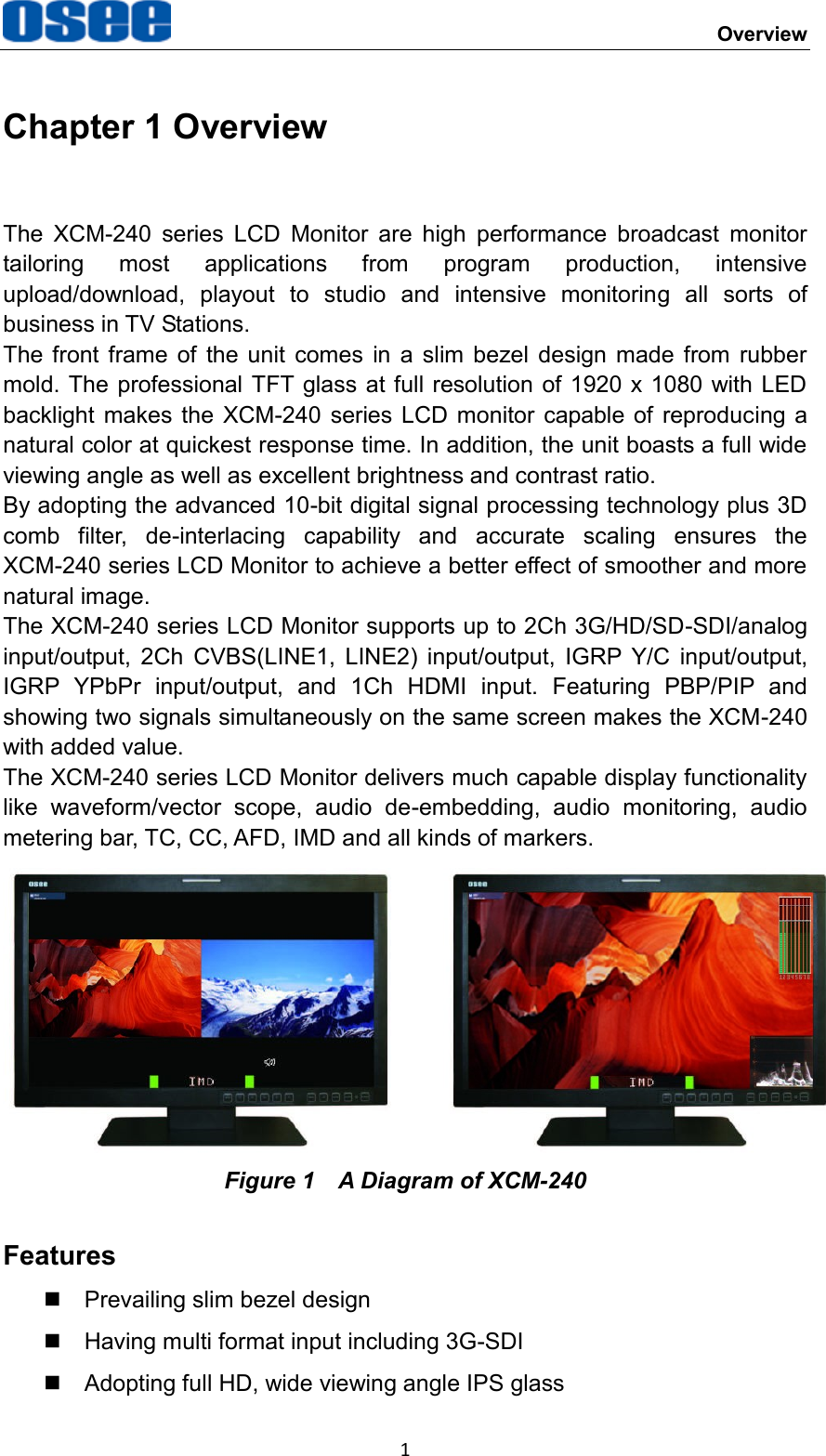
    Overview 1 Chapter 1 Overview The  XCM-240  series  LCD  Monitor  are  high  performance  broadcast  monitor tailoring  most  applications  from  program  production,  intensive upload/download,  playout  to  studio  and  intensive  monitoring  all  sorts  of business in TV Stations. The  front  frame of  the  unit  comes  in  a  slim  bezel  design  made  from rubber mold. The professional TFT glass at full resolution  of 1920  x 1080 with LED backlight  makes  the  XCM-240  series LCD monitor capable of  reproducing a natural color at quickest response time. In addition, the unit boasts a full wide viewing angle as well as excellent brightness and contrast ratio. By adopting the advanced 10-bit digital signal processing technology plus 3D comb  filter,  de-interlacing  capability  and  accurate  scaling  ensures  the XCM-240 series LCD Monitor to achieve a better effect of smoother and more natural image. The XCM-240 series LCD Monitor supports up to 2Ch 3G/HD/SD-SDI/analog input/output,  2Ch  CVBS(LINE1,  LINE2)  input/output,  IGRP  Y/C  input/output, IGRP  YPbPr  input/output,  and  1Ch  HDMI  input.  Featuring  PBP/PIP  and showing two signals simultaneously on the same screen makes the XCM-240 with added value. The XCM-240 series LCD Monitor delivers much capable display functionality like  waveform/vector  scope,  audio  de-embedding,  audio  monitoring,  audio metering bar, TC, CC, AFD, IMD and all kinds of markers.  Figure 1    A Diagram of XCM-240 Features   Prevailing slim bezel design   Having multi format input including 3G-SDI   Adopting full HD, wide viewing angle IPS glass
Overview  2   Using 10-bit  signal  processing  technology  plus  advanced  conversion technology between the interlacing and the progressive   Featuring PBP and PIP, dual 3G-SDI capable under PBP mode   Supporting waveform/vector scope, audio metering bar, TC, IMD and CC   Supporting varied color temperature, varied scan modes, flexibility  in marker setting, Blue Only/Monochrome mode  Functionality   Supports MARKER, Time Code, MET display   Supports presetting the color temperature using customized values
    Safety 3 Chapter 2 Safety FCC Caution:   Any Changes or modifications not expressly approved by the party responsible for compliance could void the user's authority to operate the equipment.  This device complies with part 15 of the FCC Rules.     Operation is subject to the following two  conditions: (1) This device may  not cause harmful interference, and (2) this device must accept any interference received, including interference that may cause undesired operation.    Note: This equipment has been tested and found to comply with the limits for a Class B digital device, pursuant to part 15 of the FCC Rules. These limits are designed  to  provide  reasonable  protection  against  harmful  interference  in  a residential installation. This equipment generates uses and can radiate radio   frequency  energy  and,  if  not  installed  and  used  in  accordance  with  the instructions,  may  cause  harmful  interference  to  radio  communications. However, there is no guaran-tee that interference will not occur in a particular installation.  If  this  equipment  does  cause  harmful  interference  to  radio  or television reception, which can be determined by turning the equipment off and on, the user is encouraged to try to correct the interference by one or more of the following measures:    Reorient or relocate the receiving antenna.   Increase the separation between the equipment and receiver. Connect the equipment into an outlet on a circuit different from that to which the receiver is connected.     Consult the dealer or an experienced radio/TV technician for help.
Safety  4 Warnings: Read,  keep  and  follow  all  of  these  instructions  for  your  safety.  Heed  all warnings.  Device   Install in accordance with the manufacturer's instructions.   Do not beat with a hard object or scratch the LCD display.   Do not make the freeze picture displaying on the screen time too long, otherwise, it will leave the afterimage on the screen.   If the brightness is adjusted to the minimum, then it might be hard to see the display screen.   Refer  all  servicing  to  qualified  service  personnel.  Servicing  will  be required under all of the following conditions:   The unit has been exposed to rain or moisture.   Liquid had been spilled or objects have fallen onto the unit.   The  unit  has  been  damaged  in  any  way,  such  as  when  the power-supply cord or plug is damaged.     The unit does not operate normally.   Clean only with dry cloth.   Specifications are subject to change without notice.    Position   Do not block any ventilation openings.   Do not use this unit near water.   Do not expose the unit to rain or moisture.   Do  not  use  this  unit  near  any  heat  sources  such  as  radiators,  heat registers, stoves, or other apparatus (including amplifiers) that product
 Safety 5 heat.   A nameplate indicating operating voltage, etc.,  is located on the rear panel.   The  socket-outlet shall be  installed near  the  equipment  and  shall  be easily accessible.    Power Supply Cord   Do  not  defeat  the  safety  purpose  of  the  polarized  or  grounding-type plug.   Do not damage the power cord, place the heavy objects on the power cord, stretch the power cord, or bend the power cord.     Protect the power cord from being walked on or pinched, particularly at plugs, convenience receptacles, and the point where they exit from the unit.     If  the  power  cord  is  damaged,  turn  off  the  power  immediately.  It  is dangerous to use the unit with a damaged power cord. It may cause fire or electric shock.     Unplug this unit during lighting storms or when unused for long periods of time.   Disconnect the power cord from the AC outlet by grasping the plug, not by pulling the cord.   Should any solid object or  liquid fall into the cabinet,  unplug the unit and  have  it  checked  by  qualified  personnel  before  operating  it  any further.
6
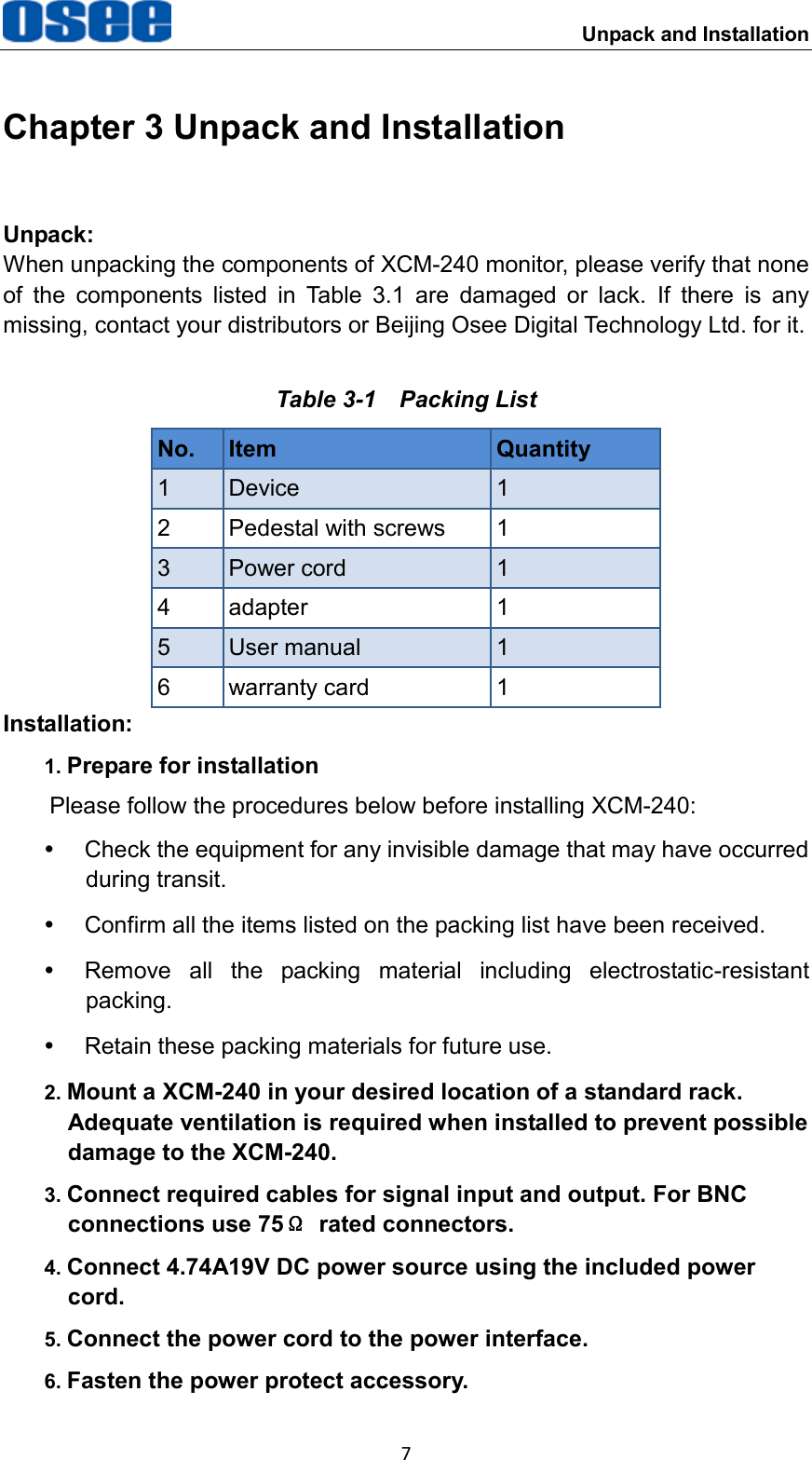
    Unpack and Installation 7 Chapter 3 Unpack and Installation Unpack: When unpacking the components of XCM-240 monitor, please verify that none of  the  components  listed  in  Table  3.1  are  damaged  or  lack.  If  there  is  any missing, contact your distributors or Beijing Osee Digital Technology Ltd. for it. Table 3-1  Packing List No. Item Quantity 1 Device 1 2 Pedestal with screws 1 3 Power cord 1 4 adapter 1 5 User manual 1 6 warranty card 1 Installation: 1. Prepare for installation Please follow the procedures below before installing XCM-240:   Check the equipment for any invisible damage that may have occurred during transit.   Confirm all the items listed on the packing list have been received.   Remove  all  the  packing  material  including  electrostatic-resistant packing.   Retain these packing materials for future use. 2. Mount a XCM-240 in your desired location of a standard rack. Adequate ventilation is required when installed to prevent possible damage to the XCM-240. 3. Connect required cables for signal input and output. For BNC connections use 75Ω  rated connectors. 4. Connect 4.74A19V DC power source using the included power cord. 5. Connect the power cord to the power interface. 6. Fasten the power protect accessory.
Unpack and Installation  8 7. As a final step, turn on each screen of the device by pressing the corresponding power switch located on the front panel.    The pedestal and the monitor are packaged separately.   Connect a standard signal lines to the corresponding input port. All BNC connector impedance must be 75Ω.   Please use the power adapter supplied to avoid unnecessary trouble.   Use the power adapter and cord to connect single-phase three-wire AC power or following the local power supply conditions. Make sure the power cord grounding well.   The factory default value for IP address is 192.168.1.86.
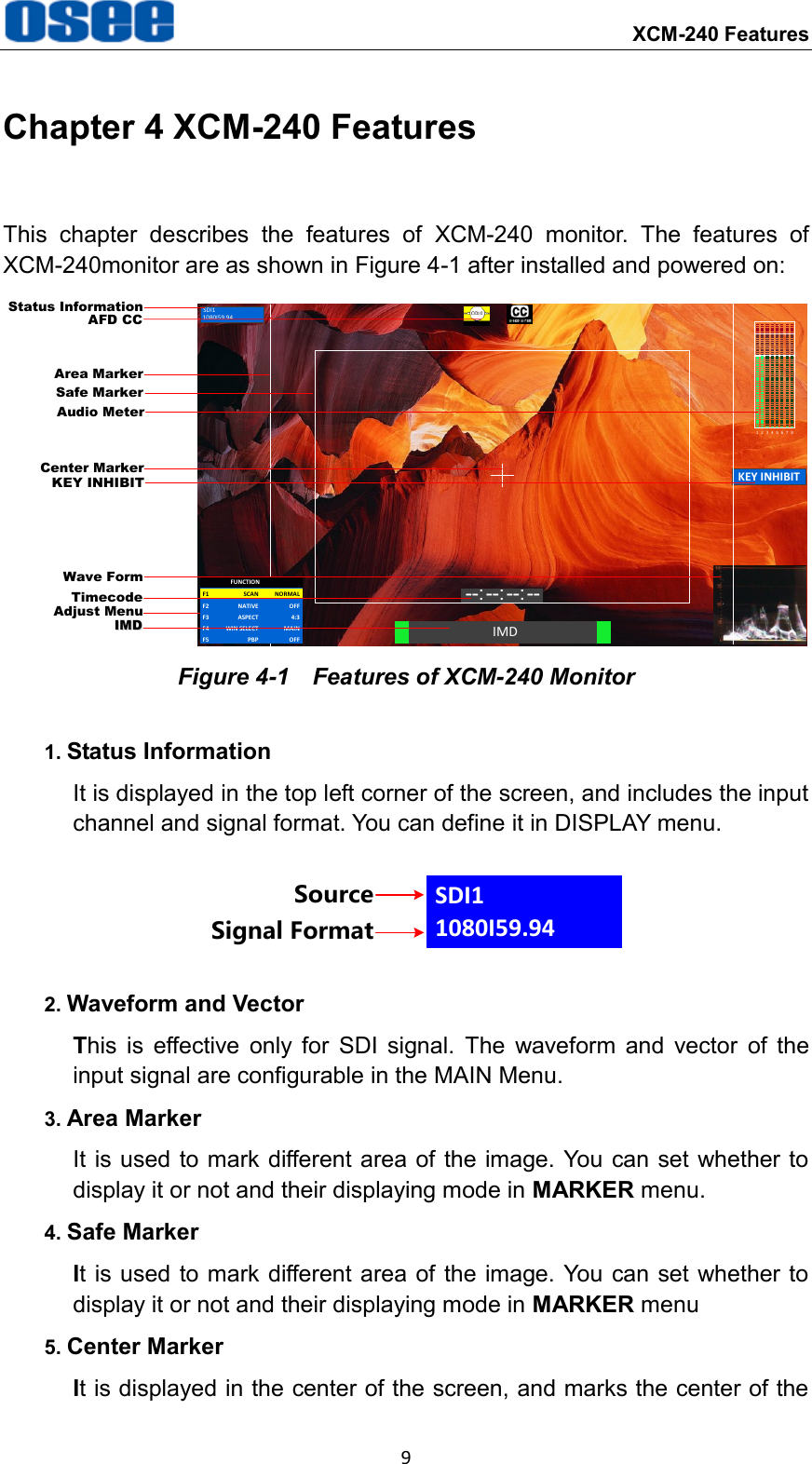
    XCM-240 Features 9 Chapter 4 XCM-240 Features This  chapter  describes  the  features  of  XCM-240  monitor.  The  features  of XCM-240monitor are as shown in Figure 4-1 after installed and powered on: SDI11080I59.94IMD--: --: --: --KEY INHIBIT1 2 3 4 5 6 7 8Status InformationAudio MeterCenter MarkerIMDIMDTimecodeSafe MarkerArea MarkerAdjust MenuWave FormAFD CCKEY INHIBITF1 NORMALSCANF2 OFFNATIVEFUNCTIONF3 4:3ASPECTF4 MAINWIN SELECTF5 OFFPBP Figure 4-1    Features of XCM-240 Monitor 1. Status Information It is displayed in the top left corner of the screen, and includes the input channel and signal format. You can define it in DISPLAY menu. SDI11080I59.94SourceSignal Format 2. Waveform and Vector This  is  effective  only  for  SDI  signal.  The  waveform  and  vector  of  the input signal are configurable in the MAIN Menu. 3. Area Marker It is  used to mark different area of the image. You  can set whether to display it or not and their displaying mode in MARKER menu. 4. Safe Marker It is used to mark different area of the image. You can set whether to display it or not and their displaying mode in MARKER menu 5. Center Marker It is displayed in the center of the screen, and marks the center of the
XCM-240 Features  10 image. You can set whether to display it or not in MARKER menu. 6. Audio Meter It  is  displayed  for  audio  monitoring.  You  can  set  its  groups,  direction, position and mode in AUDIO menu. 7. Timecode It is displayed at the bottom of the image, the format is HH:MM:SS:FF, if there is no timecode available, the monitor will display --:--:--:--. 8. IMD The  IMD  text  displays  at  the  bottom  of  the  screen,  the  length  can’t exceed  16  characters,  and  you  can  choose  letter,  number  or  other character for it. 9. AFD/CC AFD and CC information will display at the top center of the screen as an icon. 10. MUTE The  icon  for  MUTE  is  . When  it  is  mute,  this  icon  displays  at  the bottom right position of the screen. You can set this function in function key.    The Status Information usually displays as the following situations:   "UNKNOW” appears if an unsupported signal is input.  “NO SIGNAL” appears if no signal is input.   The signal is normal, for example: 1080i59.94, NTSC, 1280X1024, etc.   The Status Information for the main picture displays at the top left corner of the screen, and the Status Information for the slave picture displays at the top right corner of the screen.   The AFD information displays at the top center of the screen.
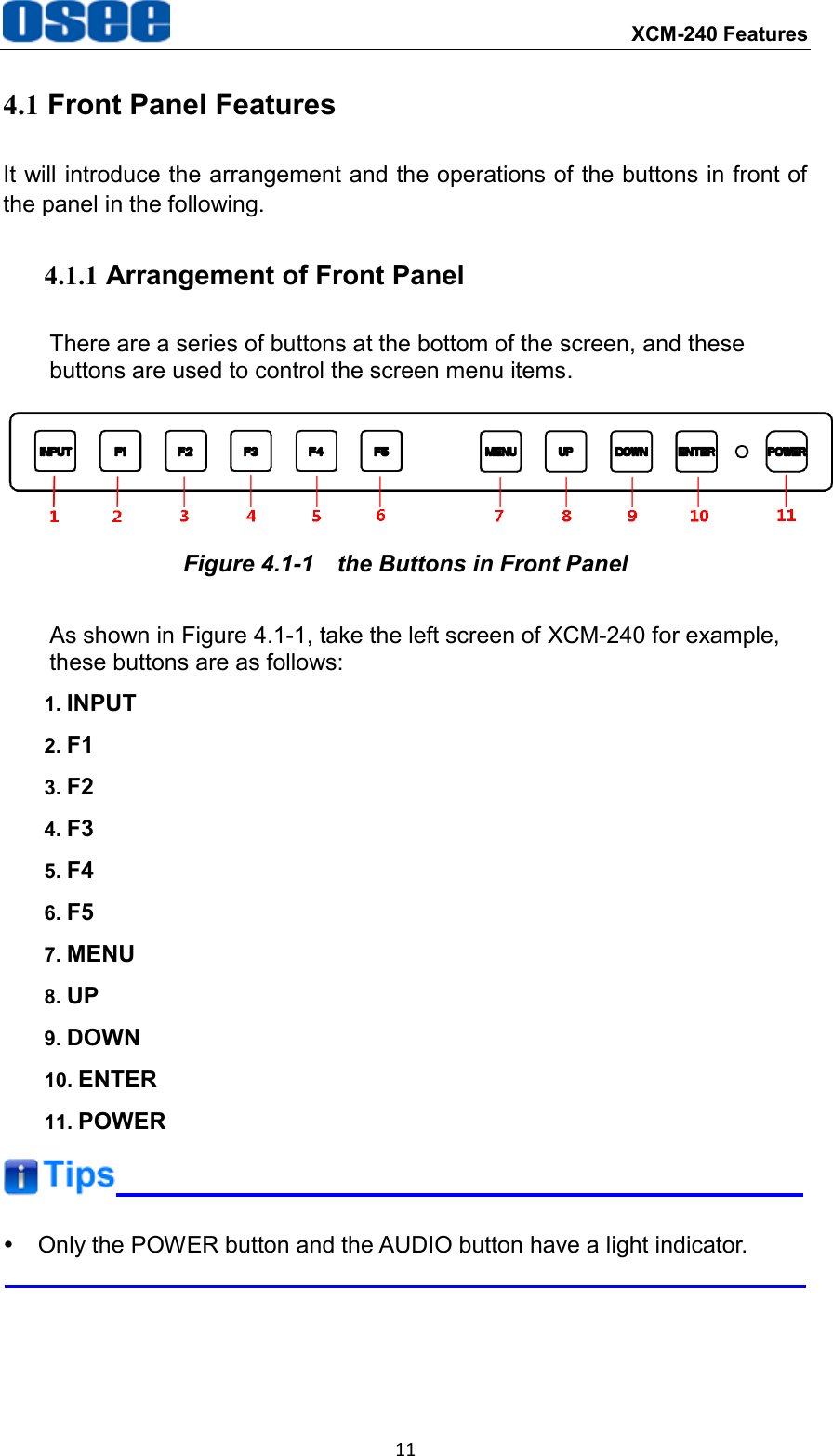
 XCM-240 Features 11 4.1 Front Panel Features It will introduce the arrangement and the operations of the buttons in front of the panel in the following. 4.1.1 Arrangement of Front Panel There are a series of buttons at the bottom of the screen, and these buttons are used to control the screen menu items.  Figure 4.1-1  the Buttons in Front Panel As shown in Figure 4.1-1, take the left screen of XCM-240 for example, these buttons are as follows: 1. INPUT 2. F1 3. F2 4. F3 5. F4 6. F5 7. MENU 8. UP 9. DOWN 10. ENTER 11. POWER    Only the POWER button and the AUDIO button have a light indicator.
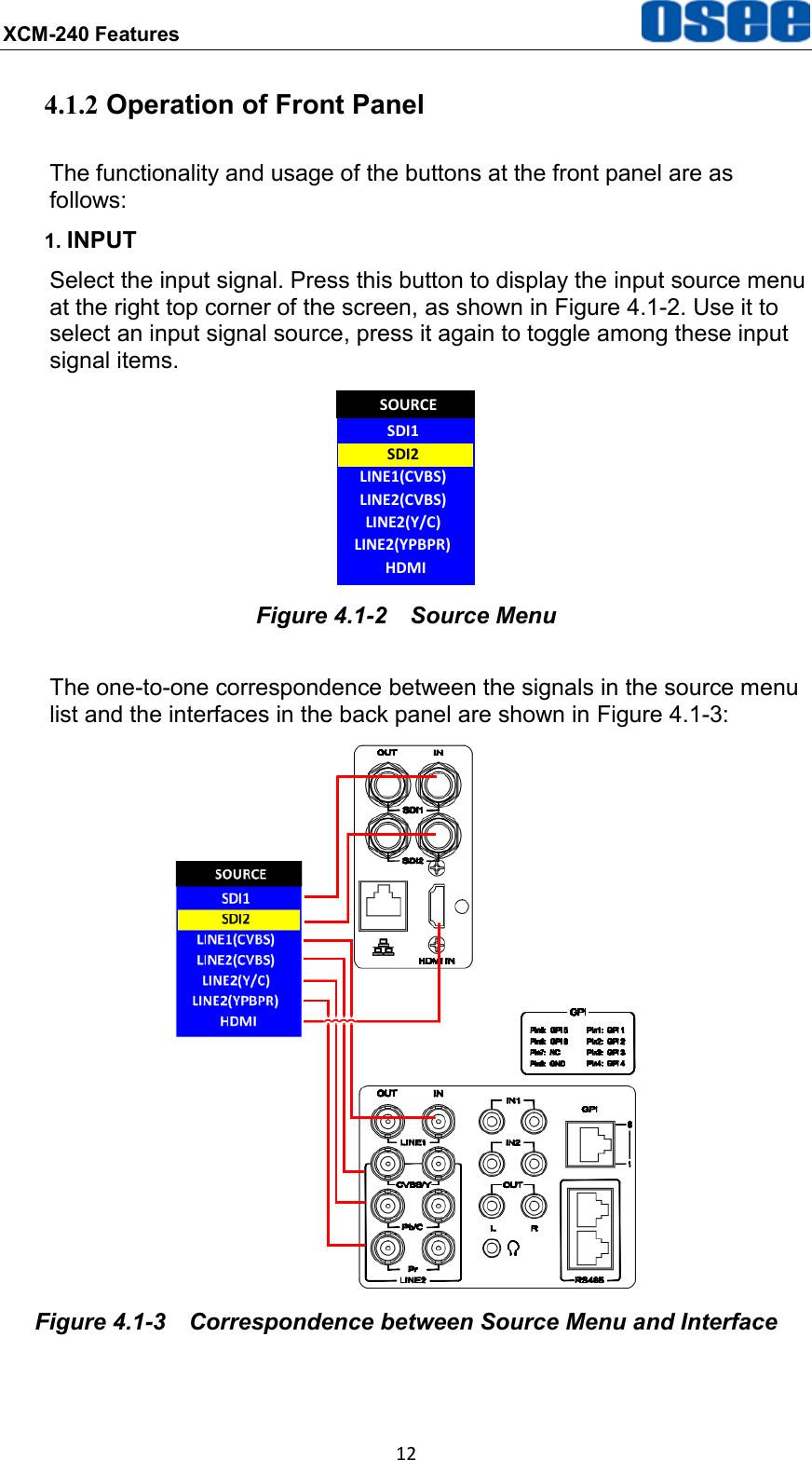
XCM-240 Features  12 4.1.2 Operation of Front Panel The functionality and usage of the buttons at the front panel are as follows: 1. INPUT Select the input signal. Press this button to display the input source menu at the right top corner of the screen, as shown in Figure 4.1-2. Use it to select an input signal source, press it again to toggle among these input signal items. SDI1LINE1(CVBS)LINE2(CVBS)LINE2(Y/C)SOURCESDI2LINE2(YPBPR)HDMI Figure 4.1-2  Source Menu The one-to-one correspondence between the signals in the source menu list and the interfaces in the back panel are shown in Figure 4.1-3:    Figure 4.1-3  Correspondence between Source Menu and Interface
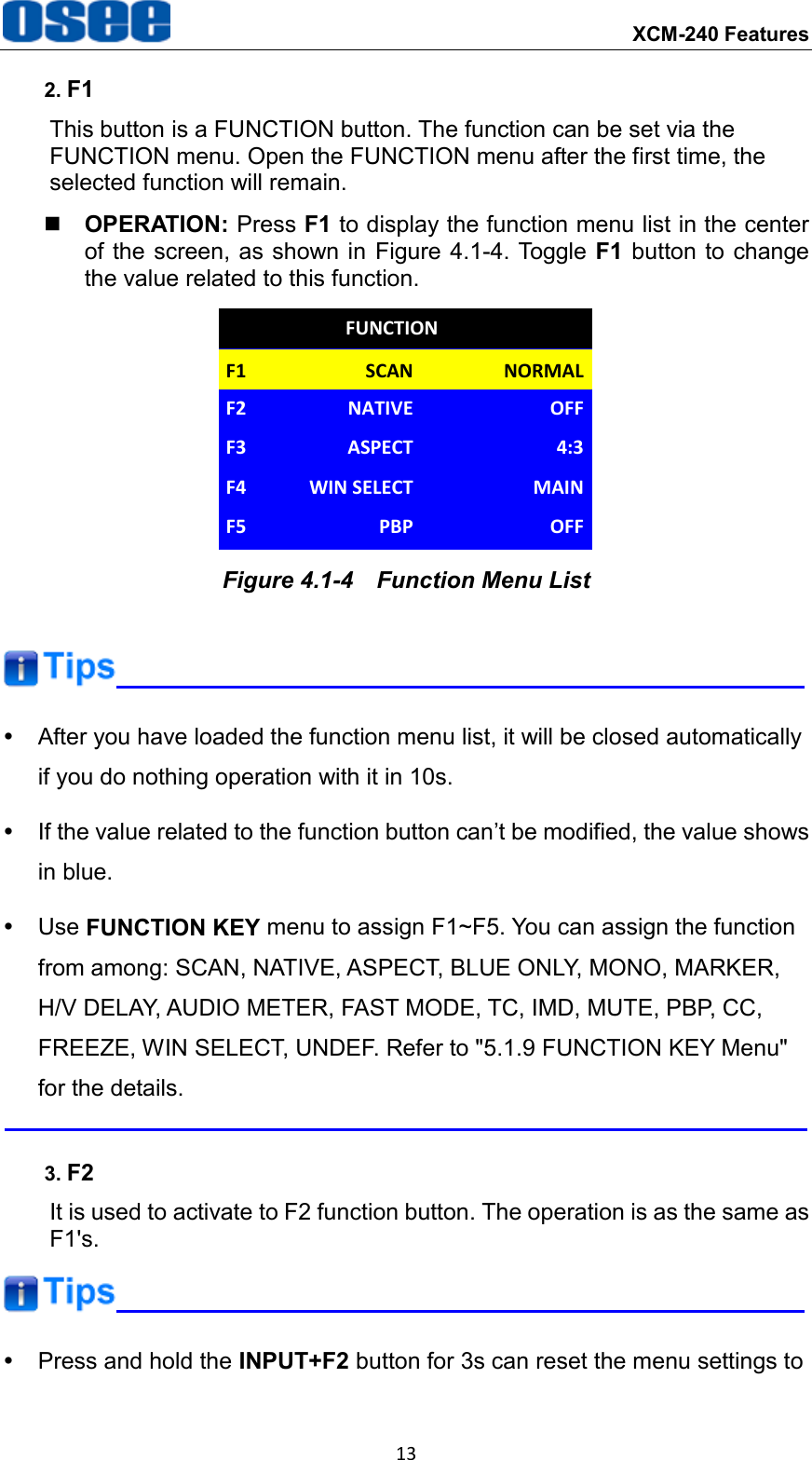
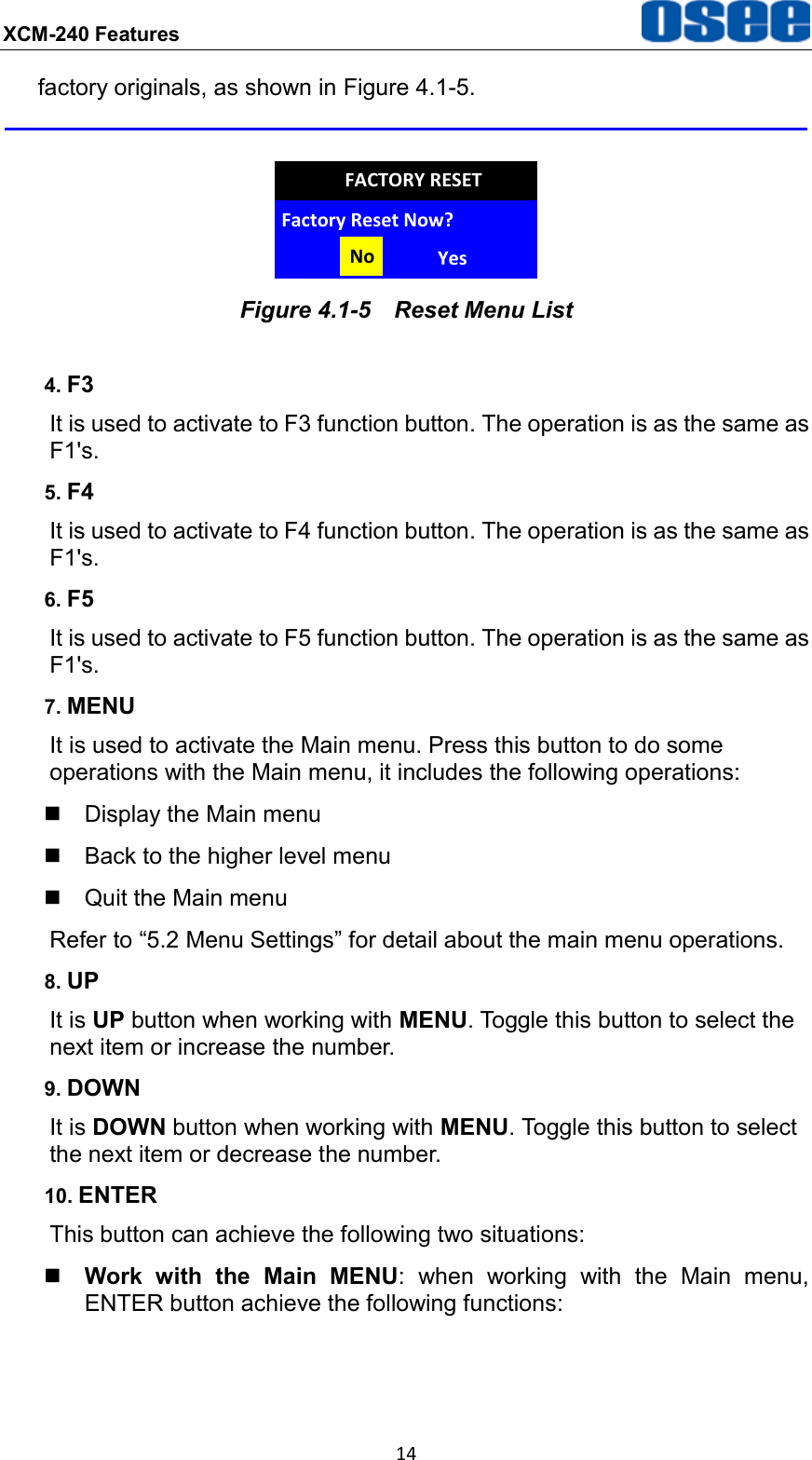
 XCM-240 Features 13 2. F1 This button is a FUNCTION button. The function can be set via the FUNCTION menu. Open the FUNCTION menu after the first time, the selected function will remain.  OPERATION: Press F1 to display the function menu list in the center of the  screen, as shown in Figure 4.1-4. Toggle F1 button to change the value related to this function. F1 NORMALSCANF2 OFFNATIVEFUNCTIONF3 4:3ASPECTF4 MAINWIN SELECTF5 OFFPBP Figure 4.1-4  Function Menu List    After you have loaded the function menu list, it will be closed automatically if you do nothing operation with it in 10s.   If the value related to the function button can’t be modified, the value shows in blue.   Use FUNCTION KEY menu to assign F1~F5. You can assign the function from among: SCAN, NATIVE, ASPECT, BLUE ONLY, MONO, MARKER, H/V DELAY, AUDIO METER, FAST MODE, TC, IMD, MUTE, PBP, CC, FREEZE, WIN SELECT, UNDEF. Refer to "5.1.9 FUNCTION KEY Menu" for the details.  3. F2 It is used to activate to F2 function button. The operation is as the same as F1's.    Press and hold the INPUT+F2 button for 3s can reset the menu settings to
XCM-240 Features  14 factory originals, as shown in Figure 4.1-5.  Factory Reset Now?No YesFACTORY RESET Figure 4.1-5  Reset Menu List 4. F3 It is used to activate to F3 function button. The operation is as the same as F1's. 5. F4 It is used to activate to F4 function button. The operation is as the same as F1's. 6. F5 It is used to activate to F5 function button. The operation is as the same as F1's. 7. MENU It is used to activate the Main menu. Press this button to do some operations with the Main menu, it includes the following operations:   Display the Main menu   Back to the higher level menu   Quit the Main menu Refer to “5.2 Menu Settings” for detail about the main menu operations. 8. UP It is UP button when working with MENU. Toggle this button to select the next item or increase the number. 9. DOWN It is DOWN button when working with MENU. Toggle this button to select the next item or decrease the number. 10. ENTER This button can achieve the following two situations:  Work  with  the  Main  MENU:  when  working  with  the  Main  menu, ENTER button achieve the following functions:
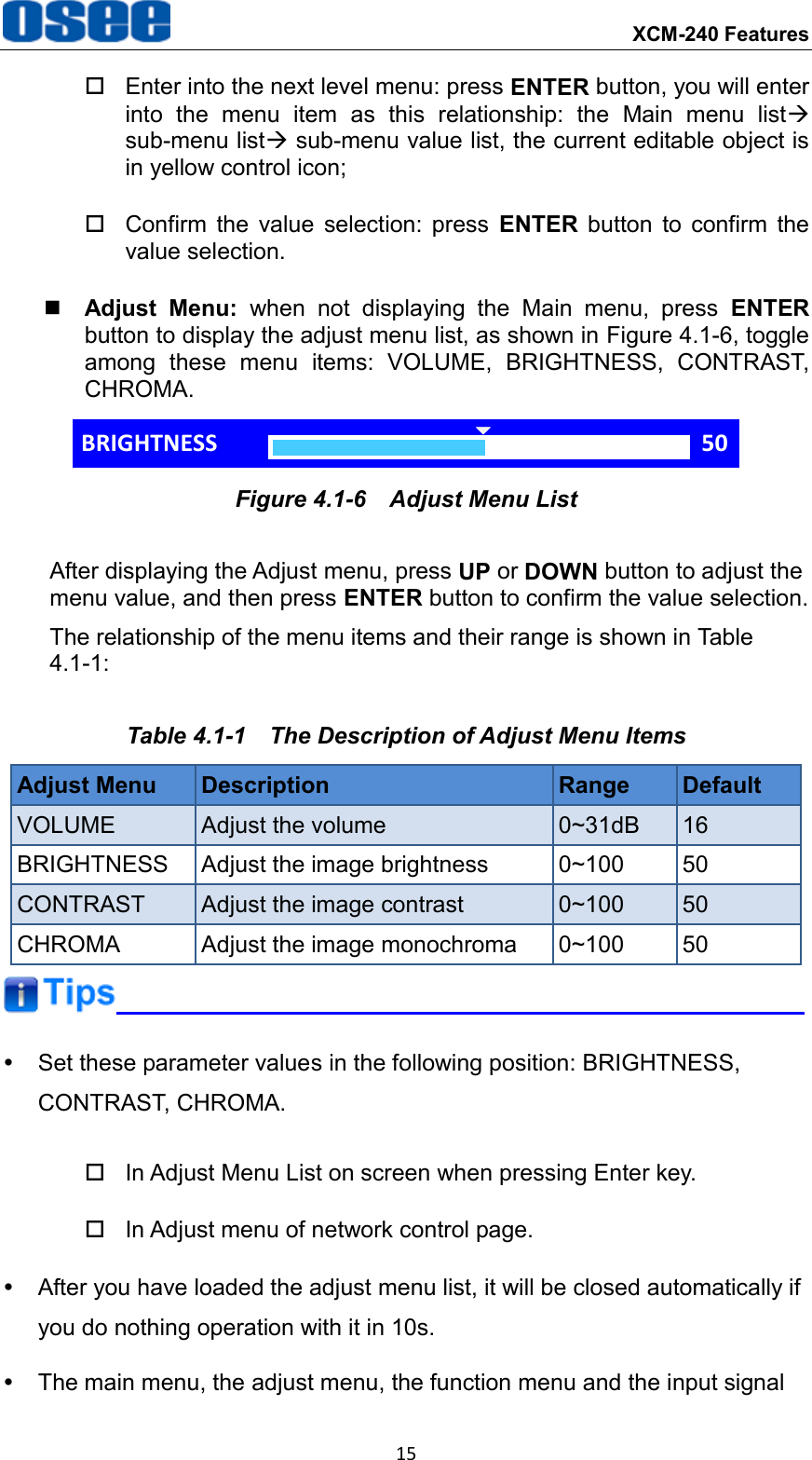
 XCM-240 Features 15   Enter into the next level menu: press ENTER button, you will enter into  the  menu  item  as  this  relationship:  the  Main  menu  list sub-menu list sub-menu value list, the current editable object is in yellow control icon;   Confirm  the  value  selection:  press  ENTER  button  to  confirm  the value selection.  Adjust  Menu:  when  not  displaying  the  Main  menu,  press  ENTER button to display the adjust menu list, as shown in Figure 4.1-6, toggle among  these  menu  items:  VOLUME,  BRIGHTNESS,  CONTRAST, CHROMA. BRIGHTNESS 50 Figure 4.1-6  Adjust Menu List After displaying the Adjust menu, press UP or DOWN button to adjust the menu value, and then press ENTER button to confirm the value selection. The relationship of the menu items and their range is shown in Table 4.1-1: Table 4.1-1  The Description of Adjust Menu Items Adjust Menu Description Range Default VOLUME Adjust the volume 0~31dB 16 BRIGHTNESS Adjust the image brightness 0~100 50 CONTRAST Adjust the image contrast 0~100 50 CHROMA Adjust the image monochroma 0~100 50    Set these parameter values in the following position: BRIGHTNESS, CONTRAST, CHROMA.   In Adjust Menu List on screen when pressing Enter key.   In Adjust menu of network control page.   After you have loaded the adjust menu list, it will be closed automatically if you do nothing operation with it in 10s.   The main menu, the adjust menu, the function menu and the input signal
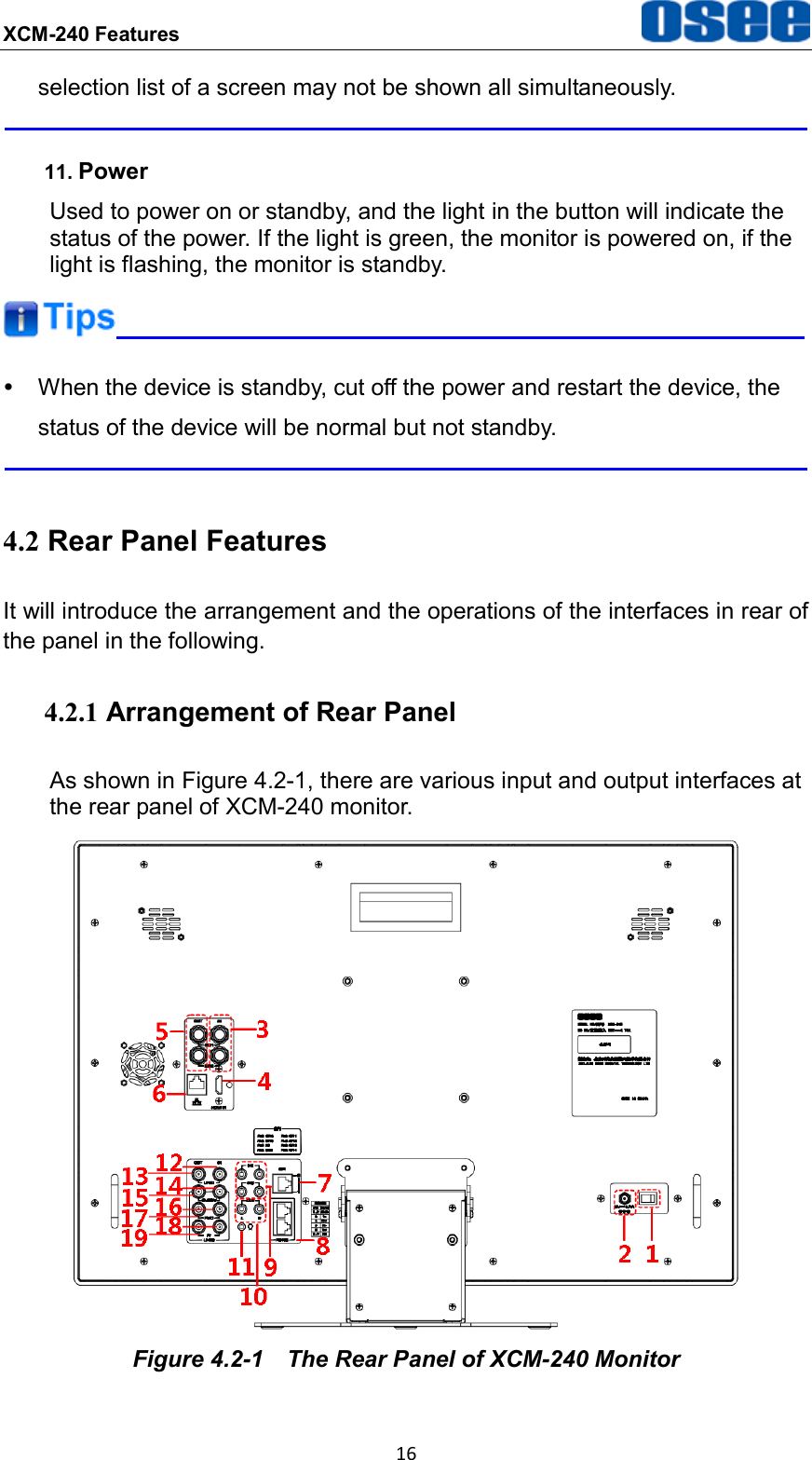
XCM-240 Features  16 selection list of a screen may not be shown all simultaneously.  11. Power Used to power on or standby, and the light in the button will indicate the status of the power. If the light is green, the monitor is powered on, if the light is flashing, the monitor is standby.    When the device is standby, cut off the power and restart the device, the status of the device will be normal but not standby.  4.2 Rear Panel Features It will introduce the arrangement and the operations of the interfaces in rear of the panel in the following. 4.2.1 Arrangement of Rear Panel As shown in Figure 4.2-1, there are various input and output interfaces at the rear panel of XCM-240 monitor.  Figure 4.2-1  The Rear Panel of XCM-240 Monitor
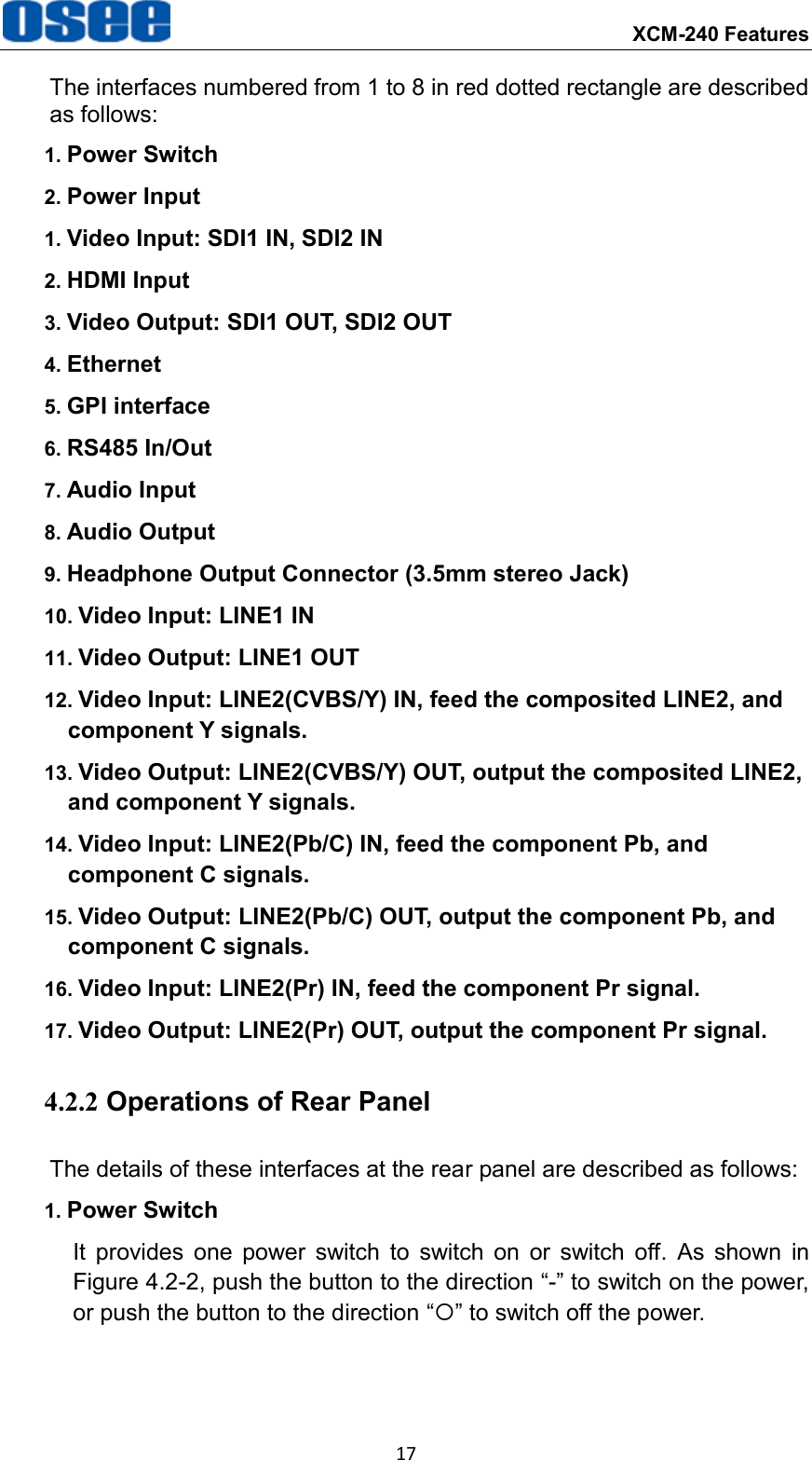
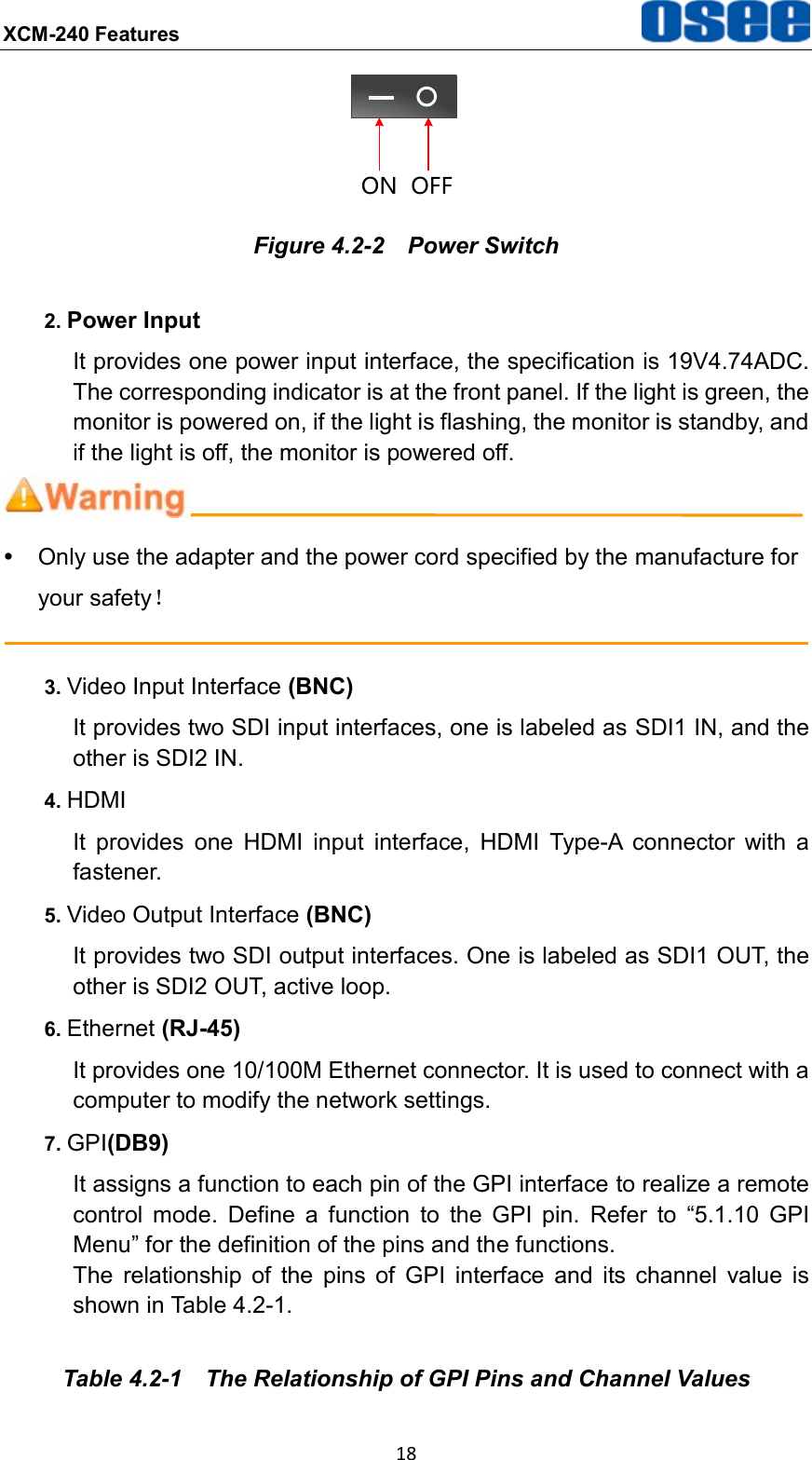
 XCM-240 Features 17 The interfaces numbered from 1 to 8 in red dotted rectangle are described as follows: 1. Power Switch 2. Power Input 1. Video Input: SDI1 IN, SDI2 IN 2. HDMI Input 3. Video Output: SDI1 OUT, SDI2 OUT 4. Ethernet 5. GPI interface 6. RS485 In/Out 7. Audio Input   8. Audio Output 9. Headphone Output Connector (3.5mm stereo Jack) 10. Video Input: LINE1 IN 11. Video Output: LINE1 OUT 12. Video Input: LINE2(CVBS/Y) IN, feed the composited LINE2, and component Y signals. 13. Video Output: LINE2(CVBS/Y) OUT, output the composited LINE2, and component Y signals. 14. Video Input: LINE2(Pb/C) IN, feed the component Pb, and component C signals. 15. Video Output: LINE2(Pb/C) OUT, output the component Pb, and component C signals. 16. Video Input: LINE2(Pr) IN, feed the component Pr signal. 17. Video Output: LINE2(Pr) OUT, output the component Pr signal. 4.2.2 Operations of Rear Panel The details of these interfaces at the rear panel are described as follows: 1. Power Switch It  provides  one  power  switch  to  switch  on  or  switch  off.  As  shown  in Figure 4.2-2, push the button to the direction “-” to switch on the power, or push the button to the direction “” to switch off the power.
XCM-240 Features  18 ON OFF Figure 4.2-2  Power Switch 2. Power Input It provides one power input interface, the specification is 19V4.74ADC. The corresponding indicator is at the front panel. If the light is green, the monitor is powered on, if the light is flashing, the monitor is standby, and if the light is off, the monitor is powered off.    Only use the adapter and the power cord specified by the manufacture for your safety!  3. Video Input Interface (BNC)   It provides two SDI input interfaces, one is labeled as SDI1 IN, and the other is SDI2 IN. 4. HDMI It  provides  one  HDMI  input  interface,  HDMI  Type-A  connector  with  a fastener. 5. Video Output Interface (BNC) It provides two SDI output interfaces. One is labeled as SDI1 OUT, the other is SDI2 OUT, active loop. 6. Ethernet (RJ-45) It provides one 10/100M Ethernet connector. It is used to connect with a computer to modify the network settings. 7. GPI(DB9) It assigns a function to each pin of the GPI interface to realize a remote control  mode.  Define  a  function  to  the  GPI  pin.  Refer  to  “5.1.10  GPI Menu” for the definition of the pins and the functions. The  relationship  of  the  pins  of  GPI  interface  and  its  channel  value  is shown in Table 4.2-1. Table 4.2-1  The Relationship of GPI Pins and Channel Values
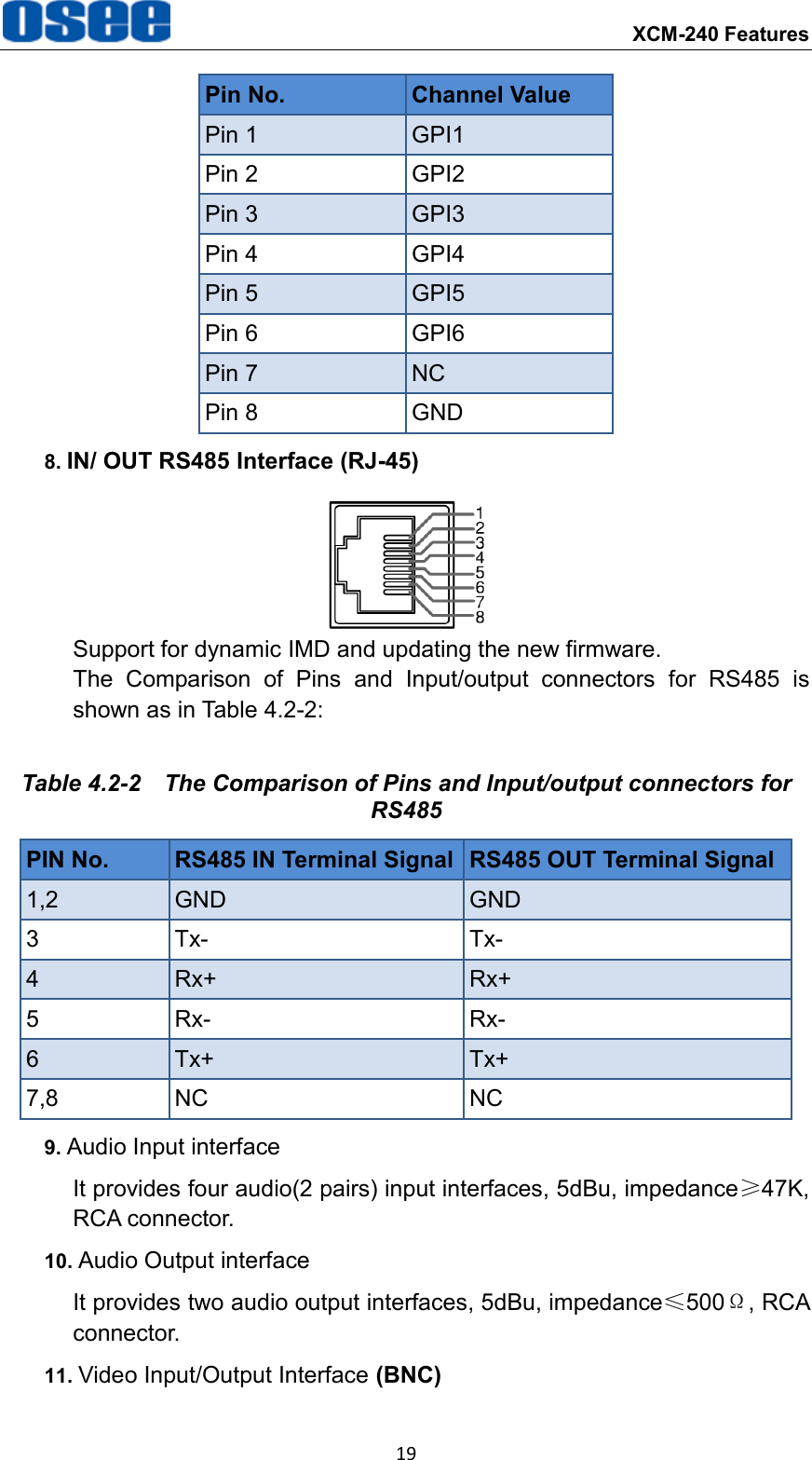
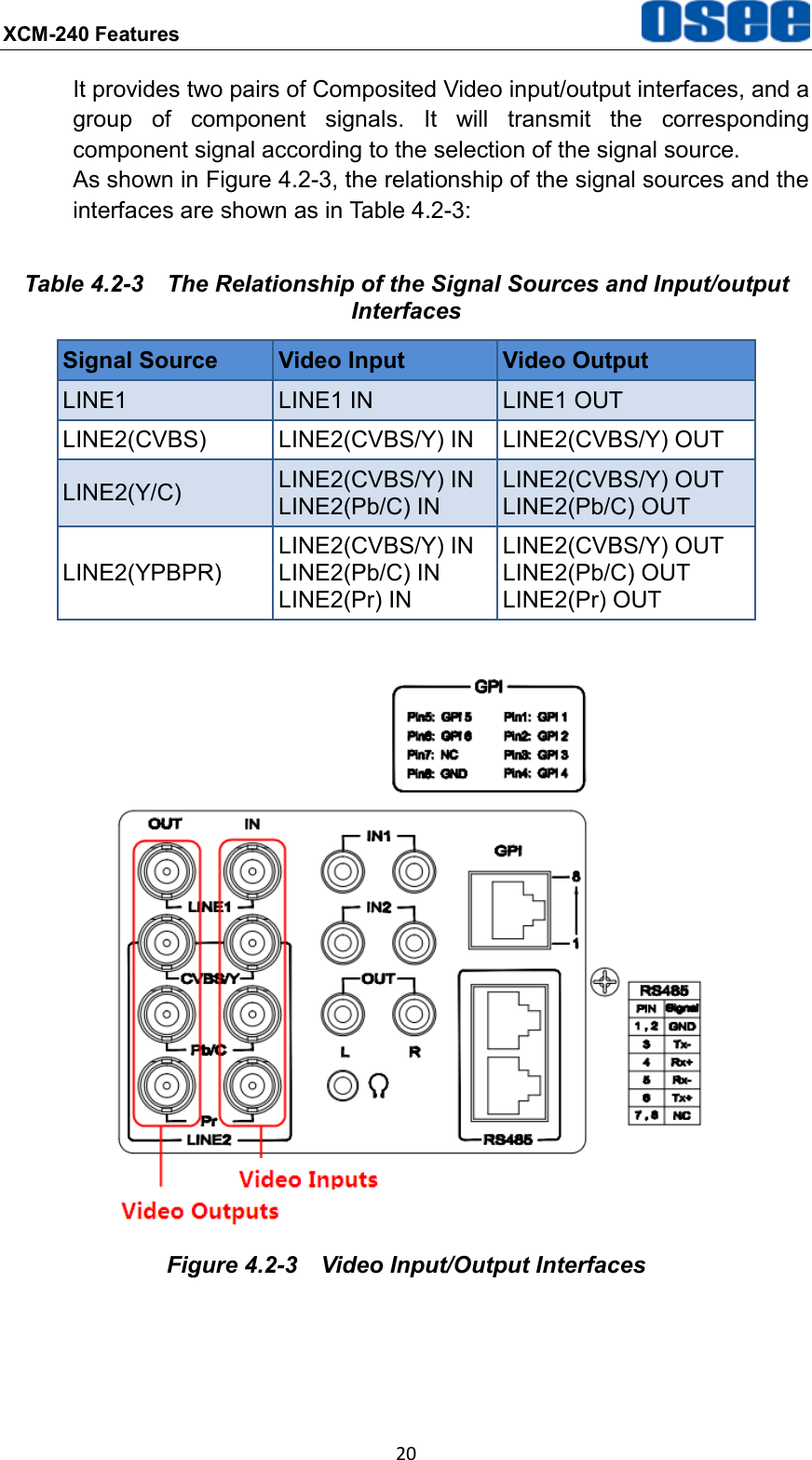
 XCM-240 Features 19 Pin No. Channel Value Pin 1 GPI1 Pin 2 GPI2 Pin 3 GPI3 Pin 4 GPI4 Pin 5 GPI5 Pin 6 GPI6 Pin 7 NC Pin 8 GND 8. IN/ OUT RS485 Interface (RJ-45)  Support for dynamic IMD and updating the new firmware. The  Comparison  of  Pins  and  Input/output  connectors  for  RS485  is shown as in Table 4.2-2: Table 4.2-2  The Comparison of Pins and Input/output connectors for RS485 PIN No. RS485 IN Terminal Signal RS485 OUT Terminal Signal 1,2 GND GND 3 Tx- Tx- 4 Rx+ Rx+ 5 Rx- Rx- 6 Tx+ Tx+ 7,8 NC NC 9. Audio Input interface It provides four audio(2 pairs) input interfaces, 5dBu, impedance≥47K, RCA connector. 10. Audio Output interface It provides two audio output interfaces, 5dBu, impedance≤500Ω, RCA connector. 11. Video Input/Output Interface (BNC)
XCM-240 Features  20 It provides two pairs of Composited Video input/output interfaces, and a group  of  component  signals.  It  will  transmit  the  corresponding component signal according to the selection of the signal source. As shown in Figure 4.2-3, the relationship of the signal sources and the interfaces are shown as in Table 4.2-3: Table 4.2-3  The Relationship of the Signal Sources and Input/output Interfaces Signal Source Video Input Video Output LINE1 LINE1 IN LINE1 OUT LINE2(CVBS) LINE2(CVBS/Y) IN LINE2(CVBS/Y) OUT LINE2(Y/C) LINE2(CVBS/Y) IN LINE2(Pb/C) IN LINE2(CVBS/Y) OUT   LINE2(Pb/C) OUT LINE2(YPBPR) LINE2(CVBS/Y) IN LINE2(Pb/C) IN LINE2(Pr) IN LINE2(CVBS/Y) OUT LINE2(Pb/C) OUT LINE2(Pr) OUT   Figure 4.2-3  Video Input/Output Interfaces
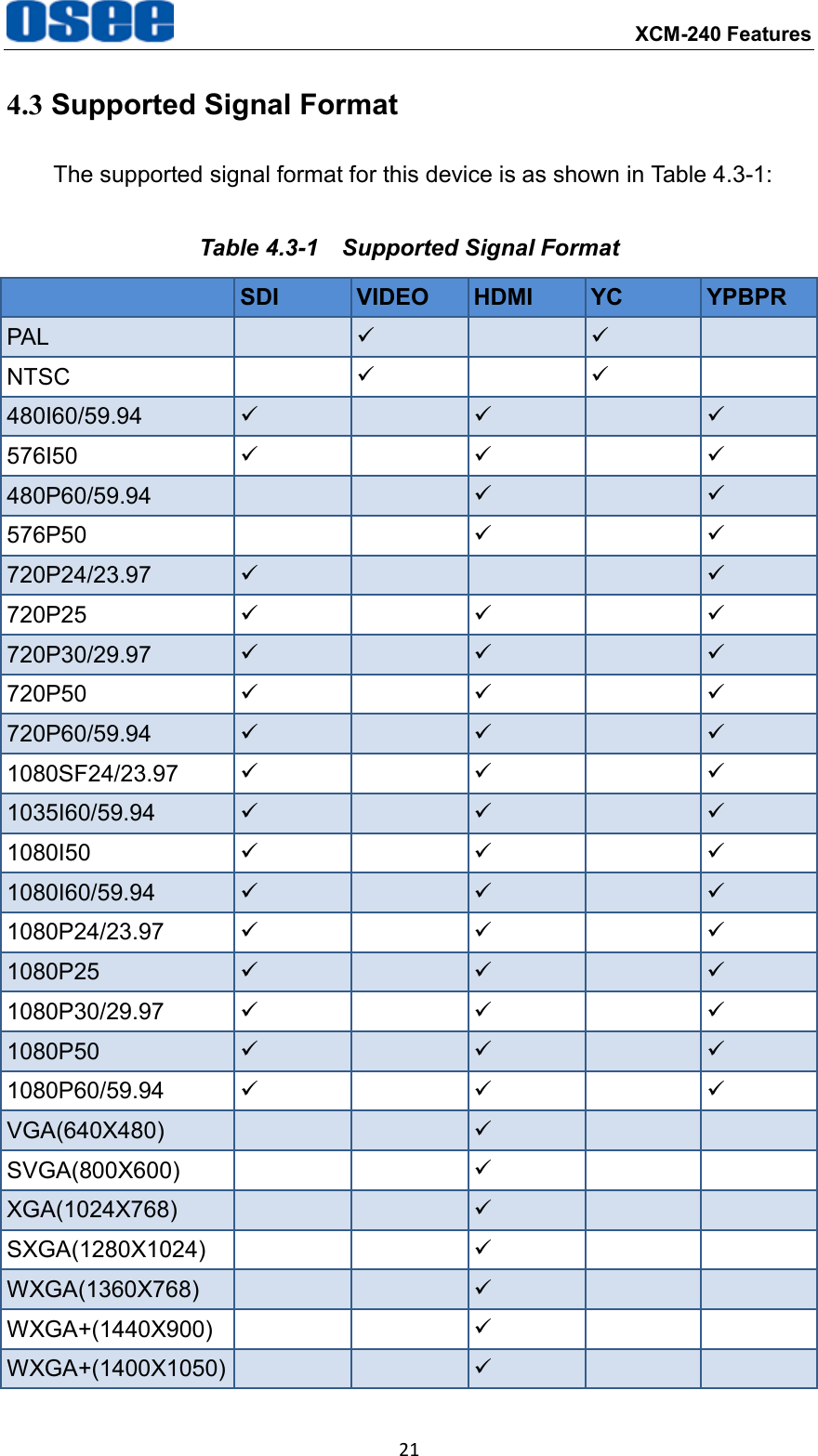
 XCM-240 Features 21 4.3 Supported Signal Format The supported signal format for this device is as shown in Table 4.3-1: Table 4.3-1  Supported Signal Format  SDI VIDEO HDMI YC YPBPR PAL      NTSC      480I60/59.94      576I50      480P60/59.94       576P50       720P24/23.97      720P25      720P30/29.97      720P50      720P60/59.94      1080SF24/23.97      1035I60/59.94      1080I50      1080I60/59.94      1080P24/23.97      1080P25      1080P30/29.97      1080P50      1080P60/59.94      VGA(640X480)      SVGA(800X600)      XGA(1024X768)      SXGA(1280X1024)      WXGA(1360X768)      WXGA+(1440X900)      WXGA+(1400X1050)   
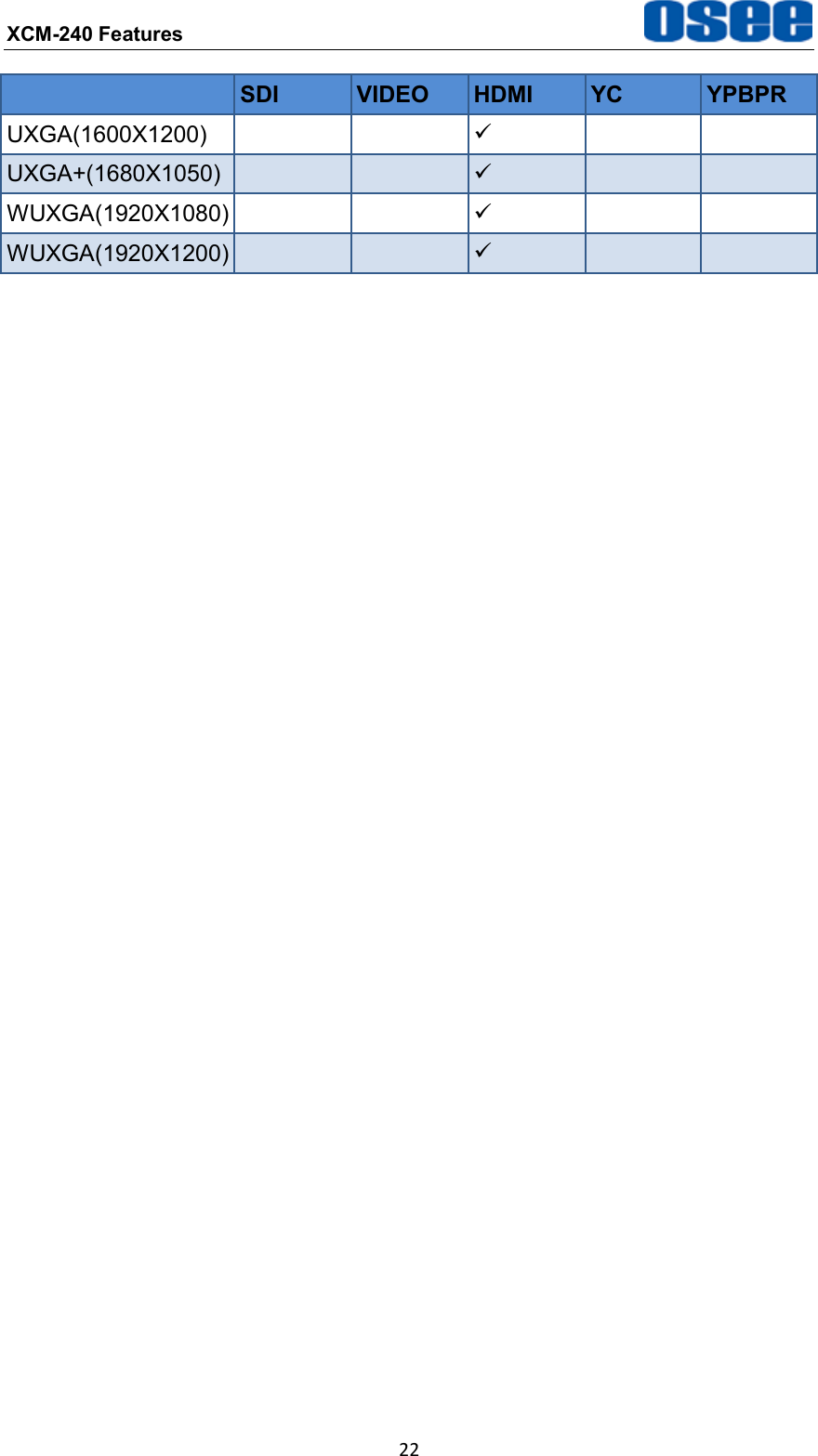
XCM-240 Features  22  SDI VIDEO HDMI YC YPBPR UXGA(1600X1200)      UXGA+(1680X1050)      WUXGA(1920X1080)      WUXGA(1920X1200)   
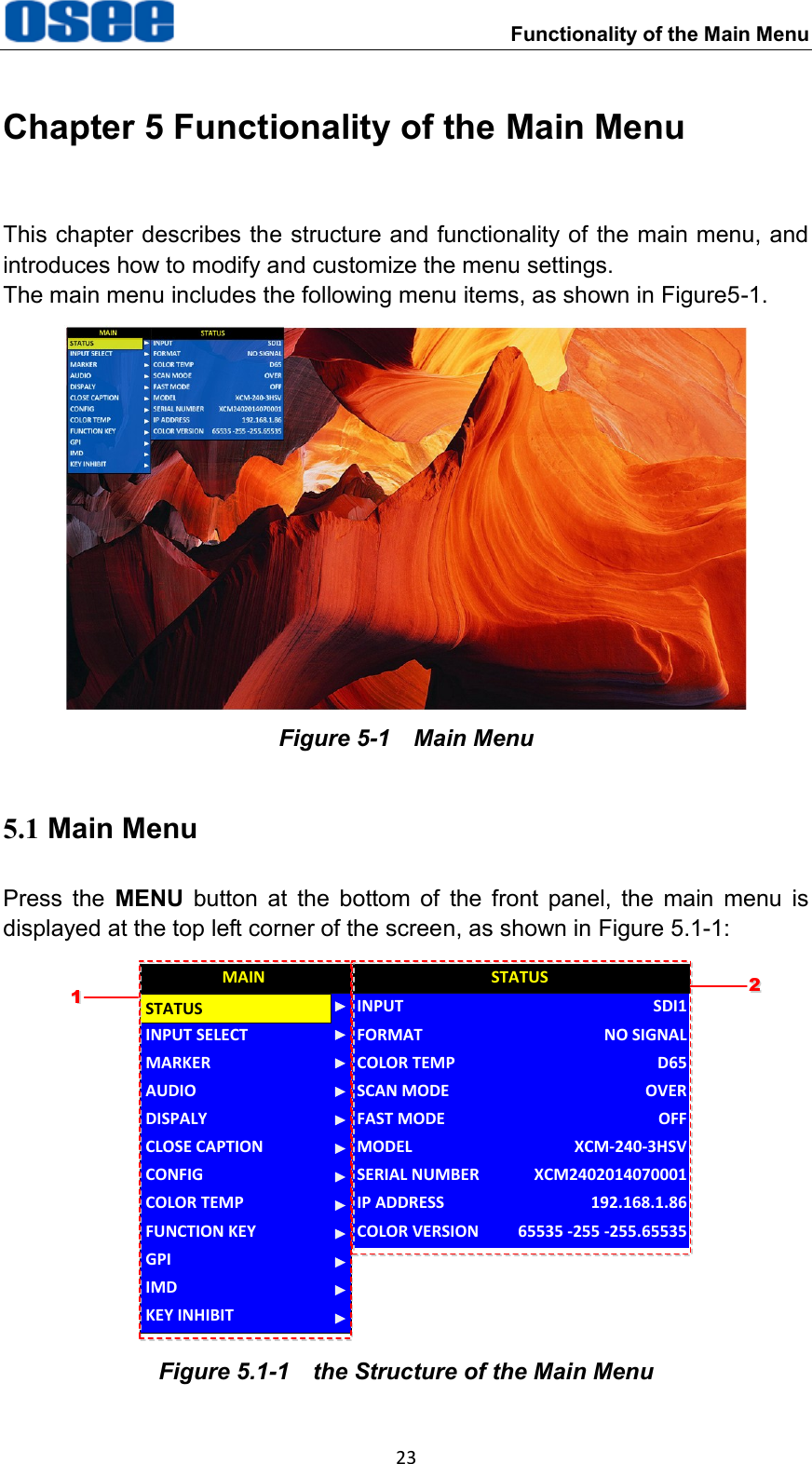
    Functionality of the Main Menu 23 Chapter 5 Functionality of the Main Menu This chapter describes the structure and functionality of the main menu, and introduces how to modify and customize the menu settings. The main menu includes the following menu items, as shown in Figure5-1.  Figure 5-1    Main Menu 5.1 Main Menu Press  the  MENU  button  at  the  bottom  of  the  front  panel,  the  main  menu  is displayed at the top left corner of the screen, as shown in Figure 5.1-1: CLOSE CAPTIONINPUT SELECTMARKERAUDIODISPALYCONFIGCOLOR TEMPFUNCTION KEYGPIMAINMODELINPUTFORMATCOLOR TEMPSCAN MODEFAST MODESERIAL NUMBERIP ADDRESSCOLOR VERSIONSTATUSXCM-240-3HSVSDI1NO SIGNALD65OVEROFFXCM2402014070001192.168.1.8665535 -255 -255.65535STATUSIMDKEY INHIBIT1122 Figure 5.1-1  the Structure of the Main Menu
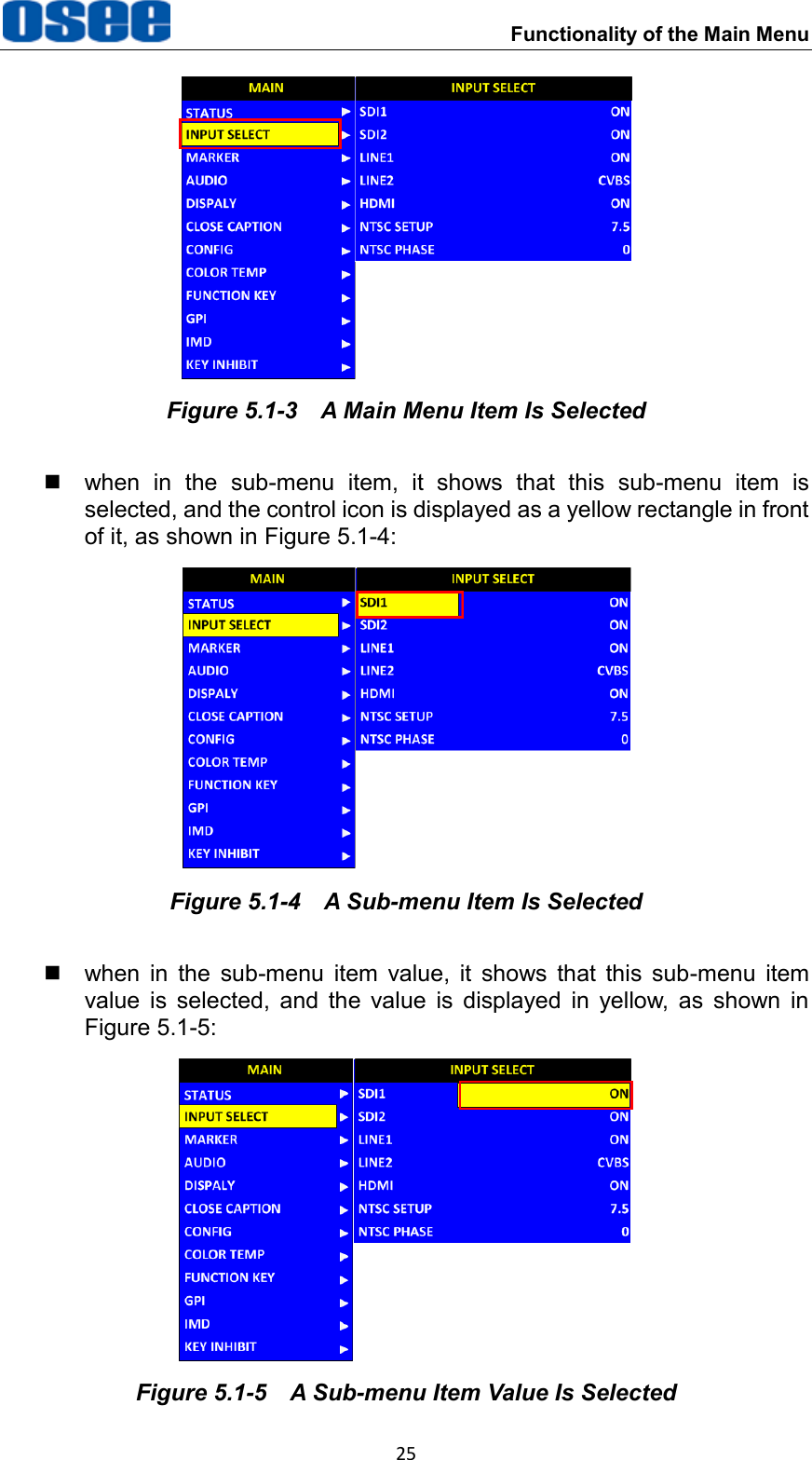
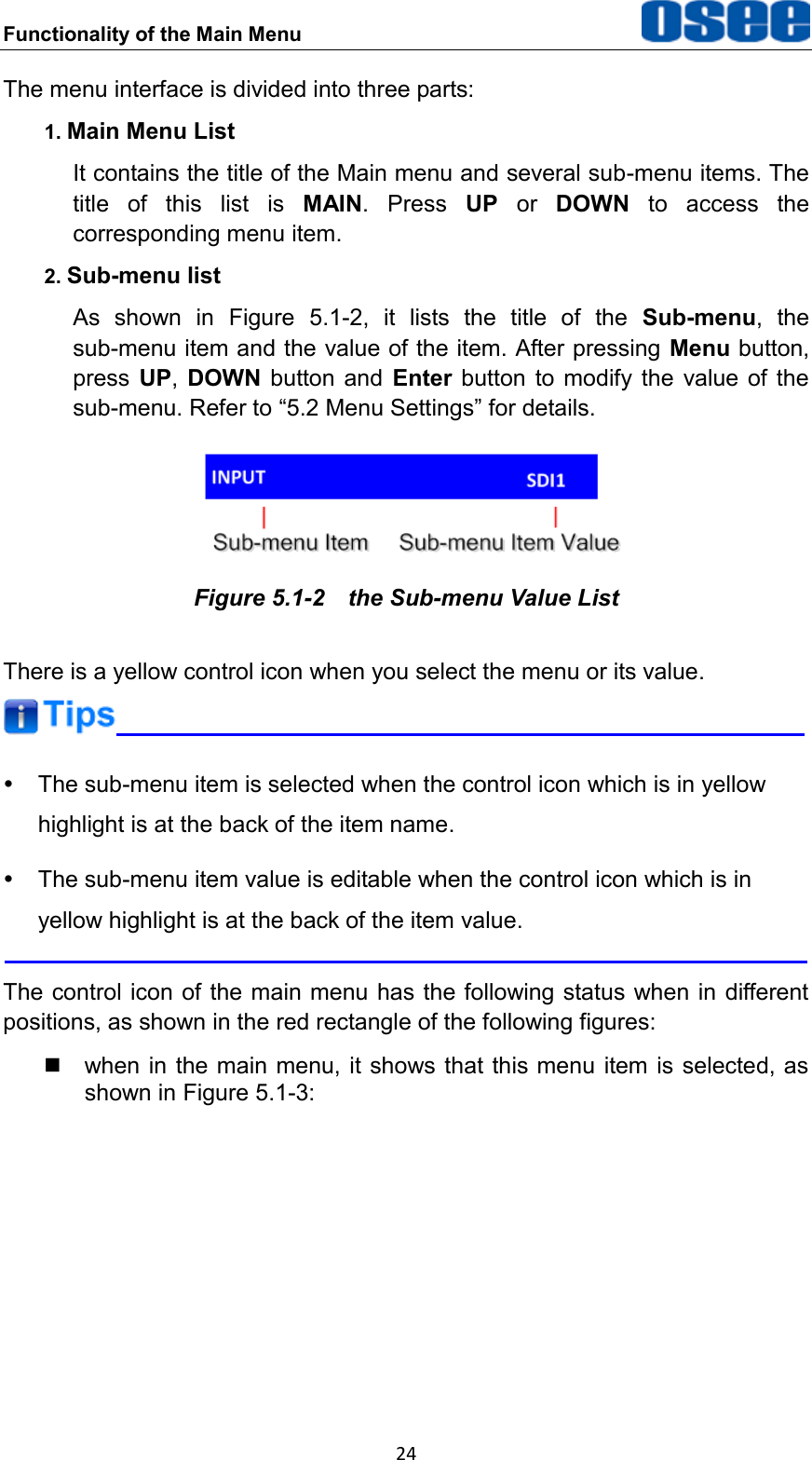
Functionality of the Main Menu  24 The menu interface is divided into three parts: 1. Main Menu List It contains the title of the Main menu and several sub-menu items. The title  of  this  list  is  MAIN.  Press  UP  or  DOWN  to  access  the corresponding menu item. 2. Sub-menu list As  shown  in  Figure  5.1-2,  it  lists  the  title  of  the  Sub-menu,  the sub-menu item and the value of the item. After pressing Menu button, press  UP,  DOWN  button  and  Enter button to modify the  value  of  the sub-menu. Refer to “5.2 Menu Settings” for details.  Figure 5.1-2  the Sub-menu Value List There is a yellow control icon when you select the menu or its value.    The sub-menu item is selected when the control icon which is in yellow highlight is at the back of the item name.   The sub-menu item value is editable when the control icon which is in yellow highlight is at the back of the item value.  The control icon of the main menu has the following status when in different positions, as shown in the red rectangle of the following figures:     when in the main menu, it shows that this menu  item is selected, as shown in Figure 5.1-3:
 Functionality of the Main Menu 25  Figure 5.1-3  A Main Menu Item Is Selected   when  in  the  sub-menu  item,  it  shows  that  this  sub-menu  item  is selected, and the control icon is displayed as a yellow rectangle in front of it, as shown in Figure 5.1-4:  Figure 5.1-4  A Sub-menu Item Is Selected   when  in  the  sub-menu  item  value,  it  shows  that  this  sub-menu  item value  is  selected,  and  the  value  is  displayed  in  yellow,  as  shown  in Figure 5.1-5:  Figure 5.1-5  A Sub-menu Item Value Is Selected
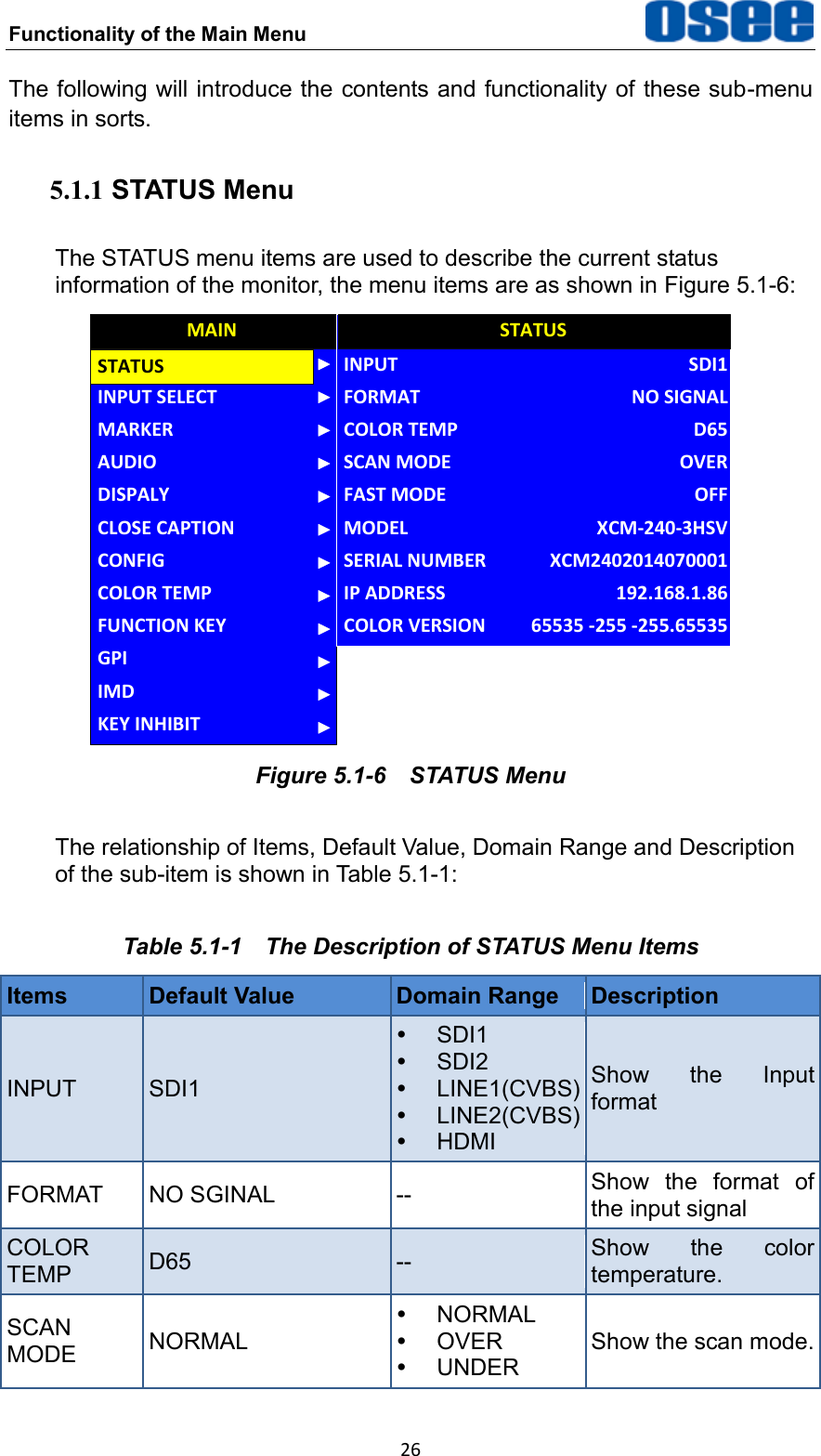
Functionality of the Main Menu  26 The following will introduce the contents and functionality of these sub-menu items in sorts. 5.1.1 STATUS Menu The STATUS menu items are used to describe the current status information of the monitor, the menu items are as shown in Figure 5.1-6: CLOSE CAPTIONINPUT SELECTMARKERAUDIODISPALYCONFIGCOLOR TEMPFUNCTION KEYGPIMAINMODELINPUTFORMATCOLOR TEMPSCAN MODEFAST MODESERIAL NUMBERIP ADDRESSCOLOR VERSIONSTATUSXCM-240-3HSVSDI1NO SIGNALD65OVEROFFXCM2402014070001192.168.1.8665535 -255 -255.65535STATUSIMDKEY INHIBIT Figure 5.1-6  STATUS Menu The relationship of Items, Default Value, Domain Range and Description of the sub-item is shown in Table 5.1-1: Table 5.1-1  The Description of STATUS Menu Items Items Default Value Domain Range Description INPUT SDI1   SDI1   SDI2   LINE1(CVBS)   LINE2(CVBS)   HDMI Show  the  Input format FORMAT NO SGINAL -- Show  the  format  of the input signal COLOR TEMP D65 -- Show  the  color temperature. SCAN MODE NORMAL   NORMAL   OVER   UNDER Show the scan mode.
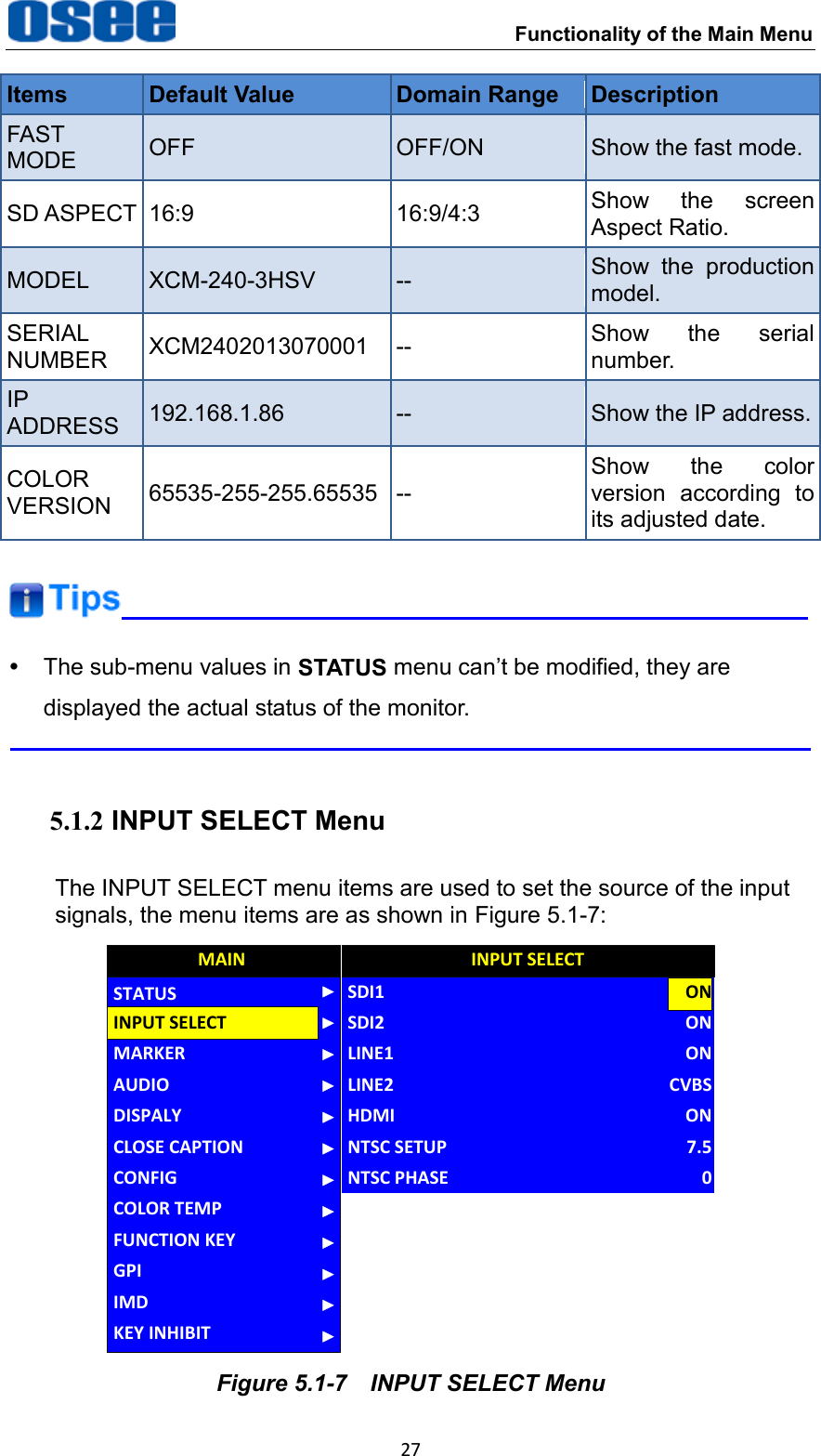
 Functionality of the Main Menu 27 Items Default Value Domain Range Description FAST MODE OFF OFF/ON Show the fast mode. SD ASPECT 16:9 16:9/4:3 Show  the  screen Aspect Ratio. MODEL XCM-240-3HSV -- Show  the  production model. SERIAL NUMBER XCM2402013070001 -- Show  the  serial number. IP ADDRESS 192.168.1.86 -- Show the IP address. COLOR VERSION 65535-255-255.65535 -- Show  the  color version  according  to its adjusted date.     The sub-menu values in STATUS menu can’t be modified, they are displayed the actual status of the monitor.  5.1.2 INPUT SELECT Menu The INPUT SELECT menu items are used to set the source of the input signals, the menu items are as shown in Figure 5.1-7: CLOSE CAPTIONMARKERAUDIODISPALYCONFIGCOLOR TEMPFUNCTION KEYGPIMAININPUT SELECTSTATUSIMDKEY INHIBITNTSC SETUPSDI1SDI2LINE1LINE2HDMINTSC PHASEINPUT SELECT7.5ONONONCVBSON0 Figure 5.1-7  INPUT SELECT Menu
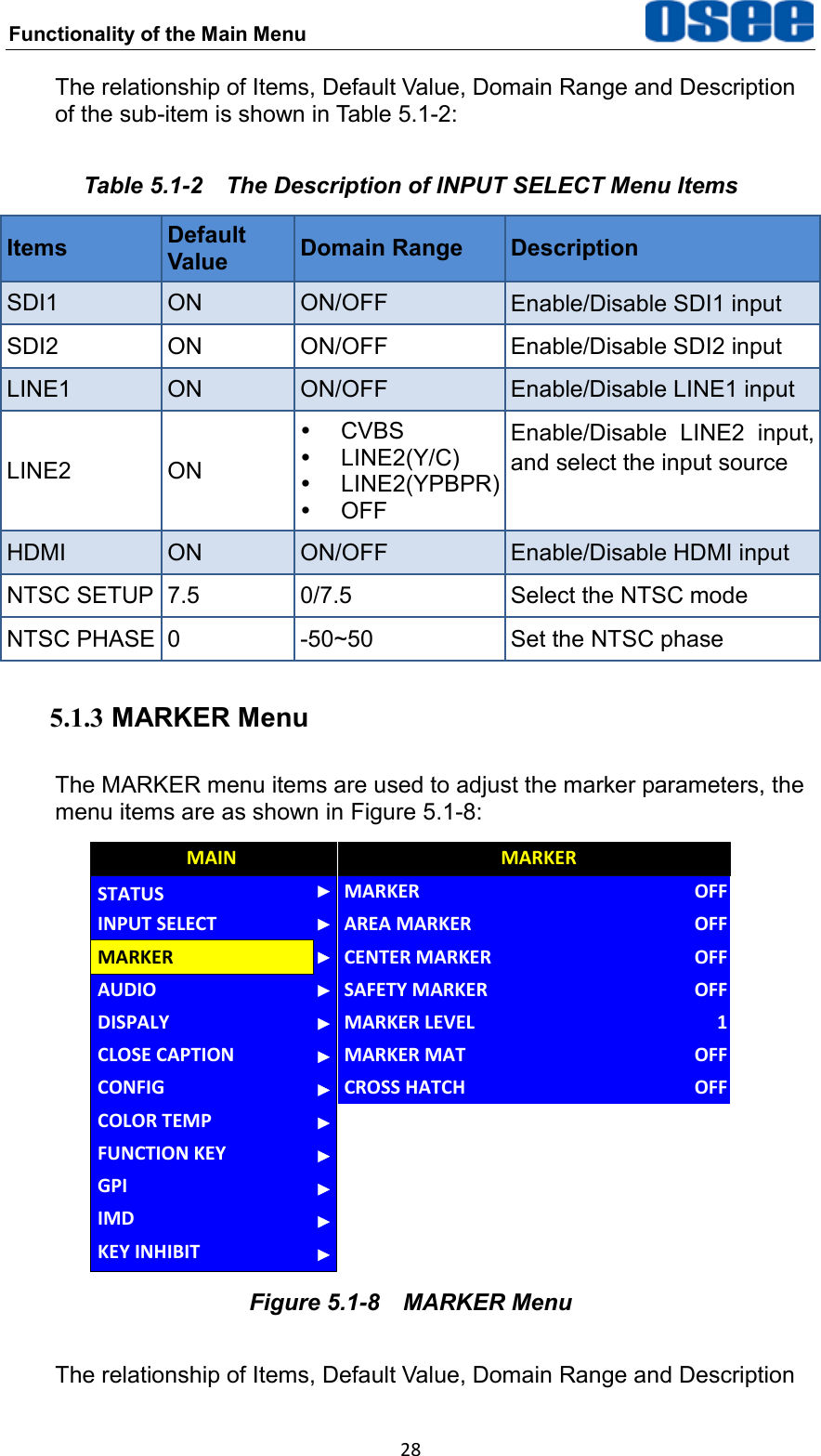
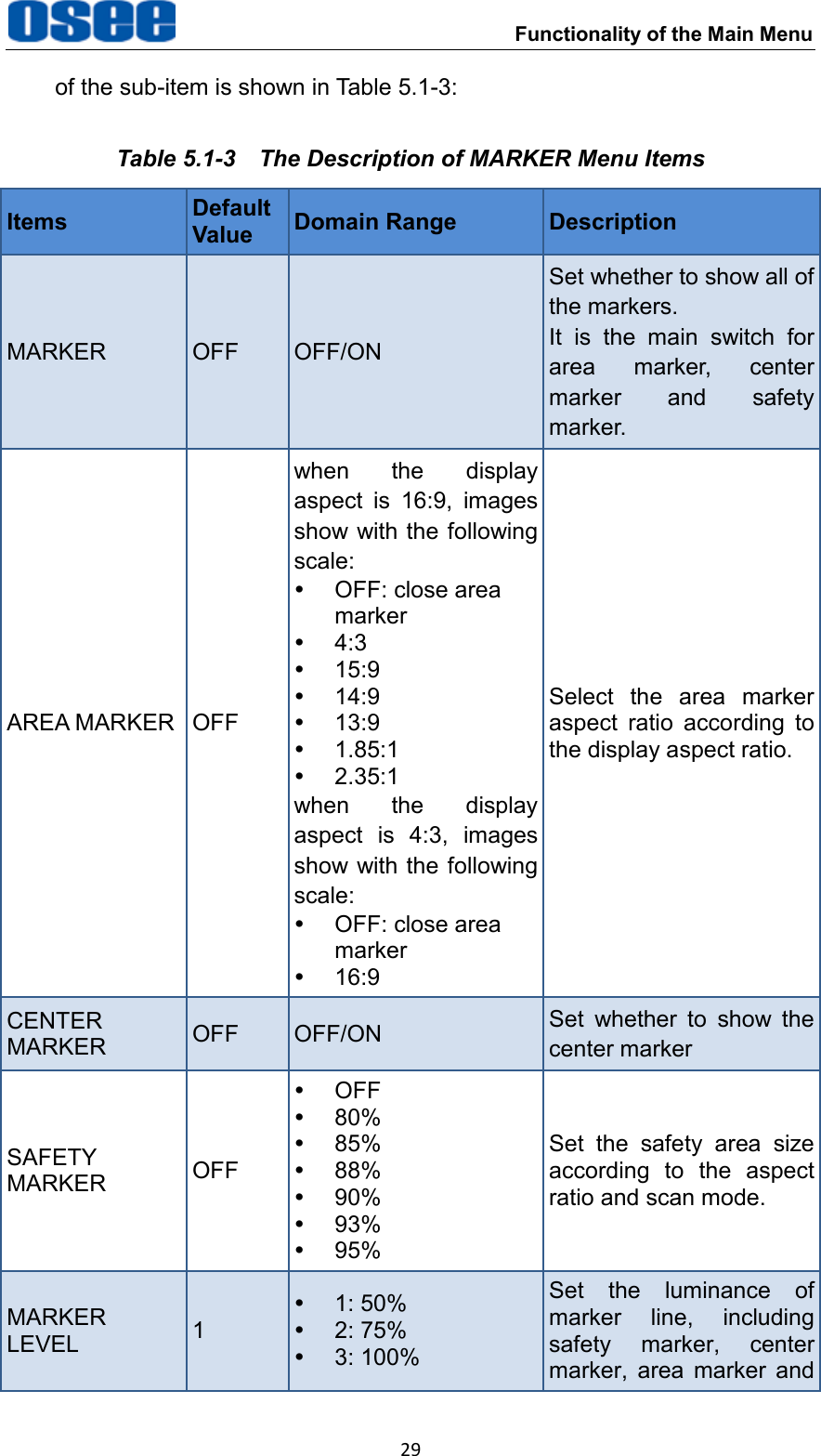
Functionality of the Main Menu  28 The relationship of Items, Default Value, Domain Range and Description of the sub-item is shown in Table 5.1-2: Table 5.1-2  The Description of INPUT SELECT Menu Items Items Default Value Domain Range Description SDI1 ON ON/OFF Enable/Disable SDI1 input   SDI2 ON ON/OFF Enable/Disable SDI2 input   LINE1 ON ON/OFF Enable/Disable LINE1 input   LINE2 ON   CVBS   LINE2(Y/C)   LINE2(YPBPR)   OFF Enable/Disable  LINE2  input, and select the input source   HDMI ON ON/OFF Enable/Disable HDMI input NTSC SETUP 7.5 0/7.5 Select the NTSC mode NTSC PHASE 0 -50~50 Set the NTSC phase 5.1.3 MARKER Menu The MARKER menu items are used to adjust the marker parameters, the menu items are as shown in Figure 5.1-8: CLOSE CAPTIONAUDIODISPALYCONFIGCOLOR TEMPFUNCTION KEYGPIMAINMARKERINPUT SELECTSTATUSIMDKEY INHIBITMARKER MATMARKERAREA MARKERCENTER MARKERSAFETY MARKERMARKER LEVELCROSS HATCHMARKEROFFOFFOFFOFFOFF1OFF Figure 5.1-8  MARKER Menu The relationship of Items, Default Value, Domain Range and Description
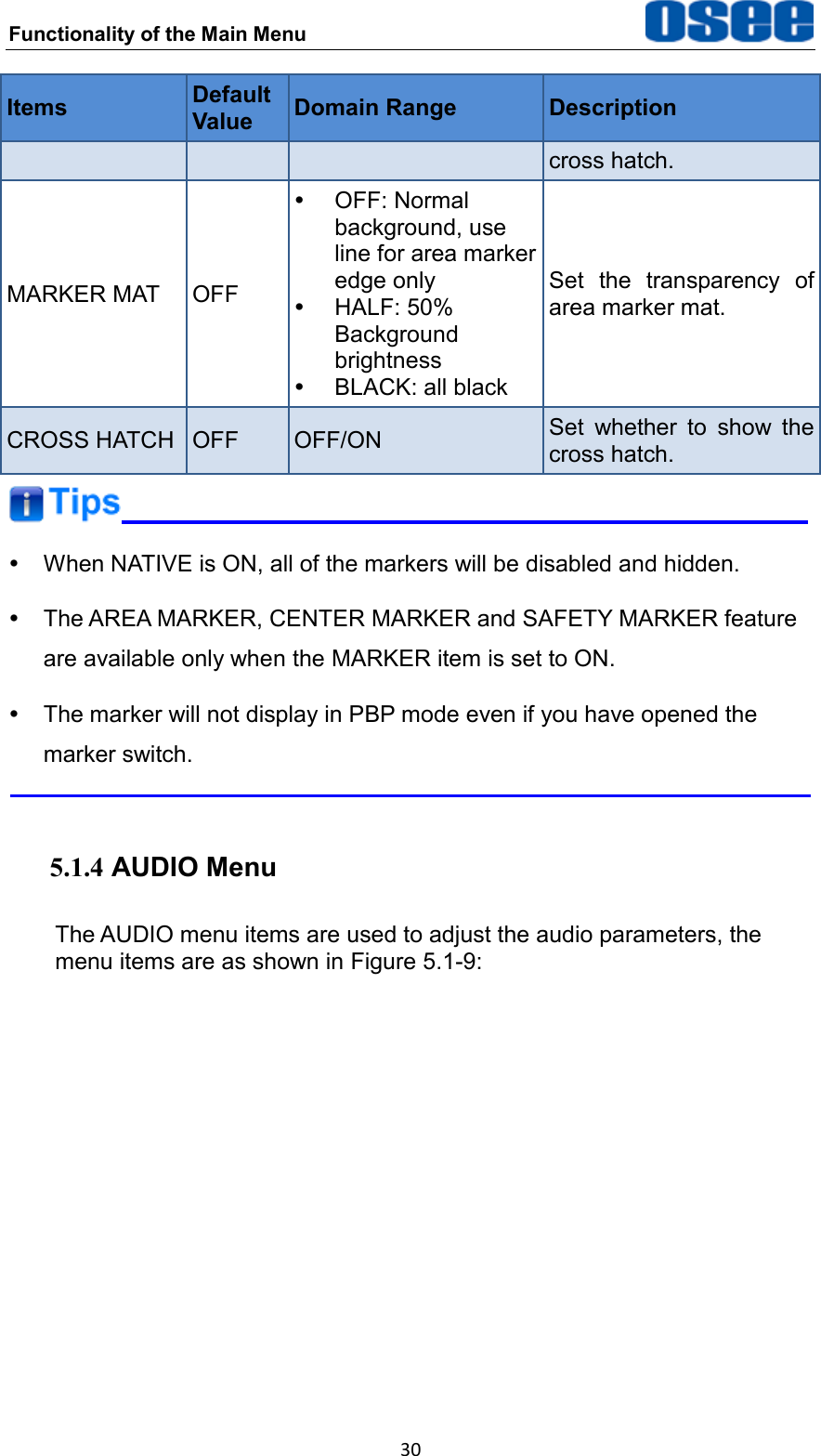
 Functionality of the Main Menu 29 of the sub-item is shown in Table 5.1-3: Table 5.1-3  The Description of MARKER Menu Items Items Default Value Domain Range Description MARKER OFF OFF/ON Set whether to show all of the markers. It  is  the  main  switch  for area  marker,  center marker  and  safety marker. AREA MARKER OFF when  the  display aspect  is  16:9,  images show with the following scale:   OFF: close area marker   4:3   15:9   14:9   13:9   1.85:1   2.35:1 when  the  display aspect  is  4:3,  images show with the following scale:   OFF: close area marker   16:9 Select  the  area  marker aspect  ratio  according  to the display aspect ratio. CENTER MARKER OFF OFF/ON Set  whether  to  show  the center marker SAFETY MARKER OFF   OFF  80%  85%  88%  90%  93%  95% Set  the  safety  area  size according  to  the  aspect ratio and scan mode. MARKER LEVEL 1   1: 50%   2: 75%   3: 100% Set  the  luminance  of marker  line,  including     safety  marker,  center marker,  area  marker  and
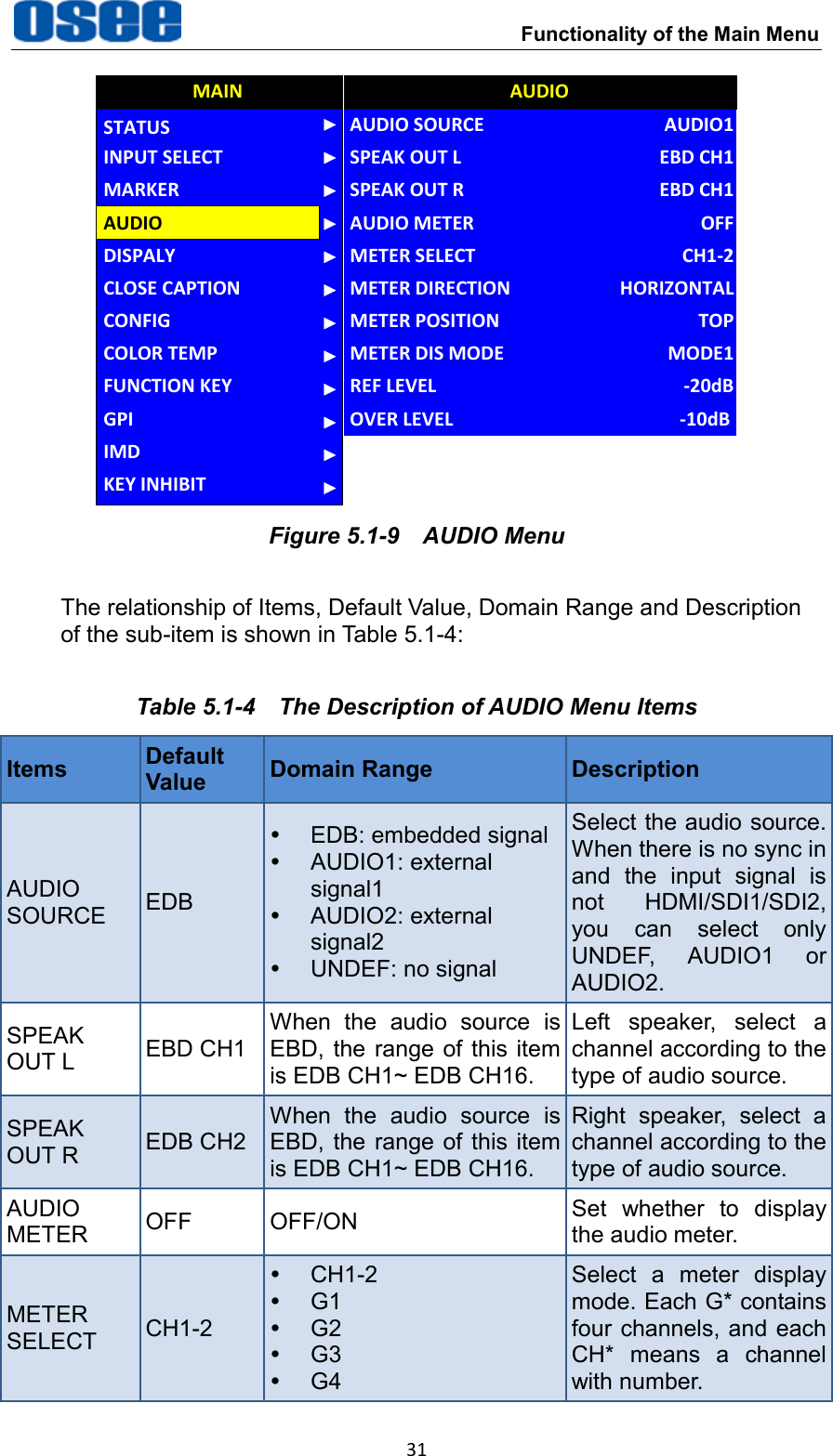
Functionality of the Main Menu  30 Items Default Value Domain Range Description cross hatch. MARKER MAT OFF   OFF: Normal background, use line for area marker edge only   HALF: 50% Background brightness   BLACK: all black Set  the  transparency  of area marker mat. CROSS HATCH OFF OFF/ON Set  whether  to  show  the cross hatch.    When NATIVE is ON, all of the markers will be disabled and hidden.   The AREA MARKER, CENTER MARKER and SAFETY MARKER feature are available only when the MARKER item is set to ON.   The marker will not display in PBP mode even if you have opened the marker switch.  5.1.4 AUDIO Menu The AUDIO menu items are used to adjust the audio parameters, the menu items are as shown in Figure 5.1-9:
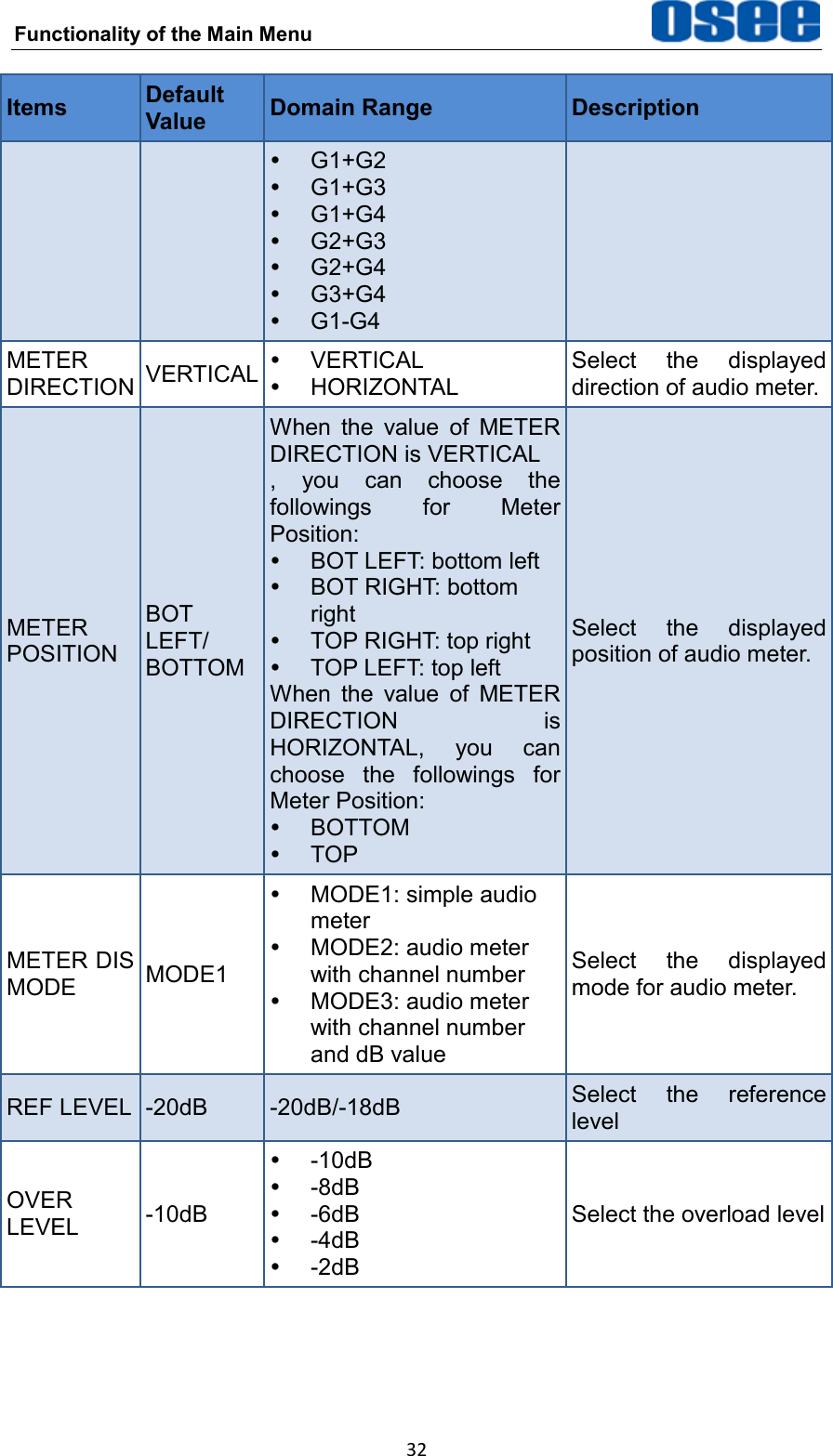
 Functionality of the Main Menu 31 CLOSE CAPTIONDISPALYCONFIGCOLOR TEMPFUNCTION KEYGPIMAINAUDIOMARKERINPUT SELECTSTATUSIMDKEY INHIBITMETER DIRECTIONAUDIO SOURCESPEAK OUT LSPEAK OUT RAUDIO METERMETER SELECTMETER POSITIONMETER DIS MODEREF LEVELAUDIOHORIZONTALAUDIO1EBD CH1EBD CH1OFFCH1-2TOPMODE1-20dBOVER LEVEL -10dB Figure 5.1-9  AUDIO Menu The relationship of Items, Default Value, Domain Range and Description of the sub-item is shown in Table 5.1-4: Table 5.1-4  The Description of AUDIO Menu Items Items Default Value Domain Range Description AUDIO SOURCE EDB   EDB: embedded signal   AUDIO1: external signal1   AUDIO2: external signal2   UNDEF: no signal Select the audio source. When there is no sync in and  the  input  signal  is not  HDMI/SDI1/SDI2, you  can  select  only UNDEF,  AUDIO1  or AUDIO2. SPEAK OUT L EBD CH1 When  the  audio  source  is EBD, the range of  this item is EDB CH1~ EDB CH16. Left  speaker,  select  a channel according to the type of audio source. SPEAK OUT R EDB CH2 When  the  audio  source  is EBD, the range of  this item is EDB CH1~ EDB CH16. Right  speaker,  select  a channel according to the type of audio source. AUDIO METER OFF OFF/ON Set  whether  to  display the audio meter. METER SELECT CH1-2  CH1-2  G1  G2  G3  G4 Select  a  meter  display mode. Each G* contains four channels, and each CH*  means  a  channel with number.
Functionality of the Main Menu  32 Items Default Value Domain Range Description   G1+G2   G1+G3   G1+G4   G2+G3   G2+G4   G3+G4  G1-G4 METER DIRECTION VERTICAL   VERTICAL   HORIZONTAL Select  the  displayed direction of audio meter. METER POSITION BOT LEFT/ BOTTOM When  the  value  of  METER DIRECTION is VERTICAL ,  you  can  choose  the followings  for  Meter Position:   BOT LEFT: bottom left   BOT RIGHT: bottom right   TOP RIGHT: top right   TOP LEFT: top left When  the  value  of  METER DIRECTION  is HORIZONTAL,  you  can choose  the  followings  for Meter Position:   BOTTOM   TOP Select  the  displayed position of audio meter. METER DIS MODE MODE1   MODE1: simple audio meter   MODE2: audio meter with channel number   MODE3: audio meter with channel number and dB value Select  the  displayed mode for audio meter. REF LEVEL -20dB -20dB/-18dB Select  the  reference level OVER LEVEL -10dB   -10dB   -8dB   -6dB   -4dB   -2dB Select the overload level
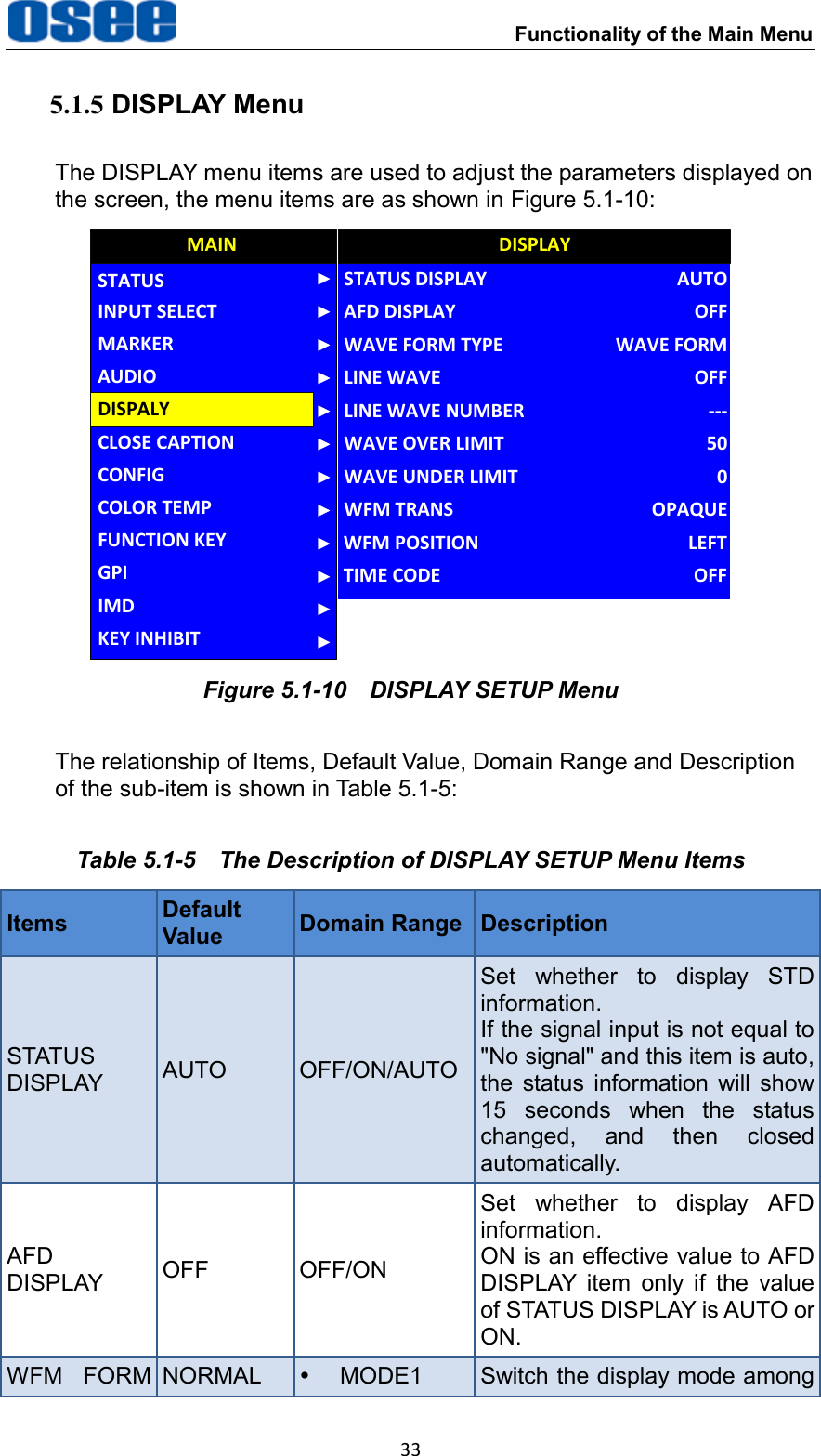
 Functionality of the Main Menu 33 5.1.5 DISPLAY Menu The DISPLAY menu items are used to adjust the parameters displayed on the screen, the menu items are as shown in Figure 5.1-10: CLOSE CAPTIONAUDIOCONFIGCOLOR TEMPFUNCTION KEYGPIMAINDISPALYMARKERINPUT SELECTSTATUSIMDKEY INHIBITLINE WAVE NUMBERSTATUS DISPLAYAFD DISPLAYWFM POSITIONWAVE FORM TYPELINE WAVEWAVE OVER LIMITWAVE UNDER LIMITWFM TRANSDISPLAY---AUTOOFFLEFTWAVE FORMOFF500OPAQUETIME CODE OFF Figure 5.1-10  DISPLAY SETUP Menu The relationship of Items, Default Value, Domain Range and Description of the sub-item is shown in Table 5.1-5: Table 5.1-5  The Description of DISPLAY SETUP Menu Items Items Default Value Domain Range Description STATUS DISPLAY AUTO OFF/ON/AUTO Set  whether  to  display  STD information. If the signal input is not equal to "No signal" and this item is auto, the  status  information  will  show 15  seconds  when  the  status changed,  and  then  closed automatically. AFD DISPLAY OFF OFF/ON Set  whether  to  display  AFD information. ON is an effective value to AFD DISPLAY  item  only  if  the  value of STATUS DISPLAY is AUTO or ON. WFM  FORM NORMAL   MODE1 Switch the display mode among
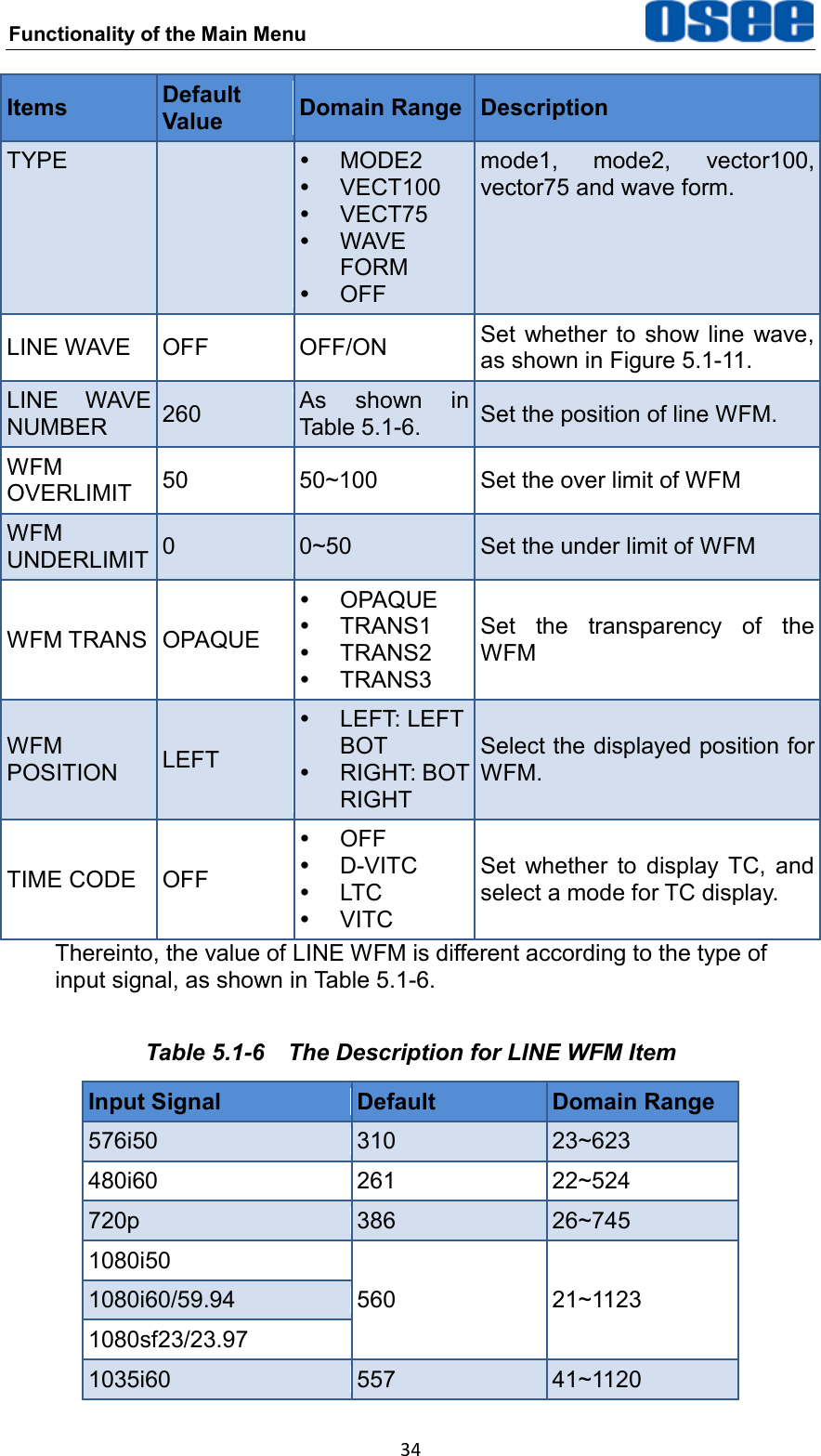
Functionality of the Main Menu  34 Items Default Value Domain Range Description TYPE   MODE2   VECT100   VECT75   WAVE FORM   OFF mode1,  mode2,  vector100, vector75 and wave form. LINE WAVE OFF OFF/ON Set  whether  to  show  line  wave, as shown in Figure 5.1-11. LINE  WAVE NUMBER 260 As  shown  in Table 5.1-6. Set the position of line WFM. WFM OVERLIMIT 50 50~100 Set the over limit of WFM WFM UNDERLIMIT 0 0~50 Set the under limit of WFM WFM TRANS OPAQUE   OPAQUE   TRANS1   TRANS2   TRANS3 Set  the  transparency  of  the WFM WFM POSITION LEFT   LEFT: LEFT BOT   RIGHT: BOT RIGHT Select the displayed position for WFM. TIME CODE OFF   OFF   D-VITC   LTC   VITC Set  whether  to  display  TC,  and select a mode for TC display. Thereinto, the value of LINE WFM is different according to the type of input signal, as shown in Table 5.1-6. Table 5.1-6  The Description for LINE WFM Item Input Signal Default Domain Range 576i50 310 23~623 480i60 261 22~524 720p 386 26~745 1080i50 560 21~1123 1080i60/59.94 1080sf23/23.97 1035i60 557 41~1120
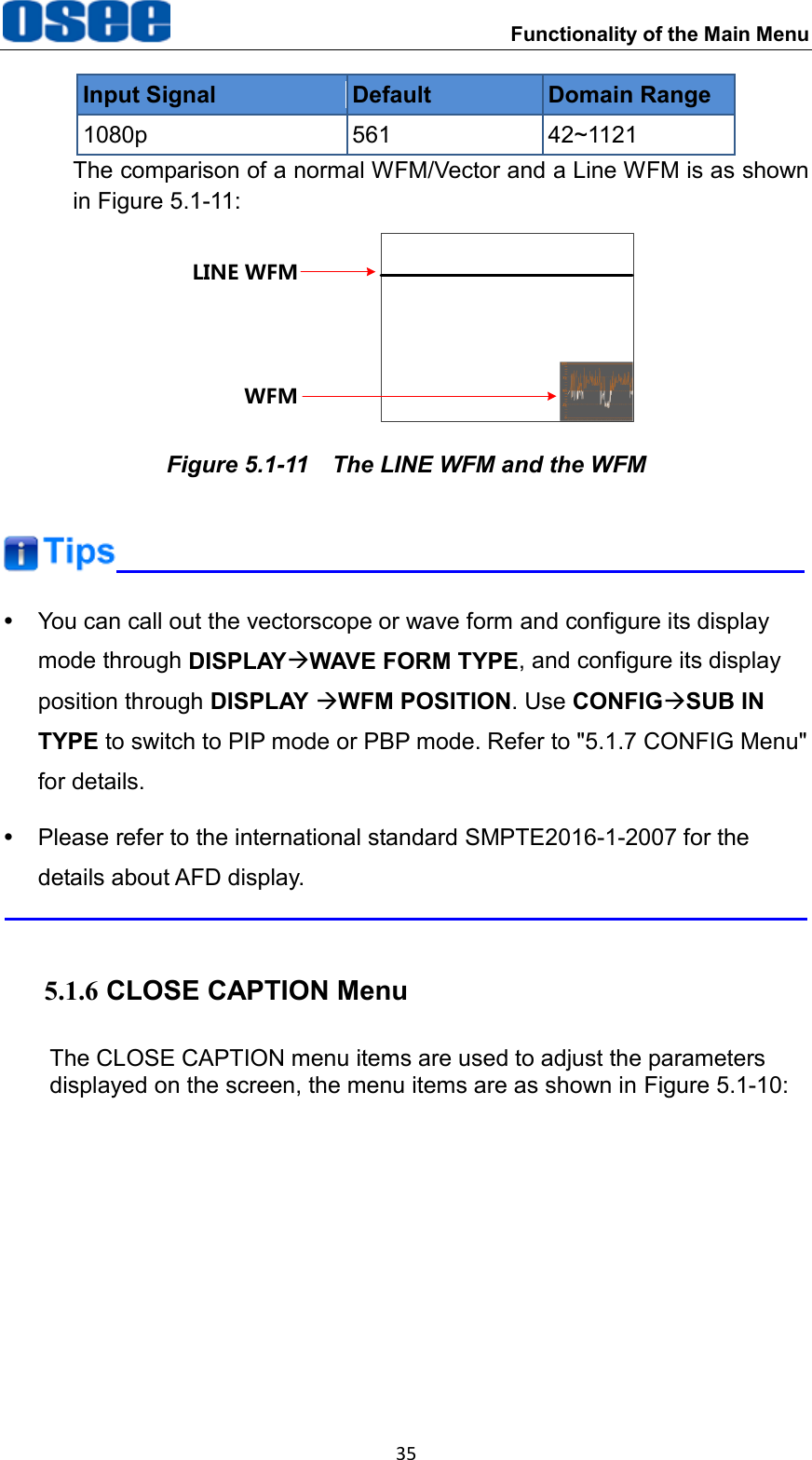
 Functionality of the Main Menu 35 Input Signal Default Domain Range 1080p 561 42~1121 The comparison of a normal WFM/Vector and a Line WFM is as shown in Figure 5.1-11: LINE WFMWFM Figure 5.1-11  The LINE WFM and the WFM    You can call out the vectorscope or wave form and configure its display mode through DISPLAYWAVE FORM TYPE, and configure its display position through DISPLAY WFM POSITION. Use CONFIGSUB IN TYPE to switch to PIP mode or PBP mode. Refer to "5.1.7 CONFIG Menu" for details.   Please refer to the international standard SMPTE2016-1-2007 for the details about AFD display.  5.1.6 CLOSE CAPTION Menu The CLOSE CAPTION menu items are used to adjust the parameters displayed on the screen, the menu items are as shown in Figure 5.1-10:
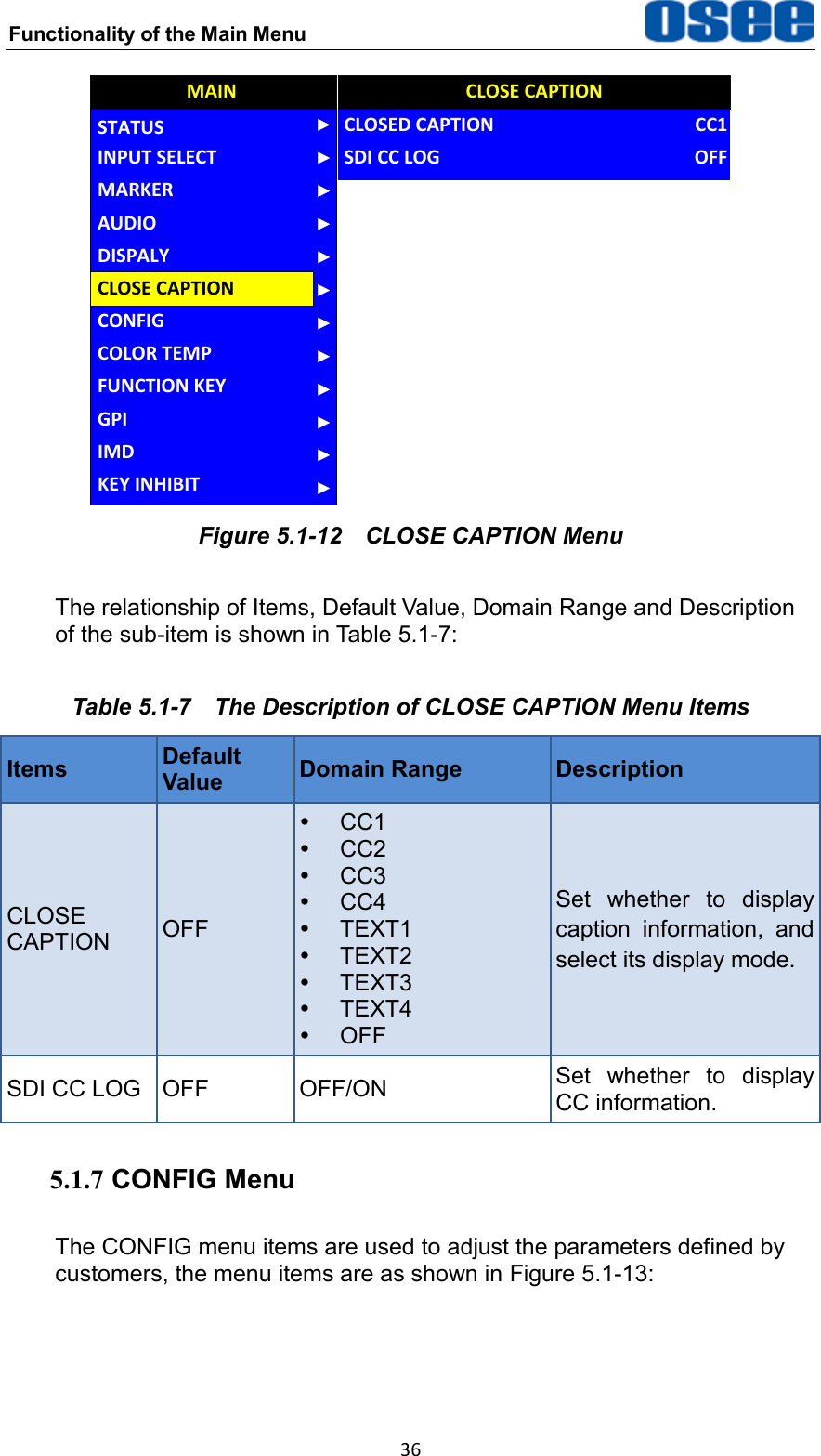
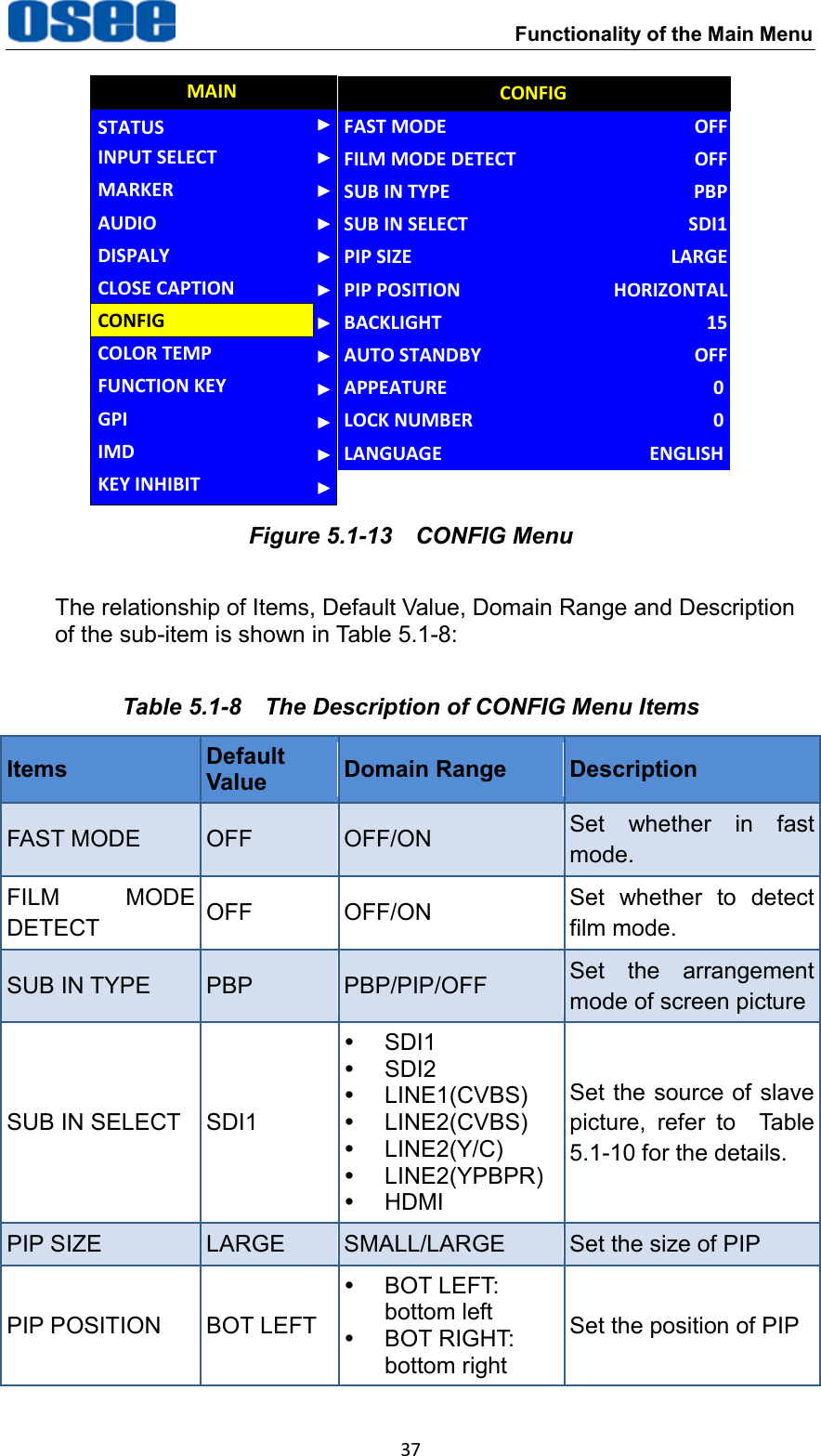
Functionality of the Main Menu  36 AUDIOCONFIGCOLOR TEMPFUNCTION KEYGPIMAINCLOSE CAPTIONDISPALYMARKERINPUT SELECTSTATUSIMDKEY INHIBITCLOSED CAPTIONSDI CC LOGCLOSE CAPTIONCC1OFF Figure 5.1-12  CLOSE CAPTION Menu The relationship of Items, Default Value, Domain Range and Description of the sub-item is shown in Table 5.1-7: Table 5.1-7  The Description of CLOSE CAPTION Menu Items Items Default Value Domain Range Description CLOSE CAPTION OFF  CC1  CC2  CC3  CC4   TEXT1   TEXT2   TEXT3   TEXT4   OFF Set  whether  to  display caption  information,  and select its display mode. SDI CC LOG OFF OFF/ON Set  whether  to  display CC information. 5.1.7 CONFIG Menu The CONFIG menu items are used to adjust the parameters defined by customers, the menu items are as shown in Figure 5.1-13:
 Functionality of the Main Menu 37 AUDIOFUNCTION KEYGPIMAINCONFIGCOLOR TEMPCLOSE CAPTIONDISPALYMARKERINPUT SELECTSTATUSIMDKEY INHIBITPIP POSITIONFAST MODEFILM MODE DETECTSUB IN TYPESUB IN SELECTPIP SIZEBACKLIGHTAUTO STANDBYAPPEATURECONFIGHORIZONTALOFFOFFPBPSDI1LARGE15OFF0LOCK NUMBER 0LANGUAGE ENGLISH Figure 5.1-13  CONFIG Menu The relationship of Items, Default Value, Domain Range and Description of the sub-item is shown in Table 5.1-8: Table 5.1-8  The Description of CONFIG Menu Items Items Default Value Domain Range Description FAST MODE OFF OFF/ON Set  whether  in  fast mode. FILM  MODE DETECT OFF OFF/ON Set  whether  to  detect film mode. SUB IN TYPE PBP PBP/PIP/OFF Set  the  arrangement mode of screen picture SUB IN SELECT SDI1   SDI1   SDI2   LINE1(CVBS)   LINE2(CVBS)   LINE2(Y/C)   LINE2(YPBPR)   HDMI Set the source of slave picture,  refer  to    Table 5.1-10 for the details. PIP SIZE LARGE SMALL/LARGE Set the size of PIP PIP POSITION BOT LEFT   BOT LEFT: bottom left   BOT RIGHT: bottom right Set the position of PIP
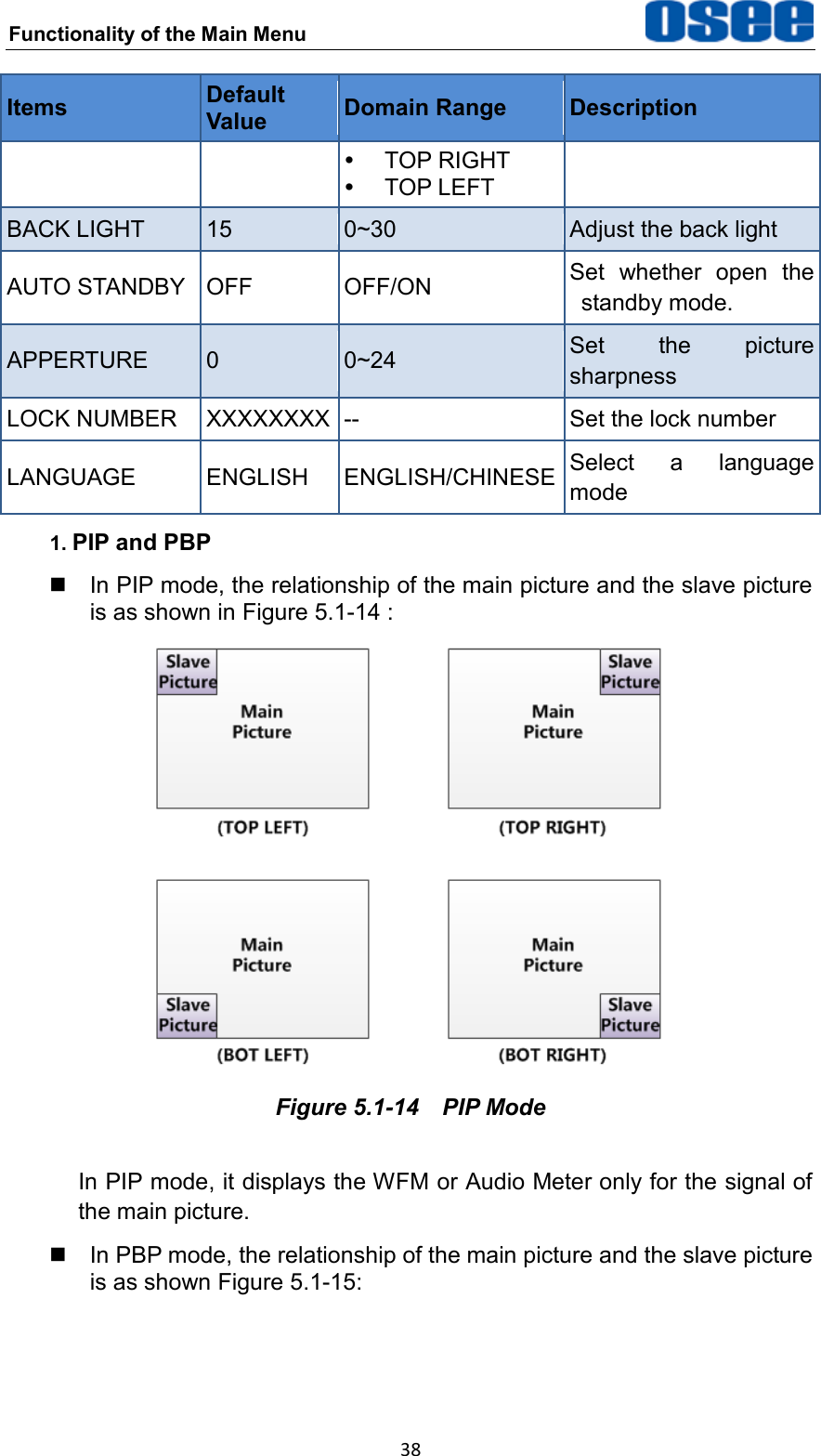
Functionality of the Main Menu  38 Items Default Value Domain Range Description   TOP RIGHT  TOP LEFT BACK LIGHT 15 0~30 Adjust the back light AUTO STANDBY OFF OFF/ON Set  whether  open  the standby mode. APPERTURE 0 0~24 Set  the  picture sharpness LOCK NUMBER XXXXXXXX -- Set the lock number LANGUAGE ENGLISH ENGLISH/CHINESE Select  a  language mode 1. PIP and PBP   In PIP mode, the relationship of the main picture and the slave picture is as shown in Figure 5.1-14 :  Figure 5.1-14  PIP Mode In PIP mode, it displays the WFM or Audio Meter only for the signal of the main picture.   In PBP mode, the relationship of the main picture and the slave picture is as shown Figure 5.1-15:
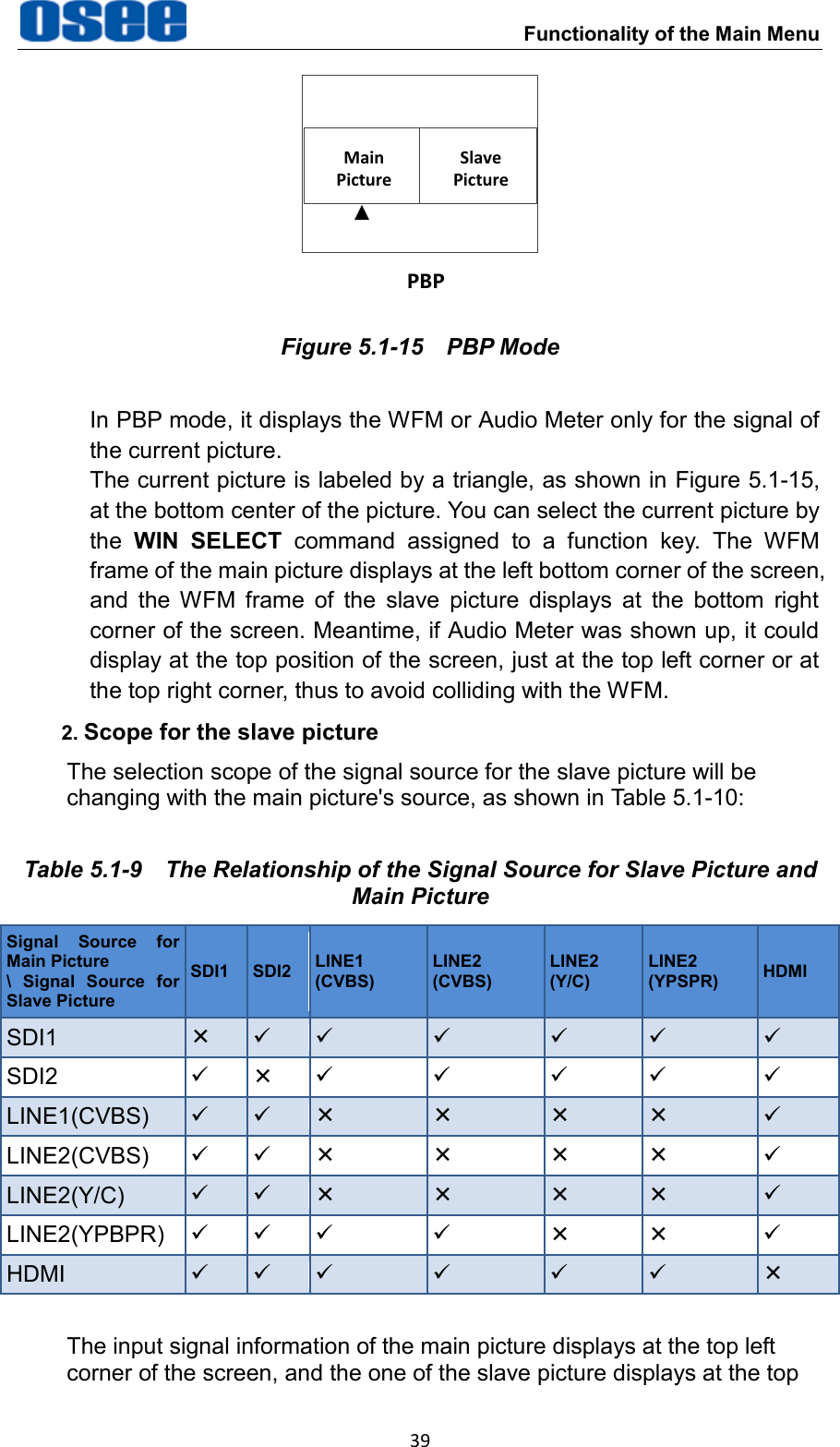
 Functionality of the Main Menu 39 PBPMain PictureSlave Picture Figure 5.1-15  PBP Mode In PBP mode, it displays the WFM or Audio Meter only for the signal of the current picture. The current picture is labeled by a triangle, as shown in Figure 5.1-15, at the bottom center of the picture. You can select the current picture by the  WIN  SELECT  command  assigned  to  a  function  key.  The  WFM frame of the main picture displays at the left bottom corner of the screen, and  the WFM  frame  of  the  slave  picture  displays  at  the  bottom  right corner of the screen. Meantime, if Audio Meter was shown up, it could display at the top position of the screen, just at the top left corner or at the top right corner, thus to avoid colliding with the WFM. 2. Scope for the slave picture The selection scope of the signal source for the slave picture will be changing with the main picture's source, as shown in Table 5.1-10: Table 5.1-9  The Relationship of the Signal Source for Slave Picture and Main Picture Signal  Source  for Main Picture \  Signal  Source  for Slave Picture SDI1 SDI2 LINE1 (CVBS) LINE2 (CVBS) LINE2 (Y/C) LINE2 (YPSPR) HDMI SDI1        SDI2        LINE1(CVBS)        LINE2(CVBS)        LINE2(Y/C)        LINE2(YPBPR)        HDMI         The input signal information of the main picture displays at the top left corner of the screen, and the one of the slave picture displays at the top
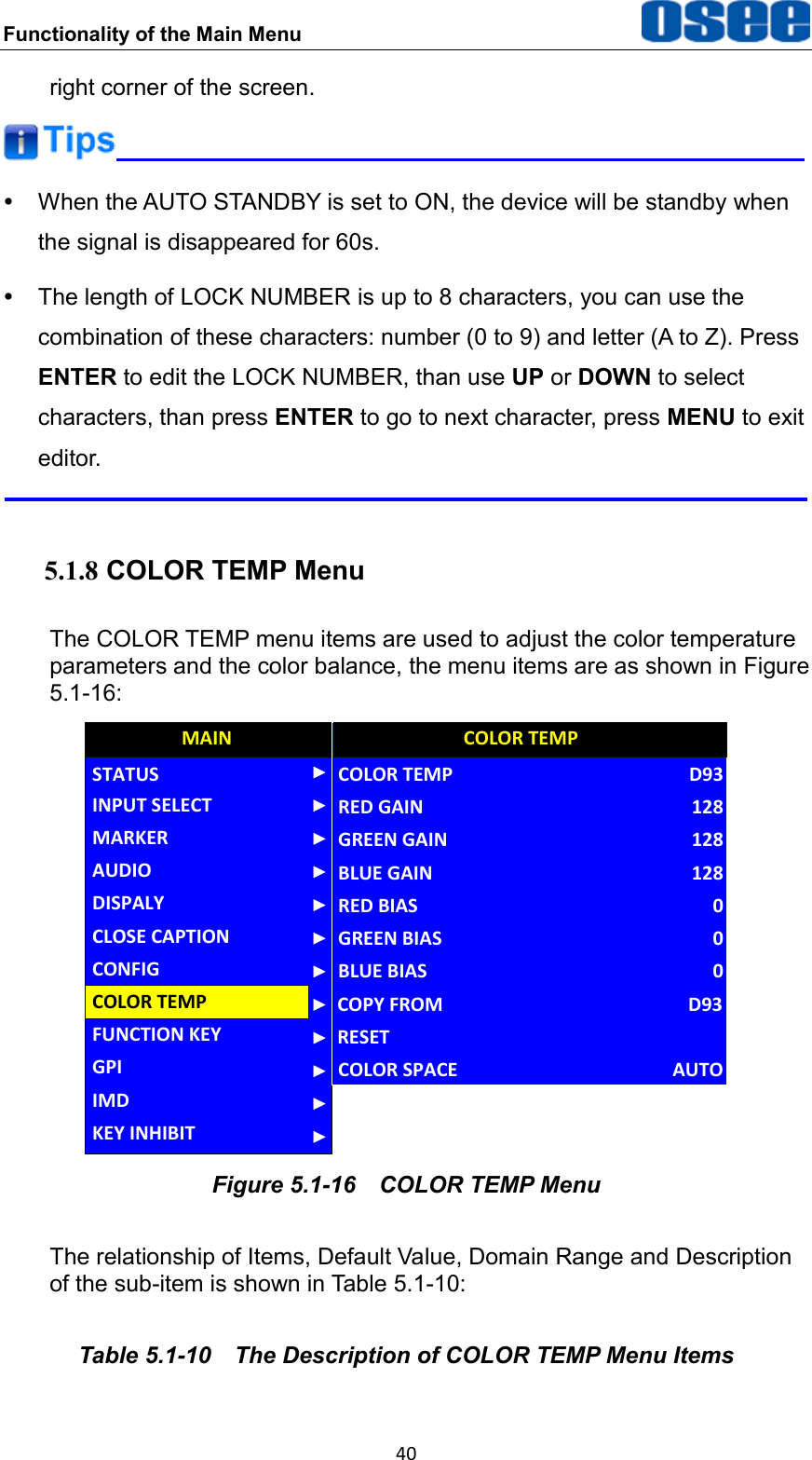
Functionality of the Main Menu  40 right corner of the screen.    When the AUTO STANDBY is set to ON, the device will be standby when the signal is disappeared for 60s.   The length of LOCK NUMBER is up to 8 characters, you can use the combination of these characters: number (0 to 9) and letter (A to Z). Press ENTER to edit the LOCK NUMBER, than use UP or DOWN to select characters, than press ENTER to go to next character, press MENU to exit editor.  5.1.8 COLOR TEMP Menu The COLOR TEMP menu items are used to adjust the color temperature parameters and the color balance, the menu items are as shown in Figure 5.1-16: AUDIOCONFIGFUNCTION KEYGPIMAINCOLOR TEMPCLOSE CAPTIONDISPALYMARKERINPUT SELECTSTATUSIMDKEY INHIBITGREEN BIASCOLOR TEMPRED GAINGREEN GAINBLUE GAINRED BIASBLUE BIAS0D9312812812800COLOR TEMPCOPY FROMRESETD93COLOR SPACE AUTO Figure 5.1-16  COLOR TEMP Menu The relationship of Items, Default Value, Domain Range and Description of the sub-item is shown in Table 5.1-10: Table 5.1-10  The Description of COLOR TEMP Menu Items
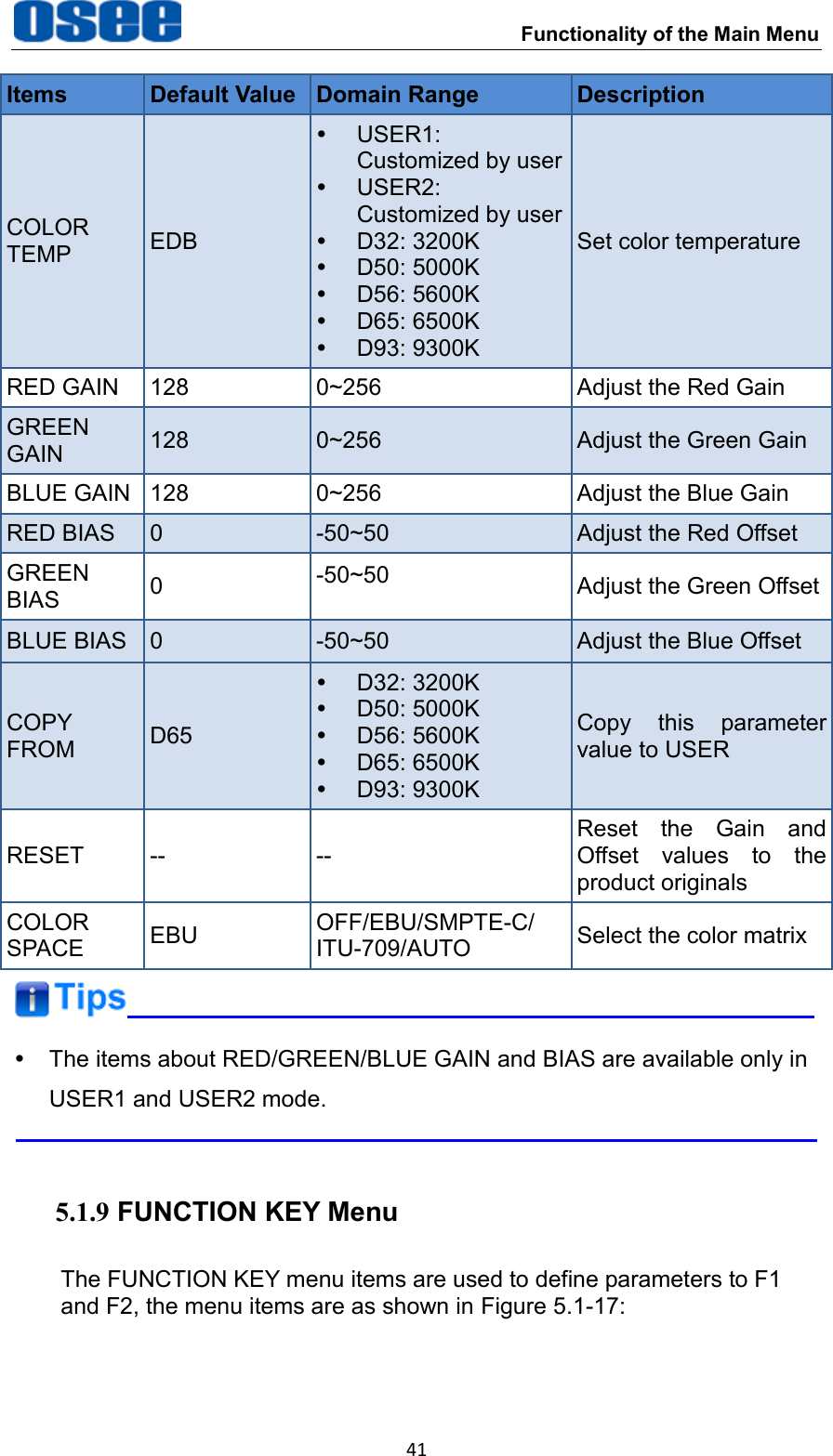
 Functionality of the Main Menu 41 Items Default Value Domain Range Description COLOR TEMP EDB  USER1: Customized by user    USER2: Customized by user   D32: 3200K   D50: 5000K   D56: 5600K   D65: 6500K   D93: 9300K Set color temperature RED GAIN 128 0~256 Adjust the Red Gain GREEN GAIN 128 0~256 Adjust the Green Gain BLUE GAIN 128 0~256 Adjust the Blue Gain RED BIAS 0 -50~50 Adjust the Red Offset GREEN BIAS 0 -50~50 Adjust the Green Offset BLUE BIAS 0 -50~50 Adjust the Blue Offset COPY FROM D65   D32: 3200K   D50: 5000K   D56: 5600K   D65: 6500K   D93: 9300K Copy  this  parameter value to USER RESET -- -- Reset  the  Gain  and Offset  values  to  the product originals COLOR SPACE EBU OFF/EBU/SMPTE-C/ ITU-709/AUTO Select the color matrix    The items about RED/GREEN/BLUE GAIN and BIAS are available only in USER1 and USER2 mode.  5.1.9 FUNCTION KEY Menu The FUNCTION KEY menu items are used to define parameters to F1 and F2, the menu items are as shown in Figure 5.1-17:
Functionality of the Main Menu  42 AUDIOGPIMAINFUNCTION KEYCONFIGCOLOR TEMPCLOSE CAPTIONDISPALYMARKERINPUT SELECTSTATUSIMDKEY INHIBITF1F2FUNCTION KEYSCANNATIVEF3F4ASPECTOFFF5 OFF Figure 5.1-17  FUNCTION KEY Menu The relationship of Items, Default Value, Domain Range and Description of the sub-item is shown in Table 5.1-11: Table 5.1-11  The Description of FUNCTION KEY Menu Items Items Default Value Domain Range Description F1 SCAN SCAN,  NATIVE,  ASPECT,  BLUE ONLY,  MONO,  MARKER,  H/V DELAY,  AUDIO  METER,  FAST MODE,  TC,  IMD,  MUTE,  PBP, CC,  FREEZE,  WIN  SELECT, UNDEF Set  a  function  to F1 button F2 NATIVE the same as F1 Set  a  function  to F2 button F3 ASPECT the same as F1 Set  a  function  to F3 button F4 UNDEF the same as F1 Set  a  function  to F4 button F5 UNDEF the same as F1 Set  a  function  to F5 button   SCAN This product supports the following scan modes: NORMAL OVER UNDER Set  the  function  button  as  [SCAN],  press  the  button  continuously  to activate various scan modes.
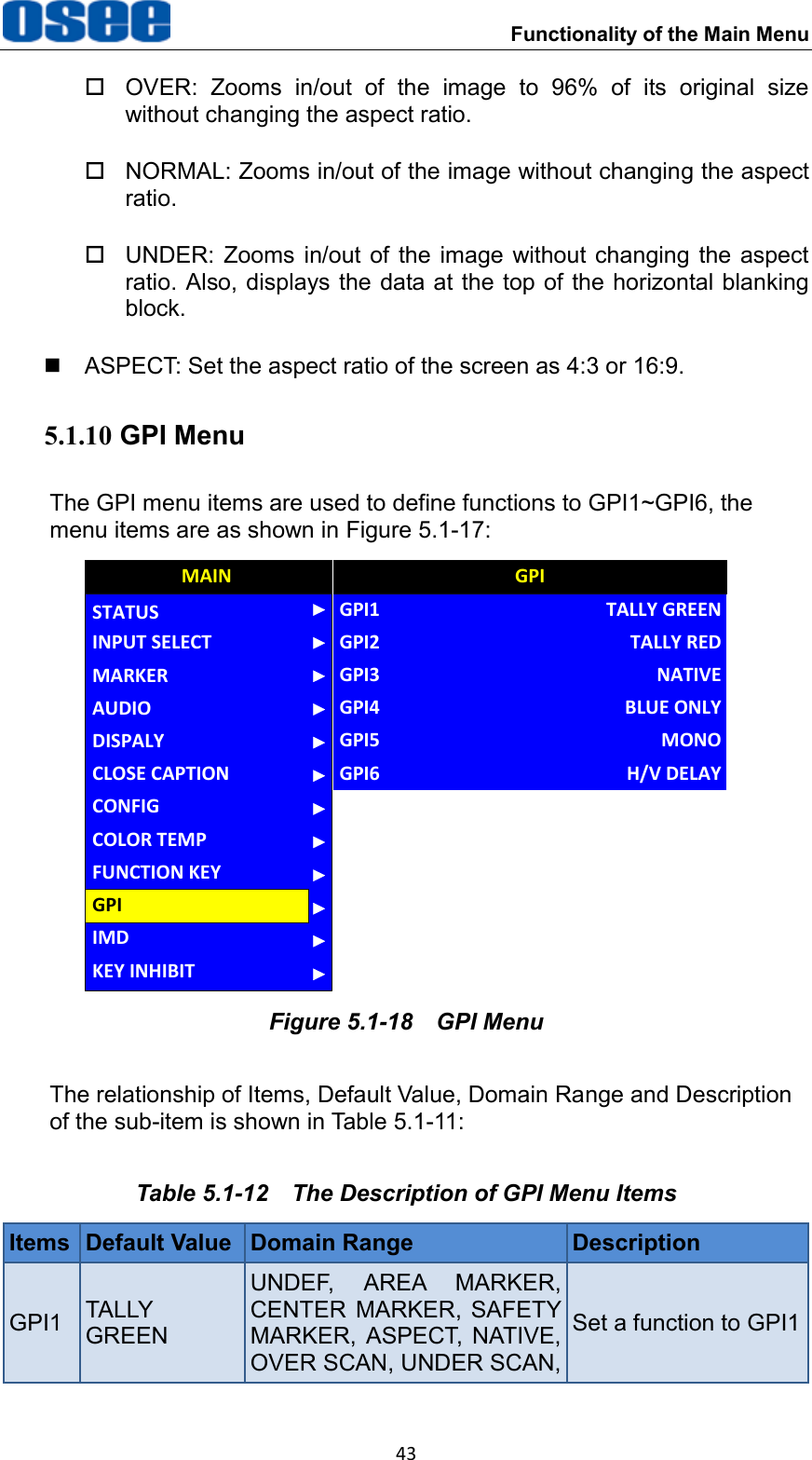
 Functionality of the Main Menu 43   OVER:  Zooms  in/out  of  the  image  to  96%  of  its  original  size without changing the aspect ratio.   NORMAL: Zooms in/out of the image without changing the aspect ratio.   UNDER:  Zooms  in/out of  the image without changing the aspect ratio. Also, displays the data at the top of the horizontal blanking block.   ASPECT: Set the aspect ratio of the screen as 4:3 or 16:9. 5.1.10 GPI Menu The GPI menu items are used to define functions to GPI1~GPI6, the menu items are as shown in Figure 5.1-17: AUDIOMAINGPIFUNCTION KEYCONFIGCOLOR TEMPCLOSE CAPTIONDISPALYMARKERINPUT SELECTSTATUSIMDKEY INHIBITGPI1GPI2GPITALLY GREENTALLY REDGPI3GPI4NATIVEBLUE ONLYGPI5 MONOGPI6 H/V DELAY Figure 5.1-18  GPI Menu The relationship of Items, Default Value, Domain Range and Description of the sub-item is shown in Table 5.1-11: Table 5.1-12  The Description of GPI Menu Items Items Default Value Domain Range Description GPI1 TALLY GREEN UNDEF,  AREA  MARKER, CENTER  MARKER,  SAFETY MARKER,  ASPECT,  NATIVE, OVER SCAN, UNDER SCAN, Set a function to GPI1
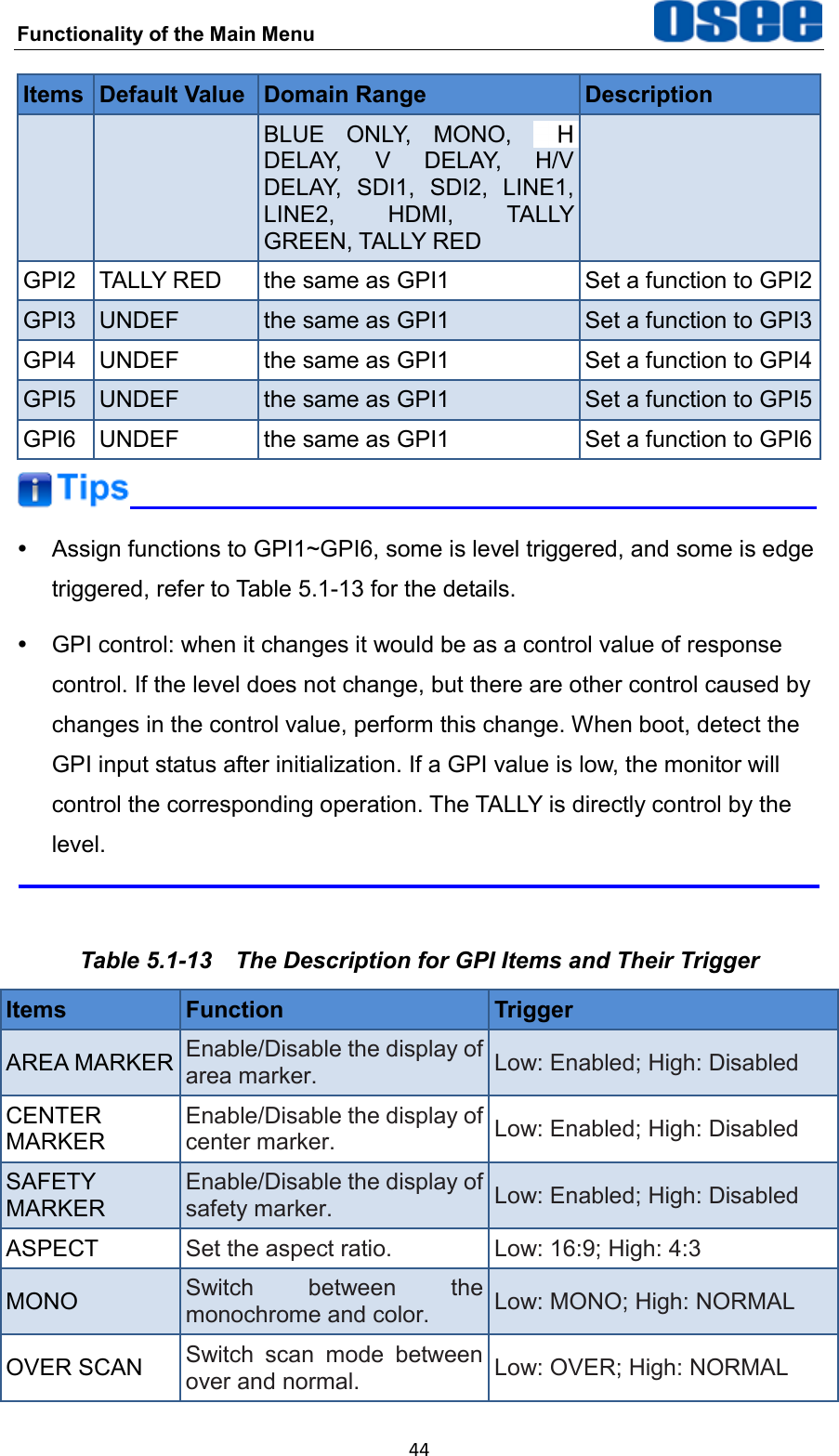
Functionality of the Main Menu  44 Items Default Value Domain Range Description BLUE  ONLY,  MONO, DELAY,  V  DELAY,  H/V DELAY,  SDI1,  SDI2,  LINE1, LINE2,  HDMI,  TALLY GREEN, TALLY RED GPI2 TALLY RED the same as GPI1 Set a function to GPI2 GPI3 UNDEF the same as GPI1 Set a function to GPI3 GPI4 UNDEF the same as GPI1 Set a function to GPI4 GPI5 UNDEF the same as GPI1 Set a function to GPI5 GPI6 UNDEF the same as GPI1 Set a function to GPI6    Assign functions to GPI1~GPI6, some is level triggered, and some is edge triggered, refer to Table 5.1-13 for the details.   GPI control: when it changes it would be as a control value of response control. If the level does not change, but there are other control caused by changes in the control value, perform this change. When boot, detect the GPI input status after initialization. If a GPI value is low, the monitor will control the corresponding operation. The TALLY is directly control by the level.  Table 5.1-13  The Description for GPI Items and Their Trigger Items Function Trigger AREA MARKER Enable/Disable the display of area marker. Low: Enabled; High: Disabled CENTER MARKER Enable/Disable the display of center marker. Low: Enabled; High: Disabled SAFETY MARKER Enable/Disable the display of safety marker. Low: Enabled; High: Disabled ASPECT Set the aspect ratio. Low: 16:9; High: 4:3 MONO Switch  between  the monochrome and color. Low: MONO; High: NORMAL OVER SCAN Switch  scan  mode  between over and normal. Low: OVER; High: NORMAL
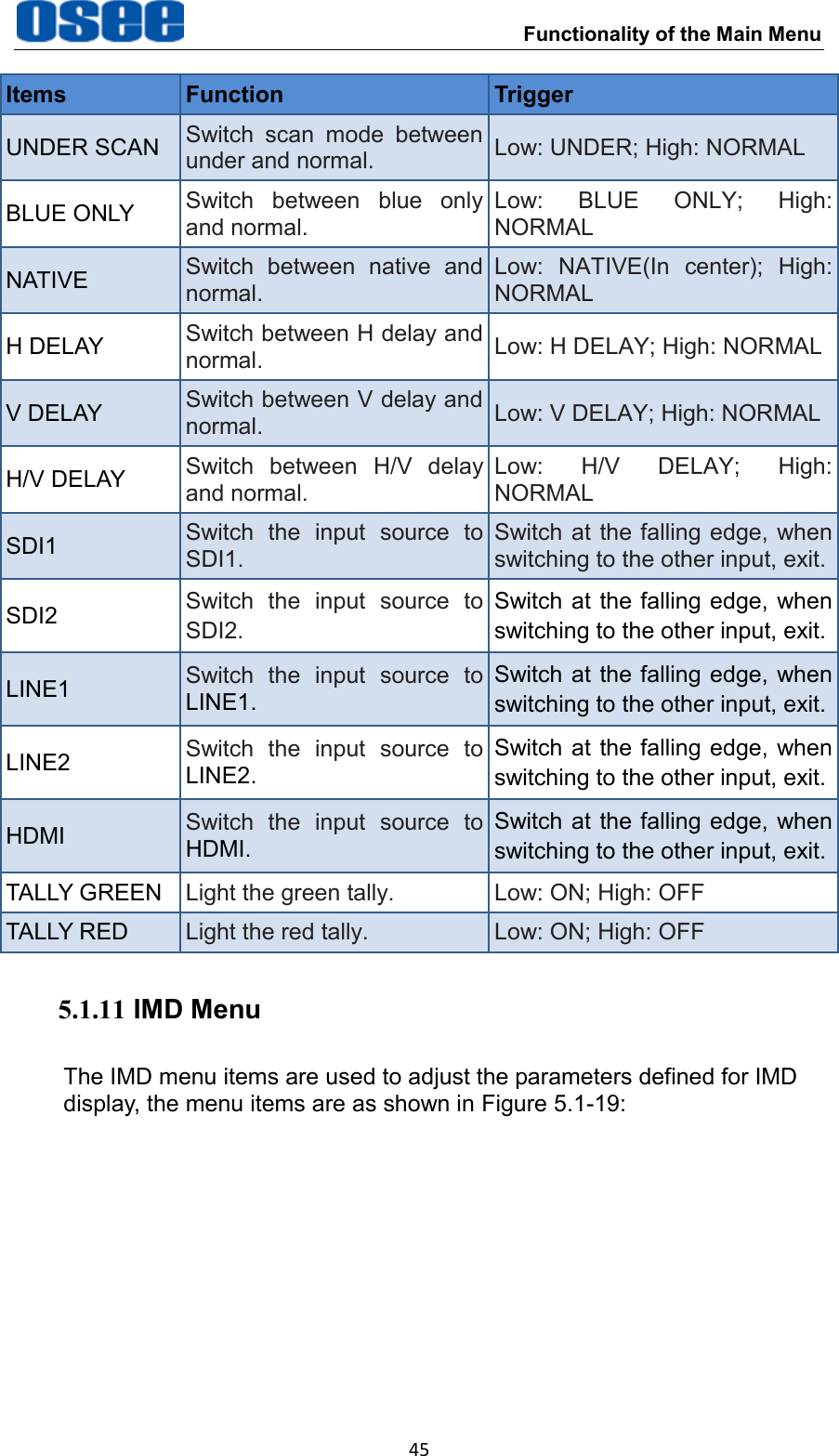
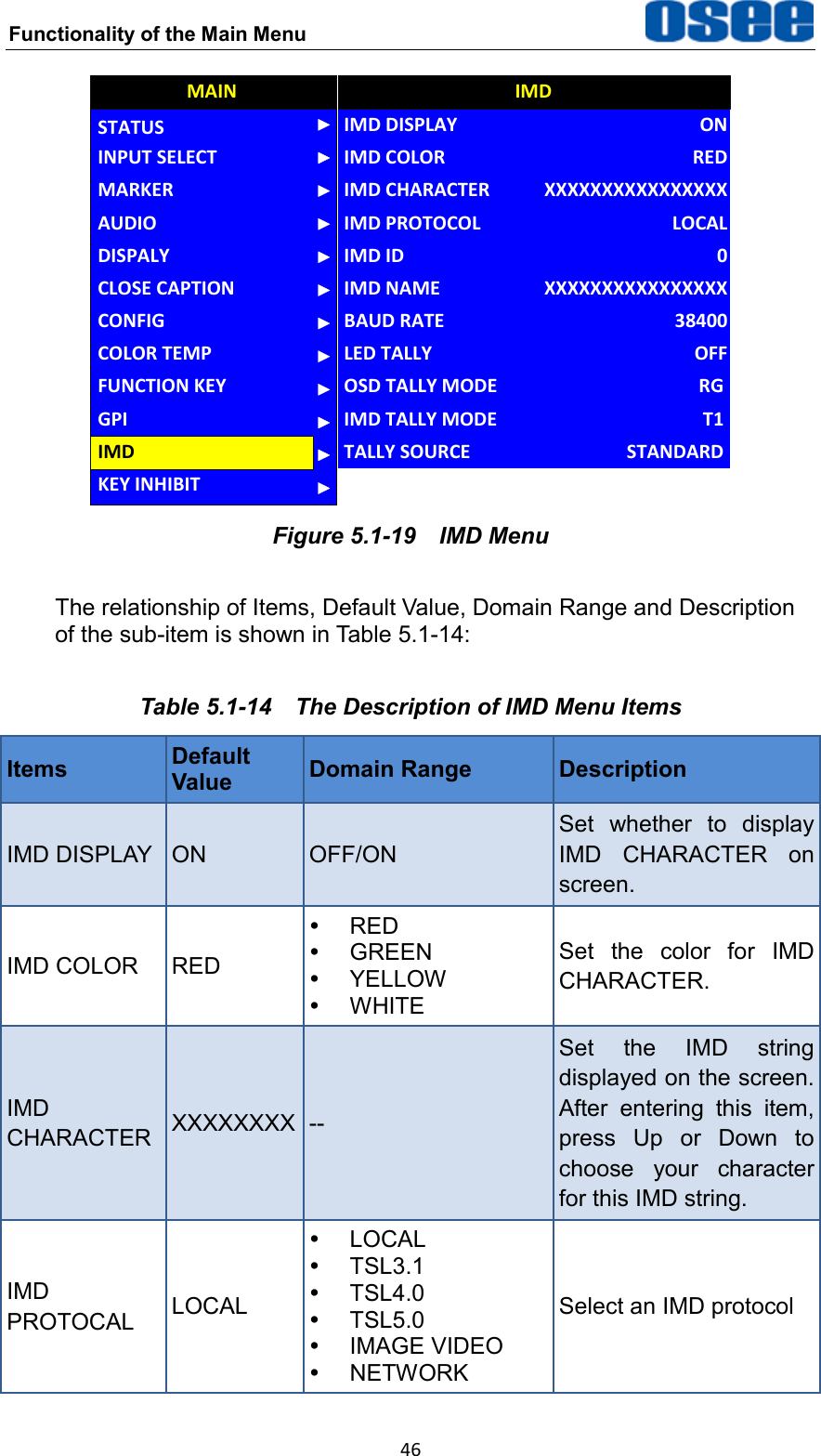
 Functionality of the Main Menu 45 Items Function Trigger UNDER SCAN Switch  scan  mode  between under and normal. Low: UNDER; High: NORMAL BLUE ONLY Switch  between  blue  only and normal. Low:  BLUE  ONLY;  High: NORMAL NATIVE Switch  between  native  and normal. Low:  NATIVE(In  center);  High: NORMAL H DELAY Switch between H delay and normal. Low: H DELAY; High: NORMAL V DELAY Switch between V delay and normal. Low: V DELAY; High: NORMAL H/V DELAY Switch  between  H/V  delay and normal. Low:  H/V  DELAY;  High: NORMAL SDI1 Switch  the  input  source  to SDI1. Switch at the falling edge, when switching to the other input, exit. SDI2 Switch  the  input  source  to SDI2. Switch at the falling edge, when switching to the other input, exit. LINE1 Switch  the  input  source  to LINE1. Switch at the falling edge, when switching to the other input, exit. LINE2 Switch  the  input  source  to LINE2. Switch at the falling edge, when switching to the other input, exit. HDMI Switch  the  input  source  to HDMI. Switch at the falling edge, when switching to the other input, exit. TALLY GREEN Light the green tally. Low: ON; High: OFF TALLY RED Light the red tally. Low: ON; High: OFF 5.1.11 IMD Menu The IMD menu items are used to adjust the parameters defined for IMD display, the menu items are as shown in Figure 5.1-19:
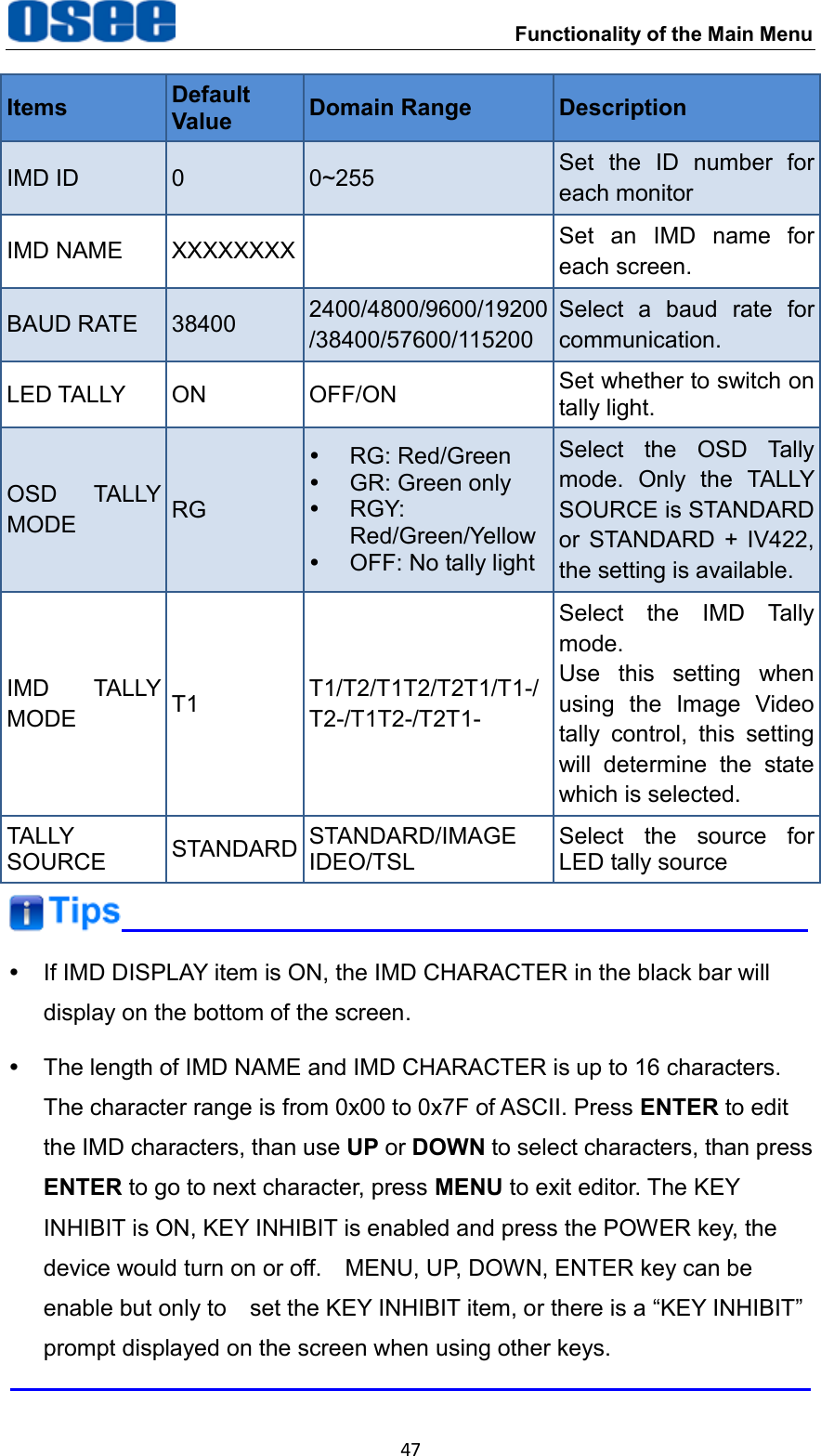
Functionality of the Main Menu  46 AUDIOCONFIGFUNCTION KEYGPIMAINCOLOR TEMPCLOSE CAPTIONDISPALYMARKERINPUT SELECTSTATUSIMDKEY INHIBITIMD NAMEIMD DISPLAYIMD COLORIMD CHARACTERIMD PROTOCOLIMD IDBAUD RATELED TALLYOSD TALLY MODEIMDXXXXXXXXXXXXXXXXONREDXXXXXXXXXXXXXXXXLOCAL038400OFFRGIMD TALLY MODE T1TALLY SOURCE STANDARD Figure 5.1-19  IMD Menu The relationship of Items, Default Value, Domain Range and Description of the sub-item is shown in Table 5.1-14: Table 5.1-14  The Description of IMD Menu Items Items Default Value Domain Range Description IMD DISPLAY ON OFF/ON Set  whether  to  display IMD  CHARACTER  on screen. IMD COLOR RED   RED   GREEN   YELLOW   WHITE Set  the  color  for  IMD CHARACTER. IMD CHARACTER XXXXXXXX -- Set  the  IMD  string displayed on the screen. After  entering  this  item, press  Up  or  Down  to choose  your  character for this IMD string. IMD PROTOCAL LOCAL   LOCAL     TSL3.1   TSL4.0   TSL5.0   IMAGE VIDEO   NETWORK Select an IMD protocol
 Functionality of the Main Menu 47 Items Default Value Domain Range Description IMD ID 0 0~255 Set  the  ID  number  for each monitor IMD NAME XXXXXXXX  Set  an  IMD  name  for each screen.   BAUD RATE 38400 2400/4800/9600/19200 /38400/57600/115200 Select  a  baud  rate  for communication. LED TALLY ON OFF/ON Set whether to switch on tally light. OSD  TALLY MODE RG  RG: Red/Green  GR: Green only   RGY: Red/Green/Yellow   OFF: No tally light Select  the  OSD  Tally mode.  Only  the  TALLY SOURCE is STANDARD or  STANDARD  +  IV422, the setting is available. IMD  TALLY MODE T1 T1/T2/T1T2/T2T1/T1-/ T2-/T1T2-/T2T1- Select  the  IMD  Tally mode. Use  this  setting  when using  the  Image  Video tally  control,  this  setting will  determine  the  state which is selected. TALLY SOURCE STANDARD STANDARD/IMAGE IDEO/TSL Select  the  source  for LED tally source   If IMD DISPLAY item is ON, the IMD CHARACTER in the black bar will display on the bottom of the screen.   The length of IMD NAME and IMD CHARACTER is up to 16 characters. The character range is from 0x00 to 0x7F of ASCII. Press ENTER to edit the IMD characters, than use UP or DOWN to select characters, than press ENTER to go to next character, press MENU to exit editor. The KEY INHIBIT is ON, KEY INHIBIT is enabled and press the POWER key, the device would turn on or off.    MENU, UP, DOWN, ENTER key can be enable but only to    set the KEY INHIBIT item, or there is a “KEY INHIBIT” prompt displayed on the screen when using other keys.
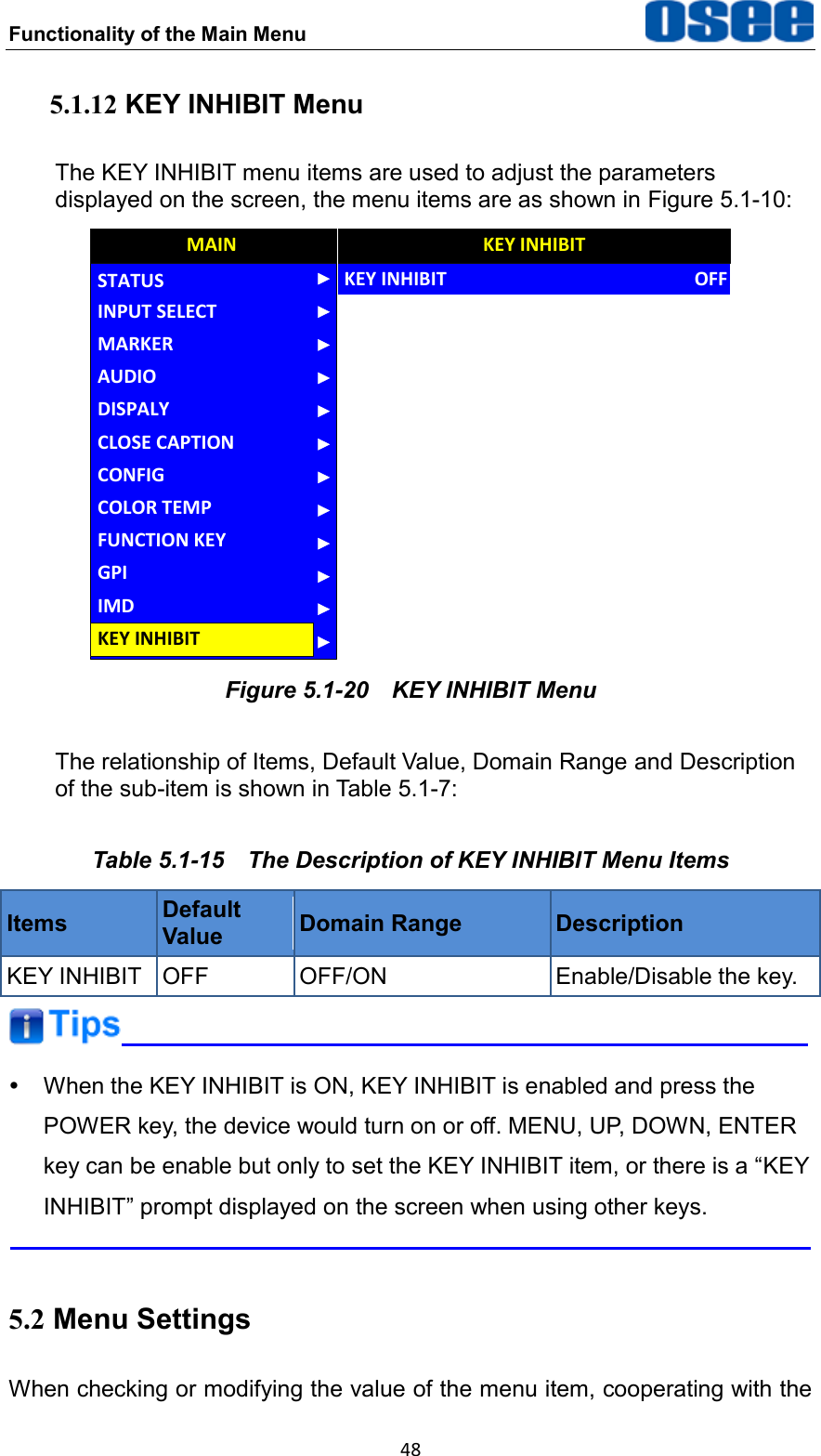
Functionality of the Main Menu  48 5.1.12 KEY INHIBIT Menu The KEY INHIBIT menu items are used to adjust the parameters displayed on the screen, the menu items are as shown in Figure 5.1-10: AUDIOCONFIGCOLOR TEMPFUNCTION KEYGPIMAINCLOSE CAPTIONDISPALYMARKERINPUT SELECTSTATUSIMDKEY INHIBITKEY INHIBITKEY INHIBITOFF Figure 5.1-20  KEY INHIBIT Menu The relationship of Items, Default Value, Domain Range and Description of the sub-item is shown in Table 5.1-7: Table 5.1-15  The Description of KEY INHIBIT Menu Items Items Default Value Domain Range Description KEY INHIBIT OFF OFF/ON Enable/Disable the key.    When the KEY INHIBIT is ON, KEY INHIBIT is enabled and press the POWER key, the device would turn on or off. MENU, UP, DOWN, ENTER key can be enable but only to set the KEY INHIBIT item, or there is a “KEY INHIBIT” prompt displayed on the screen when using other keys.  5.2 Menu Settings When checking or modifying the value of the menu item, cooperating with the
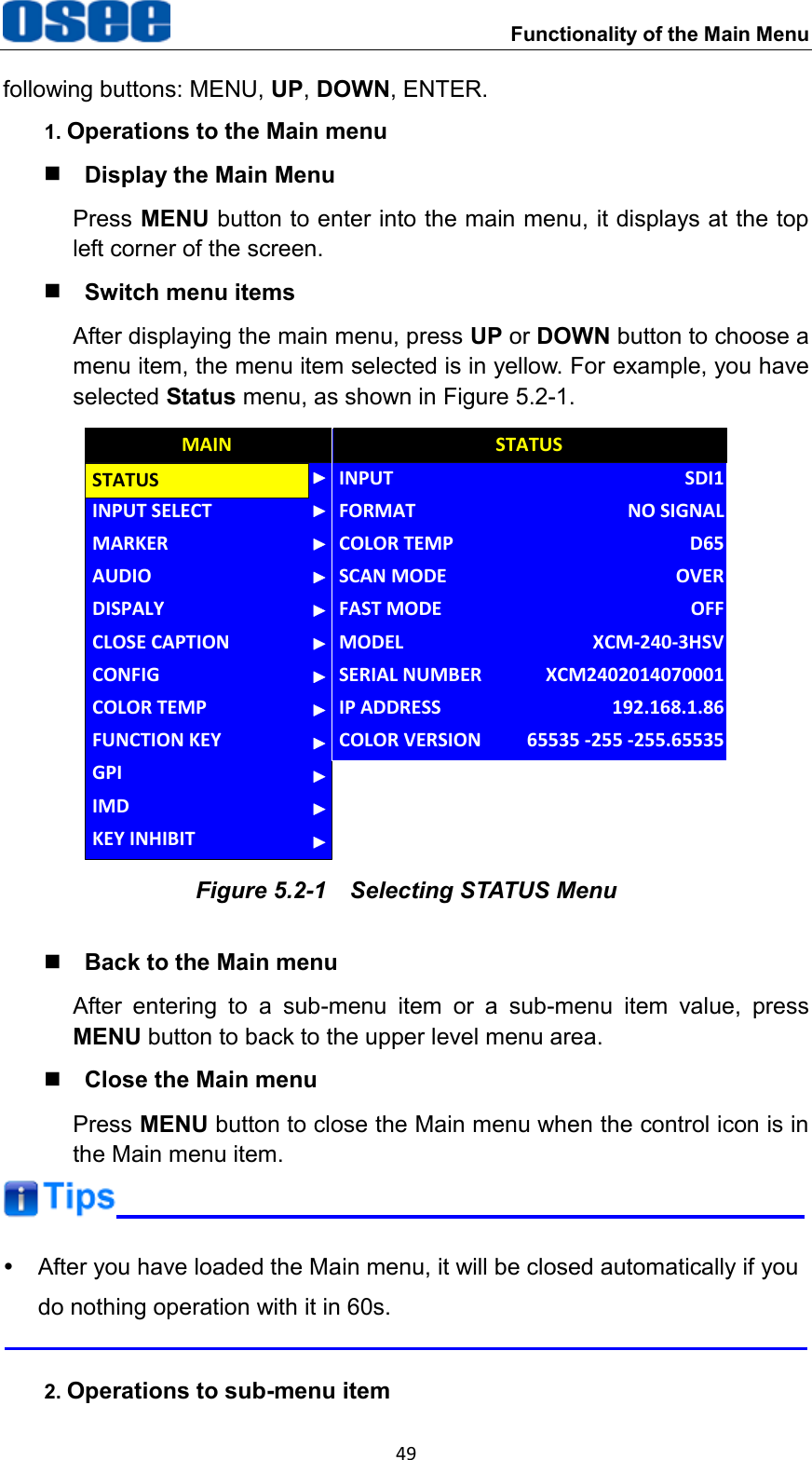
 Functionality of the Main Menu 49 following buttons: MENU, UP, DOWN, ENTER. 1. Operations to the Main menu  Display the Main Menu Press MENU button to enter into the main menu, it displays at the top left corner of the screen.  Switch menu items After displaying the main menu, press UP or DOWN button to choose a menu item, the menu item selected is in yellow. For example, you have selected Status menu, as shown in Figure 5.2-1. CLOSE CAPTIONINPUT SELECTMARKERAUDIODISPALYCONFIGCOLOR TEMPFUNCTION KEYGPIMAINMODELINPUTFORMATCOLOR TEMPSCAN MODEFAST MODESERIAL NUMBERIP ADDRESSCOLOR VERSIONSTATUSXCM-240-3HSVSDI1NO SIGNALD65OVEROFFXCM2402014070001192.168.1.8665535 -255 -255.65535STATUSIMDKEY INHIBIT Figure 5.2-1  Selecting STATUS Menu  Back to the Main menu After  entering  to  a  sub-menu  item  or  a  sub-menu  item  value,  press MENU button to back to the upper level menu area.  Close the Main menu Press MENU button to close the Main menu when the control icon is in the Main menu item.    After you have loaded the Main menu, it will be closed automatically if you do nothing operation with it in 60s.  2. Operations to sub-menu item
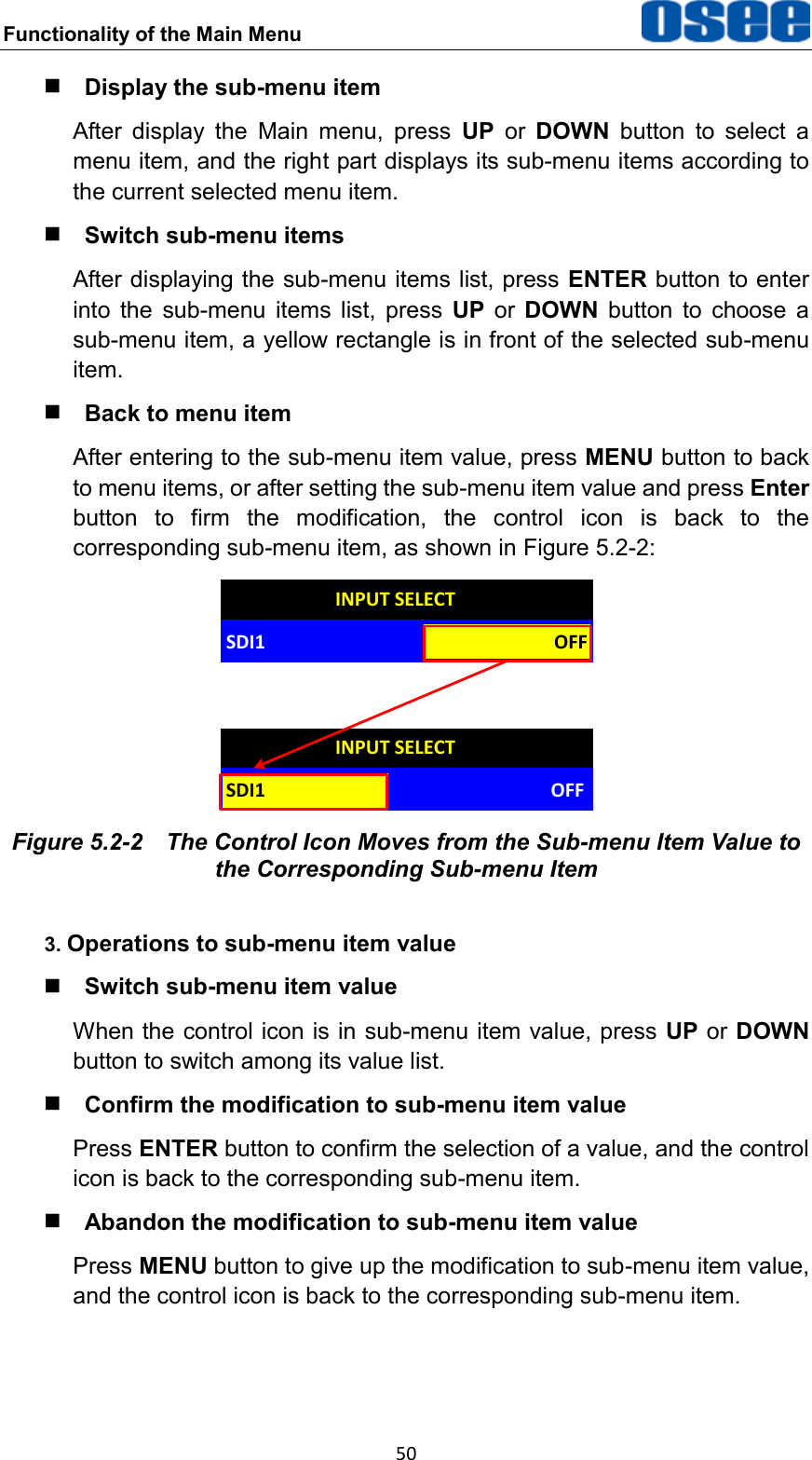
Functionality of the Main Menu  50  Display the sub-menu item After  display  the  Main  menu,  press  UP  or  DOWN  button  to  select  a menu item, and the right part displays its sub-menu items according to the current selected menu item.  Switch sub-menu items After displaying the sub-menu items list, press ENTER button to enter into  the  sub-menu  items  list,  press  UP  or  DOWN  button  to  choose  a sub-menu item, a yellow rectangle is in front of the selected sub-menu item.  Back to menu item After entering to the sub-menu item value, press MENU button to back to menu items, or after setting the sub-menu item value and press Enter button  to  firm  the  modification,  the  control  icon  is  back  to  the corresponding sub-menu item, as shown in Figure 5.2-2: OFFINPUT SELECTSDI1INPUT SELECTSDI1 OFF Figure 5.2-2  The Control Icon Moves from the Sub-menu Item Value to the Corresponding Sub-menu Item 3. Operations to sub-menu item value  Switch sub-menu item value When the control icon is in sub-menu item value, press UP or DOWN button to switch among its value list.  Confirm the modification to sub-menu item value Press ENTER button to confirm the selection of a value, and the control icon is back to the corresponding sub-menu item.  Abandon the modification to sub-menu item value Press MENU button to give up the modification to sub-menu item value, and the control icon is back to the corresponding sub-menu item.
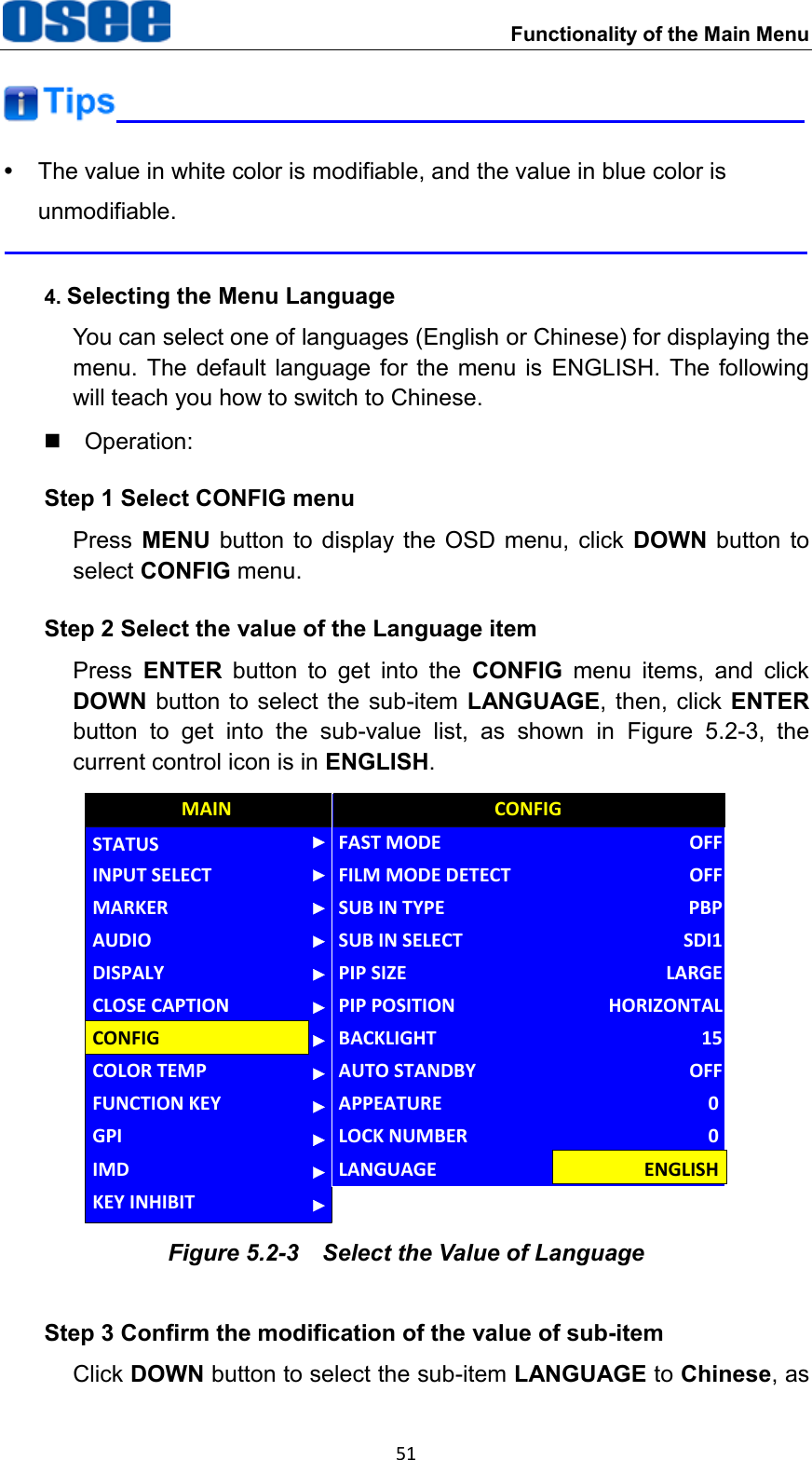
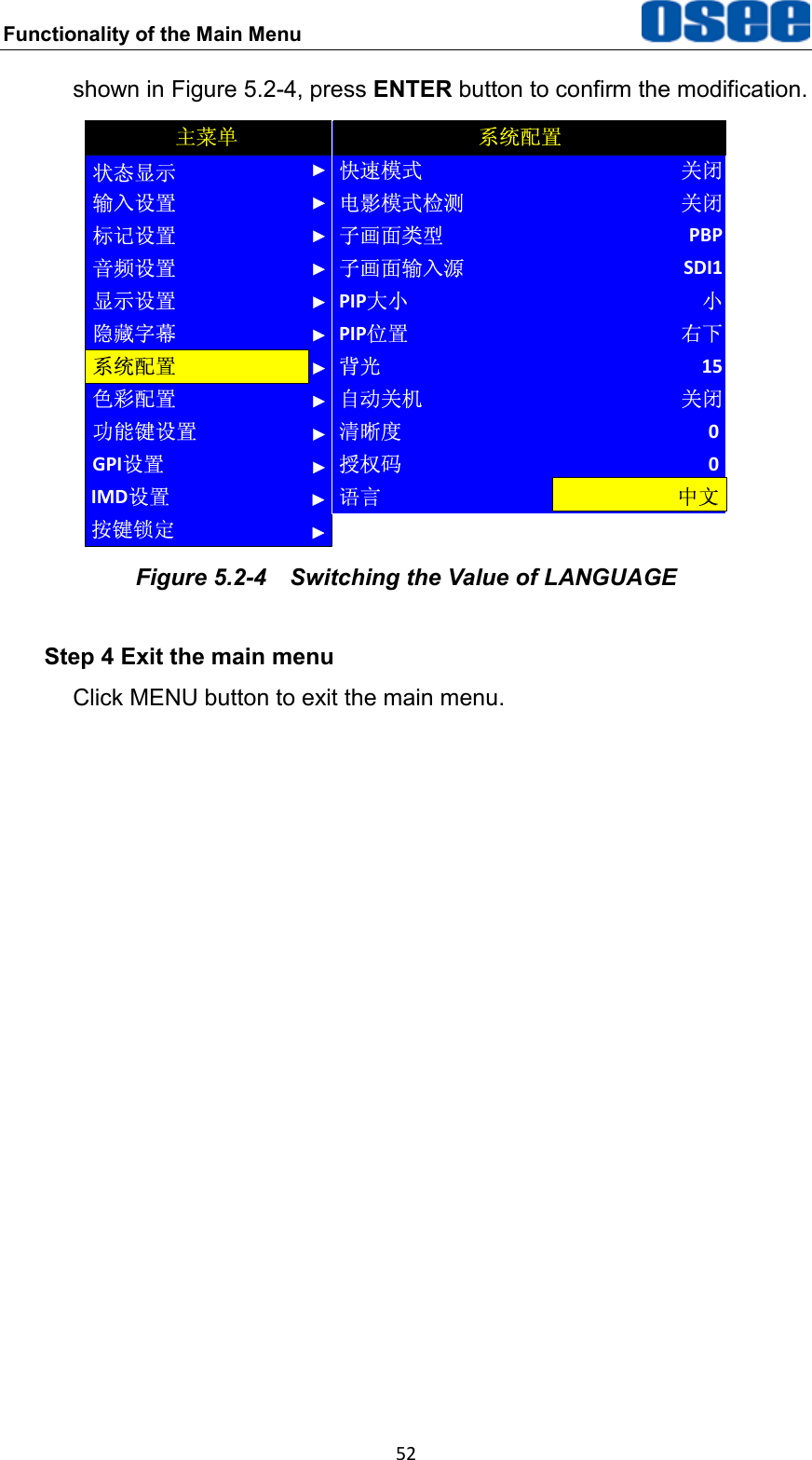
 Functionality of the Main Menu 51    The value in white color is modifiable, and the value in blue color is unmodifiable.  4. Selecting the Menu Language You can select one of languages (English or Chinese) for displaying the menu.  The  default  language for  the  menu  is  ENGLISH.  The  following will teach you how to switch to Chinese.   Operation: Step 1 Select CONFIG menu Press  MENU  button  to  display  the  OSD  menu,  click  DOWN  button  to select CONFIG menu. Step 2 Select the value of the Language item Press  ENTER  button  to  get  into  the  CONFIG  menu  items,  and  click DOWN button to  select the sub-item LANGUAGE, then, click ENTER button  to  get  into  the  sub-value  list,  as  shown  in  Figure  5.2-3,  the current control icon is in ENGLISH. AUDIOFUNCTION KEYGPIMAINCONFIGCOLOR TEMPCLOSE CAPTIONDISPALYMARKERINPUT SELECTSTATUSIMDKEY INHIBITPIP POSITIONFAST MODEFILM MODE DETECTSUB IN TYPESUB IN SELECTPIP SIZEBACKLIGHTAUTO STANDBYAPPEATURECONFIGHORIZONTALOFFOFFPBPSDI1LARGE15OFF0LOCK NUMBER 0LANGUAGE ENGLISH Figure 5.2-3  Select the Value of Language Step 3 Confirm the modification of the value of sub-item Click DOWN button to select the sub-item LANGUAGE to Chinese, as
Functionality of the Main Menu  52 shown in Figure 5.2-4, press ENTER button to confirm the modification. 输入设置显示设置色彩配置功能键设置GPI设置主菜单系统配置隐藏字幕音频设置标记设置状态显示IMD设置按键锁定PIP位置快速模式电影模式检测子画面类型子画面输入源PIP大小背光自动关机清晰度系统配置右下关闭关闭PBPSDI1小15关闭0授权码 0语言 中文 Figure 5.2-4  Switching the Value of LANGUAGE Step 4 Exit the main menu Click MENU button to exit the main menu.
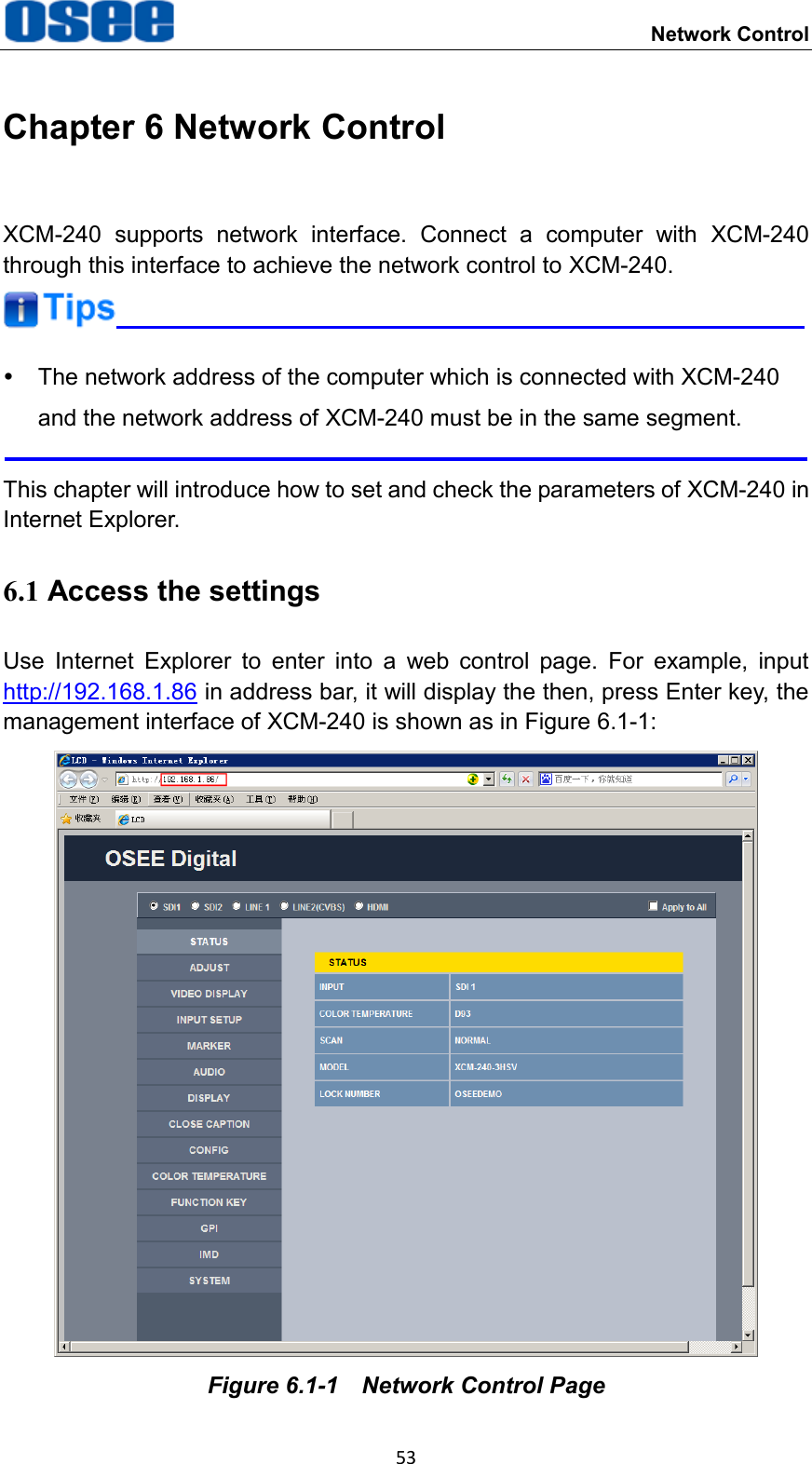
    Network Control 53 Chapter 6 Network Control XCM-240  supports  network  interface.  Connect  a  computer  with  XCM-240 through this interface to achieve the network control to XCM-240.    The network address of the computer which is connected with XCM-240 and the network address of XCM-240 must be in the same segment.  This chapter will introduce how to set and check the parameters of XCM-240 in Internet Explorer. 6.1 Access the settings Use  Internet  Explorer  to  enter  into  a  web  control  page.  For  example,  input http://192.168.1.86 in address bar, it will display the then, press Enter key, the management interface of XCM-240 is shown as in Figure 6.1-1:  Figure 6.1-1  Network Control Page
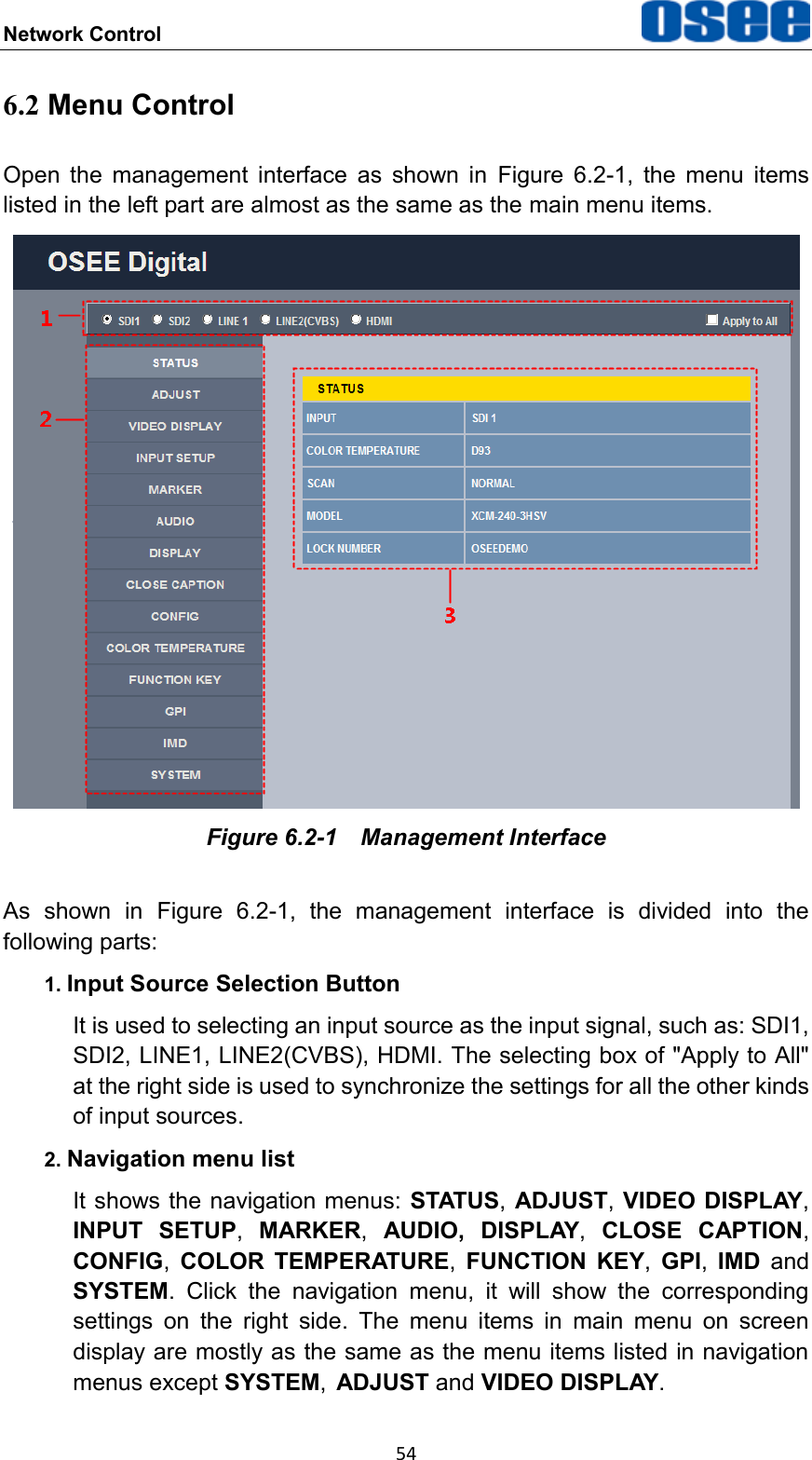
Network Control  54 6.2 Menu Control Open  the  management  interface  as  shown  in  Figure  6.2-1,  the  menu  items listed in the left part are almost as the same as the main menu items.  Figure 6.2-1  Management Interface As  shown  in  Figure  6.2-1,  the  management  interface  is  divided  into  the following parts: 1. Input Source Selection Button It is used to selecting an input source as the input signal, such as: SDI1, SDI2, LINE1, LINE2(CVBS), HDMI. The selecting box of "Apply to All" at the right side is used to synchronize the settings for all the other kinds of input sources. 2. Navigation menu list It shows the navigation menus: STATUS, ADJUST, VIDEO DISPLAY, INPUT  SETUP,  MARKER,  AUDIO, DISPLAY,  CLOSE  CAPTION, CONFIG,  COLOR TEMPERATURE,  FUNCTION  KEY,  GPI,  IMD  and SYSTEM.  Click  the  navigation  menu,  it  will  show  the  corresponding settings  on  the  right  side.  The  menu  items  in  main  menu  on  screen display are mostly as the same as the menu items listed in navigation menus except SYSTEM, ADJUST and VIDEO DISPLAY.
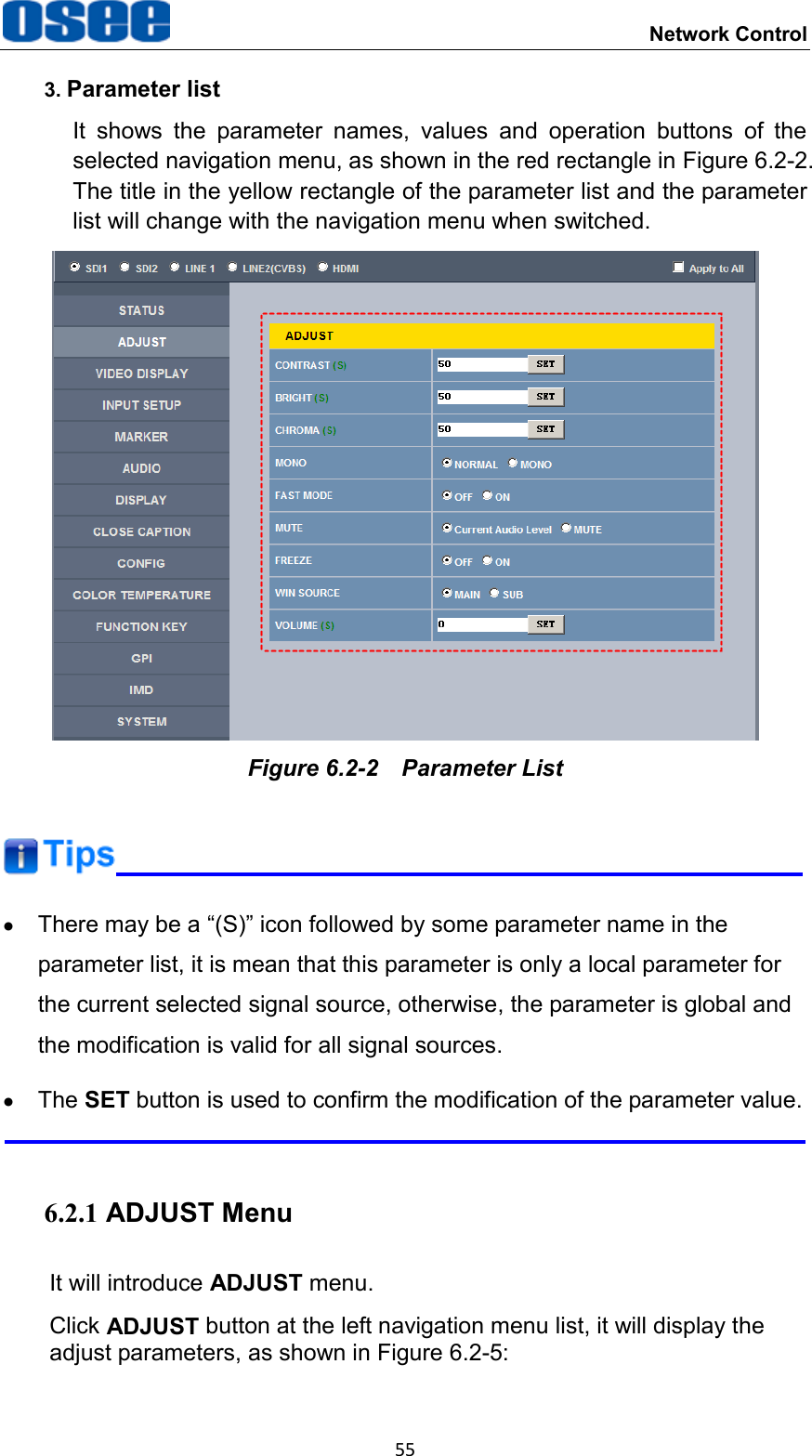
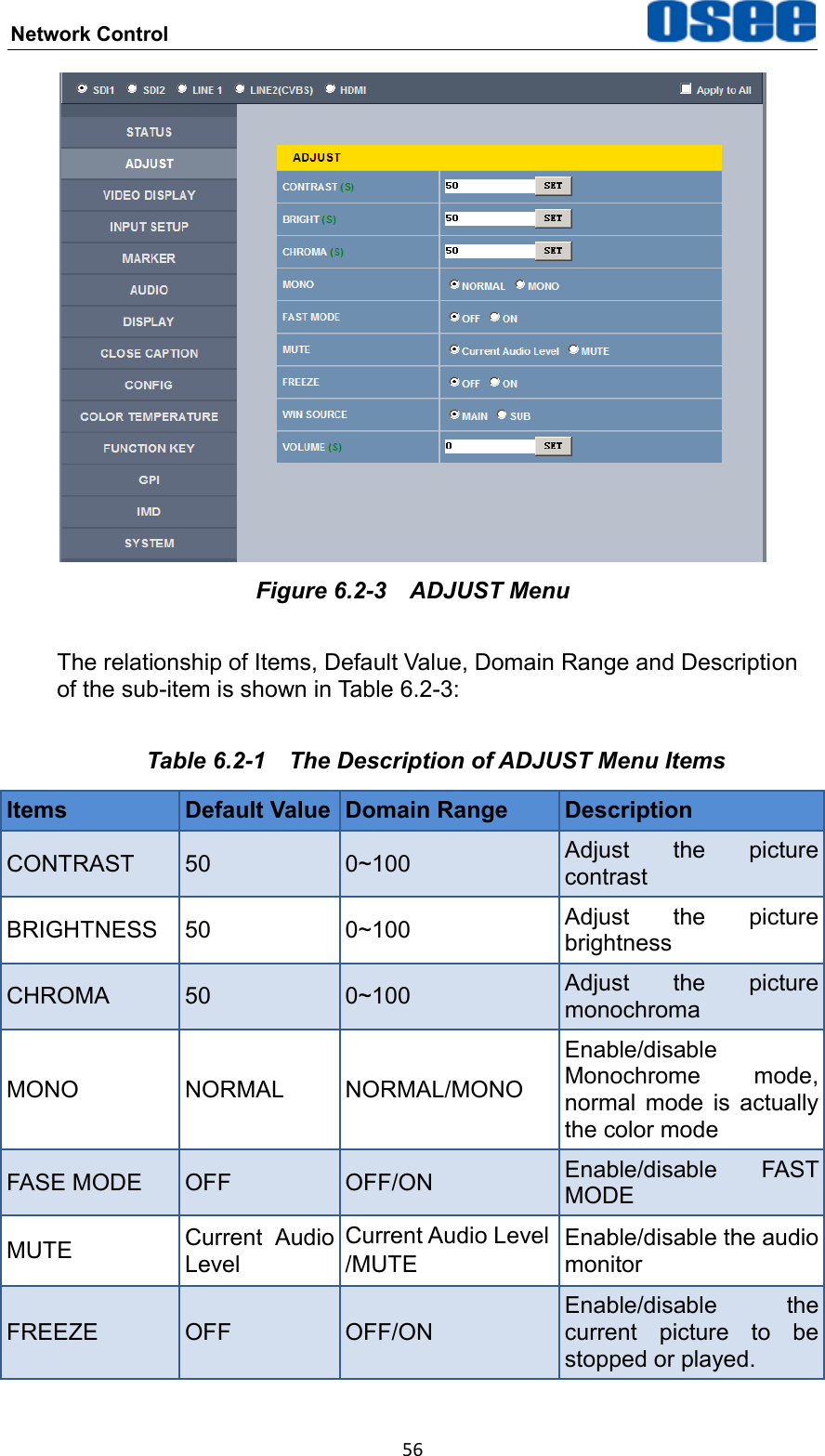
 Network Control 55 3. Parameter list It  shows  the  parameter  names,  values  and  operation  buttons  of  the selected navigation menu, as shown in the red rectangle in Figure 6.2-2. The title in the yellow rectangle of the parameter list and the parameter list will change with the navigation menu when switched.  Figure 6.2-2  Parameter List    There may be a “(S)” icon followed by some parameter name in the parameter list, it is mean that this parameter is only a local parameter for the current selected signal source, otherwise, the parameter is global and the modification is valid for all signal sources.   The SET button is used to confirm the modification of the parameter value.  6.2.1 ADJUST Menu It will introduce ADJUST menu. Click ADJUST button at the left navigation menu list, it will display the adjust parameters, as shown in Figure 6.2-5:
Network Control  56  Figure 6.2-3  ADJUST Menu The relationship of Items, Default Value, Domain Range and Description of the sub-item is shown in Table 6.2-3: Table 6.2-1  The Description of ADJUST Menu Items Items Default Value Domain Range Description CONTRAST 50 0~100 Adjust  the  picture contrast BRIGHTNESS 50 0~100 Adjust  the  picture brightness CHROMA 50 0~100 Adjust  the  picture monochroma MONO NORMAL NORMAL/MONO Enable/disable Monochrome  mode, normal  mode  is  actually the color mode FASE MODE OFF OFF/ON Enable/disable  FAST MODE MUTE Current  Audio Level Current Audio Level /MUTE Enable/disable the audio monitor FREEZE OFF OFF/ON Enable/disable  the current  picture  to  be stopped or played.
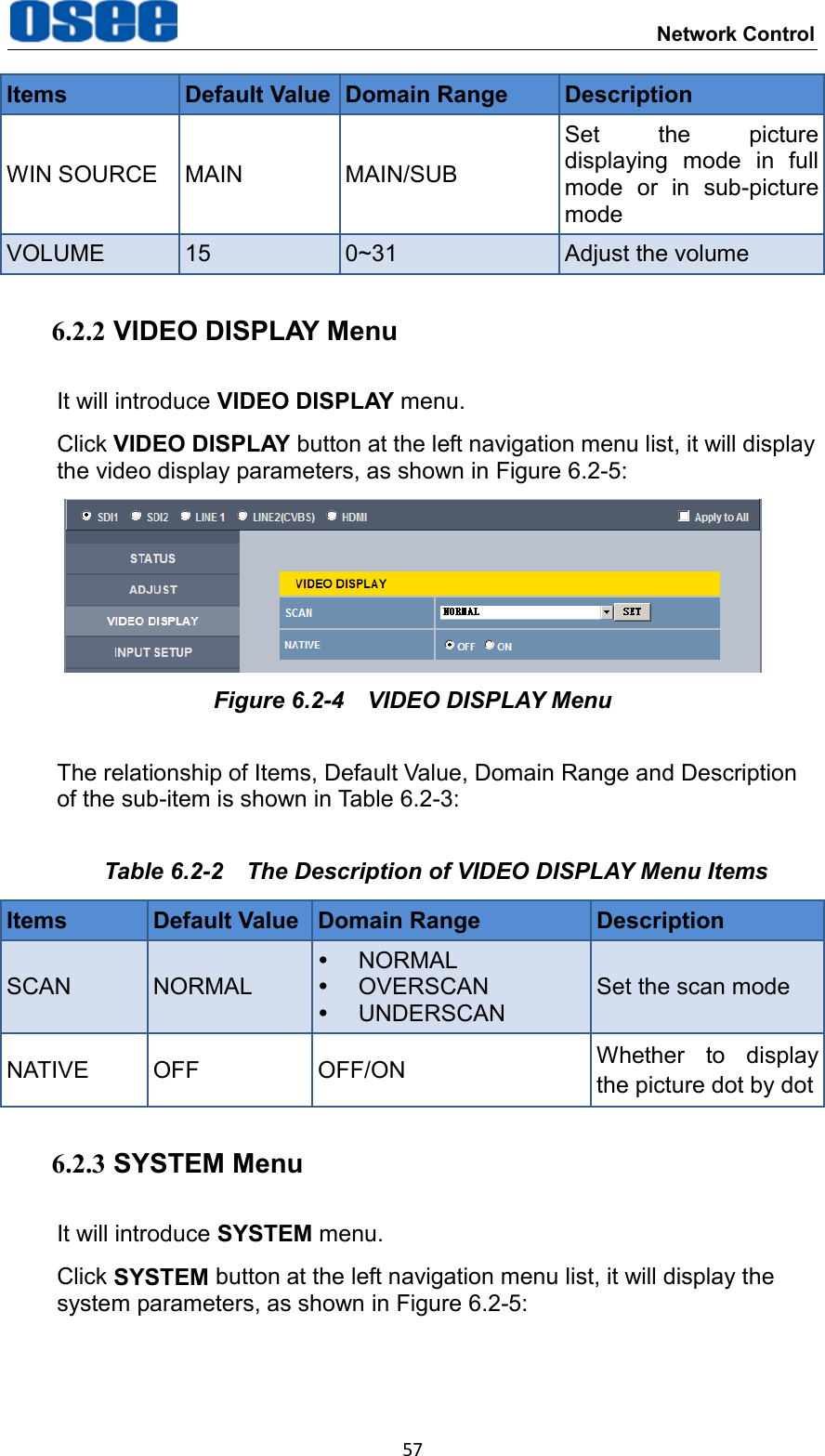
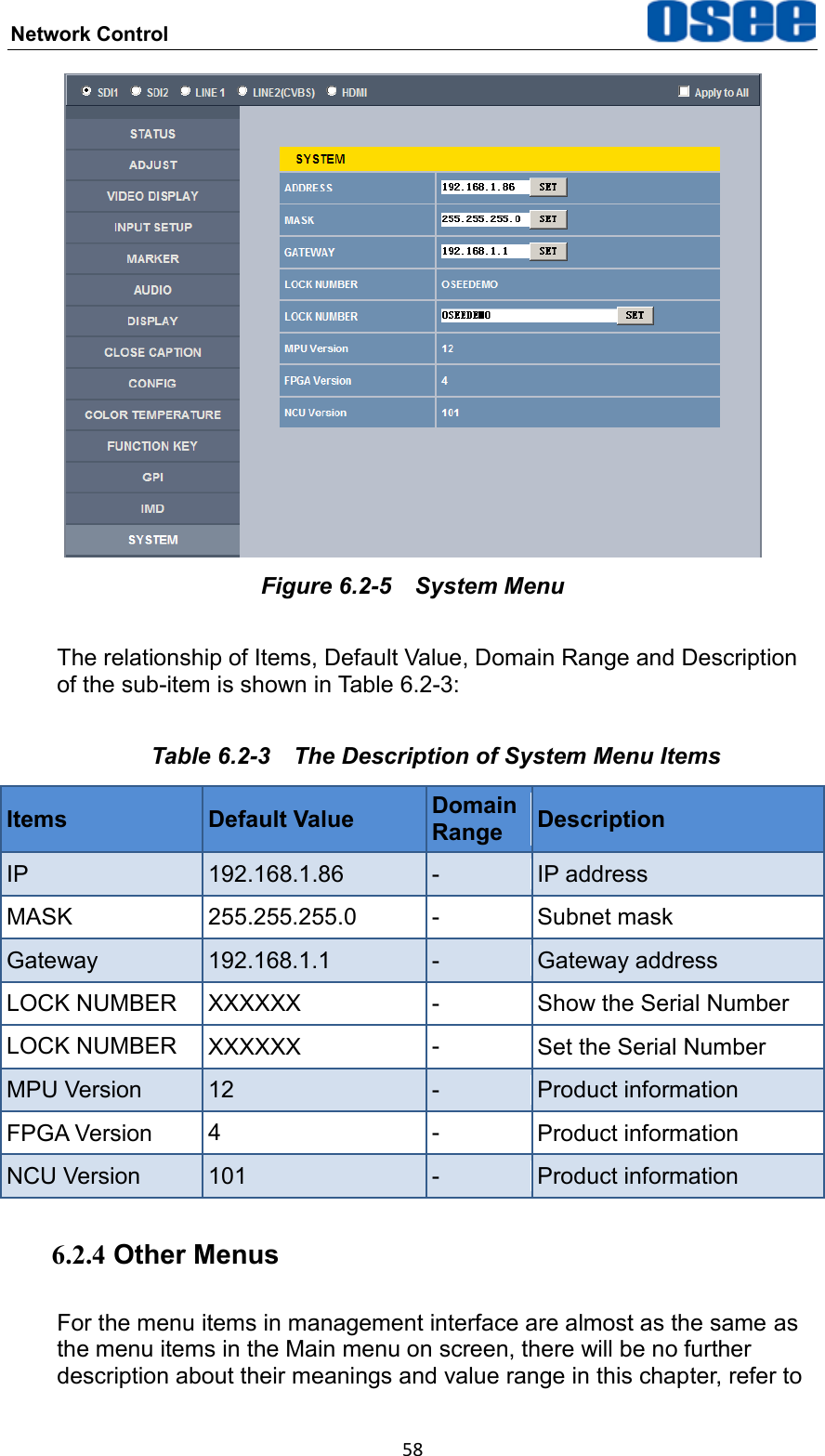
 Network Control 57 Items Default Value Domain Range Description WIN SOURCE MAIN MAIN/SUB Set  the  picture displaying  mode  in  full mode  or  in  sub-picture mode VOLUME 15 0~31 Adjust the volume 6.2.2 VIDEO DISPLAY Menu It will introduce VIDEO DISPLAY menu. Click VIDEO DISPLAY button at the left navigation menu list, it will display the video display parameters, as shown in Figure 6.2-5:  Figure 6.2-4  VIDEO DISPLAY Menu The relationship of Items, Default Value, Domain Range and Description of the sub-item is shown in Table 6.2-3: Table 6.2-2  The Description of VIDEO DISPLAY Menu Items Items Default Value Domain Range Description SCAN NORMAL   NORMAL   OVERSCAN   UNDERSCAN Set the scan mode NATIVE OFF OFF/ON Whether  to  display the picture dot by dot 6.2.3 SYSTEM Menu It will introduce SYSTEM menu. Click SYSTEM button at the left navigation menu list, it will display the system parameters, as shown in Figure 6.2-5:
Network Control  58  Figure 6.2-5  System Menu The relationship of Items, Default Value, Domain Range and Description of the sub-item is shown in Table 6.2-3: Table 6.2-3  The Description of System Menu Items Items Default Value Domain Range Description IP 192.168.1.86 - IP address MASK 255.255.255.0 - Subnet mask Gateway 192.168.1.1 - Gateway address LOCK NUMBER XXXXXX - Show the Serial Number LOCK NUMBER XXXXXX - Set the Serial Number MPU Version 12 - Product information FPGA Version 4 - Product information NCU Version 101 - Product information 6.2.4 Other Menus For the menu items in management interface are almost as the same as the menu items in the Main menu on screen, there will be no further description about their meanings and value range in this chapter, refer to
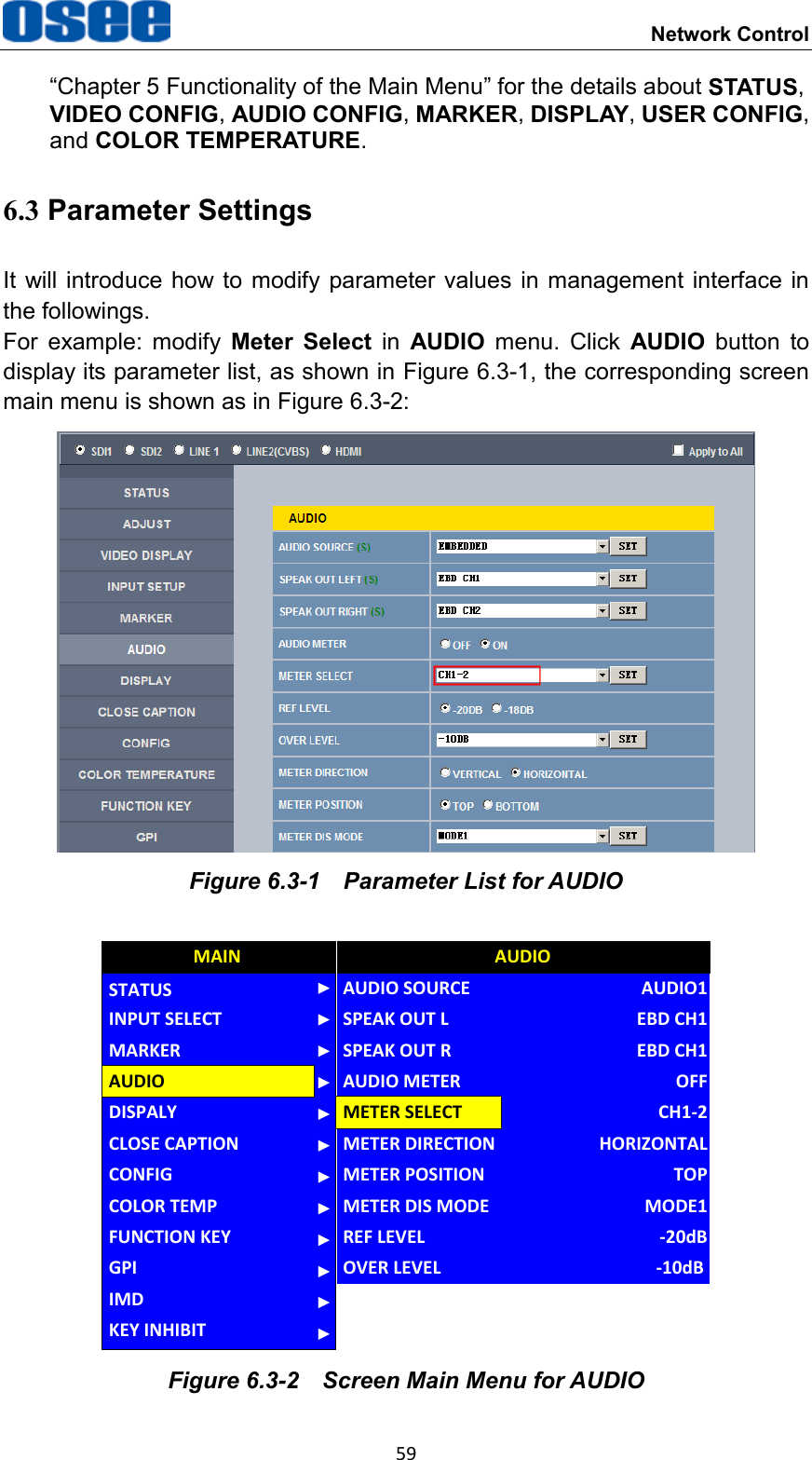
 Network Control 59 “Chapter 5 Functionality of the Main Menu” for the details about STATUS, VIDEO CONFIG, AUDIO CONFIG, MARKER, DISPLAY, USER CONFIG, and COLOR TEMPERATURE. 6.3 Parameter Settings It will introduce  how to  modify parameter values in management  interface  in the followings. For  example:  modify  Meter  Select  in  AUDIO  menu.  Click  AUDIO  button  to display its parameter list, as shown in Figure 6.3-1, the corresponding screen main menu is shown as in Figure 6.3-2:  Figure 6.3-1  Parameter List for AUDIO CLOSE CAPTIONDISPALYCONFIGCOLOR TEMPFUNCTION KEYGPIMAINAUDIOMARKERINPUT SELECTSTATUSIMDKEY INHIBITMETER DIRECTIONAUDIO SOURCESPEAK OUT LSPEAK OUT RAUDIO METERMETER SELECTMETER POSITIONMETER DIS MODEREF LEVELAUDIOHORIZONTALAUDIO1EBD CH1EBD CH1OFFCH1-2TOPMODE1-20dBOVER LEVEL -10dB Figure 6.3-2  Screen Main Menu for AUDIO
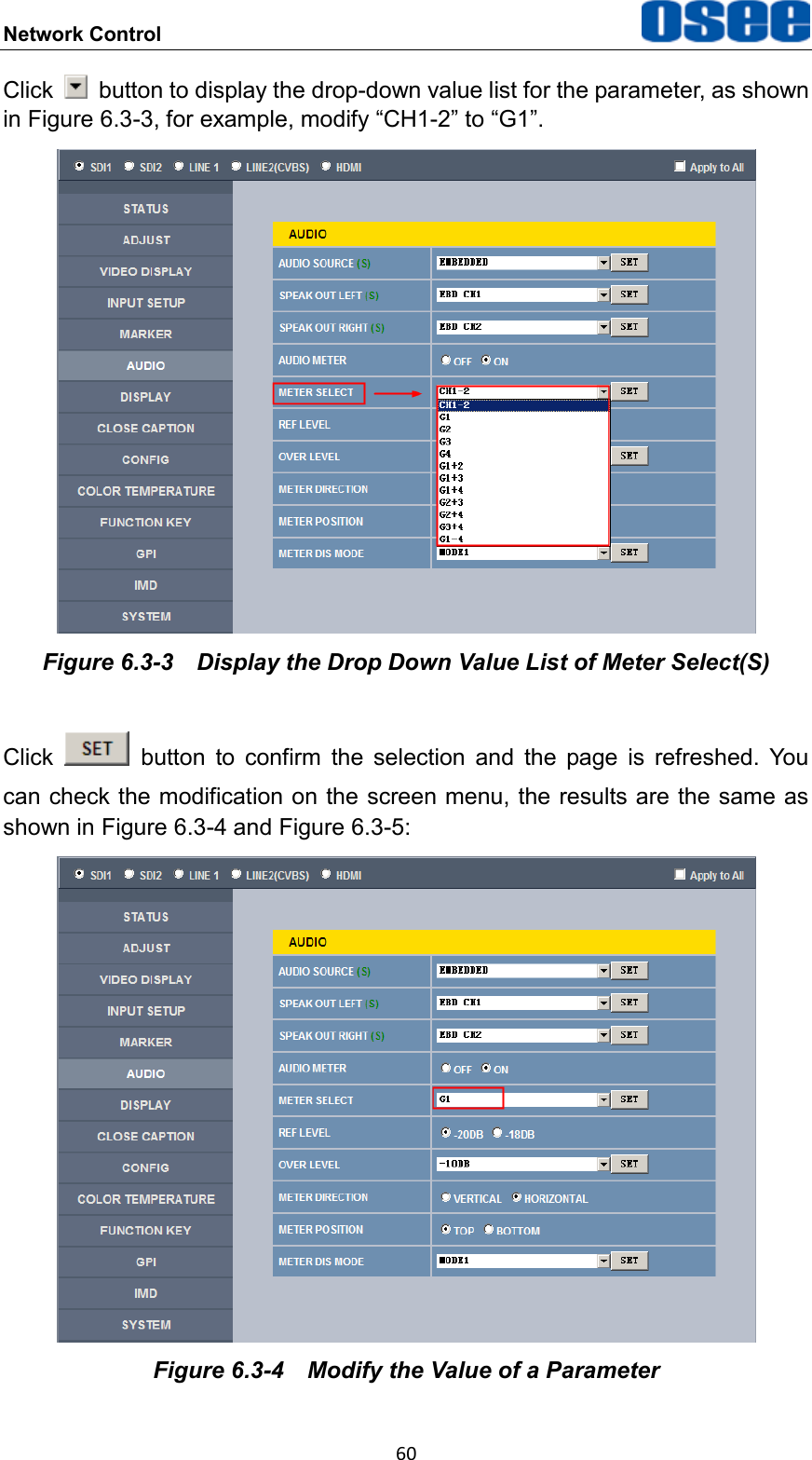
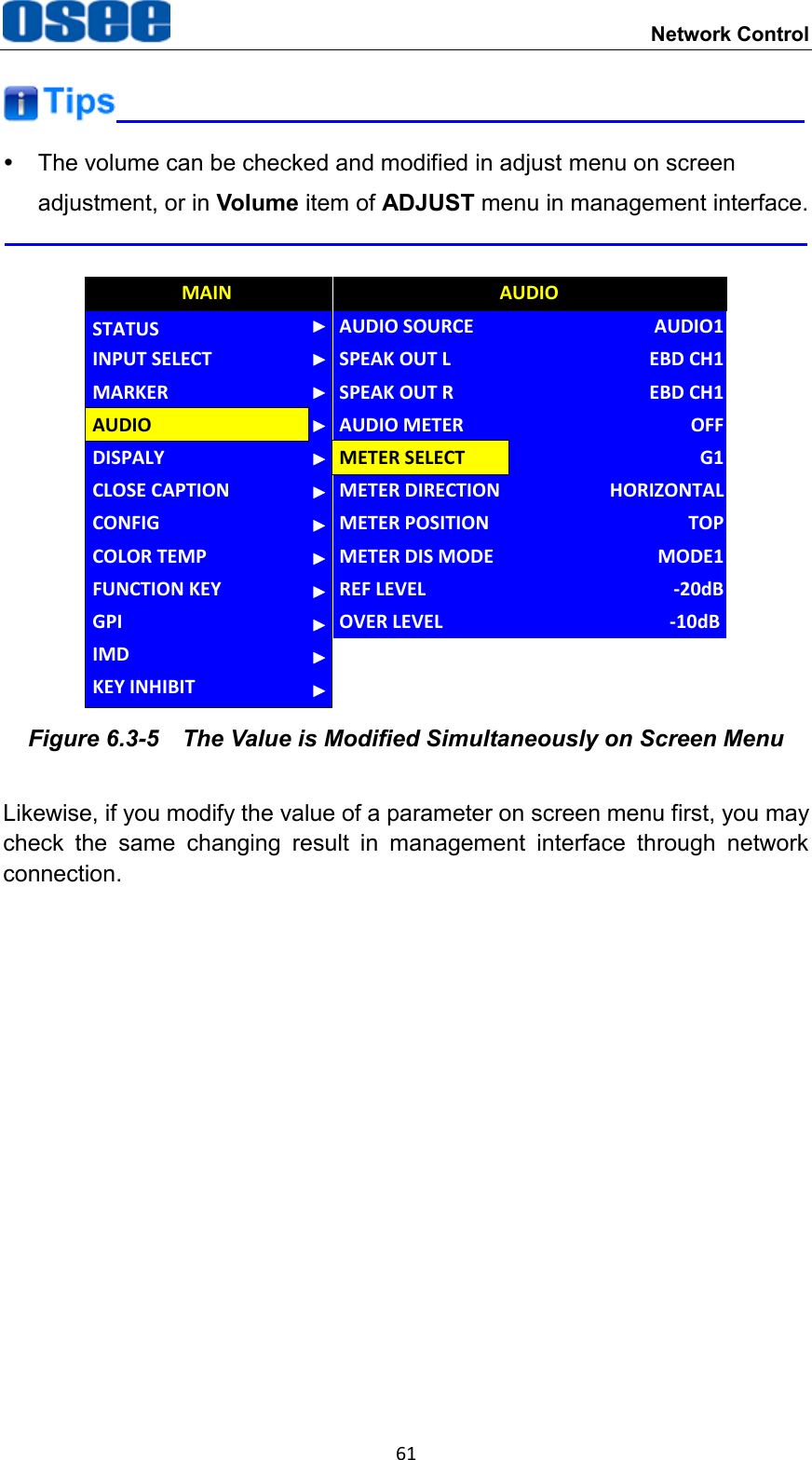
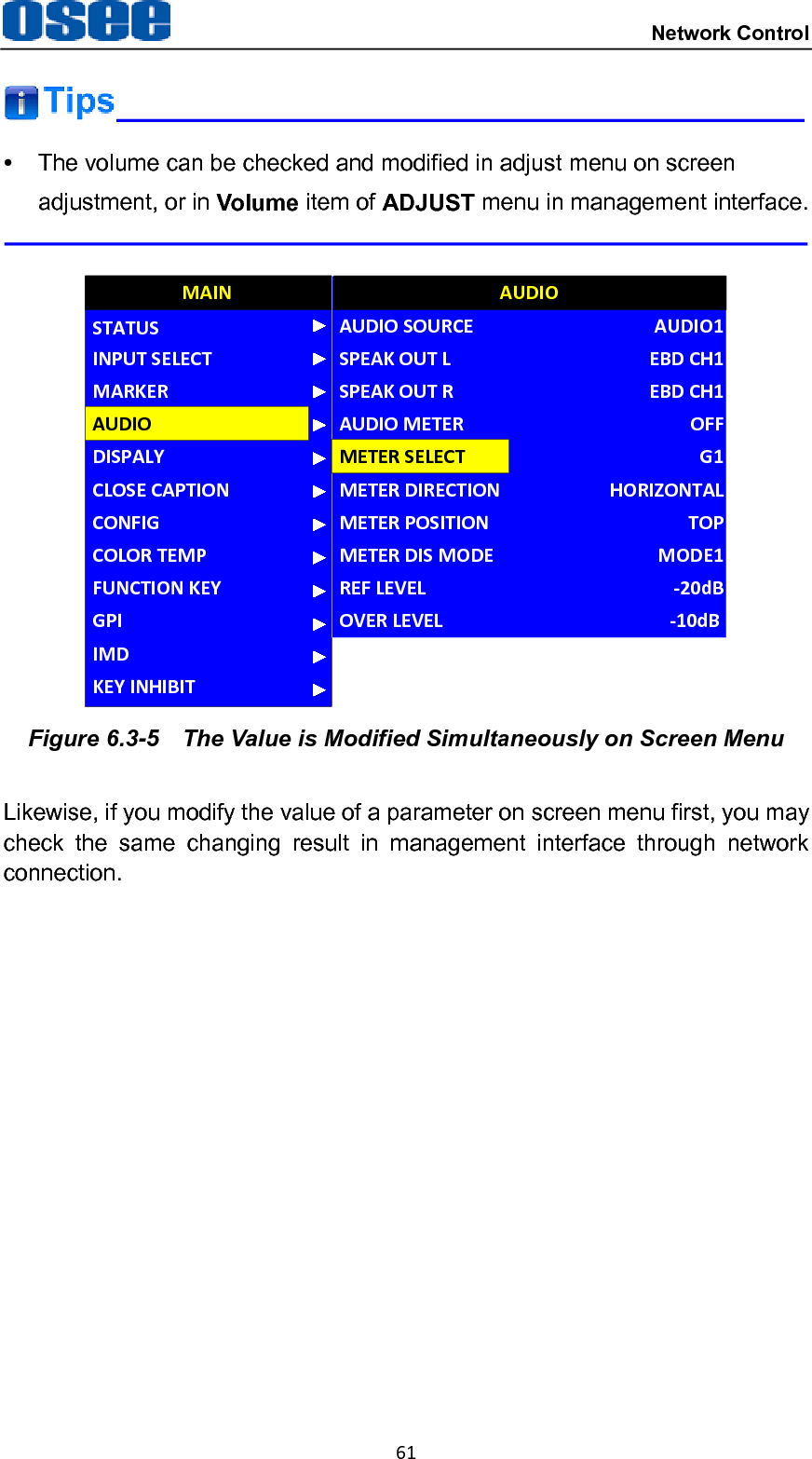
Network Control  60 Click    button to display the drop-down value list for the parameter, as shown in Figure 6.3-3, for example, modify “CH1-2” to “G1”.  Figure 6.3-3  Display the Drop Down Value List of Meter Select(S) Click    button  to  confirm  the  selection  and  the  page  is  refreshed.  You can check the modification on the screen menu, the results are the same as shown in Figure 6.3-4 and Figure 6.3-5:  Figure 6.3-4  Modify the Value of a Parameter
 Network Control 61    The volume can be checked and modified in adjust menu on screen adjustment, or in Volume item of ADJUST menu in management interface.  CLOSE CAPTIONDISPALYCONFIGCOLOR TEMPFUNCTION KEYGPIMAINAUDIOMARKERINPUT SELECTSTATUSIMDKEY INHIBITMETER DIRECTIONAUDIO SOURCESPEAK OUT LSPEAK OUT RAUDIO METERMETER SELECTMETER POSITIONMETER DIS MODEREF LEVELAUDIOHORIZONTALAUDIO1EBD CH1EBD CH1OFFG1TOPMODE1-20dBOVER LEVEL -10dB Figure 6.3-5  The Value is Modified Simultaneously on Screen Menu Likewise, if you modify the value of a parameter on screen menu first, you may check  the  same  changing  result  in  management  interface  through  network connection.
62
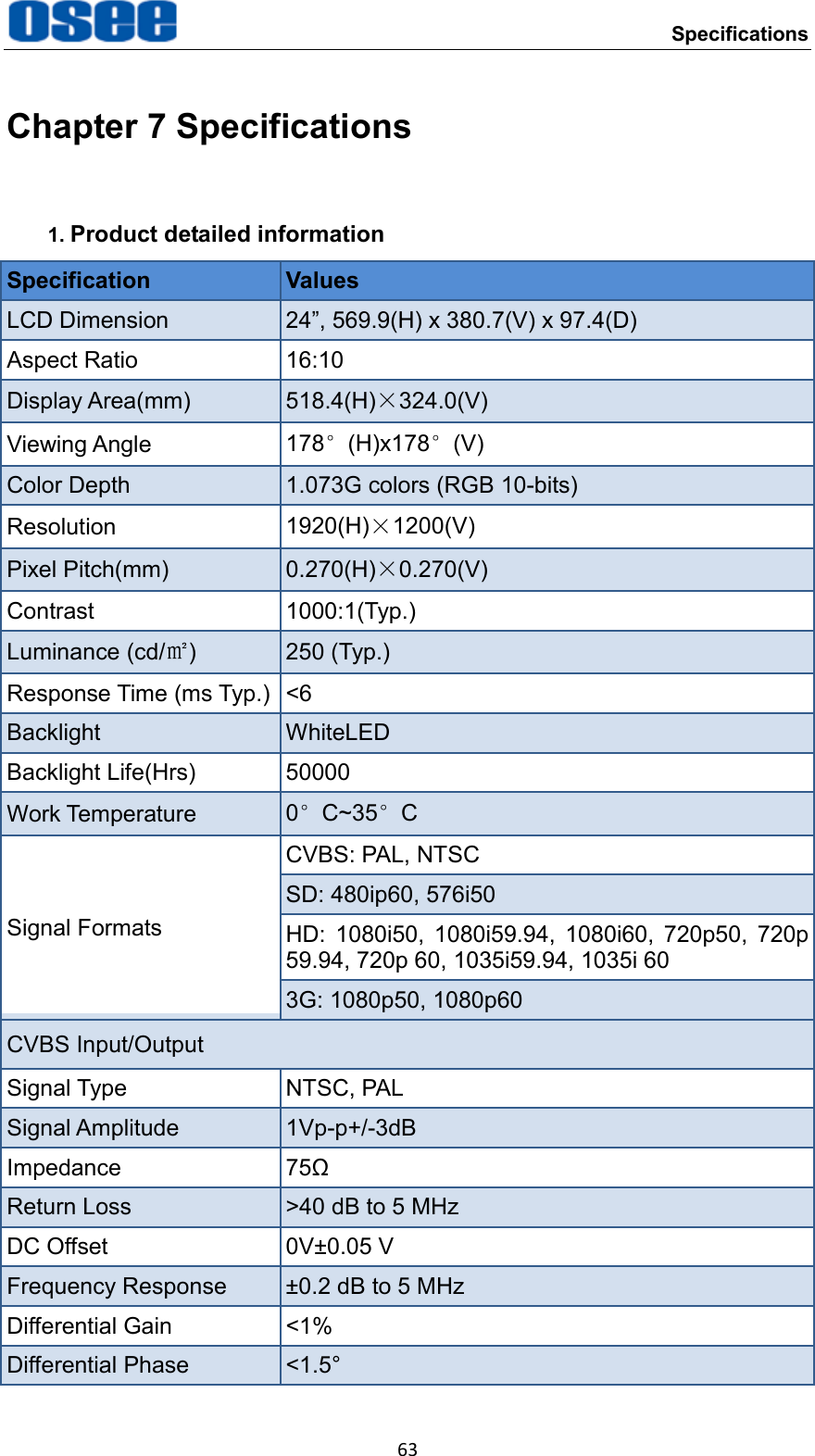
    Specifications 63 Chapter 7 Specifications 1. Product detailed information Specification Values LCD Dimension 24”, 569.9(H) x 380.7(V) x 97.4(D) Aspect Ratio 16:10 Display Area(mm) 518.4(H)×324.0(V) Viewing Angle 178°(H)x178°(V) Color Depth 1.073G colors (RGB 10-bits) Resolution 1920(H)×1200(V) Pixel Pitch(mm) 0.270(H)×0.270(V) Contrast 1000:1(Typ.) Luminance (cd/㎡) 250 (Typ.) Response Time (ms Typ.) <6 Backlight WhiteLED Backlight Life(Hrs) 50000 Work Temperature 0°C~35°C Signal Formats CVBS: PAL, NTSC SD: 480ip60, 576i50 HD:  1080i50,  1080i59.94,  1080i60,  720p50,  720p 59.94, 720p 60, 1035i59.94, 1035i 60 3G: 1080p50, 1080p60 CVBS Input/Output Signal Type NTSC, PAL Signal Amplitude 1Vp-p+/-3dB Impedance 75Ω Return Loss >40 dB to 5 MHz DC Offset 0V±0.05 V Frequency Response ±0.2 dB to 5 MHz Differential Gain <1% Differential Phase <1.5°
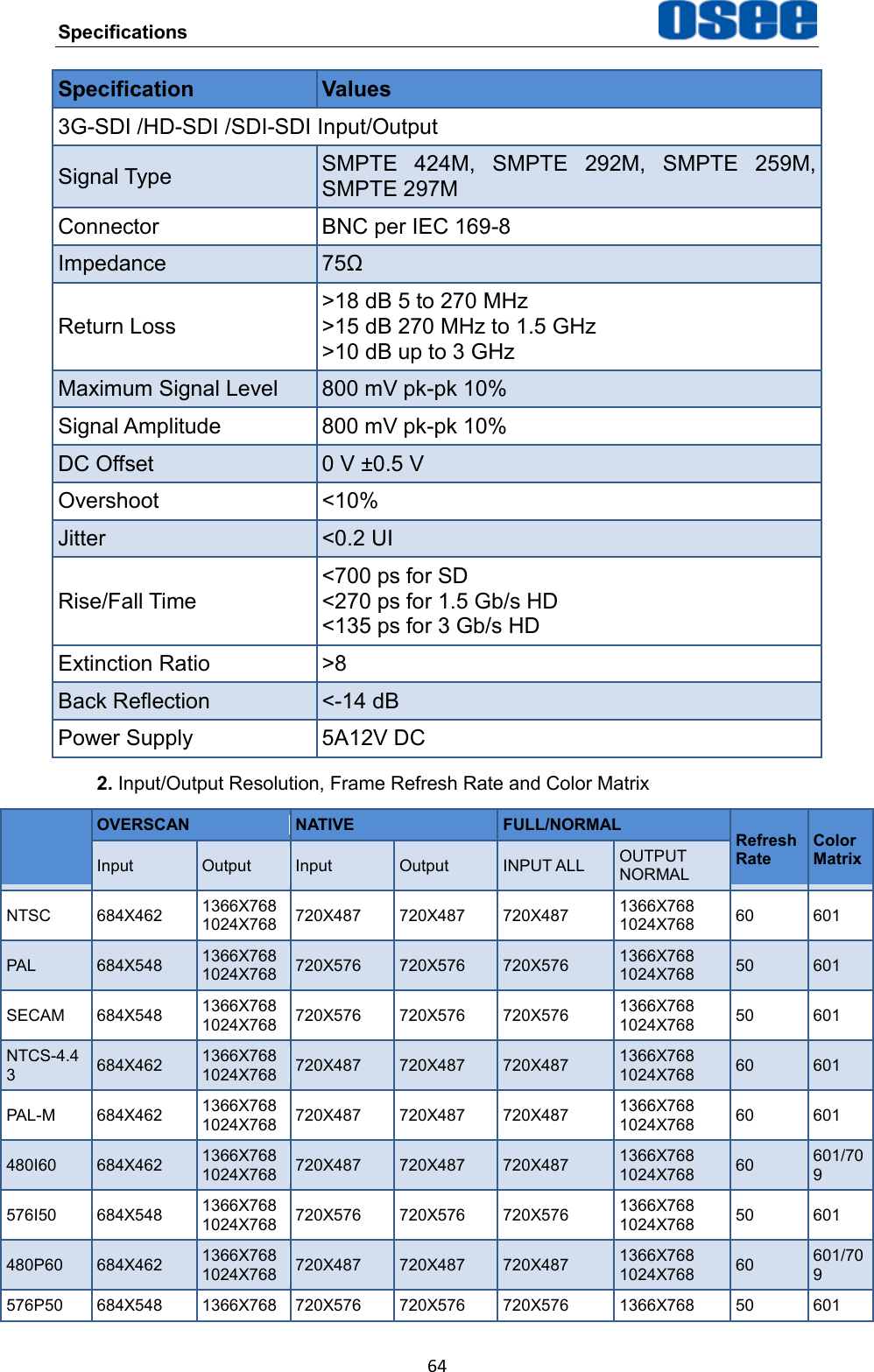
Specifications  64 Specification Values 3G-SDI /HD-SDI /SDI-SDI Input/Output Signal Type SMPTE  424M,  SMPTE  292M,  SMPTE  259M, SMPTE 297M Connector BNC per IEC 169-8 Impedance 75Ω Return Loss >18 dB 5 to 270 MHz >15 dB 270 MHz to 1.5 GHz >10 dB up to 3 GHz Maximum Signal Level 800 mV pk-pk 10% Signal Amplitude 800 mV pk-pk 10% DC Offset 0 V ±0.5 V Overshoot <10% Jitter <0.2 UI Rise/Fall Time <700 ps for SD <270 ps for 1.5 Gb/s HD <135 ps for 3 Gb/s HD Extinction Ratio >8 Back Reflection <-14 dB Power Supply 5A12V DC 2. Input/Output Resolution, Frame Refresh Rate and Color Matrix  OVERSCAN NATIVE FULL/NORMAL Refresh   Rate Color Matrix Input Output Input Output INPUT ALL OUTPUT NORMAL NTSC 684X462 1366X768 1024X768 720X487 720X487 720X487 1366X768 1024X768 60 601 PAL 684X548 1366X768 1024X768 720X576 720X576 720X576 1366X768 1024X768 50 601 SECAM 684X548 1366X768 1024X768 720X576 720X576 720X576 1366X768 1024X768 50 601 NTCS-4.43 684X462 1366X768 1024X768 720X487 720X487 720X487 1366X768 1024X768 60 601 PAL-M 684X462 1366X768 1024X768 720X487 720X487 720X487 1366X768 1024X768 60 601 480I60 684X462 1366X768 1024X768 720X487 720X487 720X487 1366X768 1024X768 60 601/709 576I50 684X548 1366X768 1024X768 720X576 720X576 720X576 1366X768 1024X768 50 601 480P60 684X462 1366X768 1024X768 720X487 720X487 720X487 1366X768 1024X768 60 601/709 576P50 684X548 1366X768 720X576 720X576 720X576 1366X768 50 601
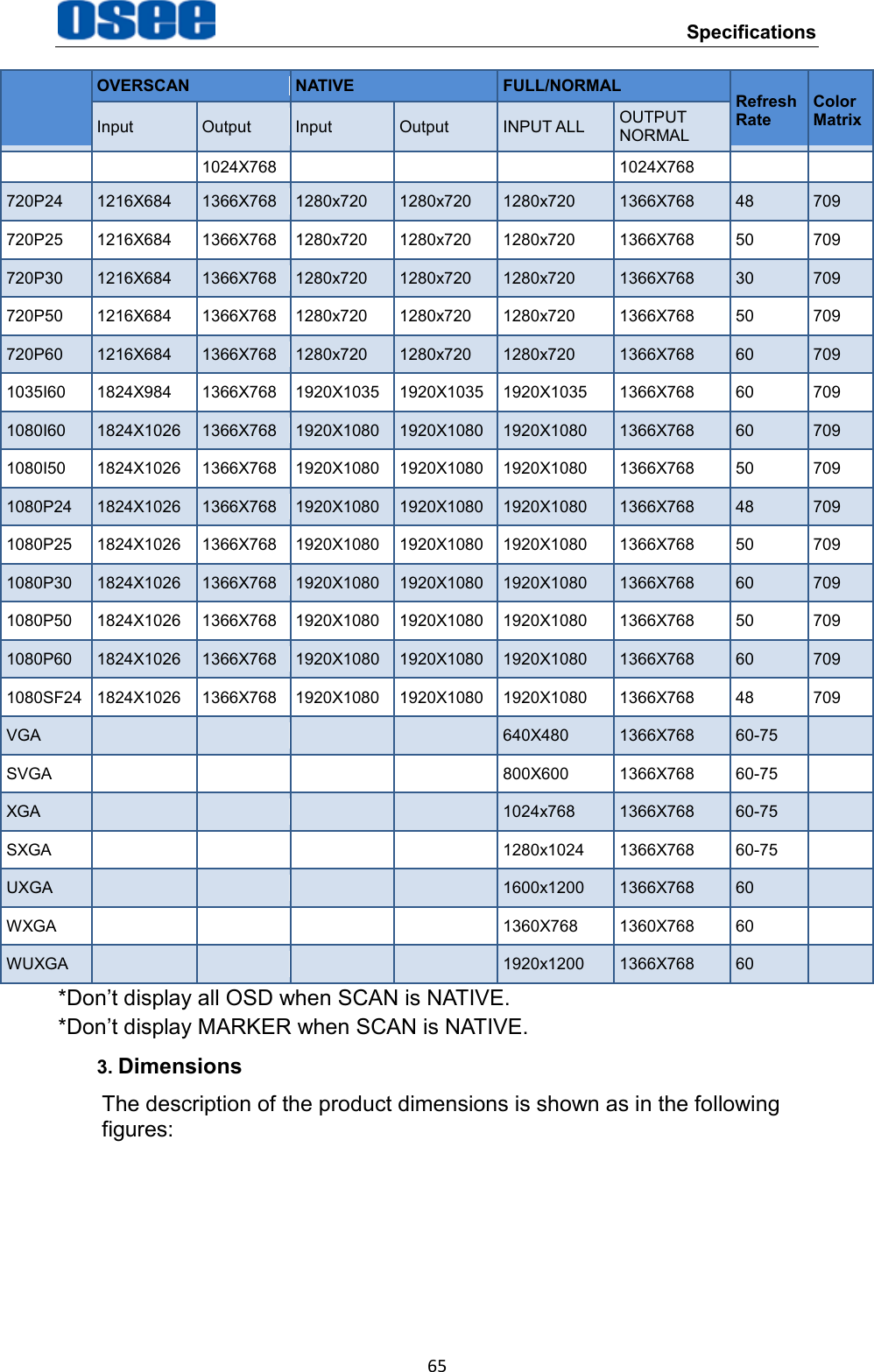
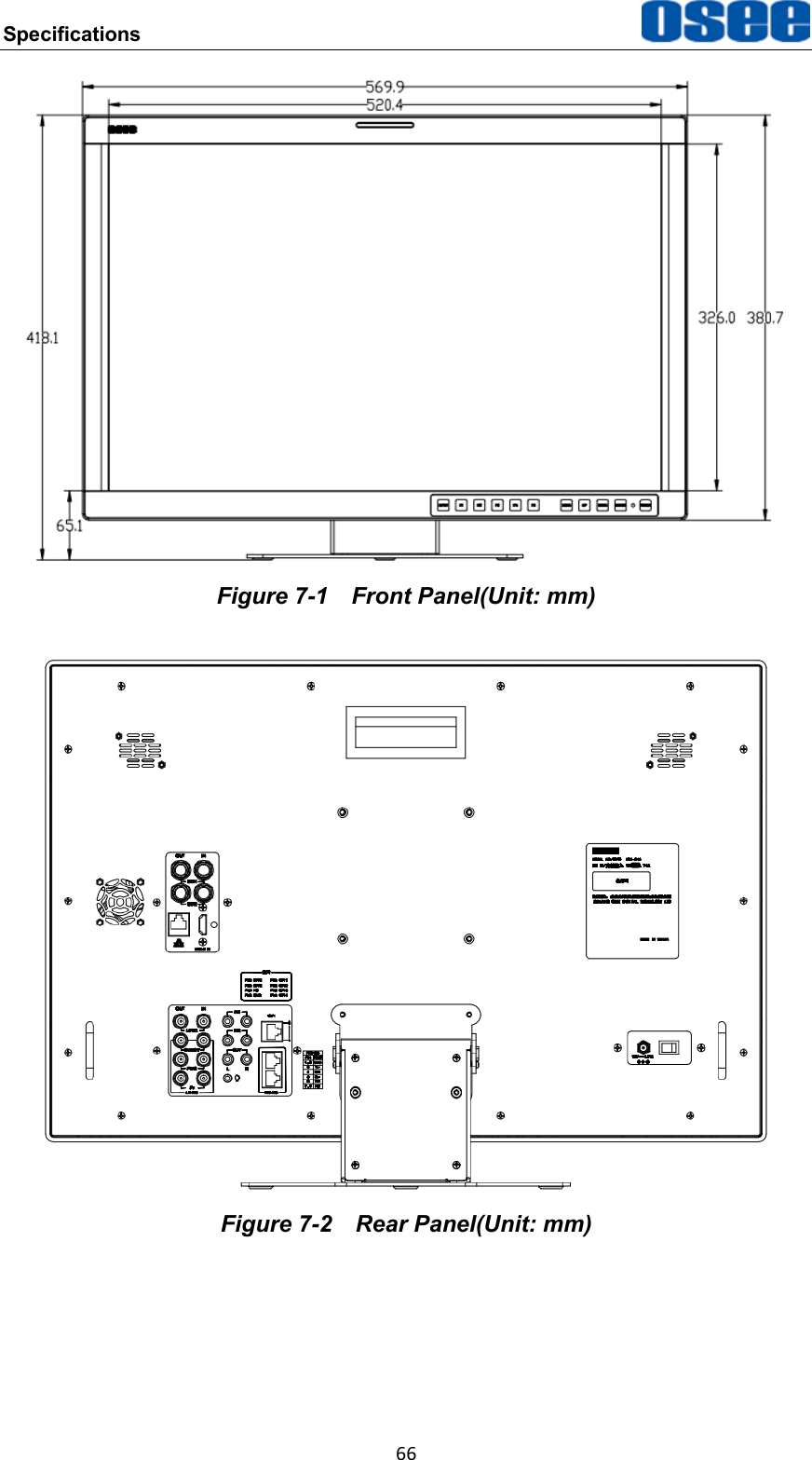
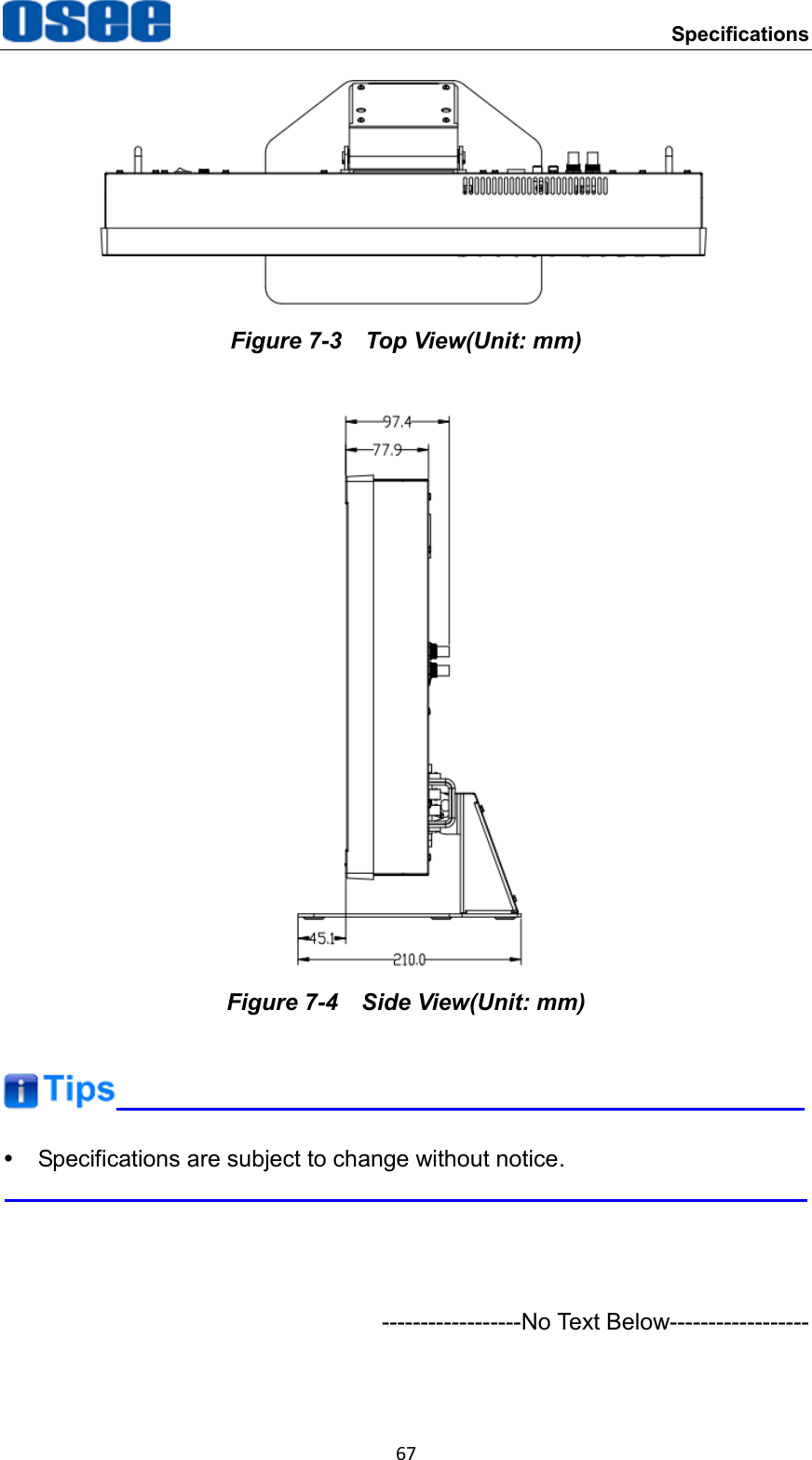
 Specifications 65  OVERSCAN NATIVE FULL/NORMAL Refresh   Rate Color Matrix Input Output Input Output INPUT ALL OUTPUT NORMAL 1024X768 1024X768 720P24 1216X684 1366X768 1280x720 1280x720 1280x720 1366X768 48 709 720P25 1216X684 1366X768 1280x720 1280x720 1280x720 1366X768 50 709 720P30 1216X684 1366X768 1280x720 1280x720 1280x720 1366X768 30 709 720P50 1216X684 1366X768 1280x720 1280x720 1280x720 1366X768 50 709 720P60 1216X684 1366X768 1280x720 1280x720 1280x720 1366X768 60 709 1035I60 1824X984 1366X768 1920X1035 1920X1035 1920X1035 1366X768 60 709 1080I60 1824X1026 1366X768 1920X1080 1920X1080 1920X1080 1366X768 60 709 1080I50 1824X1026 1366X768 1920X1080  1920X1080 1920X1080 1366X768 50 709 1080P24 1824X1026 1366X768 1920X1080  1920X1080 1920X1080 1366X768 48 709 1080P25 1824X1026 1366X768 1920X1080  1920X1080 1920X1080 1366X768 50 709 1080P30 1824X1026 1366X768 1920X1080  1920X1080 1920X1080 1366X768 60 709 1080P50 1824X1026 1366X768 1920X1080  1920X1080 1920X1080 1366X768 50 709 1080P60 1824X1026 1366X768 1920X1080  1920X1080 1920X1080 1366X768 60 709 1080SF24 1824X1026 1366X768 1920X1080  1920X1080 1920X1080 1366X768 48 709 VGA      640X480 1366X768 60-75  SVGA     800X600 1366X768 60-75  XGA     1024x768 1366X768 60-75  SXGA     1280x1024 1366X768 60-75  UXGA     1600x1200 1366X768 60  WXGA     1360X768 1360X768 60  WUXGA     1920x1200 1366X768 60  *Don’t display all OSD when SCAN is NATIVE. *Don’t display MARKER when SCAN is NATIVE. 3. Dimensions The description of the product dimensions is shown as in the following figures:
Specifications  66  Figure 7-1  Front Panel(Unit: mm)  Figure 7-2  Rear Panel(Unit: mm)
 Specifications 67  Figure 7-3  Top View(Unit: mm)  Figure 7-4  Side View(Unit: mm)    Specifications are subject to change without notice.     ------------------No Text Below------------------
                                        FOR MORE INFORMATION PLEASE VISIT: http://www.osee-dig.com/ OSEE TECHNOLOGY CO., LTD. No.22 Building, No.68 zone, Beiqing Road, Haidian District, Beijing, China Tel: (+86) 010-62434168, Fax: (+86) 010-62434169 E-mail: sales@osee-dig.com

Navigation menu