OTC Wireless AZY2405SWG User Manual manual

OTC Wireless Inc manual

manual

AirEZY2405-SWGTMMulti-Channel wireless Ethernet LANbyOTC Telecom, Inc.user’s manualCopyright
©  1996  OTC Telecom Inc., San Jose, CA.  All rights reserved.  This manual is copyrighted with allrights reserved.  No part of this publication may be reproduced, transmitted, transcribed, stored in aretrieval system or translated into any language in any form by any means without the writtenpermission of OTC Telecom, Incorporated.TrademarksAirEZY2405-SWG, the AirEZY logo, OTC Telecom Inc., and the OTC Telecom logo are trademarks ofOTC Telecom, Inc.  NetWare and Personal NetWare are trademarks of Novell, Inc.  Windows,Windows 95, and Windows NT are trademarks of Microsoft Corporation, Apple, AppleTalk,Macintosh, PowerBook, Power PC are trademarks of Apple, and Pentium is a trademark of Intel.  Allother trademarks are the property of their respective owners.Limited Warranty, Disclaimer, Limitation of LiabilityFor a period of one (1) year from the date of purchase by the retail customer, OTC Telecom Inc.,warrants the AirEZY2405-SWG wireless LAN against defects in materials and workmanship.  OTCTelecom will not honor this warranty if there has been any attempt to tamper with or remove the unit’schassis.This warranty does not cover and OTC Telecom will not be liable for any damage or failure caused bymisuse, abuse, acts of God, accidents, or other causes beyond OTC Telecom’s control, or claim byother than the original purchaser.If, after inspection, OTC Telecom determines there is a defect, OTC Telecom will repair or replace theAirEZY2405-SWG unit at no cost to you.  To return defective merchandise to OTC Telecom pleasecall OTC Telecom Customer Service at (408) 245-6888 to obtain a Return Merchandise Authorization(RMA) Number.In no event shall OTC Telecom, Incorporated be responsible or liable for any damages arising:•  From the use of the product•  From the loss of use, revenue or profit of the product;  or•  As a result of any event, circumstance, action, or abuse beyond the control of OTC Telecom,Incorporated.;Whether such damages be direct, indirect, consequential, special or otherwise and whether suchdamages are incurred by the person to whom this warranty extends or a third party.Warranty Return PolicyIf you have a problem with your AirEZY2405-SWG product, please call OTC Telecom TechnicalSupport at (408) 245-6888.  OTC Telecom Technical Support will assist with resolving any technicaldifficulties you may have with your OTC Telecom product.After calling OTC Telecom Technical Support, if your product is found to be defective, you may returnthe product to OTC Telecom after obtaining an RMA number from OTC Telecom Customer Service.The product must me returned in its original packaging.  The RMA number should be clearly markedon the outside of the box. OTC Telecom cannot be held responsible for any product returned withoutan RMA number, and no product will be accepted without an RMA number.When calling OTC Telecom, please provide the following information to expedite service:
•  Customer account number• Invoice number•  Date of Sale•  Model number of product•  Serial number of productFCC IdentificationMKZAZY2405SWGFCC WarningThis equipment has been tested and found to comply with the limits for a Class B digital device,pursuant to Part 15 of the FCC Rules.  These limits are designed to provide reasonable protectionagainst harmful interference when the equipment is operated in a residential installation.  Thisequipment generates, uses, and can radiate radio frequency energy and, if not installed and used inaccordance with the instruction manual, may cause harmful interference to radio communications.However, there is no guarantee that interference will not occur in a particular installation.  If thisequipment does cause harmful interference to radio or television reception, which can be determinedby turning the equipment off and on, the user is encouraged to try to correct the interference by one ormore of the following measures:-- Reorient or relocate the receiving antenna.-- Increase the separation between the equipment and receiver.-- Connect the equipment into an outlet on a circuit different from that to which the receiver isconnected.-- Consult the dealer or an experienced radio/TV technician for help.
DECLARATION OF CONFORMITYWe OTC Telecom Inc.,602 Chartcot Ave.San Jose, CA, 95131Telephone: (408)245-6888Declare under our sole responsibility that the productAirEZY2405-SWG          Complies with part 15 of FCC Rules.  Operation          is subject to the following two conditions: (1) this device          may not cause harmful interference, and (2) this device must          accept any interference received, including interference that may          cause undesired operation.CONTENTS1.0  INTRODUCTION
1.1  SPECIFICATIONS2.0  SYSTEM REQUIREMENTS3.0  PRODUCT PACKAGE4.0  AirEZY2405-SWG PLACEMENT4.1  AirEZY2405-SWG INSTALLATION OVERVIEW4.1.1 AirEZY2405-SWG:  RJ-45 / 10 BASE T INSTALLATION AT THE FILE SERVER, HUB, ORROUTER4.1.2 AirEZY2405-SWG:  RJ-45 / 10 BASE T INSTALLATION AT THE CLIENT1.0  IntroductionCongratulations on your purchase of OTC Telecom’s AirEZY2405-SWG. AirEZY2405-SWG is a “plugand play” wireless Ethernet LAN network device that is user friendly while providing wirelessconnectivity and high performance.
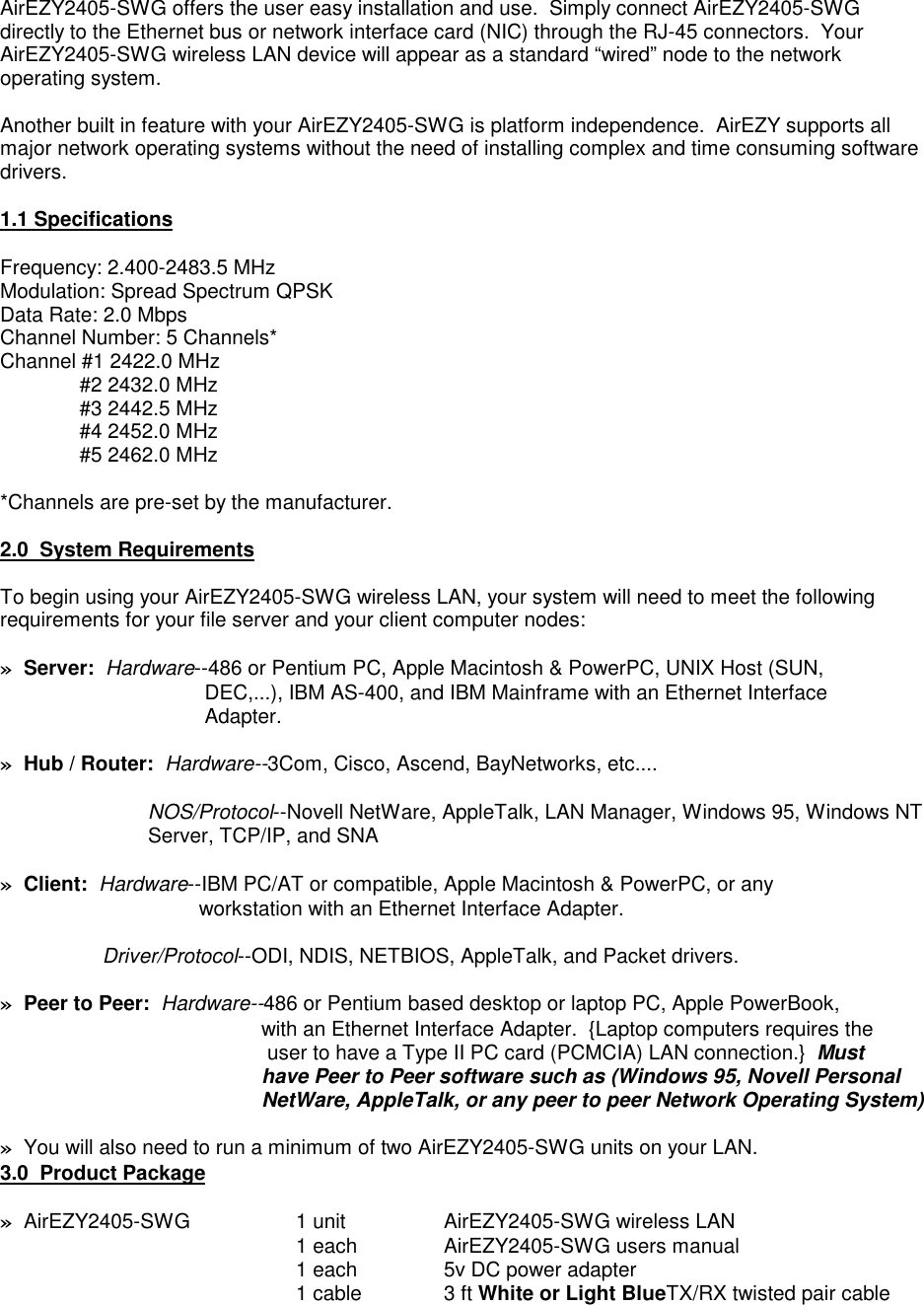
AirEZY2405-SWG offers the user easy installation and use.  Simply connect AirEZY2405-SWGdirectly to the Ethernet bus or network interface card (NIC) through the RJ-45 connectors.  YourAirEZY2405-SWG wireless LAN device will appear as a standard “wired” node to the networkoperating system.Another built in feature with your AirEZY2405-SWG is platform independence.  AirEZY supports allmajor network operating systems without the need of installing complex and time consuming softwaredrivers.1.1 SpecificationsFrequency: 2.400-2483.5 MHzModulation: Spread Spectrum QPSKData Rate: 2.0 MbpsChannel Number: 5 Channels*Channel #1 2422.0 MHz              #2 2432.0 MHz              #3 2442.5 MHz              #4 2452.0 MHz              #5 2462.0 MHz*Channels are pre-set by the manufacturer.2.0  System RequirementsTo begin using your AirEZY2405-SWG wireless LAN, your system will need to meet the followingrequirements for your file server and your client computer nodes:»  Server:  Hardware--486 or Pentium PC, Apple Macintosh & PowerPC, UNIX Host (SUN,           DEC,...), IBM AS-400, and IBM Mainframe with an Ethernet Interface           Adapter.»  Hub / Router:  Hardware--3Com, Cisco, Ascend, BayNetworks, etc....NOS/Protocol--Novell NetWare, AppleTalk, LAN Manager, Windows 95, Windows NTServer, TCP/IP, and SNA»  Client:  Hardware--IBM PC/AT or compatible, Apple Macintosh & PowerPC, or any          workstation with an Ethernet Interface Adapter.     Driver/Protocol--ODI, NDIS, NETBIOS, AppleTalk, and Packet drivers.»  Peer to Peer:  Hardware--486 or Pentium based desktop or laptop PC, Apple PowerBook,                    with an Ethernet Interface Adapter.  {Laptop computers requires the        user to have a Type II PC card (PCMCIA) LAN connection.}  Must       have Peer to Peer software such as (Windows 95, Novell Personal       NetWare, AppleTalk, or any peer to peer Network Operating System)»  You will also need to run a minimum of two AirEZY2405-SWG units on your LAN.3.0  Product Package»  AirEZY2405-SWG 1 unit AirEZY2405-SWG wireless LAN1 each AirEZY2405-SWG users manual1 each 5v DC power adapter1 cable 3 ft White or Light BlueTX/RX twisted pair cable
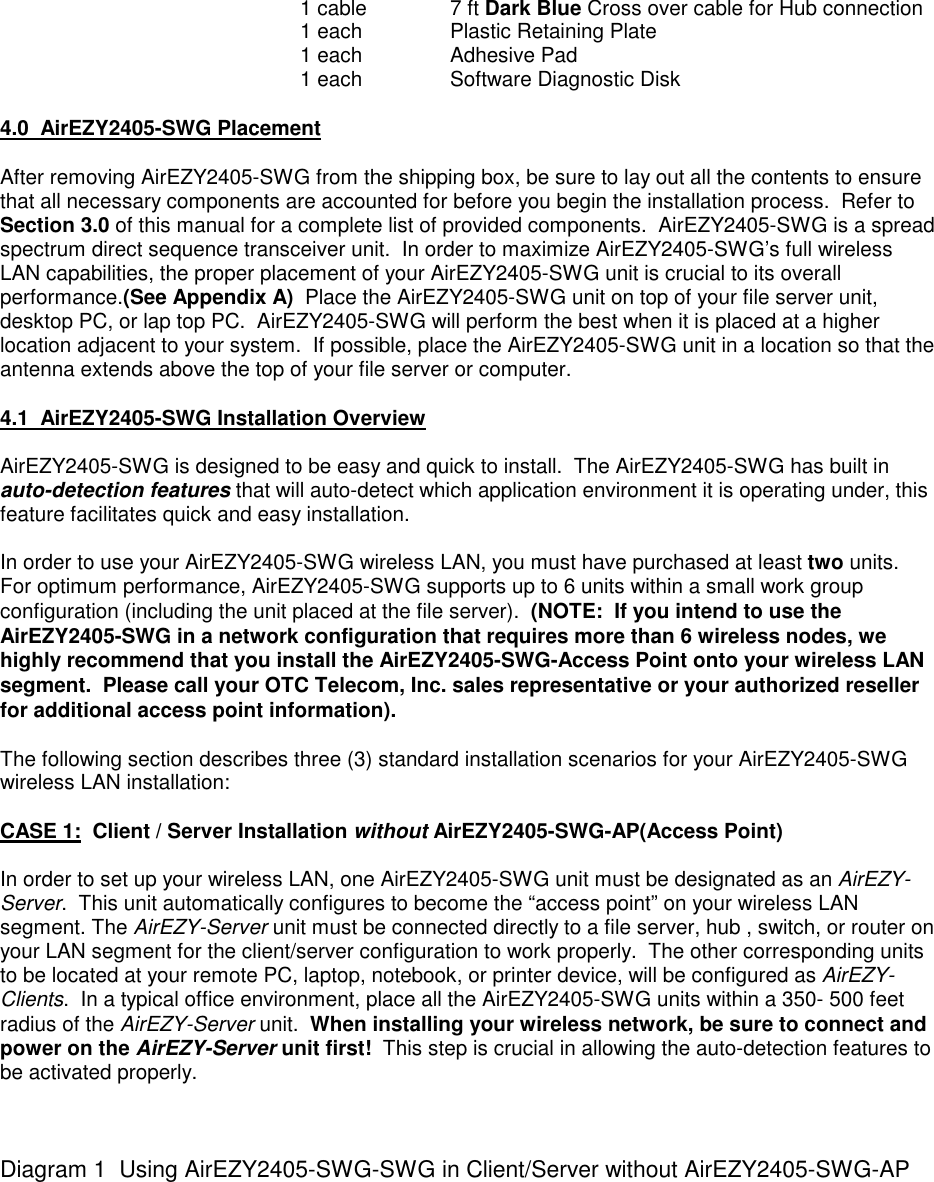
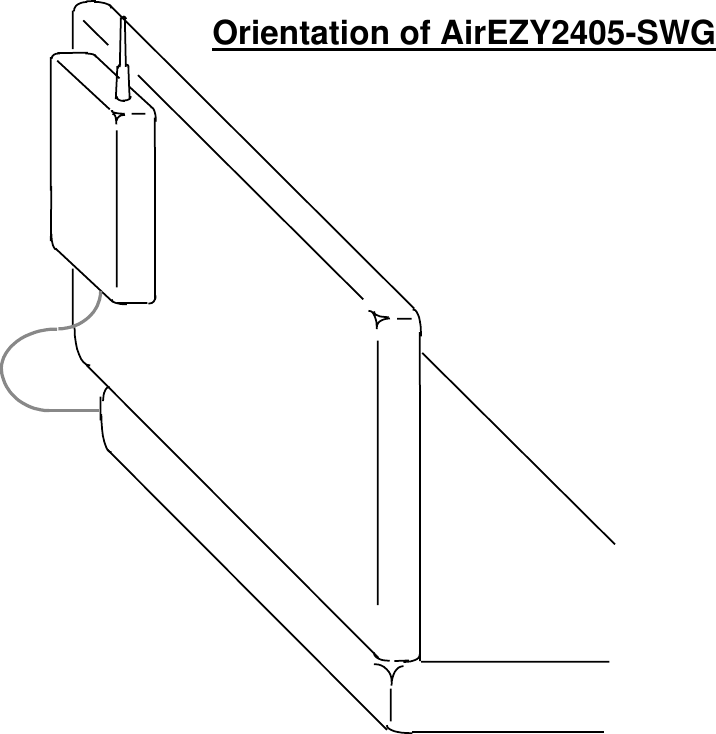
1 cable 7 ft Dark Blue Cross over cable for Hub connection1 each Plastic Retaining Plate1 each Adhesive Pad1 each Software Diagnostic Disk4.0  AirEZY2405-SWG PlacementAfter removing AirEZY2405-SWG from the shipping box, be sure to lay out all the contents to ensurethat all necessary components are accounted for before you begin the installation process.  Refer toSection 3.0 of this manual for a complete list of provided components.  AirEZY2405-SWG is a spreadspectrum direct sequence transceiver unit.  In order to maximize AirEZY2405-SWG’s full wirelessLAN capabilities, the proper placement of your AirEZY2405-SWG unit is crucial to its overallperformance.(See Appendix A)  Place the AirEZY2405-SWG unit on top of your file server unit,desktop PC, or lap top PC.  AirEZY2405-SWG will perform the best when it is placed at a higherlocation adjacent to your system.  If possible, place the AirEZY2405-SWG unit in a location so that theantenna extends above the top of your file server or computer.4.1  AirEZY2405-SWG Installation OverviewAirEZY2405-SWG is designed to be easy and quick to install.  The AirEZY2405-SWG has built inauto-detection features that will auto-detect which application environment it is operating under, thisfeature facilitates quick and easy installation.In order to use your AirEZY2405-SWG wireless LAN, you must have purchased at least two units.For optimum performance, AirEZY2405-SWG supports up to 6 units within a small work groupconfiguration (including the unit placed at the file server).  (NOTE:  If you intend to use theAirEZY2405-SWG in a network configuration that requires more than 6 wireless nodes, wehighly recommend that you install the AirEZY2405-SWG-Access Point onto your wireless LANsegment.  Please call your OTC Telecom, Inc. sales representative or your authorized resellerfor additional access point information).The following section describes three (3) standard installation scenarios for your AirEZY2405-SWGwireless LAN installation:CASE 1:  Client / Server Installation without AirEZY2405-SWG-AP(Access Point)In order to set up your wireless LAN, one AirEZY2405-SWG unit must be designated as an AirEZY-Server.  This unit automatically configures to become the “access point” on your wireless LANsegment. The AirEZY-Server unit must be connected directly to a file server, hub , switch, or router onyour LAN segment for the client/server configuration to work properly.  The other corresponding unitsto be located at your remote PC, laptop, notebook, or printer device, will be configured as AirEZY-Clients.  In a typical office environment, place all the AirEZY2405-SWG units within a 350- 500 feetradius of the AirEZY-Server unit.  When installing your wireless network, be sure to connect andpower on the AirEZY-Server unit first!  This step is crucial in allowing the auto-detection features tobe activated properly.Diagram 1  Using AirEZY2405-SWG-SWG in Client/Server without AirEZY2405-SWG-AP
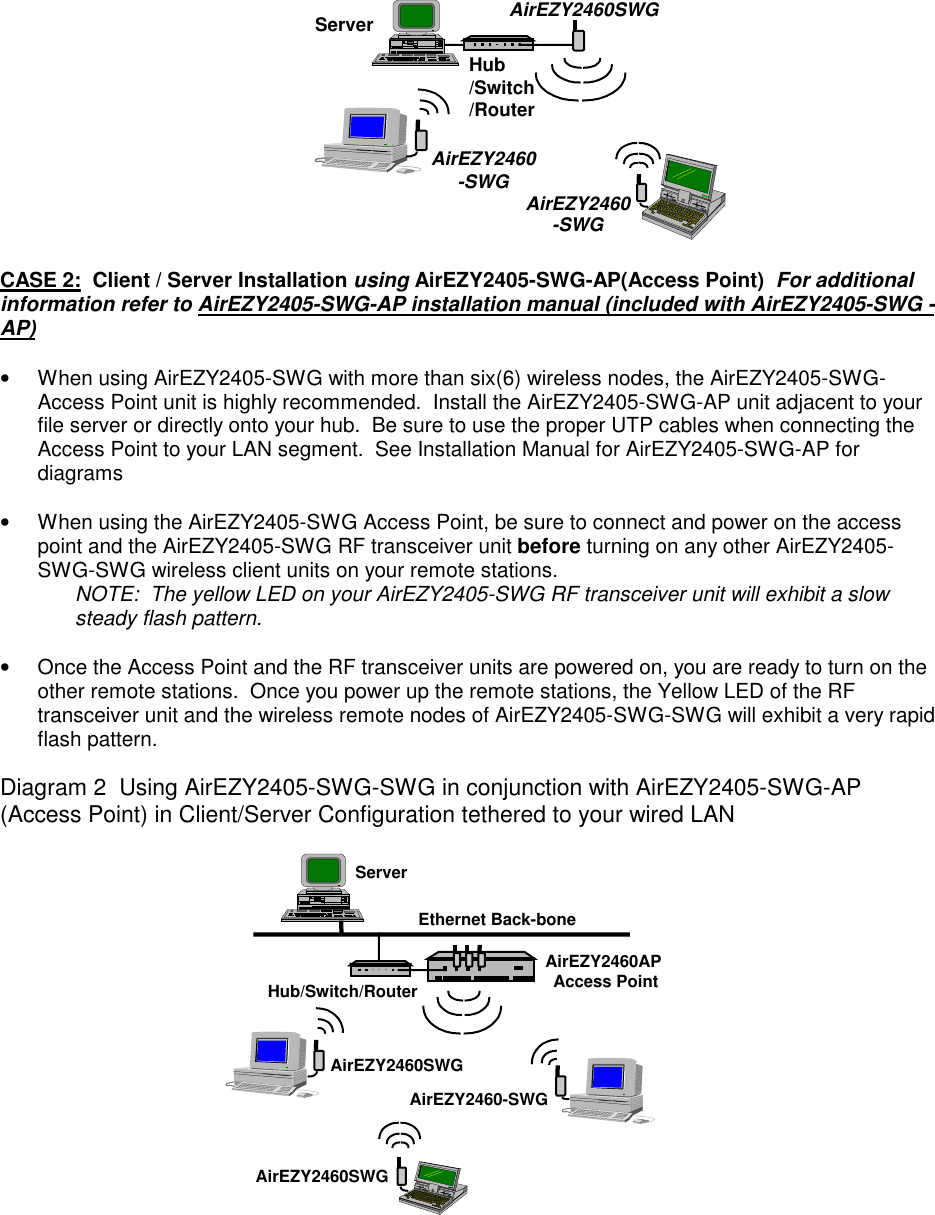
AirEZY2460-SWGAirEZY2460-SWGServerHub/Switch/RouterAirEZY2460SWGCASE 2:  Client / Server Installation using AirEZY2405-SWG-AP(Access Point)  For additionalinformation refer to AirEZY2405-SWG-AP installation manual (included with AirEZY2405-SWG -AP)•  When using AirEZY2405-SWG with more than six(6) wireless nodes, the AirEZY2405-SWG-Access Point unit is highly recommended.  Install the AirEZY2405-SWG-AP unit adjacent to yourfile server or directly onto your hub.  Be sure to use the proper UTP cables when connecting theAccess Point to your LAN segment.  See Installation Manual for AirEZY2405-SWG-AP fordiagrams•  When using the AirEZY2405-SWG Access Point, be sure to connect and power on the accesspoint and the AirEZY2405-SWG RF transceiver unit before turning on any other AirEZY2405-SWG-SWG wireless client units on your remote stations.NOTE:  The yellow LED on your AirEZY2405-SWG RF transceiver unit will exhibit a slowsteady flash pattern.•  Once the Access Point and the RF transceiver units are powered on, you are ready to turn on theother remote stations.  Once you power up the remote stations, the Yellow LED of the RFtransceiver unit and the wireless remote nodes of AirEZY2405-SWG-SWG will exhibit a very rapidflash pattern.Diagram 2  Using AirEZY2405-SWG-SWG in conjunction with AirEZY2405-SWG-AP(Access Point) in Client/Server Configuration tethered to your wired LANEthernet Back-boneServerHub/Switch/RouterAirEZY2460APAccess PointAirEZY2460SWGAirEZY2460-SWGAirEZY2460SWG
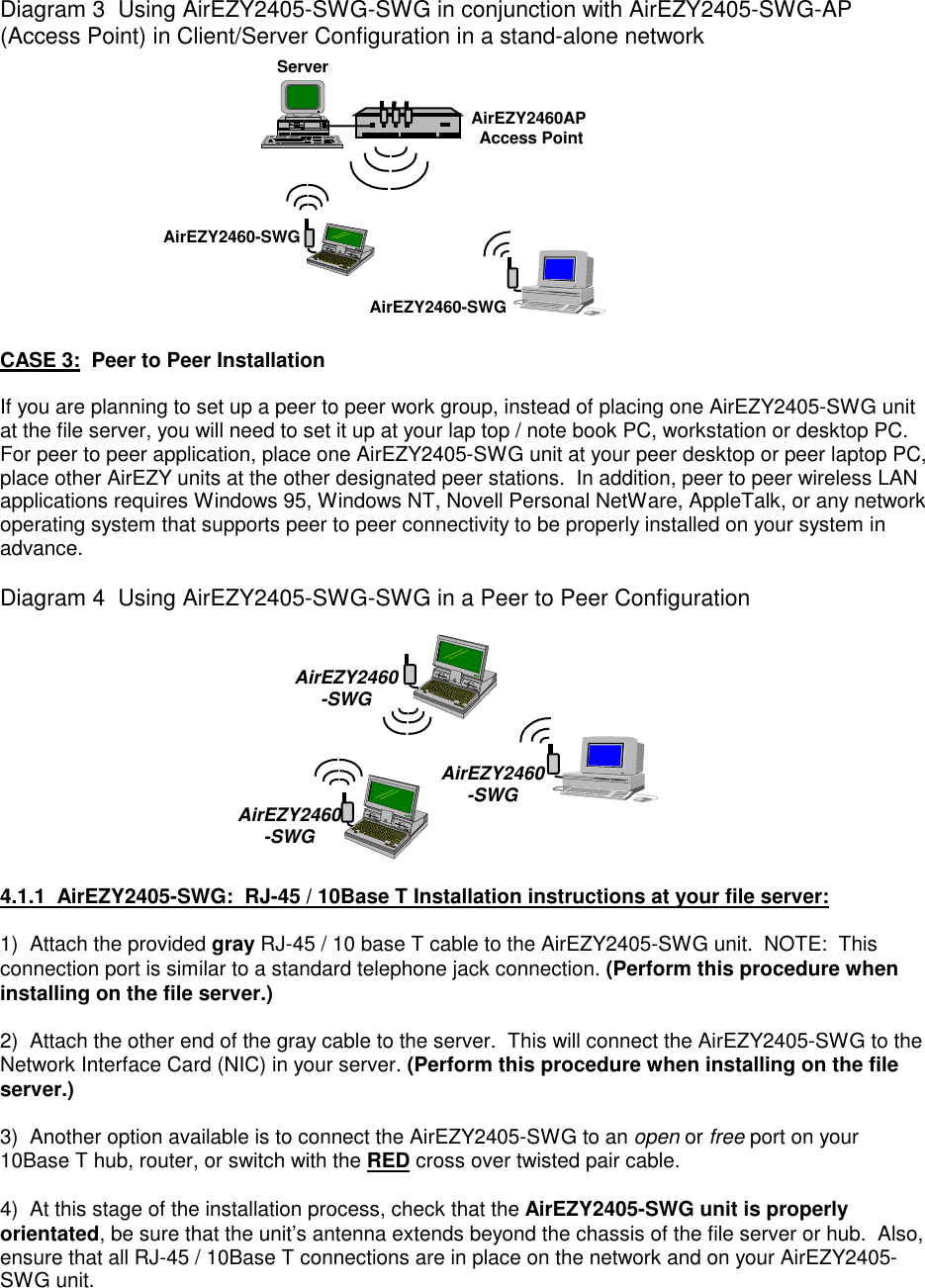
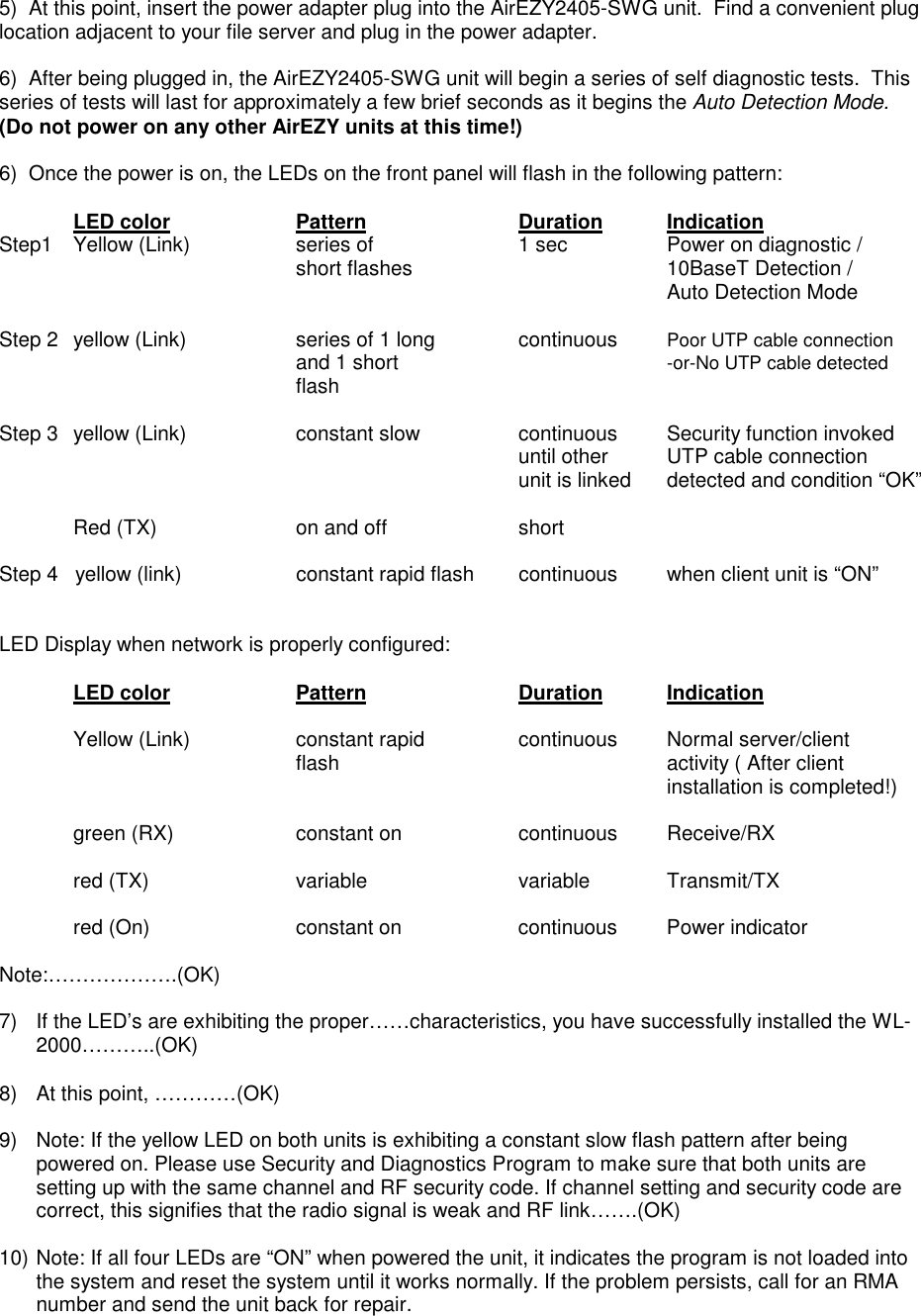
Diagram 3  Using AirEZY2405-SWG-SWG in conjunction with AirEZY2405-SWG-AP(Access Point) in Client/Server Configuration in a stand-alone networkServerAirEZY2460APAccess PointAirEZY2460-SWGAirEZY2460-SWGCASE 3:  Peer to Peer InstallationIf you are planning to set up a peer to peer work group, instead of placing one AirEZY2405-SWG unitat the file server, you will need to set it up at your lap top / note book PC, workstation or desktop PC.For peer to peer application, place one AirEZY2405-SWG unit at your peer desktop or peer laptop PC,place other AirEZY units at the other designated peer stations.  In addition, peer to peer wireless LANapplications requires Windows 95, Windows NT, Novell Personal NetWare, AppleTalk, or any networkoperating system that supports peer to peer connectivity to be properly installed on your system inadvance.Diagram 4  Using AirEZY2405-SWG-SWG in a Peer to Peer ConfigurationAirEZY2460-SWGAirEZY2460-SWGAirEZY2460-SWG4.1.1  AirEZY2405-SWG:  RJ-45 / 10Base T Installation instructions at your file server:1)  Attach the provided gray RJ-45 / 10 base T cable to the AirEZY2405-SWG unit.  NOTE:  Thisconnection port is similar to a standard telephone jack connection. (Perform this procedure wheninstalling on the file server.)2)  Attach the other end of the gray cable to the server.  This will connect the AirEZY2405-SWG to theNetwork Interface Card (NIC) in your server. (Perform this procedure when installing on the fileserver.)3)  Another option available is to connect the AirEZY2405-SWG to an open or free port on your10Base T hub, router, or switch with the RED cross over twisted pair cable.4)  At this stage of the installation process, check that the AirEZY2405-SWG unit is properlyorientated, be sure that the unit’s antenna extends beyond the chassis of the file server or hub.  Also,ensure that all RJ-45 / 10Base T connections are in place on the network and on your AirEZY2405-SWG unit.
5)  At this point, insert the power adapter plug into the AirEZY2405-SWG unit.  Find a convenient pluglocation adjacent to your file server and plug in the power adapter.6)  After being plugged in, the AirEZY2405-SWG unit will begin a series of self diagnostic tests.  Thisseries of tests will last for approximately a few brief seconds as it begins the Auto Detection Mode.(Do not power on any other AirEZY units at this time!)6)  Once the power is on, the LEDs on the front panel will flash in the following pattern:LED color Pattern Duration IndicationStep1 Yellow (Link) series of  1 sec Power on diagnostic /short flashes  10BaseT Detection / Auto Detection ModeStep 2 yellow (Link) series of 1 long continuous Poor UTP cable connectionand 1 short -or-No UTP cable detectedflashStep 3  yellow (Link) constant slow continuous Security function invokeduntil other  UTP cable connectionunit is linked detected and condition “OK”Red (TX) on and off shortStep 4   yellow (link) constant rapid flash continuous when client unit is “ON”LED Display when network is properly configured:LED color Pattern Duration IndicationYellow (Link) constant rapid continuous Normal server/client flash activity ( After clientinstallation is completed!)green (RX) constant on continuous Receive/RXred (TX) variable variable Transmit/TXred (On) constant on continuous Power indicatorNote:……………….(OK)7)  If the LED’s are exhibiting the proper……characteristics, you have successfully installed the WL-2000………..(OK)8)  At this point, …………(OK)9)  Note: If the yellow LED on both units is exhibiting a constant slow flash pattern after beingpowered on. Please use Security and Diagnostics Program to make sure that both units aresetting up with the same channel and RF security code. If channel setting and security code arecorrect, this signifies that the radio signal is weak and RF link…….(OK)10) Note: If all four LEDs are “ON” when powered the unit, it indicates the program is not loaded intothe system and reset the system until it works normally. If the problem persists, call for an RMAnumber and send the unit back for repair.
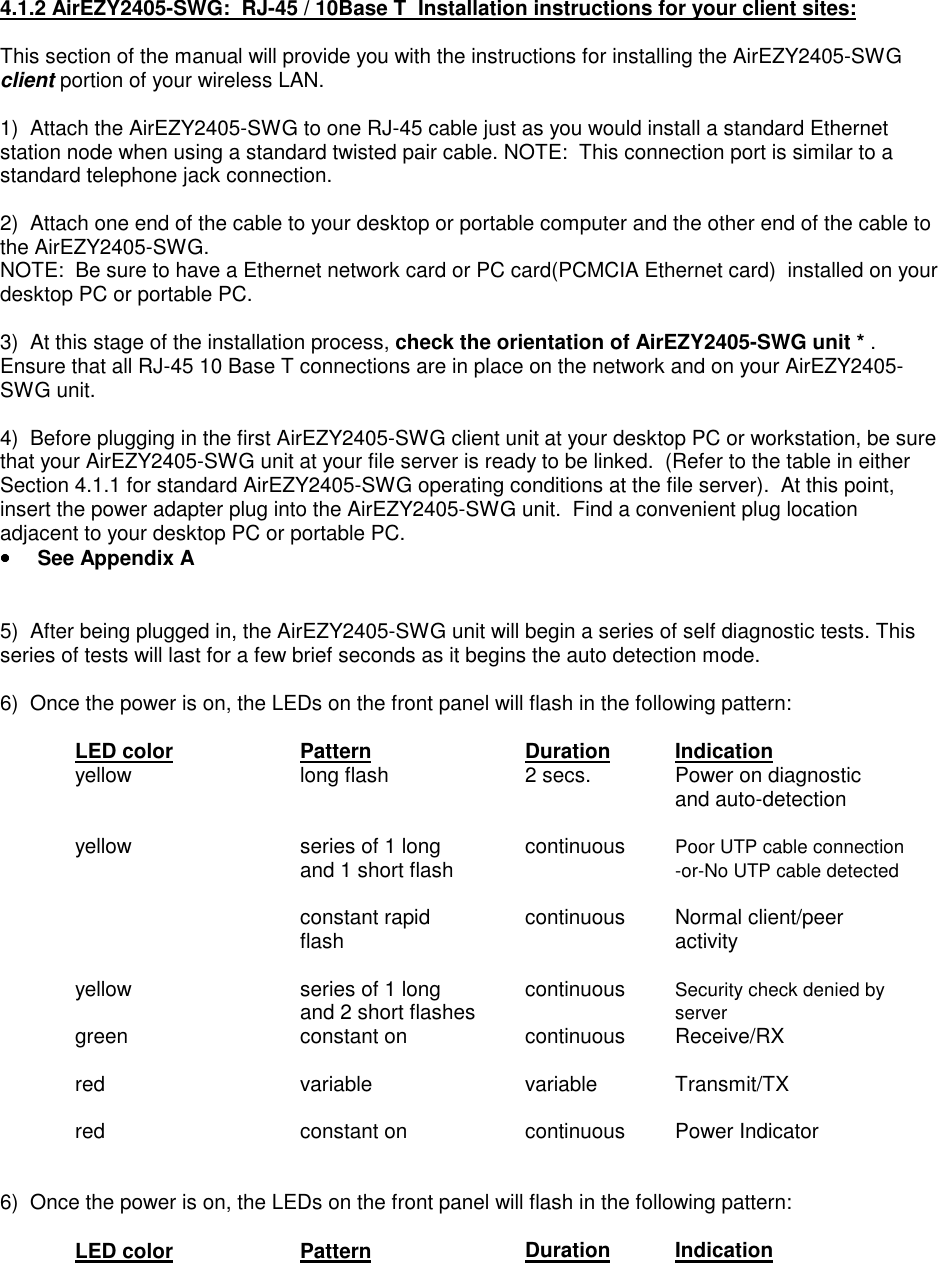
4.1.2 AirEZY2405-SWG:  RJ-45 / 10Base T  Installation instructions for your client sites:This section of the manual will provide you with the instructions for installing the AirEZY2405-SWGclient portion of your wireless LAN.1)  Attach the AirEZY2405-SWG to one RJ-45 cable just as you would install a standard Ethernetstation node when using a standard twisted pair cable. NOTE:  This connection port is similar to astandard telephone jack connection.2)  Attach one end of the cable to your desktop or portable computer and the other end of the cable tothe AirEZY2405-SWG.NOTE:  Be sure to have a Ethernet network card or PC card(PCMCIA Ethernet card)  installed on yourdesktop PC or portable PC.3)  At this stage of the installation process, check the orientation of AirEZY2405-SWG unit * .Ensure that all RJ-45 10 Base T connections are in place on the network and on your AirEZY2405-SWG unit.4)  Before plugging in the first AirEZY2405-SWG client unit at your desktop PC or workstation, be surethat your AirEZY2405-SWG unit at your file server is ready to be linked.  (Refer to the table in eitherSection 4.1.1 for standard AirEZY2405-SWG operating conditions at the file server).  At this point,insert the power adapter plug into the AirEZY2405-SWG unit.  Find a convenient plug locationadjacent to your desktop PC or portable PC.••••  See Appendix A5)  After being plugged in, the AirEZY2405-SWG unit will begin a series of self diagnostic tests. Thisseries of tests will last for a few brief seconds as it begins the auto detection mode.6)  Once the power is on, the LEDs on the front panel will flash in the following pattern:LED color Pattern Duration Indicationyellow long flash 2 secs. Power on diagnosticand auto-detectionyellow  series of 1 long continuous Poor UTP cable connectionand 1 short flash -or-No UTP cable detectedconstant rapid continuous Normal client/peer flash activityyellow  series of 1 long continuous Security check denied byand 2 short flashes servergreen constant on continuous Receive/RXred variable variable Transmit/TXred constant on continuous Power Indicator6)  Once the power is on, the LEDs on the front panel will flash in the following pattern:LED color Pattern Duration Indication
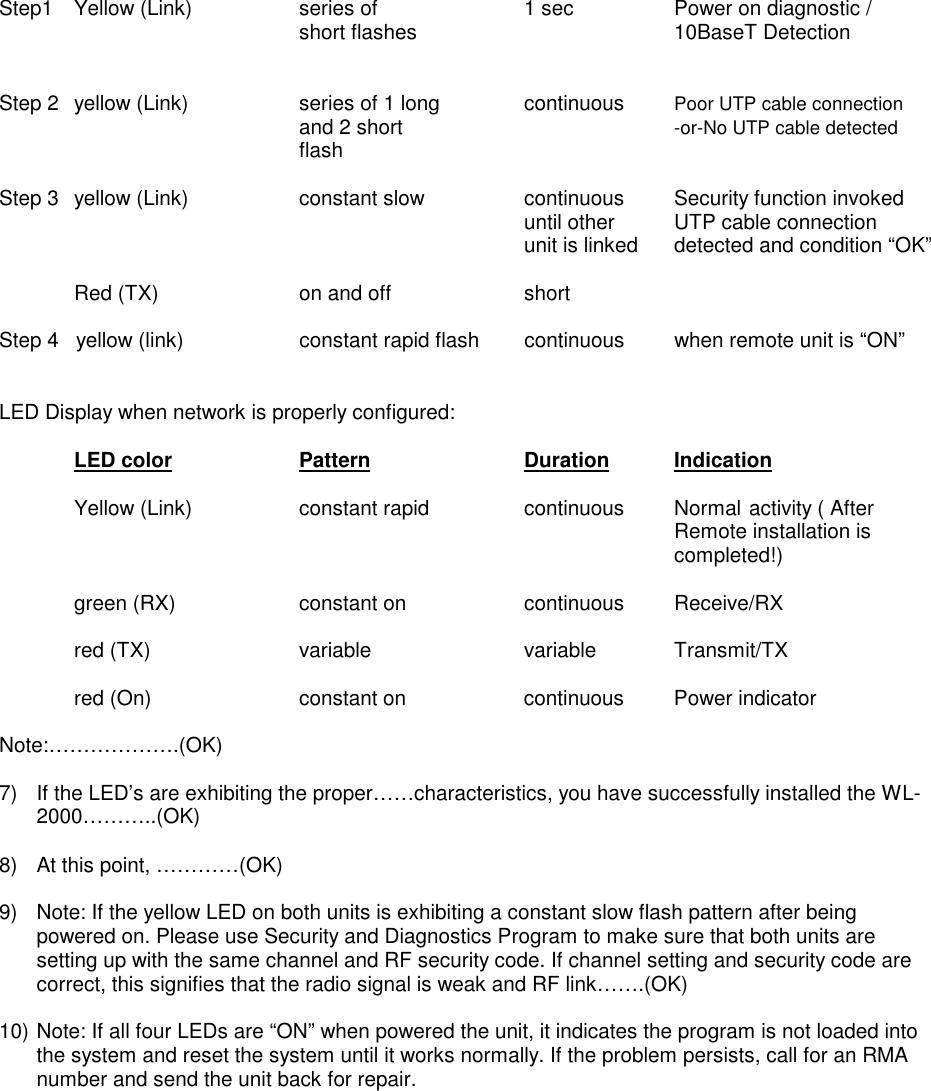
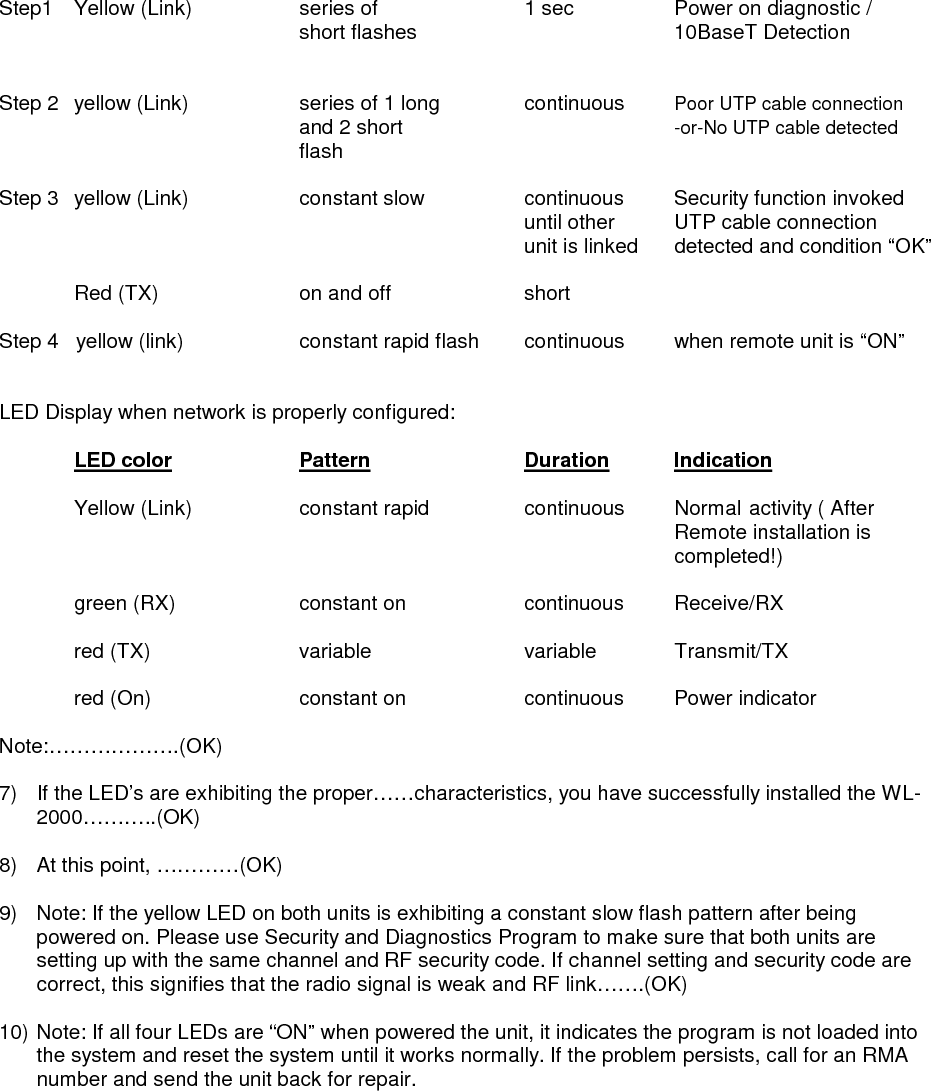
Step1 Yellow (Link) series of  1 sec Power on diagnostic /short flashes  10BaseT Detection Step 2 yellow (Link) series of 1 long continuous Poor UTP cable connectionand 2 short -or-No UTP cable detectedflashStep 3  yellow (Link) constant slow continuous Security function invokeduntil other  UTP cable connectionunit is linked detected and condition “OK”Red (TX) on and off shortStep 4   yellow (link) constant rapid flash continuous when remote unit is “ON”LED Display when network is properly configured:LED color Pattern Duration IndicationYellow (Link) constant rapid continuous Normal activity ( AfterRemote installation iscompleted!)green (RX) constant on continuous Receive/RXred (TX) variable variable Transmit/TXred (On) constant on continuous Power indicatorNote:……………….(OK)7)  If the LED’s are exhibiting the proper……characteristics, you have successfully installed the WL-2000………..(OK)8)  At this point, …………(OK)9)  Note: If the yellow LED on both units is exhibiting a constant slow flash pattern after beingpowered on. Please use Security and Diagnostics Program to make sure that both units aresetting up with the same channel and RF security code. If channel setting and security code arecorrect, this signifies that the radio signal is weak and RF link…….(OK)10) Note: If all four LEDs are “ON” when powered the unit, it indicates the program is not loaded intothe system and reset the system until it works normally. If the problem persists, call for an RMAnumber and send the unit back for repair.
Appendix A
Orientation of AirEZY2405-SWG

Navigation menu