OTC Wireless WEA11G03682 802.11g Wireless Ethernet Adapter User Manual ACR AG UG

OTC Wireless Inc 802.11g Wireless Ethernet Adapter ACR AG UG

Users Manual

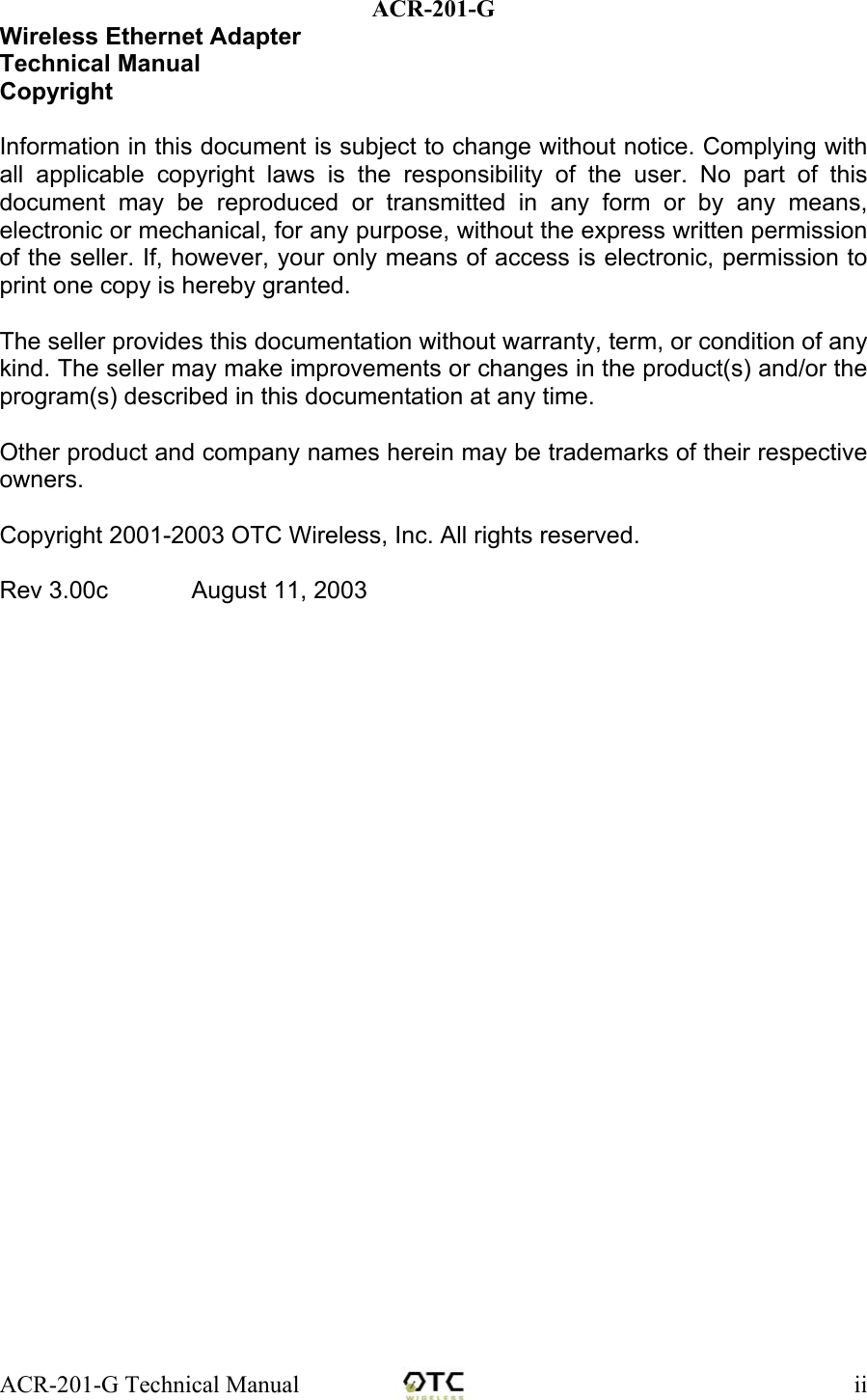
             ACR-201-G  802.11g Wireless Ethernet Adapter    Technical Manual     www.otcwireless.com
ACR-201-G Technical Manual    iiACR-201-G Wireless Ethernet Adapter Technical Manual Copyright  Information in this document is subject to change without notice. Complying with all applicable copyright laws is the responsibility of the user. No part of this document may be reproduced or transmitted in any form or by any means, electronic or mechanical, for any purpose, without the express written permission of the seller. If, however, your only means of access is electronic, permission to print one copy is hereby granted.  The seller provides this documentation without warranty, term, or condition of any kind. The seller may make improvements or changes in the product(s) and/or the program(s) described in this documentation at any time.  Other product and company names herein may be trademarks of their respective owners.  Copyright 2001-2003 OTC Wireless, Inc. All rights reserved.   Rev 3.00c         August 11, 2003
ACR-201-G Technical Manual    iiiTable of Contents ACR-201-G Technical Manual    Chapter 1 Introduction..................................................................................................... 1 ACR-201-G Radio .......................................................................................................... 2 Specifications..................................................................................................................2 Chapter 2 Installation....................................................................................................... 3 Safety Statements............................................................................................................ 3 Installing the Hardware................................................................................................... 3 Power ........................................................................................................................... 3 Ethernet Connection ...................................................................................................... 3 Status LED’s................................................................................................................. 3 System Requirements for Web-based Utility program................................................... 6 Chapter 3 Web-Based Utility Software........................................................................... 7 Use the Web-Based Utility Program............................................................................... 7 Overview of the Web Pages............................................................................................ 7 Basic Information............................................................................................................ 8 Wireless......................................................................................................................... 10 Security ......................................................................................................................... 10 Advance ........................................................................................................................ 12 Admin ........................................................................................................................... 14 Help............................................................................................................................... 17 Chapter 4 Troubleshooting ............................................................................................ 18 No Page Displayed When Accessing the Web-based Utility ....................................... 18 No Radio Link............................................................................................................... 18 No Network Connection While the Radio Link is Good.............................................. 18 Poor Link Quality ......................................................................................................... 19 Radio Interference......................................................................................................... 19 TFTP Timeouts ............................................................................................................. 20 Settings Appear not to be Modified.............................................................................. 20 Technical Support ......................................................................................................... 20 Appendix A: Limited Warranty.................................................................................... 21 Appendix B:  Regulatory Compliance .......................................................................... 22
ACR-201-G Technical Manual    1Chapter 1 Introduction  ACR-201-G is an 802.11g compliant radio with a 100-BaseT interface that acts as a Wireless Adapter.   What separates the ACR-201-G from many other 802.11g-compliant radios is that its 100-BaseT interface affords a true plug-and-play feature that is unavailable from any other 802.11g Station radios that are based on either a PCMCIA or a USB interface and require the installation of a driver on the host device. This driver-free feature also means that the operation of the radio is OS (operating system) independent.  The driver-free feature enables wireless connectivity for any computing devices/systems with any OS (operating system), as long as the device has an Ethernet communication port available. Ethernet-equipped workstations in a corporate environment, for example, benefit greatly from this driver-less feature—the IT workforce has one less driver to worry when upgrading an OS or when salvaging an OS crash. Special computing/networking devices, such as printer servers, POS (point of sales) machines may not even have an easy way of installing a driver for a radio. In addition to supporting the connection of a single computer or device to an 802.11g Access Point in a pure 802.11g Station role, ACR-201-G also supports an IP-Bridging Mode, where multiple computers can share the wireless access to an 802.11g AP through a single Station radio.  A built-in Web-based Utility program is provided for the users to pre-configure ACR-201-G prior to putting the radio in operation. This Utility program can be used to monitor the communication condition once the radio is in operation. Once configured, the radio runs self-sufficiently without the aid of any driver program in the device connected to the radio. This Web-based Utility program therefore is intended to be, in most cases, just a tool for the network operators. An end user simply plugs the pre-configured radio into any device equipped with a RJ-45 receptacle without ever being exposed to this Utility program. The details are described in chapter 3.  ACR-201-G has a compact form-factor that blends easily into a home/office environment. It also lends particularly well to portable applications. The specifications are given on the next page.
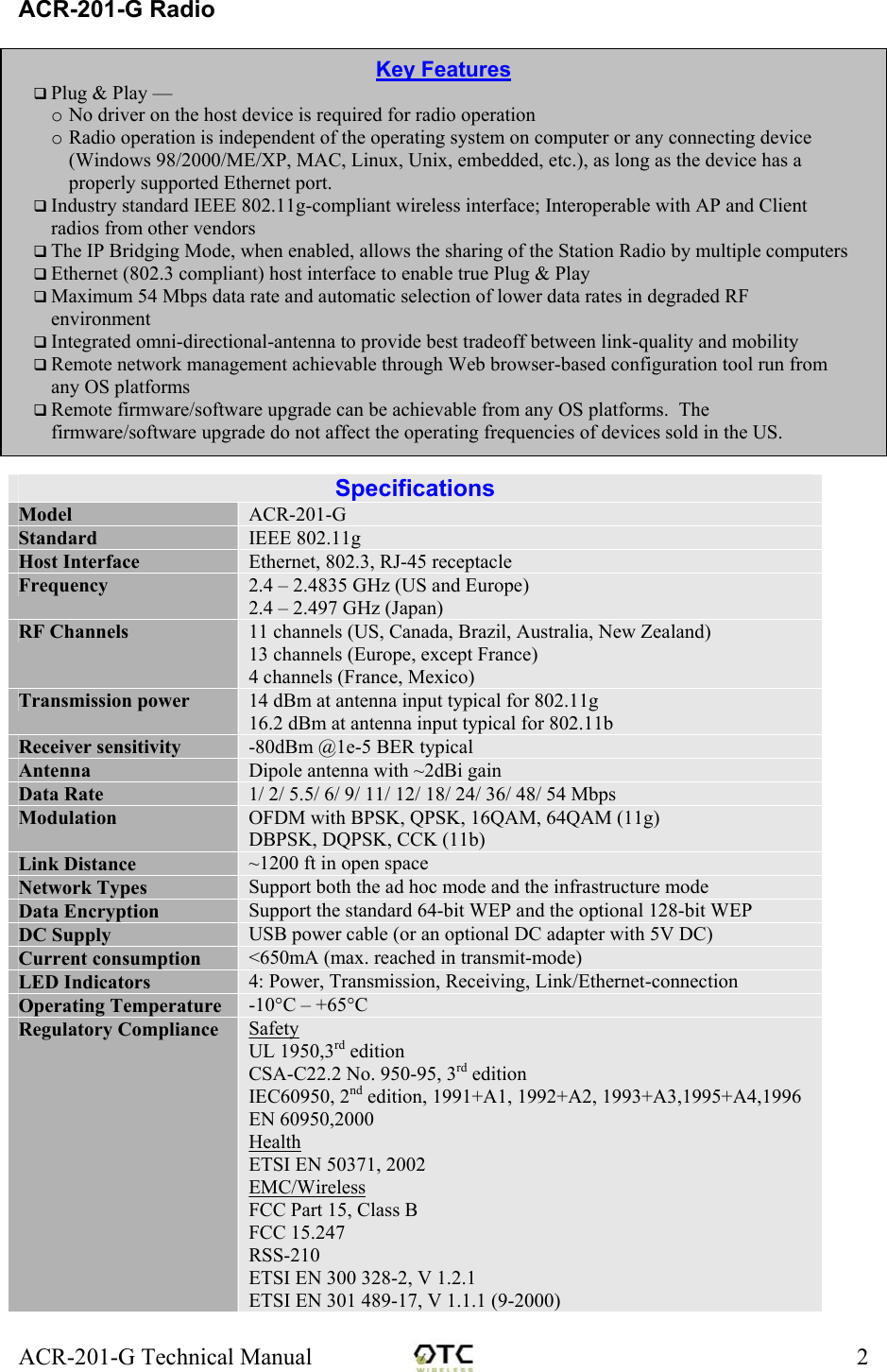
ACR-201-G Technical Manual    2ACR-201-G Radio Specifications Model  ACR-201-G Standard  IEEE 802.11g Host Interface  Ethernet, 802.3, RJ-45 receptacle Frequency  2.4 – 2.4835 GHz (US and Europe) 2.4 – 2.497 GHz (Japan) RF Channels  11 channels (US, Canada, Brazil, Australia, New Zealand) 13 channels (Europe, except France) 4 channels (France, Mexico) Transmission power  14 dBm at antenna input typical for 802.11g 16.2 dBm at antenna input typical for 802.11b Receiver sensitivity  -80dBm @1e-5 BER typical Antenna  Dipole antenna with ~2dBi gain Data Rate  1/ 2/ 5.5/ 6/ 9/ 11/ 12/ 18/ 24/ 36/ 48/ 54 Mbps Modulation  OFDM with BPSK, QPSK, 16QAM, 64QAM (11g) DBPSK, DQPSK, CCK (11b) Link Distance  ~1200 ft in open space Network Types  Support both the ad hoc mode and the infrastructure mode Data Encryption  Support the standard 64-bit WEP and the optional 128-bit WEP DC Supply  USB power cable (or an optional DC adapter with 5V DC) Current consumption  <650mA (max. reached in transmit-mode) LED Indicators  4: Power, Transmission, Receiving, Link/Ethernet-connection Operating Temperature  -10°C – +65°C  Regulatory Compliance  Safety UL 1950,3rd edition CSA-C22.2 No. 950-95, 3rd edition IEC60950, 2nd edition, 1991+A1, 1992+A2, 1993+A3,1995+A4,1996 EN 60950,2000 Health ETSI EN 50371, 2002 EMC/Wireless FCC Part 15, Class B FCC 15.247 RSS-210 ETSI EN 300 328-2, V 1.2.1 ETSI EN 301 489-17, V 1.1.1 (9-2000) Key Features  Plug & Play — o No driver on the host device is required for radio operation o Radio operation is independent of the operating system on computer or any connecting device (Windows 98/2000/ME/XP, MAC, Linux, Unix, embedded, etc.), as long as the device has a properly supported Ethernet port.  Industry standard IEEE 802.11g-compliant wireless interface; Interoperable with AP and Client radios from other vendors   The IP Bridging Mode, when enabled, allows the sharing of the Station Radio by multiple computers  Ethernet (802.3 compliant) host interface to enable true Plug & Play  Maximum 54 Mbps data rate and automatic selection of lower data rates in degraded RF environment  Integrated omni-directional-antenna to provide best tradeoff between link-quality and mobility  Remote network management achievable through Web browser-based configuration tool run from any OS platforms  Remote firmware/software upgrade can be achievable from any OS platforms.  The firmware/software upgrade do not affect the operating frequencies of devices sold in the US.
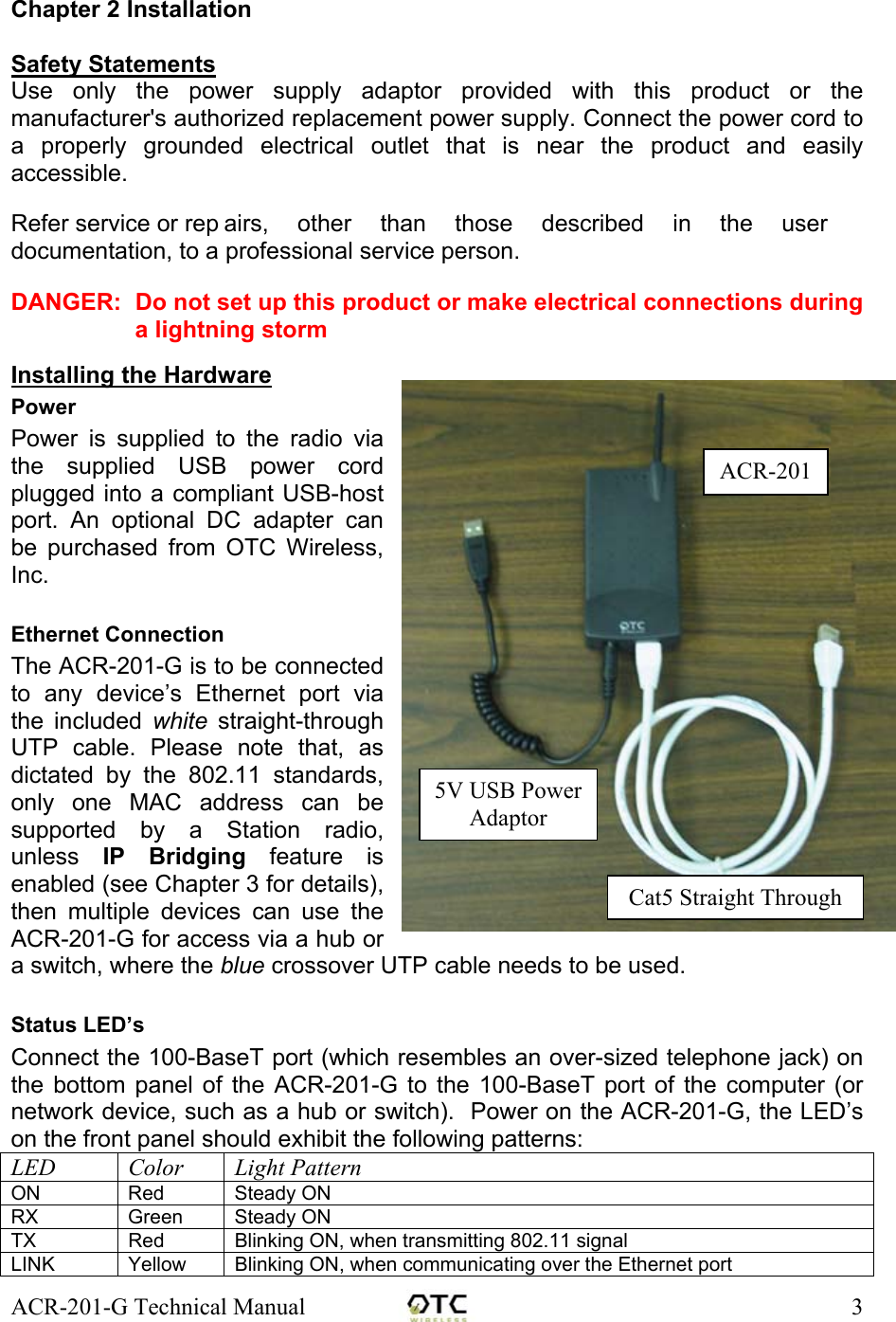
ACR-201-G Technical Manual    3  Chapter 2 Installation  Safety Statements Use only the power supply adaptor provided with this product or the manufacturer's authorized replacement power supply. Connect the power cord to a properly grounded electrical outlet that is near the product and easily accessible.  Refer service or rep airs,  other  than those described in the user documentation, to a professional service person.  DANGER:  Do not set up this product or make electrical connections during a lightning storm  Installing the Hardware Power Power is supplied to the radio via the supplied USB power cord plugged into a compliant USB-host port. An optional DC adapter can be purchased from OTC Wireless, Inc.  Ethernet Connection The ACR-201-G is to be connected to any device’s Ethernet port via the included white straight-through UTP cable. Please note that, as dictated by the 802.11 standards, only one MAC address can be supported by a Station radio, unless  IP Bridging feature is enabled (see Chapter 3 for details), then multiple devices can use the ACR-201-G for access via a hub or a switch, where the blue crossover UTP cable needs to be used.  Status LED’s Connect the 100-BaseT port (which resembles an over-sized telephone jack) on the bottom panel of the ACR-201-G to the 100-BaseT port of the computer (or network device, such as a hub or switch).  Power on the ACR-201-G, the LED’s on the front panel should exhibit the following patterns: LED Color Light Pattern ON Red Steady ON RX Green Steady ON TX  Red  Blinking ON, when transmitting 802.11 signal LINK  Yellow  Blinking ON, when communicating over the Ethernet port Cat5 Straight Through5V USB Power Adaptor ACR-201
ACR-201-G Technical Manual    4Steady ON, when Ethernet connection is not present.
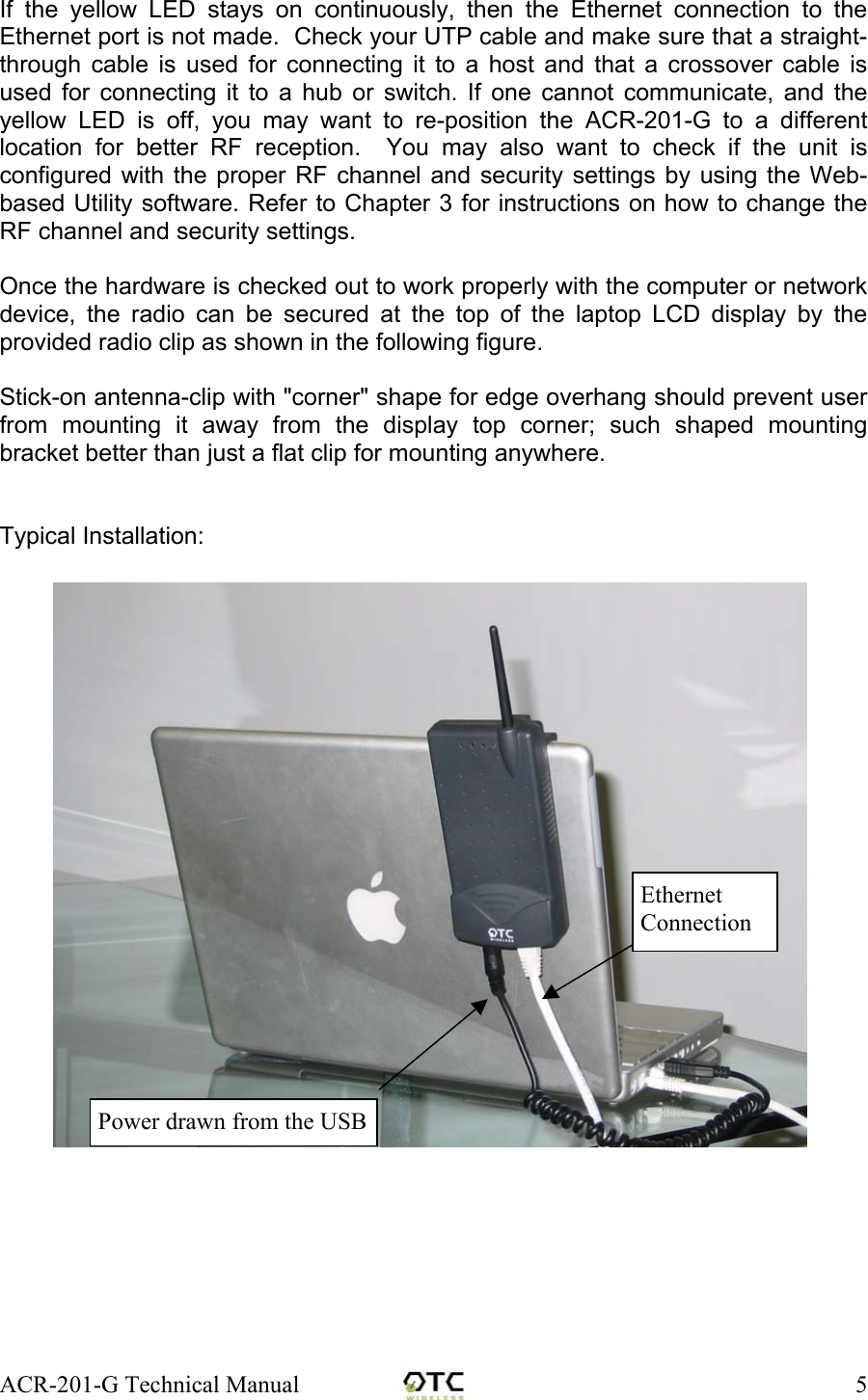
ACR-201-G Technical Manual    5If the yellow LED stays on continuously, then the Ethernet connection to the Ethernet port is not made.  Check your UTP cable and make sure that a straight-through cable is used for connecting it to a host and that a crossover cable is used for connecting it to a hub or switch. If one cannot communicate, and the yellow LED is off, you may want to re-position the ACR-201-G to a different location for better RF reception.  You may also want to check if the unit is configured with the proper RF channel and security settings by using the Web-based Utility software. Refer to Chapter 3 for instructions on how to change the RF channel and security settings.  Once the hardware is checked out to work properly with the computer or network device, the radio can be secured at the top of the laptop LCD display by the provided radio clip as shown in the following figure.  Stick-on antenna-clip with "corner" shape for edge overhang should prevent user from mounting it away from the display top corner; such shaped mounting bracket better than just a flat clip for mounting anywhere.   Typical Installation: Power drawn from the USBEthernet Connection
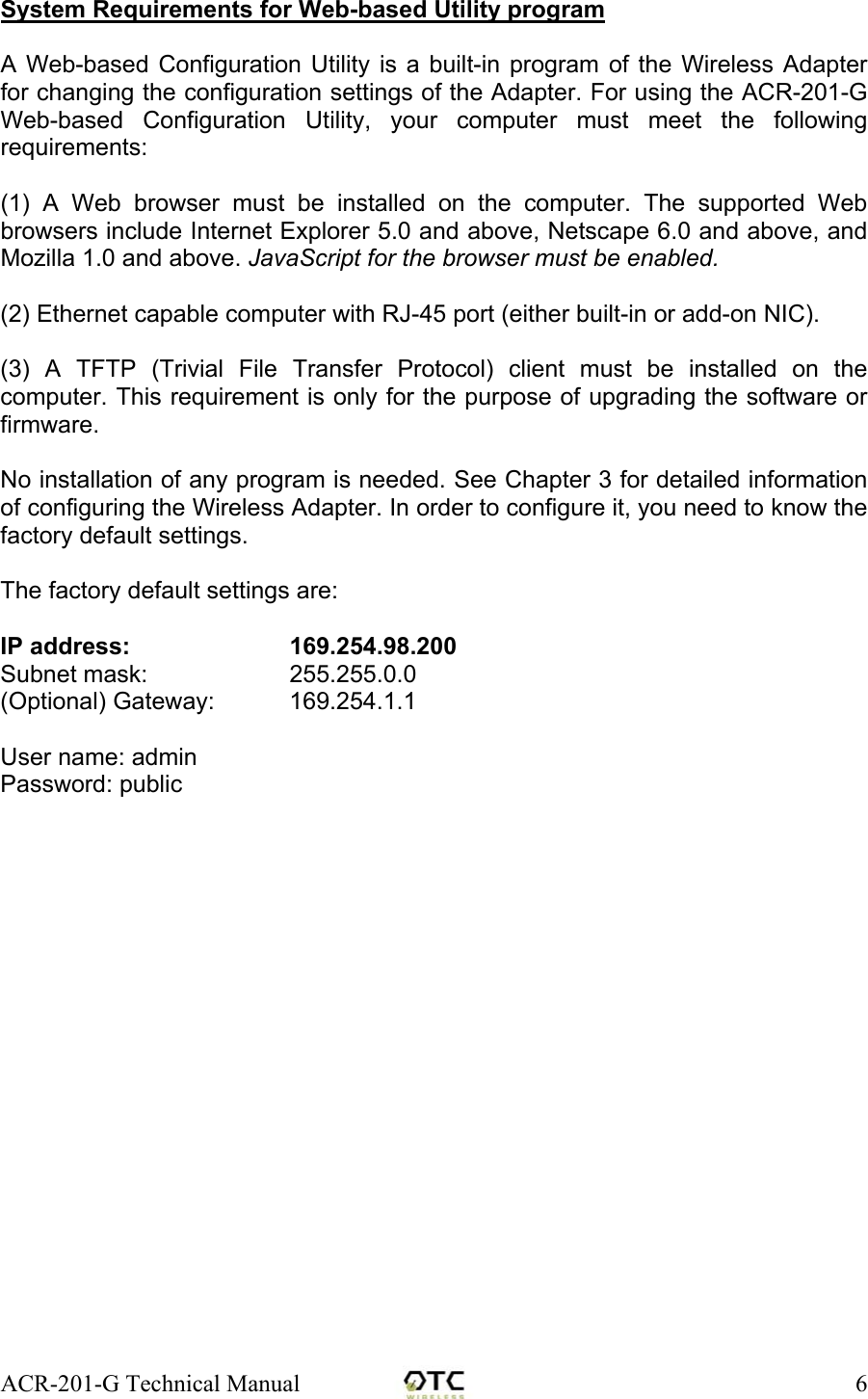
ACR-201-G Technical Manual    6System Requirements for Web-based Utility program  A Web-based Configuration Utility is a built-in program of the Wireless Adapter for changing the configuration settings of the Adapter. For using the ACR-201-G Web-based Configuration Utility, your computer must meet the following requirements:  (1) A Web browser must be installed on the computer. The supported Web browsers include Internet Explorer 5.0 and above, Netscape 6.0 and above, and Mozilla 1.0 and above. JavaScript for the browser must be enabled.  (2) Ethernet capable computer with RJ-45 port (either built-in or add-on NIC).  (3) A TFTP (Trivial File Transfer Protocol) client must be installed on the computer. This requirement is only for the purpose of upgrading the software or firmware.  No installation of any program is needed. See Chapter 3 for detailed information of configuring the Wireless Adapter. In order to configure it, you need to know the factory default settings.   The factory default settings are:  IP address:      169.254.98.200   Subnet mask:      255.255.0.0 (Optional) Gateway:   169.254.1.1   User name: admin  Password: public
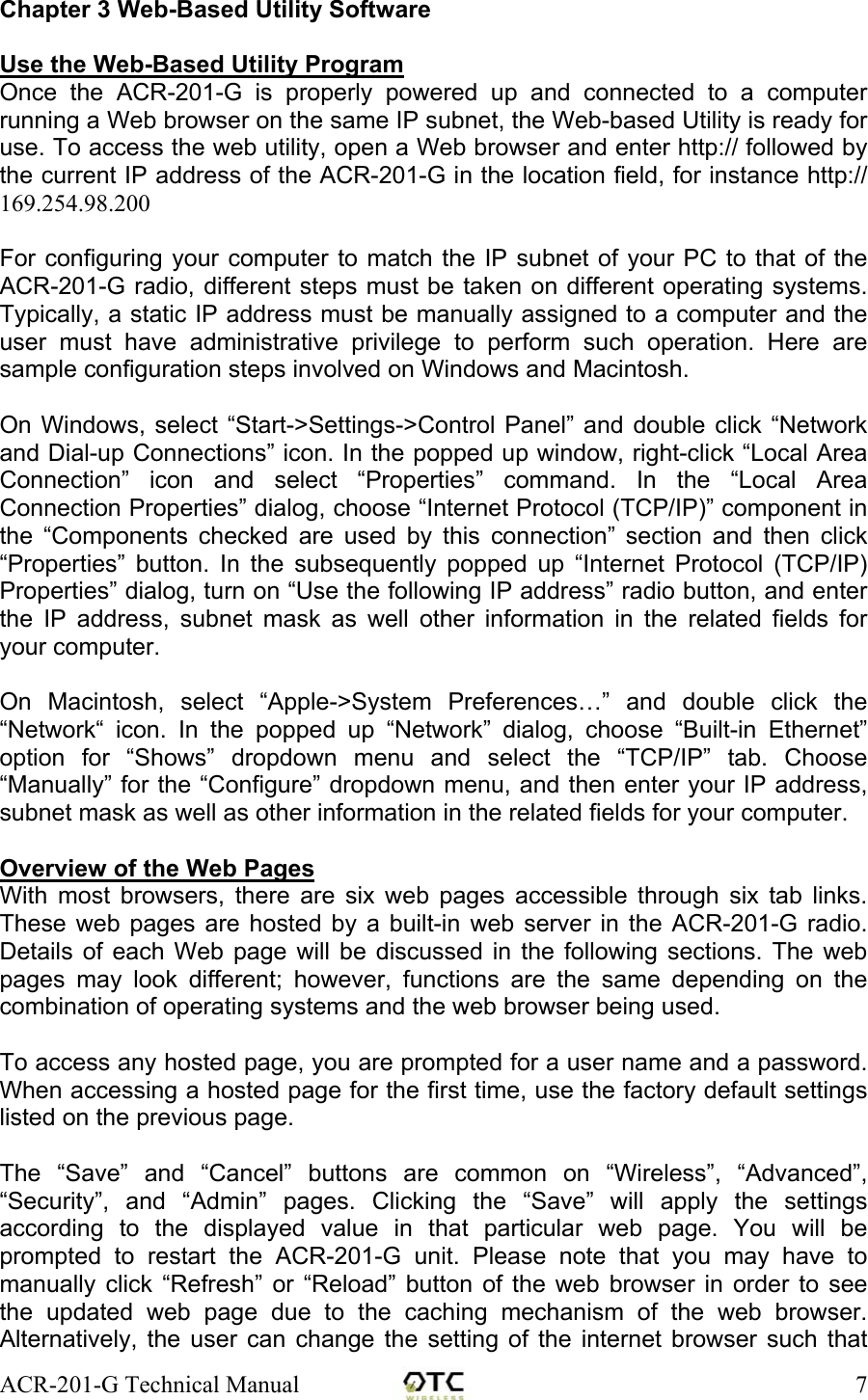
ACR-201-G Technical Manual    7Chapter 3 Web-Based Utility Software  Use the Web-Based Utility Program Once the ACR-201-G is properly powered up and connected to a computer running a Web browser on the same IP subnet, the Web-based Utility is ready for use. To access the web utility, open a Web browser and enter http:// followed by the current IP address of the ACR-201-G in the location field, for instance http:// 169.254.98.200  For configuring your computer to match the IP subnet of your PC to that of the ACR-201-G radio, different steps must be taken on different operating systems. Typically, a static IP address must be manually assigned to a computer and the user must have administrative privilege to perform such operation. Here are sample configuration steps involved on Windows and Macintosh.   On Windows, select “Start->Settings->Control Panel” and double click “Network and Dial-up Connections” icon. In the popped up window, right-click “Local Area Connection” icon and select “Properties” command. In the “Local Area Connection Properties” dialog, choose “Internet Protocol (TCP/IP)” component in the “Components checked are used by this connection” section and then click “Properties” button. In the subsequently popped up “Internet Protocol (TCP/IP) Properties” dialog, turn on “Use the following IP address” radio button, and enter the IP address, subnet mask as well other information in the related fields for your computer.   On Macintosh, select “Apple->System Preferences…” and double click the “Network“ icon. In the popped up “Network” dialog, choose “Built-in Ethernet” option for “Shows” dropdown menu and select the “TCP/IP” tab. Choose “Manually” for the “Configure” dropdown menu, and then enter your IP address, subnet mask as well as other information in the related fields for your computer.  Overview of the Web Pages With most browsers, there are six web pages accessible through six tab links. These web pages are hosted by a built-in web server in the ACR-201-G radio. Details of each Web page will be discussed in the following sections. The web pages may look different; however, functions are the same depending on the combination of operating systems and the web browser being used.  To access any hosted page, you are prompted for a user name and a password. When accessing a hosted page for the first time, use the factory default settings listed on the previous page.  The “Save” and “Cancel” buttons are common on “Wireless”, “Advanced”, “Security”, and “Admin” pages. Clicking the “Save” will apply the settings according to the displayed value in that particular web page. You will be prompted to restart the ACR-201-G unit. Please note that you may have to manually click “Refresh” or “Reload” button of the web browser in order to see the updated web page due to the caching mechanism of the web browser. Alternatively, the user can change the setting of the internet browser such that
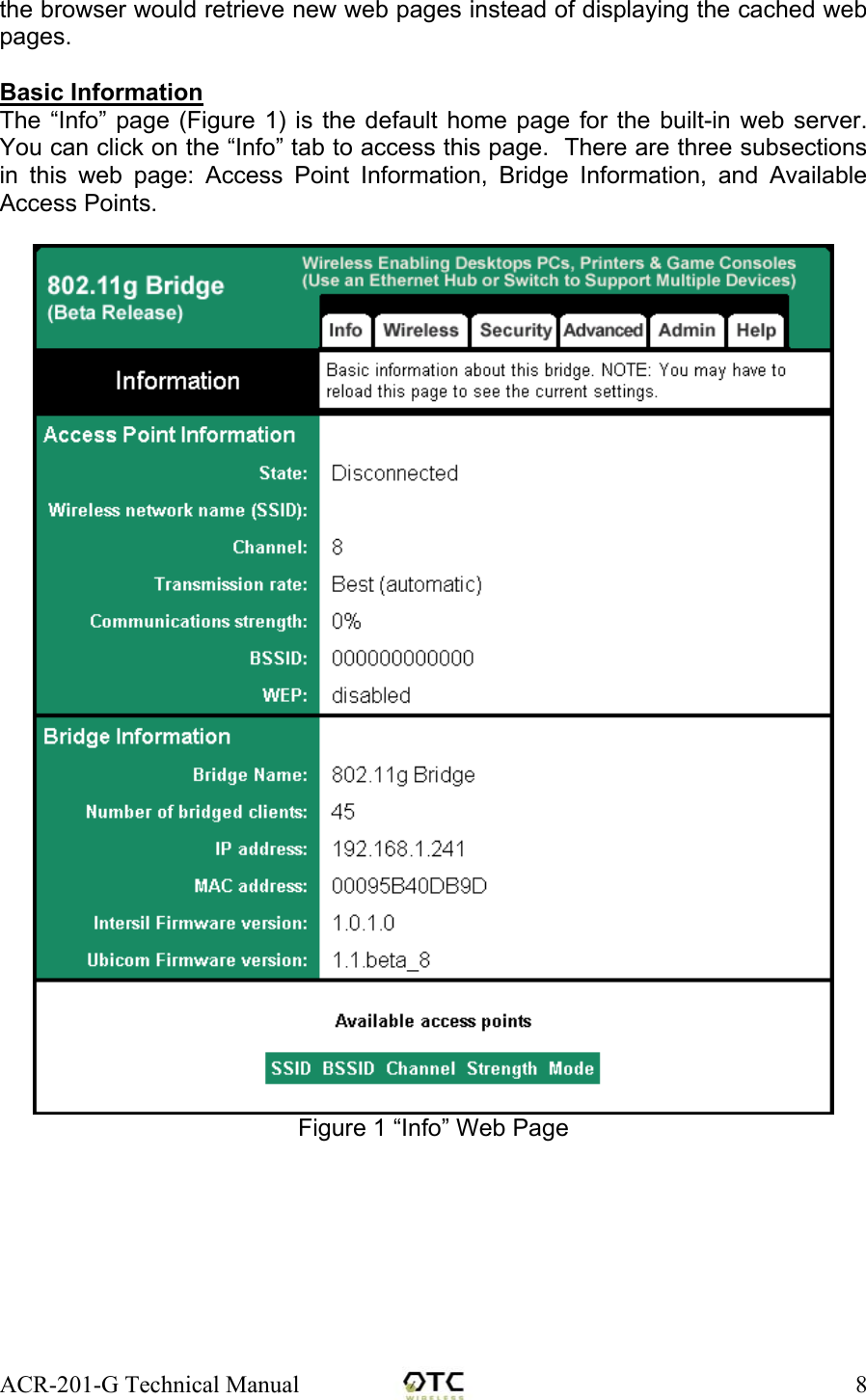
ACR-201-G Technical Manual    8the browser would retrieve new web pages instead of displaying the cached web pages.  Basic Information  The “Info” page (Figure 1) is the default home page for the built-in web server. You can click on the “Info” tab to access this page.  There are three subsections in this web page: Access Point Information, Bridge Information, and Available Access Points.   Figure 1 “Info” Web Page
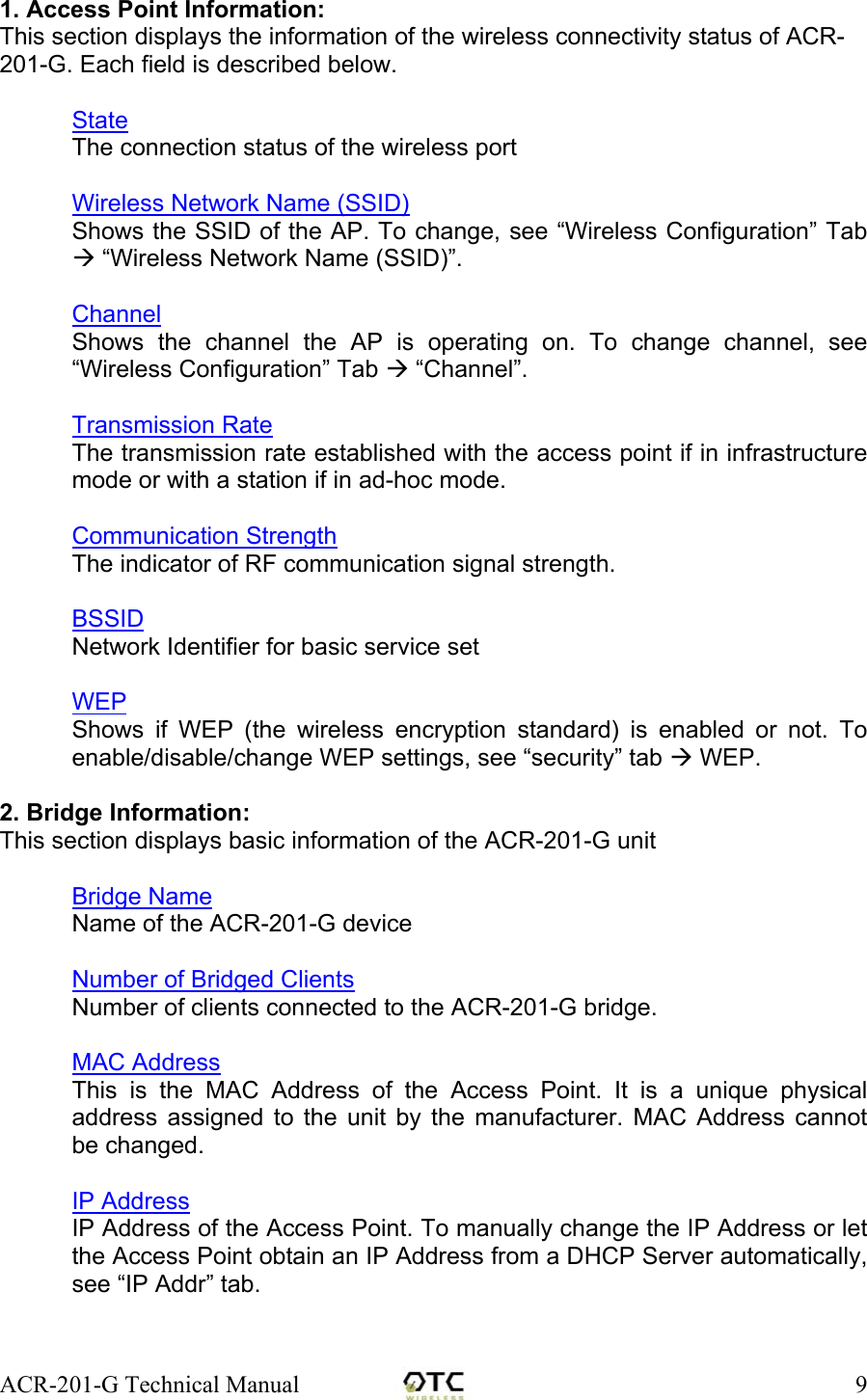
ACR-201-G Technical Manual    91. Access Point Information: This section displays the information of the wireless connectivity status of ACR-201-G. Each field is described below.  State The connection status of the wireless port  Wireless Network Name (SSID) Shows the SSID of the AP. To change, see “Wireless Configuration” Tab  “Wireless Network Name (SSID)”.  Channel Shows the channel the AP is operating on. To change channel, see “Wireless Configuration” Tab  “Channel”.  Transmission Rate The transmission rate established with the access point if in infrastructure mode or with a station if in ad-hoc mode.  Communication Strength The indicator of RF communication signal strength.  BSSID Network Identifier for basic service set   WEP Shows if WEP (the wireless encryption standard) is enabled or not. To enable/disable/change WEP settings, see “security” tab  WEP.  2. Bridge Information: This section displays basic information of the ACR-201-G unit  Bridge Name Name of the ACR-201-G device  Number of Bridged Clients Number of clients connected to the ACR-201-G bridge.  MAC Address This is the MAC Address of the Access Point. It is a unique physical address assigned to the unit by the manufacturer. MAC Address cannot be changed.  IP Address IP Address of the Access Point. To manually change the IP Address or let the Access Point obtain an IP Address from a DHCP Server automatically, see “IP Addr” tab.
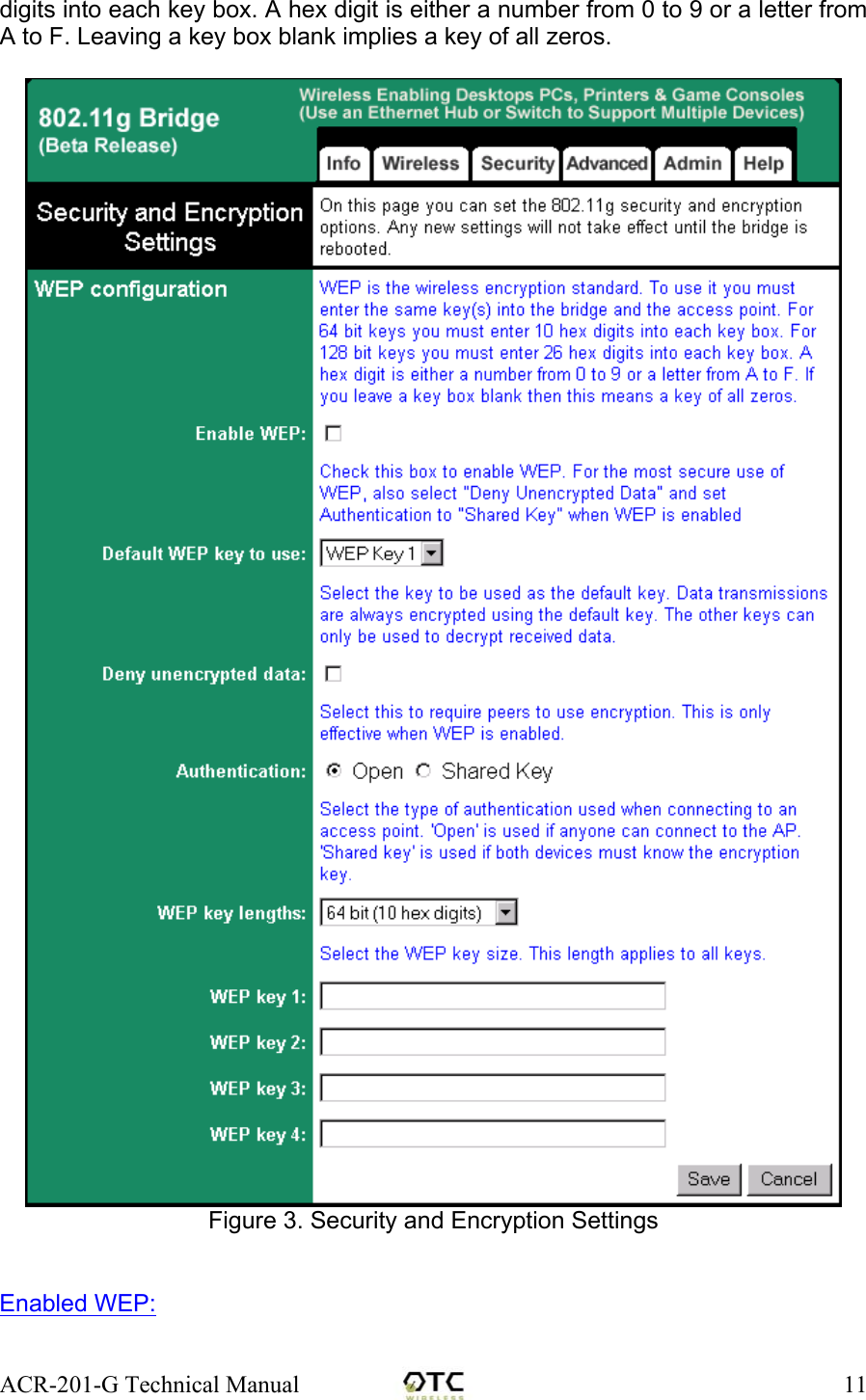
ACR-201-G Technical Manual    10Intersil Firmware Version Shows the version info of the Intersil firmware.  Ubicom Firmware Version Shows the version info of the Ubicom firmware.  3. Available Access Points This field displays the available access points detected by the ACR-201-G Bridge.  Wireless Under this selection, you can configure the basic 802.11g access point settings. Any new settings will not take effect until the access point is rebooted.  Wireless Mode Select 'Infrastructure' to connect to a wireless access point, select 'Ad-hoc' to connect to another bridge or wireless station.  Wireless Network ID (SSID) Acronym for Service Set Identity. This is the name used to identify which wireless network (Access Points) the ACR-201-G is going to connect with.   Channel The channel option is only available when the ACR-201-G is in ad-hoc mode. In infrastructure mode, the ACR-201-G would use the channel of the connected access point. If you experience interference (e.g. lost connections or slow data transfers) you may need to try different channels to see which is the best. Channels 1-14 are in the 2.4 GHz band.  Transmission rate (Mbits/s) This is the speed at which the access point will transmit data. Normally you should select 'best' here. If your wireless network is unusually noisy or quiet, you may use a fixed low or high rate. The RF environment sometimes can be hostile to the highest data rate available. That gives rise to the need for trading off between data rate and link robustness.  PHY Profiles These profiles control a number of settings for overall wireless network usage. Their meanings are self-explanatory. Users have 7 options, they are: “802.11 g only”, “802.11 g only, Maximum Performance”, “802.11 b/g Mixed Mode”, “802.11 b/g Mixed Mode Long”, “802.11 b WiFi”, “802.11 b only”, and “Test Mode”.   Security On this page (Figure 3) you can set the 802.11g security and encryption options. WEP is the wireless encryption standard. To use it, you must enter the same key(s) into the access point and the wireless stations. For 64 bit keys you must enter 10 hex digits into each key box. For 128 bit keys you must enter 26 hex
ACR-201-G Technical Manual    11digits into each key box. A hex digit is either a number from 0 to 9 or a letter from A to F. Leaving a key box blank implies a key of all zeros.   Figure 3. Security and Encryption Settings   Enabled WEP:
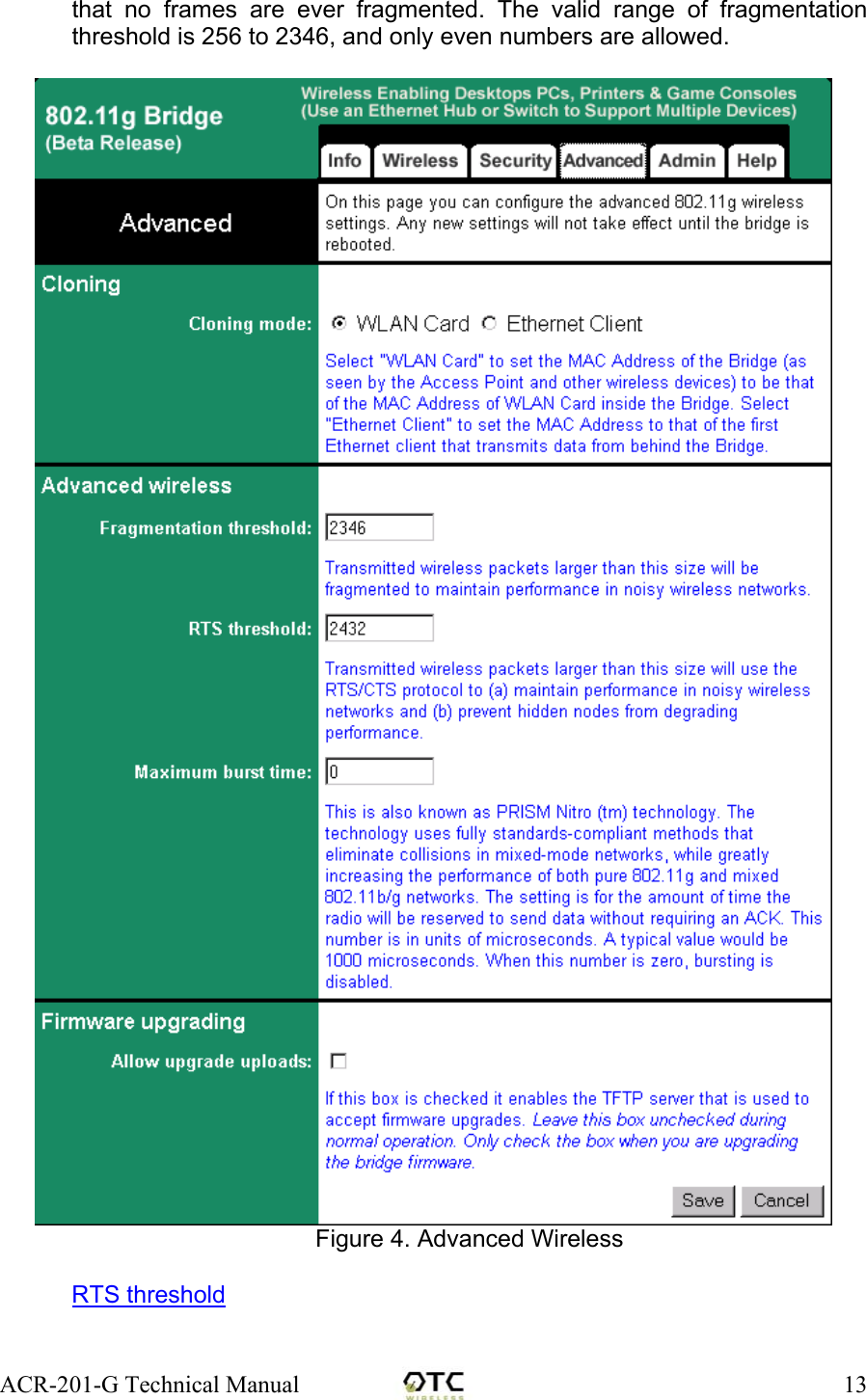
ACR-201-G Technical Manual    12This check box allows users to enable or disable WEP feature. While WEP is disabled, all the other fields on this “Encryption” page are disabled too. A set of four keys needs to be created in the default-key scheme.  Default WEP Key to Use Select the key to be used as the default key. Data transmissions are always encrypted using the default key. The other keys can only be used to decrypt received data.  Deny unencrypted data:  Check this field when the WEP is enabled to deny unencrypted data. This feature enables the adapter to drop all unencrypted packets received.  Authentication Three options are available: ‘Open’, ‘Shared Key’, and ‘Both’. 'Open' allows anyone to authenticate to this access point. 'Shared key' allows only stations that know the key(s) to authenticate. 'Both' allows a station to use either mode.  WEP key length:  The 64-bit encryption is currently the 802.11 standard. The 128-bit encryption is supported by equipment from a limited number of vendors. Note that the “user-controlled” portion of the 64-bit encryption is just 40 bits (10 Hex digits) and that for the 128-bit encryption is just 104 bits (26 Hex digits)—3-bytes of the encryption key are internal to the encryption algorithm.  WEP key 1/ 2/ 3/ 4:  The keys allows hex number inputs with varying length depending on the type of WEP being enabled i.e. 64 or128bit WEP   Advance On this page (Figure 4) you can configure the advanced 802.11g settings such as Bridging, advance Wireless settings, and Firmware upgrade option.   1. Bridging To activate the Bridging mode, the user needs to select WLAN card option allowing multiple clients connecting to an ACR-201-G unit. If Ethernet client option is selected, the ACR-201-G unit can connect to only a single client.  2. Advance Wireless  Fragmentation threshold Transmitted wireless packets larger than this size will be fragmented to maintain performance in noisy wireless networks. In the presence of hostile RF environment, such as interference, frames longer than this threshold numbers in bytes are divided prior to transmission into one or more fragments equal in length to the fragmentation threshold. The default value is set at 2346 bytes. The maximum 802.11 data frame size, such
ACR-201-G Technical Manual    13that no frames are ever fragmented. The valid range of fragmentation threshold is 256 to 2346, and only even numbers are allowed.   Figure 4. Advanced Wireless  RTS threshold
ACR-201-G Technical Manual    14Transmitted wireless packets larger than this size will use the RTS/CTS protocol to (a) maintain performance in noisy wireless networks and (b) prevent hidden nodes from degrading performance. To minimize the potential packet collision associated with hidden nodes in a wireless network, IEEE 802.11 standard has the option to complete a “Request to Send (RTS)” and “Clear to Send (CTS)” two-frame exchange prior to sending the real data. This reduces the throughput of the real data. Since the probability of packet collision increases with the size of the packets transmitted, an optimum trade-off between data-throughput and data-integrity may be reached by turning on the two-frame exchange only for data packets exceeding a certain size. The number entered in this field is that threshold packet size in Bytes. For example, if “500” is entered, data packets with sizes less than 500 bytes are transmitted without being preceded by the RTS-CTS exchange and thereby taking a small risk of getting corrupted by packet collisions. If “2346” (the maximum 802.11 data frame size) or a larger number is entered, then every data packet is transmitted without being preceded by the RTS-CTS exchange and thereby maximizing the data throughput. The valid range of RTS threshold is 0 to 3000.   Maximum burst time This is also known as PRISM Nitro (tm) technology. The technology uses fully standards-compliant methods that eliminate collisions in mixed-mode networks, while greatly increases the performance of both pure 802.11g and mixed 802.11b/g networks. The setting is for the amount of time the radio will be reserved to send data without requiring an ACK. This number is in units of microseconds. A typical value would be 1000 microseconds. When this number is zero, bursting is disabled.  3. Firmware Upgrade Allow Upgrade Uploads If this box is checked, it enables the TFTP server that is used to accept firmware upgrades. Leave this box unchecked during normal operation. Only check the box when you are upgrading the access point firmware.   Admin In this web page, users are able to change settings, which are used for administration purposes. The web page is divided into four sections: Device Name, IP settings, Security, and Commands.  1. Device Name: Device Name This is the name that the bridge will use to identify itself to external configuration and IP-address-finding programs. This is not the same as the SSID. It is okay to leave this blank if you are not using these programs.
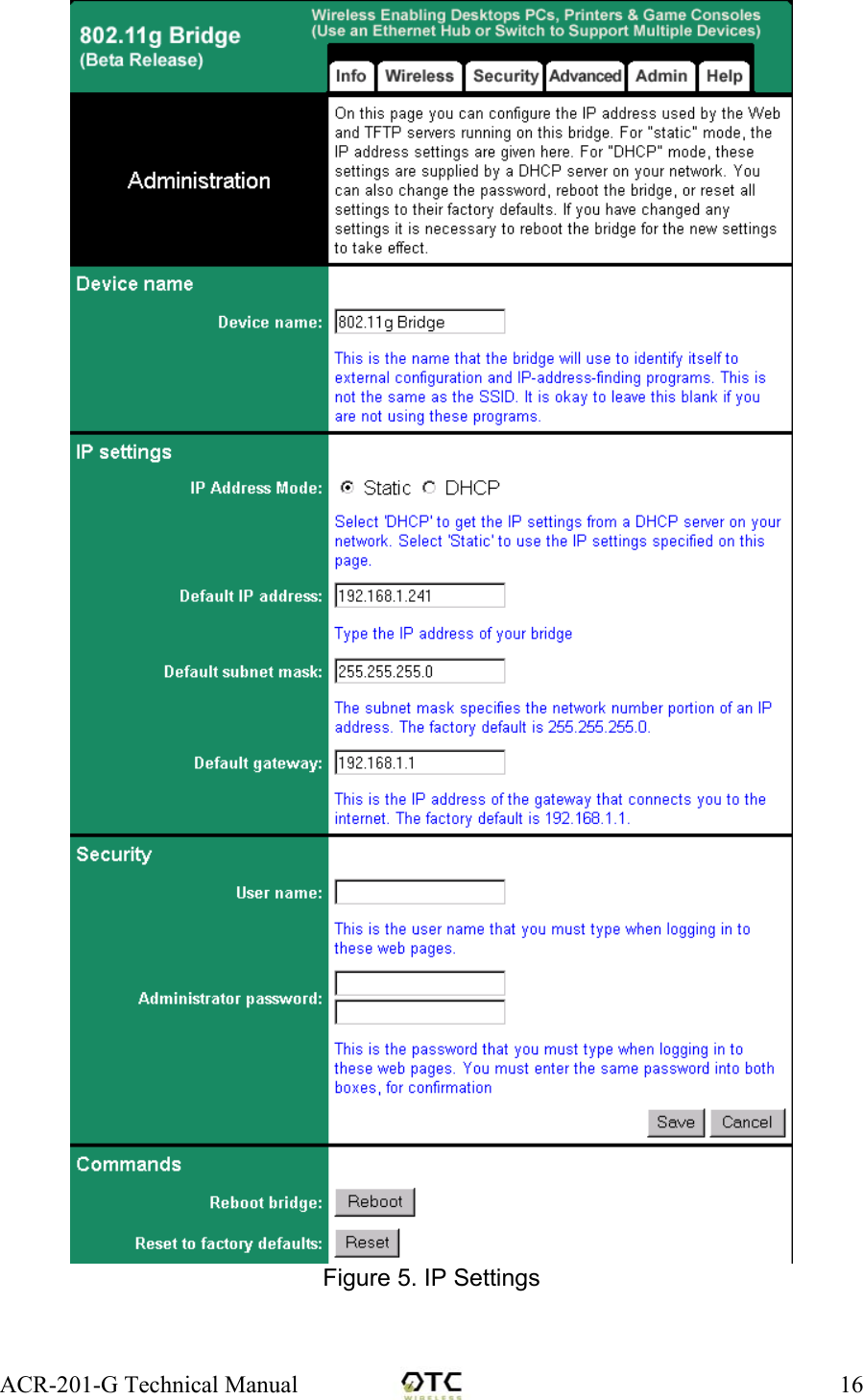
ACR-201-G Technical Manual    152. IP Settings: IP Address Mode Select 'DHCP' to get the IP settings from a DHCP server on your network. Select 'Static' to use the IP settings specified on this page.  Default IP address Type in the IP address of your Access Point. Allows the user to set a static IP address to the Wireless Adapter. This IP address is only used for accessing the built-in Web server. In order to access the Web server, the computer must use an IP address on the same subnet of the Wireless Adapter.  It is not necessary to change this IP address to an address used by the Wireless Network, but it is okay to do so, if desired.  However, if you do so, please consult with your system or network administrator to obtain an IP address.  WARNING: Any changes to the following IP settings should be contemplated carefully, documented well, and made only after consulting your system or network administrator.  Failure to do so may result in being unable to access the built-in Web server and/or may affect network operation.   Default subnet mask The subnet mask specifies the network number portion of an IP address. The factory default is 255.255.0.0. This allows the user to set the subnet mask. If you change the IP address to one that is usable in your network, you may need to change this setting also.  Please ask your system or network administrator for the correct subnet mask.   Default gateway This is the IP address of the gateway that connects you to the Internet. Allows the user to set the default gateway. If you change the IP address to one that is usable in your network, you may need to change this setting also. Please ask your system or network administrator for the correct gateway.
ACR-201-G Technical Manual    16 Figure 5. IP Settings
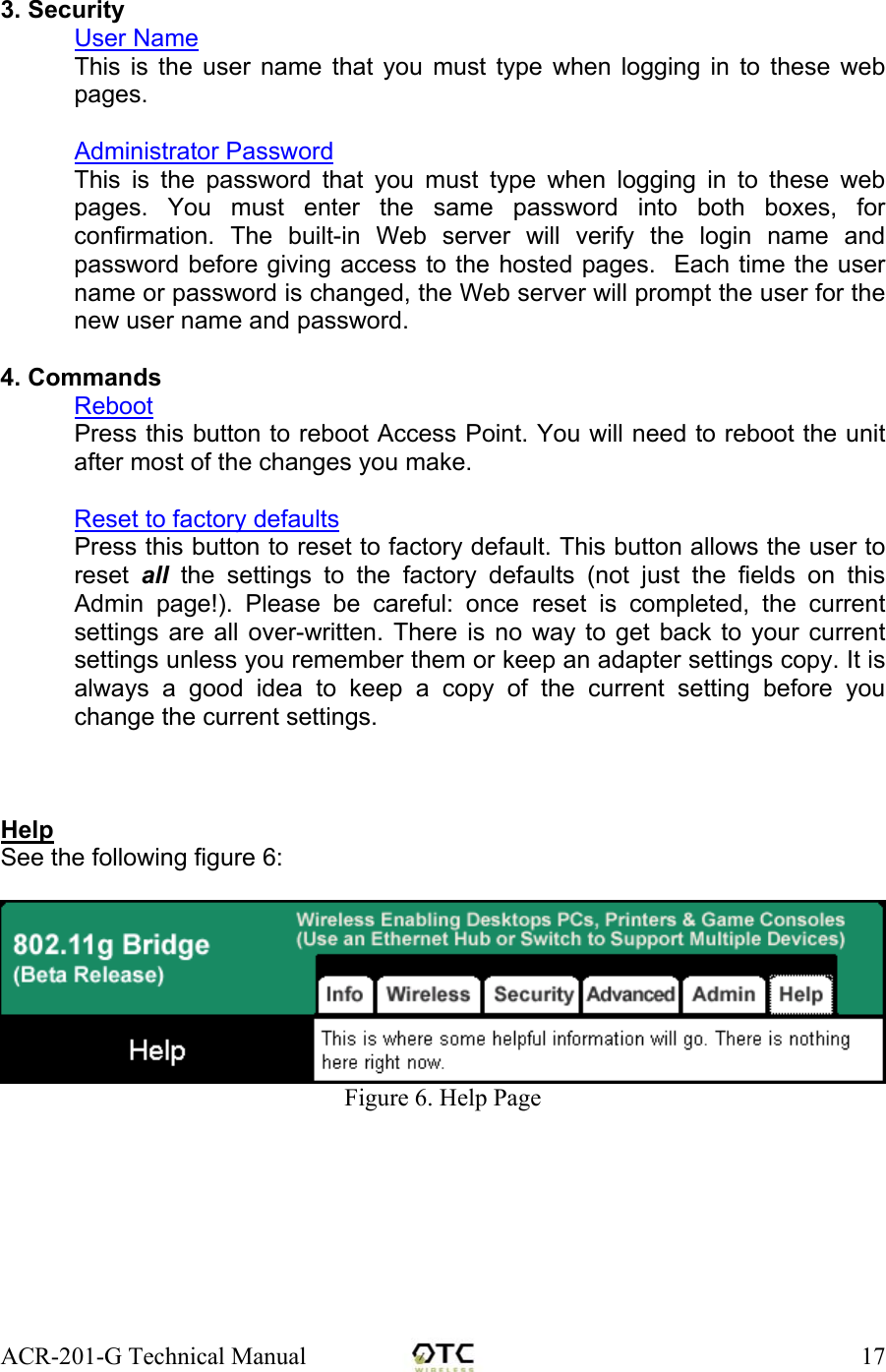
ACR-201-G Technical Manual    17  3. Security User Name This is the user name that you must type when logging in to these web pages.  Administrator Password This is the password that you must type when logging in to these web pages. You must enter the same password into both boxes, for confirmation. The built-in Web server will verify the login name and password before giving access to the hosted pages.  Each time the user name or password is changed, the Web server will prompt the user for the new user name and password.   4. Commands Reboot Press this button to reboot Access Point. You will need to reboot the unit after most of the changes you make.  Reset to factory defaults Press this button to reset to factory default. This button allows the user to reset  all the settings to the factory defaults (not just the fields on this Admin page!). Please be careful: once reset is completed, the current settings are all over-written. There is no way to get back to your current settings unless you remember them or keep an adapter settings copy. It is always a good idea to keep a copy of the current setting before you change the current settings.    Help See the following figure 6:   Figure 6. Help Page
ACR-201-G Technical Manual    18Chapter 4 Troubleshooting  No Page Displayed When Accessing the Web-based Utility This is either because the radio is extremely busy on the RF side or because the Ethernet connection is problematic. Try hitting the “Refresh” or “Reload” button of the web browser a few times. If the same message persists, it is unlikely that the problem is caused by a busy radio. Check your Ethernet connection. Make sure you use at least a legitimate CAT-3 cable, but preferably a CAT-5. Make sure that it is a straight-through cable between the radio and the computer, or a crossover cable between the radio and the hub, if a hub is involved. Check to make sure that the Ethernet card of the computer running the Web-based Utility program is functional and has a correct IP address and subnet mask setting.  No Radio Link  If the “Communication Strength” indicator on the “Link Info” tab shows 0%, check the following possible causes:  •  Make sure that a target radio, an AP or another Station, is turned on and operating properly.  •  Make sure that the “Signal Strength” indicator on the “Link Info” tab is not zero. A minimum of 20% is recommended. If the “Signal Strength” is less than 20%, the distance between the ACR-201-G and the targeted radio (an AP or another Station) may be too far. Decrease the distance to see if the radio link can be established.  •  Make sure that the SSID is “any” or “ANY” or the same as that for the Access Point if operating in the infrastructure mode, or the same as that of the other Stations if operating in the Ad Hoc mode.  •  Make sure that the encryption keys are entered correctly if WEP is enabled.  •  Make sure that there is no RF interference present in the radio network.    No Network Connection While the Radio Link is Good If the “Communication Strength” indicator shows good link quality on the “Link Info” tab, but the host computer/device cannot be connected to the network  •  Make sure that the Yellow LED on the radio is NOT constantly ON. If it is, Ethernet connection is questionable.  •  Make sure the Ethernet Adapter of the host computer/device is properly installed.
ACR-201-G Technical Manual    19•  Make sure that the UTP cable connecting the radio and the host device meets at least the CAT-3 standard and has a straight-through connection, not a crossover.   •  Make sure that the ACR-201-G is not connected to a hub with multiple computers/devices plugged in.   •  Make sure that the IP address of the host computer/device is properly set up for the network.   •  Make sure that the host computer/device has initiated some packet traffic since the radio was turned on. (That is the failure of the network connection is not just determined by trying to access the host from a remote point in the network.) Reset or re-power the host with the ACR-201-G turned on may be necessary in order for the ACR-201-G to “learn” the MAC address of the host computer.  Poor Link Quality If the “Communication Strength” stays in the Poor range, it could be due to one of the following reasons:  •  Make sure that radio interference is not present in the radio network.  •  Make sure that the radio is not surrounded by many strongly reflecting (metallic) surfaces. With multiple reflecting surfaces between the radio in question and the target radio, a severe “multi-path” problem may introduce high bit error rate despite a strong “Signal Strength”.  •  Make sure that there is not a condition of severe packet collision caused by a “hidden node” problem. A “hidden node” problem is the situation where the RF signal from two or more Station radios cannot reach each other (but can reach the AP). In such situation, multiple Stations may attempt to transmit data packet to the AP at the same time and therefore cause packet collision. To solve this problem, either re-arrange the Stations in question such that the RF signals are mutually sensible by all Stations, or turn-on the RTS/CTS protocol by setting the “RTS threshold” on the “Config” tab to a reasonably small value (500, for example). There is no guarantee that the packet collision can be entirely eliminated by invoking RTS/CTS protocol, but the severity can be reduced enough to see visible improvement of the link quality.  Radio Interference You may be able to eliminate RF interference by trying the following: •  Find the “channel” used by the source of the interference and coordinate your network and the interference source to be on channels that are at least 20MHz, but preferably 30MHz, apart.
ACR-201-G Technical Manual    20•  Reseat the ACR-201-G radio to a location where the interference is minimized; in general, increase the distance between the wireless devices and the device causing the radio interference.  •  Avoid using 2.4GHz cordless phone in the vicinity of the radio  •  Keep the computer with the ACR-201-G radio away from the microwave oven and large metal objects.  •  Consult the dealer or an experienced radio technician for help.  TFTP Timeouts If TFTP command timeouts, please check whether you can ping the Wireless Adapter. Another possible cause for the timeout is the network traffic is too busy.  Settings Appear not to be Modified Check the version of the software to be upgraded and the software currently running in the Wireless Adapter. If they are the same, you must click “Reset to factory defaults” button on index.html page to make software upgrading take effect. This upgrade effectively overwrites the current software with a different set of factory defaults.  Technical Support Please contact OTC Wireless for Technical Support. E-mail: support@otcwireless.com Telephone: 1-800-770-6689 (Inside USA), 011-510-490-8288 (Outside USA)
ACR-201-G Technical Manual    21Appendix A: Limited Warranty   The seller warrants to the end user (“Customer”) that this product will be free from defects in workmanship and materials, under normal use and service, for one (1) year from the date of purchase from the seller or its authorized reseller. The seller’s sole obligation under this express warranty shall be, at the seller’s option and expense, to repair the defective product or part, or deliver to Customer an equivalent product or part to replace the defective item.   All products that are replaced will become the property of the seller.  Replacement products may be new or reconditioned.
ACR-201-G Technical Manual    22Appendix B:  Regulatory Compliance  Federal Communications Commission (FCC) Compliance Information Statement  FCC Part 15 Declaration of Conformity (DoC) The following equipment: Product Name: Wireless Ethernet Adapter Model Number: ACR-201-G WLAN is herewith confirmed to comply with the requirements of FCC Part 15 rules. The operation is subject to the following two conditions: 1. This device may not cause harmful interference, and 2. This device must accept any interference received, including interference that may cause undesired operation. FCC ID:   A declaration of conformity with the requirements of the directives is available from OTC Wireless, Inc. 48507 Milmont Drive, Fremont, California 94538, USA  1-800-770-6698 (USA); 011-510-490-8288 (International)  FCC Rules and Regulations - Part 15 This equipment has been tested and found to comply with the limits for a Class B digital device, pursuant to Part 15 of the FCC Rules. Operation is subject to the following two conditions: (1) this device may not cause harmful interference, and (2) this device must accept any interference received, including interference that may cause undesired operation. These limits are designed to provide reasonable protection against harmful interference in a residential installation. This equipment generates, uses and can radiate radio frequency energy and, if not installed and used in accordance with the instructions, may cause harmful interference to radio communications. However, there is no guarantee that interference will not occur in a particular installation. If this equipment does cause harmful interference to radio or television reception, which can be determined by unplugging the equipment and then plugging it back in, the user is encouraged to try to correct the interference by one or more of the following measures:  • Reorient or relocate the receiving antenna. • Increase the separation between the equipment and receiver. • Connect the equipment into an outlet on a circuit different from that to which the receiver is connected. • Consult the dealer or an experienced radio/TV technician for help.  Caution: Changes or modifications not expressly approved by OTC Wireless could void the user's authority to operate the equipment. This transmitter must not be co-located or operating in conjunction with any other antenna or transmitter.
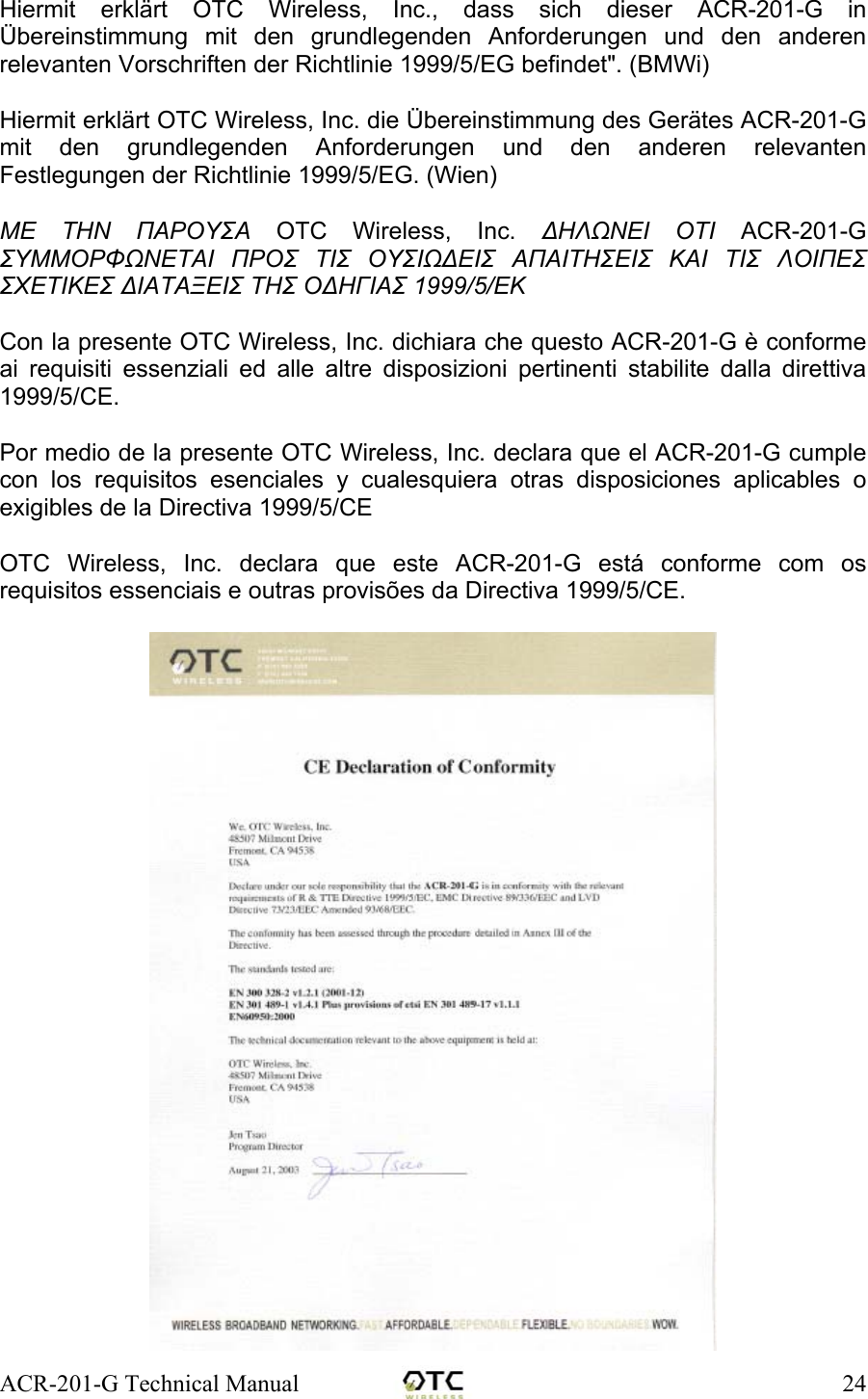
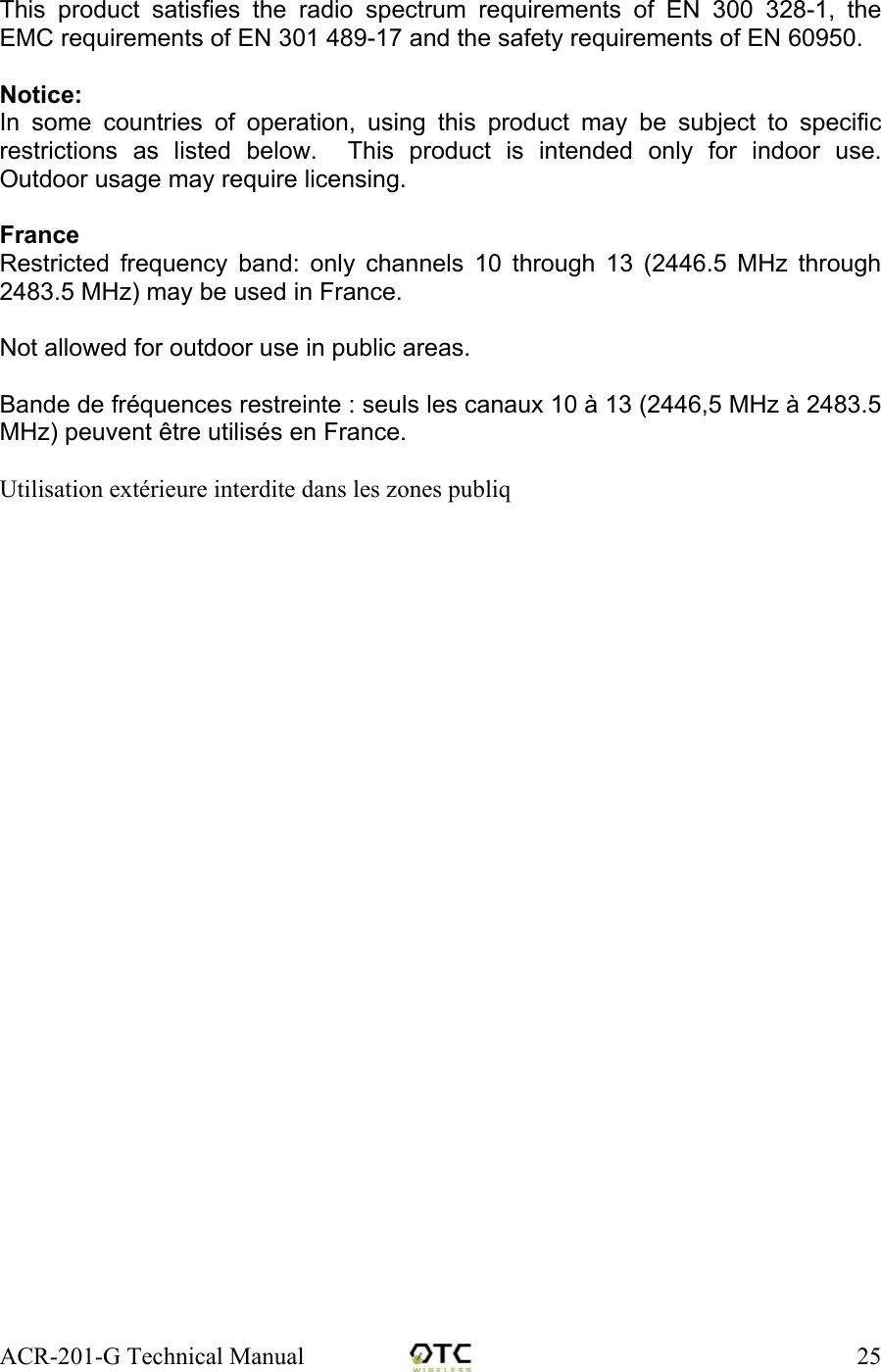
ACR-201-G Technical Manual    23Exposure to Radio Frequency Radiation Caution: The radiated output power of this device is far below the FCC radio frequency exposure limits. In order to avoid the possibility of exceeding the FCC radio frequency exposure limits, a minimum separation of 20 cm (8 inches) is recommended between the antenna and any persons.  European Community (EC) Directives Conformity and Restrictions  This product is in conformity with the protection requirements of EC Council directives 89/336/EEC, 73/23/EEC, and 1999/5/EC on the approximation and harmonization of the laws of the Member States relating to electromagnetic compatibility, safety of electrical equipment designed for use within certain voltage limits and on radio equipment and telecommunications terminal equipment.    Compliance is indicated by the CE marking    Hereby, OTC Wireless, Inc. declares that this ACR-201-G is in compliance with the essential requirements and other relevant provisions of Directive 1999/5/EC.  OTC Wireless, Inc. vakuuttaa täten että ACR-201-G tyyppinen laite on direktiivin 1999/5/EY oleellisten vaatimusten ja sitä koskevien direktiivin muiden ehtojen mukainen.  Hierbij verklaart OTC Wireless, Inc. dat het toestel ACR-201-G in overeenstemming is met de essentiële eisen en de andere relevante bepalingen van richtlijn 1999/5/EG  Bij deze verklaart OTC Wireless, Inc. dat deze ACR-201-G voldoet aan de essentiële eisen en aan de overige relevante bepalingen van Richtlijn 1999/5/EC.  Par la présente OTC Wireless, Inc. déclare que l'appareil ACR-201-G est conforme aux exigences essentielles et aux autres dispositions pertinentes de la directive 1999/5/CE  Par la présente, OTC Wireless, Inc. déclare que ce ACR-201-G est conforme aux exigences essentielles et aux autres dispositions de la directive 1999/5/CE qui lui sont applicables  Härmed intygar OTC Wireless, Inc. att denna ACR-201-G står I överensstämmelse med de väsentliga egenskapskrav och övriga relevanta bestämmelser som framgår av direktiv 1999/5/EG.  Undertegnede OTC Wireless, Inc. erklærer herved, at følgende udstyr ACR-201-G overholder de væsentlige krav og øvrige relevante krav i direktiv 1999/5/EF
ACR-201-G Technical Manual    24Hiermit erklärt OTC Wireless, Inc., dass sich dieser ACR-201-G in Übereinstimmung mit den grundlegenden Anforderungen und den anderen relevanten Vorschriften der Richtlinie 1999/5/EG befindet". (BMWi)  Hiermit erklärt OTC Wireless, Inc. die Übereinstimmung des Gerätes ACR-201-G mit den grundlegenden Anforderungen und den anderen relevanten Festlegungen der Richtlinie 1999/5/EG. (Wien)  ΜΕ ΤΗΝ ΠΑΡΟΥΣΑ OTC Wireless, Inc. ∆ΗΛΩΝΕΙ ΟΤΙ ACR-201-G ΣΥΜΜΟΡΦΩΝΕΤΑΙ ΠΡΟΣ ΤΙΣ ΟΥΣΙΩ∆ΕΙΣ ΑΠΑΙΤΗΣΕΙΣ ΚΑΙ ΤΙΣ ΛΟΙΠΕΣ ΣΧΕΤΙΚΕΣ ∆ΙΑΤΑΞΕΙΣ ΤΗΣ Ο∆ΗΓΙΑΣ 1999/5/ΕΚ  Con la presente OTC Wireless, Inc. dichiara che questo ACR-201-G è conforme ai requisiti essenziali ed alle altre disposizioni pertinenti stabilite dalla direttiva 1999/5/CE.  Por medio de la presente OTC Wireless, Inc. declara que el ACR-201-G cumple con los requisitos esenciales y cualesquiera otras disposiciones aplicables o exigibles de la Directiva 1999/5/CE  OTC Wireless, Inc. declara que este ACR-201-G está conforme com os requisitos essenciais e outras provisões da Directiva 1999/5/CE.
ACR-201-G Technical Manual    25  This product satisfies the radio spectrum requirements of EN 300 328-1, the EMC requirements of EN 301 489-17 and the safety requirements of EN 60950.  Notice: In some countries of operation, using this product may be subject to specific restrictions as listed below.  This product is intended only for indoor use.  Outdoor usage may require licensing.  France Restricted frequency band: only channels 10 through 13 (2446.5 MHz through 2483.5 MHz) may be used in France.  Not allowed for outdoor use in public areas.  Bande de fréquences restreinte : seuls les canaux 10 à 13 (2446,5 MHz à 2483.5 MHz) peuvent être utilisés en France.  Utilisation extérieure interdite dans les zones publiq

Navigation menu