Ogemray Technology PA0XT Wireless Module User Manual PA User s manual V19

Shenzhen Ogemray Technology Co.,Ltd Wireless Module PA User s manual V19

user manual

                                      150Mbps  Long Range  USB WIRELESS ADAPTER  User’s Manual Version 1.9
User’s Manual          Wireless USB Adapter     Page 1 This device complies with part 15 of the FCC Rules. Operation is subject to the following two conditions: (1) This device may not cause harmful interference, and (2) this device must accept any interference received, including interference that may cause undesired operation. Changes or modifications not expressly approved by the party responsible for compliance could void the user's authority to operate the equipment. NOTE: This equipment has been tested and found to comply with the limits for a Class B digital device, pursuant to Part 15 of the FCC Rules. These limits are designed to provide reasonable protection against harmful interference in a residential installation. This equipment generates, uses and can radiate radio frequency energy and, if not installed and used in accordance with the instructions, may cause harmful interference to radio communications. However, there is no guarantee that interference will not occur in a particular installation. If this equipment does cause harmful interference to radio or television reception, which can be determined by turning the equipment off and on, the user is encouraged to try to correct the interference by one or more of the following measures:   -- Reorient or relocate the receiving antenna.   -- Increase the separation between the equipment and receiver.   -- Connect the equipment into an outlet on a circuit different from that to which the receiver is connected.   -- Consult the dealer or an experienced radio/TV technician for help.            Introduction Thank you for purchasing the IEEE 802.11b/g or 802.11n Wireless USB Adapter, it supports USB2.0 and USB1.1 standards interface. It operates in 2.4GHz frequency and fully complies with IEEE 802.11b/g standards based on 1T1R mode.   A Ralink RT3070 MAC/BBP/Transceiver single chip, a RF power amplifier and a LNA in Rx circuitry are used to achieve high-performance of the latest Wi-Fi technology.   A typical Internet access application for the USB wireless adapter is shown as the following figure:   FCC Radiation Exposure StatementThis equipment complies with FCC radiation exposure limits set forth for an uncontrolled environment.This equipment should be installed and operated with minimum distance 20cm between the radiator & your body
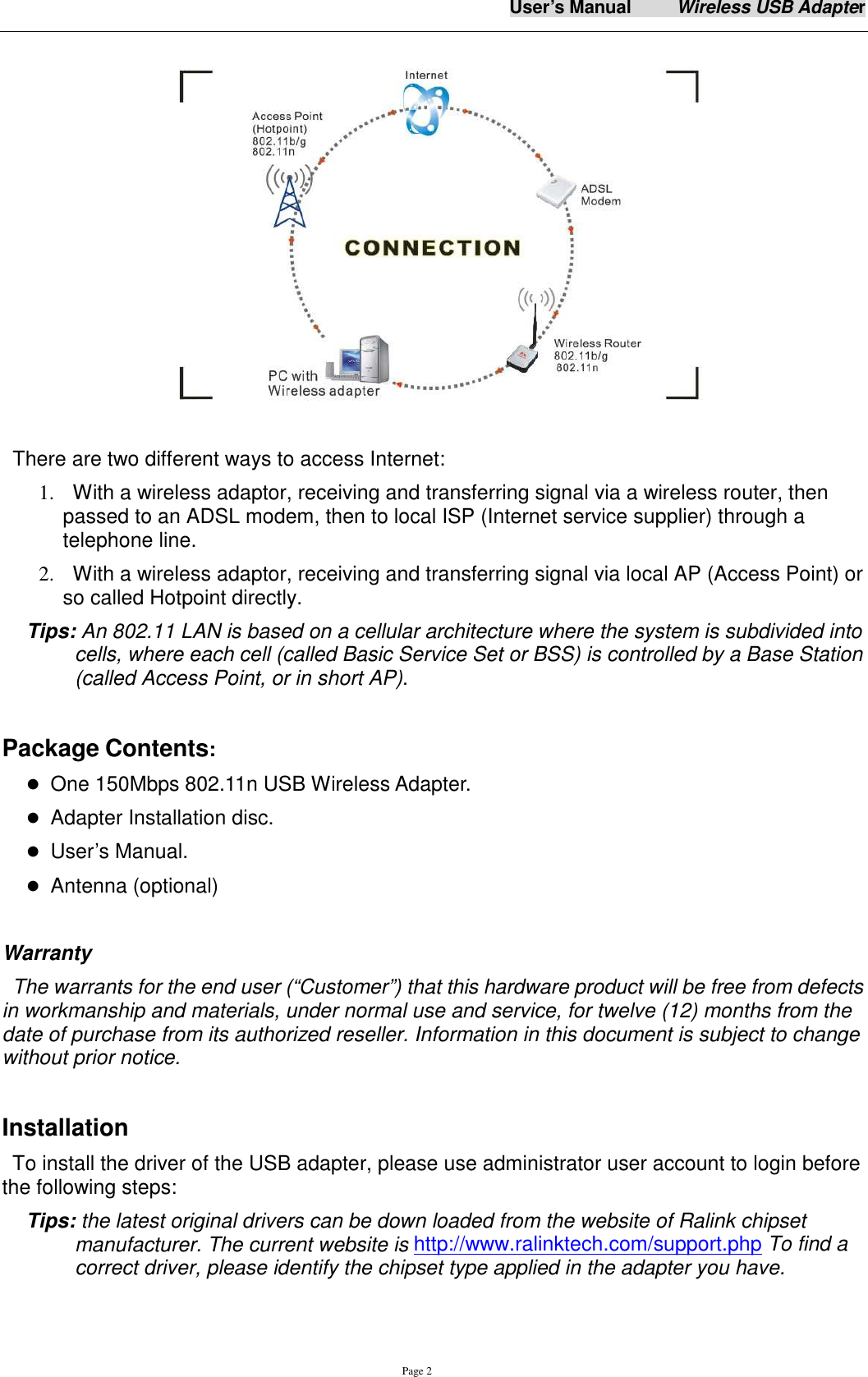
User’s Manual          Wireless USB Adapter     Page 2  There are two different ways to access Internet: 1.   With a wireless adaptor, receiving and transferring signal via a wireless router, then passed to an ADSL modem, then to local ISP (Internet service supplier) through a telephone line.   2.   With a wireless adaptor, receiving and transferring signal via local AP (Access Point) or so called Hotpoint directly. Tips: An 802.11 LAN is based on a cellular architecture where the system is subdivided into cells, where each cell (called Basic Service Set or BSS) is controlled by a Base Station (called Access Point, or in short AP).     Package Contents:  One 150Mbps 802.11n USB Wireless Adapter.  Adapter Installation disc.  User’s Manual.  Antenna (optional)    Warranty The warrants for the end user (“Customer”) that this hardware product will be free from defects in workmanship and materials, under normal use and service, for twelve (12) months from the date of purchase from its authorized reseller. Information in this document is subject to change without prior notice.  Installation To install the driver of the USB adapter, please use administrator user account to login before the following steps: Tips: the latest original drivers can be down loaded from the website of Ralink chipset manufacturer. The current website is http://www.ralinktech.com/support.php To find a correct driver, please identify the chipset type applied in the adapter you have.
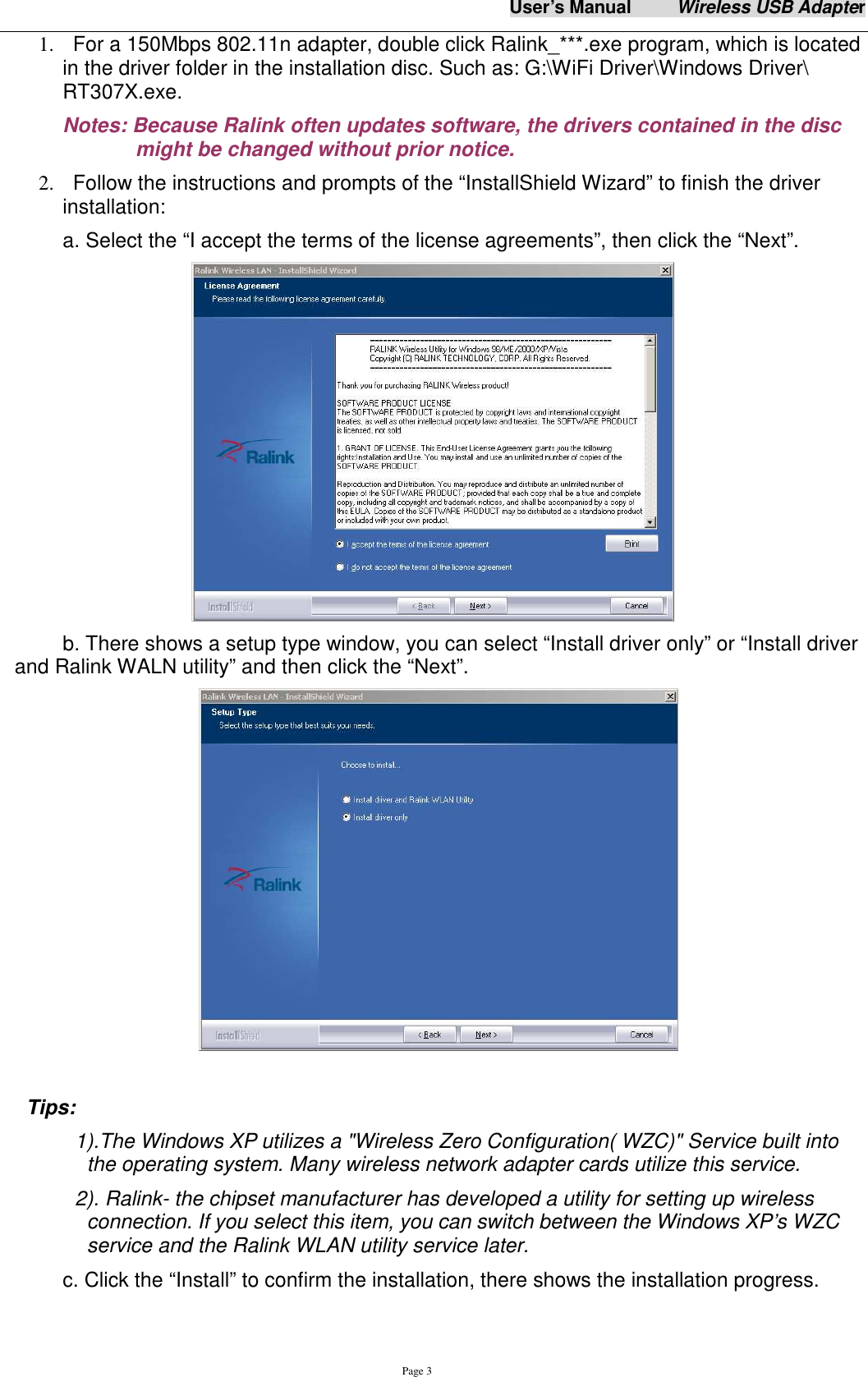
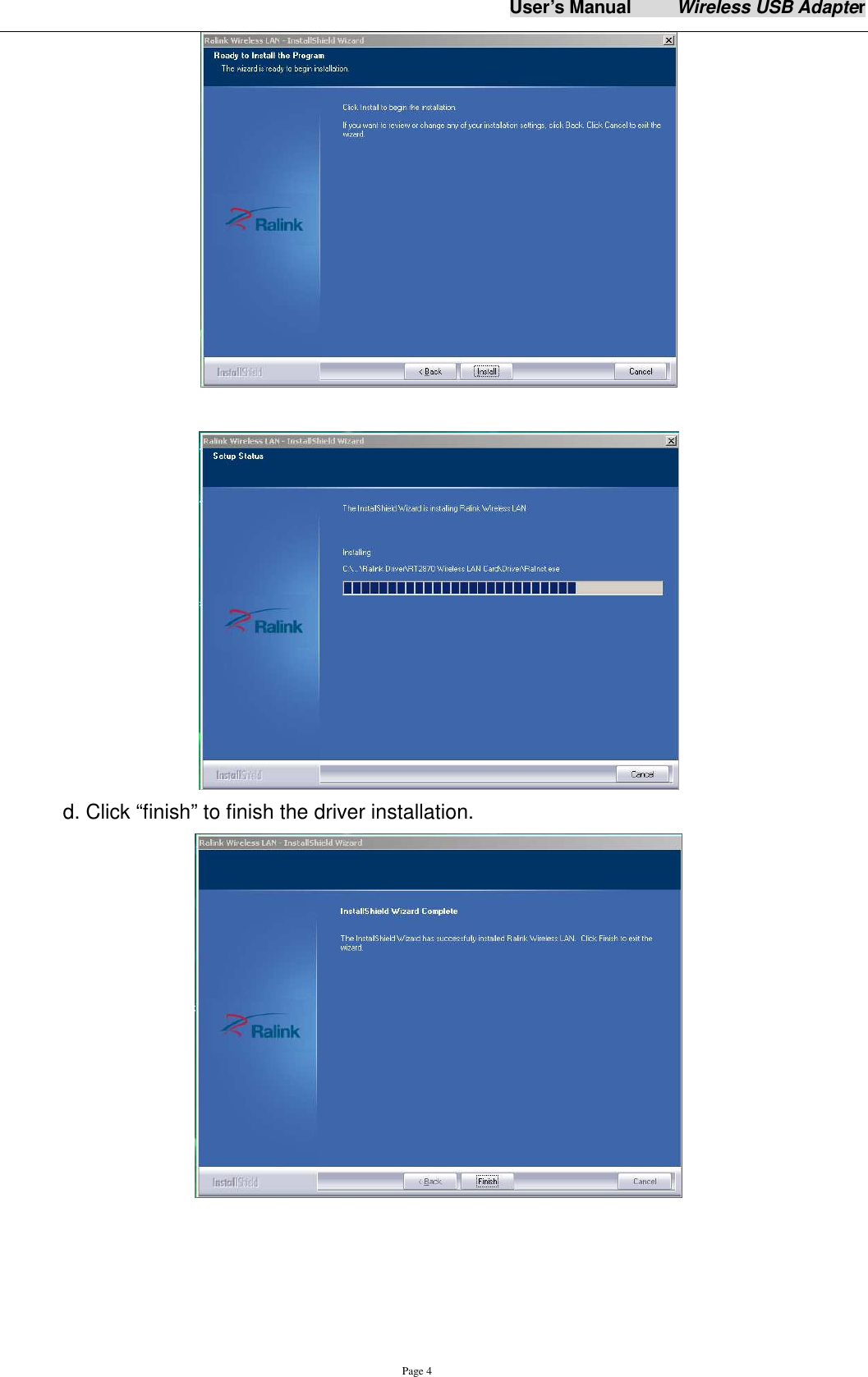
User’s Manual          Wireless USB Adapter     Page 3 1.   For a 150Mbps 802.11n adapter, double click Ralink_***.exe program, which is located in the driver folder in the installation disc. Such as: G:\WiFi Driver\Windows Driver\ RT307X.exe. Notes: Because Ralink often updates software, the drivers contained in the disc might be changed without prior notice.   2.   Follow the instructions and prompts of the “InstallShield Wizard” to finish the driver installation: a. Select the “I accept the terms of the license agreements”, then click the “Next”.  b. There shows a setup type window, you can select “Install driver only” or “Install driver and Ralink WALN utility” and then click the “Next”.     Tips:   1).The Windows XP utilizes a "Wireless Zero Configuration( WZC)" Service built into the operating system. Many wireless network adapter cards utilize this service.   2). Ralink- the chipset manufacturer has developed a utility for setting up wireless connection. If you select this item, you can switch between the Windows XP’s WZC service and the Ralink WLAN utility service later. c. Click the “Install” to confirm the installation, there shows the installation progress.
User’s Manual          Wireless USB Adapter     Page 4    d. Click “finish” to finish the driver installation.
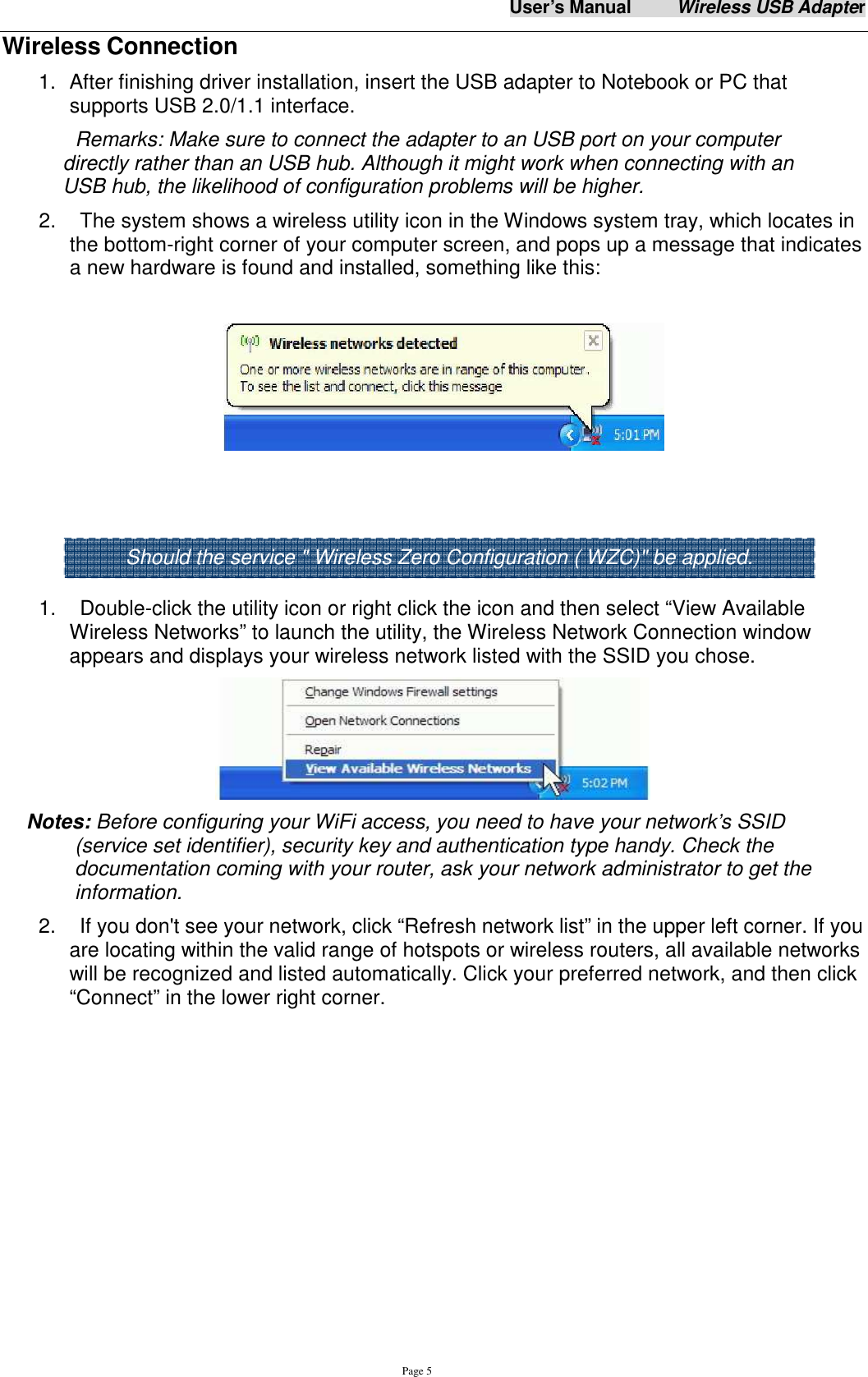
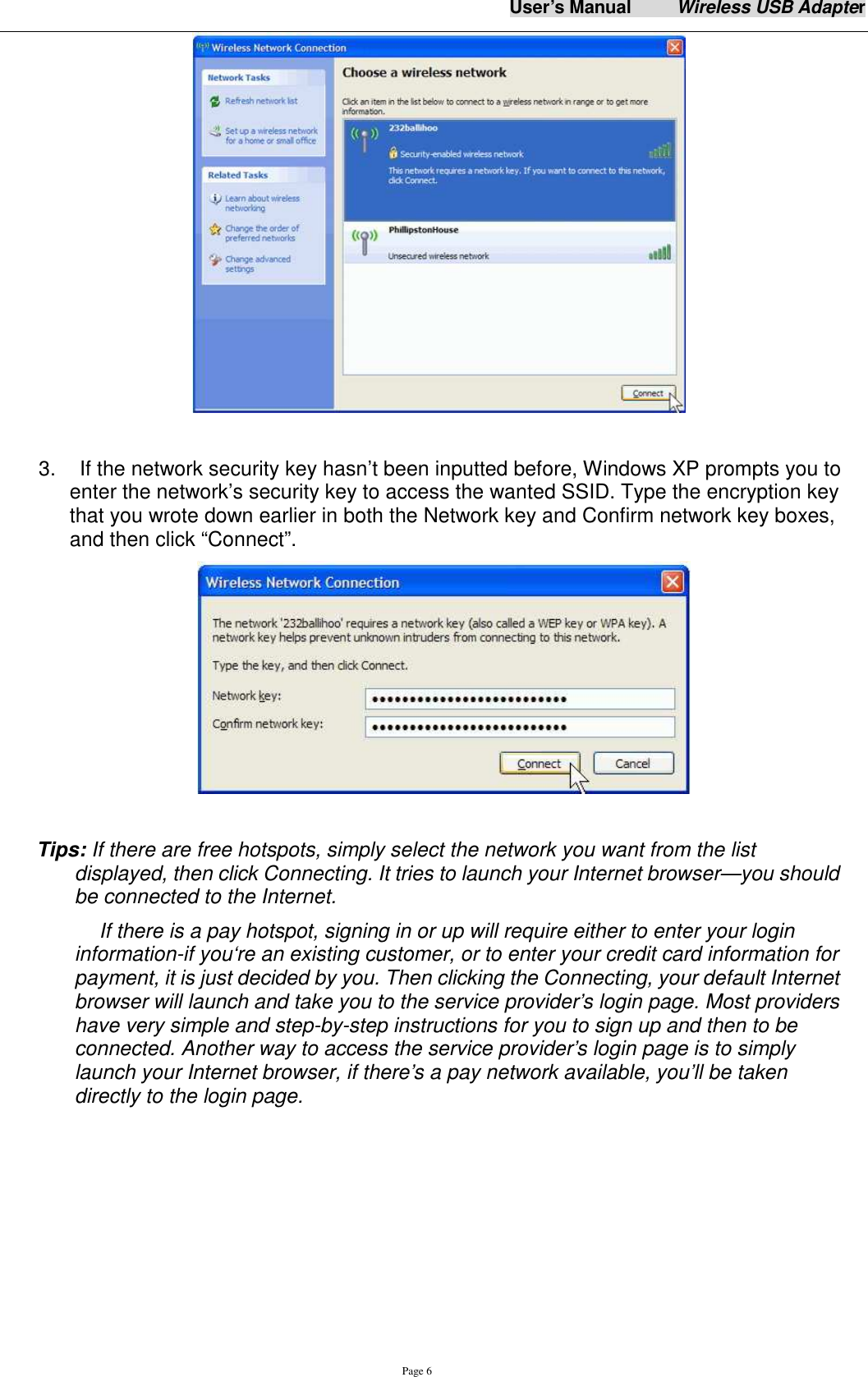
User’s Manual          Wireless USB Adapter     Page 5 Wireless Connection 1.  After finishing driver installation, insert the USB adapter to Notebook or PC that supports USB 2.0/1.1 interface.   Remarks: Make sure to connect the adapter to an USB port on your computer directly rather than an USB hub. Although it might work when connecting with an USB hub, the likelihood of configuration problems will be higher. 2.    The system shows a wireless utility icon in the Windows system tray, which locates in the bottom-right corner of your computer screen, and pops up a message that indicates a new hardware is found and installed, something like this:         1.    Double-click the utility icon or right click the icon and then select “View Available Wireless Networks” to launch the utility, the Wireless Network Connection window appears and displays your wireless network listed with the SSID you chose.  Notes: Before configuring your WiFi access, you need to have your network’s SSID (service set identifier), security key and authentication type handy. Check the documentation coming with your router, ask your network administrator to get the information.   2.    If you don't see your network, click “Refresh network list” in the upper left corner. If you are locating within the valid range of hotspots or wireless routers, all available networks will be recognized and listed automatically. Click your preferred network, and then click “Connect” in the lower right corner. Should the service " Wireless Zero Configuration ( WZC)" be applied.
User’s Manual          Wireless USB Adapter     Page 6   3.    If the network security key hasn’t been inputted before, Windows XP prompts you to enter the network’s security key to access the wanted SSID. Type the encryption key that you wrote down earlier in both the Network key and Confirm network key boxes, and then click “Connect”.    Tips: If there are free hotspots, simply select the network you want from the list displayed, then click Connecting. It tries to launch your Internet browser—you should be connected to the Internet. If there is a pay hotspot, signing in or up will require either to enter your login information-if you‘re an existing customer, or to enter your credit card information for payment, it is just decided by you. Then clicking the Connecting, your default Internet browser will launch and take you to the service provider’s login page. Most providers have very simple and step-by-step instructions for you to sign up and then to be connected. Another way to access the service provider’s login page is to simply launch your Internet browser, if there’s a pay network available, you’ll be taken directly to the login page.
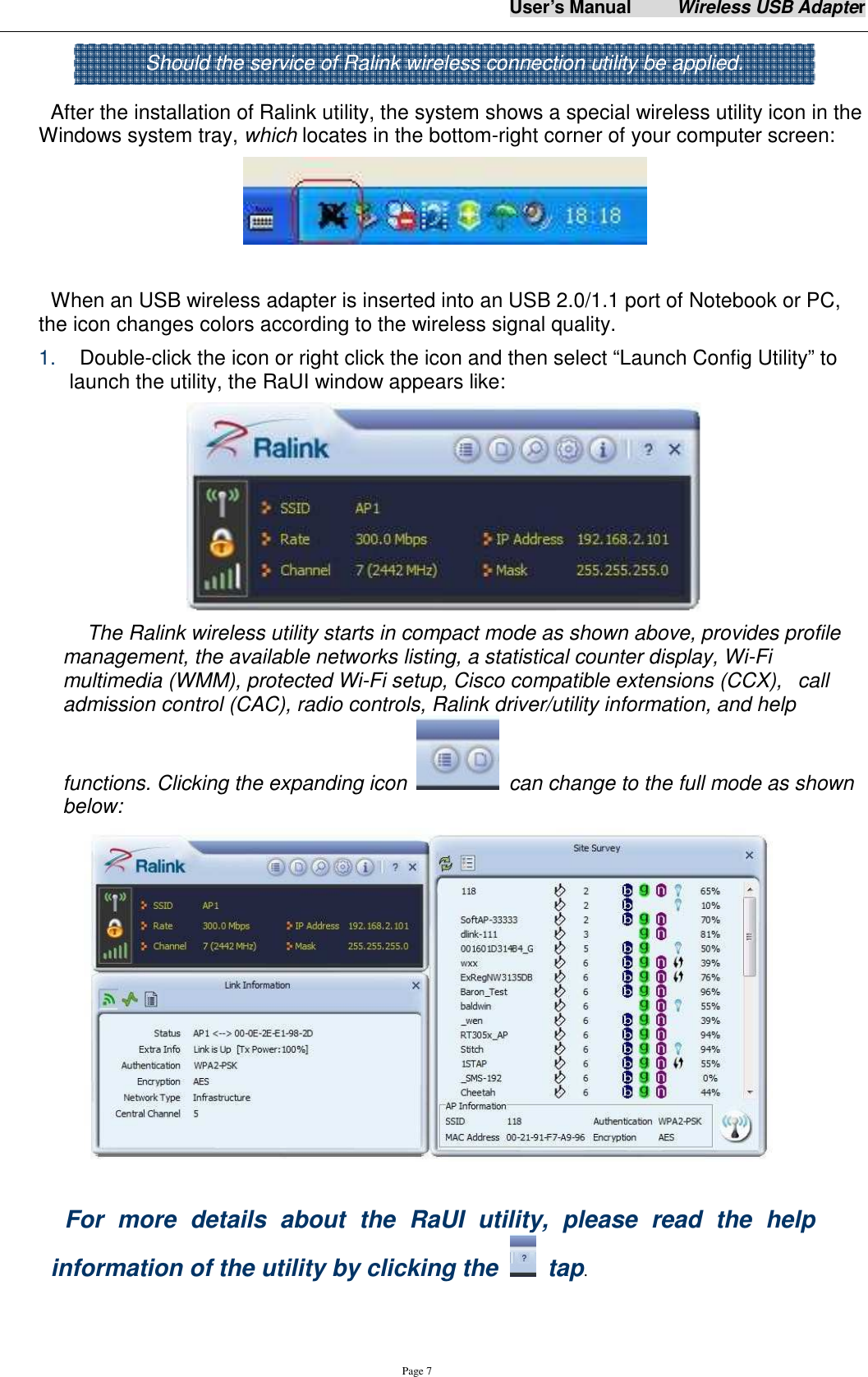
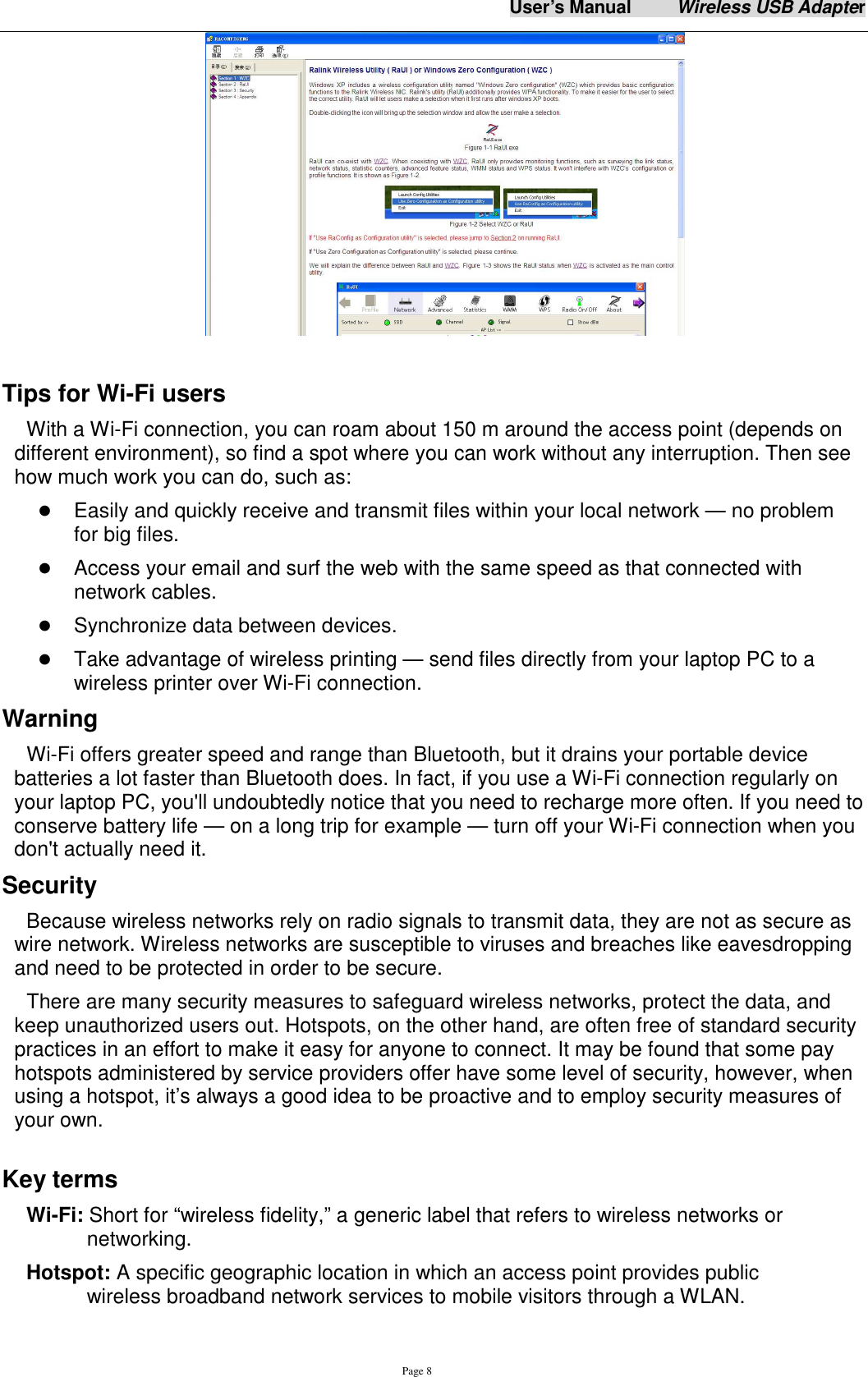
User’s Manual          Wireless USB Adapter     Page 7   After the installation of Ralink utility, the system shows a special wireless utility icon in the Windows system tray, which locates in the bottom-right corner of your computer screen:   When an USB wireless adapter is inserted into an USB 2.0/1.1 port of Notebook or PC,   the icon changes colors according to the wireless signal quality. 1.    Double-click the icon or right click the icon and then select “Launch Config Utility” to launch the utility, the RaUI window appears like:    The Ralink wireless utility starts in compact mode as shown above, provides profile management, the available networks listing, a statistical counter display, Wi-Fi multimedia (WMM), protected Wi-Fi setup, Cisco compatible extensions (CCX),   call admission control (CAC), radio controls, Ralink driver/utility information, and help functions. Clicking the expanding icon    can change to the full mode as shown below:   For  more  details  about  the  RaUI  utility,  please  read  the  help information of the utility by clicking the    tap.  Should the service of Ralink wireless connection utility be applied.
User’s Manual          Wireless USB Adapter     Page 8   Tips for Wi-Fi users   With a Wi-Fi connection, you can roam about 150 m around the access point (depends on different environment), so find a spot where you can work without any interruption. Then see how much work you can do, such as:    Easily and quickly receive and transmit files within your local network — no problem for big files.  Access your email and surf the web with the same speed as that connected with network cables.  Synchronize data between devices.  Take advantage of wireless printing — send files directly from your laptop PC to a wireless printer over Wi-Fi connection.   Warning   Wi-Fi offers greater speed and range than Bluetooth, but it drains your portable device batteries a lot faster than Bluetooth does. In fact, if you use a Wi-Fi connection regularly on your laptop PC, you'll undoubtedly notice that you need to recharge more often. If you need to conserve battery life — on a long trip for example — turn off your Wi-Fi connection when you don't actually need it.   Security Because wireless networks rely on radio signals to transmit data, they are not as secure as wire network. Wireless networks are susceptible to viruses and breaches like eavesdropping and need to be protected in order to be secure. There are many security measures to safeguard wireless networks, protect the data, and keep unauthorized users out. Hotspots, on the other hand, are often free of standard security practices in an effort to make it easy for anyone to connect. It may be found that some pay hotspots administered by service providers offer have some level of security, however, when using a hotspot, it’s always a good idea to be proactive and to employ security measures of your own.  Key terms Wi-Fi: Short for “wireless fidelity,” a generic label that refers to wireless networks or networking. Hotspot: A specific geographic location in which an access point provides public wireless broadband network services to mobile visitors through a WLAN.
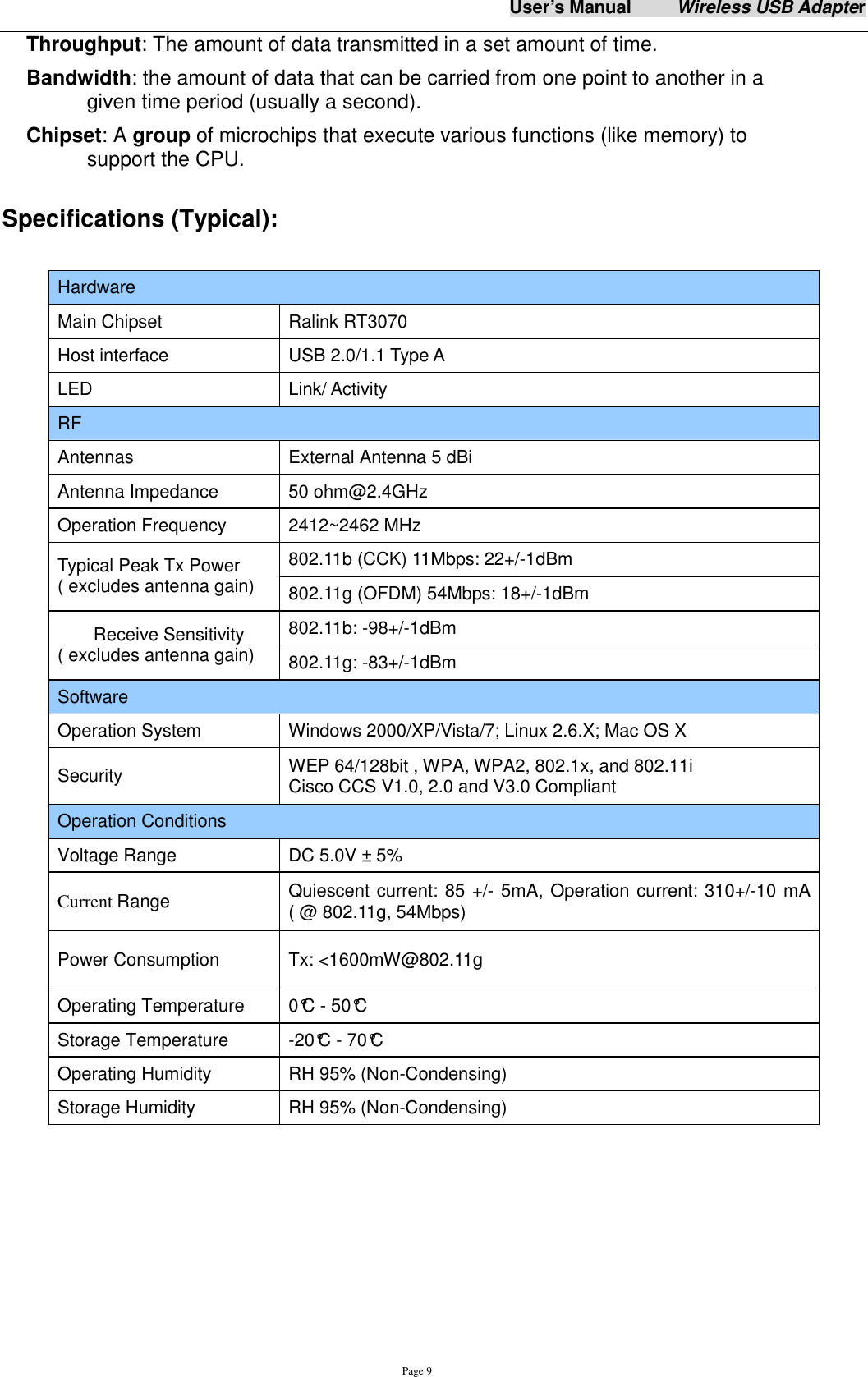
User’s Manual          Wireless USB Adapter     Page 9 Throughput: The amount of data transmitted in a set amount of time.   Bandwidth: the amount of data that can be carried from one point to another in a given time period (usually a second).   Chipset: A group of microchips that execute various functions (like memory) to support the CPU.    Specifications (Typical):    Hardware Main Chipset  Ralink RT3070 Host interface  USB 2.0/1.1 Type A LED  Link/ Activity RF Antennas  External Antenna 5 dBi   Antenna Impedance  50 ohm@2.4GHz Operation Frequency  2412~2462 MHz 802.11b (CCK) 11Mbps: 22+/-1dBm Typical Peak Tx Power ( excludes antenna gain)  802.11g (OFDM) 54Mbps: 18+/-1dBm 802.11b: -98+/-1dBm Receive Sensitivity ( excludes antenna gain)  802.11g: -83+/-1dBm Software Operation System  Windows 2000/XP/Vista/7; Linux 2.6.X; Mac OS X Security  WEP 64/128bit , WPA, WPA2, 802.1x, and 802.11i Cisco CCS V1.0, 2.0 and V3.0 Compliant Operation Conditions Voltage Range  DC 5.0V ± 5%   Current Range  Quiescent current: 85 +/- 5mA, Operation current: 310+/-10 mA ( @ 802.11g, 54Mbps) Power Consumption  Tx: <1600mW@802.11g Operating Temperature  0°C - 50°C Storage Temperature  -20°C - 70°C Operating Humidity  RH 95% (Non-Condensing) Storage Humidity  RH 95% (Non-Condensing)

Navigation menu