PLUS N-31SW COPYBOARD User Manual part 2 of 2

PLUS Corporation COPYBOARD Users Manual part 2 of 2

Contents

Users Manual - part 2 of 2

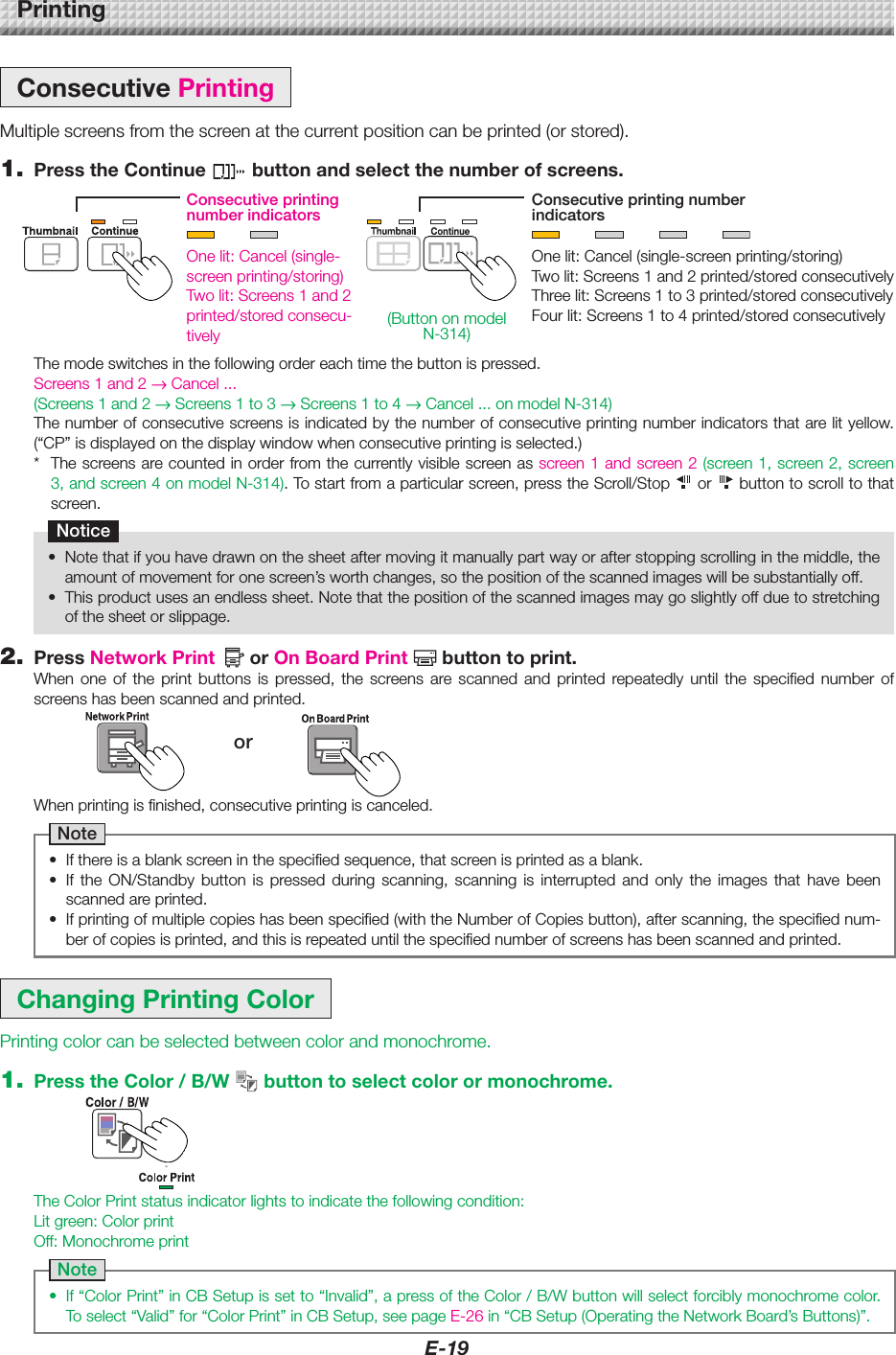
E-19PrintingConsecutivePrintingMultiplescreensfromthescreenatthecurrentpositioncanbeprinted(orstored).1. PresstheContinue buttonandselectthenumberofscreens.ChangingPrintingColorPrintingcolorcanbeselectedbetweencolorandmonochrome.1. PresstheColor/B/W buttontoselectcolorormonochrome.Themodeswitchesinthefollowingordereachtimethebuttonispressed.Screens 1 and 2 →Cancel...(Screens 1 and 2 → Screens 1 to 3 → Screens 1 to 4 →Cancel...onmodelN-314)Thenumberofconsecutivescreensisindicatedbythenumberofconsecutiveprintingnumberindicatorsthatarelityellow.(“CP”isdisplayedonthedisplaywindowwhenconsecutiveprintingisselected.)* Thescreensarecountedinorderfromthecurrentlyvisiblescreenasscreen 1 and screen 2 (screen1,screen2,screen3,andscreen4onmodelN-314).Tostartfromaparticularscreen,presstheScroll/Stop  or  buttontoscrolltothatscreen.Notice• Notethatifyouhavedrawnonthesheetaftermovingitmanuallypartwayorafterstoppingscrollinginthemiddle,theamountofmovementforonescreen’sworthchanges,sothepositionofthescannedimageswillbesubstantiallyoff.• Thisproductusesanendlesssheet.Notethatthepositionofthescannedimagesmaygoslightlyoffduetostretchingofthesheetorslippage.ConsecutiveprintingnumberindicatorsConsecutiveprintingnumberindicatorsOnelit:Cancel(single-screenprinting/storing)Twolit:Screens1and2printed/storedconsecutivelyThreelit:Screens1to3printed/storedconsecutivelyFourlit:Screens1to4printed/storedconsecutivelyOnelit:Cancel(single-screenprinting/storing)Twolit:Screens1and2printed/storedconsecu-tivelyWhenprintingisfinished,consecutiveprintingiscanceled.Note• Ifthereisablankscreeninthespecifiedsequence,thatscreenisprintedasablank.• If the ON/Standby button is pressed during scanning, scanning is interrupted and only the images that have beenscannedareprinted.• Ifprintingofmultiplecopieshasbeenspecified(withtheNumberofCopiesbutton),afterscanning,thespecifiednum-berofcopiesisprinted,andthisisrepeateduntilthespecifiednumberofscreenshasbeenscannedandprinted.TheColorPrintstatusindicatorlightstoindicatethefollowingcondition:Litgreen:ColorprintOff:MonochromeprintNote• If“ColorPrint”inCBSetupissetto“Invalid”,apressoftheColor/B/Wbuttonwillselectforciblymonochromecolor.Toselect“Valid”for“ColorPrint”inCBSetup,seepageE-26in“CBSetup(OperatingtheNetworkBoard’sButtons)”.2. PressNetworkPrint orOnBoardPrint buttontoprint.When one of the print buttons is pressed, the screens are scanned and printed repeatedly until the specified number ofscreenshasbeenscannedandprinted.or(ButtononmodelN-314)
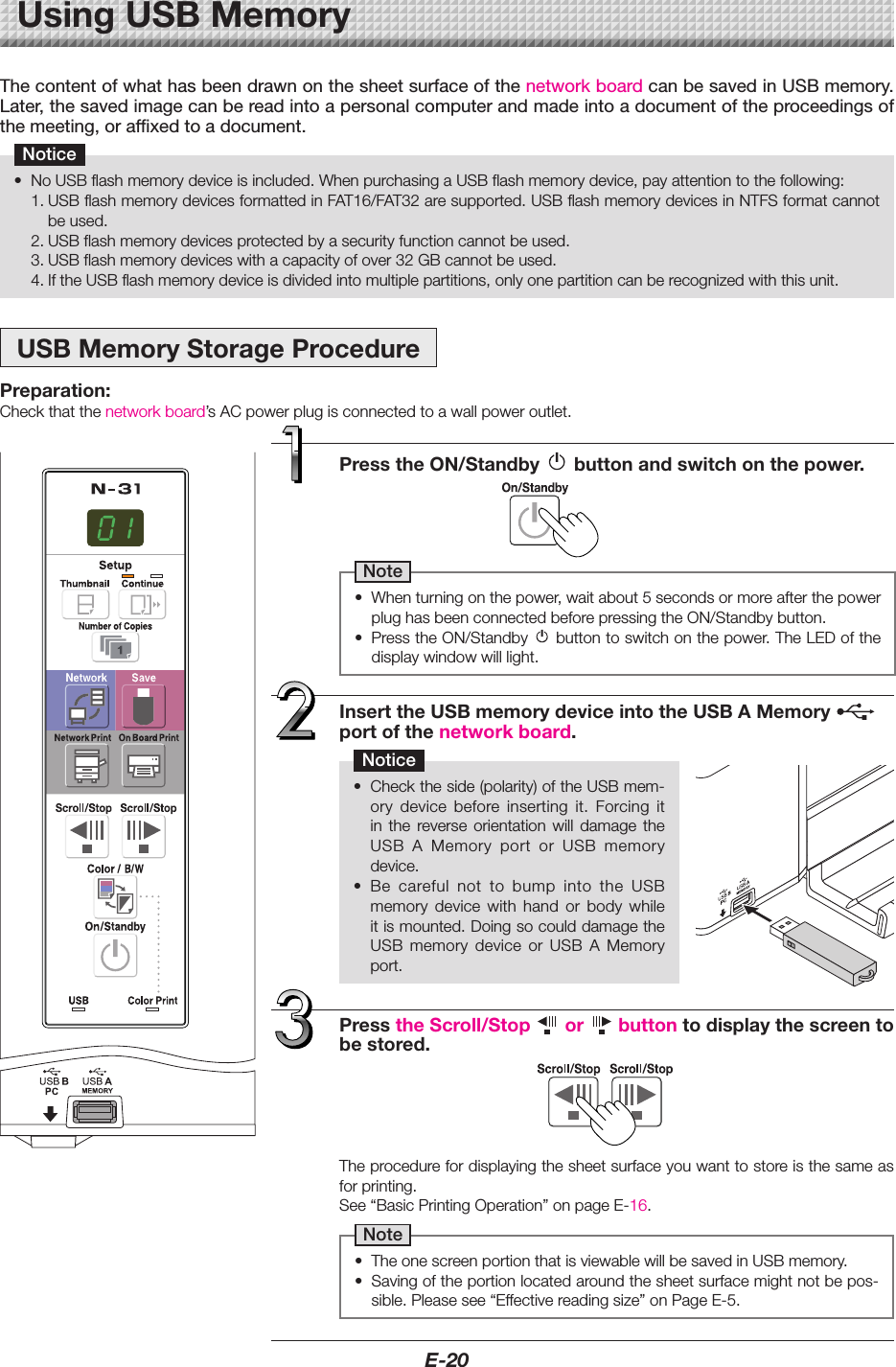
E-20UsingUSBMemoryThe content of what has been drawn on the sheet surface of the network board can be saved in USB memory. Later, the saved image can be read into a personal computer and made into a document of the proceedings of the meeting, or affixed to a document.Notice• NoUSBflashmemorydeviceisincluded.WhenpurchasingaUSBflashmemorydevice,payattentiontothefollowing:1.USBflashmemorydevicesformattedinFAT16/FAT32aresupported.USBflashmemorydevicesinNTFSformatcannotbeused.2.USBflashmemorydevicesprotectedbyasecurityfunctioncannotbeused.3.USBflashmemorydeviceswithacapacityofover32GBcannotbeused.4.IftheUSBflashmemorydeviceisdividedintomultiplepartitions,onlyonepartitioncanberecognizedwiththisunit.USBMemoryStorageProcedurePreparation:Checkthatthenetworkboard’sACpowerplugisconnectedtoawallpoweroutlet.PresstheON/Standby buttonandswitchonthepower.Note• Whenturningonthepower,waitabout5secondsormoreafterthepowerplughasbeenconnectedbeforepressingtheON/Standbybutton.• PresstheON/Standby buttontoswitchonthepower.TheLEDofthedisplaywindowwilllight.InserttheUSBmemorydeviceintotheUSBAMemory portofthenetworkboard.Notice• Checktheside(polarity)oftheUSBmem-ory device before inserting it. Forcing itin the reverse orientation will damage theUSB A Memory port or USB memorydevice.• Be careful not to bump into the USBmemory device with hand or body whileitismounted.DoingsocoulddamagetheUSB memory device or USB A Memoryport.Theprocedurefordisplayingthesheetsurfaceyouwanttostoreisthesameasforprinting.See“BasicPrintingOperation”onpageE-16.Note• TheonescreenportionthatisviewablewillbesavedinUSBmemory.• Savingoftheportionlocatedaroundthesheetsurfacemightnotbepos-sible.Pleasesee“Effectivereadingsize”onPageE-5.PresstheScroll/Stop or buttontodisplaythescreentobestored.
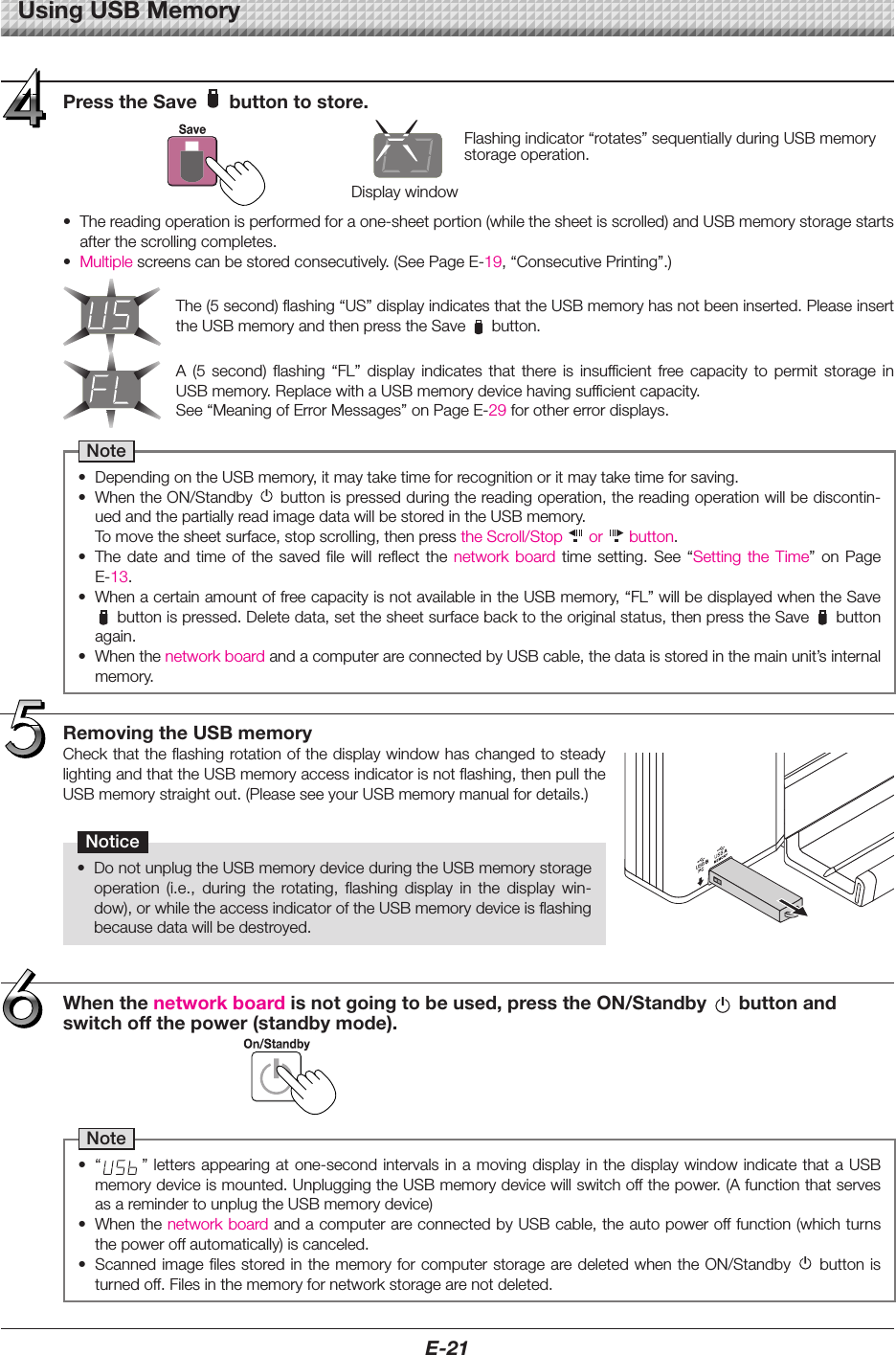
E-21UsingUSBMemoryRemovingtheUSBmemoryCheckthattheflashingrotationofthedisplaywindowhaschangedtosteadylightingandthattheUSBmemoryaccessindicatorisnotflashing,thenpulltheUSBmemorystraightout.(PleaseseeyourUSBmemorymanualfordetails.)Notice• DonotunplugtheUSBmemorydeviceduringtheUSBmemorystorageoperation (i.e., during the rotating, flashing display in the display win-dow),orwhiletheaccessindicatoroftheUSBmemorydeviceisflashingbecausedatawillbedestroyed.Whenthenetworkboardisnotgoingtobeused,presstheON/Standby buttonandswitchoffthepower(standbymode).Note• “ ”letters appearingatone-secondintervalsin amovingdisplayinthe display windowindicatethataUSBmemorydeviceismounted.UnpluggingtheUSBmemorydevicewillswitchoffthepower.(AfunctionthatservesasaremindertounplugtheUSBmemorydevice)• WhenthenetworkboardandacomputerareconnectedbyUSBcable,theautopowerofffunction(whichturnsthepoweroffautomatically)iscanceled.• ScannedimagefilesstoredinthememoryforcomputerstoragearedeletedwhentheON/Standby buttonisturnedoff.Filesinthememoryfornetworkstoragearenotdeleted.Flashingindicator“rotates”sequentiallyduringUSBmemorystorageoperation.Display windowPresstheSave buttontostore.• Thereadingoperationisperformedforaone-sheetportion(whilethesheetisscrolled)andUSBmemorystoragestartsafterthescrollingcompletes.• Multiplescreenscanbestoredconsecutively.(SeePageE-19,“ConsecutivePrinting”.)The(5second)flashing“US”displayindicatesthattheUSBmemoryhasnotbeeninserted.PleaseinserttheUSBmemoryandthenpresstheSave button.A (5 second) flashing “FL” display indicates that there is insufficient free capacity to permit storage inUSBmemory.ReplacewithaUSBmemorydevicehavingsufficientcapacity.See“MeaningofErrorMessages”onPageE-29forothererrordisplays.Note• DependingontheUSBmemory,itmaytaketimeforrecognitionoritmaytaketimeforsaving.• WhentheON/Standby buttonispressedduringthereadingoperation,thereadingoperationwillbediscontin-uedandthepartiallyreadimagedatawillbestoredintheUSBmemory. Tomovethesheetsurface,stopscrolling,thenpresstheScroll/Stop  or  button.• The date and time of the saved file will reflect the network board time setting. See “Setting the Time” on PageE-13.• WhenacertainamountoffreecapacityisnotavailableintheUSBmemory,“FL”willbedisplayedwhentheSavebuttonispressed.Deletedata,setthesheetsurfacebacktotheoriginalstatus,thenpresstheSave buttonagain.• WhenthenetworkboardandacomputerareconnectedbyUSBcable,thedataisstoredinthemainunit’sinternalmemory.
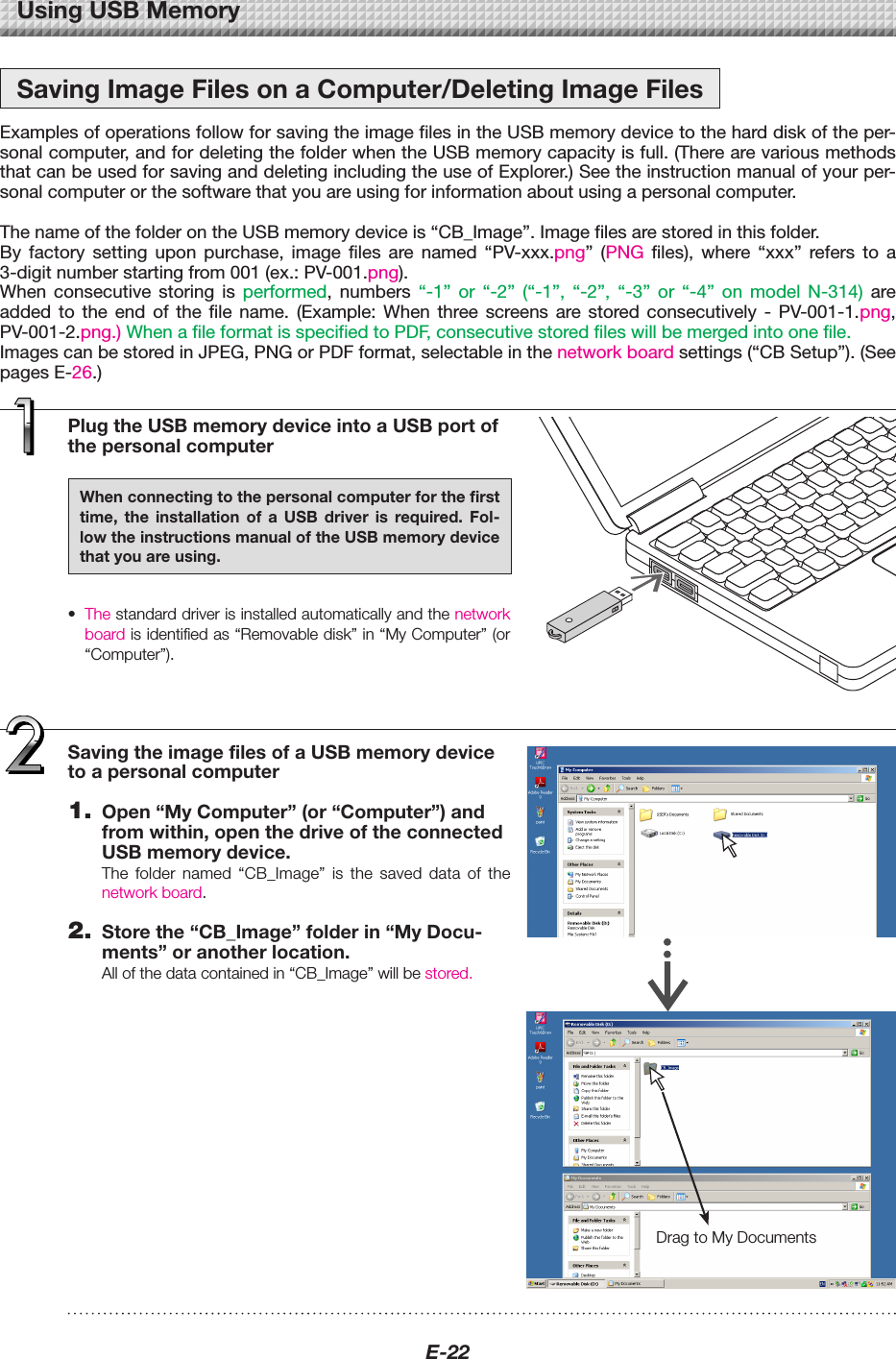
E-22PlugtheUSBmemorydeviceintoaUSBportofthepersonalcomputerWhenconnectingtothepersonalcomputerforthefirsttime, the installation of a USB driver is required. Fol-lowtheinstructionsmanualoftheUSBmemorydevicethatyouareusing.• Thestandarddriverisinstalledautomaticallyandthenetworkboardisidentifiedas“Removabledisk”in“MyComputer”(or“Computer”).UsingUSBMemorySavingImageFilesonaComputer/DeletingImageFilesExamples of operations follow for saving the image files in the USB memory device to the hard disk of the per-sonal computer, and for deleting the folder when the USB memory capacity is full. (There are various methods that can be used for saving and deleting including the use of Explorer.) See the instruction manual of your per-sonal computer or the software that you are using for information about using a personal computer. The name of the folder on the USB memory device is “CB_Image”. Image files are stored in this folder.By  factory  setting  upon  purchase,  image  files  are  named  “PV-xxx.png”  (PNG  files),  where  “xxx”  refers  to  a 3-digit number starting from 001 (ex.: PV-001.png).When  consecutive  storing  is  performed,  numbers  “-1”  or  “-2”  (“-1”,  “-2”,  “-3”  or  “-4”  on  model  N-314)  are added  to  the  end  of  the  file  name.  (Example:  When  three  screens  are  stored  consecutively  -  PV-001-1.png, PV-001-2.png.) When a file format is specified to PDF, consecutive stored files will be merged into one file.Images can be stored in JPEG, PNG or PDF format, selectable in the network board settings (“CB Setup”). (See pages E-26.)DragtoMyDocumentsSavingtheimagefilesofaUSBmemorydevicetoapersonalcomputer1. Open“MyComputer”(or“Computer”)andfromwithin,openthedriveoftheconnectedUSBmemorydevice.The folder named “CB_Image” is the saved data of thenetworkboard.2. Storethe“CB_Image”folderin“MyDocu-ments”oranotherlocation.Allofthedatacontainedin“CB_Image”willbestored.
E-23DeletingUSBmemoryimagefileswiththecom-puterBeforedeletingimportantimage files, be sureto savethemonthecomputer(asadatabackup).1. Open“MyComputer(or“Computer”)”andthenopenthedriveiconwhichshowsUSBmemory.The folder named “CB_Image” contains the memory stor-agedataofthenetworkboard.2. Placethe“CB_Image”folderinthe“Recy-cleBin”,rightclickontheiconandselect“EmptyRecycleBin”fromthepull-downmenu.Allofthedatacontainedin“CB_Image”willbedeleted.Even when the entire folder is deleted, a new CB_Imagefolder will be created automatically when USB memory isusedagainwiththenetworkboard. DragtotheRecycleBinDisconnecttheUSBmemoryThe disconnecting procedure depends on the computer’soperatingsystem.Fordetails,refertothecomputer’soperatinginstructionsorhelpfiles.1. Clickthe[HardwareRemoval] iconthatisdisplayedinthetasktray.Click “Stop USB Mass storage Device - drive (E)”. (The Edrivecharacterwilldifferdependingonthepersonalcom-putersystem.)2. Whenthe“USBmassstoragedevicecanbesafelyremoved.”screenisdisplayed,clickthedisplay.3. Click[X]toclose.ThisallowstheUSBmemorydevicetobeunpluggedfromthecomputer.Note• Do not disconnect the USB memory device while theUSBmemorydevice’saccessindicatorisflashing.Doingsowilldamagethedata.• The USB drive may not be disconnected properly, forexampleifthecomputerisintheprocessofcheckingthestatusofperipherals.“Removehardware”icon(example)UsingUSBMemory
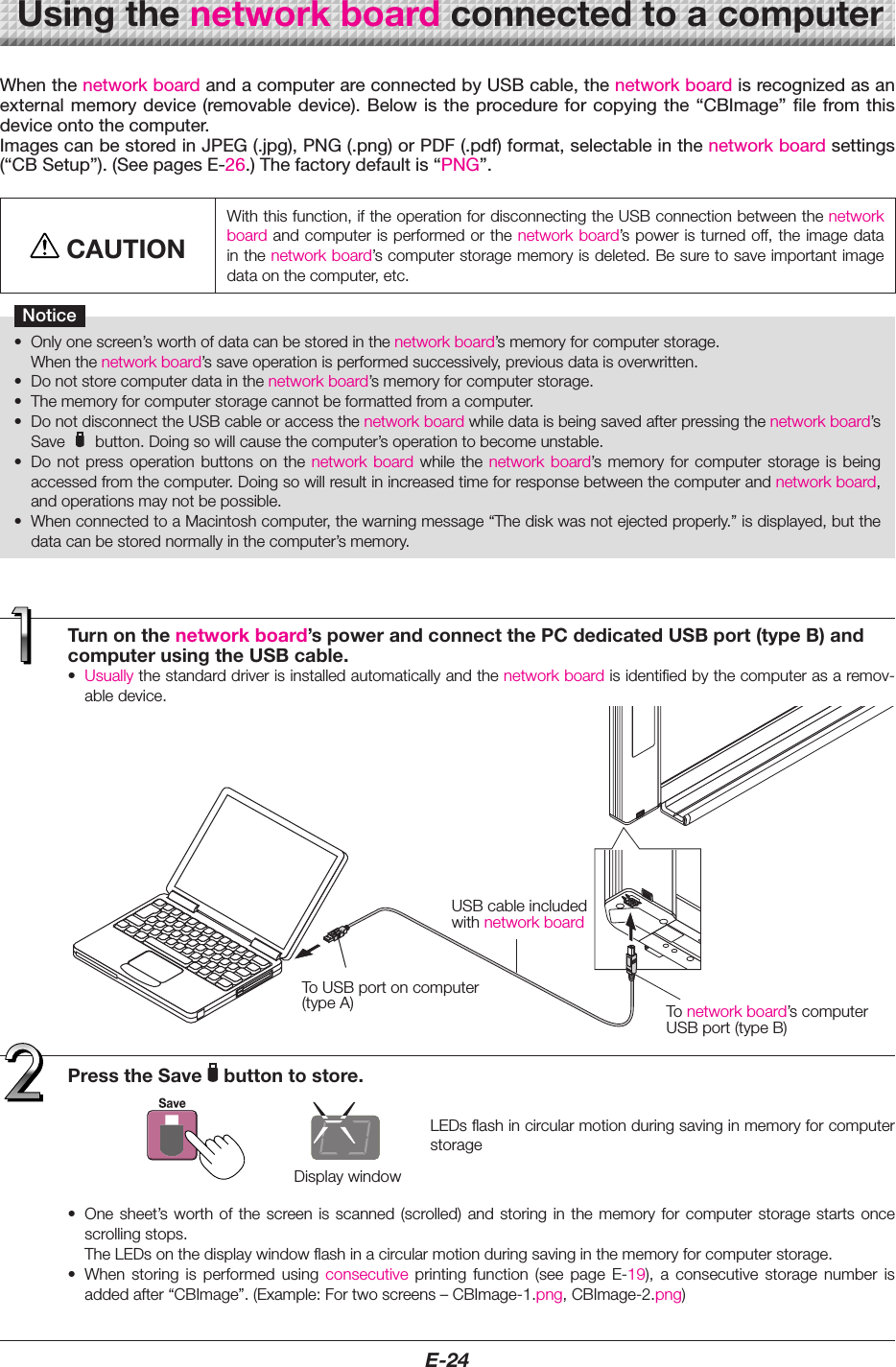
E-24Turnonthenetworkboard’spowerandconnectthePCdedicatedUSBport(typeB)andcomputerusingtheUSBcable.• Usuallythestandarddriverisinstalledautomaticallyandthenetworkboardisidentifiedbythecomputerasaremov-abledevice.When the network board and a computer are connected by USB cable, the network board is recognized as an external  memory device  (removable device). Below  is the  procedure for  copying the  “CBImage” file  from this device onto the computer.Images can be stored in JPEG (.jpg), PNG (.png) or PDF (.pdf) format, selectable in the network board settings (“CB Setup”). (See pages E-26.) The factory default is “PNG”.CAUTIONWiththisfunction,iftheoperationfordisconnectingtheUSBconnectionbetweenthenetworkboardandcomputerisperformedorthenetworkboard’spoweristurnedoff,theimagedatainthenetworkboard’scomputerstoragememoryisdeleted.Besuretosaveimportantimagedataonthecomputer,etc.Notice• Onlyonescreen’sworthofdatacanbestoredinthenetworkboard’smemoryforcomputerstorage. Whenthenetworkboard’ssaveoperationisperformedsuccessively,previousdataisoverwritten.• Donotstorecomputerdatainthenetworkboard’smemoryforcomputerstorage.• Thememoryforcomputerstoragecannotbeformattedfromacomputer.• DonotdisconnecttheUSBcableoraccessthenetworkboardwhiledataisbeingsavedafterpressingthenetworkboard’sSave button.Doingsowillcausethecomputer’soperationtobecomeunstable.• Do not press operation buttons on the network board while the network board’s memory for computer storage is beingaccessedfromthecomputer.Doingsowillresultinincreasedtimeforresponsebetweenthecomputerandnetworkboard,andoperationsmaynotbepossible.• WhenconnectedtoaMacintoshcomputer,thewarningmessage“Thediskwasnotejectedproperly.”isdisplayed,butthedatacanbestorednormallyinthecomputer’smemory.Usingthenetworkboardconnectedtoacomputer• Onesheet’sworth of thescreen is scanned(scrolled) and storingin thememory forcomputer storagestartsoncescrollingstops. TheLEDsonthedisplaywindowflashinacircularmotionduringsavinginthememoryforcomputerstorage.• When storing is performed using consecutive printing function (see page E-19), a consecutive storage number isaddedafter“CBImage”.(Example:Fortwoscreens–CBImage-1.png,CBImage-2.png)Display windowPresstheSave buttontostore.ToUSBportoncomputer(typeA)USBcableincludedwithnetworkboardTo networkboard’scomputerUSBport(typeB)LEDsflashincircularmotionduringsavinginmemoryforcomputerstorage
E-25DragtoMyDocumentsOnthecomputer,open“MyComputer”,andfromthereopenthenetworkboardidentifiedasaremovabledevice.(1) Double-clickthe“MyComputer”(or“Computer”)icontoopenit.(2) Whenthedevice icon for thenetwork board (displayed  as  a removabledisk) isdouble-clicked, the networkboard’s inter-nalmemoryopens.The“CBImage”fileisthescannedimagefile(“.jpg”,“.png”or“.pdf”,accordingtosetting).• The“setup”foldercontainsthesimplenetworksettingsfile.(3) Copy the “CBImage” file to [My Documents], etc., on thecomputer(“.jpg”,“.png”or“.pdf”,accordingtosetting).To disconnect the USB cable, follow the procedure in step 3 onpageE-23.Notethattheimagedatainthenetworkboard’scomputerstoragememoryisdeletediftheoperationfordisconnectingtheUSBcon-nectionbetweenthenetworkboardandcomputerisperformedatthistime.NoteIf both USB memory device and computer are connected tothe network board, data is saved in memory for PC. Data isnotsavedinmemoryforUSB.• The “setup” folder will be created in memory for PC. Thisfolder contains the “setting.ini” file recording the firmwareversion,MACaddress,networksettings. For details, refer to the separate “N-31 Series NetworkManual”.Usingthenetworkboardconnectedtoacomputer
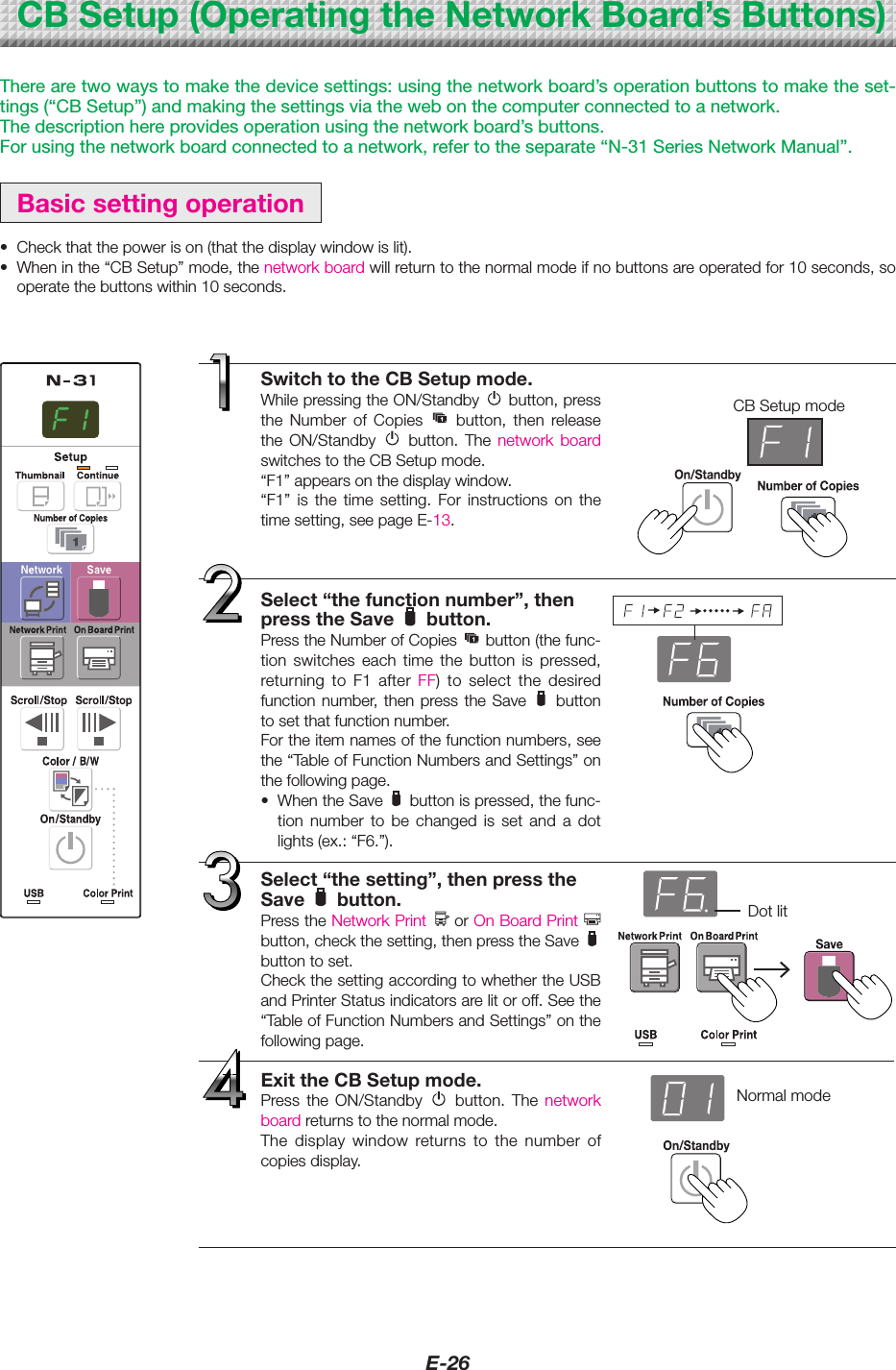
E-26There are two ways to make the device settings: using the network board’s operation buttons to make the set-tings (“CB Setup”) and making the settings via the web on the computer connected to a network.The description here provides operation using the network board’s buttons.For using the network board connected to a network, refer to the separate “N-31 Series Network Manual”.Basicsettingoperation• Checkthatthepowerison(thatthedisplaywindowislit).• Wheninthe“CBSetup”mode,thenetworkboardwillreturntothenormalmodeifnobuttonsareoperatedfor10seconds,sooperatethebuttonswithin10seconds.CBSetup(OperatingtheNetworkBoard’sButtons)SwitchtotheCBSetupmode.WhilepressingtheON/Standby button,pressthe Number of Copies  button, then releasethe ON/Standby  button. The network board switchestotheCBSetupmode.“F1”appearsonthedisplaywindow.“F1” is the time setting. For instructions on thetimesetting,seepageE-13.Select“thefunctionnumber”,thenpresstheSave button.PresstheNumberofCopies button(thefunc-tion switches each time the button is pressed,returning to F1 after FF) to select the desiredfunctionnumber, then press the Save buttontosetthatfunctionnumber.Fortheitemnamesofthefunctionnumbers,seethe“TableofFunctionNumbersandSettings”onthefollowingpage.• WhentheSave buttonispressed,thefunc-tion number to be changed is set and a dotlights(ex.:“F6.”).Select“thesetting”,thenpresstheSave button.PresstheNetworkPrint   or OnBoardPrint   button,checkthesetting,thenpresstheSave  buttontoset.CheckthesettingaccordingtowhethertheUSBandPrinterStatusindicatorsarelitoroff.Seethe“TableofFunctionNumbersandSettings”onthefollowingpage.ExittheCBSetupmode.Press the ON/Standby  button. The networkboardreturnstothenormalmode.The display window returns to the number ofcopiesdisplay.CBSetupmodeDot litNormalmode
E-27TableofFunctionNumbersandSettingsFunctionNumber SettingItem Description Setting StatusIndicatorsTimeSettingThedateandtimearestampedontheprintingpaperand recorded in the file information when files arestored.Year,month,day,hours,minutesNot litPaperSizeSelectionofwhethertoprintinA4papersizeorlettersize.• This operates when the network board  is  con-nectedtoaprinter.A4* USB (Lit)ColorPrint   (Off)Letter USB (Off)ColorPrint   (Lit)AspectRatioSet-tingSelection of the image’s vertical-to-horizontal ratio(aspectratio)whenprinting.EqualRatio:Theimageisprintedwiththesameratioasthenetworkboard’ssheetsurface.Compressed:The image is compressed in the hori-zontal direction to the ratio of A4 orlettersizepaperforprinting(ex:circlesbecomeellipses).Compressed* USB (Lit)ColorPrint   (Off)EqualRatio* USB (Off)ColorPrint   (Lit)ColorPrintingIfthisissetto[Invalid],colorprintingisnotpossible.Valid:Whenthisisset,colorprintingispossible.Invalid:Whenthisisset,colorprintingisnotpossible.Valid* USB (Lit)ColorPrint   (Off)Invalid USB (Off)ColorPrint   (Lit)ResolutionSelectionoftheimagefile’sresolution.Standard:Thevertical/horizontal sizeof the scannedimage is set to 1/2. The amount of datais 1/4 that of when “High Resolution” isselected.HighResolution:Theimagefilehasthesameresolu-tionasthescannedimage(vertical/horizontal size of 1/1). The picturequality is better than when “Stan-dard”isselected.Standard USB (Lit)ColorPrint   (Off)HighResolu-tion*USB (Off)ColorPrint   (Lit)GraphicsFileFormatSelectionoftheformatinwhichimagefilesaresaved.ScannedimagesareconvertedintoJPEG(extension“.jpg”), PNG (extension “.png”) or PDF (extension“.pdf”)format.JPEG USB (Lit)ColorPrint   (Off)PNG* USB (Off)ColorPrint   (Lit)PDF USB (Lit)ColorPrint   (Lit)Header/FooterSettingofwhetherornottooutputtheheader/footerinformationregisteredonthenetworkboard.“Off”:Theheader/footerinformationisnotoutput.“On”: The header/footer information is output whenprintingandwhensavingimagefiles.Note:• Headersandfootersrefertotheinformationatthetop and bottom margins, respectively, of printedpagesorimages.Titles,companynames orothercharacters or images can be inserted so that thesameinformationisprovidedonallpages.• Header/footer information is registered on thenetwork board via a network. For instructions oncreatingandregisteringheadersandfooters,refer totheseparate“N-31SeriesNetworkManual”.• Depending on the type of printer, the colors maydifferfromtheactualgraphicimage.Off* USB (Lit)ColorPrint   (Off)On USB (Off)ColorPrint   (Lit)CBSetup(OperatingtheNetworkBoard’sButtons)continuedonnextpage
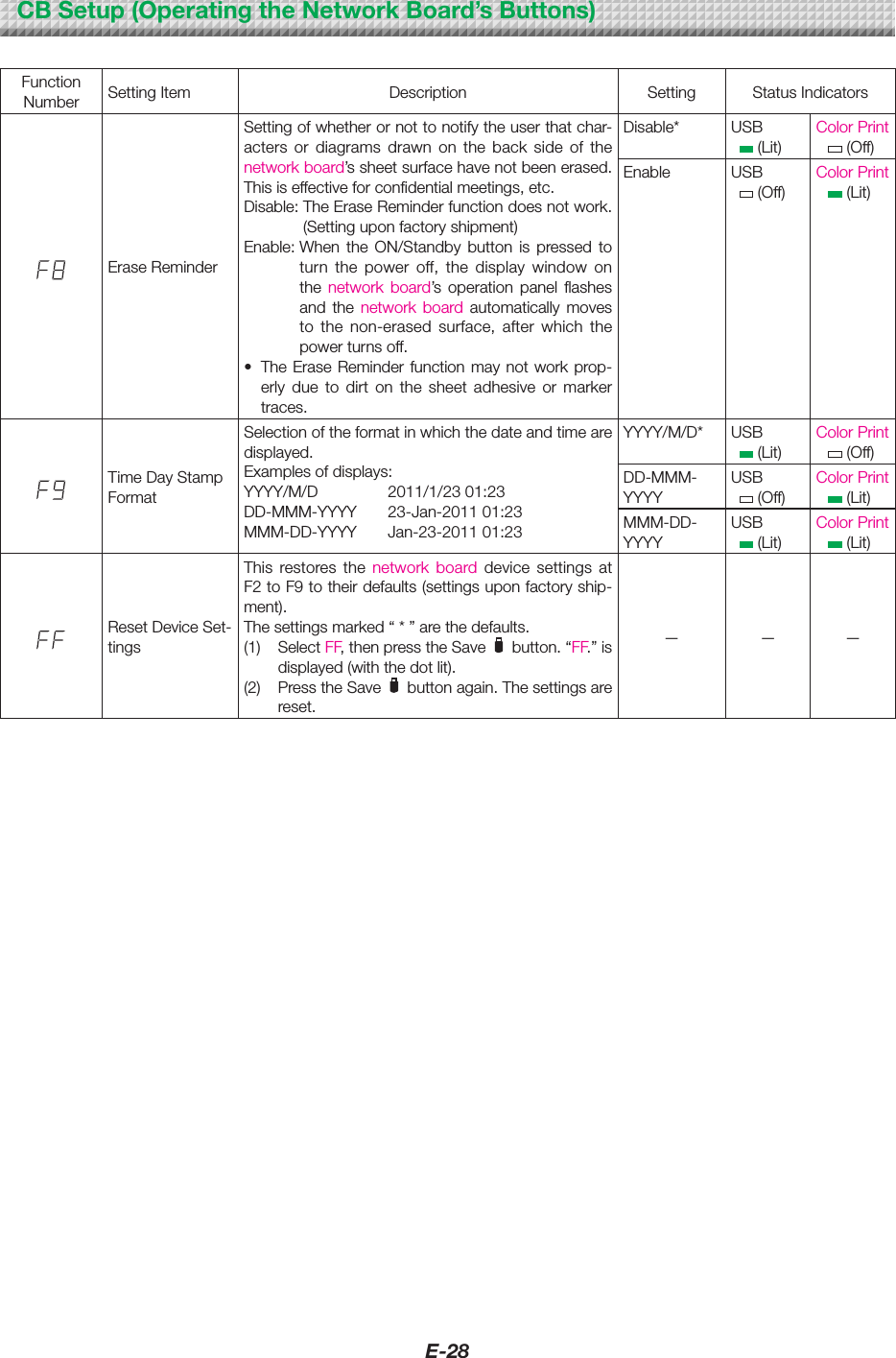
E-28CBSetup(OperatingtheNetworkBoard’sButtons)FunctionNumber SettingItem Description Setting StatusIndicatorsEraseReminderSettingofwhetherornottonotifytheuserthatchar-acters or diagrams drawn on the back side of thenetworkboard’ssheetsurfacehavenotbeenerased.Thisiseffectiveforconfidentialmeetings,etc.Disable:TheEraseReminderfunctiondoesnotwork.(Settinguponfactoryshipment)Enable:When the ON/Standby button is pressed toturn the power off, the display window onthe network board’s operation panel flashesand the network board automatically movesto the non-erased surface, after which thepowerturnsoff.• TheEraseReminderfunctionmaynot work prop-erly due to dirt on the sheet adhesive or markertraces.Disable* USB (Lit)ColorPrint   (Off)Enable USB (Off)ColorPrint   (Lit)TimeDayStampFormatSelectionoftheformatinwhichthedateandtimearedisplayed.Examplesofdisplays:YYYY/M/D 2011/1/2301:23DD-MMM-YYYY 23-Jan-201101:23MMM-DD-YYYY Jan-23-201101:23YYYY/M/D* USB (Lit)ColorPrint   (Off)DD-MMM-YYYYUSB (Off)ColorPrint   (Lit)MMM-DD-YYYYUSB (Lit)ColorPrint   (Lit)ResetDeviceSet-tingsThis restores the network board device settings atF2toF9totheirdefaults(settingsuponfactoryship-ment).Thesettingsmarked“*”arethedefaults.(1)  Select FF,thenpresstheSave button.“FF.”isdisplayed(withthedotlit).(2) PresstheSave buttonagain.Thesettingsarereset.— — —
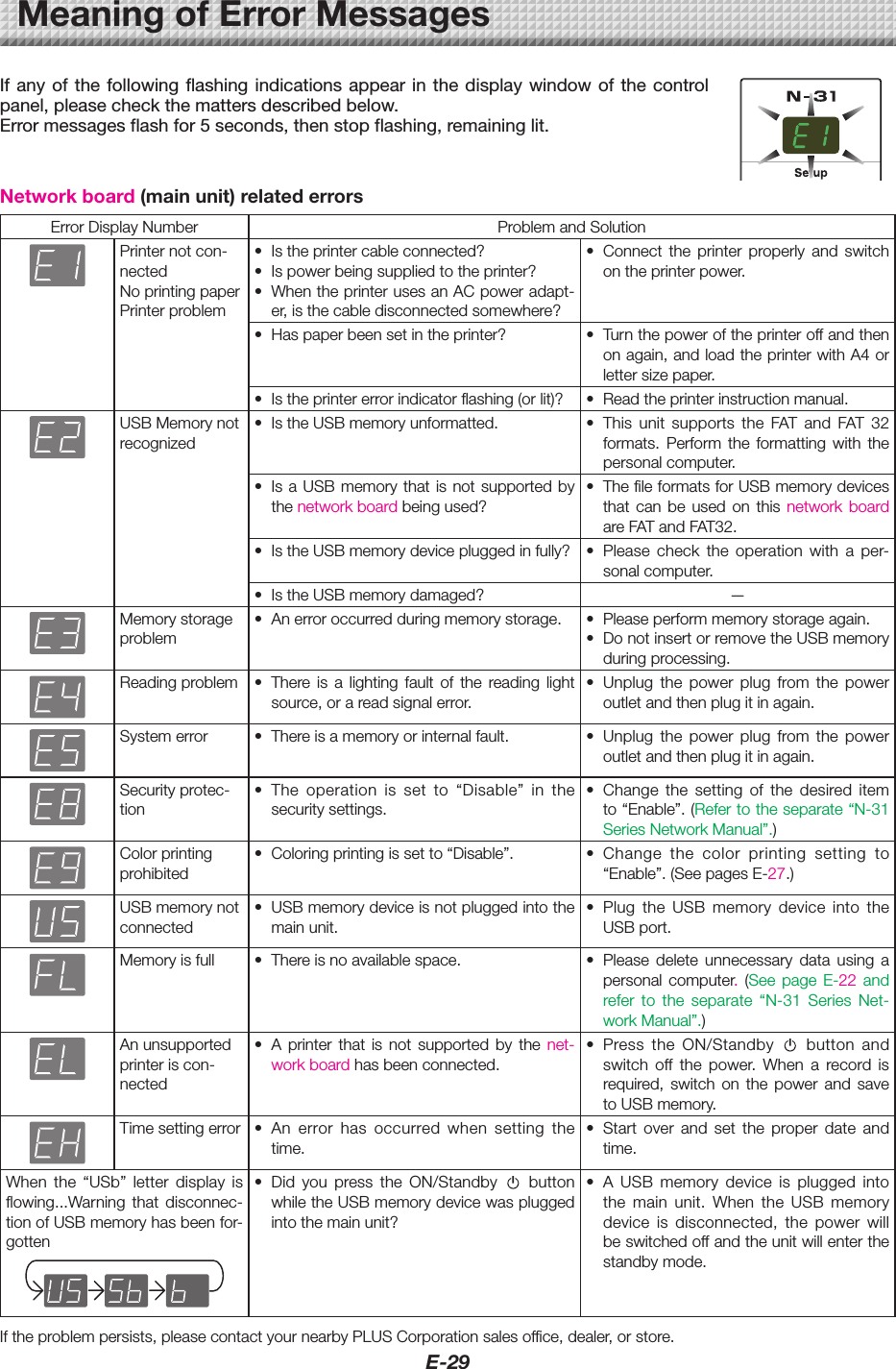
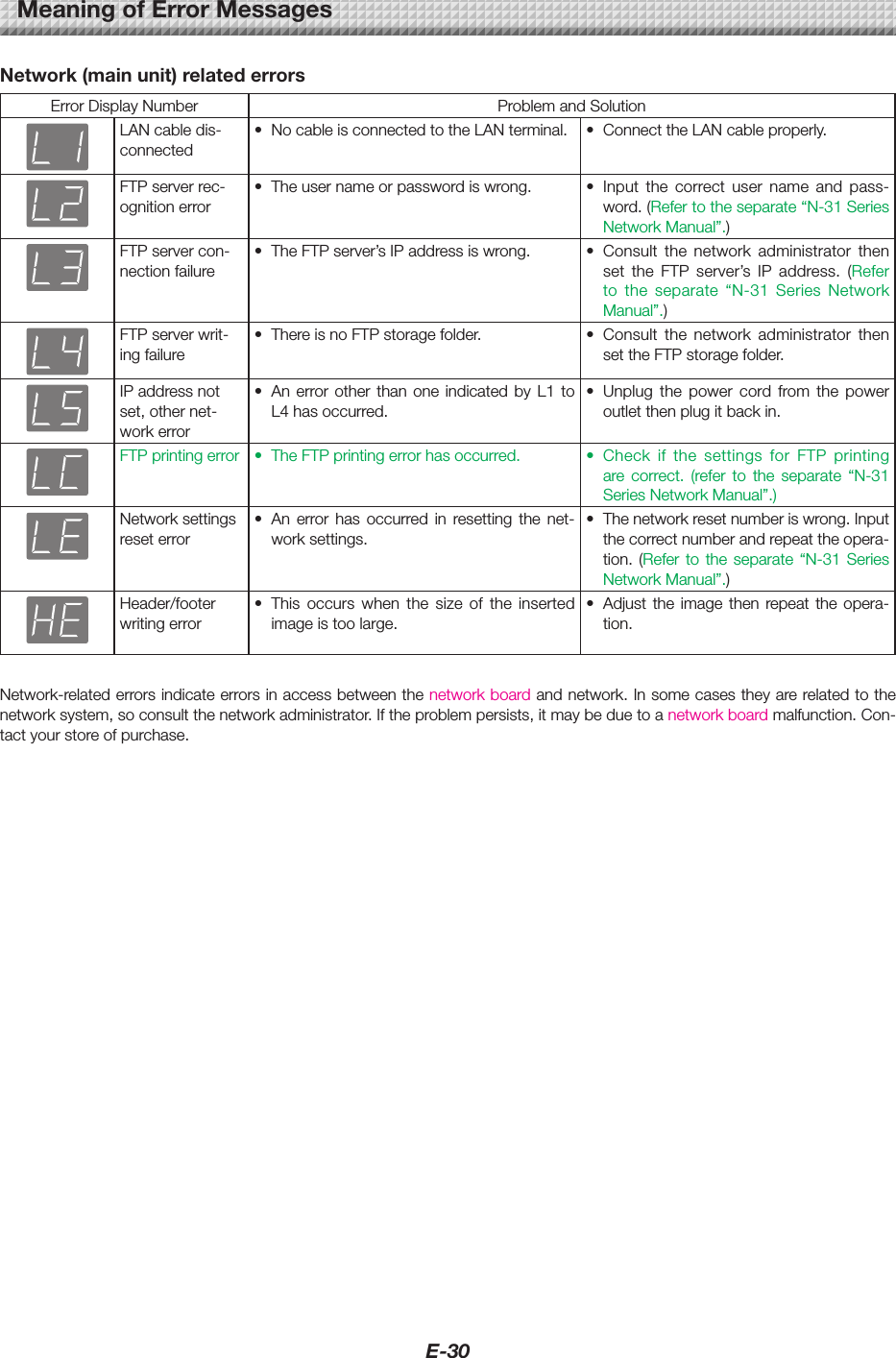
E-29Networkboard(mainunit)relatederrorsErrorDisplayNumber ProblemandSolutionPrinternotcon-nected NoprintingpaperPrinterproblem• Istheprintercableconnected?• Ispowerbeingsuppliedtotheprinter?• WhentheprinterusesanACpoweradapt-er,isthecabledisconnectedsomewhere?• Connect the printer properly and switchontheprinterpower.• Haspaperbeensetintheprinter? • Turnthepoweroftheprinteroffandthenonagain,andloadtheprinterwithA4orlettersizepaper.• Istheprintererrorindicatorflashing(orlit)? • Readtheprinterinstructionmanual.USBMemorynotrecognized• IstheUSBmemoryunformatted. • This unit supports the FAT and FAT 32formats. Perform the formatting with thepersonalcomputer.• IsaUSBmemory that is not supportedbythenetworkboardbeingused?• ThefileformatsforUSBmemorydevicesthat can be used on this network board areFATandFAT32.• IstheUSBmemorydevicepluggedinfully? • Please check the operation with a per-sonalcomputer.• IstheUSBmemorydamaged? —Memorystorageproblem• Anerroroccurredduringmemorystorage. • Pleaseperformmemorystorageagain.• DonotinsertorremovetheUSBmemoryduringprocessing.Readingproblem • There is a lighting fault of the reading lightsource,orareadsignalerror.• Unplug the power plug from the poweroutletandthenplugitinagain.Systemerror • Thereisamemoryorinternalfault. • Unplug the power plug from the poweroutletandthenplugitinagain.Security protec-tion• The operation is set to “Disable” in thesecuritysettings.• Change the setting of the desired itemto“Enable”.(Refertotheseparate“N-31SeriesNetworkManual”.)Colorprintingprohibited• Coloringprintingissetto“Disable”. • Change the color printing setting to“Enable”.(SeepagesE-27.)USBmemorynotconnected • USBmemorydeviceisnotpluggedintothemainunit.• Plug the USB memory device into theUSBport.Memoryisfull • Thereisnoavailablespace. • Please delete unnecessary data using apersonal computer. (See page E-22  and refer to the separate “N-31 Series Net-workManual”.)Anunsupportedprinter is con-nected• A printer that is not supported by the net-workboardhasbeenconnected.• Press the ON/Standby  button andswitch off the power. When a record isrequired, switch on the power and savetoUSBmemory.Timesettingerror • An error has occurred when setting thetime.• Start over and set the proper date andtime.When the “USb” letter display isflowing...Warning that disconnec-tionofUSBmemoryhasbeenfor-gotten• Did you press the ON/Standby  buttonwhiletheUSBmemorydevicewaspluggedintothemainunit?• A USB memory device is plugged intothe main unit. When the USB memorydevice is disconnected, the power willbeswitchedoffandtheunitwillenterthestandbymode.Iftheproblempersists,pleasecontactyournearbyPLUSCorporationsalesoffice,dealer,orstore.MeaningofErrorMessagesIf any of the  following flashing  indications appear in  the display  window of the  control panel, please check the matters described below. Error messages flash for 5 seconds, then stop flashing, remaining lit.
E-30Network(mainunit)relatederrorsErrorDisplayNumber ProblemandSolutionLANcabledis-connected• NocableisconnectedtotheLANterminal. • ConnecttheLANcableproperly.FTPserverrec-ognitionerror• Theusernameorpasswordiswrong. • Input the correct user name and pass-word.(Refertotheseparate“N-31SeriesNetworkManual”.)FTPservercon-nection failure• TheFTPserver’sIPaddressiswrong. • Consult the network administrator thenset the FTP server’s IP address. (Referto the separate “N-31 Series NetworkManual”.)FTPserverwrit-ingfailure• ThereisnoFTPstoragefolder. • Consult the network administrator thensettheFTPstoragefolder.IPaddressnotset,othernet-workerror• An error other than one indicated by L1 toL4hasoccurred.• Unplug the power cord from the poweroutletthenplugitbackin.FTPprintingerror • TheFTPprintingerrorhasoccurred. • Check if the settings for FTP printingare correct. (refer to the separate “N-31SeriesNetworkManual”.)Networksettingsreset error• An error has occurred in resetting the net-worksettings.• Thenetworkresetnumberiswrong.Inputthecorrectnumberandrepeattheopera-tion.(Refer to theseparate “N-31 SeriesNetworkManual”.)Header/footerwritingerror• This occurs when the size of the insertedimageistoolarge.• Adjust the image then repeat the opera-tion.Network-relatederrorsindicateerrorsinaccessbetweenthenetworkboardandnetwork.Insomecasestheyarerelatedtothenetworksystem,soconsultthenetworkadministrator.Iftheproblempersists,itmaybeduetoanetworkboardmalfunction.Con-tactyourstoreofpurchase.MeaningofErrorMessages
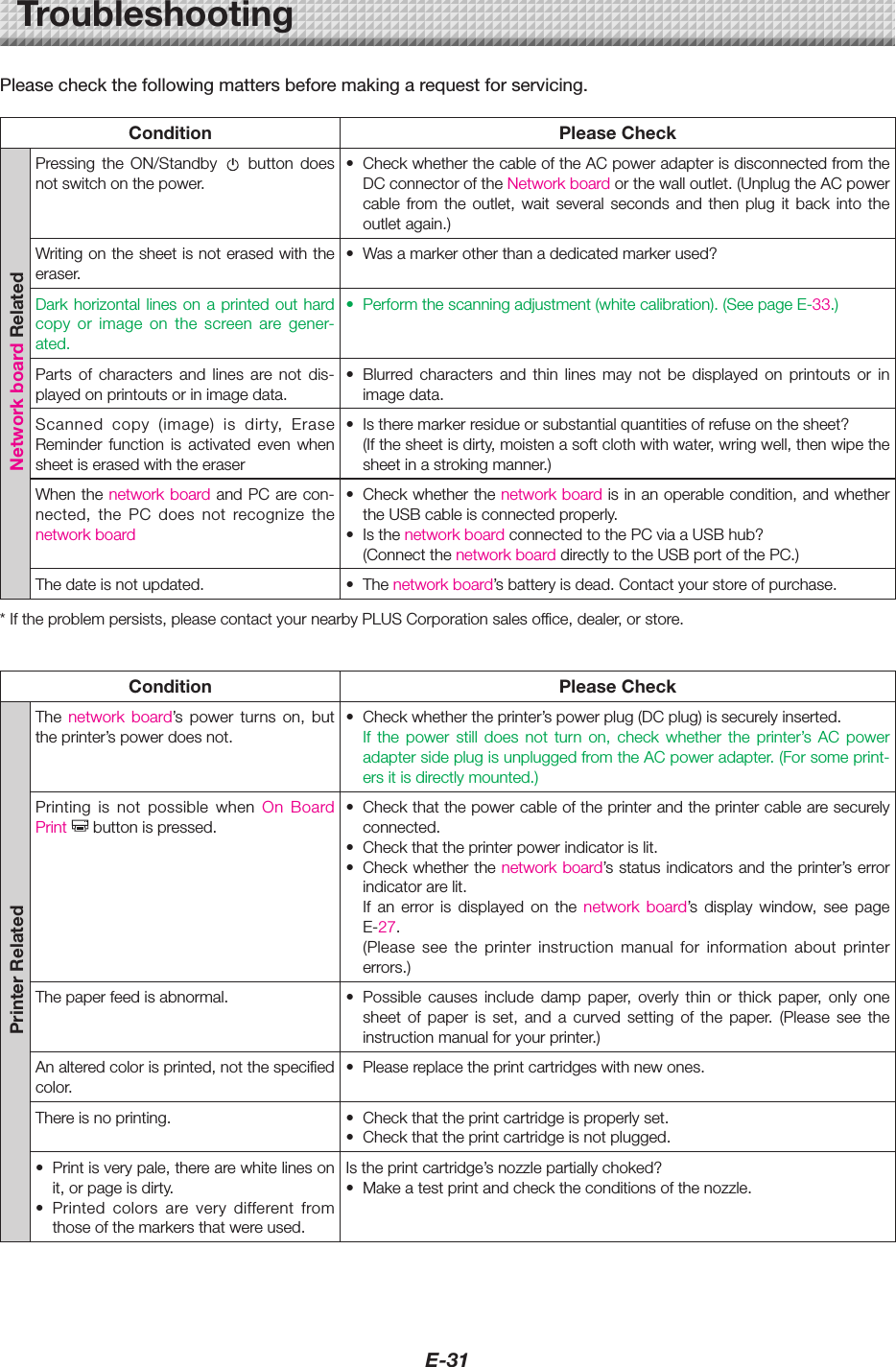
E-31Please check the following matters before making a request for servicing. Condition PleaseCheckNetworkboardRelatedPressing the ON/Standby  button doesnotswitchonthepower.• CheckwhetherthecableoftheACpoweradapterisdisconnectedfromtheDCconnectoroftheNetworkboardorthewalloutlet.(UnplugtheACpowercable from the outlet, wait several seconds and then plug it back into theoutletagain.)Writingonthesheetisnoterasedwiththeeraser.• Wasamarkerotherthanadedicatedmarkerused? Darkhorizontallines on aprinted out hardcopy or image on the screen are gener-ated.• Performthescanningadjustment(whitecalibration).(SeepageE-33.)Parts of characters and lines are not dis-playedonprintoutsorinimagedata.• Blurred characters and thin lines may not be displayed on printouts or inimagedata.Scanned copy (image) is dirty, EraseReminder function is activated even whensheetiserasedwiththeeraser• Istheremarkerresidueorsubstantialquantitiesofrefuseonthesheet? (Ifthesheetisdirty,moistenasoftclothwithwater,wringwell,thenwipethesheetinastrokingmanner.)WhenthenetworkboardandPCarecon-nected, the PC does not recognize thenetworkboard • Checkwhetherthenetworkboardisinanoperablecondition,andwhethertheUSBcableisconnectedproperly.• IsthenetworkboardconnectedtothePCviaaUSBhub? (ConnectthenetworkboarddirectlytotheUSBportofthePC.)Thedateisnotupdated. • Thenetworkboard’sbatteryisdead.Contactyourstoreofpurchase.*Iftheproblempersists,pleasecontactyournearbyPLUSCorporationsalesoffice,dealer,orstore.Condition PleaseCheckPrinterRelatedThe network board’s power turns on, buttheprinter’spowerdoesnot.• Checkwhethertheprinter’spowerplug(DCplug)issecurelyinserted. If the power still does not turn on, check whether the printer’s AC poweradaptersideplugisunpluggedfromtheACpoweradapter.(Forsomeprint-ersitisdirectlymounted.)Printing is not possible when On BoardPrint buttonispressed.• Checkthatthepowercableoftheprinterandtheprintercablearesecurelyconnected.• Checkthattheprinterpowerindicatorislit.• Checkwhetherthenetworkboard’sstatusindicatorsandtheprinter’serrorindicatorarelit.If an error is displayed on the network board’s display window, see pageE-27.(Please see the printer instruction manual for information about printererrors.)Thepaperfeedisabnormal. • Possible causes include damp paper, overly thin or thick paper, only onesheet of paper is set, and a curved setting of the paper. (Please see theinstructionmanualforyourprinter.)Analteredcolorisprinted,notthespecifiedcolor.• Pleasereplacetheprintcartridgeswithnewones.Thereisnoprinting. • Checkthattheprintcartridgeisproperlyset.• Checkthattheprintcartridgeisnotplugged.• Printisverypale,therearewhitelinesonit,orpageisdirty.• Printed colors are very different fromthoseofthemarkersthatwereused.Istheprintcartridge’snozzlepartiallychoked?• Makeatestprintandchecktheconditionsofthenozzle.Troubleshooting
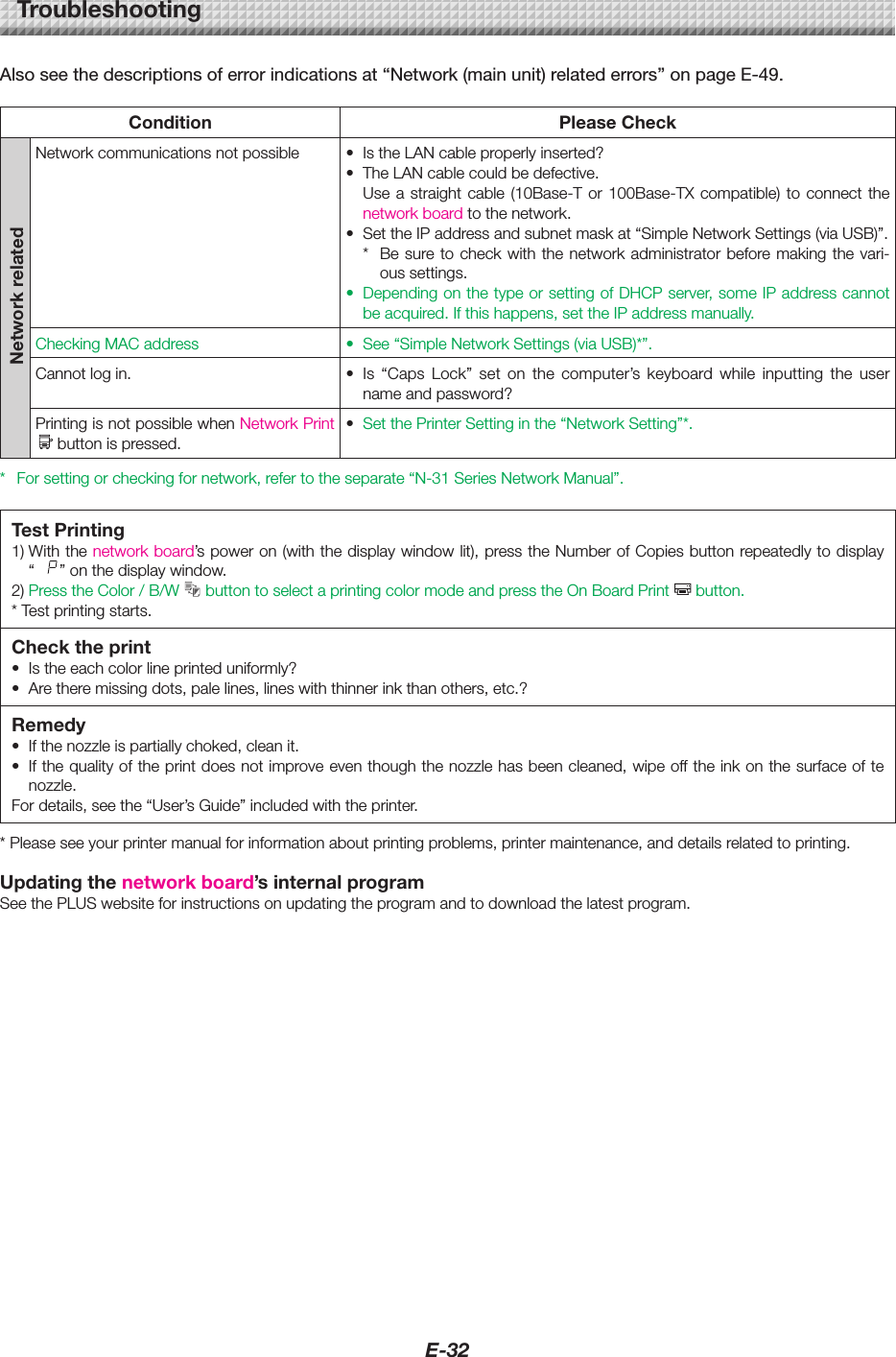
E-32TroubleshootingAlso see the descriptions of error indications at “Network (main unit) related errors” on page E-49.Condition PleaseCheckNetworkrelatedNetworkcommunicationsnotpossible • IstheLANcableproperlyinserted?• TheLANcablecouldbedefective.Usea straight cable (10Base-Tor 100Base-TX compatible)to connectthenetworkboardtothenetwork.• SettheIPaddressandsubnetmaskat“SimpleNetworkSettings(viaUSB)”.* Besureto check with the network administrator beforemakingthe vari-oussettings.• DependingonthetypeorsettingofDHCPserver,someIPaddresscannotbeacquired.Ifthishappens,settheIPaddressmanually.CheckingMACaddress • See“SimpleNetworkSettings(viaUSB)*”.Cannotlogin. • Is “Caps Lock” set on the computer’s keyboard while inputting the usernameandpassword?PrintingisnotpossiblewhenNetworkPrintbuttonispressed.• SetthePrinterSettinginthe“NetworkSetting”*.* Forsettingorcheckingfornetwork,refertotheseparate“N-31SeriesNetworkManual”.TestPrinting1)Withthenetworkboard’spoweron(withthedisplaywindowlit),presstheNumberofCopiesbuttonrepeatedlytodisplay“ ”onthedisplaywindow.2) PresstheColor/B/W buttontoselectaprintingcolormodeandpresstheOnBoardPrint button.*Testprintingstarts.Checktheprint• Istheeachcolorlineprinteduniformly?• Aretheremissingdots,palelines,lineswiththinnerinkthanothers,etc.?Remedy• Ifthenozzleispartiallychoked,cleanit.• Ifthequalityoftheprintdoesnotimproveeventhoughthenozzlehasbeencleaned,wipeofftheinkonthesurfaceoftenozzle.Fordetails,seethe“User’sGuide”includedwiththeprinter.*Pleaseseeyourprintermanualforinformationaboutprintingproblems,printermaintenance,anddetailsrelatedtoprinting.Updatingthenetworkboard’sinternalprogramSeethePLUSwebsiteforinstructionsonupdatingtheprogramandtodownloadthelatestprogram.
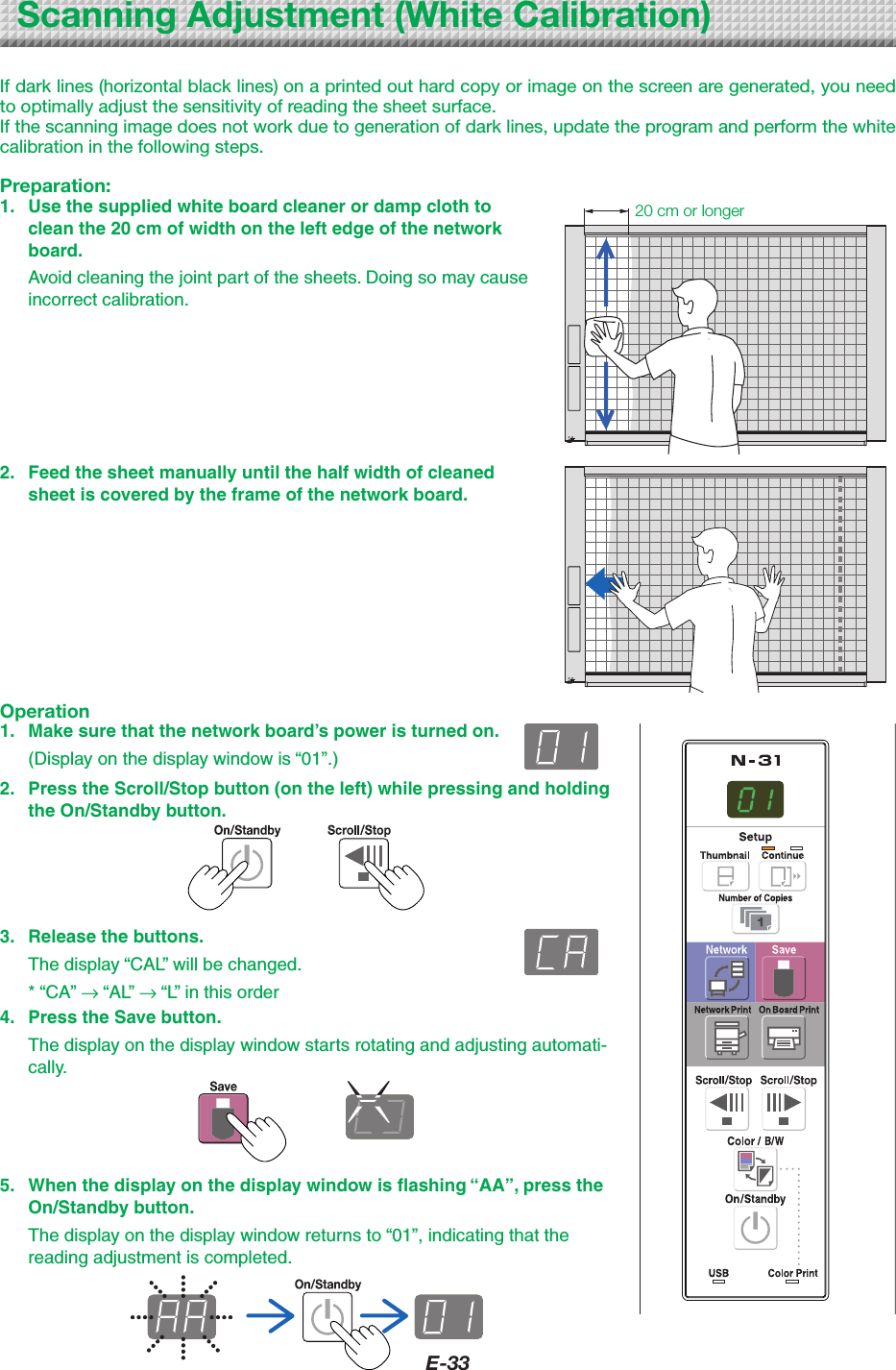
E-33ScanningAdjustment(WhiteCalibration)If dark lines (horizontal black lines) on a printed out hard copy or image on the screen are generated, you need to optimally adjust the sensitivity of reading the sheet surface.If the scanning image does not work due to generation of dark lines, update the program and perform the white calibration in the following steps.Preparation:1.  Use the supplied white board cleaner or damp cloth to clean the 20 cm of width on the left edge of the network board.  Avoid cleaning the joint part of the sheets. Doing so may cause incorrect calibration.20cmorlonger2.  Feed the sheet manually until the half width of cleaned sheet is covered by the frame of the network board.Operation1.  Make sure that the network board’s power is turned on.  (Display on the display window is “01”.)2.  Press the Scroll/Stop button (on the left) while pressing and holding the On/Standby button.3.  Release the buttons.  The display “CAL” will be changed.  * “CA” → “AL” → “L” in this order4.  Press the Save button.  The display on the display window starts rotating and adjusting automati-cally.5.  When the display on the display window is flashing “AA”, press the On/Standby button.  The display on the display window returns to “01”, indicating that the reading adjustment is completed.
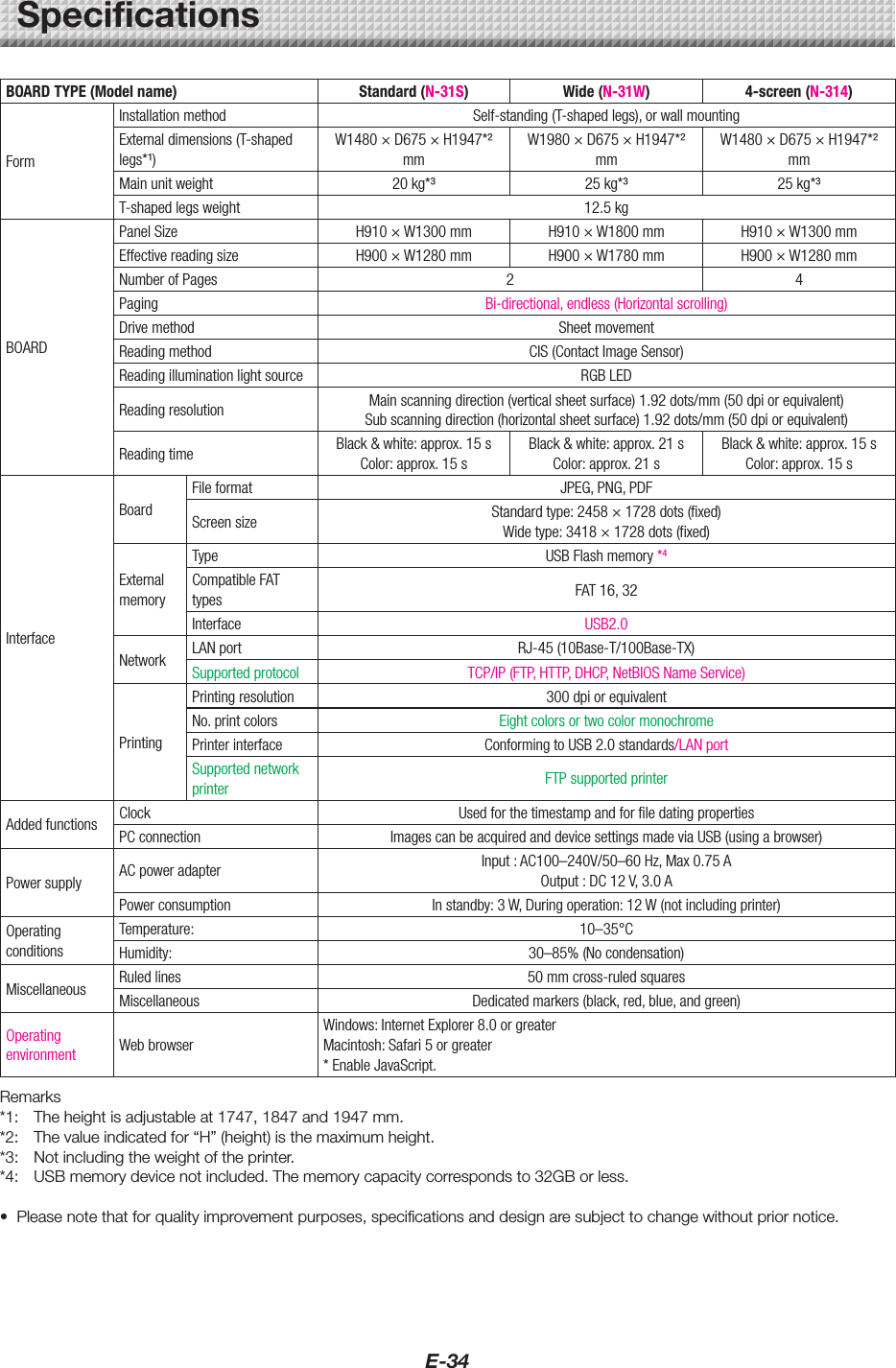
E-34BOARD TYPE (Model name)  Standard (N-31S)  Wide (N-31W) 4-screen (N-314)FormInstallation method Self-standing (T-shaped legs), or wall mountingExternal dimensions (T-shaped legs*¹)W1480 × D675 × H1947*² mmW1980 × D675 × H1947*² mmW1480 × D675 × H1947*² mmMain unit weight 20 kg*³ 25 kg*³ 25 kg*³T-shaped legs weight 12.5 kg BOARDPanel Size H910 × W1300 mm H910 × W1800 mm H910 × W1300 mmEffective reading size H900 × W1280 mm H900 × W1780 mm H900 × W1280 mmNumber of Pages 2 4Paging Bi-directional, endless (Horizontal scrolling)Drive method Sheet movementReading method CIS (Contact Image Sensor)Reading illumination light source RGB LEDReading resolution Main scanning direction (vertical sheet surface) 1.92 dots/mm (50 dpi or equivalent)Sub scanning direction (horizontal sheet surface) 1.92 dots/mm (50 dpi or equivalent)Reading time Black & white: approx. 15 s Color: approx. 15 sBlack & white: approx. 21 sColor: approx. 21 sBlack & white: approx. 15 sColor: approx. 15 sInterfaceBoardFile format JPEG, PNG, PDFScreen size Standard type: 2458 × 1728 dots (fixed)Wide type: 3418 × 1728 dots (fixed)External memoryType USB Flash memory *4Compatible FAT types FAT 16, 32Interface USB2.0Network LAN port RJ-45 (10Base-T/100Base-TX)Supported protocol TCP/IP (FTP, HTTP, DHCP, NetBIOS Name Service)PrintingPrinting resolution 300 dpi or equivalentNo. print colors Eight colors or two color monochromePrinter interface Conforming to USB 2.0 standards/LAN portSupported network printer FTP supported printerAdded functions Clock Used for the timestamp and for file dating properties PC connection Images can be acquired and device settings made via USB (using a browser)Power supply AC power adapter Input : AC100–240V/50–60 Hz, Max 0.75 A  Output : DC 12 V, 3.0 APower consumption In standby: 3 W, During operation: 12 W (not including printer)Operating conditionsTemperature:  10–35°CHumidity:  30–85% (No condensation)Miscellaneous Ruled lines 50 mm cross-ruled squaresMiscellaneous Dedicated markers (black, red, blue, and green) Operating environment Web browserWindows: Internet Explorer 8.0 or greaterMacintosh: Safari 5 or greater* Enable JavaScript.Remarks*1: Theheightisadjustableat1747,1847and1947mm.*2: Thevalueindicatedfor“H”(height)isthemaximumheight.*3: Notincludingtheweightoftheprinter.*4: USBmemorydevicenotincluded.Thememorycapacitycorrespondsto32GBorless.• Pleasenotethatforqualityimprovementpurposes,specificationsanddesignaresubjecttochangewithoutpriornotice.Specifications
E-35AppendixConnectionsandWiringDiagram• Theconnectionsandwiringdiagrambelowisincludedhereforcheckingtheconnections.[NetworkboardandPrinterConnectionsDiagram]Networkboard front panelToPrinterconnectorUSBcable(suppliedwiththeprinter)ToUSBconnectorPrinterToDCconnectorPrinterACpoweradapter(suppliedwiththeprinter)To wall power outletToDCINPUTconnectorACpoweradapter(supplied)*Appearanceofprinterisforillustrationpurposes.Note• The AC power adapters of accessories and printers that have been verified to be operation many differ from the onesshownontheconnectionsdiagram(theymaybeofthebuilt-inormounted-ontype).
26-4606-11C

Navigation menu