PST PST-201HF MOTORCYCLE BLUETOOTH HEADSET SYSTEMS User Manual PST 201HF OM English
PST CO.,LTD MOTORCYCLE BLUETOOTH HEADSET SYSTEMS PST 201HF OM English
PST >
Users Manual

PST-201HF
INSTRUCTION MANUAL
MOTORCYCLE BLUETOOTH HEADSET SYSTEMS


Thank you for purchasing our product.
This manual is for PST-201HF.
Please read this instruction manual throughly for proper usages and
application before connecting and operating the equipment.
PST owns all intellectual property rights including copyrights instruction
manual, hardware and related software of PST-201HF which will be
protected by the Copyright Act.
Without PST`s written permission, they cannot be copied, re-printed or
translated into other languages.
Design and specifications are subject to change without notice.
Attention !
Do not control the headset button behind the wheel.
(If you want to control it, you pull over the vehicle on the safe place first.)
CONGRATULATIONS ON YOUR PURCHASE OF THE
PST MOTORCYCLE BLUETOOTH HEADSET SYSTEM!

-PST products are warranted with 1 year limited warranty.
The warranty period is 1 year from the date it was purchased.
-In order to ensure the highest warranty quality, you must complete the
attached registration/warranty card and a copy of your original invoice that
certifies that date of purchase.
PST authorized dealer reserves the right to request above documents.
-Keep your original package in case your system needs to be returned or
repaired.
-The limited warranty does NOT cover physical damage such as misuse,
modification, incorrect installation,unauthorized service, and normal wear
and tear. It also does not cover damage by accident or abuse caused by
improper cleaning or care.
-PST shall not be liable for any damages or injury to persons or property
which occurs while wearing a PST bluetooth headset system.
1 YEAR LIMITED WARRANTY

Bluetooth wireless technology is a short-range communication system intended
to replace the cables connecting portable and/or fixed devices used for
communication.
How to use Bluetooth System
Connect two or more Bluetooth devices on your wireless network system via
subsequent setup process entering the PIN code. Once the Bluetooth devices are
connected, you are free to listen to music or have a phone call via Bluetooth
headsets whitout any cables.
WHAT IS BLUETOOTH?

Static noise or signal interference can occur depending on the environment
1) When holding the Bluetooth module while wearing the headset on ears
or while holding a cell phone, human body can inerrupt signals between
the devices.
2) When the of external signal receptor of the Bluetooth module, headsets,
or cell phone touches the human body.
3) When the wall or furniture blocks the signal.
4) When satellites, electromagnectic waves or wireless internet interrupt
the signal in the same range of frequencies.
When the bluetooth module and headsets, cell phone or external signal
receptor gets further apart than the limited distance, the pairing between the
devices can be disconnected. Place the bluetooth module and connected
device near while pairing each other. Static noise or signal interference can
occur while underground or in industrial areas. Bluetooth system may not be
compatible with some navigration or GPS systems.
The volume on the speaker of the Bluetooth headset can be low due to the
wind sound while over-speeding. Please observe the speed limit.

SAFEGUARD INSTRUCTIONS
Safeguard instructions.....................................................................8
PREPARATION
Contents ..........................................................................................11
Headset charge...............................................................................12
Product function check ..................................................................13
Name and function of each part ...................................................14
KEY operating time and LED operating state ............................15
Headset mounting and dismounting ...........................................16
Headset care ...................................................................................17
OPERATION
Headset power ON/OFF ................................................................18
Volume UP/DOWN .........................................................................18
Headset registration and connection method ............................19
Operating Instructions
1. To answer a call........................................................................23
2. To make a call ...........................................................................23
3. To listen to music .....................................................................25
4. To talk in intercom mode .........................................................27
5. To use intercom while playing music ....................................28
6. To talk on the phone while music is playing ........................29
7. To answer and make calls while in intercom mode
using the talk feature ...............................................................31
APPENDIX
Battery charging and standard use time.....................................32
Product specifications....................................................................32
Getting the most out of your Bluetooth Device ..........................33
Regulatory information ..................................................................34
CONTENTS
8
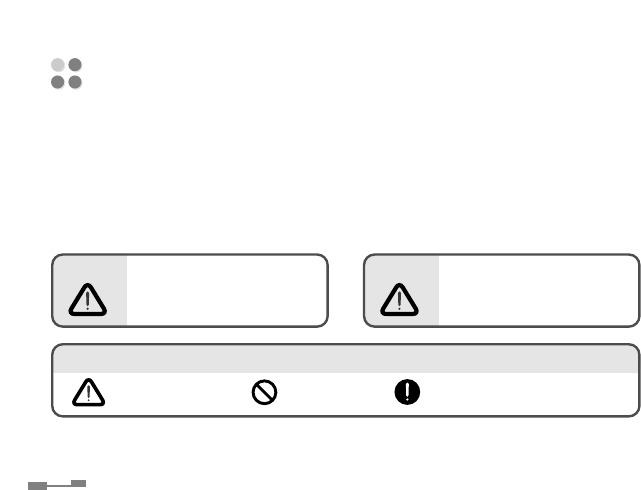
Please read the "Safeguard Instructions" carefully before using the product.
Following safeguard instructions prevents users from any damage related with
the misuse of this product. It is very important that users follow these
instructions.
We state "Causion" and "Warning" to clarify any potential for damage
associated with misuse of the product.
SAFEGUARD INSTRUCTIONS
May cause bodily harm or even
death if users ignore warnings
in the safeguard instructions.
WWaarrnniinngg
““PPrreeccaauuttiioonnss””
AAbboouutt ssiiggnnss
““DDoo NNoott””““FFoollllooww DDiirreeccttiioonnss CCaarreeffuullllyy””
May cause bodily harm or even
death if users ignore warnings
in the safeguard instructions.
CCaauuttiioonn

Place the product where it doesn’t prevent the driver from seeing.
- The driver’s view should not be blocked.
Do not use in water. Do not pull the plug with wet hands.
- This may cause electric shock.
Do not use unapproved power voltage.
- This may cause fire or electric shock.
Do not use damaged electric cord.
- This may cause fire and/or eclectric shock.
Be careful when thunder and lightening occurs.
- There is a danger of electric shock.
Do not put pins or needles into the product or electric cord of product.
- If this happens, turn it off immediately. Continuous use may cause fire, electric
shock and/or malfunction.
Stop using the product immediately when you drop it or damage the
outside shell.
- Continuous use may cause fire, electric shock and/or malfunction.
Do not attempt to open, disassemble or repair the product by any person
except an authorized service dealer.
- This may cause electric shock and/or malfunction. You should request an
authorized service dealer for any inspection and repair of the product.
WARNING
9

10
Do not put the product in a place where there is a sudden increase
in temperature such as the vehicle’s dashboard.
Keep the product firmly secured in the helmet.
- It may separate from the helmet.
Clean the product often.
- Dust in the area may cause malfunction.
Do not place electric cord near a heating product.
- The cord surface may melt and cause fire and/or electric shock.
Unplug the product and remove cords when moving.
- It may damage cords and cause fire and/or electric shock.
Do not pull the cord line when you unplug it.
- Damaged cords may cause fire and/or electric shock.
Unplug the product when not in use for a long period of time.
- Damaged cords may cause fire and/or electric shock.
Do not place the product in areas of very high temperature and/or
in direct sunlight for long periods of time.
- This may cause fire, electric shock and/or malfunction.
Do not put the product in an unstable place where the product may
be exposed to shock and/or impact.
- The product may fall and get damaged.
Keep electric cord properly positioned.
- An improperly positioned electric cord may cause fire or electric shock
when metal material is in contact with a power source.
CAUTION
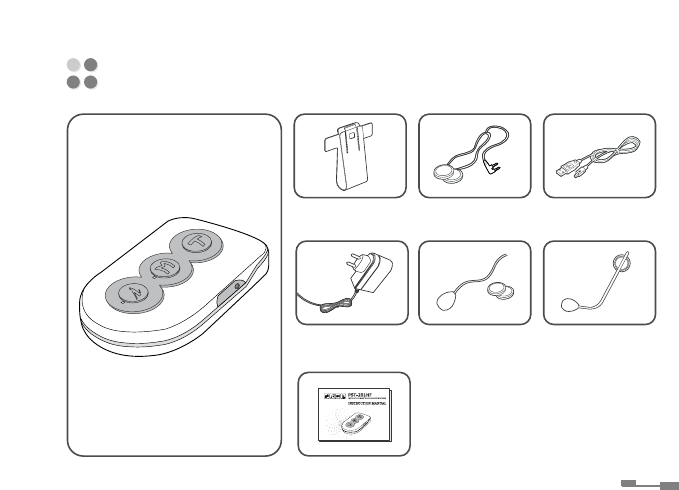
MAIN MODULE
CONTENTS
11
Bracket
DC Adaptor
(OPTION)
Manual
Earphone
Microphone A
(OPTION)
USB Cable
(OPTION)
Microphone B
(OPTION)

12
Li-Polymer Battery is included in this Headset.
Use the device after charging the battery completely.
-Display device : RED LED
-When it is charging RED LED turn on, and when it is complete, the RED LED
turns off.
-Separate charger from Headset when LED is turned off.
* It is safe if you did not separate the headset from the charger,
because it has anti-overcharged circuit.
- When battery is low, a beeping sound will ring until it is charged.
•Please use the USB cable or DC adaptor provided by
PST.
Use of an unapproved USB cable may cause damage.
•If you find any strange occurrences or malfunction
in the product or any foreign substance gets into the
product, please contact the authorized retailer
where you purchased the product.
HEADSET CHARGE

Phone Feature Music Feature
- Auto call answering - To play music
- Making calls - To stop music
- Calling the last number dialed - Volume control (up/down)
- Voice dialing
- Transfer call
- End call function
- Volume control (up/down)
Talk Feature
- Operating in intercom mode between driver and passenser, or bike and bike.
- Using your cell phone while in intercom mode between the driver and
passenger, or bike and bike (Since phone call is on priority, intercom will be
OFF mode during the call.)
- End talk function
- Start talk function
PRODUCT FUNCTION CHECK
13
14
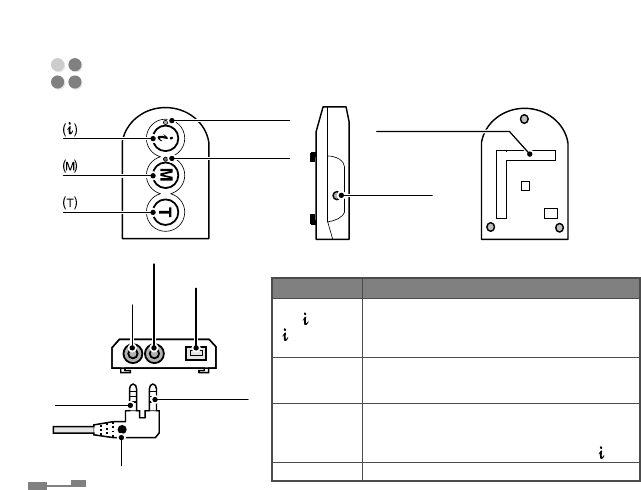
KKEEYYFFUUNNCCTTIIOONN
• Volume UP
( ) KEY • Intercom SLAVE mode pairing
[ : INTERCOM] • Intercom MASTER mode pairing together (T)KEY
• Intercom ON/OFF
• Volume DOWN
(M) KEY • Power ON/OFF
[M: MUSIC] • Music Play/Stop
• PHONE/AUDIO Device Pairing
(T) KEY • Last number redialing, Voice dialing, Transfer call
[T: TALK] End call
• Intercom MASTER mode pairing together ( )KEY
RESET KEY • Power OFF in various active states
NAME AND FUNCTION OF EACH PART
KEY BRACKET JOINT
LED(GREEN)
RESET KEY
LED(RED)
KEY
KEY
MICROPHONE
JACK USB JACK
(DC IN)
SPEAKER
JACK
MICROPHONE
PLUG
SPEAKER
PLUG
DOT: DIRECTION INDICATOR
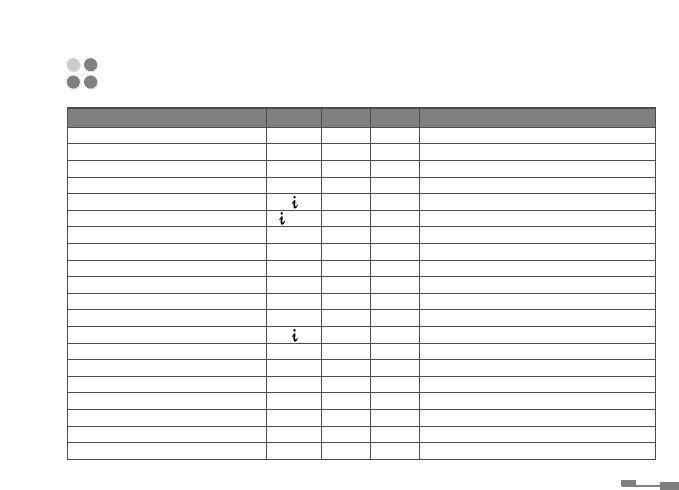
KEY OPERATING TIME AND LED OPERATING STATUS
15
MMOODDEE KKEEYY TTIIMMEE LLEEDDLLEEDD SSttaattuuss
Power ON (M) 5 sec. RED Lighting for 2 sec., then stand-by mode
Power OFF (M) 5 sec. RED Flashing in every 100ms for 2 sec.
Stand-by status
--
RED Flashing in every 3 sec.
Pairing Attempt (A2DP,HFP) (T) 5 sec. RED Flashing in every 100ms until completed
Pairing Attempt (Intercom SLAVE) ( ) 5 sec. GREEN Flashing in every 100ms until completed
Pairing Attempt (Intercom MASTER) ( ) + (T) 5 sec. GREEN Flashing in every 100ms until completed
Success of Pairing (Phone/Audio)
--
RED Flashing at 2 times in every 100ms for 2 sec.
Success of Pairing (Intercom)
--
GREEN Flashing at 2 times in every 100ms for 2 sec.
During phone call
--
RED Flashing in every 2 sec.
While playing Music
--
RED Flashing in every 2 sec.
During Intercom
--
GREEN Flashing in every 2 sec.
Call & Intercom waiting
--
GREEN Flashing in every 8 sec.
Intercom ON/OFF mode ( ) 1.5 sec.
--
Music Play/Stop (M) 1.5 sec.
--
Last Number Dialing (T) Quick
--
Voice Dialing (T) 2 sec.
--
Transfer Call (T) 2 sec.
--
End Call (T) Quick
--
Battery Charging
---
LED ON until full charging, then light-out
Low Battery status
---
Interval beeping every 30 sec.
16
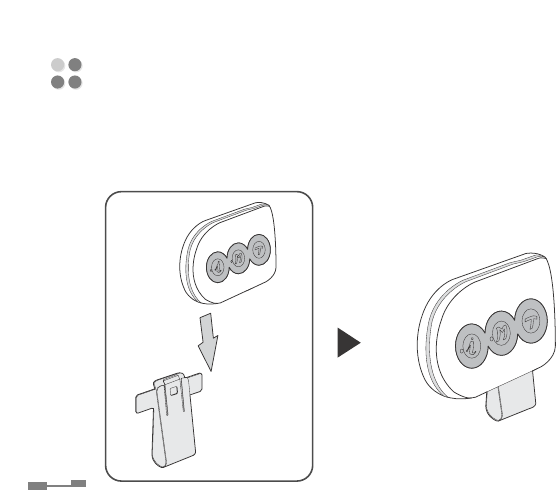
This process is applicable to 1/2 helmet, 3/4 helmet and full face helmet.
STEP1. Push up the Bluetooth main module into the bracket.
HEADSET MOUNTING AND DISMOUNTING
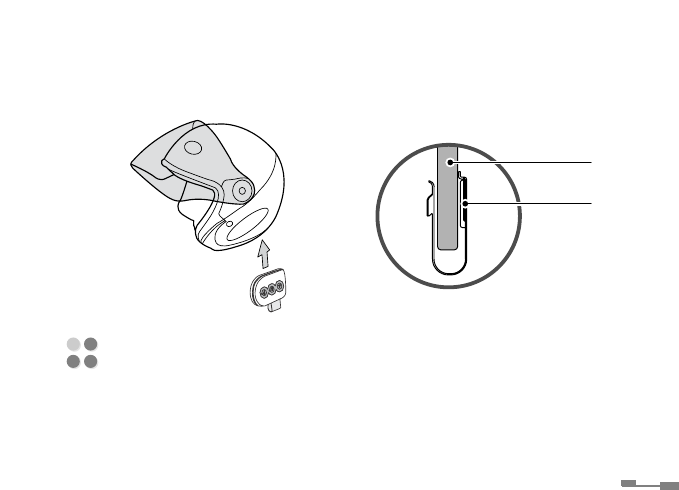
STEP2. Fix the main module at the lower part of the helmet
using the bracket.
17
- Keep the power off when not in use.
- Keep in a cool place avoiding extremely high temperatures, direct sunlight for
extended periods of time such as inside hot vehicles.
- Keep accompanying parts in a dry place.
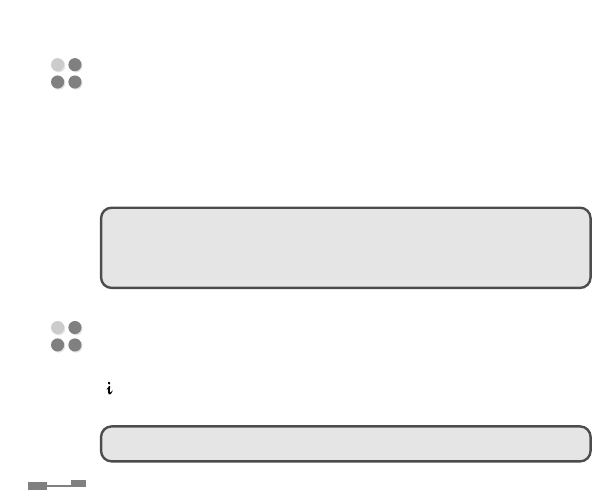
HEADSET CARE
HELMET
BRACKET
18
To POWER ON, press to (M)KEY for 5 seconds.
To POWER OFF, press (M)KEY for 5 seconds again.
(For more details refer to " KEY operating time and LED operating status" on
page 15.)
HEADSET POWER ON/OFF
Press ( )KEY (Volume UP) or (M)KEY (Volume DOWN) to control volume
when the devices is turned on.
VOLUME UP/DOWN
•Volume level is adjustable while the device is turned on.
• Turn off headset and on, if compatibility of device
makes trouble.
• Press reset KEY and turn on, if all functions are not
workable from wrong operation.

1. Pairing Headset with cellular phone
Please pair the Headset to your Bluetooth device(ex.Cellular phone) before
using. This process connects two devices to enable the Bluetooth function.
Select "PST-201HF" in searched device list.
1) Press (M)KEY on the headset for 5 seconds while the power is off.
2) Press (T)KEY on the headset for 5 seconds while the power is on.
3) Activate the bluetooth functionality of your phone and search for bluetooth
device.
* For further information, refer to the user guide of your phone.
4) Once the search is complete, search “PST-201HF” in the list of peripherals
detected.
5) Enter the PIN code “0000”.
* Once the pairing is over, your phone connects to the headset.
HEADSET REGISTRATION AND CONNECTION METHOD
19

20
•Do not pair headset with your Bluetooth device(ex.Cellular phone
or Audio device) in the intercom ON mode. Please pair Headset
with Bluetooth device in the intercom OFF mode.
•When the headset is turned off and then on, it connects
automatically with the cellular phone connected recently.
•To pair the cellular phone to headset, select “HANDSFREE” or
“STEREO HEADSET” in bluetooth menu on cellular phone.
(Can not pair to “HEADSET” in bluetooth menu.)
•In order to connect the Headset with Audio device and cellular
phone at the same time, your cellular phone must be handsfree
version.
- Refer to the instruction manual of the cellular phone to play music files that
are built-in to the cellular phone to listen to music.
- In order to disconnect the cellular phone, uncheck the bluetooth option on
the cellular phone.

21
2. Pairing Headset with Audio Device/MP3 Player
1) Press (M)KEY on the headset for 5 seconds while the power is off.
2) Press (T)KEY on the headset for 5 seconds while the power is on.
3) Activate the bluetooth functionality of your audio device and search for
bluetooth device.
* For further information, refer to the user guide of your audio device.
4) Once the search is complete, search “PST-201HF” in the list of peripherals
detected.
5) Enter the PIN code “0000”.
* Once the pairing is over, your audio device connects to the headset.
- In order to disconnect the Audio device, uncheck the bluetooth option on the
Audio device.
•When the headset is turned off and then on, it is not connected
automatically.
Press (M)KEY for 1.5 seconds to reconnect headset with audio
device.
22
•Connecting the Bluetooth adaptor(mono) after the
cellphone(stereo) is paired, the cellular phone will be
disconnected automatically.
When the Bluetooth adaptor(mono) is being paired, you cannot
pair the cellular phone(stereo) at the same time.
3. To Connect Intercom between Rider and Passenger, or bike
and bike.
1) For first, press (M)KEY on the headset for 5 seconds while the power is off.
2) For Slave, press ( )KEY on the headset for 5 seconds while the power is on.
3) For Secondary, press (M)KEY on the headset for 5 seconds while the power
is off.
4) For Master, press ( )KEY and (T)KEY together for 5 seconds while the
power is on.
•When the headsets are turned OFF and then ON, press ( )KEY
for 1.5 seconds to reconnect the intercom mode between both
headset.
(When the headsets are repowered ON, they can not be
reconnected each other automatically.)

23
1. To answer a call
1) When pairing of Headset to your cell phone is completed, it is ready to
answer and make calls.
2) The function of Auto Answer Call is included in this Headset and does not
require additional key operation to answer because calls are received
automatically.
3) Press (T)KEY shortly to end call or reject call.
2. To make a call
1) Last Number Dialing
Shortly press (T)KEY to call the last number dialed.
2) Voice Dialing
If you press (T)KEY for 2 seconds, voice information is announced.
At this time, please follow the voice information to make a call.
3) Transfer Call
If press (T)KEY for 2 seconds in current cellular phone calling, telephone
is connected to Headset.
If press (T)KEY for 2 seconds again, can move to current cellular phone
calling.
OPERATING INSTRUCTIONS

24
Please refer to the instruction manual of your cellular phone for voice dialing.
Voice dialing option of bluetooth is only available for the cellular phones that
has the voice dialing option and registered for the stereo headset service.
•When cellular phone is disconnected due to the long distance
between the headset and cellular phone, press (T)KEY shortly
to reconnect headset with cellular phone.
•When Bluetooth adaptor is paired, you cannot use the (T)KEY.
Using the (T)KEY might cause the product to malfunction.

25
3. To listen to music
1) Listening to music files stored to a cellular phone through Headset
Pair Headset with Cellular phone(audio built-in).
Please refer to the cellular phone manual to find out how to select the
"MP3"mode to play.
To stop the music, press (M)KEY for 1.5 seconds.
To play the music again, press (M)KEY for 1.5 seconds.
2) Listening to music files stored in audio device through Headset
Pair Headset with an Audio device.
Please refer to the audio device manual to play the music.
To stop the music, press (M)KEY for 1.5 seconds.
To play the music again, press (M)KEY for 1.5 seconds.
•On some cellular phone, only MP3 files can be played.
Check the format if the music files are stored as MP3`s.
•If audio device is disconnected due to the long distance between
the headset and the audio device, press (M)KEY for 1.5 seconds to
reconnect headset with audio device.

26
•If music source in phone is not stereo (A2DP),
intercom function can not work normally during music play.
•If phone is not support audio video remote control (AVRCP),
headset can not operate music play. Only play with phone.
•When you use headset with MP3 device,
it must be used in play mode of MP3 device to prevent trouble of
remote control (AVRCP).
•Use (M)KEY on headset to operate music play ON/OFF,
when MP3 player (audio device) is connected.
Play function on MP3 can be operated wrong depending MP3
source.
27
4. To talk in intercom mode
When two Headset are connected, there is intercom OFF mode.
To order to intercom ON mode, Press ( )KEY for 1.5 seconds.
To end intercom ON mode, Press ( )KEY for 1.5 seconds.
•When intercom is disconnected due to the long distance between
one headset and another headset, intercom will be automatically
connected if there two equipments gets within 100 meter
distance.
In this case, press ( )KEY for 1.5 seconds to talk in intercom ON
mode.
•Intercom ON mode : Audio Gate OPEN
•Intercom OFF mode : Audio Gate CLOSE
•When the audio signal is sensed to talk by VOX,
there is changed to Intercom ON mode.
28
5. To use intercom while playing music
First, pair the Headset with your cellular phone or audio device to listen
music.
Second, pair one Headset with another Headset to use the intercom
feature.
If press ( )KEY for 1.5 seconds while listening to music, the music stop
and changes intercom ON mode to talk between rider and passenser, or
bike and bike.
If press ( )KEY for 1.5 seconds to play the music again, intercom is
stopped, then music will be playing automatically.
To talk again, press ( )KEY for 1.5 seconds.
•Not possible to play the music during intercom function.

29
6. To talk on the phone while music is playing
1) To talk on the phone while playing music files stored in your cellular phone.
Pair the Headset with your cellular phone.
When there is an in-coming call while music is playing, the music will be
stopped and turn to phone mode.
If talk on the phone is finished, music is playing again automatically.
•When the user hangs up the phone call by pressing (T)KEY on
the Headset shortly, the stopped music will be back on the
playing mode.
•Not possible to play the music during call function.

30
2) To talk on the phone while playing music files stored in audio device.
Pair the Headset with your cellular phone.
Pair the Headset with audio device then make listen to music.
When there is an in-coming call while music is playing, the music will be
stopped and you can answer your call.
If talk on the phone is finished, music is playing again automatically.
•If you press the (T)KEY once shortly, the music is disconnected
and cellular phone returns to call the last number dialed.
Depending on the cellular phone, you may have to press the
(T)KEY twice.
•When the user hangs up the phone call by pressing (T)KEY on the
Headset shortly, the stopped audio device will be back on the
playing mode.

31
7. To answer and make calls while in intercom mode using the
Talk feature
If there is an in-coming call to the cellular phone, the intercom will be
OFF mode for the cellular phone call.
when the call is ended, intercom will be back to intercom ON mode.
•You cannot talk on the phone and be in intercom mode
at same time.
(Not possible to talk intercom during call function.)
•Set OFF mode of key sound to prevent the interruption of
intercom function from key sound of some kinds of cellular phone
model.
•Set OFF mode of bell sound to prevent the interruption on
intercom function.
(Bell sound of specific cellular phone model may interrupt the
intercom function.)


1. The best condition to listen to music while driving :
1) Open face helmet : Below 60 mph 2) Full face helmet : Below 70 mph
2. The best condition to have a phone call or intercom
conversation while driving :
1) Open face helmet : Below 50 mph 2) Full face helmet : Below 70 mph
3. Static noise
1) When the headset is being paired with other bluetooth devices.
2) When the distance between the headset and bluetooth device is furthe than
100 meters.
3) When passing heavy radio signal interference areas.
4) When several bluetooth devices are being used at the same time.
4. For proper use device
1) Install the headset where each driver and passenger or bike and bike can see.
(ex. On the same side of helmet)
2) Place the cell phone which is paired in the back pocket of the pants or
shirt pocket.
GETTING THE MOST OUT OF YOUR BLUETOOTH DEVICE
33