Panasonic KX F1050 User Manual FACSIMILE Manuals And Guides 97120060
PANASONIC Fax Machines Manual 97120060 PANASONIC Fax Machines Owner's Manual, PANASONIC Fax Machines installation guides
KX-F1070 97120060
User Manual: Panasonic KX-F1050 KX-F1050 PANASONIC FACSIMILE - Manuals and Guides View the owners manual for your PANASONIC FACSIMILE #KXF1050. Home:Computer & Office Equipment Parts:Panasonic Parts:Panasonic FACSIMILE Manual
Open the PDF directly: View PDF  .
.
Page Count: 76
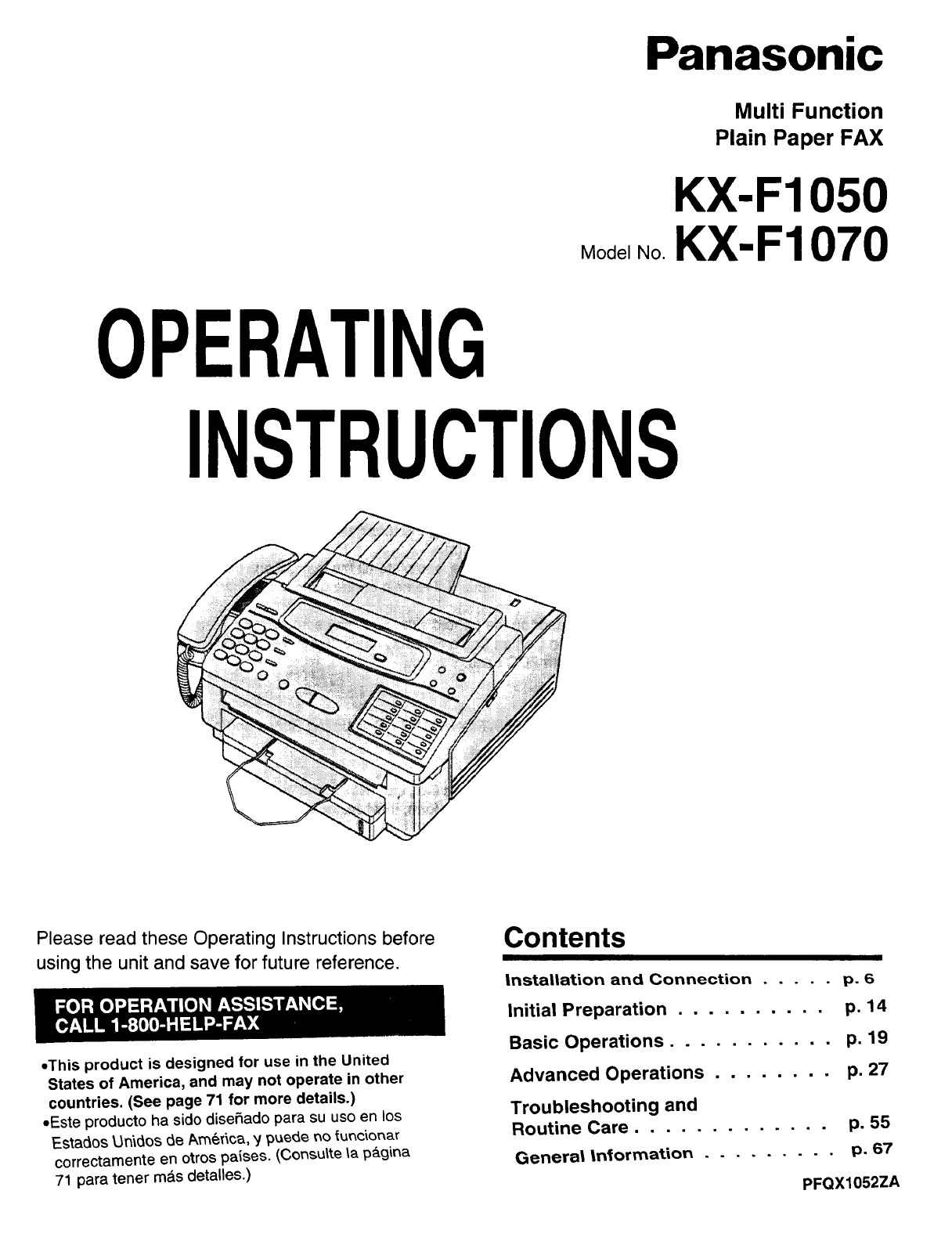
Panasonic
Model No.
Multi Function
Plain Paper FAX
KX-F1050
KX-F1070
OPERATING
INSTRUCTIONS
Please read these Operating Instructions before
using the unit and save for future reference.
=This product is designed for use in the United
States of America, and may not operate in other
countries. (See page 71 for more details.)
=Este producto ha sido disehado para su uso en los
Esta_os Un'l_os _e Am_r\ca, _ puede uo _unc_onar
correctamente en otros pa_ses. (Cousutte ta p_gina
71 para tener m&s detalles.)
Contents
Installation and Connection ..... p. 6
Initial Preparation .......... p. 14
Basic Operations ........... p. 19
Advanced Operations ........ p. 27
Troubleshooting and
Routine Care ............. p. 55
Generat |n_ormation ......... p. 67
PFQX1052ZA
Thank you for purchasing the Panasonic Plain Paper Facsimile.
Things you should keep records of
f
[
I
IAttach your sales receipt here
]
I
I
For your future reference
Date of purchase
Dealer's name and address
Dealer's telephone number
Serial No.
(found on the rear of the unit)
J
Caution:
oThe Telephone Protection Act of 1991 requires the following information to be clearly stated either at the top
or bottom margin of the first message when transmitting messages via telephone facsimile;
mDate and time of transmission,
--Identification of the business, entity or person(s) sending the facsimile, and
--Telephone number of the business, entity or person(s).
To program this information into your facsimile machine, complete all the instructions on pages 14-16.
• Note that the images of copied or received documents will remain on the used film. When disposing of the
used film, use discretion.
•Do not rub the printed side or use an eraser on the printed side, as it may smear.
oWhen using the Panasonic Multi Function Center, use a RS232C cable that is five feet or shorter for reliable
data communications and compliance with FCC rules.
Trademarks
Hammermill ® is registered trademarks of INTERNATIONAL PAPER in United States and/or other countries.
Copyright:
This manual is copyrighted by Kyushu Matsushita Electric Co., Ltd. (KME) and its licensee. Under the
copyright laws, this manual may not be reproduced in any form, in whole or part, without the prior written
consent of KME and its licensee.
(_) 19.96 Kyushu Matsushita Electric Co., Ltd. All Rights Reserved.
Using attached user guides
The unit performs the following functions; plain paper facsimile, copier, scanner, PC Fax, telephone and printer.
To use this unit efficiently, we recommend you read the instructions below in the following order.
Quick start guide
This guide summarizes installation and basic operations. To connect the KX-F1050/KX-F1070 to your
computer, see the PC Connections and Installation for Multi Function Center section.
Operating Instructions
This manual describes installation, initial preparation, how to use a facsimile, copy and telephone,
troubleshooting, routine care and general information.
2
Important safety instructions
When using this product, basic safety precautions
should always be followed to reduce the risk of fire,
electric shock, and injury to persons, including the
following:
1. Read and understand all instructions.
2. Follow all warnings and instructions marked
on this product.
3. Unplug this product from wall outlets before
cleaning. Do not use liquid or aerosol
cleaners. Use a damp cloth for cleaning.
4. Do not use this product near water, for example,
near a bath tub, wash bowl, kitchen sink, or
laundry tub, in a wet basement, or near a
swimming pool.
5. Do not place this product on an unstable cart,
stand or table. The product may fall, causing
serious damage to the product.
6. Slots and openings in the cabinet and the back or
bottom are provided for ventilation, to protect it
from overheating, these openings must not be
blocked or covered. The openings should never
be blocked by placing the product on the bed,
sofa rug, or other similar surface. This product
should never be placed near or over a radiator or
heat register. This product should not be placed
in a built-in installation unless proper ventilation is
provided.
7. This product should be operated only from the
type of power source indicated on the marking
label. If you are not sure of the type of power
supply to your home, consult your dealer or local
power company.
8. This product is equipped with a three wire
grounding type plug, a plug having a third
(grounding) pin. This plug will only fit into a
grounding type power outlet. This is a safety
feature. If you are unable to insert the plug into
the outlet, contact your electrician to replace your
obsolete outlet. Do not defeat the safety purpose
of the grounding type plug.
9. Do not allow anything to rest on the power cord.
Do not locate this product where the cord will be
abused by people walking on it.
10. Do not overload wall outlets and extension cords
as this can result in the risk of fire or electric
shock.
11. Never push objects of any kind into this product
through cabinet slots as they may touch
dangerous voltage points or short out parts that
could result in a risk of fire or electric shock.
Never spill liquid of any kind on the product.
12. To reduce the risk of electric shock, do not
disassemble this product, but take it to a qualified
serviceman when some service or repair work is
required. Opening or removing covers may
expose you to dangerous voltage or other risks.
SAVE THESE
Incorrect reassernbly can cause electric shuck
when the appliance is subsequently used.
13. Unplug this product from the wall outlet and refer
servicing to qualified service personnel under the
following conditions:
A. When the power supply cord or plug is
damaged or frayed.
B. If liquid has been spilled into the product.
C. If the product has been exposed to rain
or water.
D.If the product does not work normally by
following the operating instructions. Adjust
only those controls, that are covered by the
operating instructions because improper
adjustment of other controls may result in
damage and will often require extensive work
by a qualified technician to restore the product
to normal operation.
E. If the product has been dropped or the cabinet
has been damaged.
F. If the product exhibits a distinct change in
performance.
14. Avoid using a telephone (other than a cordless
type) during an electrical storm. There may be a
remote risk of electric shock from lightning.
15. Do not use the telephone to report a gas leak in
the vicinity of the leak.
INSTRUCTIONS
INSTALLATION:
1. Never install telephone wiring during a lightning
storm.
2. Never install telephone jacks in wet locations
unless the jack is specifically designed for wet
locations.
3. Never touch uninsulated telephone wires or
terminals unless the telephone line has been
disconnected at the network interface.
4. Use caution when installing or modifying
telephone lines.
WARNING:
To prevent the risk of fire or electrical shock, do
not expose this product to rain or any type of
moisture.
OTHER INFORMATION
•Keep the unit away from electrical noise-generating
devices, such as fluorescent lamps and motors.
•The unit should be kept free from dust, moisture,
high temperature, and vibration.
•The unit should not be exposed to direct sunlight.
•Do not place heavy objects on top of this unit.
•Do not damage the power cord.
•Do not touch the plug with wet hands.
•Do not use benzine, thinner, or any abrasive powder,
to clean the cabinet. Wipe it with a soft cloth. 3
Table of Contents
Included accessones .................................................................................................................... 6
Location of controls ........................................................................................................................... 7
Installing your unit ............................................................................................................................. 9
Connections .................................................................................................................................... t 3
Setting the date, time, logo and facsimile telephone number .......................................................... 14
Adjusting volumes ........................................................................................................................... 16
Selecting the receive mode ............................................................................................................. 17
Making voice calls ........................................................................................................................... 19
Answering voice calls ...................................................................................................................... 19
Transmitting documents .................................................................................................................. 20
Receiving documents ...................................................................................................................... 22
Making a copy ................................................................................................................................. 26
Automatic dialing
Storing phone numbers tor automatic dialing .................................................................................. 27
Making voice calls using automatic dialing ...................................................................................... 28
Transmitting documents using automatic dialing ............................................................................. 28
Electric telephone directory ............................................................................................................. 29
Telephone
Voice contact (talking to the caller during or after fax reception or transmission) .................................. 30
TONE, FLASH and REDIAL/PAUSE buttons .................................................................................. 31
Special sending features
Polling (retrieving fax documents) ................................................................................................... 32
Delayed transmission (sending a fax at a later time) ....................................................................... 33
Sending documents overseas ......................................................................................................... 34
Reserving transmission during fax reception ................................................................................... 34
Printing a cover page ...................................................................................................................... 35
Special receiving features
Remote fax receiving (using an extension phone to receive a fax message) ................................. 36
Junk mail prohibitor (preventing the reception of unwanted fax documents) .................................. 37
Receiving with distinctive ring service ............................................................................................. 38
Signaling your pager that you have received a fax document ......................................................... 39
40
Receiving documents in memory ....................................................................................................
Receiving oversized documents ...................................................................................................... 42
43
Film/paper save reception ...............................................................................................................
4
Enhanced copy features
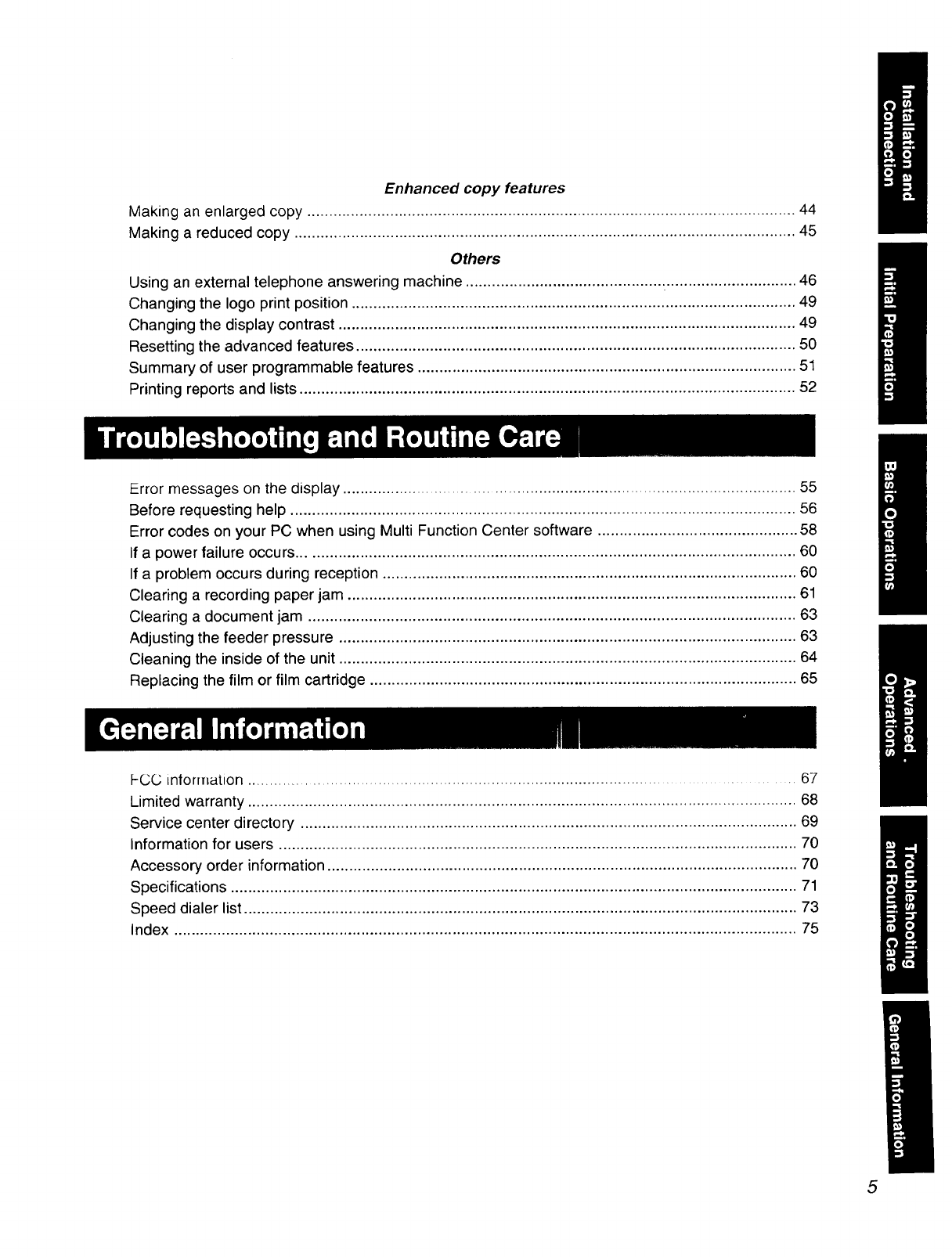
Making an enlarged copy ................................................................................................................ 44
Making a reduced copy ................................................................................................................... 45
Others
Using an external telephone answering machine ............................................. :.............................. 46
Changing the logo print position ...................................................................................................... 49
Changing the display contrast ......................................................................................................... 49
Resetting the advanced features ..................................................................................................... 50
Summary of user programmable features ....................................................................................... 51
Printing reports and lists .................................................................................................................. 52
Error messages on the display ...................................................................................................... 55
Before requesting help .................................................................................................................... 56
Error codes on your PC when using Multi Function Center software .............................................. 58
If a power failure occurs .................................................................................................................. 60
If a problem occurs during reception ............................................................................................... 60
Clearing a recording paper jam ....................................................................................................... 61
Clearing a document jam ................................................................................................................ 63
Adjusting the feeder pressure ......................................................................................................... 63
Cleaning the inside of the unit ......................................................................................................... 64
Replacing the film or film cartridge .................................................................................................. 65
FCC intormation ....................................................................................................................... 67
Limited warranty .............................................................................................................................. 68
Service center directory .................................................................................................................. 69
Information for users ....................................................................................................................... 70
Accessory order information ............................................................................................................ 70
Specifications .................................................................................................................................. 71
Speed dialer list ............................................................................................................................... 73
Index ............................................................................................................................................... 75
5
Included accessories
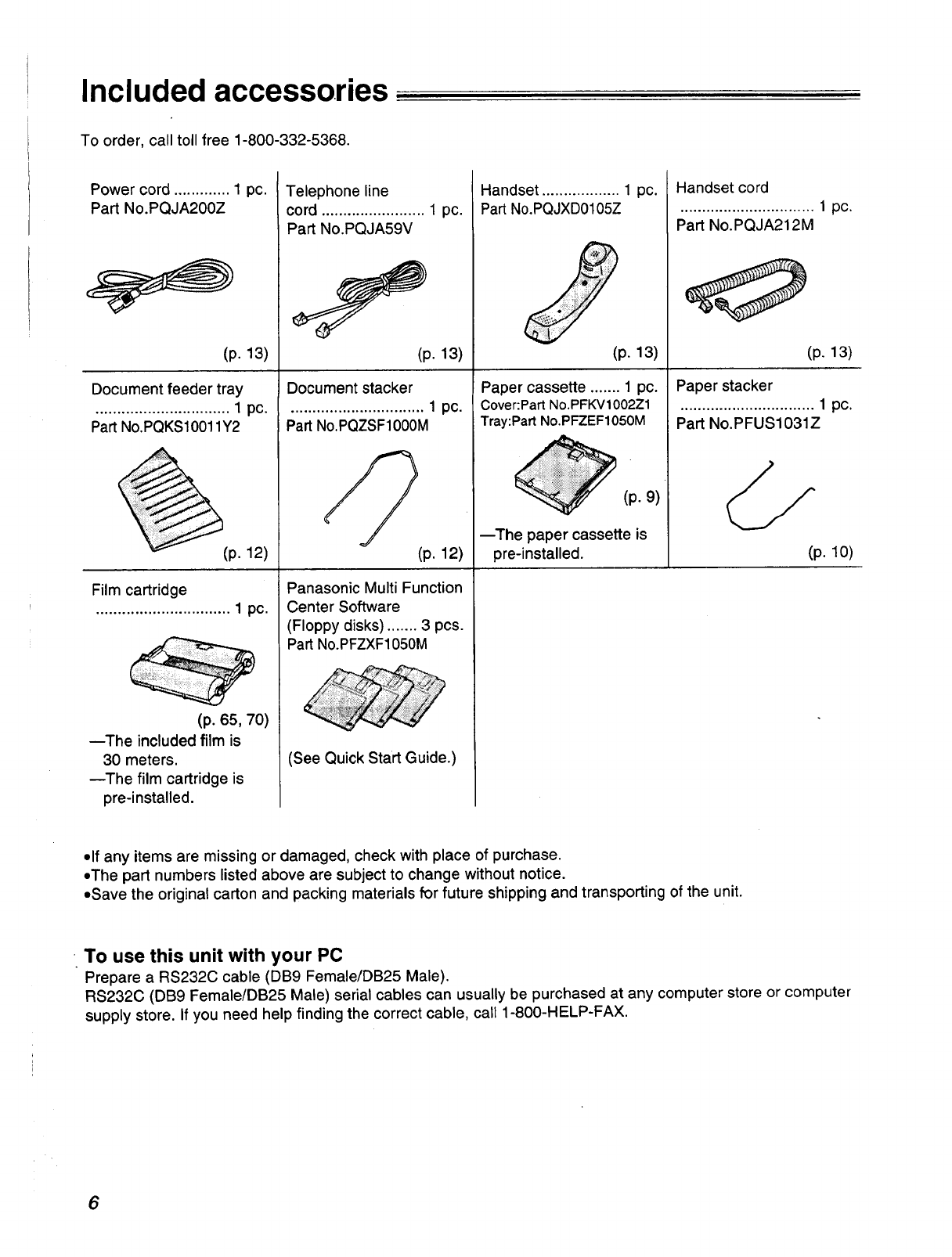
To order, call toll free 1-800-332-5368.
Power cord ............. 1 pc.
Part No.PQJA200Z
(p. 13)
Document feeder tray
............................... 1 pc.
Part No.PQKS10011Y2
(p. 12)
Film cartridge
............................... 1 pc.
(p. 65, 70)
--The included film is
30 meters.
--The film cartridge is
pre-installed.
Telephone line
cord ........................ 1 pc.
Part No.PQJA59V
(p. 13)
Document stacker
............................... 1 pc.
Part No.PQZSF1000M
(p. 12)
Panasonic Multi Function
Center Software
(Floppy disks) ....... 3 pcs.
Part No.PFZXF1050M
(See Quick Start Guide.)
Handset .................. 1 pc.
Part No.PQJXD0105Z
(p. 13)
Paper cassette ....... 1 pc.
Cover:Part No.PFKV1002Z1
Tray:Part No.PFZEF1050M
(p. 9)
--The paper cassette is
pre-installed.
Handset cord
............................... 1pc.
Part No.PQJA212M
(p. 13)
Paper stacker
............................... 1 pc.
Part No.PFUS1031Z
//
(p. 10)
•If any items are missing or damaged, check with place of purchase.
•The part numbers listed above are subject to change without notice.
•Save the original carton and packing materials for future shipping and transporting of the unit.
To use this unit with your PC
Prepare aRS232C cable (DB9 Female/DB25 Male).
RS232C (DB9 Female/DB25 Male) serial cables can usually be purchased at any computer store or computer
supply store. If you need help finding the correct cable, call 1-800-HELP-FAX.
6
Location of controls
Front view
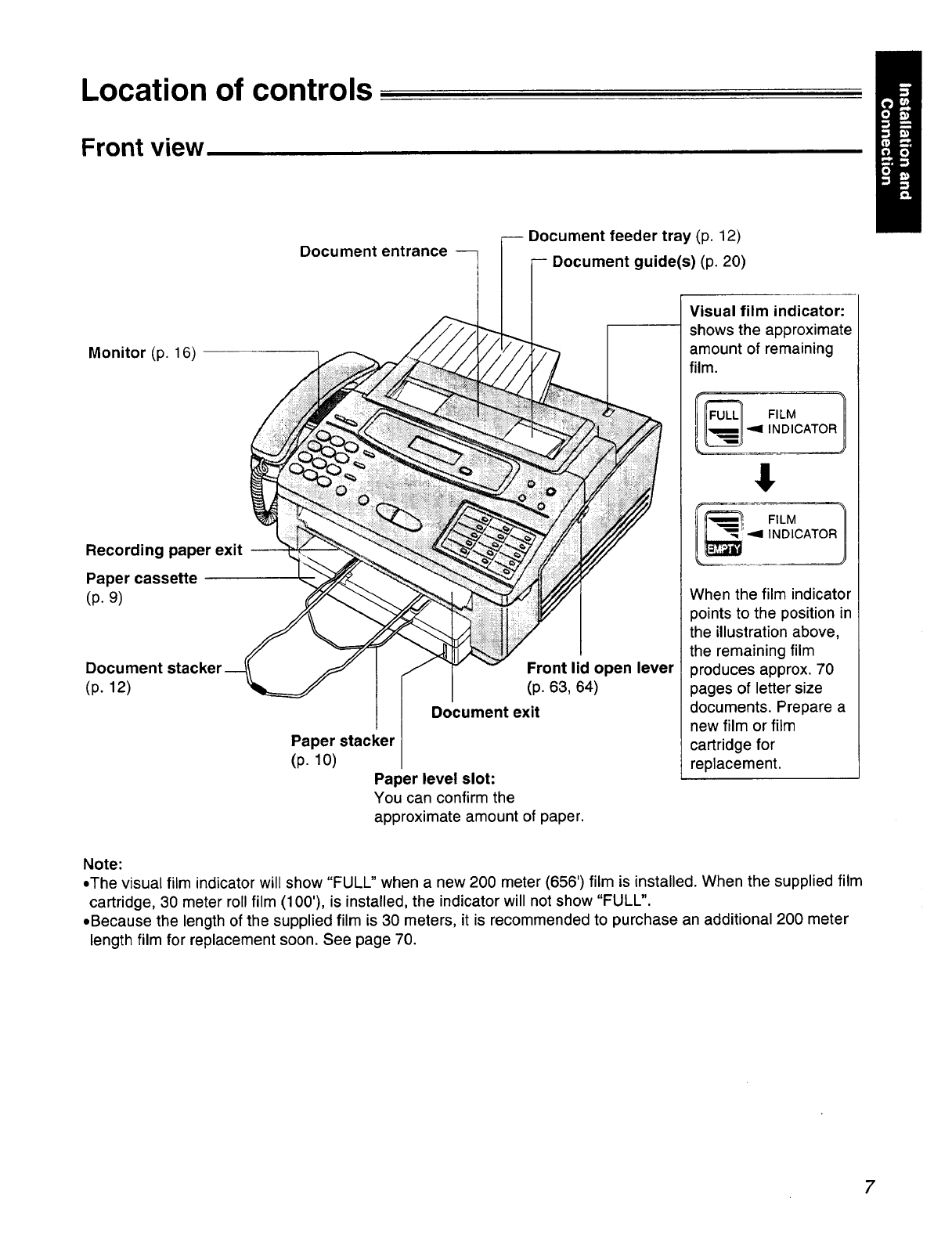
Document entrance
Monitor (p. 16)
Recording paper exit --
Paper cassette
(p.9)
Document
(p. 12)
Document feeder tray (p. 12)
Document guide(s) (p. 20)
Front lid open lever
(p. 63, 64)
Document exit
Paper stacker
(p. 10)
Paper level slot:
You can confirm the
Visual film indicator:
shows the approximate
amount of remaining
film.
,!
_._._ -91 FILM
INDICATORJ
When the film indicator
points to the position in
the illustration above,
the remaining film
produces approx. 70
pages of letter size
documents. Prepare a
new film or film
cartridge for
replacement.
approximate amount of paper.
Note:
•The visual film indicator will show "FULL" when a new 200 meter (656') film is installed. When the supplied film
cartridge, 30 meter rollfilm (100'), is installed, the indicator will not show "FULL".
•Because the length of the supplied film is 30 meters, it is recommended to purchase an additional 200 meter
length film for replacement soon. See page 70.
7
Control panel
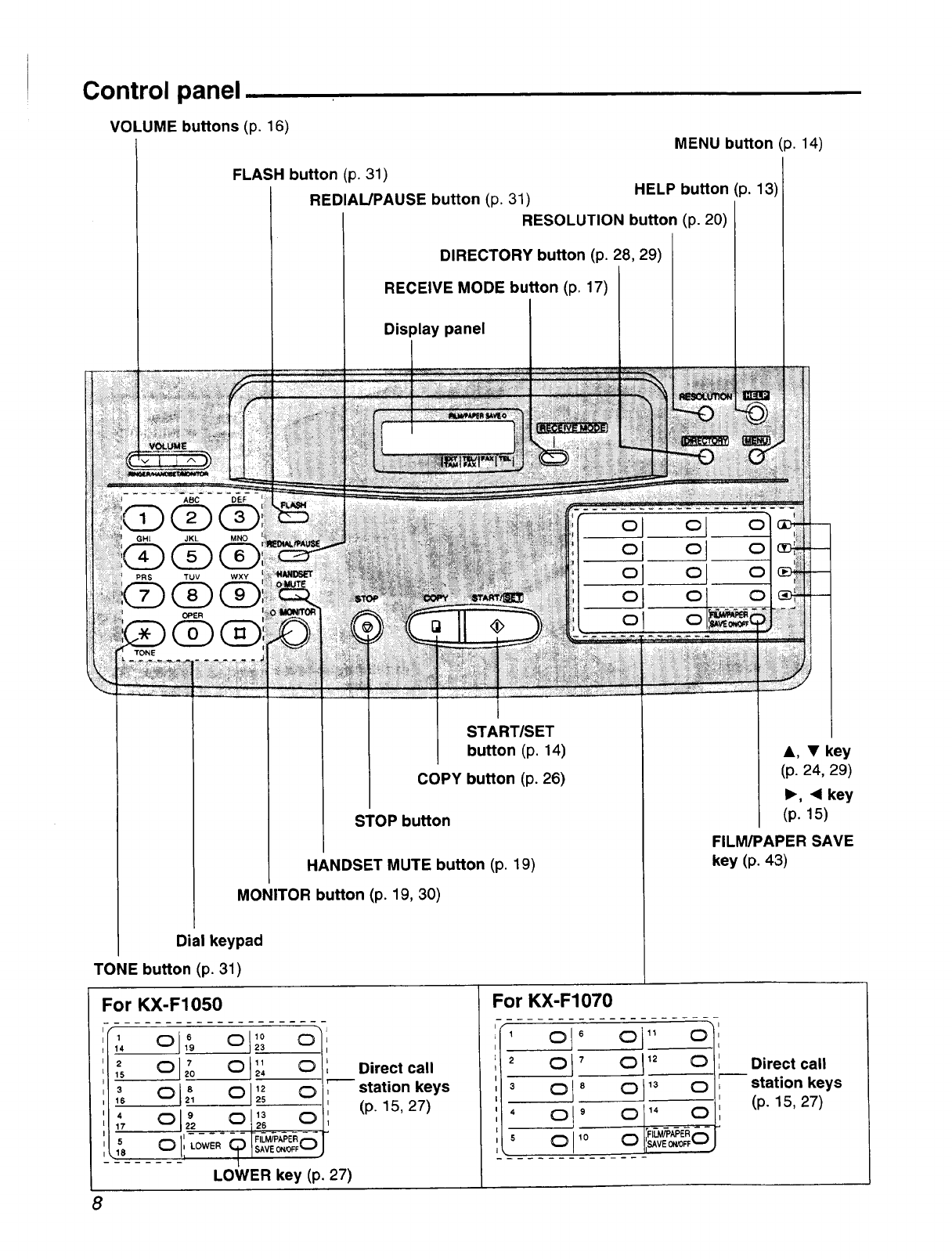
VOLUME buttons (p. 16) MENU button (p. 14)
TONE
FLASH button (p. 31)
REDIAL/PAUSE button (p. 31)
RESOLUTION button (p. 20)
HELP button (p. 13)
DIRECTORY button (p. 28, 29)
RECEIVE MODE button (p. 17)
ol o
Display panel
t
START/SET
button (p. 14)
COPY button (p. 26)
STOP button
HANDSET MUTE button (p. 19)
MONITOR button (p. 19, 30)
Dial keypad
TONE button (p. 31)
&, •key
(p. 24, 29)
I_, •key
(p. 15)
FILM/PAPER SAVE
key (p. 43)
For KX-F1050
1
14
f,
f,
olz0 oI :
O_ 0 _
25
26
0
0 LOWER
0
0
0
FILM/PAPERt_
SAVEONOFF_--J
Direct call
-- station keys
(p. 15, 27)
LOWER key (p. 27)
For KX-F1070
.....................
'ol 6 ol" o
0 7 012 0
3 0 8 01_3 0
'0 9 0 14 0
:IL_P#PER
5 0 _° 0 _vEc_,--
Direct call
station keys
(p. 15, 27)
8
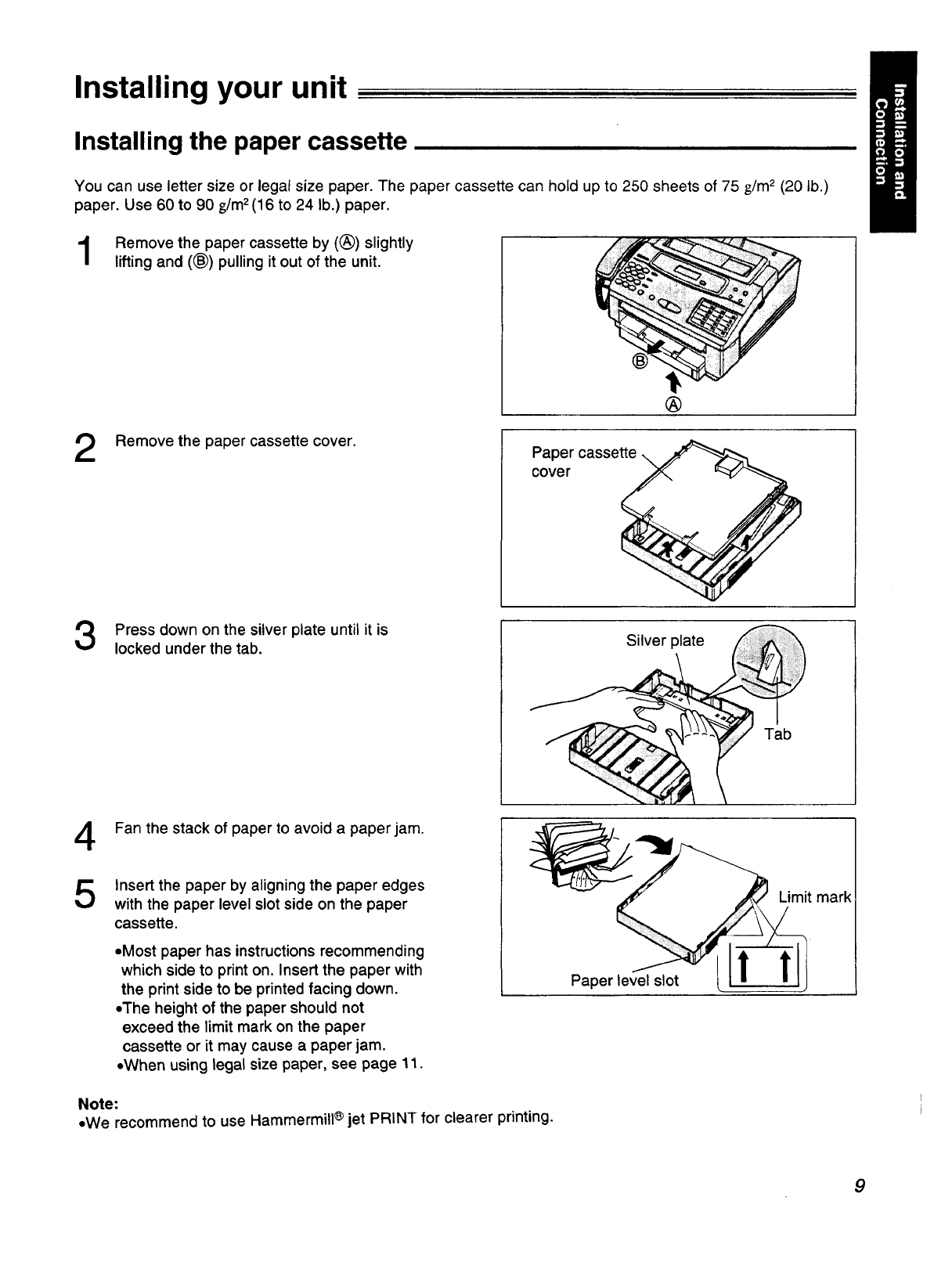
Installing your unit
Installing the paper cassette
You can use letter size or legal size paper. The paper cassette can hold up to 250 sheets of 75 g/m2 (20 tb.)
paper. Use 60 to 90 g/m2(16 to 24 lb.) paper.
Remove the paper cassette by ((_)) slightly
lifting and (®) pulling it out of the unit.
®
2Remove the paper cassette cover. Paper casse
cove r
Press down on the silver plate until it is
locked under the tab. Silver plate
4
5
Fan the stack of paper to avoid a paper jam.
Insert the paper by aligning the paper edges
with the paper level slot side on the paper
cassette.
=Most paper has instructions recommending
which side to print on. Insert the paper with
the print side to be printed facing down.
=The height of the paper should not
exceed the limit mark on the paper
cassette or it may cause a paper jam.
=When using legal size paper, see page 11.
Note:
,,We recommend to use Hammermill ®jet PRINT for clearer printing.
9
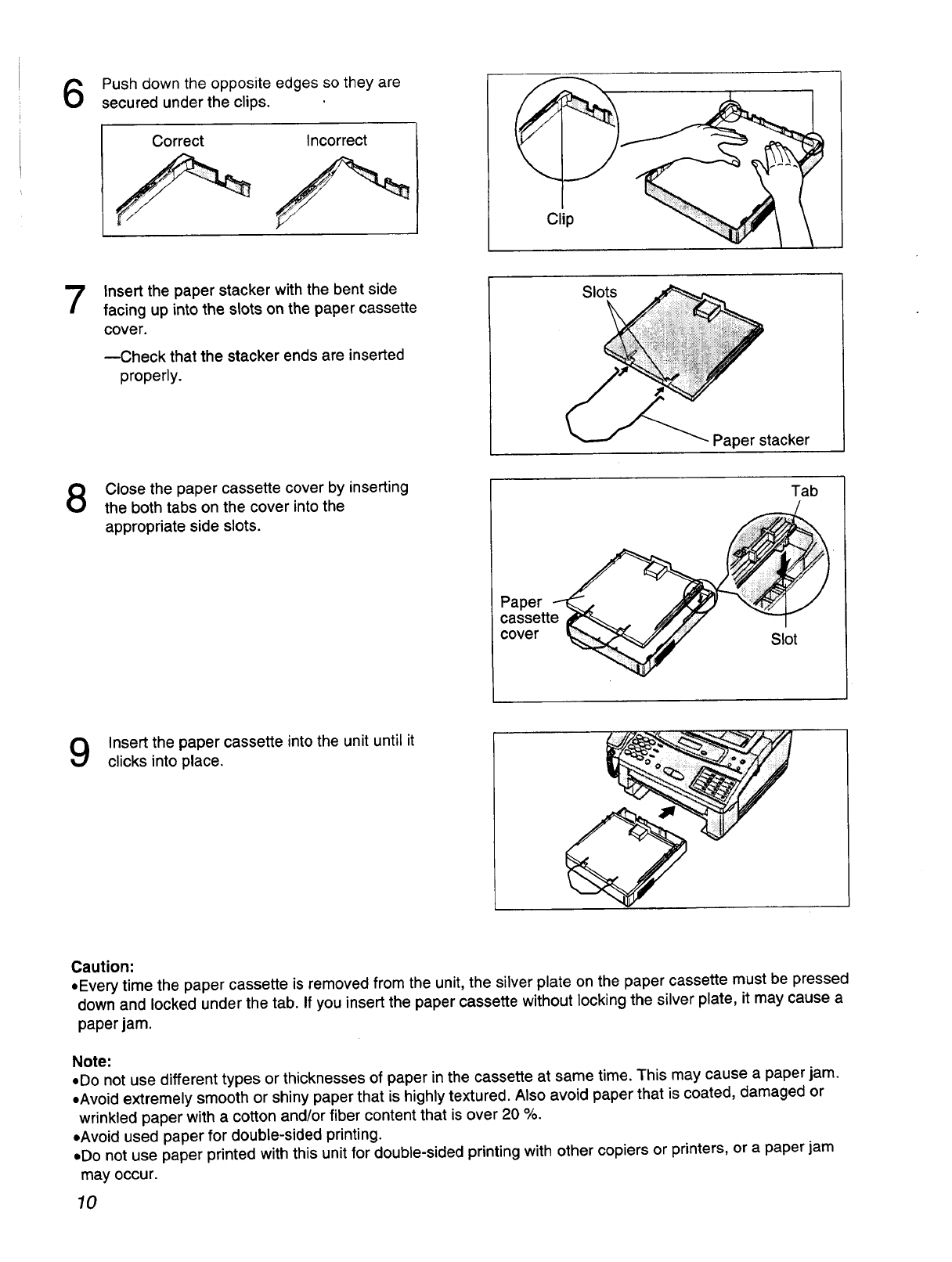
Push down the opposite edges so they are
secured under the clips.
Correct Incorrect
Clip
Insert the paper stacker with the bent side
facing up into the slots on the paper cassette
cover.
--Check that the stacker ends are inserted
properly.
Slots
Paper stacker
Close the paper cassette cover by inserting
the both tabs on the cover into the
appropriate side slots.
Tab
Paper
cassette IL__., _ff"_
cover Slot
Insert the paper cassette into the unit until it
clicks into place.
Caution:
• Every time the paper cassette is removed from the unit, the silver plate on the paper cassette must be pressed
down and locked under the tab. If you insert the paper cassette without locking the silver plate, it may cause a
paper jam.
Note:
• Do not use different types or thicknesses of paper in the cassette at same time. This may cause a paper jam.
•Avoid extremely smooth or shiny paper that is highly textured. Also avoid paper that is coated, damaged or
wrinkled paper with a cotton and/or fiber content that is over 20 %.
•Avoid used paper for double-sided printing.
• Do not use paper printed with this unit for double-sided printing with other copiers or printers, or a paper jam
may occur.
10
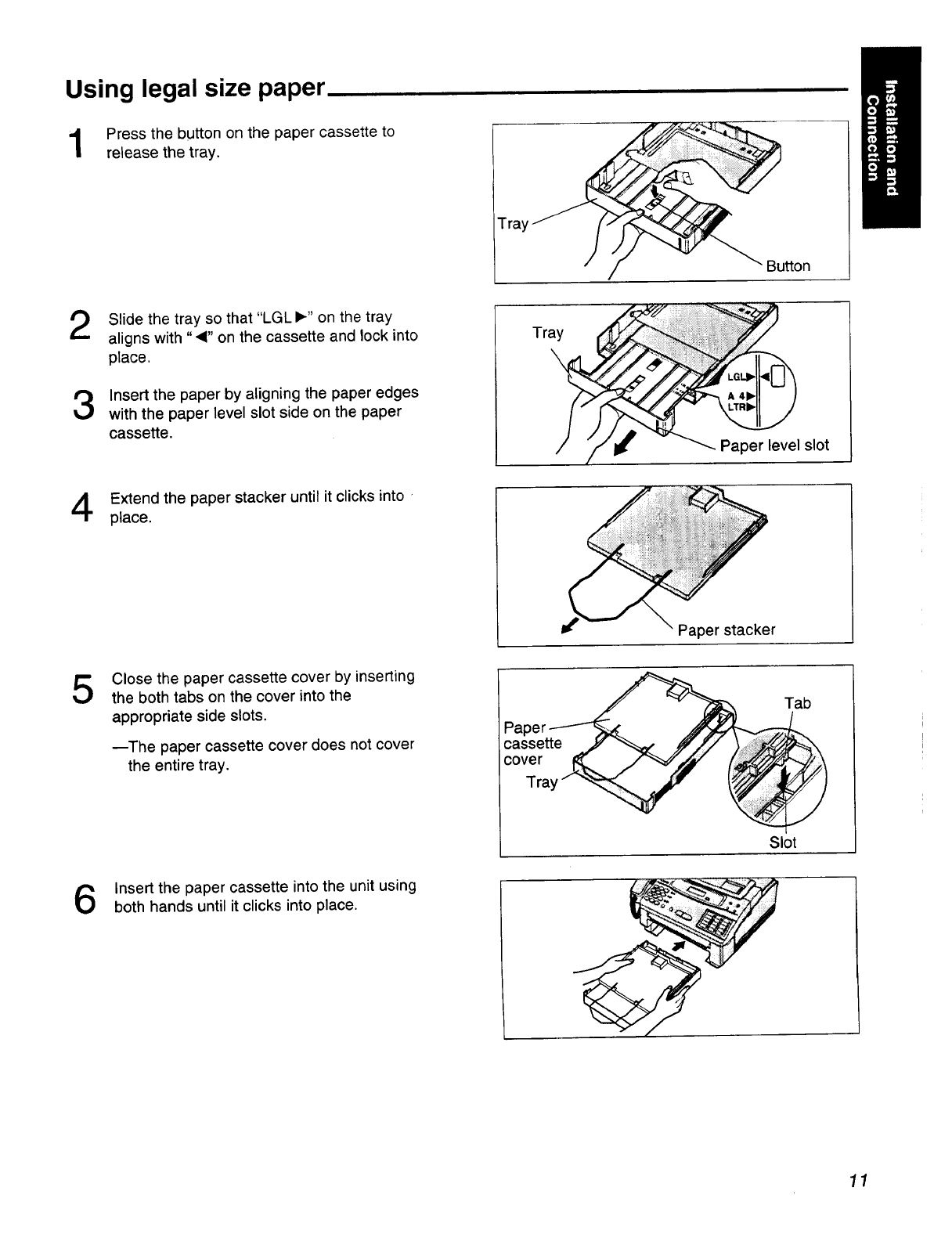
Using legal size paper
Press the button on the paper cassette to
release the tray.
Tra_
Bu_on
Slide the tray so that "LGLI_" on the tray
aligns with "41" on the cassette and lock into
place.
Insert the paper by aligning the paper edges
with the paper level slot side on the paper
cassette.
Tray
Paper level slot
Extend the paper stacker until it clicks into,
place.
Paper stacker
Close the paper cassette cover by inserting
the both tabs on the cover into the
appropriate side slots.
--The paper cassette cover does not cover
the entire tray.
Tab
Paper _
cassette y_"_,_ ff/ '
cover I_ ?_'JJ
Tray_ _ iii:jii_ii!i!:'.....
Slot
Insert the paper cassette into the unit using
both hands until it clicks into place.
11
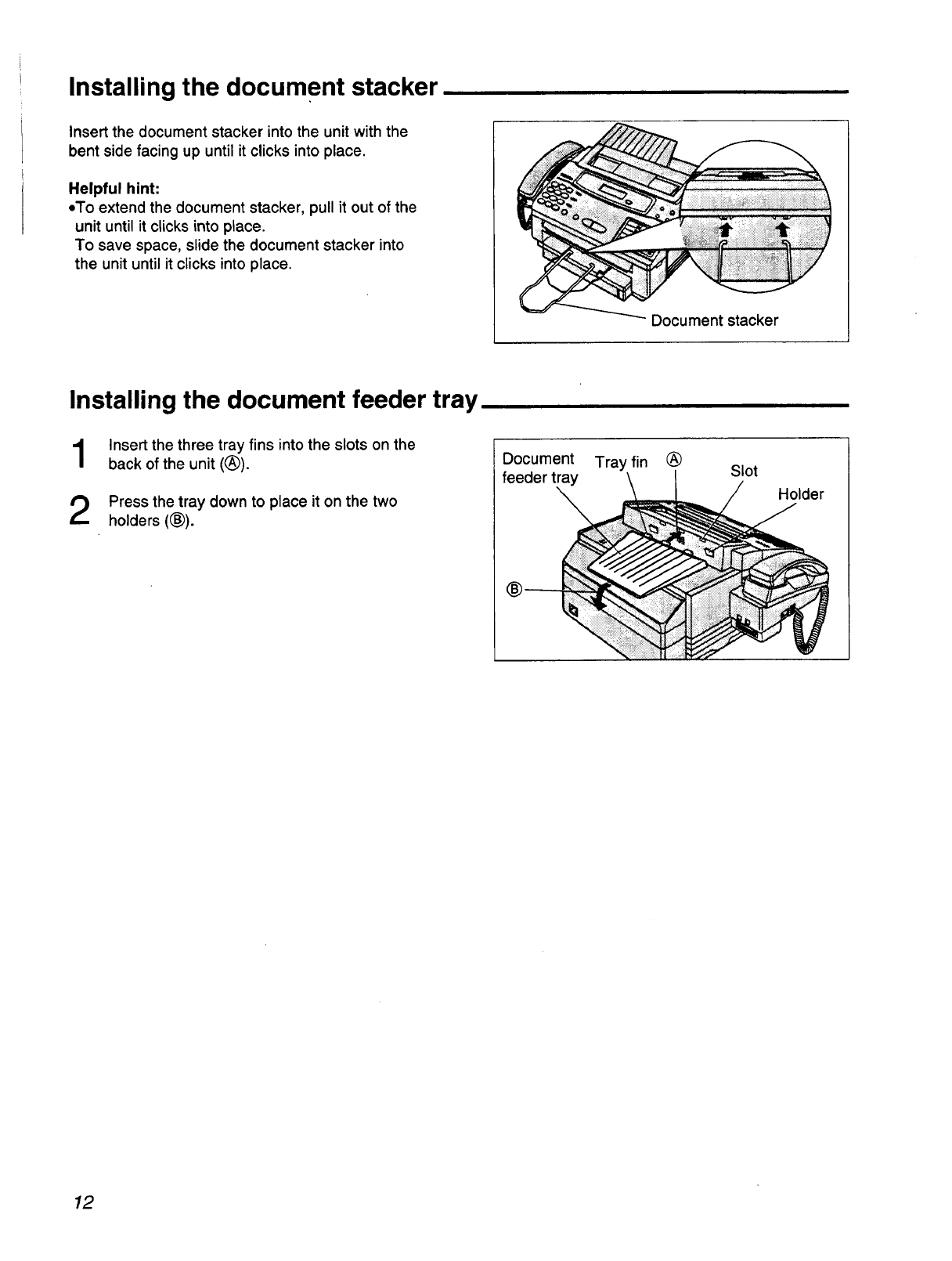
Installing the document stacker
Insert the document stacker into the unit with the
bent side facing up until it clicks into place.
Helpful hint:
eTo extend the document stacker, pull it out of the
unit until it clicks into place.
To save space, slide the document stacker into
the unit until it clicks into place.
Document stacker
Installing the document feeder tray
Insert the three tray fins into the slots on the
back of the unit (®).
Press the tray down to place it on the two
holders (®).
Document Tray fin (_)
feeder tray Slot
Holder
12
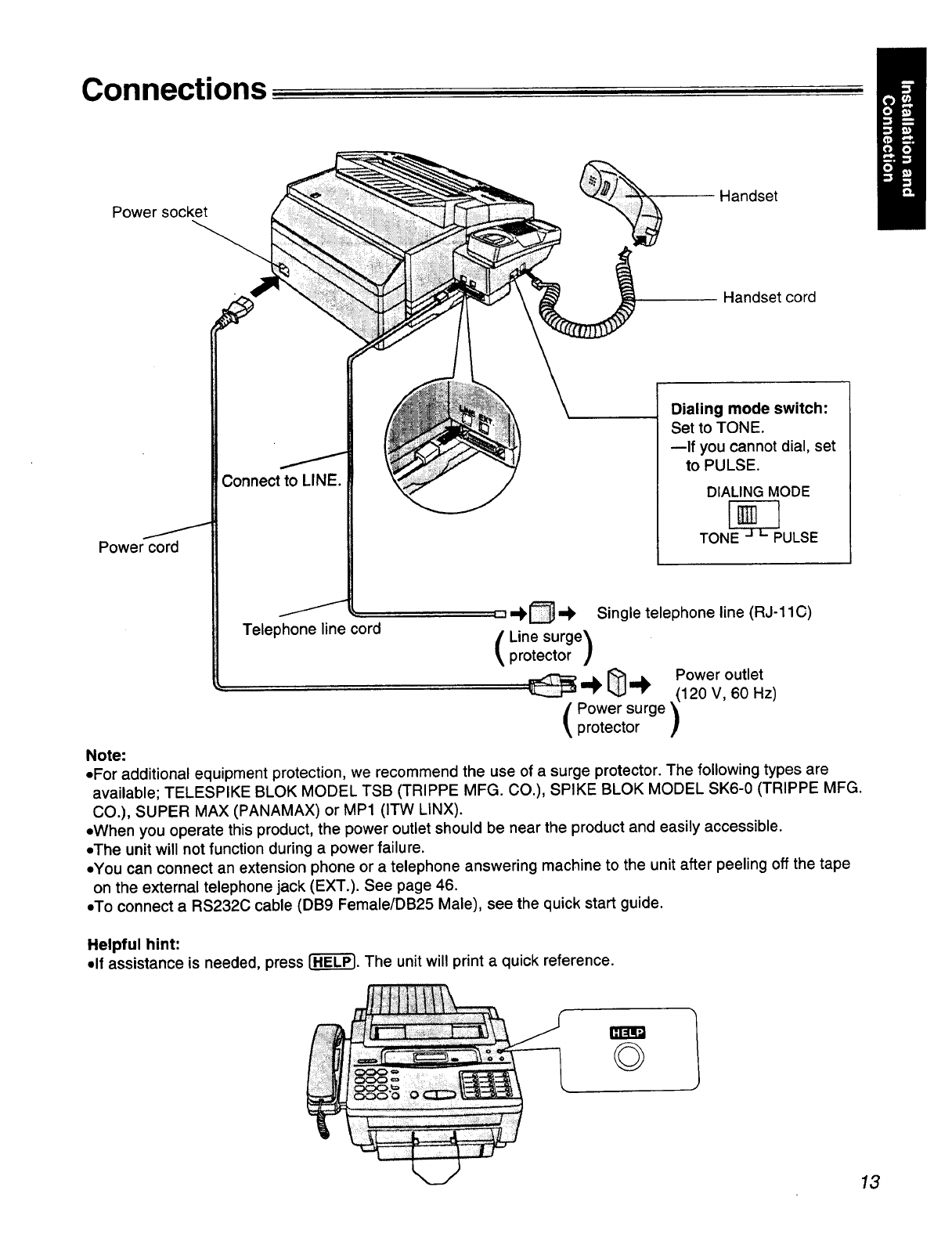
Connections
Power socket Handset
Handset cord
Power cord
Dialing mode switch:
Set to TONE.
--If you cannot dial, set
to PULSE.
DIALING MODE
TON E[_PULSE
Telephone line cord D..t)_.._ Single telephone line (RJ-11C)
Line surge'_
protector ]
_,.._ _ .__ Power outlet
--v _ _ (120 V, 60 Hz)
[Power surge '_
protector /
Note:
•For additional equipment protection, we recommend the use of a surge protector. The following types are
available; TELESPIKE BLOK MODEL TSB (TRIPPE MFG. CO.), SPIKE BLOK MODEL SK6-0 (TRIPPE MFG.
CO.), SUPER MAX (PANAMAX) or MP1 (ITW LINX).
eWhen you operate this product, the power outlet should be near the product and easily accessible.
•The unit will not function during a power failure.
•You can connect an extension phone or a telephone answering machine to the unit after peeling off the tape
on the external telephone jack (EXT.). See page 46.
•To connect a RS232C cable (DB9 Female/DB25 Male), see the quick start guide.
Helpful hint:
•If assistance is needed, press r'H-_. The unit will print a quick reference.
©
13
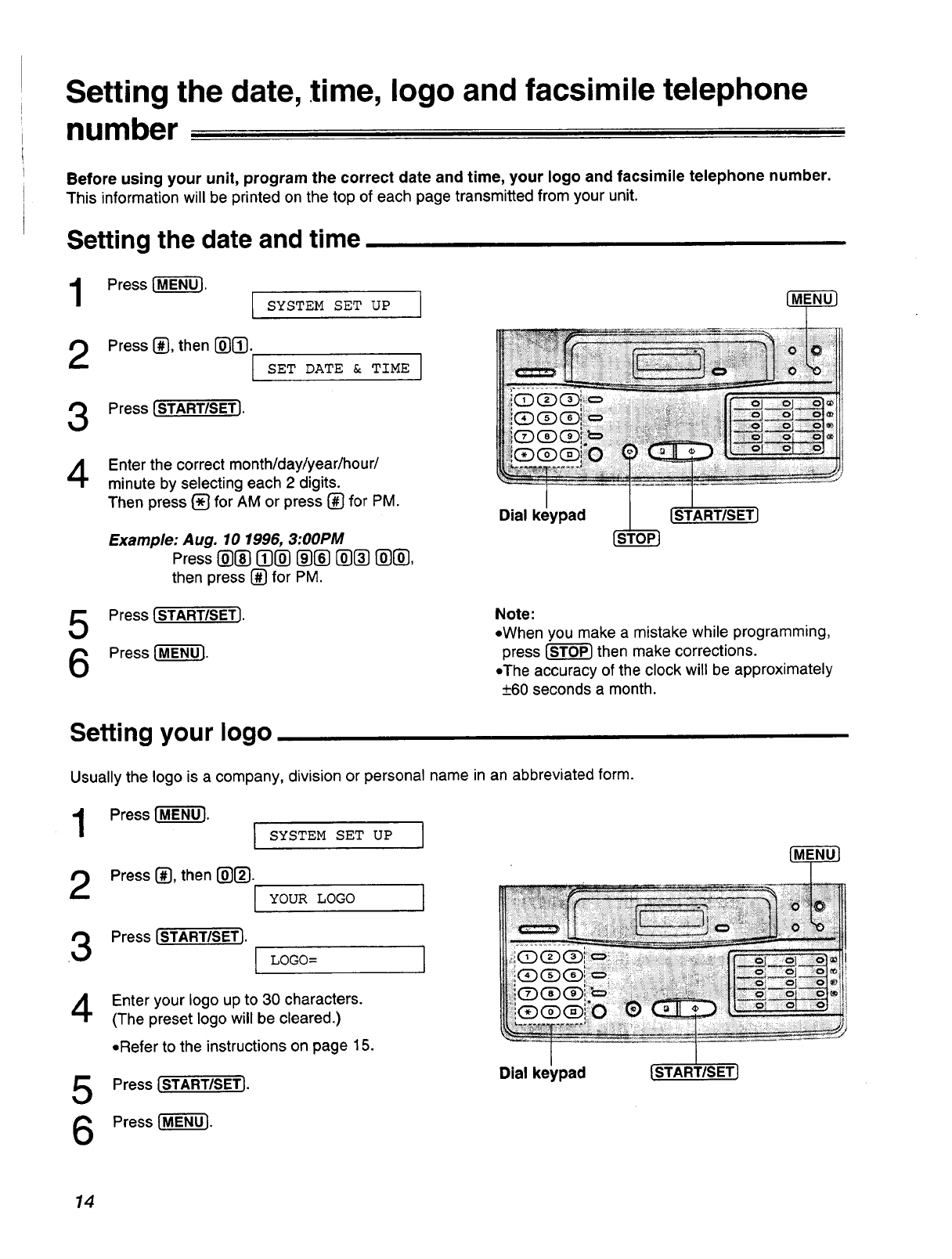
Setting the date, time, logo and facsimile telephone
number
Before using your unit, program the correct date and time, your logo and facsimile telephone number.
This information will be printed on the top of each page transmitted from your unit.
Setting the date and time
Press[-M-_. I SYSTEMSET OP I
2Press _, then [_]. I
3
4
Press [START/SET].
SET DATE & TIME J
Enter the correct month/day/year/hour/
minute by selecting each 2 digits.
Then press [] for AM or press (_ for PM.
Example: Aug. 10 1996, 3:00PM
Press @_ []@ _ @[] @@,
then press [] for PM.
I
Dial keypad START/SET]
Press [START/SETI.
Press I-M--Efi-_.
Note:
•When you make a mistake while programming,
press _ then make corrections.
•The accuracy of the clock will be approximately
_+60seconds a month.
Setting your logo
Usually the logo is a company, division or personal name in an abbreviated form.
1Pressl-MENO_.
2Press (_, then (_[_.
3 Press [START/SET]. I
I SYSTEM SET UP ]
YOUR LOGO
LOGO=
I
I
Enter your logo up to 30 characters.
(The preset logo will be cleared.)
5
6
•Refer to the instructions on page 15.
Press [START/SET].
Press{-_.
Dial keypad
14
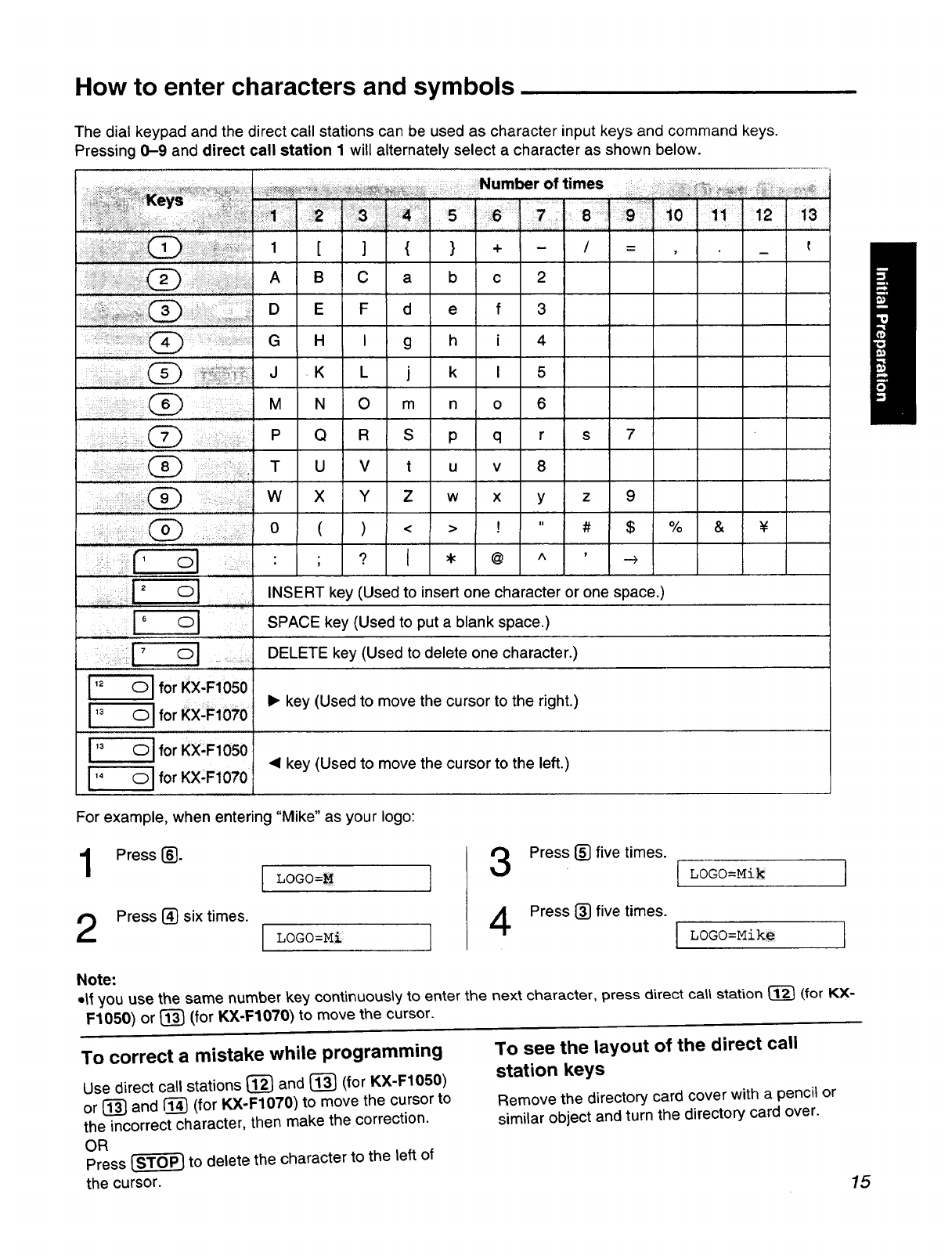
How to enter characters and symbols
The dial keypad and the direct call stations can be used as character input keys and command keys.
Pressing 0-9 and direct call station 1 will alternately select a character as shown below.
_ _ ' ._,._...... _ _,_< Number of times . . _.,, _ ._ ,, ._
_' ! _ _1 I 2 I 3 f 4 5 t 6 ,78 I 9I10 1 11 I 12 t 13
1 [ ] { } + - /= , _
A B C a b c 2
D E F d e f 3
H I g h i 4
J .K L j k I 5
M N O m n o 6
P Q R S p q r s 7
T U V t u v 8
W X Y Z w x y z 9
0 ( )<> ! " #$% & ¥
OI :
, I° ol
I ol forKX-F1050
ol forKX-F1070
I" ©1 f°r KX:F1050
[- ©1 forKX-F1070
t
: ; ? [ *@ ^ , _>
INSERT key (Used to insert one character or one space.)
SPACE key (Used to put a blank space.)
DELETE key (Used to delete one character.)
I1_key (Used to move the cursor to the right.)
• key (Used to move the cursor to the left.)
For example, when entering "Mike" as your logo:
Press _.
LOGO=M
Press [] six times. [ LOGO=Mi ]
3
4
Press I_ five times.
Press (_) five times.
LOGO=Mi_ j
I LOGO=Mike ]
Note:
• ff you use the same number key continuousb to enter the next character, press direct cat| station _ (for KX-
F1050) or _(for KX-F1070) to move the cursor.
To correct a mistake while programming
Use direct call stations [_ and [_ (for KX-F1050)
or [_ and I'_ (for KX-F1070) to move the cursor to
the incorrect character, then make the correction.
OR
Press _ to delete the character to the left of
the cursor.
To see the layout of the direct call
station keys
Remove the directory card cover with a pencil or
similar object and turn the directory card over.
15
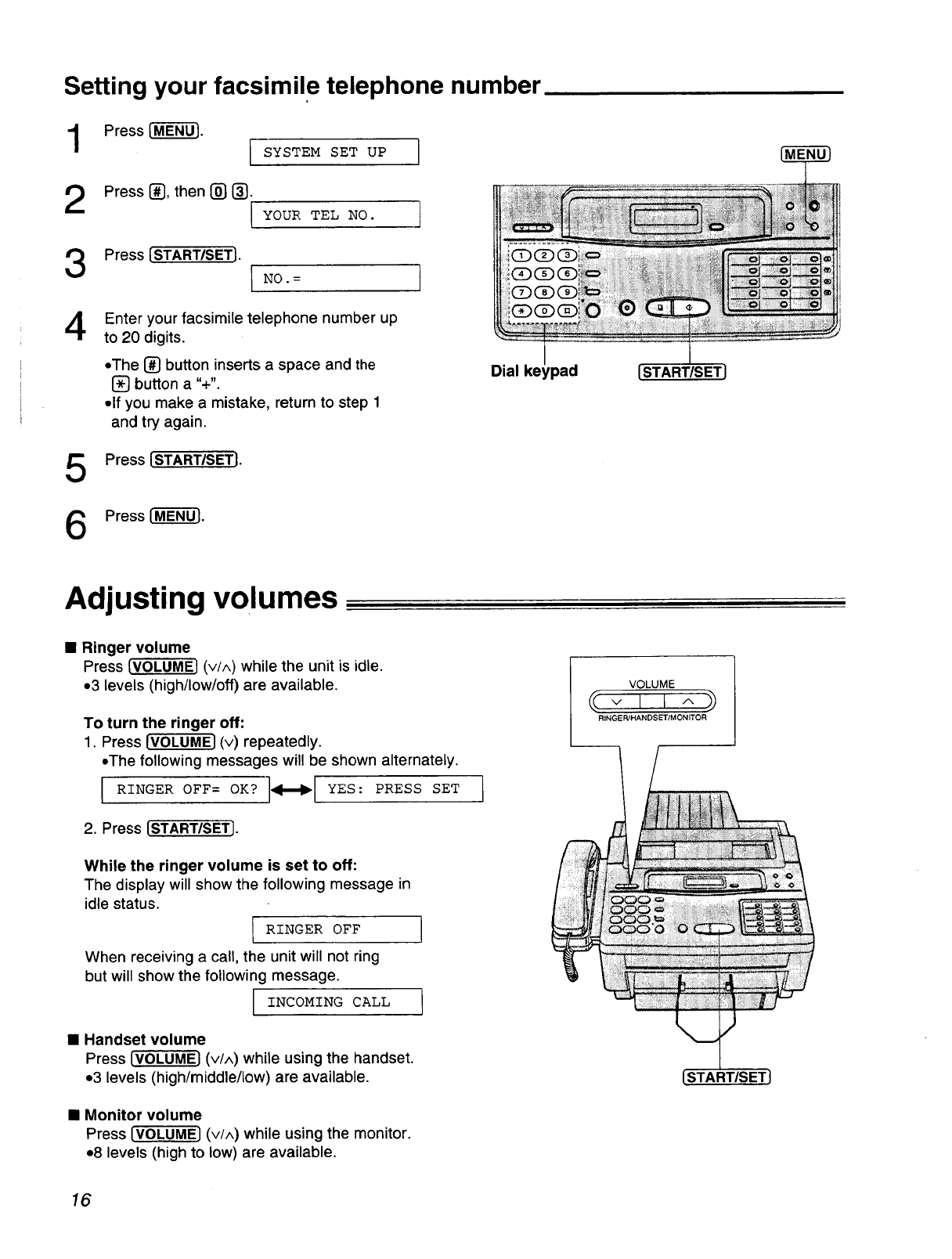
Setting your facsimile telephone number
1
2
Press I-M-EN--_.
SYSTEM SET UP
Press [_], then [_ [_.
[YourTET,NO. ]
Press [START/SETJ. I NO.=
4
]
Enter your facsimile telephone number up
to 20 digits.
oThe [_ button inserts a space and the
[] button a "+".
olf you make a mistake, return to step 1
and try again.
Dial
Press [STARTISETI.
Press[-M-EN_.
Adjusting volumes
•Ringer volume
Press [VOLUME] (v/A) while the unit is idle.
o3 levels (high/low/off) are available.
To turn the ringer off:
1. Press [VOLUME} (v) repeatedly.
°The following messages will be shown alternately.
IRINGER OFF= OK? 1_-,_ YES: PRESS SET
Ii
2. Press [START/SET].
While the ringer volume is set to off:
The display will show the following message in
idle status.
I RINGER OFF
When receiving a call, the unit will not ring
but will show the following message.
[ INCOMING CALL ]
•Handset volume
Press [VOLUME} (v/A) while using the handset.
o3 levels (high/middle/low) are available.
•Monitor volume
Press [VOLUME] (V/A) while using the monitor.
o8 levels (high to low) are available.
VOLUME
<<vL L^_
RINGI:: R/HANDSET/M ONITOR
[START/SET ]
16
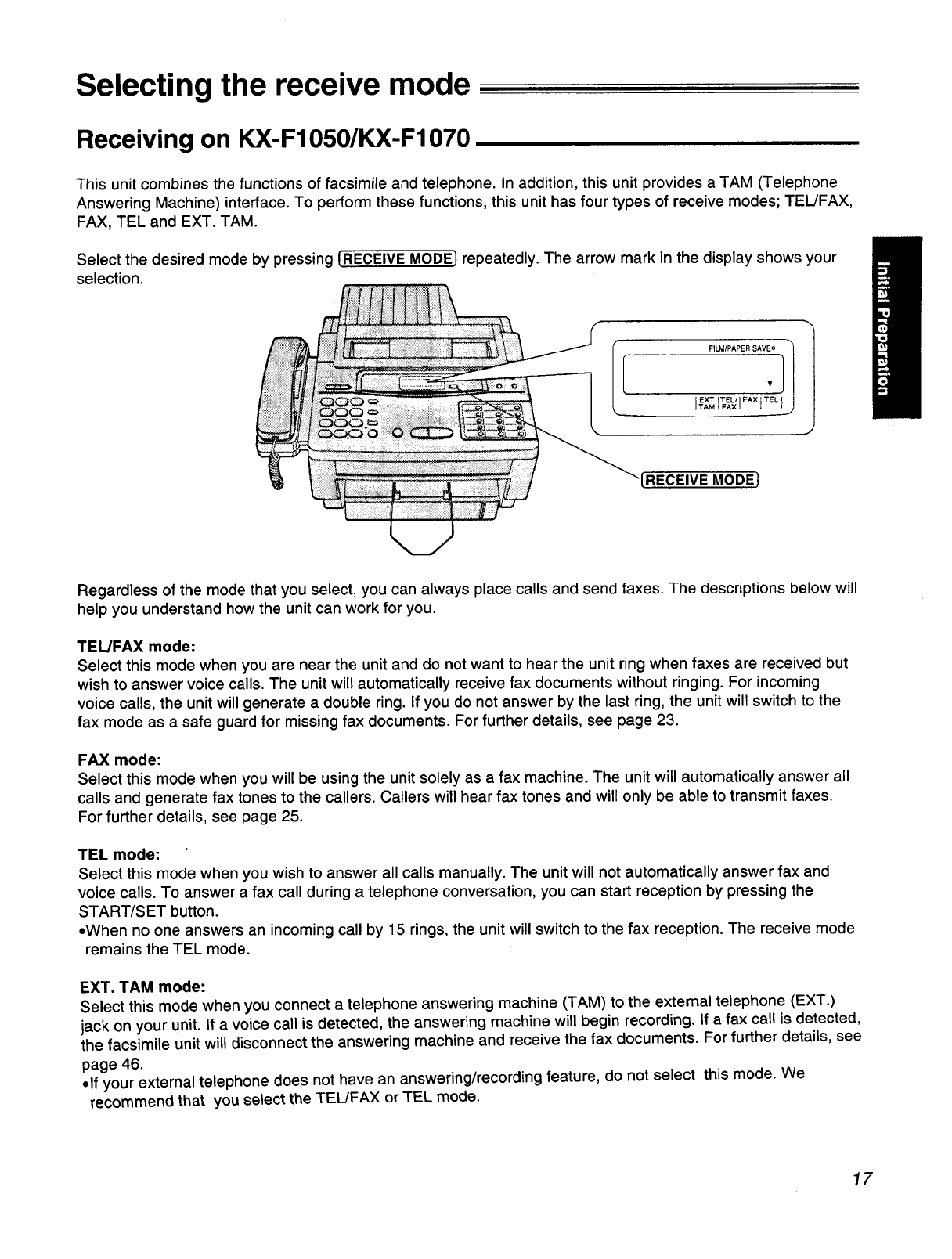
Selecting the receive mode
Receiving on KX-F1050/KX-F1070
This unit combines the functions of facsimile and telephone. In addition, this unit provides a TAM (Telephone
Answering Machine) interface. To perform these functions, this unit has four types of receive modes; TEL/FAX,
FAX, TEL and EXT. TAM.
Select the desired mode by pressing {RECEIVE MODE} repeatedly. The arrow mark in the display shows your
selection.
FILM/PAPER SAVEo
.1
EXT TEL/ FAX TEL
TAM FAX
"[RECEIVE MODEl
Regardless of the mode that you select, you can always place calls and send faxes. The descriptions below will
help you understand how the unit can work for you.
TEL/FAX mode:
Select this mode when you are near the unit and do not want to hear the unit ring when faxes are received but
wish to answer voice calls. The unit will automatically receive fax documents without ringing. For incoming
voice calls, the unit will generate a double ring. If you do not answer by the last ring, the unit will switch to the
fax mode as a safe guard for missing fax documents. For further details, see page 23.
FAX mode:
Select this mode when you will be using the unit solely as a fax machine. The unit will automatically answer all
calls and generate fax tones to the callers. Callers will hear fax tones and will only be able to transmit faxes.
For further details, see page 25.
TEL mode:
Select this mode when you wish to answer all calls manually. The unit will not automatically answer fax and
voice calls. To answer afax call during a telephone conversation, you can start reception by pressing the
START/SET button.
•When no one answers an incoming call by 15 rings, the unit will switch to the fax reception. The receive mode
remains the TEL mode.
EXT. TAM mode:
Select this mode when you connect a telephone answering machine (TAM) to the external telephone (EXT.)
jack on your unit. If a voice call is detected, the answering machine will begin recording. If a fax call is detected,
the facsimile unit will disconnect the answering machine and receive the fax documents. For further details, see
page 46.
• If your external telephone does not have an answering/recording feature, do not select this mode. We
recommend that you select the TEL/FAX or TEL mode.
17
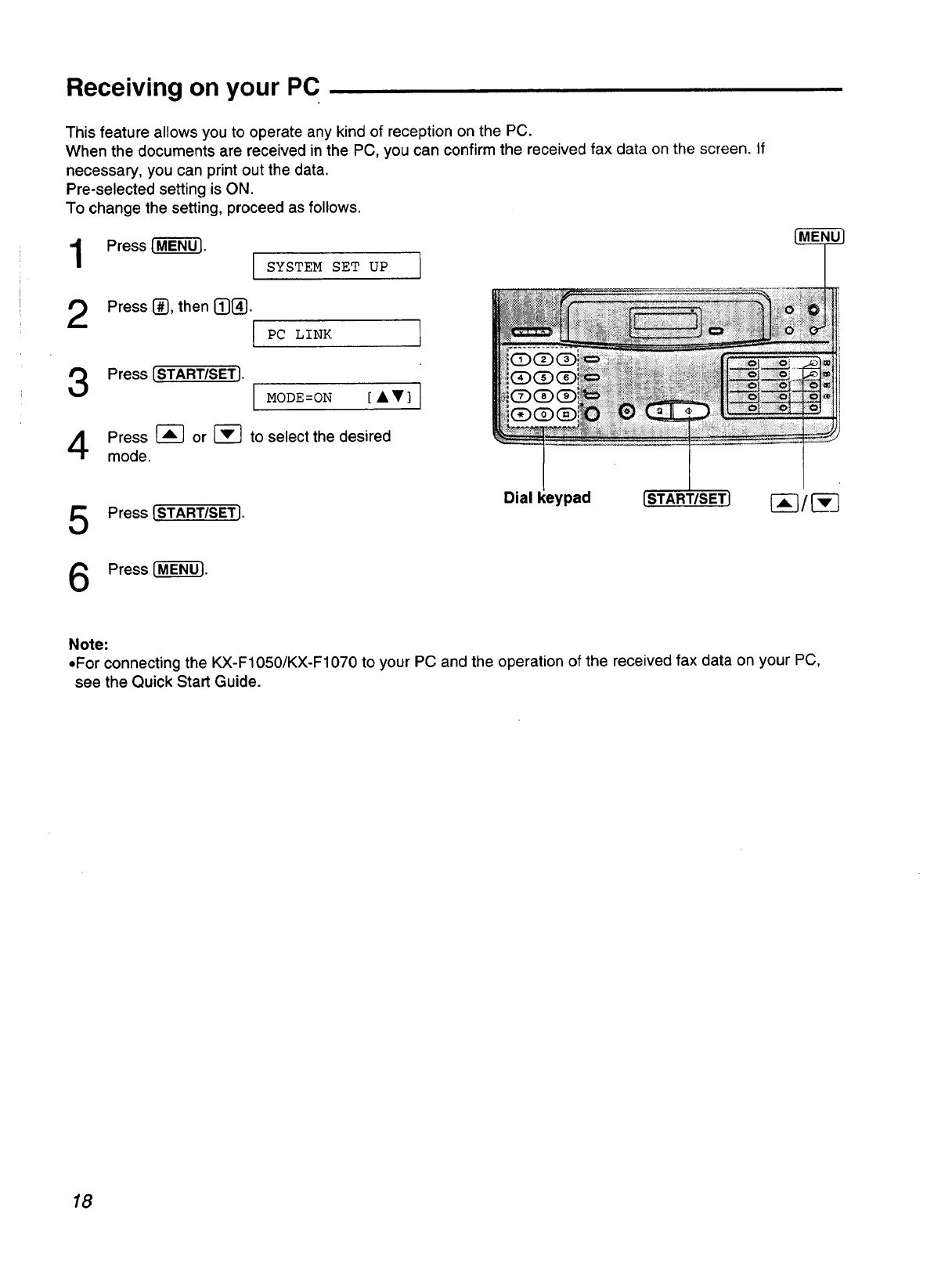
Receiving on your PC
This feature allows you to operate any kind of reception on the PC.
When the documents are received in the PC, you can confirm the received fax data on the screen, if
necessary, you can print out the data.
Pre-selected setting is ON.
To change the setting, proceed as follows.
2Press _, then I!J[_.
PC LINK ]
Press ISTART/SETI. MODE=ON [A•] i
mode.
Press _ or _-] to select the desired
5
6
Press [START/SET].
Press [-M-ENU-'J.
Dial keypad [START/SETJ _ /
Note:
•For connecting the KX-F1050/KX-F1070 to your PC and the operation of the received fax data on your PC,
see the Quick Start Guide.
18
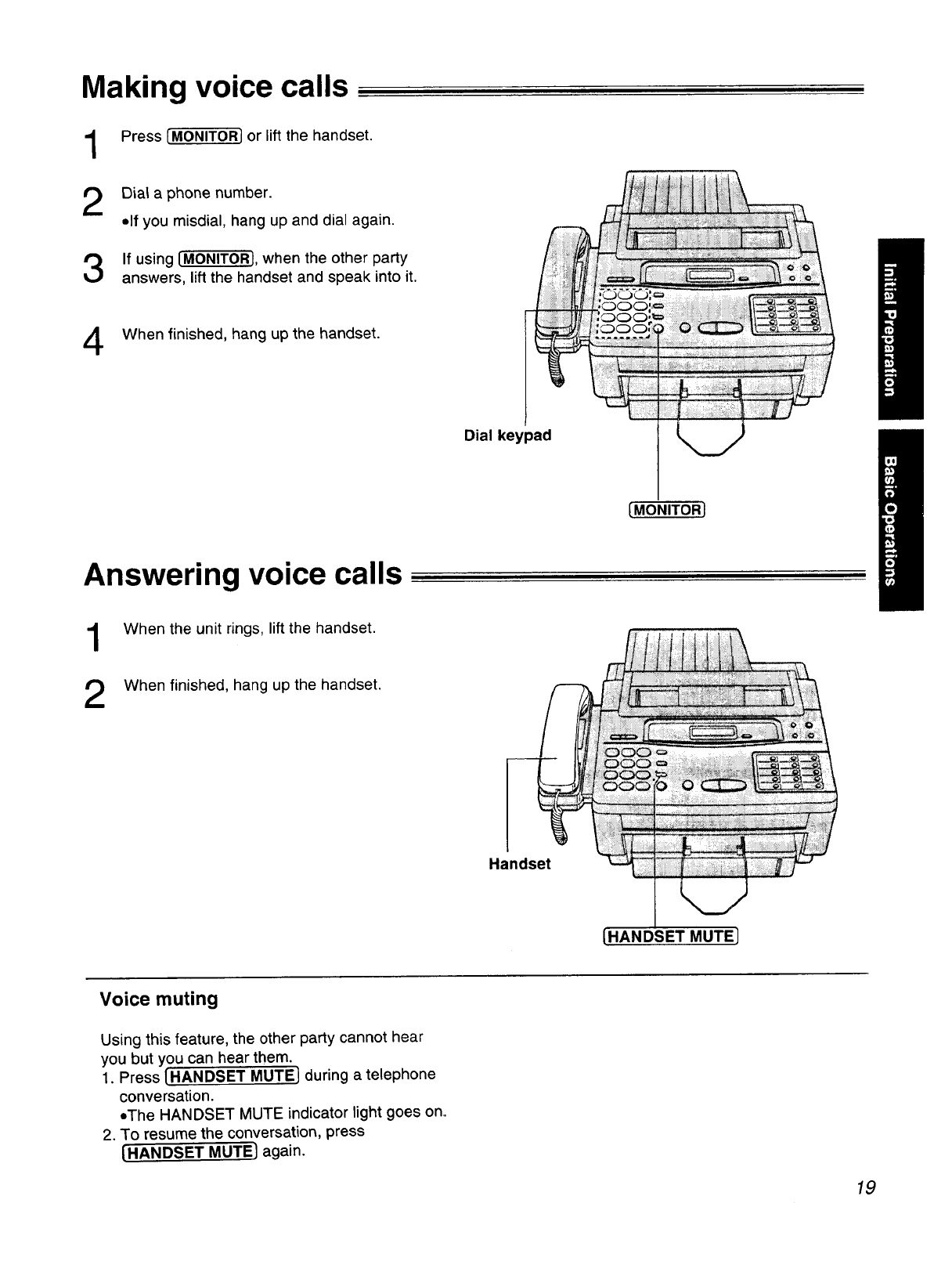
Making voice calls
Press IMONITORJ or lift the handset.
Dial a phone number.
olf you misdial, hang up and dial again.
If using [MONITORJ,when the other party
answers, lift the handset and speak into it.
When finished, hang up the handset.
Dial keypad
[MONITORJ
Answering voice calls
1When the unit rings, lift the handset.
When finished, hang up the handset.
Handset
[HANDSET MUTE]
Voice muting
Using this feature, the other party cannot hear
you but you can hear them.
1. Press [HANDSET MUTEJ during a telephone
conversation.
oThe HANDSET MUTE indicator light goes on.
2. To resume the conversation, press
[HANDSET MUTEI again.
19
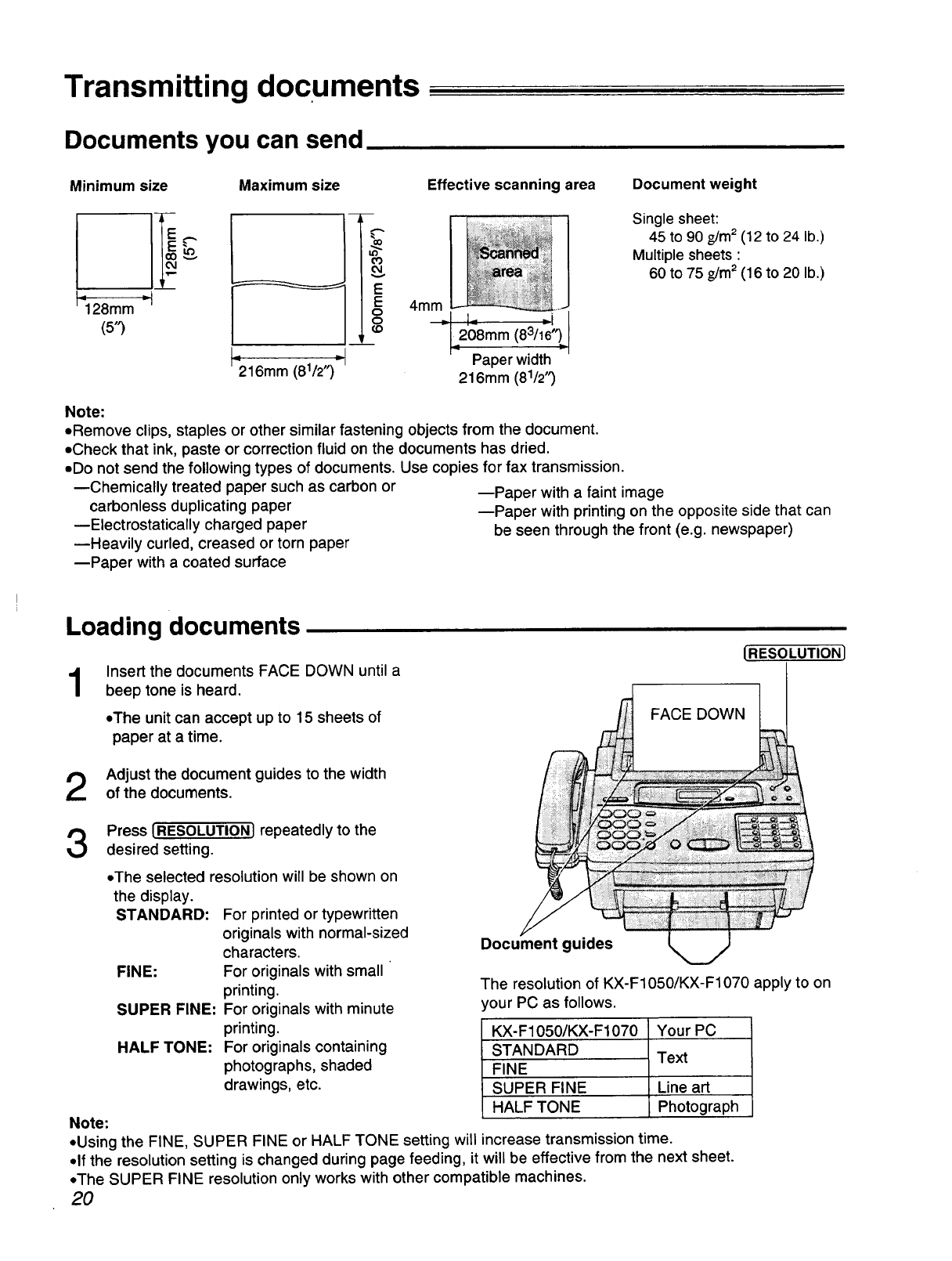
Transmitting documents
Documents you can send
Minimum size Maximum size Effective scanning area Document weight
_28mm =_'
(5"3
t"216mm (81/2'3=I
03
O,I
v
E 4mm
o_I I_ _i
o-208ram (8311;;_
Paper width
216mm (81/2'3
Single sheet:
45 to 90 g/m2(12 to 24 lb.)
Multiple sheets :
60 to 75 g/m2(16 to 20 lb.)
Note:
=Remove clips, staples or other similar fastening objects from the document.
=Check that ink, paste or correction fluid on the documents has dried.
• Do not send the following types of documents. Use copies for fax transmission.
mChemically treated paper such as carbon or --Paper with a faint image
carbonless duplicating paper --Paper with printing on the opposite side that can
mElectrostatically charged paper be seen through the front (e.g. newspaper)
_Heavily curled, creased or torn paper
_Paper with a coated surface
Loading documents
1Insert the documents FACE DOWN until a
beep tone is heard.
.The unit can accept up to 15 sheets of
paper at a time.
(RESOLUTION]
FACE DOWN
Adjust the document guides to the width
of the documents.
Press [RESOLUTION] repeatedly to the
desired setting.
•The selected resolution will be shown on
the display.
STANDARD:
FINE:
SUPER FINE:
HALF TONE:
For printed or typewritten
originals with normal-sized
characters.
For originals with small '
printing.
For originals with minute
printing.
For originals containing
photographs, shaded
drawings, etc.
Document guides
The resolution of KX-F1050/KX-F1070 apply to on
,our PC as follows.
KX-F1050/KX-F1070
STANDARD
FINE
SUPER FINE
HALF TONE
Your PC
Text
Line art
Photograph
Note:
• Using the FINE, SUPER FINE or HALF TONE setting will increase transmission time.
• If the resolution setting is changed during page feeding, it will be effective from the next sheet.
•The SUPER FINE resolution only works with other compatible machines.
20
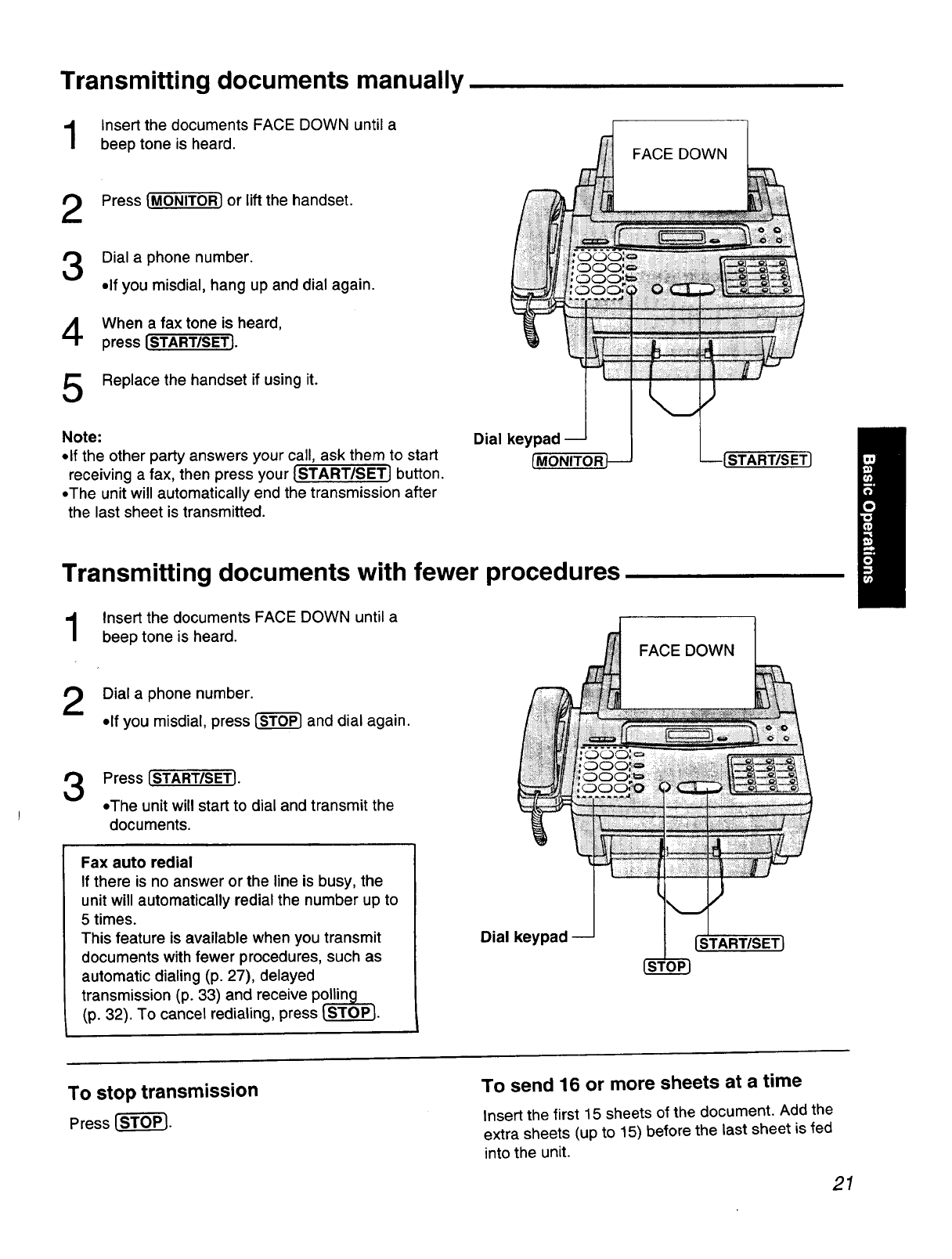
Transmitting documents manually
Insert the documents FACE DOWN until a
beep tone is heard. FACE DOWN
Press {MONITOR] or lift the handset.
Dial a phone number.
olf you misdial, hang up and dial again.
When a faxtone is heard,
press [START/SETJ.
Replace the handset if using it.
Note:
olf the other party answers your call, ask them to start
receiving a fax, then press your [START/SETJ button.
•The unit will automatically end the transmission after
the last sheet is transmitted.
Dial keypad
[MONITOR START/SETJ
Transmitting documents with fewer procedures
Insert the documents FACE DOWN until a
beep tone is heard. FACE DOWN
Dial aphone number.
•If you misdial, press _ and dial again.
3Press {STARTISETJ.
oThe unit will start to dial and transmit the
documents.
Fax auto redial
If there is no answer or the line is busy, the
unit will automatically redial the number up to
5 times.
This feature is available when you transmit
documents with fewer procedures, such as
automatic dialing (p. 27), delayed
transmission (p. 33) and receive p_
(p. 32). To cancel redialing, press ISTOP].
Dial keypad
To stop transmission
Press _.
To send 16 or more sheets at a time
Insert the first 15 sheets of the document. Add the
extra sheets (up to 15) before the last sheet is fed
into the unit.
21
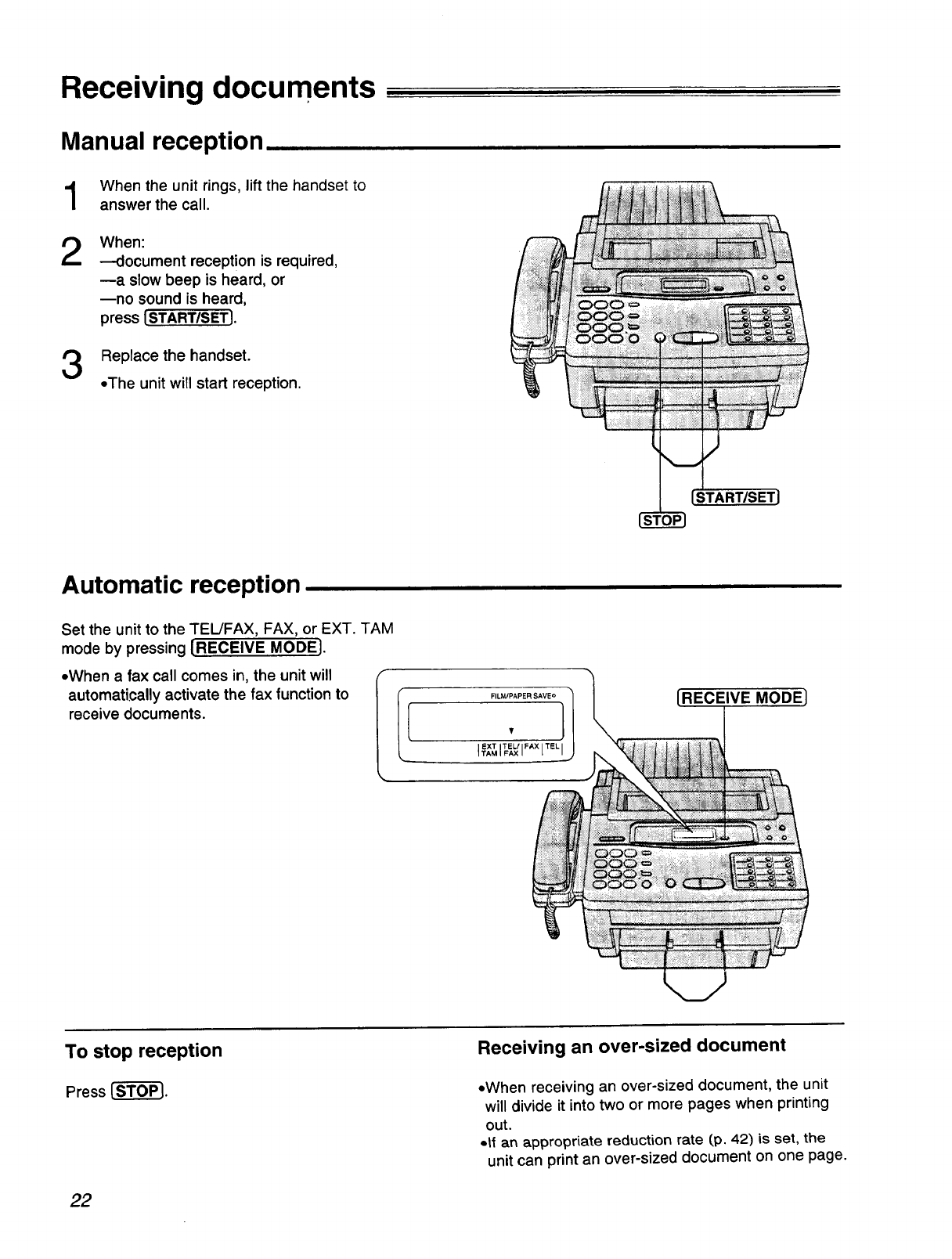
Receiving documents
Manual reception
1
2
When the unit rings, lift the handset to
answer the call.
When:
---document reception is required,
ma slow beep is heard, or
mno sound is heard,
press [STARTISETI.
Replace the handset.
•The unit will start reception.
START/SETJ
Automatic reception
Set the unit to the TEL/FAX, FAX, or EXT. TAM
mode by pressing [RECEIVE MODE].
•When a fax call comes in, the unit will (r
automatically activate the fax function to I
receive documents.
FILM/PAPER SAVE o
,1
EXT TEL/ FAX TEL
I TAM I FAX I _
[RECEIVE MODEl
To stop reception
Press [-_.
Receiving an over-sized document
•When receiving an over-sized document, the unit
will divide it into two or more pages when printing
out.
.|f an appropriate reduction rate (p. 42) is set, the
unit can print an over-sized document on one page.
22
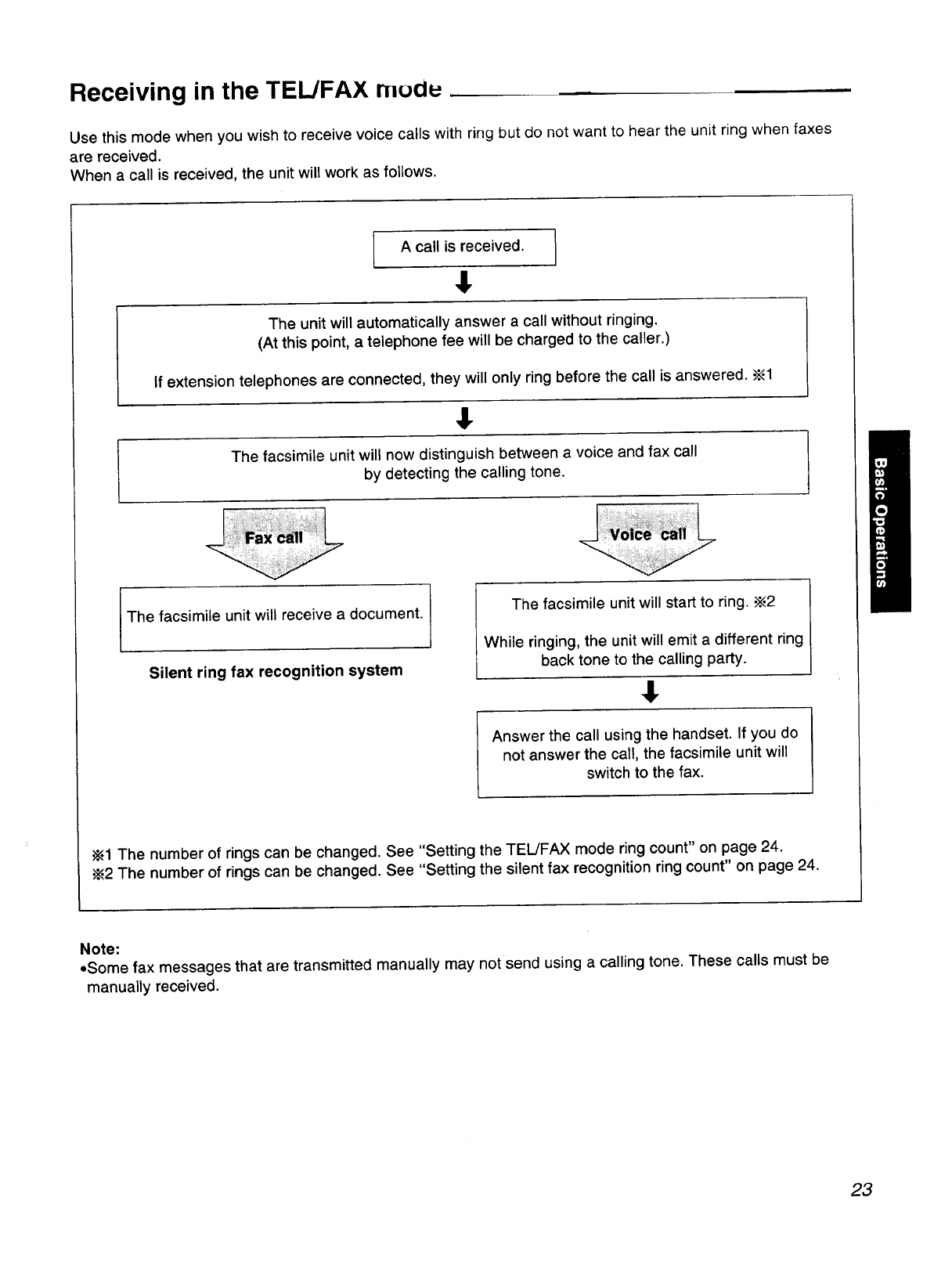
Receiving in the TEL/FAX mudu ..... -
Use this mode when you wish to receive voice calls with ring but do not want to hear the unit ring when faxes
are received.
When a call is received, the unit will work as follows.
A call is received.
,1
The unit will automatically answer a call without ringing.
(At this point, a telephone fee will be charged to the caller.)
If extension telephones are connected, they will only ring before the call is answered.._1
,!.
The facsimile unit will now distinguish between a voice and fax call
by detecting the calling tone.
I The facsimile unit will receive a document.
Silent ring fax recognition system
The facsimile unit will start to ring. -_2
While ringing, the unit will emit a different ring
back tone to the calling party.
$
Answer the call using the handset. If you do
not answer the call, the facsimile unit will
switch to the fax.
•_1 The number of rings can be changed. See "Setting the TEL/FAX mode ring count" on page 24.
•_2 The number of rings can be changed. See "Setting the silent fax recognition ring count" on page 24.
Note:
eSome fax messages that are transmitted manually may not send using a calling tone. These calls must be
manually received.
23
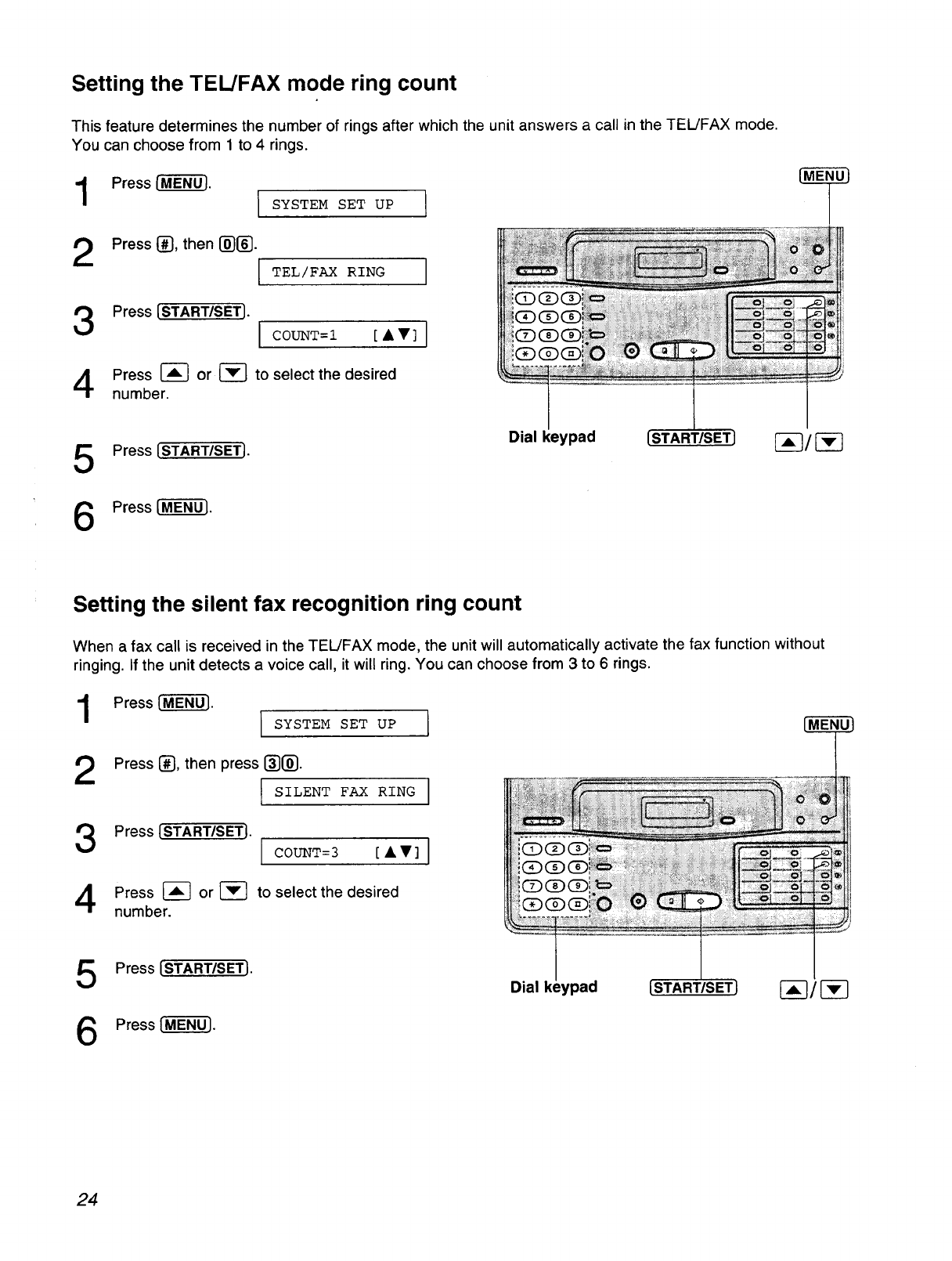
Setting the TEL/FAX mode ring count
This feature determines the number of rings after which the unit answers a call in the TEL/FAX mode.
You can choose from 1 to 4 rings.
Press ['_. ISYSTEMSETup 1!
2Press _, then _}_.
ITEL/FAX RING
Press [START/SET}. I C0UNT=I [AT]
Press _ or _ to select the desired
number.
5
6
Press {START/SET}.
Press l-MEN-0"].
Dial keypad [START/SET [-_--]/[-_
Setting the silent fax recognition ring count
When a fax call is received in the TEL/FAX mode, the unit will automatically activate the fax function without
ringing. If the unit detects a voice call, it will ring. You can choose from 3 to 6 rings.
SET UP I
FAX RING I
COUNT=3 [AV] I
Press [-M'EN--_. I SYSTEM
Press [_, then press []_.
I SILENT
Press [START/SETI.
Press _ or _ to select the desired
number.
5
6
Press [START/SET].
Press _.
Dial /pad {START/SET1
24
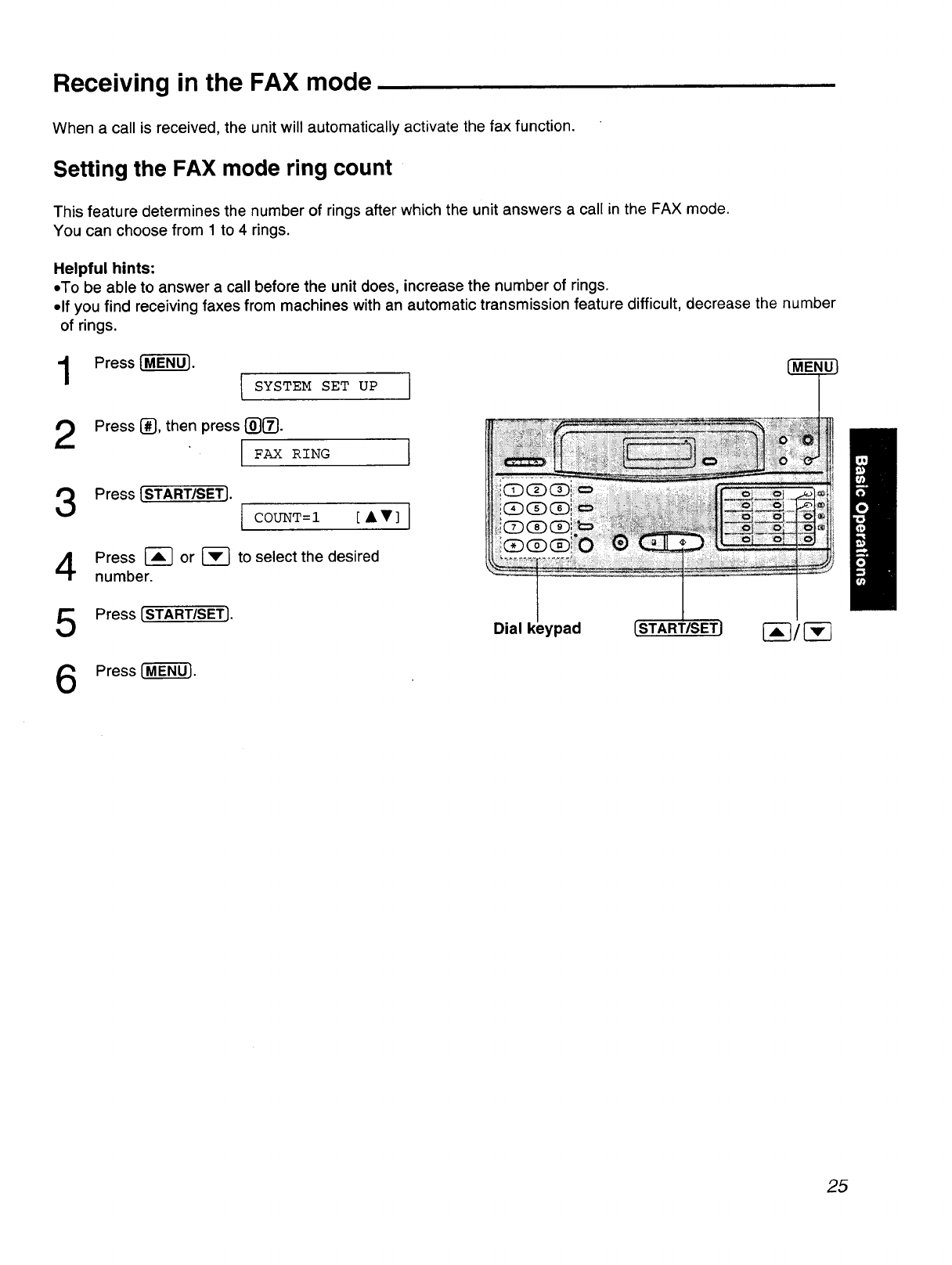
Receiving in the FAX mode
When a call is received, the unit will automatically activate the fax function.
Setting the FAX mode ring count
This feature determines the number of rings after which the unit answers a call in the FAX mode.
You can choose from 1 to 4 rings.
Helpful hints:
.To be able to answer a call before the unit does, increase the number of rings.
*If you find receiving faxes from machines with an automatic transmission feature difficult, decrease the number
of rings.
Press [_.
SYSTEM SET UP !
Press C_},then press {_}(_.
FAX RING I
Press {START/SET}. tCOUNT=]. [A_I']
Press I-_ or [-_ to select the desired
number.
Press [START/SET]. Dial )ad {START/SET} [_-]/{-_
Press_.
25
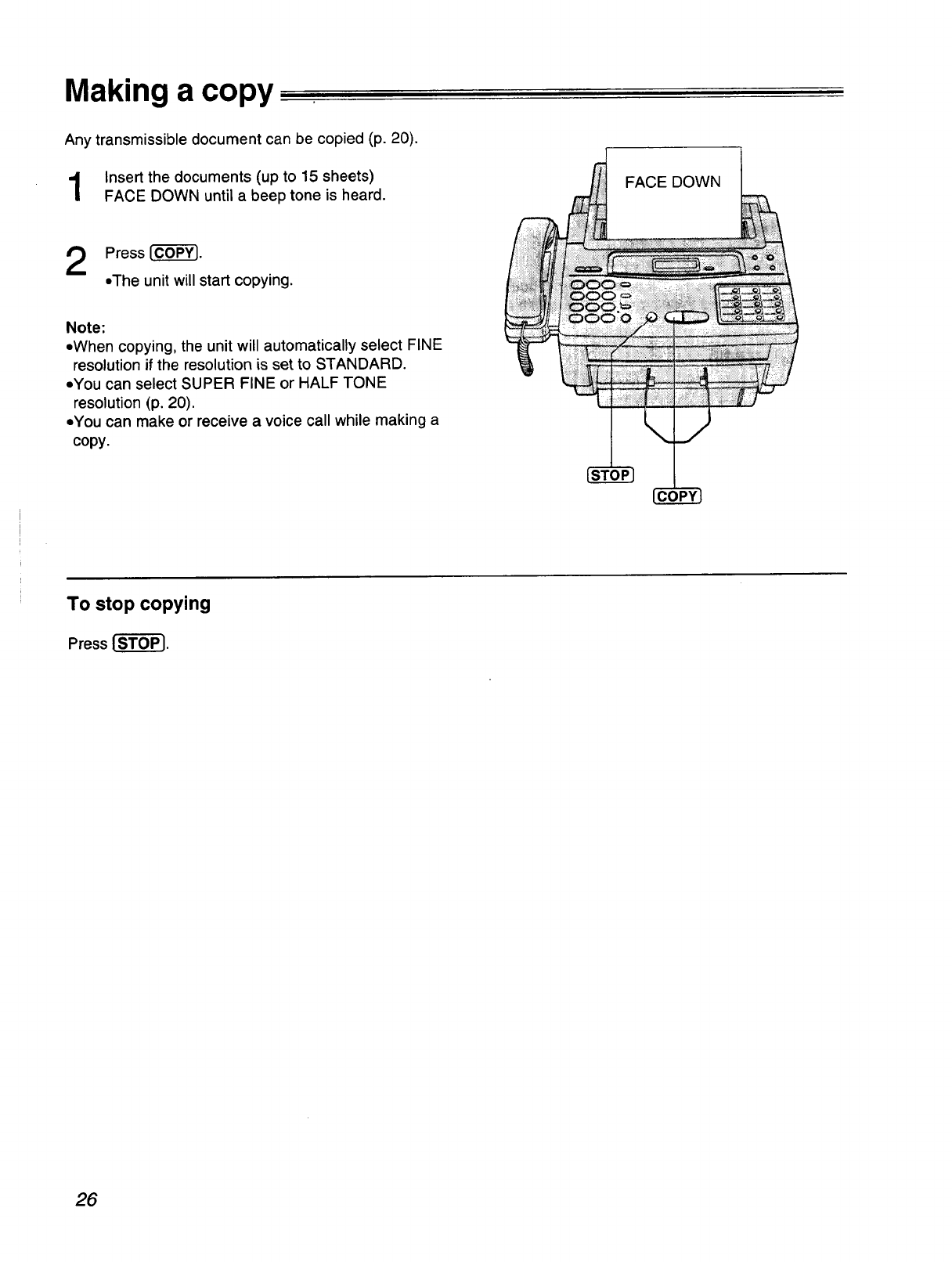
Making a copy
Any transmissible document can be copied (p. 20).
Insert the documents (up to 15 sheets)
FACE DOWN until a beep tone is heard.
Press fCO-PY].
oThe unit will start copying.
Note:
•When copying, the unit will automatically select FINE
resolution if the resolution is set to STANDARD.
•You can select SUPER FINE or HALF TONE
resolution (p. 20).
oYou can make or receive a voice call while making a
copy.
FACE DOWN
To stop copying
Press _.
26
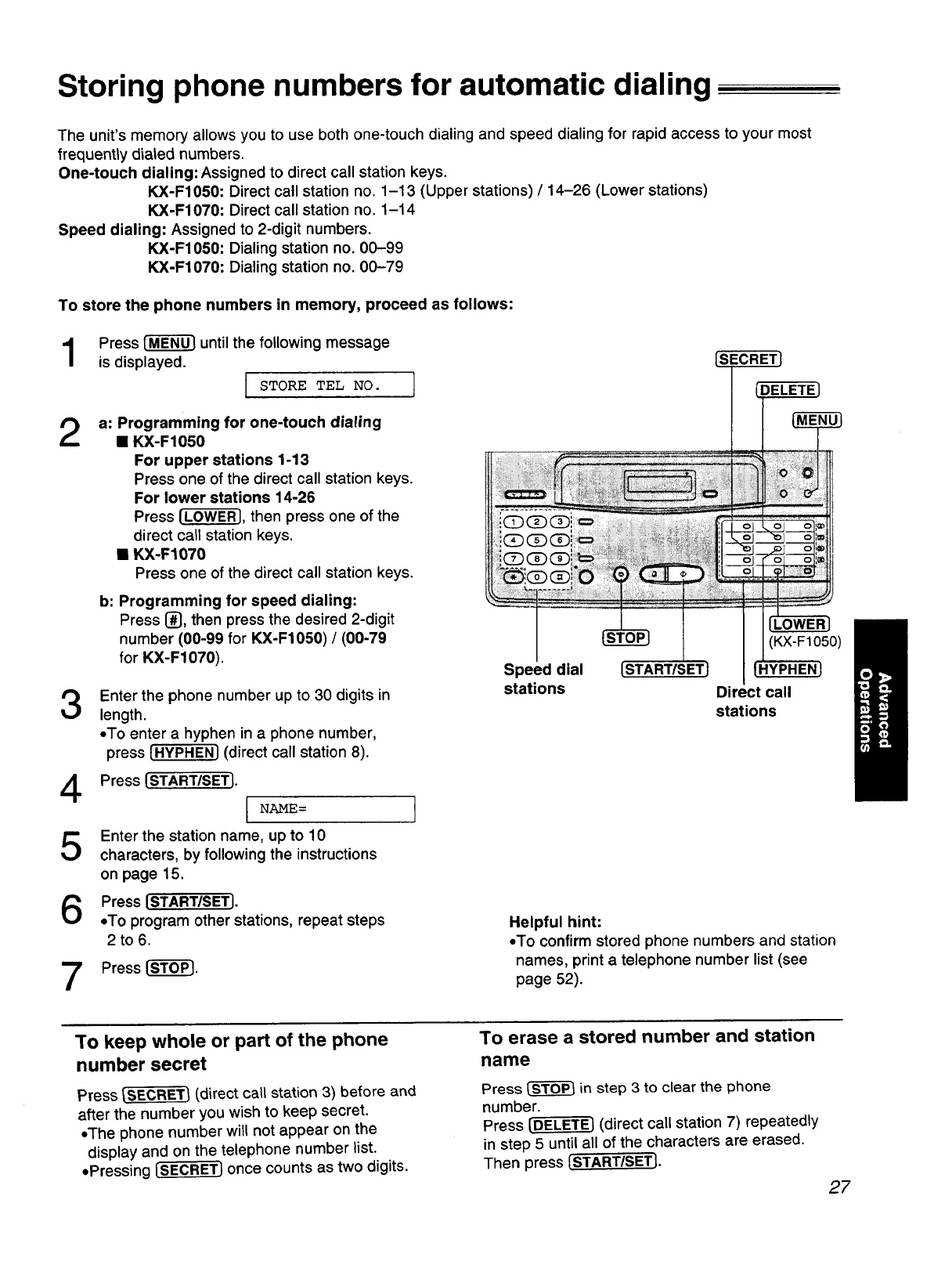
Storing phone numbers for automatic dialing
The unit's memory allows you to use both one-touch dialing and speed dialing for rapid access to your most
frequently dialed numbers.
One-touch dialing: Assigned to direct call station keys.
KX-F1050: Direct call station no. 1-13 (Upper stations) /14-26 (Lower stations)
KX-F1070: Direct call station no. 1-14
Speed dialing: Assigned to 2-digit numbers.
KX-F1050: Dialing station no. 00-99
KX-F1070: Dialing station no. 00-79
To store the phone numbers in memory, proceed as follows:
Press _ until the following message
is displayed. {SECRET]
ISTORE TEL NO.
2a: Programming for one-touch dialing
•KX-F1050
For upper stations 1-13
Press one of the direct call station keys.
For lower stations 14-26
Press I"L-OW-E_,then press one of the
direct call station keys.
•KX-F1070
Press one of the direct call station keys.
b: Programming for speed dialing:
Press [], then press the desired 2-digit
number (00-99 for KX-F1050) /(00-79
for KX-F1070).
Enter the phone number up to 30 digits in
length.
• To enter a hyphen in a phone number,
press [HYPHEN} (direct call station 8).
Press ISTART/SET]-
I NAME=
Enter the station name, up to 10
characters, by following the instructions
on page 15.
Press ISTART/SET].
+To program other stations, repeat steps
2to 6.
7Press I-S'f-6--_.
Speed dial
stations
(KX-F1050)
Direct call
stations
Helpful hint:
•To confirm stored phone numbers and station
names, print a telephone number list (see
page 52).
To keep whole or part of the phone
number secret
Press ISECRET/(direct call station 3) before and
after the number you wish to keep secret.
•The phone number will not appear on the
display and on the telephone number list.
• Pressing [SECRET] once counts as two digits.
To erase a stored number and station
name
Press _ in step 3 to clear the phone
number.
Press [DELETE] (direct call station 7) repeatedly
in step 5 until all of the characters are erased.
Then press {START/SETJ.
27
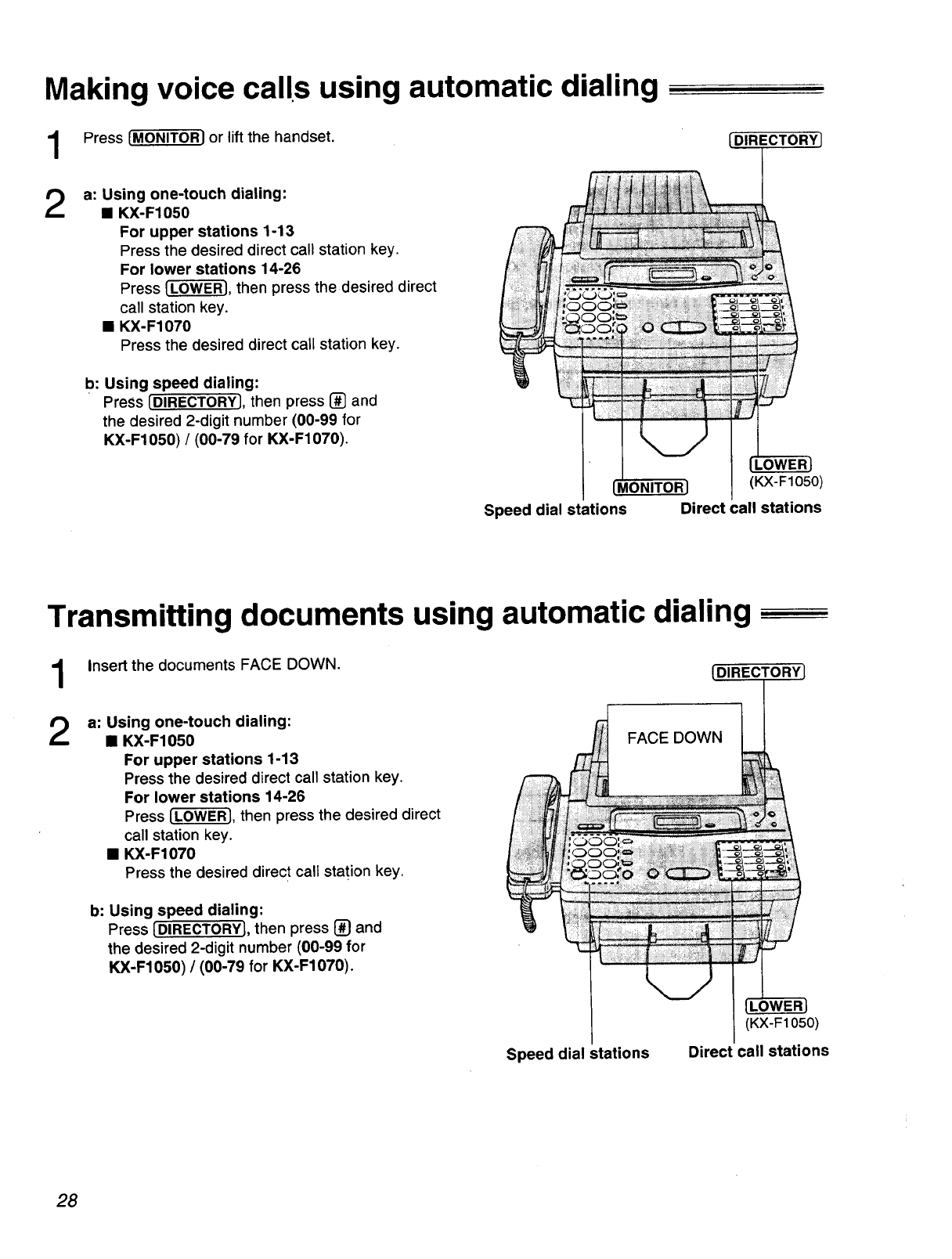
Making voice calls using automatic dialing
Press IMONITOR] or lift the handset.
2a: Using one-touch dialing:
•KX-F1050
For upper stations 1-13
Press the desired direct call station key.
For lower stations 14-26
Press ['-_, then press the desired direct
call station key.
•KX-F1070
Press the desired direct call station key.
b: Using speed dialing:
Press [DIRECTORYJ, then press [] and
the desired 2-digit number (00-99 for
KX-F1050) /(00-79 for KX-F1070).
MONITOR J(KX-F1050)
Speed dial stations Direct call stations
Transmitting documents using automatic dialing
1Insert the documents FACE DOWN. [DIRECTORYJ
2a: Using one-touch dialing:
•KX-F1050
For upper stations 1-13
Press the desired direct call station key.
For lower stations 14-26
Press ["_, then press the desired direct
call station key.
•KX-F1070
Press the desired direct call station key.
FACE DOWN
b: Using speed dialing:
Press [DIRECTORYJ, then press _and
the desired 2-digit number (00-99 for
KX-F1050) /(00-79 for KX-F1070).
Speed dial stations
(KX-F1050)
Direct call stations
28
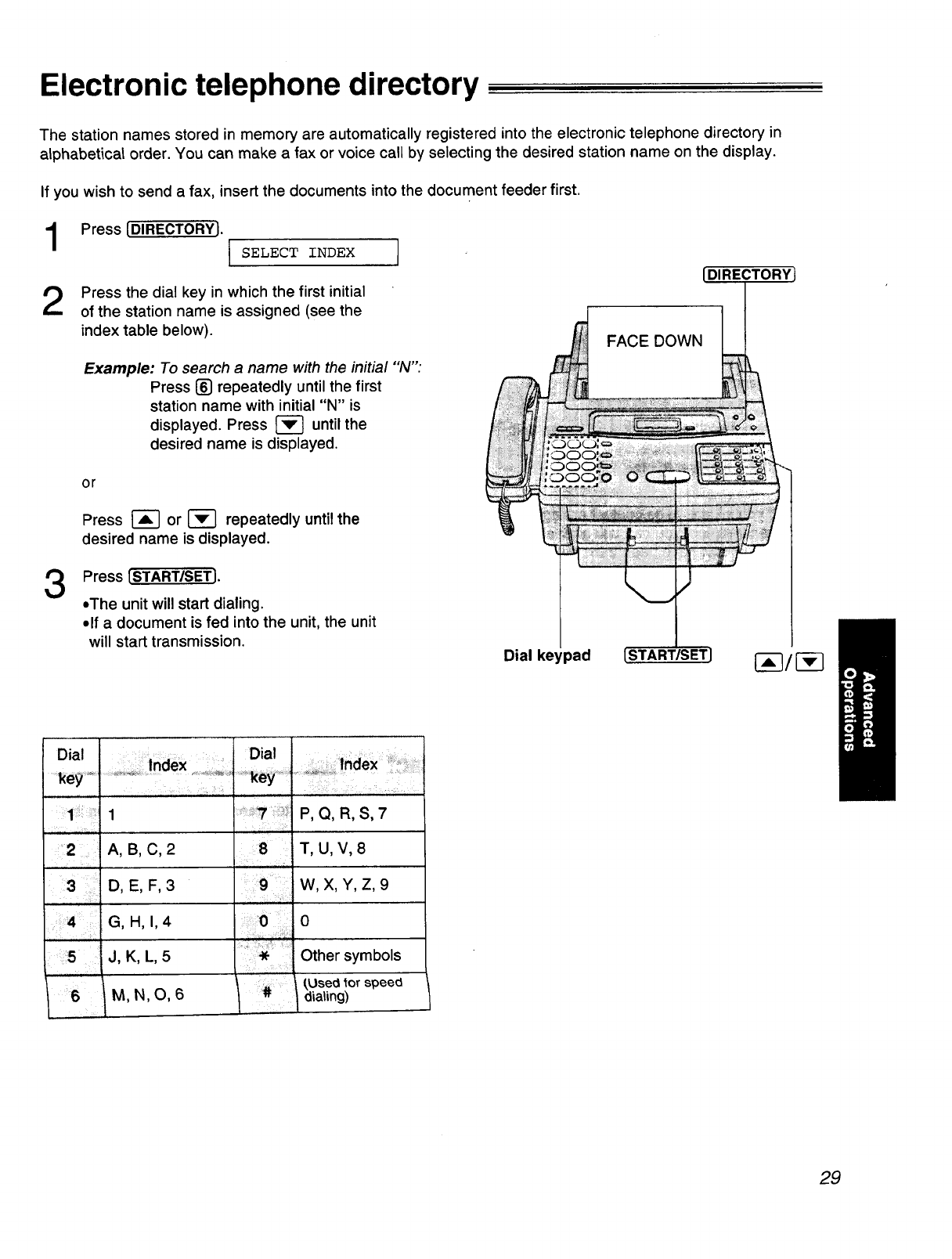
Electronic telephone directory
The station names stored in memory are automatically registered into the electronic telephone directory in
alphabetical order. You can make a fax or voice call by selecting the desired station name on the display.
If you wish to send a fax, insert the documents into the document feeder first.
Press [DIRECTORY]. I SELECT INDEX
Press the dial key in which the first initial
of the station name is assigned (see the
index table below).
Example: To search a name with the initial "N":
Press [] repeatedly until the first
station name with initial "N" is
displayed. Press [_] until the
desired name is displayed,
[DIRECTORY)
I
FACE DOWN
3
or
Press _--] or [-_ repeatedly until the
desired name is displayed.
Press [START/SET].
oThe unit will start dialing.
olf a document is fed into the unit, the unit
will start transmission. Dial keypad [START/SET] rxT/r
Dial
.....ke_.......
!1 ¸i¸¸¸i:¸ iiiiii!
:'2 _ i:i
3/i
i, %; i !iiiiiii_i:i
:?4 i ¸
.... ;,ii....
i¸ :i:15
,ll L_IJ
¸¸Dial
i .... , i =¸ii * ........ ,i ,_ii, ,i,,,i ¸ !--_;
r, i¸:¸,
A, B, C, 2 8
D, E, F, 3 9
G, H, 1,4
J, K, L, 5
M,N O,6
P, Q, R,S, 7
T, U,V, 8
W,X, Y,Z, 9
0
Other symbols
(,Llse_ tot speed
dialing)
29
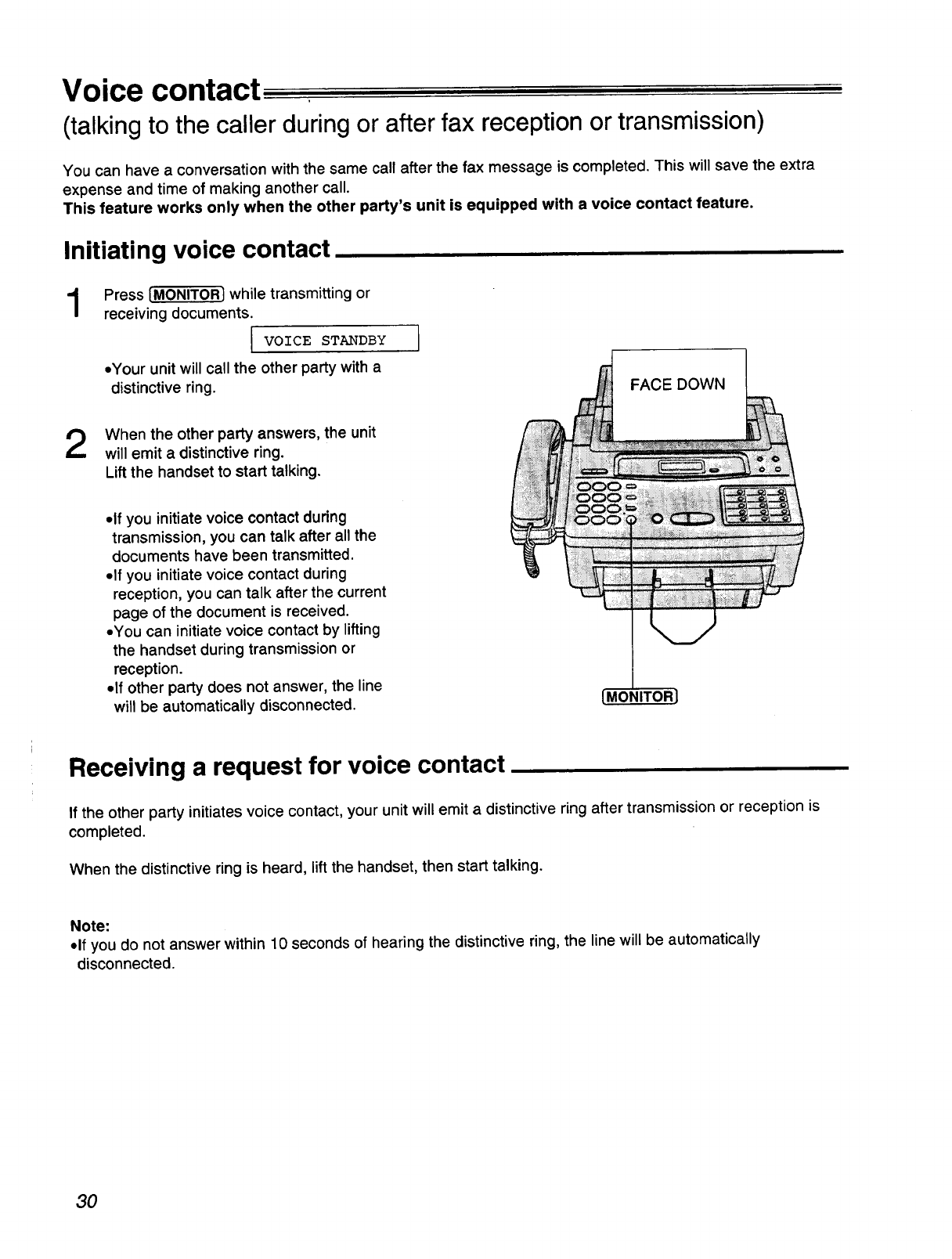
Voice contact
(talkingto the caller duringor after fax receptionor transmission)
You can have a conversation with the same call after the fax message is completed. This will save the extra
expense and time of making another call.
This feature works only when the other party's unit is equipped with a voice contact feature.
Initiating voice contact
1Press [MONITOR.]while transmitting or
receiving documents.
J VOICE STANDBY
•Your unit will call the other party with a
distinctive ring.
I
FACE DOWN
When the other party answers, the unit
will emit a distinctive ring.
Lift the handset to start talking.
• If you initiate voice contact during
transmission, you can talk after all the
documents have been transmitted.
• If you initiate voice contact during
reception, you can talk after the current
page of the document is received.
•You can initiate voice contact by lifting
the handset during transmission or
reception.
• If other party does not answer, the line
will be automatically disconnected. [MONITOR]
Receiving a request for voice contact
If the other party initiates voice contact, your unit will emit a distinctive ring after transmission or reception is
completed.
When the distinctive ring is heard, lift the handset, then start talking.
Note:
•If you do not answer within 10 seconds of hearing the distinctive ring, the line will be automatically
disconnected.
30
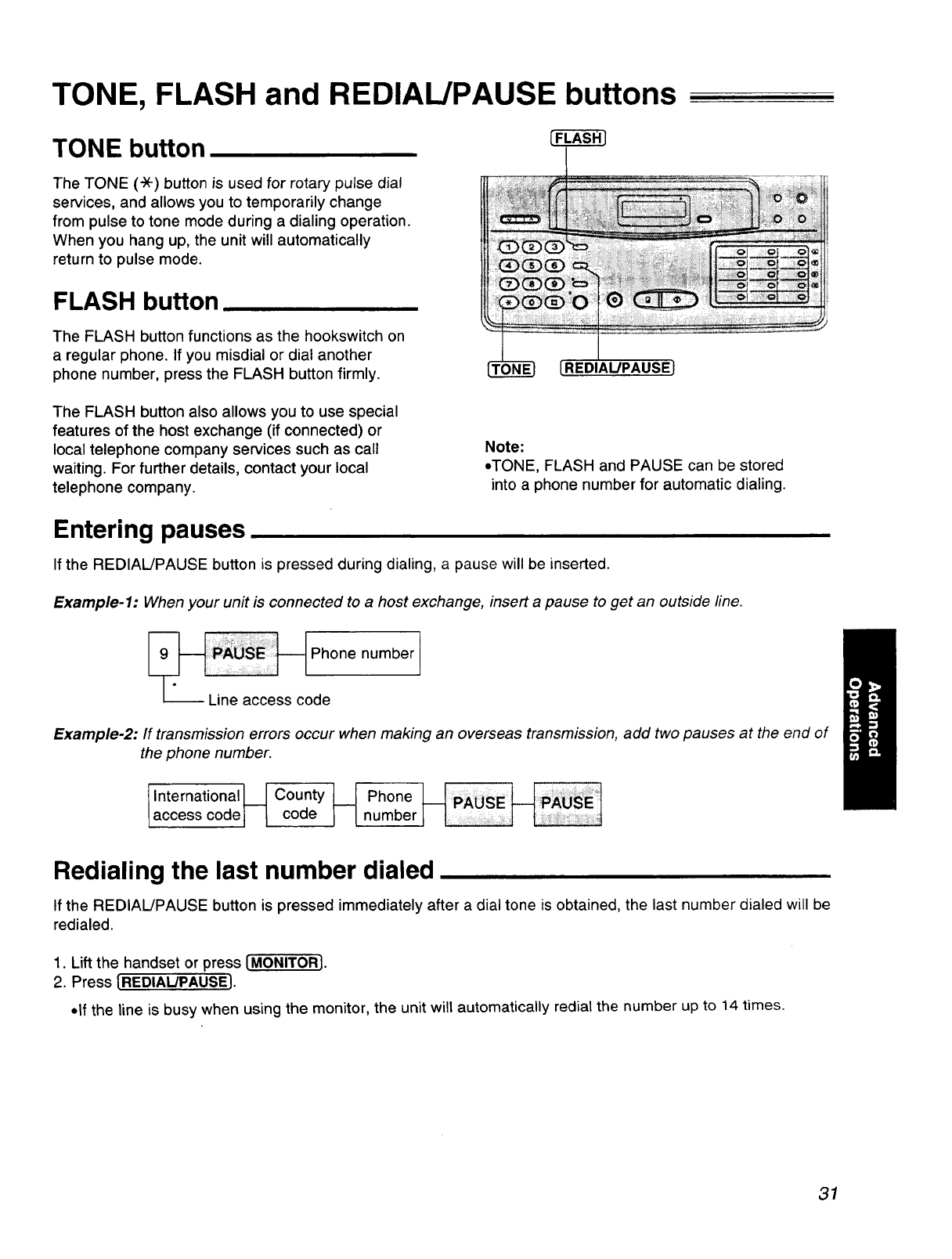
TONE, FLASH and REDIAIJPAUSE buttons
TONE button
The TONE (-X-)button is used for rotary pulse dial
services, and allows you to temporarily change
from pulse to tone mode during a dialing operation.
When you hang up, the unit will automatically
return to pulse mode.
FLASH button
The FLASH button functions as the hookswitch on
a regular phone. If you misdial or dial another
phone number, press the FLASH button firmly. [REDIAUPAUSE]
The FLASH button also allows you to use special
features of the host exchange (if connected) or
local telephone company services such as call
waiting. For further details, contact your local
telephone company.
Note:
.TONE, FLASH and PAUSE can be stored
into a phone number for automatic dialing.
Entering pauses
If the REDIAL/PAUSE button is pressed during dialing, a pause will be inserted.
Example-l: When your unit is connected to a host exchange, insert a pause to get an outside line.
Phone number ]
Line access code
Example-2: If transmission errors occur when making an overseas transmission, add two pauses at the end of
the phone number.
[International_.J County __[ Phone _{PAUSE _._p_ l
access code JI code number
Redialing the last number dialed
If the REDIAL/PAUSE button is pressed immediately after a dial tone is obtained, the last number dialed will be
redialed.
1. Lift the handset or press IMONITOR 1.
2. Press IREDIAL/PAUSEI.
•If the line is busy when using the monitor, the unit will automatically redial the number up to 14 times.
31
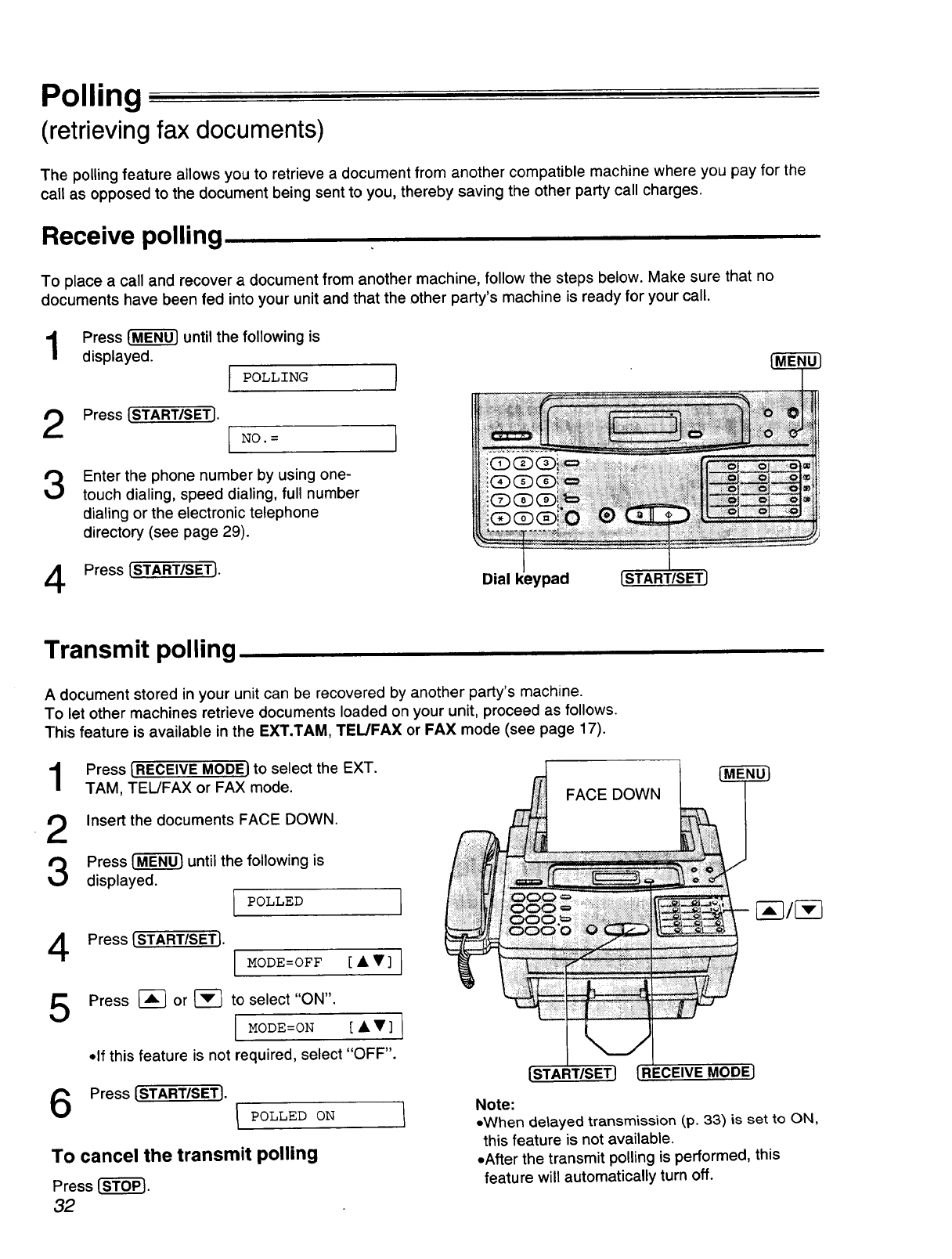
Polling
(retrieving fax documents)
The polling feature allows you to retrieve a document from another compatible machine where you pay for the
call as opposed to the document being sent to you, thereby saving the other party call charges.
Receive polling
To place a call and recover a document from another machine, follow the steps below. Make sure that no
documents have been fed into your unit and that the other party's machine is ready for your call.
Press _ until the following is
displayed.
POLLING
Press [START/SET]. NO. =
3
4
Enter the phone number by using one-
touch dialing, speed dialing, full number
dialing or the electronic telephone
directory (see page 29).
Press [START/SET]. Dial [START/SET]
Transmit polling
A document stored in your unit can be recovered by another party's machine.
To let other machines retrieve documents loaded on your unit, proceed as follows.
This feature is available in the EXT.TAM, TEL/FAX or FAX mode (see page 17).
1
2
3
4
5
Press [RECEIVE MODEl to select the EXT.
TAM, TEL/FAX or FAX mode.
Insert the documents FACE DOWN.
Press 1-_ until the following is
displayed.
I POLLED L
Press [START/SET].
IMODE=OFF [ • •]
Press _-] or _-] to select "ON".
[ MODE=ON [••] ]
• If this feature is not required, select "OFF".
Press [START/SET]. I POLLED ON
To cancel the transmit polling
Press [-s-fo-_.
32
FACE DOWN
[START/SET] RECEIVE MODE]
Note:
.When delayed transmission (,p.33) is set to ON,
this feature is not available.
.After the transmit polling is performed, this
feature will automatically turn off.
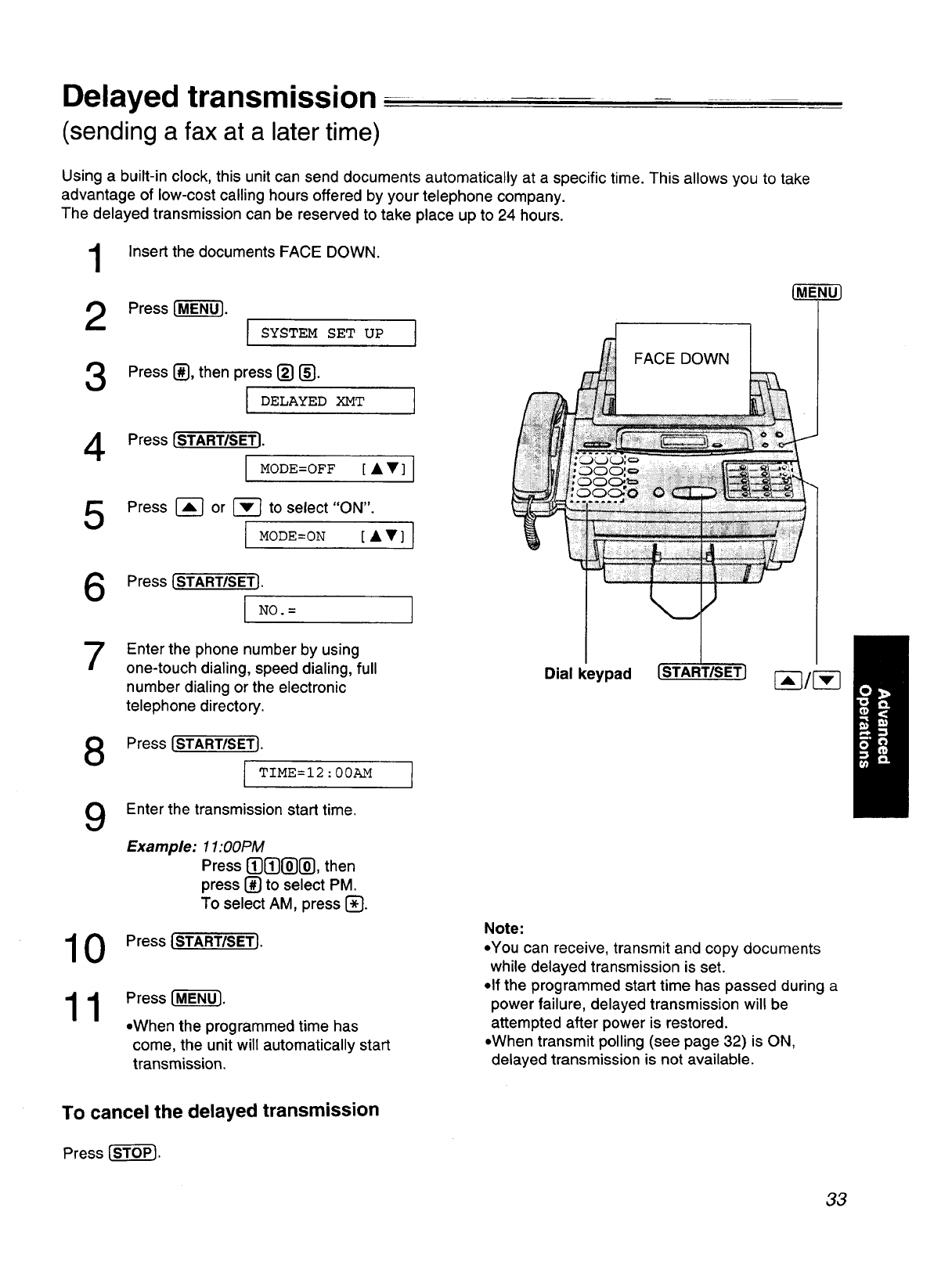
Delayed transmission-
(sending a fax at a later time)
Using a built-in clock, this unit can send documents automatically at a specific time. This allows you to take
advantage of low-cost calling hours offered by your telephone company.
The delayed transmission can be reserved to take place up to 24 hours.
1
2
3
Insert the documents FACE DOWN.
Press [-M-"E"NUT.
I SYSTEM SET UP I
Press [], then press {_} {_.
IDELAYED XMT
FACE DOWN
Press [START/SETI.
MODE=OFF [ • • ] ]
Press I-_ or _to select "ON".
I MODE=ON [••] ]
Press [START/SET].
NO. =
7Enter the phone number by using
one-touch dialing, speed dialing, full
number dialing or the electronic
telephone directory.
Dial keypad [START/SET] _--_/{-_
Press [START/SET1.
TIME=I2 :00AM
9
10
11
Enter the transmission start time.
Example: 1I:00PM
Press [_{_l_[_, then
press [] to select PM.
To select AM, press [_£J.
Press (START/SETI.
Press [-M-ENU-'].
• When the programmed time has
come, the unit will automatically start
transmission.
Note:
oYou can receive, transmit and copy documents
while delayed transmission is set.
•If the programmed start time has passed during a
power failure, delayed transmission will be
attempted after power is restored.
•When transmit polling (see page 32) is ON,
delayed transmission is not available.
To cancel the delayed transmission
Press [_-o_.
33
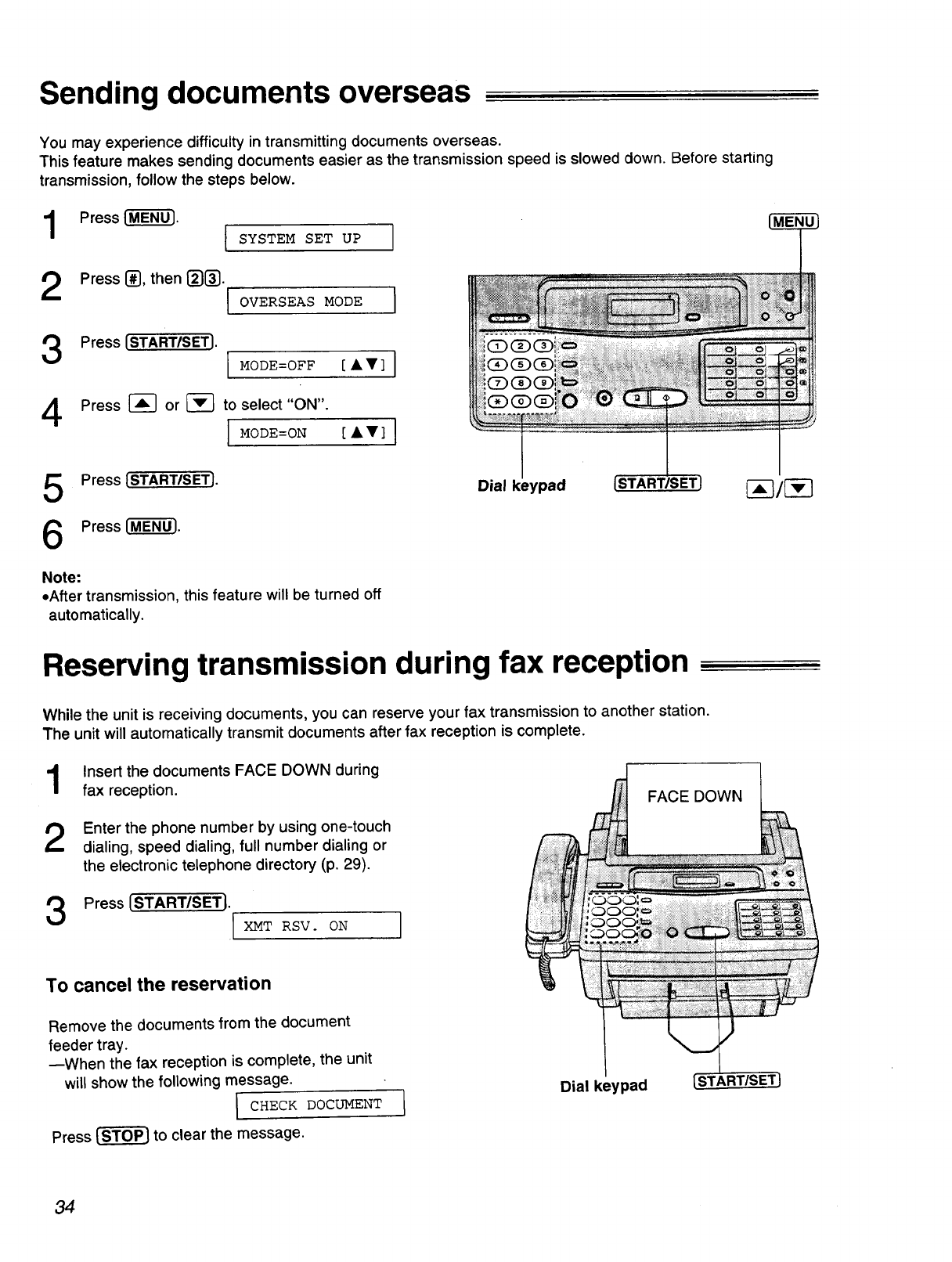
Sending documents overseas
You may experience difficulty in transmitting documents overseas.
This feature makes sending documents easier as the transmission speed is slowed down. Before starting
transmission, follow the steps below.
1
2
Press {-M-E-_'}.
ISYSTEM SET UP
Press I_, then _)1_.
I°v_'RsE_s"°DE I
Press [START/SET}. I MODE=OFF [''] I
Press _ or _ to select"ON".
IM°DE=°N [''] I
Press {START/SET].
Press {-M-E-N-_.
Dial keypad {START/SET}
Note:
•After transmission, this feature will be turned off
automatically.
Reserving transmission during fax reception
While the unit is receiving documents, you can reserve your fax transmission to another station.
The unit will automatically transmit documents after fax reception is complete.
1
2
Insert the documents FACE DOWN during
fax reception.
Enter the phone number by using one-touch
dialing, speed dialing, full number dialing or
the electronic telephone directory (p. 29).
Press [START/SET].
[XMT RSV. ON
FACE DOWN
To cancel the reservation
Remove the documents from the document
feeder tray.
--When the fax reception is complete, the unit
will show the following message.
I CHECK DOCUMENT
Press _ to clear the message.
Dial keypad
34
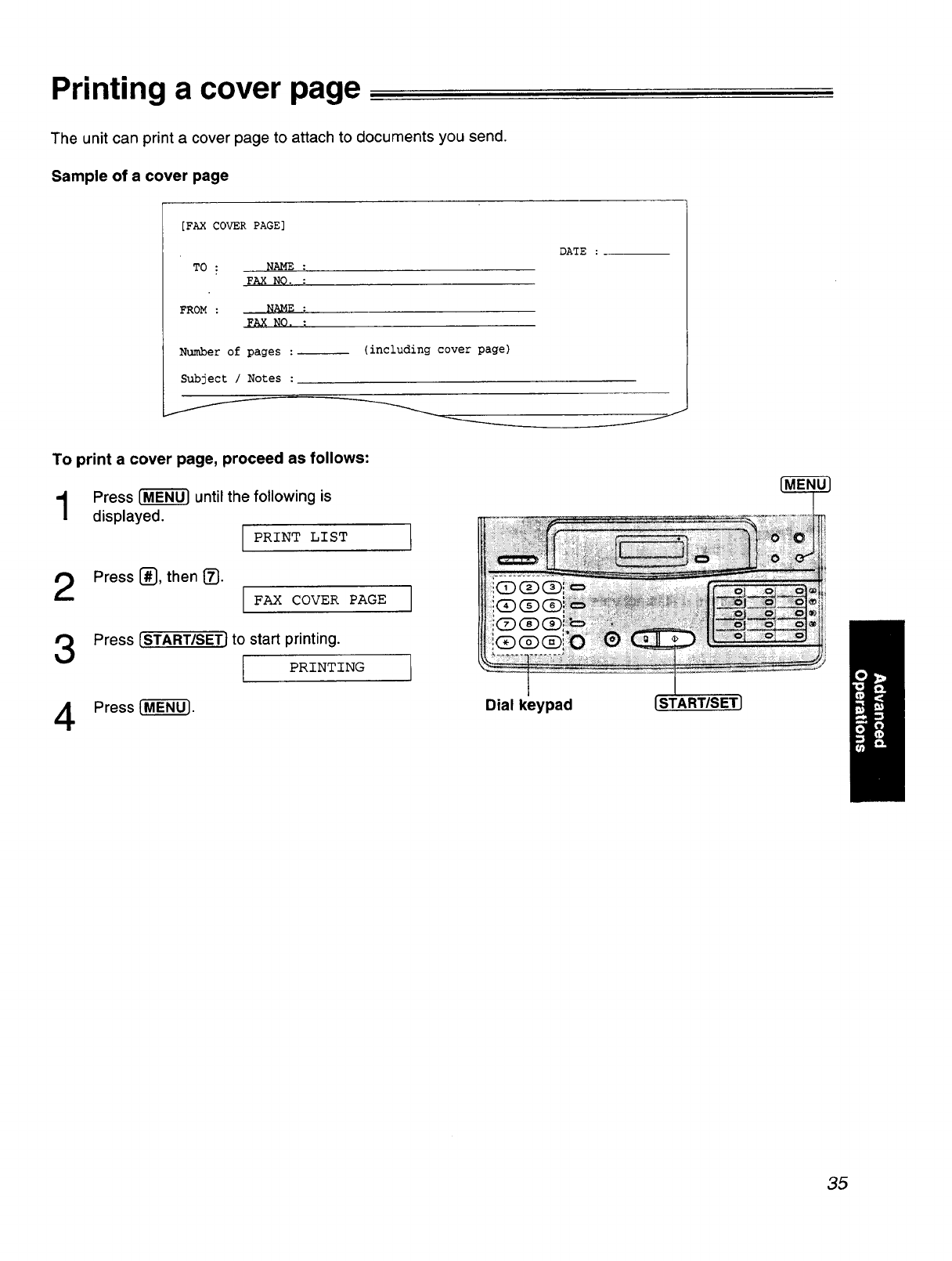
Printing a cover page
The unit can print a cover page to attach to documents you send.
Sample of a cover page
[FAX COVER PAGE]
TO : NAME :
FAX NO. :
FROM : NAME :
FAX NO. :
Numberof pages•
Subject /Notes •
/
(including cover page)
DATE
J
To print a cover page, proceed as follows:
Press _ until the following is
displayed.
IPRINT LIST ]
2Press[_,then[_. FAX COVER PAGE
Press [START/SETJto sta_ printing.
I PRINTING
Press _M--_. Dial keypad
35
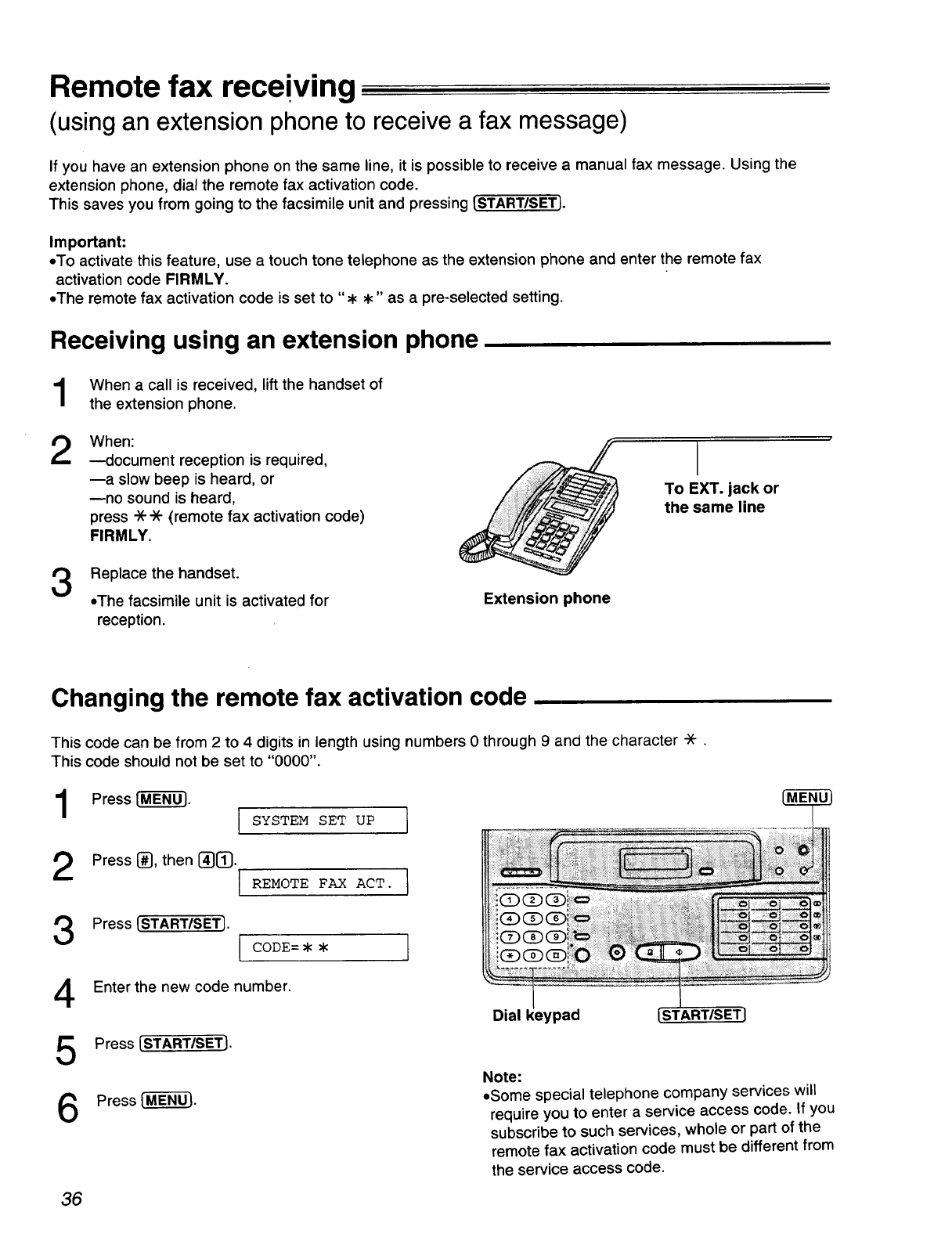
Remote fax receiving
(usingan extension phoneto receivea fax message)
If you have an extension phone on the same line, it is possible to receive a manual fax message. Using the
extension phone, dial the remote fax activation code.
This saves you from going to the facsimile unit and pressing [START/SET].
Important:
• To activate this feature, use a touch tone telephone as the extension phone and enter the remote fax
activation code FIRMLY.
• The remote fax activation code is set to ",," as a pre-selected setting.
Receiving using an extension phone
When a call is received, lift the handset of
the extension phone.
2When:
mdocument reception is required,
--a slow beep is heard, or
--no sound is heard,
press ** (remote fax activation code)
FIRMLY.
To EXT. jack or
the same line
3Replace the handset.
•The facsimile unit is activated for
reception.
Extension phone
Changing the remote fax activation code
This code can be from 2 to 4 digits in length using numbers 0 through 9 and the character *.
This code should not be set to "0000".
Press I-_. SYSTEM SET UP 1
2Press 1_, then {_{3_}.
[REMOTE FAX ACT.
Press [START/SET].
CODE=* *
Enter the new code number.
Press ISTART/SET].
Press {_]_.
]
Dial keypad [START/SET]
Note:
• Some special telephone company services will
require you to enter a service access code. If you
subscribe to such services, whole or part of the
remote fax activation code must be different from
the service access code.
36
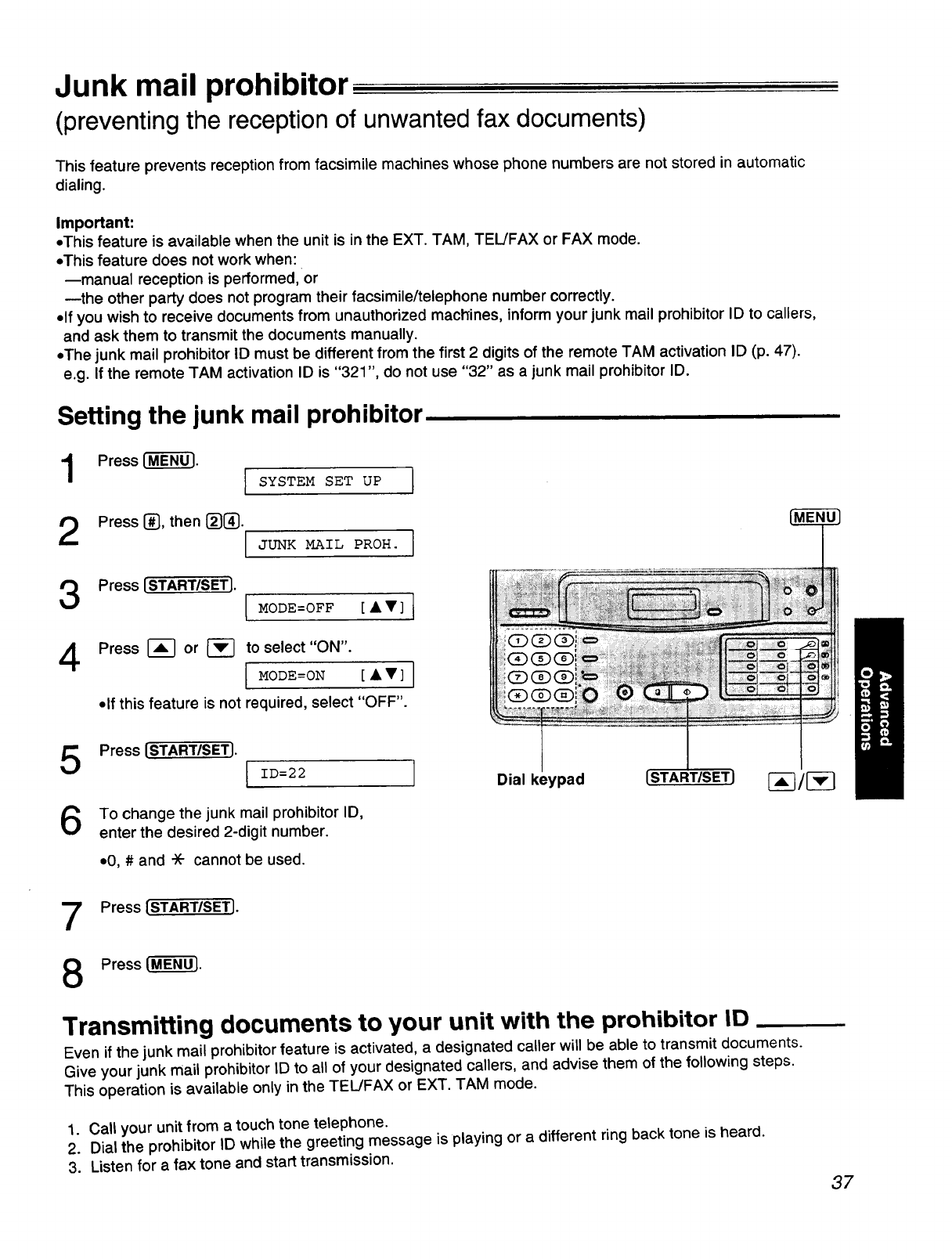
Junk mail prohibitor
(preventing the reception of unwanted fax documents)
This feature prevents reception from facsimile machines whose phone numbers are not stored in automatic
dialing.
Important:
•This feature is available when the unit is in the EXT. TAM, TEL/FAX or FAX mode.
•This feature does not work when:
--manual reception is performed, or
--the other party does not program their facsimile/telephone number correctly.
•If you wish to receive documents from unauthorized machines, inform your junk mail prohibitor ID to callers,
and ask them to transmit the documents manually.
•The junk mail prohibitor ID must be different from the first 2 digits of the remote TAM activation ID (p. 47).
e.g. If the remote TAM activation ID is "321", do not use "32" as a junk mail prohibitor ID.
Setting the junk mail prohibitor
Press I-M"ENU}. SYSTEM SET UP I
2Press {_}, then ]
Press [START/SETJ. I MODE=OFF [A•] I
4Press I-_ or _to select "ON".
I MODE=ON [• •]
•If this feature is not required, select "OFF".
Press ISTART/SET]. I ID=22
6To change the junk mail prohibitor ID,
enter the desired 2-digit number.
•0, # and * cannot be used.
Dial keypad [STARTISETJ [_--_/[-_
Press [STARTISETJ.
Press {-M"E'N'_.
Transmitting documents to your unit with the prohibitor ID
Even if the junk mail prohibitor feature is activated, a designated caller will be able to transmit documents.
Give your junk mail prohibitor ID to all of your designated callers, and advise them of the following steps.
This operation is available only in the TEL/FAX or EXT. TAM mode.
1. Call your unit from a touch tone telephone.
2. Dial the prohibitor ID while the greeting message is playing or a different ring back tone is heard.
3. Listen for a fax tone and start transmission. 37
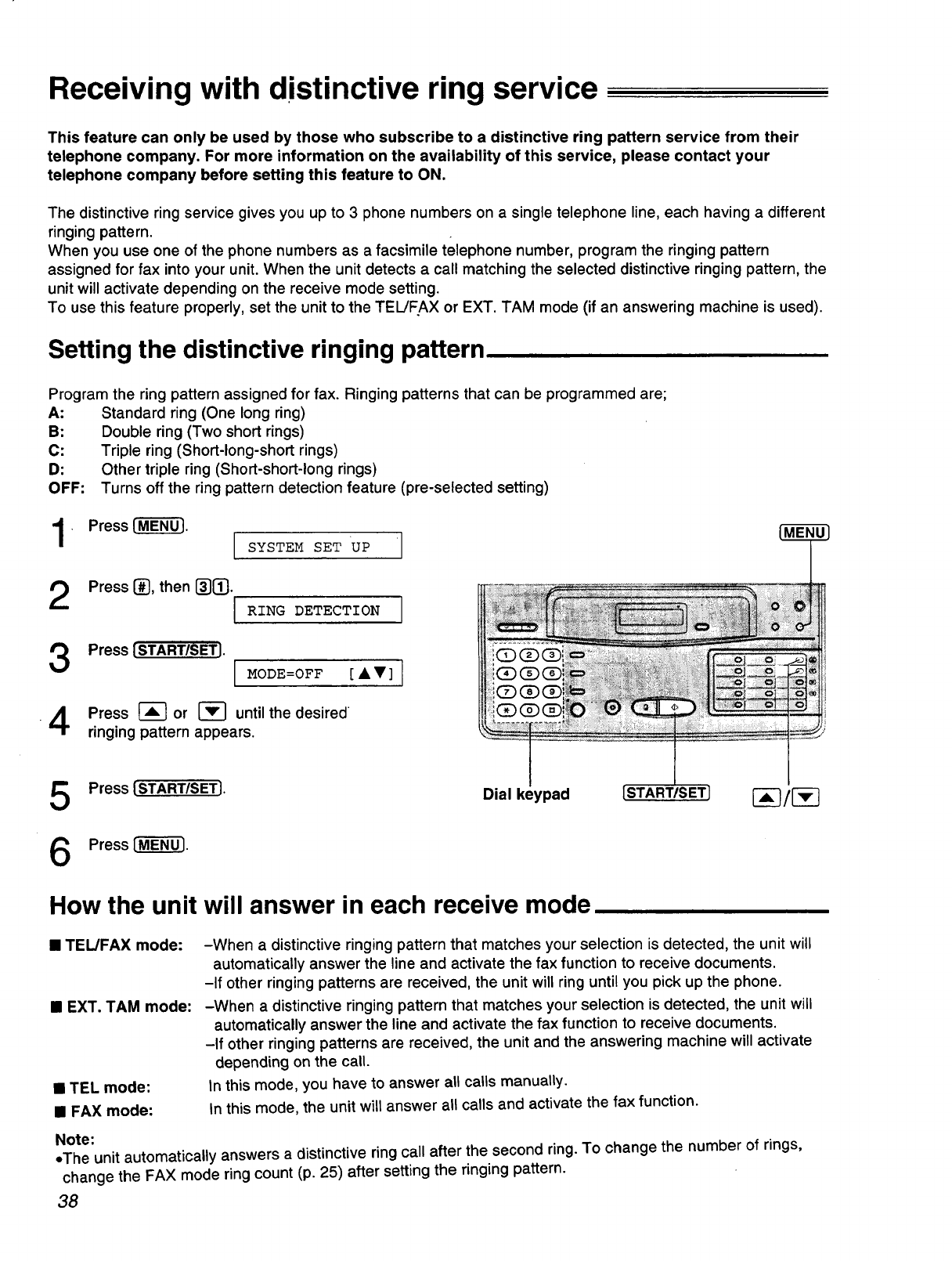
Receiving with distinctive ring service
This feature can only be used by those who subscribe to a distinctive ring pattern service from their
telephone company. For more information on the availability of this service, please contact your
telephone company before setting this feature to ON.
The distinctive ring service gives you up to 3 phone numbers on a single telephone line, each having a different
ringing pattern.
When you use one of the phone numbers as a facsimile telephone number, program the ringing pattern
assigned for fax into your unit. When the unit detects a call matching the selected distinctive ringing pattern, the
unit will activate depending on the receive mode setting.
To use this feature properly, set the unit to the TEL/FAX or EXT. TAM mode (if an answering machine is used).
Setting the distinctive ringing pattern
Program the ring pattern assigned for fax. Ringing patterns that can be programmed are;
A: Standard ring (One long ring)
B: Double ring (Two short rings)
C: Triple ring (Short-long-short rings)
D: Other triple ring (Short-short-long rings)
OFF: Turns off the ring pattern detection feature (pre-selected setting)
1• Press ['-M-E-N_. SYSTEM SET UP
2Press {_, then {_{!}.
IRING DETECTION I
Press [START/SETJ. IMODE=OFF [AV] I
/I Press _or [-_ until the desired
"-r ringing pattern appears.
5
6
Press {START/SET}.
Press ["M-EN-Ol.
Dial keypad [START/SET] I"_/I-_
How the unit will answer in each receive mode
•TEL/FAX mode:
•EXT. TAM mode:
•TEL mode:
•FAX mode:
-When a distinctive ringing pattern that matches your selection is detected, the unit will
automatically answer the line and activate the fax function to receive documents.
-If other ringing patterns are received, the unit will ring until you pick up the phone.
-When a distinctive ringing pattern that matches your selection is detected, the unit will
automatically answer the line and activate the fax function to receive documents.
-If other ringing patterns are received, the unit and the answering machine will activate
depending on the call.
In this mode, you have to answer all calls manually.
In this mode, the unit will answer all calls and activate the fax function.
Note:
oThe unit automatically answers a distinctive ring call after the second ring. To change the number of rings,
change the FAX mode ring count (p. 25) after setting the ringing pattern.
38
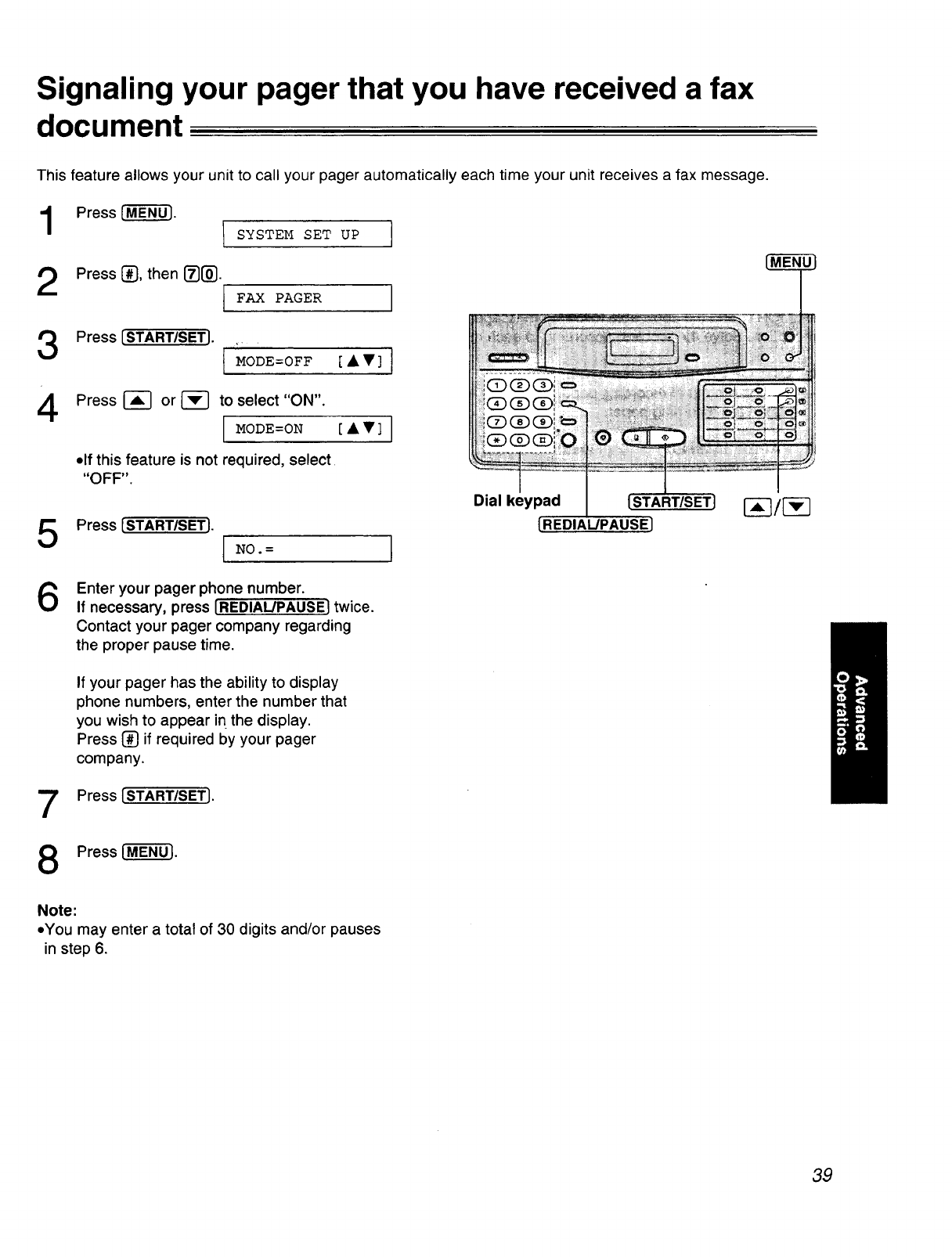
Signaling your pager that you have received a fax
document
This feature allows your unit to call your pager automatically each time your unit receives a fax message.
1
2
Press I-MENU-'].
I SYSTEM SET UP
Press [], then I_[_. [FAX PAGER
Press [START/SET]. .
[ MODE=0FF [A•] I
4Press _ or _-_ to select "ON".
MODE=0N [••]
• If this feature is not required, select
"OFF".
Press [STARTISETJ. I NO.= I
Dial keypad [START/SET]
[REDIAL/PAUSE]
6Enter your pager phone number.
If necessary, press IREDIAL/PAUSE1 twice.
Contact your pager company regarding
the proper pause time.
If your pager has the ability to display
phone numbers, enter the number that
you wish to appear in the display.
Press (_ if required by your pager
company.
Press [START/SETJ.
Press I-M--E-N_.
Note:
•You may enter a total of 30 digits and/or pauses
in step 6.
39
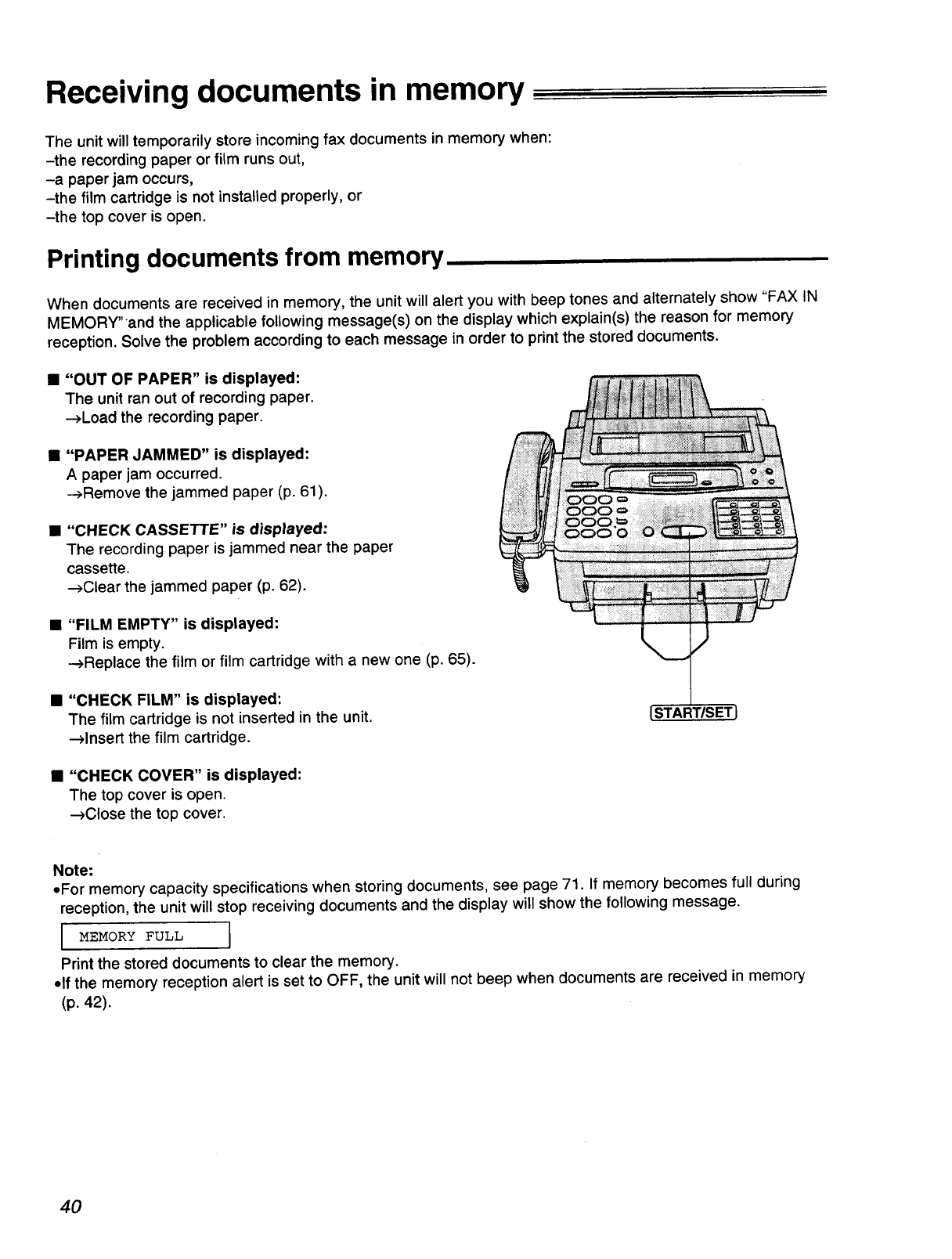
Receiving documents in memory
The unit will temporarily store incoming fax documents in memory when:
-the recording paper or film runs out,
-a paper jam occurs,
-the film cartridge is not installed properly, or
-the top cover is open.
Printing documents from memory
When documents are received in memory, the unit will alert you with beep tones and alternately show "FAX IN
MEMORY"and the applicable following message(s) on the display which explain(s) the reason for memory
reception. Solve the problem according to each message in order to print the stored documents.
•"OUT OF PAPER" is displayed:
The unit ran out of recording paper.
--->Loadthe recording paper.
• "PAPER JAMMED" is displayed:
A paper jam occurred.
-->Remove the jammed paper (p. 61).
• "CHECK CASSETTE" is displayed:
The recording paper is jammed near the paper
cassette.
--->Clearthe jammed paper (p. 62).
• "FILM EMPTY" is displayed:
Film is empty.
_Replace the film or film cartridge with a new one (p. 65).
• "CHECK FILM" is displayed:
The film cartridge is not inserted in the unit.
-->Insert the film cartridge.
{START/SET J
• "CHECK COVER" is displayed:
The top cover is open.
_Close the top cover.
Note:
•For memory capacity specifications when storing documents, see page 71. If memory becomes full during
reception, the unit will stop receiving documents and the display will show the following message.
[ MEMORY FULL l
Print the stored documents to clear the memory.
olf the memory reception alert is set to OFF, the unit will not beep when documents are received in memory
(p. 42).
40
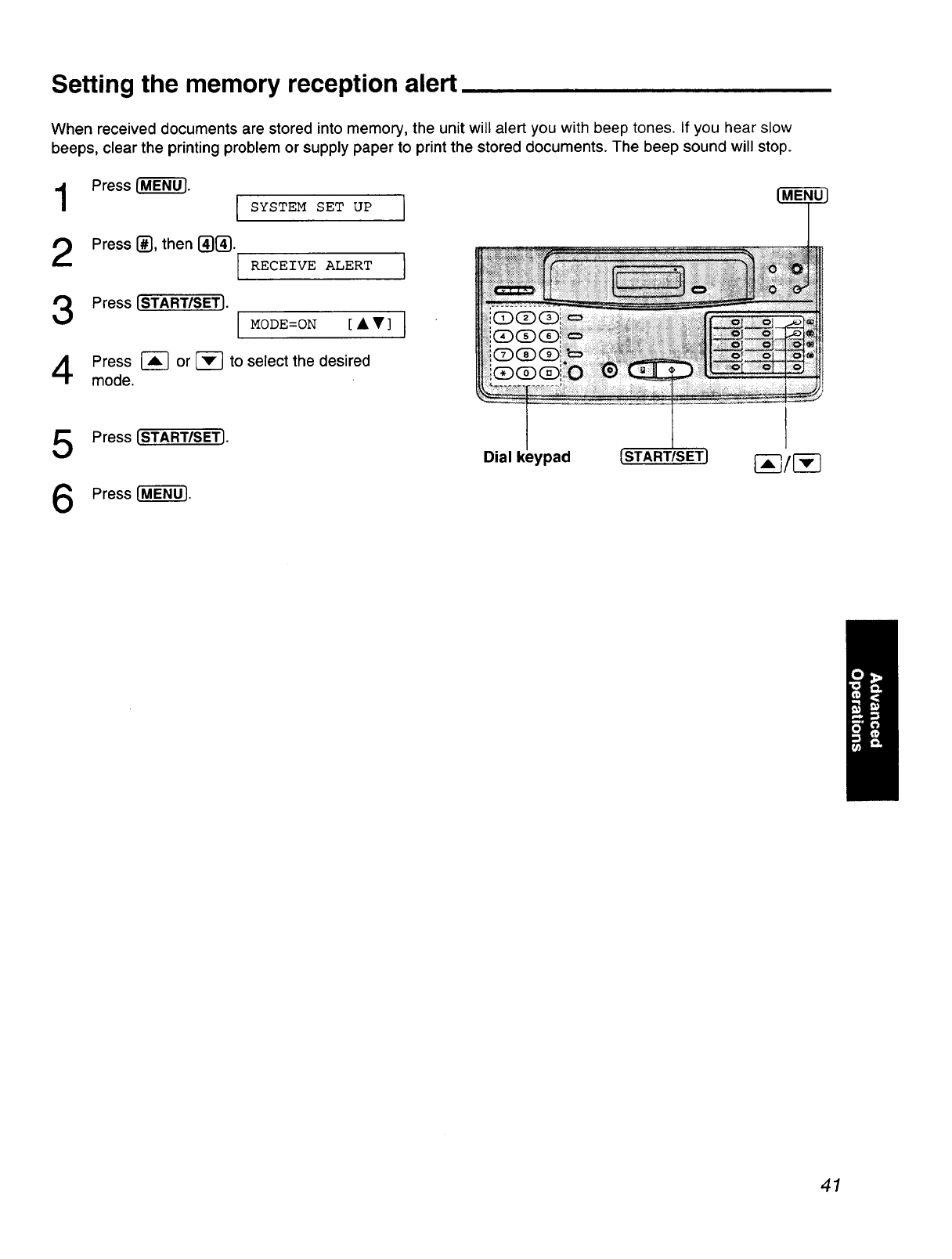
Setting the memory reception alert
When received documents are stored into memory, the unit will alert you with beep tones. If you hear slow
beeps, clear the printing problem or supply paper to print the stored documents. The beep sound will stop.
1
2
3
4
Press r_-'J.
I SYSTEM SET UP
Press _J, then [][]. IRECEIVE ALERT
Press [STARWSET].
MODE=ON [AV]
Press _ or [-_ to select the desired
mode.
I
I
I
5
6
Press [START/SET].
Press [M-ENU-J.
Dial keypad
41
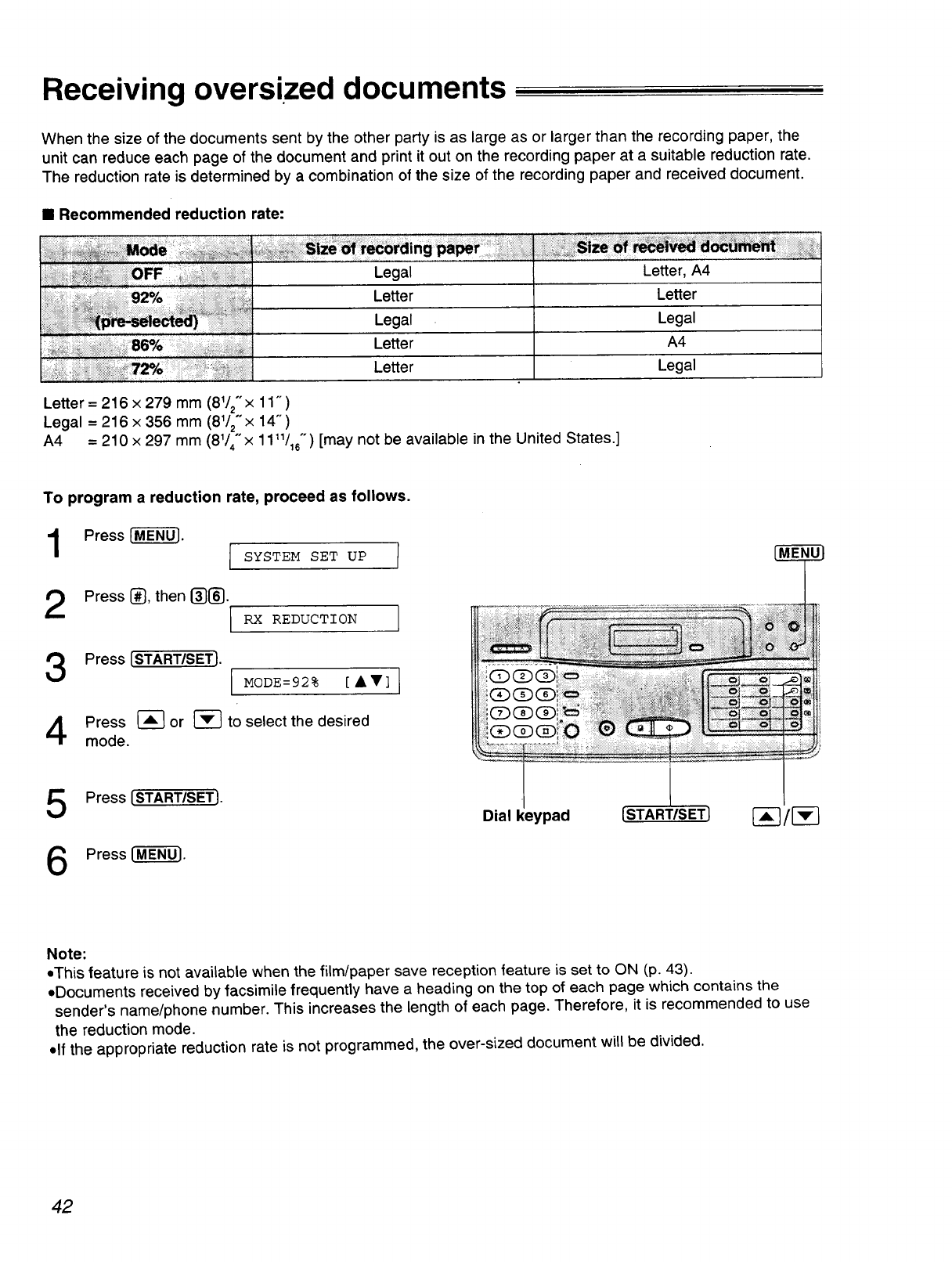
Receiving oversized documents
When the size of the documents sent by the other party is as large as or larger than the recording paper, the
unit can reduce each page of the document and print it out on the recording paper at a suitable reduction rate.
The reduction rate is determined by a combination of the size of the recording paper and received document.
•Recommended reduction rate:
Legal Le_er, A4
Le_er Le_er
Legal Legal
Le_er A4
Le_er Legal
Letter = 216 x 279 mm (8'/2" x 11" )
Legal = 216 x 356 mm (81/2"x 14")
A4 = 210 x 297 mm (8'/4"x 1111/16°") [may not be available in the United States.]
To program a reduction rate, proceed as follows.
Press {-M-EN0-].
2Press {_}, then I_{_. I Rx R_DUcTIoN ]
Press {START/SET}. MODE=92% [AV]
Press I-_ or _ to select the desired
mode.
i
Press [START/SET]. I
Dial keypad [STARTISET] [-_/I-v--]
Press{-M-E-NU-].
Note:
•This feature is not available when the film/paper save reception feature is set to ON (p. 43).
• Documents received by facsimile frequently have a heading on the top of each page which contains the
sender's name/phone number. This increases the length of each page. Therefore, it is recommended to use
the reduction mode.
• If the appropriate reduction rate is not programmed, the over-sized document will be divided.
42
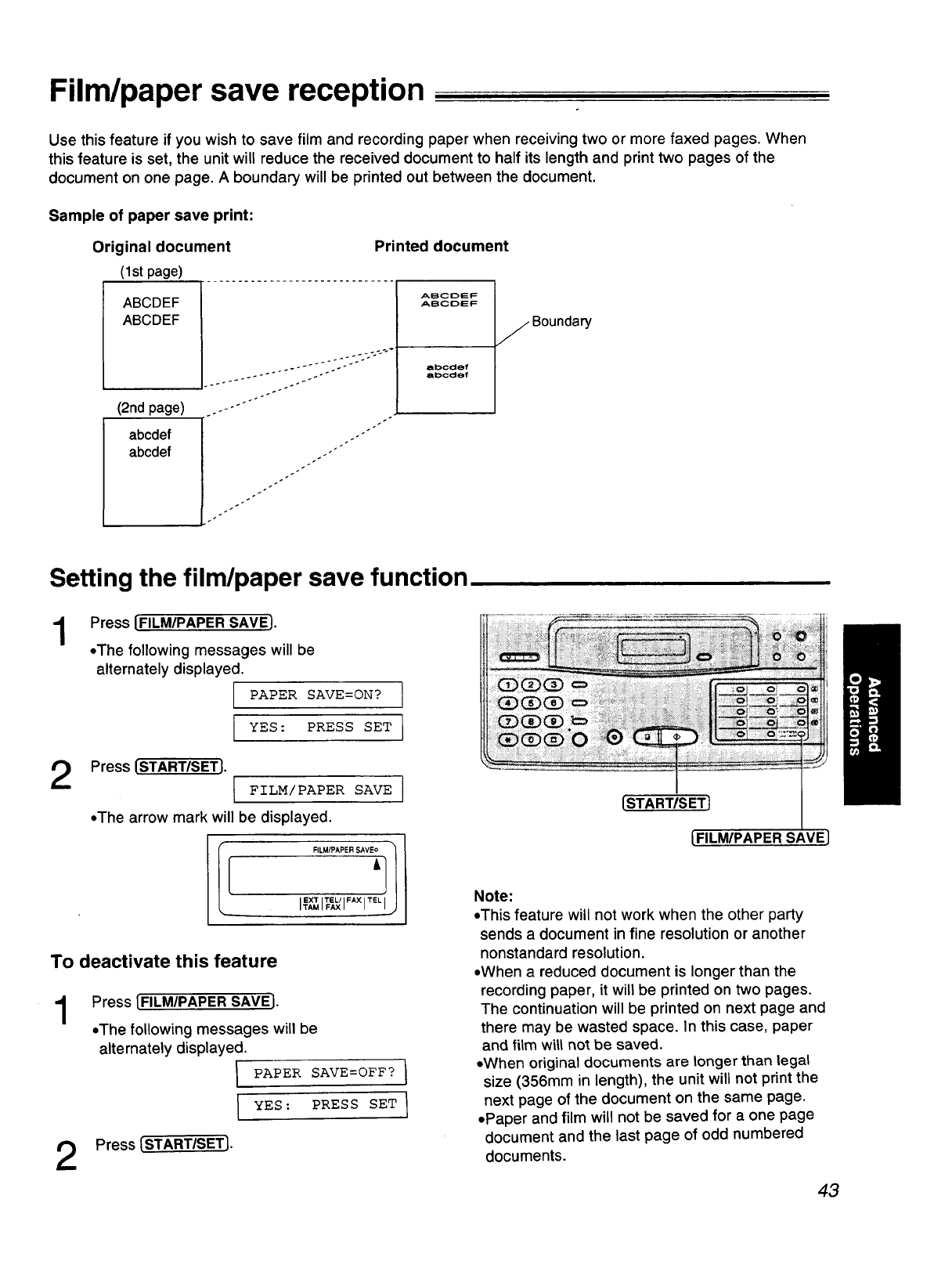
Film/paper save reception
Use this feature if you wish to save film and recording paper when receiving two or more faxed pages. When
this feature is set, the unit will reduce the received document to half its length and print two pages of the
document on one page. A boundary will be printed out between the document.
Sample of paper save print:
Original document
(lstpage)
ABCDEF
ABCDEF
(2nd page)
Printed document
abcdef
abcdef
J.... ---.'-'-°'"
ABCDEF
ABCDEF
al:>cdef
abcdef
j Boundary
Setting the film/paper save function
1
2
Press [FILM/PAPER SAVE}.
•The following messages will be
alternately displayed.
IPAPER SAVE=ON? ]
YES: PRESS SET I
J
Press [START/SETJ.
I FILM/PAPER SAVE
=The arrow mark will be displayed.
EX_ TEL/ FAX TEL
=T,.=,,xl
To deactivate this feature
1
2
Press {FILM/PAPER SAVEI.
=The following messages will be
alternately displayed.
1 PAPER SAVE=OFF? 1
I YES: PRESS SET I
Press [STARTISET}.
[START/SETJ
[FILMIPAPER SAVE
Note:
•This feature will not work when the other party
sends a document in fine resolution or another
nonstandard resolution.
•When a reduced document is longer than the
recording paper, it will be printed on two pages.
The continuation will be printed on next page and
there may be wasted space. In this case, paper
and film wilt not be saved.
•When original documents are longer than legal
size (356mm in length), the unit will not print the
next page of the document on the same page.
• Paper and film will not be saved for a one page
document and the last page of odd numbered
documents.
43
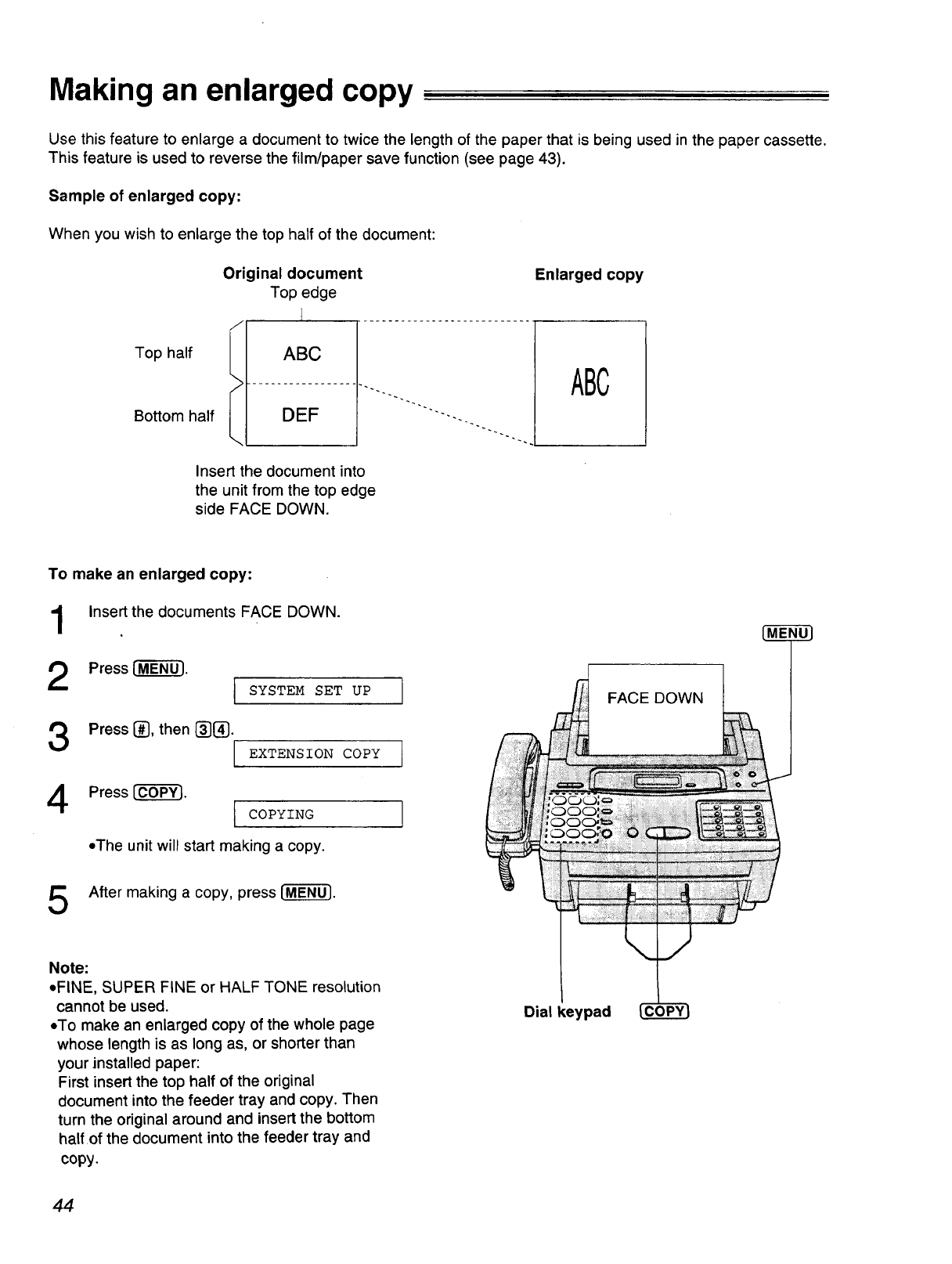
Making an enlarged copy
Use this feature to enlarge a document to twice the length of the paper that is being used in the paper cassette.
This feature is used to reverse the film/paper save function (see page 43).
Sample of enlarged copy:
When you wish to enlarge the top half of the document:
Original document
Top edge
Top half i
Bottom half I
ABC
Enlarged copy
DEF
Insert the document into
the unit from the top edge
side FACE DOWN.
ABC
To make an enlarged copy:
Insert the documents FACE DOWN.
Press [-M'EN'_. IsYsmEMsereup I
Press [_],then [_][_].
I EXTENSION COPY I
Press [-C'-6-_-_. I c°PYING I
• The unit will start making a copy.
FACE DOWN
After making a copy, press [-M-E_-].
Note:
•FINE, SUPER FINE or HALF TONE resolution
cannot be used.
,,To make an enlarged copy of the whole page
whose length is as long as, or shorter than
your installed paper:
First insert the top half of the original
document into the feeder tray and copy. Then
turn the original around and insert the bottom
half of the document into the feeder tray and
copy.
Dial keypad
44
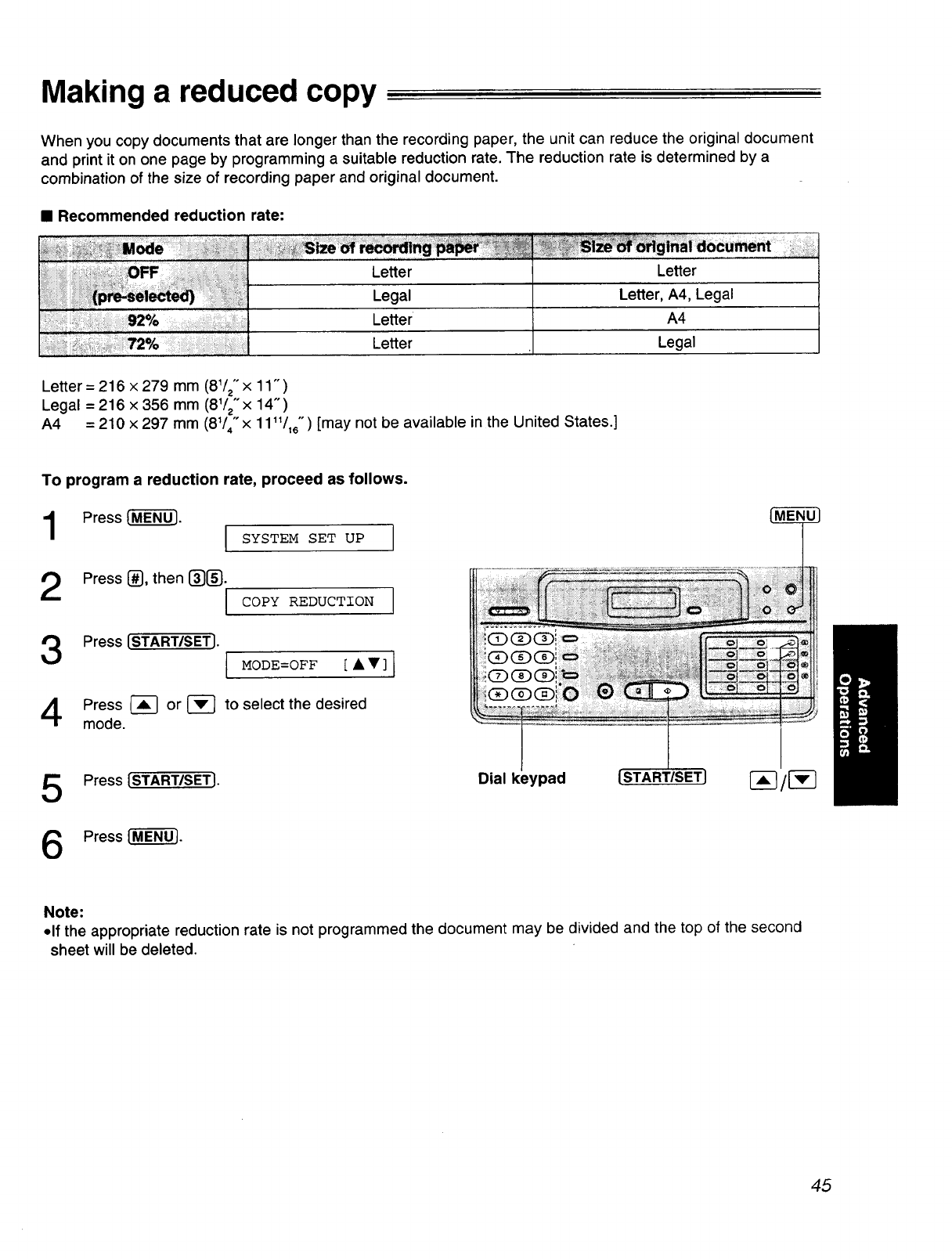
Making a reduced copy
When you copy documents that are longer than the recording paper, the unit can reduce the original document
and print it on one page by programming a suitable reduction rate. The reduction rate is determined by a
combination of the size of recording paper and original document.
•Recommended reduction rate:
Le_er Le_er
Legal Le_er, A4, Legal
Le_er A4
Letter Legal
Letter = 216 x 279 mm (81/2"x 11" )
Legal = 216 x 356 mm (81/2"x 14")
A4 = 210 x 297 mm (81/4" x 1111/16") [may not be available in the United States.]
To program a reduction rate, proceed as follows.
Press [-M-EN-_. I SYSTEM SET UP
2Press _, then [][].
I COPY REDUCTION
Press [STARTISET]. IMODE=OFF ['V] I
Press _-_ or _--] to select the desired
mode.
Press [STARTISETJ.
Press [M[N0-].
Dial keypad [START/SETJ _/[-v--]
Note:
•If the appropriate reduction rate is not programmed the document may be divided and the top of the second
sheet will be deleted.
45
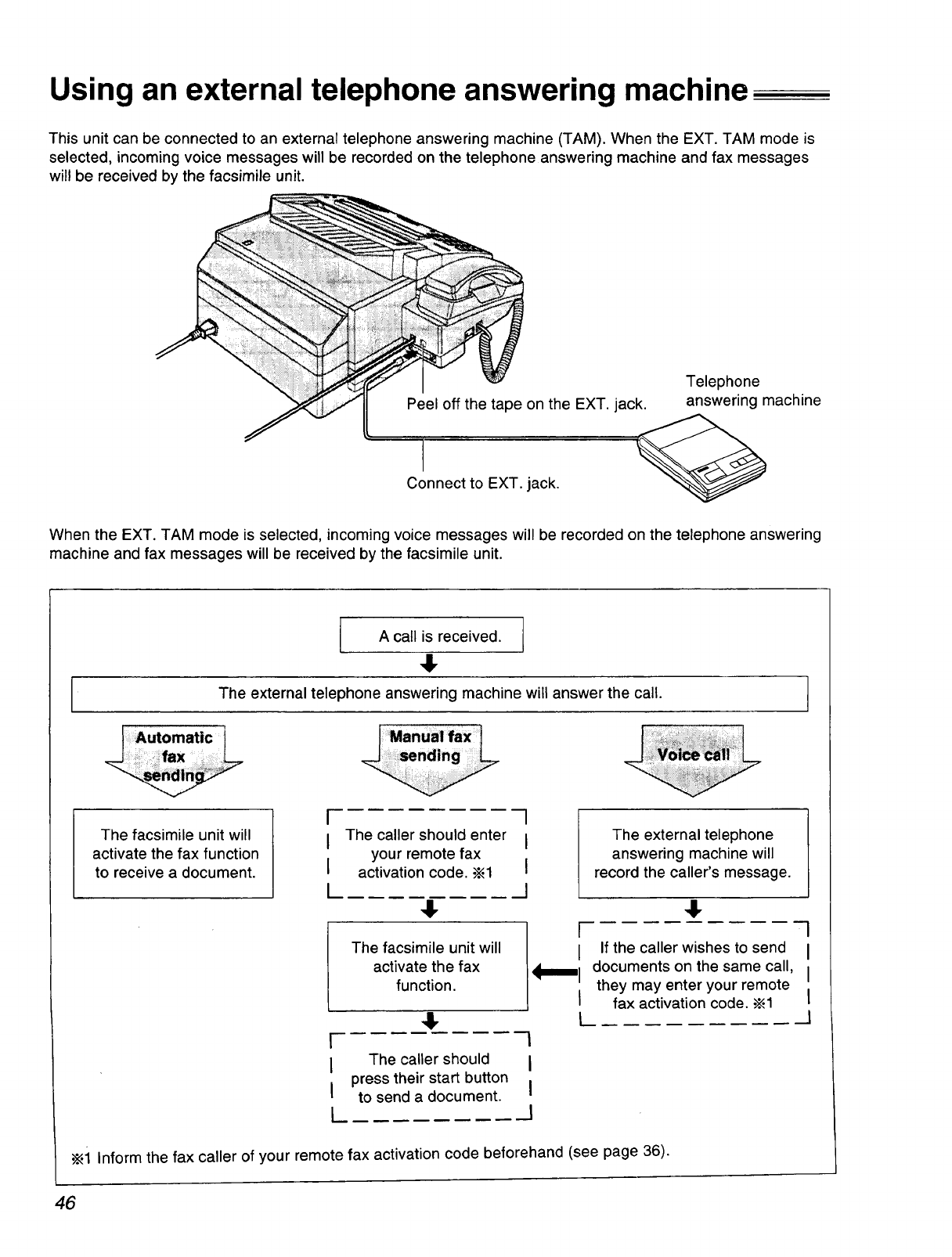
Using an external telephone answering machine
This unit can be connected to an external telephone answering machine (TAM). When the EXT. TAM mode is
selected, incoming voice messages will be recorded on the telephone answering machine and fax messages
will be received by the facsimile unit.
Peel off the tape on the EXT. jack.
Telephone
answering machine
Connect to EXT. jack.
When the EXT. TAM mode is selected, incoming voice messages will be recorded on the telephone answering
machine and fax messages will be received by the facsimile unit.
A call is received. [
,!,
The external telephone answering machine will answer the call.
The facsimile unit will
activate the fax function
to receive a document.
[
I
I
L
The caller should enter
your remote fax
activation code.-_1
,!,
The facsimile unit will
activate the fax
function.
]
I
I
J
,!,
r- 1
IThe caller should I
press their start button
Ito send a document. I
I--J
I
I
I
L
The external telephone
answering machine will
record the caller's message.
4,
If the caller wishes to send
documents on the same call,
they may enter your remote
fax activation code. _1
•_i Inform the fax caller of your remote fax activation code beforehand (see page 36).
]
._1
46
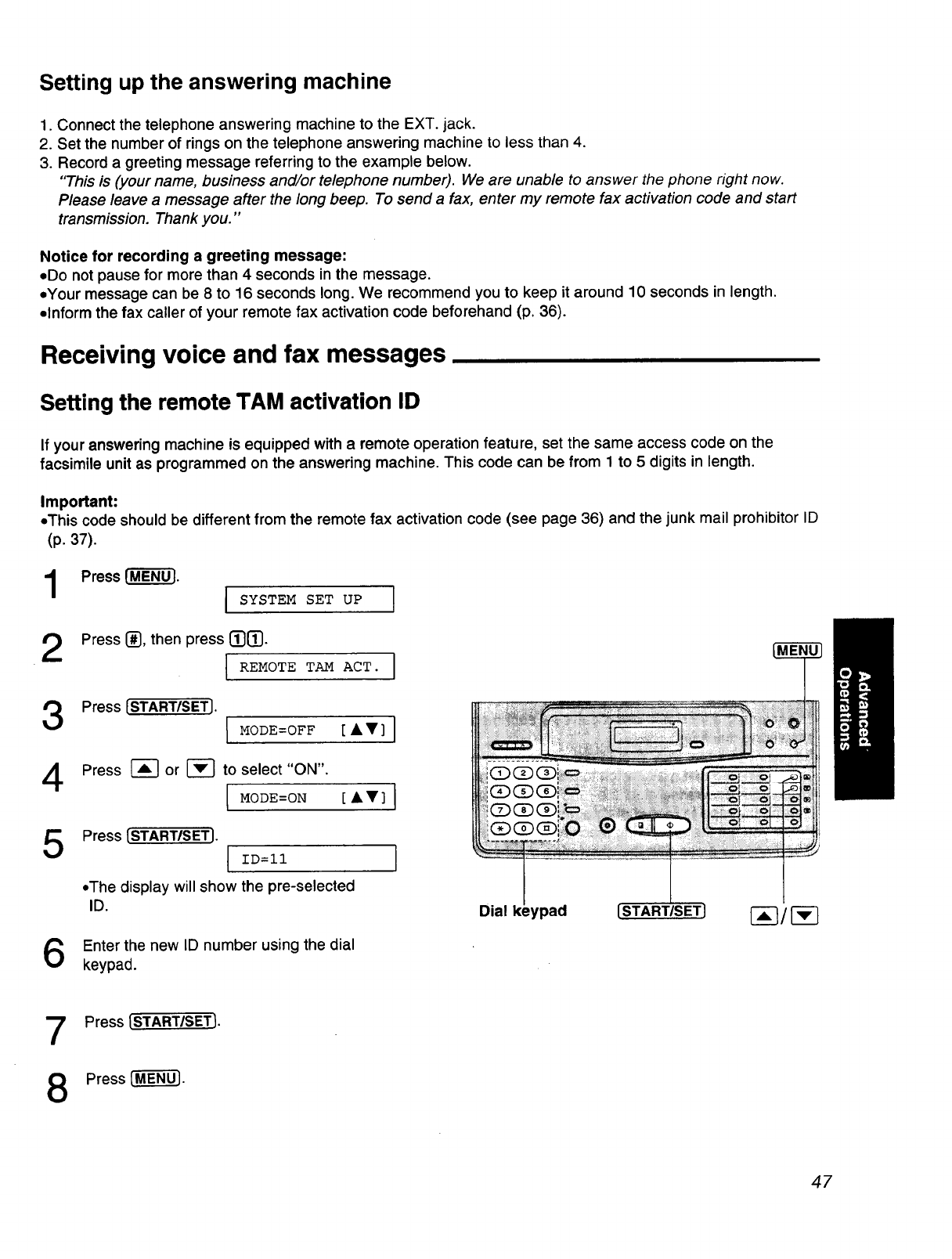
Setting up the answering machine
1. Connect the telephone answering machine to the EXT. jack.
2. Set the number of rings on the telephone answering machine to less than 4.
3. Record a greeting message referring to the example below.
"This is (your name, business and/or telephone number). We are unable to answer the phone right now.
Please leave a message after the long beep. To send a fax, enter my remote fax activation code and start
transmission. Thank you."
Notice for recording a greeting message:
• Do not pause for more than 4 seconds in the message.
,,Your message can be 8 to 16 seconds long. We recommend you to keep it around 10 seconds in length.
•Inform the fax caller of your remote fax activation code beforehand (p. 36).
Receiving voice and fax messages
Setting the remote TAM activation ID
If your answering machine is equipped with a remote operation feature, set the same access code on the
facsimile unit as programmed on the answering machine. This code can be from 1 to 5 digits in length.
Important:
•This code should be different from the remote fax activation code (see page 36) and the junk mail prohibitor ID
(p. 37).
1Press (_. I SYSTEM SET UP J
Press [], then press (_].
I REMOTE TAM AcT" J
Press [START/SET].
I MODE=OFF [''] J
Press _ or _ to select"ON".
[ MODE=ON [A'] I
Press [START/SET]. IID=II
•The display will show the pre-selected
ID.
Enter the new ID number using the dial
keypad.
]
7
8
Press [START/SETI.
Press _-U- _.
47
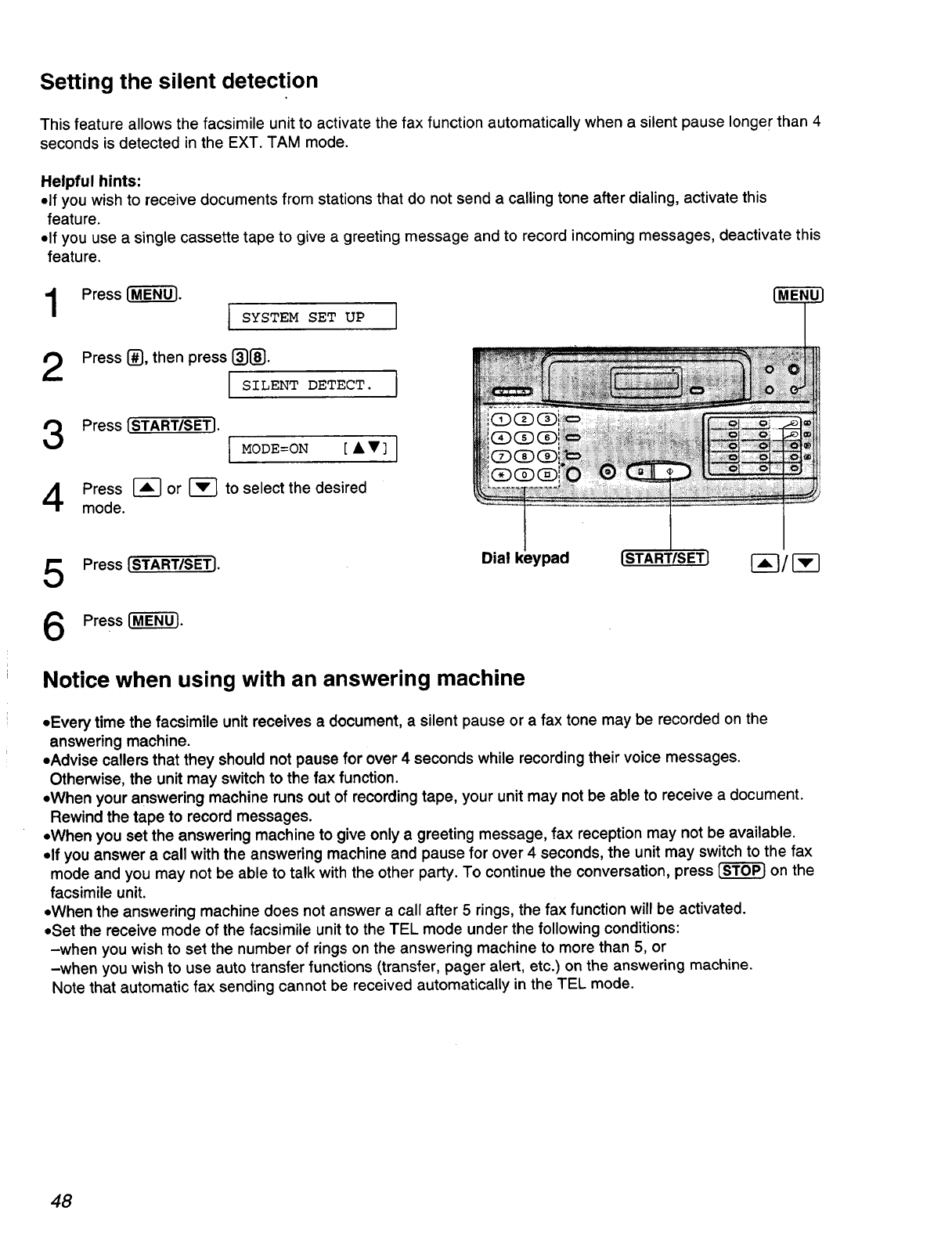
Setting the silent detection
This feature allows the facsimile unit to activate the fax function automatically when a silent pause longer than 4
seconds is detected in the EXT. TAM mode.
Helpful hints:
•If you wish to receive documents from stations that do not send a calling tone after dialing, activate this
feature.
•If you use a single cassette tape to give a greeting message and to record incoming messages, deactivate this
feature.
Press 1-_. {_
I SYSTEM SET UP I
Press {_{},then press {]_}{_}.
SILENT DETECT. I
Press [START/SETJ.
I MODE=ON [ ••]
mode.
Press _ or _ to select the desired
5
6
Press [START/SETJ.
Press[-M"_-_.
Dial keypad ISTAR'r/SET] 1-_-7/
Notice when using with an answering machine
•Every time the facsimile unit receives a document, a silent pause or a fax tone may be recorded on the
answering machine.
eAdvise callers that they should not pause for over 4 seconds while recording their voice messages.
Otherwise, the unit may switch to the fax function.
eWhen your answering machine runs out of recording tape, your unit may not be able to receive a document.
Rewind the tape to record messages.
-,When you set the answering machine to give only a greeting message, fax reception may not be available.
,,If you answer a call with the answering machine and pause for over 4 seconds, the unit may switch to the fax
mode and you may not be able to talk with the other party. To continue the conversation, press _on the
facsimile unit.
•When the answering machine does not answer a call after 5 rings, the fax function will be activated.
eSet the receive mode of the facsimile unit to the TEL mode under the following conditions:
-when you wish to set the number of rings on the answering machine to more than 5, or
-when you wish to use auto transfer functions (transfer, pager alert, etc.) on the answering machine.
Note that automatic fax sending cannot be received automatically in the TEL mode.
48
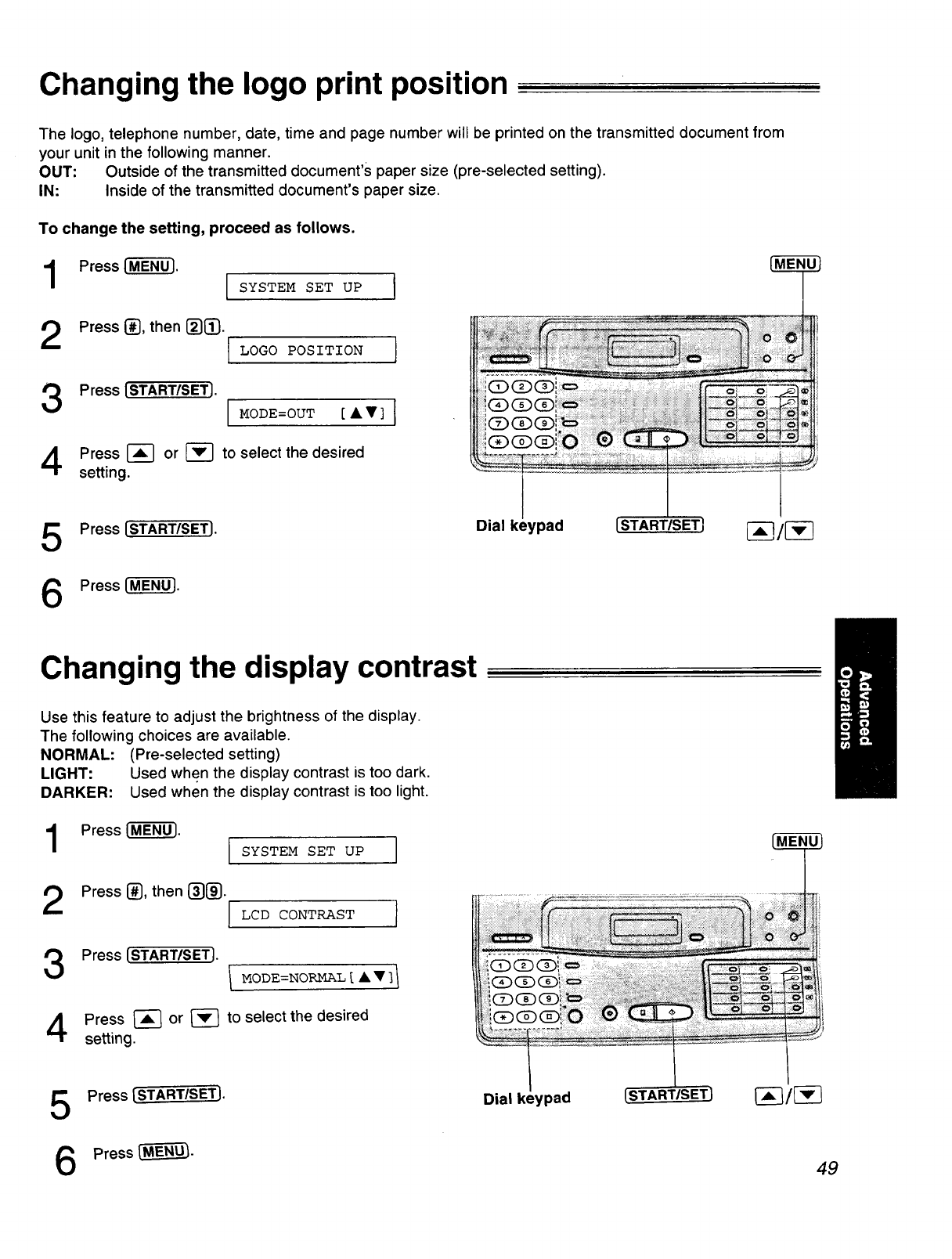
Changing the logo print position
The logo, telephone number, date, time and page number will be printed on the transmitted document from
your unit in the following manner.
OUT: Outside of the transmitted document's paper size (pre-selected setting).
IN- Inside of the transmitted document's paper size.
To change the setting, proceed as follows.
Press l"_. SYSTEM SET UP I
2Press @_],then []_.
Press [START/SET]. MODE=OUT [ ••] [
Press _ or _ to select the desired
setting.
5
6
Press (START/SET).
Press_M-_.
Dial keypad [START/SET]
Changing the display contrast
Use this feature to adjust the brightness of the display.
The following choices are available.
NORMAL: (Pre-selected setting)
LIGHT: Used when the display contrast is too dark.
DARKER: Used when the display contrast is too light.
Press FM-ENO-'). SYSTEM SET UP
Press [_, then _][_. JLCD CONTRAST I
Press (STARTISETI.
I MODE=NORMAL [ A" ]1
Press _ or _ to select the desired
setting.
5
6
Press [STARTISE#I.
Press _-
Dial keypad
49
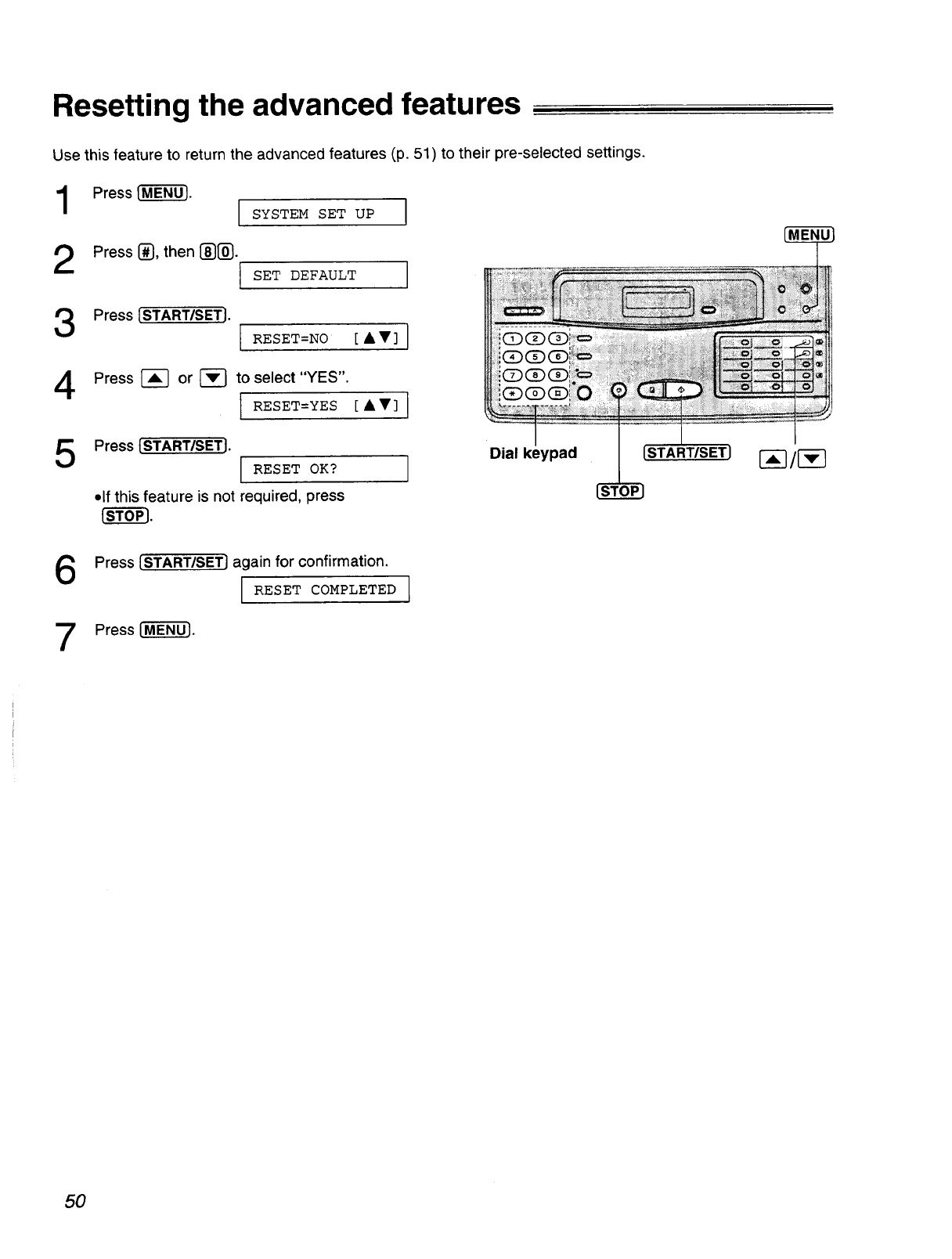
Resetting the advanced features
Use this feature to return the advanced features (p. 51) to their pre-selected settings.
1
2
Press {"M-E_-}.
SYSTEM SET UP I
Press l_,then[_[_).
SET DEFAULT }
Press[START/SETI. RESET=NO [&V]
Press[-A---] or[-v--] to select"YES".
I RESET=YES [AW]
Press {START/SETJ. Dial keypad
RESET OK?
•If this feature is not required, press
l-_-_.
Press {START/SET] again for confirmation.
RESET COMPLETED
7Press I-M-'E'_-].
50
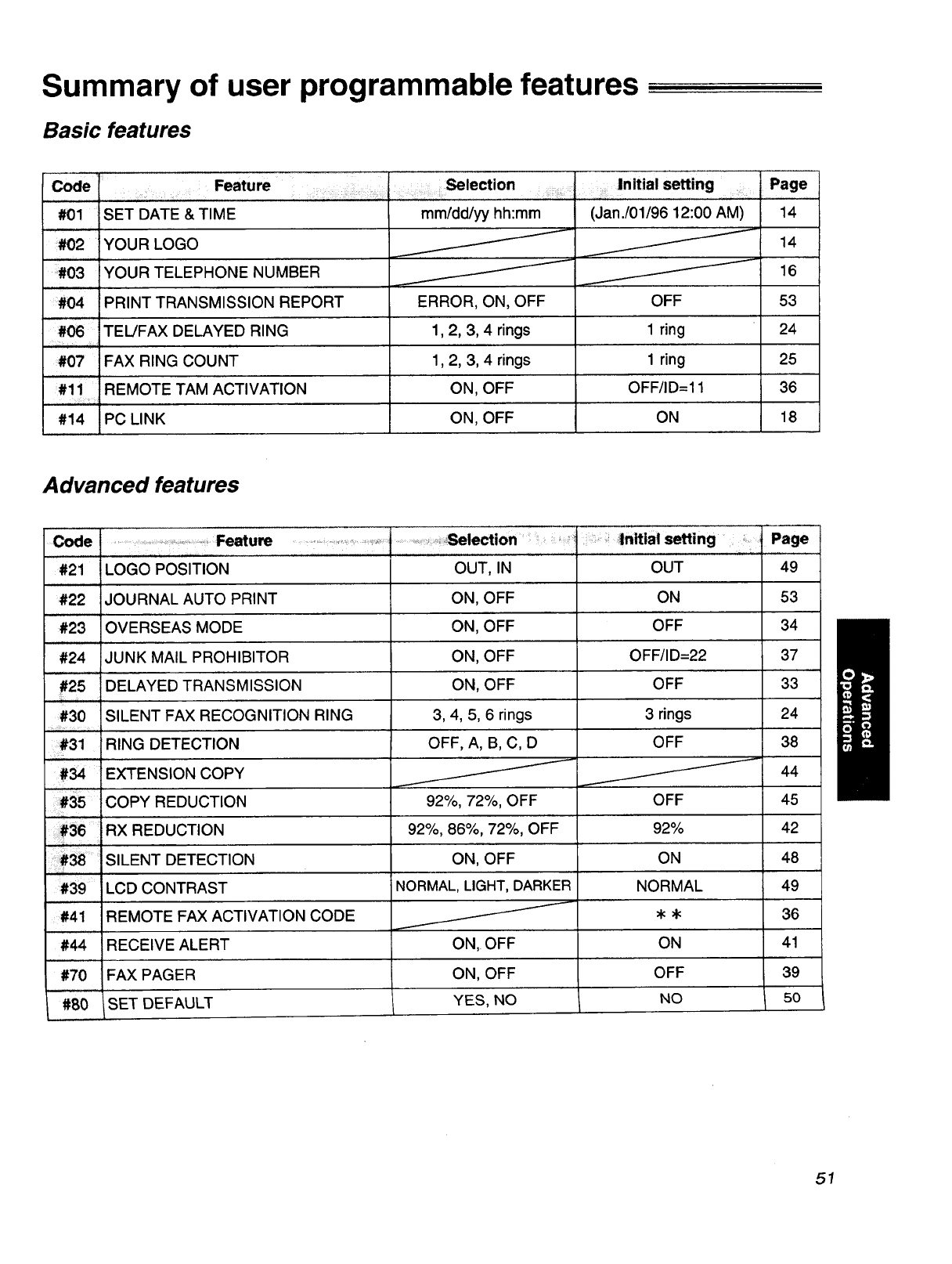
Summary of user programmable features
Basic features
Code i .... Feature
, ,, ,,,,, .......
#01 SET DATE &TIME
#02 YOUR LOGO
#03 YOUR TELEPHONE NUMBER
#04 PRINT TRANSMISSION REPORT
:] .... _iection ......
_;i_ _ii_il::::i_i!_ii_ii!_!_:_?iiiii_i_ii_ i_: _;ii:_!_i_i_iii__ _i_i!!ii_!_'_'_:l
mm/dd/yy hh:mm
1,..-
Initial setting :
iiii:
(Jan./01/96 12:00 AM)
ERROR, ON, OFF
#06" TEL/FAX DELAYED RING 1,2, 3, 4 rings 1 ring
,, :,, ,E,
#07 FAX RING COUNT 1,2, 3, 4 rings 1 ring
#ii .r....REMOTE TAM ACTIVATION ON, OFF OFF/ID=I 1
iii
#14 PC LINK ON, OFF ON
OFF
Page
14
14
16
53
24
25
36
18
Advanced features
¸Code
#21
#22
.......... Feature
_OGO POSITION
.................................................i....................::,,6election, 1 |nitlal setting : Page
OUT, IN OUT 49
JOURNAL AUTO PRINT ON, OFF ON 53
OVERSEAS MODE ON, OFF OFF 34
#24 JUNK MAIL PROHIBITOR ON, OFF OFF/ID=22
ii#25ii _)ELAYED TRANSMISSION ON, OFF OFF
#30 SILENT FAX RECOGNITION RING 3, 4, 5, 6 rings 3 rings
#31 RING DETECTION OFF, A, B, C, D OFF
EXTENSION COPY _
.,,.... ..-.
.:#35' COPY REDUCTION 92%, 72%, OFF OFF
i #36 RX REDUCTION 92%, 86%, 72%, OFF 92%
#_ SILENT DETECTION ON, OFF ON
......
#39 LCD CONTRAST NORMAL, LIGHT, DARKER NORMAL
REMOTE FAX ACTIVATION CODE _ •#41
,,, ,
#44 RECEIVE ALERT ON, OFF ON
#70 iFAX PAGER ON, OFF OFF
#80 SET DEFAULT YES, NO NO
37
33
24
38
44
45
42
48
49
36
41
39
5O
51
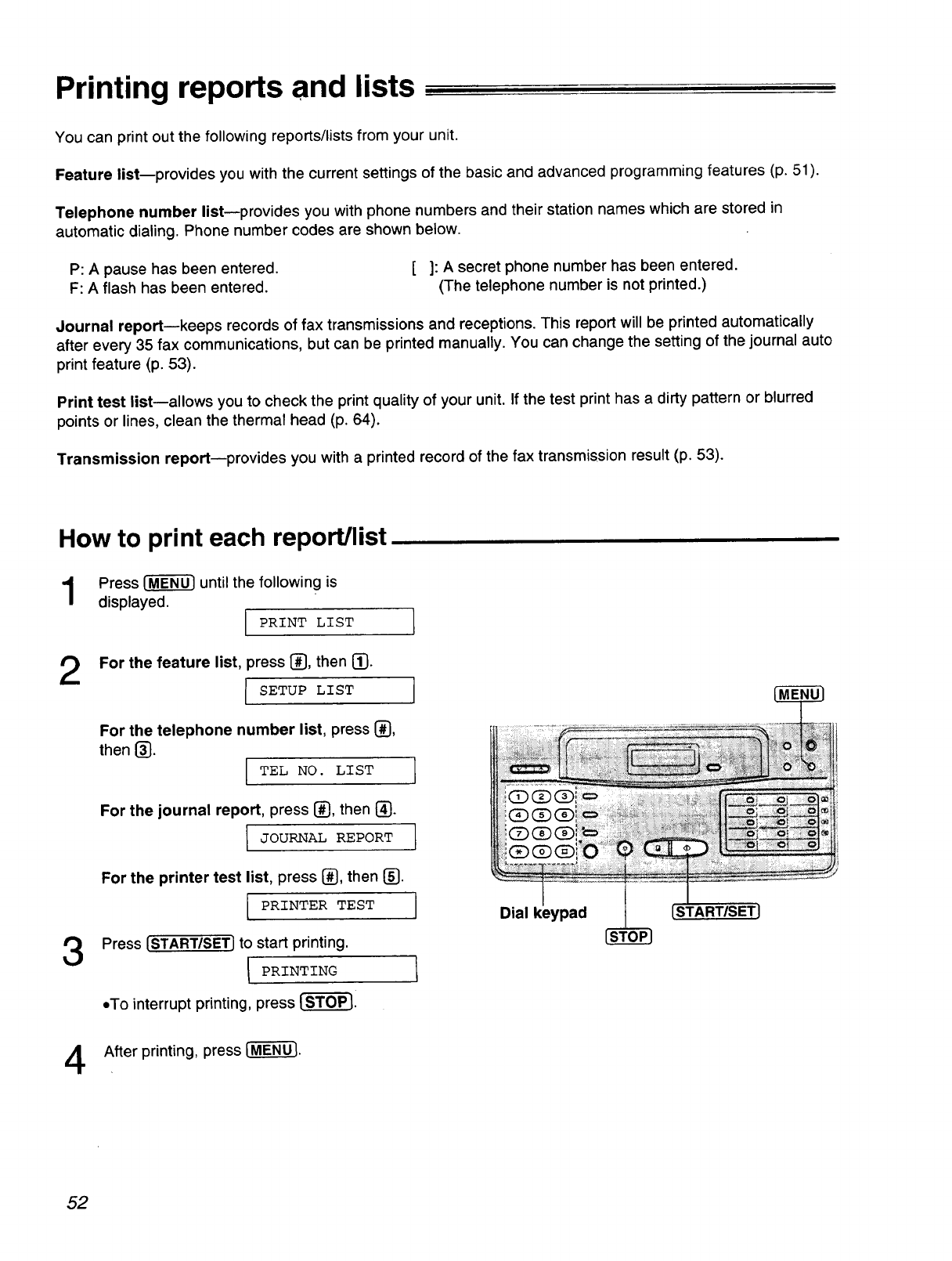
Printing reports and lists
You can print out the following reports/lists from your unit.
Feature list--provides you with the current settings of the basic and advanced programming features (p. 51).
Telephone number list--provides you with phone numbers and their station names which are stored in
automatic dialing. Phone number codes are shown below.
P: A pause has been entered. [ ]: A secret phone number has been entered.
F: A flash has been entered. (The telephone number is not printed.)
Journal report--keeps records of fax transmissions and receptions. This report will be printed automatically
after every 35 fax communications, but can be printed manually. You can change the setting of the journal auto
print feature (p. 53).
Print test list--allows you to check the print quality of your unit. If the test print has a dirty pattern or blurred
points or lines, clean the thermal head (p. 64).
Transmission report--provides you with a printed record of the fax transmission result (p. 53).
How to print each report/list
Press _ until the following is
displayed.
PRINT LIST 1
For the feature list, press [_, then _].
ISETUP LIST ]
For the telephone number list, press (_,
then 1_}.
IT LN°"T'IsT I
For the journal report, press [_, then _.
I JOURNAL REPORT 1
For the printer test list, press _, then (_.
[ PRINTER TEST I
Press {START/SET} to start printing.
[PRINTING 1
•To interrupt printing, press _i
Dial keypad __) [START/SETJ
After printing, press [-M--E-N_.
52
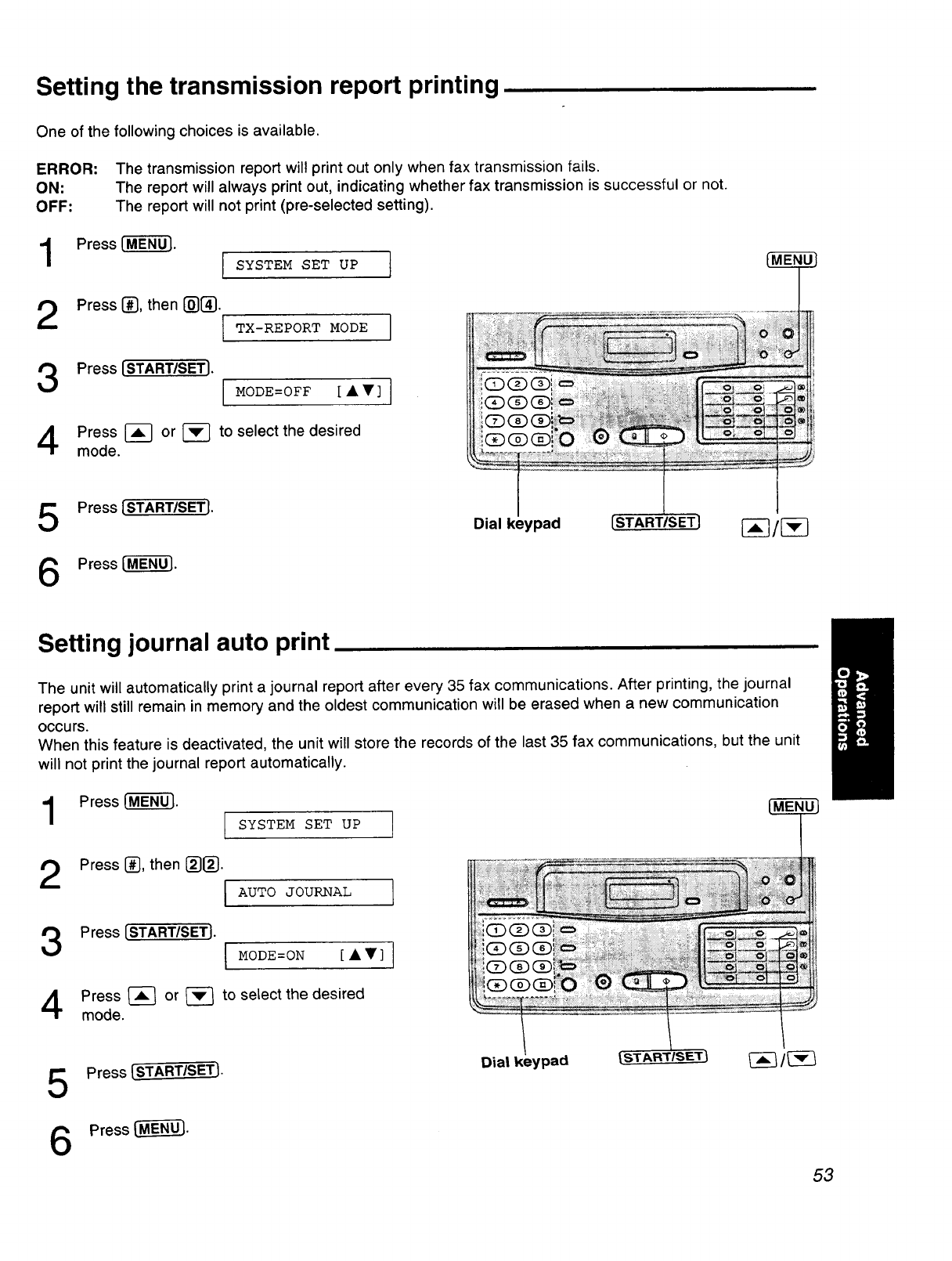
Setting the transmission report printing
One of the following choices is available.
ERROR: The transmission report will print out only when fax transmission fails.
ON: The report will always print out, indicating whether fax transmission is successful or not.
OFF: The report will not print (pre-selected setting).
Press [-M-'EN'_. SYSTEM SET UP J
Press (_, then [_[_. I TX-REPORT MODE
3Press [START/SET],
4Press I-_ or
mode.
MODE=OFF [ • • ]
to select the desired
Press [START/SETJ.
Press ['-M-EN-_.
Setting journal auto print
The unit will automatically print a journal report after every 35 fax communications. After printing, the journal
report will still remain in memory and the oldest communication will be erased when a new communication
OOCUre.
When this feature is deactivated, the unit will store the records of the last 35 fax communications, but the unit
will not print the journal report automatically.
1Press I_. [_
SYSTEM SET UP ]
2Press [_, then []1_].
I AUT0 JOURNAL 1
Press [START/SETJ. I MODE=ON [••]
Press _ or _-_ to select the desired
mode.
5
6
Press [STARTISET.-J.
Press _.
53
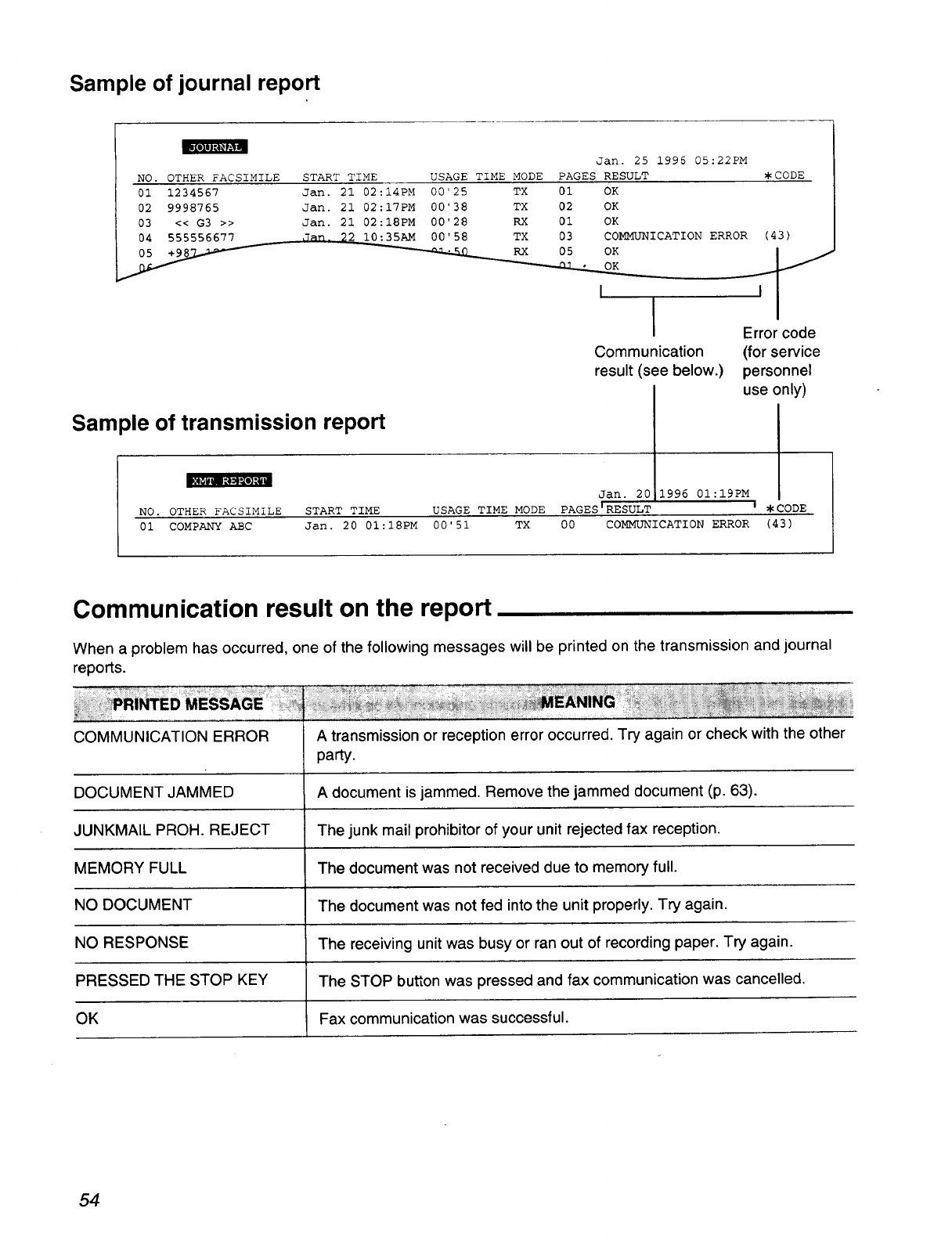
Sample of journal report
NO. OTHER FACSIMILE
Ol 1234567
02 9998765
03 << G3 >>
04 555556677
05 +9_ -/
Jan. 25 1996 05:22PM
START TIME USAGE TIME MODE PAGES RESULT _ CODE
Jan. 21 02:I4PM 00'25 TX 01 OK
Jan. 21 02:I7PM 00'38 TX 02 OK
Jan. 21 02:I8PM 00'28 RX 01 OK
Jan. 22 10:35AM 00'58 TX 03 COMMUNICATION ERROR (43}
oK /
I
Communication
result (see below.)
Sample of transmission report
Error code
(for service
personnel
use only)
Jan. 20 1996 01:I9PM
NO. OTHER FACSIMILE START TIME USAGE TIME MODE PAGES'RESULT ' _CODE
01 COMPANY ABC Jan. 20 01:I8PM 00'51 TX 00 COMMUNICATION ERROR (43)
Communication result on the report
When a problem has occurred, one of the following messages will be printed on the transmission and journal
reports.
COMMUNICATION ERROR A transmission or reception error occurred. Try again or check with the other
party.
DOCUMENT JAMMED A document is jammed. Remove the jammed document (p. 63).
JUNKMAIL PROH. REJECT The junk mail prohibitor of your unit rejected fax reception.
MEMORY FULL The document was not received due to memory full.
NO DOCUMENT The document was not fed into the unit properly. Try again.
NO RESPONSE The receiving unit was busy or ran out of recording paper. Try again.
PRESSED THE STOP KEY The STOP button was pressed and fax communication was cancelled.
OK Fax communication was successful.
54
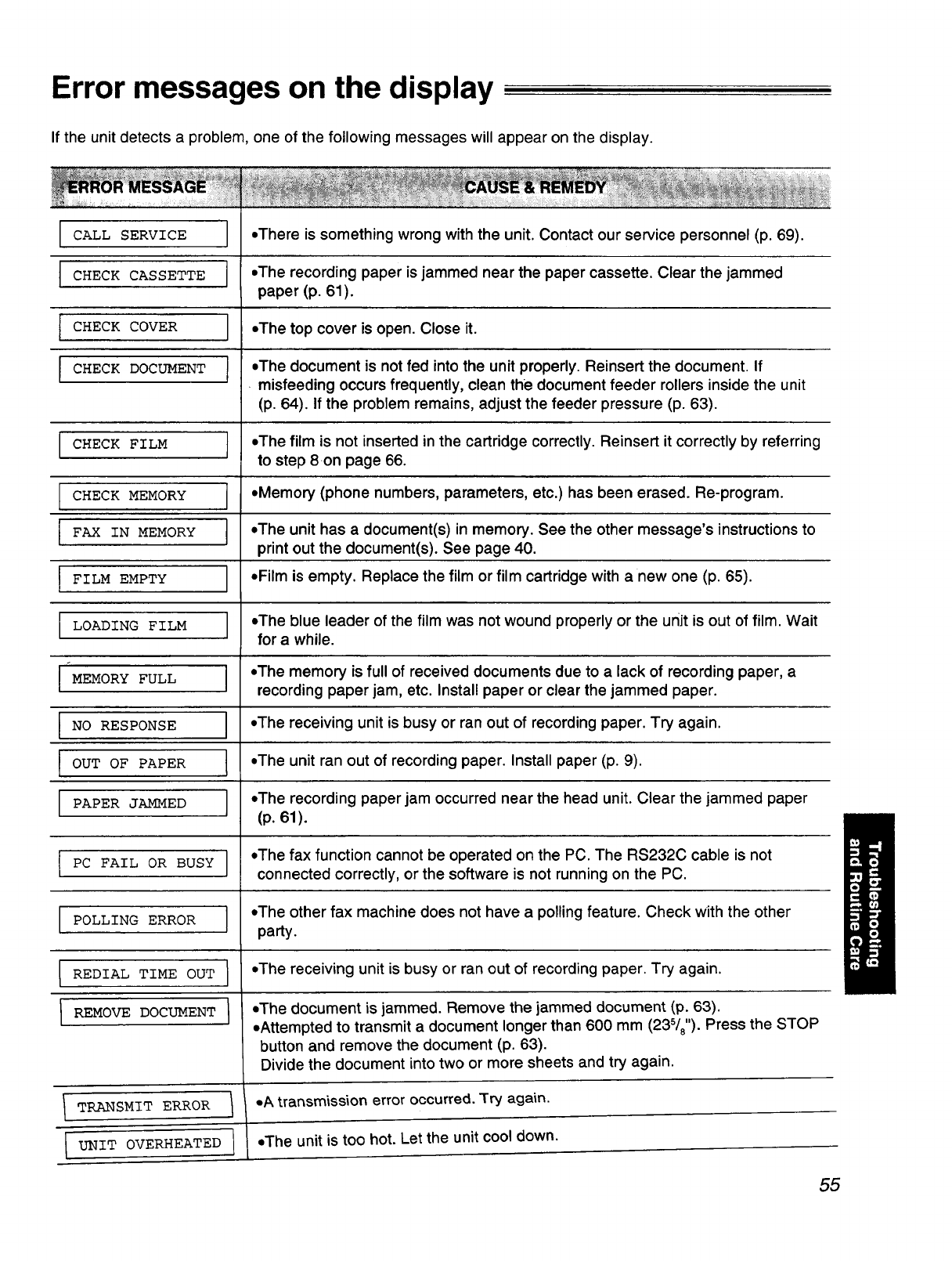
Error messages on the display
If the unit detects a problem, one of the following messages will appear on the display.
I
t
I
CALL SERVICE
CHECK CASSETTE
CHECK COVER
CHECK DOCUMENT I
CHECK FILM
CHECK MEMORY
FAX IN MEMORY
FILM EMPTY
LOADING FILM
MEMORY FULL
NO RESPONSE
OUT OF PAPER
PAPER JAMMED
PC FAIL OR BUSY
POLLING ERROR
REDIAL TIME OUT
REMOVE DOCUMENT
]
]
}
]
]
i
I
I
]
]
}
]
•There is something wrong with the unit. Contact our service personnel (p. 69).
•The recording paper is jammed near the paper cassette. Clear the jammed
paper (p. 61).
•The top cover is open. Close it.
•The document is not fed into the unit properly. Reinsert the document. If
misfeeding occurs frequently, clean the document feeder rollers inside the unit
(p. 64). If the problem remains, adjust the feeder pressure (p. 63).
•The film is not inserted in the cartridge correctly. Reinsert it correctly by referring
to step 8on page 66.
• Memory (phone numbers, parameters, etc.) has been erased. Re-program.
•The unit has a document(s) in memory. See the other message's instructions to
print out the document(s). See page 40.
• Film is empty. Replace the film or film cartridge with a new one (p. 65).
•The blue leader of the film was not wound properly or the unit is out of film. wait
for a while.
=The memory is full of received documents due to a lack of recording paper, a
recording paper jam, etc. Install paper or clear the jammed paper.
•The receiving unit is busy or ran out of recording paper. Try again.
=The unit ran out of recording paper. Install paper (p. 9).
•The recording paper jam occurred near the head unit. Clear the jammed paper
(p. 61).
•The fax function cannot be operated on the PC. The RS232C cable is not
connected correctly, or the software is not running on the PC.
•The other fax machine does not have a polling feature. Check with the other
party.
•The receiving unit is busy or ran out of recording paper. Try again.
•The document is jammed. Remove the jammed document (p. 63).
•Attempted to transmit a document longer than 600 mm (235/8").Press the STOP
button and remove the document (p. 63).
Divide the document into two or more sheets and try again.
I TRANSMIT ERROR 1 -A transmissionerroroccurred.Try again.
UNIT OVERHEATED I.The unit is too hot. Let the unit cool down.
55
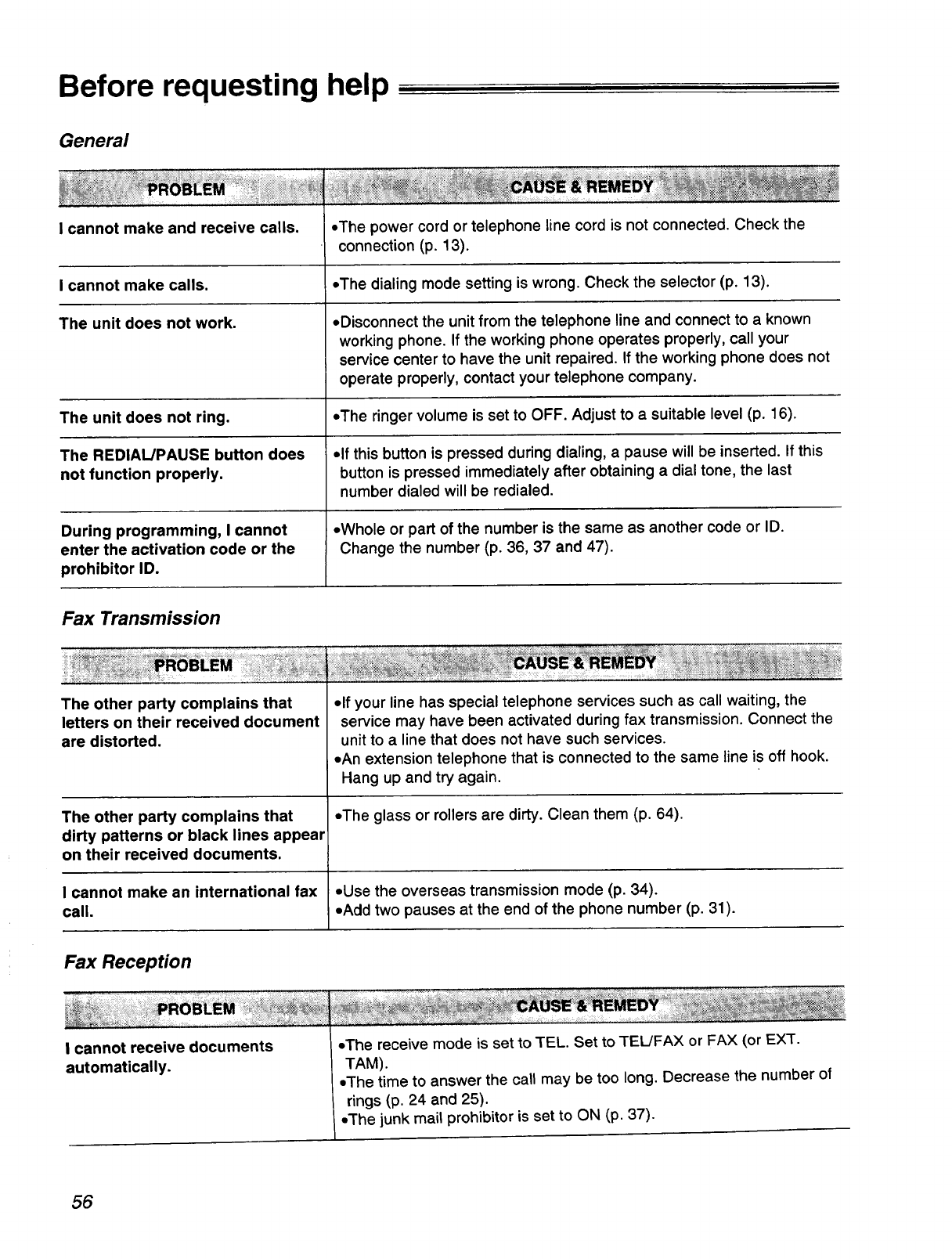
Before requesting help
General
I cannot make and receive calls. • The power cord or telephone line cord is not connected. Check the
connection (p. 13).
I cannot make calls. .The dialing mode setting is wrong. Check the selector (p. 13).
The unit does not work.
The unit does not ring.
The REDIAL/PAUSE button does
not function properly.
During programming, I cannot
enter the activation code or the
prohibitor ID.
• Disconnect the unit from the telephone line and connect to a known
working phone. If the working phone operates properly, call your
service center to have the unit repaired. If the working phone does not
operate properly, contact your telephone company.
• The ringer volume is set to OFF. Adjust to a suitable level (p. 16).
• If this button is pressed during dialing, a pause will be inserted. If this
button is pressed immediately after obtaining a dial tone, the last
number dialed will be redialed.
•Whole or part of the number is the same as another code or ID.
Change the number (p. 36, 37 and 47).
Fax Transmission
The other party complains that
letters on their received document
are distorted.
The other party complains that
dirty patterns or black lines appear
on their received documents.
I cannot make an international fax
call.
olf your line has special telephone services such as call waiting, the
service may have been activated during fax transmission. Connect the
unit to a line that does not have such services.
• An extension telephone that is connected to the same line is off hook.
Hang up and try again.
•The glass or rollers are dirty. Clean them (p. 64).
•Use the overseas transmission mode (p. 34).
• Add two pauses at the end of the phone number (p. 31).
Fax Reception
! cannot receive documents
automatically.
oThe receive mode is set to TEL. Set to TEL/FAX or FAX (or EXT.
TAM).
oThe time to answer the call may be too long. Decrease the number of
rings (p. 24 and 25).
•The junk mail prohibitor is set to ON (p. 37).
56
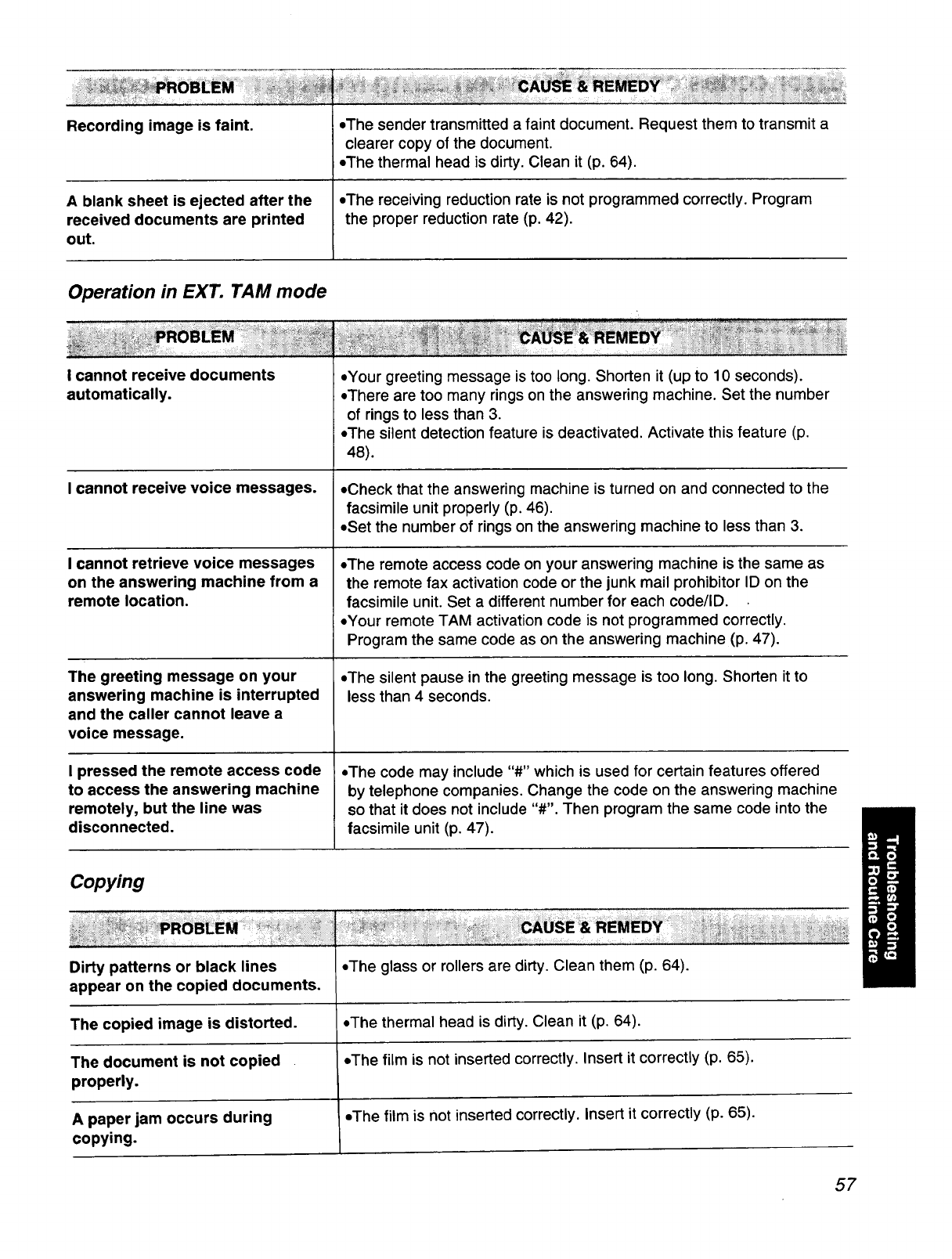
Recording image is faint.
A blank sheet is ejected after the
received documents are printed
out.
• The sender transmitted a faint document. Request them to transmit a
clearer copy of the document.
• The thermal head is dirty. Clean it (p. 64).
oThe receiving reduction rate is not programmed correctly. Program
the proper reduction rate (p. 42).
Operation in EXT. TAM mode
I cannot receive documents
automatically.
I cannot receive voice messages.
I cannot retrieve voice messages
on the answering machine from a
remote location.
The greeting message on your
answering machine is interrupted
and the caller cannot leave a
voice message.
I pressed the remote access code
to access the answering machine
remotely, but the line was
disconnected.
• Your greeting message is too long. Shorten it (up to 10 seconds).
• There are too many rings on the answering machine. Set the number
of rings to less than 3.
• The silent detection feature is deactivated. Activate this feature (p.
48).
• Check that the answering machine is turned on and connected to the
facsimile unit properly (p. 46).
=Set the number of rings on the answering machine to less than 3.
,The remote access code on your answering machine is the same as
the remote fax activation code or the junk mail prohibitor ID on the
facsimile unit. Set a different number for each code/ID.
,Your remote TAM activation code is not programmed correctly.
Program the same code as on the answering machine (p. 47).
• The silent pause in the greeting message is too long. Shorten it to
less than 4 seconds.
=The code may include "#" which is used for certain features offered
by telephone companies. Change the code on the answering machine
so that it does not include "#". Then program the same code into the
facsimile unit (p. 47).
Copying
Dirty patterns or black lines
appear on the copied documents.
The copied image is distorted.
The document is not copied
properly.
A paper jam occurs during
copying.
•The glass or rollers are dirty. Clean them (p. 64).
=The thermal head is dirty. Clean it (p. 64).
•The film is not inserted correctly. Insert it correctly (p. 65).
•The film is not inserted correctly. Insert it correctly (p. 65).
57
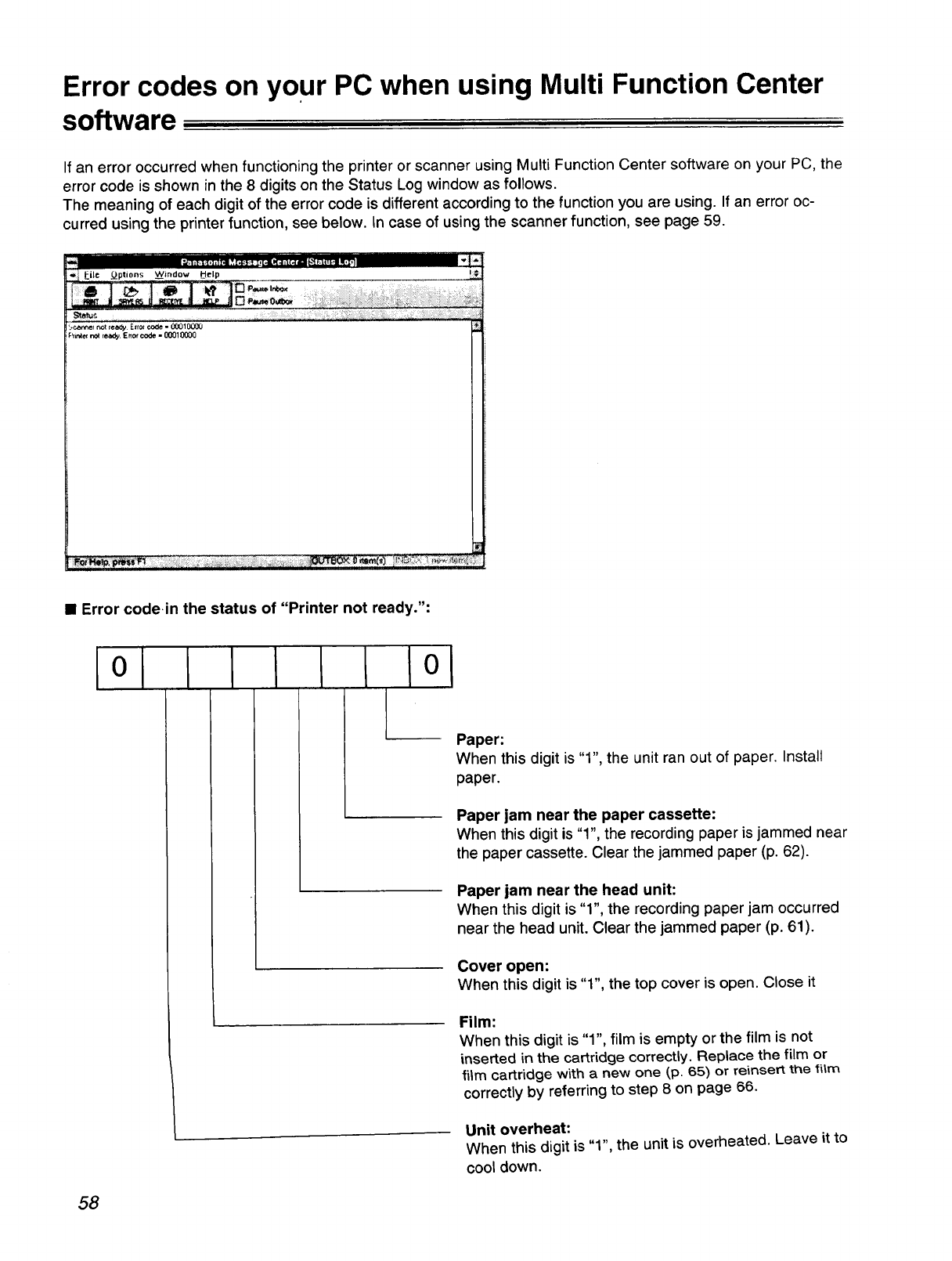
Error codes on Your PC when using Multi Function Center
software
If an error occurred when functioning the printer or scanner using Multi Function Center software on your PC, the
error code is shown in the 8 digits on the Status Log window as follows.
The meaning of each digit of the error code is different according to the function you are using. If an error oc-
curred using the printer function, see below. In case of using the scanner function, see page 59.
• Error code.in the status of "Printer not ready.":
ILl tll°l
Paper:
When this digit is "1", the unit ran out of paper. Install
paper.
Paper jam near the paper cassette:
When this digit is "1", the recording paper is jammed near
the paper cassette. Clear the jammed paper (p. 62).
Paper jam near the head unit:
When this digit is "1", the recording paper jam occurred
near the head unit. Clear the jammed paper (p. 61).
Cover open:
When this digit is "1", the top cover is open. Close it
Film:
When this digit is "1", film is empty or the film is not
inserted in the cartridge correctly. Replace the film or
film cartridge with a new one (,p.65) or reinsert the film
correctly by referring to step 8 on page 66.
Unit overheat:
When this digit is "1", the unit is overheated. Leave it to
cool down.
58
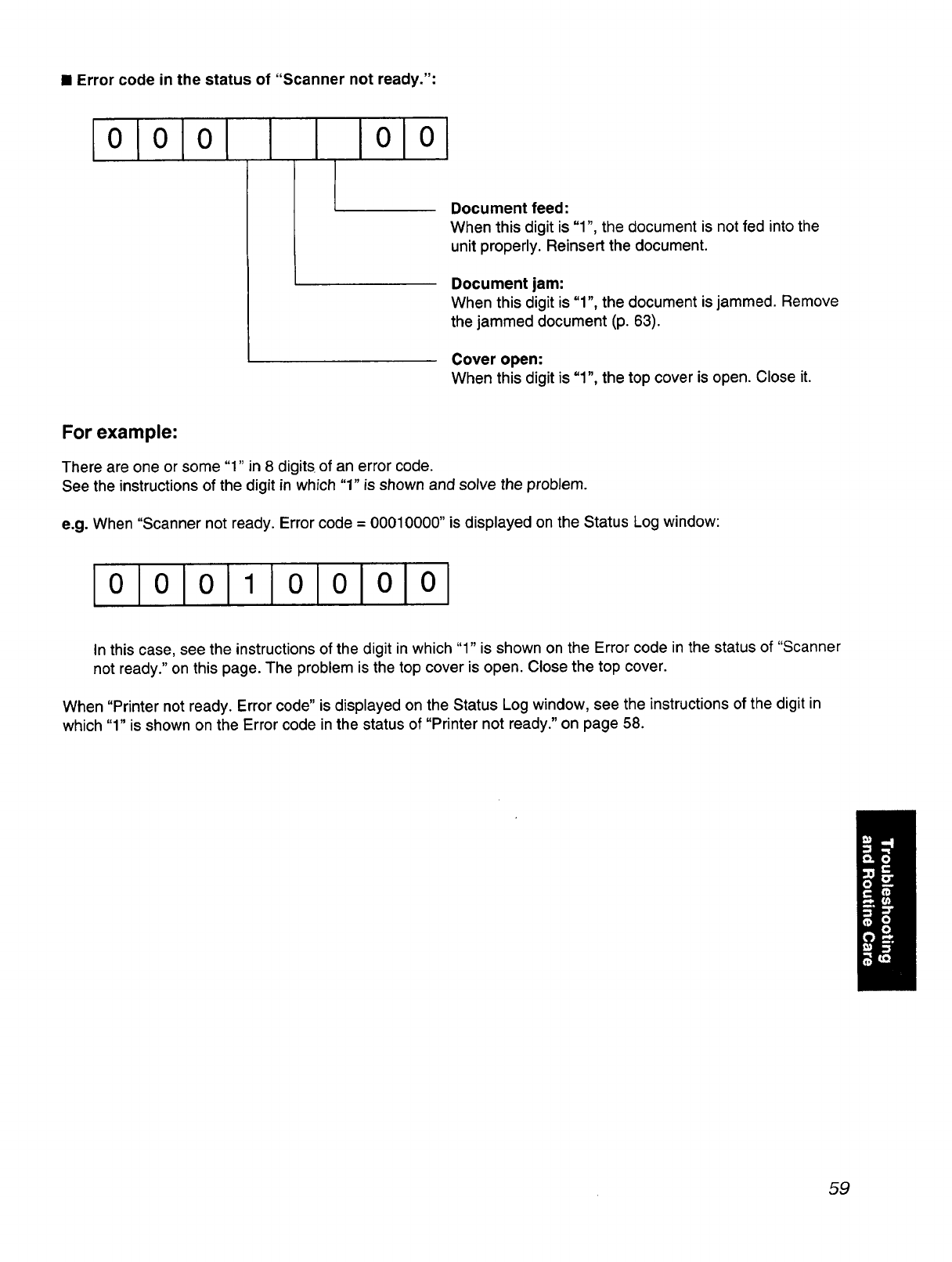
•Error code in the status of "Scanner not ready.":
IoLololI I Iolol
Document feed:
When this digit is "1", the document is not fed into the
unit properly. Reinsert the document.
Document jam:
When this digit is "1", the document is jammed. Remove
the jammed document (p. 63).
Cover open:
When this digit is "1", the top cover is open. Close it.
For example:
There are one or some "1" in 8 digits of an error code.
See the instructions of the digit in which "1" is shown and solve the problem.
e.g. When "Scanner not ready. Error code = 00010000" is displayed on the Status Log window:
IololoI Iolololoi
In this case, see the instructions of the digit in which "1" is shown on the Error code in the status of "Scanner
not ready." on this page. The problem is the top cover is open. Close the top cover.
When "Printer not ready. Error code" is displayed on the Status Log window, see the instructions of the digit in
which "1" is shown on the Error code in the status of "Printer not ready." on page 58.
59
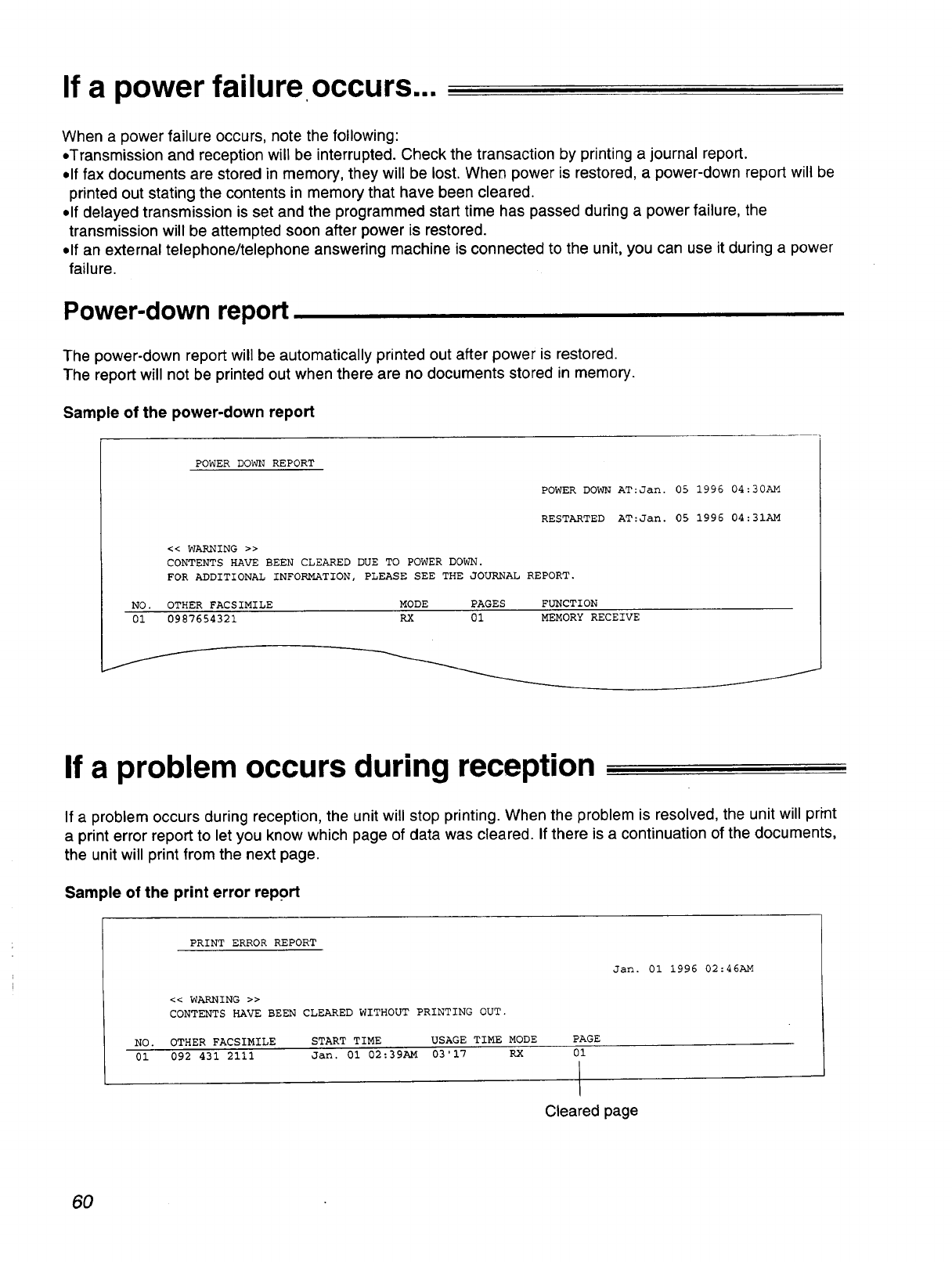
If a power failure occurs...
When a power failure occurs, note the following:
•Transmission and reception will be interrupted. Check the transaction by printing a journal report.
olf fax documents are stored in memory, they will be lost. When power is restored, a power-down report will be
printed out stating the contents in memory that have been cleared.
•If delayed transmission is set and the programmed start time has passed during a power failure, the
transmission will be attempted soon after power is restored.
olf an external telephone/telephone answering machine is connected to the unit, you can use it during a power
failure.
Power-down report
The power-down report will be automatically printed out after power is restored.
The report will not be printed out when there are no documents stored in memory.
Sample of the power-down report
POWER DOWN REPORT
POWER DOWN AT:Jan. 05 1996 04:30AM
RESTARTED AT:Jan. 05 1996 04:31AM
<< WARNING >>
CONTENTS HAVE BEEN CLEARED DUE TO POWER DOWN.
FOR ADDITIONAL INFORMATION, PLEASE SEE THE JOURNAL REPORT.
NO. OTHER FACSIMILE MODE PAGES FUNCTION
01 0987654321 RX 01 MEMORY RECEIVE
If a problem occurs during reception
If a problem occurs during reception, the unit will stop printing. When the problem is resolved, the unit will print
a print error report to let you know which page of data was cleared. If there is a continuation of the documents,
the unit will print from the next page.
Sample of the print error report
PRINT ERROR REPORT
Jan. 01 1996 02:46AM
<< WARNING >>
CONTENTS HAVE BEEN CLEARED WITHOUT PRINTING OUT.
NO. OTHER FACSIMILE START TIME USAGE TIME MODE
01 092 431 2111 Jan. 01 02:39AM 03'17 RX
PAGE
Ol
Cleared page
60
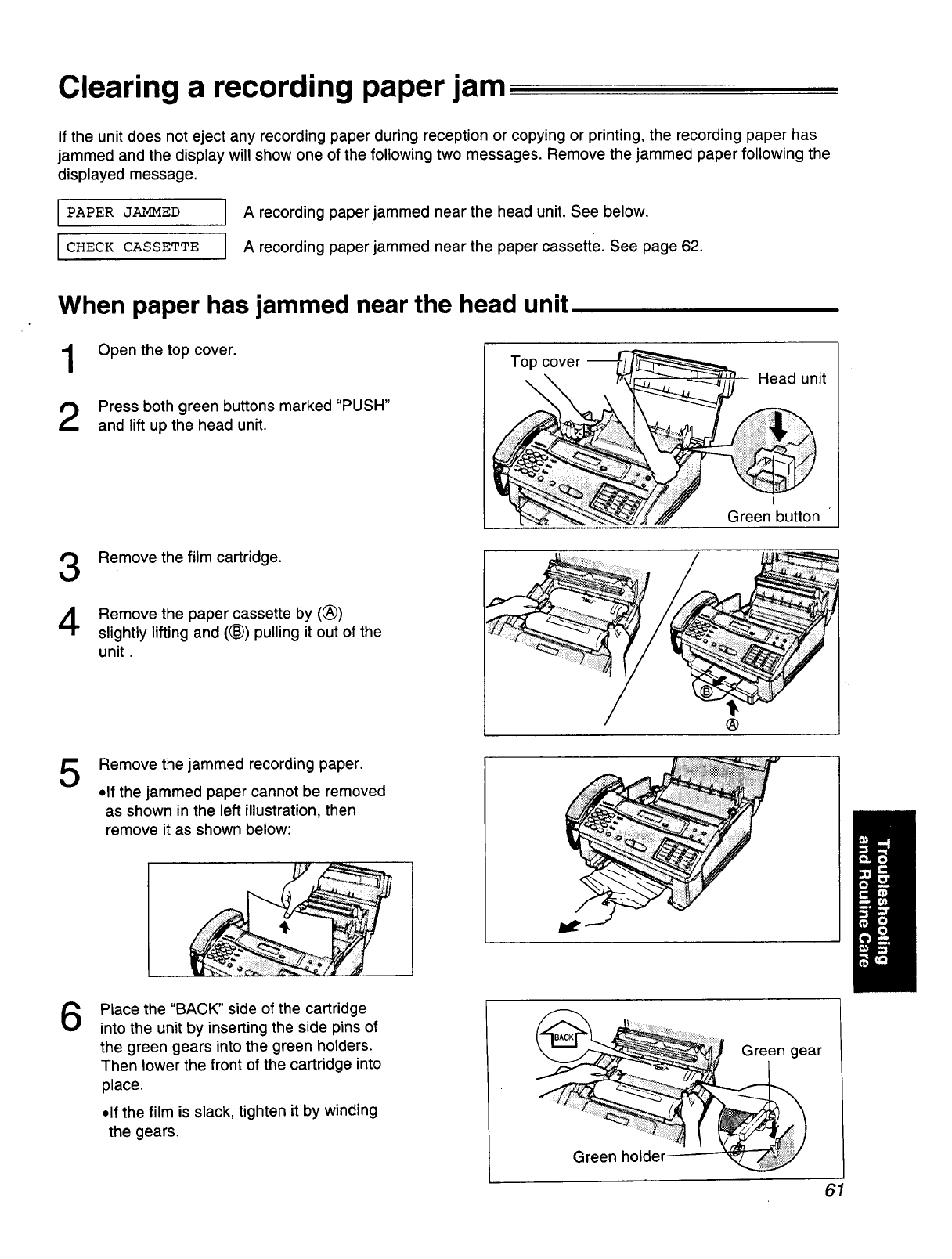
Clearing a recording paper jam
If the unit does not eject any recording paper during reception or copying or printing, the recording paper has
jammed and the display will show one of the following two messages. Remove the jammed paper following the
displayed message.
PAPER JAMMED IArecording paper jammed near the head unit. See below.
ICHECK Irecording paper jammed near paper page
CASSETTE Athe cassette.See 62.
When paper has jammed near the head unit
Open the top cover.
1
2Press both green buttons marked "PUSH"
and lift up the head unit.
Top cover-- Head unit
I
Green button
3
4
Remove the film cartridge.
Remove the paper cassette by (®)
slightly lifting and ((_) pulling it out of the
unit.
®
5Remove the jammed recording paper.
olf the jammed paper cannot be removed
as shown in the left illustration, then
remove it as shown below:
6Place the "BACK" side of the cartridge
into the unit by inserting the side pins of
the green gears into the green holders.
Then lower the front of the cartridge into
place.
• If the film is slack, tighten it by winding
the gears.
Green holder
Green gear
61
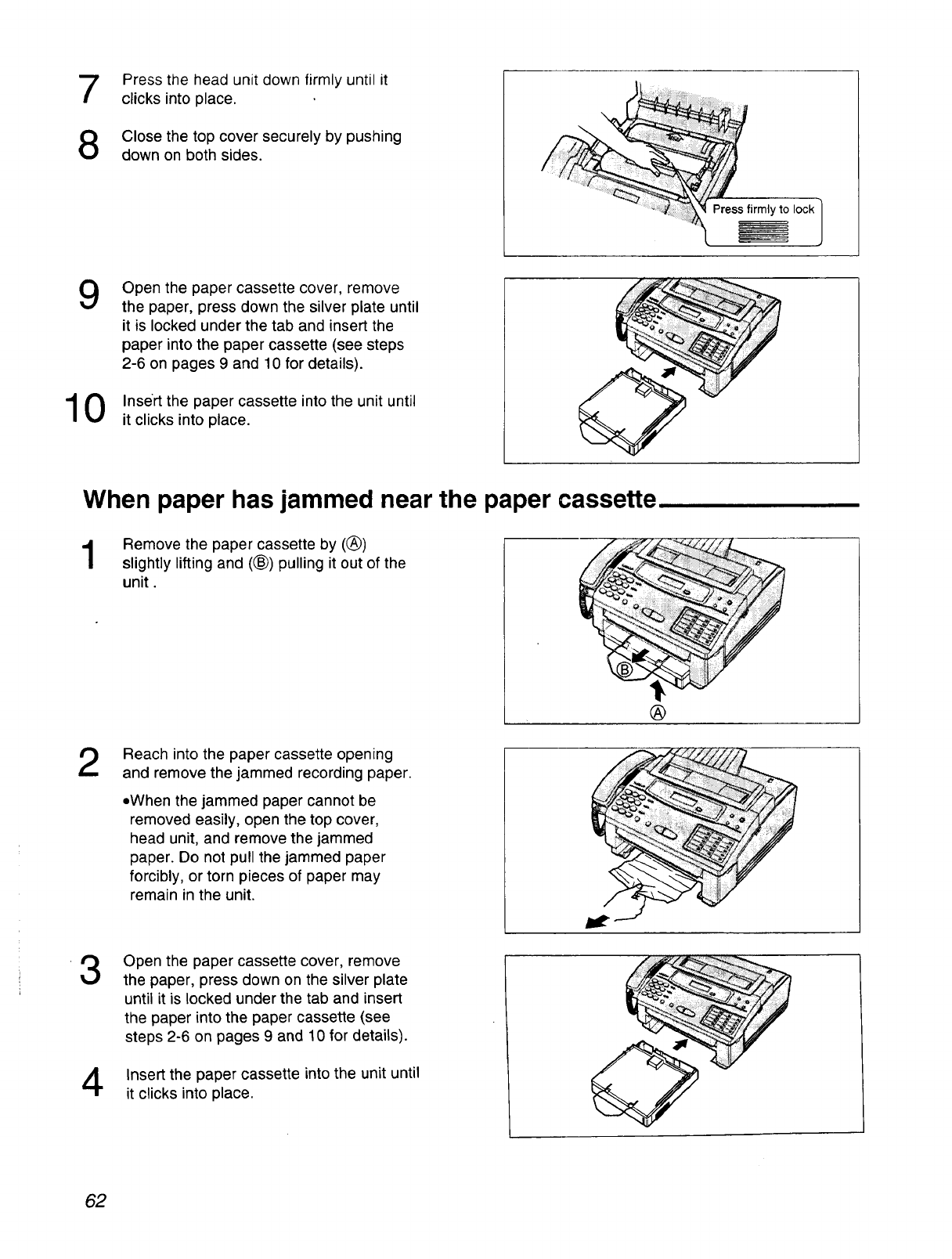
7
8
Press the head unit down firmly until it
clicks into place.
Close the top cover securely by pushing
down on both sides.
9
10
Open the paper cassette cover, remove
the paper, press down the silver plate until
it is locked under the tab and insert the
paper into the paper cassette (see steps
2-6 on pages 9 and 10 for details).
Insert the paper cassette into the unit until
it clicks into place.
When paper has jammed near the paper cassette
Remove the paper cassette by ((_))
slightly lifting and ((_) pulling it out of the
unit.
®
3
Reach into the paper cassette opening
and remove the jammed recording paper.
• When the jammed paper cannot be
removed easily, open the top cover,
head unit, and remove the jammed
paper. Do not pull the jammed paper
forcibly, or torn pieces of paper may
remain in the unit.
Open the paper cassette cover, remove
the paper, press down on the silver plate
until it is locked under the tab and insert
the paper into the paper cassette (see
steps 2-6 on pages 9 and 10 for details).
Insert the paper cassette into the unit until
it clicks into place.
62
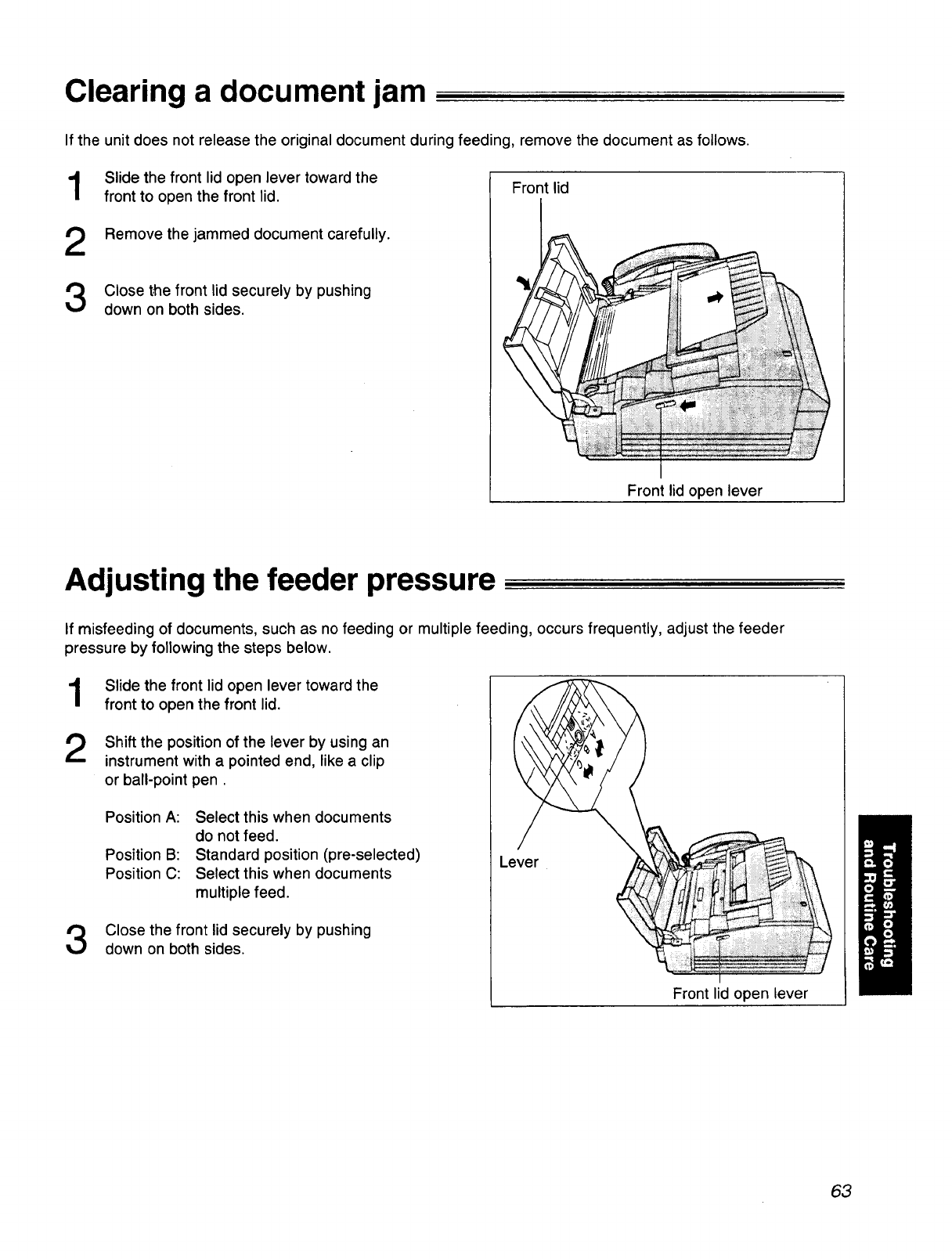
Clearing a document jam
1
2
3
If the unit does not release the original document during feeding, remove the document as follows.
Slide the front lid open lever toward the
front to open the front lid. Front lid
Remove the jammed document carefully.
Close the front lid securely by pushing
down on both sides.
Front lid open lever
Adjusting the feeder pressure
If misfeeding of documents, such as no feeding or multiple feeding, occurs frequently, adjust the feeder
pressure by following the steps below.
1
2
Slide the front lid open lever toward the
front to open the front lid.
Shift the position of the lever by using an
instrument with a pointed end, like a clip
or ball-point pen.
Position A:
Position B:
Position C:
Select this when documents
do not feed.
Standard position (pre-selected)
Select this when documents
multiple feed.
Close the front lid securely by pushing
down on both sides.
Lever
Front lid open lever
63
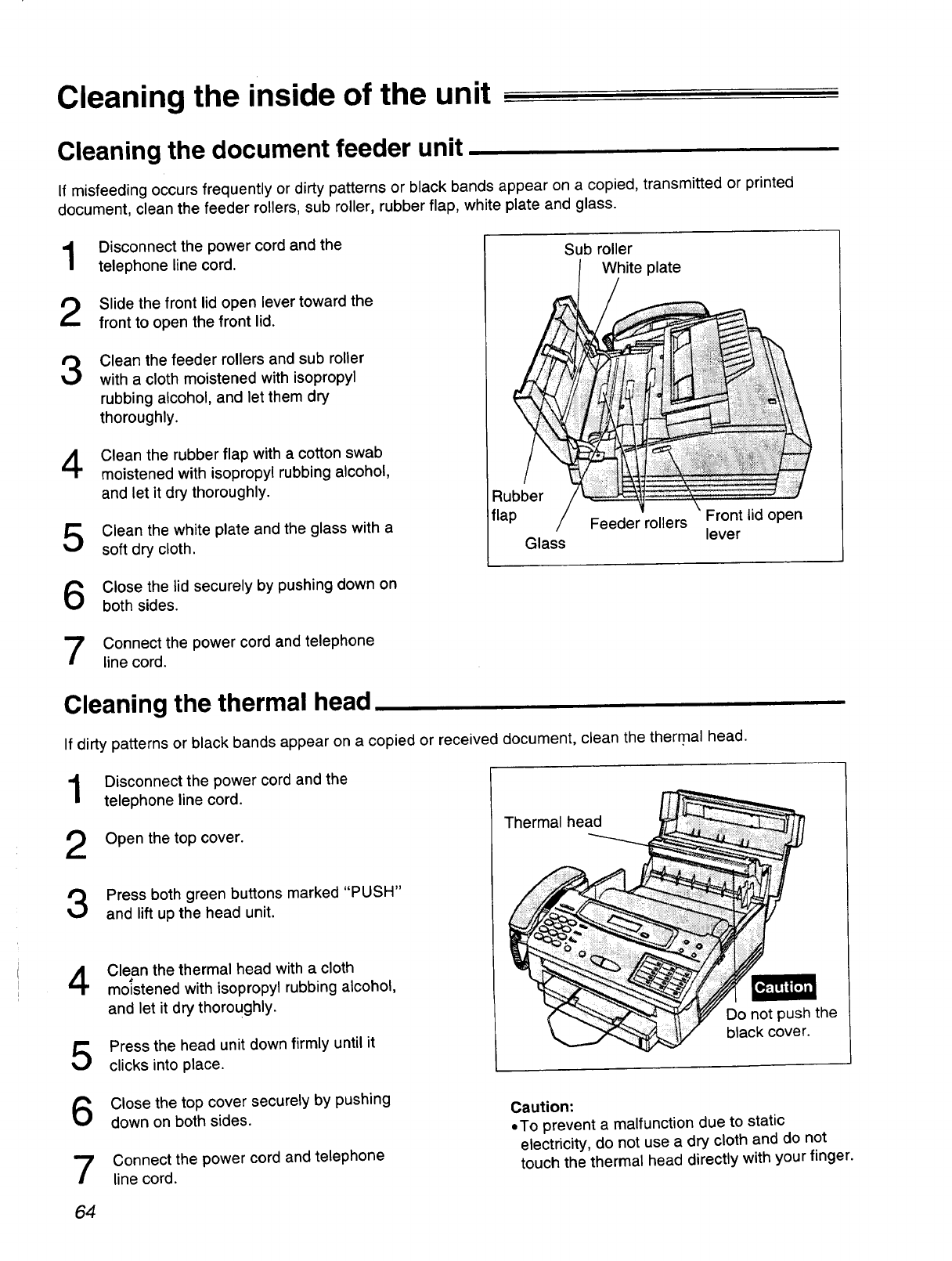
Cleaning the inside of the unit
Cleaning the document feeder unit
If misfeeding occurs frequently or dirty patterns or black bands appear on a copied, transmitted or printed
document, clean the feeder rollers, sub roller, rubber flap, white plate and glass.
1
2
3
Disconnect the power cord and the
telephone line cord.
Slide the front lid open lever toward the
front to open the front lid.
Clean the feeder rollers and sub roller
with a cloth moistened with isopropyl
rubbing alcohol, and let them dry
thoroughly.
Clean the rubber flap with acotton swab
moistened with isopropyl rubbing alcohol,
and let it dry thoroughly.
Clean the white plate and the glass with a
soft dry cloth.
Rubber
flap /
Glass
Sub roller
White plate
lever
Close the lid securely by pushing down on
both sides.
Connect the power cord and telephone
line cord.
Cleaning the thermal head
If dirty patterns or black bands appear on a copied or received document, clean the thermal head.
1
2
3
Disconnect the power cord and the
telephone line cord.
Open the top cover.
Press both green buttons marked "PUSH"
and lift up the head unit.
Clean the thermal head with a cloth
moistened with isopropyl rubbing alcohol,
and let it dry thoroughly.
Press the head unit down firmly until it
clicks into place.
Thermalhead
Do not push the
black cover.
6
7
Close the top cover securely by pushing
down on both sides.
Connect the power cord and telephone
line cord.
Caution:
=To prevent a malfunction due to static
electricity, do not use a dry cloth and do not
touch the thermal head directly with your finger.
64
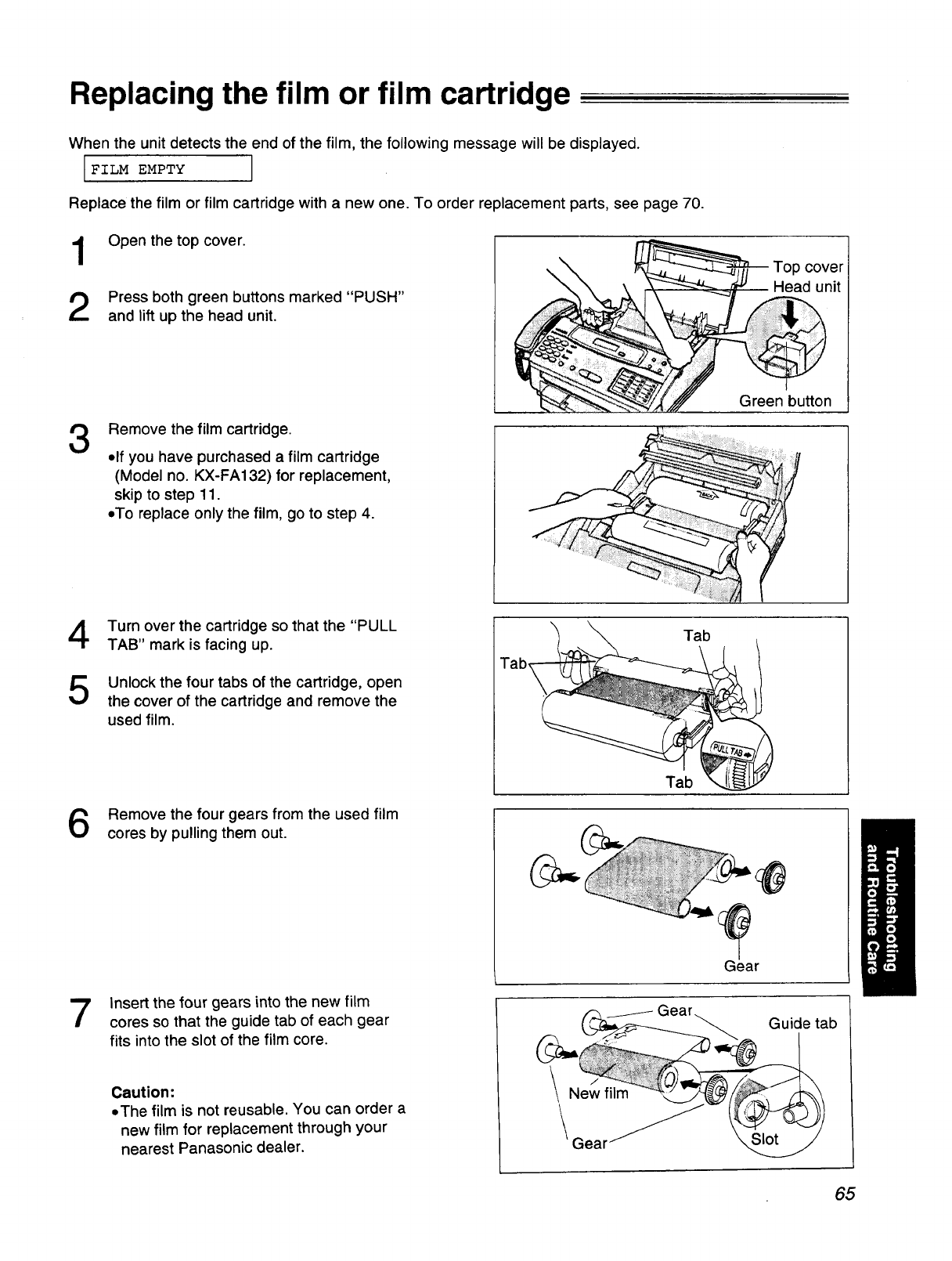
Replacing the film or film cartridge
When the unit detects the end of the film, the following message will be displayed.
IFILM EMPTY
Replace the film or film cartridge with a new one. To order replacement parts, see page 70.
1
2
Open the top cover.
Press both green buttons marked "PUSH"
and lift up the head unit.
Top cover
Head unit
3Remove the film cartridge.
elf you have purchased a film cartridge
(Model no. KX-FA132) for replacement,
skip to step 11.
•To replace only the film, go to step 4.
Green button
4
5
Turn over the cartridge so that the "PULL
TAB" mark is facing up.
Unlock the four tabs of the cartridge, open
the cover of the cartridge and remove the
used film.
Remove the four gears from the used film
cores by pulling them out.
Insert the four gears into the new film
cores so that the guide tab of each gear
fits into the slot of the film core.
Caution:
•The film is not reusable. You can order a
new film for replacement through your
nearest Panasonic dealer.
Tab
Tab
Gear
New film
tGear_
Guide tab
65
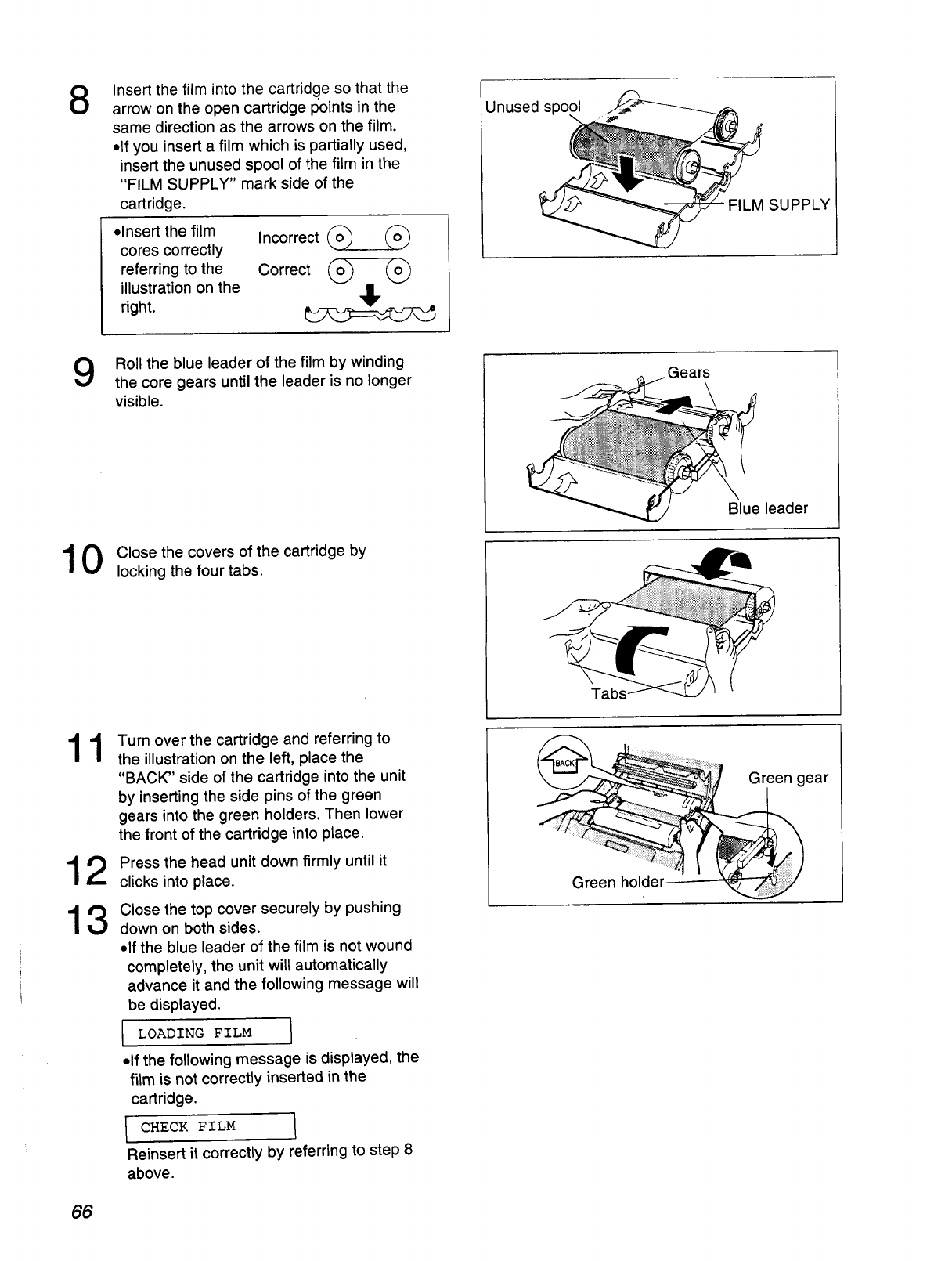
8Insert the film into the cartridg.e so that the
arrow on the open cartridge points in the
same direction as the arrows on the film.
•If you insert a film which is partially used,
insert the unused spool of the film in the
"FILM SUPPLY" mark side of the
cartridge.
.Insert the film Incorrect _
cores correctly
referring to the Correct _
illustration on the II
right.
Unused s
-- FILM SUPPLY
10
Roll the blue leader of the film by winding
the core gears until the leader is no longer
visible.
11
12
13
Close the covers of the cartridge by
locking the four tabs.
Turn over the cartridge and referring to
the illustration on the left, place the
"BACK" side of the cartridge into the unit
by inserting the side pins of the green
gears into the green holders. Then lower
the front of the cartridge into place.
Press the head unit down firmly until it
clicks into place.
Close the top cover securely by pushing
down on both sides.
•If the blue leader of the film is not wound
completely, the unit will automatically
advance it and the following message will
be displayed.
1 LOADING FILM I
• If the following message is displayed, the
film is not correctly inserted in the
cartridge.
I CHECK FILM 1
Reinsert it correctly by referring to step 8
above.
Gears
Blue leader
Tabs
Green gear
Green holder
66
FCC information
If required by the telephone company, inform them
of the following.
oFCC Registration No. :
(found on the rear side of the unit)
oRinger Equivalence No.:
(found on the rear side of the unit)
oThe particular telephone line to which the
equipment is connected.
This unit must not be connected to a coin operated
line. If you are on a party line, check with your
local telephone company.
Ringer Equivalence Number (REN):
This REN is useful in determining the quantity of
devices you may connect to your telephone line
and still have all of those devices ring when your
telephone number is called. In most but not all
areas, the sum of the REN's of all devices
connected to one line should not exceed five (5.0).
To be certain of the number of devices you may
connect to your line, as determined by the REN,
you should contact your local telephone company
to determine the maximum REN for your calling
area.
In the event that terminal equipment causes harm
to the telephone network, the telephone company
should notify the customer, if possible, that service
may be stopped. However, where prior notice is
impractical, the company may temporarily cease
service providing that they:
a) Promptly notify the customer.
b) Give the customer an opportunity to correct the
problem with their equipment.
c) Inform the customer of the right to bring a
complaint to the Federal Communication
Commission pursuant to procedures set out in
FCC Rules and Regulations Subpart E of Part
68.
The Telephone Company may make changes in its
communications facilities, equipment operations, or
procedures where such action is reasonably
required in the operation of its business and is not
inconsistent with the rules and regulations in FCC
Part 68. If such changes can be reasonably
expected to render any customer terminal
equipment incompatible with telephone company
communications facilities, or require modification or
alteration of such terminal equipment, or otherwise
materially affect its use or performance, the
customer shall be given adequate notice in writing,
to allow the customer an opportunity to maintain
uninterrupted service.
CAUTION:
Any changes or modifications not expressly
approved by the party responsible for compliance
could void the user's authority to operate this device.
When programming emergency numbers and/or
making test calls to emergency numbers:
1. Remain on the line and briefly explain to the
dispatcher the reason for the call before
hanging up.
2. Perform such activities in the off-peak hours;
such as early morning or late evenings.
This telephone provides magnetic coupling to
hearing aids.
NOTE:
This equipment has been tested and found to
comply with the limits for a Class B digital device,
pursuant to Part 15 of the FCC Rules. These limits
are designed to provide reasonable protection
against harmful interference in a residential
installation. This equipment generates, uses, and
can radiate radio frequency energy and, if not
installed and used in accordance with the
instructions, may cause harmful interference to
radio communications. However, there is no
guarantee that interference will not occur in a
particular installation. If this equipment does cause
harmful interference to radio or television
reception, which can be determined by turning the
equipment off and on, the user is encouraged to try
to correct the interference by one or more of the
following measures:
m Reorient or relocate the receiving antenna.
mlncrease the separation between the equipment
and receiver.
--Connect the equipment into an outlet on a circuit
different from that to which the receiver is
connected.
--Consult the dealer or an experienced radio/-FV
technician for help.
67
Matsushita Consumer Electronics Company,
Division of Matsushita Electric Corporation of America
One PanasonicWay, Secaucus,
New Jersey07094
Panasonic Sales Company ("PSC")
Division of Matsushita Electric of
Puerto Rico, Inc.
Ave. 65 de Infanterfa, Km. 9.5, San Gabriel
Industrial Park, Carolina, Puerto Rico 00985
\
PANASONIC
Facsimile Products
Limited Warranty
Matsushita Consumer Electronics Company or Panasonic Sales Company (collectively referred to as
"the warrantor") will repair this product with new or refurbished parts, free of charge, in the USA or
Puerto Rico for one (1) year from the date of original purchase in the event of a defect in materials or
workmanship.
Batteries (when applicable)--New rechargeable batteries in exchange for defective rechargeable
batteries for ten (10) days from the date of original purchase. Non-rechargeable batteries are not
warranted.
Carry-in or mail-in service in the USA or Puerto Rico can be obtained during the warranty period by
contacting a Matsushita Services Company (MSC) Factory Servicenter listed in the Servicenter
Directory. Or call, toll free, 1-800-HELP FAX (1-800-435-7329) to locate a MSC Factory Servicenter.
Carry-in or mail-in service in Puerto Rico can be obtained during the warranty period by calling the
local telephone number in the Servicenter Directory.
This warranty is extended only to the original purchaser. A purchase receipt or other proof of date of
original purchase will be required before warranty service is rendered.
This warranty only covers failures due to defects in materials and workmanship which occur during
normal use and (when applicable) does not cover the print and ink cartridge, the toner cartridge and
drum unit or the film cartridge. The warranty does not cover damages which occurred in shipment, or
failures which are caused by products not supplied by the warrantor, or failures which result from
accident, misuse, abuse, neglect, mishandling, faulty installation, misapplication, set-up adjustments,
improper operation or maintenance, alteration, modification, line power surge, improper voltage
supply, lightning damage, signal reception problems, commercial use such as hotel, office, restaurant,
or other business or rental use of product, or serviced by anyone other than a MSC Factory
Servicenter or a MSC authorized Servicenter, or damage that is attributable to acts of God.
LIMITS AND EXCLUSIONS
There are no express warranties except as listed above.
THE WARRANTOR SHALL NOT BE LIABLE FOR INCIDENTAL OR CONSEQUENTIAL DAMAGES
RESULTING FROM THE USE OF THIS PRODUCT, OR ARISING OUT OF ANY BREACH OF THIS
WARRANTY. ALL EXPRESS AND IMPLIED WARRANTIES, INCLUDING THE WARRANTIES OF
MERCHANTABILITY, ARE LIMITED TO THE APPLICABLE WARRANTY PERIOD SET FORTH
ABOVE.
Some states do not allow the exclusion or limitation of incidental or consequential damages, or
limitations on how long an implied warranty lasts, so the above exclusions or limitations may not apply
to you.
This warranty gives you specific legal rights and you may also have other rights which vary from state
to state. If a problem with this product develops during or after the warranty period, you may contact
your dearer or Servicenter. If the problem is not handled to your satisfaction, then write to the
Customer Satisfaction Center at the company address indicated above.
68
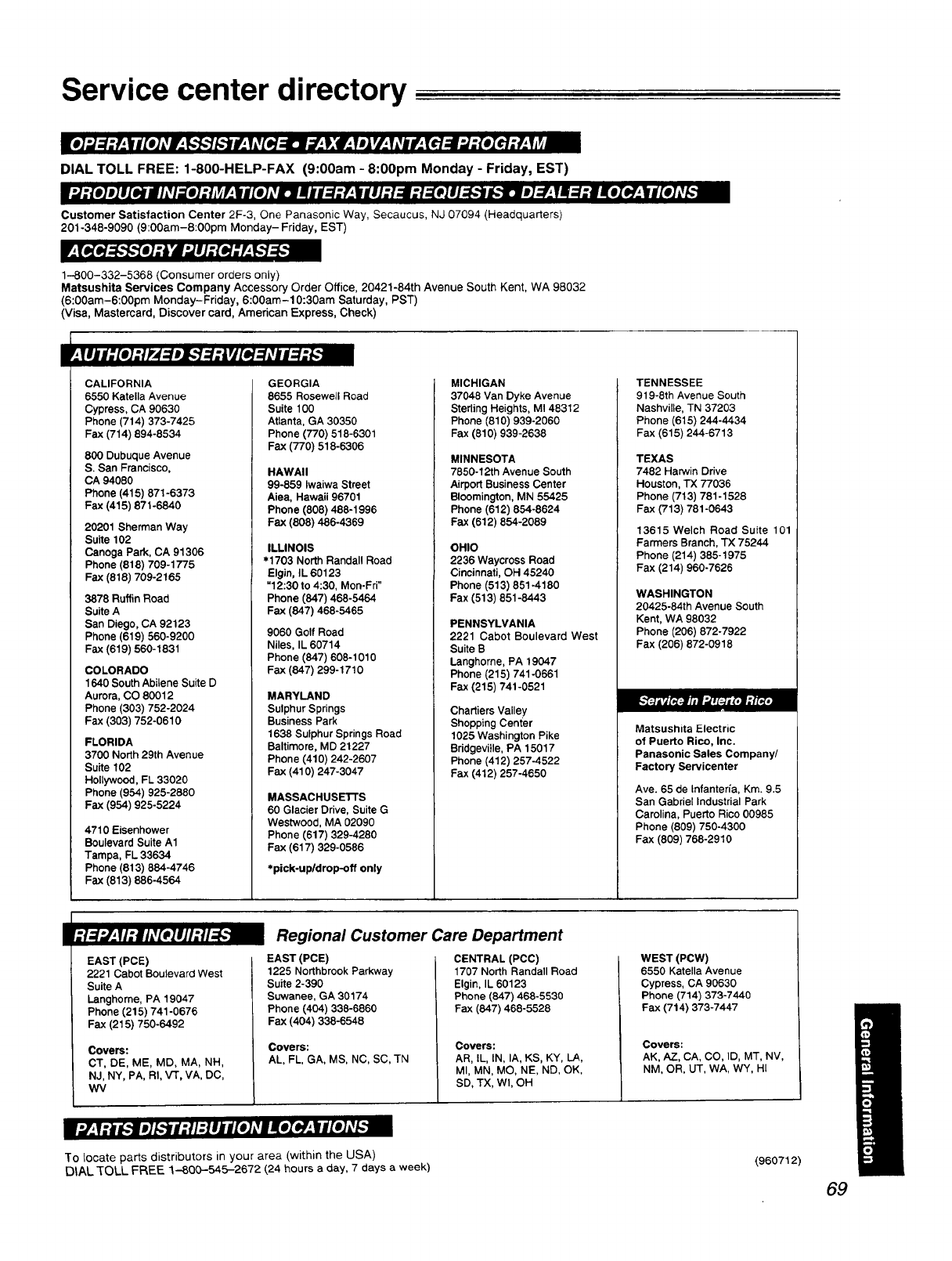
Service center directory
DIAL TOLL FREE: 1-800-HELP-FAX (9:00am -8:00pm Monday -Friday, EST)
Customer Satisfaction Center 2F-3, One Panasonic Way, Secaucus, NJ 07094 (Headquarters)
201-348-9090 (9:00am-8:00pm Monday-Friday, EST)
1-800-332-5368 (Consumer orders only)
Matsushita Services Company Accessory Order Office, 20421-84th Avenue South Kent, WA 98032
(6:00am-6:00pm Monday-Friday, 6:00am-10:30am Saturday, PST)
(Visa, Mastercard, Discover card, American Express, Check)
I
CALIFORNIA
6550 Katella Avenue
Cypress, CA 90630
Phone (714) 373-7425
Fax (714) 894-8534
800 Dubuque Avenue
S. San Francisco,
CA 94080
Phone (415) 871-6373
Fax (415) 871-6840
20201 Sherman Way
Suite 102
Canoga Park, CA 91306
Phone (818) 709-1775
Fax (818) 709-2165
3878 Ruffin Road
Suite A
San Diego, CA 92123
Phone (619) 560-9200
Fax (619) 560-1831
COLORADO
1640 South Abilene Suite D
Aurora, CO 80012
Phone (303) 752-2024
Fax (303) 752-0610
FLORIDA
3700 North 29th Avenue
Suite 102
Hollywood, FL 33020
Phone (954) 925-2880
Fax (954) 925-5224
4710 Eisenhower
Boulevard Suite A1
Tampa, FL 33634
Phone (813) 884-4746
Fax (813) 886-4564
GEORGIA
8655 Rosewell Road
Suite 100
Atlanta, GA 30350
Phone (770) 518-6301
Fax (770) 518-6306
HAWAII
99-859 Iwaiwa Street
Aiea, Hawaii 96701
Phone (808) 488-1996
Fax (808) 486-4369
ILLINOIS
• 1703 North Randall Road
Elgin, IL 60123
"12:30 to 4:30, Mon-Fri"
Phone (847) 468-5464
Fax (847) 468-5465
9060 Golf Road
Niles, IL 60714
Phone (847) 608-1010
Fax (647) 299-1710
MARYLAND
Sulphur Springs
Business Park
1638 Sulphur Springs Road
Baltimore, MD 21227
Phone (410) 242-2607
Fax (410) 247-3047
MASSACHUSETFS
60 Glacier Drive, Suite G
Westwood, MA 02090
Phone (617) 329-4280
Fax (617) 329-0586
*pick-upldrop-off only
MICHIGAN
37048 Van Dyke Avenue
Sterling Heights, MI 48312
Phone (810) 939-2060
Fax (810) 939-2638
MINNESOTA
7850-12th Avenue South
Airport Business Center
Bloomington, MN 55425
Phone (612) 854-8624
Fax (612) 864-2089
OHIO
2236 Waycross Road
Cincinnati, OH 45240
Phone (513) 851-4180
Fax (513) 851-8443
PENNSYLVANIA
2221 Cabot Boulevard West
Suite B
Langhorne, PA 19047
Phone (215) 741-0661
Fax (215) 741-0521
Chartiers Valley
Shopping Center
1025 Washington Pike
Bddgevitle, PA 15017
Phone (412) 257-4522
Fax (412) 257-4650
TENNESSEE
919-8th Avenue South
Nashville, TN 37203
Phone (615) 244-4434
Fax (615) 244-6713
TEXAS
7482 Harwin Drive
Houston, TX 77036
Phone (713) 781-1528
Fax (713) 781-0643
13615 Welch Road Suite 101
Farmers Branch, TX 75244
Phone (214) 385-1975
Fax (214) 960-7626
WASHINGTON
20425-84th Avenue South
Kent, WA 98032
Phone (206) 872-7922
Fax (206) 872-0918
Matsushita Electric
of Puerto Rico, Inc.
Panasonic Sales Company/
Factory Servicenter
Ave. 65 de Infantefia, Kin. 9.5
San Gabriel Industrial Park
Carolina, Puerto Rico 00985
Phone (809) 750-4300
Fax (809) 768-2910
I
EAST (PCE)
2221 Cabot Boulevard West
Suite A
Langhome, PA 19047
Phone (215) 741-0676
Fax (215) 750-6492
Covers:
CT, DE, ME, MD, MA, NH,
NJ, NY, PA, RI, VT, VA, DC,
WV
Regional Customer Care Department
EAST (PCE)
1225 Northbrook Parkway
Suite 2-390
Suwanee, GA 30174
Phone (404) 338-6860
Fax (404) 338-6648
Covers:
AL, FL, GA, MS, NC, SC, TN
CENTRAL (PCC)
1707 North Randall Road
Elgin, IL 60123
Phone (847) 468-5530
Fax (647) 468-5528
Covers:
AR, IL, IN, IA, KS, KY, LA,
MI, MN, MO, NE, ND, OK,
SD, TX, Wl, OH
WEST (PCW)
6550 Katella Avenue
Cypress, CA 90630
Phone (714) 373-7440
Fax (714) 373-7447
Covers:
AK, AZ, CA, CO, ID, MT, NV,
NM, OR, UT, WA, W¥, HI
To locate parts distributors in your area (within the USA)
DIAL'[OLL FREE 1-800-545-2672 (24 hours a day, 7 days a week) (960712)
69
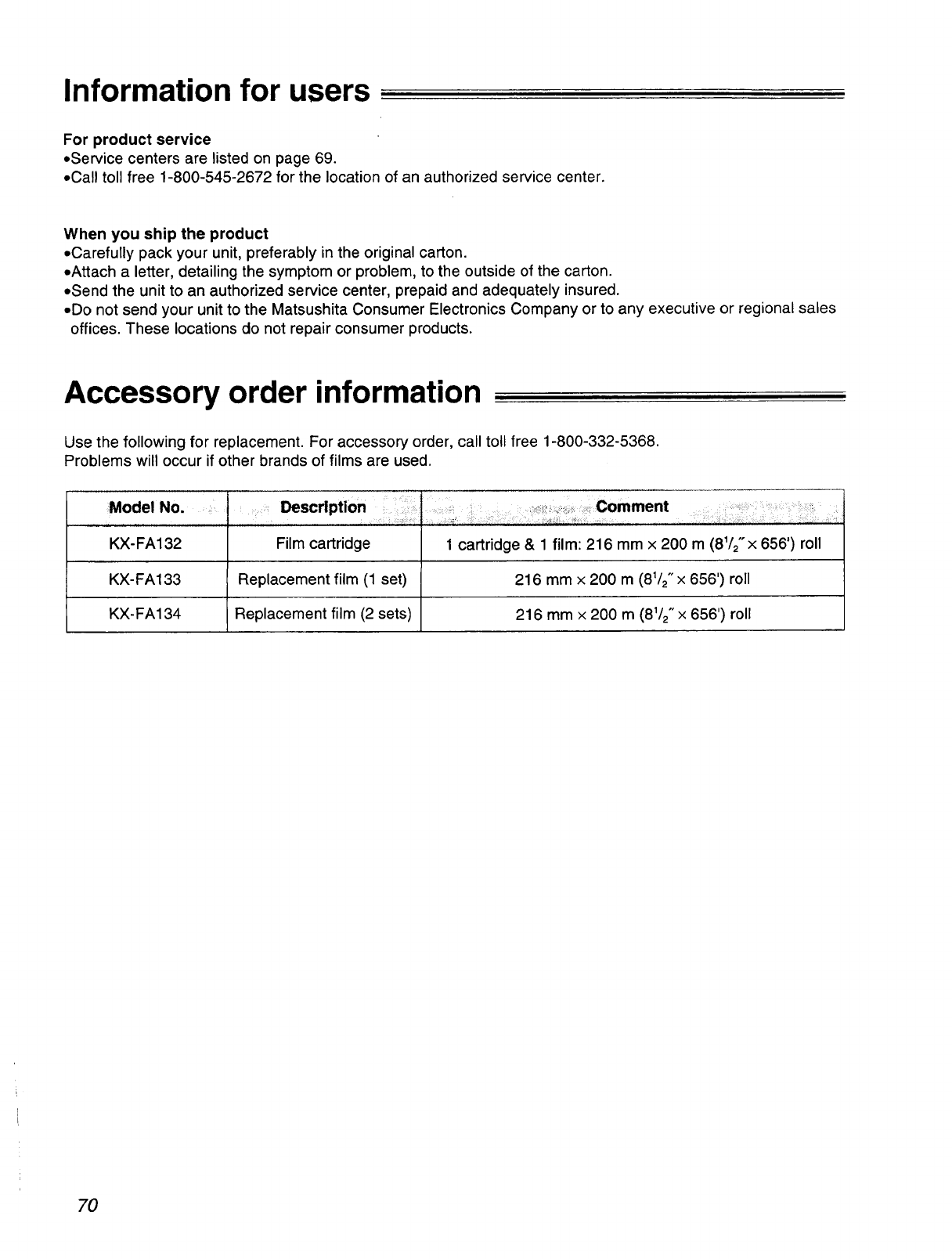
Information for users
For product service
oService centers are listed on page 69.
*Call toll free 1-800-545-2672 for the location of an authorized service center.
When you ship the product
=Carefully pack your unit, preferably in the original carton.
=Attach a letter, detailing the symptom or problem, to the outside of the carton.
=Send the unit to an authorized service center, prepaid and adequately insured.
• Do not send your unit to the Matsushita Consumer Electronics Company or to any executive or regional sales
offices. These locations do not repair consumer products.
Accessory order information
Use the following for replacement. For accessory order, call toll free 1-800-332-5368.
Problems will occur if other brands of films are used.
Model No.
KX- FA132
KX- FA133
KX- FA 134
Description IComment
Film cartridge 1 cartridge & 1 film: 216 mm x 200 m(81/2"x 656') roll
Replacement film (1 set) 216 mmx 200 m(81/2,,x656') roll
Replacement film (2 sets) 216 mmx 200 m(81/2" x 656') roll
70
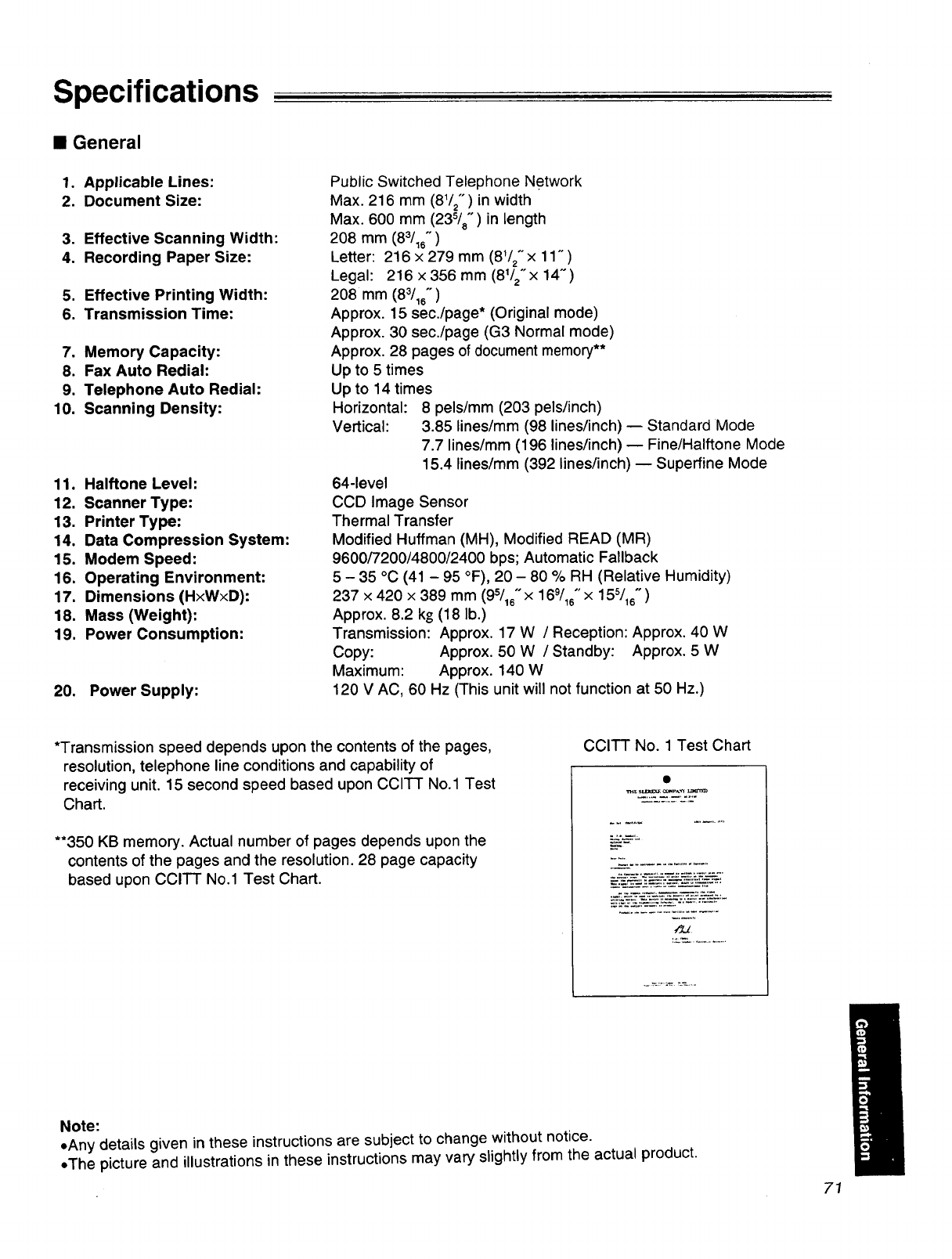
Specifications
•General
1. Applicable Lines:
2. Document Size:
3. Effective Scanning Width:
4. Recording Paper Size:
5. Effective Printing Width:
6. Transmission Time:
7. Memory Capacity:
8. Fax Auto Rediah
9. Telephone Auto Redial-
10. Scanning Density:
11. Halftone Level:
12. Scanner Type:
13. Printer Type:
14. Data Compression System:
15. Modem Speed:
16. Operating Environment:
17. Dimensions (H×W×D):
18. Mass (Weight):
19. Power Consumption:
20. Power Supply:
Public Switched Telephone Network
Max. 216 mm (81/2") in width
Max. 600 mm (23s/8" ) in length
208 mm (83/16")
Letter: 216 × 279 mm (81/2" x 11" )
Legal: 216 x 356 mm (81/2"x 14")
208 mm (83/16")
Approx. 15 sec./page* (Original mode)
Approx. 30 sec./page (G3 Normal mode)
Approx. 28 pages of document memory**
Up to 5 times
Up to 14 times
Horizontal: 8 pels/mm (203 pels/inch)
Vertical: 3.85 lines/mm (98 lines/inch) -- Standard Mode
7.7 lines/mm (196 lines/inch) -- Fine/Halftone Mode
15.4 lines/mm (392 lines/inch) -- Superfine Mode
64-level
CCD Image Sensor
Thermal Transfer
Modified Huffman (MH), Modified READ (MR)
9600/7200/4800/2400 bps; Automatic Fallback
5 - 35 °C (41 - 95 °F), 20 - 80 % RH (Relative Humidity)
237 x 420 x 389 mm (95/16"x 169/16"x15s/16")
Approx. 8.2 kg (18 lb.)
Transmission: Approx. 17 W /Reception: Approx. 40 W
Copy: Approx. 50 W /Standby: Approx. 5 W
Maximum: Approx. 140 W
120 V AC, 60 Hz (This unit will not function at 50 Hz.)
*Transmission speed depends upon the contents of the pages,
resolution, telephone line conditions and capability of
receiving unit. 15 second speed based upon CCITT No.1 Test
Chart.
**350 KB memory. Actual number of pages depends upon the
contents of the pages and the resolution. 28 page capacity
based upon CCITT No.1 Test Chart.
CCITT No. 1 Test Chart
Note:
eAny details given in these instructions are subject to change without notice.
eThe picture and illustrations in these instructions may vary slightly from the actual product.
71
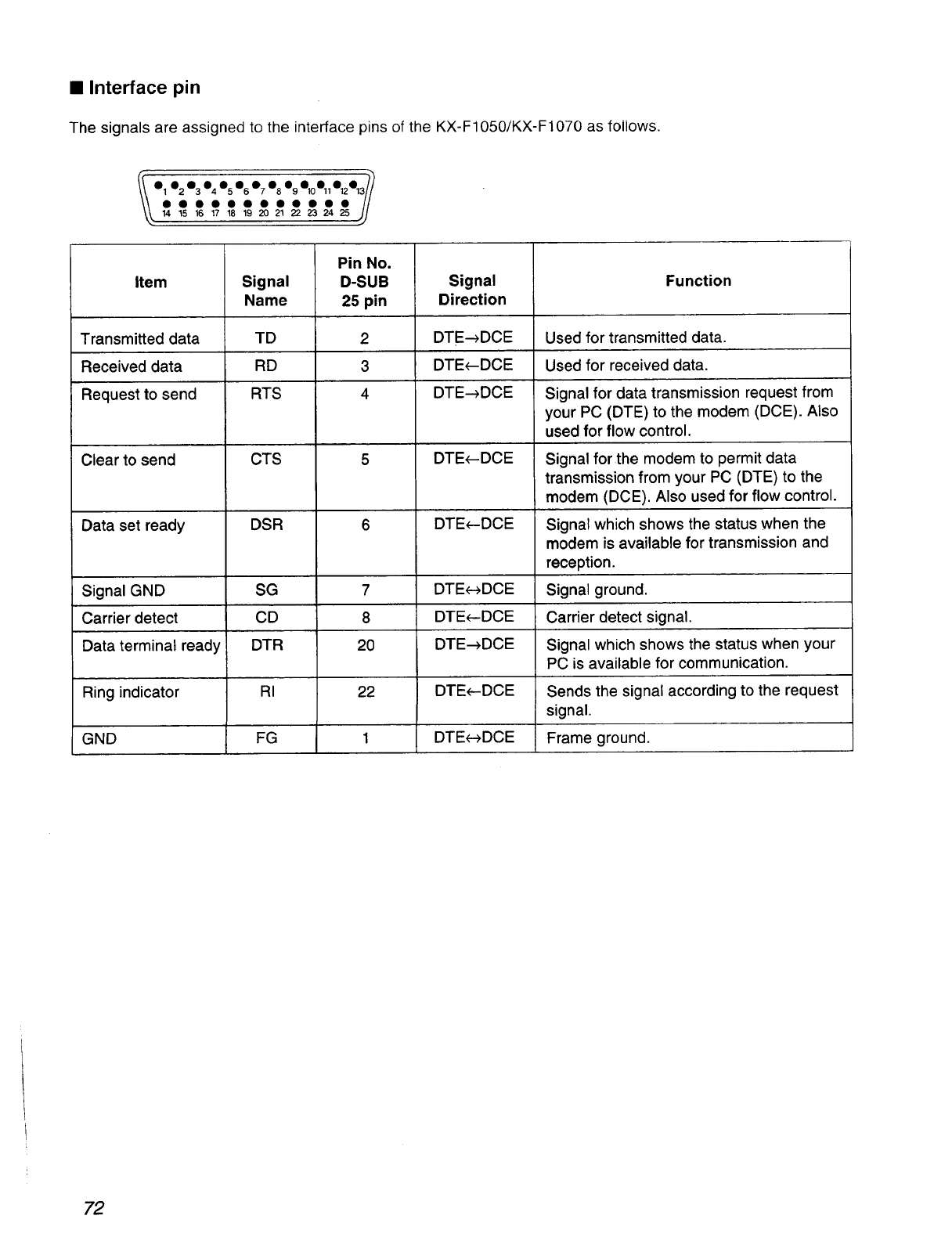
•Interface pin
The signals are assigned to the interface pins of the KX-F1050/K×-F1070 as follows.
o_•2o_o_o_%o_•8%o10o,,%%/_
O O O O O • • • • •• • //
14 15 16 17 18 19 20 21 22 23 24 25 //
s)
Item
Transmitted data
Received data
Request to send
Clear to send
Data set ready
Signal GND
Carrier detect
Data terminal ready
Ring indicator
GND
Signal
Name
TD
RD
RTS
CTS
DSR
SG
CD
DTR
RI
FG
Pin No.
D-SUB
25 pin
2
3
4
7
8
20
22
Signal
Direction
DTE_DCE
DTE_-DCE
DTE_DCE
DTE_DCE
DTE_DCE
DTE_--_DCE
DTE_DCE
DTE_DCE
DTE_DCE
DTEe-_DCE
Function
Used for transmitted data.
Used for received data.
Signal for data transmission request from
your PC (DTE) to the modem (DCE). Also
used for flow control.
Signal for the modem to permit data
transmission from your PC (D'I-E) to the
modem (DCE). Also used for flow control.
Signal which shows the status when the
modem is available for transmission and
reception.
Signal ground.
Carrier detect signal.
Signal which shows the status when your
PC is available for communication.
Sends the signal according to the request
signal.
Frame ground.
72
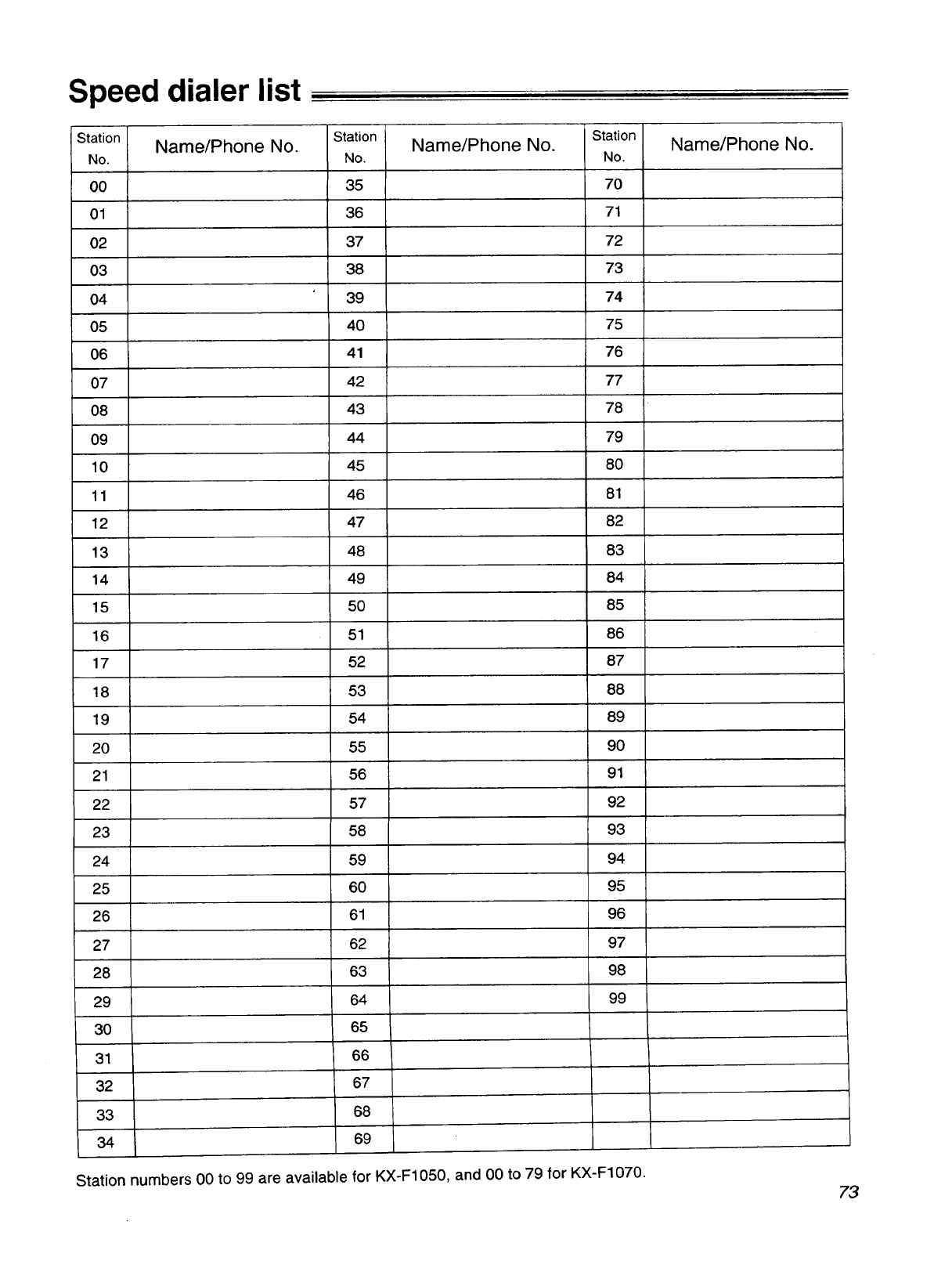
Speed dialer list
Station Name/Phone No. Station Name/Phone No. Station
No. No. No.
00 35 70
01 36 71
02 37 72
03 38 73
04 39 74
05 40 75
06 41 76
07 42 77
08 43 78
09 44 79
10 45 80
11 46 81
12 47 82
13 48 83
14 49 84
15 50 85
16 51 86
17 52 87
18 53 88
19 54 89
20 55 9O
21 56 91
22 57 92
23 58 93
24 59 94
25 60 95
26 61 96
27 62 97
28 63 98
29 64 99
30 65
31 66
32 67
33 68
34 69
Name/Phone No.
Station numbers 00 to 99 are available for KX-F1050, and 00 to 79 for KX-F1070. 73
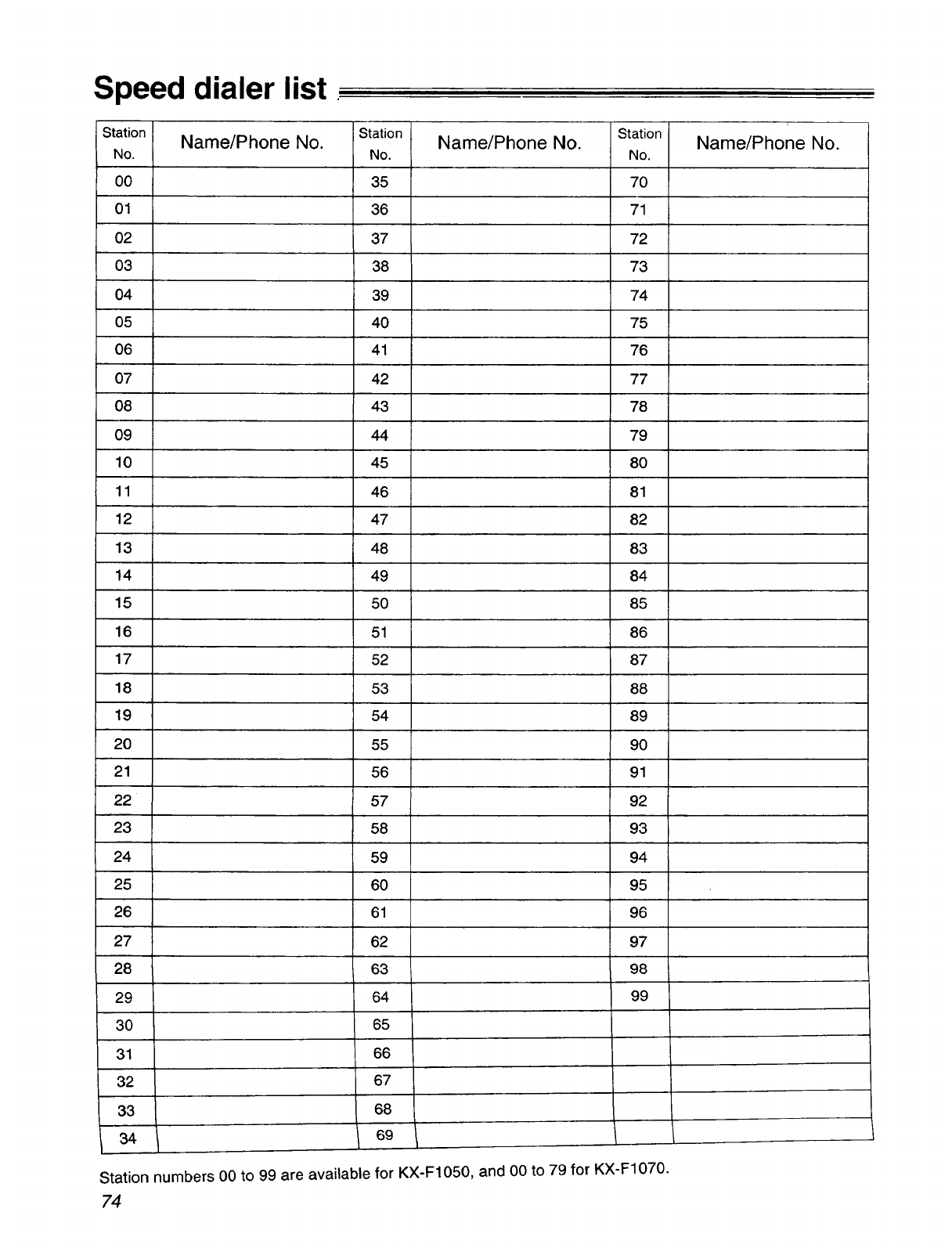
Speed dialer list.
Station Station
Name/Phone No.
No. No.
00 35
01 36
02 37
03 38
04 39
05 40
06 41
07 42
08 43
09 44
10 45
11 46
12 47
13 48
14 49
15 50
16 51
17 52
18 53
19 54
20 55
21 56
22 57
23 58
24 59
25 60
26 61
27 62
28 63
29 64
3O 65
31 66
32 67
33 68
34 69
Station numbers 00 to 99 are available for
74
Name/Phone No. Station
No.
70
71
72
73
-74
75
76
77
78
79
80
81
82
83
84
85
86
87
88
89
90
91
92
93
94
95
96
97
98
99
KX-F1050, and 00 to 79 for KX-F1070.
Name/Phone No.
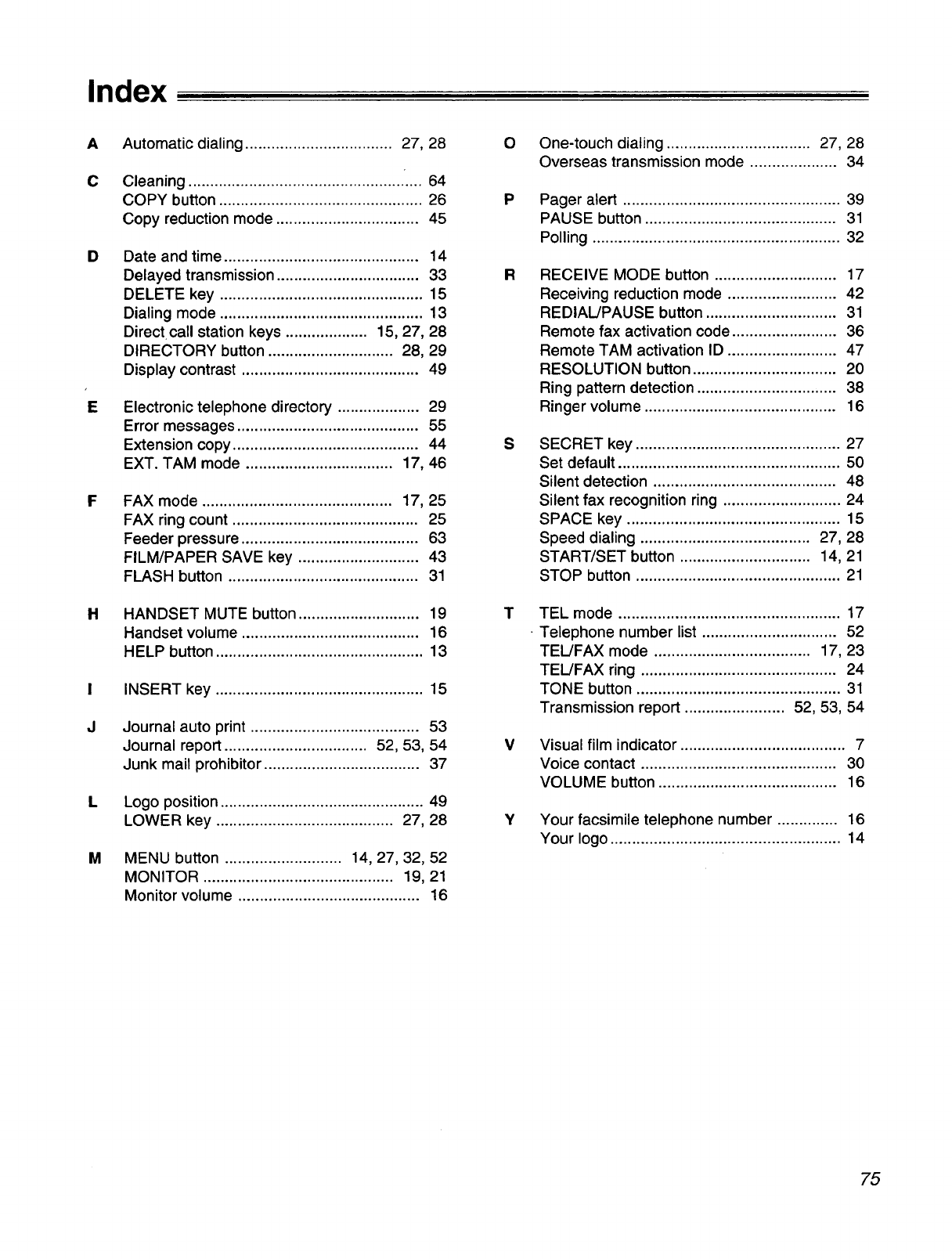
Index
AAutomatic dialing .................................. 27, 28
CCleaning .................................................. ".... 64
COPY button ............................................... 26
Copy reduction mode ................................. 45
D
E
F
H
I
J
L
M
Date and time ............................................. 14
Delayed transmission ................................. 33
DELETE key ............................................... 15
Dialing mode ............................................... 13
Direct call station keys ................... 15, 27, 28
DIRECTORY button ............................. 28, 29
Display contrast ......................................... 49
Electronic telephone directory ................... 29
Error messages .......................................... 55
Extension copy ........................................... 44
EXT. TAM mode .................................. 17, 46
FAX mode ............................................ 17, 25
FAX ring count ........................................... 25
Feeder pressure ......................................... 63
FILM/PAPER SAVE key ............................ 43
FLASH button ............................................ 31
HANDSET MUTE button ............................ 19
Handset volume ......................................... 16
HELP button ................................................ 13
INSERT key ................................................ 15
Journal auto print ....................................... 53
Journal report ................................. 52, 53, 54
Junk mail prohibitor .................................... 37
Logo position ............................................... 49
LOWER key ......................................... 27, 28
MENU button ........................... 14, 27, 32, 52
MONITOR ............................................ 19, 21
Monitor volume .......................................... 16
O
P
R
S
T
V
Y
One-touch dialing ................................. 27, 28
Overseas transmission mode .................... 34
Pager alert .................................................. 39
PAUSE button ............................................ 31
Polling ......................................................... 32
RECEIVE MODE button ............................ 17
Receiving reduction mode ......................... 42
REDIAL/PAUSE button .............................. 31
Remote fax activation code ........................ 36
Remote TAM activation ID ......................... 47
RESOLUTION button ................................. 20
Ring pattern detection ................................ 38
Ringer volume ............................................ 16
SECRET key ............................................... 27
Set default ................................................... 50
Silent detection .......................................... 48
Silent fax recognition ring ........................... 24
SPACE key ................................................. 15
Speed dialing ....................................... 27, 28
START/SET button .............................. 14, 21
STOP button ............................................... 21
TEL mode ................................................... 17
Telephone number list ............................... 52
TEL/FAX mode .................................... 17, 23
TEL!FAX ring ............................................. 24
TONE button ............................................... 31
Transmission report ....................... 52, 53, 54
Visual film indicator ...................................... 7
Voice contact ............................................. 30
VOLUME button ......................................... 16
Your facsimile telephone number .............. 16
Your logo ..................................................... 14
75
Panasonic
KX-F1050
KX-F1070
Proof of Purchase
.................... iPanasonic FAX ADVANTAGE PROGRAM
eare proud to present the
Panasonic Fax Advantage
Program. It's an incredible service
program that's full of exciting
advantages!
Customer Satisfaction
In support of our one-year limited warranty* (parts
and labor) on our current fax product line, Pana-
sonic is proud to offer you the following service op-
tions during the limited warranty period:
1If you mail-in or carry-in your fax unit to one of
our Regional Servicenters, the product will be re-
paired and returned to you, or...
2If you call our 1-800-HELPFAX toll-free number,
you will receive a refurbished replacement product
overnight or on the second business day (delivery
depending on the time of your call.)
Support After The Sale
If you have a problem with your fax, just call our 1-
800-HELPFAX toll-free number for friendly support
and assistance. We have a highly-qualified team of
experts who can diagnose, and most likely solve,
your problem over the phone. Approximately 90%
of our customers' problems are resolved with just a
simple phone call.
The Fax Advantage Program covers the first year of purchase
and works like this:
1If you have a problem with your fax, call toll-free 1-800-
HELPFAX.
2Talk to one of our experienced technical experts to diagnose
(and most likely solve) your problem over the phone.
3Providing that you may be entitled to Panasonic's service
under the terms and conditions of the limited warranty**, we will
arrange for a reconditioned replacement unit to be shipped to
you overnight or second business day delivery, depending on
the time of your call. The replacement unit will be completely
refurbished, quality-tested by Panasonic technicians, and indi-
vidually hand-inspected before it is shipped to you. You will
keep the replacement unit and send your original unit to us,
along with a copy of your receipt.
4This receipt must be shipped back with your original unit to
Panasonic Company (as per instructions enclosed in your re-
placement unit's box).
Any unit that is replaced by Pana-
sonic and not backed up by a
proof of purchase by you will be
subject to a minimum $100.00
charge. Any unit that is replaced,
but does not meet the terms and
conditions of the limited war-
ranty will be subject to additional
charges, as per the program
guidelines.
5Once you receive your re-
placement unit, pack up your
problem unit in the replacement
unit's box. UPS will make 3 attempts withifi 10 days to pick-up
your defective unit at no charge to you (should you be entitled to
warranty service. If warranty conditions do not apply, you will be
charged for all applicable shipping charges). The product must be
properly packaged in the same manner as the replacement unit,
utilizing the packing materials provided. You must make your unit
available for UPS pick-up. If your unit is not available for UPS, you
will be responsible for shipping unit back at your expense. Dam-
age due to improper or inadequate packing will be charged back
to your charge card as an out-of-warranty cost, as per the war-
ranty stipulations.
Requirements:
6You must give our technicians a valid credit card number.
They will charge your card account to cover any charges that are
incurred by failure to send the problem product to Panasonic
Company. If your problem unit is not eligible for warranty, you will
be charged for the repair of the unit and for any shipping charges
associated with this program. If you do not wish to pay out-of-
warranty repair costs, you will be responsible for returning the re-
placement unit to Panasonic and for paying all shipping charges
associated with this program including the overnight delivery of
replacement product to you, shipment of problem unit to Pana-
sonic, the replacement unit back to Panasonic and the return of
your original unit back to you.
Acceptable credit cards:
Discover VISA
Master Card American Express (Optima)
Product that is not returned to Panasonic by 10 business days
after shipment of the replacement product, will be charged to your
account at Panasonic's Suggested Retail Price (see dealer for
details).
Credit status will be verified prior to sending the replacement
product.
Proof of Purchase must be included with the returned unit to verify
warranty status.
Any parts and labor that are not covered by the limited warranty*
will be charged as a non-warranty repair and billed at Panasonic's
current rate for parts and labor.
*See the warranty stipulations in these instructions.
**Replacement program excludes Puerto Rico and is subiect to termination at any time
without advance notice.
Matsushita Consumer Electronics
Company, Division of Matsushita
Electric Corporation of America
One PanasonicWay, Secaucus,
New Jersey07094
Printed in USA
Panasonic Sates Company,
Division of Matsushita Electric of
Puerto Rico, Inc. ("PSC")
Ave. 65 de Infanteria,Km.9.5
San GabrielIndustrialPark,Carolina,
PuertoRico00985
PFQX1052ZA KS0796MKO
