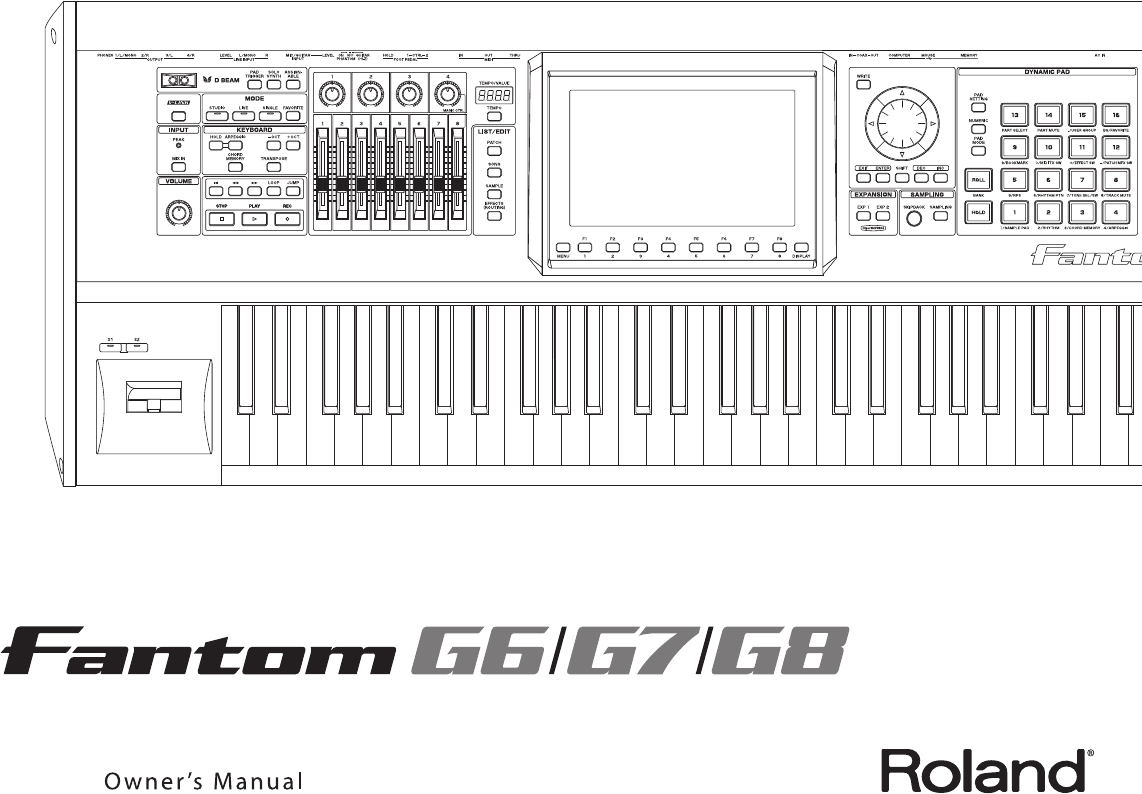
Fantom G_r_e Roland Corporation G7 Owner's Manual G Om
Roland Corporation Fantom-G6 Owner's Manual fantom-g_om Roland Corporation - Fantom-G6 - Owner's Manual
Roland Corporation Fantom-G8 Owner's Manual fantom-g_om Roland Corporation - Fantom-G8 - Owner's Manual
User Manual: Pdf Roland Corporation Fantom-G7 Owner's Manual Roland Corporation - Fantom-G7 - Owner's Manual
Open the PDF directly: View PDF  .
.
Page Count: 336 [warning: Documents this large are best viewed by clicking the View PDF Link!]
- USING THE UNIT SAFELY
- IMPORTANT NOTES
- Contents
- 01: Introduction (Overview and Basic Operation)
- 02: Sound Generator, Section 1 (Playing Sounds)
- Playing in Single Mode
- About the Single Play Screen
- Selecting a Patch
- Selecting the Tones That Will Sound (Tone On/Off)
- Playing Single Notes (Monophonic)
- Part Settings (Part View)
- Selecting the Parameter Controlled by the Realtime Controllers or D Beam Controller (Control Sett...
- Playing Percussion Instruments (Rhythm Set)
- Playing a Sample Set
- Creating a List of Frequently Used Sounds (Favorite)
- Registering a Sound (Regist)
- Recalling a Sound
- Specifying the Volume for Each Step (Favorite Level)
- Changing the Step in Which You Registered a Sound
- Removing a Sound You Registered (Remove)
- Removing All Sound Registrations from a Bank (Remove Bank)
- Registering a Song (Set Song)
- Importing a Text File (Import Text)
- Removing a Text File (Remove Text)
- Switching the Display Font (Font)
- Playing in Live Mode
- Displaying Live Play (Layer/ Split) Screen
- Functions in the Live Play (Layer/Split) Screen
- Selecting a Live Set
- Using the Live Play (Layer/ Split) Screen
- Using the Live Set Part Mixer Screen
- Using the Layer Edit Screen
- Performing with the Arpeggio
- Performing with the Realtime Controllers and D Beam Controller
- Setting Effects
- Adjusting the Master Level
- Making Detailed Settings for a Live Set
- Playing in Studio Mode
- Playing in Single Mode
- 03: Sound Generator, Section 2 (Controlling Sounds)
- 04: Sound Generator, Section 3 (Creating Sounds)
- Creating a Patch
- How to Make Patch Settings
- Saving Patches You’ve Created (Write)
- Functions of Patch Parameters
- Settings Common to the Entire Patch (General)
- Modifying Waveforms (Wave)
- Changing How a Tone Is Sounded (TMT)
- Modifying Pitch (Pitch/Pitch Env)
- Modifying the Brightness of a Sound with a Filter (TVF/TVF Env)
- Adjusting the Volume (TVA/TVA Env)
- Output
- Modulating Sounds (LFO1/2/Step LFO)
- Apply Portamento or Legato to the Sound (Solo/Porta)
- Miscellaneous Settings (Misc)
- Matrix Control Settings (Control 1–4)
- Setting Effects for a Patch (PFX)
- Creating a Rhythm Set
- How to Make Rhythm Set Settings
- Saving Rhythm Sets You’ve Created (Write)
- Functions of Rhythm Set Parameters
- Making Settings Common to the Entire Rhythm Set (General)
- Modifying Waveforms (Wave)
- Changing How a Rhythm Tone Is Sounded (WMT)
- Modifying Pitch (Pitch/Pitch Env)
- Modifying the Brightness of a Sound with a Filter (TVF/TVF Env)
- Adjusting the Volume (TVA/TVA Env)
- Output Settings (Output)
- Setting Effects for a Rhythm Set (PFX)
- Creating a Sample Set
- Creating a Live/Studio Set
- Adding Effects
- Where Effect Settings are Saved
- Turning Effects On and Off
- Making Effect Settings
- Applying Effects in Single Mode
- Applying Effects in Live Mode
- Applying Effects in Studio Mode
- Making Patch Multi-Effects Settings (PFX)
- Making Multi-Effects Settings (MFX1–2)
- Making Chorus Settings (Chorus)
- Making Reverb Settings (Reverb)
- Mastering Effect
- Effects List
- Creating a Patch
- 05: Pads (Using the Pads)
- Using the Pads
- Common Operations for Pads
- 1 SAMPLE PAD (Using the Pads to Play Samples)
- 2 RHYTHM (Using the Pads to Play a Rhythm Set)
- 3 CHORD MEMORY (Using the Pads to Switch Chord Forms)
- 4 ARPEGGIO (Using the Pads to Switch Arpeggio Styles)
- 5 RPS (Using the Pads to Play Phrases)
- 6 RHYTHM PTN (Using the Pads to Play Rhythm Patterns)
- 7 TONE SEL/SW (Using the Pads to Select Tones or Switch Them On/Off)
- 8 TRACK MUTE (Using the Pads to Mute Tracks)
- 9 BOOKMARK (Using the Pads to Recall Frequently Used Screens)
- 10 MIDI TX SW (Using the Pads to Turn External MIDI Transmit Channels (1–16) On/Off)
- 11 EFFECT SW (Using the Pads to Switch the Effects)
- 12 PATCH MFX SW (Using the Pads to Switch Patch Multi-effects)
- 13 PART SELECT (Using the Pads to Select Parts)
- 14 PART MUTE (Using the Pads to Mute Parts)
- 15 USER GROUP (Using the Pads to Register/Recall User Groups)
- 16 FAVORITE (Using the Pads to Register/Recall Favorite Settings)
- Using the Pads
- 06: Sequencer (Creating a Song)
- Playing Back a Song
- Three Ways to Play Back
- Playing a Song (Song Play)
- Loading a Song (Song List)
- Playing a Song (Song Play)
- Operations in the Song Play Screen
- Fast-forwarding or Rewinding during Playback
- Muting the Playback of a Track (MUTE)
- Accessing the Mixer Screen
- Changing the Playback Tempo of the Song
- Playing a Song Repeatedly (Loop)
- Placing Markers in a Song (Marker)
- Changing the Track Display Zoom and Display Order (Zoom/Track Order)
- Naming a Track (Track Name)
- Specifying a Track’s Output Destination (Output Assign)
- Deleting a Song File (Song Delete)
- Song Automatically Loaded at Power-on (When Loading a Project)
- Erasing the Currently-open Song (Song Clear)
- Playing a Standard MIDI File (SMF)
- Playing Phrases (MIDI Phrase)
- Recording MIDI
- Recording Audio
- Editing Songs
- Three Ways to Edit
- Editing a Song (Song Edit)
- Song Utility (Song Util)
- Editing a Phrase (Phrase Edit)
- Phrase Modify Menu
- Aligning a Phrase’s Timing (Quantize)
- Erasing Unwanted Performance Data (Erase)
- Deleting Unwanted Measures (Delete)
- Copying Phrases (Copy)
- Inserting a Blank Measure (Insert)
- Transpose the Key (Transpose)
- Changing the Velocity (Change Velocity)
- Changing the MIDI Channel (Change Channel)
- Modifying the Length of Notes (Change Duration)
- Shifting Performance Data Forward and Back (Shift Clock)
- Thinning Out the Sequencer Data (Data Thin)
- Deleting Blank Measures (Truncate)
- Editing Individual Items of Sequencer Data (Microscope)
- Saving a Song (Song Save)
- Playing Back a Song
- 07: Sampler
- Sampling
- Editing a Sample
- Selecting a Sample (Sample List)
- Displaying Sample Edit Screen (Sample Edit)
- Setting the Start/End Points of the Sample
- Making Settings for Sample (Sample Parameters)
- Removing Unwanted Portions of a Sample (Truncate)
- Boosting or Limiting the High-frequency Range of the Sample (Emphasis)
- Maximizing the Volume of a Sample (Normalize)
- Amp
- Stretching or Shrinking a Sample (Time Stretch)
- Dividing a Sample into Notes (Chop)
- Saving a Sample (Save)
- Saving all samples (Save All)
- 08: Various Settings (Menu and System)
- Menu Reference
- System Settings (Settings Common to All Modes)
- About V-LINK
- 09: Appendix
04905090 08-02-1N
* 0 4 9 0 5 0 9 0 - 0 1 *
CAUTION
RISK OF ELECTRIC SHOCK
DO NOT OPEN
ATTENTION: RISQUE DE CHOC ELECTRIQUE NE PAS OUVRIR
CAUTION: TO REDUCE THE RISK OF ELECTRIC SHOCK,
DO NOT REMOVE COVER (OR BACK).
NO USER-SERVICEABLE PARTS INSIDE.
REFER SERVICING TO QUALIFIED SERVICE PERSONNEL.
The lightning flash with arrowhead symbol, within an
equilateral triangle, is intended to alert the user to the
presence of uninsulated “dangerous voltage” within the
product’s enclosure that may be of sufficient magnitude to
constitute a risk of electric shock to persons.
The exclamation point within an equilateral triangle is
intended to alert the user to the presence of important
operating and maintenance (servicing) instructions in the
literature accompanying the product.
INSTRUCTIONS PERTAINING TO A RISK OF FIRE, ELECTRIC SHOCK, OR INJURY TO PERSONS.
IMPORTANT SAFETY INSTRUCTIONS
SAVE THESE INSTRUCTIONS
WARNING - When using electric products, basic precautions should always be followed, including the following:
1. Read these instructions.
2. Keep these instructions.
3. Heed all warnings.
4. Follow all instructions.
5. Do not use this apparatus near water.
6. Clean only with a dry cloth.
7. Do not block any of the ventilation openings.
Install in accordance with the manufacturers instructions.
8. Do not install near any heat sources such as
radiators, heat registers, stoves, or other apparatus
(including amplifiers) that produce heat.
9. Do not defeat the safety purpose of the polarized
or grounding-type plug. A polarized plug has two blades
with one wider than the other. A grounding type plug has
two blades and a third grounding prong. The wide blade or
the third prong are provided for your safety. If the provided
plug does not fit into your outlet, consult an electrician for
replacement of the obsolete outlet.
WARNING:
IMPORTANT:
As the colours of the wires in the mains lead of this apparatus may not correspond with the coloured markings identifying
the terminals in your plug, proceed as follows:
The wire which is coloured GREEN-AND-YELLOW must be connected to the terminal in the plug which is marked by the
letter E or by the safety earth symbol or coloured GREEN or GREEN-AND-YELLOW.
The wire which is coloured BLUE must be connected to the terminal which is marked with the letter N or coloured BLACK.
The wire which is coloured BROWN must be connected to the terminal which is marked with the letter L or coloured RED.
THIS APPARATUS MUST BE EARTHED
THE WIRES IN THIS MAINS LEAD ARE COLOURED IN ACCORDANCE WITH THE FOLLOWING CODE.
GREEN-AND-YELLOW: EARTH, BLUE: NEUTRAL, BROWN: LIVE
For the U.K.
10. Protect the power cord from being walked on or
pinched particularly at plugs, convenience receptacles, and
the point where they exit from the apparatus.
11. Only use attachments/accessories specified by
the manufacturer.
12. Use only with the cart, stand,
tripod, bracket, or table specified by the
manufacturer, or sold with the apparatus.
When a cart is used, use caution when
moving the cart/apparatus combination to
avoid injury from tip-over.
13. Unplug this apparatus during lightning storms or
when unused for long periods of time.
14. Refer all servicing to qualified service personnel.
Servicing is required when the apparatus has been
damaged in any way, such as power-supply cord or plug is
damaged, liquid has been spilled or objects have fallen into
the apparatus, the apparatus has been exposed to rain or
moisture, does not operate normally, or has been dropped.
WARNING: To reduce the risk of fire or electric shock, do not expose this apparatus to rain or moisture.
As of Oct. 1, 2007 (ROLAND)
Information When you need repair service, call your nearest Roland Service Center or authorized Roland
distributor in your country as shown below.
EGYPT
Al Fanny Trading Office
9, EBN Hagar Al Askalany
Street,
ARD E1 Golf, Heliopolis,
Cairo 11341, EGYPT
TEL: (022)-418-5531
REUNION
Maison FO - YAM Marcel
25 Rue Jules Hermann,
Chaudron - BP79 97 491
Ste Clotilde Cedex,
REUNION ISLAND
TEL: (0262) 218-429
SOUTH AFRICA
T.O.M.S. Sound & Music
(Pty)Ltd.
2 ASTRON ROAD DENVER
JOHANNESBURG ZA 2195,
SOUTH AFRICA
TEL: (011)417 3400
Paul Bothner(PTY)Ltd.
Royal Cape Park, Unit 24
Londonderry Road, Ottery 7800
Cape Town, SOUTH AFRICA
TEL: (021) 799 4900
CHINA
Roland Shanghai Electronics
Co.,Ltd.
5F. No.1500 Pingliang Road
Shanghai 200090, CHINA
TEL: (021) 5580-0800
Roland Shanghai Electronics
Co.,Ltd.
(BEIJING OFFICE)
10F. No.18 3 Section Anhuaxili
Chaoyang District Beijing
100011 CHINA
TEL: (010) 6426-5050
HONG KONG
Tom Lee Music Co., Ltd.
Service Division
22-32 Pun Shan Street, Tsuen
Wan, New Territories,
HONG KONG
TEL: 2415 0911
Parsons Music Ltd.
8th Floor, Railway Plaza, 39
Chatham Road South, T.S.T,
Kowloon, HONG KONG
TEL: 2333 1863
INDIA
Rivera Digitec (India) Pvt. Ltd.
411, Nirman Kendra
Mahalaxmi Flats Compound
Off. Dr. Edwin Moses Road,
Mumbai-400011, INDIA
TEL: (022) 2493 9051
INDONESIA
PT Citra IntiRama
Jl. Cideng Timur No. 15J-15O
Jakarta Pusat
INDONESIA
TEL: (021) 6324170
KOREA
Cosmos Corporation
1461-9, Seocho-Dong,
Seocho Ku, Seoul, KOREA
TEL: (02) 3486-8855
MALAYSIA
Roland Asia Pacific Sdn. Bhd.
45-1, Block C2, Jalan PJU 1/39,
Dataran Prima, 47301 Petaling
Jaya, Selangor, MALAYSIA
TEL: (03) 7805-3263
VIET NAM
Suoi Nhac Company, Ltd
370 Cach Mang Thang Tam St.
Dist.3, Ho Chi Minh City,
VIET NAM
TEL: 9316540
PHILIPPINES
G.A. Yupangco & Co. Inc.
339 Gil J. Puyat Avenue
Makati, Metro Manila 1200,
PHILIPPINES
TEL: (02) 899 9801
SINGAPORE
SWEE LEE MUSIC
COMPANY PTE. LTD.
150 Sims Drive,
SINGAPORE 387381
TEL: 6846-3676
TAIWAN
ROLAND TAIWAN
ENTERPRISE CO., LTD.
Room 5, 9fl. No. 112 Chung
Shan N.Road Sec.2, Taipei,
TAIWAN, R.O.C.
TEL: (02) 2561 3339
THAILAND
Theera Music Co. , Ltd.
100-108 Soi Verng
Nakornkasem, New
Road,Sumpantawongse,
Bangkok 10100 THAILAND
TEL: (02) 224-8821
AUSTRALIA/
NEW ZEALAND
Roland Corporation
Australia Pty.,Ltd.
38 Campbell Avenue
Dee Why West. NSW 2099
AUSTRALIA
For Australia
Tel: (02) 9982 8266
For New Zealand
Tel: (09) 3098 715
ARGENTINA
Instrumentos Musicales S.A.
Av.Santa Fe 2055
(1123) Buenos Aires
ARGENTINA
TEL: (011) 4508-2700
BARBADOS
A&B Music Supplies LTD
12 Webster Industrial Park
Wildey, St.Michael, Barbados
TEL: (246)430-1100
BRAZIL
Roland Brasil Ltda.
Rua San Jose, 780 Sala B
Parque Industrial San Jose
Cotia - Sao Paulo - SP, BRAZIL
TEL: (011) 4615 5666
CHILE
Comercial Fancy II S.A.
Rut.: 96.919.420-1
Nataniel Cox #739, 4th Floor
Santiago - Centro, CHILE
TEL: (02) 688-9540
COLOMBIA
Centro Musical Ltda.
Cra 43 B No 25 A 41 Bododega 9
Medellin, Colombia
TEL: (574)3812529
COSTA RICA
JUAN Bansbach Instrumentos
Musicales
Ave.1. Calle 11, Apartado 10237,
San Jose, COSTA RICA
TEL: 258-0211
CURACAO
Zeelandia Music Center Inc.
Orionweg 30
Curacao, Netherland Antilles
TEL:(305)5926866
DOMINICAN REPUBLIC
Instrumentos Fernando Giraldez
Calle Proyecto Central No.3
Ens.La Esperilla
Santo Domingo,
Dominican Republic
TEL:(809) 683 0305
ECUADOR
Mas Musika
Rumichaca 822 y Zaruma
Guayaquil - Ecuador
TEL:(593-4)2302364
EL SALVADOR
OMNI MUSIC
75 Avenida Norte y Final
Alameda Juan Pablo II,
Edificio No.4010 San Salvador,
EL SALVADOR
TEL: 262-0788
GUATEMALA
Casa Instrumental
Calzada Roosevelt 34-01,zona 11
Ciudad de Guatemala
Guatemala
TEL:(502) 599-2888
HONDURAS
Almacen Pajaro Azul S.A. de C.V.
BO.Paz Barahona
3 Ave.11 Calle S.O
San Pedro Sula, Honduras
TEL: (504) 553-2029
MARTINIQUE
Musique & Son
Z.I.Les Mangle
97232 Le Lamantin
Martinique F.W.I.
TEL: 596 596 426860
Gigamusic SARL
10 Rte De La Folie
97200 Fort De France
Martinique F.W.I.
TEL: 596 596 715222
MEXICO
Casa Veerkamp, s.a. de c.v.
Av. Toluca No. 323, Col. Olivar
de los Padres 01780 Mexico
D.F. MEXICO
TEL: (55) 5668-6699
NICARAGUA
Bansbach Instrumentos
Musicales Nicaragua
Altamira D'Este Calle Principal
de la Farmacia 5ta.Avenida
1 Cuadra al Lago.#503
Managua, Nicaragua
TEL: (505)277-2557
PANAMA
SUPRO MUNDIAL, S.A.
Boulevard Andrews, Albrook,
Panama City, REP. DE
PANAMA
TEL: 315-0101
PARAGUAY
Distribuidora De
Instrumentos Musicales
J.E. Olear y ESQ. Manduvira
Asuncion PARAGUAY
TEL: (595) 21 492147
PERU
Audionet
Distribuciones Musicales SAC
Juan Fanning 530
Miraflores
Lima - Peru
TEL: (511) 4461388
TRINIDAD
AMR Ltd
Ground Floor
Maritime Plaza
Barataria Trinidad W.I.
TEL: (868) 638 6385
NORWAY
Roland Scandinavia Avd.
Kontor Norge
Lilleakerveien 2 Postboks 95
Lilleaker N-0216 Oslo
NORWAY
TEL: 2273 0074
POLAND
ROLAND POLSKA SP. Z O.O.
UL. Gibraltarska 4.
PL-03 664 Warszawa
POLAND
TEL: (022) 679 4419
PORTUGAL
Roland Iberia, S.L.
Portugal Office
Cais das Pedras, 8/9-1 Dto
4050-465, Porto, PORTUGAL
TEL: 22 608 00 60
ROMANIA
FBS LINES
Piata Libertatii 1,
535500 Gheorgheni,
ROMANIA
TEL: (266) 364 609
RUSSIA
MuTek
Dorozhnaya ul.3,korp.6
117 545 Moscow, RUSSIA
TEL: (095) 981-4967
SLOVAKIA
DAN Acoustic s.r.o.
Povazská 18.
SK - 940 01 Nové Zámky
TEL: (035) 6424 330
SPAIN
Roland Iberia, S.L.
Paseo García Faria, 33-35
08005 Barcelona SPAIN
TEL: 93 493 91 00
SWEDEN
Roland Scandinavia A/S
SWEDISH SALES OFFICE
Danvik Center 28, 2 tr.
S-131 30 Nacka SWEDEN
TEL: (0)8 702 00 20
SWITZERLAND
Roland (Switzerland) AG
Landstrasse 5, Postfach,
CH-4452 Itingen,
SWITZERLAND
TEL: (061) 927-8383
UKRAINE
EURHYTHMICS Ltd.
P.O.Box: 37-a.
Nedecey Str. 30
UA - 89600 Mukachevo,
UKRAINE
TEL: (03131) 414-40
UNITED KINGDOM
Roland (U.K.) Ltd.
Atlantic Close, Swansea
Enterprise Park, SWANSEA
SA7 9FJ,
UNITED KINGDOM
TEL: (01792) 702701
BAHRAIN
Moon Stores
No.1231&1249 Rumaytha
Building Road 3931, Manama
339 BAHRAIN
TEL: 17 813 942
IRAN
MOCO INC.
No.41 Nike St., Dr.Shariyati Ave.,
Roberoye Cerahe Mirdamad
Tehran, IRAN
TEL: (021)-2285-4169
ISRAEL
Halilit P. Greenspoon & Sons
Ltd.
8 Retzif Ha'alia Hashnia St.
Tel-Aviv-Yafo ISRAEL
TEL: (03) 6823666
URUGUAY
Todo Musica S.A.
Francisco Acuna de Figueroa
1771
C.P.: 11.800
Montevideo, URUGUAY
TEL: (02) 924-2335
VENEZUELA
Instrumentos Musicales
Allegro,C.A.
Av.las industrias edf.Guitar
import
#7 zona Industrial de Turumo
Caracas, Venezuela
TEL: (212) 244-1122
AUSTRIA
Roland Elektronische
Musikinstrumente HmbH.
Austrian Office
Eduard-Bodem-Gasse 8,
A-6020 Innsbruck, AUSTRIA
TEL: (0512) 26 44 260
BELGIUM/FRANCE/
HOLLAND/
LUXEMBOURG
Roland Central Europe N.V.
Houtstraat 3, B-2260, Oevel
(Westerlo) BELGIUM
TEL: (014) 575811
CROATIA
ART-CENTAR
Degenova 3.
HR - 10000 Zagreb
TEL: (1) 466 8493
CZECH REP.
CZECH REPUBLIC
DISTRIBUTOR s.r.o
Voctárova 247/16
CZ - 180 00 PRAHA 8,
CZECH REP.
TEL: (2) 830 20270
DENMARK
Roland Scandinavia A/S
Nordhavnsvej 7, Postbox 880,
DK-2100 Copenhagen
DENMARK
TEL: 3916 6200
FINLAND
Roland Scandinavia As, Filial
Finland
Elannontie 5
FIN-01510 Vantaa, FINLAND
TEL: (0)9 68 24 020
GERMANY
Roland Elektronische
Musikinstrumente HmbH.
Oststrasse 96, 22844
Norderstedt, GERMANY
TEL: (040) 52 60090
GREECE/CYPRUS
STOLLAS S.A.
Music Sound Light
155, New National Road
Patras 26442, GREECE
TEL: 2610 435400
HUNGARY
Roland East Europe Ltd.
Warehouse Area ‘DEPO’ Pf.83
H-2046 Torokbalint,
HUNGARY
TEL: (23) 511011
IRELAND
Roland Ireland
G2 Calmount Park, Calmount
Avenue, Dublin 12
Republic of IRELAND
TEL: (01) 4294444
ITALY
Roland Italy S. p. A.
Viale delle Industrie 8,
20020 Arese, Milano, ITALY
TEL: (02) 937-78300
JORDAN
MUSIC HOUSE CO. LTD.
FREDDY FOR MUSIC
P. O. Box 922846
Amman 11192 JORDAN
TEL: (06) 5692696
KUWAIT
EASA HUSAIN AL-YOUSIFI
& SONS CO.
Al-Yousifi Service Center
P.O.Box 126 (Safat) 13002
KUWAIT
TEL: 00 965 802929
LEBANON
Chahine S.A.L.
George Zeidan St., Chahine
Bldg., Achrafieh, P.O.Box:
16-5857
Beirut, LEBANON
TEL: (01) 20-1441
OMAN
TALENTZ CENTRE L.L.C.
Malatan House No.1
Al Noor Street, Ruwi
SULTANATE OF OMAN
TEL: 2478 3443
QATAR
Al Emadi Co. (Badie Studio &
Stores)
P.O. Box 62, Doha, QATAR
TEL: 4423-554
SAUDI ARABIA
aDawliah Universal
Electronics APL
Behind Pizza Inn
Prince Turkey Street
aDawliah Building,
PO BOX 2154,
Alkhobar 31952
SAUDI ARABIA
TEL: (03) 8643601
SYRIA
Technical Light & Sound
Center
Rawda, Abdul Qader Jazairi St.
Bldg. No. 21, P.O.BOX 13520,
Damascus, SYRIA
TEL: (011) 223-5384
TURKEY
ZUHAL DIS TICARET A.S.
Galip Dede Cad. No.37
Beyoglu - Istanbul / TURKEY
TEL: (0212) 249 85 10
U.A.E.
Zak Electronics & Musical
Instruments Co. L.L.C.
Zabeel Road, Al Sherooq Bldg.,
No. 14, Ground Floor, Dubai,
U.A.E.
TEL: (04) 3360715
CANADA
Roland Canada Ltd.
(Head Office)
5480 Parkwood Way Richmond
B. C., V6V 2M4 CANADA
TEL: (604) 270 6626
Roland Canada Ltd.
(Toronto Office)
170 Admiral Boulevard
Mississauga On L5T 2N6
CANADA
TEL: (905) 362 9707
U. S. A.
Roland Corporation U.S.
5100 S. Eastern Avenue
Los Angeles, CA 90040-2938,
U. S. A.
TEL: (323) 890 3700
ASIA
AFRICA
AUSTRALIA/
NEW ZEALAND
EUROPE
CENTRAL/LATIN
AMERICA
MIDDLE EAST
NORTH AMERICA

3
Fantom-G6/G7/G8 Owner’s Manual
201b
Before using this unit, carefully read the sections entitled: “IMPORTANT SAFETY INSTRUCTIONS” (p. 2), “USING THE UNIT
SAFELY” (p. 4), and “IMPORTANT NOTES” (p. 7). These sections provide important information concerning the proper
operation of the unit. Additionally, in order to feel assured that you have gained a good grasp of every feature provided by your
new unit, Owner’s manual should be read in its entirety. The manual should be saved and kept on hand as a convenient
reference.
This Owner’s Manual applies to the Fantom-G6, the Fantom-G7 and the Fantom-G8. The manual uses the term
“Fantom-G” to indicate all these three models.
985
The explanations in this manual include illustrations that depict what should typically be shown by the display. Note, however,
that your unit may incorporate a newer, enhanced version of the system (e.g., includes newer sounds), so what you actually see in
the display may not always match what appears in the manual.
962a
In the interest of product improvement, the specifications and/or appearance of this unit are subject to change without prior
notice.
202
Copyright © 2008 ROLAND CORPORATION
All rights reserved. No part of this publication may be reproduced in any form without the written permission of ROLAND
CORPORATION.
Fantom-G_r_e.book 3 ページ 2008年1月31日 木曜日 午後12時15分
4
USING THE UNIT SAFELY
001
• Before using this unit, make sure to read the
instructions below, and the Owner’s Manual.
..........................................................................................................
001-50
• Connect mains plug of this model to a mains
socket outlet with a protective earthing
connection.
..........................................................................................................
002b
• Do not open or perform any internal modifica-
tions on the unit. (The only exception would be
where this manual provides specific instructions
which should be followed in order to put in place
user-installable options; see p. 304, p. 308.)
..........................................................................................................
003
• Do not attempt to repair the unit, or replace parts
within it (except when this manual provides
specific instructions directing you to do so). Refer
all servicing to your retailer, the nearest Roland
Service Center, or an authorized Roland
distributor, as listed on the “Information” page.
..........................................................................................................
004
• Never use or store the unit in places that are:
• Subject to temperature extremes (e.g., direct
sunlight in an enclosed vehicle, near a heating
duct, on top of heat-generating equipment); or
are
• Damp (e.g., baths, washrooms, on wet floors); or are
• Humid; or are
• Exposed to rain; or are
• Dusty; or are
• Subject to high levels of vibration.
..........................................................................................................
005
• This unit should be used only with a stand that is
recommended by Roland.
..........................................................................................................
006
• When using the unit with a stand recommended
by Roland, the stand must be carefully placed so it
is level and sure to remain stable. If not using a
stand, you still need to make sure that any
location you choose for placing the unit provides
a level surface that will properly support the unit,
and keep it from wobbling.
..........................................................................................................
008a
• The unit should be connected to a power supply
only of the type described in the operating
instructions, or as marked on the unit.
..........................................................................................................
008e
• Use only the attached power-supply cord. Also,
the supplied power cord must not be used with
any other device.
..........................................................................................................
009
• Do not excessively twist or bend the power cord,
nor place heavy objects on it. Doing so can
damage the cord, producing severed elements
and short circuits. Damaged cords are fire and
shock hazards!
..........................................................................................................
010
• This unit, either alone or in combination with an
amplifier and headphones or speakers, may be
capable of producing sound levels that could
cause permanent hearing loss. Do not operate for
a long period of time at a high volume level, or at
a level that is uncomfortable. If you experience
any hearing loss or ringing in the ears, you should
immediately stop using the unit, and consult an
audiologist.
..........................................................................................................
011
• Do not allow any objects (e.g., flammable
material, coins, pins); or liquids of any kind
(water, soft drinks, etc.) to penetrate the unit.
..........................................................................................................
Used for instructions intended to alert
the user to the risk of injury or material
damage should the unit be used
improperly.
* Material damage refers to damage or
other adverse effects caused with
respect to the home and all its
furnishings, as well to domestic
animals or pets.
Used for instructions intended to alert
the user to the risk of death or severe
injury should the unit be used
improperly.
The ● symbol alerts the user to things that must be
carried out. The specific thing that must be done is
indicated by the design contained within the circle. In
the case of the symbol at left, it means that the power-
cord plug must be unplugged from the outlet.
The symbol alerts the user to important instructions
or warnings.The specific meaning of the symbol is
determined by the design contained within the
triangle. In the case of the symbol at left, it is used for
general cautions, warnings, or alerts to danger.
The symbol alerts the user to items that must never
be carried out (are forbidden). The specific thing that
must not be done is indicated by the design contained
within the circle. In the case of the symbol at left, it
means that the unit must never be disassembled.
Fantom-G_r_e.book 4 ページ 2008年1月31日 木曜日 午後12時15分
5
012a
• Immediately turn the power off, remove the
power cord from the outlet, and request servicing
by your retailer, the nearest Roland Service
Center, or an authorized Roland distributor, as
listed on the “Information” page when:
• The power-supply cord or the plug has been damaged;
or
• If smoke or unusual odor occurs
• Objects have fallen into, or liquid has been spilled onto
the unit; or
• The unit has been exposed to rain (or otherwise has
become wet); or
• The unit does not appear to operate normally or
exhibits a marked change in performance.
..........................................................................................................
013
• In households with small children, an adult
should provide supervision until the child is
capable of following all the rules essential for the
safe operation of the unit.
..........................................................................................................
014
• Protect the unit from strong impact.
(Do not drop it!)
..........................................................................................................
015
• Do not force the unit’s power-supply cord to
share an outlet with an unreasonable number of
other devices. Be especially careful when using
extension cords—the total power used by all
devices you have connected to the extension
cord’s outlet must never exceed the power rating
(watts/amperes) for the extension cord. Excessive
loads can cause the insulation on the cord to heat
up and eventually melt through.
..........................................................................................................
016
• Before using the unit in a foreign country, consult
with your retailer, the nearest Roland Service
Center, or an authorized Roland distributor, as
listed on the “Information” page.
..........................................................................................................
022a
• Always turn the unit off and unplug the power
cord before attempting installation of the circuit
board (ARX series; p. 304, DIMM; p. 308).
..........................................................................................................
023
• DO NOT play a CD-ROM disc on a conventional
audio CD player. The resulting sound may be of a
level that could cause permanent hearing loss.
Damage to speakers or other system components
may result.
..........................................................................................................
026
• Do not put anything that contains water (e.g.,
flower vases) on this unit. Also, avoid the use of
insecticides, perfumes, alcohol, nail polish, spray
cans, etc., near the unit. Swiftly wipe away any
liquid that spills on the unit using a dry, soft
cloth.
..........................................................................................................
101a
• The unit should be located so that its location or
position does not interfere with its proper venti-
lation.
..........................................................................................................
101c
• This unit for use only with Roland stand KS-18Z
(Fantom-G6/G7/G8), KS-G8 (Fantom-G8). Use
with other stands (or carts) is capable of resulting
in instability causing possible injury.
..........................................................................................................
102b
• Always grasp only the plug on the power-supply
cord when plugging into, or unplugging from, an
outlet or this unit.
..........................................................................................................
103a
• At regular intervals, you should unplug the
power plug and clean it by using a dry cloth to
wipe all dust and other accumulations away from
its prongs. Also, disconnect the power plug from
the power outlet whenever the unit is to remain
unused for an extended period of time. Any
accumulation of dust between the power plug
and the power outlet can result in poor insulation
and lead to fire.
..........................................................................................................
104
• Try to prevent cords and cables from becoming
entangled. Also, all cords and cables should be
placed so they are out of the reach of children.
..........................................................................................................
106
• Never climb on top of, nor place heavy objects on
the unit.
..........................................................................................................
107b
• Never handle the power cord or its plugs with
wet hands when plugging into, or unplugging
from, an outlet or this unit.
..........................................................................................................
108d
• If you need to move the Fantom-G8, take note of
the precautions listed below. At least two persons
are required to safely lift and move the unit. It
should be handled carefully, all the while keeping
it level. Make sure to have a firm grip, to protect
yourself from injury and the instrument from
damage.
• Disconnect the power cord.
• Disconnect all cords coming from external devices.
..........................................................................................................
109a
• Before cleaning the unit, turn off the power and
unplug the power cord from the outlet (p. 25).
..........................................................................................................
110a
• Whenever you suspect the possibility of lightning
in your area, pull the plug on the power cord out
of the outlet.
..........................................................................................................
115a
• Install only the specified circuit board(s) (ARX
Series, DIMM). Remove only the specified screws
(p. 304, p. 308).
..........................................................................................................
Fantom-G_r_e.book 5 ページ 2008年1月31日 木曜日 午後12時15分
6
118a
• Should you remove screws from the bottom cover
of the unit (p. 304, p. 308), keep them in a safe
place out of children’s reach, so there is no chance
of them being swallowed accidentally.
..........................................................................................................
120
• Always turn the phantom power off when
connecting any device other than condenser
microphones that require phantom power. You
risk causing damage if you mistakenly supply
phantom power to dynamic microphones, audio
playback devices, or other devices that don’t
require such power. Be sure to check the specifica-
tions of any microphone you intend to use by
referring to the manual that came with it.
(This instrument’s phantom power: 48V DC, 10 mA Max)
..........................................................................................................
Fantom-G_r_e.book 6 ページ 2008年1月31日 木曜日 午後12時15分

7
IMPORTANT NOTES
Power Supply
301
• Do not connect this unit to same electrical outlet that is
being used by an electrical appliance that is controlled by
an inverter (such as a refrigerator, washing machine,
microwave oven, or air conditioner), or that contains a
motor. Depending on the way in which the electrical
appliance is used, power supply noise may cause this unit
to malfunction or may produce audible noise. If it is not
practical to use a separate electrical outlet, connect a
power supply noise filter between this unit and the
electrical outlet.
307
• Before connecting this unit to other devices, turn off the
power to all units. This will help prevent malfunctions
and/or damage to speakers or other devices.
308
• Although the LCD and LEDs are switched off when the
POWER switch is switched off, this does not mean that the
unit has been completely disconnected from the source of
power. If you need to turn off the power completely, first
turn off the POWER switch, then unplug the power cord
from the power outlet. For this reason, the outlet into
which you choose to connect the power cord’s plug
should be one that is within easy reach and readily acces-
sible.
Placement
351
• Using the unit near power amplifiers (or other equipment
containing large power transformers) may induce hum.
To alleviate the problem, change the orientation of this
unit; or move it farther away from the source of inter-
ference.
352a
• This device may interfere with radio and television
reception. Do not use this device in the vicinity of such
receivers.
352b
• Noise may be produced if wireless communications
devices, such as cell phones, are operated in the vicinity of
this unit. Such noise could occur when receiving or initi-
ating a call, or while conversing. Should you experience
such problems, you should relocate such wireless devices
so they are at a greater distance from this unit, or switch
them off.
354a
• Do not expose the unit to direct sunlight, place it near
devices that radiate heat, leave it inside an enclosed
vehicle, or otherwise subject it to temperature extremes.
Excessive heat can deform or discolor the unit.
355b
• When moved from one location to another where the
temperature and/or humidity is very different, water
droplets (condensation) may form inside the unit. Damage
or malfunction may result if you attempt to use the unit in
this condition. Therefore, before using the unit, you must
allow it to stand for several hours, until the condensation
has completely evaporated.
358
• Do not allow objects to remain on top of the keyboard.
This can be the cause of malfunction, such as keys ceasing
to produce sound.
360
• Depending on the material and temperature of the surface
on which you place the unit, its rubber feet may discolor
or mar the surface.
You can place a piece of felt or cloth under the rubber feet
to prevent this from happening. If you do so, please make
sure that the unit will not slip or move accidentally.
Maintenance
401a
• For everyday cleaning wipe the unit with a soft, dry cloth
or one that has been slightly dampened with water. To
remove stubborn dirt, use a cloth impregnated with a
mild, non-abrasive detergent. Afterwards, be sure to wipe
the unit thoroughly with a soft, dry cloth.
402
• Never use benzine, thinners, alcohol or solvents of any
kind, to avoid the possibility of discoloration and/or
deformation.
Repairs and Data
452
• Please be aware that all data contained in the unit’s
memory may be lost when the unit is sent for repairs.
Important data should always be backed up on a USB
memory, or written down on paper (when possible).
During repairs, due care is taken to avoid the loss of data.
However, in certain cases (such as when circuitry related
to memory itself is out of order), we regret that it may not
be possible to restore the data, and Roland assumes no
liability concerning such loss of data.
Additional Precautions
551
• Please be aware that the contents of memory can be
irretrievably lost as a result of a malfunction, or the
improper operation of the unit. To protect yourself against
the risk of loosing important data, we recommend that
you periodically save a backup copy of important data
you have stored in the unit’s memory on a USB memory.
552
• Unfortunately, it may be impossible to restore the contents
of data that was stored on a USB memory or unit’s
memory once it has been lost. Roland Corporation
assumes no liability concerning such loss of data.
553
• Use a reasonable amount of care when using the unit’s
buttons, sliders, or other controls; and when using its jacks
and connectors. Rough handling can lead to malfunctions.
554
• Never strike or apply strong pressure to the display.
555
• A small amount of noise may be heard from the display
during normal operation.
556
• When connecting / disconnecting all cables, grasp the
connector itself—never pull on the cable. This way you
will avoid causing shorts, or damage to the cable’s
internal elements.
557
• A small amount of heat will radiate from the unit during
normal operation.
Fantom-G_r_e.book 7 ページ 2008年1月31日 木曜日 午後12時15分
8
IMPORTANT NOTES
558a
• To avoid disturbing your neighbors, try to keep the unit’s
volume at reasonable levels. You may prefer to use
headphones, so you do not need to be concerned about
those around you (especially when it is late at night).
559a
• When you need to transport the unit, package it in the box
(including padding) that it came in, if possible. Otherwise,
you will need to use equivalent packaging materials.
561
• Use only the specified expression pedal (EV-5; sold
separately). By connecting any other expression pedals,
you risk causing malfunction and/or damage to the unit.
562
• Some connection cables contain resistors. Do not use
cables that incorporate resistors for connecting to this unit.
The use of such cables can cause the sound level to be
extremely low, or impossible to hear. For information on
cable specifications, contact the manufacturer of the cable.
566b
• The sensitivity of the D Beam controller will change
depending on the amount of light in the vicinity of the
unit. If it does not function as you expect, adjust the sensi-
tivity as appropriate for the brightness of your location (p.
287).
• If you switch off the power to an external device that is
connected to the DIGITAL AUDIO IN jack or disconnect
the cable, noise may subsequently be heard in the input
from DIGITAL AUDIO IN. If this occurs, correctly
reconnect the external device, or turn off the Fantom-G’s
[MIX IN] switch.
Before Using Cards
Using USB memory
704
• Carefully insert the USB memory all the way in—until it is
firmly in place.
705
• Never touch the terminals of the USB memory. Also,
avoid getting the terminals dirty.
708
• USB memorys are constructed using precision compo-
nents; handle the cards carefully, paying particular note to
the following.
• To prevent damage to the cards from static electricity,
be sure to discharge any static electricity from your
own body before handling the cards.
• Do not touch or allow metal to come into contact with
the contact portion of the cards.
• Do not bend, drop, or subject cards to strong shock or
vibration.
• Do not keep cards in direct sunlight, in closed vehicles,
or other such locations (storage temperature: -25 to 85˚
C).
• Do not allow cards to become wet.
• Do not disassemble or modify the cards.
Handling CD-ROMs
801
• Avoid touching or scratching the shiny underside
(encoded surface) of the disc. Damaged or dirty CD-ROM
discs may not be read properly. Keep your discs clean
using a commercially available CD cleaner.
Copyright
851
• Recording, duplication, distribution, sale, lease, perfor-
mance, or broadcast of copyrighted material (musical
works, visual works, broadcasts, live performances, etc.)
belonging to a third party in part or in whole without the
permission of the copyright owner is forbidden by law.
852a
• This product can be used to record or duplicate audio or
visual material without being limited by certain techno-
logical copy-protection measures. This is due to the fact
that this product is intended to be used for the purpose of
producing original music or video material, and is
therefore designed so that material that does not infringe
copyrights belonging to others (for example, your own
original works) can be recorded or duplicated freely.
853
• Do not use this unit for purposes that could infringe on a
copyright held by a third party. We assume no responsi-
bility whatsoever with regard to any infringements of
third-party copyrights arising through your use of this
unit.
add
* MatrixQuest™ 2008 TEPCO UQUEST,
LTD. All rights reserved.
The Fantom-G’s USB functionality uses
MatrixQuest middleware technology
from TEPCO UQUEST, LTD.
add
* Harpsichord samples courtesy of the Hamamatsu
Museum of Musical Instruments.
204
* Microsoft and Windows are registered trademarks of
Microsoft Corporation.
206j
* Windows
®
is known officially as: “Microsoft
®
Windows
®
operating system.”
207
* Apple and Macintosh are registered trademarks of Apple
Inc.
209
* Mac OS is a trademark of Apple Inc.
Fantom-G_r_e.book 8 ページ 2008年1月31日 木曜日 午後12時15分

9
Contents
USING THE UNIT SAFELY.........................................................................................4
IMPORTANT NOTES ..................................................................................................7
Contents......................................................................................................................9
01: Introduction (Overview and Basic Operation) ... 19
Main Features...........................................................................................................20
Panel Descriptions...................................................................................................22
Front Panel.............................................................................................................................................................................22
Rear Panel ..............................................................................................................................................................................24
Making Connections................................................................................................25
Connecting an Amp and Speaker System.........................................................................................................................25
Connecting a USB Mouse (sold separately)......................................................................................................................26
Placing the Fantom-G on a Stand....................................................................................................................................... 27
Turning On the Power..............................................................................................28
Turning Off the Power......................................................................................................................................................... 28
Listening to the Demo Songs .................................................................................29
Song Automatically Loaded at Power-on (When Loading a Project).............................................................29
Various Performance Features...............................................................................30
Velocity/Aftertouch...............................................................................................................................................30
Pitch Bend/Modulation Lever .............................................................................................................................30
Octave Shift (OCT) .................................................................................................................................................30
Transpose.................................................................................................................................................................30
Hold Pedal...............................................................................................................................................................31
Control Pedal...........................................................................................................................................................31
Overview of the Fantom-G ......................................................................................32
How the Fantom-G is Organized .......................................................................................................................................32
Basic Structure......................................................................................................................................................... 32
Different Units of Sound .......................................................................................................................................32
Single / Live / Studio Modes...............................................................................................................................33
About Polyphony ...................................................................................................................................................34
About Memory......................................................................................................................................................................35
About the Internal Effects....................................................................................................................................................36
Types of Effects.......................................................................................................................................................36
About the Sequencer ............................................................................................................................................................ 36
Audio and MIDI .....................................................................................................................................................36
What is a Song?....................................................................................................................................................... 36
What is a Track?...................................................................................................................................................... 37
Songs and the State of the Sound Generator ......................................................................................................37
SMF (Standard MIDI File .MID)...........................................................................................................................37
About the Sampling Section................................................................................................................................................ 38
Basic Operation of the Fantom-G...........................................................................39
Switching the Sound Generator Mode .............................................................................................................................. 39
How the Function Buttons Work .......................................................................................................................................40
Moving the Cursor ...............................................................................................................................................................40
Editing a Value...................................................................................................................................................................... 41
Assigning a Name ................................................................................................................................................................42
Basic Pad Operations............................................................................................................................................................43
Switching the Pad Mode........................................................................................................................................ 43
Viewing the Pad Settings....................................................................................................................................... 43
Using the Pads as Numeric Keys ......................................................................................................................... 43
Shortcut Menu....................................................................................................................................................................... 44
Fantom-G_r_e.book 9 ページ 2008年1月31日 木曜日 午後12時15分

10
Contents
02: Sound Generator, Section 1 (Playing Sounds) ... 45
Playing in Single Mode............................................................................................46
About the Single Play Screen .............................................................................................................................................. 46
Displaying Single Play Screen .............................................................................................................................. 46
Selecting a Patch ...................................................................................................................................................................47
Selecting Patches by Category (Patch Finder)....................................................................................................48
Selecting Patches from the List............................................................................................................................. 49
Auditioning Patches (Phrase Preview)................................................................................................................ 49
Selecting the Tones That Will Sound (Tone On/Off)...................................................................................................... 50
Playing Single Notes (Monophonic)..................................................................................................................................50
Part Settings (Part View)...................................................................................................................................................... 51
Selecting the Parameter Controlled by the Realtime Controllers or D Beam Controller (Control Setting) ............51
Playing Percussion Instruments (Rhythm Set).................................................................................................................52
Selecting a Rhythm Set ..........................................................................................................................................52
Playing a Sample Set ............................................................................................................................................................ 53
Selecting a Sample Set............................................................................................................................................53
Creating a List of Frequently Used Sounds (Favorite).........................................54
Registering a Sound (Regist)................................................................................................................................. 54
Recalling a Sound ...................................................................................................................................................55
Specifying the Volume for Each Step (Favorite Level) .....................................................................................55
Changing the Step in Which You Registered a Sound......................................................................................55
Removing a Sound You Registered (Remove)................................................................................................... 55
Removing All Sound Registrations from a Bank (Remove Bank)...................................................................55
Registering a Song (Set Song) ...............................................................................................................................56
Importing a Text File (Import Text).....................................................................................................................56
Removing a Text File (Remove Text)...................................................................................................................57
Switching the Display Font (Font) ....................................................................................................................... 57
Playing in Live Mode................................................................................................58
Displaying Live Play (Layer/Split) Screen .......................................................................................................................58
Functions in the Live Play (Layer/Split) Screen ..............................................................................................................59
Selecting a Live Set ...............................................................................................................................................................60
Selecting Live Sets from the List........................................................................................................................... 60
Using the Live Play (Layer/Split) Screen..........................................................................................................................61
Selecting a Part........................................................................................................................................................61
Selecting the Part that You want to Sound (Keyboard Switch).......................................................................61
Selecting the Part Played by the Pads.................................................................................................................. 61
Selecting the Sound for a Part............................................................................................................................... 61
Combining and Playing Sounds Together (Layer)............................................................................................ 62
Playing Different Sounds in Different Areas of the Keyboard (Split) ............................................................62
Using the Live Set Part Mixer Screen................................................................................................................................. 63
Editing the Part Settings ........................................................................................................................................ 63
Using the Layer Edit Screen................................................................................................................................................64
Selecting the Sound for a Part............................................................................................................................... 64
Editing the Part Settings ........................................................................................................................................ 64
Performing with the Arpeggio ...........................................................................................................................................65
Performing with the Realtime Controllers and D Beam Controller..............................................................................65
Setting Effects........................................................................................................................................................................ 65
Adjusting the Master Level.................................................................................................................................................65
Making Detailed Settings for a Live Set ............................................................................................................................ 65
Playing in Studio Mode............................................................................................66
Displaying Studio Play Screen............................................................................................................................................66
Functions in the Studio Play Screen...................................................................................................................................67
Switching the Displayed Part Group................................................................................................................... 67
Selecting a Studio Set ...........................................................................................................................................................67
Selecting Studio Sets from the List....................................................................................................................... 68
Using the Studio Play Screen .............................................................................................................................................. 68
Selecting a Part........................................................................................................................................................68
Selecting the Sound for a Part............................................................................................................................... 68
Selecting the Part that You Want to Sound (Keyboard Switch) ......................................................................69
Editing the Part Settings ........................................................................................................................................ 69
Performing with the Arpeggio ...........................................................................................................................................70
Performing with the Realtime Controllers and D Beam Controller..............................................................................70
Setting Effects........................................................................................................................................................................ 70
Adjusting the Master Level.................................................................................................................................................70
Making Detailed Settings for a Studio Set ........................................................................................................................70
Fantom-G_r_e.book 10 ページ 2008年1月31日 木曜日 午後12時15分
11
Contents
03: Sound Generator, Section 2 (Controlling Sounds)... 71
Modifying the Sound in Real Time .........................................................................72
Waving Your Hand Over the D Beam to Modify the Sound (D Beam Controller) ....................................................72
Making Settings for the D Beam Controller .......................................................................................................73
Using Knobs, Sliders or S1/S2 Buttons to Modify the Sound (Realtime Controller).................................................75
Changing Realtime Controller Settings...............................................................................................................76
Using a Pedal to Modify the Sound (Control Pedal)....................................................................................................... 77
Making Control Pedal Settings............................................................................................................................. 77
Playing Arpeggios....................................................................................................78
About Arpeggio ....................................................................................................................................................................78
Playing Arpeggios ................................................................................................................................................................78
Turning Arpeggio On and Off..............................................................................................................................78
Determining the Tempo for Arpeggio Performances .......................................................................................78
Holding an Arpeggio............................................................................................................................................. 78
Arpeggio Settings .................................................................................................................................................................78
Saving the Arpeggio You Have Created (Write) .............................................................................................................79
Using the Chord Memory Function (Chord Memory) ...........................................80
About the Chord Memory Function ..................................................................................................................................80
Performing with the Chord Memory Function................................................................................................................80
Turning Chord Memory Function On and Off ..................................................................................................80
Selecting Chord Forms........................................................................................................................................... 80
Sounding a Chord in the Order of Its Notes (Rolled Chord)........................................................................... 81
Creating Your Own Chord Forms...................................................................................................................................... 81
Saving the Chord Forms You Have Created ....................................................................................................................82
04: Sound Generator, Section 3 (Creating Sounds).. 83
Creating a Patch.......................................................................................................84
How to Make Patch Settings............................................................................................................................................... 84
Editing a Patch Quickly (Patch Zoom Edit)........................................................................................................84
Editing All Parameters of a Patch (Patch Pro Edit) ........................................................................................... 86
Initializing Patch/Tone Settings (Patch Initialize/Tone Initialize).................................................................87
Copying Patch (Tone) Settings (Patch Tone Copy) ........................................................................................... 87
Cautions When Selecting a Waveform................................................................................................................88
Saving Patches You’ve Created (Write).............................................................................................................................88
Auditioning the Save-Destination Patch (Compare).........................................................................................89
Functions of Patch Parameters............................................................................................................................................89
Settings Common to the Entire Patch (General) ................................................................................................89
Modifying Waveforms (Wave).............................................................................................................................91
Changing How a Tone Is Sounded (TMT)..........................................................................................................92
Modifying Pitch (Pitch/Pitch Env) ...................................................................................................................... 96
Modifying the Brightness of a Sound with a Filter (TVF/TVF Env) .............................................................. 98
Adjusting the Volume (TVA/TVA Env)........................................................................................................... 100
Output....................................................................................................................................................................102
Modulating Sounds (LFO1/2/Step LFO).........................................................................................................102
Apply Portamento or Legato to the Sound (Solo/Porta) ...............................................................................105
Miscellaneous Settings (Misc)............................................................................................................................. 107
Matrix Control Settings (Control 1–4) ............................................................................................................... 109
Setting Effects for a Patch (PFX).........................................................................................................................111
Creating a Rhythm Set...........................................................................................112
How to Make Rhythm Set Settings ..................................................................................................................................112
Editing a Rhythm Set Quickly (Patch Zoom Edit)........................................................................................... 112
Editing All Parameters (Patch Pro Edit)............................................................................................................ 114
Initializing Rhythm Set/Key Settings (Rhythm Set Initialize/Rhythm Key Initialize) .............................115
Copying Rhythm Tone Settings (Rhythm Tone Copy)...................................................................................115
Cautions When Selecting a Waveform..............................................................................................................116
Saving Rhythm Sets You’ve Created (Write)..................................................................................................................116
Auditioning the Save-Destination Rhythm Set (Compare)............................................................................ 117
Functions of Rhythm Set Parameters...............................................................................................................................117
Making Settings Common to the Entire Rhythm Set (General)..................................................................... 117
Modifying Waveforms (Wave)...........................................................................................................................119
Changing How a Rhythm Tone Is Sounded (WMT)....................................................................................... 120
Modifying Pitch (Pitch/Pitch Env) .................................................................................................................... 121
Modifying the Brightness of a Sound with a Filter (TVF/TVF Env) ............................................................ 122
Fantom-G_r_e.book 11 ページ 2008年1月31日 木曜日 午後12時15分

12
Contents
Adjusting the Volume (TVA/TVA Env)........................................................................................................... 124
Output Settings (Output) ....................................................................................................................................125
Setting Effects for a Rhythm Set (PFX) ..............................................................................................................125
Creating a Sample Set ...........................................................................................126
How to make Sample Set settings ....................................................................................................................................126
Editing a Sample Set Quickly (Patch Zoom Edit)............................................................................................126
Editing All Parameters (Patch Pro Edit)............................................................................................................ 127
Initializing Sample Set Settings (Sample Set Initialize)................................................................................... 127
Saving Sample Sets You’ve Created (Write)...................................................................................................................128
Functions of Sample Set Parameters................................................................................................................................ 129
Making Settings Common to the Entire Sample Set (General)......................................................................129
Modifying Waveforms (Wave)...........................................................................................................................130
Modifying Pitch (Pitch)........................................................................................................................................ 130
Adjusting the Volume (Amp)............................................................................................................................. 131
Output Settings (Output) ....................................................................................................................................131
Setting Effects for a Sample Set (PFX) ...............................................................................................................131
Creating a Live/Studio Set.....................................................................................132
Common Settings (Utility) ................................................................................................................................................132
NAME ....................................................................................................................................................................132
Part Info..................................................................................................................................................................132
Part Settings (Part View).................................................................................................................................................... 133
Level/Pan (When the Part Group is Internal/EXP1/EXP2).......................................................................... 134
Level/Pan (When the Part Group is External).................................................................................................135
Key Range..............................................................................................................................................................135
Output/EFX ..........................................................................................................................................................136
Pitch........................................................................................................................................................................137
Scale Tune..............................................................................................................................................................138
Vibrato....................................................................................................................................................................139
Offset ......................................................................................................................................................................139
Mono/Poly/Legato..............................................................................................................................................140
Voice Reserve ........................................................................................................................................................141
MIDI Rx Filter .......................................................................................................................................................141
Selecting the Parameter Controlled by the Realtime Controllers or D Beam Controller (Control Setting) ..........142
D Beam...................................................................................................................................................................143
Knob .......................................................................................................................................................................145
Slider.......................................................................................................................................................................145
Switch S1/S2 .........................................................................................................................................................146
Arpeggio ................................................................................................................................................................146
Chord Memory .....................................................................................................................................................146
Dynamic Pad.........................................................................................................................................................146
Ctrl Switch .............................................................................................................................................................147
Changing the Settings of the Patch Assigned to a Part................................................................................................. 147
Initializing Live/Studio Set Settings (Init)......................................................................................................................148
Saving a Live/Studio Set You’ve Created (Write).........................................................................................................148
Adding Effects........................................................................................................150
Where Effect Settings are Saved ....................................................................................................................................... 150
Turning Effects On and Off...............................................................................................................................................150
Making Effect Settings .......................................................................................................................................................151
Applying Effects in Single Mode......................................................................................................................................151
Applying Effects in Live Mode......................................................................................................................................... 151
Specifying How the Sound will be Output (Routing).....................................................................................151
Signal Flow Diagram and Parameters...............................................................................................................152
Applying Effects in Studio Mode.....................................................................................................................................154
Specifying How the Sound Will Be Output (Routing).................................................................................... 154
Signal Flow Diagram and Parameters...............................................................................................................154
Making Patch Multi-Effects Settings (PFX).....................................................................................................................157
Making Multi-Effects Settings (MFX1–2) ........................................................................................................................158
Making Chorus Settings (Chorus)....................................................................................................................................159
Making Reverb Settings (Reverb).....................................................................................................................................159
Mastering Effect .................................................................................................................................................................. 160
Effects List..............................................................................................................161
MFX/PFX Parameter..........................................................................................................................................................161
Chorus Parameters .............................................................................................................................................................184
Reverb Parameters..............................................................................................................................................................185
Input Effect Parameters .....................................................................................................................................................186
Fantom-G_r_e.book 12 ページ 2008年1月31日 木曜日 午後12時15分

13
Contents
05: Pads (Using the Pads)..................................... 187
Using the Pads .......................................................................................................188
Common Operations for Pads .......................................................................................................................................... 188
Switching the Pad Mode (PAD MODE)............................................................................................................188
Using the Pads as Numeric Keys (NUMERIC) ................................................................................................ 188
Using the Hold Function to Sustain the Sounds (HOLD) .............................................................................. 188
Using the Roll Function (ROLL).........................................................................................................................189
Switching Banks (BANK) ....................................................................................................................................189
Editing the Pad Settings (PAD SETTING)........................................................................................................ 190
Exchanging Pads (Pad Exchange)......................................................................................................................190
1 SAMPLE PAD (Using the Pads to Play Samples)....................................................................................................... 191
About Samples......................................................................................................................................................191
Editing the Pad Settings.......................................................................................................................................191
2 RHYTHM (Using the Pads to Play a Rhythm Set)......................................................................................................192
Editing the Pad Settings.......................................................................................................................................192
3 CHORD MEMORY (Using the Pads to Switch Chord Forms) ................................................................................. 193
Editing the Pad Settings.......................................................................................................................................193
4 ARPEGGIO (Using the Pads to Switch Arpeggio Styles)..........................................................................................193
Editing the Pad Settings.......................................................................................................................................193
5 RPS (Using the Pads to Play Phrases)...........................................................................................................................194
Specifying the Tempo for Phrase Playback ......................................................................................................194
Editing the Pad Settings.......................................................................................................................................194
6 RHYTHM PTN (Using the Pads to Play Rhythm Patterns) ...................................................................................... 196
Specifying the Tempo for Rhythm Pattern Playback......................................................................................196
Editing the Pad Settings.......................................................................................................................................196
7 TONE SEL/SW (Using the Pads to Select Tones or Switch Them On/Off) ........................................................... 197
Checking the Pad Status......................................................................................................................................197
8 TRACK MUTE (Using the Pads to Mute Tracks)........................................................................................................197
Checking the Pad Status......................................................................................................................................197
9 BOOKMARK (Using the Pads to Recall Frequently Used Screens).........................................................................198
Registering a Screen ............................................................................................................................................. 198
Recalling a Screen.................................................................................................................................................198
10 MIDI TX SW (Using the Pads to Turn External MIDI Transmit Channels (1–16) On/Off) ...............................198
Checking the Pad Status......................................................................................................................................198
11 EFFECT SW (Using the Pads to Switch the Effects) .................................................................................................199
Checking the Pad Status......................................................................................................................................199
12 PATCH MFX SW (Using the Pads to Switch Patch Multi-effects) ......................................................................... 199
Checking the Pad Status......................................................................................................................................199
13 PART SELECT (Using the Pads to Select Parts)........................................................................................................ 200
Checking the Pad Status......................................................................................................................................200
14 PART MUTE (Using the Pads to Mute Parts)............................................................................................................ 200
Checking the Pad Status......................................................................................................................................200
15 USER GROUP (Using the Pads to Register/Recall User Groups)..........................................................................201
Recalling a User Group Sound ........................................................................................................................... 201
Registering a Sound in a User Group................................................................................................................201
16 FAVORITE (Using the Pads to Register/Recall Favorite Settings)........................................................................ 202
Recalling a Favorite Sound (Setting)..................................................................................................................202
Registering a Favorite Sound (Setting).............................................................................................................. 202
Fantom-G_r_e.book 13 ページ 2008年1月31日 木曜日 午後12時15分

14
Contents
06: Sequencer (Creating a Song) ..........................203
Playing Back a Song..............................................................................................204
Three Ways to Play Back .....................................................................................................................................204
Playing a Song (Song Play)................................................................................................................................................204
Loading a Song (Song List) .................................................................................................................................204
Playing a Song (Song Play) .................................................................................................................................205
Operations in the Song Play Screen...................................................................................................................205
Fast-forwarding or Rewinding during Playback.............................................................................................206
Muting the Playback of a Track (MUTE) .......................................................................................................... 206
Accessing the Mixer Screen.................................................................................................................................207
Changing the Playback Tempo of the Song......................................................................................................207
Playing a Song Repeatedly (Loop).....................................................................................................................208
Placing Markers in a Song (Marker) ..................................................................................................................208
Changing the Track Display Zoom and Display Order (Zoom/Track Order) ...........................................209
Naming a Track (Track Name)...........................................................................................................................209
Specifying a Track’s Output Destination (Output Assign) ............................................................................ 210
Deleting a Song File (Song Delete).....................................................................................................................210
Song Automatically Loaded at Power-on (When Loading a Project)........................................................... 210
Erasing the Currently-open Song (Song Clear)................................................................................................ 211
Playing a Standard MIDI File (SMF)................................................................................................................................212
Copying a Standard MIDI File (SMF) from Your Computer to the Fantom-G...........................................212
Playing a Standard MIDI File (SMF) (SMF List) ..............................................................................................212
Importing an SMF into a Phrase (Import Phrase)............................................................................................213
Importing an SMF into a Song (Import Song)..................................................................................................213
Playing Phrases (MIDI Phrase).........................................................................................................................................214
Auditioning a Phrase (MIDI Phrase List)..........................................................................................................214
Loading a Phrase (Load)...................................................................................................................................... 214
Deleting a Phrase from the Project (Delete Phrase).........................................................................................215
Duplicating a Phrase (Duplicate) .......................................................................................................................215
Saving a Phrase (Save) ......................................................................................................................................... 216
Saving all Phrases (Save All)...............................................................................................................................216
Recording MIDI.......................................................................................................217
Phrases and Songs ................................................................................................................................................ 217
Two Methods of Recording................................................................................................................................. 217
Recording into a Song ........................................................................................................................................................ 218
Selecting a Sound for Recording ........................................................................................................................218
Erasing the Song/Phrases from the Temporary Area (Song Clear)..............................................................218
Specifying the Time Signature (Beat Track) .....................................................................................................219
Specifying the Tempo ..........................................................................................................................................219
Selecting a MIDI Track and the Recording-start Measure .............................................................................219
Recording into a Phrase.....................................................................................................................................................220
Selecting a Sound for Recording ........................................................................................................................220
Specifying the Tempo ..........................................................................................................................................220
Selecting the Phrase to Record............................................................................................................................ 221
Recording Your Performance Just as You Play It (Realtime Recording).................................................................... 222
Basic Procedure for Realtime Recording...........................................................................................................222
Realtime Rec Standby Parameters .....................................................................................................................222
Selecting the Sequencer Data that will Be Recorded (Recording Select)......................................................224
Erasing Unwanted Data While You Record (Realtime Erase)....................................................................... 224
Auditioning Sounds or Phrases While Recording (Rehearsal Function) .....................................................225
Inputting Data One Step at a Time (Step Recording)....................................................................................................226
Entering Notes and Rests .................................................................................................................................... 226
Recording Audio ....................................................................................................228
Samples and Songs............................................................................................................................................... 228
Recording into a Song ........................................................................................................................................................ 228
Selecting an Audio Track and the Recording-start Measure .........................................................................229
Audio Recording................................................................................................................................................................. 230
Basic Procedure for Audio Recording...............................................................................................................230
Audio Rec Standby Parameters..........................................................................................................................230
Fantom-G_r_e.book 14 ページ 2008年1月31日 木曜日 午後12時15分

15
Contents
Editing Songs.........................................................................................................232
Three Ways to Edit............................................................................................................................................... 232
Editing a Song (Song Edit) ................................................................................................................................................232
Opening the Song Edit Screen ............................................................................................................................232
Moving a Sample/Phrase (Move)......................................................................................................................233
Inserting a Sample/Phrase at a Specified Location (Insert)...........................................................................233
Deleting a Sample/Phrase from a Track (Delete)............................................................................................234
Copying a Sample/Phrase (Copy)..................................................................................................................... 234
Editing a Sample/Phrase (Edit) .........................................................................................................................234
Song Utility (Song Util)......................................................................................................................................................235
Changing the Track Display Zoom and Display Order (Zoom/Track Order) ...........................................235
Erasing the Currently-open Song (Song Clear)................................................................................................ 235
Clearing a Track (Track Clear)............................................................................................................................ 235
Naming a Track (Track Name)...........................................................................................................................235
Changing the Tempo during the Song (Tempo Track)...................................................................................236
Changing the Time Signature during the Song (Beat Track) ......................................................................... 237
Editing a Phrase (Phrase Edit) .......................................................................................................................................... 238
Opening the Phrase Edit Screen......................................................................................................................... 238
Playing a Phrase (Play) ........................................................................................................................................ 239
Erasing the Currently-edited Phrase (Clear) .................................................................................................... 239
Saving a Phrase (Save) ......................................................................................................................................... 239
Phrase Modify Menu..........................................................................................................................................................239
Aligning a Phrase’s Timing (Quantize).............................................................................................................240
Erasing Unwanted Performance Data (Erase).................................................................................................. 242
Deleting Unwanted Measures (Delete) .............................................................................................................243
Copying Phrases (Copy)...................................................................................................................................... 243
Inserting a Blank Measure (Insert).....................................................................................................................244
Transpose the Key (Transpose) .......................................................................................................................... 245
Changing the Velocity (Change Velocity).........................................................................................................245
Changing the MIDI Channel (Change Channel) .............................................................................................246
Modifying the Length of Notes (Change Duration)........................................................................................246
Shifting Performance Data Forward and Back (Shift Clock)..........................................................................247
Thinning Out the Sequencer Data (Data Thin) ................................................................................................248
Deleting Blank Measures (Truncate) .................................................................................................................249
Editing Individual Items of Sequencer Data (Microscope) ..........................................................................................250
Editing Sequencer Data (Basic Procedure in the Microscope)....................................................................... 250
Sequencer Data Handled by Phrases................................................................................................................. 251
Viewing Sequencer Data (View) ........................................................................................................................252
Inserting Sequencer Data (Create) .....................................................................................................................252
Erasing Sequencer Data (Erase)..........................................................................................................................252
Moving Sequencer Data (Move).........................................................................................................................253
Copying Sequencer Data (Copy)........................................................................................................................ 253
Saving a Song (Song Save)...................................................................................254
What the Saved Song Data Contains................................................................................................................. 254
What is Saved at the Same Time as the Song ................................................................................................... 254
Saving a Song (Save) ..........................................................................................................................................................254
Resampling the Contents of All Tracks to a Single Sample .........................................................................................255
Copying a Resampled Sample to Your Computer to Create a CD or MP3 .................................................255
Fantom-G_r_e.book 15 ページ 2008年1月31日 木曜日 午後12時15分

16
Contents
07: Sampler ......................................................... 257
Sampling.................................................................................................................258
Switching External Input On/Off ....................................................................................................................................258
Making Input Source Settings (Input Setting)................................................................................................................ 258
Functions of Input Setting Parameters ............................................................................................................................258
Input Effect Setup Settings ................................................................................................................................................259
Sampling Procedure........................................................................................................................................................... 260
Dividing a Sample During Sampling ................................................................................................................262
Sampling Earlier in Time (Skip Back Sampling)............................................................................................................262
Editing a Sample ....................................................................................................263
Selecting a Sample (Sample List)......................................................................................................................................263
Selecting a Sample................................................................................................................................................263
Loading a Sample (Load) ....................................................................................................................................264
Loading All Samples (Load All).........................................................................................................................264
Unloading a Sample (Unload)............................................................................................................................ 264
Deleting a Sample (Delete)..................................................................................................................................265
Importing an Audio File (WAV/AIFF) from Your Computer ...................................................................... 265
Displaying Sample Edit Screen (Sample Edit)................................................................................................................266
Magnifying/Shrinking the Waveform Display (Zoom) ................................................................................. 266
Setting the Start/End Points of the Sample ....................................................................................................................267
Using the Knobs to Edit the Points ....................................................................................................................267
Making Settings for Sample (Sample Parameters).........................................................................................................268
Removing Unwanted Portions of a Sample (Truncate) ................................................................................................ 269
Boosting or Limiting the High-frequency Range of the Sample (Emphasis).............................................................269
Maximizing the Volume of a Sample (Normalize)........................................................................................................270
Amp ...................................................................................................................................................................................... 270
Stretching or Shrinking a Sample (Time Stretch)...........................................................................................................271
Dividing a Sample into Notes (Chop) .............................................................................................................................272
Saving a Sample (Save)...................................................................................................................................................... 274
Saving all samples (Save All)............................................................................................................................................274
Fantom-G_r_e.book 16 ページ 2008年1月31日 木曜日 午後12時15分

17
Contents
08: Various Settings (Menu and System)............... 275
Menu Reference .....................................................................................................276
Menus...................................................................................................................................................................................276
Project-related Settings (Project).......................................................................................................................................276
Load Project...........................................................................................................................................................276
Save Project............................................................................................................................................................277
Save As Project......................................................................................................................................................277
Create Project ........................................................................................................................................................278
Backup Project.......................................................................................................................................................278
Restore Project.......................................................................................................................................................279
System Settings (System)...................................................................................................................................................279
Reset to Default Factory Settings (Factory Reset) ..........................................................................................................280
Format USB Memory..........................................................................................................................................................280
Exchanging Files with Your Computer (USB Storage) .................................................................................................281
Connections...........................................................................................................................................................281
Specify the Connection-Destination ..................................................................................................................281
Cautions Regarding Folders and Files ..............................................................................................................282
Exiting Storage Mode...........................................................................................................................................282
Examples of Using Storage Mode ......................................................................................................................283
Import Audio.......................................................................................................................................................................285
System Settings (Settings Common to All Modes).............................................286
How to Make System Function Settings .........................................................................................................................286
Saving the System Settings (System Write) ....................................................................................................................286
Functions of System Parameters....................................................................................................................................... 287
Pedal/D Beam.......................................................................................................................................................287
Keyboard................................................................................................................................................................ 288
Dynamic Pad.........................................................................................................................................................288
Knob/Slider...........................................................................................................................................................289
Magic Control........................................................................................................................................................290
Switch S1/S2 .........................................................................................................................................................290
Sync/Temp............................................................................................................................................................291
Metronome ............................................................................................................................................................293
Sound...................................................................................................................................................................... 293
MIDI .......................................................................................................................................................................295
USB .........................................................................................................................................................................296
Scale Tune..............................................................................................................................................................296
Preview ..................................................................................................................................................................296
System Ctrl ............................................................................................................................................................297
Screen Saver........................................................................................................................................................... 297
Input/Sampling.................................................................................................................................................... 297
Startup.................................................................................................................................................................... 298
System Information (Info) ................................................................................................................................................. 298
Changing the Wallpaper (Wallpaper) .............................................................................................................................299
Importing an Image as Wallpaper (Import) ..................................................................................................... 299
Display-related Settings (Appearance)............................................................................................................................300
About V-LINK..........................................................................................................301
What is V-LINK?.................................................................................................................................................................301
Connection Examples.........................................................................................................................................................301
Turning the V-LINK ON/OFF .........................................................................................................................................301
V-LINK Settings.................................................................................................................................................................. 301
V-LINK Parameters..............................................................................................................................................302
Resetting the Image..............................................................................................................................................302
Fantom-G_r_e.book 17 ページ 2008年1月31日 木曜日 午後12時15分

18
Contents
09: Appendix....................................................... 303
Installing the Expansion Board ............................................................................304
Cautions When Installing an Expansion Board .............................................................................................................304
How to Install an Expansion Board ................................................................................................................................. 304
Removing an Expansion Board ........................................................................................................................................305
Configuring the Newly-installed Expansion Board ......................................................................................................305
Installation de la carte d’expansion Wave...........................................................306
Précautions à prendre lors de l’installation d’une carte d’expansion Wave..............................................................306
Installation d’une carte d’expansion Wave.....................................................................................................................306
Retrait d’une carte d’expansion........................................................................................................................................307
Configuration de la carte d’expansion installée............................................................................................................. 307
Expanding the DIMM Memory...............................................................................308
Precautions for Expanding Memory................................................................................................................................308
How to Expand the Memory ............................................................................................................................................308
Removing the Memory........................................................................................................................................309
Checking that Memory is Installed Correctly ................................................................................................................309
Ajouter de la mémoire ...........................................................................................310
Précautions à prendre lors de l’ajout de mémoire.........................................................................................................310
Installation du module de mémoire.................................................................................................................................310
Retrait du module de mémoire ..........................................................................................................................311
Troubleshooting.....................................................................................................312
Problems Concerning the Entire Fantom-G .....................................................................................................312
Issues Related to Sound....................................................................................................................................... 312
Issues Related to Effects....................................................................................................................................... 314
Issues Related to Saving Data............................................................................................................................. 314
Issues Related to Sequencer ................................................................................................................................315
Issues Related to MIDI and External Devices ..................................................................................................316
Issues Related to Sampling .................................................................................................................................316
Issues Related to a USB memory........................................................................................................................ 317
Issues Related to a USB connection ...................................................................................................................317
Error Messages ......................................................................................................318
About MIDI ..............................................................................................................319
About MIDI Connectors ...................................................................................................................................... 319
MIDI Channels and Multi-timbral Sound Generators....................................................................................319
Specifications.........................................................................................................322
Index........................................................................................................................324
Fantom-G_r_e.book 18 ページ 2008年1月31日 木曜日 午後12時15分
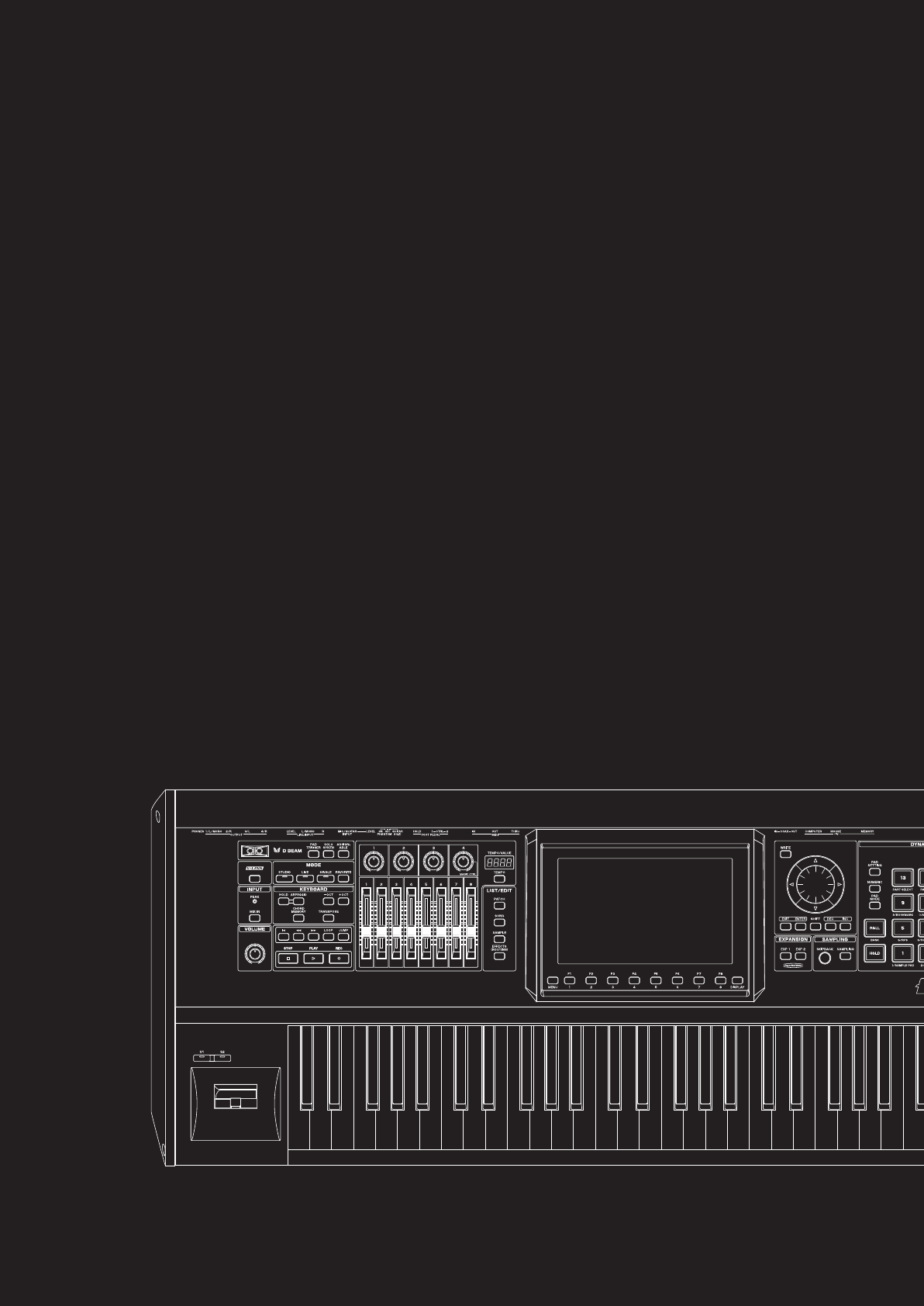
01: Introduction
(Overview and Basic Operation)
This chapter explains the Fantom-G’s panels, provides an overview of the instrument,
and explains basic operation.
• Main Features ............................................................p. 20
• Panel Descriptions.......................................................p. 22
• Making Connections ...................................................p. 25
• Overview of the Fantom-G ...........................................p. 32
• Basic Operation of the Fantom-G ..................................p. 39
Fantom-G_r_e.book 19 ページ 2008年1月31日 木曜日 午後12時15分
20
Main Features
Sound quality that’s a class above
The Fantom-G features a new sound engine that provides a
patch multi-effect (PFX) for each sound (patch) at all times,
allowing you to create lavish sounds in a way not possible until
now.
In addition, there are two multi-effects (MFX) processors that
can be used flexibly. Up to twenty-two types of effects, such as
chorus and reverb, can be used simultaneously.
Of course the “integration of audio and MIDI” featured on the
Fantom-X is also provided, letting you use sampled sounds as
internal sounds.
Mode settings optimized for your
situation
The Fantom-G provides modes optimized for your situation; use
“Live mode” for live performances, and “Studio mode” for
music production.
“Live mode” lets you freely create eight-part multitimbral layers
and splits. With functions such as Patch Remain, which ensures
that the notes you were playing before switching sounds are not
cut off, this mode is designed to ensure the expression and speed
you need for a live performances.
“Studio mode” lets the Fantom-G operate as a 16-part
multitimbral instrument, and allows you to use all of its effects
in your music productions.
“Single mode” is what you’ll want to choose when playing a
single sound, such as when using the Fantom-G as a dedicated
piano or organ. Choose this mode when you’re editing a sound.
The latest and greatest internal sounds
Starting with the 88-note multisampled piano that was
acclaimed on the Fantom-X, all sounds have been renewed. The
Fantom-G boasts the world’s best lineup of sounds, with an
emphasis on quality. You’ll have immediately usable sounds for
performance and creativity in every situation. It features 256
MB of internal waveform capacity (double that of the Fantom-X
series), with broad coverage of everything from acoustic sounds
to synth sounds.
Support for the new ARX series
expansion boards featuring the
SuperNATURAL sound generator
The Fantom-G features two slots that support the ARX series,
which not only allows you to expand the existing sounds, but
provides an optimal sound engine for each different sound
(Roland’s new “SuperNATURAL” technology, which boasts
amazing expressive power).
This new technology delivers the expressive power and quality
of “the real thing,” surpassing even the high-quality internal
sounds.
“SuperNATURAL” is proprietary
Roland technology that realistically
expresses the tonal changes and
performance techniques that are
distinctive to acoustic instruments and
electric instruments, bringing you
natural and rich expressive power.
New 152-track sequencer is a highly
evolved fusion of audio and MIDI
The fusion of audio and MIDI has evolved to a new dimension.
The new sequencer provides a graphical workflow with up to
128 tracks of MIDI and 24 tracks of audio available
simultaneously. The easy to understand phrase-based interface
lets you use a USB mouse for an even speedier music
production environment.
Full-fledged sampler
The sampling functionality rivals dedicated samplers, offering
not only detailed wave editing but also the ability to
immediately play recorded samples from the pads or keyboard,
or use them as material in audio tracks. Of course there’s also an
Auto Sync function, which lets you match the current tempo
without changing the pitch, or change the pitch without
affecting the tempo.
* 32 MB of sampling memory is provided as standard, and you
can add DIMM memory (p. 308, p. 310) to expand this to a
maximum of 544 MB.
Fantom-G_r_e.book 20 ページ 2008年1月31日 木曜日 午後12時15分
Overview Sound 1 Sound 2 Sound 3 Pad Sampler
Menu/System
AppendixSequencer
21
Main Features
Skip Back Sampling function
The Skip Back Sampling function, which was so popular on the
Fantom-X series, is also provided on the Fantom-G.
By constantly recording your performance on the Fantom-G,
this function ensures that you can retroactively record an
inspired improvisation at any time. Never again will you lose a
great idea just because the recorder wasn’t running.
Favorites function
This function gives you one-touch call-up of settings for the
songs in your live performance.
Using this, you can simply press a single button to change
sounds and settings during performances that require quick
changes. Each such setting includes master volume, so you’ll be
able to prepare volume adjustments during your rehearsal to
match the actual live performance environment.
Wide VGA color liquid crystal display
The large wide VGA color liquid crystal screen is a
revolutionary leap that ensures superb visibility and operability
in any situation.
A full range of interfaces
USB functionality has been enhanced. The USB MEMORY
connector lets you use USB memory to back up your data. The
USB MOUSE connector lets you connect a two-button wheel
mouse for an even more ideal user interface. The USB
COMPUTER connector handles data transfer between the
Fantom-G and your computer, and also supports USB MIDI and
audio. This lets the Fantom-G connect to various computer-
based software tools, and also lets you use the dedicated editor
software to perform editing tasks.
In addition, the external audio inputs include dedicated LINE
(STEREO) input jacks and a dedicated MIC/GUITAR jack.
V-LINK
V-LINK functionality opens up a new realm of expression for
your performances because of the way it allows you to
synchronize music and visual images. You can use controllers
such as the D Beam and the Fantom-G’s knobs, sliders, and
dynamic pads to control visual images as part of the process of
performing your music.
Plug-in editor/librarian
The included dedicated editor and librarian software let you
use your computer to edit and manage the Fantom-G’s sounds.
The dedicated editor also supports operation as a VSTi/AU
plug-in.
Support for GM/GM2
The Fantom-G supports GM/GM2. Any music data compatible
with GM/GM2 (GM Scores) can be played by the Fantom-G.
Fantom-G_r_e.book 21 ページ 2008年1月31日 木曜日 午後12時15分
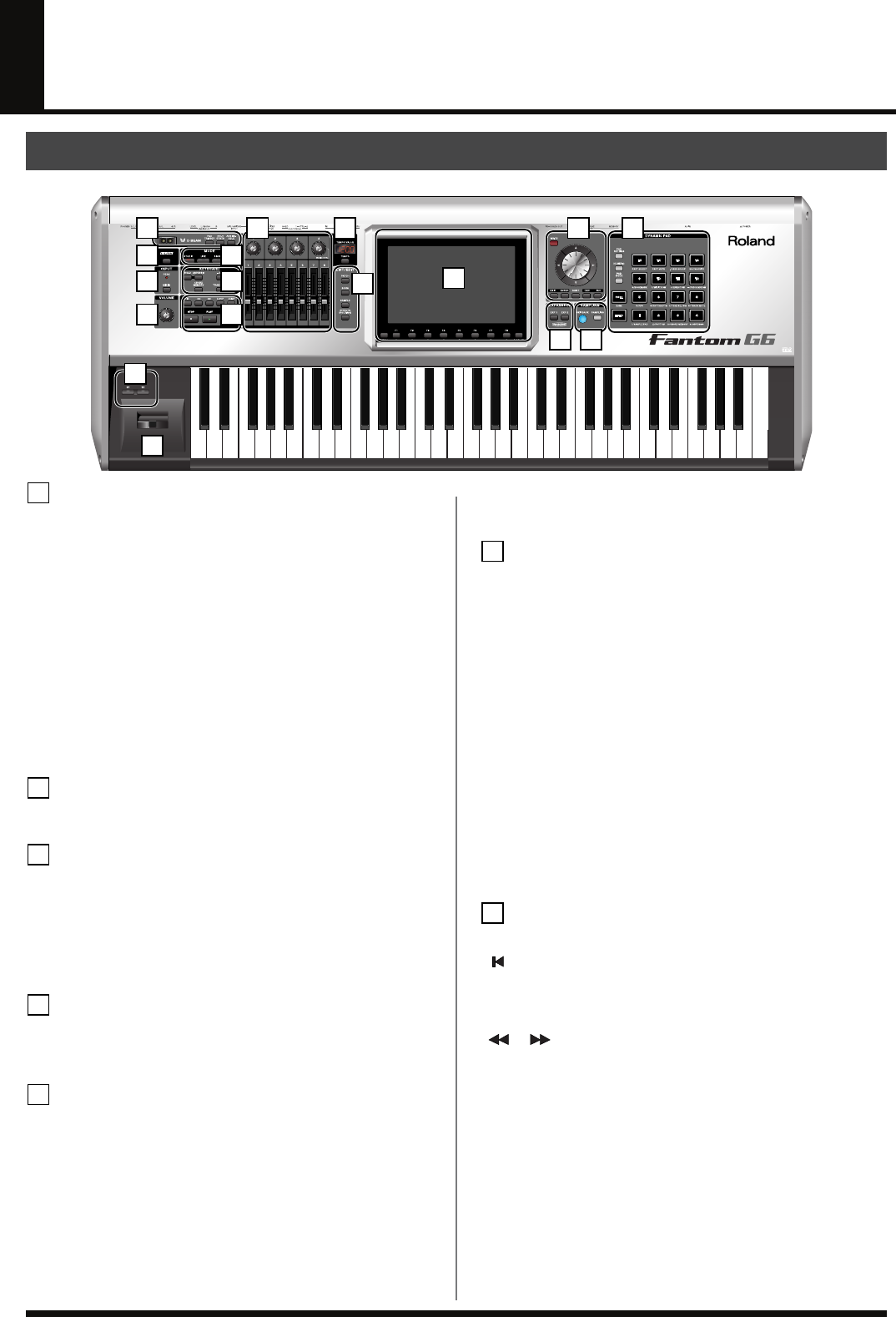
22
Panel Descriptions
D BEAM
Here you can switch the D Beam function on/off. This lets you apply
various effects to the sound by moving your hand above the sensor.
→
(p. 72)
[PAD TRIGGER]
This lets you use the D Beam controller to play the pads, as an
alternative to striking them by hand.
→
(p. 73)
[SOLO SYNTH]
This lets you use the D Beam controller as a monophonic
synthesizer.
→
(p. 73)
* By holding down [SHIFT] and pressing the appropriate button,
you can access the D Beam setting screen.
[ASSIGNABLE]
This lets you assign various parameters or functions to the D Beam
controller, and use it to modify the sound in real time.
→
(p. 75)
[V-LINK]
This switches V-LINK on/off. The V-LINK setting screen will appear
when you turn this button on.
→
(p. 301)
INPUT
PEAK Indicator
This will light when the external input volume is too high.
[MIX IN]
This turns the external input on/off.
→
(p. 258)
* By holding down [SHIFT] and pressing this button you can
access the input setting screen.
→
(p. 258)
VOLUME
VOLUME Knob
This adjusts the overall volume that is output from the rear panel
OUTPUT A (MIX) jacks and PHONES jack.
→
(p. 28)
MODE
[STUDIO]
This puts the Fantom-G in Studio mode. Choose this setting for song
production.
→
(p. 66)
[LIVE]
This puts the Fantom-G in Live mode. Choose this setting when you
want to play multiple sounds layered together or split across the
keyboard.
→
(p. 58)
[SINGLE]
This puts the Fantom-G in Single mode. Choose this setting when
you want to play a single sound at a time.
→
(p. 46)
[FAVORITE]
This lets you register favorite sounds for immediate call-up — a
convenient capability for live performances.
→
(p. 54)
KEYBOARD
[ARPEGGIO]
This turns the arpeggiator on/off.
→
(p. 78)
[HOLD]
This switches the arpeggiator’s Hold function on/off.
→
(p. 78)
[CHORD MEMORY]
This switches Chord Memory on/off.
→
(p. 80)
* By holding down [SHIFT] and pressing these buttons, you can
access the setting screens for chord memory and the arpeggiator.
[-OCT], [+OCT]
These raise or lower the key range in one-octave steps. (-3– +3)
* By pressing the [-OCT] and [+OCT] buttons simultaneously you
can reset the setting to its original value.
[TRANSPOSE]
If this is on, you can use [-OCT] [+OCT] to raise or lower the key
range in semitone steps. (-5– +6)
* By pressing the [-OCT] and [+OCT] buttons simultaneously you
can reset the setting to its original value.
SEQUENCER
Here you can perform sequencer operations such as playback and recording.
[]
This moves the song position to the beginning of the song. If you
press this during playback, you will return to the beginning of the
song and stop.
→
(p. 206)
[] []
These move the song position to the first beat of the previous or next
measure.
→
(p. 206)
* By holding down [SHIFT] and pressing these buttons, you can
move the song position to the previous or next marker.
[LOOP]
This turns Loop Playback on/off.
→
(p. 208)
* By holding down [SHIFT] and pressing this button, you can
access the Loop setting screen.
[JUMP]
This jumps to the JUMP marker. If no marker has been set, it jumps
to the beginning of the song.
→
(p. 208)
* By holding down [SHIFT] and pressing this button, you can
access the Marker setting screen.
Front Panel
1 8 9 12 15
10 11
13 14
2
3
4
16
17
5
6
7
1
2
3
4
5
6
7
Fantom-G_r_e.book 22 ページ 2008年1月31日 木曜日 午後12時15分
Overview Sound 1 Sound 2 Sound 3 Pad Sampler
Menu/System
AppendixSequencer
23
Panel Descriptions
[PLAY]
This plays back the song.
→
(p. 204)
It will blink in time with the tempo and time signature.
→
(p. 293)
[STOP]
This stops playback.
[REC]
This accesses the Recording Standby screen.
→
(p. 222)
Pressing this during recording will activate the Rehearsal function.
→
(p. 225)
CONTROL
Control Knobs 1–4
Control Sliders 1–8
These provide realtime control of the parameters or functions
assigned to them.
→
(p. 75)
* By holding down [SHIFT] and moving one of the above knobs
(sliders), you can access the setting screen for that control.
→
(p. 76)
MAGIC CTRL (Magic Control)
Magic Control is a function that automatically changes the role of knob
4 and slider 8 according to the screen. For example, in the Patch List
screen (p. 49), knob 4 selects the category and slider 8 scrolls the list.
TEMPO/VALUE
This indicates the tempo. When you move a control knob or slider,
this will indicate its value.
[TEMPO]
You can adjust the tempo by pressing this button and turning the
VALUE dial.
→
(p. 78, p. 207)
LIST/EDIT
[PATCH]
Press this to edit a patch. Press it once to access the Patch Zoom Edit
screen (p. 84), or twice in succession to access the Patch Pro Edit
screen
(p. 86).
[SONG]
Press this to edit a song. Press it once to access the Song Play screen
(p. 205), or twice in succession to access the Song Edit screen (p. 232).
[SAMPLE]
Press this to edit a sample. Press it once to access the Sample Edit
screen (p. 266), or twice in succession to access the Sample List (p.
263).
[EFFECTS (ROUTING)]
Press this to make effect-related settings.
→
(p. 150)
DISPLAY
A variety of information is shown here according to the operations
you perform.
[MENU]
Opens the MENU.
→
(p. 276)
Function buttons ([F1]–[F8])
When you’re editing, these buttons execute various functions that
will differ depending on the screen.
[DISPLAY]
Displays the shortcut menu.
→
(p. 44)
VALUE
[WRITE]
Writes the modified content into memory.
→
(p. 79, p. 82, p. 88, p. 116, p. 148, p. 254, p. 274, p. 286)
VALUE Dial
Modifies a value. By holding down [SHIFT] and turning the VALUE
dial, you can modify the value in larger steps.
[CURSOR] Buttons
These move the cursor up/down/left/right.
[EXIT]
This returns you to the previous screen or closes an opened window.
In some screens, it cancels the currently executing function.
[ENTER]
Use this to finalize a value or to execute an operation.
[DEC], [INC]
These modify a value. The value will change more rapidly if you
hold down one button and press the other. If you hold down
[SHIFT] while pressing these buttons, the value will change more
rapidly.
[SHIFT]
This button is used in conjunction with other buttons to execute
various functions.
EXPANSION
[EXP 1], [EXP 2]
These access the screens for expansion boards installed in the
Fantom-G.
* For details on operation, refer to the owner’s manual of the
expansion board you’ve installed.
SAMPLING
[SKIPBACK]
This retroactively samples your performance for a specified period
of time prior to when you pressed the button.
→
(p. 262)
[SAMPLING]
This accesses the Sampling menu screen.
→
(p. 260)
DYNAMIC PAD
[PAD SETTING]
This accesses the setting and information screen for the currently
selected Pad mode.
→
(p. 190)
[NUMERIC]
Lets you use the pads as numeric keys.
→
(p. 41)
[PAD MODE]
Switches the pad mode.
→
(p. 188)
[ROLL]
Turns the Roll function on/off.
→
(p. 189)
* Depending on the Pad mode, this will switch banks.
[HOLD]
Turns the Hold function (which causes the pad to continue sounding
even after it’s released) on/off.
→
(p. 188)
[PAD 1–16]
You can use these to play sounds just like the keyboard. They will also
perform various functions depending on the Pad mode.
→
(p. 188)
[S1] [S2] (Assignable Switches)
You can assign various parameters or functions to these buttons.
They will turn on/off the assigned parameter or function in real time
to modify the sound.
→
(p. 77)
* By holding down [SHIFT] and pressing one of the above buttons,
you can access the corresponding setting screen.
→
(p. 77)
Pitch Bend/Modulation Lever
You can use this to modify the pitch or apply vibrato.
8
9
10
11
12
13
14
15
16
17
Fantom-G_r_e.book 23 ページ 2008年1月31日 木曜日 午後12時15分
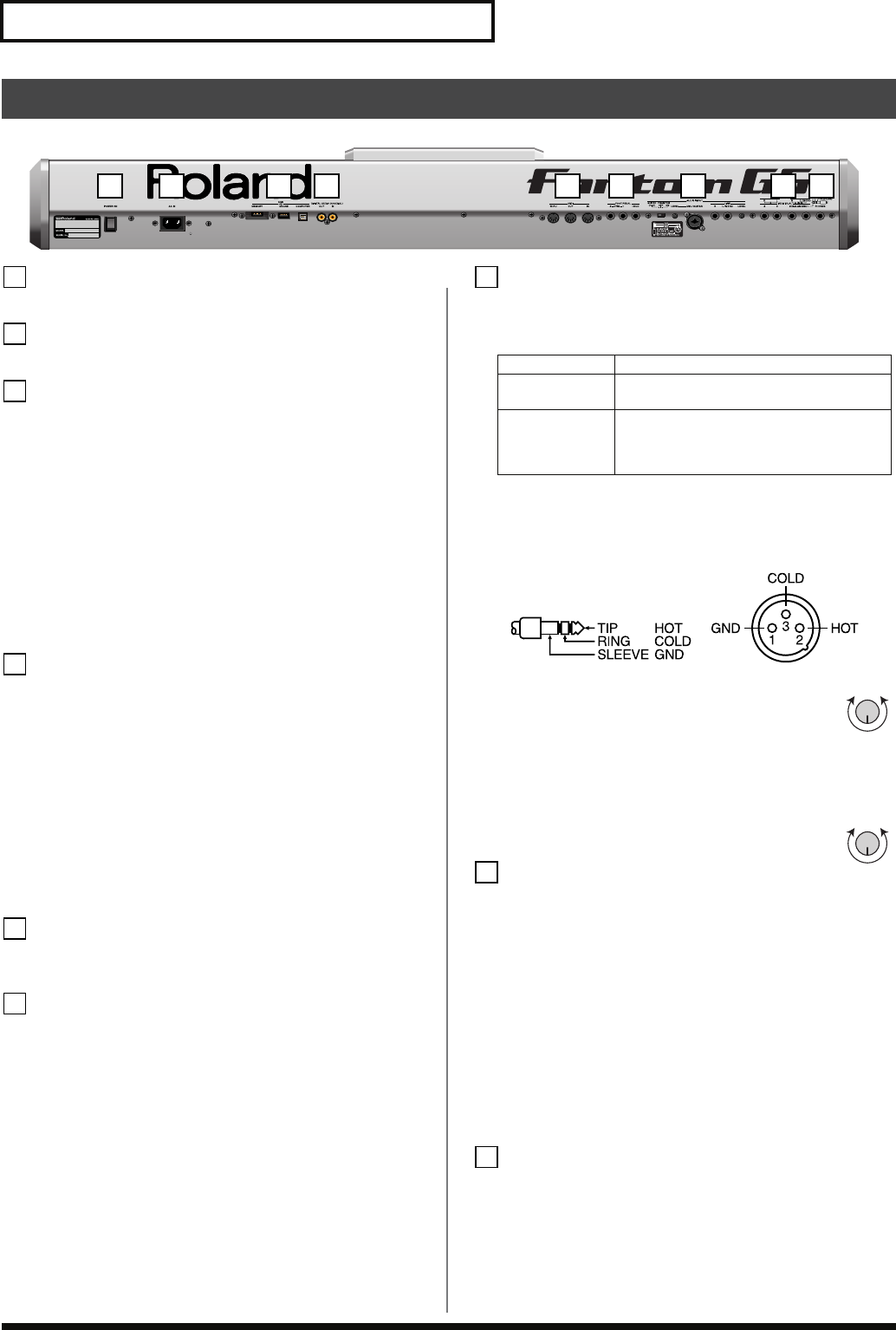
24
Panel Descriptions
POWER ON Switch
Press to turn the power on/off.
→
(p. 28)
AC Inlet
Connect the included power cord to this inlet.
USB
USB MEMORY Slot
A USB memory (sold separately) can be inserted here.
* Never insert or remove a USB memory while this unit’s power is
on. Doing so may corrupt the unit’s data or the data on the USB
memory.
* Carefully insert the USB memory all the way in—until it is
firmly in place.
USB MOUSE Connector
Connect the USB mouse (sold separately).
→
(p. 26)
USB COMPUTER Connector
This connector lets you use a USB cable to connect your
computer to the Fantom-G.
→
(p. 281)
DIGITAL AUDIO IN/OUT Connectors
(S/P DIF COAXIAL)
These are coaxial-type S/P DIF format digital in/out connectors.
These connectors input and output a digital audio signal
(stereo). The output signal is identical to the signal that is output
from the OUTPUT A (MIX) jacks.
* S/P DIF is a digital interface format used for consumer digital
audio devices.
* If you switch off the power to an external device that is
connected to the DIGITAL AUDIO IN jack or disconnect the
cable, noise may subsequently be heard in the input from
DIGITAL AUDIO IN. If this occurs, correctly reconnect the
external device, or turn off the Fantom-G’s [MIX IN] switch.
MIDI Connectors (IN, OUT, THRU)
These connectors can be connected to other MIDI devices to
receive and transmit MIDI messages.
FOOT PEDAL
CTRL (CONTROL) 1, 2 Jacks
You can connect optional expression pedals (EV-5, etc.) or
optional pedal switches (DP series etc.) to these jacks. By
assigning a desired function to a pedal, you can use it to select or
modify sound or perform various other control.
→
(p. 31)
925
* Use only the specified expression pedal (EV-5; sold separately).
By connecting any other expression pedals, you risk causing
malfunction and/or damage to the unit.
HOLD Jack
An optional pedal switch (DP series, FS-5U etc.) can be
connected to this jack for use as a hold pedal.
→
(p. 31)
This can also be set so it supports the use of half-pedaling
techniques. So, after connecting an optional pedal switch (DP
series etc.), you can employ pedal work to achieve even finer
control in performances in which piano tones are used.
AUDIO INPUT
MIC/GUITAR Jack
You can connect either a mic or guitar. Set the Switch as appropriate
for the device you’ve connected to the MIC/GUITAR jack.
* This instrument is equipped with balanced (XLR/TRS) type
jacks. Wiring diagrams for these jacks are shown below. Make
connections after first checking the wiring diagrams of other
equipment you intend to connect.
fig.XLR/TRSJack.eps
MIC/GUITAR LEVEL knob
Controls the volume of the mic/guitar input.
LINE Jacks (L, R)
Connect a line-level device such as an audio device (e.g.,
portable music player) or keyboard. If you want to use mono
input, connect to the L jack (p. 258).
LINE LEVEL knob
Controls the volume of the line input.
OUTPUT
OUTPUT A (MIX) Jacks (L (MONO), R)
These jacks output the audio signal to the connected mixer/
amplifier system in stereo. For mono output, use the L jack.
→
(p. 26)
OUTPUT B Jacks (L, R)
These jacks output the audio signal to the connected mixer/
amplifier system in stereo.
INDIVIDUAL 1–4 Jacks
These jacks output audio signals in mono to an amp or mixer.
* The setting determining whether these jacks are used as stereo
OUTPUT jacks or monaural INDIVIDUAL jacks is made with
the Output Assign setting.
→
(p. 152)
PHONES Jack
This is the jack for connecting headphones (sold separately).
→
(p. 26)
Rear Panel
1 2 3 4 5 6 7 8 9
1
2
3
4
5
6
GUITAR (Hi-Z)
Guitar (High impedance supported)
PHANTOM OFF
Dynamic Mic: 1/4“phone plug (balanced or
unbalanced), XLR connector
PHANTOM ON
Condenser Mic: XLR connector (48 V phan-
tom power supported)
* If you don’t need phantom power supply,
select the PHANTOM OFF position.
7
MinMax
MinMax
8
9
Fantom-G_r_e.book 24 ページ 2008年1月31日 木曜日 午後12時15分
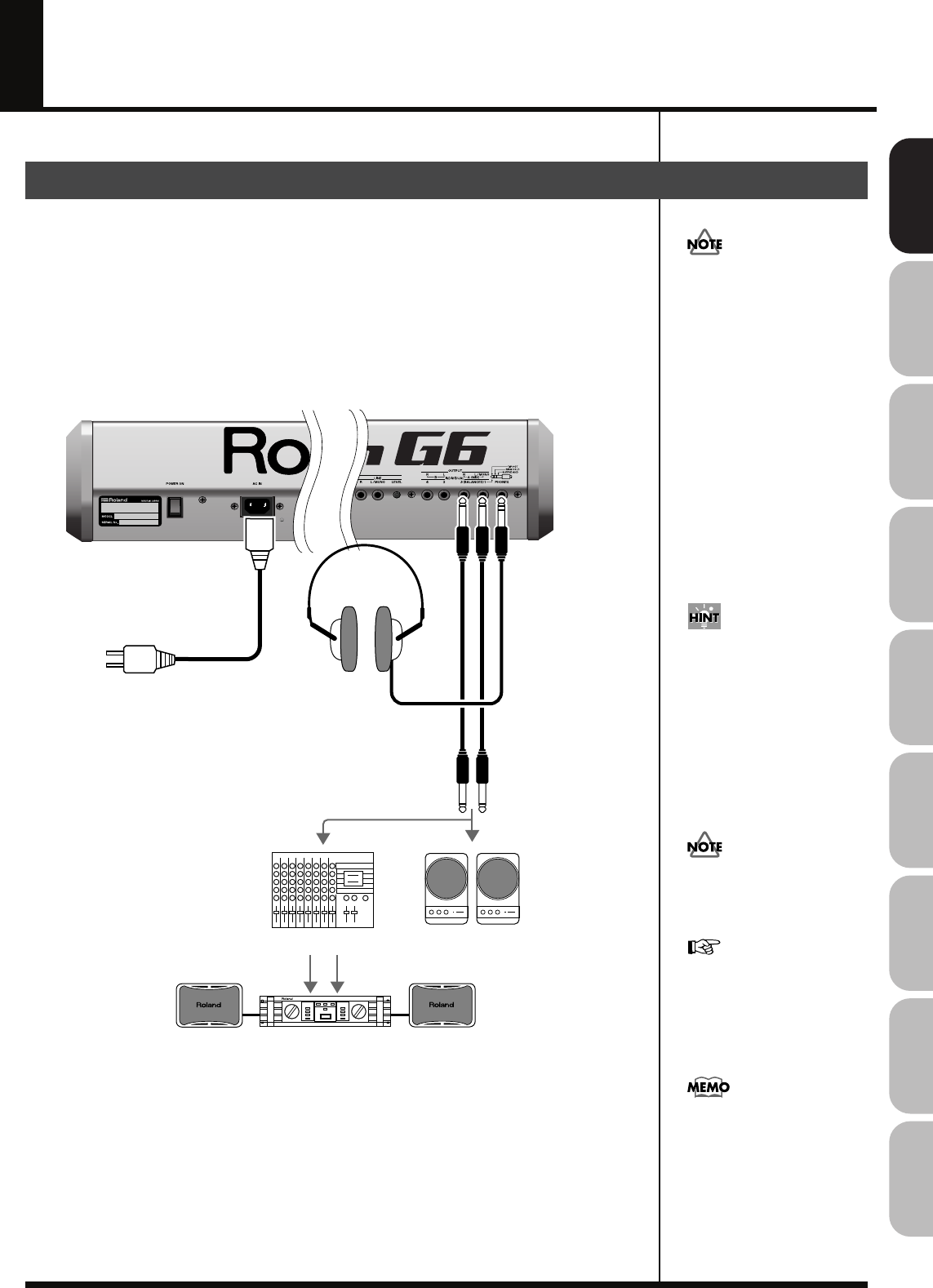
25
Overview Sound 1 Sound 2 Sound 3 Pad Sampler
Menu/System
AppendixSequencer
Making Connections
Since the Fantom-G contains no amplifier or speakers, you’ll need to connect it to audio
equipment such as a keyboard amplifier, monitor speaker system or home stereo, or use
headphones to hear its sound.
1.
Before hooking anything up, make sure that the power on all of your gear is turned
OFF.
2.
Connect one end of the supplied power cable to the Fantom-G, and the other end to a
power outlet.
3.
Connect the Fantom-G to your amp/speaker system as shown in the diagram.
fig.02-002.e
Connecting an Amp and Speaker System
921
To prevent malfunction and/
or damage to speakers or other
devices, always turn down the
volume, and turn off the
power on all devices before
making any connections.
to Power outlet
Stereo headphones
Monitor speakers
(powered)
Power amp
Mixer etc.
In order to fully experience the
Fantom-G’s sound, we
recommend using a stereo
amp/speaker system. If you’re
using a mono system,
however, make your
connections to the Fantom-G’s
OUTPUT A (MIX) jack L
(MONO).
Audio cables are not included
with the Fantom-G. You’ll
need to provide them.
For details on how to install a
Expansion Board (sold
separately), refer to “Installing
the Expansion Board”
(p. 304, p. 306).
The OUTPUT A [MIX] jacks
support balanced output. Use
a correctly wired cable so that
the HOT, COLD, and GND as
printed on the rear panel of the
Fantom-G are correct for the
mixer or other input device
you’re using.
Fantom-G_r_e.book 25 ページ 2008年1月31日 木曜日 午後12時15分
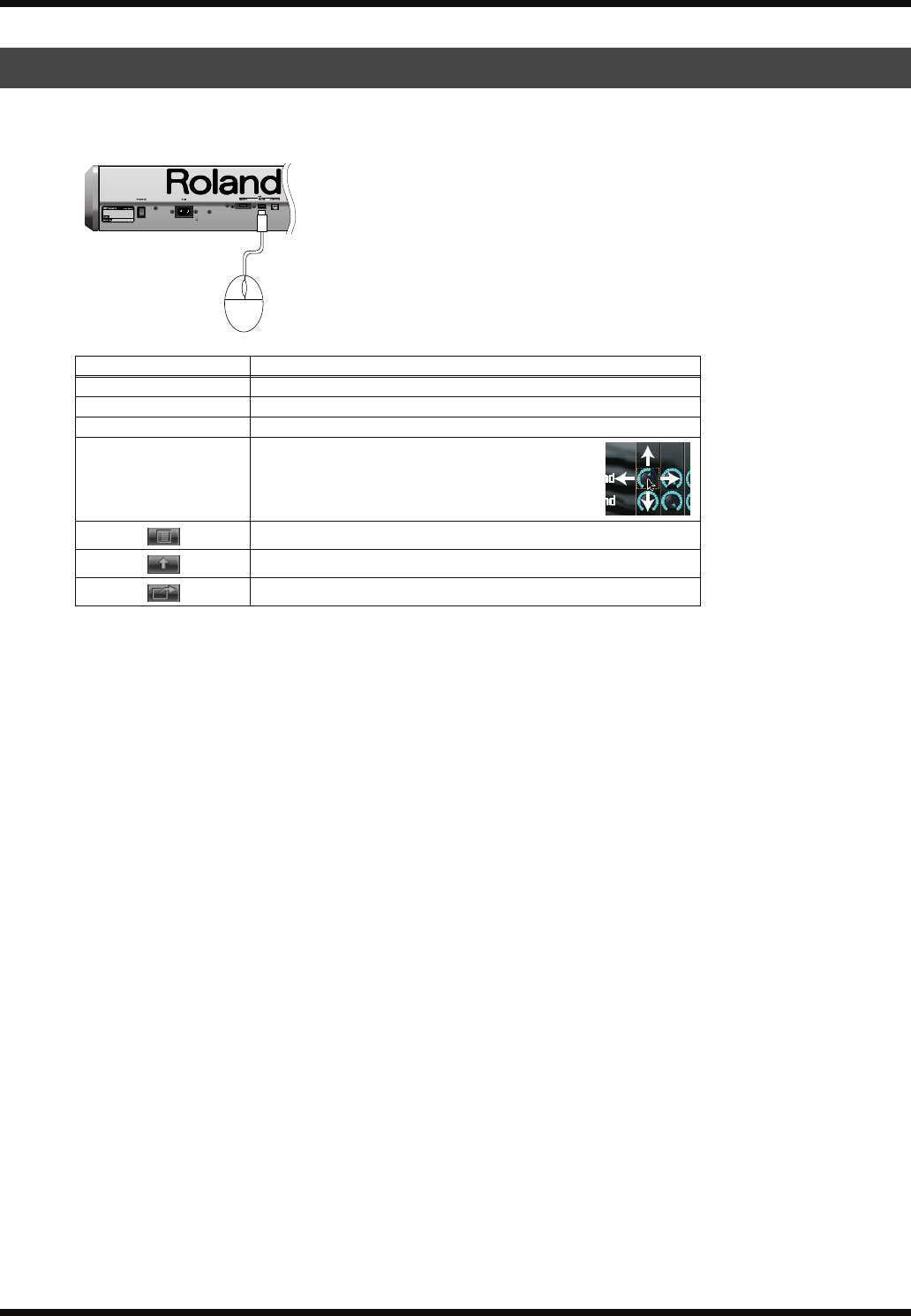
26
Making Connections
If you connect a commercially available USB mouse to the Fantom-G’s rear panel USB MOUSE
connector, a mouse cursor will be shown in the display, and you’ll be able to use the mouse.
Connecting a USB Mouse (sold separately)
Action Operation
Left-click Select (move the cursor)
Right-click [ENTER] button / list display
Wheel VALUE dial / scroll
Drag (move while hold-
ing down left button)
Drag the mouse on the area or knob for which you
want to input a value. Dragging upward or to the
right will increase the value, and dragging downward
or to the left will decrease it.
Click the button Opens the menu (p. 276)
Click the button [EXIT] button
Click the button Opens the shortcut menu (p. 44)
Fantom-G_r_e.book 26 ページ 2008年1月31日 木曜日 午後12時15分
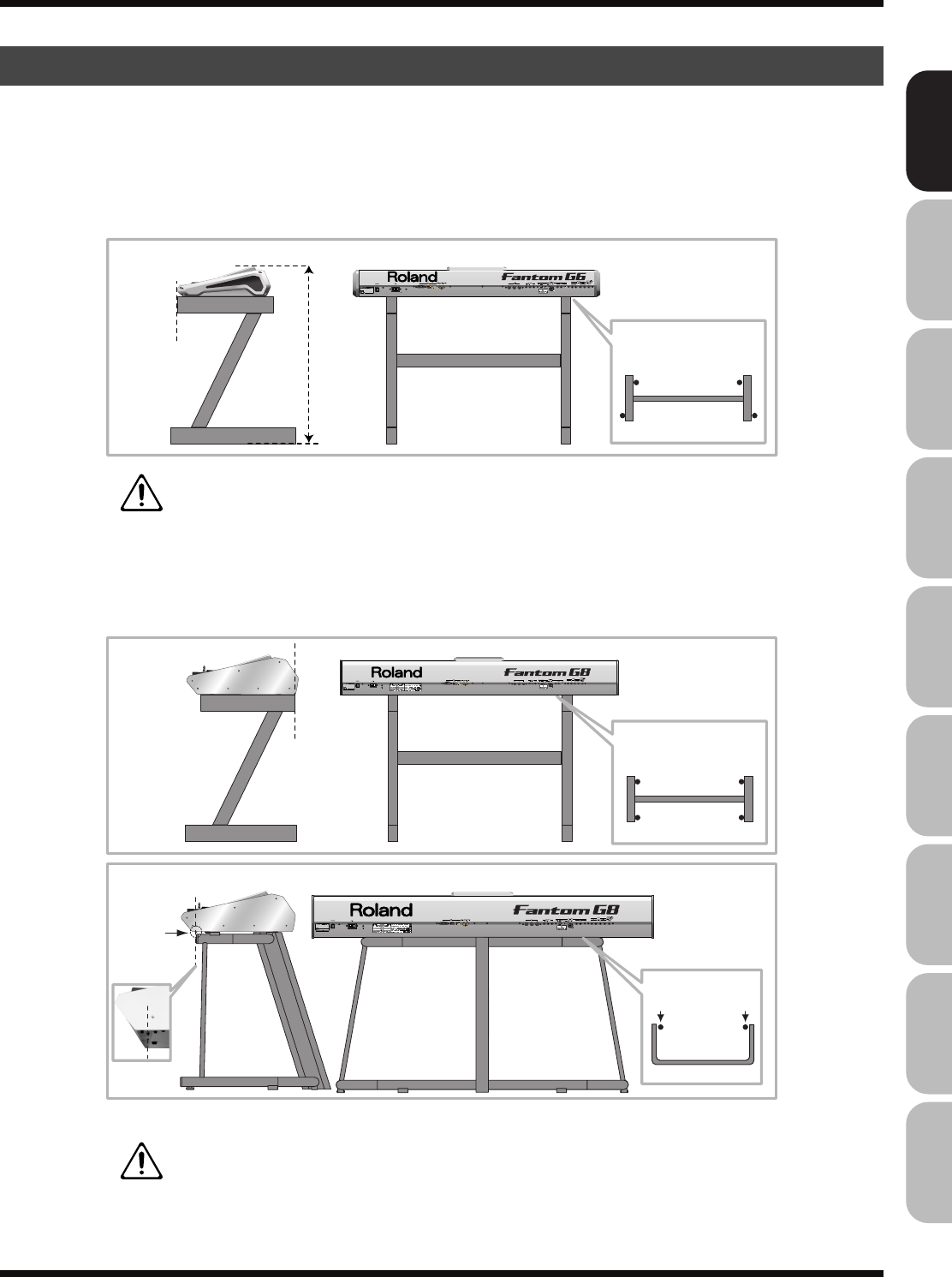
27
Making Connections
Overview Sound 1 Sound 2 Sound 3 Pad Sampler
Menu/System
AppendixSequencer
* Be careful not to pinch your fingers when setting up the stand.
For Fantom-G6/G7 user
If you want to place the Fantom-G6/G7 on a stand, use the Roland KS-18Z.
Place the instrument on the stand as follows.
fig.02-001.e
WARNING:
Use of stand not according to the instructions above will result in instability causing
possible injury.
For Fantom-G8 user
If you want to place the Fantom-G8 on a stand, use the Roland KS-18Z or KS-G8.
Place the instrument on the stand as follows.
fig.02-001.e
WARNING:
Use of stand not according to the instructions above will result in instability causing
possible injury.
Placing the Fantom-G on a Stand
Adjust the width of the stand so that
the rubber feet of the Fantom-G6/G7
straddle the stand
Top view
Align the front of the
Fantom-G6/G7
with the front of
the stand
KS-18Z
Adjust so that the
height does not
exceed 1 meter
(Adjust the stand
to a level no
higher than the
fourth level from
the bottom)
Adjust the width of the stand so that
the rubber feet of the Fantom-G8
are on the inside of the stand
Place the Fantom-G8 so
that it’s rubber feet are in the
inner side of the stand
Align the back of
the Fantom-G8 with
the back of the stand
KS-G8
KS-18Z
Top view
Top view
Align the screws
of the Fantom-G8
with the front of
the stand
Fantom-G_r_e.book 27 ページ 2008年1月31日 木曜日 午後12時15分
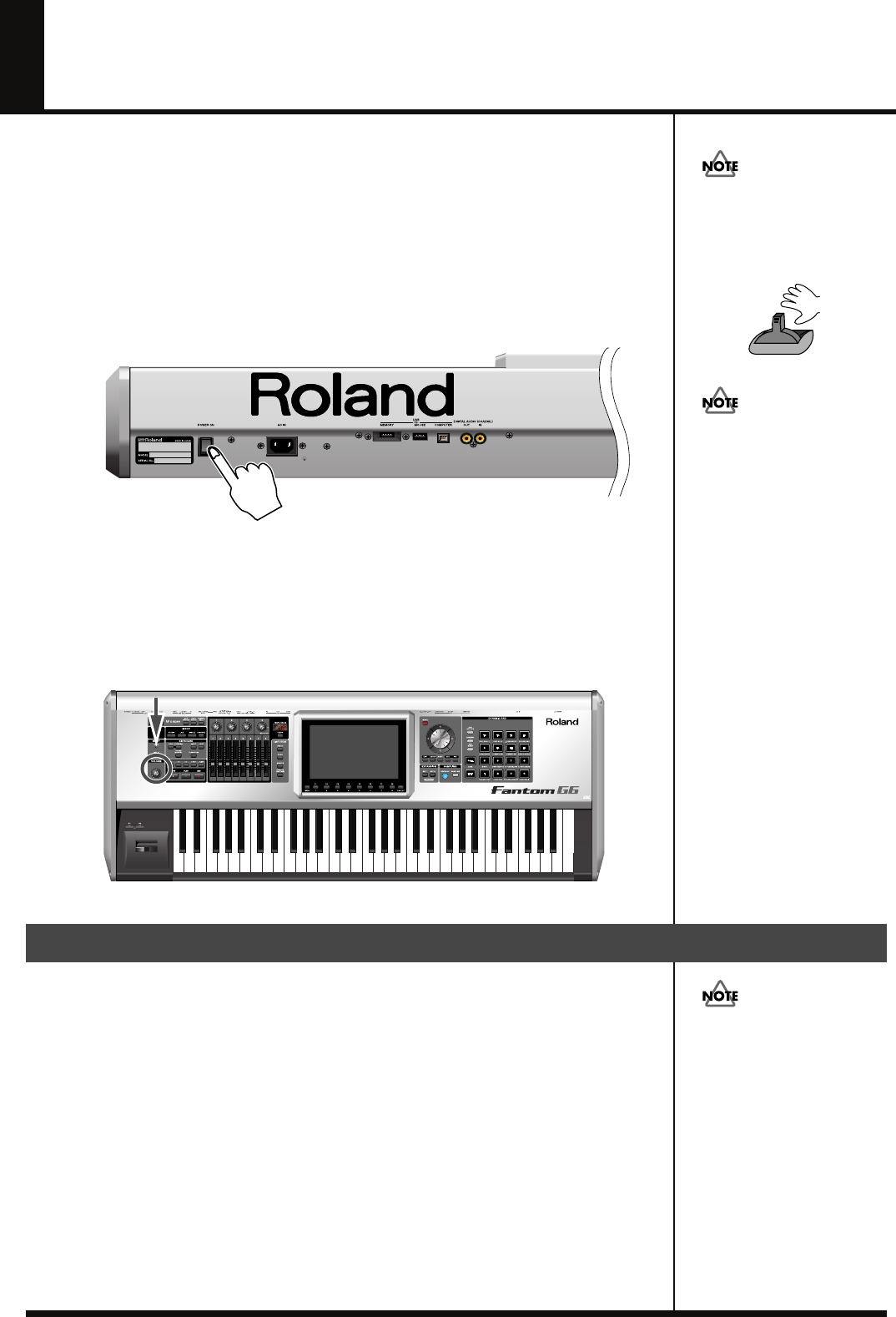
28
Turning On the Power
941
Once the connections have been completed (p. 25), turn on power to your various devices in
the order specified. By turning on devices in the wrong order, you risk causing malfunction
and/or damage to speakers and other devices.
fig.bender.e
1.
Before turning on the Fantom’s power, consider these two questions:
• Are all peripheral devices connected correctly?
• Have the volume controls of the Fantom-G and all connected audio devices been
turned to their lowest settings?
2.
Turn on the POWER ON switch located on the rear panel of the Fantom-G.
fig.02-003
942
* This unit is equipped with a protection circuit. A brief interval (a few seconds) after power
up is required before the unit will operate normally.
3.
Turn on the power for any connected amplifiers or speakers.
4.
Play the Fantom-G’s keyboard, gradually increasing the setting of its volume control,
and then carefully raise the volume of your connected amplifiers or speakers to the
desired listening level.
fig.02-004
1.
Before you turn off the power, consider these two questions:
• Have the volume controls for the Fantom-G and all connected audio devices been
turned to their lowest settings?
• Have you saved your Fantom-G sounds or other data you’ve created?
2.
Turn off the power for all connected audio devices.
3.
Turn off the POWER ON switch of the Fantom-G.
Turning Off the Power
To ensure proper operation of
the pitch bend lever, make
sure not to touch the lever
when turning the Fantom-G’s
power on.
Do not touch!
Be careful not to set your
listening volume too high to
avoid damage to your amp/
speaker system or your
hearing.
If you need to turn off the
power completely, first turn
off the POWER switch, then
unplug the power cord from
the power outlet. Refer to
“Power Supply” (p. 7).
Fantom-G_r_e.book 28 ページ 2008年1月31日 木曜日 午後12時15分
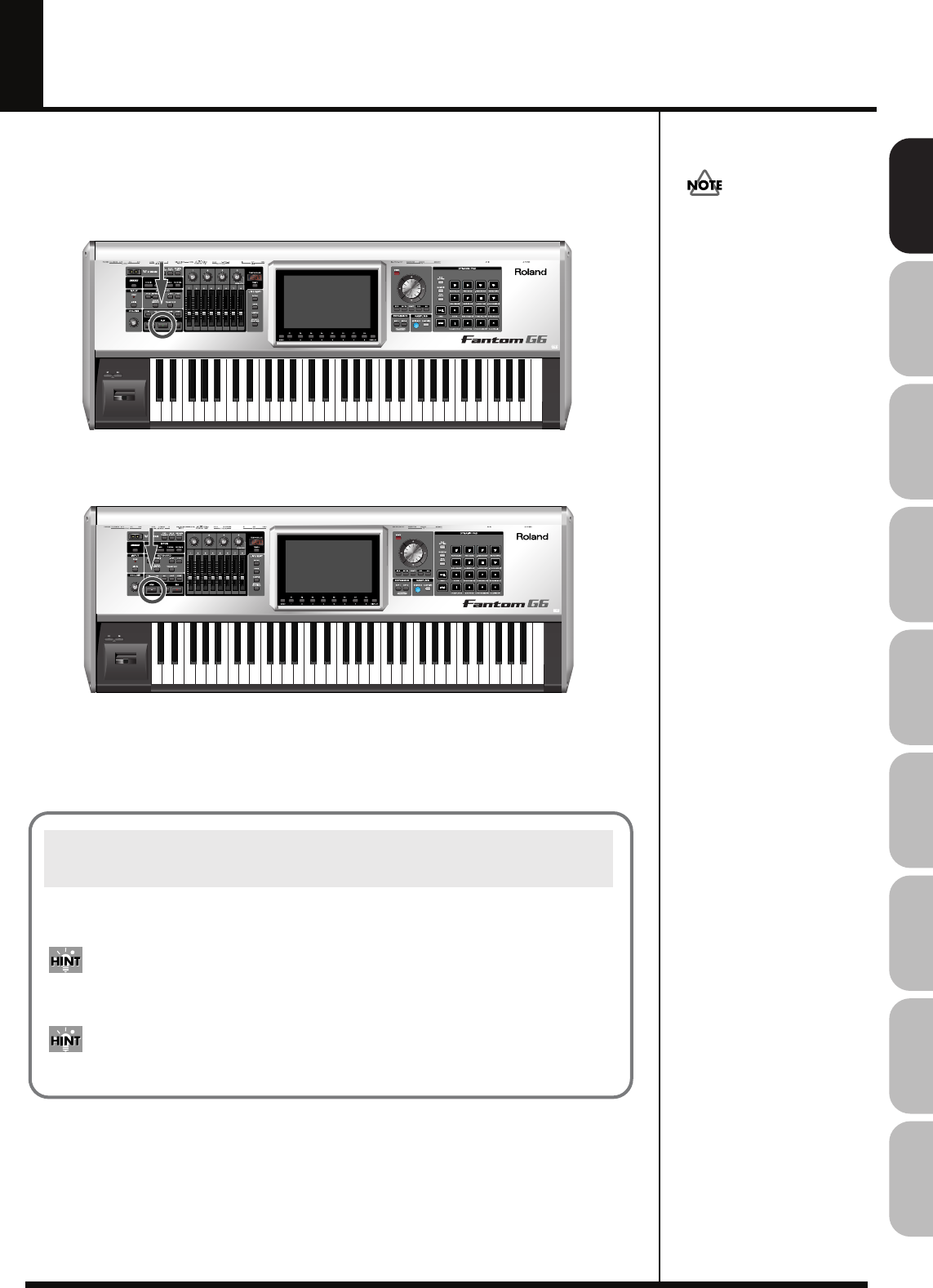
29
Overview Sound 1 Sound 2 Sound 3 Pad Sampler
Menu/System
AppendixSequencer
Listening to the Demo Songs
The Fantom-G has a demo song that will be loaded at start-up.
Here’s how to play the demo.
1.
Press [PLAY].
The demo song will play.
2.
Press [STOP] to stop demo song playback.
.
981
a
All rights reserved.
Unauthorized use of this
material for purposes other
than private, personal
enjoyment is a violation of
applicable laws.
When the Fantom-G is powered-on (when loading a project), song 001 (the top song in the
Song List) will be loaded automatically.
If you don’t want a song to be loaded automatically at power-on (when loading a project),
delete song 001 as described in “Deleting a Song File (Song Delete)” (p. 210).
When you execute a Factory Reset (p. 280), the demo song will be written to song 001.
Song Automatically Loaded at Power-on
(When Loading a Project)
Fantom-G_r_e.book 29 ページ 2008年1月31日 木曜日 午後12時15分
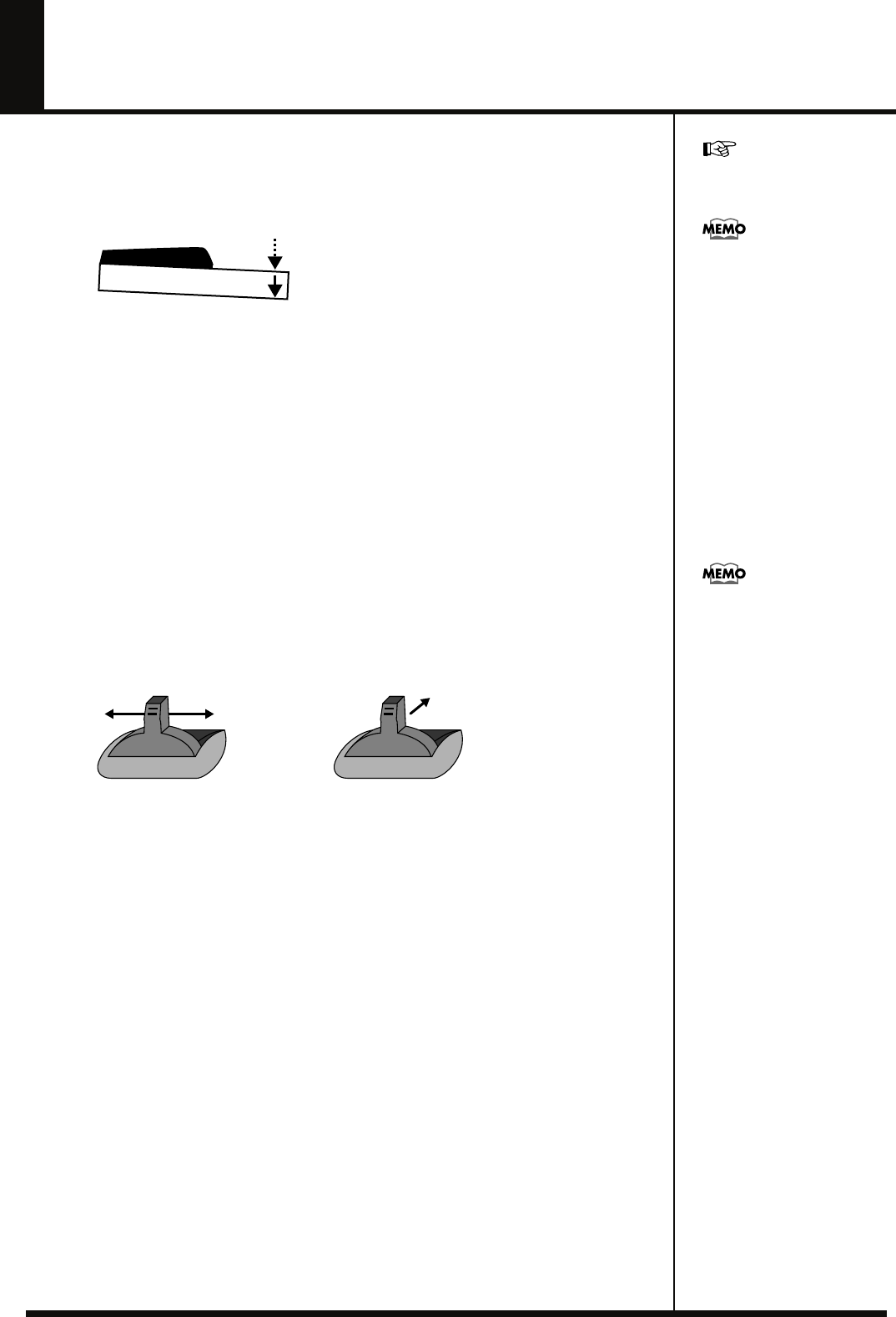
30
Various Performance Features
Velocity/Aftertouch
The force with which you play the keyboard, or the “velocity” with which you play, can affect
the volume or timbre of a sound. Aftertouch—downward pressure you apply to a key after
playing a note—can also affect the sound.
fig.02-008
Pitch Bend/Modulation Lever
While playing the keyboard, move the lever to the left to lower the pitch of the currently
selected patch, or to the right to raise its pitch. This is known as
pitch bend
. You can also apply
vibrato by gently pushing the lever away from you. This is known as
modulation
.
If you push the lever away from you and at the same time move it to the right or left, you can
apply both effects at once.
fig.02-009.e
Octave Shift (OCT)
You can shift the pitch of the keyboard in one-octave units over a range of +/-3 octaves.
Use KEYBOARD [-OCT] or [+OCT] at the left of the screen to make the desired setting.
To return to the original setting, press both buttons simultaneously.
Transpose
You can transpose the pitch of the keyboard in semitone units (-5– +6).
At the left of the display, turn on the KEYBOARD [TRANSPOSE] button, and then use the
[-OCT] or [+OCT] button to specify the desired transposition.
To return to the original setting, press both buttons simultaneously.
There are two types of
aftertouch: Polyphonic
Aftertouch, which applies
aftertouch to individual notes,
and Channel Aftertouch,
which applies aftertouch to an
entire MIDI channel (p. 251).
The Fantom-G can output the
MIDI data for Polyphonic
Aftertouch using the pads, and
Channel Aftertouch using the
keyboard.
For details on the setting, refer
to p. 288.
ModulationPitch Bend
You can set the amount of
pitch change for each patch (p.
96).
Fantom-G_r_e.book 30 ページ 2008年1月31日 木曜日 午後12時15分
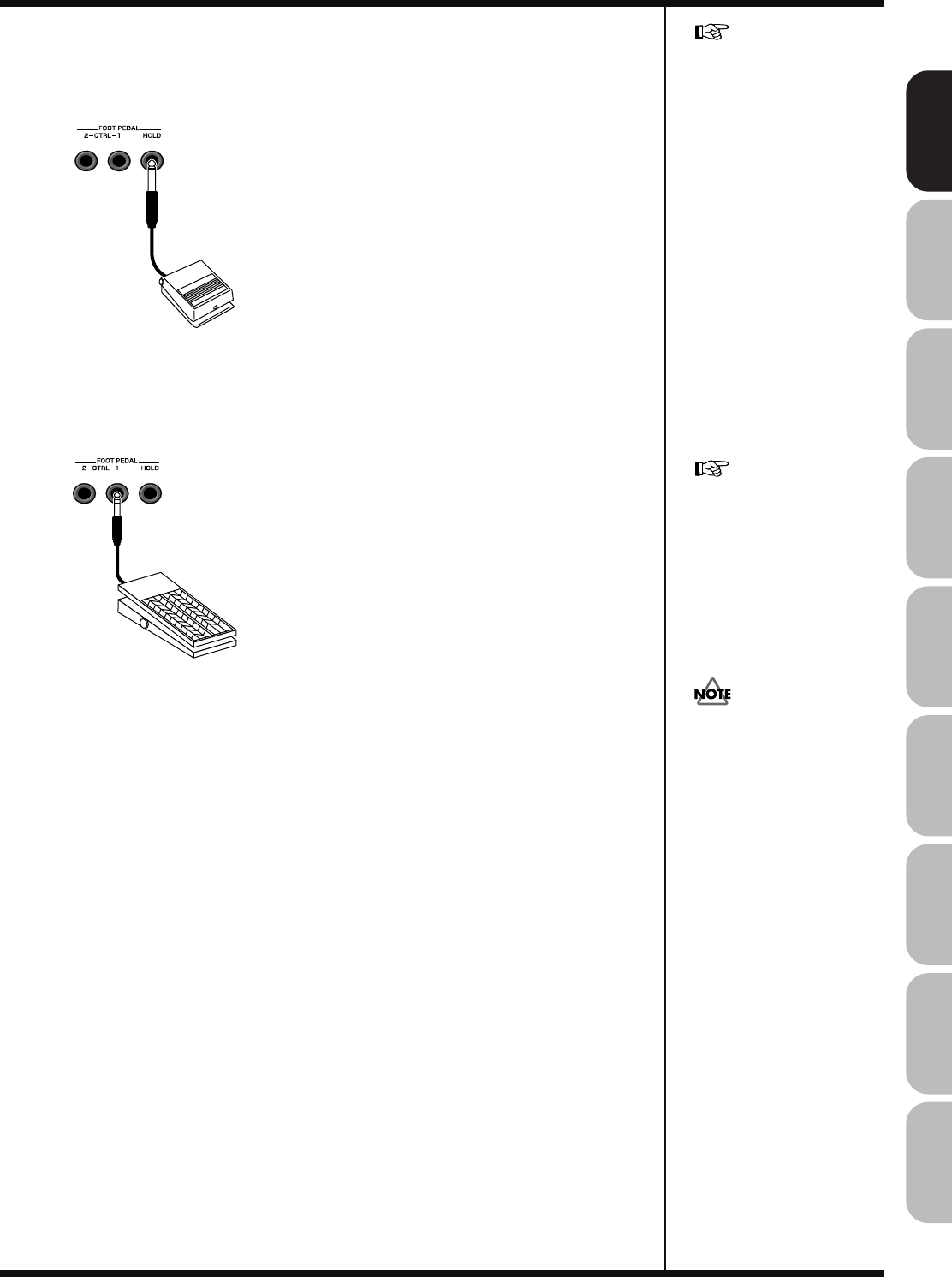
31
Various Performance Features
Overview Sound 1 Sound 2 Sound 3 Pad Sampler
Menu/System
AppendixSequencer
Hold Pedal
If an optional pedal switch (DP series) is connected to the rear panel PEDAL HOLD jack, you
can press the pedal switch to cause notes to sustain or “hold” even after their keys have been
released.
fig.02-010
Control Pedal
If an optional expression pedal or pedal switch (EV-5, DP series.) is connected to the rear panel
PEDAL CONTROL jack (1, 2), you can use the pedal to control the volume or various functions.
fig.02-011
For details on the setting, refer
to p. 287.
Roland
Use only the specified
expression pedal or pedal
switch (EV-5, DP series, BOSS
FS-5U; sold separately). By
connecting any other
expression pedals, you risk
causing malfunction and/or
damage to the unit.
The way in which the sound
changes will depend on the
settings. For details on settings
for parameters controlled by
the pedal, refer to “Making
Control Pedal Settings” (p.
77).
Fantom-G_r_e.book 31 ページ 2008年1月31日 木曜日 午後12時15分
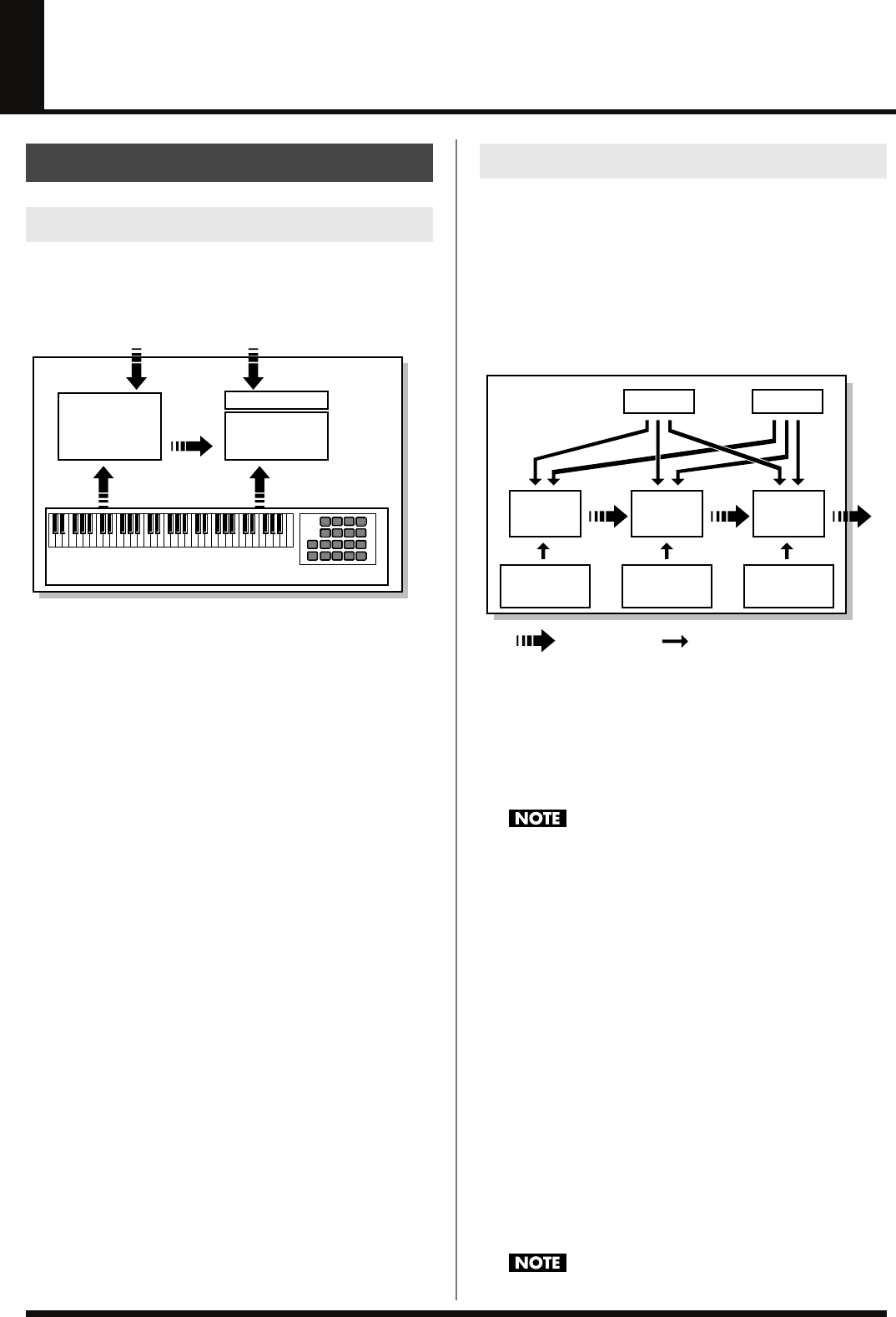
32
Overview of the Fantom-G
Broadly speaking, the Fantom-G consists of a
controller section
,
sound generator section
,
sequencer section
, and
sampler
section
.
fig.04-001.j
Controller section
This section includes the keyboard, pads, pitch bend / modulation
lever, the panel knobs, sliders, and D Beam controller, and pedals
connected to the rear panel.
Sound generator section
This section generates sound in response to performance data from
the controller section or sequencer section.
Sequencer section
This is a sequencer with 128 MIDI tracks and 24 audio tracks. The
MIDI tracks record performance data (MIDI) from the keyboard,
pads, and other controllers. The audio tracks record sound (audio)
from a mic or guitar connected to the Fantom-G’s audio input jacks.
Sampler section
A sampler is a device that captures (samples) sound from a CD
player or mic connected to the audio input or digital input, and
saves this sample as a wave file.
A captured sample can be used in the same way as the waveforms of
the sound generator section. You can also sample the sound of the
internal sound generator section itself (p. 258).
The Fantom-G can load WAV/AIFF format wave files from your
computer via USB as samples.
When using the Fantom-G, you’ll encounter various units of sound.
Here we’ll provide a simple explanation of these units.
Tone
A Tone is the smallest unit of sound in the Fantom-G. However, you
can’t play a tone by itself. The smallest unit of sound that you can
play is the “Patch,” so you can think of tones as the sonic material
that makes up each patch.
fig.04-002.j
A tone consists of the following five elements.
WG (Wave Generator)
This selects the PCM waveform (wave) that is the basis of the sound,
and specifies how its pitch will change.
All of the patches built into the Fantom-G consist of combinations of
tones that are based on PCM waveforms (waves).
A rhythm tone (percussion instrument sound) contains four wave generators.
TVF (Time Variant Filter)
This specifies how the frequency components of the sound will
change over time.
TVA (Time Variant Amplifier)
This specifies volume change and panning.
Envelope
An envelope specifies a change over time. Dedicated envelopes are
provided for Pitch, TVF (filter), and TVA (volume). For example, if
you want to modify the time over which the sound starts or decays,
you would use the TVA Envelope settings to specify the desired
time-variant volume change.
LFO (Low Frequency Oscillator)
An LFO creates cyclic change (modulation). There are two LFOs, and
each can be applied to one aspect of the sound; WG (pitch), TVF
(filter), or TVA (volume). Applying an LFO to the WG pitch will
produce vibrato, applying it to the TVF cutoff frequency will produce
wah, and applying it to the TVA volume will produce tremolo.
A rhythm tone (percussion instrument sound) does not have an LFO.
How the Fantom-G is Organized
Basic Structure
Controller section
(controllers such as the keyboard, pads, and pitch bend lever)
Sound generator
section
Recording
Playback
Sequencer section
128 MIDI tracks
24 audio tracks
Performance
Sampler section
SamplingRecording
Audio input
Different Units of Sound
WG
Pitch
Envelope
TVF
TVF
Envelope
TVA
Envelope
TVA
LFO 1 LFO 2
Control signal
Tone
Audio signal
Fantom-G_r_e.book 32 ページ 2008年1月31日 木曜日 午後12時15分
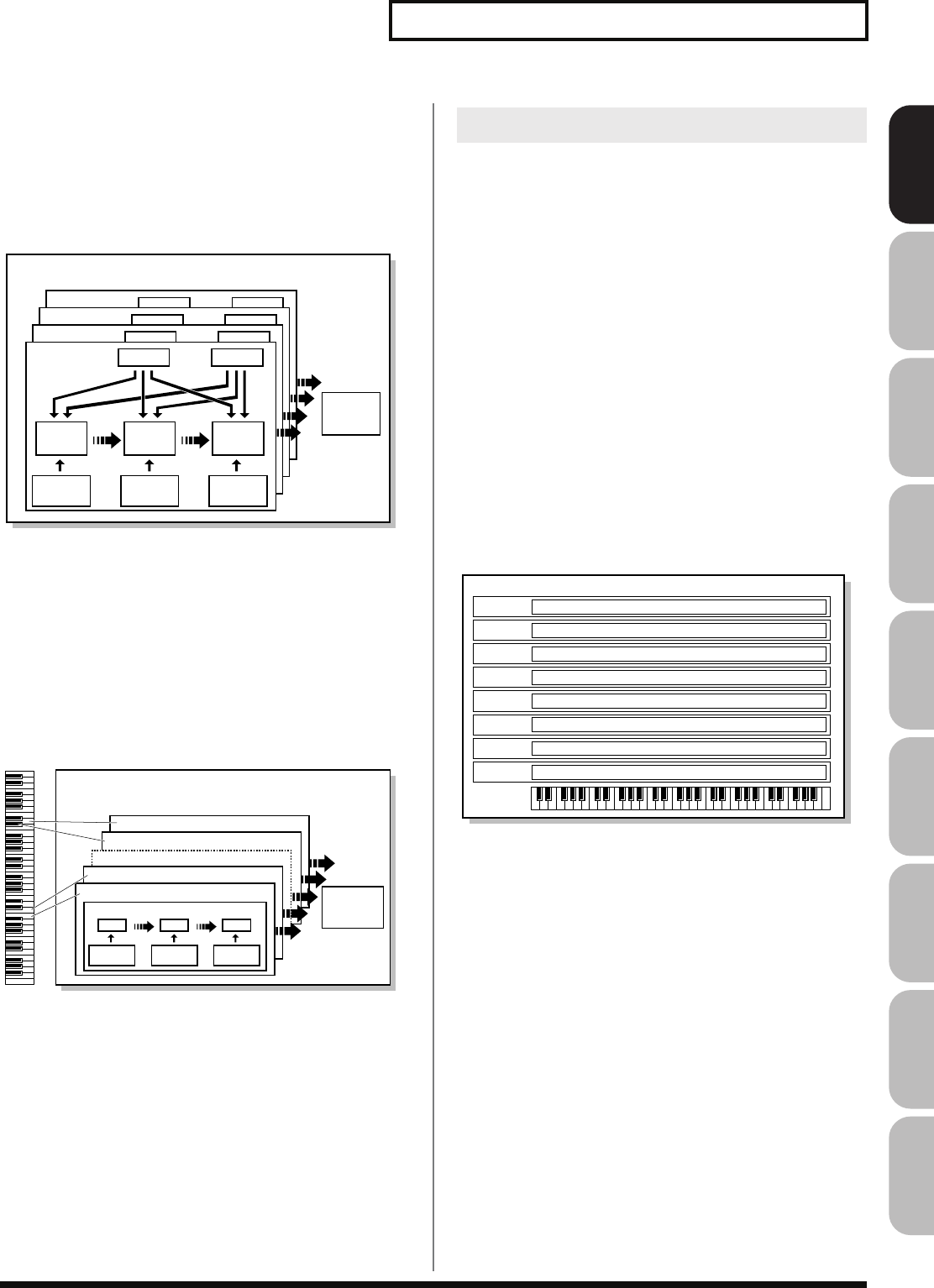
33
Overview of the Fantom-G
Overview Sound 1 Sound 2 Sound 3 Pad Sampler
Menu/System
AppendixSequencer
Patch
Patches are the basic unit of sound on the Fantom-G; they
correspond to an individual instrument such as “piano,” “organ,” or
“guitar.” A patch can consist of up to four tones. The Structure 1&2
and 3&4 parameters (p. 92) determine how the four tones are
combined. You can apply a “PFX (Patch MFX)” effect to each patch.
fig.04-003.j
Rhythm set
A rhythm set is a group of percussion instrument sounds. Since
percussion instrument sounds are not usually used to play melodies,
there’s no need for them to produce different pitches when played
from the keyboard. Rather, it’s important that you have
simultaneous access to as many percussion instrument sounds as
possible. This is why in a rhythm set, each note (note number) of the
keyboard will play a different percussion instrument sound. You can
apply a “PFX (Patch MFX)” effect to each rhythm set.
fig.04-004.j
Sample set
On the Fantom-G, a piece of wave data obtained by audio recording
or sampling is called a Sample. A sample set is a collection of sixteen
samples handled as a set. You can specify how each sample will play
when you press a pad or key.
The Fantom-G can operate in the following three modes.
Single mode
Single mode is when you play a single patch (or rhythm set or
sample set), using the Fantom-G as a single piano, organ, etc. Choose
this mode when you want to edit a patch to create your own original
sound.
Live mode
Live mode is designed for live performance. It lets you play up to
eight patches (or either rhythm sets or sample sets) simultaneously.
For example, you can create layers (p. 62) in which a piano sound
and strings sound are heard simultaneously, or splits (p. 62) in
which your right hand plays a piano sound while your left hand
plays a bass sound.
Live set
Settings for Live mode can be saved as a “live set.”
Studio mode
Studio mode is designed to let you record a song. It provides sixteen
parts, and you can assign a patch (or rhythm set or sample set) to
each part, letting you use sixteen different sounds at the same time.
You can use the mixer screen to adjust the level and pan for each of
the sixteen parts.
Studio set
Settings for Studio mode can be saved as a “studio set.”
Patch
Tone 4
Tone 3
Tone 2
Tone 1
WG
Pitch
Envelope
TVF
TVF
Envelope
TVA
Envelope
PFX
(PATCH MFX)
TVA
LFO 1 LFO 2
Note number 98 (D7)
Note number 97 (C#7)
Note number 36 (C2)
Note number 35 (B1)
Rhythm tone (percussion instrument sound)
Rhythm set
WG (1-4)
Pitch
Envelope
TVF
TVF
Envelope TVA
Envelope
TVA
PFX
(PATCH MFX)
Single / Live / Studio Modes
Live set
Part 1 Patch / Rhythm set / Sample set
Part 2 Patch / Rhythm set / Sample set
Part 3 Patch / Rhythm set / Sample set
Part 4 Patch / Rhythm set / Sample set
Part 5 Patch / Rhythm set / Sample set
Part 6 Patch / Rhythm set / Sample set
Part 7 Patch / Rhythm set / Sample set
Part 8 Patch / Rhythm set / Sample set
Fantom-G_r_e.book 33 ページ 2008年1月31日 木曜日 午後12時15分
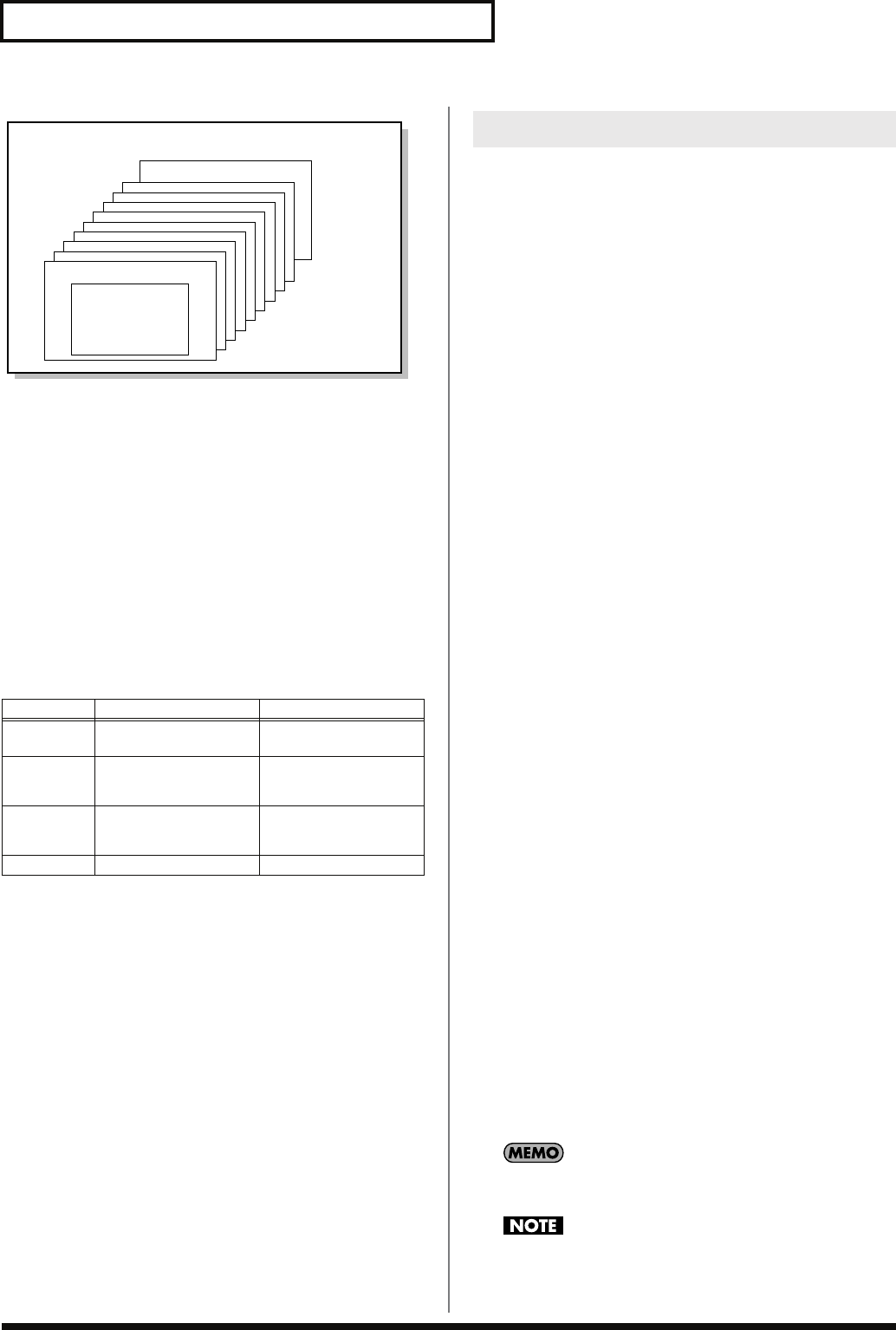
34
Overview of the Fantom-G
fig.04-005.j
Part
On the Fantom-G, a “Part” is a kind of location or slot to which you
can assign a patch, rhythm set, or sample set.
Live mode gives you eight parts, and you can assign a patch, rhythm
set, or sample set to each part. This means that you can play up to
eight sounds together.
Studio mode gives you sixteen parts, and you can assign a patch,
rhythm set, or sample set to each part.
Part group
In addition to the internal parts (the internal sound generator), the
Fantom-G provides part groups for expansion boards 1 and 2, and
for the external MIDI output.
The Fantom-G has a maximum polyphony of 128 simultaneous
notes. Here we’ll explain how the polyphony is counted, and what
happens when the limit of 128 notes is exceeded.
How polyphony is counted
The Fantom-G can produce up to 128 notes simultaneously. This
number of notes will vary depending not only on the number of
notes you’re actually playing, but also on the number of tones used
by each patch, and the number of waves used by each tone. When
playing a patch, the polyphony is calculated as follows.
(number of patches that are sounding) x (number of tones used in the
currently sounding patches) x (number of waves used by those tones)
For example, if a patch consists of four tones, and each of these tones
uses two waves, it will use a total of eight notes of polyphony. If
you’re playing in Live mode (multi) or in Studio mode, count the
polyphony for each part to obtain the total polyphony of all parts.
* If you’re using realtime time stretch, twice as much polyphony will be
used.
Patch polyphony
If you attempt to play more than 128 notes simultaneously on the
Fantom-G, existing notes will be turned off, starting with the note
having the lowest priority of the currently sounding notes. This
priority is specified by the
Patch Priority
setting (p. 90).
You can choose either “LAST” or “LOUDEST” as the patch priority.
If you choose “LAST,” notes will be turned off starting with the first-
played of the currently sounding notes when you exceed the 128
note limit. If you choose “LOUDEST,” notes will be turned off
starting with the note whose volume is least. Normally, you will
probably want to select “LAST.”
If you’re using multiple patches to play an ensemble, it’s important
to specify which part gets priority for its notes over the others. This
is specified by the
Voice Reserve
setting (p. 141). The
patch priority
setting (p. 90) will determine how the notes of a patch are turned off.
Voice reserve
The Fantom-G provides a
Voice Reserve
setting, which lets you
reserve a minimum number of notes for each part. For example, if
you specify a voice reserve setting of “10” for part 16, ten notes of
polyphony will be guaranteed to be available for the sound being
played by part 16 even when the overall Fantom-G reaches its 128
note limit. When making voice reserve settings, you’ll need to
consider the number of notes you actually want to play and the
number of tones in the patches you’re using (p. 141).
You can make voice reserve settings for up to a total of 64 notes
for all parts.
When the audio tracks of a song are playing back, the audio
tracks take priority over the voice reserve settings.
Part group Explanation Number of parts
Internal Internal
(internal sound generator)
Live mode: 8
Studio mode: 16
EXP 1 Expansion board 1 Up to 16
* Depends on the expansion
board
EXP 2 Expansion board 2 Up to 16
* Depends on the expansion
board
External External MIDI output 16
Studio set
Part 16
Part 1
Patch /
Rhythm set /
Sample set
About Polyphony
Fantom-G_r_e.book 34 ページ 2008年1月31日 木曜日 午後12時15分
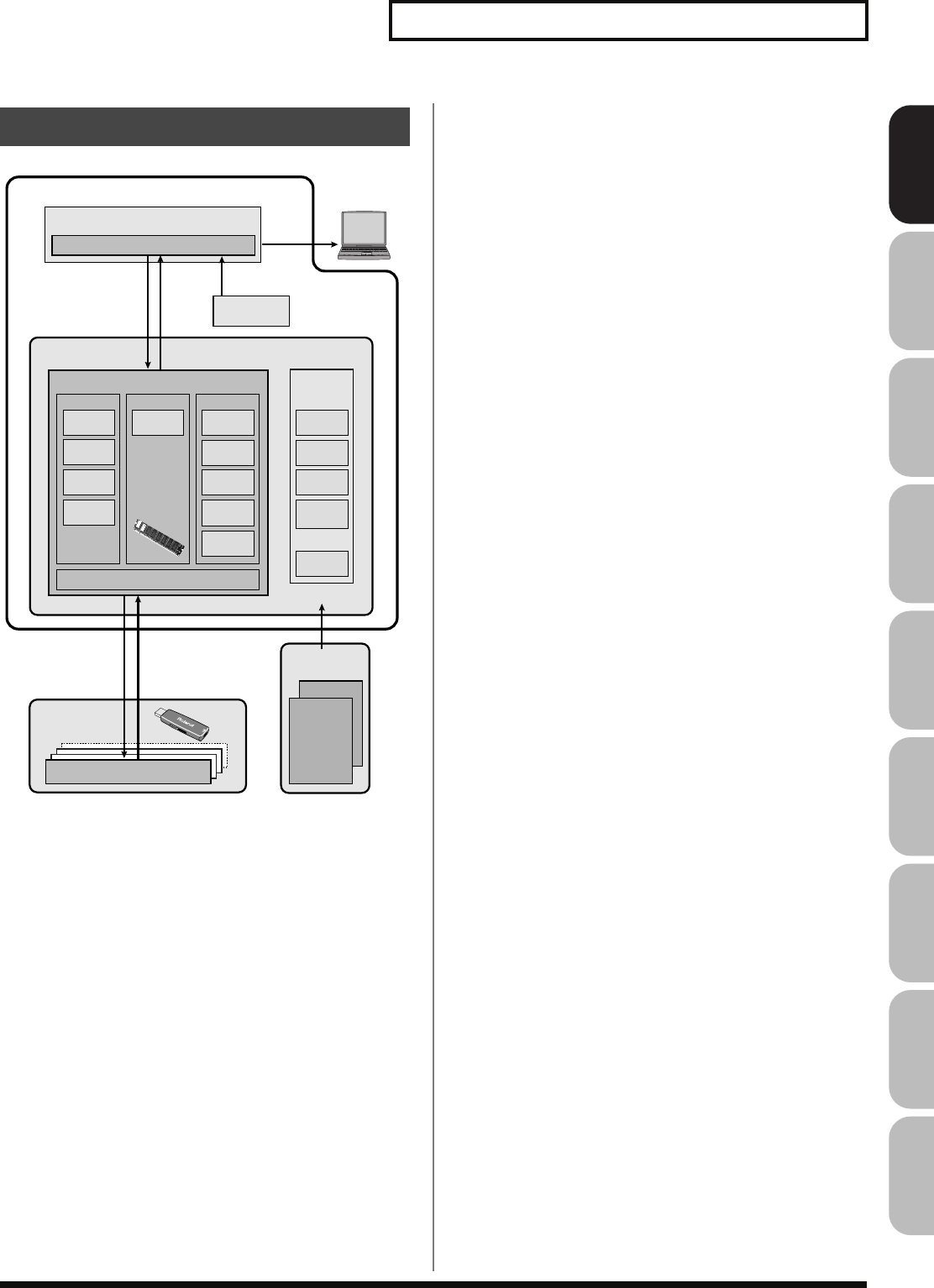
35
Overview of the Fantom-G
Overview Sound 1 Sound 2 Sound 3 Pad Sampler
Menu/System
AppendixSequencer
Project
The largest unit of memory handled by the Fantom-G is the
“project.” As shown in the illustration, a project contains sequencer
data, samples, sounds, and various system settings. On the Fantom-
G you can use one project at a time.
Preset data
This is read-only data for patches, live sets, studio sets, rhythm sets,
and waves.
Internal memory
The Fantom-G has internal memory in which you can save a project.
A project can be overwritten at will. You can also restore the
memory to the factory-set condition (Factory Reset) (p. 280).
The internal memory is approximately 50 MB in size. If you need to
save a project that is larger than 50 MB, you’ll need to save it on USB
memory.
Temporary area
When you switch on the Fantom-G’s power or load a project, the
project data is placed in an area of memory called the “temporary
area.”
When you edit a patch or song, you are modifying the data in this
temporary area.
These edits will be lost if you simply turn off the power; if you want
to keep the changes you made, you must save them (SAVE/WRITE).
DIMM memory (sold separately)
You can install up to 512 MB of DIMM memory. Installing DIMM
memory will allow you to record or sample for a longer period of
time. For details on installing DIMM, refer to
“Expanding the DIMM
Memory”
(p. 308, p. 310).
USB memory (sold separately)
Internal memory can hold only one project, but commercially
available USB memory can hold multiple projects. Connect your
USB memory to the rear panel USB MEMORY connector (p. 24). For
details on how to format USB memory, refer to p. 280.
* If the USB memory is formatted using something other than FAT, it
will not be recognized by the Fantom-G. Use your computer to format
the USB memory with the “FAT” or “FAT32” file system. (If you’re
using Mac OS X, format the USB memory using the “MS-DOS file
system (FAT32).”)
USB storage
You can use a USB cable to connect the Fantom-G to your hard disk,
and save (back up) projects from internal memory or USB memory
to the hard disk of your computer (p. 281).
Samples created using the Fantom-G can also be used by software on
your computer; or conversely, you can use your computer software
to create wave data and use it as samples in the Fantom-G.
Factory data
The factory data is memory that holds the factory-set state of the
internal memory. If you have deleted the factory-set patches or other
data from internal memory, and would like to use this data again,
you can execute the Factory Reset operation (p. 280).
* If you’ve created important data and saved it in the Fantom-G’s
internal memory, be aware that your data will be lost if you execute a
Factory Reset. (
The data you’re in the process of editing will
also be lost
.)
Expansion boards
(ARX series; sold separately)
Up to two expansion boards (ARX series; sold separately) can be
installed in the Fantom-G. An expansion board includes a sound
generator engine, and will expand both the number of available
sounds and the polyphony. For details on installing expansion
boards, refer to
“Installing the Expansion Board”
(p. 304, p. 306).
About Memory
EXP 2
Fantom-G
Factory data
Internal memory (50 MB)
Factory reset
USB storage
Temporary area
Project
Project
USB memory
(sold separately)
Expansion boards
(sold separately)
Project
Computer
SoundsSamples
System
Sequencer
Patches
USER: 512
EXP 1
Live sets
USER: 512
Studio sets
USER: 128
Rhythm sets
USER: 64
Sample sets
128
2000
samples
2000
phrases
50
songs
32
RPS sets
32
rhythm
pattern sets
Preset data
cannot be
overwritten
Patches
PRESET: 1664
GM: 256
Live sets
PRESET: 512
Studio sets
PRESET: 8
Rhythm sets
PRESET: 64
GM: 9
Waves
2230
(overwritable)
Load Save
LoadSave
Select
Expandable to
512 MB with
DIMM memory
(sold separately)
( )
Fantom-G_r_e.book 35 ページ 2008年1月31日 木曜日 午後12時15分
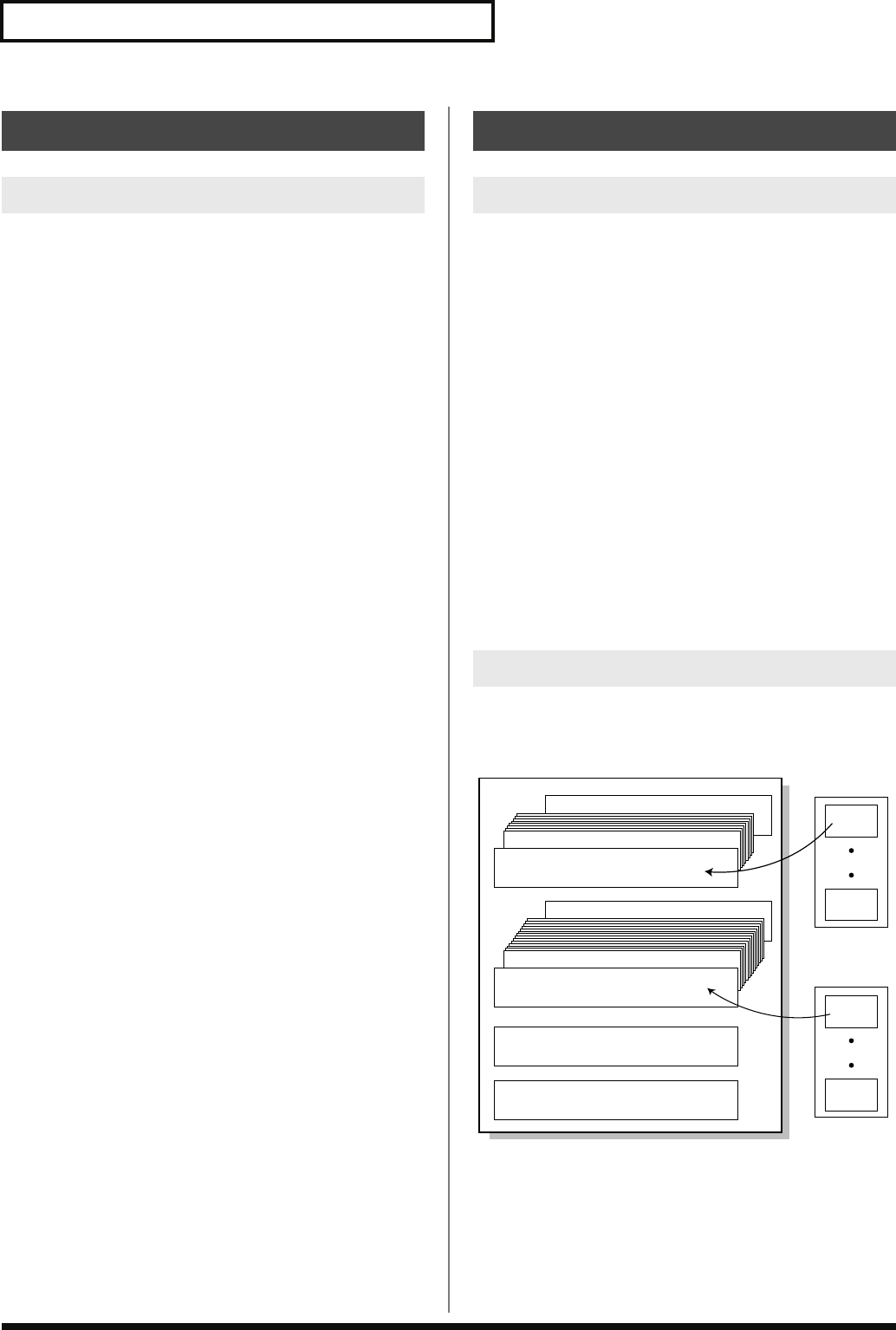
36
Overview of the Fantom-G
The Fantom-G contains the following effects units. You can make
settings independently for each one.
PFX (Patch MFX) (Patch multi-effect)
This is a dedicated multi-effect unit for the patch. You can use it as
part of the sound of the patch itself.
You can choose from 76 types including distortion and rotary.
MFX (Multi-effect)
This is a general-purpose multi-effect that can apply various
modifications to the sound.
You can choose from 78 types including distortion and rotary.
Chorus
Chorus is an effect that adds depth and spaciousness to the sound.
You can choose whether to use this as chorus or as delay.
Reverb
Reverb is an effect that simulates the reverberation that characterizes
sounds heard in a hall or other acoustic environment. You can
choose from 10 types of reverb.
Mastering effect
This is a stereo compressor (limiter) applied to the final output of the
Fantom-G. It operates independently for high, mid, and low
frequency bands, compressing sounds that exceed the specified
volume level, and making the overall sound more consistent.
Input effect
This is a dedicated effect for the external input.
You can choose from six types, including equalizer and compressor.
The Fantom-G’s sequencer can record audio and MIDI.
Audio (samples)
Audio is a “recording” of the sound from a mic or portable audio
player connected to the Fantom-G’s input jacks. The recorded audio
data is called a “sample.” You can create a song simply by placing
samples in an audio track.
MIDI (phrases)
MIDI records performance data from the keyboard or pads. The
recorded MIDI data is called a “phrase.” You can create a song
simply by placing phrases in a MIDI track.
In the sense that both types of recording can be used to capture a
performance, MIDI is similar to audio, but while audio recording
captures the “sound” of a performance, MIDI recording captures the
notes and other control data of a performance, and allows you to
freely make detailed edits even to the individual note data.
Performance data for one composition is called a “
song
.” This
consists of audio tracks 1–24, MIDI tracks 1–128, a tempo track, and a
beat track.
fig.04-009.j
About the Internal Effects
Types of Effects
About the Sequencer
Audio and MIDI
What is a Song?
MIDI track 128
MIDI track 2
MIDI track 1
Audio track 24
Audio track 2
Audio track 1
Tempo track
Beat track
Phrase
1
Phrase
2000
Song
Phrases
Sample
1
Sample
2000
Samples
Fantom-G_r_e.book 36 ページ 2008年1月31日 木曜日 午後12時15分
37
Overview of the Fantom-G
Overview Sound 1 Sound 2 Sound 3 Pad Sampler
Menu/System
AppendixSequencer
A track is an area in which performance data can be recorded.
Audio tracks 1–24
There are twenty-four tracks for recording audio.
Samples
A piece of recorded audio data is called a “sample.” You can create
up to 2,000 samples in one project. The Fantom-G can capture
samples by sampling (p. 258), or by importing WAV/AIFF format
wave files via USB from your computer (p. 283). You can also create
a song by placing samples in an audio track.
Samples also support the Sample Pad function (p. 191) which lets
you play samples simply by pressing a pad.
MIDI tracks 1–128
There are 128 MIDI tracks that can record MIDI performances. A
MIDI track can be assigned to the Fantom-G’s 16 parts (Studio
mode), to the two sets of up to 16 parts for the expansion boards (the
number of parts will depend on the expansion board), or to the 16
parts of the external MIDI connector. You can also assign multiple
tracks to a single part (for example, tracks 1 and 2 could be assigned
to the Fantom-G’s part 1.)
Phrases
The MIDI data recorded in a MIDI track is called a “phrase.” Up to
2,000 phrases can be created in a single project. Just like a track, each
phrase can record a performance of 16 MIDI channels. You can also
create a song simply by placing phrases in a MIDI track.
Phrases also support the RPS function that lets you instantly play a
phrase simply by pressing a pad (p. 194), and the Rhythm Pattern
function that lets you play rhythm patterns by pressing a pad (p.
196). This means that you can use phrases to record performance
data for use in a live performance.
You can also use phrases to record your musical ideas.
Tempo track
The tempo track records tempo changes for the song. Use it when
you want the tempo to change during the song. If the tempo is going
to stay the same from the beginning to the end of the song, you can
ignore the tempo track.
When you record a song on the Fantom-G, the tempo you specify at
the time of recording is stored at the beginning of the tempo track.
This means that this tempo will always be used every time you play
back the song.
In this way, songs are played back according to the data in their
tempo track, but if you change the tempo during playback, the
overall tempo of the entire song will change accordingly.
Beat track
The beat track records time signature information for each measure
of the song. You’ll make beat track settings when recording a new
song, or when you want the time signature to change during the
song.
The Fantom-G’s sequencer is available at all times, regardless of the
sound generator mode (Single, Live, or Studio).
In Studio mode, you can record separate performances for each part
using up to sixteen sounds. This makes Studio mode the ideal choice
when you want to record or play back a song using an ensemble of
multiple instruments such as drums, bass, and piano.
SMF (Standard MIDI File) is a file format that allows performance
data to be exchanged between music applications. Songs created on
the Fantom-G can be saved as standard MIDI files. The Fantom-G
can also play back commercially available music data that is
compatible with the GM/GM2 system (GM Scores).
What is a Track?
Songs and the State of the Sound
Generator
SMF (Standard MIDI File .MID)
Fantom-G_r_e.book 37 ページ 2008年1月31日 木曜日 午後12時15分
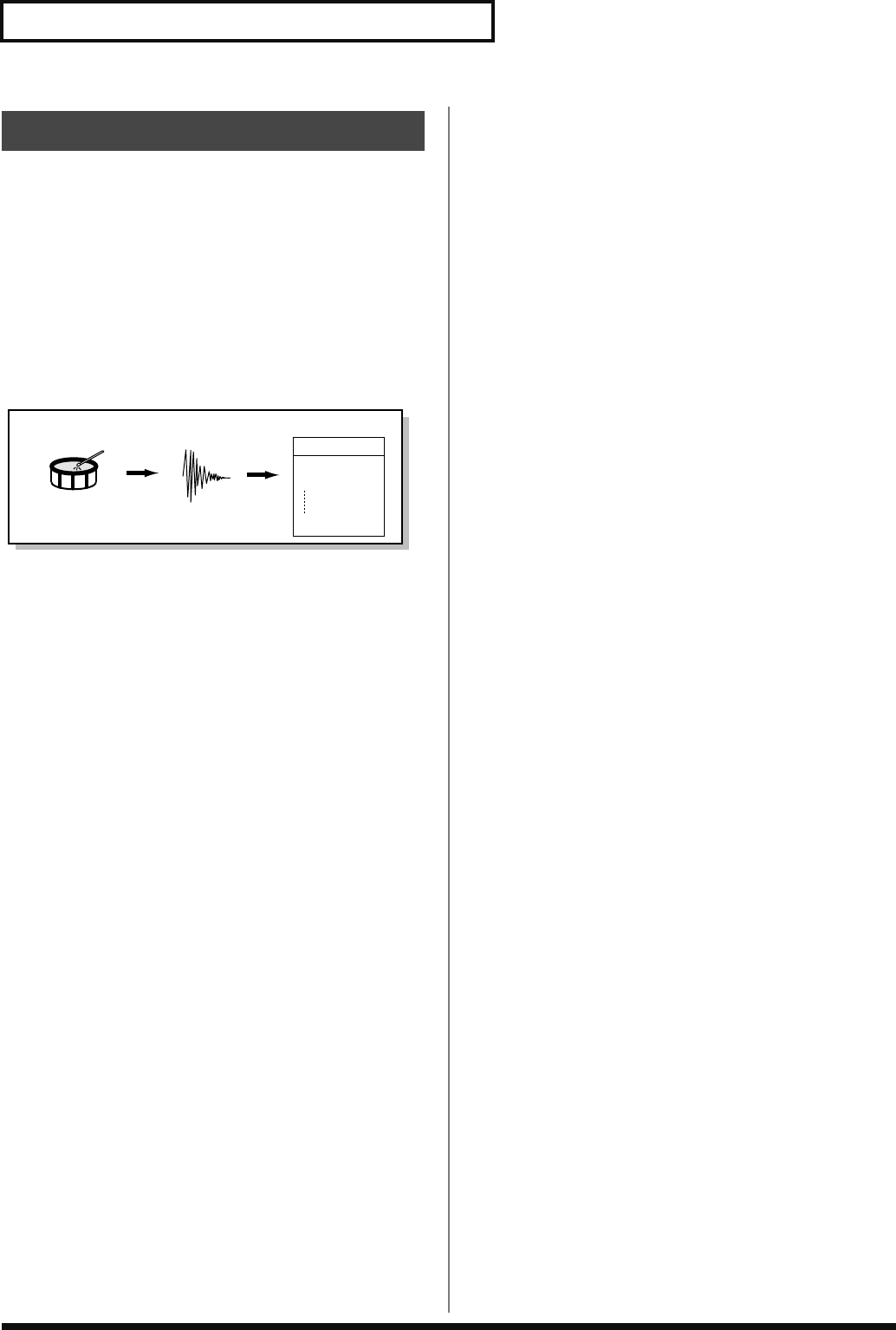
38
Overview of the Fantom-G
The sampling section “samples” (records) audio input from an
external source such as an audio device or mic. You can play these
sampled sounds as a patch or rhythm set. You can also import
WAV/AIFF format files and use them in the same way.
Samples
A “sample” refers to a waveform (wave) produced by sampling on
the Fantom-G. A sample consists of waveform data together with
parameters such as a start point, loop start, and loop end. The
Fantom-G can hold up to 2,000 samples for a single project.
fig.04-011.j
About the Sampling Section
Sample
Sampling
Drum sound
Sample list
0001
0002
2000
User Sample
Wave
(sample)
Automatically
added
Fantom-G_r_e.book 38 ページ 2008年1月31日 木曜日 午後12時15分
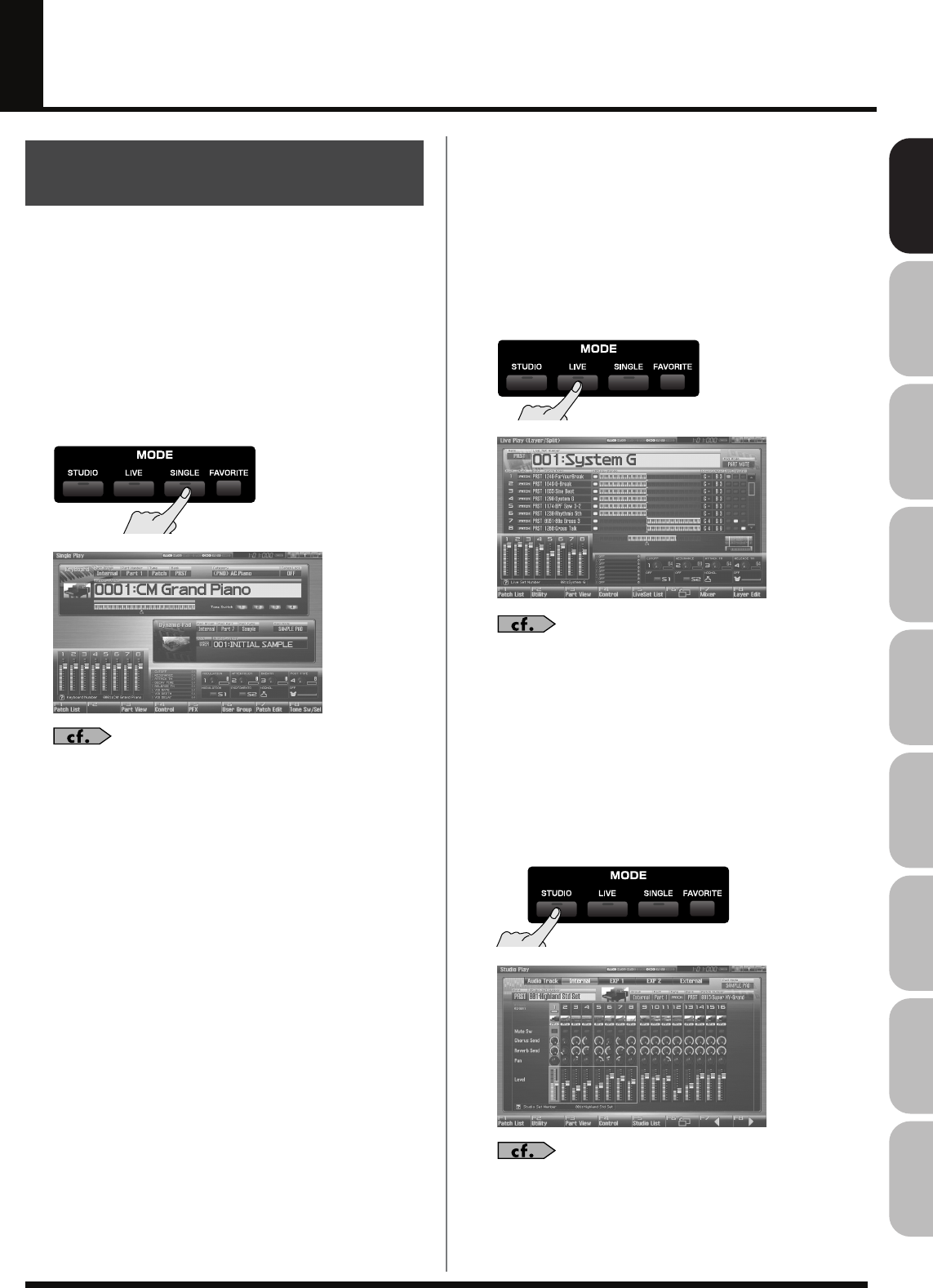
39
Overview Sound 1 Sound 2 Sound 3 Pad Sampler
Menu/System
AppendixSequencer
Basic Operation of the Fantom-G
The Fantom-G provides three sound generator modes: Single, Live,
and Studio. You can switch to the sound generator mode that’s most
appropriate for the way you’re using the Fantom-G.
Single mode
This mode is for playing one sound (patch, rhythm set, sample set) at
a time.
< To select Single mode >
1.
Press [SINGLE].
fig.04-014_50
“Playing in Single Mode”
(p. 46)
Live mode
This mode is for combining multiple sounds (patches, rhythm sets,
sample sets) so that you can play them in a live performance.
You can layer patches so that they sound simultaneously, or split
them across the keyboard so that they can be played by separate
hands.
< To select Live mode >
1.
Press [LIVE].
fig.04-015_50
“Playing in Live Mode”
(p. 58)
Studio mode
This mode is for recording a song using multiple sounds (patches,
rhythm sets, sample sets).
This mode is ideal when you need to adjust mixing parameters such
as level and pan for the sixteen parts.
< To select Studio mode >
1.
Press [STUDIO].
fig.04-016_50
“Playing in Studio Mode”
(p. 66)
Switching the Sound
Generator Mode
Fantom-G_r_e.book 39 ページ 2008年1月31日 木曜日 午後12時15分
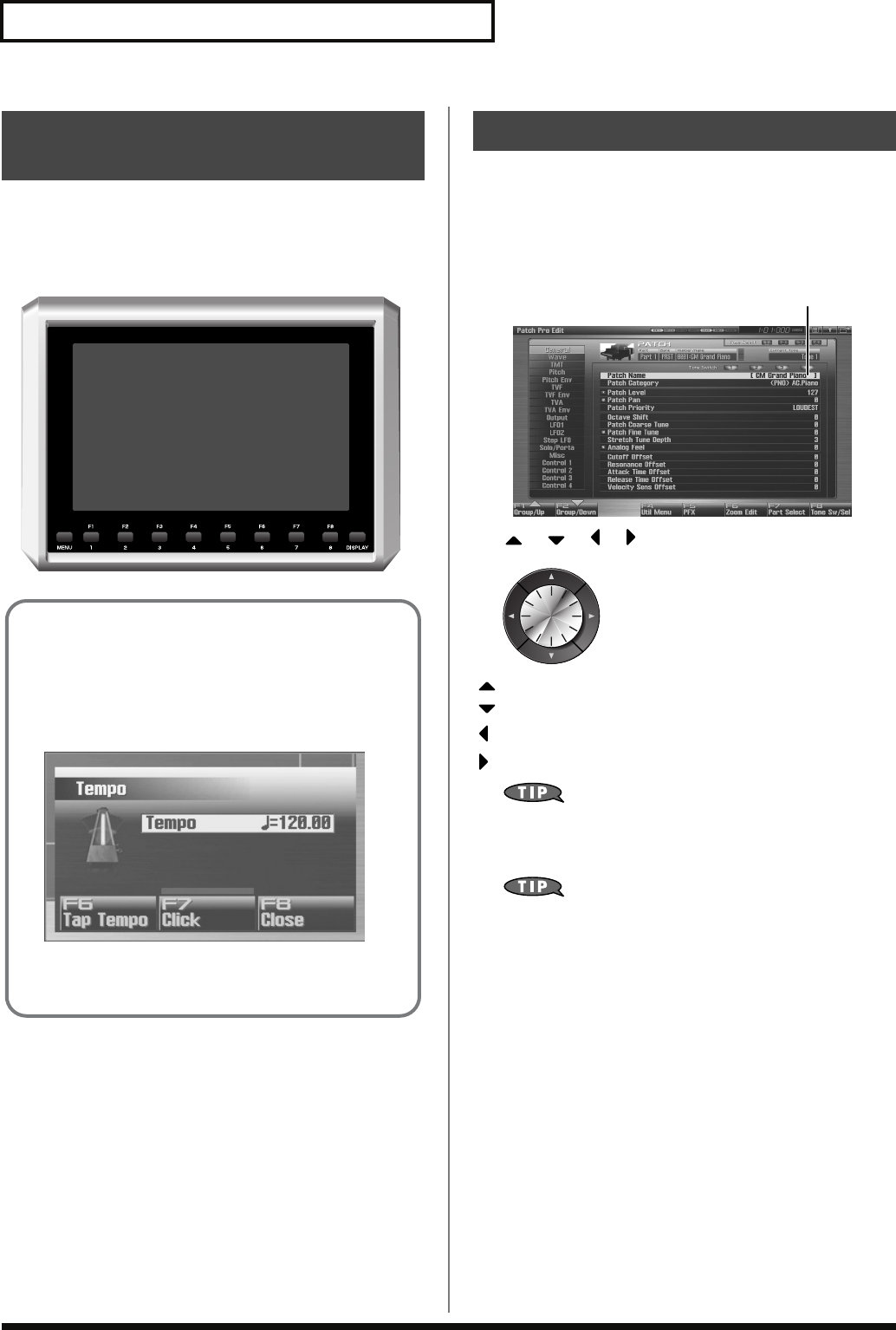
40
Basic Operation of the Fantom-G
The eight buttons [F1]–[F8] located below the display (the function
buttons) are used to execute various functions. Their function will
depend on the screen that’s currently shown. The current functions
of these buttons are indicated in the bottom of the screen.
fig.04-017
A single screen or window can contain multiple items (parameters)
to set or select. If you want to modify the setting of a parameter,
move the cursor to the value of that parameter. To select an item,
move the cursor to the desired item. The value or item selected by
the cursor will be highlighted.
fig.04-019.j
Use / / / (cursor buttons) to move the cursor.
fig.04-020
: Moves the cursor upward.
: Moves the cursor downward.
: Moves the cursor to the left.
: Moves the cursor to the right.
If you hold down a cursor button and then press the opposite
cursor button, the cursor will move more rapidly in the
direction of the button you pressed first.
In some cases, pressing [ENTER] while the cursor is displayed
will show a list of the parameters you can select. This is a
convenient way to see the choices you have. When a list is
displayed, you can also use the pads to input your choice (p. 41).
Using the mouse for selection
If you’re using a USB mouse, you can move the cursor by clicking
the mouse on a parameter value.
How the Function Buttons
Work
Windows
A small screen displayed within the normal screen is called a
“window.” Various types of windows will appear as you
operate the Fantom-G. Some windows display lists, others
allow you to make settings or confirm operations.
fig.04-018.j
To close a window, press [EXIT]. Some windows will close
automatically when you perform an operation.
Moving the Cursor
Cursor
Fantom-G_r_e.book 40 ページ 2008年1月31日 木曜日 午後12時15分
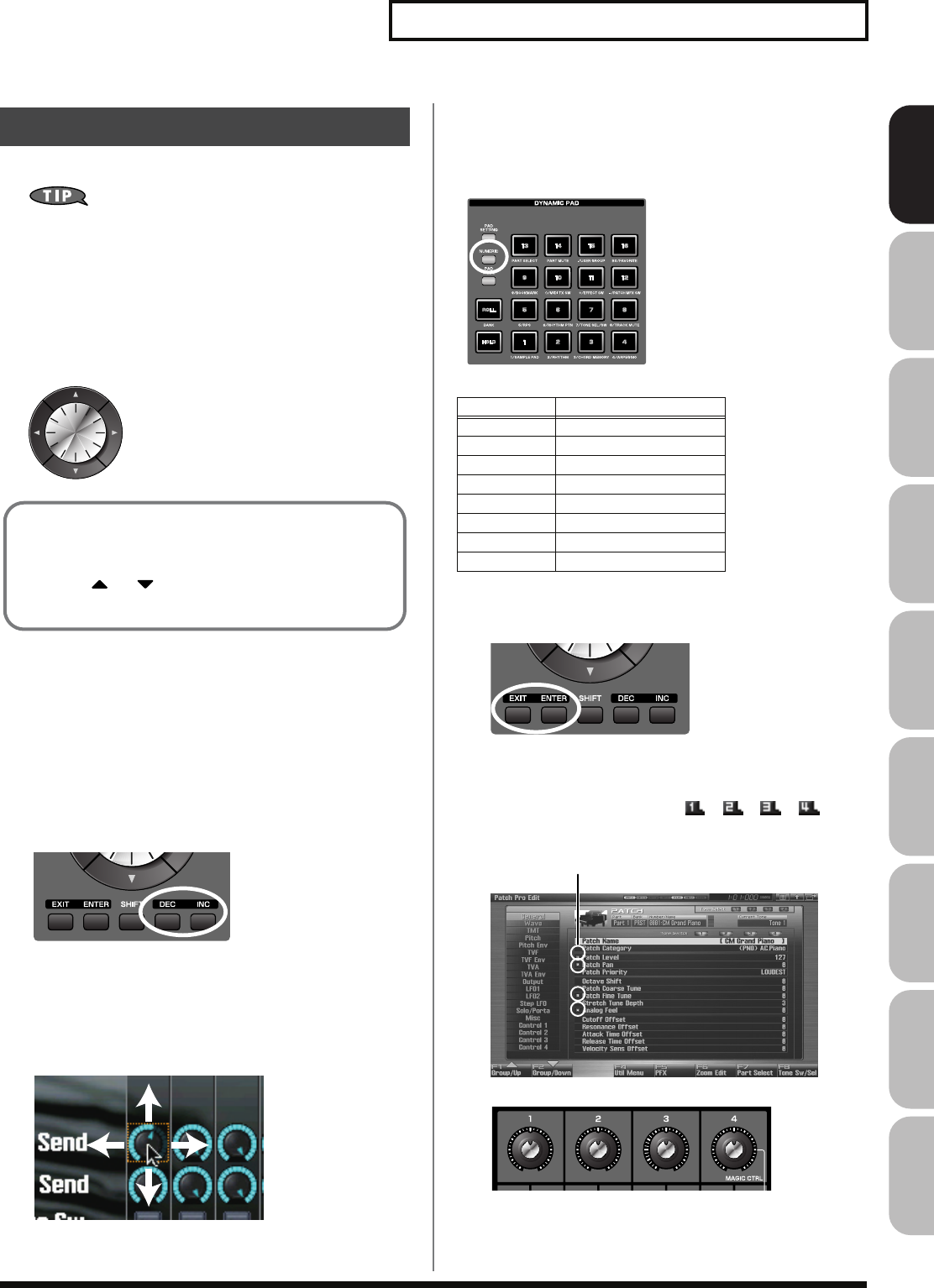
41
Basic Operation of the Fantom-G
Overview Sound 1 Sound 2 Sound 3 Pad Sampler
Menu/System
AppendixSequencer
To edit a value, you can use either the VALUE dial or [INC] [DEC].
In each of the Fantom-G’s screens, move the highlighted cursor
to the value you want to edit, and then edit the value.
VALUE dial
Turn the VALUE dial toward the right to increase the value, or
toward the left to decrease it. The value will change in larger steps if
you hold down [SHIFT] while turning the VALUE dial.
[INC], [DEC]
Press [INC] to increase a value, or [DEC] to decrease it. To make the
value continue increasing (or decreasing), hold down the button. To
make the value increase rapidly, hold down [INC] and then press
[DEC]. Conversely, to make the value decrease rapidly, hold down
[DEC] and then press [INC].
The value will change in larger steps if you hold down [SHIFT]
while you press [INC] or [DEC].
Using the mouse for input
Drag up/down or left/right on the value or knob. Dragging up or to
the right will increase the value, and dragging down or to the left
will decrease the value.
Using the pad for numeric input
If you press the [NUMERIC] pad button, the pads will operate as
numeric keys.
Each pad will enter the following values
When you’ve entered the value, press [ENTER] to finalize your
input. If you decide to cancel, press [EXIT].
Using the knobs for input
If the display shows small numerals ( , , , ), you
can use knobs 1–4 to edit the corresponding parameters.
Editing a Value
When the cursor is located at a parameter value, pressing
[ENTER] (or right-clicking the USB mouse) will open a window
where you can specify the value. You can easily select a value
by pressing or to select the desired value and then
pressing [ENTER].
Pad Value entered
1–9 1–9
10 0
11 +
12 -
15 , (comma)
16 BS (backspace)
ROLL Cancel
HOLD Enter
Numerals
Fantom-G_r_e.book 41 ページ 2008年1月31日 木曜日 午後12時15分
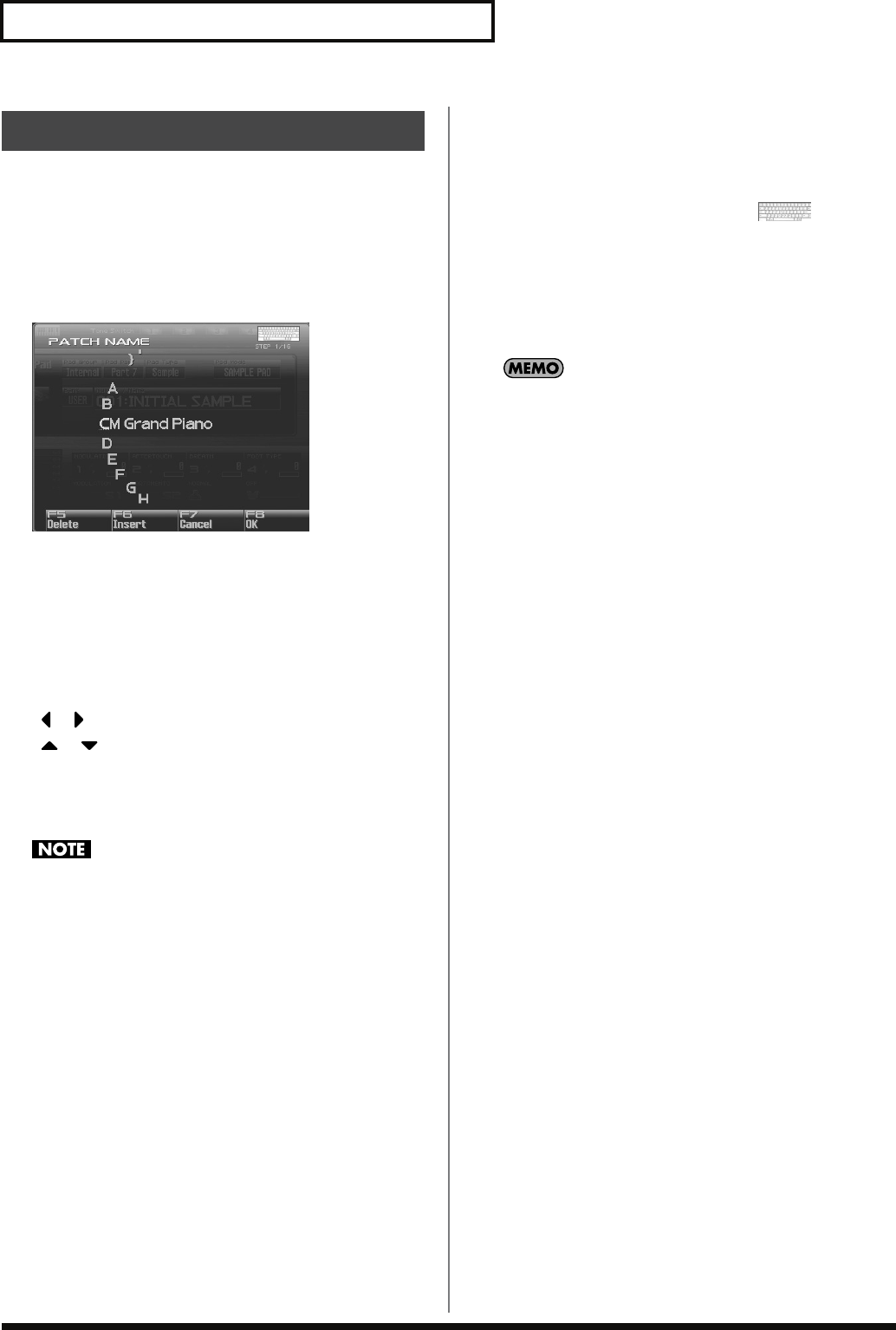
42
Basic Operation of the Fantom-G
On the Fantom-G you can assign a name to each patch, rhythm set,
live set, studio set, song, phrase, or sample when you save it.
Regardless of the type of object you’re naming, the procedure is the
same.
1.
Use [CURSOR] to move the cursor to the position at which
you want to enter a character.
fig.04-022a
2.
Turn the VALUE dial or use [INC] [DEC] to specify the
character that you want to enter.
• [F5 (Delete)]: Deletes the character at the cursor, and moves
the subsequent characters one place forward.
• [F6 (Insert)]: Inserts a space at the cursor location.
• [F7 (Cancel)]: Cancels the name entry procedure.
• [F8 (OK)]: Confirms the name.
• [ ] [ ]: Move the cursor.
• [ ] [ ]: Switch between uppercase and lowercase letters.
You can use the following characters,
space, A–Z, a–z, 0–9, ! ” # $ % & ’ ( ) * + , - . / : ; < = > ? @ [ \ ] ^ `
{ | }
When assigning a name to a song file, you can’t use spaces,
lowercase letters, or certain symbols (” * + , . / : ; < = > ? [ \ ] |).
Using a mouse to input characters
If you’re using a USB mouse, you can enter characters using a virtual
keyboard.
1.
Click the mouse on the keyboard icon shown in
the name entry screen.
The virtual keyboard will appear.
2.
Click the mouse on the keyboard to enter characters.
3.
Press [F8 (OK)] or click it with the mouse to finalize the
input.
If you use the virtual keyboard for entry, it will be shown again
the next time you enter a name.
Assigning a Name
Fantom-G_r_e.book 42 ページ 2008年1月31日 木曜日 午後12時15分
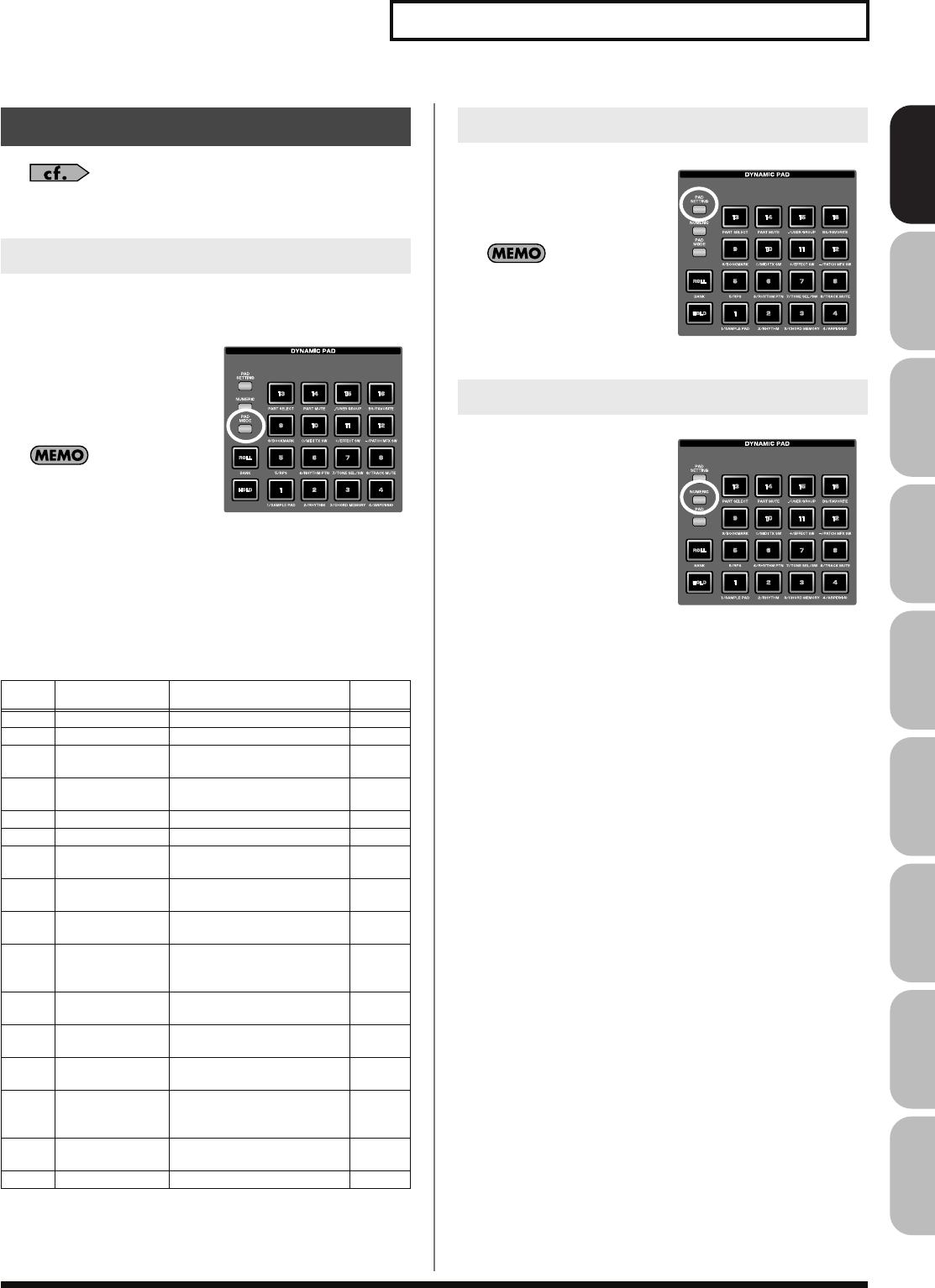
43
Basic Operation of the Fantom-G
Overview Sound 1 Sound 2 Sound 3 Pad Sampler
Menu/System
AppendixSequencer
For details on using the pads, refer to
“Using the Pads”
(p. 188).
The pads have sixteen modes. Press [PAD MODE] to switch the pad
mode.
1.
Press [PAD MODE].
[PAD MODE] will blink, and
the currently selected pad
mode (pad [1]–[16]) will
blink.
If you decide not to switch the
pad mode, press [PAD
MODE] once again. [PAD
MODE] will go out and you
will return to the previous state.
2.
Press a pad [1]–[16].
The pad mode will be switched. The following table shows
what the pads do in each mode, and a page reference where you
can learn more.
Press [PAD SETTING], and the
setting/information screen for
the currently selected pad mode
will appear.
To go back to where you
were, press [PAD SETTING]
once again so its light goes
out.
If you press PAD [NUMERIC],
the pads will operate as numeric
keys.
→
“Using the pad for
numeric input”
(p. 41)
Basic Pad Operations
Switching the Pad Mode
Pad
number Pad mode Explanation
Page
reference
1SAMPLE PAD Play a sample set p. 191
2 RHYTHM Play a rhythm set p. 192
3 CHORD MEMORY Switch the chord form of the
Chord Memory function (p. 80)
p. 193
4 ARPEGGIO Switch the style of the Arpeggio
function (p. 78)
p. 193
5 RPS Play phrases p. 194
6 RHYTHM PTN Play rhythm patterns p. 196
7 TONE SEL/SW Act as tone select and on/off
switches
p. 197
8 TRACK MUTE Switch the mute status of the se-
quencer tracks
p. 197
9 BOOKMARK Call up frequently used screens
you’ve registered for each pad
p. 198
10 MIDI TX SW Act as on/off switches for exter-
nal MIDI transmit channels (1–
16)
p. 198
11 EFFECT SW Act as effect switches (except for
patch multi-effect)
p. 199
12 PATCH MFX SW Act as multi-effect switches for
each part
p. 199
13 PART SELECT Select parts (1–16) and banks
(INT/EXP1/EXP2/EXT)
p. 200
14 PART MUTE Switch the mute status of parts
(1–16) and banks (INT/EXP1/
EXP2/EXT)
p. 200
15 USER GROUP Store/load user group patches,
live sets, or studio sets
p. 201
16 FAVORITE Store/load favorite settings p. 202
Viewing the Pad Settings
Using the Pads as Numeric Keys
Fantom-G_r_e.book 43 ページ 2008年1月31日 木曜日 午後12時15分
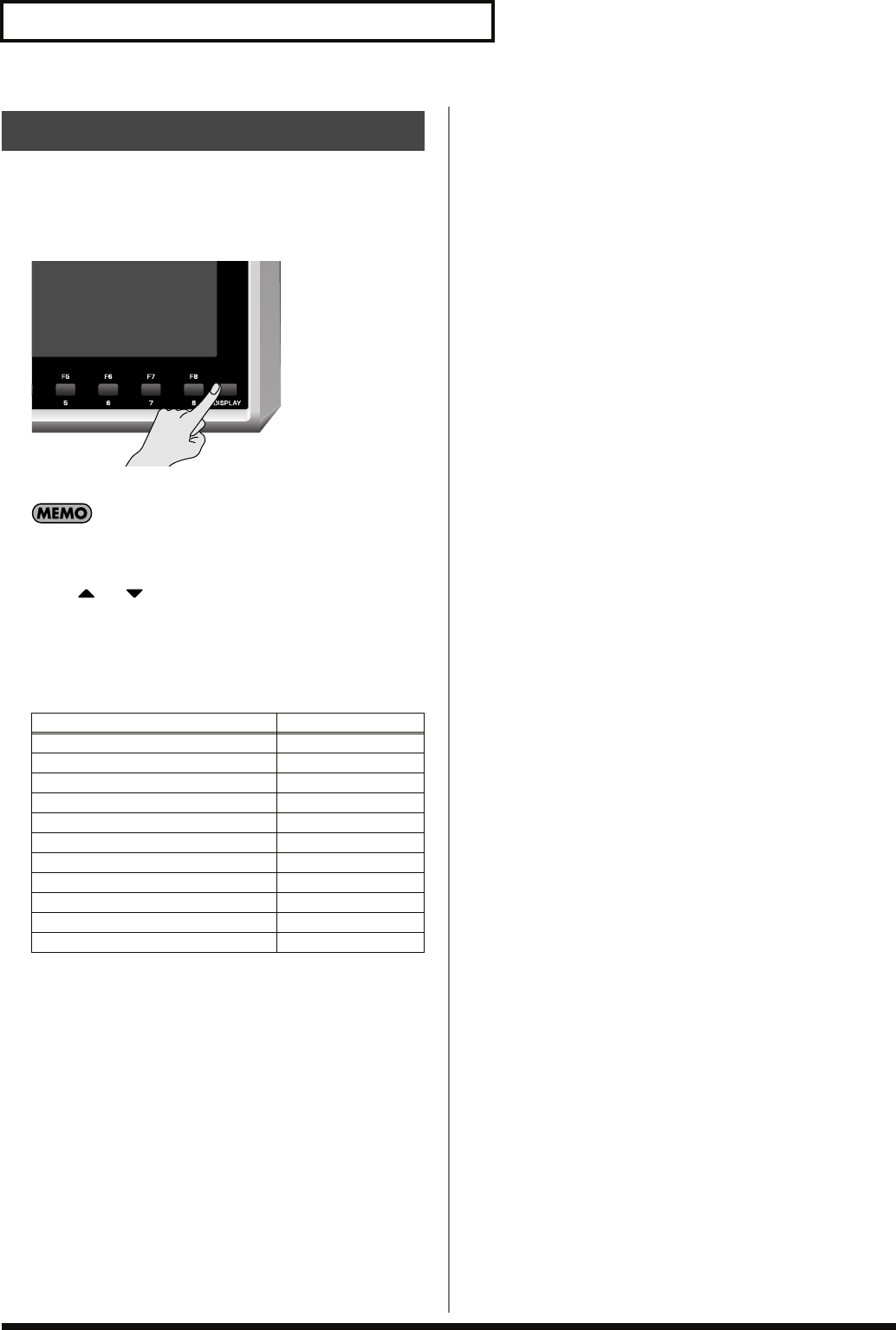
44
Basic Operation of the Fantom-G
By pressing the [
DISPLAY
] button, you can jump directly to the
most important screens.
1.
Press [DISPLAY].
The Shortcut menu will appear.
You can also open the Shortcut menu by clicking your USB
mouse on the shortcut icon.
2.
Press or to select the screen to which you want to
jump, then press [F8 (Select)].
If you decide to cancel, press [F7 (Cancel)].
List of shortcut menu
Shortcut Menu
Menu Page
Studio Play/Live Play/Single Play p. 66, p. 58. p. 46
Patch Zoom Edit p. 84
Patch Pro Edit p. 86
Song Play/Song Edit p. 205, p. 232
Sample Edit p. 266
Effects Routing p. 151
Sampling p. 260
Input Setting p. 258
Digital/USB Input Level p. 297
Master Level p. 293
Pad Setting p. 190
Fantom-G_r_e.book 44 ページ 2008年1月31日 木曜日 午後12時15分
02: Sound Generator, Section 1
(Playing Sounds)
This chapter explains the three modes in which the Fantom-G’s sound generator can
operate.
• Single Mode ..............................................................p. 46
• Live Mode..................................................................p. 58
• Studio Mode ..............................................................p. 66
Fantom-G_r_e.book 45 ページ 2008年1月31日 木曜日 午後12時15分
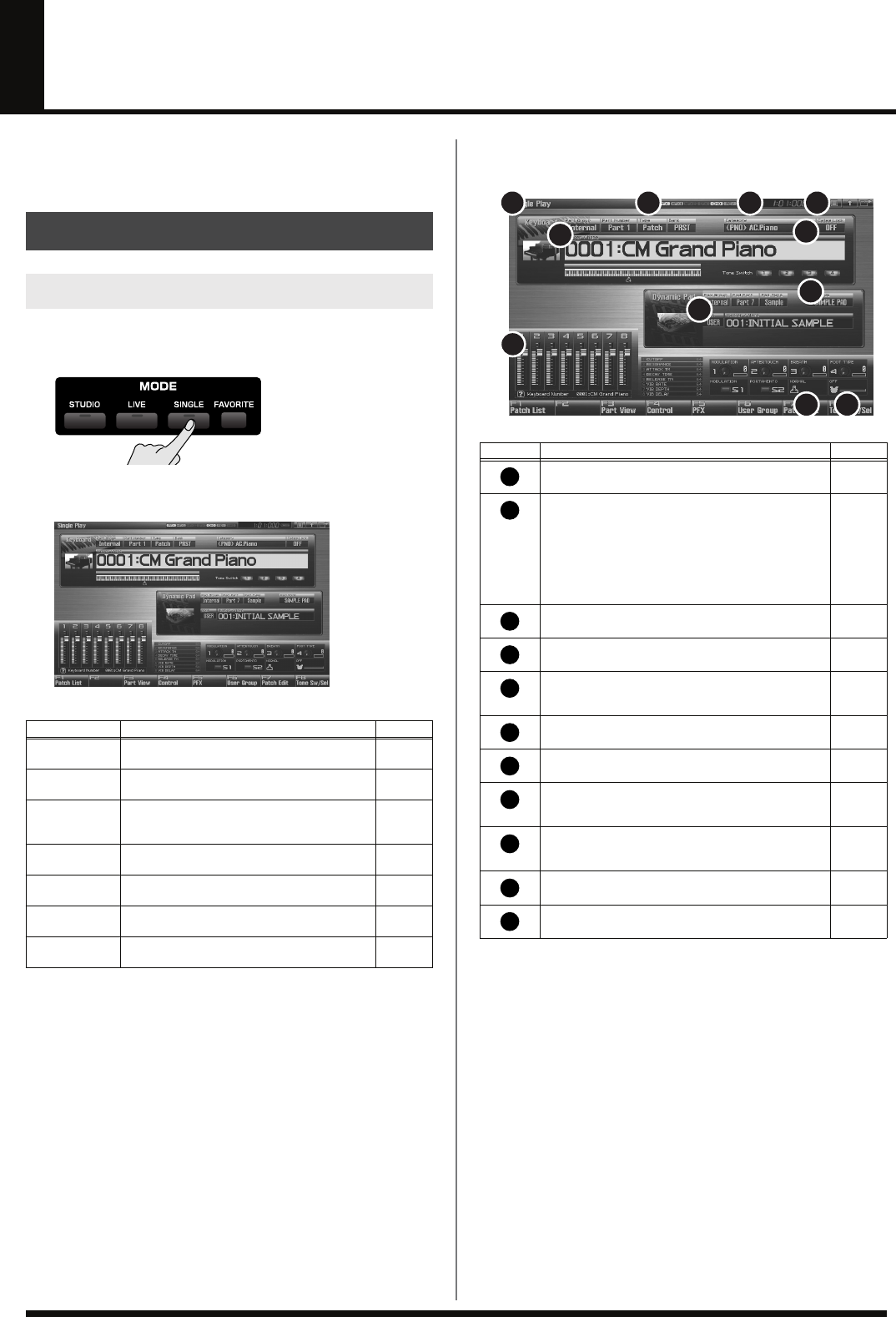
46
Playing in Single Mode
In Single mode, the keyboard and the pads are each used to play a
single sound (patch/rhythm set/sample set).
To access the Single Play screen, use the following procedure.
1.
Press [SINGLE].
You will enter Single mode, and the Single Play screen appears.
F-key operations in the Single Play screen
Functions in the Single Play screen
fig.05-005.e
About the Single Play Screen
Displaying Single Play Screen
F-key Explanation Page
F1
Patch List Select a sound (patch). p. 49
F3
Part View Make detailed settings for each part (key-
board, sample pad, rhythm part). p. 51
F4
Control Select the parameters that will be controlled
by the realtime controllers and D Beam con-
troller.
p. 51
F5
PFX Access the PFX (Patch Multi-effect) editing
screen. p. 157
F6
User Group Access the user group list screen, where you
can register frequently-used patches. p. 201
F7
Patch Edit Edit a patch. p. 84
F8
Tone Sw/Sel Select the tones that will be heard. p. 50
Number
Explanation Page
Indicates the current sound generator mode. p. 39
Indicates the on/off status of each effect.
PFX Patch multi-effect
MFX1 Multi-effect 1
MFX2 Multi-effect 2
IFX Input effect
CHO Chorus
REV Reverb
MAS Mastering effect
p. 150
Indicates the current location of the song, and the
status of the sequencer. p. 205
The Menu/Exit/Shortcut buttons for the USB
mouse. p. 26
Indicates/selects the part group, part number, patch
type, bank, number, and name of the selected patch,
rhythm set, or sample set.
p. 47
Indicates/selects the patch category, and specifies
whether the category will be locked. p. 48
Indicates the pad mode. p. 188
Indicates/selects the part group, part, pad type,
bank, number, and name of the rhythm set or sample
set selected for the pads.
p. 52
Indicates the functions assigned to the realtime con-
troller sliders (1–8), knobs (1–4) and the S1/S2
switches.
p. 51
Indicates the
“Bend Mode”
(p. 97) of the pitch bend
lever. p. 97
Indicates the function assigned to the D Beam con-
troller and the state of D Beam controller response. p. 72
6
7
9
10 11
8
5
1 2 3 4
1
2
3
4
5
6
7
8
9
10
11
Fantom-G_r_e.book 46 ページ 2008年1月31日 木曜日 午後12時15分
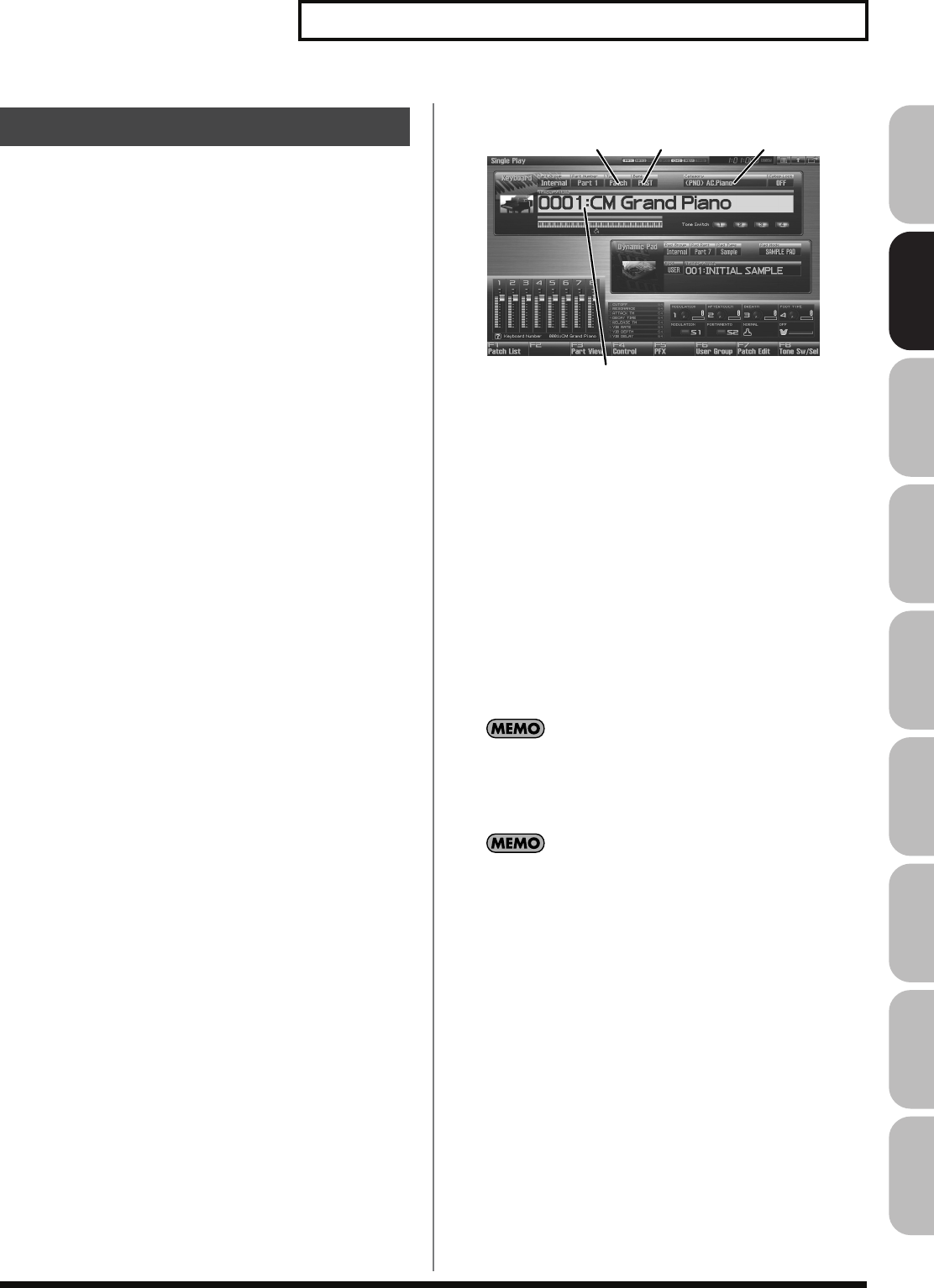
47
Playing in Single Mode
Overview Sound 1 Sound 2 Sound 3 Pad Sampler
Menu/System
AppendixSequencer
The Fantom-G has four patch banks, including the User, Preset, User
Sample and GM.
USER
This is the bank inside the Fantom-G which can be rewritten. Patches
you create can be stored in this bank. You can store 512 patches.
PRST (Preset)
This is the bank inside the Fantom-G which cannot be rewritten.
However you may modify the settings of the currently selected
patch, and then store the modified patch in user bank.
GM (GM2)
This is an internal bank of patches compatible with General MIDI 2,
a system of MIDI function specifications designed to transcend
differences between makers and types of devices; these patches
cannot be overwritten. However you may modify the settings of the
currently selected patch, and then store the modified patch in user
bank. The Fantom-G includes 256 preset patches.
USAM (User Sample)
This bank lets you play the Fantom-G’s internal samples.
1.
Press [SINGLE] to access the Single Play screen.
fig.05-001.e
2.
Press [CURSOR] to move the cursor to the patch bank.
Turn the VALUE dial or use [INC] [DEC] to choose the patch
bank.
USER:
User
PRST:
Preset
GM:
GM (GM2)
USAM:
User Sample
* Make sure that the patch type is set to “Patch.”
If this is set to “Rhythm” or “Sample,” use [CURSOR] to move the
cursor to the patch type, and turn the VALUE dial or press [DEC] to
select “Patch.”
3.
Press [CURSOR] to move the cursor to the patch number.
4.
Turn the VALUE dial, or press [INC] [DEC] to select a patch
number.
You can also use the pads as numeric keys to enter numbers
(patch numbers).
→
“Using the pad for numeric input”
(p. 41)
5.
Play the keyboard to hear the sound.
You can also use the following methods to select a patch.
“Selecting Patches by Category (Patch Finder)”
(p. 48)
“Selecting Patches from the List”
(p. 49)
Selecting a Patch
Patch number / Patch name
Patch type Patch bank Patch category
Fantom-G_r_e.book 47 ページ 2008年1月31日 木曜日 午後12時15分
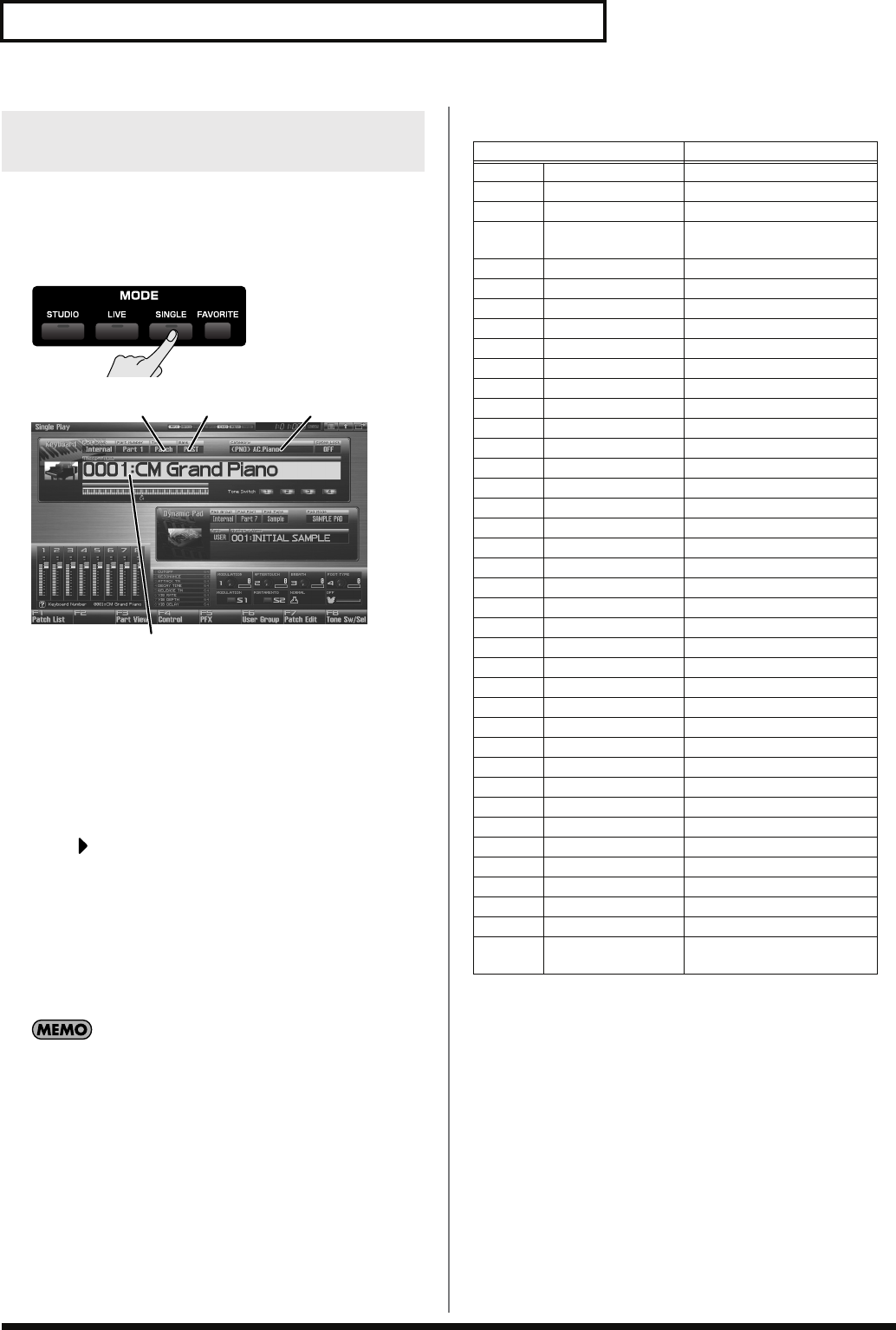
48
Playing in Single Mode
The Fantom-G provides a “Patch Search function” (Patch Finder)
which allows you to specify a type (category) of patch so that you
can quickly find the desired patch. There are a total of 38 categories.
1.
Press [SINGLE] to access the Single Play screen.
fig.05-001.e
* Make sure that the patch type is set to “Patch.”
If this is set to “Rhythm” or “Sample,” use [CURSOR] to move the
cursor to the patch type, and turn the VALUE dial or press [DEC] to
select “Patch.”
2.
Use [CURSOR] to move the cursor to the “Patch Category,”
and turn the VALUE dial, or press [INC] [DEC] to select the
desired category.
3.
Press to move the cursor to “Categ Lock,” and turn the
VALUE dial or press [INC] to turn “ON”.
4.
Use [CURSOR] to move the cursor to the patch bank or
patch number, and turn the VALUE dial or use [INC] [DEC]
to select the patch.
When the cursor is located at the Patch bank, you can select the
bank. When the cursor is located at the Patch number, you can
specify the number.
You are free to change the category of a patch by editing the
Patch Pro Edit screen (p. 86) parameter
“Patch Category”
(p.
89).
The following categories can be selected.
Selecting Patches by Category
(Patch Finder)
Patch number / Patch name
Patch type Patch bank Patch category
Category Contents
- - - No Assign No assign
PNO AC.Piano Acoustic Piano
EP EL.Piano Electric Piano
KEY Keyboards Other Keyboards (Clav,
Harpsichord etc.)
BEL Bell Bell, Bell Pad
MLT Mallet Mallet
ORG Organ Electric and Church Organ
ACD Accordion Accordion
HRM Harmonica Harmonica, Blues Harp
AGT AC.Guitar Acoustic Guitar
EGT EL.Guitar Electric Guitar
DGT DIST.Guitar Distortion Guitar
BS Bass Acoustic & Electric Bass
SBS Synth Bass Synth Bass
STR Strings Strings
ORC Orchestra Orchestra Ensemble
HIT Hit&Stab Orchestra Hit, Hit
WND Wind Winds (Oboe, Clarinet etc.)
FLT Flute Flute, Piccolo
BRS AC.Brass Acoustic Brass
SBR Synth Brass Synth Brass
SAX Sax Sax
HLD Hard Lead Hard Synth Lead
SLD Soft Lead Soft Synth Lead
TEK Techno Synth Techno Synth
PLS Pulsating Pulsating Synth
FX Synth FX Synth FX (Noise etc.)
SYN Other Synth Poly Synth
BPD Bright Pad Bright Pad Synth
SPD Soft Pad Soft Pad Synth
VOX Vox Vox, Choir
PLK Plucked Plucked (Harp etc.)
ETH Ethnic Other Ethnic
FRT Fretted Fretted Inst (Mandolin etc.)
PRC Percussion Percussion
SFX Sound FX Sound FX
BTS Beat&Groove Beat and Groove
DRM Drums Drum Set
CMB Combination Other patches which use
Split and Layer
Fantom-G_r_e.book 48 ページ 2008年1月31日 木曜日 午後12時15分
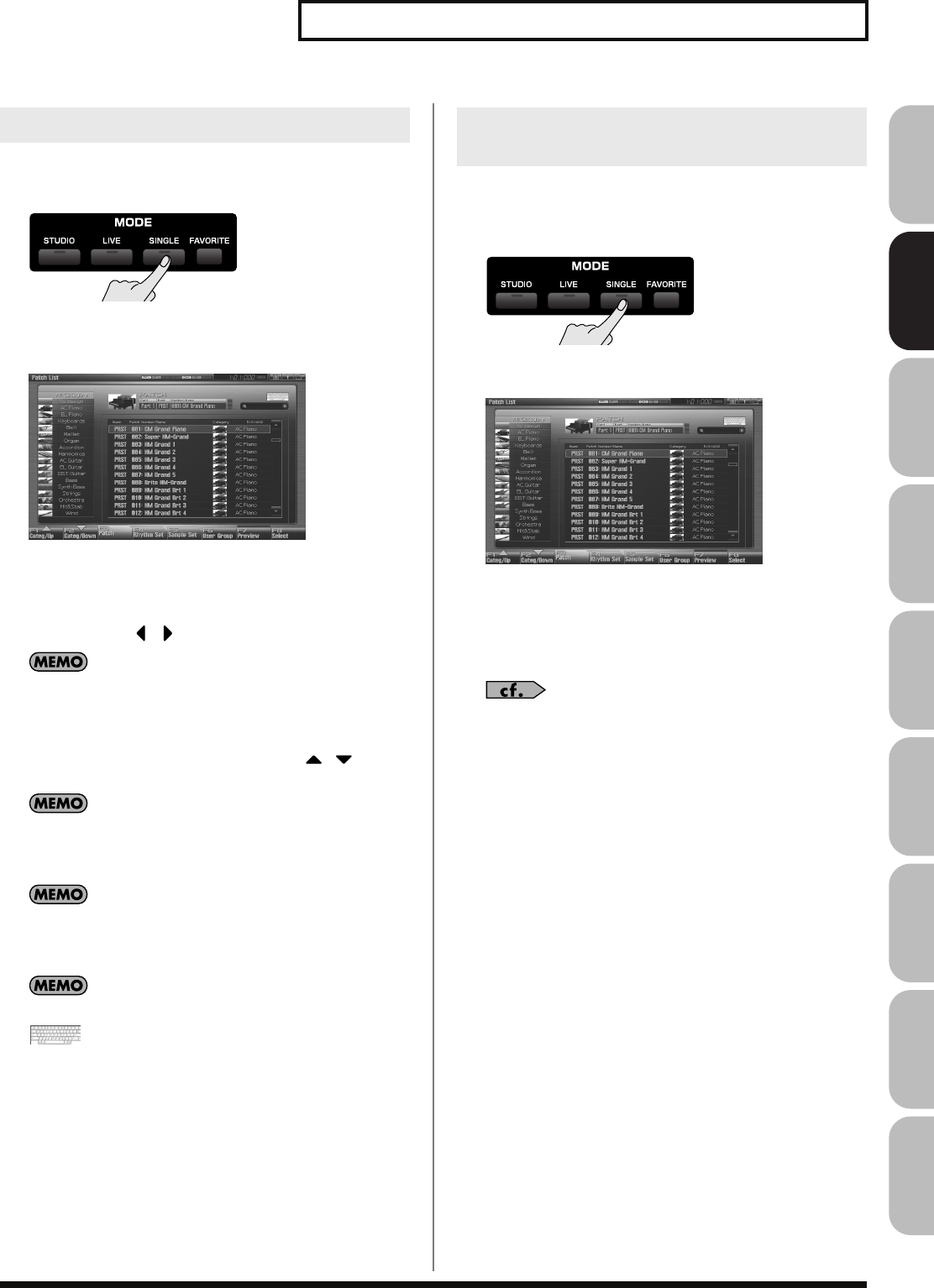
49
Playing in Single Mode
Overview Sound 1 Sound 2 Sound 3 Pad Sampler
Menu/System
AppendixSequencer
You can display a list of patches and select a patch from that list.
1.
Press [SINGLE] to access the Single Play screen.
2.
Press [F1 (Patch List)].
The Patch List screen will appear.
fig.05-008_50
You can use [F3 (Patch)], [F4 (Rhythm Set)], and [F5 (Sample
Set)] to switch between patch types (patches, rhythm sets,
samples sets).
3.
Use [F1] [F2] or / to select a category.
You can also use the front panel [Knob 4] to select a category,
and use [Slider 8] to scroll the list.
→
“Magic Control”
(p. 290)
4.
Turn the VALUE dial or use [DEC] [INC] or / to
select a patch.
You can press [F7 (Preview)] to audition the patch using an
appropriate phrase that is preset for each category (Phrase
Preview).
By pressing [F6 (User Group)] you can register a frequently
used sound in the user group. For details, refer to
“Registering
a sound in the User Group screen”
(p. 201).
If you’re using a USB mouse, you can click the keyboard symbol
in the screen, and search using the virtual keyboard
that appears in the screen.
5.
Press [F8 (Select)] to confirm your patch selection.
The Fantom-G allows you to preview patches by hearing a phrase
appropriate for each type of patch.
1.
Press [SINGLE] to access the Single Play screen.
2.
Press [F1 (Patch List)] to access the Patch List screen.
fig.05-009_50
3.
Press and hold [F7 (Preview)].
The patch selected in the Patch List screen will be sounded.
4.
Release your finger from [F7 (Preview)], and the phrase will
stop playing.
If you wish to change how the phrase is played by Phrase
Preview, you can edit the Preview Mode parameter (p. 296).
Selecting Patches from the List
Auditioning Patches
(Phrase Preview)
Fantom-G_r_e.book 49 ページ 2008年1月31日 木曜日 午後12時15分
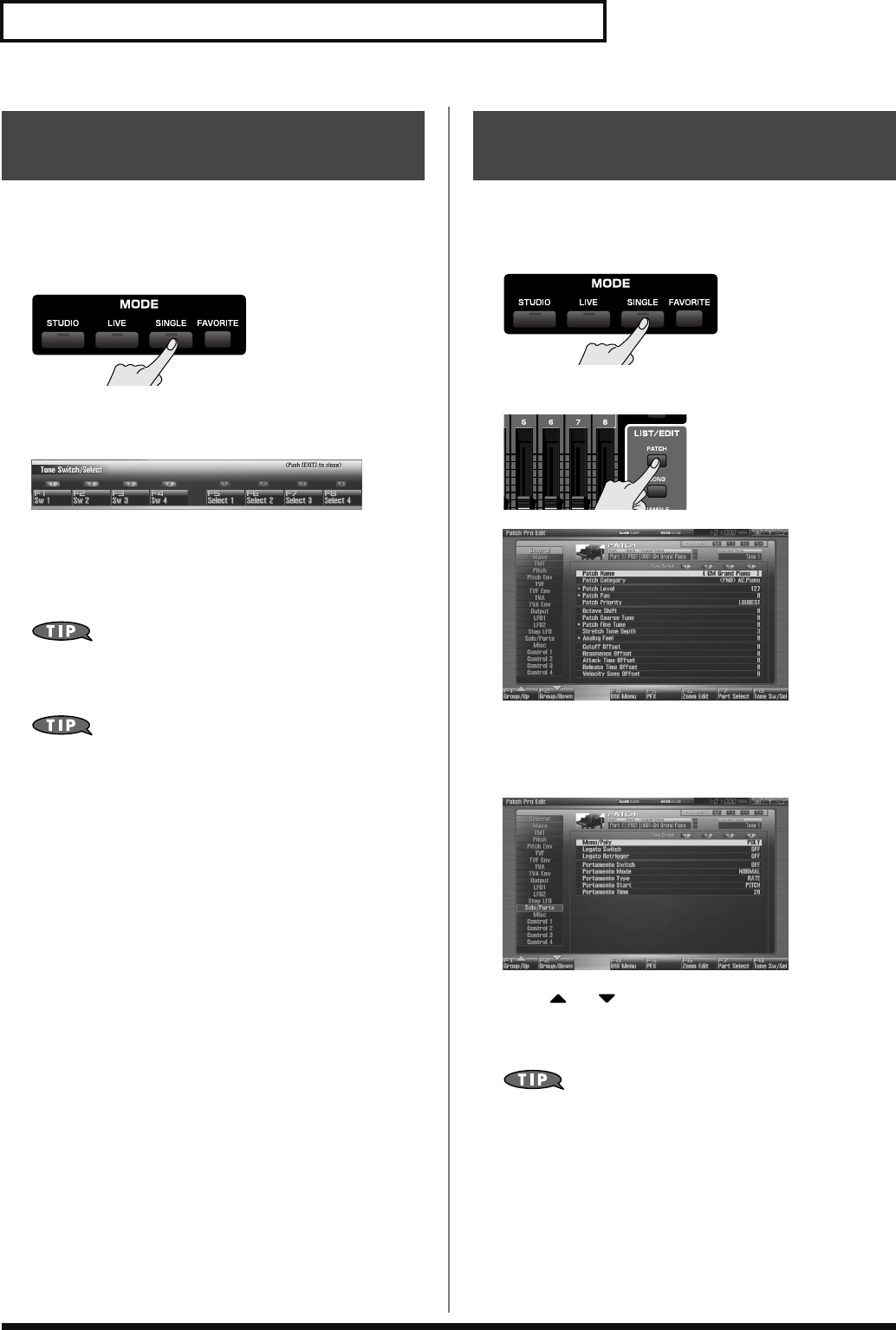
50
Playing in Single Mode
Since a patch is a combination of up to four tones, you can switch
unwanted (tones out of the four) off and get just the sound of a
specific tone.
1.
Press [SINGLE] to access the Single Play screen.
2.
Press [F8 (Tone Sw/Sel)].
The Tone Switch/Select window appears.
fig.05-014_50
3.
Press [F1 (Tone Sw)]–[F4 (Tone Sw)] to turn each tone on/
off. The setting will switch on/off each time you press the
button.
4.
Press [EXIT] to close the window.
If you want just one or two tones to sound in a patch, turn the
others off and store that setting on a patch. This cuts
nonessential use of the Fantom-G’s simultaneous voices.
You can also use the pads to select tones and switch them on/
off (p. 197).
When using a patch for a naturally monophonic instrument such as
sax or flute, it is effective to play in mono.
1.
Press [SINGLE] to access the Single Play screen.
2.
Press [PATCH] twice to access the Patch Pro Edit screen.
3.
Press [F1 (Up)] or [F2 (Down)] to select the “Solo/Porta”
tab.
A screen like the one shown below appears.
fig.05-015_50
4.
Press or to move the cursor to “Mono/Poly.”
5.
Turn the VALUE dial or press [DEC] to select “MONO.”
Now you can play in mono mode.
If you assign “MONO/POLY” as a function to be controlled by
the assignable switch ([S1] [S2]), you can easily switch between
mono/poly by pressing a button (p. 77).
Selecting the Tones That Will
Sound (Tone On/Off)
Playing Single Notes
(Monophonic)
Fantom-G_r_e.book 50 ページ 2008年1月31日 木曜日 午後12時15分
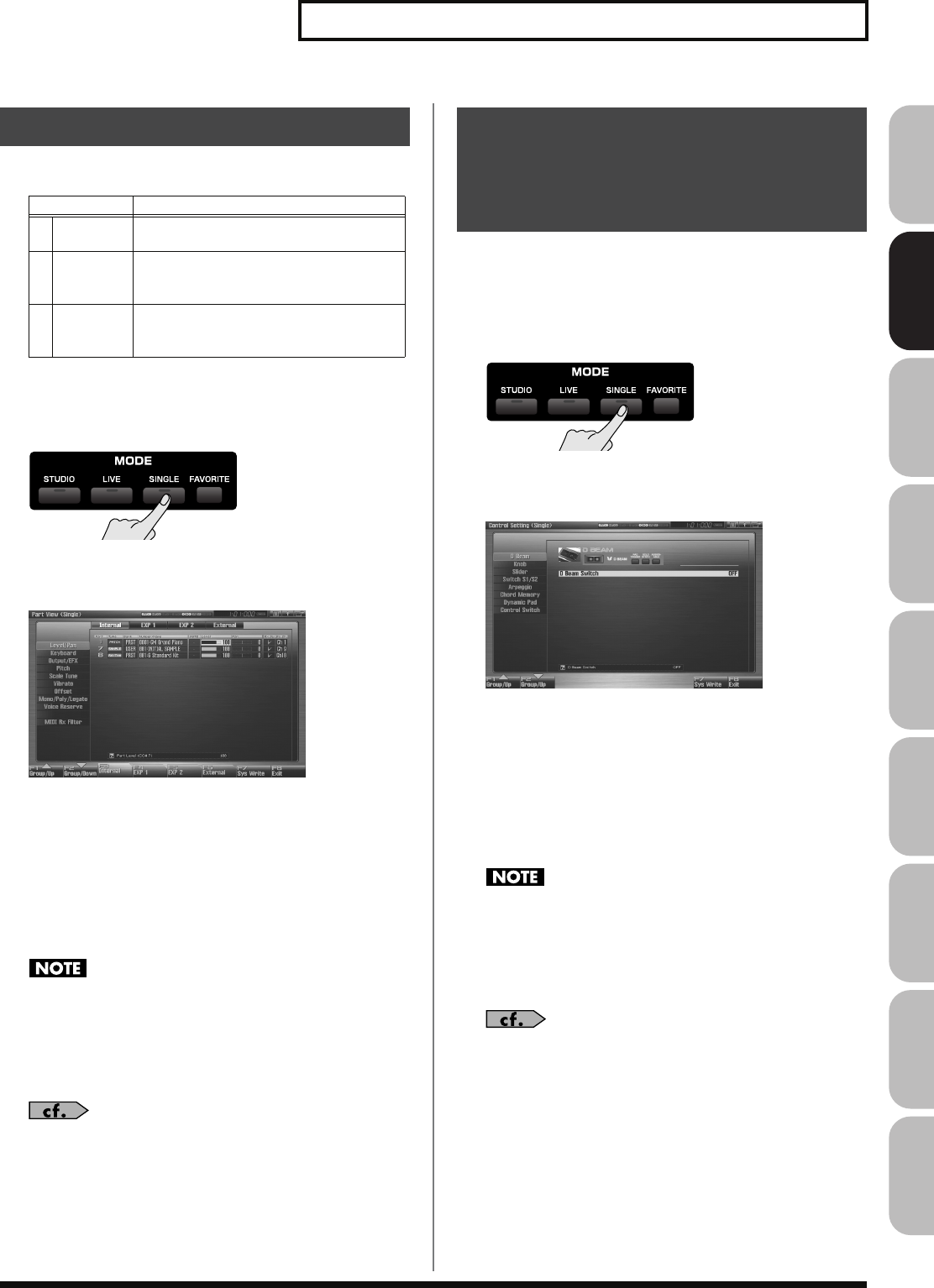
51
Playing in Single Mode
Overview Sound 1 Sound 2 Sound 3 Pad Sampler
Menu/System
AppendixSequencer
Single mode has the following three parts.
In the Part View screen you can view and edit the volume and pan
settings of these three parts.
1.
Press [SINGLE] to access the Single Play screen.
2.
Press [F3 (Part View)].
The Part View screen will appear.
fig.08-017_50
3.
Press [F1 (Up)] or [F2 (Down)] to select the parameter
group.
4.
Use [CURSOR] to move the cursor to the parameter.
5.
Either turn the VALUE dial or use [INC] [DEC] to set the
value.
6.
If you want to keep the settings, press [F7 (Sys Write)].
When Single mode is selected, part settings cannot be saved for
each individual patch. Part settings are saved as system
settings.
7.
When you have finished making settings, press [EXIT] to
return to the Single Play screen.
See
“Level/Pan (When the Part Group is Internal/EXP1/
EXP2)”
(p. 134)–
“MIDI Rx Filter”
(p. 141) for each parameter’s
functions.
The Fantom-G lets you assign the parameters that will be affected
when you operate the 1–4 knobs, 1–8 sliders, S1/S2 switches, D
Beam, pitch bend, or modulation lever. This lets you modify the
sound in a variety of ways by operating the controllers.
1.
Press [SINGLE] to access the Single Play screen.
2.
Press [F4 (Control)].
The Control Setting screen will appear.
fig.05-017_50
3.
Press [F1 (Up)] or [F2 (Down)] to select the parameter
group.
4.
Use [CURSOR] to move the cursor to the parameter.
5.
Either turn the VALUE dial or use [INC] [DEC] to set the
value.
6.
If you want to keep the settings, press [F7 (Sys Write)].
When Single mode is selected, controller settings cannot be
saved for each individual patch. Controller settings are saved as
system settings.
7.
When you have finished making settings, press [EXIT] to
return to the Single Play screen.
See
“D Beam”
(p. 143)–
“Ctrl Switch”
(p. 147) for each
parameter’s functions.
Part Settings (Part View)
Part Explanation
1Keyboard The part that is heard when you play the
keyboard
7 Sample
Pad
The part that is heard when you set the
pads to
“1 SAMPLE PAD (Using the
Pads to Play Samples)”
(p. 191) mode
8 Rhythm
Pad
The part that is heard when you set the
pads to
“2 RHYTHM (Using the Pads to
Play a Rhythm Set)”
(p. 192) mode
Selecting the Parameter
Controlled by the Realtime
Controllers or D Beam
Controller (Control Setting)
Fantom-G_r_e.book 51 ページ 2008年1月31日 木曜日 午後12時15分
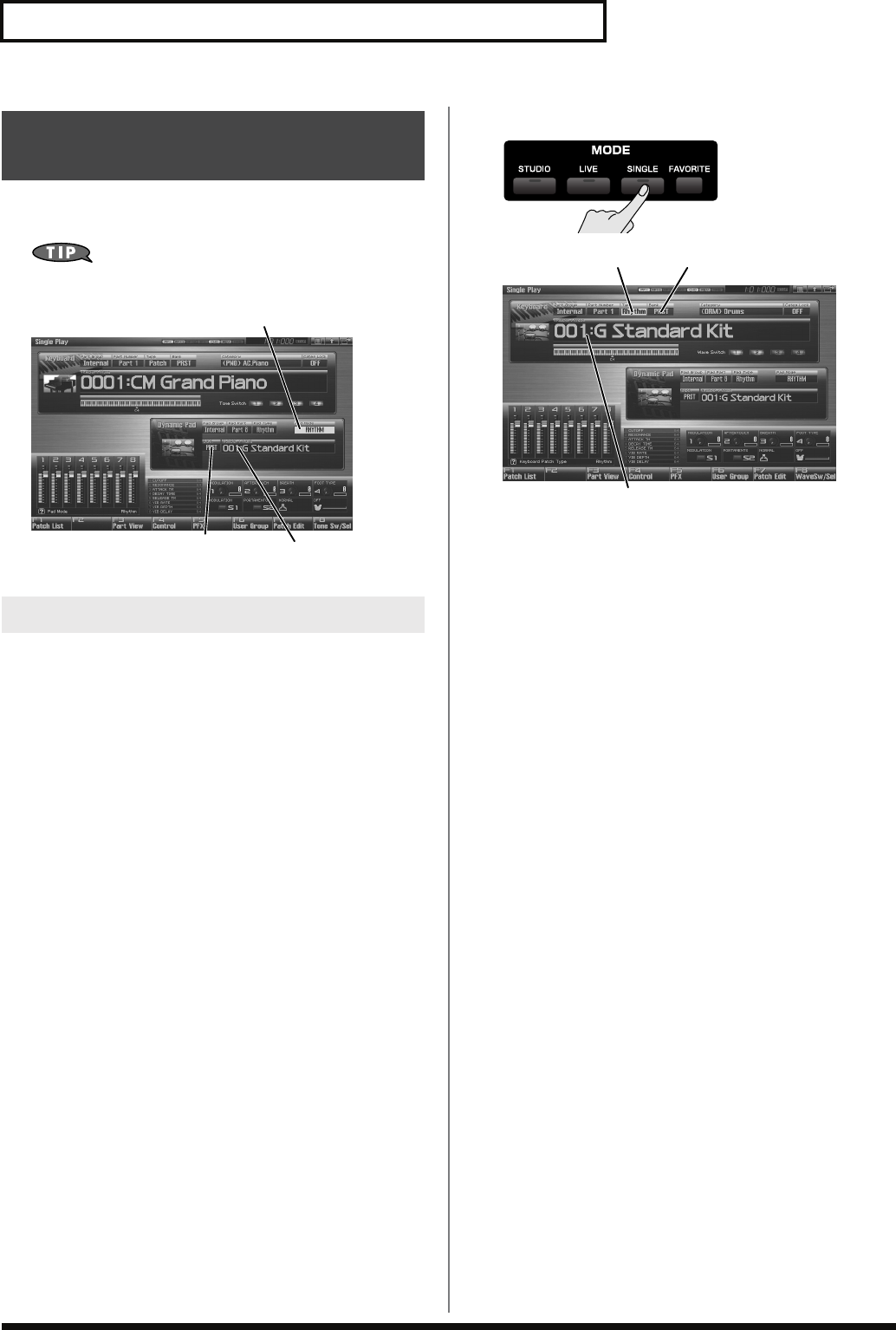
52
Playing in Single Mode
In Single mode, you can play percussion instruments from the
keyboard by selecting a rhythm set.
You can also use the pads to play a rhythm set.
→
p. 192
The Fantom-G has three rhythm set banks, including the User bank,
Preset bank and GM bank, with 64 rhythm sets in the User bank, 64
rhythm sets in Preset bank, and 9 rhythm sets in GM bank.
USER
This is the bank inside the Fantom-G which can be rewritten. The
rhythm sets you create can be stored in this bank. You can store 64
rhythm sets.
PRST (Preset)
This is the bank inside the Fantom-G which cannot be rewritten.
However, you can modify the settings of the currently selected
rhythm set, and then save the modified settings in User bank. The
Fantom-G contains 64 preset rhythm sets.
GM (GM2)
This is an internal bank of rhythm sets compatible with General
MIDI 2, a system of MIDI function specifications designed to
transcend differences between makers and types of devices; these
rhythm sets cannot be overwritten. However, you can modify the
settings of the currently selected rhythm set, and then save the
modified settings in User bank. The Fantom-G includes nine preset
rhythm sets.
1.
Press [SINGLE] to access the Single Play screen.
fig.05-023.efig.05-023.e
* Make sure that the Patch Type is set to “Rhythm.” If this is set to
“Patch” or “Sample,” use [CURSOR] to move the cursor to the patch
type, and turn the VALUE dial or press [INC] [DEC] to select
“Rhythm.”
2.
Press [CURSOR] to move the cursor to the rhythm set bank.
3.
Turn the VALUE dial or press [INC] [DEC] to select the
rhythm set bank.
USER:
User
PRST:
Preset
GM:
GM (GM2)
4.
Press [CURSOR] to move the cursor to the rhythm set
number.
5.
Turn the VALUE dial or press [INC] [DEC] to select the
rhythm set number.
6.
Play the keyboard to hear the sound.
Playing Percussion Instruments
(Rhythm Set)
Selecting a Rhythm Set
Rhythm set number
Rhythm set bank
Pad Mode (Rhythm)
Rhythm set number
Patch Type Rhythm set bank
Fantom-G_r_e.book 52 ページ 2008年1月31日 木曜日 午後12時15分
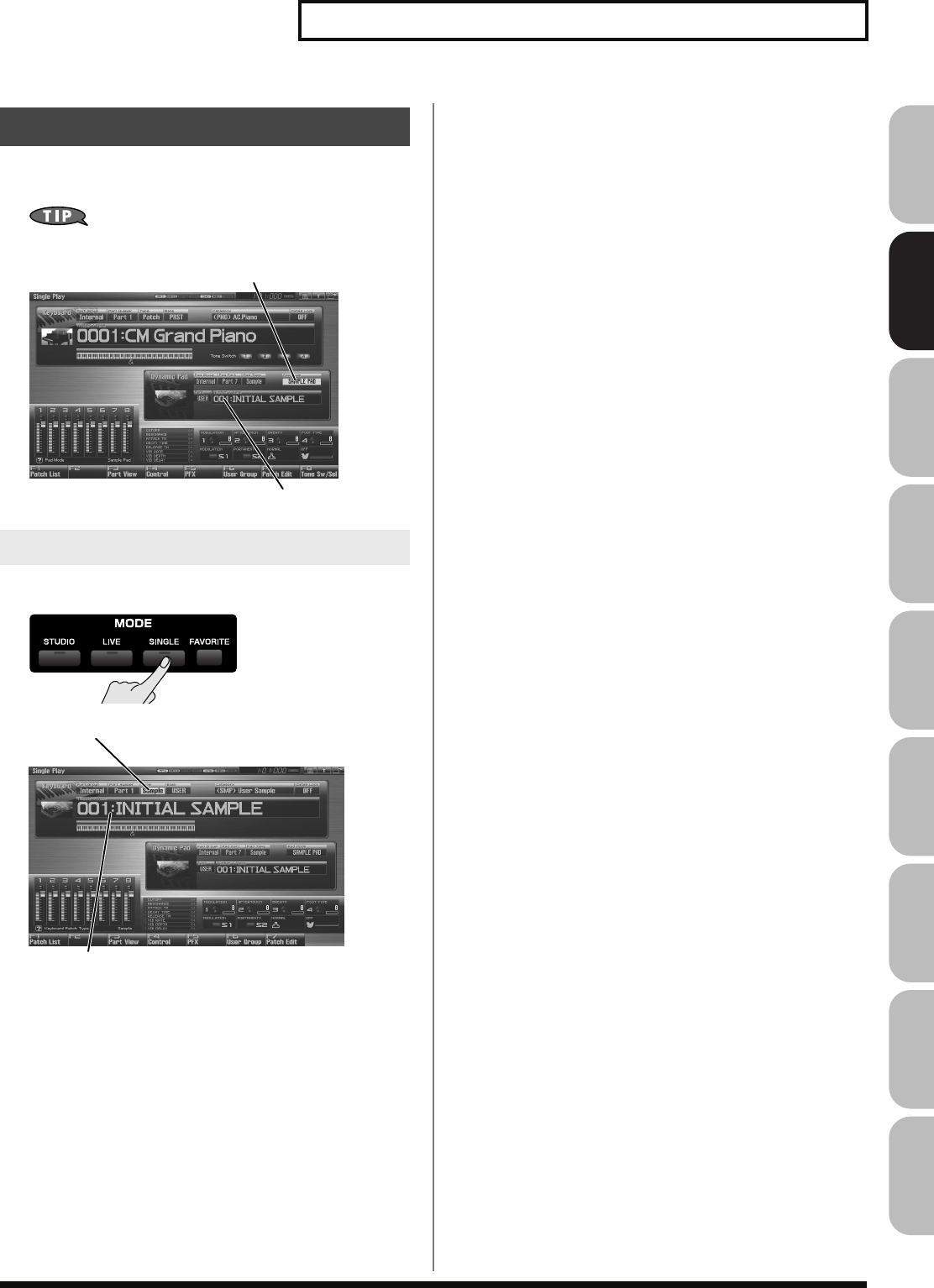
53
Playing in Single Mode
Overview Sound 1 Sound 2 Sound 3 Pad Sampler
Menu/System
AppendixSequencer
In Single mode you can select a sample set and play the samples
from the keyboard.
You can also use the pads to play a sample set.
→
p. 191
1.
Press [SINGLE] to access the Single Play screen.
fig.05-023.e
* Make sure that the Patch Type is set to “Sample.” If this is set to
“Patch” or “Rhythm,” use [CURSOR] to move the cursor to the patch
type, and turn the VALUE dial or press [INC] [DEC] to select
“Sample.”
2.
Press [CURSOR] to move the cursor to the sample set
number.
3.
Turn the VALUE dial or press [INC] [DEC] to select the
sample set number.
4.
Play the keyboard to hear the sound.
* For a sample set, the sixteen sample tones are mapped to keys B3–D5.
Playing a Sample Set
Selecting a Sample Set
Sample set number
Pad Mode (Sample Pad)
Sample set number
Patch Type
Fantom-G_r_e.book 53 ページ 2008年1月31日 木曜日 午後12時15分
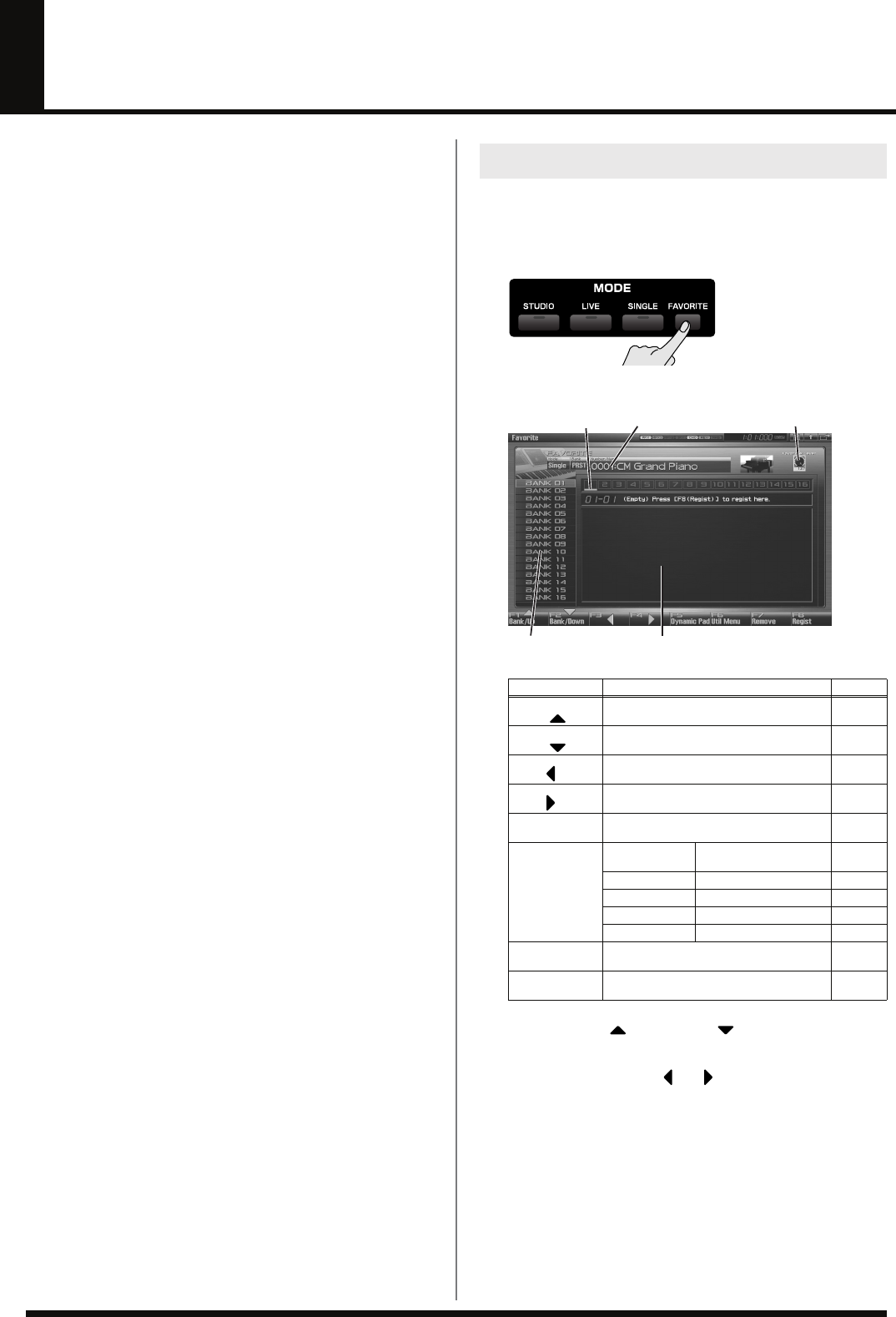
54
Creating a List of Frequently Used Sounds
(Favorite)
You can make a list of sounds that you frequently use in live
performance, and recall these sounds instantly. You are free to
register any type of sound — patches, rhythm sets, sample sets, live
sets, studio sets, or songs — so you’ll be able to instantly recall any
sound you need for your performance.
You can register sixteen sounds (steps) in a bank, and you can create
sixteen of these banks.
For example, up to sixteen sounds (steps) that you use in the first
song of your live performance could be registered in bank 1, in the
order in which they appear in the song.
1.
Access the screen for the patch (or rhythm set, sample set,
live set, or studio set) that you want to register.
2.
Press [FAVORITE].
The Favorite screen will appear.
fig.05-001c_50
F-key operations in the Favorite screen
3.
Press [F1 Bank ] or [F2 Bank ] to select the bank in
which you want to register the sound.
4.
Use the cursor buttons or to select the number
(step) in which you want to register the sound.
You can register the sound in any of the sixteen steps. You’ll
want to register each sound in the order that’s appropriate for
the progression of your song or live performance.
5.
Press [F8 (Regist)] to register the sound.
For example if you registered the sound to number 02 of bank 1,
the display will indicate “Regist to 1-02”.
Registering a Sound (Regist)
F-key Explanation Page
F1
Bank Selects the bank. –
F2
Bank Selects the bank. –
F3
Step Selects the step and recalls the sound. p. 55
F4
Step Selects the step and recalls the sound. p. 55
F5
Dynamic Pad Sets the pads in Favorite mode. p. 55
F6
Util Menu Font Switches the display
font p. 57
Set Song Registers a song p. 56
Import Text Imports text p. 56
Remove Text Deletes text p. 57
Remove Bank Deletes a bank p. 55
F7
Remove Deletes the registration of a sound. p. 55
F8
Regist Registers a sound. p. 54
Step Currently selected sound
Text display area
Bank
Volume of each step
Fantom-G_r_e.book 54 ページ 2008年1月31日 木曜日 午後12時15分
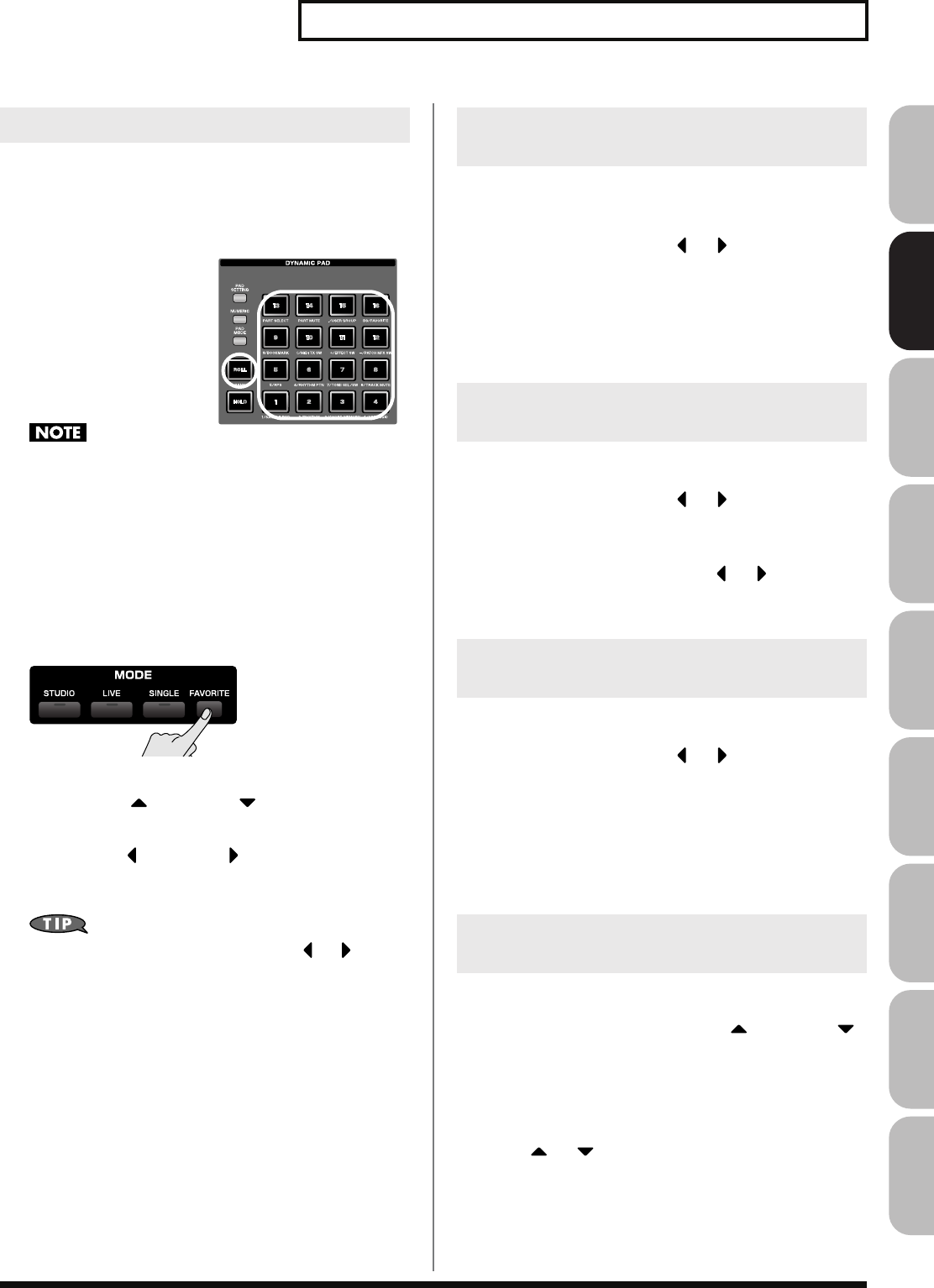
55
Creating a List of Frequently Used Sounds (Favorite)
Overview Sound 1 Sound 2 Sound 3 Pad Sampler
Menu/System
AppendixSequencer
Using the pads to recall sounds
1.
In the Favorite screen, press [F5 (Dynamic Pad)].
The pads will be set to Favorite mode.
• Now you can press pads
[1]–[16] to select the sound
(step) that’s registered for
each pad.
• You can press
[ROLL](BANK) to switch
banks (1–6).
→
p. 189
If you want to use the pads to successively switch between live
sets (or studio sets), set the system parameter
“Pad Assign
Source”
(p. 288) to “SYS.” If this is set to “TEMP,” the pad
mode will change to the setting of that particular live set (or
studio set) when you switch to a live set (or studio set).
Using the Favorite screen to recall
sounds
1.
Press [FAVORITE].
The Favorite screen will appear.
2.
Press [F1 Bank ] or [F2 Bank ] to select the bank
from which you want to recall sounds.
3.
Press [F3 Step ] or [F4 Step ] to select the step
number (1–16) that you want to recall.
The selected sound will be recalled immediately.
As an alternative to step 3, you can also press or to select
the he step number. In this case, the sound will not be switched
until you press [ENTER].
Here’s how to specify the volume (Favorite Level) for each step. Use
this to adjust the volume of each sound in your live performance.
1.
In the Favorite screen, press or to move the cursor
to the step whose volume you want to adjust.
2.
Use knob 4, [INC] [DEC], or the VALUE dial to specify the
volume (Favorite Level).
Range:
0–127
Here’s how to move a registered sound to a different step.
1.
In the Favorite screen, press or to move the cursor
to the step at which the sound you want to move is
registered.
2.
While holding down [SHIFT], press or to move the
sound.
Here’s how to remove a registered sound from the favorites list.
1.
In the Favorite screen, press or to move the cursor
to the step whose registration you want to remove.
2.
Press [F7 (Remove)].
For example if you remove the registration from step number 02
of bank 1, the display will indicate “Remove 1-02,” and that step
will be empty.
Here’s how to remove all sound registrations from a bank.
1.
In the Favorite screen, press [F1 Bank ] or [F2 Bank ]
to select the bank whose sound registrations you want to
remove.
2.
Press [F6 (Util Menu)].
The Favorite Utility Menu window will appear.
3.
Press or to select “Remove Bank,” and then press
[F8 (Select)].
If you removed all registrations from bank 1, the display will
indicate “Remove Bank 1,” and that bank will be empty.
Recalling a Sound
Specifying the Volume for Each
Step (Favorite Level)
Changing the Step in Which You
Registered a Sound
Removing a Sound You Registered
(Remove)
Removing All Sound Registrations
from a Bank (Remove Bank)
Fantom-G_r_e.book 55 ページ 2008年1月31日 木曜日 午後12時15分
56
Creating a List of Frequently Used Sounds (Favorite)
Here’s how to register a song instead of a sound.
1.
In the Favorite screen, press [F1 Bank ] or [F2 Bank ]
to select the bank in which you want to register a song.
2.
Press or to select the number (step) in which you
want to register a song.
3.
Press [F6 (Util Menu)].
The Favorite Utility Menu window will appear.
4.
Press or to select “Set Song,” and press [F8
(Select)].
The Song Select screen will appear.
5.
Press or to select a song.
6.
Press [F8 (Select)] to register the song.
For example if you register the song in number 02 of bank 1, the
display will indicate “Regist to 1-02.”
Songs can be recalled in the same way as recalling sounds.
You can create a text file on your computer, and import it into the
Fantom-G so that it can be displayed in the Favorite screen.
1.
Use the USB Storage function to place the text file in the
“IMPORT” folder of the Fantom-G’s internal memory or the
USB memory.
“Exchanging Files with Your Computer (USB Storage)”
(p.
281)
2.
Access the Favorite screen, and press [F1 Bank ] or [F2
Bank ] to select the bank in which you want to display
the text.
3.
Press [F6 (Util Menu)].
The Favorite Utility Menu window will appear.
4.
Press or to select “Import Text,” and then press
[F8 (Select)].
5.
Press [F1 (Internal)] or [F2 (USB Memory)] to select the
import-source area (either internal memory or USB
memory).
6.
Press or to select the file that you want to import.
7.
Press [F8 (Import Text)].
The file to be imported will appear.
* If you decide to cancel, press [F7 (Cancel)].
8.
Press [F8 (Execute)].
The file will be imported.
* If you decide to cancel, press [F7 (Cancel)].
You can scroll the screen by pressing or .
Registering a Song (Set Song)
Importing a Text File (Import Text)
Fantom-G_r_e.book 56 ページ 2008年1月31日 木曜日 午後12時15分
57
Creating a List of Frequently Used Sounds (Favorite)
Overview Sound 1 Sound 2 Sound 3 Pad Sampler
Menu/System
AppendixSequencer
Here’s how to remove a text file that you imported.
1.
Access the Favorite screen, and press [F1 Bank ] or [F2
Bank ] to select the bank whose text you want to
remove.
2.
Press [F6 (Util Menu)].
The Favorite Utility Menu window will appear.
3.
Press or to select “Remove Text,” and then press
[F8 (Select)].
A message will appear, and the text will be removed from the
selected bank.
Here’s how to switch the display font of the imported text. The
display font will switch each time you perform the following steps.
1.
Press [F6 (Util Menu)].
The Favorite Utility Menu window will appear.
2.
Press or to select “Font,” and press [F8 (Select)].
The display font will be switched.
Removing a Text File (Remove Text)
Switching the Display Font (Font)
Fantom-G_r_e.book 57 ページ 2008年1月31日 木曜日 午後12時15分
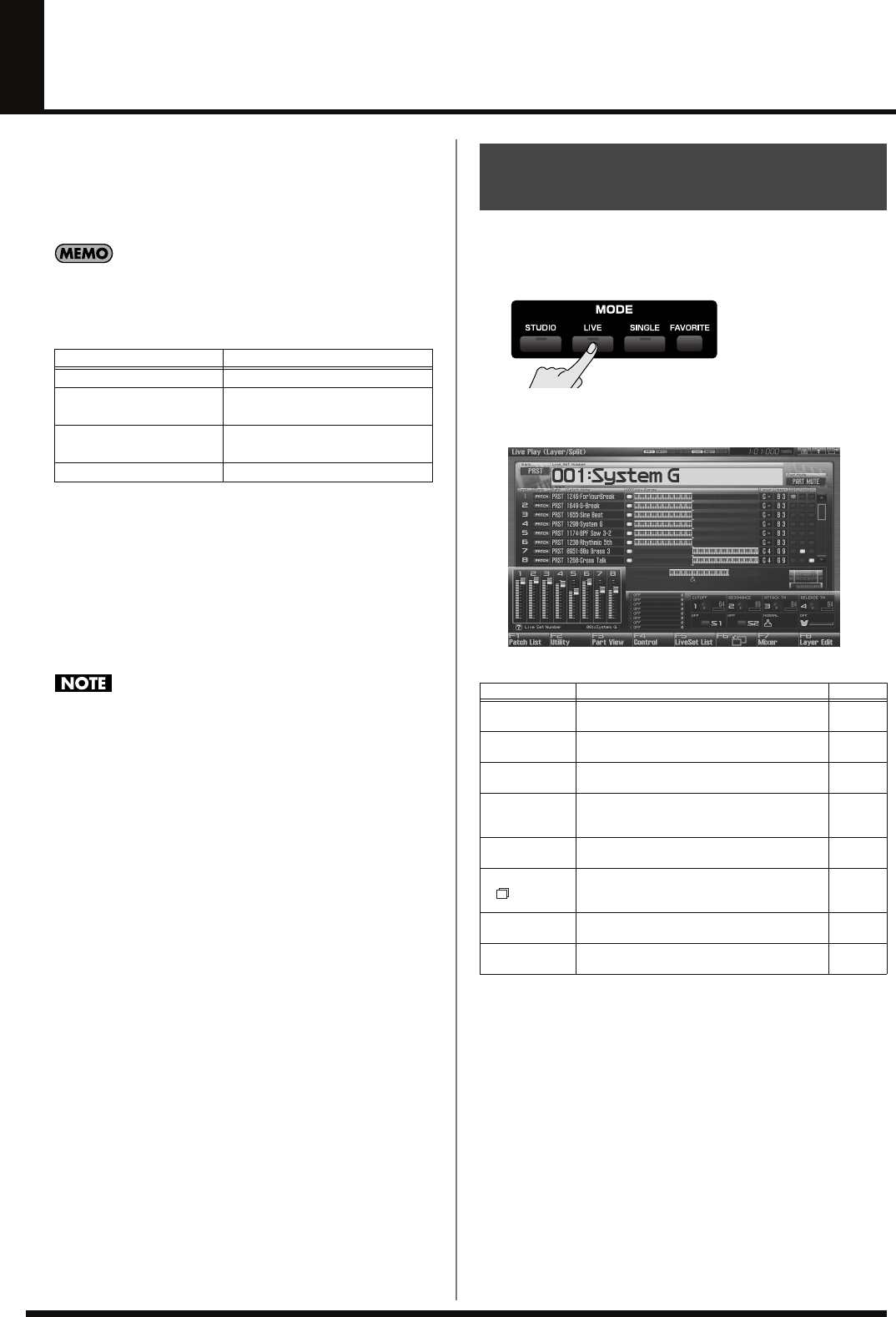
58
Playing in Live Mode
Live mode is designed for live performances; it lets you play up to
eight patches (or rhythm sets or sample sets) at the same time. For
example you can layer (p. 62) a piano sound with strings, or split (p.
62) sounds across the keyboard so that your right hand plays a piano
sound while your left hand plays a bass sound.
In addition, Live mode lets you play the parts of any installed
expansion boards (the number of parts will depend on the type
of expansion board) and any external MIDI output parts at the
same time as the eight parts of the internal sound generator.
A “live set” contains a patch (or rhythm set or sample set)
assignment as well as volume and pan for each part.
When you play the keyboard, parts whose keyboard switch is on
will be sounded. If none are on, the current part will sound.
In addition to the settings of each part, the following settings can
also be stored for each live set.
• Controller settings such as the D Beam, 1–4 knobs, 1–8 sliders,
[S1] [S2] buttons, and pads
If the keyboard switch is turned on for even one part, the
current part will not sound. If you want to sound the current
part, turn off the keyboard switch for all parts.
To access the Live Play (Layer/Split) Screen, use the following
procedure.
1.
Press [LIVE].
You will enter Live Mode, and the Live Play (Layer/Split)
Screen appears.
fig.04-015_50
F-key operations in the Live Play (Layer/Split) screen
Part group Number of parts
Internal 8
Expansion board 1 Maximum 16
* Depends on the expansion board
Expansion board 2 Maximum 16
* Depends on the expansion board
External MIDI output 16
Displaying Live Play (Layer/
Split) Screen
F-key Explanation Page
F1
Patch List Selects the patch sound that’s assigned to
each part. p. 61
F2
Utility Makes settings common to the entire live set. p. 132
F3
Part View Makes detailed settings for each part of the
live set. p. 133
F4
Control Selects the parameters that will be controlled
by the realtime controllers or the D Beam con-
troller.
p. 142
F5
LiveSet List Selects a live set. p. 60
F6 Switches between the normal screen and a
screen that shows only the parts whose key-
board switch is on.
p. 61
F7
Mixer Displays the mixer screen. p. 63
F8
Layer Edit Displays the Layer Edit screen. p. 64
Fantom-G_r_e.book 58 ページ 2008年1月31日 木曜日 午後12時15分
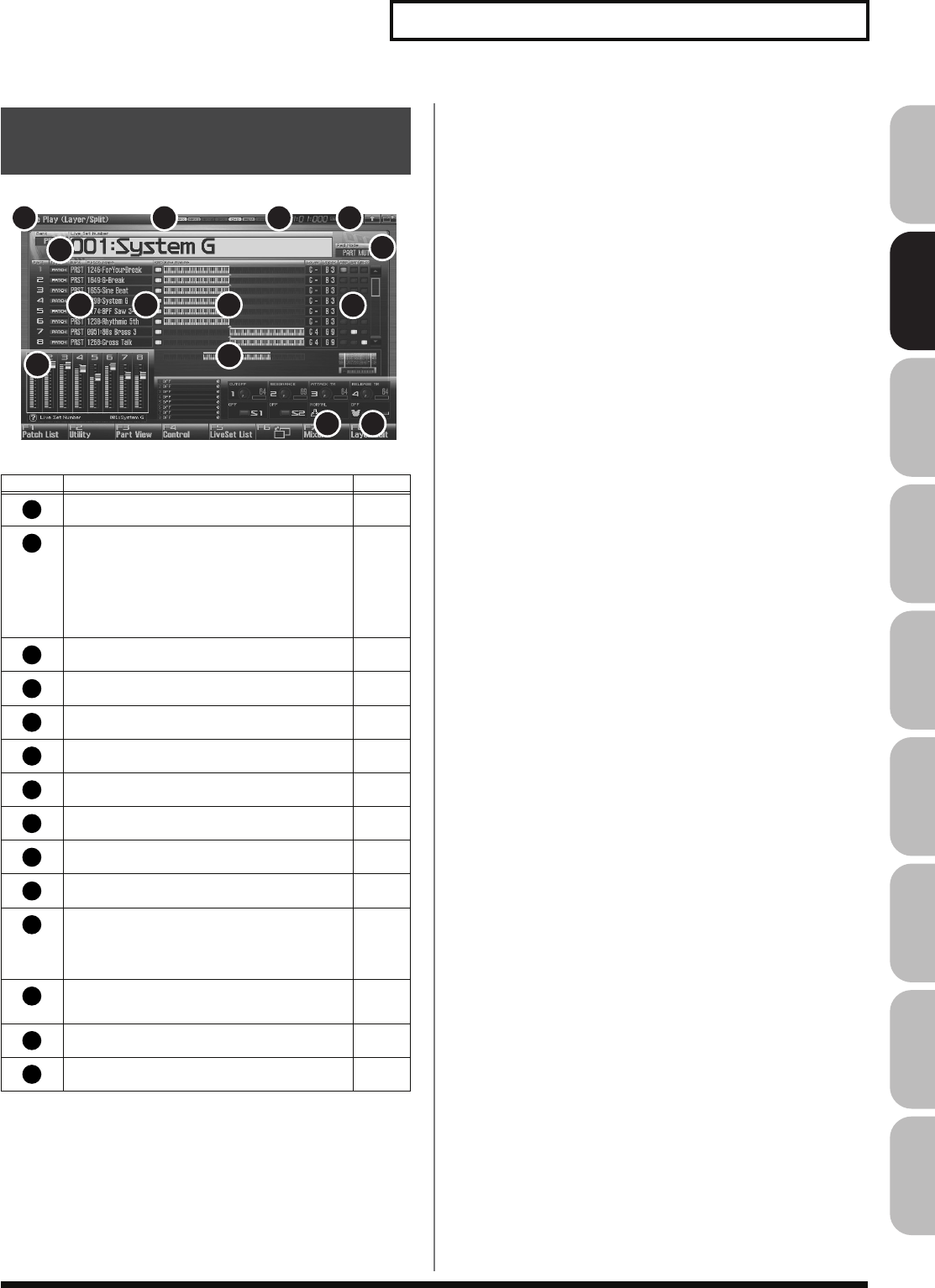
59
Playing in Live Mode
Overview Sound 1 Sound 2 Sound 3 Pad Sampler
Menu/System
AppendixSequencer
fig.08-002.j
Functions in the Live Play
(Layer/Split) Screen
Number
Explanation Page
Indicates the current sound generator mode. p. 39
Indicates the on/off status of each effect.
PFX Patch multi-effect
MFX1 Multi-effect 1
MFX2 Multi-effect 2
IFX Input effect
CHO Chorus
REV Reverb
MAS Mastering effect
p. 150
Indicates the current location of the song, and the
status of the sequencer. p. 205
The Menu/Exit/Shortcut buttons for the USB
mouse. p. 26
Indicates/selects the bank, name, and number of the
currently selected live set. p. 60
Indicates the pad mode. p. 188
Indicates/selects the type, bank, number, and name
of the patch, rhythm set, or sample set for each part. p. 61
Indicates/changes the keyboard switch setting. p. 61
Indicates/changes the key range. p. 62
Indicates the key range that the Fantom-G6/G7/G8
can play. –
Indicates the functions assigned to the realtime con-
trol sliders (1–8), knobs (1–4) and the S1/S2 switch-
es.
In Live mode, the sliders (1–8) indicate the levels of
the 8 internal parts. (p. 62)
p. 142
Indicates the function assigned to the D Beam con-
troller and the response state of the D Beam control-
ler.
p. 142
Indicates the
“Bend Mode”
(p. 97) of the pitch bend
lever. p. 97
Specifies the arpeggio part and pad part. p. 61
6
7 8 9
10
11
12 13
14
5
1 2 3 4
1
2
3
4
5
6
7
8
9
10
11
12
13
14
Fantom-G_r_e.book 59 ページ 2008年1月31日 木曜日 午後12時15分
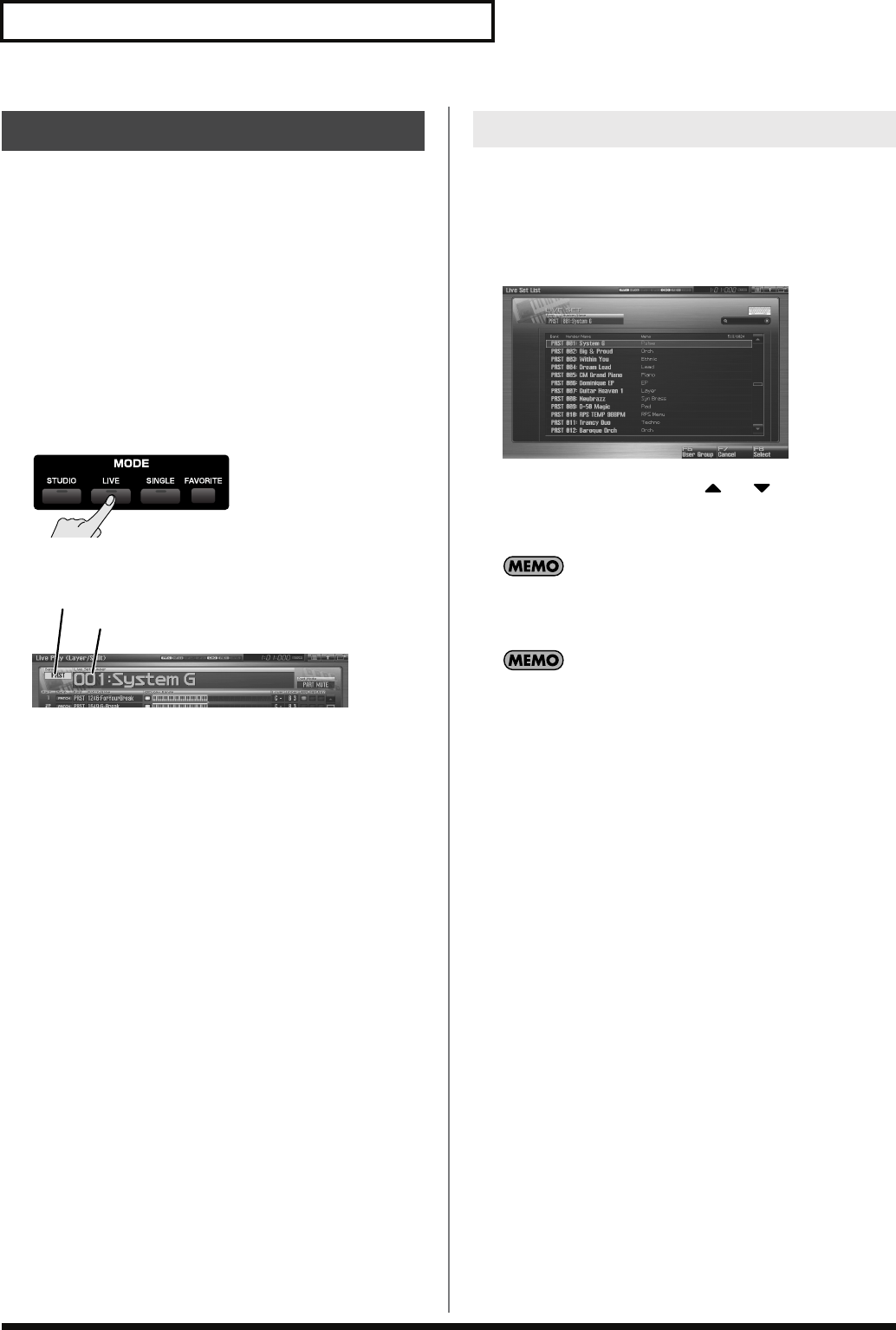
60
Playing in Live Mode
The Fantom-G has two live set banks, including the User bank and
Preset banks.
USER
This is the bank inside the Fantom-G which can be rewritten. Live
Sets you create can be stored in this bank. You can store 512 live sets.
PRST (Preset)
This is the bank inside the Fantom-G which cannot be rewritten.
However you may modify the settings of the currently selected live
set, and then store the modified live set in User memory. The
Fantom-G contains 512 preset live sets.
1.
Press [LIVE].
2.
Press [CURSOR] to move the cursor to the live set bank.
fig.08-003.e
3.
Turn the VALUE dial, or press [INC] [DEC] to select a live
set bank.
USER:
User
PRST:
Preset
4.
Press [CURSOR] to move the cursor to the live set number.
5.
Turn the VALUE dial or press [INC] [DEC] to select the live
set number.
You can display a list of live sets and select a live set from that list.
1.
Press [LIVE].
2.
Press [F5 (LiveSet List)].
The Live Set List screen appears.
fig.08-004_50
3.
Turn the VALUE dial or press or to select the live
set.
4.
Press [F8 (Select)] to close the Live Set List screen.
Pressing [F6 (User Group)] will access the user group list screen,
where you can register frequently-used studio sets.
→
“Registering a sound in the User Group screen”
(p. 201)
If you’re using a USB mouse, you can click the keyboard symbol
in the screen to access a virtual keyboard, which allows you to
perform a keyword search.
Selecting a Live Set
Live set number
Live set bank
Selecting Live Sets from the List
Fantom-G_r_e.book 60 ページ 2008年1月31日 木曜日 午後12時15分
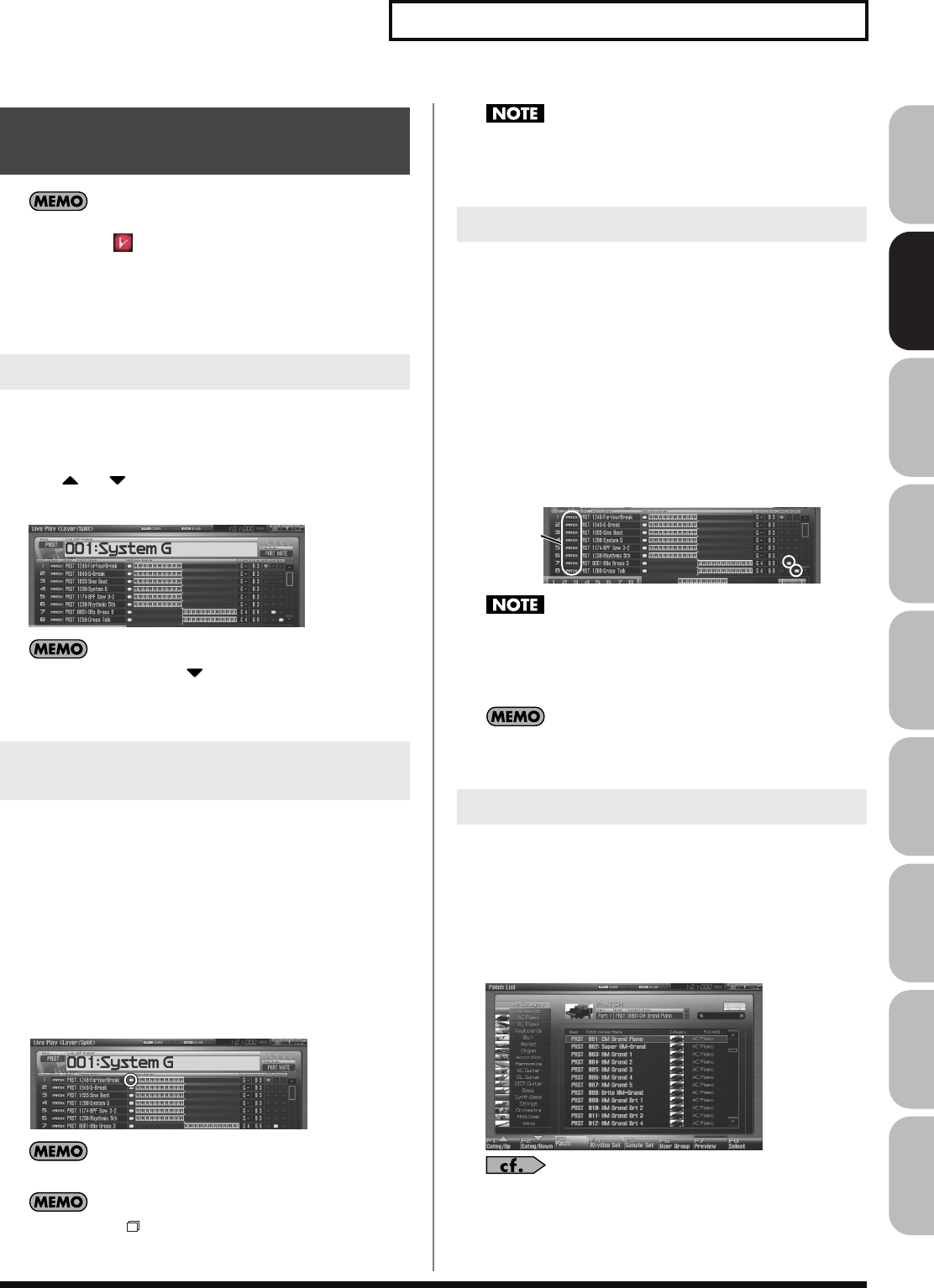
61
Playing in Live Mode
Overview Sound 1 Sound 2 Sound 3 Pad Sampler
Menu/System
AppendixSequencer
When you modify the settings of a Live Set, the Live Play screen
will indicate “ .” The settings you modify are temporary, and
will be lost when you turn off the power, switch the sound
generator mode, or select a different sound. If you want to keep
the modified sound, you must save it in the User bank (
“Saving
a Live/Studio Set You’ve Created (Write)”
(p. 148)).
The currently selected part is called the “
current part
.”
1.
Press [LIVE] to access the Live Play (Layer/Split) Screen.
2.
Use or to select the part.
The part number is shown in red for the selected part.
fig.08-007_50
As you continue pressing , the screen will scroll downward,
allowing you to select expansion board parts (if an expansion
board is installed) or external MIDI output parts.
Here’s how to select the parts whose patch, rhythm set or sample set
will sound. For each part, use the switch to specify whether that part
will be played from the keyboard; this is called the “keyboard
switch.”
1.
In the Live Play (Layer/Split) screen, use [CURSOR] to move
the cursor to the “KBD” area, and press [INC] to turn on the
keyboard switch for the part(s) you want to play.
When you play the keyboard, you’ll hear the part(s) whose
keyboard switch you turned on. If all of the keyboard switches
are off, you’ll hear the current part.
fig.08-008_50
You can turn on the keyboard switch for more than one part.
By pressing [F6 ] you can switch to a screen that shows only
the parts whose keyboard switch is on.
The current part will not sound if even one keyboard switch is
on. If you want to hear the current part, turn off the keyboard
switch for all parts.
Use the pad switch to select the part whose rhythm set or sample set
will be played by the pads.
1.
As described in the procedure for “Switching the Pad Mode
(PAD MODE)” (p. 188), set the pad mode to either “1
SAMPLE PAD” or “2 RHYTHM.”
2.
In the Live Play (Layer/Split) screen, use [CURSOR] to move
the cursor to the “SAM” or “RHY” field, and press [INC] to
turn on the pad switch for the part that you want to play
from the pads.
When you press the pads, you’ll hear the part whose pad switch
is on.
Make sure that the Patch Type is set to “SAMPLE“ or
“RHYTHM.” If this is set to “PATCH,” use [CURSOR] to move
the cursor to the patch type, and turn the VALUE dial or press
[INC] [DEC] to select “SAMPLE“ or “RHYTHM.”
In the same way, you can use the “ARP” switch to specify the
“Arpeggio Part Number”
(p. 146).
If you don’t like the patch that is assigned to a part, it’s easy to
switch the patch.
1.
Select the part whose sound you want to switch.
2.
Press [F1 (Patch List)].
The Patch List screen will appear.
fig.05-008_50
For details on using the Patch List screen, refer to
“Selecting
Patches from the List”
(p. 49).
Using the Live Play (Layer/
Split) Screen
Selecting a Part
Selecting the Part that You want to
Sound (Keyboard Switch)
Selecting the Part Played by the Pads
Selecting the Sound for a Part
Patch Type
Fantom-G_r_e.book 61 ページ 2008年1月31日 木曜日 午後12時15分
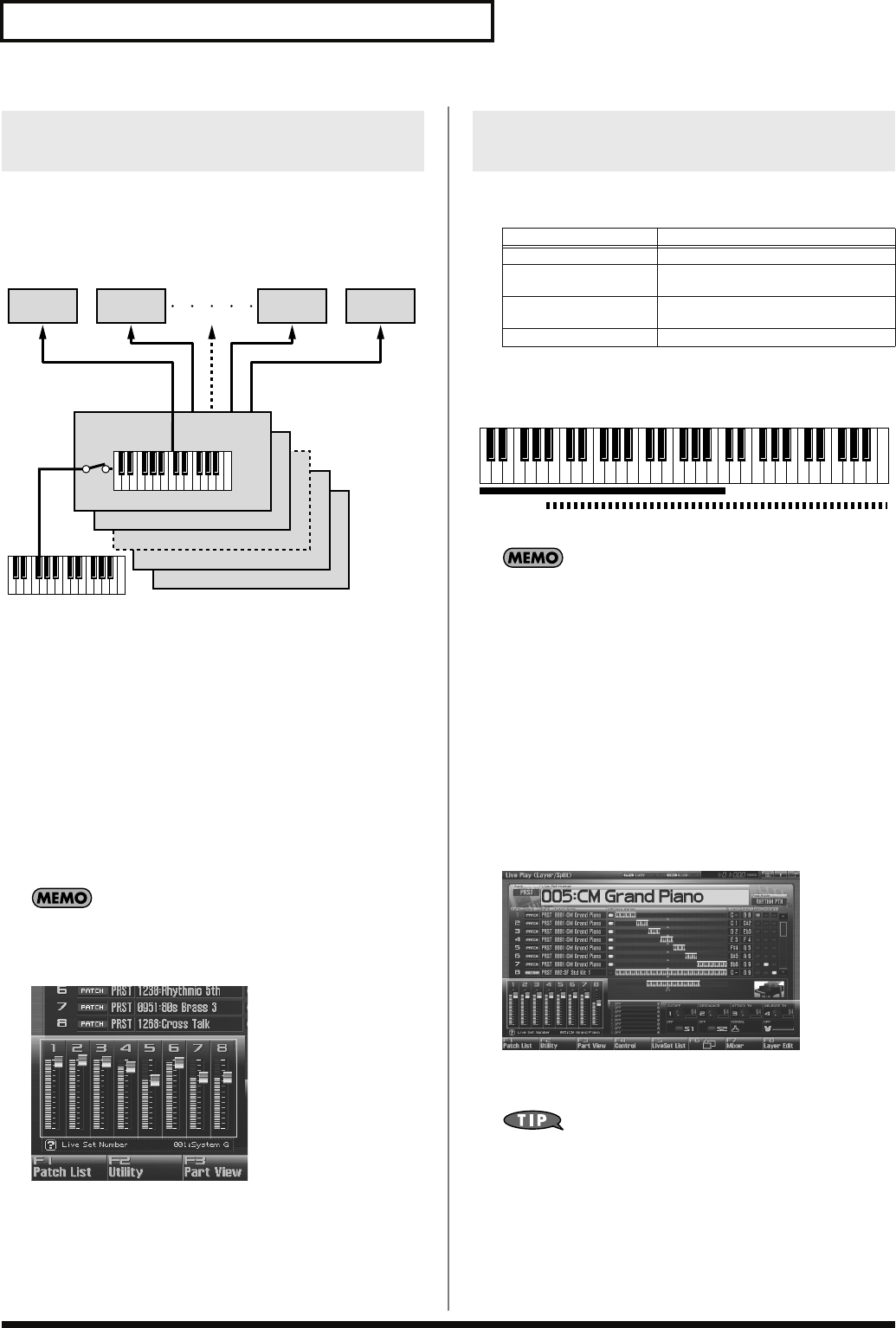
62
Playing in Live Mode
In live mode you can play the sounds of all parts whose Keyboard
Switch is on. Combining the parts will produce, thicker, fatter
sounds.
You can create layers in the Live Play (Layer/Split) screen.
fig.08-009.e
1.
Press [LIVE] to access the Live Play (Layer/Split) Screen.
2.
Use [CURSOR] to move the cursor to “KBD,” and press
[INC] to turn on the keyboard switch for the parts that you
want to hear.
If you press [DEC], the keyboard switch will turn off. The
displayed keyboard shows the key range that will sound.
When you play the keyboard, you’ll hear the parts whose
keyboard switch is on.
3.
Repeat steps 2. to turn the Keyboard Switch on for all parts
you want to play.
The eight sliders in the Live Play (Layer/Split) screen
correspond to the levels of the eight internal parts. You can
control these by using the eight sliders on the Fantom-G’s panel.
In Live mode you can play (split) as many as 56 different patches
across the keyboard.
For instance, you can play strings in the lower range, piano in the
upper range, and both sounds in the middle range.
fig.08-010.e
A split performance is one application of a layer. Changing the
key range of each part in the layer results in a split.
1.
Press [LIVE] to access the Live Play (Layer/Split) Screen.
2.
Use [CURSOR] to move the cursor to “KBD,” and press
[INC] to turn on the keyboard switch for the parts you want
to hear.
3.
Move the cursor to “Lower” and set the lower limit of the
keys that will play the part. Move the cursor to “Upper” and
set the upper limit of the keys that will play the part.
To specify the key range, you can turn the VALUE dial or use
[INC] [DEC]. The displayed keyboard indicates the range of
keys for which each part will sound.
fig.08-011_50
Value:
Key Range Lower: C-1–UPPER
Key Range Upper: LOWER–G9
By specifying sections for different parts so that they overlap
each other, you can combine two or more parts only in a specific
section.
Combining and Playing Sounds
Together (Layer)
8(Tx ch.10)
7 (Tx ch.7)
2 (Tx ch.2)
1 (Tx ch.1)
Part 1
(Rx ch.1)
Part 2
(Rx ch.2)
Part 8
(Rx ch.10)
Part 7
(Rx ch.7)
Rx ch.: Receive Channel
Tx ch.: Transmit Channel
KBD Switch:
On
Playing Different Sounds in Different
Areas of the Keyboard (Split)
Part group Number of parts
Internal 8
Expansion board 1 Maximum 16
* Depends on the expansion board
Expansion board 2 Maximum 16
* Depends on the expansion board
External MIDI output 16
Part 1: Strings
Part 1 + Part 2:
(Strings + Piano)
Part 2: Piano
Fantom-G_r_e.book 62 ページ 2008年1月31日 木曜日 午後12時15分
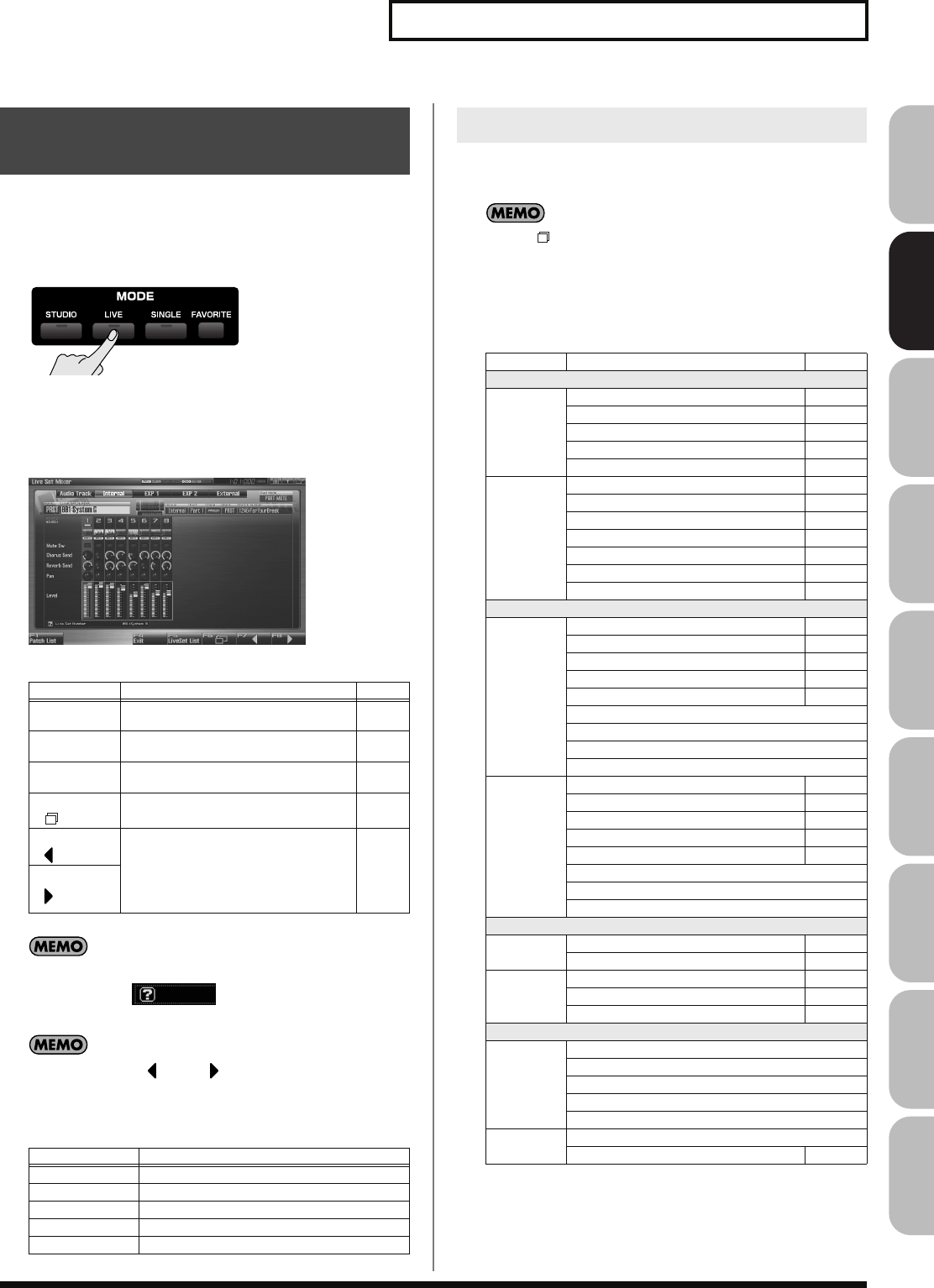
63
Playing in Live Mode
Overview Sound 1 Sound 2 Sound 3 Pad Sampler
Menu/System
AppendixSequencer
The Live Set Part Mixer screen lets you adjust the level and effect
settings of each part just as if you were using a mixer.
Here’s how to access the Live Set Part Mixer screen.
1.
Press [LIVE].
You will enter Live Mode, and the Live Play (Layer/Split)
Screen appears.
2.
Press [F7 (Mixer)].
The Live Set Part Mixer screen will appear.
F-key operations in the Live Set Part Mixer screen
In this screen, the name of the parameter selected by the cursor
is shown in the “ ” area at the lower left of the
screen. Here you can also check the value of the current setting.
By pressing the [F7 ] or [F8 ] key several times, you can
move the screen to the left or right, switching the displayed part
group.
In the Live Set Part Mixer screen you can set the following
parameters for each part.
Use [F6 ] to switch between Mixer 1/2.
1.
Use [CURSOR] to move the cursor to the parameter you
want to edit.
2.
Turn the VALUE dial or use [INC] [DEC] to set the desired
value.
*1 Parts whose Recording Switch is off will not be recorded to audio tracks of the
sequencer. (Nor will they be sampled.) You can turn this off for a part that you
want to hear, but not record as audio. Normally you will leave this turned on.
Effects will not be applied to a part whose Recording Switch is off.
Using the Live Set Part
Mixer Screen
F-key Explanation Page
F1
Patch List Selects the patch sound assigned to each
part. p. 61
F4
Exit Returns to the previous screen. –
F5
LiveSet List Selects a live set. p. 60
F6 Switches between the Mixer 1/2 screens. –
F7 Selects the eight parts that will be con-
trolled by the sliders. A frame is shown
around the currently selected parts. By
moving this frame outside the screen, you
can switch the part group that is dis-
played.
–
F8
Part Group Explanation
Audio Track Audio tracks of the song
Internal Internal (internal sound generator)
EXP 1 Expansion board 1
EXP 2 Expansion board 2
External External MIDI output
Editing the Part Settings
Mixer1/2 Parameter Page
Internal
Mixer1 Mute Switch p. 134
Part Chorus Send Level p. 136
Part Reverb Send Level p. 137
Part Pan p. 134
Part Level p. 134
Mixer2 Part Output Level p. 136
Part Output Assign p. 136
Recording Switch *1
Keyboard Switch p. 135
Arpeggio Part p. 146
Sample Pad Part p. 146
Rhythm Pad Part p. 146
EXP 1, EXP 2
Mixer1 Mute Switch p. 134
Part EFX1 Send Level p. 137
Part EFX2 Send Level p. 137
Part Pan p. 134
Part Level p. 134
Exp.1/2 Master Chorus Send Level
Exp.1/2 Master Reverb Send Level
Exp.1/2 Master Pan
Exp.1/2 Master Level
Mixer2 Part Output Level p. 136
Part Output Assign p. 136
Keyboard Switch p. 135
Arpeggio Part p. 146
Rhythm Pad Part p. 146
Exp.1/2 Master Output Level
Exp.1/2 Master Output Assign
Exp.1/2 Master Recording Switch
External
Mixer1 External Pan p. 135
External Level p. 135
Mixer2 Keyboard Switch p. 135
Arpeggio Part p. 146
Rhythm Pad Part p. 146
Audio Track
Mixer1 Mute Switch
Part Chorus Send Level
Part Reverb Send Level
Part Pan
Part Level
Mixer2 Part Output Assign
Recording Switch *1
Fantom-G_r_e.book 63 ページ 2008年1月31日 木曜日 午後12時15分
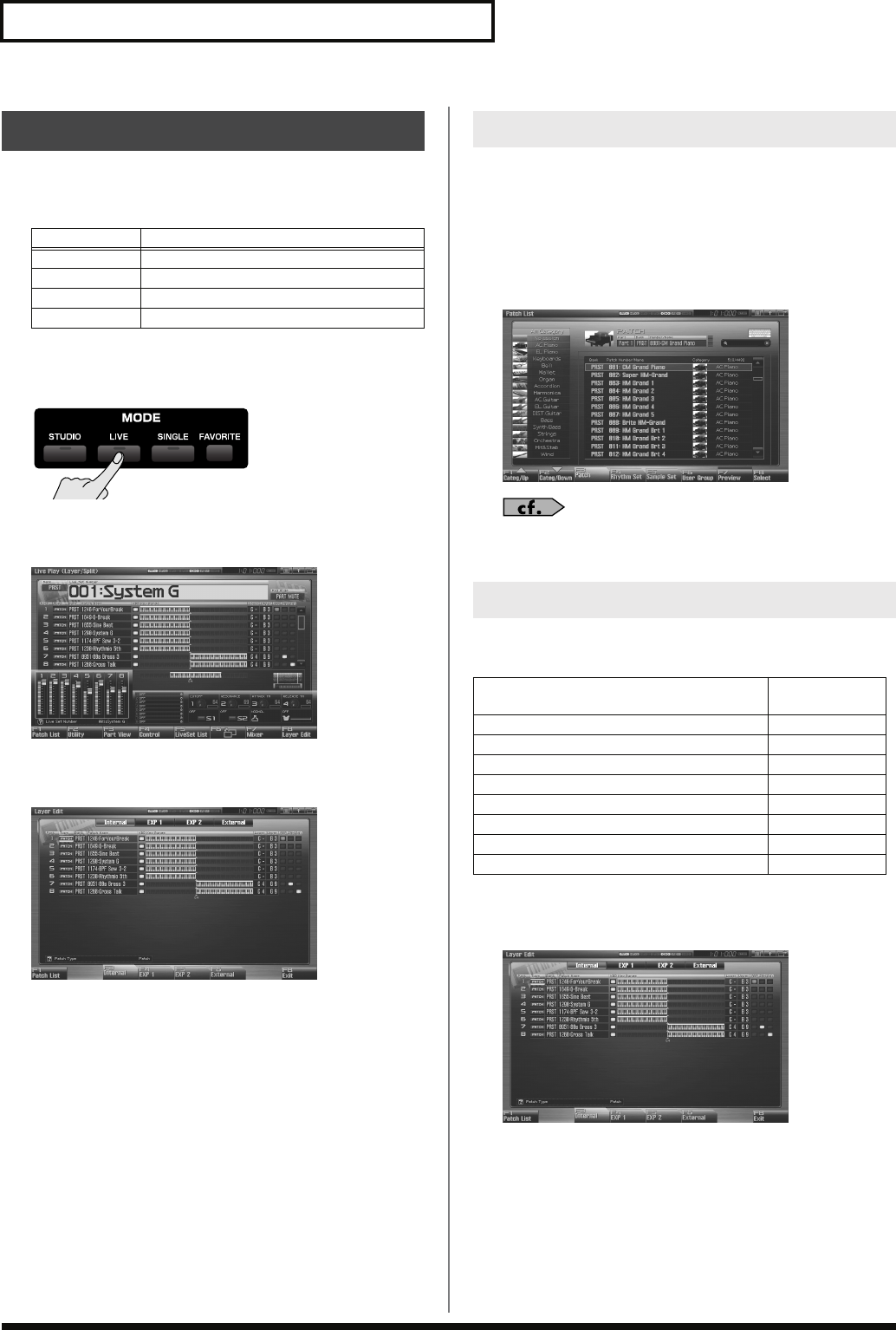
64
Playing in Live Mode
In general, the Layer Edit screen operates in the same way as the
Live Play (Layer/Split) screen, but you can use the F3–F6 keys to
instantly switch between the displayed part groups.
Here’s how to access the Layer Edit screen.
1.
Press [LIVE].
You will enter Live Mode, and the Live Play (Layer/Split)
Screen appears.
fig.04-015_50
2.
Press [F8 (Layer Edit)].
The Layer Edit screen will appear.
If you don’t like the patch that is assigned to a part, it’s easy to
switch the patch.
1.
Select the part whose sound you want to switch.
2.
Press [F1 (Patch List)].
The Patch List screen will appear.
fig.05-008_50
For details on using the Patch List screen, refer to
“Selecting
Patches from the List”
(p. 49).
In the Layer Edit screen you can set the following parameters for
each part.
1.
Press [LIVE], and then press [F8 (Layer Edit)] to access the
Layer Edit screen.
2.
Use [CURSOR] to move the cursor to the parameter you
want to edit.
3.
Turn the VALUE dial or use [INC] [DEC] to set the desired
value.
Using the Layer Edit Screen
F-key Explanation
F3 Internal Internal (internal sound generator)
F4 EXP 1 Expansion board 1
F5 EXP 2 Expansion board 2
F6 External External MIDI output
Selecting the Sound for a Part
Editing the Part Settings
Parameter Shown in the
screen as
Keyboard Switch (p. 135) KBD
Patch Type (p. 134) Type
Patch Bank (p. 134) Bank
Patch Number (p. 134) Patch Name
Keyboard Range Lower (p. 135) Lower
Keyboard Range Upper (p. 135) Upper
Arpeggio Part (p. 146) ARP
Sample Pad Part / Rhythm Pad Part (p. 146) SAM/RHY
Fantom-G_r_e.book 64 ページ 2008年1月31日 木曜日 午後12時15分
65
Playing in Live Mode
Overview Sound 1 Sound 2 Sound 3 Pad Sampler
Menu/System
AppendixSequencer
For details on using the Arpeggio, refer to
“Playing
Arpeggios”
(p. 78)
.
For details on the setting, refer to
“Selecting the Parameter
Controlled by the Realtime Controllers or D Beam
Controller (Control Setting)”
(p. 142).
For details regarding effect settings, refer to the pages shown
below.
•
“Making Effect Settings”
(p. 151)
•
“Applying Effects in Live Mode”
(p. 151)
For details, refer to
“How Do I Adjust the Volume?”
(p. 294)
Refer to
“Creating a Live/Studio Set”
(p. 132)
.
Performing with the Arpeggio
Performing with the Realtime
Controllers and D Beam Controller
Setting Effects
Adjusting the Master Level
Making Detailed Settings
for a Live Set
Fantom-G_r_e.book 65 ページ 2008年1月31日 木曜日 午後12時15分
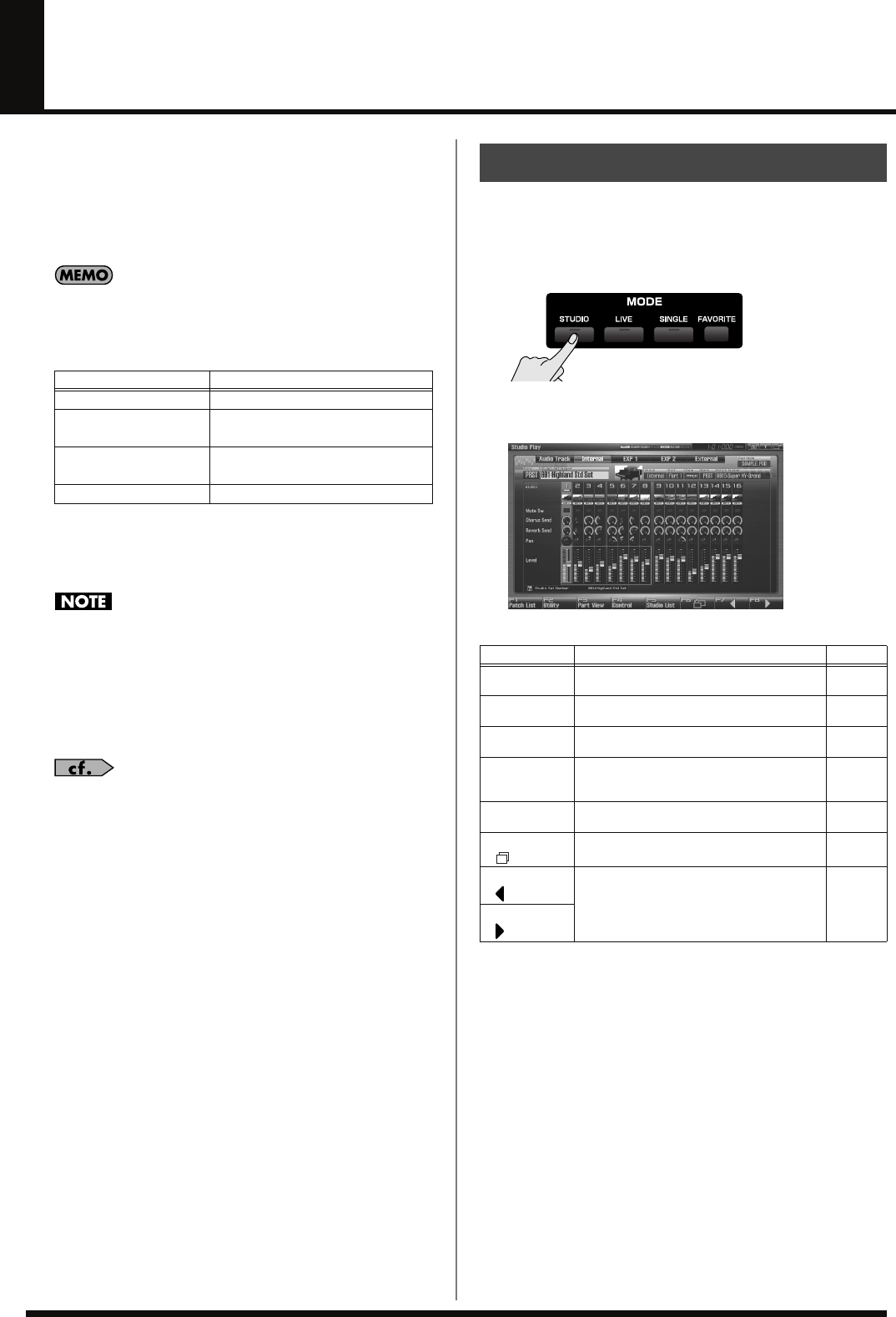
66
Playing in Studio Mode
Studio mode is what you’ll use when recording a song. It provides
sixteen parts, and allows you to assign a patch (or rhythm set or
sample set) to each of these parts, thus allowing you to use sixteen
different sounds simultaneously.
You can use the mixer screen to adjust the level and pan for each of
the sixteen parts.
In addition to sixteen parts of the internal sound generator,
Studio mode allows you to simultaneously use parts of an
expansion board (the number of parts depends on the
expansion board) and external MIDI output parts.
A Studio set contains a patch (rhythm set, sample set) assignment for
each part, as well as settings such as volume and pan for each part.
When you play the keyboard, you’ll hear the current part.
Every part whose keyboard switch (p. 69) is on will sound. We
recommend that you leave the keyboard switch turned off. If it
is on, parts other than the current part will also sound, and this
is probably not what you want when you’re creating a song.
Recording a song
For details on recording a song, refer to
“Recording MIDI”
(p.
217).
The Studio Play screen allows you to adjust the level and effect
settings of each part just as if you were using a mixer.
To access the Studio Play Screen, use the following procedure.
1.
Press [STUDIO].
You will enter Studio Mode, and the Studio Play Screen
appears.
fig.04-015_50
F-key operations in the Studio Play screen
Number of parts
Internal 16
Expansion board 1 Maximum 16
* Depends on the expansion board
Expansion board 2 Maximum 16
* Depends on the expansion board
External MIDI output 16
Displaying Studio Play Screen
F-key Explanation Page
F1
Patch List Selects the patch assigned to each part. p. 68
F2
Utility Makes settings common to the entire studio
set. p. 132
F3
Part View Makes detailed settings for each part of the
studio set. p. 133
F4
Control Selects the parameters that will be controlled
by the realtime controllers and the D Beam
controller.
p. 70
F5
Studio List Selects a studio set. p. 68
F6 Switches between the Mixer1/2 screens. –
F7 Selects the eight parts that will be controlled
by the slider. A frame is shown around the
currently selected parts. By moving this
frame outside the screen, you can switch the
part group that is displayed.
–
F8
Fantom-G_r_e.book 66 ページ 2008年1月31日 木曜日 午後12時15分
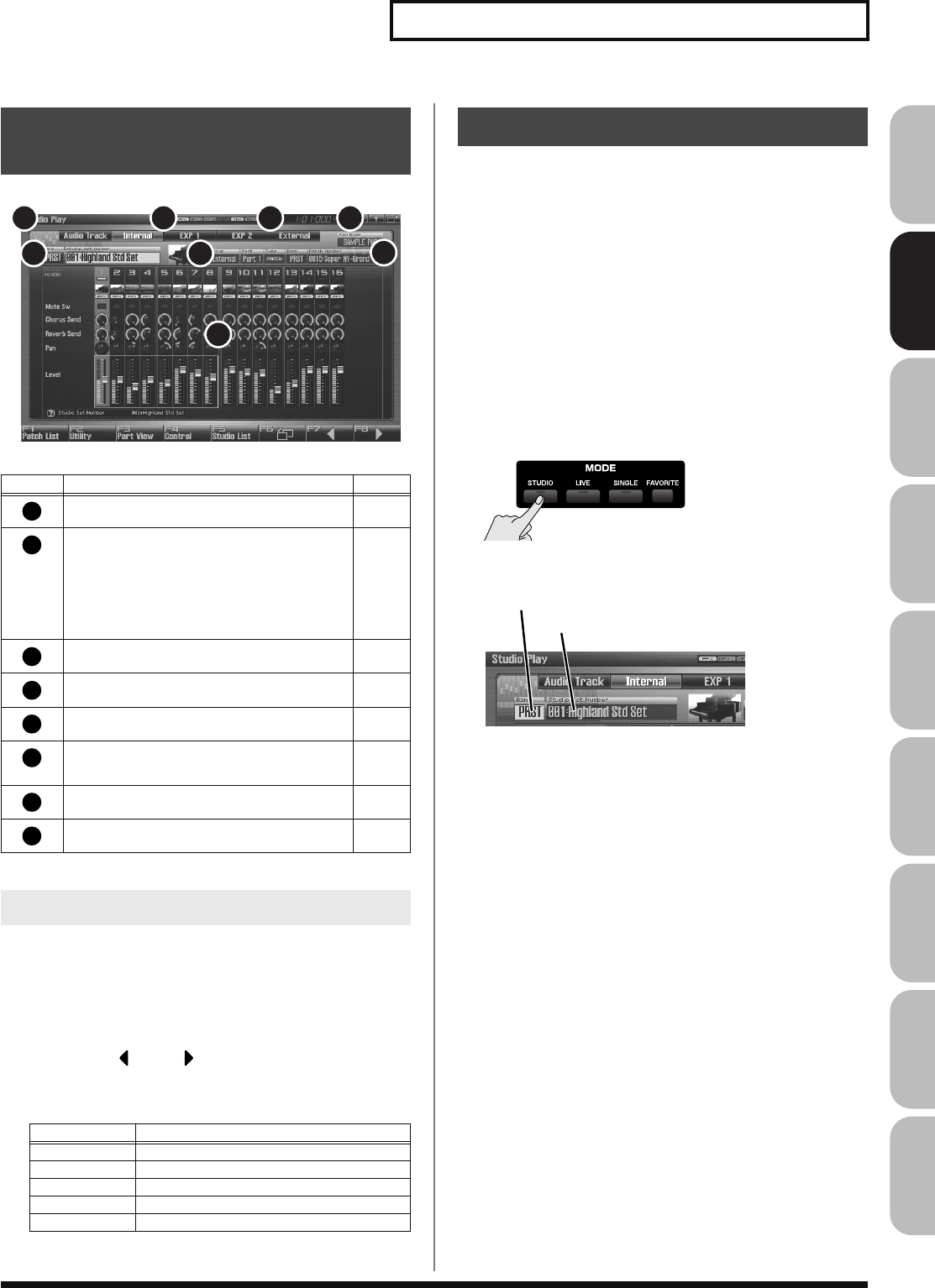
67
Playing in Studio Mode
Overview Sound 1 Sound 2 Sound 3 Pad Sampler
Menu/System
AppendixSequencer
fig.08-002.j
In addition to the internal (internal sound generator) parts, the
Studio Play screen allows you to switch the view to see audio tracks,
expansion board parts, or external MIDI output parts.
1.
Press [STUDIO] to access the Studio Play screen.
2.
Press the [F7 ] or [F8 ] key several times to move the
screen to left or right, selecting the part group that is
displayed.
The Fantom-G has two studio set banks, including the User bank
and Preset banks.
USER
This is the bank inside the Fantom-G which can be rewritten. Studio
Sets you create can be stored in this bank. You can store 128 studio
sets.
PRST (Preset)
This is the bank inside the Fantom-G which cannot be rewritten.
However you may modify the settings of the currently selected
studio set, and then store the modified studio set in User memory.
The Fantom-G contains 8 preset studio sets.
1.
Press [STUDIO].
2.
Press [CURSOR] to move the cursor to the studio set bank.
fig.08-003.e
3.
Turn the VALUE dial, or press [INC] [DEC] to select a studio
set bank.
USER:
User
PRST:
Preset
4.
Press [CURSOR] to move the cursor to the studio set
number.
5.
Turn the VALUE dial or press [INC] [DEC] to select the
studio set number.
Functions in the Studio Play
Screen
Number
Explanation Page
Indicates the current sound generator mode. p. 39
Indicates the on/off status of each effect.
PFX Patch multi-effect
MFX1 Multi-effect 1
MFX2 Multi-effect 2
IFX Input effect
CHO Chorus
REV Reverb
MAS Mastering effect
p. 150
Indicates the current location of the song, and the
status of the sequencer. p. 205
The Menu/Exit/Shortcut buttons for the USB
mouse. p. 26
Indicates/selects the bank, number, and name of the
currently selected studio set. p. 67
Indicates/selects the part group, part number, bank,
number, and name of the patch, rhythm set, or sam-
ple set for the current part.
p. 68
Accesses the mixer screen. p. 69
Indicates the pad mode. p. 188
Switching the Displayed Part Group
Part group Explanation
Audio Track Audio tracks in the song
Internal Internal (internal sound generator)
EXP 1 Expansion board 1
EXP 2 Expansion board 2
External External MIDI output
1 2 3 4
5 6
7
8
1
2
3
4
5
6
7
8
Selecting a Studio Set
Studio set number
Studio set bank
Fantom-G_r_e.book 67 ページ 2008年1月31日 木曜日 午後12時15分
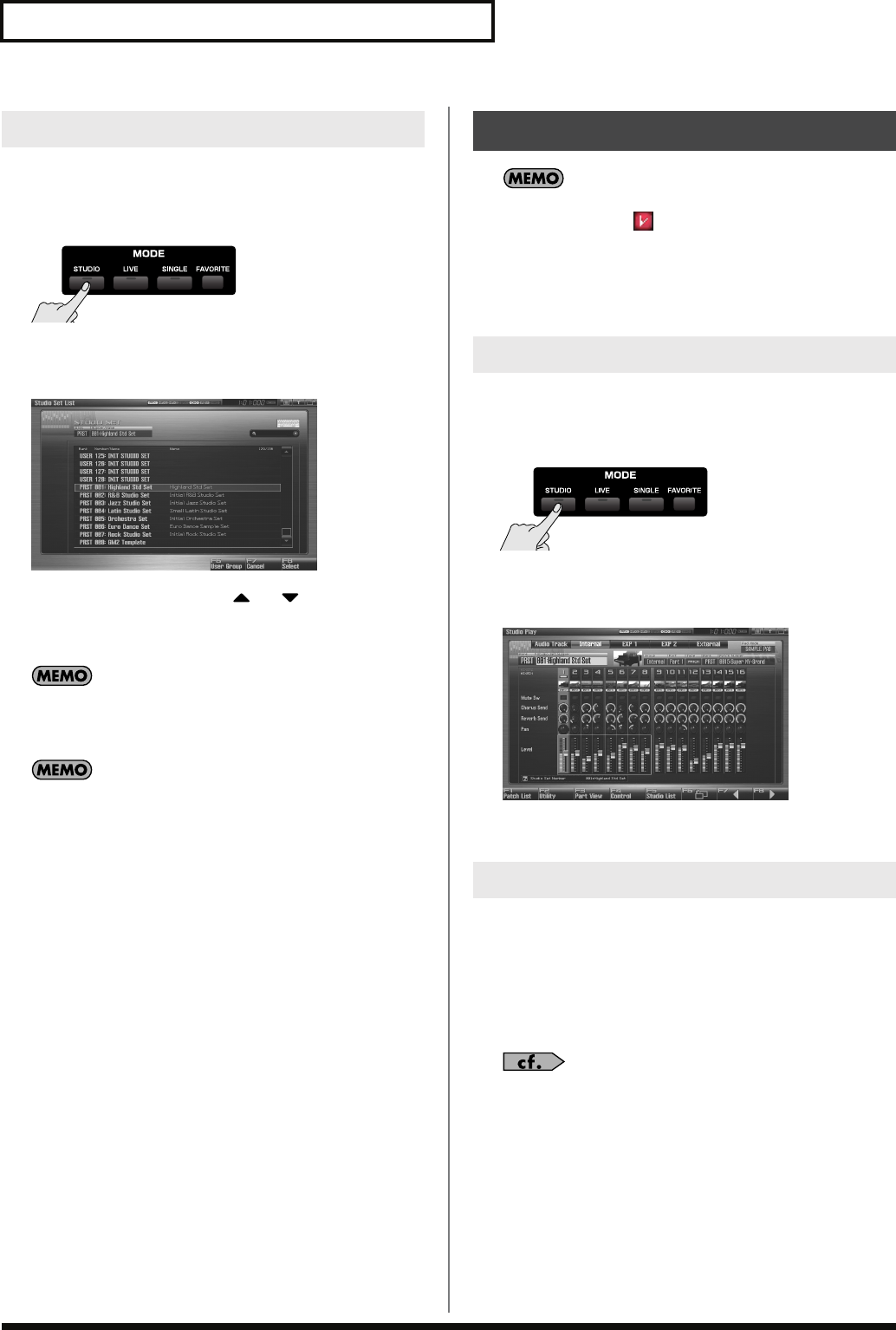
68
Playing in Studio Mode
You can display a list of studio sets and select a studio set from that
list.
1.
Press [STUDIO].
2.
Press [F5 (Studio List)].
The Studio Set List screen appears.
fig.08-004_50
3.
Turn the VALUE dial or press or to select the
studio set.
4.
Press [F8 (Select)] to close the Studio Set List screen.
By pressing [F6 (User Group)] you can access the user group list
screen, where you can register frequently-used studio sets.
→
“Registering a sound in the User Group screen”
(p. 201)
If you’re using a USB mouse, you can click the keyboard symbol
in the screen, and then use the virtual keyboard in the screen to
perform a keyword search.
When you modify the settings of a Studio Set, the Studio Play
screen will indicate “ .” Settings you modify are temporary,
and will be lost if you turn off the power, switch the tone
generator mode, or select a different sound. If you want to keep
the modified sound, you must save it in the User bank (
“Saving
a Live/Studio Set You’ve Created (Write)”
(p. 148)).
The currently selected part is called the “
current part
.”
1.
Press [STUDIO].
The Studio Play screen appears.
2.
Use [CURSOR] to select the part.
The selected part is highlighted.
fig.08-007_50
3.
Play the keyboard, and you’ll hear the current part.
If you don’t like the patch that is assigned to a part, it’s easy to
switch the patch.
1.
Select the part whose sound you want to switch.
2.
Press [F1 (Patch List)].
The Patch List screen will appear.
For details on using the Patch List screen, refer to
“Selecting
Patches from the List”
(p. 49).
Selecting Studio Sets from the List
Using the Studio Play Screen
Selecting a Part
Selecting the Sound for a Part
Fantom-G_r_e.book 68 ページ 2008年1月31日 木曜日 午後12時15分
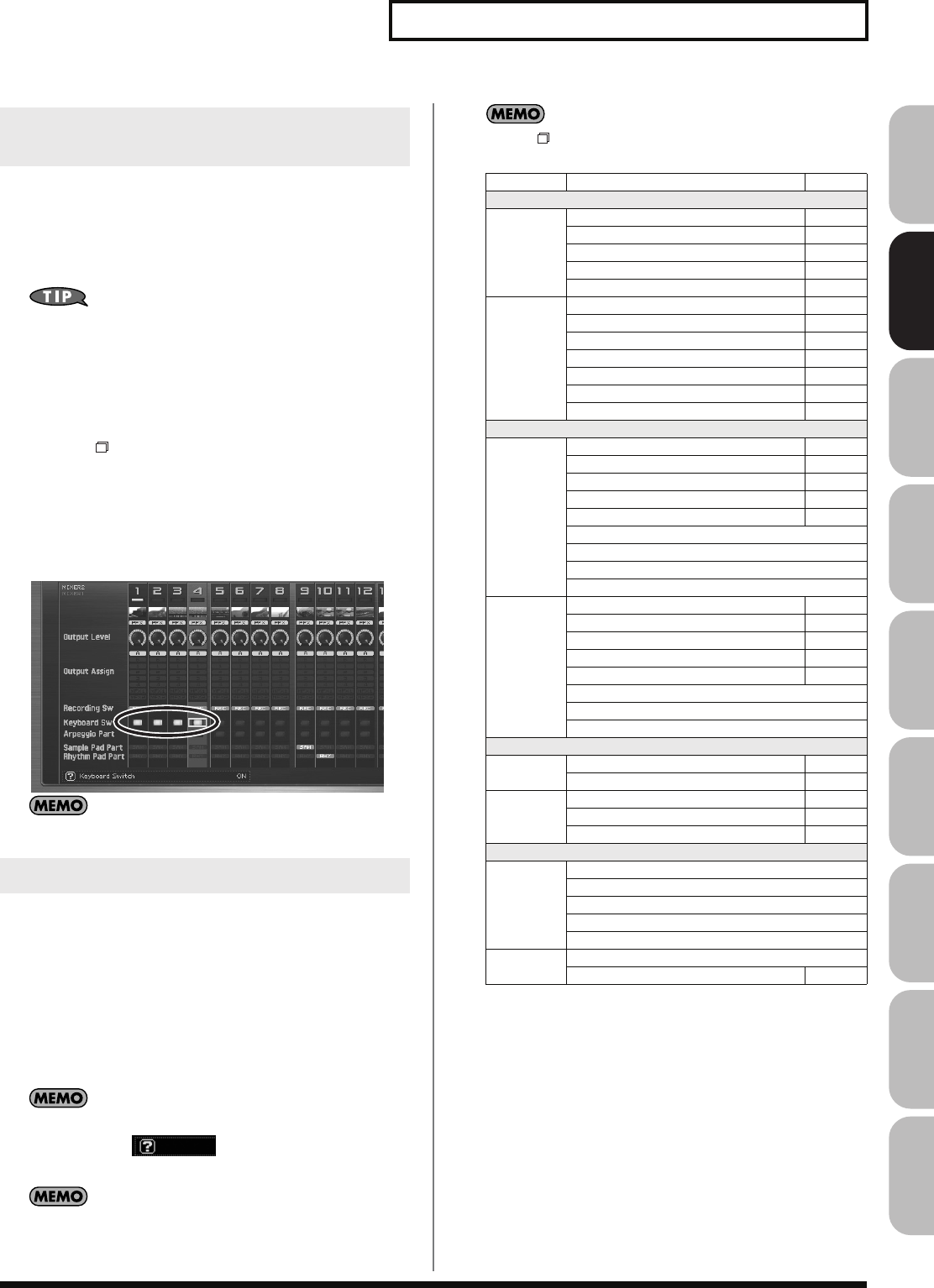
69
Playing in Studio Mode
Overview Sound 1 Sound 2 Sound 3 Pad Sampler
Menu/System
AppendixSequencer
Here’s how to select the part that you want to play from the
keyboard. Each part has a setting called the “keyboard switch” that
determines whether that part will sound in response to the
keyboard. If this is turned off for all parts, the current part will
sound.
When you’re recording a song, we recommend that you turn
the keyboard switch off for all parts. If this is turned on for any
parts, the keyboard will not play the current part, which would
not be convenient for song production.
1.
Press [STUDIO].
2.
Press [F6 ].
3.
Use [CURSOR] to move the cursor to the “Keyboard Sw”
field, and press [INC] to turn the keyboard switch on.
When you play the keyboard, you’ll hear the parts whose
keyboard switch is on. If the keyboard switch is turned off for
all parts, you’ll hear the current part.
fig.08-008_50
You can turn on the keyboard switch for multiple parts.
In the Studio Play screen you can set the following parameters for
each part.
1.
Press [STUDIO].
2.
Use [CURSOR] to move the cursor to the parameter you
want to edit.
3.
Turn the VALUE dial or use [INC] [DEC] to set the desired
value.
In this screen, the name of the parameter selected by the cursor
is shown in the “ ” area at the lower left of the
screen. The current value is also shown here.
For details on how to switch between part groups, refer to
“Switching the Displayed Part Group”
(p. 67).
Use [F6 ] to switch between Mixer 1/2.
*1 Parts whose Recording Switch is off will not be recorded to audio tracks of the
sequencer. (Nor will they be sampled.) You can turn this off for a part that you
want to hear, but not record as audio. Normally you will leave this turned on.
Effects will not be applied to a part whose Recording Switch is off.
Selecting the Part that You Want to
Sound (Keyboard Switch)
Editing the Part Settings
Mixer1/2 Parameter Page
Internal
Mixer1 Mute Switch p. 134
Part Chorus Send Level p. 136
Part Reverb Send Level p. 137
Part Pan p. 134
Part Level p. 134
Mixer2 Part Output Level p. 136
Part Output Assign p. 136
Recording Switch *1
Keyboard Switch p. 135
Arpeggio Part p. 146
Sample Pad Part p. 146
Rhythm Pad Part p. 146
EXP 1, EXP 2
Mixer1 Mute Switch p. 134
Part EFX1 Send Level p. 137
Part EFX2 Send Level p. 137
Part Pan p. 134
Part Level p. 134
Exp.1/2 Master Chorus Send Level
Exp.1/2 Master Reverb Send Level
Exp.1/2 Master Pan
Exp.1/2 Master Level
Mixer2 Part Output Level p. 136
Part Output Assign p. 136
Keyboard Switch p. 135
Arpeggio Part p. 146
Rhythm Pad Part p. 146
Exp.1/2 Master Output Level
Exp.1/2 Master Output Assign
Exp.1/2 Master Recording Switch
External
Mixer1 External Pan p. 135
External Level p. 135
Mixer2 Keyboard Switch p. 135
Arpeggio Part p. 146
Rhythm Pad Part p. 146
Audio Track
Mixer1 Mute Switch
Part Chorus Send Level
Part Reverb Send Level
Part Pan
Part Level
Mixer2 Part Output Assign
Recording Switch *1
Fantom-G_r_e.book 69 ページ 2008年1月31日 木曜日 午後12時15分
70
Playing in Studio Mode
For details on using the Arpeggio, refer to
“Playing
Arpeggios”
(p. 78)
.
For details on the setting, refer to
“Selecting the Parameter
Controlled by the Realtime Controllers or D Beam
Controller (Control Setting)”
(p. 142).
For details regarding effect settings, refer to the pages shown
below.
•
“Making Effect Settings”
(p. 151)
•
“Applying Effects in Studio Mode”
(p. 154)
For details, refer to
“How Do I Adjust the Volume?”
(p. 294).
Refer to
“Creating a Live/Studio Set”
(p. 132)
.
Performing with the Arpeggio
Performing with the Realtime
Controllers and D Beam Controller
Setting Effects
Adjusting the Master Level
Making Detailed Settings
for a Studio Set
Fantom-G_r_e.book 70 ページ 2008年1月31日 木曜日 午後12時15分
03: Sound Generator, Section 2
(Controlling Sounds)
This chapter explains the realtime controllers, the arpeggiator, and the chord memory
function.
• Real Time Controller ....................................................p. 72
• Arpeggios..................................................................p. 78
• Chord Memory ...........................................................p. 80
Fantom-G_r_e.book 71 ページ 2008年1月31日 木曜日 午後12時15分
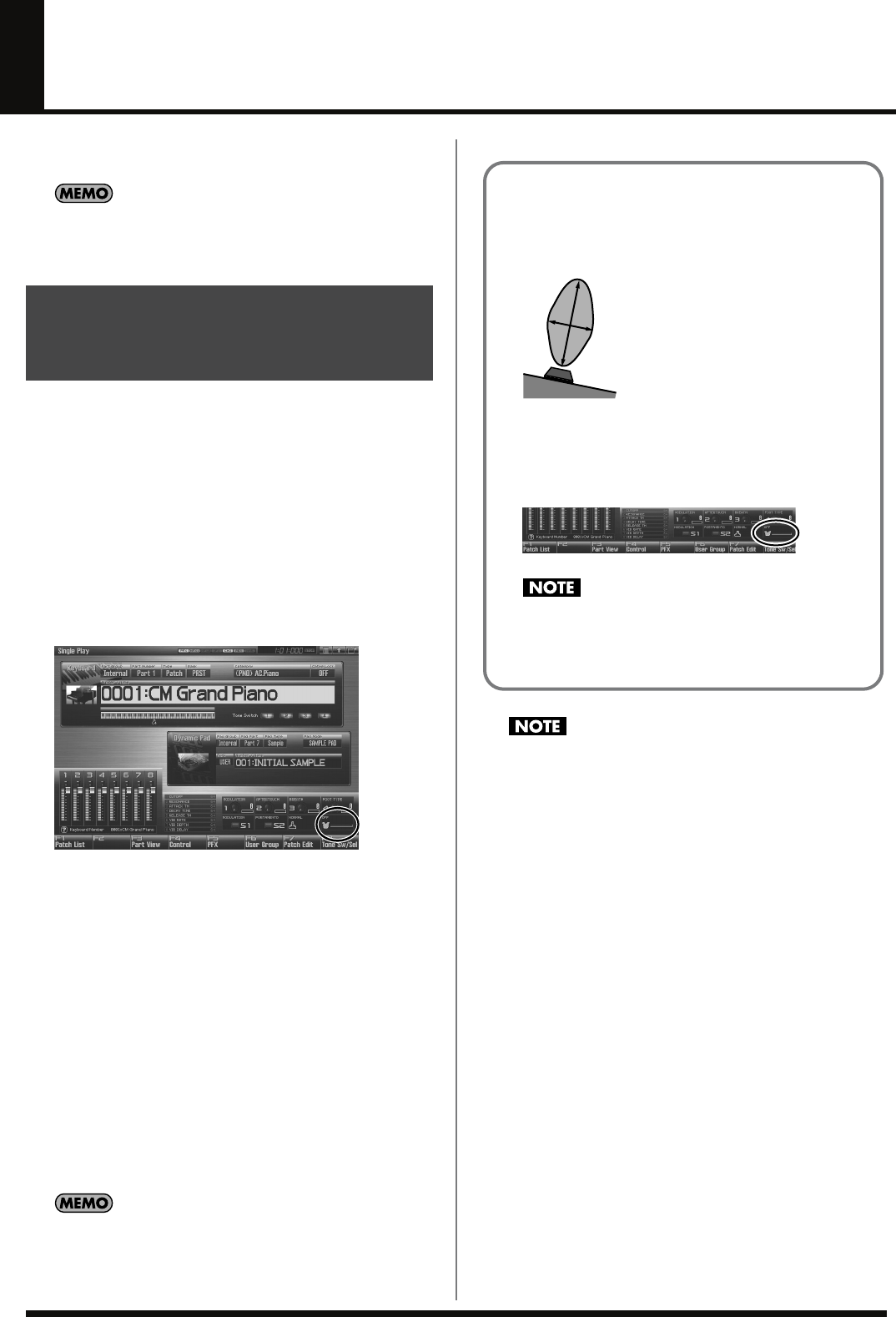
72
Modifying the Sound in Real Time
You can use the D Beam controller, realtime controllers, assignable
switches or a pedal to modify the sound while you perform.
Here we will explain the procedures and settings for using these
functions in Single mode. The operations are the same in Live
Mode/Studio Mode.
The
D Beam controller
can be used simply by waving your hand
over it. It can be used to apply various effects, depending on the
function that is assigned to it. You can also create effects in which the
sound changes instantaneously, in a way that would not be possible
by operating a knob or the bender lever. On the Fantom-G, the D
Beam controller can be used not only to modify the sounds assigned
to the Keyboard part or Pad part, but also to control the pitch of a
monophonic (solo) synthesizer sound.
1.
Access the Single Play screen (p. 46).
The following area of the screen is the D Beam controller
display area.
fig.10-001
2.
Press either the D BEAM [PAD TRIGGER], [SOLO SYNTH],
or [ASSIGNABLE] button to turn on the D Beam controller.
•
PAD TRIGGER button:
Use the D Beam controller to play
sounds instead of striking the pads.
•
SOLO SYNTH button:
Lets you use the D Beam as a
monophonic synthesizer.
•
ASSIGNABLE button:
Operates the function assigned to
the D Beam controller.
3.
While you play the keyboard or pads to produce sound,
place your hand above the D Beam controller and move it
slowly up and down.
An effect will be applied to the sound, depending on the
function that is assigned to the D Beam controller.
4.
To turn off the D Beam controller, once again press the
button you pressed in step 2 so the indicator goes out.
If live mode is selected, the D Beam controller on/off setting is
saved for each live set as part of the live set settings. Similarly in
studio mode, this setting is saved as part of the studio set.
The sensitivity of the D Beam controller will change depending
on the amount of light in the vicinity of the unit. If it does not
function as you expect, adjust the sensitivity as appropriate for
the brightness of your location. Increase this value will raise the
sensitivity (p. 287).
Waving Your Hand Over the
D Beam to Modify the Sound
(D Beam Controller)
The usable range of the D Beam controller
The following diagram shows the usable range of the D Beam
controller. Waving your hand outside this range will produce
no effect.
fig.10-003
The response of the D Beam Controller can also be checked in
the “D Beam” area of the display. This is displayed graphically
as a bar that lengthens as you move your hand closer, and
shortens as you move your hand away.
fig.10-002
The usable range of the D Beam controller will become
extremely small when used under strong direct sunlight.
Please be aware of this when using the D Beam controller
outside.
Fantom-G_r_e.book 72 ページ 2008年1月31日 木曜日 午後12時15分
73
Modifying the Sound in Real Time
Overview Sound 1 Sound 2 Sound 3 Pad Sampler
Menu/System
AppendixSequencer
Pad Trigger (Pad-related settings)
You can use the D Beam controller to control the pads as an
alternative to striking the pads themselves.
1.
Hold down [SHIFT] and press D BEAM [PAD TRIGGER].
2.
Move the cursor to the parameter that you want to set, and
turn the VALUE dial or press [INC] [DEC] to make the
setting.
3.
Press [EXIT] to close the window.
Beam Trigger Pad
Specifies the pad number affected by the D Beam.
Value:
Pad 1–Pad 16
Beam Trigger Velo (Beam Trigger Velocity)
Specifies the strength of the pad sound played by the D Beam
controller.
Value:
1–127
Beam Trigger Mode
This specifies how the D Beam will behave when it is obstructed. If
this is set to MOMENTARY, the parameter will be on only while the
D Beam is obstructed, and will turn off when you stop obstructing it.
If this is set to LATCH, the parameter will alternately be switched
on/off each time you obstruct the D Beam.
Value:
MOMENTARY, LATCH
If Live mode is selected, PAD trigger settings are saved
independently for each live set as part of the live set settings.
This lets you create live sets that make effective use of controller
settings. Similarly in studio mode, this setting is saved as part of
the studio set.
If Single mode is selected, this is saved as part of the system
settings. If you want to save the settings, press [F7 (Sys Write)].
Solo Synth
On the Fantom-G you can play a monophonic synthesizer whose
pitch is controlled by the D Beam.
1.
Hold down [SHIFT] and press D BEAM [SOLO SYNTH].
2.
Move the cursor to the parameter that you want to set, and
turn the VALUE dial or press [INC] [DEC] to make the
setting.
3.
If you want to save the settings, press [F7 (Sys Write)].
Press [EXIT] to close the Solo Synth window.
Setting for the Solo Synth are saved for system settings.
In this screen, the name of the parameter selected by the cursor
is shown in the “ ” area in the lower left of the
screen. The current value of the setting is also shown here.
OSC 1/2 Waveform
Select the waveform.
SAW
is a sawtooth wave, and
SQR
is a square
wave.
Value:
SAW, SQR
OSC 1/2 Pulse Width
Specifies the pulse width of the waveform. By cyclically modifying
the pulse width you can create subtle changes in the tone.
* The Pulse Width is activated when “SQR” is selected with OSC1/2
waveform.
Value:
0–127
LFO Osc 1 Pulse Width Depth
Specifies the depth to which the LFO will modulate the pulse width
of the OSC1 waveform.
* The Pulse Width is activated when “SQR” is selected with waveform.
Value:
-63– +63
LFO Osc 2 Pulse Width Depth
Specifies the depth to which the LFO will modulate the pulse width
of the OSC2 waveform.
* The Pulse Width is activated when “SQR” is selected with waveform.
Value:
-63– +63
Making Settings for the D Beam
Controller
Fantom-G_r_e.book 73 ページ 2008年1月31日 木曜日 午後12時15分

74
Modifying the Sound in Real Time
LFO Osc 1 Pitch Depth
Specifies the depth to which the LFO will modulate the OSC1 pitch.
Value:
-63– +63
LFO Osc 2 Pitch Depth
Specifies the depth to which the LFO will modulate the OSC2 pitch.
Value:
-63– +63
OSC 1/2 Coarse Tune
Adjusts the pitch of the tone’s sound up or down in semitone steps
(+/-4 octaves).
Value:
-48– +48
OSC 1/2 Fine Tune
Adjusts the pitch of the tone’s sound up or down in 1-cent steps (+/-
50 cents).
Value:
-50– +50
OSC Sync Switch
Turning this switch on produces a complex sound with many
harmonics. This is effective when the OSC1 pitch is higher than the
OSC2 pitch.
Value:
ON, OFF
OSC2 Level
Adjust the OSC2 level.
Value:
0–127
Filter Type
Selects the type of filter. A filter modifies the brightness or thickness
of the sound by cutting a specific frequency range.
Value
OFF:
No filter is used.
LPF:
Low Pass Filter. This reduces the volume of all
frequencies above the cutoff frequency (Cutoff Freq).
BPF:
Band Pass Filter. This leaves only the frequencies in
the region of the cutoff frequency, and cuts the rest.
HPF:
High Pass Filter. This cuts the frequencies in the
region below the cutoff frequency.
PKG:
Peaking Filter. This emphasizes the frequencies in
the region of the cutoff frequency.
Cutoff
Selects the frequency at which the filter begins to have an effect on
the waveform’s frequency components.
Value:
0–127
Resonance
Emphasizes the portion of the sound in the region of the cutoff
frequency, adding character to the sound.
Value:
0–127
LFO Rate
Adjusts the modulation rate, or speed, of the LFO.
Value:
0–127
Range (Solo synth range)
Specifies the range in which the pitch of the solo synth will vary.
Value:
2 OCT, 4 OCT, 8 OCT
Chorus Send Level
Sets the level of the signal sent to chorus.
Value:
0–127
Reverb Send Level
Sets the level of the signal sent to reverb.
Value:
0–127
Level
Sets the volume.
Value:
0–127
Fantom-G_r_e.book 74 ページ 2008年1月31日 木曜日 午後12時15分
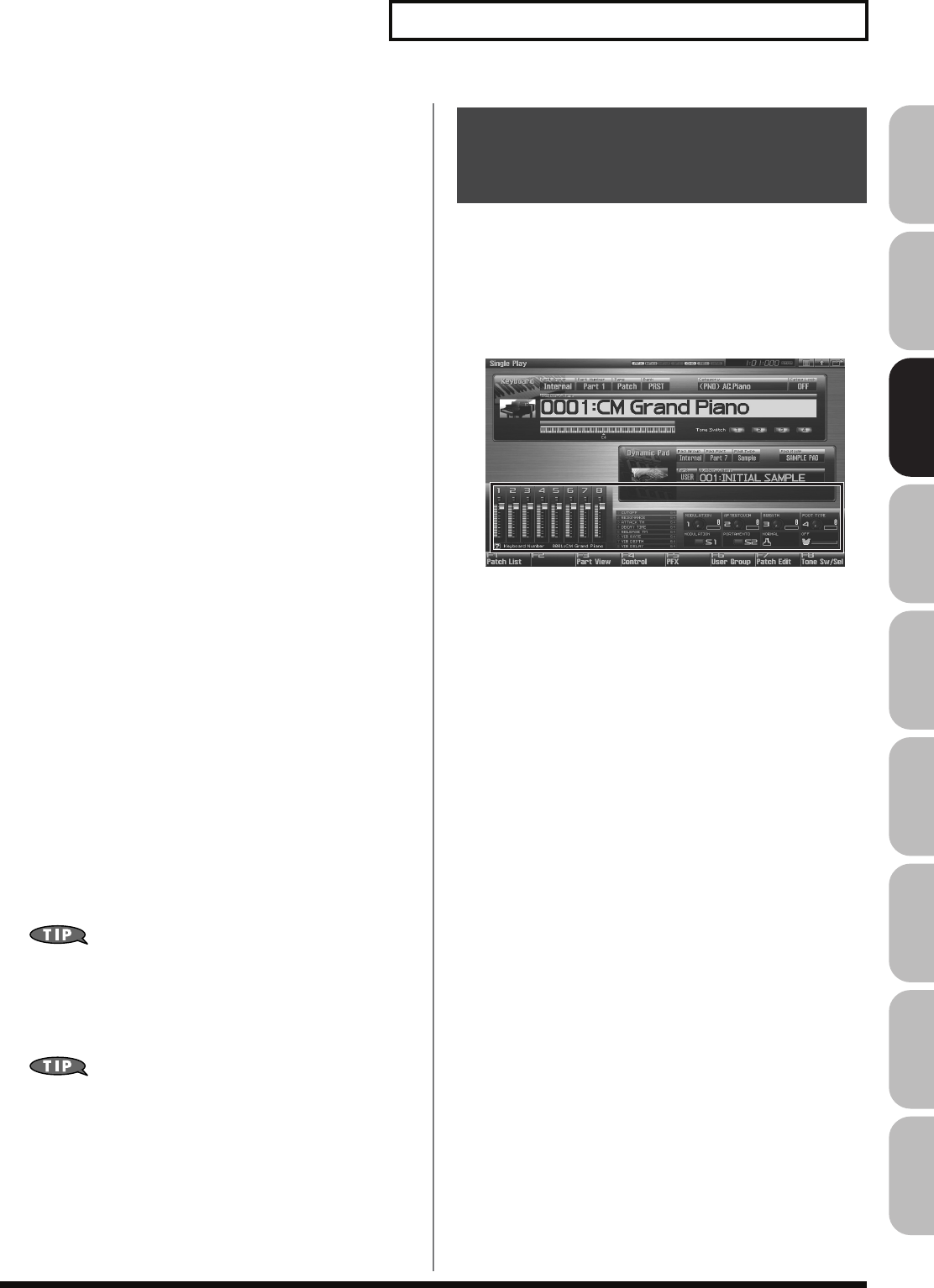
75
Modifying the Sound in Real Time
Overview Sound 1 Sound 2 Sound 3 Pad Sampler
Menu/System
AppendixSequencer
Assignable
You can assign various functions to the D Beam controller and apply
a wide range of effects to the sound in real time.
1.
Hold down [SHIFT] and press D BEAM [ASSIGNABLE].
2.
Move the cursor to the parameter that you want to set, and
turn the VALUE dial or press [INC] [DEC] to make the
setting.
3.
Press [EXIT] to close the window.
Type (Assignable Type)
Specifies the function controlled by the D Beam controller.
Value
OFF:
Off
CC01–31, CC32(OFF), 33–95:
Control Change
AFTERTOUCH:
Aftertouch
BEND UP:
Controls the pitch as specified by the
“Pitch Bend Range Up” setting (p. 96).
BEND DOWN:
Controls the pitch as specified by the
“Pitch Bend Range Down” setting (p.
96).
ARPEGGIO ACCENT:
Arpeggio accent rate
ARPEGGIO SHUFFLE:
Arpeggio shuffle rate
ARPEGGIO OCT UP:
The range in which the arpeggio is
sounded will rise in steps of an octave.
ARPEGGIO OCT DOWN:
The range in which the arpeggio is
sounded will lower in steps of an octave.
Range Min
Specify the lower limit of the range of the D Beam controller.
Value:
0–127
Range Max
Specify the upper limit of the range of the D Beam controller. By
setting Range Max below Range Min you can invert the range of
change.
Value:
0–127
If Live mode is selected, The settings for the ASSIGNABLE are
saved independently for each live set as part of the live set
settings. This lets you create live sets that make effective use of
controller settings. Similarly in studio mode, this setting is
saved as part of the studio set.
If Single mode is selected, this is saved as part of the system
settings. If you want to save the settings, press [F7 (Sys Write)].
You can use the knobs, sliders and [S1] [S2] buttons to modify the
sound in real time.
1.
Access the Single Play screen (p. 46).
The “Realtime Control” area shows the function that is assigned
to each realtime controller knob, slider and [S1] [S2] button.
fig.10-007.e
2.
While playing the keyboard to produce sound, operate the
knobs, sliders or [S1] [S2] buttons.
The sound will change according to the function assigned to
each knob, slider or button.
Using Knobs, Sliders or S1/S2
Buttons to Modify the Sound
(Realtime Controller)
Fantom-G_r_e.book 75 ページ 2008年1月31日 木曜日 午後12時15分
76
Modifying the Sound in Real Time
Knob 1–4 Settings
1.
Hold down [SHIFT] and rotate one of the knobs.
The Knob screen appears.
2.
Move the cursor to the parameter that you want to set, and
turn the VALUE dial or press [INC] [DEC] to set it.
3.
If you want to save your settings, press [F7 (Sys Write)].
Press [Exit] to return to the previous screen.
Realtime controller settings are saved independently for each
live set as part of the live settings. This lets you create live sets
that make effective use of controller settings. Similarly in studio
mode, this setting is saved as part of the studio set.
Knob 1–4 Assign
Specify the functions that will be controlled by the knobs.
Value
OFF:
Off
CC01–31, CC32(OFF), 33–95:
Control Change
AFTERTOUCH:
Aftertouch
PITCH BEND:
Pitch Bend
ARPEGGIO ACCENT:
Arpeggio accent rate
ARPEGGIO SHUFFLE:
Arpeggio shuffle rate
ARPEGGIO OCT UP:
The range in which the arpeggio is
sounded will rise in steps of an octave.
ARPEGGIO OCT DOWN:
The range in which the arpeggio is
sounded will lower in steps of an octave.
MASTER LEVEL:
Master Level (p. 293)
DIGITAL/USB INPUT LEVEL:
Digital/USB Input Level (p. 258)
* If the system setting
“Knob Assign Source”
(p. 289) is set to
“System,” the system settings will be used. If it is set to “TEMP,” the
settings of the live set or studio set will be used.
Slider 1–8 Settings
1.
Hold down [SHIFT] and move one of the sliders.
The Slider screen appears.
2.
Move the cursor to the parameter that you want to set, and
turn the VALUE dial or press [INC] [DEC] to set it.
3.
If you want to save your settings, press [F7 (Sys Write)].
Press [Exit] to return to the previous screen.
Realtime controller settings are saved independently for each
live set as part of the live settings. This lets you create live sets
that make effective use of controller settings. Similarly in studio
mode, this setting is saved as part of the studio set.
Slider 1–8 Assign
Specify the functions that will be controlled by the sliders.
Value
OFF:
Off
CC01–31, CC32(OFF), 33–95:
Control Change
AFTERTOUCH:
Aftertouch
PITCH BEND:
Pitch Bend
ARPEGGIO ACCENT:
Arpeggio accent rate
ARPEGGIO SHUFFLE:
Arpeggio shuffle rate
ARPEGGIO OCT UP:
The range in which the arpeggio is
sounded will rise in steps of an octave.
ARPEGGIO OCT DOWN:
The range in which the arpeggio is
sounded will lower in steps of an octave.
* If the system setting
“Slider Assign Source”
(p. 289) is set to
“System,” the system settings will be used. If it is set to “TEMP,” the
settings of the live set or studio set will be used.
Changing Realtime Controller Settings
Fantom-G_r_e.book 76 ページ 2008年1月31日 木曜日 午後12時15分
77
Modifying the Sound in Real Time
Overview Sound 1 Sound 2 Sound 3 Pad Sampler
Menu/System
AppendixSequencer
S1/S2 Switch Settings
1.
Hold down [SHIFT] and press [S1] [S2].
The Switch screen appears.
2.
Move the cursor to the parameter that you want to set, and
turn the VALUE dial or press [INC] [DEC] to make the
setting.
3.
If you want to save your settings, press [F7 (Sys Write)].
Press [Exit] to return to the previous screen.
Realtime controller settings are saved independently for each
live set as part of the live settings. This lets you create live sets
that make effective use of controller settings. Similarly in studio
mode, this setting is saved as part of the studio set.
Switch S1/S2 Assign
Specify the functions that will be controlled by the [S1] [S2] switches.
Value
OFF, CC01 - CC31, CC32 (OFF), CC33 - CC95,
AFTERTOUCH, MONO/POLY, PFX SWITCH,
MFX SWITCH, RESERVE, CHORUS SWITCH,
REVERB SWITCH, MASTERING SWITCH,
MASTER KEY UP, MASTER KEY DOWN,
SCALE TUNE SWITCH
Switch 1/2 Assign Mode
Specify the functions that will be controlled by the [S1] [S2] switches.
Value
LATCH:
The on/off status will alternate each time you press
[S1] [S2].
MOMENTARY:
The status will be on only while you hold down [S1]
[S2].
If Single mode is selected, assignable switches are available
when the keyboard part is selected.
You can modify the sound by pressing a pedal that is connected to
the rear panel PEDAL CONTROL 1, 2 jacks.
Pedal such as expression pedals (DP-8; available separately), pedal
switches (DP series; available separately), or foot switches (BOSS FS-
U; available separately) can be connected to the Fantom-G.
1.
Access the Single Play screen (p. 46).
2.
While playing the keyboard to produce sound, operate a
pedal.
The sound will change according to the function that is assigned
to the control pedal.
1.
Press [MENU].
2.
Use or to select “System,” and then press
[ENTER].
The System Setup screen appears.
3.
Press [F1 (Up)] or [F2 (Down)] to select “Pedal/D Beam.”
4.
Turn the VALUE dial or press [INC] [DEC] to make the
setting.
5.
If you want to save your settings, press [F7 (Sys Write)].
Press [Exit] to return to the Single Play screen.
See
“Pedal/D Beam”
(p. 287) for each parameter’s functions.
Using a Pedal to Modify the
Sound (Control Pedal)
Making Control Pedal Settings
Fantom-G_r_e.book 77 ページ 2008年1月31日 木曜日 午後12時15分
78
Playing Arpeggios
The Fantom-G’s Arpeggio function lets you produce arpeggios
automatically; simply hold down some keys, and a corresponding
arpeggio will be played automatically.
Use
“Arpeggio Part Number”
(p. 146) to specify the parts that
will use the Arpeggio function. The Chord Memory function (p. 80)
will also apply to the parts selected by the
Arpeggio Part
setting.
If you want to play arpeggios in Live mode or Studio mode,
you’ll also need to check the
“Arpeggio”
(p. 146) parameter of
the live set or studio set.
1.
Press [ARPEGGIO] to turn it on.
The button will light.
2.
Play a chord on the keyboard.
The Fantom-G will play an arpeggio, according to the notes
forming the chord you have just voiced.
3.
To finish playing arpeggios, press [ARPEGGIO] again to
turn it off.
For details regarding each parameter, refer to
“Arpeggio
Settings”
(p. 78).
This sets the arpeggio/rhythm tempo.
1.
Press [TEMPO].
The current tempo value appears in the display.
2.
Press VALUE dial or [INC], [DEC] to set the tempo value
(5.00–300.00), or set the value by tapping [F6 (Tap Tempo)]
a number of times with the same rhythm (Tap Tempo).
By holding down [SHIFT] and turning the VALUE dial you
can adjust the value below the decimal point.
* If you press [F7 (Click)] to turn on, the click will sound.
3.
When you have made the setting, press [F8 (Close)].
By using the following procedure, you can produce arpeggios even
without continuing to press the keyboard.
1.
Press [HOLD].
The indicator will light.
2.
Play a chord on the keyboard.
3.
If you play a different chord or notes while the arpeggio is
being held, the arpeggio will change accordingly.
4.
To cancel Arpeggio Hold, press [HOLD] once again.
When Using a Hold Pedal
If you play an arpeggio while pressing the hold pedal, the arpeggio
will continue to be played even if you release the chord.
1.
Connect an optional pedal switch (DP series etc.) to the
HOLD PEDAL jack.
2.
Press [ARPEGGIO] to turn on the arpeggio.
3.
Play a chord while pressing the hold pedal.
4.
If you play a different chord or notes while the arpeggio is
being held, the arpeggio will change accordingly.
1.
Hold down [SHIFT] and press [ARPEGGIO].
2.
Press [CURSOR] to move the cursor to each parameter, and
either turn the VALUE dial or press [INC] or [DEC] to make
the setting.
3.
When you have made the setting, press [EXIT].
Style (Arpeggio Style)
Specifies the basic way in which the arpeggio will be played.
Variation (Arpeggio Variation)
The arpeggiator provides several variations (performance patterns)
for each arpeggio style. This parameter selects the variation number.
The number of variations will differ according to the arpeggio style.
About Arpeggio
Playing Arpeggios
Turning Arpeggio On and Off
Determining the Tempo for
Arpeggio Performances
Using in Combination with the Chord
Memory Function
When performing with the Arpeggio, you can also use it along
with the Chord Memory function (p. 80). After first storing
complex Chord Forms in memory, you can then call them up
when Arpeggio function is on, and you can easily play complex
arpeggio sounds just by pressing a single key.
Holding an Arpeggio
Arpeggio Settings
Fantom-G_r_e.book 78 ページ 2008年1月31日 木曜日 午後12時15分
79
Playing Arpeggios
Overview Sound 1 Sound 2 Sound 3 Pad Sampler
Menu/System
AppendixSequencer
Motif (Arpeggio Motif)
Sets the order in which notes of the chord will sound.
Value
UP:
Notes you press will be sounded, beginning from
low to high.
DOWN:
Notes you press will be sounded, from high to low.
UP&DOWN:
Notes you press will be sounded, from low to high,
and then back down from high to low.
RANDOM:
Notes you press will be sounded, in random order.
NOTE ORDER:
Notes you press will be sounded in the order in
which you pressed them. By pressing the notes in
the appropriate order you can produce melody
lines. Up to 128 notes will be remembered.
GLISSANDO:
Each chromatic step between the highest and
lowest notes you press will sound in succession,
repeating upward and downward. Press only the
lowest and the highest notes.
CHORD:
All notes you press will sound simultaneously.
AUTO1:
The timing at which keys will sound will be
assigned automatically, giving priority to the
lowest key that was pressed.
AUTO2:
The timing at which keys will sound will be
assigned automatically, giving priority to the
highest key that was pressed.
PHRASE:
Pressing a single key will sound the phrase based
on the pitch of that key. If multiple keys are
pressed, the last-pressed key will be valid.
Accent Rate (Arpeggio Accent Rate)
Modifies the strength of accents and the length of the notes to adjust
the “groove” feel of the arpeggio. A setting of “100%” will produce
the most pronounced groove feel.
Value:
0–100%
Shuffle Rate (Arpeggio Shuffle Rate)
This setting lets you modify the note timing to create shuffle
rhythms.
With a setting of “50%” the notes will be spaced evenly. As the value
is increased, the note timing will have more of a “dotted” (shuffle)
feel.
Value:
0–100%
fig.Shuffle Rate
Shuffle Resolution (Arpeggio Shuffle Resolution)
Specify the timing resolution in terms of a note value. The note value
can be specified as either an 16th note or a eighth note.
Value:
,
Keyboard Velocity (Arpeggio Keyboard Velocity)
Specifies the loudness of the notes that you play.
If you want the velocity value of each note to depend on how
strongly you play the keyboard, set this parameter to “REAL.” If you
want each note to have a fixed velocity regardless of how strongly
you play the keyboard, set this parameter to the desired value (1–
127).
Value:
REAL, 1–127
Octave Range (Arpeggio Octave Range)
Sets the key range in octaves over which arpeggio will take place. If
you want the arpeggio to sound using only the notes that you
actually play, set this parameter to “0.” To have the arpeggio sound
using the notes you play and notes 1 octave higher, set this
parameter to “+1.” A setting of “-1” will make the arpeggio sound
using the notes you play and notes 1 octave lower.
Value:
-3– +3
Key Trigger (Arpeggio Key Trigger)
Turn this “ON” if you want the arpeggio to start at the moment that
you press the key. If you want the arpeggio to start playing in
synchronization with the sequencer, turn this “OFF.”
Value:
OFF, ON
The Arpeggios you create are temporary; they are deleted as soon as
you turn off the power or select some other Arpeggio. You can store
128 arpeggios in the User memory.
1.
Confirm that the current Arpeggio is the one you want to
save.
2.
Press [F7 (Write)].
The Arpeggio name entry screen will appear (p. 42).
3.
When you have finished entering the name, press [F8 (OK)].
A screen in which you can select the destination for the write
will appear.
4.
Turn the VALUE dial or use [INC] [DEC] to select the write
destination.
5.
Press [F8 (Write)].
A message will ask you for confirmation.
6.
To write the data, press [F7 (OK)].
Never switch off the Fantom-G while data is being saved.
To cancel, press [F8 (EXIT)].
90 10 90 10
50 50 50 50
Shuffle Rate = 50% Shuffle Rate = 90%
Saving the Arpeggio You
Have Created (Write)
Fantom-G_r_e.book 79 ページ 2008年1月31日 木曜日 午後12時15分
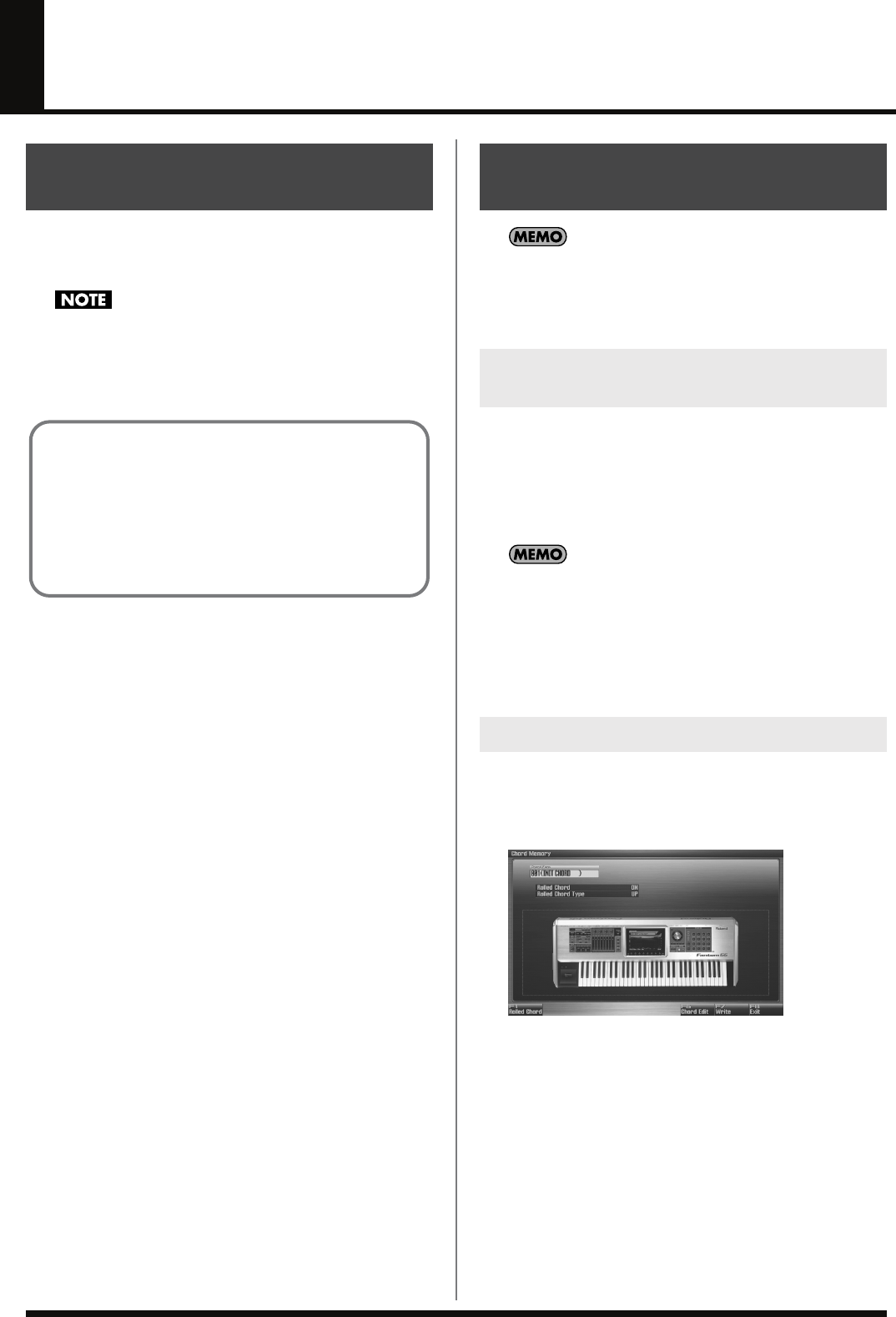
80
Using the Chord Memory Function (Chord Memory)
Chord Memory is a function that allows you to play chords based on
pre-programmed
Chord Forms
, just by pressing a single key on the
keyboard. The Fantom-G can store 128 user chord forms.
When you use the Chord Memory function with a tone for
which the Mono/Poly Parameters (p. 105) is Mono, only one
sound in the chord is played. When using the Chord Memory
function to turn Poly the Mono/Poly Parameters.
Use
“Arpeggio Part Number”
(p. 146) to specify the parts that
will use the Chord Memory function. The Arpeggio function (p.
78) will also apply to the pats selected by the
Arpeggio Part
setting.
1.
Press [CHORD MEMORY] to turn it on.
The button will light.
2.
Play the keyboard.
A chord will sound according to the currently selected chord
form.
When you press the C4 key (Middle C), the chord is played
using the exact chord structure recorded in the Chord Form.
This is referenced to the C4 key; parallel chords are played by
pressing other keys.
3.
To finish the chord Memory Function, press [CHORD
MEMORY] again to turn it off.
Changing the chord form will change the notes in the chord.
1.
Hold down [SHIFT] and press [CHORD MEMORY].
The following screen appears.
fig.12-001_50
2.
Either turn the VALUE dial or use [INC] [DEC] to select a
Chord Form number.
The notes of the chord will be displayed.
3.
When you have finished selecting a Chord Form, press [Exit].
About the Chord Memory
Function
Using in Combination with the Arpeggio
Function
When performing with the Chord Form function, you can also
use it along with the Arpeggio function (p. 78). After first
storing complex Chord Forms in memory, you can then call
them up when Arpeggio is on, and you can easily create
complex arpeggio sounds just by pressing a single key.
Performing with the Chord
Memory Function
Turning Chord Memory Function
On and Off
Selecting Chord Forms
Fantom-G_r_e.book 80 ページ 2008年1月31日 木曜日 午後12時15分
81
Using the Chord Memory Function (Chord Memory)
Overview Sound 1 Sound 2 Sound 3 Pad Sampler
Menu/System
AppendixSequencer
This causes the notes within a chord to be sounded consecutively, rather
than simultaneously. Since the playback speed will change according to
the force with which you play the keyboard, you can vary your playing
dynamics to create a realistic simulation of playing a guitar.
1.
Hold down [SHIFT] and press [CHORD MEMORY].
The Chord Memory screen appears.
2.
Press [F1 (Rolled Chord)] to turn on.
With this setting, the notes of the chord will be sounded
consecutively when you play the keyboard.
Changing the order in which notes
are sounded (Rolled Chord Type)
You can change the order in which the notes of a chord are sounded.
1.
Hold down [SHIFT] and press [CHORD MEMORY].
The Chord Memory screen appears.
2.
Use or to select “Rolled Chord Type.”
3.
Either turn the VALUE dial or use [INC] [DEC] to change a
value.
Value
UP:
Notes will be sounded in order from bottom
to top.
DOWN:
Notes will be sounded in order from top to
bottom.
ALTERNATE:
The order in which the notes are sounded
will change each time you play the
keyboard.
L-DOWN:
The lowest note will be sounded first, and
then notes will be sounded in order from the
top down.
* If you press C E G B, the notes will be sounded
as C B G E.
U-UP:
The highest note will be sounded first, and
then notes will be sounded in order from the
bottom up.
* If you press C E G B, the notes will be sounded
as B C E G.
Not only can you use the prepared internal Chord Forms, which
determine the constituent notes of chords played using the Chord
Memory function, but you can also freely create and rewrite them as
well.
1.
Hold down [SHIFT] and press [CHORD MEMORY].
2.
Turn the VALUE dial to select a chord form.
3.
Press [F6 (Chord Edit)].
The Chord Form Edit screen appears.
4.
Use the keyboard to input the chord that you want to play.
When you press a key, the note will be added in the screen.
If you input a note by mistake, press [F5 (Del Note)].
You can also erase a note you input by pressing the same key.
You can press [F6 (Preview)] to hear the chord that you are
inputting.
5.
If you want to save the chord form you created, proceed to
step 3 of “Saving the Chord Forms You Have Created” (p.
82). If you don’t want to save it, press [F8 (Exit)].
Sounding a Chord in the Order of
Its Notes (Rolled Chord)
Creating Your Own Chord
Forms
Fantom-G_r_e.book 81 ページ 2008年1月31日 木曜日 午後12時15分
82
Using the Chord Memory Function (Chord Memory)
The Chord Form you create are temporary; they are deleted as soon
as you turn off the power or select some other Style. If you want to
keep a Chord Form you have made, save it to the Fantom-G’s user
memory.
1.
Hold down [SHIFT] and press [CHORD MEMORY].
Confirm that the chord form is selected that you want to save.
2.
Press [F7 (Write)].
The Chord Form name entry screen will appear (p. 42).
3.
When you have finished entering the name, press [F8 (OK)].
A screen will appear, allowing you to select the write
destination.
4.
Use or to select the write destination.
5.
Press [F8 (Write)].
A message will ask you confirm.
6.
To save the chord form, press [F7 (OK)].
Never switch off the Fantom-G while data is being saved.
* To cancel, press [F8 (EXIT)].
Saving the Chord Forms You
Have Created
Fantom-G_r_e.book 82 ページ 2008年1月31日 木曜日 午後12時15分
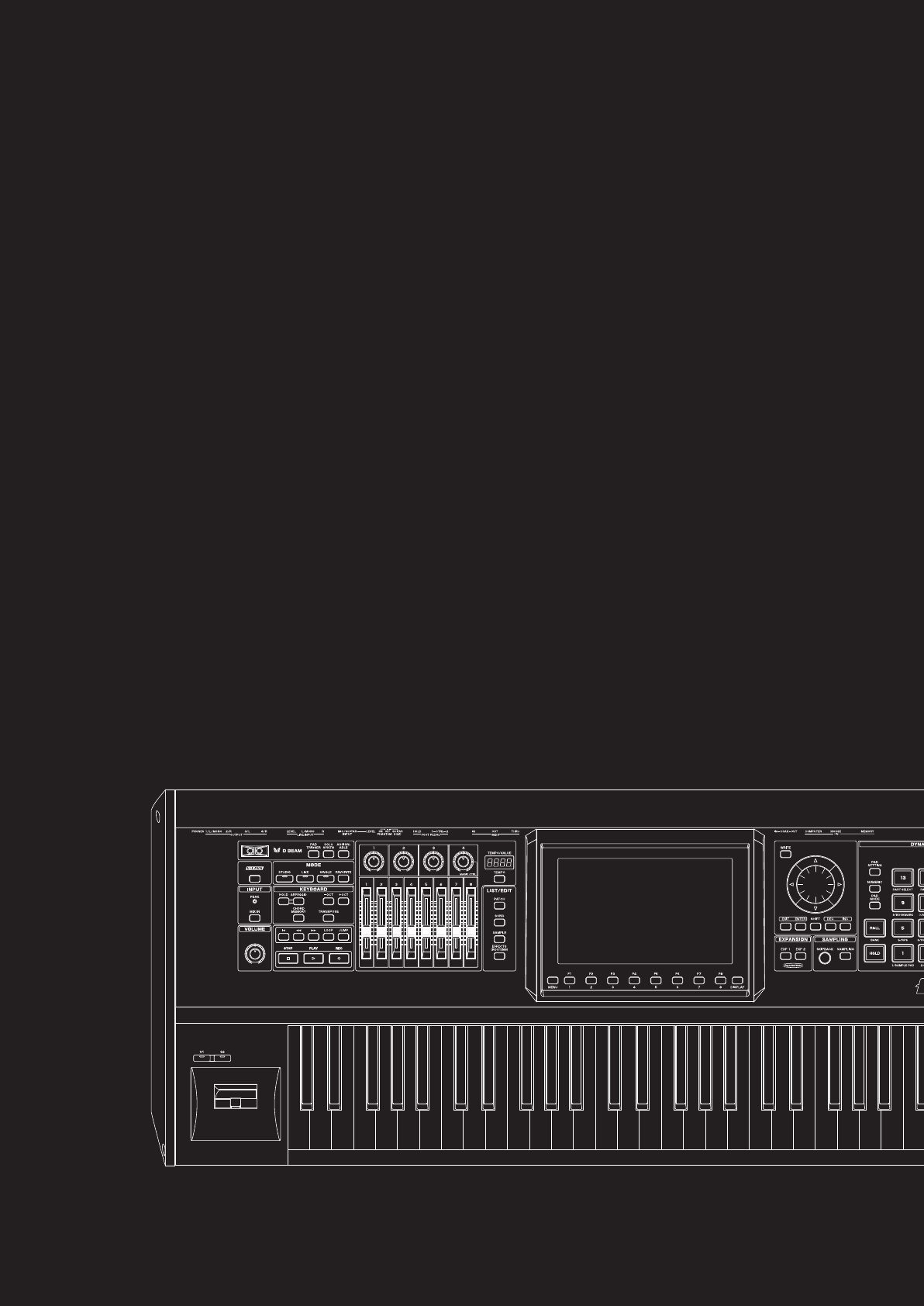
04: Sound Generator, Section 3
(Creating Sounds)
This chapter explains how to create sounds such as patches, live sets, and effects.
• Patch.........................................................................p. 84
• Rhythm Set ...............................................................p. 112
• Sample Set...............................................................p. 126
• Live Set/Studio Set....................................................p. 132
• Adding Effects ..........................................................p. 150
• Effects List ................................................................p. 161
Fantom-G_r_e.book 83 ページ 2008年1月31日 木曜日 午後12時15分
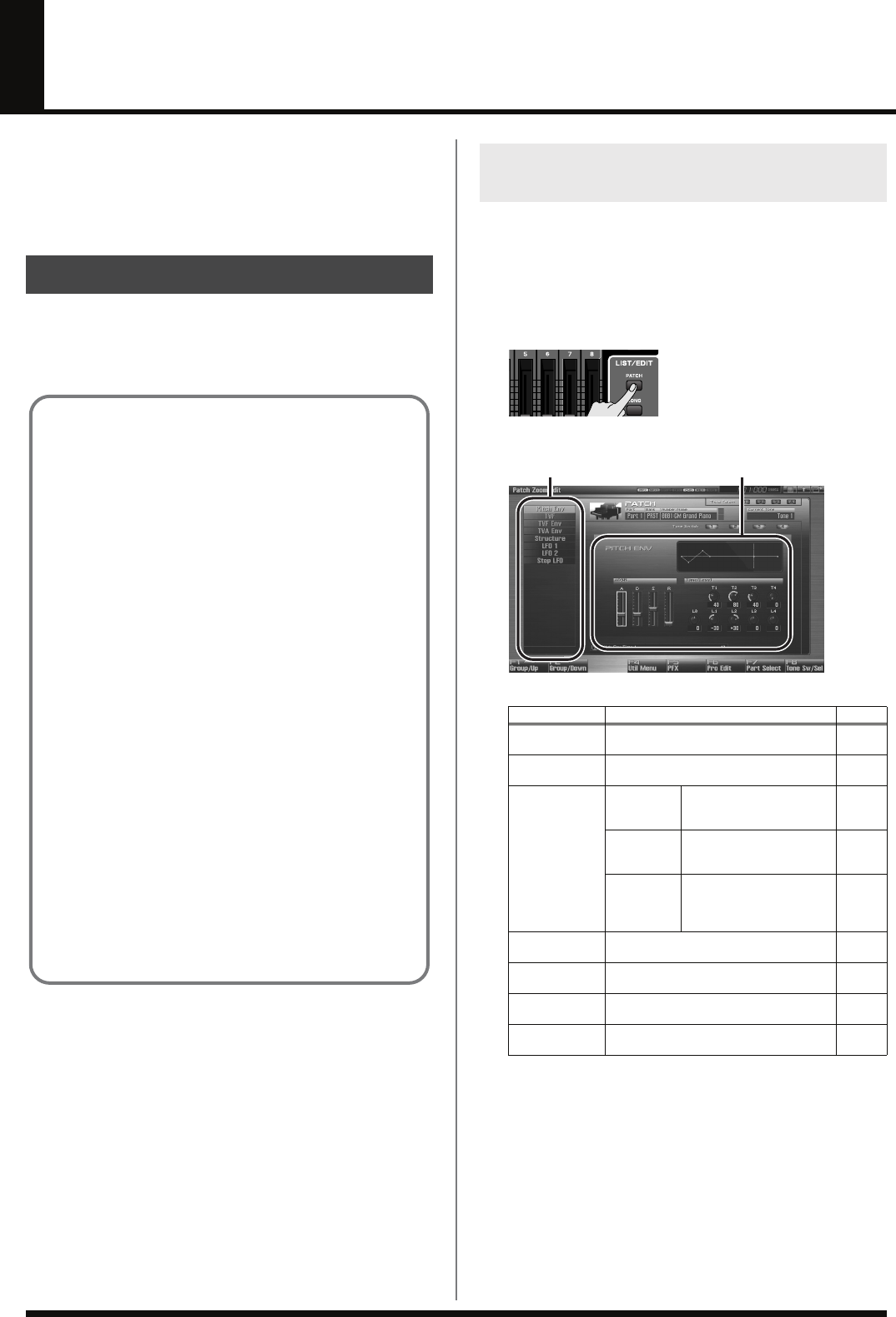
84
Creating a Patch
With the Fantom-G, you have total control over a wide variety of
settings. Each item that can be set is known as a
parameter
. When
you change the values of parameters, you are doing what is referred
to as
Editing
. This chapter explains the procedures used in creating
patches, and the functions of the patch parameters.
Start with an existing patch and edit it to create a new patch. Since a
patch is a combination of up to any four tones, you should listen to
how the individual tones sound before you edit.
The Patch Zoom Edit screen allows you to edit the most important
parameters of a patch. If you want to have access to all of the
parameters, use the Patch Pro Edit screen (p. 86).
1.
Select the patch whose settings you want to edit (p. 47).
2.
Press [PATCH].
The Patch Zoom Edit screen appears.
fig.05-015_50
F-key operations in the Patch Zoom Edit screen
How to Make Patch Settings
Four Tips for Editing Patches
●Select a patch that is similar to the sound you wish to
create (p. 47).
It’s hard to create a new sound that’s exactly what you
want if you just select a patch and modify its parameters at
random. It makes sense to start with a patch whose sound
is related to what you have in mind.
●
Decide which tones will sound (p. 50).
When creating a patch, it is important to decide which
tones you are going to use. In the Patch Pro Edit screen, set
Tone Switch 1–4 to specify whether each tone will sound
(on), or not (off). It is also important to turn off unused
tones to avoid wasting voices, unnecessarily reducing the
number of simultaneous notes you can play.
●Check the Structure setting (p. 92).
The important Structure parameter determines how the
four tones combine. Before you select new tones, make
sure you understand how the currently selected tones are
affecting each other.
●Turn Effects off (p. 150).
Since the Fantom-G effects have such a profound impact
on its sounds, turn them off to listen to the sound itself so
you can better evaluate the changes you’re making. Since
you will hear the original sound of the patch itself when
the effects are turned off, the results of your modifications
will be easier to hear. Actually, sometimes just changing
effects settings can give you the sound you want.
Editing a Patch Quickly
(Patch Zoom Edit)
F-key Explanation
Page
F1
Group/Up Moves the edit group tab upward. –
F2
Group/Down Moves the edit group tab downward. –
F4
Util Menu Patch
Initialize Initializes the settings of
the currently selected
patch.
p. 87
Tone
Initialize Initializes the settings of
the currently selected
tone.
p. 87
Tone
Copy Copies tone settings from
a patch to the specified
tone of the currently se-
lected patch.
p. 87
F5
PFX Accesses the PFX (Patch Multi-effect) ed-
iting screen. p. 157
F6
Pro Edit Accesses the Patch Pro Edit screen, where
you can edit all of the parameters. p. 86
F7
Part Select Selects the part to be edited. –
F8
Tone Sw/Sel Selects the tones that will sound. p. 85
Groups Parameters
Fantom-G_r_e.book 84 ページ 2008年1月31日 木曜日 午後12時15分
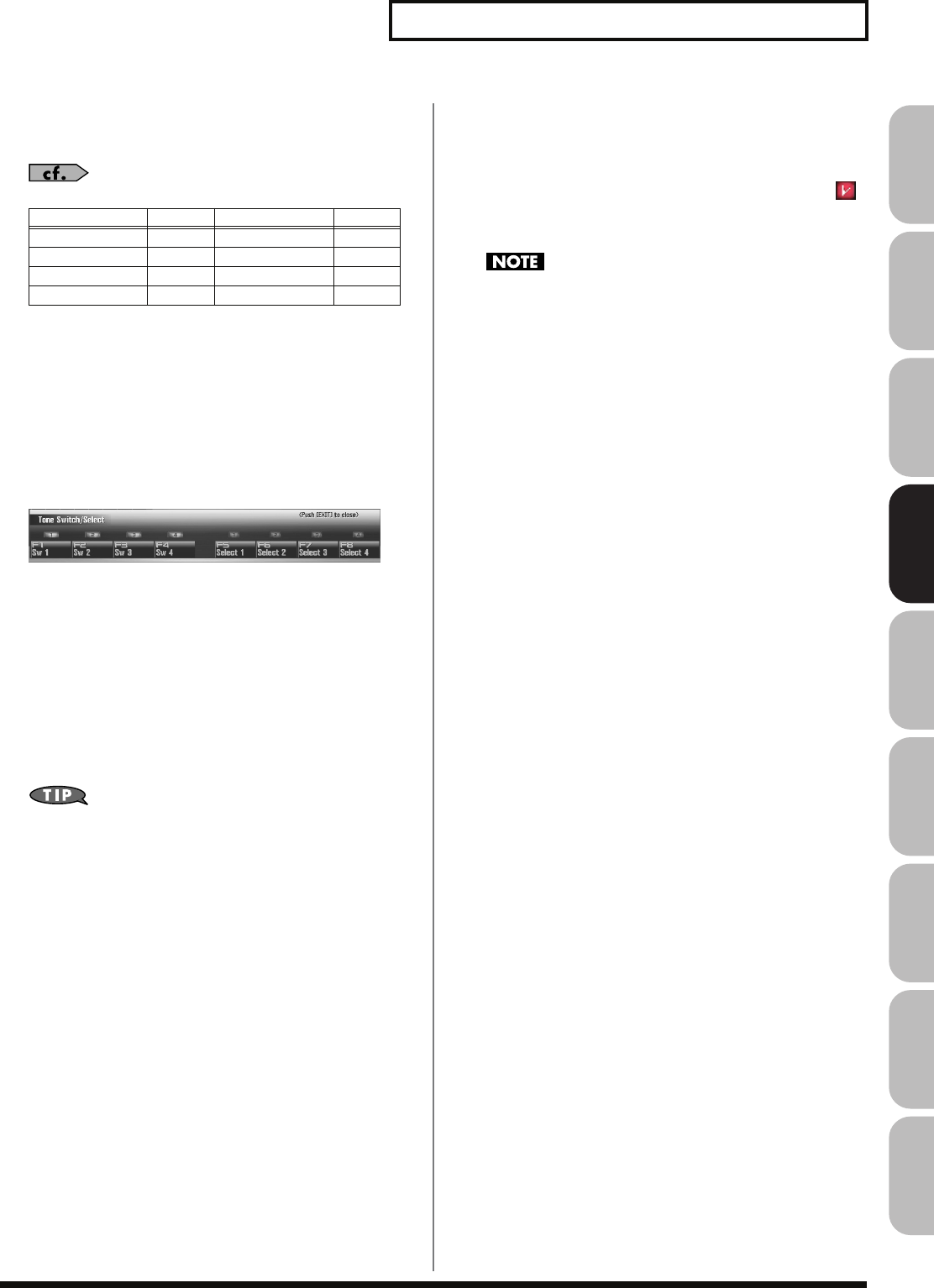
85
Creating a Patch
Overview Sound 1 Sound 2 Sound 3 Pad Sampler
Menu/System
AppendixSequencer
3.
The parameters are organized into several editing groups.
Press [F1 (Up)] or [F2 (Down)] to select the tab for the
editing group that contains the parameter you wish to edit.
For details on each parameter, refer to the following pages.
•
To change the part that you want to edit
Press [F7 (Part Select)].
4.
Press [CURSOR] button to move the cursor to the
parameter you wish to modify.
5.
Press [F8 (Tone Sw/Sel)] to select the tone that you want to
edit.
The Tone Switch/Select window appears.
fig.06-001_50
Press any one of the [F5 (Select 1)]–[F8 (Select 4)] buttons to
select the tone that you want to edit.
•
Simultaneously editing the same parameter of multiple
tones
To select the tones you want to edit at the same time,
simultaneously press two or more of the [F5 (Select 1)]–[F8
(Select 4)] buttons, making them light.
•
To switch a tone on/off
Press a [F1 (Sw 1)]–[F4 (Sw 4)] button to switch the
corresponding tone on/off.
You can also use the pads to select tones and switch them on/off.
→
“7 TONE SEL/SW (Using the Pads to Select Tones or
Switch Them On/Off)”
(p. 197)
6.
When you have made your selection, press [EXIT].
7.
Turn the VALUE dial or press [INC] [DEC] to get the value
you want.
If you’ve selected two or more tones, your editing will modify
the parameter values for all selected tones by the same amount.
8.
Repeat steps 3–7 to set each parameter you want to edit.
9.
If you wish to save the changes you’ve made, press
[WRITE] to perform the Save operation (p. 88). If you do not
wish to save changes, press [EXIT] to return to the Single
Play screen.
If you return to the Single Play screen without saving, the “ ”
symbol will be displayed at the right of the patch name,
indicating that the patch settings have been edited.
The settings you edit are temporary, and will be lost if you turn
off the power, switch the sound generator mode, or select a
different sound.
Parameter name
Page
Parameter name
Page
Pitch Envelope p. 97 Structure Type p. 92
TVF p. 98 LFO1/2 p. 103
TVF Envelope p. 100 Step LFO p. 104
TVA Envelope p. 101
Fantom-G_r_e.book 85 ページ 2008年1月31日 木曜日 午後12時15分
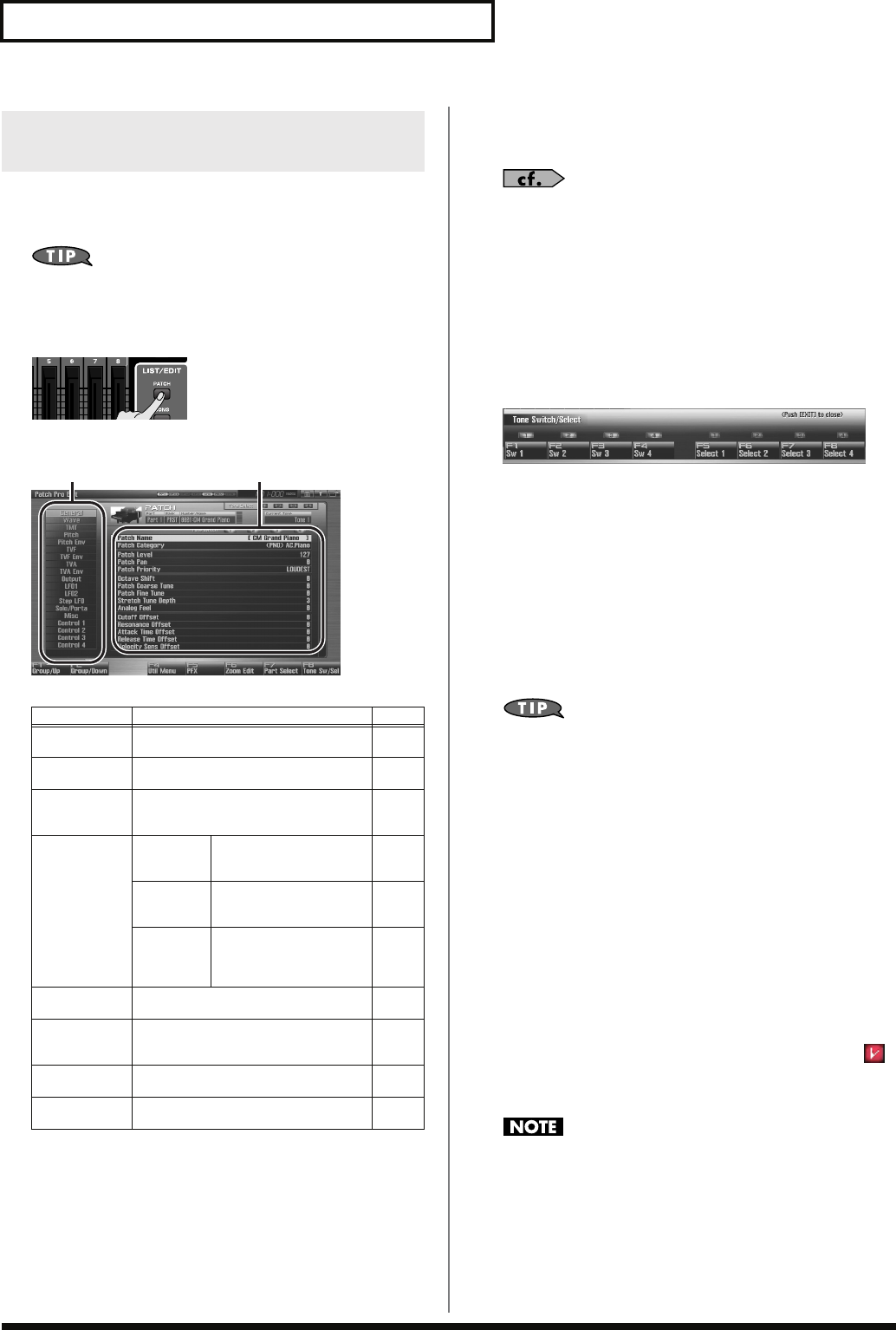
86
Creating a Patch
The Patch Pro Edit screen allows you to edit all parameters of a patch.
1.
Select the patch whose settings you want to edit (p. 47).
If you want to create a patch from scratch (rather than starting
from an existing patch), execute the
Initialize
operation (p. 87).
2.
Press [PATCH] twice.
The Patch Pro Edit screen appears.
fig.05-015_50
F-key operations in the Patch Pro Edit screen
3.
The parameters are organized into several editing groups.
Press [F1 (Up)] or [F2 (Down)] to select the tab for the
editing group that contains the parameter you wish to edit.
See
“Functions of Patch Parameters”
(p. 89) for each
parameter’s functions.
•
To change the part that you want to edit
Press [F7 (Part Select)].
4.
Press [CURSOR] button to move the cursor to the
parameter you wish to modify.
5.
Press [F8 (Tone Sw/Sel)] to select the tone that you want to edit.
The Tone Switch/Select window appears.
fig.06-001_50
Press any one of the [F5 (Select 1)]–[F8 (Select 4)] buttons to
select the tone that you want to edit.
•
Simultaneously editing the same parameter of multiple
tones
To select the tones you want to edit at the same time,
simultaneously press two or more of the [F5 (Select 1)]–[F8
(Select 4)] buttons, making them light.
•
To switch a tone on/off
Press a [F1 (Sw 1)]–[F4 (Sw 4)] button to switch the
corresponding tone on/off.
You can also use the pads to select tones and switch them on/off.
→
“7 TONE SEL/SW (Using the Pads to Select Tones or
Switch Them On/Off)”
(p. 197)
6.
When you have made your selection, press [EXIT].
7.
Turn the VALUE dial or press [INC] [DEC] to get the value
you want.
If you’ve selected two or more tones, your editing will modify
the parameter values for all selected tones by the same amount.
8.
Repeat steps 3–7 to set each parameter you want to edit.
9.
If you wish to save the changes you’ve made, press
[WRITE] to perform the Save operation (p. 88). If you do not
wish to save changes, press [EXIT] to return to the Single
Play screen.
If you return to the Single Play screen without saving, the “ ”
symbol will be displayed at the right of the patch name,
indicating that the patch settings have been edited.
The settings you edit are temporary, and will be lost if you turn
off the power, switch the sound generator mode, or select a
different sound.
Editing All Parameters of a Patch
(Patch Pro Edit)
F-key Explanation Page
F1
Group/Up Moves the edit group tab upward. –
F2
Group/Down Moves the edit group tab downward. –
F3
Set Stereo This is shown if you’re editing the WAVE
group. It recalls the right wave (R) from
the left wave (L) of a stereo wave.
p. 91
F4
Util Menu Patch
Initialize Initializes the settings of
the currently selected
patch.
p. 87
Tone
Initialize Initializes the settings of
the currently selected
tone.
p. 87
Tone
Copy Copies tone settings from
a patch to the specified
tone of the currently se-
lected patch.
p. 87
F5
PFX Accesses the PFX (Patch Multi-effect) ed-
iting screen. p. 157
F6
Zoom Edit Accesses the Zoom Edit screen, where
you can edit the most important parame-
ters.
p. 84
F7
Part Select Selects the part to be edited. –
F8
Tone Sw/Sel Selects the tones that will sound. p. 85
Groups Parameters
Fantom-G_r_e.book 86 ページ 2008年1月31日 木曜日 午後12時15分
87
Creating a Patch
Overview Sound 1 Sound 2 Sound 3 Pad Sampler
Menu/System
AppendixSequencer
“Initialize” means to return the settings of the currently selected
sound to a standard set of values.
Patch Initialize will initialize the settings of the currently selected
patch.
Tone Initialize will initialize the settings of the currently selected
tone.
The Initialize operation will affect only the currently selected
sound; the sounds that are stored in user memory will not be
affected. If you wish to restore all of the Fantom-G’s settings to
their factory values, perform a Factory Reset (p. 280).
1.
Select the patch that you want to initialize (p. 47).
2.
Press [PATCH].
3.
Press [F4 (Util Menu)].
The Patch Utility Menu window appears.
4.
Press or to choose what you want to initialize
(Patch Initialize or Tone Initialize), and then press [F8
(Select)].
If you decide to cancel the operation, press [F7 (Cancel)].
A message will ask you for confirmation.
5.
Press [F7 (OK)] to execute.
To cancel, press [F8 (EXIT)].
This operation copies the settings of any desired patch to the
currently selected patch. You can use this feature to make the editing
process faster and easier.
1.
Select that you want to edit and the copy-destination patch
(p. 47).
2.
Press [PATCH].
3.
Press [F4 (Util Menu)].
The Patch Utility Menu window appears.
4.
Press or to choose “Patch Tone Copy,” and then
press [F8 (Select)].
If you decide to cancel the operation, press [F7 (Cancel)].
The Patch Tone Copy window appears.
5.
Press [CURSOR] to move the cursor, select the “Source
(copy-source)” bank and number, and patch tone.
6.
Turn the VALUE dial or use [INC] [DEC] to make settings.
7.
Press [CURSOR] to move the cursor, select the
“Destination (copy-destination)” patch tone number.
8.
Turn the VALUE dial or use [INC] [DEC] to make settings.
9.
Press [F8 (Execute)].
A message will ask you for confirmation.
10.
Press [F7 (OK)] to return to execute.
To cancel, press [F8 (EXIT)].
Initializing Patch/Tone Settings
(Patch Initialize/Tone Initialize)
Copying Patch (Tone) Settings
(Patch Tone Copy)
The Compare Function
For the Patch Tone Copy operations, you can use the Compare
function.
The Compare function allows you to hear the copy-source patch
in order to verify it.
If you want to play the copy-source patch, press [F6 (Compare)].
The patch auditioned using the Compare function may
sound slightly different than when it is played normally.
Fantom-G_r_e.book 87 ページ 2008年1月31日 木曜日 午後12時15分
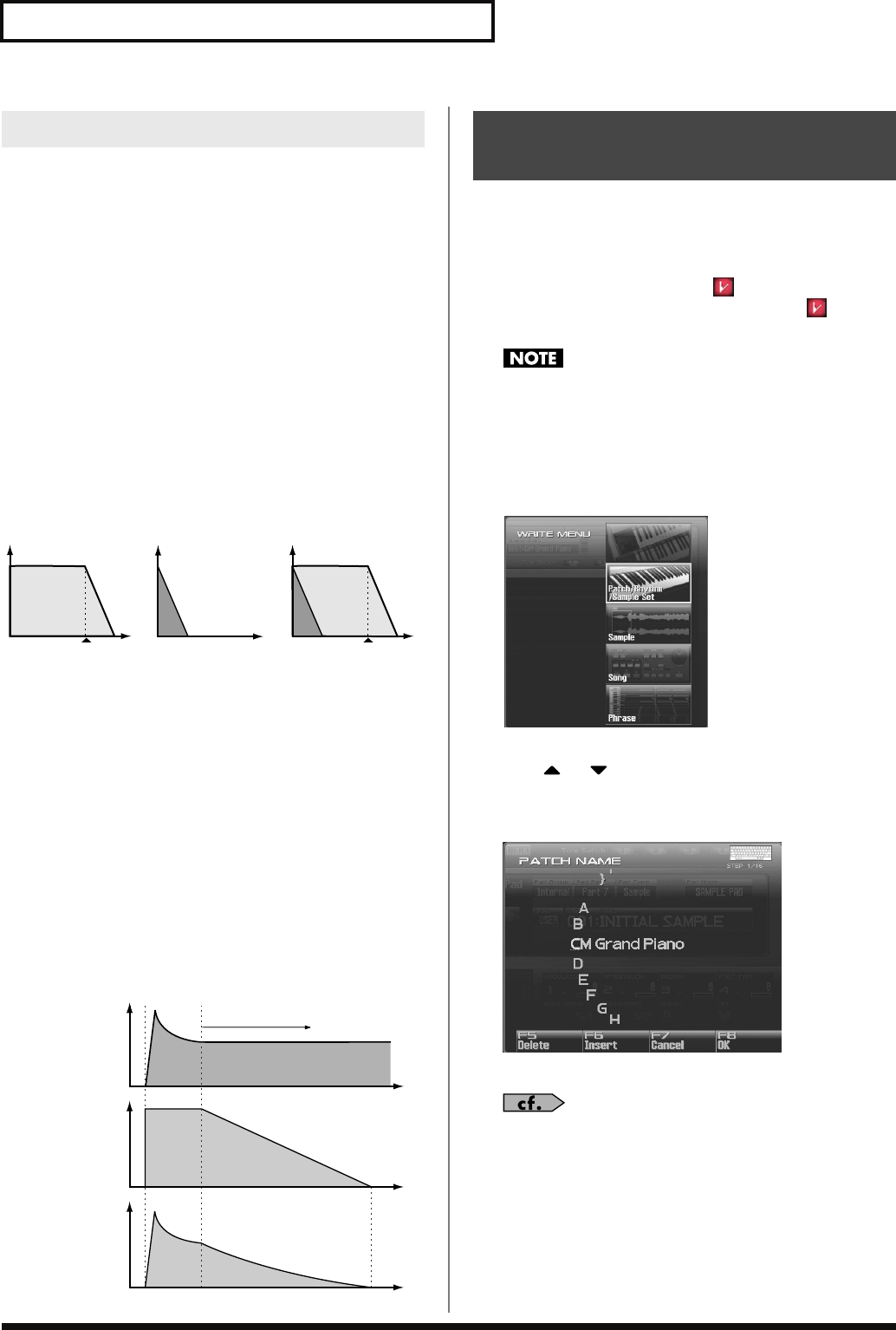
88
Creating a Patch
The sounds of the Fantom-G are based on complex PCM waveforms,
and if you attempt to make settings that are contrary to the type of
the original waveform, the results will not be as you expect.
The internal waveforms of the Fantom-G fall into the following two banks.
One-shot:
These waveforms contain sounds that have short decays.
A one-shot waveform records the initial rise and fall of the sound.
Some of the Fantom-G’s one-shot waveforms are sounds that are
complete in themselves, such as percussive instrument sounds. The
Fantom-G also contains many other one-shot waveforms that are
elements of other sounds. These include attack components such as
piano-hammer sounds and guitar fret noises.
Looped:
These waveforms include sounds with long decays as well
as sustained sounds. Loop waveforms repeatedly play back (loop)
the portion of the waveform after the sound has reached a relatively
steady state. The Fantom-G’s looped waveforms also include
components of other sounds, such as piano-string resonant
vibrations and the hollow sounds of brass instruments.
The following diagram shows an example of sound (electric organ)
that combines one-shot and looped waveforms.
fig.06-005.e
Cautions When Using a One-shot Waveform
It is not possible to use the envelope to modify a one-shot waveform
to create a decay that is longer than the original waveform, or to turn
it into a sustaining sound. If you were to program such an envelope,
you would be attempting to shape a portion of the sound that simply
doesn’t exist, and the envelope would have no effect.
Cautions When Using a Loop Waveform
With many acoustic instruments such as piano and sax, extreme
timbral changes occur during the first few moments of each note. This
initial attack is what defines much of the instrument’s character. For
such waveforms, it is best to use the complex tonal changes of the
attack portion of the waveform just as they are, and to use the envelope
only to modify the decay portion. If you attempt to use the envelope to
modify the attack portion as well, the characteristics of the original
waveform may prevent you from getting the sound that you intend.
fig.06-006.e
Edits you make to the settings are temporary, and will be lost if you
turn off the power, switch the sound generator mode, or select a
different sound. If you want to keep the modified sound, you must
save it in the USER bank.
When you edit the patch settings, the “ ” symbol will appear in
the Single Play screen. When you save the patch, the “ ” symbol
will disappear.
When you perform the save procedure, the data that previously
occupied the save destination will be lost.
1.
Make sure that the patch you wish to save is selected.
2.
Press [WRITE].
The WRITE MENU window appears.
3.
Select “Patch / Rhythm / Sample Set.”
Press or to select “Patch / Rhythm / Sample Set,” and
then press [F8 (Select)].
The Patch Name window appears.
fig.06-008_50
4.
Assign a name to the patch.
For details on assigning names, refer to
“Assigning a Name”
(p. 42)
5.
When you have finished inputting the name, press [F8 (OK)].
A screen will appear, allowing you to select the write-
destination patch.
Cautions When Selecting a Waveform
TVA ENV for looped
Organ waveform
Note off Time
Level
Resulting TVA ENV
change
TVA ENV for one-shot
Key-click waveform
Note off
+=
Tone change stored
with the wave
Envelope
for the TVF filter
Resulting
tone change
Looped portion
Time
Level
Saving Patches You’ve Created
(Write)
Fantom-G_r_e.book 88 ページ 2008年1月31日 木曜日 午後12時15分
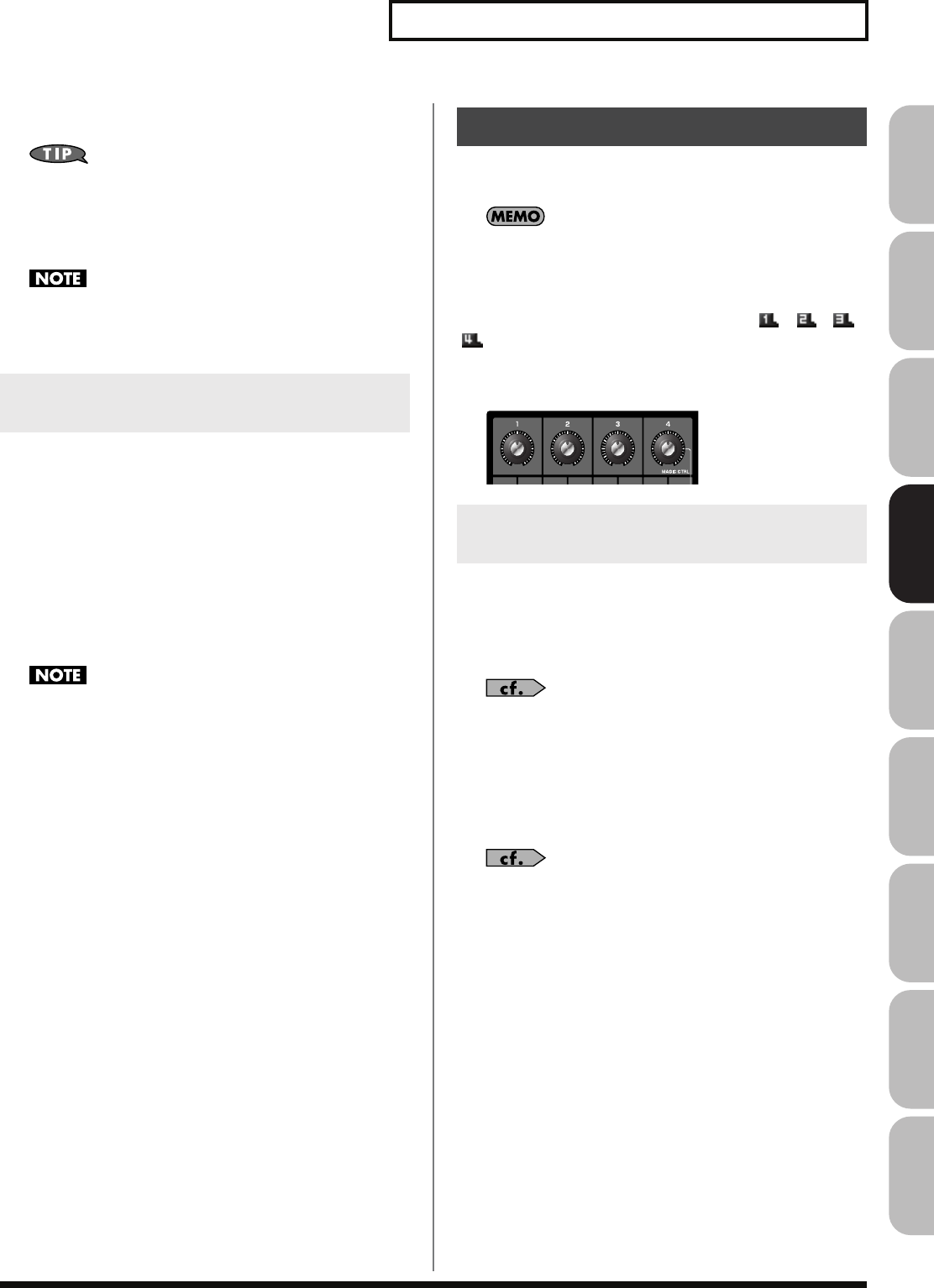
89
Creating a Patch
Overview Sound 1 Sound 2 Sound 3 Pad Sampler
Menu/System
AppendixSequencer
6.
Turn the VALUE dial or use [INC] [DEC] to select the patch
number.
By pressing [F6 (Compare)] you can check the save-destination
patch (Compare function).
7.
Press [F8 (Write)].
A message will ask you for confirmation.
Never switch off the Fantom-G while data is being saved.
8.
Press [F7 (OK)] to execute the save operation.
To cancel the operation, press [F8 (EXIT)].
Before you save a patch, you can audition the patch which currently
occupies the save destination to make sure that it is one you don’t
mind overwriting. This can help prevent important patches from
being accidentally overwritten and lost.
1.
Follow the procedure in “Saving Patches You’ve Created
(Write)” through step 6 to select the save destination.
2.
Press [F6 (Compare)] to turn on.
3.
Play the keyboard or pad to sound the save destination
patch, then check whether you really want to overwrite it.
The patch auditioned using the Compare function may sound
slightly different than when it is played normally.
4.
If you wish to change the save destination, re-specify the
save-destination patch by turning the VALUE dial.
5.
Press [F8 (Write)].
A message will ask you for confirmation.
6.
Press [F7 (OK)] once again to execute the Save operation.
This section explains the functions the different patch parameters
have, as well as the composition of these parameters.
Parameters marked with a “
★
” can be controlled using
specified MIDI messages (Matrix Control). Settings in Matrix
Ctrl screen will determine how these parameters are controlled
(p. 109).
If a number is displayed for the parameter name, ( , , ,
), you can use the realtime controller knob of the corresponding
number (the left most knob is number 1, the right most knob is
number 4) to set the value.
fig.06-010
Patch Name
Specifies the name of the patch.
By pressing [ENTER], you can assign a name to the patch.
Value:
space, A–Z, a–z, 0–9, ! ” # $ % & ’ ( ) * + , - . / : ; < = > ? @ [ \ ] ^ _ ` { | }
For details on entering a name, refer to
“Assigning a Name”
(p. 42).
Patch Category
Specifies the type (category) of the patch.
It also determines the phrase that will be sounded when using the
Phrase Preview function.
For details on the possible category names, refer to (p. 48).
Patch Level
Specifies the volume of the patch.
Value:
0–127
Patch Pan
Specifies the pan of the patch. “L64” is far left, “0” is center, and
“63R” is far right.
Value:
L64–0–63R
Auditioning the Save-Destination
Patch (Compare)
Functions of Patch Parameters
Settings Common to the Entire Patch
(General)
Fantom-G_r_e.book 89 ページ 2008年1月31日 木曜日 午後12時15分
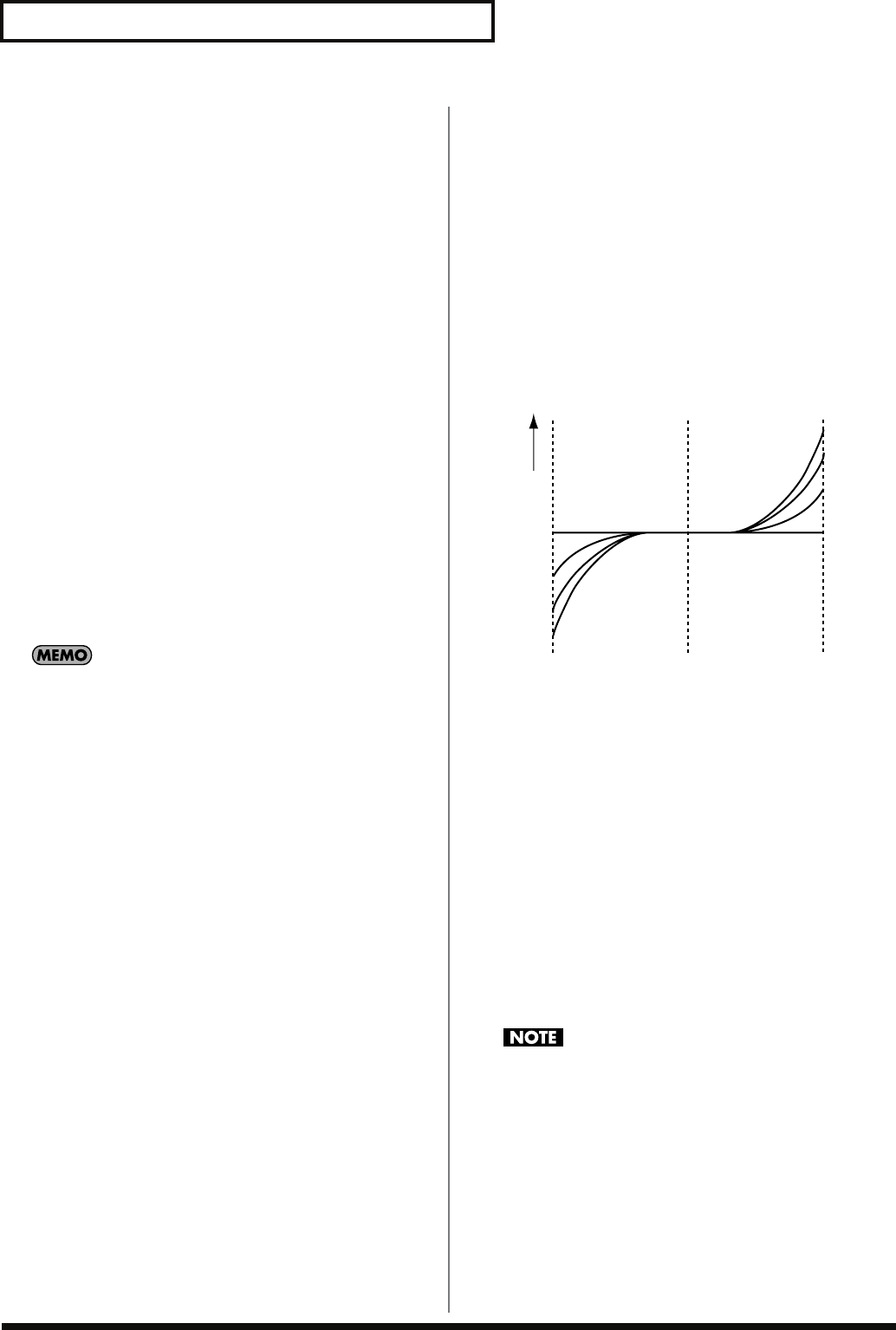
90
Creating a Patch
Patch Priority
This determines how notes will be managed when the maximum
polyphony is exceeded (128 voices).
Value
LAST:
The last-played voices will be given priority, and
currently sounding notes will be turned off in order,
beginning with the first-played note.
LOUDEST:
The voices with the loudest volume will be given
priority, and currently sounding notes will be turned
off, beginning with the lowest-volume voice.
Octave Shift
Adjusts the pitch of the patch’s sound up or down in units of an
octave (+/-3 octaves).
Value:
-3– +3
Patch Coarse Tune
★
Adjusts the pitch of the patch’s sound up or down in semitone steps
(+/-4 octaves).
Value:
-48– +48
Patch Fine Tune
Adjusts the pitch of the patch’s sound up or down in 1-cent steps (+/
-50 cents).
Value:
-50– +50
One cent is 1/100th of a semitone.
Stretch Tune Depth
This setting allows you to apply “stretched tuning” to the patch.
(Stretched tuning is a system by which acoustic pianos are normally
tuned, causing the lower range to be lower and the higher range to
be higher than the mathematical tuning ratios would otherwise
dictate.) With a setting of “OFF,” the patch’s tuning will be equal
temperament. A setting of “3” will produce the greatest difference in
the pitch of the low and high ranges.
Value:
OFF, 1–3
The diagram shows the pitch change relative to equal temperament
that will occur in the low and high ranges. This setting will have a
subtle effect on the way in which chords resonate.
fig.06-011.e
Analog Feel (Analog Feel Depth)
Specifies the depth of 1/f modulation that is to be applied to the
patch. (1/f modulation is a pleasant and naturally-occurring ratio of
modulation that occurs in a babbling brook or rustling wind.)
By adding this “1/f modulation,” you can simulate the natural
instability characteristic of an analog synthesizer.
Value:
0–127
Cutoff Offset
Cutoff Frequency Offset alters the cutoff frequency of the overall
patch, while preserving the relative differences between the cutoff
frequency values set for each tone in the Cutoff Frequency
parameters (p. 98).
Value:
-63– +63
This value is added to the cutoff frequency value of a tone, so if
the cutoff frequency value of any tone is already set to “127”
(maximum), positive “+” settings here will not produce any
change.
1
2
3
OFF
2
1
OFF
3
High note range
Pitch difference from
equal temperament Parameter value
Low note range
Fantom-G_r_e.book 90 ページ 2008年1月31日 木曜日 午後12時15分
91
Creating a Patch
Overview Sound 1 Sound 2 Sound 3 Pad Sampler
Menu/System
AppendixSequencer
Resonance Offset
Resonance Offset alters the resonance of the overall patch, while
preserving the relative differences between the resonance values set
for each tone in the Resonance parameter (p. 98).
Range:
-63– +63
*
Resonance:
emphasizes the overtones in the region of the cutoff
frequency, adding character to the sound.
This value is added to the resonance value of a tone, so if the
resonance value of any tone is already set to “127” (maximum),
positive “+” settings here will not produce any change.
Attack Time Offset
Attack Time Offset alters the attack time of the overall patch, while
preserving the relative differences between the attack time values set
for each tone in the TVA Env Time 1 parameters (p. 102), TVF Env
Time 1 parameters (p. 100).
Range:
-63– +63
*
Attack Time:
The time it takes for a sound to reach maximum
volume after the key is pressed and sound begun.
This value is added to the attack time value of a tone, so if the
attack time value of any tone is already set to “127” (maximum),
positive “+” settings here will not produce any change.
Release Time Offset
Release Time Offset alters the release time of the overall patch, while
preserving the relative differences between the release time values
set for each tone in the TVA Env Time 4 parameters (p. 102), TVF
Env Time 4 parameters (p. 100).
Range:
-63– +63
*
Release Time:
The time from when you take your finger off the key
until the sound disappears.
This value is added to the release time value of a tone, so if the
release time value of any tone is already set to “127”
(maximum), positive “+” settings here will not produce any
change.
Velocity Sens Offset
Velocity Sensitivity Offset alters the Velocity Sensitivity of the
overall patch while preserving the relative differences between the
Velocity Sensitivity values set for each tone in the parameters below.
Cutoff Velocity Sens parameter (p. 99)
Level Velocity Sens parameter (p. 100)
Range:
-63– +63
*
Velocity:
Pressure with which the key is pressed.
This value is added to the velocity sensitivity value of a tone, so
if the velocity sensitivity value of any tone is already set to
“+63” (maximum), positive “+” settings here will not produce
any change.
Wave Group
Selects the group for the waveform that is to be the basis of the tone.
Value
INT:
Waveforms stored in internal
SAMP:
Sample waveforms
Wave Number L (Mono)
Wave Number R
Selects the basic waveform for a tone. Along with the Wave number,
the Wave name appears at the lower part of the display.
When in monaural mode, only the left side (L) is specified. When in
stereo, the right side (R) is also specified.
Value:
OFF, 1– (The upper limit will depend on the wave group.)
If you specify only the right side (R), there will be no sound.
If you want to select a left/right pair of Waves, select the left (L)
Wave number and then press [F3 (Set Stereo)]; the right (R)
(Wave) will be recalled.
* When using a sample in stereo, you must specify the same number for
L and R.
Modifying Waveforms (Wave)
Fantom-G_r_e.book 91 ページ 2008年1月31日 木曜日 午後12時15分
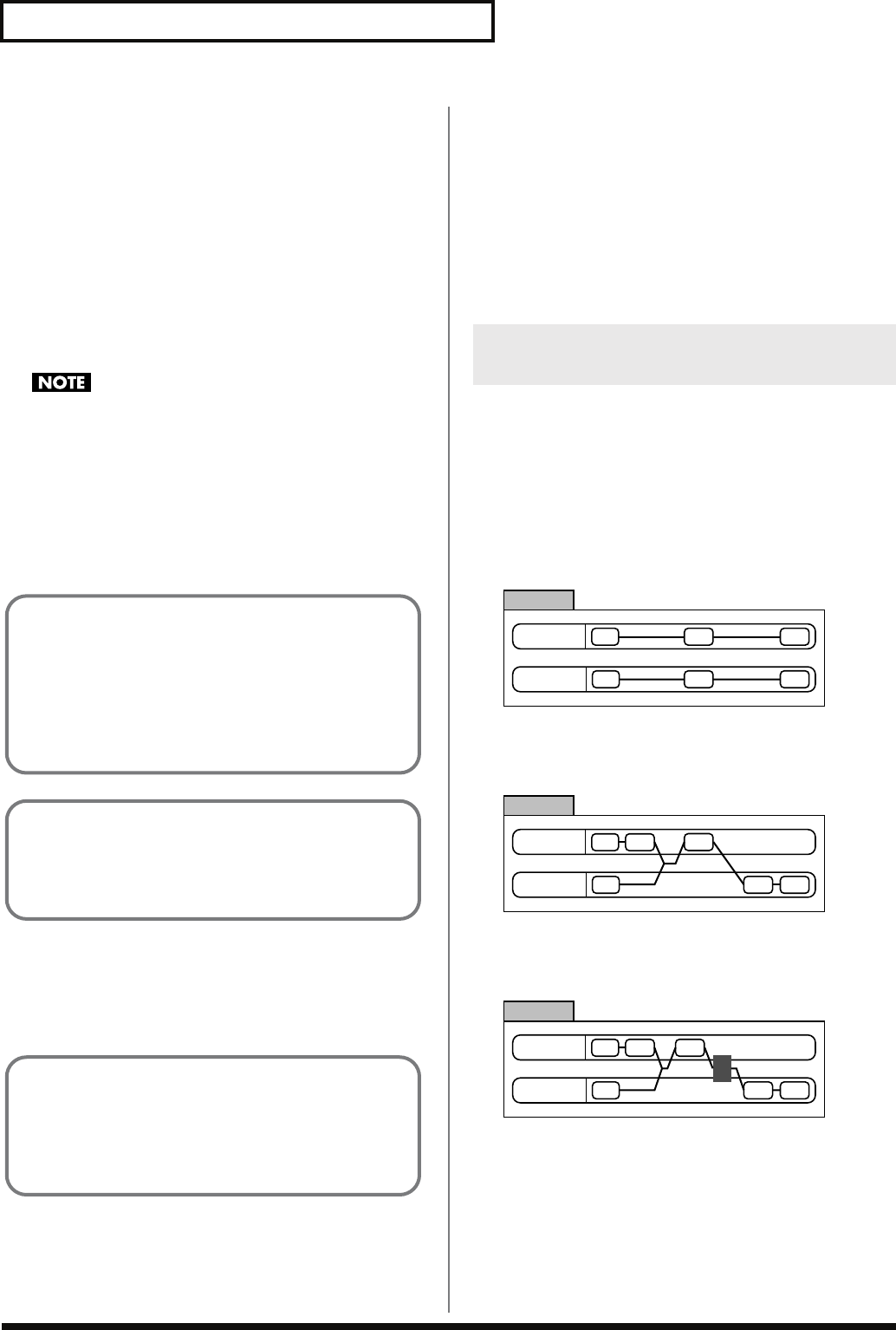
92
Creating a Patch
Wave Gain
Sets the gain (amplification) of the waveform. The value changes in 6
dB (decibel) steps—an increase of 6 dB doubles the waveform’s gain.
If you intend to use the Booster to distort the waveform’s sound, set
this parameter to its maximum value (p. 94).
Value:
-6, 0, +6, +12
Wave Tempo Sync
When you wish to synchronize a Phrase Loop to the clock (tempo),
set this to “ON.” This is valid only when selected as the sample for a
tone.
Value:
OFF, ON
• If a sample is selected for a tone, you must first set the BPM
(tempo) parameter of the sample.
• If a sample is selected for a tone, Wave Tempo Sync will require
twice the normal number of voices.
• When the Wave Tempo Sync parameter is set to “ON,” set the
Delay Time parameter (p. 108) to “0.” With other settings, a
delay effect will be applied, and you will be not be able to play
as you expect.
FXM Switch
This sets whether FXM will be used (ON) or not (OFF).
Value:
OFF, ON
FXM Color
Specifies how FXM will perform frequency modulation. Higher
settings result in a grainier sound, while lower settings result in a
more metallic sound.
Value:
1–4
FXM Depth
★
Specifies the depth of the modulation produced by FXM.
Value:
0–16
You can use the force with which keys are played, or MIDI messages
to control the way each Tone is played. This is referred to as the Tone
Mix Table (TMT).
Structure Type 1 & 2, 3 & 4
Determines how tone 1 and 2, or tone 3 and 4 are connected.
Value:
1–10
The following 10 different Types of combination are available.
fig.06-014
With this type, tones 1 and 2 (or 3 and 4) are independent. Use this
type when you want to preserve PCM sounds or create and combine
sounds for each tone.
fig.06-015
This type stacks the two filters together to intensify the
characteristics of the filters. The TVA for tone 1 (or 3) controls the
volume balance between the two tones.
fig.06-016
This type mixes the sound of tone 1 (3) and tone 2 (4), applies a filter,
and then applies a booster to distort the waveform.
Phrase Loop
Phrase loop refers to the repeated playback of a phrase that’s
been pulled out of a song (e.g., by using a sampler). One
technique involving the use of Phrase Loops is the excerpting of
a Phrase from a pre-existing song in a certain genre, for example
dance music, and then creating a new song with that Phrase
used as the basic motif. This is referred to as “Break Beats.”
Realtime Time Stretch
If the wave group is “SAMP,” and the Wave Tempo Sync
parameter is turned “ON,” you can vary the playback speed of
the waveform without affecting the pitch.
FXM
FXM (Frequency Cross Modulation) uses a specified waveform
to apply frequency modulation to the currently selected
waveform, creating complex overtones. This is useful for
creating dramatic sounds or sound effects.
Changing How a Tone Is Sounded
(TMT)
TONE 1 (3)
TONE 2 (4)
TVATVF
WG
WG TVF TVA
TYPE 1
TONE 1 (3)
TONE 2 (4)
TVA TVF
WG
WG TVF TVA
TYPE 2
TONE 1 (3)
TONE 2 (4)
TVA TVF
WG
WG TVF TVA
B
TYPE 3 B: Booster
Fantom-G_r_e.book 92 ページ 2008年1月31日 木曜日 午後12時15分
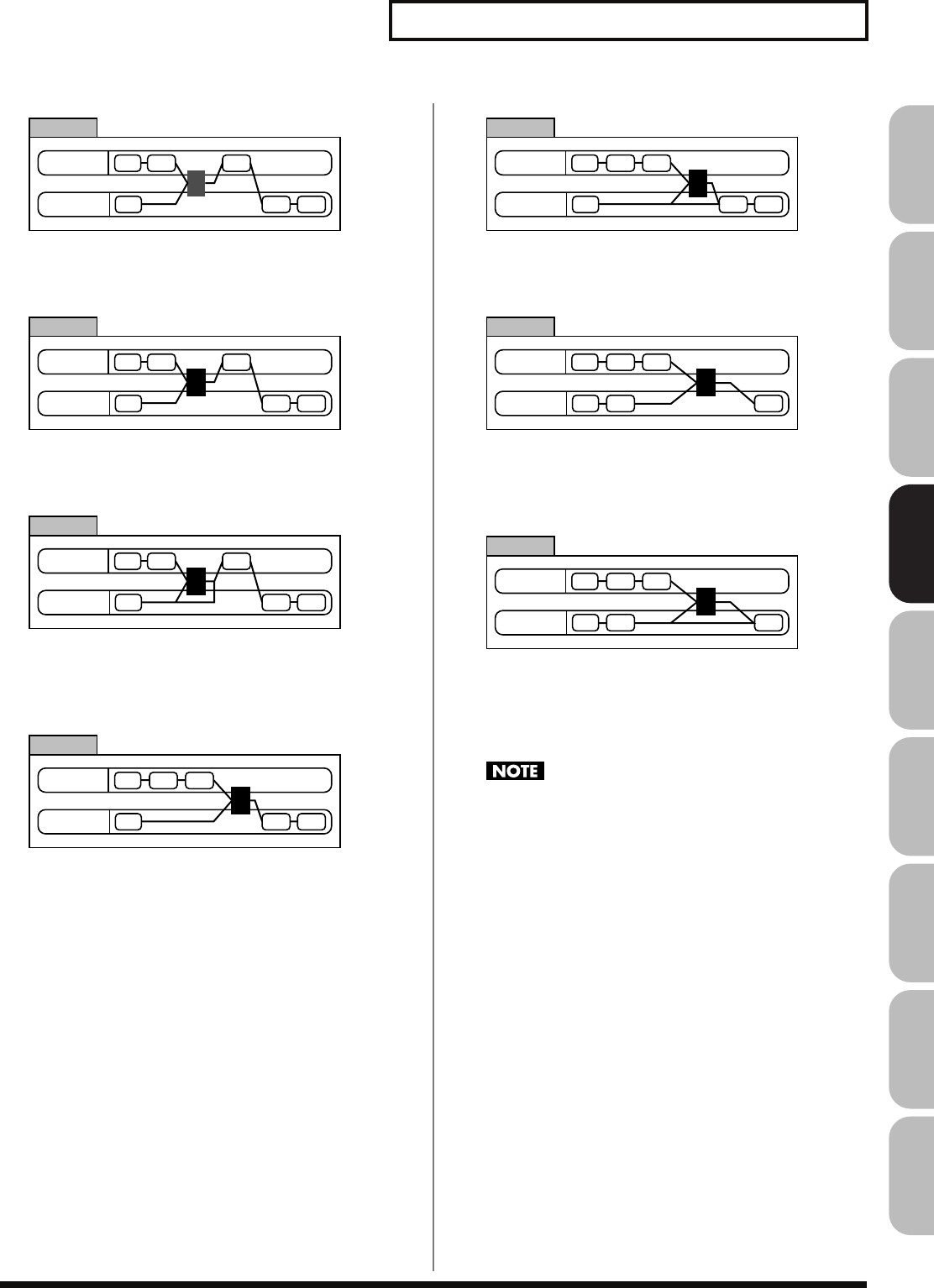
93
Creating a Patch
Overview Sound 1 Sound 2 Sound 3 Pad Sampler
Menu/System
AppendixSequencer
fig.06-017
This type applies a booster to distort the waveform, and then
combines the two filters. The TVA for tone 1 (or 3) controls the
volume balance between the two tones and adjusts booster level.
fig.06-018
This type uses a ring modulator to create new overtones, and
combines the two filters. The tone 1 (3) TVA will control the volume
balance of the two tones, adjusting the depth of ring modulator.
fig.06-019
This type uses a ring modulator to create new overtones, and in
addition mixes in the sound of tone 2 (4) and stacks the two filters.
Since the ring-modulated sound can be mixed with tone 2 (4), tone 1
(3) TVA can adjust the amount of the ring-modulated sound.
fig.06-020
This type applies a filter to tone 1 (3) and ring-modulates it with tone
2 (4) to create new overtones.
fig.06-021
This type sends the filtered tone 1 (3) and tone 2 (4) through a ring
modulator, and then mixes in the sound of tone 2 (4) and applies a
filter to the result.
fig.06-022
This type passes the filtered sound of each tone through a ring
modulator to create new overtones. The tone 1 (3) TVA will control
the volume balance of the two tones, adjusting the depth of ring
modulator.
fig.06-023
This type passes the filtered sound of each tone through a ring
modulator to create new overtones, and also mixes in the sound of
tone 2 (4). Since the ring-modulated sound can be mixed with tone 2
(4), tone 1 (3) TVA can adjust the amount of the ring-modulated
sound.
• When TYPE 2–10 is selected and one tone of a pair is turned off,
the other tone will be sounded as TYPE 1 regardless of the
displayed setting.
• If you limit the keyboard area in which a tone will sound
(Keyboard Range p. 94) or limit the range of velocities for which
it will sound (Velocity Range p. 95), the result in areas or ranges
where the tone does not sound is just as if the tone had been
turned off. This means that if TYPE 2–10 is selected and you
create a keyboard area or velocity range in which one tone of a
pair does not sound, notes played in that area or range will be
sounded by the other tone as TYPE 1 regardless of the
displayed setting.
TONE 1 (3)
TONE 2 (4)
TVA TVF
WG
WG TVF TVA
B
TYPE 4 B: Booster
TONE 1 (3)
TONE 2 (4)
TVA TVF
WG
WG TVF TVA
R
TYPE 5 R: Ring Modulator
TONE 1 (3)
TONE 2 (4)
TVA TVF
WG
WG TVF TVA
R
TYPE 6 R: Ring Modulator
TONE 1 (3)
TONE 2 (4)
TVATVF
WG
WG TVF TVA
R
TYPE 7 R: Ring Modulator
TONE 1 (3)
TONE 2 (4)
TVATVF
WG
WG TVF TVA
R
TYPE 8 R: Ring Modulator
TONE 1 (3)
TONE 2 (4)
TVATVF
WG
WG TVF TVA
R
TYPE 9 R: Ring Modulator
TONE 1 (3)
TONE 2 (4)
TVATVF
WG
WG TVF TVA
R
TYPE 10 R: Ring Modulator
Fantom-G_r_e.book 93 ページ 2008年1月31日 木曜日 午後12時15分
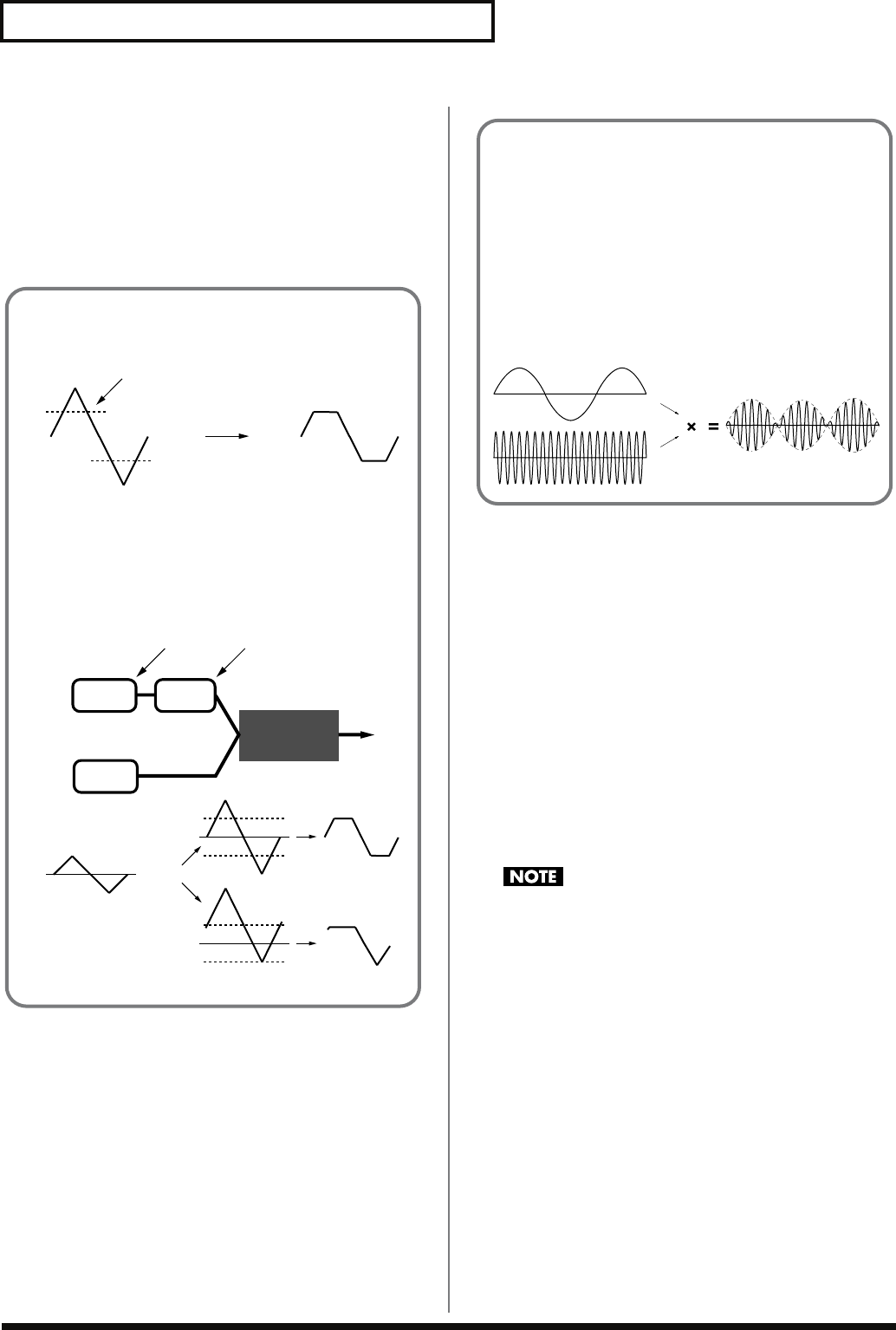
94
Creating a Patch
Booster 1&2, 3&4 (Booster Gain 1&2, 3&4)
When a Structure Type of TYPE 3 or TYPE 4 is selected, you can
adjust the depth of the booster. The booster increases the input
signal in order to distort the sound. This creates the distortion effect
frequently used with electric guitars. Higher settings will produce
more distortion.
Value:
0, +6, +12, +18
Keyboard Fade Width Lower
This determines what will happen to the tone’s level when a note
that’s lower than the tone’s specified keyboard range is played.
Higher settings produce a more gradual change in volume. If you
don’t want the tone to sound at all when a note below the keyboard
range is played, set this parameter to “0.”
Value:
0–127
Keyboard Range Lower
Specifies the lowest note that the tone will sound for each tone.
Value:
C-1–UPPER
Keyboard Range Upper
Specifies the highest note that the tone will sound for each tone.
Value:
LOWER–G9
If you attempt to raise the lower key higher than the upper key,
or to lower the upper key below the lower key, the other value
will be automatically modified to the same setting.
Booster
The Booster is used to distort the incoming signal.
fig.06-024.e
In addition to using this to create distortion, you can use the
waveform (WG1) of one of the tones as an LFO which shifts the
other waveform (WG2) upward or downward to create
modulation similar to PWM (pulse width modulation). This
parameter works best when you use it in conjunction with the
Wave Gain parameter (p. 92).
fig.06-025.e
Booster level
TVA
WG1
WG2
Booster
Adds to WG1
Shift in waveform by WG1
Distorted area of the
Waveform changes
WG2
Uses WG1 as LFO Adjusts WG1 output
Ring Modulator
A ring modulator multiplies the waveforms of two tones with
each other, generating many new overtones (in harmonic
partials) which were not present in either waveform. (Unless
one of the waveforms is a sine wave, evenly-spaced frequency
components will not usually be generated.)
As the pitch difference between the two waveforms changes the
harmonic structure, the result will be an unpitched metallic
sound. This function is suitable for creating metallic sounds
such as bells.
fig.06-026
Fantom-G_r_e.book 94 ページ 2008年1月31日 木曜日 午後12時15分
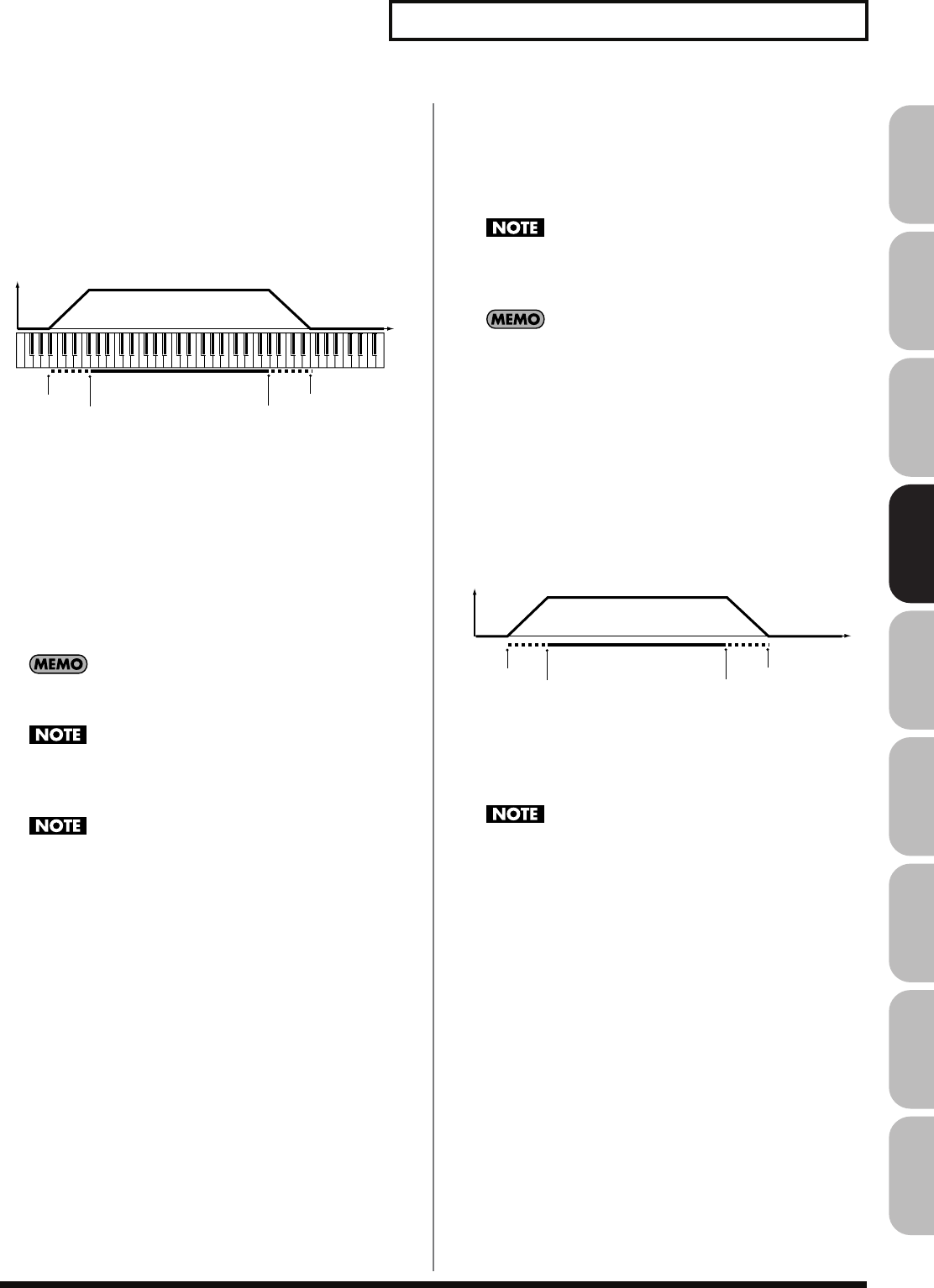
95
Creating a Patch
Overview Sound 1 Sound 2 Sound 3 Pad Sampler
Menu/System
AppendixSequencer
Keyboard Fade Width Upper
This determines what will happen to the tone’s level when a note
that’s higher than the tone’s specified keyboard range is played.
Higher settings produce a more gradual change in volume. If you
don’t want the tone to sound at all when a note above the keyboard
range is played, set this parameter to “0.”
Value:
0–127
fig.06-027.e
TMT Velocity Control
(TMT Velocity Control Switch)
TMT Velocity Control determines whether a different tone is played
(ON) or not (OFF) depending on the force with which the key is
played (velocity).
When set to “RANDOM,” the patch’s constituent tones will sound
randomly, regardless of any Velocity messages.
When set to “CYCLE,” the patch’s constituent tones will sound
consecutively, regardless of any Velocity messages.
Value:
OFF, ON, RANDOM, CYCLE
Use
“Velocity Range Lower”
(p. 95) and
“Velocity Range
Upper”
(p. 95) to specify the range of keyboard dynamics.
If Velocity Range Lower and Velocity Range Upper are set to
the same values, you won’t be able to obtain any effect by
setting TMT Velocity Control to “RANDOM” or “CYCLE.”
Instead of using Velocity, you can also have tones substituted
using the Matrix Control (p. 109, p. 95). However, the keyboard
velocity and the Matrix Control cannot be used simultaneously
to make different tones to sound. When using the Matrix
Control to switch tones, set the Velocity Control parameter to
“OFF.”
Velocity Fade Width Lower
This determines what will happen to the tone’s level when the tone
is played at a velocity lower than its specified velocity range. Higher
settings produce a more gradual change in volume. If you want
notes played outside the specified key velocity range to not be
sounded at all, set this to “0.”
Value:
0–127
Velocity Range Lower
This sets the lowest velocity at which the tone will sound. Make
these settings when you want different tones to sound in response to
notes played at different strengths.
Value:
1–UPPER
Velocity Range Upper
This sets the highest velocity at which the tone will sound. Make
these settings when you want different tones to sound in response to
notes played at different strengths.
Value:
LOWER–127
If you attempt to set the Lower velocity limit above the Upper,
or the Upper below the Lower, the other value will
automatically be adjusted to the same setting.
When using the Matrix Control (p. 109) to have different tones
played, set the lowest value (Lower) and highest value (Upper)
of the value of the MIDI message used.
Velocity Fade Width Upper
This determines what will happen to the tone’s level when the tone
is played at a velocity greater than its specified velocity range.
Higher settings produce a more gradual change in volume. If you
want notes played outside the specified key velocity range to not be
sounded at all, set this to “0.”
Value:
0–127
fig.06-028.e
TMT Control Switch
Use the Matrix Control (p. 109) to enable (ON), or disable (OFF)
sounding of different tones.
Value:
OFF, ON
You can also cause different tones to sound in response to notes
played at different strengths (velocity) on the keyboard (p. 95).
However, the Matrix Control and the keyboard velocity cannot
be used simultaneously to make different tones to sound. When
you want to make the different tones to sound, set the Velocity
Control parameter (p. 95) to “OFF.”
Range Lower Range Upper
Fade Lower Fade Upper
Level
Pitch
Range Lower Range Upper
Fade Lower Fade Upper
Level
Velocity
Fantom-G_r_e.book 95 ページ 2008年1月31日 木曜日 午後12時15分
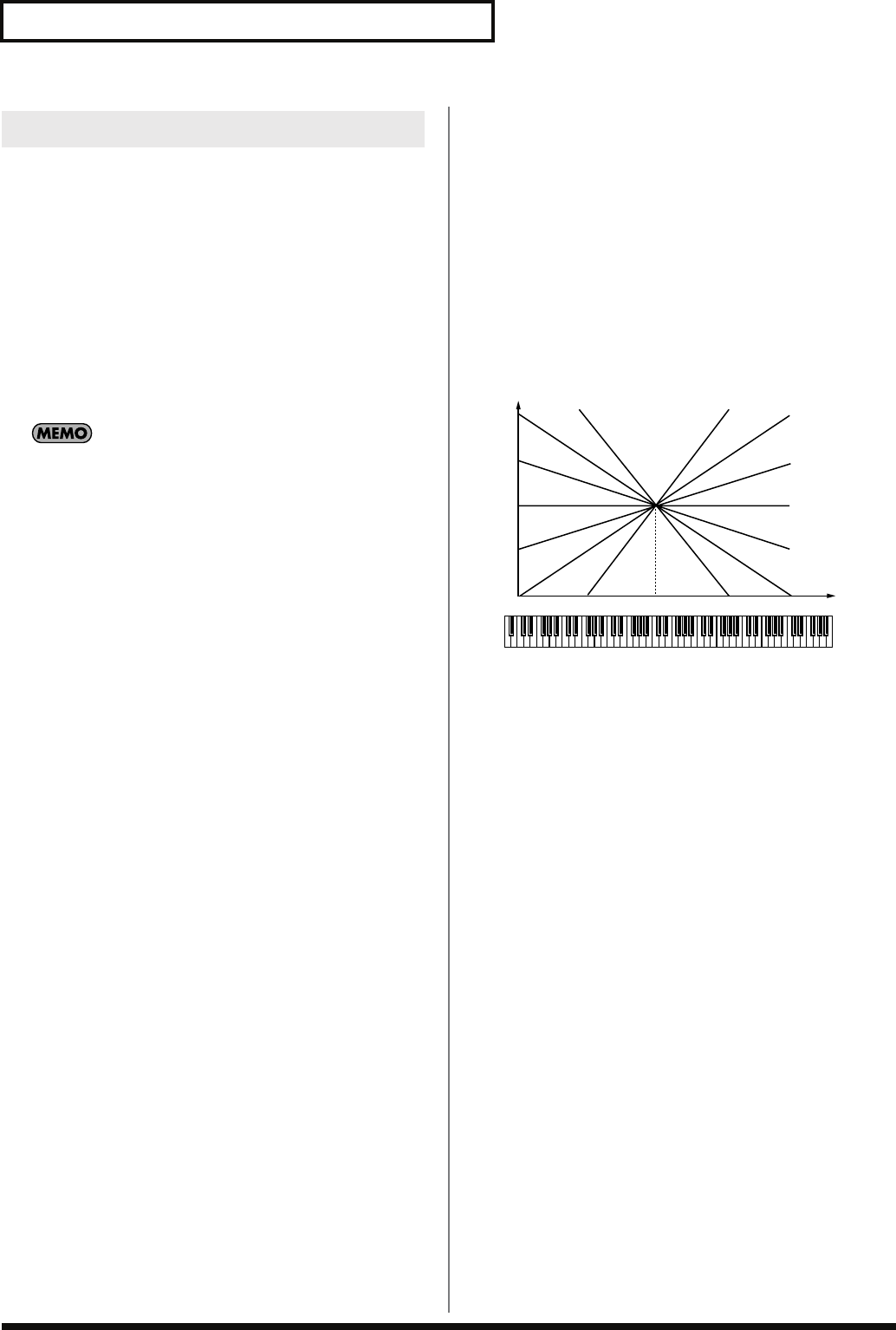
96
Creating a Patch
Pitch
Tone Coarse Tune
★
Adjusts the pitch of the tone’s sound up or down in semitone steps
(+/-4 octaves).
Value:
-48– +48
Tone Fine Tune
★
Adjusts the pitch of the tone’s sound up or down in 1-cent steps (+/-
50 cents).
Value:
-50– +50
One cent is 1/100th of a semitone.
Random Pitch Depth
This specifies the width of random pitch deviation that will occur
each time a key is pressed. If you do not want the pitch to change
randomly, set this to “0.” These values are in units of cents (1/100th
of a semitone).
Value:
0, 1, 2, 3, 4, 5, 6, 7, 8, 9, 10, 20, 30, 40, 50, 60, 70, 80, 90,
100, 200, 300, 400, 500, 600, 700, 800, 900, 1000, 1100,
1200
Wave Pitch Key Follow
This specifies the amount of pitch change that will occur when you
play a key one octave higher (i.e., 12 keys upward on the keyboard).
If you want the pitch to rise one octave as on a conventional
keyboard, set this to “+100.” If you want the pitch to rise two
octaves, set this to “+200.” Conversely, set this to a negative value if
you want the pitch to fall. With a setting of “0,” all keys will produce
the same pitch.
Value:
-200, -190, -180, -170, -160, -150, -140, -130, -120, -110,
-100, -90, -80, -70, -60, -50, -40, -30, -20, -10, 0, +10,
+20, +30, +40, +50, +60, +70, +80, +90, +100, +110,
+120, +130, +140, +150, +160, +170, +180, +190, +200
fig.06-030.e
Pitch Bend Range Up
Specifies the degree of pitch change in semitones when the Pitch
Bend lever is all the way right. For example, if this parameter is set to
“12,” the pitch will rise one octave when the pitch bend lever is
moved to the right-most position.
Value:
0– +48
Pitch Bend Range Down
Specifies the degree of pitch change in semitones when the Pitch
Bend lever is all the way left. For example if this is set to “-48” and
you move the pitch bend lever all the way to the left, the pitch will
fall 4 octaves.
Value:
-48–0
Pitch Env Velocity Sens
Keyboard playing dynamics can be used to control the depth of the
pitch envelope. If you want the pitch envelope to have more effect
for strongly played notes, set this parameter to a positive (+) value. If
you want the pitch envelope to have less effect for strongly played
notes, set this to a negative (-) value.
Value:
-63– +63
Pitch Env Time 1 Velocity Sens
This allows keyboard dynamics to affect the Time 1 of the Pitch
envelope. If you want Time 1 to be speeded up for strongly played
notes, set this parameter to a positive (+) value. If you want it to be
slowed down, set this to a negative (-) value.
Value:
-63– +63
Modifying Pitch (Pitch/Pitch Env)
C4C3C2C1 C5 C6 C7
0
+50
+100
+200
-50
-100-200 Key
Pitch
Fantom-G_r_e.book 96 ページ 2008年1月31日 木曜日 午後12時15分
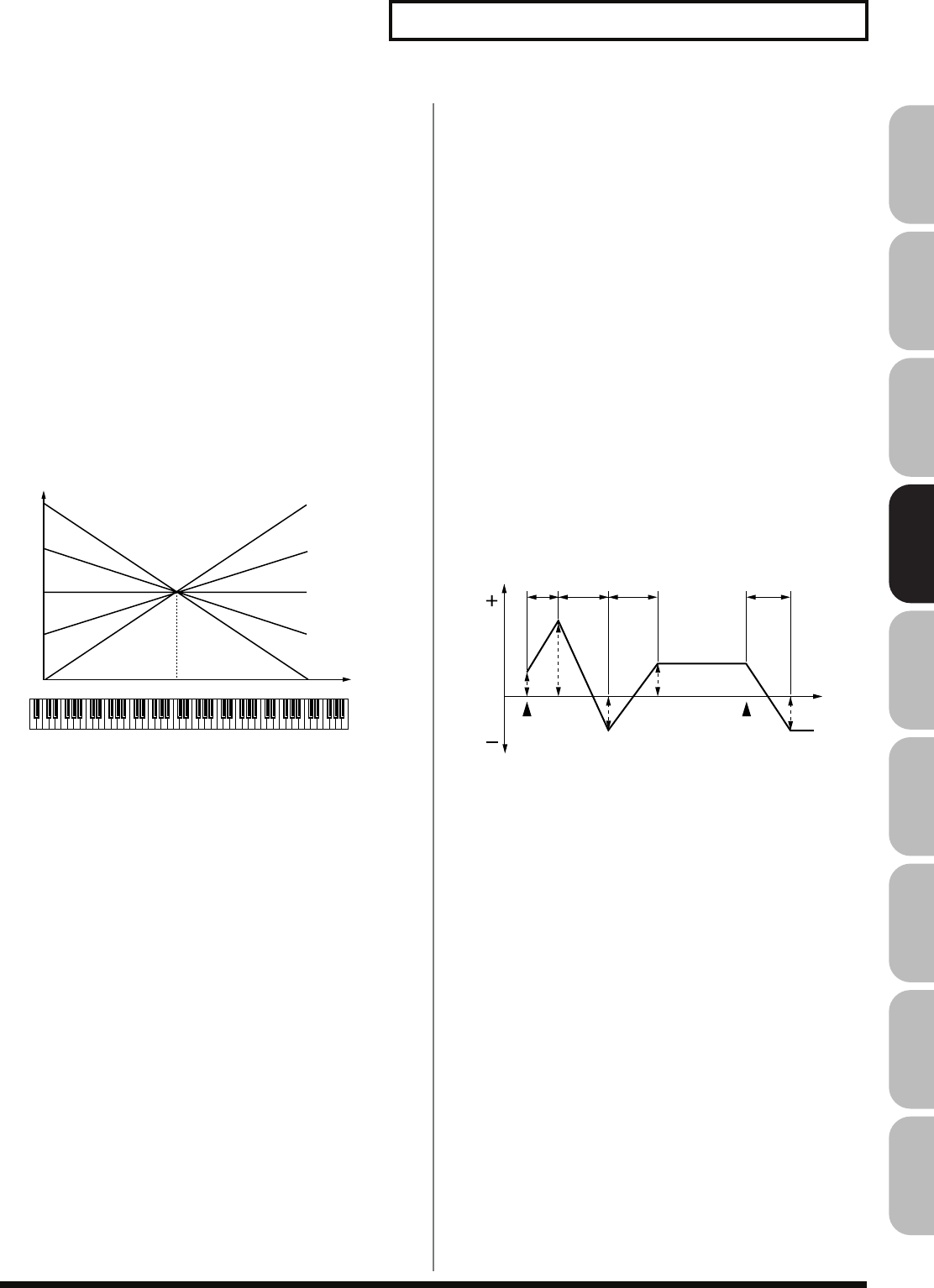
97
Creating a Patch
Overview Sound 1 Sound 2 Sound 3 Pad Sampler
Menu/System
AppendixSequencer
Pitch Env Time 4 Velocity Sens
Use this parameter when you want key release speed to affect the
Time 4 value of the pitch envelope. If you want Time 4 to be speeded
up for quickly released notes, set this parameter to a positive (+)
value. If you want it to be slowed down, set this to a negative (-)
value.
Value:
-63– +63
Pitch Env Time Key Follow
Use this setting if you want the pitch envelope times (Time 2–Time
4) to be affected by the keyboard location. Based on the pitch
envelope times for the C4 key, positive (+) settings will cause notes
higher than C4 to have increasingly shorter times, and negative (-)
settings will cause them to have increasingly longer times. Larger
settings will produce greater change.
Value:
-100, -90, -80, -70, -60, -50, -40, -30, -20, -10, 0, +10,
+20, +30, +40, +50, +60, +70, +80, +90, +100
fig.06-031.e
Hold Bend
This specifies whether pitch bend will be disabled (ON) or enabled
(OFF) while it’s being held by the pedal and during the release
portion of the sound.
Value:
OFF, ON
Bend Mode
Specifies what will happen when you operate the pitch bend lever.
Value
NORMAL:
The pitch bend lever will apply in the conventional
way.
TOUCH:
Moving the pitch bend lever will change the pitch
smoothly, but the pitch will instantly return to
center if you return the lever even slightly.
CATCH:
If you play a note-on with the pitch bend lever
already moved, the pitch will sound at the center
position. The pitch will change only after the lever
has passed through the center position.
LAST:
The pitch bend lever will apply only to the last-
played note.
CATCH+LAST:
The operation of “CATCH” and “LAST” will be
combined.
Bend Mode Control
This specifies the CC (control change) whose value is used to switch
the pitch bend lever’s operation between the mode specified by Bend
Mode (control values 64 or higher) and conventional operation
(control values 63 or lower).
Value
: CC01–31, CC32(OFF), CC33–95
Pitch Env (Pitch Envelope)
Pitch Env Depth
Adjusts the effect of the Pitch Envelope. Higher settings will cause
the pitch envelope to produce greater change. Negative (-) settings
will invert the shape of the envelope.
Value:
-12– +12
Pitch Env Time 1–4
★
Specify the pitch envelope times (Time 1–Time 4). Higher settings
will result in a longer time until the next pitch is reached. (For
example, Time 2 is the time over which the pitch changes from Level
1 to Level 2.)
Value:
0–127
fig.06-032.e
Pitch Env Level 0–4
Specify the pitch envelope levels (Level 0–Level 4). It determines
how much the pitch changes from the reference pitch (the value set
with Coarse Tune or Fine Tune on the Pitch screen) at each point.
Positive (+) settings will cause the pitch to be higher than the
standard pitch, and negative (-) settings will cause it to be lower.
Value:
-63– +63
C4C3C2C1 C5 C6 C7
0
+50
+100
-50
-100
Key
Time
T1 T2 T3 T4
L3
L4
L2
L1
L0
Note off
Pitch
Time
Note on
T: Time L: Level
Fantom-G_r_e.book 97 ページ 2008年1月31日 木曜日 午後12時15分
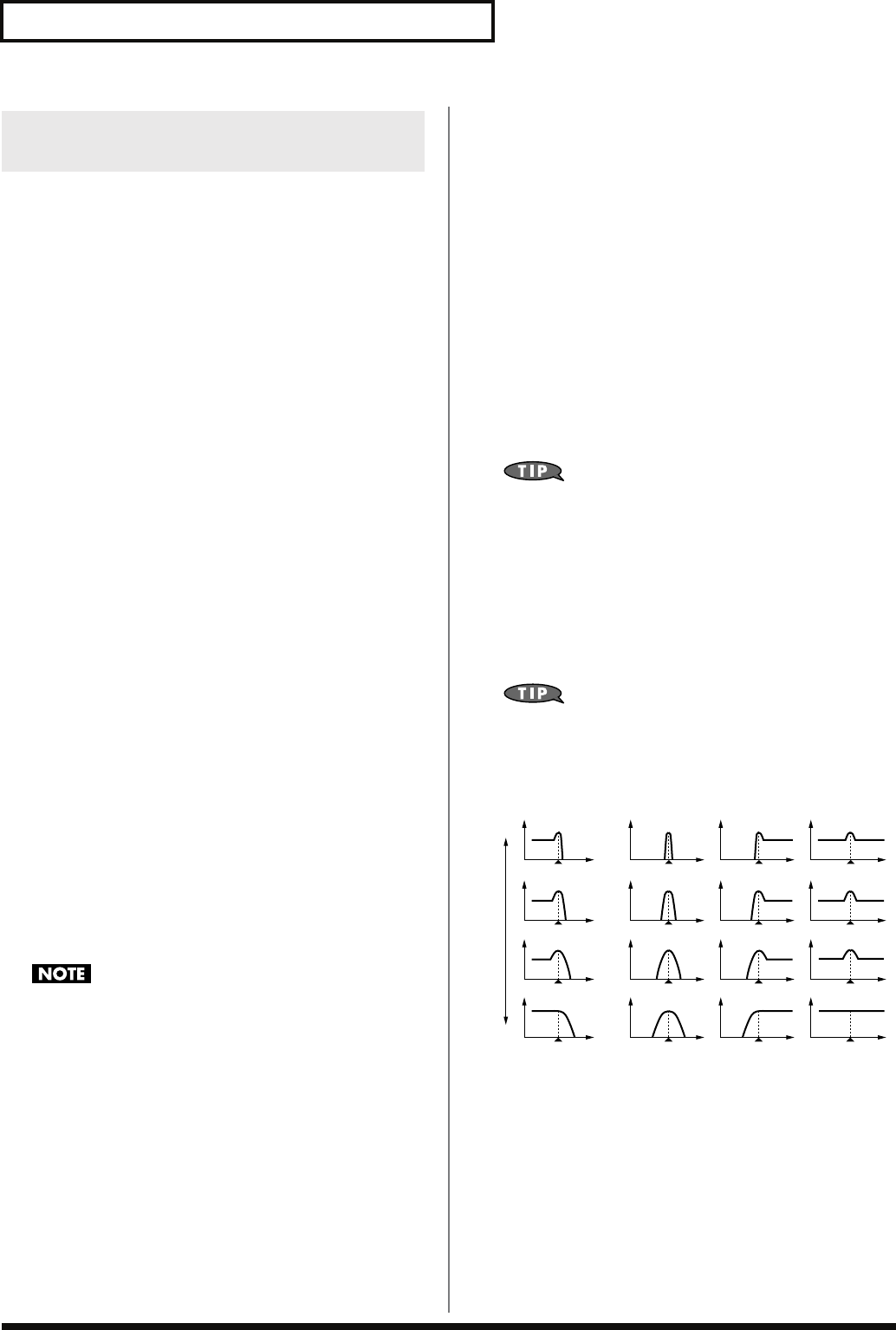
98
Creating a Patch
TVF
Filter Type
Selects the type of filter. A filter cuts or boosts a specific frequency
region to change a sound’s brightness, thickness, or other qualities.
Value
OFF:
No filter is used.
LPF:
Low Pass Filter. This reduces the volume of all
frequencies above the cutoff frequency (Cutoff Freq)
in order to round off, or un-brighten the sound.
This is the most common filter used in synthesizers.
BPF:
Band Pass Filter. This leaves only the frequencies in
the region of the cutoff frequency (Cutoff Freq), and
cuts the rest. This can be useful when creating
distinctive sounds.
HPF:
High Pass Filter. This cuts the frequencies in the
region below the cutoff frequency (Cutoff Freq). This
is suitable for creating percussive sounds
emphasizing their higher tones.
PKG:
Peaking Filter. This emphasizes the frequencies in
the region of the cutoff frequency (Cutoff Freq). You
can use this to create wah-wah effects by employing
an LFO to change the cutoff frequency cyclically.
LPF2:
Low Pass Filter 2. Although frequency components
above the Cutoff frequency (Cutoff Freq) are cut, the
sensitivity of this filter is half that of the LPF. This
makes it a comparatively warmer low pass filter.
This filter is good for use with simulated instrument
sounds such as the acoustic piano.
LPF3:
Low Pass Filter 3. Although frequency components
above the Cutoff frequency (Cutoff Freq) are cut, the
sensitivity of this filter changes according to the
Cutoff frequency. While this filter is also good for
use with simulated acoustic instrument sounds, the
nuance it exhibits differs from that of the LPF2, even
with the same TVF Envelope settings.
If you set “LPF2” or “LPF3,” the setting for the Resonance
parameter will be ignored (p. 98).
Cutoff Frequency
★
Selects the frequency at which the filter begins to have an effect on
the waveform’s frequency components.
Value:
0–127
With “LPF/LPF2/LPF3” selected for the Filter Type parameter,
lower cutoff frequency settings reduce a tone’s upper harmonics for
a more rounded, warmer sound. Higher settings make it sound
brighter.
If “BPF” is selected, harmonic components will change depending
on the TVF Cutoff Frequency setting. This can be useful when
creating distinctive sounds.
With “HPF” selected, higher Cutoff Frequency settings will reduce
lower harmonics to emphasize just the brighter components of the
sound.
With “PKG” selected, the harmonics to be emphasized will vary
depending on Cutoff Frequency setting.
To edit the overall patch while preserving the relative
differences in the Cutoff Frequency values set for each tone, set
the Cutoff Offset parameter (p. 90).
Resonance
★
Emphasizes the portion of the sound in the region of the cutoff
frequency, adding character to the sound. Excessively high settings
can produce oscillation, causing the sound to distort.
Value:
0–127
To edit the overall patch while preserving the relative
differences in the Resonance values set for each tone, set the
Resonance Offset parameter (p. 91).
fig.06-034.e
Modifying the Brightness of a
Sound with a Filter (TVF/TVF Env)
LPF BPF HPF PKG
parameter value
Level
Cutoff frequency
Frequency
High
Low
Fantom-G_r_e.book 98 ページ 2008年1月31日 木曜日 午後12時15分
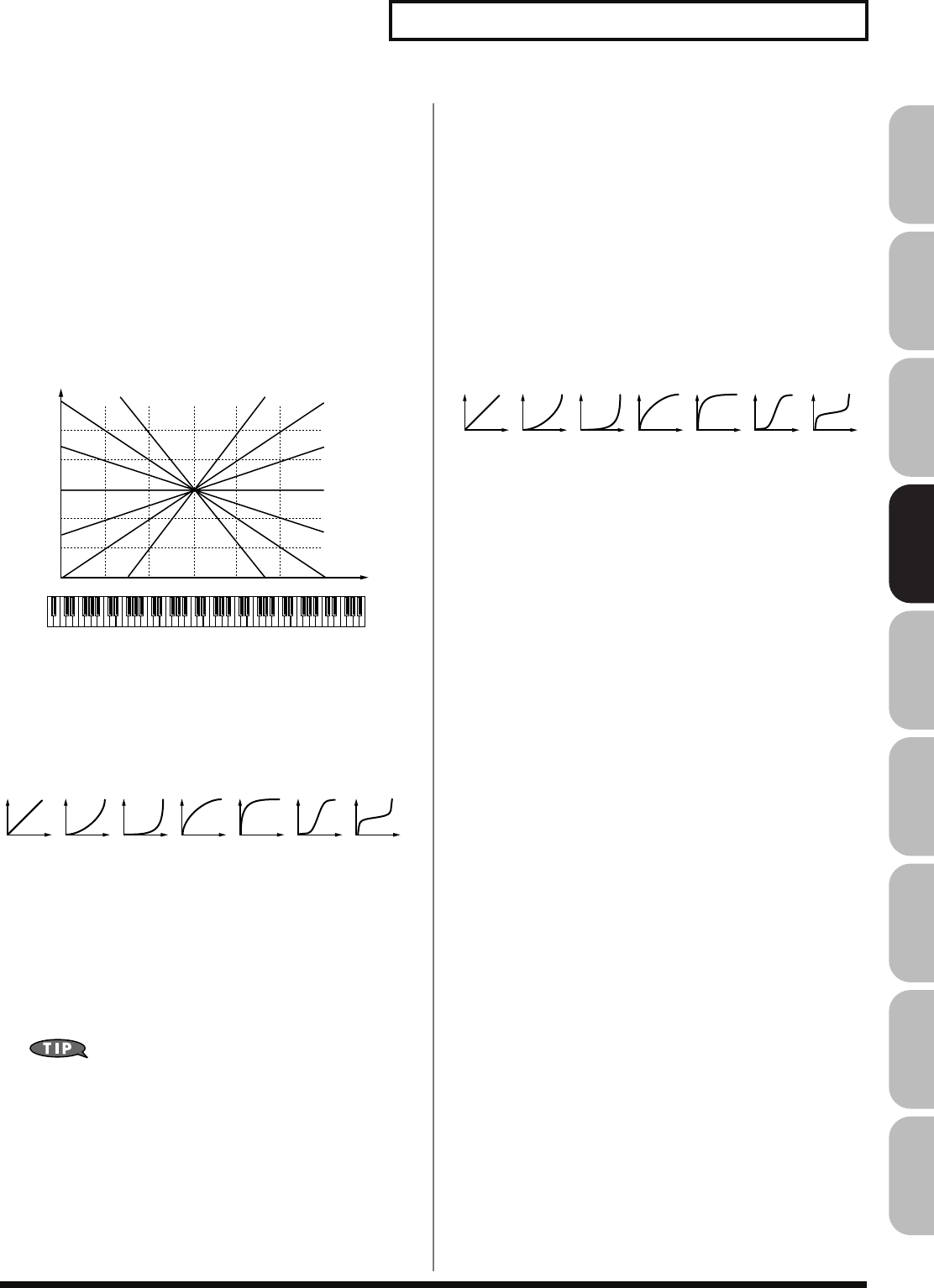
99
Creating a Patch
Overview Sound 1 Sound 2 Sound 3 Pad Sampler
Menu/System
AppendixSequencer
TVF Cutoff Key follow
Use this parameter if you want the cutoff frequency to change
according to the key that is pressed. Relative to the cutoff frequency
at the C4 key (center C), positive (+) settings will cause the cutoff
frequency to rise for notes higher than C4, and negative (-) settings
will cause the cutoff frequency to fall for notes higher than C4.
Larger settings will produce greater change.
Value:
-200, -190, -180, -170, -160, -150, -140, -130, -120, -110,
-100, -90, -80, -70, -60, -50, -40, -30, -20, -10, 0, +10,
+20, +30, +40, +50, +60, +70, +80, +90, +100, +110,
+120, +130, +140, +150, +160, +170, +180, +190, +200
fig.06-035.e
Cutoff Velocity Curve
Selects one of the following seven curves that determine how
keyboard playing dynamics (velocity) influence the cutoff frequency.
Set this to “FIXED” if you don’t want the Cutoff frequency to be
affected by the keyboard velocity.
Value:
FIXED, 1–7
fig.06-036
Cutoff Velocity Sens
Use this parameter when changing the cutoff frequency to be
applied as a result of changes in playing velocity. If you want
strongly played notes to raise the cutoff frequency, set this
parameter to positive (+) settings. If you want strongly played notes
to lower the cutoff frequency, use negative (-) settings.
Value:
-63– +63
To edit the overall patch while preserving the relative
differences in the Cutoff Frequency Velocity Sensitivity values
set for each tone, set the Velocity Sens Offset parameter (p. 91).
However, this setting is shared by the Level Velocity Sens
parameter (p. 100).
Resonance Velocity Sens
This allows keyboard velocity to modify the amount of Resonance. If
you want strongly played notes to have a greater Resonance effect,
set this parameter to positive (+) settings. If you want strongly
played notes to have less Resonance, use negative (-) settings.
Value:
-63– +63
TVF Env Velocity Curve
Selects one of the following 7 curves that will determine how
keyboard playing dynamics will affect the TVF envelope. Set this to
“FIXED” if you don’t want the TVF Envelope to be affected by the
keyboard velocity.
Value:
FIXED, 1–7
fig.06-036
TVF Env Velocity Sens
Specifies how keyboard playing dynamics will affect the depth of the
TVF envelope. Positive (+) settings will cause the TVF envelope to
have a greater effect for strongly played notes, and negative (-)
settings will cause the effect to be less.
Value:
-63– +63
TVF Env Time 1 Velocity Sens
This allows keyboard dynamics to affect the Time 1 of the TVF
envelope. If you want Time 1 to be speeded up for strongly played
notes, set this parameter to a positive (+) value. If you want it to be
slowed down, set this to a negative (-) value.
Value:
-63– +63
TVF Env Time 4 Velocity Sens
The parameter to use when you want key release speed to control
the Time 4 value of the TVF envelope. If you want Time 4 to be
speeded up for quickly released notes, set this parameter to a
positive (+) value. If you want it to be slowed down, set this to a
negative (-) value.
Value:
-63– +63
C4C3C2C1 C5 C6 C7
0
+50
+100
+200
-50
-100-200
o
-1
-2
+1
+2
Cutoff frequency
(Octave)
Key
1234567
1234567
Fantom-G_r_e.book 99 ページ 2008年1月31日 木曜日 午後12時15分
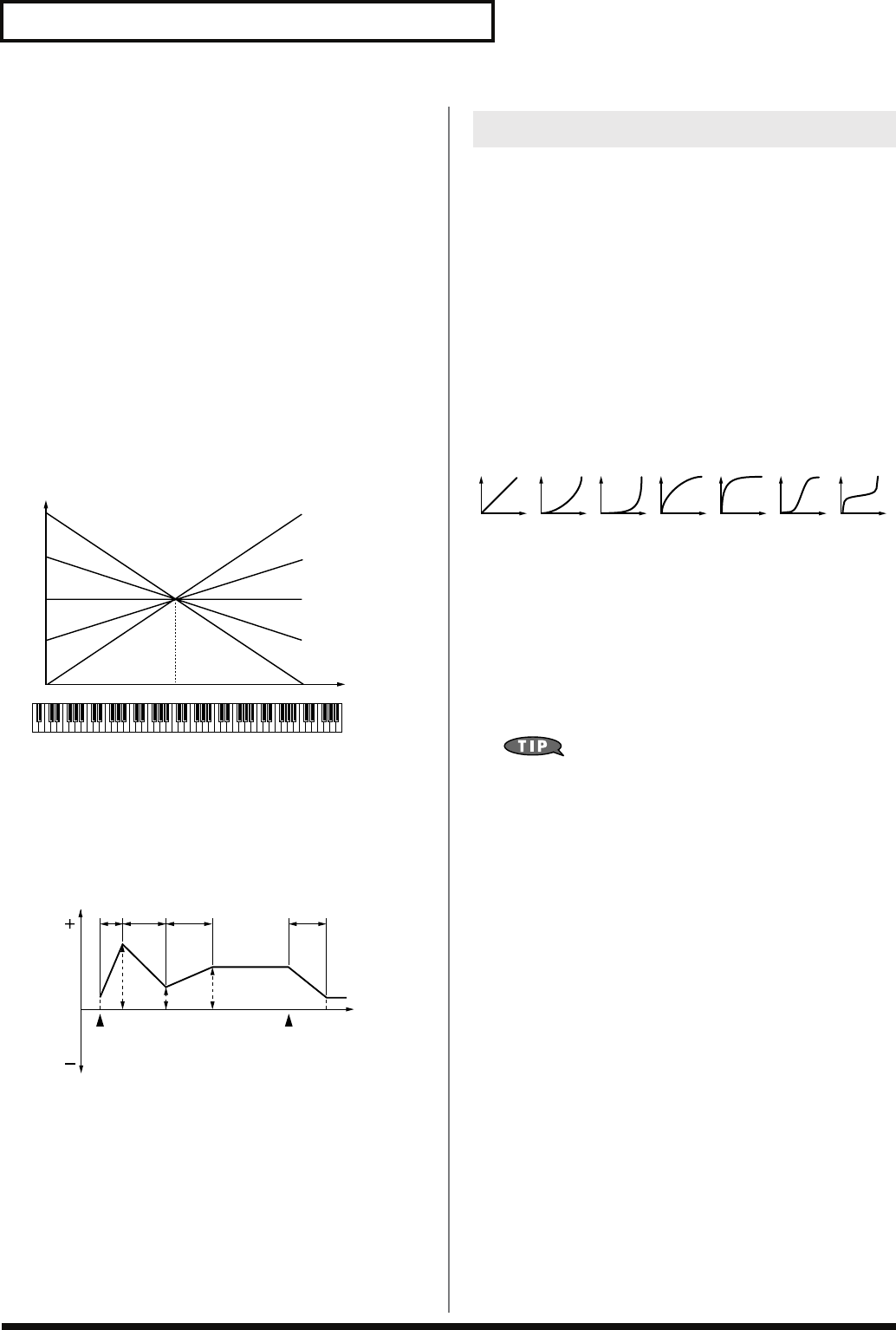
100
Creating a Patch
TVF ENV (TVF Envelope)
TVF Env Depth
Specifies the depth of the TVF envelope. Higher settings will cause
the TVF envelope to produce greater change. Negative (-) settings
will invert the shape of the envelope.
Value:
-63– +63
TVF Env Time Key Follow
Use this setting if you want the TVF envelope times (Time 2–Time 4)
to be affected by the keyboard location. Based on the TVF envelope
times for the C4 key (center C), positive (+) settings will cause notes
higher than C4 to have increasingly shorter times, and negative (-)
settings will cause them to have increasingly longer times. Larger
settings will produce greater change.
Value:
-100, -90, -80, -70, -60, -50, -40, -30, -20, -10, 0, +10,
+20, +30, +40, +50, +60, +70, +80, +90, +100
fig.06-031.e
TVF Env Time 1–4
★
Specify the TVF envelope times (Time 1–Time 4). Higher settings
will lengthen the time until the next cutoff frequency level is
reached. (For example, Time 2 is the time over which Level 1 will
change to Level 2.)
Value:
0–127
fig.06-037.e
TVF Env Level 0–4
Specify the TVF envelope levels (Level 0–Level 4). These settings
specify how the cutoff frequency will change at each point, relative
to the standard cutoff frequency (the cutoff frequency value
specified in the TVF screen).
Value:
0–127
TVA
Tone Level
★
Sets the volume of the tone. This setting is useful primarily for
adjusting the volume balance between tones.
Value:
0–127
Level Velocity Curve (TVA Level Velocity Curve)
You can select from seven curves that determine how keyboard
playing strength will affect the volume. If you do not want the
volume of the tone to be affected by the force with which you play
the key, set this to “FIXED.”
Value:
FIXED, 1–7
fig.06-036
Level Velocity Sens
(TVA Level Velocity Sensitivity)
Set this when you want the volume of the tone to change depending
on the force with which you press the keys. Set this to a positive (+)
value to have the changes in tone volume increase the more
forcefully the keys are played; to make the tone play more softly as
you play harder, set this to a negative (-) value.
Value:
-63– +63
If you wish to make adjustments to the entire patch while
maintaining the relative values of TVA Level Velocity
Sensitivity among tones, adjust the Velocity Sens Offset
parameter (p. 91). However, this setting is shared by the Cutoff
Velocity Sens parameter (p. 99).
C4C3C2C1 C5 C6 C7
0
+50
+100
-50
-100
Key
Time
T1 T2 T3 T4
L3
L1
L0
L2 L4
Note off
Cutoff
Frequency Time
Note on
T: Time L: Level
Adjusting the Volume (TVA/TVA Env)
1234567
Fantom-G_r_e.book 100 ページ 2008年1月31日 木曜日 午後12時15分
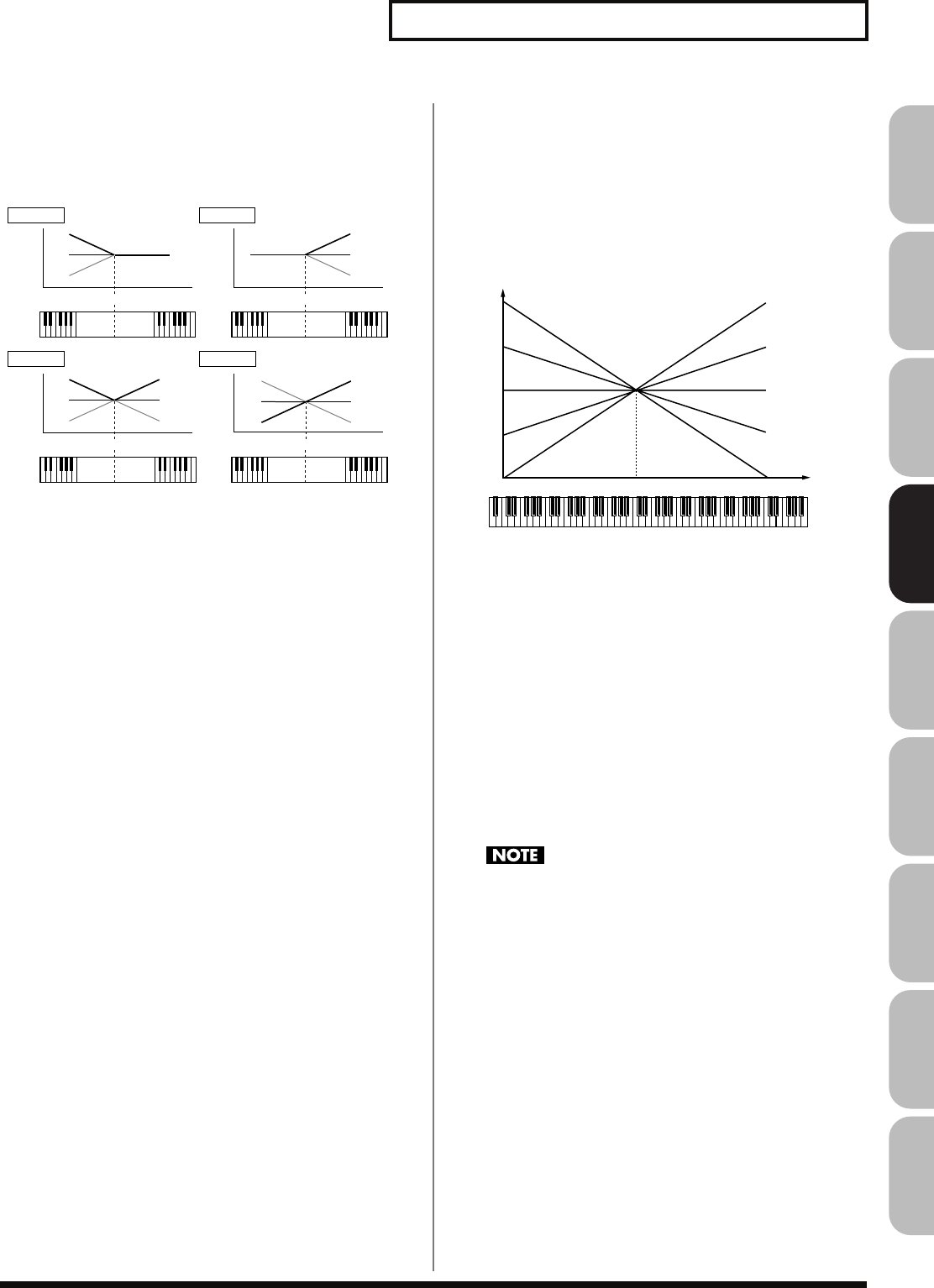
101
Creating a Patch
Overview Sound 1 Sound 2 Sound 3 Pad Sampler
Menu/System
AppendixSequencer
Bias
Bias causes the volume to be affected by the keyboard position. This
is useful for changing volume through keyboard position (pitch)
when playing acoustic instruments.
fig.06-039.e
Bias Level
Adjusts the angle of the volume change that will occur in the
selected Bias Direction. Larger settings will produce greater change.
Negative (-) values will invert the change direction.
Value:
-100, -90, -80, -70, -60, -50, -40, -30, -20, -10, 0, +10,
+20, +30, +40, +50, +60, +70, +80, +90, +100
Bias Position
Specifies the key relative to which the volume will be modified.
Value:
C-1–G9
Bias Direction
Selects the direction in which change will occur starting from the
Bias Position.
Value
LOWER:
The volume will be modified for the keyboard area
below the Bias Point.
UPPER:
The volume will be modified for the keyboard area
above the Bias Point.
LO&UP:
The volume will be modified symmetrically toward
the left and right of the Bias Point.
ALL:
The volume changes linearly with the bias point at
the center.
Tone Pan
★
Sets the pan of the tone. “L64” is far left, “0” is center, and “63R” is
far right.
Value:
L64–0–63R
Tone Pan Key Follow
Use this parameter if you want key position to affect panning.
Positive (+) settings will cause notes higher than C4 key (center C) to
be panned increasingly further toward the right, and negative (-)
settings will cause notes higher than C4 key (center C) to be panned
toward the left. Larger settings will produce greater change.
Value:
-100– +100
fig.06-040.e
Random Pan Depth
Use this parameter when you want the stereo location to change
randomly each time you press a key. Higher settings will produce a
greater amount of change.
Value:
0–63
Alternate Pan Depth
This setting causes panning to be alternated between left and right
each time a key is pressed. Higher settings will produce a greater
amount of change. “L” or “R” settings will reverse the order in
which the pan will alternate between left and right. For example if
two tones are set to “L” and “R” respectively, the panning of the two
tones will alternate each time they are played.
Value:
L63–0–63R
When any value from Type “2”–”10” is selected for the
Structure parameter in the Pan Key Follow, Rnd Pan Depth,
Alter Pan Depth parameter settings, the output of tones 1 and 2
are joined in tone 2, and the output of tones 3 and 4 are joined in
tone 4. For this reason, tone 1 will follow the settings of tone 2,
and tone 3 will follow the settings of tone 4 (p. 92).
TVA Env (TVA Envelope)
TVA Env Time 1 Velocity Sens
This allows keyboard dynamics to affect the Time 1 of the TVA
envelope. If you want Time 1 to be speeded up for strongly played
notes, set this parameter to a positive (+) value. If you want it to be
slowed down, set this to a negative (-) value.
Value:
-63– +63
C-1 G9
+
0
–
C-1 G9
+
0
–
C-1 G9
+
0
–
C-1 G9
+
0
–
+
0
–
+
0
–
LOWER
LO&UP
UPPER
ALL
Bias Position
Level
Level
Level
Level
Key
Key
Key
Key
Bias Position
Bias Position
Bias Position
C4C3C2C1 C5 C6 C7
0
+50
+100
-50
-100
o
L
R
Pan
Key
Fantom-G_r_e.book 101 ページ 2008年1月31日 木曜日 午後12時15分
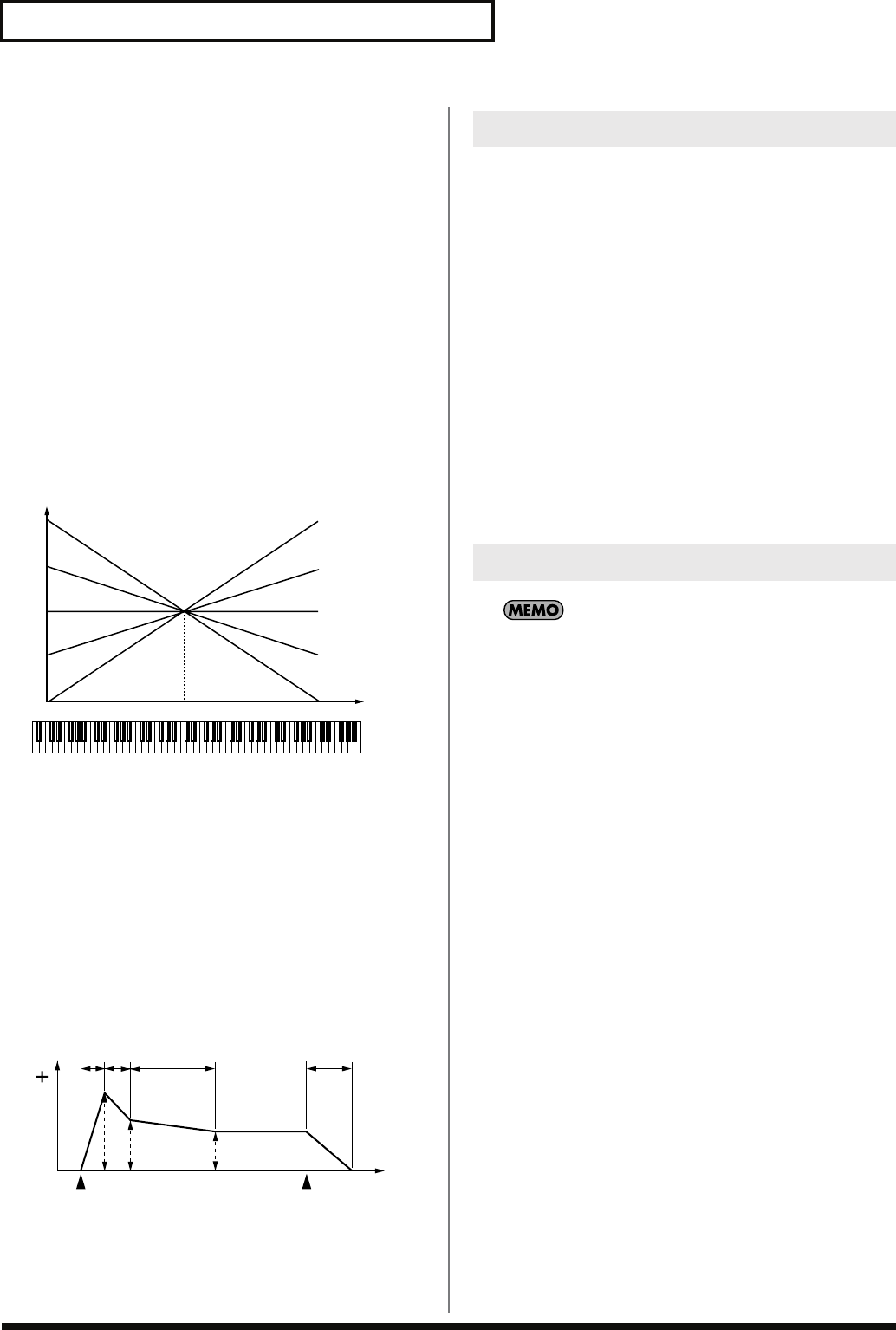
102
Creating a Patch
TVA Env Time 4 Velocity Sens
The parameter to use when you want key release speed to control
the Time 4 value of the TVA envelope. If you want Time 4 to be
speeded up for quickly released notes, set this parameter to a
positive (+) value. If you want it to be slowed down, set this to a
negative (-) value.
Value:
-63– +63
TVA Env Time Key Follow
Use this setting if you want the TVA envelope times (Time 2–Time 4)
to be affected by the keyboard location. Based on the TVA envelope
times for the C4 key (center C), positive (+) settings will cause notes
higher than C4 to have increasingly shorter times, and negative (-)
settings will cause them to have increasingly longer times. Larger
settings will produce greater change.
Value:
-100, -90, -80, -70, -60, -50, -40, -30, -20, -10, 0, +10,
+20, +30, +40, +50, +60, +70, +80, +90, +100
fig.06-031.e
TVA Env Time 1–4
★
Specify the TVA envelope times (Time 1– Time 4). Higher settings
will lengthen the time until the next volume level is reached. (For
example, Time 2 is the time over which Level 1 will change to Level
2.)
Value:
0–127
TVA Env Level 1–3
Specify the TVA envelope levels (Level 1–Level 3). These settings
specify how the volume will change at each point, relative to the
standard volume (the Tone Level value specified in the TVA screen).
Value:
0–127
fig.06-041.e
Tone Output Assign
Specifies how the direct sound of each tone will be output.
Value:
PFX:
Output through patch multi-effects.
DRY:
Output without passing through patch multi-effects.
Tone Output Level
Specifies the signal level of each tone.
Value:
0–127
Tone Chorus Send Level
Specifies the level of the signal sent to the chorus for each tone.
Value:
0–127
Tone Reverb Send Level
Specifies the level of the signal sent to the reverb for each tone.
Value:
0–127
An LFO (Low Frequency Oscillator) causes change over a cycle
in a sound. Each tone has two LFOs (LFO1/LFO2), and these
can be used to cyclically change the pitch, cutoff frequency and
volume to create modulation-type effects such as vibrato, wah
and tremolo. Both LFOs have the same parameters so only one
explanation is needed.
C4C3C2C1 C5 C6 C7
0
+50
+100
-50
-100
Key
Time
T1 T2 T3 T4
L3
L1 L2
Note off
Level
Time
Note on
T: Time L: Level
Output
Modulating Sounds (LFO1/2/Step LFO)
Fantom-G_r_e.book 102 ページ 2008年1月31日 木曜日 午後12時15分
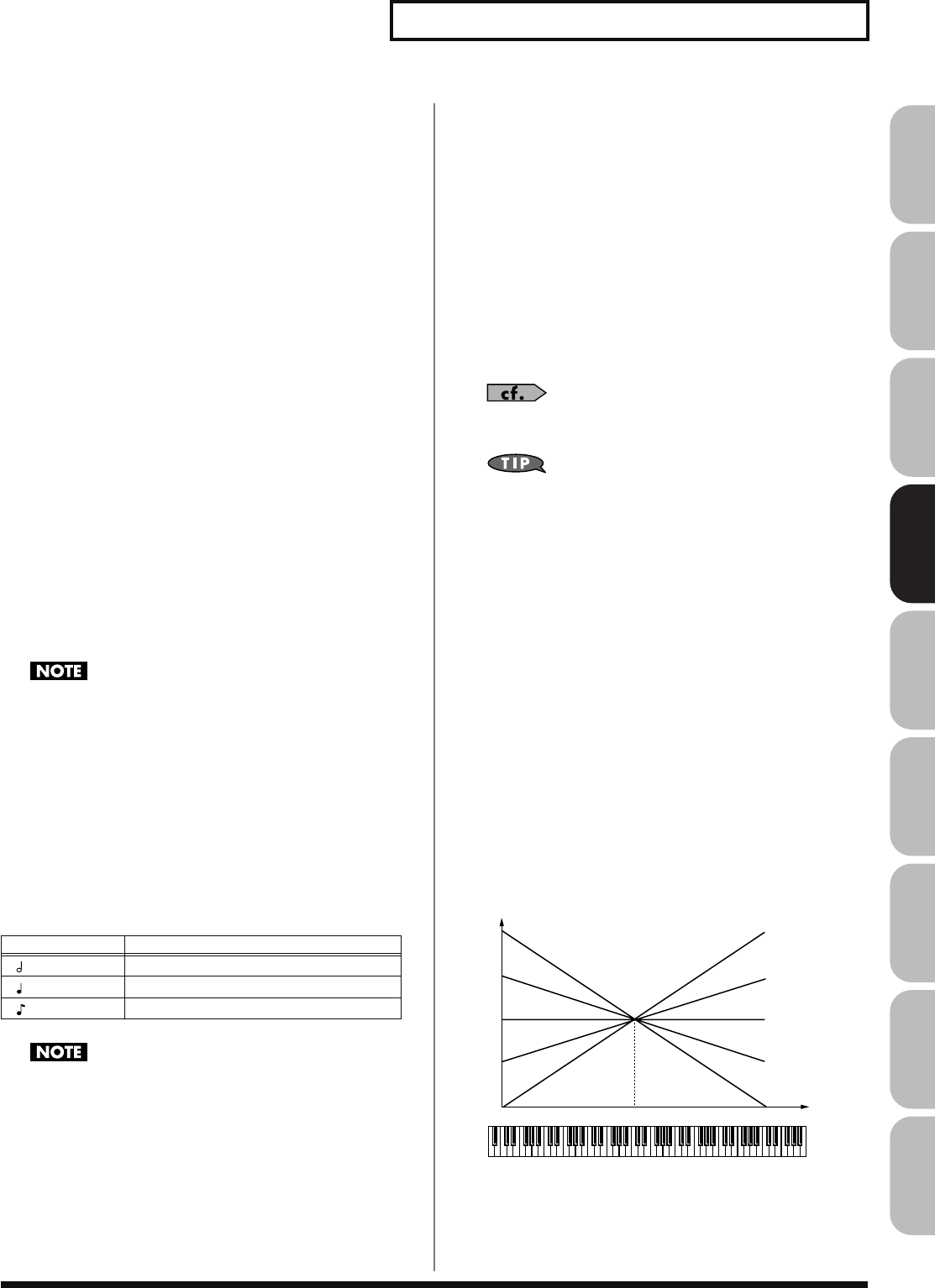
103
Creating a Patch
Overview Sound 1 Sound 2 Sound 3 Pad Sampler
Menu/System
AppendixSequencer
LFO1/2
Waveform (LFO1/LFO2 Waveform)
Selects the waveform of the LFO.
Value
SIN:
Sine wave
TRI:
Triangle wave
SAW-U:
Sawtooth wave
SAW-D:
Sawtooth wave (negative polarity)
SQR:
Square wave
RND:
Random wave
BND-U:
Once the attack of the waveform output by the LFO
is allowed to develop in standard fashion, the
waveform then continues without further change.
BND-D:
Once the decay of the waveform output by the LFO
is allowed to develop in standard fashion, the
waveform then continues without further change.
TRP:
Trapezoidal wave
S&H:
Sample & Hold wave (one time per cycle, LFO value
is changed)
CHAOS:
Chaos wave
VSIN:
Modified sine wave. The amplitude of a sine wave is
randomly varied once each cycle.
STEP:
A waveform generated by the data specified by LFO
Step 1–64. This produces stepped change with a
fixed pattern similar to a step modulator.
If you set this to “BND-U” or “BND-D,” you must turn the Key
Trigger parameter to “ON.” If this is “OFF,” it will have no
effect.
Rate (LFO1/LFO2 Rate)
★
Adjusts the modulation rate, or speed, of the LFO.
Value:
0–127, Note
LFO Rate sets the beat length for the synchronized tempo is
synchronized with the tempo set in a sequencer.
(Example)
For a tempo of 120 (120 quarter notes occur in 1 minute (60 seconds))
This setting will be ignored if the Waveform parameter is set to
“CHAOS.”
Rate Detune (LFO1/LFO2 Rate Detune)
LFO Rate Detune makes subtle changes in the LFO cycle rate (Rate
parameter) each time a key is pressed. Higher settings will cause
greater change. This parameter is invalid when Rate is set to “note.”
Value:
0–127
Offset (LFO1/LFO2 Offset)
Raises or lowers the LFO waveform relative to the central value
(pitch or cutoff frequency). Positive (+) settings will move the
waveform so that modulation will occur from the central value
upward. Negative (-) settings will move the waveform so that
modulation will occur from the central value downward.
Value:
-100, -50, 0, +50, +100
Delay Time (LFO1/LFO2 Delay Time)
Delay Time (LFO Delay Time) specifies the time elapsed before the
LFO effect is applied (the effect continues) after the key is pressed (or
released).
Value:
0–127
After referring to
“How to Apply the LFO”
(p. 104), change the
setting until the desired effect is achieved.
When using violin, wind, or certain other instrument sounds in
a performance, rather than having vibrato added immediately
after the sounds are played, it can be effective to add the vibrato
after the note is drawn out somewhat. If you set the Delay Time
in conjunction with the Pitch Depth parameter and Rate
parameter, the vibrato will be applied automatically following a
certain interval after the key is pressed. This effect is called
Delay Vibrato
.
LFO1/LFO2 Delay Time Key Follow
Adjusts the value for the Delay Time parameter depending on the
key position, relative to the C4 key (center C). To decrease the time
that elapses before the LFO effect is applied (the effect is continuous)
with each higher key that is pressed in the upper registers, select a
positive value; to increase the elapsed time, select a negative value.
Larger settings will produce greater change. If you do not want the
elapsed time before the LFO effect is applied (the effect is
continuous) to change according to the key pressed, set this to “0.”
Value:
-100, -90, -80, -70, -60, -50, -40, -30, -20, -10, 0, +10,
+20, +30, +40, +50, +60, +70, +80, +90, +100
fig.06-031.e
Setting LFO Rate
(half note) 1 second (60 / 60 =1 (second))
(quarter note) 0.5 seconds (60 / 120= 0.5 (seconds))
(eighth note) 0.25 seconds (60 / 240= 0.25 (seconds))
C4C3C2C1 C5 C6 C7
0
+50
+100
-50
-100
Key
Time
Fantom-G_r_e.book 103 ページ 2008年1月31日 木曜日 午後12時15分
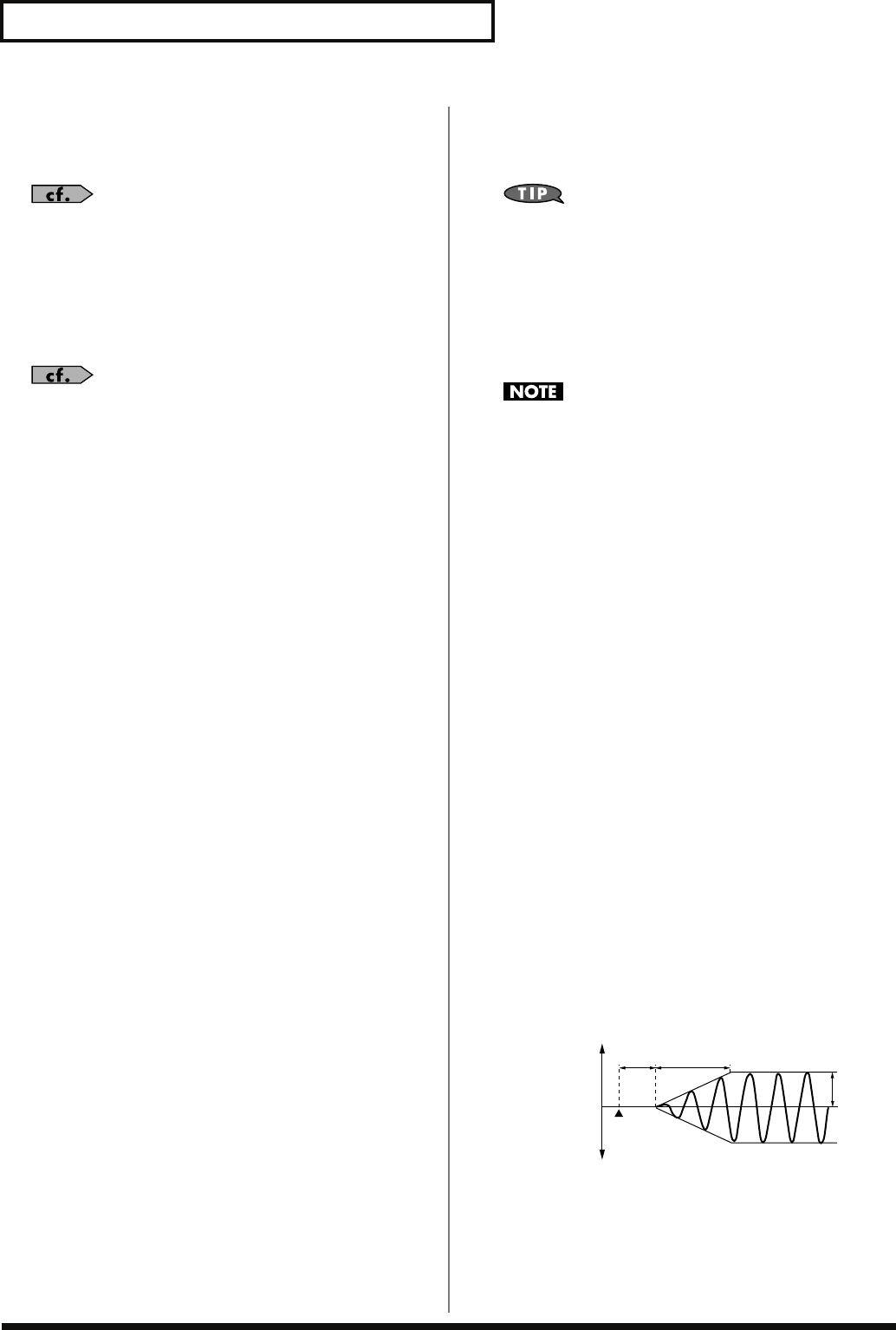
104
Creating a Patch
Fade Mode (LFO1/LFO2 Fade Mode)
Specifies how the LFO will be applied.
Value:
ON <, ON >, OFF <, OFF >
After referring to
“How to Apply the LFO”
(p. 104), change the
setting until the desired effect is achieved.
Fade Time (LFO1/LFO2 Fade Time)
Specifies the time over which the LFO amplitude will reach the
maximum (minimum).
Value:
0–127
After referring to
“How to Apply the LFO”
(p. 104), change the
setting until the desired effect is achieved.
Key Trigger (LFO1/LFO2 Key Trigger)
This specifies whether the LFO cycle will be synchronized to begin
when the key is pressed (ON) or not (OFF).
Value:
OFF, ON
Pitch Depth (LFO1/LFO2 Pitch Depth)
★
Specifies how deeply the LFO will affect pitch.
Value:
-63– +63
TVF Depth (LFO1/LFO2 TVF Depth)
★
Specifies how deeply the LFO will affect the cutoff frequency.
Value:
-63– +63
TVA Depth (LFO1/LFO2 TVA Depth)
★
Specifies how deeply the LFO will affect the volume.
Value:
-63– +63
Pan Depth (LFO1/LFO2 Pan Depth)
★
Specifies how deeply the LFO will affect the pan.
Value:
-63– +63
Positive (+) and negative (-) settings for the Depth parameter
result in differing kinds of change in pitch and volume. For
example, if you set the Depth parameter to a positive (+) value
for one tone, and set another tone to the same numerical value,
but make it negative (-), the modulation phase for the two tones
will be the reverse of each other. This allows you to shift back
and forth between two different tones, or combine it with the
Pan setting to cyclically change the location of the sound image.
When the Structure parameter is set to any value from “2”
through “10,” the output of tones 1 and 2 will be combined into
tone 2, and the output of tones 3 and 4 will be combined into
tone 4. This applies to the Pan Depth parameter settings. For
this reason, tone 1 will follow the settings of tone 2, and tone 3
will follow the settings of tone 4 (p. 92).
Step LFO
LFO Step Type
When generating an LFO waveform from the data specified in LFO
Step1–64, specify whether the level will change abruptly at each step
or will be connected linearly.
Value:
TYPE1 (stair-step change), TYPE2 (linear change)
Step 1–64 (LFO Step 1–64)
Specifies the data for the Step LFO. If the LFO Pitch Depth is +63,
each +1 unit of the step data corresponds to a pitch of +50 cents.
Value:
-36– +36
LFO End Step
Specifies the number of LFO steps.
Value:
1, 2, 4, 8, 16, 32, 64
How to Apply the LFO
●
Apply the LFO gradually after the key is
pressed
fig.06-043.e
Fade Mode:
ON <
Delay Time:
The time from when the keyboard is played
until the LFO begins to be applied.
Fade Time:
The time over which the LFO amplitude will
reach the maximum after the Delay Time has
elapsed.
Note on
high (more)
low (less)
Pitch
Cutoff Frequency
Level
Pan
Delay
Time Fade Time
Depth
Fantom-G_r_e.book 104 ページ 2008年1月31日 木曜日 午後12時15分
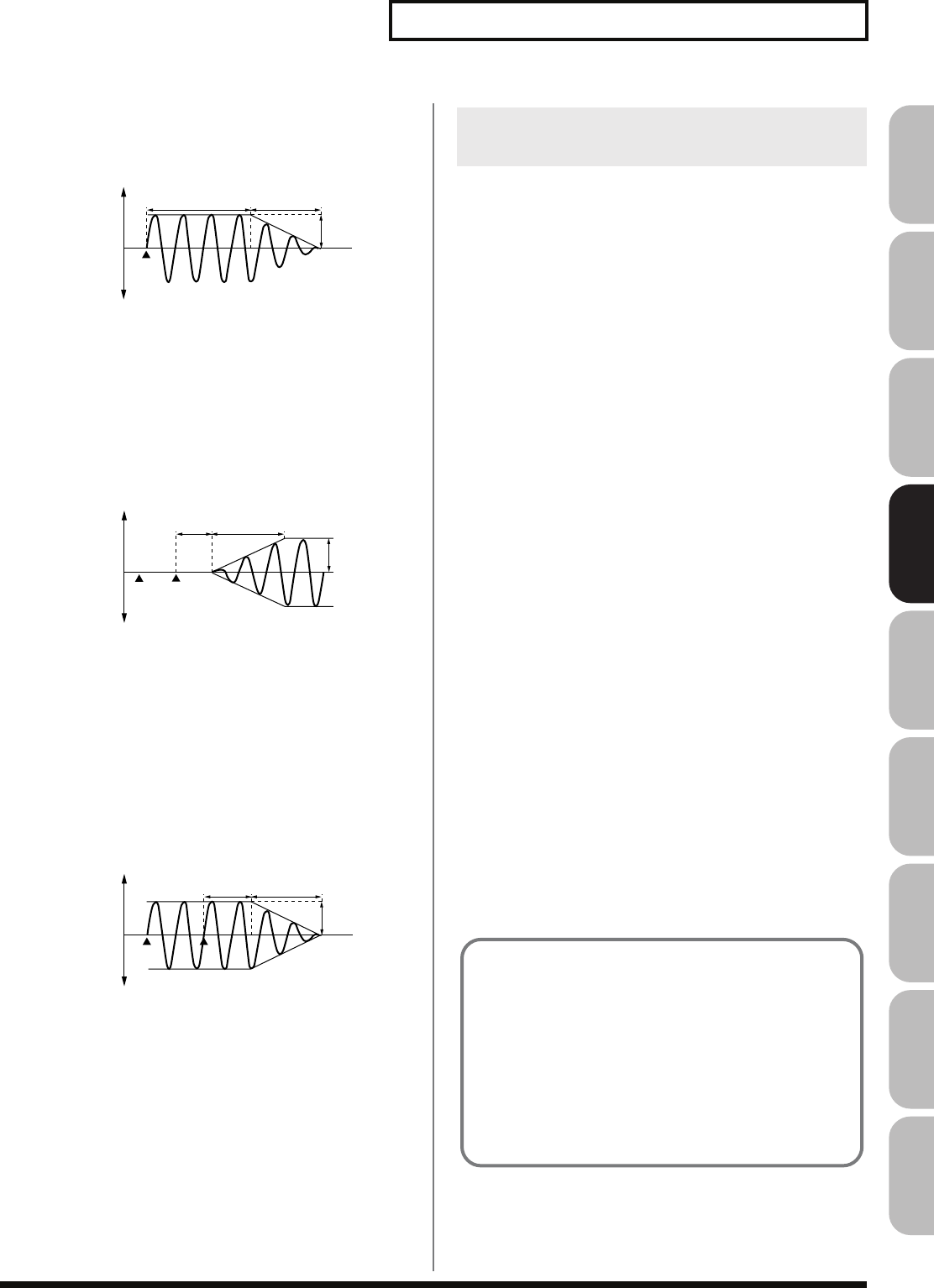
105
Creating a Patch
Overview Sound 1 Sound 2 Sound 3 Pad Sampler
Menu/System
AppendixSequencer
●
Apply the LFO immediately when the key
is pressed, and then gradually begin to
decrease the effect
fig.06-044.e
Fade Mode:
ON >
Delay Time:
The time that the LFO will continue after the
keyboard is played.
Fade Time:
The time over which the LFO amplitude will
reach the minimum after the Delay Time has
elapsed.
●
Apply the LFO gradually after the key is
released
fig.06-045.e
Fade Mode:
OFF <
Delay Time:
The time from when the keyboard is released
until the LFO begins to be applied.
Fade Time:
The time over which the LFO amplitude will
reach the maximum after the Delay Time has
elapsed.
●
Apply the LFO from when the key is
pressed until it is released, and gradually
begin to decrease the effect when the key
is released
fig.06-046.e
Fade Mode:
OFF >
Delay Time:
The time that the LFO will continue after the
keyboard is released.
Fade Time:
The time over which the LFO amplitude will
reach the minimum after the Delay Time has
elapsed.
Mono/Poly
Specifies whether the patch will play polyphonically (POLY) or
monophonically (MONO). The “MONO” setting is effective when
playing a solo instrument patch such as sax or flute.
Value
MONO:
Only the last-played note will sound.
POLY:
Two or more notes can be played simultaneously.
Legato Switch
Legato Switch is valid when the Mono/Poly parameter is set to
“MONO.” This setting specifies whether the Legato Switch will be
used (LEGATO) or not (OFF).
With the Legato Switch parameter “LEGATO,” pressing a key while
continuing to press a previous key causes the note to change pitch to the
pitch of the most recently pressed key, sounding all the while. This creates
a smooth transition between notes, which is effective when you wish to
simulate the hammering-on and pulling-off techniques used by a
guitarist.
If you choose “SUSTAIN,” the legato effect is applied while you hold
down the hold pedal.
Value:
OFF, LEGATO, SUSTAIN, LEGATO+SUSTAIN
Legato Retrigger (Legato Retrigger Switch)
Legato Retrigger is available if the Mono/Poly parameter is set to
“MONO” and the Legato Switch parameter has a setting other than
“OFF.” The setting determines whether sounds are replayed (ON) or
not (OFF) when performing legato. Normally you will leave this
parameter “ON.” If this is turned “OFF,” pressing a second key
while still holding down the first key will cause only the pitch to
change; there will be no attack sound for the second key you
pressed. Set this to “OFF” when performing wind and string phrases
or when using modulation with the mono synth keyboard sound.
If this is set to “AUTO,” retriggering will occur only if you play a key
that is one octave or farther away.
Value:
OFF, ON, AUTO
Note on
high (more)
low (less)
Delay Time Fade Time
Depth
Pitch
Cutoff Frequency
Level
Pan
high (more)
low (less)
Delay
Time Fade Time
Depth
Note
off
Note
on
Pitch
Cutoff Frequency
Level
Pan
Note on
high (more)
low (less)
Delay
Time Fade Time
Depth
Note off
Pitch
Cutoff Frequency
Level
Pan
Apply Portamento or Legato to the
Sound (Solo/Porta)
Let’s say you have the Legato Switch set to “LEGATO,” and the
Legato Retrigger set to “OFF.” When you try to sound a legato
(by pressing a higher key while a lower key is held down), the
pitch may sometimes not be able to rise all the way to the
intended pitch (stopping instead at an intermediate pitch). This
can occur because the limit of pitch rise, as determined at the
wave level, has been exceeded. Additionally, if differing upper
pitch limits are used for the waves of a Patch that uses multiple
tones, it may stop being heard in MONO. When making large
pitch changes, set the Legato Retrigger to “ON.”
Fantom-G_r_e.book 105 ページ 2008年1月31日 木曜日 午後12時15分
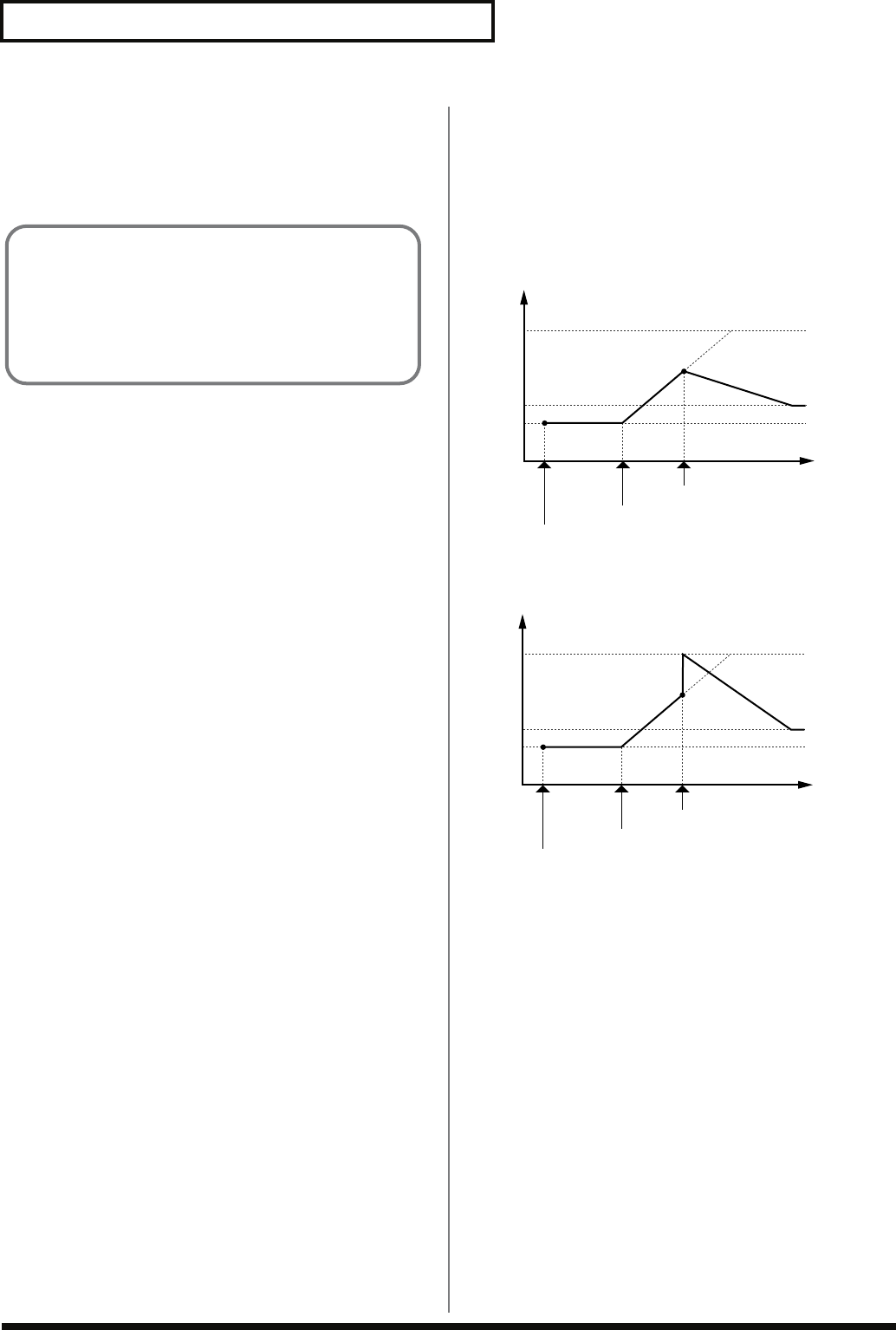
106
Creating a Patch
Portamento Switch
Specifies whether the portamento effect will be applied (ON) or not
(OFF).
Value:
OFF, ON
Portamento Mode
Specifies the performance conditions for which portamento will be
applied.
Value
NORMAL:
Portamento will always be applied.
LEGATO:
Portamento will be applied only when you play
legato (i.e., when you press the next key before
releasing the previous key).
Portamento Type
Specifies the type of portamento effect.
Value
RATE:
The time it takes will depend on the distance
between the two pitches.
TIME:
The time it takes will be constant, regardless of how
far apart in pitch the notes are.
Portamento Start
When another key is pressed during a pitch change produced by
portamento, a new pitch change will begin. This setting specifies the
pitch at which the change will begin.
Value
PITCH:
Starts a new portamento when another key is
pressed while the pitch is changing.
fig.06-048.e
NOTE:
Portamento will begin a new from the pitch where
the current change would end.
fig.06-049.e
Portamento Time
When portamento is used, this specifies the time over which the
pitch will change. Higher settings will cause the pitch change to the
next note to take more time.
Value:
0–127
Portamento
Portamento is an effect which smoothly changes the pitch from
the first-played key to the next-played key. By applying
portamento when the Mono/Poly parameter is “MONO,” you
can simulate slide performance techniques on a violin or similar
instrument.
C5
D4
C4
press D4 key
Pitch
Time
press C4 key
press C5 key
C5
D4
C4
press D4 key
Pitch
Time
press C4 key
press C5 key
Fantom-G_r_e.book 106 ページ 2008年1月31日 木曜日 午後12時15分
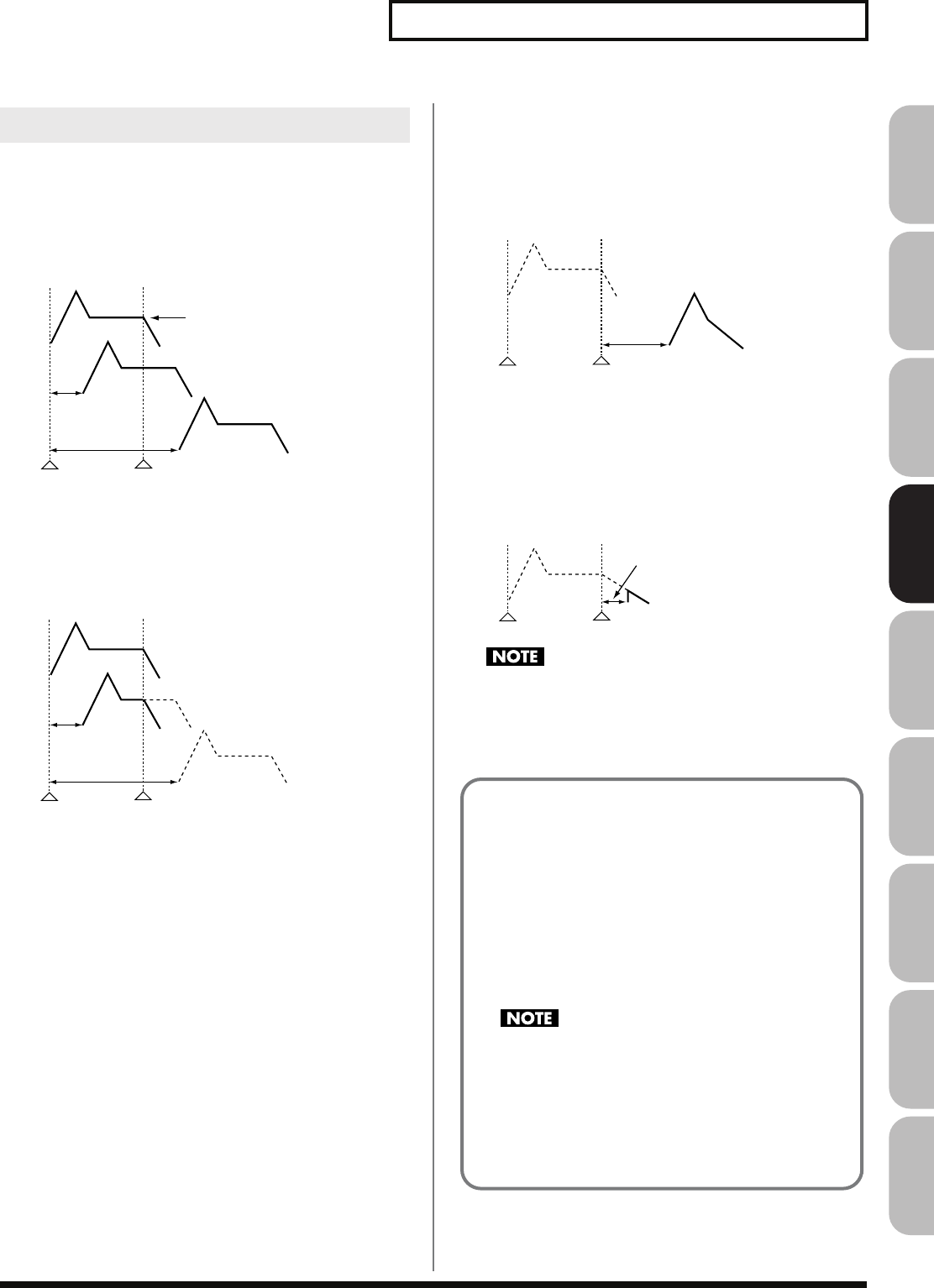
107
Creating a Patch
Overview Sound 1 Sound 2 Sound 3 Pad Sampler
Menu/System
AppendixSequencer
Tone Delay Mode
Selects the type of tone delay.
Value
NORM:
The tone begins to play after the time specified in the
Delay Time parameter has elapsed.
fig.06-051.e
HOLD:
Although the tone begins to play after the time
specified in the Delay Time parameter has elapsed, if
the key is released before the time specified in the
Delay Time parameter has elapsed, the tone is not
played.
fig.06-052.e
OFF-N:
Rather than being played while the key is pressed,
the tone begins to play once the period of time
specified in the Delay Time parameter has elapsed
after release of the key. This is effective in situations
such as when simulating noises from guitars and
other instruments.
fig.06-053.e
OFF-D:
Rather than being played while the key is pressed,
the tone begins to play once the period of time
specified in the Delay Time parameter has elapsed
after release of the key. Here, however, changes in
the TVA Envelope begin while the key is pressed,
which in many cases means that only the sound
from the release portion of the envelope is heard.
fig.06-054.e
If you have selected a waveform that is a decay-type sound (i.e.,
a sound that fades away naturally even if the key is not
released), selecting “OFF-N” or “OFF-D” may result in no
sound being heard.
Miscellaneous Settings (Misc)
Note off
Delay time
Note on
No Tone Delay
Note off
Delay time
Note on
No sound
played
Note off
Delay time
Note on
Note off
Delay time
Note on
Tone Delay
This produces a time delay between the moment a key is
pressed (or released), and the moment the tone actually begins
to sound. You can also make settings that shift the timing at
which each tone is sounded. This differs from the Delay in the
internal effects, in that by changing the sound qualities of the
delayed tones and changing the pitch for each tone, you can
also perform arpeggio-like passages just by pressing one key.
You can also synchronize the tone delay time to the tempo of
the sequencer.
If you are not going to use Tone Delay, set the Delay Mode
parameter to “NORM” and Delay Time parameter to “0.”
• If the Structure parameters set in the range of “2”–”10,” the
output of tones 1 and 2 will be combined into tone 2, and
the output of tones 3 and 4 will be combined into tone 4.
For this reason, tone 1 will follow the settings of tone 2, and
tone 3 will follow the settings of tone 4 (p. 92).
Fantom-G_r_e.book 107 ページ 2008年1月31日 木曜日 午後12時15分
108
Creating a Patch
Tone Delay Time
Specifies the time from when the key is pressed (or if the Delay
Mode parameter is set to “OFF-N” or “OFF-D,” the time from when
the key is released) until when the tone will sound.
Value:
0–127, Note
Tone Delay Time specifies the beat length for the synchronized
tempo when the tempo that specifies the elapsed time until the tone
is sounded (Patch Tempo) is synchronized with the tempo set in a
sequencer.
(Example)
For a tempo of 120 (120 quarter notes occur in 1 minute (60 seconds))
Tone Env Mode
When a loop waveform (p. 88) is selected, the sound will normally
continue as long as the key is pressed. If you want the sound to
decay naturally even if the key remains pressed, set this to “NO
SUS.”
Range:
NO SUS, SUST
If a one-shot type Wave (p. 88) is selected, it will not sustain
even if this parameter is set to “SUST.”
Tone Receive Bender
(Tone Receive Pitch Bend Switch)
For each tone, specify whether MIDI Pitch Bend messages will be
received (ON), or not (OFF).
Value:
OFF, ON
Tone Receive Expression
(Tone Receive Expression Switch)
For each tone, specify whether MIDI Expression messages will be
received (ON), or not (OFF).
Value:
OFF, ON
Tone Receive Hold-1
(Tone Receive Hold Switch)
For each tone, specify whether MIDI Hold-1 messages will be
received (ON), or not (OFF).
Value:
OFF, ON
If “NO SUS” is selected for Env Mode parameter, this setting
will have no effect.
Tone Receive Pan Mode
For each tone, specify how pan messages will be received.
Value
CONT:
Whenever Pan messages are received, the stereo
position of the tone will be changed.
K-ON:
The pan of the tone will be changed only when the
next note is played. If a pan message is received
while a note is sounding, the panning will not
change until the next key is pressed.
If
“PFX (Patch Multi-Effects)”
(p. 157) is on, the Tone Rx Pan
Mode setting is ignored.
The channels cannot be set so as not to receive Pan messages.
Tone Redamper Switch
You can specify, on an individual tone basis, whether or not the
sound will be held when a Hold 1 message is received after a key is
released, but before the sound has decayed to silence. If you want to
sustain the sound, set this “ON.” When using this function, also set
the Tone Receive Hold-1 parameter “ON.” This function is effective
for piano sounds.
Value:
OFF, ON
Setting Delay time
(half note) 1 second (60 / 60 =1 (second))
(quarter note) 0.5 seconds (60 / 120= 0.5 (seconds))
(eighth note) 0.25 seconds (60 / 240= 0.25 (seconds))
Fantom-G_r_e.book 108 ページ 2008年1月31日 木曜日 午後12時15分
109
Creating a Patch
Overview Sound 1 Sound 2 Sound 3 Pad Sampler
Menu/System
AppendixSequencer
Control 1–4 Source
Sets the MIDI message used to change the tone parameter with the
Matrix Control.
Value
OFF:
Matrix control will not be used.
CC01–31, CC32(OFF), 33–95:
Control Change
PITCH BEND:
Pitch Bend
AFTERTOUCH:
Aftertouch
SYS CTRL1–SYS CTRL4:
MIDI messages used as common matrix
controls.
VELOCITY:
Velocity (pressure you press a key with)
KEY FOLLOW:
Key follow (keyboard position with C4
as 0)
TEMPO:
The specified tempo (sequencer tempo)
or the tempo of an external MIDI
sequencer.
LFO1:
LFO 1
LFO2:
LFO 2
PITCH ENV:
Pitch envelope
TVF ENV:
TVF envelope
TVA ENV:
TVA envelope
Velocity and Key follow correspond to Note messages.
Although there are no MIDI messages for LFO 1 through TVA
Envelope, they can be used as Matrix Control. In this case, you
can change the tone settings in realtime by playing patches.
• If you want to use common controllers for the entire Fantom-G,
select “SYS CTRL1”–”SYS CTRL4.” MIDI messages used as
System Control 1–4 are set with the System Ctrl 1–4 Source
parameters (p. 297).
There are parameters that determine whether or not Pitch Bend,
Controller Number 11 (Expression) and Controller Number 64
(Hold 1) are received (p. 108). When these settings are “ON,”
and the MIDI messages are received, then when any change is
made in the settings of the desired parameter, the Pitch Bend,
Expression, and Hold 1 settings also change simultaneously. If
you want to change the targeted parameters only, then set these
to “OFF.”
• The value of CC#67 (soft) is applied at the moment the note
begins; any changes that occur during the note will not affect
the parameters.
Control Destination 1–4
(Matrix Control Destination 1–4)
Matrix Control Destination selects the tone parameter that is to be
controlled when using the Matrix Control. The following parameters
can be controlled. When not controlling parameters with the Matrix
Control, set this to “OFF.” Up to four parameters can be specified for
each Matrix Control, and controlled simultaneously.
In this manual, Parameters that can be controlled using the
Matrix Control are marked with a “
★
.”
●
Opening and Closing the Filter
CUTOFF:
Changes the cutoff frequency.
RESONANCE:
Emphasizes the overtones in the region of
the cutoff frequency, adding character to the
sound.
●
Changing the Volume, Pan, and Pitch
LEVEL:
Changes the volume level.
PAN:
Changes the pan.
PITCH:
Changes the pitch.
Matrix Control Settings (Control 1–4)
Matrix Control
Ordinarily, if you wanted to change tone parameters using an
external MIDI device, you would need to send System
Exclusive messages—MIDI messages designed exclusively for
the Fantom-G. However, System Exclusive messages tend to be
complicated, and the amount of data that needs to be
transmitted can get quite large.
For that reason, a number of the more typical of the Fantom-G’s
tone parameters have been designed so they accept the use of
Control Change (or other) MIDI messages for the purpose of
making changes in their values. This provides you with a
variety of means of changing the way patches are played.
You can change the sound of a patch in various ways, for
example by using the pitch bend lever to change the speed of
the LFO, or using your keyboard playing dynamics to open or
close a filter.
The function which allows you use MIDI messages to make
these changes in realtime to the tone parameters is called the
Matrix Control. Up to four Matrix Controls can be used in a
single patch.
To use the Matrix Control, specify which MIDI message (Source
parameter) will be used to control which parameter
(Destination parameter), and how greatly (Sns parameter), and
the tone to which the effect is applied (Tone parameter).
Fantom-G_r_e.book 109 ページ 2008年1月31日 木曜日 午後12時15分
110
Creating a Patch
●
Changing How the Effects Are Applied
OUTPUT LEVEL:
Changes the amount of original sound.
CHORUS SEND:
Changes the amount of chorus.
REVERB SEND:
Changes the amount of reverb.
●
Applying LFO to Modulate Sounds
LFO1/LFO2 PITCH DEPTH:
Changes the vibrato depth.
LFO1/LFO2 TVF DEPTH:
Changes the wah depth.
LFO1/LFO2 TVA DEPTH:
Changes the tremolo depth.
LFO1/LFO2 PAN DEPTH:
Changes the effect that the LFO will
have on pan.
LFO1/LFO2 RATE:
Changes the speed of the LFO
cycles. The speed will not change if
LFO Rate is set to “note.”
●
Changing the Pitch Envelope
PIT ENV A-TIME:
Changes the Env Time 1 parameter of the
pitch envelope.
PIT ENV D-TIME:
Changes the Env Time 2 and Env Time 3
parameters of the pitch envelope.
PIT ENV R-TIME:
Changes the Env Time 4 parameter of the
pitch envelope.
●
Changing the TVF Envelope
TVF ENV A-TIME:
Changes the Env Time 1 parameter of the
TVF envelope.
TVF ENV D-TIME:
Changes the Env Time 2 and Env Time 3
parameters of the TVF envelope.
TVF ENV R-TIME:
Changes the Env Time 4 parameter of the
TVF envelope.
●
Changing the TVF Envelope
TVA ENV A-TIME:
Changes the Env Time 1 parameter of the
TVA envelope.
TVA ENV D-TIME:
Changes the Env Time 2 and Env Time 3
parameters of the TVA envelope.
TVA ENV R-TIME:
Changes the Env Time 4 parameter of the
TVA envelope.
●
Splitting Tones That Are Played
TMT
If the Matrix Control is used to split tones, set the TMT Velocity
Control parameter to “OFF,” and the TMT Control Switch
parameter to “ON” (p. 95).
• If the Matrix Control is used to split tones, we recommend
setting the Control Sens to “+63.” Selecting a lower value may
prevent switching of the tones. Furthermore, if you want to
reverse the effect, set the value to “-63.”
• If you want to use matrix control to switch smoothly between
tones, use the Velocity Fade Width Lower and Velocity Fade
Width Upper parameters (p. 95). The higher the values set, the
smoother the switch is between the tones.
●
Changing the Depth of Frequency
Modulation for FXM
FXM DEPTH
●
Changing Specific PFX Parameters
PFX 1–4:
Change the parameter that was specified by
PFX Control (p. 157) parameter.
If you have not made the necessary settings for using the PFX,
the PFX will not be applied even if you attempt to control it as a
Matrix Control destination.
●
If you’re not using Matrix Control
OFF:
Matrix Control will not be used.
Fantom-G_r_e.book 110 ページ 2008年1月31日 木曜日 午後12時15分
111
Creating a Patch
Overview Sound 1 Sound 2 Sound 3 Pad Sampler
Menu/System
AppendixSequencer
Control Sens 1–4 (Matrix Control Sens 1–4)
Sets the amount of the Matrix Control’s effect that is applied. If you
wish to modify the selected parameter in a positive (+) direction –
i.e., a higher value, toward the right, or faster etc. – from its current
setting, select a positive (+) value. If you wish to modify the selected
parameter in a negative (-) direction – i.e., a lower value, toward the
left, or slower etc. – from its current setting, select a negative (-)
value. For either positive or negative settings, greater absolute
values will allow greater amounts of change. Set this to “0” if you
don’t want to apply the effect.
Value:
-63– +63
Control Tone 1–4 (Tone Control Switch 1–4)
Matrix Control Tone selects the tone to which the effect is applied
when using the Matrix Control.
Value
OFF:
The effect will not be applied.
ON:
The effect will be applied.
REVS:
The effect will be applied in reverse.
Press the [F5 (PFX)] button to access the PFX (Patch Multi-effect)
editing screen (p. 157).
For details regarding effect settings, refer to the pages shown
below.
•
“Making Effect Settings”
(p. 151)
•
“Making Patch Multi-Effects Settings (PFX)”
(p. 157)
Setting Effects for a Patch (PFX)
Fantom-G_r_e.book 111 ページ 2008年1月31日 木曜日 午後12時15分
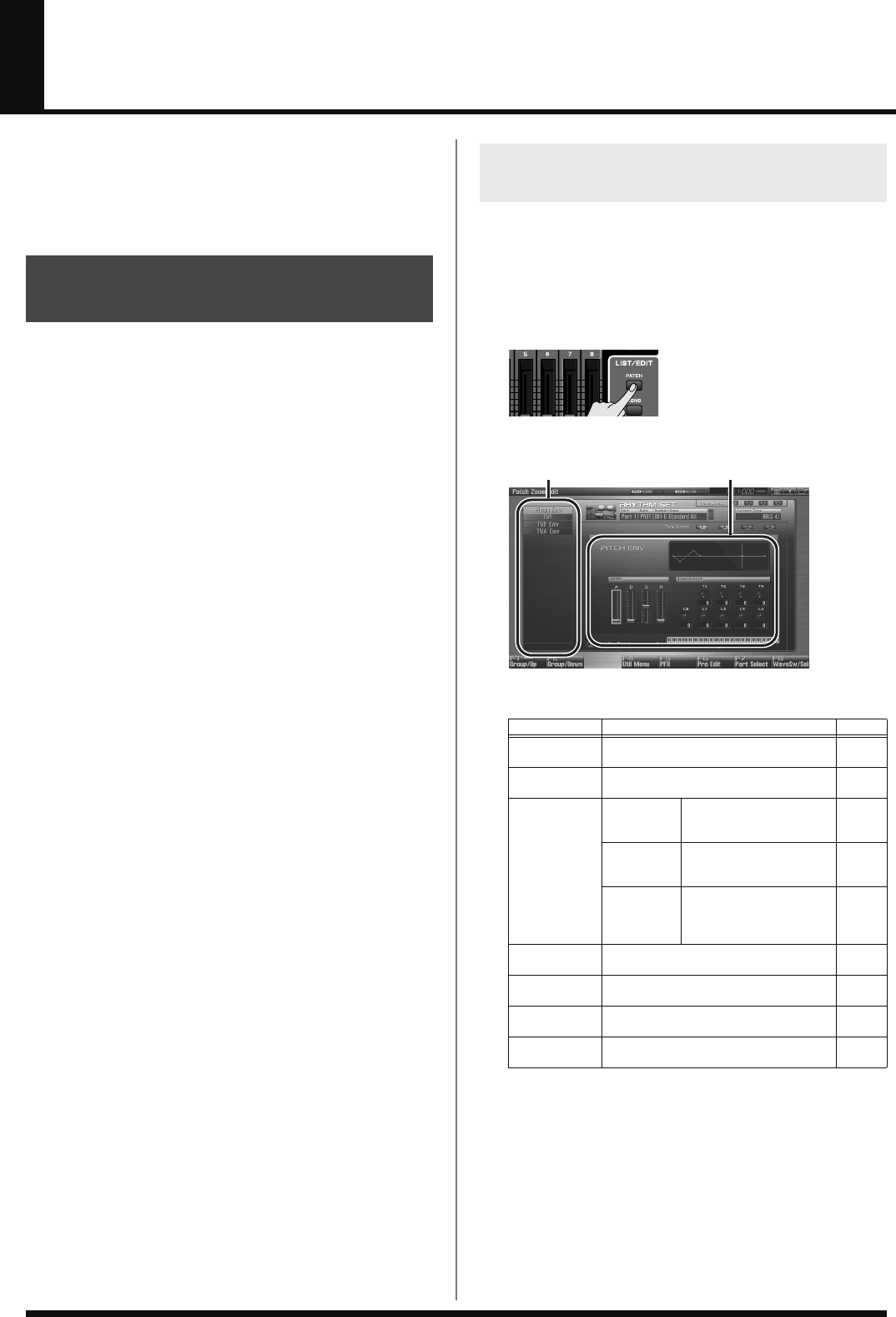
112
Creating a Rhythm Set
With the Fantom-G, you have total control over a wide variety of
settings. Each item that can be set is known as a
parameter
. When
you change the values of parameters, you are doing what is referred
to as
Editing
. This chapter explains the procedures used in creating
rhythm sets, and the functions of the rhythm set parameters.
Start with an existing rhythm set and edit it to create a new rhythm
set. Rhythm sets are created from a collection of multiple rhythm
tones (percussion instruments). You can change the assignments of
the rhythm tones for each key with rhythm set edit.
The rhythm tone assigned to each key consists of up to four waves.
Rhythm tones and waves are related in the same way that patches
and tones are related.
The Patch Zoom Edit screen allows you to edit the most important
parameters of a patch. If you want to have access to all of the
parameters, use the Patch Pro Edit screen (p. 114).
1.
Select the rhythm set whose settings you want to edit (p. 52).
2.
Press [PATCH].
The Patch Zoom Edit screen appears.
fig.07-001_50
F-key operations in the Patch Zoom Edit screen
How to Make Rhythm Set
Settings
Editing a Rhythm Set Quickly
(Patch Zoom Edit)
F-key Explanation Page
F1
Group/Up Moves the edit group tab upward. –
F2
Group/Down Moves the edit group tab downward. –
F4
Util Menu Rhythm
Set
Initialize
Initializes the settings of
the currently selected
rhythm set.
p. 115
Rhythm
Key
Initialize
Initializes the settings of
the currently selected
rhythm key.
p. 115
Rhythm
Tone Copy Copies settings from a de-
sired rhythm set to the
currently selected rhythm
set.
p. 115
F5
PFX Accesses the PFX (Patch Multi-effect) ed-
iting screen. p. 157
F6
Pro Edit Accesses the Patch Pro Edit screen, where
you can edit all of the parameters. p. 114
F7
Part Select Selects the part to be edited. –
F8
Wave Sw/Sel Selects the tones that will sound. p. 113
Groups Parameters
Fantom-G_r_e.book 112 ページ 2008年1月31日 木曜日 午後12時15分
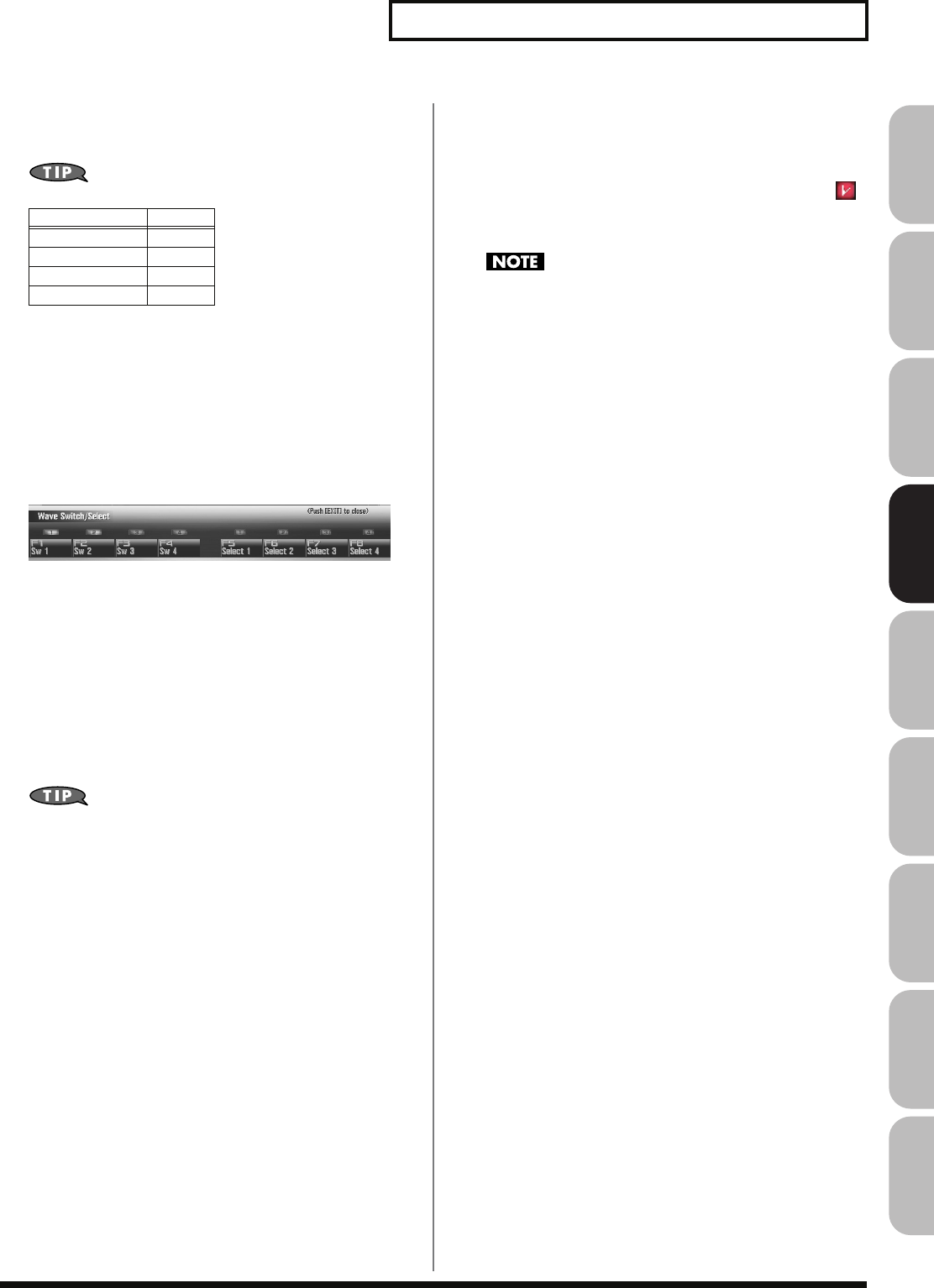
113
Creating a Rhythm Set
Overview Sound 1 Sound 2 Sound 3 Pad Sampler
Menu/System
AppendixSequencer
3.
The parameters are organized into several editing groups.
Press [F1 (Up)] or [F2 (Down)] to select the tab for the
editing group that contains the parameter you wish to edit.
For details on each parameter, refer to the following pages.
•
To change the part that you want to edit
Press [F7 (Part Select)].
4.
Press [CURSOR] button to move the cursor to the
parameter you wish to modify.
5.
Press [F8 (Wave Sw/Sel)] to select the wave that you want
to edit.
The Wave Switch/Select window will appears.
fig.05-011_50
Press any one of the [F5 (Select 1)]–[F8 (Select 4)] buttons to
select the wave that you want to edit.
•
Simultaneously editing the same parameter of multiple
waves
To select the tones you want to edit at the same time,
simultaneously press two or more of the [F5 (Select 1)]–[F8
(Select 4)] buttons.
•
To switch a wave on/off
Press a [F1 (Sw 1)]–[F4 (Sw 4)] button to switch the
corresponding wave on/off.
You can also use the pads to select waves and switch them on/off.
→
p. 197
6.
When you have made your selection, press [EXIT].
7.
Turn the VALUE dial, or Press [INC] [DEC] to set a value.
If you’ve selected several waves for editing, their values will
change while maintaining the difference between them.
8.
Repeat steps 3–7 to set each parameter you want to edit.
9.
If you wish to save the changes you’ve made, press
[WRITE] to perform the Save operation (p. 116). If you do
not wish to save changes, press [EXIT] to return to the
Single Play screen.
If you return to the Single Play screen without saving, the “ ”
symbol will be displayed at the right of the rhythm set name,
indicating that the rhythm set settings have been edited.
The settings you edit are temporary, and will be lost if you turn
off the power, switch the sound generator mode, or select a
different sound.
Parameter name
Page
Pitch Envelope p. 121
TVF p. 122
TVF Envelope p. 124
TVA Envelope p. 125
Fantom-G_r_e.book 113 ページ 2008年1月31日 木曜日 午後12時15分
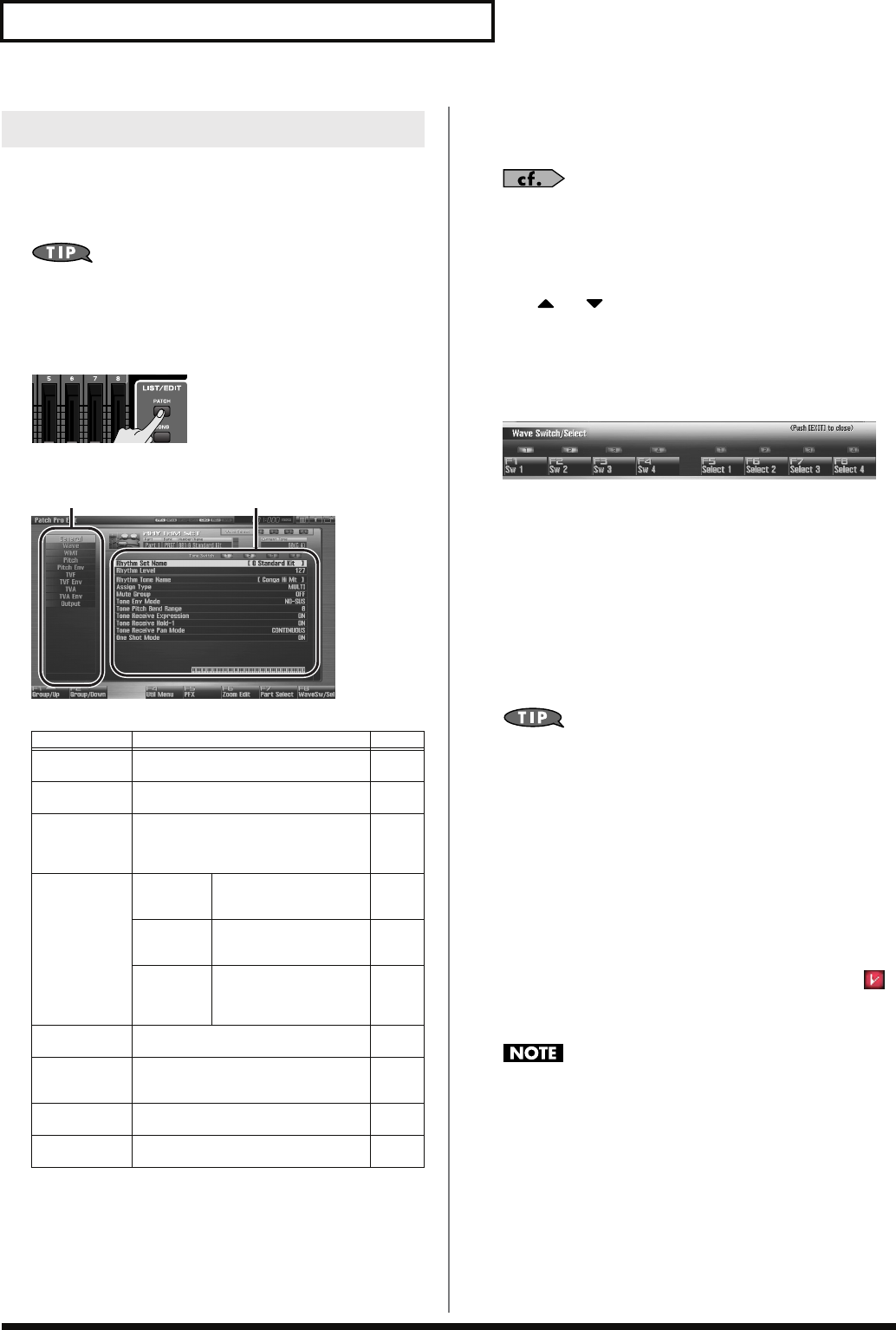
114
Creating a Rhythm Set
The Patch Pro Edit screen allows you to edit all parameters of a
patch.
1.
Select the rhythm set whose settings you want to edit (p. 52).
If you want to create a rhythm set from scratch (rather than
starting from an existing rhythm set), execute the
Initialize
operation (p. 115).
2.
Press [PATCH] twice.
The Patch Pro Edit screen appears.
fig.07-001_50
F-key operations in the Patch Pro Edit screen
3.
The parameters are organized into several editing groups.
Press [F1 (Up)] or [F2 (Down)] to select the tab for the
editing group that contains the parameter you wish to edit.
See
“Functions of Rhythm Set Parameters”
(p. 117) for each
parameter’s functions.
•
To change the part that you want to edit
Press [F7 (Part Select)].
4.
Use or to move the cursor to the parameter you
wish to modify.
5.
Press [F8 (Wave Sw/Sel)] to select the wave that you want
to edit.
The Wave Switch/Select window will appears.
fig.05-011_50
Press any one of the [F5 (Select 1)]–[F8 (Select 4)] buttons to
select the wave that you want to edit.
•
Simultaneously editing the same parameter of multiple
waves
To select the tones you want to edit at the same time,
simultaneously press two or more of the [F5 (Select 1)]–[F8
(Select 4)] buttons.
•
To switch a wave on/off
Press a [F1 (Sw 1)]–[F4 (Sw 4)] button to switch the
corresponding wave on/off.
You can also use the pads to select waves and switch them on/off.
→
p. 197
6.
When you have made your selection, press [EXIT].
7.
Turn the VALUE dial, or Press [INC] [DEC] to set a value.
8.
Repeat steps 3–7 to set each parameter you want to edit.
9.
If you wish to save the changes you’ve made, press
[WRITE] to perform the Save operation (p. 116). If you do
not wish to save changes, press [EXIT] to return to the
Single Play screen.
If you return to the Single Play screen without saving, the “ ”
symbol will be displayed at the right of the rhythm set name,
indicating that the rhythm set settings have been edited.
The settings you edit are temporary, and will be lost if you turn
off the power, switch the sound generator mode, or select a
different sound.
Editing All Parameters (Patch Pro Edit)
F-key Explanation Page
F1
Group/Up Moves the edit group tab upward. –
F2
Group/Down Moves the edit group tab downward. –
F3
Set Stereo This is shown if you’re editing the
WAVE group. It recalls the right wave
(R) from the left wave (L) of a stereo
wave.
p. 119
F4
Util Menu Rhythm
Set
Initialize
Initializes the settings of
the currently selected
rhythm set.
p. 115
Rhythm
Key
Initialize
Initializes the settings of
the currently selected
rhythm key.
p. 115
Rhythm
Tone Copy Copies the settings of a
desired rhythm set to the
currently selected rhythm
set.
p. 115
F5
PFX Accesses the PFX (Patch Multi-effect) ed-
iting screen. p. 157
F6
Zoom Edit Accesses the Patch Zoom Edit screen,
where you can edit the most important
parameters.
p. 112
F7
Part Select Selects the part to be edited. –
F8
Wave Sw/Sel Selects the tones that will sound. p. 113
Groups Parameters
Fantom-G_r_e.book 114 ページ 2008年1月31日 木曜日 午後12時15分
115
Creating a Rhythm Set
Overview Sound 1 Sound 2 Sound 3 Pad Sampler
Menu/System
AppendixSequencer
“Initialize” means to return the settings of the currently selected
sound to a standard set of values or to the factory settings.
The Initialize operation will affect only the currently selected
sound. If you wish to restore all of the Fantom’s settings to their
factory values, perform a Factory Reset (p. 280).
1.
Select the rhythm set that you want to initialize (p. 52).
2.
Press [PATCH].
3.
Press [F4 (Util Menu)].
The Rhythm Utility Menu window appears.
4.
Press or to choose what you want to initialize, and
then press [F8 (Select)].
•
Rhythm Set Initialize:
All keys of the rhythm set will be initialized. (This is
the same as the rhythm set initialize procedure
described above.)
•
Rhythm Key Initialize:
One key will be initialized.
5.
Press [F8 (Select)].
To cancel, press [F7 (Cancel)].
A message will ask you for confirmation.
6.
Press [F7 (OK)] to execute.
To cancel, press [F8 (EXIT)].
This operation copies the settings of any desired rhythm set to the
currently selected rhythm set. You can use this feature to make the
editing process faster and easier.
1.
Select the copy-destination Rhythm set (p. 52).
2.
Press [PATCH].
3.
Press [F4 (Util Menu)].
The Rhythm Utility Menu window appears.
4.
Press or to choose “Rhythm Tone Copy,” and
then press [F8 (Select)].
To cancel, press [F7 (Cancel)].
The Rhythm Tone Copy window appears.
5.
Using [CURSOR] to move the cursor, select the “Source
(copy-source)” bank and number, and the rhythm tone.
6.
Turn the VALUE dial or use [INC] [DEC] to make the setting.
7.
Using [CURSOR] to move the cursor, select the
“Destination (copy-destination)” rhythm tone number.
8.
Turn the VALUE dial or use [INC] [DEC] to make the setting.
9.
Press [F8 (Execute)].
A message will ask for confirmation.
10.
Press [F7 (OK)] to return to the Rhythm Edit screen.
To cancel, press [F8 (EXIT)].
Initializing Rhythm Set/Key Settings
(Rhythm Set Initialize/Rhythm Key
Initialize)
Copying Rhythm Tone Settings
(Rhythm Tone Copy)
The Compare Function
For the Rhythm Tone Copy operations, you can use the
Compare function.
If you want to play the copy-source patch, press [F6 (Compare)].
fig.07-004_50
The rhythm set auditioned using the Compare function
may sound slightly different than when it is played
normally.
Fantom-G_r_e.book 115 ページ 2008年1月31日 木曜日 午後12時15分
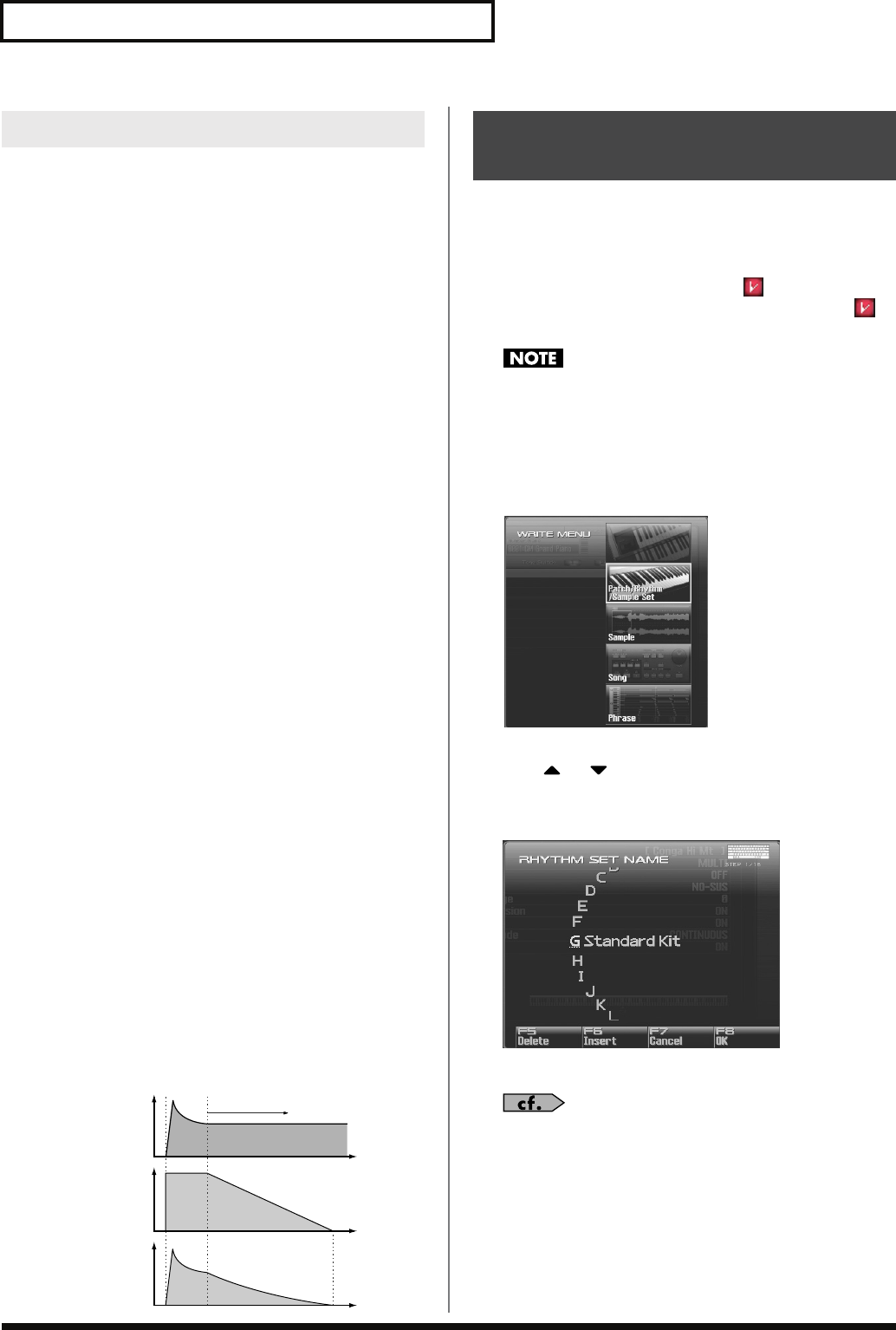
116
Creating a Rhythm Set
The sounds of the Fantom-G are based on complex PCM waveforms,
and if you attempt to make settings that are contrary to the type of
the original waveform, the results will not be as you expect.
The internal waveforms of the Fantom-G fall into the following two
groups.
One-shot:
These waveforms contain sounds that have short
decays. A one-shot waveform records the initial rise
and fall of the sound. Some of the Fantom-G’s one-
shot waveforms are sounds that are complete in
themselves, such as percussive instrument sounds.
The Fantom-G also contains many other one-shot
waveforms that are elements of other sounds. These
include attack components such as piano-hammer
sounds and guitar fret noises.
Looped:
These waveforms include sounds with long decays
as well as sustained sounds. Loop waveforms
repeatedly play back (loop) the portion of the
waveform after the sound has reached a relatively
steady state. The Fantom-G’s looped waveforms also
include components of other sounds, such as piano-
string resonant vibrations and the hollow sounds of
brass instruments.
Cautions When Using a One-shot
Waveform
It is not possible to use the envelope to modify a one-shot waveform
to create a decay that is longer than the original waveform, or to turn
it into a sustaining sound. If you were to program such an envelope,
you would be attempting to shape a portion of the sound that simply
doesn’t exist, and the envelope would have no effect.
Cautions When Using a Loop
Waveform
With many acoustic instruments such as piano and sax, extreme
timbral changes occur during the first few moments of each note.
This initial attack is what defines much of the instrument’s character.
For such waveforms, it is best to use the complex tonal changes of
the attack portion of the waveform just as they are, and to use the
envelope only to modify the decay portion. If you attempt to use the
envelope to modify the attack portion as well, the characteristics of
the original waveform may prevent you from getting the sound that
you intend.
The settings you edit are temporary, and will be lost if you turn off
the power, switch the sound generator mode, or select a different
sound. If you want to keep the modified sound, you must save it in
the user bank.
When you edit the rhythm set settings, the “ ” symbol will appear
in the Single Play screen. When you save the rhythm set, the “ ”
symbol will disappear.
When you perform the save procedure, the data that previously
occupied the save destination will be lost.
1.
Make sure that the Rhythm Set you wish to save is selected.
2.
Press [WRITE].
The WRITE MENU window appears.
3.
Select “Patch / Rhythm / Sample Set.”
Press or to select “Patch / Rhythm / Sample Set,” and
then press [F8 (Select)].
The Rhythm Set Name window appears.
fig.07-006_50
4.
Assign a name to the rhythm set.
For details on assigning names, refer to
“Assigning a Name”
(p. 42).
5.
When you have finished inputting the name, press [F8 (OK)].
A screen will appear, allowing you to select the write-
destination rhythm set.
Cautions When Selecting a Waveform
Tone change stored
with the wave
Envelope
for the TVF filter
Resulting
tone change
Looped portion
Time
Level
Saving Rhythm Sets You’ve
Created (Write)
Fantom-G_r_e.book 116 ページ 2008年1月31日 木曜日 午後12時15分
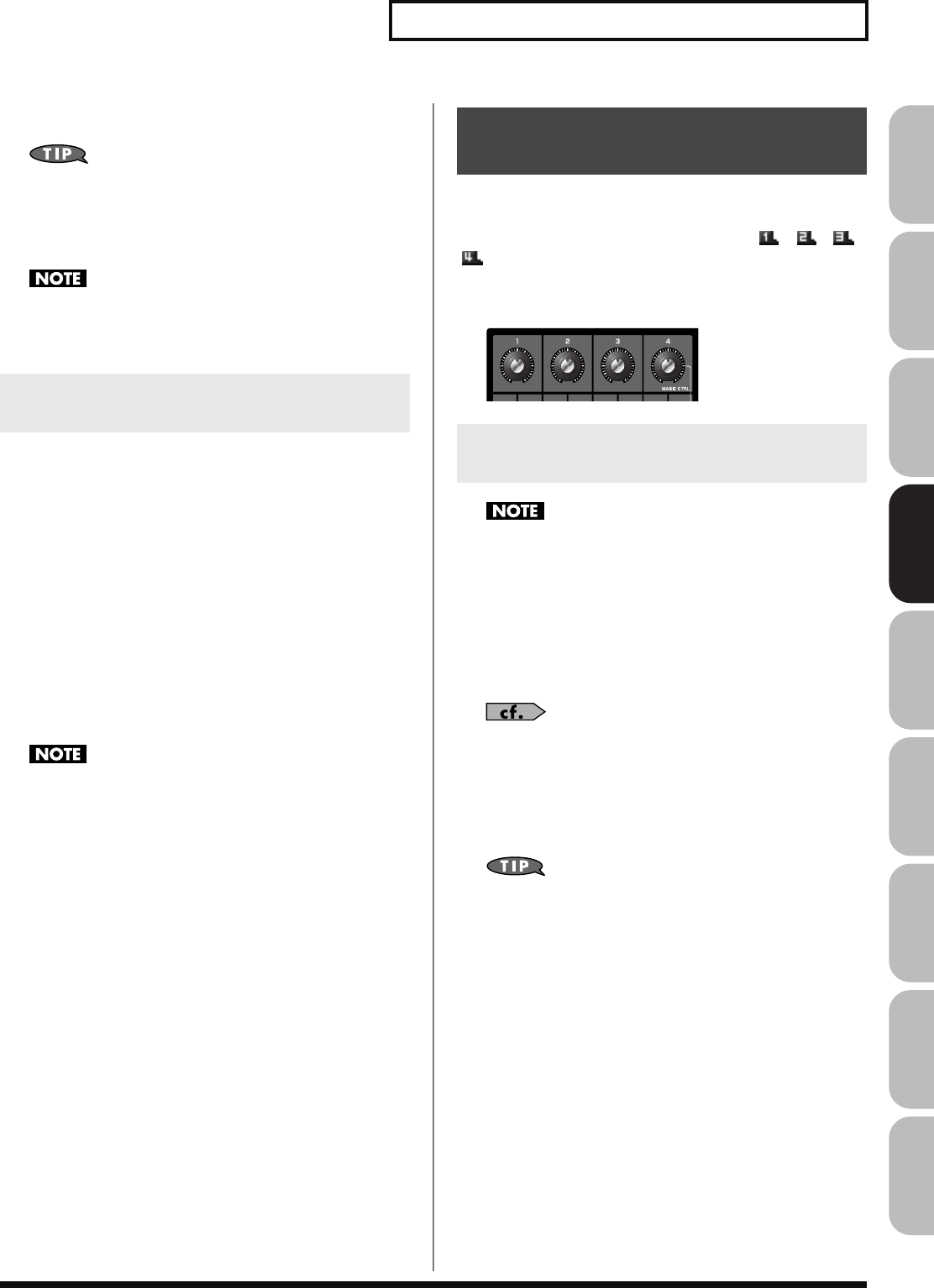
117
Creating a Rhythm Set
Overview Sound 1 Sound 2 Sound 3 Pad Sampler
Menu/System
AppendixSequencer
6.
Turn the VALUE dial or use [INC] [DEC] to select the rhythm
set number.
By pressing [F6 (Compare)] you can check the save-destination
Rhythm set (Compare function).
7.
Press [F8 (Write)].
A message will ask you for confirmation.
Never switch off the Fantom-G while data is being saved.
8.
Press [F7 (OK)] to execute the save operation.
To cancel, press [F8 (EXIT)].
Before you save a rhythm set, you can audition the rhythm set which
currently occupies the save destination to make sure that it is one
you don’t mind overwriting. This can help prevent important
rhythm sets from being accidentally overwritten and lost.
1.
Follow the procedure in “Saving Rhythm Sets You’ve
Created (Write)” through step 5 to select the save
destination.
2.
Press [F6 (Compare)] to turn on.
The Rhythm Compare window appears, making it possible to
sound the currently selected save destination rhythm set.
3.
Play the keyboard or pad to sound the save destination
rhythm set, then check whether you really want to overwrite
it.
The rhythm set auditioned using the Compare function may
sound slightly different than when it is played normally.
4.
If you wish to change the save destination, re-specify the
save-destination rhythm set by turning the VALUE dial.
5.
Press [F8 (Write)].
A message will ask you for confirmation.
6.
Press [F7 (OK)] once again to execute the Save operation.
This section explains the functions the different rhythm set
parameters have, as well as the composition of these parameters.
If a number is displayed for the parameter name, ( , , ,
), you can use the realtime controller knob of the corresponding
number (the left most knob is number 1, the right most knob is
number 4) to set the value.
fig.06-010
Rhythm Set Name and Rhythm Level applies to the entire
rhythm set; the other parameters are set individually for each
rhythm tone.
Rhythm Set Name
Specifies the name of the rhythm set.
By pressing [ENTER], you can assign a name to the rhythm set.
Value:
space, A–Z, a–z, 0–9, ! ” # $ % & ’ ( ) * + , - . / : ; < = > ? @ [ \ ] ^ _ ` { | }
For details on entering a name, refer to
“Assigning a Name”
(p. 42).
Rhythm Level (Rhythm Set Level)
Sets the volume of the rhythm set.
Value:
0–127
The volume levels of the tones from which the rhythm set is
composed is set with the Tone Level parameter (p. 124). The
volume levels of the Waves from which the rhythm tone is
composed is set with the Wave Level parameter (p. 120).
Auditioning the Save-Destination
Rhythm Set (Compare)
Functions of Rhythm Set
Parameters
Making Settings Common to the
Entire Rhythm Set (General)
Fantom-G_r_e.book 117 ページ 2008年1月31日 木曜日 午後12時15分
118
Creating a Rhythm Set
Rhythm Tone Name
You can assign a name of up to 12 characters to the rhythm tone.
By pressing [ENTER], you can assign a name to the rhythm tone.
Value:
space, A-Z, a-z, 0-9, ! ” # $ % & ’ ( ) * + , - . / : ; < = > ?
@ [ \ ] ^ _ ` { | }
For details on assigning names, refer to
“Assigning a Name”
(p. 42)
Assign Type
Assign Type sets the way sounds are played when the same key is
pressed a number of times.
Value
MULTI:
Layer the sound of the same keys. Even with
continuous sounds where the sound plays for an
extended time, such as with crash cymbals, the
sounds are layered, without previously played
sounds being eliminated.
SINGLE:
Only one sound can be played at a time when the
same key is pressed. With continuous sounds where
the sound plays for an extended time, the previous
sound is stopped when the following sound is
played.
Mute Group
On an actual acoustic drum set, an open hi-hat and a closed hi-hat
sound can never occur simultaneously. To reproduce the reality of
this situation, you can set up a Mute Group.
The Mute Group function allows you to designate two or more
rhythm tones that are not allowed to sound simultaneously. Up to 31
Mute Groups can be used. rhythm tones that are not belong to any
such group should be set to “OFF.”
Value:
OFF, 1–31
Tone Env Mode (Rhythm Tone Envelope Mode)
When a loop waveform (p. 116) is selected, the sound will normally
continue as long as the key is pressed. If you want the sound to decay
naturally even if the key remains pressed, set this to “NO-SUS.”
Value:
NO-SUS, SUSTTAIN
If a one-shot type Wave (p. 116) is selected, it will not sustain
even if this parameter is set to “SUSTTAIN.”
Tone Pitch Bend Range
(Rhythm Tone Pitch Bend Range)
Specifies the amount of pitch change in semitones (4 octaves) that
will occur when the Pitch Bend Lever is moved. The amount of
change when the lever is tilted is set to the same value for both left
and right sides.
Value:
0–48
Tone Receive Expression
(Rhythm Tone Receive Expression Switch)
For each rhythm tone, specify whether MIDI Expression messages
will be received (ON), or not (OFF).
Value:
OFF, ON
Tone Receive Hold-1
(Rhythm Tone Receive Hold-1 Switch)
For each rhythm tone, specify whether MIDI Hold-1 messages will
be received (ON), or not (OFF).
Value:
OFF, ON
If “NO-SUS” is selected for Env Mode parameter (p. 118), this
setting will have no effect.
Tone Receive Pan Mode
(Rhythm Tone Receive Pan Mode)
For each rhythm tone, specify how pan messages will be received.
Value
CONTINUOUS:
Whenever Pan messages are received, the stereo
position of the tone will be changed.
KEY-ON:
The pan of the tone will be changed only when the
next note is played. If a pan message is received
while a note is sounding, the panning will not
change until the next key is pressed.
If
“PFX (Patch Multi-Effects)”
(p. 157) is on, the Tone Receive
Pan Mode setting is ignored.
The channels cannot be set so as not to receive Pan messages.
One Shot Mode
The sound will play back until the end of the waveform (or the end
of the envelope, whichever comes first). The result will be the same
as when the envelope’s Tone Env Mode parameter (p. 118) is set to
NO-SUS. If you have set Wave Group (p. 119) to Sample, the loop
setting will be forced to ONE SHOT.
Value:
OFF, ON
Fantom-G_r_e.book 118 ページ 2008年1月31日 木曜日 午後12時15分
119
Creating a Rhythm Set
Overview Sound 1 Sound 2 Sound 3 Pad Sampler
Menu/System
AppendixSequencer
With rhythm tones, sounds are created by combining up to four
Waves (eight for stereo).
Wave Group
Select the groups containing the Waves comprising the rhythm tone.
Value
INT:
Waveforms stored in internal
SAMP:
Sample waveforms
Wave Number L (Mono)
Wave Number R
This selects the Waves comprising the rhythm tone. Along with the
Wave number, the Wave name appears at the lower part of the
display.
When in monaural mode, only the left side (L) is specified. When in
stereo, the right side (R) is also specified.
Value:
OFF, 1– (The upper limit will depend on the wave group.)
If you want to select a left/right pair of Waves, select the left (L)
Wave number and then press [F3 (Set Stereo)]; the right (R)
(Wave) will be recalled.
* When using a sample in stereo, you must specify the same number for
L and R.
Wave Gain
Sets the gain (amplification) of the waveform. The value changes in 6
dB (decibel) steps—an increase of 6 dB doubles the waveform’s gain.
Value:
-6, 0, +6, +12
Wave Tempo Sync
When you wish to synchronize a Phrase Loop to the clock (tempo),
set this to “ON.” This is valid only when selected as the sample for a
wave.
Value:
OFF, ON
• If a sample is selected for a tone, you must first set the BPM
(tempo) parameter of the sample.
• If a sample is selected for a tone, Wave Tempo Sync will require
twice the normal number of voices.
Wave FXM Switch
This sets whether FXM will be used (ON) or not (OFF).
Value:
OFF, ON
Modifying Waveforms (Wave)
Tips on Creating a Rhythm Tone
The Waves for the bass drum, snare, hi-hat, toms, and other
percussion instruments are each assigned to one rhythm tone.
When adding 3D effects to the sound, make the Pan settings for
each rhythm tone individually.
Phrase Loop
Phrase loop refers to the repeated playback of a phrase that’s
been pulled out of a song (e.g., by using a sampler). One
technique involving the use of Phrase Loops is the excerpting of
a Phrase from a pre-existing song in a certain genre, for example
dance music, and then creating a new song with that Phrase
used as the basic motif. This is referred to as “Break Beats.”
Realtime Time Stretch
If the wave group is “SAMP,” and the Wave Tempo Sync
parameter is turned “ON,” you can vary the playback speed of
the waveform without affecting the pitch.
Fantom-G_r_e.book 119 ページ 2008年1月31日 木曜日 午後12時15分
120
Creating a Rhythm Set
Wave FXM Color
Specifies how FXM will perform frequency modulation. Higher
settings result in a grainier sound, while lower settings result in a
more metallic sound.
Value:
1–4
Wave FXM Depth
Specifies the depth of the modulation produced by FXM.
Value:
0–16
When the Tempo Sync parameter is set to “ON,” settings
related to Pitch (p. 121) and FXM (p. 120) are disabled.
The WMT (Wave Mix Table) uses key velocity to control the four
waveforms assigned to the rhythm tone.
Wave Coarse Tune
Adjusts the pitch of the waveform’s sound up or down in semitone
steps (+/-4 octaves).
Value:
-48– +48
The Coarse Tune of the entire rhythm tone is set by the Tone
Coarse parameter (p. 121).
Wave Fine Tune
Adjusts the pitch of the waveform’s sound up or down in 1-cent
steps (+/-50 cents).
Value:
-50– +50
One cent is 1/100th of a semitone.
The Fine Tune of the entire rhythm tone is set by the Tone Fine
Tune parameter (p. 121).
Wave Level
You can set the volume of the waveform.
Value:
0–127
The volume level of each rhythm tone is set with the Tone Level
parameter; the volume levels of the entire rhythm set is set with
the Rhythm Level parameter (p. 117).
Wave Pan
This specifies the pan of the waveform. “L64” is far left, “0” is center,
and “63R” is far right.
Value:
L63–0–63R
Wave Random Pan Switch
Use this setting to cause the waveform’s panning to change
randomly each time a key is pressed (ON) or not (OFF).
Value:
OFF, ON
* The range of the panning change is set by the Rnd Pan Depth
parameter (p. 124).
Wave Alternate Pan Switch
This setting causes panning of the waveform to be alternated
between left and right each time a key is pressed. Set Alternate Pan
Switch to “ON” to pan the Wave according to the Alter Pan Depth
parameter (p. 125) settings, or to “REV” when you want the panning
reversed. If you do not want the panning to change each time a key
is pressed, set this to “OFF.”
Range:
OFF, ON, REV
WMT Velocity Control
(WMT Velocity Control Switch)
WMT Velocity Control determines whether a different rhythm tone
is played (ON) or not (OFF) depending on the force with which the
key is played (velocity).
When set to “RND,” the rhythm set’s constituent rhythm tones will
sound randomly, regardless of any Velocity messages.
Value:
OFF, ON, RANDOM
Velocity Fade Width Lower
This determines what will happen to the tone’s level when the tone
is played at a velocity lower than its specified velocity range. Higher
settings produce a more gradual change in volume. If you want
notes played outside the specified key velocity range to not be
sounded at all, set this to “0.”
Value:
0–127
Velocity Range Lower
This sets the lowest velocity at which the waveform will sound.
Make these settings when you want different waveforms to sound in
response to notes played at different strengths.
Value:
1–UPPER
Velocity Range Upper
This sets the highest velocity at which the waveform will sound.
Make these settings when you want different waveforms to sound in
response to notes played at different strengths.
Value:
LOWER–127
If you attempt to set the Lower velocity limit above the Upper,
or the Upper below the Lower, the other value will
automatically be adjusted to the same setting.
Changing How a Rhythm Tone Is
Sounded (WMT)
FXM
FXM (Frequency Cross Modulation) uses a specified waveform
to apply frequency modulation to the currently selected
waveform, creating complex overtones. This is useful for
creating dramatic sounds or sound effects.
Fantom-G_r_e.book 120 ページ 2008年1月31日 木曜日 午後12時15分
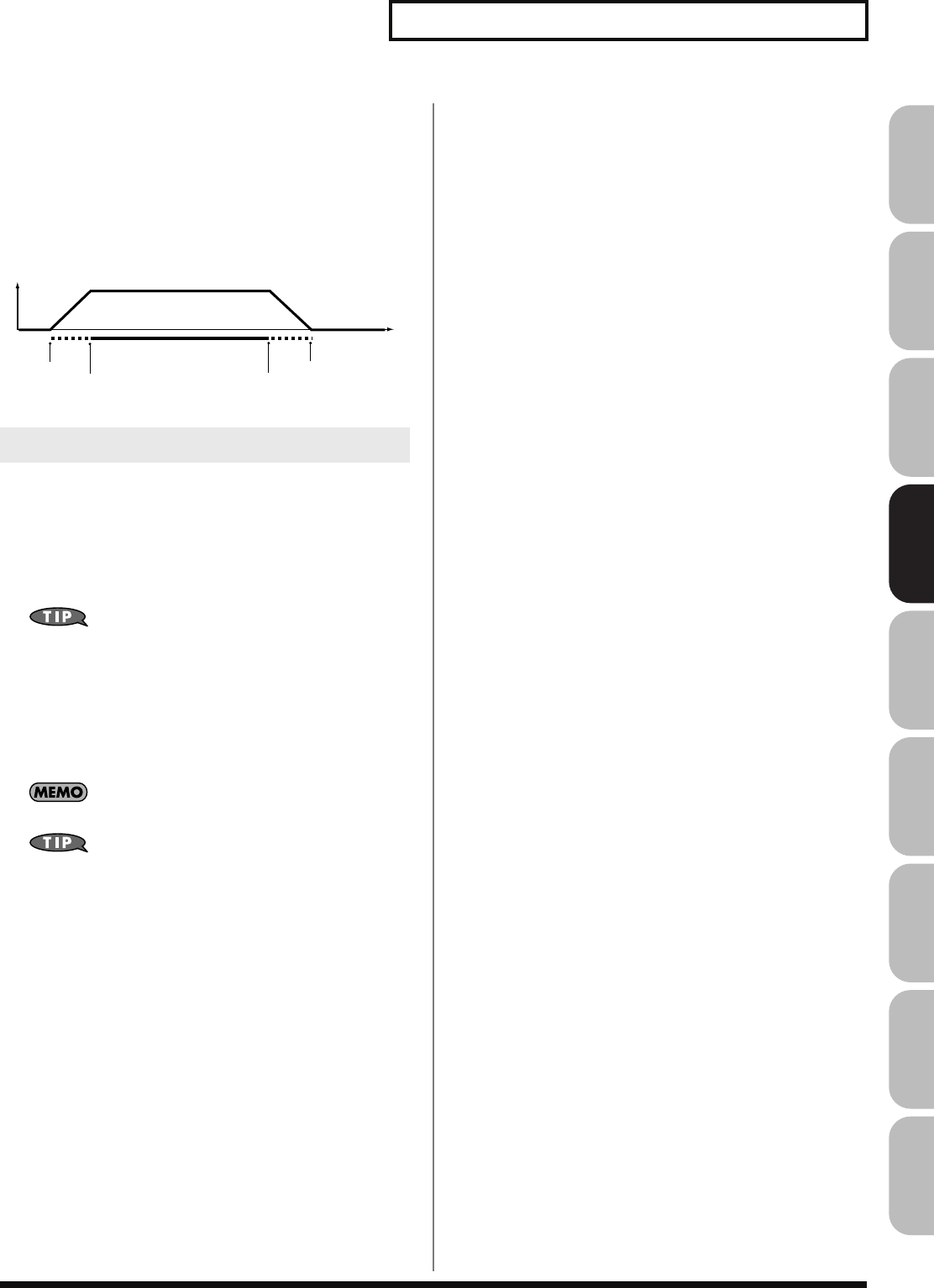
121
Creating a Rhythm Set
Overview Sound 1 Sound 2 Sound 3 Pad Sampler
Menu/System
AppendixSequencer
Velocity Fade Width Upper
This determines what will happen to the tone’s level when the tone
is played at a velocity greater than its specified velocity range.
Higher settings produce a more gradual change in volume. If you
want notes played outside the specified key velocity range to not be
sounded at all, set this to “0.”
Value:
0–127
fig.06-028.e
Pitch
Tone Coarse Tune (Rhythm Tone Coarse Tune)
Selects the pitch at which a rhythm tone sounds.
Value:
C-1– G9
Set the coarse tuning for Waves comprising the rhythm tones
with the Wave Coarse Tune parameter (p. 120).
Tone Fine Tune (Rhythm Tone Fine Tune)
Adjusts the pitch of the rhythm tone’s sound up or down in 1-cent
steps (+/-50 cents).
Value:
-50– +50
One cent is 1/100th of a semitone.
Set the fine tuning for Waves comprising the rhythm tones with
the Wave Fine Tune parameter (p. 120).
Tone Random Pitch Depth
This specifies the width of random pitch deviation that will occur
each time a key is pressed. If you do not want the pitch to change
randomly, set this to “0.” These values are in units of cents (1/100th
of a semitone).
Value:
0, 1, 2, 3, 4, 5, 6, 7, 8, 9, 10, 20, 30, 40, 50, 60, 70, 80, 90,
100, 200, 300, 400, 500, 600, 700, 800, 900, 1000, 1100,
1200
Pitch Env (Pitch Envelope)
Pitch Env Depth
Adjusts the effect of the Pitch Envelope. Higher settings will cause
the pitch envelope to produce greater change. Negative (-) settings
will invert the shape of the envelope.
Value:
-12– +12
Pitch Env Velocity Sens
Keyboard playing dynamics can be used to control the depth of the
pitch envelope. If you want the pitch envelope to have more effect
for strongly played notes, set this parameter to a positive (+) value. If
you want the pitch envelope to have less effect for strongly played
notes, set this to a negative (-) value.
Value:
-63– +63
Pitch Env Time 1 Velocity Sens
This allows keyboard dynamics to affect the Time 1 of the Pitch
envelope. If you want Time 1 to be speeded up for strongly played
notes, set this parameter to a positive (+) value. If you want it to be
slowed down, set this to a negative (-) value.
Value:
-63– +63
Pitch Env Time 4 Velocity Sens
Use this parameter when you want key release speed to affect the
Time 4 value of the pitch envelope. If you want Time 4 to be speeded
up for quickly released notes, set this parameter to a positive (+)
value. If you want it to be slowed down, set this to a negative (-)
value.
Value:
-63– +63
Pitch Env Time 1–4
Specify the pitch envelope times (Time 1–Time 4). Higher settings
will result in a longer time until the next pitch is reached. (For
example, Time 2 is the time over which the pitch changes from Level
1 to Level 2.)
Value:
0–127
Modifying Pitch (Pitch/Pitch Env)
Range Lower Range Upper
Fade Lower Fade Upper
Level
Velocity
Fantom-G_r_e.book 121 ページ 2008年1月31日 木曜日 午後12時15分
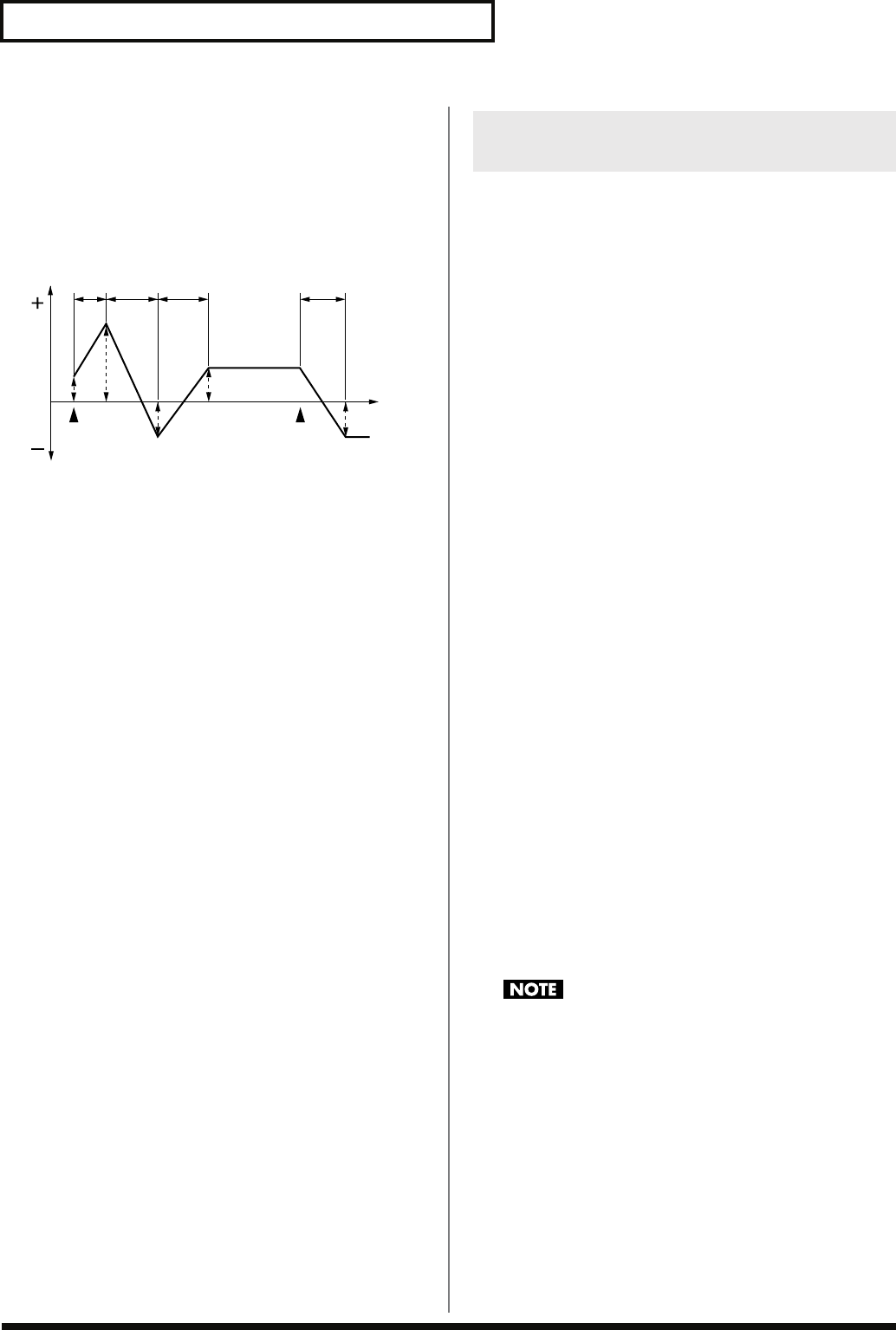
122
Creating a Rhythm Set
Pitch Env Level 0–4
Specify the pitch envelope levels (Level 0–Level 4). It determines
how much the pitch changes from the reference pitch (the value set
with Coarse Tune or Fine Tune on the Pitch screen) at each point.
Positive (+) settings will cause the pitch to be higher than the
standard pitch, and negative (-) settings will cause it to be lower.
Value:
-63– +63
fig.06-032.e
TVF
Filter Type
Selects the type of filter. A filter cuts or boosts a specific frequency
region to change a sound’s brightness, thickness, or other qualities.
Value
OFF:
No filter is used.
LPF:
Low Pass Filter. This reduces the volume of all
frequencies above the cutoff frequency (Cutoff Freq)
in order to round off, or un-brighten the sound. This
is the most common filter used in synthesizers.
BPF:
Band Pass Filter. This leaves only the frequencies in
the region of the cutoff frequency (Cutoff
Frequency), and cuts the rest. This can be useful
when creating distinctive sounds.
HPF:
High Pass Filter. This cuts the frequencies in the
region below the cutoff frequency (Cutoff
Frequency). This is suitable for creating percussive
sounds emphasizing their higher ones.
PKG:
Peaking Filter. This emphasizes the frequencies in
the region of the cutoff frequency (Cutoff
Frequency). You can use this to create wah-wah
effects by employing an LFO to change the cutoff
frequency cyclically.
LPF2:
Low Pass Filter 2. Although frequency components
above the Cutoff frequency (Cutoff Frequency) are
cut, the sensitivity of this filter is half that of the LPF.
This makes it a comparatively warmer low pass
filter. This filter is good for use with simulated
instrument sounds such as the acoustic piano.
LPF3:
Low Pass Filter 3. Although frequency components
above the Cutoff frequency (Cutoff Frequency) are
cut, the sensitivity of this filter changes according to
the Cutoff frequency. While this filter is also good
for use with simulated acoustic instrument sounds,
the nuance it exhibits differs from that of the LPF2,
even with the same TVF Envelope settings.
If you set “LPF2” or “LPF3,” the setting for the Resonance
parameter will be ignored.
T1 T2 T3 T4
L3
L4
L2
L1
L0
Note off
Pitch
Time
Note on
T: Time L: Level
Modifying the Brightness of a
Sound with a Filter (TVF/TVF Env)
Fantom-G_r_e.book 122 ページ 2008年1月31日 木曜日 午後12時15分
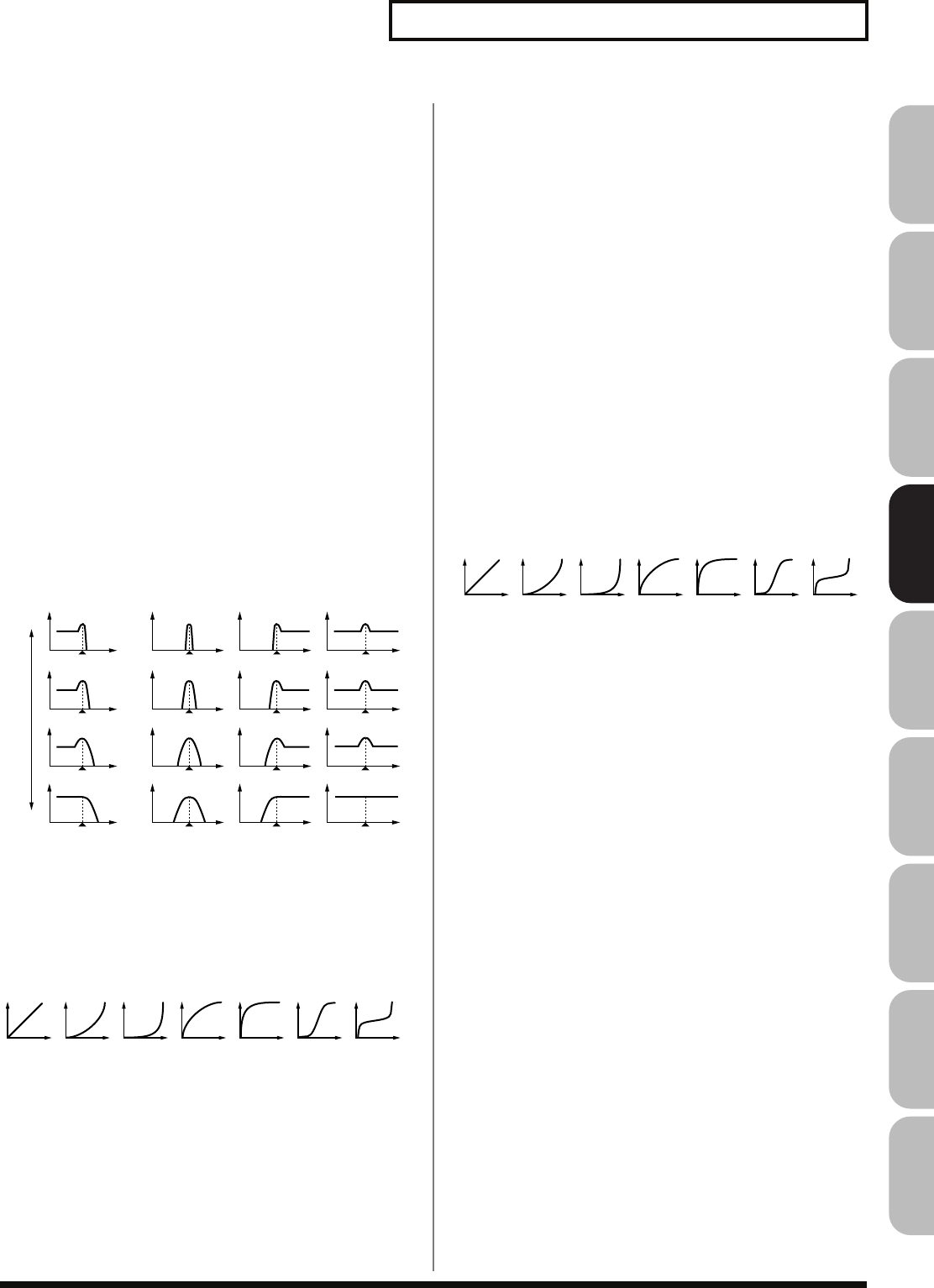
123
Creating a Rhythm Set
Overview Sound 1 Sound 2 Sound 3 Pad Sampler
Menu/System
AppendixSequencer
Cutoff Frequency
Selects the frequency at which the filter begins to have an effect on
the waveform’s frequency components.
Value:
0–127
With “LPF/LPF2/LPF3” selected for the Filter Type parameter,
lower cutoff frequency settings reduce a tone’s upper harmonics for
a more rounded, warmer sound. Higher settings make it sound
brighter.
If “BPF” is selected, harmonic components will change depending
on the TVF Cutoff Frequency setting. This can be useful when
creating distinctive sounds.
With “HPF” selected, higher Cutoff Frequency settings will reduce
lower harmonics to emphasize just the brighter components of the
sound.
With “PKG” selected, the harmonics to be emphasized will vary
depending on Cutoff Frequency setting.
Resonance
Emphasizes the portion of the sound in the region of the cutoff
frequency, adding character to the sound. Excessively high settings
can produce oscillation, causing the sound to distort.
Value:
0–127
fig.06-034.e
Cutoff Velocity Curve
Selects one of the following seven curves that determine how
keyboard playing dynamics (velocity) influence the cutoff frequency.
Set this to “FIXED” if you don’t want the Cutoff frequency to be
affected by the keyboard velocity.
Value:
FIXED, 1–7
fig.06-036
Cutoff Velocity Sens
Use this parameter when changing the cutoff frequency to be
applied as a result of changes in playing velocity. If you want
strongly played notes to raise the cutoff frequency, set this
parameter to positive (+) settings. If you want strongly played notes
to lower the cutoff frequency, use negative (-) settings.
Value:
-63– +63
Resonance Velocity Sens
This allows keyboard velocity to modify the amount of Resonance. If
you want strongly played notes to have a greater Resonance effect,
set this parameter to positive (+) settings. If you want strongly
played notes to have less Resonance, use negative (-) settings.
Value:
-63– +63
TVF Env Velocity Curve
Selects one of the following 7 curves that will determine how
keyboard playing dynamics will affect the TVF envelope. Set this to
“FIXED” if you don’t want the TVF Envelope to be affected by the
keyboard velocity.
Value:
FIXED, 1–7
fig.06-036
TVF Env Velocity Sens
Specifies how keyboard playing dynamics will affect the depth of the
TVF envelope. Positive (+) settings will cause the TVF envelope to
have a greater effect for strongly played notes, and negative (-)
settings will cause the effect to be less.
Value:
-63– +63
TVF Env Time 1 Velocity Sens
This allows keyboard dynamics to affect the Time 1 of the TVF
envelope. If you want Time 1 to be speeded up for strongly played
notes, set this parameter to a positive (+) value. If you want it to be
slowed down, set this to a negative (-) value.
Value:
-63– +63
TVF Env Time 4 Velocity Sens
The parameter to use when you want key release speed to control
the Time 4 value of the TVF envelope. If you want Time 4 to be
speeded up for quickly released notes, set this parameter to a
positive (+) value. If you want it to be slowed down, set this to a
negative (-) value.
Value:
-63– +63
LPF BPF HPF PKG
parameter value
Level
Cutoff frequency
Frequency
High
Low
1234567
1234567
Fantom-G_r_e.book 123 ページ 2008年1月31日 木曜日 午後12時15分
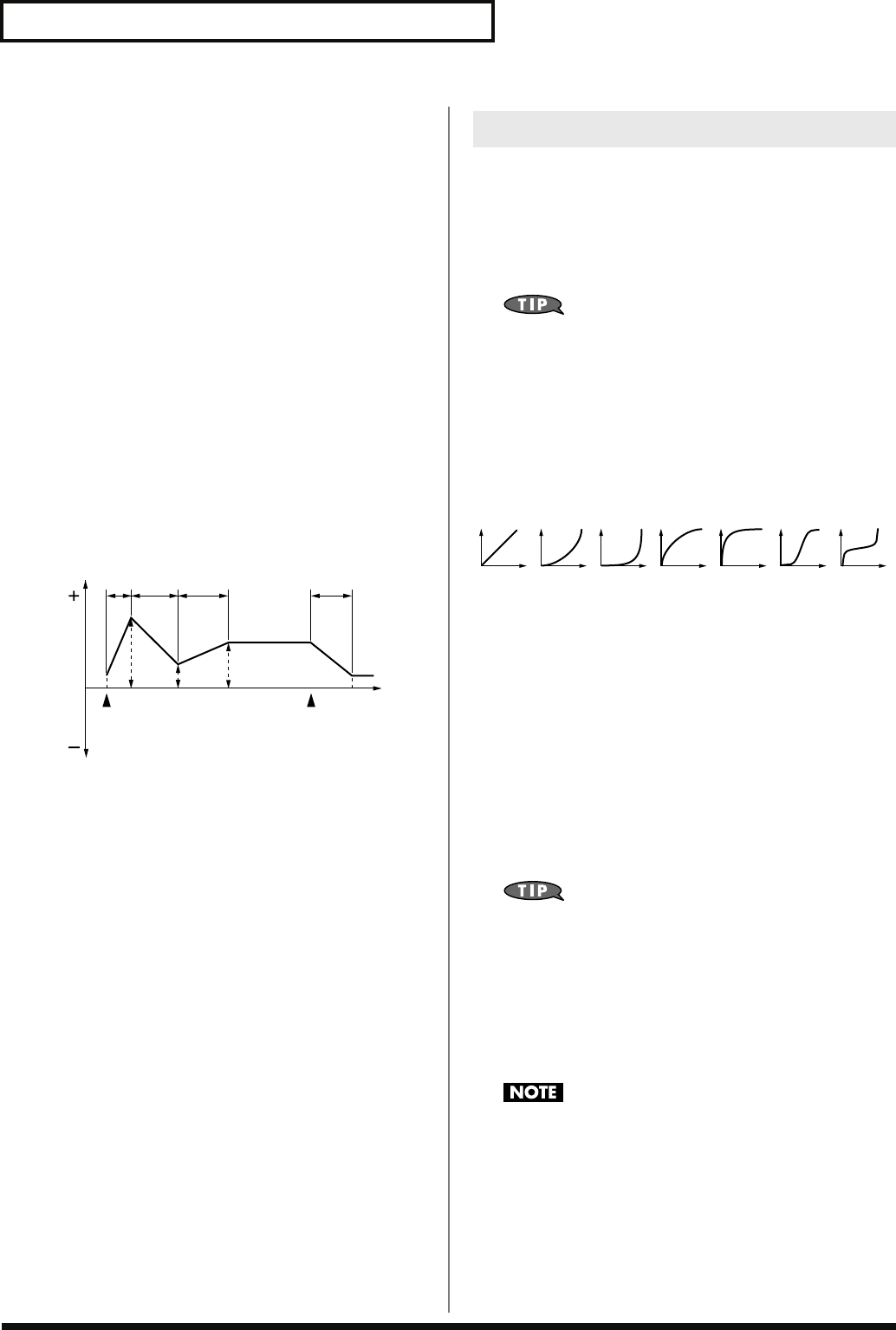
124
Creating a Rhythm Set
TVF Env
TVF Env Depth
Specifies the depth of the TVF envelope. Higher settings will cause
the TVF envelope to produce greater change. Negative (-) settings
will invert the shape of the envelope.
Value:
-63– +63
TVF Env Time 1–4 (TVF Envelope Time 1–4)
Specify the TVF envelope times (Time 1– Time 4). Higher settings
will lengthen the time until the next cutoff frequency level is
reached. (For example, Time 2 is the time over which Level 1 will
change to Level 2.)
Value:
0–127
TVF Env Level 0–4 (TVF Envelope Level 0–4)
Specify the TVF envelope levels (Level 0–Level 4). These settings
specify how the cutoff frequency will change at each point, relative
to the standard cutoff frequency (the cutoff frequency value
specified in the TVF screen).
Value:
0–127
fig.06-037.e
TVA
Tone Level (Rhythm Tone level)
Sets the volume of the rhythm tone. Use this parameter to adjust the
volume balance between rhythm tones.
Value:
0–127
The volume levels of the Waves from which the rhythm tone is
composed is set with the WMT1–4 Wave Level parameter (p. 120).
Level Velocity Curve
You can select from seven curves that determine how keyboard
playing strength will affect the volume. If you do not want the
volume of the rhythm tone to be affected by the force with which
you press the key, select “FIXED.”
Value:
FIXED, 1–7
fig.06-036
Level Velocity Sens
Set this when you want the volume of the rhythm tone to change
depending on the force with which you press the keys. Set this to a
positive (+) value to have the changes in rhythm tone volume
increase the more forcefully the keys are played; to make the tone
play more softly as you play harder, set this to a negative (-) value.
Value:
-63– +63
Tone Pan (Rhythm Tone Pan)
Sets the pan for the rhythm tone. “L64” is far left, “0” is center, and
“63R” is far right.
Value:
L64–0–63R
Set the Pan for Waves comprising the rhythm tones with the
Wave Pan parameter (p. 120).
Random Pan Depth
Use this parameter when you want the stereo location to change
randomly each time you press a key. Higher settings will produce a
greater amount of change.
Value:
0–63
This will affect only waves whose Wave Rnd Pan Sw parameter
(p. 120) is ON.
T1 T2 T3 T4
L3
L1
L0
L2 L4
Note off
Cutoff
Frequency Time
Note on
T: Time L: Level
Adjusting the Volume (TVA/TVA Env)
1234567
Fantom-G_r_e.book 124 ページ 2008年1月31日 木曜日 午後12時15分
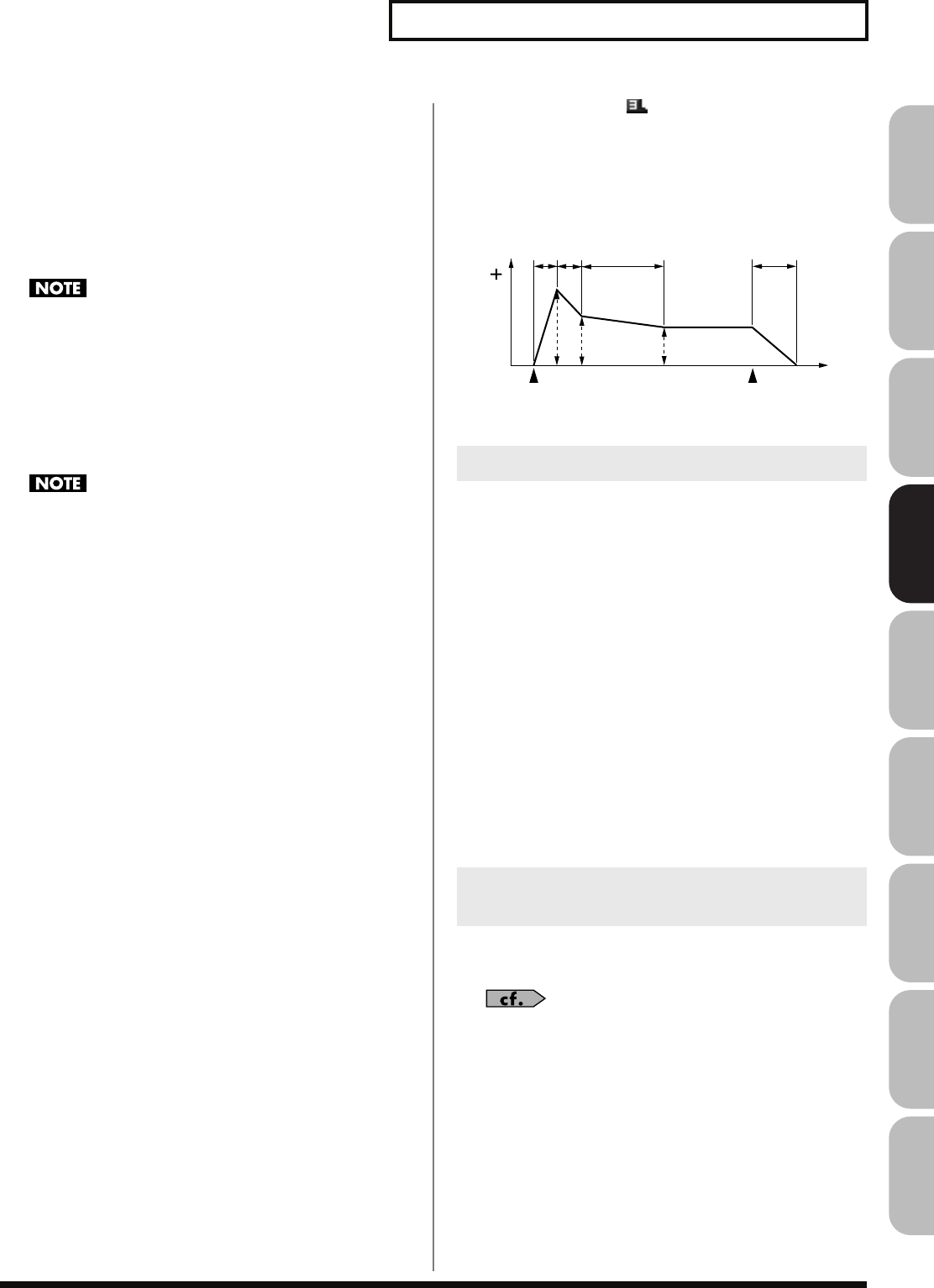
125
Creating a Rhythm Set
Overview Sound 1 Sound 2 Sound 3 Pad Sampler
Menu/System
AppendixSequencer
Alternate Pan Depth
This setting causes panning to be alternated between left and right
each time a key is pressed. Higher settings will produce a greater
amount of change. “L” or “R” settings will reverse the order in
which the pan will alternate between left and right. For example if
two rhythm tones are set to “L” and “R” respectively, the panning of
the two rhythm tones will alternate each time they are played.
Value:
L63–0–63R
This will affect only waves whose Wave Alter Pan Sw
parameter (p. 120) is ON or REV.
Relative Level
Corrects for the volume of the rhythm tone.
This parameter is set by the key-based controller system exclusive
message. Normally, you should leave it set to 0.
Value:
-64– +63
If the rhythm tone level is set to 127, the volume will not
increase beyond that point.
TVA Env
TVA Env Time 1 Velocity Sens
This allows keyboard dynamics to affect the Time 1 of the TVA
envelope. If you want Time 1 to be speeded up for strongly played
notes, set this parameter to a positive (+) value. If you want it to be
slowed down, set this to a negative (-) value.
Value:
-63– +63
TVA Env Time 4 Velocity Sens
The parameter to use when you want key release speed to control
the Time 4 value of the TVA envelope. If you want Time 4 to be
speeded up for quickly released notes, set this parameter to a
positive (+) value. If you want it to be slowed down, set this to a
negative (-) value.
Value:
-63– +63
TVA Env Time 1–4
Specify the TVA envelope times (Time 1– Time 4). Higher settings will
lengthen the time until the next volume level is reached. (For example,
Time 2 is the time over which Level 1 will change to Level 2.)
Value:
0–127
TVA Env Level 1–3
Specify the TVA envelope levels (Level 1–Level 3). These settings
specify how the volume will change at each point, relative to the
standard volume (the Rhythm Tone Level value specified in the TVA
screen).
Value:
0–127
fig.06-041.e
Tone Output Assign
Specifies how the direct sound of each tone will be output.
Value:
PFX:
Output through patch multi-effects.
DRY:
Output without passing through patch multi-effects.
Tone Output Level
Specifies the signal level of each tone.
Value:
0–127
Tone Chorus Send Level
Specifies the level of the signal sent to the chorus for each tone.
Value:
0–127
Tone Reverb Send Level
Specifies the level of the signal sent to the reverb for each tone.
Value:
0–127
You can press the [F5 (PFX)] button to access the PFX (Patch Multi-
effect) editing screen (p. 157).
For details regarding effect settings, refer to the pages shown
below.
•
“Making Effect Settings”
(p. 151)
•
“Making Patch Multi-Effects Settings (PFX)”
(p. 157)
Output Settings (Output)
Setting Effects for a Rhythm Set
(PFX)
T1 T2 T3 T4
L3
L1 L2
Note off
Level
Time
Note on
T: Time L: Level
Fantom-G_r_e.book 125 ページ 2008年1月31日 木曜日 午後12時15分
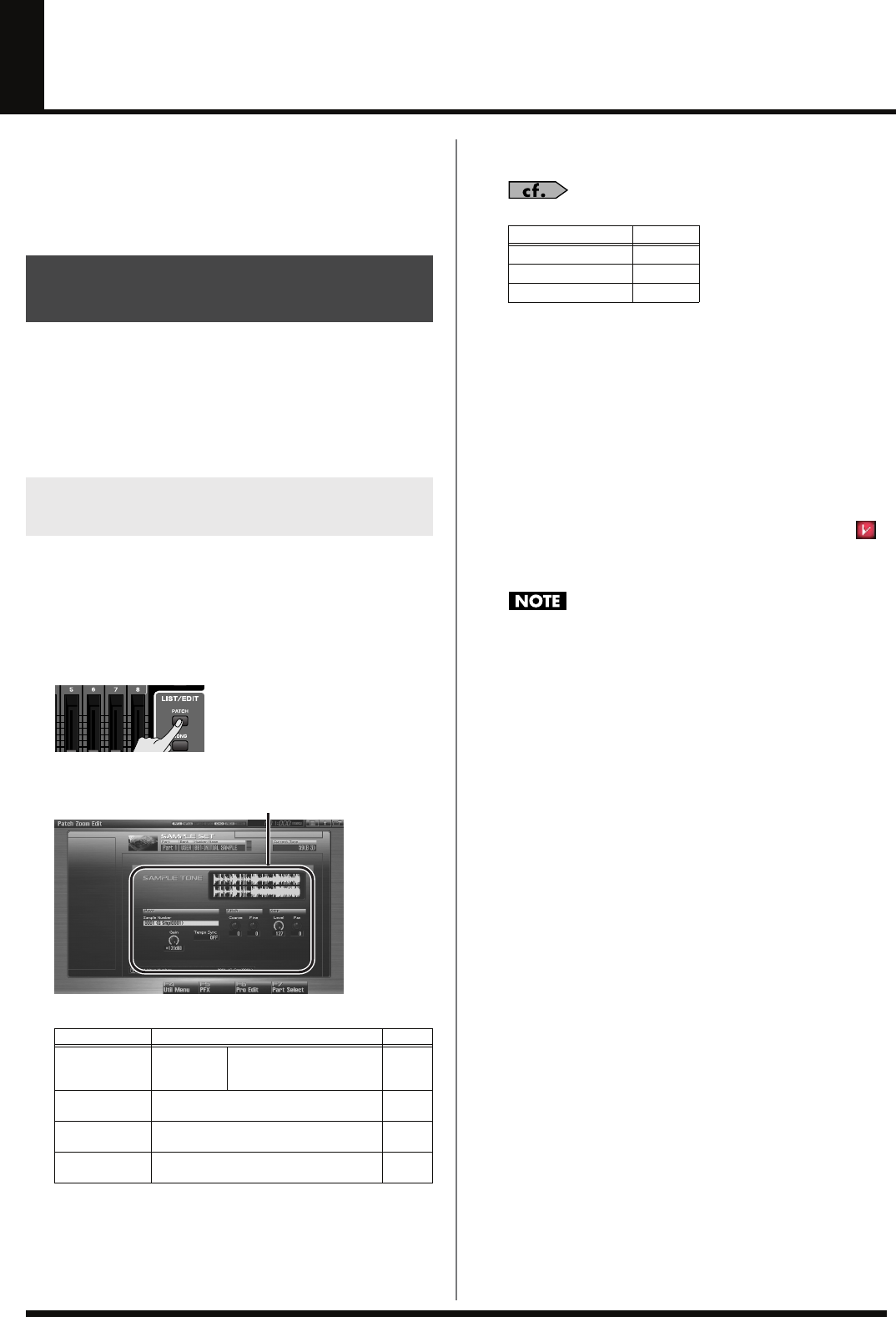
126
Creating a Sample Set
With the Fantom-G, you have total control over a wide variety of
settings. Each item that can be set is known as a
parameter
. When
you change the values of parameters, you are doing what is referred
to as
Editing
. This chapter explains the procedures used in creating
sample sets, and the functions of the sample set parameters.
On the Fantom-G, a waveform (wave) obtained by audio recording
or sampling is called a “sample.” A sample set consists of sixteen
samples handled as a set. You can specify how the samples will play
when you press a pad or note on the keyboard.
Here’s how to create a new sample set by starting with one of the
provided sample sets.
The Patch Zoom Edit screen lets you edit the most important
parameters. If you want to have access to all parameters, use the
Patch Pro Edit screen (p. 127).
1.
Select the sample set whose settings you want to edit (p. 53).
2.
Press [PATCH].
The Patch Zoom Edit screen appears.
fig.07-001_50
F-key operations in the Patch Zoom Edit screen
3.
Press [CURSOR] button to move the cursor to the
parameter you wish to modify.
For details on each parameter, refer to the following pages.
•
To change the part that you want to edit
Press [F7 (Part Select)].
4.
Turn the VALUE dial, or Press [INC] [DEC] to set a value.
5.
Repeat steps 3–4 to set each parameter you want to edit.
6.
If you wish to save the changes you’ve made, press
[WRITE] to perform the Save operation (p. 128). If you do
not wish to save changes, press [EXIT] to return to the
Single Play screen.
If you return to the Single Play screen without saving, the “ ”
symbol will be displayed at the right of the sample set name,
indicating that the sample set settings have been edited.
The settings you edit are temporary, and will be lost if you turn
off the power, switch the sound generator mode, or select a
different sound.
How to make Sample Set
settings
Editing a Sample Set Quickly
(Patch Zoom Edit)
F-key Explanation
Page
F4
Util Menu Sample
Set
Initialize
Initializes the settings of
the currently selected
sample set.
p. 127
F5
PFX Accesses the PFX (Patch Multi-effect) ed-
iting screen. p. 157
F6
Pro Edit Accesses the Patch Pro Edit screen, where
you can edit all of the parameters. p. 127
F7
Part Select Selects the part to be edited. –
Parameters
Parameter name Page
Wave p. 130
Pitch p. 130
Amp p. 131
Fantom-G_r_e.book 126 ページ 2008年1月31日 木曜日 午後12時15分
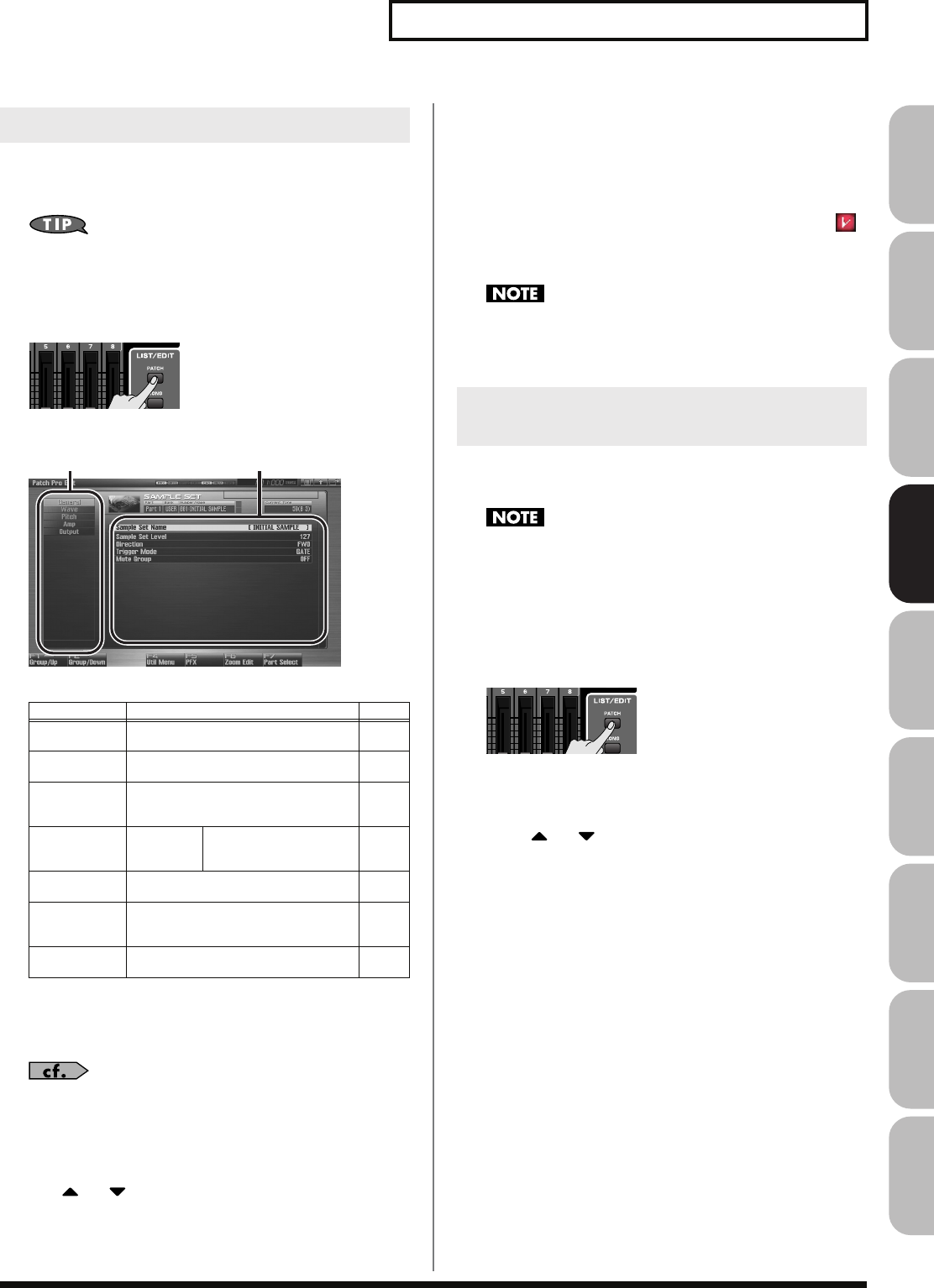
127
Creating a Sample Set
Overview Sound 1 Sound 2 Sound 3 Pad Sampler
Menu/System
AppendixSequencer
The Patch Pro Edit screen allows you to edit all parameters.
1.
Select the sample set whose settings you want to edit (p. 53).
If you want to create a sample set from scratch (rather than
starting from an existing sample set), execute the
Initialize
operation (p. 127).
2.
Press [PATCH] twice.
The Patch Pro Edit screen appears.
fig.07-001_50
F-key operations in the Patch Pro Edit screen
3.
The parameters are organized into several editing groups.
Press [F1 (Up)] or [F2 (Down)] to select the tab for the
editing group that contains the parameter you wish to edit.
For details on how the parameters are grouped, refer to
“Functions of Sample Set Parameters”
(p. 129).
•
To change the part that you want to edit
Press [F7 (Part Select)].
4.
Use or to move the cursor to the parameter you
wish to modify.
5.
Turn the VALUE dial, or Press [INC] [DEC] to set a value.
6.
Repeat steps 3–5 to set each parameter you want to edit.
7.
If you wish to save the changes you’ve made, press
[WRITE] to perform the Save operation (p. 128). If you do
not wish to save changes, press [EXIT] to return to the
Single Play screen.
If you return to the Single Play screen without saving, the “ ”
symbol will be displayed at the right of the sample set name,
indicating that the sample set settings have been edited.
The settings you edit are temporary, and will be lost if you turn
off the power, switch the sound generator mode, or select a
different sound.
“Initialize” means to return the settings of the currently selected
sound to a standard set of values or to the factory settings.
The Initialize operation will affect only the currently selected
sound; the sounds that are stored in user memory will not be
affected. If you wish to restore all of the Fantom’s settings to
their factory values, perform a Factory Reset (p. 280).
1.
Select the sample set that you want to initialize (p. 53).
2.
Press [PATCH].
3.
Press [F4 (Util Menu)].
The Utility Menu window appears.
4.
Press or to choose “Sample Set Initialize,” and
then press [F8 (Select)].
To cancel, press [F7 (Cancel)].
A message will ask for confirmation.
5.
Press [F7 (OK)].
To cancel, press [F8 (EXIT)].
Editing All Parameters (Patch Pro Edit)
F-key Explanation
Page
F1
Group/Up Moves the edit group tab upward. –
F2
Group/Down Moves the edit group tab downward. –
F3
Set Stereo This is shown if you’re editing the WAVE
group. It recalls the right wave (R) from
the left wave (L) of a stereo wave.
p. 130
F4
Util Menu Sample
Set
Initialize
Initializes the settings of
the currently selected
sample set.
p. 127
F5
PFX Accesses the PFX (Patch Multi-effect) ed-
iting screen. p. 157
F6
Zoom Edit Accesses the Patch Zoom Edit screen,
where you can edit the most important
parameters.
p. 126
F7
Part Select Selects the part to be edited. –
Groups Parameters
Initializing Sample Set Settings
(Sample Set Initialize)
Fantom-G_r_e.book 127 ページ 2008年1月31日 木曜日 午後12時15分
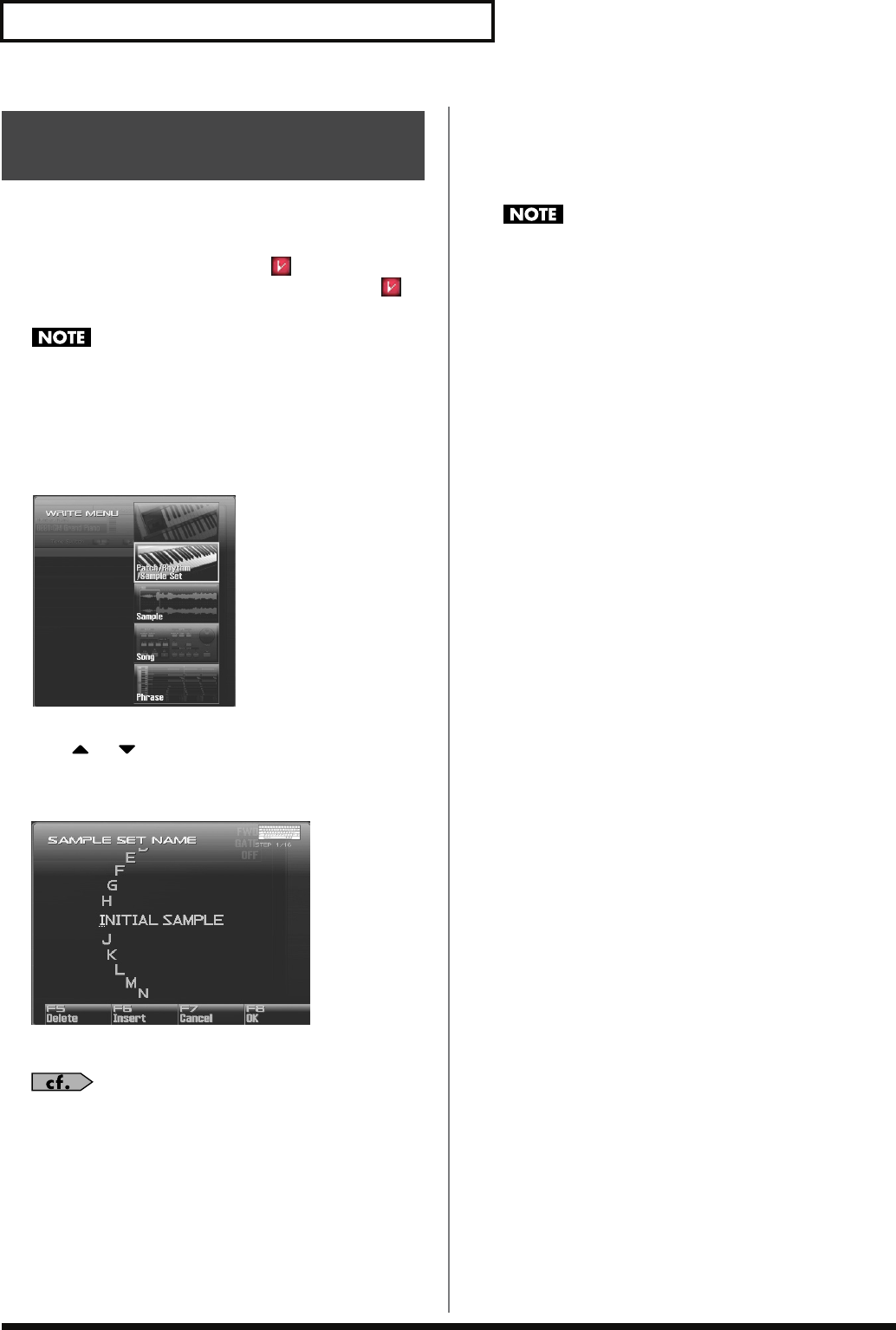
128
Creating a Sample Set
Changes you make to sound settings are temporary, and will be lost
if you turn off the power or select another sound. If you want to keep
the modified sound, you must save it in the user bank.
When you edit the sample set settings, the “ ” symbol will appear
in the Single Play screen. When you save the sample set, the “ ”
symbol will disappear.
When you perform the save procedure, the data that previously
occupied the save destination will be lost.
1.
Make sure that the Sample Set you wish to save is selected.
2.
Press [WRITE].
The WRITE MENU window appears.
3.
Select “Patch / Rhythm / Sample Set.”
Press or to select “Patch / Rhythm / Sample Set,” and
then press [F8 (Select)].
The Sample Set Name window appears.
fig.07-006_50
4.
Assign a name to the sample set.
For details on assigning names, refer to
“Assigning a Name”
(p. 42)
5.
When you have finished inputting the name, press [F8
(OK)].
A screen will appear, allowing you to select the write-
destination sample set.
6.
Turn the VALUE dial or use [INC] [DEC] to select the sample
set number.
7.
Press [F8 (Write)].
A message will ask you for confirmation.
Never switch off the Fantom-G while data is being saved.
8.
Press [F7 (OK)] to execute the save operation.
To cancel, press [F8 (EXIT)].
Saving Sample Sets You’ve
Created (Write)
Fantom-G_r_e.book 128 ページ 2008年1月31日 木曜日 午後12時15分
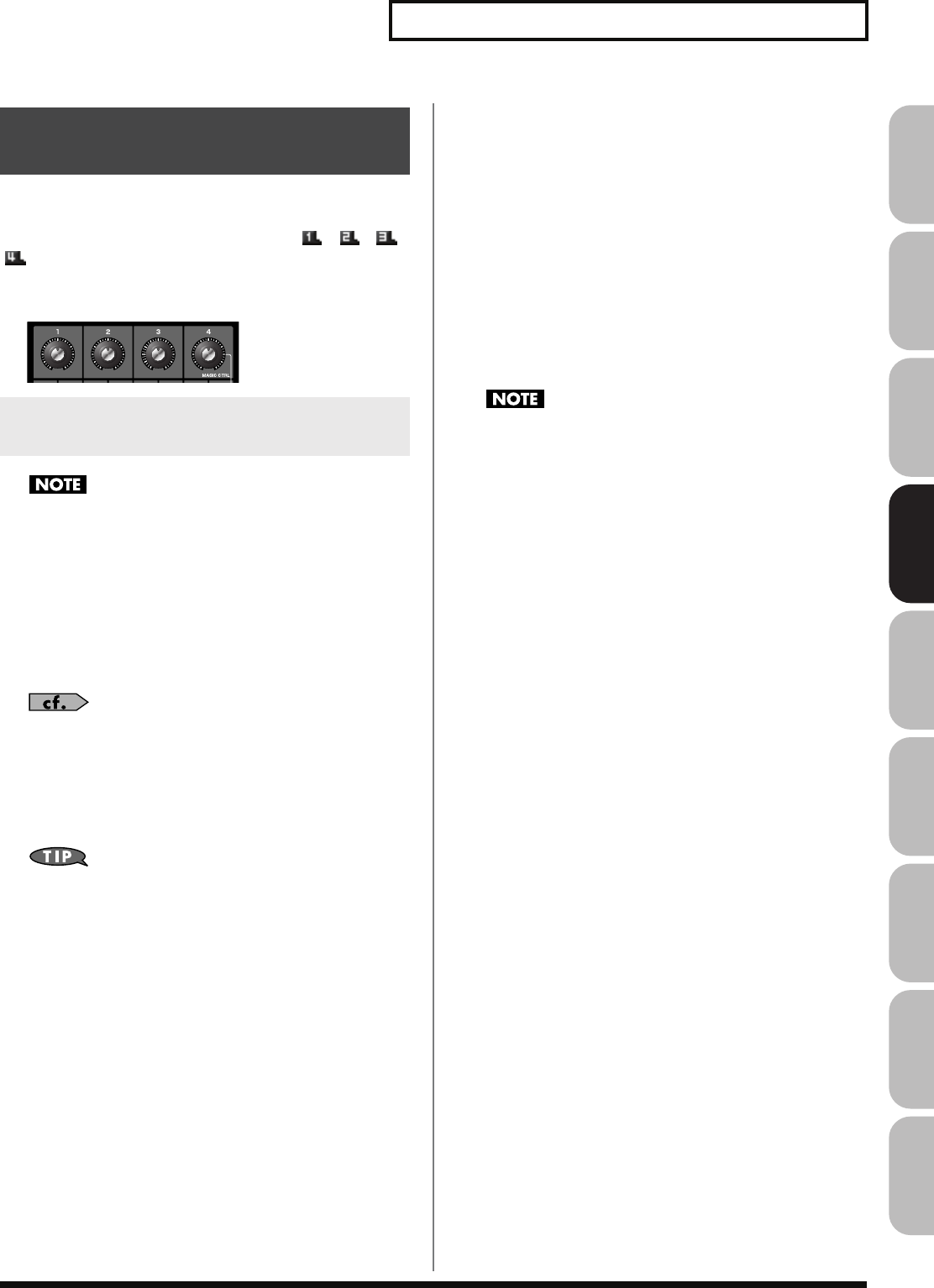
129
Creating a Sample Set
Overview Sound 1 Sound 2 Sound 3 Pad Sampler
Menu/System
AppendixSequencer
This section explains the functions the different sample set
parameters have, as well as the composition of these parameters.
If a number is displayed for the parameter name, ( , , ,
), you can use the realtime controller knob of the corresponding
number (the left most knob is number 1, the right most knob is
number 4) to set the value.
fig.06-010
Sample Set Level, Sample Set MFX Switch, Sample Set Chorus
Switch and Sample Set Reverb Switch applies to the entire
sample set; the other parameters are set individually for each
sample set tone.
Sample Set Name
Specifies the name of the sample set.
By pressing [ENTER], you can assign a name to the sample set.
Value:
space, A–Z, a–z, 0–9, ! ” # $ % & ’ ( ) * + , - . / : ; < = > ? @ [ \ ] ^ _ ` { | }
For details on entering a name, refer to
“Assigning a Name”
(p. 42).
Sample Set Level
Sets the volume of the sample set.
Value:
0–127
The volume levels of the tones from which the sample set is
composed is set with the Tone Level parameter (p. 131).
Direction
Specifies the direction in which the sample will play.
Value:
FWD:
Play forward.
REV:
Play backward.
Trigger Mode
Specifies how the sample will play when you press a pad (or key).
Value:
GATE:
The sample will stop playing when you release the pad
(or key).
DRUM:
The sample will continue playing even after you release
the pad (or key).
The sample will begin playing when you press the pad, and will
stop automatically when the end of the sample is reached. If
you select the DRUM setting, the Loop setting is ignored; the
sample will play only once. Note that if you select DRUM, you
will not be able to interrupt the sound, so use this setting with
caution if the sample is extremely long.
Mute Group
On an actual acoustic drum set, an open hi-hat and a closed hi-hat
sound can never occur simultaneously. To reproduce the reality of
this situation, you can set up a Mute Group.
The Mute Group function allows you to designate two or more
sample tones that are not allowed to sound simultaneously. Up to 16
Mute Groups can be used. sample tones that are not belong to any
such group should be set to “OFF.”
Value:
OFF, 1–16
Functions of Sample Set
Parameters
Making Settings Common to the
Entire Sample Set (General)
Fantom-G_r_e.book 129 ページ 2008年1月31日 木曜日 午後12時15分
130
Creating a Sample Set
Sample Number L (Mono)
Sample Number R
This selects the Samples comprising the sample tone. Along with the
Sample number, the Sample name appears at the lower part of the
display.
When in monaural mode, only the left side (L) is specified. When in
stereo, the right side (R) is also specified.
Value:
OFF, 0001–2000
If you want to select a left/right pair of Samples, select the left
(L) Sample number and then press [F3 (Set Stereo)]; the right (R)
(Sample) will be recalled.
* When using a sample in stereo, you must specify the same number for
L and R.
Wave Gain
Sets the gain (amplification) of the waveform. The value changes in 6
dB (decibel) steps—an increase of 6 dB doubles the waveform’s gain.
Value:
-6, 0, +6, +12
Tempo Sync (Wave Tempo Sync)
When you wish to synchronize a Phrase Loop to the clock (tempo),
set this to “ON.”
Value:
OFF, ON
• If a sample is selected for a tone, you must first set the BPM
(tempo) parameter of the sample.
• If a sample is selected for a tone, Wave Tempo Sync will require
twice the normal number of voices.
Tone Coarse Tune (Sample Tone Coarse Tune)
Selects the pitch at which a sample tone sounds.
Value:
-48– +48
Tone Fine Tune (Sample Tone Fine Tune)
Adjusts the pitch of the sample tone’s sound up or down in 1-cent
steps (+/-50 cents).
Value:
-50– +50
One cent is 1/100th of a semitone.
Modifying Waveforms (Wave)
Phrase Loop
Phrase loop refers to the repeated playback of a phrase that’s
been pulled out of a song (e.g., by using a sampler). One
technique involving the use of Phrase Loops is the excerpting of
a Phrase from a pre-existing song in a certain genre, for example
dance music, and then creating a new song with that Phrase
used as the basic motif. This is referred to as “Break Beats.”
Realtime Time Stretch
If the Wave Tempo Sync parameter is turned “ON,” you can
vary the playback speed of the waveform without affecting the
pitch.
Modifying Pitch (Pitch)
Fantom-G_r_e.book 130 ページ 2008年1月31日 木曜日 午後12時15分
131
Creating a Sample Set
Overview Sound 1 Sound 2 Sound 3 Pad Sampler
Menu/System
AppendixSequencer
Tone Level (Sample Tone level)
Sets the volume of the sample tone. Use this parameter to adjust the
volume balance between sample tones.
Value:
0–127
Tone Pan (Sample Tone Pan)
Sets the pan for the sample tone. “L64” is far left, “0” is center, and
“63R” is far right.
Value:
L64–0–63R
Level Velocity Sens
Set this when you want the volume of the sample tone to change
depending on the force with which you press the keys. Set this to a
positive (+) value to have the changes in sample tone volume
increase the more forcefully the keys are played; to make the tone
play more softly as you play harder, set this to a negative (-) value.
Value:
-63– +63
Tone Output Level
Specifies the signal level for each tone.
Value:
0–127
Tone Chorus Send Level
Specifies the level of the signal sent to the chorus for each tone.
Value:
0–127
Tone Reverb Send Level
Specifies the level of the signal sent to the reverb for each tone.
Value:
0–127
Tone Output Assign
Specifies how the direct sound of each tone will be output.
Value:
PFX:
Output through patch multi-effects.
DRY:
Output without passing through patch multi-effects.
By pressing the [F5 (PFX)] button you can access the PFX (Patch
Multi-effect) editing screen (p. 157).
For details regarding effect settings, refer to the pages shown
below.
•
“Making Effect Settings”
(p. 151)
•
“Making Patch Multi-Effects Settings (PFX)”
(p. 157)
Adjusting the Volume (Amp) Output Settings (Output)
Setting Effects for a Sample Set
(PFX)
Fantom-G_r_e.book 131 ページ 2008年1月31日 木曜日 午後12時15分
132
Creating a Live/Studio Set
With the Fantom-G, you have total control over a wide variety of
settings. Each item that can be set is known as a
parameter
. When
you change the values of parameters, you are doing what is referred
to as
Editing
. This chapter explains the procedures used in creating
Live/Studio Sets, and the functions of the Live/Studio Set
parameters.
Here’s how to make settings that are common to the entire live set
(or studio set).
1.
Press [LIVE] (or [STUDIO]).
2.
Press [F2 (Utility)].
The Utility screen will appear.
3.
The parameters are organized into several editing groups.
Press [F1 (Up)] or [F2 (Down)] to select the tab for the
editing group that contains the parameter you wish to edit.
4.
Press or to move the cursor to the parameter you
wish to modify.
5.
Turn the VALUE dial or press [INC] [DEC] to get the value
you want.
6.
If you wish to save the changes you’ve made, press
[WRITE] to perform the Save operation (p. 148). If you do
not wish to save changes, press [EXIT].
If you return to the Play screen without saving, the “ ”
symbol will be displayed at the right of the live/studio set
name, indicating that the patch settings have been edited.
The settings you edit are temporary, and will be lost if you turn
off the power, switch the sound generator mode, or select a
different sound.
Live Set Name
Studio Set Name
Specifies the name of the live/studio set.
By pressing [ENTER], you can assign a name to the live/studio set.
Value:
space, A–Z, a–z, 0–9, ! ” # $ % & ’ ( ) * + , - . / : ; < = > ? @ [ \ ] ^ _ ` { | }
For details on entering a name, refer to
“Assigning a Name”
(p. 42).
Live Set Memo
Studio Set Memo
You can assign a memo of up to 32 characters.
By pressing [ENTER], you can assign a memo to the live/studio set.
Value:
space, A–Z, a–z, 0–9, ! ” # $ % & ’ ( ) * + , - . / : ; < = > ? @ [ \ ] ^ _ ` { | }
In this display you can check the receive status of various types of
MIDI message for each MIDI channel. This is a convenient way to
check that the sound generator is responding correctly to messages
from the keyboard or external MIDI controllers.
Modulation:
Modulation messages
Breath:
Breath messages
Foot Type:
Foot type messages
Volume:
Volume messages
Panpot:
Panpot messages
Expression:
Expression messages
Hold 1:
Hold 1 messages
Pitch Bend:
Pitch Bend messages
Aftertouch:
Aftertouch messages
Common Settings (Utility)
NAME
Part Info
Fantom-G_r_e.book 132 ページ 2008年1月31日 木曜日 午後12時15分
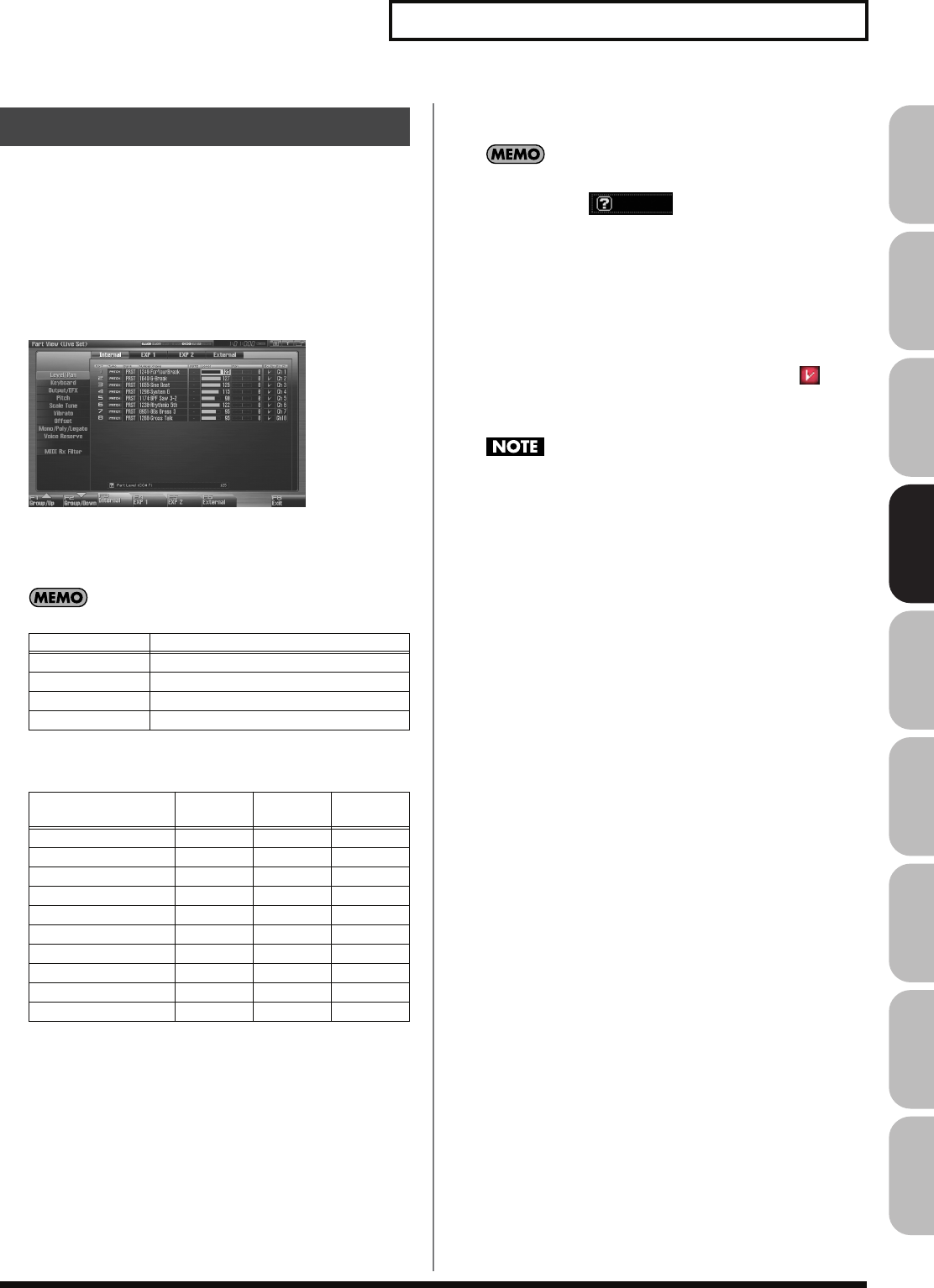
133
Creating a Live/Studio Set
Overview Sound 1 Sound 2 Sound 3 Pad Sampler
Menu/System
AppendixSequencer
You can view the part settings as a list. This is called the “
Part View
”
screen. In this screen you can view a list that shows settings for all
parts at once, such as the patch assigned to each part, and its volume
and pan settings. You can also edit these settings here.
1.
Press [LIVE] (or [STUDIO]).
2.
Press [F3 (Part View)].
The Part View screen will appear.
fig.08-017_50
3.
The parameters are organized into several editing groups.
Press [F1 (Up)] or [F2 (Down)] to select the tab for the
editing group that contains the parameter you wish to edit.
You can use the F-keys to switch the part group that is shown.
In the Part View screen, the edit groups that are shown will
depend on the part group that’s selected.
4.
Use [CURSOR] to move the cursor to the parameter that
you want to edit.
In this screen, the name of the parameter selected by the cursor
is shown in the “ ” area in the lower left of the
screen. The value of the current setting is also shown here.
5.
Turn the VALUE dial or press [INC] [DEC] to get the value
you want.
6.
If you wish to save the changes you’ve made, press
[WRITE] to perform the Save operation (p. 148). If you do
not wish to save changes, press [EXIT].
If you return to the Play screen without saving, the “ ”
symbol will be displayed at the right of the live/studio set
name, indicating that the patch settings have been edited.
The settings you edit are temporary, and will be lost if you turn
off the power, switch the sound generator mode, or select a
different sound.
Part Settings (Part View)
F-key Explanation
F3 Internal Internal (internal sound generator)
F4 EXP 1 Expansion board 1
F5 EXP 2 Expansion board 2
F6 External External MIDI output
Edit Group F3
Internal
F4/F5
EXP 1/2
F6
External
Level/Pan
✓✓ ✓
Keyboard
✓✓ ✓
Output/EFX
✓✓
Pitch
✓✓
Scale Tune
✓✓
Vibrato
✓
Offset
✓
Mono/Poly/Legato
✓
Voice Reserve
✓
MIDI Rx Filter
✓✓ ✓
Fantom-G_r_e.book 133 ページ 2008年1月31日 木曜日 午後12時15分
134
Creating a Live/Studio Set
Patch Type
Sets the assignment of a patch (Patch), rhythm set (Rhythm) or
sample set (Sample) to each of the parts.
Value:
PATCH, RHYTHM, SAMPLE
* EXP 1 and EXP 2 parts will depend on the expansion board that is
installed.
Patch Bank
Selects the group to which the desired patch or rhythm set belongs.
Value
USER:
User
PRST:
Preset
USAM:
User Sample
GM:
GM (GM2)
* EXP 1 and EXP 2 parts will depend on the expansion board that is
installed.
Patch Number
Selects the desired patch, rhythm set or sample set by its number.
Value:
001–
* EXP 1 and EXP 2 parts will depend on the expansion board that is
installed.
Mute Switch
Mutes (MUTE) or un-mutes (OFF) each part.
Use this setting when, for example, you want to use the instrument
for karaoke by muting the part playing the melody, or when you
want to play something using a separate sound module.
Value:
OFF, MUTE
The Mute Switch parameter does not turn the part off, but sets
the volume to minimum so that no sound is heard. Therefore,
MIDI messages are still received.
Part Level
Adjust the volume of each part. This setting’s main purpose is to
adjust the volume balance between parts.
Value:
0–127
Part Pan
Adjust the pan of each part. “L64” is far left, “0” is center, and “63R”
is far right.
Value:
L64–0–63R
Receive Switch
For each part, specify whether MIDI messages will be received (ON),
or not (OFF).
If this is “OFF,” the part will not respond. Normally, you should
leave this “ON,” but you can turn it “OFF” when you do not want a
specific part to be playing during song playback.
Value:
OFF, ON
Receive Channel
Specifies the MIDI receive channel for each part
Value:
1–16
Level/Pan
(When the Part Group is Internal/EXP1/EXP2)
Fantom-G_r_e.book 134 ページ 2008年1月31日 木曜日 午後12時15分
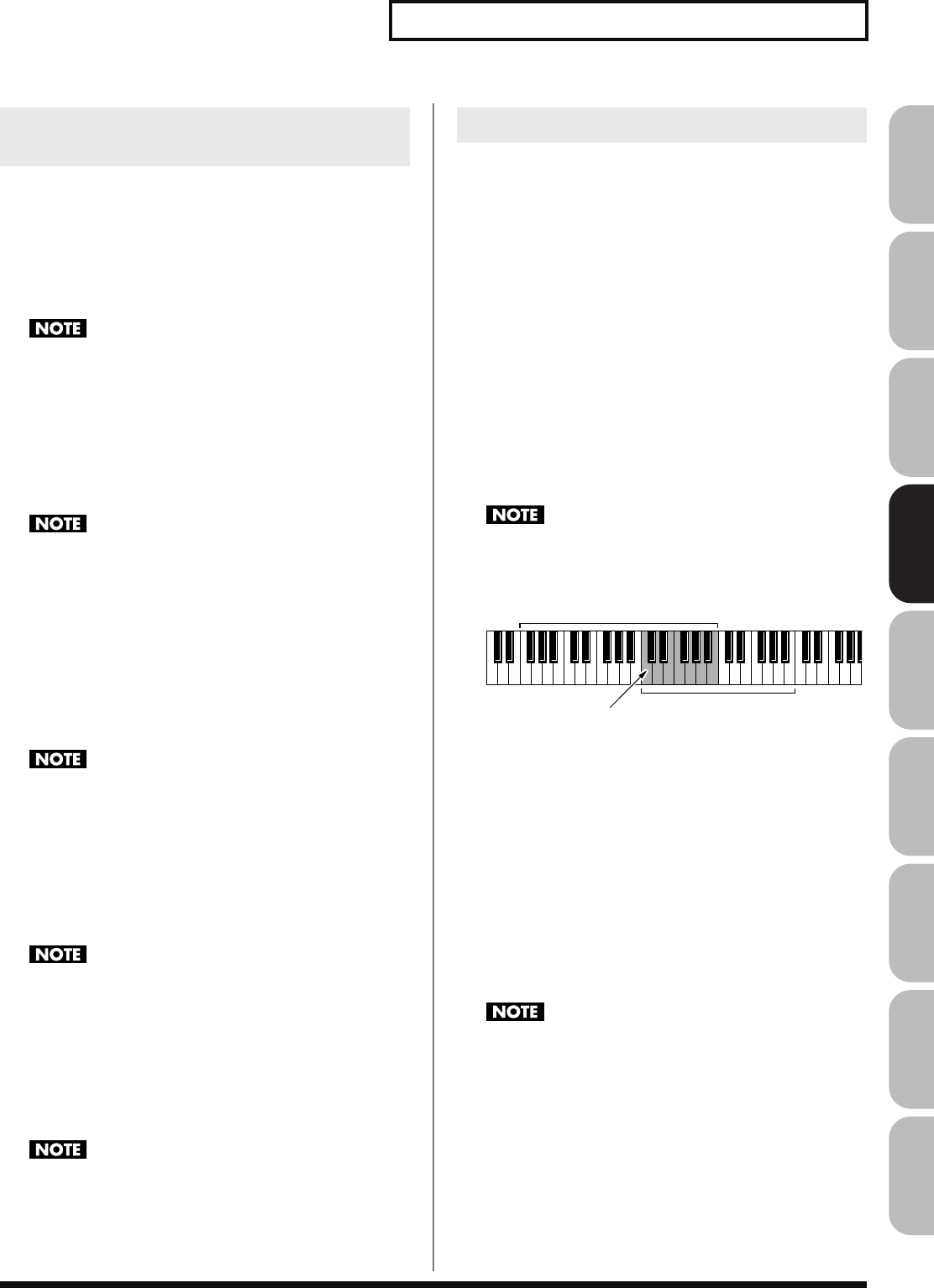
135
Creating a Live/Studio Set
Overview Sound 1 Sound 2 Sound 3 Pad Sampler
Menu/System
AppendixSequencer
External Bank Select MSB
If you want a Bank Select number MSB (controller number 0) to also
be transmitted when you switch Live/Studio Sets, specify the value
that you want to transmit (0–127) for each part. If you do not want
this message to be transmitted, set this to “---.”
Value:
0–127, ---
The data of the part for which the Keyboard Switch is turned off
will not be transmitted.
External Bank Select LSB
If you want a Bank Select number LSB (controller number 32) to also
be transmitted when you switch Live/Studio Sets, specify the value
that you want to transmit (0–127) for each part.
Value:
0–127, ---
The data of the part for which the Keyboard Switch is turned off
will not be transmitted.
External Program Number
(External Program Change Number)
If you want a Program Change number to also be transmitted when
you switch Live/Studio Sets, specify the value that you want to
transmit (0–128) for each part. If you do not want this message to be
transmitted, set this to “---.”
Value:
1–128, ---
The data of the part for which the Keyboard Switch is turned off
will not be transmitted.
External Level
If you want Volume messages to also be transmitted when you select
a Live/Studio Set, specify the desired value (0–127) for the part. If
you do not want this message to be transmitted, set this to “---.”
Value:
0–127, ---
The data of the part for which the Keyboard Switch is turned off
will not be transmitted.
External Pan
If you want Pan messages to also be transmitted when you select a
Live/Studio Set, specify the desired value (L64–0–63R) for the part.
If you do not want this message to be transmitted, set this to “---.”
Value:
L64–0–63R, ---
These messages will not be transmitted by parts whose
Keyboard Switch is turned off.
Keyboard Switch
Specifies, for each part, whether or not the keyboard controller
section will be connected to the internal sound generator.
Normally you will leave this off; you can turn it on if you want to
layer sounds.
Value:
On, OFF
Keyboard Range Lower
(Part Keyboard Range Lower)
Specifies the lowest note that the tone will sound for each part.
Value:
C-1–UPPER
Keyboard Range Upper
(Part Keyboard Range Upper)
Specifies the highest note that the tone will sound for each part.
Value:
LOWER–G9
When the Key Range (p. 94) is set for each individual tone in a
patch, sounds are produced in the range where the Key Range
of each tone and the Key Range for the part overlap.
fig.09-006.e
* Keyboard Range is valid only for parts whose
“Keyboard Switch”
(p. 135) is on.
Velocity Range Lower
For each part, specifies the bottom of the velocity range.
Value:
1–127
Velocity Range Upper
For each part, specifies the top of the velocity range.
Value:
1–127
* Velocity Range is valid only for parts whose
“Keyboard Switch”
(p.
135) is on.
When the Key Range (p. 94) is set for each individual tone in a
patch, sounds are produced in the range where the Key Range
of each tone and the Key Range for the part overlap.
Level/Pan
(When the Part Group is External) Key Range
Key range specified for Performance
Key range specified for Patch
The range in which notes will play
Fantom-G_r_e.book 135 ページ 2008年1月31日 木曜日 午後12時15分
136
Creating a Live/Studio Set
Part Velocity Sens Offset
This changes the volume and cutoff frequency for each part
according to the velocity with which the keys are pressed. If you
want strongly played notes to raise the volume/cutoff frequency, set
this parameter to positive (+) settings. If you want strongly played
notes to lower the volume/cutoff frequency, use negative (-)
settings. Set Velocity Sensitivity to “0” when you want sounds
played at a fixed volume and cutoff frequency, regardless of the
force with which the keys are played.
Value:
-63– +63
Patches also contain a Velocity Sensitivity Offset setting (p. 91).
The ultimate Velocity Sensitivity Offset value is the sum of the
part’s and the patch’s Velocity Sensitivity Offsets. Accordingly,
if the patch’s Velocity Sensitivity Offset parameter is set to
“127” (maximum), there will be no change in the part’s Velocity
Sensitivity Offset, even when this is set to a positive value.
* EXP 1, EXP 2, and External parts do not have this item.
Arpeggio Part Switch
Specifies the part that will use the Arpeggio function.
Value:
OFF, ON
Sample Pad Part Switch
Specifies the Rhythm Pad Part.
Value:
OFF, ON
Rhythm Pad Part Switch
Specifies the Sample Pad Part.
Value:
OFF, ON
Part Output Assign
Specifies for each part how the direct sound will be output.
Value
A, B:
Output to the OUTPUT A (MIX) jack or OUTPUT B jack
in stereo without passing through multi-effects.
1–4:
Output to the INDIVIDUAL 1–4 jacks in mono without
passing through multi-effects.
MFX1, MFX2:
Output in stereo through multi-effects. *Studio set only
In the case of parts EXP1, EXP2:
DRY:
Output without being passed through the expansion
board’s MFX.
EXP:
Accords with the settings of the expansion board.
If you’ve made settings so that sounds are separately routed to
the INDIVIDUAL 1 jack and INDIVIDUAL 2 jack, but no plug
is actually inserted in the INDIVIDUAL 2 jack, the sounds
routed to INDIVIDUAL 1 and INDIVIDUAL 2 will be mixed
and output from the INDIVIDUAL 1 jack. This is due to the
mechanism of the INDIVIDUAL 1 and 2 jacks.
If the Mix/Parallel parameter is set to “MIX,” all sounds are
output from the OUTPUT A (MIX) jacks in stereo (p. 294).
Chorus are output in mono at all times.
• The output destination of the signal after passing through the
chorus is set with the Chorus Output Select (p. 153) and the
Chorus Output Assign (p. 153).
• The output destination of the signal after passing through the
reverb is set with the Reverb Output Assign (p. 153).
* EXP 1 and EXP 2 parts will depend on the expansion board that is
installed.
* External parts do not have this item.
Part Output Level
Set the level of the signal that is sent to the output destination
specified by Part Output Assign.
Value:
0–127
* EXP 1 and EXP 2 parts will depend on the expansion board that is
installed.
* External parts do not have this item.
Part Chorus Send Level
Sets the level of the signal sent to chorus for each part.
Value:
0–127
* External parts do not have this item.
Output/EFX
Fantom-G_r_e.book 136 ページ 2008年1月31日 木曜日 午後12時15分
137
Creating a Live/Studio Set
Overview Sound 1 Sound 2 Sound 3 Pad Sampler
Menu/System
AppendixSequencer
Part Reverb Send Level
Sets the level of the signal sent to reverb for each part.
Value:
0–127
* External parts do not have this item.
Part EFX1 Send Level
(Expansion part effect 1: Send Level)
Sets the level of the signal sent to “EFX 1 (Effect) 1” for each part of
the expansion board.
Value:
0–127
* “EFX1 (Effect 1)” is an effect on the expansion board. The content of
the effect will depend on the expansion board that’s installed.
* Internal and External parts do not have this item.
Part EFX2 Send Level
(Expansion part effect 2: Send Level)
Sets the level of the signal sent to “EFX 1 (Effect) 1” for each part of
the expansion board.
Value:
0–127
* “EFX2 (Effect 2)” is an effect on the expansion board. The content of
the effect will depend on the expansion board that’s installed.
* Internal and External parts do not have this item.
Part Octave Shift
Adjusts the pitch of the part’s sound up or down in units of an
octave (+/-3 octaves).
Value:
-3– +3
Part Transpose
Adjusts the pitch of the part’s sound up or down in semitone steps.
Value:
-5– +6
Part Coarse Tune
Adjusts the pitch of the part’s sound up or down in semitone steps
(+/-4 octaves).
Value:
-48– +48
* EXP 1 and EXP 2 parts will depend on the expansion board that is
installed.
* External parts do not have this item.
Part Fine Tune
Adjusts the pitch of the part’s sound up or down in 1-cent steps (+/-
50 cents).
Value:
-50– +50
One cent is 1/100th of a semitone.
* EXP 1 and EXP 2 parts will depend on the expansion board that is
installed.
* External parts do not have this item.
Pitch
Coarse Tune and Octave Shift
The Coarse Tune and Fine Tune parameters, along with the
Octave Shift parameter, can all be seen as doing the same thing
to the sound, i.e., changing the pitch of the sound. For example,
if C4 (Middle C) is played with the Coarse Tune parameter set
to “+12,” the note produced is C5 (one octave above C4). For
example, if C4 (Middle C) is played with the Octave Shift
parameter set to “+1,” the note produced is C5 (one octave
above C4).
However, internally these function very differently. When the
Coarse Tune parameter is set to “+12,” the pitch itself is raised
one octave. On the other hand, when the Octave Shift parameter
is set to “+1,” it is the same as pressing the keys one octave up.
In other words, use the Coarse Tune parameter when changing
the pitch, and the Octave Shift parameter when you want to
shift the entire keyboard, for example, when the number of keys
is insufficient.
Fantom-G_r_e.book 137 ページ 2008年1月31日 木曜日 午後12時15分
138
Creating a Live/Studio Set
Part Pitch Bend Range
Specifies the amount of pitch change in semitones (2 octaves) that
will occur when the Pitch Bend Lever is moved. The amount of
change when the lever is tilted is set to the same value for both left
and right sides. If you want to use the Pitch Bend Range setting of
the patch assigned to the part (p. 96), set this to “PATCH.”
Value:
0–24, PATCH
* EXP 1 and EXP 2 parts will depend on the expansion board that is
installed.
* External parts do not have this item.
Part Portamento Switch
Specify whether portamento will be applied. Turn this parameter
“ON” when you want to apply Portamento and “OFF” when you
don’t. If you want to use the Portamento Switch setting of the patch
assigned to the part (p. 106), set this to “PATCH.”
Value:
OFF, ON, PATCH
* EXP 1, EXP 2, and External parts do not have this item.
Part Portamento Time
When portamento is used, this specifies the time over which the
pitch will change. Higher settings will cause the pitch change to the
next note to take more time. If you want to use the Portamento Time
setting of the patch assigned to the part (p. 106), set this to
“PATCH.”
Value:
0–127, PATCH
This setting is ignored for parts to which a rhythm set is
assigned.
* EXP 1, EXP 2, and External parts do not have this item.
Part Scale Tune C–B
Make scale tune settings for each part.
Value:
-64– +63
Scale Tune is switched on/off by means of the Scale Tune
Switch parameter (p. 296).
* EXP 1 and EXP 2 parts will depend on the expansion board that is
installed.
* External parts do not have this item.
Scale Tune
Equal Temperament
This tuning divides the octave into 12 equal parts, and is the
most widely used method of temperament used in Western
music. The Fantom-G employs equal temperament when the
Scale Tune Switch is set to “OFF.”
Just Temperament (Tonic of C)
Compared with equal temperament, the principle triads sound
pure in this tuning. However, this effect is achieved only in one
key, and the triads will become ambiguous if you transpose.
Arabian Scale
In this scale, E and B are a quarter note lower and C#, F# and G#
are a quarter-note higher compared to equal temperament. The
intervals between G and B, C and E, F and G#, Bb and C#, and
Eb and F# have a natural third—the interval between a major
third and a minor third. On the Fantom-G, you can use Arabian
temperament in the three keys of G, C and F.
<Example>
Note name Equal
temperament
Just
Temperament
(tonic C)
Arabian
Scale
C 0 0 -6
C# 0 -8 +45
D 0 +4 -2
Eb 0 +16 -12
E 0 -14 -51
F 0 -2 -8
F# 0 -10 +43
G 0 +2 -4
G# 0 +14 +47
A 0 -16 0
Bb 0 +14 -10
B 0 -12 -49
Fantom-G_r_e.book 138 ページ 2008年1月31日 木曜日 午後12時15分
139
Creating a Live/Studio Set
Overview Sound 1 Sound 2 Sound 3 Pad Sampler
Menu/System
AppendixSequencer
Part Vibrato Rate
For each part, adjust the vibrato speed (the rate at which the pitch is
modulated). The pitch will be modulated more rapidly for higher
settings, and more slowly with lower settings.
Value:
-64– +63
* EXP 1, EXP 2, and External parts do not have this item.
Part Vibrato Depth
For each part, this adjusts the depth of the vibrato effect (the depth at
which the pitch is modulated). The pitch will be modulated more
greatly for higher settings, and less with lower settings.
Value:
-64– +63
* EXP 1, EXP 2, and External parts do not have this item.
Part Vibrato Delay
For each part, this adjusts the time delay until the vibrato (pitch
modulation) effect begins. Higher settings will produce a longer
delay time before vibrato begins, while lower settings produce a
shorter time.
Value:
-64– +63
* EXP 1, EXP 2, and External parts do not have this item.
Part Cutoff Offset
Adjusts the cutoff frequency for the patch, rhythm set or sample set
assigned to a part.
Value:
-64– +63
Patches also have a Cutoff Offset setting (p. 90). The final Cutoff
frequency value is the sum of the tone Cutoff Frequency value
and the patch and part Cutoff Offset values. If the tone’s cutoff
frequency is already set to “127” (maximum), there will be no
change produced by setting the Cutoff Offset to a positive
value.
* EXP 1, EXP 2, and External parts do not have this item.
Part Resonance Offset
Adjusts the Resonance for the patch, rhythm set or sample set
assigned to a part.
Value:
-64– +63
Patches also have a Resonance Offset setting (p. 91). The final
Resonance value is the sum of the tone Resonance value and the
patch and part Resonance Offset values. If the tone’s resonance
is already set to “127” (maximum), there will be no change
produced by setting the resonance offset to a positive value.
* EXP 1, EXP 2, and External parts do not have this item.
Part Attack Time Offset
Adjusts the TVA/TVF Envelope Attack Time for the patch, rhythm
set or sample set assigned to a part.
Value:
-64– +63
Patches also contain the Attack Time Offset setting (p. 91). The
final TVA Envelope attack time value is therefore the sum of the
tone’s TVA Envelope Time 1 setting, the patch’s Attack Time
Offset, and the part’s Attack Time Offset. If the tone’s Time 1
parameter is already set to “127” (maximum), there will be no
change produced by setting the Attack Time Offset to a positive
value.The same applies to the TVF envelope.
* EXP 1, EXP 2, and External parts do not have this item.
Part Decay Time Offset
Adjusts the TVA/TVF Envelope Decay Time for the patch, rhythm
set or sample set assigned to a part.
Value:
-64– +63
This setting is ignored for parts to which a sample set is
assigned.
* EXP 1, EXP 2, and External parts do not have this item.
Vibrato Offset
Fantom-G_r_e.book 139 ページ 2008年1月31日 木曜日 午後12時15分
140
Creating a Live/Studio Set
Part Release Time Offset
Adjusts the TVA/TVF Envelope Release Time for the patch, rhythm
set or sample set assigned to a part.
Value:
-64– +63
Patches also contain a Release Time Offset setting (p. 91). The
final TVA Envelope release time value is therefore the sum of
the tone’s TVA Envelope Time 4 setting, the patch’s Release
Time Offset, and the part’s Release Time Offset. If the tone’s
Time 4 parameter is set to “127” (maximum), there will be no
change in the Release Time Offset, even when this is set to a
positive value.The same applies to the TVF envelope.
* EXP 1, EXP 2, and External parts do not have this item.
Part Mono/Poly
Set this parameter to “MONO” when the patch assigned to the part
is to be played monophonically, or to “POLY” when the patch is to
be played polyphonically. If you want to use the Mono/Poly setting
of the patch assigned to the part (p. 105), set this to “PATCH.”
Value:
MONO, POLY, PATCH
This setting is ignored for parts to which a rhythm set is
assigned.
* EXP 1, EXP 2, and External parts do not have this item.
Part Legato Switch
You can add legato when performing monophonically. The term
“legato” refers to a playing style in which notes are smoothly
connected to create a flowing feel. This creates a smooth transition
between notes, which is effective when you wish to simulate the
hammering-on and pulling-off techniques used by a guitarist.
Turn this parameter “ON” when you want to use the Legato feature
and “OFF” when you don’t. If you want to use the Legato Switch
setting of the patch assigned to the part (p. 105), set this to
“PATCH.”
Value:
OFF, ON, PATCH
This setting is ignored for parts to which a rhythm set is
assigned.
* EXP 1, EXP 2, and External parts do not have this item.
Mono/Poly/Legato
Fantom-G_r_e.book 140 ページ 2008年1月31日 木曜日 午後12時15分
141
Creating a Live/Studio Set
Overview Sound 1 Sound 2 Sound 3 Pad Sampler
Menu/System
AppendixSequencer
Part Voice Reserve
This setting specifies the number of voices that will be reserved for
each part when more than 128 voices are played simultaneously.
Value:
0–63, FULL
It is not possible for the settings of all parts to total an amount
greater than 64. The remaining number of available voices will
be displayed at (rest=). Pay attention to this readout as you
make Voice Reserve settings.
When playing audio tracks in a song, audio track playback will
take priority over voice reserve settings. This means that if
audio tracks are playing back, it may not be possible to
guarantee the polyphony specified by the voice reserve settings.
Voice Monitor
Here’s how you can see a graphic indication of the number of voices
used by the sound generator.
Receive Program Change
(Receive Program Change Switch)
For each MIDI channel, specify whether MIDI Program Change
messages will be received (ON), or not (OFF).
Receive Bank Select
(Receive Bank Select Switch)
For each MIDI channel, specify whether MIDI Bank Select messages
will be received (ON), or not (OFF).
Receive Bender
(Receive Pitch Bend Switch)
For each MIDI channel, specify whether MIDI Pitch Bend messages
will be received (ON), or not (OFF).
Receive Polyphonic Key Pressure
(Receive Polyphonic Key Pressure Switch)
For each MIDI channel, specify whether MIDI polyphonic key
pressure messages will be received (ON), or not (OFF).
Receive Channel Pressure
(Receive Channel Pressure Switch)
For each MIDI channel, specify whether MIDI Channel Pressure
messages will be received (ON), or not (OFF).
Receive Modulation
(Receive Modulation Switch)
For each MIDI channel, specify whether MIDI Modulation messages
will be received (ON), or not (OFF).
Receive Volume
(Receive Volume Switch)
For each MIDI channel, specify whether MIDI Volume messages will
be received (ON), or not (OFF).
Receive Pan
(Receive Pan Switch)
For each MIDI channel, specify whether MIDI Pan messages will be
received (ON), or not (OFF).
Receive Expression
(Receive Expression Switch)
For each MIDI channel, specify whether MIDI Expression messages
will be received (ON), or not (OFF).
Receive Hold-1
(Receive Hold 1 Switch)
For each MIDI channel, specify whether MIDI Hold 1 messages will
be received (ON), or not (OFF).
Voice Reserve
Calculating the Number of Voices Being Used
The Fantom-G is able to play up to 128 notes simultaneously.
The polyphony, or the number of voices (sounds) does not refer
only to the number of sounds actually being played, but
changes according to the number of tones used in the patches,
and the number of Waves used in the tones. The following
method is used to calculate the number of sounds used for one
patch being played.
(Number of Sounds Being Played) x (Number of Tones Used by
Patches Being Played) x (Number of Waves Used in the Tones)
Realtime Stretch requires twice the normal polyphony.
MIDI Rx Filter
Fantom-G_r_e.book 141 ページ 2008年1月31日 木曜日 午後12時15分
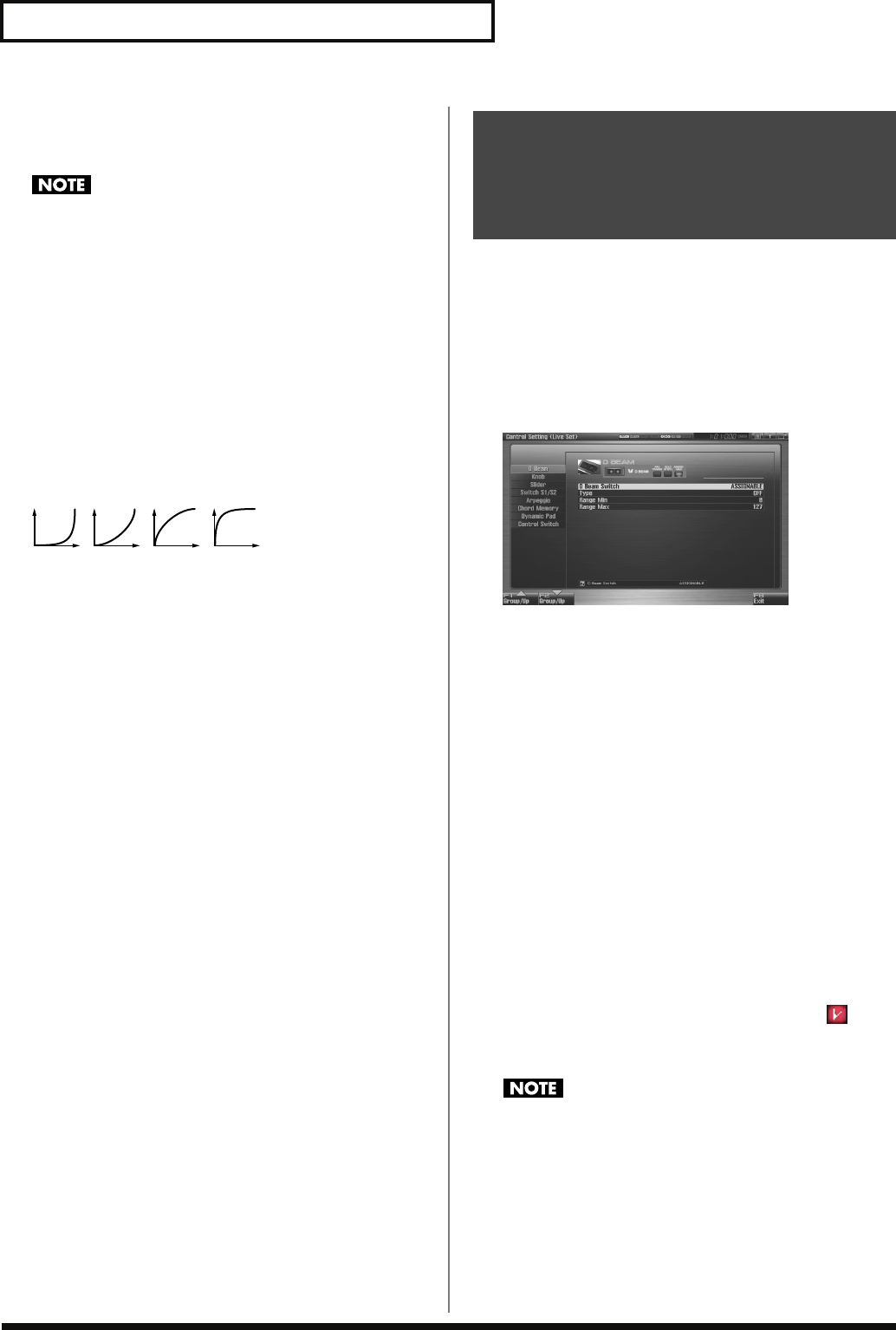
142
Creating a Live/Studio Set
Phase Lock (Phase Lock Switch)
Set Phase Lock to “ON” when you want to suppress discrepancies in
timing of parts played on the same MIDI channel.
When the Phase Lock parameter is set to “ON,” parts on the
same MIDI channel are put in a condition in which their timing
is matched, enabling them to be played at the same time.
Accordingly, a certain amount of time may elapse between
reception of the Note messages and playing of the sounds. Turn
this setting to “ON” only as needed.
* This will not affect expansion boards.
Velocity Curve Type
Velocity Curve selects for each MIDI channel one of the four
following Velocity Curve types that best matches the touch of the
connected MIDI keyboard. Set this to “OFF” if you are using the
MIDI keyboard’s own velocity curve.
Value:
OFF, 1–4
fig.09-010
* This will not affect expansion boards.
The Fantom-G lets you assign the parameters that will be affected
when you operate the realtime control knobs, assignable switches, D
Beam, pitch bend, or modulation lever. This lets you modify the
sound in a variety of ways by operating the controllers.
1.
Press [LIVE] (or [STUDIO]).
2.
Press [F4 (Control)].
The Control Setting screen appears.
fig.09-011_50
3.
The parameters are organized into several editing groups.
Press [F1 (Up)] or [F2 (Down)] to select the tab for the
editing group that contains the parameter you wish to edit.
4.
Use [CURSOR] to move the cursor to the parameter that
you want to edit.
5.
Turn the VALUE dial or press [INC] [DEC] to get the value
you want.
6.
Repeat steps 3-5 to set each parameter you want to edit.
7.
The settings for the Solo Synth are saved for the system
settings. Press [F7 (Sys Write)] to execute the write
operation.
8.
The settings in the Control Setting screen are saved
independently for each live/studio set. If you wish to save
the changes you’ve made, press [WRITE] to perform the
Save operation (p. 148). If you do not wish to save changes,
press [EXIT].
If you return to the Play screen without saving, the “ ”
symbol will be displayed at the right of the live/studio set
name, indicating that the patch settings have been edited.
The settings you edit are temporary, and will be lost if you turn
off the power, switch the sound generator mode, or select a
different sound.
2134
Selecting the Parameter
Controlled by the Realtime
Controllers or D Beam
Controller (Control Setting)
Fantom-G_r_e.book 142 ページ 2008年1月31日 木曜日 午後12時15分
143
Creating a Live/Studio Set
Overview Sound 1 Sound 2 Sound 3 Pad Sampler
Menu/System
AppendixSequencer
D Beam Switch
Specifies the operating mode of the D Beam controller.
Value:
OFF:
The D Beam will not be used.
PAD TRIGGER:
This allows you to use the D Beam controller to
sound the pads as an alternative to striking the
pads.
SOLO SYNTH:
This allows you to use the D Beam controller as a
monophonic synthesizer.
ASSIGNABLE:
The Fantom-G will control the function you assign.
The parameters shown in the screen will depend on the choice
you make here.
D Beam: PAD TRIGGER
Instead of striking the pads themselves, you can also use the D Beam
controller to control the sounding of the pads.
Beam Trigger Pad
Specifies the pad number affected by the D Beam.
Value:
Pad 1–Pad 16
Beam Trigger Velo (Beam Trigger Velocity)
Specifies the strength of the pad sound played by the D Beam
controller.
Value:
1–127
Beam Trigger Mode
This specifies how the D Beam will behave when it is obstructed. If
this is set to MOMENTARY, the parameter will be on only while the
D Beam is obstructed, and will turn off when you stop obstructing it.
If this is set to LATCH, the parameter will alternately be switched
on/off each time you obstruct the D Beam.
Value:
MOMENTARY, LATCH
D Beam: SOLO SYNTH
You can use the D Beam controller to perform in a way similar to on
a mono synth.
Settings for the Solo Synth are saved for system settings. Press
[F7 (Sys Write)] to execute the write operation.
In this screen, the name of the parameter selected by the cursor
is shown in the “ ” area in the lower left of the
screen. The current value of the setting is also shown here.
OSC 1/2 Waveform
Select the waveform.
SAW
is a sawtooth wave, and
SQR
is a square
wave.
Value:
SAW, SQR
OSC 1/2 Pulse Width
Specifies the pulse width of the waveform. By cyclically modifying
the pulse width you can create subtle changes in the tone.
* The Pulse Width is activated when “SQR” is selected with OSC1/2
waveform.
Value:
0–127
LFO Osc 1 Pulse Width Depth
Specifies the depth to which the LFO will modulate the pulse width
of the OSC1 waveform.
* The Pulse Width is activated when “SQR” is selected with OSC1/2
waveform.
Value:
-63– +63
LFO Osc 2 Pulse Width Depth
Specifies the depth to which the LFO will modulate the pulse width
of the OSC2 waveform.
* The Pulse Width is activated when “SQR” is selected with OSC1/2
waveform.
Value:
-63– +63
LFO Osc 1 Pitch Depth
Specifies the depth to which the LFO will modulate the OSC1 pitch.
Value:
-63– +63
LFO Osc 2 Pitch Depth
Specifies the depth to which the LFO will modulate the OSC2 pitch.
Value:
-63– +63
D Beam
Fantom-G_r_e.book 143 ページ 2008年1月31日 木曜日 午後12時15分

144
Creating a Live/Studio Set
OSC 1/2 Coarse Tune
Adjusts the pitch of the tone’s sound up or down in semitone steps
(+/-4 octaves).
Value:
-48– +48
OSC 1/2 Fine Tune
Adjusts the pitch of the tone’s sound up or down in 1-cent steps (+/-
50 cents).
Value:
-50– +50
OSC Sync Switch
Turning this switch on produces a complex sound with many
harmonics. This is effective when the OSC1 pitch is higher than the
OSC2 pitch.
Value:
OFF, ON
OSC2 Level
Adjust the level.
Value:
0–127
Filter Type
Selects the type of filter.
OFF:
No filter is used.
LPF:
Low Pass Filter. This reduces the volume of all
frequencies above the cutoff frequency (Cutoff Freq) in
order to round off, or un-brighten the sound.
BPF:
Band Pass Filter. This leaves only the frequencies in the
region of the cutoff frequency, and cuts the rest.
HPF:
High Pass Filter. This cuts the frequencies in the region
below the cutoff frequency.
PKG:
Peaking Filter. This emphasizes the frequencies in the
region of the cutoff frequency.
Cutoff
Selects the frequency at which the filter begins to have an effect on
the waveform’s frequency components.
Value:
0–127
Resonance
Emphasizes the portion of the sound in the region of the cutoff
frequency, adding character to the sound.
Value:
0–127
LFO Rate
Adjusts the modulation rate, or speed, of the LFO.
Value:
0–127
Range (Solo synth range)
Specifies the range in which the pitch of the solo synth will vary.
Value:
2 OCTAVES, 4 OCTAVES, 8 OCTAVES
Chorus Send Level
Sets the level of the signal sent to chorus.
Value:
0–127
Reverb Send Level
Sets the level of the signal sent to reverb.
Value:
0–127
Level
Sets the volume.
Value:
0–127
Fantom-G_r_e.book 144 ページ 2008年1月31日 木曜日 午後12時15分
145
Creating a Live/Studio Set
Overview Sound 1 Sound 2 Sound 3 Pad Sampler
Menu/System
AppendixSequencer
D Beam: ASSIGNABLE
By assigning a variety of functions to the D Beam controller you can
apply different effects to the sound in real time.
The settings for the ASSIGNABLE are saved independently for
each live/studio set as part of the live/studio set settings. This
lets you create live/studio sets that make effective use of
controller settings.
Type (Assignable Type)
Specifies the function controlled by the D Beam controller.
Value
OFF:
Off
CC01–31, CC32(OFF), 33–95:
Control Change
AFTERTOUCH:
Aftertouch
BEND UP:
Controls the pitch as specified by the
“Pitch Bend Range Up” setting (p. 96).
BEND DOWN:
Controls the pitch as specified by the
“Pitch Bend Range Down” setting (p.
96).
ARPEGGIO ACCENT:
Arpeggio accent rate
ARPEGGIO SHUFFLE:
Arpeggio shuffle rate
ARPEGGIO OCT UP:
The range in which the arpeggio is
sounded will rise in steps of an octave.
ARPEGGIO OCT DOWN:
The range in which the arpeggio is
sounded will lower in steps of an octave.
Range Min (D Beam Range Lower)
Specify the lower limit of the range of the D Beam controller.
Value:
0–127
Range Max (D Beam Range Upper)
Specify the upper limit of the range of the D Beam controller. By
setting Range Max below Range Min you can invert the range of
change.
Value:
0–127
Knob Assign 1–4
Specify the functions that will be controlled by the knobs.
Value
OFF:
Off
CC01–31, CC32(OFF), 33–95:
Control Change
AFTERTOUCH:
Aftertouch
PITCH BEND:
Pitch Bend
ARPEGGIO ACCENT:
Arpeggio accent rate
ARPEGGIO SHUFFLE:
Arpeggio shuffle rate
ARPEGGIO OCT UP:
The range in which the arpeggio is
sounded will rise in steps of an octave.
ARPEGGIO OCT DOWN:
The range in which the arpeggio is
sounded will lower in steps of an octave.
MASTER LEVEL:
Master Level (p. 293)
DIGITAL/USB INPUT LEVEL:
Digital/USB Input Level (p. 258)
* The system setting will be used if the system parameter
“Knob
Assign Source”
(p. 289) is set to “System,” and the setting of the
live set or studio set will be used if it is set to “TEMP.”
Slider 1–8 Assign
Specify the functions that will be controlled by the sliders.
Value
OFF:
Off
CC01–31, CC32(OFF), 33–95:
Control Change
AFTERTOUCH:
Aftertouch
PITCH BEND:
Pitch Bend
ARPEGGIO ACCENT:
Arpeggio accent rate
ARPEGGIO SHUFFLE:
Arpeggio shuffle rate
ARPEGGIO OCT UP:
The range in which the arpeggio is
sounded will rise in steps of an octave.
ARPEGGIO OCT DOWN:
The range in which the arpeggio is
sounded will lower in steps of an octave.
* The system setting will be used if the system parameter
“Slider
Assign Source”
(p. 289) is set to “System,” and the setting of the
live set or studio set will be used if it is set to “TEMP.”
Knob
Slider
Fantom-G_r_e.book 145 ページ 2008年1月31日 木曜日 午後12時15分

146
Creating a Live/Studio Set
Switch S1/S2 Assign
Specify the functions that will be controlled by the [S1] [S2] switches.
Value
Live Set:
OFF, CC01 - CC31, CC32 (OFF), CC33 - CC95,
AFTERTOUCH, MONO/POLY, PFX SWITCH,
MFX SWITCH, RESERVE, CHORUS SWITCH,
REVERB SWITCH, MASTERING SWITCH,
MASTER KEY UP, MASTER KEY DOWN,
SCALE TUNE SWITCH
Studio Set:
OFF, CC01 - CC31, CC32 (OFF), CC33 - CC95,
AFTERTOUCH, MONO/POLY, PFX SWITCH,
MFX1 SWITCH, MFX2 SWITCH,
CHORUS SWITCH, REVERB SWITCH,
MASTERING SWITCH, MASTER KEY UP,
MASTER KEY DOWN, SCALE TUNE SWITCH
Switch S1/S2 Assign Mode
Specify the functions that will be controlled by the [S1] [S2] switches.
Value
LATCH:
The on/off status will alternate each time you
press [S1] [S2].
MOMENTARY:
The status will be on only while you hold down
[S1] [S2].
Arpeggio Switch
Turns the Arpeggio function (p. 78) on/off.
Value:
ON, OFF
Arpeggio Hold
Turns the Arpeggio Hold function (p. 78) on/off.
Value:
ON, OFF
Arpeggio Number
Specifies the arpeggio number.
Value:
001–128
Arpeggio Part Group
Selects the part group that will use the Arpeggio function: internal
(INT), expansion board 1 (EXP1), expansion board 2 (EXP2), or
external MIDI output (EXT).
Value
: INT, EXP1, EXP2, EXT
Arpeggio Part Number
Specifies the part that will use the Arpeggio function.
Value:
Part1–16
Chord Switch
Turns the Chord Memory function (p. 80) on/off.
Value:
ON, OFF
Chord Form
Specifies the Chord Form (p. 80).
Value:
001–128
Rolled Chord
Turns the Rolled Chord function (p. 81) on/off.
Value:
ON, OFF
Rolled Chord Type
Specifies the Rolled Chord Type (p. 81).
Value
UP:
Notes will be sounded in order from bottom to top.
DOWN:
Notes will be sounded in order from top to bottom.
ALTERNATE:
The order in which the notes are sounded will
change each time you play the keyboard.
L-DOWN:
The lowest note will be sounded first, and then notes
will be sounded in order from the top down.
* If you press C E G B, the notes will be sounded as C B
G E.
U-UP:
The highest note will be sounded first, and then
notes will be sounded in order from the bottom up.
* If you press C E G B, the notes will be sounded as B C
E G.
Rhythm Pad Part Group
Selects the rhythm pad part group: internal (INT), expansion board 1
(EXP1), expansion board 2 (EXP2), or external MIDI output (EXT).
Value
: INT, EXP1, EXP2, EXT
Rhythm Pad Part Number
Specifies the Rhythm Pad Part.
Value:
Part1–16
Sample Pad Part Number
Specifies the Sample Pad Part.
Value:
Part1–16
Switch S1/S2
Arpeggio
Chord Memory
Dynamic Pad
Fantom-G_r_e.book 146 ページ 2008年1月31日 木曜日 午後12時15分
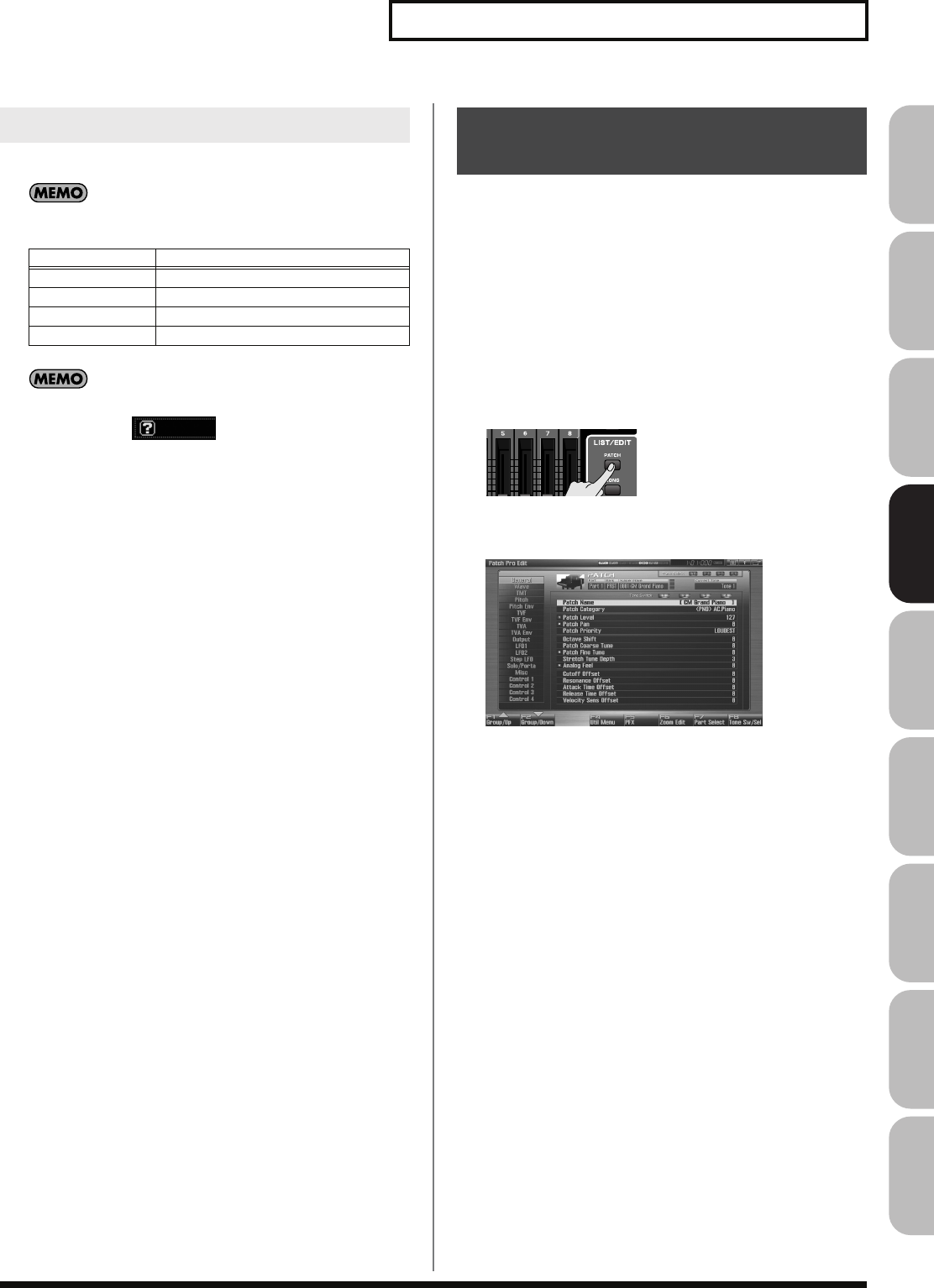
147
Creating a Live/Studio Set
Overview Sound 1 Sound 2 Sound 3 Pad Sampler
Menu/System
AppendixSequencer
You can change controller switch on/off settings for each part.
You can use the F-keys to switch the part group that is
displayed.
In this screen, the name of the parameter selected by the cursor
is shown in the “ ” area in the lower left of the
screen. The current value of the setting is also shown here.
Control Bender (Control Pitch Bend Switch)
For each part, specify whether MIDI Pitch Bend messages will be
transmitted (ON), or not (OFF).
Value:
OFF, ON
Control Aftertouch (Control Aftertouch Switch)
For each part, specify whether MIDI Aftertouch messages will be
transmitted (ON), or not (OFF).
Value:
OFF, ON
Control Modulation
(Control Modulation Switch)
For each part, specify whether MIDI Modulation messages will be
transmitted (ON), or not (OFF).
Value:
OFF, ON
Control Hold Pedal (Control Hold Pedal Switch)
For each part, you can specify whether control messages from a
pedal connected to the HOLD PEDAL jacks will be transmitted
(ON), or not (OFF).
Value:
OFF, ON
Control Pedal 1, 2 (Control Pedal 1, 2 Switch)
For each part, you can specify whether control messages from a
pedal connected to the CONTROL PEDAL 1, 2 jacks will be
transmitted (ON), or not (OFF).
Value:
OFF, ON
When using patches in Live/Studio Mode, some settings such as
effects settings will be affected by Live/Studio Set settings. If you
wish to edit a patch while hearing how it will sound in the Live/
Studio Set, use this procedure:
* Here we explain how to change the setting of a patch assigned to a
part. The procedure for changing the settings of rhythm sets or sample
sets is the same. Substitute “rhythm set” or “sample set” wherever
“patch” appears in a sentence.
1.
Make sure the Live Mode (or the Studio Mode) is selected.
2.
Press [PATCH] twice.
The patch assigned to the part is displayed in the Patch Pro Edit
screen.
fig.09-020_50
3.
The rest of the procedure is the same as when making
changes in Single mode (p. 84).
Ctrl Switch
F-key Explanation
F3 Internal Internal (internal sound generator)
F4 EXP 1 Expansion board 1
F5 EXP 2 Expansion board 2
F6 External External MIDI output
Changing the Settings of the
Patch Assigned to a Part
Fantom-G_r_e.book 147 ページ 2008年1月31日 木曜日 午後12時15分
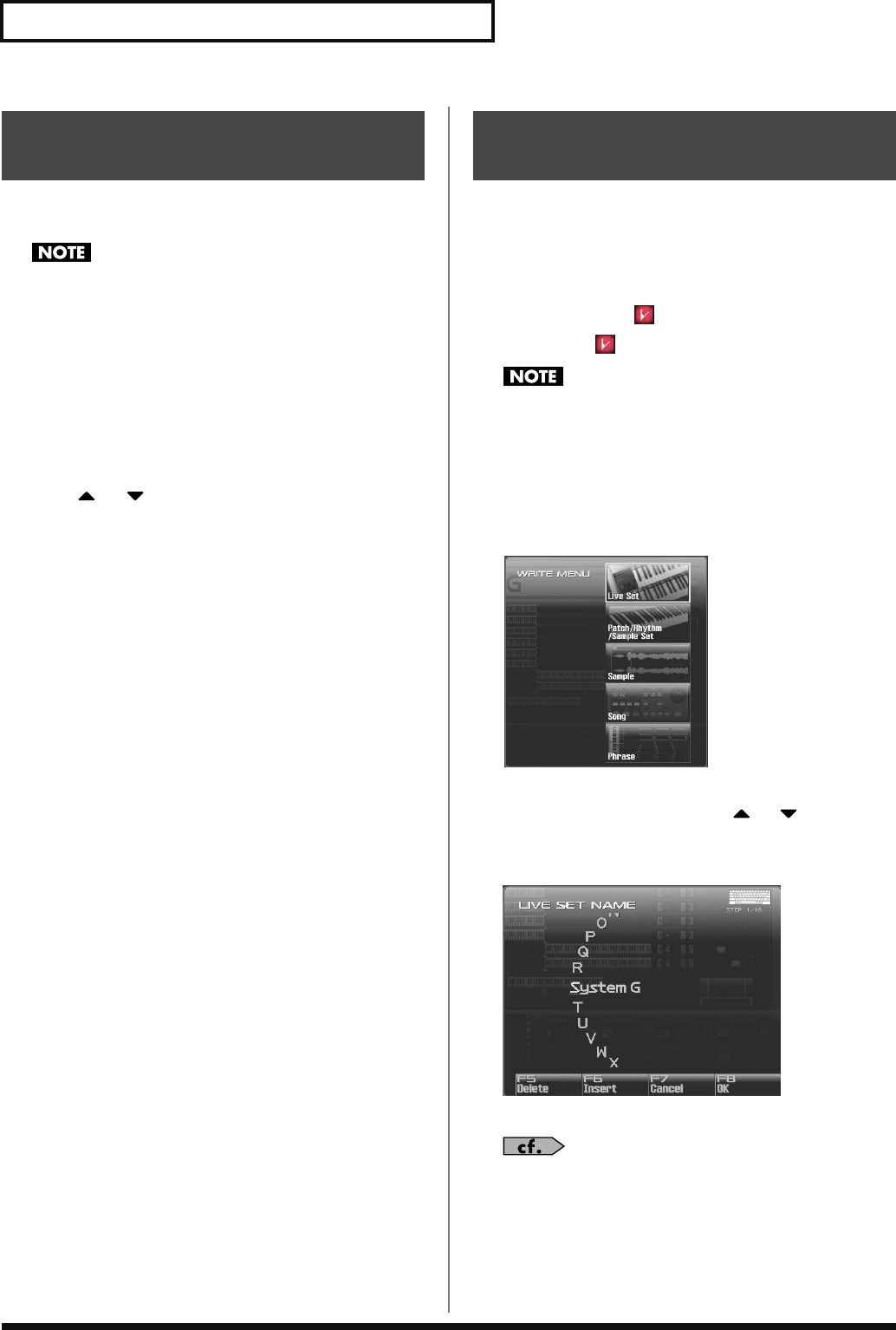
148
Creating a Live/Studio Set
“Initialize” means to return the settings of the currently selected
sound to a standard set of values.
The Initialize operation will affect only the currently selected
sound; the sounds that are stored in user memory will not be
affected. If you wish to restore all of the Fantom-G’s settings to
their factory values, perform a Factory Reset (p. 280).
1.
Select the Live/Studio Set that you wish to initialize.
2.
Press [F2 (Utility)].
3.
Press [F6 (Initialize)].
The Live/Studio Set Initialize Menu window will appear.
4.
Press or to select the initialization type.
•
Default:
Resets the currently selected Live/Studio
set in the Temporary memory to the
standard values. Use this setting when
you wish to create a sound from scratch.
•
Sound Control:
Initializes the values of the following part
parameters. Cutoff Offset, Resonance
Offset, Attack Time Offset, Release Time
Offset, Decay Time Offset, Vibrato Rate,
Vibrato, Depth, Vibrato Delay
5.
Press [F8 (Select)].
A message will ask you for confirmation.
6.
Press [F7 (OK)] to execute.
To cancel, press [F8 (EXIT)].
The settings you edit are temporary, and will be lost if you turn off
the power, switch the sound generator mode, or select a different
sound. If you want to keep the modified sound, you must save it in
the User bank.
When you modify the settings of a Live/Studio Set, the Live/Studio
Play screen will indicate “ .” Once you save the Live/Studio Set
into user area, the “ ” indication goes away.
When you perform the save procedure, the data that previously
occupied the save destination will be lost.
1.
Make sure that the live/studio set you wish to save is
selected.
2.
Press [WRITE].
The WRITE MENU window appears.
3.
Select “Live Set / Studio Set.”
Alternatively, you can use CURSOR or to select “Live
Set / Studio Set” and then press [F8 (Select)].
The Live Set/Studio Set Name window appears.
fig.09-022_50
4.
Assign a name to the live/studio set.
For details on assigning names, refer to
“Assigning a Name”
(p. 42)
Initializing Live/Studio Set
Settings (Init)
Saving a Live/Studio Set
You’ve Created (Write)
Fantom-G_r_e.book 148 ページ 2008年1月31日 木曜日 午後12時15分
149
Creating a Live/Studio Set
Overview Sound 1 Sound 2 Sound 3 Pad Sampler
Menu/System
AppendixSequencer
5.
When you have finished inputting the name, press [F8
(OK)].
A screen will appear, allowing you to select the write-
destination live/studio set.
6.
Turn the VALUE dial or use [INC] [DEC] to select the live/
studio set number.
7.
Press [F8 (Write)].
A message will ask you for confirmation.
Never switch off the Fantom-G while data is being saved.
8.
Press [F7 (OK)] to execute the save operation.
To cancel the operation, press [F8 (EXIT)].
When Changing the Settings for the
patch, rhythm set or sample set
assigned to a Part in a Live/Studio Set
If you’ve edited a patch, rhythm set or sample set assigned to a part
in a live/studio set and then try to save the live/studio set without
first saving the edited patch, rhythm set or sample set, the following
message appears.
Edited patch, rhythm set or sample set will be discard,
Are you sure?
In such cases, first save the patches and rhythm sets, and then save
the live/studio set.
Fantom-G_r_e.book 149 ページ 2008年1月31日 木曜日 午後12時15分
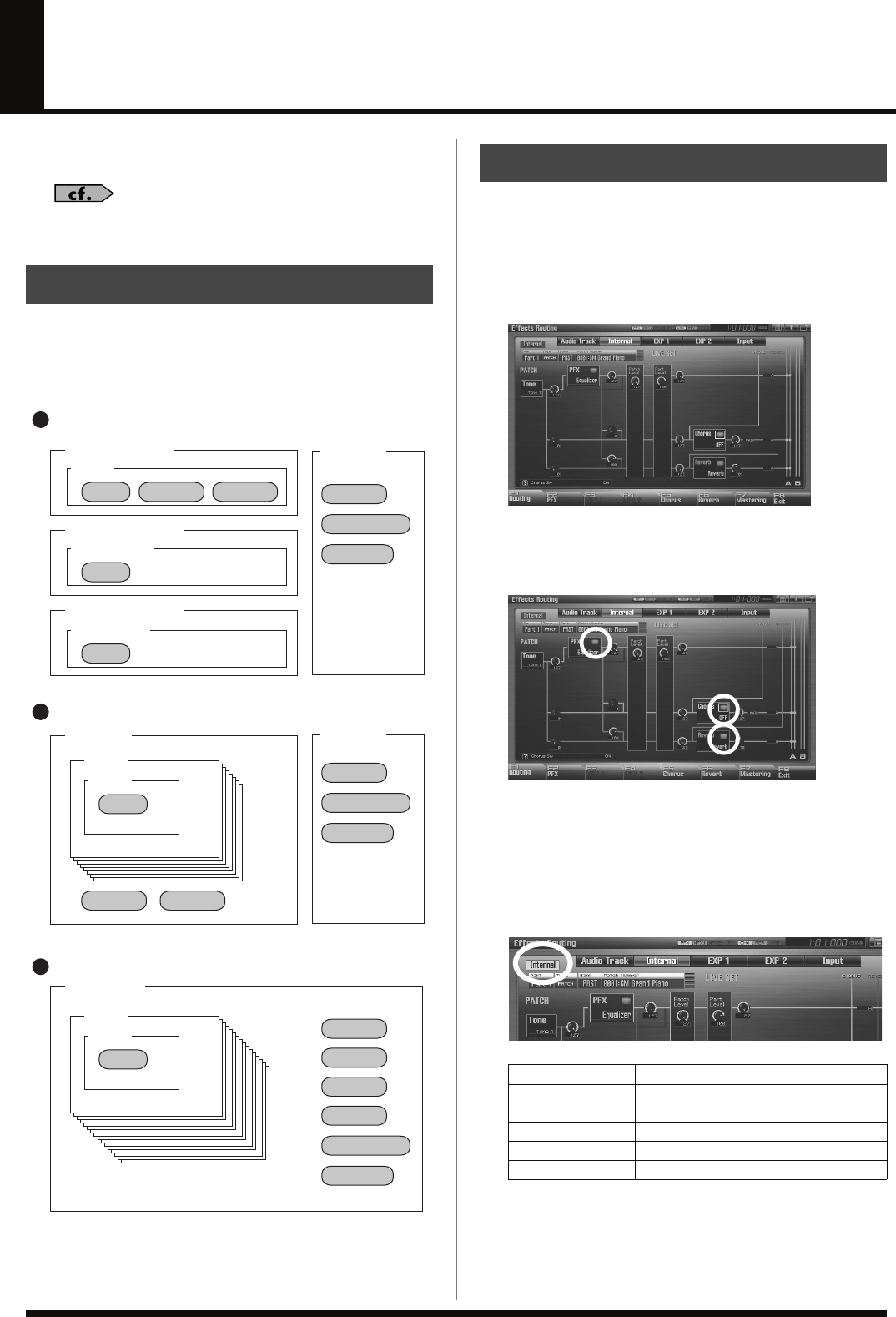
150
Adding Effects
This section explains the procedures and settings for applying effects
in each mode.
For details of the Fantom-G’s onboard effects, refer to
“About
the Internal Effects”
(p. 36).
Effect settings are saved in the locations shown in the illustration
below. If you want to save your effect settings, press the [WRITE]
button and save them in the patch, live set, studio set, or system.
The Fantom-G’s onboard effects can be turned on/off. Turn these
settings OFF when you wish to listen to the unprocessed sound as
you create a sound, or when you wish to use external effects
processors instead of the built-in effects.
1.
Press [EFFECTS (ROUTING)] to access the Effects screen.
fig.22-001_50
2.
Use [CURSOR] to move the cursor to the switch for each
effect, and turn the VALUE dial or use [INC] [DEC] to turn
the switch on/off.
fig.22-002_50
Specifying the effect applied to the
external audio input or an audio track
You can change the routing diagram by turning the VALUE dial or
using [INC] [DEC] in the Part Group field.
Where Effect Settings are Saved
Keyboard part
Live Set
Studio Set
System
System
Sample Pad part
Rhythm Pad part
Patch
PFX Chorus Reverb
Chorus Reverb
MFX 1
Mastering
Input Fx
MFX 1
Mastering
Input Fx
MFX 1
MFX 2
Chorus
Reverb
Mastering
Input Fx
PFX
PFX
Sample Set
Rhythm Set
Part 1
Patch
PFX
Part 1
Patch
PFX
Single Mode
Live Mode
Studio Mode
Turning Effects On and Off
Part Group Explanation
Internal Internal (internal sound generator)
EXP 1 Expansion board 1
EXP 2 Expansion board 2
Audio Trk Audio tracks
Input Audio input
Fantom-G_r_e.book 150 ページ 2008年1月31日 木曜日 午後12時15分
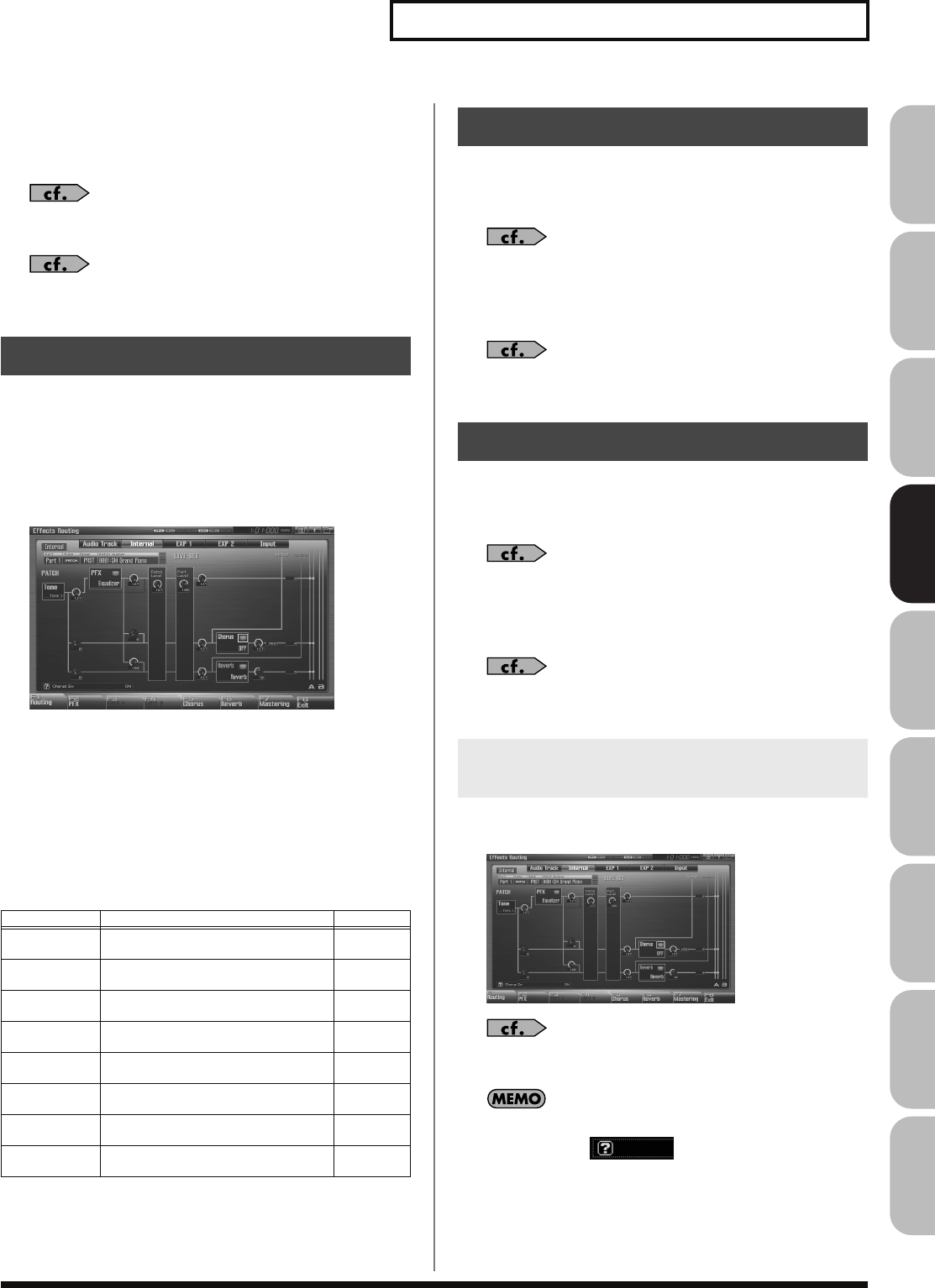
151
Adding Effects
Overview Sound 1 Sound 2 Sound 3 Pad Sampler
Menu/System
AppendixSequencer
Using the pads to switch effects on/off
You can use the pads to directly switch each effect on/off. For the
procedure, refer to the following pages.
“11 EFFECT SW (Using the Pads to Switch the Effects)”
(p.
199)
“12 PATCH MFX SW (Using the Pads to Switch Patch Multi-
effects)”
(p. 199)
1.
In the appropriate mode, select the sound to which you
want to apply effects.
2.
Press [EFFECTS (ROUTING)] to access the Effects screen.
3.
Press one of the [F1 (Routing)]–[F7 (Mastering)] tabs to
select the effect that you want to edit.
fig.22-001_50
4.
Use [CURSOR] to move the cursor to the parameter you
wish to modify.
5.
Turn the VALUE dial or press [INC] [DEC] to get the value
you want.
6.
Press [EXIT] to return to the previous screen.
F-key operations in the effect screen
Single mode allows you to use patch FX (PFX), chorus, and reverb.
These effects will operate according to the effect settings of the patch,
rhythm set, or sample set that’s assigned to the keyboard part.
“Specifying How the Sound will be Output (Routing)”
(p.
151)
In addition, you can apply a multi-effect (MFX1) to the external
audio input or audio tracks.
“Specifying the effect applied to the external audio input or
an audio track”
(p. 150)
Live mode allows you to use patch FX (PFX), chorus, and reverb.
These effects will operate according to the effect settings of the live
set.
“Specifying How the Sound will be Output (Routing)”
(p.
151)
In addition, you can apply a multi-effect (MFX1) to the external
audio input or audio tracks.
“Specifying the effect applied to the external audio input or
an audio track”
(p. 150)
Here you can make overall settings for effects, and the output
destination and level of each signal.
For details on these settings, refer to
“Making Effect Settings”
(p. 151).
In this screen, the name of the parameter selected by the cursor
is shown in the “ ” area in the lower left of the
screen. The current value of the parameter is also shown here.
Making Effect Settings
F-key Explanation Page
F1
Routing Routing edit screen p. 151
p. 154
F2
PFX Patch multi-effect edit screen p. 157
F3
MFX 1 MFX 1 edit screen p. 158
F4
MFX 2 MFX 2 edit screen p. 158
F5
Chorus Chorus edit screen p. 159
F6
Reverb Reverb edit screen p. 159
F7
Mastering Mastering edit screen p. 160
F8
Exit Returns to the previous screen –
Applying Effects in Single Mode
Applying Effects in Live Mode
Specifying How the Sound will be
Output (Routing)
Fantom-G_r_e.book 151 ページ 2008年1月31日 木曜日 午後12時15分
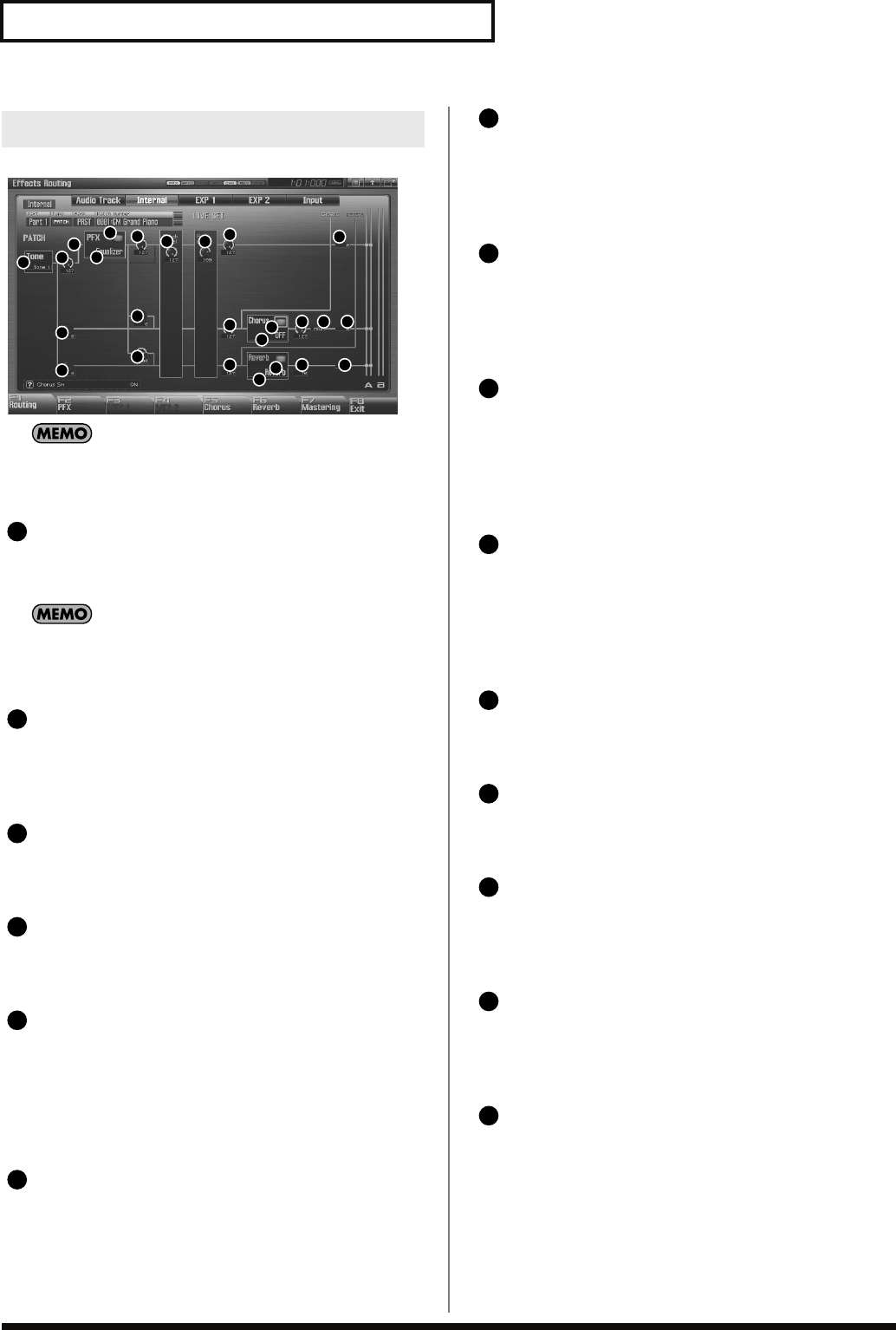
152
Adding Effects
fig.22-005
In Single mode and Live mode, MFX 1 (multi-effect) will apply
only to the external input or to audio tracks, and therefore is
now shown in the internal routing diagram.
Tone Select
Select the tone for which you want to make settings.
Value:
ALL, 1–4
This parameter is
Rhythm Key Select
when a rhythm set is
being selected. You can select the rhythm tone (A0–C8) for
which you want to make settings.
Tone Output Level
Set the level of the signal that is sent to the output destination
specified by Output Assign.
Value:
0–127
Tone Chorus Send Level
Sets the level of the signal sent to chorus for each tone.
Value:
0–127
Tone Reverb Send Level
Sets the level of the signal sent to reverb for each tone.
Value:
0–127
Tone Output Assign
Specifies how the direct sound of each tone will be output.
Value:
PFX:
Output through patch multi-effects (PFX).
DRY:
Output without passing through patch multi-effects
(PFX).
PFX Sw
Switches the patch multi-effect on/off.
Value:
ON, OFF
PFX Type (Patch Multi-Effects Type)
Use this parameter to select from among the 76 available patch
multi-effects. For details on patch multi-effects parameters, refer
to
“MFX/PFX Parameter”
(p. 161).
Value:
0 (Through)–76
PFX Output Level
(Patch Multi-Effects Output Level)
Adjusts the volume of the sound that has passed through the
patch multi-effects.
Value:
0–127
PFX Chorus Send Level
(Patch Multi-Effects Chorus Send Level)
Adjusts the amount of chorus for the sound that passes through
patch multi-effects. If you don’t want to add the Chorus effect,
set it to “0.”
Value:
0–127
PFX Reverb Send Level
(Patch Multi-Effects Reverb Send Level)
Adjusts the amount of reverb for the sound that passes through
patch multi-effects. If you don’t want to add the Reverb effect,
set it to “0.”
Value:
0–127
Patch Level
Adjusts the volume of the patch.
Value:
0–127
Part Level
Adjusts the volume of the part.
Value:
0–127
Part Output Level
Sets the level of the signal sent to the output destination chosen
by Part Output Assign.
Value:
0–127
Part Chorus Send Level
Sets the level of the signal sent to chorus for each part. If you
don’t want to add the Chorus effect, set it to “0.”
Value:
0–127
Part Reverb Send Level
Sets the level of the signal sent to reverb for each part. If you
don’t want to add the Reverb effect, set it to “0.”
Value:
0–127
Signal Flow Diagram and Parameters
12
5
6
7
8
9
10
11 12 13
14
15
16
17
18
22
23
19
24 25
20 21
3
4
1
2
3
4
5
1
6
7
8
9
10
11
12
13
14
15
Fantom-G_r_e.book 152 ページ 2008年1月31日 木曜日 午後12時15分
153
Adding Effects
Overview Sound 1 Sound 2 Sound 3 Pad Sampler
Menu/System
AppendixSequencer
Part Output Assign
Specifies for each part how the direct sound will be output.
Value:
A, B:
Output to the OUTPUT A (MIX) jack or OUTPUT B
jack in stereo without passing through multi-effects.
1–4:
Output to the INDIVIDUAL 1–4 jacks in mono
without passing through multi-effects.
If you’ve made settings so that sounds are separately routed to
the INDIVIDUAL 1 jack and INDIVIDUAL 2 jack, but no plug
is actually inserted in the INDIVIDUAL 2 jack, the sounds
routed to INDIVIDUAL 1 and INDIVIDUAL 2 will be mixed
and output from the INDIVIDUAL 1 jack.
If the Mix/Parallel parameter is set to “MIX,” all sounds are
output from the OUTPUT A (MIX) jacks in stereo (p. 294).
Chorus Sw
Switches the chorus on/off.
Value:
ON, OFF
Chorus Type
Selects either chorus or delay. For details on chorus parameters,
refer to
“Chorus Parameters”
(p. 184).
Value:
0 (Off)–3 (GM2 Chorus)
Chorus Level
Adjusts the volume of the sound that has passed through
chorus.
Value:
0–127
Chorus Output Select
Specifies how the sound routed through chorus will be output.
Value
MAIN:
Output to the OUTPUT jacks in stereo.
REV:
Output to reverb in mono.
M+R:
Output to the OUTPUT jacks in stereo, and to reverb
in mono.
When set to “MAIN” or “M+R,” the OUTPUT jack from which
the sound is output is set in Chorus Output Assign.
Chorus Output Assign
Selects the pair of OUTPUT jacks to which the chorus sound is
routed when Chorus Output Select is set to “MAIN” or “M+R.”
Value
A:
Output to the OUTPUT A (MIX) jacks in stereo.
B:
Output to the OUTPUT B jacks in stereo.
When Chorus Output Select is set to “REV,” this setting will
have no effect.
If the Mix/Parallel parameter is set to “MIX,” all sounds are
output from the OUTPUT A (MIX) jacks in stereo (p. 294).
Reverb Sw
Switches the reverb on/off.
Value:
ON, OFF
Reverb Type
Selects the type of reverb. For details on reverb parameters,
refer to
“Reverb Parameters”
(p. 185).
Value:
0 (Off)–10 (CHURCH)
Reverb Level
Adjusts the volume of the sound that has passed through
reverb.
Value:
0–127
Reverb Output Assign
Specifies how the sound routed through reverb will be output.
Value
A:
Output to the OUTPUT A (MIX) jacks in stereo.
B:
Output to the OUTPUT B jacks in stereo.
If the Mix/Parallel parameter is set to “MIX,” all sounds are
output from the OUTPUT A (MIX) jacks in stereo (p. 294).
16
17
18
19
20
21
22
923
24
25
Fantom-G_r_e.book 153 ページ 2008年1月31日 木曜日 午後12時15分
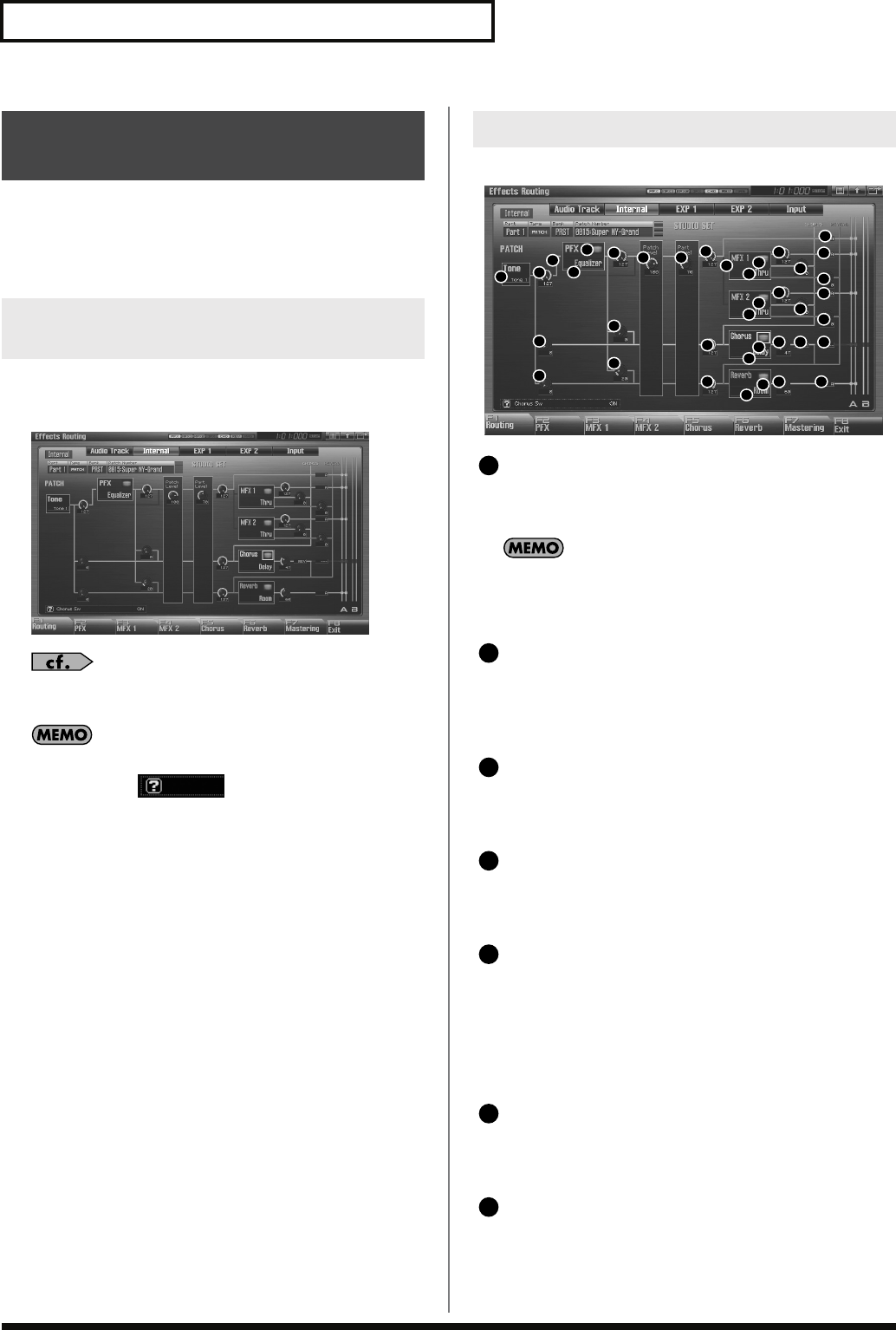
154
Adding Effects
Studio mode allows you to use two multi-effects (MFX1, MFX2), one
chorus, and one reverb.
These effects will operate according to the effect settings of the
studio set.
Here you can make overall settings for effects, and the output
destination and level of each signal.
fig.22-006.eps_50
For details on these settings, refer to
“Making Effect Settings”
(p. 151).
In this screen, the name of the parameter selected by the cursor
is shown in the “ ” area in the lower left of the
screen. The current value of the parameter is also shown here.
fig.22-007
Tone Select
Select the tone for which you want to make settings.
Value:
ALL, 1–4
This parameter is
Rhythm Key Select
when a rhythm set is
being selected. You can select the rhythm tone (A0–C8) for
which you want to make settings.
Tone Output Level
Set the level of the signal that is sent to the output destination
specified by Output Assign.
Value:
0–127
Tone Chorus Send Level
Sets the level of the signal sent to chorus for each tone.
Value:
0–127
Tone Reverb Send Level
Sets the level of the signal sent to reverb for each tone.
Value:
0–127
Tone Output Assign
Specifies how the direct sound of each tone will be output.
Value:
PFX:
Output through patch multi-effects (PFX).
DRY:
Output without passing through patch multi-effects
(PFX).
PFX Sw (Patch Multi-Effects Switch)
Switches the patch multi-effect on/off.
Value:
ON, OFF
PFX Type (Patch Multi-Effects Type)
Use this parameter to select from among the 76 available patch
multi-effects. For details on patch multi-effects parameters, refer
to
“MFX/PFX Parameter”
(p. 161).
Value:
0 (Through)–76
Applying Effects in Studio
Mode
Specifying How the Sound Will Be
Output (Routing)
Signal Flow Diagram and Parameters
12
5
6
7
8
9
10
11 12 13
14
15
24
25
29
30
26
31 32
27 28
18
16
17
19
20
21
22
23
18
19
20
21
22
23
3
4
1
2
3
4
5
1
6
7
Fantom-G_r_e.book 154 ページ 2008年1月31日 木曜日 午後12時15分
155
Adding Effects
Overview Sound 1 Sound 2 Sound 3 Pad Sampler
Menu/System
AppendixSequencer
PFX Output Level
(Patch Multi-Effects Output Level)
Adjusts the volume of the sound that has passed through the
patch multi-effects.
Value:
0–127
PFX Chorus Send Level
(Patch Multi-Effects Chorus Send Level)
Adjusts the amount of chorus for the sound that passes through
patch multi-effects. If you don’t want to add the Chorus effect,
set it to “0.”
Value:
0–127
PFX Reverb Send Level
(Patch Multi-Effects Reverb Send Level)
Adjusts the amount of reverb for the sound that passes through
patch multi-effects. If you don’t want to add the Reverb effect,
set it to “0.”
Value:
0–127
Patch Level
Adjusts the volume of the patch.
Value:
0–127
Part Level
Adjusts the volume of the part.
Value:
0–127
Part Output Level
Sets the level of the signal sent to the output destination chosen
by Part Output Assign.
Value:
0–127
Part Chorus Send Level
Sets the level of the signal sent to chorus for each part. If you
don’t want to add the Chorus effect, set it to “0.”
Value:
0–127
Part Reverb Send Level
Sets the level of the signal sent to reverb for each part. If you
don’t want to add the Reverb effect, set it to “0.”
Value:
0–127
Part MFX Select
Specifies whether MFX will not be used, or which of the two
multi-effects will be used.
Value:
DRY, MFX-1–MFX-2
Part Output Assign
Specifies how the original sound will be output for each part.
This is available only if Part MFX Select is set to DRY.
Value:
A, B:
Output to the OUTPUT A (MIX) jack or OUTPUT B
jack in stereo without passing through multi-effects.
1–4:
Output to the INDIVIDUAL 1–4 jacks in mono
without passing through multi-effects.
If you’ve made settings so that sounds are separately routed to
the INDIVIDUAL 1 jack and INDIVIDUAL 2 jack, but no plug
is actually inserted in the INDIVIDUAL 2 jack, the sounds
routed to INDIVIDUAL 1 and INDIVIDUAL 2 will be mixed
and output from the INDIVIDUAL 1 jack.
If the Mix/Parallel parameter is set to “MIX,” all sounds are
output from the OUTPUT A (MIX) jacks in stereo (p. 294).
MFX Sw (Multi-Effects Switch)
Switches the multi-effect on/off.
Value:
ON, OFF
MFX Type (Multi-Effects Type)
Use this parameter to select from among the 78 available multi-
effects. For details on multi-effects parameters, refer to
“MFX/
PFX Parameter”
(p. 161).
Value:
0 (Through)–78
MFX Output Level
(Multi-Effects Output Level)
Adjusts the volume of the sound that has passed through the
multi-effects.
Value:
0–127
MFX Chorus Send Level
(Multi-Effects Chorus Send Level)
Adjusts the amount of chorus for the sound that passes through
multi-effects. If you don’t want to add the Chorus effect, set it to
“0.”
Value:
0–127
MFX Reverb Send Level
(Multi-Effects Reverb Send Level)
Adjusts the amount of reverb for the sound that passes through
multi-effects. If you don’t want to add the Reverb effect, set it to
“0.”
Value:
0–127
8
9
10
11
12
13
14
15
16
17
18
19
20
21
22
Fantom-G_r_e.book 155 ページ 2008年1月31日 木曜日 午後12時15分
156
Adding Effects
MFX Output Assign
(Multi-Effects Output Assign)
Adjusts the output destination of the sound that has passed
through the multi-effects.
Value
A:
Output to the OUTPUT A (MIX) jacks in stereo.
B:
Output to the OUTPUT B jacks in stereo.
If the Mix/Parallel parameter is set to “MIX,” all sounds are
output from the OUTPUT A (MIX) jacks in stereo (p. 294).
Chorus Sw
Switches the chorus on/off.
Value:
ON, OFF
Chorus Type
Selects either chorus or delay. For details on chorus parameters,
refer to
“Chorus Parameters”
(p. 184).
Value:
0 (Off)–3 (GM2 Chorus)
Chorus Level
Adjusts the volume of the sound that has passed through
chorus.
Value:
0–127
Chorus Output Select
Specifies how the sound routed through chorus will be output.
Value
MAIN:
Output to the OUTPUT jacks in stereo.
REV:
Output to reverb in mono.
M+R:
Output to the OUTPUT jacks in stereo, and to reverb
in mono.
When set to “MAIN” or “M+R,” the OUTPUT jack from which
the sound is output is set in Chorus Output Assign.
Chorus Output Assign
Selects the pair of OUTPUT jacks to which the chorus sound is
routed when Chorus Output Select is set to “MAIN” or “M+R.”
Value
A:
Output to the OUTPUT A (MIX) jacks in stereo.
B:
Output to the OUTPUT B jacks in stereo.
When Chorus Output Select is set to “REV,” this setting will
have no effect.
If the Mix/Parallel parameter is set to “MIX,” all sounds are
output from the OUTPUT A (MIX) jacks in stereo (p. 294).
Reverb Sw
Switches the reverb on/off.
Value:
ON, OFF
Reverb Type
Selects the type of reverb. For details on reverb parameters,
refer to
“Reverb Parameters”
(p. 185).
Value:
0 (Off)–10 (CHURCH)
Reverb Level
Adjusts the volume of the sound that has passed through
reverb.
Value:
0–127
Reverb Output Assign
Specifies how the sound routed through reverb will be output.
Value
A:
Output to the OUTPUT A (MIX) jacks in stereo.
B:
Output to the OUTPUT B jacks in stereo.
If the Mix/Parallel parameter is set to “MIX,” all sounds are
output from the OUTPUT A (MIX) jacks in stereo (p. 294).
923
24
25
26
27
28
29
30
31
32
Fantom-G_r_e.book 156 ページ 2008年1月31日 木曜日 午後12時15分
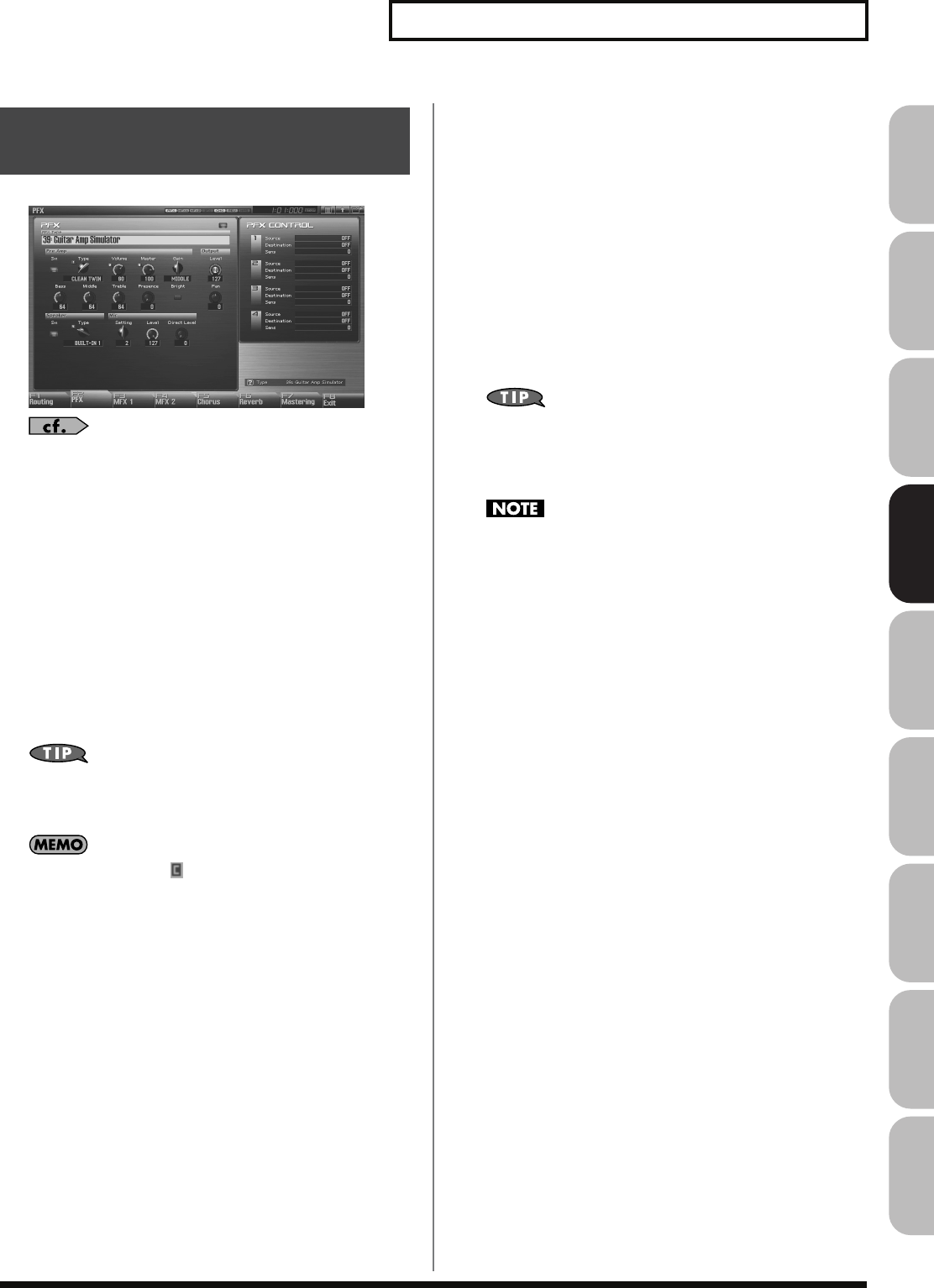
157
Adding Effects
Overview Sound 1 Sound 2 Sound 3 Pad Sampler
Menu/System
AppendixSequencer
fig.22-008_50
For details on these settings, refer to
“Making Effect Settings”
(p. 151)
PFX (Patch Multi-Effects)
Type (Patch Multi-Effects Type)
Use this parameter to select from among the 76 available patch
multi-effects. For details on patch multi-effects parameters, refer to
“MFX/PFX Parameter”
(p. 161).
Value:
00: Thru–76
In this setting screen, you can edit the parameters of the patch multi-
effects that is selected by the Patch Multi-effects Type setting. For
details on the parameters that can be edited, refer to
“MFX/PFX
Parameter”
(p. 161).
Patch multi-effect settings allow you to use the Realtime
Control knobs to edit up to four pre-specified parameters for
each type of patch multi-effect.
Parameters marked by can be selected as a patch multi-
effect control destination parameter (p. 157).
PFX Control
Source 1–4 (Multi-Effects Control Source 1–4)
Sets the MIDI message used to change the multi-effects parameter
with the multi-effects control.
Value
OFF:
Multi-effects control will not be used.
CC01–31, CC32(OFF), 33–95:
Control Change
PITCH BEND:
Pitch Bend
AFTERTOUCH:
Aftertouch
SYS CTRL1–SYS CTRL4:
MIDI messages used as common multi-
effects controls.
If you want to use common controllers for the entire Fantom-G,
select “SYS CTRL 1”–”SYS CTRL 4.” MIDI messages used as
System Control 1–4 are set with the Sys Ctrl 1–4 Source
parameters (p. 297).
In patch/rhythm set/sample set, there are parameters that
determine, for each tone/rhythm tone, whether or not Pitch
Bend, Controller Number 11 (Expression) and Controller
Number 64 (Hold 1) are received (p. 108). When these settings
are “ON,” and the MIDI messages are received, then when any
change is made in the settings of the desired parameter, the
Pitch Bend, Expression, and Hold1 settings also change
simultaneously. If you want to change the targeted parameters
only, then set these to “OFF.”
• Live mode and Studio mode provide parameters that let you
specify whether specific MIDI messages will be received for
each MIDI channel. When using multi-effect control, make sure
that reception is enabled for the MIDI messages you’re using. If
MIDI message reception is disabled, multi-effect control won’t
work.
Destination 1–4
(Multi-Effects Control Destination 1–4)
Sets the multi-effects parameters to be controlled with the multi-
effects control. The multi-effects parameters available for control will
depend on the multi-effects type. For details, refer to
“MFX/PFX
Parameter”
(p. 161).
Making Patch Multi-Effects
Settings (PFX)
Fantom-G_r_e.book 157 ページ 2008年1月31日 木曜日 午後12時15分
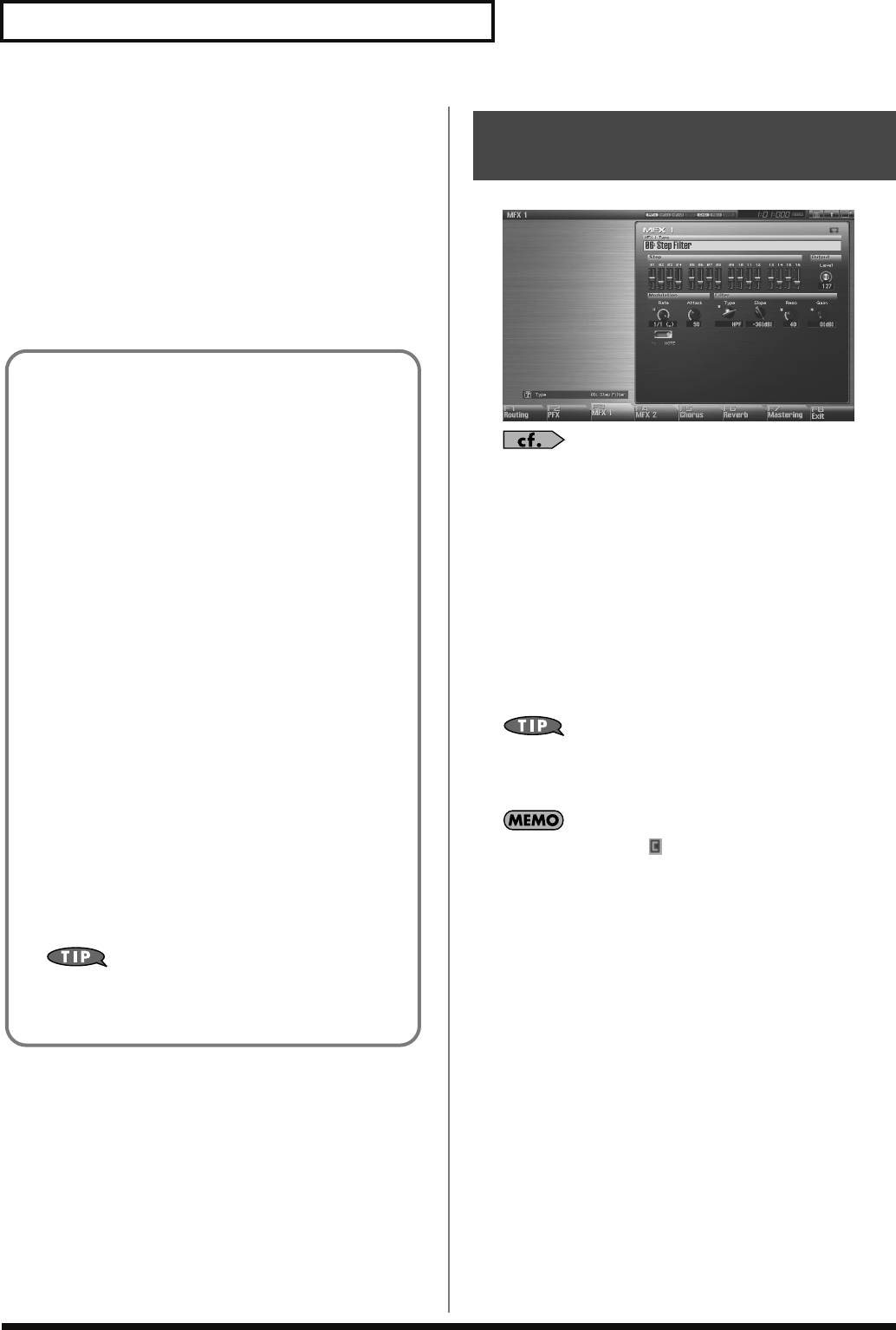
158
Adding Effects
Sens 1–4 (Multi-Effects Control Sensitivity 1–4)
Sets the amount of the multi-effects control’s effect that is applied.
To make an increase in the currently selected value (to get higher
values, move to the right, increase rates, and so on), select a positive
value; to make a decrease in the currently selected value (to get
lower values, move to the left, decrease rates, and so on), select a
negative value. For either positive or negative settings, greater
absolute values will allow greater amounts of change. Set this to “0”
if you don’t want to apply the effect.
Value:
-63– +63
fig.22-008_50
For details on these settings, refer to
“Making Effect Settings”
(p. 151)
Type (Multi-Effects Type)
Use this parameter to select from among the 78 available multi-
effects. For details on multi-effects parameters, refer to
“MFX/PFX
Parameter”
(p. 161).
Value:
00: Thru–78
In this setting screen, you can edit the parameters of the multi-effects
that is selected by the Multi-effects Type setting. For details on the
parameters that can be edited, refer to
“MFX/PFX Parameter”
(p.
161).
Multi-effect settings allow you to use the Realtime Control
knobs to edit up to four pre-specified parameters for each multi-
effect type.
Parameters marked by can be selected as a multi-effect
control destination parameter (p. 157).
Multi-Effects Control
If you wanted to change the volume of multi-effects sounds, the
delay time of Delay, and the like, using an external MIDI device,
you would need to send System Exclusive messages-MIDI
messages designed exclusively for the Fantom-G. However,
System Exclusive messages tend to be complicated, and the
amount of data that needs to be transmitted can get quite large.
For that reason, a number of the more typical of the Fantom-G’s
multi-effects parameters have been designed so they accept the
use of Control Change (or other) MIDI messages for the
purpose of making changes in their values. For example, you
can use the Pitch Bend lever to change the amount of distortion,
or use the keyboard’s touch to change the delay time of Delay.
The parameters that can be changed are predetermined for each
type of multi-effect; among the parameters described in “MFX/
PFX Parameter” (p. 161), these are indicated by a “#.”
In the multi-effect setting screen, a “c” symbol will be shown at
the left of the parameter.
The function that allows you use MIDI messages to make these
changes in realtime to the multi-effects parameters is called the
Multi-effects Control. Up to four multi-effects controls can be
used in a single patch/rhythm set/sample set/live set/studio
set.
When the multi-effects control is used, you can select the
amount of control (Sens parameter) applied, the parameter
selected (Destination parameter), and the MIDI message used
(Source parameter).
By using the Matrix Control instead of the Multi-effects
Control, you can also change the parameters of some
popular multi-effects in realtime (p. 109).
Making Multi-Effects Settings
(MFX1–2)
Fantom-G_r_e.book 158 ページ 2008年1月31日 木曜日 午後12時15分
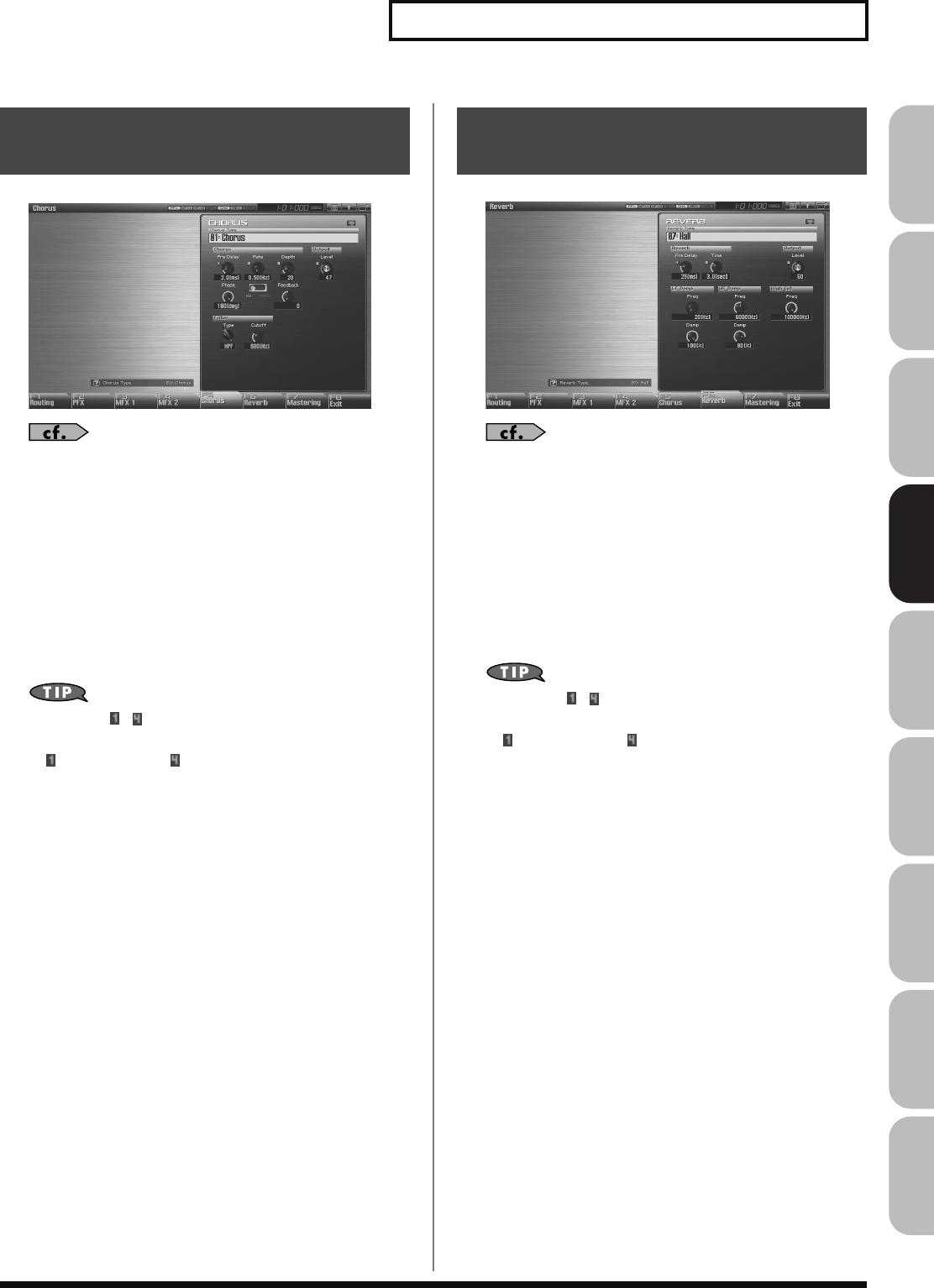
159
Adding Effects
Overview Sound 1 Sound 2 Sound 3 Pad Sampler
Menu/System
AppendixSequencer
fig.22-011_50
For details on these settings, refer to
“Making Effect Settings”
(p. 151)
Type (Chorus Type)
Selects either chorus or delay. For details on chorus parameters,
refer to
“Chorus Parameters”
(p. 184).
Value:
00: OFF–03: GM2 Chorus
* In this setting screen, you can edit the parameters of the chorus/delay
that is selected by the Chorus Type setting. For details on the
parameters that can be edited, refer to
“Chorus Parameters”
(p.
184).
If a number ( – ) is shown for a parameter in the screen, you
can use the corresponding Realtime Control knob (far left knob
is – far right knob is ) to adjust the value of that parameter.
fig.22-012_50
For details on these settings, refer to
“Making Effect Settings”
(p. 151)
Type (Reverb Type)
Selects the type of reverb. For details on reverb parameters,
refer to
“Reverb Parameters”
(p. 185).
Value:
00: OFF–10: Church
* In this setting screen, you can edit the parameters of the reverb that is
selected by the Reverb Type setting. For details on the parameters that
can be edited, refer to
“Reverb Parameters”
(p. 185).
If a number ( – ) is shown for a parameter in the screen, you
can use the corresponding Realtime Control knob (far left knob
is – far right knob is ) to adjust the value of that parameter.
Making Chorus Settings
(Chorus)
Making Reverb Settings
(Reverb)
Fantom-G_r_e.book 159 ページ 2008年1月31日 木曜日 午後12時15分
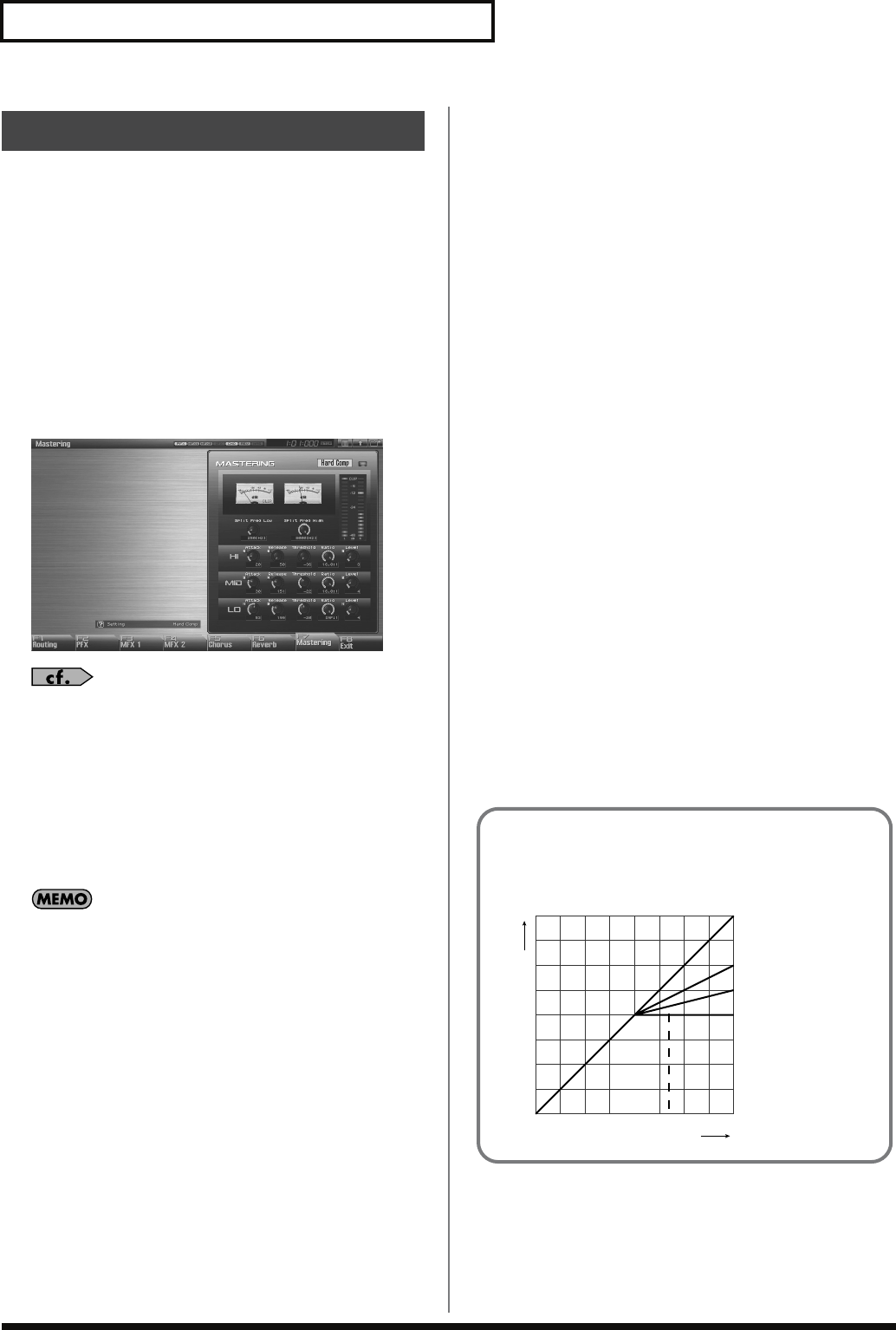
160
Adding Effects
This is a stereo compressor (limiter) that is applied to the final
output of the Fantom-G. It has independent high, mid, and low
ranges. Independently for the high-frequency, mid-frequency, and
low-frequency regions, this compresses any sounds that exceed the
specified level, making the volume more consistent. When mixing
down to MD, or DAT, or when you procedure your own original
audio CD, this lets you master at an optimized level.
* Mastering effect settings apply to the entire Fantom-G. These settings
are not for individual patches or performances.
* The mastering effect is applied to the sound that is output from the
OUTPUT A (MIX) jacks. It will not be applied to the sound that is
output from the OUTPUT B jacks.
fig.22-013_50
For details on these settings, refer to
“Making Effect Settings”
(p. 151)
Setting
This recalls settings for the mastering effect.
Value:
System (other than Studio Mode),
Studio (only in Studio Mode),
User, Hard Comp, Soft Comp. Low Boost,
Mid Boost, High Boost
To save settings for the mastering effect, press the panel
[WRITE] button. The settings are saved in the Setting parameter
“System” (“Studio” in the case of Studio mode).
The mastering effect settings you save here are saved as system
settings in the case of Single mode or Live mode. In the case of
Studio mode, they are saved in the studio set.
Attack
Time from when the volume goes up the threshold level until the
compressor effect applies
Value:
0–100 ms
Release
Time from when the volume falls below the threshold level until the
compressor effect no longer applies
Value:
50–5000 ms
Threshold
Volume level at which compression begins
Value:
-36–0 dB
Ratio
Compression ratio
Value:
1.00:1–INF:1 (INF: infinity)
Level
Output volume
Value:
0–24 dB
Split Frequency High
Frequency at which the high-frequency (HI) and mid-frequency
(MID) bands are split
Value:
2000–8000 Hz
Split Frequency Low
Frequency at which the low-frequency (LO) and mid-frequency
(MID) bands are split
Value:
200–800 Hz
Mastering Effect
About Threshold and Ratio
As shown in the diagram below, these parameters determine
how the volume is to be compressed.
fig.22-014.e
1:1
2:1
4:1
INF:1
THRESHOLD
Input Level
Output Level
RATIO
Fantom-G_r_e.book 160 ページ 2008年1月31日 木曜日 午後12時15分
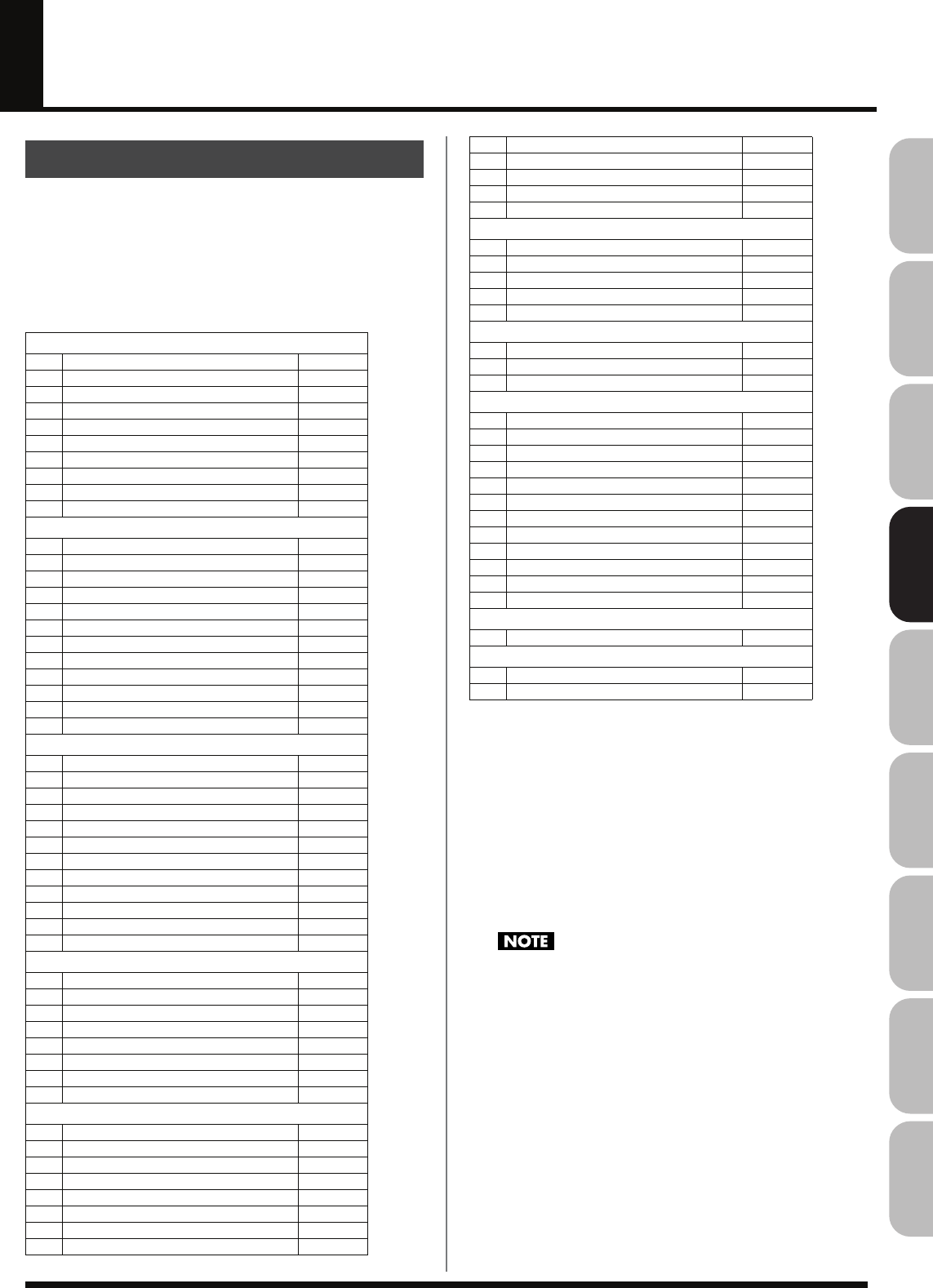
161
Overview Sound 1 Sound 2 Sound 3 Pad Sampler
Menu/System
AppendixSequencer
Effects List
The MFX (multi-effects) feature 78 different kinds of effects (the PFX:
76 types). Some of the effects consist of two or more different effects
connected in series.
Parameters marked with a sharp “#” can be controlled using a
specified controller (Two setting items will change simultaneously
for “#1” and “#2”).
About Note
Some effect parameters (such as Rate or Delay Time) can be set in
terms of a note value.
Such parameters have a num/note switch that lets you specify
whether you will set the value as a note value or as a numerical
value.
If you want to set Rate (Delay Time) as a numerical value, set the
num/note switch to “Hz” (“msec”). If you want to set it as a note
value, set the num/note switch to “NOTE.”
If a parameter whose num/note switch is set to “NOTE” is
specified as a destination for multi-effect control, you will not be
able to use multi-effect control to control that parameter.
MFX/PFX Parameter
FILTER
(10 types)
01 EQUALIZER p. 162
02 SPECTRUM p. 162
03 ISOLATOR p. 162
04 LOW BOOST p. 162
05 SUPER FILTER p. 163
06 STEP FILTER p. 163
07 ENHANCER p. 163
08 AUTO WAH p. 164
09 HUMANIZER p. 164
10 SPEAKER SIMULATOR p. 164
MODULATION
(12 types)
11 PHASER p. 165
12 STEP PHASER p. 165
13 MULTI STAGE PHASER p. 165
14 INFINITE PHASER p. 165
15 RING MODULATOR p. 166
16 STEP RING MODULATOR p. 166
17 TREMOLO p. 166
18 AUTO PAN p. 166
19 STEP PAN p. 166
20 SLICER p. 167
21 ROTARY p. 167
22 VK ROTARY p. 167
CHORUS
(12 types)
23 CHORUS p. 168
24 FLANGER p. 168
25 STEP FLANGER p. 168
26 HEXA-CHORUS p. 169
27 TREMOLO CHORUS p. 169
28 SPACE-D p. 169
29 3D CHORUS p. 169
30 3D FLANGER p. 170
31 3D STEP FLANGER p. 170
32 2BAND CHORUS p. 170
33 2BAND FLANGER p. 171
34 2BAND STEP FLANGER p. 171
DYNAMICS
(8 types)
35 OVERDRIVE p. 172
36 DISTORTION p. 172
37 VS OVERDRIVE p. 172
38 VS DISTORTION p. 172
39 GUITAR AMP SIMULATOR p. 172
40 COMPRESSOR p. 173
41 LIMITER p. 173
42 GATE p. 173
DELAY
(13 types)
43 DELAY p. 173
44 LONG DELAY p. 174
45 SERIAL DELAY p. 174
46 MODULATION DELAY p. 174
47 3TAP PAN DELAY p. 175
48 4TAP PAN DELAY p. 175
49 MULTI TAP DELAY p. 175
50 REVERSE DELAY p. 175
51 SHUFFLE DELAY p. 176
52 3D DELAY p. 176
53 TIME CTRL DELAY p. 176
54 LONG TIME CTRL DELAY p. 177
55 TAPE ECHO p. 177
LO-FI
(5 types)
56 LOFI NOISE p. 177
57 LOFI COMPRESS p. 178
58 LOFI RADIO p. 178
59 TELEPHONE p. 178
60 PHONOGRAPH p. 178
PITCH
(3 types)
61 PITCH SHIFTER p. 179
62 2VOICE PITCH SHIFTER p. 179
63 STEP PITCH SHIFTER p. 179
COMBINATION
(12 types)
64 OVERDRIVE
→
CHORUS p. 179
65 OVERDRIVE
→
FLANGER p. 180
66 OVERDRIVE
→
DELAY p. 180
67 DISTORTION
→
CHORUS p. 180
68 DISTORTION
→
FLANGER p. 180
69 DISTORTION
→
DELAY p. 180
70 ENHANCER
→
CHORUS p. 181
71 ENHANCER
→
FLANGER p. 181
72 ENHANCER
→
DELAY p. 181
73 CHORUS
→
DELAY p. 181
74 FLANGER
→
DELAY p. 182
75 CHORUS
→
FLANGER p. 182
PIANO
(1 type)
76 SYMPATHETIC RESONANCE p. 182
REVERB
(2 types) *MFX only
77 REVERB p. 183
78 GATED REVERB p. 183
Fantom-G_r_e.book 161 ページ 2008年1月31日 木曜日 午後12時15分
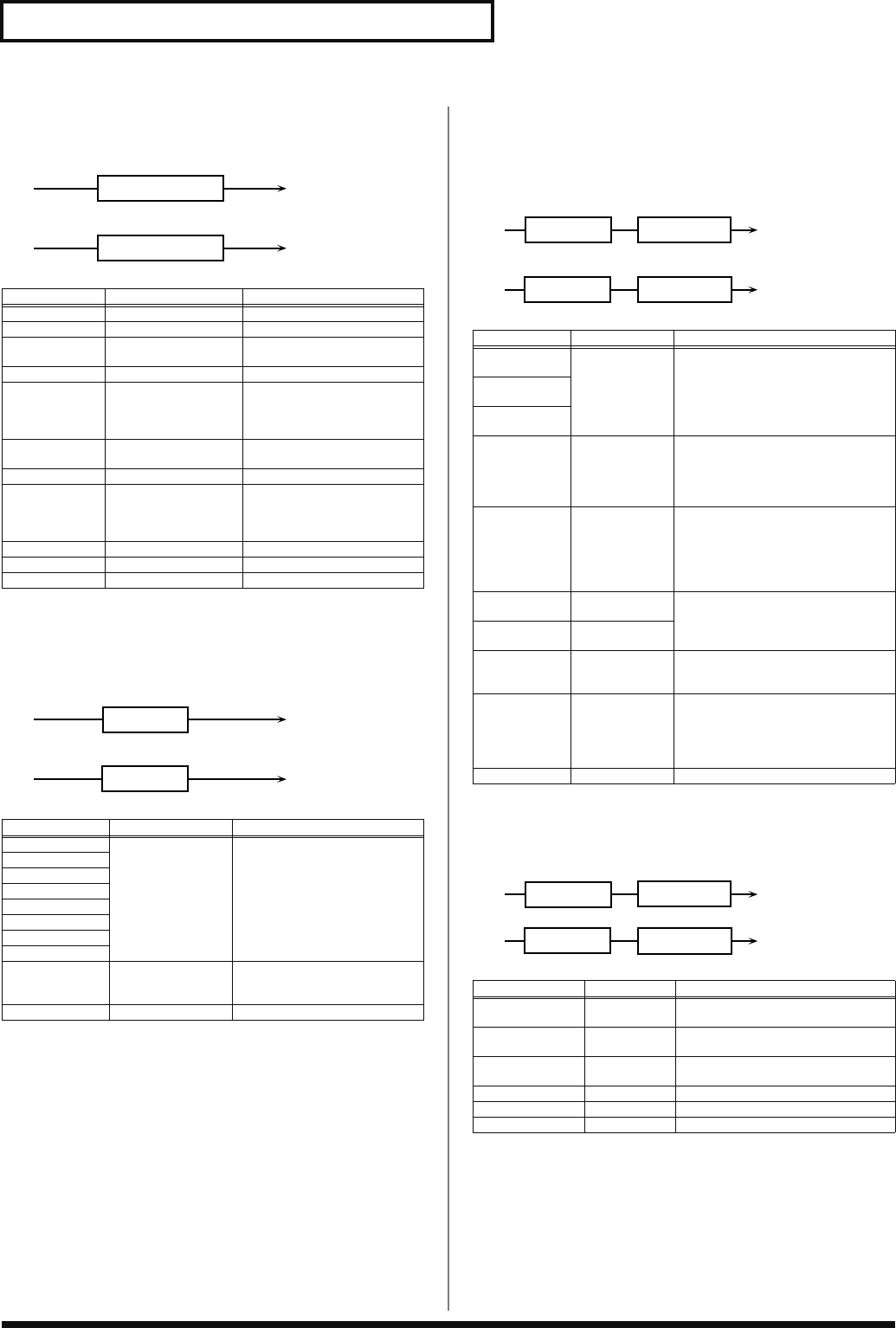
162
Effects List
01: EQUALIZER
This is a four-band stereo equalizer (low, mid x 2, high).
fig.MFX-01
02: SPECTRUM
This is a stereo spectrum. Spectrum is a type of filter which modifies
the timbre by boosting or cutting the level at specific frequencies.
fig.MFX-02
03: ISOLATOR
This is an equalizer which cuts the volume greatly, allowing you to
add a special effect to the sound by cutting the volume in varying
ranges.
fig.MFX-03
04: LOW BOOST
Boosts the volume of the lower range, creating powerful lows.
fig.MFX-04
Parameter Value Description
Low Freq 200, 400 Hz Frequency of the low range
Low Gain # -15– +15 dB Gain of the low range
Mid1 Freq 200–8000 Hz Frequency of the middle
range 1
Mid1 Gain -15– +15 dB Gain of the middle range 1
Mid1 Q 0.5, 1.0, 2.0, 4.0, 8.0 Width of the middle range 1
Set a higher value for Q to
narrow the range to be af-
fected.
Mid2 Freq 200–8000 Hz Frequency of the middle
range 2
Mid2 Gain -15– +15 dB Gain of the middle range 2
Mid2 Q 0.5, 1.0, 2.0, 4.0, 8.0 Width of the middle range 2
Set a higher value for Q to
narrow the range to be af-
fected.
High Freq 2000, 4000, 8000 Hz Frequency of the high range
High Gain # -15– +15 dB Gain of the high range
Level # 0–127 Output Level
Parameter Value Description
Band1 (250Hz) -15– +15 dB Gain of each frequency band
Band2 (500Hz)
Band3 (1000Hz)
Band4 (1250Hz)
Band5 (2000Hz)
Band6 (3150Hz)
Band7 (4000Hz)
Band8 (8000Hz)
Q 0.5, 1.0, 2.0, 4.0, 8.0 Simultaneously adjusts the
width of the adjusted ranges for
all the frequency bands.
Level # 0–127 Output Level
L in
R in
L out
R out
4-Band EQ
4-Band EQ
L in
R in
L out
R out
Spectrum
Spectrum
Parameter Value Description
Boost/
Cut Low # -60– +4 dB These boost and cut each of the High,
Middle, and Low frequency ranges.
At -60 dB, the sound becomes in-
audible. 0 dB is equivalent to the
input level of the sound.
Boost/
Cut Mid #
Boost/
Cut High #
Anti Phase
Low Sw OFF, ON Turns the Anti-Phase function on and
off for the Low frequency ranges.
When turned on, the counter-
channel of stereo sound is inverted
and added to the signal.
Anti Phase
Low Level 0–127 Adjusts the level settings for the Low
frequency ranges.
Adjusting this level for certain fre-
quencies allows you to lend em-
phasis to specific parts. (This is
effective only for stereo source.)
Anti Phase
Mid Sw OFF, ON Settings of the Anti-Phase function
for the Middle frequency ranges
The parameters are the same as for
the Low frequency ranges.
Anti Phase
Mid Level 0–127
Low Boost Sw OFF, ON Turns Low Booster on/off.
This emphasizes the bottom to cre-
ate a heavy bass sound.
Low Boost
Level 0–127 Increasing this value gives you a
heavier low end.
* Depending on the Isolator and fil-
ter settings this effect may be hard
to distinguish.
Level 0–127 Output Level
Parameter Value Description
Boost
Frequency # 50–125 Hz Center frequency at which the lower
range will be boosted
Boost Gain # 0– +12 dB Amount by which the lower range
will be boosted
Boost Width WIDE, MID,
NARROW Width of the lower range that will be
boosted
Low Gain -15– +15 dB Gain of the low frequency range
High Gain -15– +15 dB Gain of the high frequency range
Level 0–127 Output level
L in
R in
L out
R out
Isolator
Low Boost
Low Boost
Isolator
L in
R in
L out
R out
Low Boost
2-Band EQ
2-Band EQ
Low Boost
Fantom-G_r_e.book 162 ページ 2008年1月31日 木曜日 午後12時15分
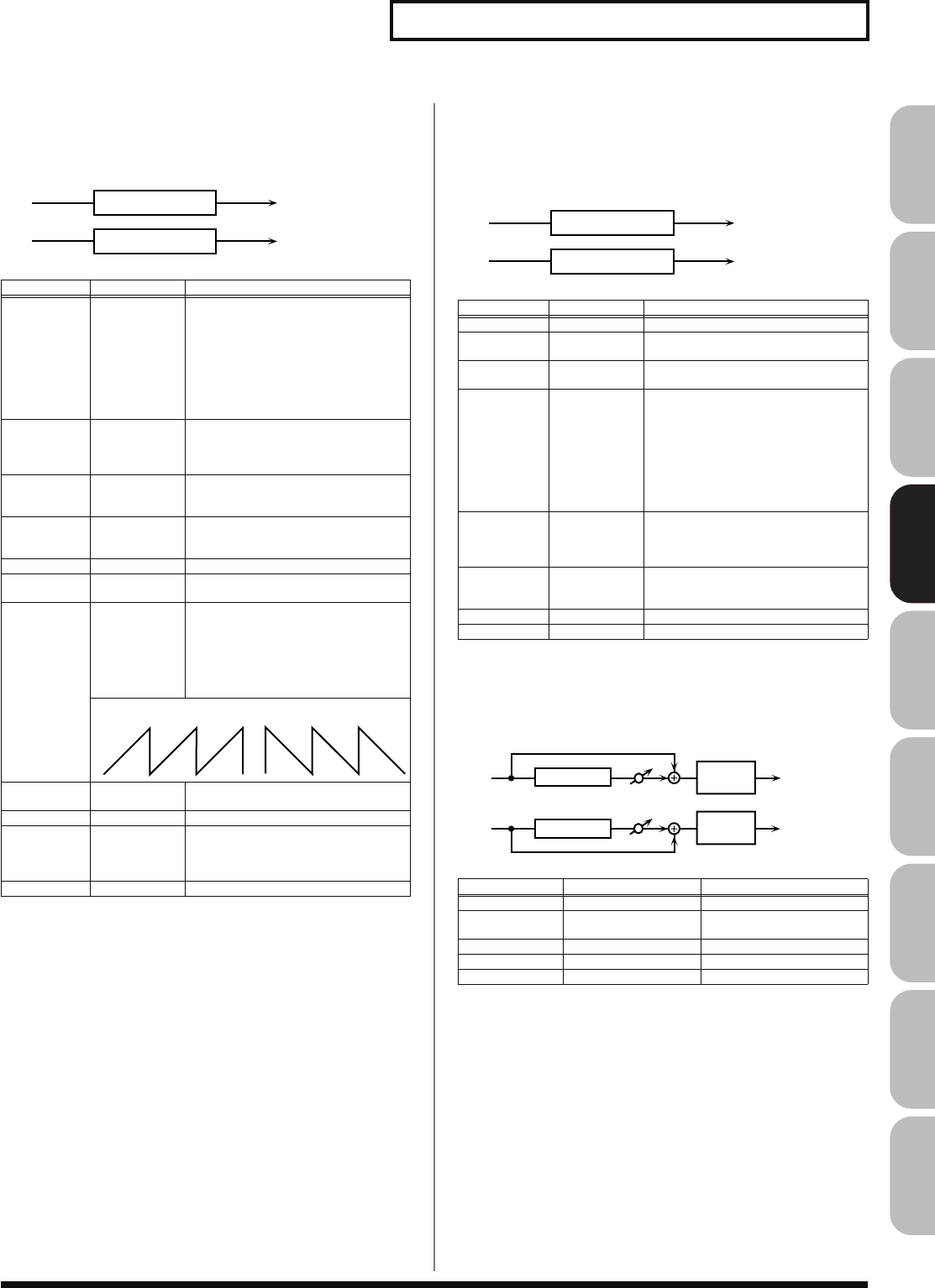
163
Effects List
Overview Sound 1 Sound 2 Sound 3 Pad Sampler
Menu/System
AppendixSequencer
05: SUPER FILTER
This is a filter with an extremely sharp slope. The cutoff frequency
can be varied cyclically.
fig.MFX-05
06: STEP FILTER
This is a filter whose cutoff frequency can be modulated in steps.
You can specify the pattern by which the cutoff frequency will
change.
fig.MFX-06
07: ENHANCER
Controls the overtone structure of the high frequencies, adding
sparkle and tightness to the sound.
fig.MFX-07
Parameter Value Description
Filter Type LPF, BPF,
HPF, NOTCH Filter type
Frequency range that will pass
through each filter
LPF
: frequencies below the cutoff
BPF:
frequencies in the region of the
cutoff
HPF:
frequencies above the cutoff
NOTCH:
frequencies other than the
region of the cutoff
Filter Slope -12, -24, -36 dB Amount of attenuation per octave
-36 dB:
extremely steep
-24 dB:
steep
-12 dB:
gentle
Filter
Cutoff # 0–127 Cutoff frequency of the filter
Increasing this value will raise the
cutoff frequency.
Filter
Resonance # 0–127 Filter resonance level
Increasing this value will emphasize
the region near the cutoff frequency.
Filter Gain 0– +12 dB Amount of boost for the filter output
Modulation
Sw OFF,ON On/off switch for cyclic change
Modulation
Wave TRI, SQR,
SIN, SAW1,
SAW2
How the cutoff frequency will be mod-
ulated
TRI:
triangle wave
SQR:
square wave
SIN:
sine wave
SAW1:
sawtooth wave (upward)
SAW2:
sawtooth wave (downward)
Rate # 0.05–10.00 Hz,
note Rate of modulation
Depth 0–127 Depth of modulation
Attack # 0–127 Speed at which the cutoff frequency
will change
This is effective if Modulation Wave
is SQR, SAW1, or SAW2.
Level 0–127 Output level
L in
R in
L out
R out
Super Filter
Super Filter
SAW1 SAW2
Parameter Value Description
Step 01–16 0–127 Cutoff frequency at each step
Rate # 0.05–10.00 Hz,
note Rate of modulation
Attack # 0–127 Speed at which the cutoff frequency
changes between steps
Filter Type LPF, BPF,
HPF, NOTCH Filter type
Frequency range that will pass
through each filter
LPF:
frequencies below the cutoff
BPF:
frequencies in the region of the
cutoff
HPF:
frequencies above the cutoff
NOTCH:
frequencies other than the
region of the cutoff
Filter Slope -12, -24, -36 dB Amount of attenuation per octave
-12 dB:
gentle
-24 dB:
steep
-36 dB:
extremely steep
Filter
Resonance # 0–127 Filter resonance level
Increasing this value will emphasize
the region near the cutoff frequency.
Filter Gain 0– +12 dB Amount of boost for the filter output
Level 0–127 Output level
Parameter Value Description
Sens # 0–127 Sensitivity of the enhancer
Mix # 0–127 Level of the overtones gen-
erated by the enhancer
Low Gain -15– +15 dB Gain of the low range
High Gain -15– +15 dB Gain of the high range
Level 0–127 Output Level
L in
R in
L out
R out
Step Filter
Step Filter
L in
R in
L out
R out
Mix
Mix
Enhancer
Enhancer 2-Band
EQ
2-Band
EQ
Fantom-G_r_e.book 163 ページ 2008年1月31日 木曜日 午後12時15分
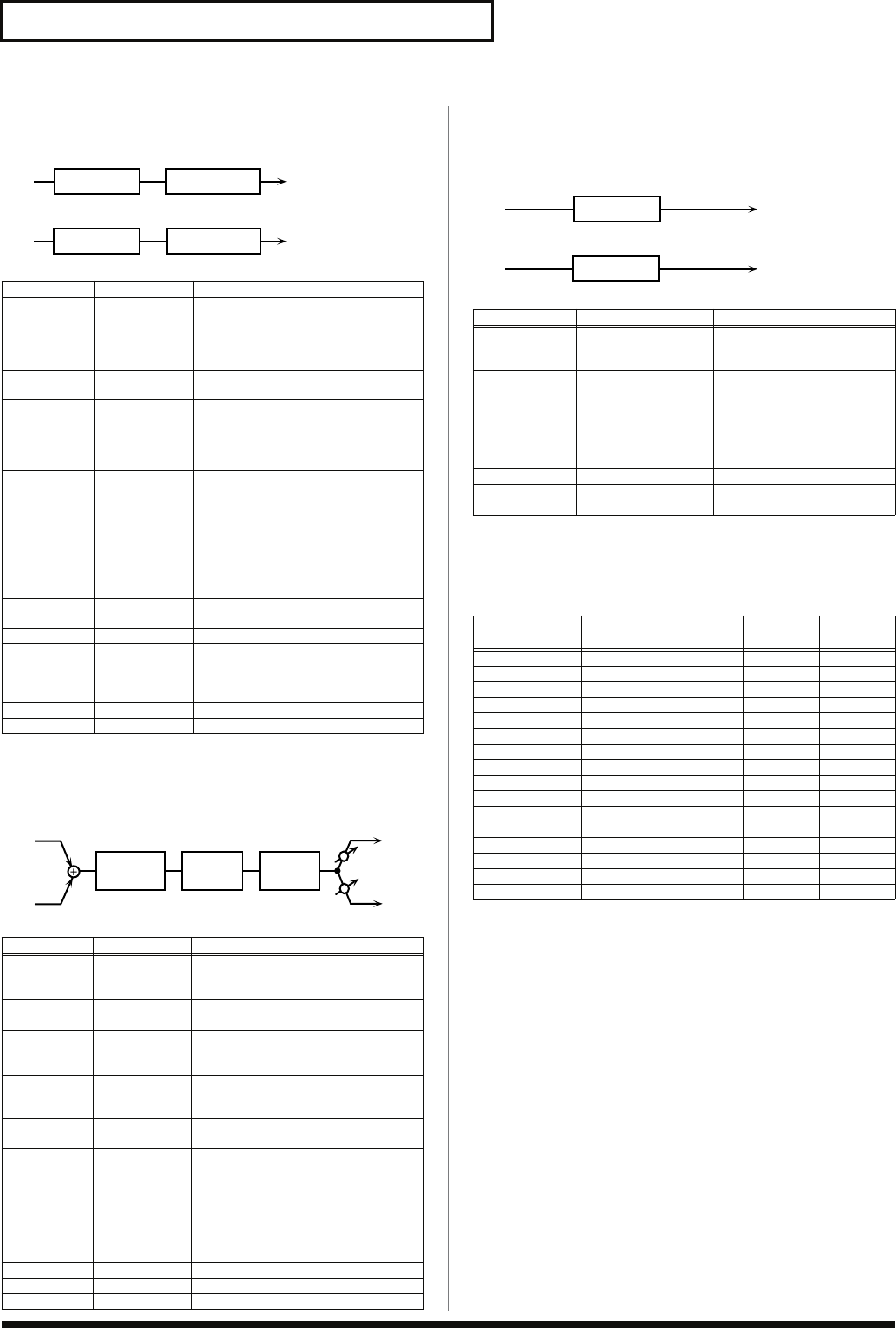
164
Effects List
08: AUTO WAH
Cyclically controls a filter to create cyclic change in timbre.
fig.MFX-08
09: HUMANIZER
Adds a vowel character to the sound, making it similar to a human
voice.
fig.MFX-09
10: SPEAKER SIMULATOR
Simulates the speaker type and mic settings used to record the
speaker sound.
fig.MFX-10
Specifications of each Speaker Type
The speaker column indicates the diameter of each speaker unit (in
inches) and the number of units.
Parameter Value Description
Filter Type LPF, BPF Type of filter
LPF:
The wah effect will be applied
over a wide frequency range.
BPF:
The wah effect will be applied
over a narrow frequency range.
Manual # 0–127 Adjusts the center frequency at which
the effect is applied.
Peak 0–127 Adjusts the amount of the wah effect
that will occur in the range of the center
frequency.
Set a higher value for Q to narrow
the range to be affected.
Sens # 0–127 Adjusts the sensitivity with which the
filter is controlled.
Polarity UP, DOWN Sets the direction in which the frequen-
cy will change when the auto-wah filter
is modulated.
UP:
The filter will change toward a
higher frequency.
DOWN:
The filter will change to-
ward a lower frequency.
Rate # 0.05–10.00 Hz,
note Frequency of modulation
Depth # 0–127 Depth of modulation
Phase # 0–180 deg Adjusts the degree of phase shift of the
left and right sounds when the wah ef-
fect is applied.
Low Gain -15– +15 dB Gain of the low range
High Gain -15– +15 dB Gain of the high range
Level 0–127 Output Level
Parameter Value Description
Drive Sw OFF, ON Turns Drive on/off.
Drive # 0–127 Degree of distortion
Also changes the volume.
Vowel1 a, e, i, o, u Selects the vowel.
Vowel2 a, e, i, o, u
Rate # 0.05–10.00 Hz,
note Frequency at which the two vowels
switch
Depth # 0–127 Effect depth
Input Sync
Sw OFF, ON Determines whether the LFO for
switching the vowels is reset by the in-
put signal (ON) or not (OFF).
Input Sync
Threshold 0–127 Volume level at which reset is applied
Manual # 0–100 Point at which Vowel 1/2 switch
49 or less:
Vowel 1 will have a long-
er duration.
50:
Vowel 1 and 2 will be of equal
duration.
51 or more:
Vowel 2 will have a
longer duration.
Low Gain -15– +15 dB Gain of the low frequency range
High Gain -15– +15 dB Gain of the high frequency range
Pan # L64–63R Stereo location of the output
Level 0–127 Output level
L in
R in
L out
R out
Auto Wah
2-Band EQ
2-Band EQ
Auto Wah
Formant 2-Band
EQ
L in
R in
Overdrive
L out
R ou
t
Pan R
Pan L
Parameter Value Description
Speaker Type (See “Specifications
of each Speaker
Type“)
Type of speaker
Mic Setting 1, 2, 3 Adjusts the location of the mic
that is recording the sound of
the speaker.
This can be adjusted in
three steps, with the mic
becoming more distant in
the order of 1, 2, and 3.
Mic Level # 0–127 Volume of the microphone
Direct Level # 0–127 Volume of the direct sound
Level # 0–127 Output Level
Type Cabinet Speaker Micro-
phone
SMALL 1 small open-back enclosure 10 dynamic
SMALL 2 small open-back enclosure 10 dynamic
MIDDLE open back enclosure 12 x 1 dynamic
JC-120 open back enclosure 12 x 2 dynamic
BUILT-IN 1 open back enclosure 12 x 2 dynamic
BUILT-IN 2 open back enclosure 12 x 2 condenser
BUILT-IN 3 open back enclosure 12 x 2 condenser
BUILT-IN 4 open back enclosure 12 x 2 condenser
BUILT-IN 5 open back enclosure 12 x 2 condenser
BG STACK 1 sealed enclosure 12 x 2 condenser
BG STACK 2 large sealed enclosure 12 x 2 condenser
MS STACK 1 large sealed enclosure 12 x 4 condenser
MS STACK 2 large sealed enclosure 12 x 4 condenser
METAL STACK large double stack 12 x 4 condenser
2-STACK large double stack 12 x 4 condenser
3-STACK large triple stack 12 x 4 condenser
L in
R in
L out
R out
Speaker
Speaker
Fantom-G_r_e.book 164 ページ 2008年1月31日 木曜日 午後12時15分
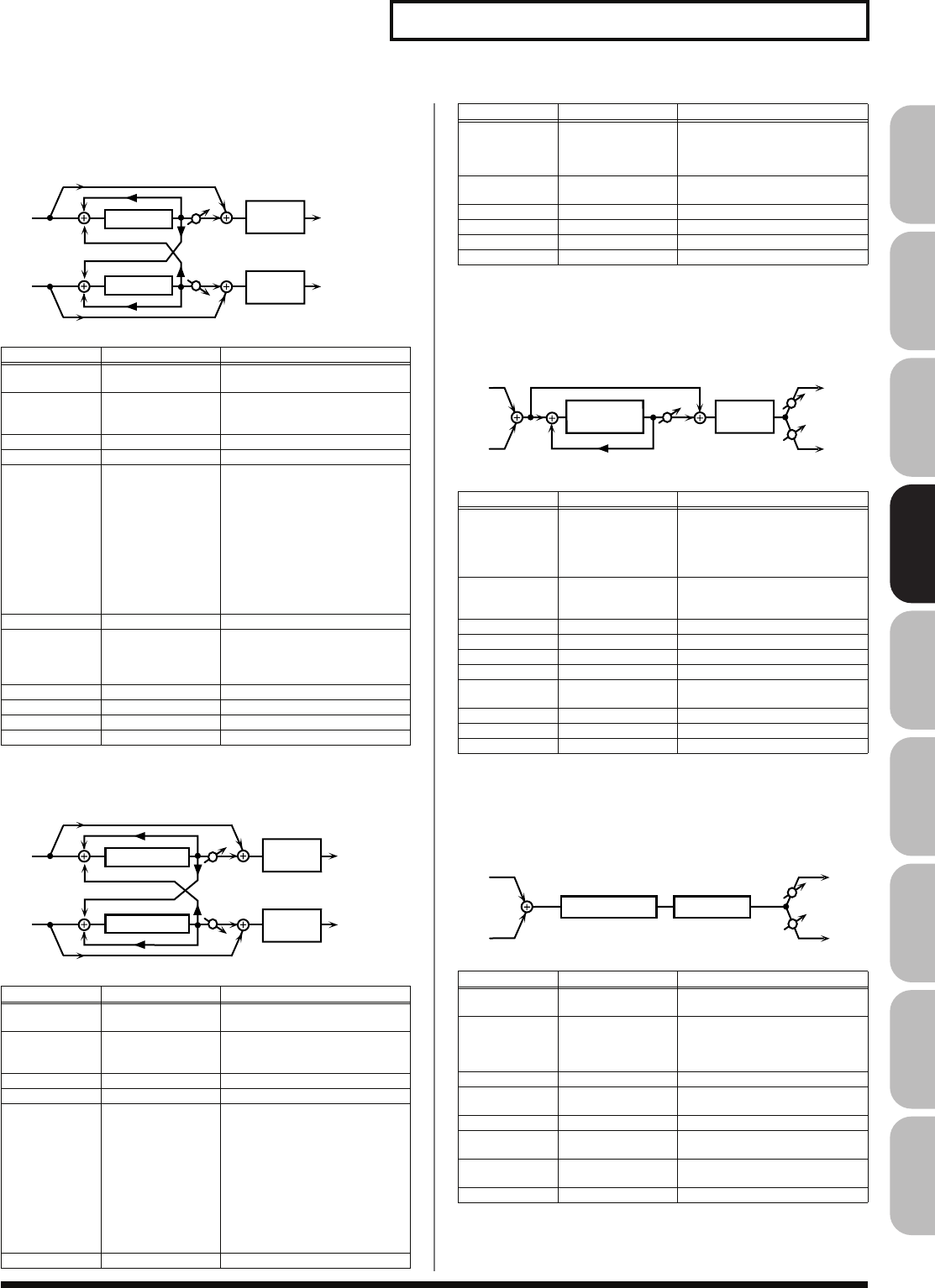
165
Effects List
Overview Sound 1 Sound 2 Sound 3 Pad Sampler
Menu/System
AppendixSequencer
11: PHASER
A phase-shifted sound is added to the original sound and
modulated.
fig.MFX-11
12: STEP PHASER
The phaser effect will be varied gradually.
fig.MFX-12
13: MULTI STAGE PHASER
Extremely high settings of the phase difference produce a deep
phaser effect.
fig.MFX-13
14: INFINITE PHASER
A phaser that continues raising/lowering the frequency at which the
sound is modulated.
fig.MFX-14
Parameter Value Description
Mode 4-STAGE, 8-
STAGE, 12-STAGE Number of stages in the phaser
Manual # 0–127 Adjusts the basic frequency from
which the sound will be modu-
lated.
Rate # 0.05–10.00 Hz, note Frequency of modulation
Depth 0–127 Depth of modulation
Polarity INVERSE,
SYNCHRO Selects whether the left and right
phase of the modulation will be
the same or the opposite.
INVERSE:
The left and right
phase will be opposite. When
using a mono source, this
spreads the sound.
SYNCHRO:
The left and right
phase will be the same. Select
this when inputting a stereo
source.
Resonance # 0–127 Amount of feedback
Cross
Feedback -98– +98 % Adjusts the proportion of the
phaser sound that is fed back
into the effect. Negative (-) set-
tings will invert the phase.
Mix # 0–127 Level of the phase-shifted sound
Low Gain -15– +15 dB Gain of the low range
High Gain -15– +15 dB Gain of the high range
Level 0–127 Output Level
Parameter Value Description
Mode 4-STAGE, 8-
STAGE, 12-STAGE Number of stages in the phaser
Manual # 0–127 Adjusts the basic frequency from
which the sound will be modu-
lated.
Rate # 0.05–10.00 Hz, note Frequency of modulation
Depth 0–127 Depth of modulation
Polarity INVERSE,
SYNCHRO Selects whether the left and right
phase of the modulation will be
the same or the opposite.
INVERSE:
The left and right
phase will be opposite. When
using a mono source, this
spreads the sound.
SYNCHRO:
The left and right
phase will be the same. Select
this when inputting a stereo
source.
Resonance # 0–127 Amount of feedback
R in R out
L in L out
Phaser
Mix
2-Band
EQ
Phaser 2-Band
EQ
Mix
R in R out
L in L out
Step Phaser
Mix
2-Band
EQ
Step Phaser 2-Band
EQ
Mix
Cross
Feedback -98– +98 % Adjusts the proportion of the
phaser sound that is fed back
into the effect. Negative (-) set-
tings will invert the phase.
Step Rate # 0.10–20.00 Hz, note Rate of the step-wise change in
the phaser effect
Mix # 0–127 Level of the phase-shifted sound
Low Gain -15– +15 dB Gain of the low range
High Gain -15– +15 dB Gain of the high range
Level 0–127 Output Level
Parameter Value Description
Mode 4-STAGE, 8-
STAGE,
12-STAGE, 16-
STAGE, 20-
STAGE, 24-STAGE
Number of phaser stages
Manual # 0–127 Adjusts the basic frequency from
which the sound will be modu-
lated.
Rate # 0.05–10.00 Hz, note Frequency of modulation
Depth 0–127 Depth of modulation
Resonance # 0–127 Amount of feedback
Mix # 0–127 Level of the phase-shifted sound
Pan # L64–63R Stereo location of the output
sound
Low Gain -15– +15 dB Gain of the low range
High Gain -15– +15 dB Gain of the high range
Level 0–127 Output Level
Parameter Range Explanation
Mode 1, 2, 3, 4 Higher values will produce a
deeper phaser effect.
Speed # -100– +100 Speed at which to raise or lower
the frequency at which the sound
is modulated
(+: upward / -: downward)
Resonance # 0–127 Amount of feedback
Mix # 0–127 Volume of the phase-shifted
sound
Pan # L64–63R Panning of the output sound
Low Gain -15– +15 dB Amount of boost/cut for the
low-frequency range
High Gain -15– +15 dB Amount of boost/cut for the
high-frequency range
Level 0–127 Output volume
Parameter Value Description
Resonance
Mix
L in
R in
L out
R out
Pan R
Pan L
2-Band
EQ
Multi Stage
Phaser
Infinite Phaser 2-Band EQ
L in
R in
L out
R out
Pan R
Pan L
Fantom-G_r_e.book 165 ページ 2008年1月31日 木曜日 午後12時15分
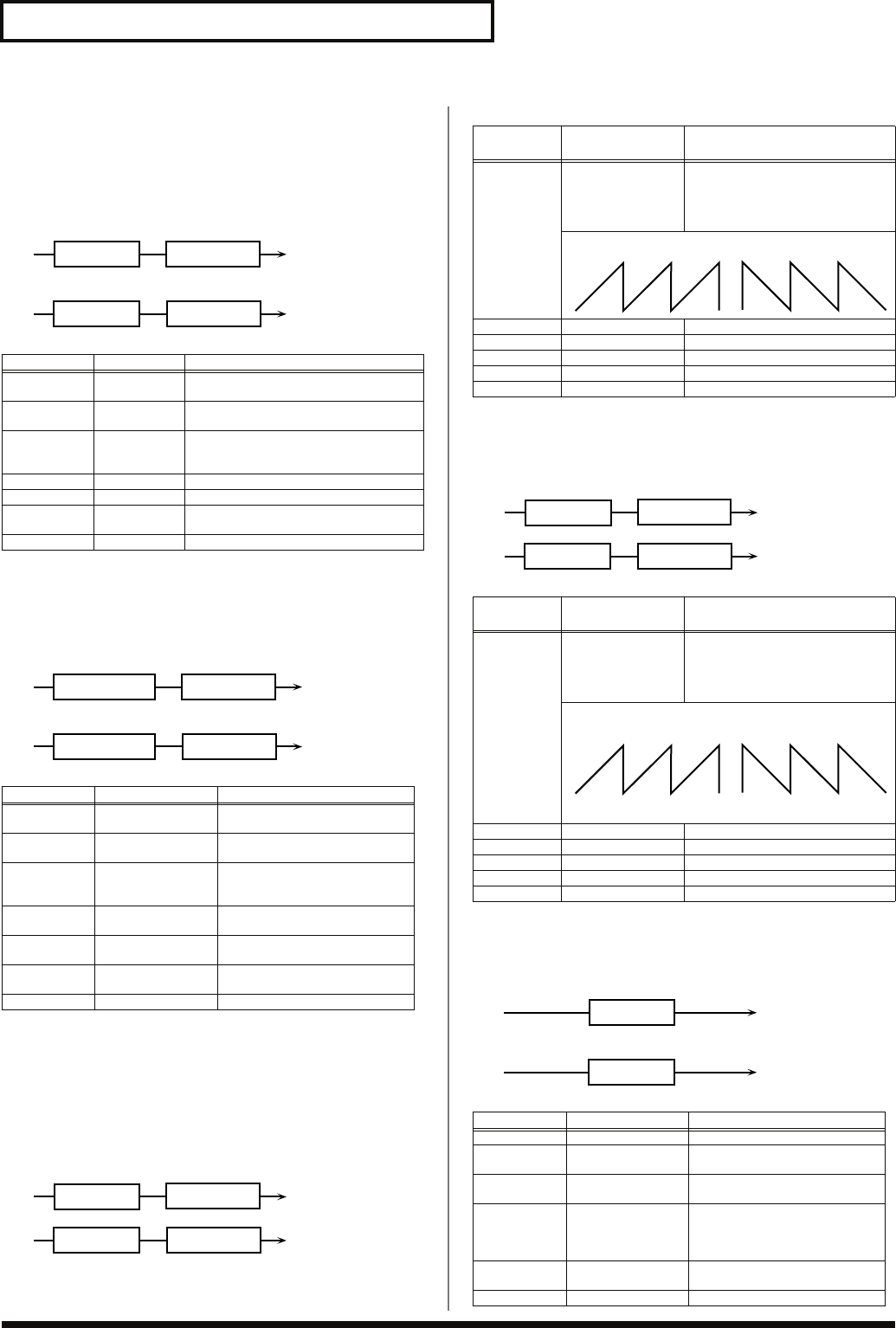
166
Effects List
15: RING MODULATOR
This is an effect that applies amplitude modulation (AM) to the input
signal, producing bell-like sounds. You can also change the
modulation frequency in response to changes in the volume of the
sound sent into the effect.
fig.MFX-15
16: STEP RING MODULATOR
This is a ring modulator that uses a 16-step sequence to vary the
frequency at which modulation is applied.
fig.MFX-16
17: TREMOLO
Cyclically modulates the volume to add tremolo effect to the sound.
fig.MFX-17a
18: AUTO PAN
Cyclically modulates the stereo location of the sound.
fig.MFX-18a
19: STEP PAN
This uses a 16-step sequence to vary the panning of the sound.
fig.MFX-19
Parameter Value Description
Frequency # 0–127 Adjusts the frequency at which modula-
tion is applied.
Sens # 0–127 Adjusts the amount of frequency modu-
lation applied.
Polarity UP, DOWN Determines whether the frequency mod-
ulation moves towards higher frequen-
cies (
UP
) or lower frequencies (
DOWN
).
Low Gain -15– +15 dB Gain of the low frequency range
High Gain -15– +15 dB Gain of the high frequency range
Balance # D100:0W–
D0:100W Volume balance between the direct
sound (D) and the effect sound (W)
Level 0–127 Output level
Parameter Range Explanation
Step 01–16 0–127 Frequency of ring modulation at
each step
Rate # 0.05–10.00 Hz, note Rate at which the 16-step se-
quence will cycle
Attack # 0–127 Speed at which the modulation
frequency changes between
steps
Low Gain -15– +15 dB Amount of boost/cut for the
low-frequency range
High Gain -15– +15 dB Amount of boost/cut for the
high-frequency range
Balance # D100:0W–
D0:100W Volume balance of the original
sound (D) and effect sound (W)
Level 0–127 Output volume
L in
R in
L out
R out
Ring Mod
2-Band EQ
2-Band EQ
Ring Mod
L in
R in
L out
R out
Step Ring Mod
2-Band EQ
2-Band EQ
Step Ring Mod
L in
R in
L out
R out
Tremolo
2-Band EQ
2-Band EQ
Tremolo
Parame-
ter
Value Description
Mod Wave TRI, SQR, SIN,
SAW1, SAW2 Modulation Wave
TRI:
triangle wave
SQR:
square wave
SIN:
sine wave
SAW1/2:
sawtooth wave
Rate # 0.05–10.00 Hz, note Frequency of the change
Depth # 0–127 Depth to which the effect is applied
Low Gain -15– +15 dB Gain of the low range
High Gain -15– +15 dB Gain of the high range
Level 0–127 Output Level
Parame-
ter
Value Description
Mod Wave TRI, SQR, SIN,
SAW1, SAW2 Modulation Wave
TRI:
triangle wave
SQR:
square wave
SIN:
sine wave
SAW1/2:
sawtooth wave
Rate # 0.05–10.00 Hz, note Frequency of the change
Depth # 0–127 Depth to which the effect is applied
Low Gain -15– +15 dB Gain of the low range
High Gain -15– +15 dB Gain of the high range
Level 0–127 Output Level
Parameter Range Explanation
Step 01–16 L64–63R Pan at each step
Rate # 0.05–10.00 Hz, note Rate at which the 16-step se-
quence will cycle
Attack # 0–127 Speed at which the pan changes
between steps
Input Sync
Sw OFF, ON Specifies whether an input note
will cause the sequence to re-
sume from the first step of the se-
quence (ON) or not (OFF)
Input Sync
Threshold 0–127 Volume at which an input note
will be detected
Level 0–127 Output volume
SAW1 SAW2
L in
R in
L out
R out
Auto Pan
2-Band EQ
2-Band EQ
Auto Pan
SAW1 SAW2
L
R
L
R
L in
R in
L out
R out
Step Pan
Step Pan
Fantom-G_r_e.book 166 ページ 2008年1月31日 木曜日 午後12時15分
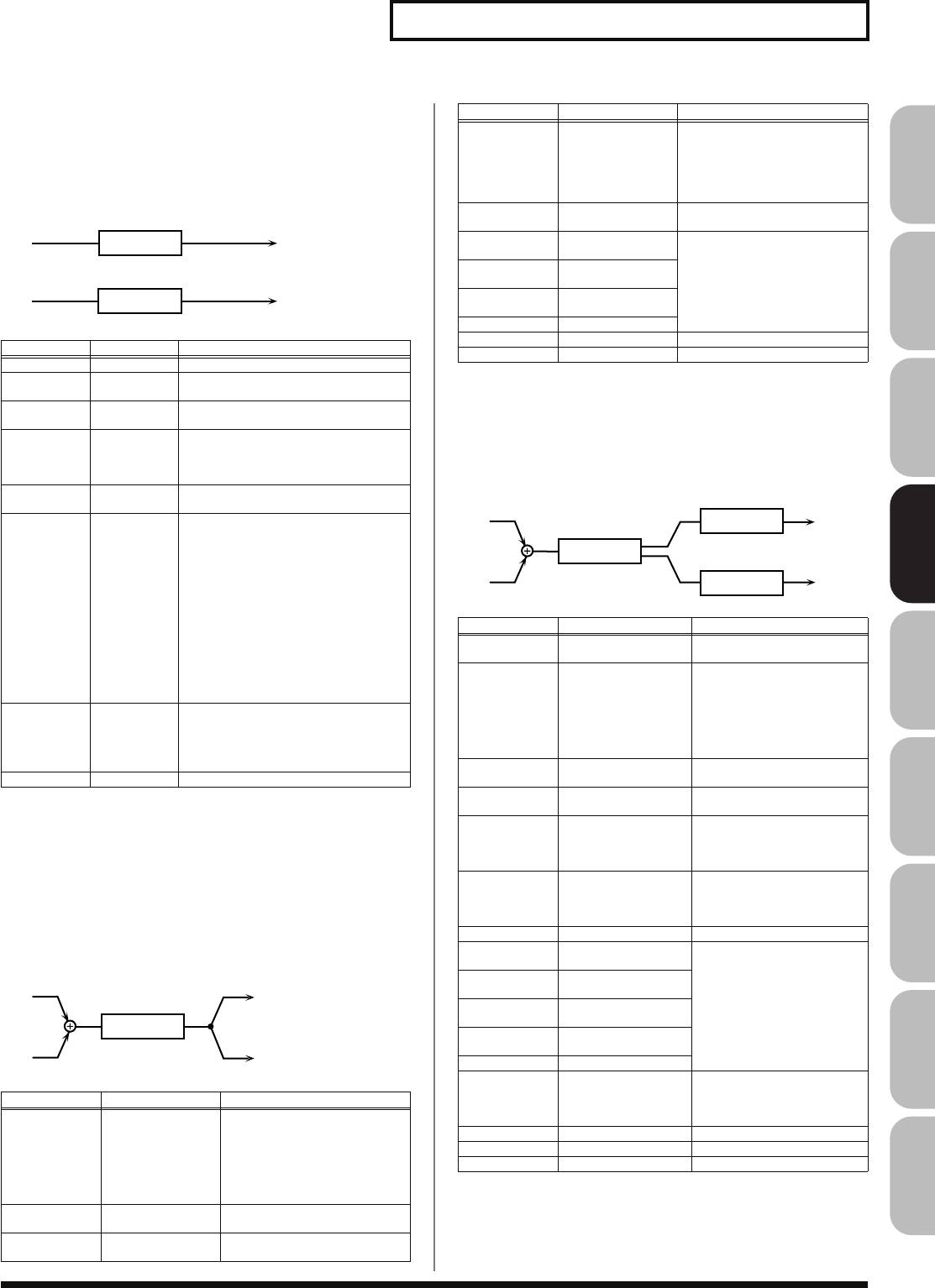
167
Effects List
Overview Sound 1 Sound 2 Sound 3 Pad Sampler
Menu/System
AppendixSequencer
20: SLICER
By applying successive cuts to the sound, this effect turns a
conventional sound into a sound that appears to be played as a
backing phrase. This is especially effective when applied to sustain-
type sounds.
fig.MFX-20
21: ROTARY
The Rotary effect simulates the sound of the rotary speakers often
used with the electric organs of the past. Since the movement of the
high range and low range rotors can be set independently, the
unique type of modulation characteristic of these speakers can be
simulated quite closely. This effect is most suitable for electric organ
Patches.
fig.MFX-21
22: VK ROTARY
This type provides modified response for the rotary speaker, with
the low end boosted further.
This effect features the same specifications as the VK-7’s built-in
rotary speaker.
fig.MFX-22
Parameter Value Description
Step 01–16 L64–63R Level at each step
Rate # 0.05–10.00
Hz, note Rate at which the 16-step sequence will
cycle
Attack # 0–127 Speed at which the level changes be-
tween steps
Input Sync
Sw OFF, ON Specifies whether an input note will
cause the sequence to resume from the
first step of the sequence (ON) or not
(OFF)
Input Sync
Threshold 0–127 Volume at which an input note will be
detected
Mode LEGATO,
SLASH Sets the manner in which the volume
changes as one step progresses to the
next.
LEGATO:
The change in volume from
one step’s level to the next remains
unaltered. If the level of a following
step is the same as the one preceding
it, there is no change in volume.
SLASH:
The level is momentarily set
to 0 before progressing to the level of
the next step. This change in volume
occurs even if the level of the follow-
ing step is the same as the preceding
step.
Shuffle # 0–127 Timing of volume changes in levels for
even-numbered steps (step 2, step 4, step
6...).
The higher the value, the later the beat
progresses.
Level 0–127 Output level
Parameter Value Description
Speed # SLOW, FAST Simultaneously switch the rota-
tional speed of the low frequency
rotor and high frequency rotor.
SLOW:
Slows down the rota-
tion to the Slow Rate.
FAST:
Speeds up the rotation
to the Fast Rate.
Woofer Slow
Speed 0.05–10.00 Hz Slow speed (SLOW) of the low
frequency rotor
Woofer Fast
Speed 0.05–10.00 Hz Fast speed (FAST) of the low fre-
quency rotor
L in
R in
L out
R out
Slicer
Slicer
Rotary
L out
R out
L in
R in
Woofer
Acceleration 0–15 Adjusts the time it takes the low
frequency rotor to reach the new-
ly selected speed when switch-
ing from fast to slow (or slow to
fast) speed. Lower values will re-
quire longer times.
Woofer Level 0–127 Volume of the low frequency ro-
tor
Tweeter Slow
Speed 0.05–10.00 Hz Settings of the high frequency ro-
torThe parameters are the same
as for the low frequency rotor
Tweeter Fast
Speed 0.05–10.00 Hz
Tweeter
Acceleration 0–15
Tweeter Level 0–127
Separation 0–127 Spatial dispersion of the sound
Level # 0–127 Output Level
Parameter Value Description
Speed # SLOW, FAST Rotational speed of the rotat-
ing speaker
Brake # OFF, ON Switches the rotation of the
rotary speaker.
When this is turned on, the
rotation will gradually
stop. When it is turned off,
the rotation will gradually
resume.
Woofer Slow
Speed 0.05–10.00 Hz Low-speed rotation speed of
the woofer
Woofer Fast
Speed 0.05–10.00 Hz High-speed rotation speed of
the woofer
Woofer Trans
Up 0–127 Adjusts the rate at which the
woofer rotation speeds up
when the rotation is switched
from Slow to Fast.
Woofer Trans
Down 0–127 Adjusts the rate at which the
woofer rotation speeds up
when the rotation is switched
from Fast to Slow.
Woofer Level 0–127 Volume of the woofer
Tweeter Slow
Speed 0.05–10.00 Hz Settings of the tweeter
The parameters are the
same as for the woofer.
Tweeter Fast
Speed 0.05–10.00 Hz
Tweeter Trans
Up 0–127
Tweeter Trans
Down 0–127
Tweeter Level 0–127
Spread 0–10 Sets the rotary speaker stereo
image. The higher the value
set, the wider the sound is
spread out.
Low Gain -15– +15 dB Gain of the low range
High Gain -15– +15 dB Gain of the high range
Level # 0–127 Output Level
Parameter Value Description
L out
R out
L in
R in
Rotary
2-Band EQ
2-Band EQ
Fantom-G_r_e.book 167 ページ 2008年1月31日 木曜日 午後12時15分
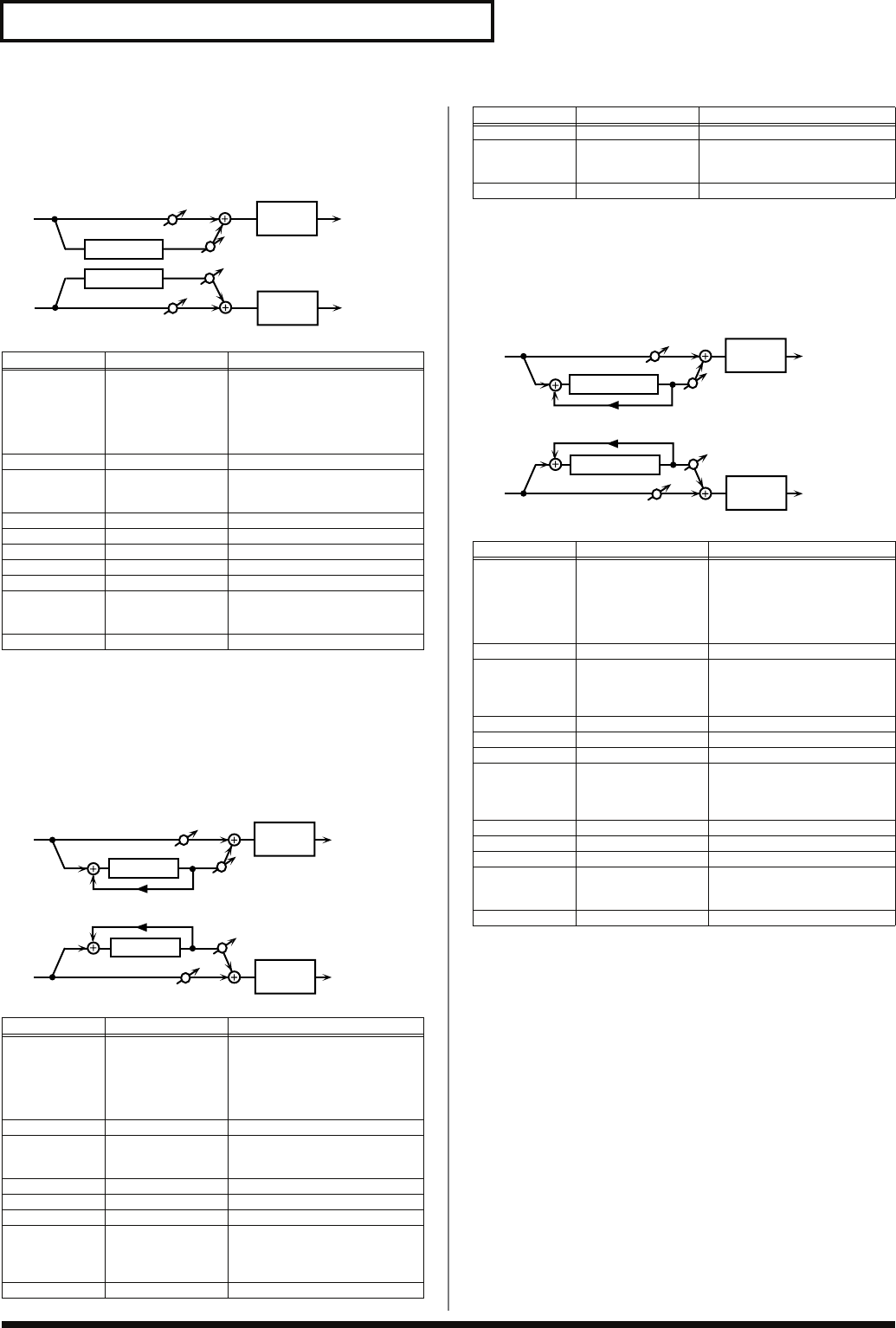
168
Effects List
23: CHORUS
This is a stereo chorus. A filter is provided so that you can adjust the
timbre of the chorus sound.
fig.MFX-23
24: FLANGER
This is a stereo flanger. (The LFO has the same phase for left and
right.) It produces a metallic resonance that rises and falls like a jet
airplane taking off or landing. A filter is provided so that you can
adjust the timbre of the flanged sound.
fig.MFX-24
25: STEP FLANGER
This is a flanger in which the flanger pitch changes in steps. The
speed at which the pitch changes can also be specified in terms of a
note-value of a specified tempo.
fig.MFX-25
Parameter Value Description
Filter Type OFF, LPF, HPF Type of filter
OFF:
no filter is used
LPF:
cuts the frequency range
above the Cutoff Freq
HPF:
cuts the frequency range
below the Cutoff Freq
Cutoff Freq 200–8000 Hz Basic frequency of the filter
Pre Delay 0.0–100.0 ms Adjusts the delay time from the
direct sound until the chorus
sound is heard.
Rate # 0.05–10.00 Hz, note Frequency of modulation
Depth 0–127 Depth of modulation
Phase 0–180 deg Spatial spread of the sound
Low Gain -15– +15 dB Gain of the low range
High Gain -15– +15 dB Gain of the high range
Balance # D100:0W–
D0:100W Volume balance between the di-
rect sound (D) and the chorus
sound (W)
Level 0–127 Output Level
Parameter Value Description
Filter Type OFF, LPF, HPF Type of filter
OFF:
no filter is used
LPF:
cuts the frequency range
above the Cutoff Freq
HPF:
cuts the frequency range
below the Cutoff Freq
Cutoff Freq 200–8000 Hz Basic frequency of the filter
Pre Delay 0.0–100.0 ms Adjusts the delay time from
when the direct sound begins
until the flanger sound is heard.
Rate # 0.05–10.00 Hz, note Frequency of modulation
Depth 0–127 Depth of modulation
Phase 0–180 deg Spatial spread of the sound
Feedback # -98– +98 % Adjusts the proportion of the
flanger sound that is fed back
into the effect. Negative (-) set-
tings will invert the phase.
Low Gain -15– +15 dB Gain of the low range
L in
R in
Chorus
Chorus
L out
R out
2-Band
EQ
2-Band
EQ
Balance W
Balance W
Balance D
Balance D
R in R out
L in L out
Flanger
Feedback
Feedback
Flanger
Balance W
Balance D
Balance W
Balance D
2-Band
EQ
2-Band
EQ
High Gain -15– +15 dB Gain of the high range
Balance # D100:0W–
D0:100W Volume balance between the di-
rect sound (D) and the flanger
sound (W)
Level 0–127 Output Level
Parameter Value Description
Filter Type OFF, LPF, HPF Type of filter
OFF:
no filter is used
LPF:
cuts the frequency
range above the Cutoff Freq
HPF:
cuts the frequency
range below the Cutoff Freq
Cutoff Freq 200–8000 Hz Basic frequency of the filter
Pre Delay 0.0–100.0 ms Adjusts the delay time from
when the direct sound begins
until the flanger sound is
heard.
Rate # 0.05–10.00 Hz, note Frequency of modulation
Depth 0–127 Depth of modulation
Phase 0–180 deg Spatial spread of the sound
Feedback # -98– +98 % Adjusts the proportion of the
flanger sound that is fed back
into the effect. Negative (-) set-
tings will invert the phase.
Step Rate # 0.10–20.00 Hz, note Rate (period) of pitch change
Low Gain -15– +15 dB Gain of the low range
High Gain -15– +15 dB Gain of the high range
Balance # D100:0W–D0:100W Volume balance between the
direct sound (D) and the
flanger sound (W)
Level 0–127 Output Level
Parameter Value Description
R in R out
L in L out
Feedback
Feedback
Balance W
Balance D
Balance W
Balance D
2-Band
EQ
2-Band
EQ
Step Flanger
Step Flanger
Fantom-G_r_e.book 168 ページ 2008年1月31日 木曜日 午後12時15分
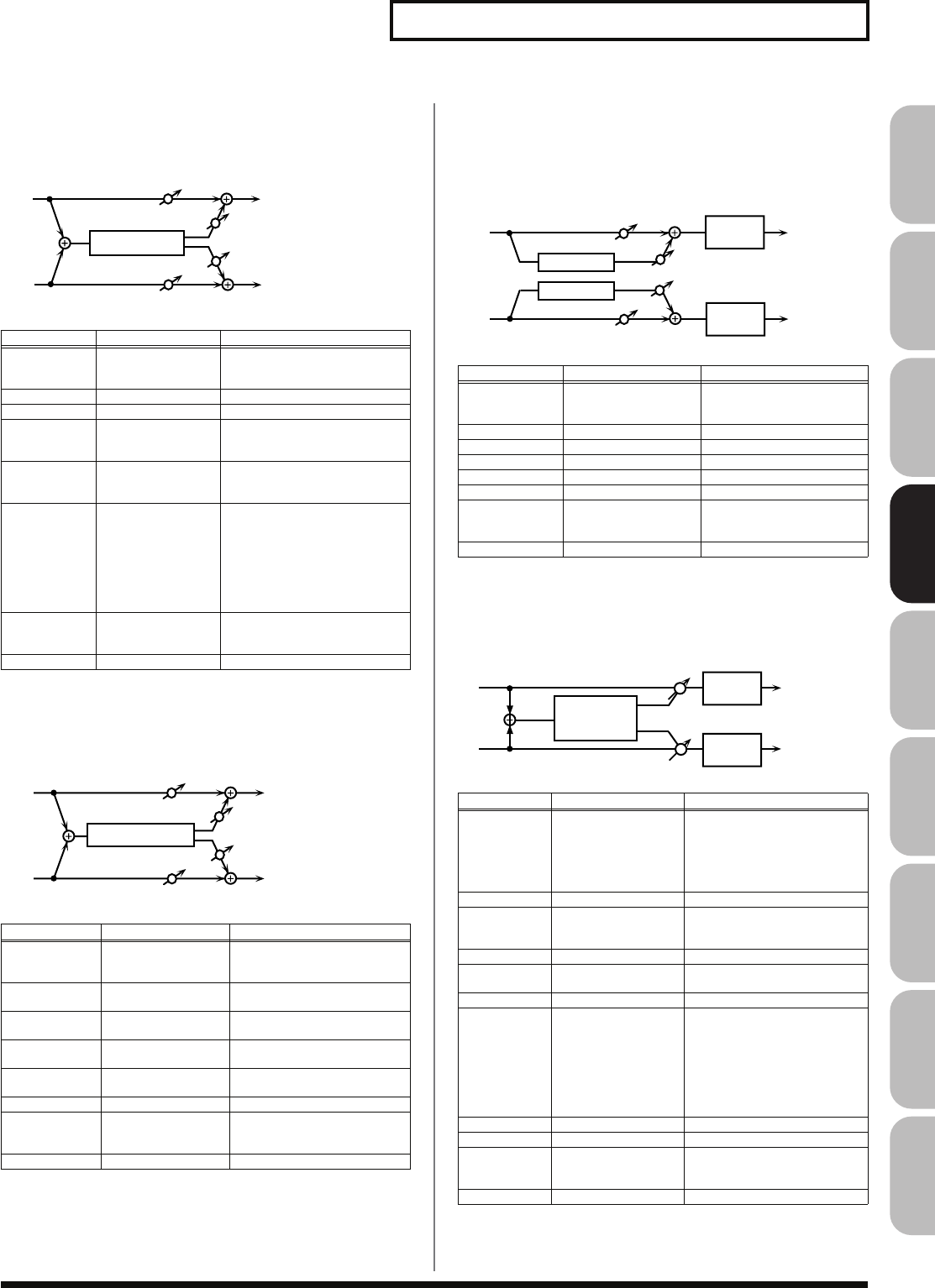
169
Effects List
Overview Sound 1 Sound 2 Sound 3 Pad Sampler
Menu/System
AppendixSequencer
26: HEXA-CHORUS
Uses a six-phase chorus (six layers of chorused sound) to give
richness and spatial spread to the sound.
fig.MFX-26
27: TREMOLO CHORUS
This is a chorus effect with added Tremolo (cyclic modulation of
volume).
fig.MFX-27
28: SPACE-D
This is a multiple chorus that applies two-phase modulation in
stereo. It gives no impression of modulation, but produces a
transparent chorus effect.
fig.MFX-28
29: 3D CHORUS
This applies a 3D effect to the chorus sound. The chorus sound will
be positioned 90 degrees left and 90 degrees right.
fig.MFX-29
Parameter Value Description
Pre Delay 0.0–100.0 ms Adjusts the delay time from the
direct sound until the chorus
sound is heard.
Rate # 0.05–10.00 Hz, note Frequency of modulation
Depth 0–127 Depth of modulation
Pre Delay
Deviation 0–20 Adjusts the differences in Pre
Delay between each chorus
sound.
Depth
Deviation -20– +20 Adjusts the difference in modu-
lation depth between each cho-
rus sound.
Pan Deviation 0–20 Adjusts the difference in stereo
location between each chorus
sound.
0:
All chorus sounds will be in
the center.
20:
Each chorus sound will be
spaced at 60 degree intervals
relative to the center.
Balance # D100:0W–D0:100W Volume balance between the di-
rect sound (D) and the chorus
sound (W)
Level 0–127 Output Level
Parameter Value Description
Pre Delay 0.0–100.0 ms Adjusts the delay time from
the direct sound until the cho-
rus sound is heard.
Chorus Rate # 0.05–10.00 Hz, note Modulation frequency of the
chorus effect
Chorus Depth 0–127 Modulation depth of the cho-
rus effect
Tremolo Rate # 0.05–10.00 Hz, note Modulation frequency of the
tremolo effect
Tremolo
Separation 0–127 Spread of the tremolo effect
Tremolo Phase 0–180 deg Spread of the tremolo effect
Balance # D100:0W–D0:100W Volume balance between the
direct sound (D) and the trem-
olo chorus sound (W)
Level 0–127 Output Level
Balance W
Balance W
L in
R in
L out
R out
Hexa Chorus
Balance D
Balance D
Tremolo Chorus
L in
R in
L out
R out
Balance D
Balance D
Balance W
Balance W
Parameter Value Description
Pre Delay 0.0–100.0 ms Adjusts the delay time from
the direct sound until the
chorus sound is heard.
Rate # 0.05–10.00 Hz, note Frequency of modulation
Depth 0–127 Depth of modulation
Phase 0–180 deg Spatial spread of the sound
Low Gain -15– +15 dB Gain of the low range
High Gain -15– +15 dB Gain of the high range
Balance # D100:0W–D0:100W Volume balance between
the direct sound (D) and the
chorus sound (W)
Level 0–127 Output Level
Parameter Value Description
Filter Type OFF, LPF, HPF Type of filter
OFF:
no filter is used
LPF:
cuts the frequency
range above the Cutoff Freq
HPF:
cuts the frequency
range below the Cutoff Freq
Cutoff Freq 200–8000 Hz Basic frequency of the filter
Pre Delay 0.0–100.0 ms Adjusts the delay time from the
direct sound until the chorus
sound is heard.
Rate # 0.05–10.00 Hz, note Frequency of modulation
Depth 0–127 Modulation depth of the chorus
effect
Phase 0–180 deg Spatial spread of the sound
Output Mode SPEAKER, PHONES Adjusts the method that will be
used to hear the sound that is
output to the OUTPUT jacks.
The optimal 3D effect will be
achieved if you select
SPEAK-
ER
when using speakers, or
PHONES
when using head-
phones.
Low Gain -15– +15 dB Gain of the low range
High Gain -15– +15 dB Gain of the high range
Balance # D100:0W–D0:100W Volume balance between the
direct sound (D) and the chorus
sound (W)
Level 0–127 Output Level
L in
R in
Space D
Space D
L out
R out
2-Band
EQ
2-Band
EQ
Balance W
Balance W
Balance D
Balance D
L
R
3D Chorus
2-Band
EQ
2-Band
EQ R out
L out
Fantom-G_r_e.book 169 ページ 2008年1月31日 木曜日 午後12時15分
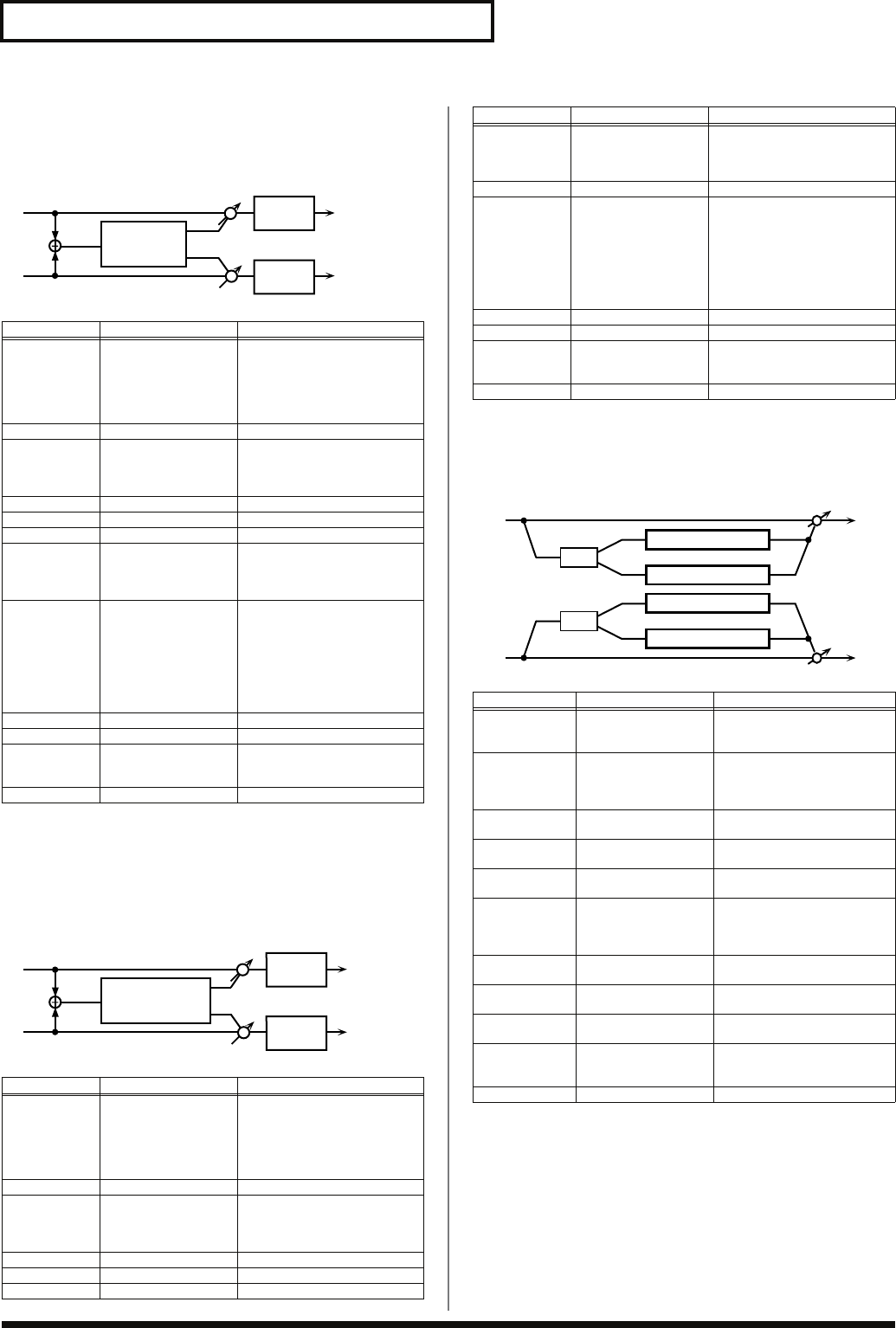
170
Effects List
30: 3D FLANGER
This applies a 3D effect to the flanger sound. The flanger sound will
be positioned 90 degrees left and 90 degrees right.
fig.MFX-30
31: 3D STEP FLANGER
This applies a 3D effect to the step flanger sound. The flanger sound
will be positioned 90 degrees left and 90 degrees right.
fig.MFX-31
32: 2BAND CHORUS
A chorus effect that lets you apply an effect independently to the
low-frequency and high-frequency ranges.
fig.MFX-32
Parameter Value Description
Filter Type OFF, LPF, HPF Type of filter
OFF:
no filter is used
LPF:
cuts the frequency
range above the Cutoff Freq
HPF:
cuts the frequency
range below the Cutoff Freq
Cutoff Freq 200–8000 Hz Basic frequency of the filter
Pre Delay 0.0–100.0 ms Adjusts the delay time from
when the direct sound begins
until the flanger sound is
heard.
Rate # 0.05–10.00 Hz, note Frequency of modulation
Depth 0–127 Depth of modulation
Phase 0–180 deg Spatial spread of the sound
Feedback # -98– +98 % Adjusts the proportion of the
flanger sound that is fed back
into the effect. Negative (-) set-
tings will invert the phase.
Output Mode SPEAKER, PHONES Adjusts the method that will be
used to hear the sound that is
output to the OUTPUT jacks.
The optimal 3D effect will be
achieved if you select
SPEAK-
ER
when using speakers, or
PHONES
when using head-
phones.
Low Gain -15– +15 dB Gain of the low range
High Gain -15– +15 dB Gain of the high range
Balance # D100:0W–D0:100W Volume balance between the
direct sound (D) and the
flanger sound (W)
Level 0–127 Output Level
Parameter Value Description
Filter Type OFF, LPF, HPF Type of filter
OFF:
no filter is used
LPF:
cuts the frequency
range above the Cutoff Freq
HPF:
cuts the frequency
range below the Cutoff Freq
Cutoff Freq 200–8000 Hz Basic frequency of the filter
Pre Delay 0.0–100.0 ms Adjusts the delay time from
when the direct sound begins
until the flanger sound is
heard.
Rate # 0.05–10.00 Hz, note Frequency of modulation
Depth 0–127 Depth of modulation
Phase 0–180 deg Spatial spread of the sound
L
R
3D Flanger
2-Band
EQ
2-Band
EQ R out
L out
L
R
3D Step Flanger
2-Band
EQ
2-Band
EQ R out
L out
Feedback # -98– +98 % Adjusts the proportion of the
flanger sound that is fed back
into the effect. Negative (-) set-
tings will invert the phase.
Step Rate # 0.10–20.00 Hz, note Rate (period) of pitch change
Output Mode SPEAKER, PHONES Adjusts the method that will be
used to hear the sound that is
output to the OUTPUT jacks.
The optimal 3D effect will be
achieved if you select
SPEAK-
ER
when using speakers, or
PHONES
when using head-
phones.
Low Gain -15– +15 dB Gain of the low range
High Gain -15– +15 dB Gain of the high range
Balance # D100:0W–D0:100W Volume balance between the
direct sound (D) and the
flanger sound (W)
Level 0–127 Output Level
Parameter Range Explanation
Split Freq 200–8000 Hz Frequency at which the low
and high ranges will be divid-
ed
Low Pre Delay 0.0–100.0 ms Delay time from when the
original sound is heard to
when the low-range chorus
sound is heard
Low Rate # 0.05–10.00 Hz, note Rate at which the low-range
chorus sound is modulated
Low Depth 0–127 Modulation depth for the low-
range chorus sound
Low Phase 0–180 deg Spaciousness of the low-range
chorus sound
High Pre Delay 0.0–100.0 ms Delay time from when the
original sound is heard to
when the high-range chorus
sound is heard
High Rate # 0.05–10.00 Hz, note Rate at which the low-range
chorus sound is modulated
High Depth 0–127 Modulation depth for the
high-range chorus sound
High Phase 0–180 deg Spaciousness of the high-
range chorus sound
Balance # D100:0W–D0:100W Volume balance of the origi-
nal sound (D) and chorus
sound (W)
Level 0–127 Output volume
Parameter Value Description
R in R out
L in L out
Split
High Band Chorus
Low Band Chorus
High Band Chorus
Low Band Chorus
Split
Fantom-G_r_e.book 170 ページ 2008年1月31日 木曜日 午後12時15分
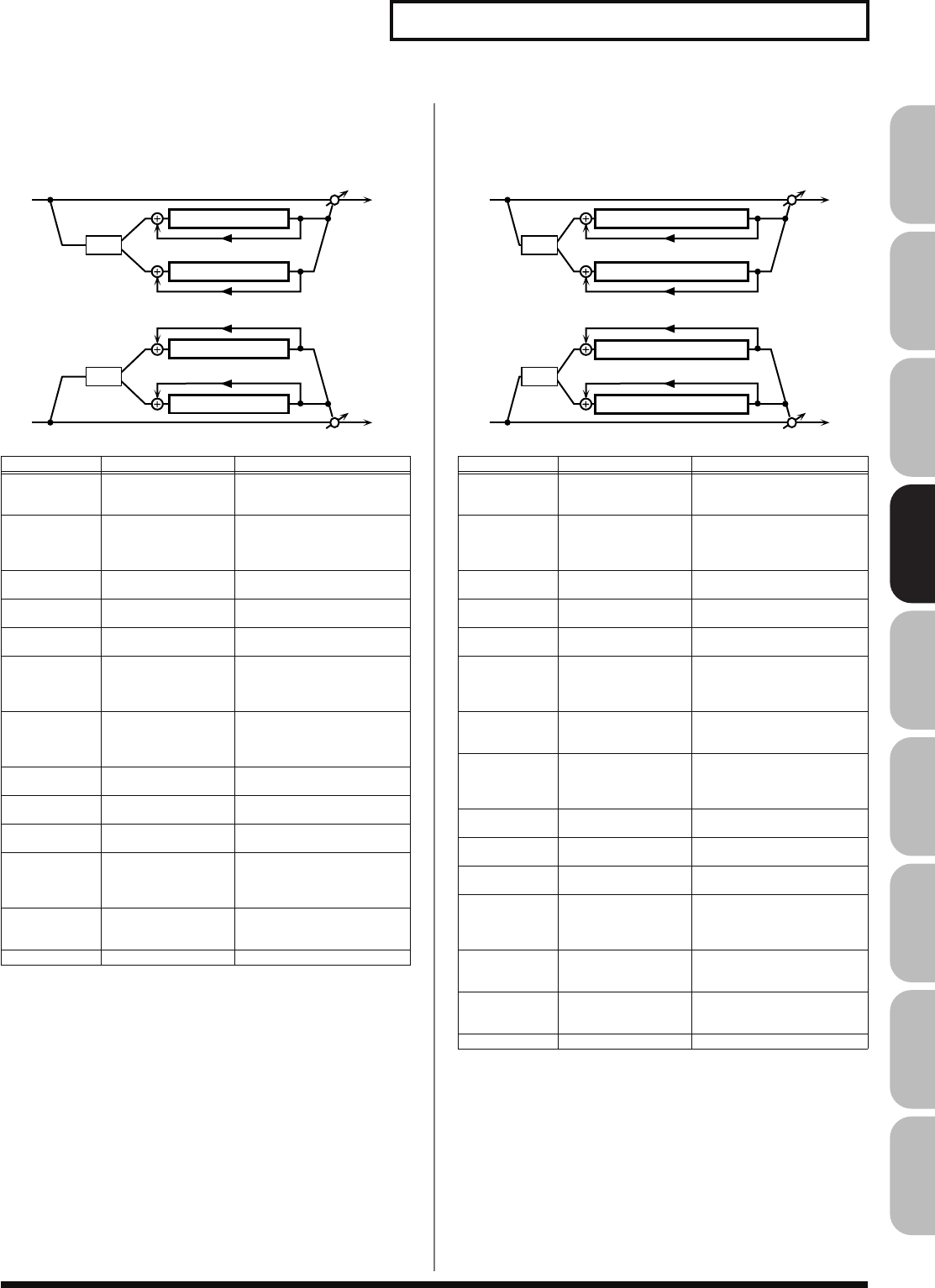
171
Effects List
Overview Sound 1 Sound 2 Sound 3 Pad Sampler
Menu/System
AppendixSequencer
33: 2BAND FLANGER
A flanger that lets you apply an effect independently to the low-
frequency and high-frequency ranges.
fig.MFX-33
34: 2BAND STEP FLANGER
A step flanger that lets you apply an effect independently to the low-
frequency and high-frequency ranges.
fig.MFX-34
Parameter Range Explanation
Split Freq 200–8000 Hz Frequency at which the low
and high ranges will be divid-
ed
Low Pre Delay 0.0–100.0 ms Delay time from when the
original sound is heard to
when the low-range flanger
sound is heard
Low Rate # 0.05–10.00 Hz, note Rate at which the low-range
flanger sound is modulated
Low Depth 0–127 Modulation depth for the low-
range flanger sound
Low Phase 0–180 deg Spaciousness of the low-range
flanger sound
Low
Feedback # -98– +98% Proportion of the low-range
flanger sound that is to be re-
turned to the input (negative
values invert the phase)
High Pre Delay 0.0–100.0 ms Delay time from when the
original sound is heard to
when the high-range flanger
sound is heard
High Rate # 0.05–10.00 Hz, note Rate at which the high-range
flanger sound is modulated
High Depth 0–127 Modulation depth for the
high-range flanger sound
High Phase 0–180 deg Spaciousness of the high-
range flanger sound
High
Feedback # -98– +98% Proportion of the high-range
flanger sound that is to be re-
turned to the input (negative
values invert the phase)
Balance # D100:0W–D0:100W Volume balance of the origi-
nal sound (D) and flanger
sound (W)
Level 0–127 Output volume
R in R out
L in L out
Split
High Band Flanger
Low Band Flanger
High Band Flanger
Low Band Flanger
Split
Low Band Feedback
High Band Feedback
High Band Feedback
Low Band Feedback
Parameter Range Explanation
Split Freq 200–8000 Hz Frequency at which the low
and high ranges will be divid-
ed
Low Pre Delay 0.0–100.0 ms Delay time from when the
original sound is heard to
when the low-range flanger
sound is heard
Low Rate # 0.05–10.00 Hz, note Rate at which the low-range
flanger sound is modulated
Low Depth 0–127 Modulation depth for the low-
range flanger sound
Low Phase 0–180 deg Spaciousness of the low-range
flanger sound
Low
Feedback # -98– +98% Proportion of the low-range
flanger sound that is to be re-
turned to the input (negative
values invert the phase)
Low Step
Rate # 0.10–20.00 Hz, note Rate at which the steps will
cycle for the low-range
flanger sound
High Pre Delay 0.0–100.0 ms Delay time from when the
original sound is heard to
when the high-range flanger
sound is heard
High Rate # 0.05–10.00 Hz, note Rate at which the high-range
flanger sound is modulated
High Depth 0–127 Modulation depth for the
high-range flanger sound
High Phase 0–180 deg Spaciousness of the high-
range flanger sound
High
Feedback # -98– +98% Proportion of the high-range
flanger sound that is to be re-
turned to the input (negative
values invert the phase)
High Step
Rate # 0.10–20.00 Hz, note Rate at which the steps will
cycle for the high-range
flanger sound
Balance # D100:0W–D0:100W Volume balance of the origi-
nal sound (D) and flanger
sound (W)
Level 0–127 Output volume
R in R out
L in L out
Split
High Band Step Flanger
Split
Low Band Feedback
High Band Feedback
High Band Feedback
Low Band Feedback
Low Band Step Flanger
High Band Step Flanger
Low Band Step Flanger
Fantom-G_r_e.book 171 ページ 2008年1月31日 木曜日 午後12時15分
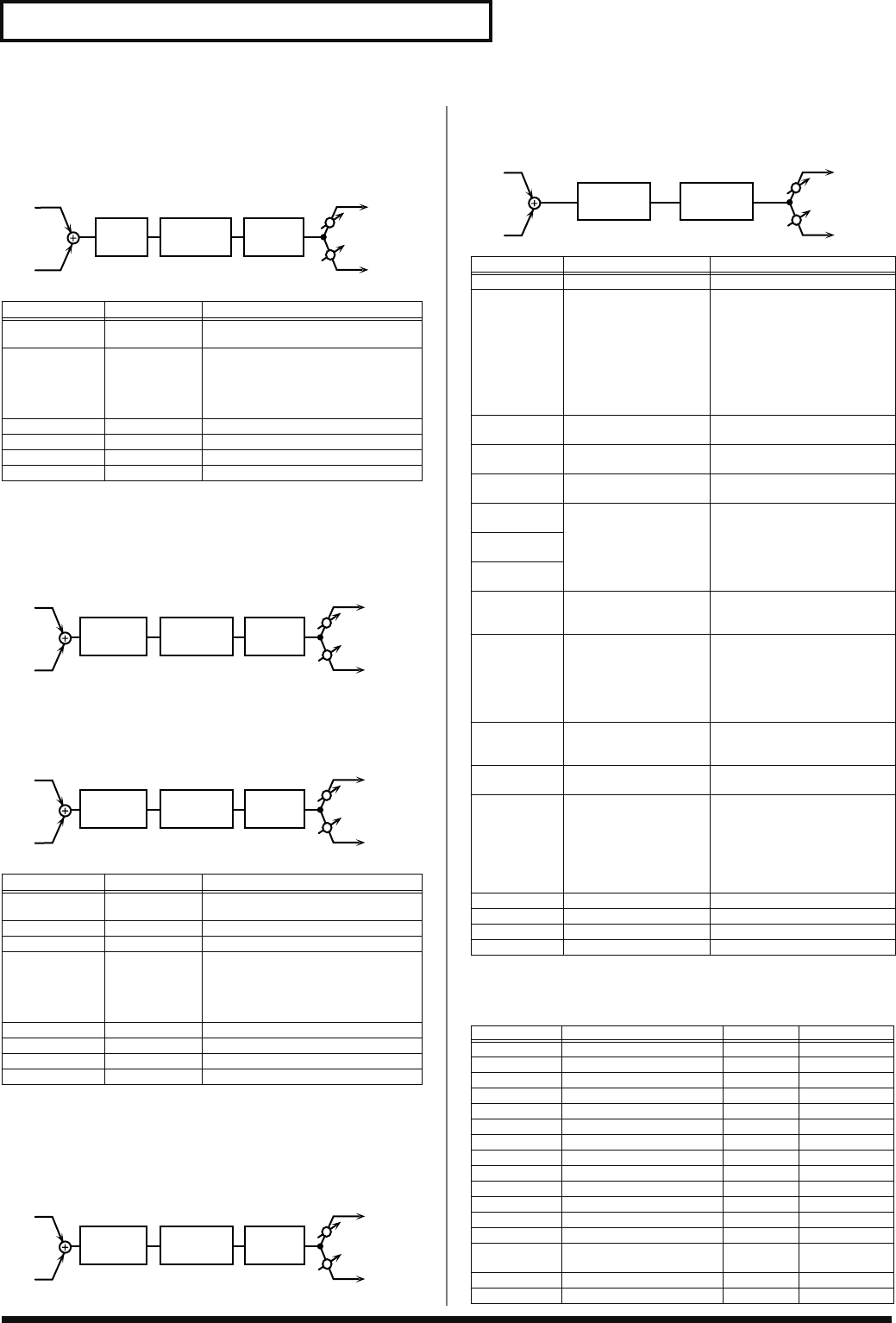
172
Effects List
35: OVERDRIVE
Creates a soft distortion similar to that produced by vacuum tube
amplifiers.
fig.MFX-35
36: DISTORTION
Produces a more intense distortion than Overdrive. The parameters
are the same as for “35: OVERDRIVE.”
fig.MFX-36
37: VS OVERDRIVE
This is an overdrive that provides heavy distortion.
fig.MFX-37
38: VS DISTORTION
This is a distortion effect that provides heavy distortion. The
parameters are the same as for “37: VS OVERDRIVE.”
fig.MFX-38
39: GUITAR AMP SIMULATOR
This is an effect that simulates the sound of a guitar amplifier.
fig.MFX-39
Specifications for each Speaker Type
The speaker column indicates the diameter of each speaker unit (in
inches) and the number of units.
Parameter Value Description
Drive # 0–127 Degree of distortion
Also changes the volume.
Amp Type SMALL,
BUILT-IN,
2-STACK,
3-STACK
Type of guitar amp
SMALL:
small amp
BUILT-IN:
single-unit type amp
2-STACK:
large double stack amp
3-STACK:
large triple stack amp
Low Gain -15– +15 dB Gain of the low range
High Gain -15– +15 dB Gain of the high range
Pan # L64–63R Stereo location of the output sound
Level 0–127 Output Level
Parameter Value Description
Drive # 0–127 Degree of distortion
Also changes the volume.
Tone # 0–127 Sound quality of the Overdrive effect
Amp Sw OFF, ON Turns the Amp Simulator on/off.
Amp Type SMALL,
BUILT-IN,
2-STACK,
3-STACK
Type of guitar amp
SMALL:
small amp
BUILT-IN:
single-unit type amp
2-STACK:
large double stack amp
3-STACK:
large triple stack amp
Low Gain -15– +15 dB Gain of the low range
High Gain -15– +15 dB Gain of the high range
Pan # L64–63R Stereo location of the output sound
Level 0–127 Output Level
Amp
Simulator
2-Band
EQ
L in
R in
Over
drive
L out
R out
Pan R
Pan L
L in
R in
L out
R out
Pan R
Pan L
Amp
Simulator
2-Band
EQ
Distortion
L in
R in
L out
R out
Pan R
Pan L
Amp
Simulator
2-Band
EQ
Overdrive
L in
R in
L out
R out
Pan R
Pan L
Amp
Simulator
2-Band
EQ
Distortion
Parameter Value Description
Pre Amp Sw OFF, ON Turns the amp switch on/off.
Pre Amp
Type JC-120, CLEAN TWIN,
MATCH DRIVE,
BG LEAD, MS1959I,
MS1959II, MS1959I+II,
SLDN LEAD,
METAL5150,
METAL LEAD, OD-1,
OD-2 TURBO,
DISTORTION, FUZZ
Type of guitar amp
Pre Amp
Volume # 0–127 Volume and amount of distor-
tion of the amp
Pre Amp
Master # 0–127 Volume of the entire pre-amp
Pre Amp
Gain LOW, MIDDLE, HIGH Amount of pre-amp distortion
Pre Amp
Bass 0–127 Tone of the bass/mid/treble
frequency range
* Middle cannot be set if
“Match Drive” is selected as
the Pre Amp Type.
Pre Amp
Middle
Pre Amp
Treble
Pre Amp
Presence 0–127
(MATCH DRIVE:
-127 - 0)
Tone for the ultra-high fre-
quency range
Pre Amp
Bright OFF, ON Turning this “On” produces a
sharper and brighter sound.
* This parameter applies to
the “JC-120,” “Clean Twin,”
and “BG Lead” Pre Amp
Types.
Speaker Sw OFF, ON Determines whether the signal
passes through the speaker
(ON), or not (OFF).
Speaker
Type (See the table below.) Type of speaker
Mic Setting 1, 2, 3 Adjusts the location of the mic
that’s capturing the sound of
the speaker.
This can be adjusted in three
steps, from 1 to 3, with the
mic becoming more distant
as the value increases.
Mic Level 0–127 Volume of the microphone
Direct Level 0–127 Volume of the direct sound
Pan # L64–63R Stereo location of the output
Level # 0–127 Output level
Type Cabinet Speaker Microphone
SMALL 1 small open-back enclosure 10 dynamic
SMALL 2 small open-back enclosure 10 dynamic
MIDDLE open back enclosure 12 x 1 dynamic
JC-120 open back enclosure 12 x 2 dynamic
BUILT-IN 1 open back enclosure 12 x 2 dynamic
BUILT-IN 2 open back enclosure 12 x 2 condenser
BUILT-IN 3 open back enclosure 12 x 2 condenser
BUILT-IN 4 open back enclosure 12 x 2 condenser
BUILT-IN 5 open back enclosure 12 x 2 condenser
BG STACK 1 sealed enclosure 12 x 2 condenser
BG STACK 2 large sealed enclosure 12 x 2 condenser
MS STACK 1 large sealed enclosure 12 x 4 condenser
MS STACK 2 large sealed enclosure 12 x 4 condenser
METAL
STACK large double stack 12 x 4 condenser
2-STACK large double stack 12 x 4 condenser
3-STACK large triple stack 12 x 4 condenser
L in
R in
L out
R out
Pan R
Pan L
Pre Amp Speaker
Fantom-G_r_e.book 172 ページ 2008年1月31日 木曜日 午後12時15分
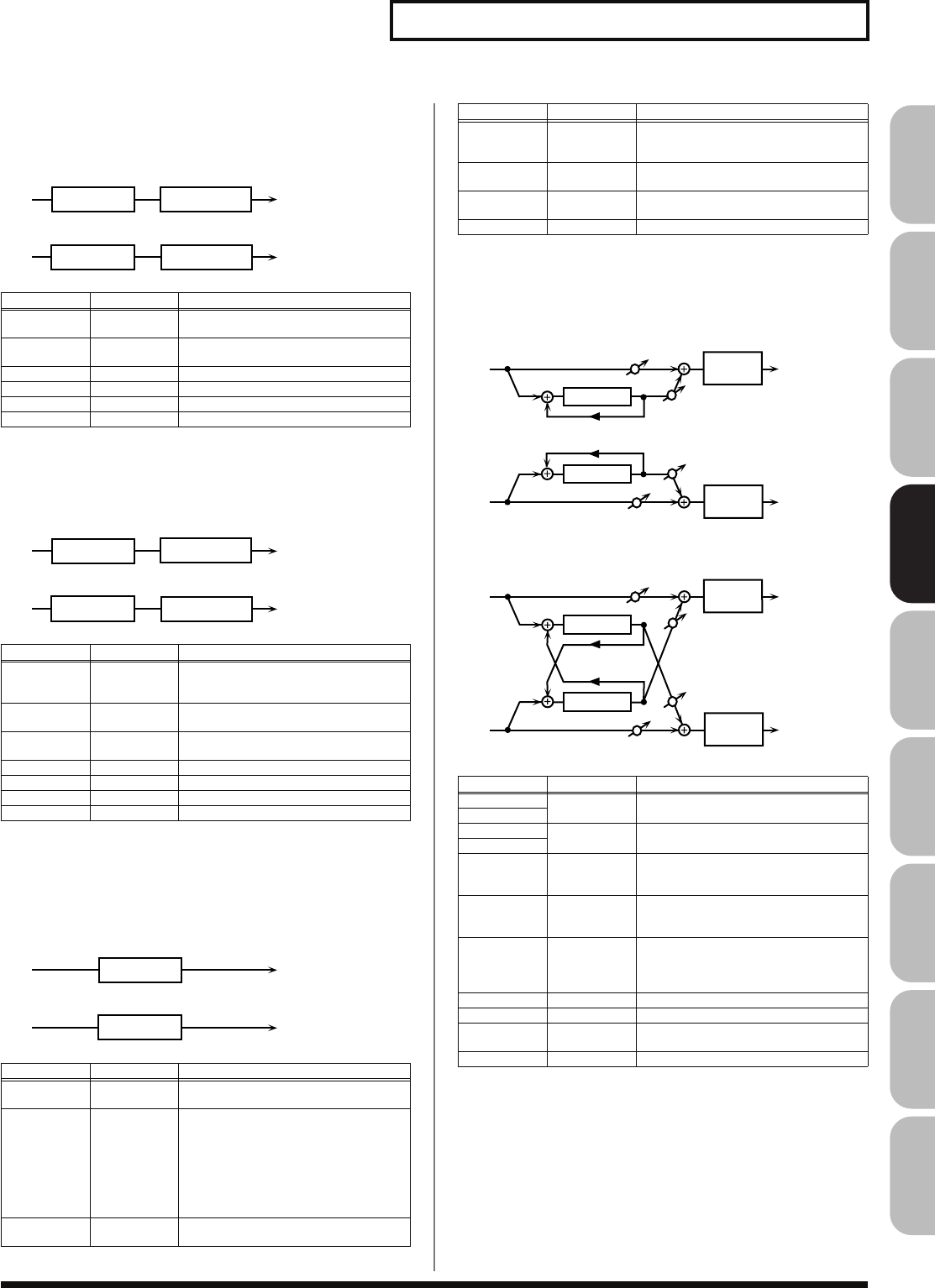
173
Effects List
Overview Sound 1 Sound 2 Sound 3 Pad Sampler
Menu/System
AppendixSequencer
40: COMPRESSOR
Flattens out high levels and boosts low levels, smoothing out
fluctuations in volume.
fig.MFX-40
41: LIMITER
Compresses signals that exceed a specified volume level, preventing
distortion from occurring.
fig.MFX-41
42: GATE
Cuts the reverb’s delay according to the volume of the sound sent
into the effect. Use this when you want to create an artificial-
sounding decrease in the reverb’s decay.
fig.MFX-42
43: DELAY
This is a stereo delay.
When Feedback Mode is NORMAL:
fig.MFX-43a
When Feedback Mode is CROSS:
fig.MFX-43b
Parameter Value Description
Attack # 0–127 Sets the speed at which compression
starts
Threshold # 0–127 Adjusts the volume at which compres-
sion begins
Post Gain 0– +18 dB Adjusts the output gain.
Low Gain -15– +15 dB Gain of the low frequency range
High Gain -15– +15 dB Gain of the high frequency range
Level # 0–127 Output level
Parameter Value Description
Release # 0–127 Adjusts the time after the signal volume
falls below the Threshold Level until
compression is no longer applied.
Threshold # 0–127 Adjusts the volume at which compres-
sion begins
Ratio 1.5:1, 2:1, 4:1,
100:1 Compression ratio
Post Gain 0– +18 dB Adjusts the output gain.
Low Gain -15– +15 dB Gain of the low frequency range
High Gain -15– +15 dB Gain of the high frequency range
Level # 0–127 Output level
Parameter Value Description
Threshold # 0–127 Volume level at which the gate begins to
close
Mode GATE,
DUCK Type of gate
GATE:
The gate will close when the
volume of the original sound decreas-
es, cutting the original sound.
DUCK (Ducking):
The gate will close
when the volume of the original
sound increases, cutting the original
sound.
Attack 0–127 Adjusts the time it takes for the gate to
fully open after being triggered.
L in
R in
L out
R out
Compressor
2-Band EQ
2-Band EQ
Compressor
L in
R in
L out
R out
Limiter
2-Band EQ
2-Band EQ
Limiter
L in
R in
L out
R out
Gate
Gate
Hold 0–127 Adjusts the time it takes for the gate to
start closing after the source sound falls
beneath the Threshold.
Release 0–127 Adjusts the time it takes the gate to fully
close after the hold time.
Balance # D100:0W–
D0:100W Volume balance between the direct
sound (D) and the effect sound (W)
Level 0–127 Output level
Parameter Value Description
Delay Left 0–1300 ms,
note Adjusts the time until the delay sound is
heard.
Delay Right
Phase Left NORMAL,
INVERSE Phase of the delay sound
Phase Right
Feedback
Mode NORMAL,
CROSS Selects the way in which delay sound is
fed back into the effect. (See the figures
above.)
Feedback # -98– +98 % Adjusts the amount of the delay sound
that’s fed back into the effect. Negative
(-) settings invert the phase.
HF Damp 200–8000 Hz,
BYPASS
Adjusts the frequency above which sound
fed back to the effect is filtered out. If you
don’t want to filter out any high frequen-
cies, set this parameter to BYPASS.
Low Gain -15– +15 dB Gain of the low frequency range
High Gain -15– +15 dB Gain of the high frequency range
Balance # D100:0W–
D0:100W Volume balance between the direct
sound (D) and the delay sound (W)
Level 0–127 Output level
Parameter Value Description
R in R out
L in L out
Feedback
Feedback
Balance W
Balance D
Balance W
Balance D
2-Band
EQ
2-Band
EQ
Delay
Delay
R in R out
L in L out
Feedback
Feedback
Balance W
Balance D
Balance W
Balance D
2-Band
EQ
2-Band
EQ
Delay
Delay
Fantom-G_r_e.book 173 ページ 2008年1月31日 木曜日 午後12時15分
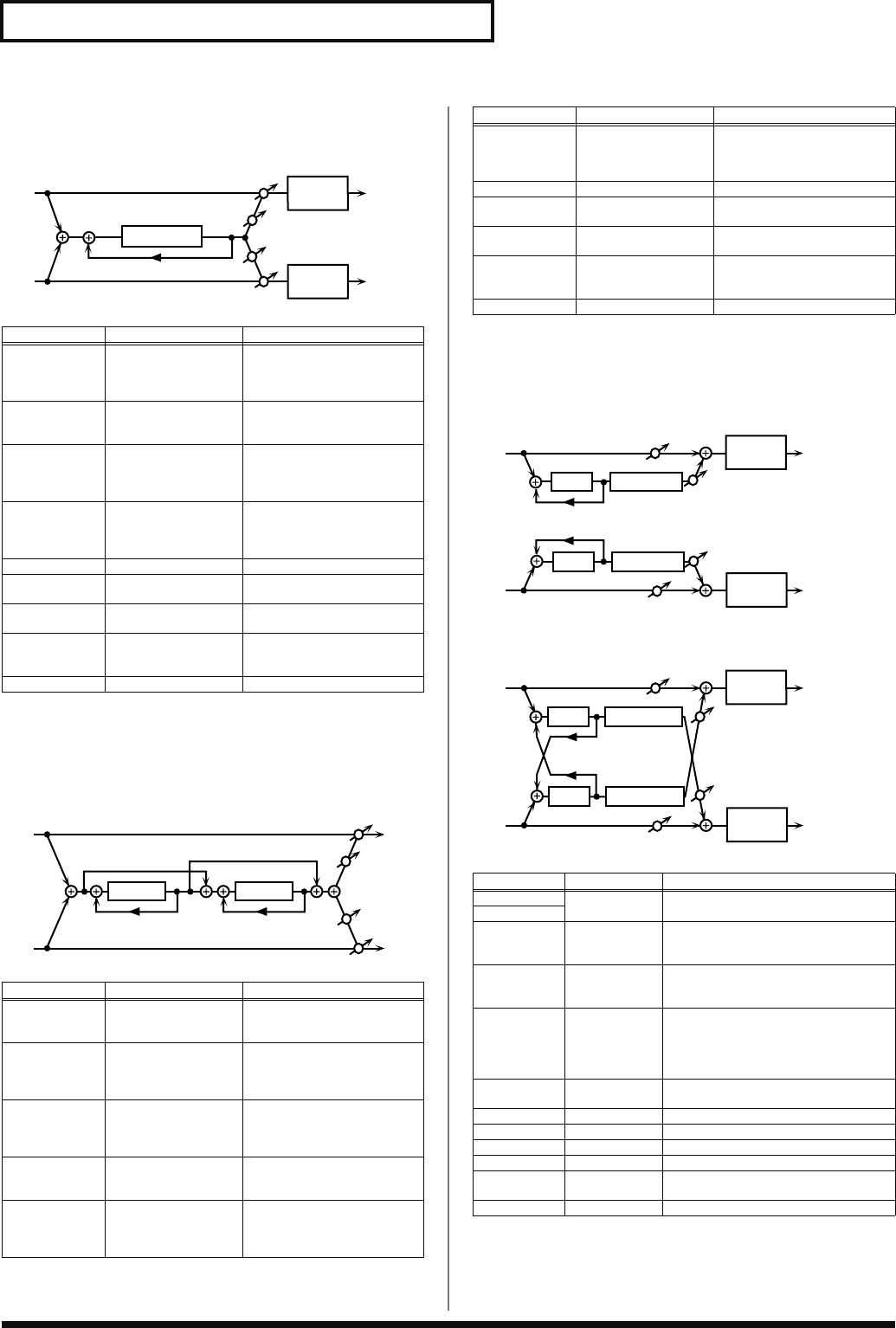
174
Effects List
44: LONG DELAY
A delay that provides a long delay time.
fig.MFX-44
45: SERIAL DELAY
This delay connects two delay units in series. Feedback can be
applied independently to each delay unit, allowing you to produce
complex delay sounds.
fig.MFX-45
46: MODULATION DELAY
Adds modulation to the delayed sound.
When Feedback Mode is NORMAL:
fig.MFX-46a
When Feedback Mode is CROSS:
fig.MFX-46b
Parameter Range Explanation
Delay Time 0–2600 ms, note Delay time from when the
original sound is heard to
when the delay sound is
heard
Phase NORMAL, INVERSE Phase of the delay (NORMAL:
non-inverted, INVERT: in-
verted)
Feedback # -98– +98% Proportion of the delay sound
that is to be returned to the in-
put (negative values invert
the phase)
HF Damp 200–8000 Hz,
BYPASS Frequency at which the high-
frequency content of the de-
layed sound will be cut (BY-
PASS: no cut)
Pan # L64–63R Panning of the delay sound
Low Gain -15– +15 dB Amount of boost/cut for the
high-frequency range
High Gain -15– +15 dB Amount of boost/cut for the
high-frequency range
Balance # D100:0W–D0:100W Volume balance of the origi-
nal sound (D) and delay
sound (W)
Level 0–127 Output volume
Parameter Range Explanation
Delay1 Time 0–1300 ms, note Delay time from when sound
is input to delay 1 until the de-
lay sound is heard
Delay1
Feedback # -98– +98% Proportion of the delay sound
that is to be returned to the in-
put of delay 1 (negative values
invert the phase)
Delay1 HF
Damp 200–8000 Hz,
BYPASS Frequency at which the high-
frequency content of the de-
layed sound of delay 1 will be
cut (BYPASS: no cut)
Delay2 Time 0–1300 ms, note Delay time from when sound
is input to delay 2 until the de-
lay sound is heard
Delay2
Feedback # -98– +98% Proportion of the delay sound
that is to be returned to the in-
put of delay 2 (negative values
invert the phase)
L in
R in
L out
R out
2-Band
EQ
Pan R
Pan L
2-Band
EQ
Feedback
Long Delay
R in R out
L in L out
Feedback 1
Pan L
Pan R
Delay 1
Feedback 2
Delay 2
Delay2 HF
Damp 200–8000 Hz,
BYPASS Frequency at which the high-
frequency content of the de-
layed sound of delay 2 will be
cut (BYPASS: no cut)
Pan # L64–63R Panning of the delay sound
Low Gain -15– +15 dB Amount of boost/cut for the
low-frequency range
High Gain -15– +15 dB Amount of boost/cut for the
high-frequency range
Balance # D100:0W–D0:100W Volume balance of the origi-
nal sound (D) and delay
sound (W)
Level 0–127 Output volume
Parameter Value Description
Delay Left 0–1300 ms,
note Adjusts the time until the delay sound
is heard.
Delay Right
Feedback
Mode NORMAL,
CROSS Selects the way in which delay sound is
fed back into the effect (See the figures
above.)
Feedback # -98– +98 % Adjusts the amount of the delay sound
that’s fed back into the effect. Negative
(-) settings invert the phase.
HF Damp 200–8000 Hz,
BYPASS Adjusts the frequency above which
sound fed back to the effect is filtered
out. If you don’t want to filter out any
high frequencies, set this parameter to
BYPASS.
Rate # 0.05–10.00 Hz,
note Frequency of modulation
Depth 0–127 Depth of modulation
Phase 0-180 deg Spatial spread of the sound
Low Gain -15– +15 dB Gain of the low frequency range
High Gain -15– +15 dB Gain of the high frequency range
Balance # D100:0W–
D0:100W Volume balance between the direct
sound (D) and the delay sound (W)
Level 0–127 Output level
Parameter Range Explanation
R in R out
L in L out
Feedback
Feedback
Balance W
Balance D
Balance W
Balance D
2-Band
EQ
2-Band
EQ
Delay
Delay
Modulation
Modulation
R in R out
L in L out
Feedback
Feedback
Balance W
Balance D
Balance W
Balance D
2-Band
EQ
2-Band
EQ
Delay
Delay
Modulation
Modulation
Fantom-G_r_e.book 174 ページ 2008年1月31日 木曜日 午後12時15分
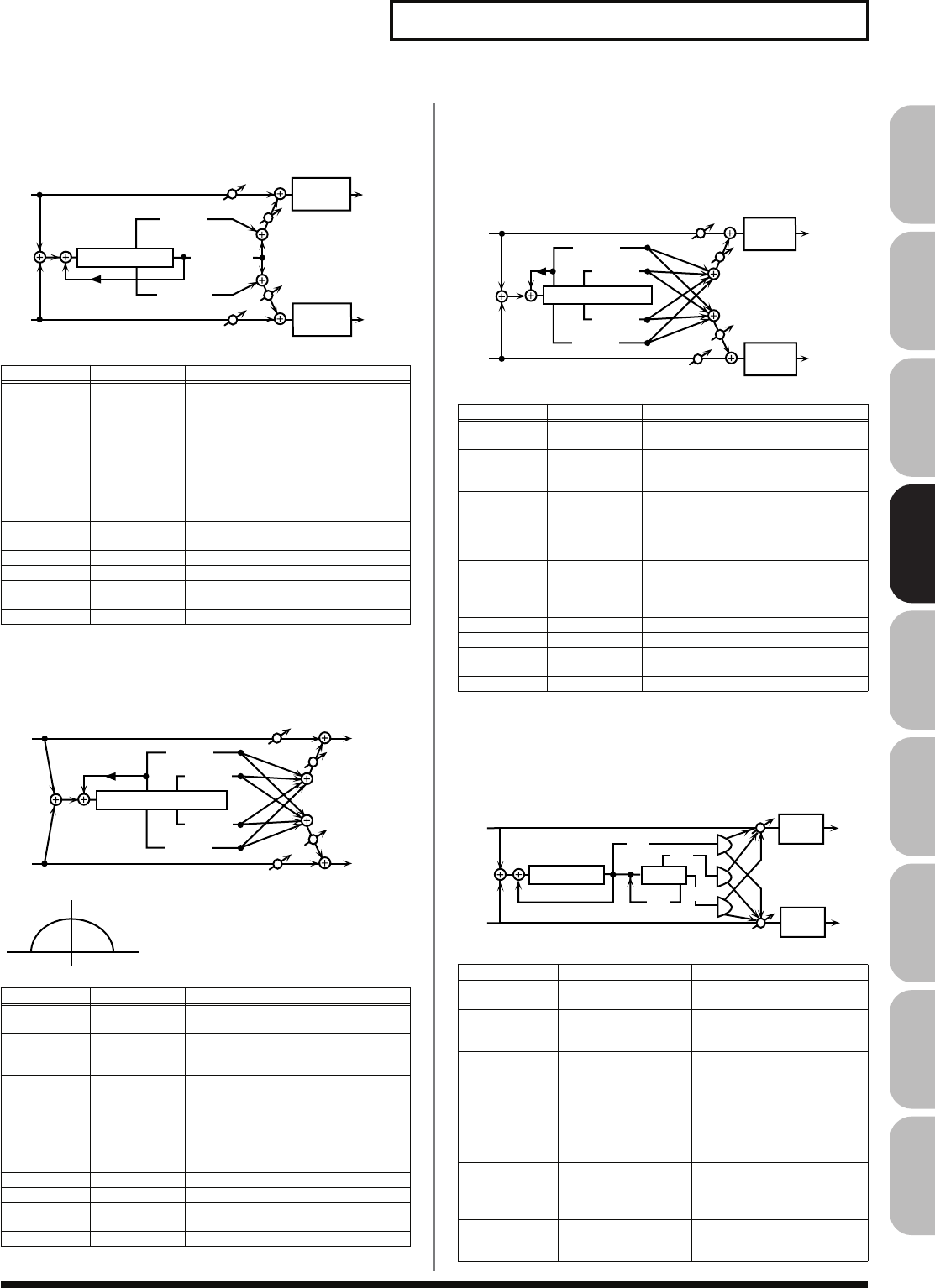
175
Effects List
Overview Sound 1 Sound 2 Sound 3 Pad Sampler
Menu/System
AppendixSequencer
47: 3TAP PAN DELAY
Produces three delay sounds; center, left and right.
fig.MFX-47
48: 4TAP PAN DELAY
This effect has four delays.
fig.MFX-48a
fig.MFX-48b
Stereo location of each delay
49: MULTI TAP DELAY
This effect provides four delays. Each of the Delay Time parameters
can be set to a note length based on the selected tempo. You can also
set the panning and level of each delay sound.
fig.MFX-49
50: REVERSE DELAY
This is a reverse delay that adds a reversed and delayed sound to the
input sound. A tap delay is connected immediately after the reverse
delay.
fig.MFX-50
Parameter Value Description
Delay Left/
Right/Center
0–2600 ms,
note Adjusts the time until the delay sound
is heard.
Center
Feedback # -98– +98 % Adjusts the amount of the delay sound
that’s fed back into the effect. Negative
(-) settings invert the phase.
HF Damp 200–8000 Hz,
BYPASS Adjusts the frequency above which
sound fed back to the effect is filtered
out. If you do not want to filter out any
high frequencies, set this parameter to
BYPASS.
Left/Right/
Center Level 0–127 Volume of each delay
Low Gain -15– +15 dB Gain of the low frequency range
High Gain -15– +15 dB Gain of the high frequency range
Balance # D100:0W–
D0:100W Volume balance between the direct
sound (D) and the delay sound (W)
Level 0–127 Output level
Parameter Value Description
Delay 1–4
Time 0–2600 ms,
note Adjusts the time until the delay sound
is heard.
Delay 1
Feedback # -98– +98 % Adjusts the amount of the delay sound
that’s fed back into the effect. Negative
(-) settings invert the phase.
HF Damp 200–8000 Hz,
BYPASS Adjusts the frequency above which
sound fed back to the effect is filtered
out. If you do not want to filter out any
high frequencies, set this parameter to
BYPASS.
Delay 1–4
Level 0–127 Volume of each delay
Low Gain -15– +15 dB Gain of the low frequency range
High Gain -15– +15 dB Gain of the high frequency range
Balance # D100:0W–
D0:100W Volume balance between the direct
sound (D) and the delay sound (W)
Level 0–127 Output level
L in
R in
L out
R out
Left Tap
Right Tap
Triple Tap Delay
2-Band
EQ
2-Band
EQ
Balance W
Balance D
Balance W
Balance D
Feedback
Center Tap
L in
R in
L out
R out
Quadruple Tap Delay
Balance W
Balance D
Balance W
Balance D
Delay 1
Delay 2
Delay 3
Delay 4
Feedback
1
23
4
LR
Parameter Value Description
Delay 1–4
Time 0–2600 ms,
note Adjusts the time until Delays 1–4 are
heard.
Delay 1
Feedback # -98– +98 % Adjusts the amount of the delay sound
that’s fed back into the effect. Negative
(-) settings invert the phase.
HF Damp 200–8000 Hz,
BYPASS Adjusts the frequency above which
sound fed back to the effect is filtered
out. If you don’t want to filter out any
the high frequencies, set this parameter
to BYPASS.
Delay 1–4
Pan L64–63R Stereo location of Delays 1–4
Delay 1–4
Level 0–127 Output level of Delays 1–4
Low Gain -15– +15 dB Gain of the low frequency range
High Gain -15– +15 dB Gain of the high frequency range
Balance # D100:0W–
D0:100W Volume balance between the direct
sound (D) and the effect sound (W)
Level 0–127 Output level
Parameter Range Explanation
Threshold 0–127 Volume at which the reverse
delay will begin to be applied
Rev Delay
Time 0–1300 ms, note Delay time from when sound
is input into the reverse delay
until the delay sound is heard
Rev Delay
Feedback # -98– +98% Proportion of the delay sound
that is to be returned to the in-
put of the reverse delay (nega-
tive values invert the phase)
Rev Delay HF
Damp 200–8000 Hz,
BYPASS Frequency at which the high-
frequency content of the re-
verse-delayed sound will be
cut (BYPASS: no cut)
Rev Delay Pan L64–63R Panning of the reverse delay
sound
Rev Delay
Level 0–127 Volume of the reverse delay
sound
Delay 1 – 3
Time 0–1300 ms, note Delay time from when sound
is input into the tap delay un-
til the delay sound is heard
L in
R in
L out
R out
Multi Tap Delay
Balance W
Balance D
Balance W
Balance D
Delay 1
Delay 3
Delay 4
Delay 2
Feed
back
2-Band
EQ
2-Band
EQ
Feedback
L in
R in
Rev. Delay
L out
R out
2-Band
EQ
2-Band
EQ
Rev
Delay
D2
D1
D3
Fantom-G_r_e.book 175 ページ 2008年1月31日 木曜日 午後12時15分

176
Effects List
51: SHUFFLE DELAY
Adds a shuffle to the delay sound, giving the sound a bouncy delay
effect with a swing feel.
fig.MFX-51
52: 3D DELAY
This applies a 3D effect to the delay sound. The delay sound will be
positioned 90 degrees left and 90 degrees right.
fig.MFX-52
53: TIME CTRL DELAY
A stereo delay in which the delay time can be varied smoothly.
fig.MFX-53
Delay 3 Feed-
back # -98– +98% Proportion of the delay sound
that is to be returned to the in-
put of the tap delay (negative
values invert the phase)
Delay HF
Damp 200–8000 Hz, BY-
PASS Frequency at which the low-
frequency content of the tap
delay sound will be cut (BY-
PASS: no cut)
Delay 1 Pan’,
‘Delay 2 Pan L64–63R Panning of the tap delay
sounds
Delay 1 Level’,
‘Delay 2 Level 0–127 Volume of the tap delay
sounds
Low Gain -15– +15 dB Amount of boost/cut for the
low-frequency range
High Gain -15– +15 dB Amount of boost/cut for the
high-frequency range
Balance # D100:0W–D0:100W Volume balance of the origi-
nal sound (D) and delay
sound (W)
Level 0–127 Output volume
Parameter Value Description
Delay Time # 0–2600 ms,
note Adjusts the time until the delay sound is
heard.
Shuffle
Rate # 0–100 % Adjusts the ratio (as a percentage) of the
time that elapses before Delay B sounds
relative to the time that elapses before the
Delay A sounds.
When set to 100%, the delay times are
the same.
Acceleration 0–15 Adjusts the time over which the Delay
Time changes from the current setting to
its specified new setting.
Feedback # -98– +98 % Adjusts the amount of the delay that’s
fed back into the effect. Negative (-) set-
tings invert the phase.
HF Damp 200–8000 Hz,
BYPASS Adjusts the frequency above which
sound fed back to the effect is filtered
out. If you don’t want to filter out any
high frequencies, set this parameter to
BYPASS.
Pan A/B 0–127 Stereo location of Delay A/B
Level A/B 0–127 Volume of delay A/B
Low Gain -15– +15 dB Gain of the low frequency range
High Gain -15– +15 dB Gain of the high frequency range
Balance # D100:0W–
D0:100W Volume balance between the direct
sound (D) and the effect sound (W)
Level 0–127 Output level
Parameter Range Explanation
Feedback
L in
R in
Delay
L out
R out
2-Band
EQ
2-Band
EQ
A
B
Delay A
Delay B
L
R
3D Delay L
3D Delay R
3D Delay C
Level
Feedback
2-Band
EQ
2-Band
EQ
L out
R out
Parameter Value Description
Delay Left 0–2600 ms, note Adjusts the delay time from
the direct sound until the de-
lay sound is heard.
Delay Right
Delay Center
Center
Feedback # -98– +98 % Adjusts the proportion of the
delay sound that is fed back
into the effect. Negative (-)
settings will invert the phase.
HF Damp 200–8000 Hz, BYPASS Adjusts the frequency above
which sound fed back to the
effect will be cut. If you do not
want to cut the high frequen-
cies, set this parameter to BY-
PASS.
Left Level 0–127 Output level of the delay
sound
Right Level
Center Level
Output Mode SPEAKER, PHONES Adjusts the method that will
be used to hear the sound that
is output to the OUTPUT
jacks. The optimal 3D effect
will be achieved if you select
SPEAKER
when using speak-
ers, or
PHONES
when using
headphones.
Low Gain -15– +15 dB Gain of the low range
High Gain -15– +15 dB Gain of the high range
Balance # D100:0W–D0:100W Volume balance between the
direct sound (D) and the effect
sound (W)
Level 0–127 Output Level
Parameter Value Description
Delay Time # 0–1300 ms, note Adjusts the time until the delay
is heard.
Acceleration 0–15 Adjusts the time over which the
Delay Time changes from the
current setting to a specified new
setting.
The rate of change for the Delay
Time directly affects the rate of
pitch change.
Feedback # -98– +98 % Adjusts the amount of the delay
that’s fed back into the effect.
Negative (-) settings invert the
phase.
HF Damp 200–8000 Hz,
BYPASS Adjusts the frequency above
which sound fed back to the ef-
fect is filtered out. If you do not
want to filter out any high fre-
quencies, set this parameter to
BYPASS.
Low Gain -15– +15 dB Gain of the low frequency range
High Gain -15– +15 dB Gain of the high frequency range
Balance # D100:0W–
D0:100W Volume balance between the di-
rect sound (D) and the delay
sound (W)
Level 0–127 Output level
R in R out
L in L out
Feedback
Feedback
Pan L
Pan R
Time Ctrl Delay
Time Ctrl Delay
2-Band EQ
2-Band EQ
Fantom-G_r_e.book 176 ページ 2008年1月31日 木曜日 午後12時15分
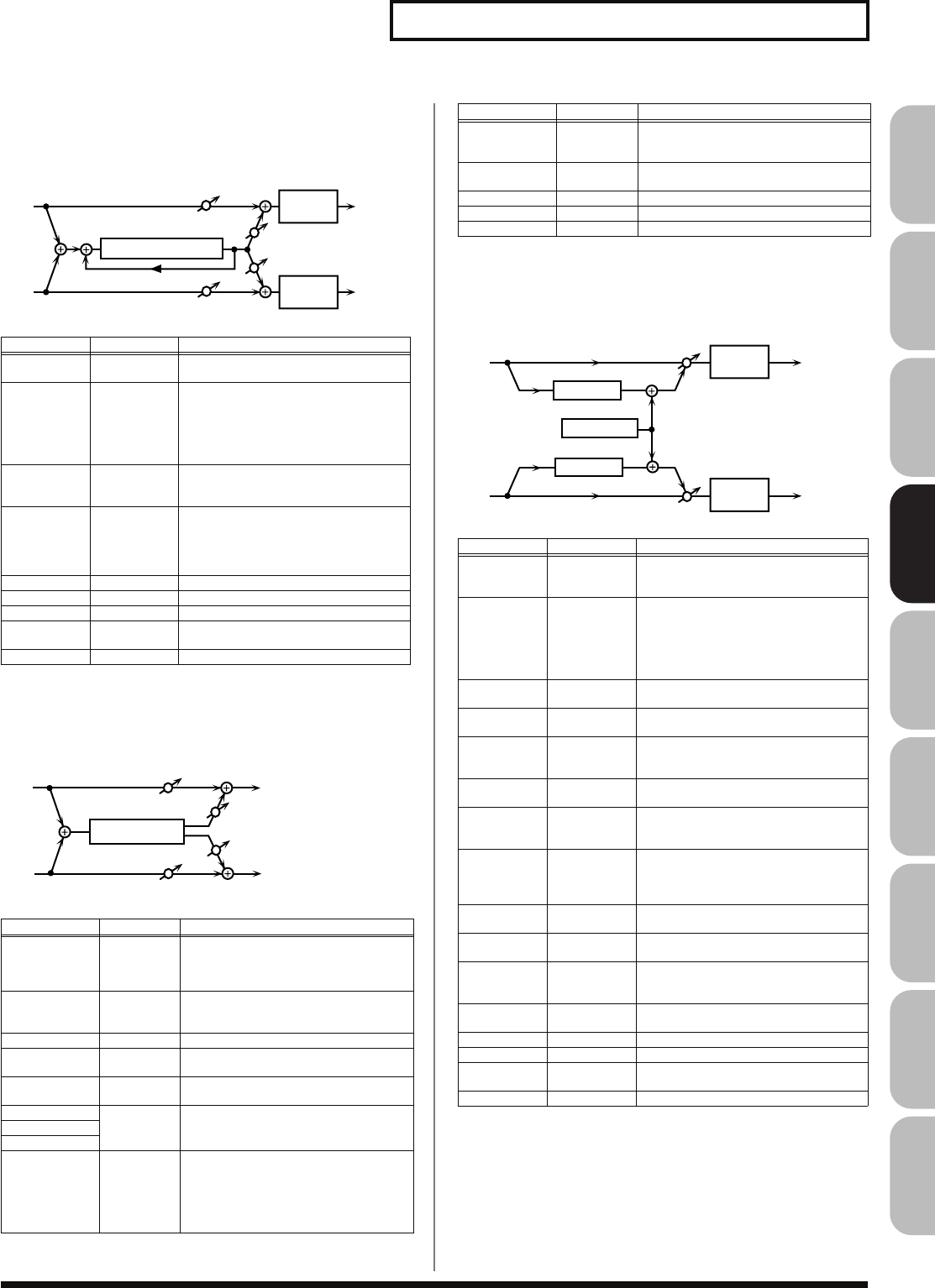
177
Effects List
Overview Sound 1 Sound 2 Sound 3 Pad Sampler
Menu/System
AppendixSequencer
54: LONG TIME CTRL DELAY
A delay in which the delay time can be varied smoothly, and
allowing an extended delay to be produced.
fig.MFX-54
55: TAPE ECHO
A virtual tape echo that produces a realistic tape delay sound. This
simulates the tape echo section of a Roland RE-201 Space Echo.
fig.MFX-55
56: LOFI NOISE
In addition to a lo-fi effect, this adds various types of noise such as
white noise and disc noise.
fig.MFX-56
Parameter Value Description
Delay Time # 0–2600 ms,
note Adjusts the time until the delay is heard.
Acceleration 0–15 Adjusts the time over which the Delay
Time changes from the current setting to
a specified new setting.
The rate of change for the Delay Time
directly affects the rate of pitch
change.
Feedback # -98– +98 % Adjusts the amount of the delay that’s
fed back into the effect. Negative (-) set-
tings invert the phase.
HF Damp 200–8000 Hz,
BYPASS Adjusts the frequency above which
sound fed back to the effect is filtered
out. If you do not want to filter out any
high frequencies, set this parameter to
BYPASS.
Pan # L64–63R Stereo location of the delay
Low Gain -15– +15 dB Gain of the low frequency range
High Gain -15– +15 dB Gain of the high frequency range
Balance # D100:0W–
D0:100W Volume balance between the direct
sound (D) and the delay sound (W)
Level 0–127 Output level
Parameter Value Description
Mode S, M, L,
S+M, S+L,
M+L,
S+M+L
Combination of playback heads to use
Select from three different heads with
different delay times.
S:
short
M:
middle
L:
long
Repeat Rate # 0–127 Tape speed
Increasing this value will shorten the
spacing of the delayed sounds.
Intensity # 0–127 Amount of delay repeats
Bass -15– +15 dB Boost/cut for the lower range of the echo
sound
Treble -15– +15 dB Boost/cut for the upper range of the echo
sound
Head S Pan L64–63R Independent panning for the short, mid-
dle, and long playback heads
Head M Pan
Head L Pan
Tape Distor-
tion 0–5 Amount of tape-dependent distortion to
be added
This simulates the slight tonal changes
that can be detected by signal-analysis
equipment. Increasing this value will
increase the distortion.
L in
R in
L out
R out
2-Band
EQ
Balance W
Balance W
Balance D
Balance D
2-Band
EQ
Feedback
Time Control Delay
Echo Level
Echo Level
L in
R in
L out
R out
Tape Echo
Direct Level
Direct Level
Wow/Flutter
Rate 0–127 Speed of wow/flutter (complex variation
in pitch caused by tape wear and rota-
tional irregularity)
Wow/Flutter
Depth 0–127 Depth of wow/flutter
Echo Level # 0–127 Volume of the echo sound
Direct Level # 0–127 Volume of the original sound
Level 0–127 Output level
Parameter Value Description
LoFi Type 1–9 Degrades the sound quality. The sound
quality grows poorer as this value is in-
creased.
Post Filter
Type OFF, LPF,
HPF Type of filter
OFF:
no filter is used
LPF:
cuts the frequency range above
the Cutoff
HPF:
cuts the frequency range below
the Cutoff
Post Filter
Cutoff 200–8000 Hz Center frequency of the filter
W/P Noise
Type WHITE,
PINK Switch between white noise and pink
noise.
W/P Noise
LPF 200–8000 Hz,
BYPASS Center frequency of the low pass filter
applied to the white/pink noise (BY-
PASS: no cut)
W/P Noise
Level # 0–127 Volume of the white/pink noise
Disc Noise
Type LP, EP, SP,
RND Type of record noise
The frequency at which the noise is
heard depends on the selected type.
Disc Noise
LPF 200–8000 Hz,
BYPASS Adjusts the cutoff frequency of the low
pass filter applied to the record noise. If
you don’t want to filter out any high fre-
quencies, set this parameter to BYPASS.
Disc Noise
Level # 0–127 Volume of the record noise
Hum Noise
Type 50 Hz, 60 Hz Frequency of the hum noise
Hum Noise
LPF 200–8000 Hz,
BYPASS Center frequency of the low pass filter
applied to the hum noise (BYPASS: no
cut)
Hum Noise
Level # 0–127 Volume of the hum noise
Low Gain -15– +15 dB Gain of the low range
High Gain -15– +15 dB Gain of the high range
Balance # D100:0W–
D0:100W Volume balance between the direct
sound (D) and the effect sound (W)
Level 0–127 Output level
Parameter Value Description
R in R out
L in L out
Lo-Fi
Lo-Fi
Noise Gen.
2-Band
EQ
2-Band
EQ
Fantom-G_r_e.book 177 ページ 2008年1月31日 木曜日 午後12時15分
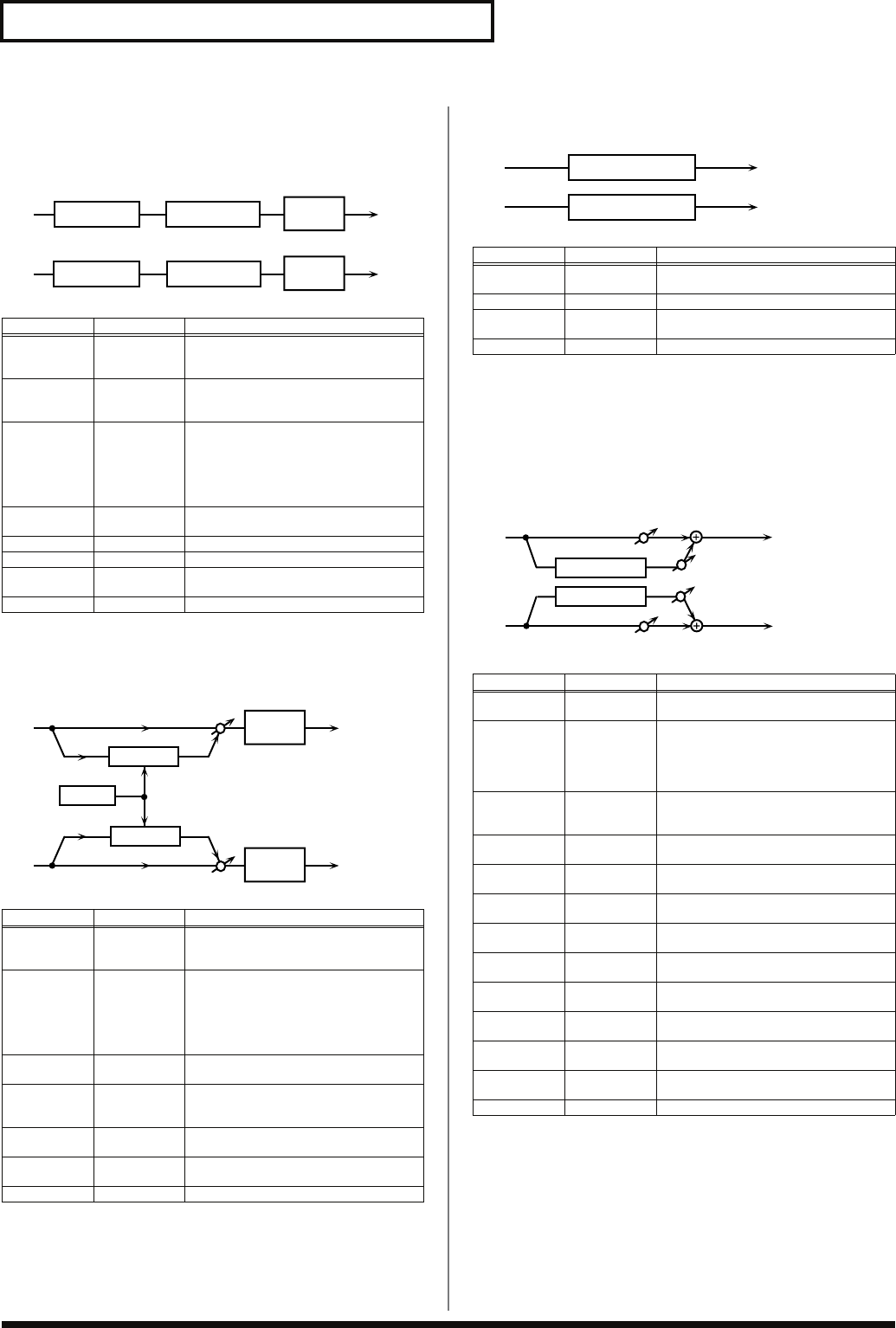
178
Effects List
57: LOFI COMPRESS
This is an effect that intentionally degrades the sound quality for
creative purposes.
fig.MFX-57
58: LOFI RADIO
In addition to a Lo-Fi effect, this effect also generates radio noise.
fig.MFX-58
59: TELEPHONE
fig.MFX-59
60: PHONOGRAPH
Simulates a sound recorded on an analog record and played back on
a record player. This effect also simulates the various types of noise
that are typical of a record, and even the rotational irregularities of
an old turntable.
fig.MFX-60
Parameter Value Description
Pre Filter
Type 1–6 Selects the type of filter applied to the
sound before it passes through the Lo-Fi
effect.
LoFi Type 1–9 Degrades the sound quality. The sound
quality grows poorer as this value is in-
creased.
Post Filter
Type OFF, LPF,
HPF Type of filter
OFF:
no filter is used
LPF:
cuts the frequency range above
the Cutoff
HPF:
cuts the frequency range below
the Cutoff
Post Filter
Cutoff 200–8000 Hz Basic frequency of the Post Filter
Low Gain -15– +15 dB Gain of the low range
High Gain -15– +15 dB Gain of the high range
Balance # D100:0W–
D0:100W Volume balance between the direct
sound (D) and the effect sound (W)
Level # 0–127 Output level
Parameter Value Description
LoFi Type 1–9 Degrades the sound quality. The sound
quality grows poorer as this value is in-
creased.
Post Filter
Type OFF, LPF,
HPF Type of filter
OFF:
no filter is used
LPF:
cuts the frequency range above
the Cutoff
HPF:
cuts the frequency range below
the Cutoff
Post Filter
Cutoff 200–8000 Hz Basic frequency of the Post Filter
Radio
Detune # 0–127 Simulates the tuning noise of a radio. As
this value is raised, the tuning drifts fur-
ther.
Radio Noise
Level # 0–127 Volume of the radio noise
Balance # D100:0W–
D0:100W Volume balance between the direct
sound (D) and the effect sound (W)
Level 0–127 Output level
L in
R in
L out
R out
Compressor
Lo-Fi
Lo-Fi
Compressor
2-Band
EQ
2-Band
EQ
R in R out
L in L out
Lo-Fi
Lo-Fi
Radio
2-Band
EQ
2-Band
EQ
Parameter Value Description
Voice
Quality # 0–15 Audio quality of the telephone voice
Treble -15– +15 dB Bandwidth of the telephone voice
Balance # D100:0–
D0:100W Volume balance between the direct
sound (D) and the effect sound (W)
Level 0–127 Output level
Parameter Value Description
Signal
Distortion 0–127 Depth of distortion
Frequency
Range 0–127 Frequency response of the playback sys-
tem
Decreasing this value will produce the
impression of an old system with a
poor frequency response.
Disc Type LP, EP, SP Rotational speed of the turntable
This will affect the frequency of the
scratch noise.
Scratch
Noise Level
0–127 Amount of noise due to scratches on the
record
Dust Noise
Level 0–127 Volume of noise due to dust on the
record
Hiss Noise
Level 0–127 Volume of continuous “hiss”
Total Noise
Level # 0–127 Volume of overall noise
Wow 0–127 Depth of long-cycle rotational irregulari-
ty
Flutter 0–127 Depth of short-cycle rotational irregular-
ity
Random 0–127 Depth of indefinite-cycle rotational irreg-
ularity
Total Wow/
Flutter # 0–127 Depth of overall rotational irregularity
Balance # D100:0W–
D0:100W Volume balance between the direct
sound (D) and the effect sound (W)
Level 0–127 Output level
L in
R in
L out
R out
Telephone
Telephone
L in
R in
Phonograph
Phonograph
L out
R out
Balance W
Balance W
Balance D
Balance D
Fantom-G_r_e.book 178 ページ 2008年1月31日 木曜日 午後12時15分
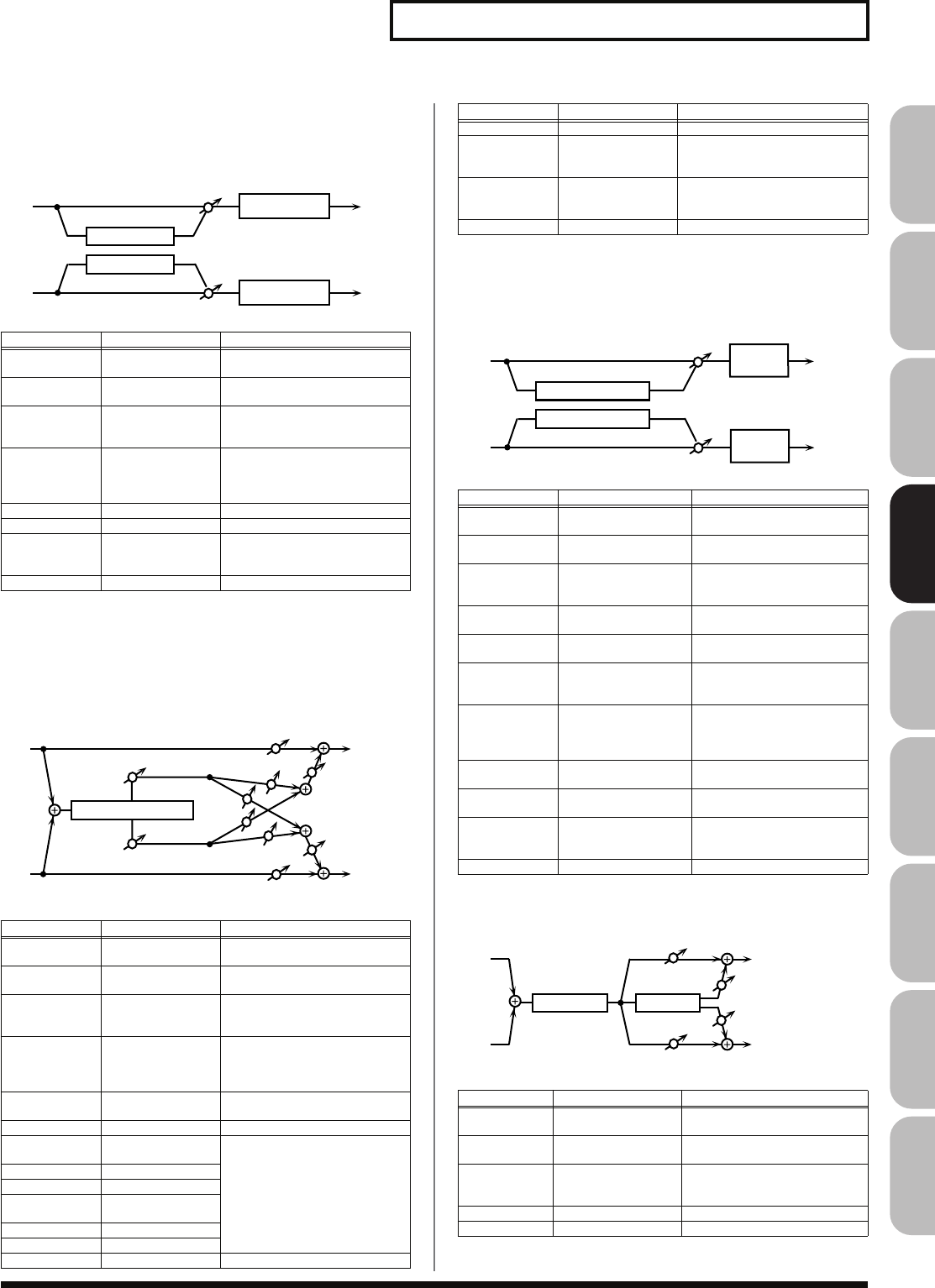
179
Effects List
Overview Sound 1 Sound 2 Sound 3 Pad Sampler
Menu/System
AppendixSequencer
61: PITCH SHIFTER
(Feedback Pitch Shifter)
A stereo pitch shifter.
fig.MFX-61
62: 2VOICE PITCH SHIFTER
Shifts the pitch of the original sound. This 2-voice pitch shifter has
two pitch shifters, and can add two pitch shifted sounds to the
original sound.
fig.MFX-62
63: STEP PITCH SHIFTER
A pitch shifter in which the amount of pitch shift is varied by a 16-
step sequence.
fig.MFX-63
64: OVERDRIVE
→
CHORUS
fig.MFX-66
Parameter Value Description
Coarse #1 -24– +12 semi Adjusts the pitch of the pitch
shifted sound in semitone steps.
Fine #1 -100– +100 cent Adjusts the pitch of the pitch
shifted sound in 2-cent steps.
Delay Time 0–1300 ms, note Adjusts the delay time from the
direct sound until the pitch shift-
ed sound is heard.
Feedback # -98– +98 % Adjusts the proportion of the
pitch shifted sound that is fed
back into the effect. Negative (-)
settings will invert the phase.
Low Gain -15– +15 dB Gain of the low range
High Gain -15– +15 dB Gain of the high range
Balance # D100:0W–
D0:100W Volume balance between the di-
rect sound (D) and the pitch
shifted sound (W)
Level 0–127 Output Level
Parameter Value Description
Pitch 1:
Coarse #1 -24-+12 semi Adjusts the pitch of Pitch Shift 1
in semitone steps.
Pitch 1:Fine #1 -100-+100 cent Adjusts the pitch of Pitch Shift
Pitch 1 in 2-cent steps.
Pitch 1:Delay 0–1300 ms, note Adjusts the delay time from the
direct sound until the Pitch Shift
1 sound is heard.
Pitch 1:Feed-
back # -98– +98 % Adjusts the proportion of the
pitch shifted sound that is fed
back into the effect. Negative (-)
settings will invert the phase.
Pitch 1:Pan # L64-63R Stereo location of the Pitch Shift 1
sound
Pitch 1:Level 0–127 Volume of the Pitch Shift1 sound
Pitch 2:
Coarse #2 -24-+12 semi Settings of the Pitch Shift 2
sound.
The parameters are the same as
for the Pitch Shift 1 sound.
Pitch 2:Fine #2 -100-+100 cent
Pitch 2:Delay 0–1300 ms, note
Pitch 2:Feed-
back # -98– +98 %
Pitch 2:Pan # L64-63R
Pitch 2:Level 0–127
Low Gain -15– +15 dB Gain of the low range
L in
R in
Pitch Shifter
Pitch Shifter
L out
R out
2-Band EQ
2-Band EQ
L in
R in
L out
R out
2Voice Pitch Shifter
Level 1
Balance W
Balance D
Balance W
Balance D
Level 1 Pan 2 R
Pan 1 L
Pan 1 R
Pan 2 L
High Gain -15– +15 dB Gain of the high range
Level Balance A100:0B-A0:100B Volume balance between the
Pitch Shift 1 and Pitch Shift 2
sounds
Balance D100:0W-D0:100W Volume balance between the di-
rect sound (D) and the pitch
shifted sound (W)
Level 0-127 Output Level
Parameter Range Explanation
Step 01–16 -24– +12 semi Amount of pitch shift at each
step (semitone units)
Rate # 0.05–10.00 Hz, note Rate at which the 16-step se-
quence will cycle
Attack # 0–127 Speed at which the amount of
pitch shift changes between
steps
Gate Time # 0–127 Duration of the pitch shifted
sound at each step
Fine -100– +100 cent Pitch shift adjustment for all
steps (2-cent units)
Delay Time 0–1300 ms, note Delay time from the original
sound until the pitch-shifted
sound is heard
Feedback # -98– +98% Proportion of the pitch-shift-
ed sound that is to be returned
to the input (negative values
invert the phase)
Low Gain -15– +15 dB Amount of boost/cut for the
low-frequency range
High Gain -15– +15 dB Amount of boost/cut for the
high-frequency range
Balance # D100:0W–D0:100W Volume balance of the origi-
nal sound (D) and pitch-shift-
ed sound (W)
Level 0–127 Output volume
Parameter Value Description
Overdrive
Drive # 0–127 Degree of distortion
Also changes the volume.
Overdrive
Pan # L64–63R Stereo location of the overdrive
sound
Chorus Pre
Delay 0.0–100.0 ms Adjusts the delay time from the
direct sound until the chorus
sound is heard.
Chorus Rate # 0.05–10.00 Hz, note Frequency of modulation
Chorus Depth 0–127 Depth of modulation
Parameter Value Description
L in
R in
Step Pitch Shifter
Step Pitch Shifter
L out
R out
2-Band
EQ
2-Band
EQ
L in
R in
Chorus
Overdrive
L out
R out
Balance W
Balance W
Balance D
Balance D
Fantom-G_r_e.book 179 ページ 2008年1月31日 木曜日 午後12時15分
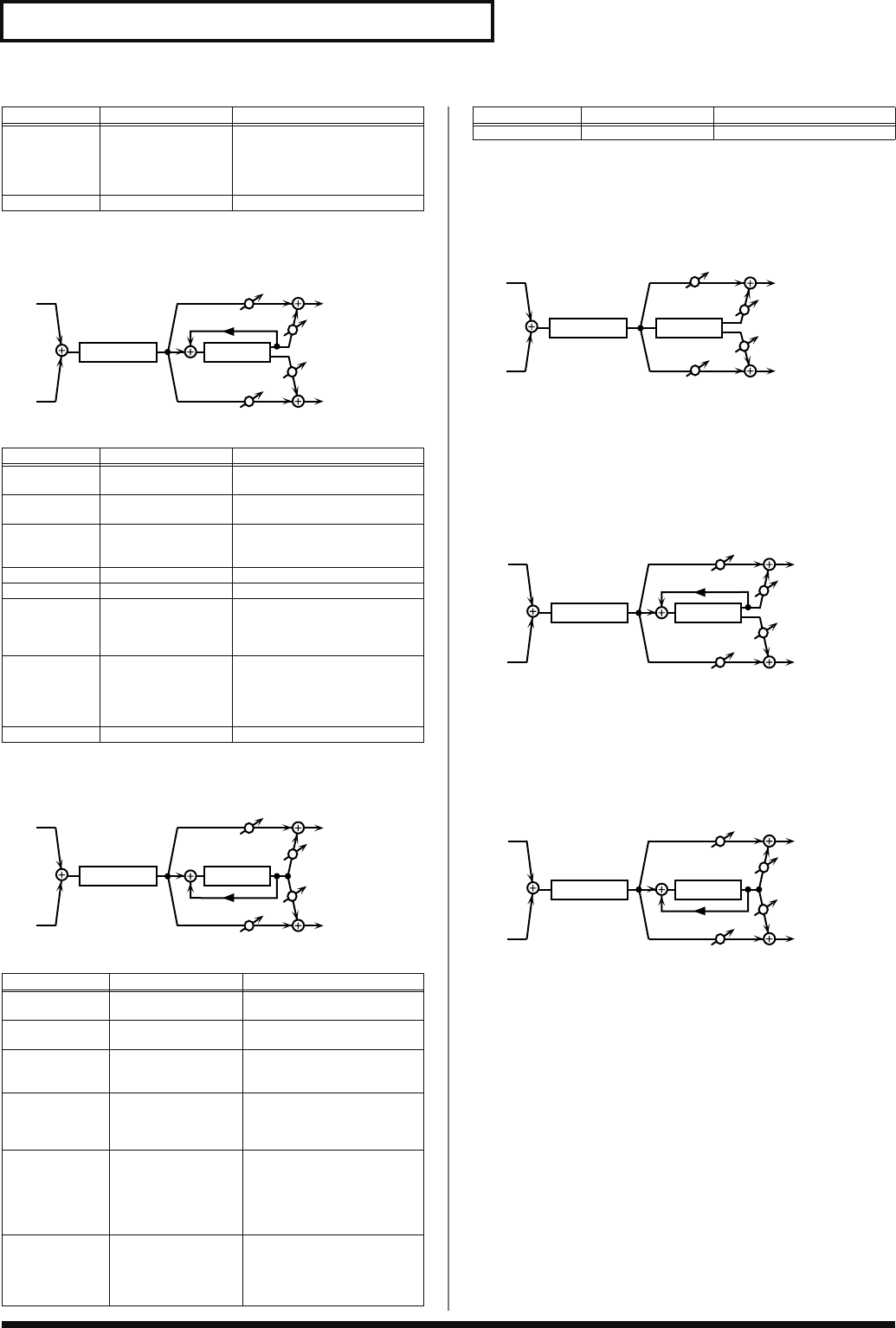
180
Effects List
65: OVERDRIVE
→
FLANGER
fig.MFX-67
66: OVERDRIVE
→
DELAY
fig.MFX-68
67: DISTORTION
→
CHORUS
The parameters are essentially the same as in “64: OVERDRIVE
→
CHORUS,” with the exception of the following two.
Overdrive Drive
→
Distortion Drive, Overdrive Pan
→
Distortion Pan
fig.MFX-69
68: DISTORTION
→
FLANGER
The parameters are essentially the same as in “65: OVERDRIVE
→
FLANGER,” with the exception of the following two.
Overdrive Drive
→
Distortion Drive, Overdrive Pan
→
Distortion Pan
fig.MFX-70
69: DISTORTION
→
DELAY
The parameters are essentially the same as in “66: OVERDRIVE
→
DELAY,” with the exception of the following two.
Overdrive Drive
→
Distortion Drive, Overdrive Pan
→
Distortion Pan
fig.MFX-71
Chorus
Balance # D100:0W–D0:100W Adjusts the volume balance be-
tween the sound that is sent
through the chorus (W) and the
sound that is not sent through
the chorus (D).
Level 0–127 Output Level
Parameter Value Description
Overdrive
Drive # 0–127 Degree of distortion
Also changes the volume.
Overdrive
Pan # L64–63R Stereo location of the overdrive
sound
Flanger Pre
Delay 0.0–100.0 ms Adjusts the delay time from
when the direct sound begins
until the flanger sound is heard.
Flanger Rate # 0.05–10.00 Hz, note Frequency of modulation
Flanger Depth 0–127 Depth of modulation
Flanger
Feedback # -98– +98 % Adjusts the proportion of the
flanger sound that is fed back
into the effect. Negative (-) set-
tings will invert the phase.
Flanger
Balance # D100:0W–D0:100W Adjusts the volume balance be-
tween the sound that is sent
through the flanger (W) and the
sound that is not sent through
the flanger (D).
Level 0–127 Output Level
Parameter Value Description
Overdrive
Drive # 0–127 Degree of distortion
Also changes the volume.
Overdrive Pan # L64–63R Stereo location of the over-
drive sound
Delay Time 0–2600 ms, note Adjusts the delay time from
the direct sound until the de-
lay sound is heard.
Delay
Feedback # -98– +98 % Adjusts the proportion of the
delay sound that is fed back
into the effect. Negative (-)
settings will invert the phase.
Delay HF Damp 200–8000 Hz,
BYPASS Adjusts the frequency above
which sound fed back to the
effect will be cut. If you do not
want to cut the high frequen-
cies, set this parameter to BY-
PASS.
Delay Balance # D100:0W–D0:100W Adjusts the volume balance
between the sound that is sent
through the delay (W) and the
sound that is not sent through
the delay (D).
Parameter Value Description
L in
R in
Flanger
Overdrive
L out
R out
Balance W
Balance W
Balance D
Balance D
Feedback
L in
R in
Delay
Overdrive
L out
R out
Balance W
Balance W
Balance D
Balance D
Feedback
Level 0–127 Output Level
Parameter Value Description
L in
R in
Chorus
Distortion
L out
R out
Balance W
Balance W
Balance D
Balance D
L in
R in
Flanger
Distortion
L out
R out
Balance W
Balance W
Balance D
Balance D
Feedback
L in
R in
Delay
Distortion
L out
R out
Balance W
Balance W
Balance D
Balance D
Feedback
Fantom-G_r_e.book 180 ページ 2008年1月31日 木曜日 午後12時15分
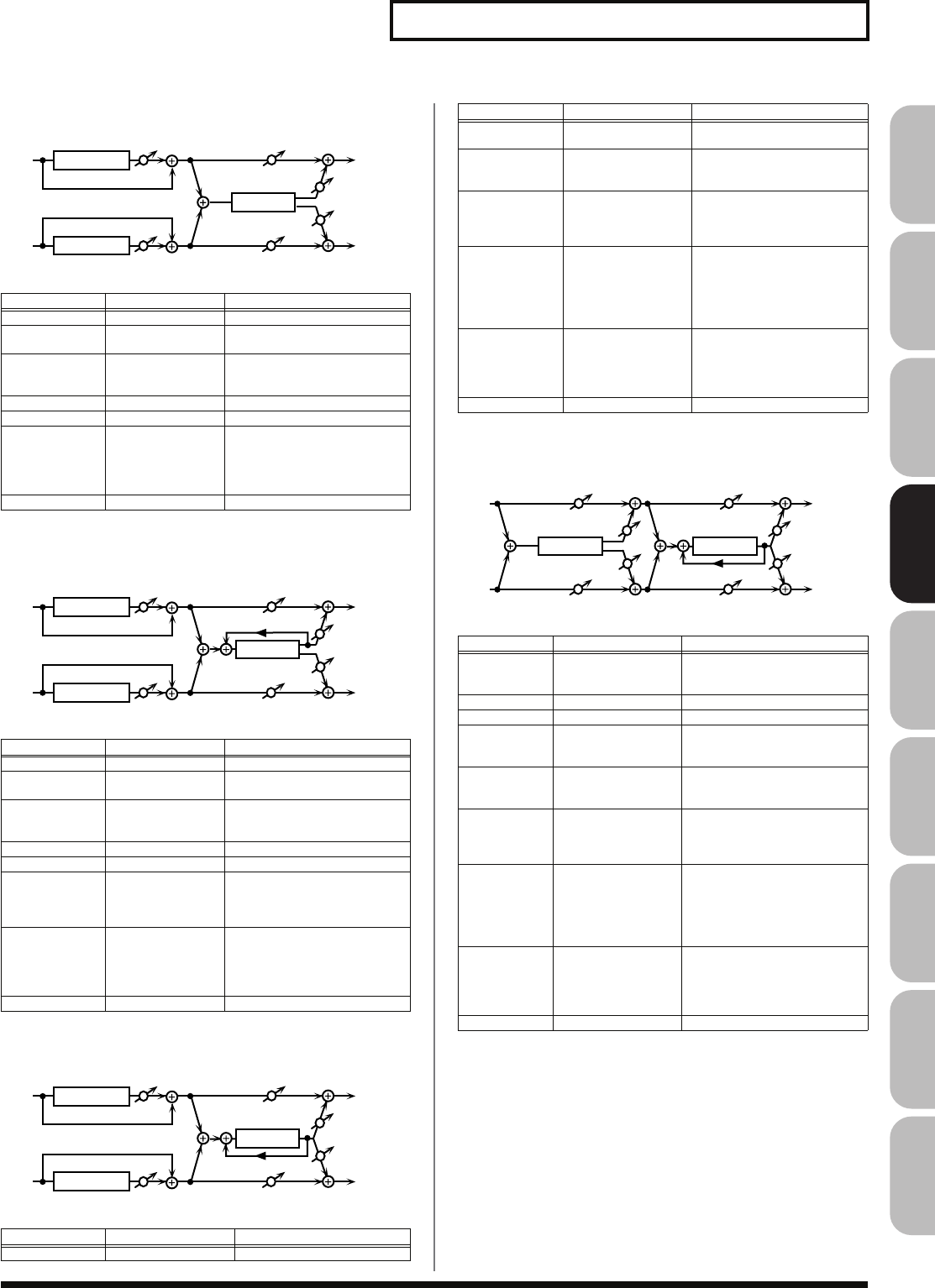
181
Effects List
Overview Sound 1 Sound 2 Sound 3 Pad Sampler
Menu/System
AppendixSequencer
70: ENHANCER
→
CHORUS
fig.MFX-72
71: ENHANCER
→
FLANGER
fig.MFX-73
72: ENHANCER
→
DELAY
fig.MFX-74
73: CHORUS
→
DELAY
fig.MFX-75
Parameter Value Description
Enhancer Sens # 0–127 Sensitivity of the enhancer
Enhancer Mix # 0–127 Level of the overtones generat-
ed by the enhancer
Chorus Pre
Delay 0.0–100.0 ms Adjusts the delay time from the
direct sound until the chorus
sound is heard.
Chorus Rate # 0.05–10.00 Hz, note Frequency of modulation
Chorus Depth 0–127 Depth of modulation
Chorus
Balance # D100:0W–
D0:100W Adjusts the volume balance be-
tween the sound that is sent
through the chorus (W) and the
sound that is not sent through
the chorus (D).
Level 0–127 Output Level
Parameter Value Description
Enhancer Sens # 0–127 Sensitivity of the enhancer
Enhancer Mix # 0–127 Level of the overtones generat-
ed by the enhancer
Flanger Pre
Delay 0.0–100.0 ms Adjusts the delay time from
when the direct sound begins
until the flanger sound is heard.
Flanger Rate # 0.05–10.00 Hz, note Frequency of modulation
Flanger Depth 0–127 Depth of modulation
Flanger
Feedback # -98– +98 % Adjusts the proportion of the
flanger sound that is fed back
into the effect. Negative (-) set-
tings will invert the phase.
Flanger
Balance # D100:0W–
D0:100W Adjusts the volume balance be-
tween the sound that is sent
through the flanger (W) and the
sound that is not sent through
the flanger (D).
Level 0–127 Output Level
Parameter Value Description
Enhancer Sens # 0–127 Sensitivity of the enhancer
Chorus
L in
R in
L out
R out
Mix
Mix
Enhancer
Enhancer
Balance W
Balance W
Balance D
Balance D
Feedback
Flanger
L in
R in
L out
R out
Mix
Mix
Enhancer
Enhancer
Balance W
Balance W
Balance D
Balance D
Feedback
Delay
L in
R in
L out
R out
Mix
Mix
Enhancer
Enhancer
Balance W
Balance W
Balance D
Balance D
Enhancer Mix # 0–127 Level of the overtones gener-
ated by the enhancer
Delay Time 0–2600 ms, note Adjusts the delay time from
the direct sound until the de-
lay sound is heard.
Delay
Feedback # -98– +98 % Adjusts the proportion of the
delay sound that is fed back
into the effect. Negative (-)
settings will invert the phase.
Delay HF Damp 200–8000 Hz,
BYPASS Adjusts the frequency above
which sound fed back to the
effect will be cut. If you do not
want to cut the high frequen-
cies, set this parameter to BY-
PASS.
Delay Balance # D100:0W–D0:100W Adjusts the volume balance
between the sound that is sent
through the delay (W) and the
sound that is not sent through
the delay (D).
Level 0–127 Output Level
Parameter Value Description
Chorus Pre
Delay 0.0–100.0 ms Adjusts the delay time from the
direct sound until the chorus
sound is heard.
Chorus Rate # 0.05–10.00 Hz, note Frequency of modulation
Chorus Depth 0–127 Depth of modulation
Chorus
Balance # D100:0W–D0:100W Volume balance between the di-
rect sound (D) and the chorus
sound (W)
Delay Time 0–2600 ms, note Adjusts the delay time from the
direct sound until the delay
sound is heard.
Delay
Feedback # -98– +98 % Adjusts the proportion of the
delay sound that is fed back into
the effect. Negative (-) settings
will invert the phase.
Delay HF
Damp 200–8000 Hz,
BYPASS Adjusts the frequency above
which sound fed back to the ef-
fect will be cut. If you do not
want to cut the high frequen-
cies, set this parameter to BY-
PASS.
Delay
Balance # D100:0W–D0:100W Adjusts the volume balance be-
tween the sound that is sent
through the delay (W) and the
sound that is not sent through
the delay (D).
Level 0–127 Output Level
Parameter Value Description
Feedback
Delay
L in
R in
L out
R out
Balance W
Balance W
Balance D
Balance D
Chorus
Balance W
Balance W
Balance D
Balance D
Fantom-G_r_e.book 181 ページ 2008年1月31日 木曜日 午後12時15分
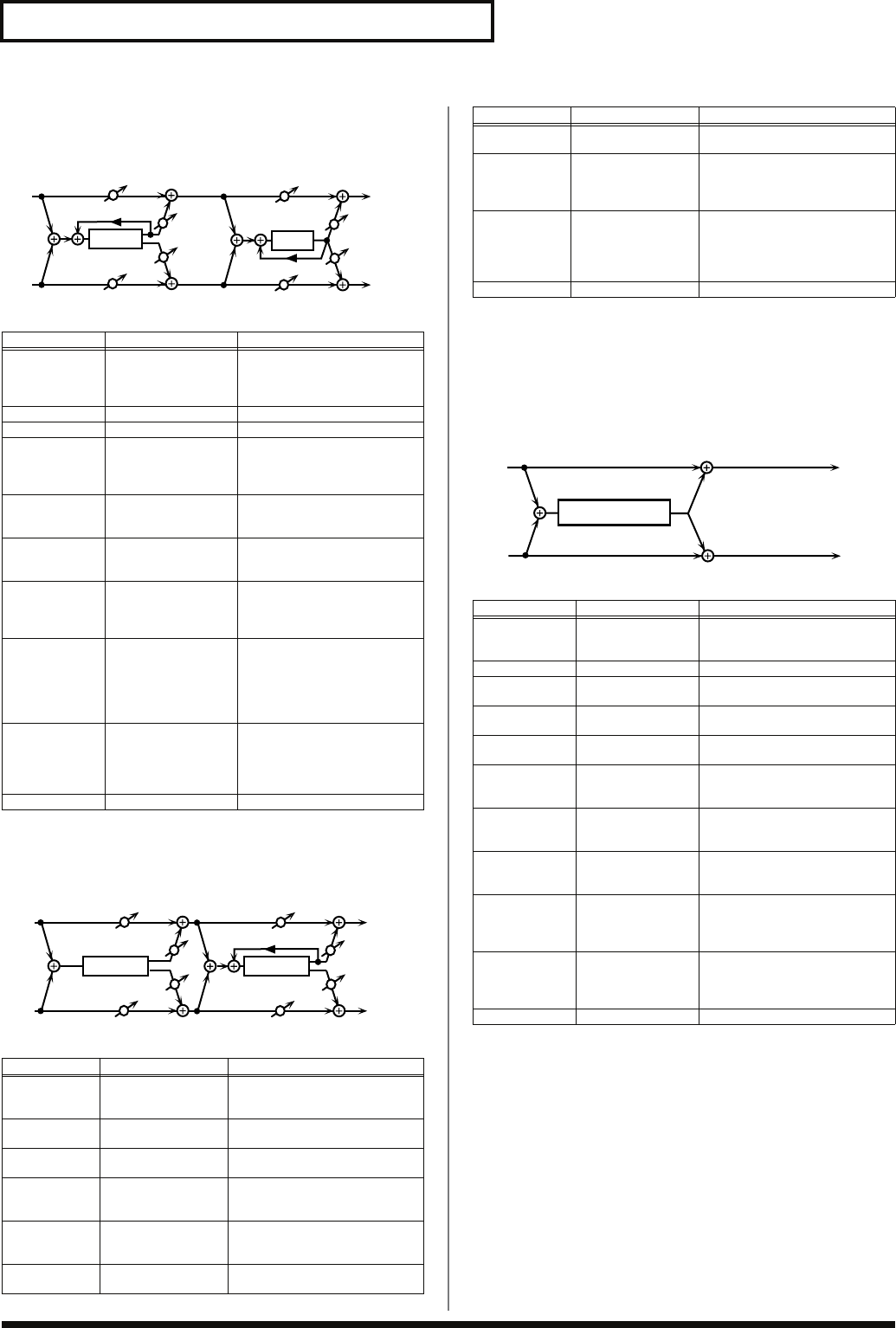
182
Effects List
74: FLANGER
→
DELAY
* MFX only
fig.MFX-76
75: CHORUS
→
FLANGER
* MFX only
fig.MFX-77
76: SYMPATHETIC RESONANCE
On an acoustic piano, holding down the damper pedal allows other
strings to resonate in sympathy with the notes you play, creating
rich and spacious resonances. This effect simulates these
sympathetic resonances.
fig.MFX-78
Parameter Value Description
Flanger Pre
Delay 0.0–100.0 ms Adjusts the delay time from
when the direct sound begins
until the flanger sound is
heard.
Flanger Rate # 0.05–10.00 Hz, note Frequency of modulation
Flanger Depth 0–127 Depth of modulation
Flanger
Feedback # -98– +98 % Adjusts the proportion of the
flanger sound that is fed back
into the effect. Negative (-) set-
tings will invert the phase.
Flanger
Balance # D100:0W–D0:100W Volume balance between the
direct sound (D) and the
flanger sound (W)
Delay Time 0–2600 ms, note Adjusts the delay time from
the direct sound until the delay
sound is heard.
Delay
Feedback # -98– +98 % Adjusts the proportion of the
delay sound that is fed back
into the effect. Negative (-) set-
tings will invert the phase.
Delay HF
Damp 200–8000 Hz,
BYPASS Adjusts the frequency above
which sound fed back to the ef-
fect will be cut. If you do not
want to cut the high frequen-
cies, set this parameter to BY-
PASS.
Delay
Balance # D100:0W–D0:100W Adjusts the volume balance be-
tween the sound that is sent
through the delay (W) and the
sound that is not sent through
the delay (D).
Level 0–127 Output Level
Parameter Value Description
Chorus Pre
Delay 0.0–100.0 ms Adjusts the delay time from the
direct sound until the chorus
sound is heard.
Chorus Rate # 0.05–10.00 Hz, note Modulation frequency of the
chorus effect
Chorus Depth 0–127 Modulation depth of the chorus
effect
Chorus
Balance # D100:0W–D0:100W Volume balance between the di-
rect sound (D) and the chorus
sound (W)
Flanger Pre
Delay 0.0–100.0 ms Adjusts the delay time from
when the direct sound begins
until the flanger sound is heard.
Flanger Rate # 0.05–10.00 Hz, note Modulation frequency of the
flanger effect
Feedback
Delay
L in
R in
L out
R out
Balance W
Balance W
Balance D
Balance D
Flanger
Balance W
Balance W
Balance D
Balance D
Feedback
Feedback
Flanger
L in
R in
L out
R out
Balance W
Balance W
Balance D
Balance D
Chorus
Balance W
Balance W
Balance D
Balance D
Flanger Depth 0–127 Modulation depth of the flanger
effect
Flanger
Feedback # -98– +98 % Adjusts the proportion of the
flanger sound that is fed back
into the effect. Negative (-) set-
tings will invert the phase.
Flanger
Balance # D100:0W–D0:100W Adjusts the volume balance be-
tween the sound that is sent
through the flanger (W) and the
sound that is not sent through
the flanger (D).
Level 0–127 Output Level
Parameter Range Explanation
Damper # 0–127 Depth to which damper pedal is
pressed (controls the sympathet-
ic resonance)
Depth # 0–127 Depth of the effect
Octave -3– +3 oct Octave shift amount for the sym-
pathetic resonance
Detune -50– +50 cent Pitch shift amount for the sym-
pathetic resonance
Phase NORMAL,
INVERSE Phase at which the sympathetic
resonance is generated
Low Damp
Freq 20–1000 Hz Frequency at which the low
range of the sympathetic reso-
nance is cut
Low Damp 1–100 % Amount of attenuation by which
the low range of the sympathetic
resonance is cut (100%: no effect)
High Damp
Freq 1000–10000 Hz Frequency at which the high
range of the sympathetic reso-
nance is cut
High Damp 1–100 % Amount of attenuation by which
the high range of the sympathet-
ic resonance is cut (100%: no ef-
fect)
Time 10–5000 ms Time over which the sympathet-
ic resonance will decay (lower-
ing the Octave setting will make
this more noticeable)
Level 0–127 Output Level
Parameter Value Description
L in
R in
L out
R out
Sym. Resonance
Fantom-G_r_e.book 182 ページ 2008年1月31日 木曜日 午後12時15分
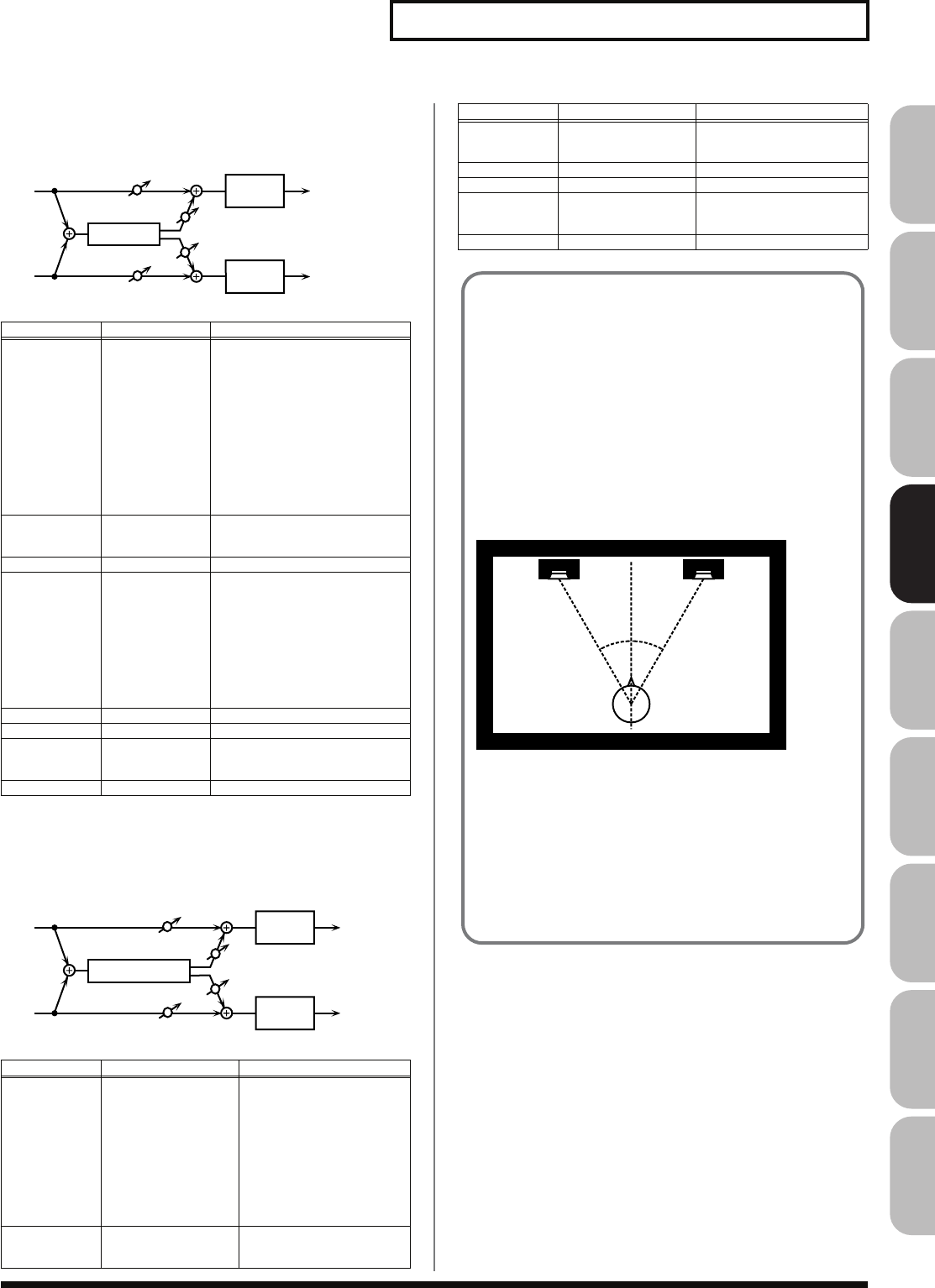
183
Effects List
Overview Sound 1 Sound 2 Sound 3 Pad Sampler
Menu/System
AppendixSequencer
77: REVERB
Adds reverberation to the sound, simulating an acoustic space.
fig.MFX-64
78: GATED REVERB
This is a special type of reverb in which the reverberant sound is cut
off before its natural length.
fig.MFX-65
Parameter Value Description
Type ROOM1,
ROOM2,
STAGE1,
STAGE2,
HALL1, HALL2
Type of reverb
ROOM1:
dense reverb with
short decay
ROOM2:
sparse reverb with
short decay
STAGE1:
reverb with greater
late reverberation
STAGE2:
reverb with strong
early reflections
HALL1:
reverb with clear rever-
berance
HALL2:
reverb with rich rever-
berance
Pre Delay 0.0–100.0 ms Adjusts the delay time from the di-
rect sound until the reverb sound
is heard.
Time # 0–127 Time length of reverberation
HF Damp 200–8000 Hz,
BYPASS Adjusts the frequency above
which the reverberant sound will
be cut.
As the frequency is set lower,
more of the high frequencies
will be cut, resulting in a softer
and more muted reverberance.
If you do not want to cut the
high frequencies, set this pa-
rameter to BYPASS.
Low Gain -15– +15 dB Gain of the low range
High Gain -15– +15 dB Gain of the high range
Balance # D100:0W–
D0:100W Volume balance between the direct
sound (D) and the reverb sound
(W)
Level 0–127 Output Level
Parameter Value Description
Type NORMAL, REVERSE,
SWEEP1, SWEEP2 Type of reverb
NORMAL:
conventional
gated reverb
REVERSE:
backwards re-
verb
SWEEP1:
the reverberant
sound moves from right to
left
SWEEP2:
the reverberant
sound moves from left to
right
Pre Delay 0.0–100.0 ms Adjusts the delay time from
the direct sound until the re-
verb sound is heard.
L in
R in
L out
R out
Reverb
2-Band
EQ
Balance W
Balance W
Balance D
Balance D
2-Band
EQ
L in
R in
L out
R out
Gated Reverb
2-Band
EQ
Balance W
Balance W
Balance D
Balance D
2-Band
EQ
Gate Time 5–500 ms Adjusts the time from when
the reverb is heard until it
disappears.
Low Gain -15– +15 dB Gain of the low range
High Gain -15– +15 dB Gain of the high range
Balance # D100:0W–D0:100W Volume balance between the
direct sound (D) and the re-
verb sound (W)
Level # 0–127 Output Level
Parameter Value Description
When Using 3D Effects
The following 3D effects utilize RSS (Roland Sound Space)
technology to create a spaciousness that cannot be produced by
delay, reverb, chorus, etc.
52: 3D DELAY
29: 3D CHORUS
30: 3D FLANGER
31: 3D STEP FLANGER
When using these effects, we recommend that you place your
speakers as follows. Also, make sure that the speakers are at a
sufficient distance from the walls on either side.
fig.33-002
If the left and right speakers are too far apart, or if there is too
much reverberation, the full 3D effect may not appear.
Each of these effects has an “Output Mode” parameter. If the
sound from the OUTPUT jacks is to be heard through speakers,
set this parameter to “SPEAKER.” If the sound is to be heard
through headphones, set it to “PHONES.” This will ensure that
the optimal 3D effect will be heard. If this parameter is not set
correctly, the full 3D effect may not appear.
30˚ 30˚
Fantom-G_r_e.book 183 ページ 2008年1月31日 木曜日 午後12時15分
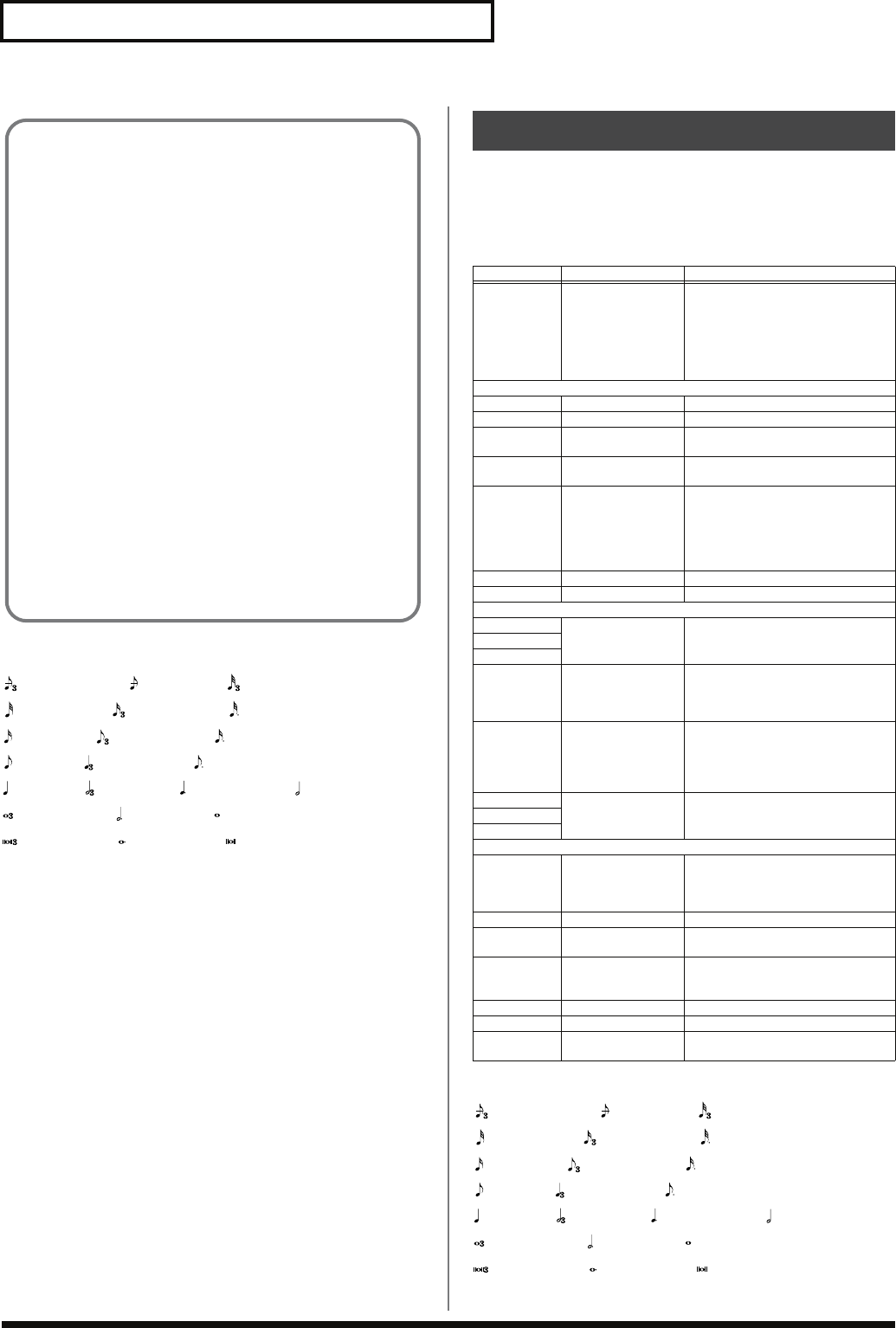
184
Effects List
note:
fig.MFX-note2.e_88
The Fantom-G’s Chorus effect unit can also be used as a stereo delay
unit.
These settings allow you to select chorus or delay, and the
characteristics of the selected effect type.
note:
fig.MFX-note2.e
About the STEP RESET function
06: STEP FILTER
16: STEP RING MODULATOR
19: STEP PAN
20: SLICER
63: STEP PITCH SHIFTER
The above five types contain a sixteen-step sequencer.
For these types, you can use a multi-effect control to reset the
sequence to play from the first step.
To do this, set the multi-effect control Destination to “Step
Reset.”
For example if you are using the modulation lever to control the
effect, you would make the following settings.
Source: CC01: MODULATION
Destination: Step Reset
Sens: +63
With these settings, the sequence will play back from the first
step whenever you operate the modulation lever.
(Double note)(Dotted whole note),
(Dotted half note),
(Dotted thirty-second note),
(Whole note),
(Double-note triplet),
(Sixteenth-note triplet),
(Thirty-second note),
(Sixty-fourth-note triplet), (Sixty-fourth note), (Thirty-second-note triplet),
(Dotted eighth note),(Quarter-note triplet),(Eighth note),
(Half-note triplet),(Quarter note), (Dotted quarter note),
(Whole-note triplet),
(Half note),
(Sixteenth note), (Eighth-note triplet), (Dotted sixteenth note),
Chorus Parameters
Parameter Value Description
Chorus
Type 00 (OFF),
01 (CHORUS),
02 (DELAY),
03 (GM2 CHO-
RUS)
Selects either Chorus or Delay.
0 (OFF): Neither Chorus or Delay
is used.
1 (CHORUS): Chorus is used.
2 (DELAY): Delay is used.
3 (GM2 CHORUS): GM2 Chorus
is used.
Type: 01 (CHORUS)
Rate 0.05–10.00 Hz, note Frequency of modulation
Depth 0–127 Depth of modulation
Pre Delay 0.0–100.0 ms
Adjusts the delay time from the direct
sound until the chorus sound is heard.
Feedback 0–127
Adjusts the amount of the chorus
sound that is fed back into the effect.
Filter Type OFF, LPF, HPF Type of filter
OFF: no filter is used
LPF: cuts the frequency range
above the Cutoff Freq
HPF: cuts the frequency range
below the Cutoff Freq
Cutoff Freq 200–8000 Hz Basic frequency of the filter
Phase 0–180˚ Spatial spread of the sound
Type: 02 (DELAY)
Delay Left 0–1000 ms, note Adjusts the delay time from the di-
rect sound until the delay sound is
heard.
Delay Right
Delay Center
Center
Feedback -98– +98 % Adjusts the proportion of the delay
sound that is fed back into the ef-
fect. Negative (-) settings will invert
the phase.
HF Damp 200–8000 Hz,
BYPASS Adjusts the frequency above which
sound fed back to the effect will be
cut. If you do not want to cut the
high frequencies, set this parameter
to BYPASS.
Left Level 0–127 Volume of each delay sound
Right Level
Center Level
Type: 03 (GM2 CHORUS)
Pre-LPF 0–7 Cuts the high frequency range of
the sound coming into the chorus.
Higher values will cut more of
the high frequencies.
Level 0–127 Volume of the chorus sound
Feedback 0–127
Adjusts the amount of the chorus
sound that is fed back into the effect.
Delay 0–127 Adjusts the delay time from the di-
rect sound until the chorus sound is
heard.
Rate 0–127 Frequency of modulation
Depth 0–127 Depth of modulation
Send Level
To Reverb 0–127
Adjusts the amount of chorus sound
that will be sent to the reverb.
(Double note)(Dotted whole note),
(Dotted half note),
(Dotted thirty-second note),
(Whole note),
(Double-note triplet),
(Sixteenth-note triplet),
(Thirty-second note),
(Sixty-fourth-note triplet), (Sixty-fourth note), (Thirty-second-note triplet),
(Dotted eighth note),(Quarter-note triplet),(Eighth note),
(Half-note triplet),(Quarter note), (Dotted quarter note),
(Whole-note triplet),
(Half note),
(Sixteenth note), (Eighth-note triplet), (Dotted sixteenth note),
Fantom-G_r_e.book 184 ページ 2008年1月31日 木曜日 午後12時15分
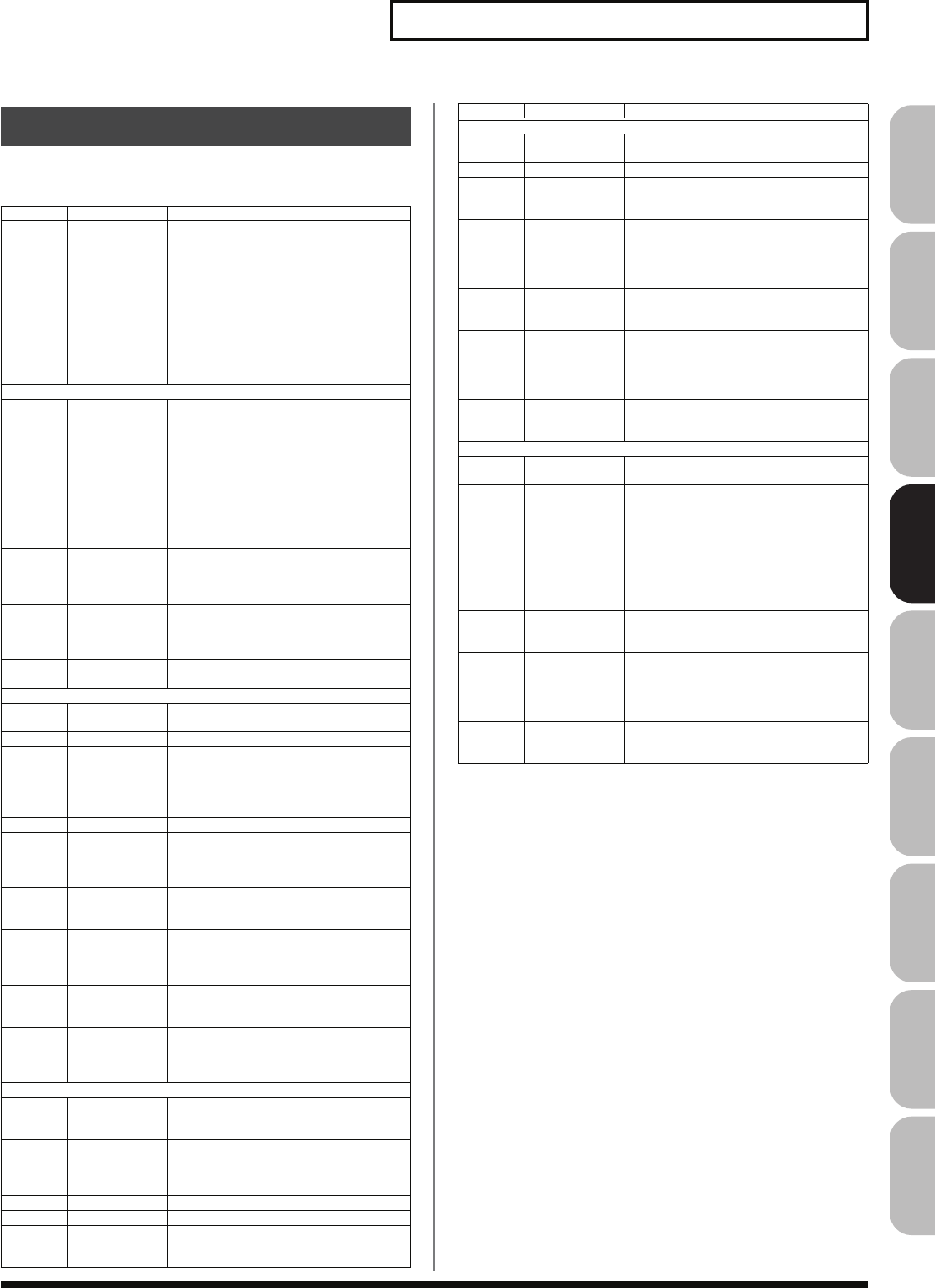
185
Effects List
Overview Sound 1 Sound 2 Sound 3 Pad Sampler
Menu/System
AppendixSequencer
These settings allow you to select the desired type of reverb, and its
characteristics.
Reverb Parameters
Parameter
Value Description
Reverb
Type 00 (OFF),
01 (REVERB),
02 (SRV ROOM),
03 (SRV HALL),
04 (SRV PLATE),
05 (GM2 RE-
VERB),
06 (ROOM),
07 (HALL),
08 (PLATE),
09 (STUDIO),
10 (CHURCH)
Type of reverb
Type: 01 (REVERB)
Type ROOM1,
ROOM2,
STAGE1,
STAGE2,
HALL1, HALL2,
DELAY,
PAN-DELAY
Type of reverb/delay
ROOM1: short reverb with high density
ROOM2: short reverb with low density
STAGE1: reverb with greater late rever-
beration
STAGE2: reverb with strong early reflections
HALL1: very clear-sounding reverb
HALL2: rich reverb
DELAY: conventional delay effect
PAN-DELAY: delay effect with echoes
that pan left and right
Time 0–127 Time length of reverberation
(Type: ROOM1–HALL2)
Delay time
(Type: DELAY, PAN-DELAY)
HF Damp 200–8000 Hz,
BYPASS
Adjusts the frequency above which the high-
frequency content of the reverb sound will be
cut, or “damped.” If you do not want to cut the
high frequencies, set this parameter to BYPASS.
Delay
Feedback 0–127 Adjusts the amount of delay feedback when
the Type setting is DELAY or PAN-DELAY.
Type: 02 (SRV ROOM)/03 (SRV HALL)/04 (SRV PLATE)
Pre
Delay 0.0–100.0 ms
Adjusts the delay time from the direct sound
until the reverb sound is heard.
Time 0–127 Time length of reverberation
Size 1–8 Size of the simulated room or hall
High Cut 160 Hz–12.5 kHz,
BYPASS Adjusts the frequency above which the high-
frequency content of the reverb will be re-
duced. If you do not want to reduce the high
frequencies, set this parameter to BYPASS.
Density 0–127 Density of reverb
Diffusion 0–127
Adjusts the change in the density of the reverb
over time. The higher the value, the more the den-
sity increases with time. (The effect of this setting
is most pronounced with long reverb times.)
LF Damp
Freq 50–4000 Hz Adjusts the frequency below which the low-
frequency content of the reverb sound will be
reduced, or “damped.”
LF Damp
Gain -36–0 dB Adjusts the amount of damping applied to
the frequency range selected with LF Damp.
With a setting of “0,” there will be no reduc-
tion of the reverb’s low-frequency content.
HF Damp
Freq
4000 Hz–12.5 kHz
Adjusts the frequency above which the high-
frequency content of the reverb sound will be
reduced, or “damped.”
HF Damp
Gain -36–0 dB Adjusts the amount of damping applied to
the frequency range selected with HF Damp.
With a setting of “0,” there will be no reduc-
tion of the reverb’s high-frequency content.
Type: 05 (GM2 REVERB)
Character 0–7 Type of reverb
0–5: reverb
6, 7: delay
Pre-LPF 0–7 Cuts the high frequency range of the sound
coming into the reverb.
Higher values will cut more of the high
frequencies.
Level 0–127 Output level of reverbration
Time 0–127 Time length of reverberation
Delay
Feedback 0–127 Adjusts the amount of the delay sound that is
fed back into the effect when the Reverb
Character setting is 6 or 7.
Type: 06 (ROOM)/09 (STUDIO)
Pre Delay 0–127
Adjusts the delay time from the direct sound
until the reverb sound is heard.
Time 0.1–3.0 sec Time length of reverberation
Low
Damp
Freq
20–1000 Hz Adjusts the frequency below which the low-
frequency content of the reverb sound will be
reduced, or “damped.”
Low
Damp 1–100 % Adjusts the amount of damping applied to
the frequency range selected with LF Damp.
With a setting of “100%,” there will be no re-
duction of the reverb’s low-frequency con-
tent.
Hi Damp
Freq 1000–10000 Hz Adjusts the frequency above which the high-
frequency content of the reverb sound will be
reduced, or “damped.”
High
Damp 1–100 % Adjusts the amount of damping applied to
the frequency range selected with HF Damp.
With a setting of “100%,” there will be no re-
duction of the reverb’s high-frequency con-
tent.
High Cut 1000–10000 Hz Adjusts the frequency above which the high-
frequency content of the reverb will be re-
duced.
Type: 07 (HALL)/08 (PLATE)/10 (CHURCH)
Pre Delay 0–127
Adjusts the delay time from the direct sound
until the reverb sound is heard.
Time 0.1–6.0 sec Time length of reverberation
Low
Damp
Freq
20–1000 Hz Adjusts the frequency below which the low-
frequency content of the reverb sound will be
reduced, or “damped.”
Low
Damp 1–100 % Adjusts the amount of damping applied to
the frequency range selected with LF Damp.
With a setting of “100%,” there will be no re-
duction of the reverb’s low-frequency con-
tent.
Hi Damp
Freq 1000–10000 Hz Adjusts the frequency above which the high-
frequency content of the reverb sound will be
reduced, or “damped.”
High
Damp 1–100 % Adjusts the amount of damping applied to
the frequency range selected with HF Damp.
With a setting of “100%,” there will be no re-
duction of the reverb’s high-frequency con-
tent.
High Cut 1000–10000 Hz Adjusts the frequency above which the high-
frequency content of the reverb will be re-
duced.
Parameter
Value Description
Fantom-G_r_e.book 185 ページ 2008年1月31日 木曜日 午後12時15分
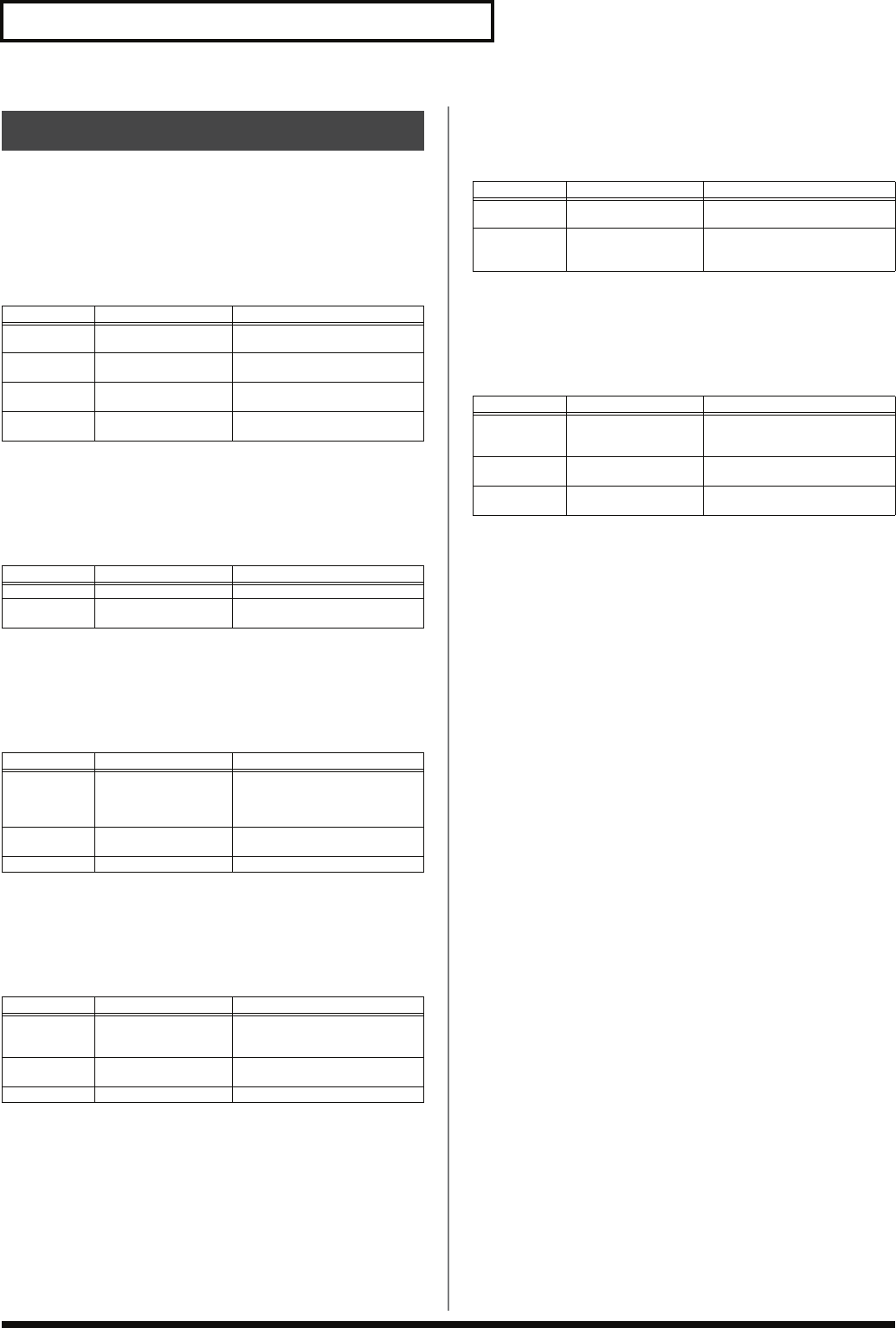
186
Effects List
Selects the type of effect that will be applied to the external input
source.
01: EQUALIZER
Adjusts the tone of the low-frequency and high-frequency ranges.
02: ENHANCER
Modifies the harmonic content of the high-frequency range to add
sparkle to the sound.
03: COMPRESSOR
Restrains high levels and boosts low levels to make the overall
volume more consistent.
04: LIMITER
Compresses the sound when it exceeds a specified volume, to keep
distortion from occurring.
05: NOISE SUPPRESSOR
Suppresses noise during periods of silence.
06: CENTER CANCELER
Removes the sounds that are localized at the center of the stereo
input. This is a convenient way to eliminate a vocal.
Input Effect Parameters
Parameter Range Explanation
Low Freq 200, 400 Hz Center frequency of the low-fre-
quency range
Low Gain -15– +15 dB Amount of low-frequency
boost/cut
High Freq 2000, 4000, 8000 Hz Center frequency of the high-
frequency range
High Gain -15– +15 dB Amount of high-frequency
boost/cut
Parameter Range Explanation
Sens 0–127 Depth of the enhancer effect
Mix 0–127 Volume of the harmonics that
are generated
Parameter Range Explanation
Attack 0–127 Time from when the input ex-
ceeds the Threshold until the
volume begins to be com-
pressed
Threshold 0–127 Volume level at which compres-
sion will begin
Post Gain 0– +18 dB Level of the output sound
Parameter Range Explanation
Release 0–127 Time from when the input falls
below the Threshold until com-
pression ceases
Threshold 0–127 Volume level at which compres-
sion will begin
Post Gain 0– +18 dB Level of the output sound
Parameter Range Explanation
Threshold 0–127 Volume at which noise suppres-
sion will begin
Release 0–127 Time from when noise suppres-
sion begins until the volume
reaches zero.
Parameter Range Explanation
Ch Balance -50– +50 Volume balance of the L (left)
and R (right) channels for re-
moving the sound
Range Low 16–15000 Hz Lower frequency limit of the
band to be removed
Range High 16–15000 Hz1 Upper frequency limit of the
band to be removed
Fantom-G_r_e.book 186 ページ 2008年1月31日 木曜日 午後12時15分
05: Pads (Using the Pads)
This chapter explains how to use the pads.
Fantom-G_r_e.book 187 ページ 2008年1月31日 木曜日 午後12時15分
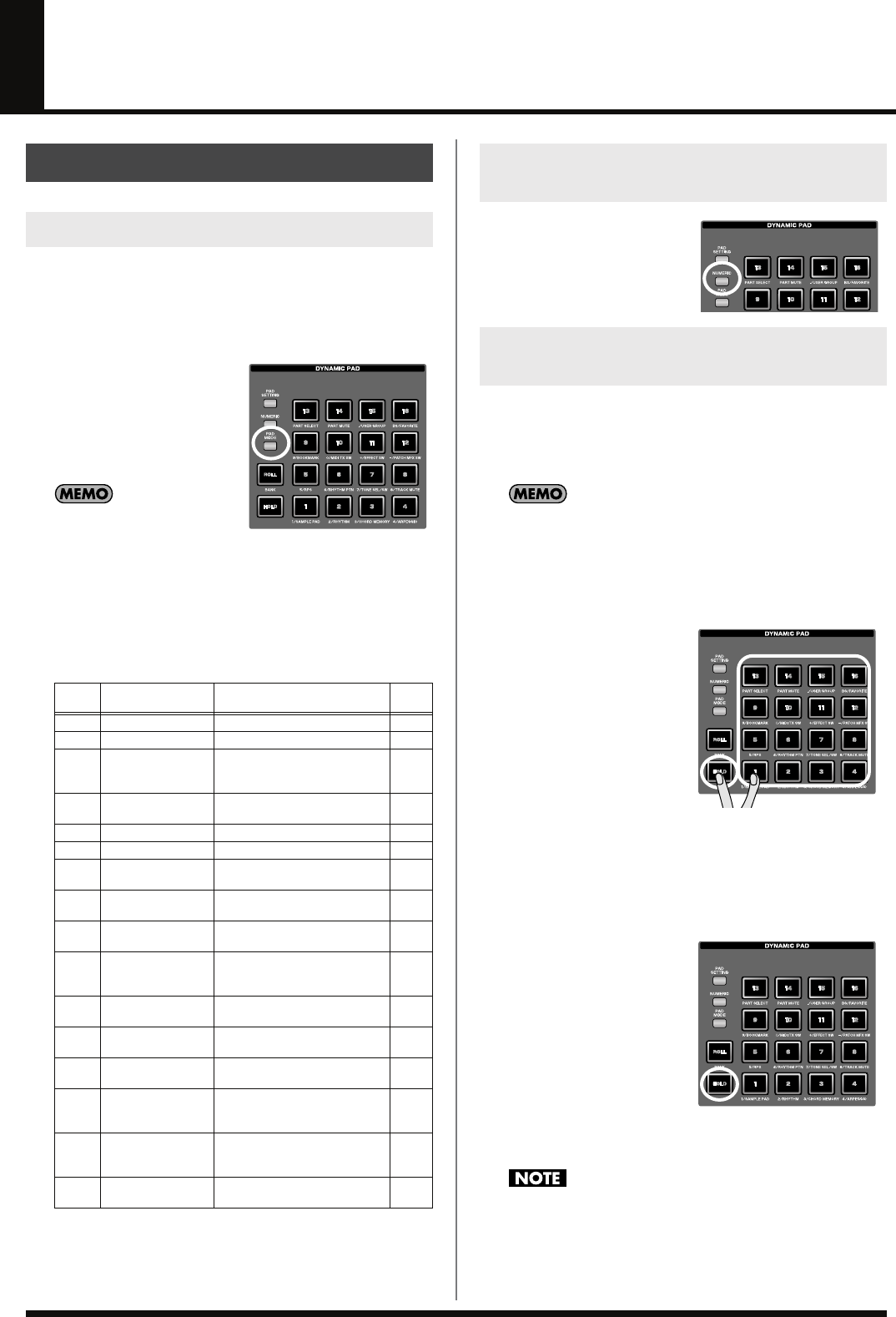
188
Using the Pads
You can strike the Fantom-G’s pads to play samples, rhythms, or
phrases, or you can use the pads as sixteen switches to turn various
parameters on/off. The pads can operate in one of sixteen modes.
Press [PAD MODE] to switch the pad mode.
1.
Press [PAD MODE].
The pad mode window will
appear in the screen.
[PAD MODE] will blink, and
the currently selected pad
mode (pad [1]–[16]) will blink.
If you decide not to switch the
pad mode, press [PAD
MODE] once again. [PAD MODE] will go dark, and you’ll
return to the previous state.
2.
Press a pad [1]–[16].
The pad mode will be switched. For details about operation in
each pad mode, refer to the table below and the corresponding
reference pages.
If you press the pad [NUMERIC]
button to make it light, the pads
will act as numeric keys.
→
“Using the pad for numeric
input”
(p. 41)
By using the Hold function, you can make the sound continue even
after you take your finger off the pad. This is convenient when you
want a sound to continue, such as a phrase that you want to loop
(play repeatedly).
The Hold function is available only if the pad mode is
1 SAMPLE PAD or 2 RHYTHM.
Sustaining a sound while you play
other sounds
1.
While holding down a pad,
press [HOLD].
[HOLD] and the pad will
blink.
That pad will be held, and
will continue sounding even
after you release your finger
from it. If you press another
pad in this state, it will
sound only as long as you
continue holding it.
2.
The pad that was being held will stop sounding when you
press the blinking pad or [HOLD] once again.
Sustaining multiple sounds
1.
Press [HOLD] to make the
pad light.
2.
Press a pad.
The pad will blink, and will
continue sounding. If you
press other pads in this
state, they will also continue
sounding.
3.
The sound will stop when
you once again press a blinking pad. If you press [HOLD],
all pads will stop sounding.
The Hold function won’t work in the following situations.
• For a rhythm set in which
“Tone Env Mode”
(p. 108) is set to
“NO-SUS”
• For a sample set in which
“One Shot Mode”
(p. 118) is turned on
• For a sample set in which
“Trigger Mode”
(p. 129) is set to “DRUM”
Common Operations for Pads
Switching the Pad Mode (PAD MODE)
Pad
number
Pad mode Explanation Page
1SAMPLE PAD The pads play a sample set p. 191
2 RHYTHM The pads play a rhythm set p. 192
3 CHORD MEMORY The pads switch chord form for
the Chord Memory function (p.
80)
p. 193
4 ARPEGGIO The pads switch styles for the
Arpeggio function (p. 78) p. 193
5 RPS The pads play phrases p. 194
6 RHYTHM PTN The pads play rhythm patterns p. 196
7 TONE SEL/SW The pads act as tone select and
on/off switches p. 197
8 TRACK MUTE The pads switch muting on/off
for sequencer tracks p. 197
9 BOOKMARK The pads recall frequency-used
screens that you’ve registered p. 198
10 MIDI TX SW The pads act as on/off switches
for external MIDI transmit chan-
nels (1–16)
p. 198
11 EFFECT SW The pads switch the effects (oth-
er than the patch multi-effects) p. 199
12 PATCH MFX SW The pads switch the patch multi-
effect for each part p. 199
13 PART SELECT The pads select parts (1–16) and
banks (INT/EXP1/EXP2/EXT) p. 200
14 PART MUTE The pads switch muting on/off
for parts (1–16) and banks (INT/
EXP1/EXP2)
p. 200
15 USER GROUP The pads register/recall patch-
es, live sets, or studio sets from
the user group
p. 201
16 FAVORITE The pads register/recall Favor-
ite settings p. 202
Using the Pads as Numeric Keys
(NUMERIC)
Using the Hold Function to Sustain
the Sounds (HOLD)
Fantom-G_r_e.book 188 ページ 2008年1月31日 木曜日 午後12時15分
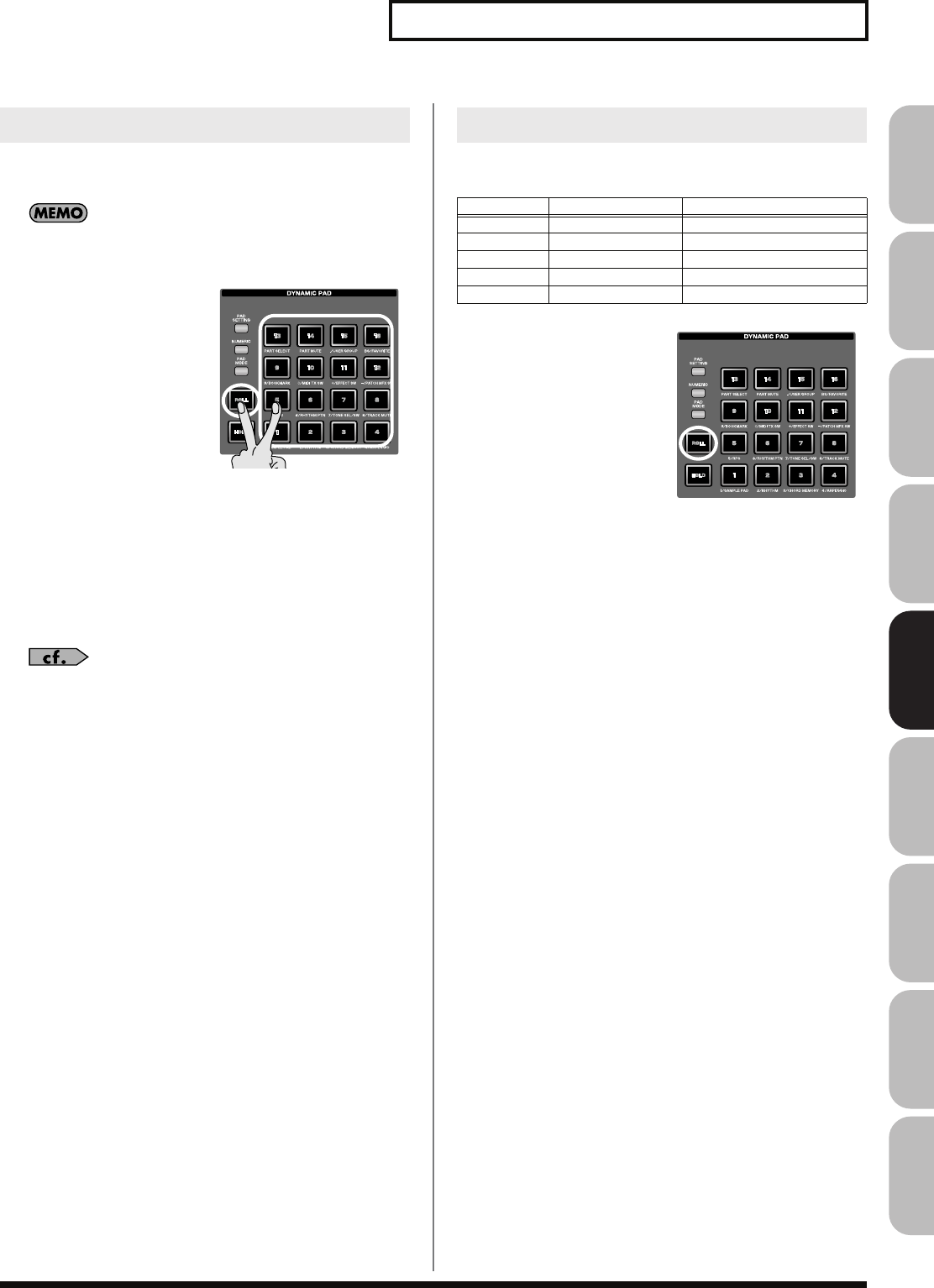
189
Using the Pads
Overview Sound 1 Sound 2 Sound 3 Pad Sampler
Menu/System
AppendixSequencer
The Roll function lets you play the sound repeatedly (as if you are
playing a drum roll) as long as you continue holding down the pad.
The Roll function is available only if the pad mode is 1 SAMPLE
PAD or 2 RHYTHM.
1.
Hold down [ROLL] and
press a pad (1–16).
* If you press only [ROLL], the
Roll function will be enabled
for all sixteen pads.
In this state, the sound will
continue repeating as long
as you hold down a pad.
2.
When you release the pad,
it will stop sounding.
* You can’t use this to switch images with the V-Link function (p. 301).
Settings for the Roll function
Press [PAD SETTING]– [F1 (System)] to access the System Setup
screen, and use the Pad Roll Resolution field to specify the speed at
which repeated strikes occur when using the Roll function.
•
“Editing systems common to all pads (System settings)”
(p.
190)
•
“Pad Roll Resolution”
(p. 288)
You can use the pad [ROLL] (BANK) button to switch banks in the
following pad modes.
1.
Press [ROLL] (BANK).
[ROLL] (BANK) will blink,
and pads that correspond to
selectable banks will blink.
The pad corresponding to
the currently selected bank
will be lit.
2.
Press the bank (a blinking
number pad) for the
desired bank.
The selected pad will light.
3.
Press [ROLL] (BANK) once again.
[ROLL] (BANK) will go dark, and the pads will return to their
normal indication.
Using the Roll Function (ROLL)
Switching Banks (BANK)
Pad number Pad mode Number of banks
9BOOKMARK 8
13 PART SELECT 4 (INT/EXP1/EXP2/EXT)
14 PART MUTE 3 (INT/EXP1/EXP2)
15 USER GROUP 4
16 FAVORITE 16
Fantom-G_r_e.book 189 ページ 2008年1月31日 木曜日 午後12時15分
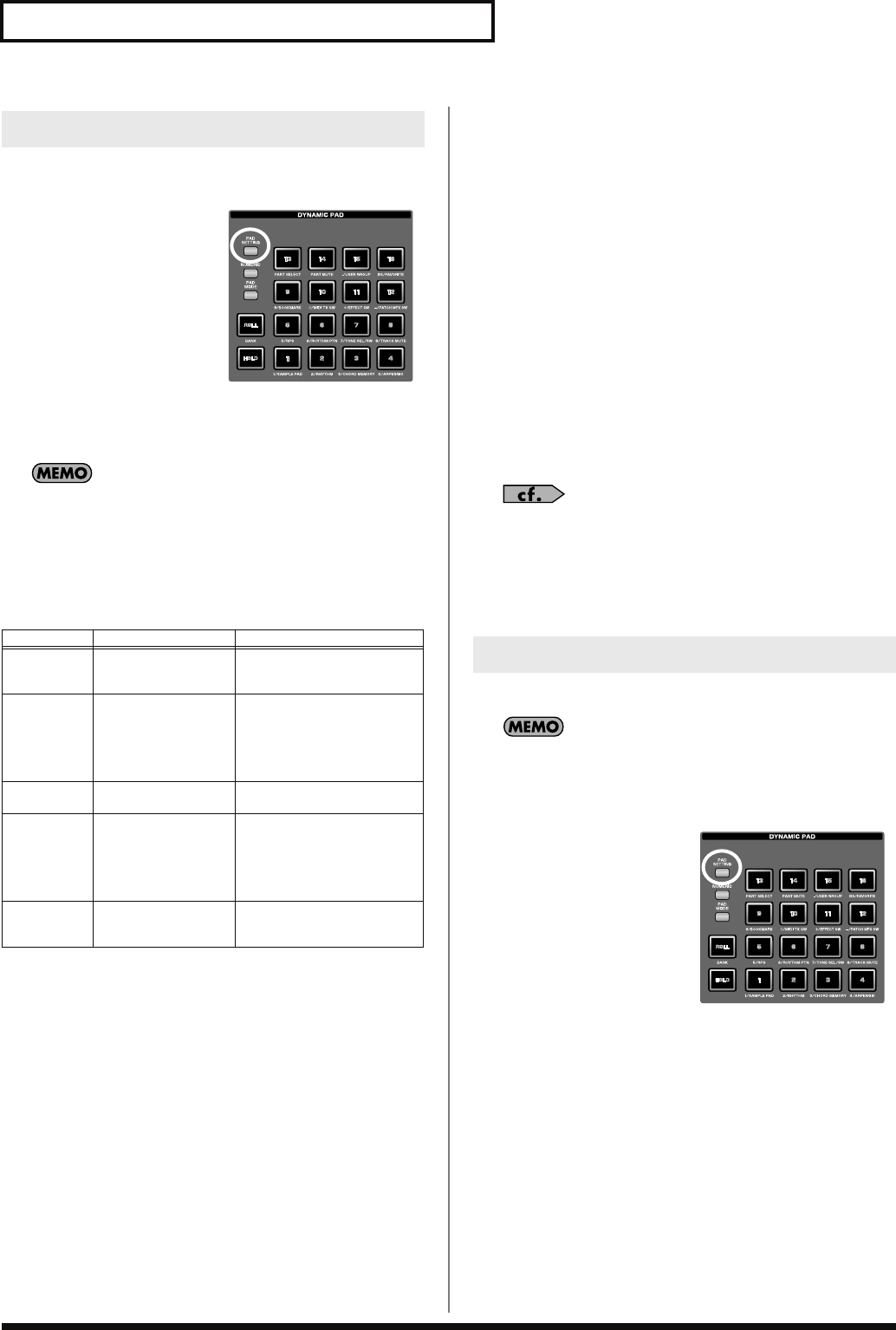
190
Using the Pads
Press [PAD SETTING] to access the pad settings/information screen.
1.
Press [PAD SETTING].
The Pad Setting screen will
appear. The content shown
in the screen will depend on
the pad mode.
2.
Use [CURSOR] to move
the cursor to a parameter.
3.
Turn the VALUE dial or
use [INC] [DEC] to edit the
pad settings.
4.
To save the settings, press [F7 Write].
The location in which the settings are saved will depend on the
sound generator mode, the pad mode, and the settings of
“Pad
Assign Source”
(p. 288).
5.
Press [F8 Exit] to return to the previous screen.
F-key operations in the Pad Setting screen
Editing systems common to all pads
(System settings)
In the Pad Setting screen, press [F1 System] to access the system
setting screen where you can edit settings that are common to all
pads. Here you can edit the following parameters.
•
“Pad Assign Source”
(p. 288)
•
“Pad Velocity”
(p. 288)
•
“Pad Sens (Pad Sensitivity)”
(p. 288)
•
“Pad Aftertouch Sens (Pad Aftertouch Sensitivity)”
(p. 288)
•
“Pad Roll Resolution”
(p. 288)
•
“Pad Mode”
(p. 288)
1.
Press [PAD SETTING].
The Pad Setting screen will appear.
2.
Press [F1 System].
The pad-related items of the System Setup screen will appear.
For details on each parameter, refer to
“Dynamic Pad”
(p. 288).
3.
To save the settings, press [F7 Sys Write].
4.
Press [F8 Exit] to return to the Pad Setting screen.
Here’s how to exchange two selected pads.
This function is available only if the pad mode is 2 RHYTHM, 3
CHORUD MEMORY, 4 ARPEGGIO, 5 RPS, 6 RHYTHM PTN,
or 9 BOOKMARK.
1.
Press [PAD SETTING].
2.
Press [F2 (Pad Exchg)].
3.
Select the two pads you want to exchange.
Use the VALUE dial or [INC] [DEC], or press the pads directly.
4.
Press [F8 (Execute)] to execute the exchange.
Editing the Pad Settings (PAD SETTING)
F-key Explanation Display mode
F1
System Pad settings for Sys-
tem (p. 190) All modes
* Except for 15 USER GROUP
and 16 FAVORITE
F2
Pad Exchg Pad Exchange func-
tion (p. 190) 2 RHYTHM,
3 CHORD MEMORY,
4 ARPEGGIO,
5 RPS,
6 RHYTHM PTN,
9 BOOKMARK only
F3
Quick Setup Quick Setup function
(p. 192) 2 RHYTHM only
F7
Write Saves the settings of
the Pad Setting screen 1 SAMPLE PAD,
2 RHYTHM,
3 CHORD MEMORY,
4 ARPEGGIO,
5 RPS,
6 RHYTHM PTN only
F8
Exit Exits the Pad Setting
screen All modes
* Except for 15 USER GROUP
and 16 FAVORITE
Exchanging Pads (Pad Exchange)
Fantom-G_r_e.book 190 ページ 2008年1月31日 木曜日 午後12時15分
191
Using the Pads
Overview Sound 1 Sound 2 Sound 3 Pad Sampler
Menu/System
AppendixSequencer
This pad mode allows you to play samples by striking the pads. You
can assign a sample to each of the sixteen pads. (The sixteen samples
assigned to the pads are collectively called a “sample set.”)
1.
Press [PAD MODE], and then press pad [1] (SAMPLE PAD).
2.
Press the pads [1]–[16] to play the assigned samples.
• Pads that can play samples will be lit. Currently-playing pads
will blink.
You can press [HOLD] to sustain the sound
→
p. 188
You can press [ROLL] to play a roll
→
p. 189
You can add samples in either of the following ways.
Sampling (p. 258)
You can use the Sampling function to record audio. The recorded
samples will be added to the sample list.
Import from your computer (p. 283)
You can import WAV or AIFF files from your computer. The
imported WAV or AIFF files will be added to the sample list as
samples.
You can press [PAD SETTING] to edit the following settings.
For details on editing and saving, refer to
“Editing the Pad
Settings (PAD SETTING)”
(p. 190).
Number/Name (Sample set number)
Selects the sample set played by the pads.
Value:
001–128
If you want to create a new sample set or perform more detailed
editing, refer to
“Creating a Sample Set”
(p. 126).
Sample Number
Selects the sample. The screen will show the sample name together
with the sample number.
Value:
OFF, 0001–2000
Level (Sample tone level)
Sets the volume of the sample. You’ll use this mainly to adjust the
volume balance between samples.
Value:
0–127
Pan (Sample tone pan)
Sets the panning of the sample tone. “L64” is far left, “0” is center,
and “63R” is far right.
Value:
L64–0–63R
Direction
Specifies the playback direction of the sample.
Value
FWD:
Play forward.
REV:
Play in reverse.
Trigger Mode
Specifies how the sample will play when you press a pad (or a key).
Value
GATE:
The sample will stop playing when you release the
pad (or key).
DRUM:
The sample will continue playing even if you release
the pad (or key).
The sample will begin playing when you press the pad, and will
stop automatically when the end of the sample is reached. If
you select the DRUM setting, the Loop setting is ignored; the
sample will play only once. Note that if you select DRUM, you
will not be able to interrupt the sound, so use this setting with
caution if the sample is extremely long.
Mute Group
In an acoustic drum set, it is impossible for the open hi-hat and
closed hi-hat sounds to occur simultaneously. You can use the Mute
Group setting to simulate such restrictions.
Mute Group is a function that prevents sample tones belonging to
the same mute group from sounding simultaneously. There are
sixteen mute groups. Choose the “OFF” setting for sample tones that
you don’t want to associate with any mute group.
Value:
OFF, 1–16
Pad Velocity
Specifies the strength of the sound produced when you strike the
pad. If this is set to “SYSTEM,” the System setting of
“Pad Velocity”
(p. 288) will be used. If you set this to a value of “1–127,” that
velocity value will be used to play the sound generator.
Value:
SYSTEM, 1–127
You can save the pad settings by pressing [F7 (Write)].
1 SAMPLE PAD
(Using the Pads to Play Samples)
About Samples
Editing the Pad Settings
Fantom-G_r_e.book 191 ページ 2008年1月31日 木曜日 午後12時15分
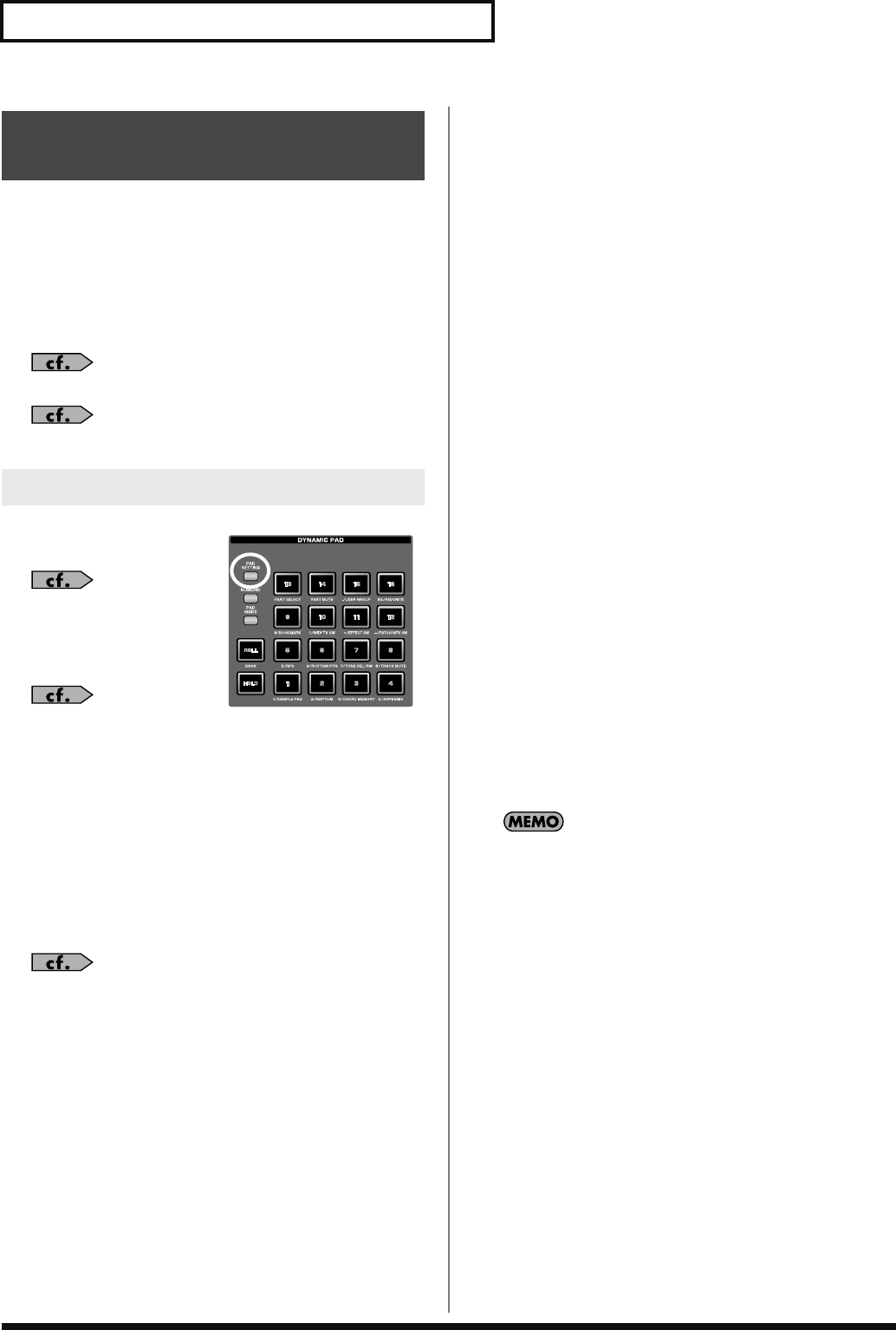
192
Using the Pads
This pad mode allows you to play a rhythm set by striking the pads.
You can use the sixteen pads to play rhythm tones. (A set of rhythm
tones is called a “rhythm set.”)
1.
Press [PAD MODE], and then press pad [2] (RHYTHM).
2.
Press the pads [1]–[16] to play rhythm tones.
• Pads that can play rhythm tones will light.
You can press [HOLD] to sustain the sound
→
p. 188
You can press [ROLL] to play a roll
→
p. 189
You can press [PAD SETTING]
to edit the following settings.
For details on editing and
saving, refer to
“Editing the
Pad Settings (PAD
SETTING)”
(p. 190).
In the Pad Setting screen,
you can press [F2 (Pad Exchg)] to exchange two pads (Pad
Exchange, p. 190).
Bank (Rhythm set bank)
Selects the bank of the rhythm set that will be played by the pads.
Value:
USER, PRST, GM
Number / Name
Selects the rhythm set that will be played by the pads.
Value:
001–128
If you want to create a new sample set or perform more detailed
editing, refer to
“Creating a Rhythm Set”
(p. 112).
Pad Note Number
Specifies the note number transmitted by each pad (1–16). The
rhythm tone name will be displayed together with the note number.
Value:
0 (C-1)–127 (G9)
Pad Velocity
Specifies the strength of the sound produced when you strike the
pad. If this is set to “SYSTEM,” the System setting of
“Pad Velocity”
(p. 288) will be used. If you set this to a value of “1–127,” that
velocity value will be used to play the sound generator.
Value:
SYSTEM, 1–127
Quick Setup
When the pad mode is “2 RHYTHM,” you can use this function to
make basic settings. For efficient work-flow, choose the quick setup
that is closest to your needs, and then make detailed settings for each
pad as desired.
1.
In the Pad Setting screen, press [F3 (Quick Setup)].
The Quick Setup window will appear.
* This operation is not possible unless the pad mode is “2 RHYTHM.”
2.
Move the cursor and make the desired settings.
•
Template Set
Value
Note:
The sixteen consecutive notes starting with the
note number you specify as the base note will be
automatically assigned to the pads.
Rhythm:
The note numbers will be arranged optimally for
playing a rhythm set.
Multi Velo:
Multi Velocity is a special setting that assigns all
sixteen pads to the same number, with only the
velocities differing between the pads. This is a
good choice when you need precise control of the
velocity for your performance.
•
Base Note
Set this parameter if you’ve selected Note or Multi Velo as the
Template Set.
If you’ve selected Note, the Base Note specifies the starting
(lowest) note number.
If you’ve selected Multi Vel, the Base Note specifies the note
number used by all of the pads.
Value:
0 (C-1)–127 (G9)
3.
Press [F8 (Execute)].
You can save the pad settings by pressing [F7 (Write)].
2 RHYTHM
(Using the Pads to Play a Rhythm Set)
Editing the Pad Settings
Fantom-G_r_e.book 192 ページ 2008年1月31日 木曜日 午後12時15分
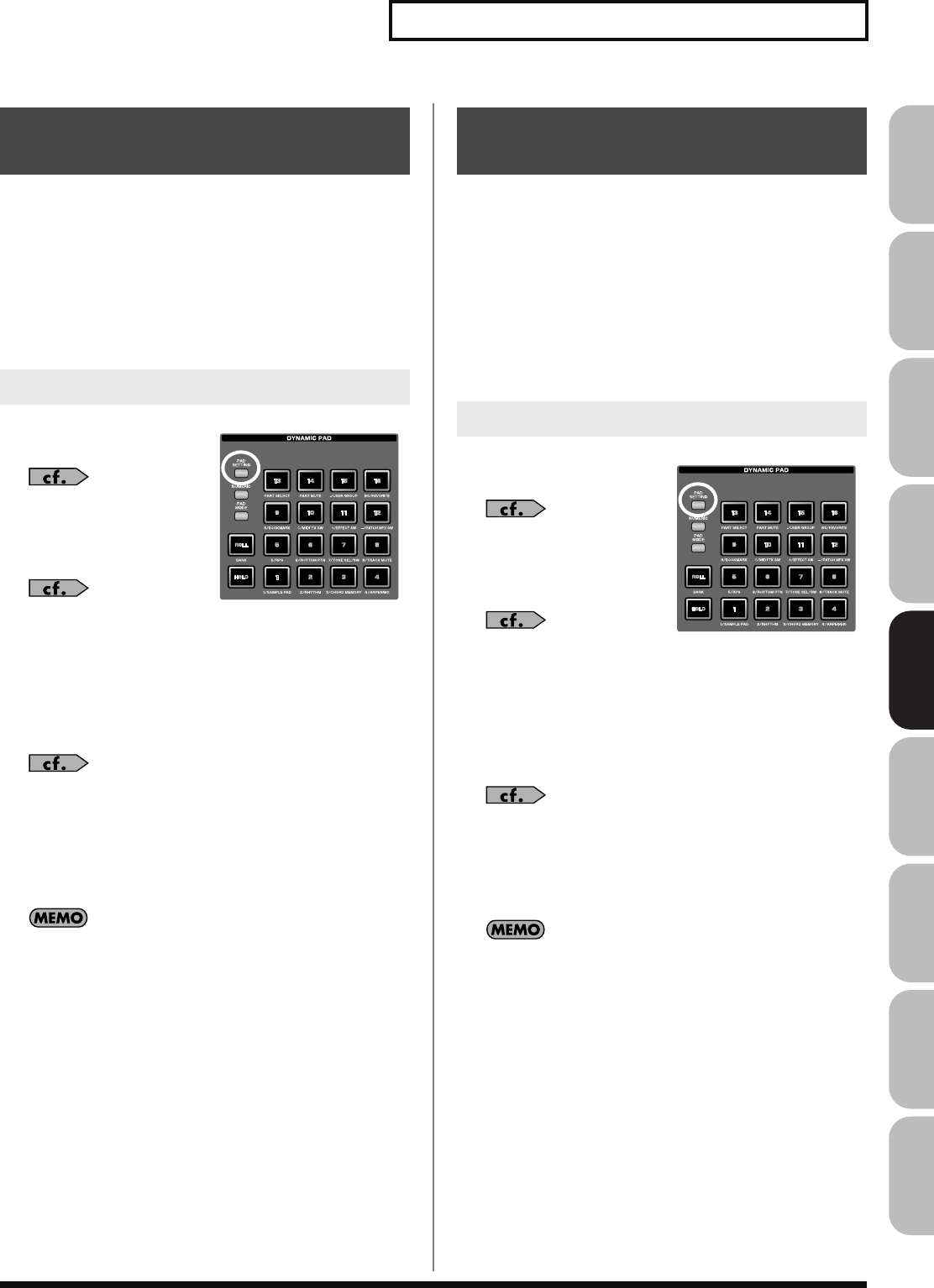
193
Using the Pads
Overview Sound 1 Sound 2 Sound 3 Pad Sampler
Menu/System
AppendixSequencer
This pad mode allows you to use the pads to switch chord forms for
the Chord Memory function (p. 80).
1.
Press [PAD MODE], and then press pad [3] (CHORD
MEMORY).
2.
Press pads [1]–[16] to switch between different chord forms
for the Chord Memory function (p. 80).
• Pads that can be selected will light.
You can press [PAD SETTING]
to edit the following settings.
For details on editing and
saving, refer to
“Editing the
Pad Settings (PAD
SETTING)”
(p. 190).
In the Pad Setting screen,
you can press [F2 (Pad Exchg)] to exchange two pads (Pad
Exchange, p. 190).
Number / Name (Chord memory set number)
Selects the chord memory set that will be played by the pads.
Value:
001–128
For details on Chord Memory, refer to
“Using the Chord
Memory Function (Chord Memory)”
(p. 80).
Chord Form
Selects the chord form number that will be played by each pad (1–16).
Value:
001–128
You can save the pad settings by pressing [F7 (Write)].
This pad mode allows you to use the pads to switch styles for the
Arpeggio function (p. 78).
1.
Press [PAD MODE], and then press pad [4] (ARPEGGIO).
2.
Use the Arpeggio function as described in “Playing
Arpeggios” (p. 78).
3.
Press pads [1]–[16] to switch between different styles for
the Arpeggio function.
• Pads that can be selected will light.
You can press [PAD SETTING]
to edit the following settings.
For details on editing and
saving, refer to
“Editing the
Pad Settings (PAD
SETTING)”
(p. 190).
In the Pad Setting screen,
you can press [F2 (Pad Exchg)] to exchange two pads (Pad
Exchange, p. 190).
Number / Name (Arpeggio set number)
Selects the arpeggio set.
Value:
001–128
For details on arpeggios, refer to
“Playing Arpeggios”
(p. 78).
Arpeggio Number
Specifies the arpeggio number selected by each pad (1–16).
Value:
001–128
You can save the pad settings by pressing [F7 (Write)].
3 CHORD MEMORY
(Using the Pads to Switch Chord Forms)
Editing the Pad Settings
4 ARPEGGIO
(Using the Pads to Switch Arpeggio Styles)
Editing the Pad Settings
Fantom-G_r_e.book 193 ページ 2008年1月31日 木曜日 午後12時15分
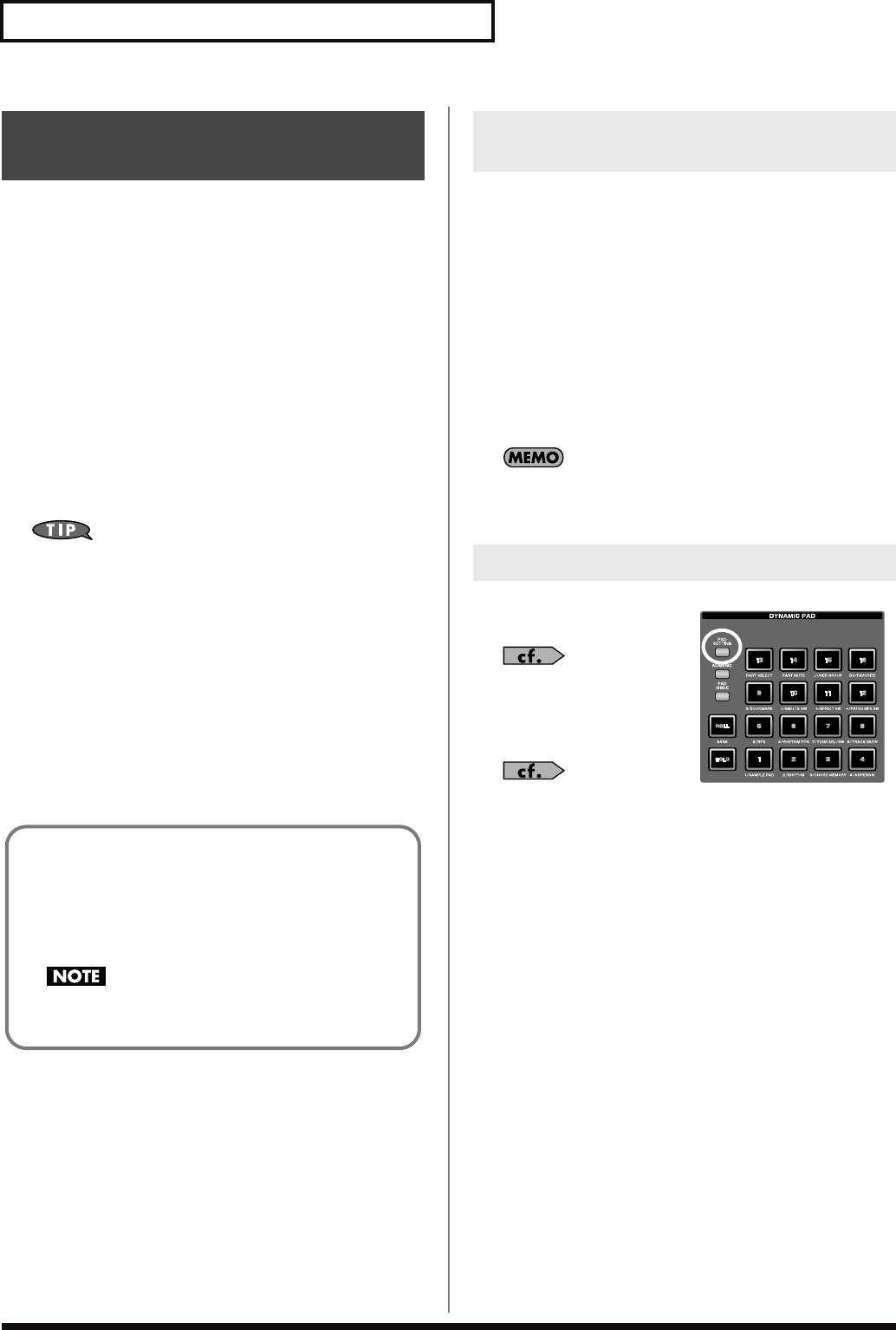
194
Using the Pads
This pad mode allows you to use the pads to trigger phrases
generated by the RPS (Realtime Phrase Sequence) function.
For example, complex phrases that would be difficult to play
manually in a live performance can be assigned to the pads, and then
triggered by a single finger at the appropriate moment.
You can also create phrases for individual instruments such as
drums, bass, or keyboard, and combine these to create a new song.
In addition, you can record this performance, allowing you to use
this function in a way similar to phrase sampling.
1.
Press [PAD MODE], and then press pad [5] (RPS).
2.
Press the pads [1]–[16] to trigger the phrase assigned to
each pad.
• Pads that can play phrases will light. Currently-playing pads
will blink.
You must play back the song if you want to play phrases in
synchronization with the song, or if you want to play multiple
phrases in synchronization.
• If the song is not playing, the phrase will begin playing as soon
as you press the pad, regardless of how the Trigger Quantize
parameter is set.
• Phrases will play in synchronization with the song’s time
signature (beat track). This means that if no performance data
has been recorded, the song will not play, and therefore the
phrases cannot play back in synchronization. In this case, you’ll
have to insert several empty measures into the phrase track, and
then play it as a loop.
The phrase playback tempo will be the same as the song playback
tempo.
1.
Press [TEMPO].
2.
The Tempo window will appear, indicating the current
tempo.
3.
Turn the VALUE dial or use [INC] [DEC] to specify the
tempo value (5.00–300.00). If you hold down [SHIFT] and
turn the VALUE dial you’ll be able to adjust the value below
the decimal point. You can also specify the tempo by
repeatedly pressing [F6 (Tap Tempo)] at the desired tempo
(Tap Tempo function).
If you press [F7 (Click)] to turn it on, the click will sound.
4.
When you’ve finished making settings, press [F8 (Close)].
You can press [PAD SETTING]
to edit the following settings.
For details on editing and
saving, refer to
“Editing the
Pad Settings (PAD
SETTING)”
(p. 190).
In the Pad Setting screen,
you can press [F2 (Pad Exchg)] to exchange two pads (Pad
Exchange, p. 190).
RPS Set Number
Selects the RPS set.
Value:
01–32
Phrase Number
Selects the phrase that is assigned to each pad 1–16. The name of the
selected phrase is shown along with the phrase number.
Choose “OFF” for keys or pads to which you don’t want to assign a
phrase. If you assign “STOP” to a pad, that pad will act as the “stop
trigger” that stops the currently-playing phrases.
Value:
STOP, OFF, 0001–2000
5 RPS
(Using the Pads to Play Phrases)
Recording a phrase
Before you use the RPS function, you’ll need to record some
phrases.
For details on the recording procedure, refer to “Recording
into a Phrase” (p. 220).
If large amounts of MIDI messages were recorded, playing
back a phrase via RPS may cause notes to be delayed.
Specifying the Tempo for Phrase
Playback
Editing the Pad Settings
Fantom-G_r_e.book 194 ページ 2008年1月31日 木曜日 午後12時15分
195
Using the Pads
Overview Sound 1 Sound 2 Sound 3 Pad Sampler
Menu/System
AppendixSequencer
Play Mode
Specifies how the phrase will be played.
Value
LOOP1:
The phrase will play repeatedly while you hold
down the key.
LOOP2:
The phrase will play repeatedly. To stop playback,
press the stop trigger key, or press the same key
once again.
ONCE:
The phrase will play only once.
Mute Group
This function prevents phrases of the same mute group from playing
simultaneously. For example in an actual performance, a fill-in will
not be played at the same time as a bridge. To simulate this type of
situation, assign the fill-in and bridge to the same mute group
number. You can specify 31 different mute groups. If you don’t want
to assign a mute group, choose the “OFF” setting.
Value:
OFF, 1–31
Trigger Quantize
Specifies how the phrase will begin playing when you press a key to
trigger it while the song is playing or being recorded.
Value
REAL:
The phrase will play immediately when you press
the trigger key.
BEAT:
If you press the trigger key while the song is playing
or recording, the phrase will begin playing at the
beginning of the next beat.
MEASURE:
If you press the trigger key while the song is playing
or recording, the phrase will begin playing at the
beginning of the next measure.
The Trigger Quantize parameter is a setting maintained within
each song.
Velocity Sens (Velocity sensitivity)
Turn this “OFF” if you want the phrase to play with the velocities at
which it was recorded.
If you want the velocity of the phrase to vary according to how
strongly you pressed the key, choose “LOW,” “MID,” or “HIGH.”
Value:
OFF, LOW, MID, HIGH
You can save the pad settings by pressing [F7 (Write)].
Fantom-G_r_e.book 195 ページ 2008年1月31日 木曜日 午後12時15分
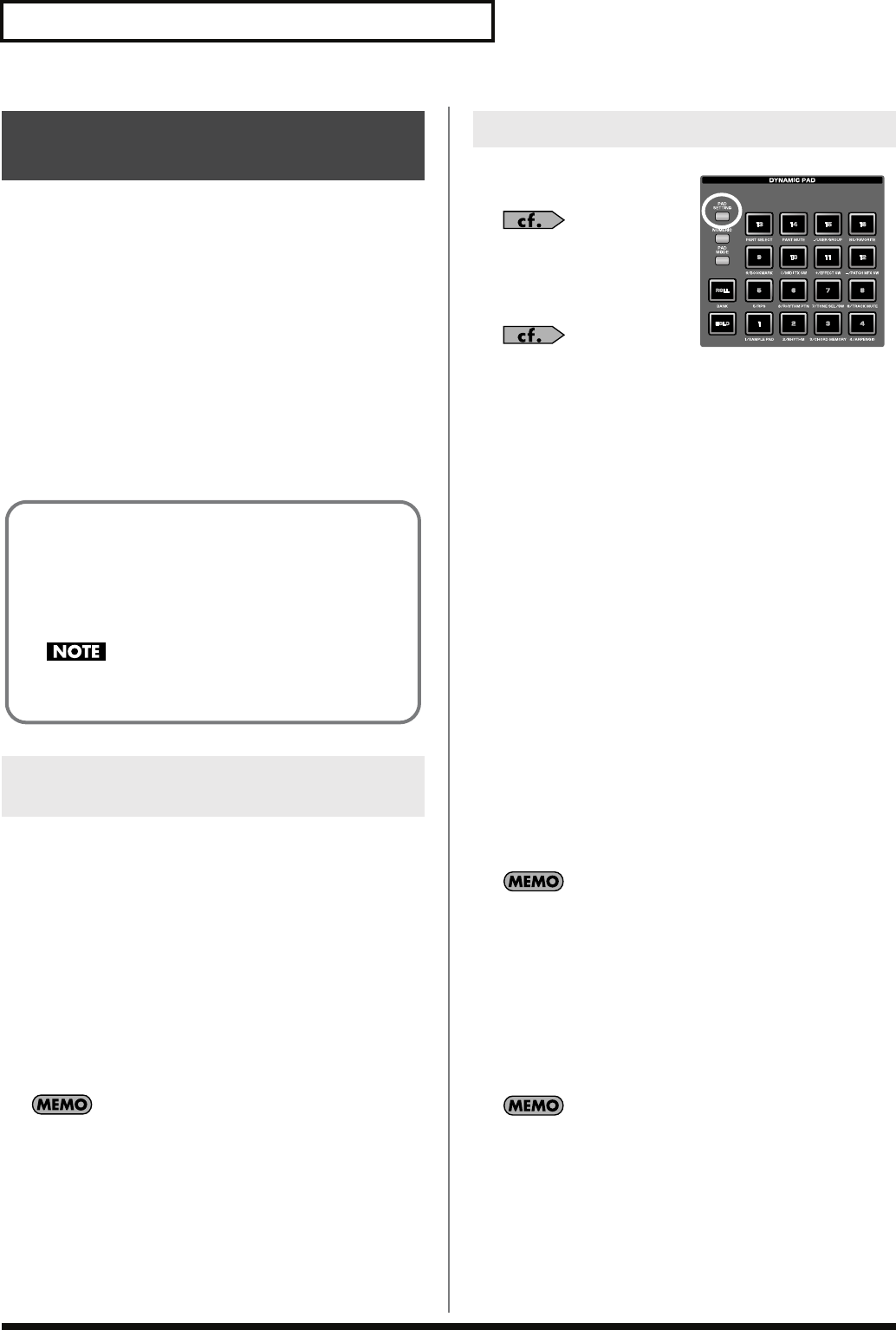
196
Using the Pads
This pad mode allows you to use the pads to play phrases
(Phrase0001–Phrase2000) generated by the Rhythm Pattern function.
With the factory settings, sixteen phrases (rhythm patterns) are
assigned to the pads. You can create your own rhythm patterns and
assign them to the pads, and use the pads as a rhythm machine.
A set of these sixteen phrases is called a “rhythm pattern set.”
1.
Press [PAD MODE], and then press pad [6] (RHYTHM PTN).
2.
Press the pads [1]–[16] to start the rhythm patterns
assigned to each pad.
• Pads that can play rhythm patterns will light. The currently-
playing pad will blink.
• To stop playback, press the blinking pad.
The rhythm pattern playback tempo will be the same as the song
playback tempo.
1.
Press [TEMPO].
2.
The Tempo window will appear, indicating the current
tempo.
3.
Turn the VALUE dial or use [INC] [DEC] to specify the
tempo value (5.00–300.00). If you hold down [SHIFT] and
turn the VALUE dial you’ll be able to adjust the value below
the decimal point. You can also specify the tempo by
repeatedly pressing [F6 (Tap Tempo)] at the desired tempo
(Tap Tempo function).
If you press [F7 (Click)] to turn it on, the click will sound.
4.
When you’ve finished making settings, press [F8 (Close)].
You can press [PAD SETTING]
to edit the following settings.
For details on editing and
saving, refer to
“Editing the
Pad Settings (PAD
SETTING)”
(p. 190).
In the Pad Setting screen,
you can press [F2 (Pad Exchg)] to exchange two pads (Pad
Exchange, p. 190).
Rhythm Pattern Set Number
Selects the rhythm pattern set that the pads will play.
Value:
01–32
Rhythm Pattern
Specifies the phrase that is assigned to each pad 1–16.
Value:
OFF, 0001–2000
Trigger Quantize
Specifies how the phrase will begin playing when you press a key to
trigger it while the song is playing or being recorded.
Value
REAL:
The phrase will play immediately when you press
the trigger key.
BEAT:
If you press the trigger key while the song is playing
or recording, the phrase will begin playing at the
beginning of the next beat.
MEASURE:
If you press the trigger key while the song is playing
or recording, the phrase will begin playing at the
beginning of the next measure.
The Trigger Quantize parameter is a setting maintained within
each song.
Velocity Sens (Velocity sensitivity)
Turn this “OFF” if you want the phrase to play with the velocities at
which it was recorded.
If you want the velocity of the phrase to vary according to how
strongly you pressed the key, choose “LOW,” “MID,” or “HIGH.”
Value:
OFF, LOW, MID, HIGH
You can save the pad settings by pressing [F7 (Write)].
6 RHYTHM PTN
(Using the Pads to Play Rhythm Patterns)
Specifying the Tempo for Rhythm
Pattern Playback
Recording a phrase
Before you use the Rhythm Pattern function, you’ll need to
record some phrases.
For details on the recording procedure, refer to “Recording
into a Phrase” (p. 220).
If large amounts of MIDI messages were recorded, playing
back a phrase may cause notes to be delayed.
Editing the Pad Settings
Fantom-G_r_e.book 196 ページ 2008年1月31日 木曜日 午後12時15分
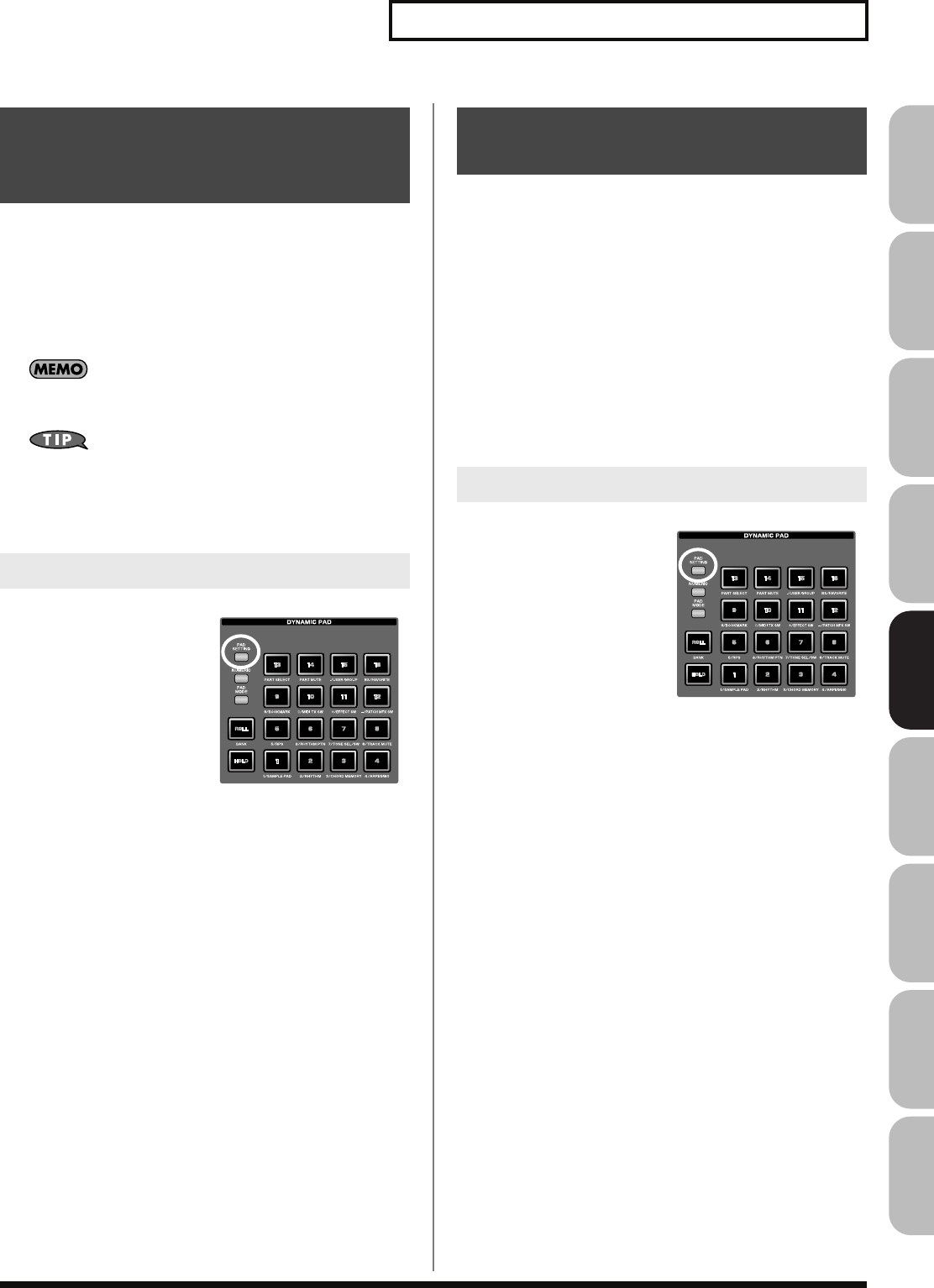
197
Using the Pads
Overview Sound 1 Sound 2 Sound 3 Pad Sampler
Menu/System
AppendixSequencer
This pad mode allows you to use the pads to switch the four tones
on/off, or to select the current tone.
1.
Press [PAD MODE], and then press pad [7] (TONE SEL/SW).
2.
Press pads [1]–[4] to turn tones 1–4 on/off.
3.
Press pads [5]–[8] to select tones 1–4.
Pad [5] corresponds to tone 1, pad [6] to tone 2, pad [7] to tone 3,
and pad [8] to tone 4.
This function is convenient when you’re creating a patch (p. 84).
A patch consists of up to four tones. You can use this function to
turn off unused tones, or to turn off the other tones when you
want to hear only the sound of a specific tone.
By pressing [PAD SETTING] you
can check the current pad status.
This pad mode allows you to use the pads to directly mute (silence)
up to sixteen tracks in the song screen.
1.
Press [PAD MODE], and then press pad [8] (TRACK MUTE).
• Pads [1]–[16] correspond to the first sixteen tracks at the top of
the song screen.
• Pressing a pad [1]–[16] will switch the corresponding track
between muted/play status.
• Each pad will be lit to indicate play status, or blinking to
indicate muted.
• You can’t use the pads to mute the seventeenth and subsequent
tracks. Use [CURSOR] or a USB mouse to switch the mute
status of these tracks.
By pressing [PAD SETTING] you
can check the current pad status.
7 TONE SEL/SW
(Using the Pads to Select Tones or
Switch Them On/Off)
Checking the Pad Status
8 TRACK MUTE
(Using the Pads to Mute Tracks)
Checking the Pad Status
Fantom-G_r_e.book 197 ページ 2008年1月31日 木曜日 午後12時15分
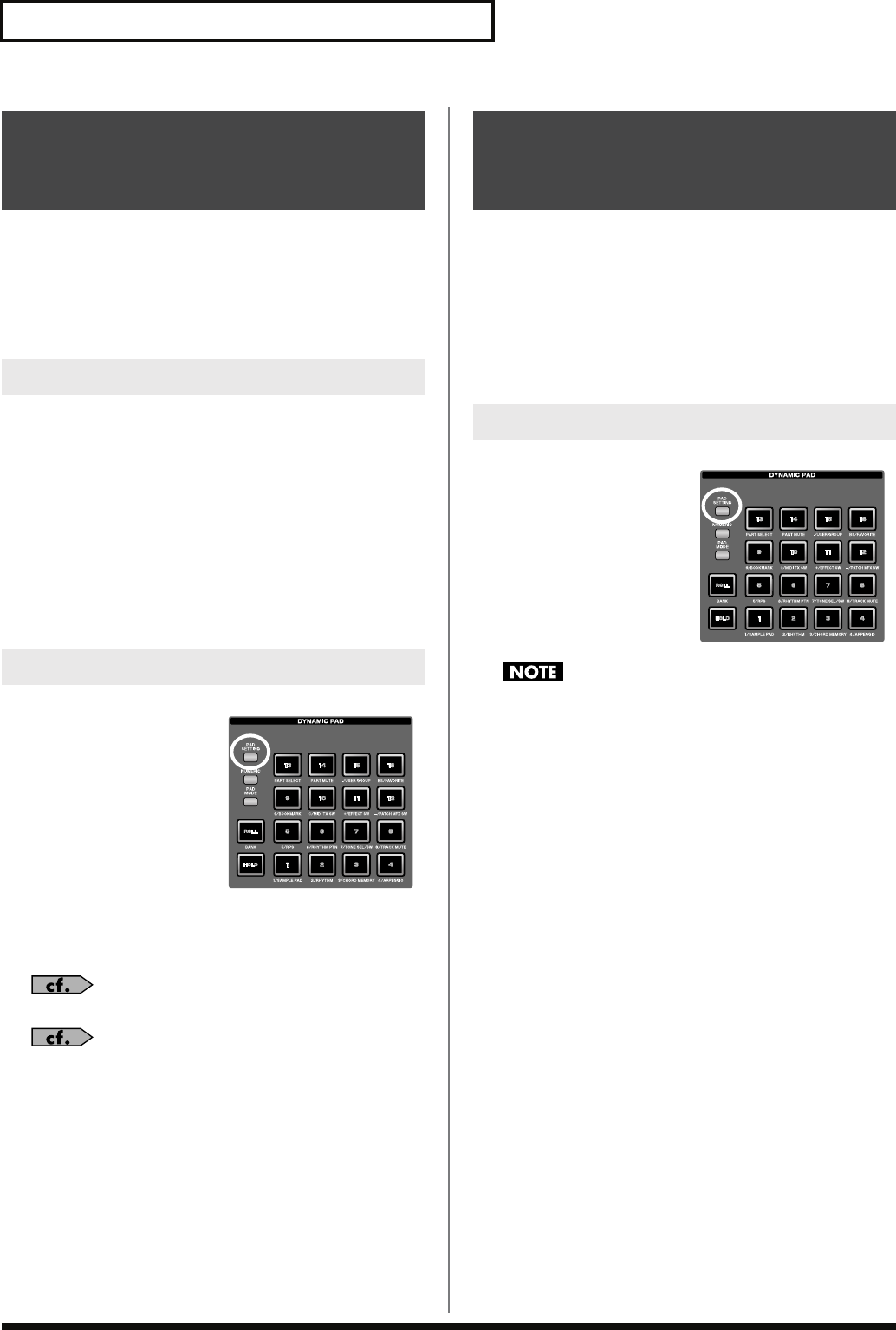
198
Using the Pads
This pad mode lets you use the pads to register and recall frequently
used screens. For example if you frequently move between the patch
edit screen and effect screen, you can use this function to make the
switch easier.
1.
Press [PAD MODE], and then press pad [9] (BOOKMARK).
1.
Access the screen that you want to register.
2.
Hold down [PAD SETTING], and press the pad to which you
want to register the current screen.
For example if you want to register the current screen to pad [3],
the screen will indicate “Bookmarked to #3.”
3.
Press [EXIT].
The setting will be stored.
* If you fail to press [EXIT], the setting will be lost when you turn off
the power.
1.
Press [PAD SETTING].
The Bookmark screen will
appear.
Pads to which screens have
been registered will lit.
2.
Press a lit pad, and the
screen registered to that
pad will be recalled.
* If you want to delete a
registered screen, hold down
[PAD SETTING] in the screen of step 1, and press the pad whose
registration you want to clear.
You can press [ROLL] (BANK) to switch banks (1–8).
→
p. 189
In the Pad Setting screen, you can press [F2 (Pad Exchg)] to
exchange two pads (Pad Exchange, p. 190).
This pad mode allows you to use the pads to turn external MIDI
transmit channels (1–16) on/off.
1.
Press [PAD MODE], and then press pad [10] (MIDI TX SW).
• Pressing pads [1]–[16] will switch external MIDI transmit
channels 1–16 on/off.
• Each pad will be lit when transmission is on, or dark when it is
off.
By pressing [PAD SETTING] you
can check the current pad status.
If numerous MIDI channels are turned on, a large amount of
MIDI messages will be transmitted, possibly causing notes to be
delayed.
9 BOOKMARK
(Using the Pads to Recall Frequently
Used Screens)
Registering a Screen
Recalling a Screen
10 MIDI TX SW
(Using the Pads to Turn External MIDI
Transmit Channels (1–16) On/Off)
Checking the Pad Status
Fantom-G_r_e.book 198 ページ 2008年1月31日 木曜日 午後12時15分
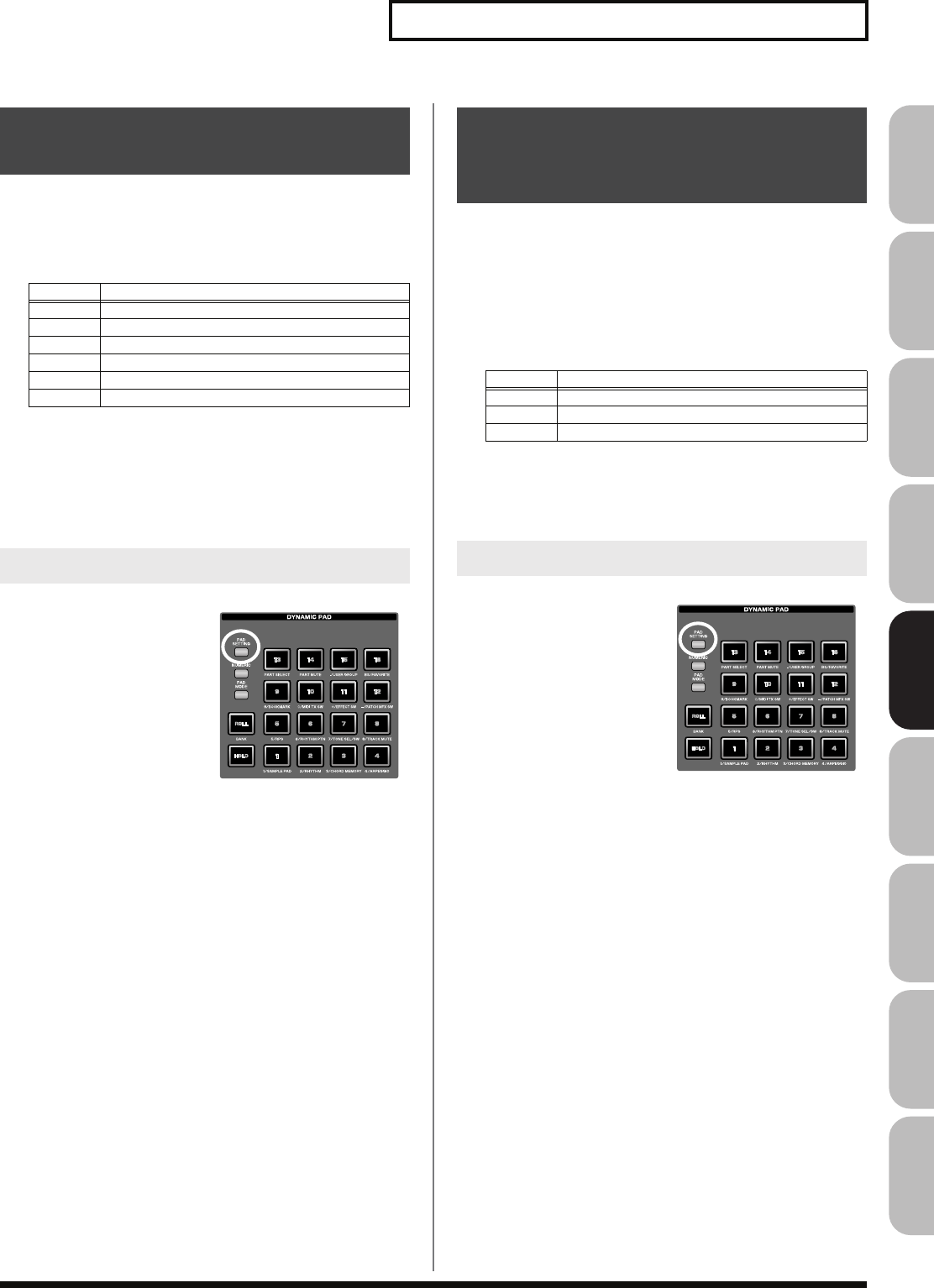
199
Using the Pads
Overview Sound 1 Sound 2 Sound 3 Pad Sampler
Menu/System
AppendixSequencer
This pad mode allows you to use the pads to switch the effects (other
than the patch multi-effect) on/off.
1.
Press [PAD MODE], and then press pad [11] (EFFECT SW).
• Pressing pads [1]–[6] will switch the following effects on/off.
* If you want to turn PFX on/off, use pad mode “12 PATCH MFX
SW.”
• A pad will be lit when the corresponding effect is on, or
blinking when it is off. Pads not used in this pad mode will be
dark.
By pressing [PAD SETTING] you
can check the current pad status.
This pad mode allows you to use the pads to individually switch the
patch multi-effect of each part (1–16) on/off.
1.
Press [PAD MODE], and then press pad [12] (PATCH MFX
SW).
• When you press a pad, the patch multi-effect of the
corresponding part will be switched on/off. The number of
parts will depend on the sound generator mode.
• A pad will be lit when the corresponding effect is on, or
blinking when it is off. Pads not used in this pad mode will be
dark.
By pressing [PAD SETTING] you
can check the current pad status.
11 EFFECT SW
(Using the Pads to Switch the Effects)
Pad Effect
1 Input Effect
2 Chorus
3 Reverb
4 Mastering
5 MFX 1
6 MFX 2 (Studio mode only)
Checking the Pad Status
12 PATCH MFX SW
(Using the Pads to Switch Patch
Multi-effects)
Mode Number of parts
Single 1
Live 8
Studio 16
Checking the Pad Status
Fantom-G_r_e.book 199 ページ 2008年1月31日 木曜日 午後12時15分
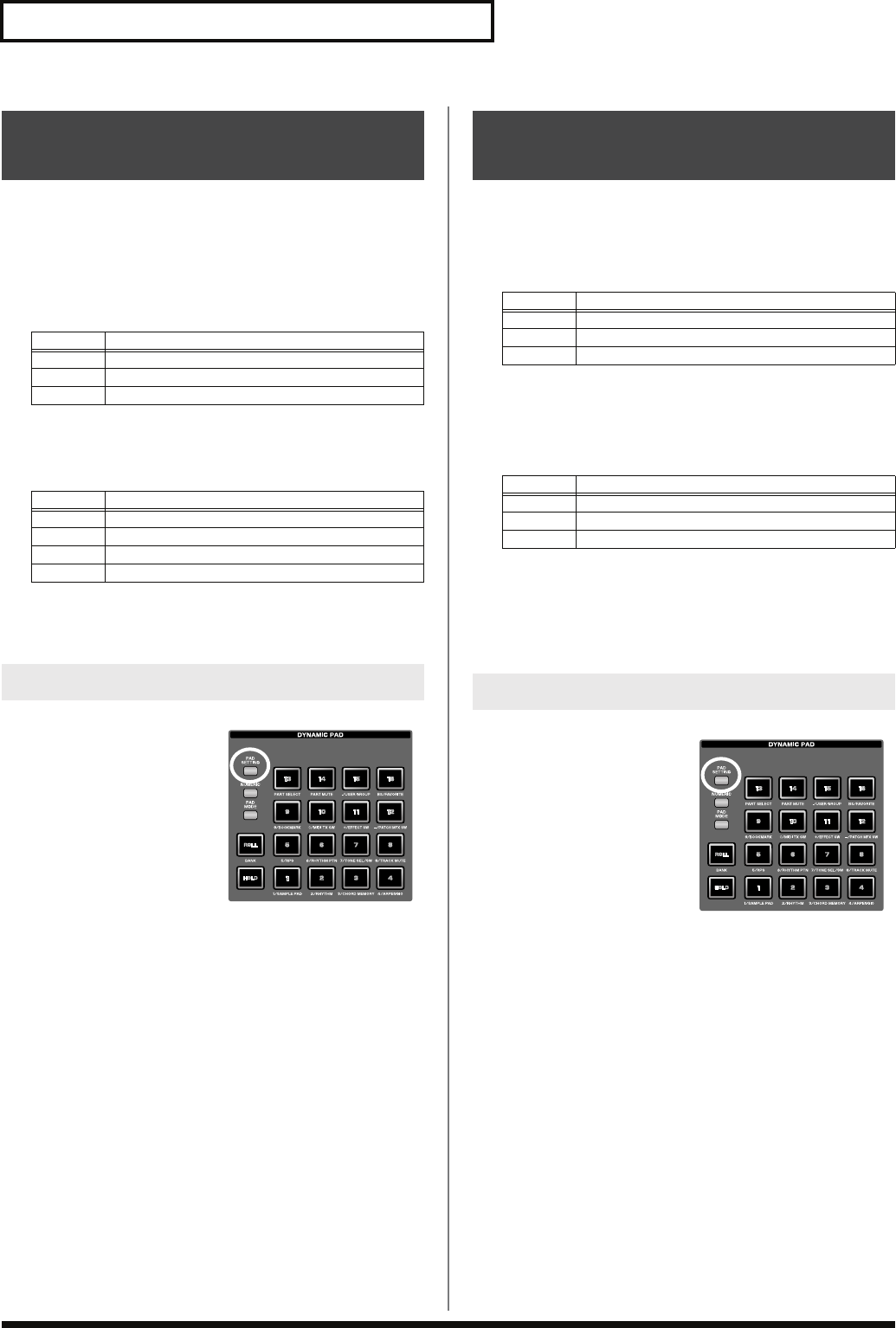
200
Using the Pads
This pad mode allows you to use the pads to select parts (1–16) and
banks (INT/EXP1/EXP2/EXT).
1.
Press [PAD MODE], and then press pad [13] (PART
SELECT).
• Press a pad to select the current part. The number of parts will
depend on the sound generator mode.
• The pad corresponding to the current part will be blinking. The
pads for other parts will light. Pads not used will be dark.
• You can press [ROLL] (BANK) to switch banks (1–4).
→
p. 189
* The number of parts on an expansion board will depend on the
expansion board.
By pressing [PAD SETTING] you
can check the current pad status.
This pad mode lets you use the pads to mute (silence) parts (1–16)
and banks (INT/EXP1/EXP2).
1.
Press [PAD MODE], and then press pad [14] (PART MUTE).
• You can press [ROLL] (BANK) to switch banks (1–3).
→
p. 189
• Press a pad to switch the corresponding part between muted/
play.
* The number of internal sound generator parts will depend on the
sound generator mode.
* The number of parts on an expansion board will depend on the
expansion board.
• Pads whose corresponding part is muted will blink. The pads of
other parts will be lit. Unused pads will be dark.
By pressing [PAD SETTING] you
can check the current pad status.
13 PART SELECT
(Using the Pads to Select Parts)
Mode Number of parts
Single 1
Live 8
Studio 16
Pad Bank name
1INT (internal sound generator)
2 EXP1 (expansion board 1)
3 EXP2 (expansion board 2)
4 EXT (external MIDI output)
Checking the Pad Status
14 PART MUTE
(Using the Pads to Mute Parts)
Pad Bank name
1 INT (internal sound generator)
2 EXP1 (expansion board 1)
3 EXP2 (expansion board 2)
Mode Number of parts
Single 3
Live 8
Studio 16
Checking the Pad Status
Fantom-G_r_e.book 200 ページ 2008年1月31日 木曜日 午後12時15分
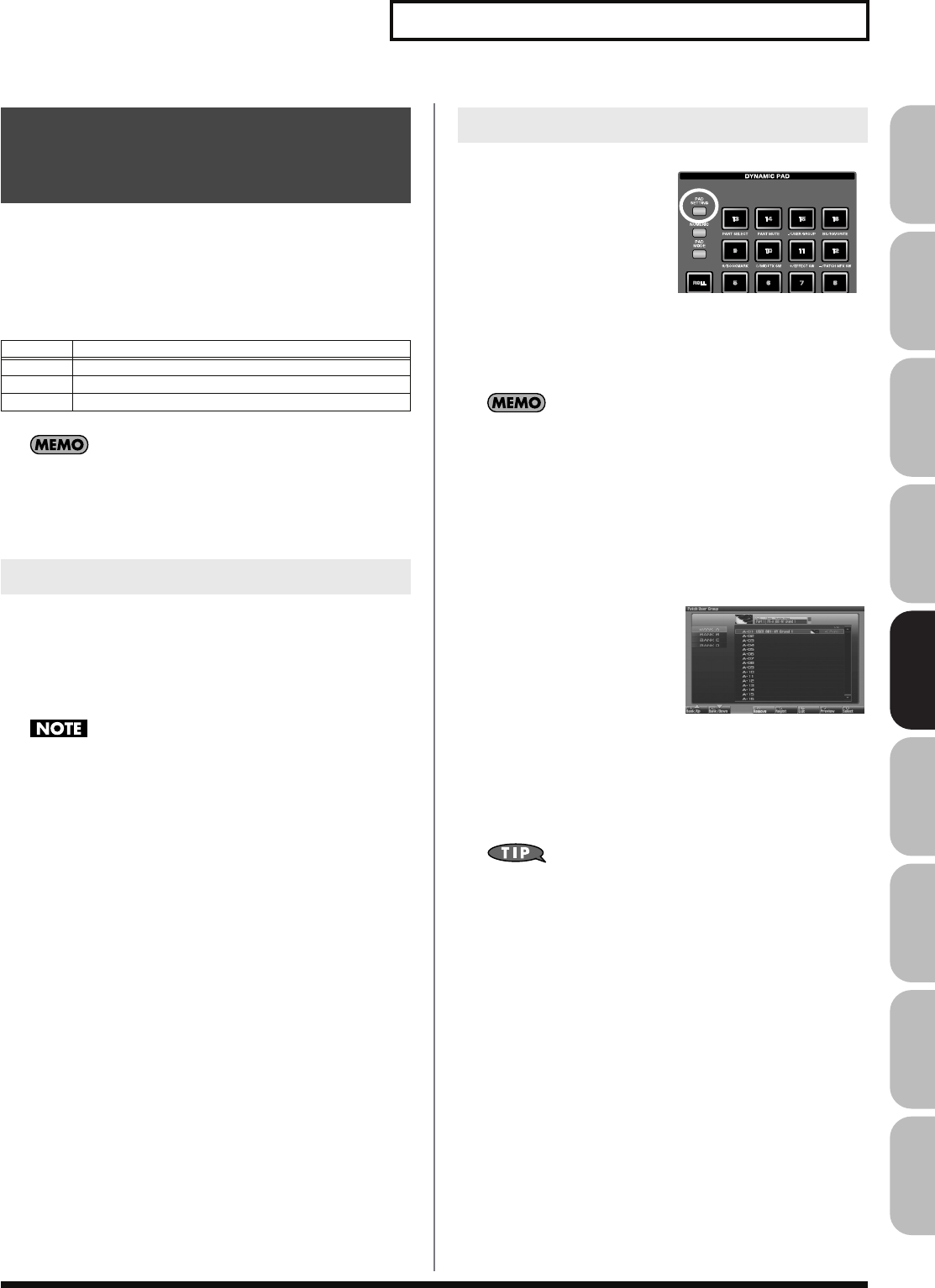
201
Using the Pads
Overview Sound 1 Sound 2 Sound 3 Pad Sampler
Menu/System
AppendixSequencer
You can register frequently-used sounds as a user group. This pad
mode lets you instantly select these sounds by pressing a pad. You
can register sixteen sounds (corresponding to the sixteen pads) in
each of four banks, giving you a total of 64 sounds for quick recall.
You can register and recall the following user groups, depending on
the sound generator mode.
How User Group differs from Favorite (p. 202)
User Group let you register sounds within the mode (single,
live, or studio), while Favorite lets you register settings across
modes (single, live, or studio).
1.
Press [PAD MODE], and then press pad [15] (USER
GROUP).
• You can press a pad [1]–[16] to select the sound that’s registered
in that pad.
• By pressing [ROLL] (BANK) you can switch banks (1–4).
→
p. 189
If you want to use the pads to successively select live sets (or
studio sets), set the system setting on
“Pad Assign Source”
(p.
288) to “SYS.” If this is set to “TEMP,” the pad mode will switch
to the setting of the newly selected live set (or studio set) when
you switch live sets (or studio sets).
1.
Press [PAD SETTING].
2.
The User Group screen
will appear. Proceed to
step 4 of “Registering a
sound in the User Group
screen,” below.
Registering a sound in the User
Group screen
Here’s how to register a patch in the patch list screen. Using the
same procedure (steps 3 and following), you can use the live set
list screen (p. 60) to register a live set in the user group, or the
studio set list screen (p. 68) to register a studio set.
1.
Press [SINGLE] to access the Single Play screen, and select
the patch that you want to register (p. 46).
2.
Press [F1 (Patch List)].
3.
Press [F6 (User Group)].
The User Group screen will
appear.
4.
Use [F1 (Up)] and [F2
(Down)] to select the
destination bank.
5.
Use [CURSOR] to select the number.
6.
Press [F5 (Regist)] to register the patch.
7.
When you’ve finished registering patches, press [F6 (Exit)]
to close the User Group List screen.
You can press [F8 (Select)] to select a patch and close the User
Group screen.
Removing a registered patch
Press [F4 (Remove)] to remove the patch that’s selected in the User
Group List screen.
15 USER GROUP
(Using the Pads to Register/Recall
User Groups)
Mode User group
Single Patch
Live Live set
Studio Studio set
Recalling a User Group Sound
Registering a Sound in a User Group
Fantom-G_r_e.book 201 ページ 2008年1月31日 木曜日 午後12時15分
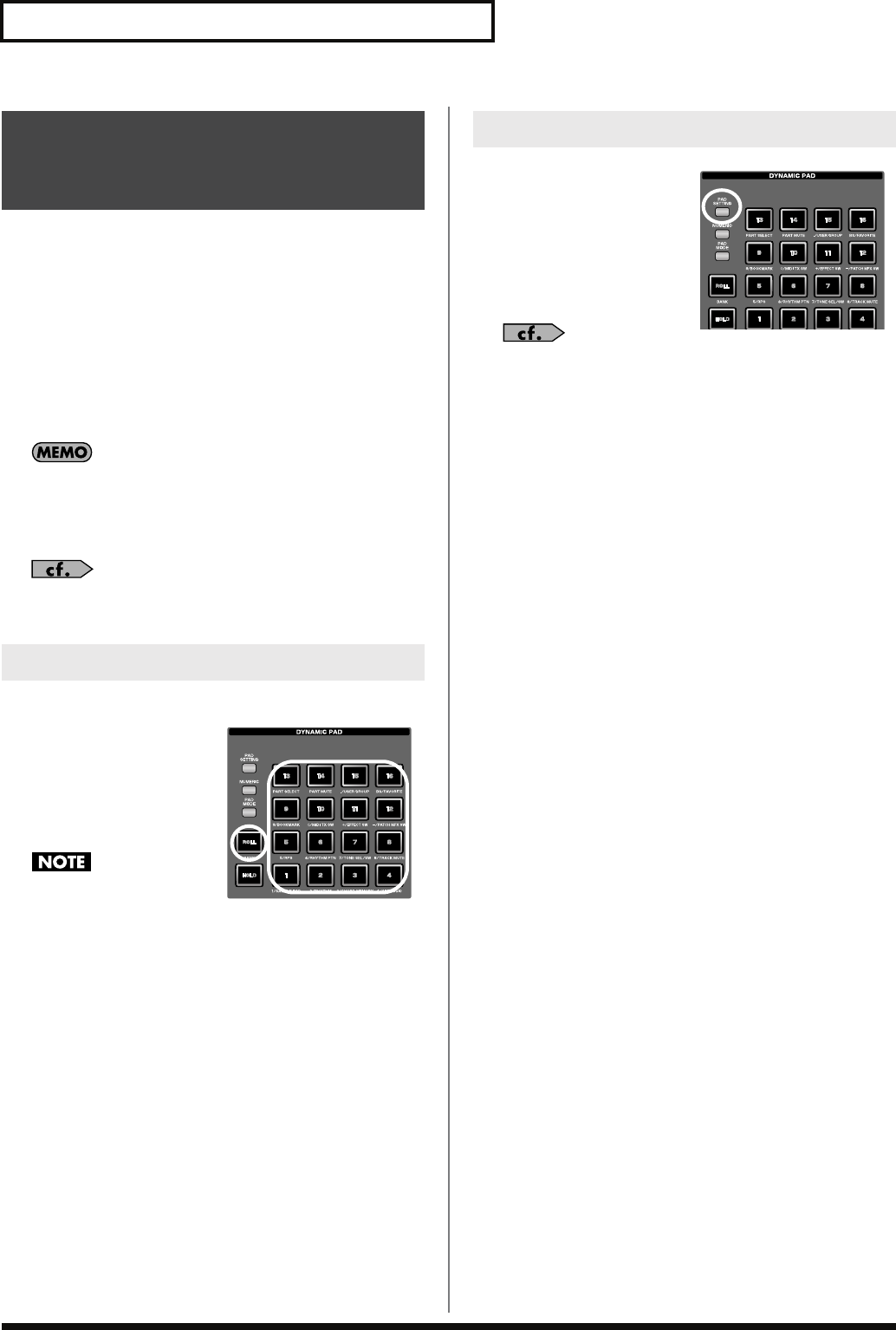
202
Using the Pads
You can create a list of sounds (settings) that you frequently use in
live performance, and recall them instantly. You can register patches,
rhythm sets, sample sets, live sets, or studio sets, and recall the
settings you need for your performance without regard to the mode
you might be in.
Sixteen settings can be registered in one list (one bank), and you can
create sixteen such banks.
For example you could use bank 1 for the sounds you use in the first
song of your live performance, and register up to sixteen sounds in
the order in which they are used in your song.
How Favorite differs from User Group (p. 201)
User Group let you register sounds within the mode (single,
live, or studio), while Favorite lets you register settings across
modes (single, live, or studio).
For details on the Favorite function, refer to
“Creating a List of
Frequently Used Sounds (Favorite)”
(p. 54).
1.
Press [PAD MODE], and then press pad [16] (FAVORITE).
• You can press a pad [1]–[16]
to select the sound (setting)
that’s registered in that pad.
• By pressing [ROLL] (BANK)
you can switch banks (1–16).
→
p. 189
If you want to use the pads
to successively select live
sets (or studio sets), set the system setting on
“Pad Assign
Source”
(p. 288) to “SYS.” If this is set to “TEMP,” the pad
mode will switch to the setting of the newly selected live set (or
studio set) when you switch live sets (or studio sets).
1.
Press [PAD SETTING].
The Favorite screen (p. 54)
will appear.
For details on operations in the Favorite screen, refer to
“Creating a List of Frequently Used Sounds (Favorite)”
(p.
54).
16 FAVORITE
(Using the Pads to Register/Recall
Favorite Settings)
Recalling a Favorite Sound (Setting)
Registering a Favorite Sound (Setting)
Fantom-G_r_e.book 202 ページ 2008年1月31日 木曜日 午後12時15分
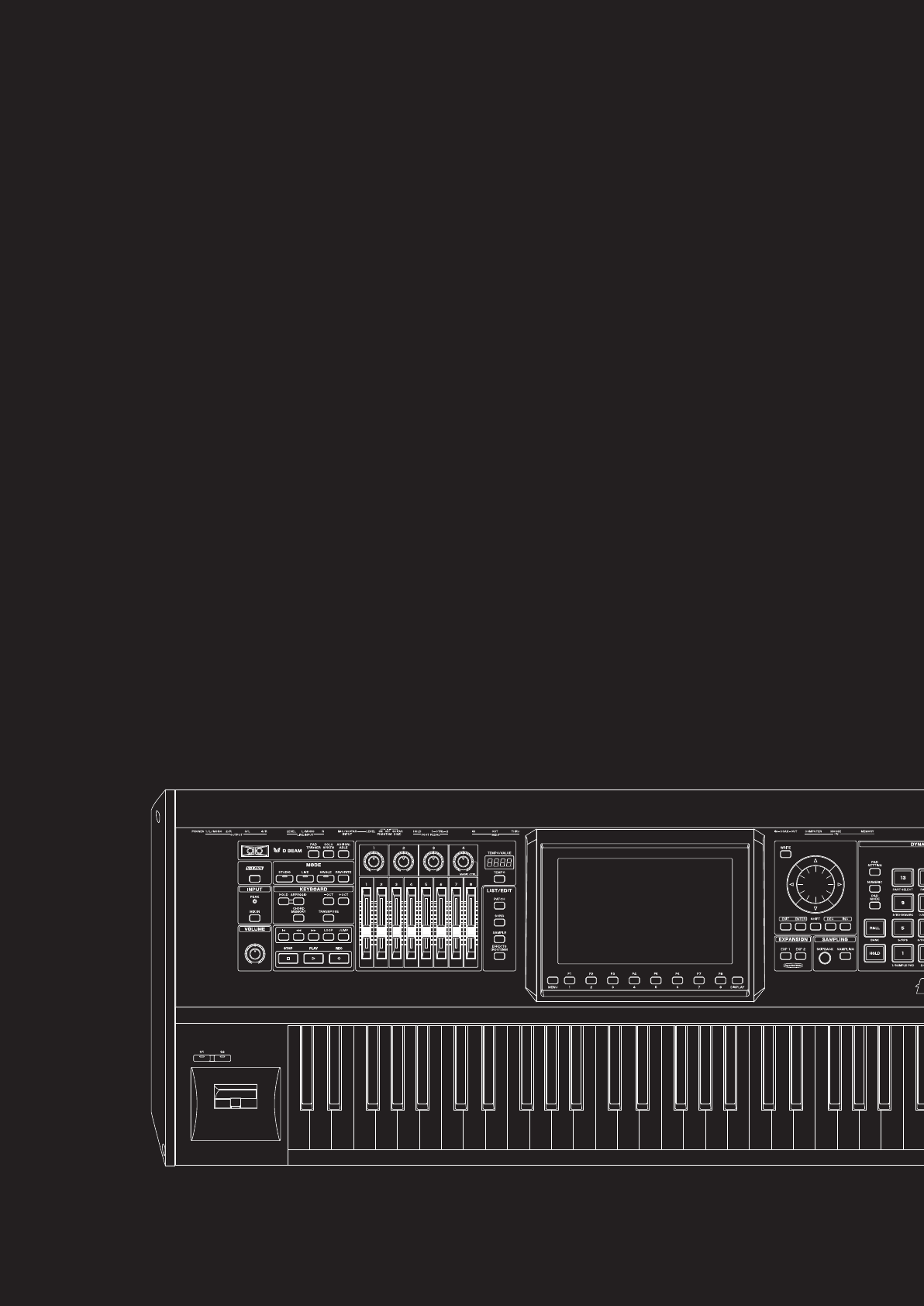
06: Sequencer
(Creating a Song)
This chapter explains how to use the sequencer to play, record, and edit songs.
• Playing Back a Song .................................................p. 204
• Recording MIDI.........................................................p. 217
• Recording Audio.......................................................p. 228
• Editing Songs ...........................................................p. 232
• Saving a Song..........................................................p. 254
Fantom-G_r_e.book 203 ページ 2008年1月31日 木曜日 午後12時15分
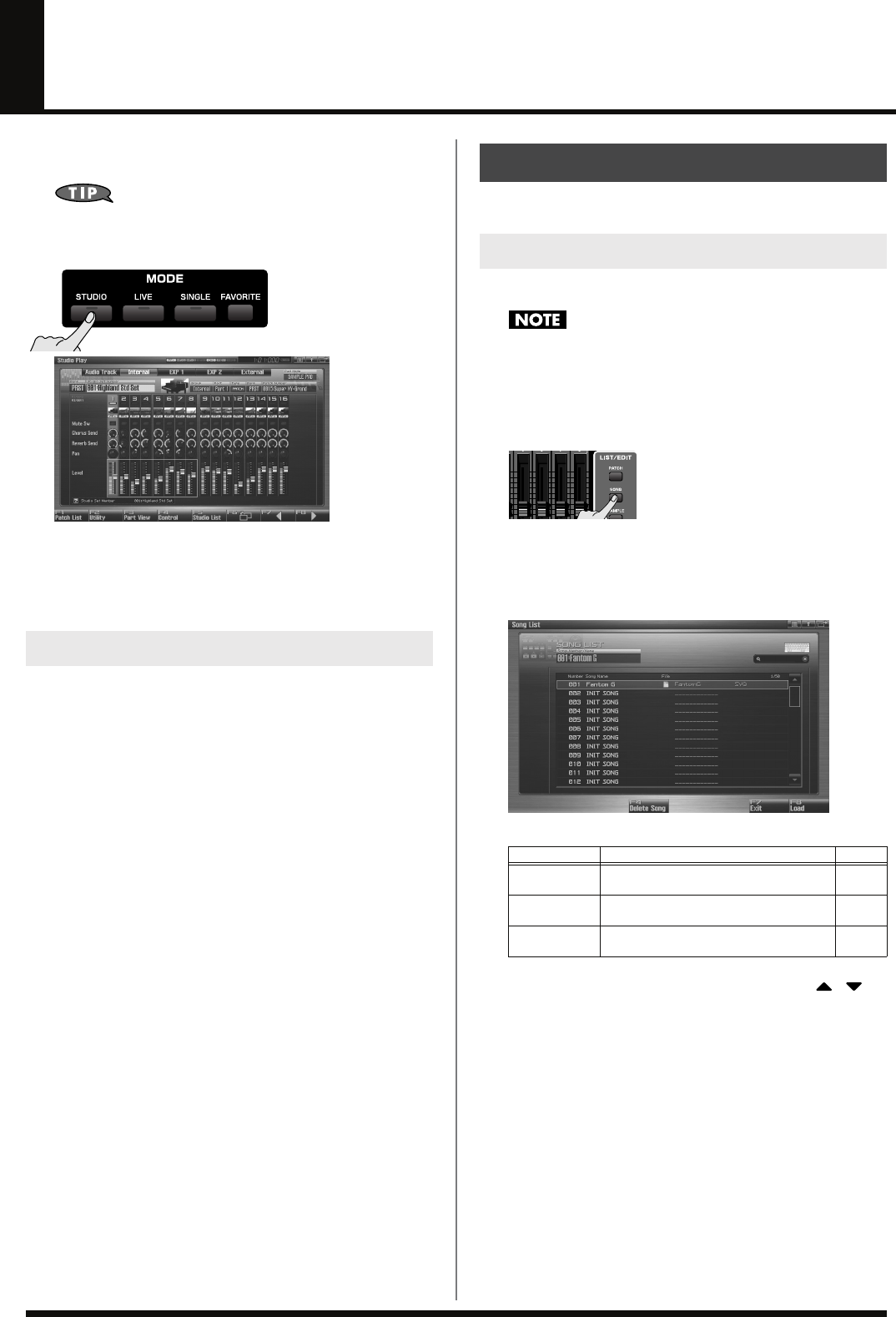
204
Playing Back a Song
This section explains how to use the Fantom-G’s sequencer to play
back a song.
We recommend that you put the sound generator in
Studio
mode
when creating or playing a song.
In Studio mode you can use up to sixteen sounds to play a
different instrument for each part, so this is the ideal mode for
playing a song that uses an ensemble of multiple instruments
such as drums, bass, and piano.
There are three ways to play back: you can play Fantom-G songs,
Standard MIDI Files (SMF), or phrases (MIDI Phrases).
Playing a song (p. 204)
You can play Fantom-G songs.
Playing Standard MIDI Files (SMF)
(p. 212)
You can copy Standard MIDI Files (SMF) from your computer to the
Fantom-G, and play them or import them into a song or phrase.
Playing phrases (MIDI Phrase) (p. 214)
You can audition phrases from within a Fantom-G project.
Here’s how to play a Fantom-G song.
Here’s how to access the Song List and load a song from the project.
When you load a song, the temporary area (p. 35) of the sound
generator will be in the state it was when you created the song.
Before loading a song, you should save the patch or live set or
studio set that you were editing.
1.
Press [SONG].
The Song Play screen will appear.
2.
Press [F1 (Song List)].
The Song List screen will appear.
F-key operations in the Song List screen
3.
Turn the VALUE dial, or use [INC] [DEC], or use / to
select a song.
4.
Press [F8 (Load)].
A confirmation message will appear.
5.
Press [F7 (OK)].
If you decide to cancel, press [F8 (Exit)].
Three Ways to Play Back
Playing a Song (Song Play)
Loading a Song (Song List)
F-key Explanation Page
F4
Delete Song Deletes a song file from the project. p. 210
F7
Exit Returns to the previous screen. –
F8
Load Loads the song file. p. 204
Fantom-G_r_e.book 204 ページ 2008年1月31日 木曜日 午後12時15分
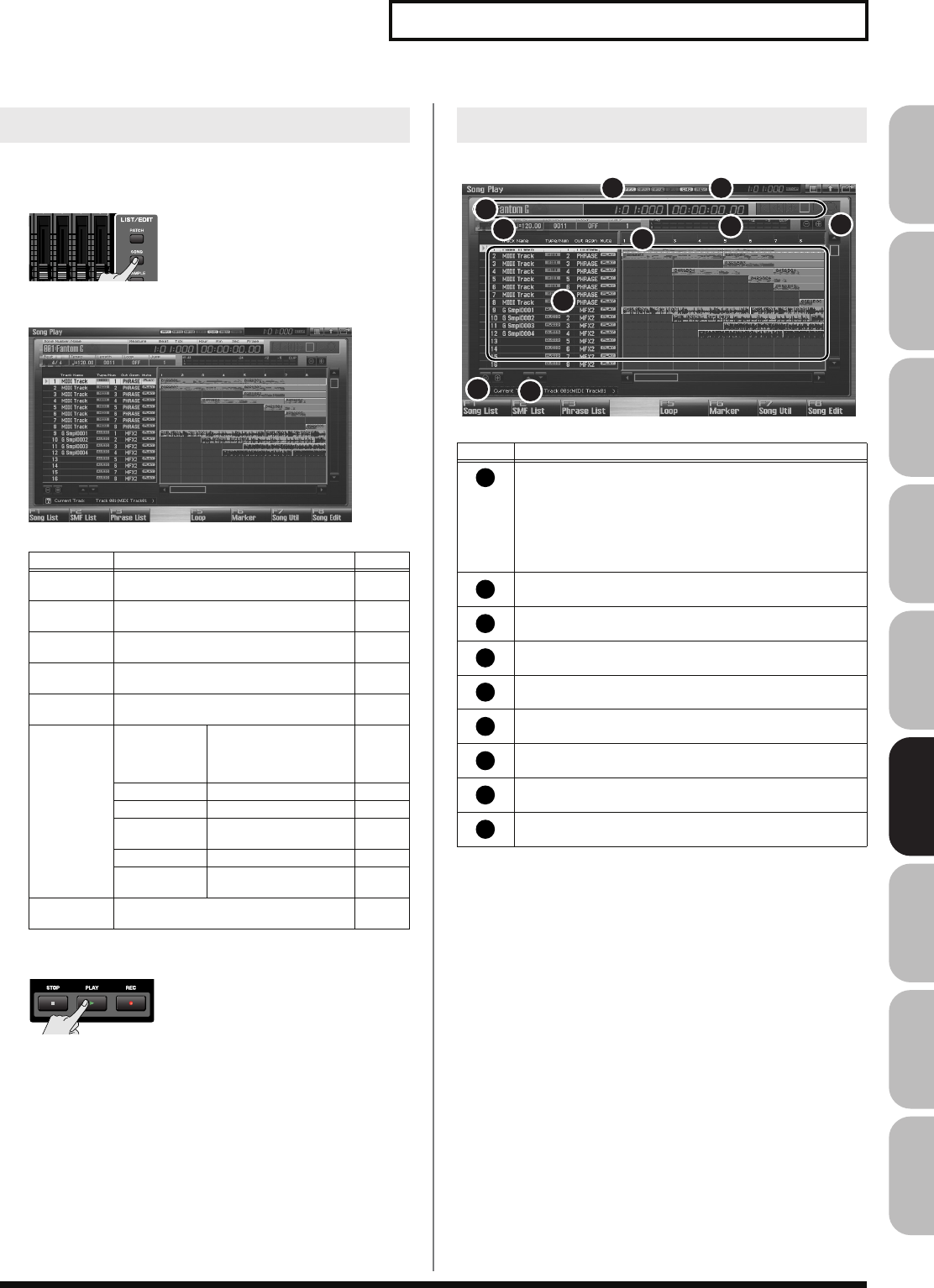
205
Playing Back a Song
Overview Sound 1 Sound 2 Sound 3 Pad Sampler
Menu/System
AppendixSequencer
Here’s how to play the song you loaded in the Song Play screen (p. 204).
1.
Press [SONG].
The Song Play screen will appear.
fig.17-001
F-key operations in the Song Play screen
2.
Press [PLAY] to start playback.
Playback will stop automatically when the song ends. If you
want to stop before the end of the song, press [STOP].
fig.08-002.j
Playing a Song (Song Play)
F-key Explanation Page
F1
Song List Displays the Song List, where you can load
a song. p. 204
F2
SMF List Displays the SMF List, where you can play
or import SMF data. p. 212
F3
Phrase List Displays the MIDI Phrase List, where you
can audition or edit phrases. p. 214
F5
Loop Opens the Loop window, where you can
specify the loop region. p. 208
F6
Marker Opens the Marker window, where you can
set markers. p. 208
F7
Song Util Zoom/
Track Order Zooms in/out on the
track, and changes the
order in which the tracks
are displayed.
p. 209
Song Clear Erases the song. p. 211
Track Clear Erases the track. p. 235
Track Name Assigns a name to the
track. p. 235
Tempo Track Changes the tempo. p. 236
Beat Track Changes the time signa-
ture. p. 237
F8
Song Edit Opens the Song Edit screen, where you can
edit a song. p. 232
Operations in the Song Play Screen
Number
Explanation
Indicates the on/off status of each effect.
PFX Patch multi-effect
MFX1 Multi-effect 1
MFX2 Multi-effect 2
IFX Input effect
CHO Chorus
REV Reverb
MAS Mastering effect
Indicates the current location of the song, and the
status of the sequencer.
Indicates the number and name of the currently selected song,
the current location, and the status of the sequencer.
Track zoom button (for a USB mouse).
Level meter for the Output jacks.
Indicates the song’s time signature, tempo, and loop play on/off
status.
Indicates markers and measures.
Indicates the track name and track information.
Track order change button (for USB mouse).
3
5
6
8
9
1 2
4
4
7
1
2
3
4
5
6
7
8
9
Fantom-G_r_e.book 205 ページ 2008年1月31日 木曜日 午後12時15分
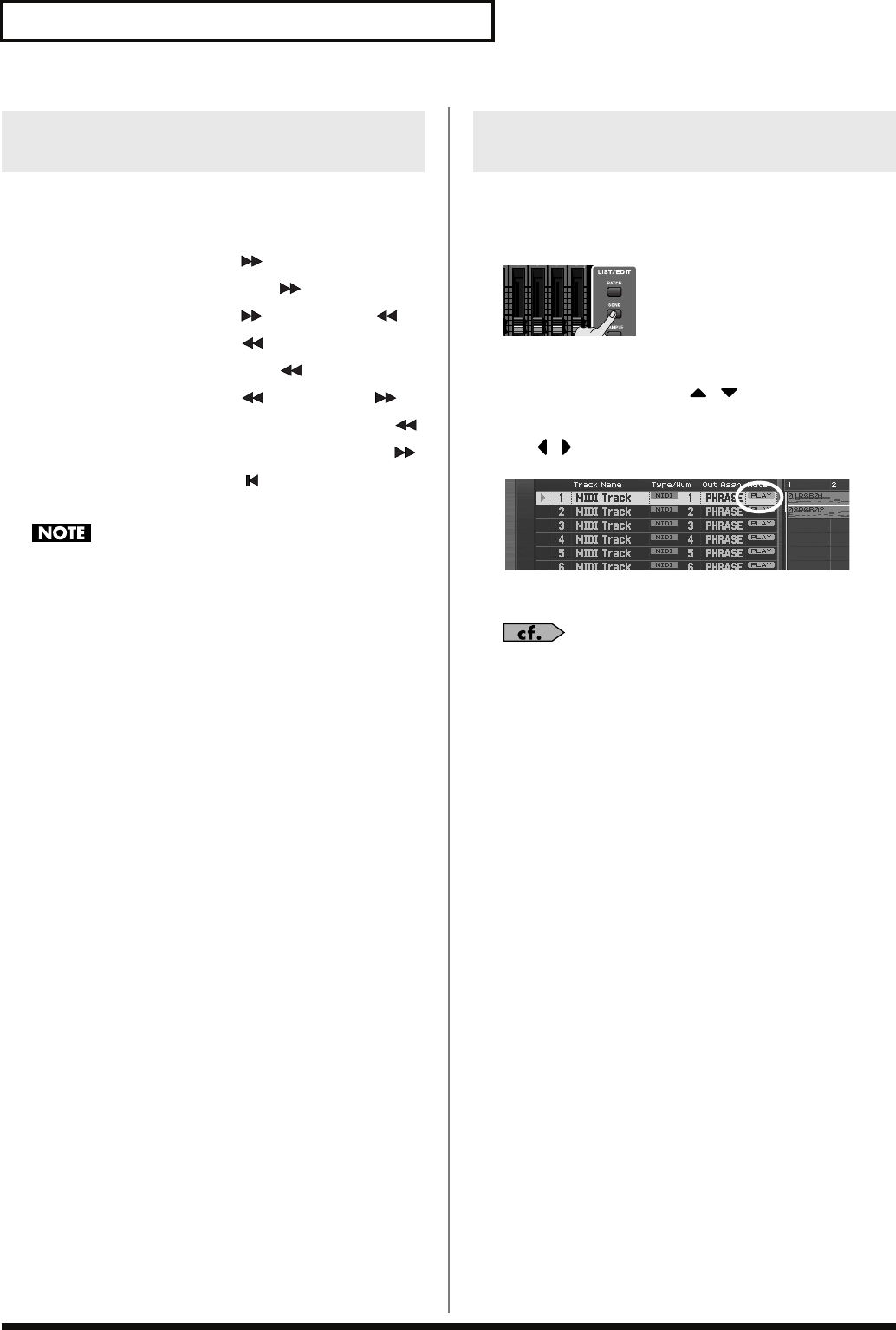
206
Playing Back a Song
You can fast-forward, rewind, or jump within a song not only while
the song is stopped, but also during playback. Perform the following
actions.
Fast-forward:
Press [ ]
Continue fast-forwarding:
Hold down [ ]
Fast-forward rapidly:
Press [ ] and then press [ ]
Rewind:
Press [ ]
Continue rewinding:
Hold down [ ]
Rewind rapidly:
Press [ ] and then press [ ]
Jump to the preceding marker:
Hold down [SHIFT] and press [ ]
Jump to the next marker:
Hold down [SHIFT] and press [ ]
Jump to the beginning of the song:
Press [ ]
Jump to the JUMP marker:
Press [JUMP]
Song playback will pause if you jump to the beginning or end of
the song while playing-back.
You can mute a track so that it will not produce sound during
playback.
1.
Press [SONG].
The Song Play screen will appear.
2.
Turn the VALUE dial or use / to select the track that
you want to mute.
3.
Use / to move the cursor to “PLAY.”
fig.17-001
4.
Press [DEC] to select the “MUTE” setting.
You can also use the pads to switch the track muting.
→
“8 TRACK MUTE (Using the Pads to Mute Tracks)”
(p.
197)
Fast-forwarding or Rewinding
during Playback
Muting the Playback of a Track
(MUTE)
Fantom-G_r_e.book 206 ページ 2008年1月31日 木曜日 午後12時15分
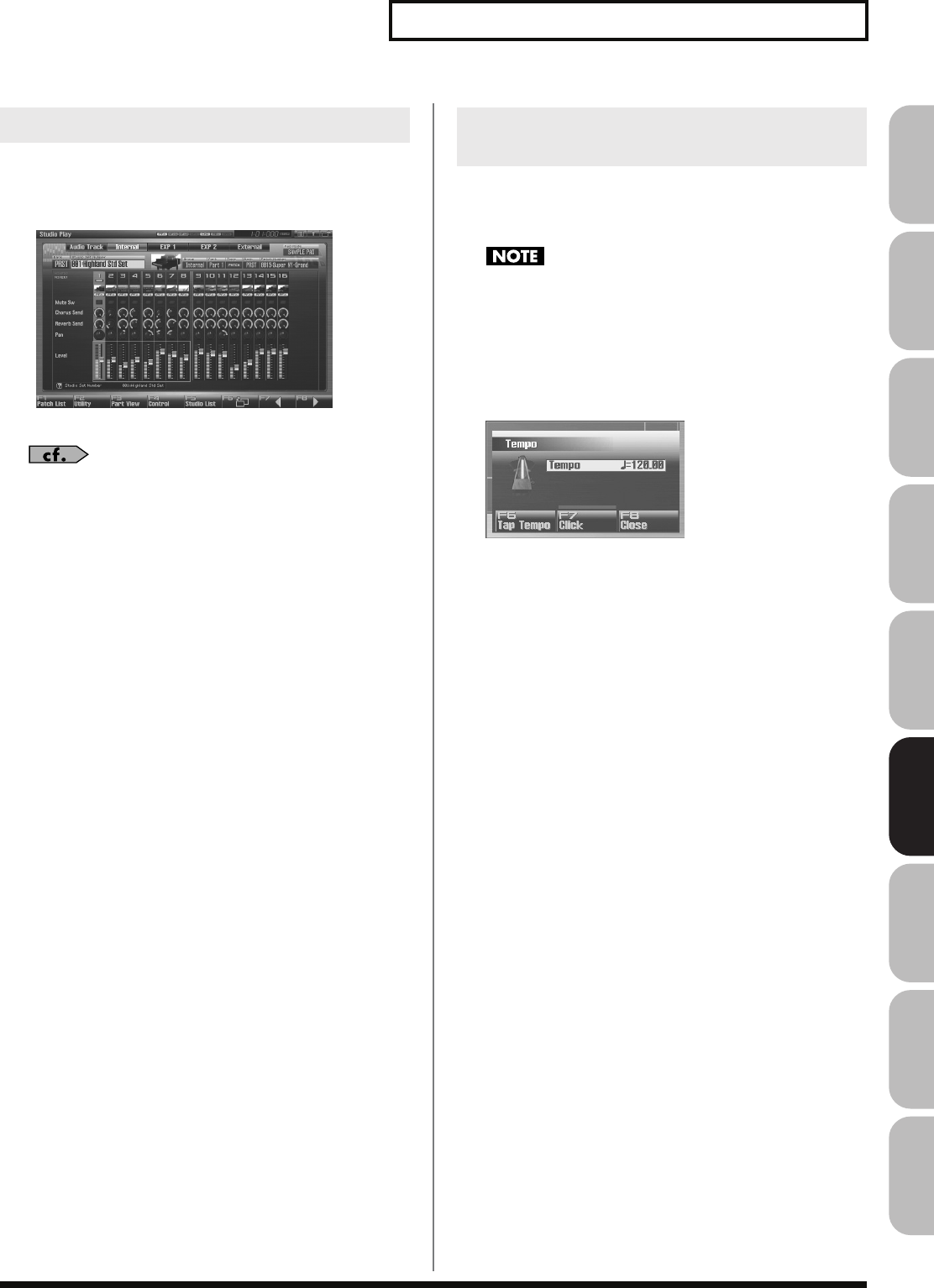
207
Playing Back a Song
Overview Sound 1 Sound 2 Sound 3 Pad Sampler
Menu/System
AppendixSequencer
For a song you’ve created in Studio mode, you can use the Studio
mode Studio Play screen to adjust the volume of each internal sound
generator part and audio track.
For details on operation, refer to
“Displaying Studio Play
Screen”
(p. 66).
When a song plays back, its tempo is determined by the data in the
tempo track, but you can also adjust the tempo of the overall song
during playback. This adjustment is called the “
playback tempo
.”
The playback tempo is a temporary setting. It will be lost when
you switch to a different song or turn off the power. If you want
the song to always play at this tempo, you must re-save the
song (p. 254).
1.
Press [TEMPO].
The Tempo window will appear.
fig.17-004_50
2.
Turn the VALUE dial or use [INC] [DEC] to specify the
playback tempo. By holding down [SHIFT] and turning the
VALUE dial you can make fine adjustments below the
decimal point.
• If you press [F7 (Click)] to turn it on, a click will sound at the
specified tempo. The click will turn on/off each time you press
the button.
• You can specify the tempo by pressing [F6 (Tap Tempo)] at the
desired interval (Tap Tempo). Press the button at least three
times at quarter-note intervals of the desired playback tempo.
3.
When you’ve finished making settings, press [F8 (Close)].
Accessing the Mixer Screen
Changing the Playback Tempo of
the Song
Fantom-G_r_e.book 207 ページ 2008年1月31日 木曜日 午後12時15分
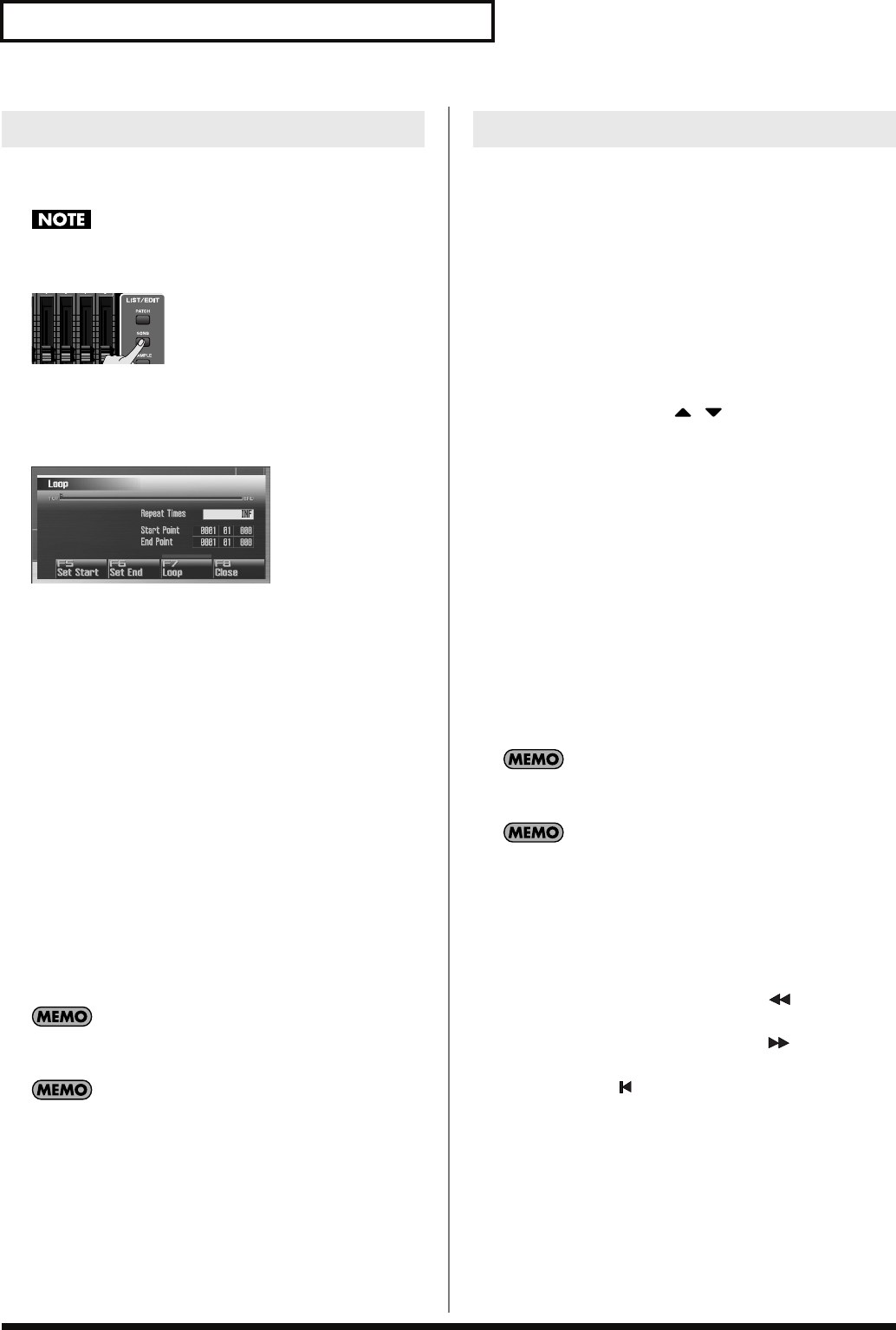
208
Playing Back a Song
You can make the song play repeatedly according to the loop points
you specify.
You can’t specify loop points for a phrase.
1.
Press [SONG].
The Song Play screen will appear.
2.
Press [F5 (Loop)].
The Loop window will appear.
fig.19-006_50
3.
Move the cursor to the desired parameter, and turn the
VALUE dial or use [INC] [DEC] to set the value.
* Stop the sequencer before you make these settings. You can make these
settings if the sequencer is running.
•
Repeat Times
Specifies the number of times (1–99) that the specified region
will repeat. If you want it to repeat until you press [STOP],
choose “INF.”
•
Start Point
Specifies the starting point of the loop region.
If you press [F5 (Set Start)], the current location in the song will
be specified as the loop start point.
•
End Point
Specifies the ending point of the loop region. The location you
specify is not included in the loop region.
If you press [F6 (Set End)], the current location in the song will
be specified as the loop end point.
4.
To enable the loop settings, press [F7 (Loop)] to turn it on.
You can use the [LOOP] button on the panel to turn looping
on/off.
You can open this screen by holding down [SHIFT] and
pressing [LOOP].
5.
Press [F8 (Close)] to close the window.
You can place up to sixteen markers in a song at units of one
measure. This will make song editing easier, since it will be easier for
you to see the structure of your song, or to move quickly to the
location of a marker.
Here’s how to view and edit a list of the markers in a song.
1.
Press [SONG].
The Song Play screen will appear.
2.
Press [F6 (Marker)].
The Marker window will appear.
The buttons perform the following operations.
• VALUE dial, [INC] [DEC],
Select a marker within the list. The current location also will be
jumped.
• [F4 (Name)]
Assigns a name to the currently selected marker. Choose a
name from the displayed list, and press [F8 (Select)] to finalize
your choice.
• [F5 (Set)]
Adds a marker at the beginning of the current measure.
• [F6 (Clear)]
Deletes the selected marker.
• [F7 (Jump)]
Specifies the marker to which you will move when you press
the front panel [JUMP] button.
3.
Press [F8 (Close)] to close the window.
When the Marker window is open, you can press a pad 1–16 to
jump to the marker of the corresponding number.
You can open this screen by holding down [SHIFT] and
pressing [JUMP].
Jumping to a marker
Here’s how to jump to markers within a song.
Jumping to the previous marker:
Hold down [SHIFT] and press [ ].
Jumping to the next marker:
Hold down [SHIFT] and press [ ].
Jumping to the beginning of the song:
Press [ ].
Jumping to the JUMP marker:
Press [JUMP].
Playing a Song Repeatedly (Loop)
Placing Markers in a Song (Marker)
Fantom-G_r_e.book 208 ページ 2008年1月31日 木曜日 午後12時15分
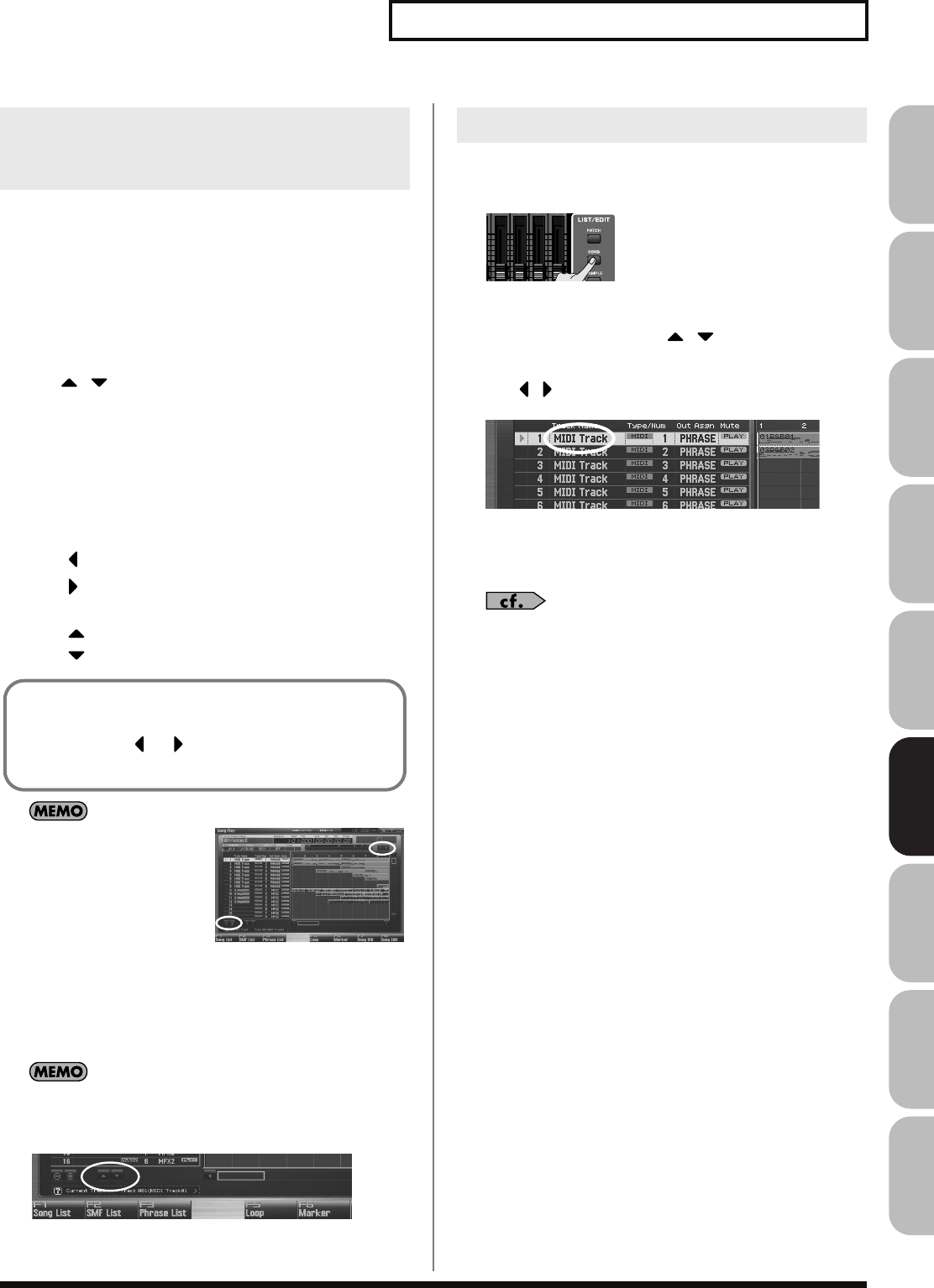
209
Playing Back a Song
Overview Sound 1 Sound 2 Sound 3 Pad Sampler
Menu/System
AppendixSequencer
Here’s how to change the zoom ratio of the track display, and
change the order in which tracks are displayed.
1.
Press [SONG].
The Song Play screen will appear.
2.
Press [F7 (Song Util)].
The Song Utility Menu window will appear.
3.
Use / to choose “Zoom/Track Order,” and press [F8
(Select)].
To cancel, press [F7 (Cancel)].
The Zoom/Track Order window will appear.
Changing the track display zoom
4.
Use [CURSOR] to change the zoom ratio.
• Horizontal axis (time axis of the tracks)
Press to shrink the display.
Press to magnify the display.
• Vertical axis (vertical axis of the tracks)
Press to magnify the display.
Press to shrink the display.
If you’re using a USB mouse,
you can change the zoom in
the Song Play screen by
clicking the buttons shown
in the illustration.
Changing the track display order
5.
By turning the VALUE dial or using [INC] [DEC] to change
the value in the “Track Order” field, you can change the
order in which the currently selected track is displayed.
If you’re using a USB mouse, you can also change the track
display order from the Song Play screen by clicking the button
shown in the illustration.
6.
Press [F8 (Close)] to close the Zoom/Track Order window.
Here’s how to assign a name of a track.
1.
Press [SONG].
The Song Play screen will appear.
2.
Turn the VALUE dial or use / to select the track you
want to name.
3.
Use / to move the cursor to the track name field.
fig.17-001
4.
Press [ENTER].
5.
Assign the desired name.
For details on entering a name, refer to
“Assigning a Name”
(p. 42).
6.
Press [F8 (Write)] to finalize the name.
Changing the Track Display Zoom
and Display Order (Zoom/Track
Order)
Even without accessing the zoom window, you can hold down
[SHIFT] in the Song Play screen and zoom the horizontal axis
in/out by pressing or or zoom the vertical axis in/out
by pressing [INC] or [DEC].
Naming a Track (Track Name)
Fantom-G_r_e.book 209 ページ 2008年1月31日 木曜日 午後12時15分
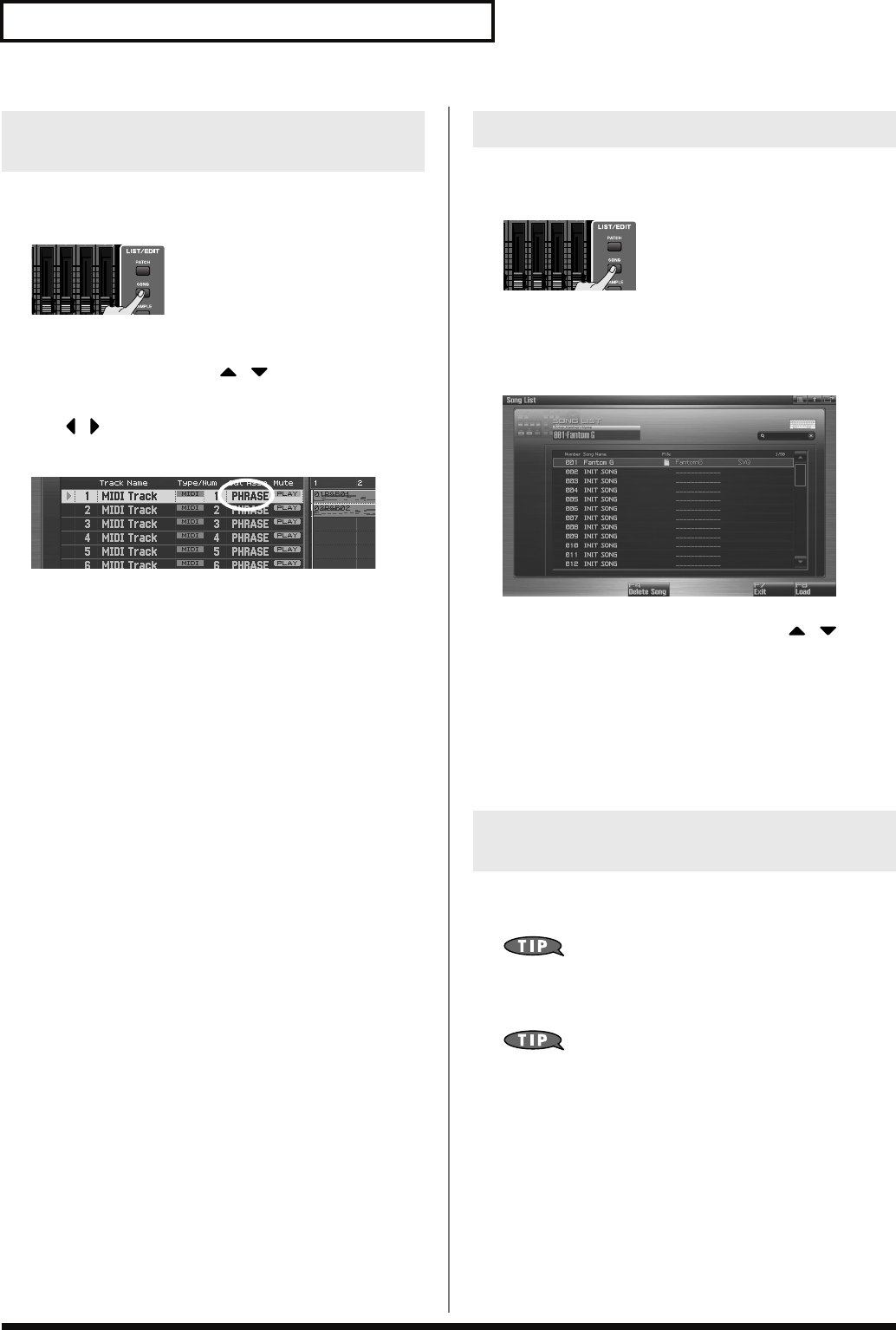
210
Playing Back a Song
Here’s how to specify the output destination of each track.
1.
Press [SONG].
The Song Play screen will appear.
2.
Turn the VALUE dial or use / to select the track
whose output destination you want to assign.
3.
Use / to move the cursor to the location shown in the
illustration.
fig.17-001
4.
Use [INC] [DEC] to specify the output destination.
For a MIDI track
PHRASE:
Output according to the setting recorded in the
phrase. Normally you will choose this.
INT:
Play the Fantom-G’s internal sound generator.
EXT:
Play an external sound module connected to the
MIDI OUT connector.
BOTH:
Play the Fantom-G’s internal sound generator and
an external sound module connected to the MIDI
OUT connector.
EXP1:
Play expansion board ARX1.
EXP2:
Play expansion board ARX2.
OFF:
Nothing will be played.
For an audio track
OUT A, OUT B:
Output the sound in stereo from the OUTPUT A
(MIX) jacks or OUTPUT B jacks without sending it
through the multi-effect.
MFX1–2:
Send the sound through the multi-effect, and output
it in stereo. This also allows you to apply chorus or
reverb to the sound that has passed through the
multi-effect.
Here’s how to delete a song file from the project.
1.
Press [SONG].
The Song Play screen will appear.
2.
Press [F1 (Song List)].
The Song List screen will appear.
3.
Turn the VALUE dial or use [INC] [DEC] or / to
select the song that you want to delete.
4.
Press [F4 (Delete Song)].
A confirmation message will appear.
5.
Press [F7 (OK)] to execute the operation.
If you decide to cancel, press [F8 (EXIT)].
When the Fantom-G is powered-on (when loading a project), song
001 (the top song in the Song List) will be loaded automatically.
If you don’t want a song to be loaded automatically at power-on
(when loading a project), delete song 001 as described in
“Deleting a Song File (Song Delete)”
(p. 210).
When you execute a Factory Reset (p. 280), the demo song will
be written to song 001.
Specifying a Track’s Output Destination
(Output Assign)
Deleting a Song File (Song Delete)
Song Automatically Loaded at
Power-on (When Loading a Project)
Fantom-G_r_e.book 210 ページ 2008年1月31日 木曜日 午後12時15分
211
Playing Back a Song
Overview Sound 1 Sound 2 Sound 3 Pad Sampler
Menu/System
AppendixSequencer
Here’s how to erase the song that’s currently opened in the Song
Play screen. Use this function when you want to record a new song.
This will not delete the actual song file that’s saved in the project.
If a song you’re editing is open, save the song before you
continue (p. 254).
1.
Press [SONG].
The Song Play screen will appear.
2.
Press [F7 (Song Util)].
The Song Utility Menu window will appear.
3.
Use / to choose “Song Clear,” and press [F8 (Select)].
To cancel, press [F7 (Cancel)].
A confirmation message will appear.
4.
Press [F7 (OK)] to execute.
If you decide not to execute, press [F8 (EXIT)].
Erasing the Currently-open Song
(Song Clear)
Fantom-G_r_e.book 211 ページ 2008年1月31日 木曜日 午後12時15分
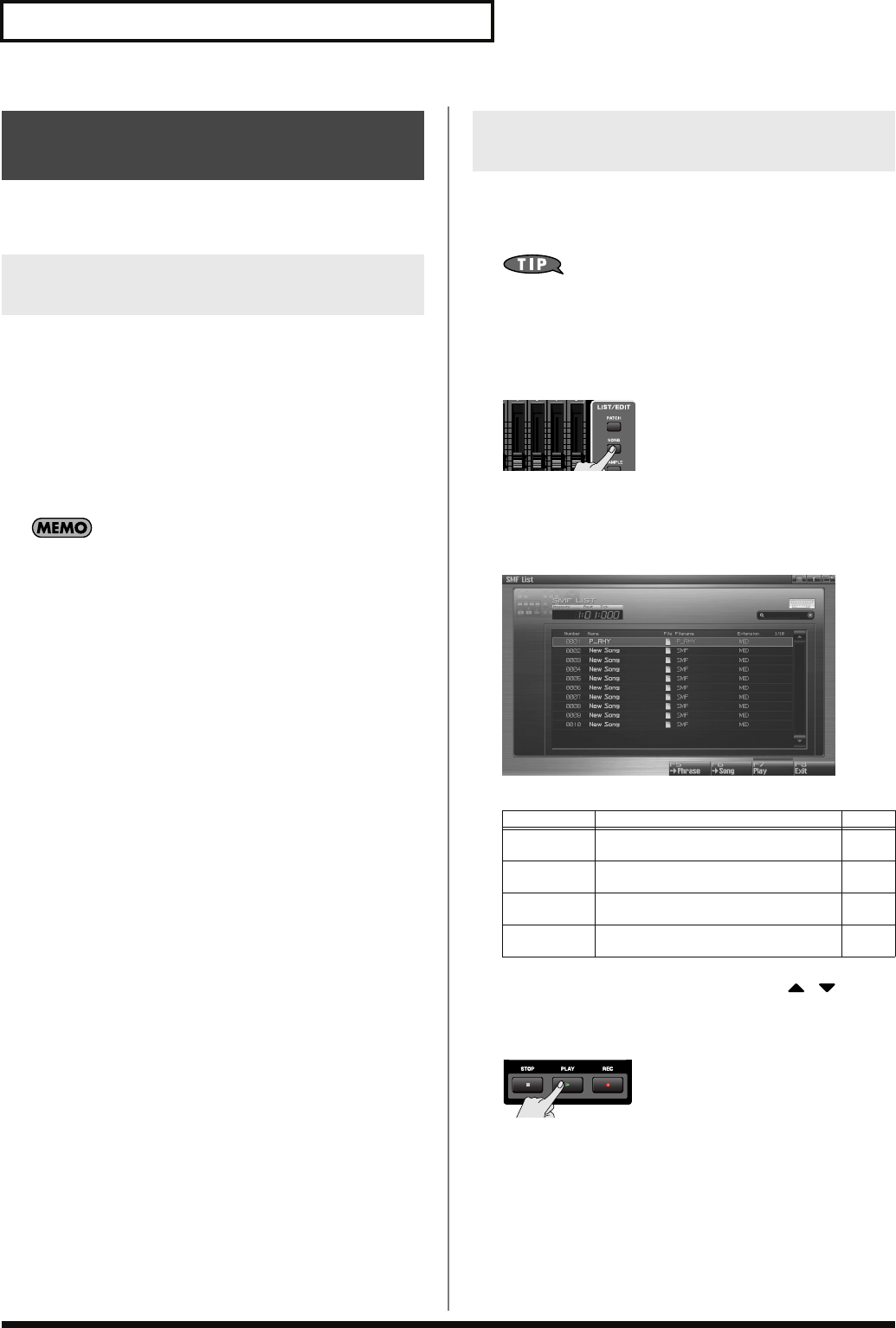
212
Playing Back a Song
Standard MIDI File (SMF) data from your computer can be copied to
the Fantom-G for listening, or imported into a song or phrase.
Here’s how to copy a standard MIDI file from your computer to the
Fantom-G.
1.
Prepare a standard MIDI file (.MID) on your computer.
2.
Use the USB Storage function (p. 281) to copy the standard
MIDI file (.MID) to the following folder of the Fantom-G’s
internal memory or of your USB memory.
“FantomG.Prj/SEQ/SMF” folder
“
FantomG.Prj
” will be the project folder name in the
Fantom-G’s internal memory. You can save more than one
project in USB memory. By default, the project folders will be
named consecutively as “
FantomG001.Prj
,”
“
FantomG002.Prj
,” etc., and the portion of the name
preceding the file name extension will be the project name you
assigned when saving the file.
You can access the SMF List and listen to a standard MIDI file (SMF)
that you copied as described in
“Copying a Standard MIDI File
(SMF) from Your Computer to the Fantom-G”
(p. 212).
When playing SMF data, we recommend that you put the
sound generator in
Studio mode
. The Fantom-G is GM/GM2
compatible, so if the music data is compatible with GM/GM2, it
will automatically play back with the appropriate sounds.
1.
Press [SONG].
The Song Play screen will appear.
2.
Press [F2 (SMF List)].
The SMF List screen will appear.
F-key operations in the SMF List screen
3.
Turn the VALUE dial or use [INC] [DEC] or
/
to
select an SMF file.
4.
Press [PLAY] or [F7 (Play)].
You will hear the selected SMF file.
Playing a Standard MIDI File
(SMF)
Copying a Standard MIDI File (SMF)
from Your Computer to the Fantom-G
Playing a Standard MIDI File (SMF)
(SMF List)
F-key Explanation Page
F5
-> Phrase Imports an SMF file into a phrase. p. 213
F6
-> Song Imports an SMF file into a song. p. 213
F7
Play Plays the SMF file selected in the list. p. 212
F8
EXIT Returns to the previous screen. –
Fantom-G_r_e.book 212 ページ 2008年1月31日 木曜日 午後12時15分
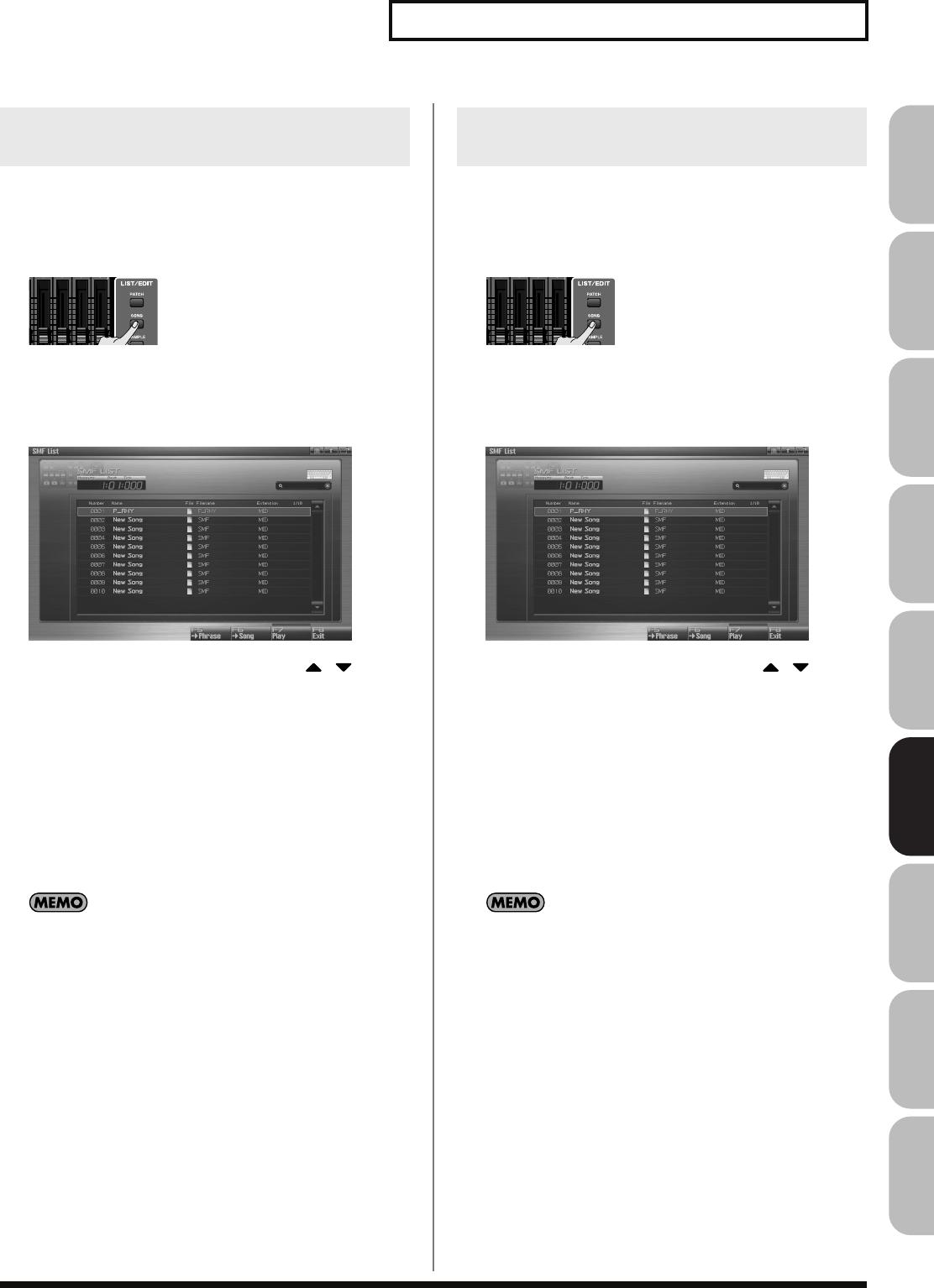
213
Playing Back a Song
Overview Sound 1 Sound 2 Sound 3 Pad Sampler
Menu/System
AppendixSequencer
You can access the SMF List and import a standard MIDI file (SMF)
from the project into a phrase. You can then use the imported SMF as
a phrase.
1.
Press [SONG].
The Song Play screen will appear.
2.
Press [F2 (SMF List)].
The SMF List screen will appear.
3.
Turn the VALUE dial or use [INC] [DEC] or
/
to
select an SMF file.
4.
Press [F5 (->Phrase)].
A confirmation message will appear.
5.
Press [F7 (OK)] to execute.
If you decide to cancel, press [F8 (EXIT)].
When you execute, the selected SMF file will automatically be
imported into a vacant number of the phrase list, and the Phrase
Edit screen (p. 238) will appear.
The imported phrase is temporary, and will be lost if you turn
off the power. If you want to keep the phrase, press [WRITE] to
save it (p. 216).
You can access the SMF List and import a standard MIDI file (SMF)
from the project into a song. You can then use the imported SMF as a
Fantom-G song.
1.
Press [SONG].
The Song Play screen will appear.
2.
Press [F2 (SMF List)].
The SMF List screen will appear.
3.
Turn the VALUE dial or use [INC] [DEC] or
/
to
select an SMF file.
4.
Press [F6 (->Song)].
A confirmation message will appear.
5.
Press [F7 (OK)] to execute.
If you decide to cancel, press [F8 (EXIT)].
When you execute, the selected SMF file will automatically be
imported into a vacant number of the song list, and the Song
Play screen (p. 205) will appear.
The imported song is temporary, and will be lost if you turn off
the power. If you want to keep the song, press [WRITE] to save
it (p. 254).
Importing an SMF into a Phrase
(Import Phrase)
Importing an SMF into a Song
(Import Song)
Fantom-G_r_e.book 213 ページ 2008年1月31日 木曜日 午後12時15分
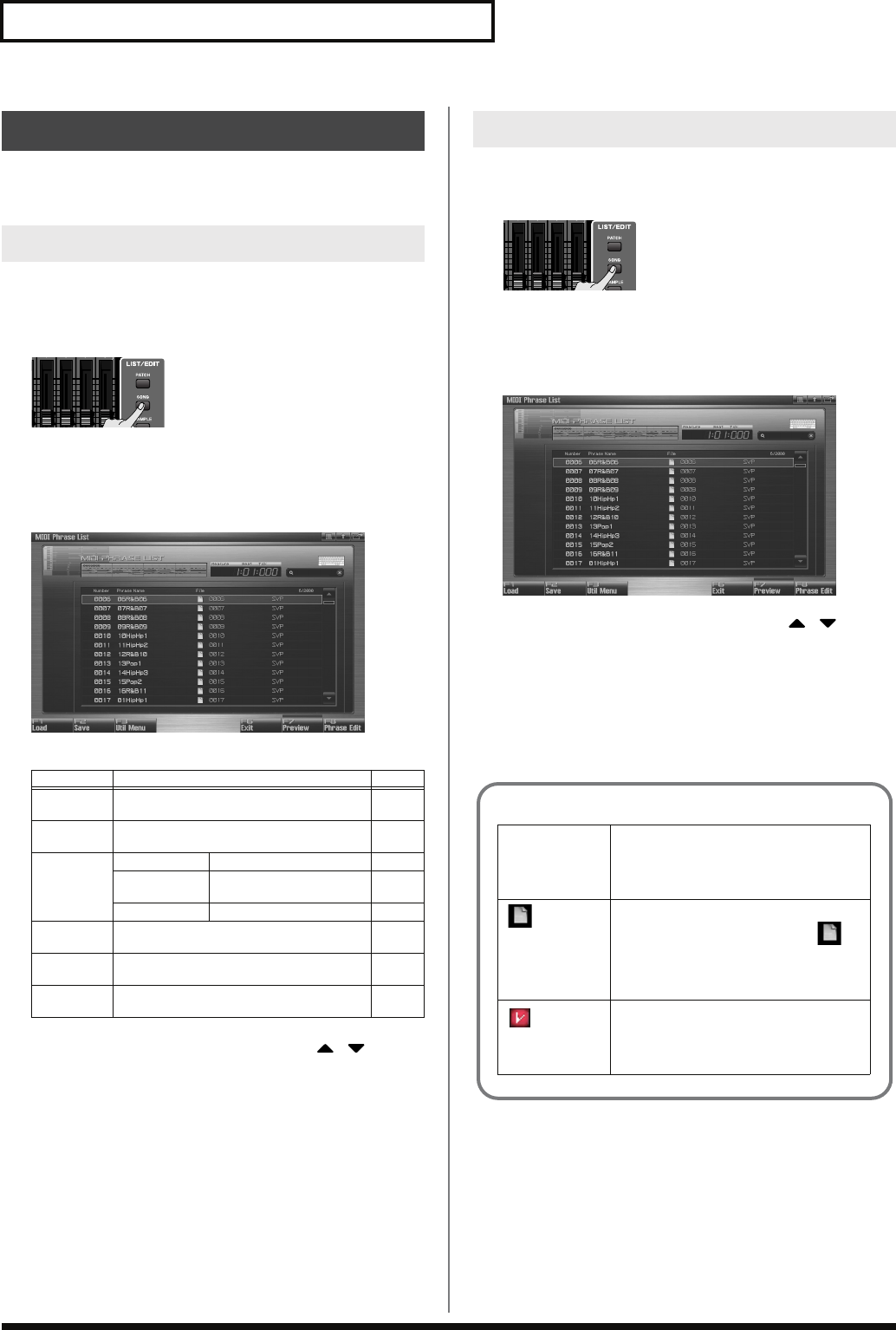
214
Playing Back a Song
Phrases from within the Fantom-G project can be auditioned from a
list.
Here’s how to access the Phrase List and audition a phrase from the
project.
1.
Press [SONG].
The Song Play screen will appear.
2.
Press [F3 (Phrase List)].
The MIDI Phrase List screen will appear.
F-key operations in the MIDI Phrase List screen
3.
Turn the VALUE dial or use [INC] [DEC] or
/
to
select a phrase.
4.
Press and hold [F7 (Preview)].
You’ll hear the selected phrase.
Here’s how to load a phrase from the project into memory.
1.
Press [SONG].
The Song Play screen will appear.
2.
Press [F3 (Phrase List)].
The MIDI Phrase List screen will appear.
3.
Turn the VALUE dial or use [INC] [DEC] or
/
to
select a phrase.
4.
Press [F1 (Load)].
A confirmation message will appear.
5.
Press [F7 (OK)] to execute.
If you decide to cancel, press [F8 (EXIT)].
Playing Phrases (MIDI Phrase)
Auditioning a Phrase (MIDI Phrase List)
F-key Explanation Page
F1
Load Loads a phrase from the project into memo-
ry. p. 214
F2
Save Saves the selected phrase to the project. p. 216
F3
Util Menu Save All Save all phrases p. 216
Delete Phrase Deletes the phrase file
from the project p. 215
Duplicate Duplicates the phrase p. 215
F6
Edit Returns to the previous screen. –
F7
Preview Auditions the selected phrase. p. 214
F8
Phrase Edit Displays the edit screen for the selected
phrase. p. 238
Loading a Phrase (Load)
The phrase list shows the current phrase status
Phrase name This shows the phrase name. If this
field indicates “EMPTY,” the phrase
has not been loaded into memory. Load
the phrase as needed.
This indicates whether the file exists in
the project. Phrases without the
symbol have not been saved, and there-
fore will be lost when you turn off the
power. Save the phrase if necessary.
This indicates a phrase that has been
edited. The changes you made will be
lost when you turn off the power. Save
the phrase if necessary.
Fantom-G_r_e.book 214 ページ 2008年1月31日 木曜日 午後12時15分
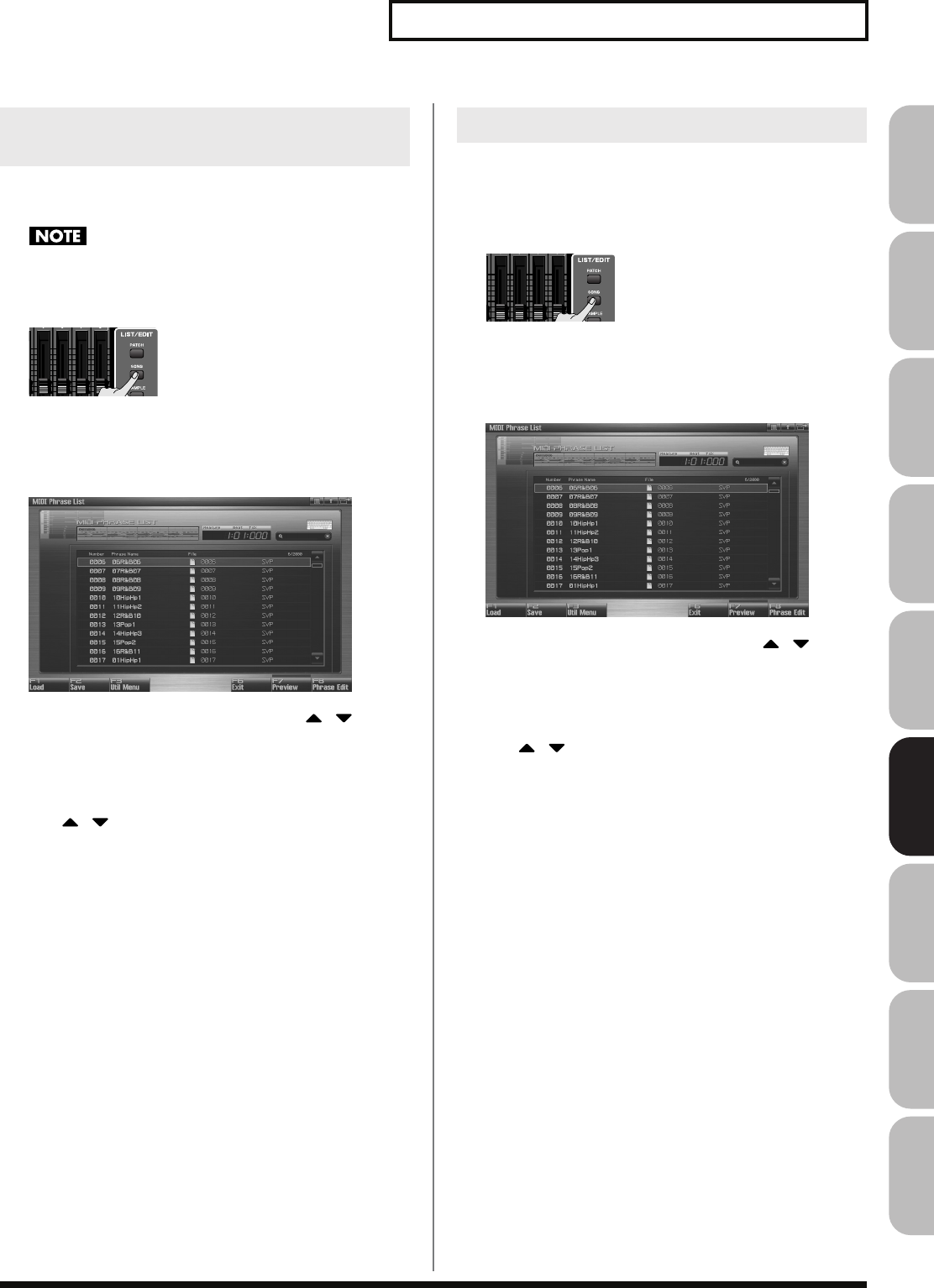
215
Playing Back a Song
Overview Sound 1 Sound 2 Sound 3 Pad Sampler
Menu/System
AppendixSequencer
This operation will completely delete a phrase from the project along
with its file.
If that phrase is used by a song within the project, the portion of
the song occupied by that phrase will no longer sound.
1.
Press [SONG].
The Song Play screen will appear.
2.
Press [F3 (Phrase List)].
The MIDI Phrase List screen will appear.
3.
Turn the VALUE dial or use [INC] [DEC] or / to
select a phrase.
4.
Press [F3 (Util Menu)].
The Phrase Utility Menu window will appear.
5.
Use / to choose “Delete Phrase,” and press [F8
(Select)].
To cancel, press [F7 (Cancel)].
A confirmation message will appear.
6.
Press [F7 (OK)].
If you decide to cancel, press [F8 (EXIT)].
This operation will duplicate a phrase to a vacant number in the list.
You can use this to create variations by modifying an existing
phrase.
1.
Press [SONG].
The Song Play screen will appear.
2.
Press [F3 (Phrase List)].
The MIDI Phrase List screen will appear.
3.
Turn the VALUE dial or use [INC] [DEC] or / to
select a phrase.
4.
Press [F3 (Util Menu)].
The Phrase Utility Menu window will appear.
5.
Use / to choose “Duplicate,” and press [F8 (Select)].
To cancel, press [F7 (Cancel)].
A confirmation message will appear.
6.
Press [F7 (OK)] to execute.
If you decide to cancel, press [F8 (EXIT)].
When you execute, the selected
phrase
will automatically be
duplicated to a vacant number in the
phrase
list.
Deleting a Phrase from the Project
(Delete Phrase)
Duplicating a Phrase (Duplicate)
Fantom-G_r_e.book 215 ページ 2008年1月31日 木曜日 午後12時15分
216
Playing Back a Song
This operation will save the selected phrase to the project.
A phrase you recorded or edited is temporary, and will be lost when
you turn off the power. If you want to keep the phrase, you must
save it.
1.
Press [SONG].
2.
Press [F3 (Phrase List)].
The MIDI Phrase List screen will appear.
Phrases without the symbol and phrases with the
symbol have not been saved.
3.
Turn the VALUE dial or use [INC] [DEC] or / to
select the phrase that you want to save.
4.
Press [F2 (Save)].
5.
Assign a name to the phrase.
For details on assigning a name, refer to
“Assigning a Name”
(p. 42).
6.
When you’ve finished assigning a name, press [F8 (OK)].
A message will ask you to confirm the Write operation.
Never turn off the power while writing is in progress.
7.
Press [F7 (OK)] to execute.
If you decide to cancel, press [F8 (EXIT)].
* You can’t save a phrase by overwriting an existing phrase.
This operation will save all phrases of the phrase list into the project.
1.
Press [SONG].
2.
Press [F3 (Phrase List)].
The MIDI Phrase List screen will appear.
Phrases without the symbol and phrases with the
symbol have not been saved.
3.
Press [F3 (Util Menu)].
The Phrase Utility Menu window will appear.
4.
Press / to choose “Save All,” and then press [F8
(Select)].
To cancel, press [F7 (Cancel)].
A confirmation message will appear.
5.
Press [F7 (OK)] to execute.
If you decide to cancel, press [F8 (EXIT)].
When you execute Save All, the phrases will be written into the
same numbers of the phrase list. Phrase names will be assigned
automatically.
Saving a Phrase (Save)
Saving all Phrases (Save All)
Fantom-G_r_e.book 216 ページ 2008年1月31日 木曜日 午後12時15分
217
Overview Sound 1 Sound 2 Sound 3 Pad Sampler
Menu/System
AppendixSequencer
Recording MIDI
This section explains how to use the Fantom-G’s sequencer to record
MIDI.
A “phrase” is a chunk of recorded MIDI data. You can create a song
simply by placing phrases in the MIDI tracks of a song.
You can record MIDI either by recording it directly into a MIDI track
of a song, or by recording into a phrase.
Recording into a song (p. 218)
In the Song Play screen, select a track and a recording start location,
and then begin recording. After recording, the phrase will be
attached to the recording start location.
Recording into a phrase (p. 220)
In the MIDI Phrase List screen, select a phrase number and then
begin recording. After recording, the phrase will be added to the list.
There are two ways to record MIDI:
realtime recording
and
step
recording
. Use the method that’s suitable for your needs.
Realtime recording (p. 222)
With this method, your performance on the keyboard and pads, and
the controller movements you make, are recorded exactly as you
perform them.
Step recording (p. 226)
Step recording allows you to enter notes and rests one by one. This
method is suitable when you need to enter notes at a precise timing,
such as when recording drums or bass.
You can’t step-record directly into a song. You can use step
recording to record a phrase.
Phrases and Songs
Two Methods of Recording
Fantom-G_r_e.book 217 ページ 2008年1月31日 木曜日 午後12時15分
218
Recording MIDI
Recording work-flow
When recording a new song, the work-flow is as follows.
1.
Select the sound you want to use for recording.
2.
Erase the song that’s in the temporary area.
3.
Specify the time signature of the song (p. 219).
4.
Specify the tempo (p. 219).
5.
Select a MIDI track and the recording-start measure
(p. 219).
6.
Perform realtime recording (p. 222).
7.
Use song editing to edit the song (p. 232).
8.
Use phrase editing (p. 238) or microscope editing (p.
250) to edit the phrase.
9.
Save the song (p. 254).
Before you record a song, select Studio mode and choose the sound
you’ll use for recording.
The Fantom-G’s sequencer can record your performance
regardless of the sound generator mode (Single, Live, or
Studio), but we recommend that you choose Studio mode when
you want to record a song.
In Studio mode, when you use the Fantom-G’s keyboard and
pads to record, you’ll hear only the sound of the specified MIDI
channel, and you can use a different sound for each part (up to
sixteen sounds) to play back the recorded song. This means that
Studio mode is the appropriate choice when recording or
playing back an ensemble performance using multiple
instruments such as drums, bass, and piano.
We recommend that you turn the Keyboard Switch (p. 69) off
for all parts. If this is on, multiple parts of your performance
will be recorded to a single phrase, which is not what you want
when creating a song.
Selecting Studio mode
→
p. 66
Selecting a Studio Set
→
p. 67
Selecting a sound for each part
→
p. 68
When you record a song, the performance data is recorded into the
temporary area. If you want to record a new song, you’ll need to
erase the existing performance data from the temporary area before
you begin.
If you’ve been editing the currently-opened song, save the song
before you continue (p. 254).
1.
Press [SONG].
The Song Play screen will appear.
2.
Press [F7 (Song Util)].
The Song Utility Menu window will appear.
3.
Use / to choose “Song Clear,” and then press [F8
(Select)].
To cancel, press [F7 (Cancel)].
A confirmation message will appear.
4.
Press [F7 (OK)] to execute.
If you decide to cancel, press [F8 (EXIT)].
Recording into a Song
Selecting a Sound for Recording
Erasing the Song/Phrases from the
Temporary Area (Song Clear)
Fantom-G_r_e.book 218 ページ 2008年1月31日 木曜日 午後12時15分
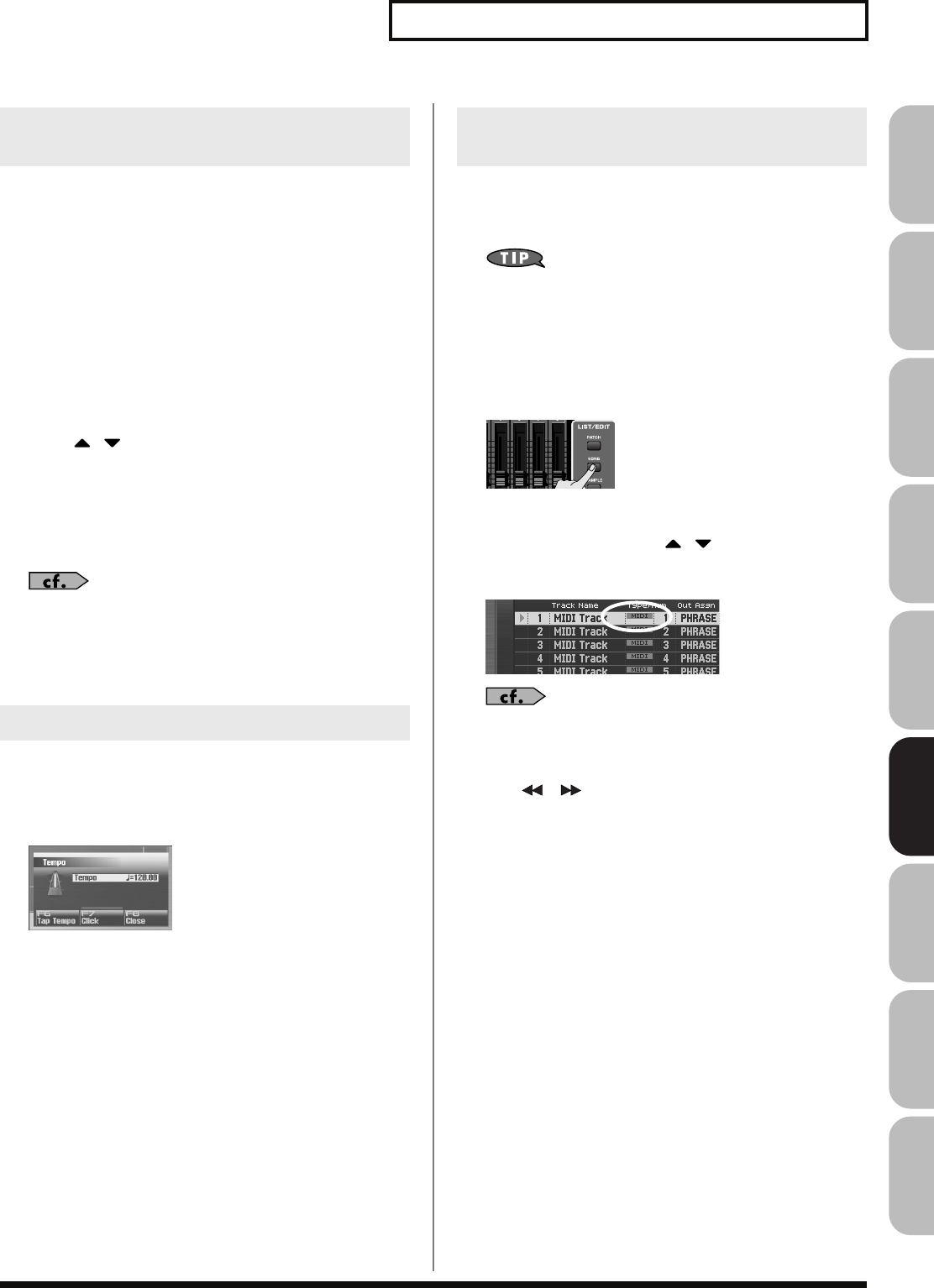
219
Recording MIDI
Overview Sound 1 Sound 2 Sound 3 Pad Sampler
Menu/System
AppendixSequencer
When you record a new song, start by specifying the time signature.
However, if you’ve just executed the Song Clear operation or turned
on the power, the time signature will always be set to 4/4, so you’ll
need to change this only if the song you’re recording uses a different
time signature.
1.
Press [SONG].
2.
Press [F8 (Song Edit)].
The Song Edit screen will appear.
3.
Press [F7 (Song Util)].
The Song Edit Utility Menu window will appear.
4.
Press / to choose “Beat Track,” and press [F8
(Select)].
To cancel, press [F7 (Cancel)].
The Microscope screen for the beat track will appear.
5.
Move the cursor to “Beat Change,” and specify the time
signature.
If you want the beat to change in the middle of the song, refer to
“Changing the Time Signature during the Song (Beat
Track)”
(p. 237).
6.
Press [EXIT] to return to the Song Edit screen.
Here’s how to specify the tempo at which you’ll record the song.
1.
Press [TEMPO].
The Tempo window will appear.
fig.17-004_50
2.
Turn the VALUE dial or use [INC] [DEC] to specify the
tempo. By holding down [SHIFT] while you turn the VALUE
dial, you can adjust the value below the decimal point.
• If you press [F7 (Click)] to turn it on, the click will sound at the
specified tempo. It will turn on/off each time you press the
button.
• You can specify the tempo by pressing [F6 (Tap Tempo)] at the
desired interval (Tap Tempo). Press the button at least three
times in quarter-note intervals of the desired tempo.
3.
When you’ve finished making settings, press [F8 (Close)].
Here’s how to select the MIDI track on which you’ll record, and
specify the recording-start measure.
You can record on any of the tracks 1–128 that indicates “MIDI.”
You are free to simultaneously record MIDI data for multiple
sound generator parts on the same MIDI track, and you are also
free to use multiple MIDI tracks to record MIDI data for a single
sound generator part. Initially, you’ll probably want to keep
things simple by using the MIDI track of the same number as
the sound generator part it’s playing.
1.
Press [SONG].
The Song Play screen will appear.
2.
Turn the VALUE dial or use / to select the MIDI track
on which you want to record.
Select a track that has the “MIDI” indication.
You can change the order in which the tracks are displayed.
→
“Changing the Track Display Zoom and Display Order
(Zoom/Track Order)”
(p. 209)
3.
Use [ ] [ ] to specify the measure at which you want
to start recording.
The recording-start measure is indicated in the “Measure” field
at the top of each PLAY screen.
If a phrase already exists at the recording-
start location
The existing phrase will be overwritten by your new recording.
If a phrase already exists following the
recording-start location
A new phrase will be recorded. You’ll be able to record up to
the location of the subsequent phrase.
Proceed to Realtime Recording
→
p. 222
Specifying the Time Signature
(Beat Track)
Specifying the Tempo
Selecting a MIDI Track and the
Recording-start Measure
Fantom-G_r_e.book 219 ページ 2008年1月31日 木曜日 午後12時15分
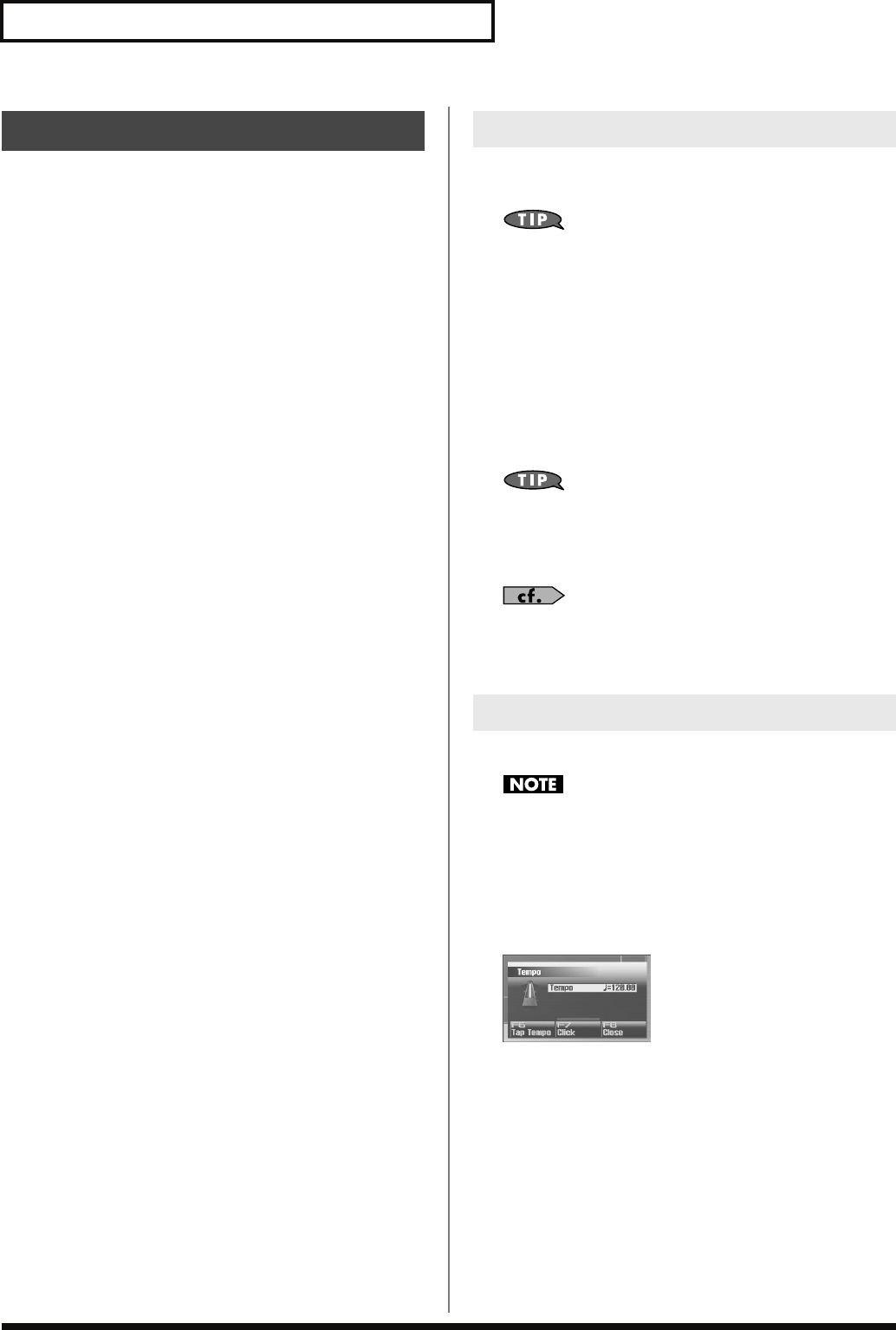
220
Recording MIDI
Recording work-flow
When recording a new phrase, the work-flow is as follows.
1.
Select the sound you want to use for recording.
2.
Specify the tempo.
3.
In the MIDI Phrase List, select the phrase that you
want to record (p. 221).
4.
Perform realtime recording (p. 222) or step recording
(p. 226).
5.
Use phrase editing (p. 238) or microscope editing (p.
250) to edit the phrase.
6.
Save the phrase (p. 216).
Before you record a phrase, select Studio mode and choose the
sound you’ll use for recording.
The Fantom-G’s sequencer can record your performance
regardless of the sound generator mode (Single, Live, or
Studio), but we recommend that you choose Studio mode when
recording.
In Studio mode, when you use the Fantom-G’s keyboard and
pads to record, you’ll hear only the sound of the specified MIDI
channel, and you can use a different sound for each part (up to
sixteen sounds) to play back the recorded song. This means that
Studio mode is the appropriate choice when recording or
playing back an ensemble performance using multiple
instruments such as drums, bass, and piano.
We recommend that you turn the Keyboard Switch (p. 69) off
for all parts. If this is on, multiple parts of your performance
will be recorded to a single phrase, which is not what you want
when creating a song.
Selecting Studio mode
→
p. 66
Selecting a Studio Set
→
p. 67
Selecting a sound for each part
→
p. 68
Here’s how to specify the tempo at which you’ll record the phrase.
Tempo or time signature settings cannot be stored in a phrase.
Phrases always play back at the tempo of the song.
The tempo you’re specifying here is a temporary tempo setting
for recording.
1.
Press [TEMPO].
The Tempo window will appear.
fig.17-004_50
2.
Turn the VALUE dial or use [INC] [DEC] to specify the
tempo. By holding down [SHIFT] while you turn the VALUE
dial, you can adjust the value below the decimal point.
• If you press [F7 (Click)] to turn it on, the click will sound at the
specified tempo. It will turn on/off each time you press the
button.
• You can specify the tempo by pressing [F6 (Tap Tempo)] at the
desired interval (Tap Tempo). Press the button at least three
times in quarter-note intervals of the desired tempo.
3.
When you’ve finished making settings, press [F8 (Close)].
Recording into a Phrase
Selecting a Sound for Recording
Specifying the Tempo
Fantom-G_r_e.book 220 ページ 2008年1月31日 木曜日 午後12時15分
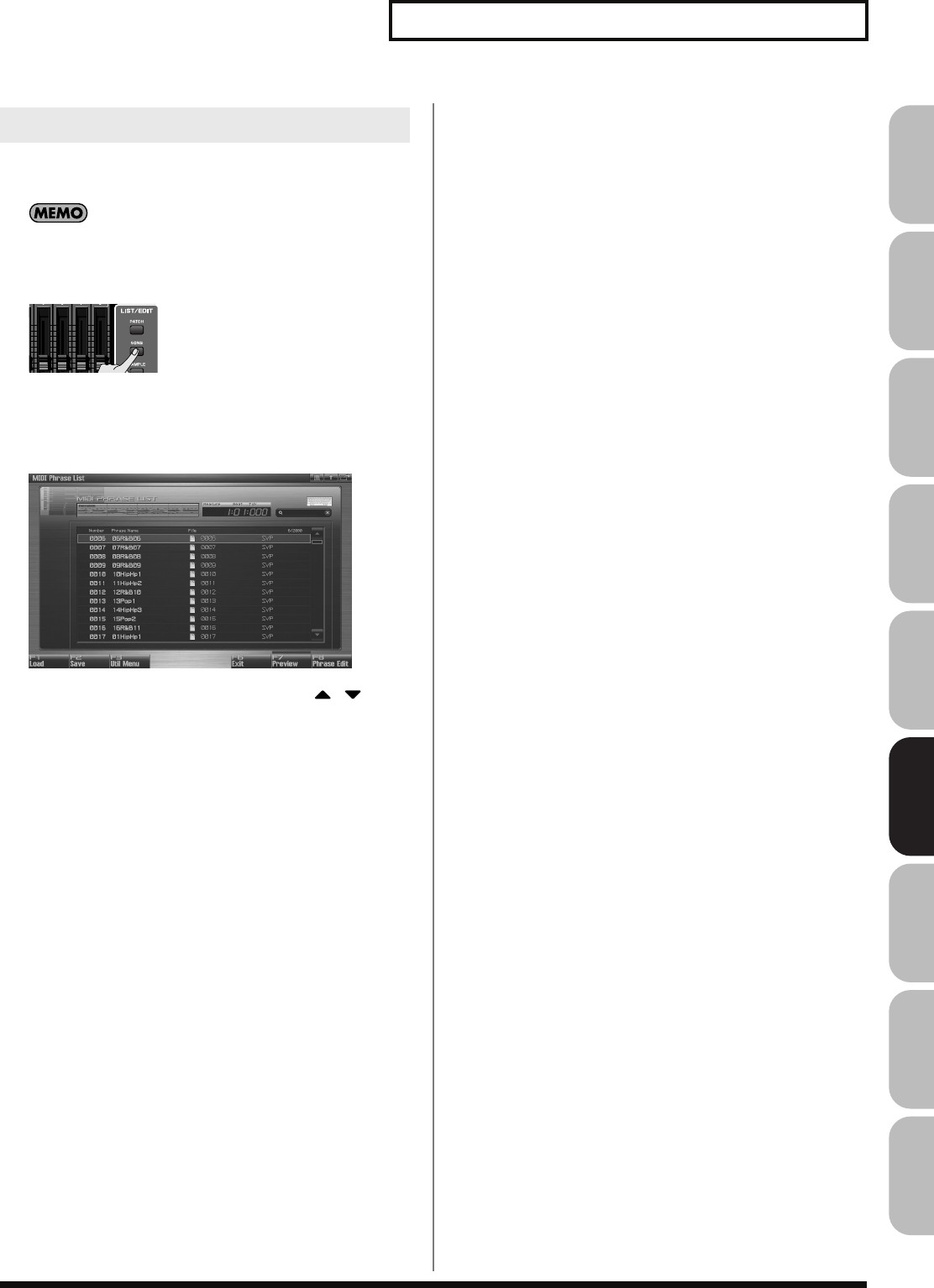
221
Recording MIDI
Overview Sound 1 Sound 2 Sound 3 Pad Sampler
Menu/System
AppendixSequencer
Access the MIDI Phrase List, and select the phrase that you want to
record.
Recording operations can also be performed in the Phrase Edit
screen (p. 238).
1.
Press [SONG].
The Song Play screen will appear.
2.
Press [F3 (Phrase List)].
The MIDI Phrase List screen will appear.
3.
Turn the [VALUE] dial or use [INC] [DEC] or / to
select the phrase that you want to record.
If a phrase already exists in the selected number
The existing phrase will be overwritten by your new recording.
If there is no phrase in the selected number
A new phrase will be recorded.
Proceed to Realtime Recording
→
p. 222
Proceed to Step Recording
→
p. 226
Selecting the Phrase to Record
Fantom-G_r_e.book 221 ページ 2008年1月31日 木曜日 午後12時15分
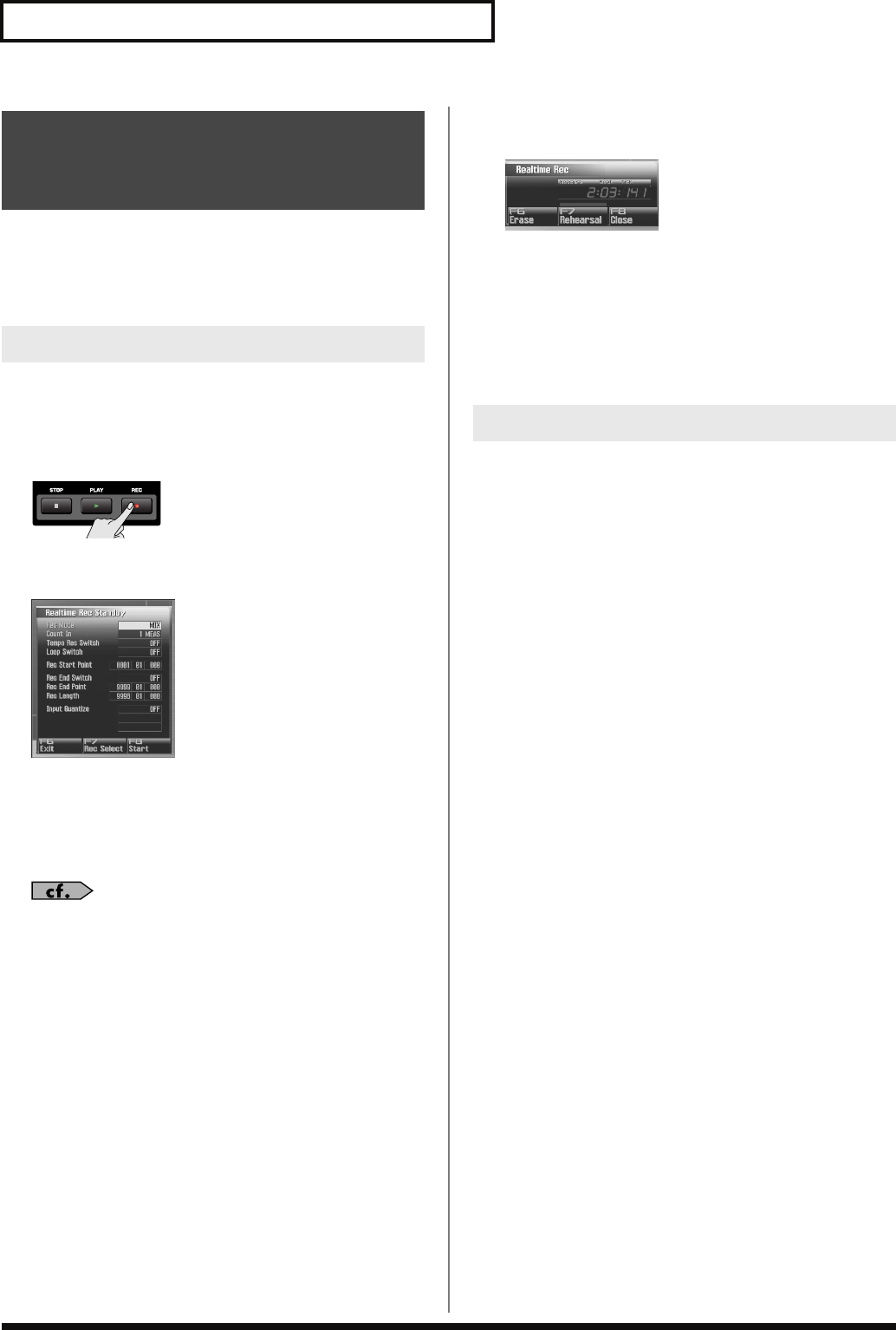
222
Recording MIDI
Realtime recording is the recording method in which your keyboard
performance and controller operations are recorded exactly as you
perform them. Choose this recording method when you want to
capture the nuances of your performance.
1.
Make sure that you’ve made the appropriate preparations
for recording as described in “Recording into a Song” (p.
218) or “Recording into a Phrase” (p. 220).
2.
Press [REC].
The [REC] indicator will blink, and the Realtime Rec Standby
window will appear.
In this window you can set various parameters related to
realtime recording.
3.
Use [CURSOR] to move the cursor to the various
parameters, and turn the VALUE dial or use [INC] [DEC] to
set them.
For details on the parameters, refer to
“Realtime Rec Standby
Parameters”
(p. 222).
4.
When you’ve finished making settings in the Realtime Rec
Standby window, press [PLAY] or [F8 (Start)].
The Realtime Rec Standby window will close, the [REC]
indicator will change from blinking to lit, and recording will
start.
When recording starts, the Realtime Recording window will
appear.
To close this window, press [F8 (Close)] or [PLAY]. To open it
again, press [PLAY].
In this window you can perform the following operations.
• Realtime erase (Erase p. 224)
• Rehearsal function (Rehearsal p. 225)
For details on these operations, refer to the corresponding page.
5.
When you’ve finished recording, press [STOP].
The [REC] indicator will go dark.
This section explains the Realtime Rec Standby parameters.
Rec Mode
Selects how recording is to take place.
Value
MIX:
Mix-recording will be carried out. Normally, you
will record using this method. If a performance has
already been recorded on the recording-destination
phrase, your newly recorded performance will be
added to the existing performance without erasing
it. By using this in conjunction with Loop-recording,
you can record repeatedly over a specified area
without erasing the previously recorded
performance. For example, this is a convenient way
to record a drum performance one instrument at a
time; bass drum
→
snare drum
→
hi-hat, etc.
REPLACE:
Replace-recording will be carried out. If a
performance has already been recorded on the
recording-destination phrase, it will be erased as
you record your new performance. Use this
when you want to re-record.
Count In
Selects how recording is to begin.
Value
OFF:
Recording will begin immediately when you
press [PLAY].
1 MEAS:
When you press [PLAY], a count (playback) will
begin one measure before the recording-start
location, and recording will begin when you
reach the recording-start location.
2 MEAS:
When you press [PLAY], a count (playback) will
begin two measures before the recording-start
location, and recording will begin when you
reach the recording-start location.
WAIT NOTE:
As an alternative to pressing [PLAY], you can
play the keyboard, strike a pad, or press the
Hold pedal to start recording.
Recording Your Performance
Just as You Play It
(Realtime Recording)
Basic Procedure for Realtime Recording
Realtime Rec Standby Parameters
Fantom-G_r_e.book 222 ページ 2008年1月31日 木曜日 午後12時15分
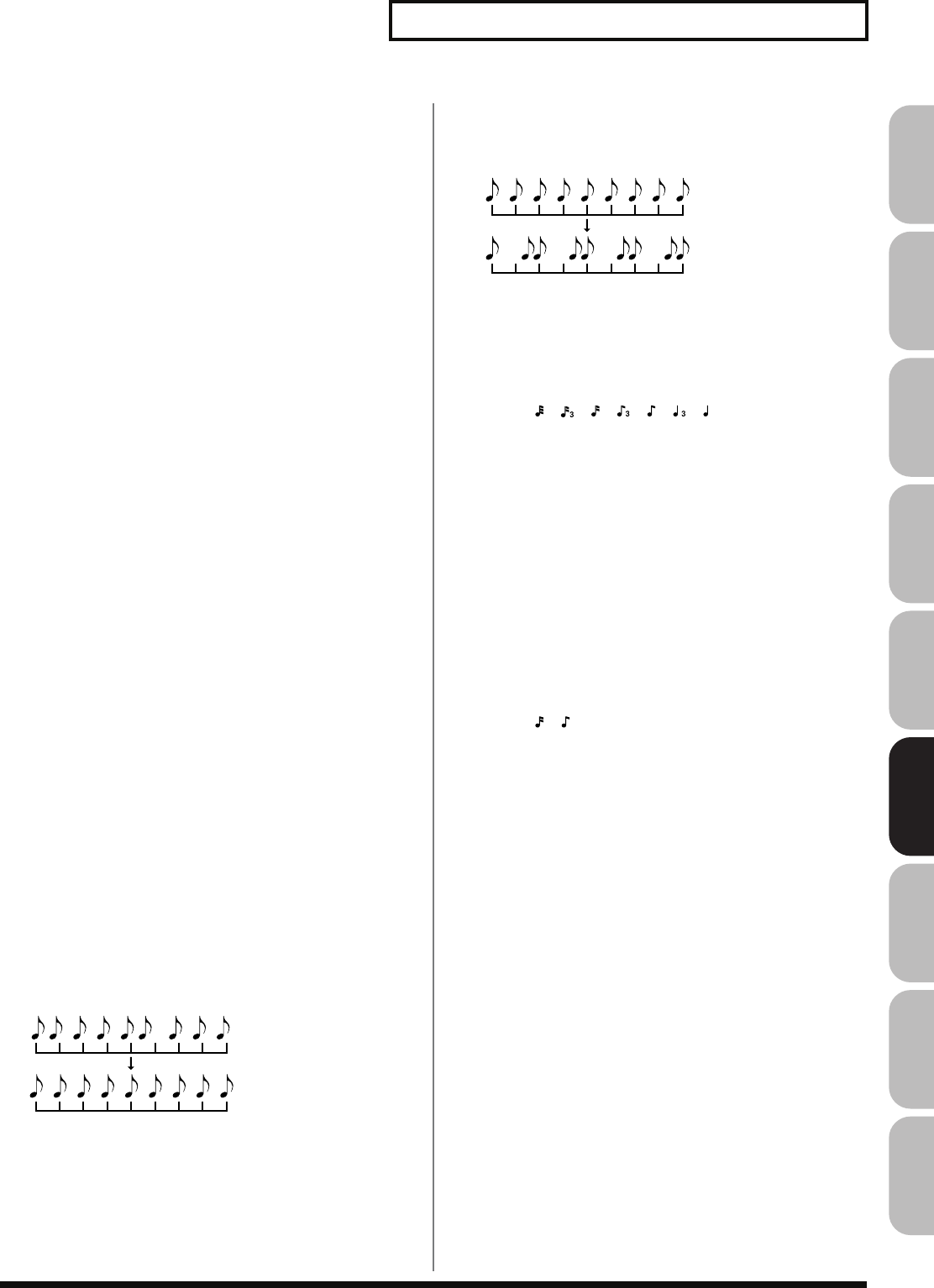
223
Recording MIDI
Overview Sound 1 Sound 2 Sound 3 Pad Sampler
Menu/System
AppendixSequencer
Tempo Rec Switch
Specifies whether tempo changes will be recorded (ON) or not
recorded (OFF).
If you want the tempo to change during the song, you can
record those tempo changes in the tempo track. If tempo
changes have already been recorded, they will be overwritten
by your new tempo changes.
Value:
OFF, ON
Loop Switch
Specifies whether loop recording will be on (ON) or off (OFF).
The loop region is from the Rec Start Point to the Rec End Point.
Value:
OFF, ON
Rec Start Point
Indicates the measure, beat, and tick at which recording will
start.
Rec End Switch
Specifies whether a recording end point will be assigned (ON)
or not assigned (OFF).
Rec End Point
Specifies the measure, beat, and tick at which recording will
end.
This setting is ignored if Rec End Switch is “OFF.”
Rec Length
Specifies the length of the recording region in measures, beats,
and ticks. The Rec Length setting and Rec End Point setting are
linked.
Input Quantize
The
Quantize
function automatically corrects inaccuracies in
the timing of your keyboard or pad performance, aligning the
notes to accurate timing intervals. During realtime recording,
you can quantize while you record.
Specify whether to quantize while recording.
Value
OFF:
Quantize will not be applied while recording.
GRID:
Grid Quantize will be applied while recording. Use
this when you want the timing to be accurate, such
as when recording drums or bass.
SHUFFLE:
Shuffle Quantize will be applied while recording.
Use this when you want to give the rhythm a
“shuffle” or “swing” character.
Grid Resolution
Make this setting when you are using Grid Quantize. Specify
the quantization interval in terms of a note value. Select the
shortest note value that will occur in the range to which Grid
Quantize will be applied.
Value:
, , , , , ,
Grid Quantize Strength
Make this setting when you are using Grid Quantize. It specifies
the degree to which notes will be adjusted toward the timing
intervals specified by the Grid Resolution parameter. With a
setting of “100%,” the notes will be corrected precisely to the
timing of the Grid Resolution parameter. As you lower this
setting, the note timing will be corrected to a lesser extent, and
with a setting of “0%” the timing will not be adjusted at all.
Value:
0–100%
Shuffle Resolution
When you are using Shuffle Quantize, make this setting to
specify the note value used for quantization.
Value:
,
Shuffle Rate
Make this setting when using Shuffle Quantize. It specifies the
degree to which the backbeat will be separated from the
downbeat specified by the Shuffle Resolution parameter. With a
setting of “50%,” the backbeat will be exactly between adjacent
downbeats. With a setting of “0%,” the backbeat will be moved
to the same timing as the preceding downbeat. With a setting of
“100%,” the backbeat will be moved to the same timing as the
following downbeat.
Value:
0–100%
Grid quantize with Resolution =
Shuffle quantize with Rate = 75%
Fantom-G_r_e.book 223 ページ 2008年1月31日 木曜日 午後12時15分
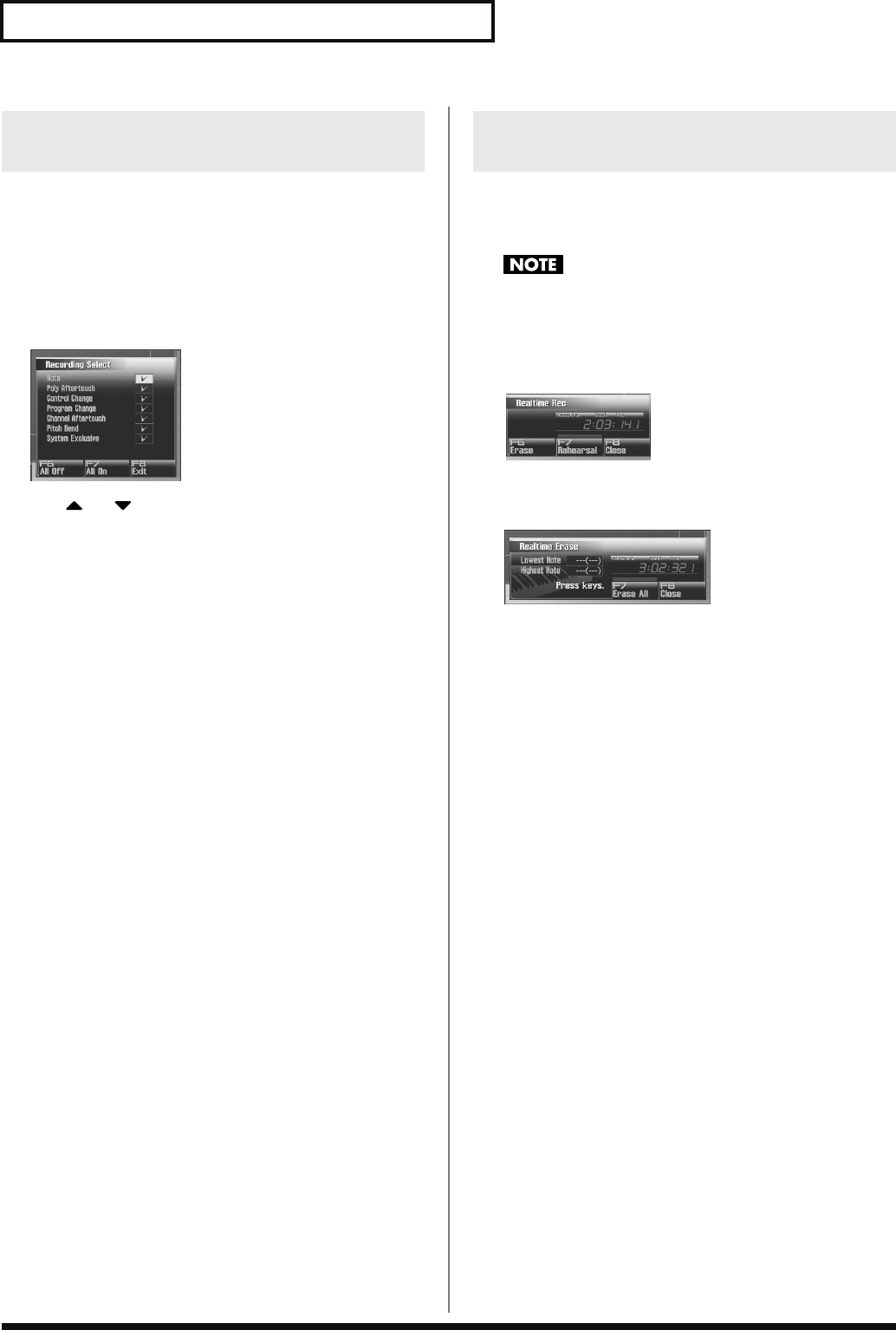
224
Recording MIDI
When you use realtime recording, all of your sequencer data will
normally be recorded. If you want to avoid recording a specific type
of data, you can turn its Recording Select setting “OFF.”
1.
Press [REC].
2.
Press [F7 (Rec Select)].
The Recording Select window appears.
3.
Use or to select the sequencer data (MIDI
messages) that will be recorded.
Note:
Note messages. These MIDI messages
represent notes.
Poly Aftertouch:
Polyphonic aftertouch. These MIDI
messages apply aftertouch to individual
keys.
Control Change:
Control change messages. These MIDI
messages apply various effects such as
modulation or expression.
Program Change:
Program change messages. These MIDI
messages select sounds.
Channel Aftertouch:
Channel aftertouch messages. These
MIDI messages apply aftertouch to an
entire MIDI channel.
Pitch Bend:
Pitch bend messages. These MIDI
messages change the pitch.
System Exclusive:
System exclusive messages. These MIDI
messages are used to make settings
unique to the Fantom-G, such as sound
parameters.
4.
Turn the VALUE dial or press [INC] [DEC] to add a check
mark.
The message will be recorded if you assign a check mark (
✔
),
and will not be recorded if you remove the check mark.
If you press [F6 (All Off)], no sequencer data will be recorded.
If you press [F7 (All On)], all of the sequencer data will be
recorded.
5.
Press [F8 (Close)] to close the Recording Select window.
Realtime Erase is a function that erases unwanted data during
realtime recording. This is particularly convenient during loop
recording, since it lets you erase data without stopping recording.
Realtime Erase can be executed only if the Recording Mode is
set to “MIX.”
1.
Begin realtime recording (p. 222).
The Realtime Recording window appears.
2.
Press [F6 (Erase)].
The Realtime Erase window appears.
3.
Erase unwanted data.
To erase all data, press [F7 (Erase All)]. Data will be erased for
as long as you hold down the button.
To erase notes of a specific key, hold down that key. Data for
that note will be erased for as long as you hold down that key.
To erase notes of a specific key range, hold down the top and
bottom keys of that range. Data for that range will be erased for
as long as you hold down those keys.
4.
Press [F8 (Close)] to close the Realtime Erase window.
You will return to the normal recording state.
Selecting the Sequencer Data that
will Be Recorded (Recording Select)
Erasing Unwanted Data While You
Record (Realtime Erase)
Fantom-G_r_e.book 224 ページ 2008年1月31日 木曜日 午後12時15分
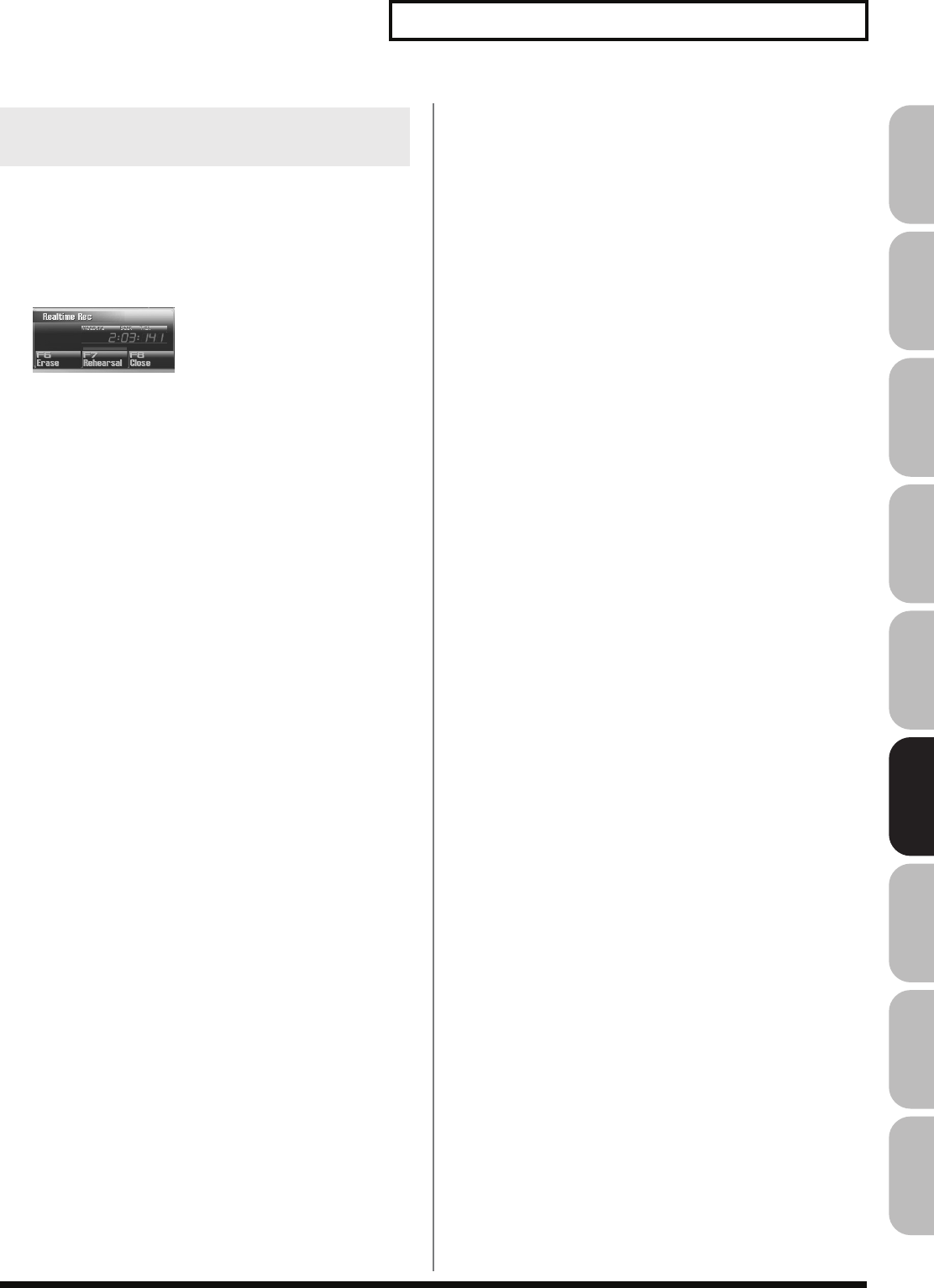
225
Recording MIDI
Overview Sound 1 Sound 2 Sound 3 Pad Sampler
Menu/System
AppendixSequencer
The Rehearsal function lets you temporarily suspend recording
during realtime recording. This is convenient when you want to
practice the phrase that you will record next.
1.
Begin realtime recording (p. 222).
The Realtime Recording window appears.
2.
Press [F7 (Rehearsal)] or [REC].
The [REC] indicator will blink, indicating that you are in
rehearsal mode. In this state, nothing will be recorded when
you play the keyboard.
3.
To return to record mode, press [F7 (Rehearsal)] or [REC]
once again.
Auditioning Sounds or Phrases While
Recording (Rehearsal Function)
Fantom-G_r_e.book 225 ページ 2008年1月31日 木曜日 午後12時15分
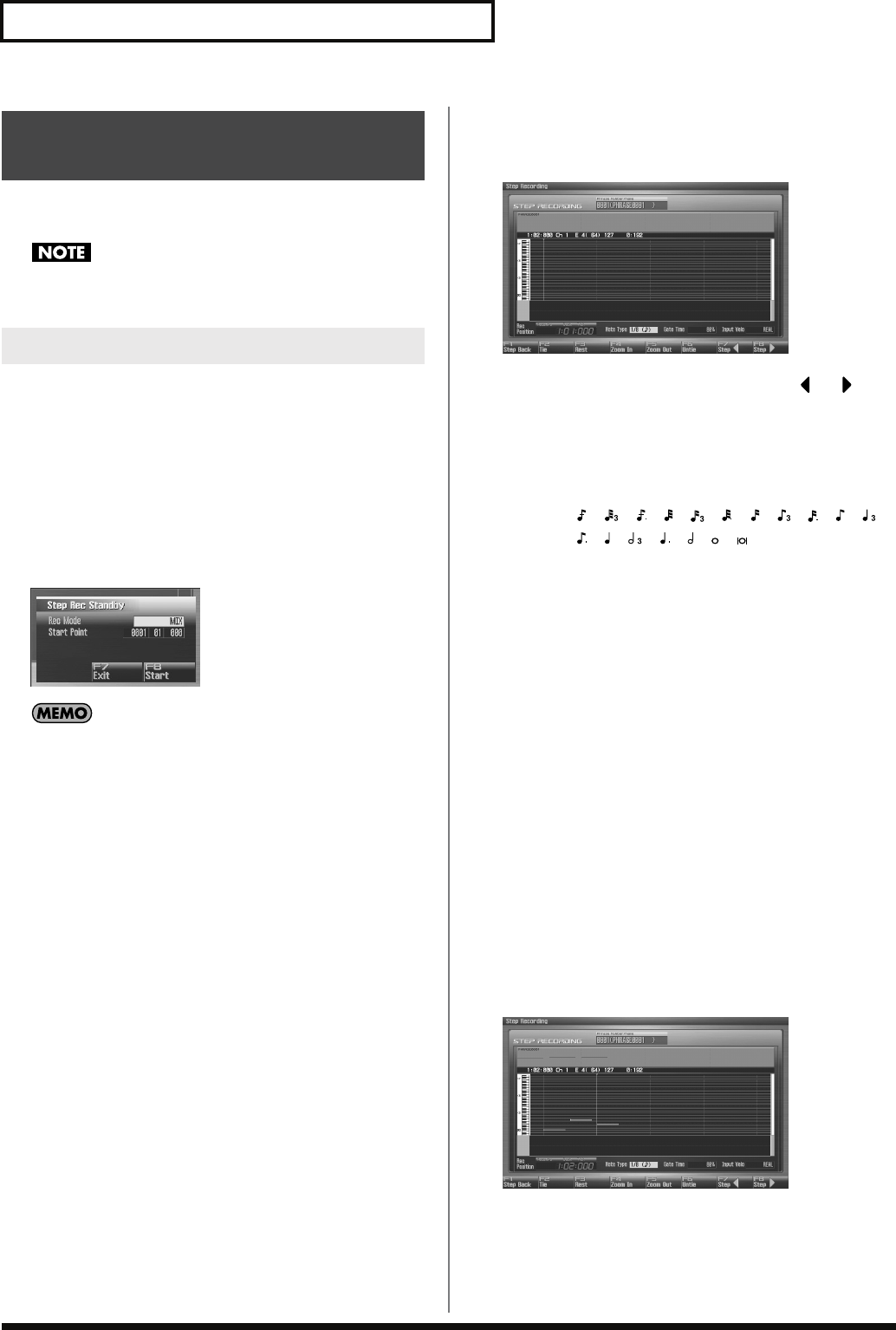
226
Recording MIDI
Step recording lets you record notes and rests one at a time, just as
though you were writing them onto a musical staff.
You can’t step-record directly into a song. You can use step
recording to record a phrase.
1.
Make sure that you’ve made the appropriate preparations
for recording as described in “Recording into a Phrase” (p.
220).
2.
Press [F8 (Phrase Edit)] in the MIDI Phrase List.
The Phrase Edit screen will appear.
3.
Press [F5 (Step Rec)]
The [REC] indicator will blink, and the Step Recording Standby
window will appear.
You can also access the Step Recording Standby window by
holding down [SHIFT] and pressing [REC] in the MIDI Phrase
List.
4.
Make settings for step recording. Use [CURSOR] to move
the cursor to the desired parameter, and turn the VALUE
dial or use [INC] [DEC] to set the parameter.
• Rec Mode (Recording Mode)
Selects how recording is to take place.
Value
MIX:
Mix-recording will be carried out. Normally, you
will record using this method. If a performance has
already been recorded on the recording-
destination phrase, your newly recorded
performance will be added to the existing
performance without erasing it.
REPLACE:
Replace-recording will be carried out. If a
performance has already been recorded on the
recording-destination phrase, it will be erased as
you record your new performance. Use this when
you want to re-record.
• Start Point
Specifies the location (measure-beat-tick) at which recording
will begin.
5.
Press [F8 (Start)] or [PLAY].
The [REC] indicator will light, and the Step Rec (Note) screen
appears.
6.
Specify the note that you want to input. Use or to
select the desired parameter.
• Note Type
Specifies the length of the notes that you want to input, in terms
of a note value. The length of the note value indicates the length
from one note-on to the next note-on.
Value:
, , , , , , , , , , ,
, , , , , ,
• Gate Time
Specifies the proportion of the gate time relative to the Note
Type. The gate time is the length between note-on and note-off.
Specifies a lower value if you want the notes to be played
staccato, or a higher value if you want the notes to be played
tenuto, or as a slur. Normally, you will set this to about “80%.”
Value:
1–100%
• Input Velo
Specifies the strength with which the note will be played. If you
want this to be the strength with which you actually pressed a
key or a pad, select “REAL.” Otherwise, use settings of p
(piano)=60, mf (mezzo forte)=90, or f (forte)=120 as general
guidelines.
Value:
REAL, 1–127
7.
Turn the VALUE dial or press [INC] [DEC] to make the
setting.
8.
Press [F7 ( )] or [F8 (
➜
)] to move to the desired input
location, and press a note on the keyboard or a pad.
When you press a key or a pad, the note messages are displayed
as a bar. The velocities are displayed as a bar graph.
You can use the function buttons ([F1] [F2] [F3] [F4] [F5] [F6]) to
perform the following operations.
Inputting Data One Step at
a Time (Step Recording)
Entering Notes and Rests
➜
Fantom-G_r_e.book 226 ページ 2008年1月31日 木曜日 午後12時15分
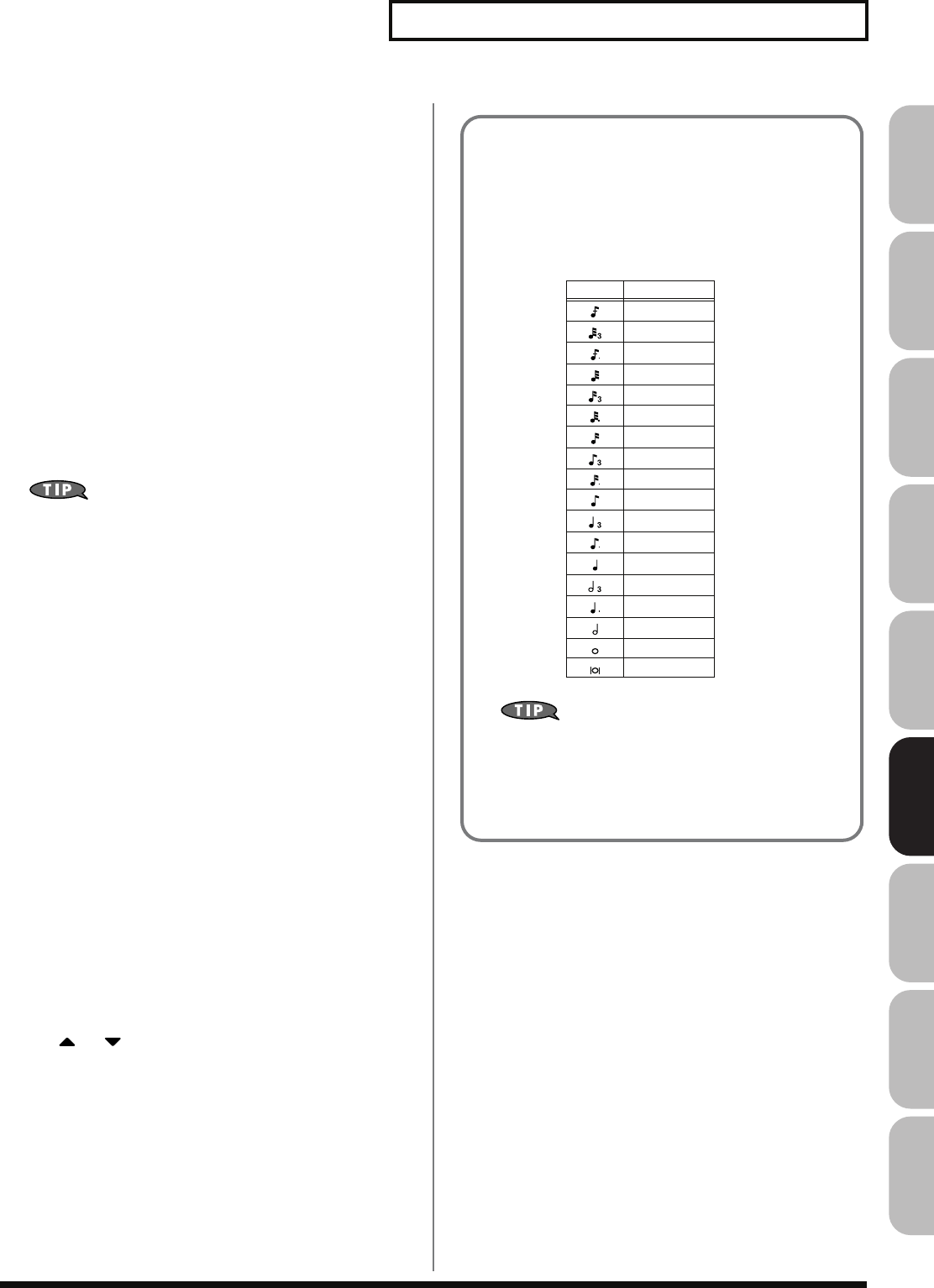
227
Recording MIDI
Overview Sound 1 Sound 2 Sound 3 Pad Sampler
Menu/System
AppendixSequencer
• Step Back
Cancel the previously input note.
• Tie
Extend the length of the previously input note by the current
setting.
• Rest
Inputs a rest. First set the Note Type parameter to a length that
is the same as the rest you want to input.
• Zoom In
Narrow the range of keys shown in the display. Use this when
you want to view certain notes at greater magnification.
• Zoom Out
Expand the range of notes shown in the display. Use this when
you want to see which notes have been input.
• Untie
Removes the most recently input tie.
9.
Repeat the above steps to continue inputting.
The previous value of each parameter is remembered. This
means that if you want to use the same settings as the
previously input note, there is no need to change the settings.
Once you have set the Gate Time parameter and Input Velocity
parameter, it is not normally necessary to change them, so all
you have to do is set the Note Type parameter and specify the
pitch (keyboard, pad) of each note.
10.
When you are finished step recording, press [STOP].
The [REC] indicator will go dark.
Inputting a Chord
Press the chord. The cursor will move to the next step when you
release all keys or pads.
Moving the input location
• Pressing [F8 (
➜
)] will move the input location forward by the
current Note Type value.
• Pressing [F7 (
)
] will move the input location backward by the
current Note Type value.
• Hold down [SHIFT] and press [F8 (
➜
)] will advance the input
location by one measure.
• Hold down [SHIFT] and press [F7 ( )] will return the input
location by one measure.
Moving the display region
Pressing or will move the displayed region of notes
upward or downward.
➜
➜
The Relation between Note Value Length
and Gate Time
The relation between the length of the note value and the gate
time is shown below. Since the Fantom-G’s sequencer uses a
TPQN (Ticks Per Quarter Note; i.e., resolution) of 480, a quarter
note gate time is 480 ticks.
The gate time that is recorded in step recording will be the
original gate time value multiplied by the value of the Gate
Time parameter. For example, if the Gate Time parameter
is set to “80%,” inputting a quarter note will mean that the
gate time is 480 x 0.8=384.
Note Gate time
30
40
45
60
80
90
120
160
180
240
320
360
480
640
720
960
1920
3840
Fantom-G_r_e.book 227 ページ 2008年1月31日 木曜日 午後12時15分
228
Recording Audio
This section explains how to use the Fantom-G’s sequencer to record
audio.
About the audio recording time
The Fantom-G has 32 MB of built-in memory, which allows you
to record approximately six minutes of mono audio or
approximately 3 minutes of stereo audio. If you want to record
for longer than this, you’ll need to install commercially
available memory (DIMM) (p. 308, p. 310).
A piece of recorded audio data is called a “sample.” You can create a
song simply by placing samples in an audio track of a song.
You can record audio either by recording directly into an audio track
of a song, or by recording only samples (sampling), or by importing
WAV or AIFF files from your computer.
Recording into a song (p. 228)
From the Song Play screen, select a track and a record-start location,
and then record.
After recording, the sample will be assigned to the record-start
location of the track.
Sampling (p. 258)
You can use the Sampling function to record audio. The samples you
record will be added to the sample list. You can create a song by
freely placing these samples in an audio track of the song.
Importing from your computer (p. 283)
You can import WAV or AIFF files from your computer. The
imported WAV or AIFF files will be added to the sample list as
samples. You can create a song by freely placing these samples in an
audio track of the song.
When recording audio into a song, the work-flow is as follows.
1.
Select an audio track and the recording-start location
(p. 229).
2.
Perform audio recording (p. 230).
3.
Use song editing (p. 232) to edit the song.
4.
Edit the samples (p. 263).
5.
Save the song (p. 254).
Samples and Songs
Recording into a Song
Fantom-G_r_e.book 228 ページ 2008年1月31日 木曜日 午後12時15分
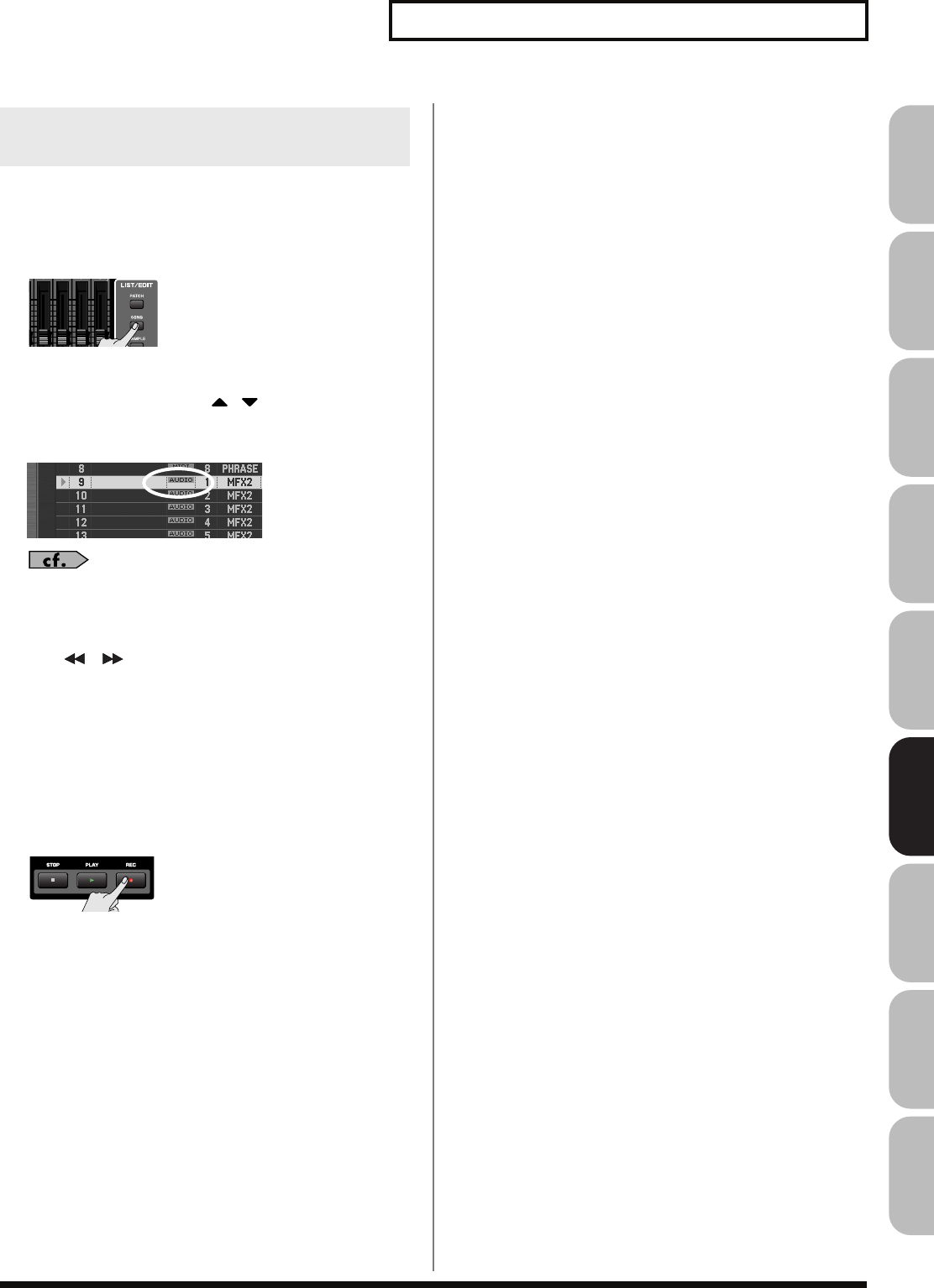
229
Recording Audio
Overview Sound 1 Sound 2 Sound 3 Pad Sampler
Menu/System
AppendixSequencer
Here’s how to select an audio track for recording, and specify the
recording-start measure.
You can record on any of the tracks 1–24 that are marked “AUDIO.”
1.
Press [SONG].
The Song Play screen will appear.
2.
Turn the VALUE dial or use / to select the audio
track on which you want to record.
Select a track that’s marked “AUDIO.”
You can change the order in which the tracks are displayed.
→
“Changing the Track Display Zoom and Display Order
(Zoom/Track Order)”
(p. 209)
3.
Use [ ] [ ] to specify the measure at which you’ll start
recording.
The recording-start measure is shown in the “Measure” field
located at the top of each PLAY screen.
If the track already contains a sample
Each audio track always plays only one sample per track. If
samples overlap in a track, the latter sample will be heard.
4.
Press the [REC] button to enter record-standby mode.
Proceed to Audio Recording
→
p. 230
Selecting an Audio Track and the
Recording-start Measure
Fantom-G_r_e.book 229 ページ 2008年1月31日 木曜日 午後12時15分
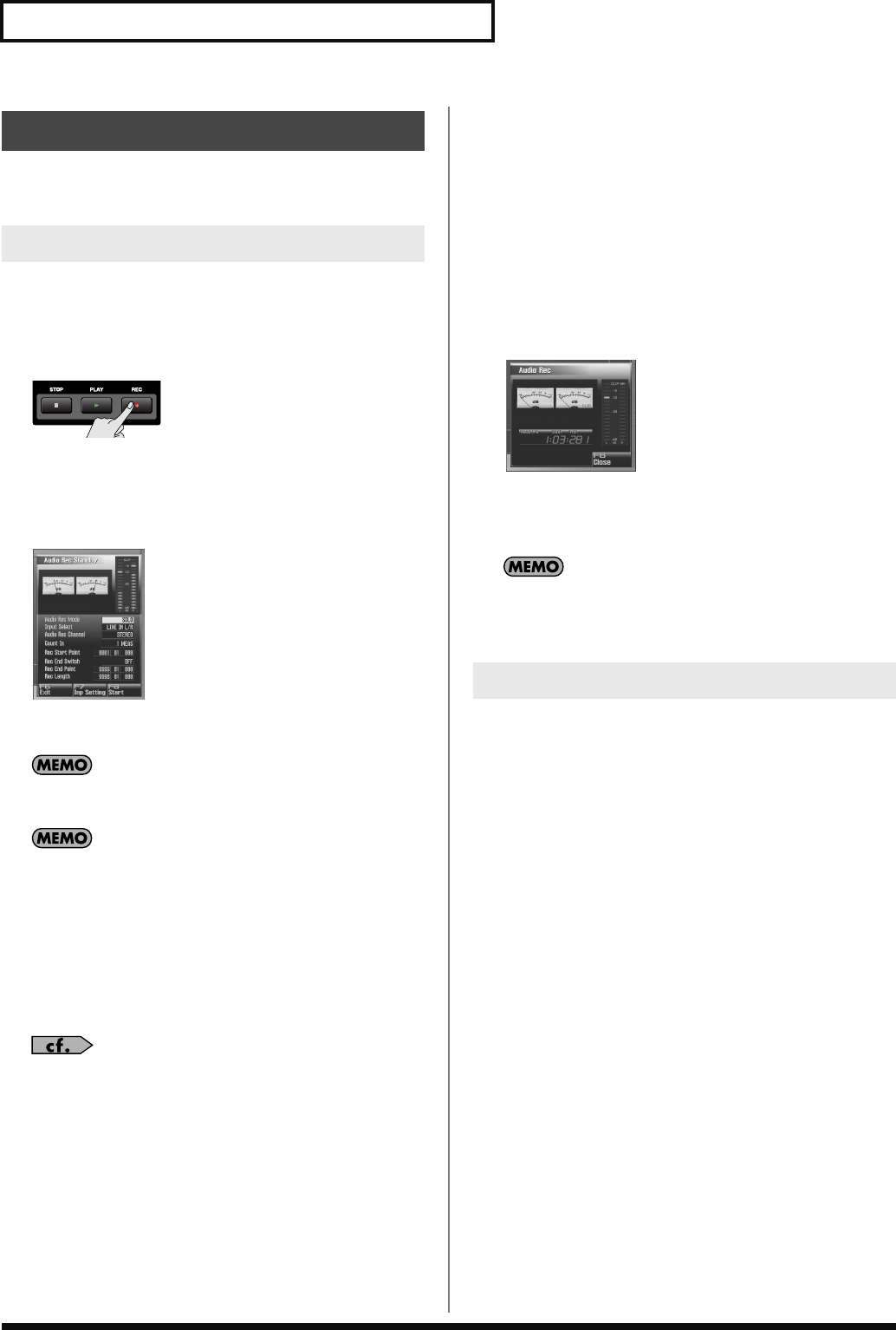
230
Recording Audio
Here’s how to record audio input from an audio device, mic, or CD
onto an audio track.
1.
Make sure that you’ve completed the preparations for
recording as described in “Selecting an Audio Track and
the Recording-start Measure” (p. 229).
2.
Press [REC].
* This step is the same as step 4 on
“Selecting an Audio Track and
the Recording-start Measure”
(p. 229).
The [REC] indicator will blink, and the Audio Rec Standby
window will appear.
fig.18-003_50
In this window you can set various parameters related to audio
recording.
Pressing [F7 (Inp Setting)] will access the Input Setting screen
(p. 258), where you can make settings for the external input.
You can apply effects such as equalizer or compressor to the
audio input. Press [F7 (Inp Setting)] and then [F7 (Input Effect)]
to access the INPUT EFFECT screen, where you can make effect
settings. For details on the parameters that you can set, refer to
“Input Effect Parameters”
(p. 186).
3.
Use [CURSOR] to move the cursor to the desired
parameter, and turn the VALUE dial or use [INC] [DEC] to
set the value.
For details on each parameter, refer to
“Audio Rec Standby
Parameters”
(p. 230).
4.
If you’re recording from the AUDIO INPUT, turn the rear
panel LEVEL knob (p. 24) to adjust the input level from your
external source.
* This adjustment is not needed if you’re using DIGITAL IN.
* If the volume of the external input is too high, the PEAK indicator will
light. In this case, turn down the LEVEL knob until the PEAK
indicator no longer lights.
* If the recording level is too high, the level meter in the screen will
indicate “CLIP.”
* If an external device is connected to the DIGITAL AUDIO IN
connector, and you disconnect the cable or power-off your external
device, noise may subsequently be heard in the input from DIGITAL
AUDIO IN. If this occurs, re-connect the external device correctly, or
turn off the Fantom-G’s [MIX IN] switch.
5.
Press [PLAY] or [F8 (Start)].
The Realtime Rec Standby window will close, the [REC]
indicator will change from blinking to lit, and recording will
start.
When recording starts, the Realtime Recording window will
appear.
fig.18-004_50
6.
When you’re finished recording, press [STOP].
The [REC] indicator will go dark.
The sample you recorded will be placed in the audio track.
The recorded sample will be lost when you turn off the
power.
If you want to keep the sample, you must save it (p. 274).
This section explains the Realtime Rec Standby parameters.
Audio Rec Mode (Audio recording mode)
Specifies how recording will occur.
Value
SOLO:
While playing the internal sound generator
as usual, record only the sound from the
external input.
* Effects other than the Input Effect cannot be
applied to the external input sound.
SOLO WITH FX:
While playing the internal sound generator,
record only the sound from the external
input. While doing so, you can apply an
effect to the external input sound.
* If the recording mode is “SOLO WITH FX,” you
cannot apply MFX (multi-effect) to the sound of
the internal sound generator.
RE-SAMPLING:
Record the sound of the internal sound
generator (including the audio tracks). The
external input will not be heard.
* The volume of resampled phrases may be less
than the original volume of the phrase. As
needed, use Normalize (p. 270) to raise the
volume.
Audio Recording
Basic Procedure for Audio Recording
Audio Rec Standby Parameters
Fantom-G_r_e.book 230 ページ 2008年1月31日 木曜日 午後12時15分
231
Recording Audio
Overview Sound 1 Sound 2 Sound 3 Pad Sampler
Menu/System
AppendixSequencer
Input Select
Selects the input source.
Value
DIGITAL IN:
DIGITAL AUDIO IN jack
LINE IN L/R:
INPUT jacks L/R (stereo)
LINE IN L:
INPUT jack L (mono)
MIC/GUITAR:
MIC/GUITAR jack
USB AUDIO:
USB connector
Audio Rec Channel (Audio recording channel)
When recording an audio track, selects whether the recorded
track will be stereo or mono.
Value
MONO:
Recording in mono.
STEREO:
Recording in stereo.
Count In
Selects how recording will begin.
Value
OFF:
Recording will begin as soon as you press
[PLAY].
1 MEAS:
When you press [PLAY], there will be a count
starting one measure before the recording-start
location, and recording will begin at the
recording-start location.
2 MEAS:
When you press [PLAY], there will be a count
starting two measures before the recording-start
location, and recording will begin at the
recording-start location.
Rec Start Point (Recording start point)
Indicates the measure, beat, and tick at which recording will
start.
Rec End Switch (Recording end switch)
Selects whether a recording-end point will be specified (ON) or
not (OFF).
Rec End Point (Recording end point)
Specifies the measure, beat, and tick at which recording will
end.
This setting will have no effect if the
Rec End Switch
is “OFF.”
Rec Length (Recording length)
Specifies the length of the recorded region in measures, beats,
and ticks. This setting is linked with the Rec End Point settings.
Fantom-G_r_e.book 231 ページ 2008年1月31日 木曜日 午後12時15分
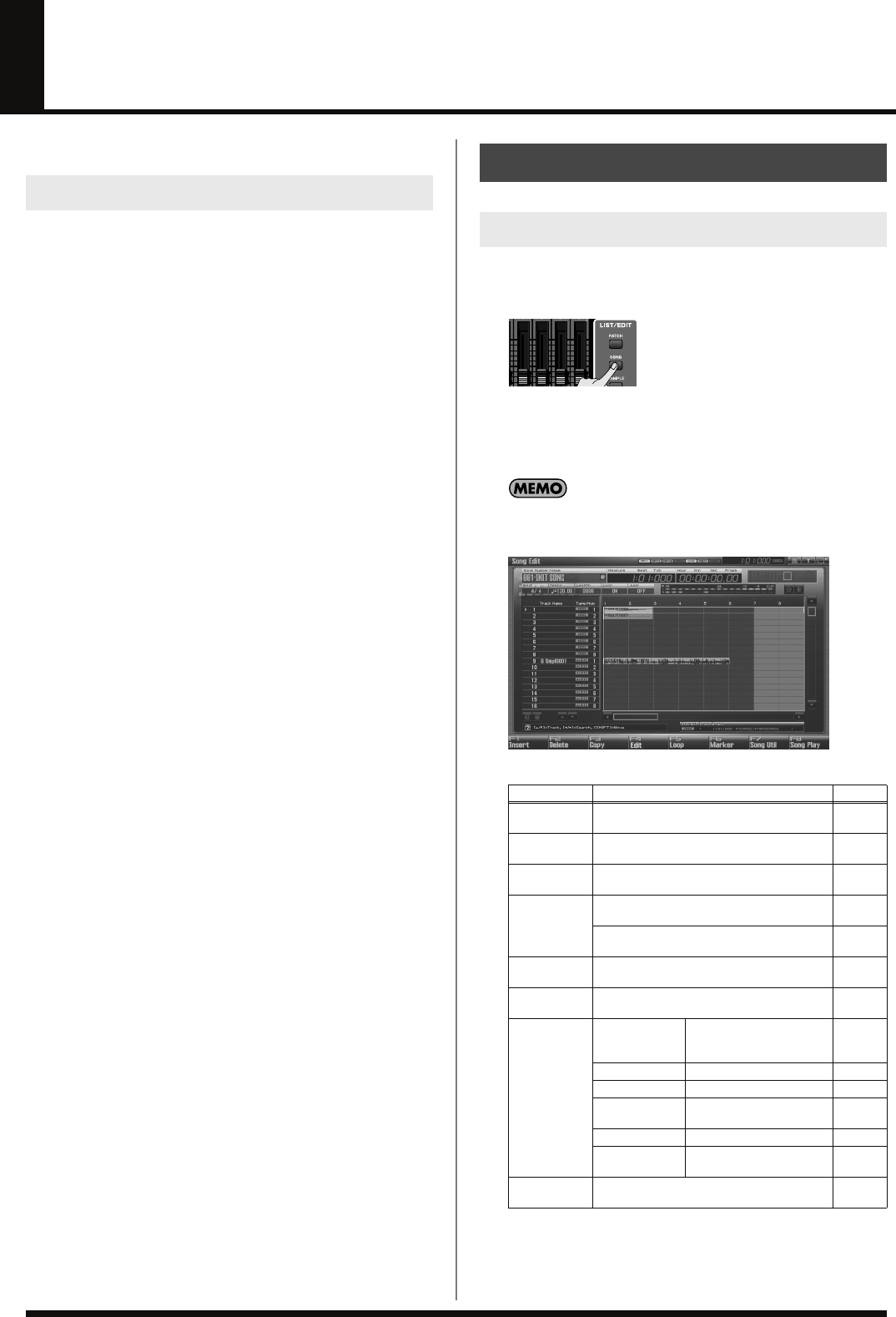
232
Editing Songs
This section explains how to edit songs.
Editing a song (p. 232)
In the Song Play screen and Song Edit screen you can edit the entire
song. Here you can make settings for each track, and rearrange the
phrases and samples. The tracks of a song do not contain the
samples or phrases themselves, but merely hold information telling
“at this point, play sample (or phrase) number so-and-so.”
Editing a phrase (p. 238)
You can edit the individual phrases that are assigned to the tracks.
Use the Phrase Edit screen to edit phrases.
Editing a sample (p. 263)
You can edit the individual samples that are assigned to the tracks.
Use the Sample Edit screen to edit samples.
To edit a song, access the Song Edit screen.
1.
Press [SONG].
The Song Play screen will appear.
2.
Press [F8 (Song Edit)].
The Song Edit screen will appear.
You can also access the Song Edit screen by pressing [SONG]
twice in succession.
fig.17-001
F-keys operations in the Song Edit screen
Three Ways to Edit
Editing a Song (Song Edit)
Opening the Song Edit Screen
F-key Explanation Page
F1
Insert Inserts a sample/phrase at the specified lo-
cation. p. 233
F2
Delete Deletes the selected sample/phrase from
the track. p. 234
F3
Copy Copies the selected sample/phrase. p. 234
F4
Edit If a sample is selected:
Opens the Sample Edit screen. p. 266
If a phrase is selected:
Opens the Phrase Edit screen. p. 238
F5
Loop Opens the Loop window, where you can
specify the loop region. p. 208
F6
Marker Opens the Marker window, where you can
assign markers. p. 208
F7
Song Util Zoom/
Track Order Zooms the track display,
or changes the displayed
order of the tracks.
p. 209
Song Clear Erases the song. p. 235
Track Clear Erases the track. p. 235
Track Name Assigns a name to the
track. p. 235
Tempo Track Changes the tempo. p. 236
Beat Track Changes the time signa-
ture. p. 237
F8
Song Edit Opens the Song Play screen. p. 205
Fantom-G_r_e.book 232 ページ 2008年1月31日 木曜日 午後12時15分
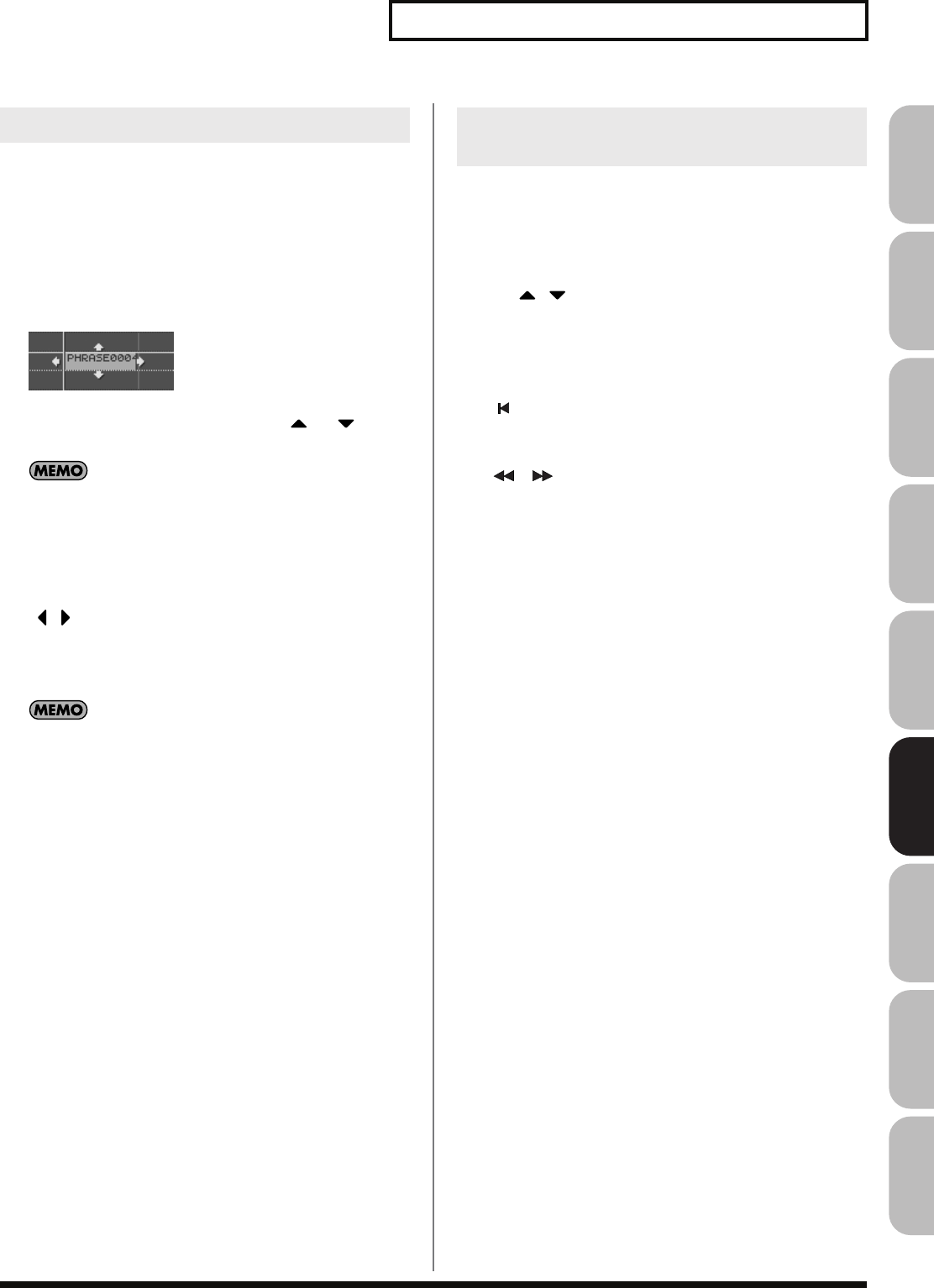
233
Editing Songs
Overview Sound 1 Sound 2 Sound 3 Pad Sampler
Menu/System
AppendixSequencer
Here’s how to move the currently selected sample/phrase to another
track or location.
1.
Access the Song Edit screen (p. 232).
2.
Use [CURSOR] to select the sample/phrase that you want to
move.
3.
Press [SHIFT].
The cursor will change to the following shape.
4.
Continuing to hold down [SHIFT], press or .
The sample/phrase will move to a different track.
Samples can be moved to audio tracks, and phrases can be
moved to MIDI tracks.
5.
Continuing to hold down [SHIFT], use the following buttons
to move the sample/phrase.
[INC] [DEC]
Move the sample/phrase in steps of one tick.
/
Move the sample/phrase in steps of one
measure.
VALUE dial
Move the sample/phrase in steps of a 16th note
(120 ticks).
If you’re using a USB mouse, you can move a phrase by using
the mouse to drag it (hold down the left mouse button and
move it).
Here’s how to insert a sample/phrase at the location you specify.
Samples will automatically be selected for an audio track, and
phrases will automatically be selected for a MIDI track.
1.
Access the Song Edit screen (p. 232).
2.
Use / to select the track into which you want to
insert a sample/phrase.
3.
Specify the location at which you want to insert a sample/
phrase.
The buttons will operate as follows.
[]
Move the current location to the beginning of the
song.
[INC] [DEC]
Move the current location in steps of one tick.
[] []
Move the current location in steps of one
measure.
VALUE dial
Move the current location in steps of one beat.
4.
Press [F1 (Insert)].
For a MIDI track
The MIDI Phrase Select screen will appear.
For an audio track
The Sample Select screen will appear.
5.
Select the sample/phrase that you want to insert, and press
[F8 (Select)].
The sample/phrase will be inserted at the specified location.
Moving a Sample/Phrase (Move)
Inserting a Sample/Phrase at a
Specified Location (Insert)
Fantom-G_r_e.book 233 ページ 2008年1月31日 木曜日 午後12時15分
234
Editing Songs
Here’s how to delete the selected sample/phrase from the track.
1.
Access the Song Edit screen (p. 232).
2.
Use [CURSOR] to select the sample/phrase that you want to
delete.
3.
Press [F2 (Delete)].
The selected sample/phrase will be deleted from the track.
This operation simply deletes the sample/phrase from the
track; the actual data will remain in the sample/phrase list.
Here’s how to copy the currently selected sample/phrase.
1.
Access the Song Edit screen (p. 232).
2.
Use [CURSOR] to select the sample/phrase that you want to
copy.
3.
Press [F3 (Copy)].
The currently selected sample/phrase will be copied
immediately following itself.
If you’re using a USB mouse, you can copy a sample/phrase by
holding down [SHIFT] and clicking the sample/phrase with the
mouse.
Here’s how to edit the currently selected sample/phrase.
If a sample is selected: The Sample Edit window will appear.
If a phrase is selected: The Phrase Edit window will appear.
1.
Access the Song Edit screen (p. 232).
2.
Use [CURSOR] to select the sample/phrase that you want to
edit.
3.
Press [F4 (Edit)].
For a sample
The Sample Edit screen will appear
→
p. 266
For a phrase
The Phrase Edit screen will appear
→
p. 238
Deleting a Sample/Phrase from a
Track (Delete)
Copying a Sample/Phrase (Copy)
Editing a Sample/Phrase
(Edit)
Fantom-G_r_e.book 234 ページ 2008年1月31日 木曜日 午後12時15分
235
Editing Songs
Overview Sound 1 Sound 2 Sound 3 Pad Sampler
Menu/System
AppendixSequencer
“Changing the Track Display Zoom and Display Order
(Zoom/Track Order)”
(p. 209)
Here’s how to erase the song that’s currently open in the Song Play
screen. Use this operation when you want to record a new song. The
song file itself that’s saved in the project will not be deleted.
If you’ve edited the currently-open song, save it before you
continue (p. 254).
1.
Access the Song Edit screen (p. 232).
2.
Press [F7 (Song Util)].
The Song Edit Utility Menu window will appear.
3.
Use / to choose “Song Clear,” and press [F8 (Select)].
To cancel, press [F7 (Cancel)].
A confirmation message will appear.
4.
Press [F7 (OK)] to execute.
If you decide to cancel, press [F8 (EXIT)].
Here’s how to erase the selected track. The track name and track
setup data will also return to the default settings.
1.
Access the Song Edit screen (p. 232).
2.
Use / to select the track that you want to clear.
3.
Press [F7 (Song Util)].
The Song Edit Utility Menu window will appear.
4.
Use / to choose “Track Clear,” and press [F8 (Select)].
To cancel, press [F7 (Cancel)].
A confirmation message will appear.
5.
Press [F7 (OK)] to execute.
If you decide to cancel, press [F8 (EXIT)].
You can assign a name of a track.
1.
Access the Song Edit screen (p. 232).
2.
Use / to select the track that you want to clear.
3.
Press [F7 (Song Util)].
The Song Edit Utility Menu window will appear.
4.
Use / to choose “Track Clear,” and press [F8 (Select)].
To cancel, press [F7 (Cancel)].
5.
Assign the name.
For details on assigning a name, refer to
“Assigning a Name”
(p. 42).
6.
Press [F8 (Write)] to finalize the name.
Song Utility (Song Util)
Changing the Track Display Zoom
and Display Order (Zoom/Track
Order)
Erasing the Currently-open Song
(Song Clear)
Clearing a Track (Track Clear)
Naming a Track (Track Name)
Fantom-G_r_e.book 235 ページ 2008年1月31日 木曜日 午後12時15分
236
Editing Songs
If you want the tempo to change during the song, insert new tempo
change data into the tempo track. Following the location at which
you insert the tempo change, the song will play at that tempo.
However, if you want to create a gradual tempo change such as a
ritardando or accelerando, it’s more convenient to use Tempo
Recording (p. 223).
If you want to make the overall tempo of the song faster or
slower, you can adjust the playback tempo in the various PLAY
screens.
1.
Access the Song Edit screen (p. 232).
2.
Press [F7 (Song Util)].
The Song Edit Utility Menu window will appear.
3.
Use / to choose “Tempo Track,” and press [F8 (Select)].
To cancel, press [F7 (Cancel)].
4.
Press [F1 (Create)].
The Create Event window will appear. In the window, “Tempo
Change” will be selected.
5.
Press [F8 (Execute)].
The Create Position window will appear.
6.
Use / to move the cursor to “Measure (Meas),”
“Beat,” and “Tick.”
7.
Turn the VALUE dial or use [INC] [DEC] to specify the
location at which the tempo change will be inserted.
8.
Press [F8 (Execute)] to insert the tempo change.
9.
The inserted tempo change will have the default tempo
value, so adjust the value as desired.
For details on editing the tempo track, refer to
“Editing
Individual Items of Sequencer Data (Microscope)”
(p. 250).
However, the only data that can be handled by the tempo track
is as described in
“Tempo Change”
(p. 236).
Data handled by the tempo track
The tempo track records tempo data for the song.
Tempo Change
This data specifies the tempo. The song will play according to the
value of these tempo changes.
The value shown in “ =**” is the tempo at which the song will
actually play (the playback tempo), and can be adjusted in the PLAY
screen of each mode.
If the tempo change value differs from the playback tempo, this
means that the playback tempo has been changed temporarily. In
other words, the tempo change values have not been rewritten, so
this setting will be lost if you switch to a different song or turn off
the power. If you want the song to play at this tempo the next time
as well, you must re-save the song. This will rewrite the tempo
change values to match the actual playback tempo.
Changing the Tempo during the Song
(Tempo Track)
Fantom-G_r_e.book 236 ページ 2008年1月31日 木曜日 午後12時15分
237
Editing Songs
Overview Sound 1 Sound 2 Sound 3 Pad Sampler
Menu/System
AppendixSequencer
If you want the time signature to change during the song, insert new
beat change data into the beat track. Following the location at which
you insert the beat change, the song will play at that time signature.
You can’t change the time signature in the middle of a measure.
The time signature can be changed only at the beginning of a
measure.
1.
Access the Song Edit screen (p. 232).
2.
Press [F7 (Song Util)].
The Song Edit Utility Menu window will appear.
3.
Use / to choose “Beat Track,” and press [F8 (Select)].
To cancel, press [F7 (Cancel)].
4.
Press [F1 (Create)].
The Create Event window will appear. In the window, “Beat
Change” will be selected.
5.
Press [F8 (Execute)].
The Create Position window will appear.
6.
Use / to move the cursor to “Measure (Meas).”
7.
Turn the VALUE dial or use [INC] [DEC] to specify the
location at which the beat change will be inserted.
8.
Press [F8 (Execute)] to insert the beat change.
9.
The inserted beat change will have the default value, so
adjust the value as desired.
For details on editing the beat track, refer to
“Editing Individual
Items of Sequencer Data (Microscope)”
(p. 250). However,
the only data that can be handled by the beat track is as
described on
“Beat Change”
(p. 237).
Data handled by the beat track
The beat track records time signature data.
Beat Change
This data specifies the time signature (Beat).
Changing the Time Signature
during the Song (Beat Track)
Fantom-G_r_e.book 237 ページ 2008年1月31日 木曜日 午後12時15分
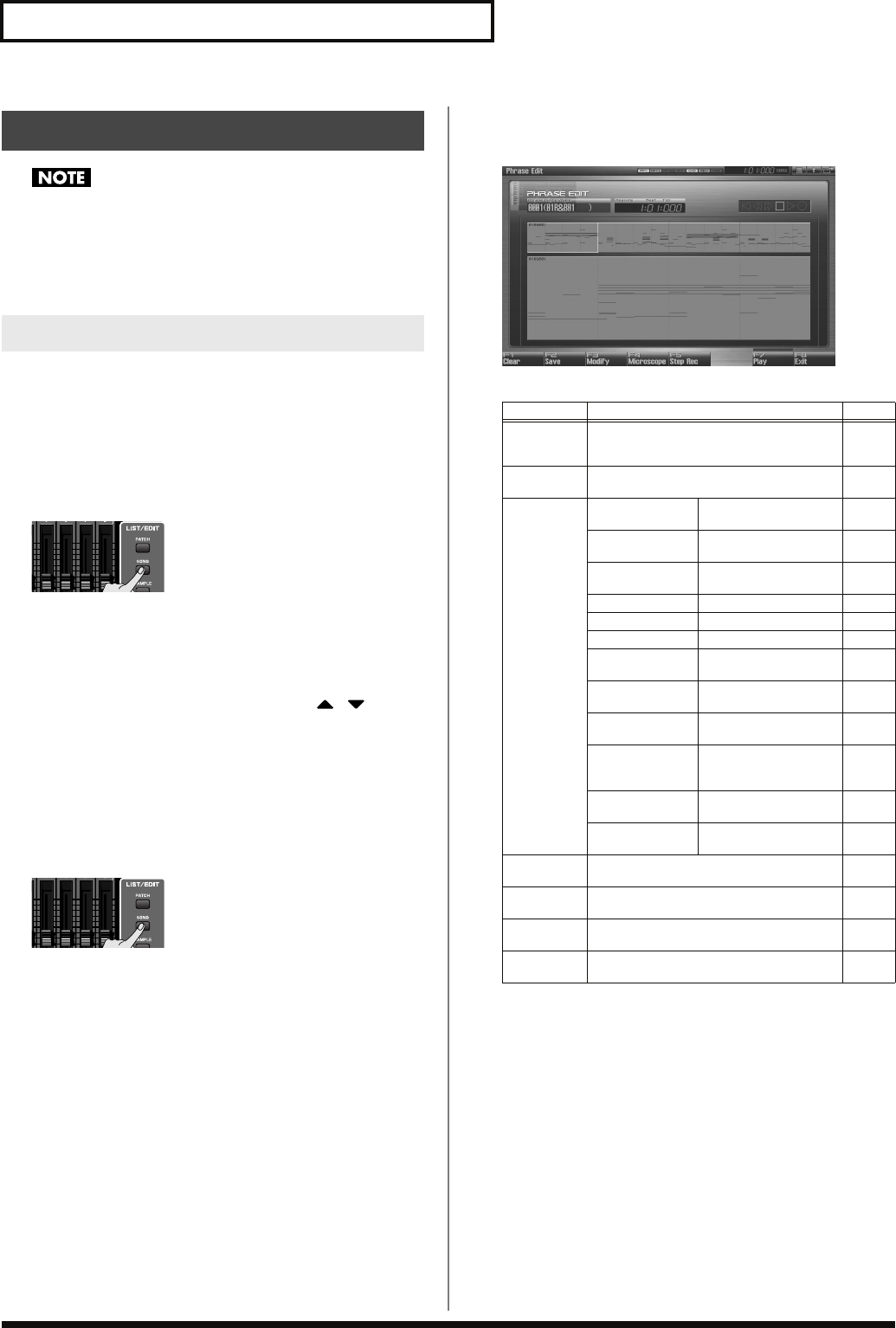
238
Editing Songs
If a certain phrase is used by multiple songs in a project, editing
that phrase will affect the content of all these songs. If you will
be editing a phrase that is used by other songs, it’s a good idea
to duplicate the phrase beforehand.
→
“Duplicating a Phrase (Duplicate)”
(p. 215)
To edit a phrase, access the Phrase Edit screen.
The Phrase Edit screen can be opened from the MIDI Phrase List or
from the Song Edit screen.
From MIDI Phrase List
1.
Press [SONG].
The Song Play screen will appear.
2.
Press [F3 (Phrase List)].
The MIDI Phrase List screen will appear.
3.
Turn the VALUE dial or use [INC] [DEC] or / to
select the phrase that you want to edit.
4.
Press [F8 (Phrase Edit)].
The Phrase Edit screen will appear.
From Song Edit
1.
Press [SONG].
The Song Play screen will appear.
2.
Press [F8 (Song Edit)].
The Song Edit screen will appear.
3.
Use [CURSOR] to select the phrase that you want to edit.
4.
Press [F4 (Edit)].
The Phrase Edit screen will appear.
F-key operations in the Phrase Edit screen
Editing a Phrase (Phrase Edit)
Opening the Phrase Edit Screen
F-key Explanation Page
F1
Clear Erases the currently-edited phrase. The
phrase file itself that’s saved in the project
will not be deleted.
p. 239
F2
Save Saves the phrase to the project. p. 239
F3
Modify Quantize Corrects the timing of
the phrase p. 240
Erase Erases unwanted per-
formance data p. 242
Delete Deletes unwanted
measures p. 243
Copy Copies data p. 243
Insert Inserts blank measures p. 244
Transpose Transposes the pitch p. 245
Change Velocity Changes the velocity
(volume) p. 245
Change Channel Changes the MIDI
channel p. 246
Change Dura-
tion Changes the length of
the notes p. 246
Shift Clock Moves the perfor-
mance data forward or
backward
p. 247
Data Thin Thins-out performance
data p. 248
Truncate Deletes the blank re-
gion at the beginning p. 249
F4
Microscope Edits individual MIDI messages and perfor-
mance data recorded in the phrase. p. 250
F5
Step Rec Executes step recording, allowing you to en-
ter notes and rests individually. p. 226
F7
Play Plays the currently-edited phrase. p. 239
F6
Exit Returns to the previous screen. –
Fantom-G_r_e.book 238 ページ 2008年1月31日 木曜日 午後12時15分
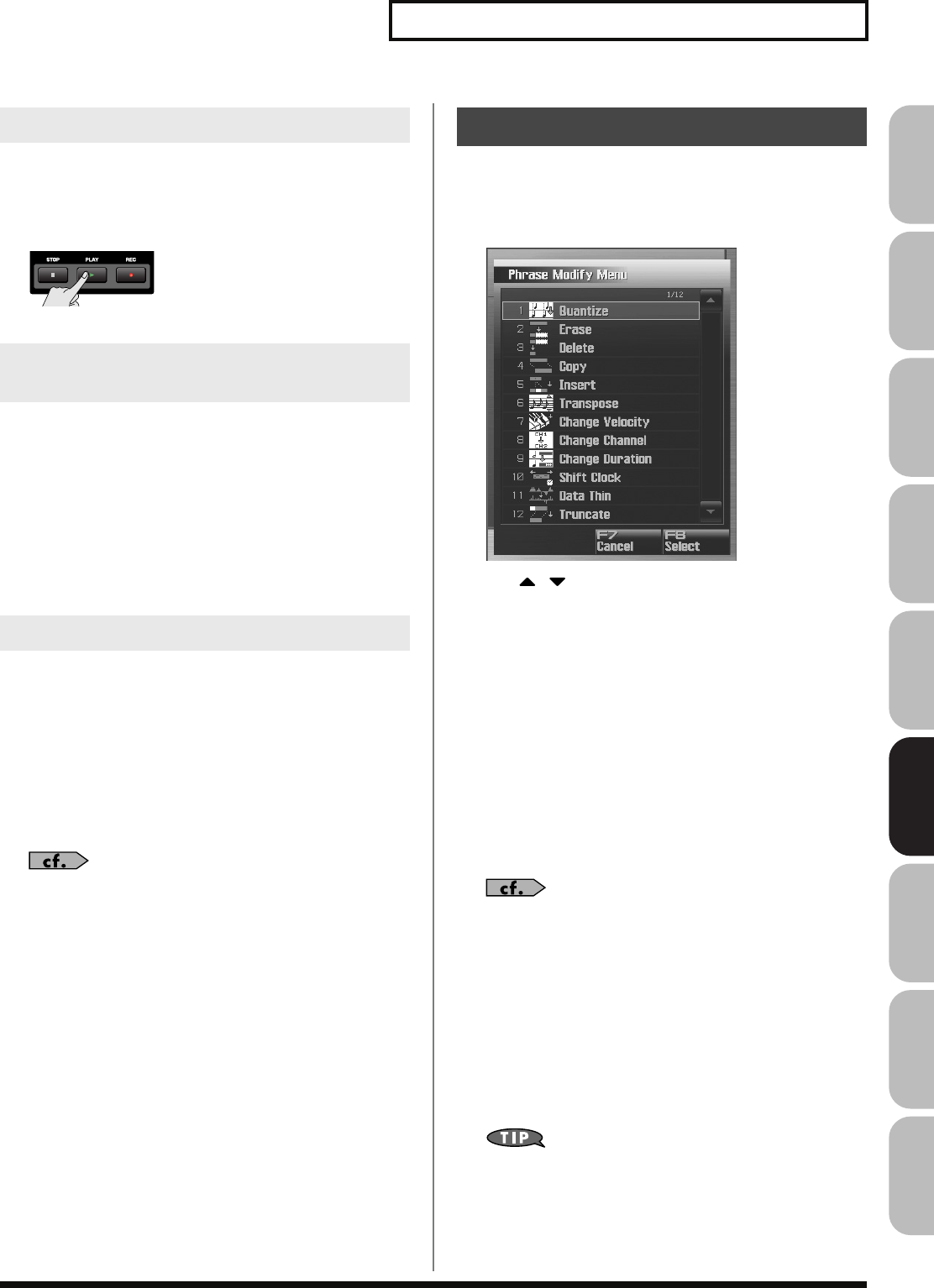
239
Editing Songs
Overview Sound 1 Sound 2 Sound 3 Pad Sampler
Menu/System
AppendixSequencer
Here’s how to play the currently-edited phrase.
1.
Access the Phrase Edit screen (p. 238).
2.
Press [PLAY] or [F7 (Play)].
Here’s how to erase the currently-edited phrase. This operation will
not delete the phrase file that’s saved in the project.
1.
Access the Phrase Edit screen (p. 238).
2.
Press [F1 (Clear)].
A confirmation message will appear.
3.
Press [F7 (OK)] to execute.
If you decide to cancel, press [F8 (EXIT)].
This operation will save the phrase to the project.
A phrase you recorded or edited is temporary, and will be lost when
you turn off the power. If you want to keep the phrase, you must
save it.
1.
Access the Phrase Edit screen (p. 238).
2.
Press [F2 (Save)].
3.
Assign a name to the phrase.
For details on assigning a name, refer to
“Assigning a Name”
(p. 42).
4.
When you’ve finished assigning a name, press [F8 (OK)].
A screen will appear where you can select the writing-
destination phrase.
5.
Turn the VALUE dial or use [INC] [DEC] to select the phrase
number.
6.
Press [F8 (Write)].
A message will ask you to confirm the Write operation.
Never turn off the power while writing is in progress.
7.
Press [F7 (OK)] to execute.
If you decide to cancel, press [F8 (EXIT)].
1.
Access the Phrase Edit screen (p. 238).
2.
Press [F3 (Modify)].
The Phrase Modify Menu window will appear.
fig.19-008_50
3.
Use / to choose the desired function, and then
press [F8 (Select)].
Quantize
→
p. 240
Erase
→
p. 242
Delete
→
p. 243
Copy
→
p. 243
Insert
→
p. 244
Transpose
→
p. 245
Change Velocity
→
p. 245
Change Channel
→
p. 246
Change Duration
→
p. 246
Shift Clock
→
p. 247
Data Thin
→
p. 248
Truncate
→
p. 249
For details on the edit window for each phrase modify function,
refer to the corresponding explanation.
4.
Set the parameters of the edit function you chose. Use
[CURSOR] to move the cursor to the desired parameter, and
turn the VALUE dial or use [INC] [DEC] to make settings.
Verify that you’ve selected the object you intended to edit,
and make changes if necessary.
5.
Press [F8 (Execute)] to execute.
When the operation is completed, the display will briefly
indicate “Completed !”.
If you decide to cancel, press [F7 (Cancel)].
Playing a Phrase (Play)
Erasing the Currently-edited Phrase
(Clear)
Saving a Phrase (Save)
Phrase Modify Menu
Fantom-G_r_e.book 239 ページ 2008年1月31日 木曜日 午後12時15分
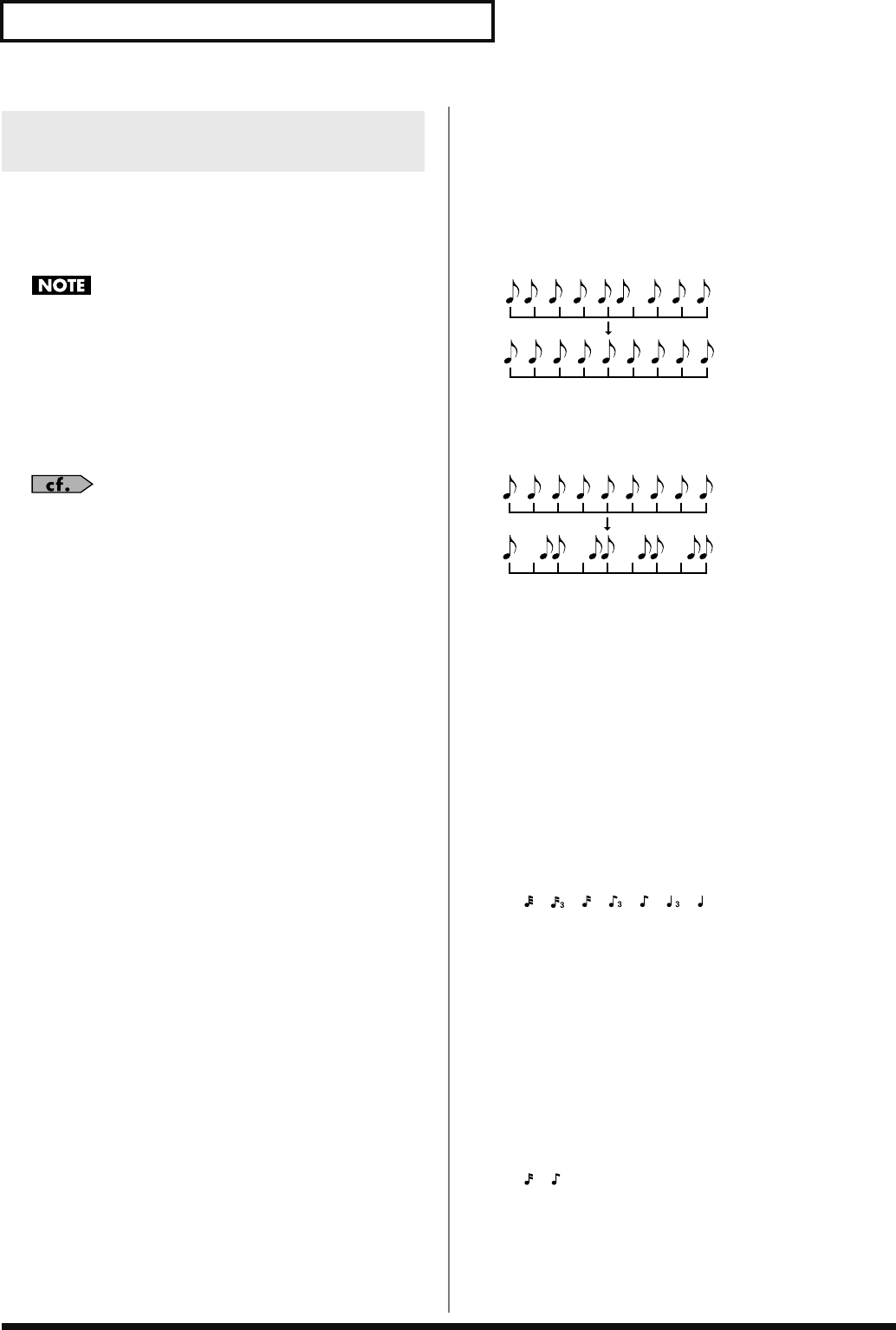
240
Editing Songs
In the chapter
“Recording MIDI”
(p. 217), we explained
Recording
Quantize
, which lets you quantize during realtime recording.
Alternatively, it is also possible to quantize a phrase that has already
been recorded.
The Quantize operation will correct only the timing at which
notes were pressed (note-on) and released (note-off), and will
not correct any other sequencer data. This means that if you
record MIDI messages such as bend range or modulation along
with notes, quantization can cause the notes to go out of sync
with the MIDI messages, skewing timing. To avoid such
problems it is better to record non-keyboard data afterward,
using mix recording, etc.
For details on the settings, refer to
“Phrase Modify Menu”
(p.
239)
Ch (MIDI Channel)
Specifies the MIDI channel(s) of the notes to be quantized.
If you wish to quantize all notes, set this parameter to “ALL.” When
quantizing only the notes of a specific MIDI channel, select that
channel.
Value:
ALL, Ch1–Ch16
Measure, For (Edit Range)
Sets the range of measures that are to be quantized. If you set “For”
to “ALL,” all measures will be specified.
Quantize Type
Specifies the Quantize range.
Value
GRID:
Grid Quantize will be applied to recording. Since the
notes will be adjusted to the timing of the specified
note value, you can use this when you want drums
or bass (for example) to play in an accurate rhythm.
SHUFFLE:
Shuffle Quantize will be applied to recording. Use
this when you want to produce a “shuffle” or
“swing” rhythmic feel.
TEMPLATE:
The Fantom-G provides 71 quantize templates.
These templates contain various quantize settings
for applying rhythmic ‘feels’ of many different
musical categories. Select the template you want for
quantization.
* If your sequencer data notes are too far off from accurate time,
Template Quantize may not work that efficiently so you won’t achieve
the desired results. If this is the case, apply Grid Quantize to your
sequencer data first to lose timing mistakes.
Resolution (Grid Quantize Resolution)
This parameter is used when Grid Quantize is selected. Specifies
quantization time interval as a note value. Choose a Resolution that
matches the smallest note in the area you’re quantizing.
Value:
, , , , , ,
Strength (Grid Quantize Strength)
This parameter is used when Grid Quantize is selected. This
parameter specifies a percentage of how note timing will be
corrected toward the timing interval that is specified by the
Resolution parameter. With a setting of “100%,” the note will move
all the way to the nearest timing interval of the Grid Resolution
setting. A setting of “0%” will not change note timing at all.
Resolution (Shuffle Quantize Resolution)
This parameter is used when Shuffle Quantize is selected. Specifies
quantization time interval as a note value.
Value:
,
Aligning a Phrase’s Timing
(Quantize)
Grid quantize with Resolution =
Shuffle quantize with Rate = 75%
Fantom-G_r_e.book 240 ページ 2008年1月31日 木曜日 午後12時15分
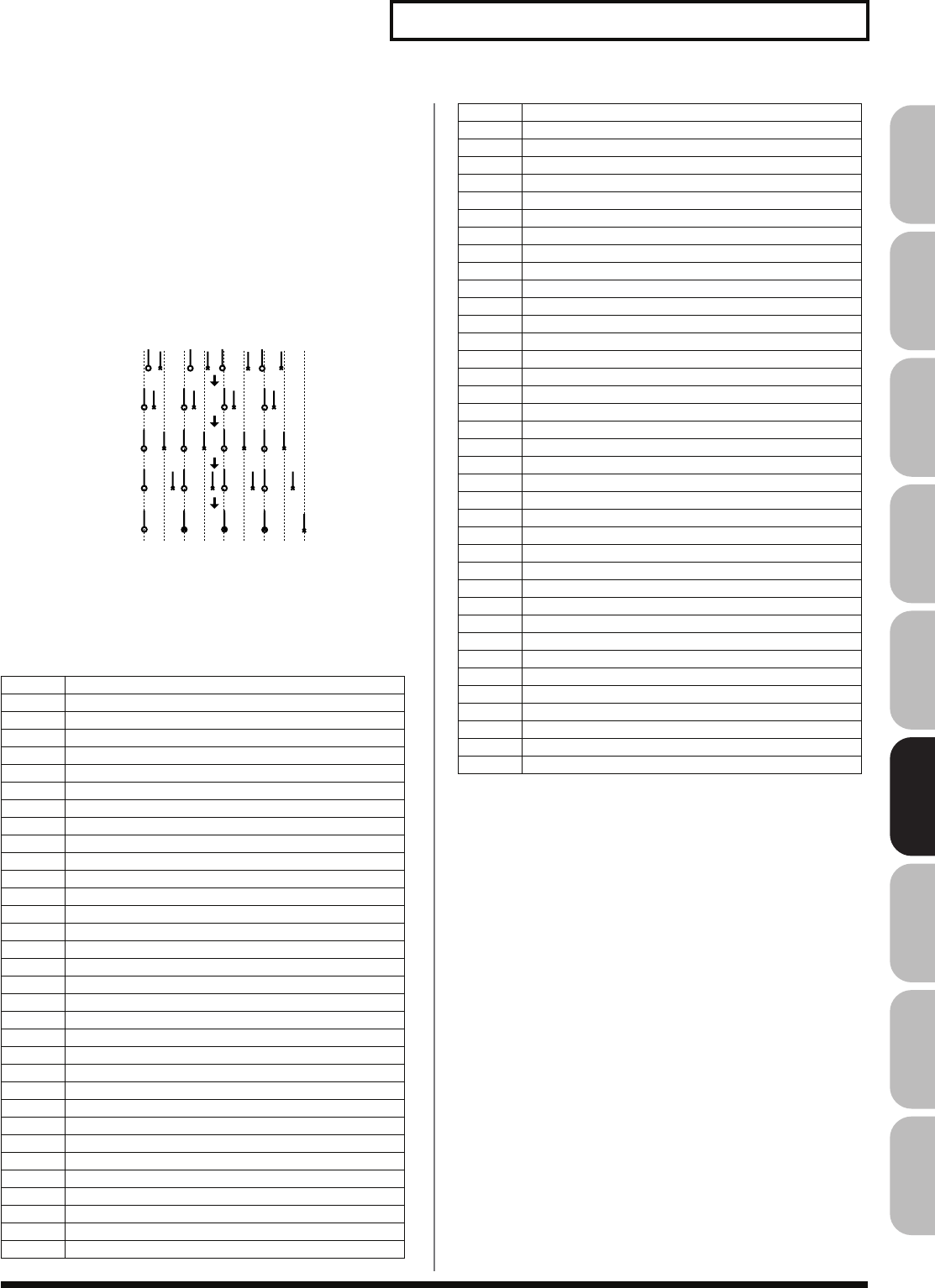
241
Editing Songs
Overview Sound 1 Sound 2 Sound 3 Pad Sampler
Menu/System
AppendixSequencer
Rate (Shuffle Quantize Rate)
This parameter is used when Shuffle Quantize is selected. Specifies
how far apart you want a down-beat specified by the Shuffle
Resolution parameter to be from the up-beat that immediately
follows. By shifting the timing of an up-beat, you can create a
“swing” feel. A setting of “50%” will place the timing of the up-beat
note at the exact mid point between the down-beat and the next
down-beat. A setting of “0%” will move the up-beat note to the same
timing as the previous down-beat. A setting of “100%” will move it
to the same timing as the following down-beat.
Value:
0–100%
fig.19-010.e
Quantize Template (Quantize Template)
Specifies the template you wish to use.
Here is a list of preset groove templates.
* The templates are designed for a 4/4 time signature. Applying them to
a performance of a different time signature may not produce the
desired result.
* The style names shown here are only for your convenience; they are
not intended to imply that the templates are usable only for the named
style. You can certainly try them with other styles of music.
Timing (Quantize Timing)
This specifies how much a note will move toward the timing
interval of the template you pick. At a setting of 100%, the
note will be perfectly timed with the template. At a setting of
0%, the note will not move at all.
Value:
0–100%
001 Dance (small dynamics)
002 Dance (large dynamics)
003 Dance (light swing)
004 Dance (heavy swing)
005 Dance (dragging beats, small dynamics)
006 Dance (dragging beats, large dynamics)
007 Dance (dragging beats, light swing)
008 Dance (dragging beats, heavy swing)
009 Dance (pushing beats, small dynamics)
010 Dance (pushing beats, large dynamics)
011 Dance (pushing beats, light swing)
012 Dance (pushing beats, heavy swing)
013 Fusion (small dynamics)
014 Fusion (large dynamics)
015 Fusion (light swing)
016 Fusion (heavy swing)
017 Fusion (dragging beats, small dynamics)
018 Fusion (dragging beats, large dynamics)
019 Fusion (dragging beats, light swing)
020 Fusion (dragging beats, heavy swing)
021 Fusion (pushing beats, small dynamics)
022 Fusion (pushing beats, large dynamics)
023 Fusion (pushing beats, light swing)
024 Fusion (pushing beats, heavy swing)
025 Reggae (small dynamics)
026 Reggae (large dynamics)
027 Reggae (light swing)
028 Reggae (heavy swing)
029 Reggae (dragging beats, small dynamics)
030 Reggae (dragging beats, large dynamics)
031 Reggae (dragging beats, light swing)
032 Reggae (dragging beats, heavy swing)
033 Reggae (pushing beats, small dynamics)
Original performance data
Rate= 25%
Rate= 50%
Rate= 75%
Rate=100%
Up
beat
Up
beat
Up
beat
Up
beat
034 Reggae (pushing beats, large dynamics)
035 Reggae (pushing beats, light swing)
036 Reggae (pushing beats, heavy swing)
037 Pops (small dynamics)
038 Pops (large dynamics)
039 Pops (light swing)
040 Pops (heavy swing)
041 Pops (dragging beats, small dynamics)
042 Pops (dragging beats, large dynamics)
043 Pops (dragging beats, light swing)
044 Pops (dragging beats, heavy swing)
045 Pops (pushing beats, small dynamics)
046 Pops (pushing beats, large dynamics)
047 Pops (pushing beats, light swing)
048 Pops (pushing beats, heavy swing)
049 Rhumba (small dynamics)
050 Rhumba (large dynamics)
051 Rhumba (light swing)
052 Rhumba (heavy swing)
053 Rhumba (dragging beats, small dynamics)
054 Rhumba (dragging beats, large dynamics)
055 Rhumba (dragging beats, light swing)
056 Rhumba (dragging beats, heavy swing)
057 Rhumba (pushing beats, small dynamics)
058 Rhumba (pushing beats, large dynamics)
059 Rhumba (pushing beats, light swing)
060 Rhumba (pushing beats, heavy swing)
061 Samba (for Pandeiro, etc.)
062 Samba (for Surdo, Timbale)
063 Axe (for Caixa)
064 Axe (for Surdo)
065 Salsa (for Cascala)
066 Salsa (for Conga)
067 Triplets
068 Quintuplets
069 Sextuplets
070 Septuplets over two beats
071 Lagging triplets
Fantom-G_r_e.book 241 ページ 2008年1月31日 木曜日 午後12時15分
242
Editing Songs
Range Min, Range Max
Specifies the range of note numbers to be quantized.
For example, if you want to quantize the range between C3 and C4,
set “Note Min” to “C3,” and set “Note Max” to “C4.”
You can also specify the key range by pressing keys on the
keyboard.
This function erases all the sequencer data inside the specified area.
As the erased data is replaced by rests, the original measures will
remain.
For details on the settings, refer to
“Phrase Modify Menu”
(p.
239).
Ch (MIDI Channel)
Selects the MIDI channel of the data to be erased.
When you want to erase all sequencer data, set this parameter to
“ALL.” To erase sequencer data of one specific MIDI channel only,
select that MIDI channel.
Value:
ALL, Ch1–Ch16
Measure, For (Edit Range)
Specifies the range of measures that are to be erased. If you set “For”
to “ALL,” all measures will be specified.
Status
Selects the type of data to be erased.
Value
ALL
NOTE
Poly Aftertouch
Control Change
Program Change
Channel Aftertouch
Pitch Bend
System Exclusive
Tune Request
Range Min, Range Max
If you have set the Status parameter to “NOTE,” “P.AFT,” “C.C,” or
“PROG,” specify the range. Set “Range Min” to the lowest value of
the range, and “Range Max” to the highest value of the range.
To erase all notes or polyphonic aftertouch data, set “Range
Min” to “C -1” and “Range Max” to “G9.” To erase C4, set
“Range Min” and “Range Max” to “C4.” To erase C3 through
C4, set “Range Min” to “C 3” and “Range Max” to “C4.”
• To erase all controller numbers, set “Range Min” to “0” and
“Range Max” to “127.” To erase all program numbers, set
“Range Min” to “1” and “Range Max” to “128.” To erase
number 4, set “Range Min” and “Range Max” to “4.” To erase
numbers 3 through 14, set “Range Min” to “3” and “Range
Max” to “14.”
Erasing Unwanted Performance
Data (Erase)
Fantom-G_r_e.book 242 ページ 2008年1月31日 木曜日 午後12時15分
243
Editing Songs
Overview Sound 1 Sound 2 Sound 3 Pad Sampler
Menu/System
AppendixSequencer
This function deletes a specified area of sequencer data, and moves
the subsequent data to fill the gap. As a result, the measure length
will be shortened by the number of deleted measures.
For details on the settings, refer to
“Phrase Modify Menu”
(p.
239).
Measure, For (Edit Range)
Specifies the range of measures that are to be deleted. If you set
“For” to “ALL,” all measures will be specified.
This function copies a specified area of sequencer data.
For details on the settings, refer to
“Phrase Modify Menu”
(p.
239).
Ch (MIDI Channel)
Selects the MIDI channel of the data to be copied.
When you want to copy all the sequencer data, set this parameter to
“ALL.” To copy only the sequencer data of a specific MIDI channel,
select the MIDI channel.
Value:
ALL, Ch1–Ch16
Src Measure, For (Edit Range)
Specifies the range of copy-source measures. If you set “For” to
“ALL,” all measures will be specified.
Dst Measure (Destination Measure)
Specifies the copy-destination measure.
If you want the copy destination to be right after the last measure of
a phrase, set this parameter to “END.”
Copy Mode
Specifies whether you want to preserve the existing data in the copy
destination when copying.
Value
MIX:
Combines the data from the copy source with the
existing data in the copy destination.
REPLACE:
Musical data in the copy destination will be erased
(i.e., overwritten) when the copy takes place. Only
the sequencer data of the MIDI channels specified by
the Channel parameter will be overwritten, and data
of other MIDI channels will remain.
Copy Times
Specifies the number of times that the data will be copied to the copy
destination.
Status
Selects the type of data to be copied.
Value
ALL
NOTE
Poly Aftertouch
Control Change
Program Change
Channel Aftertouch
Pitch Bend
System Exclusive
Tune Request
Deleting Unwanted Measures
(Delete) Copying Phrases (Copy)
Fantom-G_r_e.book 243 ページ 2008年1月31日 木曜日 午後12時15分

244
Editing Songs
Range Min, Range Max
If you have selected “NOTE,” “P.AFT,” “C.C,” or “PROG” for the
Status parameter, specify the range. Set “Range Min” to the lowest
value of the range, and “Range Max” to the highest value of the
range.
To copy all notes or polyphonic aftertouch data, set “Range
Min” to “C-1” and “Range Max” to“G9.” To copy C4, set
“Range Min” and “Range Max” to “C4.” To copy C3 through
C4, set “Range Min” to “C3” and “Range Max” to “C4.”
• To copy all controller numbers, set “Range Min” to “0” and
“Range Max” to “127.” To copy all program numbers, set
“Range Min” to “1” and “Range Max” to “128.” To copy
number 4, set “Range Min” and “Range Max” to “4.” To copy
numbers 3 through 14, set “Range Min” to “3” and “Range
Max” to “14.”
This function inserts blank measures into a specified phrase position.
For details on the settings, refer to
“Phrase Modify Menu”
(p.
239).
Measure, For (Edit Range)
Specifies the measure location at which the blank measures are to be
inserted, and the number of blank measures to be inserted.
Inserting a Blank Measure (Insert)
Fantom-G_r_e.book 244 ページ 2008年1月31日 木曜日 午後12時15分
245
Editing Songs
Overview Sound 1 Sound 2 Sound 3 Pad Sampler
Menu/System
AppendixSequencer
This transposes the pitch of notes within a specified area, over a +/-
127 semitone range. Use this function to modulate from one key to
another in a phrase, or to transpose the entire phrase.
For details on the settings, refer to
“Phrase Modify Menu”
(p.
239).
Ch (MIDI Channel)
Specifies the MIDI channel(s) of the notes to be transposed.
Set this parameter to “ALL” for transposing all notes. When
transposing only the notes of specific MIDI channel(s), select the
MIDI channel(s) using this parameter.
Value:
ALL, Ch1–Ch16
Measure, For (Edit Range)
Sets the range of measures that are to be transposed. If you set “For”
to “ALL,” all measures will be specified.
Range Min, Range Max
Specifies the range of note numbers to be transposed. For example, if
you want to transpose notes in the range of C3 through C4, set
“Range Min” to “C3” and “Range Max” to “C4.” You can also
specify the key range by pressing keys on the keyboard.
Bias
Specifies the transpose amount in semitone steps. Set a “+” (positive)
value to raise the pitch, or a “-” (negative) value to lower the pitch. If
you do not want to transpose, set this to “0.”
Value:
-127– +127
This function modifies the keyboard playing dynamics (velocity) of a
specified note area.
For details on the settings, refer to
“Phrase Modify Menu”
(p.
239).
Ch (MIDI Channel)
Specifies the MIDI channel(s) of notes for which velocity will be
modified.
To modify velocity for all notes, set this parameter to “ALL.” When
modifying the velocity for only the notes of a specific MIDI channel,
select that MIDI channel using this parameter.
Value:
ALL, Ch1–Ch16
Measure, For (Edit Range)
Specifies the range of measures whose velocity will be changed. If
you set “For” to “ALL,” all measures will be specified.
Bias
Use this parameter to add a fixed bias amount to all velocities. If you
want to increase the velocity values by 10, set this to “+10.”
Value:
-99– +99
Magnify
Set this parameter if increases or decreases in velocity variations are
desired. For less velocity variation, use settings of “99%” or less. For
more velocity variation, set it to “101%” or greater. With a setting of
“100%,” velocity values do not change.
Value:
0–200%
Range Min, Range Max
Specifies the range of note numbers for which velocity will be
modified. For example, if you want to modify the velocity of notes in
the range of C3 through C4, set “Range Min” to “C3” and “Range
Max” to “C4.” You can also specify the key range by pressing keys
on the keyboard.
Transpose the Key (Transpose)
If You Want to Lower the Bass Sound One
Octave...
If your bass is played one octave higher than the staff notation,
use the Transpose function to lower it one octave.
To lower the bass sound one octave, set the Range parameter to
“Lowest–Highest” for the bass part, and set the Bias parameter
to “-12.”
When You Want to Change Percussion
Sounds...
You can also use the Transpose function to change percussion
sounds.
Suppose you want to change conga to tom. If the conga sound is
assigned to the D4 key, and the tom sound is assigned to the C3
key, set the Range parameter to “D4–D4” and the Bias
parameter to “-14.”
Changing the Velocity
(Change Velocity)
Fantom-G_r_e.book 245 ページ 2008年1月31日 木曜日 午後12時15分
246
Editing Songs
This function transfers the MIDI channel of a specified area of
sequencer data into a different MIDI channel.
For details on the settings, refer to
“Phrase Modify Menu”
(p.
239).
Measure, For (Edit Range)
Specifies the range of measures in which the MIDI channel will be
changed. If you set “For” to “ALL,” all measures will be specified.
Status
Selects the type of data for which you wish to change the MIDI
channel.
Value
ALL
NOTE
Poly Aftertouch
Control Change
Program Change
Channel Aftertouch
Pitch Bend
Range Min, Range Max
If you have set the Status parameter to “NOTE,” “P.AFT,” “C.C,” or
“PROG,” you can specify the range of data. Set “Range Min” to the
lowest value of the range, and “Range Max” to the highest value of
the range.
To change the MIDI channel of all notes or polyphonic
aftertouch data, set “Range Min” to “C -1” and “Range Max” to
“G9.” To change the MIDI channel of C4, set “Range Min” and
“Range Max” to “C4.” To change C3 through C4,” set “Range
Min” to “C3” and “Range Max” to “C4.”
• To change the MIDI channel of all controller numbers, set
“Range Min” to “0” and “Range Max” to “127.” To change the
MIDI channel of all program numbers, set “Range Min” to “1”
and “Range Max” to “128.” To change number 4, set “Range
Min” and “Range Max” to “4.” To change numbers 3 through
14, set “Range Min” to “3” and “Range Max” to “14.”
Src Channel, Dst Channel (MIDI Channel)
Set Src Channel to the MIDI channel that you want to change, and
set Dst Channel to the MIDI channel to which it will be changed.
If you have selected ALL for the source MIDI channel, the sequencer
data of all MIDI channels will be combined into the destination MIDI
channel.
Value:
ALL, 1–16
It is not possible to select “ALL” for the destination MIDI
channel.
This function modifies the duration (time from note-on to note-off)
of notes within a specified area. Depending on the setting, you can
also create staccato or tenuto.
For details on the settings, refer to
“Phrase Modify Menu”
(p.
239).
Ch (MIDI Channel)
Specifies the MIDI channel(s) of notes for which duration will be
modified.
If you wish to modify the duration for notes of all MIDI channels, set
this parameter to ALL. When changing the duration for notes of a
specific MIDI channel only, select that MIDI channel using this
parameter.
Value:
ALL, Ch1–Ch16
Measure, For (Edit Range)
Specifies the range of measures whose durations will be changed. If
you set “For” to “ALL,” all measures will be specified.
Bias
Set this parameter if you wish to increase or decrease all durations
by a fixed amount. If you want to extend all duration by 10, set this
to “+10.”
Value:
-4800– +4800
Magnify
Set this parameter if you wish to increase or decrease durations by a
specified ratio. When set to “100%,” no change is made. A value of
“101%” or higher increases the duration; values of “99%” or lower
decrease the duration. For example, to halve duration, set this
parameter to “50%.” To double durations, set this parameter to
“200%.”
Value:
0–200%
Range Min, Range Max
Specifies the range of note numbers for which duration will be
modified. For example, if you want to change the duration of notes
in the range of C3 to C4, set “Range Min” to “C3” and “Range Min”
to “C4.” You can also specify the key range by pressing keys on the
keyboard.
Changing the MIDI Channel
(Change Channel) Modifying the Length of Notes
(Change Duration)
Fantom-G_r_e.book 246 ページ 2008年1月31日 木曜日 午後12時15分
247
Editing Songs
Overview Sound 1 Sound 2 Sound 3 Pad Sampler
Menu/System
AppendixSequencer
This function shifts the timing of sequencer data backward or
forward in time within a specified area in steps of 1 tick. Slight shifts
of timing can speed up or drag performance.
When this function is executed, data that would be moved to a
point before the beginning of the phrase will automatically shift
to the beginning of the phrase. If data would be moved to a
point past the end of the phrase, additional new measures will
be created automatically as needed. The time signature of the
newly created measures will be the same as that of the measure
immediately preceding.
For details on the settings, refer to
“Phrase Modify Menu”
(p.
239)
Ch (MIDI Channel)
Selects the MIDI channel of the data to be shifted in time.
To shift ticks of all sequencer data, set this parameter to “ALL.” To
shift the sequencer data tick of just one specific MIDI channel, select
that MIDI channel.
Value:
ALL, Ch1–Ch16
Measure, For (Edit Range)
Specifies the range of measures in which the sequencer data will be
moved in units of one tick. If you set “For” to “ALL,” all measures
will be specified.
Bias
Specify the amount (number of ticks) by which the sequencer data
will be moved.
Value:
-4800– +4800
Status
Selects the type of data to be shifted in time.
Value
ALL
NOTE
Poly Aftertouch
Control Change
Program Change
Channel Aftertouch
Pitch Bend
System Exclusive
Tune Request
Range Min, Range Max
If you set the Status parameter to “NOTE,” “P.AFT,” “C.C,” or
“PROG,” specify the range of data. Set “Range Min” to the lowest
value of the range, and “Range Max” to the highest value of the
range.
To shift all notes or polyphonic aftertouch data, set “Range
Min” to “C -1” and “Range Max” to “G9.” To shift C4, set
“Range Min” and “Range Max” to “C4.” To shift C3 through
C4, set “Range Min” to “C3” and “Range Max” to “C4.”
• To shift all controller numbers, set “Range Min” to “0” and
“Range Max” to “127.” To shift all program numbers, set
“Range Min” to “1” and “Range Max” to “128.” To shift number
4, set “Range Min” and “Range Max” to “4.” To shift numbers 3
through 14, set “Range Min” to “3” and “Range Max” to “14.”
Shifting Performance Data
Forward and Back (Shift Clock)
Fantom-G_r_e.book 247 ページ 2008年1月31日 木曜日 午後12時15分
248
Editing Songs
Continuously variable controllers such as aftertouch, pitch bend, and
expression tend to create unexpectedly large amounts of data when
operated. Data Thin will strip out redundant data to increase the
amount of memory available for the sequencer.
For details on the settings, refer to
“Phrase Modify Menu”
(p.
239).
Ch (MIDI Channel)
Selects MIDI channel of the data to be thinned.
To thin all sequencer data, set this parameter to “ALL.” To thin
sequencer data of just one specific MIDI channel, select that MIDI
channel.
Value:
ALL, Ch1–Ch16
Measure, For (Edit Range)
Specifies the range of measures whose sequencer data will be
thinned. If you set “For” to “ALL,” all measures will be specified.
Data Thin Value
For thinning data which incorporates rapid changes, use higher
settings. If you don’t want to thin that much data even though it is
subject to rapid change, use lower settings.
Data Thin Time
If you are thinning data that changes gradually over time, use higher
settings. If you don’t want to thin that much data even though the
changes are gradual, use lower settings.
Status
Selects the type of data to be thinned.
Value
ALL
Poly Aftertouch
Control Change
Channel Aftertouch
Pitch Bend
Range Min, Range Max
If you set the Status parameter to “P.AFT” or “C.C,” specify the
range of data. Set “Range Min” to the lowest value of the range, and
“Range Max” to the highest value of the range.
To thin out all polyphonic aftertouch data, set “Range Min” to
“C -1” and “Range Max” to “G9.” To thin out C4, set “Range
Min” and “Range Max” to “C4.” To thin out C3 through C4, set
“Range Min” to “C3” and “Range Max” to “C4.”
• To thin out all controller numbers, set “Range Min” to “0” and
“Range Max” to “127.” To thin out number 4, set “Range Min”
and “Range Max” to “4.” To thin out numbers 3 through 14, set
“Range Min” to “3” and “Range Max” to “14.”
Thinning Out the Sequencer Data
(Data Thin)
Fantom-G_r_e.book 248 ページ 2008年1月31日 木曜日 午後12時15分
249
Editing Songs
Overview Sound 1 Sound 2 Sound 3 Pad Sampler
Menu/System
AppendixSequencer
Copying may sometimes create blank measures at the beginning of a
phrase. Truncate deletes silent portions from the beginning of the
specified phrase to the first note-on.
If other sequencer data (such as program changes or control
changes) is recorded between the beginning and the first note-
on of the specified phrase, only the last data event of each type
will be placed before the note-on.
For details on the settings, refer to
“Phrase Modify Menu”
(p.
239).
1.
Press [F8 (Execute)] to execute the Truncate operation.
Deleting Blank Measures
(Truncate)
Fantom-G_r_e.book 249 ページ 2008年1月31日 木曜日 午後12時15分
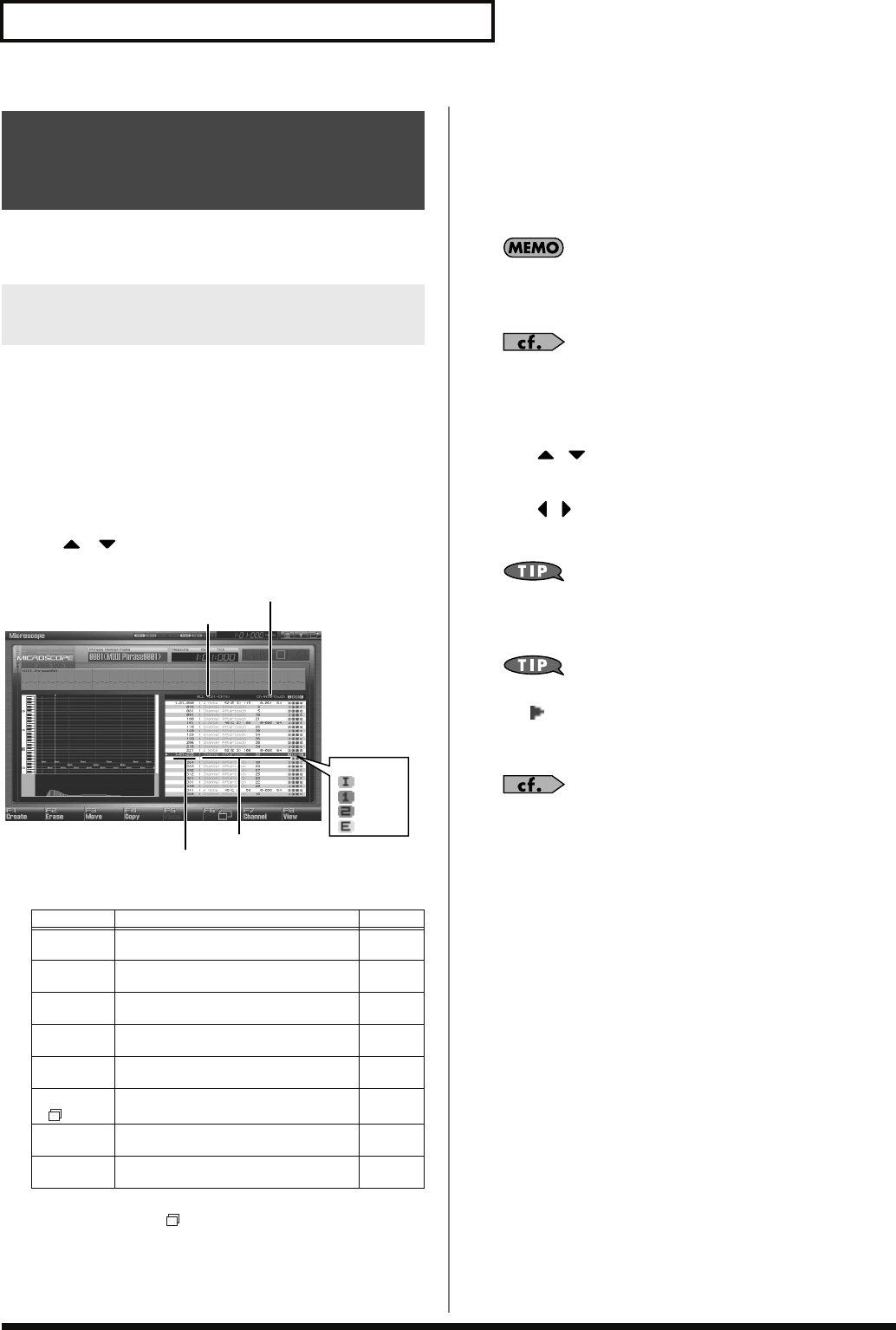
250
Editing Songs
Microscope lets you edit individual items of sequencer data recorded
in a phrase, such as MIDI messages.
Access the Microscope screen when you want to view the sequencer
data recorded in a phrase. Each line indicates the location (measure-
beat-tick) at which the sequencer data is recorded, and the data
recorded at that location.
1.
Access the Phrase Edit screen (p. 238).
2.
Press [F4 (Microscope)].
The Microscope screen will appear.
Use / to view the performance data.
fig.19-026.j
F-key operations in the Microscope screen
3.
You can press [F6 ( )] to switch the display of the piano
roll.
4.
Press [F7 (Channel)] to select the part whose performance
data you want to view or edit.
Choose “ALL” if you want to view performance data of all
MIDI channels.
Channel: ALL, 1–16
Part Group: ALL, INT, EXP1, EXP2, EXT
In order to make efficient use of the display space in the screen,
locations in which no performance data exists are normally not
shown.
For an explanation of the various types of performance data,
refer to
“Sequencer Data Handled by Phrases”
(p. 251) .
5.
When you’ve finished editing, press [F8 (Close)].
6.
Use / to select the performance data that you want
to edit.
7.
Use / to select the parameter that you want to edit.
8.
Turn the VALUE dial or use [INC] [DEC] to change the value.
Notes, the note name (note number) of polyphonic aftertouch
data, and the on-velocity or off-velocity of a note can also be
specified by pressing a note on the keyboard.
If you press [ENTER], the performance data currently indicated
by “ ” will be transmitted from the MIDI OUT connector. In
the case of a note message, pressing [ENTER] will sound that
note.
If you’re editing a system exclusive message, refer to “Editing a
system exclusive message” on the following page.
9.
Repeat steps 3 through 8 to edit the data.
10.
To close the Microscope screen, press [EXIT].
Editing Individual Items of
Sequencer Data
(Microscope)
Editing Sequencer Data
(Basic Procedure in the Microscope)
F-key Explanation Page
F1
Create Inserts data. p. 252
F2
Erase Erases data. p. 252
F3
Move Moves data. p. 253
F4
Copy Copies data. p. 253
F5
Place Pastes the copied data. p. 253
F6 Switches the display of the piano roll. p. 250
F7
Channel Switches the part whose data is displayed. p. 250
F8
View Selects the data that is displayed. p. 252
Location of the performance data
(Measure – Beat – Tick)
Performance data
MIDI channel
Indicates the parameter data
at the cursor location
Part Group
INT
EXP1
EXP2
EXT
Fantom-G_r_e.book 250 ページ 2008年1月31日 木曜日 午後12時15分
251
Editing Songs
Overview Sound 1 Sound 2 Sound 3 Pad Sampler
Menu/System
AppendixSequencer
Editing a System Exclusive Message
1.
Use or to move the cursor to the location of the
system exclusive message that you want to edit.
2.
Press .
The System Exclusive Edit window appears.
3.
Press or to move the cursor to the data that you
want to edit.
4.
Turn the VALUE dial or press [INC] [DEC] to edit the value.
If you want to add data between “F0:” and “:F7,” move the
cursor to that location and press [F3 (Insert)]. A value of “00”
will be inserted. Change this to the desired value.
To delete data, move the cursor to the relevant location and
press [F2 (Delete)].
5.
When you are finished editing, press [F8 (Execute)] to
finalize the values of the system exclusive message.
To cancel, press [F7 (Cancel)].
If you decide to discard the changes you made to the system
exclusive message and return to the Microscope screen, press
[EXIT].
• In the case of a Roland type IV system exclusive message, the
checksum can be calculated automatically when you finalize the
values. If you do not want to calculate the checksum
automatically, press [F1 (Auto Sum)] to turn off the light.
• When you press [F4 (Test)], the system exclusive message you
are editing will be transmitted from the MIDI OUT connector.
Phrases can record the following eight types of sequencer data. The
recorded location (measure-beat-tick) is displayed at the far left of
each data item, and the MIDI channel number is displayed beside it.
Note
These MIDI messages represent notes. From the left, the parameters
are Note Number, which indicates the name of the note; On Velocity,
which specifies the force with which the key is pressed; Duration,
which specifies the duration of the note; and Off Velocity, which
determines the force with which the key is released.
Program Change
This MIDI message switches sounds. The program number (PC#)
selects the sound.
Control Change
This MIDI message applies various effects such as modulation or
expression. The controller number (CC#) selects the function, and
Value specifies the depth of the effect.
Pitch Bend
This MIDI message changes the pitch. The value specifies the
amount of pitch change.
Poly Aftertouch
This MIDI messages applies aftertouch to an individual note. From
the left, the parameters are Note Number which specifies the key,
and Value which specifies the depth of the aftertouch.
Channel Aftertouch
This MIDI message applies aftertouch to an entire MIDI channel.
Value specifies the depth of the aftertouch.
System Exclusive
These are MIDI messages used to make settings unique to the
Fantom-G, such as sound settings. Input the data between “F0” and
“F7.”
Tune Request
This MIDI message causes an analog synthesizer to tune itself.
Sequencer Data Handled by Phrases
Fantom-G_r_e.book 251 ページ 2008年1月31日 木曜日 午後12時15分
252
Editing Songs
Since a phrase contains a large amount of sequencer data, the display
may be cluttered and difficult to read. For this reason, the Fantom-G
lets you specify the type(s) of sequencer data that will be displayed
in the screen. This is convenient when you want to check or edit only
a specific type of sequencer data.
1.
Access the Microscope screen (p. 250).
2.
Press [F8 (View)].
The View Select window appears.
3.
Use or to select the sequencer data that will be
displayed.
Note:
Note messages. These MIDI messages
represent notes.
Poly Aftertouch:
Polyphonic aftertouch. These MIDI
messages apply aftertouch to individual
keys.
Control Change:
Control change messages. These MIDI
messages apply various effects such as
modulation or expression.
Program Change:
Program change messages. These MIDI
messages select sounds.
Channel Aftertouch:
Channel aftertouch messages. These
MIDI messages apply aftertouch to an
entire MIDI channel.
Pitch Bend:
Pitch bend messages. These MIDI
messages change the pitch.
System Exclusive:
System exclusive messages. These MIDI
messages are used to make settings
unique to the Fantom-G, such as those
for the sound parameters.
Tune Request:
This MIDI Message cause an analog
synthesizer to tune it self.
4.
Press [INC] or [DEC] to switch.
If you press [F6 (ALL OFF)], none of the sequencer data will be
displayed.
If you press [F7 (ALL ON)], all of the sequencer data will be
displayed.
5.
Press [F8 (Close)] to close the View Select window.
You can insert new sequencer data into a desired location of a
phrase.
For details on the sequencer data that can be inserted, refer to
“Sequencer Data Handled by Phrases”
(p. 251).
1.
Access the Microscope screen for the phrase into which
you want to insert sequencer data (p. 250).
2.
Press [F1 (Create)].
The Create Event window appears.
3.
Press or to select the sequencer data that will be
inserted.
4.
Press [F8 (Execute)] to insert the performance data.
5.
The sequencer data that was inserted will have the default
parameter values, so edit them as necessary.
If desired, you can erase just an individual event of sequencer data.
Data recorded in the tempo track (p. 236) or beat track (p. 237)
can also be erased in the same way.
You can’t erase the tempo change located at the beginning of
the tempo track, or the beat change and phrase beat located at
the beginning of the beat track.
1.
Access the Microscope screen for the phrase from which
you want to erase sequencer data (p. 250).
2.
Press or to move the cursor to the sequencer data
that you want to erase.
To erase a multiple consecutive data, hold down [SHIFT] and
press or to select the sequencer data.
3.
Press [F2 (Erase)] to erase the sequencer data.
Viewing Sequencer Data (View)
Inserting Sequencer Data (Create)
Erasing Sequencer Data (Erase)
Fantom-G_r_e.book 252 ページ 2008年1月31日 木曜日 午後12時15分
253
Editing Songs
Overview Sound 1 Sound 2 Sound 3 Pad Sampler
Menu/System
AppendixSequencer
You can move an individual item of sequencer data to a different
location.
Data recorded in the tempo track (p. 236) or beat track (p. 237)
can also be moved in the same way.
You can’t move the tempo change located at the beginning of
the tempo track, or the beat change and phrase beat located at
the beginning of the beat track.
1.
Access the Microscope screen for the phrase whose data
you want to move (p. 250).
2.
Press or to move the cursor to the sequencer data
that you want to move.
To move a multiple consecutive data, hold down [SHIFT] and
press or to select the sequencer data.
3.
Press [F3 (Move)].
The Move Event window appears.
4.
Press or to move the cursor to the “measure,”
“beat,” and “tick” fields.
5.
Turn the VALUE dial or Press [INC] [DEC] to specify the
location to which the data will be moved.
6.
Press [F8 (Execute)] to move the sequencer data.
Sequencer data can be copied to the desired location. This is
convenient when you want to use the same sequencer data at
multiple locations.
Data recorded in the tempo track (p. 236) or beat track (p. 237)
can also be copied in the same way.
1.
Access the Microscope screen for the phrase whose
sequencer data you want to copy (p. 250).
2.
Press or to move the cursor to the sequencer data
that you want to copy.
3.
Press [F4 (Copy)].
4.
Press [F5 (Place)].
The Place Event window appears.
5.
Press or to move the cursor to the “measure,”
“beat,” and “tick” fields.
6.
Turn the VALUE dial or Press [INC] [DEC] to specify the
location to which the data will be copied.
7.
Press [F8 (Execute)] to paste the data.
Moving Sequencer Data (Move)
Copying Sequencer Data (Copy)
Fantom-G_r_e.book 253 ページ 2008年1月31日 木曜日 午後12時15分
254
Saving a Song (Song Save)
A song you record is initially held in the temporary area. The song in
the temporary area will be lost if you turn off the power or load a
different song. If you want to keep this song, you’ll need to save it to
the project.
Along with the sequencer data, the song data also contains the
studio set, live set, patch, and system setup data that you were using
at that time.
The studio set, live set, and patch data saved within the song data is
special data for reproducing the song; it is separate from the user
studio sets, live sets, and user patches.
* If you want to use this data with a different song, or to use it
independently of any song, you must save the data in the user area.
The samples and phrases used by the song are automatically saved
when you save the song.
If you want to save phrases individually
→
“Saving a Phrase (Save)”
(p. 216)
If you want to save samples individually
→
“Saving a Sample (Save)”
(p. 274)
1.
In the Song Play screen or Song Edit screen, press
[WRITE].
The WRITE MENU window appears.
2.
Use / to select “Song,” and then press [F8 (Select)].
The Song Name window will appear.
3.
Assign a name to the song.
For details on how to assign a name, refer to
“Assigning a
Name”
(p. 42).
4.
When you’ve finished assigning the name, press [F8 (OK)].
A screen will appear, allowing you to select the writing-
destination song.
5.
Turn the VALUE dial or use [INC] [DEC] to select a song
number.
6.
Press [F8 (Save)].
A writing confirmation message will appear.
Never turn off the power while data is being written.
7.
To write the data, press [F7 (OK)].
* If you decide to cancel, press [F8 (EXIT)].
What the Saved Song Data Contains
What is Saved at the Same Time as
the Song
Saving a Song (Save)
Fantom-G_r_e.book 254 ページ 2008年1月31日 木曜日 午後12時15分
255
Saving a Song (Song Save)
Overview Sound 1 Sound 2 Sound 3 Pad Sampler
Menu/System
AppendixSequencer
Here’s how you can combine the performance of all audio tracks and
MIDI tracks to a single sample.
After creating a sample in this way, you can save it on your
computer or another device as a completed song.
1.
Load the song that you want to resample (p. 204).
2.
Press [ ] to move the song position to the beginning.
3.
Press the [SAMPLING] button.
4.
Press [F2 (Re-Sampling)].
5.
Press [F2 (Auto Trig)].
6.
Press [PLAY].
Resampling will begin.
7.
When the song ends, press [F7 (Stop)].
Alternatively, you can set the
“Stop Trigger”
(p. 260)
parameter to “TIME” and set the
“Sampling Length”
(p. 261)
parameter to the ending location of the song so that resampling
will stop automatically.
8.
In the Sample Edit screen (p. 266), listen to the sample you
just created by resampling.
The volume of resampled phrases may be less than the volume
of the original phrases. As necessary, use the Normalize
operation (p. 270) to raise the volume.
The resampled sample will be lost if you turn off the power. If
you want keep the sample, press [WRITE] to save it (p. 274).
A sample you created by resampling can be copied to your
computer. The sample will be a WAV file, which you can use to
create a CD or MP3 on your computer.
1.
Verify the number of the sample you resampled. (In this
example we’ll assume it’s number 0001.)
2.
Use the USB Storage function (p. 281) to copy the following
sample to your computer.
“FantomG.Prj/SMPL/0001.WAV”
(The number in the .WAV file name will be the sample
number.)
“
FantomG.prj
” is the name of the project folder in the
Fantom-G’s internal memory. Multiple projects can be saved in
USB memory. By default, the project folders will be numbered
as “
FantomG001.Prj
,” “
FantomG002.Prj
,” etc., and
the portion preceding the filename extension will be the project
name you assigned when saving.
Resampling the Contents of
All Tracks to a Single Sample
Copying a Resampled Sample to Your
Computer to Create a CD or MP3
Fantom-G_r_e.book 255 ページ 2008年1月31日 木曜日 午後12時15分

256
Saving a Song (Song Save)
Fantom-G_r_e.book 256 ページ 2008年1月31日 木曜日 午後12時15分
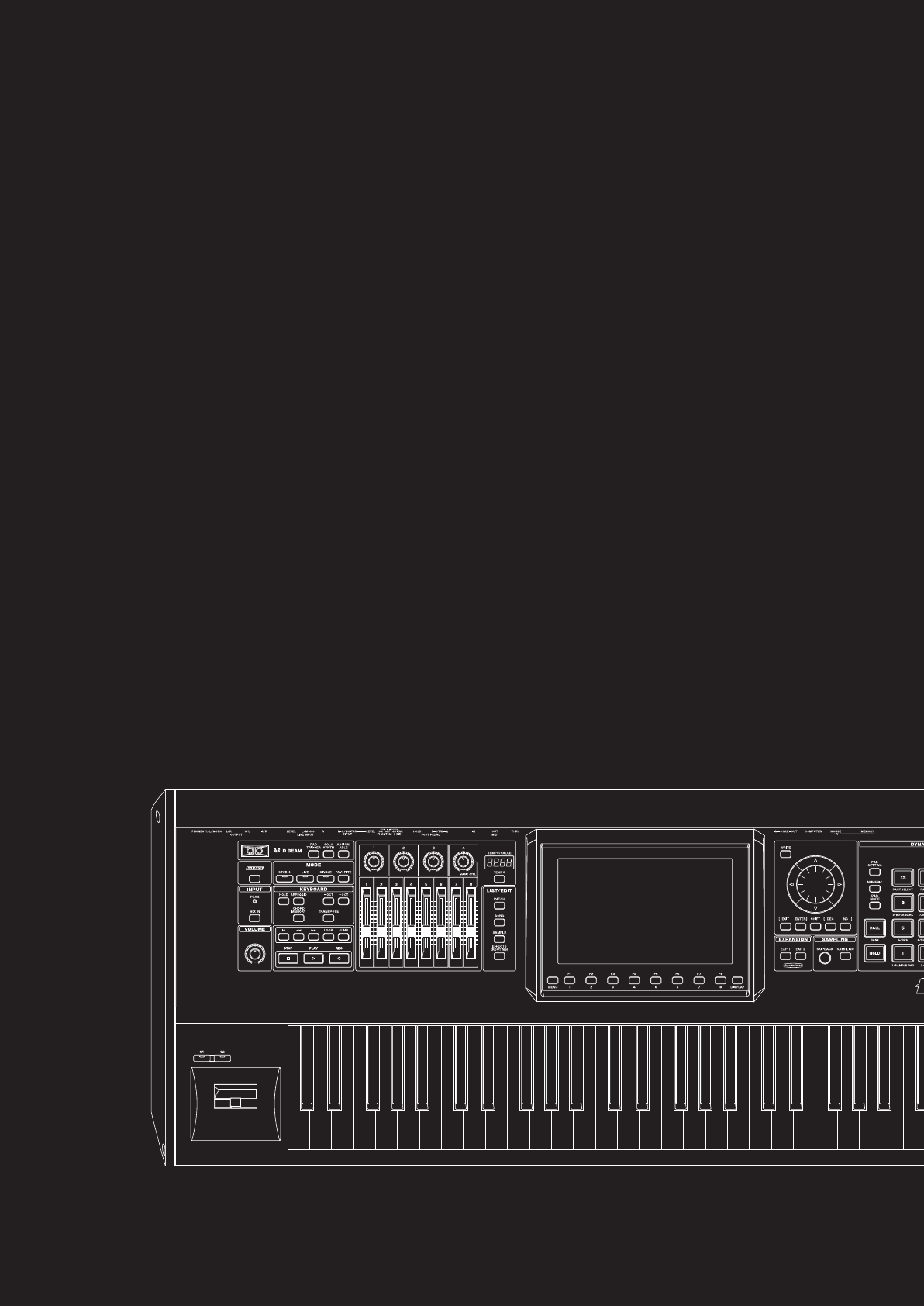
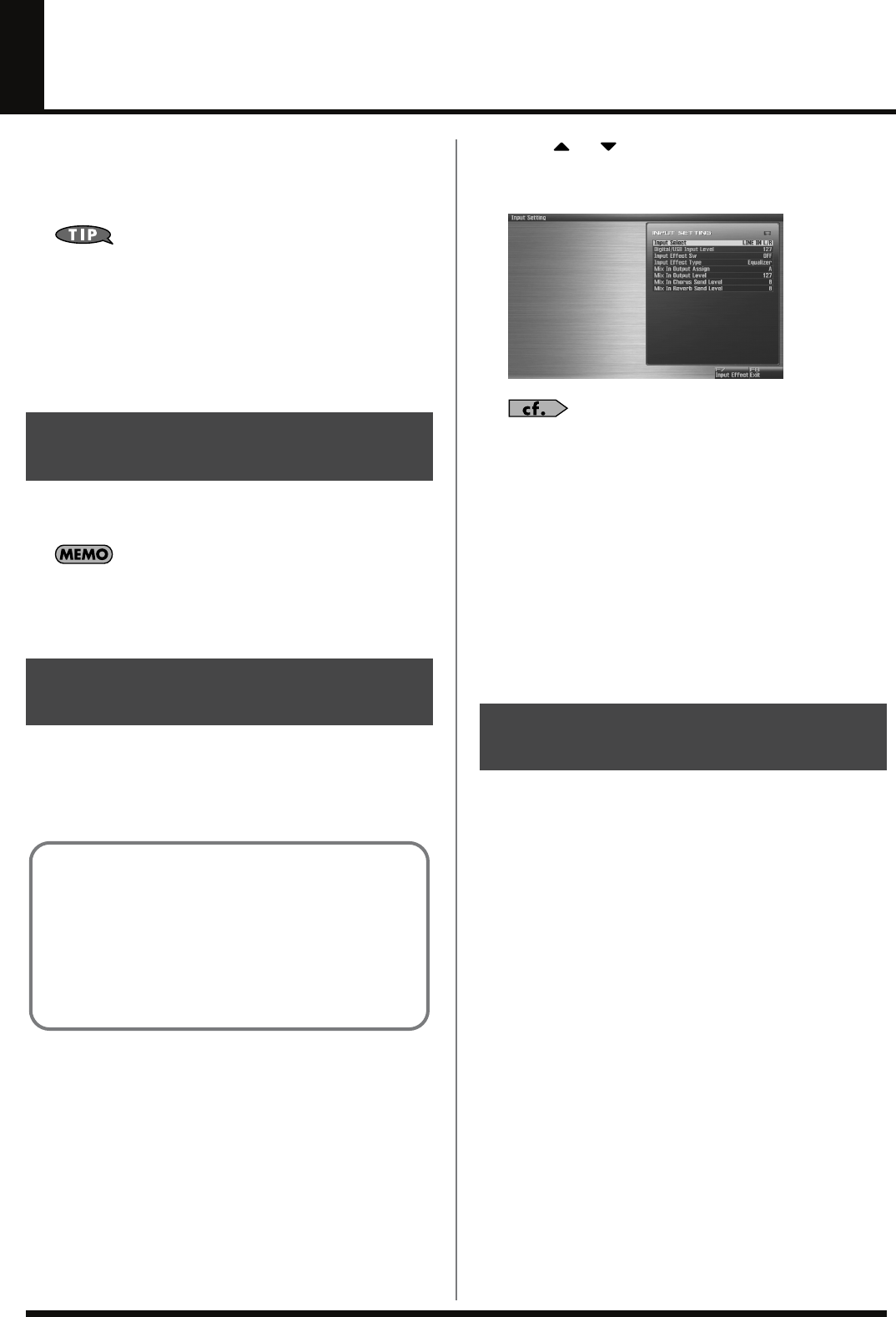
258
Sampling
The Fantom-G lets you sample audio sources, such as an audio
device, mic, or CD.
This section explains the sampling procedure and what the
parameters do.
Sampling time
The Fantom-G contains 32 MB of memory, which allows about 6
minutes of mono or about 3 minutes of stereo sampling. If you
want to sample for a longer time than this, you must install
separately sold memory (DIMM) (p. 308, p. 310).
* The available recording time may be shorter depending on how
memory is being used.
1.
Press [MIX IN] to turn it on.
The button will light.
You can use the System setting
“Mix In Switch”
(p. 297) to
memorize the on/off setting.
2.
To turn it off, press [MIX IN] again.
1.
Connect your CD player, mic, or other audio source to the
AUDIO INPUT jacks, MIC/GUITAR jack or to the DIGITAL
AUDIO IN connector located on the rear panel of the
Fantom-G.
926a
* When connection cables with resistors are used, the volume level of
equipment connected to the inputs (AUDIO INPUT) may be low. If
this happens, use connection cables that do not contain resistors.
* If an external device is connected to the DIGITAL AUDIO IN
connector, disconnecting the cable or powering-off the external device
may cause noise to be subsequently heard in the input from DIGITAL
AUDIO IN. If this occurs, correctly re-connect your external device,
or turn off the Fantom-G’s [MIX IN] switch.
2.
Hold down [SHIFT] and press [MIX IN].
fig.14-001_50
3.
Press or to select the parameter that you want to
set.
4.
Turn the VALUE dial or press [INC] [DEC] to set the value.
See
“Functions of Input Setting Parameters”
(p. 258) for each
parameter’s functions.
5.
Play back the external input source.
6.
If you use AUDIO INPUT, turn the LEVEL knob (rear panel:
p. 24) to adjust the volume.
* If you’re using DIGITAL AUDIO IN or USB AUDIO, this
adjustment is not necessary.
* If the volume of the external source is too high, the PEAK indicator
will light. If this occurs, turn down the LEVEL knob until the PEAK
indicator no longer lights.
7.
Press [EXIT] to return to the previous screen.
This section explains the functions the different Input Setting
parameters have, as well as the composition of these parameters.
•
Mix In Switch
Turns the external input on/off.
Value:
OFF, ON
• Input Select
Specifies the input source of the sound to be sampled.
Value
DIGITAL IN:
DIGITAL AUDIO IN jack
LINE IN L/R:
INPUT jacks L/R (stereo)
LINE IN L:
INPUT jack L (mono)
MIC/GUITAR:
MIC/GUITAR jack
USB AUDIO:
USB connector
•
Digital/USB Input Level
If you’ve set Input Select to DIGITAL IN or USB AUDIO, this
adjusts the input level.
Value:
0–127
•
Input Effect Switch
Specifies whether the external input sound will be sent through
the effects processor (Input Effect).
Value:
OFF, ON
Switching External Input
On/Off
Making Input Source Settings
(Input Setting)
Cautions when using a microphone
Howling could be produced depending on the location of
microphones relative to speakers. This can be remedied by:
1. Changing the orientation of the microphone(s).
2. Relocating microphone(s) at a greater distance from
speakers.
3. Lowering volume levels.
Functions of Input Setting
Parameters
Fantom-G_r_e.book 258 ページ 2008年1月31日 木曜日 午後12時15分
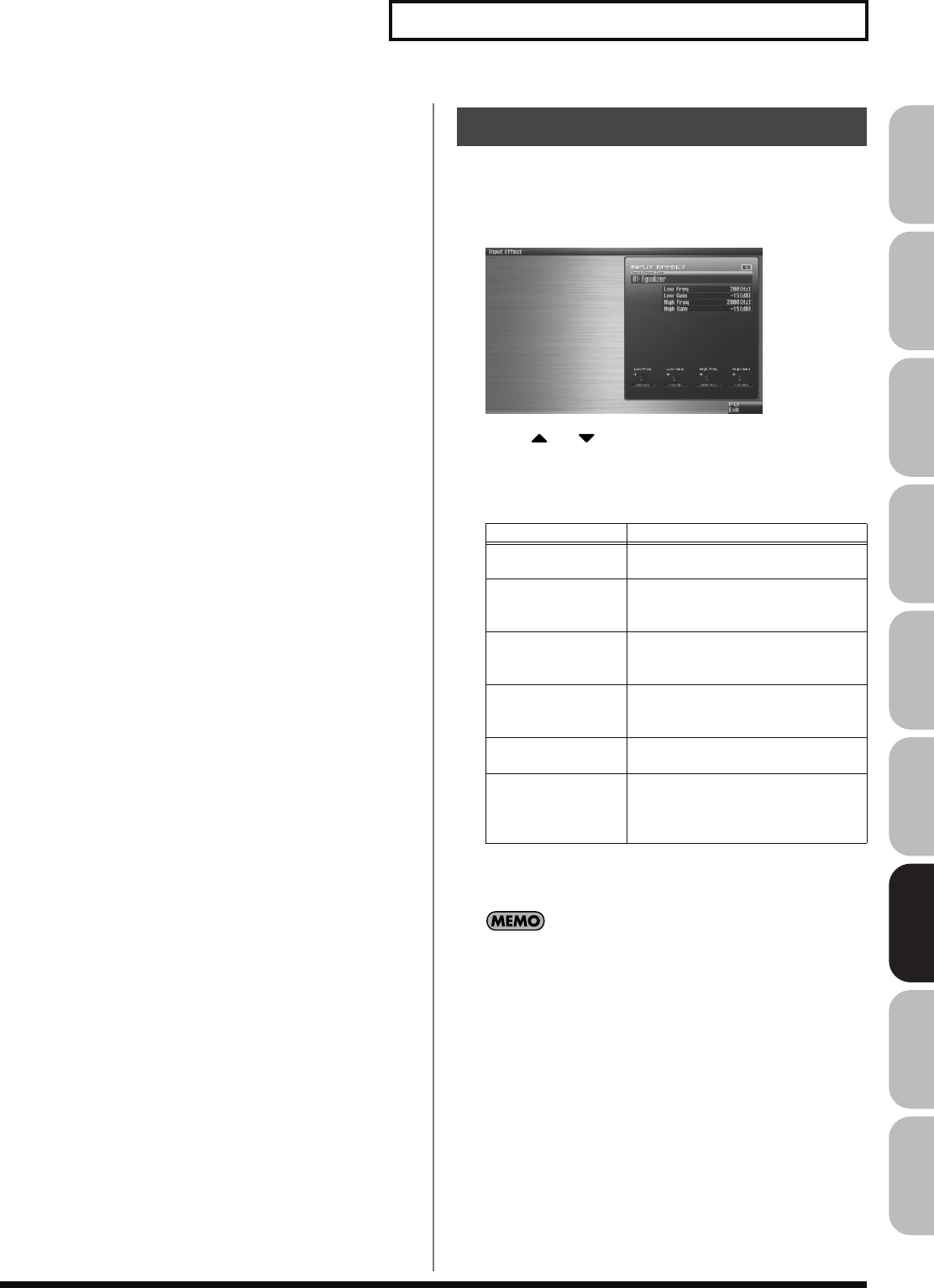
259
Sampling
Overview Sound 1 Sound 2 Sound 3 Pad Sampler
Menu/System
AppendixSequencer
• Input Effect Type
Selects the type of effect that will be applied to the external
input source.
Value:
Equalizer, Enhancer, Compressor, Limiter, Noise
Suppressor, Center Canceler
When you press [F7 (Input Effect)], the parameter setting screen
for the currently selected input effect will be displayed
“Input
Effect Setup Settings”
(p. 259).
• Mix In Output Assign
Output destination of the external input sound that is mixed in
Value
A:
Output to OUTPUT (A) jacks without passing
through effects
B:
Output to OUTPUT (B) jacks without passing
through effects
MFX1:
Output through multi-effects 1
MFX2:
Output through multi-effects 2 (* Studio Mode only)
EXP1:
Output through expansion board 1
EXP2:
Output through expansion board 2
* EXP1 or EXP2 is available only when the corresponding expansion
board supports audio input.
•
Mix In Output Level
Volume level of the external input sound.
Value:
0–127
• Mix In Chorus Send Level
Adjusts the depth of chorus that will be applied to the external
input source. Set this to “0” if you do not want to apply chorus.
Value:
0–127
•
Mix In Reverb Send Level
Depth of reverb applied to the external input sound. Set this to
“0” if you don’t want to apply reverb.
Value:
0–127
1.
Hold down [SHIFT] and press [MIX IN].
2.
Press [F7 (Input Effect)].
The Input Effect Setup screen appears.
fig.14-003_50
3.
Press or to move the cursor to a parameter.
4.
Turn the VALUE dial, or press [INC] /[DEC] to set the value.
•
Input Effect Type
Selects the input effect type.
In this settings screen, you can edit parameters for the type of
input effect you selected.
For details on the parameters that can be edited, refer to the
section
“Input Effect Parameters”
(p. 186).
5.
Press [F8 (Exit)] or [EXIT] to return to the previous screen.
Input Effect Setup Settings
Parameter Explanation
01: Equalizer Adjusts the tone of the low-frequency
and high-frequency ranges.
02: Enhancer Modifies the harmonic content of the
high-frequency range to add sparkle
to the sound.
03: Compressor Restrains high levels and boosts low
levels to make the overall volume
more consistent.
04: Limiter Compresses the sound when it ex-
ceeds a specified volume, to keep dis-
tortion from occurring.
05: Noise Suppressor Suppresses noise during periods of si-
lence.
06: Center Canceler Removes the sounds that are local-
ized at the center of the stereo input.
This is a convenient way to eliminate
a vocal.
Fantom-G_r_e.book 259 ページ 2008年1月31日 木曜日 午後12時15分
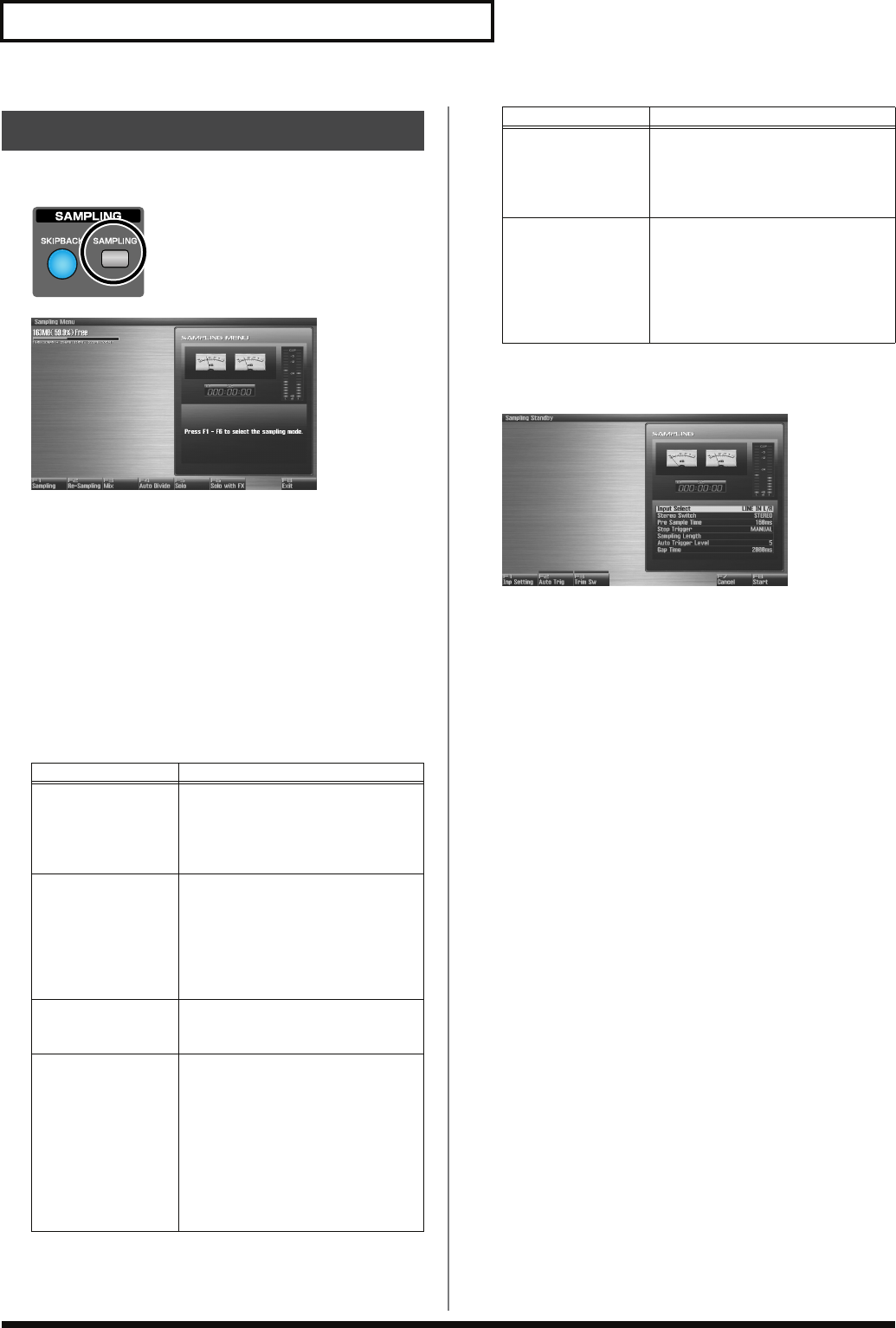
260
Sampling
1.
Press [SAMPLING] to access the Sampling Menu screen.
fig.14-004
fig.14-005_50
The upper part of the screen will show the amount of free
memory. If the free memory reaches 0%, no further sampling is
possible.
2.
Press [F1 (Sampling)]–[F6 (Solo with FX)] to select the
sampling mode. The sampling-standby screen will appear.
To cancel, press [F8 (Exit)].
* You cannot sample the sound that is output from the OUTPUT B
jacks. You’ll need to set things up so that the sound you want to
sample is output from the OUTPUT A (MIX) jacks.
Sampling mode
3.
Make the settings for things such as the input source of the
sound to be sampled, and triggering.
fig.14-006_50
•
Input Select
Specifies the input source of the sound that is to be sampled.
Value
DIGITAL IN:
DIGITAL AUDIO IN jack
LINE IN L/R:
INPUT jacks L/R (stereo)
LINE IN L:
INPUT jack L (mono)
MIC/GUITAR:
MIC/GUITAR jack
USB AUDIO:
USB connector
* This cannot be set when resampling.
•
Stereo Switch
Specifies whether the sound will be sampled in stereo or in
monaural. Mono sampling uses half as much memory space.
Value
MONO:
The sound will be sampled as one wave. If
the sound is stereo, the left and right signals
will be mixed.
STEREO:
The sound will be sampled as two waves, L
and R.
• Pre Sample Time
The length of sound preceding the moment at which sampling
was manually or automatically initiated that will be captured in
the sample. This lets you prevent the attack portion of the
sound from being omitted from the sample.
Value:
0–1000 ms
•
Stop Trigger
Specifies how sampling will end.
Value
MANUAL:
Continue sampling until you press [STOP].
BEAT:
Stop sampling after the specified number of
beats at the current tempo (BPM).
TIME:
Sample the specified length of time.
Sampling Procedure
Mode Explanation
Sampling:
[F1 (Sampling)]
Sample a sound from an external in-
put source.
* Operating the keyboards, pads, D beam or
sequencer will not play the internal sound
generator.
Re-Sampling:
[F2 (Re-Sampling]
Resample the sound of the internal
sound generator. The sound of the
external input will not be heard.
* The volume of a phrase that you resample
may be less than the volume of the original
phrase. If necessary, execute the Normalize
command (p. 270) to raise the volume.
Mix Sampling:
[F3 (Mix)]
Sample the combined sounds of the
internal sound generator and an ex-
ternal input source.
Auto divide sam-
pling:
[F4 (Auto Divide)]
Sample an extended source, and au-
tomatically divide it into several
samples at silent regions. If the sam-
ple contains silence, it will be divid-
ed at that point, and the subsequent
portion will be assigned to the next
sample number.
* Operating the keyboards, pads, D beam or
sequencer will not play the internal sound
generator.
Solo sampling:
[F5 (Solo)]
While playing the internal sound
generator as usual, sample only the
sound from the external input.
* Effects other than the Input Effect can’t be
applied to the external input sound.
Solo with effects
sampling:
[F6 (Solo with FX)]
While playing the internal sound
generator, only the sounds from the
external input will be recorded. At
this time, an effect can be applied to
the external input sound.
* MFX (multi-effect) can’t be applied to the
sound of the internal sound generator.
Mode Explanation
Fantom-G_r_e.book 260 ページ 2008年1月31日 木曜日 午後12時15分
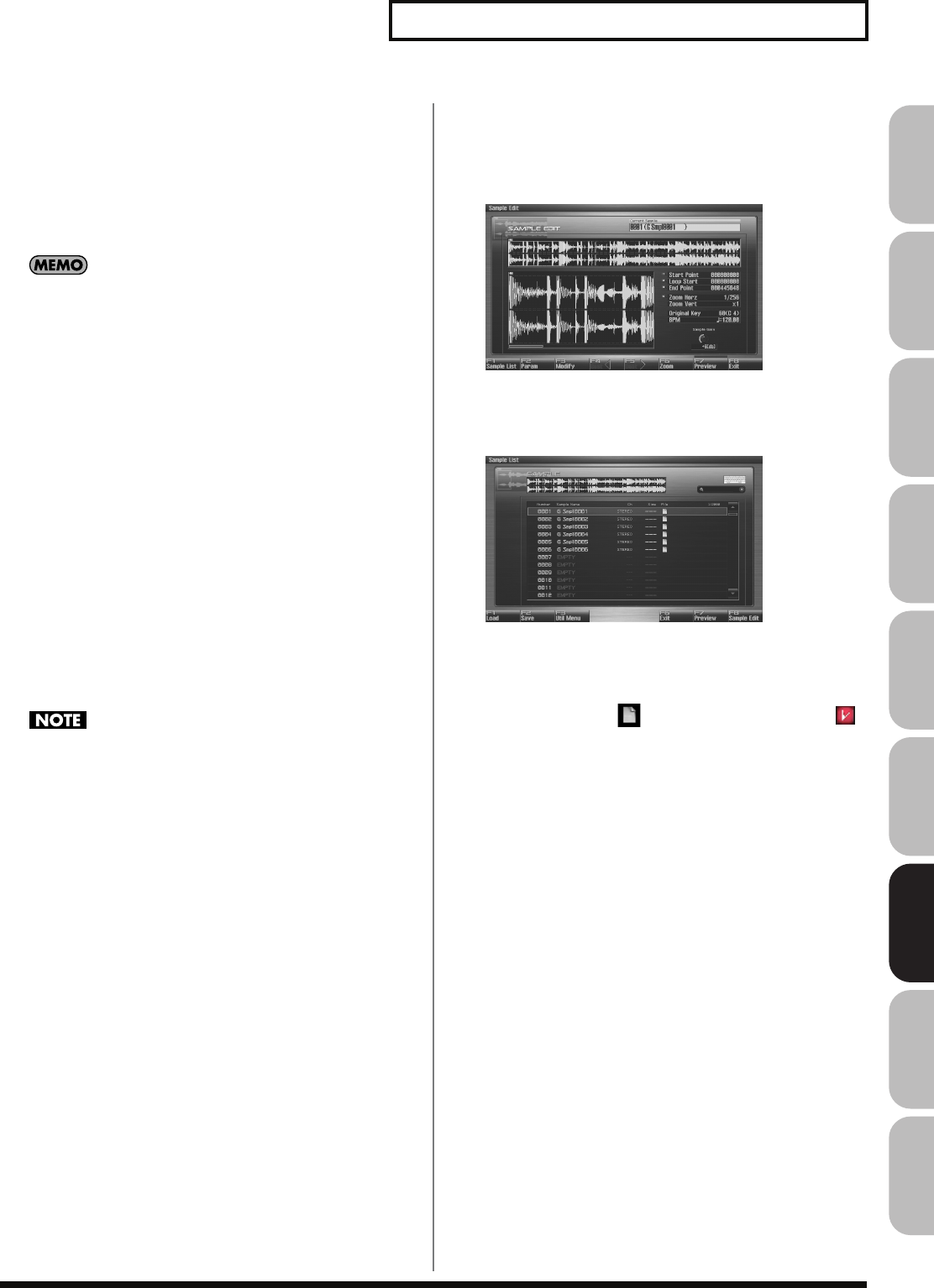
261
Sampling
Overview Sound 1 Sound 2 Sound 3 Pad Sampler
Menu/System
AppendixSequencer
• Sampling Length
You can specify this if Stop Trigger is “BEAT” or “TIME.”
Value
When Stop Trigger is “BEAT”:
1–20000: Number of beats to continue sampling
When Stop Trigger is “TIME”:
000’00”010–107’47”000: length of time to continue sampling
By holding down [SHIFT] and turning the VALUE dial you can
adjust this in steps of one second.
•
Auto Trigger Level
Specifies the volume at which sampling will begin if you have
pressed [F2 (Auto Trig)] to turn Auto Trig ON.
Value:
0–7 (A setting of 0 is the minimum.)
•
Gap Time
Specifies the length of the silences at which the sample will be
divided if the Sampling Mode is set to Auto Divide. Whenever
there is a silent region longer than the specified time, the sample
will be divided at that point, and the next sample number will
be assigned to the sound that follows.
Value:
500, 1000, 1500, 2000 ms
* This parameter is valid only when you are using Auto Divide
Sampling.
•
Input Setting: [F1 (Inp Setting)]
Makes settings for the external input (p. 258).
•
Auto Trigger Sw: [F2 (Auto Trig)]
If this is on, sampling will begin automatically when the input
sound is detected.
Before you turn Auto Trig on, perform steps 4 and 5 to set the
input level.
•
Trim Sw: [F3 (Trim Sw)]
If this is turned on, the Start point and End point settings (p.
267) will be automatically adjusted after sampling is performed,
so any silent portions at the beginning or end of the sampled
sound are excluded.
4.
Play the external input source.
5.
If you use AUDIO INPUT, turn the LEVEL knob (rear panel:
p. 24) to adjust the volume.
* If you’re using DIGITAL IN, this adjustment is not necessary.
* If the volume of the external source is too high, the PEAK indicator
will light. If this occurs, turn down the LEVEL knob until the PEAK
indicator no longer lights.
* If the level of the sound to be sampled is too high, the word “CLIP”
will appear in the level meter in the screen.
* Using a connection cable that contains a resistor can cause the sound
level to be low. Use a connection cable that does not contain a resistor.
6.
Press [F8 (Start)] to begin sampling.
* If the Auto Trigger setting is on, sampling will begin as soon as sound
is input.
7.
If Stop Trigger is set to MANUAL, press [F7 (Stop)] to stop
sampling.
The Sample Edit (p. 266) screen will appear.
* If you want to edit the sample, refer to p. 263.
fig.14-007_50
When you finish sampling, the sample will automatically be
added to the sample list. Press [F1 (Sample List)] to view the
sample list.
fig.14-008_50
Samples you record will be lost when you turn off the
power.
If you want to keep your sample, press [F2 (Save)] to
save it (p. 274).
Samples without the “ ” symbol and samples with the “ ”
symbol have not been saved.
8.
Press [EXIT] to go back to where you were before you
entered the Sampling screen.
Fantom-G_r_e.book 261 ページ 2008年1月31日 木曜日 午後12時15分
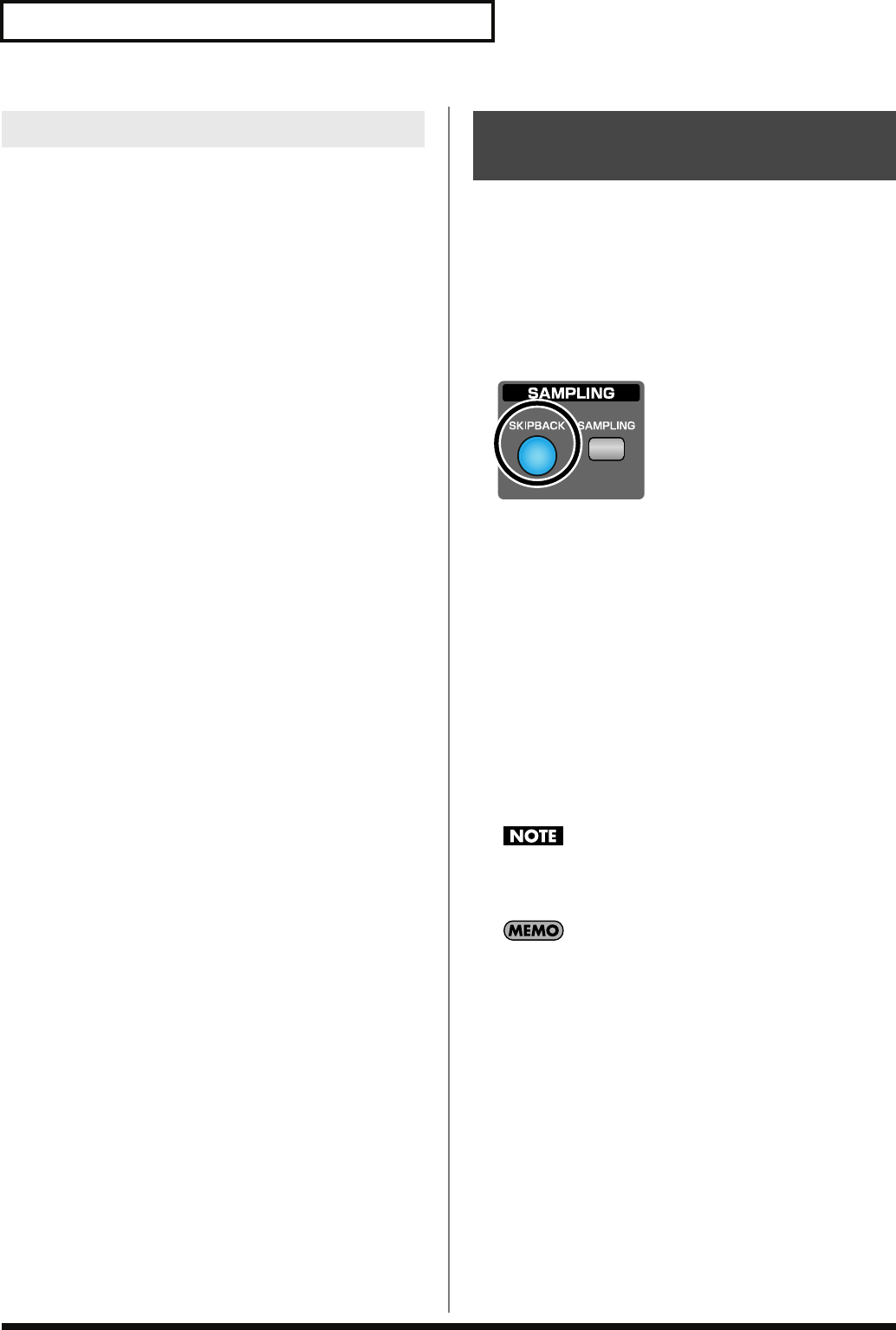
262
Sampling
1.
During sampling, press [F8 (Divide)].
The sample will be divided at the point where you pressed the
button, and the subsequent material will be sampled as a
sample of the next number.
* When sampling in mono, you can divide the material into a maximum
of 256 samples. When sampling in stereo, you can divide the material
into a maximum of 128 samples (L/R total 256 samples).
Skip Back Sampling is a function that lets you sample what were
playing immediately prior to that point, even if you were not
recording. When you press the SKIPBACK button, the performance
that you were playing for a certain length of time before that
moment will be sampled.
This is extremely convenient if you’ve been playing a phrase
repeatedly, and want to sample it only after you’ve managed to play
it correctly.
fig.14-009
Button lit:
Skip-back sampling can be performed in this
state.
Button unlit:
Skip-back sampling cannot be performed. Not
operating. You cannot use skip-back sampling if
there is insufficient free memory.
Button blinking:
Skip Back Sampling will be executed.
1.
Play the Fantom-G’s keyboard or pads, or connect an
instrument or some other device to the AUDIO IN jacks or
DIGITAL AUDIO IN and input sounds or phrases.
2.
Press [SKIPBACK].
Skip Back Sampling will be executed.
When Skip Back Sampling ends, the Sample Edit screen will
appear (p. 266).
Samples captured by Skip Back Sampling will be lost when you
turn off the power. If you want to keep the sample, perform the
Save procedure (p. 274).
You can specify how far back sampling will occur when you
perform skip-back sampling (5–40 seconds). With the factory
settings this is set to 10 seconds (
“Skip Back Time”
(p. 298)).
Dividing a Sample During Sampling
Sampling Earlier in Time
(Skip Back Sampling)
Fantom-G_r_e.book 262 ページ 2008年1月31日 木曜日 午後12時15分
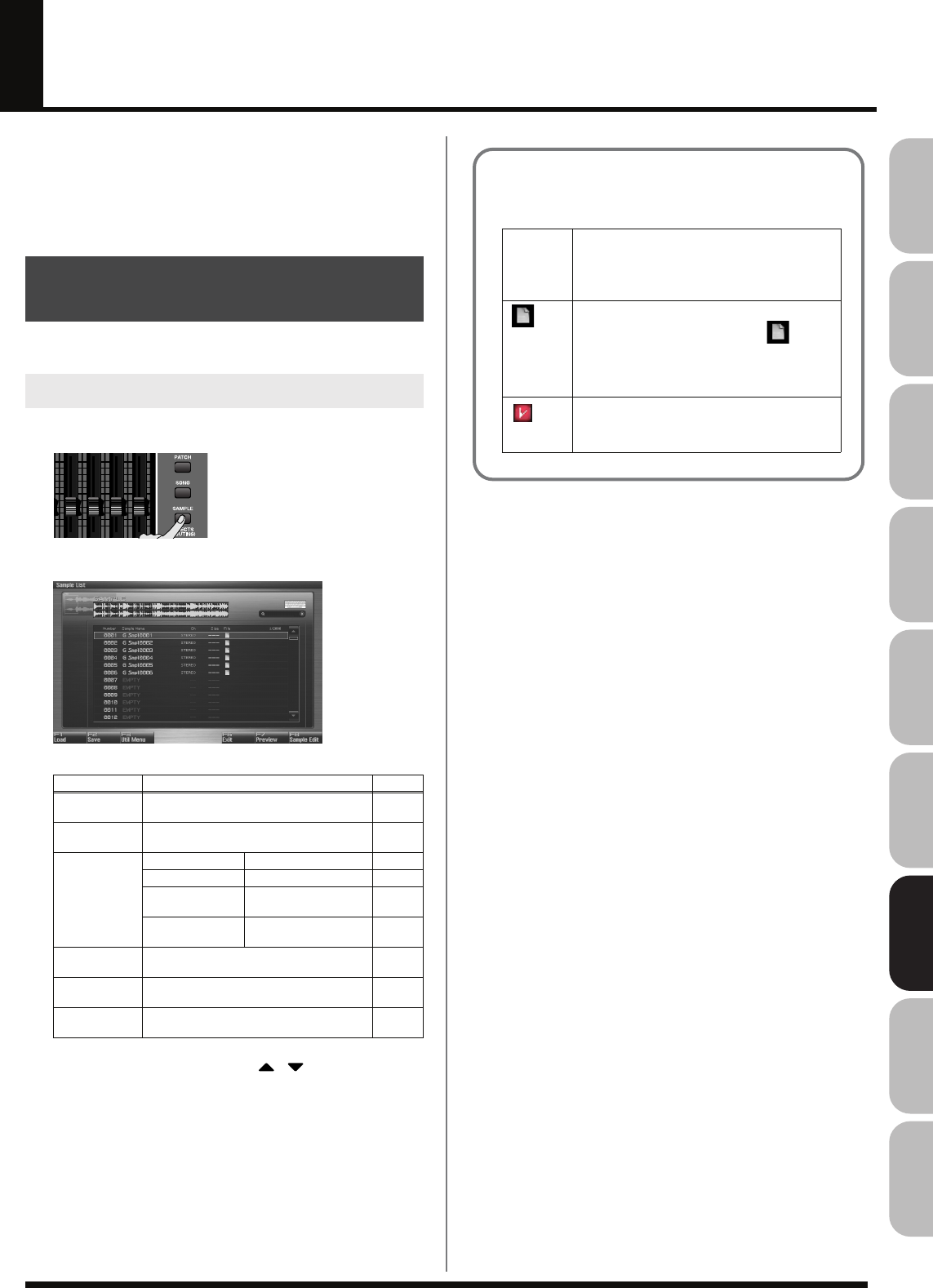
263
Overview Sound 1 Sound 2 Sound 3 Pad Sampler
Menu/System
AppendixSequencer
Editing a Sample
This section explains how you can edit a sample that you sampled/
imported.
Editing is performed in sample memory—a memory area dedicated
to samples.
* You cannot execute this with more than one sample selected.
Select a sample from the list.
1.
Press [SAMPLE] twice.
The Sample List display appears.
fig.14-008_50
F-key operations in the Sample List screen
2.
Use VALUE dial, [INC] [DEC], or to select a
sample.
If you hold down [SHIFT] while you operate the above buttons,
the sample number will change in steps of ten.
You can press [F7 (Preview)] to audition the selected sample.
3.
Press [F8 (Sample Edit)].
The Sample Edit Screen appears. (p. 266)
Selecting a Sample
(Sample List)
Selecting a Sample
F-key Explanation Page
F1
Load Loads a sample from the project into
memory. p. 264
F2
Save Saves the selected sample to the project. p. 274
F3
Util Menu Save All Saves all samples. p. 274
Load All Loads all samples p. 264
Delete Sample Deletes the sample
from the project. p. 265
Unload Deletes the sample
from memory. p. 264
F6
Exit Returns to the previous screen. –
F7
Preview Auditions the selected sample. –
F8
Sample Edit Displays the edit screen for the selected
sample. p. 266
The sample list shows the current state of
the samples.
Sample
name
Indicates the name of the sample. Sample
for which this field indicates “EMPTY”
have not been loaded into memory. Load
them if necessary.
Indicates whether the file exists in the
project. Samples for which the “ ” sym-
bol is not shown have not been saved, and
will be lost when you turn off the power.
Save them if necessary.
Indicates that the sample has been edited.
Your edits will be lost when you turn off
the power. Save the sample if necessary.
Fantom-G_r_e.book 263 ページ 2008年1月31日 木曜日 午後12時15分
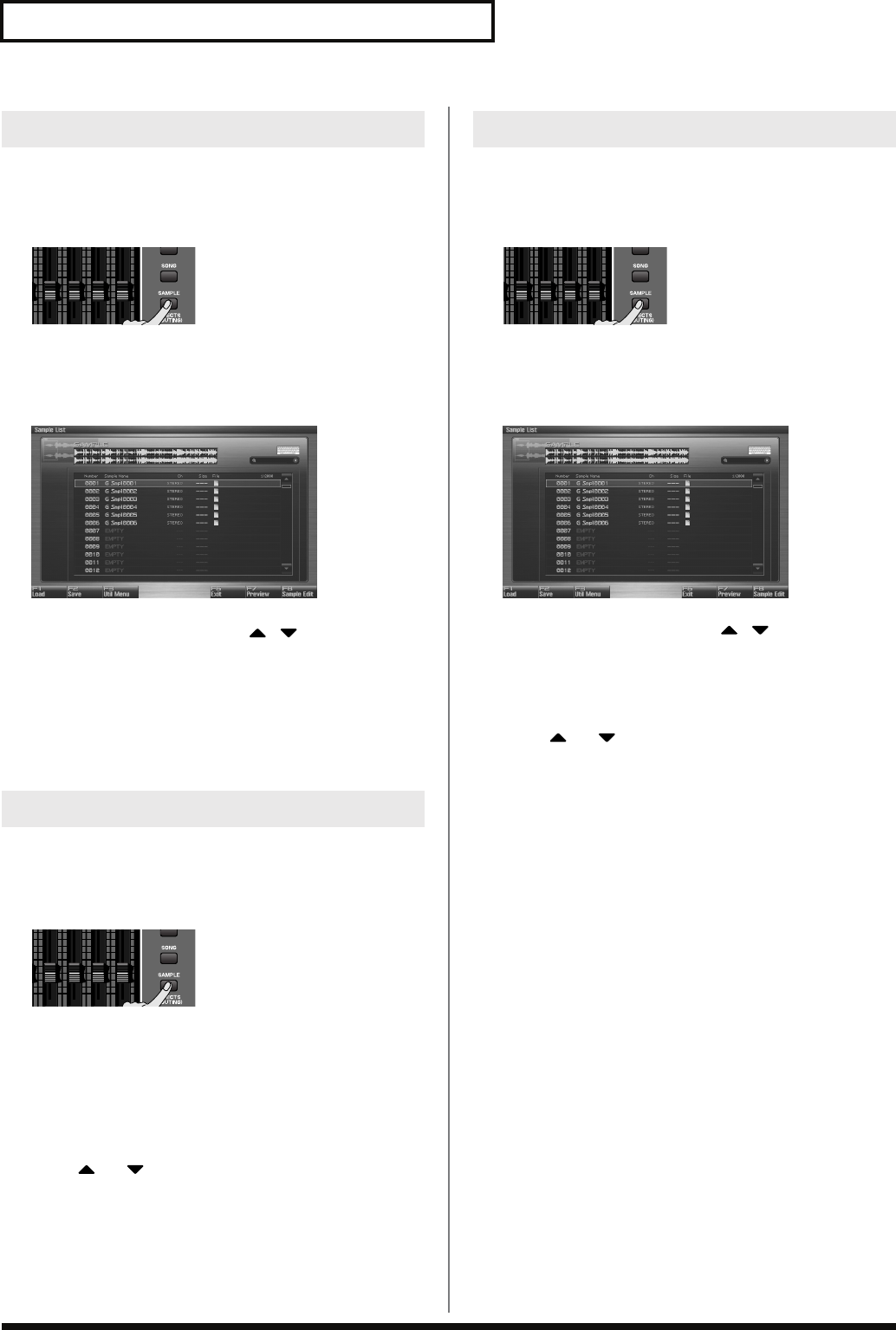
264
Editing a Sample
Here’s how you can load a sample from the project into sample
memory.
1.
Press [SAMPLE].
The Sample Edit screen will appear.
2.
Press [F1 (Sample List)].
The Sample List display appears.
fig.14-008_50
3.
Use VALUE dial, [INC] [DEC], or to select a
sample.
4.
Press [F1 (Load)].
A message will ask you for confirmation.
5.
Press [F7 (OK)] to execute.
To cancel, press [F8 (EXIT)].
Here’s how you can load all samples from the project into sample
memory.
1.
Press [SAMPLE].
The Sample Edit screen will appear.
2.
Press [F1 (Sample List)].
The Sample List display appears.
3.
Press [F3 (Util Menu)].
The Sample Utility Menu window will appear.
4.
Press or to select “Load All,” and then press [F8
(Select)].
To cancel, press [F7 (Cancel)].
A message will ask you for confirmation.
5.
Press [F7 (OK)] to execute.
To cancel, press [F8 (EXIT)].
This operation erases (unloads) the sample from sample memory.
The sample file itself that is saved in the project will not be deleted.
1.
Press [SAMPLE].
The Sample Edit screen will appear.
2.
Press [F1 (Sample List)].
The Sample List display appears.
fig.14-008_50
3.
Use VALUE dial, [INC] [DEC], or to select a
sample.
4.
Press [F3 (Util Menu)].
The Sample Utility Menu window will appear.
5.
Press or to select “Unlode,” and then press [F8
(Select)].
To cancel, press [F7 (Cancel)].
A message will ask you for confirmation.
6.
Press [F7 (OK)] to execute.
To cancel, press [F8 (EXIT)].
Loading a Sample (Load)
Loading All Samples (Load All)
Unloading a Sample (Unload)
Fantom-G_r_e.book 264 ページ 2008年1月31日 木曜日 午後12時15分
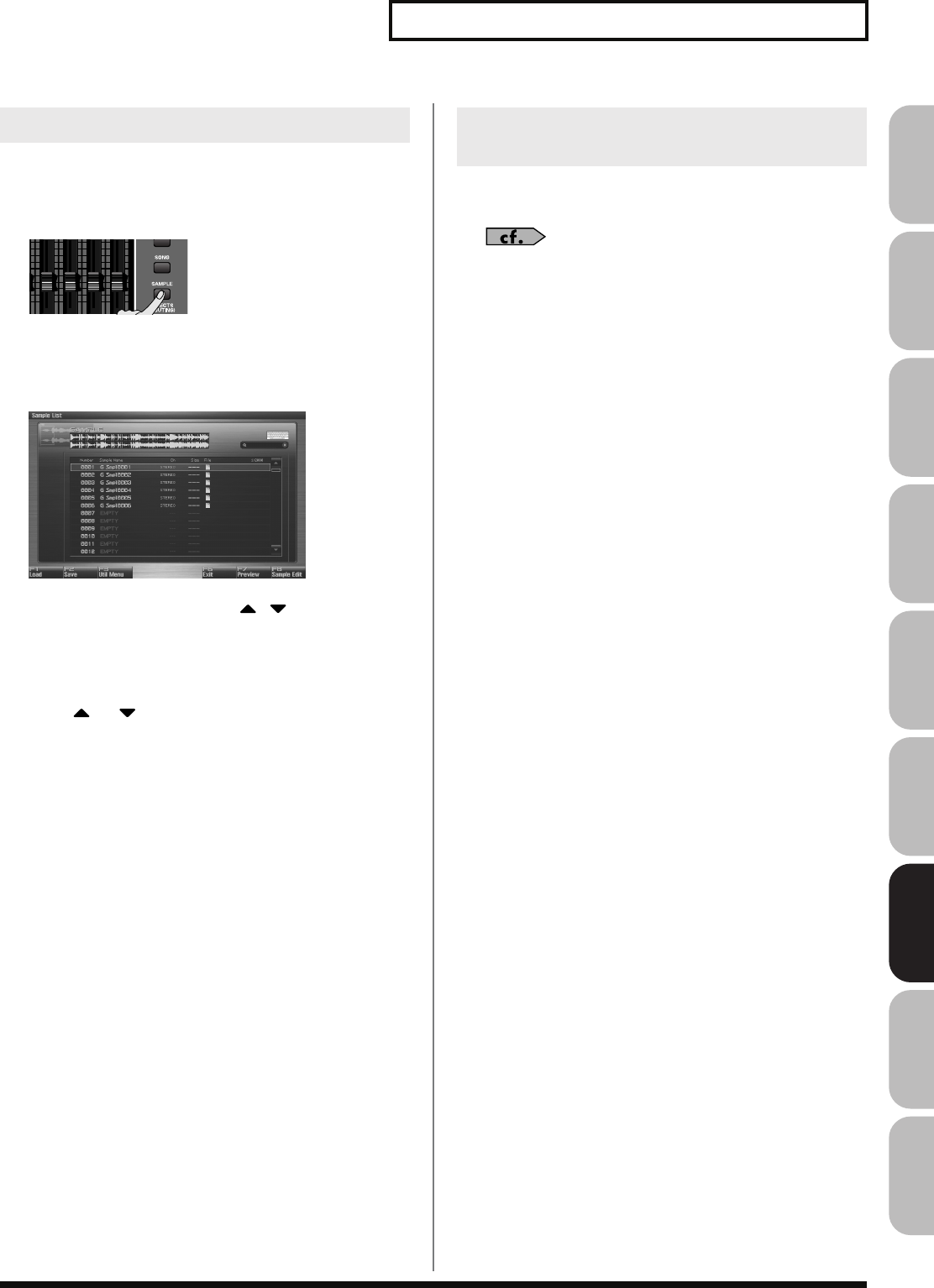
265
Editing a Sample
Overview Sound 1 Sound 2 Sound 3 Pad Sampler
Menu/System
AppendixSequencer
This operation completes deletes the sample saved in the project,
along with its file.
1.
Press [SAMPLE].
The Sample Edit screen will appear.
2.
Press [F1 (Sample List)].
The Sample List display appears.
fig.14-008_50
3.
Use VALUE dial, [INC] [DEC], or to select a
sample.
4.
Press [F3 (Util Menu)].
The Sample Utility Menu window will appear.
5.
Press or to select “Delete Sample,” and then press
[F8 (Select)].
To cancel, press [F7 (Cancel)].
A message will ask you for confirmation.
6.
Press [F7 (OK)] to execute.
To cancel, press [F8 (EXIT)].
Audio files (WAV/AIFF) from your computer can be imported into
memory as samples.
“Importing Audio file (Import Audio)”
(p. 283)
Deleting a Sample (Delete)
Importing an Audio File (WAV/AIFF)
from Your Computer
Fantom-G_r_e.book 265 ページ 2008年1月31日 木曜日 午後12時15分
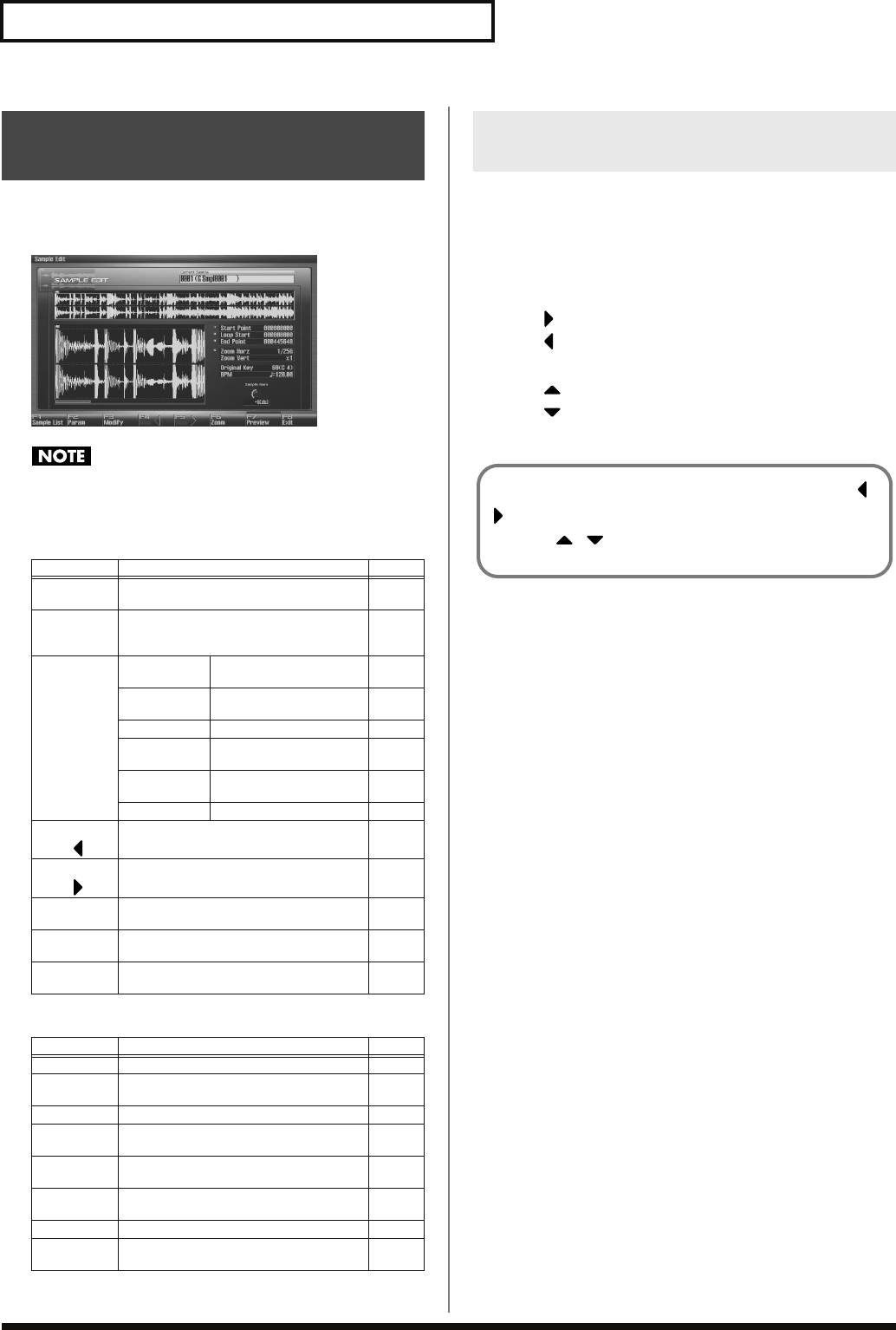
266
Editing a Sample
1.
Press [SAMPLE].
The Sample Edit screen will appear.
fig.14-007_50
Samples that you edit will be lost when you turn off the power.
If you want to keep them, you must Save them (p. 274).
F-key operations in the Sample Edit screen
Paramaters in the Sample Edit screen
Here’s how to change the magnification of the sample display.
1.
In the Sample Edit screen, press [F6 (Zoom)].
The Zoom window will appear.
2.
Use [CURSOR] to change the magnification of the display.
• Horizontal axis (time axis): 1/1–1/65536
Press to increase the display magnification.
Press to decrease the display magnification.
• Vertical axis (waveform amplitude axis): x1–x128
Press to increase the display magnification.
Press to decrease the display magnification.
3.
Press [F8 (Close)] to close the window.
Displaying Sample Edit Screen
(Sample Edit)
F-key Explanation Page
F1
Sample List Shows the sample list. p. 263
F2
Param Displays the Sample Parameter screen,
where you can make various settings for
the sample.
p. 268
F3
Modify Truncate Cuts an unwanted por-
tion p. 269
Emphasis Boosts/limits the high
frequency range p. 269
Normalize Maximizes the volume p. 270
Amp Applies a volume enve-
lope p. 270
Time Stretch Stretches/shrinks the
sample p. 271
Chop Divides the sample p. 272
F4
Beat
Specifies the start/end point of the sample
in units of a beat. p. 267
F5
Beat
Specifies the start/end point of the sample
in units of a beat. p. 267
F6
Zoom Zooms the waveform display. p. 266
F7
Preview Auditions the selected sample. –
F8
Exit Returns to the previous screen. –
Paramater Explanation Page
Start Point The point at which playback will start. p. 267
Loop Start The point at which loop playback (second
time and onwards) will start. p. 267
End Point The point at which playback will end. p. 267
Zoom Horz The magnification (horizontal axis) of the
display. p. 266
Zoom Vert The magnification (vertical axis) of the dis-
play. p. 266
Original
Key Note number that will play the sample at
the pitch at which it was sampled. p. 268
BPM Specifies the original tempo of the sample. p. 268
Sample
Gain Adjusts the gain of the sample. p. 268
Magnifying/Shrinking the
Waveform Display (Zoom)
Even without displaying the Zoom window, you can press
to expand/shrink the horizontal axis, or hold down [SHIFT]
and press to expand/shrink the vertical axis.
Fantom-G_r_e.book 266 ページ 2008年1月31日 木曜日 午後12時15分
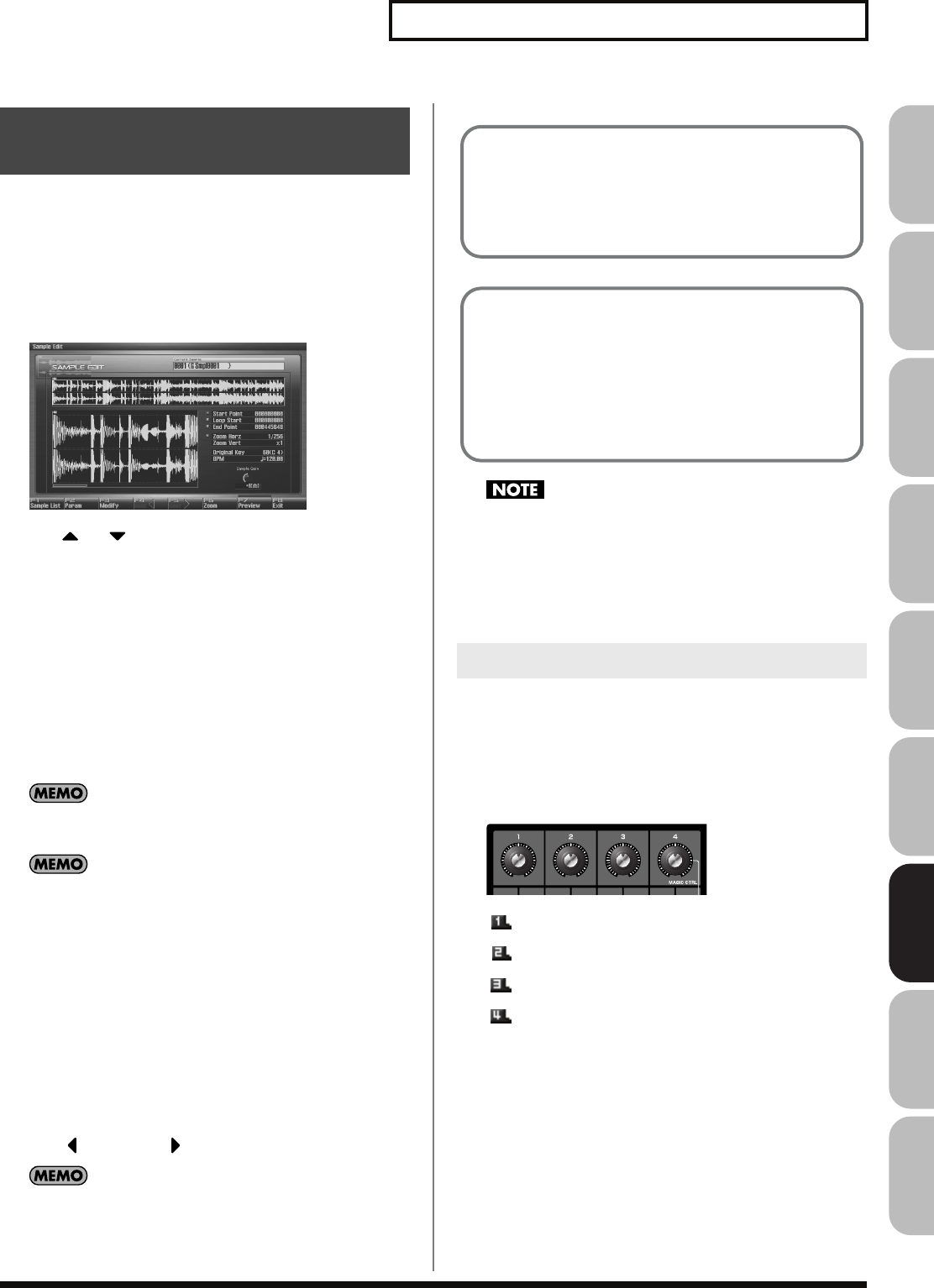
267
Editing a Sample
Overview Sound 1 Sound 2 Sound 3 Pad Sampler
Menu/System
AppendixSequencer
You can specify the portion of the sample that will actually sound.
You can also specify the region that is to be looped.
1.
Select the sample you want to edit, and access the Sample
Edit screen.
* For details on how to select a sample, refer to
“Selecting a Sample”
(p. 263).
fig.15-003_50
2.
Use or to select the point that you want to set.
•
Start Point:
This is the point at which playback will start. Set this so that any
unwanted portion at the beginning of the sample will be
skipped, and the sound will begin at the desired moment.
•
Loop Start:
This is the point at which loop playback (second and
subsequent times) will start. Set this if you want to loop the
sound from a point other than the start point.
•
End Point:
This is the point at which playback will end. Set this so that any
unwanted portion at the end of the sample will not be heard.
By pressing [F7 (Preview)] you can audition the region between
the start point and edit point.
If you hold down [F7 (Preview)] and edit the start/loop/end
point, the sample will play repeatedly across that point. Since
the sound in the region you’re specifying will play repeatedly,
this is a convenient way to check your setting.
(Zooming-in or zooming-out on the waveform will change the
region that loops.)
3.
Either turn the VALUE dial or use [INC], [DEC] to move the
point so it’s where you want it to be.
You’ll probably find it convenient to zoom-in when making fine
adjustments, and zoom-out when making major adjustments (p.
266).
You can move the point in units of one beat by pressing [F4
(Beat )] or [F5 (Beat )].
After specifying the start point and end point, you can execute
Truncate (p. 269) to delete unwanted portions at the beginning
and end of the sample.
Sample modify menu operations (Chop, Normalize, etc.) apply
to the entire sample. Even if you specify a start point or end
point, they will be ignored. If you want to apply the operation
only to the region between the start point and end point, use
Truncate to delete unwanted portions of the sample, and then
perform the sample modify menu operation.
You can use the knobs to edit each point. Using the knobs is
convenient when you need to make large changes to the value.
1.
Use the CONTROL knobs to specify the following editing
points.
From the left, the knobs have the following functions.
fig.15-003a
: Start Point
: Loop Start
: End Point
: Zoom-in/zoom-out the horizontal axis of the display
Setting the Start/End Points
of the Sample
Using the Knobs to Edit the Points
About the beat
Samples contain beat data. Up to 100 beat locations are specified
for one sample. If the sample contains more than 100 beats, fifty
beat locations will be specified from the beginning and end of
the sample, respectively.
When you want to reset the beat indication
(Reset Grid function [F7 (Reset Grid)])
From the Sample Edit screen, specify the start point of the
sample, press [F2 (Sample Param)] to access the Sample Prm
screen, specify the BPM, and then press [F7 (Reset Grid)]. This
will reapply the grid to the sample according to the start point
and BPM you specified. To execute, press [F8 (Execute)].
Fantom-G_r_e.book 267 ページ 2008年1月31日 木曜日 午後12時15分
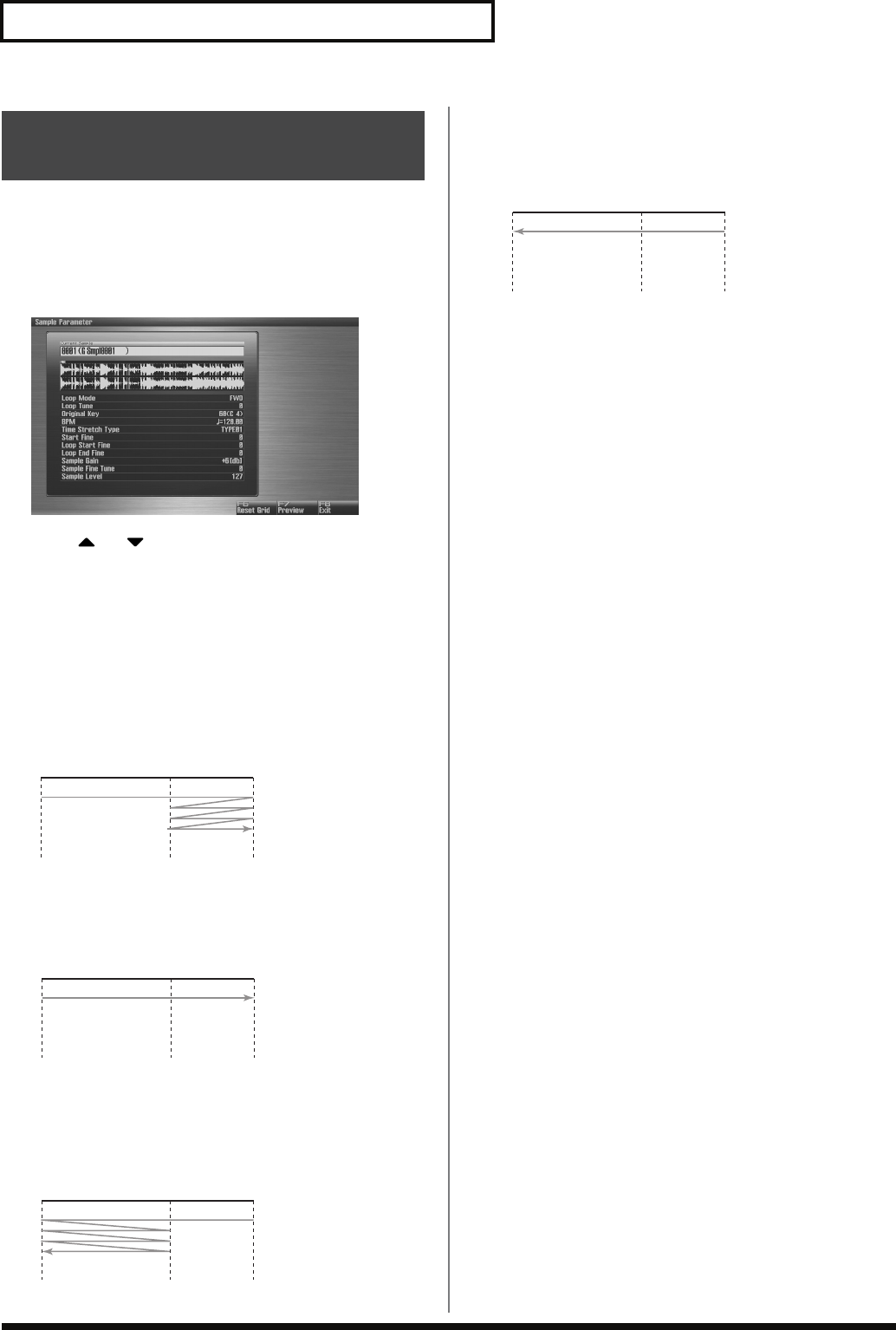
268
Editing a Sample
Here you can make various settings for the sample.
1.
Select the sample that you want to edit (p. 263).
2.
Press [SAMPLE] to access the Sample Edit screen, and
press [F2 (Param)].
fig.15-004_50
3.
Press or to select a parameter.
4.
Use VALUE dial or [INC], [DEC] to edit the value.
•
Loop Mode
Specifies how the sample will be played.
Value
FWD (Forward):
After the Sample played back from the Start point to the End
point, it will then be repeatedly played back in the forward
direction, from the Loop Start point to the End point.
fig.15-005
ONE-SHOT:
The sample will be played back only once, from the Start point
to the End point.
fig.15-006
REV (Reverse):
When the sample has been played back from the End point to
the Start point, it will be repeatedly played back in the reverse
direction, from the Loop Start point to the Start point.
fig.15-007
REV-ONE (Reverse One-shot):
The sample will be played back only once from the End point to
the Start point in the reverse direction.
fig.15-008
•
Loop Tune
Specifies the pitch of the loop region.
Value:
-50– +50
* Make fine adjustments in one-cent (1/100 semitone) increments.
•
Original Key
Note number that will play the sample at the pitch at which it
was sampled.
Value:
0 (C-1)–127 (G9)
•
BPM (TEMPO)
Specifies the original tempo of the sample.
When setting the BPM (tempo) value, you can hold down
[SHIFT] and turn the VALUE dial, or use [INC] [DEC] to adjust
the value to the right of the decimal point.
Value:
5.00–300.00
* In order to synchronize the tempo, Wave Temp Sync (p. 92) must be
turned on.
•
Time Stretch Type
Specifies how the tempo will be synchronized. Decreasing this
value will optimize the sound for more rapid phrases, and
increasing this value will optimize the sound for slower phrases.
Value:
TYPE01–TYPE10
•
Start Fine
Fine adjustment of the Start point.
Value:
0–255
•
Loop Start Fine
Fine adjustment of the Loop Start point.
Value:
0–255
•
Loop End Fine
Fine adjustment of the End point.
Value:
0–255
•
Sample Gain
This adjusts the gain of the sample, letting you boost the
volume if it decreased in the process of sampling.
Value:
0, +6, +12 [dB]
•
Sample Fine Tune
This adjusts the pitch of the sample in steps of one cent (over a
range of +/-50 cents).
Value:
-50– +50
* 1 cent = 1/100th of a semitone
•
Sample Level
This adjusts the volume of the sample.
Value:
1–127
* By pressing [F7 (Reset Grid)] you can reassign the sample grid according
to the specified start point and BPM. To execute, press [F8 (Execute)].
5.
Press [EXIT] when you are finished.
Making Settings for Sample
(Sample Parameters)
Start P.
Loop
Start P. End P.
Start P.
Loop
Start P. End P.
Start P.
Loop
Start P. End P.
Start P.
Loop
Start P. End P.
Fantom-G_r_e.book 268 ページ 2008年1月31日 木曜日 午後12時15分
269
Editing a Sample
Overview Sound 1 Sound 2 Sound 3 Pad Sampler
Menu/System
AppendixSequencer
This operation cuts the portions of the sample that are earlier than
the Start Point and later than the Loop End Point.
1.
Press [SAMPLE] to access the Sample Edit screen.
2.
Press or to select the parameter.
•
Start Point:
Specifies the sample start point.
•
End Point:
Specifies the sample end point.
3.
Either turn the VALUE dial or use [INC] [DEC] to set the
value.
4.
Press [F3 (Modify)].
The Sample Modify Menu window will appear.
5.
Press or to select “Truncate,” and then press [F8
(Select)].
To cancel, press [F7 (Cancel)].
6.
If you want to replace the current sample with the truncated
sample, press [F6 (Over Write)].
7.
Press [F8 (Execute)].
A message will ask you for confirmation.
8.
Press [F7 (OK)] to execute.
To cancel, press [F8 (EXIT)].
If [F6 (Over Write)] is off,
pressing [F7 (OK)] to execute
will
create the edited sample in the lowest unused sample number
in the list.
In some cases, the audio quality will be improved if you boost the
high-frequency range of an imported sample. Also, the high-
frequency range of the sample may be emphasized when you use a
sampler made by another manufacturer. In this case, you can
minimize the change in tonal character by attenuating the high-
frequency range.
1.
Press [SAMPLE] to access the Sample Edit screen.
2.
Press [F3 (Modify)].
The Sample Modify Menu window will appear.
3.
Press or to select “Emphasis,” and then press [F8
(Select)].
To cancel, press [F7 (Cancel)].
4.
Either turn the VALUE dial or use [INC] [DEC] to select the
emphasis type.
•
PreEmphasis:
Emphasizes the high-frequency range.
•
DeEmphasis:
Attenuates the high-frequency range.
5.
If you want to replace the current sample with the
emphasized sample, press [F6 (Over Write)].
6.
Press [F8 (Execute)].
A message will ask you for confirmation.
7.
Press [F7 (OK)] to execute.
To cancel, press [F8 (EXIT)].
If [F6 (Over Write)] is off,
pressing [F7 (OK)] to execute
will
create the edited sample in the lowest unused sample number
in the list.
Removing Unwanted
Portions of a Sample
(Truncate)
Boosting or Limiting the
High-frequency Range of
the Sample (Emphasis)
Fantom-G_r_e.book 269 ページ 2008年1月31日 木曜日 午後12時15分
270
Editing a Sample
This operation raises the level of the entire sample as much as
possible without exceeding the maximum level. In some cases, the
volume of a phrase you resampled (p. 260) will be lower than the
volume of the original phrase. In this case, it is a good idea to boost
the volume by executing the Normalize operation.
1.
Press [SAMPLE] to access the Sample Edit screen.
2.
Press [F3 (Modify)].
The Sample Modify Menu window will appear.
3.
Press or to select “Normalize,” and then press [F8
(Select)].
To cancel, press [F7 (Cancel)].
4.
If you want to replace the current sample with the
normalized sample, press [F6 (Over Write)].
5.
Press [F8 (Execute)].
A message will ask you for confirmation.
6.
Press [F7 (OK)] to execute.
To cancel, press [F8 (EXIT)].
If [F6 (Over Write)] is off,
pressing [F7 (OK)] to execute
will
create the edited sample in the lowest unused sample number
in the list.
This operation applies an envelope (time-variant change) to the
volume of the sample. You can also adjust the volume of the entire
sample.
1.
Press [SAMPLE] to access the Sample Edit screen.
2.
Press [F3 (Modify)].
The Sample Modify Menu window will appear.
3.
Press or to select “Amp,” and then press [F8
(Select)].
To cancel, press [F7 (Cancel)].
4.
Use VALUE dial or [INC] [DEC] to set the value.
•
Rate:
Specifies the rate of volume boost.
This specifies how much boost will be applied relative to the
current volume. The entire sample you select will be boosted.
Value:
0–400%
5.
If you want to specify a point, press [F5 (Point)] to light it
into red. Press or to select a parameter, and then
use VALUE dial or [INC] [DEC] to set the value.
•
Current Point:
Specifies the currently selected point. Beginning
near the start point, the points will be numbered 1, 2, 3, or 4.
Value:
1–4
•
Point 1–4:
Location of the current point
•
Rate 1–4:
Amplification ratio of the current point
Specifies how the volume of each point is to be boosted relative
to the current value.
Value:
0–400%
6.
If you want to replace the current sample with the
normalized sample, press [F6 (Over Write)].
7.
Press [F8 (Execute)].
A message will ask you for confirmation.
8.
Press [F7 (OK)] to execute.
To cancel, press [F8 (EXIT)].
If [F6 (Over Write)] is off,
pressing [F7 (OK)] to execute
will
create the edited sample in the lowest unused sample number
in the list.
Maximizing the Volume of a
Sample (Normalize)
Amp
Fantom-G_r_e.book 270 ページ 2008年1月31日 木曜日 午後12時15分
271
Editing a Sample
Overview Sound 1 Sound 2 Sound 3 Pad Sampler
Menu/System
AppendixSequencer
This operation stretches or shrinks the sample to modify the length
or tempo. You can stretch or shrink the sample by a factor of one half
to double the original length.
1.
Press [SAMPLE] to access the Sample Edit screen.
2.
Press [F3 (Modify)].
The Sample Modify Menu window will appear.
3.
Press or to select “Time Stretch,” and then press
[F8 (Select)].
To cancel, press [F7 (Cancel)].
4.
Press or to select the parameter.
• Edit Time Stretch
VALUE
BPM:
Changes the BPM of the sample to the BPM you
specifies.
Time:
Specifies the length of the sample as a time value.
Rate:
Specifies the length relative to the current length of
the sample.
Value:
50.0–200.0%
•
Type
Lower settings of this value will make the sound more suitable
for faster phrases, and higher settings will make the sound
more suitable for slower phrases.
Value:
TYPE01–TYPE10
•
Quality Adjust
Make fine adjustments to the tonal quality of the Time Stretch.
Value:
1–10
5.
Use VALUE dial or [INC] [DEC] to specify the tempo/length.
When setting the BPM (tempo) value, you can hold down
[SHIFT] and turn the VALUE dial, or use [INC] [DEC] to adjust
the value to the right of the decimal point.
6.
Press [F8 (Execute)].
A message will ask you for confirmation.
7.
Press [F7 (OK)] to execute.
To cancel, press [F8 (EXIT)].
Stretching or Shrinking a
Sample (Time Stretch)
Fantom-G_r_e.book 271 ページ 2008年1月31日 木曜日 午後12時15分
272
Editing a Sample
The
chop
function divides a sample waveform into separate notes.
* The Create Sample Set function makes it easy to create a sample set
from the chopped samples.
Procedure for Dividing a Sample
You can freely specify the point(s) at which the sample is to be
divided.
1.
Press [SAMPLE] to access the Sample Edit screen.
2.
Press [F3 (Modify)].
The Sample Modify Menu window will appear.
3.
Press or to select “Chop,” and then press [F8
(Select)].
To cancel, press [F7 (Cancel)].
4.
Press or to move the cursor to “Current Address.”
5.
Either turn the VALUE dial or use [INC] [DEC] to move the
point.
6.
At the location where you want to divide the sample, press
[F4 (Add Point)].
The current location will be the dividing point.
7.
Repeat steps 5 and 6 to specify other dividing points as
desired.
You can specify up to 15 locations at which to divide the
sample; i.e., the sample will be divided into a maximum of 16
pieces.
8.
Audition the sample as described in the section
“Auditioning the Divided Samples” (p. 273).
If you want to re-make settings, move or delete the point (p.
273).
9.
Press [F8 (Execute)].
A message will ask you for confirmation.
10.
To execute the division, press [F7 (OK)].
To cancel, press [F8 (EXIT)].
When you execute the Chop operation, a message will ask
whether you want to execute Create Sample Set.
* The divided samples will be added to the sample list.
11.
If you want to execute Create Sample Set, press [F8
(Execute)].
When you execute Create Sample Set, a sample set with the
divided samples assigned to the pads will be automatically
created.
12.
If you don’t want to execute Create Sample Set, press [F7
(Cancel)].
Dividing a Sample into Notes
(Chop)
Fantom-G_r_e.book 272 ページ 2008年1月31日 木曜日 午後12時15分
273
Editing a Sample
Overview Sound 1 Sound 2 Sound 3 Pad Sampler
Menu/System
AppendixSequencer
Automatically Dividing a Sample
(Auto Chop)
Here’s how you can automatically specify the points at which the
sample is to be divided, and then divide the sample.
1.
Press [SAMPLE] to access the Sample Edit screen.
2.
Press [F3 (Modify)].
The Sample Modify Menu window will appear.
3.
Press or to select “Chop,” and then press [F8
(Select)].
To cancel, press [F7 (Cancel)].
4.
Press [F6 (Auto Chop)].
5.
Either turn the VALUE dial or use [INC] [DEC] to select the
method by which the sample is to be divided.
•
Chop Type
Specifies how the sample will be divided.
Value
Level:
Divides according to volume.
Beat:
Divides at beats based on the BPM (p. 268) of the
sample.
Divide x:
The sample will be divided into the specified
number of equal-sized samples.
6.
Press .
7.
Either turn the VALUE dial or use [INC] [DEC] to set the
value.
•
Level (If Chop Type is Level)
Level at which the sample is to be divided. Lower settings of
this value will cause the sample to be divided more finely.
Value:
1–10
•
Beat (If Chop Type is Beat)
Beat interval at which the sample is to be divided.
Value:
1/32, 1/16T, 1/16, 1/8T, 1/8, 1/4T, 1/4, 1/2, 1/1, 2/1
•
Times (If Chop Type is Divide x)
Number of samples into which the sample is to be divided.
Value:
2–16
8.
Press [F8 (Execute)].
The sample will be automatically divided according to your
settings, and the points will be specified. A maximum of 15
division points will be set (16 regions).
To cancel, press [F7 (Cancel)].
9.
Audition the sample as described in the section
“Auditioning the Divided Samples” (p. 273)
If you want to re-make settings, move or delete the point
“Moving a Dividing Point”
(p. 273).
10.
Press [F8 (Execute)].
A message will ask you for confirmation.
11.
To execute the division, press [F8 (Execute)].
* To cancel, press [F7 (Cancel)].
When you execute Auto Chop, a message will ask you whether
you want to execute Create Sample Set.
12.
If you want to execute Create Sample Set, press [F8
(Execute)].
When you execute Create Sample Set, a sample set with the
divided samples assigned to the pads will be automatically
created.
13.
If you don’t want to execute Create Sample Set, press [F7
(Cancel)].
You will return to the Sample Edit screen.
Auditioning the Divided Samples
After dividing the sample, you can press the pads to audition each of
the divided samples.
From the sample nearest to the start point, the samples will be
played by pads [1], [2],...[16].
Moving a Dividing Point
1.
Press or to move the cursor to “Point No.”
2.
Turn the VALUE dial to select the point that you want to
move.
In order from the start point, the points are numbered 1, 2,...15.
3.
Press .
4.
Turn the VALUE dial to move the dividing point.
Deleting a Dividing Point
1.
Press or to move the cursor to “Point No.”
2.
Turn the VALUE dial to select the point that you want to
delete.
3.
Press [F5 (Clear Point)].
The dividing point will be deleted.
Fantom-G_r_e.book 273 ページ 2008年1月31日 木曜日 午後12時15分
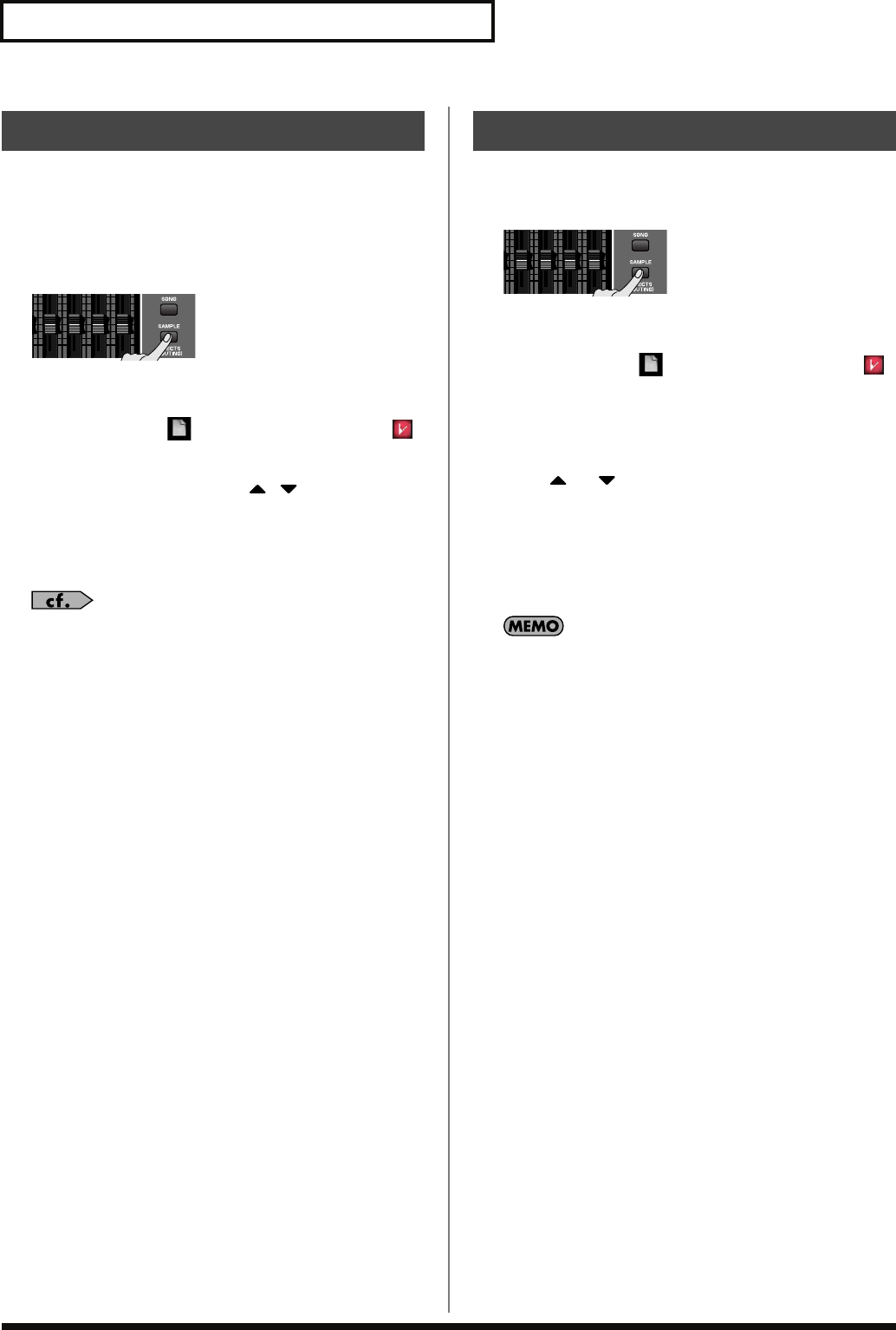
274
Editing a Sample
Here’s how to save the selected sample into the project.
A newly loaded sample, as well as any changes you’ve made in the
settings for a sample will be lost as soon as you turn off the power. If
you want to keep such data, you must save it as follows.
1.
Press [SAMPLE].
2.
Press [F1 (Sample List)].
The Sample List display appears.
Samples without the “ ” symbol and samples with the “ ”
symbol have not been saved.
3.
Use VALUE dial, [INC] [DEC], or to select the
sample that you want to save.
4.
Press [F2 (Save)].
5.
Assign a name to the sample.
For details on assigning names, refer to
“Assigning a Name”
(p. 42)
6.
When you have finished inputting the name, press [F8 (OK)].
A screen will appear allowing you to select the write-
destination sample.
7.
Turn the VALUE dial, or use [INC] [DEC] to select the
sample number.
8.
Press [F8 (Write)].
A message will ask you for confirmation.
Never switch off the Fantom-G while data is being saved.
9.
Press [F7 (OK)] to execute the save operation.
To cancel the operation, press [F8 (EXIT)].
• You can’t save by overwriting another sample.
Here’s how to save all samples of the sample list into the project.
1.
Press [SAMPLE].
2.
Press [F1 (Sample List)].
The Sample List display appears.
Samples without the “ ” symbol and samples with the “ ”
symbol have not been saved.
3.
Press [F3 (Util Menu)].
The Sample Utility Menu window will appear.
4.
Press or to select “Save All,” and then press [F8
(Select)].
To cancel, press [F7 (Cancel)].
A message will ask you for confirmation.
5.
Press [F7 (OK)] to execute.
To cancel, press [F8 (EXIT)].
When you execute Save All, the samples will be written in the
same numerical order as they appear in the sample list. The
sample names will be assigned automatically.
Saving a Sample (Save)
Saving all samples (Save All)
Fantom-G_r_e.book 274 ページ 2008年1月31日 木曜日 午後12時15分
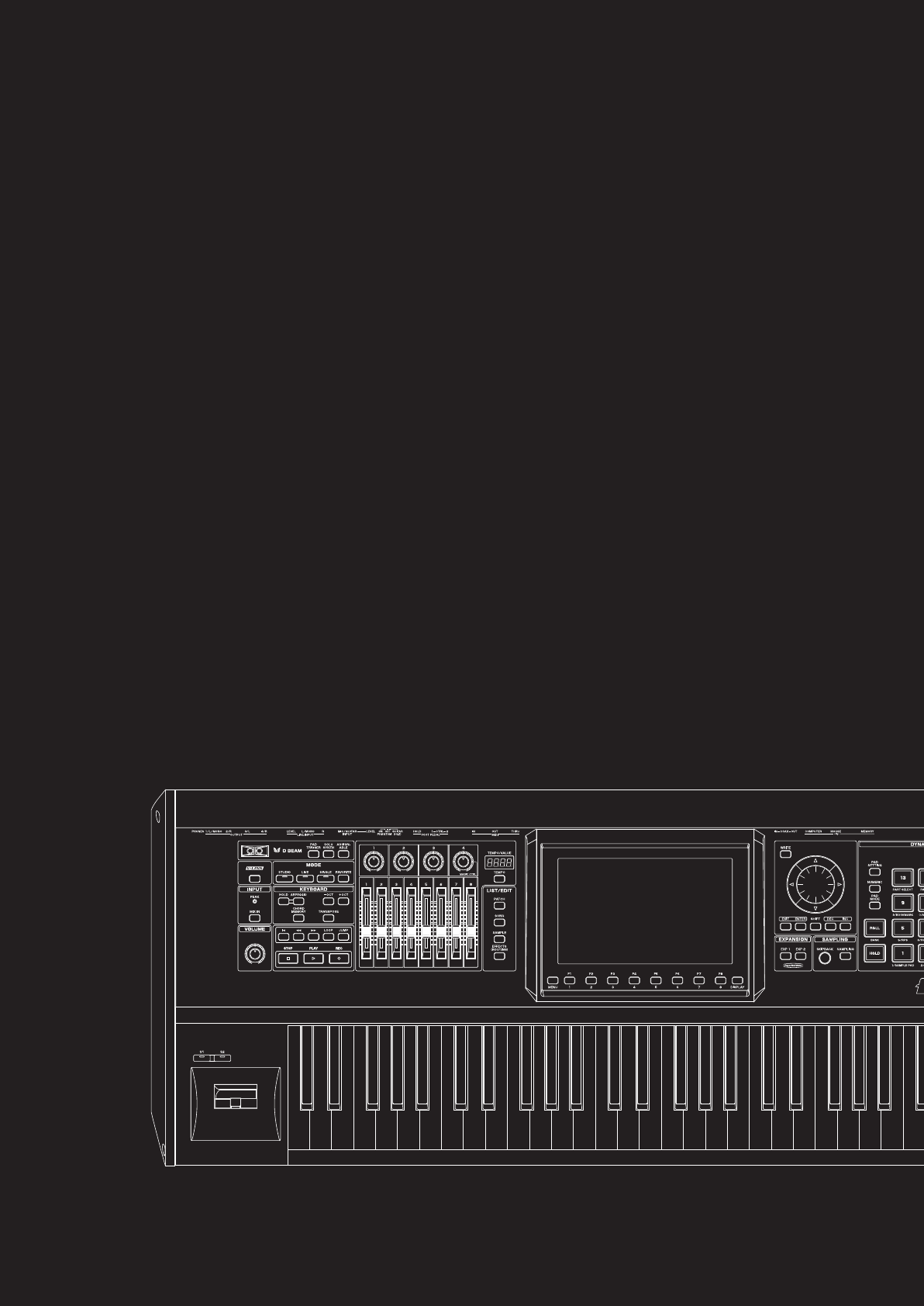
08: Various Settings
(Menu and System)
This chapter explains the menus and system settings.
• Menu Reference........................................................p. 276
• System Settings.........................................................p. 286
• V-LINK .....................................................................p. 301
Fantom-G_r_e.book 275 ページ 2008年1月31日 木曜日 午後12時15分
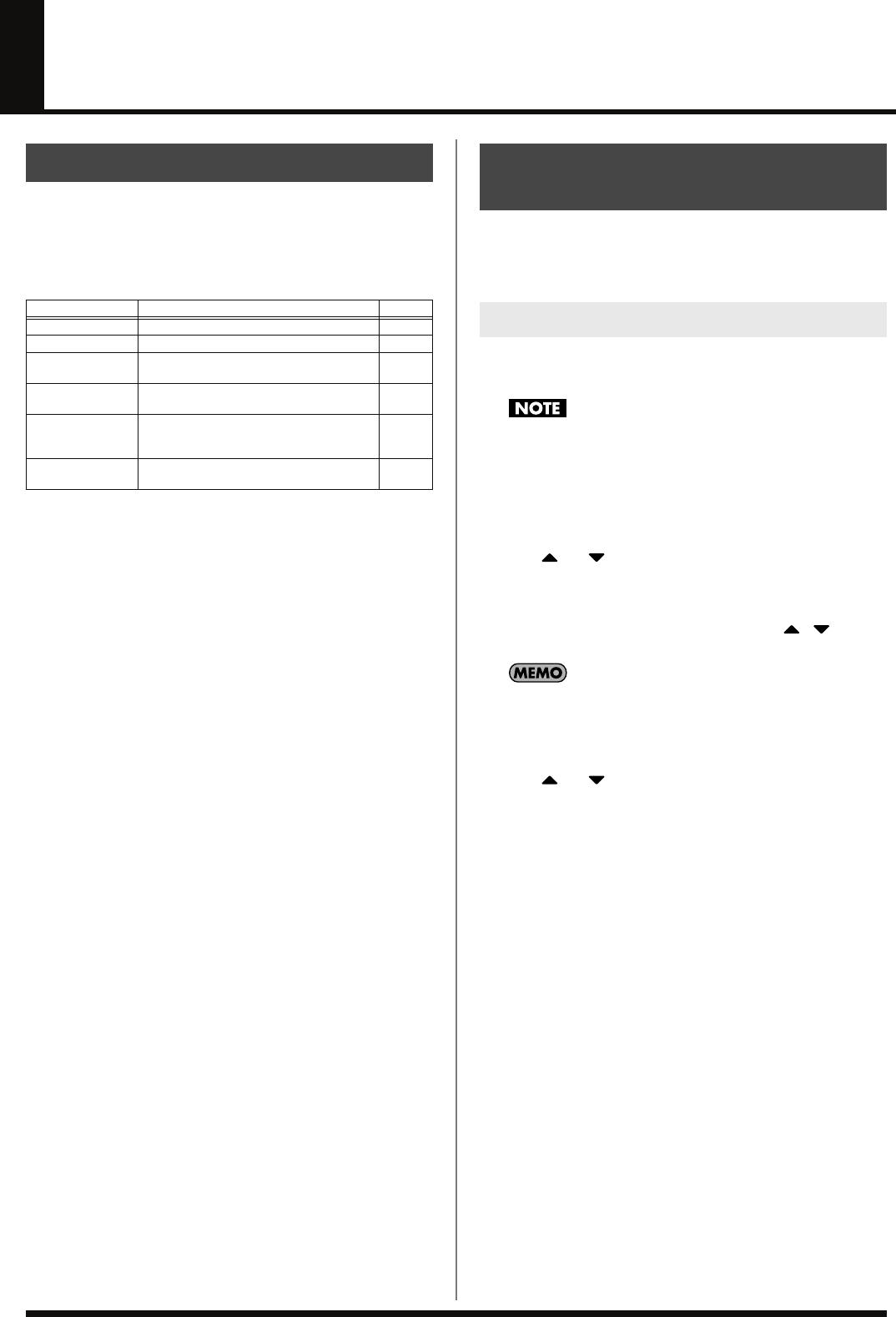
276
Menu Reference
The menus contain various functions you will find helpful when
using the Fantom-G.
Press [MENU] to access the menu, select the desired function, and
execute it.
Here’s how to load a project from internal memory or USB memory
into the Fantom-G’s temporary area, or save the project from the
Fantom-G’s temporary area.
This operation will load a project from internal memory or USB
memory into the Fantom-G’s temporary area.
When you load a project, the contents of the temporary area will
be rewritten. If the temporary area contains important data, you
must save it to internal memory or USB memory before loading
a project.
1.
Press [MENU] to access the Menu window.
2.
Use or to choose “Project,” and then press
[ENTER].
The Project Menu will appear.
3.
Turn the VALUE dial or use [INC] [DEC] or / to
choose “Load Project,” and then press [F8 (Select)].
You can also press [F1 (Load)] to execute this.
4.
Press [F1 (Internal)] or [F2 (USB Memory)] to select the
load-source area (internal memory or USB memory).
5.
Use or to select the project that you want to load.
6.
Press [F8 (Load)].
A confirmation message will appear.
7.
Press [F7 (OK)] to execute.
* If you decide to cancel, press [F8 (EXIT)].
Menus
Menu name Explanation Page
Project Load or save a project p. 276
System Access the System Setting screen p. 286
Factory Reset Reset the Fantom-G to the factory-set con-
dition p. 280
Format USB
Memory Formats (initializes) USB memory p. 280
USB Storage Connects the Fantom-G to a computer and
mounts the internal memory as USB mem-
ory
p. 281
Import Audio Imports a WAV/AIFF format audio file
into the Fantom-G p. 283
Project-related Settings
(Project)
Load Project
Fantom-G_r_e.book 276 ページ 2008年1月31日 木曜日 午後12時15分
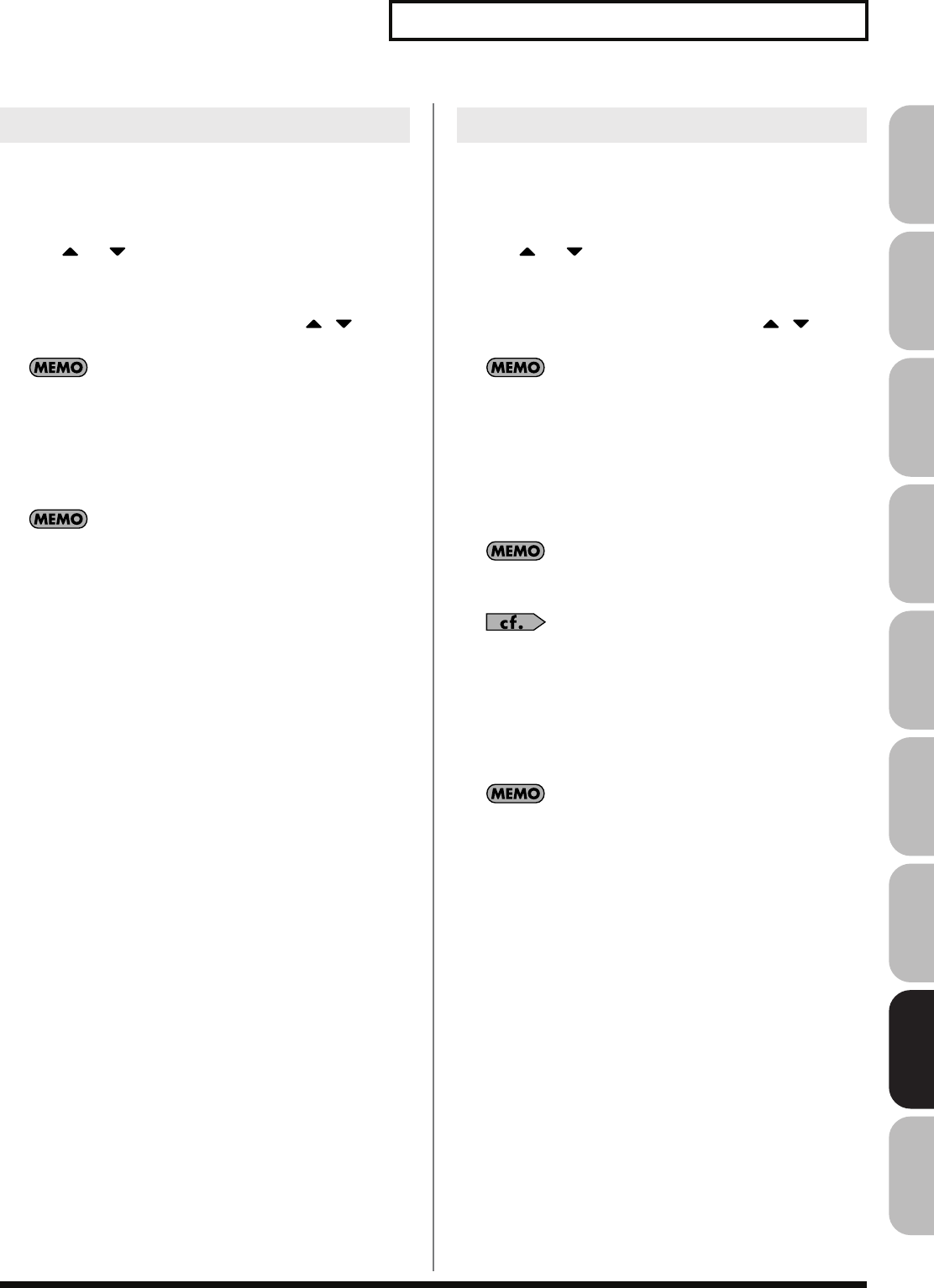
277
Menu Reference
Overview Sound 1 Sound 2 Sound 3 Pad Sampler
Menu/System
AppendixSequencer
This operation will save the project from the temporary area to
internal memory or USB memory.
1.
Press [MENU] to access the Menu window.
2.
Use or to choose “Project,” and then press
[ENTER].
The Project Menu will appear.
3.
Turn the VALUE dial or use [INC] [DEC] or / to
choose “Save Project,” and press [F8 (Select)].
You can also press [F2 (Save)] to execute this.
A confirmation message will appear.
4.
Press [F7 (OK)] to execute.
* If you decide to cancel, press [F8 (EXIT)].
If an error message appears
An error message may appear if the data cannot be successfully
saved, such as when there is insufficient space in internal
memory or USB memory.
“Error Messages”
(p. 318) lists the various errors that may
appear, and explains the appropriate response.
This operation will save the project from the temporary area to
internal memory or USB memory under a different name.
1.
Press [MENU] to access the Menu window.
2.
Use or to choose “Project,” and then press
[ENTER].
The Project Menu will appear.
3.
Turn the VALUE dial or use [INC] [DEC] or / to
choose “Save As Project,” and press [F8 (Select)].
You can also press [F3 (Save As)] to execute this.
4.
Press [F1 (Internal)] or [F2 (USB Memory)] to select the
save-destination area (internal memory or USB memory).
5.
Press [F8 (Save As)].
6.
The Project Name window will appear. Enter a name, and
press [F8 (OK)].
If you selected internal memory, there will be no step for
entering a name.
For details on how to enter a name, refer to
“Assigning a
Name”
(p. 42).
A confirmation message will appear.
7.
Press [F7 (OK)] to execute.
* If you decide to cancel, press [F8 (EXIT)].
If an error message appears
An error message may appear if the data cannot be successfully
saved, such as when there is insufficient space in internal
memory or USB memory.
“Error Messages”
(p. 318) lists the various errors that may
appear, and explains the appropriate response.
Save Project
Save As Project
Fantom-G_r_e.book 277 ページ 2008年1月31日 木曜日 午後12時15分
278
Menu Reference
This operation will create a new project in USB memory.
1.
Press [MENU] to access the Menu window.
2.
Use or to choose “Project,” and then press
[ENTER].
The Project Menu will appear.
3.
Turn the VALUE dial or use [INC] [DEC] or / to
choose “Create Project,” and press [F8 (Select)].
You can also press [F4 (Create)] to execute this.
4.
The Project Name window will appear. Enter a name, and
press [F8 (OK)].
For details on how to enter a name, refer to
“Assigning a
Name”
(p. 42).
A confirmation message will appear.
5.
Press [F7 (OK)] to execute.
* If you decide to cancel, press [F8 (EXIT)].
If an error message appears
An error message may appear if the data cannot be successfully
saved, such as when there is insufficient space in internal
memory or USB memory.
“Error Messages”
(p. 318) lists the various errors that may
appear, and explains the appropriate response.
By default, the project name will be assigned a number as
“FantomG001,” “FantomG002,” etc., but you are free to change
this. On your computer, projects will appear as folders named
“Project name.Prj” located in the root of the USB memory. If
you rename the folder (project name) on your computer, you
will not be able to use “.” as the first character. Do not modify
the filename extension. Also, there are certain characters (\ / : , ;
* ? ” < > |) that cannot be used in the name.
This operation will back up a project from internal memory to USB
memory (only one).
1.
Press [MENU] to access the Menu window.
2.
Use or to choose “Project,” and then press
[ENTER].
The Project Menu will appear.
3.
Turn the VALUE dial or use [INC] [DEC] or / to
choose “Backup Project,” and then press [F8 (Select)].
You can also press [F5 (Backup)] to execute this.
A confirmation message will appear.
4.
Press [F7 (OK)] to execute.
* If you decide to cancel, press [F8 (EXIT)].
If an error message appears
An error message may appear if the data cannot be successfully
saved, such as when there is insufficient space in internal
memory or USB memory.
“Error Messages”
(p. 318) lists the various errors that may
appear, and explains the appropriate response.
Create Project
Backup Project
Fantom-G_r_e.book 278 ページ 2008年1月31日 木曜日 午後12時15分
279
Menu Reference
Overview Sound 1 Sound 2 Sound 3 Pad Sampler
Menu/System
AppendixSequencer
By executing this operation, a project previously backed up to USB
memory using Backup Project can be restored into internal memory.
Restoring a backup will overwrite the internal memory. If
internal memory contains important data, save it to USB
memory before you execute the Restore Project operation.
1.
Press [MENU] to access the Menu window.
2.
Use or to choose “Project,” and then press
[ENTER].
The Project Menu will appear.
3.
Turn the VALUE dial or use [INC] [DEC] or / to
choose “Restore Project,” and then press [F8 (Select)].
You can also press [F6 (Restore)] to execute this.
A confirmation message will appear.
4.
Press [F7 (OK)] to execute.
* If you decide to cancel, press [F8 (EXIT)].
“System Settings (Settings Common to All Modes)”
(p. 286)
Restore Project
System Settings (System)
Fantom-G_r_e.book 279 ページ 2008年1月31日 木曜日 午後12時15分
280
Menu Reference
This restores all data in the Fantom-G to the factory-set condition
(
Factory Reset
).
If there is important data you’ve created that’s stored in the
Fantom-G’s User memory, all such data is discarded when a
Factory Reset is performed (
the data of the internal user
memory will be lost
). If you want to keep the existing data,
save it on a USB memory (p. 277) or save it via USB to your
computer (p. 281).
1.
Press [MENU] to open the Menu window.
2.
Press or to select “Factory Reset,” and then press
[ENTER].
A message will ask confirmation.
3.
Press [F7 (OK)] to execute the Factory Reset.
* To cancel, press [F8 (EXIT)].
This process will require several minutes. Never turn off the
power until this process has been completed.
4.
When the display indicates “Factory Reset Completed!,”
press [F7 (OK)].
This formats (initializes) the USB memory that’s connected to the
rear panel USB MEMORY connector.
If the format of the USB memory is other than FAT, it won’t be
recognized by the Fantom-G. (Nor will the Fantom-G be able to
format it.) In this case, use your computer to format the USB
memory using the “FAT” or “FAT32” file system. (If you’re
using Mac OS X, format the USB memory using the “MS-DOS
file system (FAT32).”)
1.
Press [MENU] to open the Menu window.
2.
Press or to select “Format USB Memory,” and
then press [ENTER].
A message will ask confirmation.
3.
Press [F7 (OK)] to execute the Format USB memory.
* To cancel, press [F8 (Cancel)].
4.
When the display indicates “Format USB memory
Completed!,” press [F7 (OK)].
Reset to Default Factory
Settings (Factory Reset)
Format USB Memory
Fantom-G_r_e.book 280 ページ 2008年1月31日 木曜日 午後12時15分
281
Menu Reference
Overview Sound 1 Sound 2 Sound 3 Pad Sampler
Menu/System
AppendixSequencer
By connecting the Fantom-G with your computer via a USB cable,
you can transfer files from Internal memory or a USB memory to and
from the hard disk or other media of your computer, in order to back
up your data.
You can use software on your computer to edit WAV/AIFF files
you’ve
created on the Fantom-G. Conversely, WAV/AIFF files that you’ve
created on your computer can be used on the Fantom-G.
In this way, USB Storage mode lets you transfer files such as patch
and waves to or from a connected computer.
Close the DAW software on your computer before you enter
USB Storage mode.
Never connect or disconnect the USB cable or turn off the power
while in USB Storage mode.
1.
With the Fantom-G not connected, start up your computer.
2.
Use a USB cable to connect the Fantom-G to your
computer.
3.
Turn on the power (POWER ON switch) of the Fantom-G.
When the Fantom-G is connected to your computer, you can select
the area on the Fantom-G to which a connection is to be made; either
the internal user area or the USB memory.
1.
Press [MENU].
2.
Press or to select “USB Storage,” and then press
[ENTER].
The USB Storage screen will appear.
3.
Press [F1 (Internal)] or [F2 (USB memory)] to connect with
your computer.
* To cancel the connection, press [Exit].
4.
The display will differ as follows, depending on the
computer you’re using.
•
Windows Vista/XP users
A drive named “FANTOM G” will be displayed within My
Computer. If a USB memory is connected, its volume name will
be displayed.
•
Mac OSX users
A drive icon named “FANTOM G” will appear on the desktop.
If a USB memory is connected, its volume name will be
displayed.
Exchanging Files with Your
Computer (USB Storage)
Connections
Specify the Connection-Destination
Fantom-G_r_e.book 281 ページ 2008年1月31日 木曜日 午後12時15分
282
Menu Reference
You must observe the following points when the Fantom-G is
connected to your computer via USB.
• Don’t use your computer to move or delete folders within the
Fantom-G.
• Don’t use your computer to format or optimize the Fantom-G’s
user memory or USB memory, or execute operations such as
Scan Disk.
• The Fantom-G can only handle filenames consisting of single-
byte alphanumeric characters.
You cannot use a period “.” at the beginning of a file name.
Certain other characters (\ / : , ; * ? “ < > |) can also not be used
in a file name.
• Only the following types of files can be transferred between the
Fantom-G and your computer.
Song files (.SVQ/.SVA/.SVP)
Standard MIDI Files (.MID)
Audio files (.WAV/.AIF/.AIFF)
Bitmap files (.BMP) (800 x 480 pixels)
Text file (.TXT)
• To handle these files, use the appropriate method described
below.
Windows Vista/XP Users
1.
In My Computer, right-click the “removable hard disk” icon
and execute “Remove.”
2.
Press [EXIT].
Mac OSX Users
1.
Drag the Fantom-G drive icon into the trash.
2.
Press [EXIT].
Cautions Regarding Folders and Files
Standard MIDI
Files
Place the files in the following folder.
FantomG.Prj/SEQ/SMF
folder
“
FantomG.Prj
” is the name of the project folder
in the Fantom-G’s internal memory.
Multiple projects can be saved in USB memory.
By default, the project folder names will be
numbered as “
FantomG001.Prj
,”
“
FantomG002.Prj
,” etc., but the portion
preceding the filename extension will be the
project name you assign when saving the project.
Audio files
When placing the files from your computer,
place them in the following location.
IMPORT
folder
Then import the audio files.
If you want to use your computer to read
samples that were written by the Fantom-G,
load the files from the Project folder/SMPL
folder into your computer.
BMP files
When placing the files from your computer,
place them in the following location.
IMPORT
folder
Text files
When placing the files from your computer,
place them in the following location.
IMPORT
folder
Then import the text file.
Exiting Storage Mode
Fantom-G_r_e.book 282 ページ 2008年1月31日 木曜日 午後12時15分
283
Menu Reference
Overview Sound 1 Sound 2 Sound 3 Pad Sampler
Menu/System
AppendixSequencer
Copying a standard MIDI file (SMF)
from your computer to the Fantom-G
Here’s how to copy a standard MIDI file from your computer to the
Fantom-G.
1.
On your computer, prepare the standard MIDI file (.MID) that
you want to copy.
2.
Use the USB Storage function (p. 281) to copy the standard
MIDI file (.MID) to the following folder of the Fantom-G’s
internal memory or the USB memory.
“FantomG.Prj/SEQ/SMF” folder
“
FantomG.Prj
” is the name of the project folder in the
Fantom-G’s internal memory. Multiple projects can be saved in
USB memory. By default, the project folder name will be
numbered as “
FantomG001.Prj
,” “
FantomG002.Prj
,”
etc., but the portion preceding the filename extension will be the
project name you assign when saving the project.
Importing Audio file (Import Audio)
Here’s how to import an audio file (WAV/AIFF).
1.
On your computer, prepare the audio file (WAV/AIFF format)
that you want to import.
2.
Using the USB Storage function, copy the audio to the
“IMPORT” folder of USB memory or the Fantom-G’s internal
memory.
3.
Press [MENU].
4.
Turn the VALUE dial to select “Import Audio,” and then
press [ENTER].
5.
Press [F1 (Internal)] or [F2 (USB Memory)] to select the
import-source area.
[F1 (Internal)]: Import from Internal memory.
[F2 (USB Memory)]: Import from a USB memory.
6.
Press [F8 (Import Audio)].
A message will ask you for confirmation.
* To cancel, press [F7 (Cancel)].
7.
Press [F7 (OK)].
The file will be imported, and the Sample List screen will appear.
* To cancel, press [F8 (EXIT)].
The imported file will be added to the sample list as a sample.
This sample is temporary, and will be lost when you turn off the
power. If you want to keep it, press [WRITE] to save the data (p.
274).
Examples of Using Storage Mode
Fantom-G_r_e.book 283 ページ 2008年1月31日 木曜日 午後12時15分
284
Menu Reference
Using a Bitmap File as a Background
in the Display (Import BMP)
Via USB memory (or internal memory), you can use
a bitmap file
(Windows BMP format, 24-bit, 800x480 pixel)
as wallpaper for the
Fantom-G.
1.
On your computer, prepare the bitmap file (Windows BMP
format, 24-bit, 800x480 pixel) that you want to use as
wallpaper.
2.
Using the USB Storage function, copy the bitmap file to the
“IMPORT” folder of USB memory or the Fantom-G’s internal
memory.
3.
Press [MENU].
4.
Turn the VALUE dial to select “System,” and then press
[ENTER].
5.
Press [F5 (Wallpaper)].
The Wallpaper screen will appear.
Sixteen different images can be shown as the background. The
imported file will overwrite the currently selected image. If you
want to delete an imported file, select an image (1–16) and press
[F2 (Delete)].
6.
Press [F1 (Import BMP)].
7.
Press [F1 (Internal)] or [F2 (USB Memory)] to select the
import-source area (internal memory or USB memory).
8.
Press or to select the file that you want to import.
9.
Press [F8 (Select)].
The file you want to import will be displayed.
* To cancel, press [F7 (Cancel)].
10.
Press [F8 (Execute)].
The file will be imported.
* To cancel, press [F7 (Cancel)].
The changed wallpaper setting is temporary, and will be lost
when you turn off the power. If you want to keep the setting,
press [F7 (Sys Write)] to write it into the Fantom-G’s system
memory.
Displaying Text Memos in the
Favorite Screen (Import Text)
You can create a text file on your computer and display it in the
Favorite screen (p. 54). Since this lets you add a note to each bank,
it’s a convenient way to provide reminders, such as an explanation
of each screen.
1.
Create a text file on your computer, and save it with a
filename extension of “.TXT”.
2.
Place the file created by step 1 in the “IMPORT” folder of
USB memory or the Fantom-G’s internal memory.
3.
Execute “Import TEXT” to import the text file.
For details on how to import, refer to
“Importing a Text File
(Import Text)”
(p. 56).
Fantom-G_r_e.book 284 ページ 2008年1月31日 木曜日 午後12時15分
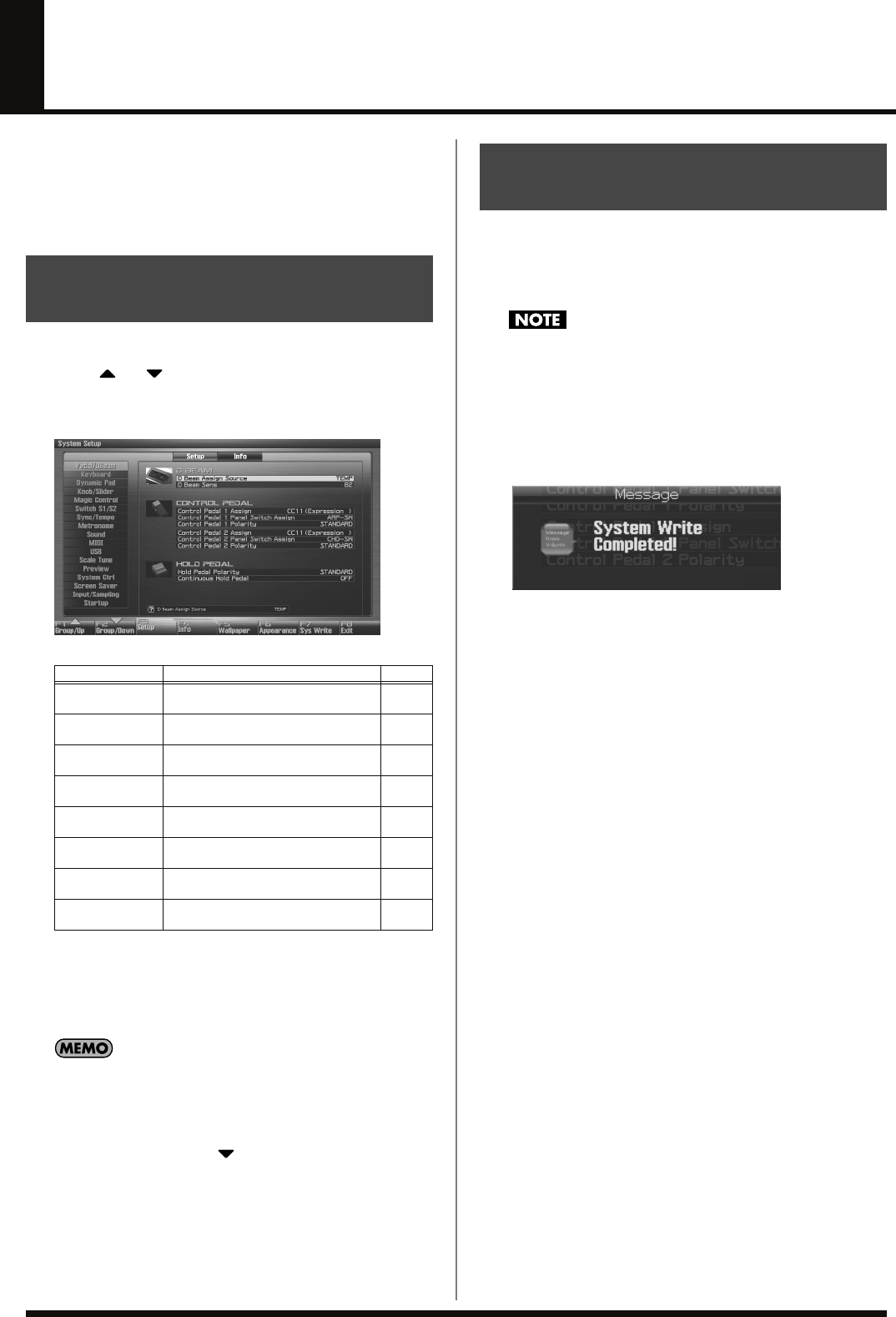
286
System Settings (Settings Common to All Modes)
Settings that affect the entire operating environment of the Fantom-
G, such as tuning and MIDI message reception, are referred to as
system functions.
This section explains how to make settings for
the System functions and describes the functions of the different
System parameters.
1.
Press [MENU] to open the Menu window.
2.
Press or to select “System,” and then press
[ENTER].
The System Setup screen appears.
fig.25-001_50
F-key operations in the System Setup screen
3.
The parameters are organized into several edit groups. Use
[F1 (Up)] [F2 (Down)] to switch tabs.
4.
Use [CURSOR] to move the cursor to the parameter you
wish to modify.
When the cursor is located at a parameter value, you can press
[ENTER] to access a window for setting the value.
• When all the parameters cannot be shown within a single settings
screen, a scroll bar will be displayed at the right side of the
screen. In such cases, press to scroll the screen downward.
5.
Turn the VALUE dial or press [INC] [DEC] to get the value
you want.
6.
Repeat steps 3–5 to set each System parameter you want to edit.
7.
To save the settings you modified, press [F7 (Sys Write)]
and perform the Write operation. If you do not want to save,
press [EXIT] to return to the previous screen.
Changes you make to the System function settings are only
temporary—they will be discarded as soon as the power is turned
off. If you want to keep any changes you’ve made in the system
settings, you must save them in internal system memory.
When you perform the save procedure, the data that previously
occupied the save destination will be lost. However, the factory
setting data can be recovered by performing the Factory Reset
procedure.
1.
Change the system function settings, and press [F7 (Sys
Write)].
fig.25-002_50
The display will indicate “System Write Completed!” The data
will be saved, and you’re returned to the System Setup screen.
How to Make System
Function Settings
F-key Explanation Page
F1
Group/Up Moves the edit group tab upward. –
F2
Group/Down Moves the edit group tab downward. –
F3
Setup Edits the system parameters. p. 287
F4
Info Displays system information. p. 298
F5
Wallpaper Specifies the wallpaper. p. 299
F6
Appearance Edits screen-related settings. p. 300
F7
Sys Write Saves system settings. p. 286
F8
Exit Returns to the previous screen. –
Saving the System Settings
(System Write)
Fantom-G_r_e.book 286 ページ 2008年1月31日 木曜日 午後12時15分
287
System Settings (Settings Common to All Modes)
Overview Sound 1 Sound 2 Sound 3 Pad Sampler
Menu/System
AppendixSequencer
This section explains what the different System parameters do, and
also how these parameters are organized.
For details on these settings, refer to
“How to Make System
Function Settings”
(p. 286).
The usable range of the D Beam controller will become
extremely small when used under strong direct sunlight. Please
be aware of this when using the D Beam controller outside.
The sensitivity of the D Beam controller will change depending
on the amount of light in the vicinity of the unit. If it does not
function as you expect, adjust the sensitivity as appropriate for
the brightness of your location. Increase this value will raise the
sensitivity (p. 287).
D Beam Assign Source
This specifies whether the D Beam Controller switch will follow the
system settings (SYS) or follow the live set or studio set (TEMP).
Value:
SYS, TEMP
D Beam Sens (D Beam Sensitivity)
This sets the D Beam controller’s sensitivity. Increasing this value
will raise the sensitivity.
Value:
0–127
Control Pedal 1 Assign
Control Pedal 2 Assign
This specifies the function of each pedal connected to the FOOT
PEDAL CTRL 1, 2 jacks.
Value
OFF:
Off
CC01–31, 32(OFF), 33–95:
Controller numbers 1–31, 32(OFF), 33–95
AFTERTOUCH:
Aftertouch
BEND UP:
The pitch will rise in semitone steps
(maximum 4 octaves) each time you press
the pedal.
BEND DOWN:
The pitch will fall in semitone steps
(maximum 4 octaves) each time you press
the pedal.
START/STOP:
The sequencer will start/stop.
TAP TEMPO:
Tap tempo (a tempo specified by the interval
at which you press the pedal).
PROG UP:
The next sound number will be selected.
PROG DOWN:
The previous sound number will be selected.
USER GROUP UP:
The user group patch of the next number or
bank will be selected.
USER GROUP DOWN:
The user group patch of the previous
number or bank will be selected.
FAVORITE UP:
The favorite patch/live set/studio set of the
next number or bank will be selected.
FAVORITE DOWN:
The favorite patch/live set/studio set of the
previous number or bank will be selected.
PANEL SWITCH:
The result will be the same as pressing the
switch assigned by Panel Switch Assign (see
below).
Control Pedal 1 Panel Switch Assign
Control Pedal 2 Panel Switch Assign
Specifies the switch that will operate when Pedal 1 Assign or Pedal 2
Assign (see preceding item) are set to “
PANEL SWITCH
.”
Control Pedal 1 Polarity
Control Pedal 2 Polarity
Selects the polarity of the pedal. On some pedals, the electrical signal
output by the pedal when it is pressed or released is the opposite of
other pedals. If your pedal has an effect opposite of what you expect,
set this parameter to “REVERSE.” If you are using a Roland pedal
(that has no polarity switch), set this parameter to “STANDARD.”
Value:
STANDARD, REVERSE
Hold Pedal Polarity
Select the polarity of the Hold pedal. On some pedals, the electrical
signal output by the pedal when it is pressed or released is the
opposite of other pedals. If your pedal has an effect opposite of what
you expect, set this parameter to “REVERSE.” If you are using a
Roland pedal (that has no polarity switch), set this parameter to
“STANDARD.”
Range:
STANDARD, REVERSE
Continuous Hold Pedal
This setting determines whether the HOLD PEDAL jack will provide
support for half-pedaling (ON), or not (OFF). When this is set to
support use of half-pedaling techniques, you can then connect an
optional expression pedal (DP-8, etc.), and employ pedal work to
achieve even finer control in performances in which piano tones are
used.
Value:
OFF, ON
Functions of System
Parameters
Pedal/D Beam
Fantom-G_r_e.book 287 ページ 2008年1月31日 木曜日 午後12時15分

288
System Settings (Settings Common to All Modes)
Keyboard Velocity
Specifies the velocity value that will be transmitted when you play
the keyboard. If you want actual keyboard velocity to be
transmitted, set this to “REAL.” If you want a fixed velocity value to
be transmitted regardless of how you play, specify the desired value
(1–127).
Value:
REAL, 1–127
Keyboard Velocity Curve
Adjusts the keyboard’s touch.
Value
LIGHT:
Light weight synthesizer keyboard like
MEDIUM:
Standard
HEAVY:
Acoustic piano simulation
Keyboard Velocity Sens
(Keyboard Velocity Sensitivity)
Adjusts the sensitivity of the keyboard. As you increase this setting,
higher velocity values will be transmitted according to the force with
which you play. Normally you will leave this set at “0.”
Value:
-63– +63
Aftertouch Sens (Aftertouch Sensitivity)
Specifies the Aftertouch sensitivity. Higher values will allow
Aftertouch to be applied more easily. Normally you will leave this at
“100.”
Value:
0–100
Pad Assign Source
Specifies whether changes in pad mode will follow the system’s Pad
Mode setting (SYS) or follow the live set or studio set (TEMP).
Value:
SYS, TEMP
Pad Velocity
For all sixteen pads, this specifies the velocity (loudness) that is
produced when you strike a pad. With the “REAL” setting, you’ll be
able to produce dynamics by varying your striking force. With a
setting of “1–127,” the pads will produce the specified velocity value
regardless of your actual striking force.
Value:
REAL, 1-127
Pad Sens (Pad Sensitivity)
Specifies the relation between your striking force and the velocity
that is produced.
Value
LIGHT:
It will be easy to produce the maximum velocity
without having to strike very hard.
MEDIUM:
This is the standard pad sensitivity setting.
HEAVY:
You will have to strike quite strongly to produce the
maximum velocity.
Pad Aftertouch Sens
(Pad Aftertouch Sensitivity)
“Aftertouch” means additional pressure that you apply on a pad
after striking it. This setting adjusts the aftertouch sensitivity. Higher
values make it easier to apply aftertouch. Normally you will leave
this at a setting of “100.”
Value:
0-100
Pad Roll Resolution
Specifies the speed of repeated strikes when using the pads to play
rolls.
Values:
, , , , , , ,
Pad Mode
Specifies the pad mode (p. 188) when the Fantom-G starts up (when
a project is loaded).
Value:
SAMPLE PAD, RHYTHM, CHORD MEMORY,
ARPEGGIO, RPS, RHYTHM PTN, TONE SEL/SW,
TRACK MUTE, BOOKMARK, MIDI TX SW,
EFFECT SW, PATCH MFX SW, PART SELECT,
PART MUTE, USER GROUP, FAVORITE
Keyboard Dynamic Pad
Fantom-G_r_e.book 288 ページ 2008年1月31日 木曜日 午後12時15分
289
System Settings (Settings Common to All Modes)
Overview Sound 1 Sound 2 Sound 3 Pad Sampler
Menu/System
AppendixSequencer
Knob Slider Mode
Specifies whether, when a knob or slider is moved, its position will
immediately be output as control data (DIRECT) or whether control
data will be output only after the knob or slider position has passed
through the value of the parameter (CATCH).
Value:
DIRECT, CATCH
Depending on the parameter being controlled with the sliders
or controls, you may not be able to obtain the CATCH effect,
even though you've set the Knob Slider Mode to “CATCH.”
Knob Assign Select
Specifies whether the operation of knobs 1–4 will automatically
change according to the screen (SCREEN) or will be fixed at the
Knob 1–4 Assign settings (FIX).
Value:
FIX, SCREEN
Knob Assign Source
Specifies whether the operation of knobs 1–4 will follow the system
settings Knob 1–4 Assign (SYS) or the setting of the live set or studio
set (TEMP).
Value:
SYS, TEMP
Knob 1–4 Assign
Specify the functions that will be controlled by the knobs.
Value
OFF:
Off
CC01–31, CC32(OFF), 33–95:
Control Change
AFTERTOUCH:
Aftertouch
PITCH BEND:
Pitch Bend
ARPEGGIO ACCENT:
Arpeggio accent rate
ARPEGGIO SHUFFLE:
Arpeggio shuffle rate
ARPEGGIO OCT UP:
The range in which the arpeggio is
sounded will rise in steps of an octave.
ARPEGGIO OCT DOWN:
The range in which the arpeggio is
sounded will lower in steps of an octave.
MASTER LEVEL:
Master Level (p. 293)
DIGITAL/USB INPUT LEVEL:
Digital/USB Input Level (p. 258)
* If the system setting
“Knob Assign Source”
(p. 289) is “System,”
the system setting will be used. If this is “TEMP,” the setting of the
live set or studio set will be used.
Slider Assign Select
Specifies whether the operation of sliders 1–8 will automatically
change according to the screen (SCREEN) or will be fixed at the
Slider 1–8 Assign settings (FIX).
Value:
FIX, SCREEN
Slider Assign Source
Specifies whether the operation of sliders 1–8 will follow the system
settings Slider 1–8 Assign (SYS) or the settings of the live set or
studio set (TEMP).
Value:
SYS, TEMP
Slider 1–8 Assign
Specify the functions that will be controlled by the sliders.
Value
OFF:
Off
CC01–31, CC32(OFF), 33–95:
Control Change
AFTERTOUCH:
Aftertouch
PITCH BEND:
Pitch Bend
ARPEGGIO ACCENT:
Arpeggio accent rate
ARPEGGIO SHUFFLE:
Arpeggio shuffle rate
ARPEGGIO OCT UP:
The range in which the arpeggio is
sounded will rise in steps of an octave.
ARPEGGIO OCT DOWN:
The range in which the arpeggio is
sounded will lower in steps of an octave.
* If the system setting
“Slider Assign Source”
(p. 289) is “System,”
the system setting will be used. If this is “TEMP,” the setting of the
live set or studio set will be used.
Knob/Slider
Fantom-G_r_e.book 289 ページ 2008年1月31日 木曜日 午後12時15分

290
System Settings (Settings Common to All Modes)
Magic Control is a function that automatically switches the role of
knob 4 and slider 8 according to the screen. In the Patch List screen
(p. 49), knob 4 will select the category, and slider 8 will scroll the list.
Knob 4 Assign
Specify the functions that will be controlled by the knob 4.
Value
OFF:
Off
CATEGORY/BANK:
Switch the category/bank
SCROLL COARSE:
Scroll the list
SCROLL FINE:
Scroll the list finely
Slider 8 Assign
Specify the functions that will be controlled by the slider 8.
Value
OFF:
Off
CATEGORY/BANK:
Switch the category/bank
SCROLL COARSE:
Scroll the list
SCROLL FINE:
Scroll the list finely
Switch S1/S2 Assign Source
Specifies whether the S1/S2 switches will follow the system settings
(SYS) or the settings of the live set or studio set (TEMP).
Value:
SYS, TEMP
Switch S1/S2 Assign
Specify the functions that will be controlled by the [S1] [S2] switches.
Value
Live Set:
OFF, CC01 - CC31, CC32 (OFF), CC33 - CC95,
AFTERTOUCH, MONO/POLY, PFX SWITCH,
MFX SWITCH, RESERVE, CHORUS SWITCH,
REVERB SWITCH, MASTERING SWITCH,
MASTER KEY UP, MASTER KEY DOWN,
SCALE TUNE SWITCH
Studio Set:
OFF, CC01 - CC31, CC32 (OFF), CC33 - CC95,
AFTERTOUCH, MONO/POLY, PFX SWITCH,
MFX1 SWITCH, MFX2 SWITCH,
CHORUS SWITCH, REVERB SWITCH,
MASTERING SWITCH, MASTER KEY UP,
MASTER KEY DOWN, SCALE TUNE SWITCH
Switch S1/S2 Assign Mode
Specify the functions that will be controlled by the [S1] [S2] switches.
Value
LATCH:
The on/off status will alternate each time you press
[S1] [S2].
MOMENTARY:
The status will be on only while you hold down [S1]
[S2].
Magic Control Switch S1/S2
Fantom-G_r_e.book 290 ページ 2008年1月31日 木曜日 午後12時15分
291
System Settings (Settings Common to All Modes)
Overview Sound 1 Sound 2 Sound 3 Pad Sampler
Menu/System
AppendixSequencer
Sync Mode
Specify the synchronization message that the Fantom-G’s sequencer
will use for operation.
Value
MASTER:
The Fantom-G will be the master. Choose this setting
when using the Fantom-G by itself without
synchronizing to another device, or when you want
other MIDI devices to synchronize to the Fantom-G.
SLAVE-MIDI:
The Fantom-G will be the slave. Choose this setting
when you want the Fantom-G to synchronize to
MIDI Clock messages received from another MIDI
device.
SLAVE-MTC:
The Fantom-G will be the slave. Choose this setting
when you want the Fantom-G to synchronize to
MTC (MIDI Time Code) received from an external
device.
REMOTE:
Use this setting when you wish an external MIDI
device to have remote start/pause/stop control. The
tempo will be in accord with what has been set on
the Fantom-G.
Sync Output (Sync Output Switch)
Set this parameter ON when you want synchronization related MIDI
messages (MIDI Clock, Start, Continue, Stop, Song Position Pointer
and Song Select) to be transmitted to an external MIDI device. If not,
set it OFF.
Value:
OFF, ON
Clock Source
When the Sync Mode is set to SLAVE-MIDI or SLAVE-MTC, this
setting specifies whether the Fantom-G will synchronize to the
tempo from the MIDI IN connector or the tempo from the USB
connector.
Value
MIDI:
Synchronize to the tempo from the MIDI IN connector.
USB:
Synchronize to the tempo from the USB connector.
MMC Mode
When synchronizing the Fantom-G with a hard disk recorder, such
as one from the Roland VS series, specify which synchronization
signal the Fantom-G’s sequencer will use for operation.
Value
MASTER:
The Fantom-G will be the master. Use this setting
when you want other devices to follow the operation
of the Fantom-G.
SLAVE:
The Fantom-G will be the slave. Use this setting
when you want the Fantom-G to receive MMC
(MIDI Machine Control) from an external device and
operate accordingly.
MMC (MIDI Machine Control) is a specification that allows
MIDI messages to be used to control devices such as tape
recorders, VTR’s, and digital recording systems. Thirty-seven
MMC commands are available, including Stop and Play.
MMC Output (MMC Output Switch)
Turn this “ON” if you want to synchronize with a hard disk
recorder, such as one from the Roland VS series. When set “ON,”
MMC (MIDI Machine Control) related commands (Play, Stop and
Locate) will be transmitted.
Value:
OFF, ON
MTC Sync Output (MTC Sync Output Switch)
Set this parameter ON when you want MTC (MIDI Time Code) to be
transmitted to an external MIDI device. If not, set it OFF.
Value:
OFF, ON
MTC Frame Rate
Specify the MTC frame rate. Make sure that the same mode is set in
both master and slave devices.
Value
24:
24 frames per second
25:
25 frames per second
29N:
29 frames per second
29D:
29 frames per second
30:
30 frames per second
When synchronizing with a hard disk recorder such as the
Roland VS series, any frame rate is all right—as long as the
setting matches that of the Fantom-G. However, when
synchronizing operation with video devices such as video
decks, the video device’s frame rate is fixed, so the Fantom-G’s
setting must correspond to that frame rate.
Sync/Temp
MIDI Clock and MTC
MIDI Clock and MTC (MIDI Time Code) are both messages
used for synchronization. Select either of them depending on
the application.
MIDI Clock transmits and synchronizes operations to a
sequencer’s performance tempo, whereas MTC synchronizes
operations between devices based on an absolute time.
Fantom-G_r_e.book 291 ページ 2008年1月31日 木曜日 午後12時15分
292
System Settings (Settings Common to All Modes)
MTC Offset Time Hour
Coordinates the playback timing of the Fantom-G and the external
device in an hour units.
Value:
00–23 hours
MTC Offset Time Minute
Coordinates the playback timing of the Fantom-G and the external
device in a minute units.
Value:
00–59 minutes
MTC Offset Time Second
Coordinates the playback timing of the Fantom-G and the external
device in a second units.
Value:
00–59 seconds
MTC Offset Time Frame
Coordinates the playback timing of the Fantom-G and the external
device in a frame units.
Value:
00–29 frames
(The maximum value will depend on the frame rate setting.)
MTC Error Level
Determines how often the reception status is checked when MTC is
being received from an external device. Stop synchronization if a
problem becomes apparent with the check.
Value:
0–10 (the checking interval will be longer for larger values)
In strict terms, the lower the numerical value set, the more
accurate the check is. However, playback may be stopped
overly frequently if too rigorous a check is made, and this soon
becomes inconvenient. By raising the Error Level setting, then
even if problems with the reception of MTC do occur,
synchronization can then continue as long as such problems
remain at a level that does not cause undue problems.
Types of MTC
The types of MTC that can be selected by the Fantom-G are
shown below. Select the same frame rate as that set for the
external device. When not using a video device, then any frame
rate may be selected as long as the rates are the same on both
devices being synchronized.
30: This is 30 frames per second, non-drop format. This is
used by audio devices such as analog tape recorders,
and for NTSC format black and white video (used in
Japan and the U.S.).
29N: This is 29.97 frames per second, non-drop format. This
is used for NTSC format color video (used in Japan and
the U.S.).
29D: 29.97 frames per second drop format. This is used for
NTSC format color video (used in Japan and the U.S.).
25: 25 frame per second frame rate. This is used for SECAM
or PAL format video, audio equipment, and film (used
in Europe and elsewhere).
24: 24 frame per second frame rate. This is used for video,
audio devices, and film in the US.
Non-Drop Format and Drop Format
There are two types of format used by NTSC video cassette
recorders, non-drop and drop. Non-drop format features
continuous time code, whereas in drop format, which is used
for NTSC color video format, the first two frames of every
minute are dropped, except for those at ten-minute intervals. In
most video and audio production, since formats with
continuous frames are easier to deal with, non-drop is generally
used. In contrast, in situations such as in broadcast, where the
time code must match actual clock time, drop format is used.
Fantom-G_r_e.book 292 ページ 2008年1月31日 木曜日 午後12時15分
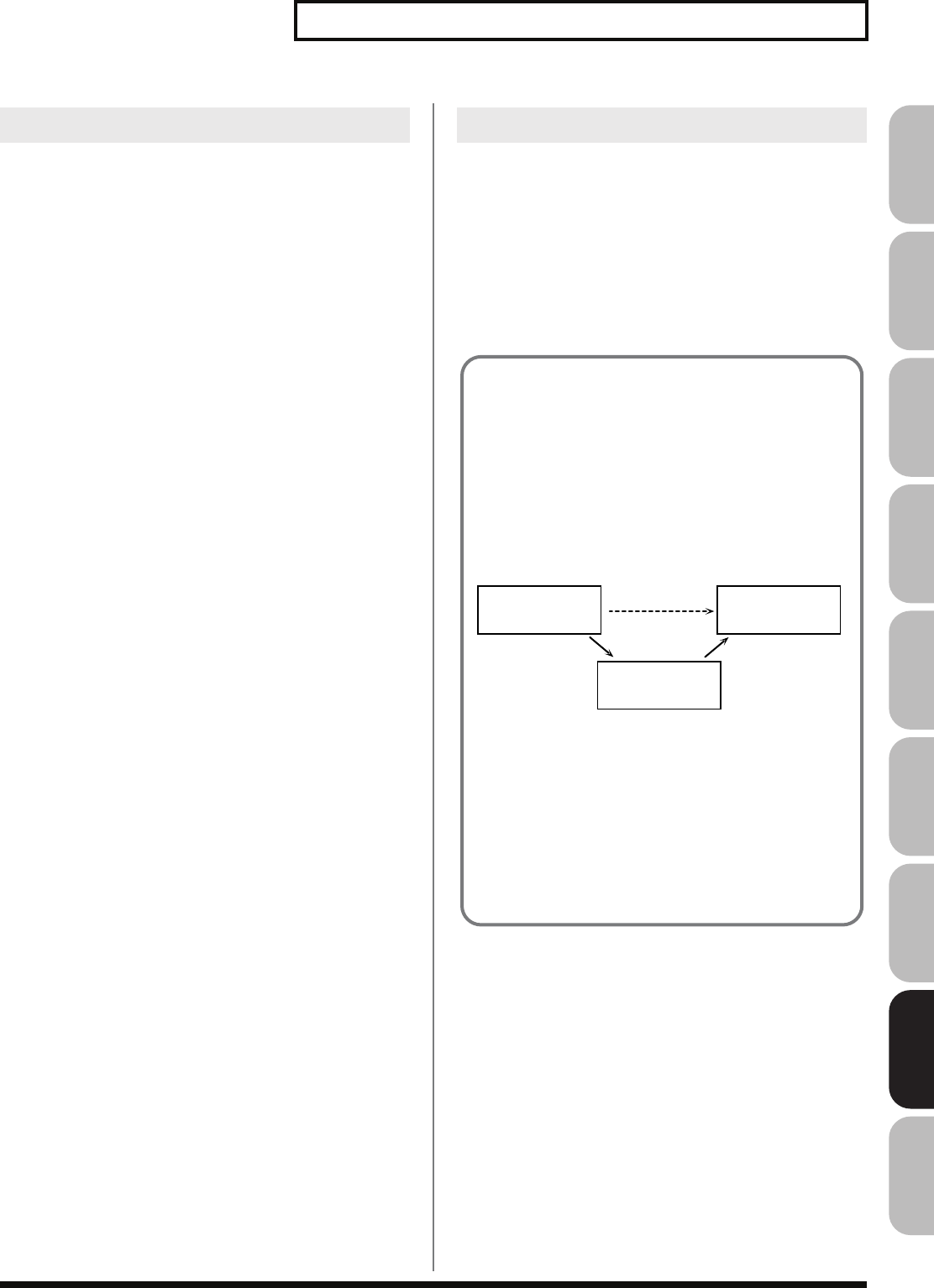
293
System Settings (Settings Common to All Modes)
Overview Sound 1 Sound 2 Sound 3 Pad Sampler
Menu/System
AppendixSequencer
Metronome Mode
Specifies when you want the metronome to sound.
* If [F7 (Click)] in the Tempo window which appears when you press
[TEMPO] is lit in red, the metronome will always sound.
Value
OFF:
Will not sound.
PLAY-ONLY:
Will sound only during playback.
REC-ONLY:
Metronome will sound only for recording.
PLAY&REC:
Metronome will sound for playback and recording.
ALWAYS:
Metronome will always sound.
Metronome Level
You can adjust the volume of the metronome.
Value:
0–10
Metronome Sound
Selects the metronome sound.
Value
TYPE 1:
A conventional metronome sound will be heard. A
bell will sound on the first beat.
TYPE 2:
Clicks will sound.
TYPE 3:
Beeps will sound.
TYPE 4:
Cowbell will sound.
Beat Indicator Mode
You can specify how the [PLAY] button (beat indicator) on the panel
will blink.
Value
ALWAYS:
Always blinks at the specified tempo.
PLAY&REC:
Blinks only during playback and recording.
Local Switch
The Local Switch determines whether the internal sound generator is
disconnected (OFF) from the controller section (keyboard, pad, pitch
bend/modulation lever, knobs, buttons, D Beam controller, pedal,
and so on); or not disconnected (ON). Normally this is left “ON,” but
if you wish to use the Fantom-G’s keyboard and controllers to
control only external sound modules, set it to “OFF.”
Value:
OFF, ON
Master Tune
Adjusts the overall tuning of the Fantom-G. The display shows the
frequency of the A4 note (center A).
Value:
415.3–466.2 Hz
Master Level
Adjusts the volume of the entire Fantom-G.
Value:
0–127
Master Reverb Level
Adjusts the reverb level of the entire Fantom-G.
Value:
0–127
Metronome Sound
Using the Local Switch
If you’re using external sequencer software in conjunction with
the Fantom-G’s keyboard/controllers and sound generator, you
should turn the Local switch OFF for the reasons explained
below.
Connecting the Fantom-G to an external
sequencer
fig.25-003b_50
Typically, things are hooked up so the data travels as follows:
the Fantom-G’s keyboard → your external sequencer software
→ the Fantom-G’s sound generator. Normally, the Fantom-G’s
keyboard section is internally connected to its sound generator
section; this internal connection is controlled by the Local
Switch. If you turn the Local Switch off, the Fantom-G’s
keyboard and sound generator sections will be independent,
allowing you to use the connection described above with your
external sequencer software.
Keyboard
Sequencer
Sound Generator
Local Off
(External)
Fantom-G Fantom-G
Fantom-G_r_e.book 293 ページ 2008年1月31日 木曜日 午後12時15分
294
System Settings (Settings Common to All Modes)
Output Gain
This adjusts the output gain from the Fantom-G’s Analog Out and
Digital Out. When, for example, there are relatively few voices being
sounded, boosting the output gain can let you attain the most
suitable output level for recording and other purposes.
Value:
-12– +12
Mix/Parallel
Specifies how the sound of the entire Fantom-G will be output.
Value
MIX:
Set this to have the collective output of all sounds output from
the OUTPUT A (MIX) jacks. When you want to check the final
overall sound being output, set to MIX.
Sounds which are set in the respective Output Assign to be
output from the INDIVIDUAL 3 jack are output from the left
OUTPUT A (MIX) jack; sounds which are set to be output from
the INDIVIDUAL 4 jack are output from the right OUTPUT A
(MIX) jack.
Sounds output from the PHONES jack are the same as those
output from the OUTPUT A (MIX) jacks. Therefore, any sounds
set with Output Assign to be output from the OUTPUT B jacks
is not output from the PHONES jack. Be sure to have any sound
you want to hear through the headphones set to “MIX.”
PARALLEL:
Output according to each Output Assign settings.
Master Key Shift
Shifts the overall pitch of the Fantom-G in semitone steps.
Value:
-24– +24
Patch Remain (Patch Remain Switch)
Specifies whether currently sounding notes will continue sounding
when another patch or rhythm set is selected (ON), or not (OFF).
Value:
OFF, ON
* When in Studio mode: Depending on the effect settings, currently
sounding notes may not remain in some cases.
* When in Single mode or Live mode: The Patch Remain function is
valid only for the most recently selected sound. Notes of a sound
selected earlier may be interrupted.
* The Patch Remain setting does not apply to sounds of an expansion
board.
Control Remain (Control Remain Switch)
Specifies whether changes in the sound and volume produced by
received MIDI data such as volume and pan (CC 5, 7, 10, 65, 68, 71–
74, RPN 0, 1, 2, MONO ON, POLY ON) and by the various
controllers will be maintained (ON) or not maintained (OFF) when
you select another patch or rhythm set.
Value:
OFF, ON
How Do I Adjust the Volume?
MASTER LEVEL adjusts the volume of both the OUTPUT A
jacks and the DIGITAL AUDIO OUT jack. The front panel
VOLUME knob adjusts only the volume of the OUTPUT A
jacks. Here’s an explanation of what you need to adjust
depending on the output jacks you’re using.
fig.25-003_50
When using the OUTPUT A jacks:
adjust using the VOLUME knob
The front panel VOLUME knob controls the volume of the
OUTPUT A jacks. This means that if you’re outputting from the
OUTPUT A jacks, the simplest way is to leave the Master Level
fixed at 127 (the default setting), and use the VOLUME knob to
control the volume.
When using the DIGITAL AUDIO OUT jack:
adjust using Master Level
Master Level controls both the OUTPUT A jacks and the
DIGITAL AUDIO OUT jack. This means that if you’re
outputting from DIGITAL OUT, use Master Level to adjust the
volume.
The Master Level setting is temporary, and will be lost
when you turn off the power. If you want to keep the
Master Level setting you edited, save the master level in
the internal system memory. → “Saving the System
Settings (System Write)” (p. 286)
(OUTPUT A
in the Routing screen)
Sound Generator
OUTPUT A (MIX)/PHONES
DIGITAL AUDIO OUT
Master Level
Volume knob
Fantom-G_r_e.book 294 ページ 2008年1月31日 木曜日 午後12時15分
295
System Settings (Settings Common to All Modes)
Overview Sound 1 Sound 2 Sound 3 Pad Sampler
Menu/System
AppendixSequencer
Device ID (Device ID Number)
When you want to transmit or receive System Exclusive messages,
set this parameter to match the Device ID number of the other MIDI
device.
Value:
17–32
Studio Set Control Channel
Studio Set Control Channel selects the MIDI receive channel used
during switching of studio sets when MIDI messages (Program
Change/Bank Select) are sent from an external MIDI device. Set this
to “OFF” if studio sets are not to be switched from an external MIDI
device.
Value:
1–16, OFF
If only a program change is received, and if the Studio Set
Control Channel parameter setting coincides with the MIDI
receive channel of a part, priority will be given to switching the
studio set.
Live Set Control Channel
Live Set Control Channel selects the MIDI receive channel used
during switching of live sets when MIDI messages (Program Change/
Bank Select) are sent from an external MIDI device. Set this to “OFF”
if live sets are not to be switched from an external MIDI device.
Value:
1–16, OFF
If only a program change is received, and if the Live Set Control
Channel parameter setting coincides with the MIDI receive
channel of a part, priority will be given to switching the live set.
Transmit Program Change
(Transmit Program Change Switch)
Specifies whether Program Change messages will be transmitted
(ON) or not (OFF).
Value:
OFF, ON
Transmit Bank Select
(Transmit Bank Select Switch)
Specifies whether Bank Select messages will be transmitted (ON) or
not (OFF).
Value:
OFF, ON
Transmit Active Sensing
(Transmit Active Sensing Switch)
Specifies whether Active Sensing messages will be transmitted (ON)
or not (OFF).
Value:
OFF, ON
Transmit Edit Data (Transmit Edit Data Switch)
Specify whether changes you make in the settings of a patch, live set
or studio set will be transmitted as system exclusive messages (ON),
or will not be transmitted (OFF).
Value:
OFF, ON
Soft Through (Soft Through Switch)
Thru function re-transmits all messages received at the MIDI IN
connector to the MIDI OUT connector without modifying them in
any way.
Value:
OFF, ON
Remote Keyboard Sw
(Remote Keyboard Switch)
Set this parameter “ON” when you want to use an external MIDI
keyboard instead of the Fantom-G’s keyboard. In this case, the MIDI
transmit channel of the external MIDI keyboard can be set to any
channel. Normally you will leave this parameter “OFF.”
Value:
OFF, ON
Turn this “ON” when you want to control the Fantom-G from
an external MIDI device when performing with the Arpeggio or
Chord Memory function.
Receive Program Change
(Receive Program Change Switch)
Specifies whether Program Change messages will be received (ON)
or not (OFF).
Value:
OFF, ON
Receive Bank Select
(Receive Bank Select Switch)
Specifies whether Bank Select messages will be received (ON) or not
(OFF).
Value:
OFF, ON
Receive Exclusive
(Receive System Exclusive Switch)
Specifies whether System Exclusive messages will be received (ON)
or not (OFF).
Value:
OFF, ON
Receive GM1 System On
(Receive GM System On Switch)
Specifies whether General MIDI System On messages will be
received (ON) or not (OFF).
Value:
OFF, ON
Receive GM2 System On
(Receive GM2 System On Switch)
Specifies whether General MIDI 2 System On messages will be
received (ON) or not (OFF).
Value:
OFF, ON
Receive GS Reset (Receive GS Reset Switch)
Specifies whether GS Reset messages will be received (ON) or not
(OFF).
Value:
OFF, ON
MIDI
Fantom-G_r_e.book 295 ページ 2008年1月31日 木曜日 午後12時15分
296
System Settings (Settings Common to All Modes)
USB-MIDI Thru Sw (USB-MIDI Thru Switch)
This switch specifies whether MIDI messages received at the USB
connector/MIDI connector will be retransmitted from the USB
connector/MIDI OUT connector (ON) or not (OFF).
Value:
OFF, ON
Scale Tune Switch
Turn this on when you wish to use a tuning scale other than equal
temperament.
Value:
OFF, ON
The Fantom-G allows you to play the keyboard using temperaments
other than equal temperament. The pitch is specified in one-cent
units relative to the equal tempered pitch.
One-cent is 1/100th of a semitone.
• The selected scale applies to MIDI messages received from an
external MIDI device.
Patch Scale Tune for C–B
Make scale tune settings for Single mode.
Value:
-64– +63
One set of Scale Tune settings can be created in Single mode. In
Live / Studio mode, this can be set for each part of the Live /
Studio set (p. 138).
In Single mode, this is valid only for the keyboard part.
Preview Mode
SINGLE:
The notes specified by Note Number 1–4 parameter
will sound successively one by one.
CHORD:
The notes specified by Note Number 1–4 parameter
will sound simultaneously.
PHRASE:
The Phrase associated with the patch’s type/
category is played.
USB
Scale Tune
Preview
Equal Temperament
This tuning divides the octave into 12 equal parts, and is the
most widely used method of temperament used in Western
music. The Fantom-G employs equal temperament when the
Scale Tune Switch is set to “OFF.”
Just Temperament (Tonic of C)
Compared with equal temperament, the principle triads sound
pure in this tuning. However, this effect is achieved only in one
key, and the triads will become ambiguous if you transpose.
Arabian Scale
In this scale, E and B are a quarter note lower and C#, F# and G#
are a quarter-note higher compared to equal temperament. The
intervals between G and B, C and E, F and G#, Bb and C#, and
Eb and F# have a natural third—the interval between a major
third and a minor third. On the Fantom-G, you can use Arabian
temperament in the three keys of G, C and F.
<Example>
Note name Equal
temperament
Just
Temperament
(tonic C)
Arabian
Scale
C 0 0 -6
C# 0 -8 +45
D 0 +4 -2
Eb 0 +16 -12
E 0 -14 -51
F 0 -2 -8
F# 0 -10 +43
G 0 +2 -4
G# 0 +14 +47
A 0 -16 0
Bb 0 +14 -10
B 0 -12 -49
Fantom-G_r_e.book 296 ページ 2008年1月31日 木曜日 午後12時15分
297
System Settings (Settings Common to All Modes)
Overview Sound 1 Sound 2 Sound 3 Pad Sampler
Menu/System
AppendixSequencer
Preview 1–4 Note Number
Specify the pitch of the four notes that will sound when the Preview
Mode parameter is set to “SINGLE” or “CHORD.”
Value:
C-1–G9
If “PHRASE” is selected for the Preview Mode parameter, these
settings will have no effect.
Preview 1–4 Velocity
Specify the velocity of the four notes that will sound when the
Preview Mode parameter is set to “SINGLE” or “CHORD.”
Value:
OFF, 0–127
If “PHRASE” is selected for the Preview Mode parameter, these
settings will have no effect.
System Control 1–4 Source
System Control Assign selects the MIDI message used as the System
Control.
Value
OFF:
The system control will not be used.
CC01–31, CC32(OFF), 33–95:
Control Change
PITCH BEND:
Pitch Bend
AFTERTOUCH:
Aftertouch
Screen Saver Type
Select the type of screen saver.
Value:
1–16
Screen Saver Time
Set the time (minutes) until the screen saver begins working.
If this is OFF, the screen saver will not appear.
Value:
OFF, 1–60 min.
Input Select
Input source of the external input sound
Value
DIGITAL IN:
DIGITAL AUDIO IN jack
LINE IN L/R:
INPUT jacks L/R (stereo)
LINE IN L:
INPUT jack L (mono)
MIC/GUITAR:
MIC/GUITAR jack
USB AUDIO:
USB connector
* When an external device is connected to the DIGITAL AUDIO IN
connector and you disconnect the cable or power-off the external
device, noise may subsequently be heard in the input from DIGITAL
AUDIO IN. If this occurs, correctly reconnect the external device, or
turn the Fantom-G’s [MIX IN] switch off.
Digital/USB Input Level
If you’ve set Input Select to DIGITAL IN or USB AUDIO, this adjusts
the input level.
Value:
0–127
Mix In Switch
Turns the external input on/off.
Value:
OFF, ON
Default File Type
Specifies the file format used when saving a sample.
Value:
WAV, AIFF
Pre Sample Time
The length of sound preceding the moment at which sampling was
manually or automatically initiated that will be captured in the
sample. This lets you prevent the attack portion of the sound from
being omitted from the sample.
Value:
0–1000 ms
System Ctrl
System Control
This function, which departs from previously used methods, and instead
allows you to use MIDI messages to change tone settings in realtime, is
called the Matrix Control (p. 109). Similarly, the function allowing you to
use MIDI messages to change multi-effects settings in realtime is called
the Multi-effects Control (p. 158).
Normally, the Matrix Control is used for making patch settings, and the
Multi-effects Control for making settings to patches, rhythm sets, sample
sets, live sets and studio sets. However, if you do not need to change the
MIDI messages used for matrix control or multi-effects control by each
patch/rhythm set/sample set/live set/studio set, or if you want to use a
specific MIDI message for matrix control or multi-effects control, you
will want to make use of
System Control. In other words, you could call
the System Controls global Matrix Control/Multi-effects Control for the
entire Fantom-G.
You can use up to four System Controls.
Screen Saver
Input/Sampling
Fantom-G_r_e.book 297 ページ 2008年1月31日 木曜日 午後12時15分
298
System Settings (Settings Common to All Modes)
Trigger Level
Volume level at which sampling will begin when Auto Trig is ON
A setting of 0 is the minimum.
Value:
0–7
Gap Time
Length of silence at which the sample will be divided.
Whenever there is a silent region longer than the specified time, the
sample will be divided at that point, and the next sample number
will be assigned to the sound that follows. This parameter is valid
only when you are using Auto Divide Sampling.
Value:
500, 1000, 1500, 2000 ms
Trimming Switch
If this is turned on, the Start point and End point settings will be
automatically adjusted after sampling is performed, so any silent
portions at the beginning or end of the sampled sound are excluded.
Value:
OFF, ON
Skip Back Time
Specifies how much earlier in time that you want sampling to take
place when you use Skip Back Sampling. If “OFF” selected, skip-
back sampling cannot be performed.
Value:
OFF, 5s–40s
Power Up Mode
This setting allows you to choose the mode that you want the
Fantom-G to be in when load a project.
Value
SINGLE:
The Fantom-G will be in Single mode when load
a project.
STUDIO:
The Fantom-G will be in Studio mode when load
a project.
LIVE:
The Fantom-G will be in Live mode when load a
project.
Here’s how to view system information.
1.
Press [MENU] to access the menu.
2.
Use / to choose “System,” and then press [ENTER].
3.
Press [F4 (Info)].
4.
Use [F1 (Up)] [F2 (Down)] to switch tabs.
Features
Displays the main features of the Fantom-G.
Memory Info (Memory Information)
Displays the amount of memory installed.
Expansion Info (Expansion board Information)
Displays the name of the expansion board that is installed.
Version Info (Version Information)
Displays the version of the Fantom-G.
Startup
System Information (Info)
Fantom-G_r_e.book 298 ページ 2008年1月31日 木曜日 午後12時15分
299
System Settings (Settings Common to All Modes)
Overview Sound 1 Sound 2 Sound 3 Pad Sampler
Menu/System
AppendixSequencer
You can change the background image of the display.
Via USB memory (or internal memory), you can use your own photo
or other image data as the background image.
1.
Press [MENU] to access the menu.
2.
Use / to choose “System,” and then press [ENTER].
3.
Press [F5 (Wallpaper)].
The Wallpaper screen will appear.
4.
Turn the VALUE dial to select the image that you want to
use as the background, and press [F8 (OK)].
The selected image will be shown as the background.
The changed wallpaper setting is temporary, and will be lost
when you turn off the power. If you want to keep the setting,
press [F7 (Sys Write)] to write it into the Fantom-G’s system
memory.
Via USB memory (or internal memory), you can use
a bitmap file
(Windows BMP format, 24-bit, 800x480 pixel)
as wallpaper for the
Fantom-G.
1.
On your computer, prepare the bitmap file (Windows BMP
format, 24-bit, 800x480 pixel) that you want to use as
wallpaper.
2.
Using the USB Storage function, copy the bitmap file to the
“IMPORT” folder of USB memory or the Fantom-G’s internal
memory.
“Exchanging Files with Your Computer (USB Storage)”
(p.
281)
3.
Press [MENU] to access the menu.
4.
Turn the VALUE dial to select “System,” and then press
[ENTER].
5.
Press [F5 (Wallpaper)].
The Wallpaper screen will appear.
Sixteen different images can be shown as the background. The
imported file will overwrite the currently selected image. If you
want to delete an imported file, select an image (1–16) and press
[F2 (Delete)].
6.
Press [F1 (Import BMP)].
7.
Press [F1 (Internal)] or [F2 (USB Memory)] to select the
import-source area (internal memory or USB memory).
8.
Press or to select the file that you want to import.
9.
Press [F8 (Select)].
The file you want to import will be displayed.
* To cancel, press [F7 (Cancel)].
10.
Press [F8 (Execute)].
The file will be imported.
* To cancel, press [F7 (Cancel)].
The changed wallpaper setting is temporary, and will be lost
when you turn off the power. If you want to keep the setting,
press [F7 (Sys Write)] to write it into the Fantom-G’s system
memory.
Changing the Wallpaper
(Wallpaper)
Importing an Image as Wallpaper
(Import)
Fantom-G_r_e.book 299 ページ 2008年1月31日 木曜日 午後12時15分
300
System Settings (Settings Common to All Modes)
Here you can make display-related settings. On the Fantom-G you
can turn window transparency on/off, and specify the degree of
transparency.
1.
Press [MENU] to access the menu.
2.
Use / to choose “System,” and then press [ENTER].
3.
Press [F6 (Appearance)].
The Appearance screen will appear.
Transparent Switch
Specifies whether windows in the screen will be transparent (ON) or
not (OFF).
Value:
ON, OFF
Transparency
Specifies the degree of transparency for windows in the screen.
Higher values produce greater transparency.
Value:
1–120%
Display-related Settings
(Appearance)
Fantom-G_r_e.book 300 ページ 2008年1月31日 木曜日 午後12時15分
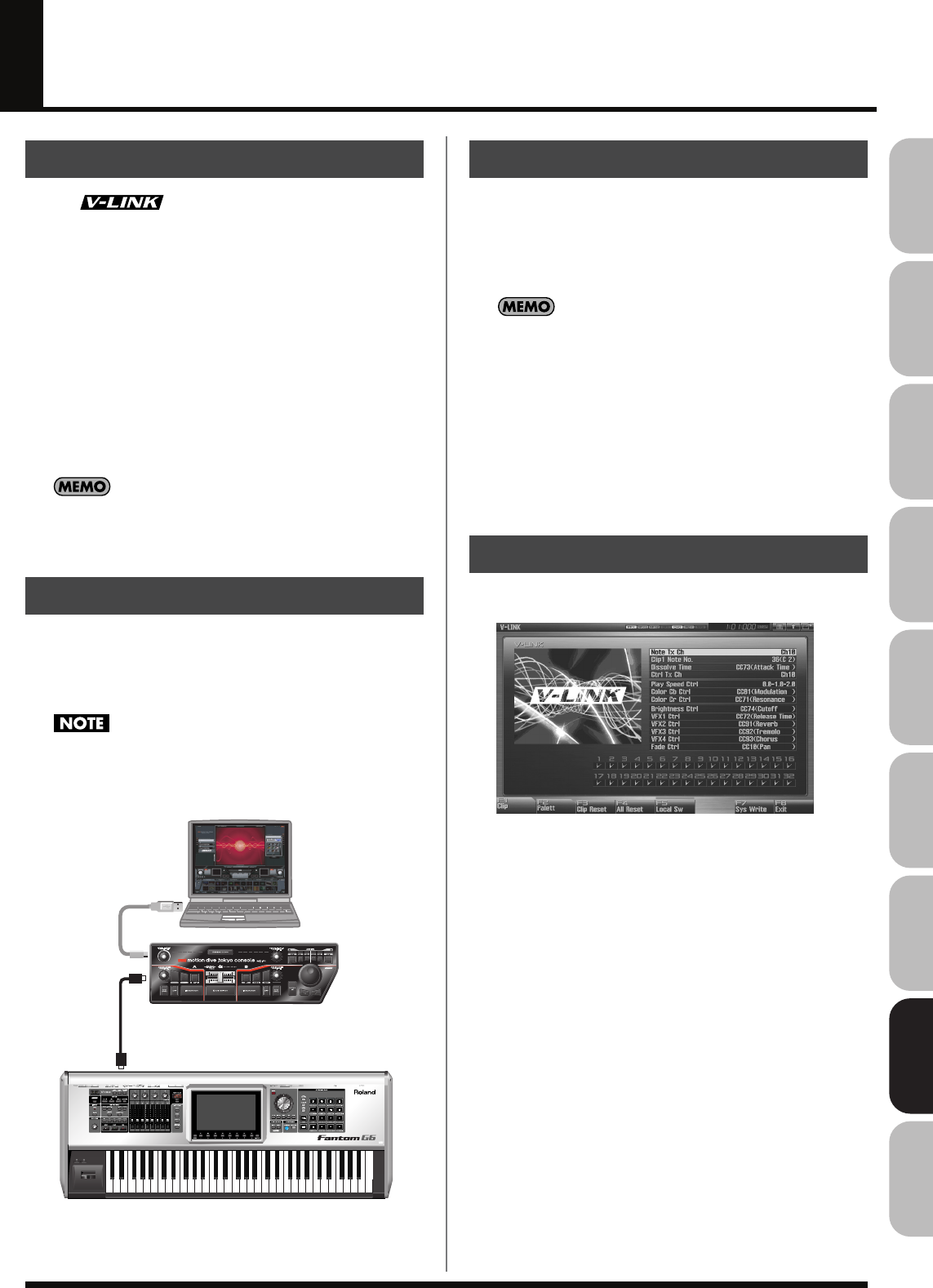
301
Overview Sound 1 Sound 2 Sound 3 Pad Sampler
Menu/System
AppendixSequencer
About V-LINK
V-LINK ( ) i
s a function that allows music and images
to be performed together. By using MIDI to connect two or more V-
LINK compatible devices, you can easily enjoy performing a wide
range of visual effects that are linked to the expressive elements of a
music performance.
For example, if you use the Fantom-G in conjunction with the
motion dive .tokyo Performance Package, you’ll be able to do the
following.
• Use the Fantom-G’s synthesizer to produce synchronized music
and video performances.
• Play the Fantom-G’s keyboard, pads or sequencer to switch
images on the motion dive .tokyo Performance Package.
• Use the Fantom-G’s 1–4 knobs and D Beam controller to control
the brightness or hue of an image.
In order to use V-LINK between the Fantom-G and the motion
dive .tokyo Performance Package, you’ll need to make
connections using a MIDI cable (sold separately).
As an example, we will use a setup in which the Fantom-G is
connected to the motion dive .tokyo Performance Package. Use a
MIDI cable to connect the Fantom-G’s MIDI OUT connector to the
MIDI IN connector of the Edirol MD-P1.
To prevent malfunction or speaker damage, minimize the
volume on all your equipment and turn off the power before
you make connections.
fig.29-001.e
1.
In the left of the panel, press [V-LINK] so the indicator is
lighted.
The V-LINK setting will be on.
In this state, you can operate the Fantom-G to manipulate
images in sync with your performance.
Each mode will function as usual even if V-LINK is on.
2.
Press [V-LINK] again.
The V-LINK button will go out, and the V-LINK setting will be
off.
1.
Press [V-LINK] to access the V-LINK SETUP screen.
2.
Press [CURSOR] to move the cursor to a parameter, and
turn the VALUE dial or use [INC] [DEC] to set the value.
* Specify the Pad Mode by pressing [F1 (Clip)] or [F2 (Palett)].
3.
If you want to keep your settings, press [F7 (Sys Write)].
4.
Press [EXIT].
You’re returned to the previous screen.
What is V-LINK?
Connection Examples
Edirol motion dive .tokyo
Performance Package
MIDI IN
MIDI OUT
Fantom-G
Turning the V-LINK ON/OFF
V-LINK Settings
Fantom-G_r_e.book 301 ページ 2008年1月31日 木曜日 午後12時15分
302
About V-LINK
Note Tx Ch
MIDI channel that will switch clips/palettes and will control
dissolve time.
Value:
1–16
Clip 1 Note No.
Pads 1–16 correspond to clips (or palettes). We recommend that you
press [PAD SETTING] to access the Pad setting screen, and set to
“Note,” using Quick Setup (p. 192) and set Clip1 Note No. to the
same value as the “Pad Base Note” setting.
Value:
0(C-1)-127(G9)
Dissolve Time
Control change number that controls the dissolve time (time over
which the image switches)
Value:
OFF, CC1, CC5, CC7, CC10, CC11, CC71-74, CC91-
93, Channel Aftertouch
Ctrl Tx Ch
MIDI channel that will control the color Cb/Cr, brightness, and
video effect switching
Value:
1-16
Play Speed Ctrl
Range of video playback speed
The three values are the playback speeds (multiples of normal
speed) at the left, center, and right positions of the pitch bend.
Value:
0.0-1.0-2.0, 0.5-1.0-2.0, 0.0-1.0-4.0, 0.5-1.0-4.0, 0.0-1.0-
8.0, 0.5-1.0-8.0, 0.0-1.0-16.0, 0.5-1.0-16.0, 0.0-1.0-32.0,
0.5-1.0-32.0,0.0-2.0-4.0, 0.0-4.0-8.0, 0.0-8.0-16.0, 0.0-
16.0-32.0, -2.0-1.0-4.0, -6.0-1.0-8.0
Color Cb Ctrl
Control change number that controls the Cb color of the image
Color Cr Ctrl
Control change number that controls the Cr color of the image
Brightness Ctrl
Control change number that controls the brightness of the image
VFX1–4 Ctrl
Control change number that controls the video effect
Fade Ctrl
Control change number that controls the output fade
Value:
OFF, CC1, CC5, CC7,CC10, CC11, CC71-74, CC91-
93, Channel Aftertouch
PAD MODE
Selects whether the pads will switch clips or palettes.
Value:
CLIP, PALETT
Press [F1 (Clip)]: switches clips
Press [F2 (Palett)]: switches palettes
Local Sw
Specifies whether the internal sound generator is disconnected (OFF)
from the pads, or not (OFF).
Procedure:
Press [F5 (Local Sw)].
Value:
OFF, ON
Clip Filter
(check boxes 1-32)
Clips that are checked can be switched. Enable/disable switching for
each clip
Value:
OFF, ON
Clip Reset
Turn off the image (solid black).
Procedure:
Press [F3 (Clip Reset)].
All Reset
The effect applied to the image will be reset, and brightness, color
difference, etc. will all return to the default value.
Procedure:
Press [F4 (All Reset)].
V-LINK Parameters
Resetting the Image
Using the Clip Filter
For example, suppose that of the rhythm set you input in the
part used for V-LINK (i.e., the part of the same number as the
Note Tx Channel), you want only the kick and snare to switch
clips. In this case, check only the clips that correspond to the
note numbers of the kick and snare. The clips will switch when
the kick or snare plays.
Fantom-G_r_e.book 302 ページ 2008年1月31日 木曜日 午後12時15分
09: Appendix
• Installing the Expansion Boar......................................p. 304
• Expanding the DIMM Memory....................................p. 308
• Troubleshooting ........................................................p. 312
• Error Messages.........................................................p. 318
• About MIDI ..............................................................p. 319
• Specifications ...........................................................p. 322
Fantom-G_r_e.book 303 ページ 2008年1月31日 木曜日 午後12時15分
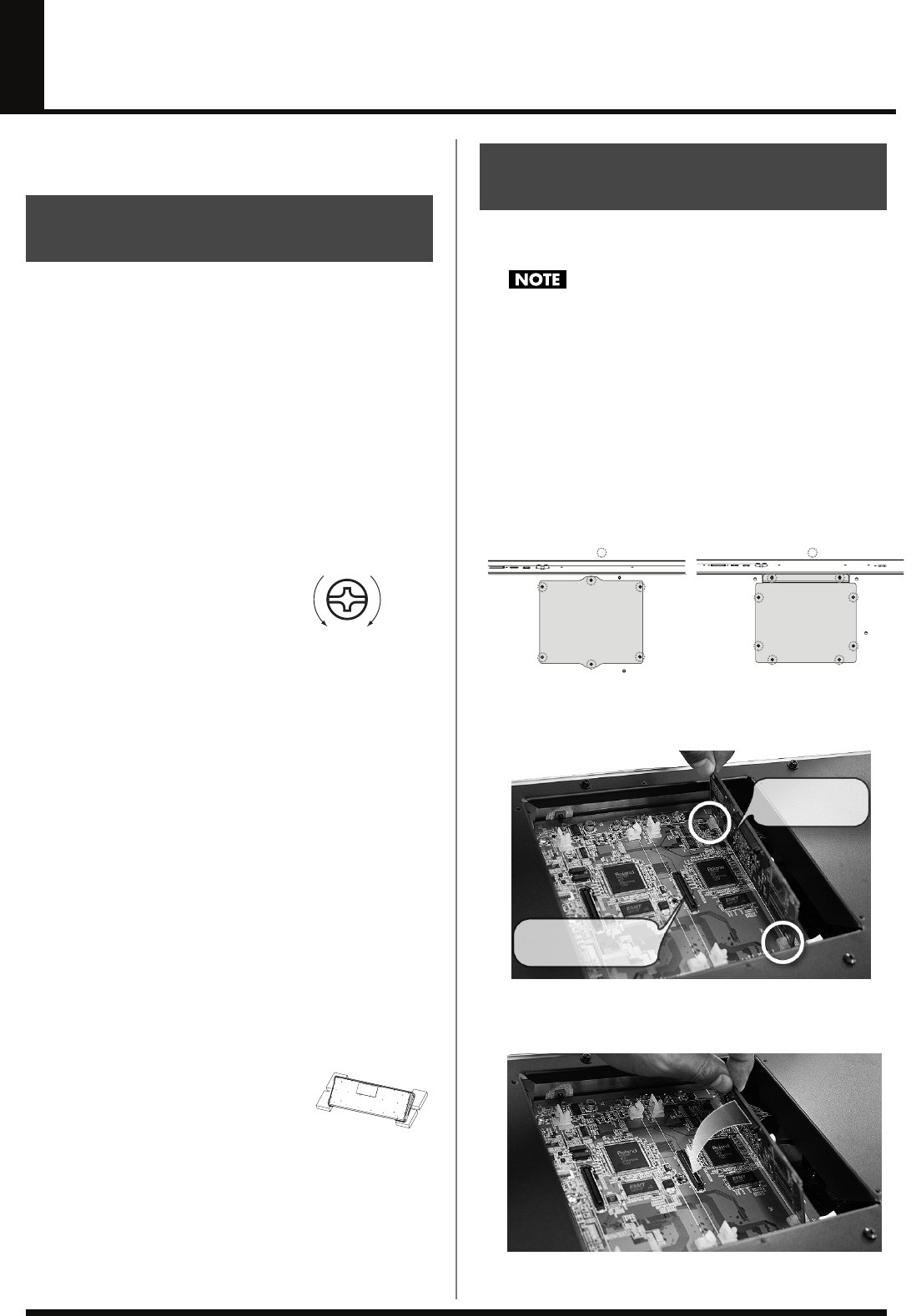
304
Installing the Expansion Board
Up to two optional Expansion Boards (ARX series; sold separately)
can be installed in the Fantom-G.
• To avoid the risk of damage to internal components that can be
caused by static electricity, please carefully observe the
following whenever you handle the board.
1
• Before you touch the board, always first grasp a metal object
(such as a water pipe), so you are sure that any static
electricity you might have been carrying has been discharged.
2
• When handling the board, grasp it only by its edges. Avoid
touching any of the electronic components or connectors.
5
• Save the bag in which the board was originally shipped, and
put the board back into it whenever you need to store or
transport it.
• Use a Phillips screwdriver that is suitable for the size of the
screw (a number 2 screwdriver). If an unsuitable screwdriver is
used, the head of the screw may be stripped.
• To remove a screw, rotate the
screwdriver counter-clockwise.
To tighten the screws, rotate the
screwdriver clockwise.
• When installing Expansion Boards, remove only the specified
screws.
• Be careful that the screws you remove do not drop into the
interior of the Fantom-G.
• Do not leave the bottom cover removed. After installation of the
Expansion Boards is complete, be sure to replace the cover.
• Be careful not to cut your hand on the opening for installing the
board.
• Do not touch any of the printed circuit pathways or connection
terminals.
912
• Never use excessive force when installing a circuit board. If it
doesn’t fit properly on the first attempt, remove the board and
try again.
913
• When circuit board installation is complete, double-check your
work.
914
• Always turn the unit off and unplug the power cord before
attempting installation of the circuit board (ARX series).
915
• Install only the specified circuit board(s) (ARX series). Remove
only the specified screws.
• When turning the unit upside-down, get
a bunch of newspapers or magazines,
and place them under the four corners
or at both ends to prevent damage to the
buttons and controls. Also, you should
try to orient the unit so no buttons or controls get damaged.
• When turning the Fantom-G8 upside-down, at least two
persons are required to safely lift and turn the Fantom-G8.
Make sure to have a firm grip, to protect yourself from injury
and the instrument from damage.
• When turning the unit upside-down, handle with care to avoid
dropping it, or allowing it to fall or tip over.
Install the Expansion Boards after removing the panel cover. Boards
can be installed in the EXP 1–EXP 2 slots.
If the slot in which an expansion board is installed differs from
the slot in which the board was installed when you saved the
live set or studio set (i.e., if you moved the expansion board to a
different slot), it will not sound the same as when you saved the
data. You must install the expansion board in the same slot it
occupied when you saved the live set or studio set.
1.
Before installing the Expansion Board, turn off the power of
the Fantom-G and all connected devices, and disconnect all
cables, including the Power cable, from the Fantom-G.
2.
From the Fantom-G, remove only the screws shown in the
following diagram, and detach the cover.
fig.30-002.e
3.
Insert the two tabs on the instrument into the holes of the
expansion board so that the connectors of the instrument
and expansion board are aligned.
* Do not touch any of the printed circuit pathways or connection terminals.
4.
Press in the expansion board in the direction shown by the
photo.
* Never use excessive force when installing a circuit board. If it doesn’t
fit properly on the first attempt, remove the board and try again.
Cautions When Installing an
Expansion Board
tightenloosen
How to Install an Expansion
Board
Screws to be removed Screws to be removed
Fantom-G6/G7 : bottom Fantom-G8 : bottom
Connector of the
instrument
Connector of the
expansion board
Fantom-G_r_e.book 304 ページ 2008年1月31日 木曜日 午後12時15分
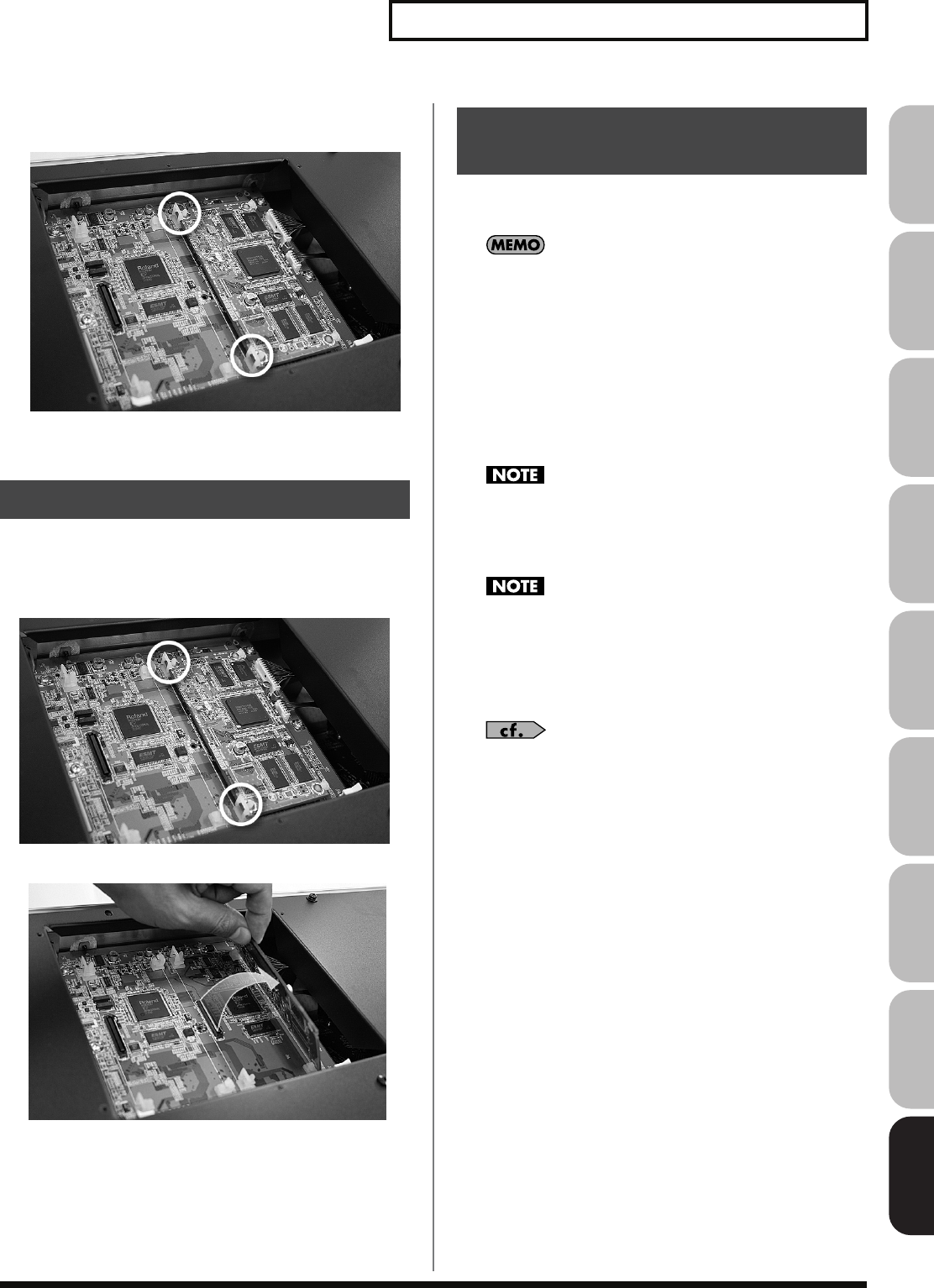
305
Installing the Expansion Board
Overview Sound 1 Sound 2 Sound 3 Pad Sampler
Menu/System
AppendixSequencer
5.
Press firmly inward until the tabs on the instrument lock
into the holes of the expansion board.
6.
Use the screws that you removed in step 2 to fasten the
cover back in place.
To remove an expansion board, reverse the process by which you
inserted it.
1.
Unlatch the Fantom-G’s tabs.
2.
Slowly raise the expansion board upright.
3.
Pull out the expansion board by reversing step 3 of the
installation process.
4.
Attach the cover by reversing step 2 of the installation
process.
After you’ve finished installing an expansion board into the Fantom-
G, you must perform the following procedure.
You’ll perform this procedure only once, the first time you turn
on the power after inserting an expansion board.
1.
Turn on the power as described in “Turning On the Power”
(p. 28).
2.
When the Fantom-G starts up, an install confirmation
screen for the newly inserted expansion board will appear.
Press [F8 (Execute)] to execute the install confirmation
process.
If you decide to cancel, press [F7 (Cancel)].
If the install confirmation screen does not appear when you
start up for the first time, it is possible that the expansion board
was not detected correctly. Reinstall the expansion board
correctly.
This process will require several minutes. Never turn off the
power until this process has been completed.
3.
When the screen indicates that installation has been
completed, turn the power off, and then on again.
This completes the installation process.
For details on using the expansion board, refer to the manual
included with the expansion board.
Removing an Expansion Board
Configuring the Newly-
installed Expansion Board
Fantom-G_r_e.book 305 ページ 2008年1月31日 木曜日 午後12時15分
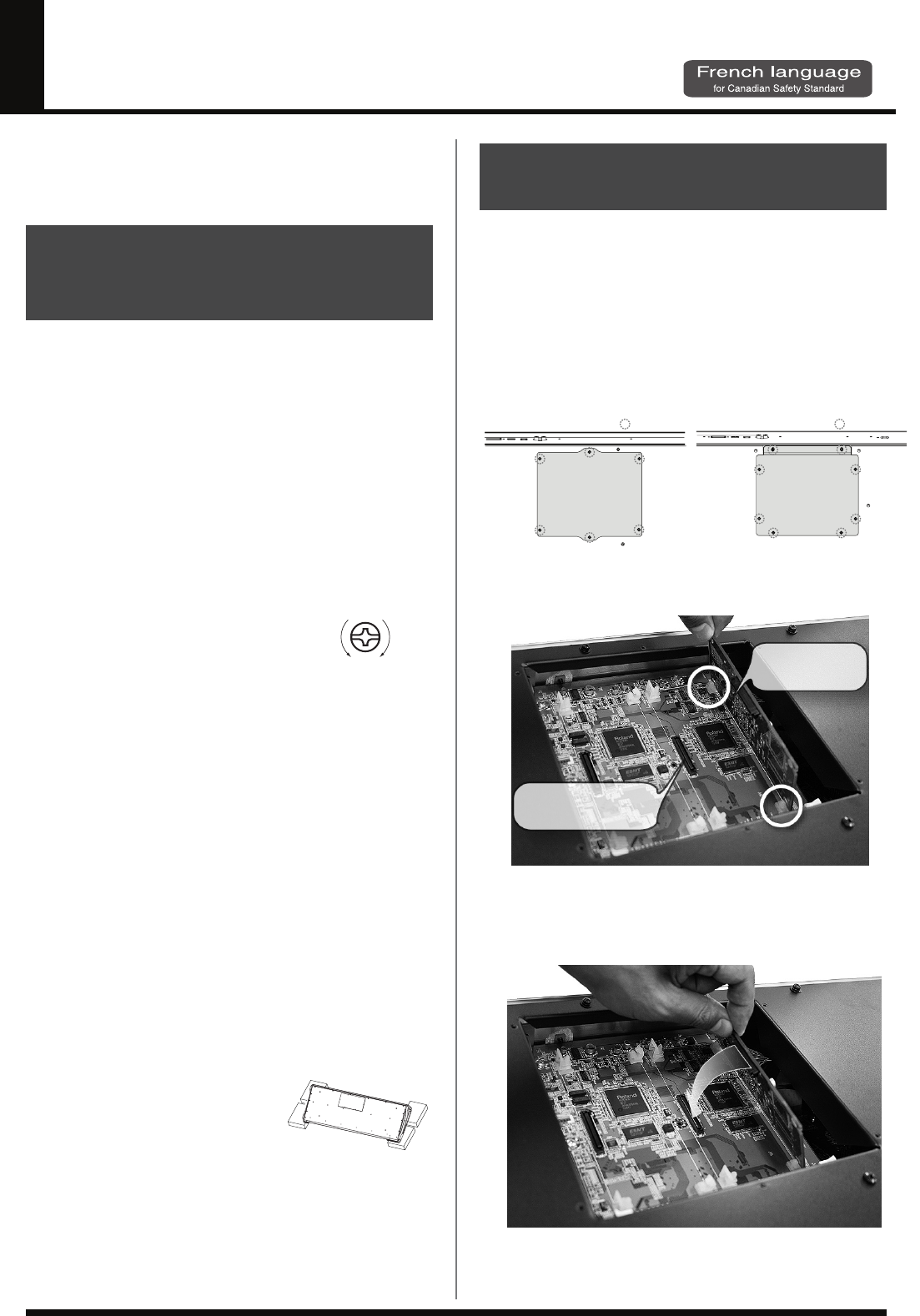
306
Installation de la carte
d’expansion Wave
(French Language for Canadian Safety Standard)
Un maximum de deux cartes d’expansion optionnelles (série ARX;
vendues séparément) peuvent être installées dans le Fantom-G.
901
• Veuillez suivre attentivement les instructions suivantes quand
vous manipulez la carte afin d’éviter tout risque
d’endommagement des pièces internes par l’électricité statique.
1
•Toujours toucher un objet métallique relié à la terre (comme un
tuyau par exemple) avant de manipuler la carte pour vous
décharger de l’électricité statique que vous auriez pu accumuler.
2
• Lorsque vous manipulez la carte, la tenir par les côtés. Évitez
de toucher aux composants ou aux connecteurs.
5
•Conservez le sachet d’origine dans lequel était la carte lors de
l’envoi et remettez la carte dedans si vous devez la ranger ou
la transporter.
• Utilisez un tournevis de type Phillips de la taille adaptée à celle
des vis (tournevis numéro 2). Un tournevis inadéquat peut
endommager la tête de la vis.
• Pour retirer une vis, tourner le
tournevis dans le sens contraire des
aiguilles d’une montre. Pour serrer les
vis, tourner le tournevis dans le sens
des aiguilles d’une montre.
• Pour installer les cartes d’expansion Wave, retirer uniquement
les vis mentionnées.
• Assurez-vous que les vis retirées ne tombent pas dans le Fantom-G.
• Ne pas laisser le panneau de protection avant detache. S’assurer
de l’avoir rattacher apres avoir installe le disque dur.
• Faites attention de ne pas vous couper sur l’ouverture
d’installation de la carte.
911(F)
• Ne pas toucher aux circuits imprimés ou aux connecteurs.
912(F)
• Ne jamais forcer lors de l’installation de la carte de circuits
imprimés. Si la carte s’ajuste mal au premier essai, enlevez la
carte et recommencez l’installation.
913(F)
• Quand l’installation de la carte de circuits imprimés est
terminée, revérifiez si tout est bien installé.
914(F)
• Toujours éteindre et débrancher l’appareil avant de commencer
l’installation de la carte. (ARX series).
915(F)
• N’installez que les cartes de circuits imprimes spécifiées (ARX
series). Enlevez seulement les vis indiquées.
• Lorsque vous déposez le Fantom-G
face vers le bas, placez des piles de
journaux ou de magazines sous les
quatre coins (ou des deux côtés)
pour le soutenir. Ainsi, les boutons,
manettes et autres pièces ne seront pas endommagés.
• Il faut au moins deux personnes pour soulever et tourner le
Fantom-G8 sens dessus-dessous de manière sécuritaire. Il faut
s’assurer d’avoir une bonne prise et de tenir fermement
l’appareil pour éviter les blessures et les dommages à l’appareil.
• En plaçant l’appareil sens dessus dessous, manipulez-le avec soin
pour éviter de l’échapper, de le laisser tomber ou de se renverser.
Retirer le panneau inférieur avant d’installer les cartes d’expansion.
Les cartes peuvent être installées dans les fentes EXP 1 et EXP 2.
1.
Avant d’installer la carte d’expansion Wave, coupez
l’alimentation du Fantom-G et de tous les appareils
branchés, et débranchez tous les câbles du Fantom-G, y
compris le câble d’alimentation.
2.
Sur les modèles Fantom-G, retirer uniquement les vis
illustrées dans le schéma ci-dessous et retirer le couvercle.
fig.30-002.f
3.
Insérer les deux languettes de l’instrument dans les ouvertures
de la carte d’expansion de façon à ce que les connecteurs de
l’instrument et la carte d’expansion soient alignés.
* Ne pas toucher aux circuits imprimés ni aux points de terminaison des
connexions.
4.
Installer la carte d’expansion en appuyant dans la direction
montrée sur la photo.
* Ne jamais user de force excessive pour installer une carte de circuits
imprimés. Si elle ne s’ajuste pas adéquatement au premier essai, la
retirer et essayer à nouveau.
Précautions à prendre lors
de l’installation d’une carte
d’expansion Wave
resserrerdesserrer
Installation d’une carte
d’expansion Wave
Vis à enlever Vis à enlever
Fantom-G6/G7 : Panneau inférieur Fantom-G8 : Panneau inférieur
Connecteur du
Fantom-G
Connecteur de la
carte d'expansion
Fantom-G_r_e.book 306 ページ 2008年1月31日 木曜日 午後12時15分
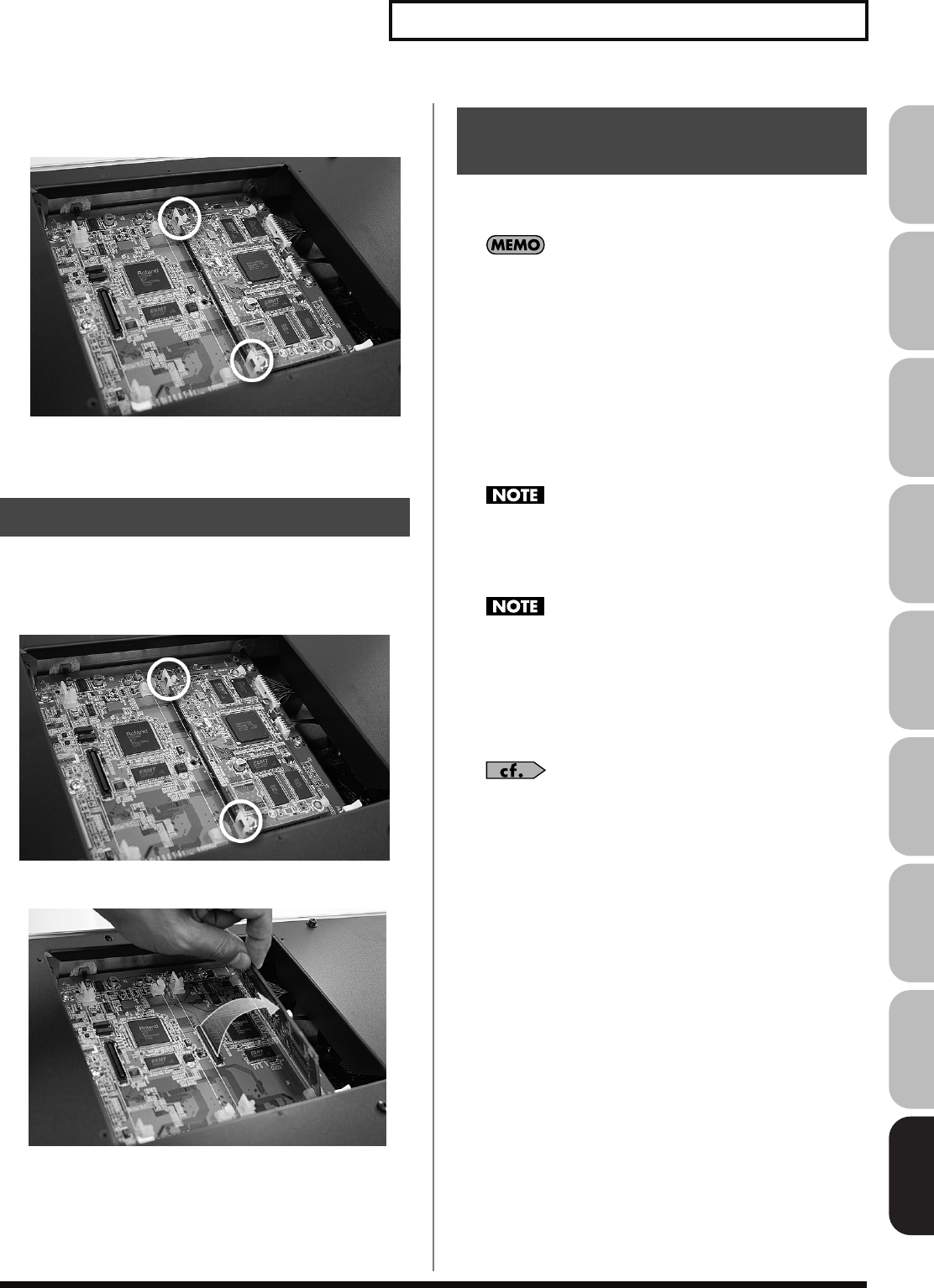
307
Installation de la carte d’expansion Wave
Overview Sound 1 Sound 2 Sound 3 Pad Sampler
Menu/System
AppendixSequencer
5.
Appuyer fermement vers l’intérieur jusqu’à ce que les
languettes soient bloquées dans les ouvertures de la carte
d’expansion.
6.
Remettez le couvercle en place à l’aide des vis retirées à
l’étape 2.
Pour retirer une carte d’expansion, suivre le processus inverse du
processus d’insertion.
1.
Déverrouiller les languettes du Fantom-G.
2.
Soulever lentement la carte d’expansion sans l’incliner.
3.
Retirer la carte d’expansion en inversant l’étape 3 du
processus d’installation.
4.
Fixer le couvercle en inversant l’étape 2 du processus
d’installation.
Une fois l’installation de la carte d’expansion dans le Fantom-G
terminée, il faut procéder comme suit.
Cette procédure ne doit être faite qu’une seule fois, soit lorsque
l’appareil est mis sous tension après l’insertion d’une carte
d’expansion.
1.
Mettre l’appareil sous tension de la façon décrite à la
rubrique “Turning On the Power” (p. 28).
2.
Au démarrage du Fantom-G, un message s’affichera pour
confirmer la présence de la carte d’expansion installée
récemment. Appuyer sur [F8(Exécuter)] pour exécuter le
processus de confirmation.
Pour annuler la procédure, appuyez sur [F7(Annuler)].
Si l’écran de confirmation ne s’affiche pas lors du premier
démarrage après l’installation de la carte d’expansion, il est
possible qu’elle ne soit pas détectée correctement. Réinstaller
alors la carte d’expansion correctement.
Ce processus exige plusieurs minutes. Ne jamais couper
l’alimentation avant que le processus de confirmation ne soit
terminé.
3.
Quand l’écran indique que l’installation est terminée, mettre
l’appareil hors tension, et le remettre sous tension.
Cela met fin au processus d’installation.
Pour des renseignements détaillés sur l’utilisation de la carte
d’expansion, se reporter au manuel qui l’accompagne.
Retrait d’une carte d’expansion
Configuration de la carte
d’expansion installée
Fantom-G_r_e.book 307 ページ 2008年1月31日 木曜日 午後12時15分
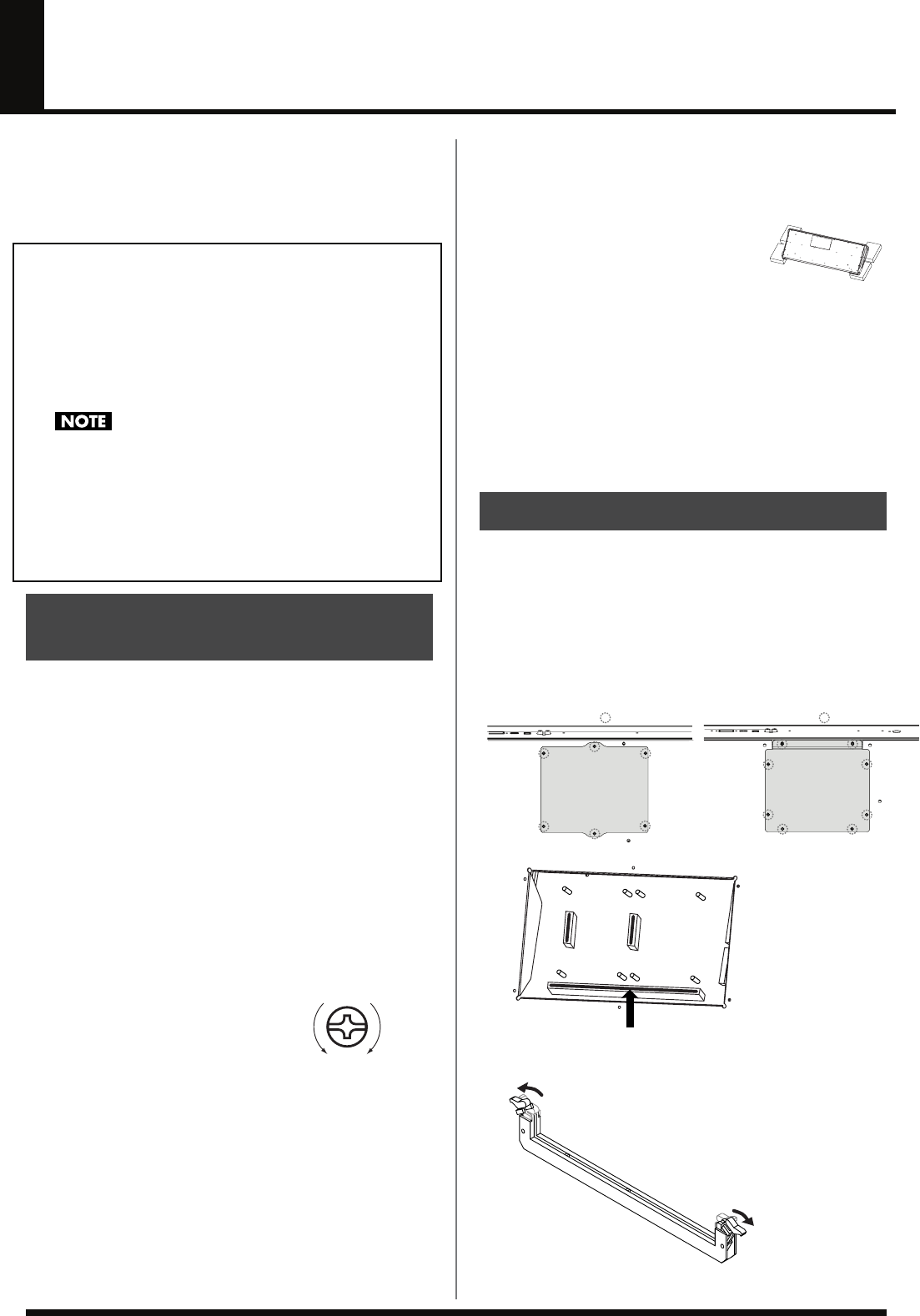
308
Expanding the DIMM Memory
The Fantom-G comes with 32 MB of memory into which audio
samples can be loaded. However, in some cases, 32 MB of memory
will be insufficient for loading large amounts of data. In such a case,
you will have to add separately sold memory (DIMM). Memory can
be expanded up to 128/256/512 MB.
Specifications of the expansion memory
(DIMM) that can be used
Supports PC133, CL=2/3, 128 MB, 256 MB, 512 MB (3.3 V)
Number of pins:
168-pin
Board height:
40 mm or less
The Fantom-G has been confirmed to work with standard
memory that meets the above specifications. However, we
cannot guarantee that all memory of these specifications will
work correctly. Please be aware that even with identical
specifications, differences in the design of the memory module
or the conditions of use may mean that a memory module may
not be usable.
901
• Always turn the unit off and unplug the power cord before
attempting installation of the memory DIMM board.
• To avoid the risk of damage to internal components that can be
caused by static electricity, please carefully observe the
following whenever you handle the board.
1
• Before you touch the board, always first grasp a metal object
(such as a water pipe), so you are sure that any static electricity
you might have been carrying has been discharged.
2
• When handling the board, grasp it only by its edges. Avoid
touching any of the electronic components or connectors.
5
• Save the bag in which the board was originally shipped, and
put the board back into it whenever you need to store or
transport it.
• Use a Phillips screwdriver that is suitable for the size of the
screw (a number 2 screwdriver). If an unsuitable screwdriver is
used, the head of the screw may be stripped.
• To remove a screw, rotate the
screwdriver counter-clockwise.
To tighten the screws, rotate the
screwdriver clockwise.
• Be careful that the screws you remove do not drop into the
interior of the Fantom-G.
• Be careful not to cut your hand on the edge of the cover or the
opening edge while removing the cover.
• Do not touch any of the printed circuit pathways or connection
terminals.
• Never use excessive force when installing a circuit board. If it doesn’t
fit properly on the first attempt, remove the board and try again.
• When circuit board installation is complete, double-check your
work.
• Install only the specified memory DIMM board. Remove only
the specified screws.
• When turning the unit upside-down, get
a bunch of newspapers or magazines,
and place them under the four corners
or at both ends to prevent damage to the
buttons and controls. Also, you should
try to orient the unit so no buttons or controls get damaged.
• When turning the Fantom-G8 upside-down, at least two
persons are required to safely lift and turn the Fantom-G8.
Make sure to have a firm grip, to protect yourself from injury
and the instrument from damage.
• When turning the unit upside-down, handle with care to avoid
dropping it, or allowing it to fall or tip over.
• Do not leave the bottom cover removed. After installation of the
memory module is complete, be sure to replace the cover.
Install the memory module after removing the bottom panel cover.
1.
Before expanding the memory, turn off the power of the
Fantom-G and all connected devices, and disconnect all
cables, including the Power cord, from the Fantom-G.
2.
From the Fantom-G, remove only the screws shown in the
following diagram, and detach the cover.
fig.30-002.e
fig.30-003.efig.31-002
3.
Press outward on the white clips at either end of the socket
so they are in their downward position.
fig.31-003
Precautions for Expanding
Memory
tightenloosen
How to Expand the Memory
Screws to be removed Screws to be removed
Fantom-G6/G7 : bottom Fantom-G8 : bottom
Fantom-G_r_e.book 308 ページ 2008年1月31日 木曜日 午後12時15分
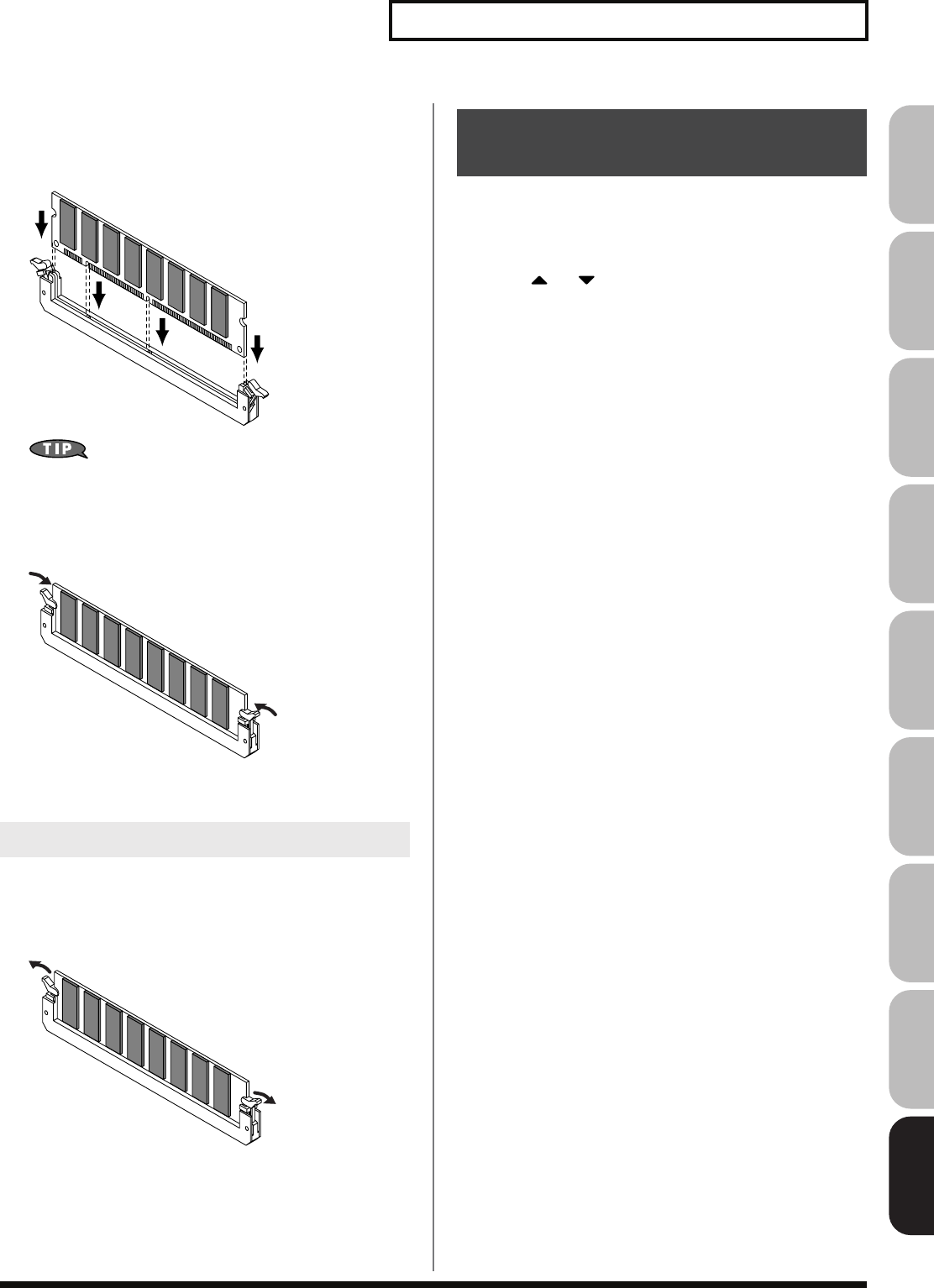
309
Expanding the DIMM Memory
Overview Sound 1 Sound 2 Sound 3 Pad Sampler
Menu/System
AppendixSequencer
4.
Paying attention to the location of the notches on the
memory module and the correct orientation, insert the
module vertically within the guides at either side of the
socket.
fig.31-004
If you have difficulty inserting the memory module, try tilting it
a bit and inserting one end at a time.
5.
Move the white clips upward, and press them until the
memory module is locked in place.
fig.31-005
6.
Use the screws that you removed in step 2 to fasten the
cover back in place.
To remove the memory module, reverse the installation procedure.
1.
Simultaneously press outward the white clips located at
either end of the socket.
fig.31-006
2.
Remove the memory module from the socket.
1.
Turn on the power, as described in “Turning On the Power”
(p. 28).
2.
Press [MENU] to open the Menu window.
3.
Press or to select “System,” and then press
[ENTER].
4.
Press [ENTER].
5.
Press [F4 (Info)].
6.
Press [F1 (Up)] or [F2 (Down)] to select “Memory Info.”
Verify that the screen correctly shows the amount of memory
you installed.
7.
Press [EXIT] to exit the System screen.
* If the correct amount of memory is not shown, it is possible that the
memory is not being recognized properly. Turn off the power as
described in
“Turning Off the Power”
(p. 28), and re-install the
memory correctly.
Removing the Memory
Checking that Memory is
Installed Correctly
Fantom-G_r_e.book 309 ページ 2008年1月31日 木曜日 午後12時15分
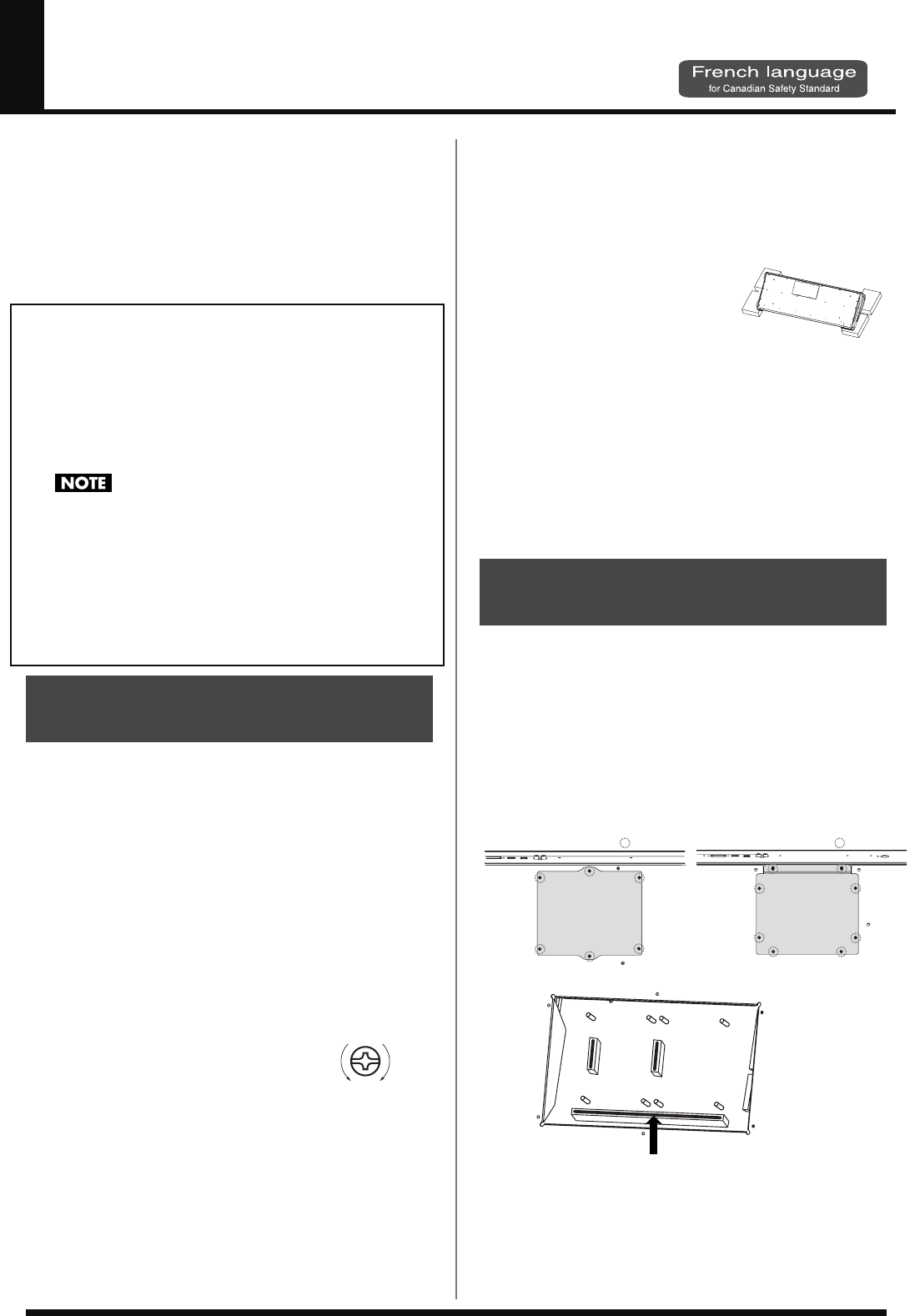
310
Ajouter de la mémoire
Le Fantom-G est livré avec une mémoire de 32 Mo dans laquelle les
échantillons audio peuvent être chargés. Toutefois, dans certains cas,
une mémoire de 32 Mo sera insuffisante pour charger de grandes
quantités de données. Il faudra alors ajouter des modules de
mémoire vendus séparément (DIMM). La mémoire est extensible
jusqu’à 128/256/512 Mo.
Avant d’ajouter de la mémoire, consulter le détaillant, le centre de
service Roland le plus proche ou un distributeur autorisé Roland.
Spécifications des modules de mémoire
(DIMM) qui peuvent être utilisés
PC133, CL=2/3, 128 MB, 256 MB, 512 MB (3.3 V)
Nombre de broches:
168-pin
Hauteur de la carte:
40 mm ou moins
Il a été confirmé que le Fantom-G fonctionne avec la mémoire
standard possédant les spécifications ci-dessus. Nous ne
pouvons toutefois pas certifier que toutes les mémoires
possédant ces spécifications fonctionneront correctement. Il faut
se rappeler que même si les spécifications sont identiques, des
différences dans la conception du module de mémoire ou les
conditions d’utilisation peuvent faire en sorte qu’il n’est pas
possible d’utiliser le module de mémoire.
901 (F)
• Veuillez suivre attentivement les instructions suivantes quand
vous manipulez la carte afin d’éviter tout risque
d’endommagement des pièces internes par l’électricité statique.
1
• Toujours toucher un objet métallique relié à la terre (comme un
tuyau par exemple) avant de manipuler la carte pour vous
décharger de l’électricité statique que vous auriez pu accumuler.
2
• Lorsque vous manipulez la carte, la tenir par les côtés. Évitez de
toucher aux composants ou aux connecteurs.
5
• Conservez le sachet d’origine dans lequel était la carte lors de l’envoi
et remettez la carte dedans si vous devez la ranger ou la transporter.
• Utilisez un tournevis de type Phillips de la taille adaptée à celle
des vis (tournevis numéro 2). Un tournevis inadéquat peut
endommager la tête de la vis.
• Pour retirer une vis, tourner le
tournevis dans le sens contraire des
aiguilles d’une montre. Pour serrer les
vis, tourner le tournevis dans le sens des aiguilles d’une montre.
• Assurez-vous que les vis que vous retirez ne tombent pas à
l’intérieur du Fantom-G.
• Faites attention de ne pas vous couper sur le bord du couvercle
ou de l’ouverture lorsque vous retirez le couvercle.
911(F)
• Ne pas toucher aux circuits imprimés ou aux connecteurs.
912(F)
• Ne jamais forcer lors de l’installation de la carte de circuits
imprimés. Si la carte s’ajuste mal au premier essai, enlevez la
carte et recommencez l’installation.
913(F)
• Quand l’installation de la carte de circuits imprimés est
terminée, revérifiez si tout est bien installé.
914(F-Modified)
• Avant de procéder à l’installation d’un module DIMM, il faut toujours
mettre l’unité hors tension et débrancher le câble d’alimentation.
915(F-Modified)
• Installez uniquement le module DIMM spécifié. Retirez
uniquement les vis spécifiées.
928(F)
• Lorsque vous déposez le Fantom-G
face vers le bas, placez des piles de
journaux ou de magazines sous les
quatre coins (ou des deux côtés)
pour le soutenir. Ainsi, les boutons,
manettes et autres pièces ne seront pas endommagés.
• Il faut au moins deux personnes pour soulever et tourner le
Fantom-G8 sens dessus-dessous de manière sécuritaire. Il faut
s’assurer d’avoir une bonne prise et de tenir fermement
l’appareil pour éviter les blessures et les dommages à l’appareil.
929(F)
• En plaçant l’appareil sens dessus dessous, manipulez-le avec soin
pour éviter de l’échapper, de le laisser tomber ou de se renverser.
• Une fois l’installation du module terminée, remettez le
couvercle en place.
Installez le module de mémoire après avoir retiré le couvercle
inférieur.
1.
Avant d’installer la mémoire additionnelle, mettez hors
tension le Fantom-G et tous les périphériques connectés et
débranchez tous les câbles, y compris le câble
d’alimentation du Fantom-G.
2.
Sur les modèles Fantom-G, retirer uniquement les vis
illustrées dans le schéma ci-dessous et retirer le couvercle.
fig.30-002.f
Précautions à prendre lors
de l’ajout de mémoire
resserrerdesserrer
Installation du module de
mémoire
Vis à enlever Vis à enlever
Fantom-G6/G7 : Panneau inférieur Fantom-G8 : Panneau inférieur
Fantom-G_r_e.book 310 ページ 2008年1月31日 木曜日 午後12時15分
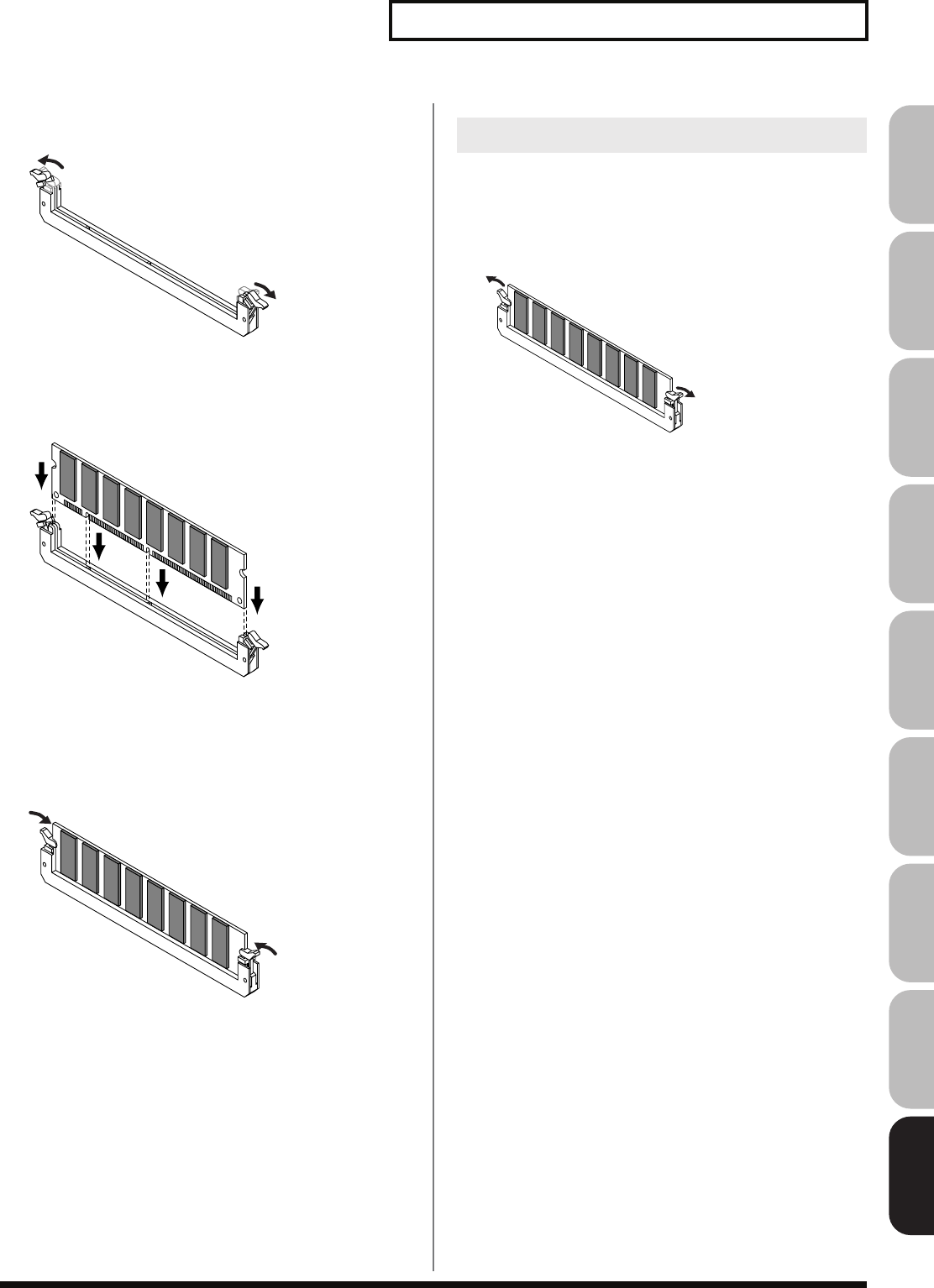
311
Ajouter de la mémoire
Overview Sound 1 Sound 2 Sound 3 Pad Sampler
Menu/System
AppendixSequencer
3.
Appuyez sur les clips blancs à l’extrémité de la prise qui
devraient être orientés vers le bas.
fig.31-003
4.
Prenez bien note de l’emplacement et de l’orientation de
l’encoche du module de mémoire et insérez-le
verticalement à l’intérieur des guides qui se trouvent de
chaque côté de la prise.
fig.31-004
* Si vous éprouvez de la difficulté à insérer le module de mémoire,
inclinez-le légèrement et insérez une extrémité à la fois.
5.
Ramenez les clips blancs vers le haut et appuyez dessus
jusqu’à ce que le module de mémoire soit verrouillé en
place.
fig.31-005
6.
À l’aide des vis retirées à l’étape 2, remettez le couvercle en
place.
Pour retirer le module de mémoire, procédez à l’inverse de la
procédure d’installation.
1.
Appuyez simultanément, vers l’extérieur, sur les clips
blancs situés aux extrémités de la prise.
fig.31-006
2.
Retirez le module de mémoire de la prise.
Retrait du module de mémoire
Fantom-G_r_e.book 311 ページ 2008年1月31日 木曜日 午後12時15分
312
Troubleshooting
If the Fantom-G does not function in the way you expect, first check
the following points. If this does not resolve the problem, consult
your dealer or a nearby Roland Service Station.
* If any sort of message is being displayed on the screen during an
operation, refer to
Error Messages
(p. 318).
The power does not turn on.
Make sure that the Fantom-G’s AC cord is connected correctly
to its power inlet and to the AC outlet (p. 25).
Turning the VOLUME knob doesn’t change the volume.
If you’re using the DIGITAL OUT, the VOLUME knob will not
change the volume. Adjust the “Master Level” (p. 293).
There is no sound.
Check the following points.
• Is the power for connected amps and speakers turned on? Is the
volume turned all the way down?
• Is the VOLUME knob turned all the way down?
• Have connections been made correctly?
• Can you hear sound through headphones?
If there is sound in the headphones, it is possible that the
connection cables are broken, or that your amp/mixer has
malfunctioned. Check your cables and amp/mixer system once
again.
• If you do not hear sound when you play the keyboard, check
whether the Local Switch is turned OFF.
Make sure that the Local Switch parameter is turned on (p. 293).
• Have all tones in the patch been turned off?
Turn the “Tone Switch” on
→
From the Single Play screen, press
[F8 (Tone Sw/Sel)].
• Could the current part be set to External Part (external MIDI
output)?
• The Part level settings may be too low.
Access the Level parameter, and check the level of each part (p.
134).
• Are the Effect settings correct?
Check the Effect settings ON or OFF, the Effect Balance or
Level. (p. 150).
• Are the settings for the output destination correct?
Check the various output assign settings (p. 136).
• Is the Expansion Board properly installed?
When selecting the settings that stipulate the use of EXP 1, 2
sound, check that the specified Expansion Board is installed
properly in the specified slot (p. 304, p. 306).
• Has the volume been lowered by pedal operations or by MIDI
messages (volume messages or expression messages) received
from an external MIDI device?
• Could the Favorite Level be set to 0? (p. 54)
In the case of Live/Studio mode, the value of volume messages
(Volume) and expression messages (Expression) can be viewed
in the Part Information window (p. 132).
• Have the samples been loaded correctly? (p. 264)
A specific Part does not sound...
Check the following points.
• Has the volume level of the part been lowered?
Adjust the Level parameter to raise the volume of the part that
is not heard (p. 134).
• Is the part being muted?
Set the Mute Switch parameter to “OFF” (p. 134).
Specific pitch ranges do not sound...
Has a restricted range of notes been set?
If a specific range of notes does not sound, check the Key Range
settings for the Patch Tone, the Live/Studio Set Part.
• Tone Key Range
Key Range Lower/Upper parameter (p. 94)
• Part Key Range
Key Range Lower/Upper parameter (p. 135)
The sound is distorted.
Check the following points.
• Is an effect which distorts the sound being applied?
If the sound for a specific patch or part is distorted, lower the
volume level on that part.
• If all sounds are distorted, use the VOLUME knob to lower the
volume level.
• Could the Output Gain be excessively high?
In “System,” check the “Sound” parameter.
Pitch is incorrect.
Check the following points.
• Is the tuning of the Fantom-G incorrect?
Check the Master Tune parameter setting (p. 293).
• Has the pitch been changed by pedal operations or by Pitch
Bend messages received from an external MIDI device?
In the case of Live/Studio mode, the value of Pitch Bend
messages (Pitch Bend) can be viewed in the Part Information
window (p. 132).
• Have the Coarse Tune or Fine Tune parameters been set for
specific Parts?
Check the Coarse Tune parameter and Fine Tune parameter
settings (p. 137).
• Check the Scale Tune setting.
(System Setting: p. 296, Part Setting: p. 138)
The sound is interrupted.
Problems Concerning the Entire
Fantom-G
Issues Related to Sound
Fantom-G_r_e.book 312 ページ 2008年1月31日 木曜日 午後12時15分
313
Troubleshooting
Overview Sound 1 Sound 2 Sound 3 Pad Sampler
Menu/System
AppendixSequencer
Sounds will be interrupted if more than 128 voices are used
simultaneously.
• Reduce the number of Tones that you are using.
• Increase the Voice Reserve setting for parts that must not drop
out. (p. 141)
When I play the keyboard, notes do not stop.
Is the pedal polarity of the Hold Pedal reversed?
Check the Hold Pedal Polarity parameter setting (p. 287).
When I press a pad, the sound does not stop sounding.
Could the [HOLD] pad be lit?
Press the [HOLD] pad once again so the light goes out.
The sound is interrupted when I switch studio sets in Studio
mode.
The Fantom-G can use multi-effects to apply a wide variety of
effects, and when you switch studio sets, the multi-effect type
specified by the patch will also change. In Studio mode, the
sound may be interrupted when this occurs. If you want to
switch sounds without interruption while you perform, please
use Live mode or Single mode.
The sound is interrupted when I switch patches in Single mode
or Live mode.
If you turn the Patch Remain parameter (p. 294) “ON,” you’ll be
able to switch patches without interrupting the sound.
However, this function applies only to the most recently
selected sound; notes of a sound selected prior to that will be
interrupted.
When switching Patches in Single mode, the volume and other
parameters set with Control Changes end up being reset.
Set Control Remain parameter (p. 294) to “ON.” Even once they
have switched Patches, Control Change messages that have
been received are carried forward, so even when switching a
Patch whose level is turned all the way down by a Control
Change volume message, the level remains unchanged.
If the Tone Delay time value is set to the note, then does the
delay time not change beyond a fixed length when the tempo is
slowed down?
There is a maximum permissible value for the Delay Time
parameter (p. 103). So, if the time setting is specified in terms of
a note value, and the tempo is slowed down, this maximum
permissible value will be reached, and it cannot be increased
further. The upper time limit for each is the maximum value
that can be set other than the numerical value for the beat.
Even when I set the Pan for a Patch completely to one side,
sound still comes from the other channel...
The Fantom-G’s internal effects are in stereo, so if you have
effects applied to a Patch, even if the Pan is set all the way to
one side, you will still be able to hear sounds of the effect
component from the other channel.
Sometimes, when playing legato, the pitch won’t rise. Why is
this?
When the Legato Switch parameter (p. 105) is “ON,” and the
Legato Retrigger parameter (p. 105) is “OFF,” and you hold
down keys in the high register to play legato, the upper pitch
limit of the wave may be exceeded, so that the pitch does not
rise as far as you expect, but will stop rising at a certain point.
Additionally, if differing upper pitch limits are used for the
waves of a Patch that uses multiple tones, it may stop being
heard in MONO. When making large pitch changes, set the
Legato Retrigger parameter to “ON.”
The notes sound strange in the upper registers of the keyboard.
Sometimes when playing the keys in the upper part of the
Fantom-G’s keyboard, the sound may stop, or the pitch may
stop rising; or with certain keys, there may be intermittent
noise. This occurs mainly when the Fantom-G’s upper pitch
limit is exceeded, so this issue doesn’t arise in the ranges
normally used. But, in any case, it does not indicate a
malfunction.
The same patch sounds different depending on the sound
generator mode.
In Live/Studio mode, the parameters of each part of the Live/
Studio Set can apply further modification to parameters such as
pan, octave, and filter, relative to the settings specified by the
patch. Thus, Patches in a Live/Studio Set may sound different
than they do when heard in Single mode. To return these
settings to their initial conditions, select the Patch after execute
Factory Reset Temporary for the Live/Studio Set. (p. 280)
The volume level of the instrument connected to Fantom-G is
too low.
Check the following points.
• Could you be using a connection cable that contains a resistor?
Use a connection cable that does not contain a resistor.
• Check the “Input Setting” (p. 258).
Fantom-G_r_e.book 313 ページ 2008年1月31日 木曜日 午後12時15分
314
Troubleshooting
Effects not applied.
Check the following points.
• The “PFX,”“MFX1,”“MFX2,” “CHO,” “REV” or “MASTER”
effect switches located in the upper part of the PLAY screen
may have been turned off.
Press [EFFECTS (ROUTING)] to turn them on.
• Are the various effect settings correct? (p. 150)
• If the send level of each effect is set to 0, the effect will not be
applied. Check the settings.
• Even with send levels to each effect set at 0, effects are not
applied if the Multi-effects Output Level, the Chorus Level, or
the Reverb Level is set to 0. Check each setting.
• If Output Assign is set to other than “MFX,” the Multi-effects
sound will not be output.
• Could the system parameter Master Reverb Level be set to 0?
The Modulation or other controller is always on.
Check the Matrix Controller settings. (p. 109)
The Fantom-G allows you to use the Matrix Control to control
Patches in real time. The Matrix Control functions as the control
source for the Control Change and other MIDI messages
received by the Fantom-G, and makes changes to the various
Patch parameters based on these messages.
Depending on these settings, the Fantom-G may be responding
to MIDI messages sent from external MIDI devices, and may
result the Patches sounding different than intended.
Raising the chorus or reverb send level for each part of a Live/
Studio Set still does not cause the effect to be applied
sufficiently.
Although you can make Send level settings to the Chorus and
Reverb for each individual Part in a Live/Studio Set, these
values only set the upper limit of the Chorus and Reverb Send
levels for the Patch used. Accordingly, even when the value is
set to the maximum of 127, if the Send level is lowered in the
Patch being used, there will be no effect. If you want to apply
the effect deeply, edit the settings of the patch.
Using the Matrix Control or other such means to control the
LFO results in noise when the Pan is changed suddenly.
Lower the change in speed (LFO Rate).
Due to the specialized processing used for the Pan, which alters
the volume level in each of the left and right sides, sudden Pan
movements causing rapid changes in these levels creates large
changes in volume, and noise from this may be audible as a
result.
Multi-effect 43: TAP DELAY or other delay time value is set to
the note, and then the tempo is slowed down, does the delay
time not change beyond a fixed length?
Such Delay time settings have an upper limit, so if the upper
limit of a value set to the note is exceeded when the tempo is
retarded, that upper value cannot rise any further. The upper
time limit for each is the maximum value that can be set other
than the numerical value for the beat.
The Live/Studio Set sounds different than when it was written.
Check the following points.
• If you have modified the settings of a patch used by a Live/
Studio Set, or if the temporary patch of the Live/Studio Set has
been modified by an external MIDI device, these patches must
also be saved.
If patches used by a Live/Studio Set have been edited when
you write that Live/Studio Set, the Fantom-G will display a
message asking whether you want to discard these patches. In
such cases, first save the patch (p. 88) or rhythm set (p. 116), and
then save the Live/Studio Set (p. 148) again.
• The Mastering Effect settings may have changed. (These
settings are not stored as part of a Live set.)
• The MFX settings may have changed. (These settings are not
stored as part of a Live set.)
An expansion board sound seems different from when I saved
(wrote) it.
If the expansion board is inserted in a different slot than when
you saved the live set or studio set, it will not sound with the
settings of when it was saved. You must insert the expansion
board in the same slot as when you saved the live set or studio
set.
Patches sound different than when written.
Check the following points.
• If you used control changes from an external MIDI device to
modify the sound, writing the sound will not save it in its
modified state.
• The Mastering Effect settings may have changed. (These
settings are not stored as part of a patch.)
The Arpeggio and D Beam controller settings in the Live/
Studio Mode are different than those for the Live/Studio Set.
Since the Fantom-G stores arpeggio and D Beam controller
settings for each Live/Studio Set, it will operate according to
the arpeggio and D Beam controller settings that were specified
for each Live/Studio Set.
Issues Related to Effects
Issues Related to Saving Data
Fantom-G_r_e.book 314 ページ 2008年1月31日 木曜日 午後12時15分
315
Troubleshooting
Overview Sound 1 Sound 2 Sound 3 Pad Sampler
Menu/System
AppendixSequencer
Standard MIDI files (SMF) a does not play back correctly.
Check the following points.
• Has the Receive General MIDI/General MIDI 2 System On
Switch been turned ON?
Set the Rx GM System ON/Rx GM2 System ON parameter
(SYSTEM/MIDI) to “ON” (p. 295).
• Are you trying to start playback from midway through the
song?
The beginning of a GM score song contains a General MIDI/
General MIDI 2 System On message. In some cases, a GM Score
cannot be played back correctly unless this message is received.
• Are you trying to play song data designed for the GS Format?
Data created exclusively for the Sound Canvas Series may not
play back properly on the Fantom-G.
After recording, the song does not sound when I play it back.
Have the tracks been muted?
Defeat muting (p. 134).
The tempo is different than the last time I played back the song.
If a song is played back after the tempo is changed, then the
new tempo is not saved unless the song is saved to the user
memory or USB memory. Conversely, the previous tempo will
be erased when you save the song. When saving songs,
carefully check the current tempo.
Sound Device Tones Are Switched Arbitrarily.
Use the Microscope (p. 250) to check the following points.
• Has an unneeded program change been input?
• Were any mistakes made in setting the data MIDI channels
when Program Change messages were input?
Data supposed to be present does not appear in microscope.
Check the following points.
• In View Select (p. 252), is any data set not to be displayed?
After using a MIDI sequencer to play a song, sounds stopped
playing, and no sound is played even when Program Changes
are sent.
It could be that a Bank Select in the song data that is not
specified by the Fantom-G was encountered in the song. No
sound is played if the tone group is not one designated by the
Fantom-G with Bank Select MSB/LSB. Note that if you omit the
Bank Select, and send only the Program Change, the tone in the
currently selected group that has the specified Program Change
number will play. Try resettling the tone using the panel
controls. Furthermore, when selecting tones from an external
MIDI device, be sure to send the Bank Select MSB/LSB and the
Program Change as a single set for reliable reproduction. First
sending the MSB and LSB (the order in which these are sent
does not matter), followed by the Program Change.
In some cases, you may be unable to hear any sound after
playing the last song that was faded-out. This may be because
the volume has been lowered by volume messages or
expression messages. Check the value of these messages, and
set them to appropriate values.
Performances are sluggish, or have interruptions.
Problems of sluggish and interrupted performances can crop up
very easily when the sequencer or sound generator used for the
performance has to handle heavy data loads.
Main causes and possible corrective measures are considered
below.
• Are more than 128 voices playing simultaneously?
Reduce the number of voices. With certain sounds like
continuous sounds with long releases, even though the actual
sound may not be audible to you, processing for playing the
sound is still underway, so in these cases as well, the
performance data can differ from the actual number of voices
being played.
In the Part Information window you can check the number of
notes for which sound is actually being processed (p. 132).
• Are you using a Patch that uses a lot of LFO?
Try changing to a different Patch. LFO processing invariably
places a big load on the machine, so heavy use of the LFO slows
down processing for the Fantom-G overall, which can end up
having affecting the expression of sounds themselves.
• Is the data concentrated at the beginning of the beats in the
sequence data?
Avoid overlapping data with the same timing by setting an
offset of 1–2 tick instead. Data may easily become concentrated
at the beginning of the beats in the song data when, for
example, the song data is input using Step Recording, or if the
data is quantized after being input with a keyboard in real time.
Because of this, large amounts of data are sent to the Fantom-G,
and the processing for expressing sounds becomes bogged
down.
Issues Related to Sequencer
Fantom-G_r_e.book 315 ページ 2008年1月31日 木曜日 午後12時15分
316
Troubleshooting
• Is there a Program Change at the point where the song
performance is sluggish?
Change the position of the Program Change. When Program
Changes are inserted in songs, processing time for switching
patches increases, which may then cause the performance to
become sluggish.
• Is there a System Exclusive message at the point where the song
performance is sluggish?
Move the location of the data. System Exclusive messages
contain large amounts of data, thus placing a heavy burden on
sequencers and sound modules. Try repositioning data and
changing System Exclusive messages to Control Changes for
any data for which Control Changes can be substituted.
• Is there an Aftertouch or other such large Control Change at the
point where the song performance is sluggish?
If the data is no longer needed, delete the data. In some cases,
when using a keyboard that features aftertouch to input data,
you may end up inputting huge amounts of data before
realizing this is happening. Such large amounts of data can
place an excessive load on your sequencer and sound module.
You can use the Phrase Modify operation Data Thin (p. 248) to
thin out unwanted messages.
No Sound from connected MIDI device.
Check the following points.
•
In Live/Studio Mode
KBD switch (p. 61, p. 69)
* Could the Keyboard Switch be turned off for the external part that is
transmitting data to your external MIDI device? (p. 135)
Exclusive messages are not received.
Check the following points.
• Is the instrument set to receive Exclusive messages?
Set the Rx Exclusive parameter to “ON” (p. 295).
• Does the Device ID number of the transmitting device match
the Device ID number of the Fantom-G?
Check the Device ID parameter (p. 295).
I connected an external sequencer or MIDI keyboard to the
MIDI IN connector, and attempted to play a Fantom-G rhythm
set, but there was no sound. Why?
Check to make sure that the MIDI Transmit channel of the
external MIDI device and the Fantom-G’s MIDI Receive channel
are matched.
When the Bend Range for a Patch is increased (48), the pitch
does not rise sufficiently, even when a MIDI Pitch Bend
message is received.
While Patch Bend Ranges can be set anywhere between 0 and
48, when certain Waves in which the pitch is raised (in the +
direction) are used, the pitch may stop rising at a fixed point,
rather than continuing to go up. Although a value of 12 is
ensured for the upper limit of raised pitches, use caution when
setting the Bend Range above this figure.
External input sound cannot be heard/volume is too low.
Check the following points.
• Could [MIX IN] be unlit?
Press [MIX IN] so it is lit.
• The level of the external input may be lowered.
When you sample, use the EXT SOURCE “VOLUME” knob to
adjust the level appropriately.
Hold down [SHIFT] and press [MIX IN] to access the Input
Setting screen, and check the Level settings.
• The volume of the device connected to AUDIO INPUT may be
lowered.
Adjust it to an appropriate level.
• Are the audio cables connected correctly?
Check the connections.
• An audio cable may be broken.
• Could you be using an audio cable with a built-in resistor?
Use a connection cable that does not contain a resistor (e.g.,
Roland PCS series).
External input sound is not stereo/is not monaural.
Check the following points.
• Stereo Switch parameter (p. 260) may be set to monaural.
• Hold down [SHIFT] and press [MIX IN] to access the Input
Setting screen. Could the Input Select parameter be set to “LINE
IN L,” or “Microphone”?
Mic sound is not output/is too weak.
Check the following points.
• Is the mic cable connected correctly?
Check the connection.
• The mic cable may be broken.
• The input source may be set to something other than mic.
Hold down [SHIFT] and press [MIX IN] to access the Input
Setting screen,
and set “Input Select” to
“Microphone.”
• The mic level may have been lowered.
When sampling, use the EXT SOURCE “LEVEL” knob to adjust
the level appropriately.
Issues Related to MIDI and
External Devices
Issues Related to Sampling
Fantom-G_r_e.book 316 ページ 2008年1月31日 木曜日 午後12時15分
317
Troubleshooting
Overview Sound 1 Sound 2 Sound 3 Pad Sampler
Menu/System
AppendixSequencer
• Could you have connected a condenser mic?
If you’re using a condenser mic, you’ll need to provide
phantom power.
Turn the MIC/GUITAR switch “PHANTOM ON.” (p. 24)
• Could the MIC/GUITAR switch be in a position “GUITAR”?
Set the INPUT gain select switch to “PHANTOM ON” or
“PHANTOM OFF.” (p. 24)
Can’t record a sample.
Check the following points.
• Is there enough memory capacity?
If there is insufficient sample memory, a message of “Sample
Memory Full!” will appear when you attempt to sample. (p.
264)
Erase unneeded samples to increase the amount of free space.
If there is still not enough, install additional memory (DIMM
modules). (p. 308, p. 310)
Sampled sound contains excessive noise or distortion.
Check the following points.
• Is the input level appropriate?
If the input level is too high, the sampled sound will be
distorted. If it is too low, noise will be heard. When sampling,
turn the LEVEL knob in the Sampling Standby screen (p. 260) to
adjust the level while watching the level meter displayed in the
upper part of the display. Adjust the level so that the “CLIP”
indication in the upper right of the display does not appear.
• Are the effect settings appropriate?
Some types of effect may increase the level louder than the
original sample, or may intentionally distort the sound. Some
effects will also cause noise to be emphasized.
Temporarily turn off effects, and check whether the sample
itself contains noise or distortion. Then adjust the effect settings
appropriately.
• Are multiple samples being played simultaneously?
Even if the level of each individual sample is appropriate,
simultaneously playing multiple samples may cause the overall
level to be excessively high, causing distortion. Lower the level
of each sample so that the sound is not distorted.
Can’t save sampled data.
Check the following points.
• It may be that there is insufficient space in internal memory or
USB memory.
USB memory is not detected.
The files are not shown.
Check the format of your USB memory. (p. 280)
• The Fantom-G can use USB memory that has been formatted as
FAT.
If your USB memory was formatted using any other method,
please re-format it using FAT.
Can’t save to USB memory.
Check the following points.
• Could the USB memory be write protected?
• Is there sufficient free space on the USB memory?
The Fantom-G is not recognized by my computer.
You must connect the Fantom-G to a computer whose USB port
supports USB 2.0 Hi-Speed connections.
Issues Related to a USB memory
Issues Related to a USB connection
Fantom-G_r_e.book 317 ページ 2008年1月31日 木曜日 午後12時15分
318
Error Messages
If an incorrect operation is performed, or if processing could not be performed as you specified, an error message will appear. Refer to the
explanation for the error message that appears, and take the appropriate action.
Message Meaning Action
USB Memory Not Ready!
USB memory is not connected. Connect USB memory.
Read Error!
Failed to load data from USB memory. Make sure that USB memory is correctly connected.
It may be that the file is damaged. Do not use this file.
This file cannot be loaded since its format is incorrect. Do not use this file.
Write Error!
Failed to write data to USB memory. Make sure that USB memory is correctly connected.
Data cannot be written because the USB memory has no more
free space. Delete unneeded files from the USB memory. Alternatively,
use a different USB memory device, one that has more free
space available.
The file or the USB memory itself is write protected. Make sure that the file or the USB memory is not write pro-
tected.
System Memory Damaged!
It is possible that the contents of system memory have been dam-
aged. Please execute a Factory Reset.
If this does not resolve the problem, contact your dealer or
a nearby Roland service center.
File Not Found!
The file was not found in USB memory. Save the file once again in USB memory.
MIDI Buffer Full!
An unusually large amount of MIDI data was received, and
could not be processed. Reduce the amount of MIDI messages that are being trans-
mitted.
MIDI Offline!
The MIDI IN connection was broken. Check that there is no problem with the MIDI cable con-
nected to the Fantom-G’s MIDI IN, and that the MIDI cable
was not disconnected.
USB Offline!
The USB cable is not connected. Check that there is no problem with the USB cable connect-
ed to the Fantom-G, and that the USB cable was not discon-
nected.
Data not found
The data for placement is not specified. —
Empty Sample!
The sample contains no data. Select a sample that contains data.
Empty Song!
The song has not been recorded, and therefore cannot be played. Select a song that contains data.
File Name Duplicate
A file with the same name already exists. Delete the file bearing the same name from the disk, and if
overwriting and saving the data, merely save the file. If you
do not want to delete the file with the same name from the
disk, either save the file with a different name.
Illegal File!
The Fantom-G cannot use this file. —
Memory Damaged!
The contents of memory may have been damaged. Please perform the Factory Reset operation.
If this does not resolve the problem, please contact your
dealer or the nearest Roland Service Center.
Memory Full!
Saving is not possible because there is insufficient space in the
internal memory or USB memory. Delete unneeded data.
No More Sample Numbers!
The sample cannot be divided any further. Erase unneeded samples in order to allocate 256 or more
consecutive sample numbers.
Since fewer than 256 consecutive sample numbers are vacant, no
further sampling is possible.
No More Song Numbers!
No more songs can be saved. One project can handle a maximum
of fifty songs. Please delete unneeded songs.
No More Phrase Numbers!
No more phrases can be saved. One project can handle a maxi-
mum of 2,000 phrases. Please delete unneeded phrases.
Now Playing!
Since the Fantom-G is playing, this operation cannot be execut-
ed. Stop playback before you execute the operation.
Permission Denied!
The file is protected. —
Playback Tempo Range Over
Tempo values exceed the allowable limit, and data is created in
which the closest time available within the allowable range is
specified.
—
Recording Parameter Error
You are attempting to begin recording after a looped segment. You are attempting to begin recording within or before a
looped segment.
Rec Over Flow
Since a large amount of recorded data was input all at once, it
could not be processed correctly. Reduce the amount of recorded data.
Sample Length Too Short!
The sample is too short, and cannot be edited correctly. If the sample is extremely short, editing may not produce
the desired result.
Rec Length Too Short!
The recording length is too short. Lengthen the duration of the recording.
Sample Memory Full!
Since there is insufficient sample memory, no further sampling
or sample editing is possible. Erase unneeded samples.
Song Format Error
This song is damaged. This song cannot be used.
Song Full
Since the maximum number of notes that can be recorded in a
song or phrase has been exceeded, no further recording/editing
is possible.
Use the phrase edit Delete or Erase commands to remove
unneeded data from the song/phrase that you are record-
ing/editing.
Song Not Found
The selected song cannot be found. —
You Cannot Erase This Message
This message cannot be erased. —
You Cannot Move This Message
This message cannot be moved. —
Fantom-G_r_e.book 318 ページ 2008年1月31日 木曜日 午後12時15分
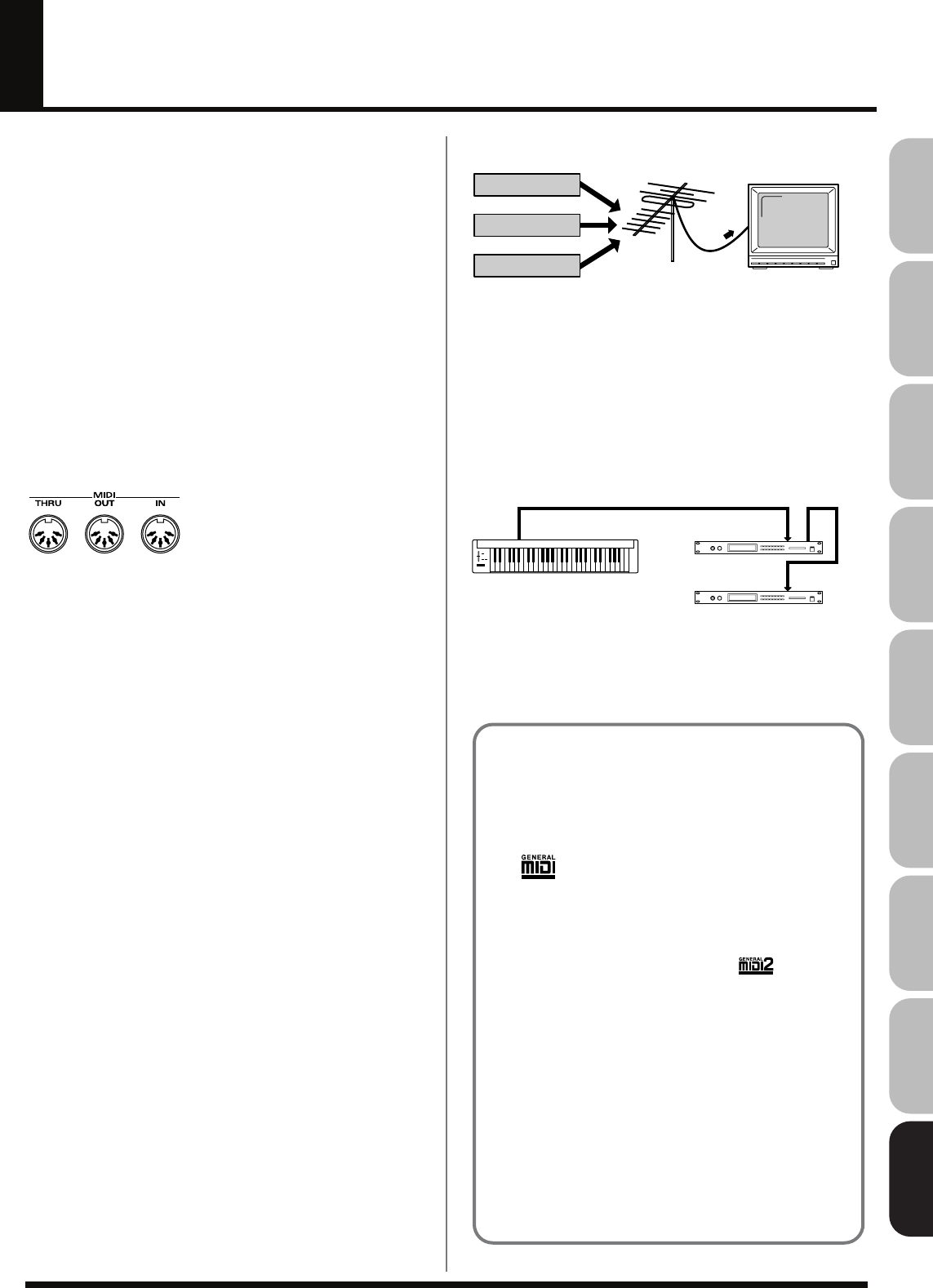
319
Overview Sound 1 Sound 2 Sound 3 Pad Sampler
Menu/System
AppendixSequencer
About MIDI
MIDI (Musical Instruments Digital Interface)
is a standard
specification that allows musical data to be exchanged between
electronic musical instruments and computers. MIDI With a MIDI
cable connecting MIDI devices that are equipped with MIDI
connectors, you can play multiple instruments with a single
keyboard, have multiple MIDI instruments perform in ensemble,
program the settings to change automatically to match the
performance as the song progresses, and more.
If you mainly use the Fantom-G as a standalone keyboard
instrument, you may really not need to know much at all about
MIDI.
However, the following MIDI-related information is provided so
you can play the Fantom-G using an external MIDI device, or master
other advanced techniques.
About MIDI Connectors
The Fantom-G is equipped with the three types of MIDI connectors,
each which works differently.
fig.33-003
MIDI IN Connector
This connector receives MIDI messages that are transmitted from
external MIDI devices. The Fantom-G can receive these messages to
play notes or select sounds, etc.
MIDI OUT Connector
This connector transmits MIDI messages to external MIDI devices.
The Fantom-G’s MIDI OUT connector is used for sending the
performance data of the keyboard controller section as well as data
used for saving various settings and patterns.
MIDI THRU Connector
MIDI messages received at MIDI IN are re-transmitted without
change from this connector to an external MIDI device. Use this in
situations such as when you use multiple MIDI devices
simultaneously.
MIDI Channels and Multi-timbral
Sound Generators
MIDI transmits many types of data over a single MIDI cable. This is
made possible by the concept of
MIDI channels
. MIDI channels
allow messages intended for a given instrument to be distinguished
from messages intended for another instrument. In some ways,
MIDI channels are similar to television channels. By changing the
channel on a television set, you can view the programs that are being
broadcast by different stations. In the same way, MIDI also allows a
device to select the information intended for that device out of the
variety of information that is being transmitted to it.
fig.33-004.e
MIDI uses sixteen channels; 1 through 16. Set the receiving device so
that it will receive only the channel that it needs to receive.
Example:
Set the Fantom-G to send Channel 1 and Channel 2, then set sound
module A to receive only Channel 1 and sound module B only
Channel 2. With this setup, you can get an ensemble performance,
with, for example, a guitar sound from sound module A and bass
from sound module B.
fig.33-005.e
When used as a sound module, the Fantom-G can receive on up to
sixteen MIDI channels. Sound modules like the Fantom-G which can
receive multiple MIDI channels simultaneously to play different
sounds on each channel are called
multi-timbral sound modules
.
The cable from the antenna carries the TV
signals from many broadcast stations.
The TV is set to the channel of the station
you wish to watch.
Station B
Station A
Station C
MIDI OUT MIDI IN MIDI THRU
MIDI IN
Receive channel: 1
Receive channel: 2
Sound
Module
A
Sound
Module
B
Transmit channel: 1, 2
MIDI keyboard
General MIDI
General MIDI is a set of recommendations which seeks to
provide a way to go beyond the limitations of proprietary
designs, and standardize the MIDI capabilities of sound
generating devices. Sound generating devices and music files
that meet the General MIDI standard bear the General MIDI
logo ( ). Music files bearing the General MIDI logo can be
played back using any General MIDI sound generating unit to
produce essentially the same musical performance.
General MIDI 2
The upwardly compatible General MIDI 2 ( )
recommendations pick up where the original General MIDI left
off, offering enhanced expressive capabilities, and even greater
compatibility. Issues that were not covered by the original
General MIDI recommendations, such as how sounds are to be
edited, and how effects should be handled, have now been
precisely defined. Moreover, the available sounds have been
expanded. General MIDI 2 compliant sound generators are
capable of reliably playing back music files that carry either the
General MIDI or General MIDI 2 logo.
In some cases, the conventional form of General MIDI, which
does not include the new enhancements, is referred to as
“General MIDI 1” as a way of distinguishing it from General
MIDI 2.
Fantom-G_r_e.book 319 ページ 2008年1月31日 木曜日 午後12時15分
320
Function...
Basic
Channel
Mode
Note
Number :
Velocity
After
Touch
Pitch Bend
Control
Change
Program
Change
System Exclusive
System
Common
System
Real Time
Aux
Messages
Notes
Transmitted Recognized Remarks
Default
Changed
Default
Messages
Altered
True Voice
Note On
Note Off
Key’s
Channel’s
0, 32
1
5
6, 38
7
10
11
64
65
66
67
68
71
72
73
74
75
76
77
78
80
81
82
83
84
91
93
1–31, 33–95
96, 97
98, 99
100, 101
102–119
: True Number
: Song Position
: Song Select
: Tune Request
: Clock
: Commands
: All Sound Off
: Reset All Controllers
: Local On/Off
: All Notes Off
: Active Sensing
: System Reset
1–16
1–16
Mode 3
Mono, Poly
O
O
0–127
O
O
O
O
O
O
O
O
O
O
O
O
O
O
O
O
O
O
O
O
O
O
O
O
O
O
O
O
O
O
O
X
X
X
X
O
O
O
O
O
O
O
O
O
O
O
O
O
O
O
O
O
O
O
O
O (Tone 1 Level)
O (Tone 2 Level)
O (Tone 3 Level)
O (Tone 4 Level)
O
O (Reverb)
O (Chorus)
O
X
X
O
X
O *1
**************
O
X
X
X
X
X
X
X
X
X
O *1
X
1–16
1–16
Mode 3
Mode 3, 4 (M = 1)
O
O
0–127
0–127
O *1
O *1
O *1
O *1
0–127
O *1
X
X
X
X
X
O
O
X
O (123–127)
O
X
Bank select
Modulation
Portamento time
Data entry
Volume
Panpot
Expression
Hold 1
Portamento
Sostenuto
Soft
Legato foot switch
Resonance
Release time
Attack time
Cutoff
Decay time
Vibrato rate
Vibrato depth
Vibrato delay
General purpose controller 5
General purpose controller 6
General purpose controller 7
General purpose controller 8
Portamento control
General purpose effects 1
General purpose effects 3
General purpose controller
Increment, Decrement
NRPN LSB, MSB
RPN LSB, MSB
Undefined
* 1 O X is selectable.
* 2 Recognized as M=1 even if M≠1.
(Sound Generator Section)
Model Fantom-G6/G7/G8
Date : Feb. 1, 2008
Version : 1.00
MIDI Implementation Chart
**************
**************
Mode 1 : OMNI ON, POLY
Mode 3 : OMNI OFF, POLY
Mode 2 : OMNI ON, MONO
Mode 4 : OMNI OFF, MONO
O : Yes
X : No
* 2
Program No. 1–128
*1 *1
*1
*1
*1
*1
*1
Fantom-G_r_e.book 320 ページ 2008年1月31日 木曜日 午後12時15分
321
Overview Sound 1 Sound 2 Sound 3 Pad Sampler
Menu/System
AppendixSequencer
Function...
Basic
Channel
Mode
Note
Number :
Velocity
After
Touch
Pitch Bend
Control
Change
Program
Change
System Exclusive
System
Common
System
Real Time
Aux
Messages
Notes
Transmitted Recognized Remarks
Default
Changed
Default
Messages
Altered
True Voice
Note On
Note Off
Key's
Channel's
0–119
: True Number
: Quarter Frames
: Song Position
: Song Select
: Tune Request
: Clock
: Commands
: All Sound Off
: Reset All Controllers
: Local On/Off
: All Notes Off
: Active Sensing
: System Reset
All channel
X
X
X
O
O
0–127
O
O
O
OO
O
**************
O
O *1
O *1
X
O
O *1
O *1
O
O
X *2
O *3
O
X
All channel
1–16
X
X
O
O
0–127
0–127
O *1
O *1
O *1
O *1
0–127
O *1
O *2
O *1
X
O
O *1
O *1
O
O
X
O (123–127) *3
O
X
*1 O X is selectable.
*2 Not stored/transmitted when received, but can be created and transmitted using Microscope.
*3 Mode Messages (123–127) are recorded and transmitted, after all currently sounding notes
are turned off. The All Note Message itself is not recorded or transmitted. However, it can be
created in Microscope and transmitted.
(Sequencer Section)
Model Fantom-G6/G7/G8
Date : Feb. 1, 2008
Version : 1.00
MIDI Implementation Chart
**************
**************
Mode 1 : OMNI ON, POLY
Mode 3 : OMNI OFF, POLY
Mode 2 : OMNI ON, MONO
Mode 4 : OMNI OFF, MONO
O : Yes
X : No
There is no specific
basic channel.
*1
Fantom-G_r_e.book 321 ページ 2008年1月31日 木曜日 午後12時15分

322
Specifications
Fantom-G6/G7/G8:
Synthesizer Keyboard (Conforms to General MIDI 2 System)
Keyboard
[G6] 61 keys (with velocity and channel aftertouch)
[G7] 76 keys (with velocity and channel aftertouch)
[G8] 88 keys (Progressive Hammer action II Mechanism,
Ivory feel, and channel aftertouch)
Sound Generator Section
Maximum Polyphony
128 voices (shared with the sampling section)
Parts
16 parts (Internal) + 16 parts (External) + 2 parts (ARX) +
24 parts (Audio Track)
Wave Memory
256 M bytes (16-bit linear equivalent)
Waveforms
2,230
Preset Memory
Patches: 1,664 + 256 (GM2)
Rhythm Sets: 64 + 9 (GM2)
Live Sets: 512
Studio Sets: 8
User Memory (per 1project)
Patches: 512
Rhythm Sets: 64
Live Sets: 512
Studio Sets: 128
Effects
Patch Multi-Effects
(PFX): 16 systems, 76 types
Multi-Effects
(MFX): 2 systems, 78 types
Chorus: 1system, 3 types
Reverb: 1system, 10 types
Input Effects: 1system, 6 types
Mastering Effects: 1system, 3-band compressor
Sampling Section
Data Format
16-bit linear (File Type: .WAV/.AIFF)
Sampling Frequency
44.1 kHz (fixed)
Maximum Sampling Time
• When sampling memory isn’t expanded (32 MB)
mono: 360 sec. approx., stereo: 180 sec. approx.
• When sampling memory is expanded with DIMM (544 MB)
mono: 108 min. approx., stereo: 54 min. approx.
Number of Samples (per 1project)
2,000
Sequencer Section
Tracks
MIDI tracks (Internal/External/ARX): max.128
Audio tracks: max.24
Tempo track: 1
Beat track: 1
Resolution
480 TPQN
Tempo
5.00–300.00
Song (per 1project)
50
Phrase (per 1project)
2,000
Note Capacity (per 1project)
approx. 1,000,000 notes
Song Length
9,998 measures
Recording Method
Realtime recording, Step recording
Others
Arpeggiator
128
Arpeggio Sets
128
Fantom-G_r_e.book 322 ページ 2008年1月31日 木曜日 午後12時15分
323
Specifications
Overview Sound 1 Sound 2 Sound 3 Pad Sampler
Menu/System
AppendixSequencer
RPS Sets
32
Rhythm Pattern Sets
32
Chord Memory
128
Chord Memory Sets
128
Display
Graphic Type, 8.5inch, TFT Wide VGA(800 x 480 dots),
backlit LCD (Color)
Pads
16 pads, Velocity and Polyphonic Aftertouch sensitive
Controllers
Pitch Bend/Modulation Lever
Control Knob x 4
Control Slider x 8
Assignable Switch x 2
D Beam Controller
Connectors
Headphones Jack: stereo 1/4 inch phone type
A (MIX) Output Jacks (L/MONO, R): 1/4 inch TRS phone type
B Output Jacks (L, R): 1/4 inch phone type
Input Jacks (L/MONO/MIC, R): 1/4 inch phone type
Mic./Guitar Input Jacks: 1/4 inch phone type/XLR type
(Phantom power) (Hi-Z)
Hold Pedal Jack (Half Pedal recognition)
Control Pedal Jack (assignable) x 2
MIDI Connectors (IN, OUT, THRU)
USB Computer Connector (supports file transfer (mass storage
class) and Audio/MIDI)
USB Mouse Connector
Digital Audio Interface (COAXIAL INPUT/OUTPUT)
AC Inlet
Expansion Slots
• Expansion of sound generator
ARX expansion boards: 2 slots
• Expansion of sampling memory
DIMM: 1 slot (supports PC133, CL=2/3, 128 MB, 256 MB,
512 MB (3.3 V))
External Storage Device
USB Flash Memory
Power Supply
AC 117 V, AC 230 V, AC 240 V (50/60 Hz)
AC 220 V (60 Hz)
Power Consumption
30 W
Dimensions
[G6] 1,066 (W) x 411 (D) x 142 (H) mm
42 (W) x 16-3/16 (D) x 5-5/8 (H) inches
[G7] 1,278 (W) 411 (D) x 142 (H) mm
50-3/8 (W) x 16-3/16 (D) x 5-5/8 (H) inches
[G8] 1,396 (W) 502 (D) x 183 (H) mm
55 (W) x 19-13/16 (D) x 7-1/4 (H) inches
Weight
[G6] 14.5 kg / 32 lbs
[G7] 16.6 kg / 36 lbs 10 oz
[G8] 33.6 kg / 74 lbs 2 oz
Accessories
Owner’s Manual
Quick Start Guide
Sound List
Driver Installation Guide
CD-ROM (Editor, USB MIDI driver)
Power Cord
Options
Expansion Board: ARX Series
Keyboard Stand:
KS-18Z (Fantom-G6/G7/G8),
KS-G8 (Fantom-G8)
Pedal Switch: DP series
Foot Switch: BOSS FS-5U
Expression Pedal: EV-5
USB Memory: M-UF1G
Microphone: DR series
Headphone: RH-200
* In the interest of product improvement, the specifications and/or
appearance of this unit are subject to change without prior notice.
Fantom-G_r_e.book 323 ページ 2008年1月31日 木曜日 午後12時15分

324
Index
A
AC Inlet ..................................................................................................
24
Accent Rate
(Arpeggio Accent Rate) ...................................................................
79
Aftertouch Sens .................................................................................
288
Aftertouch Sens
(Aftertouch Sensitivity) ................................................................
288
AIFF .....................................................................................................
283
Alternate Pan Depth ................................................................
101
,
125
Amp ............................................................................................
131
,
270
Analog Feel
(Analog Feel Depth) ........................................................................
90
Appearance ........................................................................................
300
Arabian Scale ............................................................................
138
,
296
Arpeggio ......................................................................
22
,
78
,
146
,
193
Arpeggio Hold ...................................................................................
146
Arpeggio Number ....................................................................
146
,
193
Arpeggio Part Group ........................................................................
146
Arpeggio Part Number .....................................................................
146
Arpeggio Part Switch ........................................................................
136
Arpeggio Switch ................................................................................
146
Assign Type .......................................................................................
118
Assignable ......................................................................................
22
,
75
Assignable Switch ................................................................................
23
Attack ..................................................................................................
160
Attack Time Offset ...............................................................................
91
Audio .....................................................................................................
36
AUDIO INPUT MIC/GUITAR Jack ..................................................
24
Audio Rec Channel
(Audio recording channel) ..........................................................
231
Audio Rec Mode
(Audio recording mode) ..............................................................
230
Audio Track ..........................................................................................
37
Auto Chop ..........................................................................................
273
B
Backup Project ...................................................................................
278
BANK ..................................................................................................
189
Bank
(Rhythm set bank) .........................................................................
192
Beam Trigger Mode ...................................................................
73
,
143
Beam Trigger Pad .......................................................................
73
,
143
Beam Trigger Velo
(Beam Trigger Velocity) ........................................................
73
,
143
Beat Change .......................................................................................
237
Beat Indicator Mode ..........................................................................
293
Beat Track ...........................................................................
37
,
219
,
237
Bend Mode ............................................................................................
97
Bend Mode Control ..............................................................................
97
Bias ......................................................................................................
101
Bias Direction .....................................................................................
101
Bias Level ............................................................................................
101
Bias Position .......................................................................................
101
BOOKMARK ......................................................................................
198
Booster ...................................................................................................
94
Booster 1&2, 3&4
(Booster Gain 1&2, 3&4) ..................................................................
94
C
CD ........................................................................................................
255
Change Channel ................................................................................
246
Change Duration ...............................................................................
246
Change Velocity .................................................................................
245
Channel Aftertouch ...........................................................................
251
Chop ....................................................................................................
272
Chord Form .................................................................
80
–
81
,
146
,
193
Chord Memory ..................................................................
22
,
146
,
193
Chord Memory Function ....................................................................
80
Chord Switch .....................................................................................
146
Chorus ..........................................................................................
36
,
159
Chorus Level ............................................................................. 153, 156
Chorus Output Assign ............................................................. 153, 156
Chorus Output Select ............................................................... 153, 156
Chorus Send Level ..................................................................... 74, 144
Chorus Sw ................................................................................. 153, 156
Chorus Type .............................................................................. 153, 156
Clear .................................................................................................... 239
Clock Source ....................................................................................... 291
Coarse Tune ....................................................................................... 137
Compare ...................................................................................... 89, 117
Compare Function ...................................................................... 87, 115
Continuous Hold Pedal .................................................................... 287
CONTROL ............................................................................................. 23
Control 1–4 Source ............................................................................ 109
Control Aftertouch
(Control Aftertouch Switch) ........................................................ 147
Control Bender
(Control Pitch Bend Switch) ........................................................ 147
Control Change .................................................................................. 251
Control Destination 1–4
(Matrix Control Destination 1–4) ................................................ 109
Control Hold Pedal
(Control Hold Pedal Switch) ....................................................... 147
Control Knobs 1–4 ................................................................................ 23
Control Modulation
(Control Modulation Switch) ...................................................... 147
Control Pedal ........................................................................................ 77
Control Pedal 1 Assign ..................................................................... 287
Control Pedal 1 Panel Switch Assign ............................................. 287
Control Pedal 1 Polarity ................................................................... 287
Control Pedal 1, 2
(Control Pedal 1, 2 Switch) .......................................................... 147
Control Pedal 2 Assign ..................................................................... 287
Control Pedal 2 Panel Switch Assign ............................................. 287
Control Pedal 2 Polarity ................................................................... 287
Control Remain
(Control Remain Switch) .............................................................. 294
Control Sens 1–4
(Matrix Control Sens 1–4) ............................................................ 111
Control Setting ............................................................................ 51, 142
Control Sliders 1–8 ............................................................................... 23
Fantom-G_r_e.book 324 ページ 2008年1月31日 木曜日 午後12時15分

325
Index
Control Tone 1–4
(Tone Control Switch 1–4) ...........................................................
111
Copy .................................................................................
234
,
243
,
253
Count In .....................................................................................
222
,
231
Create ..................................................................................................
252
Create Project .....................................................................................
278
Ctrl Switch ..........................................................................................
147
Cursor .............................................................................................
23
,
40
Cutoff ...........................................................................................
74
,
144
Cutoff Frequency ...............................................................................
123
Cutoff Offset ..........................................................................................
90
Cutoff Velocity Curve ................................................................
99
,
123
Cutoff Velocity Sens ...................................................................
99
,
123
D
D Beam .........................................................................................
22
,
143
D Beam Assign Source ......................................................................
287
D Beam Controller ........................................................................
72
–
73
D Beam Sens
(D Beam Sensitivity) .....................................................................
287
D Beam Switch ...................................................................................
143
D Beam: ASSIGNABLE ....................................................................
145
D Beam: PAD TRIGGER ..................................................................
143
D Beam: SOLO SYNTH ....................................................................
143
Data not found ...................................................................................
318
Data Thin ............................................................................................
248
DEC .................................................................................................
23
,
41
Default File Type ...............................................................................
297
Delay Time
(LFO1/LFO2 Delay Time) ...........................................................
103
Delete ...............................................................................
234
,
243
,
265
Delete Phrase .....................................................................................
215
Destination 1–4
(Multi-Effects Control Destination 1–4) .....................................
157
Device ID
(Device ID Number) .....................................................................
295
DIGITAL IN/OUT Connectors
(S/P DIF COAXIAL) ........................................................................
24
Digital/USB Input Level ..................................................................
297
DIMM Memory ....................................................................................
35
Direction ....................................................................................
129
,
191
DISPLAY ...............................................................................................
23
Drop Format .......................................................................................
292
Dst ........................................................................................................
243
Duplicate ............................................................................................
215
Dynamic Pad ......................................................................
23
,
146
,
288
E
Effect .......................................................................................................
36
EFFECT SW ........................................................................................
199
EFFECTS
(ROUTING) .......................................................................................
23
Emphasis ............................................................................................
269
Empty Sample! ...................................................................................
318
Empty Song! .......................................................................................
318
ENTER ...................................................................................................
23
Envelope ................................................................................................
32
Equal Temperament .................................................................
138
,
296
Erase ...........................................................................................
242
,
252
EXIT ........................................................................................................
23
EXP 1 ......................................................................................................
23
EXP 2 ......................................................................................................
23
EXPANSION .........................................................................................
23
Expansion boards .................................................................................
35
Expression
(Receive Expression Switch) ........................................................
141
External Bank Select LSB ..................................................................
135
External Bank Select MSB ................................................................
135
External Level ....................................................................................
135
External Pan .......................................................................................
135
External Program Number
(External Program Change Number) .........................................
135
F
F1 .............................................................................................................
40
Factory Data ..........................................................................................
35
Factory Reset ...................................................................................... 280
Fade Mode
(LFO1/LFO2 Fade Mode) ............................................................ 104
Fade Time
(LFO1/LFO2 Fade Time) ............................................................. 104
FAVORITE .................................................................................. 22, 202
Favorite Level ....................................................................................... 55
Favorite Screen ............................................................................... 54–55
File Name Duplicate ......................................................................... 318
File Not Found! .................................................................................. 318
Filter Type ................................................................... 74, 98, 122, 144
Font ......................................................................................................... 57
FOOT PEDAL CTRL (CONTROL) 1, 2 Jack ..................................... 24
Format USB memory ........................................................................ 280
Function Button ............................................................................. 23, 40
FXM .............................................................................................. 92, 120
FXM Color ............................................................................................. 92
FXM Depth ............................................................................................ 92
FXM Switch ........................................................................................... 92
G
Gap Time ............................................................................................ 298
General ................................................................................ 89, 117, 129
GM ................................................................................................... 47, 52
GM2 ................................................................................................. 47, 52
Grid Quantize Strength .................................................................... 223
Grid Resolution ................................................................................. 223
GUITAR (Hi-Z) ..................................................................................... 24
H
HOLD ............................................................................. 22–23, 78, 188
Hold Bend .............................................................................................. 97
HOLD Jack ............................................................................................ 24
Hold Pedal Polarity ........................................................................... 287
Fantom-G_r_e.book 325 ページ 2008年1月31日 木曜日 午後12時15分

326
Index
I
Illegal File! ..........................................................................................
318
Import .................................................................................................
299
Import Audio .....................................................................................
283
Import BMP ........................................................................................
284
Import Phrase ....................................................................................
213
Import Song .......................................................................................
213
Import Text ..................................................................................
56
,
284
INC ..................................................................................................
23
,
41
INDIVIDUAL 1–4 Jacks .......................................................................
24
Info ......................................................................................................
298
Init ........................................................................................................
148
INPUT ....................................................................................................
22
Input Effect ............................................................................................
36
Input Effect Setup ..............................................................................
259
Input Quantize ...................................................................................
223
Input Select ................................................................................
231
,
297
Input Setting .......................................................................................
258
Input/Sampling .................................................................................
297
Insert ...........................................................................................
233
,
244
Internal Memory ..................................................................................
35
J
JUMP ......................................................................................................
22
Just Temperament ....................................................................
138
,
296
K
KBD ........................................................................................................
61
Key Range ..........................................................................................
135
Key Trigger
(Arpeggio Key Trigger) ...................................................................
79
Key Trigger
(LFO1/LFO2 Key Trigger) ...........................................................
104
Keyboard .....................................................................................
22
,
288
Keyboard Fade Width Lower .............................................................
94
Keyboard Fade Width Upper .............................................................
95
Keyboard Range Lower .......................................................................
94
Keyboard Range Lower
(Part Keyboard Range Lower) ....................................................
135
Keyboard Range Upper .......................................................................
94
Keyboard Range Upper
(Part Keyboard Range Upper) ....................................................
135
Keyboard Switch .................................................................
61
,
69
,
135
Keyboard Velocity .............................................................................
288
Keyboard Velocity
(Arpeggio Keyboard Velocity) .......................................................
79
Keyboard Velocity Curve .................................................................
288
Keyboard Velocity Sens
(Keyboard Velocity Sensitivity) ..................................................
288
Knob ....................................................................................................
145
Knob 1–4 Assign .........................................................................
76
,
289
Knob 1–4 Settings .................................................................................
76
Knob 4 Assign ....................................................................................
290
Knob Assign 1–4 ................................................................................
145
Knob Assign Select ............................................................................
289
Knob Assign Source ..........................................................................
289
Knob Slider Mode .............................................................................
289
Knob/Slider .......................................................................................
289
KS-18Z ....................................................................................................
27
KS-G8 .....................................................................................................
27
L
Layer .......................................................................................................
62
Layer Edit Screen ..................................................................................
64
Legato ..................................................................................................
140
Legato Retrigger
(Legato Retrigger Switch) ............................................................
105
Legato Switch .....................................................................................
105
Level ....................................................................................
74
,
144
,
160
Level
(Sample tone level) ........................................................................
191
Level Velocity Curve ........................................................................
124
Level Velocity Curve
(TVA Level Velocity Curve) ........................................................
100
Level Velocity Sens ..................................................................
124
,
131
Level Velocity Sens
(TVA Level Velocity Sensitivity) ................................................
100
Level/Pan ..................................................................................
134
–
135
LFO .........................................................................................................
74
LFO
(Low Frequency Oscillator) ............................................................
32
LFO End Step .....................................................................................
104
LFO Osc 1 Pitch Depth .............................................................. 74, 143
LFO Osc 1 Pulse Width Depth ................................................. 73, 143
LFO Osc 2 Pitch Depth .............................................................. 74, 143
LFO Osc 2 Pulse Width Depth ................................................. 73, 143
LFO Rate ...................................................................................... 74, 144
LFO Step Type ................................................................................... 104
LFO1/2 ....................................................................................... 102–103
LFO1/LFO2 Delay Time Key Follow ............................................. 103
LINE Jack (L, R) .................................................................................... 24
LINE LEVEL knob ................................................................................ 24
LIST/EDIT ............................................................................................. 23
LIVE ........................................................................................................ 22
Live Mode ...................................................................... 33, 39, 58, 151
Live Play (Layer/Split) Screen ............................................. 58–59, 61
Live Set ............................................................................................ 33, 60
Live Set Control Channel ................................................................. 295
Live Set Memo ................................................................................... 132
Live Set Name .................................................................................... 132
Live Set Part Mixer Screen .................................................................. 63
Load ............................................................................................ 214, 264
Load All .............................................................................................. 264
Load Project ........................................................................................ 276
Local Switch ....................................................................................... 293
Loop .............................................................................................. 22, 208
Loop Switch ........................................................................................ 223
Loop Waveform .......................................................................... 88, 116
M
Magic Control .................................................................................... 290
Fantom-G_r_e.book 326 ページ 2008年1月31日 木曜日 午後12時15分

327
Index
MAGIC CTRL
(Magic Control) ................................................................................
23
Marker .................................................................................................
208
Master Key Shift ................................................................................
294
Master Level .......................................................................................
293
Master Reverb Level .........................................................................
293
Master Tune .......................................................................................
293
Mastering ............................................................................................
160
Mastering Effect ..........................................................................
36
,
160
Matrix Control Settings
(Control 1–4) ..................................................................................
109
Memory Damaged! ...........................................................................
318
Memory Full! .....................................................................................
318
Menu ............................................................................................
23
,
276
Metronome .........................................................................................
293
Metronome Level ..............................................................................
293
Metronome Mode ..............................................................................
293
Metronome Sound ............................................................................
293
MFX ........................................................................................................
36
MFX Chorus Send Level
(Multi-Effects Chorus Send Level) .............................................
155
MFX Output Assign
(Multi-Effects Output Assign) .....................................................
156
MFX Output Level
(Multi-Effects Output Level) .......................................................
155
MFX Reverb Send Level
(Multi-Effects Reverb Send Level) ..............................................
155
MFX Sw
(Multi-Effects Switch) ...................................................................
155
MFX Type
(Multi-Effects Type) ......................................................................
155
MFX/PFX Parameter ........................................................................
161
MFX1–2 ...............................................................................................
158
MIC/GUITAR LEVEL knob ...............................................................
24
Microscope .........................................................................................
250
MIDI .............................................................................................
36
,
295
MIDI Buffer Full! ...............................................................................
318
MIDI Clock .........................................................................................
291
MIDI Connectors (IN, OUT, THRU) .................................................
24
MIDI Filter ..........................................................................................
141
MIDI Offline! ......................................................................................
318
MIDI Phrase .......................................................................................
214
MIDI Phrase List ................................................................................
214
MIDI Track ............................................................................................
37
MIDI TX SW .......................................................................................
198
Misc .....................................................................................................
107
MIX IN ...................................................................................................
22
Mix In Switch .....................................................................................
297
Mix/Parallel .......................................................................................
294
Mixer Screen .......................................................................................
207
MMC Mode ........................................................................................
291
MMC Output
(MMC Output Switch) .................................................................
291
MODE ....................................................................................................
22
Modulation Lever .................................................................................
23
Mono ...................................................................................................
140
Mono/Poly .........................................................................................
105
Monophonic ..........................................................................................
50
Motif
(Arpeggio Motif) ..............................................................................
79
Move ...........................................................................................
233
,
253
MP3 ......................................................................................................
255
MTC .....................................................................................................
291
MTC Error Level ................................................................................
292
MTC Frame Rate ................................................................................
291
MTC Offset Time Frame ...................................................................
292
MTC Offset Time Hour ....................................................................
292
MTC Offset Time Minute .................................................................
292
MTC Offset Time Second .................................................................
292
MTC Sync Output
(MTC Sync Output Switch) .........................................................
291
Multi ....................................................................................................
158
Multi-effect ............................................................................................
36
Multi-Effects Control ........................................................................
158
MUTE ..................................................................................................
206
Mute Group ............................................................
118
,
129
,
191
,
195
Mute Switch .......................................................................................
134
N
Name ............................................................................................
42
,
132
No More Phrase Numbers! ..............................................................
318
No More Sample Numbers! .............................................................
318
No More Song Numbers! .................................................................
318
Non-Drop Format .............................................................................
292
Normalize ...........................................................................................
270
Note ..................................................................................................... 251
Now Playing! ..................................................................................... 318
Number / Name ................................................................................ 192
Number / Name
(Arpeggio set number) ................................................................. 193
Number / Name
(Chord memory set number) ....................................................... 193
Number / Name
(Sample set number) ..................................................................... 191
NUMERIC ................................................................................... 23, 188
O
OCT ........................................................................................................ 22
Octave Range
(Arpeggio Octave Range) ............................................................... 79
Octave Shift ................................................................................. 90, 137
Offset ................................................................................................... 139
Offset
(LFO1/LFO2 Offset) ..................................................................... 103
One Shot Mode .................................................................................. 118
One-shot Waveform ................................................................... 88, 116
OSC 1/2 Coarse Tune ................................................................ 74, 144
OSC 1/2 Fine Tune ..................................................................... 74, 144
OSC 1/2 Pulse Width ................................................................ 73, 143
OSC 1/2 Waveform ................................................................... 73, 143
OSC Sync Switch ........................................................................ 74, 144
OSC2 Level .................................................................................. 74, 144
Output .............................................................................. 102, 125, 131
Fantom-G_r_e.book 327 ページ 2008年1月31日 木曜日 午後12時15分

328
Index
OUTPUT A (MIX) Jacks (L (MONO), R) ...........................................
24
Output Assign ...................................................................................
210
OUTPUT B Jacks (L, R) ........................................................................
24
Output Gain .......................................................................................
294
Output/EFX .......................................................................................
136
P
PAD ........................................................................................................
23
Pad Aftertouch Sens
(Pad Aftertouch Sensitivity) ........................................................
288
Pad Assign Source .............................................................................
288
Pad Exchange .....................................................................................
190
PAD MODE ........................................................................................
188
Pad Mode .............................................................................
23
,
43
,
288
Pad Note Number .............................................................................
192
Pad Roll Resolution ...........................................................................
288
Pad Sens
(Pad Sensitivity) ............................................................................
288
PAD SETTING ............................................................................
23
,
190
Pad Trigger .....................................................................................
22
,
73
Pad Velocity ....................................................................
191
–
192
,
288
Pan
(Sample tone pan) .........................................................................
191
Pan Depth
(LFO1/LFO2 Pan Depth) .............................................................
104
Part .........................................................................................................
34
Part Attack Time Offset ....................................................................
139
Part Chorus Send Level .................................................
136
,
152
,
155
Part Coarse Tune ...............................................................................
137
Part Cutoff Offset ..............................................................................
139
Part Decay Time Offset .....................................................................
139
Part EFX1 Send Level
(Expansion part effect 1: Send Level) .........................................
137
Part EFX2 Send Level
(Expansion part effect 2: Send Level) .........................................
137
Part Fine Tune ....................................................................................
137
Part Group .............................................................................................
34
Part Info ..............................................................................................
132
Part Legato Switch ............................................................................
140
Part Level .........................................................................
134
,
152
,
155
Part MFX Select ..................................................................................
155
Part Mono/Poly ................................................................................
140
PART MUTE ......................................................................................
200
Part Octave Shift ................................................................................
137
Part Output Assign ........................................................
136
,
153
,
155
Part Output Level ...........................................................
136
,
152
,
155
Part Pan ...............................................................................................
134
Part Pitch Bend Range ......................................................................
138
Part Portamento Switch ....................................................................
138
Part Portamento Time .......................................................................
138
Part Release Time Offset ..................................................................
140
Part Resonance Offset .......................................................................
139
Part Reverb Send Level .................................................
137
,
152
,
155
Part Scale Tune C–B ..........................................................................
138
PART SELECT ...................................................................................
200
Part Transpose ...................................................................................
137
Part Velocity Sens Offset ..................................................................
136
Part Vibrato Delay .............................................................................
139
Part Vibrato Depth ............................................................................
139
Part Vibrato Rate ...............................................................................
139
Part View .....................................................................................
51
,
133
Part Voice Reserve .............................................................................
141
Patch ..................................................................................
23
,
33
,
47
,
84
Patch Bank ..........................................................................................
134
Patch Category ......................................................................................
89
Patch Coarse Tune ................................................................................
90
Patch Finder ..........................................................................................
48
Patch Fine Tune ....................................................................................
90
Patch Initialize ...................................................................................... 87
Patch Level ......................................................................... 89, 152, 155
Patch MFX ............................................................................................. 36
PATCH MFX SW ............................................................................... 199
Patch multi-effect ................................................................................. 36
Patch Name ................................................................................. 89, 132
Patch Number .................................................................................... 134
Patch Parameters .................................................................................. 89
Patch Priority ........................................................................................ 90
Patch Pro Edit .................................................................... 86, 114, 127
Patch Remain
(Patch Remain Switch) ................................................................. 294
Patch Scale Tune for C–B ................................................................. 296
Patch Tone Copy .................................................................................. 87
Patch Type .......................................................................................... 134
Patch Zoom Edit ................................................................ 84, 112, 126
PEAK Indicator ..................................................................................... 22
Pedal/D Beam ................................................................................... 287
Permission Denied! ........................................................................... 318
PFX ............................................................................ 36, 111, 125, 131
PFX
(Patch Multi-Effects) ..................................................................... 157
PFX Chorus Send Level
(Patch Multi-Effects Chorus Send Level) .......................... 152, 155
PFX Control ........................................................................................ 157
PFX Output Level
(Patch Multi-Effects Output Level) ................................... 152, 155
PFX Reverb Send Level
(Patch Multi-Effects Reverb Send Level) .......................... 152, 155
PFX Sw ................................................................................................ 152
PFX Sw
(Patch Multi-Effects Switch) ........................................................ 154
PFX Type
(Patch Multi-Effects Type) .................................................. 152, 154
PHANTOM OFF ................................................................................... 24
PHANTOM ON .................................................................................... 24
Phase Lock
(Phase Lock Switch) ...................................................................... 142
PHONES Jack ........................................................................................ 24
Phrase .................................................................................................. 220
Phrase Edit ......................................................................................... 238
Phrase Edit Screen ............................................................................. 238
Phrase Loop ........................................................................ 92, 119, 130
Phrase Modify Menu ........................................................................ 239
Fantom-G_r_e.book 328 ページ 2008年1月31日 木曜日 午後12時15分

329
Index
Phrase Number ..................................................................................
194
Phrase Preview .....................................................................................
49
Phrases ............................................................................................
36
–
37
Pitch ...........................................................................
96
,
121
,
130
,
137
Pitch Bend ..............................................................................................
23
Pitch Bend Range Down .....................................................................
96
Pitch Bend Range Up ...........................................................................
96
Pitch Depth
(LFO1/LFO2 Pitch Depth) ...........................................................
104
Pitch Env
(Pitch Envelope) .....................................................................
97
,
121
Pitch Env Depth ....................................................................................
97
Pitch Env Level 0–4 ....................................................................
97
,
122
Pitch Env Time 1 Velocity Sens ................................................
96
,
121
Pitch Env Time 1–4 .....................................................................
97
,
121
Pitch Env Time 4 Velocity Sens ................................................
97
,
121
Pitch Env Time Key Follow ................................................................
97
Pitch Env Velocity Sens .............................................................
96
,
121
Pitch/Pitch Env ..........................................................................
96
,
121
PLAY ......................................................................................................
23
Play ......................................................................................................
239
Play Mode ...........................................................................................
195
Playback Tempo Range Over ..........................................................
318
Poly ......................................................................................................
140
Poly Aftertouch .................................................................................
251
Portamento .........................................................................................
106
Portamento Mode ..............................................................................
106
Portamento Start ................................................................................
106
Portamento Switch ............................................................................
106
Portamento Time ...............................................................................
106
Portamento Type ...............................................................................
106
POWER ON Switch ..............................................................................
24
Power Up Mode ................................................................................
298
Pre Sample Time ................................................................................
297
Preset .................................................................................
47
,
52
,
60
,
67
Preset data .............................................................................................
35
Preview ...............................................................................................
296
Preview 1–4 Note Number ..............................................................
297
Preview 1–4 Velocity ........................................................................
297
Preview Mode ....................................................................................
296
Program Change ................................................................................
251
Project ...........................................................................................
35
,
276
PRST ..................................................................................
47
,
52
,
60
,
67
Q
Quantize .............................................................................................
240
R
Random Pan Depth ..................................................................
101
,
124
Random Pitch Depth ...........................................................................
96
Range
(Solo synth range) ..................................................................
74
,
144
Range Max .............................................................................................
75
Range Max
(D Beam Range Upper) ................................................................
145
Range Min .............................................................................................
75
Range Min
(D Beam Range Lower) ................................................................
145
Rate
(LFO1/LFO2 Rate) ........................................................................
103
Rate Detune
(LFO1/LFO2 Rate Detune) ..........................................................
103
Ratio ....................................................................................................
160
Read Error! .........................................................................................
318
Realtime Controller .......................................................................
75
–
76
Realtime Erase ...................................................................................
224
Realtime Recording ...........................................................................
222
Realtime Time Stretch .......................................................
92
,
119, 130
REC ......................................................................................................... 23
Rec End Point ..................................................................................... 223
Rec End Point
(Recording end point) .................................................................. 231
Rec End Switch .................................................................................. 223
Rec End Switch
(Recording end switch) ................................................................ 231
Rec Length .......................................................................................... 223
Rec Length
(Recording length) ........................................................................ 231
Rec Length Too Short! ...................................................................... 318
Rec Mode ............................................................................................ 222
Rec Over Flow .................................................................................... 318
Rec Start Point .................................................................................... 223
Rec Start Point
(Recording start point) ................................................................. 231
Receive Bank Select
(Receive Bank Select Switch) .............................................. 141, 295
Receive Bender
(Receive Pitch Bend Switch) ........................................................ 141
Receive Channel ................................................................................ 134
Receive Channel Pressure
(Receive Channel Pressure Switch) ............................................ 141
Receive Exclusive
(Receive System Exclusive Switch) ............................................. 295
Receive GM1 System On
(Receive GM System On Switch) ................................................ 295
Receive GM2 System On
(Receive GM2 System On Switch) .............................................. 295
Receive GS Reset
(Receive GS Reset Switch) ............................................................ 295
Receive Hold-1
(Receive Hold 1 Switch) ............................................................... 141
Receive Modulation
(Receive Modulation Switch) ...................................................... 141
Receive Pan
(Receive Pan Switch) .................................................................... 141
Receive Polyphonic Key Pressure
(Receive Polyphonic Key Pressure Switch) ............................... 141
Receive Program Change
(Receive Program Change Switch) .................................... 141, 295
Receive Switch ................................................................................... 134
Receive Volume
(Receive Volume Switch) ............................................................. 141
Recording Parameter Error .............................................................. 318
Recording Select ................................................................................ 224
Rehearsal Function ............................................................................ 225
Relative Level ..................................................................................... 125
Fantom-G_r_e.book 329 ページ 2008年1月31日 木曜日 午後12時15分

330
Index
Release ................................................................................................
160
Release Time Offset ..............................................................................
91
Remote Keyboard Sw
(Remote Keyboard Switch) ..........................................................
295
Remove ..................................................................................................
55
Remove Bank ........................................................................................
55
Remove Text .........................................................................................
57
Resolution ...........................................................................................
240
Resonance ....................................................................
74
,
98
,
123
,
144
Resonance Offset ..................................................................................
91
Resonance Velocity Sens ...........................................................
99
,
123
Rest ......................................................................................................
227
Restore Project ...................................................................................
279
Reverb ..........................................................................................
36
,
159
Reverb Level .............................................................................
153
,
156
Reverb Output Assign .............................................................
153
,
156
Reverb Send Level ......................................................................
74
,
144
Reverb Sw ..................................................................................
153
,
156
Reverb Type ..............................................................................
153
,
156
RHYTHM ...........................................................................................
192
Rhythm Key Initialize .......................................................................
115
Rhythm Level
(Rhythm Set Level) .......................................................................
117
Rhythm Pad Part Group ...................................................................
146
Rhythm Pad Part Number ...............................................................
146
Rhythm Pad Part Switch ..................................................................
136
Rhythm Pattern .................................................................................
196
Rhythm Pattern Set Number ...........................................................
196
RHYTHM PTN ..................................................................................
196
Rhythm Set ...........................................................................
33
,
52
,
112
Rhythm Set Initialize ........................................................................
115
Rhythm Set Name .............................................................................
117
Rhythm Set Parameter ......................................................................
117
Rhythm Tone .....................................................................................
119
Rhythm Tone Copy ...........................................................................
115
Rhythm Tone Name ..........................................................................
118
Ring Modulator ....................................................................................
94
ROLL ............................................................................................
23
,
189
Rolled Chord ...............................................................................
81
,
146
Rolled Chord Type .....................................................................
81
,
146
Routing ......................................................................................
151
,
154
RPS ......................................................................................................
194
RPS Set Number ................................................................................
194
S
S1 .............................................................................................................
23
S1/S2 Switch Settings ..........................................................................
77
S2 .............................................................................................................
23
SAMPLE ................................................................................................
23
Sample Edit ........................................................................................
266
Sample Length Too Short! ................................................................
318
Sample List .........................................................................................
263
Sample Memory Full! .......................................................................
318
Sample Number .................................................................................
191
Sample Number L (Mono) ...............................................................
130
Sample Number R .............................................................................
130
SAMPLE PAD ....................................................................................
191
Sample Pad Part Number .................................................................
146
Sample Pad Part Switch ...................................................................
136
Sample Parameters ............................................................................
268
Sample Set ............................................................................
33
,
53
,
126
Sample Set Initialize ..........................................................................
127
Sample Set Level ................................................................................
129
Sample Set Name ...............................................................................
129
Sample Set Parameter .......................................................................
129
Samples ...........................................................................................
36–38
SAMPLING ........................................................................................... 23
Sampling Section .................................................................................. 38
Save .................................................................................. 216, 254, 274
Save All ...................................................................................... 216, 274
Save As Project ................................................................................... 277
Save Project ........................................................................................ 277
Scale Tune .................................................................................. 138, 296
Scale Tune Switch .............................................................................. 296
Screen Saver ....................................................................................... 297
Screen Saver Time ............................................................................. 297
Screen Saver Type ............................................................................. 297
Sens 1–4
(Multi-Effects Control Sensitivity 1–4) ....................................... 158
SEQUENCER ........................................................................................ 22
Set Song .................................................................................................. 56
Setting ................................................................................................. 160
SHIFT ..................................................................................................... 23
Shift Clock .......................................................................................... 247
Shortcut .................................................................................................. 44
Shuffle Rate ........................................................................................ 223
Shuffle Rate
(Arpeggio Shuffle Rate) ................................................................... 79
Shuffle Resolution ............................................................................. 223
Shuffle Resolution
(Arpeggio Shuffle Resolution) ....................................................... 79
SINGLE ........................................................................................... 22, 46
Single Mode ................................................................... 33, 39, 46, 151
Single Play Screen ................................................................................ 46
Skip Back Sampling ........................................................................... 262
Skip Back Time .................................................................................. 298
SKIPBACK ............................................................................................. 23
Slider ................................................................................................... 145
Slider 1–8 Assign ............................................................... 76, 145, 289
Slider 1–8 Settings ................................................................................ 76
Slider 8 Assign ................................................................................... 290
Slider Assign Select ........................................................................... 289
Slider Assign Source ......................................................................... 289
SMF ............................................................................................... 37, 212
SMF List .............................................................................................. 212
Soft Through
(Soft Through Switch) .................................................................. 295
Solo Synth ....................................................................................... 22, 73
Solo/Porta .......................................................................................... 105
Fantom-G_r_e.book 330 ページ 2008年1月31日 木曜日 午後12時15分

331
Index
Song ....................................................................
23
,
36
,
218
,
228
,
232
Song Clear .......................................................................
211
,
218
,
235
Song Delete .........................................................................................
210
Song Edit ............................................................................................
232
Song Edit Screen ................................................................................
232
Song Format Error .............................................................................
318
Song Full .............................................................................................
318
Song Not Found ................................................................................
318
Song Play ...................................................................................
204
–
205
Song Play Screen ...............................................................................
205
Song Util .............................................................................................
235
Sound ..................................................................................................
293
Source 1–4
(Multi-Effects Control Source 1–4) .............................................
157
Split .........................................................................................................
62
Split Frequency High ........................................................................
160
Split Frequency Low .........................................................................
160
Standard MIDI File ..............................................................................
37
Startup .................................................................................................
298
Step 1–64 (LFO Step 1–64) ................................................................
104
Step Back .............................................................................................
227
Step LFO ....................................................................................
102
,
104
Step Recording ...................................................................................
226
STOP .......................................................................................................
23
Stretch Tune Depth ..............................................................................
90
Structure Type 1 & 2, 3 & 4 .................................................................
92
STUDIO .................................................................................................
22
Studio Mode ..................................................................
33
,
39
,
66
,
154
Studio Play Screen .........................................................................
66
–
68
Studio Set .................................................................................
33
,
67
–
68
Studio Set Control Channel .............................................................
295
Studio Set Memo ...............................................................................
132
Studio Set Name ................................................................................
132
Style
(Arpeggio Style) ...............................................................................
78
Switch S1/S2 .............................................................................
146
,
290
Switch S1/S2 Assign .........................................................
77
,
146
,
290
Switch S1/S2 Assign Mode .....................................................
146
,
290
Switch S1/S2 Assign Source ............................................................
290
Sync Mode ..........................................................................................
291
Sync Output
(Sync Output Switch) ...................................................................
291
Sync/Temp .........................................................................................
291
System .................................................................................................
279
System Control 1–4 Source ..............................................................
297
System Ctrl .........................................................................................
297
System Exclusive messages .............................................................
251
System Memory Damaged! .............................................................
318
System Write ......................................................................................
286
T
TEMPO ..................................................................................................
23
Tempo Change ...................................................................................
236
Tempo Rec Switch .............................................................................
223
Tempo Sync (Wave Tempo Sync) ...................................................
130
Tempo Track ...............................................................................
37
,
236
TEMPO/VALUE ..................................................................................
23
Temporary Area ...................................................................................
35
Threshold ............................................................................................
160
Tie ........................................................................................................
227
Time Stretch .......................................................................................
271
Timing .................................................................................................
241
TMT ........................................................................................................
92
TMT Control Switch ............................................................................
95
TMT Velocity Control
(TMT Velocity Control Switch) ......................................................
95
Tone ........................................................................................................
32
Tone Chorus Send Level ...................................... 125, 131, 152, 154
Tone Coarse Tune ................................................................................. 96
Tone Coarse Tune
(Rhythm Tone Coarse Tune) ....................................................... 121
Tone Coarse Tune
(Sample Tone Coarse Tune) ......................................................... 130
Tone Delay ......................................................................................... 107
Tone Delay Mode .............................................................................. 107
Tone Delay Time ............................................................................... 108
Tone Env Mode .................................................................................. 108
Tone Env Mode
(Rhythm Tone Envelope Mode) .................................................. 118
Tone Fine Tune ..................................................................................... 96
Tone Fine Tune
(Rhythm Tone Fine Tune) ............................................................ 121
Tone Fine Tune
(Sample Tone Fine Tune) ............................................................. 130
Tone Initialize ....................................................................................... 87
Tone Level .......................................................................................... 100
Tone Level
(Rhythm Tone level) ..................................................................... 124
Tone Level
(Sample Tone level) ...................................................................... 131
Tone On/Off ......................................................................................... 50
Tone Output Assign .............................................. 125, 131, 152, 154
Tone Output Level ................................................ 125, 131, 152, 154
Tone Pan ............................................................................................. 101
Tone Pan
(Rhythm Tone Pan) ....................................................................... 124
Tone Pan
(Sample Tone Pan) ........................................................................ 131
Tone Pan Key Follow ........................................................................ 101
Tone Pitch Bend Range
(Rhythm Tone Pitch Bend Range) .............................................. 118
Tone Random Pitch Depth ............................................................... 121
Tone Receive Bender
(Tone Receive Pitch Bend Switch) .............................................. 108
Tone Receive Expression
(Rhythm Tone Receive Expression Switch) .............................. 118
Tone Receive Expression
(Tone Receive Expression Switch) .............................................. 108
Tone Receive Hold-1
(Rhythm Tone Receive Hold-1 Switch) ...................................... 118
Tone Receive Hold-1
(Tone Receive Hold Switch) ........................................................ 108
Tone Receive Pan Mode ................................................................... 108
Tone Receive Pan Mode
(Rhythm Tone Receive Pan Mode) ............................................. 118
Fantom-G_r_e.book 331 ページ 2008年1月31日 木曜日 午後12時15分

332
Index
Tone Redamper Switch ....................................................................
108
Tone Reverb Send Level .......................................
125
,
131
,
152
,
154
TONE SEL/SW ..................................................................................
197
Tone Select .................................................................................
152
,
154
Track .......................................................................................................
37
Track Clear .........................................................................................
235
TRACK MUTE ...................................................................................
197
Track Name ...............................................................................
209
,
235
Transmit Active Sensing
(Transmit Active Sensing Switch) ..............................................
295
Transmit Bank Select
(Transmit Bank Select Switch) .....................................................
295
Transmit Edit Data
(Transmit Edit Data Switch) ........................................................
295
Transmit Program Change
(Transmit Program Change Switch) ...........................................
295
Transpose ....................................................................................
22
,
245
Trigger Level ......................................................................................
298
Trigger Mode ............................................................................
129
,
191
Trigger Quantize ......................................................................
195
–
196
Trimming Switch ...............................................................................
298
Truncate .....................................................................................
249
,
269
Tune Request .....................................................................................
251
TVA ............................................................................................
100
,
124
TVA
(Time Variant Amplifier) ................................................................
32
TVA Depth
(LFO1/LFO2 TVA Depth) ...........................................................
104
TVA Env .............................................................................................
125
TVA Env
(TVA Envelope) .............................................................................
101
TVA Env Level 1–3 ..................................................................
102
,
125
TVA Env Time 1 Velocity Sens ..............................................
101
,
125
TVA Env Time 1–4 ...................................................................
102
,
125
TVA Env Time 4 Velocity Sens ..............................................
102
,
125
TVA Env Time Key Follow ..............................................................
102
TVA/TVA Env .........................................................................
100
,
124
TVF ...............................................................................................
98
,
122
TVF
(Time Variant Filter) ........................................................................
32
TVF Cutoff Key follow ........................................................................
99
TVF Depth
(LFO1/LFO2 TVF Depth) ............................................................
104
TVF Env ..............................................................................................
124
TVF ENV
(TVF Envelope) ..............................................................................
100
TVF Env Depth .........................................................................
100
,
124
TVF Env Level 0–4 ............................................................................
100
TVF Env Level 0–4
(TVF Envelope Level 0–4) ............................................................
124
TVF Env Time 1 Velocity Sens .................................................
99
,
123
TVF Env Time 1–4 .............................................................................
100
TVF Env Time 1–4
(TVF Envelope Time 1–4) .............................................................
124
TVF Env Time 4 Velocity Sens .................................................
99
,
123
TVF Env Time Key Follow ...............................................................
100
TVF Env Velocity Curve ...........................................................
99
,
123
TVF Env Velocity Sens ..............................................................
99
,
123
TVF/TVF Env .............................................................................
98
,
122
Type ........................................................................................................
75
Type
(Assignable Type) .........................................................................
145
Type
(Chorus Type) ................................................................................
159
Type
(Multi-Effects Type) ......................................................................
158
Type
(Patch Multi-Effects Type) ...........................................................
157
Type
(Reverb Type) ................................................................................
159
U
Unload .................................................................................................
264
Untie ....................................................................................................
227
USAM .....................................................................................................
47
USB ......................................................................................................
296
USB COMPUTER .................................................................................
24
USB memory ......................................................................................... 35
USB Memory Not Ready! ................................................................. 318
USB MEMORY Slot .............................................................................. 24
USB MOUSE .......................................................................................... 24
USB Offline! ........................................................................................ 318
USB Storage ................................................................................. 35, 281
USB-MIDI Thru Sw
(USB-MIDI Thru Switch) .............................................................. 296
USER ................................................................................. 47, 52, 60, 67
USER GROUP .................................................................................... 201
User Group Screen ............................................................................ 201
User Sample .......................................................................................... 47
Utility .................................................................................................. 132
V
VALUE ................................................................................................... 23
VALUE Dial ................................................................................... 23, 41
Variation
(Arpeggio Variation) ....................................................................... 78
Velocity Curve Type ......................................................................... 142
Velocity Fade Width Lower ...................................................... 95, 120
Velocity Fade Width Upper ...................................................... 95, 121
Velocity Range Lower ....................................................... 95, 120, 135
Velocity Range Upper ....................................................... 95, 120, 135
Velocity Sens
(Velocity sensitivity) ............................................................ 195–196
Velocity Sens Offset ............................................................................. 91
Vibrato ................................................................................................ 139
View .................................................................................................... 252
V-LINK ......................................................................................... 22, 301
Voice Monitor .................................................................................... 141
Voice Reserve ........................................................................................ 34
VOLUME ............................................................................................... 22
VOLUME Knob .................................................................................... 22
W
Wallpaper ........................................................................................... 299
WAV .................................................................................................... 283
Fantom-G_r_e.book 332 ページ 2008年1月31日 木曜日 午後12時15分

333
Index
Wave ....................................................................................
91
,
119
,
130
Wave Alternate Pan Switch .............................................................
120
Wave Coarse Tune ............................................................................
120
Wave Fine Tune .................................................................................
120
Wave FXM Color ...............................................................................
120
Wave FXM Depth ..............................................................................
120
Wave FXM Switch .............................................................................
119
Wave Gain ..........................................................................
92
,
119
,
130
Wave Group ................................................................................
91
,
119
Wave Level .........................................................................................
120
Wave Number L (Mono) ...........................................................
91
,
119
Wave Number R .........................................................................
91
,
119
Wave Pan ............................................................................................
120
Wave Pitch Key Follow .......................................................................
96
Wave Random Pan Switch ...............................................................
120
Wave Tempo Sync ......................................................................
92
,
119
Waveform
(LFO1/LFO2 Waveform) .............................................................
103
WG
(Wave Generator) .............................................................................
32
Windows ................................................................................................
40
WMT ...................................................................................................
120
WMT Velocity Control
(WMT Velocity Control Switch) .................................................
120
Write ............................................................
23
,
79
,
88
,
116
,
128
,
148
Write Error! ........................................................................................
318
Y
You Cannot Erase This Message .....................................................
318
You Cannot Move This Message ....................................................
318
Z
Zoom ...................................................................................................
266
Zoom In ..............................................................................................
227
Zoom Out ...........................................................................................
227
Zoom/Track Order ...........................................................................
209
Fantom-G_r_e.book 333 ページ 2008年1月31日 木曜日 午後12時15分
This product complies with the requirements of European Directives EMC 89/336/EEC and LVD 73/23/EEC.
For EU Countries
For Canada
This Class B digital apparatus meets all requirements of the Canadian Interference-Causing Equipment Regulations.
Cet appareil numérique de la classe B respecte toutes les exigences du Règlement sur le matériel brouilleur du
Canada.
NOTICE
AVIS
For the USA
FEDERAL COMMUNICATIONS COMMISSION
RADIO FREQUENCY INTERFERENCE STATEMENT
This equipment has been tested and found to comply with the limits for a Class B digital device, pursuant to Part 15 of the
FCC Rules. These limits are designed to provide reasonable protection against harmful interference in a residential
installation. This equipment generates, uses, and can radiate radio frequency energy and, if not installed and used in
accordance with the instructions, may cause harmful interference to radio communications. However, there is no guarantee
that interference will not occur in a particular installation. If this equipment does cause harmful interference to radio or
television reception, which can be determined by turning the equipment off and on, the user is encouraged to try to correct the
interference by one or more of the following measures:
– Reorient or relocate the receiving antenna.
– Increase the separation between the equipment and receiver.
– Connect the equipment into an outlet on a circuit different from that to which the receiver is connected.
– Consult the dealer or an experienced radio/TV technician for help.
This device complies with Part 15 of the FCC Rules. Operation is subject to the following two conditions:
(1) this device may not cause harmful interference, and
(2) this device must accept any interference received, including interference that may cause undesired operation.
Unauthorized changes or modification to this system can void the users authority to operate this equipment.
This equipment requires shielded interface cables in order to meet FCC class B Limit.
For the USA
DECLARATION OF CONFORMITY
Compliance Information Statement
Model Name :
Type of Equipment :
Responsible Party :
Address :
Telephone :
Fantom-G6/G7/G8
Synthesizer Keyboard
Roland Corporation U.S.
5100 S. Eastern Avenue, Los Angeles, CA 90040-2938
(323) 890-3700
For EU Countries
For China
Fantom-G_r_e.book 334 ページ 2008年1月31日 木曜日 午後12時15分

CAUTION
RISK OF ELECTRIC SHOCK
DO NOT OPEN
ATTENTION: RISQUE DE CHOC ELECTRIQUE NE PAS OUVRIR
CAUTION: TO REDUCE THE RISK OF ELECTRIC SHOCK,
DO NOT REMOVE COVER (OR BACK).
NO USER-SERVICEABLE PARTS INSIDE.
REFER SERVICING TO QUALIFIED SERVICE PERSONNEL.
The lightning flash with arrowhead symbol, within an
equilateral triangle, is intended to alert the user to the
presence of uninsulated “dangerous voltage” within the
product’s enclosure that may be of sufficient magnitude to
constitute a risk of electric shock to persons.
The exclamation point within an equilateral triangle is
intended to alert the user to the presence of important
operating and maintenance (servicing) instructions in the
literature accompanying the product.
INSTRUCTIONS PERTAINING TO A RISK OF FIRE, ELECTRIC SHOCK, OR INJURY TO PERSONS.
IMPORTANT SAFETY INSTRUCTIONS
SAVE THESE INSTRUCTIONS
WARNING - When using electric products, basic precautions should always be followed, including the following:
1. Read these instructions.
2. Keep these instructions.
3. Heed all warnings.
4. Follow all instructions.
5. Do not use this apparatus near water.
6. Clean only with a dry cloth.
7. Do not block any of the ventilation openings.
Install in accordance with the manufacturers instructions.
8. Do not install near any heat sources such as
radiators, heat registers, stoves, or other apparatus
(including amplifiers) that produce heat.
9. Do not defeat the safety purpose of the polarized
or grounding-type plug. A polarized plug has two blades
with one wider than the other. A grounding type plug has
two blades and a third grounding prong. The wide blade or
the third prong are provided for your safety. If the provided
plug does not fit into your outlet, consult an electrician for
replacement of the obsolete outlet.
WARNING:
IMPORTANT:
As the colours of the wires in the mains lead of this apparatus may not correspond with the coloured markings identifying
the terminals in your plug, proceed as follows:
The wire which is coloured GREEN-AND-YELLOW must be connected to the terminal in the plug which is marked by the
letter E or by the safety earth symbol or coloured GREEN or GREEN-AND-YELLOW.
The wire which is coloured BLUE must be connected to the terminal which is marked with the letter N or coloured BLACK.
The wire which is coloured BROWN must be connected to the terminal which is marked with the letter L or coloured RED.
THIS APPARATUS MUST BE EARTHED
THE WIRES IN THIS MAINS LEAD ARE COLOURED IN ACCORDANCE WITH THE FOLLOWING CODE.
GREEN-AND-YELLOW: EARTH, BLUE: NEUTRAL, BROWN: LIVE
For the U.K.
10. Protect the power cord from being walked on or
pinched particularly at plugs, convenience receptacles, and
the point where they exit from the apparatus.
11. Only use attachments/accessories specified by
the manufacturer.
12. Use only with the cart, stand,
tripod, bracket, or table specified by the
manufacturer, or sold with the apparatus.
When a cart is used, use caution when
moving the cart/apparatus combination to
avoid injury from tip-over.
13. Unplug this apparatus during lightning storms or
when unused for long periods of time.
14. Refer all servicing to qualified service personnel.
Servicing is required when the apparatus has been
damaged in any way, such as power-supply cord or plug is
damaged, liquid has been spilled or objects have fallen into
the apparatus, the apparatus has been exposed to rain or
moisture, does not operate normally, or has been dropped.
WARNING: To reduce the risk of fire or electric shock, do not expose this apparatus to rain or moisture.
As of Oct. 1, 2007 (ROLAND)
Information When you need repair service, call your nearest Roland Service Center or authorized Roland
distributor in your country as shown below.
EGYPT
Al Fanny Trading Office
9, EBN Hagar Al Askalany
Street,
ARD E1 Golf, Heliopolis,
Cairo 11341, EGYPT
TEL: (022)-418-5531
REUNION
Maison FO - YAM Marcel
25 Rue Jules Hermann,
Chaudron - BP79 97 491
Ste Clotilde Cedex,
REUNION ISLAND
TEL: (0262) 218-429
SOUTH AFRICA
T.O.M.S. Sound & Music
(Pty)Ltd.
2 ASTRON ROAD DENVER
JOHANNESBURG ZA 2195,
SOUTH AFRICA
TEL: (011)417 3400
Paul Bothner(PTY)Ltd.
Royal Cape Park, Unit 24
Londonderry Road, Ottery 7800
Cape Town, SOUTH AFRICA
TEL: (021) 799 4900
CHINA
Roland Shanghai Electronics
Co.,Ltd.
5F. No.1500 Pingliang Road
Shanghai 200090, CHINA
TEL: (021) 5580-0800
Roland Shanghai Electronics
Co.,Ltd.
(BEIJING OFFICE)
10F. No.18 3 Section Anhuaxili
Chaoyang District Beijing
100011 CHINA
TEL: (010) 6426-5050
HONG KONG
Tom Lee Music Co., Ltd.
Service Division
22-32 Pun Shan Street, Tsuen
Wan, New Territories,
HONG KONG
TEL: 2415 0911
Parsons Music Ltd.
8th Floor, Railway Plaza, 39
Chatham Road South, T.S.T,
Kowloon, HONG KONG
TEL: 2333 1863
INDIA
Rivera Digitec (India) Pvt. Ltd.
411, Nirman Kendra
Mahalaxmi Flats Compound
Off. Dr. Edwin Moses Road,
Mumbai-400011, INDIA
TEL: (022) 2493 9051
INDONESIA
PT Citra IntiRama
Jl. Cideng Timur No. 15J-15O
Jakarta Pusat
INDONESIA
TEL: (021) 6324170
KOREA
Cosmos Corporation
1461-9, Seocho-Dong,
Seocho Ku, Seoul, KOREA
TEL: (02) 3486-8855
MALAYSIA
Roland Asia Pacific Sdn. Bhd.
45-1, Block C2, Jalan PJU 1/39,
Dataran Prima, 47301 Petaling
Jaya, Selangor, MALAYSIA
TEL: (03) 7805-3263
VIET NAM
Suoi Nhac Company, Ltd
370 Cach Mang Thang Tam St.
Dist.3, Ho Chi Minh City,
VIET NAM
TEL: 9316540
PHILIPPINES
G.A. Yupangco & Co. Inc.
339 Gil J. Puyat Avenue
Makati, Metro Manila 1200,
PHILIPPINES
TEL: (02) 899 9801
SINGAPORE
SWEE LEE MUSIC
COMPANY PTE. LTD.
150 Sims Drive,
SINGAPORE 387381
TEL: 6846-3676
TAIWAN
ROLAND TAIWAN
ENTERPRISE CO., LTD.
Room 5, 9fl. No. 112 Chung
Shan N.Road Sec.2, Taipei,
TAIWAN, R.O.C.
TEL: (02) 2561 3339
THAILAND
Theera Music Co. , Ltd.
100-108 Soi Verng
Nakornkasem, New
Road,Sumpantawongse,
Bangkok 10100 THAILAND
TEL: (02) 224-8821
AUSTRALIA/
NEW ZEALAND
Roland Corporation
Australia Pty.,Ltd.
38 Campbell Avenue
Dee Why West. NSW 2099
AUSTRALIA
For Australia
Tel: (02) 9982 8266
For New Zealand
Tel: (09) 3098 715
ARGENTINA
Instrumentos Musicales S.A.
Av.Santa Fe 2055
(1123) Buenos Aires
ARGENTINA
TEL: (011) 4508-2700
BARBADOS
A&B Music Supplies LTD
12 Webster Industrial Park
Wildey, St.Michael, Barbados
TEL: (246)430-1100
BRAZIL
Roland Brasil Ltda.
Rua San Jose, 780 Sala B
Parque Industrial San Jose
Cotia - Sao Paulo - SP, BRAZIL
TEL: (011) 4615 5666
CHILE
Comercial Fancy II S.A.
Rut.: 96.919.420-1
Nataniel Cox #739, 4th Floor
Santiago - Centro, CHILE
TEL: (02) 688-9540
COLOMBIA
Centro Musical Ltda.
Cra 43 B No 25 A 41 Bododega 9
Medellin, Colombia
TEL: (574)3812529
COSTA RICA
JUAN Bansbach Instrumentos
Musicales
Ave.1. Calle 11, Apartado 10237,
San Jose, COSTA RICA
TEL: 258-0211
CURACAO
Zeelandia Music Center Inc.
Orionweg 30
Curacao, Netherland Antilles
TEL:(305)5926866
DOMINICAN REPUBLIC
Instrumentos Fernando Giraldez
Calle Proyecto Central No.3
Ens.La Esperilla
Santo Domingo,
Dominican Republic
TEL:(809) 683 0305
ECUADOR
Mas Musika
Rumichaca 822 y Zaruma
Guayaquil - Ecuador
TEL:(593-4)2302364
EL SALVADOR
OMNI MUSIC
75 Avenida Norte y Final
Alameda Juan Pablo II,
Edificio No.4010 San Salvador,
EL SALVADOR
TEL: 262-0788
GUATEMALA
Casa Instrumental
Calzada Roosevelt 34-01,zona 11
Ciudad de Guatemala
Guatemala
TEL:(502) 599-2888
HONDURAS
Almacen Pajaro Azul S.A. de C.V.
BO.Paz Barahona
3 Ave.11 Calle S.O
San Pedro Sula, Honduras
TEL: (504) 553-2029
MARTINIQUE
Musique & Son
Z.I.Les Mangle
97232 Le Lamantin
Martinique F.W.I.
TEL: 596 596 426860
Gigamusic SARL
10 Rte De La Folie
97200 Fort De France
Martinique F.W.I.
TEL: 596 596 715222
MEXICO
Casa Veerkamp, s.a. de c.v.
Av. Toluca No. 323, Col. Olivar
de los Padres 01780 Mexico
D.F. MEXICO
TEL: (55) 5668-6699
NICARAGUA
Bansbach Instrumentos
Musicales Nicaragua
Altamira D'Este Calle Principal
de la Farmacia 5ta.Avenida
1 Cuadra al Lago.#503
Managua, Nicaragua
TEL: (505)277-2557
PANAMA
SUPRO MUNDIAL, S.A.
Boulevard Andrews, Albrook,
Panama City, REP. DE
PANAMA
TEL: 315-0101
PARAGUAY
Distribuidora De
Instrumentos Musicales
J.E. Olear y ESQ. Manduvira
Asuncion PARAGUAY
TEL: (595) 21 492147
PERU
Audionet
Distribuciones Musicales SAC
Juan Fanning 530
Miraflores
Lima - Peru
TEL: (511) 4461388
TRINIDAD
AMR Ltd
Ground Floor
Maritime Plaza
Barataria Trinidad W.I.
TEL: (868) 638 6385
NORWAY
Roland Scandinavia Avd.
Kontor Norge
Lilleakerveien 2 Postboks 95
Lilleaker N-0216 Oslo
NORWAY
TEL: 2273 0074
POLAND
ROLAND POLSKA SP. Z O.O.
UL. Gibraltarska 4.
PL-03 664 Warszawa
POLAND
TEL: (022) 679 4419
PORTUGAL
Roland Iberia, S.L.
Portugal Office
Cais das Pedras, 8/9-1 Dto
4050-465, Porto, PORTUGAL
TEL: 22 608 00 60
ROMANIA
FBS LINES
Piata Libertatii 1,
535500 Gheorgheni,
ROMANIA
TEL: (266) 364 609
RUSSIA
MuTek
Dorozhnaya ul.3,korp.6
117 545 Moscow, RUSSIA
TEL: (095) 981-4967
SLOVAKIA
DAN Acoustic s.r.o.
Povazská 18.
SK - 940 01 Nové Zámky
TEL: (035) 6424 330
SPAIN
Roland Iberia, S.L.
Paseo García Faria, 33-35
08005 Barcelona SPAIN
TEL: 93 493 91 00
SWEDEN
Roland Scandinavia A/S
SWEDISH SALES OFFICE
Danvik Center 28, 2 tr.
S-131 30 Nacka SWEDEN
TEL: (0)8 702 00 20
SWITZERLAND
Roland (Switzerland) AG
Landstrasse 5, Postfach,
CH-4452 Itingen,
SWITZERLAND
TEL: (061) 927-8383
UKRAINE
EURHYTHMICS Ltd.
P.O.Box: 37-a.
Nedecey Str. 30
UA - 89600 Mukachevo,
UKRAINE
TEL: (03131) 414-40
UNITED KINGDOM
Roland (U.K.) Ltd.
Atlantic Close, Swansea
Enterprise Park, SWANSEA
SA7 9FJ,
UNITED KINGDOM
TEL: (01792) 702701
BAHRAIN
Moon Stores
No.1231&1249 Rumaytha
Building Road 3931, Manama
339 BAHRAIN
TEL: 17 813 942
IRAN
MOCO INC.
No.41 Nike St., Dr.Shariyati Ave.,
Roberoye Cerahe Mirdamad
Tehran, IRAN
TEL: (021)-2285-4169
ISRAEL
Halilit P. Greenspoon & Sons
Ltd.
8 Retzif Ha'alia Hashnia St.
Tel-Aviv-Yafo ISRAEL
TEL: (03) 6823666
URUGUAY
Todo Musica S.A.
Francisco Acuna de Figueroa
1771
C.P.: 11.800
Montevideo, URUGUAY
TEL: (02) 924-2335
VENEZUELA
Instrumentos Musicales
Allegro,C.A.
Av.las industrias edf.Guitar
import
#7 zona Industrial de Turumo
Caracas, Venezuela
TEL: (212) 244-1122
AUSTRIA
Roland Elektronische
Musikinstrumente HmbH.
Austrian Office
Eduard-Bodem-Gasse 8,
A-6020 Innsbruck, AUSTRIA
TEL: (0512) 26 44 260
BELGIUM/FRANCE/
HOLLAND/
LUXEMBOURG
Roland Central Europe N.V.
Houtstraat 3, B-2260, Oevel
(Westerlo) BELGIUM
TEL: (014) 575811
CROATIA
ART-CENTAR
Degenova 3.
HR - 10000 Zagreb
TEL: (1) 466 8493
CZECH REP.
CZECH REPUBLIC
DISTRIBUTOR s.r.o
Voctárova 247/16
CZ - 180 00 PRAHA 8,
CZECH REP.
TEL: (2) 830 20270
DENMARK
Roland Scandinavia A/S
Nordhavnsvej 7, Postbox 880,
DK-2100 Copenhagen
DENMARK
TEL: 3916 6200
FINLAND
Roland Scandinavia As, Filial
Finland
Elannontie 5
FIN-01510 Vantaa, FINLAND
TEL: (0)9 68 24 020
GERMANY
Roland Elektronische
Musikinstrumente HmbH.
Oststrasse 96, 22844
Norderstedt, GERMANY
TEL: (040) 52 60090
GREECE/CYPRUS
STOLLAS S.A.
Music Sound Light
155, New National Road
Patras 26442, GREECE
TEL: 2610 435400
HUNGARY
Roland East Europe Ltd.
Warehouse Area ‘DEPO’ Pf.83
H-2046 Torokbalint,
HUNGARY
TEL: (23) 511011
IRELAND
Roland Ireland
G2 Calmount Park, Calmount
Avenue, Dublin 12
Republic of IRELAND
TEL: (01) 4294444
ITALY
Roland Italy S. p. A.
Viale delle Industrie 8,
20020 Arese, Milano, ITALY
TEL: (02) 937-78300
JORDAN
MUSIC HOUSE CO. LTD.
FREDDY FOR MUSIC
P. O. Box 922846
Amman 11192 JORDAN
TEL: (06) 5692696
KUWAIT
EASA HUSAIN AL-YOUSIFI
& SONS CO.
Al-Yousifi Service Center
P.O.Box 126 (Safat) 13002
KUWAIT
TEL: 00 965 802929
LEBANON
Chahine S.A.L.
George Zeidan St., Chahine
Bldg., Achrafieh, P.O.Box:
16-5857
Beirut, LEBANON
TEL: (01) 20-1441
OMAN
TALENTZ CENTRE L.L.C.
Malatan House No.1
Al Noor Street, Ruwi
SULTANATE OF OMAN
TEL: 2478 3443
QATAR
Al Emadi Co. (Badie Studio &
Stores)
P.O. Box 62, Doha, QATAR
TEL: 4423-554
SAUDI ARABIA
aDawliah Universal
Electronics APL
Behind Pizza Inn
Prince Turkey Street
aDawliah Building,
PO BOX 2154,
Alkhobar 31952
SAUDI ARABIA
TEL: (03) 8643601
SYRIA
Technical Light & Sound
Center
Rawda, Abdul Qader Jazairi St.
Bldg. No. 21, P.O.BOX 13520,
Damascus, SYRIA
TEL: (011) 223-5384
TURKEY
ZUHAL DIS TICARET A.S.
Galip Dede Cad. No.37
Beyoglu - Istanbul / TURKEY
TEL: (0212) 249 85 10
U.A.E.
Zak Electronics & Musical
Instruments Co. L.L.C.
Zabeel Road, Al Sherooq Bldg.,
No. 14, Ground Floor, Dubai,
U.A.E.
TEL: (04) 3360715
CANADA
Roland Canada Ltd.
(Head Office)
5480 Parkwood Way Richmond
B. C., V6V 2M4 CANADA
TEL: (604) 270 6626
Roland Canada Ltd.
(Toronto Office)
170 Admiral Boulevard
Mississauga On L5T 2N6
CANADA
TEL: (905) 362 9707
U. S. A.
Roland Corporation U.S.
5100 S. Eastern Avenue
Los Angeles, CA 90040-2938,
U. S. A.
TEL: (323) 890 3700
ASIA
AFRICA
AUSTRALIA/
NEW ZEALAND
EUROPE
CENTRAL/LATIN
AMERICA
MIDDLE EAST
NORTH AMERICA

04905090 08-02-1N
* 0 4 9 0 5 0 9 0 - 0 1 *
