Configuring Remote Desktop Features In Horizon 7 VMware 7.2 72
User Manual: Pdf Horizon 7.2 - Configuring Remote Desktop Features User Guide for VMware Horizon Software, Free Instruction Manual
Open the PDF directly: View PDF  .
.
Page Count: 180 [warning: Documents this large are best viewed by clicking the View PDF Link!]
- Configuring Remote Desktop Features in Horizon 7
- Contents
- Configuring Remote Desktop Features in Horizon 7
- Configuring Remote Desktop Features
- Configuring Unity Touch
- Configuring Flash URL Redirection for Multicast or Unicast Streaming
- Configuring Flash Redirection
- Configuring Real-Time Audio-Video
- Configuration Choices for Real-Time Audio-Video
- System Requirements for Real-Time Audio-Video
- Ensuring That Real-Time Audio-Video Is Used Instead of USB Redirection
- Selecting Preferred Webcams and Microphones
- Select a Preferred Webcam or Microphone on a Windows Client System
- Select a Default Microphone on a Mac Client System
- Configuring Real-Time Audio-Video on a Mac Client
- Configure a Preferred Webcam or Microphone on a Mac Client System
- Select a Default Microphone on a Linux Client System
- Select a Preferred Webcam or Microphone on a Linux Client System
- Configuring Real-Time Audio-Video Group Policy Settings
- Real-Time Audio-Video Bandwidth
- Configuring Scanner Redirection
- Configuring Serial Port Redirection
- Managing Access to Windows Media Multimedia Redirection (MMR)
- Managing Access to Client Drive Redirection
- Configure Skype for Business
- Configuring URL Content Redirection
- Understanding URL Content Redirection
- Requirements for URL Content Redirection
- Using URL Content Redirection in a Cloud Pod Architecture Environment
- Installing Horizon Agent with the URL Content Redirection Feature
- Configuring Agent-to-Client Redirection
- Configuring Client-to-Agent Redirection
- Installing Horizon Client for Windows with the URL Content Redirection Feature
- Using the vdmutil Command-Line Utility
- Create a Local URL Content Redirection Setting
- Create a Global URL Content Redirection Setting
- Assign a URL Content Redirection Setting to a User or Group
- Test a URL Content Redirection Setting
- Managing URL Content Redirection Settings
- Using Group Policy Settings to Configure Client-to-Agent Redirection
- URL Content Redirection Limitations
- Unsupported URL Content Redirection Features
- Using USB Devices with Remote Desktops and Applications
- Limitations Regarding USB Device Types
- Overview of Setting Up USB Redirection
- Network Traffic and USB Redirection
- Automatic Connections to USB Devices
- Deploying USB Devices in a Secure Horizon 7 Environment
- Using Log Files for Troubleshooting and to Determine USB Device IDs
- Using Policies to Control USB Redirection
- Troubleshooting USB Redirection Problems
- Configuring Policies for Desktop and Application Pools
- Setting Policies in Horizon Administrator
- Using Smart Policies
- Using Active Directory Group Policies
- Using Horizon 7 Group Policy Administrative Template Files
- Horizon 7 ADMX Template Files
- Add the ADMX Template Files to Active Directory
- Horizon Agent Configuration ADMX Template Settings
- PCoIP Policy Settings
- VMware Blast Policy Settings
- Using Remote Desktop Services Group Policies
- Configure the RDS Per Device CAL Storage
- Add the Remote Desktop Services ADMX Files to Active Directory
- RDS Application Compatibility Settings
- RDS Connections Settings
- RDS Device and Resource Redirection Settings
- RDS Licensing Settings
- RDS Printer Redirection Settings
- RDS Profiles Settings
- RDS Connection Server Settings
- RDS Remote Session Environment Settings
- RDS Security Settings
- RDS Session Time Limits
- RDS Temporary Folders Settings
- Setting Up Location-Based Printing
- Active Directory Group Policy Example
- Active Directory Group Policy Example
- Index

Configuring Remote Desktop Features
in Horizon 7
VMware Horizon 7 7.2
This document supports the version of each product listed and
supports all subsequent versions until the document is
replaced by a new edition. To check for more recent editions of
this document, see http://www.vmware.com/support/pubs.
EN-002454-00-00
Configuring Remote Desktop Features in Horizon 7
2 VMware, Inc.
You can find the most up-to-date technical documentation on the VMware Web site at:
hp://www.vmware.com/support/
The VMware Web site also provides the latest product updates.
If you have comments about this documentation, submit your feedback to:
docfeedback@vmware.com
Copyright © 2017 VMware, Inc. All rights reserved. Copyright and trademark information.
VMware, Inc.
3401 Hillview Ave.
Palo Alto, CA 94304
www.vmware.com
Contents
1Conguring Remote Desktop Features in Horizon 7 5
2Conguring Remote Desktop Features 7
Conguring Unity Touch 7
Conguring Flash URL Redirection for Multicast or Unicast Streaming 10
Conguring Flash Redirection 14
Conguring Real-Time Audio-Video 20
Conguring Scanner Redirection 33
Conguring Serial Port Redirection 38
Managing Access to Windows Media Multimedia Redirection (MMR) 45
Managing Access to Client Drive Redirection 47
Congure Skype for Business 49
3Conguring URL Content
Redirection 53
Understanding URL Content Redirection 53
Requirements for URL Content Redirection 54
Using URL Content Redirection in a Cloud Pod Architecture Environment 54
Installing Horizon Agent with the URL Content Redirection Feature 54
Conguring Agent-to-Client Redirection 55
Conguring Client-to-Agent Redirection 58
URL Content Redirection Limitations 67
Unsupported URL Content Redirection Features 67
4Using USB Devices with Remote Desktops and Applications 69
Limitations Regarding USB Device Types 70
Overview of Seing Up USB Redirection 71
Network Trac and USB Redirection 72
Automatic Connections to USB Devices 72
Deploying USB Devices in a Secure Horizon 7 Environment 73
Using Log Files for Troubleshooting and to Determine USB Device IDs 75
Using Policies to Control USB Redirection 76
Troubleshooting USB Redirection Problems 86
5Conguring Policies for Desktop and Application
Pools 89
Seing Policies in Horizon Administrator 89
Using Smart Policies 91
Using Active Directory Group Policies 97
Using Horizon 7 Group Policy Administrative Template Files 98
Horizon 7 ADMX Template Files 98
VMware, Inc. 3
Add the ADMX Template Files to Active Directory 100
Horizon Agent Conguration ADMX Template Seings 100
PCoIP Policy Seings 110
VMware Blast Policy Seings 124
Using Remote Desktop Services Group Policies 128
Seing Up Location-Based Printing 163
Active Directory Group Policy Example 168
6Active Directory Group Policy Example 173
Create an OU for Horizon 7 Machines 173
Create GPOs for Horizon 7 Group Policies 174
Add Horizon 7 ADMX Template File to a GPO 175
Enable Loopback Processing for Remote Desktops 175
Index 177
Configuring Remote Desktop Features in Horizon 7
4 VMware, Inc.

Configuring Remote Desktop
Features in Horizon 7 1
Conguring Remote Desktop Features in Horizon 7 describes how to congure remote desktop features that are
installed with Horizon Agent on virtual machine desktops or on an RDS host. You can also congure
policies to control the behavior of desktop and application pools, machines, and users.
Intended Audience
This information is intended for anyone who wants to congure remote desktop features or policies on
virtual machine desktops or RDS hosts. The information is wrien for Windows system administrators who
are familiar with virtual machine technology and data center operations.
VMware, Inc. 5
Configuring Remote Desktop Features in Horizon 7
6 VMware, Inc.

Configuring Remote Desktop
Features 2
Certain remote desktop features that are installed with Horizon Agent can be updated in Feature Pack
Update releases as well as in core Horizon 7 releases. You can congure these features to enhance the remote
desktop experience of your end users.
These features include HTML Access, Unity Touch, Flash URL Redirection, Real-Time Audio-Video,
Windows Media Multimedia Redirection (MMR), USB Redirection, Scanner Redirection, and Serial Port
Redirection.
For information about HTML Access, see the Using HTML Access document, located on
theVMware Horizon Client Documentation Web page.
For information about USB Redirection, see Chapter 4, “Using USB Devices with Remote Desktops and
Applications,” on page 69.
This chapter includes the following topics:
n“Conguring Unity Touch,” on page 7
n“Conguring Flash URL Redirection for Multicast or Unicast Streaming,” on page 10
n“Conguring Flash Redirection,” on page 14
n“Conguring Real-Time Audio-Video,” on page 20
n“Conguring Scanner Redirection,” on page 33
n“Conguring Serial Port Redirection,” on page 38
n“Managing Access to Windows Media Multimedia Redirection (MMR),” on page 45
n“Managing Access to Client Drive Redirection,” on page 47
n“Congure Skype for Business,” on page 49
Configuring Unity Touch
With Unity Touch, tablet and smart phone users can easily browse, search, and open Windows applications
and les, choose favorite applications and les, and switch between running applications, all without using
the Start menu or Taskbar. You can congure a default list of favorite applications that appear in the Unity
Touch sidebar.
You can disable or enable the Unity Touch feature after it is installed by conguring the Enable Unity Touch
group policy seing.
The VMware Horizon Client documents for iOS and Android devices provide more information about end
user features provided by Unity Touch.
VMware, Inc. 7
System Requirements for Unity Touch
Horizon Client software and the mobile devices on which you install Horizon Client must meet certain
version requirements to support Unity Touch.
Horizon 7 desktop To support Unity Touch, the following software must be installed in the
virtual machine that the end user will access:
nYou install the Unity Touch feature by installing View Agent 6.0 or later.
See "Install View Agent on a Virtual Machine" in the Seing Up Virtual
Desktops in Horizon 7 document.
nOperating systems: Windows 7 (32-bit or 64-bit), Windows 8 (32-bit or
64-bit), Windows 8.1 (32-bit or 64-bit), Windows Server 2008 R2, or
Windows Server 2012 R2, Windows 10 (32-bit or 64-bit)
Horizon Client software Unity Touch is supported on the following Horizon Client versions:
nHorizon Client 2.0 for iOS or later
nHorizon Client 2.0 for Android or later
Mobile device operating
systems
Unity Touch is supported on the following mobile device operating systems:
niOS 5.0 and later
nAndroid 3 (Honeycomb), Android 4 (Ice Cream Sandwich), and
Android 4.1 and 4.2 (Jelly Bean)
Configure Favorite Applications Displayed by Unity Touch
With the Unity Touch feature, tablet and smart phone users can quickly navigate to a Horizon 7 desktop
application or le from a Unity Touch sidebar. Although end users can specify which favorite applications
appear in the sidebar, for added convenience, administrators can congure a default list of favorite
applications.
If you use oating-assignment desktop pools, the favorite applications and favorite les that end users
specify will be lost when they disconnect from a desktop unless you enable roaming user proles in Active
Directory.
The default list of favorite applications list remains in eect when an end user rst connects to a desktop
that is enabled with Unity Touch. However, if the user congures his or her own favorite application list, the
default list is ignored. The user's favorite application list stays in the user's roaming prole and is available
when the user connects to dierent machines in a oating or dedicated pool.
If you create a default list of favorite applications and one or more of the applications are not installed in the
Horizon 7 desktop operating system, or the paths to these applications are not found in the Start menu, the
applications do not appear in the list of favorites. You can use this behavior to set up one master default list
of favorite applications that can be applied to multiple virtual machine images with dierent sets of
installed applications.
For example, if Microsoft Oce and Microsoft Visio are installed on one virtual machine, and Windows
Powershell and VMware vSphere Client are installed on a second virtual machine, you can create one list
that includes all four applications. Only the installed applications appear as default favorite applications on
each respective desktop.
You can use dierent methods to specify a default list of favorite applications:
nAdd a value to the Windows registry on the virtual machines in the desktop pool
Configuring Remote Desktop Features in Horizon 7
8 VMware, Inc.

nCreate an administrative installation package from the Horizon Agent installer and distribute the
package to the virtual machines
nRun the Horizon Agent installer from the command line on the virtual machines
N Unity Touch assumes that shortcuts to applications are located in the Programs folder in the Start
menu. If any shortcut is located outside of the Programs folder, aach the prex Programs to the shortcut
path. For example, Windows Update.lnk is located in the ProgramData\Microsoft\Windows\Start Menu folder.
To publish this shortcut as a default favorite application, add the prex Programs to the shortcut path. For
example: "Programs/Windows Update.lnk".
Prerequisites
nVerify that Horizon Agent is installed on the virtual machine.
nVerify that you have administrative rights on the virtual machine. For this procedure, you might need
to edit a registry seing.
nIf you have oating-assignment desktop pools, use Active Directory to set up roaming user proles.
Follow the instructions provided by Microsoft.
Users of oating-assignment desktop pools will be able to see their list of favorite applications and
favorite les every time they log in.
Procedure
n(Optional) Create a default list of favorite applications by adding a value to the Windows registry.
a Open regedit and navigate to the HKLM\Software\VMware, Inc.\VMware Unity registry seing.
On a 64-bit virtual machine, navigate to the HKLM\Software\Wow6432Node\VMware, Inc.\VMware
Unity directory.
b Create a string value called FavAppList.
c Specify the default favorite applications.
Use the following format to specify the shortcut paths to the applications that are used in the Start
menu.
path-to-app-1|path-to-app-2|path-to-app-3|…
For example:
Programs/Accessories/Accessibility/Speech Recognition.lnk|Programs/VMware/VMware vSphere
Client.lnk|Programs/Microsoft Office/Microsoft Office 2010 Tools/Microsoft Office 2010
Language Preferences.lnk
Chapter 2 Configuring Remote Desktop Features
VMware, Inc. 9

n(Optional) Create a default list of favorite applications by creating an administrative installation
package from the Horizon Agent installer.
a From the command line, use the following format to create the administrative installation package.
VMware-viewagent-x86_64-y.y.y-xxxxxx.exe /s /a /v"/qn TARGETDIR=""a network share to
store the admin install package"" UNITY_DEFAULT_APPS=""the list of default favorite apps
that should be set in the registry"""
For example:
VMware-viewagent-x86_x64-y.y.y-xxxxxx.exe /s /a /v"/qn TARGETDIR=""\\foo-installer-
share\ViewFeaturePack\"" UNITY_DEFAULT_APPS=""Programs/Accessories/Accessibility/Ease of
Access.lnk|Programs/Accessories/System Tools/Character Map.lnk|
Programs/Accessories/Windows PowerShell/Windows PowerShell.lnk|Programs/Internet
Explorer (64-bit).lnk|Programs/Google Chrome/Google Chrome.lnk|
Programs/iTunes/iTunes.lnk|Programs/Microsoft Office/Microsoft SharePoint Workspace
2010.lnk|Programs/PuTTY/PuTTY.lnk|Programs/Skype/Skype.lnk|Programs/WebEx/Productivity
Tools/WebEx Settings.lnk|"""
b Distribute the administrative installation package from the network share to the desktop virtual
machines by using a standard Microsoft Windows Installer (MSI) deployment method that is
employed in your organization.
n(Optional) Create a default list of favorite applications by running the Horizon Agent installer on a
command line directly on a virtual machine.
Use the following format.
VMware-viewagent-x86_x64-y.y.y-xxxxxx.exe /s /v"/qn UNITY_DEFAULT_APPS=""the list of default
favorite apps that should be set in the registry"""
N The preceding command combines installing Horizon Agent with specifying the default list of
favorite applications. You do not have to install Horizon Agent before you run this command.
What to do next
If you performed this task directly on a virtual machine (by editing the Windows registry or installing
Horizon Agent from the command line), you must deploy the newly congured virtual machine. You can
create a snapshot or make a template and create a desktop pool, or recompose an existing pool. Or you can
create an Active Directory group policy to deploy the new conguration.
Configuring Flash URL Redirection for Multicast or Unicast Streaming
Customers can now use Adobe Media Server and multicast or unicast to deliver live video events in a
virtual desktop infrastructure (VDI) environment. To deliver multicast or unicast live video streams within a
VDI environment, the media stream should be sent directly from the media source to the endpoints,
bypassing the remote desktops. The Flash URL Redirection feature supports this capability by intercepting
and redirecting the ShockWave Flash (SWF) le from the remote desktop to the client endpoint.
The Flash content is then displayed using the clients' local Flash media players.
Streaming Flash content directly from the Adobe Media Server to the client endpoints lowers the load on the
datacenter ESXi host, removes the extra routing through the datacenter, and reduces the bandwidth
required to simultaneously stream Flash content to multiple client endpoints.
Configuring Remote Desktop Features in Horizon 7
10 VMware, Inc.
The Flash URL redirection feature uses a JavaScript that is embedded inside an HTML Web page by the Web
page administrator. Whenever a remote desktop user clicks on the designated URL link from within a Web
page, the JavaScript intercepts and redirects the SWF le from the remote desktop session to the client
endpoint. The endpoint then opens a local Flash Projector outside of the remote desktop session and plays
the media stream locally.
To congure Flash URL Redirection, you must set up your HTML Web page and your client devices.
Procedure
1System Requirements for Flash URL Redirection on page 11
To support Flash URL Redirection, your Horizon 7 deployment must meet certain software and
hardware requirements.
2Verify that the Flash URL Redirection Feature Is Installed on page 12
Before you use this feature, verify that the Flash URL Redirection feature is installed and running on
your virtual desktops.
3Set Up the Web Pages That Provide Multicast or Unicast Streams on page 13
To allow Flash URL redirection to take place, you must embed a JavaScript command in the MIME
HTML (MHTML) Web pages that provide links to the multicast or unicast streams. Users display
these Web pages in the browsers on their remote desktops to access the video streams.
4Set Up Client Devices for Flash URL Redirection on page 13
The Flash URL Redirection feature redirects the SWF le from remote desktops to client devices. To
allow these client devices to play Flash videos from a multicast or unicast stream, you must verify that
the appropriate Adobe Flash Player is installed on the client devices. The clients also must have IP
connectivity to the media source.
5Disable or Enable Flash URL Redirection on page 14
Flash URL Redirection is enabled when you perform a silent installation of Horizon Agent with the
VDM_FLASH_URL_REDIRECTION=1 property. You can disable or reenable the Flash URL Redirection feature
on selected remote desktops by seing a value on a Windows registry key on those virtual machines.
System Requirements for Flash URL Redirection
To support Flash URL Redirection, your Horizon 7 deployment must meet certain software and hardware
requirements.
Horizon 7 desktop nYou install Flash URL Redirection by typing the
VDM_FLASH_URL_REDIRECTION property on the command line during a
silent installation of View Agent 6.0 or later. See "Silent Installation
Properties for Horizon Agent" in the Seing Up Virtual Desktops in
Horizon 7 document.
nThe desktops must run Windows 7 64-bit or 32-bit operating systems.
nSupported desktop browsers include Internet Explorer 8, 9, and 10,
Chrome 29.x, and Firefox 20.x.
Flash media player and
ShockWave Flash (SWF)
You must integrate an appropriate Flash media player such as Strobe Media
Playback into your Web site. To stream multicast content, you can use
multicastplayer.swf or StrobeMediaPlayback.swf in your Web pages. To
stream live unicast content, you must use StrobeMediaPlayback.swf. You can
also use StrobeMediaPlayback.swf for other supported features such as
RTMP streaming and HTTP dynamic streaming.
Chapter 2 Configuring Remote Desktop Features
VMware, Inc. 11

Horizon Client software The following Horizon Client releases support multicast and unicast:
nHorizon Client 2.2 for Linux or a later release
nHorizon Client 2.2 for Windows or a later release
The following Horizon Client releases support multicast only (they do not
support unicast):
nHorizon Client 2.0 or 2.1 for Linux
nHorizon Client 5.4 for Windows
Horizon Client computer
or client access device
nFlash URL Redirection is supported on all operating systems that run
Horizon Client for Linux on x86 Thin client devices. This feature is not
supported on ARM processors.
nFlash URL Redirection is supported on all operating systems that run
Horizon Client for Windows. For details, see the Using
VMware Horizon Client for Windows document.
nOn Windows client devices, you must install Adobe Flash Player 10.1 or
later for Internet Explorer.
nOn Linux Thin client devices, you must install the libexpat.so.0 and
libflashplayer.so les. See “Set Up Client Devices for Flash URL
Redirection,” on page 13.
N With Flash URL Redirection, the multicast or unicast stream is
redirected to client devices that might be outside your organization's rewall.
Your clients must have access to the Adobe Web server that hosts the
ShockWave Flash (SWF) le that initiates the multicast or unicast streaming.
If needed, congure your rewall to open the appropriate ports to allow
client devices to access this server.
Verify that the Flash URL Redirection Feature Is Installed
Before you use this feature, verify that the Flash URL Redirection feature is installed and running on your
virtual desktops.
The Flash URL Redirection feature must be present on every desktop where you intend to support multicast
or unicast redirection. For Horizon Agent installation instructions, see "Silent Installation Properties for
Horizon Agent" in the Seing Up Virtual Desktops in Horizon 7 document.
Procedure
1 Start a remote desktop session that uses PCoIP.
2 Open the Task Manager.
3 Verify that the ViewMPServer.exe process is running on the desktop.
Configuring Remote Desktop Features in Horizon 7
12 VMware, Inc.

Set Up the Web Pages That Provide Multicast or Unicast Streams
To allow Flash URL redirection to take place, you must embed a JavaScript command in the MIME HTML
(MHTML) Web pages that provide links to the multicast or unicast streams. Users display these Web pages
in the browsers on their remote desktops to access the video streams.
In addition, you can customize the English error message that is displayed to end users when a problem
occurs with Flash URL redirection. Take this optional step if you want to display a localized error message
to your end users. You must embed the var vmwareScriptErroMessage conguration, together with your
localized text string, in the MHTML Web page.
Prerequisites
Verify that the swfobject.js library is imported in the MHTML Web page.
Procedure
1 Embed the viewmp.js JavaScript command in the MHTML Web page.
For example: <script type="text/javascript" src="http://localhost:33333/viewmp.js"></script>
2 (Optional) Customize the Flash URL redirection error message that is sent to end users.
For example: "var vmwareScriptErroMessage=localized error message"
3 Make sure to embed the viewmp.js JavaScript command, and optionally customize the Flash URL
redirection error message, before the ShockWave Flash (SWF) le is imported into the MHTML Web
page.
When a user displays the Web page in a remote desktop, the viewmp.js JavaScript command invokes the
Flash URL Redirection mechanism on the remote desktop, which redirects the SWF le from the desktop to
the hosting client device.
Set Up Client Devices for Flash URL Redirection
The Flash URL Redirection feature redirects the SWF le from remote desktops to client devices. To allow
these client devices to play Flash videos from a multicast or unicast stream, you must verify that the
appropriate Adobe Flash Player is installed on the client devices. The clients also must have IP connectivity
to the media source.
N With Flash URL Redirection, the multicast or unicast stream is redirected to client devices that might
be outside your organization's rewall. Your clients must have access to the Adobe Web server that hosts the
SWF le that initiates the multicast or unicast streaming. If needed, congure your rewall to open the
appropriate ports to allow client devices to access this server.
Chapter 2 Configuring Remote Desktop Features
VMware, Inc. 13

Procedure
uInstall Adobe Flash Player on your client devices.
Operating System Action
Windows Install Adobe Flash Player 10.1 or later for Internet Explorer.
Linux aInstall the libexpat.so.0 le, or verify that this le is already
installed.
Ensure that the le is installed in the /usr/lib or /usr/local/lib
directory.
bInstall the libflashplayer.so le, or verify that this le is already
installed.
Ensure that the le is installed in the appropriate Flash plug-in
directory for your Linux operating system.
cInstall the wget program, or verify that the program le is already
installed.
Disable or Enable Flash URL Redirection
Flash URL Redirection is enabled when you perform a silent installation of Horizon Agent with the
VDM_FLASH_URL_REDIRECTION=1 property. You can disable or reenable the Flash URL Redirection feature on
selected remote desktops by seing a value on a Windows registry key on those virtual machines.
Procedure
1 Start the Windows Registry Editor on the virtual machine.
2 Navigate to the Windows registry key that controls Flash URL Redirection.
Option Description
Windows 7 64-bit HKEY_LOCAL_MACHINE\Software\Wow6432Node\VMware,Inc.\VMware
ViewMP\enabled = value
Windows 7 32-bit HKEY_LOCAL_MACHINE\Software\VMware,Inc.\VMware
ViewMP\enabled = value
3 Set the value to disable or enable Flash URL Redirection.
Option Value
Disabled 0
Enabled 1
By default, the value is set to 1.
Configuring Flash Redirection
With the Flash Redirection feature, Flash content is sent to the client system and played in a Flash container
window using the Flash Player ActiveX version.
N In Horizon 7.0, Flash Redirection is a Tech Preview feature. In Horizon 7.0.1, it is fully supported.
Although the name of this feature is similar to the feature called Flash URL Redirection, there are important
dierences, as described in the following table.
Configuring Remote Desktop Features in Horizon 7
14 VMware, Inc.
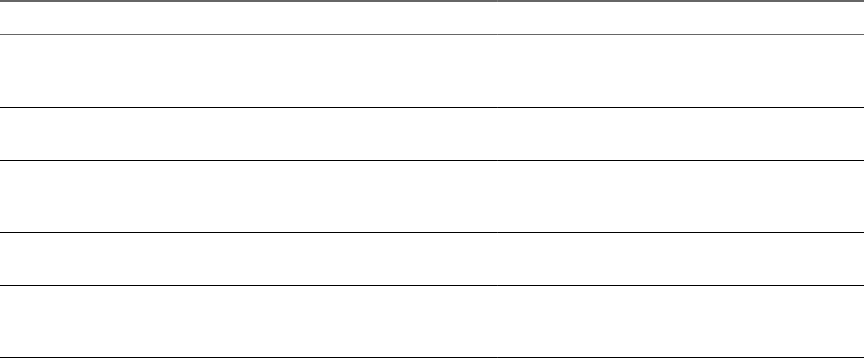
Table 2‑1. Comparison of the Flash Redirection Feature and Flash URL Redirection
Item of Differentiation Flash Redirection Flash URL Redirection
Support level A Tech Preview feature in Horizon 7.0
with no technical support. Fully
supported in Horizon 7.0.1.
Fully supported
Horizon Client types that
support this feature
Windows client only Windows client and Linux client
Display protocol In Horizon 7.0, PCoIP only. In
Horizon 7.0.1, PCoIP and VMware
Blast.
PCoIP
Browsers Internet Explorer 9, 10, or 11 for the
agent (remote desktop)
All browsers that are currently supported on
Horizon Client and Horizon Agent
Conguration mechanism Use an agent-side GPO to specify a
white list or black list of Web sites that
will or will not use Flash Redirection
Modify the source code on the Web page to
embed the required JavaScript
Feature Limitations
The Flash Redirection feature has the following limitations:
nClicking a URL link inside the Flash Player window opens a browser on the client rather than in the
remote desktop (agent side).
nSome Web sites do not work with Flash Redirection on some browser versions. For example, the
vimeo.com Web site does not work if you use Internet Explorer 11.
nIn Horizon 7.0, Flash and Java scripting might not work as expected.
nThe Horizon Client window might freeze while playing Flash content, although you can set a Windows
Registry key to work around this issue.
On a 32-bit client, set HKLM\Software\VMware, Inc.\VMware VDM\Client\EnableD3DRenderer value to
"FALSE" and on a 64-bit client, set HKLM\SOFTWARE\Wow6432Node\VMware, Inc.\VMware
VDM\Client\EnableD3DRenderer to "FALSE".
nFor the YouTube Web site, external interface is disabled by default to avoid playback issues. Therefore,
the following functionalities do not work: Autoplay, the Next and Previous buons, and Theater mode.
To enable Flash media for the latest update of the YouTube Web site, you must remove youtube.com
from the Compatibility View and manually append &nohtml5=1 to the URL for the video. For
example, https://www.youtube.com/watch?v=NwmRD25HWGE&nohtml5=1.
nYou cannot click on recommended videos on the YouTube site unless you set appMode=1 as a Windows
registry key on the remote desktop.
nIf there is no audio device on the client, errors will happen when playing YouTube Flash media.
nFlash Redirection does not work for redbox.com.
nThe Flash context menu (activated by a right click) is disabled.
nIf a version 4.1 of Horizon Client connects to a Horizon 7.0 desktop with PCoIP, Flash Redirection will
fail. The Flash content is either played by the desktop's native player or the user will see a white screen.
Chapter 2 Configuring Remote Desktop Features
VMware, Inc. 15

System Requirements for Flash Redirection
With Flash Redirection, if you use Internet Explorer 9, 10, or 11, Flash content is sent to the client system.
The client system plays the media content, which reduces the load on the ESXi host.
Remote desktop nHorizon Agent 7.0 or later must be installed in a single-user (VDI)
remote desktop, with the Flash Redirection option. The Flash
Redirection option is not selected by default.
See " Horizon Agent Custom Setup Options" in the Seing Up Virtual
Desktops in Horizon 7 document.
nThe appropriate group policy seings must be congured. See “Install
and Congure Flash Redirection,” on page 16.
nFlash Redirection is supported on Windows 7, Windows 8, Windows 8.1,
and Windows 10 single-user remote desktops.
nInternet Explorer 9, 10, or 11 must be installed with the corresponding
Flash ActiveX plug-in.
nAfter installation, the VMware View FlashMMR Server add-on must be
enabled in Internet Explorer.
Horizon Client computer
or client access device
nHorizon Client 4.0 or later must be installed. The Flash Redirection
option is enabled by default.
See the topic about installing Horizon Client in the Using VMware
Horizon Client for Windows document.
nFlash Redirection is supported on Windows 7, Windows 8, Windows 8.1,
and Windows 10.
nThe Flash ActiveX plug-in must be installed and enabled
Display protocol for the
remote session
VMware Blast, PCoIP
Install and Configure Flash Redirection
Redirecting Flash content from a remote desktop to a Flash Player window on the local client system
requires installing the Flash Redirection feature and Internet Explorer on the remote desktop and the client
system and specifying which Web sites will use this feature.
To install this feature on the client system, you must use a Horizon Client 4.0 or later installer. To install this
feature on a remote desktop, you must use a Horizon Agent 7.0 or later installer and select the correct
installation option, which is not selected by default. To enable this feature and to specify which Web sites
will use this feature, you use a group policy.
N You can alternatively use Windows Registry seings on the remote desktop to congure a white list
of Web sites to use for Flash Redirection. See “Use Windows Registry Seings to Congure Flash
Redirection,” on page 18.
Prerequisites
nVerify that you can log in as an Administrator domain user on the machine that hosts your Active
Directory server.
nVerify that the MMC and the Group Policy Object Editor snap-in are available on your Active Directory
server.
Configuring Remote Desktop Features in Horizon 7
16 VMware, Inc.
nVerify that the Horizon Agent Conguration ADMX template le vdm_agent.admx le has been added to
the OU for the remote desktop.
nCompile a list of the Web sites that can or cannot redirect Flash content. Compile a white list to ensure
that only the URLs specied in the list will be able to redirect Flash content. Compile a black list to
ensure that the URLs specied in the list will not be able to redirect Flash content.
nVerify that Flash ActiveX is installed and works properly. To verify the installation, run Internet
Explorer and go to hps://helpx.adobe.com/ash-player.html.
Procedure
1 On a Windows 7, Windows 8, Windows 8.1, or Windows 10 client system, install the required version of
Horizon Client and Flash Player ActiveX version.
nInstall Horizon Client 4.0 or later. See the topic about installing Horizon Client, in Using VMware
Horizon Client for Windows document.
nIf necessary, install the ActiveX version of Flash Player (rather than the NPAPI version). Flash
Player is installed by default in Internet Explorer 10 and 11. For Internet Explorer 9, you might
need to go to the following site to download and install Flash Player:
hps://get.adobe.com/ashplayer/.
2 On a Windows 7, Windows 8, Windows 8.1, or Windows 10 remote desktop, install the required version
of Horizon Agent and Internet Explorer, with Flash Player.
nInstall Horizon Agent 7.0 or later and be sure to select the option for Flash Redirection
(experimental). This option is not selected by default.
nInstall Internet Explorer 9, 10, or 11.
nIf necessary, install the ActiveX version of Flash Player (rather than the NPAPI version). Flash
Player is installed by default in Internet Explorer 10 and 11. For Internet Explorer 9, you might
need to go to the following site to download and install Flash Player:
hps://get.adobe.com/ashplayer/.
3 On the remote desktop, in Internet Explorer, select Tools > Manage add-ons from the menu bar and
verify that VMware View FlashMMR Server is listed and enabled.
4 On the Active Directory server, open the Group Policy Management Editor and edit the Flash
Redirection policy seings under Computer .
The seings are located in the Computer > Policies > Administrative Templates >
Classic Administrative Templates > VMware Horizon Agent > VMware FlashMMR
folder.
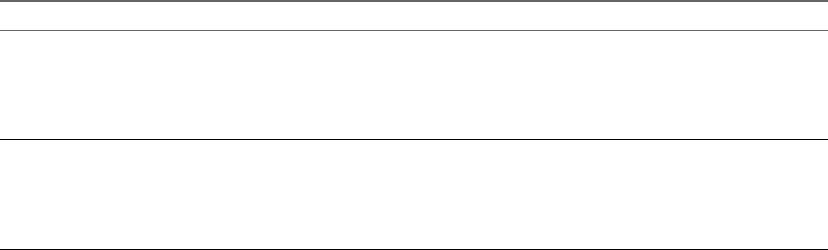
Setting Description
Enable Flash multi-media
redirection
Species whether Flash Redirection (FlashMMR) is enabled on the remote
desktop (agent-side). When enabled, this feature forwards Flash multi-
media data from the designated URLs through a TCP channel to the client,
and invokes the local Flash Player on the client system. This feature greatly
reduces demand on the agent-side CPU and network bandwidth.
Minimum rect size to enable
FlashMMR
Species the minimum width and height, in pixels, of the rectangle in
which the Flash content is played. For example, 400,300 species a width
of 400 pixels and a height of 300 pixels. Flash Redirection will be used only
if the Flash content is equal to or greater than the values specied in this
policy. If this GPO is not congured, the default value used is 320,200.
Chapter 2 Configuring Remote Desktop Features
VMware, Inc. 17
5 In the Group Policy Management Editor, edit the Flash Redirection policy seings under User
.
The seings are located in the User > Policies > Administrative Templates > Classic
Administrative Templates > VMware Horizon Agent > VMware FlashMMR folder.
a (Horizon 7.0.3 or later) Open the seing for FlashMMR url list usage for dening a list
of host URLs that you want to use with Flash redirection and select the Enabled radio buon.
b In the URL usage drop down list, choose to enable a white list or black list.
nTo enable a white list, select Enable white list.
nTo enable a black list, select Enable black list.
By default, white list is enabled.
c Open the seing Hosts Url lists to enable/disable FlashMMR for adding the list of host URLs that
will or will not use Flash redirection and select the Enabled radio buon.
d Click the Show buon.
e Enter the complete URLs that you compiled as a prerequisite in the Name column, and leave the
Value column blank.
Be sure to include or . You can use regular expressions. For example, you can specify
https://*.google.com and http://www.cnn.com.
(Horizon 7.0) Leave the Value column blank.
(Horizon 7.0.1 or later) In the Value column, you can optionally specify
requireIECompatibility=true, appMode=0, or both (use a comma to separate the two strings).
Web sites support HTML5 by default and Flash Redirection does not work with these Web sites.
You must set requireIECompatibility=true for these sites to work. This parameter is not required
for the YouTube Web site.
By default, external interface support is enabled when Flash Redirection runs. This can degrade
performance. In certain situations, seing appMode=0 can improve performance and result in a
beer user experience.
6 On the agent machine, open a command prompt and change to the following directory:
%Program Files%\Common Files\VMware\Remote Experience
7 Run the following command to add the white list or black list to Internet Explorer.
cscript mergeflashmmrwhitelist.vbs
8 Restart Internet Explorer.
The sites set with the parameter requireIECompatibility=true are added to Internet Explorer's
compatibility view. You can verify this by selecting Tools > Compatibility View from the
menu bar.
In Horizon 7.0 only, the sites are also added to Internet Explorer's list of trusted sites. You can verify the
trusted sites by selecting Tools > Internet Options from the Internet Explorer menu bar, and on the
Security tab, click the Sites buon.
Use Windows Registry Settings to Configure Flash Redirection
If you are a domain user who does not have Administrator privileges on the Active Directory server, you
can alternatively congure Flash Redirection by seing the appropriate values in Windows Registry keys on
the remote desktop.
You can use this procedure as an alternative to using GPO seings to congure Flash Redirection.
Configuring Remote Desktop Features in Horizon 7
18 VMware, Inc.

Prerequisites
nCompile a white list of Web sites to ensure that only the URLs specied in the list will be able to redirect
Flash content. Although you can compile a black list of Web sites, you cannot use the Windows registry
seings to enable the black list. A black list ensures that only the URLs specied in the list will not be
able to redirect Flash content. To enable a black list, you must use the GPO seings for Flash
Redirection.
nVerify that Horizon Agent 7.0 or later is installed in the remote desktop, along with Flash Player and
Internet Explorer 9, 10, or 11. See “Install and Congure Flash Redirection,” on page 16.
nVerify that you are using Horizon Client 4.0 or later, along with Flash Player ActiveX version.
Procedure
1 Use Horizon Client to access the remote desktop (agent machine).
2 Open the Windows Registry Editor (regedit.exe) on the agent machine, navigate to the following
folder, and set FlashRedirection to 1:
HKLM\Software\VMware, Inc.\VMware FlashMMR
N This seing enables the Flash Redirection feature, but if this seing is disabled (set to 0) in
HKLM\Software\Policies\VMware, Inc.\VMware FlashMMR, it means Flash Redirection is disabled
domain-wide, and requires a domain administrator to enable it.
3 Navigate to the following folder:
HKEY_CURRENT_USER\SOFTWARE\VMware, Inc.\VMware FlashMMR
If this folder does not already exist, create it.
4 In the VMware FlashMMR folder, create a sub-key named UrlWhiteList.
5 Right-click the UrlWhiteList key, select New > String Value, and for the name, enter the URL of a Web
site that will use Flash Redirection.
You can use regular expressions. For example, you could specify https://*.google.com. Be sure to leave
the Data value empty.
6 (Optional) (Horizon 7.0.1 and 7.0.2 only) In the data eld of the new registry value, add the data
requireIECompatibility=true, appMode=0, or both (use a comma to separate the two strings).
Web sites support HTML5 by default and Flash Redirection does not work with these Web sites. You
must set requireIECompatibility=true for these sites to work. This parameter is not required for the
YouTube Web site.
By default, external interface support is enabled when Flash Redirection runs. This can degrade
performance. For Horizon 7.0.1 or later, in certain situations, seing appMode=0 can improve
performance, and seing appMode=1 can result in a beer user experience.
7 Repeat the previous step to add additional URLs, and when you are nished, close the Registry Editor.
8 On the agent machine, open a command prompt and change to the following directory:
%Program Files%\Common Files\VMware\Remote Experience
9 Run the following command to add the white list to Internet Explorer.
cscript mergeflashmmrwhitelist.vbs
10 Restart Internet Explorer.
The sites set with the parameter requireIECompatibility=true are added to Internet Explorer's
compatibility view. You can verify this by selecting Tools > Compatibility View from the
menu bar.
Chapter 2 Configuring Remote Desktop Features
VMware, Inc. 19

In Horizon 7.0 only, the sites are also added to Internet Explorer's list of trusted sites. You can verify the
trusted sites by selecting Tools > Internet Options from the Internet Explorer menu bar, and on the
Security tab, click the Sites buon.
Configuring Real-Time Audio-Video
Real-Time Audio-Video allows Horizon 7 users to run Skype, Webex, Google Hangouts, and other online
conferencing applications on their remote desktops. With Real-Time Audio-Video, webcam and audio
devices that are connected locally to the client system are redirected to the remote desktop. This feature
redirects video and audio data to the desktop with a signicantly lower bandwidth than can be achieved by
using USB redirection.
Real-Time Audio-Video is compatible with standard conferencing applications and browser-based video
applications, and supports standard webcams, audio USB devices, and analog audio input.
This feature installs the VMware Virtual Webcam and VMware Virtual Microphone on the desktop
operating system. The VMware Virtual Webcam uses a kernel-mode webcam driver that provides enhanced
compatibility with browser-based video applications and other 3rd-party conferencing software.
When a conferencing or video application is launched, it displays and uses these VMware virtual devices,
which handle the audio-video redirection from the locally-connected devices on the client. The VMware
Virtual Webcam and Microphone appear in the Device Manager on the desktop operating system.
The drivers for the audio and webcam devices must be installed on your Horizon Client systems to enable
the redirection.
Configuration Choices for Real-Time Audio-Video
After you install Horizon Agent with Real-Time Audio-Video, the feature works on your Horizon 7
desktops without any further conguration. The default values for the webcam frame rate and image
resolution are recommended for most standard devices and applications.
You can congure group policy seings to change these default values to adapt to particular applications,
webcams, or environments. You can also set a policy to disable or enable the feature altogether. An ADMX
template le aloows you to install Real-Time Audio-Video group policy seings on Active Directory or on
individual desktops. See “Conguring Real-Time Audio-Video Group Policy Seings,” on page 30.
If users have multiple webcams and audio input devices built in or connected to their client computers, you
can congure preferred webcams and audio input devices that will be redirected to their desktops. See
“Selecting Preferred Webcams and Microphones,” on page 22.
N You can select a preferred audio device, but no other audio conguration options are available.
When webcam images and audio input are redirected to a remote desktop, you cannot access the webcam
and audio devices on the local computer. Conversely, when these devices are in use on the local computer,
you cannot access them on the remote desktop.
For information about supported applications, see the VMware knowledge base article, Guidelines for Using
Real-Time Audio-Video with 3rd-Party Applications on Horizon View Desktops, at
hp://kb.vmware.com/kb/2053754.
Configuring Remote Desktop Features in Horizon 7
20 VMware, Inc.
System Requirements for Real-Time Audio-Video
Real-Time Audio-Video works with standard webcam, USB audio, and analog audio devices, and with
standard conferencing applications like Skype, WebEx, and Google Hangouts. To support Real-Time Audio-
Video, your Horizon deployment must meet certain software and hardware requirements.
Remote desktops You install the Real-Time Audio-Video feature by installing View Agent 6.0
or later, or Horizon Agent 7.0 or later. To use this feature with published
desktops and applications, you must install Horizon Agent 7.0.2 or later. See
your Seing Up document for information on installing Horizon Agent.
Horizon Client software Horizon Client 2.2 for Windows or a later release
Horizon Client 2.2 for Linux or a later release. For Horizon Client for Linux
3.1 or earlier, this feature is available only with the version of Horizon Client
for Linux provided by third-party vendors. For Horizon Client for Linux 3.2
and later, this feature is also available with the version of the client available
from VMware.
Horizon Client 2.3 for Mac or a later release
Horizon Client 4.0 for iOS or a later release.
Horizon Client 4.0 for Android or a later release.
Horizon Client computer
or client access device
nAll operating systems that run Horizon Client for Windows.
nAll operating systems that run Horizon Client for Linux on x86 devices.
This feature is not supported on ARM processors.
nMac OS X Mountain Lion (10.8) and later. It is disabled on all earlier Mac
OS X operating systems.
nAll operating systems that run Horizon Client for iOS.
nAll operating systems than run Horizon Client for Android.
nFor details about supported client operating systems, see the Using
VMware Horizon Client document for the appropriate system or device.
nThe webcam and audio device drivers must be installed, and the
webcam and audio device must be operable, on the client computer. To
support Real-Time Audio-Video, you do not have to install the device
drivers on the desktop operating system where the agent is installed.
Display protocols nPCoIP
nVMware Blast (requires Horizon Agent 7.0 or later)
Chapter 2 Configuring Remote Desktop Features
VMware, Inc. 21

Ensuring That Real-Time Audio-Video Is Used Instead of USB Redirection
Real-Time Audio-Video supports webcam and audio input redirection for use in conferencing applications.
The USB redirection feature that can be installed with Horizon Agent does not support webcam redirection.
If you redirect audio input devices through USB redirection, the audio stream does not synchronize
properly with video during Real-Time Audio-Video sessions, and you lose the benet of reducing the
demand on network bandwidth. You can take steps to ensure that webcams and audio input devices are
redirected to your desktops through Real-Time Audio-Video, not USB redirection.
If your desktops are congured with USB redirection, end users can connect and display their locally
connected USB devices by selecting the Connect USB Device option in the Windows client menu bar or the
Desktop > USB menu in the Mac client. Linux clients block USB redirection of audio and video devices by
default and do not provide the USB device options to end users.
If an end user selects a USB device from the Connect USB Device or Desktop > USB list, that device
becomes unusable for video or audio conferencing. For example, if a user makes a Skype call, the video
image might not appear or the audio stream might be degraded. If an end user selects a device during a
conferencing session, the webcam or audio redirection is disrupted.
To hide these devices from end users and prevent potential disruptions, you can congure USB redirection
group policy seings to disable the display of webcams and audio input devices in VMware Horizon Client.
In particular, you can create USB redirection ltering rules for Horizon Agent and specify the audio-in and
video Device Family Names to be disabled. For information about seing group policies and specifying
ltering rules for USB redirection, see “Using Policies to Control USB Redirection,” on page 76.
C If you do not set up USB redirection ltering rules to disable the USB device families, inform your
end users that they cannot select webcam or audio devices from the Connect USB Device or Desktop > USB
list in the VMware Horizon Client menu bar.
Selecting Preferred Webcams and Microphones
If a client computer has more than one webcam and microphone, you can congure a preferred webcam and
default microphone that Real-Time Audio-Video will redirect to the desktop. These devices can be built in
or connected to the local client computer.
On a Windows client computer that has Horizon Client for Windows 4.2 or later installed, you can select a
preferred webcam or microphone by conguring Real-Time Audio-Video seings in the Horizon Client
Seings dialog box. With earlier Horizon Client versions, you modify registry seings to select a preferred
webcam and use the Sound control in the Windows operating system to select a default microphone.
On a Mac client computer, you can specify a preferred webcam or microphone by using the Mac defaults
system.
On a Linux client computer, you can specify a preferred webcam by editing a conguration le. To select a
default microphone, you can congure the Sound control in the Linux operating system on the client
computer.
Real-Time Audio-Video redirects the preferred webcam if it is available. If not, Real-Time Audio-Video uses
the rst webcam that is provided by system enumeration.
Select a Preferred Webcam or Microphone on a Windows Client System
With the Real-Time Audio-Video feature, if you have multiple webcams or microphones on your client
system, only one of them is used on your remote desktop or application. To specify which webcam or
microphone is preferred, you can congure Real-Time Audio-Video seings in Horizon Client.
The preferred webcam or microphone is used on the remote desktop or application if it is available, and if
not, another webcam or microphone is used.
Configuring Remote Desktop Features in Horizon 7
22 VMware, Inc.

With the Real-Time Audio-Video feature, video devices, audio input devices, and audio output devices
work without requiring the use of USB redirection, and the amount of network bandwidth required is
greatly reduced. Analog audio input devices are also supported.
N If you are using a USB webcam or microphone, do not connect it from the Connect USB Device
menu in Horizon Client. To do so routes the device through USB redirection, so that the device cannot use
the Real-Time Audio-Video feature.
This procedure applies only to Horizon Client for Windows 4.2 and later. For earlier client versions, you
must modify registry seings to select a preferred webcam and use the Sound control in the Windows
operating system to select a default microphone. For more information, see the Using VMware Horizon Client
for Windows document for your Horizon Client version.
Prerequisites
nVerify that you have a USB webcam, or USB microphone or other type of microphone, installed and
operational on your client system.
nVerify that you are using the VMware Blast display protocol or the PCoIP display protocol for your
remote desktop or application.
nConnect to a server.
Procedure
1 Open the Seings dialog box and select Real-Time Audio-Video in the left pane.
You can open the Seings dialog box by clicking the (gear) icon in the upper right corner of the
desktop and application screen, or by right-clicking a desktop or application icon and selecting
.
2 Select the preferred webcam from the Preferred webcam drop-down menu and the preferred
microphone from the Preferred microphone drop-down menu.
The drop-down menus show the available webcams and microphones on the client system.
3 Click OK or Apply to save your changes.
The next time you start a remote desktop or application, the preferred webcam and microphone that you
selected are redirected to the remote desktop or application.
Select a Default Microphone on a Mac Client System
If you have multiple microphones on your client system, only one microphone is used on your remote
desktop. You can use System Preferences on your client system to specify which microphone is the default
microphone on the remote desktop.
With the Real-Time Audio-Video feature, audio input devices and audio output devices work without
requiring the use of USB redirection, and the amount of network bandwidth required is greatly reduced.
Analog audio input devices are also supported.
This procedure describes how to choose a microphone from the user interface of the client system.
Administrators can also congure a preferred microphone by using the Mac defaults system. See “Congure
a Preferred Webcam or Microphone on a Mac Client System,” on page 25.
I If you are using a USB microphone, do not connect it from the Connection > USB menu in
Horizon Client. To do so routes the device through USB redirection and the device cannot use the Real-Time
Audio-Video feature.
Chapter 2 Configuring Remote Desktop Features
VMware, Inc. 23
Prerequisites
nVerify that you have a USB microphone or another type of microphone installed and operational on
your client system.
nVerify that you are using the VMware Blast display protocol or the PCoIP display protocol for your
remote desktop.
Procedure
1 On your client system, select Apple menu > System Preferences and click Sound.
2 Open the Input pane of Sound preferences.
3 Select the microphone that you prefer to use.
The next time that you connect to a remote desktop and start a call, the desktop uses the default microphone
that you selected on the client system.
Configuring Real-Time Audio-Video on a Mac Client
You can congure Real-Time Audio-Video seings at the command line by using the Mac defaults system.
With the defaults system, you can read, write, and delete Mac user defaults by using Terminal
(/Applications/Utilities/Terminal.app).
Mac defaults belong to domains. Domains typically correspond to individual applications. The domain for
the Real-Time Audio-Video feature is com.vmware.rtav.
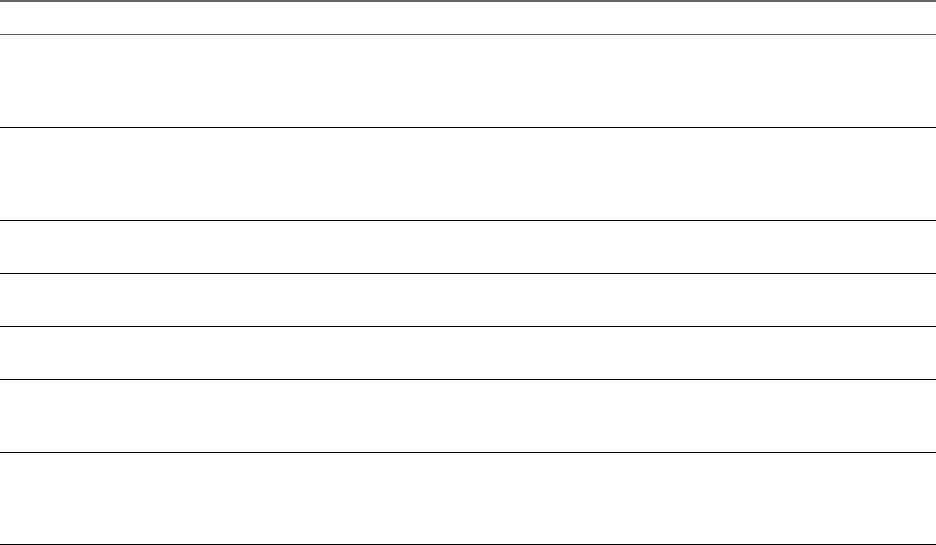
Syntax for Configuring Real-Time Audio-Video
You can use the following commands to congure the Real-Time Audio-Video feature.
Table 2‑2. Command Syntax for Real-Time Audio-Video Configuration
Command Description
defaults write com.vmware.rtav scrWCamId "webcam-
userid"
Sets the preferred webcam to use on remote desktops. When this
value is not set, the webcam is selected automatically by system
enumeration. You can specify any webcam connected to (or built
into) the client system.
defaults write com.vmware.rtav srcAudioInId "audio-
device-userid"
Sets the preferred microphone (audio-in device) to use on remote
desktops. When this value is not set, remote desktops use the
default recording device set on the client system. You can specify
any microphone connected to (or built into) the client system.
defaults write com.vmware.rtav srcWCamFrameWidth
pixels
Sets the image width. The value defaults to a hardcoded value of
320 pixels. You can change the image width to any pixel value.
defaults write com.vmware.rtav srcWCamFrameHeight
pixels
Sets the image height. The value defaults to a hardcoded value of
240 pixels. You can change the image height to any pixel value.
defaults write com.vmware.rtav srcWCamFrameRate fps Sets the frame rate. The value defaults to 15 fps. You can change
the frame rate to any value.
defaults write com.vmware.rtav LogLevel "level"Sets the logging level for the Real-Time Audio-Video log le
(~/Library/Logs/VMware/vmware-RTAV-pid.log). You can set
the logging level to trace or debug.
defaults write com.vmware.rtav IsDisabled value Determines whether Real-Time Audio-Video is enabled or
disabled. Real-Time Audio-Video is enabled by default. (This
value is not in eect.) To disable Real-Time Audio-Video on the
client, set the value to true.
Configuring Remote Desktop Features in Horizon 7
24 VMware, Inc.
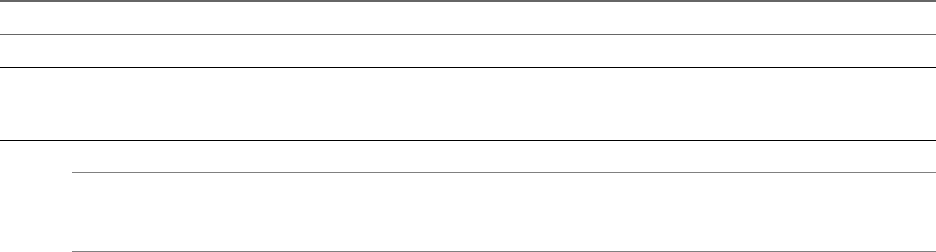
Table 2‑2. Command Syntax for Real-Time Audio-Video Configuration (Continued)
Command Description
defaults read com.vmware.rtav Displays Real-Time Audio-Video conguration seings.
defaults delete com.vmware.rtav seing Deletes a Real-Time Audio-Video conguration seing, for
example: defaults delete com.vmware.rtav
srcWCamFrameWidth
N You can adjust frame rates from 1 fps up to a maximum of 25 fps and resolution up to a maximum of
1920x1080. A high resolution at a fast frame rate might not be supported on all devices or in all
environments.
Configure a Preferred Webcam or Microphone on a Mac Client System
With the Real-Time Audio-Video feature, if you have multiple webcams or microphones on your client
system, only one webcam and one microphone can be used on your remote desktop. You specify which
webcam and microphone are preferred at the command line by using the Mac defaults system.
With the Real-Time Audio-Video feature, webcams, audio input devices, and audio output devices work
without requiring USB redirection, and the amount of network bandwidth required is greatly reduced.
Analog audio input devices are also supported.
In most environments, there is no need to congure a preferred microphone or webcam. If you do not set a
preferred microphone, remote desktops use the default audio device set in the client system's System
Preferences. See “Select a Default Microphone on a Mac Client System,” on page 23. If you do not congure
a preferred webcam, the remote desktop selects the webcam by enumeration.
Prerequisites
nIf you are conguring a preferred USB webcam, verify that the webcam is installed and operational on
your client system.
nIf you are conguring a preferred USB microphone or other type of microphone, verify that the
microphone is installed and operational on your client system.
nVerify that you are using the VMware Blast display protocol or the PCoIP display protocol for your
remote desktop.
Procedure
1 On your Mac client system, start a webcam or microphone application to trigger an enumeration of
camera devices or audio devices to the Real-Time Audio-Video log le.
aAach the webcam or audio device.
b In the Applications folder, double-click VMware Horizon Client to start Horizon Client.
c Start a call and then stop the call.
Chapter 2 Configuring Remote Desktop Features
VMware, Inc. 25
2 Find log entries for the webcam or microphone in the Real-Time Audio-Video log le.
a In a text editor, open the Real-Time Audio-Video log le.
The Real-Time Audio-Video log le is named ~/Library/Logs/VMware/vmware-RTAV-pid.log, where
pid is the process ID of the current session.
b Search the Real-Time Audio-Video log le for entries that identify the aached webcams or
microphones.
The following example shows how webcam entries might appear in the Real-Time Audio-Video log le:
2013-12-16T12:18:17.404Z| vthread-3| I120: RTAV: static void VideoInputBase::LogDevEnum() -
1 Device(s) found
2013-12-16T12:18:17.404Z| vthread-3| I120: RTAV: static void VideoInputBase::LogDevEnum() -
Name=FaceTime HD Camera (Built-in) UserId=FaceTime HD Camera (Built-
in)#0xfa20000005ac8509 SystemId=0xfa20000005ac8509
The following example shows how microphone entries might appear in the Real-Time Audio-Video log
le:
2013-12-16T12:18:17.404Z| vthread-3| I120: RTAV: int
AVCaptureEnumerateAudioDevices(MMDev::DeviceList&) -
2013-12-16T12:18:17.404Z| vthread-3| I120: RTAV: static void AudioCaptureBase::LogDevEnum()
- 2 Device(s) found
2013-12-16T12:18:17.404Z| vthread-3| I120: RTAV: static void AudioCaptureBase::LogDevEnum()
- Index=255 Name=Built-in Microphone UserId=Built-in Microphone#AppleHDAEngineInput:1B,
0,1,0:1 SystemId=AppleHDAEngineInput:1B,0,1,0:1
2013-12-16T12:18:17.404Z| vthread-3| I120: RTAV: static void AudioCaptureBase::LogDevEnum()
- Index=255 Name=Built-in Input UserId=Built-in Input#AppleHDAEngineInput:1B,0,1,1:2
SystemId=AppleHDAEngineInput:1B,0,1,1:2
3 Find the webcam or microphone that you prefer in the Real-Time Audio-Video log le and make a note
of its user ID.
The user ID appears after the string UserId= in the log le. For example, the user ID of the internal face
time camera is FaceTime HD Camera (Built-in) and the user ID of the internal microphone is Built-in
Microphone.
4 In Terminal (/Applications/Utilities/Terminal.app), use the defaults write command to set the
preferred webcam or microphone.
Option Action
Set the preferred webcam Type
defaults write com.vmware.rtav srcWCamId "webcam-userid",
where webcam-userid is the user ID of the preferred webcam, which you
obtained from the Real-Time Audio-Video log le. For example:
defaults write com.vmware.rtav srcWCamId "HD Webcam C525”
Set the preferred microphone Type
defaults write com.vmware.rtav srcAudioInId "audio-device-
userid", where audio-device-userid is the user ID of the preferred
microphone, which you obtained from the Real-Time Audio-Video log le.
For example:
defaults write com.vmware.rtav srcAudioInId "Built-in
Microphone"
5 (Optional) Use the defaults read command to verify your changes to the Real-Time Audio-Video
feature.
For example: defaults read com.vmware.rtav
The command lists all of the Real-Time Audio-Video seings.
Configuring Remote Desktop Features in Horizon 7
26 VMware, Inc.
The next time you connect to a remote desktop and start a new call, the desktop uses the preferred webcam
or microphone that you congured, if it is available. If the preferred webcam or microphone is not available,
the remote desktop can use another available webcam or microphone.
Select a Default Microphone on a Linux Client System
If you have multiple microphones on your client system, only one of them is used on your Horizon 7
desktop. To specify which microphone is the default, you can use the Sound control on your client system.
With the Real-Time Audio-Video feature, audio input devices and audio output devices work without
requiring the use of USB redirection, and the amount of network bandwidth required is greatly reduced.
Analog audio input devices are also supported.
This procedure describes choosing a default microphone from the user interface of the client system.
Administrators can also congure a preferred microphone by editing a conguration le. See “Select a
Preferred Webcam or Microphone on a Linux Client System,” on page 27.
Prerequisites
nVerify that you have a USB microphone or another type of microphone installed and operational on
your client system.
nVerify that you are using the VMware Blast display protocol or the PCoIP display protocol for your
remote desktop.
Procedure
1 In the Ubuntu graphical user interface, select System > Preferences > Sound.
You can alternatively click the Sound icon on the right side of the toolbar at the top of the screen.
2 Click the Input tab in the Sound Preferences dialog box.
3 Select the preferred device and click Close.
Select a Preferred Webcam or Microphone on a Linux Client System
With the Real-Time Audio-Video feature, if you have multiple webcams and microphones on your client
system, only one webcam and one microphone can be used on your Horizon 7 desktop. To specify which
webcam and microphone are preferred, you can edit a conguration le.
The preferred webcam or microphone is used on the remote desktop if it is available, and if not, another
webcam or microphone is used.
With the Real-Time Audio-Video feature, webcams, audio input devices, and audio output devices work
without requiring the use of USB redirection, and the amount network bandwidth required is greatly
reduced. Analog audio input devices are also supported.
To set the properties in the /etc/vmware/config le and specify a preferred device, you must determine the
values of certain elds. You can search the log le for the values of these elds.
nFor webcams, you set the rtav.srcWCamId property to the value of the UserId eld for the webcam and
the rtav.srcWCamName property to the value of the Name eld for the webcam.
The rtav.srcWCamName property has a higher priority than the rtav.srcWCamId property. Both properties
should specify the same webcam. If the properties specify dierent webcams, the webcam specied by
rtav.srcWCamName is used, if it exists. If it does not exist, the webcam specied by rtav.srcWCamId is
used. If both webcams are not found, the default webcam is used.
nFor audio devices, you set the rtav.srcAudioInId property to the value of the Pulse Audio
device.description eld.
Chapter 2 Configuring Remote Desktop Features
VMware, Inc. 27
Prerequisites
Depending on whether you are conguring a preferred webcam, preferred microphone, or both, perform
the appropriate prerequisite tasks:
nVerify that you have a USB webcam installed and operational on your client system.
nVerify that you have a USB microphone or another type of microphone installed and operational on
your client system.
nVerify that you are using the VMware Blast display protocol or the PCoIP display protocol for your
remote desktop.
Procedure
1 Launch the client, and start a webcam or microphone application to trigger an enumeration of camera
devices or audio devices to the client log.
aAach the webcam or audio device you want to use.
b Use the command vmware-view to start Horizon Client.
c Start a call and then stop the call.
This process creates a log le.
Configuring Remote Desktop Features in Horizon 7
28 VMware, Inc.
2 Find log entries for the webcam or microphone.
a Open the debug log le with a text editor.
The log le with real-time audio-video log messages is located at /tmp/vmware-<username>/vmware-
RTAV-<pid>.log. The client log is located at /tmp/vmware-<username>/vmware-view-<pid>.log.
b Search the log le to nd the log le entries that reference the aached webcams and microphones.
The following example shows an extract of the webcam selection:
main| I120: RTAV: static void VideoInputBase::LogDevEnum() - 3 Device(s) found
main| I120: RTAV: static void VideoInputBase::LogDevEnum() - Name=UVC Camera (046d:
0819) UserId=UVC Camera (046d:0819)#/sys/devices/pci0000:00/0000:00:1a.
7/usb1/1-3/1-3.4/1-3.4.5 SystemId=/dev/video1
main| I120: RTAV: static void VideoInputBase::LogDevEnum() - Name=gspca main driver
UserId=gspca main driver#/sys/devices/pci0000:00/0000:00:1a.7/usb1/1-3/1-3.4/1-3.4.7
SystemId=/dev/video2
main| I120: RTAV: static void VideoInputBase::LogDevEnum() -
Name=Microsoft® LifeCam HD-6000 for Notebooks UserId=Microsoft® LifeCam HD-6000 for
Notebooks#/sys/devices/pci0000:00/0000:00:1a.7/usb1/1-3/1-3.6 SystemId=/dev/video0
main| W110: RTAV: static bool AudioCaptureLin::EnumCaptureDevices(MMDev::DeviceList&) -
enumeration data unavailable
The following example shows an extract of the audio device selection, and the current audio level
for each:
vthread-18| I120: RTAV: bool AudioCaptureLin::TriggerEnumDevices() - Triggering
enumeration
vthread-18| I120: RTAV: static void AudioCaptureLin::PulseAudioGetSourceCB(pa_context*,
const pa_source_info*, int, void*) - PulseAudio Get Source (idx=1 'alsa_output.usb-
Logitech_Logitech_USB_Headset-00-Headset.analog-stereo.monitor' 'Monitor of Logitech USB
Headset Analog Stereo')
vthread-18| I120: RTAV: static void AudioCaptureLin::PulseAudioGetSourceCB(pa_context*,
const pa_source_info*, int, void*) - channel:0 vol:65536
vthread-18| I120: RTAV: static void AudioCaptureLin::PulseAudioGetSourceCB(pa_context*,
const pa_source_info*, int, void*) - channel:1 vol:65536
vthread-18| I120: RTAV: static void AudioCaptureLin::PulseAudioGetSourceCB(pa_context*,
const pa_source_info*, int, void*) - PulseAudio Get Source (idx=2 'alsa_input.usb-
Logitech_Logitech_USB_Headset-00-Headset.analog-mono' 'Logitech USB Headset Analog Mono')
vthread-18| I120: RTAV: static void AudioCaptureLin::PulseAudioGetSourceCB(pa_context*,
const pa_source_info*, int, void*) - channel:0 vol:98304
vthread-18| I120: RTAV: static void AudioCaptureLin::PulseAudioGetSourceCB(pa_context*,
const pa_source_info*, int, void*) - PulseAudio Get Source (idx=3 'alsa_output.usb-
Microsoft_Microsoft_LifeChat_LX-6000-00-LX6000.analog-stereo.monitor' 'Monitor of
Microsoft LifeChat LX-6000 Analog Stereo')
vthread-18| I120: RTAV: static void AudioCaptureLin::PulseAudioGetSourceCB(pa_context*,
const pa_source_info*, int, void*) - channel:0 vol:65536
Warnings are shown if any of the source audio levels for the selected device do not meet the
PulseAudio criteria if the source is not set to 100% (0dB), or if the selected source device is muted,
as follows:
vthread-18| I120: RTAV: static void AudioCaptureLin::PulseAudioSourceInfoCB(pa_context*,
const pa_source_info*, int, void*) - Note, selected device channel volume: 0: 67%
vthread-18| I120: RTAV: static void AudioCaptureLin::PulseAudioSourceInfoCB(pa_context*,
const pa_source_info*, int, void*) - Note, selected device channel is muted
Chapter 2 Configuring Remote Desktop Features
VMware, Inc. 29
3 Copy the description of the device and use it to set the appropriate property in the /etc/vmware/config
le.
For a webcam example, copy Microsoft® LifeCam HD-6000 for Notebooks and Microsoft® LifeCam
HD-6000 for Notebooks#/sys/devices/pci0000:00/0000:00:1a.7/usb1/1-3/1-3.6 to specify the
Microsoft webcam as the preferred webcam and set the properties as follows:
rtav.srcWCamName = “Microsoft® LifeCam HD-6000 for Notebooks”
rtav.srcWCamId = “Microsoft® LifeCam HD-6000 for
Notebooks#/sys/devices/pci0000:00/0000:00:1a.7/usb1/1-3/1-3.6”
For this example, you could also set the rtav.srcWCamId property to "Microsoft". The rtav.srcWCamId
property supports both partial and exact matches. The rtav.srcWCamName property supports only an
exact match.
For an audio device example, copy Logitech USB Headset Analog Mono to specify the Logitech headset
as the preferred audio device and set the property as follows:
rtav.srcAudioInId="Logitech USB Headset Analog Mono"
4 Save your changes and close the /etc/vmware/config conguration le.
5 Log o of the desktop session and start a new session.
Configuring Real-Time Audio-Video Group Policy Settings
You can congure group policy seings that control the behavior of Real-Time Audio-Video (RTAV) on your
Horizon 7 desktops. These seings determine a virtual webcam's maximum frame rate and image
resolution. The seings allow you to manage the maximum bandwidth that any one user can consume. An
additional seing disables or enables the RTAV feature.
You do not have to congure these policy seings. Real-Time Audio-Video works with the frame rate and
image resolution that are set for the webcam on client systems. The default seings are recommended for
most webcam and audio applications.
For examples of bandwidth use during Real-Time Audio-Video, see “Real-Time Audio-Video Bandwidth,”
on page 33.
These policy seings aect your Horizon 7 desktops, not the client systems to which the physical devices are
connected. To congure these seings on your desktops, add the RTAV Group Policy Administrative
Template (ADMX) le in Active Directory.
For information about conguring seings on client systems, see the VMware knowledge base article,
Seing Frame Rates and Resolution for Real-Time Audio-Video on Horizon View Clients, at
hp://kb.vmware.com/kb/2053644.
Add the RTAV ADMX Template in Active Directory and Configure the Settings
You can add the policy seings in the RTAV ADMX le (vdm_agent_rtav.admx), to group policy objects
(GPOs) in Active Directory and congure the seings in the Group Policy Object Editor.
Prerequisites
nVerify that the RTAV setup option is installed on your desktops. This setup option is installed by default
but can be deselected during installation. The seings have no eect if RTAV is not installed. See your
Seing Up document for information on installing Horizon Agent.
nVerify that Active Directory GPOs are created for the RTAV group policy seings. The GPOs must be
linked to the OU that contains your desktops. See “Active Directory Group Policy Example,” on
page 168.
nVerify that the Microsoft MMC and the Group Policy Object Editor snap-in are available on your Active
Directory server.
Configuring Remote Desktop Features in Horizon 7
30 VMware, Inc.
nFamiliarize yourself with RTAV group policy seings. See “Real-Time Audio-Video Group Policy
Seings,” on page 31.
Procedure
1 Download the Horizon 7 GPO Bundle .zip le from the VMware download site at
hps://my.vmware.com/web/vmware/downloads.
Under Desktop & End-User Computing, select the VMware Horizon 7 download, which includes the
GPO Bundle.
The le is named VMware-Horizon-Extras-Bundle-x.x.x-yyyyyyy.zip, where x.x.x is the version and
yyyyyyy is the build number. All ADMX les that provide group policy seings for Horizon 7 are
available in this le.
2 Unzip the VMware-Horizon-Extras-Bundle-x.x.x-yyyyyyy.zip le and copy the ADMX les to your
Active Directory or RDS host.
a Copy the vdm_agent_rtav.admx le and the en-US folder to the C:\Windows\PolicyDefinitions
folder on your Active Directory or RDS host.
b (Optional) Copy the language resource le (vdm_agent_rtav.adml) to the appropriate subfolder in
C:\Windows\PolicyDefinitions\ on your Active Directory or RDS host.
3 On the Active Directory host, open the Group Policy Management Editor and enter the path to the
template le in the editor.
On an individual RDS host, you can open the Local Group Policy Editor with the gpedit.msc utility.
The seings are located in the Computer > Policies > Administrative Templates > View
RTAV folder.
What to do next
Congure the group policy seings.
Real-Time Audio-Video Group Policy Settings
The Real-Time Audio-Video (RTAV) group policy seings control the virtual webcam's maximum frame rate
and maximum image resolution. An additional seing lets you disable or enable the RTAV feature. These
policy seings aect remote desktops, not the client systems where the physical devices are connected.
If you do not congure the RTAV group policy seings, RTAV uses the values that are set on the client
systems. On client systems, the default webcam frame rate is 15 frames per second. The default webcam
image resolution is 320x240 pixels.
The resolution group policy seings determine the maximum values that can be used. The frame rate and
resolution that are set on client systems are absolute values. For example, if you congure the RTAV seings
for maximum image resolution to 640x480 pixels, the webcam displays any resolution that is set on the
client up to 640x480 pixels. If you set the image resolution on the client to a value higher than 640x480 pixels,
the client resolution is capped at 640x480 pixels.
Not all congurations can achieve the maximum group policy seings of 1920x1080 resolution at 25 frames
per second. The maximum frame rate that your conguration can achieve for a given resolution depends
upon the webcam being used, the client system hardware, the Horizon Agent virtual hardware, and the
available bandwidth.
The resolution group policy seings determine the default values that are used when resolution values are
not set by the user.
Chapter 2 Configuring Remote Desktop Features
VMware, Inc. 31

Group Policy
Setting Description
Disable RTAV When you enable this seing, the Real-Time Audio-Video feature is disabled.
When this seing is not congured or disabled, Real-Time Audio-Video is enabled.
This seing is in the VMware View Agent > View RTAV folder in the
Group Policy Management Editor.
Max frames per
second
Determines the maximum rate per second at which the webcam can capture frames. You can use this
seing to limit the webcam frame rate in low-bandwidth network environments.
The minimum value is one frame per second. The maximum value is 25 frames per second.
When this seing is not congured or disabled, no maximum frame rate is set. Real-Time Audio-
Video uses the frame rate that is selected for the webcam on the client system.
By default, client webcams have a frame rate of 15 frames per second. If no seing is congured on
the client system and the Max frames per second seing is not congured or disabled, the webcam
captures 15 frames per second.
This seing is located in the VMware View Agent > View RTAV >
View RTAV Webcam folder in the Group Policy Management Editor.
Resolution -
Max image
width in
pixels
Determines the maximum width, in pixels, of image frames that are captured by the webcam. By
seing a low maximum image width, you can lower the resolution of captured frames, which can
improve the imaging experience in low-bandwidth network environments.
When this seing is not congured or disabled, a maximum image width is not set. RTAV uses the
image width that is set on the client system. The default width of a webcam image on a client system
is 320 pixels.
The maximum limit for any webcam image is 1920x1080 pixels. If you congure this seing with a
value that is higher than 1920 pixels, the eective maximum image width is 1920 pixels.
This seing is located in the VMware View Agent > View RTAV >
View RTAV Webcam folder in the Group Policy Management Editor.
Resolution -
Max image
height in
pixels
Determines the maximum height, in pixels, of image frames that are captured by the webcam. By
seing a low maximum image height, you can lower the resolution of captured frames, which can
improve the imaging experience in low-bandwidth network environments.
When this seing is not congured or disabled, a maximum image height is not set. RTAV uses the
image height that is set on the client system. The default height of a webcam image on a client system
is 240 pixels.
The maximum limit for any webcam image is 1920x1080 pixels. If you congure this seing with a
value that is higher than 1080 pixels, the eective maximum image height is 1080 pixels.
This seing is located in the VMware View Agent > View RTAV >
View RTAV Webcam folder in the Group Policy Management Editor.
Resolution -
Default image
resolution
width in
pixels
Determines the default resolution width, in pixels, of image frames that are captured by the webcam.
This seing is used when no resolution value is dened by the user.
When this seing is not congured or disabled, the default image width is 320 pixels.
The value that is congured by this policy seing takes eect only if both View Agent 6.0 or later and
Horizon Client 3.0 or later are used. For older versions of View Agent and Horizon Client, this policy
seing has no eect, and the default image width is 320 pixels.
This seing is located in the VMware View Agent > View RTAV >
View RTAV Webcam folder in the Group Policy Management Editor.
Resolution -
Default image
resolution
height in
pixels
Determines the default resolution height, in pixels, of image frames that are captured by the webcam.
This seing is used when no resolution value is dened by the user.
When this seing is not congured or disabled, the default image height is 240 pixels.
The value that is congured by this policy seing takes eect only if both View Agent 6.0 or later and
Horizon Client 3.0 or later are used. For older versions of View Agent and Horizon Client, this policy
seing has no eect, and the default image height is 240 pixels.
This seing is located in the VMware View Agent > View RTAV >
View RTAV Webcam folder in the Group Policy Management Editor.
Configuring Remote Desktop Features in Horizon 7
32 VMware, Inc.

Real-Time Audio-Video Bandwidth
Real-Time Audio-Video bandwidth varies according to the webcam's image resolution and frame rate, and
the image and audio data being captured.
The sample tests shown in Table 2-3 measure the bandwidth that Real-Time Audio-Video uses in a View
environment with standard webcam and audio input devices. The tests measure the bandwidth to send both
video and audio data from Horizon Client to Horizon Agent. The total bandwidth that is required to run a
desktop session from Horizon Client might be higher than these numbers. In these tests, the webcam
captures images at 15 frames per second for each image resolution.
Table 2‑3. Sample Bandwidth Results for Sending Real-Time Audio-Video Data from Horizon Client to
Horizon Agent
Image Resolution (Width x Height) Bandwidth Used (Kbps)
160 x 120 225
320 x 240 320
640 x 480 600
Configuring Scanner Redirection
By using scanner redirection, Horizon 7 users can scan information in their remote desktops and
applications with scanning and imaging devices that are connected locally to their client computers. Scanner
redirection is available in Horizon 6.0.2 and later releases.
Scanner redirection supports standard scanning and imaging devices that are compatible with the TWAIN
and WIA formats.
After you install Horizon Agent with the Scanner Redirection setup option, the feature works on your
remote desktops and applications without further conguration. You do not have to congure scanner-
specic drivers on remote desktops or applications.
You can congure group policy seings to change default values to adapt to particular scanning and
imaging applications or environments. You can also set a policy to disable or enable the feature altogether.
With an ADMX template le, you can install scanner redirection group policy seings in Active Directory or
on individual desktops. See “Conguring Scanner Redirection Group Policy Seings,” on page 35.
When scanning data is redirected to a remote desktop or application, you cannot access the scanning or
imaging device on the local computer. Conversely, when a device is in use on the local computer, you cannot
access it on the remote desktop or application.
System Requirements for Scanner Redirection
To support scanner redirection, your Horizon 7 deployment must meet certain software and hardware
requirements.
Horizon 7 remote
desktop or application
This feature is supported on RDS desktops, RDS applications, and VDI
desktops that are deployed on single-user virtual machines.
You must install View Agent 6.0.2 or later, and select the Scanner Redirection
setup option, on the parent or template virtual machines or RDS hosts.
On Windows Desktop and Windows Server guest operating systems, the
Horizon Agent Scanner Redirection setup option is deselected by default.
Chapter 2 Configuring Remote Desktop Features
VMware, Inc. 33

The following guest operating systems are supported on single-user virtual
machines and, where noted, on RDS hosts:
n32-bit or 64-bit Windows 7
n32-bit or 64-bit Windows 8.x
n32-bit or 64-bit Windows 10
nWindows Server 2008 R2 congured as a desktop or RDS host
nWindows Server 2012 R2 congured as a desktop or RDS host
I The Desktop Experience feature must be installed on
Windows Server guest operating systems, whether they are congured
as desktops or as RDS hosts.
The scanner device drivers do not have to be installed on the desktop
operating system where Horizon Agent is installed.
Horizon Client software Horizon Client 3.2 for Windows or a later release
Horizon Client computer
or client access device
Supported operating systems:
n32-bit or 64-bit Windows 7
n32-bit or 64-bit Windows 8.x
n32-bit or 64-bit Windows 10
The scanner device drivers must be installed, and the scanner must be
operable, on the client computer.
Scanning device
standard
TWAIN or WIA
Display protocol for
Horizon 7
PCoIP
Scanner redirection is not supported in RDP desktop sessions.
User Operation of Scanner Redirection
With scanner redirection, users can operate physical scanners and imaging devices that are connected to
their client computers as virtual devices that perform scanning operations in their remote desktops and
applications.
Users can operate their virtual scanners in a way that closely parallels the way that they use the scanners on
their locally connected client computers.
nAfter the Scanner Redirection option is installed with Horizon Agent, a scanner tool tray icon icon ( )
is added to the desktop. On RDS applications, the tool tray icon is redirected to the local client
computer.
You do not have to use the scanner tool tray icon. Scanning redirection works without any further
conguration. You can use the icon to congure options such as changing which device to use if more
than one device is connected to the client computer.
nWhen you click the scanner icon, the Scanner Redirection for VMware Horizon menu is displayed. No
scanners appear in the menu list if incompatible scanners are connected to the client computer.
nBy default, scanning devices are autoselected. TWAIN and WIA scanners are selected separately. You
can have one TWAIN scanner and one WIA scanner selected at the same time.
Configuring Remote Desktop Features in Horizon 7
34 VMware, Inc.

nIf more than one locally connected scanner is congured, you can select a dierent scanner than the one
that is selected by default.
nWIA scanners are displayed in the remote desktop's Device Manager menu, under Imaging devices.
The WIA scanner is named VMware Virtual WIA Scanner.
nIn the Scanner Redirection for VMware Horizon menu, you can click the Preferences option and select
options such as hiding webcams from the scanner redirection menu and determining how to select the
default scanner.
You can also control these features by conguring scanner redirection group policy seings in Active
Directory. See “Scanner Redirection Group Policy Seings,” on page 36.
nWhen you operate a TWAIN scanner, the TWAIN Scanner Redirection for VMware Horizon menu
provides additional options for selecting regions of an image, scanning in color, black and white, or
grayscale, and choosing other common functions.
nTo display the TWAIN user interface window for TWAIN scanning software that does not display the
window by default, you can select an Always show Scanner dialog option in the VMware
Horizon Scanner Redirection Preferences dialog box.
Note that most TWAIN scanning software displays the TWAIN user interface window by default. For
this software, the window is always displayed, whether you select or deselect the Always show
Scanner dialog option.
N If you run two RDS applications that are hosted on dierent farms, two scanner redirection tool tray
icons appear on the client computer. Typically, only one scanner is connected to a client computer. In this
case, both icons operate the same device, and it does not maer which icon you select. In some situations,
you might have two locally connected scanners and run two RDS applications that run on dierent farms. In
that case, you must open each icon to see which scanner redirection menu controls which RDS application.
For end-user instructions for operating redirected scanners, see the Using VMware Horizon Client for Windows
document.
Configuring Scanner Redirection Group Policy Settings
You can congure group policy seings that control the behavior of scanner redirection on your Horizon 7
desktops and applications. With these policy seings, you can control centrally, from Active Directory, the
options that are available in the VMware Horizon Scanner Redirection Preferences dialog box on users'
desktops and applications.
You do not have to congure these policy seings. Scanner redirection works with the default seings that
are congured for scanning devices on remote desktops and client systems.
These policy seings aect your remote desktops and applications, not the client systems where the physical
scanners are connected. To congure these seings on your desktops and applications, add the Scanner
Redirection Group Policy Administrative Template (ADMX) le in Active Directory.
Add the Scanner Redirection ADMX Templates in Active Directory
You can add the policy seings in the scanner redirection ADMX template le (vdm_agent_scanner.admx) to
group policy objects (GPOs) in Active Directory and congure the seings in the Group Policy Object Editor.
Prerequisites
nVerify that the Scanner Redirection setup option is installed on your desktops and RDS hosts. The
group policy seings have no eect if scanner redirection is not installed. See your Seing Up document
for information on installing Horizon Agent.
Chapter 2 Configuring Remote Desktop Features
VMware, Inc. 35
nVerify that Active Directory GPOs are created for the scanner redirection group policy seings. The
GPOs must be linked to the OU that contains your desktops and RDS hosts. See “Active Directory
Group Policy Example,” on page 168.
nVerify that the MMC and the Group Policy Object Editor snap-in are available on your Active Directory
server.
nFamiliarize yourself with scanner redirection group policy seings. See “Scanner Redirection Group
Policy Seings,” on page 36.
Procedure
1 Download the Horizon 7 GPO Bundle .zip le from the VMware download site at
hps://my.vmware.com/web/vmware/downloads.
Under Desktop & End-User Computing, select the VMware Horizon 7 download, which includes the
GPO Bundle.
The le is named VMware-Horizon-Extras-Bundle-x.x.x-yyyyyyy.zip, where x.x.x is the version and
yyyyyyy is the build number. All ADMX les that provide group policy seings for Horizon 7 are
available in this le.
2 Unzip the VMware-Horizon-Extras-Bundle-x.x.x-yyyyyyy.zip le and copy the ADMX les to your
Active Directory or RDS host.
a Copy the vdm_agent_scanner.admx le and the en-US folder to the C:\Windows\PolicyDefinitions
folder on your Active Directory or RDS host.
b (Optional) Copy the language resource le (vdm_agent_scanner.adml) to the appropriate subfolder
in C:\Windows\PolicyDefinitions\ on your Active Directory or RDS host.
3 On the Active Directory host, open the Group Policy Management Editor and enter the path to the
template le in the editor.
On an individual RDS host, you can open the Local Group Policy Editor with the gpedit.msc utility.
The seings are located in the Computer > Policies > Administrative Templates >
Scanner Redirection folder.
Most seings are also added to the User folder, located in User > Policies
> Administrative Templates > Scanner Redirection folder.
What to do next
Congure the group policy seings.
Scanner Redirection Group Policy Settings
The scanner redirection group policy seings control the options that are available in the VMware Horizon
Scanner Redirection Preferences dialog box on users' desktops and applications.
The scanner redirection ADMX template le contains both Computer Conguration and User Conguration
policies. The User Conguration policies allow you to set dierent congurations for users of VDI desktops,
RDS desktops, and RDS applications. Dierent User Conguration policies can take eect even when users'
desktop sessions and applications are running on the same RDS hosts. All of the seings are in the VMware
Horizon Agent > Scanner Redirection folder in the Group Policy Management Editor.
Configuring Remote Desktop Features in Horizon 7
36 VMware, Inc.

Group Policy
Setting Computer User Description
Disable
functionality
X Disables the scanner redirection feature.
When you enable this seing, scanners cannot be redirected and do not appear
in the scanner menu on users' desktops and applications.
When you disable this seing or do not congure it, scanner redirection works
and scanners appear in the scanner menu.
Lock config X Locks the scanner redirection user interface and prevents users from changing
conguration options on their desktops and applications.
When you enable this seing, users cannot congure the options that are
available from the tray menu on their desktops and applications. Users can
display the VMware Horizon Scanner Redirection Preferences dialog box, but
the options are inactive and cannot be changed.
When you disable this seing or do not congure it, users can congure the
options in the VMware Horizon Scanner Redirection Preferences dialog box.
Compression X Sets the image compression rate during the image transfer to the remote
desktop or application.
You can choose from the following compression modes:
nDisable. Image compression is disabled.
nLossless. Lossless (zlib) compression is used without loss of image
quality.
nJPEG. JPEG compression is used with loss of quality. You specify the level
of image quality in the JPEG compression quality eld. JPEG compression
quality must be a value between 0 and 100.
When you enable this seing, the selected compression mode is set for all users
aected by this policy. However, users can change the Compression option in
the VMware Horizon Scanner Redirection Preferences dialog box, overriding
the policy seing.
When you disable this policy seing or do not congure it, JPEG compression
mode is used.
Hide Webcam X X Prevents webcams from appearing in the scanner selection menu in the
VMware Horizon Scanner Redirection Preferences dialog box.
By default, webcams can be redirected to desktops and applications. Users can
select webcams and use them as virtual scanners to capture images.
When you enable this seing as a Computer Conguration policy, webcams are
hidden from all users of the aected computers. Users cannot change the Hide
Webcam option in the VMware Horizon Scanner Redirection Preferences
dialog box.
When you enable this seing as a User Conguration policy, webcams are
hidden from all aected users. However, users can change the Hide Webcam
option in the VMware Horizon Scanner Redirection Preferences dialog box.
When you enable this seing in both Computer Conguration and User
Conguration, the Hide Webcam seing in Computer Conguration overrides
the corresponding policy seing in User Conguration for all users of the
aected computers.
When you disable this seing or do not congure it in either policy
conguration, the Hide Webcam seing is determined by the corresponding
policy seing (either User Conguration or Computer Conguration) or by
user selection in the VMware Horizon Scanner Redirection Preferences dialog
box.
Chapter 2 Configuring Remote Desktop Features
VMware, Inc. 37
Group Policy
Setting Computer User Description
Default
Scanner
X X Provides centralized management of scanner autoselection.
You select scanner autoselection options separately for TWAIN and WIA
scanners. You can choose from the following autoselection options:
nNone. Do not select scanners automatically.
nAutoselect Automatically select the locally connected scanner.
nLast used Automatically select the last-used scanner.
n Select the scanner name that you type in the scanner
text box.
When you enable this seing as a Computer Conguration policy, the seing
determines the scanner autoselection mode for all users of the aected
computers. Users cannot change the Default Scanner option in the VMware
Horizon Scanner Redirection Preferences dialog box.
When you enable this seing as a User Conguration policy, the seing
determines the scanner autoselection mode for all aected users. However,
users can change the Default Scanner option in the VMware Horizon Scanner
Redirection Preferences dialog box.
When you enable this seing in both Computer Conguration and User
Conguration, the scanner autoselection mode in Computer Conguration
overrides the corresponding policy seing in User Conguration for all users of
the aected computers.
When you disable this seing or do not congure it in either policy
conguration, the scanner autoselection mode is determined by the
corresponding policy seing (either User Conguration or Computer
Conguration) or by user selection in the VMware Horizon Scanner Redirection
Preferences dialog box.
Configuring Serial Port Redirection
With serial port redirection, users can redirect locally connected, serial (COM) ports such as built-in RS232
ports or USB to Serial adapters. Devices such as printers, bar code readers, and other serial devices can be
connected to these ports and used in the remote desktops.
Serial port redirection is available in Horizon 6 version 6.1.1 and later releases with Horizon Client for
Windows 3.4 and later releases.
After you install Horizon Agent and set up the serial port redirection feature, the feature can work on your
remote desktops without further conguration. For example, COM1 on the local client system is redirected
as COM1 on the remote desktop, and COM2 is redirected as COM2, unless a COM port already exists on the
remote desktop. If so, the COM port is mapped to avoid conicts. For example, if COM1 and COM2 already
exist on the remote desktop, COM1 on the client is mapped to COM3 by default. You do not have to
congure the COM ports or install device drivers on the remote desktops.
To make a redirected COM port active, a user selects the Connect option from the menu on the serial port
tool tray icon during a desktop session. A user can also set a COM port device to connect automatically
whenever the user logs in to the remote desktop. See “User Operation of Serial Port Redirection,” on
page 39.
You can congure group policy seings to change the default conguration. For example, you can lock the
seings so that users cannot change the COM port mappings or properties. You can also set a policy to
disable or enable the feature altogether. With an ADMX template le, you can install serial port redirection
group policy seings in Active Directory or on individual desktops. See “Conguring Serial Port
Redirection Group Policy Seings,” on page 41.
When a redirected COM port is opened and in use on a remote desktop, you cannot access the port on the
local computer. Conversely, when a COM port is in use on the local computer, you cannot access the port on
the remote desktop.
Configuring Remote Desktop Features in Horizon 7
38 VMware, Inc.

System Requirements for Serial Port Redirection
With this feature, users can redirect locally connected, serial (COM) ports, such as built-in RS232 ports or
USB to Serial adapters, to their remote desktops. To support serial port redirection, your Horizon
deployment must meet certain software and hardware requirements.
Remote desktops The remote desktops must have View Agent 6.1.1 or later, or Horizon Agent
7.0 or later, installed with the Serial Port Redirection setup option, on the
parent or template virtual machines. This setup option is deselected by
default.
The following guest operating systems are supported on single-session
virtual machines:
n32-bit or 64-bit Windows 7
n32-bit or 64-bit Windows 8.x
n32-bit or 64-bit Windows 10
nWindows Server 2008 R2 congured as a desktop
nWindows Server 2012 R2 congured as a desktop
nWindows Server 2016 congured as a desktop
This feature is not currently supported for Windows Server RDS hosts.
Serial port device drivers do not have to be installed on the desktop
operating system where the agent is installed.
Horizon Client computer
or client access device
nSerial port redirection is supported on Windows 7, Windows 8.x client
systems, and Windows 10.
nAny required serial port device drivers must be installed, and the serial
port must be operable, on the client computer. You do not need to install
the device drivers on the remote desktop operating system where the
agent is installed.
Display protocols nPCoIP
nVMware Blast (requires Horizon Agent 7.0 or later)
VMware Horizon serial port redirection is not supported in RDP desktop
sessions.
User Operation of Serial Port Redirection
Users can operate physical COM port devices that are connected to their client computers and use serial port
virtualization to connect the devices to their remote desktops, where the devices are accessible to 3rd party
applications.
nAfter the Serial Port Redirection option is installed with Horizon Agent, a serial port tool tray icon ( )
is added to the remote desktop. For published applications, the icon is redirected to the local client
computer.
The icon appears only if you use the required versions of Horizon Agent and Horizon Client for
Windows, and you connect over PCoIP. The icon does not appear if you connect to a remote desktop
from a Mac, Linux, or mobile client.
You can use the icon to congure options to connect, disconnect, and customize the mapped COM
ports.
Chapter 2 Configuring Remote Desktop Features
VMware, Inc. 39
nWhen you click the serial port icon, the Serial COM Redirection for VMware Horizon menu appears.
nBy default, the locally connected COM ports are mapped to corresponding COM ports on the remote
desktop. For example: COM1 mapped to COM3. The mapped ports are not connected by default.
nTo use a mapped COM port, you must manually select the Connect option in the Serial COM
Redirection for VMware Horizon menu, or the Autoconnect option must be set during a previous
desktop session or by conguring a group policy seing. Autoconnect congures a mapped port to
connect automatically when a remote desktop session is started.
nWhen you select the Connect option, the redirected port is active. In the Device Manager in the guest
operating system on the remote desktop, the redirected port is shown as Serial Port Redirector for
VMware Horizon (COMn).
When the COM port is connected, you can open the port in a 3rd-party application, which can exchange
data with the COM port device that is connected to the client machine. While a port is open in an
application, you cannot disconnect the port in the Serial COM Redirection for VMware Horizon
menu.
Before you can disconnect the COM port, you must close the port in the application or close the
application. You can then select the Disconnect option to disconnect the port and make the physical
COM port available for use on the client machine.
nIn the Serial COM Redirection for VMware Horizon menu, you can right-click a redirected port to
select the Port Properties command.
In the COM Properties dialog box, you can congure a port to connect automatically when a remote
desktop session is started, ignore the Data Set Ready (DSR) signal, and map the local port on the client
to a dierent COM port on the remote desktop by selecting a port in the Custom port name drop-down
list.
A remote desktop port might be shown as overlapped. For example, you might see COM1
(Overlapped). In this case, the virtual machine is congured with a COM port in the virtual hardware
on the ESXi host. You can use a redirected port even when it is mapped to an overlapped port on the
virtual machine. The virtual machine receives serial data through the port from the ESXi host or from
the client system.
nIn the Device Manager in the guest operating system, you can use the Properties > Port tab to
congure seings for a redirected COM port. For example, you can set the default baud rate and data
bits. However, the seings you congure in Device Manager are ignored if the application species the
port seings.
For end-user instructions for operating redirected serial COM ports, see the Using VMware Horizon Client for
Windows document.
Guidelines for Configuring Serial Port Redirection
Through the group policy seings, you can congure serial port redirection and control the extent to which
users can customize redirected COM ports. Your choices depend on the user roles and 3rd-party
applications in your organization.
For details about the group policy seings, see “Serial Port Redirection Group Policy Seings,” on page 42.
nIf your users run the same 3rd-party applications and COM port devices, make sure that the redirected
ports are congured in the same way. For example, in a bank or retail store that uses point-of-sale
devices, make sure that all COM port devices are connected to the same ports on the client endpoints,
and all ports are mapped to the same redirected COM ports on the remote desktops.
Configuring Remote Desktop Features in Horizon 7
40 VMware, Inc.
Set the policy seing to map client ports to redirected ports. Select the Autoconnect item
in to ensure that the redirected ports are connected at the start of each desktop session.
Enable the Lock policy seing to prevent users from changing the port mappings or
customizing the port congurations. In this scenario, users never have to connect or disconnect
manually and cannot accidentally make a redirected COM port inaccessible to a 3rd-party application.
nIf your users are knowledge workers who use a variety of 3rd-party applications and might also use
their COM ports locally on their client machines, make sure that users can connect and disconnect from
the redirected COM ports.
You might set the policy seing if the default port mappings are incorrect. You might or
might not set the Autoconnect item, depending on your users' requirements. Do not enable the Lock
policy seing.
nMake sure that your 3rd-party applications open the COM port that is mapped to the remote desktop.
nMake sure that the baud rate that is in use for a device matches the baud rate that the 3rd-party
application is aempting to use.
nYou can redirect up to ve COM ports from a client system to a remote desktop.
Configuring Serial Port Redirection Group Policy Settings
You can congure group policy seings that control the behavior of serial port redirection on your remote
desktops. With these policy seings, you can control centrally, from Active Directory, the options that are
available in the Serial COM Redirection for VMware Horizon menu on users' desktops.
You do not have to congure these policy seings. Serial port redirection works with the default seings
that are congured for redirected COM ports on remote desktops and client systems.
These policy seings aect your remote desktops, not the client systems where the physical COM port
devices are connected. To congure these seings on your desktops, add the Serial Port Redirection Group
Policy Administrative Template (ADMX) le in Active Directory.
Add the Serial Port Redirection ADMX Template in Active Directory
You can add the policy seings in the serial port redirection ADMX le (vdm_agent_serialport.admx), to
group policy objects (GPOs) in Active Directory and congure the seings in the Group Policy Object Editor.
Prerequisites
nVerify that the Serial Port Redirection setup option is installed on your desktops. The group policy
seings have no eect if serial port redirection is not installed. See your Seing Up document for more
information on installing the Horizon Agent.
nVerify that Active Directory GPOs are created for the serial port redirection group policy seings. The
GPOs must be linked to the OU that contains your desktops. See “Active Directory Group Policy
Example,” on page 168.
nVerify that the MMC and the Group Policy Object Editor snap-in are available on your Active Directory
server.
nFamiliarize yourself with serial port redirection group policy seings. See “Serial Port Redirection
Group Policy Seings,” on page 42.
Procedure
1 Download the Horizon 7 GPO Bundle .zip le from the VMware download site at
hps://my.vmware.com/web/vmware/downloads.
Under Desktop & End-User Computing, select the VMware Horizon 7 download, which includes the
GPO Bundle.
Chapter 2 Configuring Remote Desktop Features
VMware, Inc. 41
The le is named VMware-Horizon-Extras-Bundle-x.x.x-yyyyyyy.zip, where x.x.x is the version and
yyyyyyy is the build number. All ADMX les that provide group policy seings for Horizon 7 are
available in this le.
2 Unzip the VMware-Horizon-Extras-Bundle-x.x.x-yyyyyyy.zip le and copy the ADMX les to your
Active Directory or RDS host.
a Copy the vdm_agent_serialport.admx le and the en-US folder to the
C:\Windows\PolicyDefinitions folder on your Active Directory or RDS host.
b (Optional) Copy the language resource le (vdm_agent_serialport.adml) to the appropriate
subfolder in C:\Windows\PolicyDefinitions\ on your Active Directory or RDS host.
3 On the Active Directory host, open the Group Policy Management Editor and enter the path to the
template le in the editor.
On an individual RDS host, you can open the Local Group Policy Editor with the gpedit.msc utility.
The seings are located in the Computer > Policies > Administrative Templates > Serial
COM folder.
Most seings are also added to the User folder, located in User > Policies
> Administrative Templates > Serial COM.
What to do next
Congure the group policy seings.
Serial Port Redirection Group Policy Settings
The serial port redirection group policy seings control the redirected COM port conguration, including
the options that are available in the Serial COM Redirection for VMware Horizon menu on remote
desktops.
The serial port redirection ADMX le contains both Computer Conguration and User Conguration
policies. The User Conguration policies allow you to set dierent congurations for specied users of VDI
desktops. Policy seings that are congured in Computer Conguration take precedence over the
corresponding seings that are congured in User Conguration.
Configuring Remote Desktop Features in Horizon 7
42 VMware, Inc.

Group Policy
Setting Computer User Description
PortSettings1
PortSettings2
PortSettings3
PortSettings4
PortSettings5
X X The port seings determine the mapping between the COM port on the client
system and the redirected COM port on the remote desktop and determines
other seings that aect the redirected COM port. You congure each
redirected COM port individually.
Five port seings policy seings are available, allowing up to ve COM ports
to be mapped from the client to the remote desktop. Select one port seings
policy seing for each COM port that you intend to congure. When you
enable the port seings policy seing, you can congure the following items
that aect the redirected COM port:
nThe Source port number seing species the number of the physical COM
port that is connected to the client system.
nThe Destination virtual port number seing species the number of the
redirected virtual COM port on the remote desktop.
nThe Autoconnect seing automatically connects the COM port to the
redirected COM port at the start of each desktop session.
nWith the IgnoreDSR seing, the redirected COM port device ignores the
Data Set Ready (DSR) signal.
nThe Pause before close port (in milliseconds) seing species the time to
wait (in milliseconds) after a user closes the redirected port and before the
port is actually closed. Certain USB to Serial adapters require this delay to
ensure that transmied data is preserved. This seing is intended for
troubleshooting purposes.
nThe Serial2USBModeChangeEnabled seing resolves issues that apply to
USB to Serial adapters that use the Prolic chipset, including the GlobalSat
BU353 GPS adapter. If you do not enable this seing for Prolic chipset
adapters, connected devices can transmit data but not receive data.
nThe Disable errors in wait mask seing disables the error value in the
COM port mask. This troubleshooting seing is required for certain
applications. For details, see the Microsoft documentation of the
WaitCommEvent function at
hp://msdn.microsoft.com/en-us/library/windows/desktop/aa363479(v=vs.
85).aspx.
nThe HandleBtDisappear seing supports BlueTooth COM port behavior.
This seing is intended for troubleshooting purposes.
nThe UsbToComTroubleShooting seing resolves some issues that apply to
USB to Serial port adapters. This seing is intended for troubleshooting
purposes.
When you enable the port seings policy seing for a particular COM port,
users can connect and disconnect the redirected port, but users cannot
congure properties of the port on the remote desktop. For example, users
cannot set the port to be redirected automatically when they log in to the
desktop, and they cannot ignore the DSR signal. These properties are
controlled by the group policy seing.
N A redirected COM port is connected and active only if the physical
COM port is connected locally to the client system. If you map a COM port
that does not exist on the client, the redirected port appears as inactive and not
available in the tool tray menu on the remote desktop.
When the port seings policy seing is disabled or not congured, the
redirected COM port uses the seings that users congure on the remote
desktop. The Serial COM Redirection for VMware Horizon menu options are
active and available to users.
These seings are in the VMware View Agent > Serial COM >
folder in the Group Policy Management Editor.
Local settings
priority
X X Gives priority to the seings that are congured on the remote desktop.
When you enable this policy, the serial port redirection seings that a user
congures on the remote desktop take precedence over the group policy
seings. A group policy seing takes eect only if a seing is not congured
on the remote desktop.
Chapter 2 Configuring Remote Desktop Features
VMware, Inc. 43
Group Policy
Setting Computer User Description
When this seing is disabled or not congured, group policy seings take
precedence over the seings that are congured on the remote desktop.
This seing is in the VMware View Agent > Serial COM folder
in the Group Policy Management Editor.
Disable
functionality
X Disables the serial port redirection feature.
When you enable this seing, COM ports are not redirected to the remote
desktop. The serial port tool tray icon on the remote desktop is not displayed.
When this seing is disabled, serial port redirection works, the serial port tool
tray icon is displayed, and COM ports appear in the Serial COM Redirection
for VMware Horizon menu.
When this seing is not congured, seings that are local to the remote
desktop determine whether serial port redirection is disabled or enabled.
This seing is in the VMware View Agent > Serial COM folder
in the Group Policy Management Editor.
Lock
configuration
X X Locks the serial port redirection user interface and prevents users from
changing conguration options on the remote desktop.
When you enable this seing, users cannot congure the options that are
available from the tool tray menu on their desktops. Users can display the
Serial COM Redirection for VMware Horizon menu, but the options are
inactive and cannot be changed.
When this seing is disabled, users can congure the options in the Serial
COM Redirection for VMware Horizon menu.
When this seing is not congured, local program seings on the remote
desktop determine whether users can congure the COM port redirection
seings.
This seing is in the VMware View Agent > Serial COM folder
in the Group Policy Management Editor.
Bandwidth
limit
X Sets a limit on the data transfer speed, in kilobytes per second, between the
redirected serial port and client systems.
When you enable this seing, you can set a value in the Bandwidth limit (in
kilobytes per second) box that determines the maximum data transfer speed
between the redirected serial port and the client. A value of 0 disables the
bandwidth limit.
When this seing is disabled, no bandwidth limit is set.
When this seing is not congured, local program seings on the remote
desktop determine whether a bandwidth limit is set.
This seing is in the VMware View Agent > Serial COM folder
in the Group Policy Management Editor.
Configure USB to Serial Adapters
You can congure USB to Serial adapters that use a Prolic chipset to be redirected to remote desktops by
the serial port redirection feature.
To ensure that data is transmied properly on Prolic chipset adapters, you can enable a serial port
redirection group policy seing in Active Directory or on an individual desktop virtual machine.
If you do not congure the group policy seing to resolve issues for Prolic chipset adapters, connected
devices can transmit data but not receive data.
You do not have to congure a policy seing or registry key on client systems.
Prerequisites
nVerify that the Serial Port Redirection setup option is installed on your desktops. The group policy
seings have no eect if serial port redirection is not installed. See your Seing Up document for more
information on installing Horizon Agent.
Configuring Remote Desktop Features in Horizon 7
44 VMware, Inc.
nVerify that the Serial Port Redirection ADMX template le is added in Active Directory or on the
desktop virtual machine.
nFamiliarize yourself with the Serial2USBModeChangeEnabled item in the group policy
seing. See “Serial Port Redirection Group Policy Seings,” on page 42.
Procedure
1 In Active Directory or on the virtual machine, open the Group Policy Object Editor.
2 Navigate to the Computer > Policies > Administrative Templates > Classic
Administrative Templates > VMware View Agent > Serial COM folder.
3 Select the folder.
4 Select and enable a group policy seing.
5 Specify the source and destination COM port numbers to map the COM port.
6 Select the Serial2USBModeChangeEnabled check box.
7Congure other items in the policy seing as needed.
8 Click OK and close the Group Policy Object Editor.
USB to Serial adapters can be redirected to remote desktops, and can receive data successfully, when users
start their next desktop sessions.
Managing Access to Windows Media Multimedia Redirection (MMR)
Horizon 7 provides the Windows Media MMR feature for VDI desktops that run on single-user machines
and for RDS desktops.
MMR delivers the multimedia stream directly to client computers. With MMR, the multimedia stream is
processed, that is, decoded, on the client system. The client system plays the media content, thereby
ooading the demand on the ESXi host.
MMR data is sent across the network without application-based encryption and might contain sensitive
data, depending on the content being redirected. To ensure that this data cannot be monitored on the
network, use MMR only on a secure network.
If the secure tunnel is enabled, MMR connections between Horizon Clients and the View Secure Gateway
are secure, but connections from the View Secure Gateway to desktop machines are not encrypted. If the
secure tunnel is disabled, MMR connections from Horizon Clients to the desktop machines are not
encrypted.
Enabling Multimedia Redirection in Horizon 7
You can take steps to ensure that MMR is accessible only to Horizon Client systems that have sucient
resources to handle local multimedia decoding and that are connected to Horizon 7 on a secure network.
By default, the global policy in View Administrator, Multimedia redirection (MMR) is set to Deny.
To use MMR, you must explicitly set this value to Allow.
To control access to MMR, you can enable or disable the Multimedia redirection (MMR) policy globally, for
individual desktop pools, or for specic users.
For instructions for seing global policies in Horizon Administrator, see “Horizon 7 Policies,” on page 91.
Chapter 2 Configuring Remote Desktop Features
VMware, Inc. 45

System Requirements for Windows Media MMR
To support Windows Media Multimedia Redirection (MMR), your Horizon 7 deployment must meet certain
software and hardware requirements. Windows Media MMR is provided in Horizon 6.0.2 and later releases.
View remote desktop nThis feature is supported on virtual machine desktops that are deployed
on single-user virtual machines and on RDS desktops.
View Agent 6.1.1 or later is required to support this feature on RDS
desktops.
View Agent 6.0.2 or later is required to support this feature on single-
user machines.
nThe following guest operating systems are supported:
n64-bit or 32-bit Windows 10. Windows Media Player is supported.
The default player TV & Movies is not supported.
nWindows Server 2016 is a Tech Preview feature. Windows Media
Player is supported. The default player TV & Movies is not
supported.
n64-bit or 32-bit Windows 7 SP1 Enterprise or Ultimate (single-user
machine). Windows 7 Professional is not supported.
n64-bit or 32-bit Windows 8/8.1 Professional or Enterprise (single-
user machine)
nWindows Server 2008 R2 congured as an RDS host
nWindows Server 2012 and 2012 R2 congured as an RDS host
n3D Rendering can be enabled or disabled on the desktop pool.
nUsers must play videos on Windows Media Player 12 or later or in
Internet Explorer 8 or later.
To use Internet Explorer, you must disable Protected Mode. In the
Internet Options dialog box, click the Security tab and deselect Enable
Protected Mode.
Horizon Client software Horizon Client 3.2 for Windows or a later release is required to support
Windows Media MMR on single-user machines.
Horizon Client computer
or client access device
nThe clients must run 64-bit or 32-bit Windows 7, Windows 8/8.1, or
Windows 10 operating systems.
Supported media
formats
Media formats that are supported on Windows Media Player are supported.
For example: M4V; MOV; MP4; WMP; MPEG-4 Part 2; WMV 7, 8, and 9;
WMA; AVI; ACE; MP3; WAV.
N DRM-protected content is not redirected through Windows Media
MMR.
Configuring Remote Desktop Features in Horizon 7
46 VMware, Inc.
Horizon policies In Horizon Administrator, set the Multimedia redirection (MMR) policy to
Allow. The default value is Deny.
Back-end firewall If your Horizon 7 deployment includes a back-end rewall between your
DMZ-based security servers and your internal network, verify that the back-
end rewall allows trac to port 9427 on your desktops.
Determine Whether to Use Windows Media MMR Based on Network Latency
By default, Windows Media MMR adapts to network conditions on single-user desktops that run on
Windows 8 or later and RDS desktops that run on Windows Server 2012 or 2012 R2 or later. If the network
latency between Horizon Client and the remote desktop is 29 milliseconds or lower, the video is redirected
with Windows Media MMR. If the network latency is 30 milliseconds or higher, the video is not redirected.
Instead, it is rendered on the ESXi host and sent to the client over PCoIP.
This feature applies to Windows 8 or later single-user desktops and Windows Server 2012 or 2012 R2 or later
RDS desktops. Users can run any supported client system, Windows 7 or Windows 8/8.1.
This feature does not apply to Windows 7 single-user desktops or Windows Server 2008 R2 RDS desktops.
On these guest operating systems, Windows Media MMR always performs multimedia redirection,
regardless of network latency.
You can override this feature, forcing Windows Media MMR to perform multimedia redirection regardless
of the network latency, by conguring the RedirectionPolicy registry seing on the desktop.
Procedure
1 Start the Windows Registry Editor on the remote desktop.
2 Navigate to the Windows registry key that controls the redirection policy.
The registry key that you congure for a remote desktop depends on the bit version of the Windows
Media Player.
Option Description
64-bit Windows Media Player nFor a 64-bit desktop, use the registry key:
HKEY_LOCAL_MACHINE\Software\VMware,Inc.\VMware tsmmr
32-bit Windows Media Player nFor a 32-bit desktop, use the registry key:
HKEY_LOCAL_MACHINE\Software\VMware,Inc.\VMware tsmmr
nFor a 64-bit desktop, use the registry key:
HKEY_LOCAL_MACHINE\Software\Wow6432Node\VMware,Inc.\VMwa
re tsmmr
3 Set the RedirectionPolicy value to always.
Value name = RedirectionPolicy
Value Type = REG_SZ
Value data = always
4 Restart Windows Media Player on the desktop to allow the updated value to take eect.
Managing Access to Client Drive Redirection
When you deploy Horizon Client 3.5 or later and View Agent 6.2 or later or Horizon Agent 7.0 or later with
client drive redirection, folders and les are sent across the network with encryption. Client drive
redirection connections between clients and the View Secure Gateway and connections from the View
Secure Gateway to desktop machines are secure.
For Horizon Client 4.2 or Horizon 7 version 7.0.2 or later, if VMware Blast Extreme is enabled, les and
folders are transferred across a virtual channel with encryption.
Chapter 2 Configuring Remote Desktop Features
VMware, Inc. 47

With earlier client or agent releases, client drive redirection folders and les are sent across the network
without encryption and might contain sensitive data, depending on the content being redirected. If the
secure tunnel is enabled, client drive redirection connections between Horizon Client and the View Secure
Gateway are secure, but connections from the View Secure Gateway to desktop machines are not encrypted.
If the secure tunnel is disabled, client drive redirection connections from Horizon Client to the desktop
machines are not encrypted. To ensure that this data cannot be monitored on the network, use client drive
redirection only on a secure network if Horizon Client is earlier than version 3.5 or agent is earlier than
version 6.2.
The Client Drive Redirection setup option in the agent installer is selected by default. As a best practice,
enable the Client Drive Redirection setup option only in desktop pools where users require this feature.
Use Group Policy to Disable Client Drive Redirection
You can disable client drive redirection by conguring a Microsoft Remote Desktop Services group policy
seing for remote desktops and RDS hosts in Active Directory.
For more information about client drive redirection, see the Using VMware Horizon Client document for the
specic type of desktop client device. Go to
hps://www.vmware.com/support/viewclients/doc/viewclients_pubs.html.
N This seing overrides local registry and Smart Policies seings that enable the client drive redirection
feature.
Prerequisites
If your View deployment includes a back-end rewall between your DMZ-based security servers and your
internal network, verify that the back-end rewall allows trac to port 9427 on your single-user and RDS
desktops. TCP connections on port 9427 are required to support client drive redirection.
For Horizon Client 4.2 or Horizon 7 version 7.0.2 or later, port 9427 is not required to be open if VMware
Blast Extreme is enabled because client drive redirection transfers data through the virtual channel.
Procedure
1 In the Group Policy Editor, go to Computer
Templates\Windows Components\Remote Desktop Services\Remote Desktop Session Host\Device
and Resource Redirection.
This navigation path is for Active Directory on Windows Server 2012. The navigation path diers on
other Windows operating systems.
2 Enable the Do not allow drive redirection group policy seing.
Use Registry Settings to Configure Client Drive Redirection
You can use Windows registry key seings to control client drive redirection behavior on a remote desktop.
This feature requires Horizon Agent 7.0 or later and Horizon Client 4.0 or later.
The Windows registry seings that control client drive redirection behavior on a remote desktop are located
in the following path:
HKLM\Software\VMware, Inc.\VMware TSDR
You can use the Windows Registry Editor on the remote desktop to edit local registry seings.
N Client drive redirection policies set with Smart Policies take precedence over local registry seings.
Configuring Remote Desktop Features in Horizon 7
48 VMware, Inc.

Disabling Client Drive Redirection
To disable client drive redirection, create a new string value named disabled and set its value to true.
HKLM\Software\VMware, Inc.\VMware TSDR\disabled=true
The value is false (enabled) by default.
Preventing Write Access to Shared Folders
To prevent write access to all folders that are shared with the remote desktop, create a new string value
named permissions and set its value to any string that begins with r, except for rw.
HKLM\Software\VMware, Inc.\VMware TSDR\permissions=r
The value is rw (all shared folders are readable and writeable) by default.
Sharing Specific Folders
To share specic folders with the remote desktop, create a new key named default shares and create a new
subkey for each folder to share with the remote desktop. For each subkey, create a new string value named
name and set its value to the path of the folder to share. The following example shares the folders C:\ebooks
and C:\spreadsheets.
HKLM\Software\VMware, Inc.\VMware TSDR\default shares\f1\name=C:\ebooks
HKLM\Software\VMware, Inc.\VMware TSDR\default shares\f2\name=C:\spreadsheets
If you set name to *all, all client drives are shared with the remote desktop. The *all seing is supported
only on Windows client systems.
HKLM\Software\VMware, Inc.\VMware TSDR\default shares\1st\name=*all
To prevent the client from sharing additional folders (that is, folders that are not specied with the default
shares key), create a string value named ForcedByAdmin and set its value to true.
HKLM\Software\VMware, Inc.\VMware TSDR\ForcedByAdmin=true
When the value is true, the Sharing dialog box does not appear when users connect to the remote desktop in
Horizon Client. The value is false (clients can share additional folders) by default.
The following example shares the folders C:\ebooks and C:\spreadsheets, makes both folders read-only,
and prevents the client from sharing additional folders.
HKLM\Software\VMware, Inc.\VMware TSDR\ForcedByAdmin=true
HKLM\Software\VMware, Inc.\VMware TSDR\permissions=r
HKLM\Software\VMware, Inc.\VMware TSDR\default shares\f1\name=C:\ebooks
HKLM\Software\VMware, Inc.\VMware TSDR\default shares\f2\name=C:\spreadsheets
N Do not use the ForcedByAdmin feature as a security feature or share control. A user can bypass the
ForcedByAdmin=true seing by creating a link to an existing share that points to folders not specied with
the default shares key.
Configure Skype for Business
You can make optimized audio and video calls with Skype for Business inside a virtual desktop without
negatively aecting the virtual infrastructure and overloading the network.
All media processing takes place on the client machine instead of in the virtual desktop during Skype audio
and video call.
Chapter 2 Configuring Remote Desktop Features
VMware, Inc. 49

To use Skype for Business, you must install the Virtualization Pack for Skype for Business feature on the
client machine during Horizon Client for Windows installation. See the Using Vmware Horizon Client for
Windows document.
A Horizon administrator must install the Virtualization Pack for the Skype for Business feature on the
virtual desktop during Horizon Agent installation.
Skype for Business Features
Skype for Business oers the following features:
nPoint to point audio calls
nPoint to point video calls
nPSTN calls via dial pad
nTransfer, forward, mute, hold, and resume a call
nHID commands
nCalls to PSTN through mediation server
nRemote connectivity and calls through Edge Server
nMusic on hold
nVoicemail integration
Skype for Business System Requirements
This feature supports these congurations.
Table 2‑4. Skype for Business System Requirements
System Requirements
Server Lync Server 2013, Skype for Business Server 2015, Oce365
Client Skype for Business 2015 15.0.4675.1003 and later
Skype for Business 2016 as part of Oce 365 Plus: 16.0.7571.2072 or later
Skype for Business 2016 as part of Oce 2016: 16.0.4534.1000 or later
Virtual desktop operating systems Windows 7, Windows 8.1, Windows 10 persistent and non-persistent desktops.
Windows 2008r2 desktop and Windows 2012r2 desktop are also supported.
Client machine operating systems Windows 7, Windows 8.1, Windows 10
Display protocols VMware Blast and PCoIP
Network ports The same ports as those used by the native Skype for Business client. See client
ports in hps://technet.microsoft.com/en-us/library/gg398833.aspx
Webcam The same devices that are qualied to work with Skype for Business. See webcams
listed in hps://technet.microsoft.com/en-us/oce/dn947482.aspx
Audio and video codecs The same as the audio and video codecs used by the native Skype for Business
client. See hps://technet.microsoft.com/en-us/library/gg425841.aspx?
f=255&MSPPError=-2147217396
Media Feature Pack Must be installed on the remote desktop for Windows 10 N and KN versions. You
can install Media Feature from hps://www.microsoft.com/en-
us/download/details.aspx?id=48231
Configuring Remote Desktop Features in Horizon 7
50 VMware, Inc.
Skype for Business Limitations
Skype for Business has the following limitations:
nYou cannot make E.911 calls.
nIPv6 is not supported.
nYou cannot customize ringtones.
nResponse group call, call park, call pickup from park, call via work are not supported.
nWhiteboarding, gallery view, panoramic webcams, and screen sharing are not currently supported.
nYou cannot record calls.
nUsing Lync or Skype for Business client on the client machine concurrently with optimized Skype for
Business client in the remote desktop is not supported.
nThe Lync 2013 client UI is not supported when connecting Skype 2015 client to a Lync 2013 server. An
administrator can congure Skype client UI on the server:
hps://social.technet.microsoft.com/wiki/contents/articles/30282.switch-between-skype-for-business-
and-lync-client-ui.aspx
nAudio and video conferencing involving more than two users is not currently supported.
nMeet Now conferencing is not supported.
nIn the video preview window, if you want to preview a dierent camera than the one listed, select the
device, then close the dialog, then re-open it to preview it.
nIf you are connected to a private network when you install Skype for Business on the remote desktop,
the installer adds inbound and outbound rewall rules for that network prole. When you log on to the
remote desktop from a domain network and then use Skype for Business, you see a rewall exception.
To x the problem, manually add rewall exceptions for Skype for Business client in the rewall rules
for all network proles.
nThe volume control option in the remote desktop operating system does not aect the volume level of
an ongoing Skype call. Use the volume control in the Skype call or use the volume control on the client
machine to make volume changes.
Chapter 2 Configuring Remote Desktop Features
VMware, Inc. 51
Configuring Remote Desktop Features in Horizon 7
52 VMware, Inc.

Configuring URL Content Redirection 3
With the URL Content Redirection feature, you can congure specic URLs to open on the client machine or
in a remote desktop or application. You can redirect URLs that users type in the Internet Explorer address
bar or in an application.
This chapter includes the following topics:
n“Understanding URL Content Redirection,” on page 53
n“Requirements for URL Content Redirection,” on page 54
n“Using URL Content Redirection in a Cloud Pod Architecture Environment,” on page 54
n“Installing Horizon Agent with the URL Content Redirection Feature,” on page 54
n“Conguring Agent-to-Client Redirection,” on page 55
n“Conguring Client-to-Agent Redirection,” on page 58
n“URL Content Redirection Limitations,” on page 67
n“Unsupported URL Content Redirection Features,” on page 67
Understanding URL Content Redirection
The URL Content Redirection feature supports redirection from a remote desktop or application to a client,
and from a client to a remote desktop or application.
Redirection from a remote desktop or application to a client is called agent-to-client redirection. Redirection
from a client to a remote desktop or application is called client-to-agent redirection.
Agent-to-client
redirection
With agent-to-client redirection, Horizon Agent sends the URL to
Horizon Client, which opens the default application for the protocol in the
URL on the client machine.
Client-to-agent
redirection
With client-to-agent redirection, Horizon Client opens a remote desktop or
remote application that you specify to handle the URL. If the URL is
redirected to a remote desktop, the link is opened in the default browser for
the protocol on the desktop. If the URL is redirected to a remote application,
the link is opened by the specied application. The end user must be entitled
to the desktop or application pool.
You can redirect some URLs from a remote desktop or application to a client, and redirect other URLs from
a client to a remote desktop or application. You can redirect any number of protocols, including HTTP,
HTTPS, mailto, and callto.
VMware, Inc. 53
Requirements for URL Content Redirection
To use the URL Content Redirection feature, your client machines, remote desktop machines, and RDS hosts
must meet certain requirements.
Windows clients Horizon Client 4.0 for Windows or later.
To use client-to-agent redirection, you must enable the URL Content
Redirection feature during Horizon Client for Windows installation. You do
not need to enable the URL Content Redirection feature in Horizon Client for
Windows to use agent-to-client redirection.
Mac clients Horizon Client 4.2 for Mac or later.
In Horizon Client 4.2 or 4.3 for Mac, URL Content Redirection is a Tech
Preview feature and it supports only agent-to-client redirection. In
Horizon Client 4.4 for Mac and later, URL Content Redirection is ocially
supported and it supports both agent-to-client and client-to-agent
redirection.
Desktop virtual
machines and RDS
hosts
Horizon Agent 7.0 or later in remote desktop machines and RDS hosts that
provide desktops and applications.
You must enable the URL Content Redirection feature during Horizon Agent
installation.
Web browsers Internet Explorer 9,10, and 11
Display protocols VMware Blast and PCoIP
Using URL Content Redirection in a Cloud Pod Architecture
Environment
If you have a Cloud Pod Architecture environment, you can congure global URL content redirection
seings in addition to local URL content redirection seings.
Unlike local URL content redirection seings, which are visible only in the local pod, global URL content
redirection seings are visible across the pod federation. With global URL content redirection seings, you
can redirect URL links in the client to global resources, such as global desktop entitlements and global
application entitlements.
When a user uses Horizon Client to log in to a Connection Server instance in the pod federation, the
Connection Server instance looks for all of the local and global URL content redirection seings assigned to
the user. The local and global seings are merged and used whenever the user clicks a URL on the client
machine.
For complete information about conguring and managing a Cloud Pod Architecture environment, see the
Administering Cloud Pod Architecture in Horizon 7 document.
Installing Horizon Agent with the URL Content Redirection Feature
To use URL content redirection from a remote desktop or application to a client (agent-to-client redirection),
or from a client to a remote desktop or application (client-to-agent redirection), you must enable the URL
Content Redirection feature when you install Horizon Agent.
Instead of double-clicking the installer le, start the Horizon Agent installation by running the following
command in a command prompt window:
VMware-viewagent-x86_64-y.y.y-xxxxxx.exe /v URL_FILTERING_ENABLED=1
Configuring Remote Desktop Features in Horizon 7
54 VMware, Inc.
Follow the prompts and complete the installation.
To verify that the URL Content Redirection feature is installed, make sure that the vmware-url-protocol-
launch-helper.exe and vmware-url-filtering-plugin.dll les are in the %PROGRAMFILES%\VMware\VMware
View\Agent\bin\UrlRedirection directory. Also, verify that the VMware Horizon View URL Filtering Plugin
Internet Explorer add-on is enabled.
Configuring Agent-to-Client Redirection
With agent-to-client redirection, Horizon Agent sends the URL to Horizon Client, which opens the default
application for the protocol in the URL.
To enable agent-to-client redirection, perform the following conguration tasks.
nEnable the URL Content Redirection feature in Horizon Agent. See “Installing Horizon Agent with the
URL Content Redirection Feature,” on page 54.
nApply the URL Content Redirection group policy seings to your remote desktops and applications.
See “Add the URL Content Redirection ADMX Template to a GPO,” on page 55.
nCongure group policy seings to indicate, for each protocol, how Horizon Agent should redirect the
URL. See “URL Content Redirection Group Policy Seings,” on page 56.
Add the URL Content Redirection ADMX Template to a GPO
The URL Content Redirection ADMX template le, called urlRedirection-enUS.admx, contains seings that
enable you to control whether a URL link is opened on the client (agent-to-client redirection) or in a remote
desktop or application (client-to-agent redirection).
To apply the URL Content Redirection group policy seings to your remote desktops and applications, add
the ADMX template le to GPOs on your Active Directory server. For rules regarding URL links clicked in a
remote desktop or application, the GPOs must be linked to the OU that contains your virtual desktops and
RDS hosts.
You can also apply the group policy seings to a GPO that is linked to the OU that contains your Windows
client computers, but the preferred method for conguring client-to-agent redirection is to use the vdmutil
command-line utility. Because macOS does not support GPOs, you must use vmdutil if you have Mac
clients.
Prerequisites
nVerify that the URL Content Redirection feature is included when you install Horizon Agent. See
“Installing Horizon Agent with the URL Content Redirection Feature,” on page 54.
nVerify that Active Directory GPOs are created for the URL Content Redirection group policy seings.
nVerify that the MMC and Group Policy Management Editor snap-in are available on your Active
Directory server.
Procedure
1 Download the Horizon 7 GPO Bundle .zip le from the VMware download site at
hps://my.vmware.com/web/vmware/downloads.
Under Desktop & End-User Computing, select the VMware Horizon 7 download, which includes the
GPO Bundle.
The le is named VMware-Horizon-Extras-Bundle-x.x.x-yyyyyyy.zip, where x.x.x is the version and
yyyyyyy is the build number. All ADMX les that provide group policy seings for Horizon 7 are
available in this le.
Chapter 3 Configuring URL Content Redirection
VMware, Inc. 55

2 Unzip the VMware-Horizon-Extras-Bundle-x.x.x-yyyyyyy.zip le and copy the URL Content
Redirection ADMX le to your Active Directory server.
a Copy the urlRedirection-enUS.admx le to the C:\Windows\PolicyDefinitions folder.
b Copy the urlRedirection.adml language resource le to the appropriate subfolder in the
C:\Windows\PolicyDefinitions directory.
For example, for the EN locale, copy the urlRedirection-enUS.adml le to the
C:\Windows\PolicyDefinitions\en-US folder.
3 On your Active Directory server, open the Group Policy Management Editor.
The URL Content Redirection group policy seings are installed in Computer > Policies
> Administrative Templates > VMware Horizon URL Redirection.
What to do next
Congure the group policy seings.
URL Content Redirection Group Policy Settings
The URL Content Redirection template le contains group policy seings that enable you to create rules for
agent-to-client and client-to-agent redirection. The template le contains only Computer Conguration
seings. All of the seings are in the VMware Horizon URL Redirection folder in the Group Policy
Management Editor.
The following table describes the group policy seings in the URL Content Redirection template le.
Table 3‑1. URL Content Redirection Group Policy Settings
Setting Properties
IE Policy: Prevent users from
changing URL Redirection plugin
loading behavior
Determines whether users can disable the URL Content Redirection
feature.
This seing is not congured by default.
IE Policy: Automatically enable URL
Redirection plugin
Determines whether newly installed Internet Explorer plug-ins are
automatically activated.
This seing is not congured by default.
Url Redirection Enabled Determines whether the URL Content Redirection feature is enabled.
You can use this seing to disable the URL Content Redirection feature
even if the feature has been installed in the client or agent.
This seing is not congured by default.
Configuring Remote Desktop Features in Horizon 7
56 VMware, Inc.

Table 3‑1. URL Content Redirection Group Policy Settings (Continued)
Setting Properties
Url Redirection Protocol 'http' For all URLs that use the HTTP protocol, species the URLs that should
be redirected. This seing has the following options:
nbrokerHostname - IP address or fully qualied name of the
Connection Server host to use when redirecting URLs to a remote
desktop or application.
nremoteItem - display name of the remote desktop or application
pool that can handle the URLs specied in agentRules.
nclientRules - the URLs that should be redirected to the client. For
example, if you set clientRules to .*.mycompany.com, all URLs that
include the text mycompany.com are redirected to the Windows-
based client and are opened in the default browser on the client.
nagentRules - the URLs that should be redirected to the remote
desktop or application specied in remoteItem. For example, if you
set agentRules to .*.mycompany.com, all URLs that include
"mycompany.com" are redirected to the remote desktop or
application.
When you create agent rules, you must also use the brokerHostname
option to specify the IP address or fully qualied domain name of the
Connection Server host, and the remoteItem option to specify the
display name of the desktop or application pool.
N The preferred method for conguring client rules is to use the
vdmutil command-line utility.
This seing is enabled by default.
Url Redirection Protocol '[...]' Use this seing for any protocol other than HTTP, such as HTTPS, email,
or callto.
The options are the same as for Url Redirection Protocol 'http'.
If you do not need to congure other protocols, you can delete or
comment out this entry before adding the URL Content Redirection
template le to Active Directory.
As a best practice, congure the same redirection seings for the HTTP
and HTTPS protocols. That way, if a user types a partial URL into
Internet Explorer, such as mycompany.com, and that site automatically
redirects from HTTP to HTTPS, the URL Content Redirection feature
will work as expected. In this example, if you set a rule for HTTPS but
do not set the same redirection seing for HTTP, the partial URL that the
user types is not redirected.
This seing is not congured by default.
For client-to-agent redirection, if you congure a protocol that does not have a default handler, after you
congure a group policy seing for this protocol, you must start Horizon Client once before URLs that
specify this protocol are redirected.
Syntax for Creating URL Content Redirection Rules
You can use regular expressions when you specify which URLs to open on the client or in a remote desktop
or application. Use semicolons to separate multiple entries. Spaces are not allowed between entries.
The following table describes some sample entries.
Chapter 3 Configuring URL Content Redirection
VMware, Inc. 57

Entry Description
.* Species that all URLs are redirected.
If you use this seing for agent rules (agentRules option), all URLs are opened in the
specied remote desktop or application.
If you use this seing for client rules (clientRules option), all URLs are redirected to
the client.
.*.acme.com;.*.example.com Species that all URLs that include the text .acme.com or example.com are
redirected.
[space or leave empty] Species that no URLs are redirected. For example, leaving the clientRules option
empty species that no URLs are redirected to the client.
Agent-to-Client Redirection Group Policy Example
You might want to use agent-to-client redirection to conserve resources or as an added security layer. If
employees are working in a remote desktop or application and they want to watch videos, for example, you
might redirect those URLs to the client machine so that no extra load is put on the data center. Or for
security purposes, for employees working outside the company network, you might want all URLs that
point to external locations outside the company network to be opened on an employee's own client machine.
You could, for example, congure rules so that any content that is not company-related, that is, any URLs
that do not point to the company network, are redirected to open on the client machine. In this case you
could use the following seings, which include regular expressions:
nFor agentRules: .*.mycompany.com
This rule redirects any URL that contains the text mycompany.com to be opened on the specied remote
desktop or application (agent).
nFor clientRules: .*
This rule redirects all URLs to the client, to be opened with the default client browser.
The URL Content Redirection feature uses the following process to apply client and agent rules:
1 When a user clicks a link in a remote application or desktop, the client rules are checked rst.
2 If the URL matches a client rule, the agent rules are checked next.
3 If there is a conict between the agent rules and the client rules, the link is opened locally. In this case,
the URL is opened on the agent machine.
4 If there is no conict, the URL is redirected to the client.
In the example, the client and agent rules conict because URLs with mycompany.com are a subset of all
URLs. Because of this conict, URLs that include mycompany.com are opened locally. If you click a link
that includes mycompany.com in the URL while in a remote desktop, the URL is opened on that remote
desktop. If you click a link with mycompany.com in the URL in it from a client system, the URL is opened
on the client.
Configuring Client-to-Agent Redirection
With client-to-agent redirection, Horizon Client opens a remote desktop or application to handle a URL link
that a user clicks on the client. If a remote desktop is opened, the default application for the protocol in the
URL processes the URL. If a remote application is opened, the application processes the URL.
To use client-to-agent redirection, perform the following conguration tasks.
nEnable the URL Content Redirection feature in Horizon Agent. See “Installing Horizon Agent with the
URL Content Redirection Feature,” on page 54.
Configuring Remote Desktop Features in Horizon 7
58 VMware, Inc.

n(Windows clients only) Enable the URL Content Redirection feature in Horizon Client for Windows. See
“Installing Horizon Client for Windows with the URL Content Redirection Feature,” on page 59.
nUse the vdmutil command-line utility to create a URL content redirection seing that indicates, for each
protocol, how Horizon Client should redirect the URLs. See “Create a Local URL Content Redirection
Seing,” on page 61 or “Create a Global URL Content Redirection Seing,” on page 62.
nUse the vdmutil command-line utility to assign the URL content redirection seing to Active Directory
users or groups. See “Assign a URL Content Redirection Seing to a User or Group,” on page 64.
nVerify the URL content redirection seing. See “Test a URL Content Redirection Seing,” on page 65.
N You can use group policy seings to congure client-to-agent redirection rules, but using the vdmutil
command-line utility is the preferred method. For more information, see “Using Group Policy Seings to
Congure Client-to-Agent Redirection,” on page 67.
Installing Horizon Client for Windows with the URL Content Redirection Feature
To use URL Content Redirection from a Windows client to a remote desktop or application (client-to-agent
redirection), you must install Horizon Client for Windows with the URL Content Redirection feature.
To enable the URL Content Redirection feature, you must use the Horizon Client for Windows installer with
a command-line option. Instead of double-clicking the installer le, start the installation by running the
following command in a command prompt window:
VMware-Horizon-Client-x86-y.y.y-xxxxxx.exe /v URL_FILTERING_ENABLED=1
To verify that the feature is installed, make sure that the vmware-url-protocol-launch-helper.exe and
vmware-url-filtering-plugin.dll les are in the %PROGRAMFILES%\VMware\VMware Horizon View Client
directory. Also, verify that the VMware Horizon View URL Filtering Plugin Internet Explorer add-on is
installed.
N Horizon Client 4.4 for Mac supports client-to-agent redirection by default. No extra installation steps
are required. Horizon Client 4.2 and 4.3 for Mac do not support client-to-agent redirection.
Using the vdmutil Command-Line Utility
You can use the vdmutil command-line interface to create, assign, and manage URL content redirection
seings for client-to-agent redirection.
Command Usage
The syntax of the vdmutil command controls its operation from a Windows command prompt.
vdmutil command_option [additional_option argument] ...
The additional options that you can use depend on the command option.
By default, the path to the vdmutil command executable le is C:\Program Files\VMware\VMware
View\Server\tools\bin. To avoid entering the path on the command line, add the path to your PATH
environment variable.
Command Authentication
You must run the vdmutil command as a user who has the Administrators role.
You can use Horizon Administrator to assign the Administrators role to a user. For more information, see
the View Administration document.
Chapter 3 Configuring URL Content Redirection
VMware, Inc. 59

The vdmutil command includes options to specify the user name, domain, and password to use for
authentication. You must use these authentication options with all vdmutil command options except for
--help and --verbose.
Table 3‑2. vdmutil Command Authentication Options
Option Description
--authAs User name of a Horizon administrator user to authenticate to the Connection Server
instance. Do not use domain\username or user principal name (UPN) format.
--authDomain Fully qualied domain name for the Horizon administrator user specied in the
--authAs option.
--authPassword Password for the Horizon administrator specied in the --authAs option. Typing "*"
instead of a password causes the vdmutil command to prompt for the password and
does not leave sensitive passwords in the command history on the command line.
For example, the following vdmutil command logs in the user mydomain\johndoe.
vdmutil --listURLSetting --authAs johndoe --authDomain mydomain --authPassword secret
Command Output
The vdmutil command returns 0 when an operation succeeds and a failure-specic non-zero code when an
operation fails. The vdmutil command writes error messages to standard error. When an operation produces
output, or when verbose logging is enabled by using the --verbose option, the vdmutil command writes
output to standard output in US English.
Options for URL Content Redirection
You can use the following vdmutil command options to create, assign, and manage URL content redirection
seings. All options are preceded by two dashes (--).
Table 3‑3. vdmutil Command Options for URL Content Redirection
Option Description
--addGroupURLSetting Assigns a group to a particular URL content redirection seing.
--addUserURLSetting Assigns a user to a particular URL content redirection seing.
--createURLSetting Creates a URL content redirection seing.
--deleteURLSetting Deletes a URL content redirection seing.
--disableURLSetting Disables a URL content redirection seing.
--enableURLSetting Enables a URL content redirection seing that was previously disabled
with the --disableURLSetting option.
--listURLSetting Lists all of the URL content redirection seings on the Connection
Server instance.
--readURLSetting Displays information about a URL content redirection seing.
--removeGroupURLSetting Removes a group assignment from a URL content redirection seing.
--removeUserURLSetting Removes a user assignment from a URL content redirection seing.
--updateURLSetting Updates an existing URL content redirection seing.
You can display syntax information for all vdmutil options by typing vdmutil --help. To display detailed
syntax information for a particular option, type vdmutil --option --help.
Configuring Remote Desktop Features in Horizon 7
60 VMware, Inc.
Create a Local URL Content Redirection Setting
You can create a local URL content redirection seing that redirects specic URLs to open on a remote
desktop or application. A local URL content redirection seing is visible only in the local pod.
You can congure any number of protocols, including HTTP, HTTPS, mailto, and callto.
As a best practice, congure the same redirection seings for the HTTP and HTTPS protocols. That way, if a
user types a partial URL into Internet Explorer, such as mycompany.com, and that site automatically redirects
from HTTP to HTTPS, the URL Content Redirection feature will work as expected. In this example, if you
set a rule for HTTPS but do not set the same redirection seing for HTTP, the partial URL that the user types
is not redirected.
To create a global URL content redirection seing, which is visible across the pod federation, see “Create a
Global URL Content Redirection Seing,” on page 62.
Prerequisites
Become familiar with vdmutil command-line interface options and requirements and verify that you have
sucient privileges to run the the vdmutil command. See “Using the vdmutil Command-Line Utility,” on
page 59.
Procedure
1 Log in to the Connection Server instance.
2Run the vdmutil command with the --createURLSetting option to create the URL content redirection
seing.
vdmutil --createURLSetting --urlSettingName value --urlRedirectionScope LOCAL
[--description value] [--urlScheme value] [--entitledApplication value | --entitledDesktop
value] [--agentURLPattern value]
Option Description
--urlSettingName Unique name for the URL content redirection seing. The name can
contain between 1 and 64 characters.
--urlRedirectionScope Scope of the URL content redirection seing. Specify LOCAL to make the
seing visible only in the local pod.
--description Description of the URL content redirection seing. The description can
contain between 1 and 1024 characters.
--urlScheme Protocol to which the URL content redirection seing applies, for example,
hp, hps, mailto, or callto.
--entitledApplication Display name of a local application pool to use to open the specied URLs,
for example, iexplore-2012. You can also use this option to specify the
display name of a local RDS desktop pool.
--entitledDesktop Display name of a local desktop pool to use to open the specied URLs, for
example, xx. For RDS desktop pools, use the --entitledApplication
option.
--agentURLPattern A quoted string that species the URL that should be opened on the
remote desktop or application. You must include the protocol prex. You
can use wildcards to specify a URL paern that matches multiple URLs.
For example, if you type "http://google.*", all URLs that include the
text google are redirected to the remote desktop or application pool that
you specied. If you type .* (dot star), all URLs are redirected to the
remote desktop or application.
Chapter 3 Configuring URL Content Redirection
VMware, Inc. 61
3(Optional) Run the vdmutil command with the --updateURLSetting option to add more protocols,
URLs, and local resources to the URL content redirection seing that you created.
vdmutil --updateURLSetting --urlSettingName value --urlRedirectionScope LOCAL
[--description value][--urlScheme value][--entitledApplication value | --entitledDesktop
value] [--agentURLPattern value]
The options are the same as for the vdmutil command with the --createURLSetting option.
Example: Creating a Local URL Content Redirection Setting
The following example creates a local URL content redirection seing called url-filtering that redirects all
client URLs that include the text http://google.* to the application pool called iexplore2012.
VdmUtil --createURLSetting --urlSettingName url-filtering --urlScheme http
--entitledApplication iexplore2012 --agentURLPattern "http://google.*"
--urlRedirectionScope LOCAL --authAs johndoe --authDomain mydomain --authPassword secret
The following example updates the url-filtering seing to also redirect all client URLs that contain the
text https://google.* to the application pool called iexplore2012.
vdmutil --updateURLSetting --urlSettingName url-filtering --urlScheme https
--entitledApplication iexplore2012 --agentURLPattern "https://google.*"
--urlRedirectionScope LOCAL --authAs johndoe --authDomain mydomain --authPassword secret
The following example updates the url-filtering seing to redirect all client URLs that contain the text
mailto://.*.mycompany.com to the application pool called Outlook2008.
vdmutil --updateURLSetting --urlSettingName url-filtering --urlScheme mailto
--entitledApplication Outlook2008 --agentURLPattern "mailto://.*.mycompany.com"
--urlRedirectionScope LOCAL --authAs johndoe --authDomain mydomain --authPassword secret
What to do next
Assign the URL content redirection seing to a user or group. See “Assign a URL Content Redirection
Seing to a User or Group,” on page 64.
Create a Global URL Content Redirection Setting
If you have a Cloud Pod Architecture environment, you can create a global URL content redirection seing
that redirects specic URLs to open on a remote desktop or application in any pod in the pod federation.
A global URL content redirection seing is visible across the pod federation. When you create a global URL
content redirection seing, you can redirect URLs to global resources, such as global desktop entitlements
and global application entitlements.
You can congure any number of protocols, including HTTP, HTTPS, mailto, and callto.
As a best practice, congure the same redirection seings for the HTTP and HTTPS protocols. That way, if a
user types a partial URL into Internet Explorer, such as mycompany.com, and that site automatically redirects
from HTTP to HTTPS, the URL Content Redirection feature will work as expected. In this example, if you
set a rule for HTTPS but do not set the same redirection seing for HTTP, the partial URL that the user types
is not redirected.
For complete information about conguring and managing a Cloud Pod Architecture environment, see the
Administering Cloud Pod Architecture in Horizon 7 document.
To create a local URL content redirection seing, see “Create a Local URL Content Redirection Seing,” on
page 61.
Configuring Remote Desktop Features in Horizon 7
62 VMware, Inc.
Prerequisites
Become familiar with vdmutil command-line interface options and requirements and verify that you have
sucient privileges to run the the vdmutil command. See “Using the vdmutil Command-Line Utility,” on
page 59.
Procedure
1 Log in to any Connection Server instance in the pod federation.
2Run the vdmutil command with the --createURLSetting option to create the URL content redirection
seing.
vdmutil --createURLSetting --urlSettingName value --urlRedirectionScope GLOBAL
[--description value] [--urlScheme value] [--entitledApplication value | --entitledDesktop
value] [--agentURLPattern value]
Option Description
--urlSettingName Unique name for the URL content redirection seing. The name can
contain between 1 and 64 characters.
--urlRedirectionScope Scope of the URL content redirection seing. Specify GLOBAL to make the
seing visible across the pod federation.
--description Description of the URL content redirection seing. The description can
contain between 1 and 1024 characters.
--urlScheme Protocol to which the URL content redirection seing applies, for example,
hp, hps, mailto, or callto.
--entitledApplication Display name of a global application entitlement to use to open the
specied URLs.
--entitledDesktop Display name of a global desktop entitlement to use to open the specied
URLs, for example, GE-1.
--agentURLPattern A quoted string that species the URL that should be opened on the
remote desktop or application. You must include the protocol prex. You
can use wildcards to specify a URL paern that matches multiple URLs.
For example, if you type "hp://google.*", all URLs that include the text
google are redirected to the remote desktop or application. If you type .*
(dot star), all URLs are redirected to the remote desktop or application.
3(Optional) Run the vdmutil command with the --updateURLSetting option to add more protocols,
URLs, and global resources to the URL content redirection seing that you created.
vdmutil --updateURLSetting --urlSettingName value --urlRedirectionScope GLOBAL
[--description value][--urlScheme value][--entitledApplication value | --entitledDesktop
value] [--agentURLPattern value]
The options are the same as for the vdmutil command with the --createURLSetting option.
Example: Configuring a Global URL Content Redirection Setting
The following example creates a global URL content redirection seing called Operations-Setting that
redirects all client URLs that include the text http://google.* to the global application entitlement called
GAE1.
vdmutil --createURLSetting --urlSettingName Operations-Setting --urlRedirectionScope GLOBAL
--urlScheme http --entitledApplication GAE1 --agentURLPattern "http://google.*" --authAs johndoe
--authDomain mydomain --authPassword secret
Chapter 3 Configuring URL Content Redirection
VMware, Inc. 63
The following example updates the Operations-Setting seing to also redirect all URLs that contain the text
https://google.* to the global application entitlement called GAE1.
vdmutil --updateURLSetting --urlSettingName Operations-Setting --urlRedirectionScope GLOBAL
--urlScheme https --entitledApplication GAE1 --agentURLPattern "https://google.*" -authAs
johndoe
--authDomain mydomain --authPassword secret
The following example updates the Operations-Setting seing to redirect all URLs that contain the text
"mailto://.*.mycompany.com" to the global application entitlement called GA2.
vdmutil --updateURLSetting --urlSettingName Operations-Setting --urlRedirectionScope GLOBAL
--urlScheme mailto --entitledApplication GAE2 --agentURLPattern "mailto://.*.mycompany.com"
--authAs johndoe --authDomain mydomain --authPassword secret
What to do next
Assign the URL content redirection seing to a user or group. See “Assign a URL Content Redirection
Seing to a User or Group,” on page 64.
Assign a URL Content Redirection Setting to a User or Group
After you create a URL content redirection seing, you can assign it to an Active Directory user or group.
Prerequisites
Become familiar with vdmutil command-line interface options and requirements and verify that you have
sucient privileges to run the vdmutil command. See “Using the vdmutil Command-Line Utility,” on
page 59.
Procedure
nTo assign a URL content redirection seing to a user, run the vdmutil command with the
--addUserURLSetting option.
vdmutil --addUserURLSetting --urlSettingName value --userName value
Option Description
--urlSettingName Name of the URL content redirection seing to assign.
--userName Name of the Active Directory user in domain\username format.
nTo assign a URL content redirection seing to a group, run the vdmutil command with the
--addGroupURLSetting option.
vdmutil --addGroupURLSetting --urlSettingName value --groupName value
Option Description
--urlSettingName Name of the URL content redirection seing to assign.
--groupName Name of the Active Directory group in domain\group format.
Example: Assigning a URL Content Redirection Setting
The following example assigns the URL content redirection seing called url-filtering to the user named
mydomain\janedoe.
vdmutil --addUserURLSetting --authAs johndoe --authDomain mydomain
--authPassword secret --urlSettingName url-filtering --userName mydomain\janedoe
Configuring Remote Desktop Features in Horizon 7
64 VMware, Inc.
The following example assigns the URL content redirection seing called url-filtering to the group called
mydomain\usergroup.
vdmutil --addGoupURLSetting --authAs johndoe --authDomain mydomain
--authPassword secret --urlSettingName url-filtering --groupName mydomain\usergroup
What to do next
Verify your URL content redirection seings. See “Test a URL Content Redirection Seing,” on page 65.
Test a URL Content Redirection Setting
After you create and assign a URL content redirection seing, perform certain steps to verify that the seing
is working properly.
Prerequisites
Become familiar with vdmutil command-line interface options and requirements and verify that you have
sucient privileges to run the the vdmutil command. See “Using the vdmutil Command-Line Utility,” on
page 59.
Procedure
1 Log in to the Connection Server instance.
2Run the vdmutil command with the --readURLSetting option.
For example:
vdmutil --readURLSetting --urlSettingName url-filtering --authAs johndoe
--authDomain mydomain --authPassword secret
The command displays detailed information about the URL content redirection seing. For example,
the following command output for the url-filtering seing shows that HTTP and HTTPS URLs that
contain the text google.* are redirected from the client to the local application pool named
iexplore2012.
URL Redirection setting url-filtering
Description : null
Enabled : true
Scope of URL Redirection Setting : LOCAL
URL Scheme And Local Resource handler pairs
URL Scheme : http
Handler type : APPLICATION
Handler Resource name : iexplore2012
URL Scheme : https
Handler type : APPLICATION
Handler Resource name : iexplore2012
AgentPatterns
https://google.*
http://google.*
ClientPatterns
No client patterns configured
3 On a Windows client machine, open Horizon Client, connect to the Connection Server instance, click
URLs that match the URL paerns congured in the seing, and verify that the URLs are redirected as
expected.
Chapter 3 Configuring URL Content Redirection
VMware, Inc. 65
4 On the same Windows client machine, open the registry editor (regedit) and check the registry keys in
the path \Computer\HKEY_CURRENT_USER\Software\Vmware. Inc.\VMware VDM\URLRedirection\.
You should see a key for each protocol specied in the seing. You can click a protocol to see the rules
associated with that protocol. For example, agentRules shows the URLs that are being redirected,
brokerHostName shows the IP address or fully qualied host name of the Connection Server instance
that is used when redirecting the URLs, and remoteItem shows the display name of the desktop or
application pool that handles the redirected URLs.
Managing URL Content Redirection Settings
You can use vdmutil commands to manage your URL content redirection seings.
You must specify the --authAs, --authDomain, and --authPassword options with all commands. For
more information, see “Using the vdmutil Command-Line Utility,” on page 59.
Displaying Settings
Run the vdmutil command with the --listURLSetting option to list the names of all congured URL
content redirection seings.
vdmutil --listURLSetting
Run the vdmutil command with the --readURLSetting to view detailed information about a particular
URL content redirection seing.
vdmutil --readURLSetting --urlSettingName value
Deleting a Setting
Run the vdmutil command with the --deleteURLSetting option to delete a URL content redirection
seing.
vdmutil --deleteURLSetting --urlSettingName value
Disabling and Enabling a Setting
Run the vdmutil command with the --disableURLSetting option to disable a URL content redirection
seing.
vdmutil --disableURLSetting --urlSettingName value
Run the vdmutil with the --enableURLSeing option to enable a URL content redirection seing that was
disabled.
vdmutil --enableURLSetting --urlSettingName value
Removing a User or Group From a Setting
Run the vdmutil command with the --removeUserURLSetting option to remove a user from a URL
content redirection seing.
vdmutil --removeUserURLSetting --urlSettingName value --userName value
Run the vdmutil command with the --removeGroupURLSetting option to remove a group from a URL
content redirection seing.
vdmutil --removeGroupURLSetting --urlSettingName value --userGroup value
Use the format domain\username or domain\groupname when specifying a user or group name.
Configuring Remote Desktop Features in Horizon 7
66 VMware, Inc.

Using Group Policy Settings to Configure Client-to-Agent Redirection
The URL Content Redirection ADMX template le (urlRedirection-enUS.admx) contains group policy
seings that you can use to create rules that redirect URLs from the client to a remote desktop or application
(client-to-agent redirection).
N The preferred method for conguring client-to-agent redirection is to use the vdmutil command-line
interface. Because GPOs are not supported by macOS, you cannot use GPOs to congure client-to-agent
conguration if you have macOS clients.
To create a rule for client-to-agent redirection, you use the remoteItem option to specify the display name of
a remote desktop or application pool and the agentRules option to specify the URLs that should be
redirected to the remote desktop or application. You must also use the brokerHostname option to specify
the IP address or fully qualied domain name of the Connection Server host to use when redirecting the
URLs to a remote desktop or application.
For example, for security purposes you might want all HTTP URLs that point to the company network to be
opened in a remote desktop or application. In this case, you might set the agentRules option
to .*.mycompany.com.
For URL Content Redirection template le installation instructions, see “Add the URL Content Redirection
ADMX Template to a GPO,” on page 55.
URL Content Redirection Limitations
The behavior of the URL Content Redirection feature might have certain unexpected results.
nIf the URL opens a country-specic page based on the locale, the source of the link determines the locale
page that is opened. For example, if the remote desktop (agent source) resides in a data center in Japan
and the user computer resides in the U.S., if the URL is redirected from the agent to the client machine,
the page that opens on the U.S. client is the Japanese page.
nIf users create favorites from Web pages, the favorites are created after redirection. For example, if a
user clicks a link on the client machine and the URL is redirected to a remote desktop (agent), and the
user creates a favorite for that page, the favorite is created on the agent. The next time the user opens
the browser on the client machine, the user might expect to nd the favorite on the client machine, but
the favorite was stored on the remote desktop (agent source).
nFiles that users download appear on the machine where the browser was used to open the URL, for
example, when a user clicks a link on the client machine and the URL is redirected to a remote desktop.
If the link downloaded a le, or if the link is for a Web page where the user downloads a le, the le is
downloaded to the remote desktop rather than to the client machine.
nIf you install Horizon Agent and Horizon Client on the same machine, you can enable URL Content
Redirection in Horizon Agent or in Horizon Client, but not in both. On this machine, you can set up
either client-to-agent redirection or agent-to-client redirection, but not both.
Unsupported URL Content Redirection Features
The URL Content Redirection feature does not work in certain circumstances.
Shortened URLs
Shortened URLs, such as https://goo.gl/abc, can be redirected based on ltering rules, but the ltering
mechanism does not examine the original unshortened URL.
Chapter 3 Configuring URL Content Redirection
VMware, Inc. 67
For example, if you have a rule that redirects URLs that contain acme.com, an original URL, such as
http://www.acme.com/some-really-long-path, and a shortened URL of the original URL, such as
https://goo.gl/xyz, the original URL is redirected, but the shortened URL is not redirected.
You can work around this limitation by creating rules to block or redirect URLs from the Web sites most
often used for shortening URLs.
Embedded HTML Pages
Embedded HTML pages bypass URL redirection, for example, when a user goes to a URL that does not
match a URL redirection rule. If a page contains an embedded HTML page (an iFrame or inline frame) that
contains a URL that does match a redirection rule, the URL redirection rule does not work. The rule works
only on the top-level URL.
Disabled Internet Explorer Plug-Ins
URL Content Redirection does not work in situations where Internet Explorer plug-ins are disabled, for
example, when a user switches to InPrivate Browsing in Internet Explorer. People use private browsing so
that Web pages and les downloaded from Web pages will not be logged in to the browsing and download
history on their computer. This limitation occurs because the URL Redirection feature requires a certain
Internet Explorer plug-in to be enabled, and private browsing disables these plug-ins.
You can work around this limitation by using the GPO seing to prevent users from disabling plug-ins.
These seings include "Do not allow users to enable or disable add-ons" and "Automatically enable newly
installed add-ons." In the Group Policy Management Editor, these seings are under Computer
> Administrative Templates > Windows Components > Internet Explorer.
To work around this limitation specically for Internet Explorer, use the GPO seing to disable InPrivate
mode. This seing is called "Turn o InPrivate Browsing." In the Group Policy Management Editor, these
seings are under Computer > Administrative Templates > Windows Components >
Internet Explorer > Privacy.
These workarounds are best practices and can prevent issues with redirection that situations other than
private browsing can cause.
Windows 10 Universal App Is the Default Handler for a Protocol
URL redirection does not work if a Windows 10 Universal app is the default handler for a protocol specied
in a link. Universal applications are built on the Universal Windows Platform so that they can be
downloaded to PCs, tablets, and phones, include the Microsoft Edge browser, Mail, Maps, Photos, Grove
Music and others.
If you click a link for which one of these applications is the default handler, the URL is not redirected. For
example, if a user clicks an email link in an application and the default email application is the Mail
universal app, the URL specied in the link is not redirected.
You can work around this limitation by making a dierent application the default handler of the protocol of
URLs that you want to redirect. For example, if Edge is the default browser, make Internet Explorer the
default browser.
Secure Boot Enabled Machines
Machines that have secure boot enabled leave the URL Content Redirection feature disabled. URLs cannot
be redirected from these machines. URLs can be redirected to these machines.
Configuring Remote Desktop Features in Horizon 7
68 VMware, Inc.

Using USB Devices with Remote
Desktops and Applications 4
Administrators can congure the ability to use USB devices, such as thumb ash drives, cameras, VoIP
(voice-over-IP) devices, and printers, from a remote desktop. This feature is called USB redirection, and it
supports using the Blast Extreme, PCoIP, or Microsoft RDP display protocol. A remote desktop can
accommodate up to 128 USB devices.
You can also redirect locally connected USB thumb ash drives and hard disks for use in RDS desktops and
applications. Other types of USB devices, including other types of storage devices, are not supported in RDS
desktops and applications.
When you use this feature in desktop pools that are deployed on single-user machines, most USB devices
that are aached to the local client system become available in the remote desktop. You can even connect to
and manage an iPad from a remote desktop. For example, you can sync your iPad with iTunes installed in
your remote desktop. On some client devices, such as Windows and Mac computers, the USB devices are
listed in a menu in Horizon Client. You use the menu to connect and disconnect the devices.
In most cases, you cannot use a USB device in your client system and in your remote desktop or application
at the same time. Only a few types of USB devices can be shared between a remote desktop and the local
computer. These devices include smart card readers and human interface devices such as keyboards and
pointing devices.
Administrators can specify which types of USB devices end users are allowed to connect to. For composite
devices that contain multiple types of devices, such as a video input device and a storage device, on some
client systems, administrators can split the device so that one device (for example, the video input device) is
allowed but the other device (for example, the storage device) is not.
The USB redirection feature is available only on some types of clients. To nd out whether this feature is
supported on a particular type of client, see the feature support matrix included in the "Using
VMware Horizon Client" document for the specic type of desktop or mobile client device. Go to
hps://www.vmware.com/support/viewclients/doc/viewclients_pubs.html.
I When you deploy the USB redirection feature, you can take steps to protect your organization
from the security vulnerabilities that can aect USB devices. See “Deploying USB Devices in a Secure
Horizon 7 Environment,” on page 73.
This chapter includes the following topics:
n“Limitations Regarding USB Device Types,” on page 70
n“Overview of Seing Up USB Redirection,” on page 71
n“Network Trac and USB Redirection,” on page 72
n“Automatic Connections to USB Devices,” on page 72
n“Deploying USB Devices in a Secure Horizon 7 Environment,” on page 73
VMware, Inc. 69
n“Using Log Files for Troubleshooting and to Determine USB Device IDs,” on page 75
n“Using Policies to Control USB Redirection,” on page 76
n“Troubleshooting USB Redirection Problems,” on page 86
Limitations Regarding USB Device Types
Although Horizon 7 does not explicitly prevent any devices from working in a remote desktop, due to
factors such as network latency and bandwidth, some devices work beer than others. By default, some
devices are automatically ltered, or blocked, from being used.
In Horizon 6.0.1, together with Horizon Client 3.1 or later, you can plug USB 3.0 devices into USB 3.0 ports
on the client machine, on Windows, Linux, and Mac clients. USB 3.0 devices are supported only with a
single stream. Because multiple stream support is not implemented in this release, USB device performance
is not enhanced. Some USB 3.0 devices that require a constant high throughput to function correctly might
not work in a VDI session, due to network latency.
In earlier View releases, although super-speed USB 3.0 devices are not supported, USB 3.0 devices do often
work when plugged into a USB 2.0 port on the client machine. However, there might be exceptions,
depending on the type of USB chipset on the motherboard of the client system.
The following types of devices might not be suitable for USB redirection to a remote desktop that is
deployed on a single-user machine:
nDue to the bandwidth requirements of webcams, which typically consume more than 60 Mbps of
bandwidth, webcams are not supported through USB redirection. For webcams, you can use the Real-
Time Audio-Video feature.
nThe redirection of USB audio devices depends on the state of the network and is not reliable. Some
devices require a high data throughput even when they are idle. If you have the Real-Time Audio-
Video feature, audio input and output devices will work well using that feature, and you do not need to
use USB redirection for those devices.
nUSB CD/DVD burning is not supported.
nPerformance of some USB devices varies greatly, depending on the network latency and reliability,
especially over a WAN. For example, a single USB storage device read-request requires three round-
trips between the client and the remote desktop. A read of a complete le might require multiple USB
read operations, and the larger the latency, the longer the round-trip will take.
The le structure can be very large, depending on the format. Large USB disk drives can take several
minutes to appear in the desktop. Formaing a USB device as NTFS rather than FAT helps to decrease
the initial connection time. An unreliable network link causes retries, and performance is further
reduced.
Similarly, USB CD/DVD readers, as well as scanners and touch devices such as signature tablets, do not
work well over a latent network such as a WAN.
nThe redirection of USB scanners depends on the state of the network, and scans might take longer than
normal to complete.
You can redirect the following types of devices to a published desktop or application on an RDS host:
nUSB thumb ash drives
nUSB hard disks
Configuring Remote Desktop Features in Horizon 7
70 VMware, Inc.

Beginning with Horizon 7 version 7.0.2, you can redirect signature pads, dictation foot pedals, and some
Wacom tablets to a published desktop or application. These devices are disabled by default in Horizon 7
version 7.0.2. To enable these devices, delete the Windows registry key seings ExcludeAllDevices and
IncludeFamily from the following path: HKLM\Software\Policies\VMware, Inc\VMware VDM\Agent\USB. These
devices are enabled by default in Horizon 7 version 7.0.3 and later.
You cannot redirect other types of USB devices, and other types of USB storage devices such as security
storage drives and USB CD-ROM, to a published desktop or application.
Overview of Setting Up USB Redirection
To set up your deployment so that end users can connect removable devices, such as USB ash drives,
cameras, and headsets, you must install certain components on both the remote desktop or RDS host and the
client device, and you must verify that the global seing for USB devices is enabled in View Administrator.
This checklist includes both required and optional tasks for seing up USB redirection in your enterprise.
The USB redirection feature is available only on some types of clients, such as Windows, Mac, and partner-
supplied Linux clients. To nd out whether this feature is supported on a particular type of client, see the
feature support matrix included in the "Using VMware Horizon Client" document for the specic type of
client device. Go to hps://www.vmware.com/support/viewclients/doc/viewclients_pubs.html.
I When you deploy the USB redirection feature, you can take steps to protect your organization
from the security vulnerabilities that can aect USB devices. For example, you can use group policy seings
to disable USB redirection for some remote desktops and users, or to restrict which types of USB devices can
be redirected. See “Deploying USB Devices in a Secure Horizon 7 Environment,” on page 73.
1 When you run the Horizon Agent installation wizard on the remote desktop source or RDS host, be
sure to include the USB Redirection component.
This component is deselected by default. You must select the component to install it.
2 When you run the VMware Horizon Client installation wizard on the client system, be sure to include
the USB Redirection component.
This component is included by default.
3 Verify that access to USB devices from a remote desktop or application is enabled in View
Administrator.
In View Administrator, go to Policies > Global Policies and verify that USB access is set to Allow.
4 (Optional) Congure Horizon Agent group policies to specify which types of devices are allowed to be
redirected.
See “Using Policies to Control USB Redirection,” on page 76.
5 (Optional) Congure similar seings on the client device.
You can also congure whether devices are automatically connected when Horizon Client connects to
the remote desktop or application, or when the end user plugs in a USB device. The method of
conguring USB seings on the client device depends on the type of device. For example, for Windows
client endpoints, you can congure group policies, whereas for Mac endpoints, you use a command-
line command. For instructions, see the "Using VMware Horizon Client" document for the specic type
of client device.
6 Have end users connect to a remote desktop or application and plug their USB devices into the local
client system.
If the driver for the USB device is not already installed in the remote desktop or RDS host, the guest
operating system detects the USB device and searches for a suitable driver, just as it would on a
physical Windows computer.
Chapter 4 Using USB Devices with Remote Desktops and Applications
VMware, Inc. 71

Network Traffic and USB Redirection
USB redirection works independently of the display protocol (RDP or PCoIP) and USB trac usually uses
TCP port 32111.
Network trac between a client system and a remote desktop or application can travel various routes,
depending on whether the client system is inside the corporate network and how the administrator has
chosen to set up security.
1 If the client system is inside the corporate network, so that a direct connection can be made between the
client and desktop or application, USB trac uses TCP port 32111.
2 If the client system is outside the corporate network, the client can connect through a View security
server.
A security server resides within a DMZ and acts as a proxy host for connections inside your trusted
network. This design provides an additional layer of security by shielding the View Connection Server
instance from the public-facing Internet and by forcing all unprotected session requests through the
security server.
A DMZ-based security server deployment requires a few ports to be opened on the rewall to allow
clients to connect with security servers inside the DMZ. You must also congure ports for
communication between security servers and the View Connection Server instances in the internal
network.
For information on specic ports, see "Firewall Rules for DMZ-Based Security Servers" in the View
Architecture Planning Guide.
3 If the client system is outside the corporate network, you can use View Administrator to enable the
HTTPS Secure Tunnel. The client then makes a further HTTPS connection to the View Connection
Server or security server host when users connect to a remote desktop or application. The connection is
tunneled using HTTPS port 443 to the security server, and then the onward connection for USB trac
from the server to the remote desktop or application uses TCP port 32111. USB device performance is
slightly degraded when using this tunnel.
N If you are using a zero client, USB trac is redirected using a PCoIP virtual channel, rather than
through TCP 32111. Data is encapsulated and encrypted by the PCoIP Secure Gateway using TCP/UDP
port 4172. If you are using only zero clients, it is not necessary to open TCP port 32111.
Automatic Connections to USB Devices
On some client systems, administrators, end users, or both can congure automatic connections of USB
devices to a remote desktop. Automatic connections can be made either when the user plugs a USB device in
to the client system or when the client connects to the remote desktop.
Some devices, such as smart phones and tablets, require automatic connections because these devices are
restarted, and therefore disconnected, during an upgrade. If these devices are not set to automatically
reconnect to the remote desktop, during an upgrade, after the devices restart, they connect to the local client
system instead.
Conguration properties for automatic USB connections that administrators set on the client, or that end
users set by using a Horizon Client menu item, apply to all USB devices unless the devices are congured to
be excluded from USB redirection. For example, in some client versions, webcams and microphones are
excluded from USB redirection by default because these devices work beer through the Real-Time Audio-
Configuring Remote Desktop Features in Horizon 7
72 VMware, Inc.
Video feature. In some cases, a USB device might not be excluded from redirection by default but might
require administrators to explicitly exclude the device from redirection. For example, the following types of
USB devices are not good candidates for USB redirection and must not be automatically connected to a
remote desktop:
nUSB Ethernet devices. If you redirect a USB Ethernet device, your client system might lose network
connectivity if that device is the only Ethernet device.
nTouch screen devices. If you redirect a touch screen device, the remote desktop will receive touch input
but not keyboard input.
If you have set the remote desktop to autoconnect USB devices, you can congure a policy to exclude
specic devices such as touch screens and network devices. For more information, see “Conguring Filter
Policy Seings for USB Devices,” on page 79.
On Windows clients, as an alternative to using seings that automatically connect all but excluded devices,
you can edit a conguration le on the client that sets Horizon Client to reconnect only a specic device or
devices, such as smart phones and tablets, to the remote desktop. For instructions, see Using
VMware Horizon Client for Windows.
Deploying USB Devices in a Secure Horizon 7 Environment
USB devices can be vulnerable to a security threat called BadUSB, in which the rmware on some USB
devices can be hijacked and replaced with malware. For example, a device can be made to redirect network
trac or to emulate a keyboard and capture keystrokes. You can congure the USB redirection feature to
protect your Horizon 7 deployment against this security vulnerability.
By disabling USB redirection, you can prevent any USB devices from being redirected to your users'
Horizon 7 desktops and applications. Alternatively, you can disable redirection of specic USB devices,
allowing users to have access only to specic devices on their desktops and applications.
The decision whether to take these steps depends on the security requirements in your organization. These
steps are not mandatory. You can install USB redirection and leave the feature enabled for all USB devices in
your Horizon 7 deployment. At a minimum, consider seriously the extent to which your organization
should try to limit its exposure to this security vulnerability.
Disabling USB Redirection for All Types of Devices
Some highly secure environments require you to prevent all USB devices that users might have connected to
their client devices from being redirected to their remote desktops and applications. You can disable USB
redirection for all desktop pools, for specic desktop pools, or for specic users in a desktop pool.
Use any of the following strategies, as appropriate for your situation:
nWhen you install Horizon Agent on a desktop image or RDS host, deselect the USB redirection setup
option. (The option is deselected by default.) This approach prevents access to USB devices on all
remote desktops and applications that are deployed from the desktop image or RDS host.
nIn Horizon Administrator, edit the USB access policy for a specic pool to either deny or allow access.
With this approach, you do not have to change the desktop image and can control access to USB devices
in specic desktop and application pools.
Only the global USB access policy is available for RDS desktop and application pools. You cannot set
this policy for individual RDS desktop or application pools.
nIn View Administrator, after you set the policy at the desktop or application pool level, you can
override the policy for a specic user in the pool by selecting the User Overrides seing and selecting a
user.
nSet the Exclude All Devices policy to true, on the Horizon Agent side or on the client side, as
appropriate.
Chapter 4 Using USB Devices with Remote Desktops and Applications
VMware, Inc. 73
nUse Smart Policies to create a policy that disables the USB redirection Horizon Policy seing. With this
approach, you can disable USB redirection on a specic remote desktop if certain conditions are met.
For example, you can congure a policy that disables USB redirection when users connect to a remote
desktop from outside your corporate network.
If you set the Exclude All Devices policy to true, Horizon Client prevents all USB devices from being
redirected. You can use other policy seings to allow specic devices or families of devices to be redirected.
If you set the policy to false, Horizon Client allows all USB devices to be redirected except those that are
blocked by other policy seings. You can set the policy on both Horizon Agent and Horizon Client. The
following table shows how the Exclude All Devices policy that you can set for Horizon Agent and
Horizon Client combine to produce an eective policy for the client computer. By default, all USB devices
are allowed to be redirected unless otherwise blocked.
Table 4‑1. Effect of Combining Exclude All Devices Policies
Exclude All Devices Policy on
Horizon Agent
Exclude All Devices Policy on
Horizon Client
Combined Effective Exclude All
Devices Policy
false or not dened (include all USB
devices)
false or not dened (include all USB
devices)
Include all USB devices
false (include all USB devices) true (exclude all USB devices) Exclude all USB devices
true (exclude all USB devices) Any or not dened Exclude all USB devices
If you have set Disable Remote Configuration Download policy to true, the value of Exclude All Devices on
Horizon Agent is not passed to Horizon Client, but Horizon Agent and Horizon Client enforce the local
value of Exclude All Devices.
These policies are included in the Horizon Agent Conguration ADMX template le (vdm_agent.admx).
Disabling USB Redirection for Specific Devices
Some users might have to redirect specic locally-connected USB devices so that they can perform tasks on
their remote desktops or applications. For example, a doctor might have to use a Dictaphone USB device to
record patients' medical information. In these cases, you cannot disable access to all USB devices. You can
use group policy seings to enable or disable USB redirection for specic devices.
Before you enable USB redirection for specic devices, make sure that you trust the physical devices that are
connected to client machines in your enterprise. Be sure that you can trust your supply chain. If possible,
keep track of a chain of custody for the USB devices.
In addition, educate your employees to ensure that they do not connect devices from unknown sources. If
possible, restrict the devices in your environment to those that accept only signed rmware updates, are
FIPS 140-2 Level 3-certied, and do not support any kind of eld-updatable rmware. These types of USB
devices are hard to source and, depending on your device requirements, might be impossible to nd. These
choices might not be practical, but they are worth considering.
Each USB device has its own vendor and product ID that identies it to the computer. By conguring
Horizon Agent Conguration group policy seings, you can set an include policy for known device types.
With this approach, you remove the risk of allowing unknown devices to be inserted into your environment.
For example, you can prevent all devices except a known device vendor and product ID,
vid/pid=0123/abcd, from being redirected to the remote desktop or application:
ExcludeAllDevices Enabled
IncludeVidPid o:vid-0123_pid-abcd
N This example conguration provides protection, but a compromised device can report any vid/pid,
so a possible aack could still occur.
Configuring Remote Desktop Features in Horizon 7
74 VMware, Inc.

By default, Horizon 7 blocks certain device families from being redirected to the remote desktop or
application. For example, HID (human interface devices) and keyboards are blocked from appearing in the
guest. Some released BadUSB code targets USB keyboard devices.
You can prevent specic device families from being redirected to the remote desktop or application. For
example, you can block all video, audio, and mass storage devices:
ExcludeDeviceFamily o:video;audio;storage
Conversely, you can create a whitelist by preventing all devices from being redirected but allowing a specic
device family to be used. For example, you can block all devices except storage devices:
ExcludeAllDevices Enabled
IncludeDeviceFamily o:storage
Another risk can arise when a remote user logs into a desktop or application and infects it. You can prevent
USB access to any Horizon 7 connections that originate from outside the company rewall. The USB device
can be used internally but not externally.
Be aware that if you block TCP port 32111 to disable external access to USB devices, time zone
synchronization will not work because port 32111 is also used for time zone synchronization. For zero
clients, the USB trac is embedded inside a virtual channel on UDP port 4172. Because port 4172 is used for
the display protocol as well as for USB redirection, you cannot block port 4172. If required, you can disable
USB redirection on zero clients. For details, see the zero client product literature or contact the zero client
vendor.
Seing policies to block certain device families or specic devices can help to mitigate the risk of being
infected with BadUSB malware. These policies do not mitigate all risk, but they can be an eective part of an
overall security strategy.
Using Log Files for Troubleshooting and to Determine USB Device IDs
Useful log les for USB are located on both the client system and the remote desktop operating system or
RDS host. Use the log les in both locations for troubleshooting. To nd product IDs for specic devices, use
the client-side logs.
If you are trying to congure USB device spliing or ltering, or if you are trying to determine why a
particular device does not appear in a Horizon Client menu, look in the client-side logs. Client logs are
produced for the USB arbitrator and the Horizon View USB Service. Logging on Windows and Linux clients
is enabled by default. On Mac clients, logging is disabled by default. To enable logging on Mac clients, see
the Using VMware Horizon Client for Mac document.
When you congure policies for spliing and ltering out USB devices, some values you set require the VID
(vendor ID) and PID (product ID) for the USB device. To nd the VID and PID, you can search on the
Internet for the product name combined with vid and pid. Alternatively, you can look in the client-side log
le after you plug in the USB device to the local system when Horizon Client is running. The following table
shows the default location of the log les.
Table 4‑2. Log File Locations
Client or Agent Path to Log Files
Windows client %PROGRAMDATA%\VMware\VDM\logs\debug-*.txt
C:\Windows\Temp\vmware-SYSTEM\vmware-usbarb-*.log
Horizon Agent %PROGRAMDATA%\VMware\VDM\logs\debug-*.txt
Chapter 4 Using USB Devices with Remote Desktops and Applications
VMware, Inc. 75
Table 4‑2. Log File Locations (Continued)
Client or Agent Path to Log Files
Mac client /var/root/Library/Logs/VMware/vmware-view-usbd-xxxx.log
/Library/Logs/VMware/vmware-usbarbitrator-xxxx.log
Linux client (Default location) /tmp/vmware-root/vmware-view-usbd-*.log
If a problem with the device occurs after the device is redirected to the remote desktop or application,
examine both the client- and agent-side logs.
Using Policies to Control USB Redirection
You can congure USB policies for both the remote desktop or application (Horizon Agent) and
Horizon Client. These policies specify whether the client device should split composite USB devices into
separate components for redirection. You can split devices to restrict the types of USB devices that the client
makes available for redirection, and to make Horizon Agent prevent certain USB devices from being
forwarded from a client computer.
If you have older versions of Horizon Agent or Horizon Client installed, not all the features of the USB
redirection policies are available. Table 4-3 shows how Horizon 7 applies the policies for dierent
combinations of Horizon Agent and Horizon Client.
Table 4‑3. Compatibility of USB Policy Settings
Horizon Agent
Version
Horizon
Client
Version Effect of USB Policy Settings on USB Redirection
5.1 or later 5.1 or later USB policy seings are applicable to both Horizon Agent and Horizon Client. You
can use Horizon Agent USB policy seings to block USB devices from being
forwarded to a desktop. Horizon Agent can send device spliing and ltering policy
seings to Horizon Client. You can use Horizon Client USB policy seings to
prevent USB devices from being redirected from a client computer to a desktop.
N In View Agent 6.1 or later and Horizon Client 3.3 or later, these USB
redirection policy seings apply to RDS desktops and applications as well as to
remote desktops that run on single-user machines.
5.1 or later 5.0.x or earlier USB policy seings apply only to Horizon Agent. You can use Horizon Agent USB
policy seings to block USB devices from being forwarded to a desktop. You cannot
use Horizon Client USB policy seings to control which devices can be redirected
from a client computer to a desktop. Horizon Client cannot receive device spliing
and ltering policy seings from Horizon Agent. Existing registry seings for USB
redirection by Horizon Client remain valid.
5.0.x or earlier 5.1 or later USB policy seings apply only to Horizon Client. You can use Horizon Client USB
policy seings to prevent USB devices from being redirected from a client computer
to a desktop. You cannot use Horizon Agent USB policy seings to block USB
devices from being forwarded to a desktop. Horizon Agent cannot send device
spliing and ltering policy seings to Horizon Client.
5.0.x or earlier 5.0.x or earlier USB policy seings do not apply. Existing registry seings for USB redirection by
Horizon Client remain valid.
If you upgrade Horizon Client, any existing registry seings for USB redirection, such as
HardwareIdFilters, remain valid until you dene USB policies for Horizon Client.
On client devices that do not support client-side USB policies, you can use the USB policies for
Horizon Agent to control which USB devices are allowed to be forwarded from the client to a desktop or
application.
Configuring Remote Desktop Features in Horizon 7
76 VMware, Inc.
Configuring Device Splitting Policy Settings for Composite USB Devices
Composite USB devices consist of a combination of two or more dierent devices, such as a video input
device and a storage device or a microphone and a mouse device. If you want to allow one or more of the
components to be available for redirection, you can split the composite device into its component interfaces,
exclude certain interfaces from redirection and include others.
You can set a policy that automatically splits composite devices. If automatic device spliing does not work
for a specic device, or if automatic spliing does not produce the results your application requires, you can
split composite devices manually.
Automatic Device Splitting
If you enable automatic device spliing Horizon 7 aempts to split the functions, or devices, in a composite
device according to the lter rules that are in eect. For example, a dictation microphone might be split
automatically so that the mouse device remains local to the client, but the rest of the devices are forwarded
to the remote desktop.
The following table shows how the value of the Allow Auto Device Splitting seing determines whether
Horizon Client aempts to split composite USB devices automatically. By default, automatic spliing is
disabled.
Table 4‑4. Effect of Combining Disable Automatic Splitting Policies
Allow Auto Device Splitting Policy
on Horizon Agent
Allow Auto Device Splitting Policy
on Horizon Client
Combined Effective Allow Auto
Device Splitting Policy
Allow - Default Client Setting false (automatic spliing disabled) Automatic spliing disabled
Allow - Default Client Setting true (automatic spliing enabled) Automatic spliing enabled
Allow - Default Client Setting Not dened Automatic spliing enabled
Allow - Override Client Setting Any or not dened Automatic spliing enabled
Not dened Not dened Automatic spliing disabled
N These policies are included in the Horizon Agent Conguration ADMX template le. The ADMX
template le is named (vdm_agent.admx).
By default, Horizon 7 disables automatic spliing, and excludes any audio-output, keyboard, mouse, or
smart-card components of a composite USB device from redirection.
Horizon 7 applies the device spliing policy seings before it applies any lter policy seings. If you have
enabled automatic spliing and do not explicitly exclude a composite USB device from being split by
specifying its vendor and product IDs, Horizon 7 examines each interface of the composite USB device to
decide which interfaces should be excluded or included according to the lter policy seings. If you have
disabled automatic device spliing and do not explicitly specify the vendor and product IDs of a composite
USB device that you want to split, Horizon 7 applies the lter policy seings to the entire device.
If you enable automatic spliing, you can use the Exclude Vid/Pid Device From Split policy to specify the
composite USB devices that you want to exclude from spliing.
Chapter 4 Using USB Devices with Remote Desktops and Applications
VMware, Inc. 77
Manual Device Splitting
You can use the Split Vid/Pid Device policy to specify the vendor and product IDs of a composite USB
device that you want to split. You can also specify the interfaces of the components of a composite USB
device that you want to exclude from redirection. Horizon 7 does not apply any lter policy seings to
components that you exclude in this way.
I If you use the Split Vid/Pid Device policy, Horizon 7 does not automatically include the
components that you have not explicitly excluded. You must specify a lter policy such as Include Vid/Pid
Device to include those components.
Table 4-5 shows the modiers that specify how Horizon Client handles a Horizon Agent device spliing
policy seing if there is an equivalent device spliing policy seing for Horizon Client. These modiers
apply to all device-spliing policy seings.
Table 4‑5. Splitting Modifiers for Device-Splitting Policy Settings on Horizon Agent
Modifier Description
m (merge) Horizon Client applies the Horizon Agent device spliing policy seing in addition to the
Horizon Client device spliing policy seing.
o (override) Horizon Client uses the Horizon Agent device spliing policy seing instead of the
Horizon Client device spliing policy seing.
Table 4-6 shows examples of how Horizon Client processes the seings for Exclude Device From Split by
Vendor/Product ID when you specify dierent spliing modiers.
Table 4‑6. Examples of Applying Splitting Modifiers to Device-Splitting Policy Settings
Exclude Device From Split by
Vendor/Product ID on Horizon Agent
Exclude Device From Split by
Vendor/Product ID on
Horizon Client
Effective Exclude Device From Split
by Vendor/Product ID Policy Setting
Used by Horizon Client
m:vid-XXXX_pid-XXXX vid-YYYY_pid-YYYY vid-XXXX_pid-XXXX;vid-YYYY_pid-
YYYY
o:vid-XXXX_pid-XXXX vid-YYYY_pid-YYYY vid-XXXX_pid-XXXX
m:vid-XXXX_pid-XXXX;vid-
YYYY_pid-YYYY
vid-YYYY_pid-YYYY vid-XXXX_pid-XXXX;vid-YYYY_pid-
YYYY
o:vid-XXXX_pid-XXXX;vid-
YYYY_pid-YYYY
vid-YYYY_pid-YYYY vid-XXXX_pid-XXXX;vid-YYYY_pid-
YYYY
Horizon Agent does not apply the device spliing policy seings on its side of the connection.
Horizon Client evaluates the device spliing policy seings in the following order of precedence.
nExclude Vid/Pid Device From Split
nSplit Vid/Pid Device
A device spliing policy seing that excludes a device from being split takes precedence over any policy
seing to split the device. If you dene any interfaces or devices to be excluded from spliing,
Horizon Client excludes the matching component devices from being available for redirection.
Examples of Setting Policies to Split Composite USB Devices
Set spliing policies for desktops to exclude devices with specic vendor and product IDs from redirection
after automatic spliing and pass these policies to client computers:
nFor Horizon Agent, set the Allow Auto Device Splitting policy to Allow - Override Client Setting.
Configuring Remote Desktop Features in Horizon 7
78 VMware, Inc.
nFor Horizon Agent, se the Exclude VidPid From Split policy to o:vid-xxx_pid-yyyy, where xxx and
yyyy are the appropriate IDs.
Allow automatic device spliing for desktops and specify policies for spliing specic devices on client
computers:
nFor Horizon Agent, set the Allow Auto Device Splitting policy to Allow - Override Client Setting.
nFor the client device, set the Include Vid/Pid Device lter policy to include the specic device that you
want to split; for example, vid-0781_pid-554c.
nFor the client device, set the Split Vid/Pid Device policy to vid-0781_pid-554c(exintf:00;exintf:01)
for example, to split a specied composite USB device so that interface 00 and interface 01 are excluded
from redirection.
Configuring Filter Policy Settings for USB Devices
Filter policy seings that you congure for Horizon Agent and Horizon Client establish which USB devices
can be redirected from a client computer to a remote desktop or application. USB device ltering is often
used by companies to disable the use of mass storage devices on remote desktops, or to block a specic type
of device from being forwarded, such as a USB-to-Ethernet adapter that connects the client device to the
remote desktop.
When you connect to a desktop or application, Horizon Client downloads the Horizon Agent USB policy
seings and uses them in conjunction with the Horizon Client USB policy seings to decide which USB
devices it will allow you to redirect from the client computer.
Horizon 7 applies any device spliing policy seings before it applies the lter policy seings. If you have
split a composite USB device, Horizon 7 examines each of the device's interfaces to decide which should be
excluded or included according to the lter policy seings. If you have not split a composite USB device,
Horizon 7 applies the lter policy seings to the entire device.
The device spliing policies are included in the Horizon Agent Conguration ADMX template le
(vdm_agent.admx).
Interaction of Agent-Enforced USB Settings
The following table shows the modiers that specify how Horizon Client handles a Horizon Agent lter
policy seing for an agent-enforceable seing if an equivalent lter policy seing exists for Horizon Client.
Table 4‑7. Filter Modifiers for Agent-Enforceable Settings
Modifier Description
m (merge) Horizon Client applies the Horizon Agent lter policy seing in addition to the
Horizon Client lter policy seing. In the case of Boolean, or true/false, seings, if the client
policy is not set, the agent seings are used. If the client policy is set, the agent seings are
ignored, except for the Exclude All Devices seing. If the Exclude All Devices policy
is set on the agent side, the policy overrides the client seing.
o (override) Horizon Client uses the Horizon Agent lter policy seing instead of the Horizon Client
lter policy seing.
For example, the following policy on the agent side overrides any include rules on the client side, and only
device VID-0911_PID-149a will have an include rule applied:
IncludeVidPid: o:VID-0911_PID-149a
You can also use asterisks as wildcard characters; for example: o:vid-0911_pid-****
I If you congure the agent side without the o or m modier, the conguration rule is considered
invalid and will be ignored.
Chapter 4 Using USB Devices with Remote Desktops and Applications
VMware, Inc. 79

Interaction of Client-Interpreted USB Settings
The following table shows the modiers that specify how Horizon Client handles a Horizon Agent lter
policy seing for a client-interpreted seing.
Table 4‑8. Filter Modifiers for Client-Interpreted Settings
Modifier Description
Default (d in the registry
seing)
If a Horizon Client lter policy seing does not exist, Horizon Client uses the
Horizon Agent lter policy seing.
If a Horizon Client lter policy seing exists, Horizon Client applies that policy seing and
ignores the Horizon Agent lter policy seing.
Override (o in the
registry seing)
Horizon Client uses the Horizon Agent lter policy seing instead of any equivalent
Horizon Client lter policy seing.
Horizon Agent does not apply the lter policy seings for client-interpreted seings on its side of the
connection.
The following table shows examples of how Horizon Client processes the seings for Allow Smart Cards
when you specify dierent lter modiers.
Table 4‑9. Examples of Applying Filter Modifiers to Client-Interpreted Settings
Allow Smart Cards Setting on
Horizon Agent
Allow Smart Cards Setting on
Horizon Client
Effective Allow Smart Cards Policy
Setting Used by Horizon Client
Disable - Default Client
Setting (d:false in the registry
seing)
true (Allow) true (Allow)
Disable - Override Client
Setting (o:false in the registry
seing)
true (Allow) false (Disable)
If you set the Disable Remote Configuration Download policy to true, Horizon Client ignores any lter
policy seings that it receives from Horizon Agent.
Horizon Agent always applies the lter policy seings in agent-enforceable seings on its side of the
connection even if you congure Horizon Client to use a dierent lter policy seing or disable
Horizon Client from downloading lter policy seings from Horizon Agent. Horizon Client does not report
that Horizon Agent is blocking a device from being forwarded.
Precedence of Settings
Horizon Client evaluates the lter policy seings according to an order of precedence. A lter policy seing
that excludes a matching device from being redirected takes precedence over the equivalent lter policy
seing that includes the device. If Horizon Client does not encounter a lter policy seing to exclude a
device, Horizon Client allows the device to be redirected unless you have set the Exclude All Devices
policy to true. However, if you have congured a lter policy seing on Horizon Agent to exclude the
device, the desktop or application blocks any aempt to redirect the device to it.
Horizon Client evaluates the lter policy seings in order of precedence, taking into account the
Horizon Client seings and the Horizon Agent seings together with the modier values that you apply to
the Horizon Agent seings. The following list shows the order of precedence, with item 1 having the highest
precedence.
1Exclude Path
2Include Path
3Exclude Vid/Pid Device
Configuring Remote Desktop Features in Horizon 7
80 VMware, Inc.
4Include Vid/Pid Device
5Exclude Device Family
6Include Device Family
7Allow Audio Input Devices, Allow Audio Output Devices, Allow HIDBootable, Allow HID (Non
Bootable and Not Mouse Keyboard), Allow Keyboard and Mouse Devices, Allow Smart Cards, and Allow
Video Devices
8 Combined eective Exclude All Devices policy evaluated to exclude or include all USB devices
You can set Exclude Path and Include Path lter policy seings only for Horizon Client. The Allow lter
policy seings that refer to separate device families have equal precedence.
If you congure a policy seing to exclude devices based on vendor and product ID values, Horizon Client
excludes a device whose vendor and product ID values match this policy seing even though you might
have congured an Allow policy seing for the family to which the device belongs.
The order of precedence for policy seings resolves conicts between policy seings. If you congure Allow
Smart Cards to allow the redirection of smart cards, any higher precedence exclusion policy seing
overrides this policy. For example, you might have congured an Exclude Vid/Pid Device policy seing to
exclude smart-card devices with matching path or vendor and product ID values, or you might have
congured an Exclude Device Family policy seing that also excludes the smart-card device family entirely.
If you have congured any Horizon Agent lter policy seings, Horizon Agent evaluates and enforces the
lter policy seings in the following order of precedence on the remote desktop or application, with item 1
having the highest precedence.
1Exclude Vid/Pid Device
2Include Vid/Pid Device
3Exclude Device Family
4Include Device Family
5 Agent-enforced Exclude All Devices policy set to exclude or include all USB devices
Horizon Agent enforces this limited set of lter policy seings on its side of the connection.
By dening lter policy seings for Horizon Agent, you can create a ltering policy for non-managed client
computers. The feature also allows you to block devices from being forwarded from client computers, even
if the lter policy seings for Horizon Client permit the redirection.
For example, if you congure a policy that permits Horizon Client to allow a device to be redirected,
Horizon Agent blocks the device if you congure a policy for Horizon Agent to exclude the device.
Examples of Setting Policies to Filter USB Devices
The vendor IDs and product IDs used in these examples are examples only. For information about
determining the vendor ID and product ID for a specify device, see “Using Log Files for Troubleshooting
and to Determine USB Device IDs,” on page 75.
nOn the client, exclude a particular device from being redirected:
Exclude Vid/Pid Device: Vid-0341_Pid-1a11
nBlock all storage devices from being redirected to this desktop or application pool. Use an agent-side
seing:
Exclude Device Family: o:storage
Chapter 4 Using USB Devices with Remote Desktops and Applications
VMware, Inc. 81

nFor all users in a desktop pool, block audio and video devices to ensure that these devices will always
be available for the Real-Time Audio-Video feature. Use an agent-side seing::
Exclude Device Family: o:video;audio
Note that another strategy would be to exclude specic devices by vendor and product ID.
nOn the client, block all devices from being redirected except one particular device:
Exclude All Devices: true
Include Vid/Pid Device: Vid-0123_Pid-abcd
nExclude all devices made by a particular company because these devices cause problems for your end
users. Use an agent-side seing:
Exclude Vid/Pid Device: o:Vid-0341_Pid-*
nOn the client, include two specic devices but exclude all others:
Exclude All Devices: true
Include Vid/Pid Device: Vid-0123_Pid-abcd;Vid-1abc_Pid-0001
USB Device Families
You can specify a family when you are creating USB ltering rules for Horizon Client, or View Agent or
Horizon Agent.
N Some devices do not report a device family.
Table 4‑10. USB Device Families
Device Family
Name Description
audio Any audio-input or audio-output device.
audio-in Audio-input devices such as microphones.
audio-out Audio-output devices such as loudspeakers and headphones.
bluetooth Bluetooth-connected devices.
comm Communications devices such as modems and wired networking adapters.
hid Human interface devices excluding keyboards and pointing devices.
hid-bootable Human interface devices that are available at boot time excluding keyboards and pointing devices.
imaging Imaging devices such as scanners.
keyboard Keyboard device.
mouse Pointing device such as a mouse.
other Family not specied.
pda Personal digital assistants.
physical Force feedback devices such as force feedback joysticks.
printer Printing devices.
security Security devices such as ngerprint readers.
smart-card Smart-card devices.
storage Mass storage devices such as ash drives and external hard disk drives.
unknown Family not known.
vendor Devices with vendor-specic functions.
video Video-input devices.
Configuring Remote Desktop Features in Horizon 7
82 VMware, Inc.

Table 4‑10. USB Device Families (Continued)
Device Family
Name Description
wireless Wireless networking adapters.
wusb Wireless USB devices.
USB Settings in the Horizon Agent Configuration ADMX Template
You can dene USB policy seings for both Horizon Agent and Horizon Client. On connection,
Horizon Client downloads the USB policy seings from Horizon Agent and uses them in conjunction with
the Horizon Client USB policy seings to decide which devices it will allow to be available for redirection
from the client computer.
The Horizon Agent Conguration ADMX template le contains policy seings related to the authentication
and environmental components of Horizon Agent, including USB redirection. The ADMX template le is
named (vdm_agent.admx). The seings apply at the computer level. Horizon Agent preferentially reads the
seings from the GPO at the computer level, and otherwise from the registry at
HKLM\Software\Policies\VMware, Inc.\VMware VDM\Agent\USB
Settings for Configuring USB Device Splitting
The following table describes each policy seing for spliing composite USB devices in the Horizon Agent
Conguration ADMX template le. All of these seings are in the VMware Horizon Agent >
View USB > Client Downloadable only folder in the Group Policy Management
Editor. Horizon Agent does not enforce these seings. Horizon Agent passes the seings to Horizon Client
for interpretation and enforcement according to whether you specify the merge (m) or override (o) modier.
Horizon Client uses the seings to decide whether to split composite USB devices into their component
devices, and whether to exclude the component devices from being available for redirection. For a
description of how Horizon applies the policies for spliing composite USB devices, see “Conguring
Device Spliing Policy Seings for Composite USB Devices,” on page 77.
Chapter 4 Using USB Devices with Remote Desktops and Applications
VMware, Inc. 83
Table 4‑11. Horizon Agent Configuration Template: Device-Splitting Settings
Setting Properties
Allow Auto Device
Splitting
Property:
AllowAutoDeviceSplitting
Allows the automatic spliing of composite USB devices.
The default value is undened, which equates to false.
Exclude Vid/Pid Device
from Split
Property: SplitExcludeVidPid
Excludes a composite USB device specied by vendor and product IDs from
spliing. The format of the seing is {m|o}:vid-xxx1_pid-yyy2[;vid-xxx2_pid-
yyy2]...
You must specify ID numbers in hexadecimal. You can use the wildcard character (*)
in place of individual digits in an ID.
For example: o:vid-0781_pid-55**
The default value is undened.
Split Vid/Pid Device
Property: SplitVidPid
Treats the components of a composite USB device specied by vendor and product
IDs as separate devices. The format of the seing is
{m|o}:vid-xxxx_pid-yyyy(exintf:zz[;exintf:ww])
or
{m|o}:vid-xxxx_pid-yyyy(exintf:zz[;exintf:ww])
You can use the exintf keyword to exclude components from redirection by
specifying their interface number. You must specify ID numbers in hexadecimal, and
interface numbers in decimal including any leading zero. You can use the wildcard
character (*) in place of individual digits in an ID.
For example: o:vid-0781_pid-554c(exintf:01;exintf:02)
N Horizon 7 does not automatically include the components that you have not
explicitly excluded. You must specify a lter policy such as Include Vid/Pid
Device to include those components.
The default value is undened.
Horizon Agent -Enforced USB Settings
The following table describes each agent-enforced policy seing for USB in the Horizon Agent
Conguration ADMX template le. All of these seings are in the VMware Horizon Agent >
View USB folder in the Group Policy Management Editor. Horizon Agent uses the seings to
decide if a USB device can be forwarded to the host machine. Horizon Agent also passes the seings to
Horizon Client for interpretation and enforcement according to whether you specify the merge (m) or
override (o) modier. Horizon Client uses the seings to decide if a USB device is available for redirection.
As Horizon Agent always enforces an agent-enforced policy seing that you specify, the eect might be to
counteract the policy that you have set for Horizon Client. For a description of how Horizon 7 applies the
policies for ltering USB devices, see “Conguring Filter Policy Seings for USB Devices,” on page 79.
Configuring Remote Desktop Features in Horizon 7
84 VMware, Inc.
Table 4‑12. Horizon Agent Configuration Template: Agent-Enforced Settings
Setting Properties
Exclude All Devices
Property: ExcludeAllDevices
Excludes all USB devices from being forwarded. If set to true, you can use other
policy seings to allow specic devices or families of devices to be forwarded. If set to
false, you can use other policy seings to prevent specic devices or families of
devices from being forwarded.
If set to true and passed to Horizon Client, this seing always overrides the seing
on Horizon Client. You cannot use the merge (m) or override (o) modier with this
seing.
The default value is undened, which equates to false.
Exclude Device Family
Property: ExcludeFamily
Excludes families of devices from being forwarded. The format of the seing is {m|
o}:family_name_1[;family_name_2]...
For example: o:bluetooth;smart-card
If you have enabled automatic device spliing, Horizon 7 examines the device family
of each interface of a composite USB device to decide which interfaces should be
excluded. If you have disabled automatic device spliing, Horizon 7 examines the
device family of the whole composite USB device.
The default value is undened.
Exclude Vid/Pid Device
Property: ExcludeVidPid
Excludes devices with specied vendor and product IDs from being forwarded. The
format of the seing is {m|o}:vid-xxx1_pid-yyy2[;vid-xxx2_pid-yyy2]...
You must specify ID numbers in hexadecimal. You can use the wildcard character (*)
in place of individual digits in an ID.
For example: m:vid-0781_pid-****;vid-0561_pid-554c
The default value is undened.
Include Device Family
Property: IncludeFamily
Includes families of devices that can be forwarded. The format of the seing is {m|
o}:family_name_1[;family_name_2]...
For example: m:storage
The default value is undened.
Include Vid/Pid Device
Property: IncludeVidPid
Includes devices with specied vendor and product IDs that can be forwarded. The
format of the seing is {m|o}:vid-xxx1_pid-yyy2[;vid-xxx2_pid-yyy2]...
You must specify ID numbers in hexadecimal. You can use the wildcard character (*)
in place of individual digits in an ID.
For example: o:vid-0561_pid-554c
The default value is undened.
Client-Interpreted USB Settings
The following table describes each client-interpreted policy seing in the Horizon Agent Conguration
ADMX template le. All of these seings are in the VMware Horizon Agent > View USB
> Client Downloadable only folder in the Group Policy Management Editor.
Horizon Agent does not enforce these seings. Horizon Agent passes the seings to Horizon Client for
interpretation and enforcement. Horizon Client uses the seings to decide if a USB device is available for
redirection.
Table 4‑13. Horizon Agent Configuration Template: Client-Interpreted Settings
Setting Properties
Allow Audio Input Devices
Property: AllowAudioIn
Allows audio input devices to be forwarded.
The default value is undened, which equates to true.
Allow Audio Output Devices
Property: AllowAudioOut
Allows audio output devices to be forwarded.
The default value is undened, which equates to false.
Allow HID-Bootable
Property: AllowHIDBootable
Allows input devices other than keyboards or mice that are available at boot time
(also known as hid-bootable devices) to be forwarded.
The default value is undened, which equates to true.
Chapter 4 Using USB Devices with Remote Desktops and Applications
VMware, Inc. 85
Table 4‑13. Horizon Agent Configuration Template: Client-Interpreted Settings (Continued)
Setting Properties
Allow Other Input Devices Allows input devices other than hid-bootable devices or keyboards with integrated
pointing devices to be forwarded.
The default value is undened.
Allow Keyboard and Mouse
Devices
Property: AllowKeyboardMouse
Allows keyboards with integrated pointing devices (such as a mouse, trackball, or
touch pad) to be forwarded.
The default value is undened, which equates to false.
Allow Smart Cards
Property: AllowSmartcard
Allows smart-card devices to be forwarded.
The default value is undened, which equates to false.
Allow Video Devices
Property: AllowVideo
Allows video devices to be forwarded.
The default value is undened, which equates to true.
Troubleshooting USB Redirection Problems
Various problems can arise with USB redirection in Horizon Client.
Problem
USB redirection in Horizon Client fails to make local devices available on the remote desktop, or some
devices do not appear to be available for redirection in Horizon Client.
Cause
The following are possible causes for USB redirection failing to function correctly or as expected.
nThe device is a composite USB device and one of the devices it includes is blocked by default. For
example, a dictation device that includes a mouse is blocked by default because mouse devices are
blocked by default. To work around this problem, see "Conguring Device Spliing Policy Seings for
Composite USB Devices" in the Conguring Remote Desktop Features in Horizon 7 document.
nUSB redirection is not supported on Windows Server 2008 RDS hosts that deploy remote desktops and
applications. USB redirection is supported on Windows Server 2012 RDS hosts with View Agent 6.1 and
later, but only for USB storage devices. USB redirection is supported on Windows Server 2008 R2 and
Windows Server 2012 R2 systems that are used as single-user desktops.
nOnly USB ash drives and hard disks are supported on RDS desktops and applications. You cannot
redirect other types of USB devices, and other types of USB storage devices such as security storage
drives and USB CD-ROM, to an RDS desktop or application.
nWebcams are not supported for redirection.
nThe redirection of USB audio devices depends on the state of the network and is not reliable. Some
devices require a high data throughput even when they are idle.
nUSB redirection is not supported for boot devices. If you run Horizon Client on a Windows system that
boots from a USB device, and you redirect this device to the remote desktop, the local operating system
might become unresponsive or unusable. See hp://kb.vmware.com/kb/1021409.
nBy default, Horizon Client for Windows does not allow you to select keyboard, mouse, smart card and
audio-out devices for redirection. See hp://kb.vmware.com/kb/1011600.
nRDP does not support the redirection of USB HIDs for the console session, or of smart card readers. See
hp://kb.vmware.com/kb/1011600.
nWindows Mobile Device Center can prevent the redirection of USB devices for RDP sessions. See
hp://kb.vmware.com/kb/1019205.
Configuring Remote Desktop Features in Horizon 7
86 VMware, Inc.
nFor some USB HIDs, you must congure the virtual machine to update the position of the mouse
pointer. See hp://kb.vmware.com/kb/1022076.
nSome audio devices might require changes to policy seings or to registry seings. See
hp://kb.vmware.com/kb/1023868.
nNetwork latency can cause slow device interaction or cause applications to appear frozen because they
are designed to interact with local devices. Very large USB disk drives might take several minutes to
appear in Windows Explorer.
nUSB ash cards formaed with the FAT32 le system are slow to load. See
hp://kb.vmware.com/kb/1022836.
nA process or service on the local system opened the device before you connected to the remote desktop
or application.
nA redirected USB device stops working if you reconnect a desktop or application session even if the
desktop or application shows that the device is available.
nUSB redirection is disabled in Horizon Administrator.
nMissing or disabled USB redirection drivers on the guest.
Solution
nIf available, use PCoIP instead of RDP as the protocol.
nIf a redirected device remains unavailable or stops working after a temporary disconnection, remove
the device, plug it in again, and retry the redirection.
nIn Horizon Administrator, go to Policies > Global Policies, and verify that USB access is set to Allow
under View Policies.
nExamine the log on the guest for entries of class ws_vhub, and the log on the client for entries of class
vmware-view-usbd.
Entries with these classes are wrien to the logs if a user is not an administrator, or if the USB
redirection drivers are not installed or are not working. For the location of these log les, see "Using Log
Files for Troubleshooting and to Determine USB Device IDs" in the Conguring Remote Desktop Features
in Horizon 7 document.
nOpen the Device Manager on the guest, expand Universal Serial Bus controllers, and reinstall the
VMware View Virtual USB Host Controller and VMware View Virtual USB Hub drivers if these drivers
are missing or re-enable them if they are disabled.
Chapter 4 Using USB Devices with Remote Desktops and Applications
VMware, Inc. 87
Configuring Remote Desktop Features in Horizon 7
88 VMware, Inc.

Configuring Policies for Desktop and
Application Pools 5
You can congure policies to control the behavior of desktop and application pools, machines, and users.
You use Horizon Administrator to set policies for client sessions. You can use Active Directory group policy
seings to control the behavior of Horizon Agent, Horizon Client for Windows, and features that aect
single-user machines, RDS hosts, PCoIP, or VMware Blast.
This chapter includes the following topics:
n“Seing Policies in Horizon Administrator,” on page 89
n“Using Smart Policies,” on page 91
n“Using Active Directory Group Policies,” on page 97
n“Using Horizon 7 Group Policy Administrative Template Files,” on page 98
n“Horizon 7 ADMX Template Files,” on page 98
n“Add the ADMX Template Files to Active Directory,” on page 100
n“Horizon Agent Conguration ADMX Template Seings,” on page 100
n“PCoIP Policy Seings,” on page 110
n“VMware Blast Policy Seings,” on page 124
n“Using Remote Desktop Services Group Policies,” on page 128
n“Seing Up Location-Based Printing,” on page 163
n“Active Directory Group Policy Example,” on page 168
Setting Policies in Horizon Administrator
You use Horizon Administrator to congure policies for client sessions.
You can set these policies to aect specic users, specic desktop pools, or all client sessions users. Policies
that aect specic users and desktop pools are called user-level policies and desktop pool-level policies.
Policies that aect all sessions and users are called global policies.
User-level policies inherit seings from the equivalent desktop pool-level policy seings. Similarly, desktop
pool-level policies inherit seings from the equivalent global policy seings. A desktop pool-level policy
seing takes precedence over the equivalent global policy seing. A user-level policy seing takes
precedence over the equivalent global and desktop pool-level policy seings.
VMware, Inc. 89

Lower-level policy seings can be more or less restrictive than the equivalent higher-level seings. For
example, you can set a global policy to Deny and the equivalent desktop pool-level policy to Allow, or vice
versa.
N Only global policies are available for RDS desktop and application pools. You cannot set user-level
policies or pool-level policies for RDS desktop and application pools.
Configure Global Policy Settings
You can congure global policies to control the behavior of all client sessions users.
Prerequisites
Familiarize yourself with the policy descriptions. See “Horizon 7 Policies,” on page 91.
Procedure
1 In Horizon Administrator, select Policies > Global Policies.
2 Click Edit policies in the View Policies pane.
3 Click OK to save your changes.
Configure Policies for Desktop Pools
You can congure desktop-level policies to aect specic desktop pools. Desktop-level policy seings take
precedence over their equivalent global policy seings.
Prerequisites
Familiarize yourself with the policy descriptions. See “Horizon 7 Policies,” on page 91.
Procedure
1 In Horizon Administrator, select Catalog > Desktop Pools.
2 Double-click the ID of the desktop pool and click the Policies tab.
The Policies tab shows the current policy seings. When a seing is inherited from the equivalent
global policy, Inherit appears in the Desktop Pool Policy column.
3 Click Edit Policies in the View Policies pane.
4 Click OK to save your changes.
Configure Policies for Users
You can congure user-level policies to aect specic users. User-level policy seings always take
precedence over their equivalent global and desktop pool-level policy seings.
Prerequisites
Familiarize yourself with the policy descriptions. See “Horizon 7 Policies,” on page 91.
Procedure
1 In Horizon Administrator, select Catalog > Desktop Pools.
2 Double-click the ID of the desktop pool and click the Policies tab.
The Policies tab shows the current policy seings. When a seing is inherited from the equivalent
global policy, Inherit appears in the Desktop Pool Policy column.
3 Click User Overrides and then click Add User.
Configuring Remote Desktop Features in Horizon 7
90 VMware, Inc.
4 To nd a user, click Add, type the name or description of the user, and then click Find.
5 Select one or more users from the list, click OK, and then click Next.
The Add Individual Policy dialog box appears.
6Congure the Horizon policies and click Finish to save your changes.
Horizon 7 Policies
You can congure Horizon 7 policies to aect all client sessions, or you can apply them to aect specic
desktop pools or users.
Table 5-1 describes each Horizon 7 policy seing.
Table 5‑1. Horizon Policies
Policy Description
Multimedia redirection (MMR) Determines whether MMR is enabled for client systems.
MMR is a Windows Media Foundation lter that forwards multimedia data
from specic codecs on remote desktops directly through a TCP socket to the
client system. The data is then decoded directly on the client system, where it is
played.
The default value is Deny.
If client systems have insucient resources to handle local multimedia
decoding, leave the seing as Deny.
Multimedia Redirection (MMR) data is sent across the network without
application-based encryption and might contain sensitive data, depending on
the content being redirected. To ensure that this data cannot be monitored on
the network, use MMR only on a secure network.
USB Access Determines whether remote desktops can use USB devices connected to the
client system.
The default value is Allow. To prevent the use of external devices for security
reasons, change the seing to Deny.
PCoIP hardware acceleration Determines whether to enable hardware acceleration of the PCoIP display
protocol and species the acceleration priority that is assigned to the PCoIP
user session.
This seing has an eect only if a PCoIP hardware acceleration device is
present on the physical computer that hosts the remote desktop.
The default value is Allow at Medium priority.
Using Smart Policies
You can use Smart Policies to create policies that control the behavior of the USB redirection, virtual
printing, clipboard redirection, client drive redirection, and PCoIP display protocol features on specic
remote desktops. You can also use Smart Policies to create policies that control the behavior of published
applications.
With Smart Policies, you can create policies that take eect only if certain conditions are met. For example,
you can congure a policy that disables the client drive redirection feature if a user connects to a remote
desktop from outside your corporate network.
Requirements for Smart Policies
To use Smart Policies, your Horizon 7 environment must meet certain requirements.
nYou must install Horizon Agent 7.0 or later and VMware User Environment Manager 9.0 or later on the
remote desktops that you want to manage with Smart Policies.
Chapter 5 Configuring Policies for Desktop and Application Pools
VMware, Inc. 91

nUsers must use Horizon Client 4.0 or later to connect to remote desktops that you manage with Smart
Policies.
Installing User Environment Manager
To use Smart Policies to control the behavior of remote desktop features on a remote desktop, you must
install User Environment Manager 9.0 or later on the remote desktop.
You can download the User Environment Manager installer from the VMware Downloads page. You must
install the VMware UEM FlexEngine client component on each remote desktop that you want to manage
with User Environment Manager. You can install the User Environment Manager Management Console
component on any desktop from which you want to manage the User Environment Manager environment.
For a linked-clone pool, you install User Environment Manager in the parent virtual machine that you use as
a base image for the linked clones. For an RDS desktop pool, you install User Environment Manager on the
RDS host that provides the RDS desktop sessions.
For User Environment Manager system requirements and complete installation instructions, see the User
Environment Manager Administrator's Guide document.
Configuring User Environment Manager
You must congure User Environment Manager before you can use it to create smart policies for remote
desktop features.
To congure User Environment Manager, follow the conguration instructions in the User Environment
Manager Administrator's Guide. The following conguration steps supplement the information in that
document.
nWhen conguring the VMware UEM FlexEngine client component on remote desktops, create
FlexEngine logon and logo scripts. Use the -HorizonViewMultiSession -r parameter for the logon
script and the -HorizonViewMultiSession -s parameter for the logo script.
N Do not use logon scripts to start other applications on a remote desktop. Additional logon
scripts can delay remote desktop logon for up to 10 minutes.
nEnable the user group policy seing Run logon scripts synchronously on remote desktops. This
seing is located in the folder User Configuration\Policies\Administrative
Templates\System\Scripts.
nEnable the computer group policy seing Always wait for the network at computer startup and
logon on remote desktops. This seing is located in the folder Computer Configuration\Administrative
Template\System\Logon.
nFor Windows 8.1 remote desktops, disable the computer group policy seing Configure Logon Script
Delay. This seing is located in the folder Computer Configuration\Administrative
Templates\System\Group Policy.
nTo ensure that Horizon Smart Policy seings are refreshed when users reconnect to desktop sessions,
use the User Environment Manager Management Console to create a triggered task. Set the trigger to
Reconnect session, set the action to User Environment refresh, and select Horizon Smart Policies for
the refresh.
N If you create the triggered task while a user is logged in to the remote desktop, the user must log
o from the desktop for the triggered task to take eect.
Configuring Remote Desktop Features in Horizon 7
92 VMware, Inc.

Horizon Smart Policy Settings
You control the behavior of remote desktop features in User Environment Manager by creating a Horizon
smart policy.
Table 5-2 describes the seings that you can select when you dene a Horizon smart policy in
User Environment Manager.
Table 5‑2. Horizon Smart Policy Settings
Setting Description
USB redirection Determines whether USB redirection is enabled on the remote desktop. The USB redirection feature
allows users to use locally aached USB devices, such as thumb ash drives, cameras, and printers,
from the remote desktop.
Printing Determines whether virtual printing is enabled on the remote desktop. The virtual printing feature
allows users to print to a virtual printer or a USB printer that is aached to the client computer from
the remote desktop.
Clipboard Determines the direction in which clipboard redirection is allowed. You can select one of these
values:
nDisable. Clipboard redirection is disabled in both directions.
nAllow all. Clipboard redirection is enabled. Users can copy and paste from the client system to
the remote desktop and from the remote desktop to the client system.
nAllow copy from client to agent. Users can copy and paste only from the client system to the
remote desktop.
nAllow copy from agent to client. Users can copy and paste only from the remote desktop to the
client system.
Client drive
redirection
Determines whether client drive redirection is enabled on the remote desktop and if shared drives
and folders are writeable. You can select one of these values:
nDisable. Client drive redirection is disabled on the remote desktop.
nAllow all. Client drives and folders are shared with the remote desktop and are readable and
writeable.
nRead-only. Client drives and folders are shared with the remote desktop and are readable, but
not writeable.
If you do not congure this seing, whether shared drives and folders are writeable depends on
local registry seings. For more information, see “Use Registry Seings to Congure Client Drive
Redirection,” on page 48.
Bandwidth prole Congures a bandwidth prole for PCoIP and Blast sessions on the remote desktop. You can select
a predened bandwidth prole, for example, LAN. Selecting a predened bandwidth prole
prevents the agent from aempting to transmit at a higher rate than the link capacity. If you select
the default prole, the maximum bandwidth is 90000 kilobits per second.
For more information, see “Bandwidth Prole Reference,” on page 94.
HTML Access le
transfer
Determines the transfer of HTML les between client and agent.
In general, Horizon smart policy seings that you congure for remote desktop features in
User Environment Manager override any equivalent registry key and group policy seings.
Chapter 5 Configuring Policies for Desktop and Application Pools
VMware, Inc. 93
Bandwidth Profile Reference
With Smart Policies, you can use the Bandwidth prole policy seing to congure a bandwidth prole for
PCoIP or Blast sessions on remote desktops.
Table 5‑3. Bandwidth Profiles
Bandwidth Profile
Max Session
BW (Kbps)
Min
Session
BW (Kbps)
Enable
BTL
Max Initial
Image
Quality
Min Image
Quality Max FPS
Max Audio
BW (Kbps)
Image Quality
Performance
High-speed LAN 900000 100 Yes 100 50 60 1600 50
LAN 900000 100 Yes 90 50 30 1600 50
Dedicated WAN 900000 100 No 80 40 30 500 50
Broadband WAN 5000 100 No 70 40 20 500 50
Low-speed WAN 2000 100 No 70 30 15 200 25
Extremely low-speed
connection
1000 100 No 70 30 5 90 0
Adding Conditions to Horizon Smart Policy Definitions
When you dene a Horizon Smart Policy in User Environment Manager, you can add conditions that must
be met for the policy to take eect. For example, you can add a condition that disables the client drive
redirection feature only if a user connects to the remote desktop from outside your corporate network.
You can add multiple conditions for the same remote desktop feature. For example, you can add one
condition that enables local printing if a user is a member of the HR group and another condition that
enables local printing if the remote desktop is in the Win7 pool.
For detailed information about adding and editing conditions in the User Environment Manager
Management Console, see the User Environment Manager Administrator's Guide.
Using the Horizon Client Property Condition
When a user connects or reconnects to a remote desktop, Horizon Client gathers information about the
client computer and Connection Server sends that information to the remote desktop. You can add the
Horizon Client Property condition to a Horizon Policy denition to control when the policy takes eect
based on the information that the remote desktop receives.
N The Horizon Client Property condition is eective only if a user launches the remote desktop with
the PCoIP display protocol or the VMware Blast display protocol. If a user launches the remote desktop
with the RDP display protocol, the Horizon Client Property condition has no eect.
Table 5-4 describes the predened properties that you can select from the Properties drop-down menu when
you use the Horizon Client Property condition. Each predened property corresponds to a ViewClient_
registry key.
Configuring Remote Desktop Features in Horizon 7
94 VMware, Inc.

Table 5‑4. Predefined Properties for the Horizon Client Property Condition
Property Corresponding Registry Key Description
Client location ViewClient_Broker_GatewayLocation Species the location of the user's client system. Valid
values are as follows:
nInternal - the policy takes eect only if a user
connects to the remote desktop from inside the
corporate network
nExternal - the policy takes eect only if a user
connects to the remote desktop from outside the
corporate network
For information about seing the gateway location for a
Connection Server or security server host, see the View
Administration document.
For information about seing the gateway location for
an Access Point appliance, see the Deploying and
Conguring Unied Access Gateway document.
Launch tag(s) ViewClient_Launch_Matched_Tags Species one or more tags. Separate multiple tags with
a comma or semicolon. The policy takes eect only if
the tag that enabled the remote desktop or application
launch to occur matches one of the specied tags.
For information about assigning tags to Connection
Server instances and desktop pools, see your Seing Up
document.
Pool name ViewClient_Launch_ID Species a desktop or application pool ID. The policy
takes eect only if the ID of the desktop or application
pool the user selected when launching the remote
desktop or application matches the specied desktop or
application pool ID. For example, if the user selected
the Win7 pool and this property is set to Win7, the
policy takes eect.
N If more than one application pool is launched in
the same RDS host session then the value is the ID of
the rst application that is launched from Horizon
Client.
The Properties drop-down menu is also a text box, and you can manually enter any ViewClient_ registry
key in the text box. Do not include the ViewClient_ prex when you enter the registry key. For example, to
specify ViewClient_Broker_URL, enter Broker_URL.
You can use the Windows Registry Editor (regedit.exe) on the remote desktop to view the ViewClient_
registry keys. Horizon Client writes client computer information to the system registry path
HKEY_CURRENT_USER\Volatile Environment on remote desktops that are deployed on single-user machines.
For remote desktops that are deployed in RDS sessions, Horizon Client writes the client computer
information to the system registry path HKEY_CURRENT_USER\Volatile Environment\x, where x is the session
ID on the RDS host.
Chapter 5 Configuring Policies for Desktop and Application Pools
VMware, Inc. 95

Using Other Conditions
The User Environment Manager Management Console provides many conditions. The following conditions
can be especially useful when creating policies for remote desktop features.
Group Member You can use this condition to congure the policy to take eect only if a user
is a member of a specic group.
Remote Display
Protocol
You can use this condition to congure the policy to take eect only if the
user selects a particular display protocol. The condition seings include RDP,
PCoIP, and Blast.
IP Address You can use this condition to congure the policy that takes eect only if a
user connects from inside or outside the corporate network. Use the
condition seings to specify an internal IP address range or an external IP
address range.
N You can also use the Client location property in the Horizon Client
Property condition.
For descriptions of all the available conditions, see the User Environment Manager Administrator's Guide
document.
Create a Horizon Smart Policy in User Environment Manager
You use the User Environment Manager Management Console to create a Horizon smart policy in
User Environment Manager. When you dene a Horizon smart policy, you can add conditions that must be
met for the smart policy to take eect.
Prerequisites
nInstall and congure User Environment Manager. See “Installing User Environment Manager,” on
page 92 and “Conguring User Environment Manager,” on page 92.
nBecome familiar with the Horizon Smart Policy seings. See “Horizon Smart Policy Seings,” on
page 93.
nBecome familiar with the conditions that you can add to Horizon Smart Policy denitions. See “Adding
Conditions to Horizon Smart Policy Denitions,” on page 94.
For complete information about using the User Environment Manager Management Console, see the User
Environment Manager Administrator's Guide document.
Procedure
1 In the User Environment Manager Management Console, select the User Environment tab and click
Horizon Smart Policies in the tree view.
Existing Horizon smart policy denitions, if any, appear in the Horizon Smart Policies pane.
2 Right-click Horizon Smart Policies and select Create Horizon Smart Policy to create a new
smart policy.
The Horizon Smart Policy dialog box appears.
Configuring Remote Desktop Features in Horizon 7
96 VMware, Inc.
3 Select the tab and dene the smart policy seings.
a In the General Seings section, type a name for the smart policy in the Name text box.
For example, if the smart policy will aect the client drive redirection feature, you might name the
smart policy CDR.
b In the Horizon Smart Policy Seings section, select the remote desktop features and seings to
include in the smart policy.
You can select multiple remote desktop features.
4 (Optional) To add a condition to the smart policy, select the Conditions tab, click Add, and select a
condition.
You can add multiple conditions to a smart policy denition.
5 Click Save to save the smart policy.
User Environment Manager processes the Horizon smart policy each time a user connects or reconnects to
the remote desktop.
User Environment Manager processes multiple smart policies in alphabetical order based on the smart
policy name. Horizon smart policies appear in alphabetical order in the Horizon Smart Policies pane. If
smart policies conict, the last smart policy processed takes precedence. For example, if you have a smart
policy named Sue that enables USB redirection for the user named Sue, and another smart policy named
Pool that disables USB redirection for the desktop pool named Win7, the USB redirection feature is enabled
when Sue connects to a remote desktop in the Win7 desktop pool.
Using Active Directory Group Policies
You can use Microsoft Windows Group Policy to optimize and secure remote desktops, control the behavior
of Horizon 7 components, and to congure location-based printing.
Group Policy is a feature of Microsoft Windows operating systems that provides centralized management
and conguration of computers and remote users in an Active Directory environment.
Group policy seings are contained in entities called group policy objects (GPOs). GPOs are associated with
Active Directory objects. You can apply GPOs to Horizon 7 components at a domain-wide level to control
various areas of the Horizon 7 environment. After they are applied, GPO seings are stored in the local
Windows Registry of the specied component.
You use the Microsoft Windows Group Policy Object Editor to manage group policy seings. The Group
Policy Object Editor is a Microsoft Management Console (MMC) snap-in. The MMC is part of the Microsoft
Group Policy Management Console (GPMC). See the Microsoft TechNet Web site for information on
installing and using the GPMC.
Creating an OU for Remote Desktops
Create an organizational unit (OU) in Active Directory specically for your remote desktops.
To prevent group policy seings from being applied to other Windows servers or workstations in the same
domain as your remote desktops, create a GPO for your Horizon 7 group policies and link it to the OU that
contains your remote desktops.
See the Microsoft Active Directory documentation on the Microsoft TechNet Web site for information on
creating OUs and GPOs.
Chapter 5 Configuring Policies for Desktop and Application Pools
VMware, Inc. 97

Enabling Loopback Processing for Remote Desktops
By default, a user's policy seings come from the set of GPOs that are applied to the user object in Active
Directory. However, in the Horizon 7 environment, GPOs apply to users based on the computer they log in
to.
When you enable loopback processing, a consistent set of policies applies to all users that log in to a
particular computer, regardless of their location in Active Directory.
See the Microsoft Active Directory documentation for information on enabling loopback processing.
N Loopback processing is only one approach to handling GPOs in Horizon 7. You might need to
implement a dierent approach.
Using Horizon 7 Group Policy Administrative Template Files
Horizon 7 provides several component-specic Group Policy Administrative ADMX template les. You can
optimize and secure remote desktops and applications by adding the policy seings in the ADMX template
les to a new or existing GPO in Active Directory.
All ADMX les that provide group policy seings for Horizon 7 are available in a bundled .zip le named
VMware-Horizon-Extras-Bundle-x.x.x-yyyyyyy.zip, where x.x.x is the version and yyyyyyy is the build
number. You can download the le from the VMware download site at
hps://my.vmware.com/web/vmware/downloads. Under Desktop & End-User Computing, select the
VMware Horizon 7 download, which includes the bundled .zip le.
The Horizon 7 ADMX template les contain both Computer Conguration and User Conguration group
policies.
nThe Computer Conguration policies set policies that apply to all remote desktops, regardless of who
connects to the desktop.
nThe User Conguration policies set policies that apply to all users, regardless of the remote desktop or
application they connect to. User Conguration policies override equivalent Computer Conguration
policies.
Microsoft Windows applies policies at desktop startup and when users log in.
Horizon 7 ADMX Template Files
The Horizon 7 ADMX template les provide group policy seings that allow you to control and optimize
Horizon 7 components.
Table 5‑5. Horizon ADMX Template Files
Template Name Template File Description
Horizon Agent Conguration vdm_agent.admx Contains policy seings related to the
authentication and environmental components
of Horizon Agent.
Horizon Client Conguration vdm_client.admx Contains policy seings related to
Horizon Client for Windows.
Clients that connect from outside the Connection
Server host domain are not aected by policies
applied to Horizon Client.
See the Using VMware Horizon Client for Windows
document.
Configuring Remote Desktop Features in Horizon 7
98 VMware, Inc.

Table 5‑5. Horizon ADMX Template Files (Continued)
Template Name Template File Description
VMware Horizon URL Redirection urlRedirection-enUS.admx Contains policy seings related to the URL
Content Redirection Feature. If you add this
template to a GPO for a remote desktop pool or
application pool, certain URL links clicked inside
the remote desktops or app can be redirected to
a Windows-based client and opened in a client-
side browser.
If you add this template to a client-side GPO,
when a user clicks certain URL links in a
Windows-based client system, the URL can be
opened in a remote desktop or application.
See Chapter 3, “Conguring URL Content
Redirection,” on page 53 and see the Using
VMware Horizon Client for Windows document.
Connection Server Conguration vdm_server.admx Contains policy seings related to Connection
Server.
See the View Administration document.
View Common Conguration vdm_common.admx Contains policy seings that are common to all
Horizon components.
See the View Administration document.
PCoIP Session Variables pcoip.admx Contains policy seings related to the PCoIP
display protocol.
PCoIP Client Session Variables pcoip.client.admx Contains policy seings related to the PCoIP
display protocol that aect Horizon Client for
Windows.
See the Using VMware Horizon Client for Windows
document.
Horizon Persona Management
Conguration
ViewPM.admx Contains policy seings related to Horizon
Persona Management.
See the Seing Up Virtual Desktops in Horizon 7
document.
Remote Desktop Services vmware_rdsh.admx Contains policy seings related to Remote
Desktop Services.
See “Using Remote Desktop Services Group
Policies,” on page 128.
Real-Time Audio-Video
Conguration
vdm_agent_rtav.admx Contains policy seings related to webcams that
are used with the Real-Time Audio-Video
feature.
See “Real-Time Audio-Video Group Policy
Seings,” on page 31.
Scanner Redirection vdm_agent_scanner.admx Contains policy seings related to scanning
devices that are redirected for use in published
desktops and applications.
See “Scanner Redirection Group Policy Seings,”
on page 36.
Serial Port Redirection vdm_agent_serialport.admx Contains policy seings related to serial (COM)
ports that are redirected for use in virtual
desktops.
See “Serial Port Redirection Group Policy
Seings,” on page 42.
Chapter 5 Configuring Policies for Desktop and Application Pools
VMware, Inc. 99
Add the ADMX Template Files to Active Directory
You can add the policy seings for specic remote desktop features in the Horizon 7 ADMX les to group
policy objects (GPOs) in Active Directory.
Prerequisites
nVerify that the setup option for the remote desktop feature you are applying the policy for is installed
on your desktops and RDS hosts. The group policy seings have no eect if the remote desktop feature
is not installed. See your Seing Up document for information on installing Horizon Agent.
nCreate GPOs for the remote desktop features that you want to apply the group policy seings to and
link them to the OU that contains your RDS hosts.
nVerify the name of the ADMX template le that you want to add to Active Directory. See “Horizon 7
ADMX Template Files,” on page 98.
nVerify that the Group Policy Management feature is available on your Active Directory server.
The steps for opening the Group Policy Management Console dier in the Windows 2012, Windows
2008, and Windows 2003 Active Directory versions. See “Create GPOs for Horizon 7 Group Policies,”
on page 169.
Procedure
1 Download the Horizon 7 GPO Bundle .zip le from the VMware download site at
hps://my.vmware.com/web/vmware/downloads.
Under Desktop & End-User Computing, select the VMware Horizon 7 download, which includes the
GPO Bundle.
The le is named VMware-Horizon-Extras-Bundle-x.x.x-yyyyyyy.zip, where x.x.x is the version and
yyyyyyy is the build number. All ADMX les that provide group policy seings for Horizon 7 are
available in this le.
2 Unzip the VMware-Horizon-Extras-Bundle-x.x.x-yyyyyyy.zip le and copy the ADMX les to your
Active Directory or RDS host.
a Copy the .admx les and the en-US folder to the %systemroot%\PolicyDefinitions folder on your
Active Directory or RDS host.
b Copy the language resource les (.adml) to the appropriate subfolder in %systemroot
%\PolicyDefinitions\ on your Active Directory or RDS host.
3 On the Active Directory host, open the Group Policy Management Editor and enter the path to the
template les where they appear in the editor after installation.
On an individual RDS host, you can open the Local Group Policy Editor with the gpedit.msc utility.
What to do next
Congure the group policy seings.
Horizon Agent Configuration ADMX Template Settings
The Horizon Agent Conguration ADMX template le (vdm_agent.admx) contains policy seings related to
the authentication and environmental components of Horizon Agent.
The ADMX les are available in a bundled .zip le named VMware-Horizon-Extras-Bundle-x.x.x-
yyyyyyy.zip, which you can download from the VMware download site at
hps://my.vmware.com/web/vmware/downloads. Under Desktop & End-User Computing, select the
VMware Horizon 7 download, which includes the bundled .zip le.
Configuring Remote Desktop Features in Horizon 7
100 VMware, Inc.

The following table describes policy seings in the Horizon Agent Conguration ADMX template le other
than those seings that are used with USB devices. The template contains both Computer Conguration and
User Conguration seings. The User Conguration seing overrides the equivalent Computer
Conguration seing.
Table 5‑6. Horizon Agent Configuration Template Settings
Setting Computer User Properties
AllowDirectRDP X Determines whether clients other than Horizon Client
devices can connect directly to remote desktops with
RDP. When this seing is disabled, the agent permits only
Horizon-managed connections through Horizon Client.
When connecting to a remote desktop from
Horizon Client for Mac, do not disable the
AllowDirectRDP seing. If this seing is disabled, the
connection fails with an Access is denied error.
By default, while a user is logged in to a Horizon 7
desktop session, you can use RDP to connect to the
virtual machine from outside of Horizon 7. The RDP
connection terminates the Horizon 7 desktop session, and
the user's unsaved data and seings might be lost. The
user cannot log in to the desktop until the external RDP
connection is closed. To avoid this situation, disable the
AllowDirectRDP seing.
I The Windows Remote Desktop Services
service must be running on the guest operating system of
each desktop. You can use this seing to prevent users
from making direct RDP connections to their desktops.
This seing is in the VMware View Agent
> Agent folder in the Group Policy
Management Editor.
This seing is enabled by default.
AllowSingleSignon X Determines whether single sign-on (SSO) is used to
connect users to desktops and applications. When this
seing is enabled, users are required to enter their
credentials only once, when they log in to the server.
When this seing is disabled, users must reauthenticate
when the remote connection is made.
This seing is in the VMware View Agent
> Agent folder in the Group Policy
Management Editor.
This seing is enabled by default.
CommandsToRunOnConnect XSpecies a list of commands or command scripts to be
run when a session is connected for the rst time.
This seing is in the VMware View Agent
> Agent folder in the Group Policy
Management Editor.
See “Running Commands on Horizon Desktops,” on
page 110 for more information.
CommandsToRunOnDisconnect XSpecies a list of commands or command scripts to be
run when a session is disconnected.
This seing is in the VMware View Agent
> Agent folder in the Group Policy
Management Editor.
See “Running Commands on Horizon Desktops,” on
page 110 for more information.
Chapter 5 Configuring Policies for Desktop and Application Pools
VMware, Inc. 101

Table 5‑6. Horizon Agent Configuration Template Settings (Continued)
Setting Computer User Properties
CommandsToRunOnReconnect XSpecies a list of commands or command scripts to be
run when a session is reconnected after a disconnect.
This seing is in the VMware View Agent
> Agent folder in the Group Policy
Management Editor.
See “Running Commands on Horizon Desktops,” on
page 110 for more information.
ConnectionTicketTimeout XSpecies the amount of time in seconds that the Horizon
connection ticket is valid.
Horizon Client devices use a connection ticket for
verication and single sign-on when connecting to the
agent. For security reasons, a connection ticket is valid for
a limited amount of time. When a user connects to a
remote desktop, authentication must take place within
the connection ticket timeout period or the session times
out. If this seing is not congured, the default timeout
period is 900 seconds.
This seing is in the VMware View Agent
> Agent folder in the Group Policy
Management Editor.
CredentialFilterExceptions XSpecies the executable les that are not allowed to load
the agent CredentialFilter. Filenames must not include a
path or sux. Use a semicolon to separate multiple
lenames.
This seing is in the VMware View Agent
> Agent folder in the Group Policy
Management Editor.
Disable Time Zone
Synchronization
X X Determines whether the time zone of the Horizon
desktop is synchronized with the time zone of the
connected client. An enabled seing applies only if the
Disable time zone forwarding seing of the
Horizon Client Conguration policy is not set to disabled.
This seing is in the VMware View Agent
> Agent folder in the Group Policy
Management Editor.
This seing is disabled by default.
DPI Synchronization X X Adjusts the system-wide DPI seing for the remote
session. When this seing is enabled or not congured,
the system-wide DPI seing for the remote session is set
to match the corresponding DPI seing on the client
operating system. When this seing is disabled, the
system-wide DPI seing for the remote session is never
changed.
This seing is in the VMware View Agent
> Agent folder in the Group Policy
Management Editor.
This seing is not congured by default.
N This seing applies only to version 7.0.2 or later
and to Windows clients on which Horizon Client 4.2 or
later is installed.
Configuring Remote Desktop Features in Horizon 7
102 VMware, Inc.

Table 5‑6. Horizon Agent Configuration Template Settings (Continued)
Setting Computer User Properties
Enable multi-media
acceleration
X Determines whether multimedia redirection (MMR) is
enabled on the remote desktop.
MMR is a Windows Media Foundation lter that
forwards multimedia data from specic codecs on the
remote system directly through a TCP socket to the client.
The data is then decoded directly on the client, where it is
played. You can disable MMR if the client has insucient
resources to handle local multimedia decoding.
This seing is in the VMware View Agent
> Agent folder in the Group Policy
Management Editor.
This seing is enabled by default.
Force MMR to use software
overlay
X MMR tries to use the hardware overlay to play back
video for beer performance. When working with
multiple displays, the hardware overlay exists only on
one of the displays, either the primary display or the
display where WMP was started. If WMP is dragged to
another display, the video appears as a black rectangle.
Use this option to force MMR to use a software overlay
that works on all displays.
This seing is in the VMware View Agent
> Agent folder in the Group Policy
Management Editor.
This seing is not congured by default.
Single sign-on retry timeout XSpecies the time, in milliseconds, after which single
sign-on is retried. Set the value to 0 to disable single sign-
on retry. The default value is 5000 milliseconds.
This seing is in the VMware View Agent
> Agent folder in the Group Policy
Management Editor.
This seing is not congured by default.
ShowDiskActivityIcon X This seing is not supported in this release.
This seing is in the VMware View Agent
> Agent folder in the Group Policy
Management Editor.
Toggle Display Settings
Control
X Determines whether to disable the tab in the
Display control panel when a client session uses the
PCoIP display protocol.
This seing is in the VMware View Agent
> Agent folder in the Group Policy
Management Editor.
This seing is enabled by default.
UnAuthenticatedAccessEnabled Enables or disables the unauthenticated access feature.
When this seing is enabled, unauthenticated access
users can access published applications from a Horizon
Client without requiring AD credentials. When this
seing is disabled, unauthenticated access users cannot
access published applications from a Horizon Client
without requiring AD credentials.
You must reboot the RDS host for this seing to take
eect.
This seing is in the VMware View Agent
> Agent folder in the Group Policy
Management Editor.
This seing is enabled by default.
Chapter 5 Configuring Policies for Desktop and Application Pools
VMware, Inc. 103

Table 5‑6. Horizon Agent Configuration Template Settings (Continued)
Setting Computer User Properties
Send updates for empty or
offscreen windows
XSpecies whether the client receives updates about empty
or oscreen windows. When this seing is disabled,
information about window that are smaller than 2x2
pixels, or that are located entirely oscreen, are not sent
to the client.
This seing is in the VMware View Agent
> Unity Touch and Hosted Apps folder in the Group
Policy Management Editor.
This seing is disabled by default.
Enable Unity Touch X Determines whether the Unity Touch functionality is
enabled on the remote desktop. Unity Touch supports the
delivery of remote applications in Horizon and allows
mobile device users to access applications in the Unity
Touch sidebar.
This seing is in the VMware View Agent
> Unity Touch and Hosted Apps folder in the Group
Policy Management Editor.
This seing is enabled by default.
Enable system tray
redirection for Hosted Apps
X Determines whether system tray redirection is enabled
while a user is running remote applications.
This seing is in the VMware View Agent
> Unity Touch and Hosted Apps folder in the Group
Policy Management Editor.
This seing is enabled by default.
Enable user profile
customization for Hosted Apps
X X Species whether to customize the user prole when
remote applications are used. If this seing is enabled, a
user prole is generated, the Windows theme is
customized, and startup applications are registered.
This Computer Conguration seing is in the VMware
View Agent > Unity Touch and Hosted
Apps folder in the Group Policy Management Editor. The
User Conguration seing is in the VMware View Agent
> Agent Security > Unity Touch and
Hosted Apps folder in the Group Policy Management
Editor.
This seing is disabled by default.
Limit usage of Windows hooks X Disables most hooks when remote applications or Unity
Touch are used. This seing is intended for applications
that have compatibility issues when OS-level hooks are
set. For example, enabling this seing disables the use of
most Windows active accessibility and in-process hooks.
This seing is in the VMware View Agent
> Unity Touch and Hosted Apps folder in the Group
Policy Management Editor.
This seing is disabled by default, which means that all
preferred hooks are used.
Configuring Remote Desktop Features in Horizon 7
104 VMware, Inc.

Table 5‑6. Horizon Agent Configuration Template Settings (Continued)
Setting Computer User Properties
Accept SSL encrypted
framework channel
X Enables the SSL encrypted framework channel. The
following options are available:
nDisable - Disable SSL.
nEnable - Enable SSL. Allow legacy clients to connect
without SSL.
nEnforce - Enable SSL. Refuse legacy client
connections.
This seing is in the VMware View Agent
> Agent Security folder in the Group Policy Management
Editor.
This seing is not congured by default. The default
value is Enable.
Default Proxy Server X Default Internet Explorer connection seing for the proxy
server. Species the proxy server to use in Internet
Options > Local Area Network (LAN) Seings.
This seing is in the VMware View Agent
> VMware Client IP Transparency folder in the Group
Policy Management Editor.
This seing is not enabled by default.
Enable X Enables VMware Client IP Transparency. Remote
connections to Internet Explorer use the client's IP
address instead of the IP address of the remote desktop
machine. This seing takes eect at the next login.
This seing is in the VMware View Agent
> VMware Client IP Transparency folder in the Group
Policy Management Editor.
If the VMware Client IP Transparency custom setup
option is selected in the Horizon Agent installer, this
seing is enabled by default.
Default auto detect proxy X Default Internet Explorer connection seing. Turns on
Automatically detect in Internet Options > Local
Area Network (LAN) Seings.
This seing is in the VMware View Agent
> VMware Client IP Transparency folder in the Group
Policy Management Editor.
This seing is not enabled by default.
Set proxy for Java applet X Sets the proxy for Java applets. The following options are
available:
nUse client ip transparency for Java proxy - directs a
remote connection to use the client's IP address
instead of the IP address of the remote desktop
machine for Java applets.
nUse direct connection for Java proxy - uses a direct
connection to bypass the browser seing for Java
applets.
nUse the default value for Java proxy - restores the
original Java proxy seings.
This seing is in the VMware View Agent
> VMware Client IP Transparency folder in the Group
Policy Management Editor.
This seing is not enabled by default.
Enable flash multi-media
redirection
XSpecies whether Flash Redirection is enabled on the
agent.
This seing is in the VMware View Agent
> VMware FlashMMR folder in the Group Policy
Management Editor.
Chapter 5 Configuring Policies for Desktop and Application Pools
VMware, Inc. 105
Table 5‑6. Horizon Agent Configuration Template Settings (Continued)
Setting Computer User Properties
Minimum rect size to enable
FlashMMR
XSpecies the minimum rect size to enable Flash
Redirection.
This seing is in the VMware View Agent
> VMware FlashMMR folder in the Group Policy
Management Editor.
The default width is 320 pixels and the default height is
200 pixels.
Definition for FlashMMR url
list usage
XDenes the white list or black list rule that enables or
disables URLs from using Flash Redirection.
If you select Enable white list from the for
FlashMMR url list usage drop-down menu, only the
URLs in the URL list are enabled to use Flash Redirection.
If you select Enable black list from the for
FlashMMR url list usage drop-down menu, the URLs in
the URL list are not able to use Flash Redirection.
You specify the URL list in the Hosts Url list to
enable FlashMMR group policy seing.
This seing is in the VMware View Agent
> VMware FlashMMR folder in the Group Policy
Management Editor.
This seing species a white list by default.
Hosts Url list to enable
FlashMMR
XSpecies the URL list that is enabled or disabled to use
Flash Redirection based on the Definition for
FlashMMR url list usage group policy seing.
You must include or . You can use regular
expressions. For example, you can specify
https://*.google.com and http://www.cnn.com.
This seing is in the VMware View Agent
> VMware FlashMMR folder in the Group Policy
Management Editor.
N The Connect using DNS Name seing was removed in the Horizon 6 version 6.1 release. You can set
the Horizon 7 LDAP aribute, pae-PreferDNS, to tell Horizon Connection Server to give preference to DNS
names when sending the addresses of desktop machines and RDS hosts to clients and gateways. See "Give
Preference to DNS Names When Horizon Connection Server Returns Address Information" in the View
Installation document.
USB Settings for the Horizon Agent
See “USB Seings in the Horizon Agent Conguration ADMX Template,” on page 83.
Client System Information Sent to Remote Desktops
When a user connects or reconnects to a remote desktop, Horizon Client gathers information about the
client system and Connection Server sends that information to the remote desktop.
Horizon Agent writes the client computer information to the system registry path HKCU\Volatile
Environment on remote desktops that are deployed on single-user machines. For remote desktops that are
deployed in RDS sessions, Horizon Agent writes the client computer information to the system registry path
HKCU\Volatile Environment\x, where x is the session ID, on the RDS host.
Configuring Remote Desktop Features in Horizon 7
106 VMware, Inc.

If Horizon Client is running inside of a remote desktop session, it sends the physical client information
instead of the virtual machine information to the remote desktop. For example, if a user connects from their
client system to a remote desktop, launches Horizon Client inside the remote desktop and connects to
another remote desktop, the IP address of the physical client system is sent to the second remote desktop.
This feature is referred to as nested mode or a double-hop scenario. Horizon Client sends
ViewClient_Nested_Passthrough, which is set to 1, along with the client system information to indicate that
it is sending nested mode information.
N With Horizon Client 4.1, client system information is passed to the second-hop desktop on the initial
protocol connection. With Horizon Client 4.2 and later, client system information is also updated if the rst-
hop protocol connection disconnects and reconnects.
You can add commands to the Horizon Agent CommandsToRunOnConnect, CommandsToRunOnReconnect, and
CommandsToRunOnDisconnect group policy seings to run commands or command scripts that read this
information from the system registry when users connect and reconnect to desktops. See “Running
Commands on Horizon Desktops,” on page 110 for more information.
Table 5-7 describes the registry keys that contain client system information and lists the types of desktops
and client systems that support them. If Yes appears in the Supports Nested Mode column, it indicates that
physical client information (rather than virtual machine information) is sent to a second-hop desktop.
Table 5‑7. Client System Information
Registry Key Description
Supports
Nested
Mode Supported Desktops
Supported Client
Systems
ViewClient_IP_Address The IP address of the
client system.
Yes VDI (single-user
machine)
RDS
Windows, Linux, Mac,
Android, iOS,
Windows Store
ViewClient_MAC_Address The MAC address of the
client system.
Yes VDI (single-user
machine)
RDS
Windows, Linux, Mac,
Android
ViewClient_Machine_Name The machine name of the
client system.
Yes VDI (single-user
machine)
RDS
Windows, Linux, Mac,
Android, iOS,
Windows Store
ViewClient_Machine_Domain The domain of the client
system.
Yes VDI (single-user
machine)
RDS
Windows, Windows
Store
ViewClient_LoggedOn_Userna
me
The user name that was
used to log in to the
client system.
VDI (single-user
machine)
RDS
Windows, Linux, Mac
ViewClient_LoggedOn_Domain
name
The domain name that
was used to log in to the
client system.
VDI (single-user
machine)
RDS
Windows, Windows
Store
For Linux and Mac
clients, see
ViewClient_Machine
_Domain.ViewClient
_LoggedOn_Domainna
me is not given by the
Linux or Mac client
because Linux and
Mac accounts are not
bound to Windows
domains.
ViewClient_Type The thin client name or
operating system type of
the client system.
Yes VDI (single-user
machine)
RDS
Windows, Linux, Mac,
Android, iOS,
Windows Store
Chapter 5 Configuring Policies for Desktop and Application Pools
VMware, Inc. 107

Table 5‑7. Client System Information (Continued)
Registry Key Description
Supports
Nested
Mode Supported Desktops
Supported Client
Systems
ViewClient_Broker_DNS_Name The DNS name of the
View Connection Server
instance.
VDI (single-user
machine)
RDS
Value is sent directly
from View Connection
Server, not gathered
by Horizon Client.
ViewClient_Broker_URL The URL of the View
Connection Server
instance.
VDI (single-user
machine)
RDS
Value is sent directly
from View Connection
Server, not gathered
by Horizon Client.
ViewClient_Broker_Tunneled The status of the tunnel
connection for the View
Connection Server,
which can be either true
(enabled) or false
(disabled).
VDI (single-user
machine)
RDS
Value is sent directly
from View Connection
Server, not gathered
by Horizon Client.
ViewClient_Broker_Tunnel_U
RL
The URL of the View
Connection Server tunnel
connection, if the tunnel
connection is enabled.
VDI (single-user
machine)
RDS
Value is sent directly
from View Connection
Server, not gathered
by Horizon Client.
ViewClient_Broker_Remote_I
P_Address
The IP address of the
client system that is seen
by the View Connection
Server instance.
VDI (single-user
machine)
RDS
Value is sent directly
from View Connection
Server, not gathered
by Horizon Client.
ViewClient_TZID The Olson time zone ID.
To disable time zone
synchronization, enable
the Horizon Agent
Disable Time Zone
Synchronization group
policy seing.
VDI (single-user
machine)
RDS
Windows, Linux, Mac,
Android, iOS
ViewClient_Windows_Timezon
e
The GMT standard time.
To disable time zone
synchronization, enable
the Horizon Agent
Disable Time Zone
Synchronization group
policy seing.
VDI (single-user
machine)
RDS
Windows, Windows
Store
ViewClient_Broker_DomainNa
me
Domain name used to
authenticate to View
Connection Server.
VDI (single-user
machine)
RDS
Value is sent directly
from View Connection
Server, not gathered
by Horizon Client.
ViewClient_Broker_UserName Username used to
authenticate to View
Connection Server.
VDI (single-user
machine)
RDS
Value is sent directly
from View Connection
Server, not gathered
by Horizon Client.
ViewClient_Client_ID Species the Unique
Client HardwareId
used as a link to the
license key.
VDI (single-user
machine)
RDS
Windows, Linux, Mac,
Android, iOS,
Windows Store
ViewClient_Displays.Number Species the number of
monitors being used on
the client.
VDI (single-user
machine)
RDS
Windows, Linux, Mac,
Android, iOS,
Windows Store
Configuring Remote Desktop Features in Horizon 7
108 VMware, Inc.

Table 5‑7. Client System Information (Continued)
Registry Key Description
Supports
Nested
Mode Supported Desktops
Supported Client
Systems
ViewClient_Displays.Topolo
gy
Species the
arrangement, resolution,
and dimensions of
displays on the client.
VDI (single-user
machine)
RDS
Windows, Linux, Mac,
Android, iOS,
Windows Store
ViewClient_Keyboard.Type Species the type of
keyboard being used on
the client. For example:
Japanese, Korean.
VDI (single-user
machine)
RDS
Windows
ViewClient_Launch_SessionT
ype
Species the session
type. The type can be
desktop or application.
VDI (single-user
machine)
RDS
Value is sent directly
from View Connection
Server, not gathered
by Horizon Client.
ViewClient_Mouse.Identifie
r
Species the type of
mouse.
VDI (single-user
machine)
RDS
Windows
ViewClient_Mouse.NumButton
s
Species the number of
buons supported by the
mouse.
VDI (single-user
machine)
RDS
Windows
ViewClient_Mouse.SampleRat
e
Species the rate, in
reports per second, at
which input from a PS/2
mouse is sampled.
VDI (single-user
machine)
RDS
Windows
ViewClient_Protocol Species the protocol
being used.
VDI (single-user
machine)
RDS
Windows, Linux, Mac,
Android, iOS,
Windows Store
ViewClient_Language Species the operating
system language.
VDI (single-user
machine)
RDS
Windows, Linux, Mac,
Android, iOS,
Windows Store
ViewClient_Launch_Matched_
Tags
Species one or more
tags.
VDI (single-user
machine)
RDS
Windows, Linux, Mac,
Android, iOS,
Windows Store
ViewClient_Launch_ID Species the desktop or
application pool Unique
ID.
VDI (single-user
machine)
RDS
Windows, Linux, Mac,
Android, iOS,
Windows Store
ViewClient_Broker_Farm_ID Species the Farm ID of
the desktop or
application pool on an
RDS host.
RDS Windows, Linux, Mac,
Android, iOS,
Windows Store
N The denitions of ViewClient_LoggedOn_Username and ViewClient_LoggedOn_Domainname in Table 5-7
apply to Horizon Client 2.2 for Windows or later releases.
For Horizon Client 5.4 for Windows or earlier releases, ViewClient_LoggedOn_Username sends the user name
that was entered in Horizon Client, and ViewClient_LoggedOn_Domainname sends the domain name that was
entered in Horizon Client.
Horizon Client 2.2 for Windows is a later release than Horizon Client 5.4 for Windows. Starting with
Horizon Client 2.2, the release numbers for Windows are consistent with the Horizon Client releases on
other operating systems and devices.
Chapter 5 Configuring Policies for Desktop and Application Pools
VMware, Inc. 109
Running Commands on Horizon Desktops
You can use the Horizon Agent CommandsToRunOnConnect, CommandsToRunOnReconnect, and
CommandsToRunOnDisconnect group policy seings to run commands and command scripts on Horizon
desktops when users connect, reconnect, and disconnect.
To run a command or a command script, add the command name or the le path of the script to the group
policy seing's list of commands. For example:
date
C:\Scripts\myscript.cmd
To run scripts that require console access, prepend the -C or -c option followed by a space. For example:
-c C:\Scripts\Cli_clip.cmd
-C e:\procexp.exe
Supported le types include .CMD, .BAT, and .EXE. .VBS les will not run unless they are parsed with
cscript.exe or wscript.exe. For example:
-C C:\WINDOWS\system32\wscript.exe C:\Scripts\checking.vbs
The total length of the string, including the -C or -c option, should not exceed 260 characters.
PCoIP Policy Settings
The PCoIP ADMX template le contains policy seings related to the PCoIP display protocol. The ADMX
template le is named (pcoip.admx). You can congure seings to default values that can be overridden by
an administrator, or you can congure seings to non-overridable values.
The ADMX les are available in a bundled .zip le named VMware-Horizon-Extras-Bundle-x.x.x-
yyyyyyy.zip, which you can download from the VMware download site at
hps://my.vmware.com/web/vmware/downloads. Under Desktop & End-User Computing, select the
VMware Horizon 7 download, which includes the bundled .zip le.
The PCoIP Session Variables ADMX template le contains two subcategories:
Overridable
Administrator Defaults
Species PCoIP policy seing default values. These seings can be
overridden by an administrator. These seings write registry keys values to
HKLM\Software\Policies\Teradici\PCoIP\pcoip_admin_defaults. All of these
seings are in the Computer > Policies > Administrative
Templates > PCoIP Session Variables > Overridable Administrator
Defaults folder in the Group Policy Management Editor.
Not Overridable
Administrator Settings
Contains the same seings as Overridable Administrator Defaults, but these
seings cannot be overridden by an administrator. These seings write
registry key values to HKLM\Software\Policies\Teradici\PCoIP\pcoip_admin.
All of these seings are in the User > Policies >
Administrative Templates > PCoIP Session Variables > Not Overridable
Administrator folder in the Group Policy Management Editor.
The template contains both Computer Conguration and User Conguration seings.
Configuring Remote Desktop Features in Horizon 7
110 VMware, Inc.

Non-Policy Registry Keys
If a local machine seing needs to be applied and cannot be placed under
HKLM\Software\Policies\Teradici, local machine seings can be placed in registry keys in
HKLM\Software\Teradici. The same registry keys can be placed in HKLM\Software\Teradici as in
HKLM\Software\Policies\Teradici. If the same registry key is present in both locations, the seing in
HKLM\Software\Policies\Teradici overrides the local machine value.
PCoIP General Settings
The PCoIP ADMX template le contains group policy seings that congure general seings such as PCoIP
image quality, USB devices, and network ports.
All of these seings are in the Computer > Policies > Administrative Templates > PCoIP
Session Variables > Overridable Administrator Defaults folder in the Group Policy Management Editor.
All of these seings are also in the User > Policies > Administrative Templates > PCoIP
Session Variables > Not Overridable Administrator folder in the Group Policy Management
Editor.
Table 5‑8. PCoIP General Policy Settings
Setting Description
Configure PCoIP event log cleanup by
size in MB
Enables the conguration of the PCoIP event log cleanup by size in MB.
When this policy is congured, the seing controls how large a log le
can grow before it is cleaned up. For a non-zero seing of m, log les
larger than m MB are automatically and silently deleted. A seing of 0
indicates that no le cleanup by size takes place.
When this policy is disabled or not congured, the default event log
cleanup by size is 100 MB.
The log le cleanup is performed once at session startup. A change to
the seing is not applied until the next session.
Configure PCoIP event log cleanup by
time in days
Enables the conguration of the PCoIP event log cleanup by time in
days.
When this policy is congured, the seing controls how many days can
pass before the log le is cleaned up. For a non-zero seing of n, log les
older than n days are automatically and silently deleted. A seing of 0
indicates that no le cleanup by time takes place.
When this policy is disabled or not congured, the default event log
cleanup is 7 days.
The log le cleanup is performed once at session startup. A change to
the seing is not applied until the next session.
Configure PCoIP event log verbosity Sets the PCoIP event log verbosity. The values range from 0 (least
verbose) to 3 (most verbose).
When this seing is enabled, you can set the verbosity level from 0 to 3.
When the seing is not congured or disabled, the default event log
verbosity level is 2.
When this seing is modied during an active PCoIP session, the new
seing takes eect immediately.
Chapter 5 Configuring Policies for Desktop and Application Pools
VMware, Inc. 111

Table 5‑8. PCoIP General Policy Settings (Continued)
Setting Description
Configure PCoIP image quality levels Controls how PCoIP renders images during periods of network
congestion. The Minimum Image Quality, Maximum Initial Image
Quality, and Maximum Frame Rate values interoperate to provide ne
control in network-bandwidth constrained environments.
Use the Minimum Image Quality value to balance image quality and
frame rate for limited-bandwidth scenarios. You can specify a value
between 30 and 100. The default value is 40. A lower value allows higher
frame-rates, but with a potentially lower quality display. A higher value
provides higher image quality, but with potentially lower frame rates
when network bandwidth is constrained. When network bandwidth is
not constrained, PCoIP maintains maximum quality regardless of this
value.
Use the Maximum Initial Image Quality value to reduce the network
bandwidth peaks required by PCoIP by limiting the initial quality of the
changed regions of the display image. You can specify a value between
30 and 100. The default value is 80. A lower value reduces the image
quality of content changes and decreases peak bandwidth requirements.
A higher value increases the image quality of content changes and
increases peak bandwidth requirements. Unchanged regions of the
image progressively build to a lossless (perfect) quality regardless of this
value. A value of 80 or lower best utilizes the available bandwidth.
The Minimum Image Quality value cannot exceed the Maximum
Initial Image Quality value.
Use the Maximum Frame Rate value to manage the average bandwidth
consumed per user by limiting the number of screen updates per
second. You can specify a value between 1 and 120 frames per second.
The default value is 30. A higher value can use more bandwidth but
provides less jier, which allows smoother transitions in changing
images such as video. A lower value uses less bandwidth but results in
more jier.
These image quality values apply to the soft host only and have no eect
on a soft client.
When this seing is disabled or not congured, the default values are
used.
When this seing is modied during an active PCoIP session, the new
seing takes eect immediately.
Configure frame rate vs image quality
preference
Congure the frame rate and image quality preference from 0 (highest
frame rate) to 100 (highest image quality). If this policy is disabled or not
congured, the default seing is 50.
Higher value (max: 100) means you prefer high image quality even if
frame rate is choppy. Lower value (min: 0) means you prefer a uent
experience with aggressive image quality.
This seing could work with the Configure PCoIP image quality
levels GPO, which determines the max initial image quality level and
min image quality level. While the Frame rate and image quality
preference can adjust the image quality level for each frame, it cannot
exceed the max/min quality level threshold congured by Configure
PCoIP image quality levels GPO.
When this policy is changed during run time, it could take eect
immediately.
Configuring Remote Desktop Features in Horizon 7
112 VMware, Inc.

Table 5‑8. PCoIP General Policy Settings (Continued)
Setting Description
Configure PCoIP session encryption
algorithms
Controls the encryption algorithms advertised by the PCoIP endpoint
during session negotiation.
Checking one of the check boxes disables the associated encryption
algorithm. You must enable at least one algorithm.
This seing applies to both agent and client. The endpoints negotiate the
actual session encryption algorithm that is used. If FIPS140-2 approved
mode is enabled, the Disable AES-128-GCM encryption value is always
overridden so that AES-128-GCM encryption is enabled.
Supported encryption algorithms, in order of preference, are
SALSA20/12-256, AES-GCM-128, and AES-GCM-256. By default, all
supported encryption algorithms are available for negotiation by this
endpoint.
If both endpoints are congured to support all three algorithms and the
connection does not use a Security Gateway (SG), the SALSA20
algorithm will be negotiated and used. However, if the connection uses
an SG, SALSA20 is automatically disabled and AES128 will be
negotiated and used. If either endpoint or the SG disables SALSA20 and
either endpoint disables AES128, then AES256 will be negotiated and
used.
Chapter 5 Configuring Policies for Desktop and Application Pools
VMware, Inc. 113

Table 5‑8. PCoIP General Policy Settings (Continued)
Setting Description
Configure PCoIP USB allowed and
unallowed device rules
Species the USB devices that are authorized and not authorized for
PCoIP sessions that use a zero client that runs Teradici rmware. USB
devices that are used in PCoIP sessions must appear in the USB
authorization table. USB devices that appear in the USB unauthorization
table cannot be used in PCoIP sessions.
You can dene a maximum of 10 USB authorization rules and a
maximum of 10 USB unauthorization rules. Separate multiple rules with
the vertical bar (|) character.
Each rule can be a combination of a Vendor ID (VID) and a Product ID
(PID), or a rule can describe a class of USB devices. A class rule can
allow or disallow an entire device class, a single subclass, or a protocol
within a subclass.
The format of a combination VID/PID rule is 1xxxxyyyy, where xxxx is
the VID in hexadecimal format and yyyy is the PID in hexadecimal
format. For example, the rule to authorize or block a device with VID
0x1a2b and PID 0x3c4d is 11a2b3c4d.
For class rules, use one of the following formats:
Allow all USB
devices
Format: 23XXXXXX
Example: 23XXXXXX
Allow USB
devices with a
specific class
ID
Format: 22classXXXX
Example: 22aaXXXX
Allow a specific
subclass
Format: 21class-subclassXX
Example: 21aabbXX
Allow a specific
protocol
Format: 20class-subclass-protocol
Example: 20aabbcc
For example, the USB authorization string to allow USB HID (mouse
and keyboard) devices (class ID 0x03) and webcams (class ID 0x0e) is
2203XXXX|220eXXXX. The USB unauthorization string to disallow USB
Mass Storage devices (class ID 0x08) is 2208XXXX.
An empty USB authorization string means that no USB devices are
authorized. An empty USB unauthorization string means that no USB
devices are banned.
This seing applies to Horizon Agent only and only when the remote
desktop is in a session with a zero client that runs Teradici rmware.
Device use is negotiated between the endpoints.
By default, all devices are allowed and none are disallowed.
Configuring Remote Desktop Features in Horizon 7
114 VMware, Inc.

Table 5‑8. PCoIP General Policy Settings (Continued)
Setting Description
Configure PCoIP virtual channels Species the virtual channels that can and cannot operate over PCoIP
sessions. This seing also determines whether to disable clipboard
processing on the PCoIP host.
Virtual channels that are used in PCoIP sessions must appear on the
virtual channel authorization list. Virtual channels that appear in the
unauthorized virtual channel list cannot be used in PCoIP sessions.
You can specify a maximum of 15 virtual channels for use in PCoIP
sessions.
Separate multiple channel names with the vertical bar (|) character. For
example, the virtual channel authorization string to allow the mksvchan
and vdp_rdpvcbridge virtual channels is mksvchan|vdp_vdpvcbridge.
If a channel name contains the vertical bar or backslash (\) character,
insert a backslash character before it. For example, type the channel
name awk|ward\channel as awk\|ward\\channel.
When the authorized virtual channel list is empty, all virtual channels
are disallowed. When the unauthorized virtual channel list is empty, all
virtual channels are allowed.
The virtual channels seing applies to both agent and client. Virtual
channels must be enabled on both agent and client for virtual channels
to be used.
The virtual channels seing provides a separate check box that allows
you to disable remote clipboard processing on the PCoIP host. This
value applies to the agent only.
By default, all virtual channels are enabled, including clipboard
processing.
Configure the PCoIP transport header Congures the PCoIP transport header and sets the transport session
priority.
The PCoIP transport header is a 32-bit header that is added to all PCoIP
UDP packets (only if the transport header is enabled and supported by
both sides). The PCoIP transport header allows network devices to make
beer prioritization/QoS decisions when dealing with network
congestion. The transport header is enabled by default.
The transport session priority determines the PCoIP session priority
reported in the PCoIP transport header. Network devices make beer
prioritization/QoS decisions based on the specied transport session
priority.
When the Configure the PCoIP transport header seing is
enabled, the following transport session priorities are available:
nHigh
nMedium (default value)
nLow
n
The transport session priority value is negotiated by the PCoIP agent
and client. If the PCoIP agent species a transport session priority value,
the session uses the agent-specied session priority. If only the client has
specied a transport session priority, the session uses the client-specied
session priority. If neither agent nor client has specied a transport
session priority, or Priority is specied, the session uses the
default value, Medium priority.
Chapter 5 Configuring Policies for Desktop and Application Pools
VMware, Inc. 115

Table 5‑8. PCoIP General Policy Settings (Continued)
Setting Description
Configure the TCP port to which the
PCoIP host binds and listens
Species the TCP agent port bound to by software PCoIP hosts.
The TCP port value species the base TCP port that the agent aempts
to bind to. The TCP port range value determines how many additional
ports to try if the base port is not available. The port range must be
between 1 and 10.
The range spans from the base port to the sum of the base port and port
range. For example, if the base port is 4172 and the port range is 10, the
range spans from 4172 to 4182.
Do not set the size of the retry port range to 0. Seing this value to 0
causes a connection failure when users log in to the desktop with the
PCoIP display protocol. Horizon Client returns the error message, The
Display protocol for this desktop is currently not
available. Please contact your system administrator.
This seing applies to Horizon Agent only.
On single-user machines, the default base TCP port is 4172 in View 4.5
and later. The default base port is 50002 in View 4.0.x and earlier. By
default, the port range is 1.
On RDS hosts, the default base TCP port is 4173. When PCoIP is used
with RDS hosts, a separate PCoIP port is used for each user connection.
The default port range that is set by the Remote Desktop Service is large
enough to accommodate the expected maximum of concurrent user
connections.
I As a best practice, do not use this policy seing to change
the default port range on RDS hosts, or change the TCP port value from
the default of 4173. Most important, do not set the TCP port value to
4172. Reseing this value to 4172 will adversely aect PCoIP
performance in RDS sessions.
Configure the UDP port to which the
PCoIP host binds and listens
Species the UDP agent port bound to by software PCoIP hosts.
The UDP port value species the base UDP port that the agent aempts
to bind to. The UDP port range value determines how many additional
ports to try if the base port is not available. The port range must be
between 1 and 10.
Do not set the size of the retry port range to 0. Seing this value to 0
causes a connection failure when users log in to the desktop with the
PCoIP display protocol. Horizon Client returns the error message, The
Display protocol for this desktop is currently not
available. Please contact your system administrator.
The range spans from the base port to the sum of the base port and port
range. For example, if the base port is 4172 and the port range is 10, the
range spans from 4172 to 4182.
This seing applies to Horizon Agent only.
On single-user machines, the default base UDP port is 4172 for View 4.5
and later and 50002 for View 4.0.x and earlier. By default, the port range
is 10.
On RDS hosts, the default base UDP port is 4173. When PCoIP is used
with RDS hosts, a separate PCoIP port is used for each user connection.
The default port range that is set by the Remote Desktop Service is large
enough to accommodate the expected maximum of concurrent user
connections.
I As a best practice, do not use this policy seing to change
the default port range on RDS hosts, or change the UDP port value from
the default of 4173. Most important, do not set the UDP port value to
4172. Reseing this value to 4172 will adversely aect PCoIP
performance in RDS sessions.
Configuring Remote Desktop Features in Horizon 7
116 VMware, Inc.
Table 5‑8. PCoIP General Policy Settings (Continued)
Setting Description
Enable access to a PCoIP session from
a vSphere console
Determines whether to allow a vSphere Client console to display an
active PCoIP session and send input to the desktop.
By default, when a client is aached through PCoIP, the vSphere Client
console screen is blank and the console cannot send input. The default
seing ensures that a malicious user cannot view the user's desktop or
provide input to the host locally when a PCoIP remote session is active.
This seing applies to Horizon Agent only.
When this seing is disabled or not congured, console access is not
allowed. When this seing is enabled, the console displays the PCoIP
session and console input is allowed.
When this seing is enabled, the console can display a PCoIP session
that is running on a Windows 7 system only when the Windows 7
virtual machine is hardware v8. Hardware v8 is available only on ESXi
5.0 and later. By contrast, console input to a Windows 7 system is
allowed when the virtual machine is any hardware version.
Enable/disable audio in the PCoIP
session
Determines whether audio is enabled in PCoIP sessions. Both endpoints
must have audio enabled. When this seing is enabled, PCoIP audio is
allowed. When it is disabled, PCoIP audio is disabled. When this seing
is not congured, audio is enabled by default.
Enable/disable microphone noise and
DC offset filter in PCoIP session
Determines whether to enable the microphone noise and DC oset lter
for microphone input during PCoIP sessions.
This seing applies to Horizon Agent and Teradici audio driver only.
When this seing is not congured, the Teradici audio driver uses the
microphone noise and DC oset lter by default.
Turn on PCoIP user default input
language synchronization
Determines whether the default input language for the user in the
PCoIP session is synchronized with the default input language of the
PCoIP client endpoint. When this seing is enabled, synchronization is
allowed. When this seing is disabled or not congured,
synchronization is disallowed.
This seing applies to Horizon Agent only.
Chapter 5 Configuring Policies for Desktop and Application Pools
VMware, Inc. 117

Table 5‑8. PCoIP General Policy Settings (Continued)
Setting Description
Configure SSL Connections to satisfy
Security Tools
Species how SSL session negotiation connections are established.
In order to satisfy port scanners, enable this 'Congure SSL connections'
seing and on Horizon Agent, complete the following tasks:
1 In Microsoft Management Console, store a correctly named and
signed certicate into the Personal store for the Local Machine's
computer account and mark it exportable.
2 Store the certicate for the Certicate Authority that signed it in the
Trusted Root certicate store.
3 Disable connections to VMware View 5.1 and earlier.
4Congure Horizon Agent to load certicates only from the
Certicate Store. If the Personal store for the Local Machine is used,
leave the certicate store names unchanged as "MY" and "ROOT"
(without the quotes), unless a dierent store location was used in
steps 1 and 2.
The resulting PCoIP Server will satisfy Security Tools such as port
scanners.
Configure SSL Protocols Congures the OpenSSL protocol to restrict the use of certain protocols
before establishing an encrypted SSL connection. The protocol list
consists of one or more openssl protocol strings separated by colons.
Note that all cipher strings are case insensitive.
The default value is: 'TLS1.1:TLS1.2"
This means that both TLS v1.1 and TLS v1.2 are enabled (SSL v2.0,
SSLv3.0 and TLS v1.0 are disabled).
This seing applies to both Horizon Agent and Horizon Client.
If it is set on both sides, the OpenSSL protocol negotation rule will be
followed.
PCoIP Clipboard Settings
The Horizon PCoIP ADMX template le contains group policy seings that congure clipboard seings for
copy-and-paste operations.
All of these seings are in the Computer > Policies > Administrative Templates > PCoIP
Session Variables > Overridable Administrator Defaults folder in the Group Policy Management Editor.
All of these seings are also in the User > Policies > Administrative Templates > PCoIP
Session Variables > Not Overridable Administrator folder in the Group Policy Management
Editor.
Configuring Remote Desktop Features in Horizon 7
118 VMware, Inc.

Table 5‑9. PCoIP Clipboard Policy Settings
Setting Description
Configure clipboard memory size on
server (in kilobytes)
Species the server's clipboard memory size value, in kilobytes. The
client also has a value for the clipboard memory size. After the session is
set up, the server sends its clipboard memory size value to the client.
The eective clipboard memory size value is the lesser of the client and
server clipboard memory size values.
You can specify a minimum value of 512 kilobytes and a maximum
value of 16384 kilobytes. If you specify 0 or do not specify a value, the
default server clipboard memory size is 1024 kilobytes.
This seing applies only to version 7.0.1 or later and to Windows, Linux,
and Mac clients on which Horizon Client 4.1 or later is installed. In
earlier releases, the clipboard memory size is 1 MB.
N A large clipboard memory size can negatively aect
performance, depending on your network. VMware recommends that
you do not set the clipboard memory size to a value greater than 16 MB.
Configure clipboard redirection Determines the direction in which clipboard redirection is allowed. You
can select one of these values:
nEnabled client to agent only (That is, allow copy and paste only
from the client system to the remote desktop.)
nDisabled in both directions
nEnabled in both directions
nEnabled agent to client only (That is, allow copy and paste only
from the remote desktop to the client system.)
Clipboard redirection is implemented as a virtual channel. If virtual
channels are disabled, clipboard redirection does not function.
This seing applies to Horizon Agent only.
When this seing is disabled or not congured, the default value is
Enabled client to agent only.
Filter text out of the incoming
clipboard data
Species whether textual data is ltered out of the clipboard data
coming from the client to the agent. When this seing is enabled and the
check box is selected, the data is ltered out. When this seing is
disabled or not congured, the data is allowed.
This seing applies to version 7.0.2 and later.
Filter Rich Text Format data out of
the incoming clipboard data
Species whether Rich Text Format data is ltered out of the clipboard
data coming from the client to the agent. When this seing is enabled
and the check box is selected, the data is ltered out. When this seing is
disabled or not congured, the data is allowed.
This seing applies to version 7.0.2 and later.
Filter images out of the incoming
clipboard data
Species whether image data is ltered out of the clipboard data coming
from the client to the agent. When this seing is enabled and the check
box is selected, the data is ltered out. When this seing is disabled or
not congured, the data is allowed.
This seing applies to version 7.0.2 and later.
Filter Microsoft Office text data out
of the incoming clipboard data
Species whether Microsoft Oce text format data (BIFF12 format) is
ltered out of the clipboard data coming from the client to the agent.
When this seing is enabled and the check box is selected, the data is
ltered out. When this seing is disabled or not congured, the data is
allowed.
This seing applies to version 7.0.2 and later.
Filter Microsoft Chart and Smart Art
data out of the incoming clipboard
data
Species whether Microsoft Oce Chart and Smart Art data
(Art::GVML ClipFormat) is ltered out of the clipboard data coming
from the client to the agent. When this seing is enabled and the check
box is selected, the data is ltered out. When this seing is disabled or
not congured, the data is allowed.
This seing applies to version 7.0.2 and later.
Chapter 5 Configuring Policies for Desktop and Application Pools
VMware, Inc. 119

Table 5‑9. PCoIP Clipboard Policy Settings (Continued)
Setting Description
Filter Microsoft Text Effects data
out of the incoming clipboard data
Species whether Microsoft Oce text eects data (HTML Format) is
ltered out of the clipboard data coming from the client to the agent.
When this seing is enabled and the check box is selected, the data is
ltered out. When this seing is disabled or not congured, the data is
allowed.
This seing applies to version 7.0.2 and later.
Filter text out of the outgoing
clipboard data
Species whether textual data is ltered out of the clipboard data sent
from the agent to the client. When this seing is enabled and the check
box is selected, the data is ltered out. When this seing is disabled or
not congured, the data is allowed.
This seing applies to version 7.0.2 and later.
Filter Rich Text Format data out of
the outgoing clipboard data
Species whether Rich Text Format data is ltered out of the clipboard
data sent from the agent to the client. When this seing is enabled and
the check box is selected, the data is ltered out. When this seing is
disabled or not congured, the data is allowed.
This seing applies to version 7.0.2 and later.
Filter images out of the outgoing
clipboard data
Species whether image data is ltered out of the clipboard data sent
from the agent to the client. When this seing is enabled and the check
box is selected, the data is ltered out. When this seing is disabled or
not congured, the data is allowed.
This seing applies to version 7.0.2 and later.
Filter Microsoft Office text data out
of the outgoing clipboard data
Species whether Microsoft Oce text format data (BIFF12 format) is
ltered out of the clipboard data sent from the agent to the client. When
this seing is enabled and the check box is selected, the data is ltered
out. When this seing is disabled or not congured, the data is allowed.
This seing applies to version 7.0.2 and later.
Filter Microsoft Chart and Smart Art
data out of the outgoing clipboard
data
Species whether Microsoft Oce Chart and Smart Art data
(Art::GVML ClipFormat) is ltered out of the clipboard data sent from
the agent to the client. When this seing is enabled and the check box is
selected, the data is ltered out. When this seing is disabled or not
congured, the data is allowed.
This seing applies to version 7.0.2 and later.
Filter Microsoft Text Effects data
out of the outgoing clipboard data
Species whether Microsoft Oce text eects data (HTML Format) is
ltered out of the clipboard data sent from the agent to the client. When
this seing is enabled and the check box is selected, the data is ltered
out. When this seing is disabled or not congured, the data is allowed.
This seing applies to version 7.0.2 and later.
PCoIP Bandwidth Settings
The Horizon PCoIP ADMX template le contains group policy seings that congure PCoIP bandwidth
characteristics.
All of these seings are in the Computer > Policies > Administrative Templates > PCoIP
Session Variables > Overridable Administrator Defaults folder in the Group Policy Management Editor.
All of these seings are also in the User > Policies > Administrative Templates > PCoIP
Session Variables > Not Overridable Administrator folder in the Group Policy Management
Editor.
Configuring Remote Desktop Features in Horizon 7
120 VMware, Inc.

Table 5‑10. Horizon PCoIP Session Bandwidth Variables
Setting Description
Configure the maximum PCoIP session
bandwidth
Species the maximum bandwidth, in kilobits per second, in a PCoIP
session. The bandwidth includes all imaging, audio, virtual channel,
USB, and control PCoIP trac.
Set this value to the overall capacity of the link to which your endpoint
is connected, taking into consideration the number of expected
concurrent PCoIP sessions. For example, with a single-user VDI
conguration (a single PCoIP session) that connects through a 4Mbit/s
Internet connection, set this value to 4Mbit, or 10% less than this value to
leave some allowance for other network trac. When you expect
multiple concurrent PCoIP sessions to share a link, comprising either
multiple VDI users or an RDS conguration, you might want to adjust
the seing accordingly. However, lowering this value will restrict the
maximum bandwidth for each active session.
Seing this value prevents the agent from aempting to transmit at a
higher rate than the link capacity, which would cause excessive packet
loss and a poorer user experience. This value is symmetric. It forces the
client and agent to use the lower of the two values that are set on the
client and agent side. For example, seing a 4Mbit/s maximum
bandwidth forces the agent to transmit at a lower rate, even though the
seing is congured on the client.
When this seing is disabled or not congured on an endpoint, the
endpoint imposes no bandwidth constraints. When this seing is
congured, the seing is used as the endpoint's maximum bandwidth
constraint in kilobits per second.
The default value when this seing is not congured is 900000 kilobits
per second.
This seing applies to Horizon Agent and the client. If the two
endpoints have dierent seings, the lower value is used.
Configure the PCoIP session bandwidth
floor
Species a lower limit, in kilobits per second, for the bandwidth that is
reserved by the PCoIP session.
This seing congures the minimum expected bandwidth transmission
rate for the endpoint. When you use this seing to reserve bandwidth
for an endpoint, the user does not have to wait for bandwidth to become
available, which improves session responsiveness.
Make sure that you do not over-subscribe the total reserved bandwidth
for all endpoints. Make sure that the sum of bandwidth oors for all
connections in your conguration does not exceed the network
capability.
The default value is 0, which means that no minimum bandwidth is
reserved. When this seing is disabled or not congured, no minimum
bandwidth is reserved.
This seing applies to Horizon Agent and the client, but the seing only
aects the endpoint on which it is congured.
When this seing is modied during an active PCoIP session, the
change takes eect immediately.
Chapter 5 Configuring Policies for Desktop and Application Pools
VMware, Inc. 121

Table 5‑10. Horizon PCoIP Session Bandwidth Variables (Continued)
Setting Description
Configure the PCoIP session MTU Species the Maximum Transmission Unit (MTU) size for UDP packets
for a PCoIP session.
The MTU size includes IP and UDP packet headers. TCP uses the
standard MTU discovery mechanism to set MTU and is not aected by
this seing.
The maximum MTU size is 1500 bytes. The minimum MTU size is 500
bytes. The default value is 1300 bytes.
Typically, you do not have to change the MTU size. Change this value if
you have an unusual network setup that causes PCoIP packet
fragmentation.
This seing applies to Horizon Agent and the client. If the two
endpoints have dierent MTU size seings, the lowest size is used.
If this seing is disabled or not congured, the client uses the default
value in the negotiation with Horizon Agent.
Configure the PCoIP session audio
bandwidth limit
Species the maximum bandwidth that can be used for audio (sound
playback) in a PCoIP session.
The audio processing monitors the bandwidth used for audio. The
processing selects the audio compression algorithm that provides the
best audio possible, given the current bandwidth utilization. If a
bandwidth limit is set, the processing reduces quality by changing the
compression algorithm selection until the bandwidth limit is reached. If
minimum quality audio cannot be provided within the bandwidth limit
specied, audio is disabled.
To allow for uncompressed high quality stereo audio, set this value to
higher than 1600 kbit/s. A value of 450 kbit/s and higher allows for
stereo, high-quality, compressed audio. A value between 50 kbit/s and
450 kbit/s results in audio that ranges between FM radio and phone call
quality. A value below 50 kbit/s might result in no audio playback.
This seing applies to Horizon Agent only. You must enable audio on
both endpoints before this seing has any eect.
In addition, this seing has no eect on USB audio.
If this seing is disabled or not congured, a default audio bandwidth
limit of 500 kilobits per second is congured to constrain the audio
compression algorithm selected. If the seing is congured, the value is
measured in kilobits per second, with a default audio bandwidth limit
of 500 kilobits per second.
This seing applies to View 4.6 and later. It has no eect on earlier
versions of View.
When this seing is modied during an active PCoIP session, the
change takes eect immediately.
Turn off Build-to-Lossless feature Species whether to turn the build-to-lossless feature of the PCoIP
protocol o or on. This feature is turned o by default.
If this seing is enabled or not congured, the build-to-lossless feature is
turned o, and images and other desktop and application content are
never built to a lossless state. In network environments with constrained
bandwidth, turning o the build-to-lossless feature can provide
bandwidth savings.
If this seing is disabled, the build-to-lossless feature is turned on.
Turning on the build-to-lossless feature is recommended in
environments that require images and other desktop and application
content to be built to a lossless state.
When this seing is modied during an active PCoIP session, the
change takes eect immediately.
For more information about the PCoIP build-to-lossless feature, see
“PCoIP Build-to-Lossless Feature,” on page 123.
Configuring Remote Desktop Features in Horizon 7
122 VMware, Inc.

PCoIP Keyboard Settings
The View PCoIP ADMX template le contains group policy seings that congure PCoIP seings that aect
the use of the keyboard.
All of these seings are in the Computer > Policies > Administrative Templates > PCoIP
Session Variables > Overridable Administrator Defaults folder in the Group Policy Management Editor.
All of these seings are also in the User > Policies > Administrative Templates > PCoIP
Session Variables > Not Overridable Administrator folder in the Group Policy Management
Editor.
Table 5‑11. Horizon PCoIP Session Variables for the Keyboard
Setting Description
Disable sending CAD when users press
Ctrl+Alt+Del
When this policy is enabled, users must press Ctrl+Alt+Insert instead of
Ctrl+Alt+Del to send a Secure Aention Sequence (SAS) to the remote
desktop during a PCoIP session.
You might want to enable this seing if users become confused when
they press Ctrl+Alt+Del to lock the client endpoint and an SAS is sent to
both the host and the guest.
This seing applies to Horizon Agent only and has no eect on a client.
When this policy is not congured or is disabled, users can press Ctrl
+Alt+Del or Ctrl+Alt+Insert to send an SAS to the remote desktop.
Use alternate key for sending Secure
Attention Sequence
Species an alternate key, instead of the Insert key, for sending a Secure
Aention Sequence (SAS).
You can use this seing to preserve the Ctrl+Alt+Ins key sequence in
virtual machines that are launched from inside a remote desktop during
a PCoIP session.
For example, a user can launch a vSphere Client from inside a PCoIP
desktop and open a console on a virtual machine in vCenter Server. If
the Ctrl+Alt+Ins sequence is used inside the guest operating system on
the vCenter Server virtual machine, a Ctrl+Alt+Del SAS is sent to the
virtual machine. This seing allows the Ctrl+Alt+Alternate Key sequence
to send a Ctrl+Alt+Del SAS to the PCoIP desktop.
When this seing is enabled, you must select an alternate key from a
drop-down menu. You cannot enable the seing and leave the value
unspecied.
When this seing is disabled or not congured, the Ctrl+Alt+Ins key
sequence is used as the SAS.
This seing applies to Horizon Agent only and has no eect on a client.
PCoIP Build-to-Lossless Feature
You can congure the PCoIP display protocol to use an encoding approach called progressive build, or
build-to-lossless, which works to provide the optimal overall user experience even under constrained
network conditions. This feature is turned o by default.
The build-to-lossless feature provides a highly compressed initial image, called a lossy image, that is then
progressively built to a full lossless state. A lossless state means that the image appears with the full delity
intended.
On a LAN, PCoIP always displays text using lossless compression. If the build-to-lossless feature is turned
on, and if available bandwidth per session drops below 1Mbs, PCoIP initially displays a lossy text image
and rapidly builds the image to a lossless state. This approach allows the desktop to remain responsive and
display the best possible image during varying network conditions, providing an optimal experience for
users.
Chapter 5 Configuring Policies for Desktop and Application Pools
VMware, Inc. 123
The build-to-lossless feature provides the following characteristics:
nDynamically adjusts image quality
nReduces image quality on congested networks
nMaintains responsiveness by reducing screen update latency
nResumes maximum image quality when the network is no longer congested
You can turn on the build-to-lossless feature by disabling the Turn off Build-to-Lossless feature group
policy seing. See “PCoIP Bandwidth Seings,” on page 120.
VMware Blast Policy Settings
The VMware Blast group policy ADMX template le vdm_blast.admx contains policy seings for the
VMware Blast display protocol. After the policy is applied, the seings are stored in the registry key
HKLM\Software\Policies\VMware, Inc.\VMware Blast\config.
These seings apply to HTML Access and all Horizon Clients.
Table 5‑12. VMware Blast Policy Settings
Setting Description
Max Session
Bandwidth
Species the maximum bandwidth, in kilobits per second (kbps), for a VMware Blast session.
The bandwidth includes all imaging, audio, virtual channel, USB, and VMware Blast control
trac. The default is 1 Gbps.
Min Session
Bandwidth
Species the minimum bandwidth, in kilobits per second (kbps), that is reserved for a
VMware Blast session. The default is 256 kbps.
Max Bandwidth Slope
for the Kbps Per
Megapixel
Species the maximum bandwidth slope, in kilobits per second (kbps), that is reserved for a
VMware Blast session. The minimum value is 100. The maximum value is 100000. The default
value is 6200.
Max Frame Rate Species the maximum rate of screen updates. Use this seing to manage the average
bandwidth that users consume. The default is 30 updates per second.
UDP Protocol Species whether to use the UDP or the TCP protocol. The default is to use the UDP protocol.
This seing requires a reboot of the Horizon Agent machine on which the registry key exists.
This seing does not apply to HTML Access, which always uses the TCP protocol.
H264 Species whether to use H.264 encoding or JPEG/PNG encoding. The default is to use H.264
encoding.
PNG If you enable or do not congure this seing, PNG encoding is available for remote sessions.
If you disable this seing, only JPEG encoding is used for encoding in JPEG/PNG mode. This
policy does not apply when the H.264 encoder is active. This seing is not congured by
default.
This seing applies to 7.0.2 and later.
Screen Blanking Species whether to have the desktop VM's console show the actual desktop that the user
sees or to show a blank screen when the desktop has an active session. The default is to show
a blank screen.
Cookie Cleanup
Interval
Determines how often, in milliseconds, cookies associated with inactive sessions are deleted.
The default is 100 ms.
Configuring Remote Desktop Features in Horizon 7
124 VMware, Inc.
Table 5‑12. VMware Blast Policy Settings (Continued)
Setting Description
Image Quality Species the image quality of the remote display. You can specify two low-quality seings,
two high-quality seings, and a mid-quality seing. The low-quality seings are for areas of
the screen that change often, for example, when scrolling occurs. The high-quality seings are
for areas of the screen that are more static, resulting in a beer image quality. You can specify
the following seings:
nLow JPEG Quality (available range of values: 1 - 100, default: 25)
nLow JPEG Chroma Subsampling (available range of values: 4:1:0 (lowest), 4:1:1, 4:2:0,
4:2:2, and 4:4:4 (highest), default: 4:1:0)
nMid JPEG Quality (available range of values: 1 - 100, default: 35)
nHigh JPEG Quality (available range of values: 1 - 100, default: 90)
nHigh JPEG Chroma Subsampling (available range of values: 4:1:0 (lowest), 4:1:1, 4:2:0,
4:2:2, and 4:4:4 (highest), default: 4:4:4)
H.264 Quality Species the image quality for the remote display congured to use H.264 encoding. You can
specify the minimum and maximum quantization values that determine how much an image
is controlled for lossless compression. You can specify a minimum quantization value for the
best image quality. You can specify a maximum quantization value for the lowest image
quality. You can specify the following seings:
nH264maxQP (available range of values: 0-51, default: 36)
nH264minQP (available range of values: 0-51, default: 10)
For the best image quality, set the quantization values to within +5 or -5 of the available range
of values.
HTTP Service Species the port that is used for secure communication (HTTPS) between the security server
or Access Point appliance and a desktop. The rewall must be congured to have this port
open. The default is 22443.
Audio playback Species whether audio playback is enabled for remote desktops. This seing is to enable
audio playback.
Configure clipboard
redirection
Species the permissible behavior for clipboard redirection. The options are:
nEnabled in both directions
nDisabled in both directions
nEnabled client to server only (Users can copy/paste from the client to the desktop only.)
nEnabled server to client only (Users can copy/paste from the desktop to the client only.)
The default is Enabled client to server only.
Clipboard memory
size on server(in
kilobytes)
Species the server's clipboard memory size value, in kilobytes. The client also has a value for
the clipboard memory size. After the session is set up, the server sends its clipboard memory
size value to the client. The eective clipboard memory size value is the lesser of the client
and server clipboard memory size values.
You can specify a minimum value of 512 kilobytes and a maximum value of 16384 kilobytes.
If you specify 0 or do not specify a value, the default server clipboard memory size is 1024
kilobytes.
This seing applies only to version 7.0.1 and later and to Windows, Linux, and Mac clients on
which Horizon Client 4.1 or later is installed. In earlier releases, the clipboard memory size is
1 MB.
N A large clipboard memory size can negatively aect performance, depending on your
network. VMware recommends that you do not set the clipboard memory size to a value
greater than 16 MB.
Keyboard locale
synchronization
Species whether to synchronize a client's keyboard locale list and default keyboard locale to
the remote desktop or application. If this seing is enabled, synchronization occurs. This
seing applies to Horizon Agent only.
N This feature is supported only for Horizon Client for Windows.
Chapter 5 Configuring Policies for Desktop and Application Pools
VMware, Inc. 125

Table 5‑12. VMware Blast Policy Settings (Continued)
Setting Description
Configure file
transfer
Species the permissible behavior for le transfer between a remote desktop and the
HTML Access client. You can select one of the following values:
nDisabled both upload and download
nEnabled both upload and download
nEnabled upload only (Users can upload les from the client system to the remote
desktop only.)
nEnabled download only (Users can download les from the remote desktop to the
client system only.)
The default is Enabled upload only.
This seing applies only to version 7.0.1 and later and to HTML Access 4.1 and later.
Filter text out of
the incoming
clipboard data
Species whether textual data is ltered out of the clipboard data coming from the client to
the agent. When this seing is enabled and the check box is selected, the data is ltered out.
When this seing is disabled or not congured, the data is allowed.
This seing applies to version 7.0.2 and later.
Filter Rich Text
Format data out of
the incoming
clipboard data
Species whether Rich Text Format data is ltered out of the clipboard data coming from the
client to the agent. When this seing is enabled and the check box is selected, the data is
ltered out. When this seing is disabled or not congured, the data is allowed.
This seing applies to version 7.0.2 and later.
Filter images out of
the incoming
clipboard data
Species whether image data is ltered out of the clipboard data coming from the client to the
agent. When this seing is enabled and the check box is selected, the data is ltered out.
When this seing is disabled or not congured, the data is allowed.
This seing applies to version 7.0.2 and later.
Filter Microsoft
Office text data out
of the incoming
clipboard data
Species whether Microsoft Oce text format data (BIFF12 format) is ltered out of the
clipboard data coming from the client to the agent. When this seing is enabled and the check
box is selected, the data is ltered out. When this seing is disabled or not congured, the
data is allowed.
This seing applies to version 7.0.2 and later.
Filter Microsoft
Chart and Smart Art
data out of the
incoming clipboard
data
Species whether Microsoft Oce Chart and Smart Art data (Art::GVML ClipFormat) is
ltered out of the clipboard data coming from the client to the agent. When this seing is
enabled and the check box is selected, the data is ltered out. When this seing is disabled or
not congured, the data is allowed.
This seing applies to version 7.0.2 and later.
Filter Microsoft
Text Effects data
out of the incoming
clipboard data
Species whether Microsoft Oce text eects data (HTML Format) is ltered out of the
clipboard data coming from the client to the agent. When this seing is enabled and the check
box is selected, the data is ltered out. When this seing is disabled or not congured, the
data is allowed.
This seing applies to version 7.0.2 and later.
Filter text out of
the outgoing
clipboard data
Species whether textual data is ltered out of the clipboard data sent from the agent to the
client. When this seing is enabled and the check box is selected, the data is ltered out.
When this seing is disabled or not congured, the data is allowed.
This seing applies to version 7.0.2 and later.
Filter Rich Text
Format data out of
the outgoing
clipboard data
Species whether Rich Text Format data is ltered out of the clipboard data sent from the
agent to the client. When this seing is enabled and the check box is selected, the data is
ltered out. When this seing is disabled or not congured, the data is allowed.
This seing applies to version 7.0.2 and later.
Filter images out of
the outgoing
clipboard data
Species whether image data is ltered out of the clipboard data sent from the agent to the
client. When this seing is enabled and the check box is selected, the data is ltered out.
When this seing is disabled or not congured, the data is allowed.
This seing applies to version 7.0.2 and later.
Configuring Remote Desktop Features in Horizon 7
126 VMware, Inc.

Table 5‑12. VMware Blast Policy Settings (Continued)
Setting Description
Filter Microsoft
Office text data out
of the outgoing
clipboard data
Species whether Microsoft Oce text format data (BIFF12 format) is ltered out of the
clipboard data sent from the agent to the client. When this seing is enabled and the check
box is selected, the data is ltered out. When this seing is disabled or not congured, the
data is allowed.
This seing applies to version 7.0.2 and later.
Filter Microsoft
Chart and Smart Art
data out of the
outgoing clipboard
data
Species whether Microsoft Oce Chart and Smart Art data (Art::GVML ClipFormat) is
ltered out of the clipboard data sent from the agent to the client. When this seing is enabled
and the check box is selected, the data is ltered out. When this seing is disabled or not
congured, the data is allowed.
This seing applies to version 7.0.2 and later.
Filter Microsoft
Text Effects data
out of the outgoing
clipboard data
Species whether Microsoft Oce text eects data (HTML Format) is ltered out of the
clipboard data sent from the agent to the client. When this seing is enabled and the check
box is selected, the data is ltered out. When this seing is disabled or not congured, the
data is allowed.
This seing applies to version 7.0.2 and later.
Applying VMware Blast Policy Settings
If the following VMware Blast policies change during a client session, Horizon Client detects the change and
immediately applies the new seing.
nH264
nAudio Playback
nMax Session Bandwidth
nMin Session Bandwidth
nMax Frame Rate
nImage Quality
For all other VMware Blast policies, Microsoft GPO update rules apply. GPOs can be updated manually or
by restarting the Horizon Agent machine. For more information, see the Microsoft documentation.
Enabling Lossless Compression for VMware Blast
You can enable the VMware Blast display protocol to use an encoding approach called progressive build, or
build-to-lossless. This feature provides a highly compressed initial image, called a lossy image, that is then
progressively built to a full lossless state. A lossless state means that the image appears with the full delity
intended.
To enable lossless compression for VMware Blast, set the EncoderBuildToPNG key to 1 in the
HKEY_LOCAL_MACHINE\SOFTWARE\VMware, Inc.\VMware Blast\Config folder in the Windows registry on the
agent machine. The default value is 0 (disabled), which means the codec does not build to PNG, which is a
lossless format.
Conguration changes to the EncoderBuildToPNG key take place immediately.
N Enabling lossless compression for VMware Blast causes an increase in bandwidth and CPU usage.
VMware recommends that you use the PCoIP display protocol instead of VMware Blast if you require
lossless compression. For information about conguring lossless compression for PCoIP, see “PCoIP Build-
to-Lossless Feature,” on page 123.
Chapter 5 Configuring Policies for Desktop and Application Pools
VMware, Inc. 127
Using Remote Desktop Services Group Policies
You can use Remote Desktop Services (RDS) group policies to control the conguration and performance of
RDS hosts and RDS desktop and application sessions. Horizon 7 provides ADMX les that contain the
Microsoft RDS group policies that are supported in Horizon 7.
As a best practice, congure the group policies that are provided in the Horizon 7 ADMX les rather than
the corresponding Microsoft group policies. The Horizon 7 group policies are certied to support your
Horizon 7 deployment.
Configure the RDS Per Device CAL Storage
You can congure the RDS Per Device CAL storage options to specify the location of the CALs to be stored.
This feature lets you decide whether you want to store the CALs or not.
Sometimes, there might be potential over usage of Per Device CALs, such as Horizon RDS Deployments
might have both Windows Server 2008 and Windows Server 2012 systems. Enabling this feature makes the
CAL usage ecient in Horizon RDS deployments. This is achieved by storing the issued license, supplying
the license when the client is trying to connect to the RDS host, and storing the license again if there is any
license upgrade.
You can congure the RDS Per Device CAL in the Horizon Administrator or manually in the Horizon LDAP
database.
Procedure
1 In the Horizon Administrator, click View > Global .
2 In the General pane, click Edit.
3 Select one of the following congurations from the RDS Per Device CAL Storage Options drop-down
menu.
Option Description
Save only on Broker The Per Device CALs are saved only on Broker.
N The LDAP entry, cs-enablerdslicensing=true and
sendRdsLicense=false.
Save on both Clients and Broker The Per Device CALs are stored on both Clients and Broker.
N The LDAP entries cs-enablerdslicensing=true and
sendRdsLicense=true.
Don't save the Per Device CAL The Per Device CALs are not stored at any location.
N The LDAP entries, cs-enablerdslicensing=false and
sendRdsLicense=false.
4 Click OK.
Add the Remote Desktop Services ADMX Files to Active Directory
You can add the policy seings in the Horizon 7 RDS ADMX les to group policy objects (GPOs) in Active
Directory. You can also install the RDS ADMX les on individual RDS hosts.
Prerequisites
nCreate GPOs for the RDS group policy seings and link them to the OU that contains your RDS hosts.
nVerify that the Group Policy Management feature is available on your Active Directory server.
Configuring Remote Desktop Features in Horizon 7
128 VMware, Inc.
The steps for opening the Group Policy Management Console dier in the Windows 2012, Windows
2008, and Windows 2003 Active Directory versions. See “Create GPOs for Horizon 7 Group Policies,”
on page 169.
Procedure
1 Download the Horizon 7 GPO Bundle .zip le from the VMware download site at
hps://my.vmware.com/web/vmware/downloads.
Under Desktop & End-User Computing, select the VMware Horizon 7 download, which includes the
GPO Bundle.
The le is named VMware-Horizon-Extras-Bundle-x.x.x-yyyyyyy.zip, where x.x.x is the version and
yyyyyyy is the build number. All ADMX les that provide group policy seings for Horizon 7 are
available in this le.
2 Unzip the VMware-Horizon-Extras-Bundle-x.x.x-yyyyyyy.zip le and copy the RDS ADMX les to
your Active Directory or RDS host.
a Copy the vmware_rdsh.admx and vmware_rdsh_server.admx les and the en-US folder to the
C:\Windows\PolicyDefinitions folder on your Active Directory or RDS host.
b (Optional) Copy the language resource les vmware_rdsh.adml and vmware_rdsh_server.adml to the
appropriate subfolder in C:\Windows\PolicyDefinitions\ on your Active Directory or RDS host.
3 On the Active Directory host, open the Group Policy Management Editor.
On an individual RDS host, you can open the Local Group Policy Editor with the gpedit.msc utility.
The Horizon 7 RDS group policy seings are installed in the Computer > Policies >
Administrative Templates > Windows Components > Remote Desktop Services > Remote Desktop
Session Host folder.
Some Horizon 7 RDS group policy seings are also installed in the User >
Administrative Templates > Windows Components > Remote Desktop Services > Remote Desktop
Session Host folder.
4 (Optional) Congure the group policy seings in the Remote Desktop Services > Remote Desktop
Session Host folder.
Chapter 5 Configuring Policies for Desktop and Application Pools
VMware, Inc. 129

RDS Application Compatibility Settings
The RDS Application Compatibility group policy seings control Windows installer compatibility, remote
desktop IP virtualization, network adapter selection, and the use of the RDS host IP address.
Table 5‑13. RDS Application Compatibility Group Policy Settings
Setting Description
Turn off Windows Installer RDS Compatibility This policy seing species whether Windows Installer RDS
Compatibility runs on a per user basis for fully installed
applications. Windows Installer allows one instance of the
msiexec process to run at a time. By default, Windows
Installer RDS Compatibility is turned on.
If you enable this policy seing, Windows Installer RDS
Compatibility is turned o, and only one instance of the
msiexec process can run at a time.
If you disable or do not congure this policy seing, Windows
Installer RDS Compatibility is turned on, and multiple per
user application installation requests are queued and handled
by the msiexec process in the order in which they are
received.
Turn on Remote Desktop IP Virtualization This policy seing species whether Remote Desktop IP
Virtualization is turned on.
By default, Remote Desktop IP Virtualization is turned o.
If you enable this policy seing, Remote Desktop IP
Virtualization is turned on. You can select the mode in which
this seing is applied. If you are using Per Program mode, you
must enter a list of programs to use virtual IP addresses. List
each program on a separate line (do not enter any blank lines
between programs). For example:
explorer.exe
mstsc.exe
If you disable or do not congure this policy seing, Remote
Desktop IP Virtualization is turned o.
Select the network adapter to be used for
Remote Desktop IP Virtualization
This policy seing species the IP address and network mask
that corresponds to the network adapter used for virtual IP
addresses. The IP address and network mask should be
entered in Classless Inter-Domain Routing notation. For
example: 192.0.2.96/24.
If you enable this policy seing, the specied IP address and
network mask are used to select the network adapter used for
the virtual IP addresses.
If you disable or do not congure this policy seing, Remote
Desktop IP Virtualization is turned o. A network adapter
must be congured for Remote Desktop IP Virtualization to
work.
Do not use Remote Desktop Session Host server
IP address when virtual IP address is not
available
This policy seing species whether a session uses the IP
address of the RDS host if a virtual IP address is not available.
If you enable this policy seing, the IP address of the RDS host
is not used if a virtual IP is not available. The session will not
have network connectivity.
If you disable or do not congure this policy seing, the IP
address of the RDS host is used if a virtual IP is not available.
Configuring Remote Desktop Features in Horizon 7
130 VMware, Inc.

RDS Connections Settings
The RDS Connections group policy seings let users set policies for connections to sessions on RDS hosts.
The Horizon 7 RDS group policy seings are installed in the Computer > Policies >
Administrative Templates > Windows Components > Remote Desktop Services > Remote Desktop
Session Host > Connections folder.
The Horizon 7 RDS group policy seings are also installed in the User > Administrative
Templates > Windows Components > Remote Desktop Services > Remote Desktop Session Host >
Connections folder.
Table 5‑14. RDS Connections Group Policy Settings
Setting Description
Automatic reconnection Species whether to allow remote desktop connection clients
to automatically reconnect to sessions on an RDS host if their
network link is temporarily lost. By default, a maximum of
twenty reconnection aempts are made at ve second
intervals.
If you enable this policy seing, automatic reconnection is
aempted for all clients running the remote desktop
connection whenever their network connection is lost.
If you disable this policy seing, automatic reconnection of
clients is prohibited.
If you do not congure this policy seing, automatic
reconnection is not specied at the Group Policy level.
However, users can congure automatic reconnection using
the Reconnect if connection is dropped checkbox on the
Experience tab in the remote desktop connection.
Allow users to connect remotely using Remote
Desktop Services
This policy seing congures remote access to computers
using Remote Desktop Services.
If you enable this policy seing, users who are members of the
Remote Desktop Users group on the target computer can
connect remotely to the target computer using Remote
Desktop Services.
If you disable this policy seing, users cannot connect
remotely to the target computer using Remote Desktop
Services. The target computer will maintain any current
connections, but will not accept any new incoming
connections.
If you do not congure this policy seing, Remote Desktop
Services uses the Remote Desktop seing on the target
computer to determine whether remote connection is allowed.
This seing is found on the Remote tab in System Properties.
By default, remote connection is not allowed.
N You can limit which clients are able to connect
remotely using Remote Desktop Services by conguring the
"Require user authentication for remote connections by using
Network Level Authentication" policy seing located in the
Computer > Administrative Templates >
Windows Components > Remote Desktop Services > Remote
Desktop Session Host > Security folder. You can limit the
number of users who can connect simultaneously by
conguring the Maximum Connections option on the
Network Adapter tab in the Remote Desktop Session Host
Conguration tool or by conguring the "Limit number of
connections" policy seing located in the Computer
> Administrative Templates > Windows
Components > Remote Desktop Services > Remote Desktop
Session Host > Connections folder.
Chapter 5 Configuring Policies for Desktop and Application Pools
VMware, Inc. 131

Table 5‑14. RDS Connections Group Policy Settings (Continued)
Setting Description
Deny logoff of an administrator logged in to
the console session
This policy seing determines whether an administrator
aempting to connect remotely to the console of a server can
log o an administrator currently logged on to the console.
This policy is useful when the currently connected
administrator does not want to be logged o by another
administrator. If the connected administrator is logged o,
any data not previously saved is lost.
If you enable this policy seing, logging o the connected
administrator is not allowed.
If you disable or do not congure this policy seing, logging
o the connected administrator is allowed.
N The console session is also known as Session 0.
Console access can be obtained by using the /console switch
from Remote Desktop Connection in the computer eld name
or from the command line.
Configure keep-alive connection interval This policy seing allows you to enter a keep-alive interval to
ensure that the session state on the RDS host is consistent with
the client state.
After a client loses the connection to an RDS host, the session
on the RDS host might remain active instead of changing to a
disconnected state, even if the client is physically
disconnected from the RDS host. If the client logs on to the
same RDS host again, a new session might be established (if
the RDS host is congured to allow multiple sessions), and the
original session might still be active.
If you enable this policy seing, you must enter a keep-alive
interval. The keep-alive interval determines how often, in
minutes, the server checks the session state. The range of
values you can enter is 1 to 999,999.
If you disable or do not congure this policy seing, a keep-
alive interval is not set and the server will not check the
session state.
Limit number of connections Species whether Remote Desktop Services limits the number
of simultaneous connections to the server.
You can use this seing to restrict the number of Remote
Desktop Services sessions that can be active on a server. If this
number is exceeded, additional users who try to connect
receive an error message that states the server is busy and to
try again later. Restricting the number of sessions improves
performance because fewer sessions are demanding system
resources. By default, RDS hosts allow an unlimited number
of Remote Desktop Services sessions, and Remote Desktop for
Administration allows two Remote Desktop Services sessions.
To use this seing, enter the number of connections you want
to specify as the maximum for the server. To specify an
unlimited number of connections, type 999999.
If you enable this policy seing, the maximum number of
connections is limited to the specied number consistent with
the version of Windows and the mode of Remote Desktop
Services running on the server.
If you disable or do not congure this policy seing, limits to
the number of connections are not enforced at the Group
Policy level.
N This seing is designed to be used on RDS hosts,
which are servers running the Windows operating system
with Remote Desktop Session Host role service installed.
Configuring Remote Desktop Features in Horizon 7
132 VMware, Inc.

Table 5‑14. RDS Connections Group Policy Settings (Continued)
Setting Description
Set rules for remote control of Remote
Desktop Services user sessions
Use this policy seing to specify the level of remote control
permied in a Remote Desktop Services session.
You can use this policy seing to select one of two levels of
remote control: View Session or Full Control. View Session
permits the remote control user to watch a session. Full
Control permits the administrator to interact with the session.
Remote control can be established with or without the user's
permission.
If you enable this policy seing, administrators can remotely
interact with a user's Remote Desktop Services session
according to the specied rules. To set these rules, select the
desired level of control and permission in the Options list. To
disable remote control, select "No remote control allowed."
If you disable or do not congure this policy seing, remote
control rules are determined by the seing on the Remote
Control tab in the Remote Desktop Session Host
Conguration tool. By default, remote control users have full
control of the session with the user's permission.
N This policy seing appears in both Computer
Conguration and User Conguration. If both policy seings
are congured, the Computer Conguration policy seing
takes precedence.
Restrict Remote Desktop Services users to a
single Remote Desktop Services session
Use this policy seing to restrict users to a single Remote
Desktop Services session.
If you enable this policy seing, users who log on remotely
using Remote Desktop Services will be restricted to a single
session (either active or disconnected) on that server. If the
user leaves the session in a disconnected state, the user
automatically reconnects to that session at next logon.
If you disable this policy seing, users are allowed to make
unlimited simultaneous remote connections using Remote
Desktop Services.
If you do not congure this policy seing, the "Restrict each
user to one session" seing in the Remote Desktop Session
Host Conguration tool will determine if users are restricted
to a single Remote Desktop Services session.
Chapter 5 Configuring Policies for Desktop and Application Pools
VMware, Inc. 133

Table 5‑14. RDS Connections Group Policy Settings (Continued)
Setting Description
Allow remote start of unlisted programs Use this policy seing to specify whether remote users can
start any program on the RDS host when they start a Remote
Desktop Services session, or whether they can only start
programs that are listed in the RemoteApp Programs list.
You can control which programs on an RDS host can be
started remotely by using the RemoteApp Manager tool to
create a list of RemoteApp programs. By default, only
programs in the RemoteApp Programs list can be started
when a user starts a Remote Desktop Services session.
If you enable this policy seing, remote users can start any
program on the RDS host when they start a Remote Desktop
Services session. For example, a remote user can start any
program by specifying the program's executable path at
connection time by using the Remote Desktop Connection
client.
If you disable or do not congure this policy seing, remote
users can only start programs that are listed in the
RemoteApp Programs list in RemoteApp Manager when they
start a Remote Desktop Services session.
Turn off Fair Share CPU Scheduling Fair Share CPU Scheduling dynamically distributes processor
time across all Remote Desktop Services sessions on the same
RDS host, based on the number of sessions and the demand
for processor time within each session.
If you enable this policy seing, Fair Share CPU Scheduling is
turned o.
If you disable or do not congure this policy seing, Fair
Share CPU Scheduling is turned on.
RDS Device and Resource Redirection Settings
The RDS device and resource redirection group policy seings control access to devices and resources on a
client computer in Remote Desktop Services sessions.
The Horizon 7 RDS group policy seings are installed in the Computer > Policies >
Administrative Templates > Windows Components > Remote Desktop Services > Remote Desktop
Session Host > Device and Resource Redirection folder.
The Horizon 7 RDS group policy seings are also installed in the User > Administrative
Templates > Windows Components > Remote Desktop Services > Remote Desktop Session Host > Device
and Resource Redirection folder.
Configuring Remote Desktop Features in Horizon 7
134 VMware, Inc.

Table 5‑15. RDS Device and Resource Redirection Group Policy Settings
Setting Description
Allow audio and video playback redirection Use this policy seing to specify whether users can redirect
the remote computer's audio and video output in a Remote
Desktop Services session.
Users can specify where to play the remote computer's audio
output by conguring the remote audio seings on the Local
Resources tab in Remote Desktop Connection (RDC). Users
can choose to play the remote audio on the remote computer
or on the local computer. Users can also choose to not play the
audio. Video playback can be congured by using the
videoplayback seing in a Remote Desktop Protocol (.rdp)
le. By default, video playback is enabled.
By default, audio and video playback redirection is not
allowed when connecting to a computer running Windows
Server 2008 R2, Windows Server 2008, or Windows Server
2003. Audio and video playback redirection is allowed by
default when connecting to a computer running Windows 7,
Windows Vista, or Windows XP Professional.
If you enable this policy seing, audio and video playback
redirection is allowed.
If you disable this policy seing, audio and video playback
redirection is not allowed, even if audio playback redirection
is specied in RDC or video playback is specied in the .rdp
le.
If you do not congure this policy seing, the Audio and
video playback seing on the Client Seings tab in the Remote
Desktop Session Host Conguration tool determines whether
audio and video playback redirection is allowed.
Allow audio recording redirection Use this policy seing to specify whether users can record
audio to the remote computer in a Remote Desktop Services
session.
Users can specify whether to record audio to the remote
computer by conguring the remote audio seings on the
Local Resources tab in Remote Desktop Connection (RDC).
Users can record audio by using an audio input device on the
local computer, such as a built-in microphone.
By default, audio recording redirection is not allowed when
connecting to a computer running Windows Server 2008 R2.
Audio recording redirection is allowed by default when
connecting to a computer running Windows 7.
If you enable this policy seing, audio recording redirection is
allowed.
If you disable this policy seing, audio recording redirection
is not allowed, even if audio recording redirection is specied
in RDC.
If you do not congure this policy seing, the Audio
recording seing on the Client Seings tab in the Remote
Desktop Session Host Conguration tool determines whether
audio recording redirection is allowed.
Chapter 5 Configuring Policies for Desktop and Application Pools
VMware, Inc. 135

Table 5‑15. RDS Device and Resource Redirection Group Policy Settings (Continued)
Setting Description
Limit audio playback quality Use this policy seing to limit the audio playback quality for a
Remote Desktop Services session. Limiting the quality of
audio playback can improve connection performance,
particularly over slow links.
If you enable this policy seing, you must select one of the
following: High, Medium, or Dynamic. If you select High, the
audio will be sent without any compression and with
minimum latency. This requires a large amount of bandwidth.
If you select Medium, the audio will be sent with some
compression and with minimum latency as determined by the
codec that is being used. If you select Dynamic, the audio will
be sent with a level of compression that is determined by the
bandwidth of the remote connection.
The audio playback quality that you specify on the remote
computer by using this policy seing is the maximum quality
that can be used for a Remote Desktop Services session,
regardless of the audio playback quality congured on the
client computer. For example, if the audio playback quality
congured on the client computer is higher than the audio
playback quality congured on the remote computer, the
lower level of audio playback quality will be used.
Audio playback quality can be congured on the client
computer by using the audioqualitymode seing in a Remote
Desktop Protocol (.rdp) le. By default, audio playback
quality is set to Dynamic.
Do not allow clipboard redirection Species whether to prevent the sharing of clipboard contents
(clipboard redirection) between a remote computer and a
client computer during a Remote Desktop Services session.
You can use this seing to prevent users from redirecting
clipboard data to and from the remote computer and the local
computer. By default, Remote Desktop Services allows
clipboard redirection.
If you enable this seing, users cannot redirect clipboard data.
If you disable this seing, Remote Desktop Services always
allows clipboard redirection.
If you do not congure this seing, clipboard redirection is
not specied at the Group Policy level. However, an
administrator can still disable clipboard redirection using the
Remote Desktop Session Host Conguration tool.
Do not allow COM port redirection Species whether to prevent the redirection of data to client
COM ports from the remote computer in a Remote Desktop
Services session.
You can use this seing to prevent users from redirecting data
to COM port peripherals or mapping local COM ports while
they are logged on to a Remote Desktop Services session. By
default, Remote Desktop Services allows this COM port
redirection.
If you enable this seing, users cannot redirect server data to
the local COM port.
If you disable this seing, Remote Desktop Services always
allows COM port redirection.
If you do not congure this seing, COM port redirection is
not specied at the Group Policy level. However, an
administrator can still disable COM port redirection using the
Remote Desktop Session Host Conguration tool.
Configuring Remote Desktop Features in Horizon 7
136 VMware, Inc.

Table 5‑15. RDS Device and Resource Redirection Group Policy Settings (Continued)
Setting Description
Do not allow drive redirection Species whether to prevent the mapping of client drives in a
Remote Desktop Services session (drive redirection).
By default, an RD Session Host server maps client drives
automatically upon connection. Mapped drives appear in the
session folder tree in Windows Explorer or Computer in the
format <driveleer> on <computername>. You can use this
seing to override this behavior.
If you enable this seing, client drive redirection is not
allowed in Remote Desktop Services sessions.
If you disable this seing, client drive redirection is always
allowed.
If you do not congure this seing, client drive redirection is
not specied at the Group Policy level. However, an
administrator can still disable client drive redirection by using
the Remote Desktop Session Host Conguration tool.
Do not allow LTP Port redirection Species whether to prevent the redirection of data to client
LPT ports during a Remote Desktop Services session.
You can use this seing to prevent users from mapping local
LPT ports and redirecting data from the remote computer to
local LPT port peripherals. By default, Remote Desktop
Services allows this LPT port redirection.
If you enable this seing, users in a Remote Desktop Services
session cannot redirect server data to the local LPT port.
If you disable this seing, LPT port redirection is always
allowed.
If you do not congure this seing, LPT port redirection is not
specied at the Group Policy level. However, an administrator
can still disable local LPT port redirection using the Remote
Desktop Session Host Conguration tool.
Do not allow supported Plug and Play device
redirection
Use this policy seing to control the redirection of supported
Plug and Play devices, such as Windows Portable Devices, to
the remote computer in a Remote Desktop Services session.
By default, Remote Desktop Services allows redirection of
supported Plug and Play devices. Users can use the "More"
option on the Local Resources tab of Remote Desktop
Connection to choose the supported Plug and Play devices to
redirect to the remote computer.
If you enable this policy seing, users cannot redirect their
supported Plug and Play devices to the remote computer.
If you disable this policy seing or do not congure this policy
seing, users can redirect their supported Plug and Play
devices to the remote computer.
N You can also disallow redirection of supported Plug
and Play devices on the Client Seings tab in the Remote
Desktop Session Host Conguration tool. You can disallow
redirection of specic types of supported Plug and Play
devices by using the policy seings in the Computer
> Administrative Templates > System >
Device Installation > Device Installation Restrictions folder.
Chapter 5 Configuring Policies for Desktop and Application Pools
VMware, Inc. 137
Table 5‑15. RDS Device and Resource Redirection Group Policy Settings (Continued)
Setting Description
Do not allow smart card device redirection Use this policy seing to control the redirection of smart card
devices in a Remote Desktop Services session.
If you enable this policy seing, Remote Desktop Services
users cannot use a smart card to log on to a Remote Desktop
Services session.
If you disable or do not congure this policy seing, smart
card device redirection is allowed. By default, Remote
Desktop Services automatically redirects smart card devices
on connection.
N The client computer must be running at least Microsoft
Windows 2000 Server or at least Microsoft Windows XP
Professional and the target server must be joined to a domain.
Allow time zone redirection This policy seing determines whether the client computer
redirects its time zone seings to the Remote Desktop Services
session.
If you enable this policy seing, clients that are capable of
time zone redirection send their time zone information to the
server. The server base time is then used to calculate the
current session time (current session time = server base time +
client time zone).
If you disable or do not congure this policy seing, the client
computer does not redirect its time zone information and the
session time zone is the same as the server time zone.
RDS Licensing Settings
The RDS Licensing group policy seings control the order in which RDS license servers are located, whether
problem notications are displayed, and whether Per User or Per Device licensing is used for RDS Client
Access Licenses (CALs).
The Horizon 7 RDS group policy seings are installed in the Computer > Policies >
Administrative Templates > Windows Components > Remote Desktop Services > Remote Desktop
Session Host > Licensing folder.
Configuring Remote Desktop Features in Horizon 7
138 VMware, Inc.

Table 5‑16. RDS Licensing Group Policy Settings
Setting Description
Use the specified Remote Desktop license
servers
This policy seing allows you to specify the order in which an
RDS host server aempts to locate Remote Desktop license
severs.
If you enable this policy seing, an RDS host server rst
aempts to locate the license servers that you specify. If the
specied license servers cannot be located, the RDS host
server will aempt automatic license server discovery.
In the automatic license server discovery process, an RDS host
server in a Windows Server-based domain aempts to contact
a license server in the following order:
1 License servers that are specied in the Remote Desktop
Session Host Conguration tool.
2 License servers that are published in Active Directory
Domain Services.
3 License servers that are installed on domain controllers in
the same domain as the RDS host.
If you disable or do not congure this policy seing, the RDS
host uses the license server discovery mode specied in the
Remote Desktop Session Host Conguration tool.
Hide notifications about RD Licensing
problems that affect the RD Session Host
server
This policy seing determines whether notications are
displayed on an RDS host when there are problems with RD
Licensing that aect the RDS host.
By default, notications are displayed on an RDS host after
you log on as a local administrator, if there are problems with
RD Licensing that aect the RDS host. If applicable, a
notication will also be displayed that notes the number of
days until the licensing grace period for the RDS host will
expire.
If you enable this policy seing, these notications will not be
displayed on the RDS host.
If you disable or do not congure this policy seing, these
notications will be displayed on the RDS host after you log
on as a local administrator.
Set the Remote Desktop licensing mode This policy seing allows you to specify the type of Remote
Desktop Services client access license (RDS CAL) that is
required to connect to this RDS host.
You can use this policy seing to select one of two licensing
modes: Per User or Per Device.
Per User licensing mode requires that each user account
connecting to this RDS host have an RDS Per User CAL.
Per Device licensing mode requires that each device
connecting to this RDS host have an RDS Per Device CAL.
If you enable this policy seing, the licensing mode that you
specify takes precedence over the licensing mode that is
specied during the installation of Remote Desktop Session
Host or specied in the Remote Desktop Session Host
Conguration tool.
If you disable or do not congure this policy seing, the
licensing mode that is specied during the installation of
Remote Desktop Session Host role service or specied in the
Remote Desktop Session Host Conguration tool is used.
Chapter 5 Configuring Policies for Desktop and Application Pools
VMware, Inc. 139

RDS Printer Redirection Settings
The RDS Printer Redirection group policy seings let users congure policies for printer redirection.
The Horizon 7 RDS group policy seings are installed in the Computer > Policies >
Administrative Templates > Windows Components > Remote Desktop Services > Remote Desktop
Session Host > Printer Redirection folder.
The Horizon 7 RDS group policy seings are also installed in the User > Administrative
Templates > Windows Components > Remote Desktop Services > Remote Desktop Session Host > Printer
Redirection folder.
Table 5‑17. RDS Printer Redirection Group Policy Settings
Setting Description
Do not set default client printer to be default
printer in a session
Use this policy seing to specify whether the client default
printer is automatically set as the default printer in a
session on an RDS host.
By default, Remote Desktop Services automatically
designates the client default printer as the default printer in
a session on an RDS host. You can use this policy seing to
override this behavior.
If you enable this policy seing, the default printer is the
printer specied on the remote computer.
If you disable this policy seing, the RDS host
automatically maps the client default printer and sets it as
the default printer upon connection.
If you do not congure this policy seing, the default
printer is not specied at the Group Policy level. However,
an administrator can congure the default printer for client
sessions by using the Remote Desktop Session Host
Conguration tool.
Do not allow client printer redirection Use this policy seing to specify whether to prevent the
mapping of client printers in Remote Desktop Services
sessions.
You can use this policy seing to prevent users from
redirecting print jobs from the remote computer to a
printer aached to their local (client) computer. By default,
Remote Desktop Services allows this client printer
mapping.
If you enable this policy seing, users cannot redirect print
jobs from the remote computer to a local client printer in
Remote Desktop Services sessions.
If you disable this policy seing, users can redirect print
jobs with client printer mapping.
If you do not congure this policy seing, client printer
mapping is not specied at the Group Policy level.
However, an administrator can still disable client printer
mapping by using the Remote Desktop Session Host
Conguration tool.
Configuring Remote Desktop Features in Horizon 7
140 VMware, Inc.

Table 5‑17. RDS Printer Redirection Group Policy Settings (Continued)
Setting Description
Use Remote Desktop Easy Print printer driver
first
Use this policy seing to specify whether the Remote
Desktop Easy Print printer driver is used rst to install all
client printers.
If you enable or do not congure this policy seing, the
RDS host rst tries to use the Remote Desktop Easy Print
printer driver to install all client printers. If for any reason
the Remote Desktop Easy Print printer driver cannot be
used, a printer driver on the RDS host that matches the
client printer is used. If the RDS host does not have a
printer driver that matches the client printer, the client
printer is not available for the Remote Desktop session.
If you disable this policy seing, the RDS host tries to nd
a suitable printer driver to install the client printer. If the
RDS host does not have a printer driver that matches the
client printer, the RDS host tries to use the Remote Desktop
Easy Print driver to install the client printer. If for any
reason the Remote Desktop Easy Print printer driver
cannot be used, the client printer is not available for the
Remote Desktop Services session.
N If the "Do not allow client printer redirection" policy
seing is enabled, the "Use Remote Desktop Easy Print
printer driver rst" policy seing is ignored.
Chapter 5 Configuring Policies for Desktop and Application Pools
VMware, Inc. 141

Table 5‑17. RDS Printer Redirection Group Policy Settings (Continued)
Setting Description
Specify RD Session Host Server fallback printer
driver behavior
Use this policy seing to specify the RDS host fallback
printer driver behavior.
By default, the RDS host fallback printer driver is disabled.
If the RDS host does not have a printer driver that matches
the client's printer, no printer will be available for the
Remote Desktop Services session.
If you enable this policy seing, the fallback printer driver
is enabled, and the default behavior is for the RDS host to
nd a suitable printer driver. If a printer driver is not
found, the client's printer is not available. You can choose
to change this default behavior. The available options are:
nDo nothing if one is not found. If there is a
printer driver mismatch, the RDS host will aempt to
nd a suitable driver. If one is not found, the client's
printer is not available. This is the default behavior.
nDefault to PCL if one is not found. If no
suitable printer driver can be found, default to the
Printer Control Language (PCL) fallback printer driver.
nDefault to PS if one is not found. If no
suitable printer driver can be found, default to the
PostScript (PS) fallback printer driver.
nShow both PCL and PS if one is not found. If
no suitable driver can be found, show both PS and
PCL-based fallback printer drivers.
If you disable this policy seing, the RDS host fallback
driver is disabled and the RDS host will not aempt to use
the fallback printer driver.
If you do not congure this policy seing, the fallback
printer driver behavior is o by default.
N If the "Do not allow client printer redirection"
seing is enabled, this policy seing is ignored and the
fallback printer driver is disabled.
Redirect only the default client printer Use this policy seing to specify whether the default client
printer is the only printer redirected in Remote Desktop
Services sessions.
If you enable this policy seing, only the default client
printer is redirected in Remote Desktop Services sessions.
If you disable or do not congure this policy seing, all
client printers are redirected in Remote Desktop Services
sessions.
Configuring Remote Desktop Features in Horizon 7
142 VMware, Inc.

RDS Profiles Settings
The RDS Proles group policy seings control roaming prole and home directory seings for Remote
Desktop Services sessions.
Table 5‑18. RDS Profiles Group Policy Settings
Setting Description
Limit the size of the entire roaming user
profile cache
This policy seing allows you to limit the size of the entire
roaming user prole cache on the local drive. This policy
seing only applies to a computer on which the Remote
Desktop Session Host role service is installed.
N If you want to limit the size of an individual user
prole, use the Limit profile size policy seing located in
User
.
If you enable this policy seing, you must specify a
monitoring interval (in minutes) and a maximum size (in
gigabytes) for the entire roaming user prole cache. The
monitoring interval determines how often the size of the
entire roaming user prole cache is checked. When the size of
the entire roaming user prole cache exceeds the maximum
size that you have specied, the oldest (least recently used)
roaming user proles will be deleted until the size of the
entire roaming user prole cache is less than the maximum
size specied.
If you disable or do not congure this policy seing, no
restriction is placed on the size of the entire roaming user
prole cache on the local drive.
Note: This policy seing is ignored if the Prevent Roaming
Profile changes from propagating to the server
policy seing located in Computer
is enabled.
Set Remote Desktop Services User Home
Directory
Species whether Remote Desktop Services uses the specied
network share or local directory path as the root of the user's
home directory for a Remote Desktop Services session.
To use this seing, select the location for the home directory
(network or local) from the Location drop-down list. If you
choose to place the directory on a network share, type the
Home Dir Root Path in the
form \\Computername\Sharename, and then select the drive
leer to which you want the network share to be mapped.
If you choose to keep the home directory on the local
computer, type the Home Dir Root Path in the form
Drive:\Path, without environment variables or ellipses. Do
not specify a placeholder for user alias, because Remote
Desktop Services automatically appends this at logon.
N The Drive Leer eld is ignored if you choose to
specify a local path. If you choose to specify a local path but
then type the name of a network share in Home Dir Root Path,
Remote Desktop Services places user home directories in the
network location.
If the status is set to Enabled, Remote Desktop Services creates
the user's home directory in the specied location on the local
computer or the network. The home directory path for each
user is the specied Home Dir Root Path and the user's alias.
If the status is set to Disabled or Not Congured, the user's
home directory is as specied at the server.
Chapter 5 Configuring Policies for Desktop and Application Pools
VMware, Inc. 143

Table 5‑18. RDS Profiles Group Policy Settings (Continued)
Setting Description
Use mandatory profiles on the RD Session Host
server
This policy seing allows you to specify whether Remote
Desktop Services uses a mandatory prole for all users
connecting remotely to the RDS host.
If you enable this policy seing, Remote Desktop Services uses
the path specied in the Set path for Remote Desktop
Services Roaming User Profile policy seing as the root
folder for the mandatory user prole. All users connecting
remotely to the RDS host use the same user prole.
If you disable or do not congure this policy seing,
mandatory user proles are not used by users connecting
remotely to the RDS host.
N For this policy seing to take eect, you must also
enable and congure the Set path for Remote Desktop
Services Roaming User Profile policy seing.
Set path for Remote Desktop Services Roaming
User Profile
This policy seing allows you to specify the network path that
Remote Desktop Services uses for roaming user proles.
By default, Remote Desktop Services stores all user proles
locally on the RDS host. You can use this policy seing to
specify a network share where user proles can be centrally
stored, allowing a user to access the same prole for sessions
on all RDS host that are congured to use the network share
for user proles.
If you enable this policy seing, Remote Desktop Services uses
the specied path as the root directory for all user proles.
The proles are contained in subfolders named for the account
name of each user.
To congure this policy seing, type the path to the network
share in the form of \\Computername\Sharename. Do not
specify a placeholder for the user account name, because
Remote Desktop Services automatically adds this when the
user logs on and the prole is created. If the specied network
share does not exist, Remote Desktop Services displays an
error message on the RDS host and will store the user proles
locally on the RDS host.
If you disable or do not congure this policy seing, user
proles are stored locally on the RDS host. You can congure
a user's prole path on the Remote Desktop Services Prole
tab on the user's account Properties dialog box.
Notes:
1 The roaming user proles enabled by the policy seing
apply only to Remote Desktop Services connections. A
user might also have a Windows roaming user prole
congured. The Remote Desktop Services roaming user
prole always takes precedence in a Remote Desktop
Services session.
2 To congure a mandatory Remote Desktop Services
roaming user prole for all users connecting remotely to
the RDS host, use this policy seing together with the Use
mandatory profiles on the RD Session Host
server policy seing located in Computer
Templates\Windows
Components\Remote Desktop Services\RD Session
. The path set in the Set path for Remote
Desktop Services Roaming User Profile policy
seing should contain the mandatory prole.
Configuring Remote Desktop Features in Horizon 7
144 VMware, Inc.
RDS Connection Server Settings
The RDS Connection Server group policy seings let users set policies for Connection Server.
The Horizon 7 RDS group policy seings are installed in the Computer > Policies >
Administrative Templates > Windows Components > Remote Desktop Services > Remote Desktop
Session Host > RD Connection Broker folder.
Chapter 5 Configuring Policies for Desktop and Application Pools
VMware, Inc. 145

Table 5‑19. RDS Connection Server Group Policy Settings
Setting Description
Join RD Connection Broker Use this policy seing to specify whether the RDS host
should join a farm in Connection Server that is installed on
an RDS host. Connection Server on an RDS host tracks user
sessions and allows a user to reconnect to their existing
session in a load-balanced RDS farm. To participate in
Connection Server on an RDS host, the Remote Desktop
Session Host role service must be installed on the RDS host.
If the policy seing is enabled, the RDS host joins the farm
that is specied in the "Congure RD Connection Broker
Farm Name" seing. The farm exists on the Connection
Server that is specied in the "Congure RD Connection
Broker Server name" policy seing.
If you disable this policy seing, the RDS host does not join
a farm in Connection Server, and user session tracking is
not performed. If the seing is disabled, you cannot use
either the Remote Desktop Session Host Conguration tool
or the Terminal Services WMI provider to join the RDS host
to Connection Server.
If the policy seing is not congured, the seing is not
specied at the Group Policy level. In this case, you can
congure the RDS host to join Connection Server on the
RDS host by using the Remote Desktop Session Host
Conguration tool or the Terminal Services WMI provider.
N
1 f you enable this seing, you must also enable the
"Congure RD Connection Broker Farm Name" and
"Congure RD Connection Broker Server name" policy
seings, or congure these seings by using either the
Remote Desktop Session Host Conguration tool or the
Terminal Services WMI provider.
2 For Windows Server 2008, this policy seing is
supported on at least Windows Server 2008 Standard.
Configure RD Connection Broker farm name Use this policy seing to specify the name of a farm to join
in the Connection Server for an RDS host. Connection
Server uses the farm name to determine which RDS hosts
are in the same RDS farm. Therefore, you must use the
same farm name for all RDS hosts in the same load-
balanced farm. The farm name does not have to correspond
to a name in Active Directory Domain Services.
If you specify a new farm name, a new farm is created in
Connection Server for the RDS host. If you specify an
existing farm name, the RDS host joins that farm in the
Connection Server on the RDS host.
If you enable this policy seing, you must specify the name
of a farm in Connection Server for the RDS host.
If you disable or do not congure this policy seing, the
farm name is not specied by Group Policy. In this case,
you can adjust the farm name by using the Remote
Desktop Session Host Conguration tool or the Terminal
Services WMI provider.
N For Windows Server 2008, this policy seing is
supported on at least Windows Server 2008 Standard. This
seing is not eective unless both the "Join RD Connection
Broker" and the "Congure RD Connection Broker server
name" seings are enabled and congured by using Group
Policy, the Remote Desktop Session Host Conguration
tool, or the Terminal Services WMI provider.
Configuring Remote Desktop Features in Horizon 7
146 VMware, Inc.

Table 5‑19. RDS Connection Server Group Policy Settings (Continued)
Setting Description
Use IP Address Redirection Use this policy seing to specify the redirection method to
use when a client device reconnects to an existing Remote
Desktop Services session in a load-balanced RDS farm. This
seing applies to an RDS host that is congured to use the
Connection Server on an RDS host and not to the
Connection Server on a remote desktop.
If you enable this policy seing, a Remote Desktop Services
client queries the Connection Server on the RDS host and is
redirected to an existing session by using the IP address of
the RDS host where the session exists. To use this
redirection method, client computers must be able to
connect directly by IP address to the RDS host in the farm.
If you disable this policy seing, the IP address of the RDS
host is not sent to the client. Instead, the IP address is
embedded in a token. When a client reconnects to the load
balancer, the routing token is used to redirect the client to
the existing session on the correct RDS host in the farm.
Only disable this seing when your network load-
balancing solution supports the use of RDS host
Connection Server routing tokens and you do not want
clients to directly connect by IP address to the RDS host in
the load-balanced farm.
If you do not congure this policy seing, the "Use IP
address redirection" seing in the Remote Desktop Session
Host Conguration tool is used. By default, this seing in
the Remote Desktop Session Host Conguration tool is
enabled.
N For Windows Server 2008, this policy seing is
supported on at least Windows Server 2008 Standard.
Chapter 5 Configuring Policies for Desktop and Application Pools
VMware, Inc. 147

Table 5‑19. RDS Connection Server Group Policy Settings (Continued)
Setting Description
Configure RD Connection Broker Server name Use this policy seing to specify the Connection Server that
the RDS host uses to track and redirect user sessions for a
load-balanced RDS farm. The specied RDS host must be
running the Connection Server service. All RDS hosts in a
load-balanced farm should use the same Connection
Server.
If you enable this policy seing, you must specify the
Connection Server for the RDS host, using either its host
name, IP address, or fully qualied domain name. If you
specify a name or IP address for the Connection Server that
is not valid, an error message is logged in Event Viewer on
the RDS host.
If you disable or do not congure this policy seing, you
can adjust the RDS host Connection Server name or IP
address by using the Remote Desktop Session Host
Conguration tool or the Terminal Services WMI provider.
N
nFor Windows Server 2008, this policy seing is
supported on Windows Server 2008 Standard.
nThis policy seing is not eective unless the "Join RD
Connection Broker" policy seing is enabled or the
RDS host is congured to join the Connection Server
on the RDS host by using the Remote Desktop Session
Host Conguration tool or the Terminal Services WMI
provider.
nTo be an active member of a Connection Server enabled
session on an RDS farm, the computer account for each
RDS host in the farm must be a member of the "Session
Directory Computers" local group on the Connection
Server for the RDS host.
Use RD Connection Broker load balancing Use this policy seing to specify whether to use the load
balancing feature in Connection Server on an RDS host to
balance the load between servers in an RDS farm.
If you enable this policy seing, Connection Server on an
RDS host redirects users who do not have an existing
session to the RDS host in the farm with the fewest
sessions. Redirection behavior for users with existing
sessions is not aected. If the server is congured to use
Connection Server on an RDS host, users who have an
existing session are redirected to the RDS host where their
session exists.
If you disable this policy seing, users who do not have an
existing session log on to the rst RDS host to which they
connect.
If you do not congure this policy seing, you can
congure the RDS host to participate in Connection Server
load balancing for the RDS host by using the Remote
Desktop Session Host Conguration tool or the Terminal
Services WMI provider.
N If you enable this policy seing, you must also
enable the "Join RD Connection Broker", the "Congure RD
Connection Broker farm name", and the "Congure RD
Connection Broker server name" policy seings.
Configuring Remote Desktop Features in Horizon 7
148 VMware, Inc.

RDS Remote Session Environment Settings
The RDS Remote Session Environment group policy seings control conguration of the user interface in
Remote Desktop Services sessions.
The Horizon 7 RDS group policy seings are installed in the Computer > Policies >
Administrative Templates > Windows Components > Remote Desktop Services > Remote Desktop
Session Host > Remote Session Environment folder.
The Horizon 7 RDS group policy seings are also installed in the User > Administrative
Templates > Windows Components > Remote Desktop Services > Remote Desktop Session Host >
Remote Session Environment folder.
Table 5‑20. RDS Remote Session Environment Group Policy Settings
Setting Description
Limit maximum color depth Use this policy seing to specify the maximum color
resolution (color depth) for Remote Desktop Services
connections.
You can use this policy seing to set a limit on the color depth
of any connection using RDP. Limiting the color depth can
improve connection performance, particularly over slow links,
and reduce server load.
If you enable this policy seing, the color depth that you
specify is the maximum color depth allowed for a user's
connection over RDP. The actual color depth for the
connection is determined by the color support available on the
client computer. If you select "Client Compatible," the highest
color depth supported by the client will be used.
N A color depth of 24 bit is only supported on Windows
XP Professional and Windows Server 2003.
If you disable or do not congure this policy seing, the color
depth for connections is determined by the "Limit Maximum
Color Depth" seing on the Client Seings tab in the Remote
Desktop Session Host Conguration tool, unless a lower level
is specied by the user at the time of connection.
Enforce Removal of Remote Desktop Wallpaper Species whether desktop wallpaper is displayed to remote
clients connecting via Remote Desktop Services.
You can use this seing to enforce the removal of wallpaper
during a Remote Desktop Services session. By default,
Windows XP Professional displays wallpaper to remote clients
connecting through Remote Desktop, depending on the client
conguration. For more information, see the Experience tab in
the Remote Desktop Connection options. By default, servers
running Windows Server 2003 do not display wallpaper to
Remote Desktop Services sessions.
If you enable this seing, wallpaper never appears in a
Remote Desktop Services session.
If you disable this seing, wallpaper might appear in a
Remote Desktop Services session, depending on the client
conguration.
If you do not congure this seing, the default behavior
applies.
Chapter 5 Configuring Policies for Desktop and Application Pools
VMware, Inc. 149

Table 5‑20. RDS Remote Session Environment Group Policy Settings (Continued)
Setting Description
Configure RemoteFX Use this policy seing to control the availability of RemoteFX
on both a Remote Desktop Virtualization Host (RD
Virtualization host) and an RDS host.
When deployed on an RD Virtualization host, RemoteFX
delivers a rich user experience by rendering content on the
server by using graphics processing units (GPUs) or
hardware. By default, RemoteFX for RD Virtualization Host
uses server-side GPUs or hardware to deliver a rich user
experience over LAN connections and RDP 7.1.
When deployed on an RDS host, RemoteFX delivers a rich
user experience by using a hardware-accelerated compression
scheme.
If you enable this policy seing, RemoteFX will be used to
deliver a rich user experience over LAN connections and RDP
7.1.
If you disable this policy seing, RemoteFX will be disabled.
If you do not congure this policy seing, the default behavior
will be used. By default, RemoteFX for RD Virtualization host
is enabled and RemoteFX for RDS host is disabled.
Limit maximum display resolution Use this policy seing to specify the maximum display
resolution that can be used by each monitor used to display a
Remote Desktop Services session. Limiting the resolution used
to display a remote session can improve connection
performance, particularly over slow links, and reduce server
load.
If you enable this policy seing, you must specify a resolution
width and height. The resolution specied will be the
maximum resolution that can be used by each monitor used to
display a Remote Desktop Services session.
If you disable or do not congure this policy seing, the
maximum resolution that can be used by each monitor to
display a Remote Desktop Services session will be determined
by the values specied on the Display Seings tab in the
Remote Desktop Session Host Conguration tool.
Limit maximum number of monitors Use this policy seing to limit the number of monitors that a
user can use to display a Remote Desktop Services session.
Limiting the number of monitors to display a Remote Desktop
Services session can improve connection performance,
particularly over slow links, and reduce server load.
If you enable this policy seing, you can specify the number of
monitors that can be used to display a Remote Desktop
Services session. You can specify a number from 1 to 10.
If you disable or do not congure this policy seing, the
number of monitors that can be used to display a Remote
Desktop Services session is determined by the value specied
in the "Maximum number of monitors per session" box on the
Display Seings tab in the Remote Desktop Session Host
Conguration tool.
Configuring Remote Desktop Features in Horizon 7
150 VMware, Inc.

Table 5‑20. RDS Remote Session Environment Group Policy Settings (Continued)
Setting Description
Remove "Disconnect" option from Shut Down
dialog
Use this policy seing to remove the "Disconnect" option from
the Shut Down Windows dialog box in Remote Desktop
Services sessions.
You can use this policy seing to prevent users from using this
familiar method to disconnect their client from an RDS host.
If you enable this policy seing, "Disconnect" does not appear
as an option in the drop-down list in the Shut Down Windows
dialog box.
If you disable or do not congure this policy seing,
"Disconnect" is not removed from the list in the Shut Down
Windows dialog box.
N This policy seing aects only the Shut Down
Windows dialog box. It does not prevent users from using
other methods to disconnect from a Remote Desktop Services
session. This policy seing also does not prevent disconnected
sessions at the server. You can control how long a
disconnected session remains active on the server by
conguring the "Set time limit for disconnected sessions"
policy seing in the Computer >
Administrative Templates > Windows Components >
Remote Desktop Services > RD Session Host > Session Time
Limits folder.
Optimize visual experience when using
RemoteFX
Use this policy seing to specify the visual experience that
remote users will have in Remote Desktop Connection (RDC)
connections that use RemoteFX. You can use this policy to
balance the network bandwidth usage with the type of
graphics experience that is delivered.
Depending on the requirements of your users, you can reduce
network bandwidth usage by reducing the screen capture
rate. You can also reduce network bandwidth usage by
reducing the image quality (increasing the amount of image
compression that is performed).
If you have a higher than average bandwidth network, you
can maximize the utilization of bandwidth by selecting the
highest seing for screen capture rate and the highest seing
for image quality.
By default, Remote Desktop Connection sessions that use
RemoteFX are optimized for a balanced experience over LAN
conditions. If you disable or do not congure this policy
seing, Remote Desktop Connection sessions that use
RemoteFX will be the same as if the medium screen capture
rate and the medium image compression seings were
selected (the default behavior).
Chapter 5 Configuring Policies for Desktop and Application Pools
VMware, Inc. 151

Table 5‑20. RDS Remote Session Environment Group Policy Settings (Continued)
Setting Description
Set compression algorithm for RDP data Use this policy seing to specify which Remote Desktop
Protocol (RDP) compression algorithm to use.
By default, servers use an RDP compression algorithm that is
based on the server's hardware conguration.
If you enable this policy seing, you can specify which RDP
compression algorithm to use. If you select the algorithm that
is optimized to use less memory, this option is less memory-
intensive, but uses more network bandwidth. If you select the
algorithm that is optimized to use less network bandwidth,
this option uses less network bandwidth, but is more
memory-intensive. Additionally, a third option is available
that balances memory usage and network bandwidth.
You can also choose not to use an RDP compression
algorithm. Choosing not to use an RDP compression
algorithm will use more network bandwidth and is only
recommended if you are using a hardware device that is
designed to optimize network trac. Even if you choose not
to use an RDP compression algorithm, some graphics data
will still be compressed.
If you disable or do not congure this policy seing, the
default RDP compression algorithm will be used.
Optimize visual experience for Remote Desktop
Services sessions
Use this policy seing to specify the visual experience that
remote users receive in Remote Desktop Services sessions.
Remote sessions on the remote computer are then optimized
to support this visual experience.
By default, Remote Desktop Services sessions are optimized
for rich multimedia, such as applications that use Silverlight
or Windows Presentation Foundation.
If you enable this policy seing, you must select the visual
experience for which you want to optimize Remote Desktop
Services sessions. You can select either Rich multimedia or
Text.
If you disable or do not congure this policy seing, Remote
Desktop Services sessions are optimized for rich multimedia.
Configuring Remote Desktop Features in Horizon 7
152 VMware, Inc.

Table 5‑20. RDS Remote Session Environment Group Policy Settings (Continued)
Setting Description
Start a program on connection Congures Remote Desktop Services to run a specied
program automatically upon connection.
You can use this seing to specify a program to run
automatically when a user logs on to a remote computer.
By default, Remote Desktop Services sessions provide access
to the full Windows desktop, unless otherwise specied with
this seing, by the server administrator, or by the user in
conguring the client connection. Enabling this seing
overrides the "Start Program" seings set by the server
administrator or user. The Start menu and Windows Desktop
are not displayed, and when the user exits the program the
session is automatically logged o.
To use this seing, in Program path and le name, type the
fully qualied path and le name of the executable le to be
run when the user logs on. If necessary, in Working Directory,
type the fully qualied path to the starting directory for the
program. If you leave Working Directory blank, the program
runs with its default working directory. If the specied
program path, le name, or working directory is not the name
of a valid directory, the RDS host connection fails with an
error message.
If the status is set to Enabled, Remote Desktop Services
sessions automatically run the specied program and use the
specied Working Directory (or the program default directory,
if Working Directory is not specied) as the working directory
for the program.
If the status is set to Disabled or Not Congured, Remote
Desktop Services sessions start with the full desktop, unless
the server administrator or user specify otherwise. For more
information, see the "Run these programs at user logon: policy
seing in the Computer > Administrative
Templates > System > Logon folder.
N This seing appears in both Computer Conguration
and User Conguration. If both seings are congured, the
Computer Conguration seing overrides the User
Conguration seing.
Always show desktop on connection This policy seing determines whether the desktop is always
displayed after a client connects to a remote computer or an
initial program can run. Use this seing to require that the
desktop be displayed after a client connects to a remote
computer, even if an initial program is already specied in the
default user prole, Remote Desktop Connection, Remote
Desktop Services client, or through Group Policy.
If you enable this policy seing, the desktop is always
displayed when a client connects to a remote computer. This
policy seing overrides any initial program policy seings.
If you disable or do not congure this policy seing, an initial
program can be specied that runs on the remote computer
after the client connects to the remote computer. If an initial
program is not specied, the desktop is always displayed on
the remote computer after the client connects to the remote
computer.
N If this policy seing is enabled, then the "Start a
program on connection" policy seing is ignored.
Chapter 5 Configuring Policies for Desktop and Application Pools
VMware, Inc. 153

Table 5‑20. RDS Remote Session Environment Group Policy Settings (Continued)
Setting Description
Allow desktop composition for remote desktop
sessions
Use this policy seing to specify whether desktop composition
is allowed for remote desktop sessions. This policy seing
does not apply to RemoteApp sessions.
Desktop composition provides the user interface elements of
Windows Aero, such as translucent windows, for remote
desktop sessions. Because Windows Aero requires additional
system and bandwidth resources, allowing desktop
composition for remote desktop sessions can reduce
connection performance, particularly over slow links, and
increase the load on the remote computer.
If you enable this policy seing, desktop composition will be
allowed for remote desktop sessions. On the client computer,
you can congure desktop composition on the Experience tab
in Remote Desktop Connection (RDC) or by using the "allow
desktop composition" seing in a Remote Desktop Protocol
(.rdp) le. In addition, the client computer must have the
necessary hardware to support Windows Aero features.
N Additional conguration might be necessary on the
remote computer to make Windows Aero features available
for remote desktop sessions. For example, the Desktop
Experience feature must be installed on the remote computer,
and the maximum color depth on the remote computer must
be set to 32 bits per pixel. Also, the Themes service must be
started on the remote computer.
If you disable or do not congure this policy seing, desktop
composition is not allowed for remote desktop sessions, even
if desktop composition is enabled in RDC or in the .rdp le.
Do not allow font smoothing Use this policy seing to specify whether font smoothing is
allowed for remote connections.
Font smoothing provides ClearType functionality for a remote
connection. ClearType is a technology for displaying
computer fonts so that they appear clear and smooth,
especially when you are using an LCD monitor. Because font
smoothing requires additional bandwidth resources, not
allowing font smoothing for remote connections can improve
connection performance, particularly over slow links.
By default, font smoothing is allowed for remote connections.
You can congure font smoothing on the Experience tab in
Remote Desktop Connection (RDC) or by using the "allow
font smoothing" seing in a Remote Desktop Protocol (.rdp)
le.
If you enable this policy seing, font smoothing will not be
allowed for remote connections, even if font smoothing is
enabled in RDC or in the .rdp le.
If you disable or do not congure this policy seing, font
smoothing is allowed for remote connections.
Remove Windows Security item from Start menu Species whether to remove the Windows Security item from
the Seings menu on Remote Desktop clients. You can use this
seing to prevent inexperienced users from logging o from
Remote Desktop Services inadvertently.
If the status is set to Enabled, Windows Security does not
appear in Seings on the Start menu. As a result, users must
type a security aention sequence, such as CTRL+ALT+END,
to open the Windows Security dialog box on the client
computer.
If the status is set to Disabled or Not Congured, Windows
Security remains in the Seings menu.
Configuring Remote Desktop Features in Horizon 7
154 VMware, Inc.
RDS Security Settings
The RDS Security group policy seing controls whether to let local administrators customize permissions.
The Horizon 7 RDS group policy seings are installed in the Computer > Policies >
Administrative Templates > Windows Components > Remote Desktop Services > Remote Desktop
Session Host > Security folder.
Chapter 5 Configuring Policies for Desktop and Application Pools
VMware, Inc. 155

Table 5‑21. RDS Security Group Policy Settings
Setting Description
Server Authentication Certificate Template Use this policy seing to specify the name of the certicate
template that determines which certicate is automatically
selected to authenticate an RDS host.
A certicate is needed to authenticate an RDS host when SSL
(TLS 1.0) is used to secure communication between a client
and an RDS host during RDP connections.
If you enable this policy seing, you need to specify a
certicate template name. Only certicates created by using
the specied certicate template will be considered when a
certicate to authenticate the RDS host is automatically
selected. Automatic certicate selection only occurs when a
specic certicate has not been selected.
If no certicate can be found that was created with the
specied certicate template, the RDS host will issue a
certicate enrollment request and will use the current
certicate until the request is completed. If more than one
certicate is found that was created with the specied
certicate template, the certicate that will expire latest and
that matches the current name of the RDS host will be
selected.
If you disable or do not congure this policy seing, a self-
signed certicate will be used by default to authenticate the
RDS host. You can select a specic certicate to be used to
authenticate the RDS host on the General tab of the Remote
Desktop Session Host Conguration tool.
N If you select a specic certicate to be used to
authenticate the RDS host, that certicate will take precedence
over this policy seing.
Set client connection encryption level Species whether to require the use of a specic encryption
level to secure communications between clients and RDS hosts
during Remote Desktop Protocol (RDP) connections.
If you enable this seing, all communications between clients
and RDS hosts during remote connections must use the
encryption method specied in this seing. By default, the
encryption level is set to High. The following encryption
methods are available:
nHigh. The High seing encrypts data sent from the client
to the server and from the server to the client by using
strong 128-bit encryption. Use this encryption level in
environments that contain only 128-bit clients (for
example, clients that run Remote Desktop Connection).
Clients that do not support this encryption level cannot
connect to RDS host servers.
nClient Compatible. The Client Compatible seing
encrypts data sent between the client and the server at the
maximum key strength supported by the client. Use this
encryption level in environments that include clients that
do not support 128-bit encryption.
nLow. The Low seing encrypts only data sent from the
client to the server using 56-bit encryption.
Configuring Remote Desktop Features in Horizon 7
156 VMware, Inc.

Table 5‑21. RDS Security Group Policy Settings (Continued)
Setting Description
If you disable or do not congure this seing, the encryption
level to be used for remote connections to RDS host is not
enforced through Group Policy. However, you can congure a
required encryption level for these connections by using the
Remote Desktop Session Host Conguration tool.
I FIPS compliance can be congured through the
"System cryptography: Use FIPS compliant algorithms for
encryption, hashing, and signing" policy seing in the
Computer > Windows > Security
> Local Policies > Security Options folder or,
through the "FIPS Compliant" seing in Remote Desktop
Session Host Conguration. The FIPS Compliant seing
encrypts and decrypts data sent from the client to the server
and from the server to the client, with the Federal Information
Processing Standard (FIPS) 140-1 encryption algorithms, using
Microsoft cryptographic modules. Use this encryption level
when communications between clients and RDS hosts require
the highest level of encryption. If FIPS compliance is already
enabled through the Group Policy "System cryptography: Use
FIPS compliant algorithms for encryption, hashing, and
signing" seing, that seing overrides the encryption level
specied in this Group Policy seing or in the Remote
Desktop Session Host Conguration tool.
Always prompt for password upon connection Species whether Remote Desktop Services always prompts
the client for a password upon connection.
You can use this seing to enforce a password prompt for
users logging on to Remote Desktop Services, even if they
already provided the password in the Remote Desktop
Connection client.
By default, Remote Desktop Services allows users to
automatically log on by entering a password in the Remote
Desktop Connection client.
If you enable this seing, users cannot automatically log on to
Remote Desktop Services by supplying their passwords in the
Remote Desktop Connection client. They are prompted for a
password to log on.
If you disable this seing, users can always log on to Remote
Desktop Services automatically by supplying their passwords
in the Remote Desktop Connection client.
If you do not congure this seing, automatic logon is not
specied at the Group Policy level. However, an administrator
can still enforce password prompting by using the Remote
Desktop Session Host Conguration tool.
Chapter 5 Configuring Policies for Desktop and Application Pools
VMware, Inc. 157

Table 5‑21. RDS Security Group Policy Settings (Continued)
Setting Description
Require secure RPC communication Species whether an RDS host requires secure RPC
communication with all clients or allows unsecured
communication.
You can use this seing to strengthen the security of RPC
communication with clients by allowing only authenticated
and encrypted requests.
If you enable this seing, Remote Desktop Services accepts
requests from RPC clients that support secure requests, and
does not allow unsecured communication with untrusted
clients.
If you disable this seing, Remote Desktop Services always
requests security for all RPC trac. However, unsecured
communication is allowed for RPC clients that do not respond
to the request.
If you do not congure this seing, unsecured communication
is allowed.
N The RPC interface is used for administering and
conguring Remote Desktop Services.
Require use of specific security layer for
remote (RDP) connections
Species whether to require the use of a specic security layer
to secure communications between clients and RDS hosts
during Remote Desktop Protocol (RDP) connections.
If you enable this seing, all communications between clients
and RDS hosts during remote connections must use the
security method specied in this seing. The following
security methods are available:
nNegotiate. The Negotiate method enforces the most
secure method that is supported by the client. If Transport
Layer Security (TLS) version 1.0 is supported, it is used to
authenticate the RDS host. If TLS is not supported, native
Remote Desktop Protocol (RDP) encryption is used to
secure communications, but the RDS host is not
authenticated.
nRDP. The RDP method uses native RDP encryption to
secure communications between the client and RDS host.
If you select this seing, the RDS host is not authenticated.
nSSL (TLS 1.0). The SSL method requires the use of TLS
1.0 to authenticate the RDS host. If TLS is not supported,
the connection fails.
If you disable or do not congure this seing, the security
method to use for remote connections to RDS hosts is not
enforced through Group Policy. However, you can congure a
required security method for these connections by using the
Remote Desktop Session Host Conguration tool.
Configuring Remote Desktop Features in Horizon 7
158 VMware, Inc.

Table 5‑21. RDS Security Group Policy Settings (Continued)
Setting Description
Require user authentication for remote
connections by using Network
Use this policy seing to specify whether to require user
authentication for remote connections to the RDS host by
using Network Level Authentication. This policy seing
enhances security by requiring that user authentication occur
earlier in the remote connection process.
If you enable this policy seing, only client computers that
support Network Level Authentication can connect to the RDS
host.
To determine whether a client computer supports Network
Level Authentication, start Remote Desktop Connection on
the client computer, click the icon in the upper-left corner of
the Remote Desktop Connection dialog box, and then click
About. In the About Remote Desktop Connection dialog box,
look for the phrase "Network Level Authentication
supported."
If you disable or do not congure this policy seing, Network
Level Authentication is not required for user authentication
before allowing remote connections to the RDS host.
You can specify that Network Level Authentication be
required for user authentication by using Remote Desktop
Session Host Conguration tool or the Remote tab in System
Properties.
I Disabling or not conguring this policy seing
provides less security because user authentication will occur
later in the remote connection process.
Do not allow local administrators to
customize permissions
Species whether to disable the administrator rights to
customize security permissions in the Remote Desktop
Session Host Conguration tool.
You can use this seing to prevent administrators from
making changes to the user groups on the Permissions tab in
the Remote Desktop Session Host Conguration tool. By
default, administrators are able to make such changes.
If the status is set to Enabled, the Permissions tab in the
Remote Desktop Session Host Conguration tool cannot be
used to customize per-connection security descriptors or to
change the default security descriptors for an existing group.
All of the security descriptors are Read Only.
If the status is set to Disabled or Not Congured, server
administrators have full Read/Write privileges to the user
security descriptors on the Permissions tab in the Remote
Desktop Session Host Conguration tool.
N The preferred method of managing user access is by
adding a user to the Remote Desktop Users group.
RDS Session Time Limits
The RDS Session Time Limits group policy seings let users set policies for time limits to sessions on RDS
hosts.
The Horizon 7 RDS group policy seings are installed in the Computer > Policies >
Administrative Templates > Windows Components > Remote Desktop Services > Remote Desktop
Session Host > Session Time Limits folder.
The Horizon 7 RDS group policy seings are also installed in the User > Administrative
Templates > Windows Components > Remote Desktop Services > Remote Desktop Session Host >
Session Time Limits folder.
Chapter 5 Configuring Policies for Desktop and Application Pools
VMware, Inc. 159

Table 5‑22. RDS Session Time Limits Group Policy Settings
Setting Description
Set time limit for disconnected sessions Use this policy seing to congure a time limit for
disconnected Remote Desktop Services sessions.
You can use this policy seing to specify the maximum
amount of time that a disconnected session is kept active
on the server. By default, Remote Desktop Services allows
users to disconnect from a Remote Desktop Services
session without logging o and ending the session.
When a session is in a disconnected state, running
programs are kept active even though the user is no longer
actively connected. By default, these disconnected sessions
are maintained for an unlimited time on the server.
If you enable this policy seing, disconnected sessions are
deleted from the server after the specied amount of time.
To enforce the default behavior that disconnected sessions
are maintained for an unlimited time, select "Never". If you
have a console session, disconnected session time limits do
not apply.
If you disable or do not congure this policy seing,
disconnected sessions are maintained for an unlimited
time. You can specify time limits for disconnected sessions
on the Sessions tab in the Remote Desktop Session Host
Conguration tool.
N This policy seing appears in both Computer
Conguration and User Conguration. If both policy
seings are congured, the Computer Conguration policy
seing takes precedence.
Set time limit for active but idle Remote
Desktop Services sessions
Use this policy seing to specify the maximum amount of
time that an active Remote Desktop Services session can be
idle (without user input) before it is automatically
disconnected.
If you enable this policy seing, you must select the desired
time limit in the Idle session limit drop-down list. Remote
Desktop Services will automatically disconnect active but
idle sessions after the specied amount of time. The user
receives a warning two minutes before the session
disconnects, which allows the user to press a key or move
the mouse to keep the session active. If you have a console
session, idle session time limits do not apply.
If you disable or do not congure this policy seing,
Remote Desktop Services allows sessions to remain active
but idle for an unlimited time. You can specify time limits
for active but idle sessions on the Sessions tab in the
Remote Desktop Session Host Conguration tool.
If you want Remote Desktop Services to terminate-instead
of disconnect-a session when the time limit is reached, you
can congure the "Terminate session when time limits are
reached" policy seing in the Computer >
Administrative Templates > Windows Components >
Remote Desktop Services > Remote Desktop Session
Host > Session Time Limits folder.
N This policy seing appears in both Computer
Conguration and User Conguration. If both policy
seings are congured, the Computer Conguration policy
seing takes precedence.
Configuring Remote Desktop Features in Horizon 7
160 VMware, Inc.

Table 5‑22. RDS Session Time Limits Group Policy Settings (Continued)
Setting Description
Set time limit for active Remote Desktop
Services sessions
Use this policy seing to specify the maximum amount of
time that a Remote Desktop Services session can be active
before it is automatically disconnected.
If you enable this policy seing, you must select the desired
time limit in the Active session limit drop-down list.
Remote Desktop Services will automatically disconnect
active sessions after the specied amount of time. The user
receives a warning two minutes before the Remote Desktop
Services session disconnects, which allows the user to save
open les and close programs. If you have a console
session, active session time limits do not apply.
If you disable or do not congure this policy seing,
Remote Desktop Services allows sessions to remain active
for an unlimited time. You can specify time limits for active
sessions on the Sessions tab in the Remote Desktop Session
Host Conguration tool.
If you want Remote Desktop Services to terminate-instead
of disconnect-a session when the time limit is reached, you
can congure the "Terminate session when time limits are
reached" policy seing in the Computer >
Administrative Templates > Windows Components >
Remote Desktop Services > Remote Desktop Session
Host > Session Time Limits folder.
N This policy seing appears in both Computer
Conguration and User Conguration. If both policy
seings are congured, the Computer Conguration policy
seing takes precedence.
Chapter 5 Configuring Policies for Desktop and Application Pools
VMware, Inc. 161

Table 5‑22. RDS Session Time Limits Group Policy Settings (Continued)
Setting Description
Terminate session when time limits are reached Species whether to terminate a timed-out Remote
Desktop Services session instead of disconnecting it.
You can use this seing to direct Remote Desktop Services
to terminate a session (that is, the user is logged o and the
session is deleted from the server) after time limits for
active or idle sessions are reached. By default, Remote
Desktop Services disconnects sessions that reach their time
limits.
Time limits are set locally by the server administrator or in
Group Policy. See the "Set time limit for active Remote
Desktop Services sessions" and "Set time limit for active but
idle Remote Desktop Services sessions" seings.
If you enable this seing, Remote Desktop Services
terminates any session that reaches its time-out limit.
If you disable this seing, Remote Desktop Services always
disconnects a timed-out session, even if specied otherwise
by the server administrator.
If you do not congure this seing, Remote Desktop
Services disconnects a timed-out session, unless specied
otherwise in local seings.
N This seing only applies to time-out limits that are
deliberately set in the Remote Desktop Session Host
Conguration tool or Group Policy Management Console,
and not to time-out events that occur due to connectivity or
network conditions. Also note that this seing appears in
both Computer Conguration and User Conguration. If
both seings are congured, the Computer Conguration
seing overrides.
Set time limit for logoff of RemoteApp sessions Use this policy seing to specify how long a user's remote
application session will remain in a disconnected state
before the session is logged o from the RDS host.
By default, if a user closes a remote application, the session
is disconnected from the RDS host.
If you enable this policy seing, when a user closes a
remote application, the remote application session will
remain in a disconnected state until the time limit that you
specify is reached. When the time limit specied is reached,
the remote application session will be logged o from the
RDS host. If the user starts a remote application before the
time limit is reached, the user will reconnect to the
disconnected session on the RDS host.
If you disable or do not congure this policy seing, when
a user closes a remote application, the session will be
disconnected from the RDS host.
N This policy seing appears in both Computer
Conguration and User Conguration. If both policy
seings are congured, the Computer Conguration policy
seing takes precedence.
Configuring Remote Desktop Features in Horizon 7
162 VMware, Inc.

RDS Temporary Folders Settings
The RDS Connections group policy seings control the creation and deletion of temporary folders for
Remote Desktop Services sessions.
Table 5‑23. RDS Temporary Folders Group Policy Settings
Setting Description
Do not delete temp folder upon exit Species whether Remote Desktop Services retains a user's
per-session temporary folders at logo.
You can use this seing to maintain a user's session-specic
temporary folders on a remote computer, even if the user logs
o from a session. By default, Remote Desktop Services
deletes a user's temporary folders when the user logs o.
If the status is set to Enabled, users' per-session temporary
folders are retained when the user logs o from a session.
If the status is set to Disabled, temporary folders are deleted
when a user logs o, even if the administrator species
otherwise in the Remote Desktop Session Host Conguration
tool.
If the status is set to Not Congured, Remote Desktop
Services deletes the temporary folders from the remote
computer at logo, unless specied otherwise by the server
administrator.
N This seing only takes eect if per-session temporary
folders are in use on the server. That is, if you enable the "Do
not use temporary folders per session" seing, this seing has
no eect.
Do not use temporary folders per session This policy seing allows you to prevent Remote Desktop
Services from creating session-specic temporary folders.
You can use this policy seing to disable the creation of
separate temporary folders on a remote computer for each
session. By default, Remote Desktop Services creates a
separate temporary folder for each active session that a user
maintains on a remote computer. These temporary folders are
created on the remote computer in a Temp folder under the
user's prole folder and are named with the sessionid.
If you enable this policy seing, per-session temporary folders
are not created. Instead, a user's temporary les for all
sessions on the remote computer are stored in a common
Temp folder under the user's prole folder on the remote
computer.
If you disable this policy seing, per-session temporary
folders are always created, even if you specify otherwise in the
Remote Desktop Session Host Conguration tool.
If you do not congure this policy seing, per-session
temporary folders are created unless you specify otherwise in
the Remote Desktop Session Host Conguration tool.
Setting Up Location-Based Printing
The location-based printing feature maps printers that are physically near client systems to View desktops,
enabling users to print to their local and network printers from their View desktops.
Location-based printing allows IT organizations to map View desktops to the printer that is closest to the
endpoint client device. For example, as a doctor moves from room to room in a hospital, each time the
doctor prints a document, the print job is sent to the nearest printer.
The location-based printing feature is available for Windows, Mac, Linux, and mobile client devices.
Chapter 5 Configuring Policies for Desktop and Application Pools
VMware, Inc. 163

In Horizon 6.0.1 and later, location-based printing is supported on the following remote desktops and
applications:
nDesktops that are deployed on single-user machines, including Windows Desktop and Windows Server
machines
nDesktops that are deployed on RDS hosts, where the RDS hosts are virtual machines
nHosted Apps
nHosted Apps that are launched from Horizon Client inside remote desktops
In Horizon 6.0 and earlier, location-based printing is supported on desktops that are deployed on single-
user, Windows Desktop machines.
To use the location-based printing feature, you must install the Virtual Printing setup option with
Horizon Agent and install the correct printer drivers on the desktop.
You set up location-based printing by conguring the Active Directory group policy seing AutoConnect Map
Additional Printers for VMware View, which is located in the Microsoft Group Policy Object Editor in the
Software folder under Computer .
N AutoConnect Map Additional Printers for VMware View is a computer-specic policy. Computer-
specic policies apply to all View desktops, regardless of who connects to the desktop.
AutoConnect Map Additional Printers for VMware View is implemented as a name translation table. You
use each row in the table to identify a specic printer and dene a set of translation rules for that printer.
The translation rules determine whether the printer is mapped to the View desktop for a particular client
system.
When a user connects to a View desktop, View compares the client system to the translation rules associated
with each printer in the table. If the client system meets all of the translation rules set for a printer, or if a
printer has no associated translation rules, View maps the printer to the View desktop during the user's
session.
You can dene translation rules based on the client system's IP address, name, and MAC address, and on
the user's name and group. You can specify one translation rule, or a combination of several translation
rules, for a specic printer.
The information used to map the printer to the View desktop is stored in a registry entry on the View
desktop in HKEY_LOCAL_MACHINE\SOFTWARE\Policies\thinprint\tpautoconnect.
Printer Settings for Location-Based Printing
In Horizon 6.0.2 and later, printer seings for location-based printers are retained after a user logs out or
disconnects from the desktop. For example, a user might set a location-based printer to use black and white
mode. After the user logs out and logs in to the desktop again, the location-based printer continues to use
black and white mode.
To save printer seings across sessions in a Hosted App, the user must select a location-based printer from
the application's print dialog box, right-click the selected printer, and select Printing Preferences. Printer
seings are not saved if the user selects a printer and clicks the Preferences buon in the application's print
dialog box.
Persistent seings for location-based printers are not supported if the seings are saved in the printer
driver's private space and not in the DEVMODE extended part of the printer driver, as recommended by
Microsoft. To support persistent seings, deploy printers that have the seings saved in the DEVMODE part
of the printer driver.
Configuring Remote Desktop Features in Horizon 7
164 VMware, Inc.
Register the Location-Based Printing Group Policy DLL File
Before you can congure the group policy seing for location-based printing, you must register the DLL le
TPVMGPoACmap.dll.
The 32-bit and 64-bit versions of TPVMGPoACmap.dll are available in a bundled .zip le named VMware-
Horizon-Extras-Bundle-x.x.x-yyyyyyy.zip, where x.x.x is the version and yyyyyyy is the build number. You
can download the le from the VMware Horizon 6 download site at
hp://www.vmware.com/go/downloadview.
Earlier View releases provide 32-bit and 64-bit versions of TPVMGPoACmap.dll in the directory
install_directory\VMware\VMware View\Server\extras\GroupPolicyFiles\ThinPrint on your View
Connection Server host.
Procedure
1 Copy the appropriate version of TPVMGPoACmap.dll to your Active Directory server or to the domain
computer that you use to congure group policies.
2 Use the regsvr32 utility to register the TPVMGPoACmap.dll le.
For example: regsvr32 "C:\TPVMGPoACmap.dll"
What to do next
Congure the group policy seing for location-based printing.
Configure the Location-Based Printing Group Policy
To set up location-based printing, you congure the AutoConnect Map Additional Printers for VMware
View group policy seing. The group policy seing is a name translation table that maps printers to Horizon
desktops.
Prerequisites
nVerify that the Microsoft MMC and the Group Policy Object Editor snap-in are available on your Active
Directory server or on the domain computer that you use to congure group policies.
nRegister the DLL le TPVMGPoACmap.dll on your Active Directory server or on the domain computer that
you use to congure group policies. See “Register the Location-Based Printing Group Policy DLL File,”
on page 165.
nFamiliarize yourself with syntax of the AutoConnect Map Additional Printers for VMware View group
policy seing. See “Location-Based Printing Group Policy Seing Syntax,” on page 166.
nCreate a GPO for the location-based group policy seing and link it to the OU that contains your
Horizon desktops. See “Create GPOs for Horizon 7 Group Policies,” on page 169 for an example of how
to create GPOs for Horizon group policies.
nVerify that the Virtual Printing setup option was installed with Horizon Agent on your desktops. To
verify, check if the TP AutoConnect Service and TP VC Gateway Service are installed in the desktop
operating system.
nBecause print jobs are sent directly from the Horizon desktop to the printer, verify that the required
printer drivers are installed on your desktops.
Chapter 5 Configuring Policies for Desktop and Application Pools
VMware, Inc. 165

Procedure
1 On the Active Directory server, edit the GPO.
AD Version Navigation Path
Windows 2003 a Select Start > All Programs > Administrative Tools > Active Directory
Users and Computers.
b Right-click the OU that contains your Horizon desktops and select
Properties.
c On the Group Policy tab, click Open to open the Group Policy
Management plug-in.
d In the right pane, right-click the GPO that you created for the location-
based printing group policy seing and select Edit.
Windows 2008 a Select Start > Administrative Tools > Group Policy Management.
b Expand your domain, right-click the GPO that you created for the
location-based printing group policy seing and select Edit.
The Group Policy Object Editor window appears.
2 Expand Computer , open the Software folder, and select AutoConnect Map
Additional Printers for VMware View.
3 In the Policy pane, double-click AutoConnect Map Additional Printers.
The AutoConnect Map Additional Printers for VMware View window appears.
4 Select Enabled to enable the group policy seing.
The translation table headings and buons appear in the group policy window.
I Clicking Disabled deletes all table entries. As a precaution, save your conguration so that
you can import it later.
5 Add the printers that you want to map to Horizon desktops and dene their associated translation
rules.
6 Click OK to save your changes.
Location-Based Printing Group Policy Setting Syntax
You use the AutoConnect Map Additional Printers for VMware View group policy seing to map printers to
remote desktops.
AutoConnect Map Additional Printers for VMware View is a name translation table that identies printers
and denes associated translation rules. Table 5-24 describes the syntax of the translation table.
Location-based printing maps local printers to remote desktops but does not support mapping network
printers that are congured by using UNC paths.
Configuring Remote Desktop Features in Horizon 7
166 VMware, Inc.

Table 5‑24. Translation Table Columns and Values
Column Description
IP Range A translation rule that species a range of IP addresses for client
systems.
To specify IP addresses in a specic range, use the following notation:
ip_address-ip_address
For example: 10.112.116.0-10.112.119.255
To specify all of the IP addresses in a specic subnet, use the following
notation:
ip_address/subnet_mask_bits
For example: 10.112.4.0/22
This notation species the usable IPv4 addresses from 10.112.4.1 to
10.112.7.254.
Type an asterisk to match any IP address.
Client Name A translation rule that species a computer name.
For example: Mary's Computer
Type an asterisk to match any computer name.
Mac Address A translation rule that species a MAC address. In the GPO editor, you
must use the same format that the client system uses. For example:
nWindows clients use hyphens: 01-23-45-67-89-ab
nLinux clients use colons: 01:23:45:67:89:ab
Type an asterisk to match any MAC address.
User/Group A translation rule that species a user or group name.
To specify a particular user or group, use the following notation:
\\domain\user_or_group
For example: \\mydomain\Mary
The Fully Qualied Domain Name (FQDN) is not supported notation
for the domain name. Type an asterisk to match any user or group
name.
Printer Name The name of the printer when it is mapped to the remote desktop.
For example: PRINTER-2-CLR
The mapped name does not have to match the printer name on the
client system.
The printer must be local to the client device. Mapping a network
printer in a UNC path is not supported.
Printer Driver The name of the driver that the printer uses.
For example: HP Color LaserJet 4700 PS
I Because print jobs are sent directly from the desktop to
the printer, the printer driver must be installed on the desktop.
IP Port/ThinPrint Port For network printers, the IP address of the printer prepended with
IP_.
For example: IP_10.114.24.1
The default port is 9100. You can specify a non-default port by
appending the port number to the IP address.
For example: IP_10.114.24.1:9104
Default Indicates whether the printer is the default printer.
You use the buons that appear above the column headings to add, delete, and move rows and save and
import table entries. Each buon has an equivalent keyboard shortcut. Mouse over each buon to see a
description of the buon and its equivalent keyboard shortcut. For example, to insert a row at the end of the
table, click the rst table buon or press Alt+A. Click the last two buons to import and save table entries.
Table 5-25 shows an example of two translation table rows.
Chapter 5 Configuring Policies for Desktop and Application Pools
VMware, Inc. 167
Table 5‑25. Location-Based Printing Group Policy Setting Example
IP Range
Client
Name
Mac
Address
User/
Group Printer Name Printer Driver
IP Port/ThinPrint
Port Default
* * * * PRINTER-1-CLR HP Color
LaserJet 4700 PS
IP_10.114.24.1
10.112.116.140-10.1
12.116.145
* * * PRINTER-2-CLR HP Color
LaserJet 4700 PS
IP_10.114.24.2 X
The network printer specied in the rst row will be mapped to a remote desktop for any client system
because asterisks appear in all of the translation rule columns. The network printer specied in the second
row will be mapped to a remote desktop only if the client system has an IP address in the range
10.112.116.140 through 10.112.116.145.
Active Directory Group Policy Example
One way to implement Active Directory group policies in Horizon 7 is to create an OU for the Horizon 7
machines that deliver remote desktop sessions and link one or more GPOs to that OU. You can use these
GPOs to apply group policy seings to your Horizon 7 machines.
You can link GPOs directly to a domain if the policy seings apply to all computers in the domain. As a best
practice, however, most deployments should link GPOs to individual OUs to avoid policy processing on all
computers in the domain.
You can congure policies on your Active Directory Server or on any computer in your domain. This
example shows how to congure policies directly on your Active Directory server.
N Because every Horizon 7 environment is dierent, you might need to perform dierent steps to meet
your organization's specic needs.
Create an OU for Horizon 7 Machines
To apply group policies to the Horizon 7 machines that deliver remote desktop sessions without aecting
other Windows computers in the same Active Directory domain, create an OU specically for your
Horizon 7 machines. You might create one OU for your entire Horizon 7 deployment or separate OUs for
single-user machines and RDS hosts.
Procedure
1 On your Active Directory server, select Start > All Programs > Administrative Tools > Active Directory
Users and Computers.
2 Right-click the domain that contains your Horizon 7 machines and select New > Organizational Unit.
3 Type a name for the OU and click OK.
The new OU appears in the left pane.
4 To add Horizon 7 machines to the new OU:
a Click Computers in the left pane.
All the computer objects in the domain appear in the right pane.
b Right-click the name of the computer object that represents the Horizon 7 machine in the right
panel and select Move.
c Select the OU and click OK.
The Horizon 7 machine appears in the right pane when you select the OU.
Configuring Remote Desktop Features in Horizon 7
168 VMware, Inc.
What to do next
Create GPOs for Horizon 7 group policies.
Create GPOs for Horizon 7 Group Policies
Create GPOs to contain group policies for Horizon 7 components and location-based printing and link them
to the OU for your Horizon 7 machines.
Prerequisites
nCreate an OU for your Horizon 7 machines.
nVerify that the Group Policy Management feature is available on your Active Directory server.
Procedure
1 On the Active Directory server, open the Group Policy Management Console.
AD Version Navigation Path
Windows 2012 Select Server Manager > Tools > Group Policy Management.
Windows 2008 Select Start > Administrative Tools > Group Policy Management.
Windows 2003 a Select Start > All Programs > Administrative Tools > Active Directory
Users and Computers.
b Right-click the OU that contains your Horizon 7 machines and select
Properties.
c On the Group Policy tab, click Open to open the Group Policy
Management plug-in.
2 Expand your domain, right-click the OU that contains your Horizon 7 machines, and select Create a
GPO in this domain, and Link it here.
On Windows 2003 Active Directory, this option is named Create and Link a GPO Here.
3 Type a name for the GPO and click OK.
The new GPO appears under the OU in the left pane.
4 (Optional) To apply the GPO only to specic Horizon 7 machines in the OU:
a Select the GPO in the left pane.
b Select Security Filtering > Add.
c Type the computer names of the Horizon 7 machines and click OK.
The Horizon 7 machines appear in the Security Filtering pane. The seings in the GPO apply only
to these machines.
What to do next
Add the Horizon ADMX templates to the GPO for group policies.
Add Horizon 7 ADMX Template File to a GPO
To apply Horizon 7 component group policy seings to your published desktops and applications, add their
ADMX template les to GPOs.
Prerequisites
nCreate GPOs for the Horizon 7 component group policy seings and link them to the OU that contains
your Horizon 7 machines.
nVerify that the Group Policy Management feature is available on your Active Directory server.
Chapter 5 Configuring Policies for Desktop and Application Pools
VMware, Inc. 169
The steps for opening the Group Policy Management Console dier in the Windows 2012, Windows
2008, and Windows 2003 Active Directory versions. See “Create GPOs for Horizon 7 Group Policies,”
on page 169.
Procedure
1 Download the Horizon 7 GPO Bundle .zip le from the VMware download site at
hps://my.vmware.com/web/vmware/downloads.
Under Desktop & End-User Computing, select the VMware Horizon 7 download, which includes the
GPO Bundle.
The le is named VMware-Horizon-Extras-Bundle-x.x.x-yyyyyyy.zip, where x.x.x is the version and
yyyyyyy is the build number. All ADMX les that provide group policy seings for Horizon 7 are
available in this le.
2 Unzip the VMware-Horizon-Extras-Bundle-x.x.x-yyyyyyy.zip le and copy the ADMX les to your
Active Directory or RDS host.
a Copy the .admx les and the en-US folder to the %systemroot%\PolicyDefinitions folder on your
Active Directory or RDS host.
b Copy the language resource les (.adml) to the appropriate subfolder in %systemroot
%\PolicyDefinitions\ on your Active Directory or RDS host.
3 On the Active Directory host, open the Group Policy Management Editor and enter the path to the
template les where they appear in the editor after installation.
On an individual RDS host, you can open the Local Group Policy Editor with the gpedit.msc utility.
What to do next
Congure the group policy seings and enable loopback processing for your Horizon 7 machines.
Enable Loopback Processing for Remote Desktops
To make User Conguration seings that usually apply to a computer apply to all of the users that log in to
that computer, enable loopback processing.
Prerequisites
nCreate GPOs for the Horizon 7component group policy seings and link them to the OU that contains
your Horizon 7 machines.
nVerify that the Group Policy Management feature is available on your Active Directory server.
The steps for opening the Group Policy Management Console dier in the Windows 2012, Windows
2008, and Windows 2003 Active Directory versions. See “Create GPOs for Horizon 7 Group Policies,”
on page 169.
Procedure
1 On the Active Directory server, open the Group Policy Management Console.
2 Expand your domain, right-click the GPO that you created for the group policy seings, and select Edit.
3 In the Group Policy Management Editor, navigate to Computer > Policies >
Administrative Templates: Policy > System > Group Policy.
4 In the right pane, double-click User Group Policy loopback processing mode.
Configuring Remote Desktop Features in Horizon 7
170 VMware, Inc.

5 Select Enabled and then select a loopback processing mode from the Mode drop-down menu.
Option Action
Merge The user policy seings applied are the combination of those included in
both the computer and user GPOs. Where conicts exist, the computer
GPOs take precedence.
Replace The user policy is dened entirely from the GPOs associated with the
computer. Any GPOs associated with the user are ignored.
6 Click OK to save your changes.
Chapter 5 Configuring Policies for Desktop and Application Pools
VMware, Inc. 171
Configuring Remote Desktop Features in Horizon 7
172 VMware, Inc.

Active Directory Group Policy
Example 6
One way to implement Active Directory group policies in Horizon 7 is to create an OU for the Horizon 7
machines that deliver remote desktop sessions and link one or more GPOs to that OU. You can use these
GPOs to apply group policy seings to your Horizon 7 machines.
You can link GPOs directly to a domain if the policy seings apply to all computers in the domain. As a best
practice, however, most deployments should link GPOs to individual OUs to avoid policy processing on all
computers in the domain.
You can congure policies on your Active Directory Server or on any computer in your domain. This
example shows how to congure policies directly on your Active Directory server.
N Because every Horizon 7 environment is dierent, you might need to perform dierent steps to meet
your organization's specic needs.
This chapter includes the following topics:
n“Create an OU for Horizon 7 Machines,” on page 173
n“Create GPOs for Horizon 7 Group Policies,” on page 174
n“Add Horizon 7 ADMX Template File to a GPO,” on page 175
n“Enable Loopback Processing for Remote Desktops,” on page 175
Create an OU for Horizon 7 Machines
To apply group policies to the Horizon 7 machines that deliver remote desktop sessions without aecting
other Windows computers in the same Active Directory domain, create an OU specically for your
Horizon 7 machines. You might create one OU for your entire Horizon 7 deployment or separate OUs for
single-user machines and RDS hosts.
Procedure
1 On your Active Directory server, select Start > All Programs > Administrative Tools > Active Directory
Users and Computers.
2 Right-click the domain that contains your Horizon 7 machines and select New > Organizational Unit.
3 Type a name for the OU and click OK.
The new OU appears in the left pane.
VMware, Inc. 173
4 To add Horizon 7 machines to the new OU:
a Click Computers in the left pane.
All the computer objects in the domain appear in the right pane.
b Right-click the name of the computer object that represents the Horizon 7 machine in the right
panel and select Move.
c Select the OU and click OK.
The Horizon 7 machine appears in the right pane when you select the OU.
What to do next
Create GPOs for Horizon 7 group policies.
Create GPOs for Horizon 7 Group Policies
Create GPOs to contain group policies for Horizon 7 components and location-based printing and link them
to the OU for your Horizon 7 machines.
Prerequisites
nCreate an OU for your Horizon 7 machines.
nVerify that the Group Policy Management feature is available on your Active Directory server.
Procedure
1 On the Active Directory server, open the Group Policy Management Console.
AD Version Navigation Path
Windows 2012 Select Server Manager > Tools > Group Policy Management.
Windows 2008 Select Start > Administrative Tools > Group Policy Management.
Windows 2003 a Select Start > All Programs > Administrative Tools > Active Directory
Users and Computers.
b Right-click the OU that contains your Horizon 7 machines and select
Properties.
c On the Group Policy tab, click Open to open the Group Policy
Management plug-in.
2 Expand your domain, right-click the OU that contains your Horizon 7 machines, and select Create a
GPO in this domain, and Link it here.
On Windows 2003 Active Directory, this option is named Create and Link a GPO Here.
3 Type a name for the GPO and click OK.
The new GPO appears under the OU in the left pane.
4 (Optional) To apply the GPO only to specic Horizon 7 machines in the OU:
a Select the GPO in the left pane.
b Select Security Filtering > Add.
c Type the computer names of the Horizon 7 machines and click OK.
The Horizon 7 machines appear in the Security Filtering pane. The seings in the GPO apply only
to these machines.
What to do next
Add the Horizon ADMX templates to the GPO for group policies.
Configuring Remote Desktop Features in Horizon 7
174 VMware, Inc.
Add Horizon 7 ADMX Template File to a GPO
To apply Horizon 7 component group policy seings to your published desktops and applications, add their
ADMX template les to GPOs.
Prerequisites
nCreate GPOs for the Horizon 7 component group policy seings and link them to the OU that contains
your Horizon 7 machines.
nVerify that the Group Policy Management feature is available on your Active Directory server.
The steps for opening the Group Policy Management Console dier in the Windows 2012, Windows
2008, and Windows 2003 Active Directory versions. See “Create GPOs for Horizon 7 Group Policies,”
on page 169.
Procedure
1 Download the Horizon 7 GPO Bundle .zip le from the VMware download site at
hps://my.vmware.com/web/vmware/downloads.
Under Desktop & End-User Computing, select the VMware Horizon 7 download, which includes the
GPO Bundle.
The le is named VMware-Horizon-Extras-Bundle-x.x.x-yyyyyyy.zip, where x.x.x is the version and
yyyyyyy is the build number. All ADMX les that provide group policy seings for Horizon 7 are
available in this le.
2 Unzip the VMware-Horizon-Extras-Bundle-x.x.x-yyyyyyy.zip le and copy the ADMX les to your
Active Directory or RDS host.
a Copy the .admx les and the en-US folder to the %systemroot%\PolicyDefinitions folder on your
Active Directory or RDS host.
b Copy the language resource les (.adml) to the appropriate subfolder in %systemroot
%\PolicyDefinitions\ on your Active Directory or RDS host.
3 On the Active Directory host, open the Group Policy Management Editor and enter the path to the
template les where they appear in the editor after installation.
On an individual RDS host, you can open the Local Group Policy Editor with the gpedit.msc utility.
What to do next
Congure the group policy seings and enable loopback processing for your Horizon 7 machines.
Enable Loopback Processing for Remote Desktops
To make User Conguration seings that usually apply to a computer apply to all of the users that log in to
that computer, enable loopback processing.
Prerequisites
nCreate GPOs for the Horizon 7component group policy seings and link them to the OU that contains
your Horizon 7 machines.
nVerify that the Group Policy Management feature is available on your Active Directory server.
The steps for opening the Group Policy Management Console dier in the Windows 2012, Windows
2008, and Windows 2003 Active Directory versions. See “Create GPOs for Horizon 7 Group Policies,”
on page 169.
Chapter 6 Active Directory Group Policy Example
VMware, Inc. 175

Procedure
1 On the Active Directory server, open the Group Policy Management Console.
2 Expand your domain, right-click the GPO that you created for the group policy seings, and select Edit.
3 In the Group Policy Management Editor, navigate to Computer > Policies >
Administrative Templates: Policy > System > Group Policy.
4 In the right pane, double-click User Group Policy loopback processing mode.
5 Select Enabled and then select a loopback processing mode from the Mode drop-down menu.
Option Action
Merge The user policy seings applied are the combination of those included in
both the computer and user GPOs. Where conicts exist, the computer
GPOs take precedence.
Replace The user policy is dened entirely from the GPOs associated with the
computer. Any GPOs associated with the user are ignored.
6 Click OK to save your changes.
Configuring Remote Desktop Features in Horizon 7
176 VMware, Inc.
Index
A
addGroupURLSetting 64
addUserURLSetting 64
ADMX files
adding ADMX files to Active Directory 100
adding to Active Directory 128
ADMX template file
Real-Time Audio-Video 30
scanner redirection 35
serial port redirection 41
ADMX template files
PCoIP Session Variables 110
PCoIP session bandwidth settings 120
VMware Blast 124
where to find 98
Adobe Flash URL redirection, system
requirements 11
agent-to-client redirection 55, 58
application compatibility, RDS group policy
settings 130
B
bandwidth, Real-Time Audio-Video 33
Bandwidth Profile setting 94
build-to-lossless feature 127
C
client devices, setting up for Flash URL
Redirection 13
client drive redirection 47, 48
client session policies
configuring global 90
configuring pool-level 90
configuring user-level 90
defined 89
general 91
inheritance 89
client systems, passing information to
desktops 106
client-to-agent redirection 58, 67
COM ports, redirecting serial 39
command scripts, running on desktops 110
CommandsToRunOnConnect group policy
setting 110
composite USB devices 77
configuring RDS per device CAL 128
connection ticket timeout 100
createURLSetting option 61
D
device families 82
F
Favorite Applications, configuring 8
Flash Redirection 14, 16, 18
Flash URL Redirection
configuring 10
disabling 14
enabling 14
setting up clients 13
system requirements 11
verifying installation 12
G
global policies, configuring 90
GPOs
creating for desktops 169, 174
creating for Horizon component policies 97
group policies
applying to GPOs 169, 175
examples 168, 173
Horizon components 98
Horizon Agent configuration 100
Remote Desktop Services 128
group policies for desktop pools 89
group policy settings
adding RDS ADMX files 128
Real-Time Audio-Video 31
scanner redirection 36
K
keyboard settings, PCoIP session variables 123
L
licensing, RDS group policy settings 138
Linux Thin clients, setting up for Flash URL
Redirection 13
location-based printing
configuring 163
group policy 163, 165, 166
registry key 163
TPVMGPoACmap.dll file 165
VMware, Inc. 177
loopback processing
benefits 98
enabling 170, 175
M
managing URL content redirection settings 66
MHTML Web pages, setting up for multicast 13
microphone 23, 27
microphones, selecting default 22
MMR, system requirements 46
multicast redirection
configuring 10
system requirements 11
multimedia redirection
enabling 45
managing across a network 45
network latency 47
override network latency trigger 47
system requirements 46
O
OUs, creating for remote desktops 97, 168, 173
P
PCoIP session variables
build-to-lossless feature 123
clipboard settings 118
general session settings 111
group policy settings 110
keyboard settings 123
session bandwidth settings 120
policies
Active Directory 97
client session 89
client session inheritance 89
general client session 91
global 90
pool-level 90
user-level 90
preferred microphone 22
preferred webcam 22
printing, location-based 163
product ID 75
R
RDS hosts, add ADMX files 128
Real-Time Audio-Video
bandwidth 33
configuring 20
configuring group policy settings 30
group policy settings 31
preventing conflicts with USB redirection 22
system requirements 21
Real-Time Audio-Video, adding the ADMX
template 30
Real-Time Audio-Video, configuration
choices 20
Remote Desktop Services
adding ADMX files to Active Directory 128
application compatibility group policies 130
connections group policies 131
device and resource redirection group
policies 134
licensing group policies 138
printer redirection group policies 140
profiles group policies 143
RDS Connections Server policies 145
remote session environment group
policies 149
security group policies 155
session time limits group policies 159
temporary folders group policies 163
Remote Desktop Services group policies 128
remote desktops, USB redirection problems 86
remote desktops, configuring features 7
S
scanner redirection
ADMX template file 35
configuring 33
group policy settings 35, 36
system requirements 33
user features 34
serial port redirection
ADMX template file 41
configuring 38
configuring group policies 41
group policy settings 42
guidelines 40
user operation 39
single sign-on, group policy settings 100
Skype for Business 49
Smart Policies 91, 92
splitting composite USB devices 77
SSO, group policy settings 100
syntax for URL Content Redirection Rules 57
system requirements, Unity Touch 8
T
TPVMGPoACmap.dll file 165
Configuring Remote Desktop Features in Horizon 7
178 VMware, Inc.
U
unicast redirection
configuring 10
system requirements 11
Unity Touch
configuring 7
system requirements 8
Unity Touch feature 8
URL Content Redirection, installing 54
USB redirection
automatic connections 72
controlling using policies 76, 83
deploying devices securely 73
disabling all devices 73
disabling specific devices 74
ports for 72
preventing conflicts with Real-Time Audio-
Video 22
troubleshooting failure 86
USB device families 82
USB device filters 79
USB devices
support for 70
using with View desktops 69, 71
USB to Serial adapters, configuring for
redirection 44
User Environment Manager 92–94, 96
V
vdm_blast.admx 124
vdmutil syntax 59
vendor ID 75
vid/pid 75
VMware Blast, group policy settings 124
W
Web pages, providing multicast streams 13
webcam 25, 27
webcams, selecting preferred 22
Windows registry, disabling or enabling Flash
URL Redirection 14
Index
VMware, Inc. 179
Configuring Remote Desktop Features in Horizon 7
180 VMware, Inc.
