Perfect Tech Co BT809X BLUETOOTH HEADSET User Manual US N00037
Perfect Tech Co ., Ltd BLUETOOTH HEADSET US N00037
USERS MANUAL
User’s guide
WARNINGS
• Do not expose to damp.
• Do not use solvents or abrasive materials to
• Do not expose to high temperatures (the
battery might explode).
• Only use the original recharger supplied in
the box.
• Do not dismantle either the earpiece or the
battery recharger.
• If the earpiece is not going to be used for
some time, we recommend that you
recharge the battery and store everything in
a cool, dry place.
clean the BT 809.
Keep the product out of the reach of
children. (certain small parts could be
swallowed)
The fully charged battery has power for
4-6 hours talking time, 150-200 hours
standby time. However, the time may vary
when used with different mobile phones or
other compatible Bluetooth devices,
usage settings, usage styles, and
environments.
Leaving the device in hot or cold places,
such as in a closed car in summer or
winter conditions, will reduce the capacity
and lifetime of the battery. Always try to
Advice with a hot or cold battery may not
work temporarily, even when the battery is
fully charger. Battery performance is
particularly limited in temperatures well
below freezing.
keep the battery between 0 and 50 C.
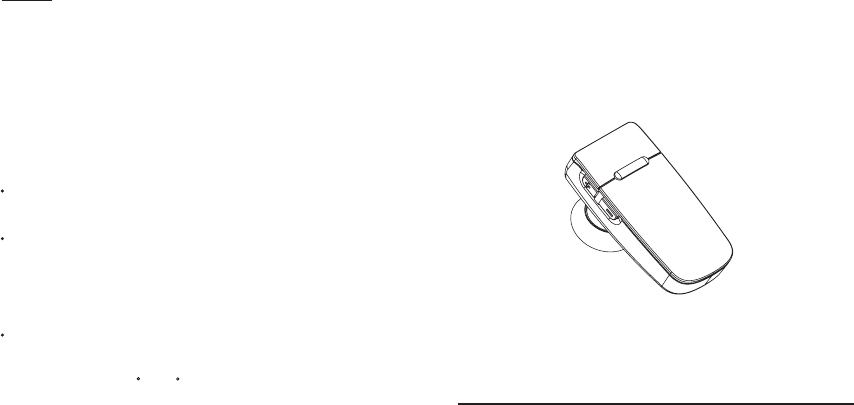
BT809X

Bluetooth earpiece. Before using it for the first
time, follow the instructions printed below.
CHARGING THE BATTERY OF THE EARPIECE
The earpiece uses a battery with high
performance
“Lithium Polymer”
technology.
inside may not be charged and it will be
necessary to charge it up.
Recharge. Connect the battery recharger to
the electric socket and to the earpiece. The
red light will come on and the recharging
process will begin. When the battery has been
recharged the light will go off. It will take
about two hours to fully recharge the battery.
almost run down, the light will flash red and a
beep will be heard in the earpiece.
NOTE: to extend the life of the battery, we
off while recharging and only recharge it
for some time, it may take a few minutes for
the red light to come on.
Status LED
Stand-by Flashing BLUE
“Find me” mode Flashing RED/BLUE
Calling Quick flashing BLUE
Battery dead Slow flashing RED
Recharge Fixed RED
SWITCHING ON, CONNECTING AND
SWITCHING OFF THE EARPIECE
Switching on.
Press the multifunction button and keep it
pressed until the blue light flashes three times
stand by.
Connecting.
briefly press the multifunction button to
connect the earpiece to the last device with
which it has been associated (only after
making the association).
and keep it pressed until the red light flashes
ASSOCIATION OF THE EARPIECE WITH A
BLUETOOTH DEVICE
Before using the Bluetooth headset, you must
associate it with the device you are going to
use it with (telephone/PC).
ASSOCIATION
the multifunction button and keep it pressed
until the light starts flashing red/blue (about
to be picked up by other devices (
“find me”
mode).
• Run the search for new Bluetooth
accessories from your device (phone/PC)*.
At the end of the search the name of our
earpiece will appear on the display (the
name may vary from device to device).
• The phone/PC will tell you that the new
bluetooth device has been associated, while
NOTE: With some phones it might be
necessary to authorise connection
from the phone.
*To make the association, follow the
instructions in the user manual supplied
with the phone or with the PC Bluetooth
Thank you for choosing the BT 809
Battery dead. When the BT 809 battery has
recommend that you leave the BT 809 switched
when it is dead. If the BT 809 has not been used
the BT 809 light will flash blue (
stand-by
).
to do so, enter the PIN 1234, then press
“OK”
.
• Select the BT Headset and, when requested
3 seconds), in this way the earpiece is ready
•Ensure that the BT 809 is switched off. Press
After switching on the BT 809,
Switching off. Press the multifunction button
Volume Up button
Volume Down and
Mute button Power On / Off
Microphone
The first time you use the earpiece, the battery
Red LED indicator
mode for a maximum of two minutes. If the
association is not completed within this
time, the earpiece will revert automatically
to
stand-by
.
After associating our earpiece with a phone it
can be used to manage calls with the various
functions supported.
ATTENTION: the possibility to use all the
functions of our earpiece depends exclusively
on the functions supported by the phone in
use (e.g.: if the phone does not support voice
calls, this function will not be available).
Answering calls. When you receive a call, the
depending on the phone) in the earpiece. Briefly
multifunction button to end the conversation.
Regulating the volume. During a
conversation or in
stand-by
mode, repeatedly
Transferring calls.
conversation from the earpiece to the
telephone and vice versa.
Earset > Mobile phone
Press and hold the
“Volume +”
button for
headset and the conversation will be
transferred to the phone.
Mobile phone > Earset
headset and the conversation will be
Voice calls. While the earpiece is in stand-by
and, when requested to do so, pronounce the
name of the person you wish to call.
ATTENTION: to use this function the name
has to be vocally recorded in the phone book
first.
“MUTE” function.
Connection. Start the connection from the
ATTENTION: it is important that the
the connection).
audio peripheral it is necessary to proceed as
follows.
• Enter the “Control Panel”.
• Select
“Sounds and multimedia”
, then select
• In the
“Sound Reproduction”
section, select
the
“Bluetooth Audio”
peripheral**.
preferred listening peripheral.
** The settings may vary depending on the
operating system.
Use with SKYPE. After connection, start the
“Skype”
system installed to use our headset
during conversation.
ATTENTION: it is necessary to have
service.
USING THE BT 809 WITH MOBILE PHONES
lower it.
the
“Audio”
folder**.
incoming volume or the
“Volume -”
button to
will be refused).
hear a beep in the earpiece and the call
press the
“Volume +”
button to increase the
to hear the tune, then press the
Using the BT 809 it is
configured a Skype account to use this
Press and hold the
“Volume +”
button for
possible, during a phone call, to transfer the
Refusing a call. When you receive a call, wait
Ending calls. During a call, briefly press the
accept the connection.
press the multifunction button to answer.
connection is made in this way. If the
BT 809 will play the tune (or the musical notes
may not be possible to use it as an audio
PC. When you hear the tune in the headset,
Recalling the last number.
Call Waiting:
During a conversation,
(about 1 second). The BT 809 will switch to
interface. The BT 809 will stay in
"Find me"
Press and hold the
“Multifunction”
button
1 second. You will hear a beep in the
1 second. You will hear a beep in the
mode, briefly press the multifunction button
reproduced using our earpiece as the
Listening to music. To use the BT 809 as an
In this way all the musical files will be
transferred to the earpiece. (With Nokia
phones all you have to do is press the
for 3 seconds. You will hear a beep in the
headset and call the last number called.
to activate
USING THE BT 809 WITH A PC
press the
“Volume -”
button for 1 second
connection is activated from the headset it
You will hear a beep in the headset and a
peripheral (in this case, disconnect and repeat
press and hold the "Multifunction" button for
contain the call waiting function.)
“Multifunction” button for 3 seconds (you will
three times (about 5 seconds).
1 second again. (Some cell phone does not
During a conversation press
call active, another call is on hold. To deactivate,
briefly press the multifunction button to
“Mute”
mode. To deactivate it
1 second again.
“Volume -”
button for
, press and hold the
multifunction button for 1 second)
and hold "Multifunction" betton for 3seconds.
BT809X

BT809X
FCC Notice to Users
The following statement applies to all
products that have
received FCC approval. Applicable
products bear the FCC
logo, and/or an FCC ID in the format
FCC-ID: TB6-BT809X
on the product label.
Perfect Tech Co., Ltd has not approved any
changes or modifications to this
device by the user. Any changes or
modifications could void the
user’s authority to operate the equipment. See
47 CFR Sec. 15.21.
This device complies with part 15 of the FCC
Rules. Operation is
subject to the following two conditions: (1) This
device may not
cause harmful interference, and (2) this device
must accept any
interference received, including interference
that may cause
undesired operation. See 47 CFR Sec.
15.19(3).
This equipment has been tested and found to
comply with the
limits for a Class B digital device, pursuant to
part 15 of the FCC
Rules. These limits are designed to provide
reasonable protection
against harmful interference in a residential
installation. This
equipment generates, uses and can radiate
radio frequency energy
and, if not installed and used in accordance
with the instructions,
may cause harmful interference to radio
communications.
However, there is no guarantee that
interference will not occur in a
particular installation. If this equipment does
cause harmful
interference to radio or television reception,
which can be
determined by turning the equipment off and
on, the user is
encouraged to try to correct the interference
by one or more of the
following measures:
‧ Reorient or relocate the receiving antenna.
‧ Increase the separation between the
equipment and the
receiver.
‧ Connect the equipment to an outlet on a
circuit different
from that to which the receiver is connected.
‧ Consult the dealer or an experienced
radio/TV technician
for help.