Philips MNT80 GCX Mounting Assembly Installation Guide User Manual Product Brochure Intelli Vue MX500 And MX550 Solution Db4640d3411c4dfc9b95a77c0159059f
MNT80 Installation Guide for AG-0018-21 HCMNT80%2DInstallation%2DNote%2Dfor%2DAG%2D0018%2D21 Philips IntelliVue MX400/MX450/MX500/MX550 GCX Variable Height and Pivot Arm Wall Mount Mounting solutionMNT80
MNT59 Installation Note for AG-0018-21 HCMNT59%2DInstallation%2DNote%2Dfor%2DAG%2D0018%2D21 IntelliVue MX500 and MX550 GCX Variable Height and Pivot Arm Wall Mounts Mounting solutionMNT59
MNT72 Installation Note for AG-0018-01 HCMNT72%2DInstallation%2DNote%2Dfor%2DAG%2D0018%2D01 IntelliVue MX500/MX550 Dräger Narkomed 6000 Anesthesia Machine Mounting solutionMNT72
User Manual: Philips MNT80 Product Brochure Philips IntelliVue MX500 and MX550 Mounting solution Philips - Philips IntelliVue MX400/MX450/MX500/MX550 - HCMNT80MNT80
Open the PDF directly: View PDF  .
.
Page Count: 5
DU-AG-0018-21 Rev F 12/11/13 GCX Corp Page 1 of 5
3875 Cypress Drive Petaluma, CA 94954 800.228.2555 707.773.1100 Fax 707.773.1180 www.gcx.com
Installation Guide
Philips IntelliVue MP5/20/30/40/50/60/70, MX400/450/500/550/600/700/800 M-Series Arm Wall Mount Kit
The purpose of this guide is to:
1. Describe attachment of Table Mount to Mounting Adapter.
2. Describe attachment of Down Post to Arm.
3. Describe mounting of Arm in Wall Channel.
4. Describe Mounting the Monitor on the Arm.
5. Describe attachment of Flexible Module Server (FMS) to Down Post.
6. Describe operation and adjustment of M-Series Arm.
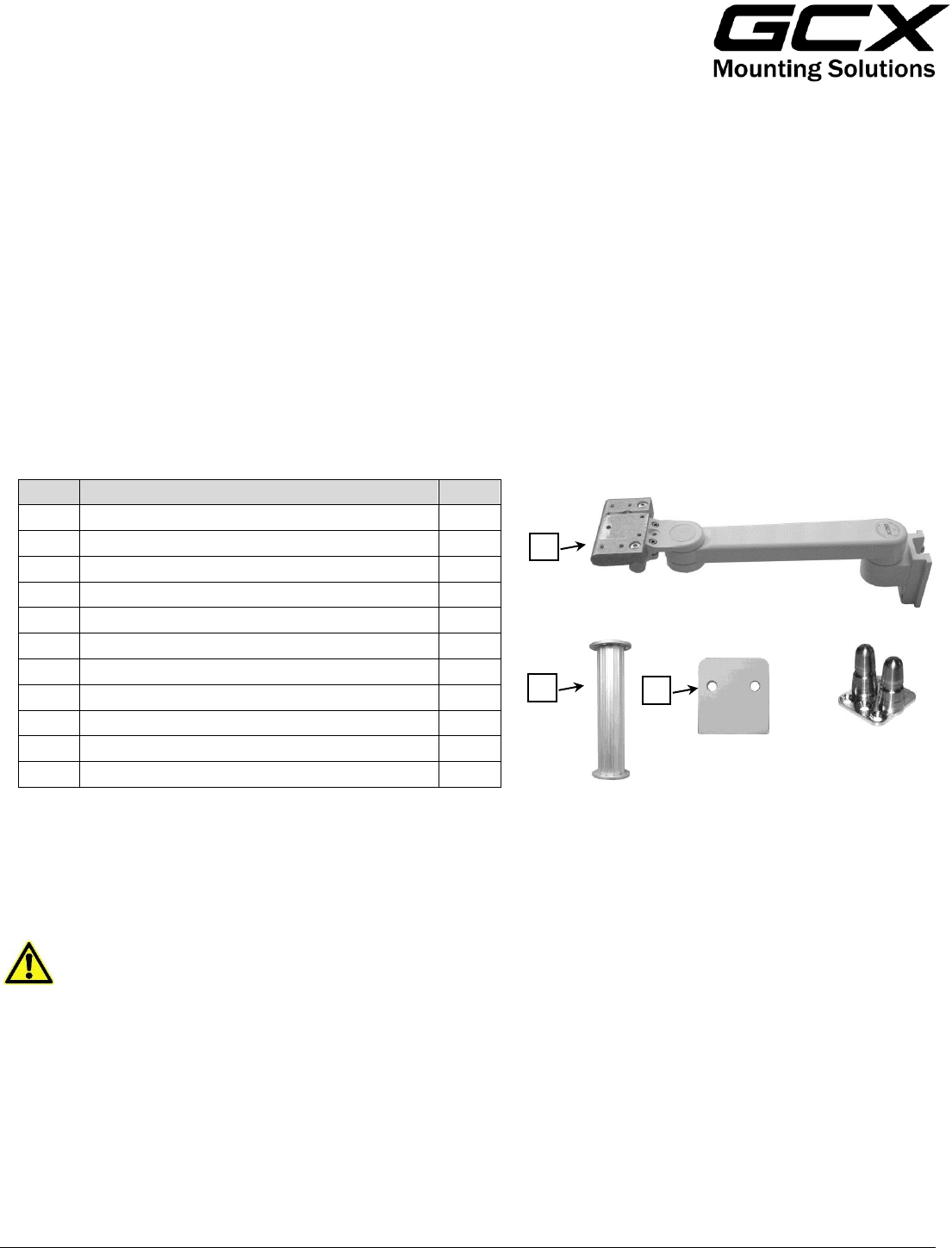
Parts Reference
The following parts and hardware are included for this installation procedure (see photos for parts; hardware not shown).
Tools Required: Phillips screwdriver (not provided), 5/32'' and 1/8'' hex wrenches (provided).
Caution - Before mounting the Arm:
1. Verify that the Channel has been installed and approved in accordance with the Channel Installation guides.
2. Ensure that the weight of the device being mounted does not exceed the load rating of your M-Series Arm. Check the
"Max Load" rating label located on top of the arm at the Slide pivot point. It is not recommended that this arm be used
for weights outside of this range.
3. If assistance is needed regarding an application, please contact a GCX product specialist at (800) 228-2555.
Item #
Description
Qty
1
M-Series Arm with Mounting Adapter
1
2
6'' Down Post Kit
1
3
#10-32 x 3/8'' Socket Head Cap Screw
3
4
M6 x 8mm Flat Head Machine Screw (FHMS)
2
5
M6 x 12mm FHMS
1
6
Adjustable Stop
1
7
5/32'' Hex Wrench
1
8
1/8'' Hex Wrench
1
9
Channel Cover, 16''
1
*10
Spacer
1
*11
M6 x 16mm Pan Head Machine Screw (PHMS)
2
*See "Non-Table Mount" at the bottom of page 3 for use of these parts.
1
2
10
Table Mount
(Supplied by Philips)
DU-AG-0018-21 Rev F 12/11/13 GCX Corp Page 2 of 5
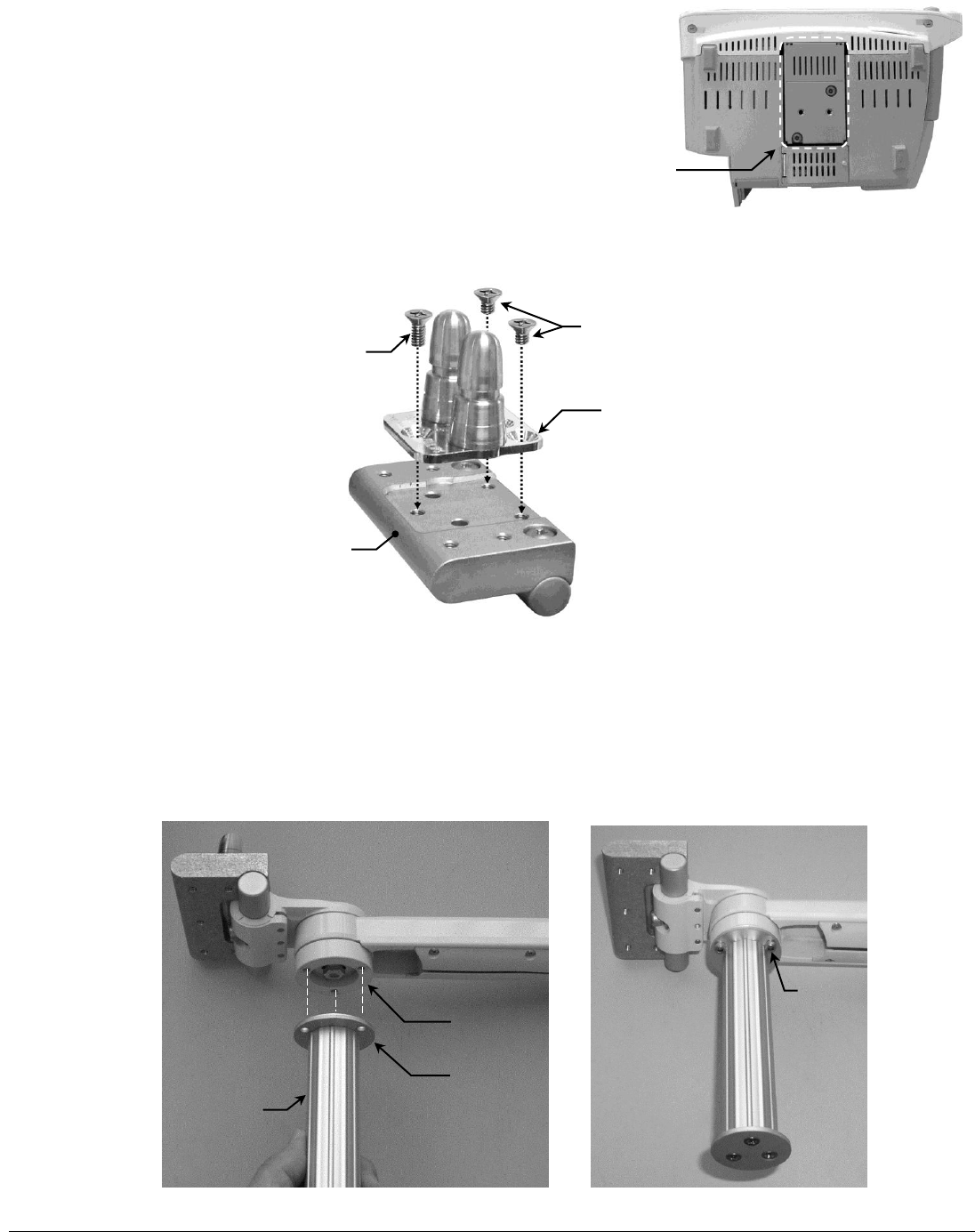
Attaching the Philips Table Mount to the Mounting Adapter
1. Fasten the Philips-supplied Table Mount to the Mounting Adapter with one (1) M6 x 12mm FHMS and two (2) M6 x
8mm FHMS (see below).
Attaching the Down Post to the Arm
Installation Note: The Down Post is used for mounting the Flexible Module Server (FMS). Skip this procedure if your
IntelliVue monitoring system does not require a Down Post or FMS.
1. Align the three (3) mounting holes in the Lower Post Disc with the three (3) threaded holes in the Swivel Cup.
2. Using the 5/32'' hex wrench, fasten Post to Swivel Cup with three (3) #10-32 x 3/8'' SHCS.
#10-32 x 3/8'' SHCS (3)
Do not attach Table Mount if Monitor is
equipped with this mounting interface.
6'' Down Post
Lower Post Disc
Swivel Cup
M6 X 8mm FHMS (2)
M6 X 12mm FHMS (1)
Mounting Adapter
Table Mount
*Supplied by Philips
Installation Note: Do not attach the Table Mount to the Arm/Mounting
Adapter if you will be mounting a monitor equipped with the mounting interface
shown in photo (right). See "Mounting the Monitor on the Arm" (page 3) for
instructions specific to this type of mounting plate.
DU-AG-0018-21 Rev F 12/11/13 GCX Corp Page 3 of 5
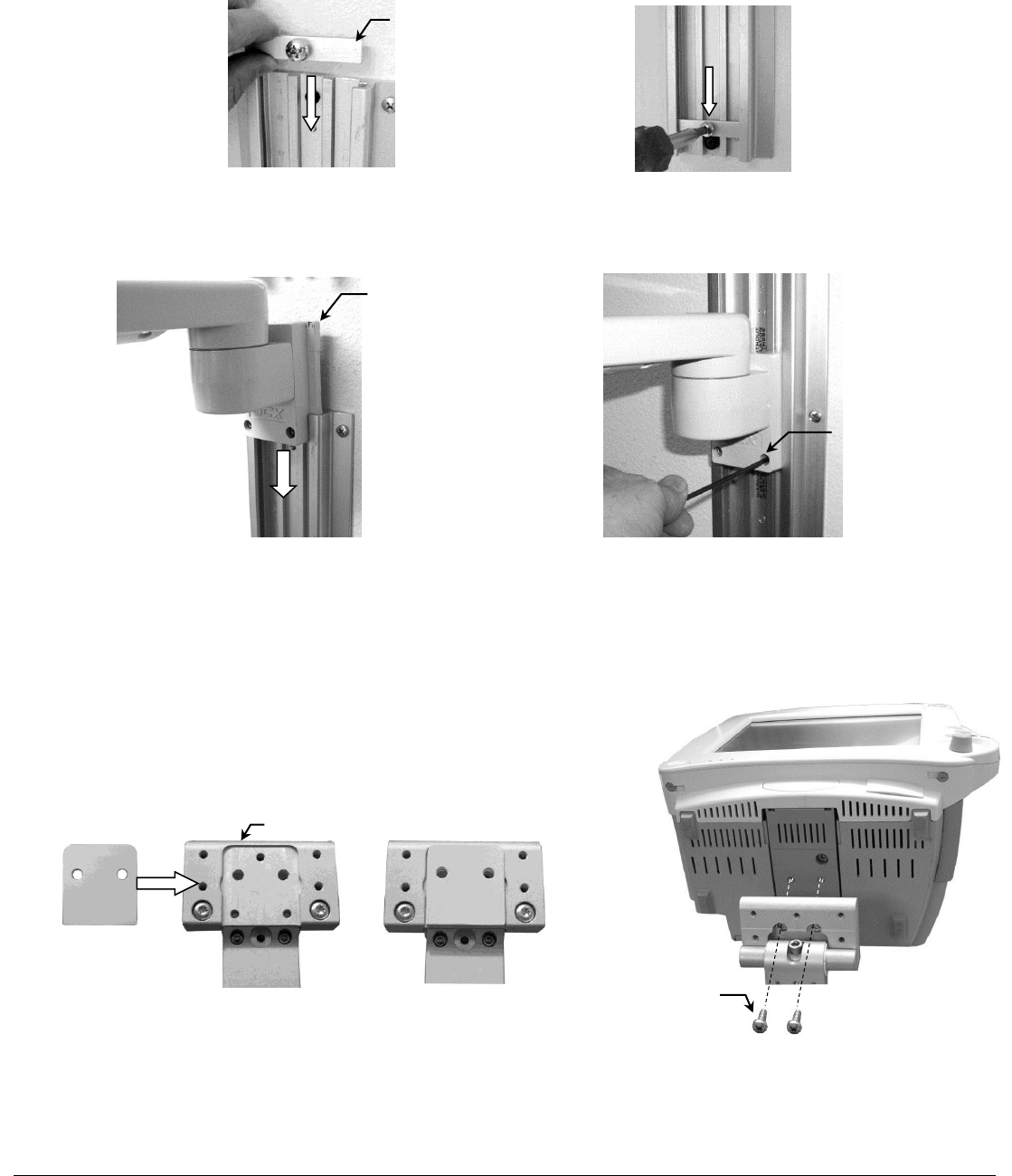
Mounting the M-Series Arm in the Wall Channel
1. Insert the Adjustable Stop in the top opening of the wall channel and slide it to the bottom of the channel. Secure the
Adjustable Stop in the channel by tightening the screw in the center of the Stop.
2. While supporting the bottom of the Arm, guide the Slide (at rear of Arm) into the top of the wall channel. Slide the Arm
to the desired position in the channel and tighten two (2) set screws (bottom of the Slide) using the 1/8'' key.
Mounting the Monitor on the Arm
Table Mount
Mount the monitor in accordance with the Philips Table Mount instruction sheet.
Non-Table Mount
1. Fit Spacer into recessed area on top of Mounting Adapter (below). Ensure
Spacer remains between Mounting Adapter and monitor.
2. Insert two (2) M6 x 16mm PHMS through bottom of Mounting Adapter and
thread into mounting holes in bottom of monitor (right).
Adjustable Stop
Slide
Set Screws (2)
Mounting Adapter
Spacer
M6 x 16 mm PHMS (2)
Mounting the MX400/450/500/550 Monitor (Fixed Mount Adapter)
Mount the monitor in accordance with separate Installation Guide DU-PH-0073-15 provided with the Mounting Adapter,
ordered separately.
Spacer
DU-AG-0018-21 Rev F 12/11/13 GCX Corp Page 4 of 5
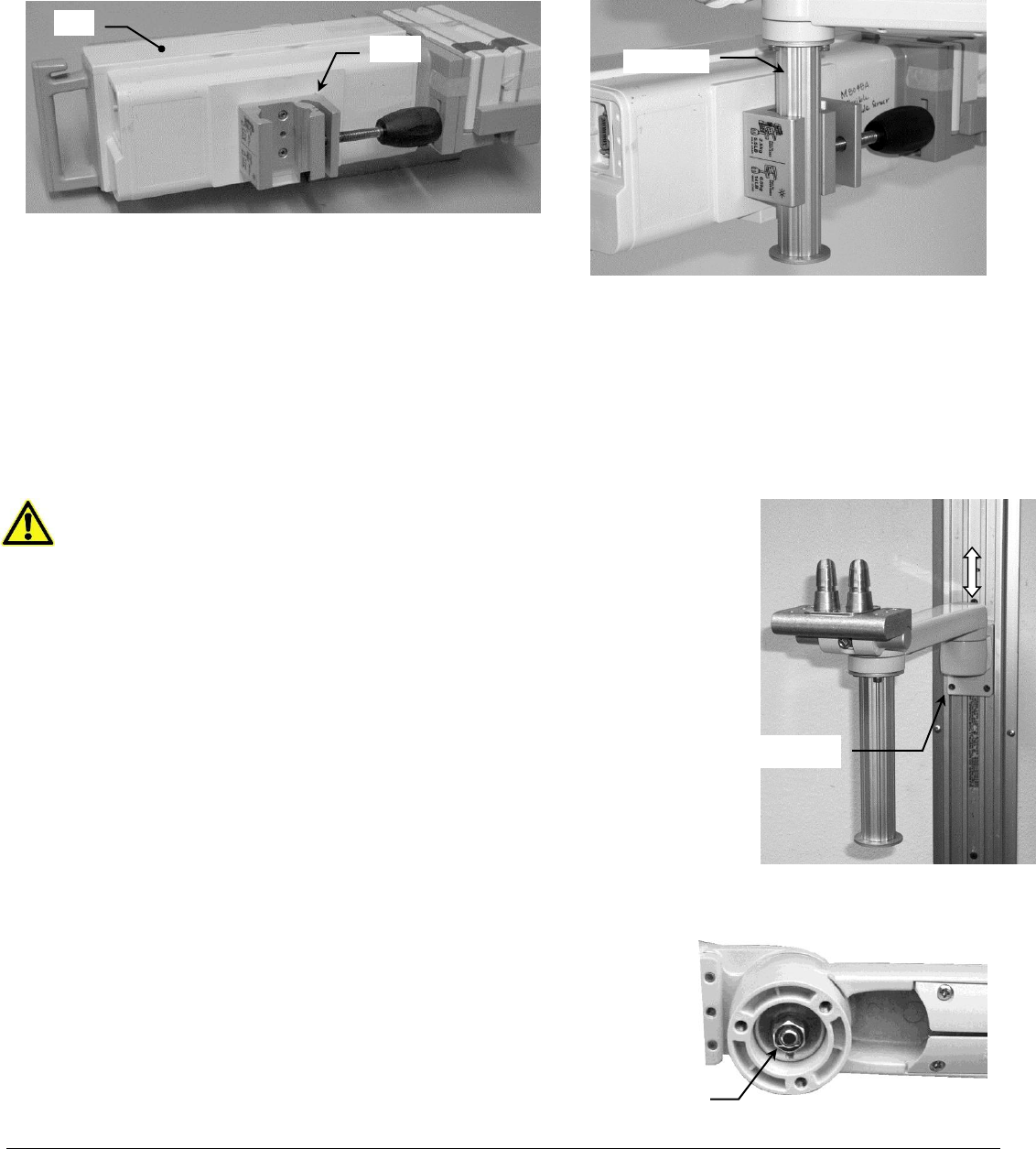
Mounting the Flexible Module Server (FMS) on the Down Post
Installation Note: This procedure is not applicable unless Down Post has been installed.
1. Mount the FMS on the Down Post by placing the Clamp around the Down Post and tightening the knob.
Installing the Wall Channel Cover
Install the Wall Channel Cover in accordance with the Channel Cover Installation Guide (DU-UT-0001-20).
M-Series Arm Operation and Adjustment
Positioning Arm in Channel
WARNING: Do not attempt to remove the Arm from the Channel while an
instrument is mounted.
1. While *supporting the weight of the mounted instrument, loosen the two (2) socket
head set screws (SHSS) in the Slide. A 1/8'' hex key is provided for this task.
2. Push up or pull down at the end of the arm nearest the Slide. Tighten the set screws to
secure the Arm in the Channel
* It may be necessary to dismount the instrument before adjusting the Arm in the Channel.
Swiveling the Mounted Instrument and Adjusting Swivel Tension
1. To swivel the mounted instrument simply push or pull the corners of the
instrument.
2. To adjust swivel tension, tighten or loosen the Swivel Tension Nut using a
1/2'' [13 mm] socket wrench or nut driver.
Socket Head Set Screws (2)
Down Post
Swivel Tension Nut
FMS
Clamp
DU-AG-0018-21 Rev F 12/11/13 GCX Corp Page 5 of 5
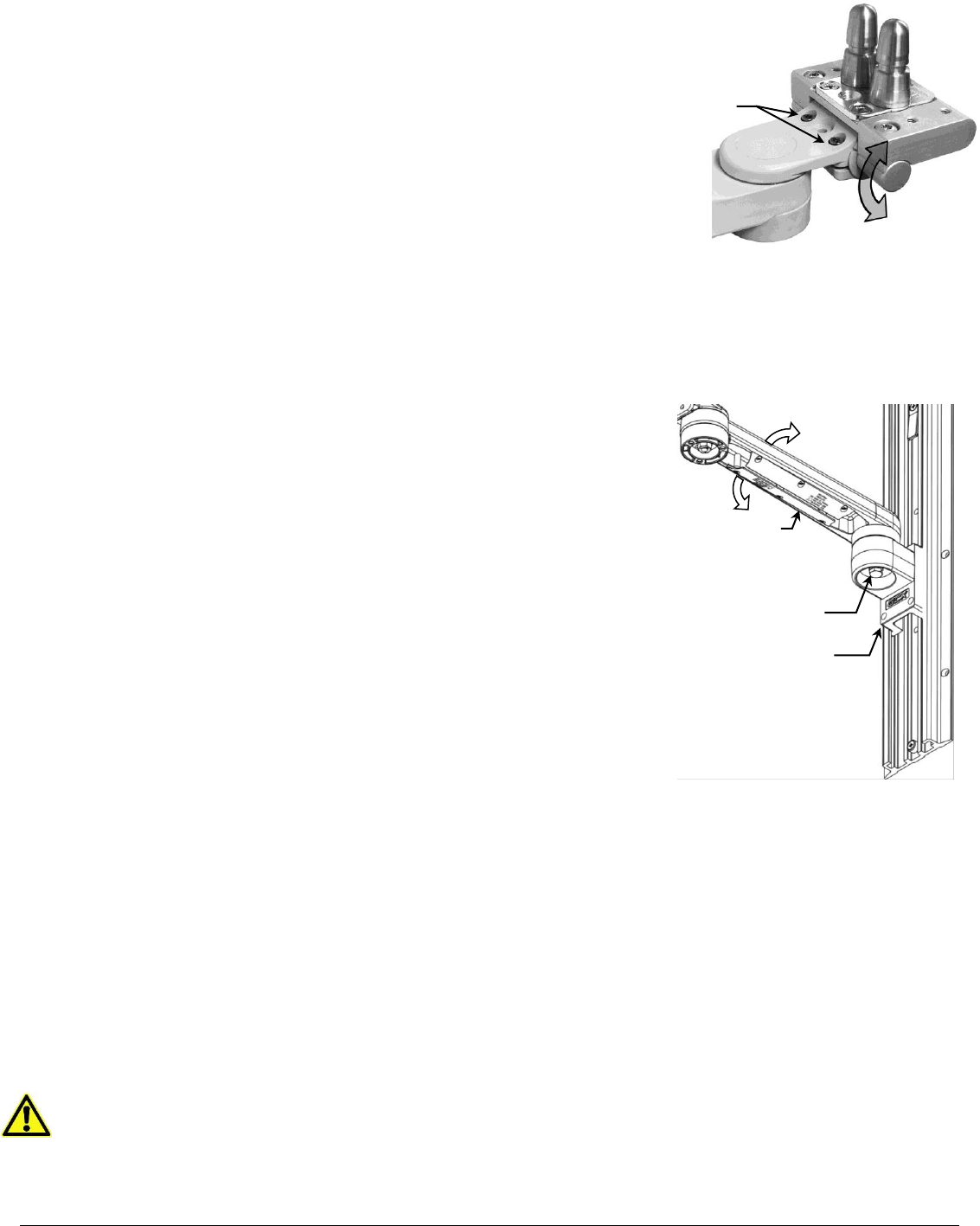
Pivot Tension Bolt
Flexible Cable Covers
Pass-through Slide
Tilting the Mounted Instrument
Installation Note: Shown without mounted device for detail purposes.
Pivoting the Arm and Adjusting Pivot Tension
1. To pivot the Arm at the Slide, simply push on the side of the Arm or mounted instrument.
2. To adjust pivot tension, loosen or tighten the Pivot Tension Bolt using a 1/2" [13 mm] socket driver.
Cable Management
Two cable management features allow convenient placement and flow of
cables:
1. An open cavity beneath the arm (with flexible cable covers) allows
management of cables between the front and rear of the arm.
2. A “pass-through” channel at the rear of the slide allows cables to pass
behind the arm within the Channel.
Installation Note: If cable connectors are too large to fit through the
pass-through, try placing the cables in the "pass-through" before installing
the arm in the Channel.
Routine Maintenance
Periodically inspect all tilting, swiveling, pivoting, and mounting hardware. Tighten
as necessary for optimal operation and safety.
Cleaning the Mounting Assembly
1. The mounting assembly may be cleaned with most mild, non-abrasive solutions commonly used in the hospital
environment (e.g. diluted bleach, ammonia, or alcohol solutions).
2. The surface finish will be permanently damaged by strong chemicals and solvents such as acetone and
trichloroethylene.
3. Do not use steel wool or other abrasive material to clean the mounting assembly.
4. Damage caused by the use of unapproved substances or processes will not be covered by warranty. We recommend
testing of any cleaning solution on a small area of the arm that is not visible to verify compatibility.
5. Do not submerge or allow liquids to enter the arm. Wipe any cleaning agents off of the arm immediately using a water-
dampened cloth. Dry the arm thoroughly after cleaning.
CAUTION: GCX makes no claims regarding the efficacy of the listed chemicals or processes as a means for
controlling infection. Consult your hospital’s infection control officer or epidemiologist. To clean or sterilize mounted
instruments or accessory equipment, refer to the specific instructions delivered with those products.
1. To tilt the instrument, grasp the top and bottom of the instrument
and tilt it to the desired angle.
2. To adjust tilt tension, equally tighten or loosen the two (2) Tilt
Tension Adjustment screws using the 5/32'' hex wrench provided.
Tilt Tension Screws (2)
