Phychips A100U SMART RFID DONGLE READER User Manual FCC ARETE POP User Guidex
Phychips Inc. SMART RFID DONGLE READER FCC ARETE POP User Guidex
Phychips >
User Manual
User Guide
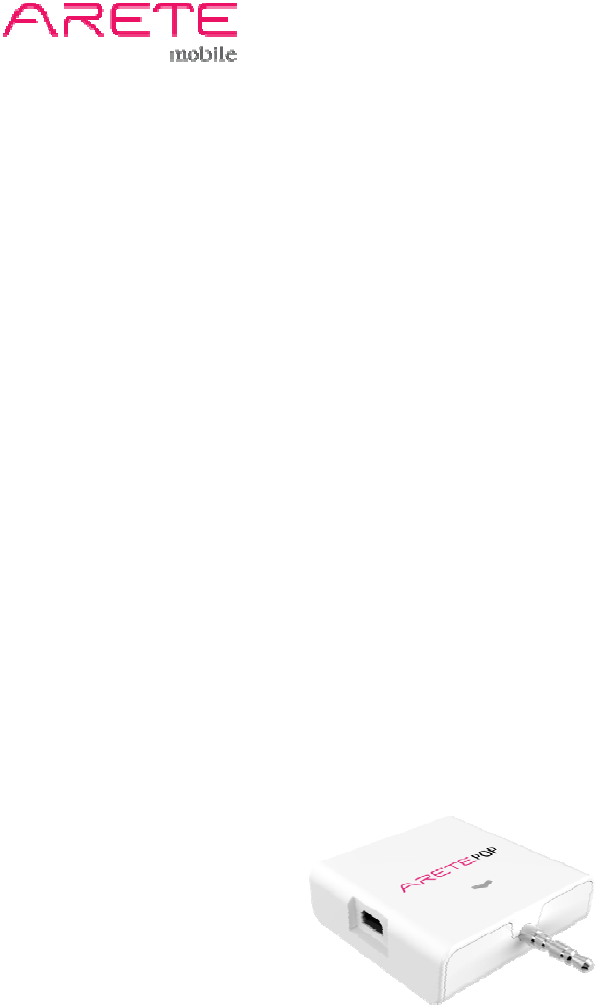
ARETE POP
Smart RFID Dongle Reader

ARETE POP User Guide
2 / 17
Contents
1 Understanding ARETE POP ............................................................................. 3
1.1 ARETE POP at a Glance .................................................................................. 3
1.2 Accessories ...................................................................................................... 3
2 Basics ................................................................................................................. 4
2.1 Activating .......................................................................................................... 4
3 How to use iPhone application ........................................................................ 5
3.1 How to install application in your iPhone ...................................................... 5
3.2 Main Display ..................................................................................................... 6
3.3 Inventory ........................................................................................................... 7
4 How to use Android application ....................................................................... 8
4.1 How to install application in your Android Phone ........................................ 8
4.2 Main Display ..................................................................................................... 9
4.3 Inventory .......................................................................................................... 11
4.4 Additional Functions ..................................................................................... 12
ARETE POP User Guide
3 / 17
1 Understanding ARETE POP
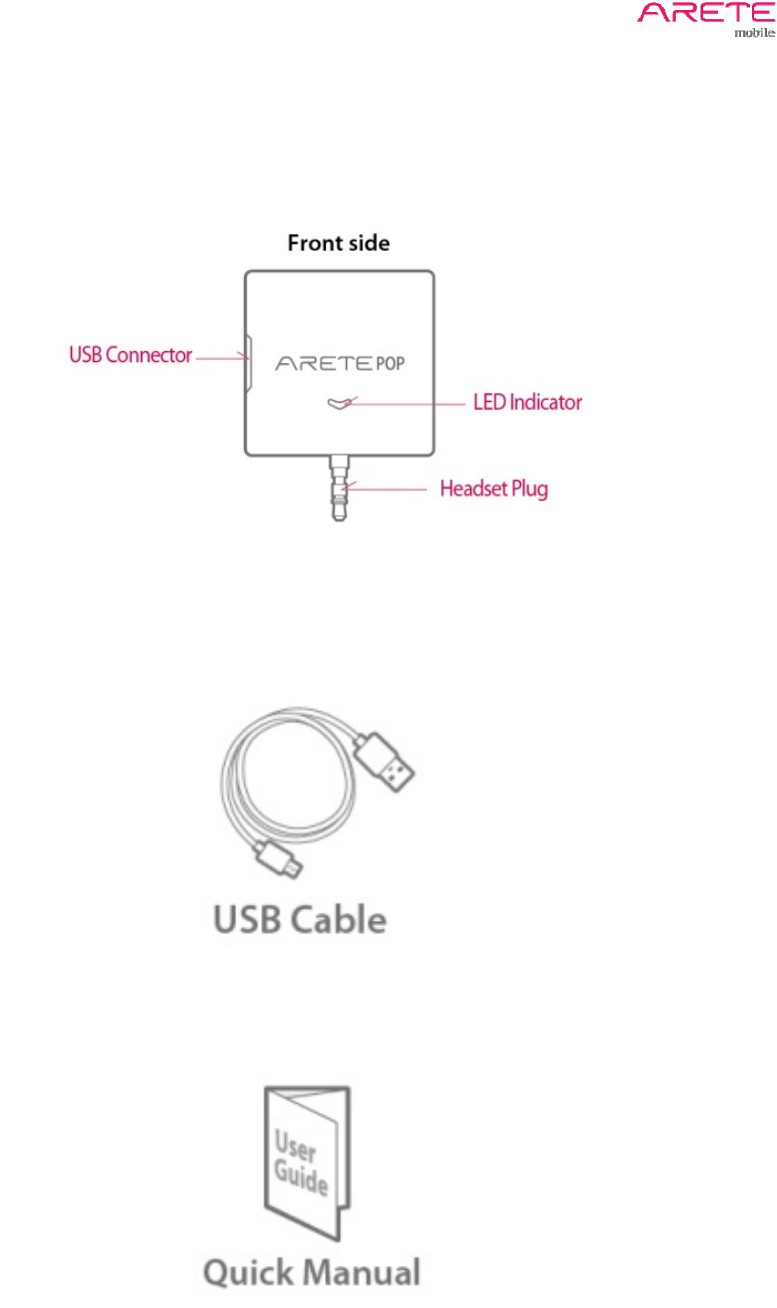
1.1 ARETE POP at a Glance
1.2 Accessories
ARETE POP User Guide
4 / 17
2 Basics
2.1 Activating
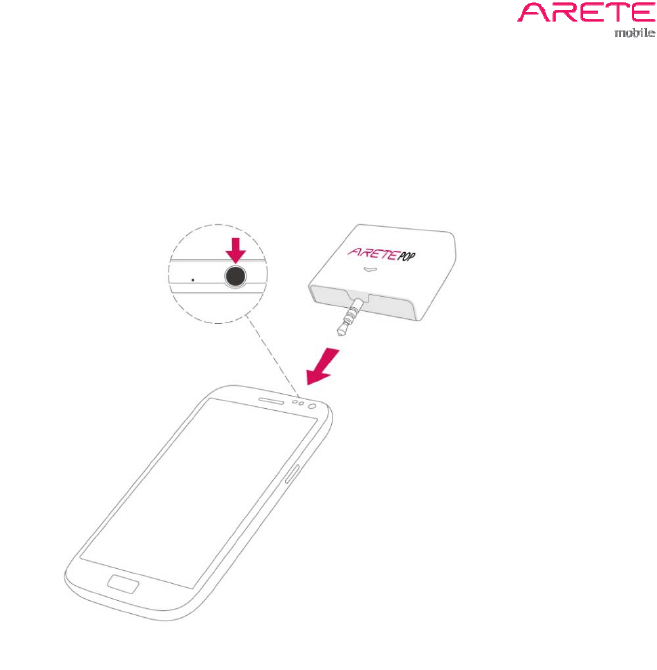
1. Insert ARETE POP RFID Reader to your Phone's headphone jack.
2. Turn volume up to 100%.
3. Switch the button to "On" in App.
4. LED indicator will be turned on in blue color.
ARETE POP User Guide
5 / 17
3 How to use iPhone application
3.1 How to install application in your iPhone
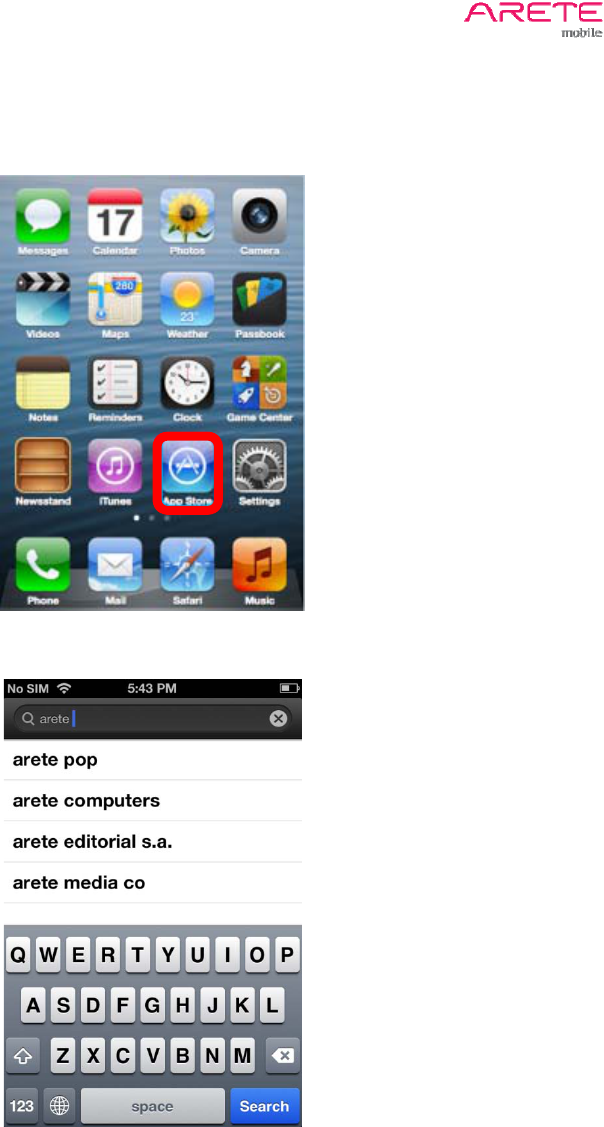
1. Select App Store
2. Search ARETE POP application and install it.
ARETE POP User Guide
6 / 17
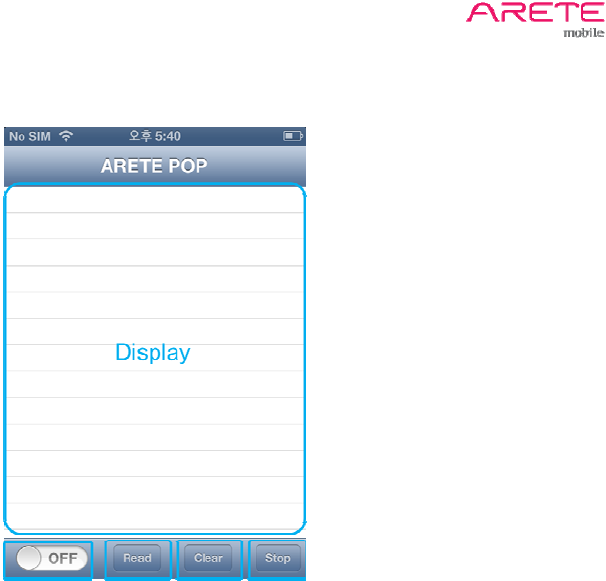
3.2 Main Display
- Switch: Turn on or off the Reader
- Read Button: Start to read “Tag EPC”
- Clear Button: Remove Read Record
- Stop Button: Stop Tag Reading
- Display: Show Tag Read Record
ARETE POP User Guide
7 / 17
3.3 Inventory
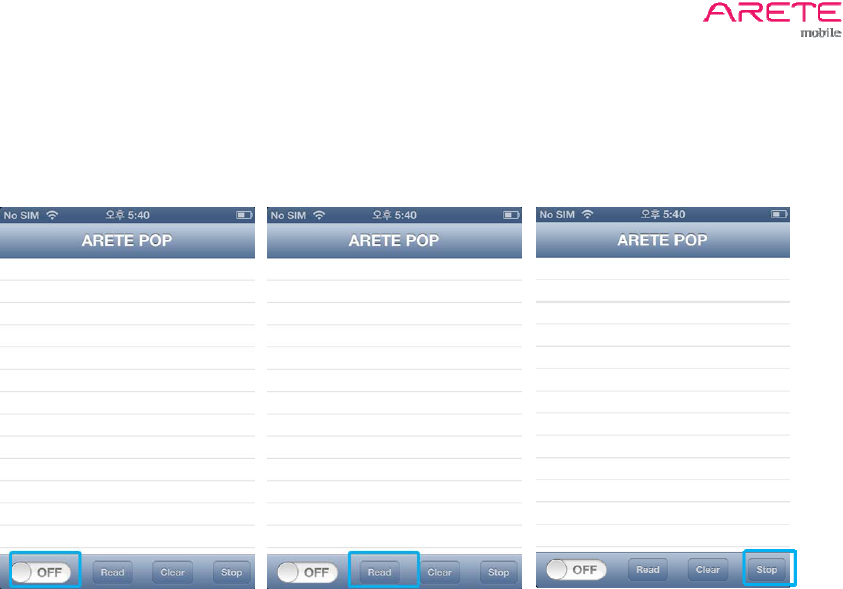
1. Switch the button to "On"
2. Touch Read button to inventory tag continuously
3. Touch Stop button to finish inventory tag
ARETE POP User Guide
8 / 17
4 How to use Android application
4.1 How to install application in your Android Phone
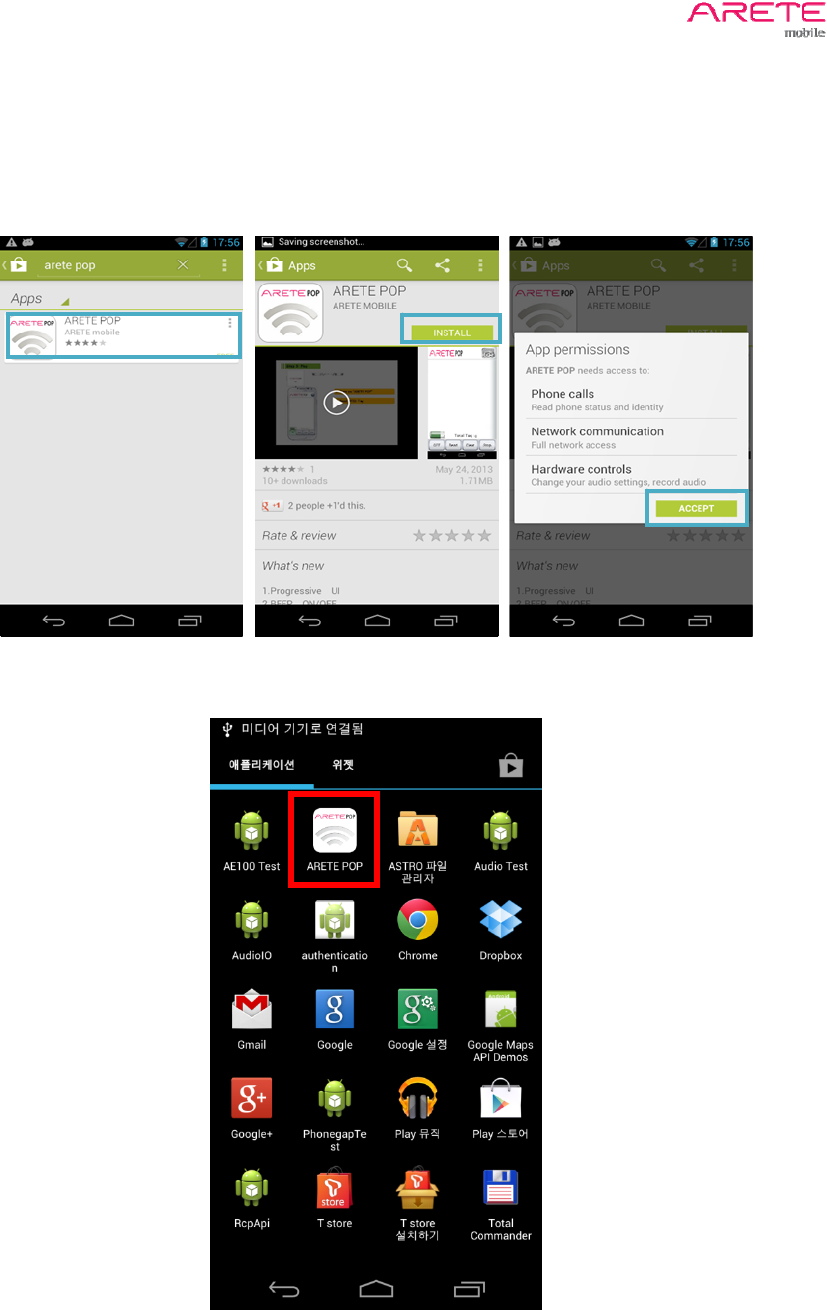
1. Connect your phone to Google Play Store.
2. Search “ARETE POP” and touch install.
3. ARETE POP app touch your phone.
ARETE POP User Guide
9 / 17
4.2 Main Display
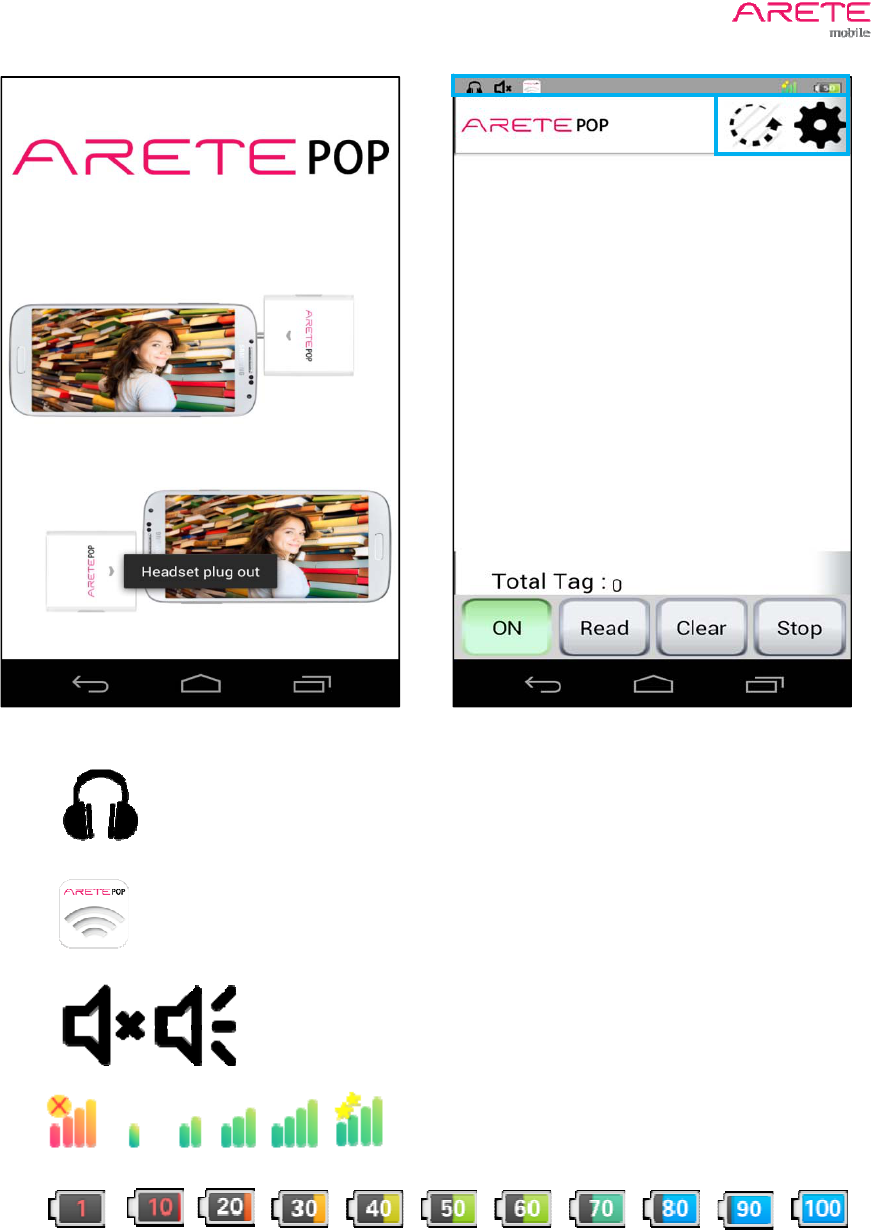
- State bar : Pop Connect, Beep on/off, ARETE POP on/off, ARETE POP Battery, TX output power
ARETE POP Connected
ARETE POP On
ARETE POP Beep off/on
ARETE POP Tx power (20,21,22,23,24,25 dBm)
ARETE POP Battery (1,10,20,30,40,50,60,70,80,90,100 %)

ARETE POP User Guide
10 / 17
- On/Off Switch: Turn on or off the Reader
- Start Reading Button: Start to read “Tag EPC”
- Stop Read Button: Stop Tag Reading
- Clear List Button: Remove Read Record
- Display: Show Tag Read Record
- Display rotation
Rotation display 90 degree.
- Additional Functions: Setting and functions
Go to Setting Menu.

ARETE POP User Guide
11 / 17
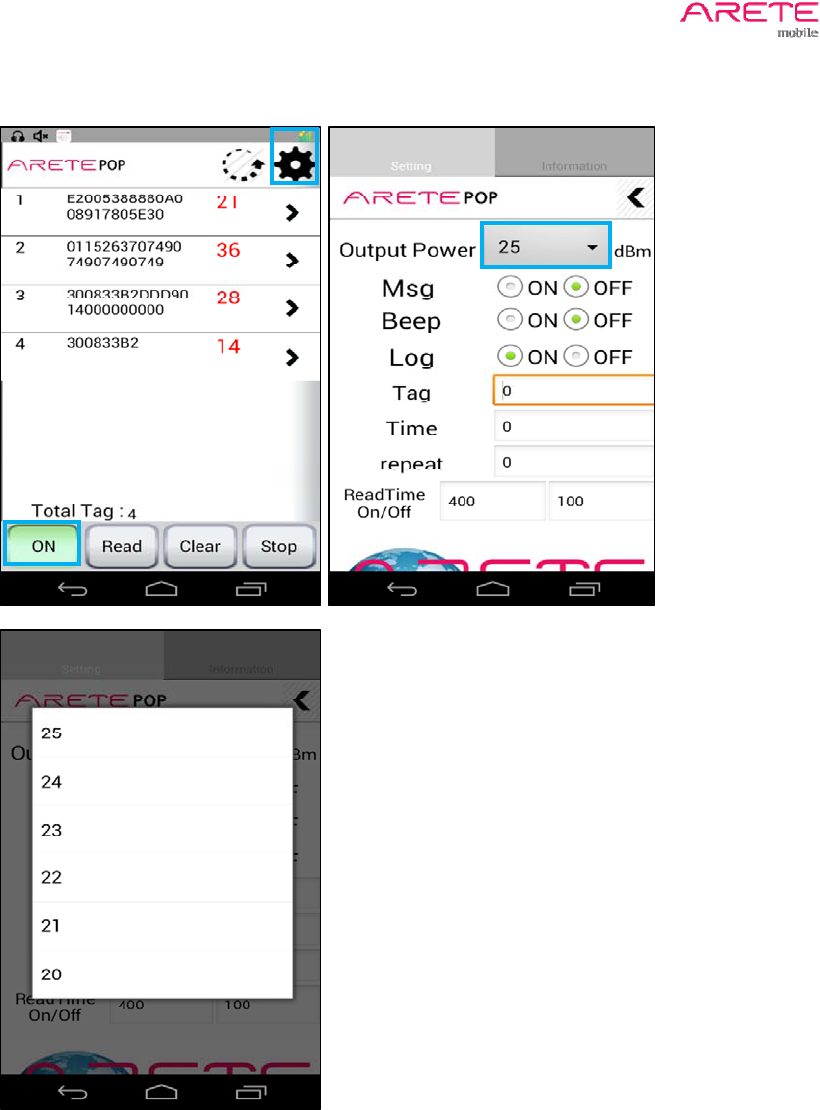
4.3 Inventory
1. Touch On/Off switch to power on the reader
2. Touch Start Reading button to inventory tag continuously
3. Touch Stop Read button to finish inventory tag
ARETE POP User Guide
12 / 17
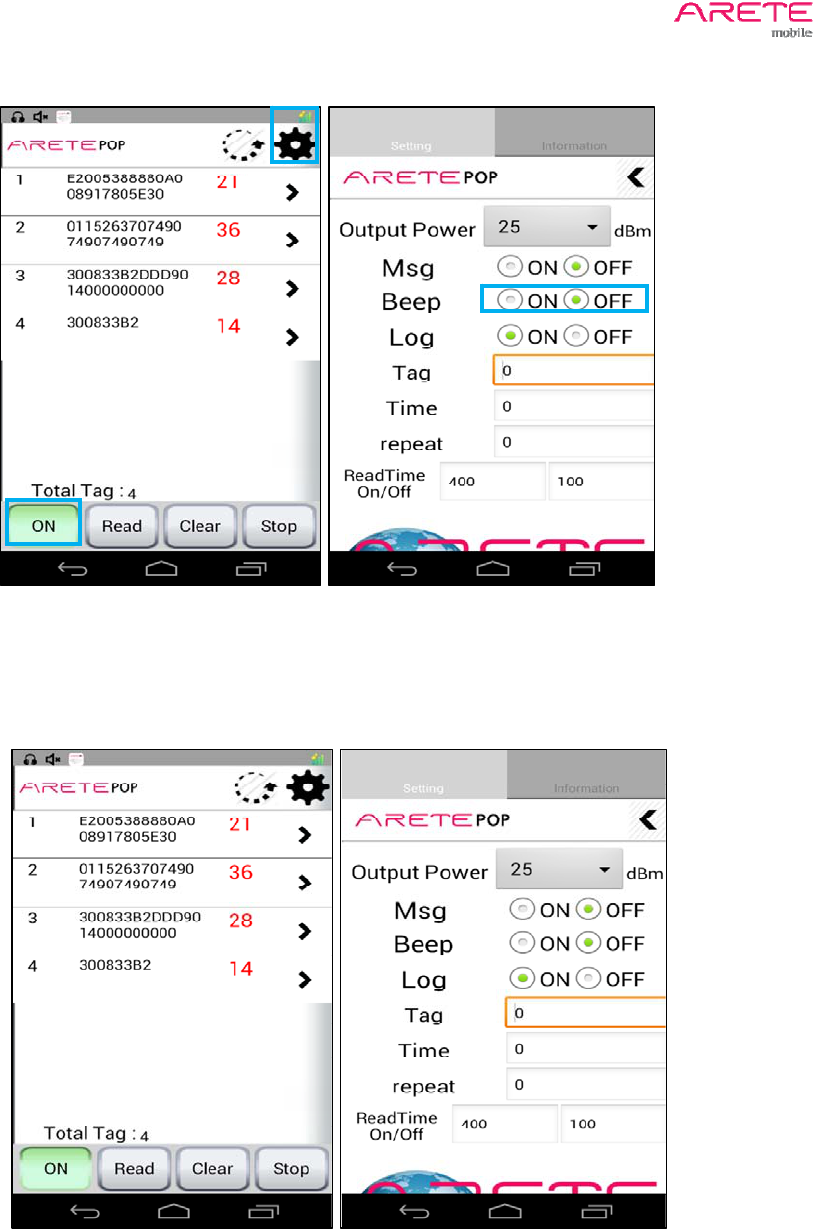
4.4 Additional Functions
1. Setting for output power
ARETE POP User Guide
13 / 17
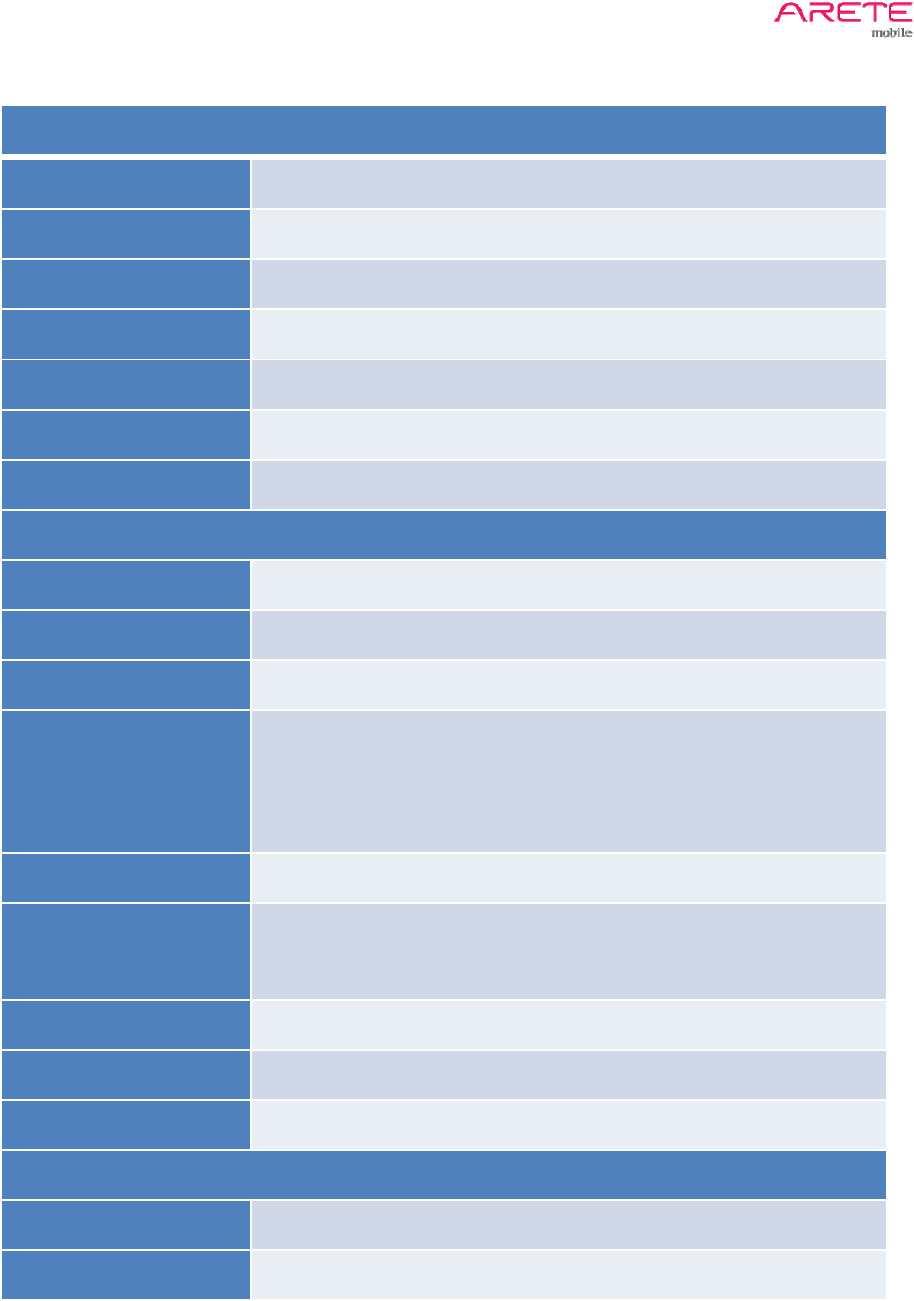
2. Set Beep
3. ReadTime On/Off
Read on : 400ms , Read off : 100ms

ARETE POP User Guide
14 / 17
4. Save the RCP log Mod
You can save the RCP log data into a .csv(EXCEL) file
Default = off
SavePath = yourPhone/sdcard/ARETE/POPLOG_yourPhoneModel_time.csv
5. Reader information
1. click tab ‘information’
2. Show Your ARETE POP information
ARETE POP User Guide
15 / 17
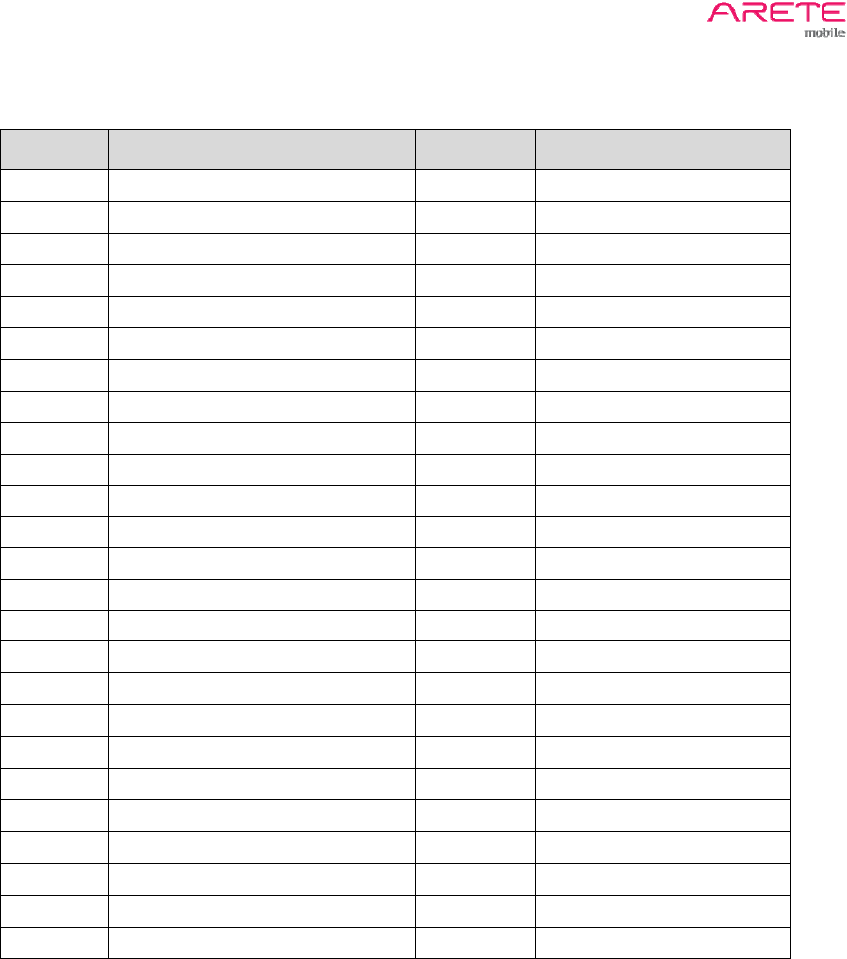
Specifications
PHYSICAL
Dimension(WxLxH) 51 x 50 x 15 mm (without plug), 51 x 67.5 x 15 mm (with plug)
Weight 30g
Indication Power on LED(Blue), Charging LED(Red), Tagging(Blue blinking)
Battery 360mAh
Continuous Time 2.0 hours
Charging Micro USB 5pin
Color White
RFID PERFORMANCE
RFID Reader Chip PHYCHIPS PR9200
Air Protocol ISO 18000-6C/ EPC Class1 Gen 2
Interface 3.5mm stereo headphone jack
Part No. &
Operating Frequency
A100-U: 917.1 ~ 926.9 MHz (US Band)
A100-E: 865.1 ~ 867.9 MHz (EU Band)
A100-J: 916.8 ~ 923.4 MHz (Japan Band)
OS Apple iOS 5.0, Android 2.3.3 above (as of May 31st 2013)
Output (EIRP) 316mW(25dBm) for US, EU band
200mW(23dBm) for Japan band
RFID Read Distance Up to 1.0m (depend on tags)
Antenna Circularly Polarized Antenna
Tag Read, Write, Lock, Kill
USER ENVIRONMENT
Operating Temp 0~40˚C
Storage Temp -20~60˚C
ARETE POP User Guide
16 / 17
Channel Number Table
Channel Channel Frequency Channel Channel Frequency
1 917.10 MHz 26 922.10 MHz
2 917.30 MHz 27 922.30 MHz
3 917.50 MHz 28 922.50 MHz
4 917.70 MHz 29 922.70 MHz
5 917.90 MHz 30 922.90 MHz
6 918.10 MHz 31 923.10 MHz
7 918.30 MHz 32 923.30 MHz
8 918.50 MHz 33 923.50 MHz
9 918.70 MHz 34 923.70 MHz
10 918.90 MHz 35 923.90 MHz
11 919.10 MHz 36 924.10 MHz
12 919.30 MHz 37 924.30 MHz
13 919.50 MHz 38 924.50 MHz
14 919.70 MHz 39 924.70 MHz
15 919.90 MHz 40 924.90 MHz
16 920.10 MHz 41 925.10 MHz
17 920.30 MHz 42 925.30 MHz
18 920.50 MHz 43 925.50 MHz
19 920.70 MHz 44 925.70 MHz
20 920.90 MHz 45 925.90 MHz
21 921.10 MHz 46 926.10 MHz
22 921.30 MHz 47 926.30 MHz
23 921.50 MHz 48 926.50 MHz
24 921.70 MHz 49 926.70 MHz
25 921.90 MHz 50 926.90 MHz

ARETE POP User Guide
17 / 17
For body worn operation, this device has been tested and meets the FCC RF exposure
guidelines when a minimum distance of 0cm from user`s body.
CAUTION : Any changes or modifications in construction of this device which are not
expressly approved by the party responsible for compliance could void the user's authority to
operate the equipment
User Information
This device may generate or use radio frequency energy. Changes or modifications to this
equipment may cause harmful interference unless the modifications are expressly approved
in the instruction manual. The user could lose the authority this equipment if an unauthorized
change or modification is mode.
Note : This equipment has been tested and found to comply with the limits for a Class B
digital device, pursuant to part 15 of the FCC Rules. These limits are designed to provide
reasonable protection against harmful interference in a residential installation This
equipment generates, uses and can radiate radio frequency energy and, if not installed and
used in accordance with the instructions, may cause harmful interference to radio
communications, However, there is no guarantee that interference will not occur in a
particular installation. If this equipment does cause harmful interference to radio or television
reception, which can be determined by turning the equipment off and on, the user is
encouraged to try to correct the interference by one or more of the following measures:
- Reorient or relocate the receiving antenna.
- Increase the separation between the equipment and receiver.
- Connect the equipment into an outlet on a circuit different from that to which the receiver is
connected.
- Consult the dealer or an experienced radio/TV technician for help.
The device complies with Part 15 of the FCC’s Rules. Operation is subject to the following
two Conditions: 1. This device may not cause harmful interference, and 2. This device must
accept any interference received, including interference that may cause undesirable
operation.
We declare that this device is compliance with the essential requirements and other relevant
provisions of directive 1999/5/EC.