User Manual

RED5 User’s Manuals

8 August 2017
2 of 12
RED5 User’s Manuals -
Preliminary Version
Contents
1 Pin Description .................................................................................................................................. 3
1.1 RED5 Pin Description.......................................................................................................................... 3
2 Operation Method .............................................................................................................................. 5
2.1 Power Supply ...................................................................................................................................... 5
2.2 UART ................................................................................................................................................... 5
2.3 RF In/Out ............................................................................................................................................. 6
2.4 GUI control .......................................................................................................................................... 6
3 Specification .................................................................................................................................... 11
8 August 2017
3 of 12
RED5 User’s Manuals -
Preliminary Version
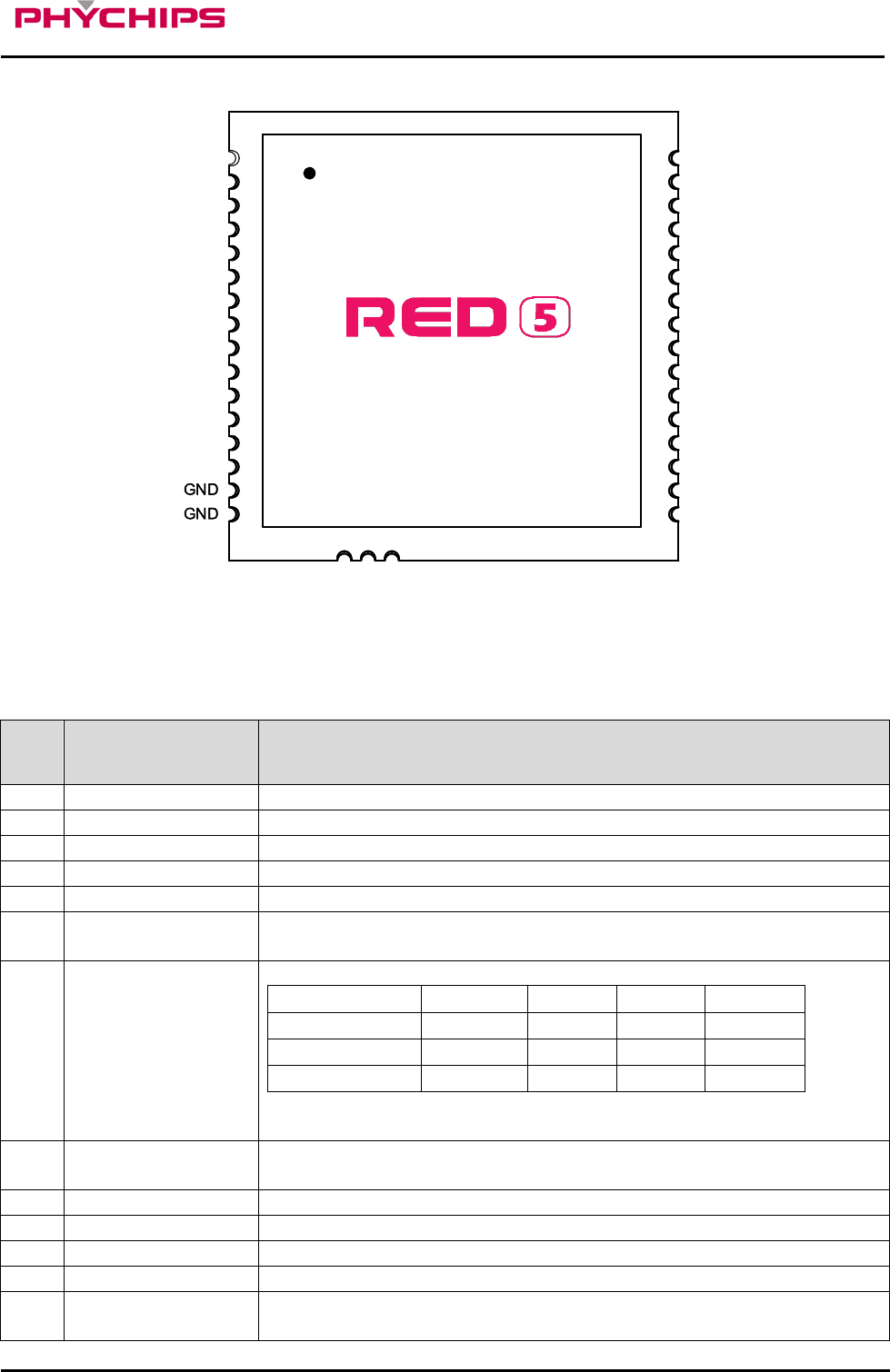
1 Pin Description
GND
RF IO
GND
1
2
3
4
5
6
7
8
9
10
11
12
13
14
15
16
17
18
19
20
21
22
23
24
25
26
27
28
29
30
31
32
33
34
35
VO UT3 3
GND
P13_RXD1
P01_TXD0
RESETb
SWCLK
SWDIO
ENABLE
ISP_MODEb
CSE
NC
P15
P16
P17
P12_SCL
P11_SDA
P00_RXD0
P14_TXD1
GND
GND
GND
VO UT3 0
GND
VCCIN
VCCIN
GND
GND
GND
VCCIN
VCCIN
GND
RF IO
GND
1
2
3
4
5
6
7
8
9
10
11
12
13
14
15
16
17
18
19
20
21
22
23
24
25
26
27
28
29
30
31
32
33
34
35
VO UT3 3
GND
P13_RXD1
P01_TXD0
RESETb
SWCLK
SWDIO
ENABLE
ISP_MODEb
CSE
NC
P15
P16
P17
P12_SCL
P11_SDA
P00_RXD0
P14_TXD1
GND
GND
GND
VO UT3 0
GND
VCCIN
VCCIN
GND
GND
GND
VCCIN
VCCIN
Figure 1 Pin Description
1.1 RED5 Pin Description
No. Pin Name Description
1
VOUT33
Internal LDO 3.3V output for PR9200 SOC
2
GND
Ground
3
RESETb
Reader SOC Reset signal 0: reset
4
SWDIO
Serial Wire Debug data in out
5
SWCLK
Serial Wire Debug Clock
6 ENABLE
Enable pin for RED5. It turns on/off internal LDOs
Logic high : enable, Logic low : disable (POWER DOWN)
7 ISP_MODEb
When ISP_MODEb is Logic ‘L’, ISP mode is set as shown below table
Pin No.
7
12
11
10
Pin Name
ISP_MODEb
P17
P16
P15
Normal
1
GPIO/INT
GPIO/INT
GPIO/INT
FLASH UART ISP
0
0
0
0
[CAUTION] Except ISP mode, ISP_MODEb should be set “high” for robust
stability for FLASH memory
8 CSE
Chip Select Enable. Internally connected to VCC33.
For the power control of RED5, use ENABLE pin
9
NC
Not Connection
10
P15
User configurable general purpose I/O port
11
P16
User configurable general purpose I/O port or External Interrupt 4
12
P17
User configurable general purpose I/O port or External Interrupt 5
13 P12_SCL
User configurable general purpose I/O port or I2C Clock
The pull-up resistor is always switched on.
8 August 2017
4 of 12
RED5 User’s Manuals -
Preliminary Version
Reserved Address : 0x70, 0x71
14 P11_SDA
User configurable general purpose I/O port or I2C Data In / Out
The pull-up resistor is always switched on.
Reserved Address : 0x70, 0x71
15
GND
Ground
16
GND
Ground
17
GND
Ground
18
RF IO
RF input/output. Antenna port
19
GND
Ground
20
VCCIN
DC power input for module and PA
21
VCCIN
DC power input for module and PA
22
GND
Ground
23
GND
Ground
24
GND
Ground
25
VCCIN
DC power input for module and PA
26
VCCIN
DC power input for module and PA
27
GND
Ground
28
VOUT30
Internal LDO output for PA BIAS
29
GND
Ground
30
GND
Ground
31
GND
Ground
32
P14_TXD1
User configurable general purpose I/O port or UART1 Output
33
P13_RXD1
User configurable general purpose I/O port or UART1 Input
34
P01_TXD0
User configurable general purpose I/O port or UART0 Output
35
P00_RXD0
User configurable general purpose I/O port or UART0 Input
8 August 2017
5 of 12
RED5 User’s Manuals -
Preliminary Version
2 Operation Method
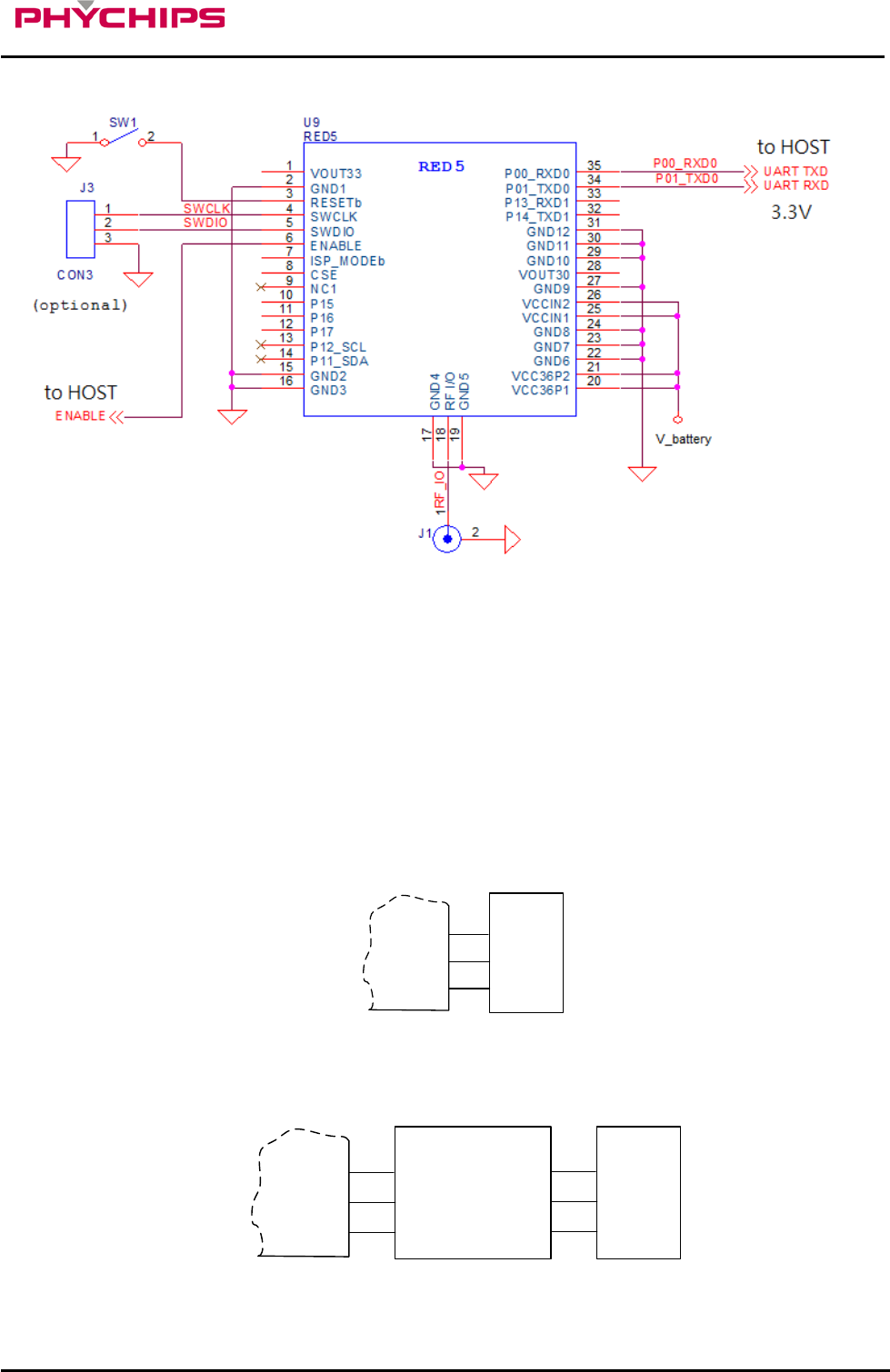
Figure 2 Application Circuit
2.1 Power Supply
DC power for RED5 is VCCIN (pin21,22,25,26). There are 2 LDO inside module. One is to supply for PR9200
which DC voltage is 3.3 volts (typ.). The other is to supply for VBIAS for power amp which is 3.0V. VCCIN is
connected to input of LDOs. Total current consumption of RED5 is typically 1.37A at 30dBm Tx CW output
power.
2.2 UART
The serial interface is assigned with two wires. RXD0, which pin is assigned to pin 35, is for receiving
command from host and TXD0, which pin is assigned to pin 34, is for transmitting response to host. Pin
connection is shown as below figure.
Host MCU
TXDx
RXDx
GND
TXD
RXD
GND
RED5
Figure 3 Host MCU Connection
RS232C transceiver is required to interface with PC that connection diagram is shown as below figure
RS232C Tranceiver
TXDx
RXDx
GND
RXOUT
TXIN
GND
TXOUT
RXIN
GND
PC
TXD
RXD
GND
RED5
Figure 4 USB transceiver Connection
8 August 2017
6 of 12
RED5 User’s Manuals -
Preliminary Version
Following configuration is used for interfacing to USB transceiver.
USB Tranceiver
TXDx
RXDx
GND
RXOUT
TXIN
GND
D+
VBUS
GND
USB
D-
D+
VBUS
GND
D-
RED5
Figure 5 USB transceiver connection
2.3 RF In/Out
RF I/O which assigned to Pin 18 is optimized with 50ohm impedance.
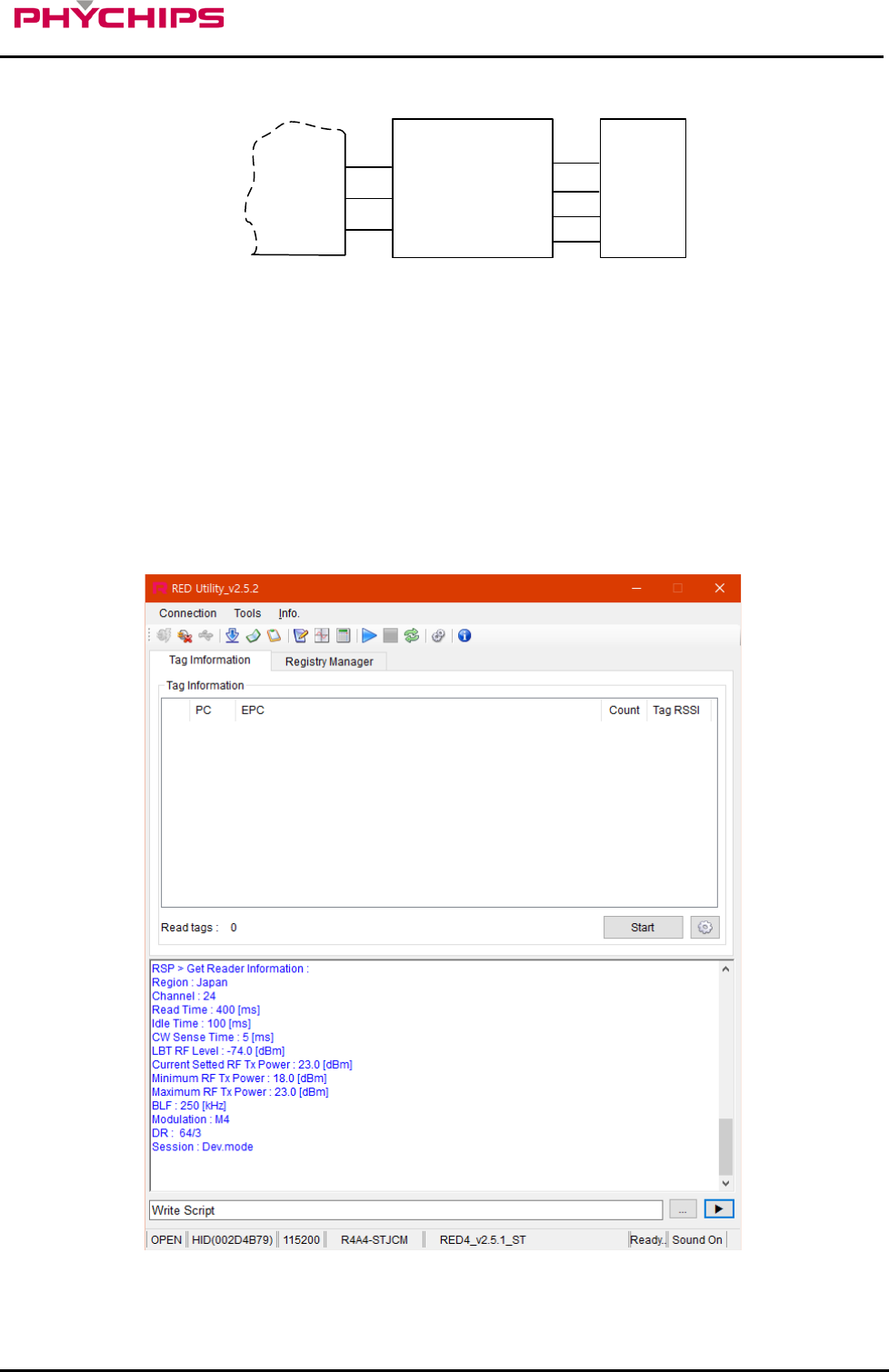
2.4 GUI Control
The RED Utility helps the user to start working with RED DK RFID reader quickly.
Follow below steps to run GUI.
Windows Start button Program Menu RED Utility_vX.X.X
Figure 6 RED Utility_vX.X.X
8 August 2017
7 of 12
RED5 User’s Manuals -
Preliminary Version
2.4.1 Mode Change
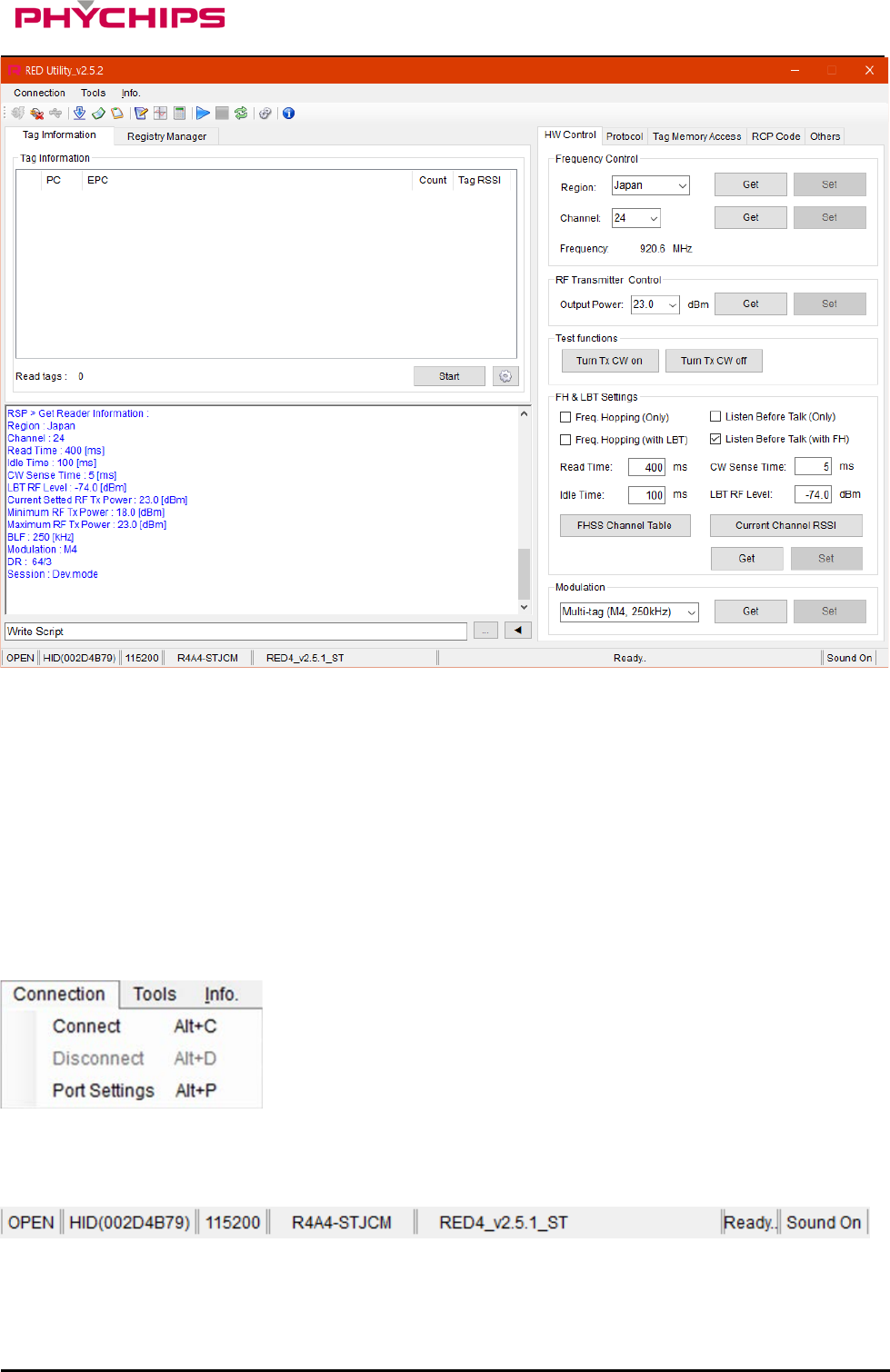
RED Utility provides two view modes. User can select view mode depending on purpose of use between
Basic View Mode and Extended View Mode.
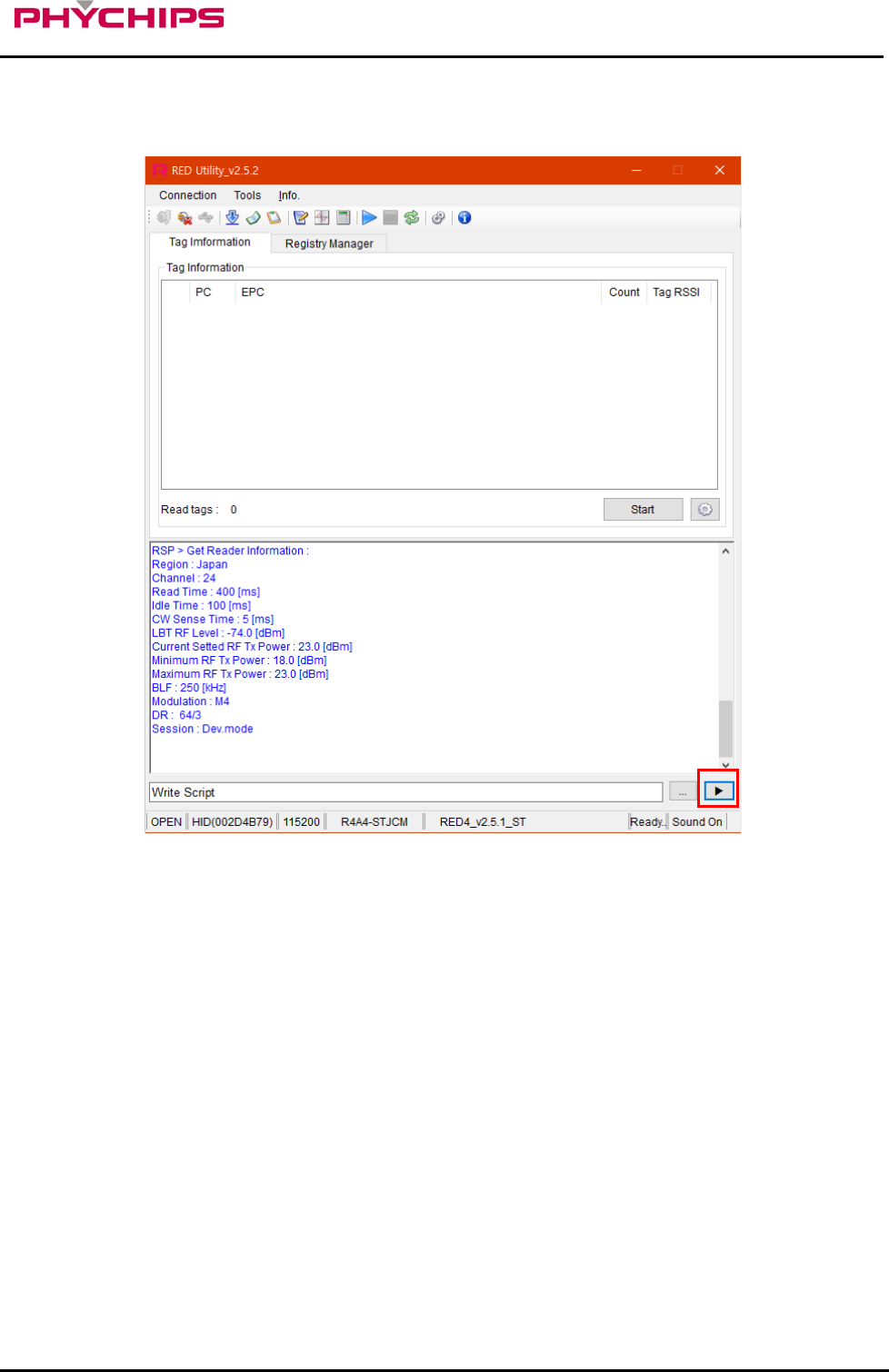
Figure 7 Basic View Mode
To change View Mode, click the extension button marked red in Figure 6 above.
8 August 2017
8 of 12
RED5 User’s Manuals -
Preliminary Version
Figure 8 Extended View Mode
Always use Extended View Mode for measurement.
2.4.2 RED5 Connection
If hardware connection is valid, RED utility connect module REDx automatically.
If utility cannot connect hardware, please follow below step
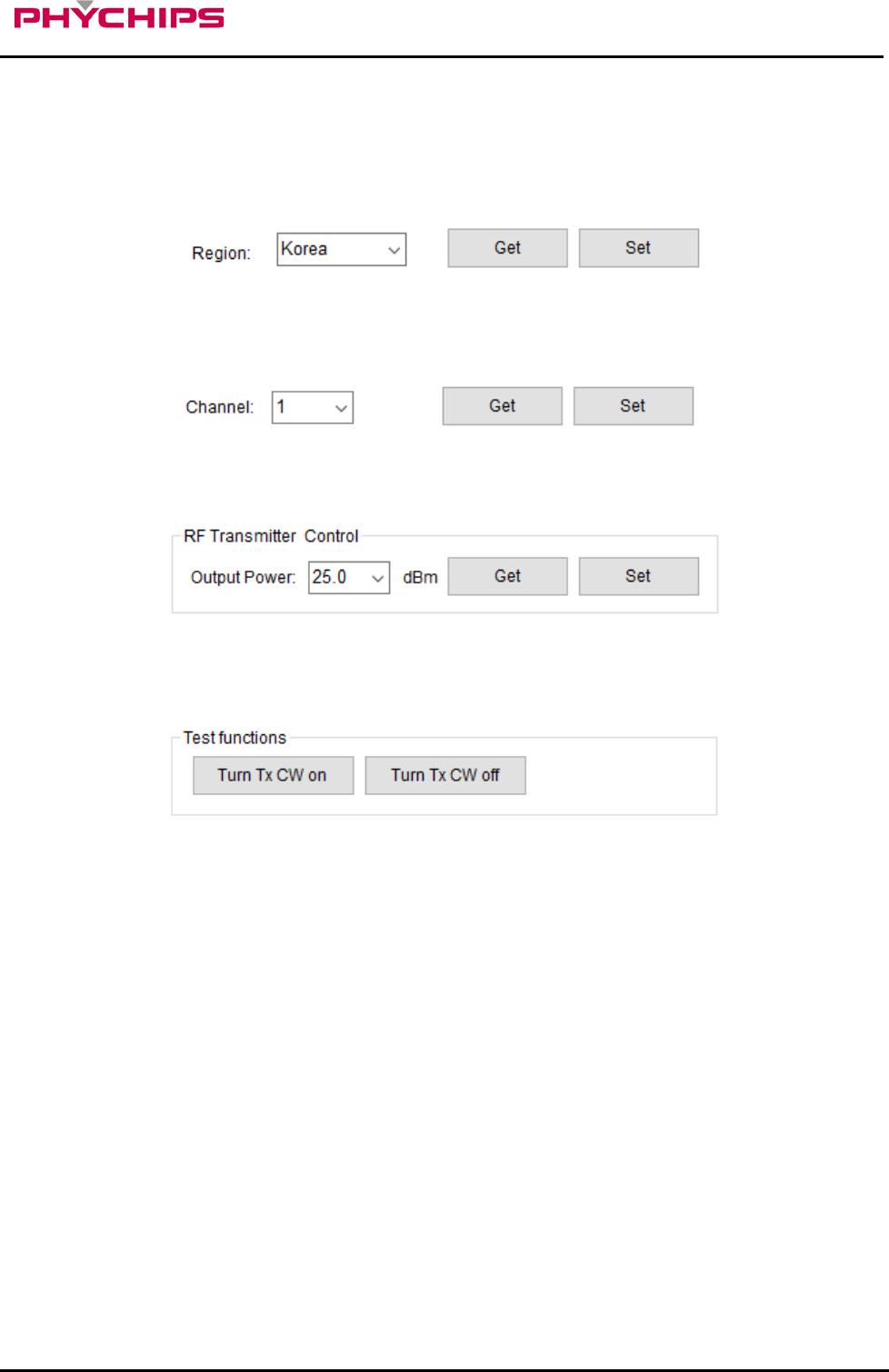
Click “Connection->Connect” to connect to REDx-DK through USB-to-UART at main window
GUI will find the Device and synchronize parameters with REDx module automatically. If the GUI cannot find
the device automatically, Click “Connection->Port Setting” and select other Device. Default Baud rate is
115200 bit/s.
If the Device connected successfully, status bar will display “OPEN” state and device number and so on.
8 August 2017
9 of 12
RED5 User’s Manuals -
Preliminary Version
2.4.3 Hardware Control
Click ‘H/W Control Tab.’ To control hardware.
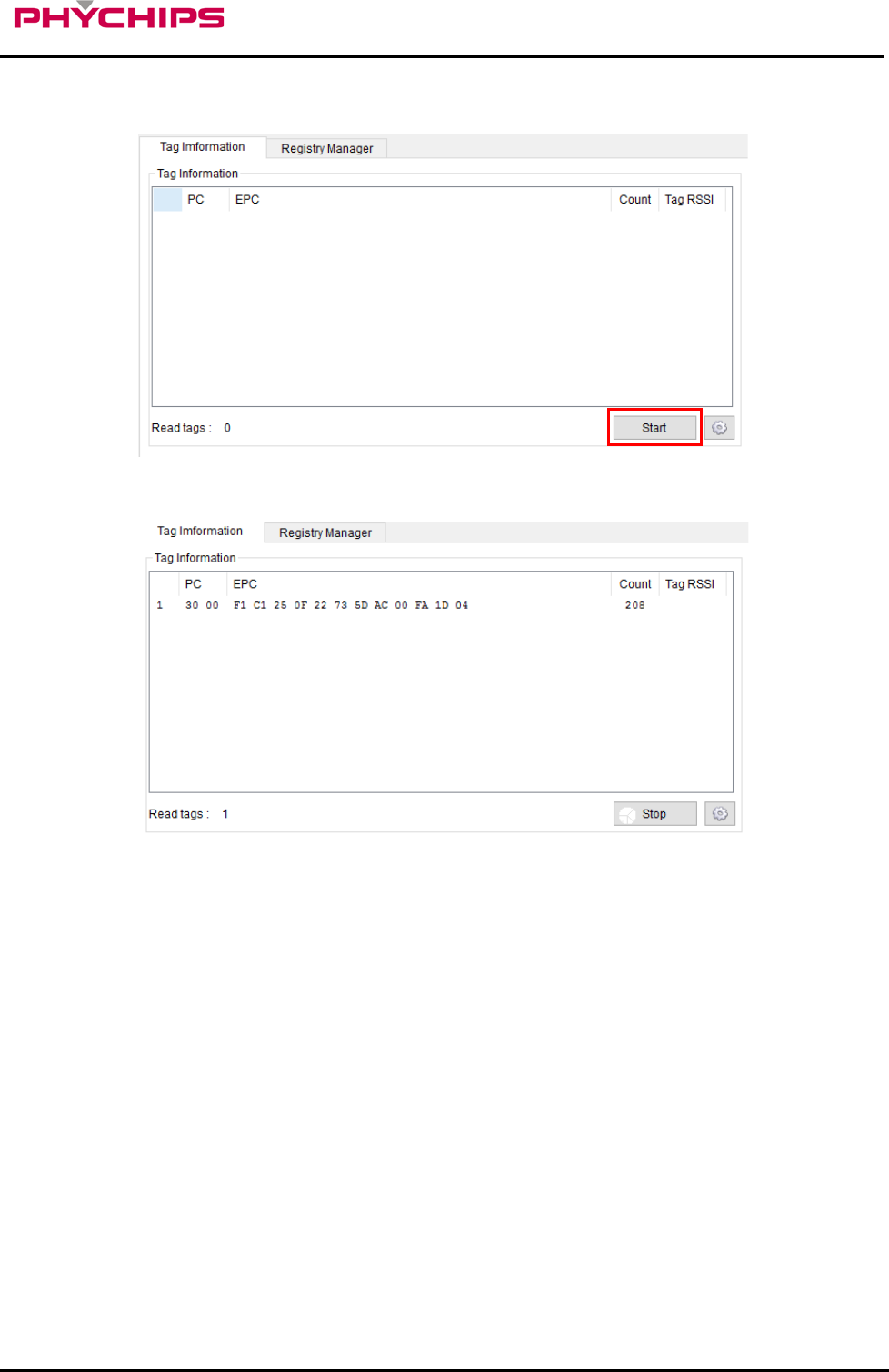
2.4.3.1 Band(Region) Setting
To select operating band, band setting should be required. Select band in combo box and click Set button to
set operating band in group box ‘Frequency Control.’
2.4.3.2 Power Class Setting
Some countries classify channel number by power class. Click Get button and choose required power class.
And then click Set button to set finally.
.
2.4.3.3 Output Power setting
To set RED output power, select the Output Power combo box and click Set button.
2.4.3.4 CW (Continuous Wave) setting
It is only used for hardware debugging.
To set CW on, click Turn Tx CW on button. To set CW off, click Tx CW off button.
8 August 2017
10 of 12
RED5 User’s Manuals -
Preliminary Version
2.4.4 Tag Inventory Procedure
Click Start button in Tag Information Tab to read UHF RFID tag with RED Utility.
Click Start button and Tag’s EPC information is displayed.
8 August 2017
11 of 12
RED5 User’s Manuals -
Preliminary Version
3 Specification
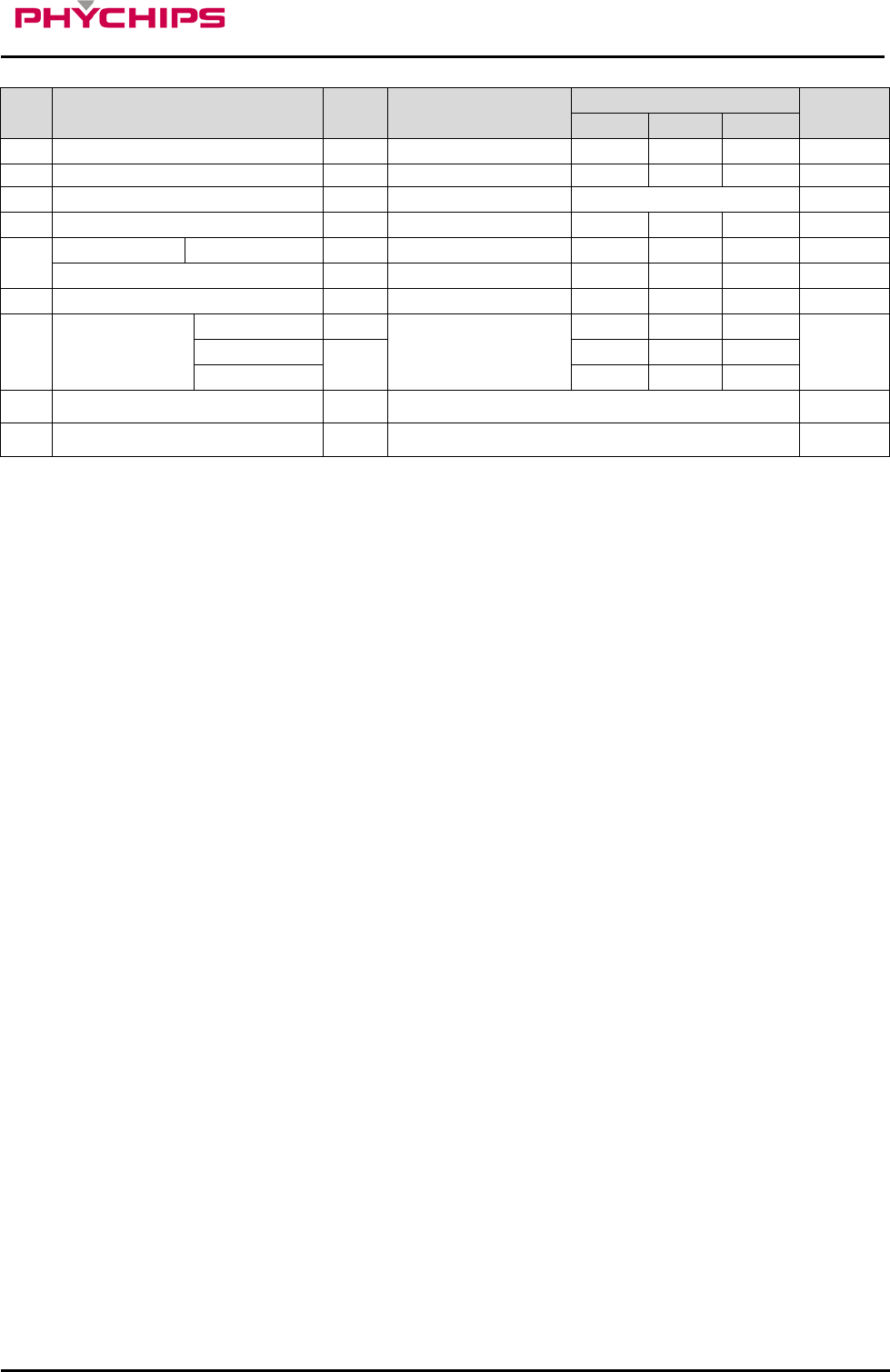
No. Item Unit Test Condition
Specification
Remark
min
Typ.
max
1
Frequency Range
MHz
917.1
926.9
2
Tx Power
dBm
29.5
3
Spurious
dBm
US (FCC 15C)
4
Impedance
Ω
50
RF I/O
5
DC Power
VCCIN
V
2.5
5.5
6
Operating Temperature
°C
-20
70
7
Operating Humidity
%
0
90
8 Current
Power Down
uA
Active current is
measured at 25dBm
with 50ohm load
20
Idle
mA
20
Active
1,370
9 Size mm 24.0 * 24.0 * 3.0
10 Weight g 3
•Device Name(Model Name) : RED5
•Certification No.:
•Name of Grantee: PHYCHIPS Inc.
•Production year, month, date:
•Manufacturer/Country:
* Power supply regulation information
- This module uses the input voltage of DC 2.5V ~ 5.5V, this input voltage is
converted to DC 3.3V constant voltage through a regulator to operate the product.
FCC Information to User
This equipment has been tested and found to comply with the limits for a digital device, pursuant to part 15 of
the FCC Rules.
These limits are designed to provide reasonable protection against harmful interference when the equipment
is operated in a commercial environment.
This equipment generates, uses, and can radiate radio frequency energy and, if not installed and used in
accordance with the instruction manual, may cause harmful interference to radio communications.
Operation of this equipment in a residential area is likely to cause harmful interference in which case the user
will be required to correct the interference at his own expense.
This device complies with Part 15 of FCC Rules. Operation is subject to the following two conditions:
(1) the device may not cause interference, and
(2) the device must accept any interference, including interference that may cause undesired operation of this
device.
Caution : Any changes or modifications in construction of this device which are not expressly approved by the
party responsible for compliance could void the user's authority to operate the equipment
End Product Labeling
8 August 2017
12 of 12
RED5 User’s Manuals -
Preliminary Version
The module is labeled with its own FCC. If the FCC ID is not visible when the module is installed inside
another device, then the outside of the device into which the module is installed must also display a label
referring to the enclosed module. In that case, the final end product must be labeled in a visible area with the
following:
“
Contains FCC ID: Y3D-RED5”
OEM Responsibilities to comply with FCC and Industry Canada Regulations
The module has been certified for integration into products only by OEM integrators under the following
condition:
- The antenna(s) must be installed such that a minimum separation distance of at least 20 cm is
maintained between the radiator (antenna) and all persons at all times.
- The module is limited to installation in mobile or fixed applications.
- The transmitter module must not be co-located or operating in conjunction with any other antenna or
transmitter except in accordance with FCC multi-transmitter product procedures.
- Separate approval will be required for all other operating configurations, including portable
configurations with respect to Part 2.1093 and different antenna configurations other than supplied
antennas.
As long as the two condition above is met, further transmitter testing will not be required. However, the OEM
integrator is still responsible for testing their end-product for any additional compliance requirements required
with this module installed (for example, digital device emissions, PC peripheral requirements, etc.).
In the event that these conditions cannot be met, then the FCC authorizations are no longer considered valid
and the FCC ID cannot be used on the final product. In these circumstances, the OEM integrator will be
responsible for re-evaluating the end product including this module and obtaining separate FCC authorizations.
- This device is intended only for OEM integrators
- For OEM integration only – device cannot be sold to general public.
- Manual Information to the End User
The OEM integrator has to be aware not to provide information to the end user regarding how
to install or remove this RF module in the user’s manual of the end product which integrates
this module.
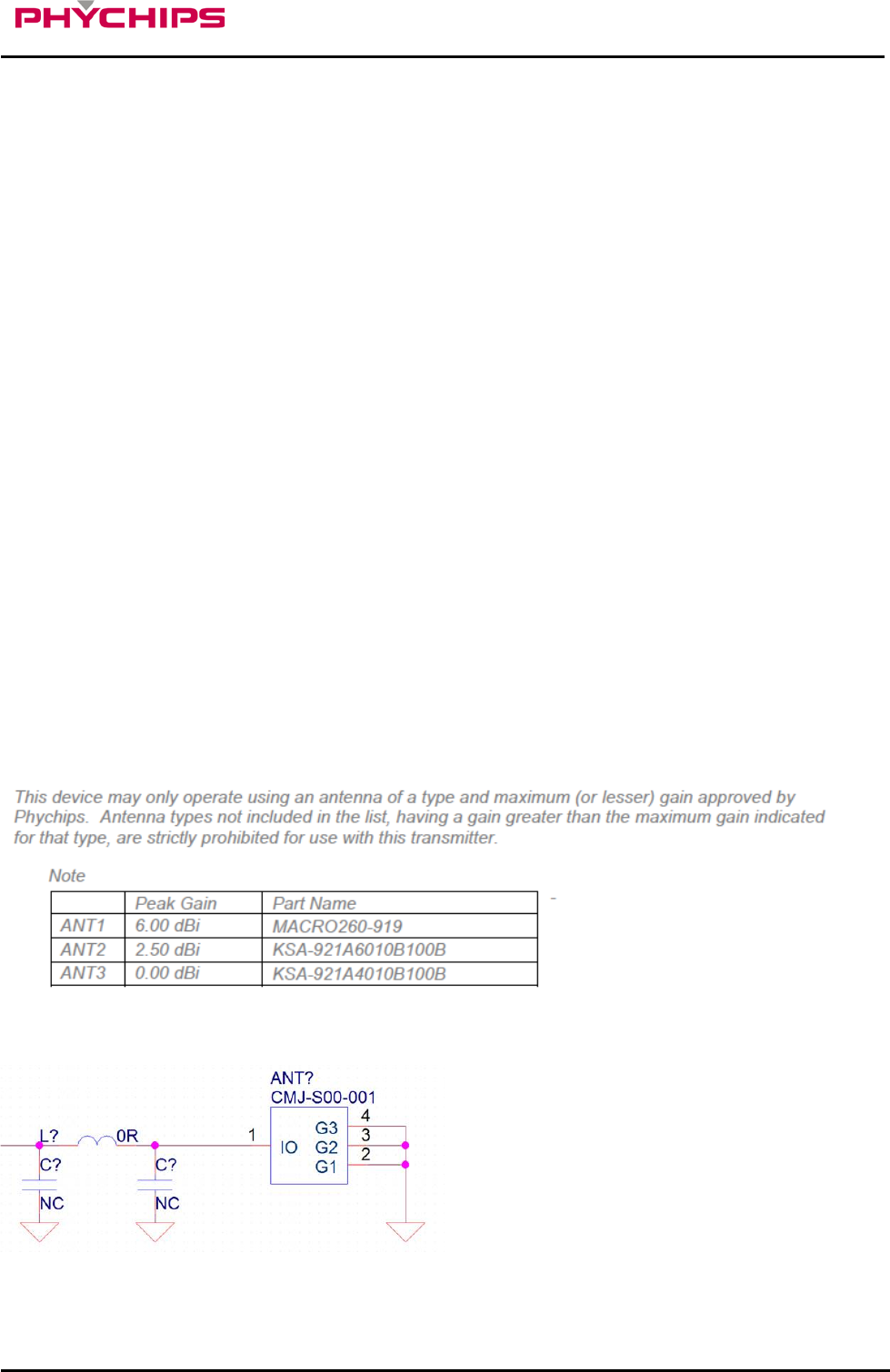
The antenna matching circuit is a Pi as shown below, and the minimum loss is 0dB. The antenna connector is
CMJ type, and the distance to the connector is Max 100mm.