Plantronics Explorer 500 Ug
User Manual: Plantronics Explorer-500-ug Explorer 500 Manuals and Guides | Plantronics
Open the PDF directly: View PDF  .
.
Page Count: 16

Explorer 500 Series
User Guide

Contents
Welcome 3
What's in the box 4
Accessories 5
Headset Overview 6
Be safe 6
Pair 7
Get Paired 7
Use two phones 7
Adjust the fit 8
Charge Headset 9
The Basics 10
Answer or end a call 10
End a call 10
Reject incoming call 10
Volume 10
Mute or unmute headset 10
Redial 10
Voice control (Siri, Google Now, Cortana) 10
Voice enabaled assistant 10
DeepSleep Mode 11
Decipher the Lights 12
Hear it Whisper 13
Select language 14
Install the App 15
Support 16
2

Congratulations on purchasing your new Plantronics product. This guide contains instructions for
setting up and using your Explorer 500 series headset
Please refer to the safety instructions for important product safety information prior to
installation or use of the product.
Welcome
3
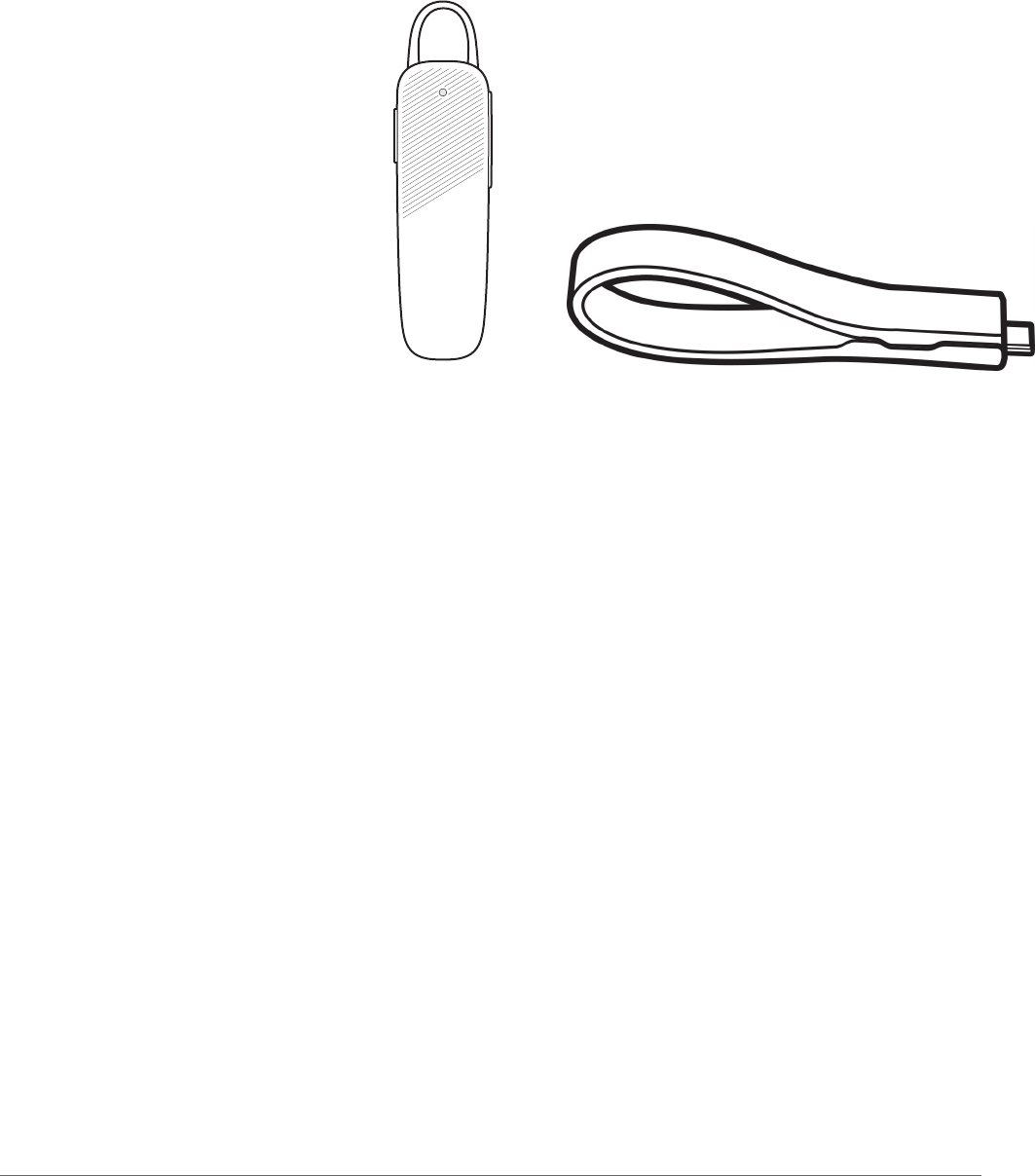
Headset USB charge strap
NOTE Headset design and contents may vary by product.
What's in the box
4
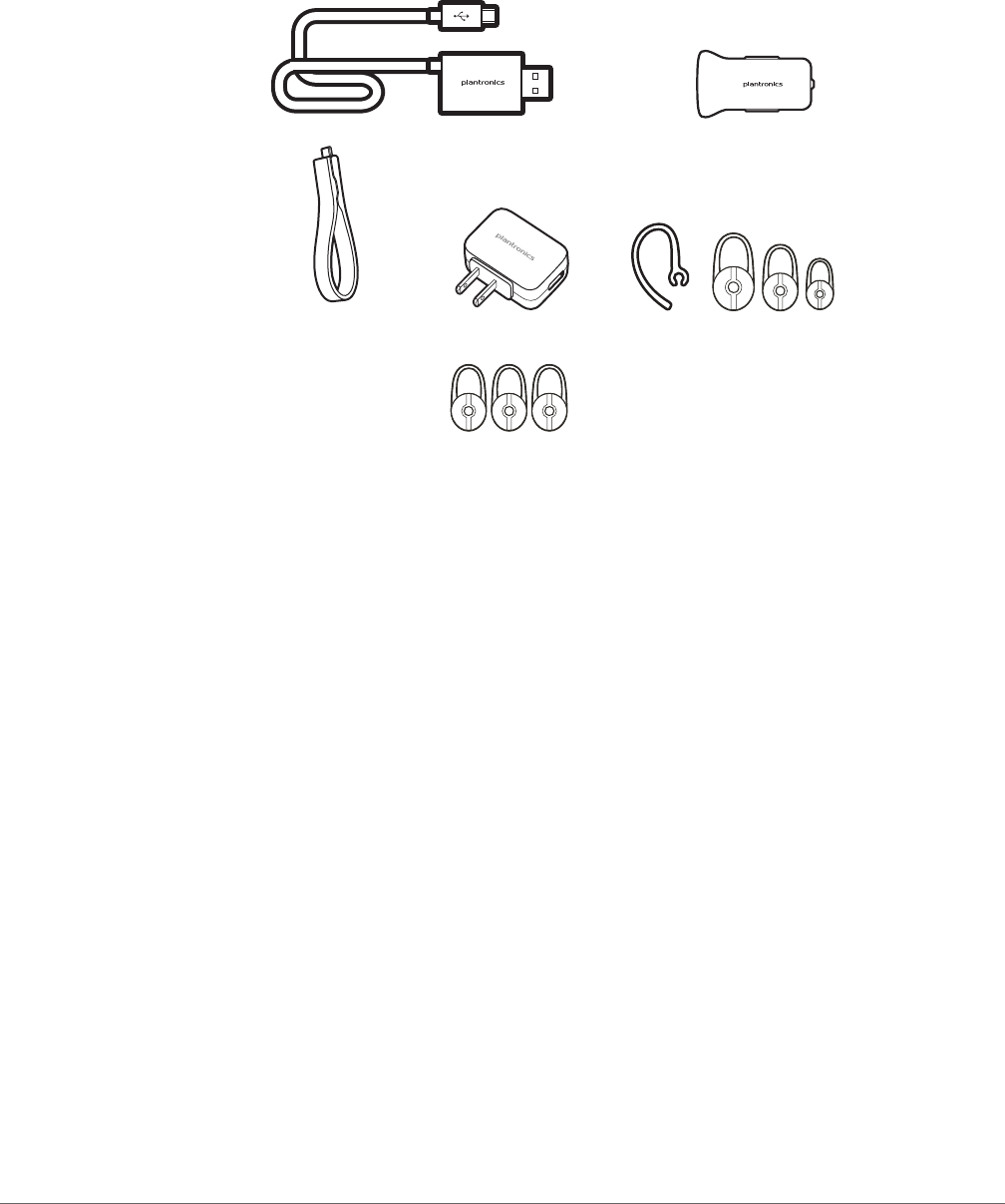
12
5
34
6
12-in-1 Charging cable PN; Black 88852-01, White 88852-02
2USB car charger PN; Black 89110-01, White 89110-02
3USB charge strap PN; 204180-01
4Wall charger PN; 89304-01
5Fit kit PN; 201777-03
6Eartip pack PN; 201955-01 Small, 201955-02 Medium, 201955-03 Large
Sold separately.
Accessories
5
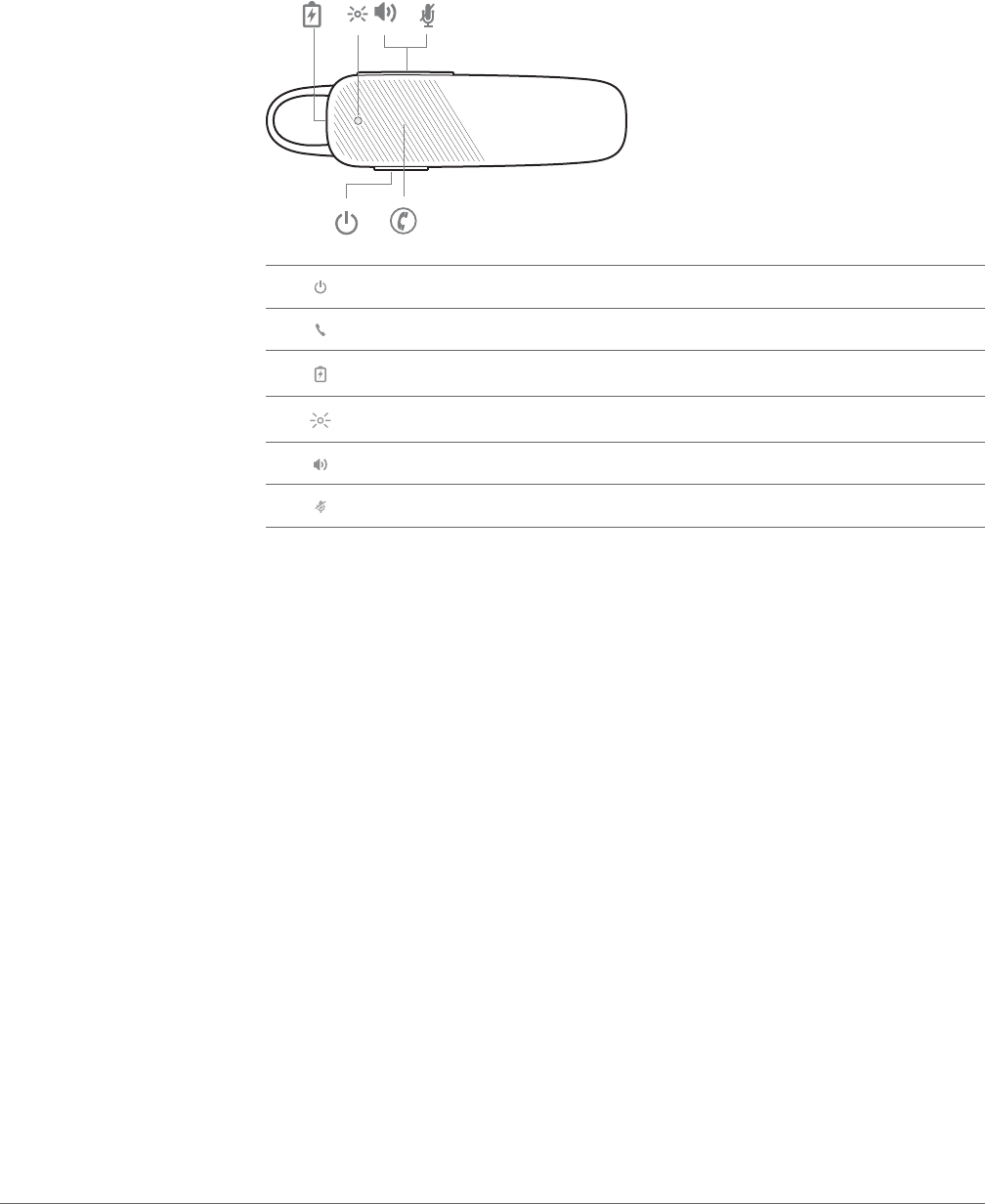
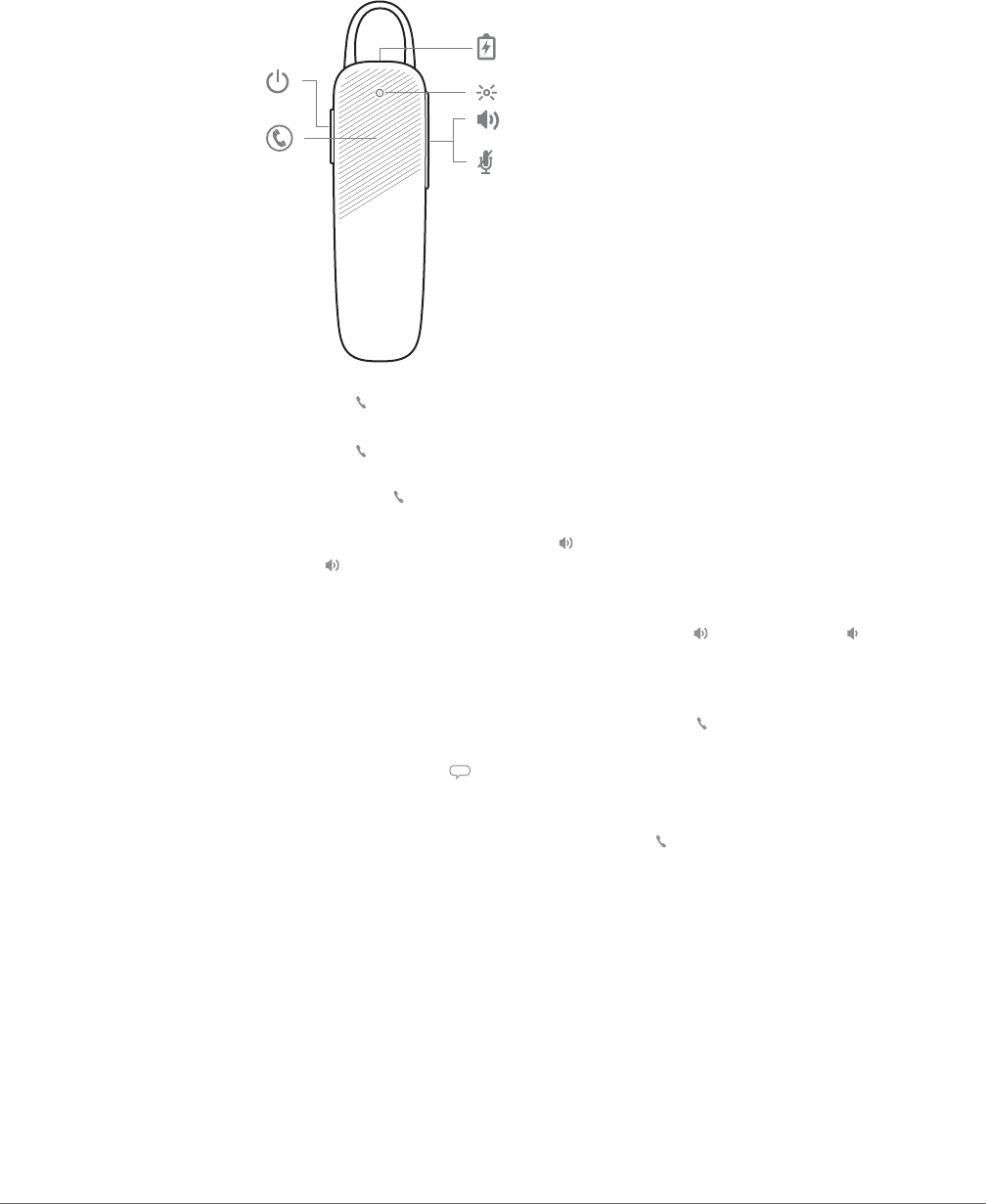
Power button
Call button
Charge port
Headset LED (indicator light)
Volume button: Increases or decreases volume
Mute
Please read the safety guide for important safety, charging, battery and regulatory information
before using your new headset.
Headset Overview
Be safe
6

The first time you power on your headset, it begins the pairing process.
1Wearing your headset, power it on. You hear “pairing” and the headset indicator lights flash blue
and red.
2Activate Bluetooth® on your phone and set it to search for new devices.
•iPhone Settings > Bluetooth > On*
•Android™ Settings > Bluetooth: On > Scan for devices*
NOTE *Menus may vary by device.
3Select “PLT_500.”
If necessary, enter four zeros (0000) for the passcode or accept the connection.
Once successfully paired, you hear “pairing successful” and the headset indicator lights stop
flashing.
Multipoint technology lets you pair a second phone and answer calls from either phone.
1Power on your headset.
2Press and hold the Call button until the indicator light flashes red and blue or you hear
"pairing."
3While the indicator light flashes red and blue, activate Bluetooth on your phone and set it to
search for new devices.
4Select PLT_500
If necessary, enter passkey 0000 and accept the connection.
Once successfully paired, the indicator light stops flashing and you hear "pairing successful."
Pair
Get Paired
Use two phones
7

The universal-fit eartip has a thin loop that bends to gently tuck into the contours of either ear. To
adjust the fit, you can rotate the eartip on the headset or add the optional clip-on earloop.
Adjust the fit
8
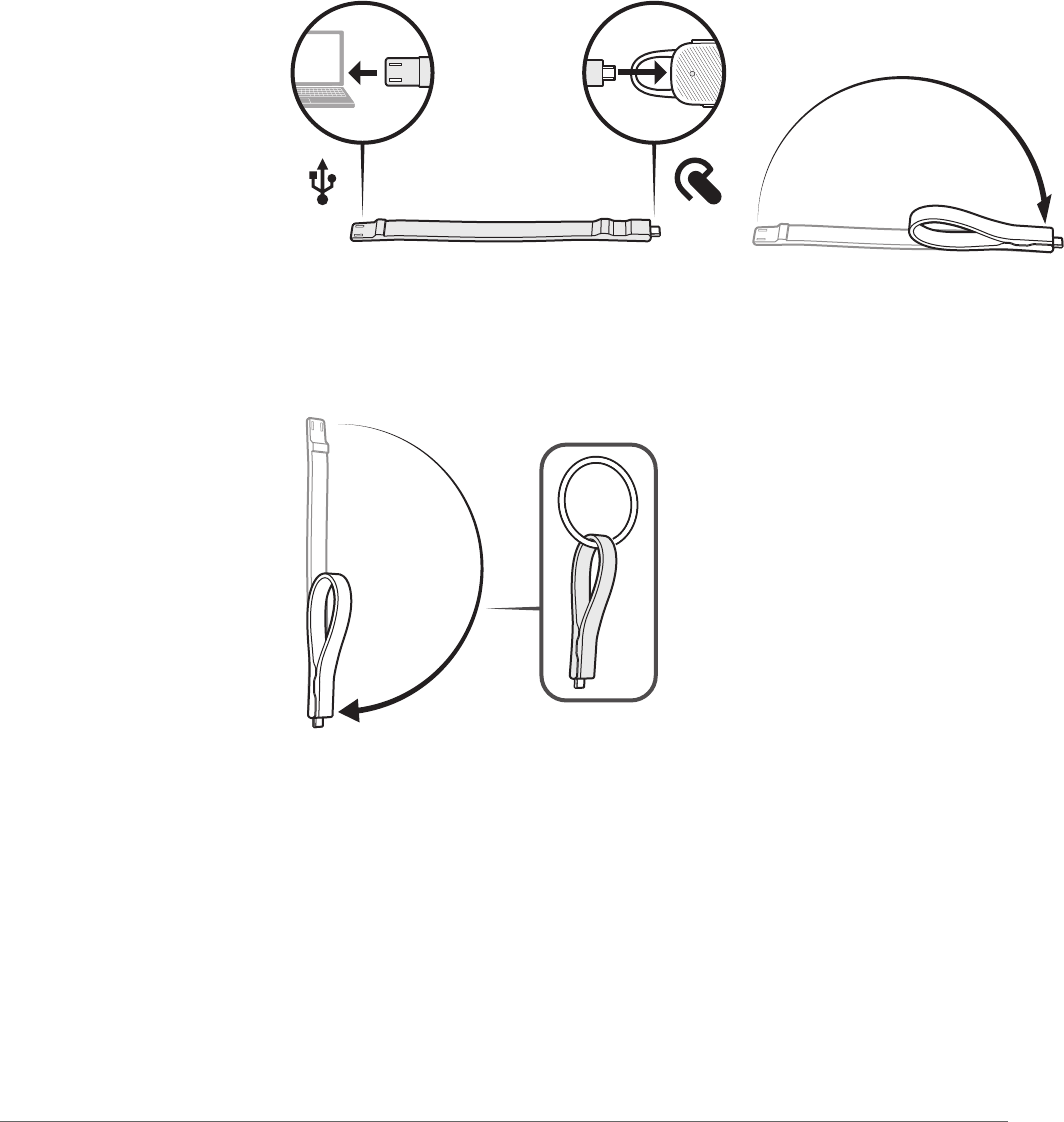
You may charge your headset using the included USB charging strap connected to any powered
USB port
When finished charging, take your headset on the go by attaching the strap to a key ring, bag
strap, belt loop, or any suitable object
Charge Headset
9
Tap the Call button.
• Tap the Call button.
Press Call button for 2 seconds.
To increase the volume, tap the Volume button. To decrease the volume, press and hold the
Volume button.*
*Android phone must be set to medium/high or audio will sound to low.
During a conversation, press and hold both the Volume up and Volume down buttons until
you hear “mute on” or “mute off.” While the microphone is muted, a reminder tone repeats every
15 minutes.
To call your last number dialed, double tap the Call button.
• Press and hold the Voice button for 2 seconds. A series of tones will indicate the voice control is
active.
To activate Siri or Google Voice, press the Call button for 3 seconds. (Devices may vary.)
The Basics
Answer or end a call
End a call
Reject incoming call
Volume
Mute or unmute headset
Redial
Voice control (Siri, Google
Now, Cortana)
Voice enabaled assistant
10

If you leave your headset powered on but out of range of your paired phone for more than 90
minutes, your headset will conserve its battery power by entering into a DeepSleep mode.
Once back in range with your phone, press the Call button to exit DeepSleep mode.
DeepSleep Mode
11

Your headset has an indicator light that flashes in response to a change in status or after a
button press.
Some examples of what you will see are:
• Solid red until charging complete and then off
• Flashing red and blue during pairing
• Triple red flash when less than 10 minutes of talk time
• Triple blue flash at incoming call
Decipher the Lights
12

Your headset tells you about status changes. For example:
“Power on”
“Pairing successful”
“Talk time (x) hours”
“Mute on”
"Incoming call"
"Answering call"
“Phone disconnected”
“Recharge headset”
Hear it Whisper
13

Once your headset is paired and connected to your phone, you can change the headset language.
1Wearing your headset, power it on.
2Press and hold the Volume up and down buttons together until you hear “welcome." The
language selection directions repeat in every supported language.
3Follow the voice-guided prompts to select the headset language.
Select language
14

Get the most from your headset by installing our free mobile app, Plantronics Hub for iOS/
Android. Explore all of your headset's features, view instructions, and contact Plantronics support
easily from your smartphone.
plantronics.com/apps
Install the App
15
EN
Tel: 0800 410014
FI
Tel: 0800 117095
NO
Tel: 80011336
AR
Tel: +44 (0)1793 842443*
FR
Tel: 0800 945770
PL
Tel: +44 (0)1793 842443*
CS
Tel: +44 (0)1793 842443*
GA
Tel: 1800 551 896
PT
Tel: 0800 84 45 17
DA
Tel: 80 88 46 10
HE
Tel: +44 (0)1793 842443*
RO
Tel: +44 (0)1793 842443*
DE
Deutschland 0800 9323 400
Österreich 0800 242 500
Schweiz 0800 932 340
HU
Tel: +44 (0)1793 842443*
RU
Tel: 8-800-100-64-14
Tel: +44 (0)1793 842443*
EL
Tel: +44 (0)1793 842443*
IT
Tel: 800 950934
SV
Tel: 0200 21 46 81
ES
Tel: 900 803 666
NL
NL 0800 7526876
BE 0800 39202
LUX 800 24870
TR
Tel: +44 (0)1793 842443*
*Support in English
Support
NEED MORE HELP?
plantronics.com/support
Plantronics, Inc. Plantronics BV
345 Encinal Street
Santa Cruz, CA 95060
United States
South Point Building C
Scorpius 140
2132 LR Hoofddorp, Netherlands
© 2017 Plantronics, Inc. Plantronics, Plantronics Explorer and Simply Smarter Communications are trademarks of Plantronics, Inc. registered in the US and
other countries, and Explorer is a trademark of Plantronics, Inc. Bluetooth trademarks are owned by Bluetooth SIG Inc., any use by Plantronics, Inc. is
under license. iPhone is a trademark of Apple Inc., registered in the US and other countries. All other trademarks are the property of their respective
owners.
Patents pending
204740--06 (02.17)
