Polycom CX5100 Quick Tips For Unified Conference Station Microsoft Lync User Manual To The 4fcb9e92 4b60 4063 A98e B92376874d08
User Manual: Polycom CX5100 to the manual
Open the PDF directly: View PDF  .
.
Page Count: 2
Tips for Meeting Participants
Follow these best practices to ensure that your
CX5100 system effectively tracks speakers and
participants during conference calls.
●Make sure there are no items between your
mouth and the microphones. For example, move
your laptop so that it does not block you when you
speak.
●Face the CX5100 system, not the whiteboard or
the wall, when you stand at the front of a small
conference room to speak. Facing the wall can
cause echoes that interfere with the active
speaker tracking.
Red Microphone muted
Flashing
red
Ringing with microphone muted, call on
hold
Flashing
green/red
Software update in progress
Active Video Indicator Lights
Indicator Description
Off Not in a call, no video in a
call
Green In an active video call
Flashing Privacy cap is closed
Microphone Indicator Lights
Indicator Description
Quick Tips for the Polycom® CX5100 Unified Conference Station for Microsoft® Lync®
3725-68837-001/A | October 2014
For more information about setting up and using the system, refer to the Support pages at support.polycom.com.
About the CX5100 Unified Conference
Station
The Polycom CX5100 Unified Conference Station lets
you use the collaboration capabilities of Microsoft
Lync voice, video, and content while automatically
tracking the flow of conversation to enable richer,
more interactive communication.
The Polycom CX5100 System Features
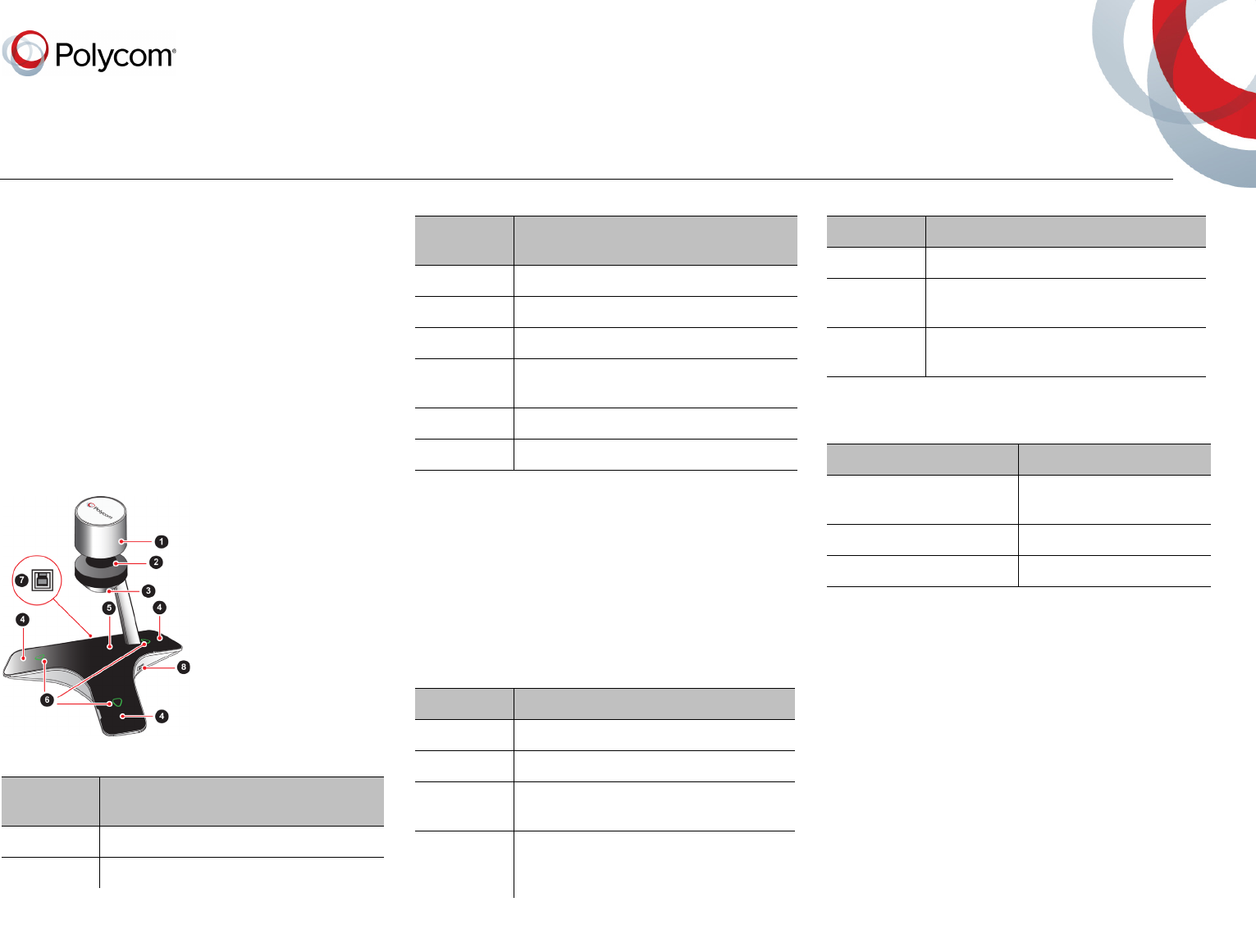
The following figure shows the parts of the CX5100
system that includes the cameras, microphones, and
speakers.
Polycom CX5100 system hardware features
Polycom CX5100 System Features
Reference
Number Features
1 Camera Cover
2 Cameras
The CX5100 System Indicator Lights
The indicator lights on the CX5100 system let you
know when the system is sending audio or video in
video calls, the microphones are muted, or the
system is updating. See the following tables for
information on the microphone and video indicator
lights.
3 Active video indicator
4 Microphones
5 Speaker
6 Microphone mute buttons and status
indicators
7 USB 3.0 Type B connection to computer
8 USB 2.0 connector for USB flash drive
Microphone Indicator Lights
Indicator Description
Off Not in a call
Green In a call
Flashing
green
Ringing
Slow
flashing
green
System is starting up
Polycom CX5100 System Features
Reference
Number Features

www.polycom.com
© 2014, Polycom, Inc. All rights reserved. Polycom® and the names and marks associated with Polycom’s products are trademarks and/or service marks of Polycom,
Inc., and are registered and/or common-law marks in the United States and various other countries. All other trademarks are property of their respective owners.
Control Audio and Video
During a call, you can control what the far sites can
hear and see.
To mute the microphone:
»On the base of the system, touch .
The microphone indicators on the base of the
tabletop unit are red when the system is
muted.
You can also mute the system’s audio using the Mute
button in the Lync client. However, muting the system
in this way may not update the indicator lights on the
tabletop unit.
To mute the video:
»Lower the privacy cap on the tabletop unit.
The active video indicator flashes green to
indicate that the system is not sending video to
the far end.
For complete information on using your CX5100
system, refer to the Polycom CX5100 Unified
Conference Station for Microsoft Lync User Guide,
available at support.polycom.com.
We are striving to improve the quality of our
documentation, and we appreciate your feedback.
Email your comments to
DocumentationFeedback@polycom.com.
Drag a contact from your contacts list into
the conversation window.
Answer a Call
When you receive a call, you see a call notification
that tells you who is calling.
To answer a call:
»In the incoming call notification, do one of the
following:
Click Accept to join the call.
Click Redirect > Reply with an Instant
Message to send a message to the caller.
To refuse a call:
»In the incoming call notification, do one of the
following:
Click Decline.
Click Ignore.
End Calls
Hanging up a call with another person automatically
disconnects the other person. When you hang up
from a conversation that includes multiple
participants, the other participants remain connected.
To end a call:
»In Microsoft Lync, click .
Control the Volume
During a call, you can control what you hear at the
local site.
To adjust the volume:
»Click in your Windows tray and use the
slider control.
●Avoid standing close to the conference table
when speaking. Instead, sit at the table or move
away from the table so the camera can clearly
track your movements.
Connect the CX5100 System to Your Laptop
Before you begin placing video calls, you must
connect the CX5100 system to your laptop to use the
system.
To connect the CX5100 system to your laptop:
»Plug the USB cable on the CX5100 to the USB
3.0 port on your laptop.
Place a Video Call
Using the Microsoft Lync client on your computer and
the CX5100 system, you can place video calls to
contacts and systems in your organization.
To place a video call:
1In Microsoft Lync, do one of the following:
Click and scroll to the contact you want
to call.
Start typing a name in the search box and
click . As you type, the system finds
matching names.
Click and choose a name from your
Recent Calls.
2Click a name to select it.
3Click to start a video call.
To invite others to join a conference:
»From a conversation window in Microsoft Lync,
do one of the following:
Click and then click Invite More
People. Find the person you want and click
OK.
