Porter Cable Dsr2210 Users Manual DSR2210COV
DSR2210COV dsr2210_03_dfu_nld
DSR2210/03 dsr2210_03_dfu_eng Philips DSR2210/03 user manual - English, Pdf file (1.09 Mb) - Owner's / User's manual
DSR2210/03 dsr2210_03_dfu_nld Philips DSR2210/03 user manual - English, Pdf file (1.09 Mb) - Owner's / User's manual
DSR2210 to the manual 24150fc7-9d92-47ef-bf95-f959d40a51f3
2015-02-02
: Porter-Cable Porter-Cable-Dsr2210-Users-Manual-443050 porter-cable-dsr2210-users-manual-443050 porter-cable pdf
Open the PDF directly: View PDF  .
.
Page Count: 80


INHOUD 1
1 Veiligheidsinstructies _____________3
2 Produktbeschrijving ______________4
2.1 Vooraanzicht ___________________4
2.2 Achteraanzicht __________________5
2.3 Afstandsbediening _______________6
3 Ontvanger aansluiten ____________8
3.1 Aansluiten op analoge/digitale HiFi-
apparatuur _____________________9
4 Menu structuur _________________10
5 Installeren van de
satellietontvanger _______________11
5.1 Instellingen ____________________11
5.2 Technische informatie ___________13
5.3 Het installeren van de kanalen _____15
6 Het menu ______________________16
6.1 Code en kinderslot _____________16
6.2 Voorkeurkanalen kiezen __________17
6.3 Programma's opnemen __________17
6.4 Informatie abonnement en
brievenbus ____________________19
7 Informatiebalken (Info) _________20
7.1 Onderste balk _________________20
7.2 Bovenste balk __________________20
8 Electronische programmagids
(EPG) _________________________21
8.1 Programma overzicht ____________21
8.2 Film, sport, jeugd, documentaire en
overige genres _________________22
8.3 Selecteren programma's __________23
8.4 Lijst geselecteerde programma's ___23
9 Wanneer u naar een programma
kijkt ___________________________24
9.1 Wanneer u naar een programma
kijkt __________________________24
9.2 Tijdens het raadplegen van de
epg __________________________24
Welkom
Gefeliciteerd met de keuze van uw PHILIPS DSR 2210 satellietontvanger. Met deze PHILIPS
satellietontvanger heeft toegang tot digitale satellietprogramma's en diensten.
Opmerking:
- dit product is voor Nederland bestemd.
- u heeft een abonnement nodig om toegang te hebben tot de diensten van CANALDIGITAAL. Raadpleeg
het "Welkomstpakket".
INHOUD
Dutch

2INHOUD
10 Radiokanalen ___________________24
11 De kanalen _____________________25
11.1 De lijst van kanalen _____________25
11.2 De nummering van kanalen
wijzigen _______________________25
11.3 Nieuwe kanalen toevoegen _______26
11.4 Kanalen verwijderen ____________26
11.5 Kanalen opnieuw installeren ______26
12 Betaalprogramma’s
(nog niet beschikbaar) ___________27
13 Informatie voor abonnees
(nog niet beschikbaar) ___________27
14 Symbolen en afkortingen ________27
15 Problemen oplossen _____________28
16 Technische specificaties __________30
17 Meer informatie over uw
afstandsbediening _______________31
17.1 TV-modus (TV) ________________32
17.2 VCR- en DVD-modus
(VCR, DVD) ___________________33
17.3 Versterker/tunermodus (AMP) ____34
Dutch

VEILIGHEIDSINSTRUCTIES 3
Alvorens het apparaat te bedienen dient u
alle veiligheids- en bedieningsinstructies te
hebben gelezen en begrepen.
Om de beste resultaten te verkrijgen dienen
de volgende instructies in acht te worden
genomen:
- Plaats de receiver niet in de buurt van
radiatoren of andere warmtebronnen.
Laat rondom de receiver ten minste 3 cm
ruimte vrij voor ventilatie en zorg ervoor
dat de ventilatieopeningen niet worden
afgesloten.
- Deze receiver is uitsluitend bedoeld voor
gebruik in huis en mag nooit worden
gebruikt of opgeslagen onder
uitzonderlijk warme of vochtige
omstandigheden.
- Zorg ervoor dat er geen voorwerpen of
vloeistoffen via de ventilatieopeningen in
de behuizing kunnen komen. Als dit per
ongeluk toch mocht gebeuren, neem de
receiver dan los van het elektriciteitsnet
en vraag uw leverancier om advies.
- Reinig het apparaat zo nodig met een
licht bevochtigde zeemleren doek.
Gebruik hiervoor nooit een
schuurdoekje, schuursponsje of
schuurmiddel.
- Zorg er bij het aansluiten of losnemen
van kabels altijd voor dat de receiver
losgekoppeld is van het elektriciteitsnet.
Demonteer het apparaat niet. Het bevat
geen onderdelen die door de gebruiker
kunnen worden onderhouden.
Aansluiting op het net
Controleer voordat u het apparaat aansluit
of de netspanning overeenkomt met de
spanning die vermeld is op de achterzijde
van de receiver. Als dit niet het geval is,
neem dan contact op met uw leverancier.
De plastic zak kan gevaarlijk zijn. Om
verstikking te voorkomen dient u de zak uit
de buurt van kinderen te houden.
Het symbool op de verpakking
betekent dat het gebruikte materiaal voor
hergebruik geschikt is.
Als de sateliet ontvanger voor langere tijd
niet gebruikt wordt, dient u de stekker uit
het stopcontact te halen.
1 Veiligheidsinstructies
Dutch
4PRODUKTBESCHRIJVING
2 Produktbeschrijving
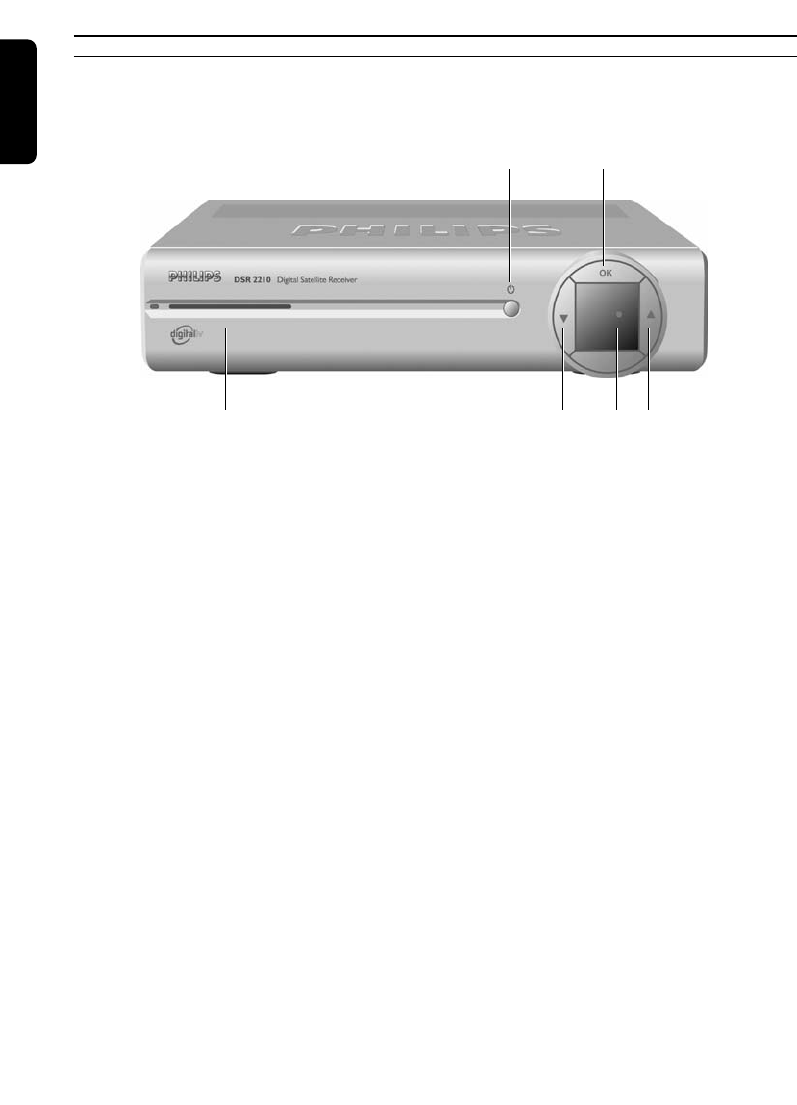
2.1 Vooraanzicht
1Stand-by toets: Om de receiver in te schakelen of in de energiebesparende stand te
zetten.
Om de receiver bij vastlopen te resetten door de toets 5 seconden in
te drukken.
2OK-toets: Druk “OK” ter bevestiging van uw keuze .
3Smartcard opening.
4"W" toets: Om naar het vorige kanaal te gaan.
5Rode indicatielampje: Brand wanneer de receiver in de stand-by stand staat (*).
6“V” toets: Om naar het volgende kanaal te gaan.
(*): Opmerking: Als het LED lichtje langzaan flikkert, geeft het aan dat een gratis update van uw receiver via
de ether plaatsvindt. Dit proces kan enkele minuten duren. Onderbreek het niet, maar wacht totdat het
lampje niet meer knippert.
Het LED lichtje flikkert zeer snell wanneer het signaal ontvangt van de afstandsbediening.
De
LED
indicator
is
uit
wanneer
het
apparaat
werkt.
Wilt
U
controleren
of
het
apparaat
werkt,
trek
dan
de
netsteker
even
uit
het
stopcontact
om
hem
er
daarna
weer
in
te
steken.
De
LED
indicator
zal
even
kort
oplichten.
Dutch
3456
12
PRODUKTBESCHRIJVING 5
2.2 Achteraanzicht
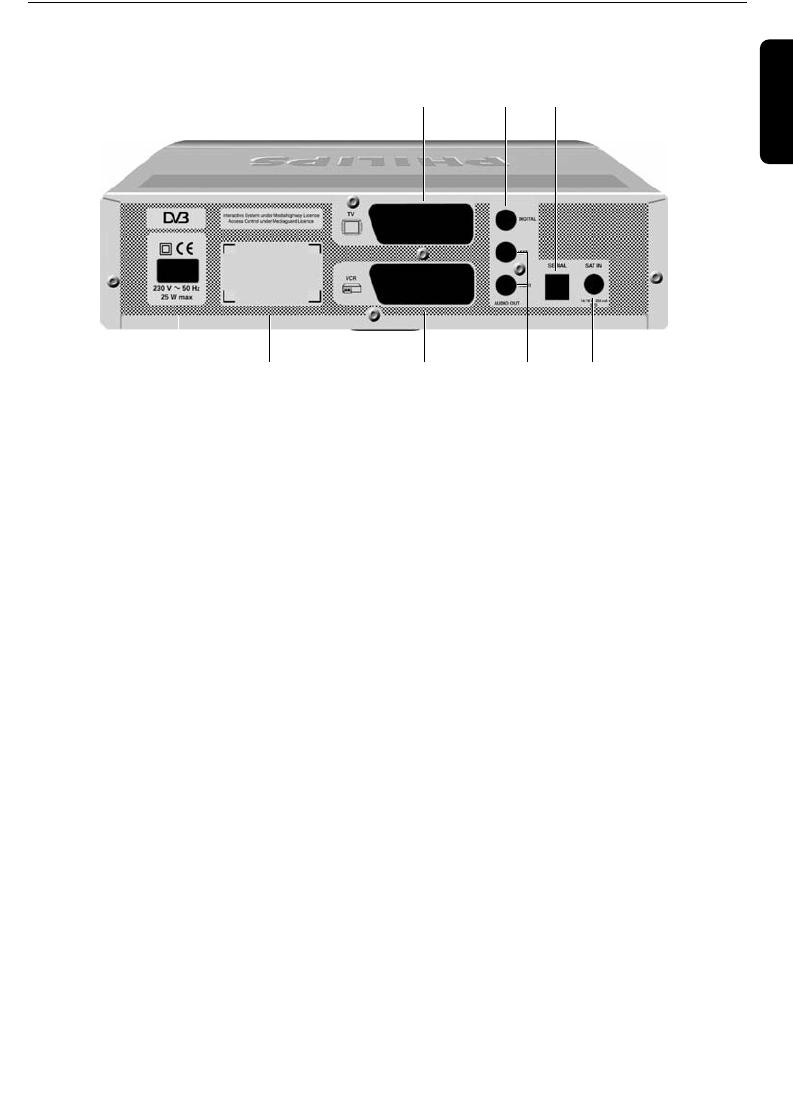
1TV (*): SCART (1) voor aansluiting op uw tv-toestel.
2Digitale audio-uitgang (*): Coaxiale digitale audio-uitgang voor aansluiting van uw hifi /
audioreceiver-installatie.
3Serial (*): RJ 9-stekerbus voor seriële datatransmissie tijdens
servicewerkzaamheden.
4230V~50Hz 25W max (**): Stekerbus voor aansluiting van het netsnoer.
5Label waarop het type- en serienummer van de receiver vermeld staat.
6VCR (*): SCART (1) voor aansluiting van uw videorecorder.
7L/R Audio out (*): Cinch-audiouitgang Links/Rechts voor aansluiting van uw hifi /
audioreceiver-installatie.
8SAT IN (*): Stekerbus voor satellietschotel.
1) SCART wordt ook wel Euroconnector genoemd.
(*): Extra lage veilige spanning.
(**): Gevaarlijke spanning.
Dutch
45 6 78
123
6RODUKTBESCHRIJVING
Dutch
2.3 Afstandsbediening
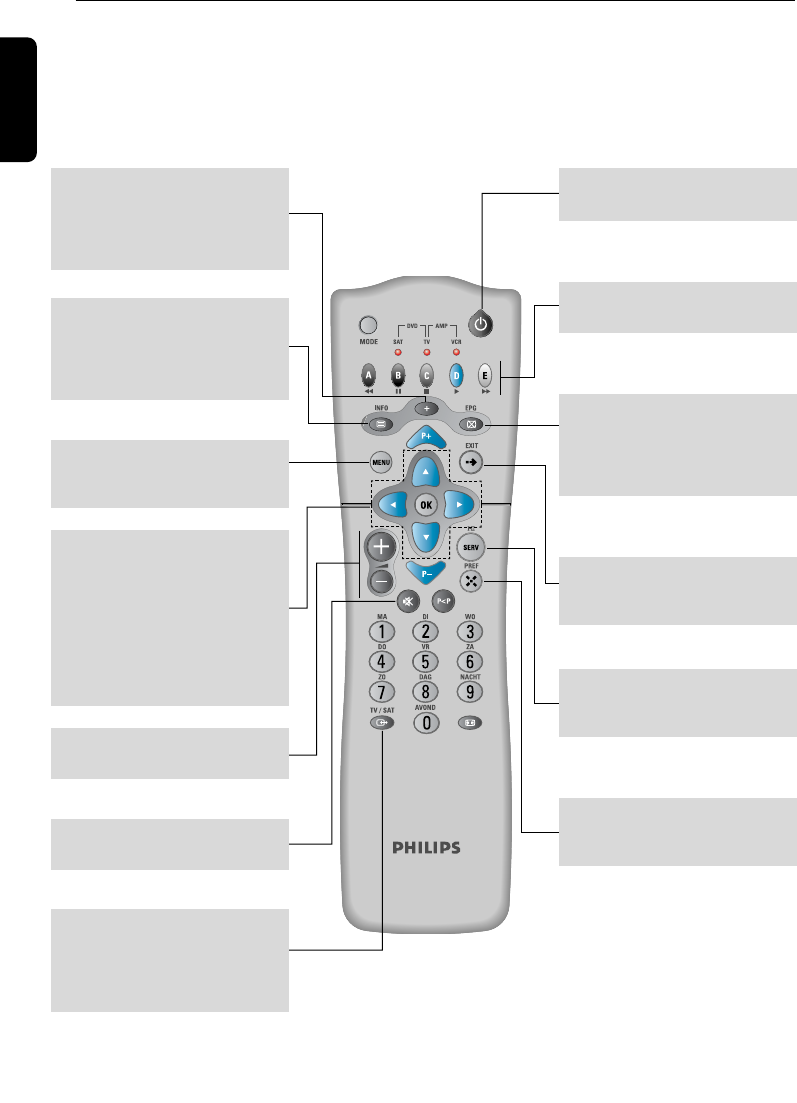
SATELLIETMODUS (SAT)
MENU
Om toegang te krijgen tot het
hoofdmenu.
+
Uitgebreide informatie over
een programma of het
instellen van taal en/of
ondertiteling.
INFO
Voor het in beeld brengen van
informatiebalken met
informatie over het
programma.
TV/SAT
Om te schakelen tussen
ontvangst via uw digitale
decoder of direct via uw TV-
kabelaansluiting.
OK
Toets waarmee u een gekozen
optie bevestigt.
CBVW
Toetsen om door de menu's
heen te lopen, door de
programma's te lopen of om
het volume in te stellen.
+ -
Regelt het volume van de TV.
c
Uitzetten van het geluid.
Standby B
Aan/Uit knop.
A, B, C, D, E:
Functietoetsen.
PREF
Het activeren en deactiveren
van u favoriete kanalen.
SERV
Informatie over het
abonnement.
EPG
ELECTRONISCHE
PROGRAMMAGIDS met
informatie over de
programma's.
EXIT
Om terug te gaan naar een TV-
programma.
PRODUKTBESCHRIJVING 7
Dutch
Met uw "5 in 1-afstandsbediening" kunt u de
meeste audio/videotoestellen in diverse
modi bedienen:
satellietontvanger, TV,
videocassetterecorder, DVD en
versterker/tuner.
Door één druk op de MODE-knop wordt u
via knipperlichtjes herinnerd aan de modus
waarin u zich bevindt: links voor SAT,
midden voor TV, rechts voor VCR,
links/midden voor DVD, midden/rechts voor
Amp/Tuner.
Om de modus in te stellen, moet u
meerdere keren op de MODE-toets
drukken tot de gewenste modus verschijnt.
De volgorde is: SAT->TV->VCR->DVD-
>Amp/Tuner.
Bij iedere druk op een toets knipperen
lichtjes om aan te geven in welke modus u
zich bevindt.
Opmerking:
sommige toetsen zijn sneltoetsen om naar
andere modi over te schakelen. In dit geval
wordt de actieve modus niet aangegeven!
(wanneer u zich bijvoorbeeld in VCR-modus
bevindt, gaat bij een druk op de volumetoetsen
het controlelampje TV in het midden branden).
In hoofdstuk 16 vindt u alle informatie over
de beschikbare functies in de TV-, VCR-,
DVD- en Amp/Tuner-modi en de nodige
instructies om uw afstandsbediening voor
gebruik met diverse audio/video-apparatuur
in te stellen.
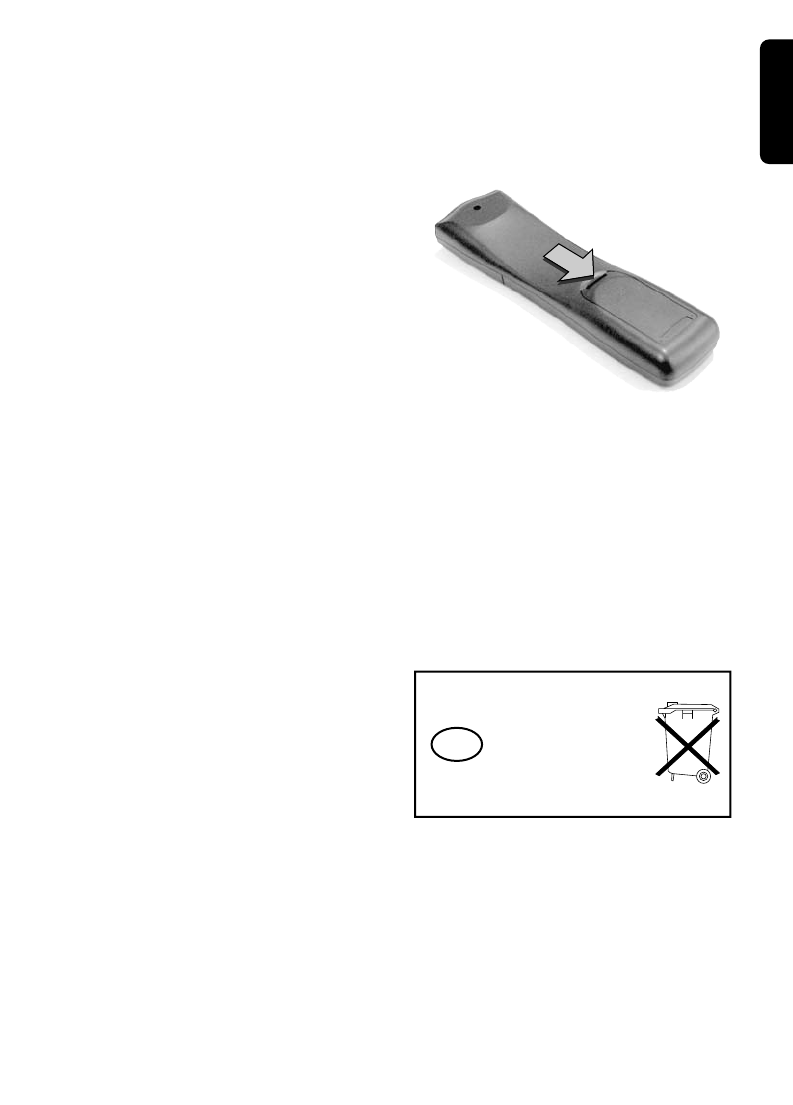
• Verwijder het batterijdeksel.
• Breng de twee bijgevoegde batterijen (type
LR6/AA - 1,5V) in.
• Plaats ze in de batterijhouder zoals op de
figuur wordt aangegeven.
• Breng het deksel weer op zijn plaats.
De Philips batterijen die bij de
afstandsbediening voor de nieuwe ontvanger
worden meegeleverd, bevatten niet de
zware metalen kwik en cadmium. In veel
landen mogen lege batterijen echter niet
met het huisvuil weggegooid worden.
Informeer a.u.b. naar de plaatselijke
voorschrijften voor het wegdoen van lege
batterijen.
NL Niet weggooien
maar inleveren als
KCA.
8ONTVANGER AANSLUITEN
3 Ontvanger aansluiten
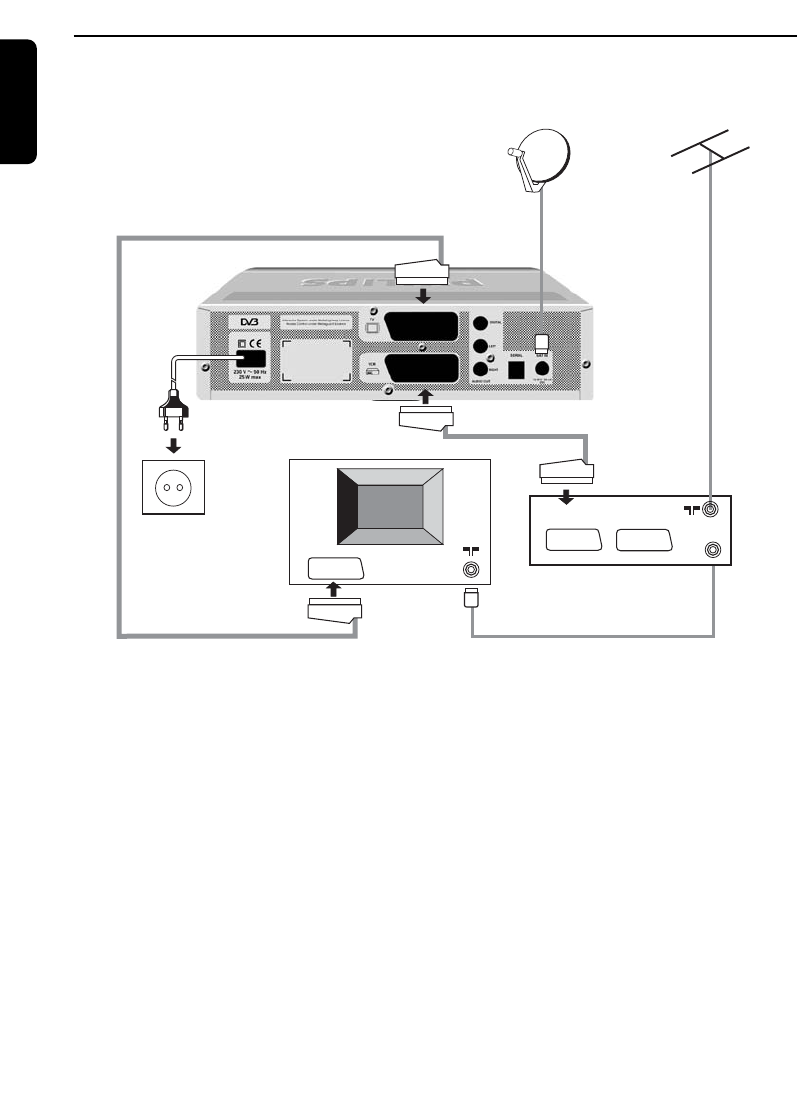
In dit hoofdstuk leest u hoe u de Philips digitale satelliet ontvanger kunt aansluiten op de
apparatuur die u al bezit, zoals een TV en videorecorder (VCR).
Note:
- Afspelen van een videocassette.
Wij raden u aan om voor het afspelen van een videocassette, uw ontvanger in standby te zetten.
- Digitale draadloze telefoon.
Als u een Digitale draadloze telefoon (DECT) bezit kan deze in sommige gevallen storingen op het signaal
van uw ontvanger / TV toestel veroorzaken. Wij adviseren u dan ook om beide apparaten niet in elkaars
directe nabijheid te plaatsen.
- Smartcard.
Laat uw smartcard A.U.B. in de decoder zitten zodat uw abonnement maandelijks kan worden verlengd.
- Aanvullende garantievoorwaarde.
Indien binnen de garantieperiode de satellietontvanger defect raakt, ruilt Philips Nederland hem om. De
klant doet in dat geval afstand van zijn oorspronkelijk in eigendom toebehorend apparaat.
TV
TV
EXT1
EXT1
EXT2
EXT2
EXT1
EXT1
Satellietschotel
Scart aansluiting
Satellietontvanger
Netsnoer
TV
Scart aansluiting
Videorecorder
Dutch
ONTVANGER AANSLUITEN 9
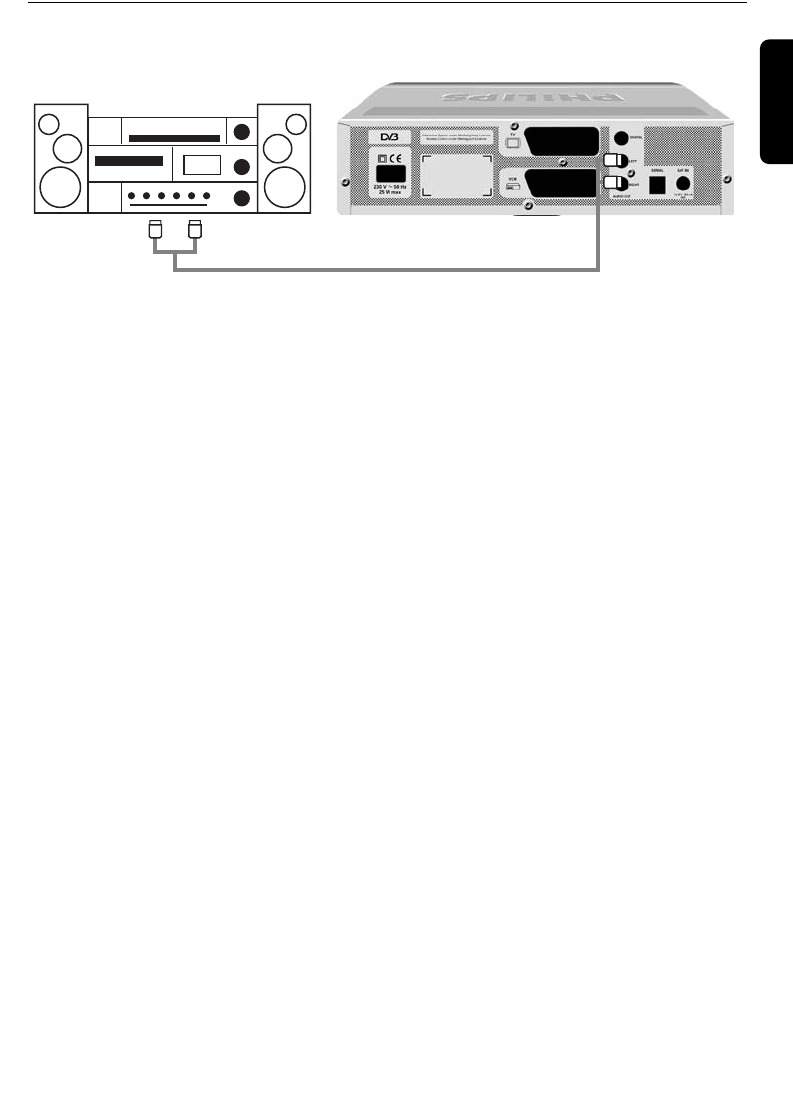
3.1 Aansluiten op analoge/digitale HiFi-apparatuur
U kunt uw digitale receiver op verschillende manieren aansluiten, afhankelijk van uw
geluidsinstallatie.
ANALOGE AANSLUITING
Sluit de audio-uitgangen L/R aan op de betreffende audio-ingangen L/R van uw geluidsinstallatie.
Gebruik daarvoor een dubbel cinch-snoer (niet meegeleverd). Raadpleeg de gebruiksaanwijzing
van uw installatie om te zien wat de juiste analoge ingangen zijn.
Opmerking: met deze aansluiting kunt u het volume en de mute-functie (stilschakeling) zowel met de
digitale receiver als de afstandsbediening regelen.
DIGITALE AANSLUITING
Sluit de audio-uitgang "DIGITAL" aan op de betreffende digitale audio-ingang van uw
geluidsinstallatie. Gebruik daarvoor een dubbel cinch-snoer (niet meegeleverd). Raadpleeg de
gebruiksaanwijzing van uw installatie om te zien wat de juiste digitale audio-ingang is.
Opmerking: met deze aansluiting kunt u het volume en de mute-functie (stilschakeling) uitsluitend met de
afstandsbediening van uw audioreceiver regelen (zie de gebruiksaanwijzing).
Satellietonvanger
HiFi
Dutch
10 MENU STRUCTUUR
4 Menu structuur
Dutch
MENU
1
2
3
4
5
6
7
MENU TERUG NAAR TV
PROGRAMMA’S OPNEMEN
VOORKEURKANALEN KIEZEN
CODE EN KINDERSLOT
INSTELLINGEN
KANALEN INSTALLEREN
INFORMATIE ABONNEMENT EN BRIEVENBUS
TECHNISCHE INFORMATIE
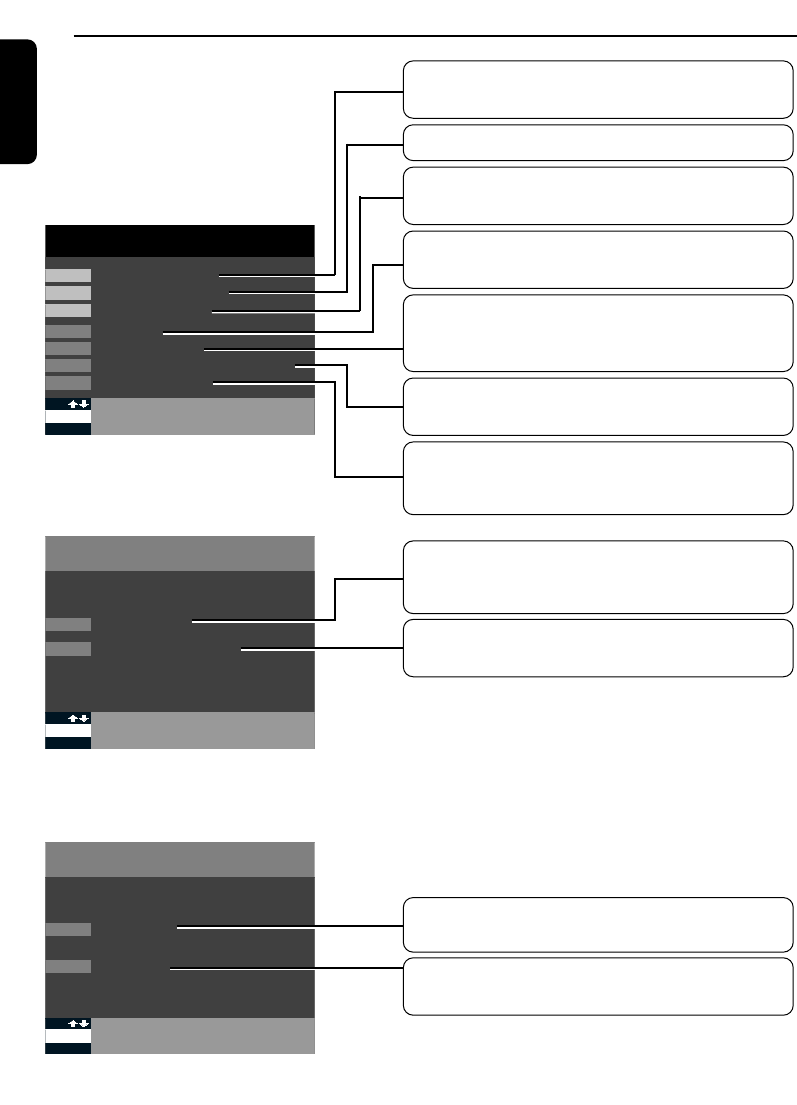
Instellen van de tijd en het kanaal voor een video-
opname.
Instellen van de voorkeurkanalen.
Instellen en wijzigen van de code en instellen van
een kinderslot.
Instellen van de ontvanger, de tv, de videorecorder
en het modem.
Kanalen installeren, kanalen toevoegen en
verwijderen, volgorde van kanalen wijzigen en een
overzicht van de complete lijst van kanalen.
Geldigheidsduur van het abonnement raadplegen
en nalezen van berichten van CanalDigitaal.
Controleren van de signaalsterkte van de ontvangst,
antenne instellen en raadplegen decoderversie en
softwareversie.
INSTELLINGEN
1
A TERUG NAAR MENU
INSTELLEN DECODER
4
2INSTELLEN TV/VIDEORECORDER
TECHNISCHE INFORMATIE
1
A TERUG NAAR MENU
SIGNAALSTERKTE
7
2DECODERVERSIE
Wijzigen van de tv- en videorecorder
standaardinstellingen.
Wijzigen van het volume, de ondertiteling, de
gesproken taal, hoe lang de informatiebalk in beeld
is, de herinnering en de tijd.
Controleren van de lnb instellingen en instellen van
de antenne.
Raadplegen van de decoderversie en de
softwareversie.
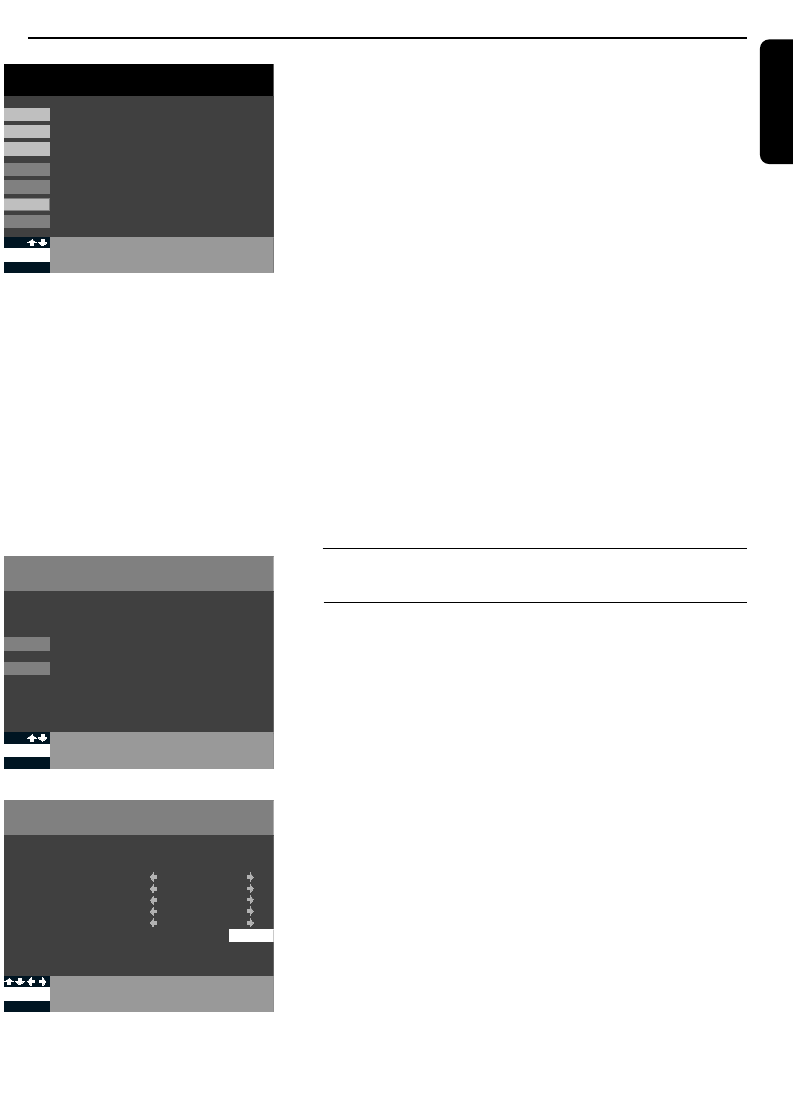
INSTALLEREN VAN DE SATELLIETONTVANGER 11
5 Installeren van de satellietontvanger
Hoe kunt u de satellietontvanger instellen!
1 Zet Uw TV aan.
2Als U het apparaat inschakeld zal de LED indicator even
kort oplichten. Hierna verschijnt het Menu.
Verzeker U er van dat de "smart card" met de chip
contacten naar boven in de sleuf gestoken wordt.
U heeft op dit moment alleen toegang tot de opties 4, 5
en 7.
Wanneer het MENU scherm niet verschijnt , nadat u
ontvanger heeft aangezet , druk dan twee maal op de
toets TV/SAT van uw afstandsbediening.
Note: In het algemeen, indien u na het aanzetten van uw
ontvanger geen beeld heeft, druk dan twee keer op de toets
TV/SAT van uw afstandsbediening.
3Voer de volgende drie stappen uit om de decoder in te
stellen:
Stap 1 INSTELLINGEN (Toets 4)
Stap 2 TECHNISCHE INFORMATIE (Toets 7)
Stap 3 KANALEN INSTALLEREN (Toets 5)
5.1 Instellingen
5.1.1 Instellen decoder
U komt in het menu door de MENU-toets in te drukken.
Om in het MENU een van de opties te kiezen kunt u op
het gewenste nummer drukken of m.b.v. de
pijltjestoetsen ©ª een optie selecteren. Druk op OK
om uw keuze te bevestigen.
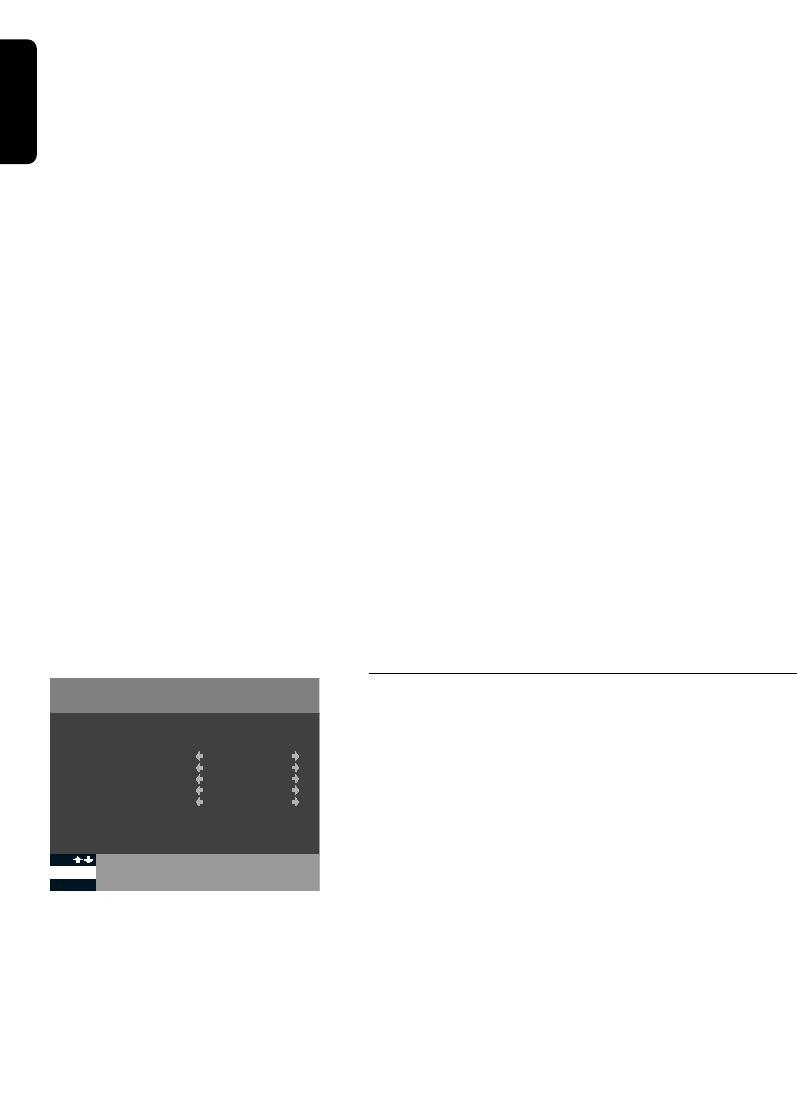
Kies vanuit het menu optie 4( INSTELLINGEN ) en
vervolgens 1 ( INSTELLEN DECODER ).
Via dit MENU kunnen de voorkeurinstellingen van uw
satellietontvanger vastgelegd worden. Kies het nummer
van de gewenste functie of gebruik de pijltjestoetsen
©ª. De mogelijke opties verschijnen door de
pijltjestoetsen §¨ te gebruiken.
5.1.1.1 Voorkeutaal
U kunt kiezen tussen Nederlands, Spaans, Frans, Engels,
Duits, Italiaans of de originele versie. Het is alleen
mogelijk om deze optie te gebruiken als het programma
ook in de gekozen taal wordt ondertiteld.
INSTELLEN DECODER
A TERUG NAAR VORIG SCHERM
4.1
BTIJD INSTELLEN
1 VOORKEURTAAL
2 ONDERTITELING
3 GELUID
4 DUUR INFOBALK
5 HERINNERING
6 TIJD INSTELLEN
NEDERLANDS
GEEN
NORMAAL
VIDEO EN AUDIO
17:03 B
INSTELLINGEN
1
A TERUG NAAR MENU
INSTELLEN DECODER
4
2INSTELLEN TV/VIDEORECORDER
MENU
1
2
3
4
5
6
7
MENU TERUG NAAR TV
PROGRAMMAS OPNEMEN
VOORKEURKANALEN KIEZEN
CODE EN KINDERSLOT
INSTELLINGEN
KANALEN INSTALLEREN
INFORMATIE ABONNEMENT EN BRIEVENBUS
TECHNISCHE INFORMATIE
Dutch
12 INSTALLEREN VAN DE SATELLIETONTVANGER
5.1.1.2 Ondertiteling
U kunt kiezen tussen Nederlands, Spaans, Frans, Engels,
Duits, Italiaans of geen ondertiteling. Het is alleen mogelijk
om deze optie te gebruiken als het programma ook in de
gekozen taal wordt uitgezonden.
5.1.1.3 Geluid
Hiermee stelt u de standaardwaarde voor het volume
mee in. Wanneer u naar een programma kijkt, kunt u de
pijltjestoetsen §¨ gebruiken om het volume aan te
passen.
5.1.1.4 Duur infobalk
Hiermee stelt u in hoelang de balk die de naam en het
nummer van het gekozen kanaal aangeeft, op het scherm
moet blijven staan. U kunt kiezen uit normaal, lang of
geen balk.
5.1.1.5 Herinnering / alarm
Geeft automatisch aan wanneer een door u geselecteerd
programma gaat beginnen.
U kunt kiezen uit een herinnering die bestaat uit video én
audio of enkel video.
5.1.1.6 Tijd instellen
De juiste datum en tijd worden automatisch in de
satellietontvanger gezet als u alle instellingen heeft
voltooid. De datum en tijd kunnen echter ook handmatig
worden ingesteld.
Om dit in te stellen drukt u op de B-toets.
Druk vervolgens twee keer op de A-toets om terug te
gaan naar het hoofdmenu.
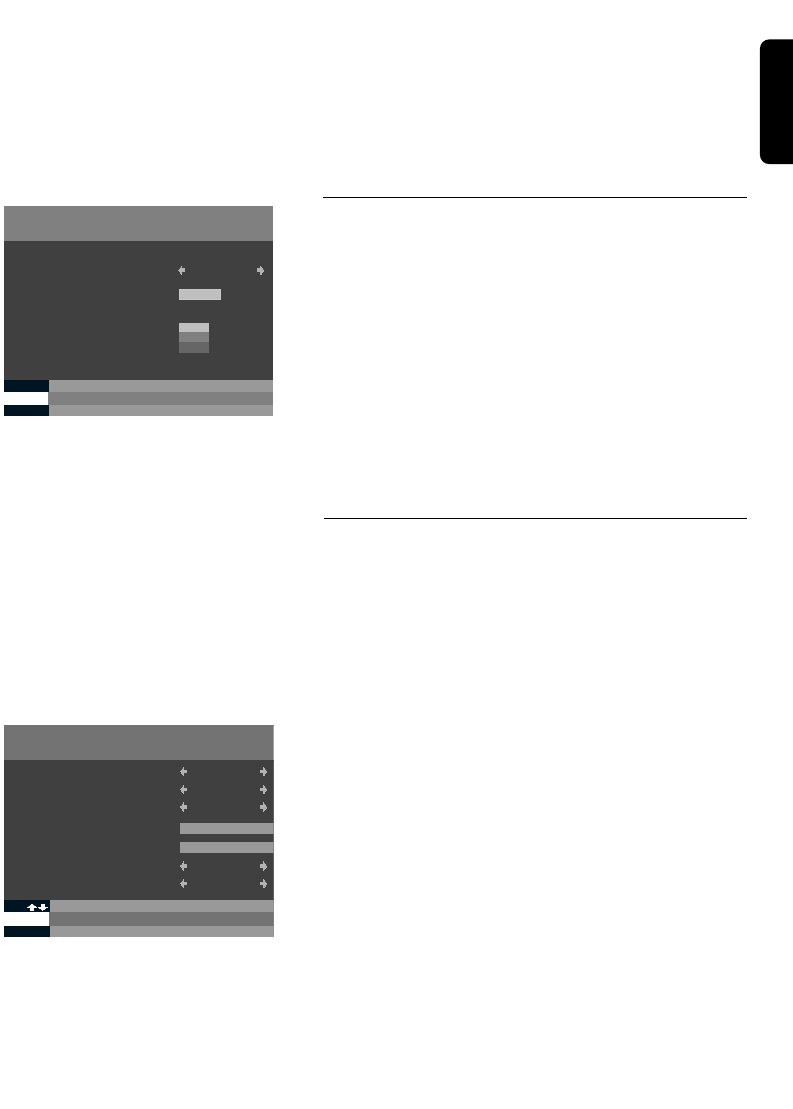
5.1.2 Instellen TV / videorecorder
Kies vanuit het menu optie 4 ( INSTELLINGEN ) en
vervolgens optie 2 ( INSTELLEN TV EN
VIDEORECORDER ).
Hier heeft u de mogelijkheid om uw TV en videorecorder
optimaal in te stellen.
Om van de ene optie naar de andere te gaan, kunt u op
de afstandsbediening het nummer van de optie kiezen
waarin u geïnteresseerd bent of door op de pijltjestoetsen
©ª te drukken. Om uit de verschillende mogelijkheden
te kiezen, kunt u op de afstandsbediening op de
pijltjestoetsen §¨ drukken.
1BEELDFORMAAT TV : 4/3 standaard of 16/9
breedbeeld
2GELUID TV : stereo of mono
3SIGNAAL TV : deze kunt u het beste laten
staan op RGB
INSTELLEN TV EN VIDEORECORDER
A TERUG NAAR MENU
1 BEELDFORMAAT TV
2 GELUID TV
3 SIGNAAL TV
4 GELUID VIDEORECORDER
5 NORM VIDEORECORDER
4.2
4/3 (STANDAARD)
STEREO
CVBS
STEREO
PAL
Dutch
INSTALLEREN VAN DE SATELLIETONTVANGER 13
4GELUID VIDEORECORDER : stereo of mono
5NORM VIDEORECORDER : deze kunt u het beste
laten staan op PAL
Wanneer u de gewenste instellingen heeft geselecteerd
kunt u op de A-toets drukken om terug te gaan naar het
INSTELLINGEN scherm.
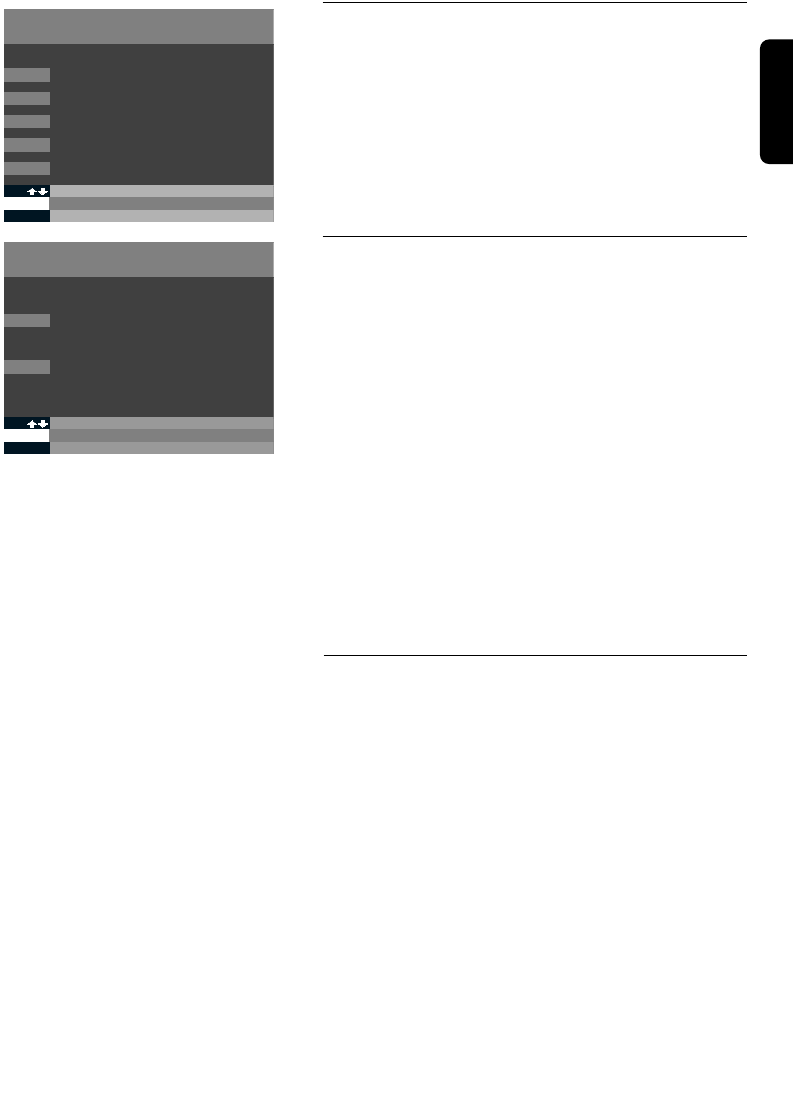
5.2 Technische informatie
Druk vanuit het menu op 7(technische informatie) en
vervolgens op 1(SIGNAALKWALITEIT).
Via het scherm SIGNAALKWALITEIT kunt u zien hoe
sterk het ontvangen signaal is.
Wij adviseren u om de schotel door een
professionele installateur met de juiste
meetapparatuur te laten installeren.
Voor het ontvangen van het digitale signaal van de ASTRA
satelliet zijn alle parameters vooraf ingesteld. Om deze
instellingen te wijzigen drukt u op B(ANTENNE
INSTELLEN).
5.2.1 Schotel instellingen
• SATELLIET : ASTRA 1G
• SCHOTELNUMMER : 1
• BAND : KU
• FREQUENTIE : 12.515 Ghz
• LO LNB : 10600 Mhz
• POLARISATIE : Horizontal
• Schakeling (22Khz) : Ja
Als u gebruik maakt van een andere satelliet kunt u bij
sectie SATELLIET "OVERIGE" invullen en de
bijbehorende parameters invullen.
Controleer in ieder geval de LO waarde van de LNB.
Deze vindt u in de handleiding van de schotelantenne of
op de sticker van de LNB. Neem contact op met het
bedrijf dat u de schotel heeft geleverd als u de waarde
niet kunt vinden.
Wanneer de juiste parameters zijn ingesteld kunt u
beginnen met het instellen van de kanalen.
ANTENNE INSTELLEN
A TERUG NAAR MENU
7. 1
BTERUG NAAR VORIG SCHERM
SATELIET
SCHOTELNUMMER
BAND
FREQUENTIE
LO LNB
POLARISATIE
SCHAKELING (22 KHZ)
ASTRA 1G
1
KU
12515
10600
HORIZONTAAL
JA
SIGNAALSTERKE
A TERUG NAAR VORIG SCHERM
VOEDINGSSPANNING LNB
GOED
MATIG
ONVOLDOENDE
7. 1
AAN
12345
BANTENNE INSTELLEN
SIGNAALSTERKE
Dutch

14 INSTALLEREN VAN DE SATELLIETONTVANGER
5.2.2 Het richten van de schotelantenne
Wij adviseren u om de schotel te laten installeren
door een installateur met de juiste meetapparatuur.
1Ga terug naar het scherm SIGNAALSTERKTE (druk op B).
2Kies de VOEDINGSSPANNING LNB met behulp van de
pijltjestoetsen §¨.
•JA als u een schotelantenne heeft.
•NEE als u meerdere schotelantennes op uw decoder
heeft aangesloten.
Neem in dit geval contact op met uw installateur.
3Richt de antenne op 19,2° Oost, de ASTRA
satellietpositie.
4In het scherm staat een ontvangstindicator die de kwaliteit
en de sterkte van de ontvangst aangeeft.
De lengte van de balk geeft de sterkte aan, de kleuren
geven de kwaliteit aan.
Richt de schotel zo goed mogelijk uit: de balk moet zo ver
mogelijk uitslaan.
• Als de signaalkwaliteit groen is en dicht bij de 3 komt, is
de signaalsterkte acceptabel. U kunt de schotel op deze
positie vastzetten.
• Als de signaalkwaliteit oranje is kunt u de richting van de
schotel veranderen om een betere werking te krijgen.
• Als de signaalkwaliteit rood is, heeft u een slecht signaal.
Het signaal kan slecht zijn doordat:
- De schotel niet goed gericht staat.
- De verbinding tussen de schotel en de decoder via de
coaxkabel niet in orde is.
Raadpleeg in dat geval uw installateur.
Wanneer de ontvangstindicator groen is en in de buurt
van 3 komt, is de decoder klaar om de kanalen in het
geheugen op te nemen.
Dutch
INSTALLEREN VAN DE SATELLIETONTVANGER 15
5.3 Het installeren van de kanalen
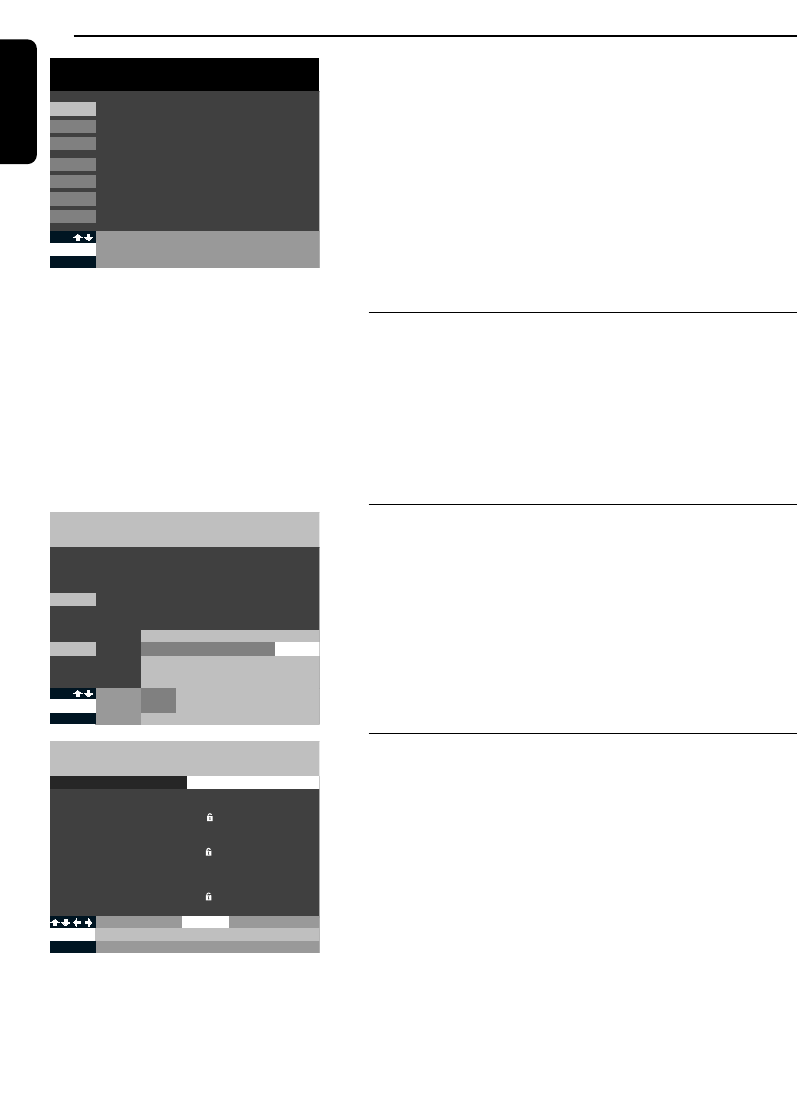
Kies KANALEN INSTALLEREN (toets 5in menu).
Het volgende scherm verschijnt:
5.3.1 Canaldigitaal
Als u deze methode kiest zullen de kanalen van
CANALDIGITAAL in een door CANALDIGITAAL
bepaalde volgorde als eerste in de Lijst van Kanalen
komen te staan. Daarna volgen de overige kanalen in
willekeurige volgorde.
De decoder geeft de mogelijkheid om de "overige
kanalen" te hernummeren (de CANALDIGITAAL kanalen
kunt u echter niet hernummeren). Bij deze optie zal de
automatische zoekfunctie ongeveer 15 tot 30 minuten
duren. Tijdens deze fase verschijnt een scherm met een
voortgangsindicator.
Wanneer de kanalen gevonden zijn (de indicator geeft dan
100% aan), wordt automatisch een lijst van alle kanalen in
het geheugen van de decoder vastgelegd.
5.3.2 In willekeurige volgorde
Als u deze manier kiest zullen de kanalen in willekeurige
volgorde in de Lijst van Kanalen komen te staan.
De decoder geeft de mogelijkheid om zelf alle kanalen
(incl. CANALDIGITAAL) te hernummeren. Het
automatisch zoeken duurt ongeveer 15 tot 30 minuten.
Tijdens deze fase verschijnt een scherm met een
voortgangsindicator.
Wanneer de kanalen gevonden zijn (de indicator geeft dan
100% aan), wordt automatisch een lijst van alle kanalen in
het geheugen van de decoder vastgelegd.
KANALEN INSTALLEREN
A TERUG NAAR VORIG SCHERM
5.5
1 CANAL DIGITAAL
2 IN WILLEKEURIGE VOLGORDE
KANALEN INSTALLEREN
A TERUG NAAR MENU
5
1LIJST VAN KANALEN
2KANALEN HERNUMMEREN
3KANALEN TOEVOEGEN
4KANALEN VERWIJDEREN
5 KANALEN INSTALLEREN
Dutch
16 HET MENU
6 Het menu
De MENU-toets
M.b.v. het MENU van de satellietontvanger kunt u allerlei
handige zaken regelen zoals het instellen van een
kinderslot, voorkeurkanalen bepalen, een timer instellen
voor het opnemen van meerdere programma's etc. U
komt in het menu door de MENU-toets in te drukken.
Om in het MENU een van de opties te kiezen kunt u op
het gewenste nummer drukken of m.b.v. de pijltjestoetsen
©ª een optie selecteren. Druk op OK om uw keuze te
bevestigen.
6.1 Code en kinderslot
Toets 3 in het MENU
U kunt uw persoonlijke code zelf instellen en wijzigen. Als
u een programma wilt bekijken dat geblokkeerd is of als u
naar een betaalprogramma wilt kijken, moet u deze
pincode invoeren. U kunt ook de toegang tot een aantal
kanalen blokkeren met het kinderslot.
6.1.1 Code instellen
• Druk op MENU, daarna op 3en 1.
• Kies een getal van 4 cijfers (niet 0000).
• Wanneer u later uw pincode wilt wijzigen kunt u opnieuw
optie 1kiezen (CODE WIJZIGEN).
Bevestig uw CODE door op OK te drukken of ga terug
naar het scherm CODE EN KINDERSLOT door op Ate
drukken.
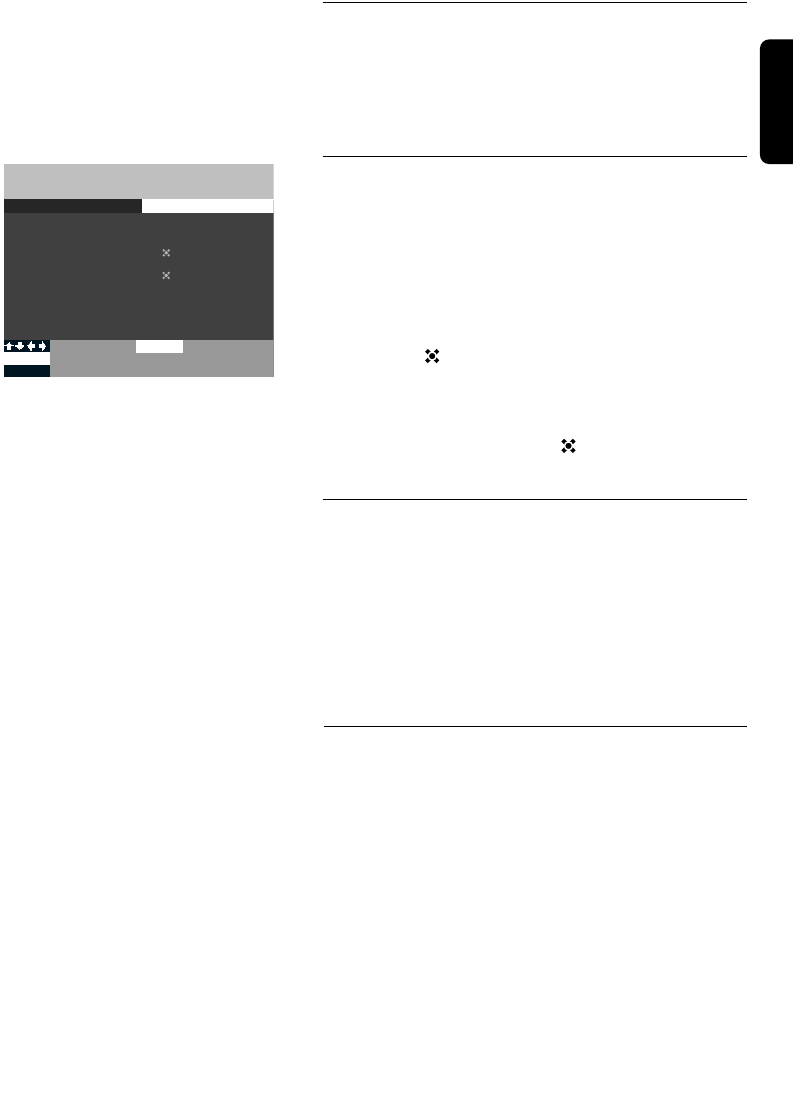
6.1.2 Kinderslot activeren
Hiermee blokkeert of deblokkeert u de toegang tot een
of meer kanalen.
• Druk op MENU, daarna op 3en dan op 2.
• U moet eerst uw pincode invoeren.
In dit scherm is het mogelijk om:
- Kanalen te selecteren waarop u een kinderslot wilt
zetten. Wanneer u een kanaal heeft geselecteerd
verschijnt er een open slotje in het scherm.
- Druk nu op B-toets om de status van het kinderslot te
wijzigen. Het symbool van het open slotje verandert nu
in een dicht slotje of omgekeerd.
KINDERSLOT ACTIVEREN
CANAL DIGITAAL
A TERUG NAAR MENU
3.2
...
C+1
C+2
RTL4
RTL5
SBS6
VERONICA
TMF
NED1
NED2
...
KINDERSLOT NIET ACTIEF
B
OK
KINDERSLOT ACTIVEREN
BEVESTIGEN
1
2
3
4
5
6
7
8
9
PINCODE EN KINDERSLOT
1
A TERUG NAAR MENU
CODE INSTELLEN
3
3KINDERSLOT VOER CODE IN ++++
OK
ABEVESTIGEN
STOPPEN
MENU
1
2
3
4
5
6
7
MENU TERUG NAAR TV
PROGRAMMAS OPNEMEN
VOORKEURKANALEN KIEZEN
CODE EN KINDERSLOT
INSTELLINGEN
KANALEN INSTALLEREN
INFORMATIE ABONNEMENT EN BRIEVENBUS
TECHNISCHE INFORMATIE
Dutch
HET MENU 17
6.1.3 Kijken naar een kanaal met kinderslot
Als u bij het zappen een geblokkeerd kanaal tegenkomt,
ziet u een informatiebalk onder in het scherm. Hier
wordt u gevraagd of u toegang wilt hebben: druk op OK
en voer uw code in. Nu kunt u het programma bekijken.
6.2 Voorkeurkanalen kiezen
• Druk op MENU en op 2om naar het menu
VOORKEURKANALEN KIEZEN te gaan.
U kunt hier een lijst met uw favoriete kanalen
samenstellen. Bij het zappen tussen de kanalen ziet u dan
enkel uw geselecteerde favoriete kanalen.
• Gebruik de pijltjestoetsen ©ª om uw favoriete kanalen
te selecteren en druk op OK om uw keuze te bevestigen.
Het symbool verschijnt naast elk kanaal dat
geselecteerd is, zowel in het menu van de programma's
als in de INFO-balk.
• Om de selectie van een programma ongedaan te maken,
drukt u op de OK-toets en het symbool verdwijnt.
6.3 Programma's opnemen
Om een programma op te nemen, moet de ontvanger
aan staan op het kanaal dat u wilt opnemen. U kunt de
ontvanger zo programmeren dat hij automatisch op het
juiste moment op het juiste kanaal inschakelt op het
programma dat u wilt opnemen. Dit kan vooral handig
zijn als u tijdens uw afwezigheid programma's van
meerdere kanalen wilt opnemen. U zult daarnaast echter
ook altijd uw videorecorder moeten programmeren.
6.3.1 Opname van een digitaal kanaal waar u
naar kijkt
Zet uw ontvanger op het gewenste kanaal en uw
videorecorder op de preselectie voor de ontvanger. U
kunt nu de opname starten.
LET OP!
U kunt niet een programma opnemen via uw digitale decoder
en tegelijkertijd naar een ander kanaal kijken via uw digitale
ontvanger.
VOORKEURKANALEN INSTELLEN
CANAL DIGITAAL
A TERUG NAAR MENU
2
...
C+1
C+2
RTL4
RTL5
SBS6
VERONICA
TMF
NED1
NED2
...
VOORKEURKANAAL
OK BEVESTIGEN
1
2
3
4
5
6
7
8
9
Dutch
18 HET MENU
6.3.2 Opnemen van een programma dat later
wordt uitgezonden
U zult eerst de videorecorder op de preselectie van de
decoder moeten instellen. Daarna zult u de digitale
ontvanger zo moeten programmeren dat deze op tijd en
op het juiste kanaal inschakelt.
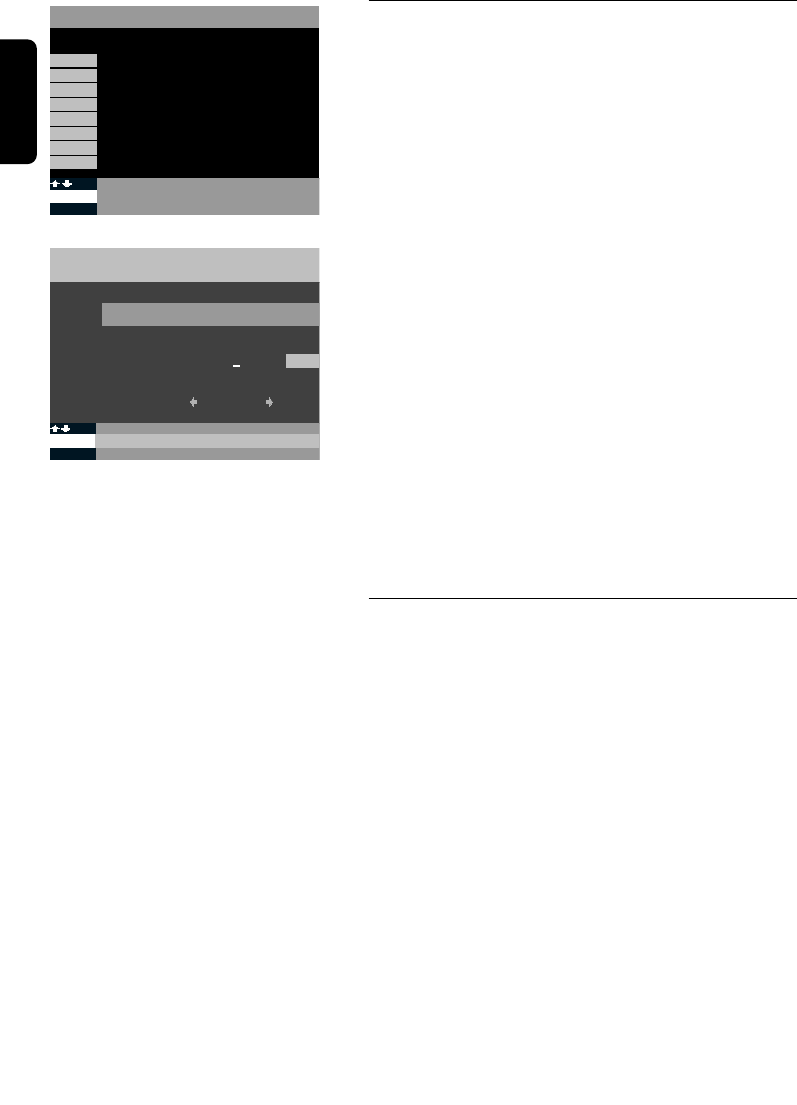
U kunt vanuit het MENU (MENU-toets) of vanuit de
EPG (EPG- toets) de ontvanger programmeren om op
een later tijdstip een programma op te nemen.
MENU-toets
• Druk op MENU en 1en vervolgens op het nummer van
het programma. Kies een volgnummer voor de opname.
Het maakt niet uit welk nummer dit is: begin gewoon met
1, ga verder met 2, 3 ,4 enz...
• Selecteer nu de datum, het nummer van het kanaal, de
start- en eindtijd en of het opnemen dagelijks, wekelijks of
maandelijks moet plaatsvinden].
• Volg vervolgens de instructies die op het scherm
verschijnen.
LET OP!
- Als er op het kanaal dat u wenst op te nemen een kinderslot
zit, moet u uw code invoeren.
- Vergeet niet de videorecorder vóór de opname van het
programma in te stellen.
- U kunt maximaal acht programma's opnemen.
6.3.3 Vanuit de electronische programmagids
(EPG) een programma opnemen
Vanuit de EPG kunt u alleen kanalen opnemen waarvoor u
een abonnement heeft. U kunt dit als volgt doen:
- Druk op EPG
- Selecteer PROGRAMMA-OVERZICHT
- Ga op het gewenste programma staan en bevestig uw
keuze met de OK-toets.
LET OP!
Als u een programma selecteert dat op dat moment bezig is,
kunt u dat programma niet opnemen: u kunt het alleen
bekijken.
• In het scherm volgt u de instructies voor het
programmeren van een opname
• Als u wilt opnemen op een tijd die reeds gekozen is, krijgt
u een waarschuwingsbericht.
• Zet de videorecorder op de preselectie voor de decoder.
• Vergeet niet ook de videorecorder in te stellen.
PROGRAMMAS OPNEMEN
PROGRAMMA 1
A TERUG NAAR VORIGE SCHERM
1
OK
EKEUZE VAN KANAAL
BEVESTIGEN INSTELLING
VERGEET NIET DE VIDEORECORDER
TE PROGRAMMEREN
DATUM
KANAAL NUMMER
STARTTIJD
EINDTIJD
HERHALING
13.08
6
06:00
08:00
EENMALIG
OF E
PROGRAMMA’S OPNEMEN
2
3
4
5
6
TERUG NAAR MENU
24.09 PLANETE 15:10-16:10
PROGRAMMA BESCHIKBAAR
PROGRAMMA’S OPNEMEN
OK
E
A
WISSEN
VERGEET NIET DE VIDEORECORDER
TE PROGRAMMEREN
1
24.09 PLANETE 15:10-16:10
PROGRAMMA BESCHIKBAAR
PROGRAMMA BESCHIKBAAR
PROGRAMMA BESCHIKBAAR
7
8
PROGRAMMA BESCHIKBAAR
PROGRAMMA BESCHIKBAAR
Dutch

HET MENU 19
6.3.4 Opname indicatie
• Als de ontvanger in standby staat, zal deze automatisch
inschakelen op het kanaal en op het tijdstip dat u wilt
opnemen.
• Als u kijkt naar een ander kanaal dan het kanaal dat u wilt
opnemen, krijgt u een herinnering.
- Als u op +drukt verschijnt er een bericht om de
kanalen die u wilt opnemen in te stellen.
- Als u op OK drukt zal de decoder ingesteld worden op
het kanaal dat u wilt opnemen.
LET OP!
Als u gedurende de opname naar een ander kanaal schakelt zal
deze opname verloren gaan.
6.4 Informatie abonnement en
brievenbus
Toets 6 in het HOOFDMENU
Met deze optie kunt u kijken naar:
6.4.1 De geldigheidsduur van uw abonnement
• Druk op MENU, daarna op 6en 1.
De ontvangstrechten van uw abonnement worden iedere
maand automatisch verlengd. In deze sectie kunt u
achterhalen of uw abonnement daadwerkelijk is verlengd.
U kunt hier echter niet vinden tot wanneer uw
abonnement loopt. Daarvoor moet u uw
inschrijfformulier raadplegen.
Wij adviseren u om uw smartcard altijd in de
ontvanger te laten zitten zodat uw abonnement
iedere maand automatisch kan worden verlengd.
6.4.2 Brievenbus
Het is mogelijk dat u een abonnement heeft op een
kanaal dat u persoonlijke berichten toestuurt.
• Druk op MENU en daarna op 6en 2of gebruik de
pijltjestoetsen ©ª en bevestig daarna door middel van
de OK-toets.
Om uit het MENU te gaan, drukt u opnieuw op de
MENU-toets of op TERUG.
GELDIGHEIDSDUUR ABONNEMENT
A TERUG NAAR VORIGE SCHERM
6.1
ONTVANGSTRECHTEN TOT
CANAL DIGITAAL
CANAL+
30 SEP 98
30 SEP 98
LAAT UW SMARTCARD A.U.B. IN DE DECODER ZITTEN ZODAT
UW ABONNEMENT MAANDELIJKS KAN WORDEN VERLENGD.
ALS U PROBLEMEN MET DE ONTVANGSTRECHTEN KRIJGT
ADVISEREN WE U OM ONZE KLANTENSERVICE TE BELLEN.
Dutch
20 INFORMATIEBALKEN
7 Informatiebalken (Info)
INFO-toets
Wanneer u tijdens het kijken naar een
programma op de INFO-toets drukt,
verschijnen er informatiebalken. In deze
balken vindt u informatie over programma's
die op dat moment worden uitgezonden en
informatie over programma's die daarna
worden uitgezonden.
Als u op de INFO-toets drukt verschijnen
er twee balken in het TV-scherm, één
bovenin en één onderin.
7.1 Onderste balk
Hier vindt u het nummer en de naam van
het kanaal waarop u bent ingesteld en de
tijd.
7.2 Bovenste balk
In deze balk staat programma-informatie en
andere aanvullende informatie van het
kanaal waarop u bent ingesteld. Deze
informatie is aangegeven met symbolen. U
vindt hier de naam en het nummer van het
kanaal, de titel en het type programma waar
u naar kijkt, begin- en eindtijd van het
programma en technische informatie (o.a.
stereogeluid, formaat van het beeld).
Om alle programma's te zien die op dit
moment worden uitgezonden:
- Druk op de pijltjestoetsen ©ª om een
kanaal te selecteren of druk rechtstreeks
op het nummer van het kanaal waar u in
geïnteresseerd bent. De bovenste balk
wijzigt terwijl de onderste balk en het
beeld waar u naar kijkt gelijk blijven.
Om het volgende programma van een
kanaal te zien:
- Druk op de ¨toets. U ziet nu wat er
straks wordt uitgezonden.
Om te zien welke programma's nu worden
uitgezonden op een ander kanaal:
- Toets het nummer van een kanaal in of
selecteer een kanaal met de
pijltjestoetsen ©ª en druk op de OK-
toets.
LET OP!
- Als u bij het voorgaande de VOORK-ttoets
heeft gebruikt, kunt u de INFO-ttoets alleen
voor de voorkeurkanalen gebruiken.
- Als het gekozen kanaal geblokkeerd is, zult u
uw pincode moeten intoetsen.
- Om weer alle kanalen te zien drukt u opnieuw
op de VOORK-ttoets.
- Om uit INFO te gaan drukt u opnieuw op de
INFO-ttoets of drukt u op TERUG.
Dutch

ELECTRONISCHE PROGRAMMAGIDS 21
Dutch
EPG-toets
De elektronische programmagids (EPG)
geeft informatie over alle programma's die
de komende week worden uitgezonden.
Met de EPG kunt u zeer eenvoudig
programma's opzoeken.
Met behulp van de EPG-toets heeft u
toegang tot de volgende opties:
PROGRAMMA OVERZICHT:
de programma's staan in volgorde van
uitzending per kanaal.
FILM, SPORT, JEUGD,
DOCUMENTAIRES EN OVERIGE
GENRES:
de programma's staan per genre
gerangschikt.
SELECTEREN PROGRAMMA'S:
Hier kunt u selecties maken om uw
favoriete programma's te zoeken. De
programma's die u heeft geselecteerd
worden opgeslagen in het geheugen.
LIJST GESELECTEERDE
PROGRAMMA'S:
een lijst met alle door u geselecteerde
programma's die u wilt zien of opnemen.
• Om uit de ELECTRONISCHE
PROGRAMMAGIDS te gaan drukt u op
EPG of TERUG.
Note: Het kan voorkomen dat de EPG niet
volledig is voorzien van de actuele informatie.
Door de huidige regelgeving met betrekking tot
de copyrights van programma informatie
betreffende de zenders Nederland 1, 2, en 3, is
Canal+ gelimiteerd bij het uitzenden van de
Electronische Programma Gids.
8.1 Programma overzicht
Hier staan alle programma's in
chronologische volgorde. U kunt alle
programma's tot één week vooruit
bekijken.
8.1.1 Een programma kiezen
• Wanneer u een programma wilt bekijken
kunt u de pijltjestoetsen ©ª of §¨ het
programma selecteren en kunt u op de OK-
toets drukken om:
- te zien of een programma op dat
moment wordt uitgezonden.
- een programma dat op een later tijdstip
wordt uitgezonden in het geheugen te
zetten .
- een programma dat in het geheugen
staat te wissen.
- een betaalprogramma op te vragen. Deze
functie is pas in de toekomst beschikbaar.
- een programma op te nemen of een
opname te annuleren.
8.1.2 Programma’s op andere dagen
• Als u in de EPG programma's wilt opzoeken
op een bepaalde dag dan kunt u het
volgende doen:
- Om de dag te kiezen:
- Drukt u op de toets die
correspondeert met de gekozen dag
van de week (MA, DI, …) en u gaat
direct naar de tijdsperiode (ochtend)
van 6:00 uur tot 14:00 uur.
- Voor de middagprogramma 's tussen
14:00 en 20:00 uur, drukt u op de
DAG-toets .
- Voor de avondprogramma's tussen
20.00 en 24.00 uur, drukt u op de
AVOND-toets.
- Voor de nachtprogramma's tussen
00:00 en 6:00 uur, drukt u op de
NACHT-toets.
8 Electronische programmagids (EPG)

22 ELECTRONISCHE PROGRAMMAGIDS
Dutch
+ Toets
Wanneer u op de +toets drukt krijgt u
uitgebreide informatie over het
geselecteerde programma (samenvatting
van het programma, acteurs, presentators,
presentatrices, regisseurs enz …).
8.1.3 Programma’s kiezen op basis
van kanaal en tijd
Als u PROGRAMMA OVERZICHT en
daarna Bindrukt kunt u een programma
selecteren op basis van kanaal en starttijd.
Als u daarna OK kiest zal de EPG de
bijbehorende programma's opzoeken. U
kunt dit kanaal vervolgens in de LIJST
GESELECTEERDE PROGRAMMA'S
plaatsen.
8.1.4 Herinnering
De ontvanger zal u waarschuwen als een
programma begint dat u in de LIJST
GESELECTEERDE PROGRAMMA'S heeft
geplaatst.
U kunt het type herinneringssignaal
instellen via het MENU.
• Druk op MENU en daarna op 4en op 1.
Enkele minuten voordat het programma
begint, wordt u gewaarschuwd. U kunt bij
HERINNERING kiezen uit:
- audio: de decoder geeft een BIEP.
- Niets.
Wanneer u op de +toets drukt verschijnt
de naam van het programma dat in het
geheugen is gezet.
LET OP!
- Wanneer een programma dat in het
geheugen staat wordt uitgezonden, wordt dit
programma automatisch uit het geheugen
verwijderd.
- In het geheugen kunnen maximaal 8
programma's worden opgeslagen.
- Een programma dat in het geheugen staat,
wordt in de EPG en INFO met een symbool
aangegeven.
8.2 Film, sport, jeugd,
documentaire en overige
genres
Hier staan alle programma's geselecteerd
naar de verschillende genres: films, sport,
jeugdprogramma's en overige genres in
chronologische volgorde. U kunt alle
informatie over de programma's tot één
week vooruit bekijken.
Wanneer u ANDERE GENRES kiest (met
behulp van de pijltjestoetsen ©ª en OK),
krijgt u de volgende lijst:
- Series
- Infomagazine
- Entertainment
- Muziek
- Weerbericht
- Evenement
- Overige
8.2.1 Een programma kiezen
• Wanneer u een programma wilt bekijken
kunt u m.b.v. de pijltjestoetsen ©ª of §¨
het programma selecteren en kunt u op de
OK-toets drukken om:
- te zien of een programma op dat
moment wordt uitgezonden.
- een programma dat op een later tijdstip
wordt uitgezonden in het geheugen te
zetten.
- een programma dat in het geheugen staat
te wissen.
- een betaalprogramma op te vragen. Deze
functie is pas in de toekomst beschikbaar.
- een programma op te nemen of een
opname te annuleren.
8.2.2 Programma’s op andere dagen
• Als u in de EPG programma's wilt opzoeken
op een bepaalde dag kunt u het volgende
doen:
- drukt u op de toets die correspondeert
met de gekozen dag van de week (MA,
DI, ……) en u gaat direct naar de
tijdsperiode (ochtend) van 6:00 uur tot
14:00 uur.

ELECTRONISCHE PROGRAMMAGIDS 23
Dutch
- Voor de middagprogramma 's tussen
14:00 en 20:00 uur, drukt u op de DAG-
toets.
- Voor de avondprogramma's tussen 20.00
en 24.00 uur, drukt u op de AVOND-
toets.
- Voor de nachtprogramma's tussen 00:00
en 6:00 uur, drukt u op de NACHT-
toets.
+ toets
Wanneer u op de +toets drukt krijgt u
aanvullende informatie over een programma
(samenvatting van het programma, acteurs,
presentators, presentatrices, regisseurs
enz.……).
8.2.3 Programma’s kiezen op basis
van tijd
Als u FILM, SPORT, JEUGD,
DOCUMENTAIRE of OVERIGE GENRES
selecteert en daarna Bindrukt kunt u een
programma selecteren o.b.v. de starttijd. Als
u daarna OK kiest zal de EPG de
bijbehorende programma's opzoeken. U
kunt dit kanaal vervolgens in de LIJST
GESELECTEERDE PROGRAMMA'S
plaatsen.
8.2.4 Herinnring
De ontvanger zal u waarschuwen als een
programma begint dat u in de LIJST
GESELECTEERDE PROGRAMMA'S heeft
geplaatst.
U kunt het type herinneringssignaal instellen
via het MENU.
• Druk op MENU en daarna op 4en op 1.
Enkele minuten voordat het programma
begint, wordt u gewaarschuwd. U kunt bij
HERINNERING kiezen uit:
- audio: de decoder geeft een BIEP.
- Niets.
Wanneer u op de +toets drukt verschijnt
de naam van het programma dat in het
geheugen is gezet.
LET OP!
- Wanneer een programma dat in het geheugen
staat wordt uitgezonden, wordt dit
programma automatisch uit het geheugen
verwijderd.
- In het geheugen kunnen maximaal 8
programma's worden opgeslagen.
- Een programma dat in het geheugen staat,
wordt in de EPG en INFO aangegeven .
8.3 Selecteren programma's
Met deze optie kunt u uw favoriete
programma's selecteren op verschillende
criteria.
U kiest SELECTEREN PROGRAMMA'S en
daarna D (selecteren). U heeft vervolgens
de keuze uit drie selectiemogelijkheden:
- Genre
- Tijdstip
- Kanaal
Als u de criteria heeft aangepast naar uw
eigen voorkeur kunt u met de E-toets een
zoekopdracht uitvoeren. Met de +toets
kunt u extra informatie opvragen. Met de B-
toets kunt u, met behulp van de gewenste
starttijd van het programma, een extra
detail invoeren voor een zoekopdracht.
8.4 Lijst geselecteerde
programma's
In de lijst geselecteerde programma's staan
de programma's die u in het geheugen van
de ontvanger heeft geplaatst. U vindt hier
twee typen programma's:
- programma's die u in het MENU heeft
geselecteerd voor opname (aangegeven
met PROGRAMMERING OPNAME); als
deze programma's beginnen schakelt de
ontvanger automatisch over op het kanaal
waarop dit programma wordt
uitgezonden
- programma's die u in de EPG heeft
geselecteerd; als deze programma's
beginnen geeft de ontvanger u een
herinneringssignaal.
- U kunt een programma ook verwijderen
uit deze lijst door dit programma te
selecteren en op OK te drukken.

24 WANNEER U NAAR EEN PROGRAMMA KIJKT
9 Wanneer u naar een programma kijkt
9.1 Wanneer u naar een
programma kijkt
DE + TOETS
Als u naar een programma kijkt en de +
toets indrukt kunt u voor een specifieke taal
en/of ondertiteling kiezen.
U kunt deze functie alleen gebruiken als het
programma wordt uitgezonden in de door u
gekozen taal en / of wanneer het
programma ondertiteld is. Om van de ene
naar de andere optie (taal, ondertiteling) te
gaan, kunt u de pijltjestoetsen ©ª
gebruiken. Om uit de verschillende talen of
ondertiteling te kiezen, gebruikt u de
pijltjestoetsen §¨.
Om uw keuze te bevestigen en terug te
gaan naar het programma.
• drukt u op +of de OK-toets
VOORK-toets
Met deze toets kunt u uw favoriete kanalen
activeren en deactiveren.
• Druk op VOORK en het symbool
verschijnt wit opgelicht in het scherm. U
kunt nu alleen zappen tussen de
geselecteerde voorkeurkanalen.
• Als u opnieuw op VOORK drukt, verschijnt
het symbool rood opgelicht in het
scherm. U kunt nu zappen tussen alle
kanalen.
9.2 Tijdens het raadplegen van
de epg
Als u in de EPG zit en u drukt op de +
toets dan krijgt u een overzicht met extra
informatie over het programma dat u heeft
geselecteerd zoals samenvatting van het
programma, presentator / presentatrice,
regisseur, acteurs etc.…
Dutch
10 Radiokanalen
In de lijst van kanalen vindt u ook onder bepaalde presets de omschrijving “Radiokanalen”.
Wanneer u zo’n “Radiokanaal” selecteert, kunt u middels de omschrijving op het beeldscherm een
radioprogramma kiezen.
DE KANALEN 25
11 De kanalen
11.1 De lijst van kanalen
Om de lijst van de kanalen te bekijken:
- drukt u op MENU en 5. U krijgt nu het menu
KANALEN INSTALLEREN.
- kies optie 1om de LIJST VAN KANALEN te bekijken.
Gebruik de pijltjestoetsen ©ª om een kanaal te kiezen
of druk rechtstreeks op het nummer van het kanaal. De
voorkeurkanalen en de kanalen met een kinderslot
herkent u aan de symbolen.
Wanneer u naar een programma kijkt, kunt u
rechtstreeks naar het menu LIJST KANALEN schakelen
door op de E-toets te drukken.
11.2 De nummering van kanalen
wijzigen
Tijdens de installatie heeft u gekozen uit een volgorde die
bepaald is door CANALDIGITAAL of een willekeurige
volgorde.
U kunt de nummering eventueel wijzigen:
- als u voor een persoonlijke nummering heeft gekozen
dan kunt u de gehele volgorde van alle kanalen wijzigen
(vanaf 1 t/m 500).
- als u voor de volgorde van CANALDIGITAAL heeft
gekozen dan kunt u enkel de volgorde van niet
CANALDIGITAAL kanalen wijzigen.
U heeft toegang tot deze functie via het menu KANALEN
INSTALLEREN:
- druk op MENU en dan op 5.
- kies vervolgens optie 2(KANALEN HERNUMMEREN).
Met de pijltjestoetsen ©ª kunt u door de lijst van
kanalen gaan. U kunt ook rechtstreeks het kanaal, waar u
in geïnteresseerd bent selecteren door het nummer van
het kanaal in te toetsen. U kunt een kanaal selecteren en
op de OK-toets drukken. Vervolgens kunt u het kanaal
verplaatsen met behulp van de pijltjestoetsen ©ª.
U bevestigt de nieuwe positie met de OK-toets. U kunt
nu kiezen om het kanaal voor of achter deze nieuwe
positie te plaatsen of het om te wisselen met de nieuwe
positie.
LIJST VAN KANALEN
CANAL DIGITAAL
A TERUG NAAR VORIGE SCHERM
5.1
...
C+1
C+2
RTL4
RTL5
SBS6
VERONICA
TMF
NED1
NED2
...
OK DIT KANAAL BEKIJKEN
1
2
3
4
5
6
7
8
9
Dutch

26 DE KANALEN
Dutch
11.3 Nieuwe kanalen toevoegen
Het gebeurt regelmatig dat er nieuwe
kanalen digitaal worden uitgezonden. Deze
nieuwe kanalen kunt u toevoegen in het
geheugen van de decoder.
U voegt nieuwe kanalen toe vanaf het menu
KANALEN INSTALLEREN:
- druk op MENU en 5.
- kies vervolgens optie 3(KANALEN
TOEVOEGEN).
Op dit moment zal de decoder automatisch
beginnen te zoeken. In het scherm
verschijnt een voortgangsindicator. Wanneer
de decoder klaar is met zoeken kunt u de
nieuwe kanalen vinden in de LIJST VAN
KANALEN.
11.4 Kanalen verwijderen
U kunt ook kanalen die in het geheugen
staan verwijderen vanaf het menu
KANALEN INSTALLEREN:
- druk op MENU en dan op 5.
- kies daarna optie 4(KANALEN
VERWIJDEREN).
Er verschijnt vervolgens een lijst van kanalen
die u kunt verwijderen.
U kunt het kanaal selecteren met behulp
van de pijltjestoetsen ©ª. U verwijdert
vervolgens het kanaal door op OK te
drukken. Het verwijderde kanaal kan weer
in het geheugen worden gezet door
opnieuw de kanalen te installeren.
11.5 Kanalen opnieuw
installeren
Tijdens de installatie moest u kiezen tussen
de volgorde van CANAL DIGITAAL of een
willekeurige volgorde.
Deze optie geeft u de mogelijkheid om van
het ene type nummering naar het andere te
schakelen.
• druk op MENU en daarna op 5.
• kies vervolgens optie 5( KANALEN
INSTALLEREN ). Druk op OK zodat het
scherm KANALEN INSTALLEREN
verschijnt. Het systeem geeft een
waarschuwing dat de complete lijst van
kanalen gewijzigd kan worden en dat u uw
CODE moet invoeren om in dit menu te
komen.
• u kunt vervolgens weer kiezen tussen de
twee verschillende vormen van installeren
van kanalen.
BETAALPROGRAMMA’S27
12 Betaalprogramma’s (nog niet beschikbaar)
Betaalprogramma's waren tijdens de druk van deze handleiding nog niet beschikbaar. U wordt
geïnformeerd als deze diensten beschikbaar zijn.
13 Informatie voor abonnees (nog niet beschikbaar)
Als u de SERV-toets indrukt terwijl u naar een van de
kanalen van CANALDIGITAAL kijkt kunt u informatie
opvragen over diverse onderwerpen.
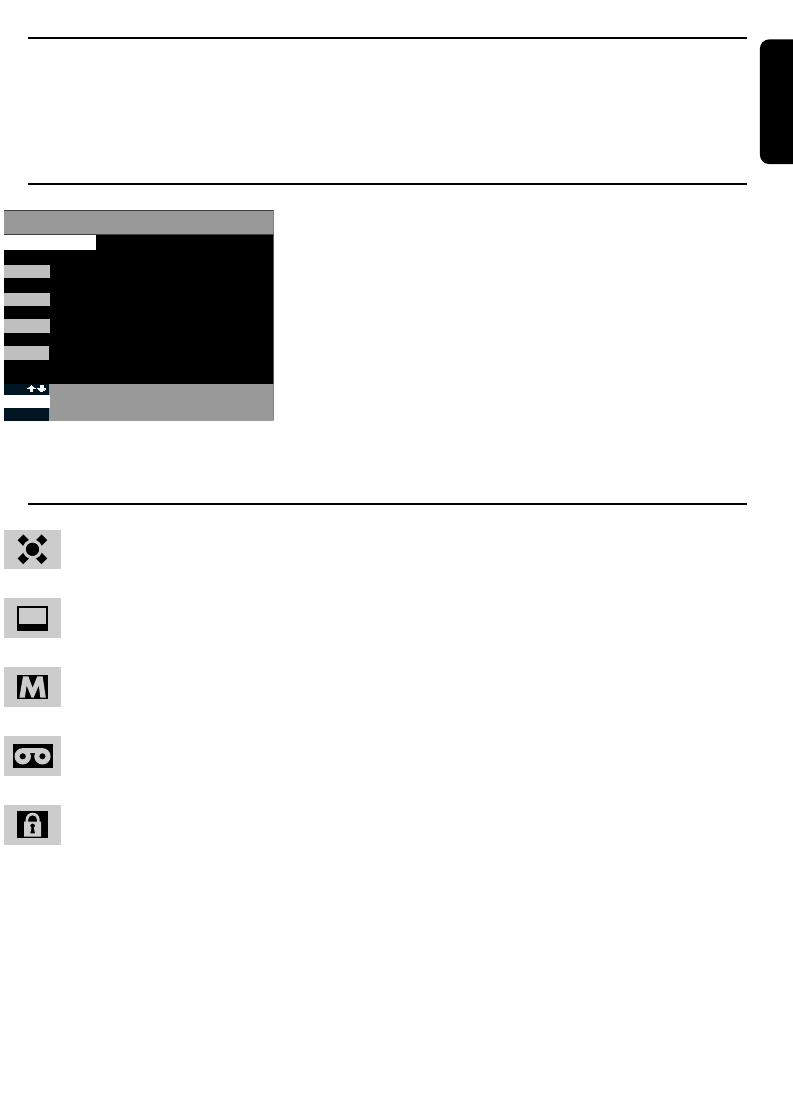
14 Symbolen en afkortingen
VOORKEURKANAAL
Dit symbool geeft aan welke kanalen door u geselecteerd zijn als
voorkeurkanalen.
HET PROGRAMMA WORDT NU UITGEZONDEN
Dit symbool geeft aan dat een programma momenteel wordt uitgezonden. Door
op OK te drukken gaat u rechtstreeks naar deze uitzending.
EEN PROGRAMMA IN HET GEHEUGEN
Programma's die u in de LIJST GESELECTEERDE KANALEN heeft geplaatst zijn
in de EPG herkenbaar aan dit symbool.
GEPROGRAMMERD VOOR OPNAME MET DE VIDEORECORDER
Dit symbool geeft in de EPG aan dat het programma is geprogrammeerd om
opgenomen te worden met een videorecorder.
KANAAL MET KINDERSLOT
Dit symbool geeft in de EPG en in de INFO aan dat het kanaal is geblokkeerd met
een kinderslot. Enkel de personen die de code kennen kunnen dit kanaal
bekijken. Als het slotje open staat is het kinderslot niet actief.
O.V./ ST: ORIGINELE VERSIE, ONDERTITELD
Dit zijn de afkortingen die gebruikt worden om aan te geven hoe een programma
wordt uitgezonden: in de originele taal of met ondertiteling. Dit symbool
verschijnt in de bovenste balk als u INFO indrukt.
16/9 en 4/3: FORMAAT PROGRAMMA
Deze afkorting geeft het formaat aan waarin het programma wordt uitgezonden.
16/9 betekent breedbeeld formaat en 4/3 standaardformaat. Deze symbolen
verschijnen in de bovenste balk als u INFO indrukt.
CANAL DIGITAL
2
3
4
TERUG NAAR TV
ABONNEMENT
INFORMATIE VOOR ABONNEES
E
SERV
WELKOM
1
INFORMATIE OVER TOKENS
BETAALDE INTERACTIEVE DIENSTEN
Dutch
28 PROBLEMEN OPLOSSEN
Dutch
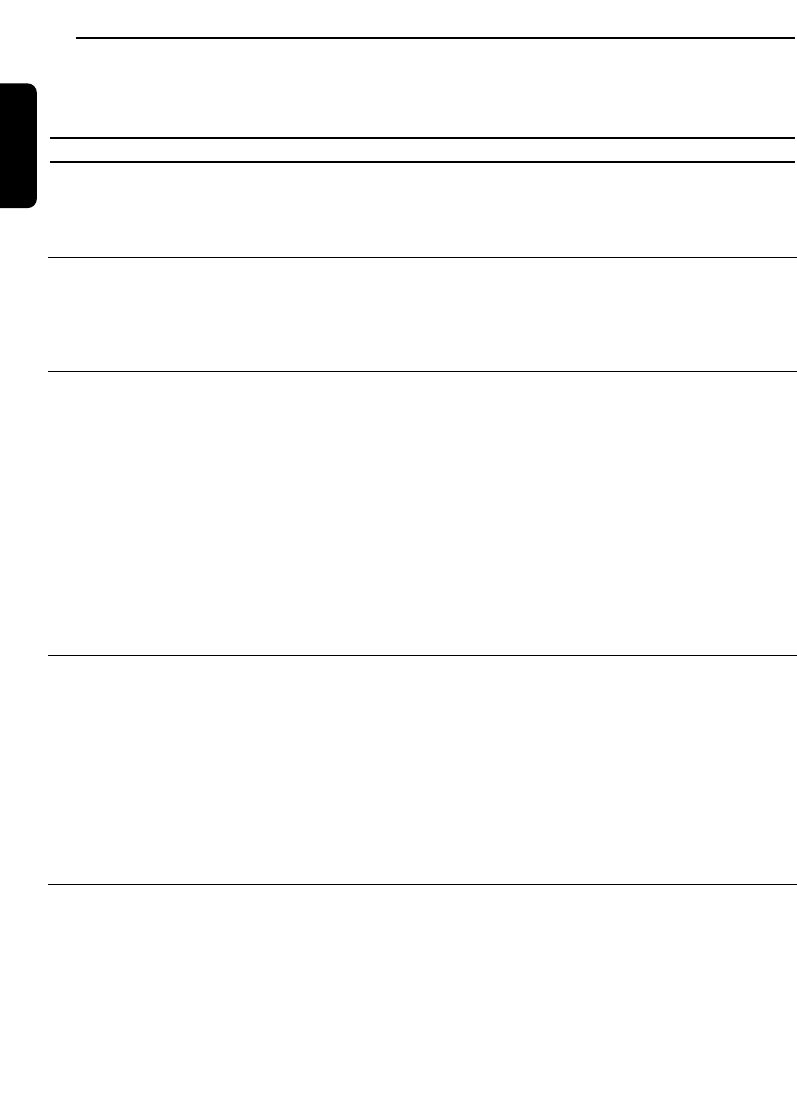
15 Problemen oplossen
Als u problemen heft met uw Philips DSR 2210, controleert u dan eerst de volgende punten.
PROBLEEM MOGELIJKE OORZAAK ACTIE
Geen beeld, geen geluid en
geen weergave op het
voorpaneel.
Geen beeld, geen geluid; maar
het LED op de receiver licht op
in rood.
Geen beeld, geen geluid; maar
het LED op de receiver is uit.
Alleen het Hoofdmenu en
bijbehorende sub-menu's zijn
beschikbaar. U kunt geen
service kiezen.
Hoofdmenu + sub-menu's en
informatie zijn beschikbaar.
Maar er is geen ontvangst (het
beeld is zwart).
De ontvanger is niet op het
lichtnet aangesloten, of staat
niet op AAN.
De ontvanger staat in standby.
De SCART-aansluiting is op de
verkeerde bus aangesloten.
De aansluitingen zijn goed,
maar de televisie is NIET
ingesteld op externe AV-bron
(AV 1 of EXT 1, etc.).
De kabelverbindingen zijn
misschien defect (beschadigd,
gebroken of aangetast) of
ontbreken.
Er bevindt zich geen
gedownloade Lijst van (digitale)
services in het geheugen van de
ontvanger.
De ontvanger is niet juist
ingesteld voor de antenne.
De antenne ontvangt geen
satellietsignalen.
De stroomvoorziening van de
LNB is verbroken.
Controleer de
lichtnetaansluiting.
Druk op Btoest van de
afstandsbediening om de
ontvanger uit de standby te
halen.
Controleer de SCART-
aansluitingen (raadpleeg
hoofdstuk 2).
Controleer de TV SCART-
aansluiting.
Controleer alle aansluitingen en
raadpleeg hoofdstuk 2.
Voer alle relevante stappen van
de installatieprocedure uit die
in hoofdstuk 4 worden
beschreven.
Controleer alle items in het
menu Antenne instellen (LNB-
stroomvoorziening, LNB-type,
LO frequentie...) -raadpleeg
hoofdstuk 4.2 A.
Controleer de installatie en de
richting van de schotel.
Controleer de kabelverbinding
tussen de LNB en de
satellietontvanger.
PROBLEMEN OPLOSSEN 29
Dutch
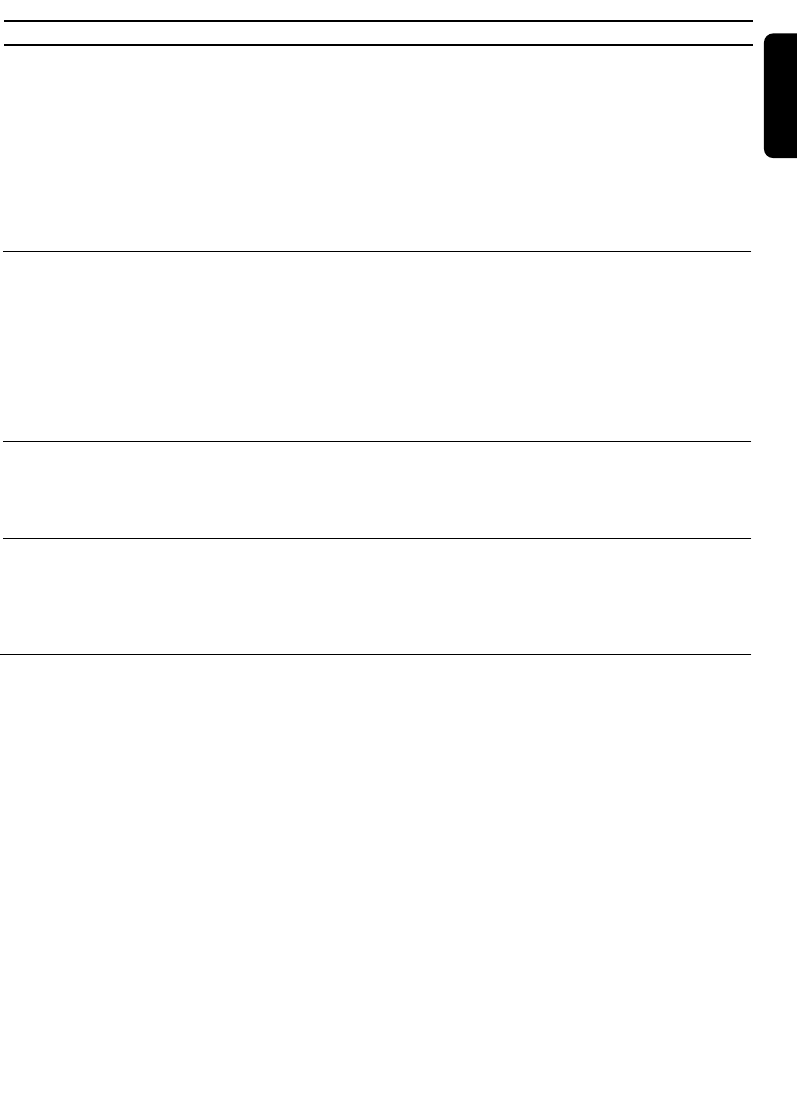
PROBLEEM MOGELIJKE OORZAAK ACTIE
Onregelmatige ontvangst,
"mozaiëk"-effect of het beeld
verstart.
De afstandbediening werkt niet
goed.
Bij normale ontvangst kan er
tijdens het kiezen van bepaalde
services een zwart scherm
verschijnen.
Het ontvangen signaal is te
zwak.
De antenne is beschadigd.
Defecte kabelverbindingen
(beschadigd, gebroken of
aangetaste connectors /
draden).
Een zwak signaal omdat de
antenne niet goed is gericht of
niet stabiel is.
Er zijn geen batterijen in de
afstandbediening, de batterijen
zijn bijna of helemaal leeg.
Uw abonnement geldt niet
voor de geselecteerde services
of programma's.
Controleer de installatie en de
richting van de antenne.
Het kan voorkomen (zelden)
dat dit wordt veroorzaakt door
barre weersomstandigheden of
een zeer zware bewolking.
Installeer een nieuwe
Controleer alle aansluitingen en
kabels.
Richt de antenne opnieuw.
Maak de antenne stevig vast.
Controleer de batterijen en
vervang ze eventueel.
Kies een andere service.
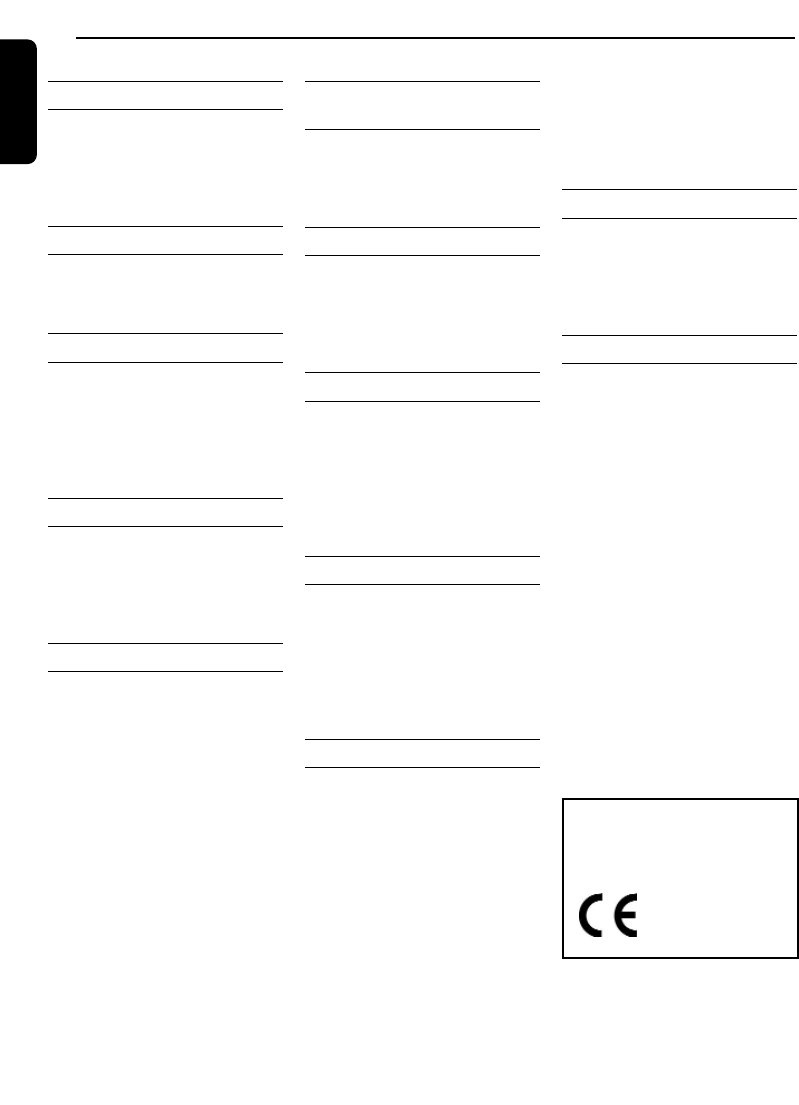
30 TECHNISCHE SPECIFICATIES
Dutch
16 Technische specificaties
Dit product is conform de 95/47/EC en 2002/21/EC eisen.
Videodecodering
- MPEG-2 DVB-conformiteit tot
MP@ ML
- Videobitsnelheid: tot 15 Mbit/sec
- Videoformaten: 4:3 en 16:9
- Resolutie: tot 720x576 pixels
Audiodecodering
- MPEG-laag I / II (exclusief
meerkanaalsbeheer vanuit één
bitstream)
Installatiegemak
- Automatische programma-
installatie via scanning
- Automatische updating van
programmalijst
- Programmabewerking voor
persoonlijke installatie
Gebruikshgemak
- Zaplijst
- Favorietenmodus
- Volledig op afstand bediend
- Automatisch opnemen door
markering via EPG
Bediening/Functies
- Gratis ontvangst via de ether met
bijgeleverde smartcard
- Volumeregeling
- 8 gebeurtenis-timers
- Ondertiteling
- Kinderslot via PIN-code
- Audiomodi: enkelkanaals,
tweekanaals, stereo,
gezamenlijke stereo
- Menugestuurde installatie en
bediening via OSD-menu
- Variabele LNB-frequentie
- Receiver compatibel met
diensten van Canal
Digitaal/Cyfra+
Faciliteiten van toepass-
ingssysteem
Kloksnelheid van
processor 166 MHz
SDRAM - CPU/Video-
Graphics 8 MB flashgeheugen
Satellietantenne-interface
- RF-ingang: IEC169-24F
- LNB-voeding: 0 / 14 / 18V
- LNB-stroomsterkte: 350 mA max
- Toonschakeling 22 kHz (aan / uit)
- Toonburst voor 2 omloopposities
Ontvangst-Demodulatie
- Demodulatietype: QPSK
- Ingangsfrequentiebereik:
950 - 2150 MHz
- Ingangsniveaubereik:
-65 tot -25 dBm
- Satellietbandbereik:
C en Ku-band
Ontsleuteling
Type: DVB
Implementatie: Intern
Smartcard: 1 voor CA
Opmerking: voor de ontvangst van
versleutelde diensten van Canal
Digitaal/Cyfra+ is abonnering
noodzakelijk.
Aansluitingen
SCART voor tv
Uitgang: CVBS, Gestuurde audio
L/R, RGB, Langzame
blanking, Snelle blanking
SCART voor videorecorder
IIngang: CVBS, Langzame blanking,
Audio L/R
Uitgang: CVBS, Y/C (SVHS), Audio
L/R
Analoge audiouitgang:
Gestuurde audio-cinch L/R
Digitale audiouitgang: PCM
Seriële interface:
RS 232 / RJ9-stekerbus
Accessoires
- Afstandsbediening:RC2585102/01
- Scartkabel
- Gebruiksaanwijzing
- Batterijen: 2 x 1,5V type AA/LR6
- Netsnoer (2 m)
Diversen
- Temperatuurbereik (°C)
Bedrijfstemperatuur: +5 tot 45
Opslagtemperatuur: -10 tot +70
- Netspanning: 230 V ~ +/-10%
50 Hz
- Stroomverbruik: 25 W max
- In standby-stand: 6 W max
- Gewicht: 1,450 kg
Inclusief verpakking: 2,5 kg
- Afmetingen:
Product: 260x230x60 mm
Verpakking: 365x305x140 mm
Dit product voldoet aan de
volgende Europeesche Raad
eisen:
- 73/23/EEC
- 93/68/EEC
- 89/336/EEC
07/03 - Doordat onze produkten voortdurend verbeterd
worden, is deze informatie onderhevig aan veranderingen.

MEER INFORMATIE OVER UW AFSTANDSBEDIENING 31
Instelling van de afstandsbediening
Uw afstandsbediening is standaard zodanig
ingesteld dat u de meeste Philips-
audio/videoapparatuur kunt bedienen.
Wanneer u met andere merken of
apparatuur werkt, of met de
voorgeprogrammeerde instellingen uw
Philips-toestel niet kunt bedienen, moet u
onderstaande procedure volgen.
Opmerking: het is mogelijk dat sommige van de
op de volgende pagina's beschreven functies niet
beschikbaar zijn of bij sommige toestellen een
ander resultaat opleveren.
1Gebruik de modustoets om over te
schakelen op het toestel dat u wilt instellen
(TV, VCR, DVD of Amp/Tuner).
2Druk gelijktijdig op de cijfertoetsen 1 en 3
gedurende 3 seconden. Na 3 seconden
zullen de lampjes die met het beoogde
toestel overeenstemmen twee keer
knipperen en blijvend oplichten.
3Voer binnen 60 seconden de 4-cijfercode in.
Achteraan in deze handleiding vindt u een
lijst van codes. (Wanneer verschillende
codes worden aangegeven, voert u de
procedure met de eerste code uit en
probeert u of de afstandsbediening werkt. Is
dit niet het geval, dan moet u de procedure
met de tweede code herhalen, etc.).
4Als u een geldige 4-cijfercode heeft
ingevoerd, zullen de lampjes uitgaan en
twee keer knipperen. Zo niet moet u naar
stap 1 terugkeren.
Drukt u op een andere toets dan de
cijfertoetsen of de stand-by-toets, dan
wordt deze procedure automatisch
beëindigd.
Om te controleren of u de juiste code heeft
ingevoerd.
1Druk gelijktijdig op de cijfertoetsen 1 en 6
gedurende 3 seconden. De lampjes die met
de beoogde toestellen overeenkomen
zullen twee keer knipperen en uitgaan.
2Druk op cijfer 1: het aantal
knipperlichtsignalen van de lampjes die met
de beoogde toestellen overeenkomen is het
eerste cijfer van de code.
3Druk op cijfer 2: het aantal
knipperlichtsignalen van de lampjes die met
de beoogde toestellen overeenkomen is het
tweede cijfer van de code.
4Druk op cijfer 3: het aantal
knipperlichtsignalen van de lampjes die met
de beoogde toestellen overeenkomen is het
derde cijfer van de code.
5Druk op cijfer 4: het aantal
knipperlichtsignalen van de lampjes die met
de beoogde toestellen overeenkomen is het
vierde cijfer van de code.
Geen knipperlichtsignaal betekent nul.
Wilt u de procedure niet voortijdig
beëindigen, dan moet u telkens binnen 60
seconden op een toets drukken.
Aan het einde van de procedure schakelt de
afstandbediening opnieuw over op de
normale modus.
17 Meer informatie over uw afstandsbediening
Dutch
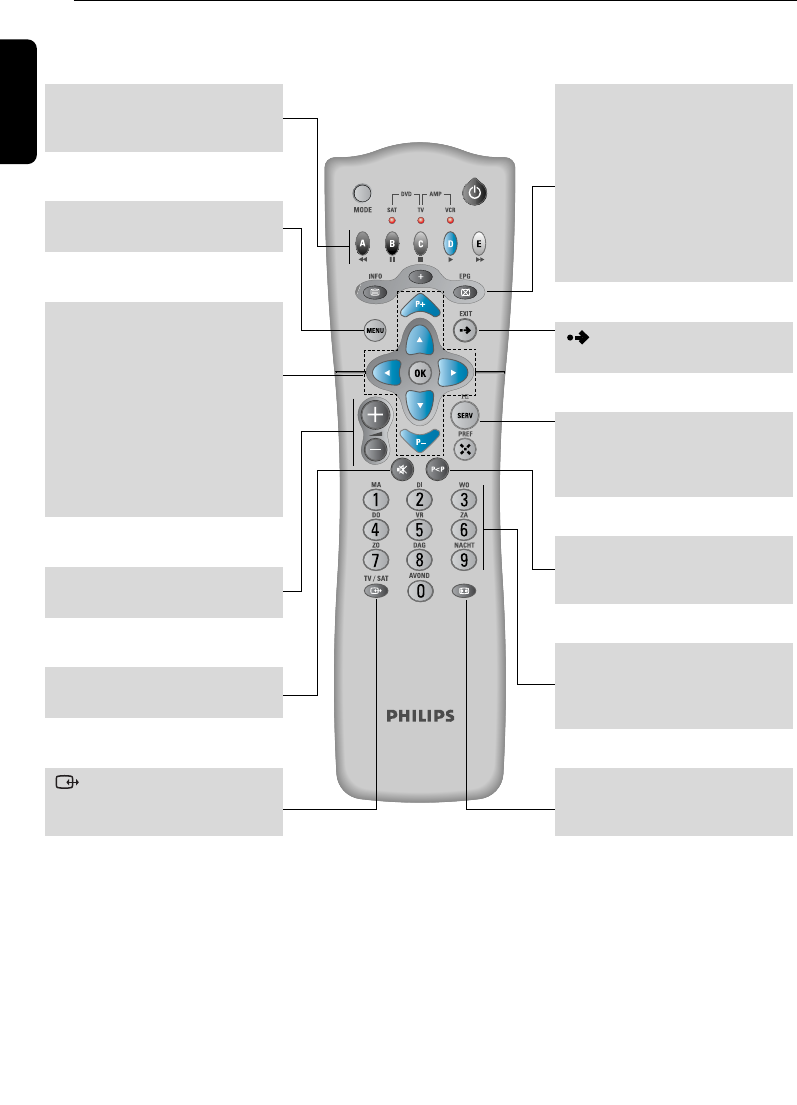
32 MEER INFORMATIE OVER UW AFSTANDSBEDIENING
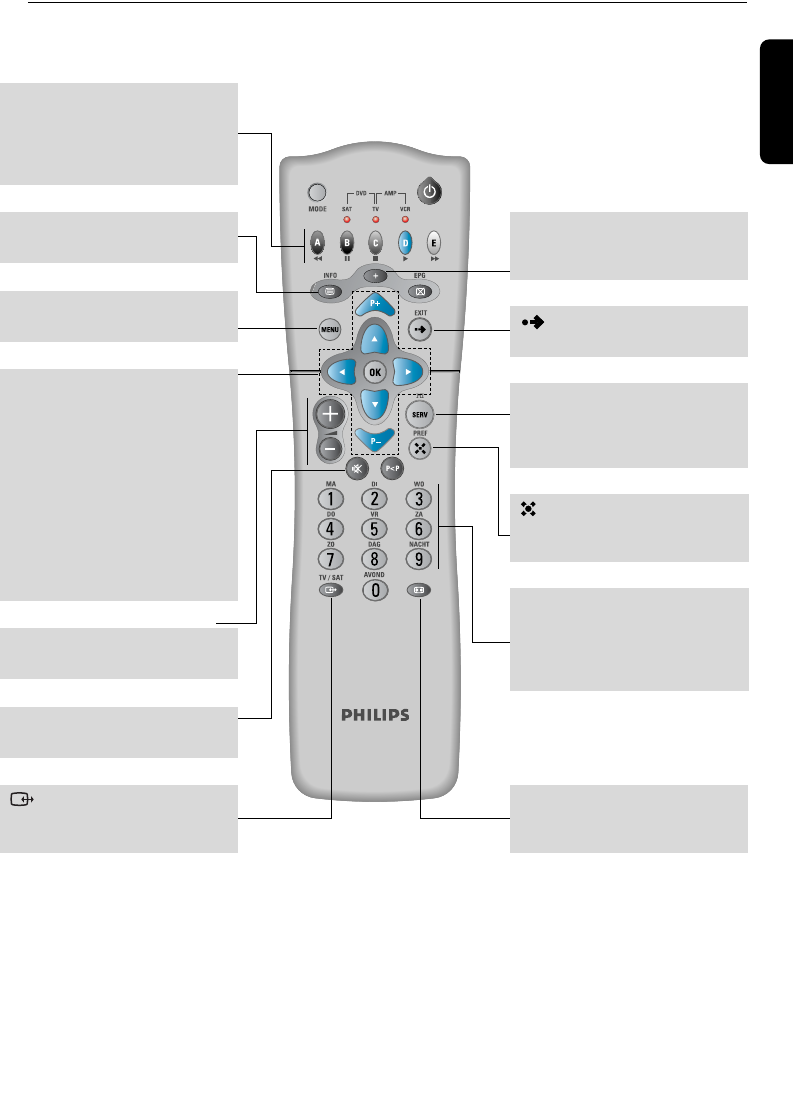
17.1 TV-modus (TV)
Opmerking: Op sommige toestellen bestaan bepaalde, hieronder beschreven functies niet of hebben ze een
ander effect.
Dutch
Rood(A), Groen(B),
Geel(C),Blauw(D), Wit(E)
Teletext-toetsen.
Selecteert de TV-modi (TV,
AV1, AV2, etc.).
P+/P-
Selecteert het volgende/vorige
programma.
CBVW
Verplaatst de cursor naar links
/ rechts / boven / beneden.
OK
Bevestigt de selectie van een
menu-item.
+ -
Regelt het volume van de TV.
c
Schakelt het TVgeluid uit.
MENU
Opent het menu.
b
Teletext Aan/Uit.
+/OSD
Menudisplay aan- of
uitschakelen.
a
Stelt afwisselend de teletext-
en TV-modus in.
Ä
Selecteert het TV-
beeldformaat (16/9, 4,3, etc.).
4
Selecteert afwisselend het
eerste of het tweede
geluidskanaal.
Sluit het menu af.
P<P
Schakelt over op het laatst
ontvangen kanaal.
0-9
Selecteert het programma in
TV-modus selecteert het item
in menu-modus.
MEER INFORMATIE OVER UW AFSTANDSBEDIENING 33
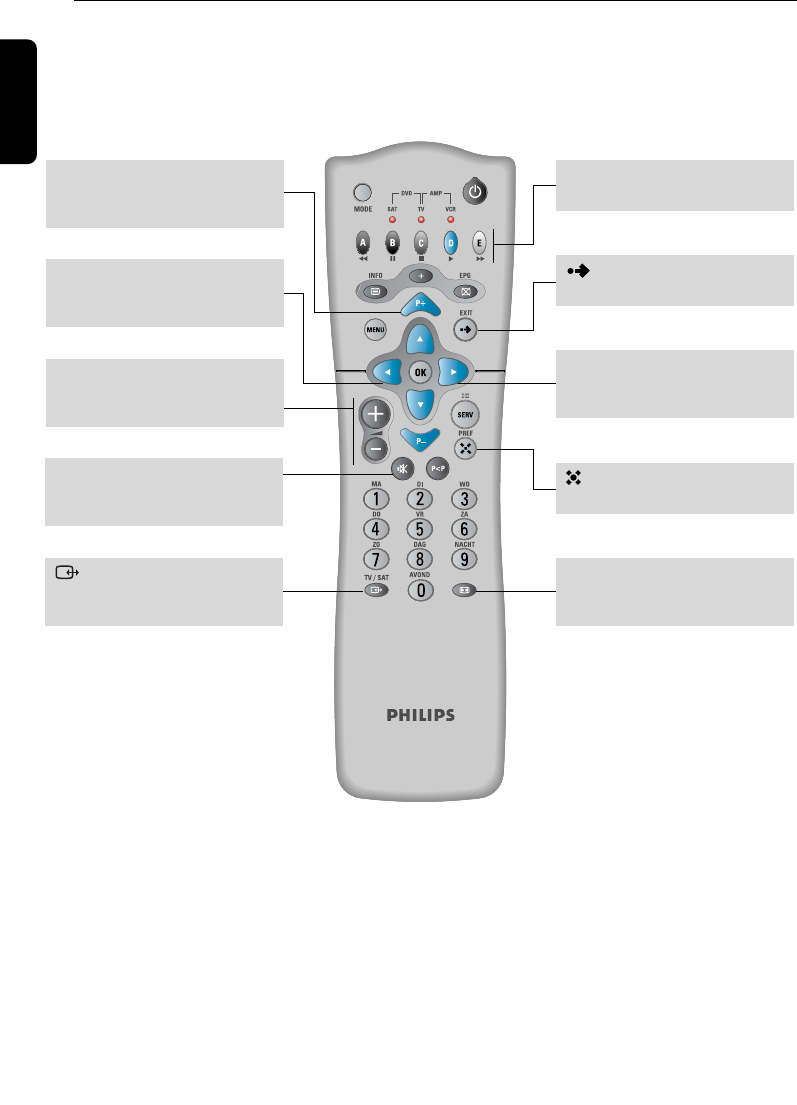
17.2 VCR- en DVD-modus (VCR, DVD)
Opmerking: Op sommige toestellen bestaan bepaalde, hieronder beschreven functies niet of hebben ze een
ander effect.
Dutch
(A) G: snel terugspoelen
(B) K: pauze
(C) L: stop
(D) B: afspelen
(E) F: snel voorwaarts
Selecteert de VCR-modi (VCR,
AUX1, AUX2, etc.).
P+/P-
Selecteert het volgende/vorige
programma/titel.
CBVW
Verplaatst de cursor naar links
/ rechts / boven / beneden
OK
Voert de menuopdracht uit die
door de cursor werd
geselecteerd.
+ -
Regelt het volume van de TV.
c
Schakelt het TV-geluid uit.
Ä
Selecteert het TV-
beeldformaat (16/9, 4,3, etc.).
4
Selecteert, indien mogelijk,
een ander geluidsspoor
(bijvoorbeeld: taal).
Sluit het menu af.
0-9
VCR - selecteert het
programma
DVD - selecteert het
hoofdstuk/titel
Wijzigt, indien mogelijk, de
gezichtshoek.
MENU
Opent het menu.
b
Toont de ondertitels.
+/OSD
Menudisplay aan- of
uitschakelen.
34 MEER INFORMATIE OVER UW AFSTANDSBEDIENING
17.3 Versterker/tunermodus (AMP)
* Uitsluitend beschikbaar voor Philips producten.
Dutch
*
Selecteert de externe bron van
de versterker.
C*
Zoekt/scant het vorige
radioprogramma.
+ -
Regelt het volume van de
versterker/tuner.
c
Schakelt het versterker/
tunergeluid uit.
P+/P-*
Selecteert het volgende/vorige
radioprogramma.
ABCDE*
Selecteert de bron.
Ä
Selecteert het TV-
beeldformaat (16/9, 4,3, etc.).
*
Sluit het menu af.
*
Wijzigt het geluideffect.
B*
Zoekt/scant het volgende
radioprogramma.
CONTENTS 1
1 Safety instructions _______________3
2 Product description ______________4
2.1 Front view _____________________4
2.2 Rear view ______________________5
2.3 The remote control ______________6
3 Connecting up the receiver _______8
3.1 Connecting to your HiFi/Audio
receiver equipement
(Analogue/Digital) _______________9
4 Menu structure _________________10
5 Installing the satellite receiver ___11
5.1 Installation ____________________11
5.2 Technical information ____________13
5.3 Storing the channels _____________14
6 The menu ______________________15
6.1 Code and parental lock __________15
6.2 Choosing your favourite channels __16
6.3 Recording programmes __________16
6.4 Information about subscription and
postbox ______________________18
7 Informations bars (Info) _________19
7.1 The bottom bar ________________19
7.2 The top bar ___________________19
8 Electronical programme guide
(EPG) _________________________20
8.1 List of the programmes __________20
8.2 Films, sports, youth, documentaries
and other kinds of programmes ___21
8.3 Selecting programmes ___________22
8.4 List of selected programmes ______22
9 When you are watching a programme
_______________________________23
9.1 When you are watching a
programme ____________________23
9.2 When you consult the EPG _______23
WELCOME
Congratulations on your choice of PHILIPS DSR 2210 satellite receiver. This PHILIPS satellite
receiver will allow you to obtain digital satellite programmes and services.
Note:
- This product is destined for Netherlands.
- You need to take out a subscription to access the services of CANALDIGITAAL. Refer to your "Welcome
packet".
CONTENTS
English

2CONTENTS
10 Radio channels _________________23
11 The channels ___________________24
11.1 List of the channels _____________24
11.2 Altering the numbering of the
channels ______________________24
11.3 Adding new channels ____________25
11.4 Removing channels ______________25
11.5 Reinstalling channels _____________25
12 Subscription programmes (not yet
available) ______________________26
13 Information for subscribers (not yet
available) ______________________26
15 Troubleshooting ________________27
16 Technical specifications _________29
17 More on your remote control ____30
17.1 TV mode (TV) _________________31
17.2 VCR and DVD mode (VCR, DVD) _32
17.3 Amplifier/Tuner mode (AMP) ______33
English
SAFETY INSTRUCTIONS 3
All the safety and operating Instructions
should be read and understood before the
appliance is operated.
For best results:
- position your receiver away from
radiators or other heat sources. Leave a
space of at least 3 cm around the
receiver for ventilation making sure that
the ventilation holes are not obstructed.
- This receiver is intended for use in a
domestic environment only and should
never be operated or stored in
excessively hot, humid or damp
conditions.
- Make sure no objects or fluids enter the
housing through the ventilation slots.
Should this happen, disconnect your
receiver from the mains and consult your
retailer.
- For cleaning, use a damp chamois leather.
Never use any abrasive cloth, sponge or
cleaner.
- When connecting or disconnecting cables
to the receiver always ensure the
receiver is disconnected from the mains.
Do not disassemble the equipment. There
are no user serviceable parts.
Mains connection
Before connecting the receiver to the
mains, check that the mains supply voltage
corresponds to the voltage printed on the
rear of the receiver. If the mains voltage is
different, consult your dealer.
Plastic bags can be dangerous. To avoid
suffocation keep the bag away from babies
and children.
The Symbol on the packaging
means that material is recyclable.
If the receiver will not be used for a long
time, unplug the mains cord from the wall
socket.
1 Safety instructions
English
2 Product description
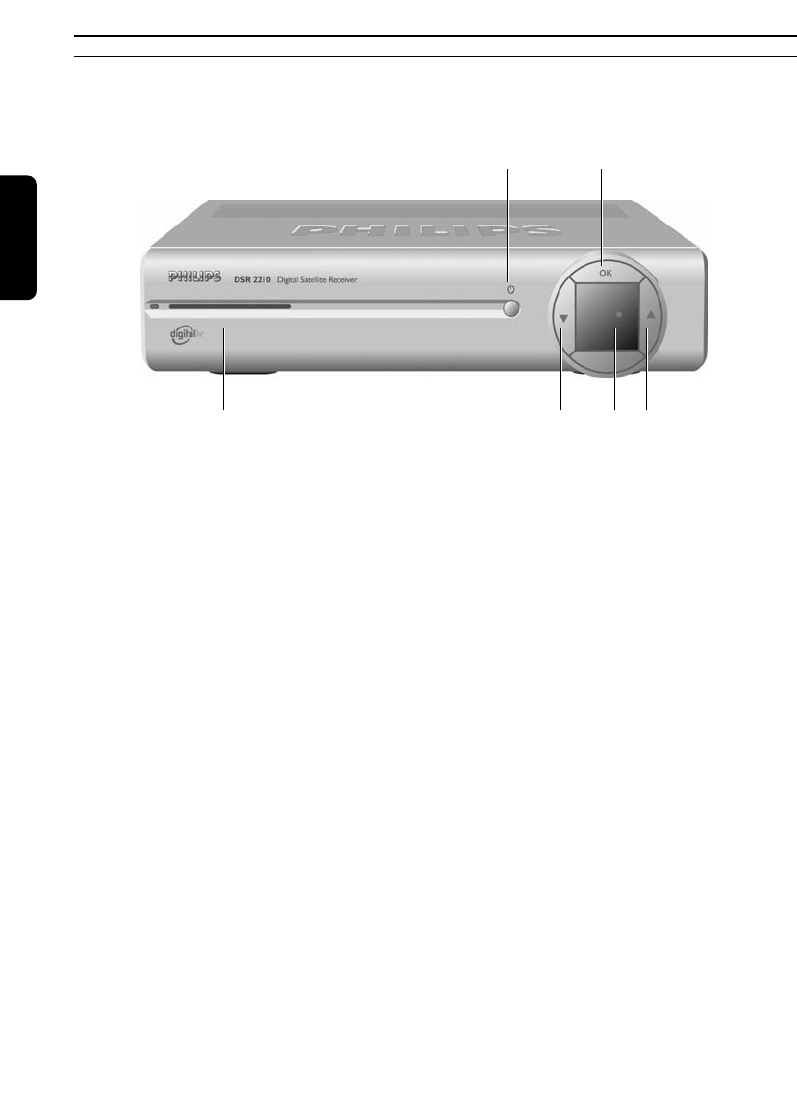
2.1 Front view
1Stand-by button: Switch receiver ON or Standby.
Reset the receiver, in case of hanging up, after a 5 second keypress.
2OK button: Button to confirm your selection.
3Smart card reader.
4"W" button: Channel down.
5Red LED indicator: Is lit whenever the receive is in stand-by mode (*).
6“V” button: Channel up.
(*): Note: if the LED is slowly blinking, it indicates that a free over the air upgrade of your receiver is taking
place. Do not interrupt this operation which may last several minutes. Wait until the LED stops blinking.
The LED blinks rapidly when receiving remote control signal.
When
the
receiver
is
operating,
the
LED
is
turned
off.
To
check
whether
the
receiver
is
properly
powered,
remove
the
power
plug
and
plug
it
back
in.
The
front
panel
LED
will
blink
once.
English
4PRODUCT DESCRIPTION
3456
12
PRODUCT DESCRIPTION 5
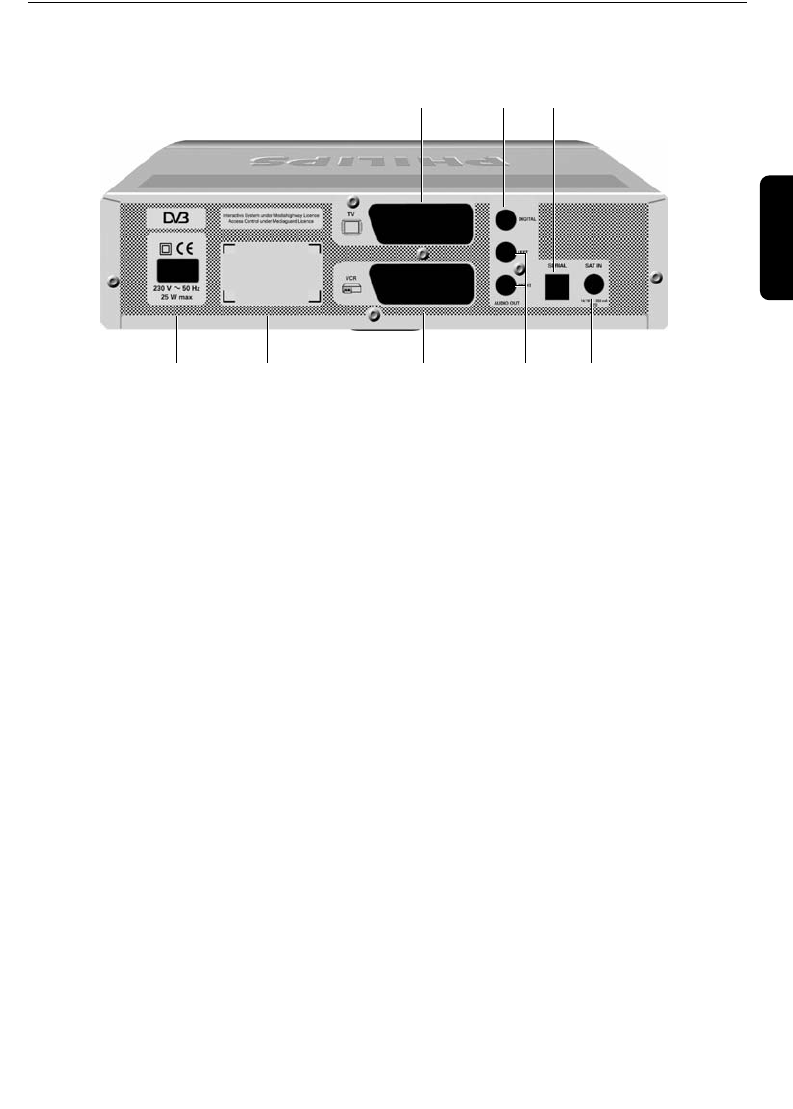
2.2 Rear view
1TV (*): SCART (1) socket to connect to your TV set.
2Digital audio output (*): Coaxial Digital audio output to connect your HIFI / Audio receiver
system.
3Serial (*): RJ 9 socket for serial data transfer during servicing.
4230V~50Hz 25W max (**): Socket to connect the Mains cord.
5Label showing the type and serial number of the receiver.
6VCR (*): SCART (1) socket to connect your video recorder.
7L/R Audio out (*): Left/Right audio-cinch outputs to connect your HIFI / Audio receiver
system.
8SAT IN (*): Socket for satellite dish.
1) SCART is also called Euroconnector or Peritel.
(*): SELV: Safety Extra Low Voltage.
(**): HV: Hazardous Voltage.
English
45 6 78
123
6PRODUCT DESCRIPTION
English
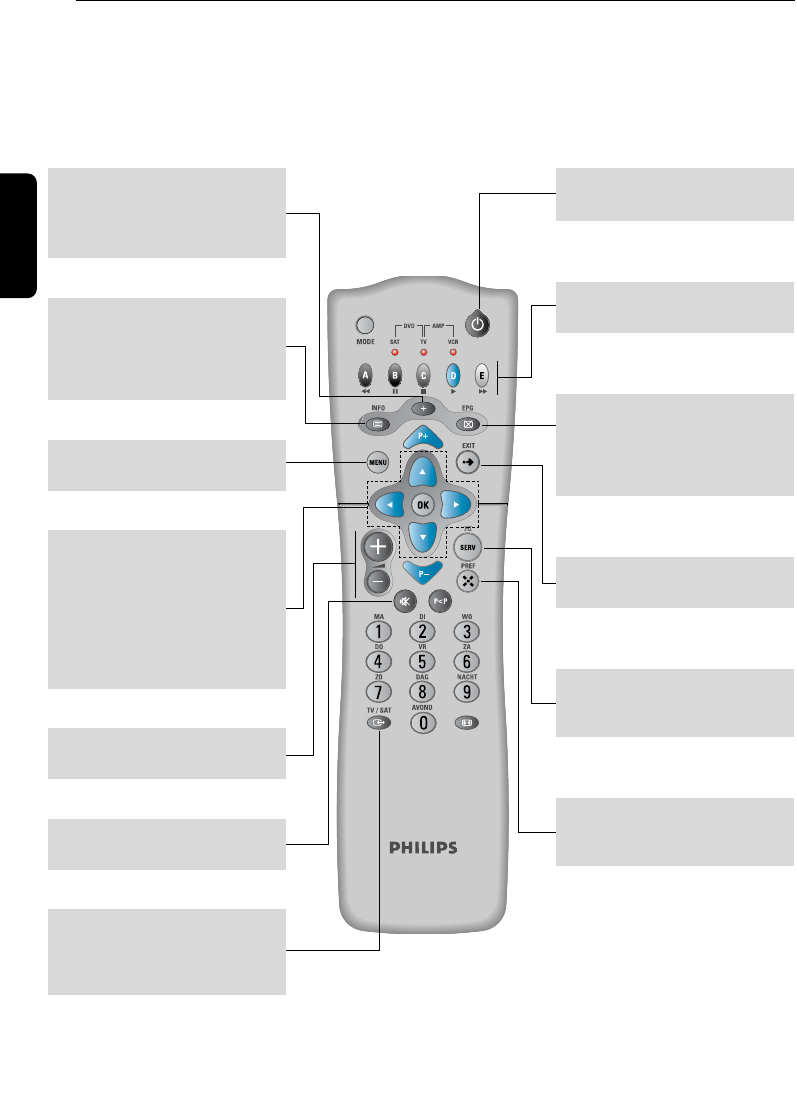
2.3 The remote control
SATELLITE MODE (SAT)
MENU
To reach the main menu.
+
Detailed information about a
programme or selection of
language and/or subtitling.
INFO
To display on screen an
information bar with
information about the
programme.
TV/SAT
Switch between watching from
digital receiver or directly from
the TV cable.
OK
Button to confirm your
selection.
CBVW
Buttons to select the menus,
programmes or to adjust the
volume.
+ -
Adjusts the TV volume.
c
Mute/demute the sound.
Standby B
On/Off button.
A, B, C, D, E:
Function buttons.
PREF
To switch your favourite
channels on and off.
SERV
Information about your
subscription.
EPG
ELECTRONICAL
PROGRAMME GUIDE with
information about the
programmes.
EXIT
To return to a TV programme.
PRODUCT DESCRIPTION 7
English
Your 5 in 1 Remote Control enables you to
control most of your Audio/Video
Equipment through various modes:
satellite receiver, TV, VCR, DVD and
Amplifier Tuner.
Pressing the MODE button once will remind
you of the MODE you are in through
blinking lights: left for SAT, middle for TV,
right for VCR, left/middle for DVD,
middle/right for Amp/Turner.
To set the MODE, press the MODE button
several times until the desired mode is
reached. The sequence is: SAT->TV-
>VCR->DVD->Amp/Tuner.
At every keypress, lights blink to indicate in
which MODE you are in.
Note:
some keys are shortcut keys to other MODES. In
this case, the lights do not indicate the current
MODE! (e.g. if you are in VCR MODE, pressing
the volume keys will light the TV/middle
indicator).
Chapter 16 gives you all the information
about the functions available in TV, VCR,
DVD and Amp/Tuner modes as well as
instructions on how to setup you remote
control for your different audio-video
appliances.
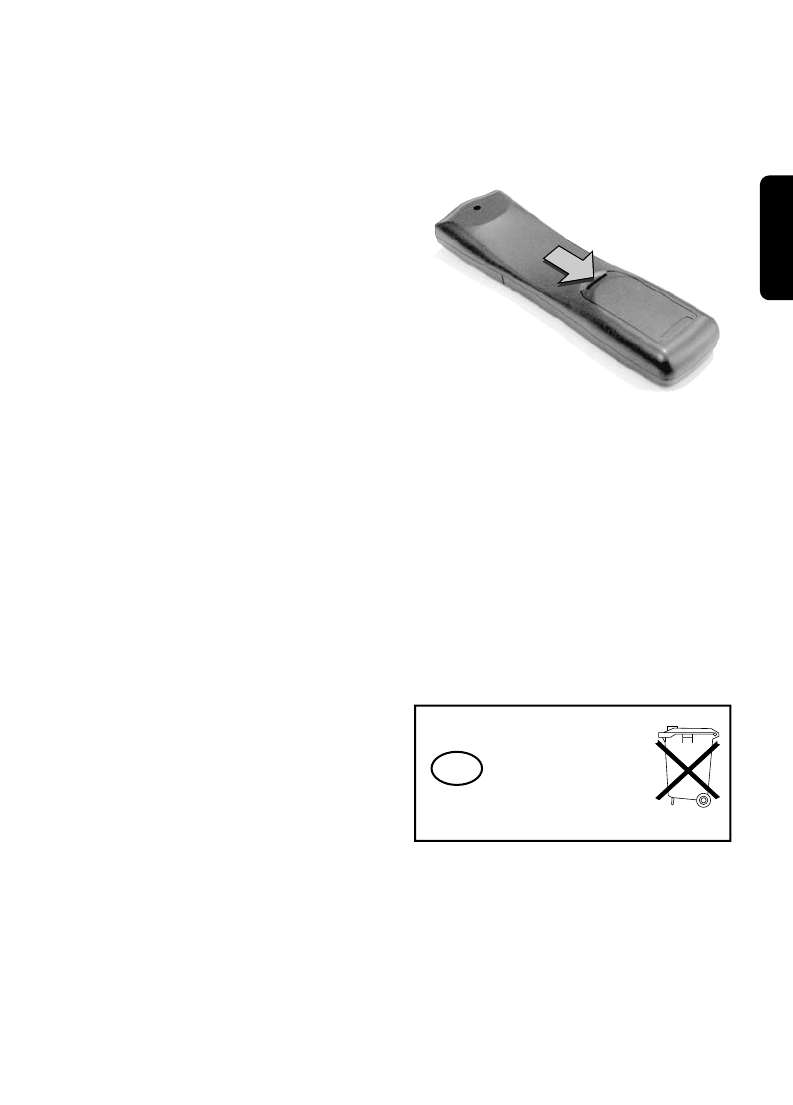
• Remove the battery cover.
• Insert the two batteries (type LR6/AA -
1.5 V) supplied.
• Position them as shown in the diagram, in
the battery compartment.
• Replace the cover.
The Philips batteries supplied with your
receiver's remote control do not contain
any heavy metals such as Mercury or Nickel
Cadmium. Nevertheless, in many countries,
used batteries may not be disposed of with
your household waste.
Please inquire about the local regulations
regarding the disposal of used batteries.
NL Do not dispose of
them with
your household
waste.
8CONNECTING UP THE RECEIVER
3 Connecting up the receiver
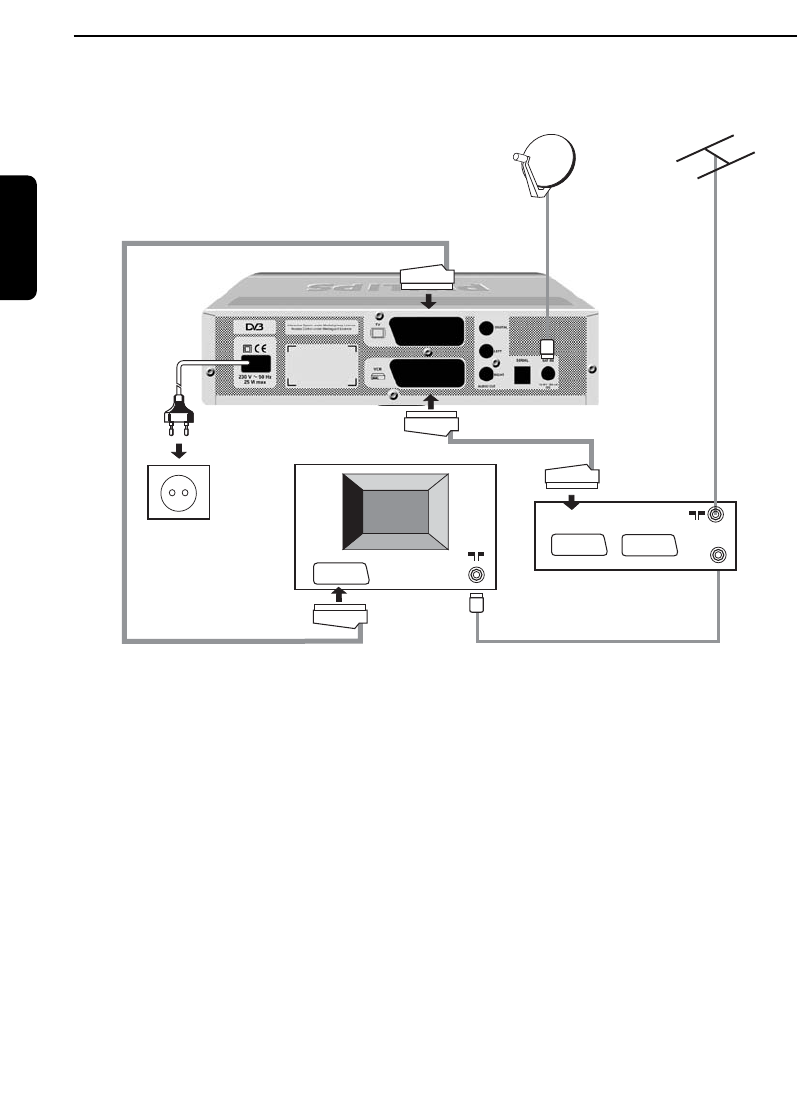
In this chapter, you will learn how to connect up the Philips digital satellite receiver to your
existing equipment, such as a TV or VCR.
Note:
- To watch a video cassette.
We advise you, when you want to watch a video cassette, to put your receiver on stand by.
- Digital cordless telephone.
If you have a digital cordless telephone (DECT), it may sometimes block the signal of your receiver / TV.
We advise you not to keep both appliances close to one other.
- Smart card.
Please leave your smart card in the receiver so that your subscription can be extended every month.
- Further guarantees.
If the satellite receiver breaks down within the period of guarantee, Philips Nederland will exchange it. In
this case, the customer agrees to return the original appliance purchased.
TV
TV
EXT1
EXT1
EXT2
EXT2
EXT1
EXT1
Satellite dish
Scart socket
Satellite receiver
Mains plug
TV
Scart socket
Video recorder
English
CONNECTING UP THE RECEIVER 9
3.1 Connecting to your HiFi/Audio receiver equipement
(Analogue/Digital)
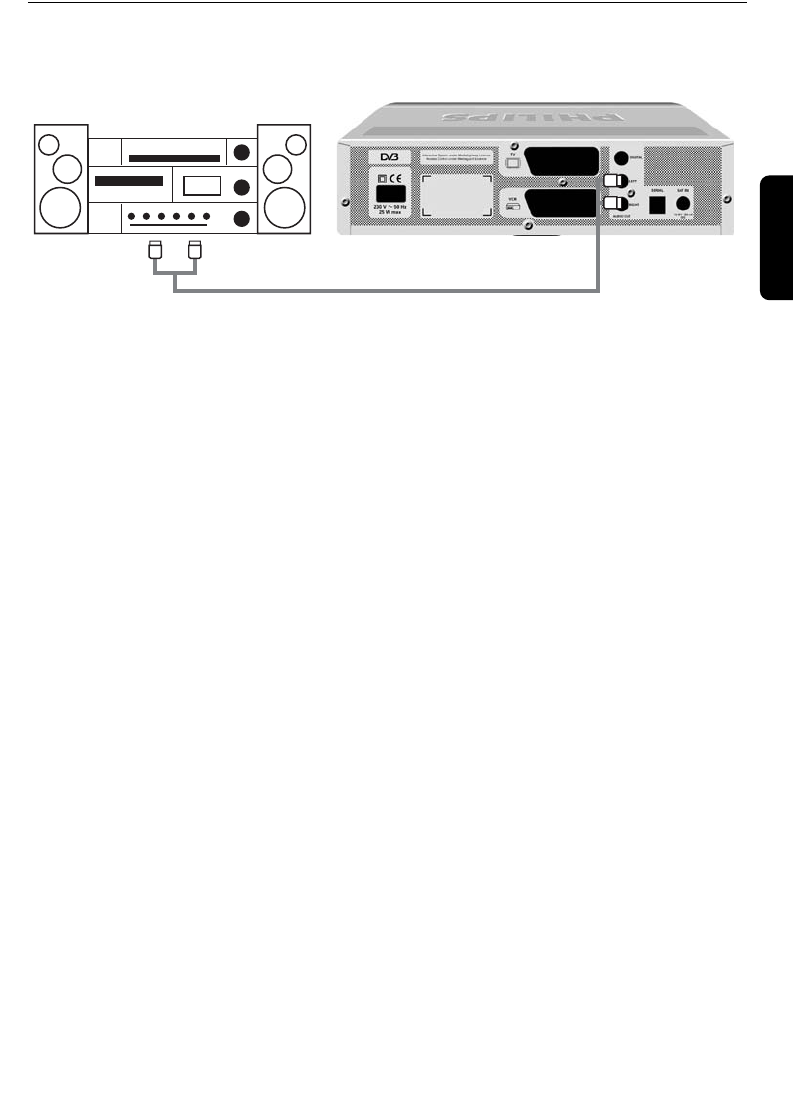
Depending on your HiFi / Audio receiver equipment, you might have several options to connect
your digital receiver.
ANALOGUE CONNECTION
Connect the L/R audio output sockets to the relevant L/R audio input sockets of your audio
equipment using a double CINCH cable (not supplied). Consult the user manual of your
HiFi/Audio receiver equipment to choose the proper analogue audio inputs.
Note: With this connection set up you can control the audio volume up/down and mute using your digital
receiver or Hi-fi remote control.
DIGITAL CONNECTION
Connect the audio "DIGITAL" output socket to the relevant digital audio input socket of your
audio equipment using a single CINCH cable (not supplied). Consult the user manual of your
HiFi/Audio receiver equipment to choose the proper digital audio input.
Note: With this connection set up you can only control the audio volume up/down and mute with your HiFi /
Audio Receiver remote control, refer to the relevant user manual.
Satellite receiver
HiFi
English
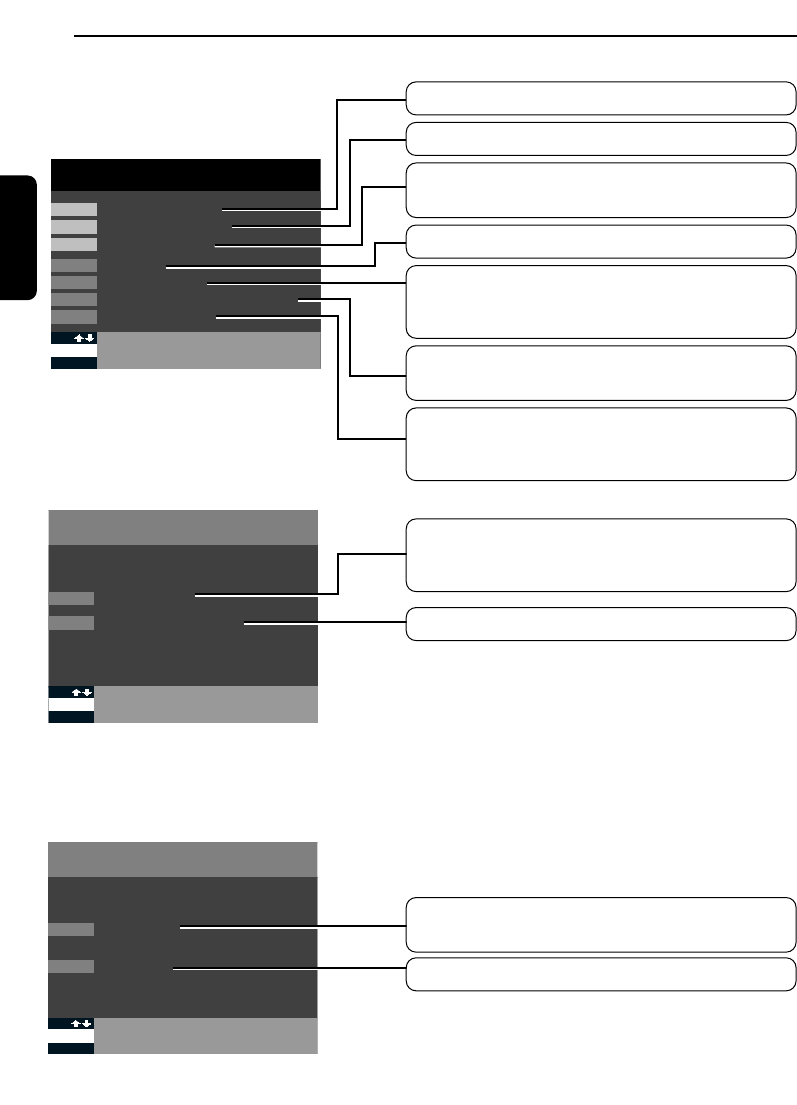
10 MENU STRUCTURE
4 Menu structure
English
MENU
1
2
3
4
5
6
7
MENU TERUG NAAR TV
PROGRAMMA’S OPNEMEN
VOORKEURKANALEN KIEZEN
CODE EN KINDERSLOT
INSTELLINGEN
KANALEN INSTALLEREN
INFORMATIE ABONNEMENT EN BRIEVENBUS
TECHNISCHE INFORMATIE
Setting the time and the channel to tape a video.
Setting your favourite channels.
Entering and altering of the code and entering of a
parental lock.
Installation of the receiver, TV, VCR and modem.
To enter, add and remove channels, to alter the
sequence of the channels and the summary of the
channel list.
To consult the period of validity of the subscription
and read the CanalDigitaal messages.
Checking the reception signal strength, installation
of the aerial and consulting the decoder and
software version.
INSTELLINGEN
1
A TERUG NAAR MENU
INSTELLEN DECODER
4
2INSTELLEN TV/VIDEORECORDER
TECHNISCHE INFORMATIE
1
A TERUG NAAR MENU
SIGNAALSTERKTE
7
2DECODERVERSIE
Altering the TV and VCR standard settings.
Altering the volume, subtitling, spoken language,
length of time the information bar remains on the
screen, the reminder and the time.
Checking the LNB installations and setting the
aerial.
Consulting the decoder and software version.
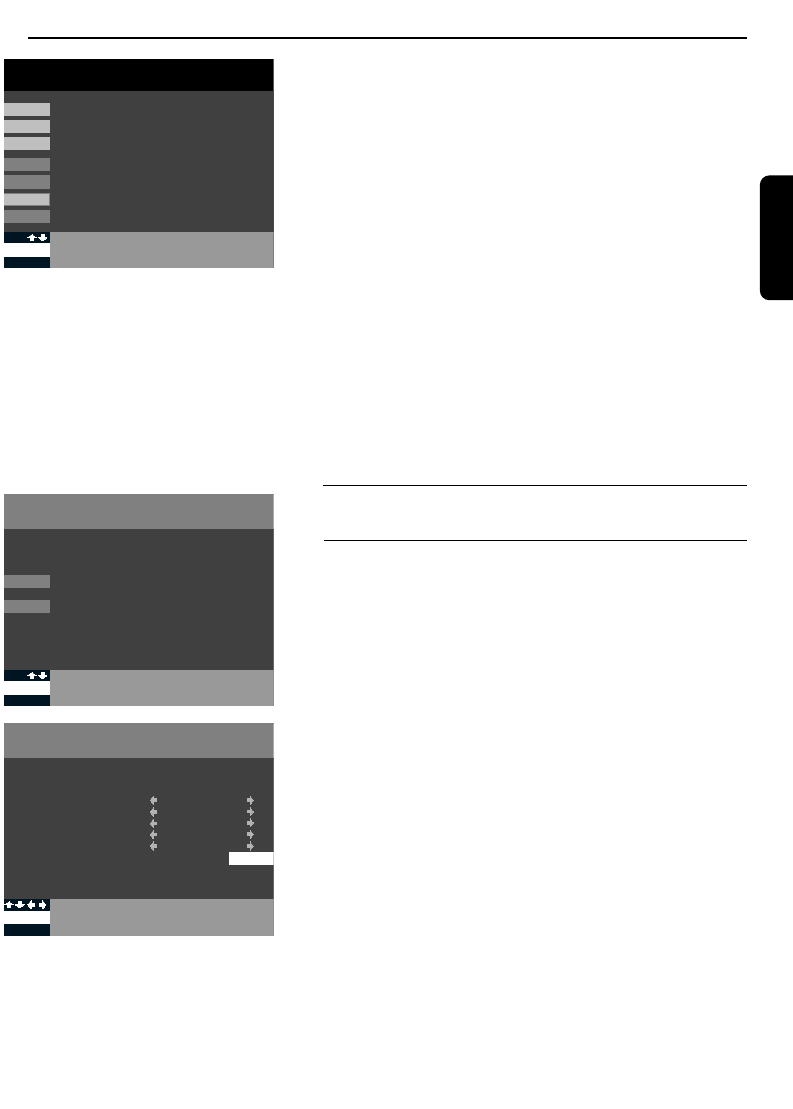
INSTALLING THE SATELLITE RECEIVER 11
5 Installing the satellite receiver
How to install your satellite receiver:
1 Turn on your TV.
2When you power on the box, the front LED will blink
once and switch off.
The Menu screen will then appear.
Make sure your smart card is inserted in the slot, the chip
facing upwards.
Now, you can only access options 4,5 and 7.
If the MENU screen doesn't appear after you have
switched on the receiver, then press the TV/SAT button
on your remote control twice.
Note: Generally, when you don't have any screen after having
connected you, press the TV/SAT button twice on your remote.
3Execute the following three steps to install the receiver:
Step 1 INSTELLINGEN (Button 4)
Step 2 TECHNISCHE INFORMATIE (Button 7)
Step 3 KANALEEN INSTALLEREN (Button 5)
5.1 Installation
5.1.1 Installation of the decoder
You access the menu by pressing the MENU button. To
choose one of the options in the MENU you can press
one of the selected numbers or you can select the option
with the arrows ©ª. Press OK to confirm your choice.
Choose option 4in the menu (INSTELLINGEN) and then
1(INSTELLEN DECODER).
With this MENU, you can select your favourite
installation for your satellite receiver. Select the number
of the function you've chosen or use the buttons ©ª to
make your selection. The possible options appear when
you press the arrows §¨.
5.1.1.1 Preferred language
You can choose between English, Dutch, Spanish, French,
German, Italian or the original version. This option can
only be selected if the programme is also subtitled with
the selected language.
5.1.1.2 Subtitling
You can choose between English, Dutch, Spanish, French,
German, Italian or without subtitling. This option can only
be selected if the programme is broadcast in the selected
language.
INSTELLEN DECODER
A TERUG NAAR VORIG SCHERM
4.1
BTIJD INSTELLEN
1 VOORKEURTAAL
2 ONDERTITELING
3 GELUID
4 DUUR INFOBALK
5 HERINNERING
6 TIJD INSTELLEN
NEDERLANDS
GEEN
NORMAAL
VIDEO EN AUDIO
17:03 B
INSTELLINGEN
1
A TERUG NAAR MENU
INSTELLEN DECODER
4
2INSTELLEN TV/VIDEORECORDER
MENU
1
2
3
4
5
6
7
MENU TERUG NAAR TV
PROGRAMMAS OPNEMEN
VOORKEURKANALEN KIEZEN
CODE EN KINDERSLOT
INSTELLINGEN
KANALEN INSTALLEREN
INFORMATIE ABONNEMENT EN BRIEVENBUS
TECHNISCHE INFORMATIE
English
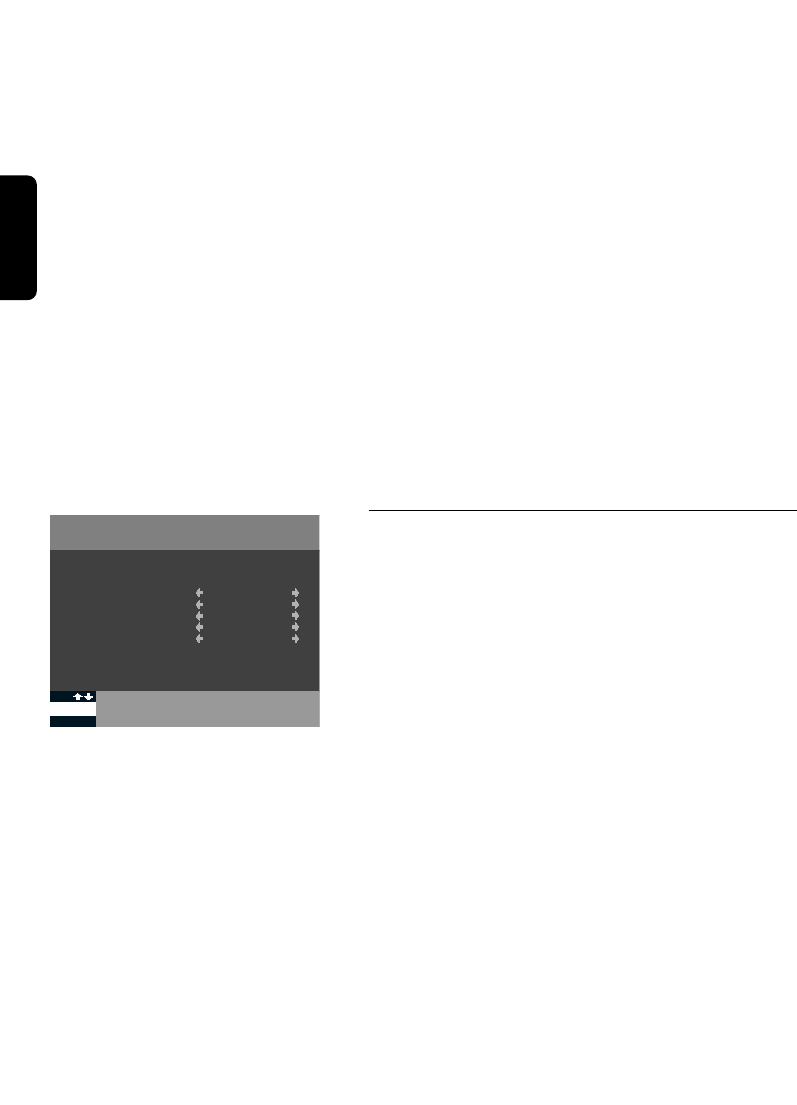
12 INSTALLING THE SATELLITE RECEIVER
5.1.1.3 Sound
With this option, you choose the standard level of the
volume. When you watch a programme, you can adjust
the volume with the buttons §¨.
5.1.1.4 Duration of the information bar
With this option, you choose how long the bar with the
name and the number of the selected channel must
remain on the screen. You can choose a normal or long
time or no bar.
5.1.1.5 Reminder/Alarm
It indicates automatically when a programme you have
chosen starts.
You can choose a reminder for video and audio or for
video only.
5.1.1.6 Setting the time
The right date and time will be set automatically in the
satellite receiver once the installation has been completed.
But you can also set the time manually.
To do so, press the B button.
Then press the A button twice to return to the main
menu.
5.1.2 Installation of the TV / Videorecorder
Choose option 4(INSTELLINGEN) in the menu and then
option 2(INSTELLEN TV EN VIDEORECORDER).
Here you have the possibility of making the optimum
installations for your TV and VCR.
To go from one option to another one, press the number
of the option you have chosen or press the buttons ©ª
on the remote control. To choose one of the various
possibilities, you can press the buttons §¨.
1BEELDFORMAAT TV : 4/3 standard or 16/9
large frame
2GELUID TV : stereo or mono
3SIGNAAL TV : we advise you to switch it
to RGB
4GELUID VIDEORECORDER : stereo or mono
5NORM VIDEORECORDER : we advise you to keep it
on PAL
When you have selected the installations you wanted, you
may press on the A button to return to the
INSTELLINGEN screen.
INSTELLEN TV EN VIDEORECORDER
A TERUG NAAR MENU
1 BEELDFORMAAT TV
2 GELUID TV
3 SIGNAAL TV
4 GELUID VIDEORECORDER
5 NORM VIDEORECORDER
4.2
4/3 (STANDAARD)
STEREO
CVBS
STEREO
PAL
English
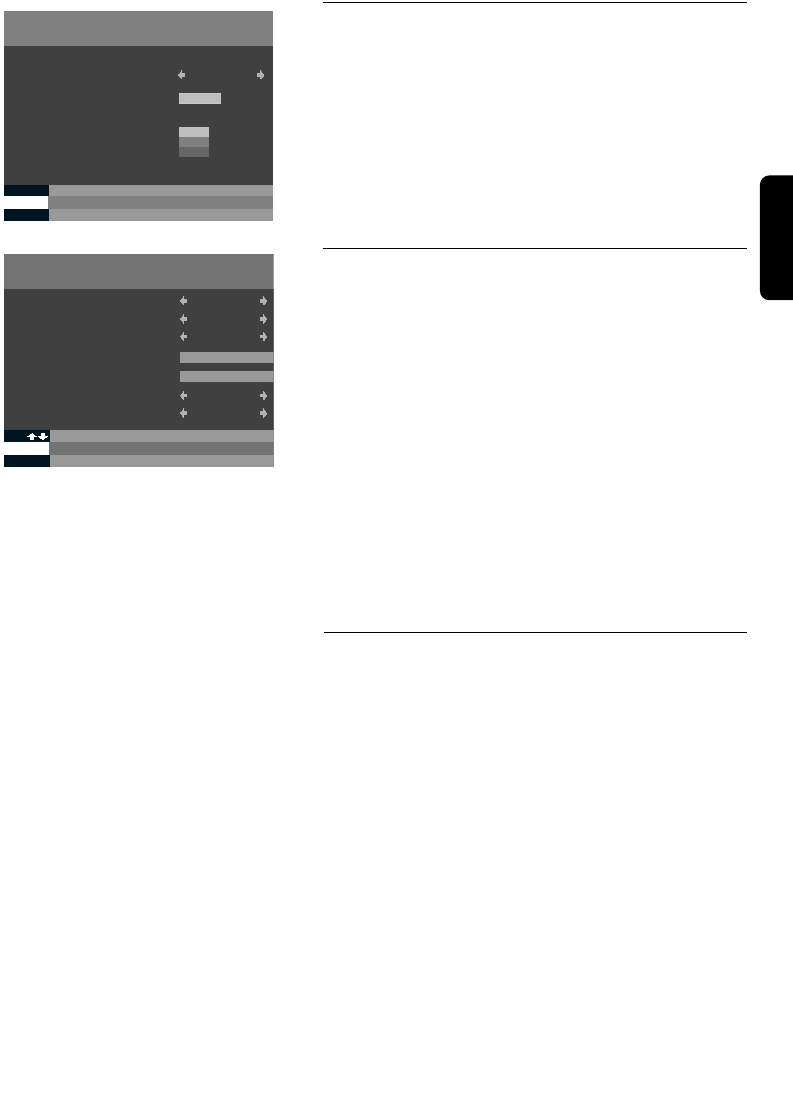
INSTALLING THE SATELLITE RECEIVER 13
5.2 Technical information
From the menu, press 7(TECHNISCHE INFORMATIE)
and then 1(SIGNAALKWALITEIT).
With the screen SIGNAALKWALITEIT, you can find out
the strength of the signal received.
We advise you to have the dish installed by a
professional with suitable measuring devices.
For the reception of the digital signal of the ASTRA
satellite, all the parameters are already installed. To alter
these settings, press on B(ANTENNE INSTELLEN).
5.2.1 Installation of the dish
• SATELLIET : ASTRA 1G
• SCHOTELNUMMER : 1
• BAND : KU
• FREQUENTIE : 12.515 Ghz
• LO LNB : 10600 Mhz
• POLARISATIE : Horizontal
• Schakeling (22Khz) : Yes
If you use another satellite, in the section SATELLIET you
can select "OVERIGE" and enter the necessary
parameters.
Check in every case the LO and LNB values. You will find
them in the manual for the dish aerial or on the sticker of
the LNB. Contact the dealer who supplied you with the
dish if you don't find these values.
Once the right parameters have been installed, you can
begin installing the channels.
5.2.2 Positioning the satellite dish
We advise you to have the dish installed by a
professional with suitable measuring devices.
1Return to the screen SIGNAALSTERKTE (Press B).
2Select VOEDINGSSPANNING LNB with the help of the
arrows §¨.
•JA (Yes) if you have one satellite dish.
•NEE (No) if you have connected several dishes up to
your decoder.
In that case, please contact your dealer.
3Put the dish in direction 19,2° East of the ASTRA satellite
position.
4On the screen, you will see a receivingsindicator which
indicates the quality and strength of the reception. The
length of the bar indicates the strength and the colour the
quality. Position the dish as well as possible: the bar must
be as long as possible.
• If the signal quality is green and reaches almost 3, the
strength of the signal is acceptable. You may fix the dish in
this position.
ANTENNE INSTELLEN
A TERUG NAAR MENU
7. 1
BTERUG NAAR VORIG SCHERM
SATELIET
SCHOTELNUMMER
BAND
FREQUENTIE
LO LNB
POLARISATIE
SCHAKELING (22 KHZ)
ASTRA 1G
1
KU
12515
10600
HORIZONTAAL
JA
SIGNAALSTERKE
A TERUG NAAR VORIG SCHERM
VOEDINGSSPANNING LNB
GOED
MATIG
ONVOLDOENDE
7. 1
AAN
12345
BANTENNE INSTELLEN
SIGNAALSTERKE
English
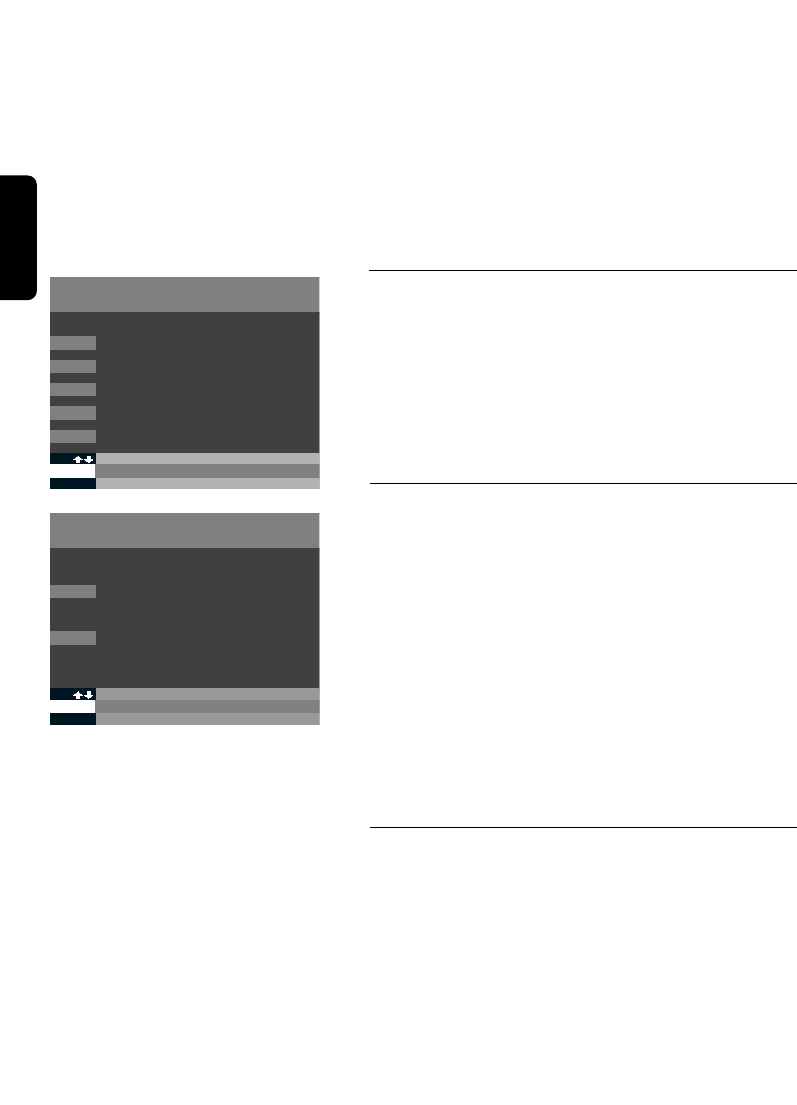
14 INSTALLING THE SATELLITE RECEIVER
• If the signal quality is orange, you may change the
direction of the dish in order to get a better signal.
• If the signal quality is red, the signal is bad.
The signal may be bad when:
- the dish is not positioned in the right direction.
- the connection between the dish and the decoder with
the feeder is not well made.
In that case, please contact your dealer.
When the receiving indicator is green and in the region
of 3, the decoder is ready to have the channels input.
5.3 Storing the channels
Select KANALEN INSTALLEREN (button 5in the menu).
The following screen then appears:
5.3.1 Canal digitaal
If you choose this method, the channels of
CANALDIGITAAL will be stored first as per the order of
CANALDIGITAAL in the Channel List. Then, the other
channels will follow in a indeterminate order.
The decoder allows you to give new number to the
"remaining channels" (the numbers of the
CANALDIGITAAL channels may not however be
changed). With this option, the searching process will last
about 15 to 30 minutes. During this operation, a progress
display appears on the screen.
When the channels have been found (the display shows
100%), a list of all the channels is automatically stored in
the decoder.
5.3.2 In an indeterminate order
If you choose this method, the channels will be stored in
an indeterminate order in the Channel List.
The decoder allows you to give new number to all the
channels (incl. CANALDIGITAAL). The searching process
will last about 15 to 30 minutes. During this operation, a
progress display appears on the screen.
When the channels have been found (the display shows
100%), a list of all the channels is automatically stored in
the decoder.
KANALEN INSTALLEREN
A TERUG NAAR VORIG SCHERM
5.5
1 CANAL DIGITAAL
2 IN WILLEKEURIGE VOLGORDE
KANALEN INSTALLEREN
A TERUG NAAR MENU
5
1LIJST VAN KANALEN
2KANALEN HERNUMMEREN
3KANALEN TOEVOEGEN
4KANALEN VERWIJDEREN
5 KANALEN INSTALLEREN
English
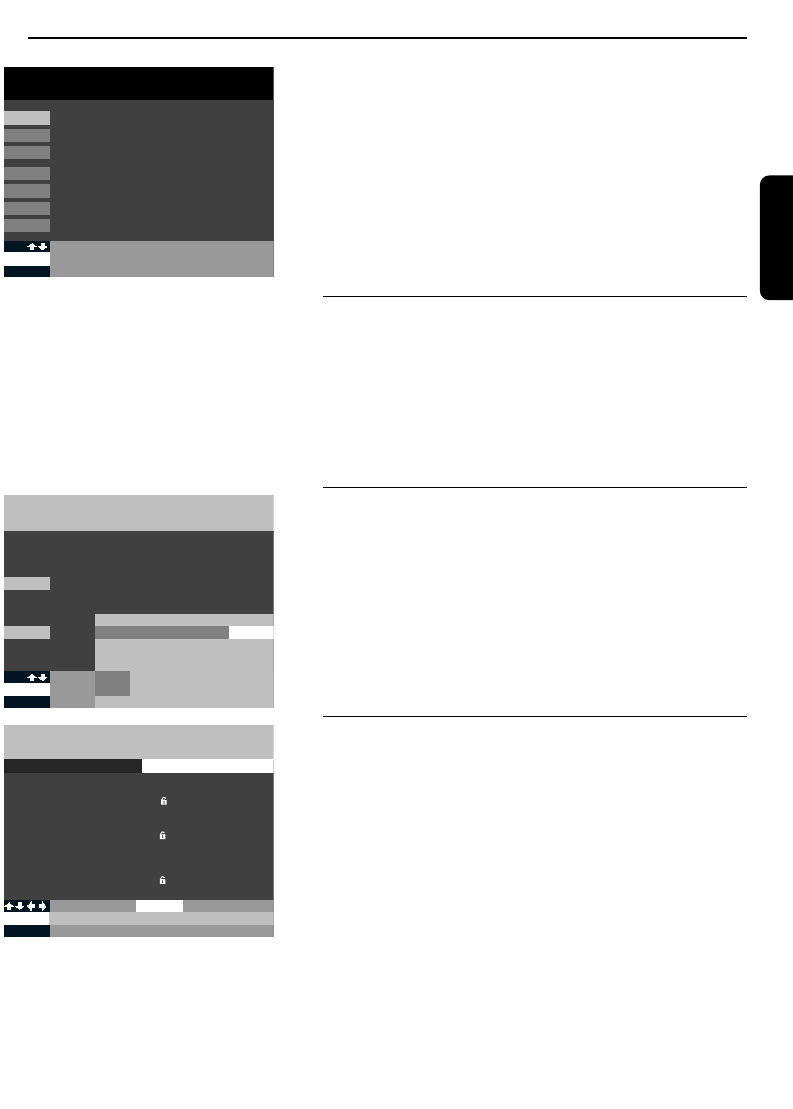
THE MENU 15
6 The menu
The MENU button
With the MENU of your satellite receiver, you can install
a lot of useful settings, as for example a parental lock,
your favourite channels, using the timer to tape various
programmes, etc... You access the menu by pressing the
MENU button.
To select one of the options in the MENU, you may
press the selected number or the arrow buttons ©ª on
your remote control. Press OK to confirm your choice.
6.1 Code and parental lock
Button 3 of the MENU
You may personally enter the code or change it. When
you want to watch a locked programme or a programme
you have to pay for, you always have to enter this
pincode. You can also lock some channels with a parental
lock.
6.1.1 Entering a code
• Press MENU, and then 3and 1.
• Choose a 4-digit number (not 0000).
• If you want to change your code, choose option 1again
(CODE WIJZIGEN).
Confirm your CODE by pressing OK or by returning to
the screen CODE EN KINDERSLOT and pressing A.
6.1.2 Using the parental lock
With this option, you lock and unlock one or more
channels.
• Press MENU, then 3and then 2.
• You have to enter your pincode first.
On this screen, it is possible to:
- Select the channels you want to lock.
When you've selected a channel, a small lock appears
on the screen.
- Press the Bbutton to change the status of the parental
lock. The symbol of an open lock becomes a closed
lock or vice-versa.
KINDERSLOT ACTIVEREN
CANAL DIGITAAL
A TERUG NAAR MENU
3.2
...
C+1
C+2
RTL4
RTL5
SBS6
VERONICA
TMF
NED1
NED2
...
KINDERSLOT NIET ACTIEF
B
OK
KINDERSLOT ACTIVEREN
BEVESTIGEN
1
2
3
4
5
6
7
8
9
PINCODE EN KINDERSLOT
1
A TERUG NAAR MENU
CODE INSTELLEN
3
3KINDERSLOT VOER CODE IN ++++
OK
ABEVESTIGEN
STOPPEN
MENU
1
2
3
4
5
6
7
MENU TERUG NAAR TV
PROGRAMMAS OPNEMEN
VOORKEURKANALEN KIEZEN
CODE EN KINDERSLOT
INSTELLINGEN
KANALEN INSTALLEREN
INFORMATIE ABONNEMENT EN BRIEVENBUS
TECHNISCHE INFORMATIE
English
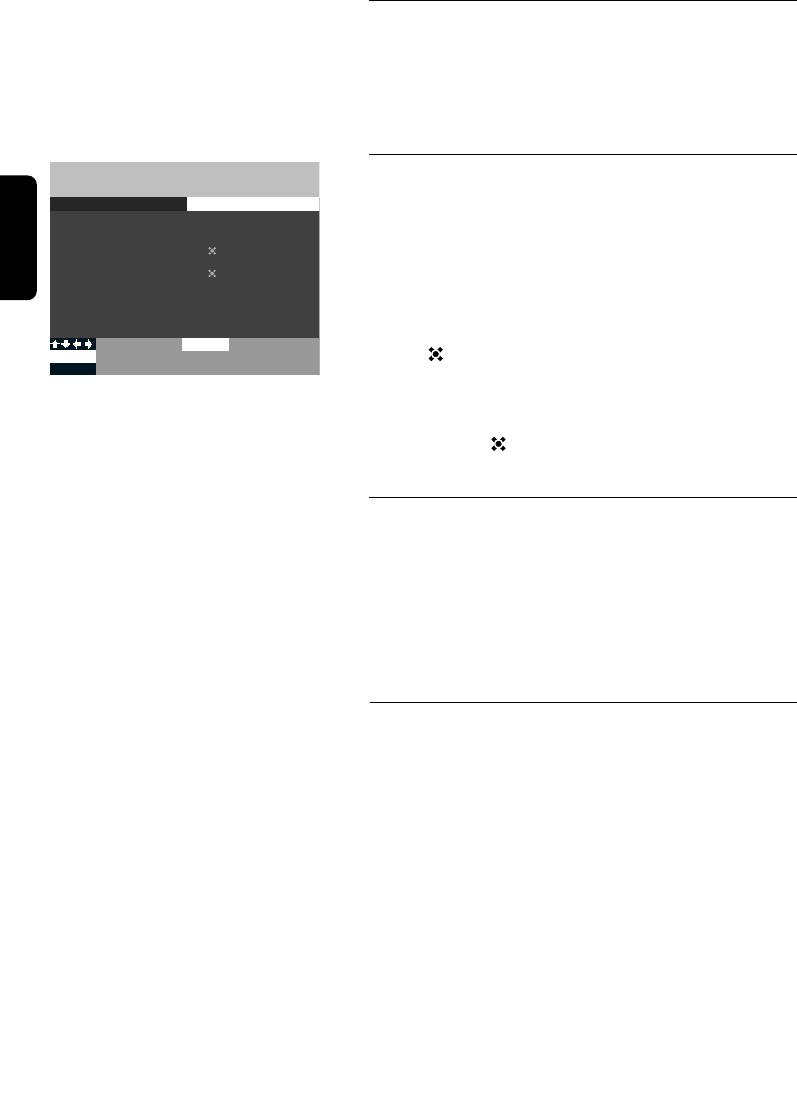
16 THE MENU
6.1.3 Watching a locked channel
When by flicking you meet a locked channel, you see an
information bar in the lower part of the screen. It asks
whether you want to access this channel: press OK and
enter your pincode. Now, you can watch the programme.
6.2 Choosing your favourite channels
• Press the MENU button and then 2to go to the menu
VOORKEURKANALEN KIEZEN.
Here you can create a list of your favourite channels.
When flicking between the channels, you will only see the
favourite channels you've selected.
• Use the arrow buttons ©ª to select your favourite
channels and press OK to confirm your choice. The
symbol appears alongside each channel that has been
selected, both in the programme menu and in the
information bar.
• To cancel the selection of a programme, press the OK
button and the symbol will disappear.
6.3 Recording programmes
To record a programme, the receiver must be switched to
the channel you want to record. You can program the
receiver so that it will automatically record the channel
you want to record at the right time. This can be very
useful if you want to record different channels when
you're absent. Nevertheless, you still have to program
your videorecorder too.
6.3.1 Recording a digital channel you’re
watching
Select the chosen channel on the receiver and preselect
the videorecorder on the receiver. You can start
recording.
WARNING!
You can't record one digital channel whilst watching another
one.
VOORKEURKANALEN INSTELLEN
CANAL DIGITAAL
A TERUG NAAR MENU
2
...
C+1
C+2
RTL4
RTL5
SBS6
VERONICA
TMF
NED1
NED2
...
VOORKEURKANAAL
OK BEVESTIGEN
1
2
3
4
5
6
7
8
9
English

THE MENU 17
6.3.2 Recording a programme that must be
broadcast later
You first have to preselect your videorecorder on the
decoder. Then you will have to program your digital
receiver so that it will switch on at the right time and on
the right channel.
You can program the receiver from the MENU (MENU
button) or from the EPG (EPG-button).
MENU button
• Press MENU and 1, and then press the number of the
programme.
Choose a sequential number for the recording. This
number is not important: you can begin with 1, than
choose 2, 3, 4, etc...
• Now select the date, the number of the channel, the start
and finish times and the frequency of the recording -
daily, weekly or monthly.
• Follow then the instructions that appear on the screen.
WARNING!
- If there is a parental lock on the channel you wish to select,
you first have to enter your pincode.
- Do not forget to switch on your videorecorder before
recording the programme.
- You can record maximum eight programmes.
6.3.3 Recording a programme from the
electronical programme guide (EPG)
You can only record the channels from the electronical
programme guide if you have a subscription. You can do it
as following:
- Press EPG
- Select PROGRAMMA-OVERZICHT
- Choose the programme you want to record and
confirm your choice by pressing the OK button.
WARNING!
When you choose a programme which has already begun, you
cannot record it: you can only watch it.
• Follow the instructions appearing on the screen to
program the record.
• If you want to record at a time which has already been
selected, you will be informed of this.
• Set the videorecorder on the preselection for the
decoder.
• Do not forget to switch on your videorecorder too.
PROGRAMMAS OPNEMEN
PROGRAMMA 1
A TERUG NAAR VORIGE SCHERM
1
OK
EKEUZE VAN KANAAL
BEVESTIGEN INSTELLING
VERGEET NIET DE VIDEORECORDER
TE PROGRAMMEREN
DATUM
KANAAL NUMMER
STARTTIJD
EINDTIJD
HERHALING
13.08
6
06:00
08:00
EENMALIG
OF E
PROGRAMMA’S OPNEMEN
2
3
4
5
6
TERUG NAAR MENU
24.09 PLANETE 15:10-16:10
PROGRAMMA BESCHIKBAAR
PROGRAMMA’S OPNEMEN
OK
E
A
WISSEN
VERGEET NIET DE VIDEORECORDER
TE PROGRAMMEREN
1
24.09 PLANETE 15:10-16:10
PROGRAMMA BESCHIKBAAR
PROGRAMMA BESCHIKBAAR
PROGRAMMA BESCHIKBAAR
7
8
PROGRAMMA BESCHIKBAAR
PROGRAMMA BESCHIKBAAR
English
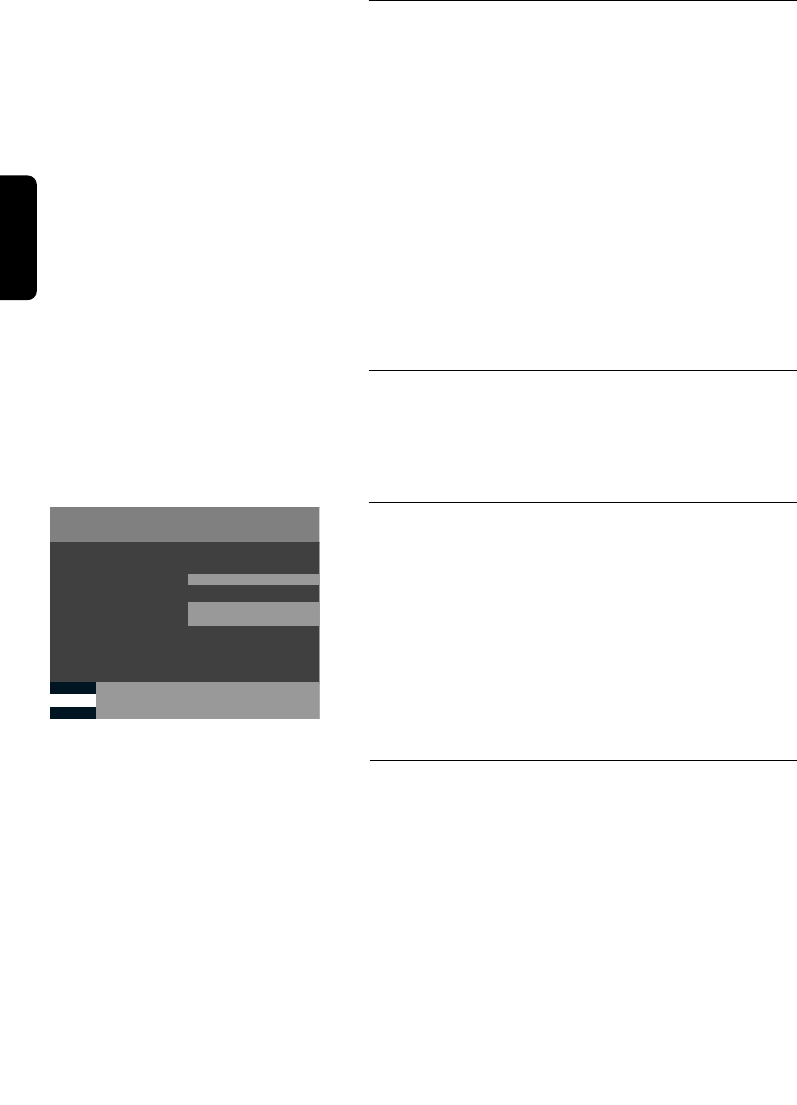
18 THE MENU
6.3.4 Recording indications
• If the receiver is set on standby, it will automatically
switch on on the channel and the time at which you want
to record.
• If you're watching another channel than this that you want
to record, you'll have a reminder.
- When you press +, a message appears to set the
channels you want to record.
- When you press OK, the decoder will be set on the
channel you want to record.
WARNING!
If during the recording you flick to another channel, the
recording will be lost.
6.4 Information about subscription and
postbox
Button 6 of the MAIN MENU
With this option, you can see:
6.4.1 The period of validity of your subscription
• Press MENU, than 6and 1.
The reception rights of your subscription are automatically
extended monthly. In this section, you can check whether
your subscription has indeed been extended. But you can't
see here the date until which your subscription is valid.
Therefore, you must consult your subscription form.
We advise you to always keep your smart card in
the receiver so that your subscription can be
extended automatically every month.
6.4.2 Postbox
Maybe you have a subscription for a channel that can send
you messages.
• Press MENU and then 6and 2or use the arrow buttons
©ª and confirm then by pressing the OK button.
To leave the MENU, press again the MENU button or
TERUG.
GELDIGHEIDSDUUR ABONNEMENT
A TERUG NAAR VORIGE SCHERM
6.1
ONTVANGSTRECHTEN TOT
CANAL DIGITAAL
CANAL+
30 SEP 98
30 SEP 98
LAAT UW SMARTCARD A.U.B. IN DE DECODER ZITTEN ZODAT
UW ABONNEMENT MAANDELIJKS KAN WORDEN VERLENGD.
ALS U PROBLEMEN MET DE ONTVANGSTRECHTEN KRIJGT
ADVISEREN WE U OM ONZE KLANTENSERVICE TE BELLEN.
English

INFORMATIONS BARS 19
INFO button
When you press the INFO button while
watching a programme, information bars
will appear on the screen. On these bars,
you will find information about the
programmes that are being broadcast at
that time and information about the
programmes that follow.
When you press the INFO button, two
bars appear on the TV-screen, one at the
top and one on the bottom of the screen.
7.1 The bottom bar
On this bar, you will see the number and
the name of the channel you are watching,
as well as the time.
7.2 The top bar
On this bar, you will find information about
the programmes and further information
about the channel you are watching. This
information is given with symbols. Here you
will find the name and the number of the
channel, the title and type of programme
you are watching, the time of start and
finish of the programme and technical
information (stereo sound, format).
To see all the programmes which are
broadcast at the same moment:
- Press the arrow buttons ©ª to select
the channel or press directly the number
of the channel you are interested in. The
top bar changes whilst the bottom bar
and the picture you are looking at remain
the same.
To see the following programme on the
channel:
- Press the ¨button. Now you can see
what will be broadcast later.
To see what programme is currently being
broadcast on another channel:
- Press the number of a channel or select
the channel with the arrow buttons ©ª
and press the OK button.
WARNING!
- If you have already used the VOORK
button,
you can only use the INFO
button for your
favourite channels.
- If the channel you have chosen is locked, you
will have to enter your pincode.
- To see all the channels once more, press the
VOORK
button again.
- To leave INFO, press again the INFO
button
or TERUG.
7 Informations bars (Info)
English
20 ELECTRONICAL PROGRAMME GUIDE
8 Electronical programme guide (EPG)
EPG button
The electronical programme guide (EPG)
gives you information about all the
programmes that will be broadcast next
week. With EPG you can look for
programmes very easily.
With the EPG button, you can access the
following options:
PROGRAMMA OVERZICHT:
The programmes are listed in the order of
their broadcasting per channel.
FILM, SPORT, JEUGD,
DOCUMENTAIRES EN OVERIGE
GENRES:
The programmes are listed per theme
(movies, sports, youth, documentaries and
other kinds of programmes).
SELECTEREN PROGRAMMA'S:
Here you can make selections to look for
your favourite programmes. The
programmes you've selected are stored in
the memory.
LIJST GESELECTEERDE
PROGRAMMA'S:
a list with all the programmes you have
selected and want to see or record.
• To leave the ELECTRONICAL
PROGRAMME GUIDE, press EPG or
TERUG.
Note: It can happen that the EPG is not
completely updated with the actual information.
Because of the actual regulation concerning the
copyrights of programmes of the broadcasters
Nederland 1-2-3, Canal + is limited in the
broadcast of the Electronical Programme Guide.
8.1 List of the programmes
Here you find all the programmes in
chronological order. You can consult all the
programmes up to one week ahead.
8.1.1 Choosing a programme
• When you want to watch a programme, you
can select it with the arrow buttons ©ª or
§¨ and than you can press the OK button
in order to:
- know if a programme is being broadcast
at that moment,
- store a programme which is being
broadcast later in the memory,
- delete a programme which has been
stored in the memory,
- request a programme you have to pay
for.This function will only be available at a
later date,
- record a programme or cancel a
recording.
8.1.2 Programmes broadcast on
other days
• When you want to look for a programme
which is broadcast on a given day in the
EPG, you can perform the following
operation:
- to select the day:
- Press the button corresponding to the
selected day of the week (MA, DI,...)
and go directly to the time (morning)
from 6:00 to 14:00.
- For afternoon programmes between
14:00 and 20:00 press the DAG
button.
- For evening programmes between
20:00 and 24:00 press the AVOND
button.
- For night programmes between 00:00
and 6:00 press the NACHT button.
English

ELECTRONICAL PROGRAMME GUIDE 21
English
+ button
When you press the +button, you will get
detailed information about the selected
programmes (summary of the programme,
actors, presentators, directors,
producers,...).
8.1.3 Choosing programmes on the
basis of the channel or the
time
When you press PROGRAMMA
OVERZICHT and then B, you can choose a
programme on the basis of the channel and
the starting time. When you press OK, the
EPG will look for the corresponding
programme. Then you may store this
channel in the LIJST GESELECTEERDE
PROGRAMMA'S.
8.1.4 Reminder
The receiver will warn you when a
progamme you have entered in the LIJST
GESELECTEERDE PROGRAMMA'S is going
to start.
You can install the warning signal via the
MENU.
• Press MENU and then 4and 1.
A few minutes before the beginning of the
programme, you will be warned. In
HERINNERING you can choose:
- audio: the decoder will utter a BEEP.
- None.
When you press the +button, the name of
the programme you have stored in the
memory will appear.
WARNING!
- When a programme which has been stored is
broadcast, it will be automatically erased from
the memory.
- A maximum of 8 programmes can be stored
in the memory.
- A programme which has been stored is
indicated in the EPG or INFO with a symbol.
8.2 Films, sports, youth,
documentaries and other
kinds of programmes
Here you find all the programme which are
selected according to the various kinds:
films, sports, programmes for young people
and other kinds of programmes in
chronological order. You can search for the
programmes up to one week ahead.
When you choose ANDERE GENRES (with
the arrow buttons ©ª or OK ), you will
see the following list:
- Series
- News magazines (Infomagazine)
- Entertainment
- Music (Muziek)
- Weather forecast (Weerbericht)
- Events (Evenement)
- Others (Overige)
8.2.1 Choosing programme
• When you want to watch a programme, you
can select it with the arrow buttons ©ª or
§¨ or press the OK button to:
- see if the programme is being broadcast
at that moment.
- store a programme which will be
broadcast later in the memory.
- delete a programme from the memory.
- request a programme you have to pay for.
This function will be available only in the
future.
- record a programme or cancel a
recording.
8.2.2 Programmes broadcast on
other days
• When you want to look for a programme
which is broadcast on a given day in de
EPG, you can perform the following
operation:
- Press the button corresponding to the
selected day of the week (MA, DI,...) and
go directly to the time (morning) from
6:00 to 14:00.
22 ELECTRONICAL PROGRAMME GUIDE
English
- For afternoon programmes between
14:00 and 20:00 press the DAG button
- For evening programmes between
20:00 and 24:00 press the AVOND
button.
- For night programmes between 00:00
and 6:00 press the NACHT button.
+ button
When you press the +button, you will get
detailed information about the selected
programmes (summary of the programme,
actors, presentators, directors,
producers,...).
8.2.3 Choosing programmes on the
basis of time
When you select FILM, SPORT, JEUGD,
DOCUMENTAIRES EN OVERIGE GENRES
(movies, sports, youth, documentaries or
other kinds) and then press B, you can
select a programme on the basis of the
starttime. After that, when you press OK,
the EPG will look for the corresponding
programme. Then, you can store this
channel in the LIJST GESELECTEERDE
PROGRAMMA'S.
8.2.4 Reminder
The receiver will warn you when a
programme you have entered in the LIJST
GESELECTEERDE PROGRAMMA'S is going
to start.
You can install the type of warning signal via
the MENU.
• Press MENU and then 4and 1.
A few minutes before the beginning of the
programme, you will be warned. In
HERINNERING you can choose:
- audio: the decoder will utter a BEEP.
- None.
When you press the +button, the name of
the programme you have stored in the
memory will appear.
WARNING!
- When a programme which has been stored is
broadcast, it will be automatically erased from
the memory.
- A maximum of 8 programmes can be stored
in the memory.
- A programme which has been stored is
indicated in the EPG or INFO with a symbol.
8.3 Selecting programmes
With this option, you can select your
favourite programmes on the basis of
various criteria.
If you choose SELECTEREN
PROGRAMMA'S and then D (select), you
have the choice between three possibilities:
- Theme (Genre)
- Time (Tijdstip)
- Channel (Kanaal)
When you have adapted the criteria to your
own preferences, you can search for a
programme with the Ebutton. With the +
button, you can request further
information. With the Bbutton, you can, by
adding the start time of the programme,
include an extra criterion in the search.
8.4 List of selected
programmes
In the list of the selected programmes you
will find all the programmes you have
stored in the memory of the receiver. Here
you will find two types of programmes:
- programmes you have selected in the
MENU to be recorded (indicated with
PROGRAMMERING OPNAME) ; when
these programmes start, the receiver will
automatically switch on the channel on
which the programme is to be broadcast.
- programmes you've selected in the EPG ;
when these programmes start, the
receiver gives you a warning signal.
- You can also delete a programme from
this list by selecting the programme and
pressing OK.

WATCHING A PROGRAMME 23
9.1 When you are watching a
programme
The + button
When you are watching a programme and
you press the +button, you can choose a
specific language and/or a subtitling.
You can only use this function when the
programme you have chosen is being
broadcast in the selected language and/or is
subtitled. To go from one option to another
one (language, subtitling), press the arrow
buttons ©ª. You can choose the various
languages or the subtitling with the arrow
buttons §¨.
To confirm your choice and return to the
programme.
• Press the +or OK button.
VOORK-button
With this button you can switch on or off
your favourite channels.
• Press VOORK and the symbol appears
in white on the screen. Now you may flick
between your favourtie channels.
• When you press VOORK again, the symbol
appears in red on the screen. Now you
may flick between all the channels.
9.2 When you consult the EPG
When you are in the EPG and press the +
button, then you get further information
about the programme you have selected as
well as a summary of the programme, the
presentator, the manager, the actors, etc...
9 When you are watching a programme
English
10 Radio channels
In the channel list, you will also find the indication "Radiokanalen" preset.
When you select such a channel, you can, through the description on the screen, select a radio
programme.
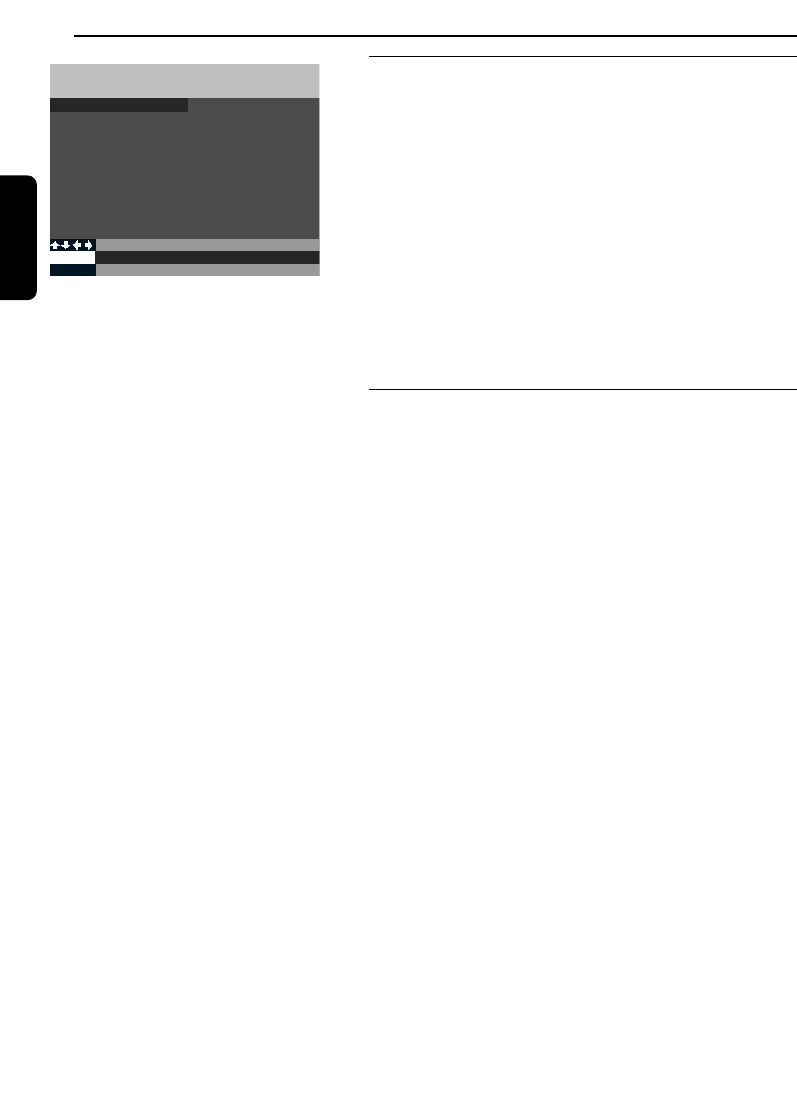
24 THE CHANNELS
English
11 The channels
11.1 List of the channels
To consult the list of the channels:
- press MENU and 5. The menu KANALEN
INSTALLEREN appears on the screen.
- select option 1to consult the LIJST VAN KANALEN.
Use the arrow buttons ©ª to select a channel or press
directly the number of the channel. You will recognize
your favourite channels and the locked channels with the
corresponding symbols.
When you watch a programme, you can go directly to the
menu LIJST KANALEN by pressing the Ebutton.
11.2 Altering the numbering of the
channels
During the installation, you have chosen the order of
CANALDIGITAAL or a random order.
You may alter the order:
- if you have determined your own numbering, you may
alter the complete numbering of the channels (from 1
up to 500).
- if you have chosen the numbering of CANALDIGITAAL,
you may only alter the numbering of the channels which
are not CANALDIGITAAL channels.
You can access this function via the menu KANALEN
INSTALLEREN:
- press MENU and then 5.
- then choose option 2(KANALEN HERNUMMEREN).
With the arrow buttons ©ª, you can consult the list of
the channels. You may also go directly to the channel you
are interested in by pressing the number of the channel.
You may select a channel and press the OK button. Then
you can move the channel with the help of the arrow
buttons ©ª.
You confirm the new position with the OK button. Now
you can choose to put this channel before or after this
new position or to exchange it with the new position.
LIJST VAN KANALEN
CANAL DIGITAAL
A TERUG NAAR VORIGE SCHERM
5.1
...
C+1
C+2
RTL4
RTL5
SBS6
VERONICA
TMF
NED1
NED2
...
OK DIT KANAAL BEKIJKEN
1
2
3
4
5
6
7
8
9

English
THE CHANNELS 25
11.3 Adding new channels
It can happen that new digital channels are
launched. You may add these new channels
in the memory of your decoder.
You may add new channels with the menu
KANALEN INSTALLEREN:
- press MENU and 5.
- choose then option 3(KANALEN
TOEVOEGEN).
On this moment, the decoder will start
searching automatically. A progress display
will appear on the screen.when the search is
complete, you will find the new channels in
the LIJST VAN KANALEN.
11.4 Removing channels
You may also remove channels which are
stored in the memory with the help of the
menu KANALEN INSTALLEREN:
- press MENU and then 5.
- choose then option 4(KANALEN
VERWIJDEREN).
A list of channels you may remove appears
on the screen.
You may select the channel with the arrow
buttons ©ª. Then you can remove the
channel by pressing OK. The channel which
has been removed will be restored in the
memory by installing the channels once
again.
11.5 Reinstalling channels
During the installation, you had to choose
between the numbering of
CANALDIGITAAL or a random numbering.
This option gives you the possibility to go
from one type of numbering to another
one.
• press MENU and then 5.
• choose then option 5(KANALEN
INSTALLEREN). Press OK so that the
display KANALEN INSTALLEREN appears.
The system warns that the complete list of
channels can be altered and that you have to
enter your CODE to access this menu.
• now you may choose again between both
kinds of numberings of the channels.
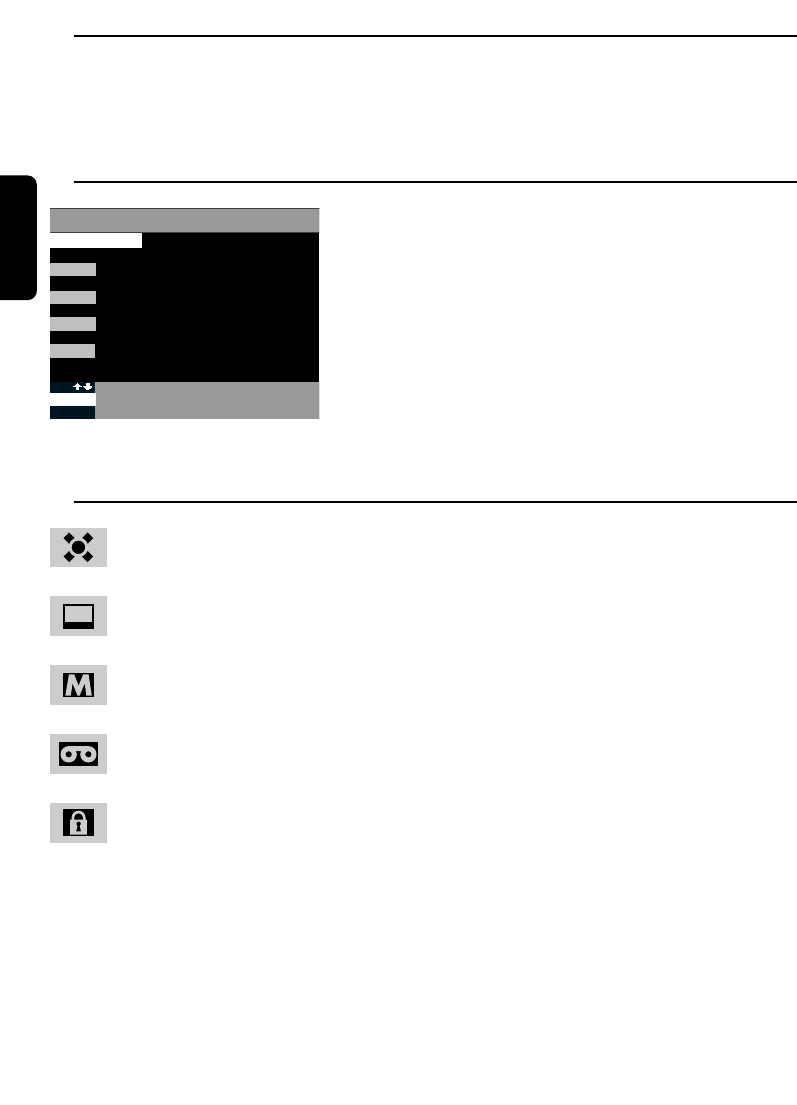
12 Subscription programmes (not yet available)
When this manual was being printed, subscription programmes were not yet available. You will be
informed when these services will be available.
13 Information for subscribers (not yet available)
When you press the SERV button whilst watching one of
the channels of CANADIGITAAL, you may request
information abouth various subjects.
14 Symbols and abreviations
FAVOURITE CHANNEL
This symbol indicates which channels you have selected as being your favourite
channels.
THE PROGRAMME IS BEING BROADCAST NOW
This symbol indicates that a programme is being broadcast at this moment. By
pressing OK you go directly on this programme.
A PROGRAMME IN THE MEMORY
Programmes you have stored in the LIJST GESELECTEERDE KANALEN are
recognizable by this symbol.
PROGRAMMED FOR RECORDING WITH THE VCR
This symbol indicates in the EPG that a programme has been selected to be
recorded with the videorecorder.
CHANNEL WITH PARENTAL LOCK
This symbol indicates in the EPG and INFO that a channel has been locked with a
parental lock. Only the persons knowing the code will be able to watch this
channel. When the lock is open, the parental lock is not active.
O.V./ ST: ORIGINAL VERSION, SUBTITLING
These are abbreviations which are used to indicate how a programme is being
broadcast: in the original language or with a subtitling. This symbol appears in the
top bar when you press INFO.
16/9 and 4/3: PROGRAMME FORMAT
These abbreviations indicate the format in which the programme is being
broadcast. 16/9 means large format and 4/3 normal format. These symbols appear
in the top bar when you press INFO.
CANAL DIGITAL
2
3
4
TERUG NAAR TV
ABONNEMENT
INFORMATIE VOOR ABONNEES
E
SERV
WELKOM
1
INFORMATIE OVER TOKENS
BETAALDE INTERACTIEVE DIENSTEN
English
26 SUBSCRIPTIONPROGRAMMES
English
TROUBLESHOOTING 27
15 Troubleshooting
When you have problems with your Philips DSR 2210, first check following points.
PROBLEM POSSIBLE CAUSE ACTION
No picture, no sound and no
front panel display.
No picture, no sound; but the
LED on the front of the
receiver lit red.
No picture, no sound; but the
LED on the front of the
receiver is switched off.
Only the main menu and the
corresponding sub-menus are
available. You cannot choose a
service.
Main menu + sub-menus and
information are available. But
there is no reception (the
screen remains black).
Receiver is not plugged into the
mains or is not switched on.
The receiver is on standby.
The SCART connection has
been made wrong.
The connections are right, but
the television is NOT
connected up to the extern AV
source (AV 1 or EXT. 1, etc...).
The cable connections are
maybe faulty (damaged, broken
or squashed) are missing.
There is no download list of the
(digital) services in the memory
of the receiver.
The receiver has not been well
connected up to the dish.
The dish does not receive
satellite signals.
The mains of the LNB is
interrupted.
The received signal is too weak.
Check mains connection.
Press on the Bbutton on the
remote control to bring the
receiver out of standby.
Check the SCART connection
(see chapter 2).
Check the TV SCART
connection.
Check all your connections and
consult chapter 2.
Execute all the relevant steps
for installing indicated in
chapter 4.
Check all the items of the menu
Antenne instellen (LNB, mains,
LNB-type, LO frequence,...) -
consult chapter 4.2 A.
Check the installation and the
positioning of the dish.
Check the cable connection
between the LNB and the
satellite receiver.
Check the installation and the
positioning of the dish.
It may be due (rarely) to severe
or very cloudy weather.
PROBLEM POSSIBLE CAUSE ACTION
English
28 TROUBLESHOOTING
Irregular reception, "mosaic"
effect of the picture.
The remote control does not
operate.
By normal receiving, you may
have a black screen when you
choose some services.
The dish is damaged.
Wrong cable connections
(damaged, broken or squashed
connectors or wires).
A weak signal because the dish
is not well positioned or is not
stable.
There are no batteries in the
remote control, the batteries
are nearby or completely used.
Your subscription is not valid
for the selected service or
programme.
Install a new dish.
Check all the connections and
cables.
Reposition the dish. Fix your
dish strongly.
Check the batteries and change
them eventually.
Choose another service.
English
TECHNICAL SPECIFICATIONS 29
16 Technical specifications
This product is in conformity with the requirements of the 95/47/EC and 2002/21/EC directives.
Video decoding
- MPEG-2 DVB compliant up to
MP@ ML
- Video bit rate: up to 15 Mbit/sec
- Video format: 4 :3 and 16 :9
- Resolution: up to 720x576 pixels
Audio decoding
- MPEG layer I / II (excluding
multi-channel management from
one bitstream)
Ease of Installation
- Automatic program installation
via scanning
- Automatic program list update
- Program editing for personalised
installation
Ease of Use
- Zaplist
- Favourite mode
- Full remote controlled
- Automatic recording by tagging
via EPG
Operation/Features
- Free to air reception with
supplied smart card
- Volume control
- 8 event timers
- Subtitles
- Program parental lock with PIN
code
- Audio mode: single channel, dual
channel, stereo, joint stereo
- Menu controlled installation and
operation using On Screen
Display
- Variable LNB frequency
- Receiver compatible with Canal
Digitaal/Cyfra+ services
Application system resources
Processor clock speed 166 MHz
SDRAM-CPU/Video-Graphics 8 MB
Flash memory 8 MB
Satellite antenna interface
- RF input: IEC169-24F
- LNB supply: 0 / 14 / 18V
- LNB current: 350 mA max
- Tone switching: 22 kHz (on / off)
- Tone burst for 2 orbital position
Reception-Demodulation
- Demodulation type: QPSK
- Input frequency range:
950-2150MHz
- Input level range: -65 to -25 dBm
- Satellite band coverage:
C and Ku band
De-scrambling
Type: DVB
Implementation: Internal
Smart card: 1 for CA
Note: subscription is required for the
reception of Canal Digitaal/Cyfra+
scrambled services
Connections
TV SCART
Output: CVBS, Controlled audio
L/R, RGB, Slow blanking,
Fast blanking
VCR SCART
Input: CVBS, Slow blanking,
Audio L/R
Output: CVBS, Y/C (SVHS), Audio
L/R
Analog Audio output:
Controlled Audio Cinch L/R
Digital Audio output: PCM
Serial interface:
RS 232 / RJ9 female
Accessories
- Remote control: RC2585102/01
- Scart cable
- Instruction for use
- Batteries: 2 x 1.5V type AA/LR6
- Mains cord (2 m)
Miscellaneous
- Temperature range (°C)
Operating: +5 to 45
Storage: -10 to +70
- Mains: 230 V ~ +/-10%
50 Hz
- Power consumption: 25 W max
- Standby consumption: 6 W max
- Weight: 1.450 kg
Including packaging: 2.5 kg
- Dimensions:
Product: 260x230x60 mm
Packaging: 365x305x140 mm
The product complies with
the following European
council Directives:
- 73/23/EEC
- 93/68/EEC
- 89/336/EEC
07/03 - Due to continued product improvements, this
information is subject to change without notice.

17 More on your remote control
Setting up your remote control
By default, your remote control is preset to
control most of the Philips audio video
appliances.
If you have other brands of appliances, or if
the presets do not control your Philips
appliance, please follow the following
procedure.
Note:
some of the functions described in the next
pages may not be available or have the same
behaviour for all appliances.
1. using the mode button, go to the
destination mode which you want to set up
(TV, VCR, DVD or Amp/Tuner).
2. Press digits 1 and 3 simultaneously for 3
seconds. After 3 seconds, the lights
corresponding the the destination mode will
blink twice and remain on.
3. Enter the 4 digit code within 60 seconds.
You will find a list of codes at the end of this
manual. (If several codes are possible, go
through this procedure with the 1st code
and try your remote control. If you are not
successful, repeat the procedure with the
second code, and so on).
4. If a valid 4-digit code has been entered, the
lights will switch off and blink twice. If not,
go back to step 1.
Pressing any key other than digit keys and
stand-by button will automatically exit this
procedure.
If you wish to check that you have entered
the right code.
1. press digits 1 and 6 simultaneously for more
than 3 seconds. The destination mode lights
will blink twice and turn off.
2. Press digit 1: the number of blinks of the
destination mode light is the first number of
the code.
3. Press digit 2: the number of blinks of the
destination mode light is the second number
of the code.
4. Press digit 3: the number of blinks of the
destination mode light is the third number
of the code.
5. Press digit 4: the number of blinks of the
destination mode light is the fourth number
of the code.
No blinks indicates a zero.
Keys should be pressed within 60 seconds
of each other in order not to exit the
procedure.
At the end of the procedure, the remote
control will return to normal mode.
English
30 YOUR REMOTE CONTROL
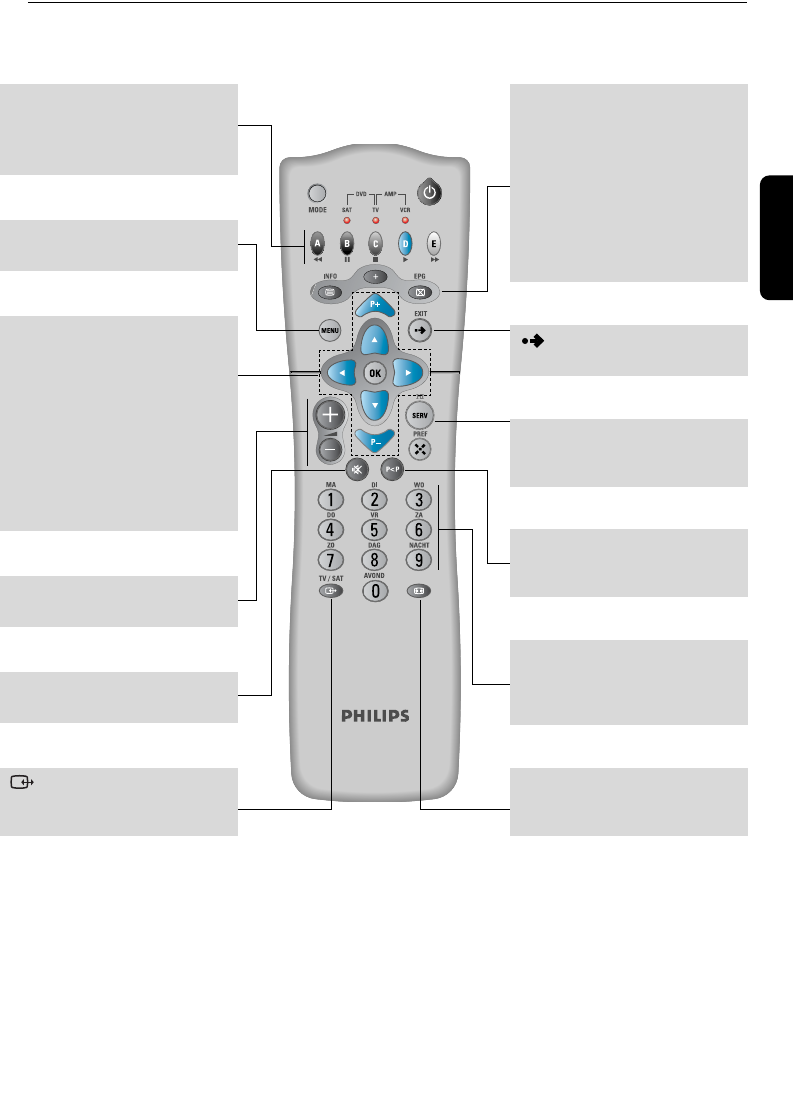
17.1 TV mode (TV)
Note: Some of the functions described below may not be available or may not have the same behaviour for
all equipment.
English
YOUR REMOTE CONTROL 31
Red (A), Green (B),
Yellow (C), Blue (D),
White (E)
teletext keys.
Selects the TV set modes (TV,
AV1, AV2,etc...).
P+/P-
Selects the next/previous
programme.
CBVW
Moves the cursor
left/right/up/down.
OK
Acknowledges a menu item
selection.
+ -
Adjusts the TV volume.
c
Mute/demute the sound.
MENU
Opens the menu function
b
Teletext on/off.
+/OSD
Access or remove on screen
display.
a
Toggles between teletext and
TV mode.
Ä
Selects the TV picture format
(16/9, 4/3, etc...).
4
Selects between first or
second sound channel.
Exits the menu function.
P<P
Switches to the last viewed
channel.
0-9
Selects the programme in TV
mode Selects item setting in
menu mode.
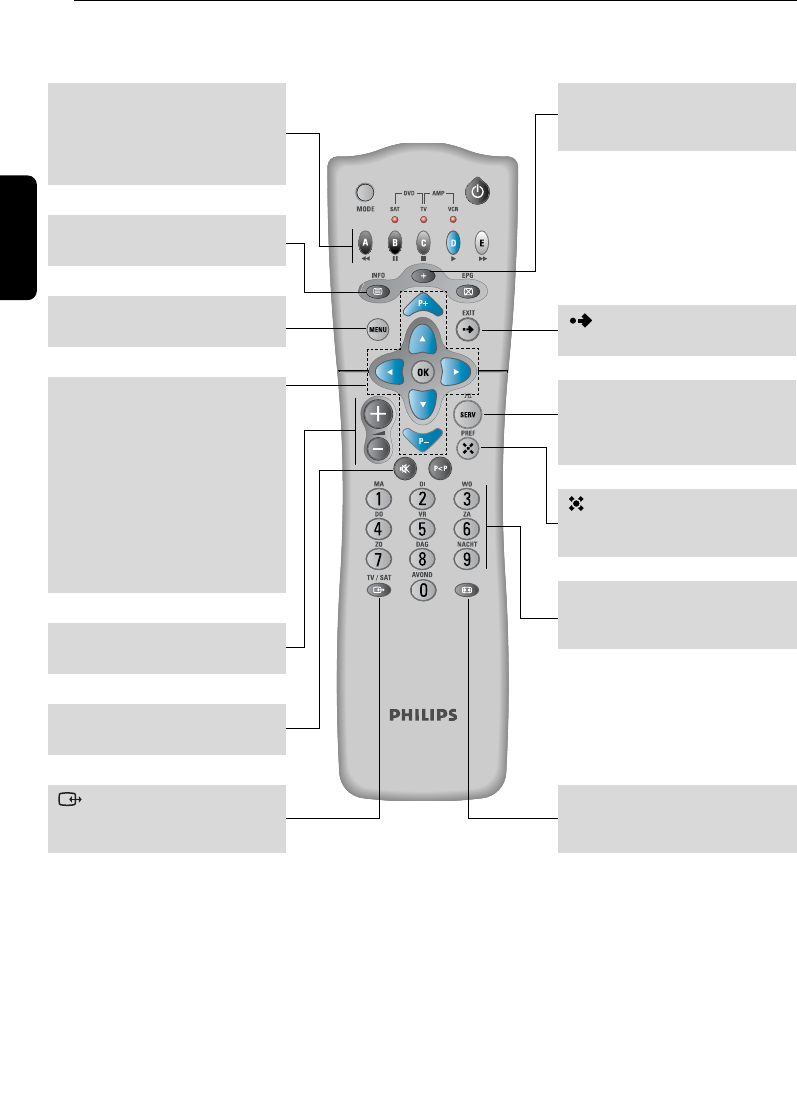
17.2 VCR and DVD mode (VCR, DVD)
Note: Some of the functions described below may not be available or may not have the same behaviour for
all equipment.
English
32 YOUR REMOTE CONTROL
(A) G: fast rewind
(B) K: pause
(C) L: stop
(D) B: play
(E) F: fast forward
Selects the VCR modes (VCR,
AUX1, AUX2, etc...).
P+/P-
Selects the next/previous
programme/title.
CBVW
Moves the cursor left / right /
up / down.
OK
Executes the menu function
selected by the cursor.
+ -
Adjusts the TV volume.
c
Mutes the TV.
+/OSD
access or remove on screen
display.
Ä
Selects the TV picture format
(16/9, 4/3, etc...).
4
Selects, when available, an
alternate audio track (e.g.:
language).
Exits the menu Function.
0-9
VCR - Selects the programme.
DVD - Selects the chapter/title.
Changes, when available, the
view angle.
MENU
Opens the menu function.
b
Displays sub-titles.
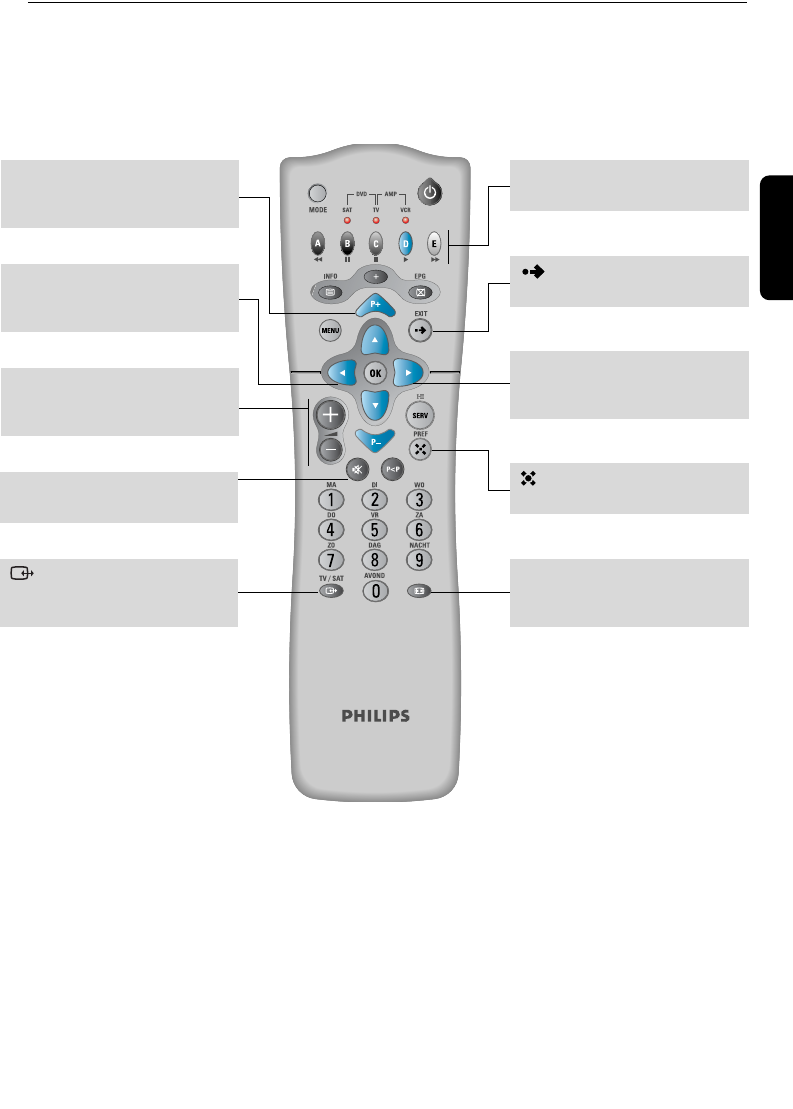
17.3 Amplifier/Tuner mode (AMP)
* Only available for philips products.
English
YOUR REMOTE CONTROL 33
*
Selects the external source of
the Amplifier.
C*
Searches/Scans the previous
radio programme.
+ -
Adjusts the Amplifier/Tuner
volume.
c
Mutes the Amplifier/Tuner.
P+/P-*
Selects the next/previous radio
programme.
ABCDE*
Selects Tuner source.
Ä
Selects the TV picture format
(16/9, 4,3, etc.).
*
Exits the menu function.
*
Changes the sound effect.
B*
Searches/Scans the next radio
programme.

English
34 SETUP CODE
SETUP CODES FOR AMPLIFIERS (AMP)
Arcam 0668
Bush 0448, 0874
Curtis Mathes 0327
Goodmans 0448, 0874
JBL 0695, 1204
Optimus 0040
Philips 0668
Pioneer 0040, 0327
Sansui 0348
Videologic 1206
Yamaha 0381, 0170, 0875
INSTELCODES VOOR
AUDIO-ONTVANGERS (AMP)
SETUP CODES FOR AUDIO RECEIVERS
(AMP)
Aiwa 0148, 1432
Akai 142
Audiolab 1216
Curtis Mathes 0107
Denon 1131, 1187
Fine Arts 1216
Fisher 0387
Grundig 1216
Harman/Kardon 0137, 1031
JVC 0101
Kenwood 1054, 1340, 1596
Marantz 1216, 1116
Micromega 1216
Myryad 1216
Onkyo 0162, 0869
Panasonic 0790
Philips 1216, 1116, 1316
Phonotrend 0529
Pioneer 0041, 0107, 0316, 1050
Sanyo 0387
Sherwood 0529, 0518
Sony 1285, 1085, 1185
Technics 0235, 1545, 1335, 1336
Thomson 1381
Thorens 1216
Universum 1225
Yamaha 0203
INSTELCODES VOOR
TELEVISIETOESTELLEN
SETUP CODES FOR TELEVISION
A.R. Systems 0583
AGB 0543
ASA 0131, 0114
Acura 0036
Admiral 0114, 0190
Adyson 0243, 0244
Agef 0114
Aiko 0291, 0244
Aiwa 0728, 0732
Akai 0064, 0507, 0629, 0398,
0235, 0658, 0099, 0583,
0190, 0543
Akib 0321
Akiba 0309, 0482, 0064, 0245,
0321
Akura 0064, 0291, 0245, 0036,
0309, 0439
Alba 0064, 0245, 0398, 0190,
0036, 0243, 0063, 0445,
0274, 0514, 0695
Allorgan 0244, 0233, 0321
Instelling van de afstandsbediening
Setting up your remote control
Alle fabrikanten hechten veel belang aan de voortdurende verbetering van hun producten.
Ofschoon de RC2585100/RC2585102 met de meeste toestellen uit de onderstaande lijst
compatibel is, kan Philips niet garanderen dat u hem met alle producten die op de markt
verkrijgbaar zijn kunt gebruiken
All manufacturers are concerned about the constant improvement of their products. Although the
RC2585100/RC2585102 is compatible with most of the equipment of the following list, Philips
cannot guarantee its operation with the complete range of products on the market.
INSTELCODES VOOR VERSTERKERS (AMP)

SETUP CODE 35
Allstar 0064
Amplivision 0427, 0244, 0397
Amstrad 0064, 0398, 0245, 0439,
0543, 0036, 0291
Anam National 0677
Anglo 0291
Anitech 0036, 0064, 0291, 0309
Ansonic 0397, 0129, 0036, 0064,
0319
Arc En Ciel 0223
Arcam 0243, 0244
Aristona 0583, 0064
Asberg 0129
Asora 0036
Asuka 0244, 0245, 0291
Atlantic 0233
AudioTon 0244, 0513, 0291
Audiosonic 0364, 0513, 0397, 0036,
0064, 0136, 0244, 0245,
0291
Autovox 0233, 0114, 0244, 0274
BPL 0309, 0064
BSR 0321
BTC 0245
Baird 0235, 0099, 0244
Bang & Olufsen 0592, 0114
Barco 0407
Basic Line 0036, 0245, 0401, 0482,
0064, 0244, 0309
Baur 0064, 0539, 0037
Bazin 0244
Beko 0513, 0397, 0064, 0741,
0742
Beon 0064, 0445
Best 0364, 0397
Bestar 0397, 0064, 0401
Binatone 0244
Blaupunkt 0354, 0222, 0227
Blue Sky 0064, 0245, 0309, 0482,
0695, 1064
Blue Star 0309
Bondstec 0274
Boots 0244
Brandt 0223, 0225, 0136, 0362
Brinkmann 0445, 0546, 0064
Brionvega 0114
Britannia 0243, 0244
Bruns 0114
Bush 0064, 0398, 0245, 0546,
0382, 0514, 0036, 0695,
0063, 0235, 0244, 0321,
0401, 0291,
CCE 0064
CGE 0274, 0101, 0397, 0445
CS Electronics 0243, 0245, 0274
CTC 0274
Canton 0245
Carad 0637
Carena 0482, 0064
Carrefour 0063, 0064
Cascade 0036, 0064
Cathay 0064
Centurion 0064
Century 0114, 0274
Cimline 0036, 0245
City 0036
Clarivox 0129, 0064
Clatronic 0064, 0245, 0398, 0274,
0036, 0244, 0397, 0129,
0606
Condor 0397, 0064, 0036, 0129,
0274, 0309, 0438
Contec 0036, 0063, 0243
Continental Edison 0223, 0514, 0136, 0225
Cosmel 0064, 0364
Crosley 0274, 0101, 0114
Crown 0036, 0397, 0064, 0513,
0606, 0445, 0235, 0366
Curtis Mathes 0120
Cybertron 0245
Daewoo 0064, 0036, 0401, 0244,
0245
Dainichi 0243, 0245
Dansai 0064, 0063, 0243
Dantax 0513
Dayton 0036
Daytron 0401
De Graaf 0235
Decca 0543, 0099, 0064, 0244
Denko 0291
Denver 0064
Desmet 0064, 0036
Diamant 0064
Dixi 0036, 0064
Domland 0421
Dual 0546, 0244, 0286, 0421,
0064
Dual Tec 0244
Dumont 0129, 0114, 0097
Elbe 0319, 0265, 0438, 0286,
0462, 0244, 0543
Elekta 0291
English

36 SETUP CODE
Elin 0036, 0064, 0131
Elite 0245
Elman 0129
Elta 0036
Emco 0274
Emerson 0064, 0114, 0309, 0097,
0274, 0398
Emperor 0309
Erres 0039, 0064
Euromann 0064, 0291
Europa 0064
Europhon 0543, 0129, 0244
Expert 0233
Exquisit 0064
FNR 0129
Fenner 0036, 0401
Ferguson 0362, 0265, 0136, 0064,
0652
Fidelity 0243, 0291, 0398, 0190,
0439, 0539
Filsai 0244
Finlandia 0373, 0099, 0190, 0235
Finlux 0131, 0373, 0132, 0244,
0099, 0064, 0114, 0543,
0129, 0438, 0097
Firstline 0064, 0036, 0099, 0244,
0243, 0265, 0274, 0321,
0401, 0438, 0695
Fisher 0131, 0244, 0099, 0114,
0397, 0072, 0235, 0063
Flint 0482, 0064, 0099, 0245,
0291, 0637
Formenti 0243, 0114, 0064
Fraba 0064, 0397
Friac 0129, 0397, 0036
Frontech 0244, 0190, 0274, 0036,
0291
Fujitsu 0129, 0233, 0099, 0244
Funai 0321, 0291
GBC 0036, 0245, 0401
GE 0120
GEC 0244, 0543, 0099, 0190,
0064
GPM 0245
Galaxi 0064, 0129
Galaxis 0064, 0397
Geloso 0036, 0401
General Technic 0036
Genexxa 0245, 0036, 0190
GoldStar 0064, 0274, 0404, 0244,
0317, 0243, 0136, 0190
Goldline 0364
Gooding 0514
Goodmans 0064, 0398, 0036, 0099,
0063, 0245, 0507, 0244,
0401, 0514, 0651, 0291,
0362, 0543, 0661
Gorenje 0397
Gradiente 0197
Graetz 0190
Granada 0543, 0064, 0099, 0235,
0072, 0135, 0244, 0253,
0366, 0500
Grandin 0482, 0064, 0309, 0637,
0606, 0036, 0190, 0401
Grundig 0097, 0222, 0514, 0064,
0036, 0583, 0614
HCM 0036, 0291, 0439, 0064,
0244, 0245, 0309, 0445
HMV 0114
Halifax 0244
Hampton 0243, 0244
Hanimex 0321
Hanseatic 0036, 0421, 0064, 0546,
0309, 0244, 0404, 0583
Hantarex 0064, 0543
Hantor 0064
Harwood 0036, 0064, 0439
Hema 0244, 0036
Hifivox 0223, 0225
Hikona 0245
Hinari 0036, 0245, 0063, 0064,
0514, 0382
Hisawa 0482, 0309, 0637, 0245,
0427
Hit 0114
Hitachi 0190, 0221, 0244, 0605,
0223, 0136, 0746, 0099,
0063, 0225, 0500, 0543,
0132, 0064
Hornyphone 0064
Huanyu 0243, 0401
Hyper 0243, 0036, 0274, 0244
Hypson 0064, 0291, 0309, 0482,
0427
ICE 0245, 0398, 0243, 0291,
0244, 0583
ICeS 0243, 0245
IR 0064, 0114, 0190, 0244,
0543, 0222, 0233, 0274,
0354, 0037, 0038, 0063,
0097, 0099, 0129, 0132,
English

SETUP CODE 37
0221, 0539, 0039, 0072,
0120, 0128, 0131, 0135,
0136, 0223, 0243, 0253,
0265, 0317, 0318, 0319,
0321, 0397, 0401, 0583
ITS 0291, 0243, 0398
ITT 0190, 0507, 0500, 0235,
0366, 0373, 0637
ITV 0064, 0291
Iberia 0064
Imperial 0274, 0445, 0397, 0101
Indiana 0064
Ingelen 0190
Ingersol 0036
Inno Hit 0099, 0244, 0317, 0543,
0036
Interbuy 0064, 0291
Interfunk 0064, 0190, 0039, 0114,
0539, 0354, 0274
Internal 0064
Intervision 0064, 0482, 0129, 0291,
0309, 0245, 0274, 0404,
0513, 0244, 0421, 0514,
0546
Irradio 0274, 0245, 0317, 0398
Isukai 0064, 0245, 0309, 0482
JVC 0398, 0063, 0245, 0680,
0445
KB Aristocrat 0190
KTV 0244
Kaisui 0245, 0309, 0064, 0243,
0482, 0244, 0036
Kamp 0243
Kapsch 0233, 0190, 0131
Karcher 0129, 0637, 0309
Kasui 0309
Kathrein 0583
Kendo 0438, 0637, 0064, 0129,
0274
Kennedy 0233, 0462
Kingsley 0243
Kneissel 0064, 0462, 0265, 0286,
0319, 0637, 0401, 0438
Kolster 0064
Konka 0398, 0245
Korpel 0064
Korting 0114
Kosmos 0064
Koyoda 0036
Kraking 0265
Kyoshu 0439
Kyoto 0190
La Sat 0513
Lenco 0131
Leyco 0099, 0064, 0291, 0321,
0606
Liesenk & Tter 0064
Liesenkotter 0064, 0354
Lifetec 0064, 0546, 0245, 0401
Loewe 0539, 0114, 0064, 0319
Logik 0038
Luma 0233, 0286
Lumatron 0244
Luxor 0221, 0317, 0190, 0235
M Electronic 0132, 0373, 0401, 0131,
0036, 0064, 0244, 0136,
0243, 0190, 0274, 0438,
0507, 0539
MTC 0397, 0539
Magnadyne 0129, 0543, 0114, 0274
Magnafon 0129, 0243, 0543
Magnavox 0063
Magnum 0064, 0675
Manesth 0064, 0244, 0291, 0321
Marantz 0064, 0583
Marelli 0114
Mark 0064
Matsui 0514, 0036, 0064, 0038,
0382, 0244, 0398, 0606,
0235, 0222, 0063, 0362,
0543, 0321, 0099, 0190,
0482
Matsushita 0677
Mediator 0039, 0064
Medion 0064, 0695
Megas 0637
Melvox 0427
Memorex 0036, 1064
Memphis 0364
Metz 0114, 0394, 0474, 0415,
0064
Minerva 0097, 0514
Minoka 0439
Mitsubishi 0063, 0539, 0135, 0114,
0064, 0120
Mivar 0319, 0318, 0243, 0317,
0543, 0636
Monaco 0036
Motorola 0120
Multitech 0129, 0513, 0036, 0243,
0244, 0274
Murphy 0099, 0190, 0243
English

38 SETUP CODE
Myryad 0583
NEC 0197
NEI 0064, 0364, 0398
Nakimura 0064, 0401
Nakio 0507
Neckermann 0064, 0397, 0438, 0583,
0114, 0274, 0354, 0445
Nesco 0274
Network 0364
Neufunk 0064, 0583
New Tech 0244
Nikkai 0064, 0245, 0364, 0244,
0036, 0063, 0099, 0243,
0291
Nobliko 0129, 0097, 0243
Nogamatic 0223
Nokia 0190, 0507, 0500, 0235,
0366, 0373, 0401, 0637,
0658
Nordmende 0136, 0223, 0225, 0222
Novak 0039
Novatronic 0064, 0132
Oceanic 0190, 0235
Okano 0064, 0397, 0036, 0291
Omega 0291
Onwa 0398, 0129, 0245
Optimus 0677
Orion 0321, 0064, 0382, 0543,
0682
Orline 0064, 0245
Orsowe 0543
Osaki 0099, 0439, 0064, 0244,
0291, 0245, 0382, 0401
Osio 0064
Oso 0245
Osume 0099, 0063, 0064, 0245
Otto Versand 0064, 0136, 0321, 0539,
0120, 0253, 0037, 0583,
0274, 0244, 0063
Pael 0243
Palladium 0397, 0445, 0438
Panama 0291, 0244, 0274
Panasonic 0677, 0394, 0543, 0064,
0190, 0253
Panavision 0438, 0064
Pathe Cinema 0243, 0265, 0190
Pathe Marconi 0223, 0225
Pausa 0036
Perdio 0064, 0190
Philco 0274, 0114, 0101, 0445,
0397, 0064
Philips 0039, 0583, 0114, 0064,
0401
Phoenix 0243, 0114, 0513
Phonola 0064, 0039, 0114, 0243
Pioneer 0136, 0064, 0513, 0190
Plantron 0036
Playsonic 0244
Portland 0401
Prandoni Prince 0543
Precision 0244
Prima 0291
Prinz 0221
Profex 0036, 0190
Profi 0036
Profitronic 0064, 0129
Proline 0099
Prosonic 0064, 0606
Protech 0064, 0364, 0129, 0445,
0036, 0695, 0244, 0274,
0291
Pye 0064, 0039, 0583, 0114
Quasar 0274
Quelle 0064, 0097, 0539, 0101,
0037, 0038, 0131, 0227,
0354
Questa 0063
R-Line 0064
RBM 0097
RCA 0120
RFT 0114, 0099
RTF 0114
Radialva 0064, 0245, 0364
Radio Shack 0064
Radiola 0064, 0039, 0244
Radiomarelli 0543, 0114, 0274, 0064
Radiotone 0606, 0064, 0036, 0291
Rank Arena 0063
Recor 0064
Redstar 0064
Reflex 0064
Revox 0064
Rex 0233, 0286, 0438, 0190,
0291
Roadstar 0036, 0291, 0064, 0245,
0445
Robotron 0114
Royal Lux 0439
SBR 0039, 0064
SEG 0064, 0129, 0244, 0036,
0291, 0695, 0063
SEI 0037, 0129, 0114, 0233,
English

SETUP CODE 39
0321, 0543
SEI-Sinudyne 0064
Saba 0136, 0223, 0190, 0114,
0362, 0225, 0652, 0543
Saccs 0265
Sagem 0637, 0482
Saisho 0543, 0038, 0244, 0036,
0291
Salora 0221, 0543, 0317, 0190
Sambers 0129, 0543
Samsung 0064, 0036, 0244, 0583,
0099, 0317, 0397, 0291,
0546, 0235, 0243, 0614,
0645, 0671
Sandra 0244, 0243
Sansui 0064
Sanyo 0235, 0063, 0072, 0366,
0244, 0397, 0038, 0099,
0243, 0131, 0135
Schneider 0064, 0039, 0421, 0546,
0274, 0245, 0286, 0398,
0244, 0583, 0695
Scotland 0190
Seleco 0233, 0286, 0438, 0190
Sencora 0036
Sentra 0245
Serino 0637, 0243, 0482
Sharp 0120, 0063, 1220, 0321,
0543
Shintoshi 0064
Shorai 0321
Siarem 0114, 0129, 0543
Siemens 0354, 0222, 0227, 0064
Silva 0243
Silver 0063
Singer 0114, 0129
Sinudyne 0037, 0129, 0114, 0543,
0321, 0233
Solavox 0099, 0190
Sonitron 0397, 0235, 0366
Sonoko 0064, 0036, 0309
Sonolor 0190, 0235
Sontec 0064, 0036, 0321, 0397
Sony 0038, 0037, 0063, 1532,
1678, 0129
Sound & Vision 0129, 0401
Soundwave 0445, 0064
Ssangyong 0036
Standard 0036, 0064, 0244, 0245,
0401
Stenway 0245, 0309
Stern 0233, 0286, 0190, 0291,
0438
Strato 0064, 0291
Stylandia 0244
Sunkai 0637, 0321, 0382, 0482
Sunstar 0064, 0036, 0398
Sunwood 0064
SuperTech 0036, 0064, 0243
Superla 0543
Supra 0036
Susumu 0245
Sysline 0064
Sytong 0243
T + A 0474
TVTEXT 95 0583
Tandberg 0394
Tandy 0190, 0245, 0099, 0244,
0120
Tashiko 0244, 0063, 0190, 0243
Tatung 0543, 0099, 0064, 0244,
0038
Tec 0244, 0286, 0274, 0364,
0036
Technics 0677
Teleavia 0223
Telefunken 0128, 0136, 0289, 0362,
0652, 0064, 0101, 0223,
0513
Telegazi 0064
Telemeister 0064
Telesonic 0064
Telestar 0064, 0606
Teletech 0064, 0036, 0364
Teleton 0233, 0063, 0244, 0286
Televideon 0243
Temco 0321
Tennessee 0064
Tensai 0398, 0401, 0064, 0036,
0244, 0131, 0321, 0404,
0132, 0245, 0274
Texet 0243, 0036, 0245, 0401
Thomson 0136, 0223, 0362, 0225,
0652, 0064
Thorn 0265, 0064, 0101, 0131,
0362, 0099, 0401, 0539
Tokai 0190, 0064, 0364, 0036
Tomashi 0309
Toshiba 0535, 0063, 0097, 0129,
0136, 0745
Trans Continens 0244
Trident 0543
English

40 SETUP CODE
Tristar 0245
Triumph 0373, 0543, 0583
Tsoschi 0309
Uher 0233, 0513, 0064, 0401,
0445
Ultravox 0064, 0129, 0243, 0114,
0274
Unic Line 0064, 0500
United 0064
Universum 0064, 0132, 0131, 0354,
0097, 0373, 0539, 0038,
0244, 0274, 0063, 0438,
0507, 0037, 0291, 0036,
0317, 0397, 0445, 0197,
0321, 0364
Univox 0064, 0114, 0190, 0265,
0364
Vestel 0064, 0244
Videologic 0245, 0243
Videosat 0274
Videotechnic 0244
Vision 0244
Vistar 0233
Voxson 0114, 0190, 0445
Waltham 0064, 0445, 0136, 0244
Watson 0064, 0606, 0036, 0245,
0421, 0546
Watt Radio 0129, 0243
Wega 0063, 0114, 0064
Wegavox 0036
White Westinghouse
0243, 0064, 0364
Windstar 0309
Xrypton 0064
Yamishi 0482, 0244, 0309
Yokan 0064
Yoko 0244, 0291, 0036, 0064,
0245, 0366
Zanussi 0233, 0244
Zeno 0366
sinu 0129
INSTELCODES VOOR VIDEORECORDERS
SETUP CODES FOR VCR
ASA 0108, 0064
AVP 0379
Adelsound 0031
Adventura 0027
Adyson 0099
Aiwa 0334, 0027, 0064, 0379,
0375
Akai 0342, 0133, 0068, 0047
Akiba 0099
Akura 0099
Alba 0099, 0047, 0027, 0305,
0379, 0342, 0375
Allstar 0108
Ambassador 0047
Amstrad 0027, 0352, 0099, 0305
Anitech 0099
Ansonic 0031
Aristona 0108
Asha 0267
Asuka 0064
AudioTon 0047
Audiosonic 0305
Baird 0068, 0131, 0027
Bang & Olufsen 0526
Basic Line 0305, 0047, 0099
Beaumark 0267
Bestar 0305
Blaupunkt 0253, 0222, 0108, 0061,
0254
Blue Sky 0305
Bondstec 0047, 0099
Brandt 0068, 0347, 0520, 0348,
0233
Brandt Electronic 0068
Bush 0099, 0342, 0379, 0305,
0375
CGE 0027
Calix 0064
Carrefour 0072
Cathay 0305
Catron 0047
Cimline 0099
Cineral 0305
Citizen 0305, 0064
Clatronic 0047
Colt 0099
Combitech 0379
Condor 0047, 0305
Craig 0064, 0099, 0074
Crown 0047, 0305, 0099
Cybernex 0267
Cyrus 0108
Daewoo 0305, 0047, 0669
Dansai 0099, 0305
De Graaf 0108, 0075, 0069, 0131,
0193
Decca 0027, 0035, 0094, 0108
Denon 0069
English

SETUP CODE 41
Diamant 0064
Dual 0068, 0108, 0305
Dumont 0108, 0027, 0131
ESC 0047, 0267, 0305
Elbe 0065, 0305
Elcatech 0099
Electrohome 0064
Electrophonic 0064
Elin 0267
Elsay 0099
Elta 0099, 0305
Emerex 0059
Emerson 0070, 0305, 0027, 0064,
0072, 0099
Europhon 0047
Ferguson 0068, 0347, 0348, 0520,
0027
Fidelity 0027, 0099
Finlandia 0108, 0131, 0027, 0075,
0069, 0193
Finlux 0108, 0069, 0027, 0131
Firstline 0099, 0070, 0064, 0072,
0375
Fisher 0074, 0131, 0047
Frontech 0047
Fuji 0060
Funai 0027
GE 0075, 0267
GEC 0108
Galaxis 0305
General 0047
General Technic 0375
Genexxa 0131
GoldHand 0099
GoldStar 0064, 0065
Goodmans 0099, 0305, 0108, 0047,
0089, 0027, 0064, 0664
Gradiente 0035
Graetz 0131, 0068, 0267
Granada 0108, 0131, 0027, 0075,
0267, 0064, 0069, 0253
Grandin 0099, 0027, 0064, 0305
Grundig 0374, 0376, 0108, 0222,
0234, 0253, 0347, 0099
HCM 0099
HI-Q 0074
Hanimex 0379
Hanseatic 0064
Hantor 0047
Harley Davidson 0027
Harwood 0099
Hinari 0031, 0099, 0068, 0379,
0267, 0305
Hisawa 0379
Hischito 0072
Hitachi 0069, 0193, 0068, 0267,
0027, 0031, 0108
Hornyphone 0108
Hypson 0099, 0305
IR 0068, 0253, 0131, 0069,
0074, 0099, 0133, 0031,
0047, 0072, 0108, 0267,
0375
ITT 0133, 0131, 0068, 0411,
0267
ITV 0047, 0064, 0305
Imperial 0027
Ingersol 0031, 0267
Inno Hit 0099, 0267
Interfunk 0108, 0131
Intervision 0305, 0027, 0064
Irradio 0099, 0108
JVC 0094, 0068, 0035, 0411,
0233, 0234
KLH 0099
Kaisui 0099
Kendo 0342, 0099, 0133
Kenwood 0068, 0094, 0411
Kimari 0074
Kneissel 0379
Kodak 0064
Korpel 0099
Kuba Electronic 0074
Kyoto 0099
Lenco 0305
Leyco 0099
Lloyd's 0027
Loewe 0108, 0064, 0031, 1189
Logik 0267, 0031, 0133
Luxor 0133, 0070, 0089, 0131,
0074, 0075, 0099
M Electronic 0064, 0027, 0065
MGA 0267
Magnasonic 0305
Magnavox 0108, 0027
Magnin 0267
Manesth 0099, 0072, 0108
Marantz 0108, 0089
Matsui 0031, 0375, 0379, 0267,
0027
Medion 0375
Memorex 0131, 0027, 0064, 0075,
English

42 SETUP CODE
0267
Memphis 0099
Metz 0374, 0222, 0064, 0108,
0254, 1189
Minerva 0222
Minolta 0069
Mitsubishi 0070, 0108, 0075, 0094
Motorola 0075
Multitech 0027, 0047, 0099
Murphy 0027
Myryad 0108
NEC 0065, 0068, 0094
Neckermann 0108
Nesco 0099
Nikkai 0099, 0047, 0305
Nokia 0131, 0068, 0075, 0133,
0305, 0267
Nordmende 0068, 0411, 0347, 0348,
0521, 0234, 0555
Oceanic 0131, 0075, 0108, 0027,
0068, 0133
Okano 0375, 0099, 0342
Olympus 0253
Optimus 0064, 0075
Orion 0031, 0379, 0375
Osaki 0099, 0027, 0064
Otto Versand 0108
Palladium 0068, 0099, 0064, 0031,
0267
Panasonic 0253, 0254, 1189
Pathe Cinema 0070, 0031
Pathe Marconi 0068
Penney 0069, 0064, 0267
Pentax 0069
Perdio 0027
Philco 0065, 0099
Philips 0108, 0411
Phonola 0108
Pioneer 0108, 0069, 0094
Portland 0305, 0047
Pro Vision 0305
Profitronic 0267, 0108
Proline 0027
Prosonic 0305
Protec 0099
Pye 0108
Quasar 0305
Quelle 0108
RCA 0069, 0075, 0267
RFT 0099
Radialva 0064, 0075
Radiola 0108
Radix 0064
Randex 0064
Realistic 0131, 0064, 0027, 0075,
0089
Rex 0068, 0411
Roadstar 0064, 0099, 0267, 0305
SBR 0108
SEG 0099, 0305, 0267
SEI 0031, 0108
Saba 0068, 0347, 0411, 0348,
0233, 0521, 0234
Saisho 0031, 0375
Salora 0131, 0133, 0070
Samsung 0267, 0459
Sanky 0075
Sansui 0068, 0094, 0027, 0133
Sanwa 0031
Sanyo 0131, 0074, 0075, 0267
Saville 0379, 0267, 0305
Schaub Lorenz 0131, 0133, 0027, 0068
Schneider 0108, 0027, 0064, 0069,
0305, 0099, 0267
Scott 0070
Sears 0069, 0064, 0027, 0074,
0131
Seleco 0068, 0047, 0411, 0064
Semp 0072
Sentra 0047, 0099
Sharp 0075, 0089
Shintom 0099, 0131
Shivaki 0064
Shogun 0267
Shorai 0031
Siemens 0131, 0108, 0222, 0064,
0374
Siera 0108
Silva 0064
Singer 0072, 0099
Sinudyne 0031, 0108
Solavox 0047
Sonneclair 0099
Sonolor 0089
Sontec 0064, 0305
Sony 0059, 0061, 0060, 0133,
0027, 1059
Soundwave 0064
Ssangyong 0099
Stern 0305
Sunkai 0375
Sunstar 0027
English

SETUP CODE 43
Suntronic 0027
Sunwood 0099
Supra 0064
Sylvania 0108
Symphonic 0027
TMK 0267
Taisho 0031
Tandberg 0305
Tashiko 0027, 0267, 0064, 0108,
0075
Tatung 0027, 0108, 0075, 0068,
0070
Teac 0068, 0027
Tec 0047, 0099, 0305
Tech Line 0099
Technics 0253
Teleavia 0068, 0520
Telefunken 0068, 0347, 0348, 0520,
0411, 0521, 0607
Teletech 0099
Tenosal 0099
Tensai 0099, 0031, 0027
Thom 0348
Thomas 0027
Thomson 0068, 0347, 0348, 0411,
0521, 0305, 0555, 0094,
0520
Thorn 0064, 0068, 0131
Tokai 0099
Toshiba 0072, 0068, 0411, 0070,
0108
Totevision 0267
Uher 0267
Ultravox 0305
Unitech 0267
Universum 0108, 0027, 0375, 0064,
0133, 0267, 0222, 0352
Vector 0072
Video Concepts 0072
Wards 0075, 0089
Watson 0108
XR-1000 0027, 0099
Yamaha 0068
Yamishi 0099, 0305
Yokan 0099
Yoko 0267, 0047
Zenith 0061, 0060, 0027
INSTELCODES VOOR DIGITAL VIDEO DISC
SETUP CODES FOR DIGITAL VIDEO
DISC
Akai 0638
Bush 0717
Cyber Home 0741
Denon 0517
DiViDo 0732
Grundig 0732
JMB 0722
JVC 0650, 0585
Kenwood 0517, 0561
LG 0618
Lecson 0723
Magnavox 0530
Oritron 0678
Panasonic 0517
Philips 0566, 0530
Pionee 0552, 0598
Proline 0679
Samsung 0600
Sharp 0657
Sony 0560
Technics 0517
Thomson 0578
Toshiba 0530
Universum 0618
Wesder 0726
Wharfedale 0723
Yamakawa 0692
Zenith 0530
English

DSR 2210 - 3111 176 5143 2 01/04
English
Dutch
