Prime Electronics and Satellitics WP210P-X Wireless LAN Card User Manual Manual
Prime Electronics & Satellitics Inc. Wireless LAN Card Manual
Manual

Wireless LAN 11 Mbps User manual
Wireless LAN 11Mbps PC Card
User Manual
Version 1.2- August.2001

Wireless LAN 11 Mbps User manual
Copyright statement
No part of this publication may be reproduced, stored in a retrieval system, or transmitted
in any form or by any means, whether electronic, mechanical, photocopying, recording, or
otherwise without the prior writing of the publisher.
Printed in Taiwan, August 2001
Page1

Wireless LAN 11 Mbps User manual
Federal Communication Commission Interference Statement
This equipment has been tested and found to comply with the limits for a Class B
digital device, pursuant to Part 15 of the FCC Rules. These limits are designed to
provide reasonable protection against harmful interference in a residential installation.
This equipment generates, uses and can radiate radio frequency energy and , if not
installed and used in accordance with the instructions, may cause harmful
interference to radio communications. However, there is no guarantee that
interference will not occur in a particular installation. If this equipment does cause
harmful interference to radio or television reception, which can be determined by
turning the equipment off and on, the user is encouraged to try to correct the
interference by one of the following measures:
- Reorient or relocate the receiving antenna.
- Increase the separation between the equipment and receiver.
- Connect the equipment into an outlet on a circuit different from that
to which the receiver is connected.
- Consult the dealer or an experienced radio/TV technician for help.
FCC Caution: To assure continued compliance, (example-use only shielded interface cables when
connecting to computer or peripheral devices). Any changes or modifications not expressly
approved by the party responsible for compliance could void the user’s authority to
operate this equipment.
This device complies with Part 15 of the FCC Rules. Operation is subject to the
Following two conditions:(1) This device may not cause harmful interference, and
(2) this Device must accept any interference received, including interference that
may cause Undesired operation.
Federal Communication Commission(FCC) Radiation Exposure Statment
This equiment complies with FCC radiation exposure set forth for an uncontrolled
environment .In order to avoid the possibility of exceeding the FCC radio frequency
Exposure limits, human proximity to the antenna shall not be less than 20 cm(8 inches)
during normal operation.
Page 2
Wireless LAN 11 Mbps User manual
R&TTE Compliance Statement
This equipment complies with all the requirements of the DIRECTIVE 1999/5/EC OF

THE EUROPEAN PARLIAMENT AND THE COUNCIL OF 9 March 1999 on radio
equipment and telecommunication terminal Equipment and the mutual recognition of
their conformity(R&TTE).
The R&TTE Directive repeals and replaces in the directive 98/13/EEC (Telecommunications
Terminal Equipment and Satellite Earth Station Equipment) As of April 8, 2000.
Safety
This equipment is designed with the utmost care for the safety of those who install and use
it. However, special attention must be paid to the dangers of electric shock and static
electricity when working with electrical equipment. All guidelines of this manual and of
the computer manufacturer must therefore be allowed at all times to ensure the safe use of
the equipment.
EU Countries Not intended for use
The ETSI version of this device is intended for home and office use in Austria Belgium,
Denmark, Finland, France (with Frequency channel restrictions). Germany, Greece,
Ireland, Italy, Luxembourg, The Netherlands, Portugal, Spain, Sweden and United
Kingdom.
The ETSI version of this device is also authorized for use in EFTA member states
Iceland,
Liechtenstein, Norway and Switzerland.
EU Countries Not intended for use
None.
Potential restrictive use
France: Only channels 10,11,12,and13
Page 3
Wireless LAN 11 Mbps User manual
1. Contents
1. Contents ----------------------------------------------------------------------------------------------------------------
-------- 4

2. Introduction ------------------------------------------------------------------------------------------------------------
-------- 5
3. Wireless LAN Basics ------------------------------------------------------------------------------------------------
------- 6
4. Installation for Windows Platform --------------------------------------------------------------------------------
------- 7
4.1 Installation Overview --------------------------------------------------------------------------------------------
------- 8
4.2 Installation Procedure for Windows 95/98 ------------------------------------------------------------------
------- 9
4.3 Uninstallation Procedure for Windows 95/98 --------------------------------------------------------------
----- 11
4.4 Installation Procedure for Windows NT 4.0 ----------------------------------------------------------------
----- 12
4.5 Uninstallation Procedure for Windows NT 4.0 ------------------------------------------------------------
----- 13
4.6 Installation Procedure for Windows 2000/windows ME ------------------------------------------------
----- 14
4.7 Uninstallation Procedure for Windows 2000/windows ME --------------------------------------------
----- 15
5. Configuration Utility--------------------------------------------------------------------------------------------------
------ 16
6. Troubleshooting -------------------------------------------------------------------------------------------------------
------24
7. Technical specifications of Wireless LAN -----------------------------------------------------------------------
----- 26
Page 4
Wireless LAN 11 Mbps User manual
2. Introduction
Thank you for purchasing your Wireless LAN 11 Mbps PC Card. This manual will
assist you the procedure for installation.
The following items should be found in the package you have purchased:
■ Wireless LAN 11 Mbps PC Card
■ Quick installation guide
■ User manual
■ Diskette or CD containing Wireless LAN Management utility and drivers
The diskette or CD contains the drivers and the software
configuration utility that is used for managing the Wireless LAN
Card as well as establishing the wireless connection with your Local
Area Network (LAN).
NOTE : PLEASE CONTACT YOUR VENDER IF ANYTHING IS MISSING.
Page 5
Wireless LAN 11 Mbps User manual
3. Wireless LAN Basics
Wireless LAN (Local Area Networks) systems offer a number of greater excellences
over a traditional wired system. Wireless LANs (WLANs) are easier to setup and
manage, more flexible and often more cost effective than their wired equivalence.
By using radio frequency (RF) technology, the need for wired connections is
minimized while WLANs transmit and receive data over the air. Therefore, WLANs

combine data connectivity and user mobility through simplified configuration,
enabling movable LANs.
Wireless LANs allow users to access shared information without looking for a place to
plug in. They also enable network managers to set up or augment networks without
installing or moving wires. Consequently, WLANs offer various excellences of
productivity, convenience and cost advantages over traditional wired networks as the
followings:
■ User friendly – WLAN systems enable LAN users accessing to real-time information
anywhere in their organization. This mobility supports productivity and
service opportunities that are not possibly offered by wired networks.
■ Easy installation –Fast and easy to install a WLAN system and the installation
process eliminates the need to pull cable through walls and ceilings.
■ Cost down – While the initial money capital requirement of WLAN hardware
might be greater than those of wired LAN hardware, the overall
installation expenses and life-cycle costs will be significantly lower.
WLANs offer the greatest Lang-term cost benefits when operating in
dynamic environments that require frequent moves, adds and
changes.
■ Easy configuration –Specific applications and installations can be met easily while
configuring WLANs in various topologies. Configurations also can
be altered easily and a small number of users can full infrastructure
networks of thousands of users in the range form peer-to-peer
networks that allow roaming over a broad area.
Page 6
Wireless LAN 11 Mbps User manual
4. Installation for Windows platform
The Wireless LAN can easily be installed and used, unlike wired LAN, no need of
bother to connect cables for keeping your computer to use network resources. This
section will assist you to install WLAN Adapter successfully. First, You will install
software (driver). Secondly, insert the Wireless LAN PC card, and finally you will set
the network properties to accommodate resource sharing and select the type of wireless
network that you wish to install.

Page 7
Wireless LAN 11 Mbps User manual
4.1. Installation Overview
You will fulfill the following steps in establishing your wireless network connection:
■ Install the Access Point (AP) firstly. AP is needed in case of Infrastructure network mode.
■ Install the software using the Installation Diskette or CD.
■ Install the Wireless LAN Card (WIRELESS LAN 11 Mbps PC Card).
■ Install the network protocol(S) required to communicate on your network.
(Most likely you will need the TCP/IP protocol.)
Page 8
Wireless LAN 11 Mbps User manual
4.2. Installation Procedure for Windows 95(OSR2) /98
NOTE : DO NOT INSERT THE PCMCIA CARD UNTIL YOU ARE ASKED TO DO SO. FAILURE OF
WHICH MAY RESULT IN UNSUCCESSFUL INSTALLATION OF YOUR WLAN PC CARD.
In order to install the WLAN PC Card successfully, please follow the procedures below
step by step:
1.) Power on your computer and allow WINDOWS 95(OSR2) /98 to load fully.
2.) Make sure that there is no PCMCIA adapter inserted yet.
3.) Insert the given Installation CD in the CD-ROM and then click on the SETUP.
4.) Read and accept the license agreement.

5.) Choose the SSID. Default ESSID is default. You can change this later also using
either the configuration utility or network configuration. Click on NEXT.
6.) Choose network type and click on NEXT. Default is INFRASTRUCTURE.
7.) Give the path of the destination folder. Click on BROWSE to set the path of your
choice and then click NEXT.
8.) Setup will add program icon to the Program Folder. You can enter a new folder
name, or select one from the existing Folder list.
9.) It takes a few seconds for copying the utility files and then click on Finish. Then
insert WIRELESS LAN 11Mbps PC CARD into slot and restart PC.
10.) Restart the PC and Click on the Control Panel and then on PC Card. Check
whether it has PCMCIA card in one of the sockets or not. If you find
WIRELESS LAN 11Mbps in one of the sockets, it means the card is detected
properly.
11.) Check for the WIRELESS LAN 11Mbps by right clicking on My Computer
using the mouse. Choose the Device manager and then Network Adapters. If you
find the YELLOW (?) sign on the adapter, it shows the installation is not
successful. Choose the adapter and click on REMOVE. Restart your computer
after uninstalling the driver to make the changes effective. And refer to manual.
12.) Right click on the Network NEIGHBORHOOD using the mouse.
13.) Choose PROPERTIES from the pop up menu. The network box appears and
you see three main tables: CONFIGURATION, IDENTIFICATION and
ACCESS CONTROL.
14.) Click on the CONFIGURATION tab and then click on the ADD button.
Network Component Type box appears. Click on then PROTOCOL the click the
ADD button.
Page 9
Wireless LAN 11 Mbps User manual
15.) Network Protocols box appears. From the list of manufactures, click on MICROSOFT. From
the list of network Protocols list, choose NetBEUI, then click OK.
16.) The NetBEUI protocol is now installed. After clicking on OK return back to Network
Component Type box.
17.)Repeat the step 15 and 16 to add IPX/SPX protocol.
18.)Repeat the step 15 and 16 add TCP/IP protocol.
19.) Click on the TCP/IP option to set the IP address for your computer. You can choose STATIC or
DHCP setting. If you use the static IP setup then enter the IP value, SUBNET masking, DNS,
DOMAIN / WORKGROUP name, and GATEWAY Address values. After setting these
parameter appropriately, click OK to return to Network Component Type and you can choose
the FILE AND PRINTER SHARING options as well as the ACCESS to your computer like
other users connected to that Network by setting the computer sharing options. Click on OK.
20.) Screen message DO YOU WANT TO RESTART YOUR COMPUTER will
pop up. Choose YES. It will shut down your computer and will restart.
IMPORTANT : RESTART YOUR COMPUTER TO MAKE THE CHANGES EFFECTIVE BEFORE YOU
REINSTALL
THE DRIVER.
Page 10
Wireless LAN 11 Mbps User manual
4.3. Uninstallation Procedure for Windows 95(OSR2) /98
If you want to uninstall the PCMCIA PC card under Win 95 ( OSR2)/98, please follow
the steps below:
1.) Click on the START at the left bottom of your screen.
2.) Choose the PROGRAMS.
3.) Click on the Wireless Lan and click on UNINSTALLER.
4.) Confirm message about removing the “Wireless Lan” and all of its components
appear. Click on YES
5.) Uninstall Shield removes the software “Wireless Lan” successfully.
6.) Click on OK to finish the uninstallation procedure.
IMPORTANT : RESTART YOUR COMPUTER TO MAKE THE CHANGES

EFFECTIVBEFORE YOU REINSTALL THE DRIVER.
Page 11
Wireless LAN 11 Mbps User manual
4.4. Installation Procedure for Windows NT4.0
In order to install the WLAN PC card successfully, please follow the procedures below
step by step:
1.) Insert WIRELESS LAN 11Mbps PC CARD into PC card slot.
2.) Power on your computer Please make sure Windows NT networking is already installed.
3.) Insert the given INSTALLATION CD in the CD-ROM and then click on the
SETUP.
4.) Read and accept the license agreement.
5.) Choose the SSID. Default ESSID is default. You can change this later also using the Configuration
utility or network configuration. Click on NEXT.
6.) Choose network type and click on NEXT. Default is INFRASTRUCTURE.
7.) Give the path of the destination folder. To set the path of your choice click on BROWSE and
then click NEXT.
8.) Setup will add program icon to the Program Folder. You can enter a new folder
name or Select one from the existing Folder list.
9.) It takes a few seconds for copying the utility files and then click on Finish.
10.) Few seconds later Microsoft TCP/IP properties table pops up. Set INTERNAL
PROTOCOL (TCP/IP), either choose “obtain an IP address automatically” or
“set your own IP address.” Then click OK.
11.) Restart your Computer.
Page 12
Wireless LAN 11 Mbps User manual
4.5. Uninstallation Procedure for Windows NT4.0
If you want to uninstall the PCMCIA PC card under Win NT4.0, please follow the
steps below:
1.) Click on the START at the left bottom of your screen.
2.) Choose the PROGRAMS.
3.) Click on the Wireless Lan and click on UNINSTALLER.
4.) Confirm message about removing the “Wireless Lan” and all of its components
appear. Click on YES
5.) Uninstall Shield removes the software “Wireless Lan” successfully.
6.) Click on OK to finish the uninstallation procedure.
IMPORTANT : RESTART YOUR COMPUTER TO MAKE THE CHANGES
FFECTIVEBEFORE YOU REINSTALL THE DRIVER.
Proceed to section 5 for the explanation of the Configuration Utility.
Page 13
Wireless LAN 11 Mbps User manual
4.6. Installation Procedure for windows 2000 / Windows ME
NOTE : DO NOT INSERT THE PC CARD UNTIL YOU ARE ASKED TO DO SO. FAILURE OF
WHICH MAY RESULT IN UNSUCCESSFUL INSTALLATION OF YOUR WLAN PC
CARD.
In order to install the WLAN 11Mbps PC card successfully, please follow the procedures below step
by step:
1.) Power on your computer and allow WINDOWS 2000 / ME to load fully.
2.) Make sure that there is no PC CARD inserted yet.
3.) Insert the given INSTALLATION CD in the CD-ROM and then click on the SETUP.
4.) Read and accept the license agreement.
5.) Choose the SSID. Default ESSID is default. You can change this later also using the configuration
utility or network configuration. Click on NEXT.
6.) Choose network type and click on NEXT. Default is INFRASTRUCTURE.
7.) Give the path of the destination folder. To set the path of your choice click on BROWSE and
then click NEXT.
8.) Setup will add program icon to the Program Folder. You can enter a new folder name, or choose
one from the existing Folder list.
9.) It takes a few seconds for copying the utility files and then click on Finish.
10.) Then insert WIRELESS LAN 11 Mbps PC CARD into the slot, wizard will found new
hardware WIRELESS LAN 11 Mbps PC CARD, click on NEXT.
11.) Choose DISPLAY A LIST OF THE KNOWN DRIVERS FOR THE DEVICE SO
THAT I CAN CHOOSE A SPECIFIC DRIVER, then click on NEXT.
12.) Choose Hardware types NETWORK ADAPTERS, click on NEXT, then click WIRELESS
LAN 11 Mbps PC CARD ADAPTER, click HAVE DISK then enter the path name D:\
(where D is the CD drive of your Notebook PC). It copies the driver files.
13.) Restart your computer
14.) Click Control panel – System – Hardware – Device Manager, you will find WIRELESS LAN
11 Mbps PC CARD in NETWORK ADAPTERS. If you find the YELLOW (?) sign on the
adapter, it shows the installation is not successful. Choose the adapter and click on REMOVE.
Then reinstall from the step 3.
15.) If your WIRELESS LAN 11 Mbps PC CARD is installed properly, then right click on the MY
NETWORK PLACE using the mouse, click PROPERTIES to set up local area connection.
Own IP address. Then click OK.
16.) Restart your Computer.
Page 14
Wireless LAN 11 Mbps User manual
4.7. Uninstallation Procedure for Windows 2000/Windows ME
If you want to uninstall the Wireless LAN 11Mbps PC Card under Win 2000, please
follow the steps below:
1.) Click on the START at the left bottom of your screen.
2.) Choose the PROGRAMS.
3.) Click on the Wireless Lan and click on UNINSTALLER.
4.) Confirm message about removing the “Wireless Lan” and all of its components
appear. Click on YES
5.) Uninstall Shield removes the software “Wireless Lan” successfully.
6.) Click on to OK finish the uninstallation procedure.
IMPORTANT : RESTART YOUR COMPUTER TO MAKE
THECHANGESEFFECTIVEBEFORE YOU REINSTALL THE
DRIVER.
Page 15
Wireless LAN 11 Mbps User manual
5. Configuration Utility
Wireless LAN 11 Mbps Wireless LAN adapter uses its own management software. This application
usually starts automatically and it provides all functions controlled by user. To start the Manager
application, click on START, PROGRAMS and then, WIRELESS LAN 11 Mbps, WIRELESS LAN.
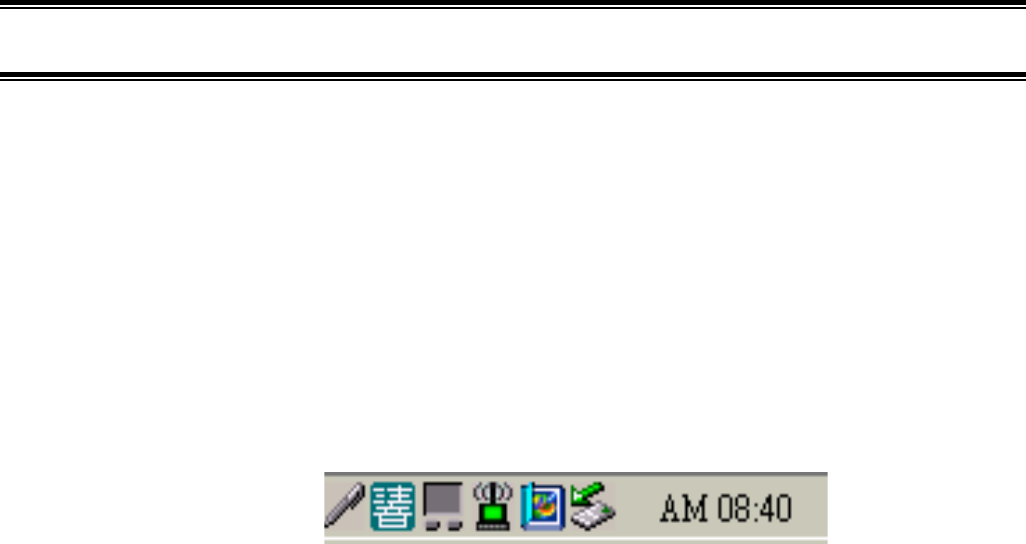
A new icon should appear in your Icon tray. If the icon with a red“x”tells that Wireless LAN 11 Mbps
NIC configuration is invalid or incompleted. It happens when driver is in Pseudo BSS mode, and the
radio channel used for communication is defined incorrectly.
Double clicking on that new icon will show you the screen as shown below.
Figure 1 Icon tray with a new icon
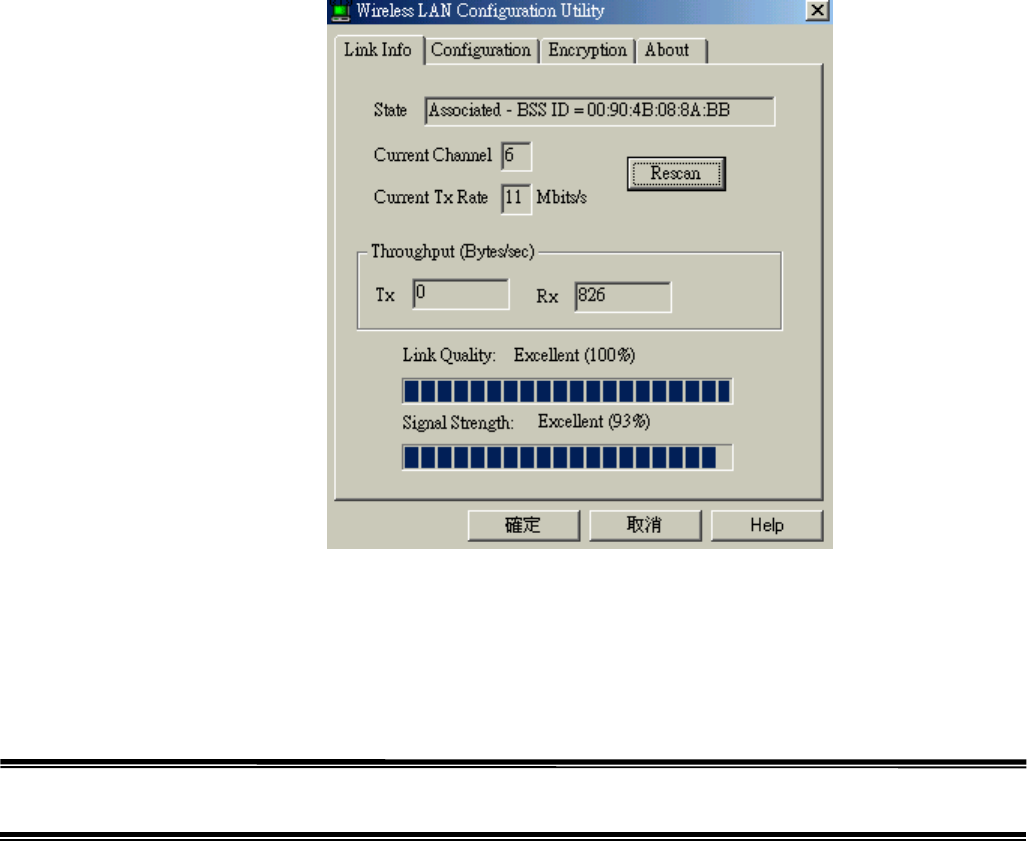
Figure 2 Management window with “Status”
In this section, we will explain meanings and uses of various screen messages. Clicking or tapping
sheets with a stylus to navigate; Clicking “OK” to minimize window and “X” to close the application.
Page 16
Wireless LAN 11 Mbps User manual
Link info
State
State is to display the current state of the driver.
When the state is “Associated”, flow of operation in Infrastructure is normal, the PC is
connected to access point, BSSID is shown in the form of hex digits and Network is
available.
When the state is “Scanning”, the node is searching for available access point and it can
not detect the SSID for an access point within the range.
An error message may be displayed here for some reason the driver failed to initialize.
Rescan
Rescan allows the driver to restart and begins its connection procedure. Different
modes of the driver perform different connection procedure.
Infrastructure Mode
Non-stop scanning all available channels until it finds one or more Access Points that
matches its SSID and then, it will authenticate and associate with the Access Point.

Ad Hoc Mode
It will scan for 5 seconds searching for an existing Ad Hoc network that uses the same
SSID. While not found, it will start its own Ad Hoc network.
Current Channel and Tx Rate
Here displays the channel of the radio and transmit rate that are currently used for an
active connection. If radio is “Scanning”, there is no particular meaning.
Throughput
Here displays the instantaneous wireless Receive and Transmit throughput in bytes per
second. They are updated every two seconds.
Page 17
Wireless LAN 11 Mbps User manual
Link Quality bar graph
This is active only when the node is in Infrastructure Mode. Here displays the quality
of the link between the node and its Access Point. One of the following statuses will be
indicated by the quality of the link over the bar graph:
! Not Applicable
! Poor
! Fair
! Good
! Excellent
Since link Quality is a measure of receives and transmits errors over the radio, the
driver will start looking for a better Access Point when the Link Quality indication
displays “Poor”.
Signal Strength bar graph
It is active only when the node is in Infrastructure Mode. Here displays normalized
signal strength as reported by the radio, averaged over all frames over 100 bytes long
that are received from the Access Point.
Page 18
Wireless LAN 11 Mbps User manual
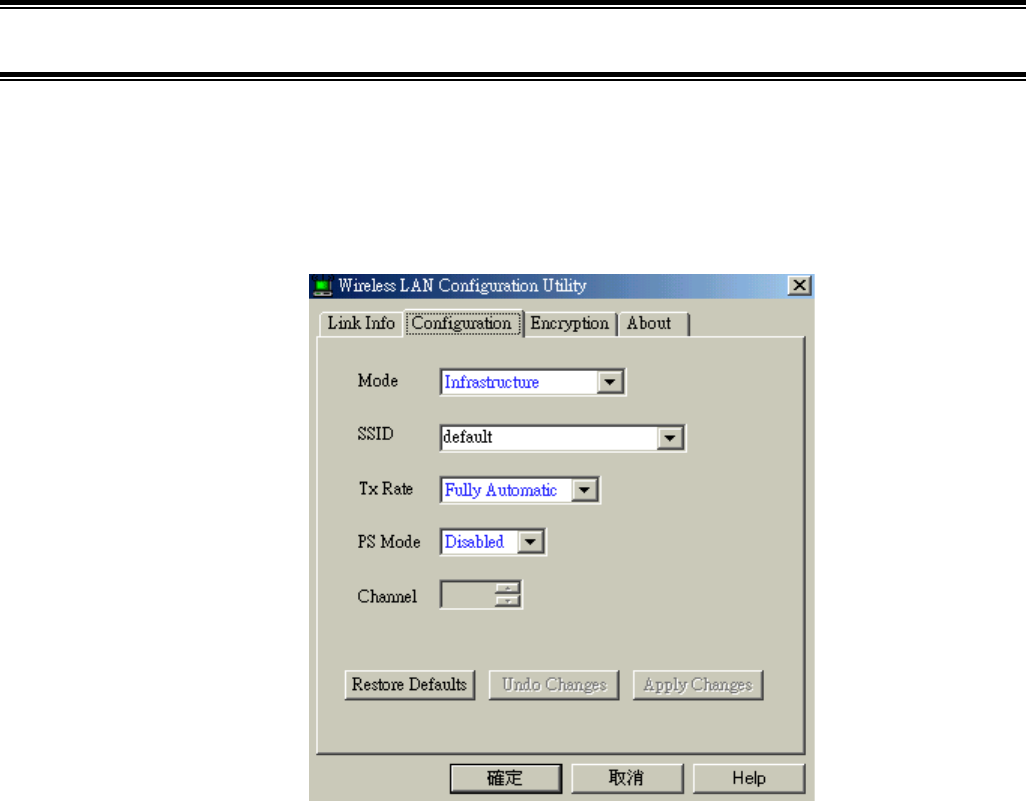
“Configuration” Tab
The Configuration Tab contains several different field areas where users can view or alter operating
parameters of the driver. Any changes of the parameters made in this panel can be applied to the
driver without restarting the PC.
Figure 4 Management window with “CONFIGURATION” tab open

Restore Defaults
Clicking on Restore Defaults will restore each field in the panel to its default value. However, the
“Apply Changes” or “OK” button must be selected before the default values are saved to the driver
and registry.
Undo Changes
Clicking on Undo Changes will revert all fields in the panel back to the original values that were
presented previously while the Configuration Utility was opened from the Task Bar.
Apply Changes
It is active only when one of the fields has been altered. Clicking on the Apply Changes will apply the
altered values to the driver and saves them to the registry for the next time PC restarts.
Page 19
Wireless LAN 11 Mbps User manual
Mode
This field enables you to choose from a list of supported Network “Modes”. The modes
shown will have three values, i.e. 802.11Ad Hoc, Ad Hoc and infrastructure.
! 802.11 Ad Hoc: The 802.11 peer-to-peer mode of operation. 802.11 Ad Hoc
networking use the same SSID for establishing the wireless connection. In
802.11Ad Hoc, only one wireless “cell” is supported for each different SSID. All
communication is performed from Client to Client without using an Access Point.
! Ad Hoc: Ad Hoc is a non-compliant mode that allows Prism2 cards (only Prism2)
to talk with one another without the use of an AP (regardless any SSID). It is not
standards compliant so that it would have the interpretability with non-Prism2
radios.
! Infrastructure: Here, all communication is performed via an Access Point that
relay packets to other wireless Clients in the BSS and nodes on a wired network.
(E.g. Ethernet.) This mode of operation requires the presence of an 802.11 Access
Point.
! TX Rate: This is the transmission rate where the data packets are transmitted by
the client of an AP. You can set this to fixed 1 Mbps, fixed 2Mbps, fixed 5.5 Mbps
or 11 Mbps.
! PS Mode – Power Saving Mode.
Page 20
Wireless LAN 11 Mbps User manual
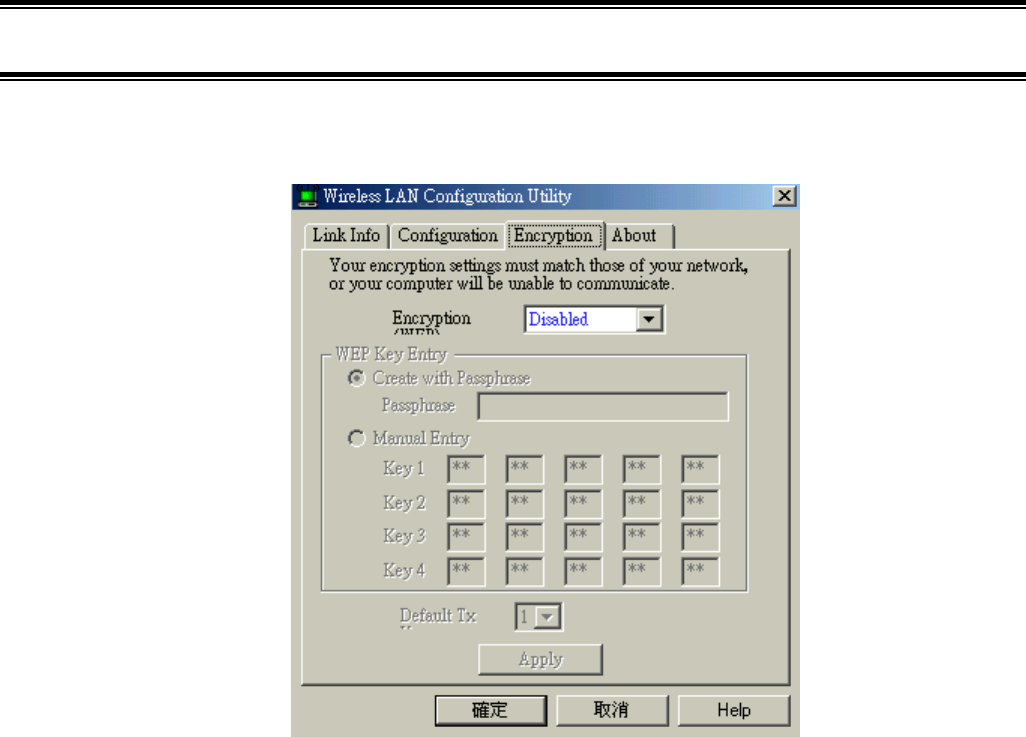
“ENCRYPTION” Tab
Figure 5 Management window with “encryption” tab open
An additional security measurement may be desired on protecting your wireless
network. This can be achieved by applying WEP (Wired Equivalent Privacy)
encryption. WEP encrypts each frame transmitted from the radio by using one of the

Keys entered from this panel.
An encrypted frame received can be accepted only when it decrypts correctly. This
happens only when the receiver has the same WEP Key used by the transmitter.
According to the WEP function selected, this panel allows the entry of four keys for
64-bit encryption and one set of 128-bit key. To be written to the driver and registry,
each key must consists of six digits meaning from digit 0-9 and letters A-F that are
recognized as valid entries. If entered wrongly, program will not write keys to a driver.
On the other hand, a Pass-phrase can be entered (known as a “seed”) to randomly
organize the four keys. This saves significant timing since the same keys must be
entered into each node on the wireless network.
Page 21
Wireless LAN 11 Mbps User manual
Key 1 – Key 4
The Keys can be entered manually in these four fields. It may be necessary if you
prefer this node to match keys in a different vendor’s product. If they are organized by
using a Pass-phrase, the Keys are displayed in these fields.
Default Tx Key
For 128 bit encryption, this Default Tx Key button will be invisible. Default Tx Key
updates the driver with the four keys that are displayed in key 1 through key4. The keys
are also written to the registry for permanent storage.
Apply
This Apply button updates the driver with the four keys displayed in Key1 through
Key4. The keys are also written to the registry for permanent storage. This Apply
button clears all the bytes in the four keys. It is useful when you wish to start over and
apply manually entering.
Page 22
Wireless LAN 11 Mbps User manual
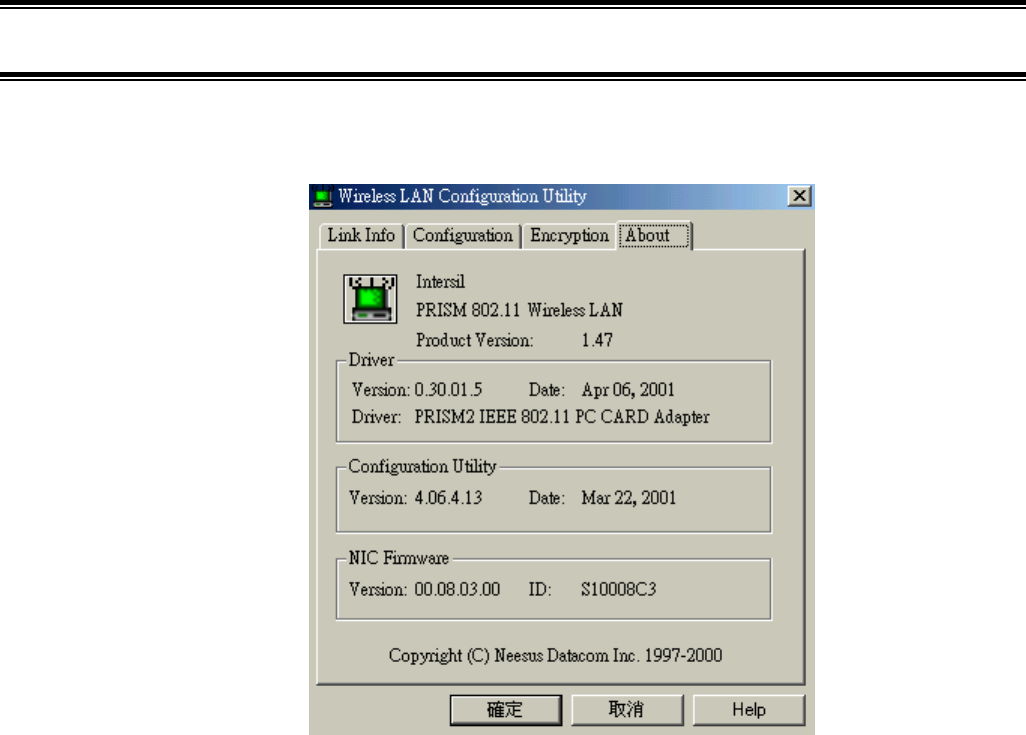
“ABOUT” Tab
Figure 6 Management window with “ABOUT” tab open
About Tab tells the product version including the detail of Driver, Configuration Utility,
and NIC Firmware version. Users must tell this version number when reporting their
problems to technical support.

Page 23
Wireless LAN 11 Mbps User manual
6. Troubleshooting
To have the installation of Wireless LAN Card more users friendly, we suggest users
following the installation procedures step by step as listed in the section 4 and section 5.
If some problems occur when installing the WLAN Card OR you want to confirm if
your card is installed properly, here are the procedures for checking the various
components after you have installed the card.
First part of Troubleshooting contains suggestions to users to check various properties
of the card for the proper installation. In second section lists various problems that may
occur during the installation as well as the possible solutions. It is recommended that
users check the first part to identify the probable reason of unsuccessful installation.
Procedure to Check the Various Properties of Card after Installation under
Windows 95 (OSR2)/98:
If some problems occurred while installing the PC card OR your PC Card is not
functioning, please check the followings:
I. Click on the CONTROL PANEL and then PC CARD. Check if it has
WIRELESS 11Mbps PC CARD in one of the sockets. If it is in one of the
sockets, the card is detected properly. If there is YELLOW sign question-
mark (?), the resources are conflicting.
II. Right click on MY COMPUTER and then PROPERTIES. Choose the
DEVICE MANAGER and click on the NETWORK ADAPTER. You will
see WIRELESS 11Mbps PC CARD if it is installed successfully. If there is
YELLOW sign (?), the resources are conflicting. Click on PCMCIA CARD
and then PCMCIA CARD SERVICE, you will see the status of PCMCIA
card. If there is yellow sign (?) either on adapter or PCMCIA card, please
check the followings,
! Check if your Notebook supports 3.3V card.
! Check if your Notebook has a free IRQ. If not, make an IRQ free by

assigning the same IRQ to some devices, for example COM 1, COM 2
con be assigned same IRQ values.
! Check if you have inserted the correct card and have installed the proper
driver.
Page 24
Wireless LAN 11 Mbps User manual
Procedure to Check the Various Properties of Card after Installation under
Windows NT4.0:
If some problems occurred while installing the PC card OR your PC Card is not
functioning, please check the followings:
I. Check the WINDOWS NT DIAGNOSTICS. You should see whether there
is conflict in the RESOURCE allocation or the I/O ADDRESS, IRQ
allocations. If the IRQ or I/O addresses are already assigned to some other
devices, you must change that value, i.e. I/O address needs 40h byte length.
II. Click on the CONTROL PANEL and then, on the PC CARD, you will see
WIRELESS 11Mbps PC CARD. Click on that will show you the CARD
INFORMATION, DRIVER NAME and the DRIVER FILE. You must
confirm the name of the driver and the driver file as “cw10” and “cw10.sys”.
If you do not find the names as listed before, there are some problems and the
driver is not installed properly. Reinstall the driver.
NOTE: Check the PnP BIOS setup menu and select NO in case of the
Wireless LAN Card installation.

Page 25
Wireless LAN 11 Mbps User manual
7. Technical specifications of Wireless LAN
Hardware compatibility
- IBM-compatible computer with a PC Card Type‖
Driver support
- Windows 95 OSR2
- Windows 98
- Windows 2000
- Windows ME
- Windows NT 4.0 and higher
Standards supported
- IEEE 802.11 standard for Wireless LAN
- All major networking standards (including TCP/IP, IPX)
Environmental
Operating voltage:
- +5V, +3.3V DC ±5%
- Nominal Temp Range: 17 dBm
- Extended Temp Range: 14 dBm min
- Transmit Power, 2.7v to 3v: 14 dBm min.
Radio specifications
Range:
- per cell indoors approx. 35-100 meters or more
- per cell outdoors up to 100-300 meters
Frequency range:
- 2.4-2.4835 GHz, direct sequence spread spectrum
Number of Channels:
- Europe: 13(3 non-overlapping)
- US: 11 (3 non-overlapping)

Page 26
Wireless LAN 11 Mbps User manual
- France: 4 (1 non-overlapping)
- Japan: 14 (4 non-overlapping)
Antenna system:
- Internal patch antenna supporting diversity.
Mobility:
- Seamless roaming across cell boundaries with handover
Specific features
Supported bit rates:
- 11Mbps
- 5.5 Mbps
- 1 Mbps
- 2 Mbps
Data encryption:
- 64/128 bit WEP Encryption
Utility Software:
- Management utility software
Page27