Printronix ADRFID RFID Enabled Thermal Printer User Manual PTX QSG T5000E RFID 177393A

Printronix Inc RFID Enabled Thermal Printer PTX QSG T5000E RFID 177393A

User Manual

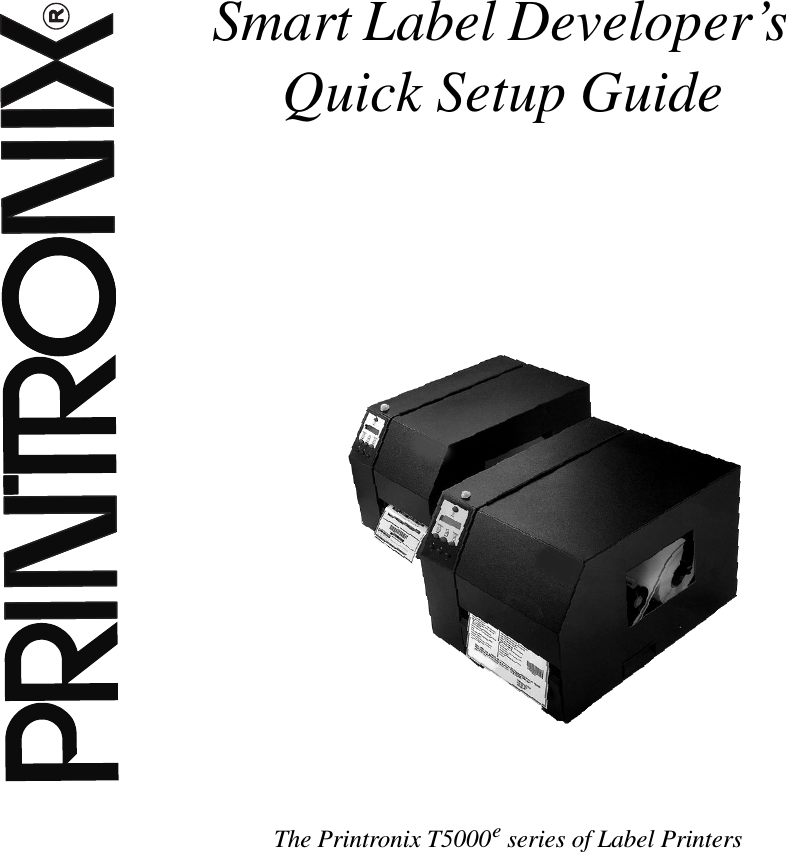
Smart Label Developer’sQuick Setup GuideThe Printronix T5000eseries of Label Printers
This Quick Setup Guide contains aCD-ROM with the following materials:•RFID reference material and industryprimers•The User’s Manual•Programmer’s Reference Manuals•Useful utility programsThe CD-ROM is located in a plasticpocket in the back cover.Donotdiscardthisguide.Ifyoumoveor pack the printer in the future, you willneed to follow the instructions in thisguide.NOTICE
177393-001AThe Printronix T5000eseries of Thermal PrintersSmart Label Developer’sQuick Setup Guide
Software License AgreementCAREFULLY READ THE FOLLOWING TERMS AND CONDITIONS BEFORE USING THIS PRINTER.USING THIS PRINTER INDICATES YOUR ACCEPTANCE OF THESE TERMS AND CONDITIONS. IF YOUDO NOT AGREE TO THESE TERMS AND CONDITIONS, PROMPTLY RETURN THE PRINTER AND ALLACCOMPANYING HARDWARE AND WRITTEN MATERIALS TO THE PLACE YOU OBTAINED THEM, ANDYOUR MONEY WILL BE REFUNDED.Definitions.“Software”shall mean the digitally encoded, machine-readable data and program. The term “SoftwareProduct”includes the Software resident in the printer and its documentation. The Software Product is licensed(not sold) to you, and Printronix, Inc. either owns or licenses from other vendors who own, all copyright, tradesecret, patent and other proprietary rights in the Software Product.License.1. Authorized Use. You agree to accept a non-exclusive license to use the Software resident in the printersolely for your own customary business or personal purposes.2. Restrictions.a. To protect the proprietary rights of Printronix, Inc., you agree to maintain the Software Product andother proprietary information concerning the typefaces in strict confidence.b. You agree not to duplicate or copy the Software Product.c. You shall not sublicense, sell, lease, or otherwise transfer all or any portion of the Software Productseparate from the printer, without the prior written consent of Printronix, Inc.d. You may not modify or prepare derivative works of the Software Product.e. You may not transmit the Software Product over a network, by telephone, or electronically using anymeans; or reverse engineer, decompile or disassemble the Software.f. You agree to keep confidential and use your best efforts to prevent and protect the contents of theSoftware Product from unauthorized disclosure or use.3. Transfer. You may transfer the Software Product with the printer, but only if the recipient agrees to acceptthe terms and conditions of this Agreement. Your license is automatically terminated if you transfer theSoftware Product and printer.Limited Software Product WarrantyPrintronix, Inc. warrants that for ninety (90) days after delivery, the Software will perform in accordance withspecifications published by Printronix, Inc. Printronix, Inc. does not warrant that the Software is free from allbugs, errors and omissions.RemedyYour exclusive remedy and the sole liability of Printronix, Inc. in connection with the Software is replacementof defective software with a copy of the same version and revision level.Disclaimer of Warranties and Limitation of Remedies1. THE PARTIES AGREE THAT ALL OTHER WARRANTIES, EXPRESS OR IMPLIED, INCLUDINGWARRANTIES OF FITNESS FOR A PARTICULAR PURPOSE AND MERCHANTABILITY AREEXCLUDED.Printronix, Inc. does not warrant that the functions contained in the Software will meet your requirementsor that the operation of the Software will be uninterrupted or error free.Printronix, Inc. reserves the right to make changes and/or improvements in the Software without notice atany time.
2. IN NO EVENT WILL PRINTRONIX, INC. BE LIABLE FOR LOST PROFITS, LOST DATA, BUSINESSINTERRUPTIONS, OR ANY OTHER DIRECT, INDIRECT, INCIDENTAL OR CONSEQUENTIALDAMAGES ARISING OUT OF THE USE OF OR INABILITY TO USE THIS PRODUCT, EVEN IFPRINTRONIX, INC. HAS BEEN ADVISED OF THE POSSIBILITY OF SUCH DAMAGES, OR ANYDAMAGES CAUSED BY THE ABUSE OR MANIPULATION OF THE SOFTWARE. SOME STATES DONOT ALLOW THE EXCLUSION OR LIMITATION OF LIABILITY FOR CONSEQUENTIAL ORINCIDENTAL DAMAGES, SO THE ABOVE LIMITATION MAY NOT APPLY TO YOU.3. Printronix, Inc. will not be liable for any loss or damage caused by delay in furnishing a Software Productor any other performance under this Agreement.4. Our entire liability and your exclusive remedies for our liability of any kind (including liability fornegligence except liability for personal injury caused solely by our negligence) for the Software Productcovered by this Agreement and all other performance or nonperformance by us under or related to thisAgreement are limited to the remedies specified by this Agreement.5. California law governs this Agreement.Termination of License AgreementThis License shall continue until terminated. This license may be terminated by agreement between you andPrintronix, Inc. or by Printronix, Inc. if you fail to comply with the terms of this License and such failure is notcorrected within thirty (30) days after notice. When this License is terminated, you shall return to the place youobtained them, the printer and all copies of the Software and documentation.U.S. Government Restricted RightsUse, duplication or disclosure by the Government is subject to restrictions as set forth in the Rights inTechnical Data and Computer Software clause at FAR 242.227-7013, subdivision (b) (3) (ii) or subparagraph(c) (1) (ii), as appropriate. Further use, duplication or disclosure is subject to restrictions applicable torestricted rights software as set forth in FAR 52.227-19 (c) (2).Acknowledgement of Terms and ConditionsYOU ACKNOWLEDGE THAT YOU HAVE READ THIS AGREEMENT, UNDERSTAND IT, AND AGREE TOBE BOUND BY ITS TERMS AND CONDITIONS. NEITHER PARTY SHALL BE BOUND BY ANYSTATEMENT OR REPRESENTATION NOT CONTAINED IN THIS AGREEMENT. NO CHANGE IN THISAGREEMENT IS EFFECTIVE UNLESS WRITTEN AND SIGNED BY PROPERLY AUTHORIZEDREPRESENTATIVES OF EACH PARTY. BY USING THIS PRINTER, YOU AGREE TO ACCEPT THETERMS AND CONDITIONS OF THIS AGREEMENT.Communication NoticesThis equipment has been tested and found to comply with the limits for a Class A digital device, pursuant toPart 15 of the FCC Rules. These limits are designed to provide reasonable protection against harmfulinterference when the equipment is operated in a commercial environment. This equipment generates, uses,and can radiate radio frequency energy and, if not installed and used in accordance with the instructionmanual, may cause harmful interference to radio communications. Operation of this equipment in a residentialarea is likely to cause harmful interference in which case the user will be required to correct the interference athis own expense.Properly shielded and grounded cables and connectors must be used in order to meet FCC emission limits.Printronix is not responsible for any radio or television interference caused by using other than recommendedcables and connectors or by any unauthorized changes or modifications to this equipment. Unauthorizedchanges or modifications could void the user’s authority to operate the equipment.
This device complies with part 15 of the FCC Rules. Operation is subject to the following two conditions: (1)this device may not cause harmful interference, and (2) this device must accept any interference received,including interference that may cause undesired operation.Any change or modification to this product voids the user’s authority to operate it per FCC Part 15 Subpart ASection 15.21 regulations.CAUTION: This product should be positioned so that personnel in the area for prolonged periods may safelyremain at least 23 cm (9 in) from the readers antenna surface in an uncontrolled environment. See FCC OETBulletin 56 “Hazards of radio frequency and electromagnetic fields”and Bulletin 65 “Human exposure to radiofrequency electromagnetic fields.”This product contains an intentional radiator with the following parameters:Operating Frequency: 902-928 MHzTypical RF Power: 25-100 miliwattsMaximum RF Power: 1 Watt under abnormal conditionsCanadian Department of Communications Compliance Statement: This Class A digital apparatuscomplies with Canadian ICES-003.Avis de conformite aux normes du ministere des Communcations du Canada: Cet appareil numeriquede la classe A est conform ánorme NMB-003 du Canada.European Community (EC) Conformity Statement:This product is in conformity with the protection requirements of EC Council Directive 89/336/EEC on theapproximation of the laws of the Member States relating to electromagnetic compatibility. Printronix cannotaccept responsibility for any failure to satisfy the protection requirements resulting from a non-recommendedmodification of the product, including the fitting of non-Printronix option cards.German Conformity Statement:Zulassungsbescheinigung Gesetz über die elektromagnetische Verträglichkeit von Geraten (EMVG) vom 30.August 1995Dieses Gerät ist berechtigt in Übereinstimmung mit dem deutschen das EG-Konformitätszelchen - CE - zuführen.Der Außteller der Konformitätserklärung ist die Printronix......(1)Informationen in Hinsicht EMVG Paragraph 3 Abs. (2) 2:EN 55022 Klasse A Geräte bedürfen folgender Hinweise:Nach dem EMVG: “Geräte dürfen an Orten, für die sie nicht asreichend entstört sind, nur mit besondererGenehmigung des Bundesminesters für Post und Telekommunikation oder des Bundesamtes für Post undTelekommunikation betrieben werden. Die Genehmigung wird erteilt, wenn keine elektromagnetischenStörungen zu erwarten sind.”(Auszug aus dem EMVG, Paragraph 3, Abs. 4) Dieses Genehmigungsverfahrenist nach Paragraph 9 EMVG in Verbindung mit der entsprechenden Kostenverordnung (Amtsblatt 14/93)kostenpflichtig.Nach der EN 55022: “Dies ist eine Einrichtung der Klasse A. Diese Einrichtung kann im WohnbereichFunkstörungen verursachen; in diesem Fall kann vom Betreiber verlangt werden, angemessene Maßnahmendurchzuführen und dafür aufzkommen.”Anmerkung: Um die Einhaltung des EMVG sicherzustellen sind die Geräte, wie in den Handbüchernangegeben, zu installieren und zu betreiben.Das Geräterfüllt die Schutzanforderungen nach EN 55024 undEN 55022 Klasse A.
This product has been tested and found to comply with the limits for Class A Information TechnologyEquipment according to European Standard EN 55022. The limits for Class A equipment were derived forcommercial and industrial environments to provide reasonable protection against interference with licensedcommunication equipment.This is a Class A product. In a domestic environmentthis product may cause radio interference in whichcase the user may be required to take adequatemeasures.Warning
Printronix makes no representations or warranties of any kind regarding this material, including, but not limitedto, implied warranties of merchantability and fitness for a particular purpose. Printronix shall not be heldresponsible for errors contained herein or any omissions from this material or for any damages, whetherdirect, indirect, incidental or consequential, in connection with the furnishing, distribution, performance or useof this material. The information in this manual is subject to change without notice.This document contains proprietary information protected by copyright. No part of this document may bereproduced, copied, translated or incorporated in any other material in any form or by any means, whethermanual, graphic, electronic, mechanical or otherwise, without the prior written consent of Printronix.COPYRIGHT © 2003 PRINTRONIX, INC. All rights reserved.Trademark AcknowledgementsPrintronix and PGL are registered trademarks of Printronix, Inc.Zebra and ZPL are trademarks of Zebra Technologies Corporation.
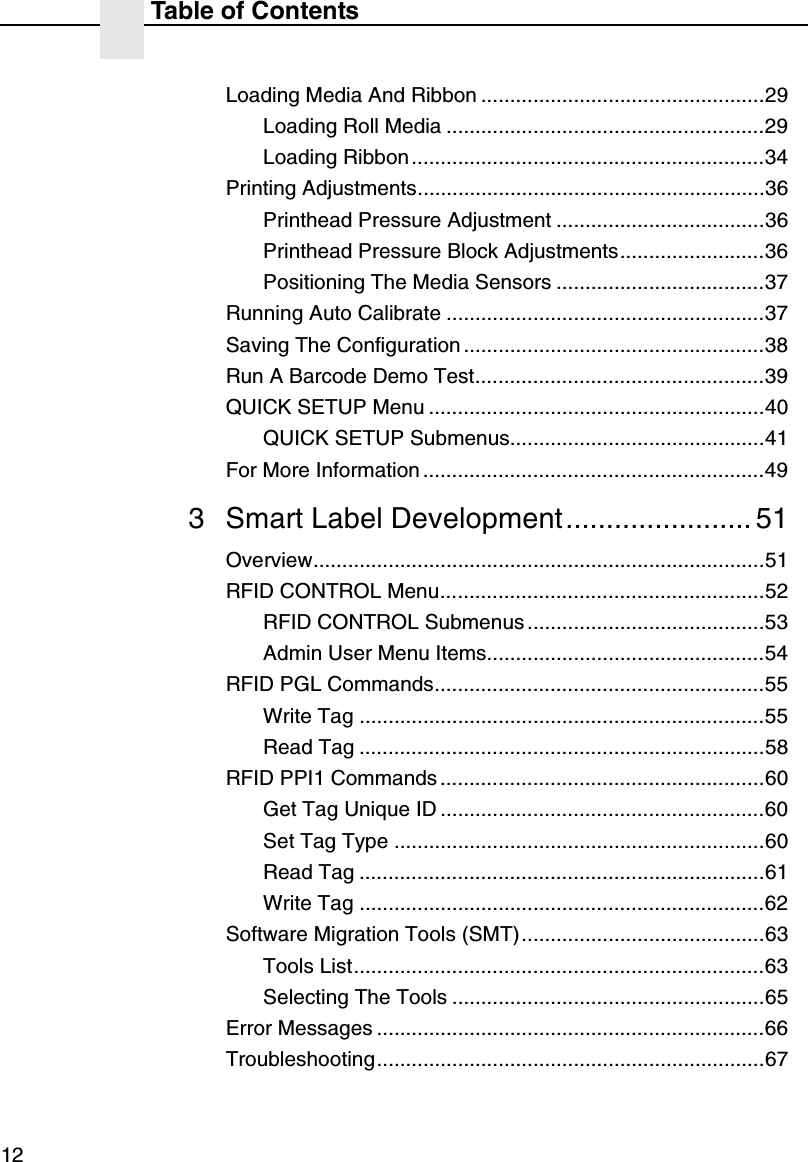
111 Smart Label Developer’s Application &Reference Notes13Overview..............................................................................13What To Expect When Running Your RFID Application......14Factors Affecting Smart Label Performance .................14Overstruck Smart Labels...............................................15Smart Label Limitations.................................................15Transitioning From UCC/GTIN Applications Using PrintronixSoftware Migration Tools (SMT)..........................................16How Printronix Makes It Easy .......................................16How It Works.................................................................16How To Order More Smart Labels.......................................17Printronix Professional Services..........................................18What We Can Do ..........................................................18Contact Information.......................................................18Hardware/Infrastructure Considerations..............................18Useful Industry Web Links...................................................19Reference Material........................................................192 Printer Setup ........................................... 21Unpacking And Installing The Printer ..................................21Unpacking The Printer ..................................................21Removing The Internal Packing Material ......................22Installation .....................................................................23Controls And Indicators .......................................................24Power Switch ................................................................24Control Panel ................................................................25Table of Contents
Table of Contents12Loading Media And Ribbon .................................................29Loading Roll Media .......................................................29Loading Ribbon.............................................................34Printing Adjustments............................................................36Printhead Pressure Adjustment ....................................36Printhead Pressure Block Adjustments.........................36Positioning The Media Sensors ....................................37Running Auto Calibrate .......................................................37Saving The Configuration ....................................................38Run A Barcode Demo Test..................................................39QUICK SETUP Menu ..........................................................40QUICK SETUP Submenus............................................41For More Information ...........................................................493 Smart Label Development....................... 51Overview..............................................................................51RFID CONTROL Menu........................................................52RFID CONTROL Submenus.........................................53Admin User Menu Items................................................54RFID PGL Commands.........................................................55Write Tag ......................................................................55Read Tag ......................................................................58RFID PPI1 Commands ........................................................60Get Tag Unique ID ........................................................60Set Tag Type ................................................................60Read Tag ......................................................................61Write Tag ......................................................................62Software Migration Tools (SMT)..........................................63Tools List.......................................................................63Selecting The Tools ......................................................65Error Messages ...................................................................66Troubleshooting...................................................................67
131Smart Label Developer’sApplication &Reference NotesOverviewCongratulations on your purchase of the industry’s first Smart LabelDeveloper’s Kit. The intent of this kit is to provide a completeenvironment for the printing and encoding of RFID smart labelsright out of the box. Printronix has specifically designed this kit tohelp you fast track your RFID pilot through the use of a suite ofSoftware Migration Tools (SMT).The Printronix Smart Label Developer’s Kit contains:•T5000e thermal printer: a web-enabled, industrial-gradethermal bar code printer designed for exacting labelapplications•Integrated RFID UHF encoderCAUTIONStatic electricity can damage the smart labels. Open the mediacover of the printer and touch an unpainted metal part of theprinter before you handle smart labels. This will discharge anystatic electricity that may have been on your hands.•Two rolls of 500 smart labels with Alien Technologies, Class 1,915MHz inlays•Software migration tools that permit the seamless encoding ofsmart labels
Chapter 1 What To Expect When Running Your RFID Application14•One 450 m thermal premium wax ribbon•Media starter kit (100 4 inch x 6 inch standard labels, 50 mthermal premium wax ribbon, and a printhead cleaning pen)•Programming manuals•Smart Label Developer’s Quick Setup Guide (this manual)•Application and reference notes (this chapter)•Technical support•Printronix’sPrintNet®Enterprise: a web-enabled remotenetwork print management system that provides instantaneousvisibility to every network printer and allows users to configuresimultaneously an unlimited number of Printronix printers. Thisedition of PrintNet Enterprise also supports management of theadditional RFID UHF encoder capabilities.We are proud to partner with you as you embark on your RFIDjourney!What To Expect When Running Your RFIDApplicationFactors Affecting Smart Label PerformanceSmart labels are based on an EEPROM technology that requiressome time to program. This minor pause between labels may benoticed by the user. This time is necessary to better ensureconsistent quality and improved reliability.When dealing with smart labels, it is possible that an occasionalRFID tag may require to be written and verified more than once(retry) before being considered acceptable. In this event each retrytime will be added to the inter-label pause.
Overstruck Smart Labels15Overstruck Smart LabelsIf an RFID tag within a smart label is deemed unacceptable afterexecution of the defined number of internal retries, the followingactions are performed:•If Error Handling is set to Overstrike (the default), theunacceptable smart label will print with a grid Overstrikepattern. If the Label Retry Count is greater than zero (thedefault is 5), the next smart label will be tried until the label retrycount is exhausted.•If Error Handling is set to Stop, the printer will stop, give anerror message, and discard the failing form data.•If Error Handling is set to None, the printer will continue to thenext smart label with the next form and discard the failing formdata.Smart Label LimitationsThe smart labels currently supported have the followingcharacteristics:•UHF 915MHz radio frequency identification tag inlay•EPC class 1 tags –64 data bits Write Few / Read Many•4 inch x 6 inch label stock•Nominal roll size is 500 smart labels. An additional number ofsmart labels may be added to the Printronix smart label rolls tocompensate for tags that are deemed unacceptable. This is soyou can have 500 “good”labels.NOTE: It is highly recommended that additional smart labels arepurchased directly from Printronix to assure the highestlevel of performance and reliability. See “How To OrderMore Smart Labels”on page 17.
Chapter 1 Transitioning From UCC/GTIN Applications Using Printronix Soft-16Transitioning From UCC/GTIN Applications UsingPrintronix Software Migration Tools (SMT)It is more than likely that your software is already set up to createbarcodes. You may have also spent a lot of time creatingcompliance label templates & integrating them into your system.The Smart Label Developer’s Kit Software Migration Tools willallow you to effortlessly transition from printing compliance labels tosmart labels.How Printronix Makes It EasyIf you are printing bar codes now, you can print smart labels —nochange to your host data stream or existing compliance templatesis required.How It WorksA set of Software Migration Tools has been created to intercept thebar code data in a host datastream and copy the data to an smartlabel’s RFID tag according to a set of rules. Each tool has beendesigned for a specific end-use application. By simply selecting thedesired Software Migration Tool from the printer’s operator panel,you automatically enable the printer to create an RFID smart labelfrom your existing software application even if it does not have thefunctionality to program RFID tags. The tools include:•GTIN: Copies the Global Trade Identification Number (GTIN)bar code data for case and palette labels onto the smart label’sRFID tag.•EAN-8,EAN13,UPCA,andUCC128: These tools copy thedata from their respective bar code symbologies to a smartlabel’s RFID tag. This enables the achievement of supply-chainefficiencies with RFID-ready trading partners while at the sametimeremainingcompatiblewiththosewhoarenot.
How It Works17•EPC: This tool allows EPC data to be directly encoded into thesmart label’s RFID tag. Simply have your existing softwareapplication write the desired EPC number to a Code 3 of 9barcode. The printer will then write the EPC data to the RFIDtag without printing the bar code.The existing toolset will meet the needs of many RFID earlyadopters. If you have a requirement for a Software Migration Toolnot included in this kit, feel free to contact us.To select and use the tools, see “Software Migration Tools (SMT)”on page 63.How To Order More Smart LabelsTo order more RFID smart labels, contact Printronix:1 (800) 733-1900www.printronix.comPart NumberRoll of 500 four inch by six inch EPC Class 1 smart labels:204932-001NOTE: Due to the dynamic state of the RFID market, the cost ofsmart labels will fluctuate to market conditions. Pleasecheck for the latest pricing. (Price breaks are available forlarge orders.)
Chapter 1 Printronix Professional Services18Printronix Professional ServicesWhat We Can DoPrintronix can partner with you on your RFID pilot project to makeyour existing software applications RFID/smart label capable. Wespecialize in AutoID Consulting, compliance labeling, third partysoftware integration, and label generation.Contact InformationRFID Pilot ManagerStephen Morris714-368-2486smorris@printronix.comHardware/Infrastructure ConsiderationsOnce your smart labels have been applied to their target containeror pallet you will need external readers for tracking them throughyour supply chain. Such readers are typically networked devicesthat are deployed at key points in the warehouse or distributioncenter to track incoming and outgoing packages. The readers aremanaged through a server for gathering and filtering all the RFIDinformation. Readers may have multiple antennas to maximize readrange and reliability.The readers you purchase must be compatible with the smartlabels programmed by the printer. Specifically, they should be EPCClass I compliant. Fixed position readers and their antennas can bepurchased from Alien Technology (www.AlienTechnology.com).Handheld readers with integrated antennas can be purchased fromAWID (www.awid.com).The data that are gathered by the reader servers must be managedfor tracking and archiving purposes. Software applications thatperform these tasks are available from companies such asManhattan Associates (www.manh.com).
Reference Material19Useful Industry Web LinksReference MaterialAuto-ID Centerwww.autoidcenter.orgUniform Code Councilwww.uc-council.comEPC Globalwww.uc-council.org/epcglobal/RFID Journalwww.rfidjournal.comFor a general overview of RFID technology, please see the AlienTechnology RFID Primer located on the CD contained in thismanual. (This primer is currently unavailable at time of publication).Alien Technologywww.alientechnology.comAdvanced Wireless Indentificationswww.awid.com
Chapter 1 Useful Industry Web Links20
212Printer SetupUnpacking And Installing The PrinterUnpacking The PrinterThe printer is shipped in a carton and protective bag. Keep allpacking material in case shipping is required.CAUTIONAvoid touching the electrical connectors to preventelectrostatic discharge damage while setting up the printer.The discharge of accumulated electrostatic energy candamage or destroy the printhead or electronic componentsused in this device.CAUTIONDo not place the printer on its backside during unpacking orhandling, because damage to the printer interface connectormay occur.
Chapter 2 Unpacking And Installing The Printer22Removing The Internal Packing MaterialRemove the tape strips and foam pads from the printer as indicatedbelow. (The top lid of the shipping carton also displays theseinstructions.)Tape Strips (2)Foam Pads (2)Foam PadFoamABCUnlock
Installation23Installation1. Place the printer on a flat level surface that allows easy accessto all sides of the printer.CAUTIONNever operate the printer on its side or upside down.2. Make sure the printer power switch is in the Off (O) position.3. Install the serial interface adapter onto the serial interfaceconnector (as shown).4. Plug the serial cable into the serial interface adapter.Serial InterfaceConnectorSerial InterfaceAdapterSerial Cable
Chapter 2 Controls And Indicators24WARNINGFailure to properly ground the printer may result in electricshock to the operator.In compliance with international safety standards, this printerhas been equipped with a three-pronged power cord. Do notuse adapter plugs or remove the grounding prong from thecable plug. If an extension cord is required, ensure that athree-wire cable with a properly grounded plug is used.5. Attach the AC power cord to the AC power receptacle in theback of the printer.CAUTIONVerify the required voltage on the printer’s model number labelon the back of the printer.6. Attach the AC power cord to a grounded (three prong) electricaloutlet of the proper voltage.Controls And IndicatorsPower SwitchThe power switch is located on the bottom back panel of the printer.To apply power, place the switch in the | (ON) position. When youfirst power on the printer, a series of initialization messages willappear on the Liquid Crystal Display (LCD) on the control panel.To remove power, place the power switch in the O (OFF) position.
Control Panel25Control PanelThe control panel is located on the front of the printer and includesan LCD, indicators, and control keys (buttons). These aredescribed in the following tables.OFFLINELiquid CrystalDisplay (LCD)Online StatusIndicatorJob In ProcessIndicator
Chapter 2 Controls And Indicators26Status And Display IndicatorsIndicator Description Function inOnline ModeFunction inOffline ModeFunction inMenu ModeOnline Status Indicates when theprinter is online,offline, or whenthere is a faultcondition.Stays lit when theprinter is online, readyto print, and acceptdata from the host.Flashes during a faultcondition.Off when the printer isoffline.Flashes during a faultcondition.Off.Flashes during a faultcondition.Liquid CrystalDisplay (LCD)A backlightedliquid crystaldisplay with tworows of 16characters each.Displays “ONLINE,”theinterface type, andemulation in use.During a fault condition,displays the specificfault message and thecorrective action.Displays “OFFLINE.”During a fault condition,displays the specificfault message and thecorrective action.Displays “OFFLINE”and a main menu,submenu, or option.During a fault condition,displays the specificfault message and thecorrective action.Job InProcessIndicates when theprinter is receivingor processingdata.Flashes when receivingdata.Stays lit when data hasbeen processed and iswaiting to be printed.Off when no data isbeing received or whenno data remains in thebuffer.Flashes when receivingdata.Stays lit when data hasbeen processed and iswaiting to be printed.Off when no data isbeing received or whenno data remains in thebuffer.None
Control Panel27Control Panel KeysButton Description Function inOnline ModeFunction inOffline ModeFunction inMenu ModePAUSE KeyToggles the printerbetween Online andOffline modes.Sets printer toOffline mode.Sets printer to Online mode. Sets printer to Offline mode.JOB SELECT Key None Displays the name andnumber of the last loadedconfiguration and allowsyou to load the factory and/or pre-stored printerconfigurations.Scrolls left through mainmenus.Decrements option valueswithin submenus.-DECREMENT Key inMenu modeFEED KeyUP Key in Menu modeAdvances themedia one labellength.Advances the media onelabel length.Scrolls the current menuselection one level up.TEST PRINT KeyPressing the ↵ (ENTER) key with aDiagnostic Testdisplayed initiates thetest. Pressing ↵ againterminates the test.None Scrolls through the TestPrint patterns.Scrolls right through mainmenus.Increments option valueswithin submenus.+INCREMENT Key inMenu mode
Chapter 2 Controls And Indicators28Control Panel Keys (cont.)Button Description Function inOnline ModeFunction inOffline ModeFunction inMenu ModeCANCEL KeyWhen the CANCEL key isenabled, pressing it will clear alldata in the printer buffer andprevent printing of that data.Note: The default = Disable.However, when the Coax/Twinax Interface option isinstalled, the default = Enable.DOWN Key in Menu modeNone Clears all datain the printerdata bufferwhen enabled.Scrolls the currentmenu selection onelevel down.MENU Key Takes the printer Offline andselects the Menu mode.Selects theMenu mode.Scrolls between mainmenu selections.ENTER KeyPressing the ↵(ENTER) key inMenu mode selects thedisplayed option or value. Anasterisk then appears next tothe option or value indicating ithas been selected.Note: If the ENTER key islocked, “ENTER SWITCHLOCKED”displays on the LCDfor one second. Press the(DOWN) and ↵(ENTER) keysat the same time to unlock theENTER key.None None Selects the currentmenu value anddisplays an asterisk(*) next to the value.
Loading Roll Media29LoadingMediaAndRibbonIMPORTANTPrintronix recommends using the supplied starter roll of 100labels to setup and verify printer operation. This will avoidexpending the more expensive smart labels for this task.CAUTIONDO NOT TOUCH the printhead or the electronic componentsunder the printhead assembly.CAUTIONDo not close the pivoting deck without label stock installedbetween the printhead and the platen, because debris on theplaten may damage the printhead.Loading Roll Media1. Slide the media hanger guide outward to the end of the mediahanger, and flip it down into the horizontal position (as shown).2. Open the pivoting deck by rotating the deck lock lever fullyclockwise.Media HangerMedia HangerGuideMedia WidthGuideDeck LockLeverPivotingDeckMedia CoverPAUSEKeyLiquid CrystalDisplay (LCD)RFID UHF EncoderMedia Damper
Chapter 2 Loading Media And Ribbon303. Slide the media width guide close to the outside end of themedia damper.4. Slide the media roll onto and towards the back of the mediahanger.5. Place the media hanger guide under the media hanger andagainst the lower part of the label core at a 45 degree angle(as shown). This position provides the required tension for anew label roll and the desired drag for a partial label roll.Media RollMedia HangerGuideMedia Hanger
Loading Roll Media316. Raise the media damper.7. Route the media as illustrated on the media and ribbon loadinginstructions (or refer to the arrows on the printer frame).NOTE: The media damper must be raised up and the media mustrest on top of the RFID UHF encoder.Media andRibbon LoadingInstructionsMedia DamperRFID UHF EncoderMedia
Chapter 2 Loading Media And Ribbon328. Lower the media damper.9. Verify that the left edge of the media is against the fixed guideon the bottom of the media damper.10. Push the media width guide in until it is flush with the outeredge of the media.11. Check the horizontal position of the media sensor, and refer to“Positioning The Media Sensors”on page 37.MediaGuardMedia SensorFixedGuideMediaDamperMedia WidthGuideMedia SensorHandle
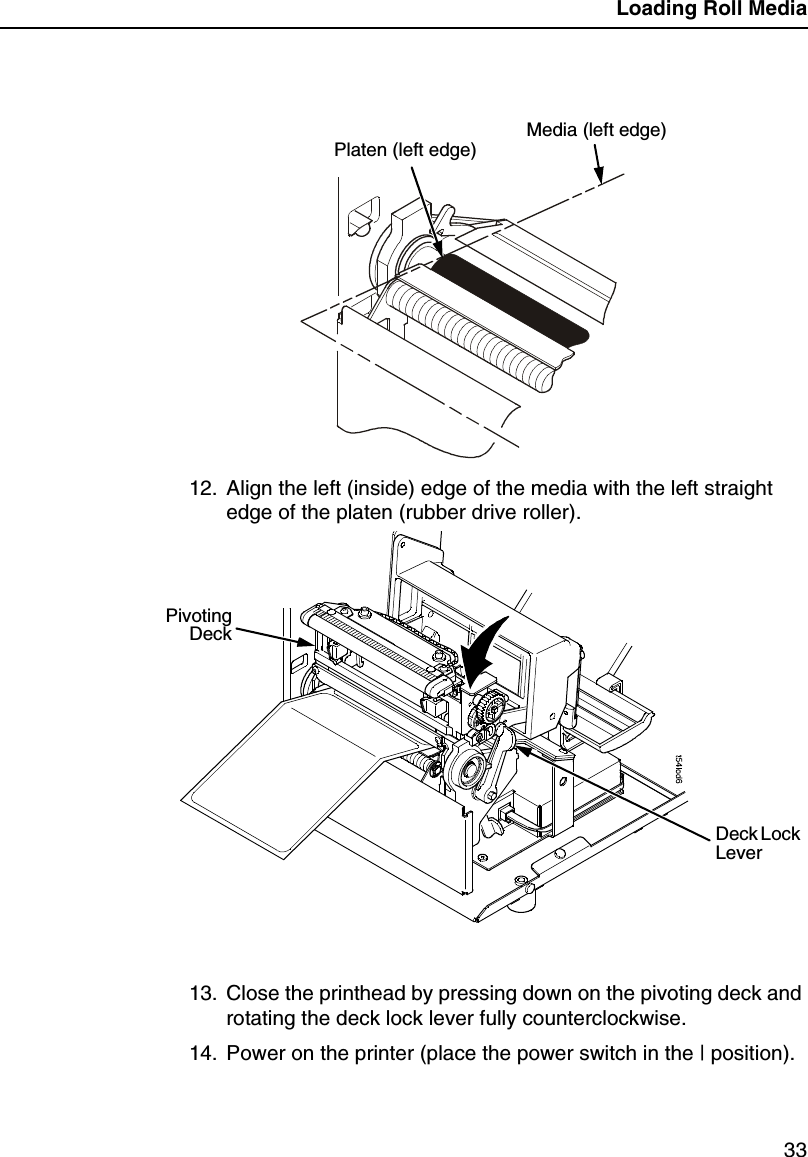
Loading Roll Media3312. Align the left (inside) edge of the media with the left straightedge of the platen (rubber drive roller).13. Close the printhead by pressing down on the pivoting deck androtating the deck lock lever fully counterclockwise.14. Power on the printer (place the power switch in the | position).Platen (left edge) Media (left edge)DeckLockLeverPivotingDeck
Chapter 2 Loading Media And Ribbon34Loading Ribbon1. Install the empty supply core on the take-up spindle.2. Slide the ribbon roll onto the ribbon supply spindle until it stopsagainst the spindle flange.3. Open the pivoting deck by rotating the deck lock lever fullyclockwise until the deck swings upward.4. Thread the end of the ribbon under the rear ribbon guide roller,then between the platen and the printhead.RibbonRollRibbon Supply SpindleDeck Lock LeverPivotingDeckEmpty SupplyCoreMediaPrintheadRear Ribbon Guide Roller
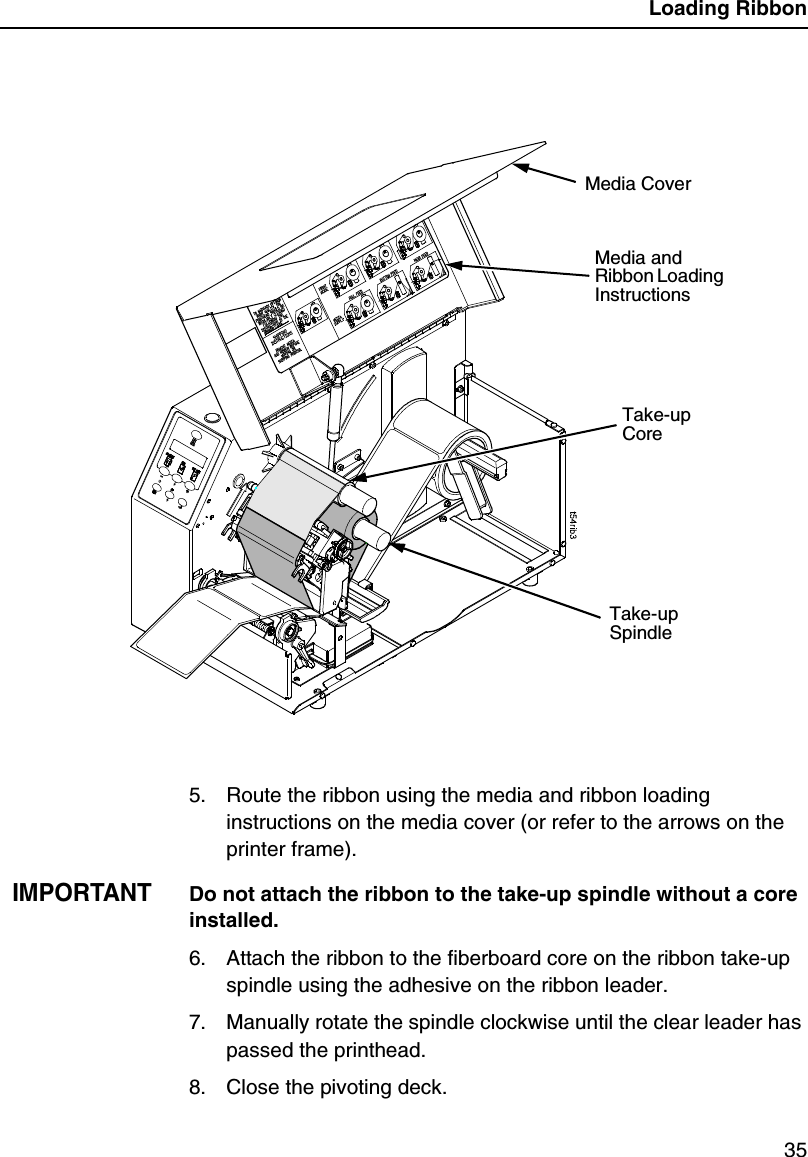
Loading Ribbon355. Route the ribbon using the media and ribbon loadinginstructions on the media cover (or refer to the arrows on theprinter frame).IMPORTANTDo not attach the ribbon to the take-up spindle without a coreinstalled.6. Attach the ribbon to the fiberboard core on the ribbon take-upspindle using the adhesive on the ribbon leader.7. Manually rotate the spindle clockwise until the clear leader haspassed the printhead.8. Close the pivoting deck.Take-upSpindleTake-upCoreMedia CoverMedia andRibbon LoadingInstructions
Chapter 2 Printing Adjustments36Printing AdjustmentsPrinthead Pressure AdjustmentAdjust the printhead pressure to the setting of 4.Printhead Pressure Block AdjustmentsLeft Pressure BlockManually adjust the left block so its handle is aligned with the boldmark on the pressure block adjustment scale.Right Pressure BlockUse the lead screw knob to position the right block with its pointernear the right edge of the media in use.Lead ScrewKnobRight PressureBlock PointerPressureBlockAdjustment ScaleLeftPressureBlockLeftPressureBlockHandleRight PressureBlockPrinthead PressureAdjustment Dial
Positioning The Media Sensors37Positioning The Media SensorsYour printer is equipped with upper and lower media sensors thatdetect the top-of-form position on media with label length indicators(gaps, notches, holes, or black marks). The media sensors alsodetect Paper Out conditions.Use the handles on the lower media sensor to horizontally positionit in the center of the installed media. Slide the upper sensor directlyover the lower sensor.Running Auto CalibrateDue to manufacturing differences in media and ribbon, the mediasensor may have difficulty distinguishing between the label and theliner (gap).To ensure proper operation, you must now run Auto Calibrate:1. Power on the printer by pressing the power switch. (For thelocation of the power switch and various panel keys, refer to“Controls And Indicators”on page 24.)2. Press the key until QUICK SETUP displays.NOTE: For a complete description of the QUICK SETUP menu,seepage40.Media SensorHandle (2)Media Sensor...
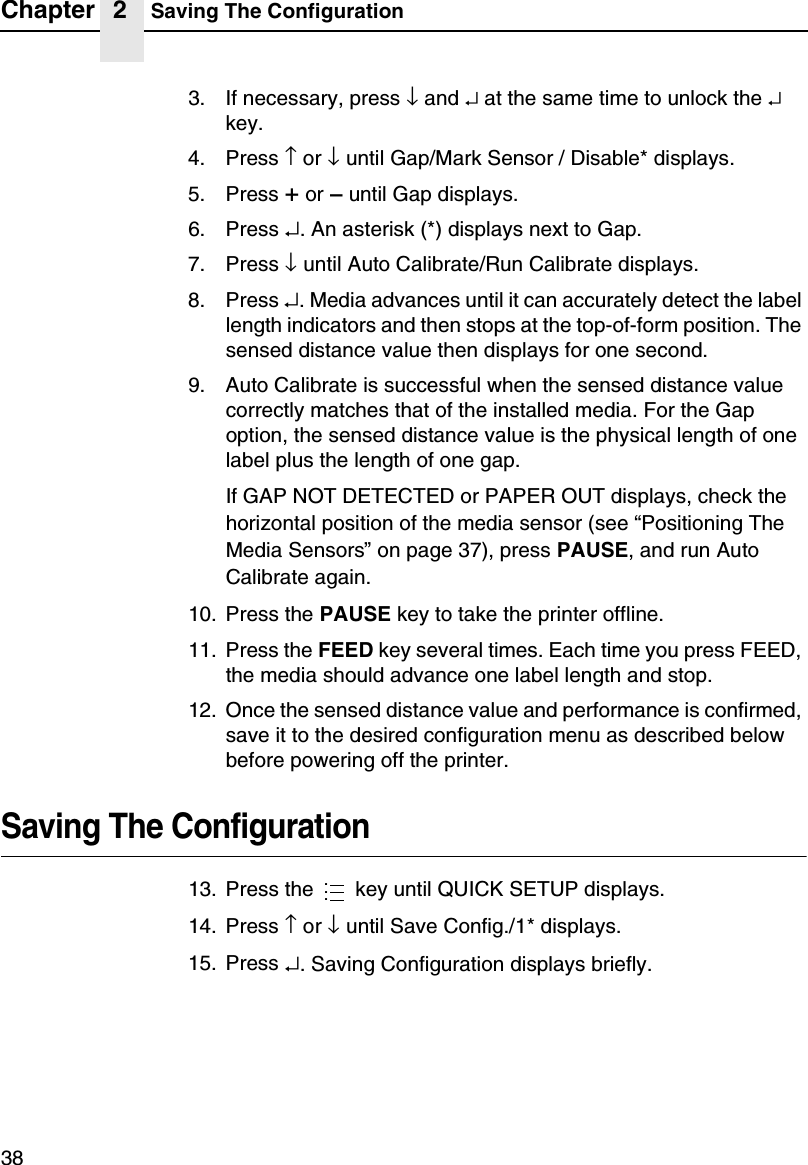
Chapter 2 Saving The Configuration383. If necessary, press ↓and ↵at the same time to unlock the ↵key.4. Press ↑or ↓until Gap/Mark Sensor / Disable* displays.5. Press +or –until Gap displays.6. Press ↵. An asterisk (*) displays next to Gap.7. Press ↓until Auto Calibrate/Run Calibrate displays.8. Press ↵. Media advances until it can accurately detect the labellength indicators and then stops at the top-of-form position. Thesensed distance value then displays for one second.9. Auto Calibrate is successful when the sensed distance valuecorrectly matches that of the installed media. For the Gapoption, the sensed distance value is the physical length of onelabel plus the length of one gap.If GAP NOT DETECTED or PAPER OUT displays, check thehorizontal position of the media sensor (see “Positioning TheMedia Sensors”on page 37), press PAUSE, and run AutoCalibrate again.10. Press the PAUSE key to take the printer offline.11. Press the FEED key several times. Each time you press FEED,the media should advance one label length and stop.12. Once the sensed distance value and performance is confirmed,save it to the desired configuration menu as described belowbefore powering off the printer.Saving The Configuration13. Press the key until QUICK SETUP displays.14. Press ↑or ↓until Save Config./1* displays.15. Press ↵. Saving Configuration displays briefly....
Positioning The Media Sensors39Run A Barcode Demo TestIMPORTANTPrintronix recommends using the supplied starter roll of 100labels to setup and verify printer operation. This will avoidexpending the more expensive smart labels for this task.Before you send an actual print job, run a barcode demo test:1. Press the PAUSE key until “OFFLINE”displays.2. Press the TEST PRINT key until “Printer Tests/Barcode Demo”displays.3. Press ↵. The Barcode Demo test pattern will start and print twobarcodes.4. Check the test pattern. If necessary, reposition the pressureblocks to obtain a uniform print quality. In most cases, you willneed to adjust only the right pressure block.5. If desired, you can run additional printer tests, such as Grey,Grid, and Checkerboard. See step 1 above to start other tests.NOTE: These tests default to run continuously. Press ↵to end thetest.
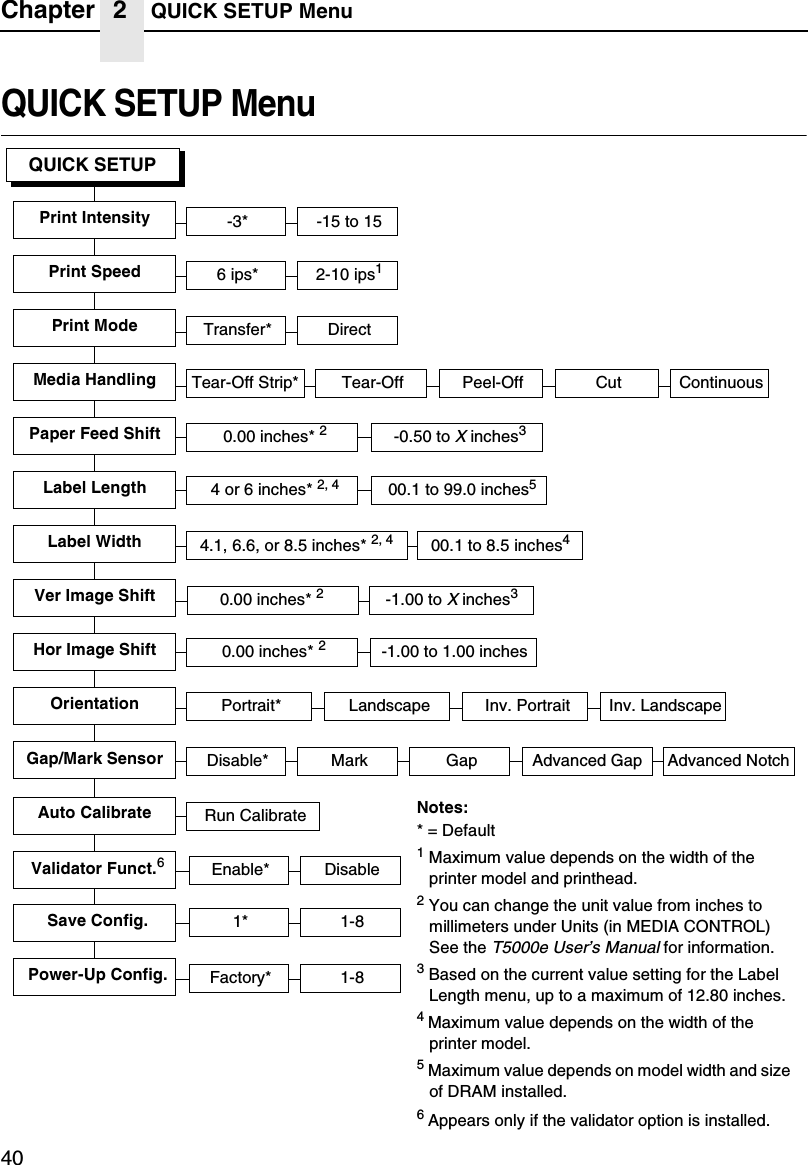
Chapter 2 QUICK SETUP Menu40QUICK SETUP MenuQUICK SETUPValidator Funct.6Print Intensity6ips* 2-10 ips1Print SpeedPrint ModePaper Feed ShiftLabel WidthLabel LengthOrientationTransfer* Direct4.1, 6.6, or 8.5 inches* 2, 4Portrait* Landscape Inv. Portrait Inv. Landscape-3* -15to1500.1 to 8.5 inches40.00 inches* 24 or 6 inches* 2, 4 00.1 to 99.0 inches5-0.50 toXinches3Run CalibrateAuto Calibrate1* 1-8Factory* 1-8Save Config.Power-Up Config.Ver Image ShiftHor Image Shift0.00 inches* 2-1.00to1.00inches0.00 inches* 2-1.00 toXinches3Enable* DisableTear-Off Strip* Tear-Off Peel-Off CutMedia Handling ContinuousGap/Mark Sensor Disable* Mark Gap Advanced NotchAdvanced GapNotes:* = Default1Maximum value depends on the width of theprinter model and printhead.2You can change the unit value from inches tomillimeters under Units (in MEDIA CONTROL)See theT5000e User’s Manualfor information.3Based on the current value setting for the LabelLength menu, up to a maximum of 12.80 inches.4Maximum value depends on the width of theprinter model.5Maximum value depends on model width and sizeof DRAM installed.6Appears only if the validator option is installed.
QUICK SETUP Submenus41QUICK SETUP SubmenusPrint IntensitySpecifies the level of thermal energy from the printhead to be usedfor the type of media and ribbon installed.Large numbers imply more heat (thermal energy) to be applied foreach dot. This has a significant effect on print quality. The printintensity and speed must match the media and ribbon type toobtain the best possible print quality and barcode grades.The range is -15 through +15:•In Transfer mode, the default is -3.•In Direct Thermal mode, the default is 0.QUICK SETUP(cont. from previous page)SMT: StatusToolset [1]* Toolset [1] to Toolset [4]SMT: Sel ToolsetDisabled* EnabledEPC1zEPC2, 3SMT: Select ToolNotes:* = Default.1Appears only if Toolset [1] is selected underSMT: Sel Toolset.2Appears only if Toolset [2] is selected underSMT: Sel Toolset.3Undocumented options are reserved for internaluse and future design.UPCA1zUPCA2, 3 EAN81zEAN82, 3 EAN131zEAN132, 3 UCC1281zUCC1282, 3GTIN1zGTIN2, 3
Chapter 2 QUICK SETUP Menu42Print SpeedSpecifies the speed in inches per second (ips) at which the mediapasses through the printer while printing.The range is 2 through 10 ips (in increments of 1 ips).The default is 6 ips.NOTE: The maximum print speed varies based on maximumprinter width and dot per inch (dpi) resolution of theprinthead installed (203 or 300 dpi).Print ModeSpecifies the type of printing to be done.•Transfer. Indicates Thermal Transfer printing (ribbon installed).•Direct. Indicates Direct Thermal printing (no ribbon) andrequires special heat sensitive media.The default is Transfer.Media HandlingSpecifies how the printer will handle the media (labels or tag stock).•Tear-Off Strip. Printer prints on the media and sends it out thefront until the print buffer is empty, then positions the last labelover the tear bar for removal.•Tear-Off. After each label is printed, the printer positions thelabel over the tear bar and waits for you to tear off the labelbefore printing the next one (on-demand printing). A “RemoveLabel”message displays to remind you to remove the labelbefore the next one can be printed.•Peel-Off. When the optional rewinder is installed, prints andpeels die-cut labels from the liner without assistance. Theprinter waits for you to remove the label before printing the nextone (on-demand printing). The label liner is rewound on theinternal rewinder. A “Remove Label”message displays toremind you to remove the label before the next one can beprinted.•Cut. When the optional media cutter is installed, itautomatically cuts media after each label is printed or can cut
QUICK SETUP Submenus43after a specified number of labels have been printed using asoftware cut command. It cuts continuous roll paper, labels, ortag stock.NOTE: This feature is currently not supported using the RFID UHFencoder.•Continuous. Printer prints on the media and sends it out thefront.The default is Tear-Off Strip.Paper Feed ShiftRepresents the distance to advance a label (+ shift) or pull back(–shift) when the Tear-Off Strip, Tear-Off, Peel-Off, or Cut MediaHandling option is enabled. The allowable range is -0.50 inches tothe current Label Length value setting up to a maximum of 12.80inches in 0.01 inch increments.The default is 0.00 inches.Label LengthIn most applications, the user-selected Label Length will match thephysicallabel length. Physical label length is the actual label lengthof the media installed. Following is a list of different media types:•Die-cut labels –measurable length of the removable label(leading edge to trailing edge). This does not include theliner material or gap.•Tag Stock with notches or holes –measurable length fromthe trailing edge of one notch or hole to the trailing edge ofthe next notch or hole.•Tag Stock with black marks on the underside –measurablelength from the leading edge of one black mark to theleading edge of the next black mark.•Continuous media (no label length indicators) –measurable length should be within + 1-2% of the LabelLength value entered.
Chapter 2 QUICK SETUP Menu44Label WidthThe allowable range in inches is 00.1 to the maximum print width ofthe printer. The allowable range in millimeters is 2.5 to themaximum width of the printer.Ver Image ShiftSpecifies the amount to shift an image up (-) or down (+) for precisepositioning on the label. The actual height of the image is notaffected by this parameter. The allowable range is -1.00 inches tothe current Label Length value setting, up to a maximum of 12.80inches in 0.01 inch increments.The default value is 0.00 inches.Hor Image ShiftSpecifies the amount to shift an image left (-) or right (+) for precisepositioning on the label. The actual width of the image is notaffected by this parameter. The allowable range is -1.00 through+1.00inchesin0.01inchincrements,displayedasxx/100.The default value is 0.00 inches.OrientationSpecifies the image orientation to be used when printing the label.•Portrait. The default. Portrait refers to vertical page orientation,where the height of a page is greater than its width. The topedge of the image is parallel to the leading edge of the media.The following example is viewed from the front of the printer.4”FEED6”The top edge ofthe image isparallel to theleading edge ofthe media.Leading Edge
QUICK SETUP Submenus45•Inv. Portrait. Inverse Portrait refers to vertical page orientation,where the height of a page is greater than its width. The topedge of the image is parallel to the trailing edge of the media.The following example is viewed from the front of the printer.•Landscape. Landscape refers to horizontal orientation, wherethe width of a page is greater than its height. The top edge ofthe image is parallel to the left edge of the media. The followingexample is viewed from the front of the printer.4”FEED6”The top edge ofthe image isparallel to thetrailing edge of themedia.Leading EdgeTrailing Edge4”FEED6”The top edge ofthe image isparallel to the leftedge of the media.Leading Edge
Chapter 2 QUICK SETUP Menu46•Inv. Landscape. Inverse Landscape refers to horizontalorientation, where the width of a page is greater than its height.The top edge of the image is parallel to the right edge of themedia. The following example is viewed from the front of theprinter.Gap/Mark SensorSpecifies the sensor type needed for detecting the top-of-formposition on media with label length indicators (gaps, notches, holes,or black marks).•Disable. Select when using media with no label lengthindicators (no gaps, notches, holes, or black marks), or whenyou want the printer to ignore all existing label length indicatorson the installed media.NOTE: When you select Disable, the length of each label is basedon the Label Length value entered.•Mark. Select when using media that has horizontal black markslocated on the underside of the label liner or tag stock. Thetop-of-form position is the leading edge of the black mark.•Gap. Select when using media with a liner space betweendie-cut labels or when using tag stock with notches or holes aslabel length indicators on white background media. Thetop-of-form position is the leading edge of the die cut label(trailing edge of the gap, notch, or hole).4”FEED6”The top edge ofthe image isparallel to the rightedge of the media.Leading Edge
QUICK SETUP Submenus47•Advanced Gap. Select when using media that has liner gapsbetween die cut labels with black background. The top-of-formposition is the leading edge of the die cut label (trailing edge ofthe gap, notch, or hole).•Advanced Notch. Select when using media with notches orholes that interrupt a black vertical line on the underside of themedia. The top-of-form position is the leading edge of the diecut label (trailing edge of the gap, notch, or hole).The default is Disable.Auto CalibrateThis feature is used to improve the sensitivity and reliability of themedia sensor in detecting gaps, notches, holes, or black marks onthe installed media, as well as a Paper Out condition.To initiate Auto Calibrate, scroll to the “Auto Calibrate”menu andpress the ↵key. The printer will advance media the distanceneeded to accurately detect the label length indicators, then stop atthe top-of-form position and momentarily display the SensedDistance. This process will take a few seconds and will result in anupdate of the printer values.Auto Calibrate is completed successfully when the SensedDistance displayed correctly matches that of the installed media.When you select Gap, the Sensed Distance should match thelength from the trailing edge of one gap to the trailing edge of thenext gap (one label + one gap). When you select Mark, the SensedDistance should match the length from the leading edge of oneblack mark to the leading edge of the next black mark.Auto Calibrate supports label lengths up to 24 inches.Validator Funct.This menu appears only if the validator option is installed.•Enabled. The printer will command the validator to beginscanning and errors will be reported. The counters will beincremented while the validator is enabled.
Chapter 2 QUICK SETUP Menu48•Disabled.The printer will not command the validator to beginscanning and no errors will be reported. The counters will notbe incremented while the validator is disabled.NOTE: If you save a configuration with the validator enabled,power down and power up, and the validator is notconnected or not functioning, the error message “Validatornot communicating”will display briefly. The Validator menuwill not display.If the validator is installed, the default is Enable.Save Config.Allows you to save up to eight unique configurations to meetdifferent print job requirements. This eliminates the need to changethe parameter settings for each new job. The configurations arestored in memory and will not be lost if you turn off the printer. Thedefault is 1.Power-Up Config.You can specify one of the eight configurations as the power-upconfiguration. The default is Factory.SMT: StatusThis menu appears only if the RFID UHF encoder is installed. See“Software Migration Tools (SMT)”on page 63.•Disabled.The printer will disable the use of the SoftwareMigration Tools.•Enabled. The printer will enable the use of the SoftwareMigration Tools.SMT: Sel ToolsetThis menu appears only if the RFID UHF encoder is installed. See“Software Migration Tools (SMT)”on page 63.•Toolset [1].SMTsforPGL®emulation.•Toolset [2]. SMTs for PPI1 emulation.•Toolset [3] and Toolset [4]. Reserved for internal use andfuture design.
QUICK SETUP Submenus49SMT: Select ToolThis menu appears only if the RFID UHF encoder is installed. See“Software Migration Tools (SMT)”on page 63.•EPC,GTIN,UPCA,EAN8,EAN13,andUCC128.SMTsdisplayed if Toolset [1] is selected under SMT: Sel Toolset.•zEPC,zGTIN,zUPCA,zEAN8,zEAN13, and zUCC128.SMTsdisplayed if Toolset [2] is selected under SMT: Sel Toolset.NOTE: Undocumented options are reserved for internal use andfuture design.For More InformationThis chapter has provided general information for use of yourprinter. The next chapter provides information about the RFID UHFencoder.Please refer to yourUser’s Manualfor more detailed informationincluding:•Other Configuration Menus•Interfaces•Diagnostics and Troubleshooting•Printer Options•Specifications•Glossary of Terms
Chapter 2 For More Information50
513Smart LabelDevelopmentOverviewThis chapter describes how to use the T5000e thermal printer RFIDUHF encoder. The RFID UHF encoder is designed to betransparent to the printer operation. It provides the capability ofprogramming smart labels (with embedded RFID UHF tags) whileprinting the label format. The smart labels are provided with theprinter or purchased separately from Printronix.There are several ways to program RFID tags in smart labels:•Use the Software Migration Tools (SMT) to enable the printer toautomatically create RFID commands from your existing barcode commands. These tools are described on page 63.•Incorporate RFID commands into new or existing PrintronixPGL programs. Command details start on page 55.•Incorporate RFID commands into new or existing ZPL™programs. By selecting the Printronix PPI1 emulation you canseamlessly upgrade from Zebra™printers. Command detailsstart on page 60.
Chapter 3 RFID CONTROL Menu52RFID CONTROL MenuRFID CONTROLReaderClass 1*NoneTag TypeError HandlingTag Write Cnt1Clear Tag StatFailed Tag Cnt1Overstrike* StopEnable* DisableLabel RetryNotes:* = Default.Italicized items are available only when you enableAdmin User in the PRINTER CONTROL menu.1Display item only.5* 0to5RFID TestF/W-Version1Auto Retry3*0to8
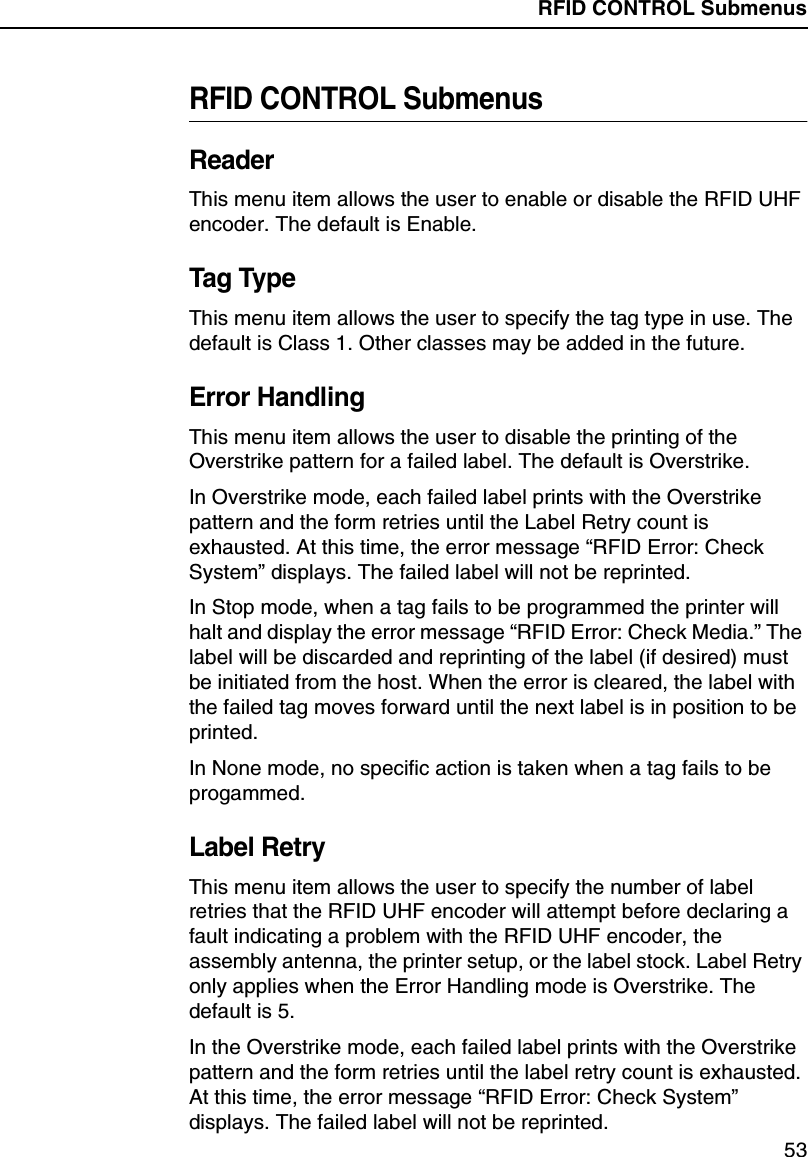
RFID CONTROL Submenus53RFID CONTROL SubmenusReaderThis menu item allows the user to enable or disable the RFID UHFencoder. The default is Enable.Tag TypeThis menu item allows the user to specify the tag type in use. Thedefault is Class 1. Other classes may be added in the future.Error HandlingThis menu item allows the user to disable the printing of theOverstrike pattern for a failed label. The default is Overstrike.In Overstrike mode, each failed label prints with the Overstrikepattern and the form retries until the Label Retry count isexhausted. At this time, the error message “RFID Error: CheckSystem”displays. The failed label will not be reprinted.In Stop mode, when a tag fails to be programmed the printer willhalt and display the error message “RFID Error: Check Media.”Thelabel will be discarded and reprinting of the label (if desired) mustbe initiated from the host. When the error is cleared, the label withthe failed tag moves forward until the next label is in position to beprinted.In None mode, no specific action is taken when a tag fails to beprogammed.Label RetryThis menu item allows the user to specify the number of labelretries that the RFID UHF encoder will attempt before declaring afault indicating a problem with the RFID UHF encoder, theassembly antenna, the printer setup, or the label stock. Label Retryonly applies when the Error Handling mode is Overstrike. Thedefault is 5.In the Overstrike mode, each failed label prints with the Overstrikepattern and the form retries until the label retry count is exhausted.At this time, the error message “RFID Error: Check System”displays. The failed label will not be reprinted.
Chapter 3 RFID CONTROL Menu54Tag Write CntThis menu item displays the number of tags written since the lastClear Tag Stat operation has been initiated. (See “Clear Tag Stat”below.)Failed Tag CntThis menu item displays the number of failed tag write attemptssince the last Clear Tag Stat operation has been initiated. (See“Clear Tag Stat”below.)Clear Tag StatThis menu item clears the Tag Write Cnt and Failed Tag Cnt menuitems when selected.Admin User Menu ItemsTo see these menu items, set Admin User to Enable in thePRINTER CONTROL menu. (Refer to theUser’s Manual.)IMPORTANTAdmin User menu items should only be used fortroubleshooting.RFID TestThis menu item reads the tag in range of the internal RFID antennaand reports the tag data to the debug port and momentarilydisplays it on the operator panel. It is primarily intended fordevelopment verification by checking that the system is working.Auto RetryThis menu item allows the user to specify the number of automatic(internal) retries that the RFID UHF encoder will attempt beforedeclaring a tag error. The default is 3.F/W-VersionThis menu item displays the reader firmware version.
Write Tag55RFID PGL CommandsWrite TagPurpose To program non-incremental data into an RFID tag(embedded in the smart label).MODE CREATEFormatRFWRITE;[HEX;][EPCm;][RFn;L;][LOCK;]ATp;[(D)datafield(D)]RFWRITE; The RFID Write Tag command.HEX; Optional parameter to indicate that thetext indatafieldis in hexadecimal formatand that it will be converted to binaryformat.EPCm; Optional parameter to indicate that thedata indatafieldshould be converted toan EPC number. When this parameter isused, the HEX option is automaticallyenabled and the data field is limited to amaximum of 14 digits. The AT parameteris ignored. The tag is then programmedas follows:Bits 0 to 1 are programmed with theEPC value 0 to 3, specified inm.Bits 2 to 57 are programmed with thehexadecimal characters in the data field(14 maximum). If the data field has lessthan 14 hexadecimal characters, zerosare assumed for the remaining digits.Bits 58 to 63 are set to zero.RFn;L; Optional parameter to indicate that thisfield has dynamic data. Replacenwith anumber ranging from 1 to 512 to identifythe field number of this RFWRITE field.ReplaceLwith the length of the dynamicdata string. If this option is used, the
Chapter 3 RFID PGL Commands56datafieldis ignored, and dynamic datamust be entered via the RF command inthe EXECUTE mode. The length of thedynamic data must be equal toL.LOCK; Optional parameter to write-protect thedata. Currently not supported.ATp;pspecifies the decimal start positionwhere data will be written to the tag.Subsequent bits will be shifted andprevious bits are nulled.(D) Delimiter designating the start and end ofstatic data for the RFWRITE field.Replace (D) with any printable character,except the SFCC and “/”(the slashcharacter).datafieldThe static data of the RFWRITE field.NOTE: RFWRITE fields are not expandable in VDUP and/orHDUP sections.Example 1Program a tag with “HELLOTAG”.~CREATE;HELLO// Create a form named HELLO.RFWRITE;AT1;*HELLOTAG*// RFID Write Tag command with static data. Data will// be at the first location of the tag. The static data is// “HELLOTAG”.END// Terminate HELLO form creation.~EXECUTE;HELLO// Execute HELLO form.~NORMAL// Back to normal mode.
Write Tag57Example 2Another version of Example 1 using the HEX parameter.~CREATE;HELLORFWRITE;HEX;AT1;*48454C4C4F544147*END~EXECUTE;HELLO~NORMALExample 3Program a tag using the EPC parameter 1. This results in the taghaving the first two bits = 01, next 56 bits with hexadecimal values“01234567890123”, and last 6 bits = 0.~CREATE;HELLORFWRITE;EPC1;AT1;*01234567890123*END~EXECUTE;HELLO~NORMALExample 4Write tag command with dynamic non-incremental data“HELLOTAG”.~CREATE;DYNATAG// Create a form named DYNATAG.RFWRITE;RF1;8;AT1;// RFID Write Tag command with dynamic// non-incremental data. The 8-byte data will be at the// first location of the tag.END// Terminate DYNATAG form creation.~EXECUTE;DYNATAG~RF1;*HELLOTAG*// Execute the DYNATAG with the dynamic data// “HELLOTAG”.~NORMAL// Back to normal mode.
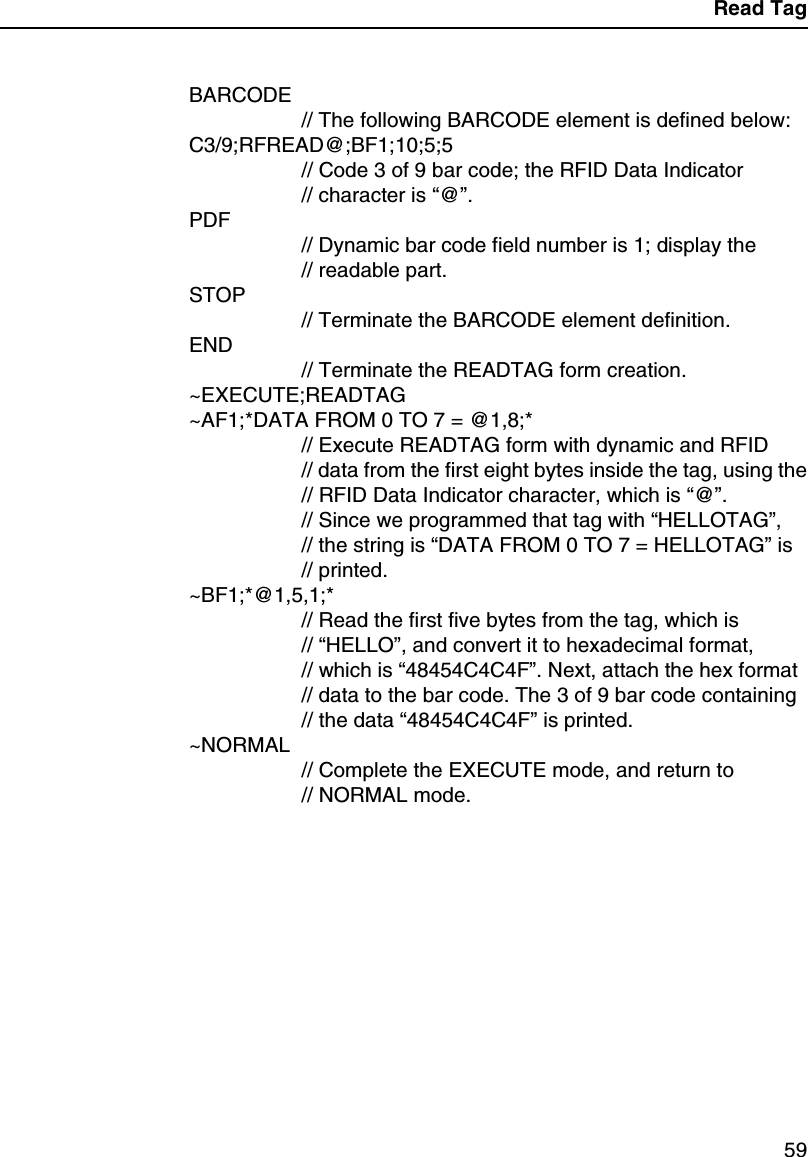
Chapter 3 RFID PGL Commands58Read TagRead Tag is not a command, but an element of the ALPHA andBARCODE commands. See “Alphanumerics”and “Bar Codes”intheIGP/PGL Programmer’s Reference Manualfor moreinformation.Purpose Embed RFID data into an ALPHA or BARCODE datafield.Format <RDI>position,length[,format];<RDI> The RFID Data Indicator character, asdefined by the RFREAD parameter in theALPHA or BARCODE commands. Seethe ALPHA and/or BARCODE commanddescription for details.positionThe decimal number that specifies thestarting position of the data inside thetransponder.lengthThe decimal number that specifies thelength of the data to be read.formatReplace the optionalformatparameterwith any non-zero number to convert thedata to hexadecimal format.ExampleWrite tag contents, then read and insert the tag contents into anALPHA field.~CREATE;READTAG// Create the READTAG form.RFWRITE;AT1;*HELLOTAG*// Program the string “HELLOTAG”into the tagALPHA// The following ALPHA element is defined below:RFREAD@;AF1;27;3;5;0;0// RFID Data Indicator character is “@”.// Dynamic field number of this ALPHA element is 1.STOP// Terminate the ALPHA element definition.
Read Tag59BARCODE// The following BARCODE element is defined below:C3/9;RFREAD@;BF1;10;5;5// Code 3 of 9 bar code; the RFID Data Indicator// character is “@”.PDF// Dynamic bar code field number is 1; display the// readable part.STOP// Terminate the BARCODE element definition.END// Terminate the READTAG form creation.~EXECUTE;READTAG~AF1;*DATA FROM 0 TO 7 = @1,8;*// Execute READTAG form with dynamic and RFID// data from the first eight bytes inside the tag, using the// RFID Data Indicator character, which is “@”.// Since we programmed that tag with “HELLOTAG”,// the string is “DATA FROM 0 TO 7 = HELLOTAG”is// printed.~BF1;*@1,5,1;*// Read the first five bytes from the tag, which is// “HELLO”, and convert it to hexadecimal format,// which is “48454C4C4F”. Next, attach the hex format// data to the bar code. The 3 of 9 bar code containing// the data “48454C4C4F”is printed.~NORMAL// Complete the EXECUTE mode, and return to// NORMAL mode.
Chapter 3 RFID PPI1 Commands60RFID PPI1 CommandsGet Tag Unique IDPurpose Read the unique identification number of the RFID tag(embedded in the smart label).Format ^RIx^RI Get Tag Unique ID command.xThe field number to which the data willbe assigned. The default is 0, and otheracceptable values range from 1 to 9999.CommentsThe PPI1 only supports Alien Technology Class 1atags, which do not have the unique identificationnumbers. Therefore, the PPI1 absorbs this command.Set Tag TypePurpose Select the type of the RFID tag (embedded in the smartlabel).Format ^RSx^RS Set Tag Type command.xNumber assigned to the type of the tag.The default is 0, and other acceptablevalues range from 1 to 9999.CommentsThe PPI1 only supports Alien Technology Class 1atags. There are no alternative choices. Therefore, thePPI1 absorbs this command.
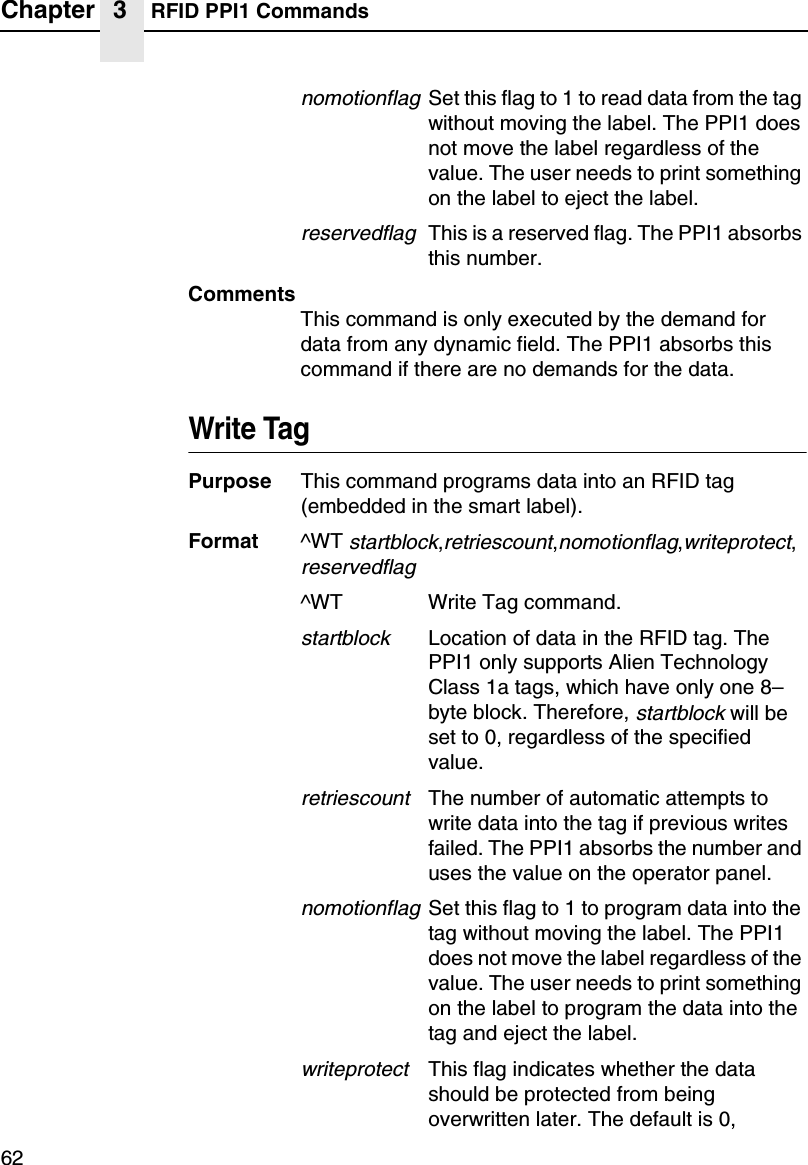
Read Tag61Read TagPurpose This command allows data from the RFID tag(embedded in the smart label) to merge into anypreviously defined dynamic data field. It is equivalent tothe Field Number command (^FN) except that the datacome from the RFID tag.Format ^RTx,startblock,length,hexformat,retriescount,nomotionflag,reservedflag^RT Read Tag command.xThe field number to which the data willbe assigned. The default is 0, and otheracceptable values range from 1 to 9999.startblockLocation where data will be read from theRFID tag. The PPI1 only supports AlienTechnology Class 1a tag, which has onlyone 8–byte block. Therefore,startblockwill be set to 0, regardless of thespecified value.lengthThenumberofblockstobereadfromtheRFID tag. The PPI1 only supports AlienTechnology Class 1a tags, which haveonly one 8–byte block. Therefore,lengthwill be set to 1, regardless of thespecified value.hexformatThis flag indicates whether the data, afterbeing read from the RFID tag, should betranslated into hexadecimal format. Thedefault is 0, meaning the data will not betranslated. The other acceptable value is1, meaning the data will be translatedinto hexadecimal format.retriescountThe number of automatic attempts toread data from the tag if previous readsfailed. The PPI1 absorbs the number anduses the value on the operator panel.
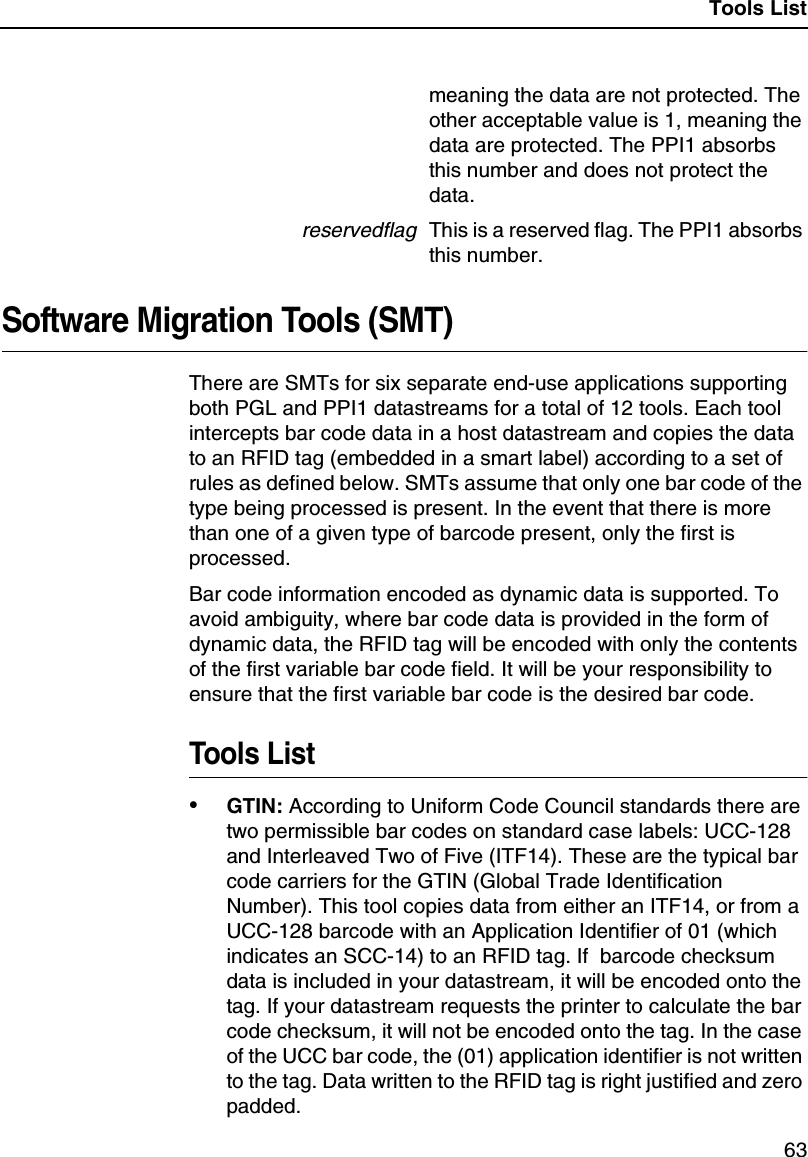
Chapter 3 RFID PPI1 Commands62nomotionflagSet this flag to 1 to read data from the tagwithout moving the label. The PPI1 doesnot move the label regardless of thevalue. The user needs to print somethingon the label to eject the label.reservedflagThis is a reserved flag. The PPI1 absorbsthis number.CommentsThis command is only executed by the demand fordata from any dynamic field. The PPI1 absorbs thiscommand if there are no demands for the data.Write TagPurpose This command programs data into an RFID tag(embedded in the smart label).Format ^WTstartblock,retriescount,nomotionflag,writeprotect,reservedflag^WT Write Tag command.startblockLocation of data in the RFID tag. ThePPI1 only supports Alien TechnologyClass 1a tags, which have only one 8–byte block. Therefore,startblockwill beset to 0, regardless of the specifiedvalue.retriescountThe number of automatic attempts towrite data into the tag if previous writesfailed. The PPI1 absorbs the number anduses the value on the operator panel.nomotionflagSet this flag to 1 to program data into thetag without moving the label. The PPI1does not move the label regardless of thevalue. The user needs to print somethingon the label to program the data into thetag and eject the label.writeprotectThis flag indicates whether the datashould be protected from beingoverwritten later. The default is 0,
Tools List63meaning the data are not protected. Theother acceptable value is 1, meaning thedata are protected. The PPI1 absorbsthis number and does not protect thedata.reservedflagThis is a reserved flag. The PPI1 absorbsthis number.Software Migration Tools (SMT)There are SMTs for six separate end-use applications supportingboth PGL and PPI1 datastreams for a total of 12 tools. Each toolintercepts bar code data in a host datastream and copies the datato an RFID tag (embedded in a smart label) according to a set ofrules as defined below. SMTs assume that only one bar code of thetype being processed is present. In the event that there is morethan one of a given type of barcode present, only the first isprocessed.Bar code information encoded as dynamic data is supported. Toavoid ambiguity, where bar code data is provided in the form ofdynamic data, the RFID tag will be encoded with only the contentsof the first variable bar code field. It will be your responsibility toensure that the first variable bar code is the desired bar code.Tools List•GTIN: According to Uniform Code Council standards there aretwo permissible bar codes on standard case labels: UCC-128and Interleaved Two of Five (ITF14). These are the typical barcode carriers for the GTIN (Global Trade IdentificationNumber). This tool copies data from either an ITF14, or from aUCC-128 barcode with an Application Identifier of 01 (whichindicates an SCC-14) to an RFID tag. If barcode checksumdata is included in your datastream, it will be encoded onto thetag. If your datastream requests the printer to calculate the barcode checksum, it will not be encoded onto the tag. In the caseof the UCC bar code, the (01) application identifier is not writtento the tag. Data written to the RFID tag is right justified and zeropadded.
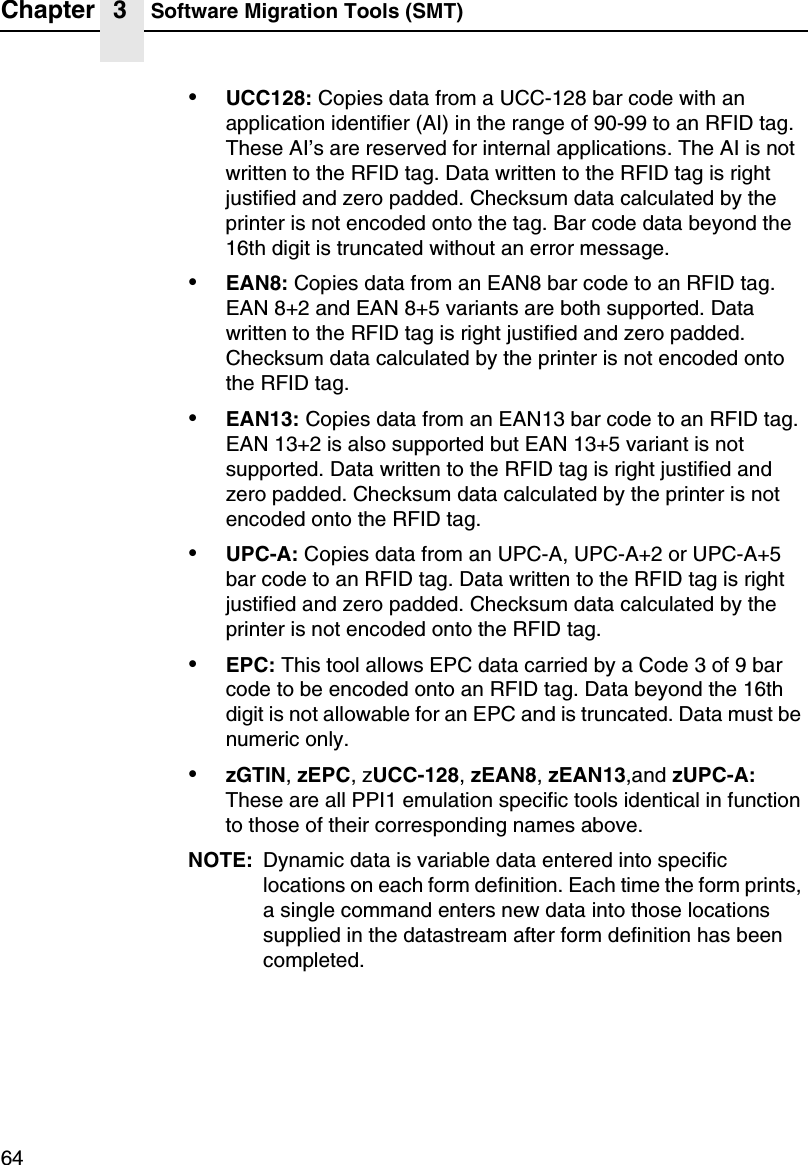
Chapter 3 Software Migration Tools (SMT)64•UCC128: Copies data from a UCC-128 bar code with anapplication identifier (AI) in the range of 90-99 to an RFID tag.These AI’s are reserved for internal applications. The AI is notwritten to the RFID tag. Data written to the RFID tag is rightjustified and zero padded. Checksum data calculated by theprinter is not encoded onto the tag. Bar code data beyond the16th digit is truncated without an error message.•EAN8: Copies data from an EAN8 bar code to an RFID tag.EAN 8+2 and EAN 8+5 variants are both supported. Datawritten to the RFID tag is right justified and zero padded.Checksum data calculated by the printer is not encoded ontothe RFID tag.•EAN13: Copies data from an EAN13 bar code to an RFID tag.EAN 13+2 is also supported but EAN 13+5 variant is notsupported. Data written to the RFID tag is right justified andzero padded. Checksum data calculated by the printer is notencoded onto the RFID tag.•UPC-A: Copies data from an UPC-A, UPC-A+2 or UPC-A+5bar code to an RFID tag. Data written to the RFID tag is rightjustified and zero padded. Checksum data calculated by theprinter is not encoded onto the RFID tag.•EPC: This tool allows EPC data carried by a Code 3 of 9 barcode to be encoded onto an RFID tag. Data beyond the 16thdigit is not allowable for an EPC and is truncated. Data must benumeric only.•zGTIN,zEPC,zUCC-128,zEAN8,zEAN13,and zUPC-A:These are all PPI1 emulation specific tools identical in functionto those of their corresponding names above.NOTE: Dynamic data is variable data entered into specificlocations on each form definition. Each time the form prints,a single command enters new data into those locationssupplied in the datastream after form definition has beencompleted.
Selecting The Tools65Selecting The Tools1. Press until QUICK SETUP displays.2. If necessary, press ↓and ↵at the same time to unlock the ↵key.3. Press ↓until SMT: Sel Toolset displays.4. Press ↓until Toolset [1] (PGL emulation) or Toolset [2] (PPI1emulation) displays.5. Press ↵to select it.6. Press ↓until SMT: Select Tool displays.7. Press ↓until the desired tool displays.8. Press ↵to select it.9. Press ↓and ↵at the same time to lock the ↵key, then pressPAUSE to take the printer offline.10. Press PAUSE again to put the printer online....
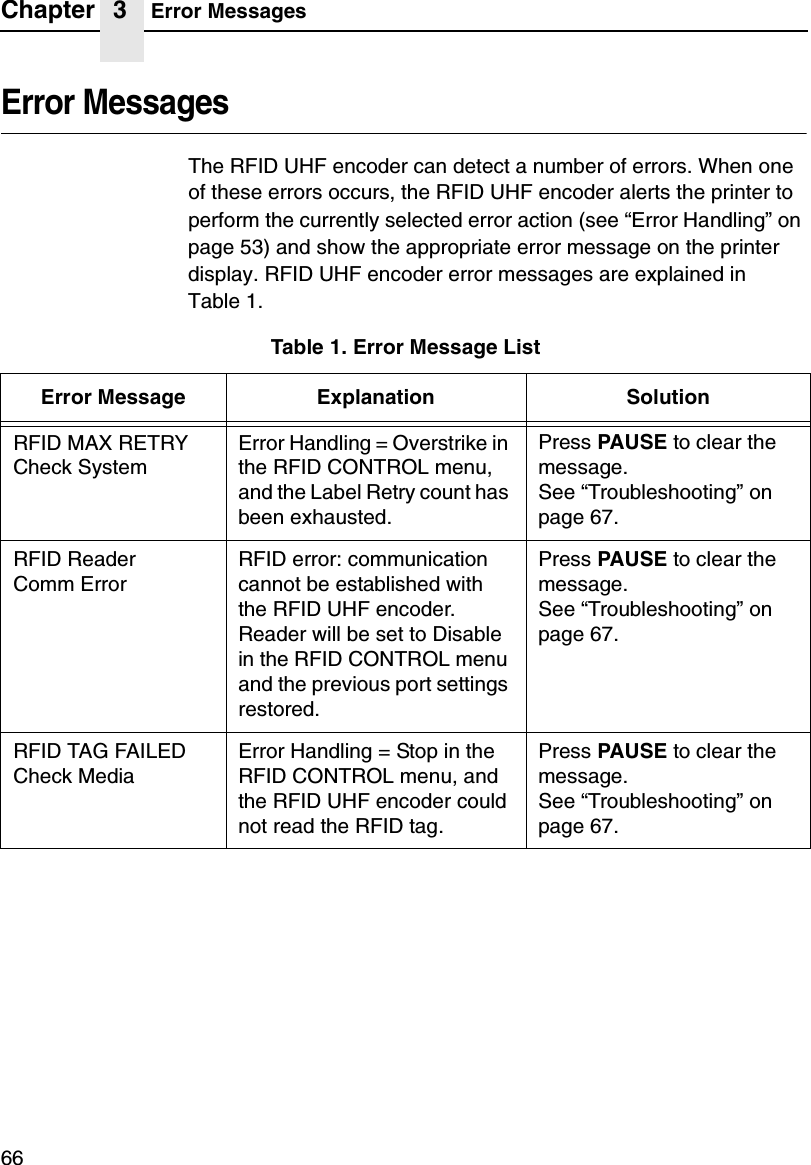
Chapter 3 Error Messages66Error MessagesThe RFID UHF encoder can detect a number of errors. When oneof these errors occurs, the RFID UHF encoder alerts the printer toperform the currently selected error action (see “Error Handling”onpage 53) and show the appropriate error message on the printerdisplay. RFID UHF encoder error messages are explained inTable 1.Table 1. Error Message ListError Message Explanation SolutionRFID MAX RETRYCheck SystemError Handling = Overstrike inthe RFID CONTROL menu,and the Label Retry count hasbeen exhausted.Press PAUSE to clear themessage.See “Troubleshooting”onpage 67.RFID ReaderComm ErrorRFID error: communicationcannot be established withthe RFID UHF encoder.Reader will be set to Disablein the RFID CONTROL menuand the previous port settingsrestored.Press PAUSE to clear themessage.See “Troubleshooting”onpage 67.RFID TAG FAILEDCheck MediaError Handling = Stop in theRFID CONTROL menu, andthe RFID UHF encoder couldnot read the RFID tag.Press PAUSE to clear themessage.See “Troubleshooting”onpage 67.
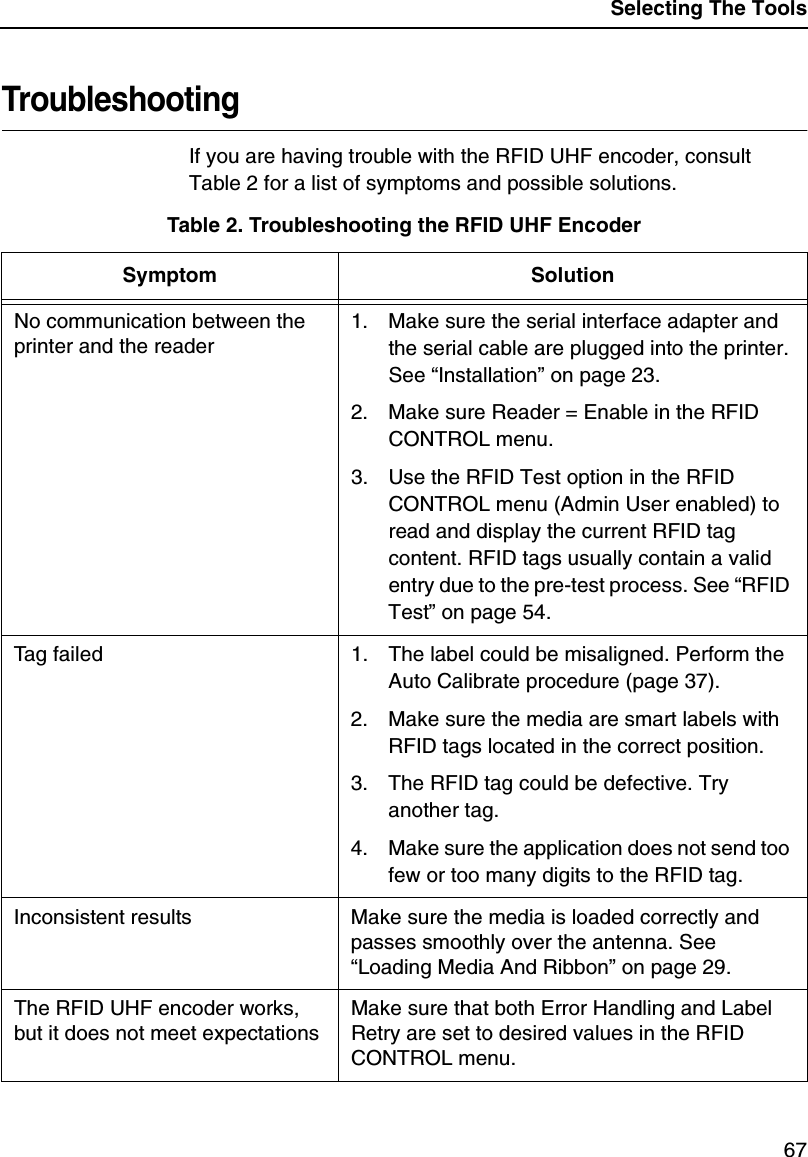
Selecting The Tools67TroubleshootingIf you are having trouble with the RFID UHF encoder, consultTable 2 for a list of symptoms and possible solutions.Table 2. Troubleshooting the RFID UHF EncoderSymptom SolutionNo communication between theprinter and the reader1. Make sure the serial interface adapter andthe serial cable are plugged into the printer.See “Installation”on page 23.2. Make sure Reader = Enable in the RFIDCONTROL menu.3. Use the RFID Test option in the RFIDCONTROL menu (Admin User enabled) toread and display the current RFID tagcontent. RFID tags usually contain a validentry due to the pre-test process. See “RFIDTest”on page 54.Tag failed 1. The label could be misaligned. Perform theAuto Calibrate procedure (page 37).2. Make sure the media are smart labels withRFID tags located in the correct position.3. The RFID tag could be defective. Tryanother tag.4. Make sure the application does not send toofew or too many digits to the RFID tag.Inconsistent results Make sure the media is loaded correctly andpasses smoothly over the antenna. See“Loading Media And Ribbon”on page 29.The RFID UHF encoder works,but it does not meet expectationsMake sure that both Error Handling and LabelRetry are set to desired values in the RFIDCONTROL menu.
Chapter 3 Troubleshooting68
69AAuto Calibrateoption, 47running, 37BBarcode demo test, 39CConfiguration, saving, 38Control panel, 25EError Handling, 53Error messages, 66RFID MAX RETRY / Check System, 66RFID Reader / Comm Error, 66RFID TAG FAILED / Check Media, 66FFor more information, 49GGap/Mark Sensor option, 46Get Tag Unique ID PPI1 commandcode, 60HHor Image Shift option, 44IIndustry web links, 19JJob In Process indicator, 25LLabel Length option, 43Label Retry, 53Label Width option, 44LCD, 25Limitations, 15Liquid Crystal Display (LCD), 25Loadingribbon, 34roll media, 29MMedia Handling option, 42Media sensor, positioning, 37Media, roll, 29OOnline Status indicator, 25Ordering smart labels, 17Orientation option, 44Overstruck smart labels, 15Index
Index70PPaper Feed Shift option, 43PGL commands, 55Positioning the media sensor, 37Power switch, 24Power-Up Config. option, 48PPI1 commands, 60Print Intensity option, 41Print Mode option, 42Print Speed option, 42Printerinstallation, 23unpacking, 21Printhead pressure block adjustments, 36Printing adjustments, 36QQUICK SETUPmenu, 40submenus, 41RRead Tag PGL command code, 58Read Tag PPI1 command code, 61Reader, 53RFID CONTROLmenu, 52submenus, 53RFID MAX RETRY / Check System, 66RFID PGL commands, 55RFID PPI1 commands, 60RFID Reader / Comm Error, 66RFID TAG FAILED / Check Media, 66RFID tags, 51RFID UHF encoder, 51Ribbon, loading, 34Roll media, 29Run a barcode demo test, 39Runningautocalibrate,37SSave Config. option, 48Saving the configuration, 38Selecting the Software Migration Tools(SMT), 65Set Tag Type PPI1 command code, 60Smart label development overview, 51Smart labels, 51limitations, 15ordering, 17overstruck smart labels, 15performance, 14SMTSel Toolset option, 48Select Tool option, 49Status option, 48Software Migration Tools (SMT), 63introduction, 16selecting, 65tools list, 63TTag Type, 53Troubleshooting, 67
Index71UUnpacking the printer, 21VValidator Funct. option, 47Ver Image Shift option, 44WWeb links, 19Write Tag PGL command code, 55Write Tag PPI1 command code, 62
Index72
Printronix, Inc.14600 Myford RoadP.O. Box 19559Irvine, CA 92623-9559Phone: (714) 368-2300Fax: (714) 368-2600Customer Support Center: (714) 368-2686PrintronixNederland BVP.O. Box 163, Nieuweweg 283NL-6600 Ad WijchenThe NetherlandsPhone: (31) 24 6489489Fax: (31) 24 6489499Printronix Schweiz GmbH42 Changi South Street 1Changi South Industrial EstateSingapore 486763Phone: (65) 6542-0110Fax: (65) 6543-0220Visit our web site at:www.printronix.comCopyright 2003 Printronix, Inc.177393-001A*177393-001*

Navigation menu