Qcom Technology LR802UKN2-B 802.11 b/g/n Wireless USB Module User Manual LR802UKN2 B Manual

Qcom Technology Inc. 802.11 b/g/n Wireless USB Module LR802UKN2 B Manual

User Manual.pdf

    LR802UKN2-B    User’s Manual
 2Contents: WINDOWS VISTA ................................................................................... 3 Driver Installation ........................................................................................................ 3 Uninstalling the Wireless LAN Card.......................................................................... 6 Configuring the Wireless LAN Card.......................................................................... 9 Connecting to an existing network ......................................................................... 9 WINDOWS 7 ........................................................................................... 11 Driver Installation ...................................................................................................... 11 Uninstalling the Wireless LAN Card........................................................................ 14 Configuring the Wireless LAN Card........................................................................ 17 Connecting to an existing network ....................................................................... 17 WINDOWS XP SP3 ................................................................................ 19 Driver Installation ...................................................................................................... 19 Uninstalling the Wireless LAN Card........................................................................ 23 Configuring the Wireless LAN Card........................................................................ 26 Connecting to an existing network ....................................................................... 26
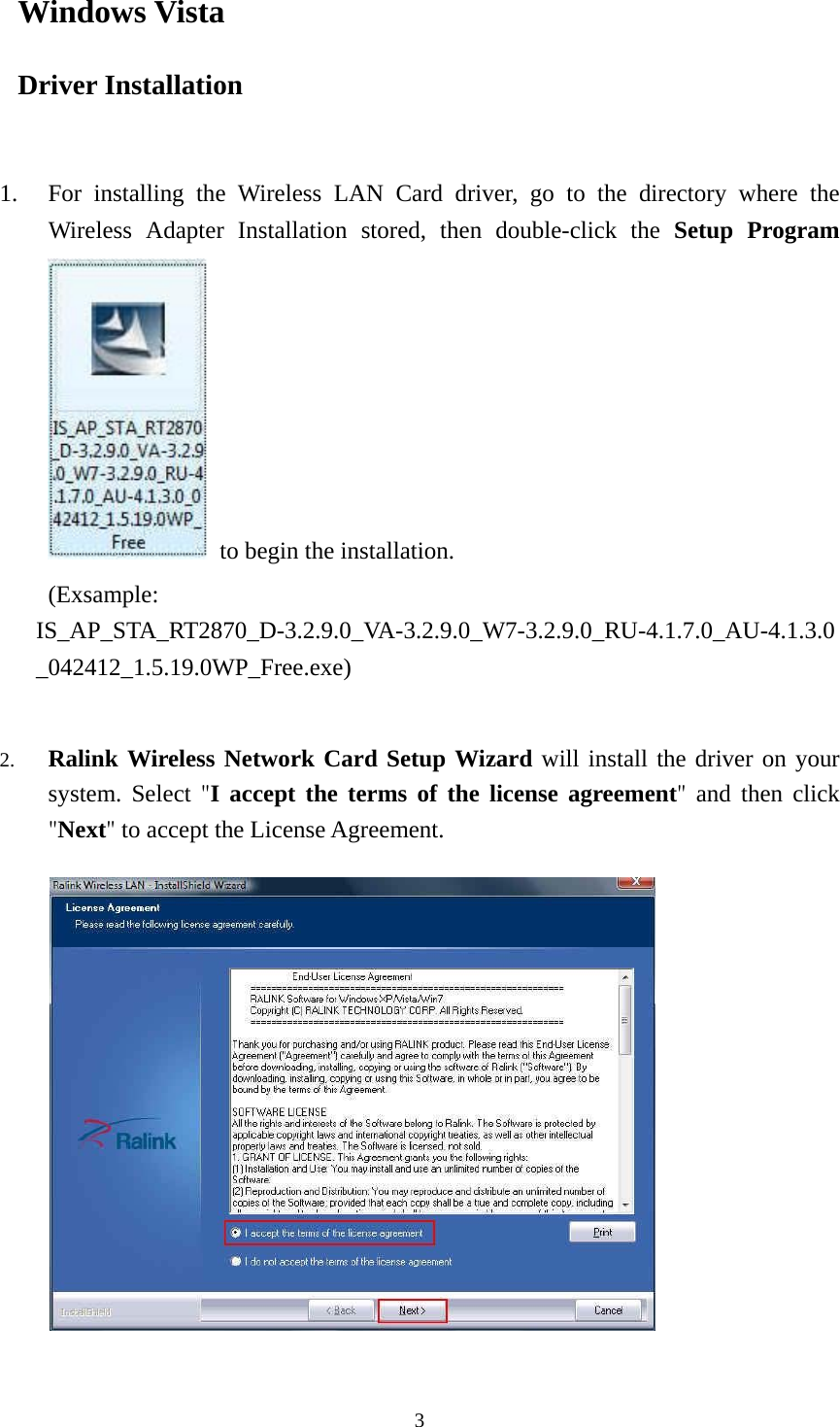
 3Windows Vista Driver Installation   1. For installing the Wireless LAN Card driver, go to the directory where the Wireless Adapter Installation stored, then double-click the Setup Program  to begin the installation.     (Exsample: IS_AP_STA_RT2870_D-3.2.9.0_VA-3.2.9.0_W7-3.2.9.0_RU-4.1.7.0_AU-4.1.3.0_042412_1.5.19.0WP_Free.exe)  2. Ralink Wireless Network Card Setup Wizard will install the driver on your system. Select "I accept the terms of the license agreement"  and then click "Next" to accept the License Agreement.
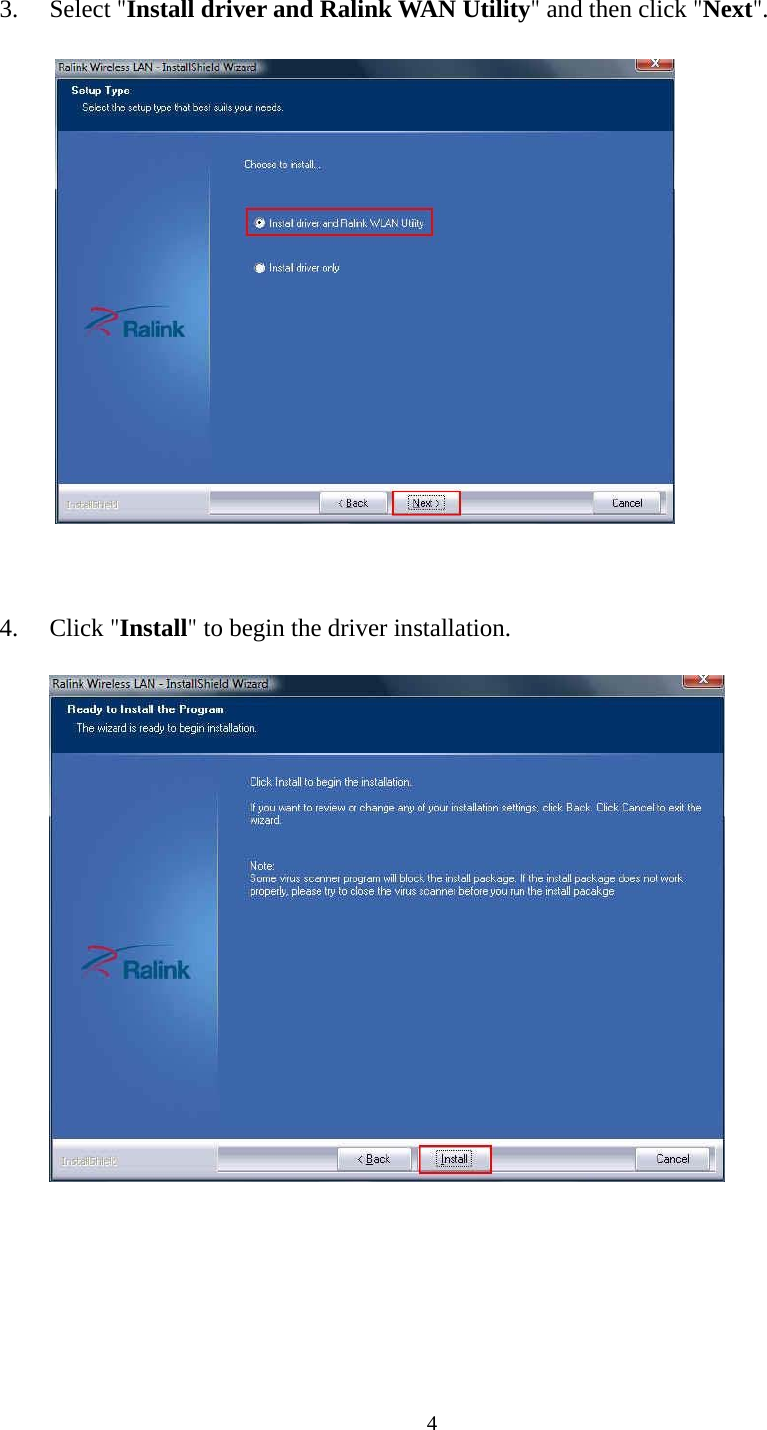
 4 3. Select "Install driver and Ralink WAN Utility" and then click "Next".    4. Click "Install" to begin the driver installation.
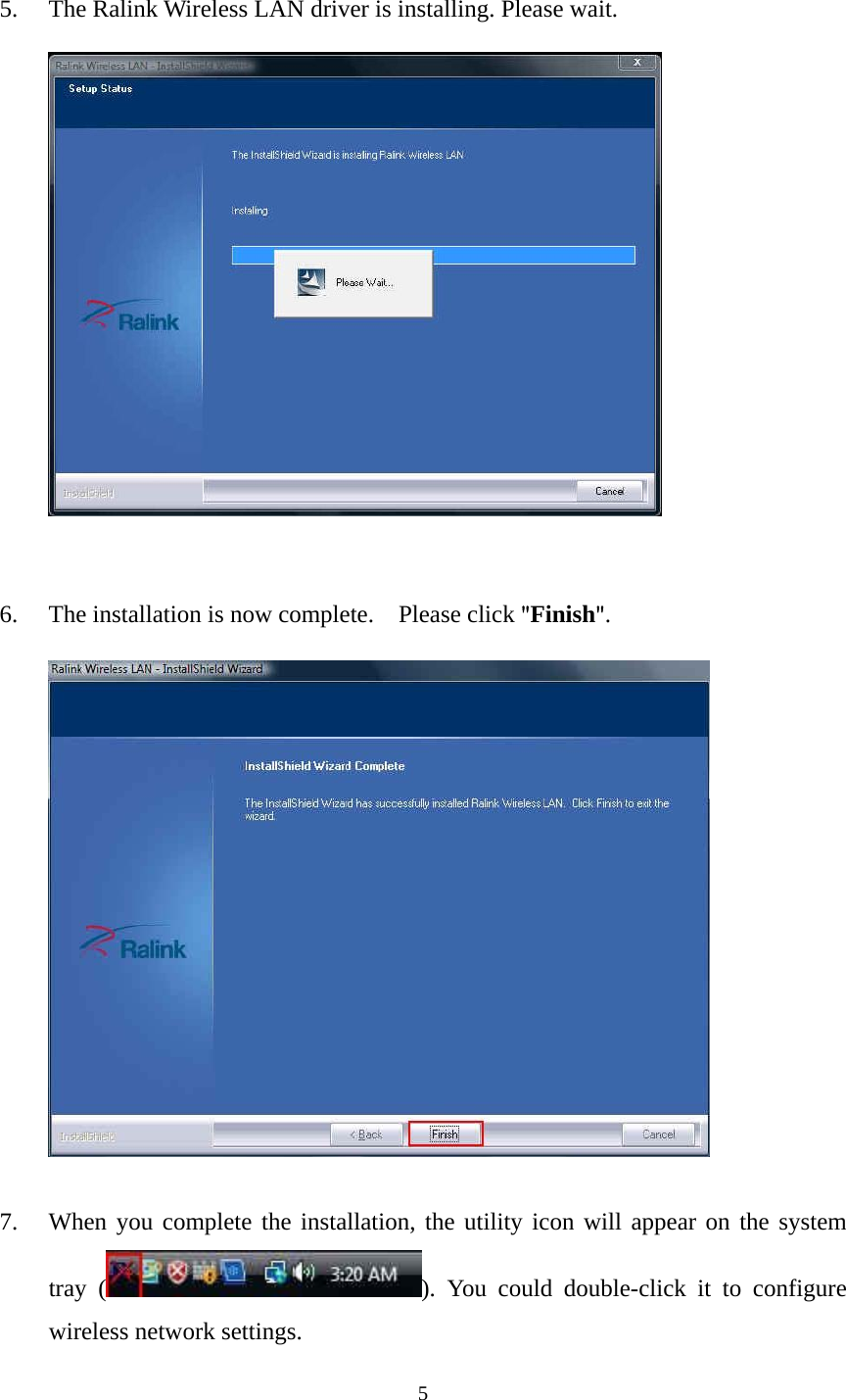
 5 5. The Ralink Wireless LAN driver is installing. Please wait.   6. The installation is now complete.    Please click "Finish".        7. When you complete the installation, the utility icon will appear on the system tray ( ). You could double-click it to configure wireless network settings.
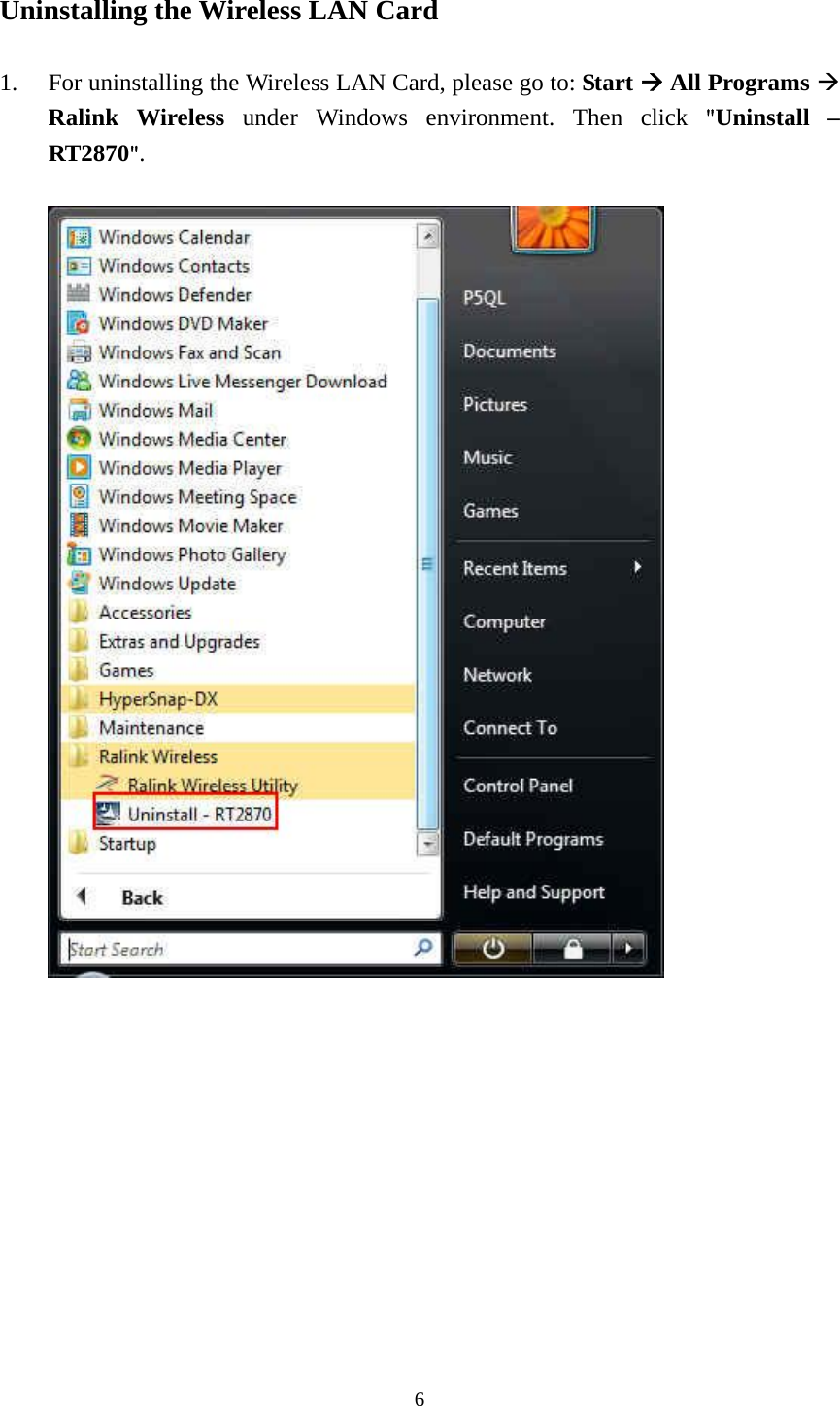
 6 Uninstalling the Wireless LAN Card  1. For uninstalling the Wireless LAN Card, please go to: Start  All Programs  Ralink Wireless under Windows environment. Then click "Uninstall – RT2870".
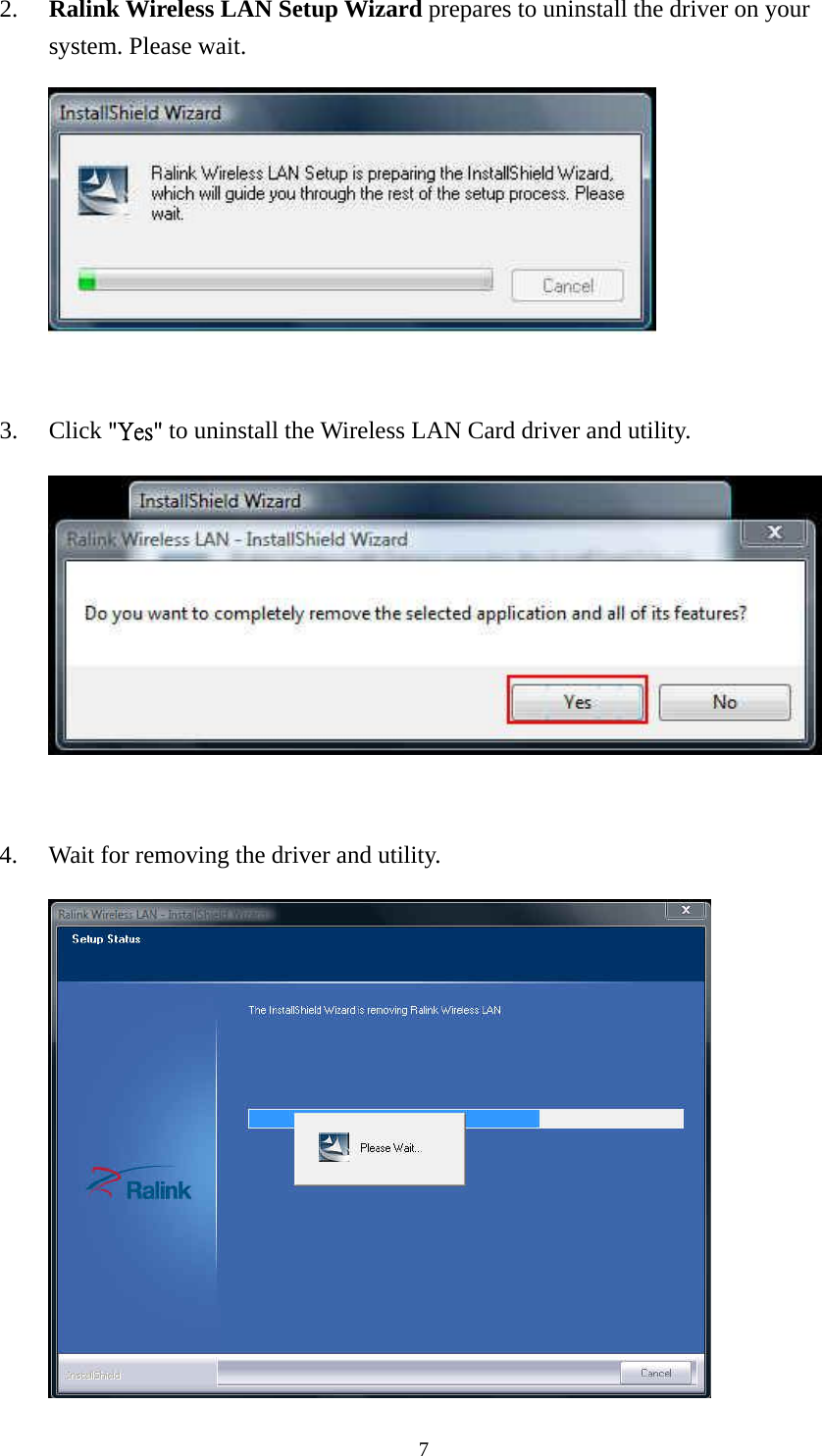
 72. Ralink Wireless LAN Setup Wizard prepares to uninstall the driver on your system. Please wait.         3. Click "Yes" to uninstall the Wireless LAN Card driver and utility.         4. Wait for removing the driver and utility.
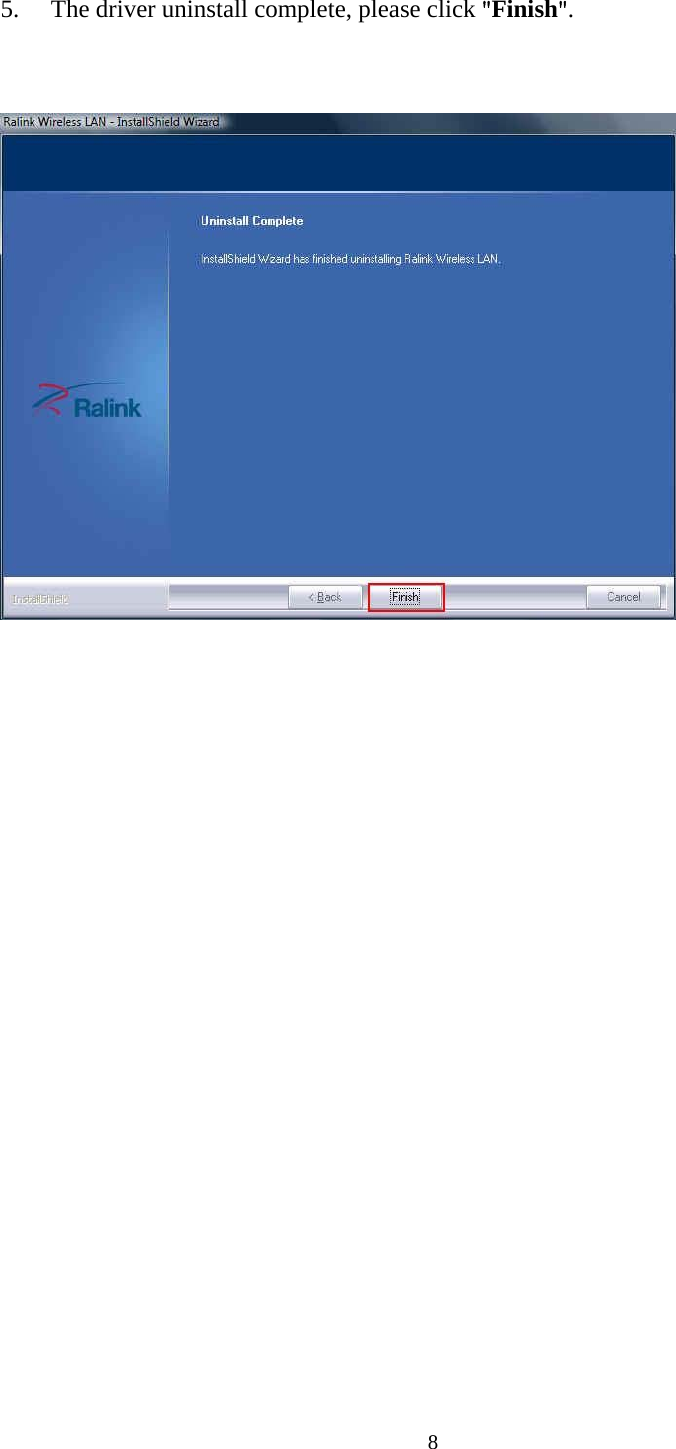
 8 5. The driver uninstall complete, please click "Finish".
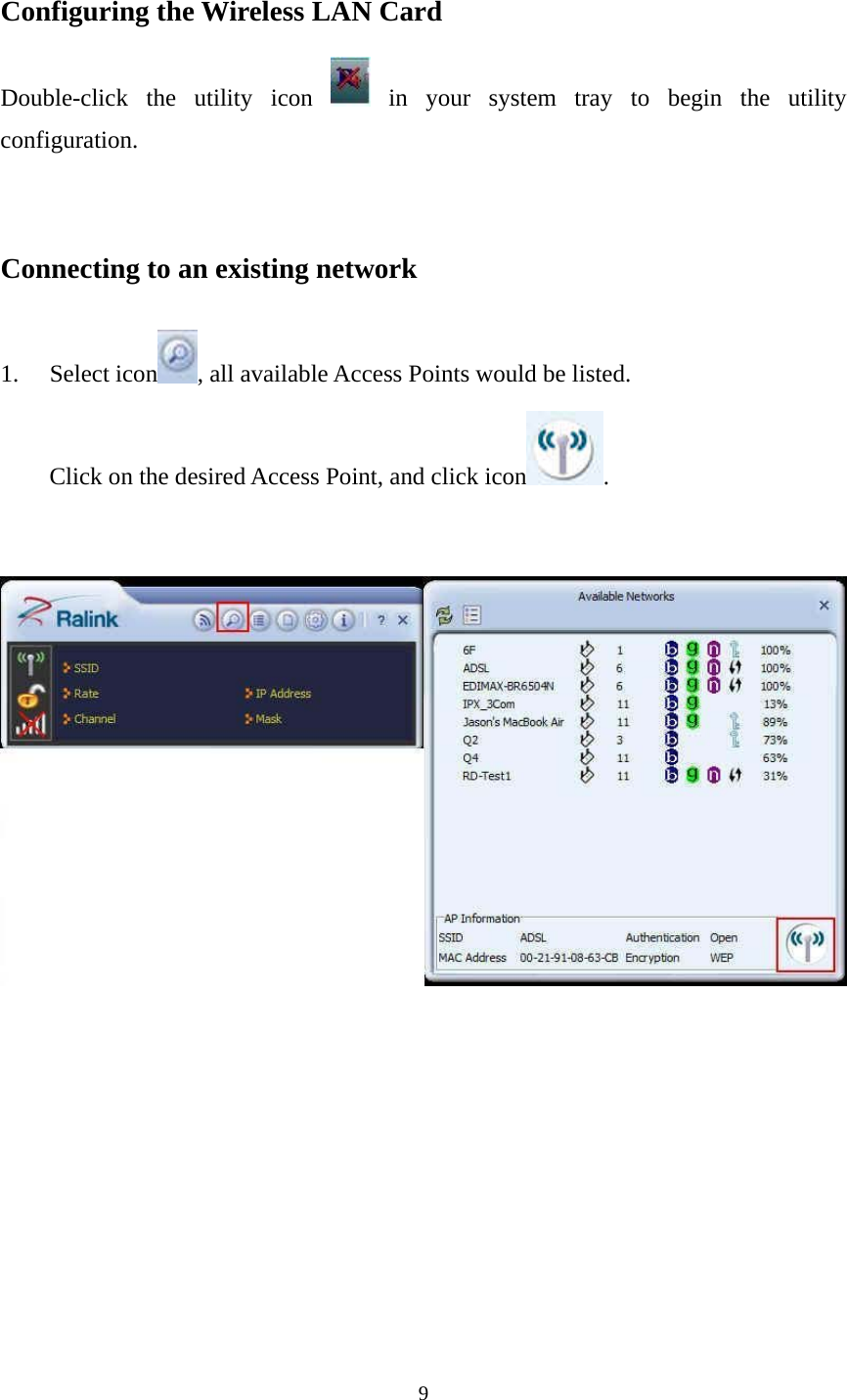
 9 Configuring the Wireless LAN Card Double-click the utility icon   in your system tray to begin the utility configuration.   Connecting to an existing network  1. Select icon , all available Access Points would be listed. Click on the desired Access Point, and click icon .
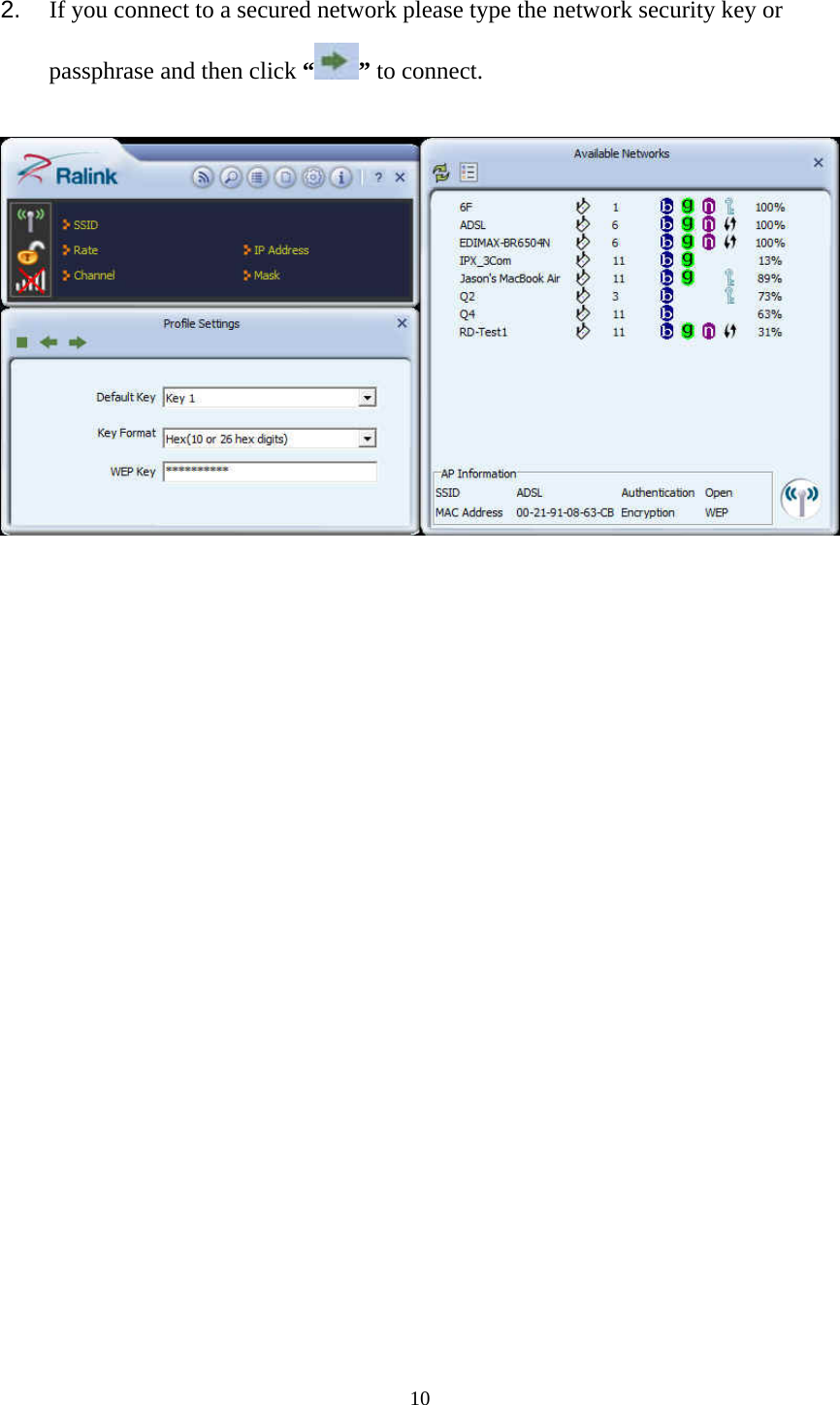
 10 2.  If you connect to a secured network please type the network security key or passphrase and then click “ ” to connect.
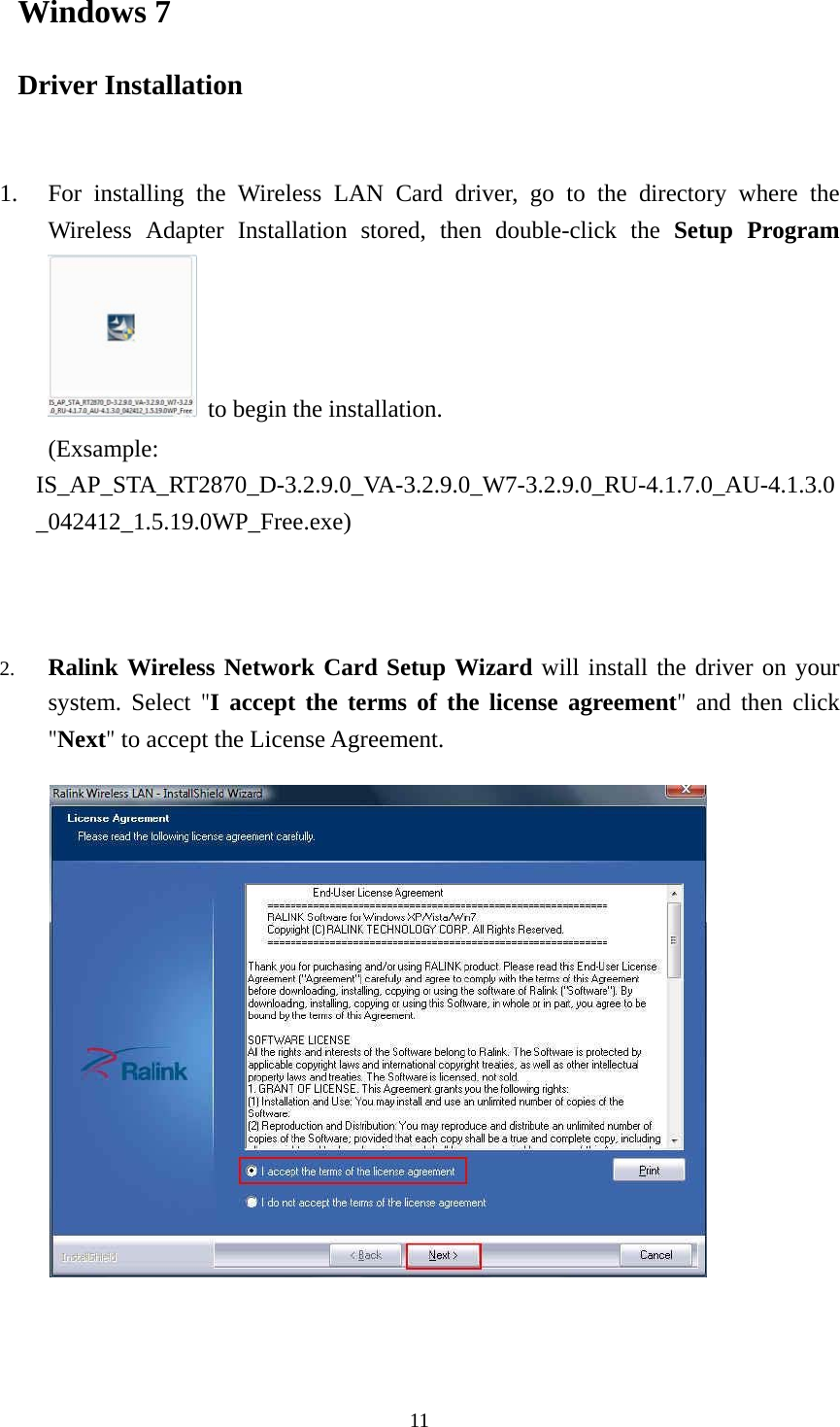
 11Windows 7 Driver Installation   1. For installing the Wireless LAN Card driver, go to the directory where the Wireless Adapter Installation stored, then double-click the Setup Program  to begin the installation.     (Exsample: IS_AP_STA_RT2870_D-3.2.9.0_VA-3.2.9.0_W7-3.2.9.0_RU-4.1.7.0_AU-4.1.3.0_042412_1.5.19.0WP_Free.exe)    2. Ralink Wireless Network Card Setup Wizard will install the driver on your system. Select "I accept the terms of the license agreement"  and then click "Next" to accept the License Agreement.
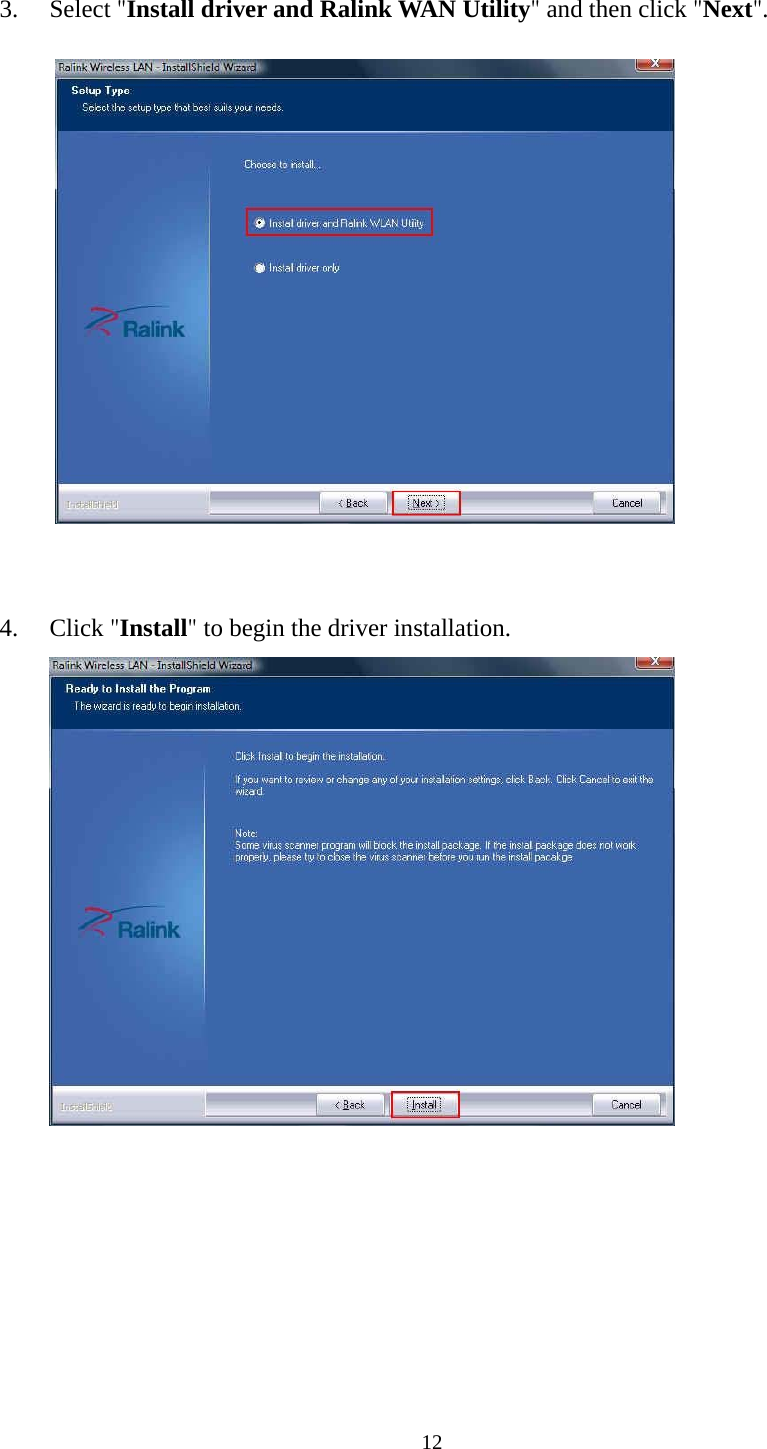
 12 3. Select "Install driver and Ralink WAN Utility" and then click "Next".    4. Click "Install" to begin the driver installation.
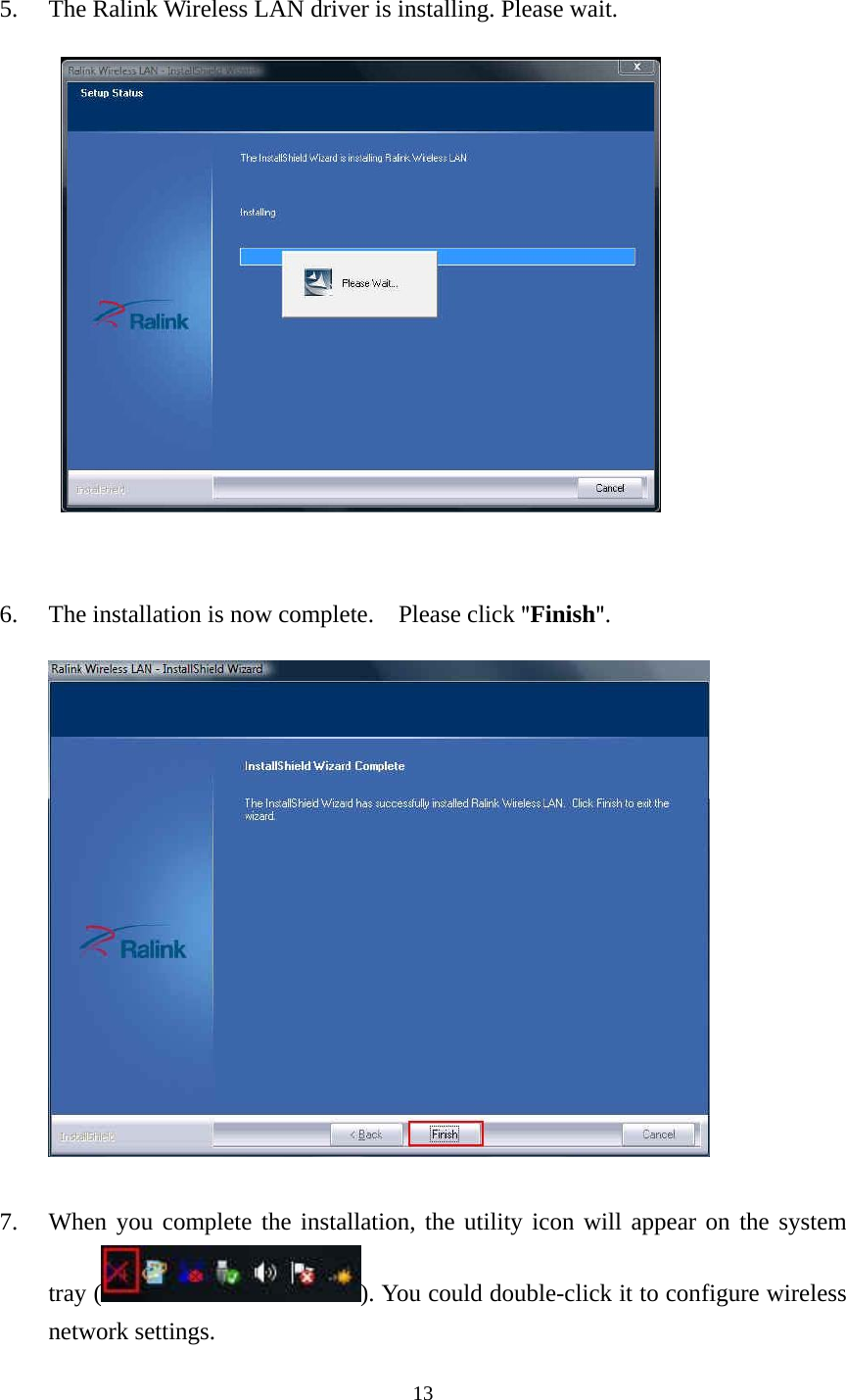
 13 5. The Ralink Wireless LAN driver is installing. Please wait.         6. The installation is now complete.    Please click "Finish".        7. When you complete the installation, the utility icon will appear on the system tray ( ). You could double-click it to configure wireless network settings.
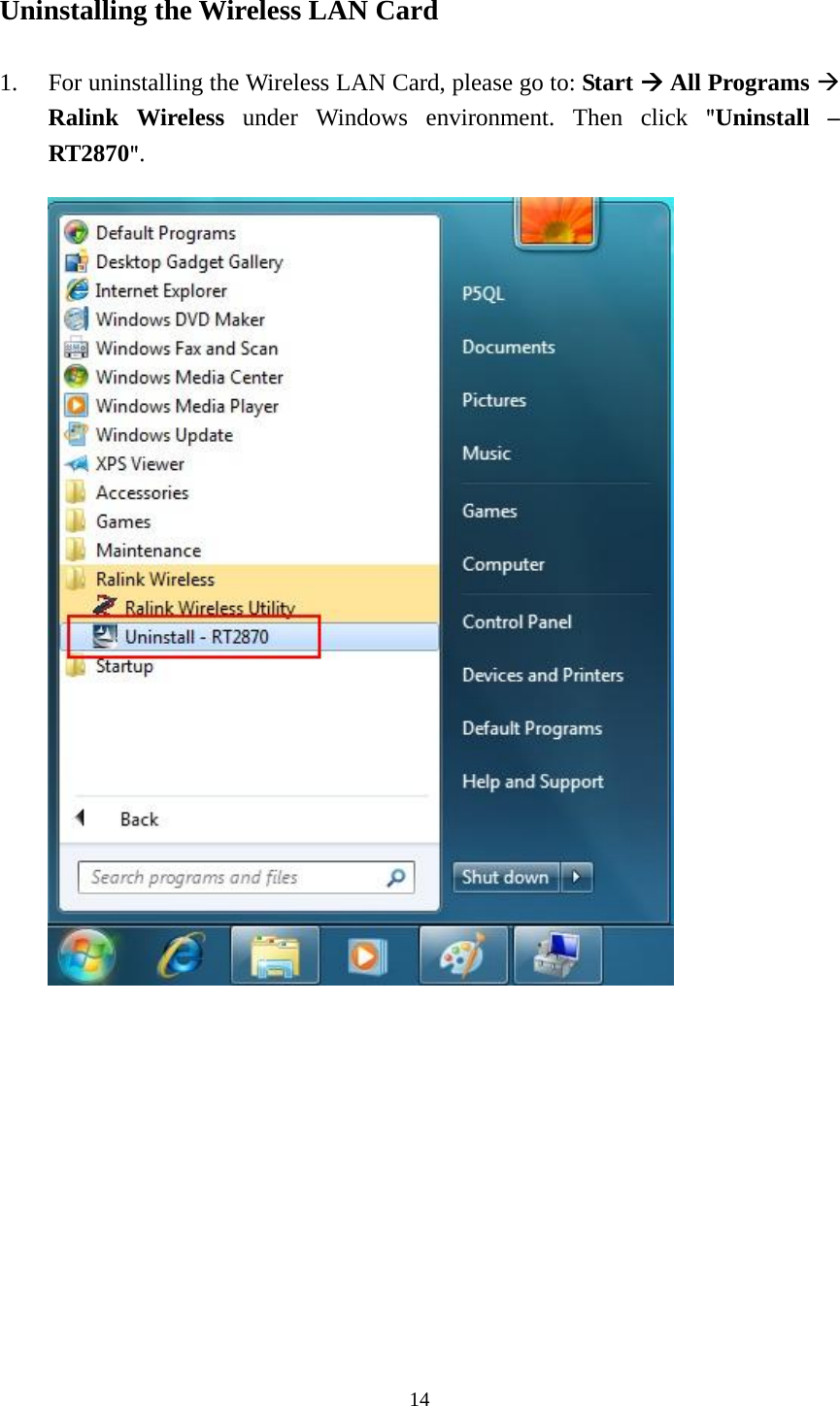
 14 Uninstalling the Wireless LAN Card  1. For uninstalling the Wireless LAN Card, please go to: Start  All Programs  Ralink Wireless under Windows environment. Then click "Uninstall – RT2870".
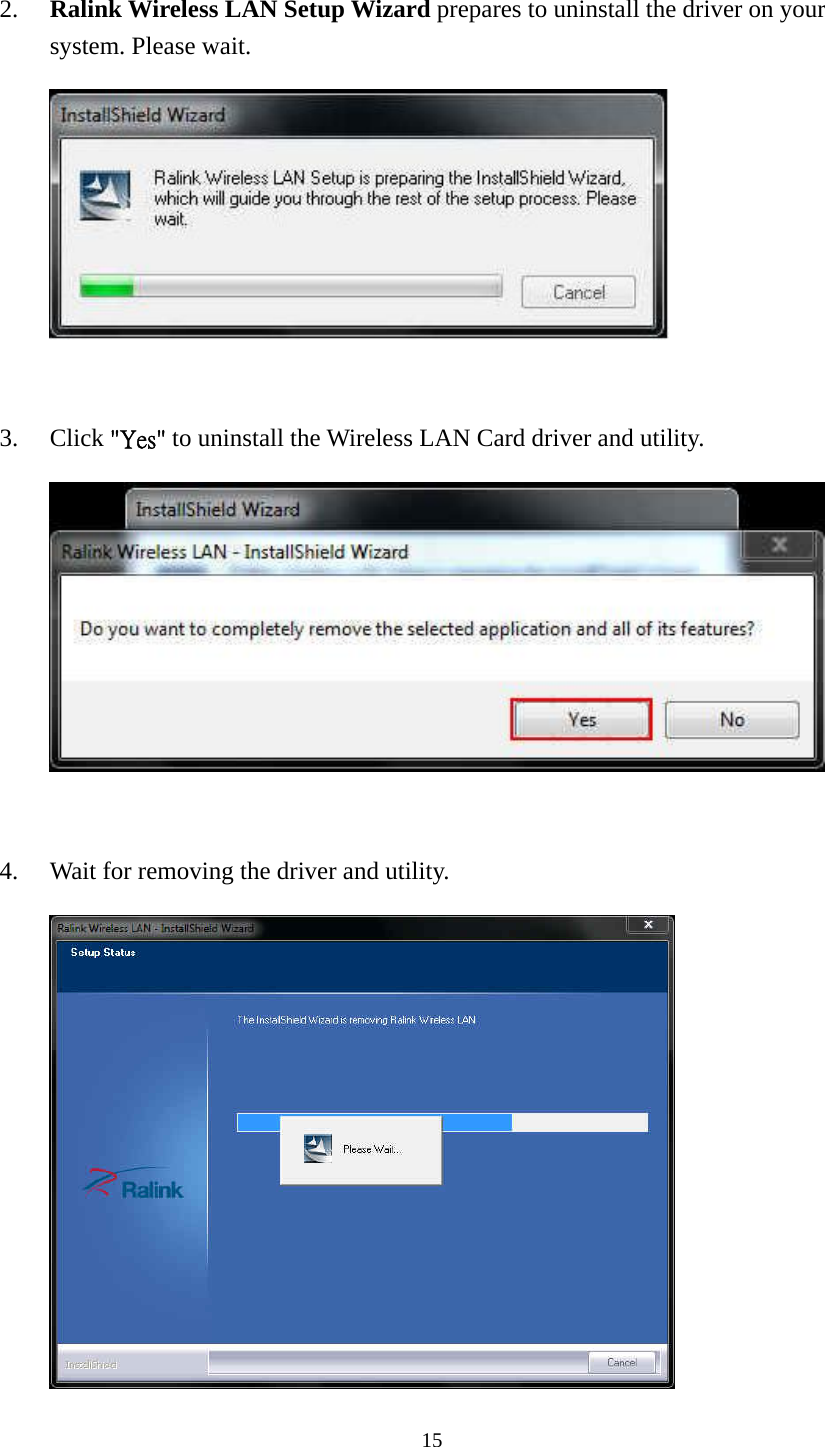
 15 2. Ralink Wireless LAN Setup Wizard prepares to uninstall the driver on your system. Please wait.         3. Click "Yes" to uninstall the Wireless LAN Card driver and utility.         4. Wait for removing the driver and utility.
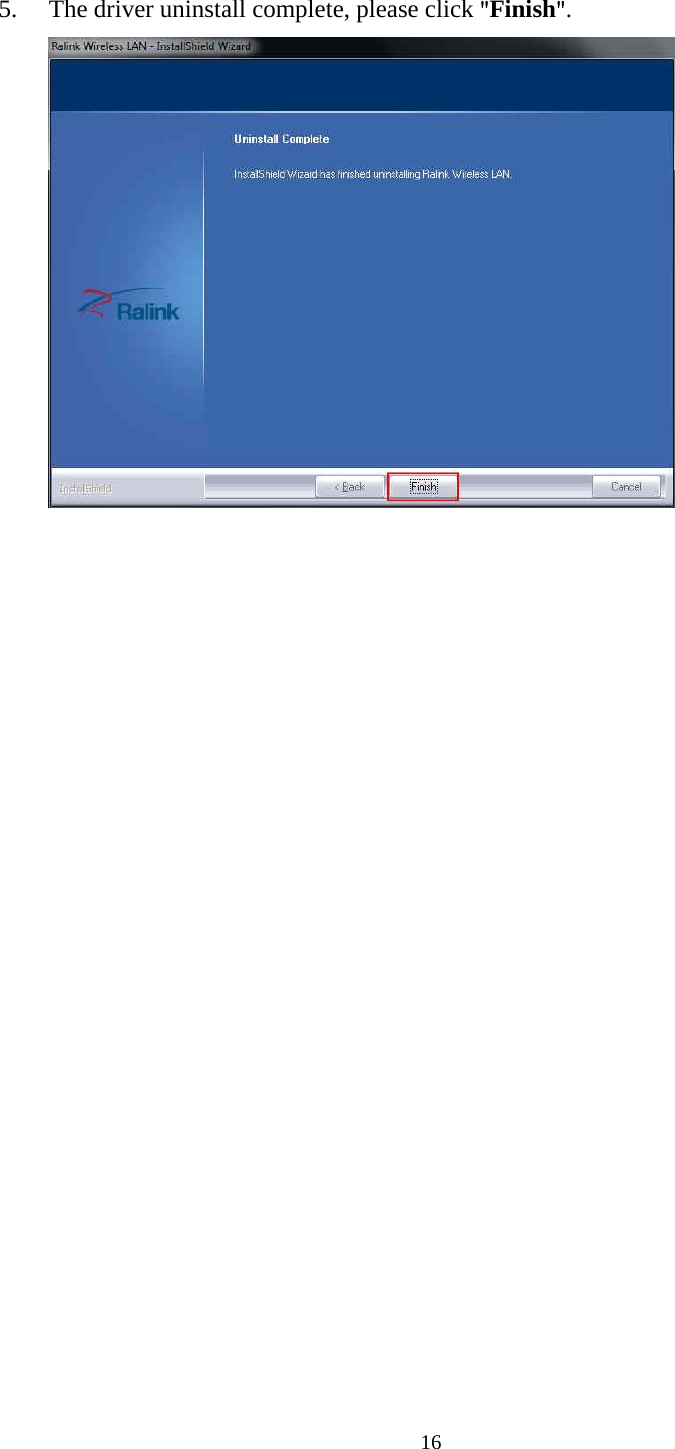
 16 5. The driver uninstall complete, please click "Finish".
 17 Configuring the Wireless LAN Card Double-click the utility icon   in your system tray to begin the utility configuration.   Connecting to an existing network  1. Select icon , all available Access Points would be listed. Click on the desired Access Point, and click icon .
 18 2.  If you connect to a secured network please type the network security key or passphrase and then click “ ” to connect.
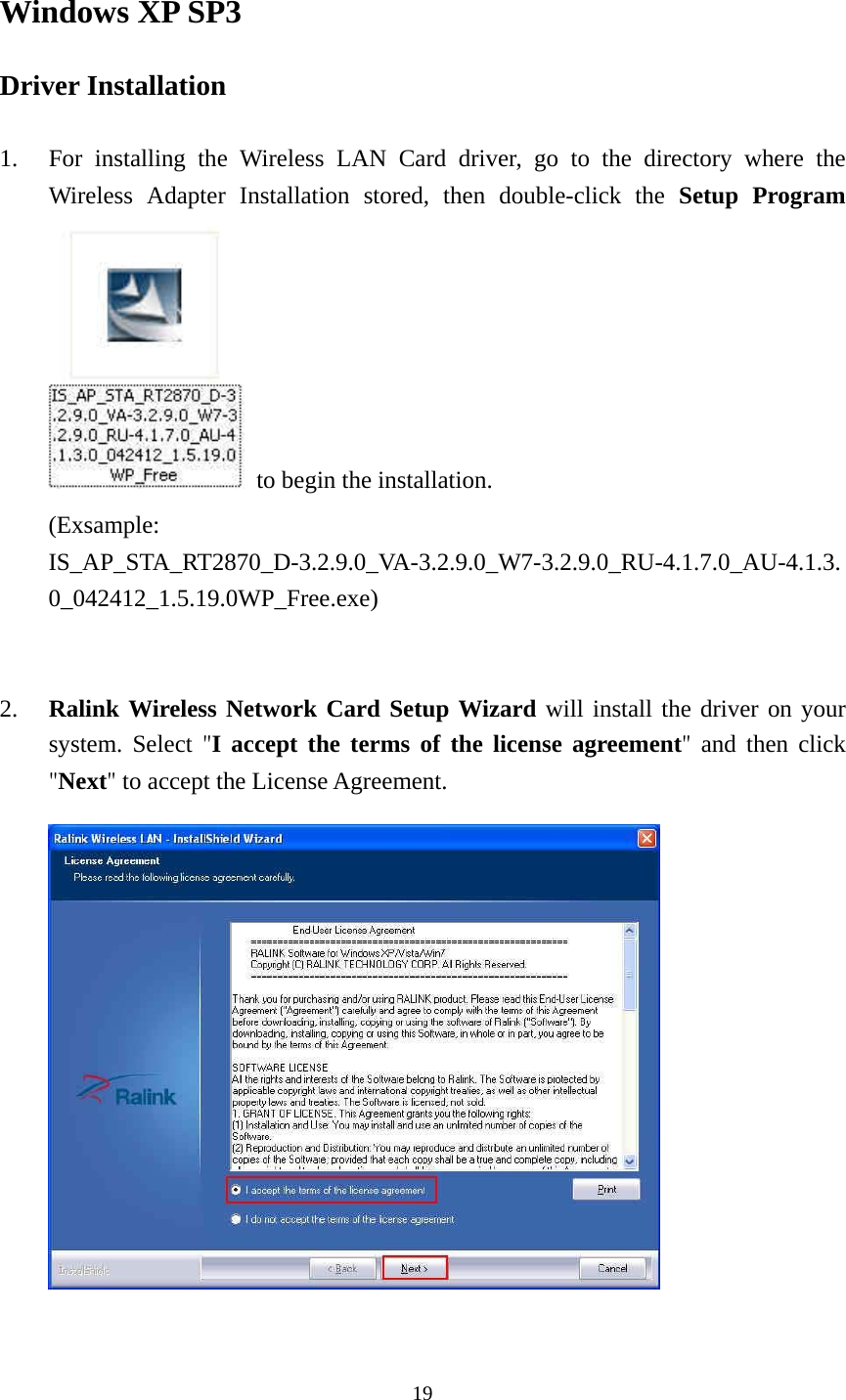
 19 Windows XP SP3 Driver Installation  1. For installing the Wireless LAN Card driver, go to the directory where the Wireless Adapter Installation stored, then double-click the Setup Program   to begin the installation. (Exsample: IS_AP_STA_RT2870_D-3.2.9.0_VA-3.2.9.0_W7-3.2.9.0_RU-4.1.7.0_AU-4.1.3.0_042412_1.5.19.0WP_Free.exe)   2. Ralink Wireless Network Card Setup Wizard will install the driver on your system. Select "I accept the terms of the license agreement"  and then click "Next" to accept the License Agreement.
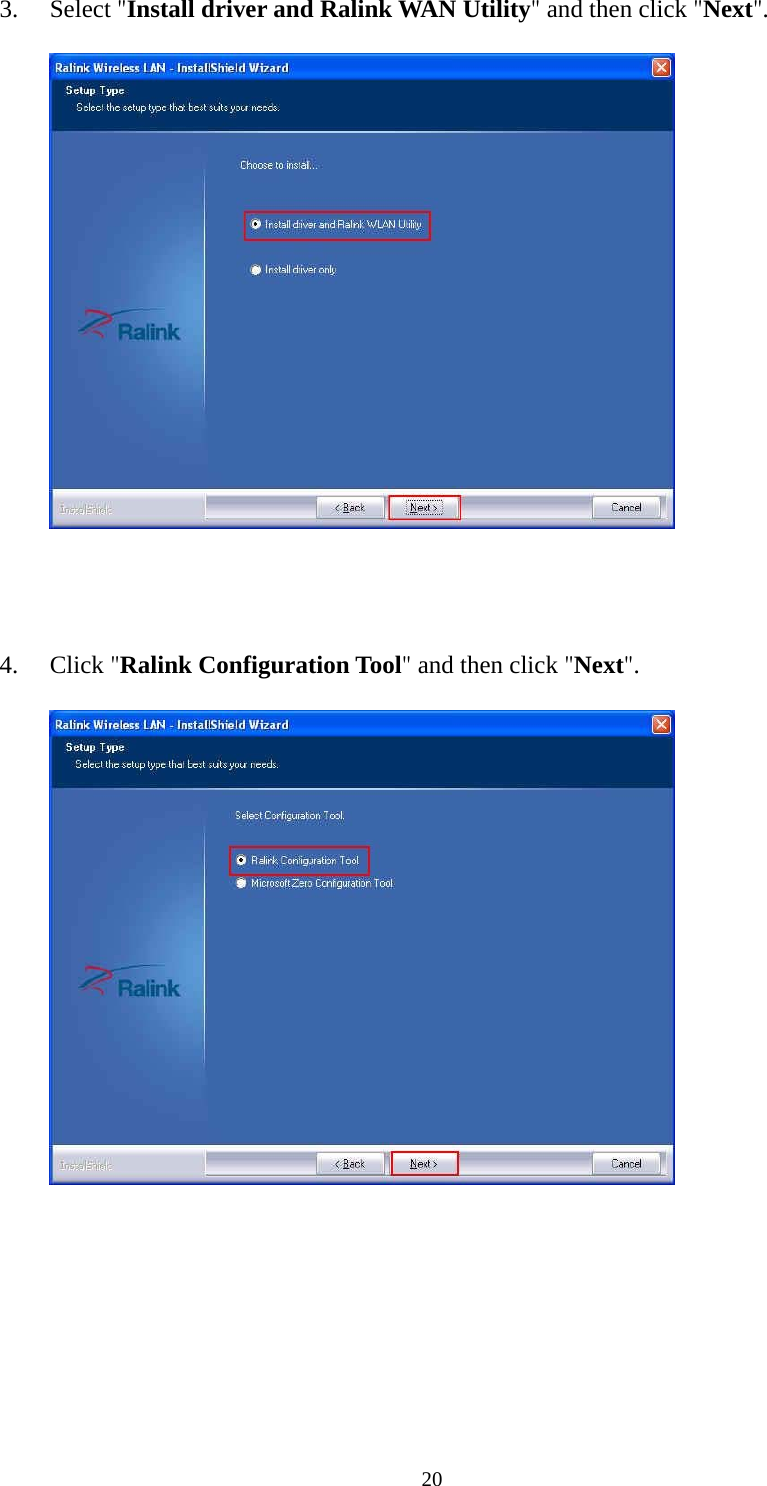
 203. Select "Install driver and Ralink WAN Utility" and then click "Next".          4. Click "Ralink Configuration Tool" and then click "Next".
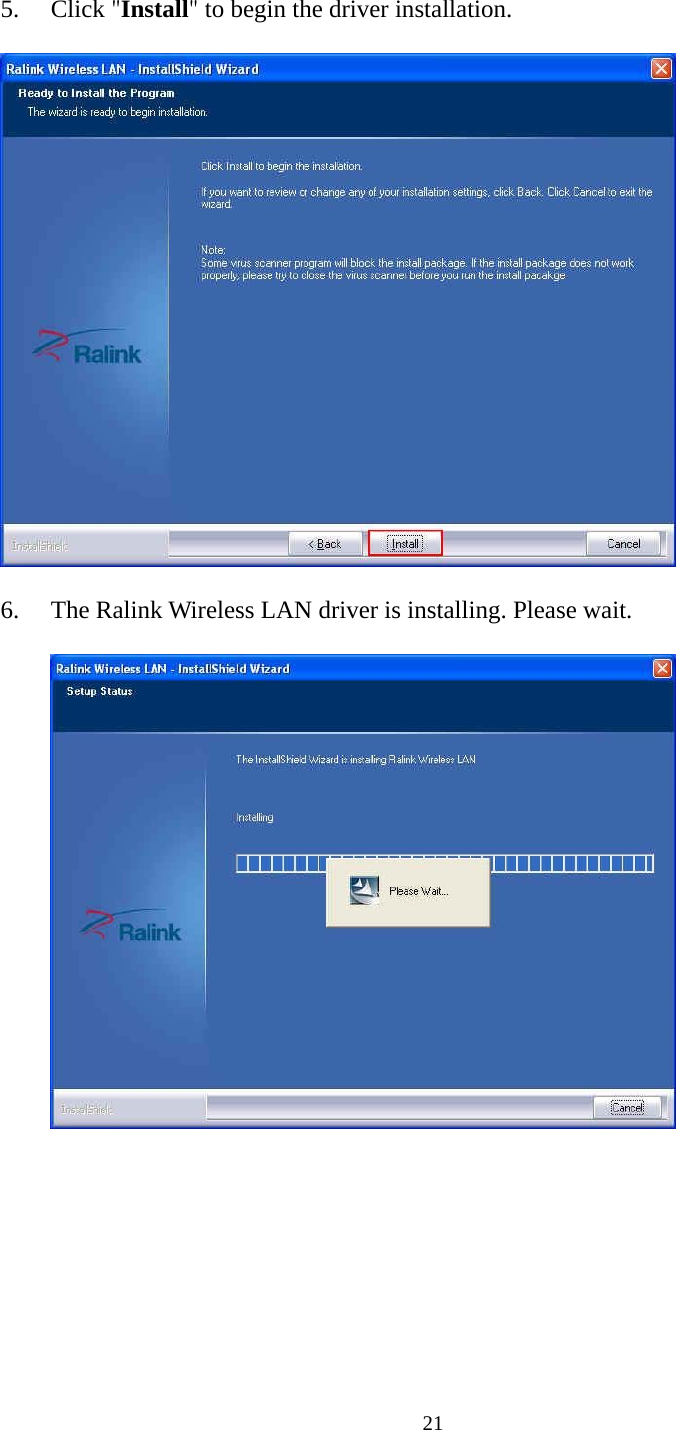
 21 5. Click "Install" to begin the driver installation.  6. The Ralink Wireless LAN driver is installing. Please wait.
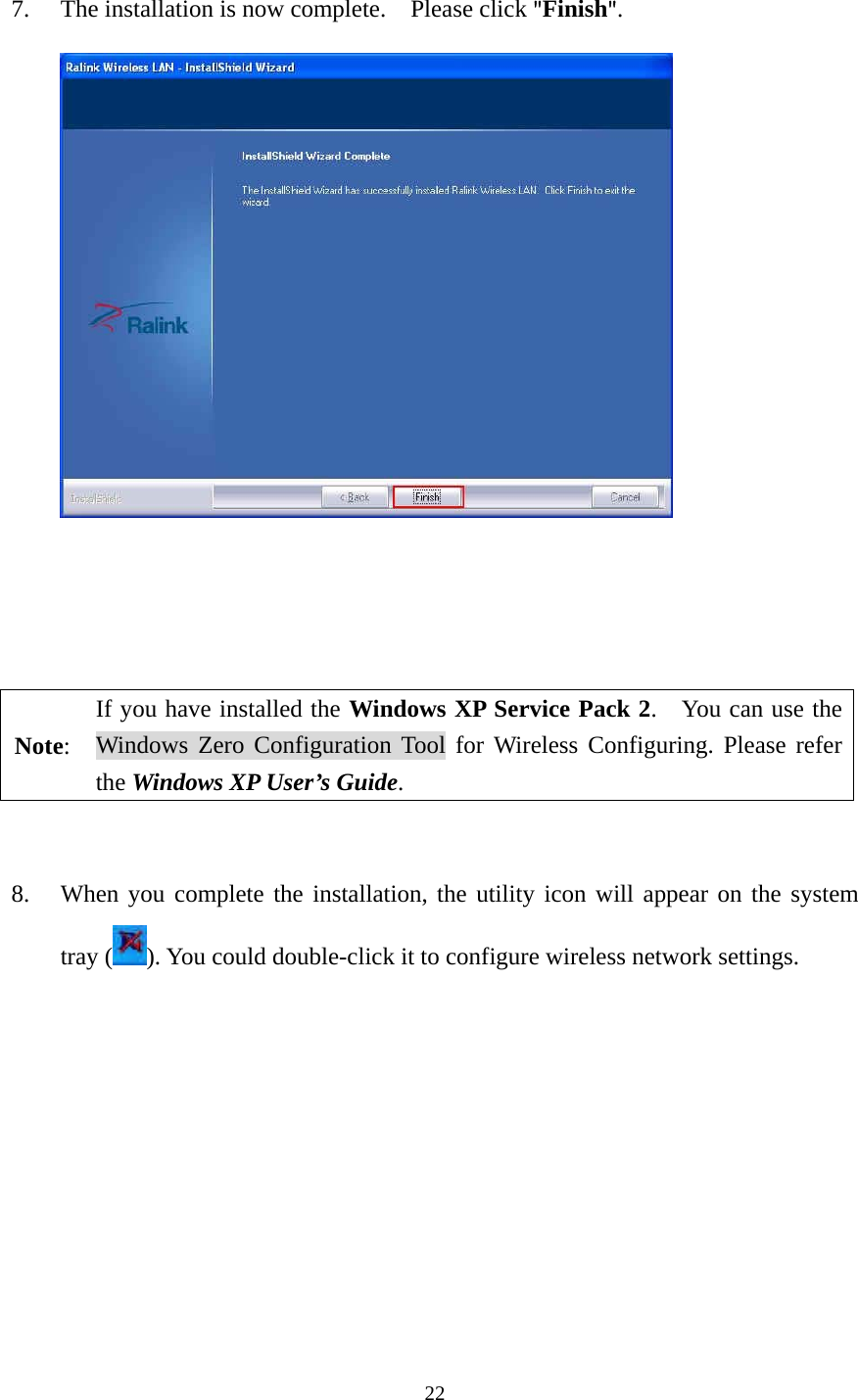
 22 7. The installation is now complete.    Please click "Finish".              Note: If you have installed the Windows XP Service Pack 2.    You can use the Windows Zero Configuration Tool for Wireless Configuring. Please refer the Windows XP User’s Guide.   8. When you complete the installation, the utility icon will appear on the system tray ( ). You could double-click it to configure wireless network settings.
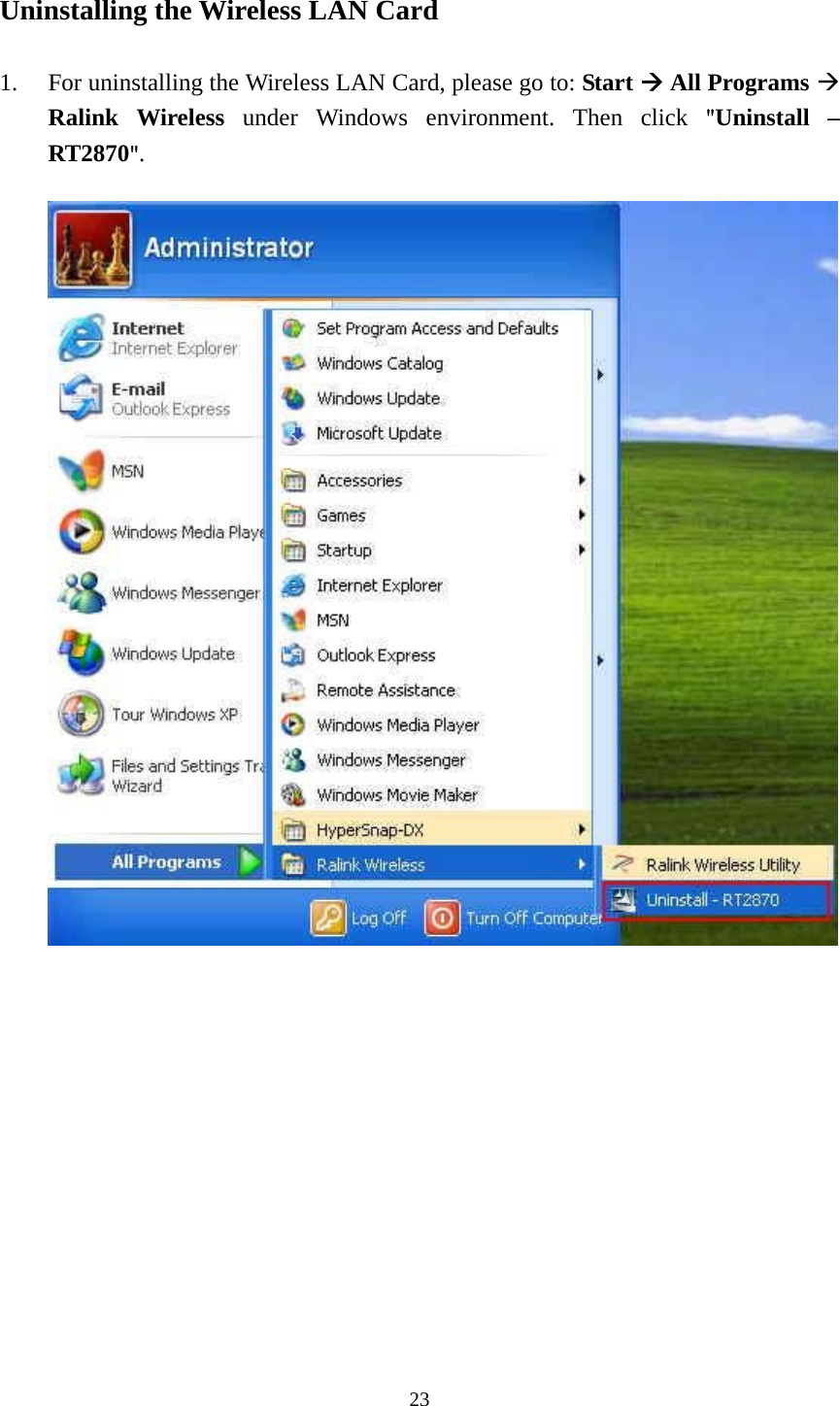
 23 Uninstalling the Wireless LAN Card  1. For uninstalling the Wireless LAN Card, please go to: Start  All Programs  Ralink Wireless under Windows environment. Then click "Uninstall – RT2870".
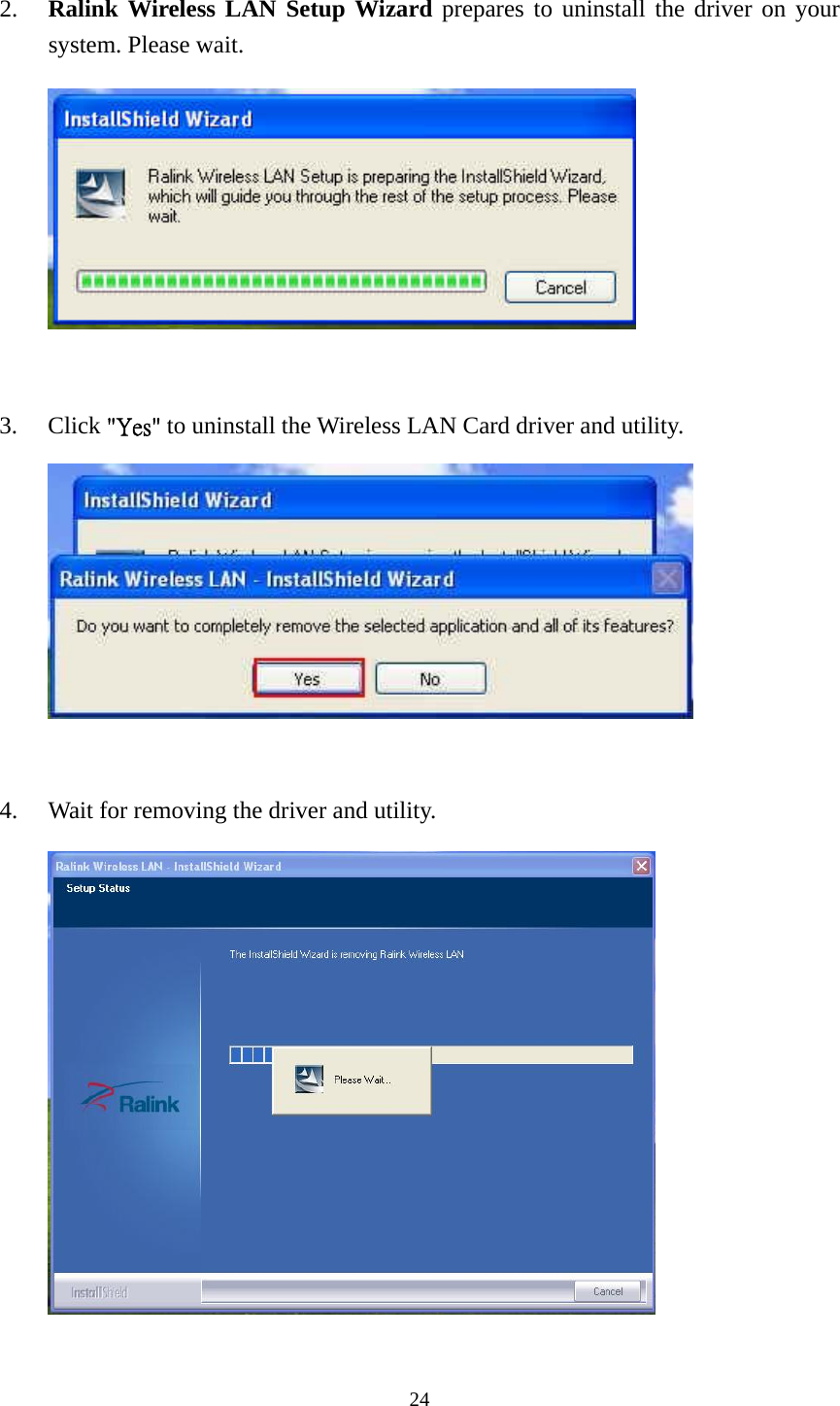
 24 2. Ralink Wireless LAN Setup Wizard prepares to uninstall the driver on your system. Please wait.         3. Click "Yes" to uninstall the Wireless LAN Card driver and utility.         4. Wait for removing the driver and utility.
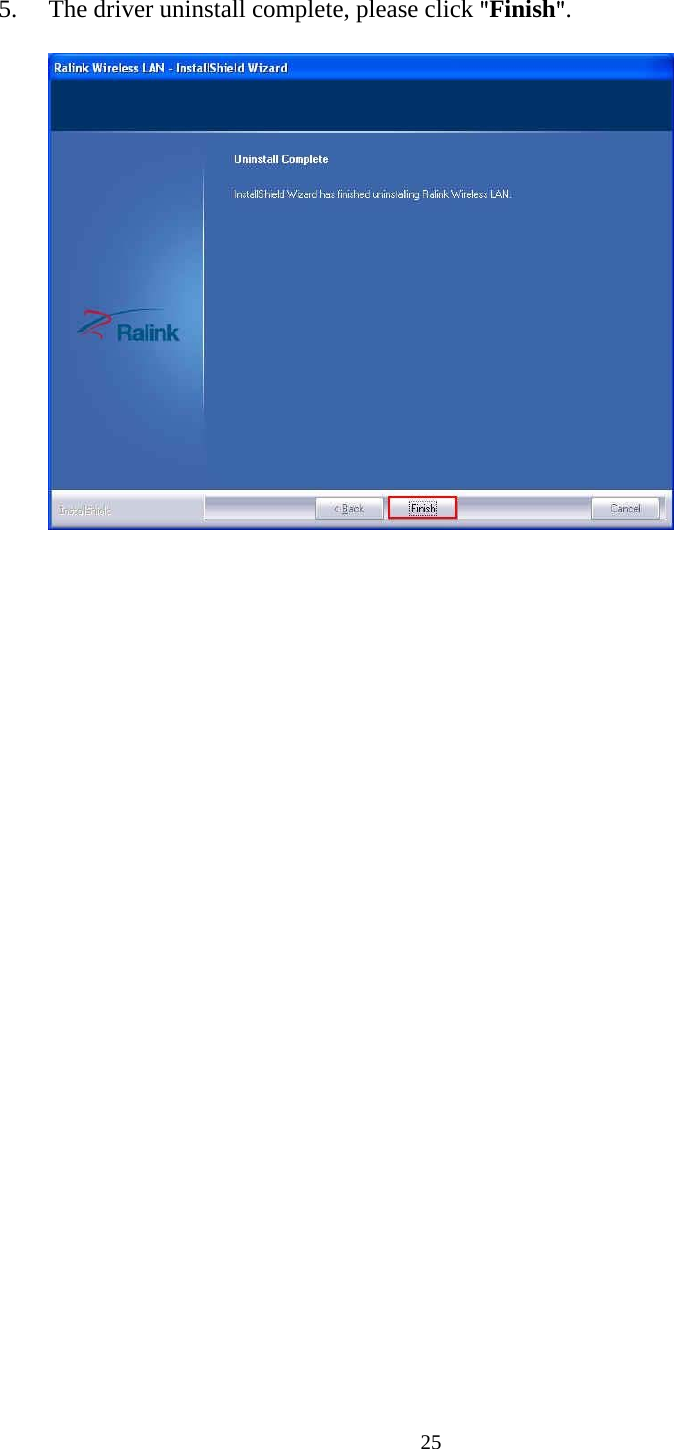
 25 5. The driver uninstall complete, please click "Finish".
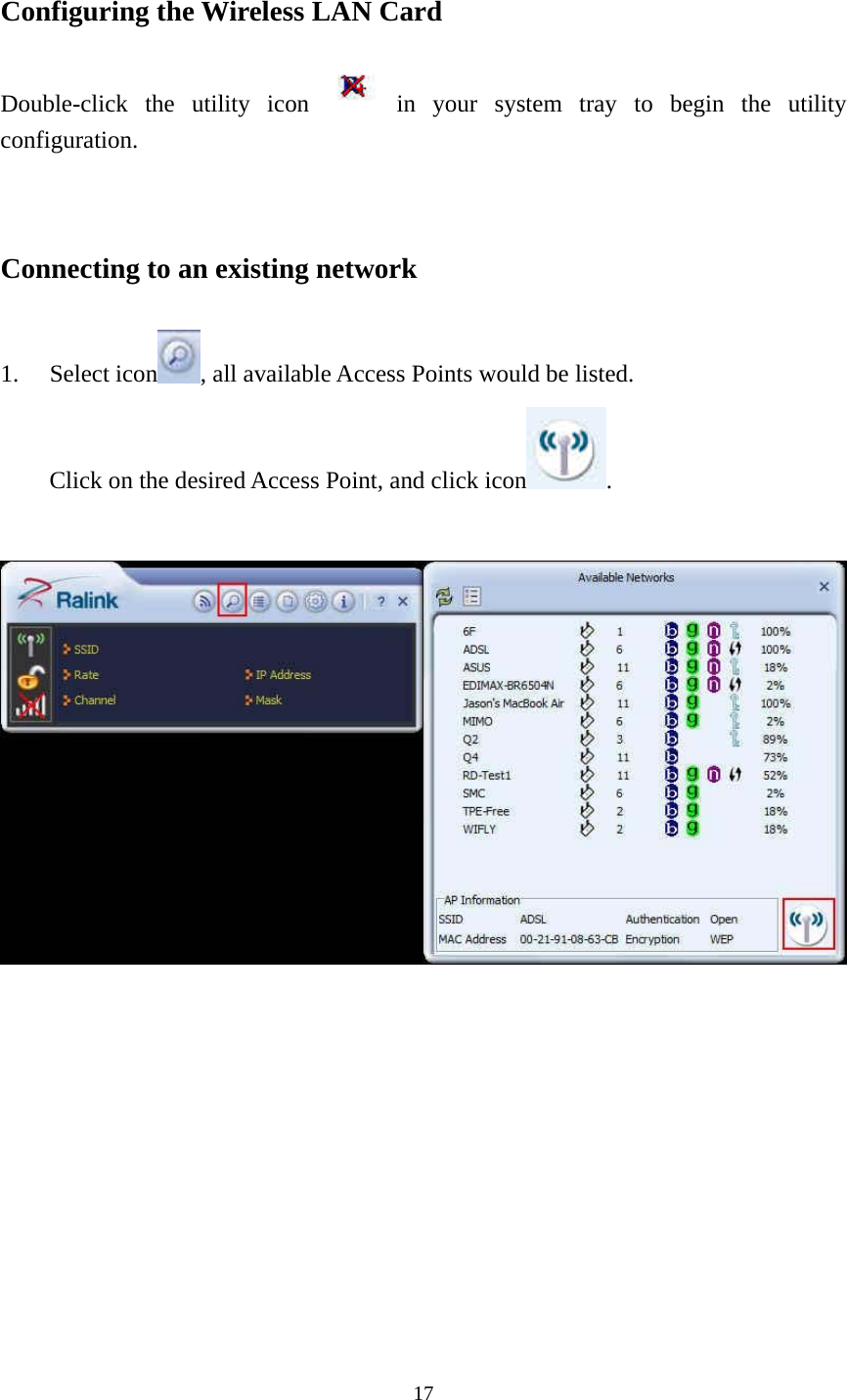
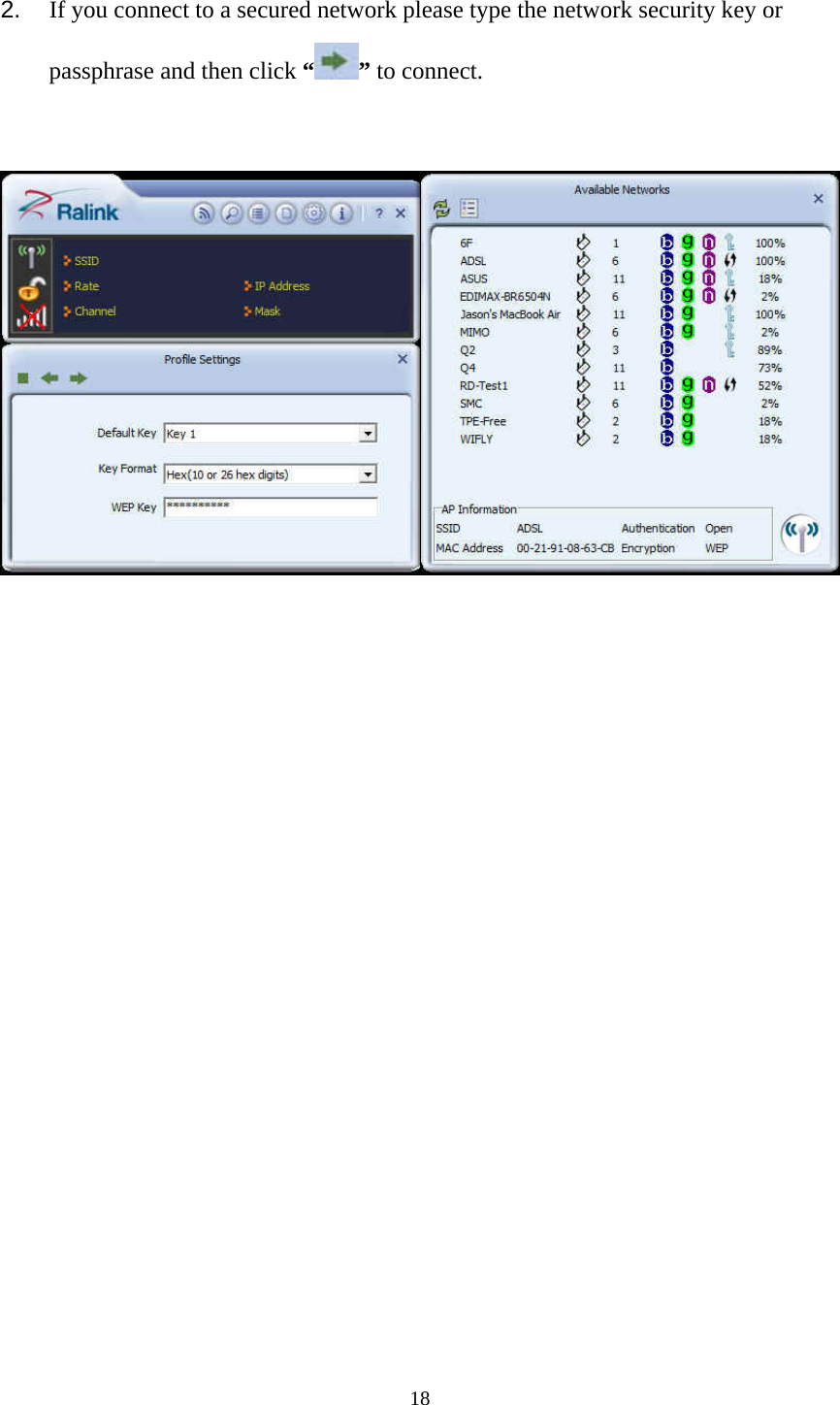
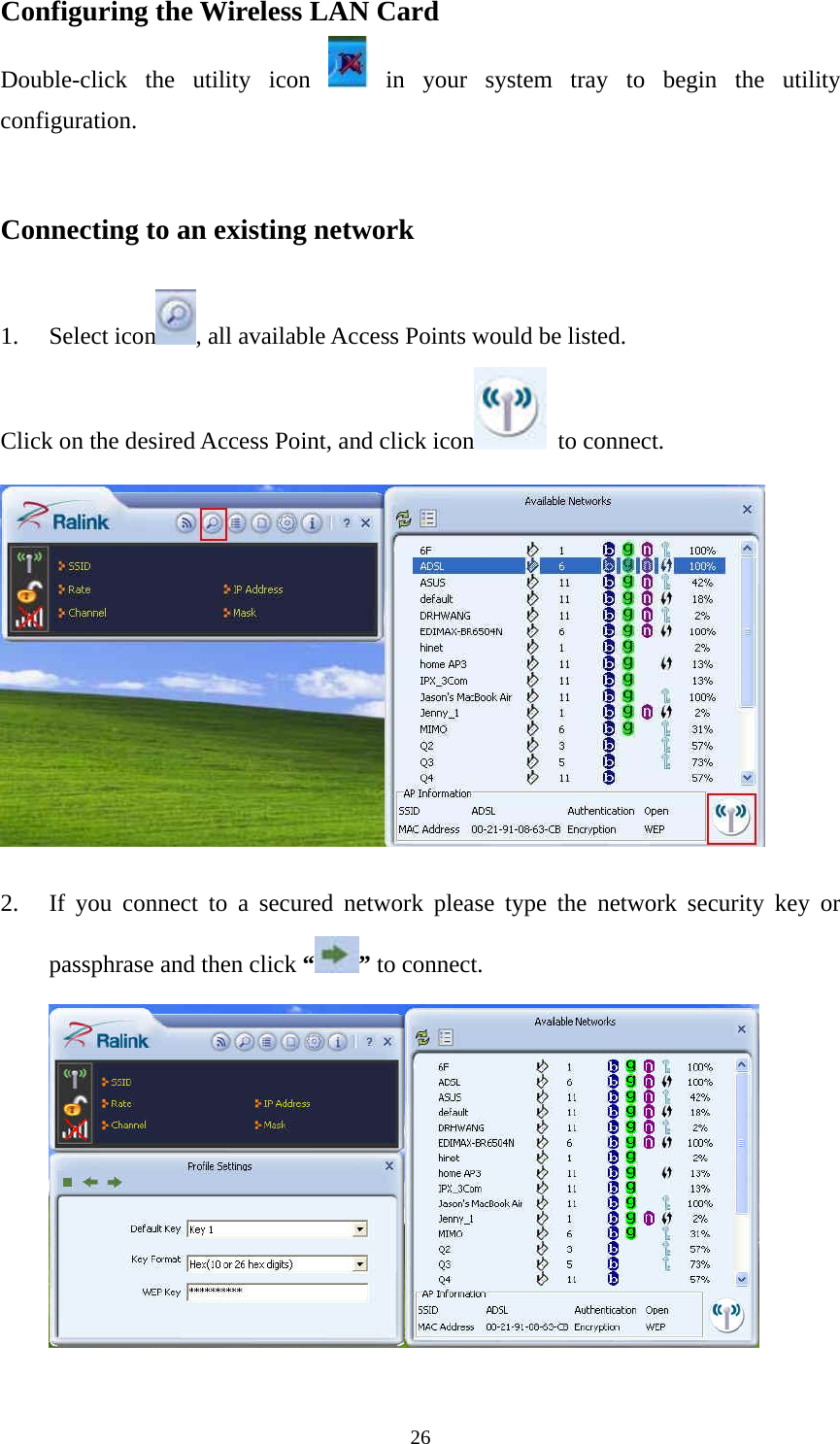
 26Configuring the Wireless LAN Card Double-click the utility icon   in your system tray to begin the utility configuration.   Connecting to an existing network  1. Select icon , all available Access Points would be listed. Click on the desired Access Point, and click icon  to connect.   2. If you connect to a secured network please type the network security key or passphrase and then click “ ” to connect.
Federal Communication Commission Interference Statement  This device complies with Part 15 of the FCC Rules. Operation is subject to the  following  two  conditions:  (1)  This  device  may  not  cause  harmful interference,  and  (2)  this  device  must  accept  any  interference  received, including interference that may cause undesired operation.  This  equipment  has  been  tested  and  found  to  comply  with  the  limits  for  a Class B digital device, pursuant to Part 15 of the FCC Rules.    These limits are designed to provide reasonable protection against harmful interference in a residential installation. This equipment generates, uses and can radiate radio frequency  energy  and,  if  not  installed  and  used  in  accordance  with  the instructions,  may  cause  harmful  interference  to  radio  communications.   However, there is no guarantee that interference will not occur in a particular installation.    If  this  equipment  does  cause  harmful  interference  to  radio  or television  reception, which  can  be  determined by  turning the equipment  off and on, the user is encouraged to try to correct the interference by one of the following measures:  -  Reorient or relocate the receiving antenna. -  Increase the separation between the equipment and receiver. -  Connect the equipment into an outlet on a circuit different from that to which the receiver is connected. -  Consult the dealer or an experienced radio/TV technician for help.  FCC  Caution:  Any changes or  modifications  not  expressly approved  by  the party responsible for compliance could void the user's authority to operate this equipment.  This transmitter must not be co-located or operating in conjunction with any other antenna or transmitter.
 Radiation Exposure Statement: This equipment complies with FCC radiation exposure limits set forth for an uncontrolled  environment.  This  equipment  should  be  installed  and  operated with minimum distance 20cm between the radiator & your body.  Note:  The  country  code  selection  is  for  non-US  model  only  and  is  not available to all US model. Per FCC regulation, all WiFi product marketed in US must fixed to US operation channels only.  This device is intended only for OEM integrators under the following conditions:  1) The antenna must be installed such that 20 cm is maintained between the antenna and users, and   2) The transmitter module may not be co-located with any other transmitter or antenna.     As long as 2 conditions above are met, further transmitter test will not be required. However, the OEM integrator is still responsible for testing their end-product for any additional compliance requirements required with this module installed                IMPORTANT NOTE: In the event that these conditions can not be met (for         example certain laptop configurations or co-location with another transmitter),         then the FCC authorization is no longer considered valid and the FCC ID  cannot be used on the final product. In these circumstances, the OEM integrator will be responsible for re-evaluating the end product (including the transmitter) and obtaining a separate FCC authorization.  End Product Labeling This transmitter module is authorized only for use in device where the antenna may be installed such that 20 cm may be maintained between the antenna and users. The final end product must be labeled in a visible area with the following: “Contains FCC ID: RUJ-LR802UKN2-B”. The grantee's FCC ID can be used only when all FCC compliance requirements are met.
Manual Information To the End User The OEM integrator has to be aware not to provide information to the end user regarding how to install or remove this RF module in the user’s manual of the end product which integrates this module. The end user manual shall include all required regulatory information/warning as show in this manual.

Navigation menu