Qcom Technology LR802URN3 802.11b/g/n Wireless USB Module User Manual LR802URN3 Manual

Qcom Technology Inc. 802.11b/g/n Wireless USB Module LR802URN3 Manual

User Manual

    802.11 b/ g/ n Wireless USB Module  LR802UKN3  User’s Manual         Qcom Technology Inc
 2I nst a lla t ion I nst ruct ions  **End Product Labeling: The Final end product label must contain the following statement on the product label: “Contains FCC ID: RUJ-LR802URN3  ** End Product user’s manual: The end product user manual must contain the following statements;  For Customers in the United States  "IMPORTANT NOTE: To comply with FCC RF exposure compliance requirements, the antenna used for this transmitter must be installed to provide a separation distance of at least 20 cm from all persons and must not be co-located or operating in conjunction with any other antenna or transmitter."  A statement to caution the user that changes or modifications not expressly appproved by Appro could void the user’s authority to operate the equipment. (Reference FCC Title 47 Section 15.21)  This device complies with part 15 of the FCC Rules. Operation is subject to the following two conditions: (1) This device may not cause harmful interference, and (2) this device must accept any interference received, including interference that may cause undesired operation.  “This equipment has been tested and found to comply with the limits for a Class B digital device, pursuant to Part 15 of the FCC rules. These limits are designed to provide reasonable protection against harmful interference in a residential installation. This equipment generates, uses, and can radiate radio frequency energy and, if not installed and used in accordance with the instructions, may cause harmful interference to radio communications. However, there is no guarantee that interference will not occur in a particular installation. If this equipment does cause harmful interference to radio or television reception, which can be determined by turning the equipment off and on, the user is encouraged to try to correct the interference by one or more of the following measures: • Reorient or relocate the receiving antenna. • Increase the separation between the equipment and receiver. • Connect the equipment into an outlet on a circuit different from that to which the receiver is connected. • Consult the dealer or an experienced radio/TV technician for help.” (Reference FCC Title 47 Section 15.105)
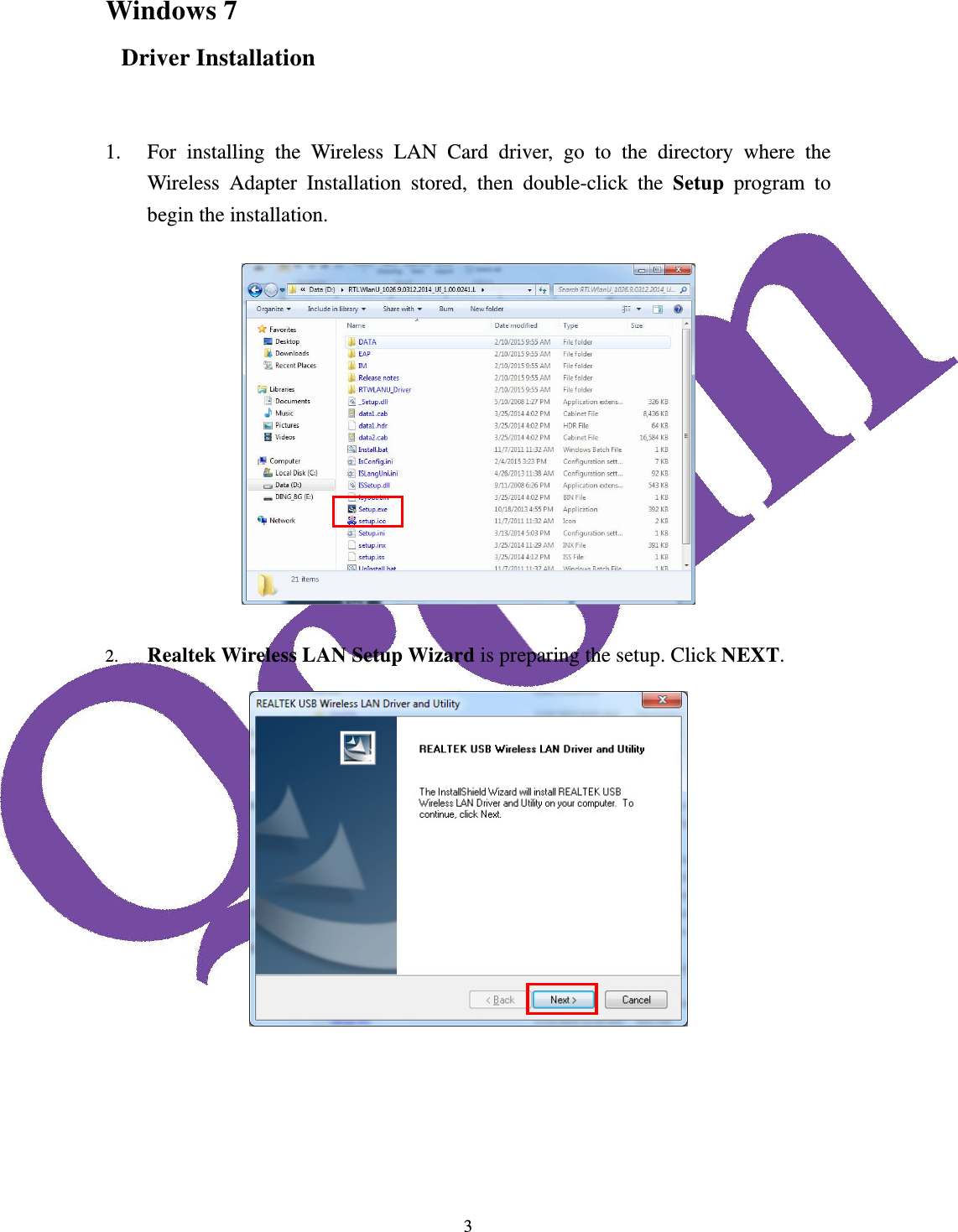
 3Windows 7 Driver Installation   1. For installing the Wireless LAN Card driver, go to the directory where the Wireless Adapter Installation stored, then double-click the Setup  program to begin the installation.    2. Realtek Wireless LAN Setup Wizard is preparing the setup. Click NEXT.
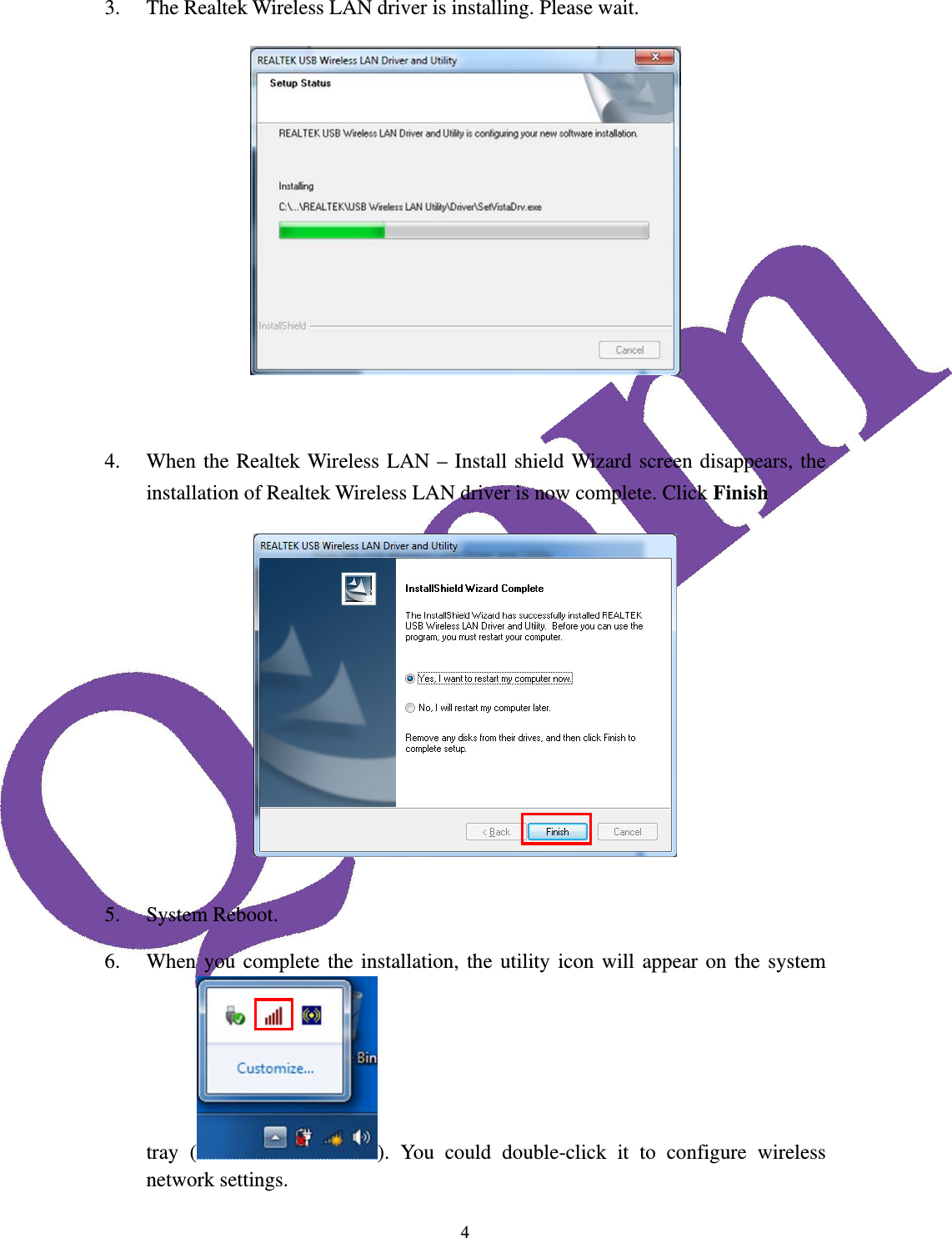
 43. The Realtek Wireless LAN driver is installing. Please wait.    4. When the Realtek Wireless LAN – Install shield Wizard screen disappears, the installation of Realtek Wireless LAN driver is now complete. Click Finish   5. System Reboot. 6. When you complete the installation, the utility icon will appear on the system tray ( ). You could double-click it to configure wireless network settings.
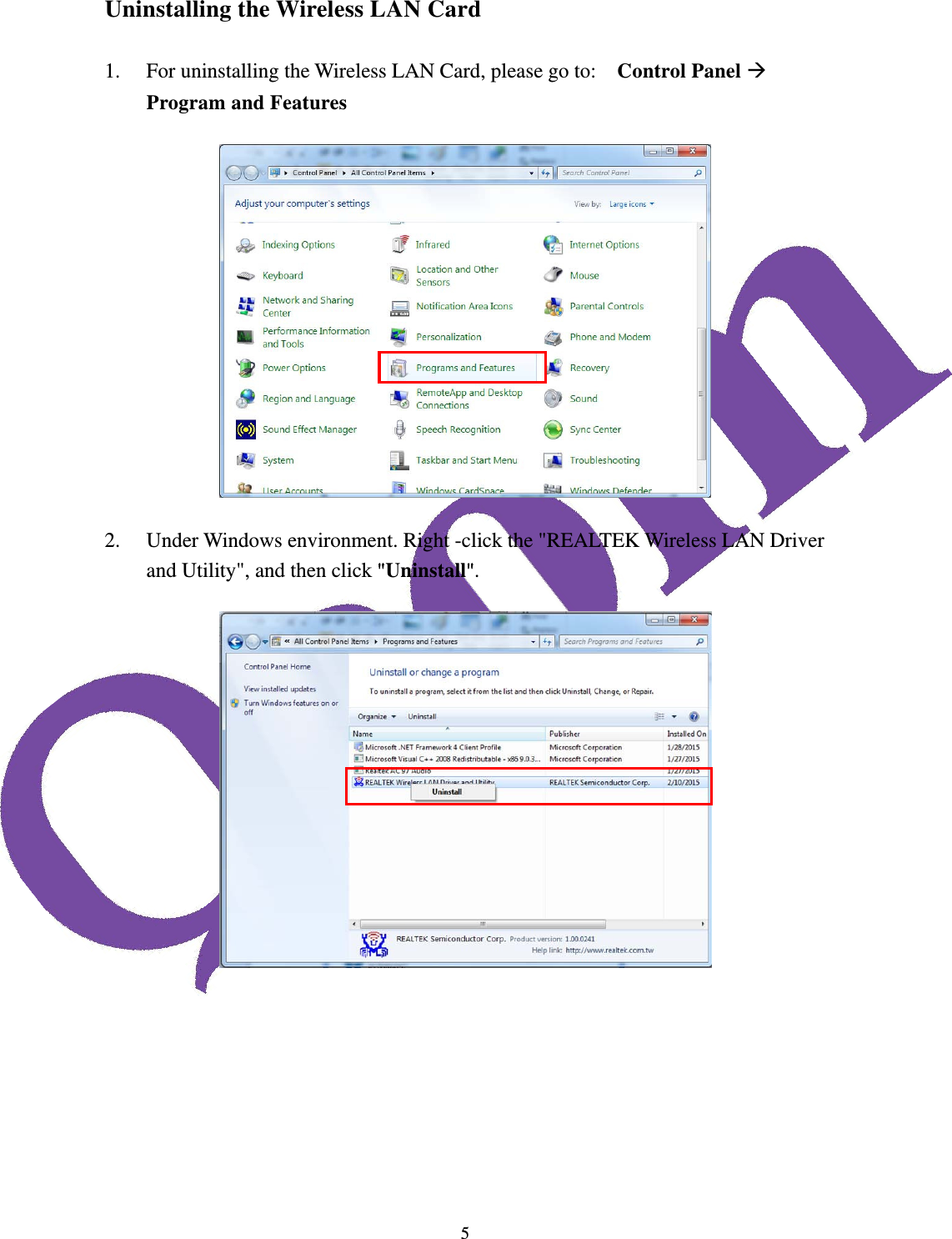
 5Uninstalling the Wireless LAN Card  1. For uninstalling the Wireless LAN Card, please go to:    Control Panel  Program and Features  2. Under Windows environment. Right -click the "REALTEK Wireless LAN Driver and Utility", and then click "Uninstall".
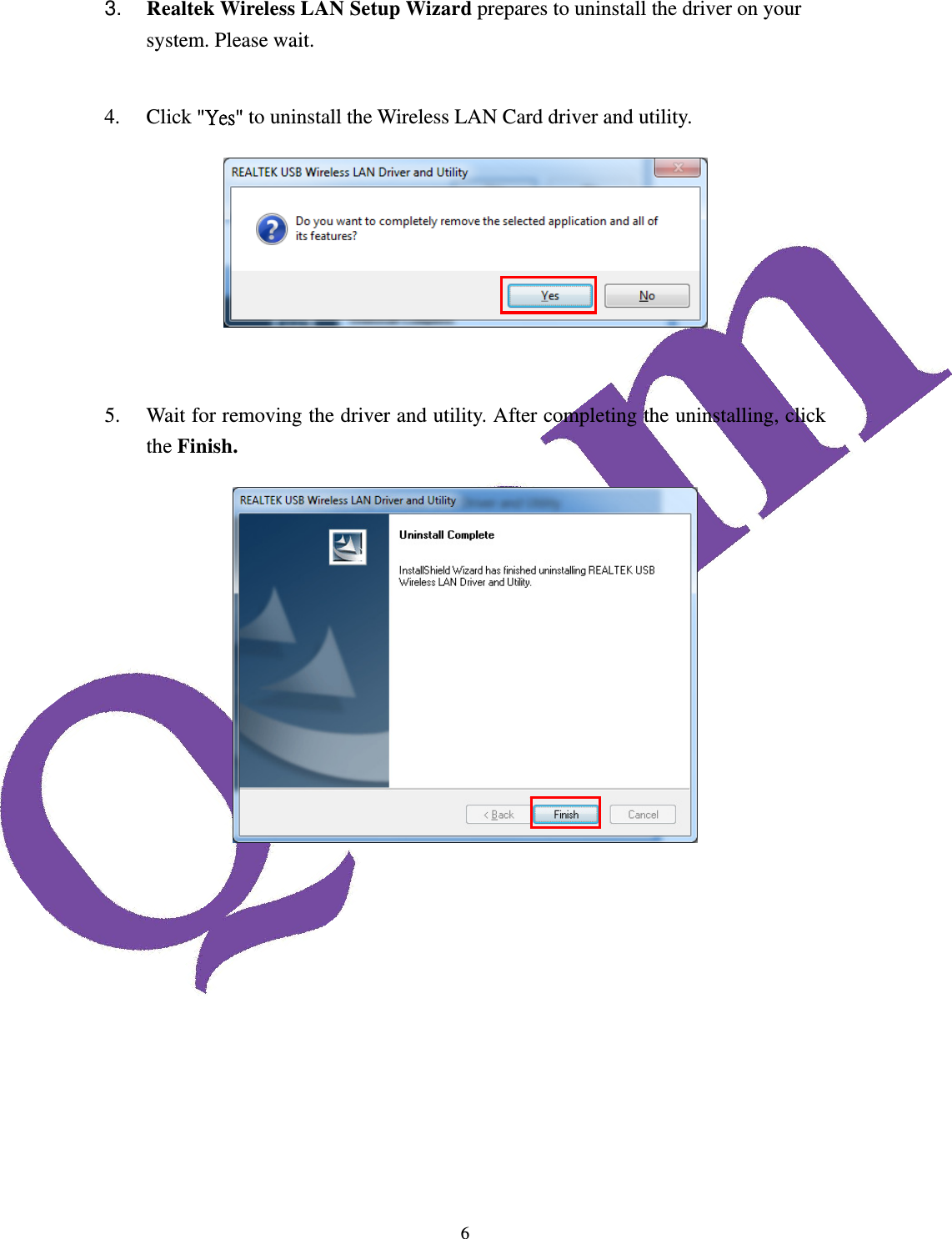
 63.  Realtek Wireless LAN Setup Wizard prepares to uninstall the driver on your system. Please wait.      4. Click "Yes" to uninstall the Wireless LAN Card driver and utility.    5. Wait for removing the driver and utility. After completing the uninstalling, click the Finish.
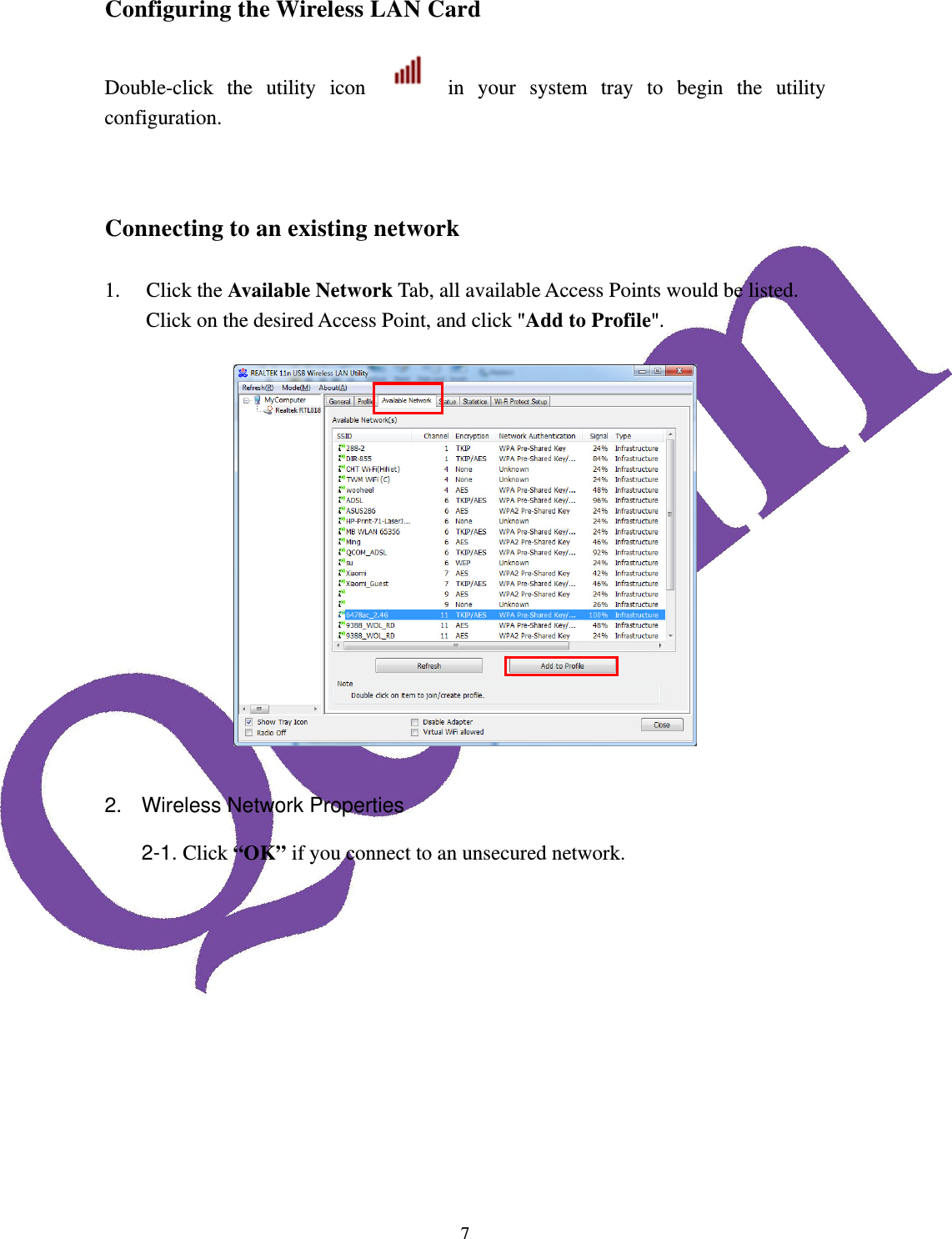
 7Configuring the Wireless LAN Card Double-click the utility icon   in your system tray to begin the utility configuration.   Connecting to an existing network  1. Click the Available Network Tab, all available Access Points would be listed. Click on the desired Access Point, and click "Add to Profile".   2.  Wireless Network Properties 2-1. Click “OK” if you connect to an unsecured network.
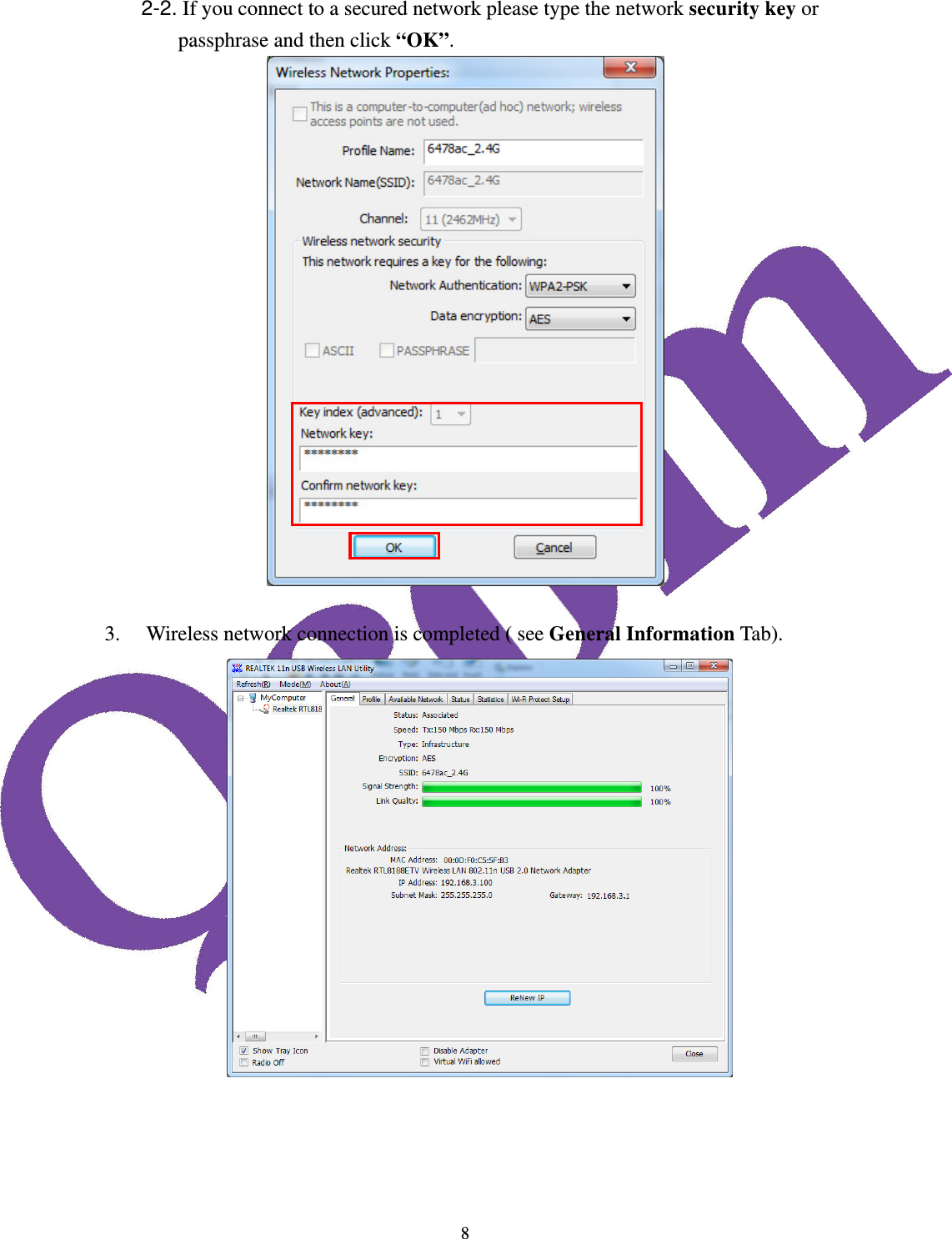
 82-2. If you connect to a secured network please type the network security key or passphrase and then click “OK”.   3. Wireless network connection is completed ( see General Information Tab).
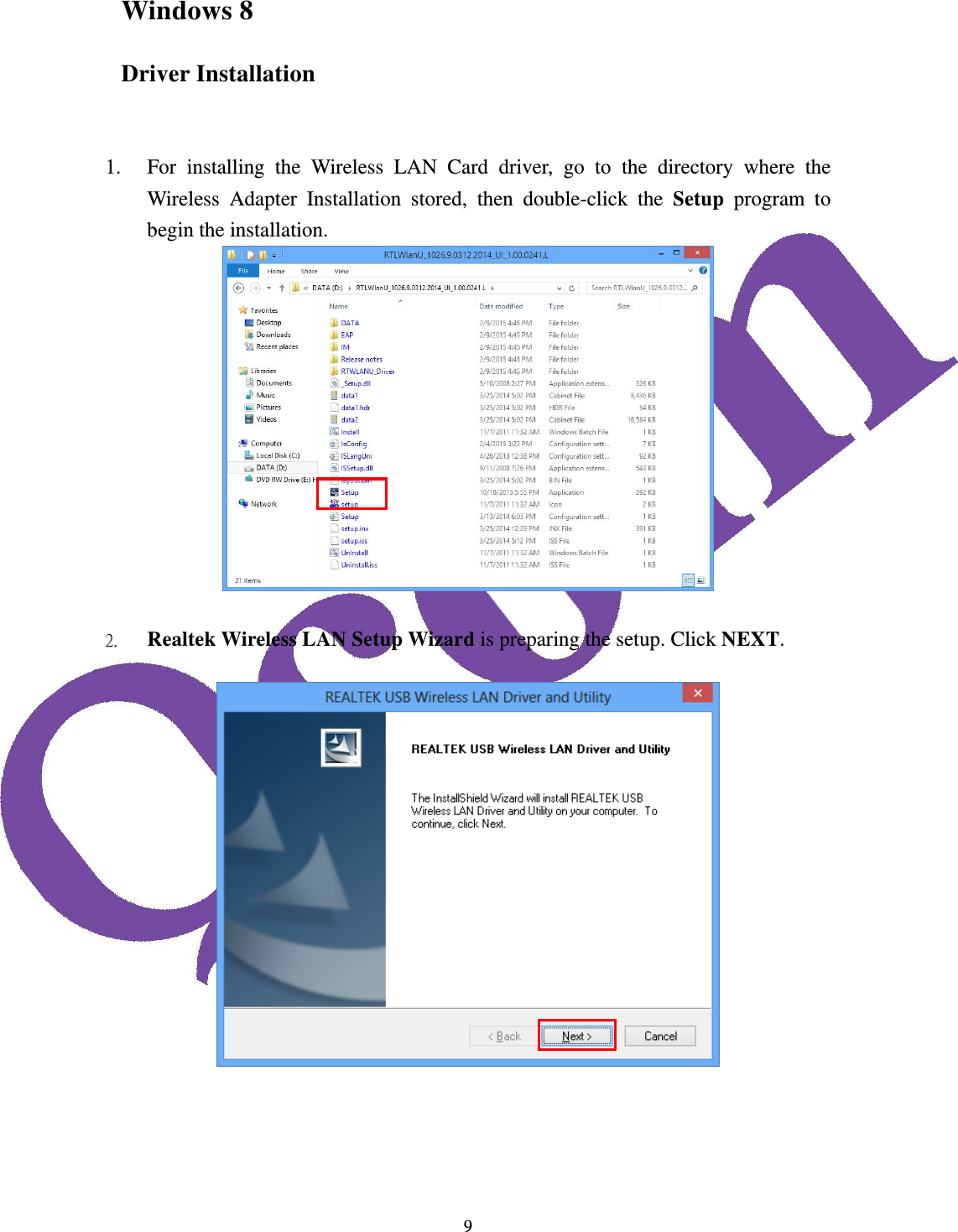
 9Windows 8 Driver Installation   1. For installing the Wireless LAN Card driver, go to the directory where the Wireless Adapter Installation stored, then double-click the Setup  program to begin the installation.   2. Realtek Wireless LAN Setup Wizard is preparing the setup. Click NEXT.
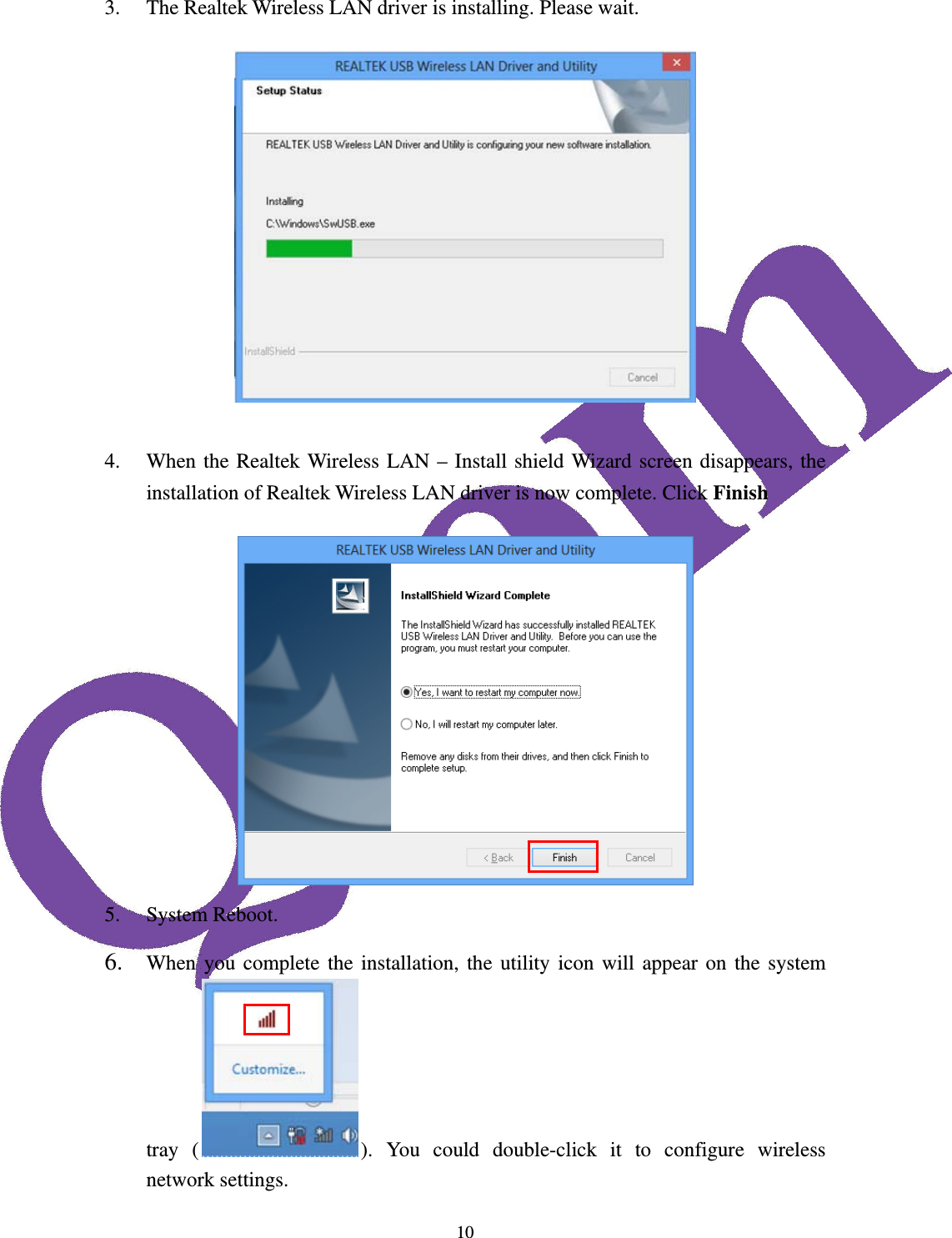
 103. The Realtek Wireless LAN driver is installing. Please wait.   4. When the Realtek Wireless LAN – Install shield Wizard screen disappears, the installation of Realtek Wireless LAN driver is now complete. Click Finish  5. System Reboot. 6. When you complete the installation, the utility icon will appear on the system tray ( ). You could double-click it to configure wireless network settings.
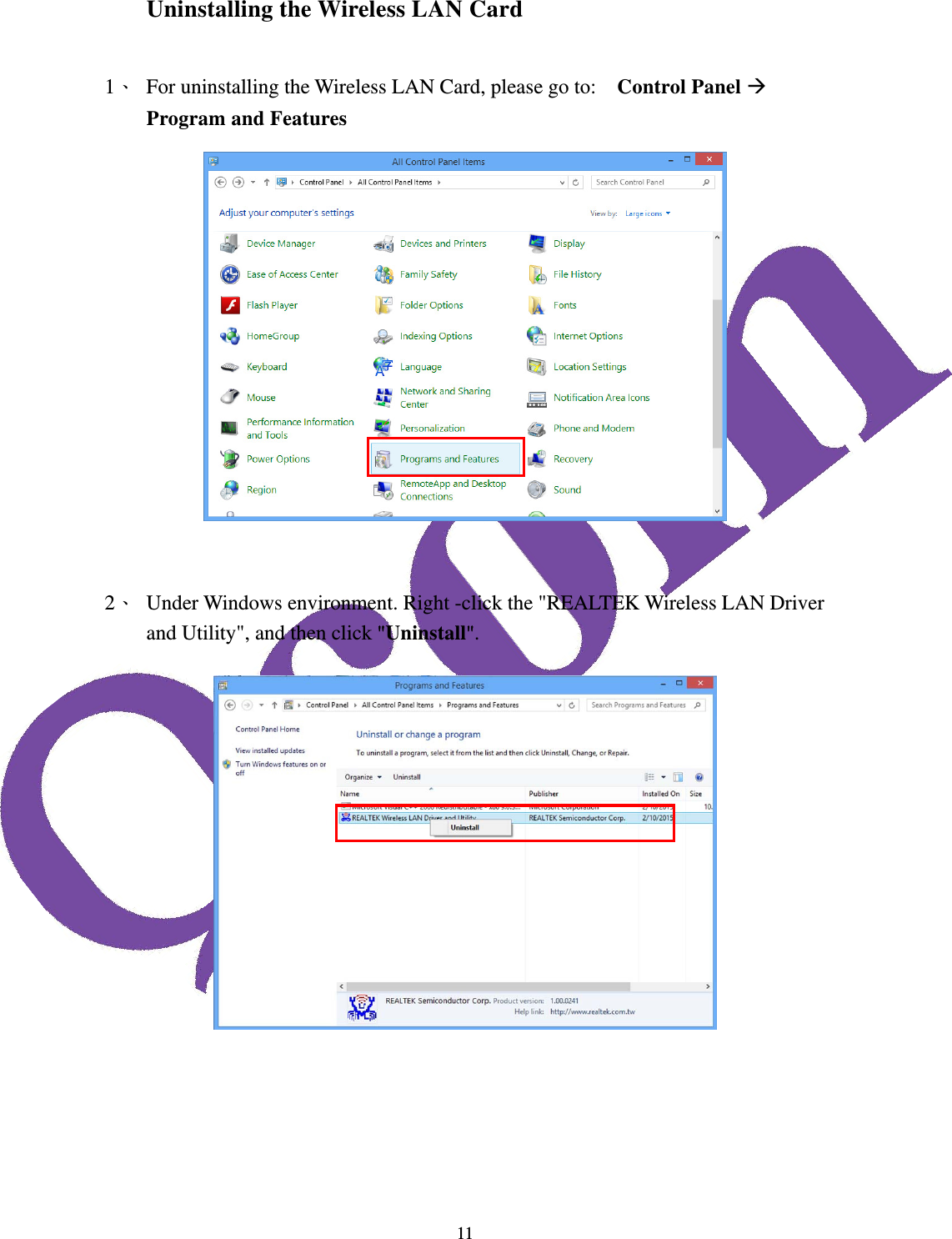
 11Uninstalling the Wireless LAN Card  1、 For uninstalling the Wireless LAN Card, please go to:    Control Panel  Program and Features   2、 Under Windows environment. Right -click the "REALTEK Wireless LAN Driver and Utility", and then click "Uninstall".
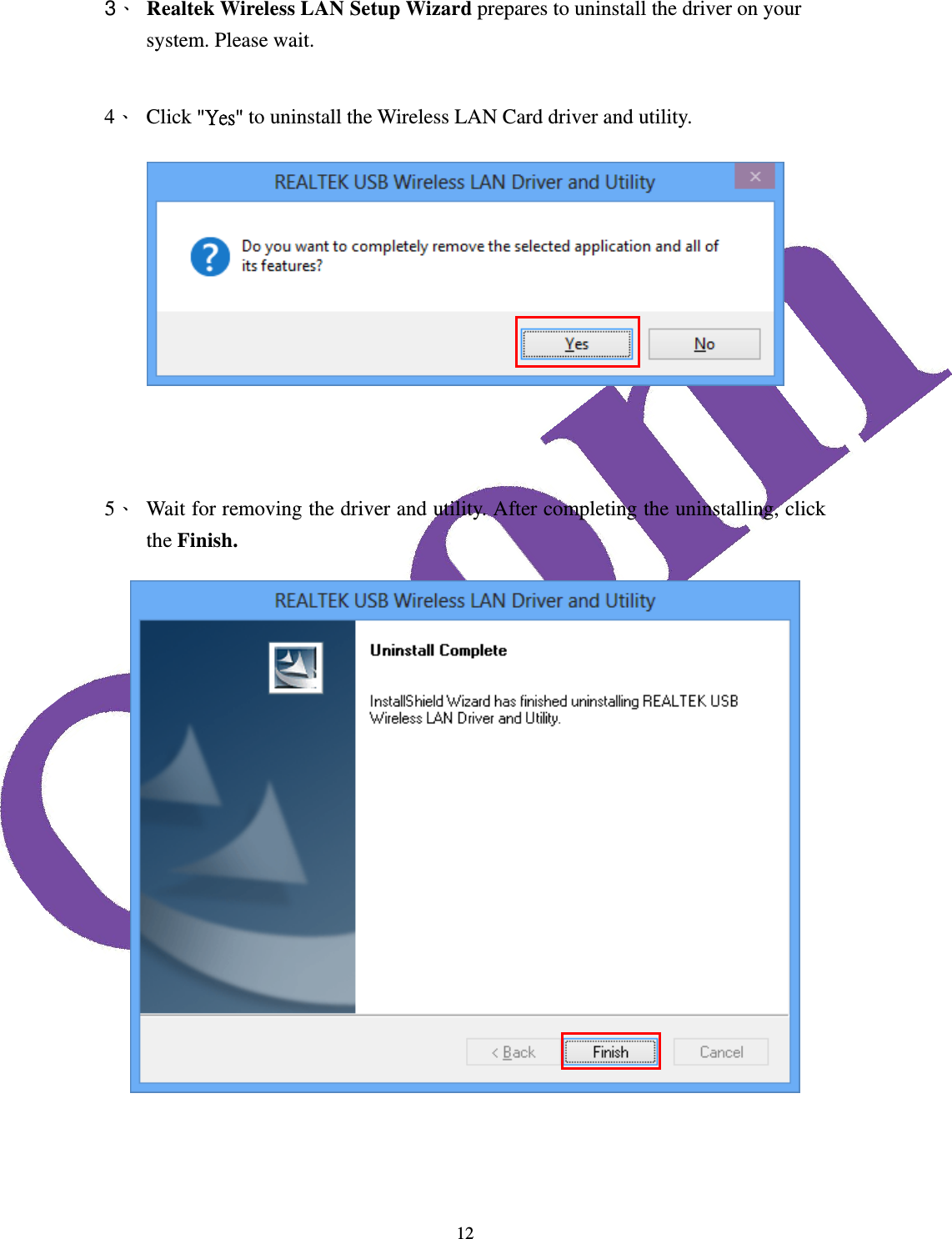
 123、 Realtek Wireless LAN Setup Wizard prepares to uninstall the driver on your system. Please wait.      4、 Click "Yes" to uninstall the Wireless LAN Card driver and utility.     5、 Wait for removing the driver and utility. After completing the uninstalling, click the Finish.
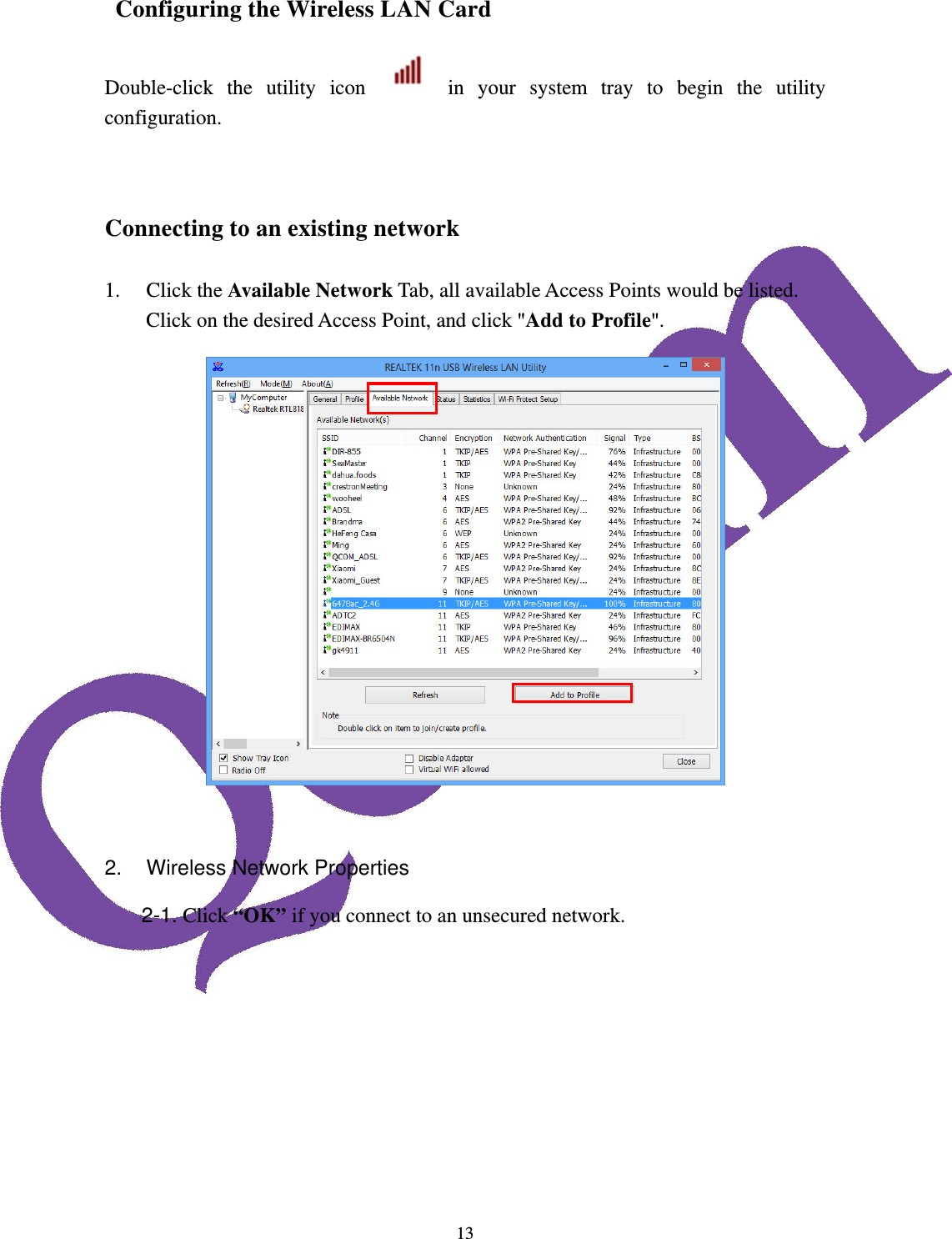
 13 Configuring the Wireless LAN Card Double-click the utility icon   in your system tray to begin the utility configuration.   Connecting to an existing network  1. Click the Available Network Tab, all available Access Points would be listed. Click on the desired Access Point, and click "Add to Profile".    2.  Wireless Network Properties 2-1. Click “OK” if you connect to an unsecured network.
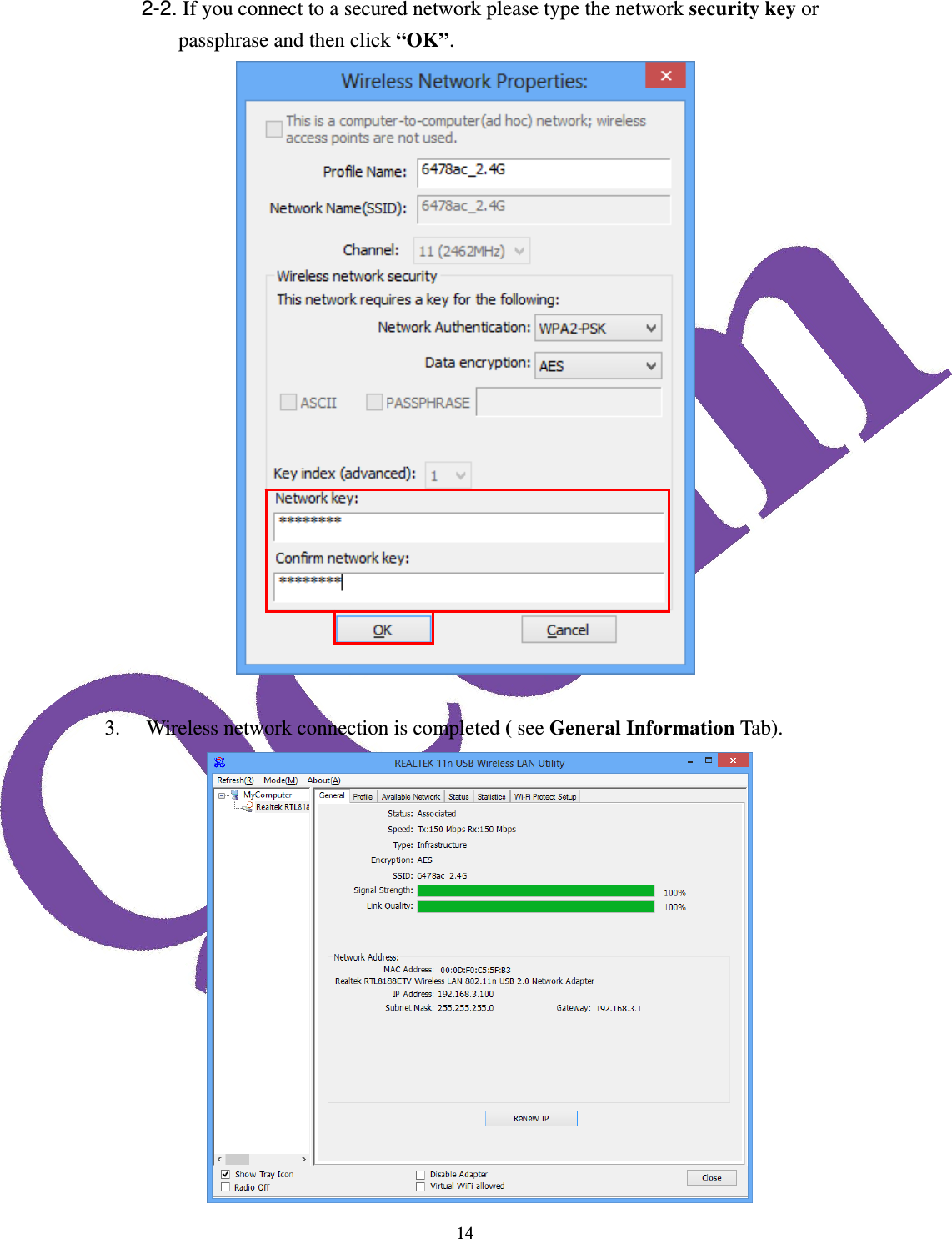
 142-2. If you connect to a secured network please type the network security key or passphrase and then click “OK”.   3. Wireless network connection is completed ( see General Information Tab).

Navigation menu