Quixant PLC Branch QM-133BD 13.3 LCD Touch Monitor User Manual QIG for QM 151BD

Quixant PLC Taiwan Branch 13.3 LCD Touch Monitor QIG for QM 151BD

User Manual

   QM-133BD User Manual ©  2018 Quixant Plc Page 1 of 16 PRIVATE AND CONFIDENTIAL COVERED BY QUIXANT NON-DISCLOSURE AGREEMENT While every effort has been made to ensure the accuracy of this document no liability of any kind can be accepted for any errors or omissions that may be contained herein.    QM-133BD User’s Manual Revision 1.1
   QM-133BD User Manual ©  2018 Quixant Plc Page 2 of 16 PRIVATE AND CONFIDENTIAL COVERED BY QUIXANT NON-DISCLOSURE AGREEMENT While every effort has been made to ensure the accuracy of this document no liability of any kind can be accepted for any errors or omissions that may be contained herein.    Revision History  Revision Date Description By 1.0 2018/08/15 First Release Jerry Tsai 1.1 2018/08/31 Adding wireless charging function Jerry Tsai
   QM-133BD User Manual ©  2018 Quixant Plc Page 3 of 16 PRIVATE AND CONFIDENTIAL COVERED BY QUIXANT NON-DISCLOSURE AGREEMENT While every effort has been made to ensure the accuracy of this document no liability of any kind can be accepted for any errors or omissions that may be contained herein.    Contents 1. QM-133BD Introduction…………………………..……………………………………………….4 2. QM-133BD Specification…………………………..……………………………………………….6 3. Function Key & Input/Output…………………………………………………………………...7 4. QM-133BD Mounting Design……………………………………………..………………………8 5. QM-133BD OSD Menu…………………………………………………………..……………………9 6. Touch Function Installation……………………………………………..……………………...15 7. Wireless Charging function……………………………………………………………………...16
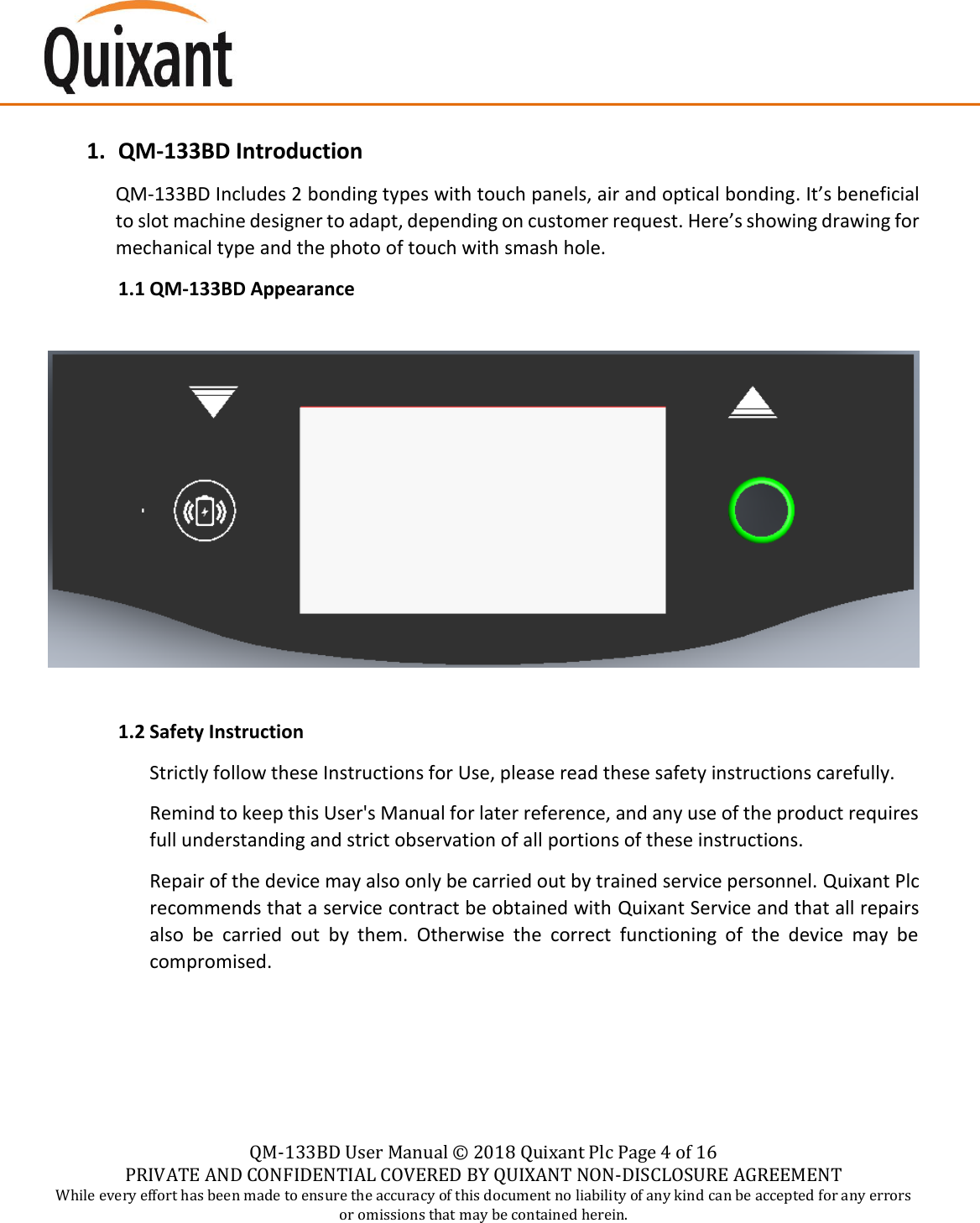
   QM-133BD User Manual ©  2018 Quixant Plc Page 4 of 16 PRIVATE AND CONFIDENTIAL COVERED BY QUIXANT NON-DISCLOSURE AGREEMENT While every effort has been made to ensure the accuracy of this document no liability of any kind can be accepted for any errors or omissions that may be contained herein.    1. QM-133BD Introduction QM-133BD Includes 2 bonding types with touch panels, air and optical bonding. It’s beneficial to slot machine designer to adapt, depending on customer request. Here’s showing drawing for mechanical type and the photo of touch with smash hole. 1.1 QM-133BD Appearance    1.2 Safety Instruction Strictly follow these Instructions for Use, please read these safety instructions carefully. Remind to keep this User's Manual for later reference, and any use of the product requires full understanding and strict observation of all portions of these instructions. Repair of the device may also only be carried out by trained service personnel. Quixant Plc recommends that a service contract be obtained with Quixant Service and that all repairs also  be  carried  out  by  them.  Otherwise  the  correct  functioning  of  the  device  may  be compromised.
QM-133BD User Manual ©  2018 Quixant Plc Page 5 of 16 PRIVATE AND CONFIDENTIAL COVERED BY QUIXANT NON-DISCLOSURE AGREEMENT While every effort has been made to ensure the accuracy of this document no liability of any kind can be accepted for any errors or omissions that may be contained herein. 1.3 RF Instruction This device complies with Part 15 of the FCC Rules. Operation is subject to the following two conditions:  (1) this device  may not cause harmful interference,  and  (2) this device  must accept  any  interference  received,  including  interference  that  may  cause  undesired operation. Any  changes  or  modifications  not  expressly  approved  by  the  party  responsible  forcompliance could void the authority to operate equipment.This device and its antenna must not be co-located or operating in conjunction with any other antenna or transmitter.RF Radiation Exposure Statement: This equipment complies with FCC radiation exposure limits set forth for an uncontrolled environment. This equipment should be installed and operated with minimum distance 20cm between the radiator & your body.
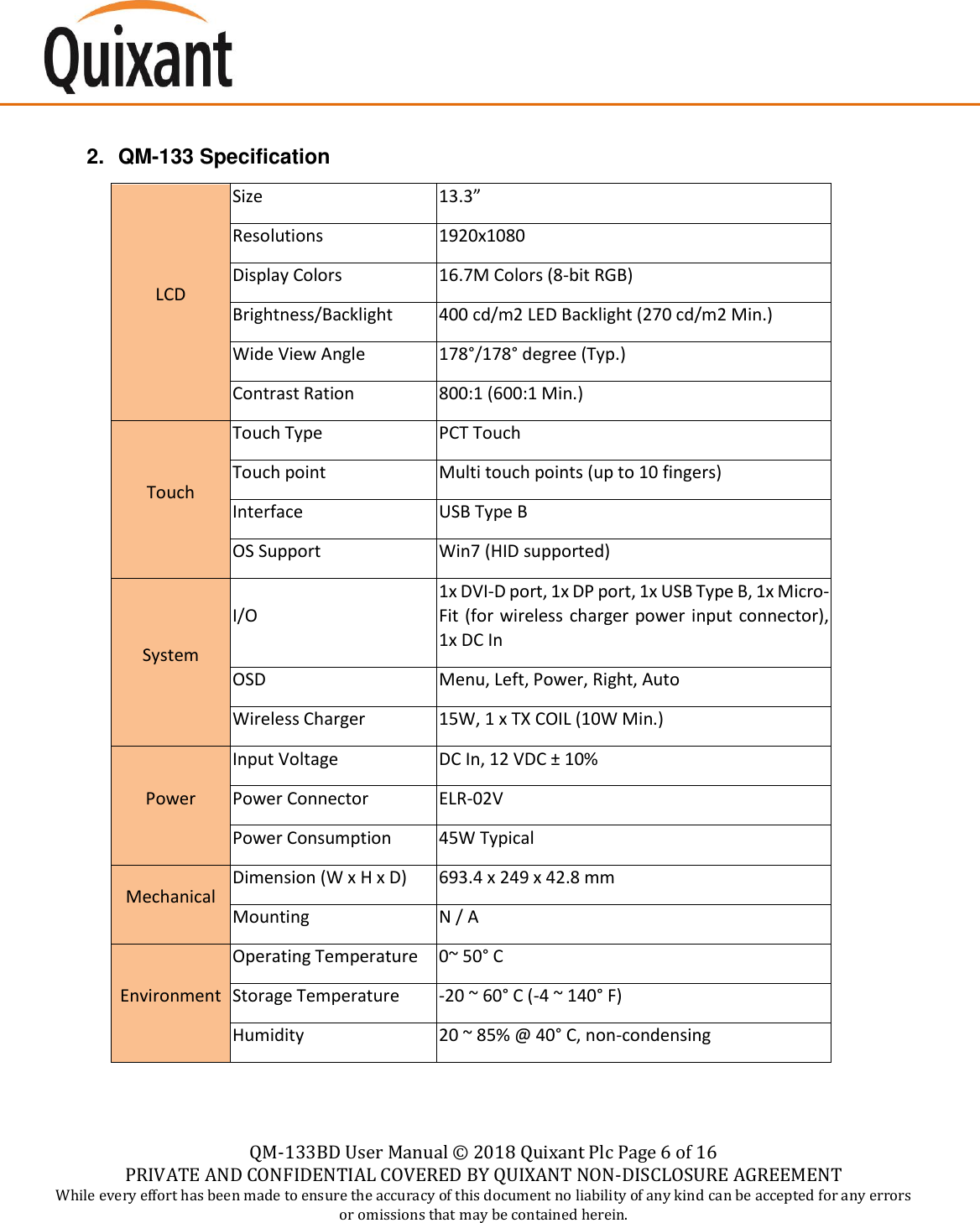
   QM-133BD User Manual ©  2018 Quixant Plc Page 6 of 16 PRIVATE AND CONFIDENTIAL COVERED BY QUIXANT NON-DISCLOSURE AGREEMENT While every effort has been made to ensure the accuracy of this document no liability of any kind can be accepted for any errors or omissions that may be contained herein.     2. QM-133 Specification LCD Size 13.3” Resolutions 1920x1080 Display Colors 16.7M Colors (8-bit RGB) Brightness/Backlight 400 cd/m2 LED Backlight (270 cd/m2 Min.) Wide View Angle 178°/178° degree (Typ.) Contrast Ration 800:1 (600:1 Min.) Touch Touch Type PCT Touch Touch point Multi touch points (up to 10 fingers) Interface USB Type B OS Support Win7 (HID supported) System I/O 1x DVI-D port, 1x DP port, 1x USB Type B, 1x Micro-Fit (for wireless charger power input connector), 1x DC In OSD Menu, Left, Power, Right, Auto Wireless Charger 15W, 1 x TX COIL (10W Min.) Power Input Voltage DC In, 12 VDC ± 10% Power Connector ELR-02V Power Consumption 45W Typical Mechanical Dimension (W x H x D) 693.4 x 249 x 42.8 mm Mounting N / A Environment Operating Temperature 0~ 50° C Storage Temperature -20 ~ 60° C (-4 ~ 140° F) Humidity 20 ~ 85% @ 40° C, non-condensing
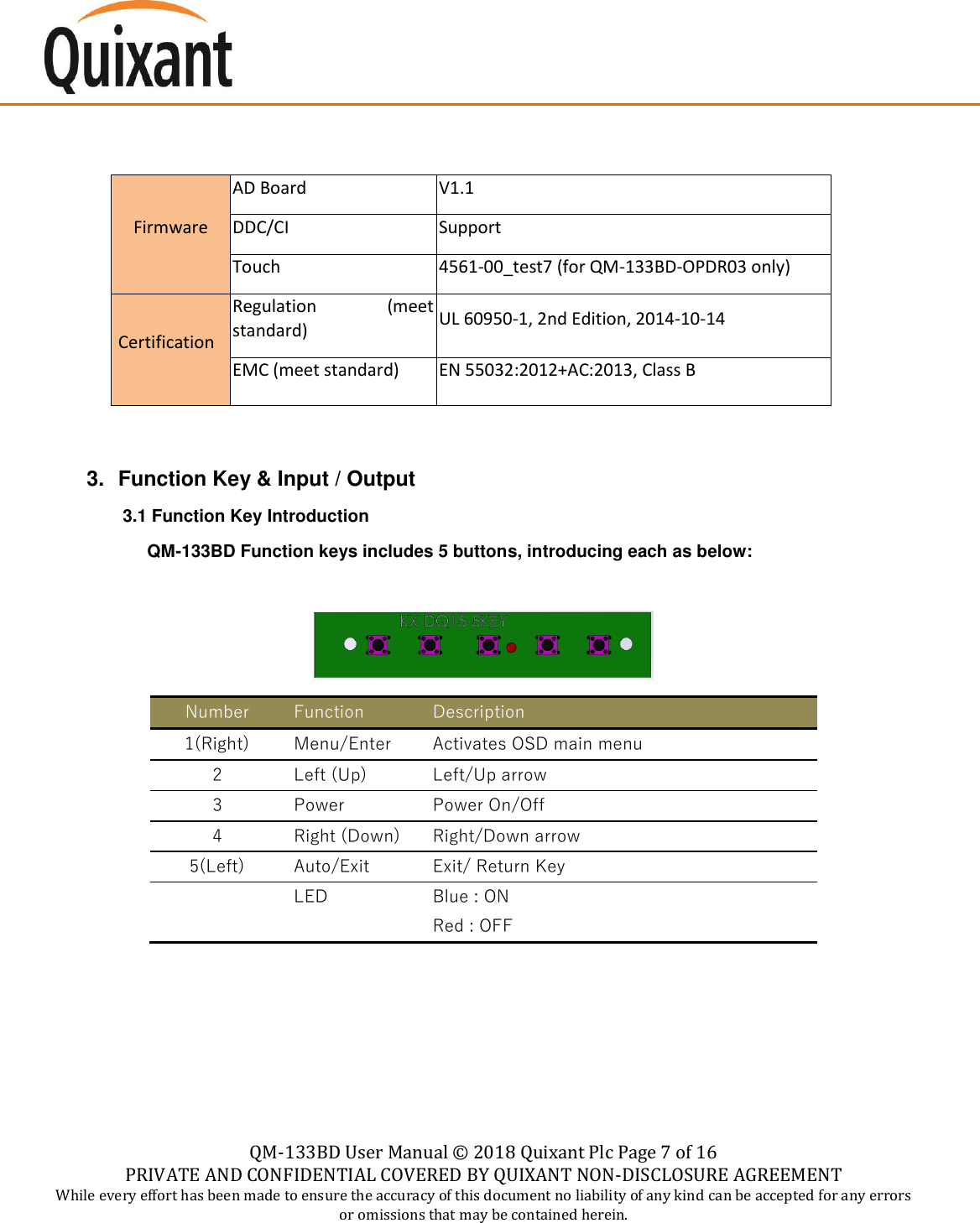
   QM-133BD User Manual ©  2018 Quixant Plc Page 7 of 16 PRIVATE AND CONFIDENTIAL COVERED BY QUIXANT NON-DISCLOSURE AGREEMENT While every effort has been made to ensure the accuracy of this document no liability of any kind can be accepted for any errors or omissions that may be contained herein.       Firmware AD Board V1.1 DDC/CI Support Touch 4561-00_test7 (for QM-133BD-OPDR03 only)  Certification Regulation  (meet standard) UL 60950-1, 2nd Edition, 2014-10-14 EMC (meet standard) EN 55032:2012+AC:2013, Class B   3.  Function Key & Input / Output 3.1 Function Key Introduction       QM-133BD Function keys includes 5 buttons, introducing each as below:   Number Function Description 1(Right) Menu/Enter Activates OSD main menu  2 Left (Up) Left/Up arrow 3 Power Power On/Off 4 Right (Down) Right/Down arrow 5(Left) Auto/Exit Exit/ Return Key  LED Blue : ON Red : OFF
   QM-133BD User Manual ©  2018 Quixant Plc Page 8 of 16 PRIVATE AND CONFIDENTIAL COVERED BY QUIXANT NON-DISCLOSURE AGREEMENT While every effort has been made to ensure the accuracy of this document no liability of any kind can be accepted for any errors or omissions that may be contained herein.
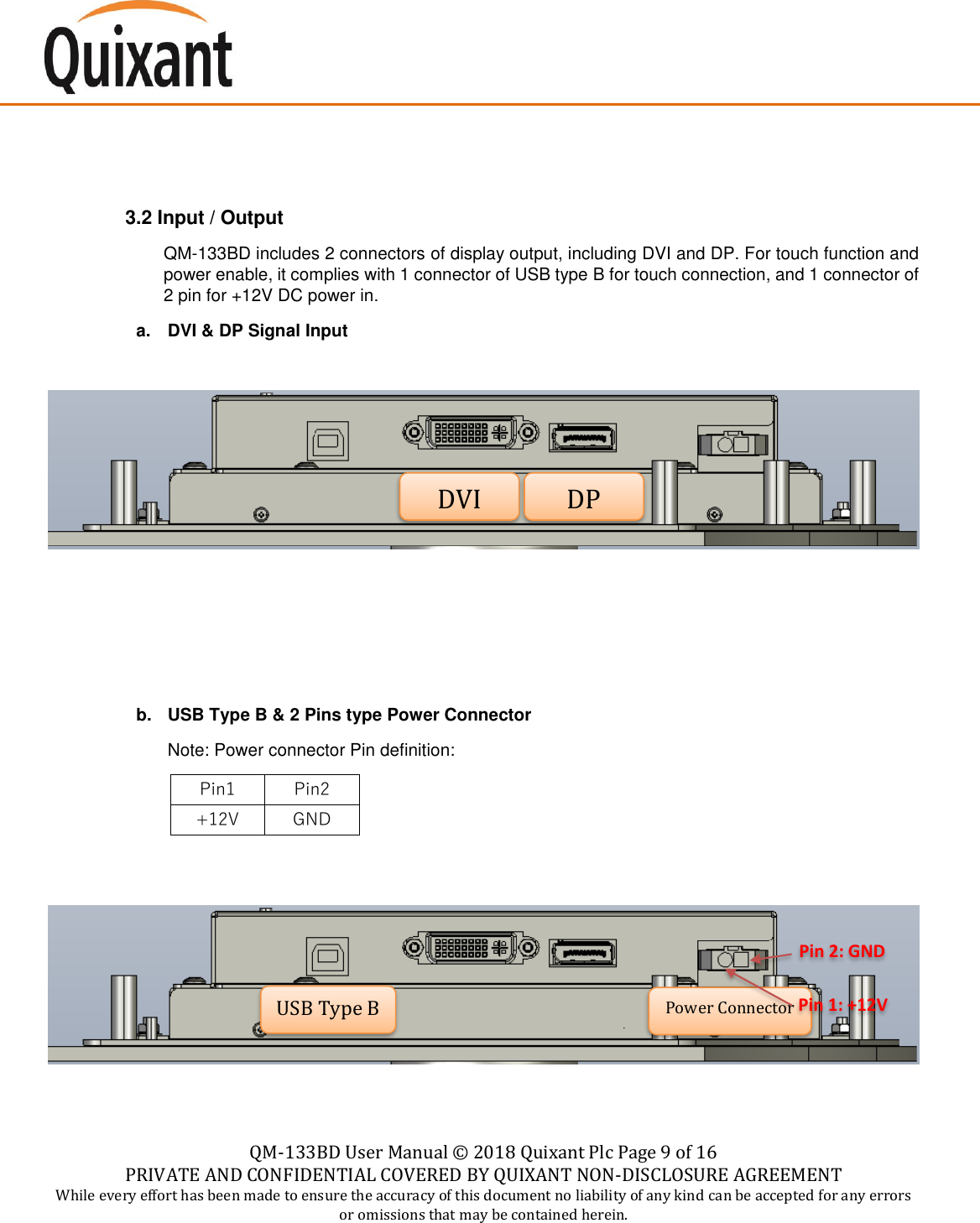
   QM-133BD User Manual ©  2018 Quixant Plc Page 9 of 16 PRIVATE AND CONFIDENTIAL COVERED BY QUIXANT NON-DISCLOSURE AGREEMENT While every effort has been made to ensure the accuracy of this document no liability of any kind can be accepted for any errors or omissions that may be contained herein.     3.2 Input / Output QM-133BD includes 2 connectors of display output, including DVI and DP. For touch function and power enable, it complies with 1 connector of USB type B for touch connection, and 1 connector of 2 pin for +12V DC power in. a.  DVI & DP Signal Input       b.  USB Type B & 2 Pins type Power Connector Note: Power connector Pin definition: Pin1 Pin2 +12V GND       Pin 2: GND DVI DP USB Type B Power Connector Pin 1: +12V
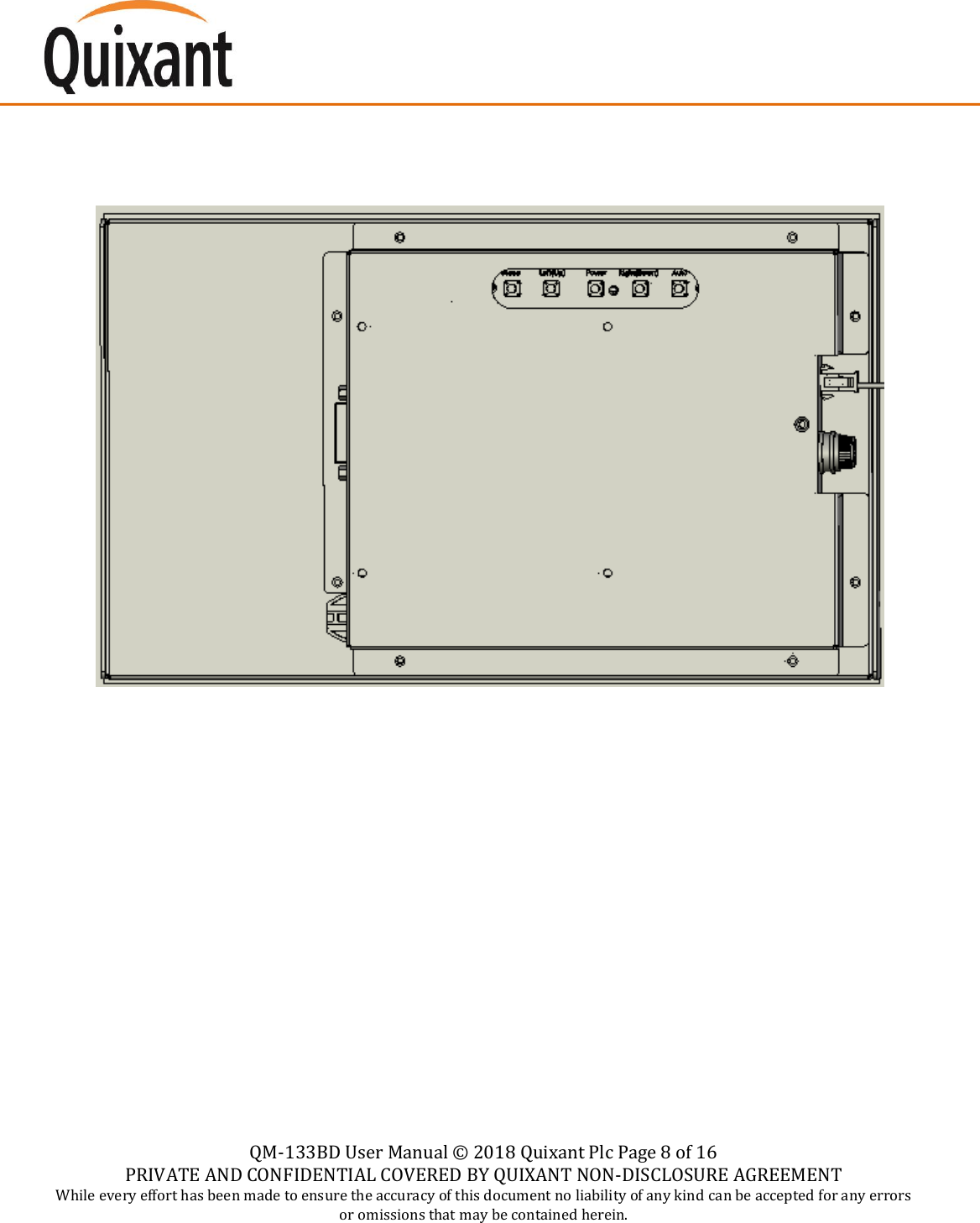
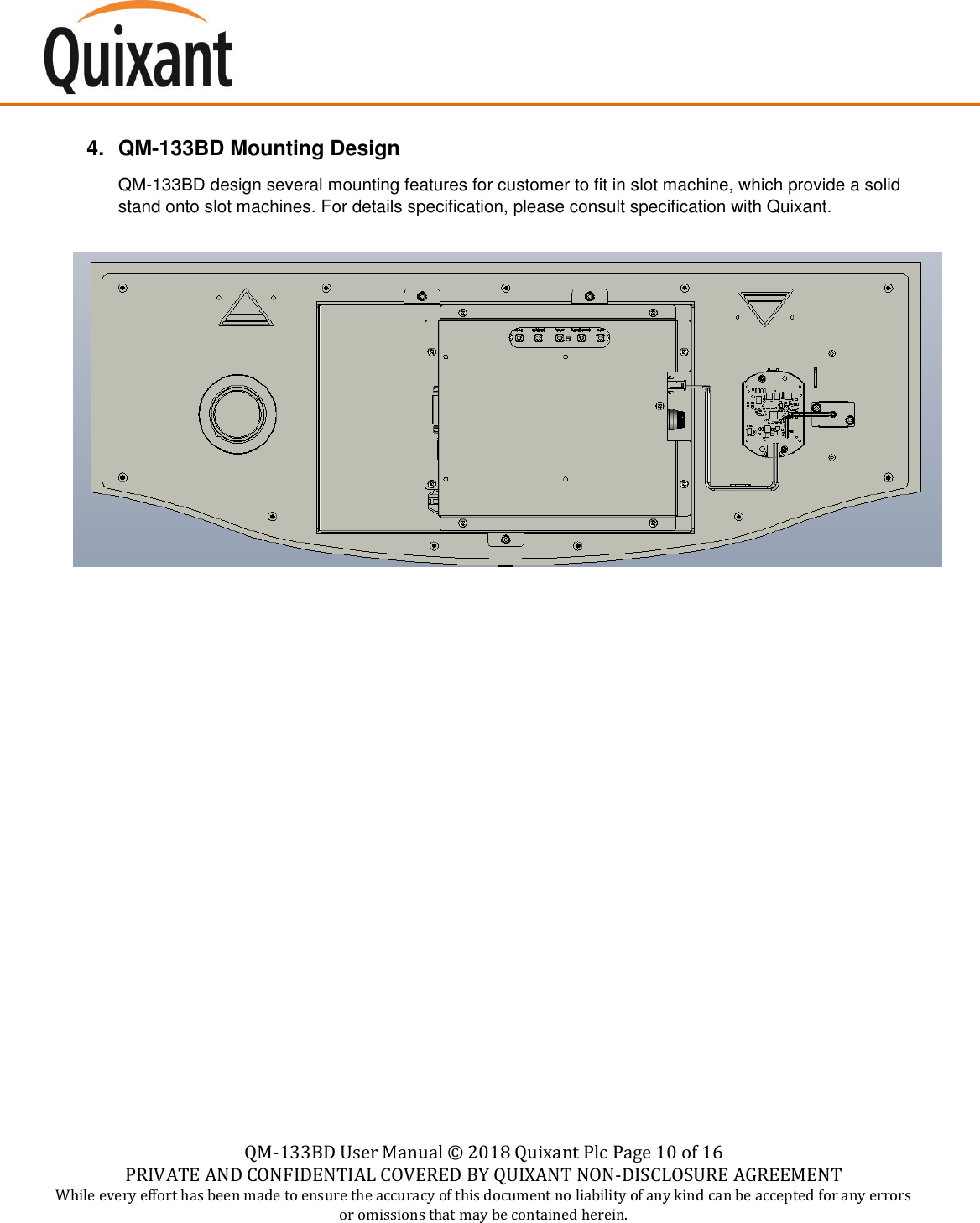
   QM-133BD User Manual ©  2018 Quixant Plc Page 10 of 16 PRIVATE AND CONFIDENTIAL COVERED BY QUIXANT NON-DISCLOSURE AGREEMENT While every effort has been made to ensure the accuracy of this document no liability of any kind can be accepted for any errors or omissions that may be contained herein.    4. QM-133BD Mounting Design  QM-133BD design several mounting features for customer to fit in slot machine, which provide a solid stand onto slot machines. For details specification, please consult specification with Quixant.
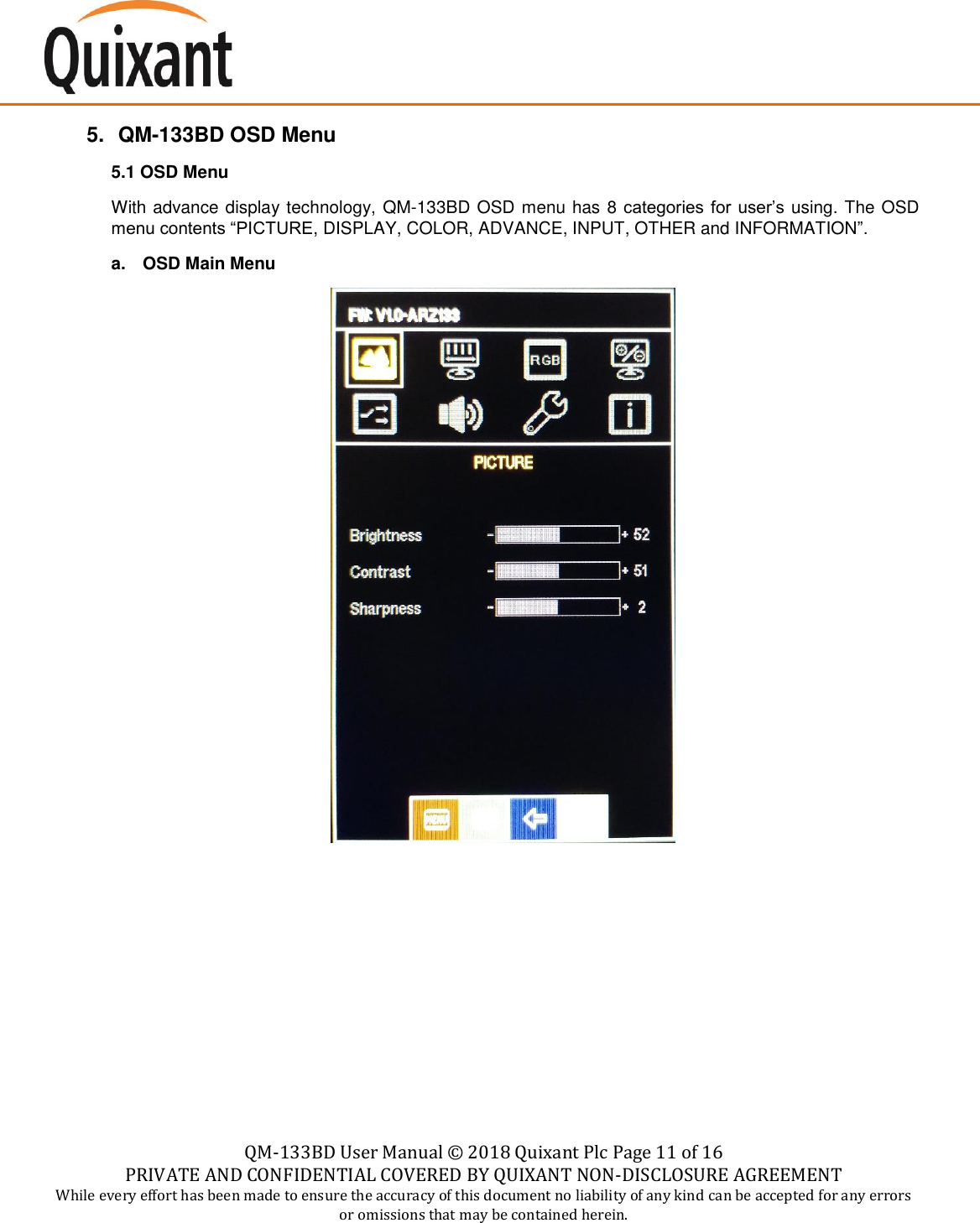
   QM-133BD User Manual ©  2018 Quixant Plc Page 11 of 16 PRIVATE AND CONFIDENTIAL COVERED BY QUIXANT NON-DISCLOSURE AGREEMENT While every effort has been made to ensure the accuracy of this document no liability of any kind can be accepted for any errors or omissions that may be contained herein.    5. QM-133BD OSD Menu 5.1 OSD Menu With advance display technology, QM-133BD OSD menu has 8 categories for user’s using. The OSD menu contents “PICTURE, DISPLAY, COLOR, ADVANCE, INPUT, OTHER and INFORMATION”. a.  OSD Main Menu
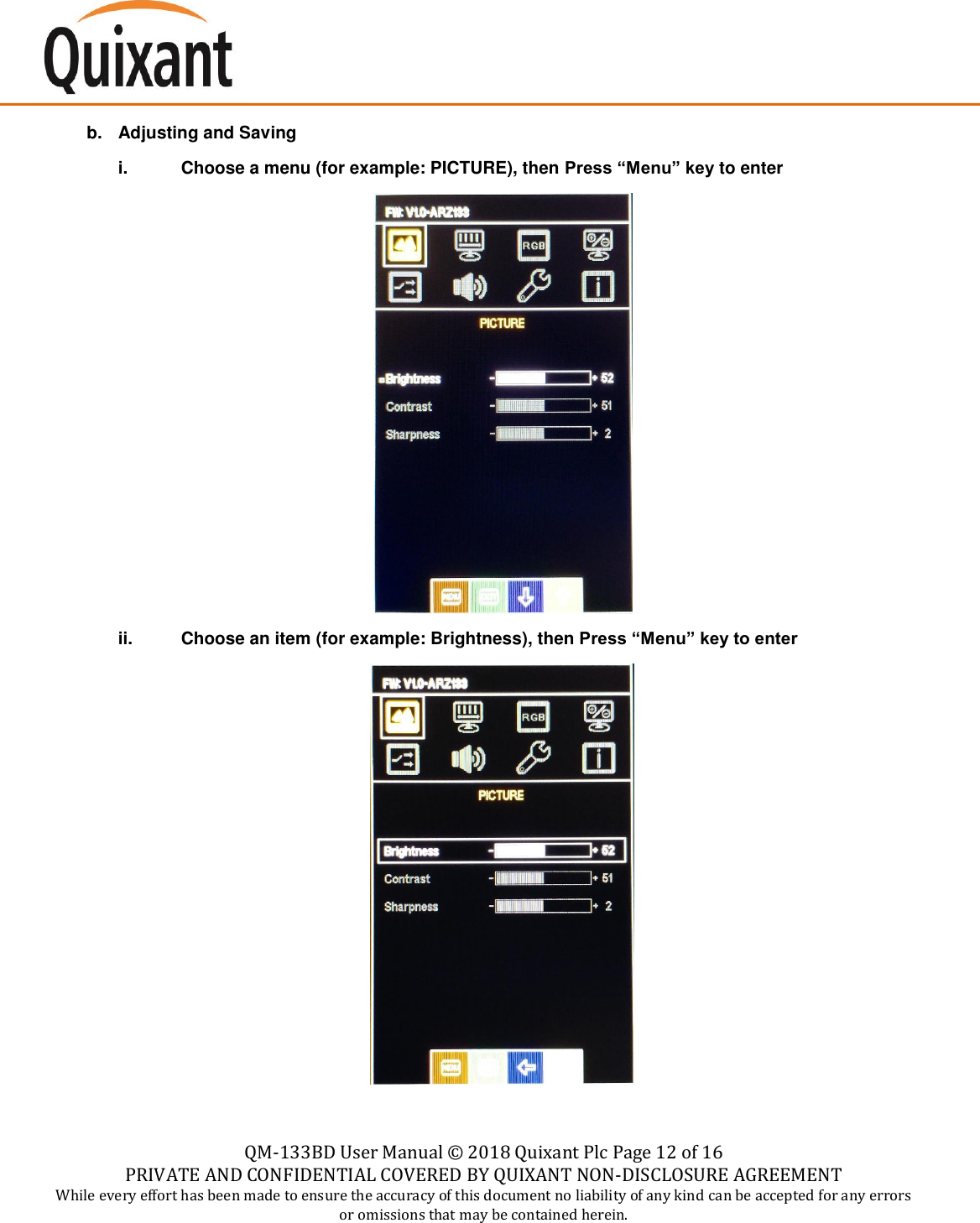
   QM-133BD User Manual ©  2018 Quixant Plc Page 12 of 16 PRIVATE AND CONFIDENTIAL COVERED BY QUIXANT NON-DISCLOSURE AGREEMENT While every effort has been made to ensure the accuracy of this document no liability of any kind can be accepted for any errors or omissions that may be contained herein.    b.  Adjusting and Saving i.  Choose a menu (for example: PICTURE), then Press “Menu” key to enter   ii.  Choose an item (for example: Brightness), then Press “Menu” key to enter
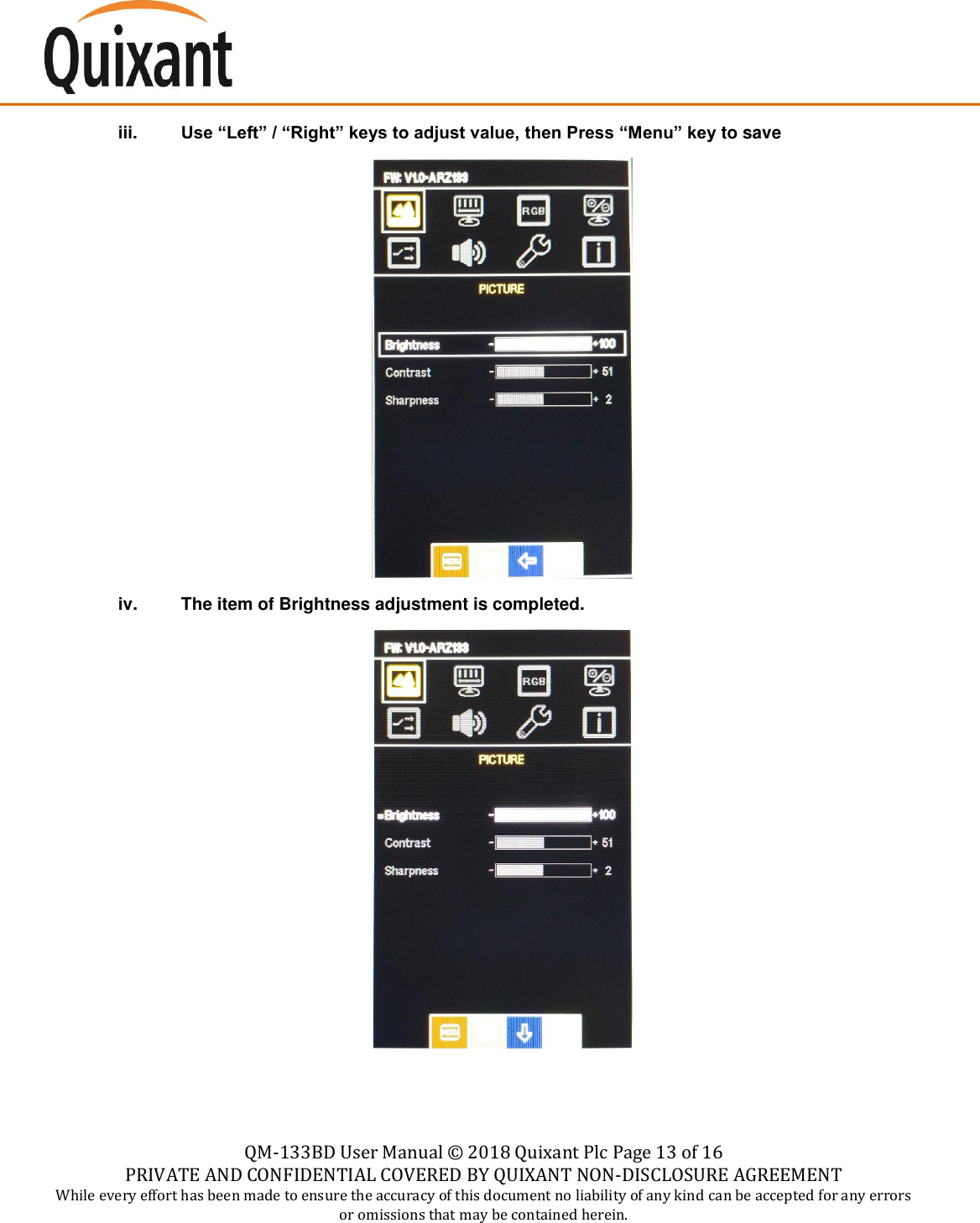
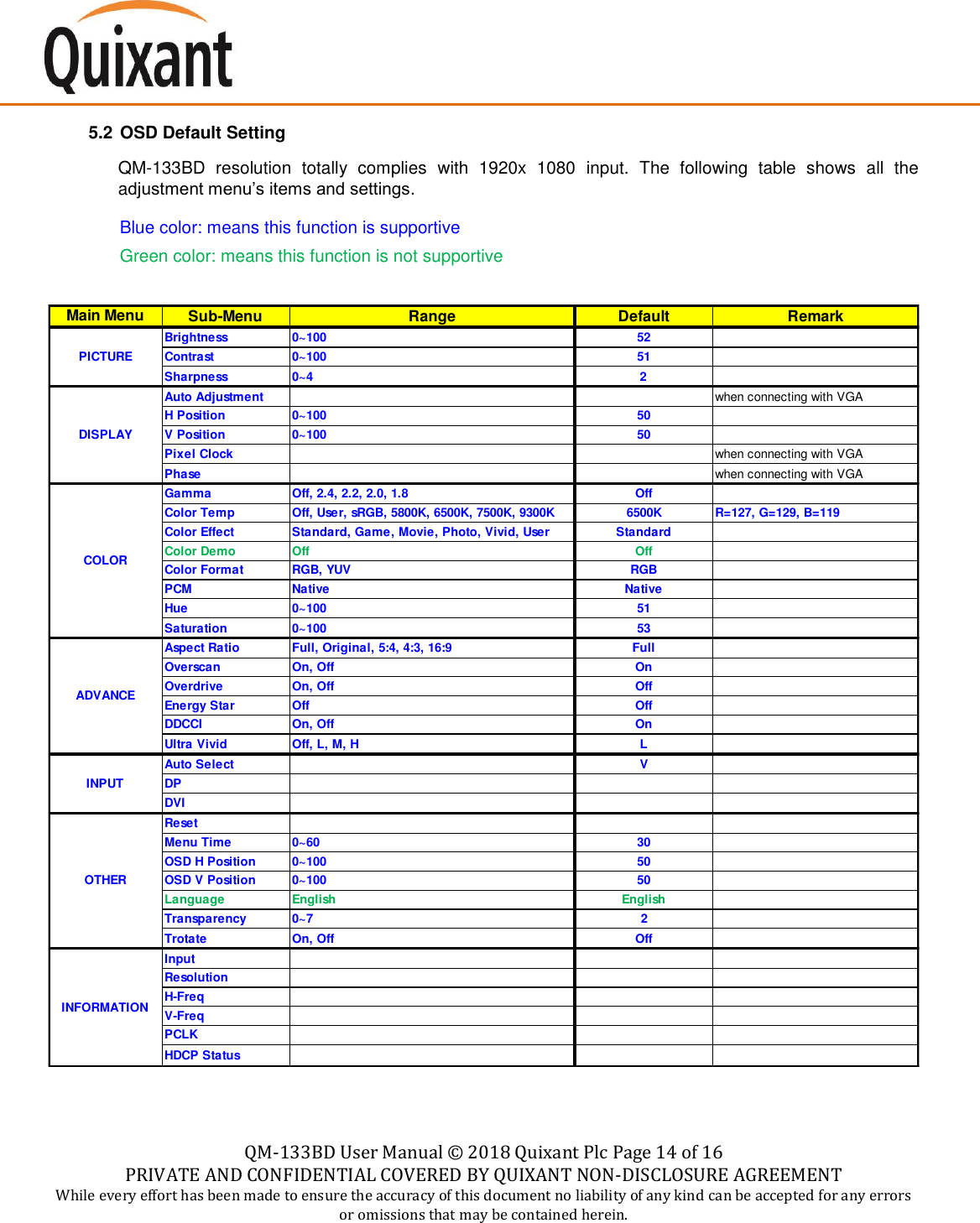
   QM-133BD User Manual ©  2018 Quixant Plc Page 13 of 16 PRIVATE AND CONFIDENTIAL COVERED BY QUIXANT NON-DISCLOSURE AGREEMENT While every effort has been made to ensure the accuracy of this document no liability of any kind can be accepted for any errors or omissions that may be contained herein.    iii. Use “Left” / “Right” keys to adjust value, then Press “Menu” key to save  iv.  The item of Brightness adjustment is completed.
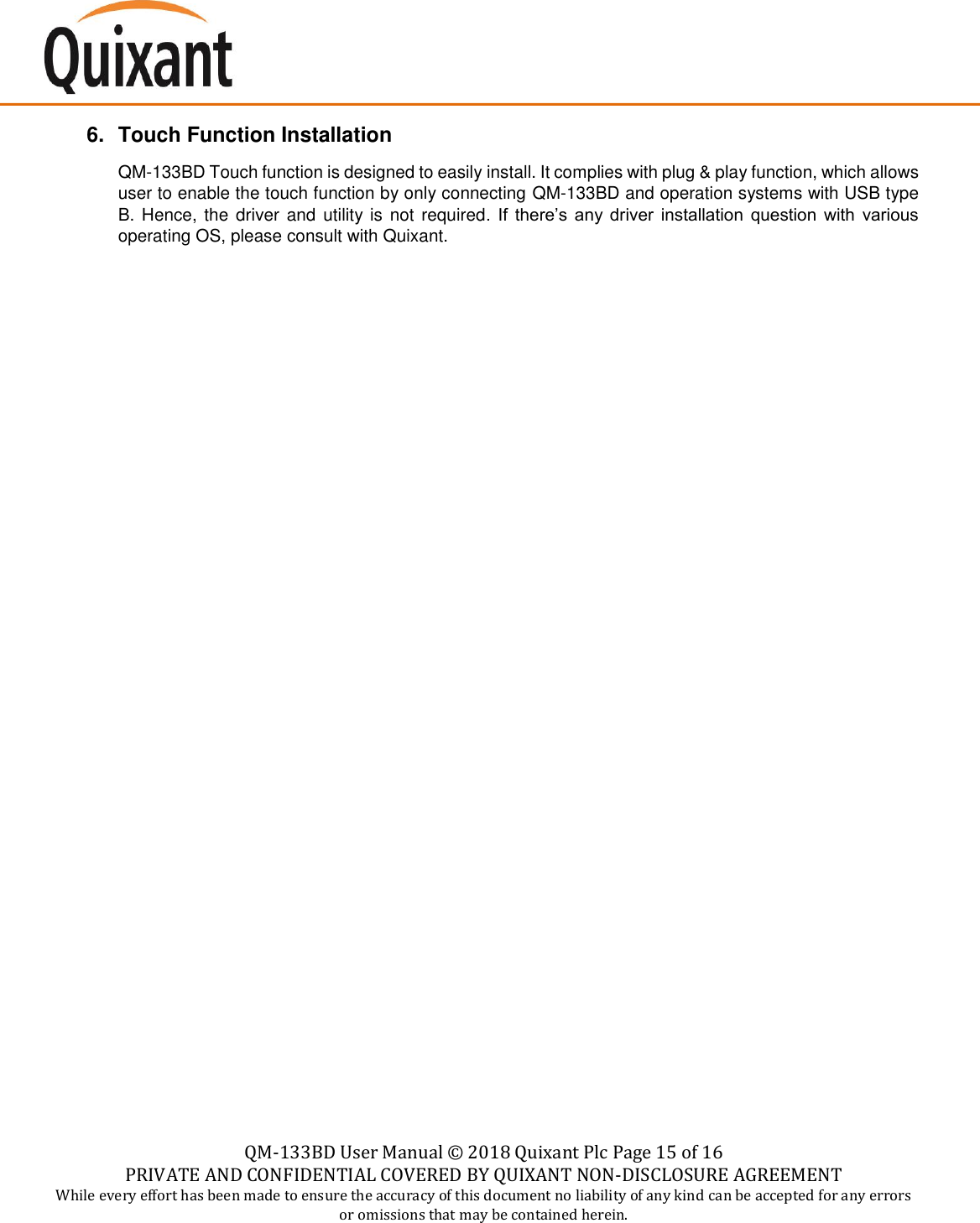
   QM-133BD User Manual ©  2018 Quixant Plc Page 14 of 16 PRIVATE AND CONFIDENTIAL COVERED BY QUIXANT NON-DISCLOSURE AGREEMENT While every effort has been made to ensure the accuracy of this document no liability of any kind can be accepted for any errors or omissions that may be contained herein.    5.2 OSD Default Setting QM-133BD  resolution  totally  complies  with  1920x  1080  input.  The  following  table  shows  all  the adjustment menu’s items and settings. Blue color: means this function is supportive Green color: means this function is not supportive    Main Menu Sub-Menu Range Default RemarkBrightness 0~100 52Contrast 0~100 51Sharpness 0~4 2Auto Adjustment when connecting with VGAH Position 0~100 50V Position 0~100 50Pixel Clock when connecting with VGAPhase when connecting with VGAGamma Off, 2.4, 2.2, 2.0, 1.8 OffColor Temp Off, User, sRGB, 5800K, 6500K, 7500K, 9300K 6500K R=127, G=129, B=119Color Effect Standard, Game, Movie, Photo, Vivid, User StandardColor Demo Off OffColor Format RGB, YUV RGBPCM Native NativeHue 0~100 51Saturation 0~100 53Aspect Ratio Full, Original, 5:4, 4:3, 16:9 FullOverscan On, Off OnOverdrive On, Off OffEnergy Star Off OffDDCCI On, Off OnUltra Vivid Off, L, M, H LAuto Select VDPDVIResetMenu Time 0~60 30OSD H Position 0~100 50OSD V Position 0~100 50Language English EnglishTransparency 0~7 2Trotate On, Off OffInputResolutionH-FreqV-FreqPCLKHDCP StatusINFORMATIONPICTUREDISPLAYCOLORADVANCEINPUTOTHER
   QM-133BD User Manual ©  2018 Quixant Plc Page 15 of 16 PRIVATE AND CONFIDENTIAL COVERED BY QUIXANT NON-DISCLOSURE AGREEMENT While every effort has been made to ensure the accuracy of this document no liability of any kind can be accepted for any errors or omissions that may be contained herein.    6.  Touch Function Installation QM-133BD Touch function is designed to easily install. It complies with plug & play function, which allows user to enable the touch function by only connecting QM-133BD and operation systems with USB type B. Hence, the  driver and utility is not required.  If  there’s  any  driver  installation  question  with  various operating OS, please consult with Quixant.
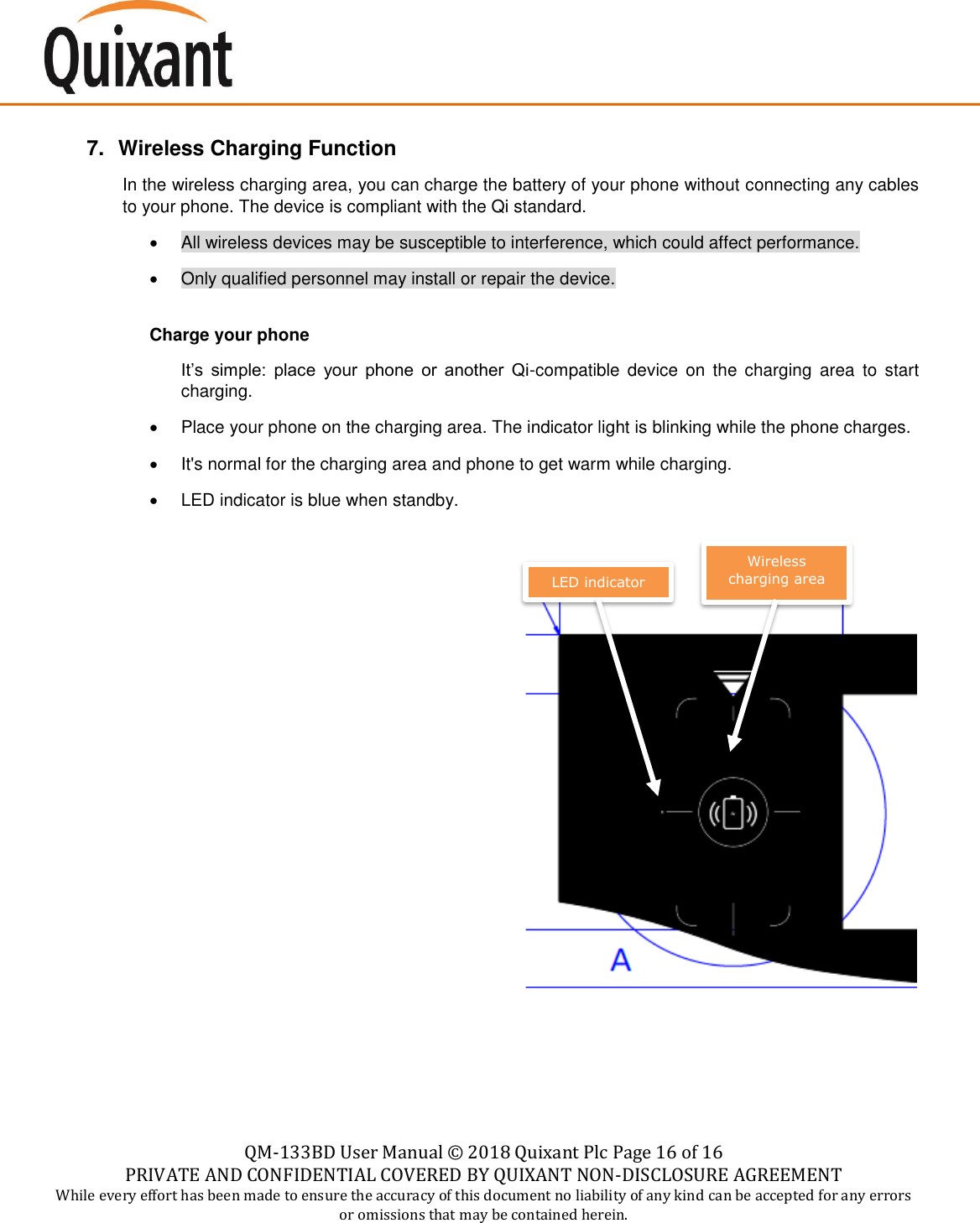
   QM-133BD User Manual ©  2018 Quixant Plc Page 16 of 16 PRIVATE AND CONFIDENTIAL COVERED BY QUIXANT NON-DISCLOSURE AGREEMENT While every effort has been made to ensure the accuracy of this document no liability of any kind can be accepted for any errors or omissions that may be contained herein.    7.  Wireless Charging Function In the wireless charging area, you can charge the battery of your phone without connecting any cables to your phone. The device is compliant with the Qi standard. •  All wireless devices may be susceptible to interference, which could affect performance. •  Only qualified personnel may install or repair the device.  Charge your phone It’s  simple:  place  your  phone  or  another  Qi-compatible  device on  the  charging  area  to start charging. •  Place your phone on the charging area. The indicator light is blinking while the phone charges. • It's normal for the charging area and phone to get warm while charging. •  LED indicator is blue when standby. Wireless charging area LED indicator

Navigation menu