Radio Thermostat of America CT200R1 Thermostat User Manual CT200 UserGuide REV 0 1

Radio Thermostat Company of America, Inc Thermostat CT200 UserGuide REV 0 1

CT200 UserGuide REV 0.1

RTCOA logo sheet7aug07VIVINT ELEMENT THERMOSTATUSER GUIDECOMMUNICATING TOUCH SCREEN THERMOSTAT
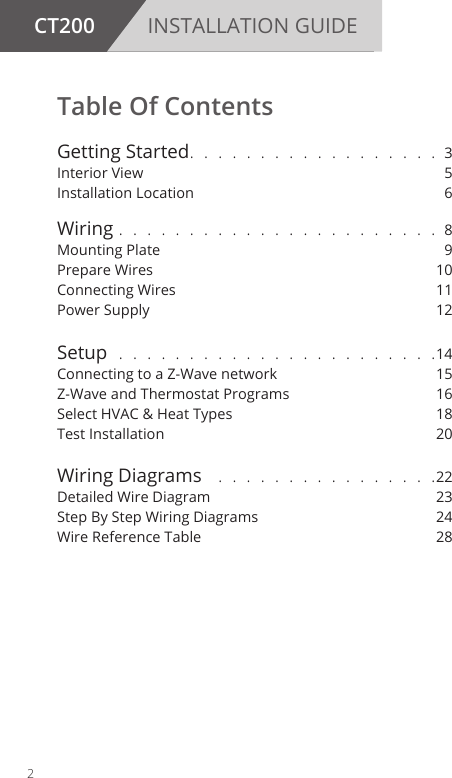
CT200 INSTALLATION GUIDETable Of Contents Getting Started. . . . . . . . . . . . . . . . . . 3Interior View 5Installation Location 6Wiring . . . . . . . . . . . . . . . . . . . . . . . 8Mounting Plate  9Prepare Wires  10Connecting Wires  11Power Supply  12Setup . . . . . . . . . . . . . . . . . . . . . . .14Connecting to a Z-Wave network  15Z-Wave and Thermostat Programs  16Select HVAC & Heat Types  18Test Installation  20Wiring Diagrams  . . . . . . . . . . . . . . . .22Detailed Wire Diagram   23Step By Step Wiring Diagrams  24Wire Reference Table  282
Radio ThermostatGetting Started3
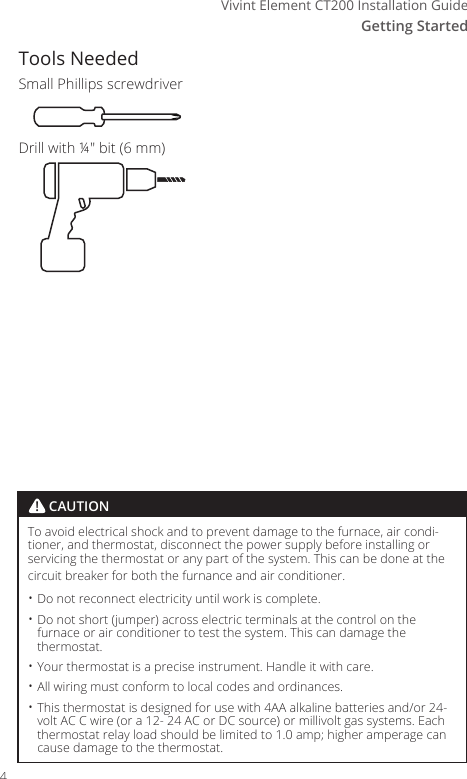
Getting StartedVivint Element CT200 Installation GuideTools NeededSmall Phillips screwdriverDrill with ¼" bit (6 mm)To avoid electrical shock and to prevent damage to the furnace, air condi-tioner, and thermostat, disconnect the power supply before installing or servicing the thermostat or any part of the system. This can be done at the circuit breaker for both the furnance and air conditioner.• Do not reconnect electricity until work is complete.• Do not short (jumper) across electric terminals at the control on the furnace or air conditioner to test the system. This can damage the thermostat.• Your thermostat is a precise instrument. Handle it with care.• All wiring must conform to local codes and ordinances.• This thermostat is designed for use with 4AA alkaline batteries and/or 24-volt AC C wire (or a 12- 24 AC or DC source) or millivolt gas systems. Each thermostat relay load should be limited to 1.0 amp; higher amperage can cause damage to the thermostat.! CAUTION4
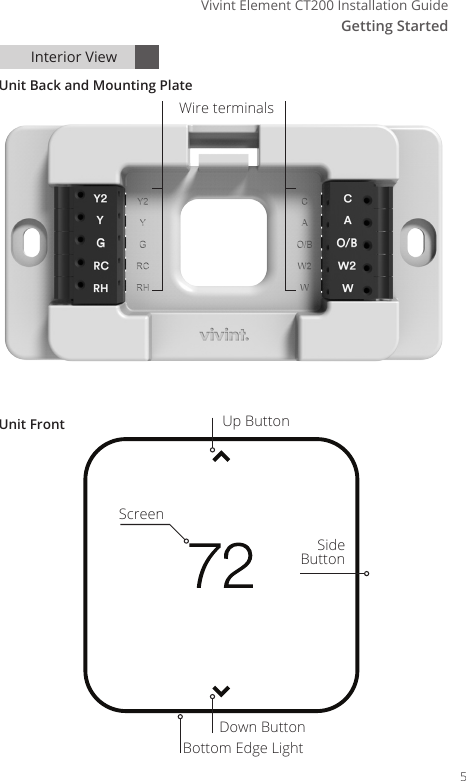
Getting StartedVivint Element CT200 Installation GuideInterior ViewUnit Back and Mounting PlateUnit FrontWire terminalsScreenUp ButtonDown ButtonBottom Edge LightSide Button5
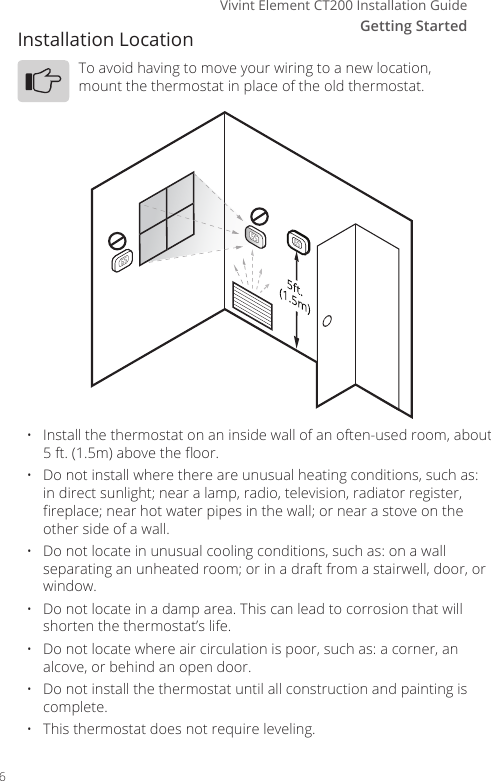
Getting StartedVivint Element CT200 Installation GuideInstallation LocationTo avoid having to move your wiring to a new location, mount the thermostat in place of the old thermostat.•   Install the thermostat on an inside wall of an often-used room, about 5 ft. (1.5m) above the oor.•   Do not install where there are unusual heating conditions, such as: in direct sunlight; near a lamp, radio, television, radiator register, replace; near hot water pipes in the wall; or near a stove on the other side of a wall.•   Do not locate in unusual cooling conditions, such as: on a wall separating an unheated room; or in a draft from a stairwell, door, or window.•   Do not locate in a damp area. This can lead to corrosion that will shorten the thermostat’s life.•   Do not locate where air circulation is poor, such as: a corner, an alcove, or behind an open door.•   Do not install the thermostat until all construction and painting is complete.•   This thermostat does not require leveling.6
Radio ThermostatWiring7
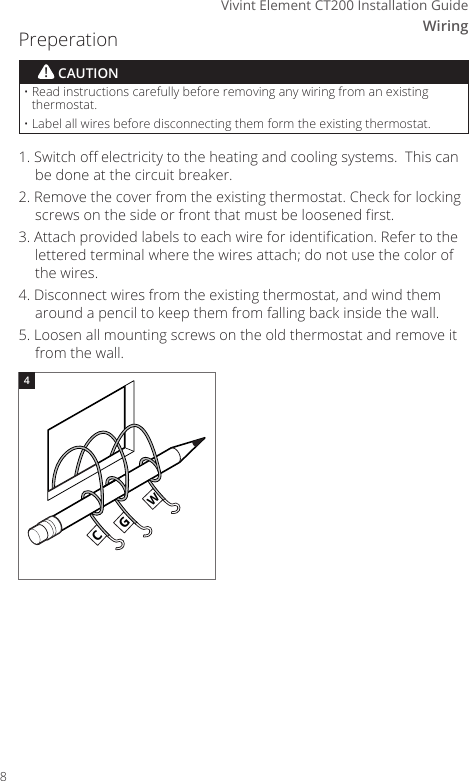
WiringVivint Element CT200 Installation Guide1. Switch o electricity to the heating and cooling systems.  This can be done at the circuit breaker.2. Remove the cover from the existing thermostat. Check for locking screws on the side or front that must be loosened rst.3. Attach provided labels to each wire for identication. Refer to the lettered terminal where the wires attach; do not use the color of the wires.4. Disconnect wires from the existing thermostat, and wind them around a pencil to keep them from falling back inside the wall.5. Loosen all mounting screws on the old thermostat and remove it from the wall.CGWGWCGW4•  Read instructions carefully before removing any wiring from an existing thermostat.•  Label all wires before disconnecting them form the existing thermostat.! CAUTIONCWRHGYPreperation8
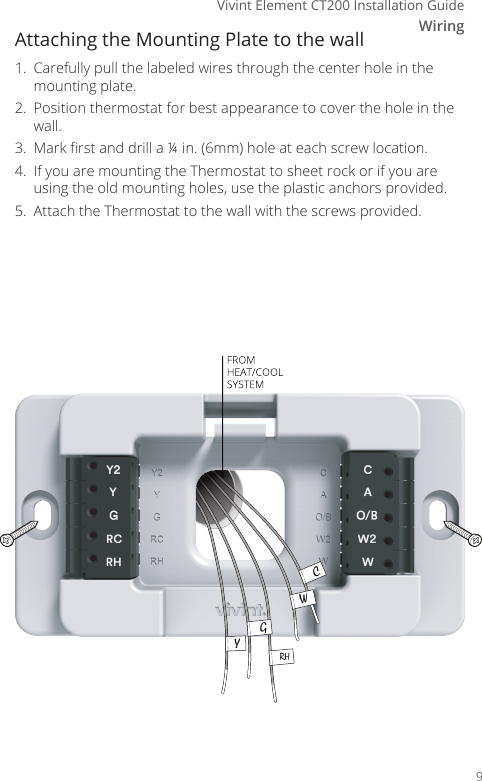
WiringVivint Element CT200 Installation GuideCWRHGYAttaching the Mounting Plate to the wall1.  Carefully pull the labeled wires through the center hole in the mounting plate.2.  Position thermostat for best appearance to cover the hole in the wall.3.  Mark rst and drill a ¼ in. (6mm) hole at each screw location.4.  If you are mounting the Thermostat to sheet rock or if you are using the old mounting holes, use the plastic anchors provided.5.  Attach the Thermostat to the wall with the screws provided.9
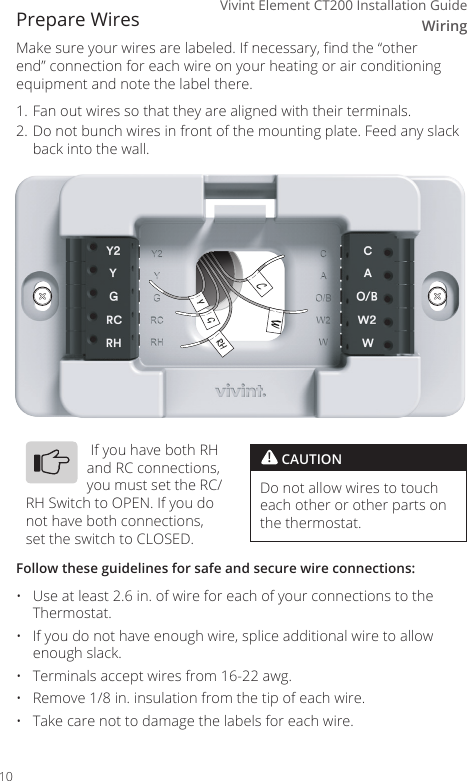
WiringVivint Element CT200 Installation GuidePrepare WiresMake sure your wires are labeled. If necessary, nd the “other end” connection for each wire on your heating or air conditioning equipment and note the label there. 1. Fan out wires so that they are aligned with their terminals. 2. Do not bunch wires in front of the mounting plate. Feed any slack back into the wall.Follow these guidelines for safe and secure wire connections:•  Use at least 2.6 in. of wire for each of your connections to the Thermostat.•  If you do not have enough wire, splice additional wire to allow enough slack.•  Terminals accept wires from 16-22 awg.•  Remove 1/8 in. insulation from the tip of each wire.•  Take care not to damage the labels for each wire.! CAUTIONDo not allow wires to touch each other or other parts on the thermostat. If you have both RH and RC connections, you must set the RC/RH Switch to OPEN. If you do not have both connections, set the switch to CLOSED.CWRHGY10
WiringVivint Element CT200 Installation GuideConnecting Your WiresReference the Detailed Wire Diagram on page 23 to identify your wiring diagram and set-up information. If necessary, contact customer support for help.1.  Connect a labeled wire only to a matching lettered terminal.2.  Press the lever next to the terminal letter, then insert the wire in the terminal well.3.  Make sure to insert the wire into the terminal well as far as it will go, then release the lever. The wire should be secure and not pull free easily.The Thermostat can be externally powered with a power source rated from 12V to 24V, AC or DC, at 100ma or greater. If used, connect to the C and RH terminals (no polarity).The 24VAC “C” wire is the other side of the 24VAC heating transformer and can be found where the other thermostat wires connect at the wall or at the furnace.  Do not use the common or ground side of the line voltage.The Thermostat runs on 4 AA alkaline batteries, the C wire (if available), or both batteries and the C-wire. If you do not have a C wire, you can run a new wire from the HVAC or use a standard 12-24V [AC or DC] wall transformer.The C-wire is optional but preferred for all installations.CWRHGYExample of 5 Wire Heat/Cool System 11
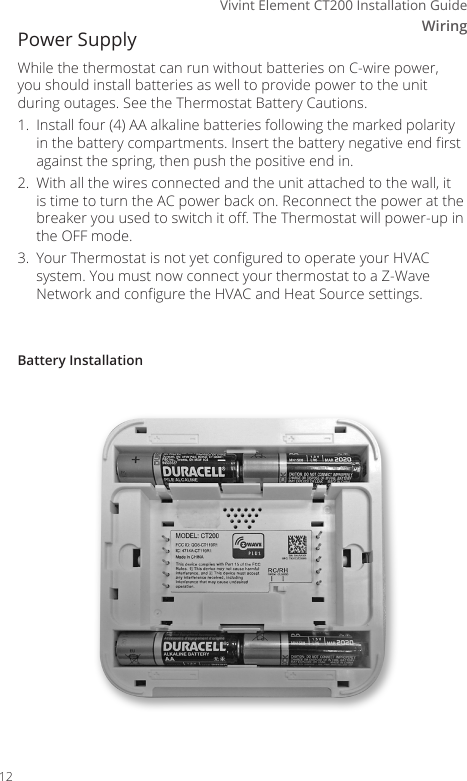
WiringVivint Element CT200 Installation GuideBattery InstallationPower Supply While the thermostat can run without batteries on C-wire power, you should install batteries as well to provide power to the unit during outages. See the Thermostat Battery Cautions.1.  Install four (4) AA alkaline batteries following the marked polarity in the battery compartments. Insert the battery negative end rst against the spring, then push the positive end in.2.  With all the wires connected and the unit attached to the wall, it is time to turn the AC power back on. Reconnect the power at the breaker you used to switch it o. The Thermostat will power-up in the OFF mode.3.  Your Thermostat is not yet congured to operate your HVAC system. You must now connect your thermostat to a Z-Wave Network and congure the HVAC and Heat Source settings.12
WiringVivint Element CT200 Installation Guide• Always use new Alkaline batteries.• Do not use rechargeable batteries of any type.  They will not operate the thermostat properly and may lead to damage.• Do not mix old and new batteries.• Do not mix battery types, for example Lithium with Alkaline.• Do not dispose of batteries in re.  Batteries may explode or leak.• Always replace the batteries as soon as the “Low Batt” warning ashes. The thermostat is a battery-powered device; you should replace the batteries before they run out, as failure to replace batteries can result in excessive heating or cooling of your house.• Always replace the batteries once a year, even if the “Low Batt” indicator does not ash.  Replacing the batteries also helps to prevent leakage that can corrode and damage the thermostat.• If you are leaving your home for a month or more, you should replace the batteries as a precaution against battery failure in your absence.• Failing to replace the batteries when necessary could cause the thermo-stat to lose power or malfunction. If the thermostat loses power, then the thermostat will not control the temperature, which could result in your HVAC system not functioning as you intended and lead to possible damage from excessive heating or cooling.• If the thermostat batteries fail with the heat OFF, this can result in NO HEAT and possible frozen or broken pipes and water damage.• If the thermostat batteries fail with the cool OFF, this can result in NO COOL and could cause possible damage or excessive temperatures.! THERMOSTAT BATTERY CAUTIONS13
Vivint Element CT200 User Guide3Setup14
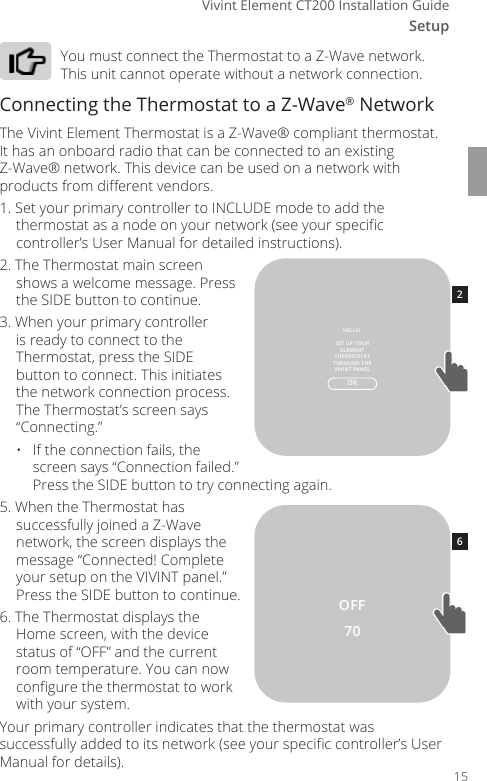
SetupVivint Element CT200 Installation GuideYou must connect the Thermostat to a Z-Wave network. This unit cannot operate without a network connection.Connecting the Thermostat to a Z-Wave® NetworkThe Vivint Element Thermostat is a Z-Wave® compliant thermostat. It has an onboard radio that can be connected to an existing Z-Wave® network. This device can be used on a network with products from dierent vendors.1. Set your primary controller to INCLUDE mode to add the thermostat as a node on your network (see your specic controller’s User Manual for detailed instructions).2. The Thermostat main screen shows a welcome message. Press the SIDE button to continue.3. When your primary controller is ready to connect to the Thermostat, press the SIDE button to connect. This initiates the network connection process. The Thermostat’s screen says “Connecting.”•  If the connection fails, the screen says “Connection failed.” Press the SIDE button to try connecting again.5. When the Thermostat has successfully joined a Z-Wave network, the screen displays the message “Connected! Complete your setup on the VIVINT panel.” Press the SIDE button to continue.6. The Thermostat displays the Home screen, with the device status of “OFF” and the current room temperature. You can now congure the thermostat to work with your system.Your primary controller indicates that the thermostat was successfully added to its network (see your specic controller’s User Manual for details).70OFFOKHELLO. SET UP YOUR ELEMENTTHERMOSTAT THROUGH THE VIVINT PANEL2615
Setup3Vivint Element CT200 Installation GuideZ-Wave and Power SupplyThe thermostat’s node type is xed when it connects to the Z-Wave network; if the C-Wire is not connected and is only battery-powered when connecting to the network, the thermostat will remain a frequent listening routing slave (FLiRS) node until it is removed from the network. When your thermostat is running on battery power, the Z-Wave radio will turn o to help conserve battery life. The Thermostat Z-Wave radio module supports Z-Wave beaming, which allows other devices in the network to wake up the Z-Wave module and accept commands and then go back to sleep.When your thermostat is running on C-Wire power, the Z-Wave radio will stay on and actively help route messages within the Z-Wave network. The thermostat’s node type is xed when it connects to the Z-Wave network; if the C-Wire is present and powered when connecting to the network, the thermostat will remain an always-listening node until it is removed from the network.Z-Wave and Thermostat ProgramsYou must connect the Thermostat to a Z-Wave network. This unit cannot operate without a network connection. When you are paired to a Z-Wave system, the Z-Wave application on your device controls your thermostat’s programs. You can still temporarily override settings on the thermostat itself, but otherwise you control it remotely.16
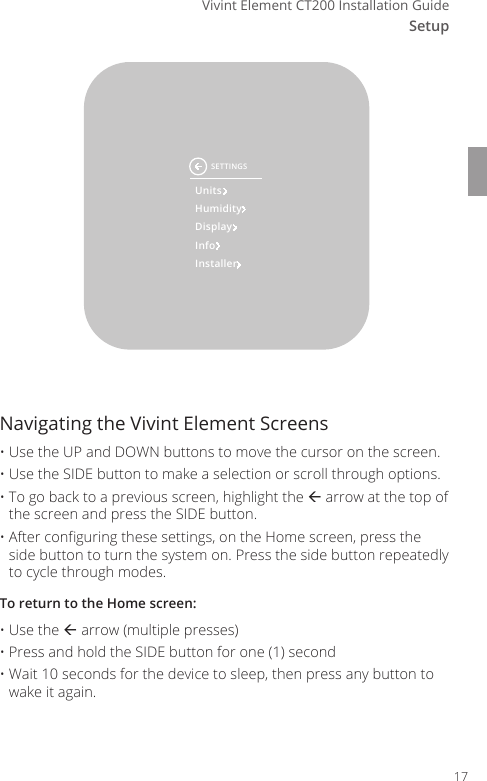
SetupVivint Element CT200 Installation GuideUnitsHumidityDisplayInfoInstallerSETTINGSNavigating the Vivint Element Screens  • Use the UP and DOWN buttons to move the cursor on the screen. • Use the SIDE button to make a selection or scroll through options. • To go back to a previous screen, highlight the  arrow at the top of the screen and press the SIDE button. • After conguring these settings, on the Home screen, press the side button to turn the system on. Press the side button repeatedly to cycle through modes.To return to the Home screen:• Use the  arrow (multiple presses)• Press and hold the SIDE button for one (1) second• Wait 10 seconds for the device to sleep, then press any button to wake it again.17
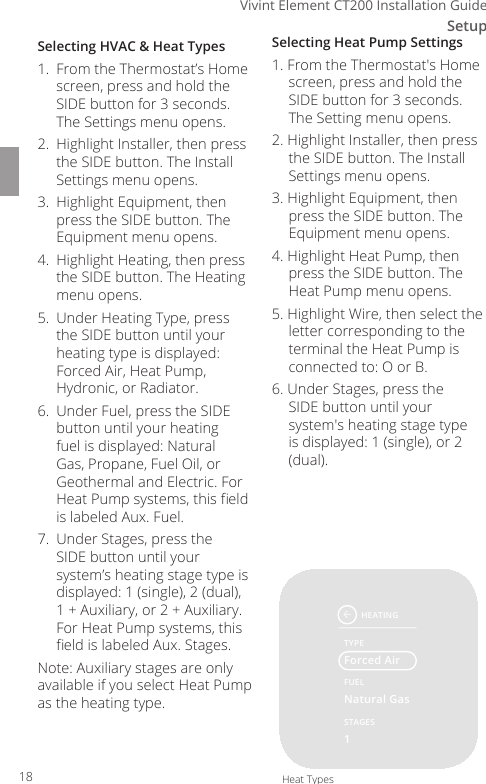
Setup3Vivint Element CT200 Installation GuideSelecting HVAC & Heat Types1.  From the Thermostat’s Home screen, press and hold the SIDE button for 3 seconds. The Settings menu opens.2.  Highlight Installer, then press the SIDE button. The Install Settings menu opens.3.  Highlight Equipment, then press the SIDE button. The Equipment menu opens.4.  Highlight Heating, then press the SIDE button. The Heating menu opens.5.  Under Heating Type, press the SIDE button until your heating type is displayed: Forced Air, Heat Pump, Hydronic, or Radiator.6.  Under Fuel, press the SIDE button until your heating fuel is displayed: Natural Gas, Propane, Fuel Oil, or Geothermal and Electric. For Heat Pump systems, this eld is labeled Aux. Fuel.7.  Under Stages, press the SIDE button until your system’s heating stage type is displayed: 1 (single), 2 (dual), 1 + Auxiliary, or 2 + Auxiliary. For Heat Pump systems, this eld is labeled Aux. Stages.Note: Auxiliary stages are only available if you select Heat Pump as the heating type.Selecting Heat Pump Settings1. From the Thermostat's Home screen, press and hold the SIDE button for 3 seconds. The Setting menu opens.2. Highlight Installer, then press the SIDE button. The Install Settings menu opens.3. Highlight Equipment, then press the SIDE button. The Equipment menu opens.4. Highlight Heat Pump, then press the SIDE button. The Heat Pump menu opens.5. Highlight Wire, then select the letter corresponding to the terminal the Heat Pump is connected to: O or B.6. Under Stages, press the SIDE button until your system's heating stage type is displayed: 1 (single), or 2 (dual).HEATINGTYPEFUELForced AirNatural Gas1STAGESHeat Types18
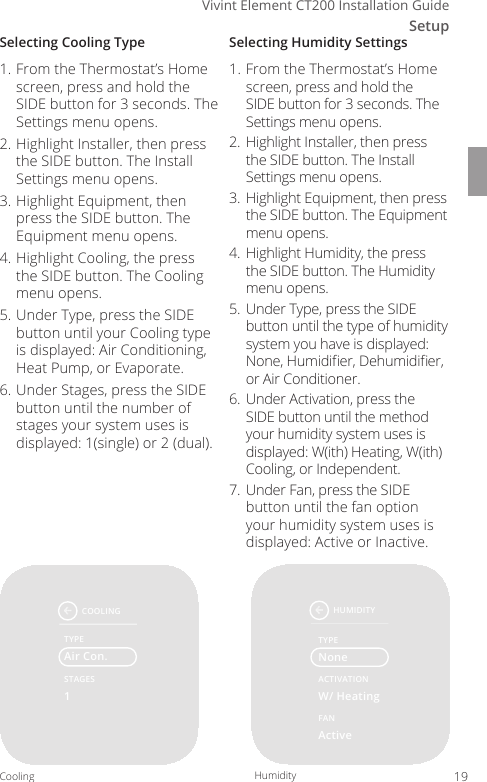
SetupVivint Element CT200 Installation GuideSelecting Cooling Type1. From the Thermostat’s Home screen, press and hold the SIDE button for 3 seconds. The Settings menu opens.2. Highlight Installer, then press the SIDE button. The Install Settings menu opens.3. Highlight Equipment, then press the SIDE button. The Equipment menu opens.4. Highlight Cooling, the press the SIDE button. The Cooling menu opens. 5. Under Type, press the SIDE button until your Cooling type is displayed: Air Conditioning, Heat Pump, or Evaporate.6. Under Stages, press the SIDE button until the number of stages your system uses is displayed: 1(single) or 2 (dual). Selecting Humidity Settings1. From the Thermostat’s Home screen, press and hold the SIDE button for 3 seconds. The Settings menu opens.2.  Highlight Installer, then press the SIDE button. The Install Settings menu opens.3.  Highlight Equipment, then press the SIDE button. The Equipment menu opens.4.  Highlight Humidity, the press the SIDE button. The Humidity menu opens.5.  Under Type, press the SIDE button until the type of humidity system you have is displayed: None, Humidier, Dehumidier, or Air Conditioner.6.  Under Activation, press the SIDE button until the method your humidity system uses is displayed: W(ith) Heating, W(ith) Cooling, or Independent.7.  Under Fan, press the SIDE button until the fan option your humidity system uses is displayed: Active or Inactive.COOLINGTYPEAir Con.1STAGESCoolingHUMIDITYTYPEACTIVATIONNoneW/ HeatingActiveFANHere are the Humidity values:Humidity Typeo   Noneo   Humidiero   Dehumid.o  Air Con.Activationo   W/ Heatingo   W/ Coolingo  IndependentFano   Activeo   InactiveHumidity 19
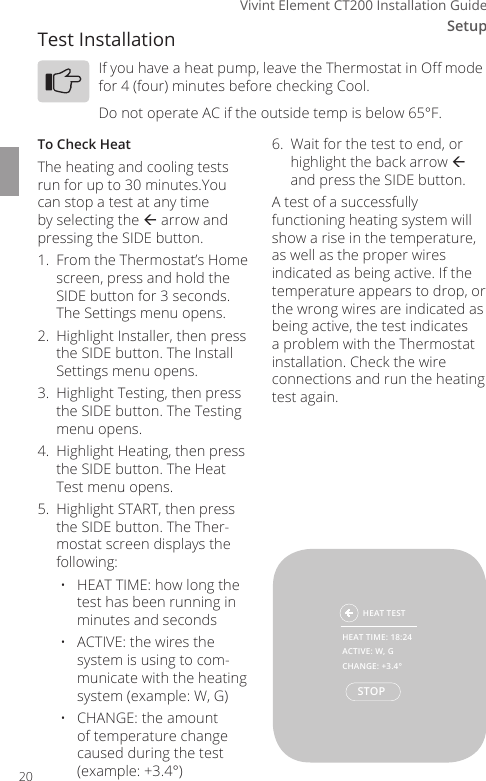
Setup3Vivint Element CT200 Installation GuideTest InstallationIf you have a heat pump, leave the Thermostat in O mode for 4 (four) minutes before checking Cool.Do not operate AC if the outside temp is below 65°F.To Check HeatThe heating and cooling tests run for up to 30 minutes.You can stop a test at any time by selecting the  arrow and pressing the SIDE button.1.  From the Thermostat’s Home screen, press and hold the SIDE button for 3 seconds. The Settings menu opens.2.  Highlight Installer, then press the SIDE button. The Install Settings menu opens.3.  Highlight Testing, then press the SIDE button. The Testing menu opens.4.  Highlight Heating, then press the SIDE button. The Heat Test menu opens.5.  Highlight START, then press the SIDE button. The Ther-mostat screen displays the following:•  HEAT TIME: how long the test has been running in minutes and seconds•  ACTIVE: the wires the system is using to com-municate with the heating system (example: W, G)•  CHANGE: the amount of temperature change caused during the test (example: +3.4°)6.  Wait for the test to end, or highlight the back arrow  and press the SIDE button.A test of a successfully functioning heating system will show a rise in the temperature, as well as the proper wires indicated as being active. If the temperature appears to drop, or the wrong wires are indicated as being active, the test indicates a problem with the Thermostat installation. Check the wire connections and run the heating test again.  HEAT TESTSTOPHEAT TIME: 18:24ACTIVE: W, GCHANGE: +3.4°20
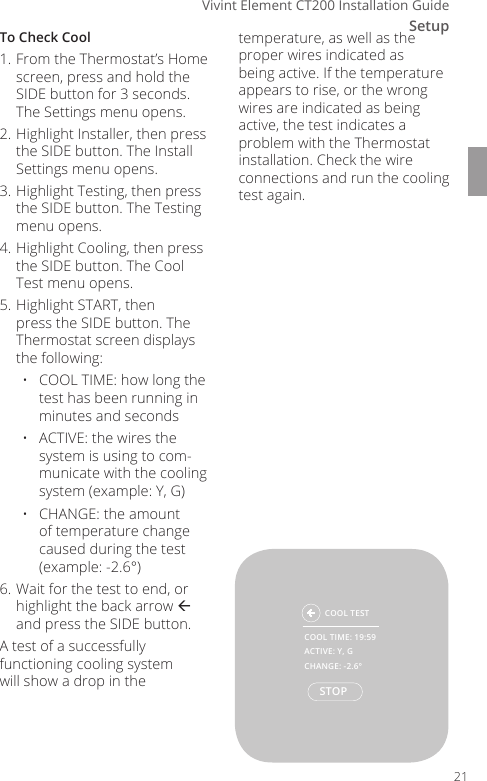
SetupVivint Element CT200 Installation GuideTo Check Cool1. From the Thermostat’s Home screen, press and hold the SIDE button for 3 seconds. The Settings menu opens.2. Highlight Installer, then press the SIDE button. The Install Settings menu opens.3. Highlight Testing, then press the SIDE button. The Testing menu opens.4. Highlight Cooling, then press the SIDE button. The Cool Test menu opens.5. Highlight START, then press the SIDE button. The Thermostat screen displays the following:•  COOL TIME: how long the test has been running in minutes and seconds•  ACTIVE: the wires the system is using to com-municate with the cooling system (example: Y, G)•  CHANGE: the amount of temperature change caused during the test (example: -2.6°)6. Wait for the test to end, or highlight the back arrow  and press the SIDE button.A test of a successfully functioning cooling system will show a drop in the temperature, as well as the proper wires indicated as being active. If the temperature appears to rise, or the wrong wires are indicated as being active, the test indicates a problem with the Thermostat installation. Check the wire connections and run the cooling test again.COOL TESTSTOPCOOL TIME: 19:59ACTIVE: Y, GCHANGE: -2.6°21
Vivint Element CT200 User Guide4Wiring Diagrams22
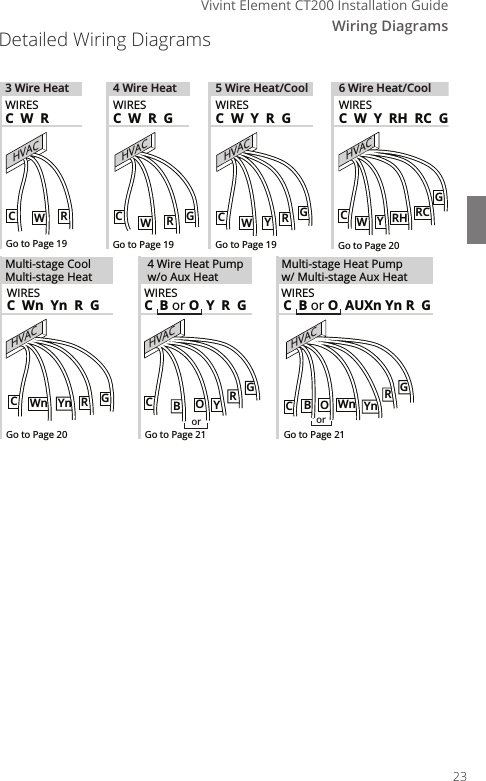
Wiring DiagramsVivint Element CT200 Installation GuideRYGCBORGCBOYnWnYnWn RGCCWRHVACCWRGWRGCYGCRHWYRCHVACHVACHVACHVACHVACHVACC  W  RC  W  R  GC  W  Y  R  G C  W  Y  RH  RC  GWIRESWIRES WIRESMulti-stage Heat Pumpw/ Multi-stage Aux HeatC  Wn  Yn  R  GWIRESMulti-stage CoolMulti-stage Heat3 Wire Heat 4 Wire Heat 5 Wire Heat/Cool 6 Wire Heat/CoolC  B or O  Y  R  G C  B or O  AUXn Yn R  GWIRES WIRES WIRESGo to Page 19 Go to Page 19 Go to Page 19 Go to Page 20Go to Page 20 Go to Page 21 Go to Page 21oror4 Wire Heat Pumpw/o Aux HeatDetailed Wiring Diagrams23
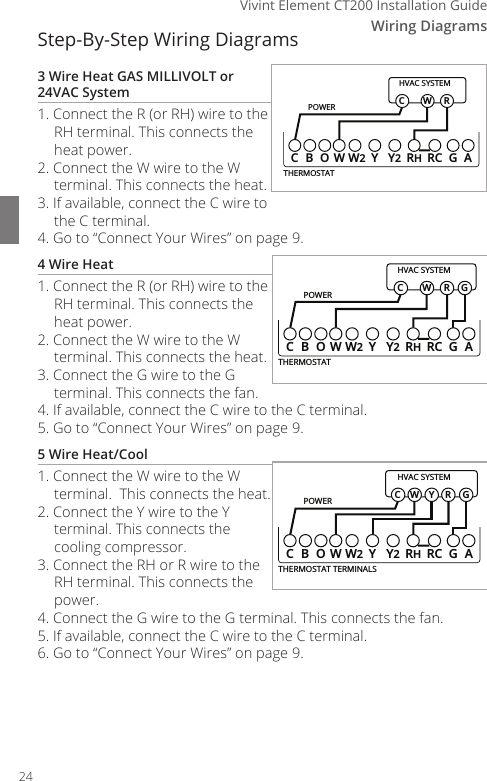
Wiring Diagrams4Vivint Element CT200 Installation GuideStep-By-Step Wiring Diagrams3 Wire Heat GAS MILLIVOLT or 24VAC System 1. Connect the R (or RH) wire to the RH terminal. This connects the heat power.2. Connect the W wire to the W terminal. This connects the heat.3. If available, connect the C wire to the C terminal.4. Go to “Connect Your Wires” on page 9.4 Wire Heat1. Connect the R (or RH) wire to the RH terminal. This connects the heat power. 2. Connect the W wire to the W terminal. This connects the heat.3. Connect the G wire to the G terminal. This connects the fan.4. If available, connect the C wire to the C terminal.5. Go to “Connect Your Wires” on page 9.5 Wire Heat/Cool1. Connect the W wire to the W terminal.  This connects the heat.2. Connect the Y wire to the Y terminal. This connects the cooling compressor. 3. Connect the RH or R wire to the RH terminal. This connects the power.4. Connect the G wire to the G terminal. This connects the fan.5. If available, connect the C wire to the C terminal.6. Go to “Connect Your Wires” on page 9.POWERHVAC SYSTEMTHERMOSTATCBOW YY2RHRC GAW2W RCPOWERHVAC SYSTEMTHERMOSTATCBOW YY2RHRC GAW2W RCGPOWERHVAC SYSTEMTHERMOSTAT TERMINALSCBOW YY2RHRC GAW2W RCGY24
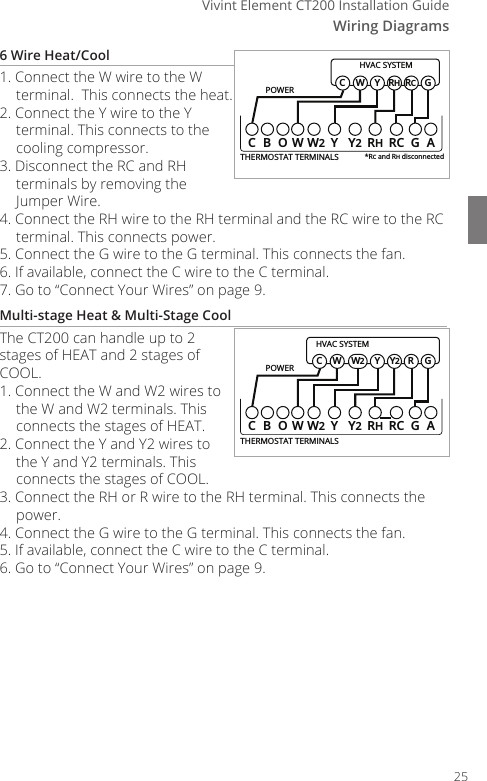
Wiring DiagramsVivint Element CT200 Installation Guide6 Wire Heat/Cool1. Connect the W wire to the W terminal.  This connects the heat.2. Connect the Y wire to the Y terminal. This connects to the cooling compressor. 3. Disconnect the RC and RH terminals by removing the Jumper Wire. 4. Connect the RH wire to the RH terminal and the RC wire to the RC terminal. This connects power.5. Connect the G wire to the G terminal. This connects the fan.6. If available, connect the C wire to the C terminal.7. Go to “Connect Your Wires” on page 9.Multi-stage Heat & Multi-Stage CoolThe CT200 can handle up to 2 stages of HEAT and 2 stages of COOL.1. Connect the W and W2 wires to the W and W2 terminals. This connects the stages of HEAT.2. Connect the Y and Y2 wires to the Y and Y2 terminals. This connects the stages of COOL.3. Connect the RH or R wire to the RH terminal. This connects the power.4. Connect the G wire to the G terminal. This connects the fan.5. If available, connect the C wire to the C terminal.6. Go to “Connect Your Wires” on page 9.POWERHVAC SYSTEMTHERMOSTAT TERMINALSCBOW YY2RHRC GAW2W GYRHRCC*RC and RH disconnectedPOWERHVAC SYSTEMTHERMOSTAT TERMINALSCBOW YY2RHRC GAW2W GYY2RCW225
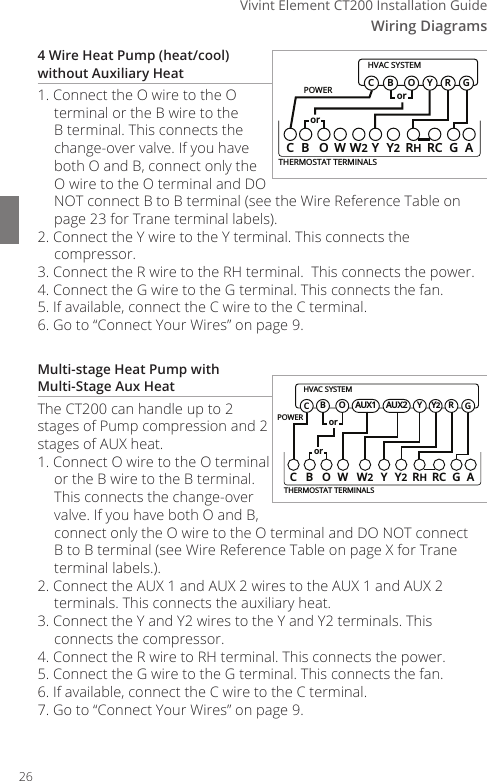
Wiring Diagrams4Vivint Element CT200 Installation Guide4 Wire Heat Pump (heat/cool) without Auxiliary Heat1. Connect the O wire to the O terminal or the B wire to the B terminal. This connects the change-over valve. If you have both O and B, connect only the O wire to the O terminal and DO NOT connect B to B terminal (see the Wire Reference Table on page 23 for Trane terminal labels).2. Connect the Y wire to the Y terminal. This connects the compressor. 3. Connect the R wire to the RH terminal.  This connects the power.4. Connect the G wire to the G terminal. This connects the fan. 5. If available, connect the C wire to the C terminal.6. Go to “Connect Your Wires” on page 9.Multi-stage Heat Pump with  Multi-Stage Aux HeatThe CT200 can handle up to 2 stages of Pump compression and 2 stages of AUX heat.1. Connect O wire to the O terminal or the B wire to the B terminal. This connects the change-over valve. If you have both O and B, connect only the O wire to the O terminal and DO NOT connect B to B terminal (see Wire Reference Table on page X for Trane terminal labels.).2. Connect the AUX 1 and AUX 2 wires to the AUX 1 and AUX 2 terminals. This connects the auxiliary heat.3. Connect the Y and Y2 wires to the Y and Y2 terminals. This connects the compressor.4. Connect the R wire to RH terminal. This connects the power. 5. Connect the G wire to the G terminal. This connects the fan.6. If available, connect the C wire to the C terminal.7. Go to “Connect Your Wires” on page 9.POWERHVAC SYSTEMTHERMOSTAT TERMINALSCB OW YY2RHRC GAW2BGOY RCororPOWERHVAC SYSTEMTHERMOSTAT TERMINALSCBOW YY2RHRC GAW2BGOY RCororY2AUX2AUX126
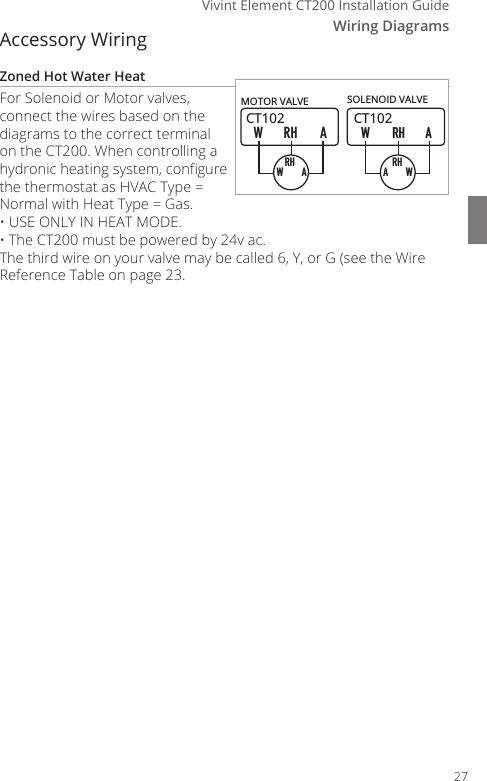
Wiring DiagramsVivint Element CT200 Installation GuideAccessory WiringZoned Hot Water HeatFor Solenoid or Motor valves, connect the wires based on the diagrams to the correct terminal on the CT200. When controlling a hydronic heating system, congure the thermostat as HVAC Type = Normal with Heat Type = Gas.• USE ONLY IN HEAT MODE. •  The CT200 must be powered by 24v ac.The third wire on your valve may be called 6, Y, or G (see the Wire Reference Table on page 23.CT102RH AWMOTOR VALVERHWACT102RH AWSOLENOID VALVERHAW27
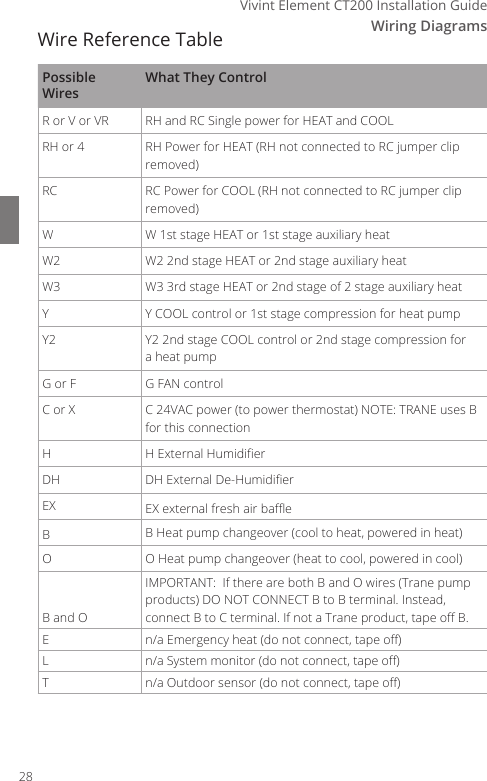
Wiring Diagrams4Vivint Element CT200 Installation GuideWire Reference TablePossible WiresWhat They ControlR or V or VR RH and RC Single power for HEAT and COOLRH or 4 RH Power for HEAT (RH not connected to RC jumper clip removed)RC RC Power for COOL (RH not connected to RC jumper clip removed)W W 1st stage HEAT or 1st stage auxiliary heatW2 W2 2nd stage HEAT or 2nd stage auxiliary heatW3 W3 3rd stage HEAT or 2nd stage of 2 stage auxiliary heatY Y COOL control or 1st stage compression for heat pumpY2 Y2 2nd stage COOL control or 2nd stage compression for a heat pumpG or F G FAN controlC or X C 24VAC power (to power thermostat) NOTE: TRANE uses B for this connectionHH External HumidierDH DH External De-HumidierEX EX external fresh air baeBB Heat pump changeover (cool to heat, powered in heat)O O Heat pump changeover (heat to cool, powered in cool)B and OIMPORTANT:  If there are both B and O wires (Trane pump products) DO NOT CONNECT B to B terminal. Instead, connect B to C terminal. If not a Trane product, tape o B.En/a Emergency heat (do not connect, tape o)Ln/a System monitor (do not connect, tape o)Tn/a Outdoor sensor (do not connect, tape o)28
Wiring DiagramsVivint Element CT200 Installation GuideLennox Heat PumpV or VR or R RH Power for HEATM or Y Y COOL controlY or W or W2 W2 2nd stage HEATF or G G Fan controlR or O OX or X2 or C CTrane Products [American Standard]B C 24VAC power (to power thermostat)X2 Emergency heat. Do not connect, tape o.Zoned Hot Water 2 wireR RHW WMotor Driven Valves3 WireR or 5 RH (power)W or 4 W  (heat ON)Y or G or 6  (the 3rd wire) A (heat OFF)Solenoid Valves3 WireR RH (power)W A (heat ON)Y or G  (the 3rd wire) W (heat OFF)29
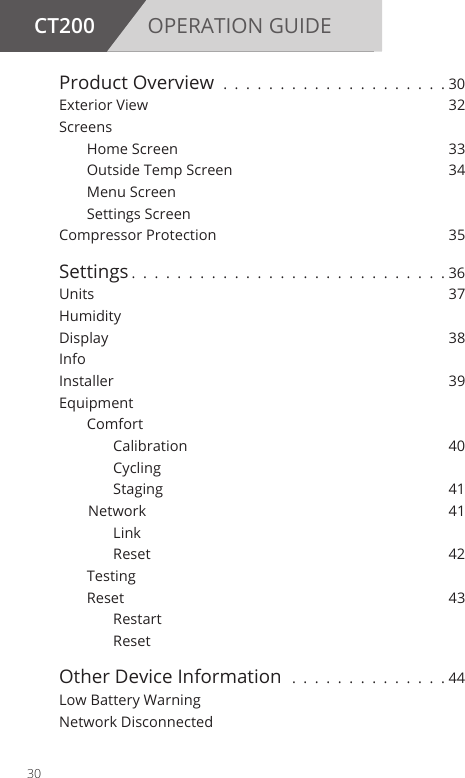
CT200 OPERATION GUIDEProduct Overview . . . . . . . . . . . . . . . . . . . . 30Exterior View  32Screens    Home Screen  33  Outside Temp Screen  34  Menu Screen  Settings ScreenCompressor Protection  35Settings . . . . . . . . . . . . . . . . . . . . . . . . . . . .36Units   37Humidity Display   38Info   Installer 39Equipment  Comfort      Calibration  40     Cycling      Staging  41   Network  41     Link      Reset  42 Testing  Reset  43     Restart     ResetOther Device Information  . . . . . . . . . . . . . . 44Low Battery WarningNetwork Disconnected30
Radio ThermostatProduct Overview31
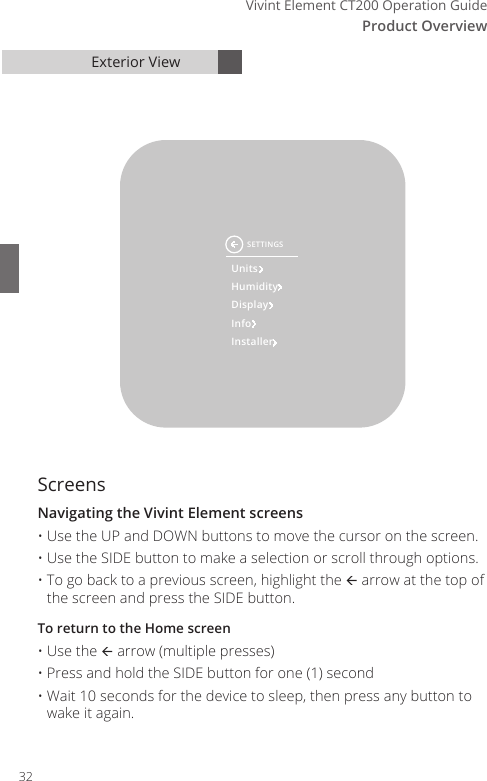
Vivint Element CT200 Operation GuideProduct Overview5Exterior ViewScreensNavigating the Vivint Element screens• Use the UP and DOWN buttons to move the cursor on the screen. • Use the SIDE button to make a selection or scroll through options. • To go back to a previous screen, highlight the  arrow at the top of the screen and press the SIDE button. To return to the Home screen• Use the  arrow (multiple presses)• Press and hold the SIDE button for one (1) second• Wait 10 seconds for the device to sleep, then press any button to wake it again.UnitsHumidityDisplayInfoInstallerSETTINGS32
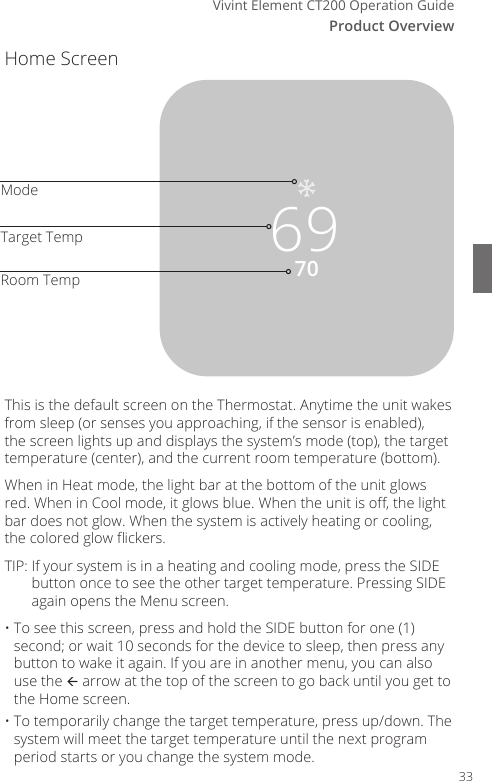
Vivint Element CT200 Operation GuideProduct OverviewHome Screen7069ModeTarget TempRoom TempThis is the default screen on the Thermostat. Anytime the unit wakes from sleep (or senses you approaching, if the sensor is enabled), the screen lights up and displays the system’s mode (top), the target temperature (center), and the current room temperature (bottom). When in Heat mode, the light bar at the bottom of the unit glows red. When in Cool mode, it glows blue. When the unit is o, the light bar does not glow. When the system is actively heating or cooling, the colored glow ickers.TIP:  If your system is in a heating and cooling mode, press the SIDE button once to see the other target temperature. Pressing SIDE again opens the Menu screen.• To see this screen, press and hold the SIDE button for one (1) second; or wait 10 seconds for the device to sleep, then press any button to wake it again. If you are in another menu, you can also use the  arrow at the top of the screen to go back until you get to the Home screen.• To temporarily change the target temperature, press up/down. The system will meet the target temperature until the next program period starts or you change the system mode.33
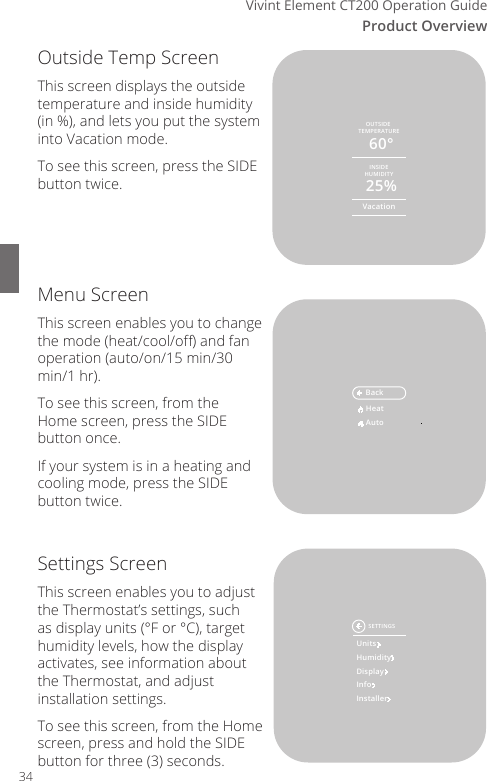
Vivint Element CT200 Operation GuideProduct Overview5Outside Temp ScreenThis screen displays the outside temperature and inside humidity (in %), and lets you put the system into Vacation mode.To see this screen, press the SIDE button twice.Menu ScreenThis screen enables you to change the mode (heat/cool/o) and fan operation (auto/on/15 min/30 min/1 hr).To see this screen, from the Home screen, press the SIDE button once. If your system is in a heating and cooling mode, press the SIDE button twice.Settings ScreenThis screen enables you to adjust the Thermostat’s settings, such as display units (°F or °C), target humidity levels, how the display activates, see information about the Thermostat, and adjust installation settings.To see this screen, from the Home screen, press and hold the SIDE button for three (3) seconds.60°25%INSIDEHUMIDITYOUTSIDE TEMPERATUREVacationCool15 min 30 min 1 hrHeat&CoolHeatAutoBackUnitsHumidityDisplayInfoInstallerSETTINGS34
Vivint Element CT200 Operation GuideProduct OverviewZ-Wave and Thermostat ProgramsThe Thermostat must be connected to a Z-Wave network in order to operate. Use your Z-Wave application to adjust the heating and cool-ing programs that the Thermostat uses to run your system. You can temporarily override target temperatures and change system modes from the thermostat, but you must use the Z-Wave application to make permanent changes to programs.Compressor ProtectionThe Thermostat has a minimum cycle time of four (4) minutes to protect your compressor from excessive wear from responding to thermostat changes. The Home screen shows an hour glass and the message “Please Wait”. The compressor will not come on until the four-minute delay is over. 35
Vivint Element CT200 User Guide6Customization36
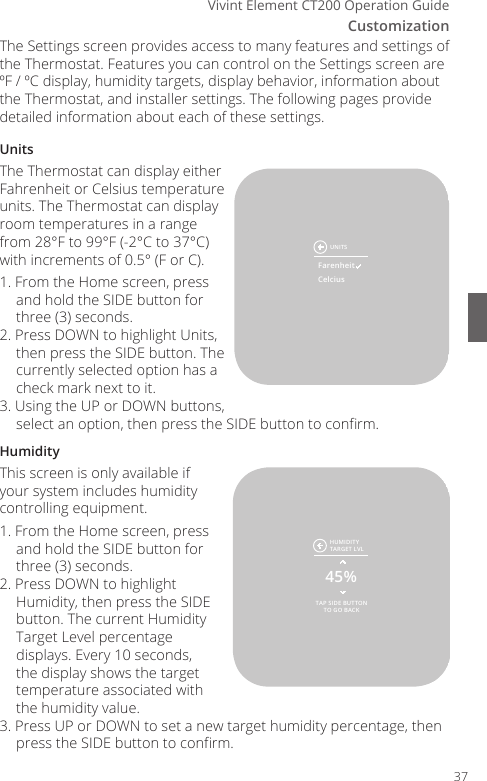
CustomizationVivint Element CT200 Operation GuideThe Settings screen provides access to many features and settings of the Thermostat. Features you can control on the Settings screen are ºF / ºC display, humidity targets, display behavior, information about the Thermostat, and installer settings. The following pages provide detailed information about each of these settings.UnitsThe Thermostat can display either Fahrenheit or Celsius temperature units. The Thermostat can display room temperatures in a range from 28°F to 99°F (-2°C to 37°C) with increments of 0.5° (F or C). 1. From the Home screen, press and hold the SIDE button for three (3) seconds.2. Press DOWN to highlight Units, then press the SIDE button. The currently selected option has a check mark next to it.3. Using the UP or DOWN buttons, select an option, then press the SIDE button to conrm.HumidityThis screen is only available if your system includes humidity controlling equipment.1. From the Home screen, press and hold the SIDE button for three (3) seconds.2. Press DOWN to highlight Humidity, then press the SIDE button. The current Humidity Target Level percentage displays. Every 10 seconds, the display shows the target temperature associated with the humidity value.3. Press UP or DOWN to set a new target humidity percentage, then press the SIDE button to conrm.TAP SIDE BUTTONTO GO BACK45%HUMIDITYTARGET LVLUNITSFarenheitCelcius37
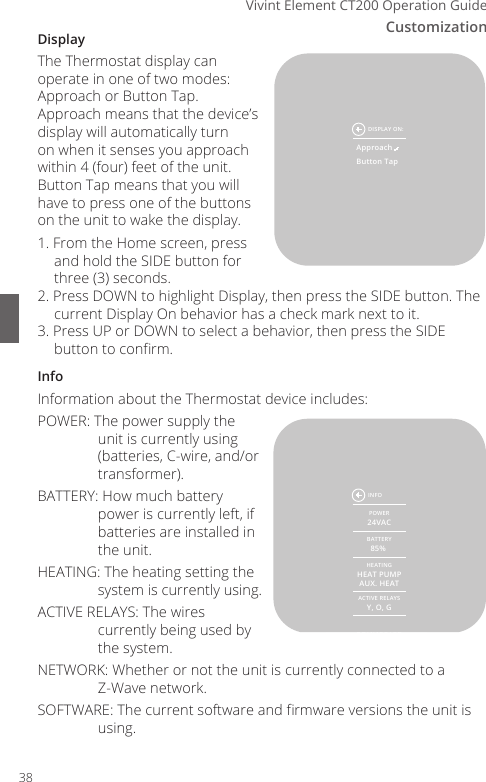
Customization6Vivint Element CT200 Operation GuideDisplayThe Thermostat display can operate in one of two modes: Approach or Button Tap. Approach means that the device’s display will automatically turn on when it senses you approach within 4 (four) feet of the unit. Button Tap means that you will have to press one of the buttons on the unit to wake the display.1. From the Home screen, press and hold the SIDE button for three (3) seconds.2. Press DOWN to highlight Display, then press the SIDE button. The current Display On behavior has a check mark next to it.3. Press UP or DOWN to select a behavior, then press the SIDE button to conrm.InfoInformation about the Thermostat device includes:POWER: The power supply the unit is currently using (batteries, C-wire, and/or transformer).BATTERY: How much battery power is currently left, if batteries are installed in the unit.HEATING: The heating setting the system is currently using.ACTIVE RELAYS: The wires currently being used by the system.NETWORK: Whether or not the unit is currently connected to a Z-Wave network.SOFTWARE: The current software and rmware versions the unit is using.POWER24VACBATTERY85% HEATINGHEAT PUMPAUX. HEATACTIVE RELAYSY, O, GNETWORKCONNECTEDSOFTWARED-V1.23Z-V1.23INFOApproachButton TapDISPLAY ON:38
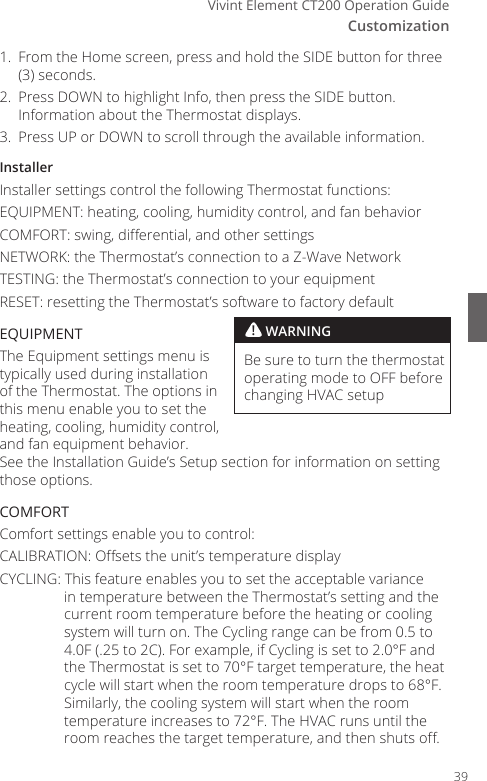
CustomizationVivint Element CT200 Operation Guide1.  From the Home screen, press and hold the SIDE button for three (3) seconds.2.  Press DOWN to highlight Info, then press the SIDE button. Information about the Thermostat displays.3.  Press UP or DOWN to scroll through the available information.InstallerInstaller settings control the following Thermostat functions:EQUIPMENT: heating, cooling, humidity control, and fan behaviorCOMFORT: swing, dierential, and other settingsNETWORK: the Thermostat’s connection to a Z-Wave NetworkTESTING: the Thermostat’s connection to your equipment RESET: resetting the Thermostat’s software to factory defaultEQUIPMENTThe Equipment settings menu is typically used during installation of the Thermostat. The options in this menu enable you to set the heating, cooling, humidity control, and fan equipment behavior. See the Installation Guide’s Setup section for information on setting those options.COMFORTComfort settings enable you to control:CALIBRATION: Osets the unit’s temperature displayCYCLING: This feature enables you to set the acceptable variance in temperature between the Thermostat’s setting and the current room temperature before the heating or cooling system will turn on. The Cycling range can be from 0.5 to 4.0F (.25 to 2C). For example, if Cycling is set to 2.0°F and the Thermostat is set to 70°F target temperature, the heat cycle will start when the room temperature drops to 68°F.  Similarly, the cooling system will start when the room temperature increases to 72°F. The HVAC runs until the room reaches the target temperature, and then shuts o.! WARNINGBe sure to turn the thermostat operating mode to OFF before changing HVAC setup39
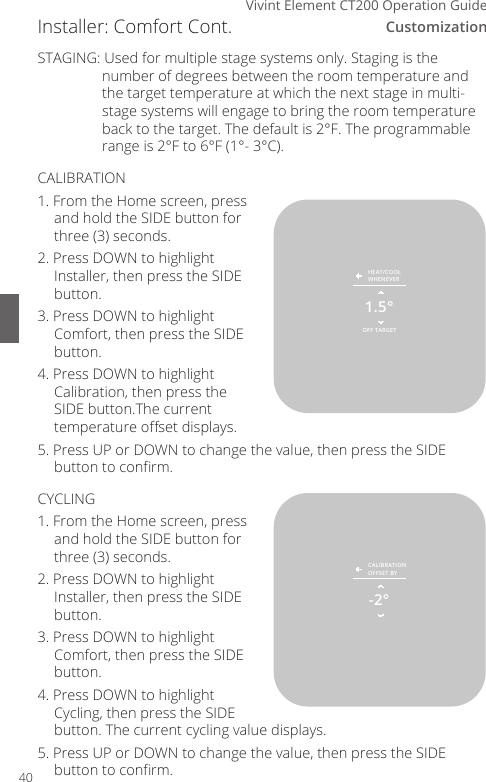
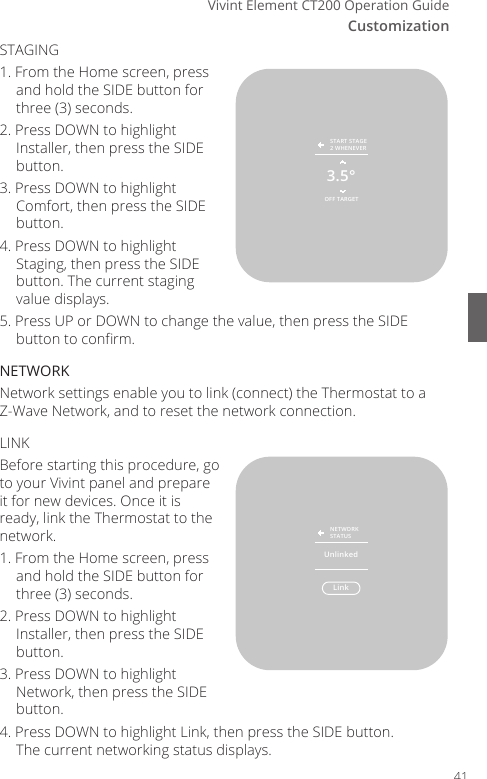
Customization6Vivint Element CT200 Operation GuideSTAGING: Used for multiple stage systems only. Staging is the number of degrees between the room temperature and the target temperature at which the next stage in multi-stage systems will engage to bring the room temperature back to the target. The default is 2°F. The programmable range is 2°F to 6°F (1°- 3°C).CALIBRATION1. From the Home screen, press and hold the SIDE button for three (3) seconds.2. Press DOWN to highlight Installer, then press the SIDE button.3. Press DOWN to highlight Comfort, then press the SIDE button.4.   Press DOWN to highlight Calibration, then press the SIDE button.The current temperature oset displays.5. Press UP or DOWN to change the value, then press the SIDE button to conrm.CYCLING1. From the Home screen, press and hold the SIDE button for three (3) seconds.2. Press DOWN to highlight Installer, then press the SIDE button.3. Press DOWN to highlight Comfort, then press the SIDE button.4. Press DOWN to highlight Cycling, then press the SIDE button. The current cycling value displays.5. Press UP or DOWN to change the value, then press the SIDE button to conrm.Installer: Comfort Cont.OFF TARGET1.5°HEAT/COOLWHENEVER-2°CALIBRATIONOFFSET BY40
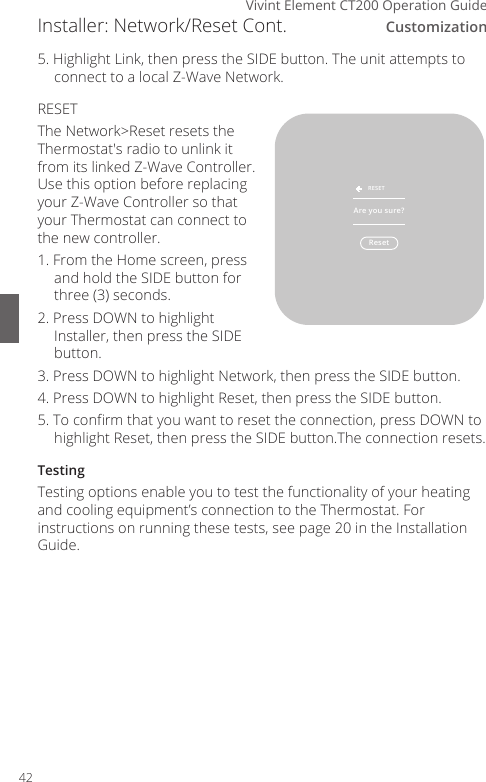
CustomizationVivint Element CT200 Operation GuideSTAGING1. From the Home screen, press and hold the SIDE button for three (3) seconds.2. Press DOWN to highlight Installer, then press the SIDE button.3. Press DOWN to highlight Comfort, then press the SIDE button.4. Press DOWN to highlight Staging, then press the SIDE button. The current staging value displays.5. Press UP or DOWN to change the value, then press the SIDE button to conrm.NETWORKNetwork settings enable you to link (connect) the Thermostat to a Z-Wave Network, and to reset the network connection.LINKBefore starting this procedure, go to your Vivint panel and prepare it for new devices. Once it is ready, link the Thermostat to the network.1. From the Home screen, press and hold the SIDE button for three (3) seconds.2. Press DOWN to highlight Installer, then press the SIDE button.3. Press DOWN to highlight Network, then press the SIDE button.4. Press DOWN to highlight Link, then press the SIDE button.  The current networking status displays.OFF TARGET3.5°START STAGE2 WHENEVERLinkNETWORKSTATUSUnlinked41
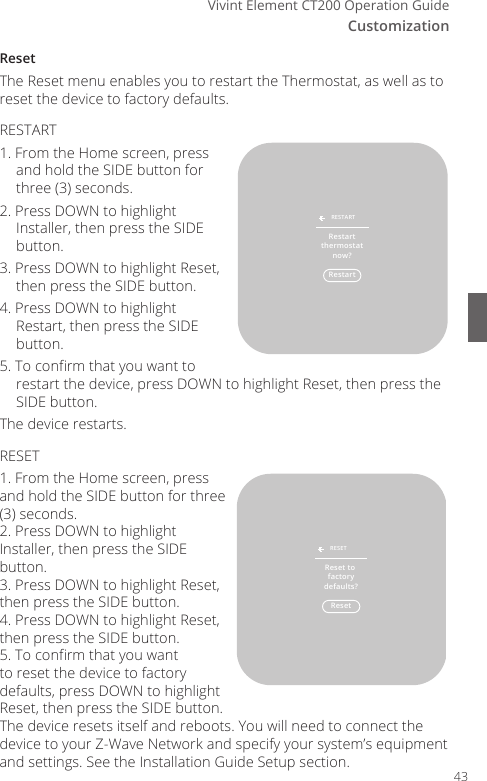
Customization6Vivint Element CT200 Operation Guide5. Highlight Link, then press the SIDE button. The unit attempts to connect to a local Z-Wave Network.RESETThe Network>Reset resets the Thermostat's radio to unlink it from its linked Z-Wave Controller. Use this option before replacing your Z-Wave Controller so that your Thermostat can connect to the new controller. 1. From the Home screen, press and hold the SIDE button for three (3) seconds.2. Press DOWN to highlight Installer, then press the SIDE button.3. Press DOWN to highlight Network, then press the SIDE button.4. Press DOWN to highlight Reset, then press the SIDE button.5. To conrm that you want to reset the connection, press DOWN to highlight Reset, then press the SIDE button.The connection resets.TestingTesting options enable you to test the functionality of your heating and cooling equipment’s connection to the Thermostat. For instructions on running these tests, see page 20 in the Installation Guide.Installer: Network/Reset Cont.ResetRESETAre you sure?42
CustomizationVivint Element CT200 Operation GuideResetThe Reset menu enables you to restart the Thermostat, as well as to reset the device to factory defaults.RESTART1. From the Home screen, press and hold the SIDE button for three (3) seconds.2. Press DOWN to highlight Installer, then press the SIDE button.3. Press DOWN to highlight Reset, then press the SIDE button.4. Press DOWN to highlight Restart, then press the SIDE button.5. To conrm that you want to restart the device, press DOWN to highlight Reset, then press the SIDE button.The device restarts.RESET1. From the Home screen, press and hold the SIDE button for three (3) seconds.2. Press DOWN to highlight Installer, then press the SIDE button.3. Press DOWN to highlight Reset, then press the SIDE button.4. Press DOWN to highlight Reset, then press the SIDE button.5. To conrm that you want to reset the device to factory defaults, press DOWN to highlight Reset, then press the SIDE button.The device resets itself and reboots. You will need to connect the device to your Z-Wave Network and specify your system’s equipment and settings. See the Installation Guide Setup section.RestartRESTARTRestartthermostatnow?ResetRESETReset to factorydefaults?43
Customization6Vivint Element CT200 Operation GuideOther Device InformationLow Battery WarningThe Thermostat displays this screen when the batteries are running low on charge and should be replaced. This screen will only display once per day the rst time the screen wakes. 1. Press the SIDE button to dismiss this warning. 2. Turn the thermostat mode to OFF (from heat or cool). 3. Replace the batteries. 4. Turn the thermostat mode back on to HEAT or COOL. Your settings will be retained and the thermostat will automatically reconnect to the Z-Wave Network.Network DisconnectedThe Thermostat displays this screen when it has lost its connection to the Z-Wave Network. This screen will only display once per day the rst time the screen wakes. 1. Press the SIDE button to dismiss this warning. 2. Go to the Home > Installer > Network > Link menu, and follow the procedure to reconnect the Thermostat to the Z-Wave Network. Firmware UpdatingThe Thermostat displays this screen when it is updating its rmware.Wait until the rmware update is complete (about 15 minutes) and this screen is no longer displayed before attempting to use the Thermostat. NETWORKDISCONNECTEDOKUpdating44
Vivint Element CT200 Operation GuideFCC WARNING Changes or modications to this unit not expressly approved by the party responsible for compliance could void the user’s authority to operate the equipment.NOTE: This equipment has been tested and found to comply with the limits for a Class B digital device, pursuant to Part 15 of the FCC Rules. These limits are designed to provide reasonable protection against harmful interference in a residential installation. This equipment generates, uses and can radiate radio frequency energy and, if not installed and used in accordance with the instructions, may cause harmful interference to radio communications.However, there is no guarantee that interference will not occur in a particular installation. If this equipment does cause harmful interference to radio or television reception (which can be determined by turning the equipment o and on), try to correct the interference by following these suggestions:•  Reorient or relocate the receiving antenna.•  Increase the separation between the equipment and receiver.•  Connect the equipment to an outlet on a circuit dierent from that to which the receiver is connected.•  Consult the dealer or an experienced radio/TV technician for help.45WARNING: Changes or modifications to this receiver not expressly approved by RTCOA voidthe user’s authority to operate this equipment.RF Exposure info -- (manual)This equipment complies with FCC’s and IC's RF radiation exposure limits set forth for anuncontrolled environment. The antenna(s) used for this transmitter must be installed andoperated to provide a separation distance of at least 20 cm from all persons and must not becollocated or operating in conjunction with any other antenna or transmitter. Installers mustensure that 20cm separation distance will be maintained between the device (excluding itshandset) and users.
© 2015 Radio Thermostat Company of America. All rights reserved.Statement Of Use100% Compatible with all popular residential HVAC systems: 24VAC single stage and two stage conventional heating systems (gas, oil, electric), heat pumps with up to two stages of heat and up to two stages of auxiliary heat (electric or fossil), zoned forced air and zoned hot water (2 or 3 wire), millivolt systems (with a 12-24V AC or DC source), one or two stage cooling, and hybrid systems.  Do not use this thermostat with with line voltage heating systems.RTCOA logo sheet7aug07This device complies with Industry Canada’s licence-exempt RSSs. Operation is subject to the following two conditions:(1) This device may not cause interference; and(2) This device must accept any interference, including interference that may cause undesired operation of the device.Le présent appareil est conforme aux CNR d’Industrie Canada applicables aux appareils radioexempts de licence. L’exploitation est autorisée aux deux conditions suivantes :(1) l’appareil ne doit pas produire de brouillage;(2) l’utilisateur de l’appareil doit accepter tout brouillage radioélectrique subi, même si lebrouillage est susceptible d’en compromettre le fonctionnement.

Navigation menu