RealWear 1100G00AA Head Mounted Tablet User Manual

RealWear, Inc Head Mounted Tablet

User manual.pdf

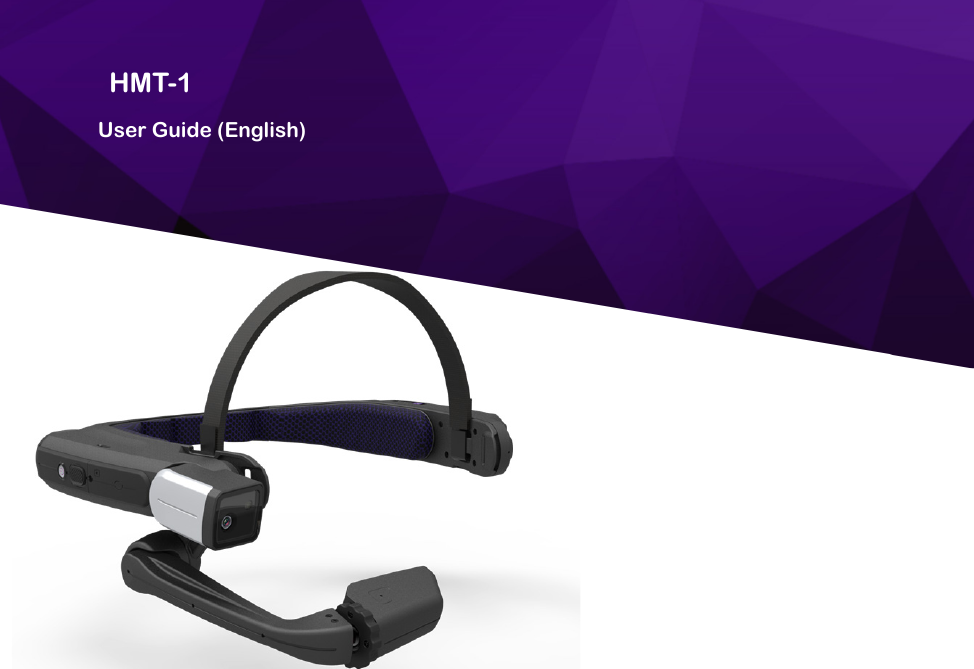
HMT-1 User Guide (English)
2Copyright InformationCopyright © 2017 Realwear Technologies, Inc. Realwear and the Realwear logo are trademarks of Realwear Technologies, Inc. Other company and product names may be trademarks or registered trade-marks of the respective owners with whom they are associated. RealWear may update this guide from time to time. You should ensure you are using the most current version. Copyright Information
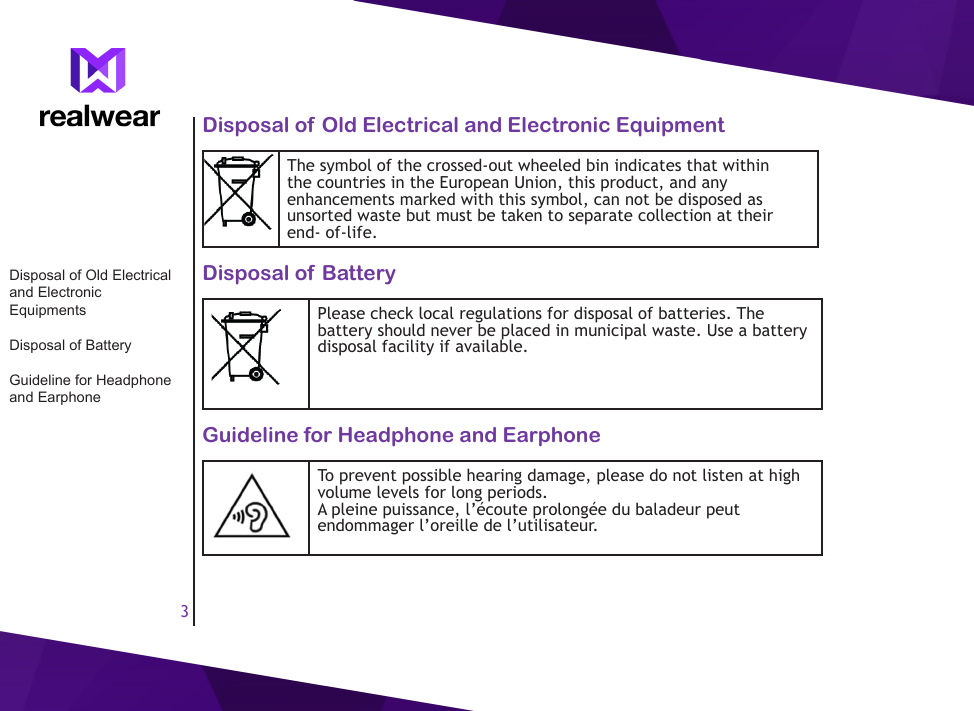
3Disposal of Old Electrical and Electronic EquipmentThe symbol of the crossed-out wheeled bin indicates that within the countries in the European Union, this product, and any enhancements marked with this symbol, can not be disposed as unsorted waste but must be taken to separate collection at their end- of-life. Disposal of BatteryPlease check local regulations for disposal of batteries. The battery should never be placed in municipal waste. Use a battery disposal facility if available.Guideline for Headphone and EarphoneTo prevent possible hearing damage, please do not listen at high volume levels for long periods.A pleine puissance, l’écoute prolongée du baladeur peut endommager l’oreille de l’utilisateur.Disposal of Old Electrical and Electronic EquipmentsDisposal of BatteryGuideline for Headphone and Earphone
4General InformationCongratulations on the purchase of a Realwear Head Mounted tablet HMT-1. This tablet is designed for skilled technicians and engineers employed in eld service, equipment inspection, maintenance and complex manufacturing assembly units.Head Mounted Tablet Models Covered This user guide covers the following Realwear Head Mounted tablet (HMT) model: T1100GThe model name can be read on the tablet label.Operating frequency band(s) details as follows:•  802.11a : 14.34dBm•  802.11b : 13.24dBm•  802.11g : 12.29dBm•  802.11n HT20 (2.4GHz) : 11.17dBm•  802.11n HT40 (2.4GHz) : 10.58dBm•  802.11n HT20 (5GHz) : 11.2dBm•  802.11n HT40 (5GHz) : 11.17dBm•  802.11ac : 12.26dBm•  Bluetooth : 10.55dBmHead Mounted Tablet Models Covered5G WiFi Connection InformationRealwear Support Information
55G WiFi Connection InformationOperations in the 5.15-5.35GHz band are restricted to indoor usage only.5.15-5.35GHz は屋内限定.Realwear Support InformationFor additional product and support information,•  E-mail: support@realwear.com•  Website: http://www.realwear.com/support•  Postal address: 1851 McCarthy Boulevard, Suite 120, Milpitas, CA  95035General InformationHead Mounted Tablet Models Covered5G WiFi Connection InformationRealwear Support Information
6Safety GuidelinesBattery PerformanceA rechargeable battery powers your device. Always use only the original type of Realwear battery, which came with the device. Use the battery only for its intended purpose  . Never use any charger or battery that is damaged. If the battery is completely discharged, it may take a few minutes before the charging indicator appears on the display or before any calls can be made. The full performance of a new battery is achieved only after three to four complete charge and discharge cycles. The battery can be charged and discharged hundreds of times but it will eventually wear out. Unplug the charger from the electrical plug and the device when not in use. Ensure that you do not leave the fully charged battery connected to the charger for longer time. If left unused, a fully charged battery will lose its charge over time.There is a risk of explosion while charging if an incorrect battery other than the specied model is used.Battery ReplacementWhen low battery alert is displayed, we  recommend to replace the battery with an original Realwear battery. If a replacement battery is being used for the rst time or if the battery has not been used for a prolonged period, it may be necessary to connect the charger and then disconnect and reconnect it to begin charging the battery.Avoid Short CircuitDo not short-circuit the battery. An accidental short-circuit can occur when a metallic object such as a coin, clip, or pen causes direct connection of the positive (+) and negative (-) terminals Battery PerformanceBattery ReplacementAvoid Short Circuit
7of the battery. (These look like metal strips on the battery.) This might happen, for example, when you carry a spare battery in your pocket or purse. A short-circuit at the terminals may damage the battery or the connecting object.Avoid High Temperatures (check and change)Leaving the battery in hot or cold places, such as in a closed car in summer or winter conditions, will reduce the capacity and lifetime of the battery. For the best results,  try to keep the battery between -10°C and +50°C (+14°F and 122°F). A device with a hot or cold battery may not work temporarily, even when the battery is fully charged. Battery performance is particularly limited in temperatures well below freezing.Battery DisposalDo not dispose o batteries in a re as they may explode. Batteries may also explode if damaged. Dispose of batteries according to local regulations and recycle when possible. Do not dispose as household waste. Do not dismantle, open or shred cells or batteries. In the event of a battery leak, do not allow the liquid to come in contact with the skin or eyes. In the event of leak or a hazard seek medical  help immediately.Child SafetyDo not allow children to play with your mobile devices or its accessories. Keep it out of their reach. They could hurt themselves or others, or could accidentally damage the device or accessories. Your device and its accessories may contain small parts, which could be detached and create a choking hazard.Health HazardsStop using Realwear HMT or its eyepiece immediatly if you get headache, vertigo, dizziness or nausea. Avoid High TemperatureBattery DisposalChild SafetyHealth Hazards
8SAR InformationRadiation Exposure Statement - The United States and CanadaThis device meets the government’s requirements for exposure to radio waves.This device is designed and manufactured not to exceed the emission limits for exposure to radio frequency (RF) energy set by the Federal Communications Commission of the U.S. Government.The exposure standard for wireless device employs a unit of measurement known as the Specic Absorption Rate, or SAR. The SAR limit set by the FCC is 1.6W/kg. Tests for SAR are conducted using standard operating positions accepted by the FCC with the device transmitting at its highest certied power level in all tested frequency bands.No minimum separation distance needs to be maintained between the user’s body and the device, including the antenna during body-worn operation to comply with the RF exposure requirements in United States and Canada . The limit recommended by FCC and IC is 1.6 W/kg averaged over one (1) gram of tissue. The highest SAR value of the HMT-1 for use:•  By the ear is 0.95 W/1g.Radiation Exposure Statement - EuropeNo minimum separation distance needs to be maintained between the user’s body and the device, including the antenna during body-worn operation to comply with the RF exposure requirements in Europe. The limit recommended by RED is 2 W/kg averaged over ten (10) gram of tissue.The highest SAR value of the HMT-1 for use:SAR InformationRadiation Exposure Statement - The United States and CanadaRadiation Exposure State-ment - Europe
9•  By the ear is 0.267 W/kg (10g).Radiation Exposure Statement - CanadaThe product comply with the Canada portable RF exposure limit set forth for an uncontrolled environment and are safe for intended operation as described in this manual. The further RF exposure reduction can be achieved if the product can be kept as far as possible from the user body or set the device to lower output power if such function is available. Déclaration d’exposition aux radiationsLe produit est conforme aux limites d’exposition pour les appareils portables RF pour les Etats-Unis et le Canada établies pour un environnement non contrôlé. Le produit est sûr pour un fonctionnement tel que décrit dans ce manuel. La réduction aux expositions RF peut être augmentée si l’appareil peut être conservé aussi loin que possible du corps de l’utilisateur ou que le dispositif est réglé sur la puissance de sortie la plus faible si une telle fonction est disponible.Adapter Charger Usage Safety InstructionsTo use the chargers follow the given instructions:•  Make sure that the cable plug is properly connected.•  Do not insert or remove the plug with wet hands.•  Do not open the charger. For any issues, contact support.•  Keep the charger away from liquids.•  In case of strange smell or noise from the charger, disconnect it and contact support.•  This charger is for indoor usage only. Please avoid wet areas.•  Do not cut, break or bend the cable in a knot.Déclaration d’exposition aux radiationsSAR Data Information for residents in CanadaAdapter Charger Usage Safety Instructions
10•  Do not put any objects on the cable that may let it overheat. It may damage the cable and cause re or electrocution.•  Before cleaning the cable or charger, disconnect from power supply.•  Disconnect the charger, once the device is fully charged.•  Do not use any cable other than the original cable as it may cause short circuit or electrocution.•  When using an extension cable, check the integrity of the ground conductor.Déclaration d’exposition aux radiationsSAR Data Information for residents in CanadaAdapter Charger Usage Safety Instructions
11IntroductionThis section provides information on using your Realwear Head Mounted tablet (HMT).The list of items in the Realwear HMT-1 box are: •  HMT device + Battery (inserted, 30% charge)•  USB cable type C•  Over-head strap•  A pair of hard hat clips (V-gard compatible)About Realwear Head Mounted TabletRealwear HMT-1 is a next generation Head Mounted rugged tablet. You can perform complete hands-free operation and operate these tablets using voice commands and head gestures. This hands-free enhancement is done using WearHF™ software, built into every RealWear device.The HMT device runs on Android 6.0. It is intutive and you can easily understand its usage. For more information on its features you can refer to this user guide.About Realwear Head Mounted Tablet
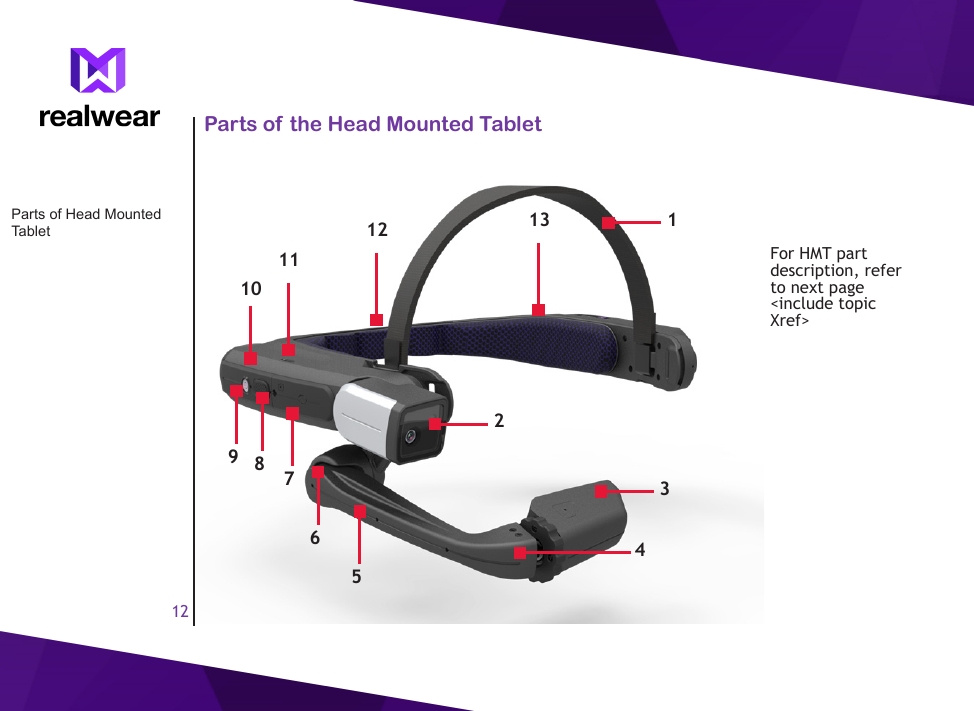
12Parts of the Head Mounted TabletParts of Head Mounted Tablet 13452681097For HMT part description, refer to next page <include topic Xref>1112 13
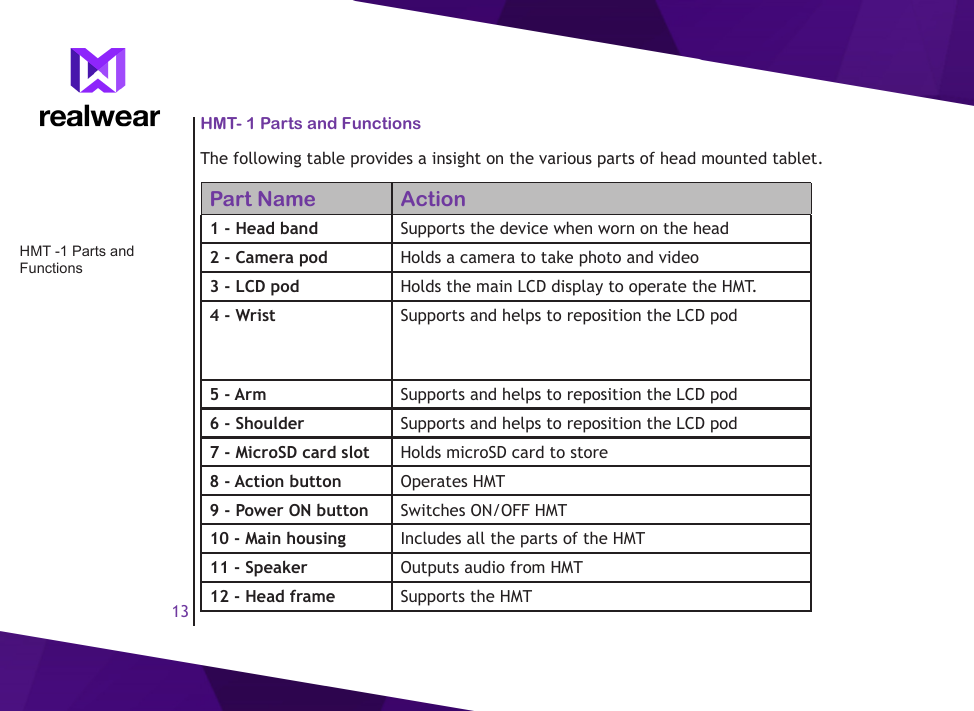
13HMT- 1 Parts and FunctionsThe following table provides a insight on the various parts of head mounted tablet.  Part Name Action1 - Head band Supports the device when worn on the head2 - Camera pod Holds a camera to take photo and video3 - LCD pod Holds the main LCD display to operate the HMT.4 - Wrist Supports and helps to reposition the LCD pod5 - Arm Supports and helps to reposition the LCD pod6 - Shoulder Supports and helps to reposition the LCD pod7 - MicroSD card slot Holds microSD card to store 8 - Action button Operates HMT9 - Power ON button Switches ON/OFF HMT10 - Main housing Includes all the parts of the HMT11 - Speaker Outputs audio from HMT12 - Head frame Supports the HMTHMT -1 Parts and Functions
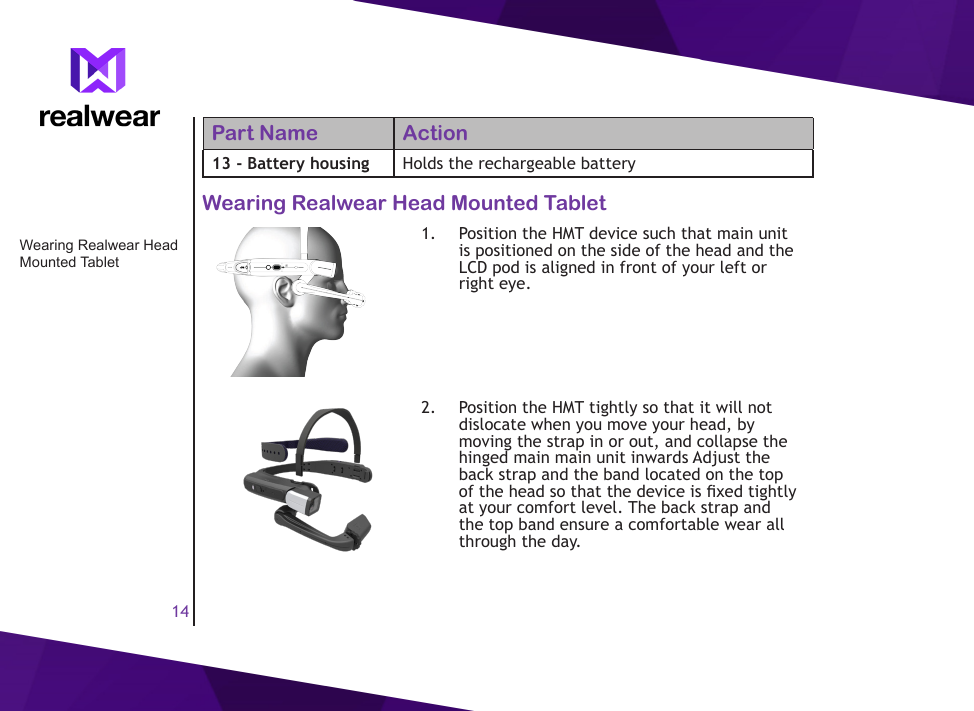
14Part Name Action13 - Battery housing Holds the rechargeable batteryWearing Realwear Head Mounted Tablet1.  Position the HMT device such that main unit is positioned on the side of the head and the LCD pod is aligned in front of your left or right eye.2.  Position the HMT tightly so that it will not dislocate when you move your head, by moving the strap in or out, and collapse the hinged main main unit inwards Adjust the back strap and the band located on the top of the head so that the device is xed tightly at your comfort level. The back strap and the top band ensure a comfortable wear all through the day.Wearing Realwear Head Mounted Tablet
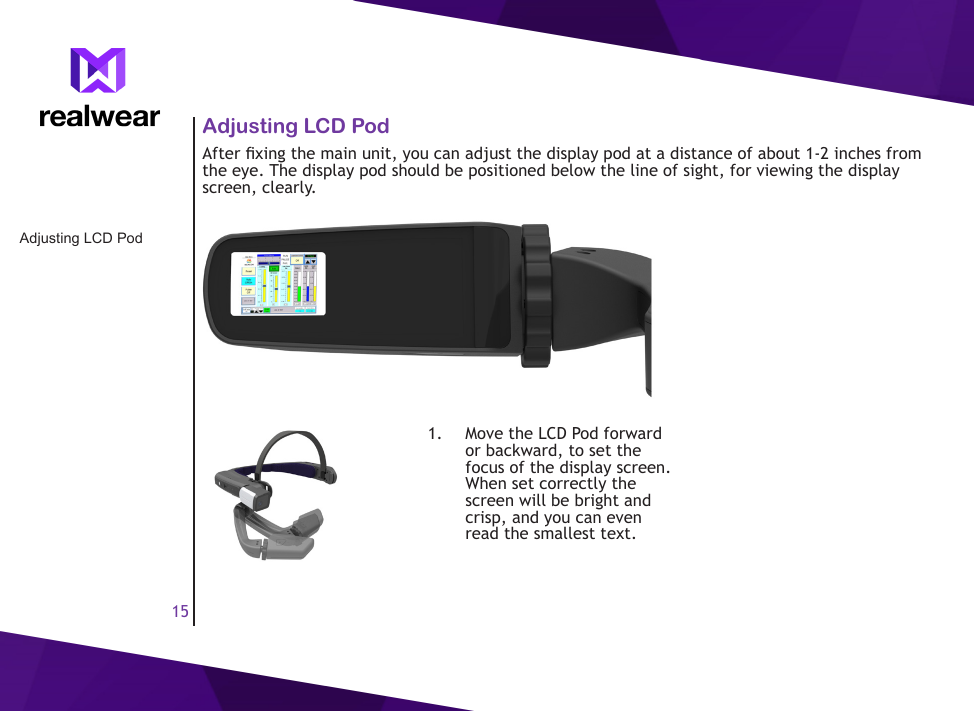
15Adjusting LCD PodAdjusting LCD PodAfter xing the main unit, you can adjust the display pod at a distance of about 1-2 inches from the eye. The display pod should be positioned below the line of sight, for viewing the display screen, clearly.1.  Move the LCD Pod forward or backward, to set the focus of the display screen. When set correctly the screen will be bright and crisp, and you can even read the smallest text.
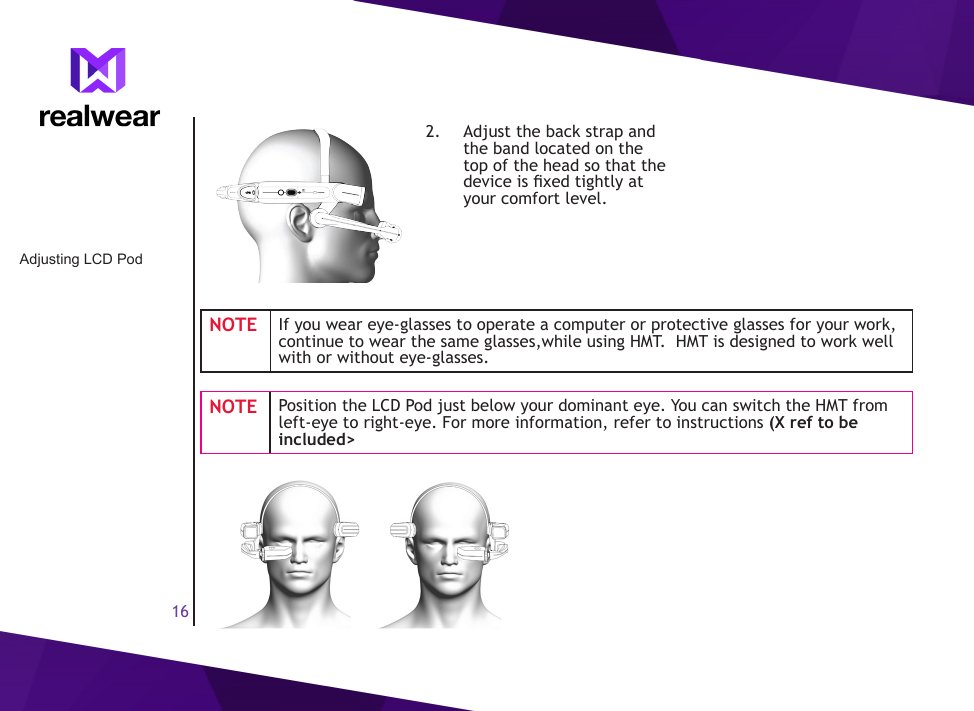
162.  Adjust the back strap and the band located on the top of the head so that the device is xed tightly at your comfort level.NOTE If you wear eye-glasses to operate a computer or protective glasses for your work, continue to wear the same glasses,while using HMT.  HMT is designed to work well with or without eye-glasses.NOTE Position the LCD Pod just below your dominant eye. You can switch the HMT from left-eye to right-eye. For more information, refer to instructions (X ref to be included>Adjusting LCD Pod
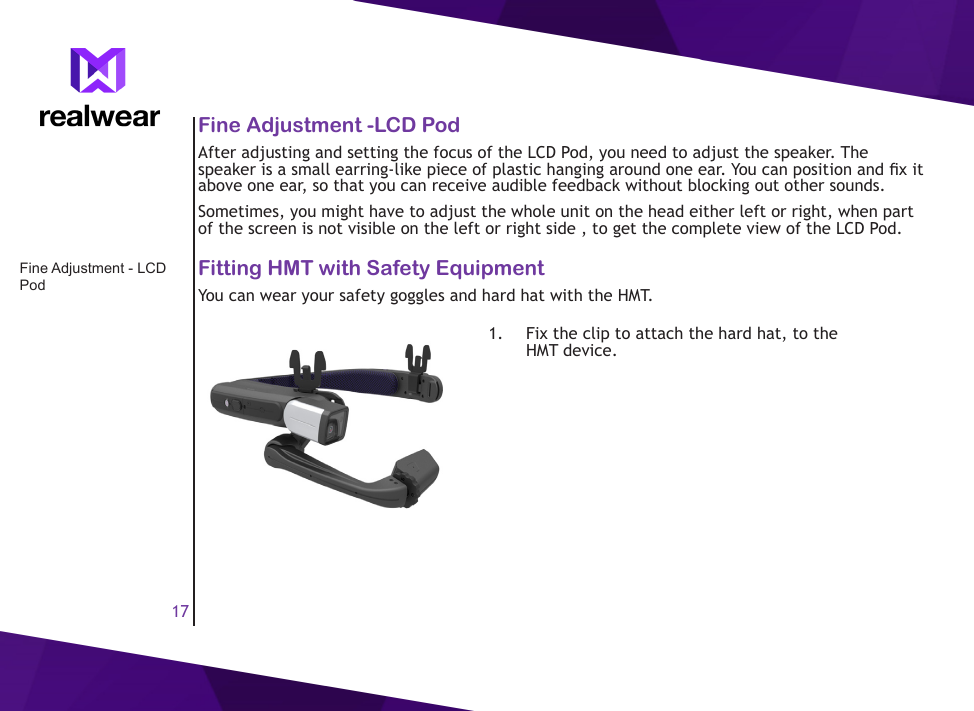
17Fine Adjustment -LCD PodAfter adjusting and setting the focus of the LCD Pod, you need to adjust the speaker. The speaker is a small earring-like piece of plastic hanging around one ear. You can position and x it above one ear, so that you can receive audible feedback without blocking out other sounds.Sometimes, you might have to adjust the whole unit on the head either left or right, when part of the screen is not visible on the left or right side , to get the complete view of the LCD Pod.Fitting HMT with Safety EquipmentYou can wear your safety goggles and hard hat with the HMT.1.  Fix the clip to attach the hard hat, to the HMT device.Fine Adjustment - LCD Pod
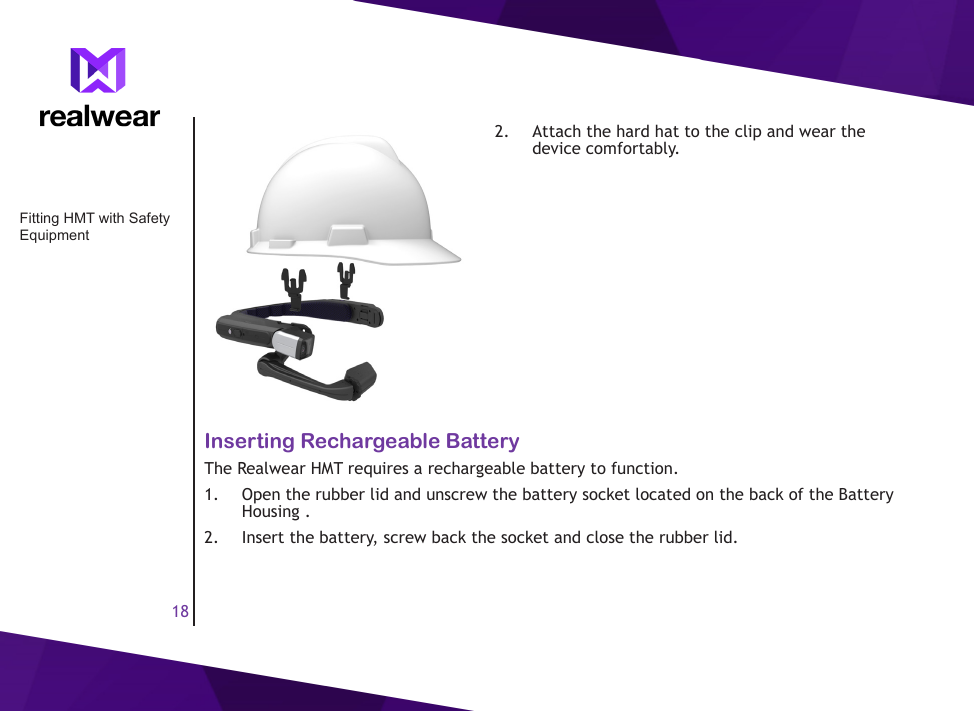
182.  Attach the hard hat to the clip and wear the device comfortably.Inserting Rechargeable BatteryThe Realwear HMT requires a rechargeable battery to function. 1.  Open the rubber lid and unscrew the battery socket located on the back of the Battery Housing . 2.  Insert the battery, screw back the socket and close the rubber lid. Fitting HMT with Safety Equipment
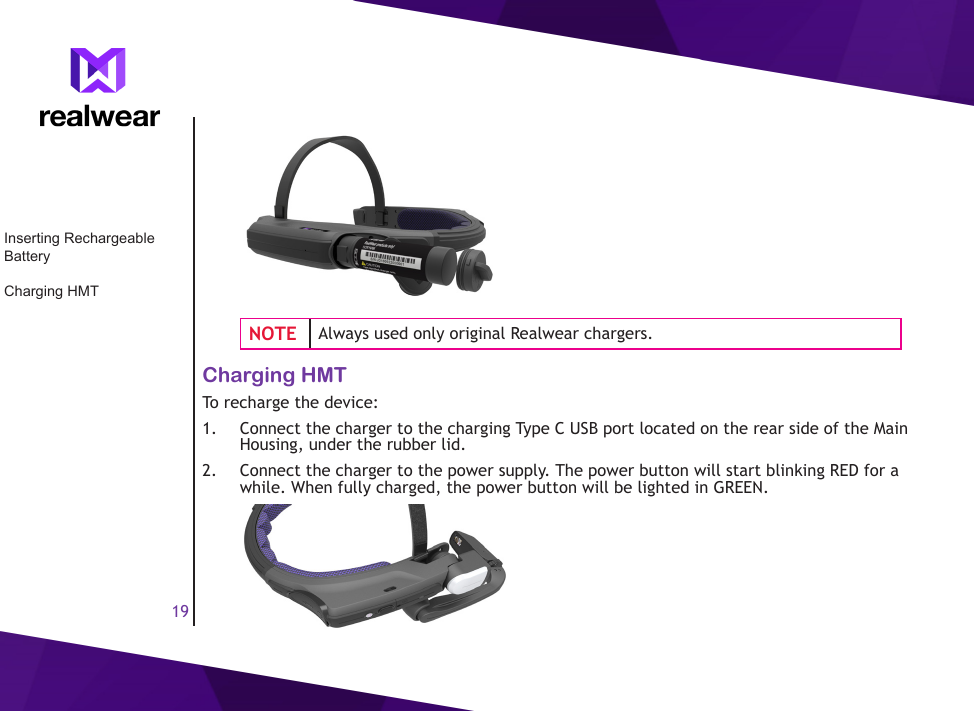
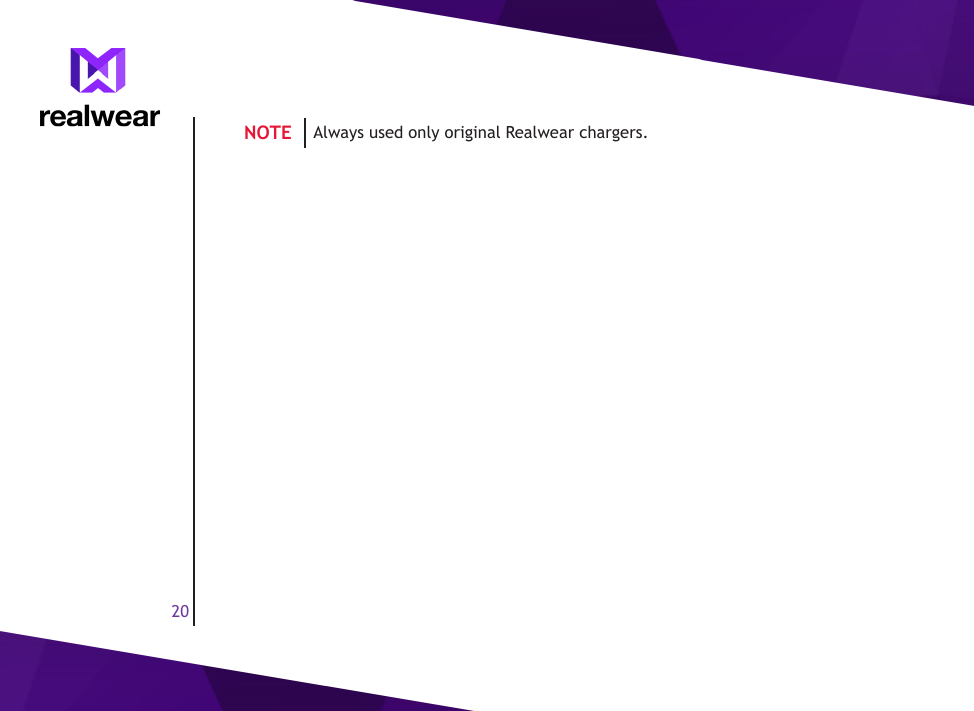
19NOTE Always used only original Realwear chargers.Charging HMTTo recharge the device: 1.  Connect the charger to the charging Type C USB port located on the rear side of the Main Housing, under the rubber lid. 2.  Connect the charger to the power supply. The power button will start blinking RED for a while. When fully charged, the power button will be lighted in GREEN.Inserting Rechargeable BatteryCharging HMT
20NOTE Always used only original Realwear chargers.
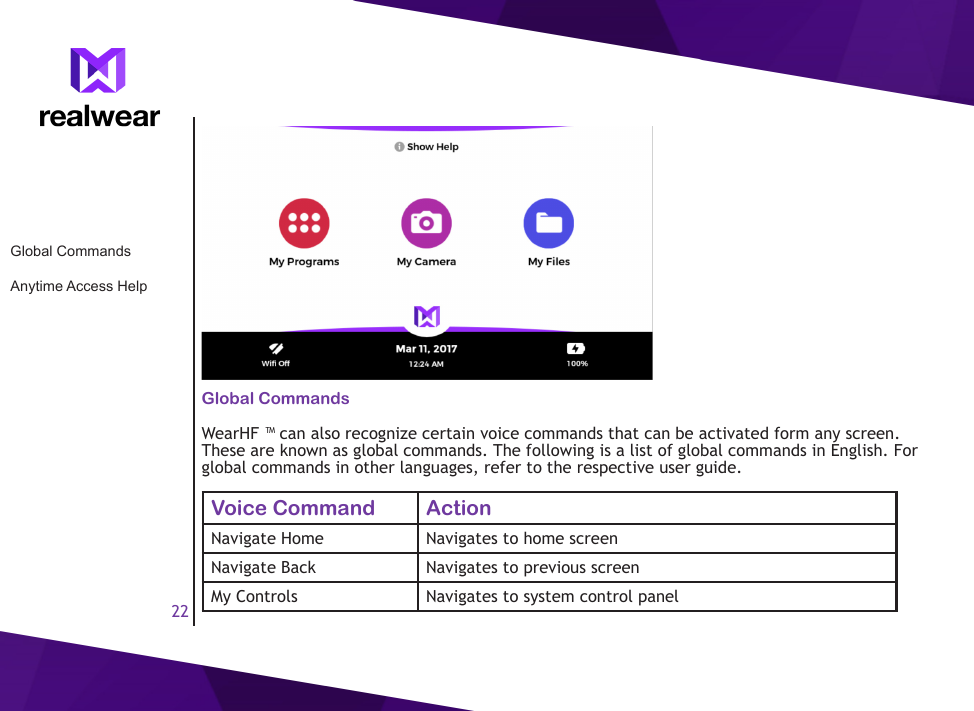
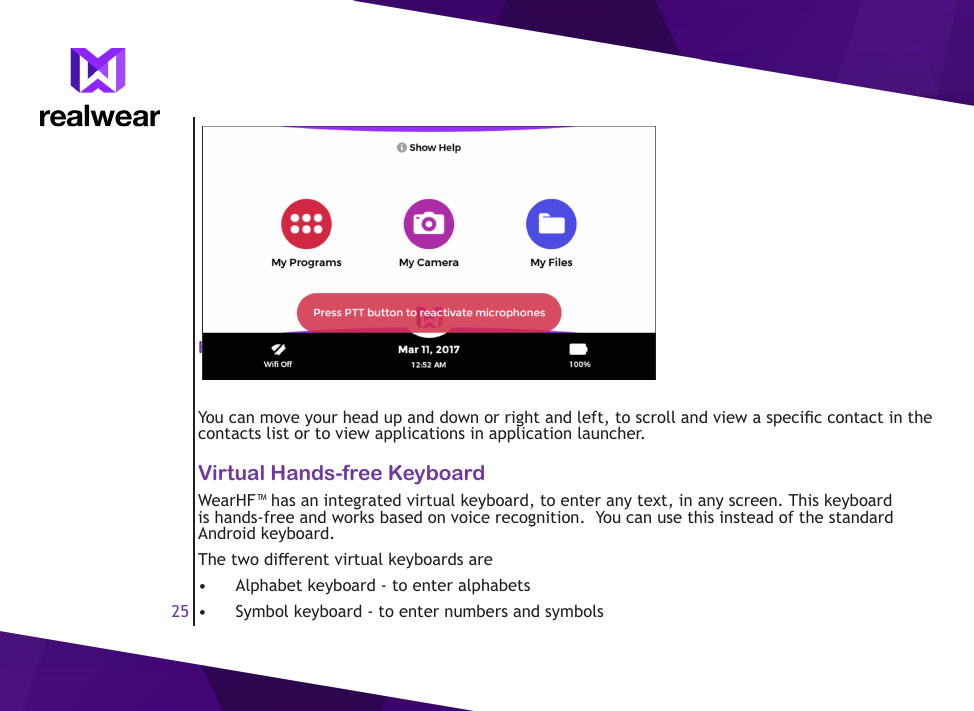
21Using WearHF™WearHF™ is an innovative software solution that enables you to use Realwear HMT as an hands-free device. Its easy to use and loaded with a lot of intuitive functions.Speech Recognition - Say What You SeeWearHF™ software operated based on speech recognition. Instead of pressing/tapping control button on the screen, all you need to do is speak the name of the respective control. All the commands associated with the current screen are displayed clearly on the screen.WearHF™ uses the latest technology for advanced noise cancellation and speech recognition and works even in the harshest noisy environments . It can recognise the command even if you speak in a low voice, or in an noisy environment, where you can hear what you say. WearHF™ recognizes many dierent native languages and accents. You don’t have to undergo any voice-training or congure voice recognition features.You can activate the device by speaking the name of any control. For example, the WearHF™ home screen has 3 large icons with respective feature names, to access the key features.To access the applications, you can say My Apps and the application screen is launched.Speech Recognition - Say What You See
22Global CommandsWearHF ™ can also recognize certain voice commands that can be activated form any screen.  These are known as global commands. The following is a list of global commands in English. For global commands in other languages, refer to the respective user guide.Voice Command ActionNavigate Home Navigates to home screenNavigate Back Navigates to previous screenMy Controls Navigates to system control panelGlobal CommandsAnytime Access Help
23Voice Command ActionMute Microphone Mutes the microphone temporarilyShow Help Displays pop-up window with the help for commands associated with the particular screen.Anytime Access HelpYou can access the help information regarding the commands associated with a particular screen, with Show Help command. The help screen is displayed as a pop-up window. Show Help command is also displayed on all the screens.Alternate Speech RecognitionSometimes,the control on the screen has no name, or the name is unrecognizable/unpronounceable by WearHF.™ For example, an image button without a label, or a le button with lename such as 3454-x.pdf, set as the label.In such scenarios, WearHF™ automatically proposes an alternative speech command, and assigns a number. This number is displayed next to the respective control on the screen. To select a specic control, you need to use the number assigned to it. For example, you can say Select item 1 to select the rst unpronounceable button, or Select item 2, to select the second unpronounceable button.Alternate Speech RecognitionMute Microphone
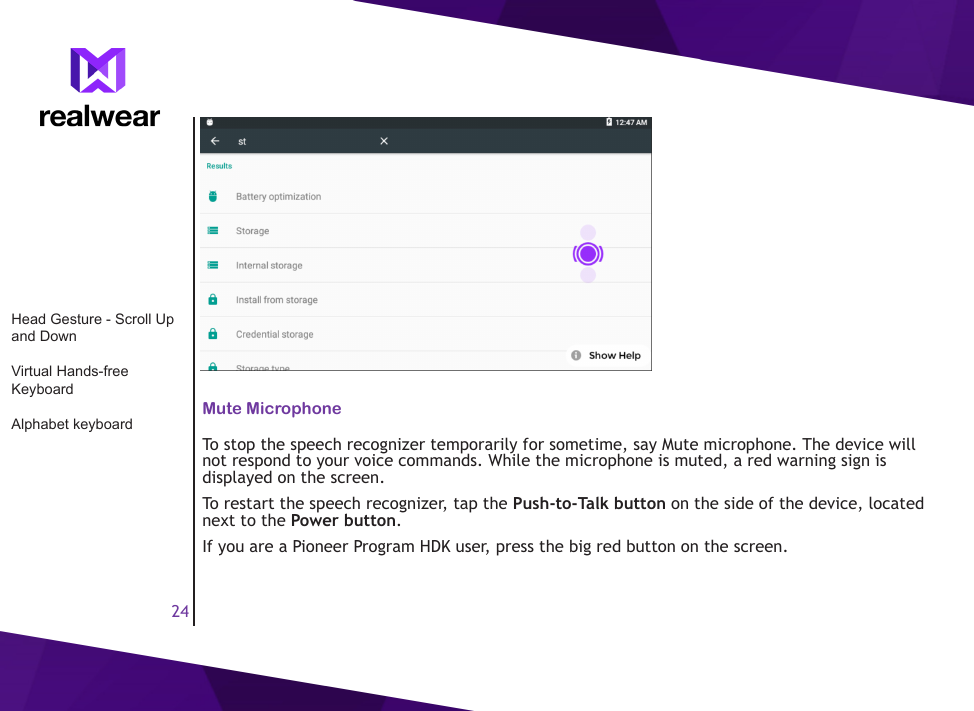
24Mute MicrophoneTo stop the speech recognizer temporarily for sometime, say Mute microphone. The device will not respond to your voice commands. While the microphone is muted, a red warning sign is displayed on the screen.To restart the speech recognizer, tap the Push-to-Talk button on the side of the device, located next to the Power button. If you are a Pioneer Program HDK user, press the big red button on the screen.Head Gesture - Scroll Up and DownVirtual Hands-free KeyboardAlphabet keyboard
25Head Gesture - Scroll Up and DownYou can move your head up and down or right and left, to scroll and view a specic contact in the contacts list or to view applications in application launcher.Virtual Hands-free KeyboardWearHF™ has an integrated virtual keyboard, to enter any text, in any screen. This keyboard is hands-free and works based on voice recognition.  You can use this instead of the standard Android keyboard.The two dierent virtual keyboards are•  Alphabet keyboard - to enter alphabets•  Symbol keyboard - to enter numbers and symbols
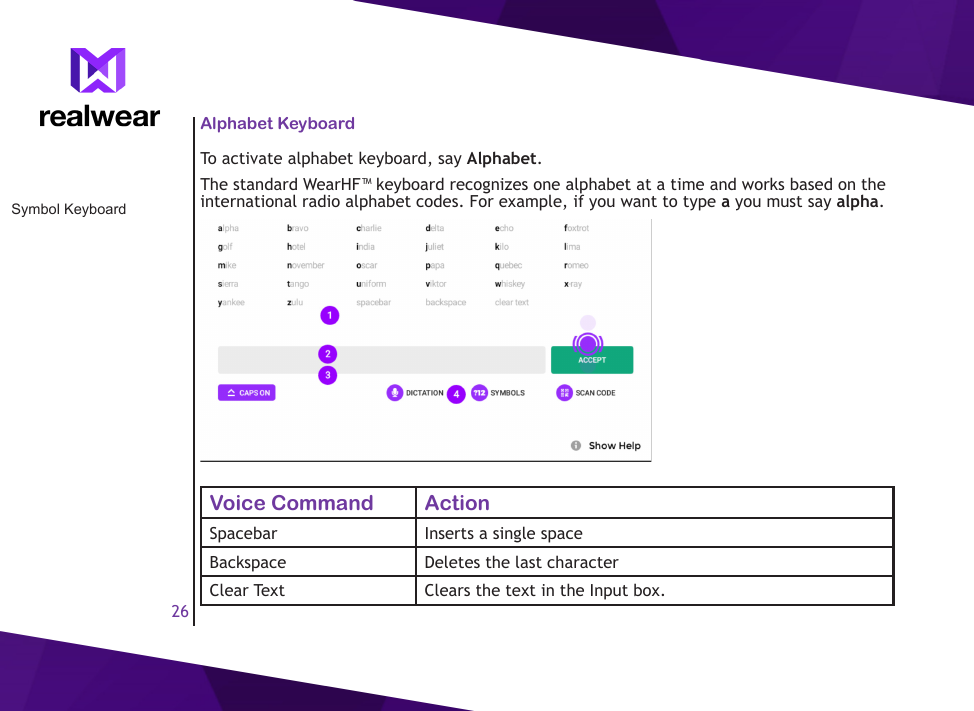
26Symbol KeyboardAlphabet KeyboardTo activate alphabet keyboard, say Alphabet.The standard WearHF™ keyboard recognizes one alphabet at a time and works based on the international radio alphabet codes. For example, if you want to type a you must say alpha.Voice Command ActionSpacebar Inserts a single spaceBackspace Deletes the last characterClear Text Clears the text in the Input box.
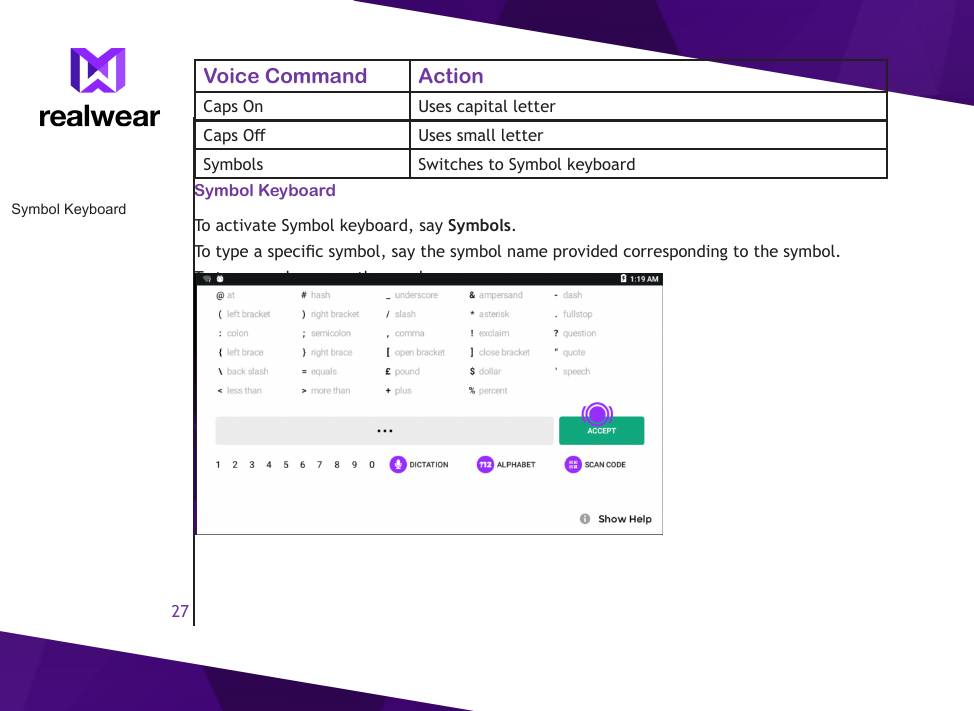
27Symbol KeyboardVoice Command ActionCaps On Uses capital letterCaps O Uses small letterSymbols Switches to Symbol keyboardSymbol KeyboardTo activate Symbol keyboard, say Symbols.To type a specic symbol, say the symbol name provided corresponding to the symbol.To type numbers, say the number name.To switch to Alphabets keyboard, say Alphabets.
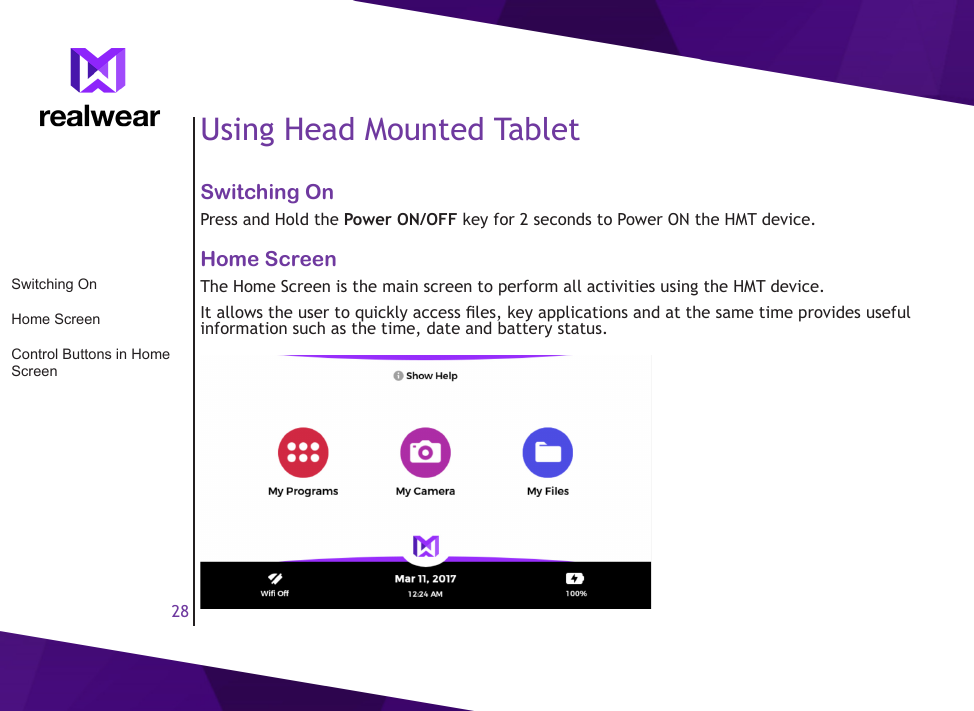
28Using Head Mounted TabletSwitching OnPress and Hold the Power ON/OFF key for 2 seconds to Power ON the HMT device.Home ScreenThe Home Screen is the main screen to perform all activities using the HMT device. It allows the user to quickly access les, key applications and at the same time provides useful information such as the time, date and battery status.Switching OnHome ScreenControl Buttons in Home Screen
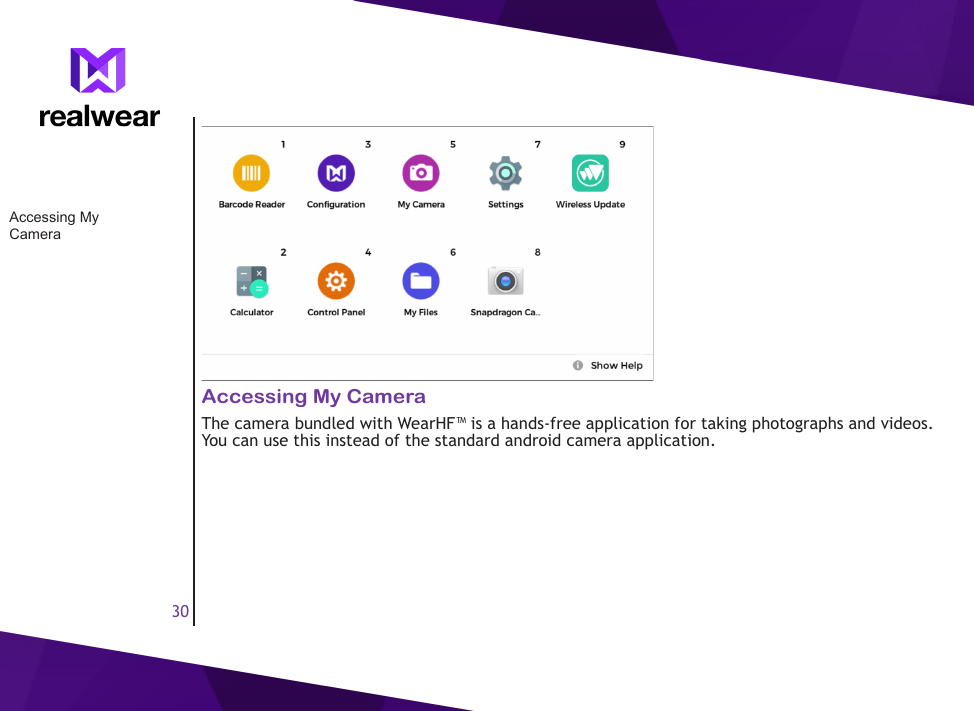
29Control Buttons in Home ScreenYou can access the various applications, by activating following controls provided in the home screen.Voice Command ActionMy Apps Launches application launcher, to see and access all the applications installed in the device.My Camera Launches cameraMy Files Launches les manager to access documents, videos, photos and other les, easily.Accessing Home ScreenTo access the home screen, say Navigate Home from any application screenAccessing Application LauncherYou can use application launcher to view and access the applications installed in the HMT device.You can activate any application by just telling the application name. For example, to start the camera, you  must say Camera.You can launch applications with unrecognizable or unpronounceable labels, using their index number. For example, to launch an application with index number 9, you must say Select Item 9.You can see only upto 8 applications in a single screen. To scroll and view other applications, move you head to your left/right.Accessing Home ScreenAccessing Application Launcher
30Accessing My CameraThe camera bundled with WearHF™ is a hands-free application for taking photographs and videos. You can use this instead of the standard android camera application.Accessing My Camera
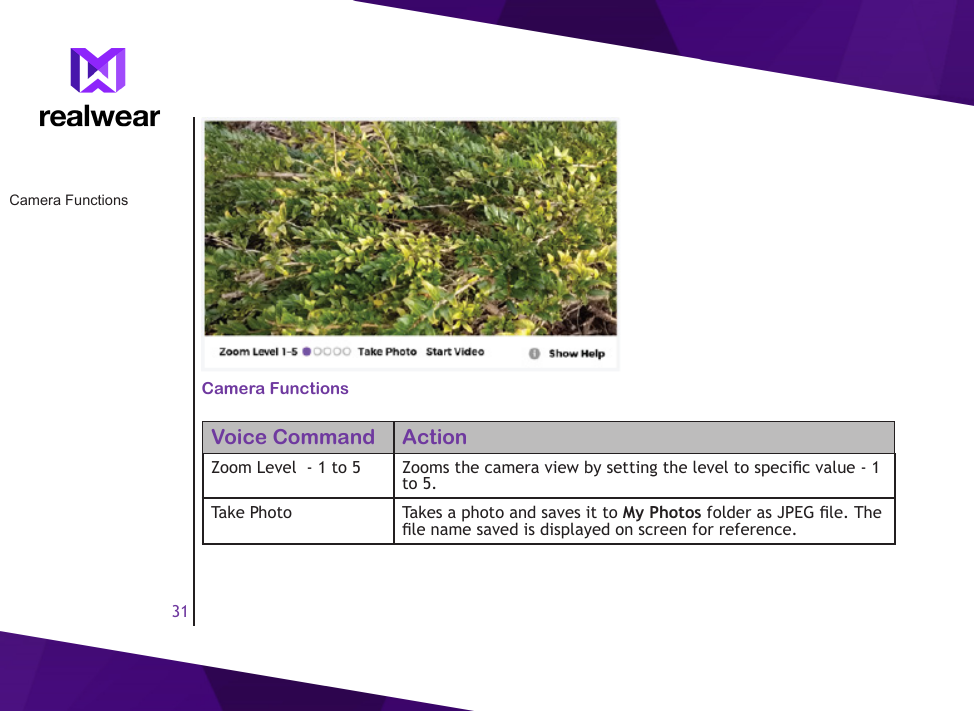
31Camera FunctionsVoice Command ActionZoom Level  - 1 to 5  Zooms the camera view by setting the level to specic value - 1 to 5.Take Photo Takes a photo and saves it to My Photos folder as JPEG le. The le name saved is displayed on screen for reference.Camera Functions
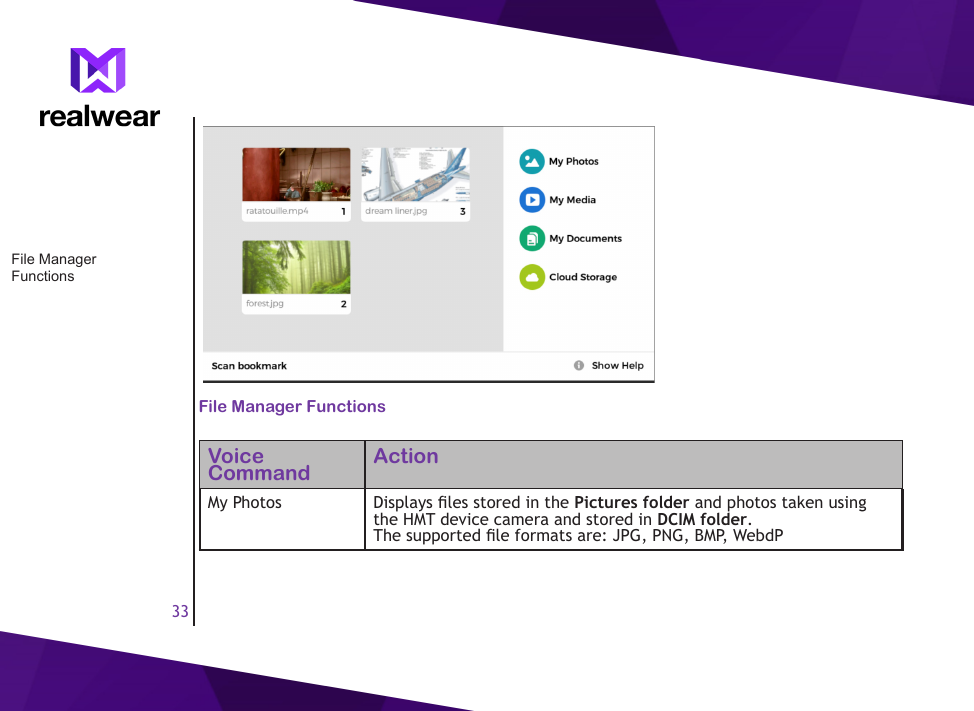
32Voice Command ActionStart Video Starts recording a video. During video recording, the device automatically stops listening to voice commands. Therefore, you must press the PTT button or the on screen red button on the HDK, to stop recording. The recorded video le is saved as an MPEG4 le to My Media folder and the le name is displayed, for reference.Auto Focus Sets the camera to auto focus mode. By default, the camera is set to auto focus mode.Manual Focus Sets the camera to manual focus mode.Brightness 1-5 Set the brightness level to specic value - 1 to 5. Brightness level can be set only in manual focus mode.Show Help Displays extra commandsTo select a specic le, you need to use the number assigned to it. For example, you can say Select item 1 to select the rst le, or Select item 2, to select the second le. You can also tell the lename without the extension.Accessing File BrowserYou can view the documents, photos and video les, locally stored in your HMT device, using the le browser application.Accessing File Browser
33File Manager FunctionsVoice Command ActionMy Photos  Displays les stored in the Pictures folder and photos taken using the HMT device camera and stored in DCIM folder.The supported le formats are: JPG, PNG, BMP, WebdPFile Manager Functions
34Voice Command ActionMy Media Displays les stored in the Videos folder and videos recorded using the HMT device camera and stored in DCIM folder. The supported le formats are: MP4, 3GP, WEBM, MP3, WAVE and MIDIMy Documents Displays les stored in the Document folder.The supported le formats are: PDFShow Help Displays extra commandsTo select a specic le, you need to use the number assigned to it. For example, you can say Select item 1 to select the rst le, or Select item 2, to select the second le. You can also tell the lename without the extension.
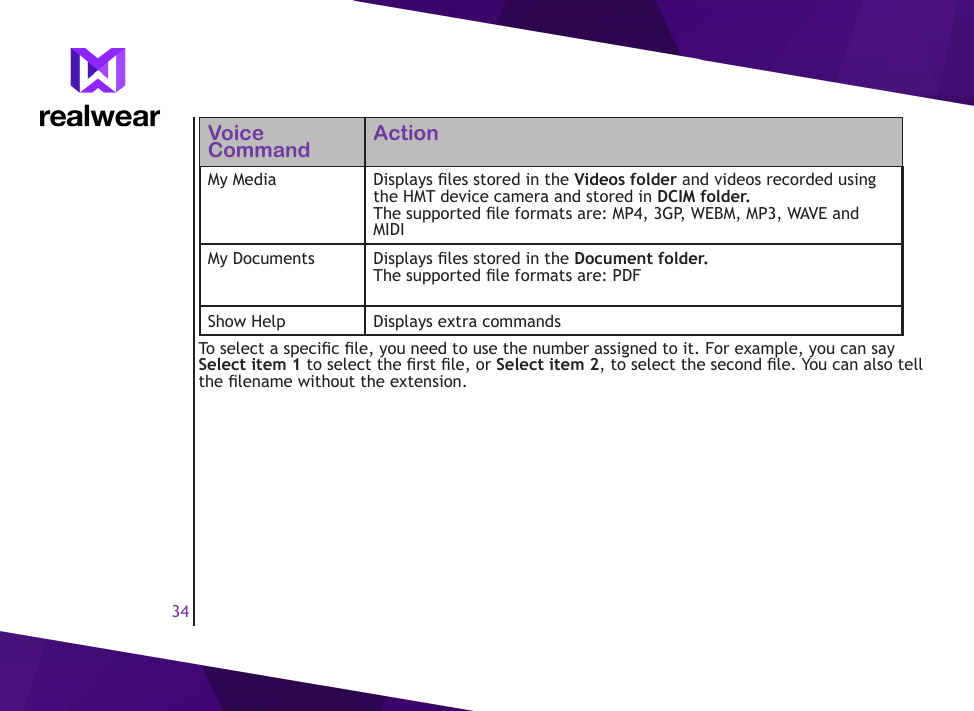
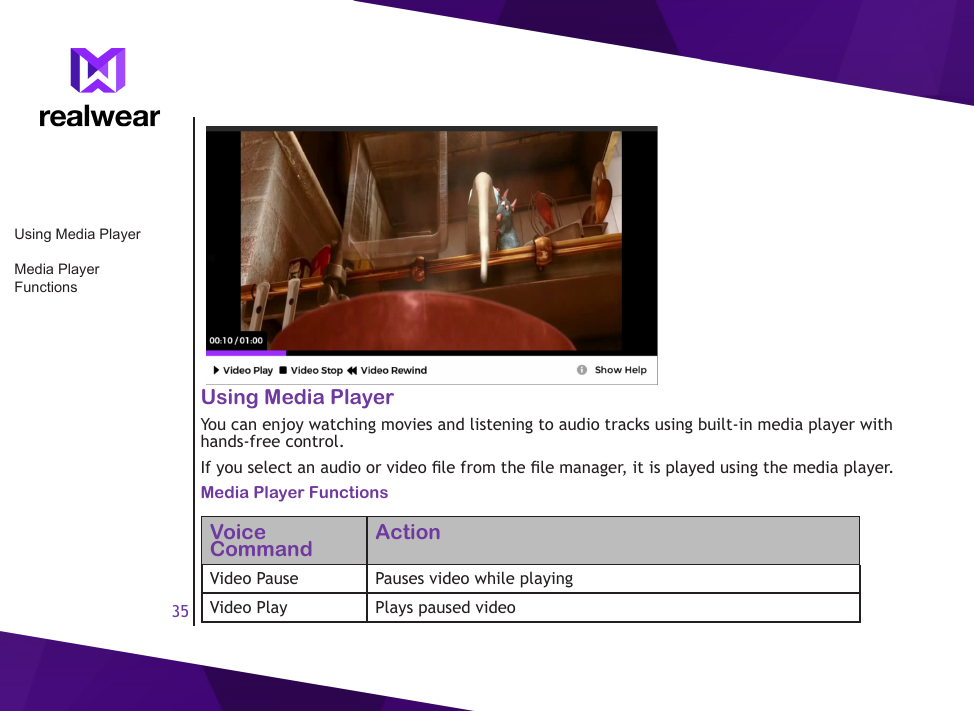
35Using Media PlayerYou can enjoy watching movies and listening to audio tracks using built-in media player with hands-free control.If you select an audio or video le from the le manager, it is played using the media player.Media Player FunctionsVoice Command ActionVideo Pause  Pauses video while playingVideo Play Plays paused videoUsing Media PlayerMedia Player Functions
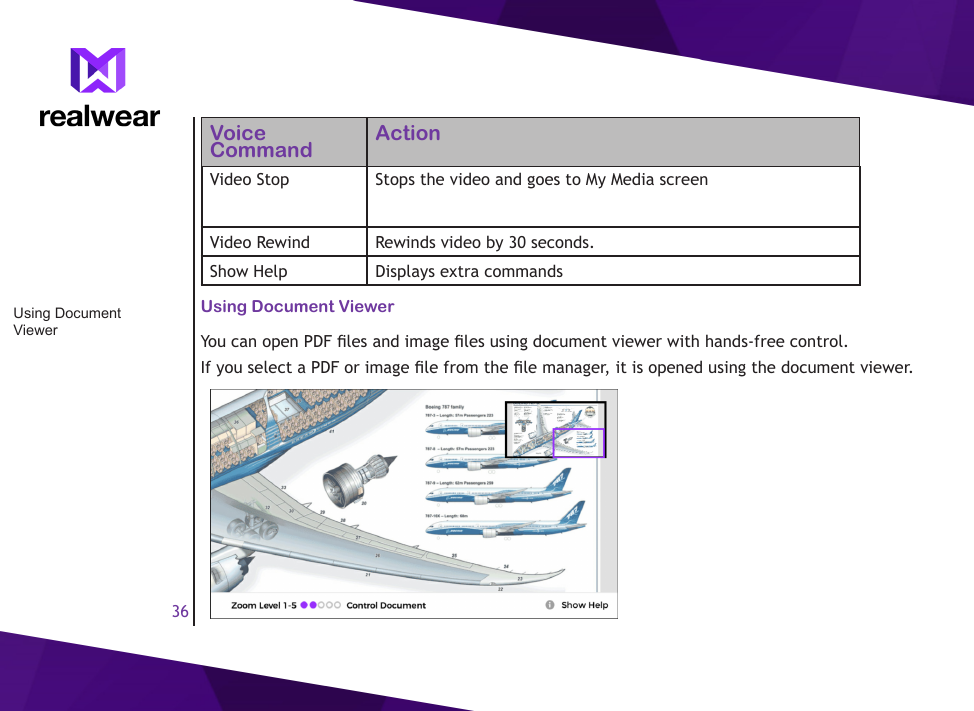
36Voice Command ActionVideo Stop Stops the video and goes to My Media screenVideo Rewind Rewinds video by 30 seconds.Show Help Displays extra commandsUsing Document ViewerYou can open PDF les and image les using document viewer with hands-free control.If you select a PDF or image le from the le manager, it is opened using the document viewer.Using Document Viewer
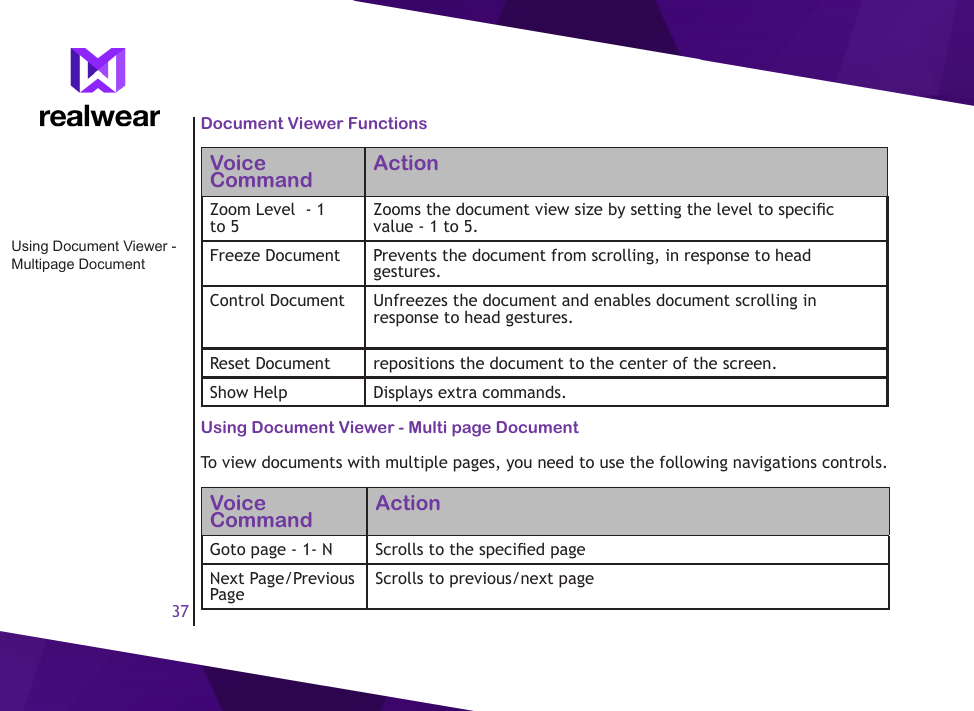
37Document Viewer FunctionsVoice Command ActionZoom Level  - 1 to 5  Zooms the document view size by setting the level to specic value - 1 to 5.Freeze Document Prevents the document from scrolling, in response to head gestures.Control Document Unfreezes the document and enables document scrolling in response to head gestures.Reset Document repositions the document to the center of the screen.Show Help Displays extra commands.Using Document Viewer - Multi page DocumentTo view documents with multiple pages, you need to use the following navigations controls.Voice Command ActionGoto page - 1- N  Scrolls to the specied pageNext Page/Previous Page  Scrolls to previous/next pageUsing Document Viewer - Multipage Document
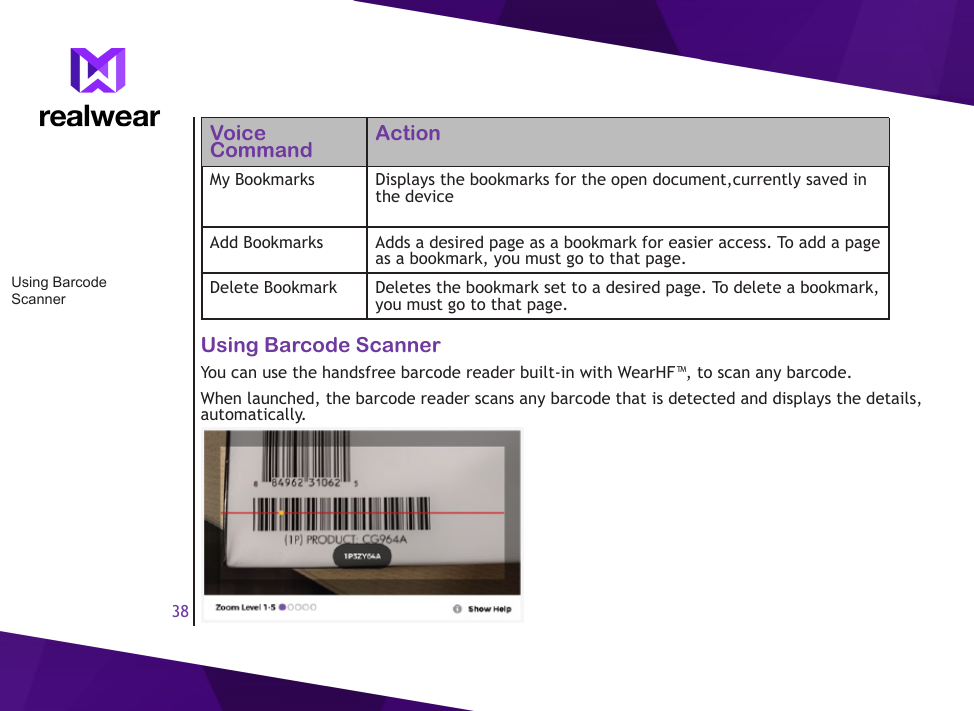
38Voice Command ActionMy Bookmarks  Displays the bookmarks for the open document,currently saved in the deviceAdd Bookmarks Adds a desired page as a bookmark for easier access. To add a page as a bookmark, you must go to that page.Delete Bookmark Deletes the bookmark set to a desired page. To delete a bookmark, you must go to that page.Using Barcode ScannerYou can use the handsfree barcode reader built-in with WearHF™, to scan any barcode.When launched, the barcode reader scans any barcode that is detected and displays the details, automatically.Using Barcode Scanner
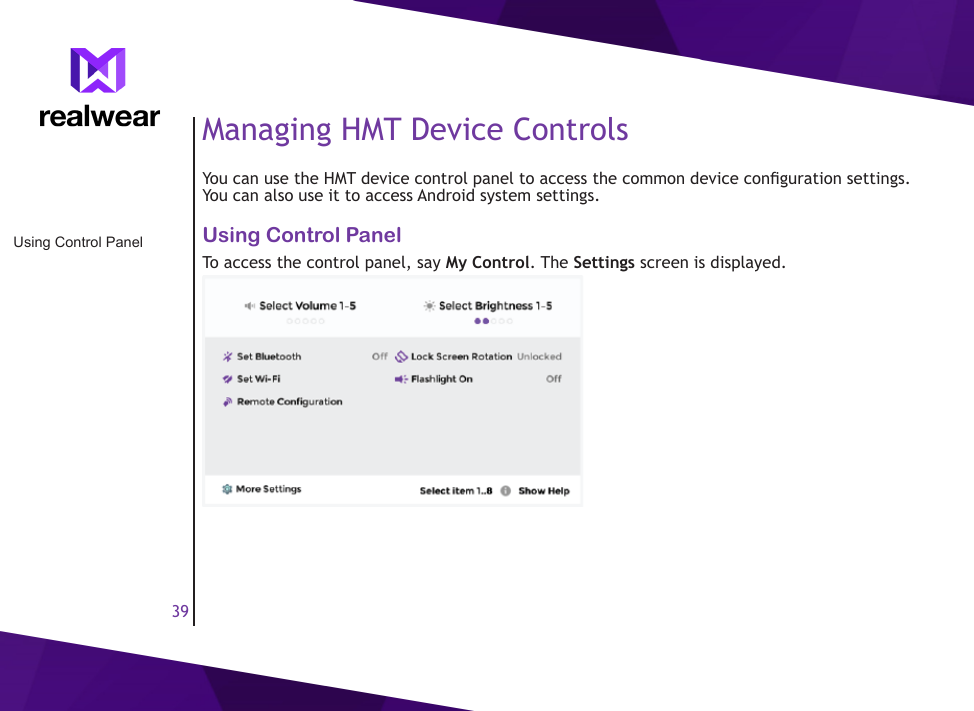
39Managing HMT Device ControlsYou can use the HMT device control panel to access the common device conguration settings. You can also use it to access Android system settings.Using Control PanelTo access the control panel, say My Control. The Settings screen is displayed.Using Control Panel
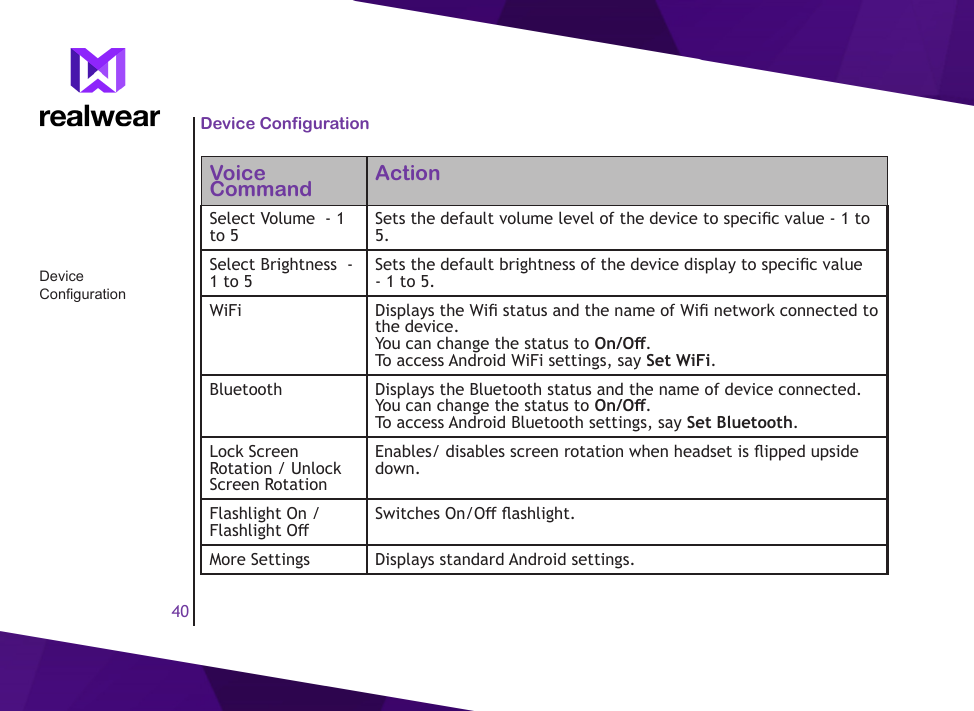
40Device ConfigurationVoice Command ActionSelect Volume  - 1 to 5  Sets the default volume level of the device to specic value - 1 to 5.Select Brightness  - 1 to 5  Sets the default brightness of the device display to specic value - 1 to 5.WiFi Displays the Wi status and the name of Wi network connected to the device.You can change the status to On/O.To access Android WiFi settings, say Set WiFi.Bluetooth Displays the Bluetooth status and the name of device connected.You can change the status to On/O.To access Android Bluetooth settings, say Set Bluetooth.Lock Screen Rotation / Unlock Screen Rotation Enables/ disables screen rotation when headset is ipped upside down.Flashlight On / Flashlight O  Switches On/O ashlight.More Settings Displays standard Android settings.Device Conguration
41End User License AgreementOur WarrantyThis wireless device, (the “Device”) contains software owned by Realwear Technologies, Inc. (“Realwear”) and its third party suppliers and licensors (collectively, the “Software”). As user of this Device, Realwear grants you a non- exclusive, non-transferable, non-assignable license to use the software solely in conjunction with the Device on which it is installed and/or delivered with. Nothing herein shall be construed as a sale of the Software to a user of this Device.You shall not reproduce, modify, distribute, reverse engineer, decompile, otherwise alter or use any other means to discover the source code of the Software or any component of the Software. For avoidance of doubt, you are at all times entitled to transfer all rights and obligations to the Software to a third party, solely together with the Device with which you received the Software, provided always that such third party agrees in writing to be bound by these rules.You are granted this license for a term of the life of this Device.  If you fail to comply with any of the terms and conditions set out in this license, it will terminate with immediate eect.  Realwear and its third party suppliers and licensors are the sole and exclusive owner of and retain all rights, title and interest in and to the Software. Realwear, and, to the extent that the Software contains material or code of a third party, such third party shall be entitled third party beneciaries of these terms. The validity, construction and performance of this license shall be governed by the laws of Delaware, United States.What We Will DoIf during the warranty period, this product fails to operate in accordance with its specications under normal use and service, due to defects in design, material or workmanship, Realwear’s authorized distributors or service partners, in the country/region where you purchased the product, will repair or replace at the sole discretion of Realwear, with the same or better model Our WarrantyWhat  We Will Do
42in the same or better condition as detailed below:1.  If a device is out-of-warranty, then additional repair charges may apply;2.  You will be advised of the charges in advance of any work being performed;3.  You will have the option to approve the charges and have the repair performed, or you may choose to have your device returned to you unrepaired;4.  Any repair charges will be billed to you through Realwear’s Authorized Distributor.Please note that some of your personal settings, downloads or other information may be lost when your Realwear Product is repaired or replaced. Realwear does not take any responsibility for any lost information of any kind and will not reimburse you for any such loss.You should always make backup copies of all the information stored on your Realwear Product such as downloads, calendar and contacts before handing in your Realwear Product for repair or replacement.Head Mounted Tablet CareEach Realwear device has a designated IP class for dust and water protection, according to the IEC Ingress Protection (IP) Standard 60529. This means that the device is dust protected and can withstand powerful jetting of water.Realwear devices are solid and built for heavy duty use. Its design protects against disassembly or mechanical damage when subjected to forces equal to free fall from the height of 2 meters. Subjecting the device to stronger impact and forces can damage it and must be avoided.Conditions1.  The warranty is valid whether or not the product has been registered.2.  The warranty is valid only if the original proof of purchase issued to the original purchaser Head Mounted Tablet CareConditions
43by an authorized service provider, specifying the date of purchase and serial number for this Product, is presented with the Product to be repaired or replaced. Realwear reserves the right to refuse warranty service if the device is found to be out of warranty under the conditions as set forth herein.3.  If Realwear repairs or replaces the Product, the repaired or replaced Product shall be warranted for the remaining time of the original warranty period or for ninety (90) days from the date of repair, whichever is longer. Repair or replacement may involve the use of functionally equivalent reconditioned units. Replaced parts or components will become the property of Realwear.4.  This warranty does not cover any failure of the Product due to normal wear and tear, or due to misuse or abuse, including but not limited to use in other than the normal and customary manner, in accordance with the Realwear device specications and instructions for use and maintenance of the Product. Nor does this warranty cover any failure of the Product due to software or hardware modication or adjustment, acts of God or damage resulting from liquid interacting with the product beyond what is described as acceptable in the user guide for the product. A rechargeable battery can be charged and discharged hundreds of times. However, it will eventually wear out - this is not a defect. When the talk-time or standby time is noticeably shorter, it is time to replace your battery. Realwear recommends that you use only batteries and chargers approved by Realwear. Minor variations in display brightness and color may occur between devices. There may be tiny bright or dark dots on the display. These are called defective pixels and occur when individual dots have malfunctioned and cannot be adjusted. Up to three defective pixels are deemed acceptable.5.  This warranty does not cover Product failures caused by installations, modications, or repair or opening of the Product performed by a any person other than a Realwear-authorized person. Tampering with any of the seals on the Product will void the warranty.6.  The warranty does not cover Product failures which have been caused by use of accessories or other peripheral devices which are not Realwear-branded original accessories intended for use with the Product.
447.  The warranty does not cover 3rd party accessories or any 3rd party software applications, which are instead covered to the extent provided by the original vendor guarantee for these products.8.  THERE ARE NO EXPRESS WARRANTIES, WHETHER WRITTEN OR ORAL, OTHER THAN THIS PRINTED LIMITED WARRANTY. ALL IMPLIED WARRANTIES, INCLUDING WITHOUT LIMITATION THE IMPLIED WARRANTIES OF MERCHANTABILITY OR FITNESS FOR A PARTICULAR PURPOSE, ARE LIMITED TO THE DURATION OF THIS LIMITED WARRANTY. IN NO EVENT SHALL Realwear OR ITS LICENSORS BE LIABLE FOR INCIDENTAL OR CONSEQUENTIAL DAMAGES OF ANY NATURE WHATSOEVER, INCLUDING BUT NOT LIMITED TO LOST PROFITS OR COMMERCIAL LOSS; TO THE FULL EXTENT THOSE DAMAGES CAN BE DISCLAIMED BY LAW.
45Regulatory StatementsWARNING: Changes or modications made to this equipment not expressly approved by Realwear Technologies, Inc. for compliance could void the user’s authority to operate the equipment.FCC StatementThis device complies with Part 15 of the FCC Rules. Operation is subject to the following two conditions: (1) This device may not cause harmful interference, and (2) this device must accept any interference received, including interference that may cause undesired operation.This equipment has been tested and found to comply with the limits for a Class B digital device, pursuant to Part 15 of the FCC Rules.  These limits are designed to provide reasonable protection against harmful interference in a residential installation. This equipment generates, uses and can radiate radio frequency energy and, if not installed and used in accordance with the instructions, may cause harmful interference to radio communications.  However, there is no guarantee that interference will not occur in a particular installation.  If this equipment does cause harmful interference to radio or television reception, which can be determined by turning the equipment o and on, the user is encouraged to try to correct the interference by one of the following measures:•  Reorient or relocate the receiving antenna.•  Increase the separation between the equipment and receiver.•  Connect the equipment into an outlet on a circuit dierent from that to which the receiver is connected.•  Consult the dealer or an experienced radio/TV technician for help.FCC StatementFCC Caution
46FCC Caution1.  Any changes or modications not expressly approved by the party responsible for compliance could void the user’s authority to operate this equipment.2.  This transmitter must not be co-located or operating in conjunction with any other antenna or transmitter.3.  Operations in the 5.15-5.25GHz band are restricted to indoor usage only.IC StatementThis device complies with Industry Canada license-exempt RSS standard(s). Operation is subject to the following two conditions: 1.  This device may not cause interference.1.  This device must accept any interference, including interference that may cause undesired operation of the device.2.  This Class B digital apparatus complies with Canadian ICES-003.3.  This device complies with RSS-310 of Industry Canada. Operation is subject to the condition that this device does not cause harmful interference.4.  This device and its antenna(s) must not be co-located or operating in conjunction with any other antenna or transmitter, except tested built-in radios.5.  The County Code Selection feature is disabled for products marketed in the US/ Canada.Le présent appareil est conforme aux CNR d’Industrie Canada applicables aux appareils radio exempts de licence. L’exploitation est autorisée aux deux conditions suivantes: 1.  l’appareil ne doit pas produire de brouillage.FCC CautionIC Statement
471.  l’utilisateur de l’appareil doit accepter tout brouillage radioélectrique subi, même si le brouillage est susceptible d’en compromettre le fonctionnement.2.  Cet appareil numérique de la classe B est conforme à la norme NMB-003 du Canada.3.  Cet appareil est conforme à la norme RSS-310 d’Industrie Canada. L’opération est soumise à la condition que cet appareil ne provoque aucune interférence nuisible.4.  Cet appareil et son antenne ne doivent pas être situés ou fonctionner en conjonction avec une autre antenne ou un autre émetteur, exception faites des radios intégrées qui ont été testées.5.  La fonction de sélection de l’indicatif du pays est désactivée pour les produits commercialisés aux États-Unis et au Canada.IC Statement - FOR WLAN 5GHZ DEVICECaution1.  The device for operation in the band 5150-5250 MHz is only for indoor use to reduce the potential for harmful interference to co-channel mobile satellite systems.2.  The maximum antenna gain permitted for devices in the bands 5250-5350 MHz and 5470-5725 MHz shall comply with the e.i.r.p. limit. 3.  The maximum antenna gain permitted for devices in the band 5725-5825 MHz shall comply with the e.i.r.p. limits specied for point-to-point and non point-to-point operation as appropriate.4.  The worst-case tilt angle(s) necessary to remain compliant with the e.i.r.p. elevation mask requirement set forth in Section 6.2.2(3) shall be clearly indicated.5.  Users should also be advised that high-power radars are allocated as primary users (i.e. priority users) of the bands 5250-5350 MHz and 5650-5850 MHz and that these radars could IC Statement - FOR WLAN 5GHZ DEVICE
48cause interference and/or damage to LE-LAN devices.Avertissement1.  les dispositifs fonctionnant dans la bande 5150-5250 MHz sont réservés uniquement pour une utilisation à l’intérieur an de réduire les risques de brouillage préjudiciable aux systèmes de satellites mobiles utilisant les mêmes canaux.2.  le gain maximal d’antenne permis pour les dispositifs utilisant les bandes 5250-5350 MHz et 5470-5725 MHz doit se conformer à la limite de p.i.r.e.3.  le gain maximal d’antenne permis (pour les dispositifs utilisant la bande 5725-5825 MHz) doit se conformer à la limite de p.i.r.e. spéciée pour l’exploitation point à point et non point à point, selon le cas.4.  les pires angles d’inclinaison nécessaires pour rester conforme à l’exigence de la p.i.r.e. applicable au masque d’élévation, et énoncée à la section 6.2.2 3), doivent être clairement indiqués.5.  De plus, les utilisateurs devraient aussi être avisés que les utilisateurs de radars de haute puissance sont désignés utilisateurs principaux (c.-à-d., qu’ils ont la priorité) pour les bandes 5250-5350 MHz et 5650-5850 MHz et que ces radars pourraient causer du brouillage et/ou des dommages aux dispositifs LAN-EL.Avertissement
49Declaration of ConformityEU Regulatory ConformanceHereby,We, RealWear,Inc. declare that the radio equipment type T1100G is in compliance with Directive 2014/53/EU.EU Regulatory ConformanceEurope
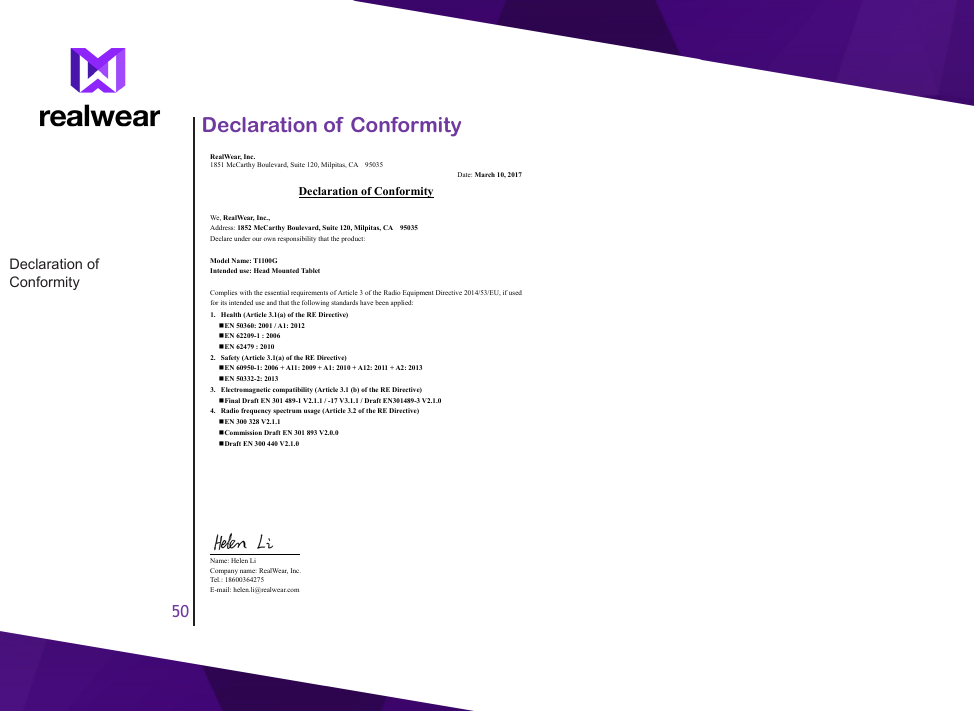
50Declaration of ConformityDeclaration of Conformity RealWear, Inc.   1851 McCarthy Boulevard, Suite 120, Milpitas, CA    95035 Date: March 10, 2017 Declaration of Conformity  We, RealWear, Inc., Address: 1852 McCarthy Boulevard, Suite 120, Milpitas, CA    95035 Declare under our own responsibility that the product:  Model Name: T1100G Intended use: Head Mounted Tablet  Complies with the essential requirements of Article 3 of the Radio Equipment Directive 2014/53/EU, if used for its intended use and that the following standards have been applied: 1. Health (Article 3.1(a) of the RE Directive)  EN 50360: 2001 / A1: 2012  EN 62209-1 : 2006    EN 62479 : 2010 2. Safety (Article 3.1(a) of the RE Directive)  EN 60950-1: 2006 + A11: 2009 + A1: 2010 + A12: 2011 + A2: 2013  EN 50332-2: 2013 3. Electromagnetic compatibility (Article 3.1 (b) of the RE Directive)  Final Draft EN 301 489-1 V2.1.1 / -17 V3.1.1 / Draft EN301489-3 V2.1.0 4. Radio frequency spectrum usage (Article 3.2 of the RE Directive)  EN 300 328 V2.1.1  Commission Draft EN 301 893 V2.0.0  Draft EN 300 440 V2.1.0                                      Name: Helen Li Company name: RealWear, Inc. Tel.: 18600364275 E-mail: helen.li@realwear.com

Navigation menu