Residential Control Systems TZW011 Wireless Thermostat User Manual TBZ48 Operation Guide 141 02071 01 052212

Residential Control Systems Wireless Thermostat TBZ48 Operation Guide 141 02071 01 052212

user manual

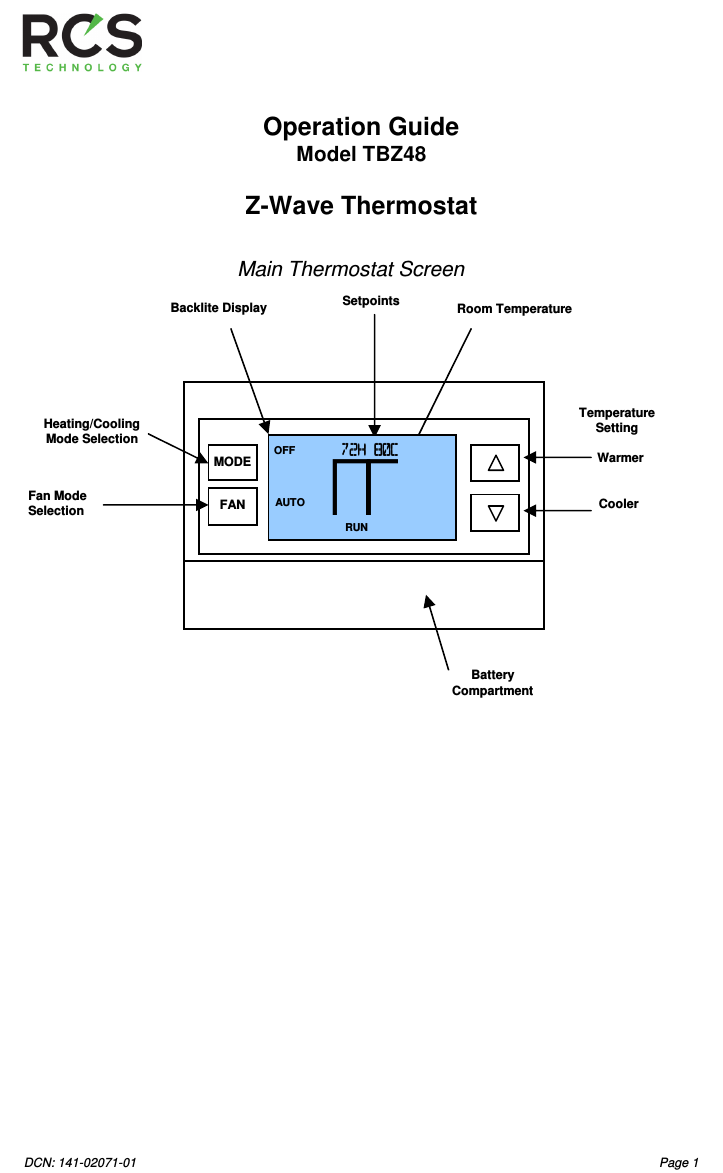
DCN: 141-02071-01  Page 1                      Operation Guide     Model TBZ48  Z-Wave Thermostat                                           Temperature Setting    Warmer    Cooler Fan Mode Selection Heating/Cooling Mode Selection Battery Compartment Room Temperature Setpoints Backlite Display Main Thermostat Screen  72H 80C72H 80C72H 80C72H 80C    RUN 74 OFF AUTO MODE FAN
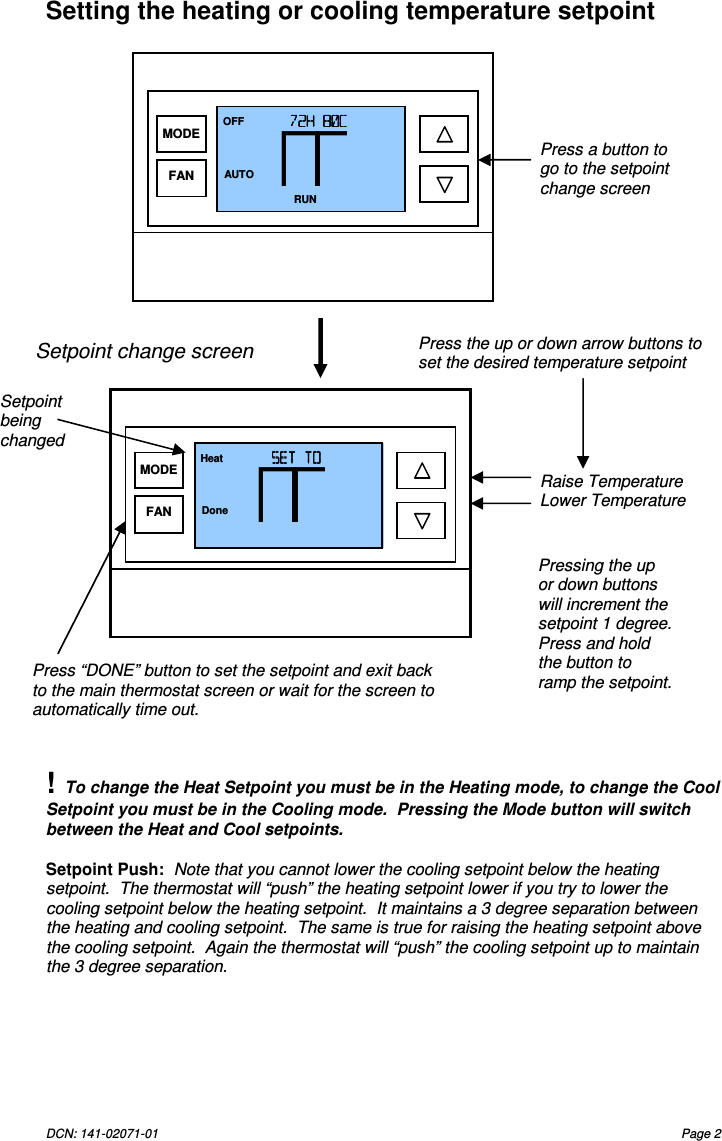
DCN: 141-02071-01  Page 2   Setting the heating or cooling temperature setpoint                                      !  To change the Heat Setpoint you must be in the Heating mode, to change the Cool Setpoint you must be in the Cooling mode.  Pressing the Mode button will switch between the Heat and Cool setpoints.  Setpoint Push:  Note that you cannot lower the cooling setpoint below the heating setpoint.  The thermostat will “push” the heating setpoint lower if you try to lower the cooling setpoint below the heating setpoint.  It maintains a 3 degree separation between the heating and cooling setpoint.  The same is true for raising the heating setpoint above the cooling setpoint.  Again the thermostat will “push” the cooling setpoint up to maintain the 3 degree separation.  Lower Temperature Raise Temperature Press a button to go to the setpoint change screen  Setpoint change screen Press “DONE” button to set the setpoint and exit back to the main thermostat screen or wait for the screen to automatically time out. Press the up or down arrow buttons to set the desired temperature setpoint Pressing the up or down buttons will increment the setpoint 1 degree.  Press and hold the button to ramp the setpoint. 72H 80C72H 80C72H 80C72H 80C    RUN 74 OFF AUTO MODE FAN Set toSet toSet toSet to     72 Heat Done MODE FAN Setpoint being changed
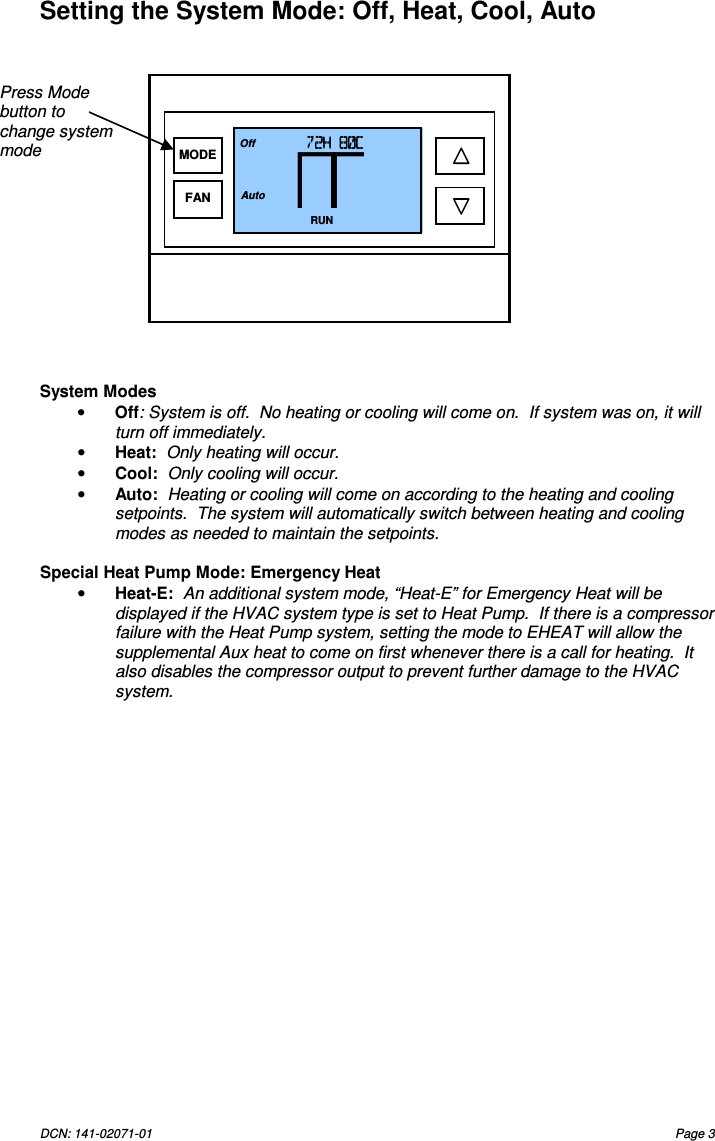
DCN: 141-02071-01  Page 3   Setting the System Mode: Off, Heat, Cool, Auto                  System Modes • Off: System is off.  No heating or cooling will come on.  If system was on, it will turn off immediately. • Heat:  Only heating will occur. • Cool:  Only cooling will occur. • Auto:  Heating or cooling will come on according to the heating and cooling setpoints.  The system will automatically switch between heating and cooling modes as needed to maintain the setpoints.   Special Heat Pump Mode: Emergency Heat • Heat-E:  An additional system mode, “Heat-E” for Emergency Heat will be displayed if the HVAC system type is set to Heat Pump.  If there is a compressor failure with the Heat Pump system, setting the mode to EHEAT will allow the supplemental Aux heat to come on first whenever there is a call for heating.  It also disables the compressor output to prevent further damage to the HVAC system. Press Mode button to change system mode 72H 80C72H 80C72H 80C72H 80C    RUN 74 Off Auto MODE FAN
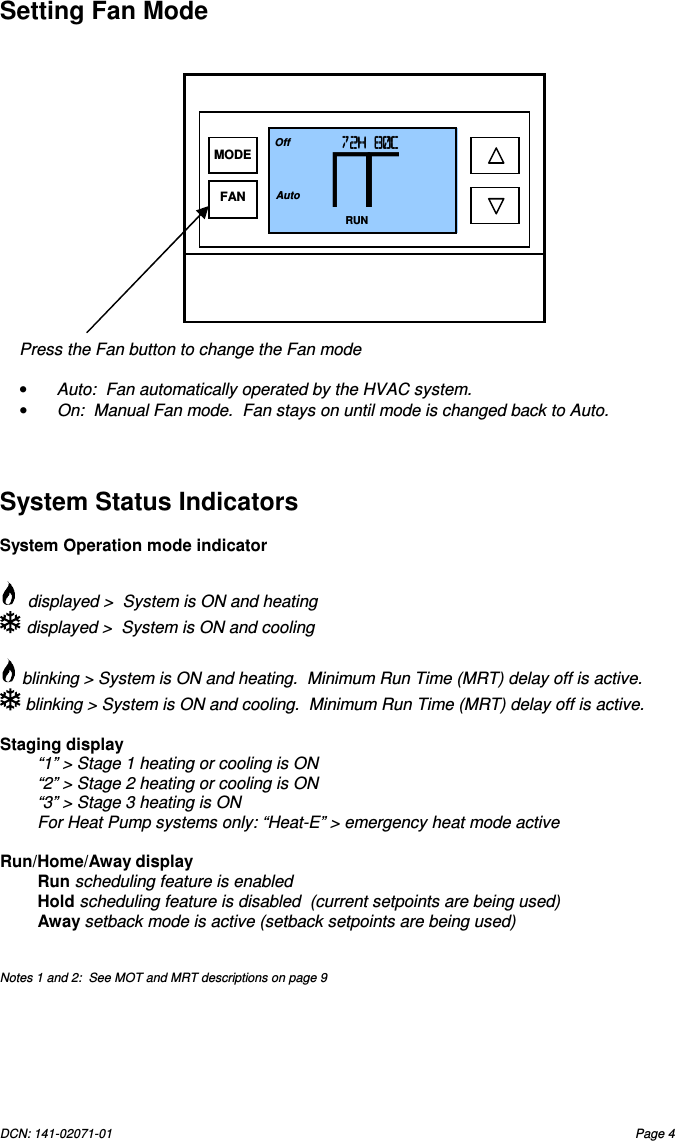
DCN: 141-02071-01  Page 4   Setting Fan Mode                     System Status Indicators  System Operation mode indicator    displayed >  System is ON and heating   displayed >  System is ON and cooling    blinking > System is ON and heating.  Minimum Run Time (MRT) delay off is active.   blinking > System is ON and cooling.  Minimum Run Time (MRT) delay off is active.  Staging display   “1” > Stage 1 heating or cooling is ON “2” > Stage 2 heating or cooling is ON “3” > Stage 3 heating is ON For Heat Pump systems only: “Heat-E” > emergency heat mode active  Run/Home/Away display Run scheduling feature is enabled Hold scheduling feature is disabled  (current setpoints are being used)  Away setback mode is active (setback setpoints are being used)   Notes 1 and 2:  See MOT and MRT descriptions on page 9Press the Fan button to change the Fan mode  •  Auto:  Fan automatically operated by the HVAC system. •  On:  Manual Fan mode.  Fan stays on until mode is changed back to Auto. 72H 80C72H 80C72H 80C72H 80C    RUN 74 Off Auto MODE FAN
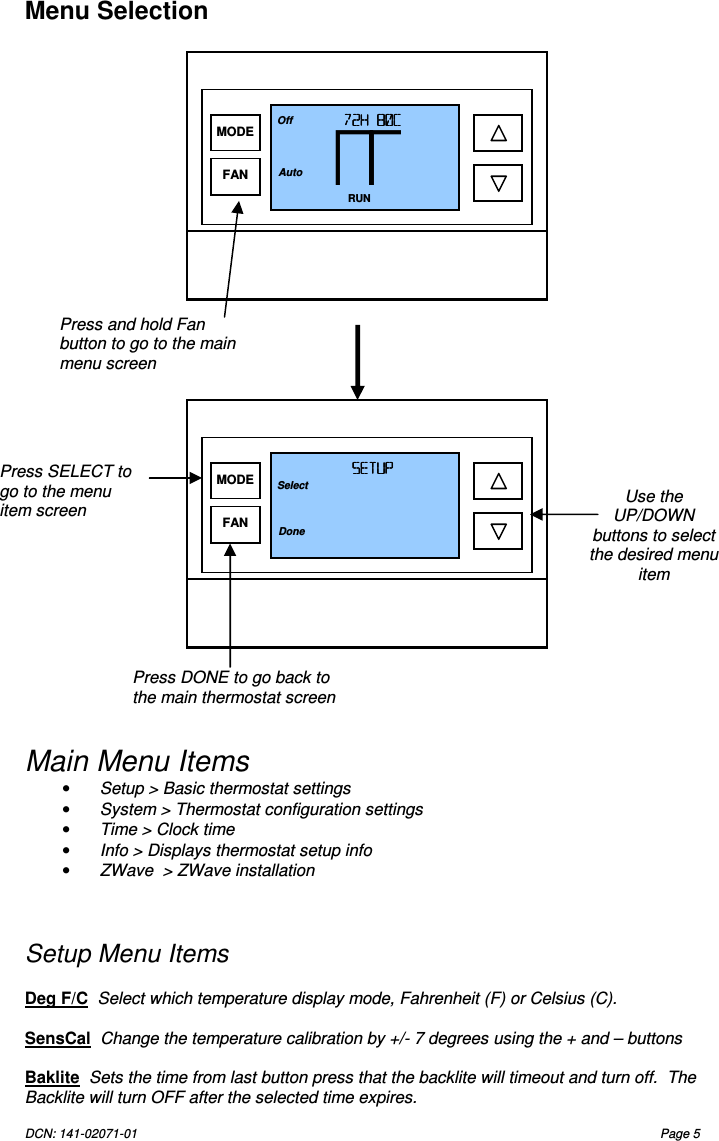
DCN: 141-02071-01  Page 5   Menu Selection                               Main Menu Items •  Setup > Basic thermostat settings •  System > Thermostat configuration settings •  Time > Clock time •  Info > Displays thermostat setup info  •  ZWave  > ZWave installation    Setup Menu Items  Deg F/C  Select which temperature display mode, Fahrenheit (F) or Celsius (C).  SensCal  Change the temperature calibration by +/- 7 degrees using the + and – buttons  Baklite  Sets the time from last button press that the backlite will timeout and turn off.  The Backlite will turn OFF after the selected time expires. Press and hold Fan button to go to the main menu screen    Use the UP/DOWN buttons to select the desired menu item Press SELECT to go to the menu item screen Press DONE to go back to the main thermostat screen 72H 80C72H 80C72H 80C72H 80C    RUN 74 Off Auto MODE FAN SETUPSETUPSETUPSETUP      Select Done MODE FAN
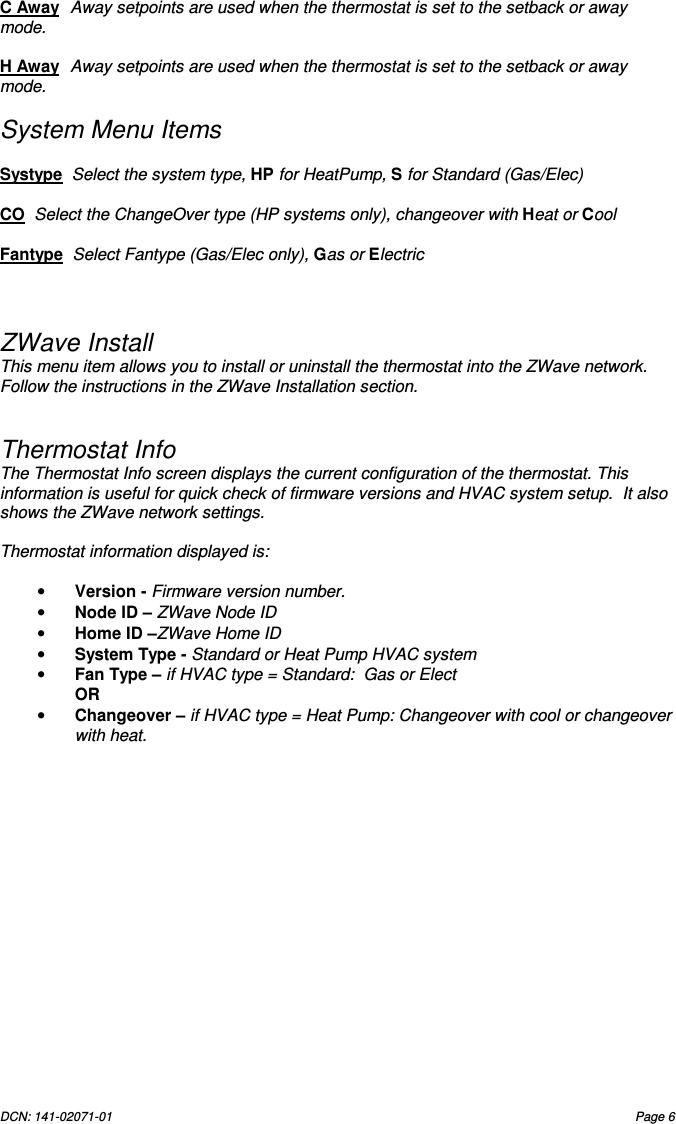
DCN: 141-02071-01  Page 6    C Away  Away setpoints are used when the thermostat is set to the setback or away mode.   H Away  Away setpoints are used when the thermostat is set to the setback or away mode.   System Menu Items  Systype  Select the system type, HP for HeatPump, S for Standard (Gas/Elec)  CO  Select the ChangeOver type (HP systems only), changeover with Heat or Cool  Fantype  Select Fantype (Gas/Elec only), Gas or Electric    ZWave Install This menu item allows you to install or uninstall the thermostat into the ZWave network. Follow the instructions in the ZWave Installation section.   Thermostat Info  The Thermostat Info screen displays the current configuration of the thermostat. This information is useful for quick check of firmware versions and HVAC system setup.  It also shows the ZWave network settings.  Thermostat information displayed is:  • Version - Firmware version number. • Node ID – ZWave Node ID • Home ID –ZWave Home ID • System Type - Standard or Heat Pump HVAC system • Fan Type – if HVAC type = Standard:  Gas or Elect   OR • Changeover – if HVAC type = Heat Pump: Changeover with cool or changeover with heat.
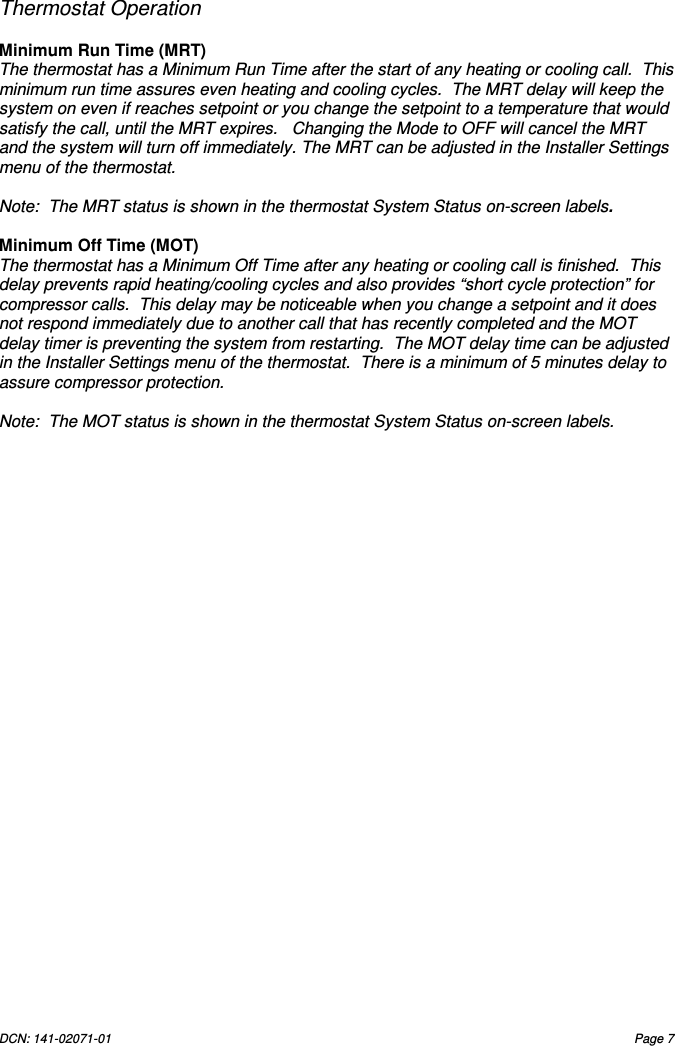
DCN: 141-02071-01  Page 7       Thermostat Operation  Minimum Run Time (MRT) The thermostat has a Minimum Run Time after the start of any heating or cooling call.  This minimum run time assures even heating and cooling cycles.  The MRT delay will keep the system on even if reaches setpoint or you change the setpoint to a temperature that would satisfy the call, until the MRT expires.   Changing the Mode to OFF will cancel the MRT and the system will turn off immediately. The MRT can be adjusted in the Installer Settings menu of the thermostat.  Note:  The MRT status is shown in the thermostat System Status on-screen labels.    Minimum Off Time (MOT)   The thermostat has a Minimum Off Time after any heating or cooling call is finished.  This delay prevents rapid heating/cooling cycles and also provides “short cycle protection” for compressor calls.  This delay may be noticeable when you change a setpoint and it does not respond immediately due to another call that has recently completed and the MOT delay timer is preventing the system from restarting.  The MOT delay time can be adjusted in the Installer Settings menu of the thermostat.  There is a minimum of 5 minutes delay to assure compressor protection.  Note:  The MOT status is shown in the thermostat System Status on-screen labels.
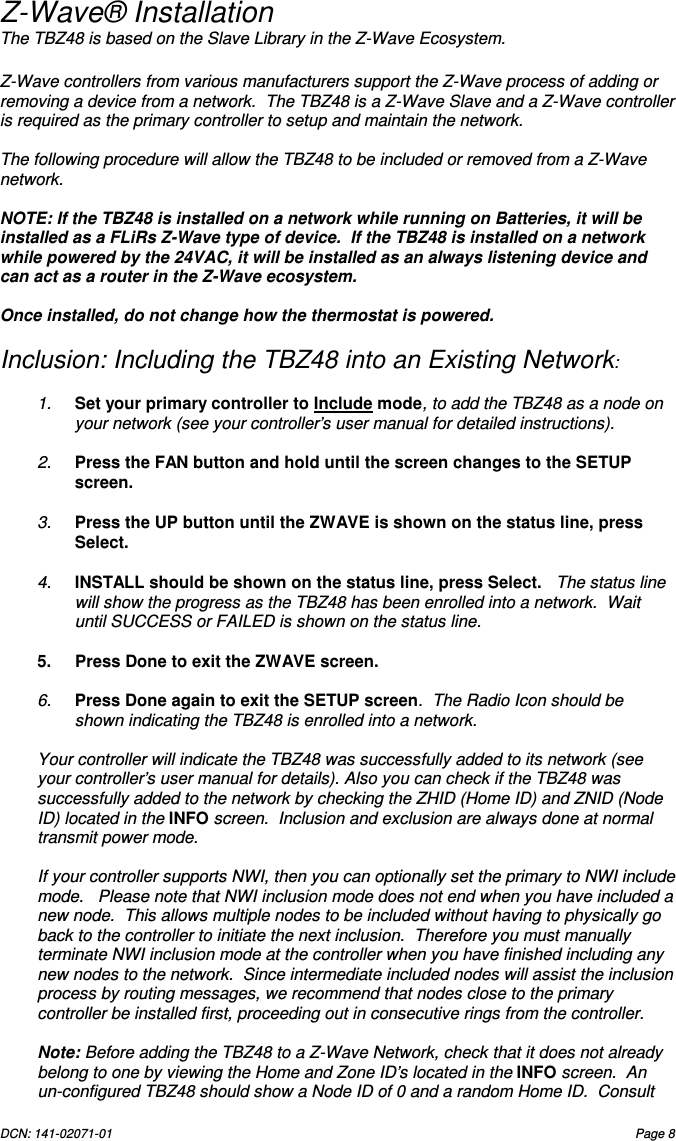
DCN: 141-02071-01  Page 8   Z-Wave® Installation The TBZ48 is based on the Slave Library in the Z-Wave Ecosystem.    Z-Wave controllers from various manufacturers support the Z-Wave process of adding or removing a device from a network.  The TBZ48 is a Z-Wave Slave and a Z-Wave controller is required as the primary controller to setup and maintain the network.  The following procedure will allow the TBZ48 to be included or removed from a Z-Wave network.  NOTE: If the TBZ48 is installed on a network while running on Batteries, it will be installed as a FLiRs Z-Wave type of device.  If the TBZ48 is installed on a network while powered by the 24VAC, it will be installed as an always listening device and can act as a router in the Z-Wave ecosystem.    Once installed, do not change how the thermostat is powered.  Inclusion: Including the TBZ48 into an Existing Network:  1.  Set your primary controller to Include mode, to add the TBZ48 as a node on your network (see your controller’s user manual for detailed instructions).  2.  Press the FAN button and hold until the screen changes to the SETUP screen.    3.  Press the UP button until the ZWAVE is shown on the status line, press Select.    4.  INSTALL should be shown on the status line, press Select.   The status line will show the progress as the TBZ48 has been enrolled into a network.  Wait until SUCCESS or FAILED is shown on the status line.  5.  Press Done to exit the ZWAVE screen.   6.  Press Done again to exit the SETUP screen.  The Radio Icon should be shown indicating the TBZ48 is enrolled into a network.  Your controller will indicate the TBZ48 was successfully added to its network (see your controller’s user manual for details). Also you can check if the TBZ48 was successfully added to the network by checking the ZHID (Home ID) and ZNID (Node ID) located in the INFO screen.  Inclusion and exclusion are always done at normal transmit power mode.  If your controller supports NWI, then you can optionally set the primary to NWI include mode.   Please note that NWI inclusion mode does not end when you have included a new node.  This allows multiple nodes to be included without having to physically go back to the controller to initiate the next inclusion.  Therefore you must manually terminate NWI inclusion mode at the controller when you have finished including any new nodes to the network.  Since intermediate included nodes will assist the inclusion process by routing messages, we recommend that nodes close to the primary controller be installed first, proceeding out in consecutive rings from the controller.  Note: Before adding the TBZ48 to a Z-Wave Network, check that it does not already belong to one by viewing the Home and Zone ID’s located in the INFO screen.  An un-configured TBZ48 should show a Node ID of 0 and a random Home ID.  Consult
DCN: 141-02071-01  Page 9   your controller’s user manual for details on removing a device from a Z-Wave network.  Exclusion: Removing the TBZ48 from a Network:  1.  Set your primary controller to Remove mode, to remove the TBZ48 as a node on your network (see your controller’s user manual for detailed instructions).  2.  Press the FAN button and hold until the screen changes to the SETUP screen.    3.  Press the UP button until the ZWAVE is shown on the status line, press Select.    4.  REMOVE should be displayed, press Select.   The status line will show the progress as the TBZ48 has been removed from a network.  Wait until SUCCESS or FAILED is shown on the status line.  5.  The controller will indicate the TBZ48 has been removed from the network.  The radio icon will disappear from the screen.   Setback Mode Operation  If your controller does not support full thermostat device class functions, it may still be able to control the energy saving AWAY mode of the thermostat through BASIC_SET commands.  Sending the BASIC_SET (Value = 0x00), the thermostat will go into the AWAY mode and use the predefined AWAY setback setpoints.  These setpoints are set in the Main Menu Away Setpoints item.  Sending the BASIC_SET (Value = 0xFF), the thermostat will revert back to the Home mode it was in before the BASIC_SET (Value = 0x00) command was sent.    Note that when the BASIC_SET commands are sent, the TZ45 will momentarily display the new mode.
DCN: 141-02071-01  Page 10    FCC/IC  INFORMATION TO USER  This device complies with Part 15 of the FCC Rules.  Operation is subject to the following two  conditions:    (1) This  device may not cause  harmful interference,  and (2) This device must  accept  any  interference  received,  including  interference  that  may  cause  undesired operation.  This  equipment  has  been  tested  and  found  to  comply  with  the  limits  for  Class  B  Digital Device,  pursuant  to  Part  15  of  the  FCC  Rules.    These  limits  are  designed  to  provide reasonable  protection  against  harmful  interference  in  a  residential  installation.    This equipment generates and can radiate radio frequency energy and, if not installed and used in  accordance  with  the  instructions,  may  cause  harmful  interference  to  radio communications.    However,  there  is  no  guarantee  that  interference  will  not  occur  in  a particular  installation.    If  this  equipment  does  cause  harmful  interference  to  radio  or television  reception,  which  can  be  determined  by  turning  the  equipment  off  and  on,  the user  is  encouraged  to  try  to  correct  the  interference  by  one  or  more  of  the  following measures.  •  Reorient or relocate the receiving antenna •  Increase the separation between the equipment and receiver •  Connect  the  equipment  into  an  outlet  on  a  circuit  different  from  that  to  which  the receiver is connected •  Consult the dealer or an experienced radio/TV technician for help  Any changes or modifications not expressly approved by the party responsible for compliance could void the user’s authority to operate the equipment.   This device complies with Industry Canada licence-exempt RSS standard(s). Operation is subject to the following two conditions: (1) this device may not cause interference, and (2) this device must accept any interference, including interference that may cause undesired operation of the device.  Le présent appareil est conforme aux CNR d'Industrie Canada applicables aux appareils radio exempts de licence. L'exploitation est autorisée aux deux conditions suivantes : (1) l'appareil ne doit pas produire de brouillage, et (2) l'utilisateur de l'appareil doit accepter tout brouillage radioélectrique subi, même si le brouillage est susceptible d'en compromettre le fonctionnement.

Navigation menu