Residential Control Systems TZW012 Wireless Thermostat User Manual

Residential Control Systems Wireless Thermostat

user manual

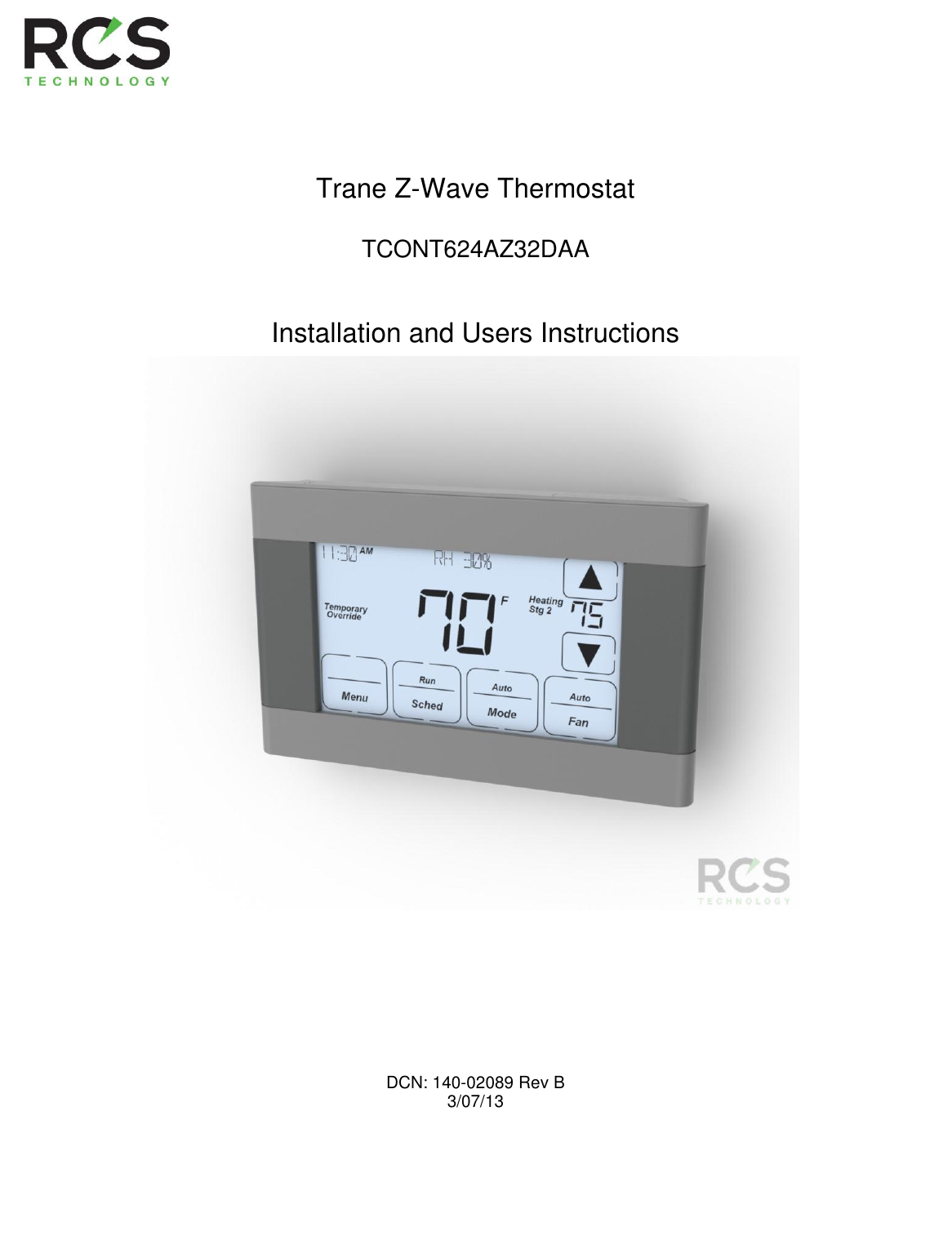
         Trane Z-Wave Thermostat  TCONT624AZ32DAA   Installation and Users Instructions                                      DCN: 140-02089 Rev B 3/07/13
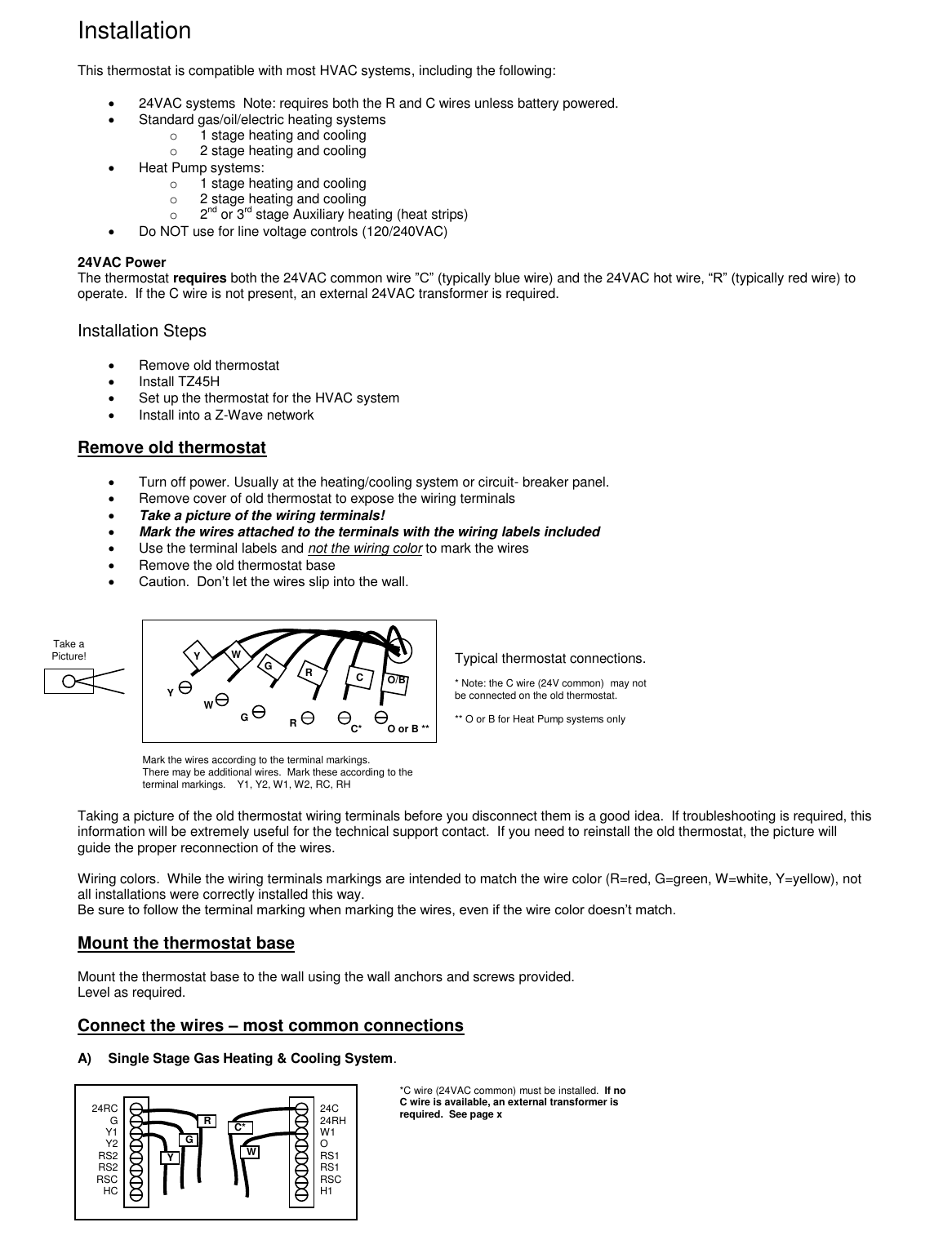
Installation  This thermostat is compatible with most HVAC systems, including the following:    24VAC systems  Note: requires both the R and C wires unless battery powered.   Standard gas/oil/electric heating systems   o  1 stage heating and cooling o  2 stage heating and cooling   Heat Pump systems: o  1 stage heating and cooling o  2 stage heating and cooling o  2nd or 3rd stage Auxiliary heating (heat strips)    Do NOT use for line voltage controls (120/240VAC)  24VAC Power The thermostat requires both the 24VAC common wire ”C” (typically blue wire) and the 24VAC hot wire, “R” (typically red wire) to operate.  If the C wire is not present, an external 24VAC transformer is required.        Installation Steps    Remove old thermostat   Install TZ45H   Set up the thermostat for the HVAC system   Install into a Z-Wave network  Remove old thermostat    Turn off power. Usually at the heating/cooling system or circuit- breaker panel.   Remove cover of old thermostat to expose the wiring terminals  Take a picture of the wiring terminals!   Mark the wires attached to the terminals with the wiring labels included   Use the terminal labels and not the wiring color to mark the wires   Remove the old thermostat base  Caution.  Don’t let the wires slip into the wall.               Taking a picture of the old thermostat wiring terminals before you disconnect them is a good idea.  If troubleshooting is required, this information will be extremely useful for the technical support contact.  If you need to reinstall the old thermostat, the picture will guide the proper reconnection of the wires.  Wiring colors.  While the wiring terminals markings are intended to match the wire color (R=red, G=green, W=white, Y=yellow), not all installations were correctly installed this way. Be sure to follow the terminal marking when marking the wires, even if the wire color doesn’t match.    Mount the thermostat base  Mount the thermostat base to the wall using the wall anchors and screws provided. Level as required.  Connect the wires – most common connections  A)  Single Stage Gas Heating & Cooling System.          Take a Picture! Typical thermostat connections.  * Note: the C wire (24V common)  may not be connected on the old thermostat.  ** O or B for Heat Pump systems only Mark the wires according to the terminal markings.   There may be additional wires.  Mark these according to the terminal markings.    Y1, Y2, W1, W2, RC, RH *C wire (24VAC common) must be installed.  If no C wire is available, an external transformer is required.  See page x R G Y 24C 24RH W1 O RS1 RS1 RSC H1  24RC G Y1 Y2 RS2 RS2 RSC HC  W C* Y C R W G Y W G R C* O or B ** O/B
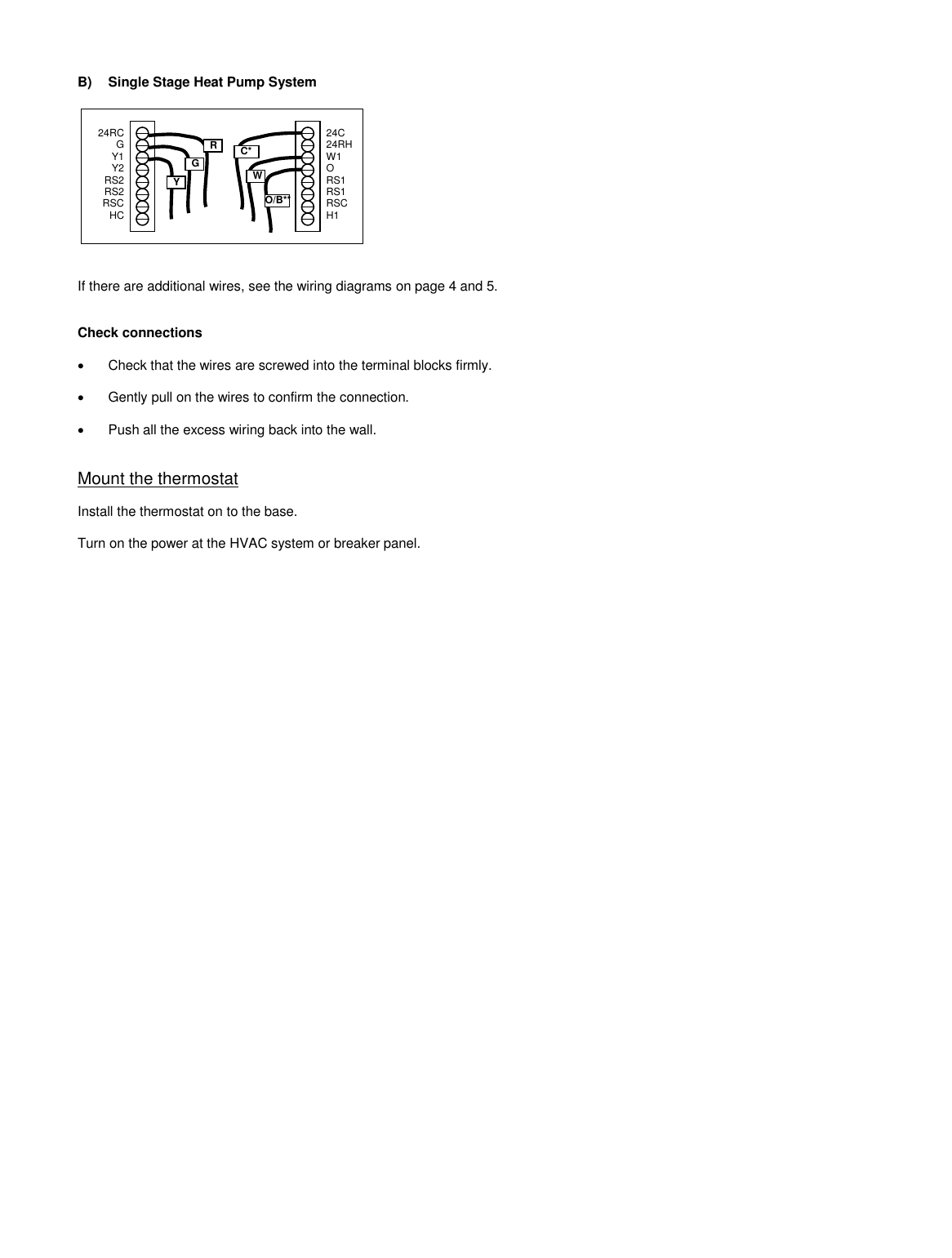
   B)  Single Stage Heat Pump System               If there are additional wires, see the wiring diagrams on page 4 and 5.   Check connections    Check that the wires are screwed into the terminal blocks firmly.    Gently pull on the wires to confirm the connection.    Push all the excess wiring back into the wall.   Mount the thermostat  Install the thermostat on to the base.  Turn on the power at the HVAC system or breaker panel.R G Y 24C 24RH W1 O RS1 RS1 RSC H1  24RC G Y1 Y2 RS2 RS2 RSC HC  W C* O/B**
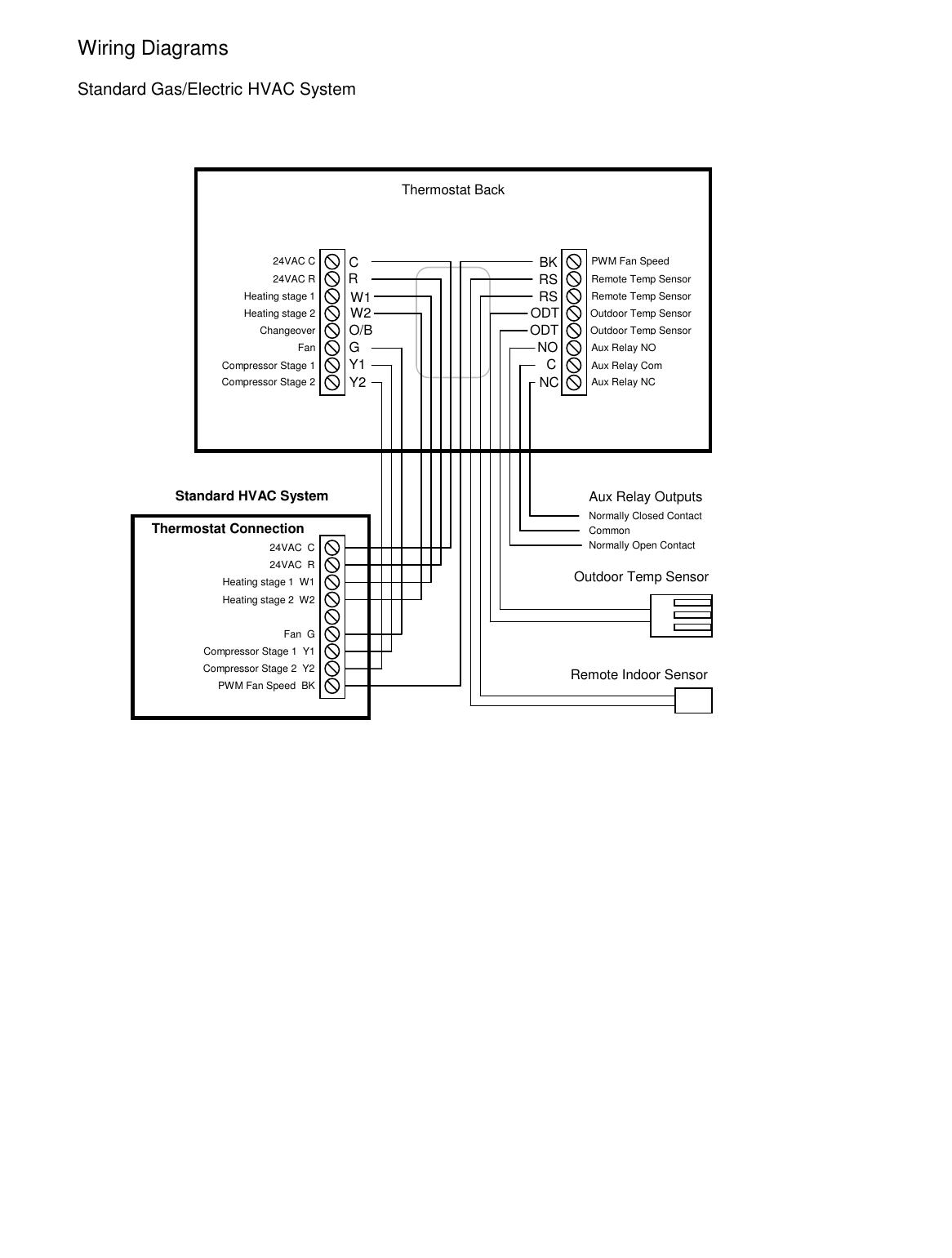
 Wiring Diagrams  Standard Gas/Electric HVAC System                                            Standard HVAC System Thermostat Connection  W11  R W2 G O/B Y1 Y2  C 24VAC C 24VAC R Heating stage 1 Heating stage 2 Changeover Fan Compressor Stage 1 Compressor Stage 2  PWM Fan Speed Remote Temp Sensor Outdoor Temp Sensor Aux Relay NO Aux Relay NC Thermostat Back Remote Indoor Sensor   RS ODT NO ODT C NC     BK RS 24VAC  C 24VAC  R Heating stage 1  W1 Heating stage 2  W2 Fan  G Compressor Stage 1  Y1 Compressor Stage 2  Y2   Outdoor Temp Sensor Remote Temp Sensor Aux Relay Com PWM Fan Speed  BK   Aux Relay Outputs  Outdoor Temp Sensor Normally Closed Contact Normally Open Contact Common
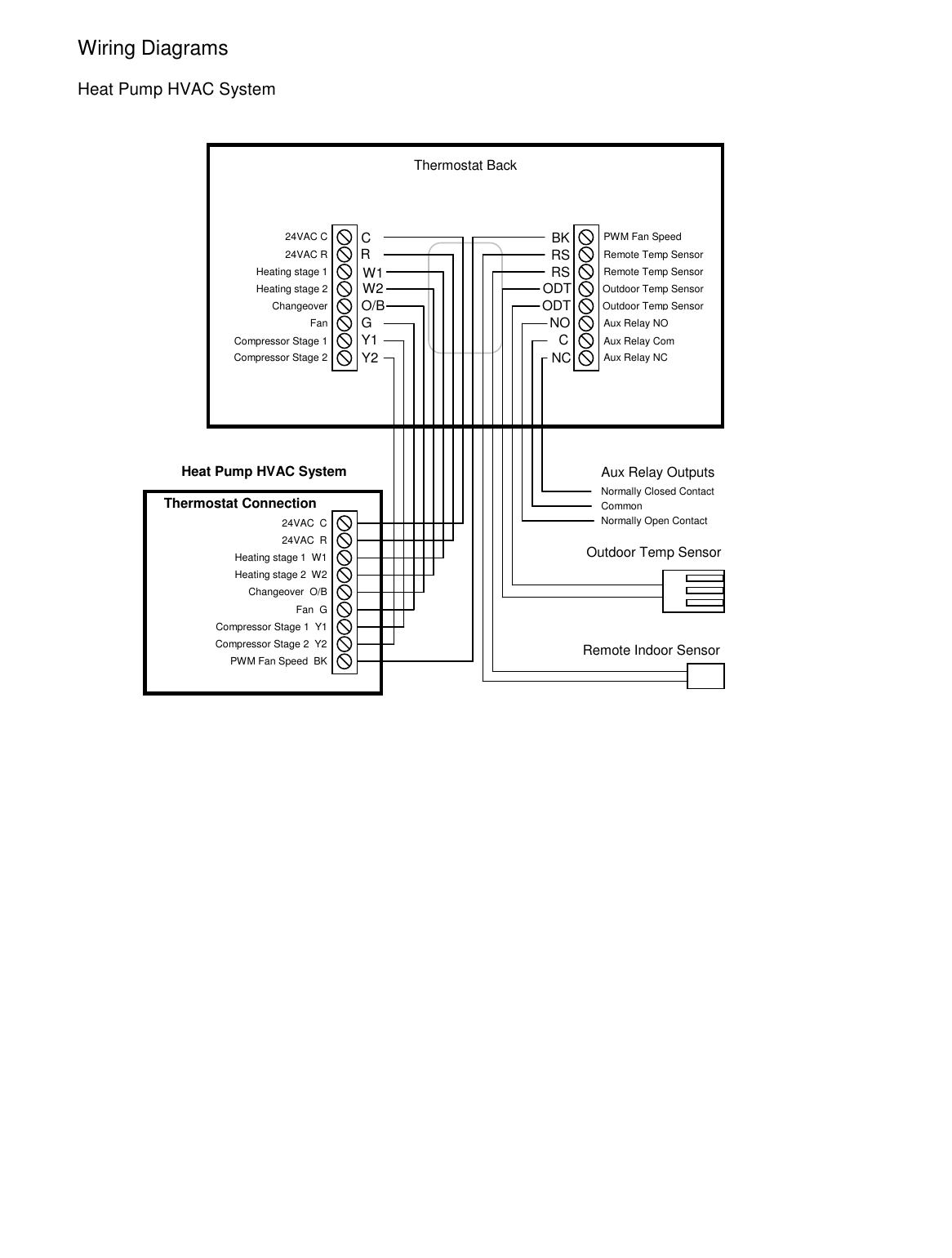
 Wiring Diagrams  Heat Pump HVAC System                                                 Heat Pump HVAC System Thermostat Connection  W11  R W2 G O/B Y1 Y2  C 24VAC C 24VAC R Heating stage 1 Heating stage 2 Changeover Fan Compressor Stage 1 Compressor Stage 2  PWM Fan Speed Remote Temp Sensor Outdoor Temp Sensor Aux Relay NO Aux Relay NC Thermostat Back Remote Indoor Sensor   RS ODT NO ODT C NC     BK RS 24VAC  C 24VAC  R Heating stage 1  W1 Heating stage 2  W2 Changeover  O/B Fan  G Compressor Stage 1  Y1 Compressor Stage 2  Y2   Outdoor Temp Sensor Remote Temp Sensor Aux Relay Com PWM Fan Speed  BK   Aux Relay Outputs  Outdoor Temp Sensor Normally Closed Contact Normally Open Contact Common
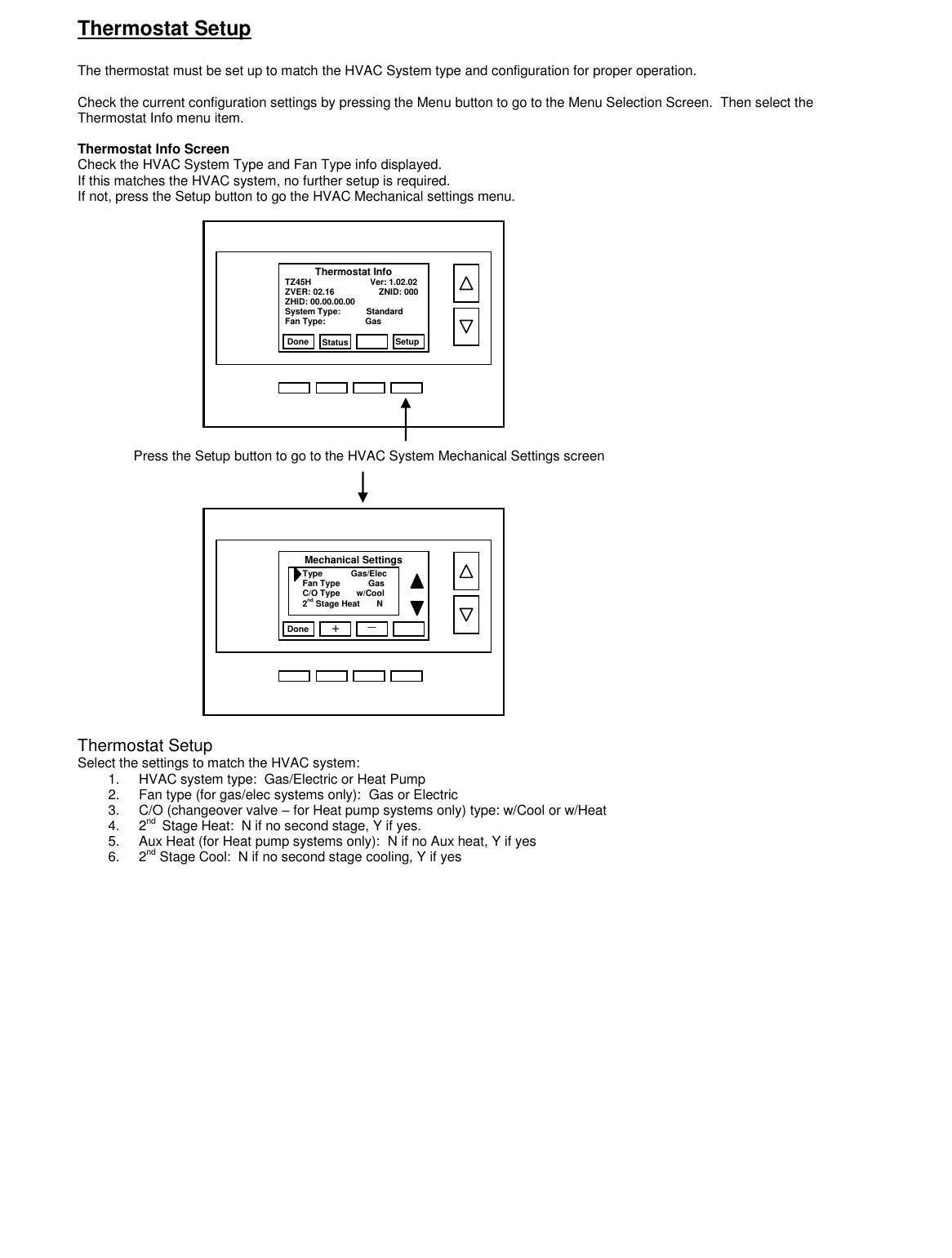
Thermostat Setup   The thermostat must be set up to match the HVAC System type and configuration for proper operation.    Check the current configuration settings by pressing the Menu button to go to the Menu Selection Screen.  Then select the Thermostat Info menu item.  Thermostat Info Screen Check the HVAC System Type and Fan Type info displayed. If this matches the HVAC system, no further setup is required. If not, press the Setup button to go the HVAC Mechanical settings menu.                                   Thermostat Setup Select the settings to match the HVAC system: 1.  HVAC system type:  Gas/Electric or Heat Pump 2.  Fan type (for gas/elec systems only):  Gas or Electric 3.  C/O (changeover valve – for Heat pump systems only) type: w/Cool or w/Heat 4.  2nd  Stage Heat:  N if no second stage, Y if yes. 5.  Aux Heat (for Heat pump systems only):  N if no Aux heat, Y if yes 6.  2nd Stage Cool:  N if no second stage cooling, Y if yes    Done Setup TZ45H                         Ver: 1.02.02 ZVER: 02.16                   ZNID: 000 ZHID: 00.00.00.00 System Type:           Standard Fan Type:                 Gas Thermostat Info       Status   Press the Setup button to go to the HVAC System Mechanical Settings screen Done Type            Gas/Elec Fan Type            Gas C/O Type       w/Cool 2nd Stage Heat       N Mechanical Settings + _
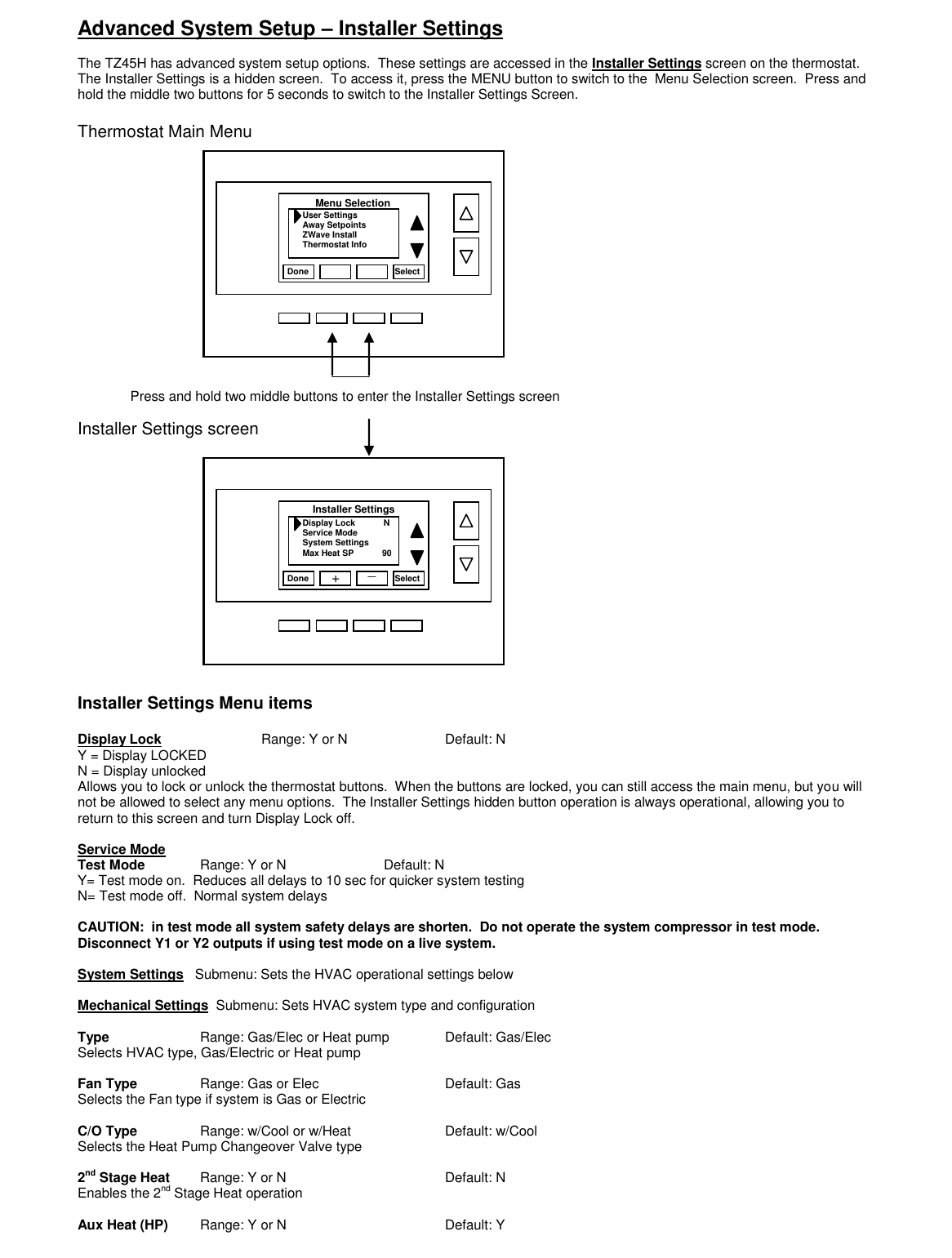
Advanced System Setup – Installer Settings  The TZ45H has advanced system setup options.  These settings are accessed in the Installer Settings screen on the thermostat.  The Installer Settings is a hidden screen.  To access it, press the MENU button to switch to the  Menu Selection screen.  Press and hold the middle two buttons for 5 seconds to switch to the Installer Settings Screen.    Thermostat Main Menu              Installer Settings screen            Installer Settings Menu items  Display Lock      Range: Y or N        Default: N Y = Display LOCKED N = Display unlocked Allows you to lock or unlock the thermostat buttons.  When the buttons are locked, you can still access the main menu, but you will not be allowed to select any menu options.  The Installer Settings hidden button operation is always operational, allowing you to return to this screen and turn Display Lock off.    Service Mode  Test Mode  Range: Y or N    Default: N Y= Test mode on.  Reduces all delays to 10 sec for quicker system testing N= Test mode off.  Normal system delays  CAUTION:  in test mode all system safety delays are shorten.  Do not operate the system compressor in test mode.  Disconnect Y1 or Y2 outputs if using test mode on a live system.  System Settings   Submenu: Sets the HVAC operational settings below  Mechanical Settings  Submenu: Sets HVAC system type and configuration  Type    Range: Gas/Elec or Heat pump  Default: Gas/Elec Selects HVAC type, Gas/Electric or Heat pump  Fan Type   Range: Gas or Elec     Default: Gas Selects the Fan type if system is Gas or Electric  C/O Type   Range: w/Cool or w/Heat    Default: w/Cool Selects the Heat Pump Changeover Valve type  2nd Stage Heat  Range: Y or N      Default: N Enables the 2nd Stage Heat operation  Aux Heat (HP)  Range: Y or N      Default: Y Press and hold two middle buttons to enter the Installer Settings screen                 Done Select User Settings Away Setpoints ZWave Install Thermostat Info Menu Selection Done Select Display Lock            N Service Mode System Settings Max Heat SP            90 Installer Settings + _
Enables the Auxiliary Heat operation.  Typically the Aux Heat will be heat-strips in a Heat Pump system  2nd Stage Cool   Range: Y or N      Default: N Enables the 2nd Stage Cool operation  Schedule Enable  Range: Y or N      Default: N  When enabled, the local thermostats scheduler function is enabled.   Recovery Enable  Range: Y or N    Default: N For Heat Pump Systems.  Intelligent setback recovery is an automatic advance start of heating to allow the system to be at setpoint by the schedule time, without the use of Aux heating.  Delta Settings : The Delta T Setting is the delta, or difference between, the setpoint and current temp for determining when a heat or cool call comes on.  The “delta” is the number of degrees away from setpoint.  H/C Delta   Range: 3 - 15 degrees.      Default: 3F (1C) Sets the minimum separation between heating and cooling setpoints.  Attempts to lower the cooling below the heating setpoint by this amount will PUSH the heating setpoint down to maintain this separation.  Same for setting the heating setpoint above the cooling setpoint, it will PUSH the cooling setpoint up to maintain this separation.  Fan Purge  Range: 0, 30 to 120 seconds    Default: 0  Heating Delta Stage 1 ON    Range: 1 to 8 degrees  Default: 1 Sets the delta from setpoint that stage 1 heating starts.  Heating Delta Stage 1 OFF    Range: 0 to 8 degrees  Default: 0 Sets the delta from setpoint that stage 1 heating stops.  Stage 1 turns off at setpoint + Delta Stage 1.  Heating Delta Stage 2 ON  Range: 1 to 8 degrees  Default: 2 Sets the delta from setpoint that stage 2 heating starts.  Heating Delta Stage 2 OFF    Range: 0 to 8 degrees  Default: 0 Sets the delta from setpoint that stage 2 heating stops.  Stage 2 turns off at setpoint + Delta Stage 2.  Heating Delta Stage 3 ON   Range: 1 to 8 degrees  Default: 3 Sets the delta from setpoint that stage 3 heating starts.  Heating Delta Stage 3 OFF    Range: 0 to 8 degrees  Default: 0 Sets the delta from setpoint that stage 3 heating stops.  Stage 3 turns off at setpoint + Delta Stage 3.  Cooling Delta Stage 1 ON  Range: 1 to 8 degrees   Default: 1 Sets the delta from setpoint that stage 1 cooling starts. Cooling Delta Stage 1 OFF   Range: 0 to 8 degrees  Default: 0 Sets the delta from setpoint that stage 1 Cooling stops.  Stage 1 turns off at setpoint - Delta Stage 1  Cooling Delta Stage 2 ON   Range: 1 to 8 degrees   Default: 2 Sets the delta from setpoint that stage 2 cooling starts.  Cooling Delta Stage 2 OFF   Range: 0 to 8 degrees  Default: 0 Sets the delta from setpoint that stage 2 Cooling stops.  Stage 2 turns off at setpoint -Delta Stage 2.  Max Heat SP       Range: 40F to 109F (4C-43C) Default: 90F (32C) Sets the maximum heating setpoint value.  Will not ramp or accept setpoints higher that this maximum.     Min Cool SP       Range: 44F to 113F (6C-45C) Default: 60F (15C) Sets the minimum cooling setpoint value.  Will not ramp or accept setpoints lower than this minimum.        Minimum Run Time (MRT)    Range: 1- 9 Minutes  Default: 3 Sets the minimum run time before a heating/cooling cycle can turn off.   Sets heating/cooling cycle time. Prevents rapid cycling.    Minimum Off Time (MOT)      Range: 5-9 Minutes   Default: 5 Sets the minimum off time before another heating/cooling cycle can begin.  Provides compressor short cycle protection.   Fan Cycler   The fan cycler function cycles the HVAC system fan for an ON period followed by an Off period continuously.  Used to provide minimum air ventilation requirements.  When the Fan ON time is set to a value greater than 0, an additional “Cycler” FAN mode is present when pressing the FAN button. Fan ON Time  Range: 0-120 minutes  Default: 0 (=OFF) Fan OFF Time  Range: 10-120 minutes  Default: 10  Remote Sensors  Submenu  for Sensor Setup
RS1 Type  Range: A curve, Type 2, Type 3    Default: Type 3 RS2 Type  Range: A curve, Type 2, Type 3    Default: Type 3 RS2 Location  Range: IN (indoors), OUT (outdoors)    Default: IN R1 Node ID  ID for a Z-Wave remote sensor    Default: 0 R2 Node ID  ID for a Z-Wave remote sensor    Default: 0 Humidity Settings:  Submenu for humidity settings  RH Display    Range: Off or On      Default: On Turns on or off the RH display on the main thermostat screen.  RH Setpoint    Range: 20 to 80 in 5% steps    Default: 55% Sets the RH setpoint for Humidity control functions.  RH Setpoint Away   Range: 20 to 80 in 5% steps    Default: 65% Sets the RH setpoint when in the AWAY mode.  RH Temp Delta    Range: 1 to 5 deg      Default: 2 deg Sets the maximum overcooling temperature allowed for humidity control.  RH Setpoint Delta    Range: 1 to 10 %      Default: 5 % Sets the % above the RH setpoint that the Humidity control will be activated.  RH On Time    Range: 0 to 60 minutes    Default: 30 min Sets the maximum runtime for Humidity control to try to correct RH level.  RH Off Time    Range: 0 to 60 minutes    Default: 30 min Sets the minimum off time for Humidity control after On time expires.  RH Off Delta    Range: 0  to 10 %      Default: 2% Sets the % RH below the RH setpoint that the Humidity control will lower the room RH to before turning off.  Relay Setup   (for aux relay A1 output)  A1 Relay mode    Range: see below       Default: Off Off.  No relay function Humidify:  Relay turns on when RH is below humidity setpoint Dehumidify:  Relay turns on when RH is above humidity setpoint Net:  Z-Wave commands turn Relay On and Off.   Configuration parameter #95  See Z-Wave Command Summary Vent:  Relay turns on when Vent is active. DH-Fan: HVAC system fan speed control during dehumidification.      A1 Fan Interlock    Range: Off, On      Default: Off Turns on fan output (G) when relay A1 is on   Restore Defaults    Range: Yes, No      Default: No Restores all settings to factory defaults. Press Yes to restore defaults Press No to exit and not restore defaults
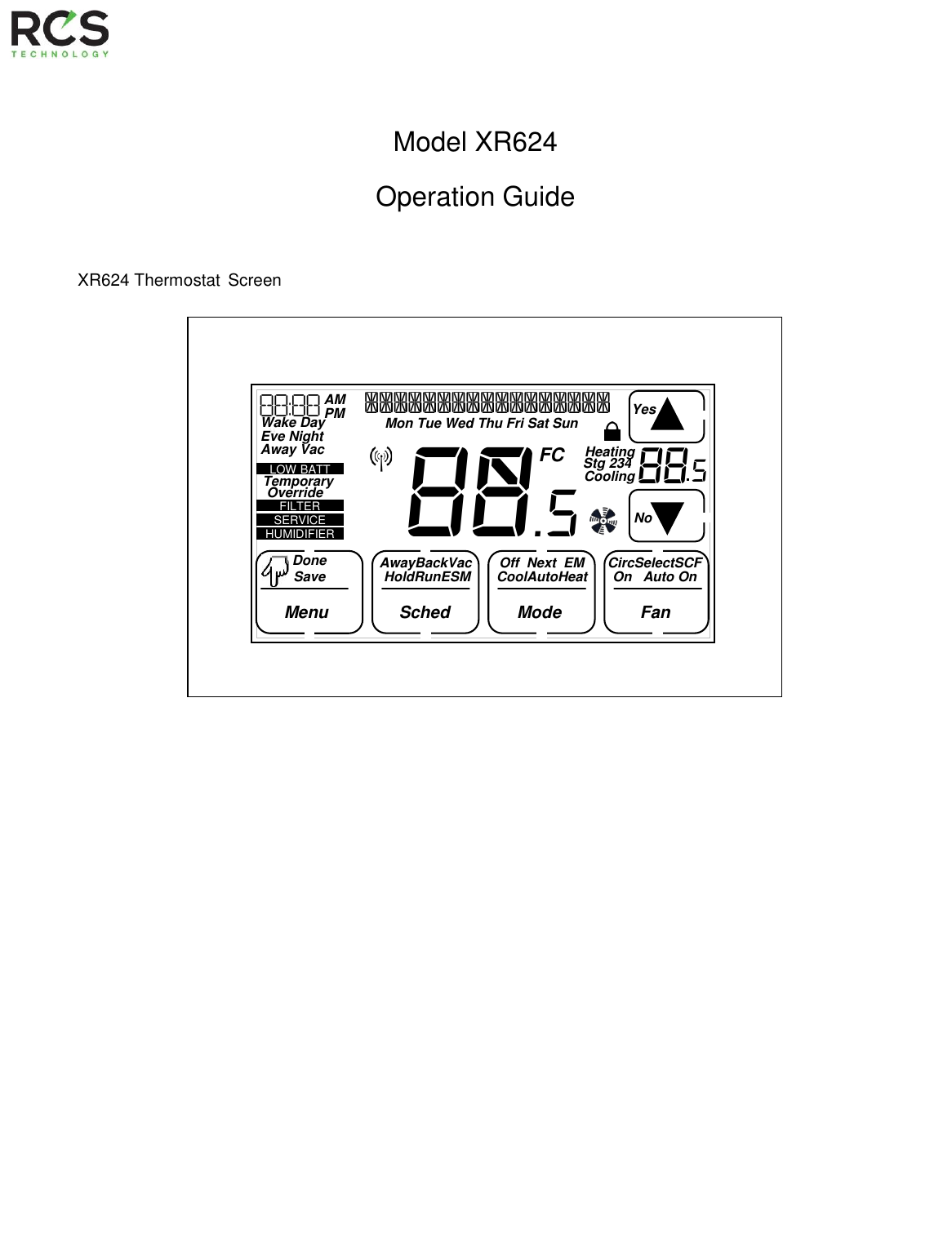
     Model XR624  Operation Guide        XR624 Thermostat Screen                                                 8$.5       88:88   AM PM   Fan $$$$$$$$$$$$$$$$$ Mon Tue Wed Thu Fri Sat Sun Wake Day  Eve Night Away Vac Stg 234 Cooling   Heating   Yes No FC Done  Menu   Sched  AwayBackVac    Off  Next  EM Mode CircSelectSCF Save HoldRunESM CoolAutoHeat   On   Auto On 88 5   HUMIDIFIER   SERVICE   FILTER   LOW BATT     Temporary Override
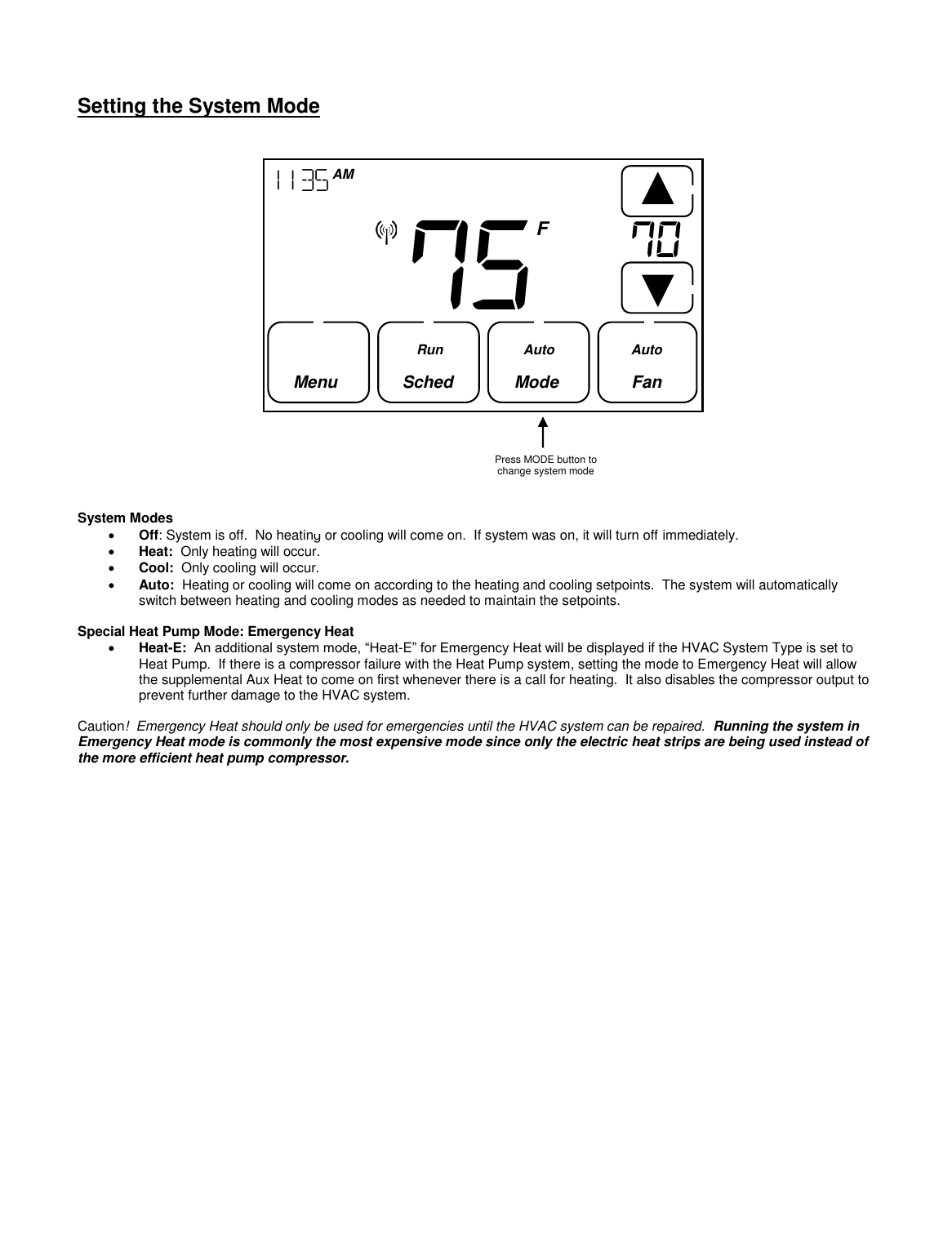
    Setting the System Mode                           System Modes  Off: System is off.  No heating or cooling will come on.  If system was on, it will turn off immediately.  Heat:  Only heating will occur.  Cool:  Only cooling will occur.  Auto:  Heating or cooling will come on according to the heating and cooling setpoints.  The system will automatically switch between heating and cooling modes as needed to maintain the setpoints.   Special Heat Pump Mode: Emergency Heat  Heat-E:  An additional system mode, “Heat-E” for Emergency Heat will be displayed if the HVAC System Type is set to Heat Pump.  If there is a compressor failure with the Heat Pump system, setting the mode to Emergency Heat will allow the supplemental Aux Heat to come on first whenever there is a call for heating.  It also disables the compressor output to prevent further damage to the HVAC system.  Caution!  Emergency Heat should only be used for emergencies until the HVAC system can be repaired.  Running the system in Emergency Heat mode is commonly the most expensive mode since only the electric heat strips are being used instead of the more efficient heat pump compressor.             Press MODE button to change system mode 75       1135  AM  Fan     F Menu   Sched       Mode  Run Auto Auto 70
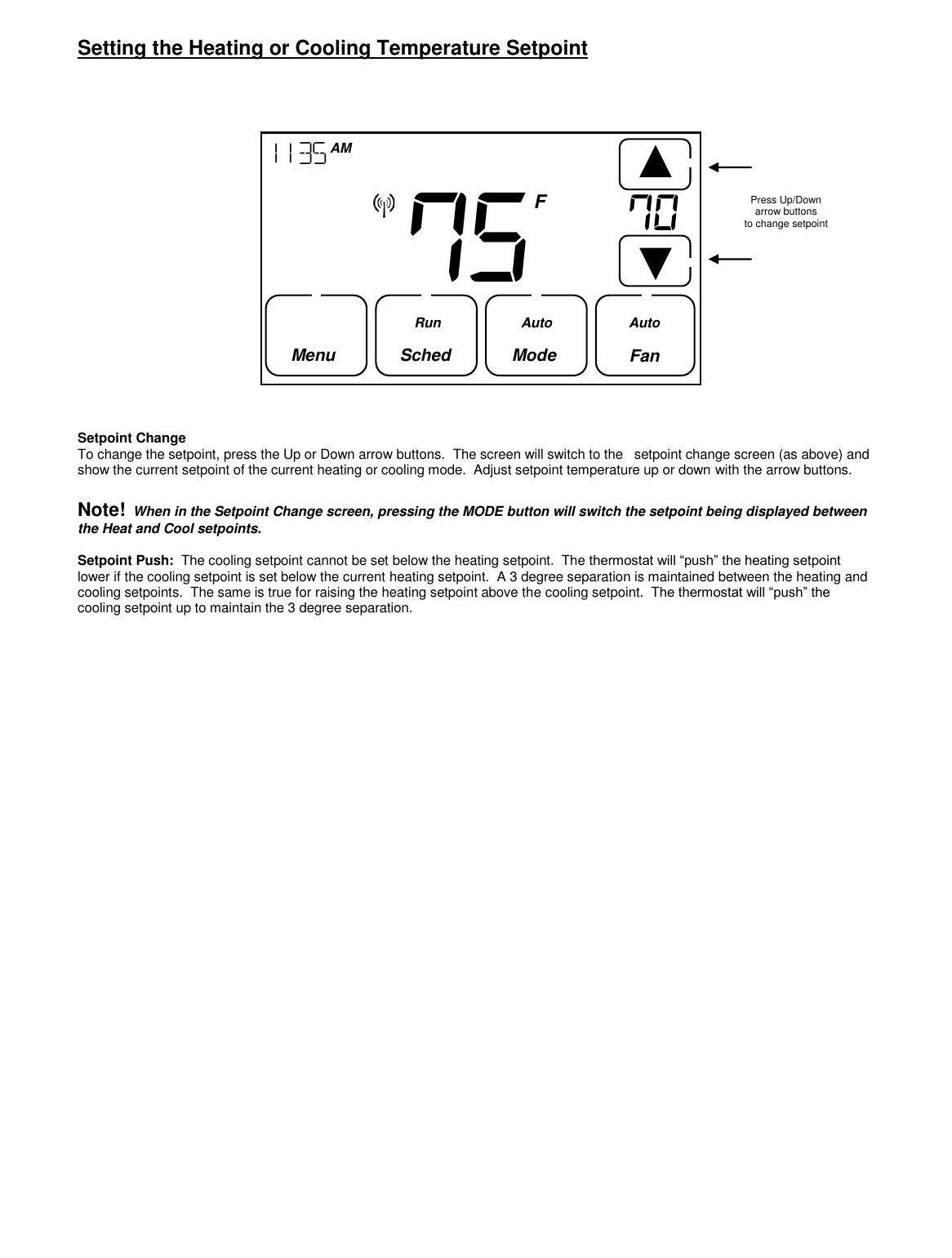
 Setting the Heating or Cooling Temperature Setpoint                    Setpoint Change To change the setpoint, press the Up or Down arrow buttons.  The screen will switch to the   setpoint change screen (as above) and show the current setpoint of the current heating or cooling mode.  Adjust setpoint temperature up or down with the arrow buttons.  Note!  When in the Setpoint Change screen, pressing the MODE button will switch the setpoint being displayed between the Heat and Cool setpoints.  Setpoint Push:  The cooling setpoint cannot be set below the heating setpoint.  The thermostat will “push” the heating setpoint lower if the cooling setpoint is set below the current heating setpoint.  A 3 degree separation is maintained between the heating and cooling setpoints.  The same is true for raising the heating setpoint above the cooling setpoint.  The thermostat will “push” the cooling setpoint up to maintain the 3 degree separation.                                Press Up/Down  arrow buttons to change setpoint 75       1135  AM  Fan     F Menu   Sched       Mode  Run Auto Auto 70
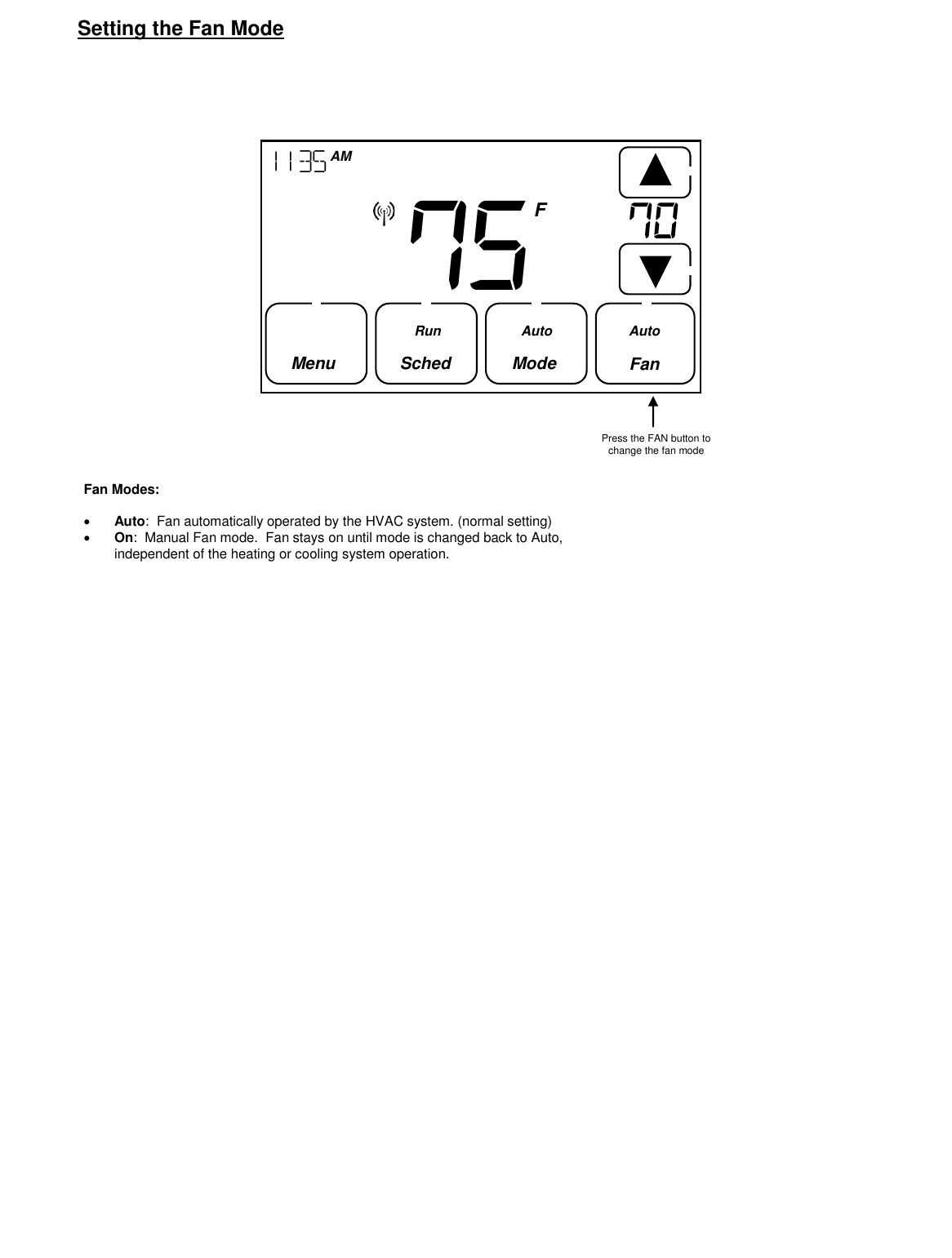
Setting the Fan Mode                                                        Fan Modes:   Auto:  Fan automatically operated by the HVAC system. (normal setting)  On:  Manual Fan mode.  Fan stays on until mode is changed back to Auto, independent of the heating or cooling system operation. Press the FAN button to change the fan mode 75       1135  AM  Fan     F Menu   Sched       Mode  Run Auto Auto 70
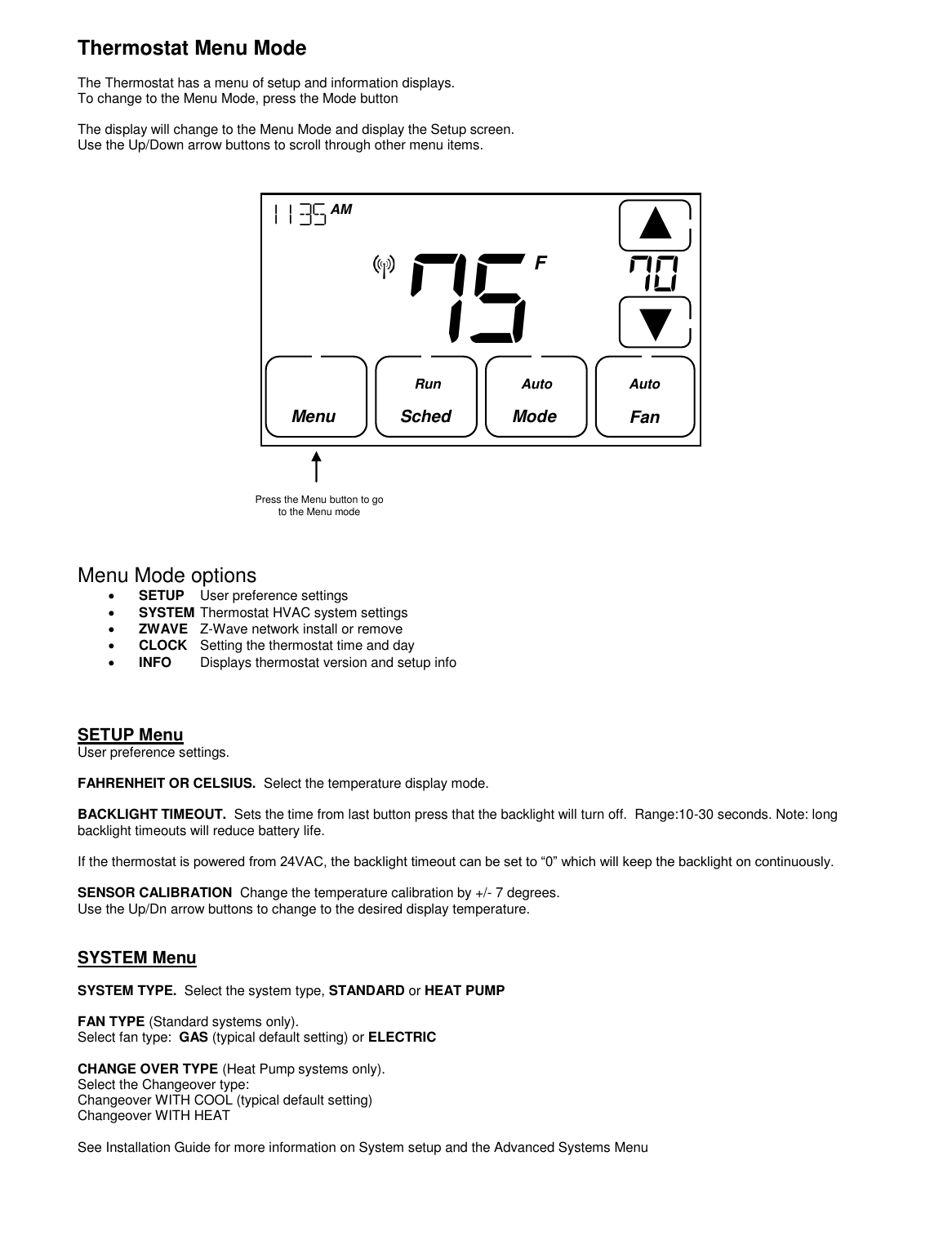
 Thermostat Menu Mode  The Thermostat has a menu of setup and information displays. To change to the Menu Mode, press the Mode button  The display will change to the Menu Mode and display the Setup screen. Use the Up/Down arrow buttons to scroll through other menu items.                       Menu Mode options  SETUP  User preference settings  SYSTEM Thermostat HVAC system settings  ZWAVE  Z-Wave network install or remove   CLOCK  Setting the thermostat time and day  INFO  Displays thermostat version and setup info     SETUP Menu  User preference settings.  FAHRENHEIT OR CELSIUS.  Select the temperature display mode.   BACKLIGHT TIMEOUT.  Sets the time from last button press that the backlight will turn off.  Range:10-30 seconds. Note: long backlight timeouts will reduce battery life.  If the thermostat is powered from 24VAC, the backlight timeout can be set to “0” which will keep the backlight on continuously.  SENSOR CALIBRATION  Change the temperature calibration by +/- 7 degrees. Use the Up/Dn arrow buttons to change to the desired display temperature.   SYSTEM Menu   SYSTEM TYPE.  Select the system type, STANDARD or HEAT PUMP  FAN TYPE (Standard systems only).   Select fan type:  GAS (typical default setting) or ELECTRIC  CHANGE OVER TYPE (Heat Pump systems only).   Select the Changeover type: Changeover WITH COOL (typical default setting) Changeover WITH HEAT  See Installation Guide for more information on System setup and the Advanced Systems Menu     Press the Menu button to go to the Menu mode 75       1135  AM  Fan     F Menu   Sched       Mode  Run Auto Auto 70
 Z-WAVE Menu  This menu item allows the thermostat to be installed or uninstalled from a Z-Wave network. Follow the instructions in the Z-Wave Installation section.  INSTALL  Press to install the thermostat, if not already installed in a Z-Wave Network (when a controller is in install mode)  REMOVE  Press to remove the thermostat from a Z-Wave Network  CLOCK Menu   Set the time and day of the week.  Press select to set the DAY.  The current day of the week setting will be displayed.   Press the UP/DN arrows to change the day of the week desired.  Press select to set the TIME.  The current time will be displayed.   Press the UP/DN arrows to change the time.  INFO Menu  The INFO menu displays information about the thermostat.  Use the Up/Dn buttons to scroll through the various items.   Thermostat information displayed:  VERSION  Thermostat firmware version ZWAVE     Z-Wave firmware version NODE ID   Z-Wave Node ID HOME ID  Z-Wave Home ID SYSTEM TYPE  displays current System Type setting  If System Type = Standard  FAN TYPE  displays current Fan Type setting  If System Type = Heat Pump CHANGEOVER TYPE displays current Change Over setting    Thermostat Operation  Minimum Run Time (MRT) The thermostat has a Minimum Run Time (MRT) delay after the start of any heating or cooling call.  This minimum run time assures even heating and cooling cycles.  The MRT will keep the system on, even if it reaches the setpoint room temperature, or you change the setpoint to a temperature that would satisfy the call, until the MRT expires.   Changing the Mode to OFF will cancel the MRT and the system will turn off immediately. The MRT can be adjusted in the Advanced Settings menu of the thermostat.  Note:  The MRT status is shown in the thermostat Status display.     Minimum Off Time (MOT)   The thermostat has a Minimum Off Time (MOT) delay after any heating or cooling cycle ends.  This delay prevents rapid heating/cooling cycles and also provides “short cycle protection” for the system compressor.  This delay may be noticeable when you change a setpoint and it does not respond immediately due to the MOT delay timer preventing the system from restarting.  The MOT delay time can be adjusted in the Advanced Settings menu of the thermostat but there is a minimum of 5 minutes delay to assure compressor protection.  Note:  The MOT status is shown in the thermostat Status display.
Z-Wave® Operation  The XR624 is based on the Slave Library in the Z-Wave Ecosystem.    Z-Wave controllers from various manufacturers support the Z-Wave process of adding or removing a device from a network.  The thermostat is a Z-Wave Slave and a Z-Wave controller is required as the primary controller to setup and maintain the network.  The following procedure will allow the thermostat to be installed (inclusion) or removed (exclusion) from a Z-Wave network.  NOTE: If the thermostat is installed in a network while running on batteries, it will be installed as a FLiRs Z-Wave type of device.  This is a power saving mode that converses the batteries by keeping the radio asleep most of the time.  However, in this mode, the thermostat does not act as a router node in the Z-Wave network.  If the THERMOSTAT is installed in a network while powered by 24VAC, it will be installed as an always-listening device and can act as a router node in the Z-Wave network.     Caution! Once installed in a Z-Wave network, if you change how the thermostat is powered (from batteries to 24VAC or vice versa), you must remove and re-install the thermostat in the Z-Wave network for it to work correctly.  Before installing the thermostat into a Z-Wave Network, check that is not already installed in a network by viewing the Home and Zone ID’s located in the INFO screen.  An un-installed thermostat will show a Node ID of 0.  Consult your controller’s user manual for details on removing a device from a Z-Wave network.  Inclusion: Installing the thermostat into an existing Z-Wave network  1.  Set your primary controller to Install or Include mode, to add the THERMOSTAT as a node on your network (see your controller’s user manual for detailed instructions).  2.  Press the FAN button and hold until the screen changes to the Menu screen.    3.  Press the UP button until ZWAVE is shown in the Status Display line then press Select.    4. INSTALL should be shown on the status line.  Press Select to install in the network.   The status line will show the progress as the THERMOSTAT is added into the network.  Wait until SUCCESS or FAILED is shown on the status display.  5.  Press Done to exit the ZWAVE screen.   6.  Press Done again to exit the Menu screen.    7.  The Radio Icon should be shown in the Thermostat Main screen indicating the thermostat is enrolled into a network.  Your controller will indicate the thermostat was successfully added to its network (see your controller’s user manual for details). Also you can check if the thermostat was successfully added to the network by checking the Node ID and Home ID in the INFO screen.     Z-Wave Network Note:  Inclusion and exclusion are always done at normal transmit power mode.  Network Wide Inclusion If your controller supports Network Wide Inclusion (NWI), then you can optionally set the primary to NWI include mode.   Please note that NWI inclusion mode does not end when you have included a new node.  This allows multiple nodes to be included without having to physically go back to the controller to initiate the next inclusion.  Therefore you must manually terminate NWI inclusion mode at the controller when you have finished including any new nodes to the network.  Since intermediate included nodes will assist the inclusion process by routing messages, we recommend that nodes close to the primary controller be installed first, proceeding out in consecutive rings from the controller.  Exclusion: Removing the thermostat from a Z-Wave network  1.  Set your primary controller to Uninstall or Remove mode to remove the thermostat as a node on your network (see your controller’s user manual for detailed instructions).  2.  Press the FAN button and hold until the screen changes to the Menu screen.    3.  Press the UP button until ZWAVE is shown on the status line then press Select.    4. REMOVE should be displayed. Press Select to remove from the network.   The status display will show the progress as the thermostat has been removed from a network.  Wait until SUCCESS or FAILED is shown on the status line.  5. The controller will indicate the thermostat has been removed from the network.    6. The Radio Icon will disappear from the Thermostat Main screen.  Note: You can confirm the thermostat has been removed by checking that the Node ID is 0 in the INFO screen.
 FCC/IC  INFORMATION TO USER  This device complies with Part 15 of the FCC Rules.  Operation is subject to the following two conditions:  (1) This device may not cause  harmful  interference,  and  (2)  This  device  must  accept  any  interference  received,  including  interference  that  may  cause undesired operation.  This equipment has been tested and found to comply with the limits for Class B Digital Device, pursuant to Part 15 of  the FCC Rules.  These limits are designed to provide reasonable protection against harmful interference in a residential installation.  This equipment generates and can radiate radio frequency energy and, if not installed and used in accordance with the instructions, may cause harmful interference to radio communications.  However, there is no guarantee that interference will not occur in a particular installation.  If this equipment does cause harmful interference to radio or television reception, which can be determined by turning the equipment off and on, the user is encouraged to try to correct the interference by one or more of the following measures.    Reorient or relocate the receiving antenna   Increase the separation between the equipment and receiver   Connect the equipment into an outlet on a circuit different from that to which the receiver is connected   Consult the dealer or an experienced radio/TV technician for help  Any changes or modifications not expressly approved by the party responsible for compliance could void the user’s authority to operate the equipment.    This device complies with Industry Canada license-exempt RSS standard(s). Operation is subject to the following two conditions: (1) this device may not cause interference, and (2) this device must accept any interference, including interference that may cause undesired operation of the device.  This Class B digital apparatus complies with Canadian ICES-003.  Cet appareil numérique de la classe[B est conforme à la norme NMB-003 du Canada.  Le présent appareil est conforme aux CNR d'Industrie Canada applicables aux appareils radio exempts de licence. L'exploitation est autorisée aux deux conditions suivantes : (1) l'appareil ne doit pas produire de brouillage, et (2) l'utilisateur de l'appareil doit accepter tout brouillage radioélectrique subi, même si le brouillage est susceptible d'en compromettre le fonctionnement.

Navigation menu