Residential Control Systems TZW017 Z-wave enabled wireless keypad User Manual TZ45 Installation Manual

Residential Control Systems Z-wave enabled wireless keypad TZ45 Installation Manual

user manual

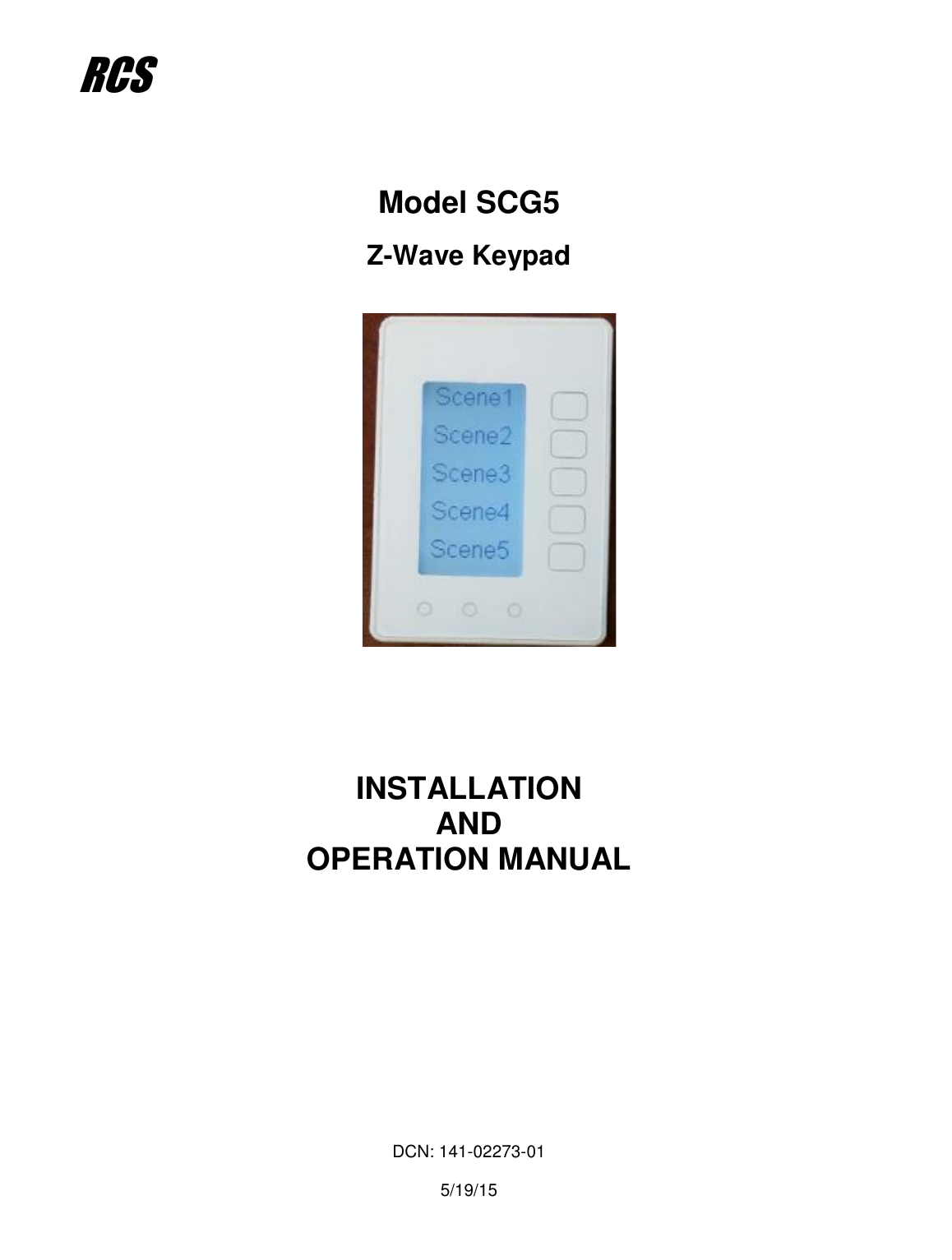
                         Model SCG5    Z-Wave Keypad                         INSTALLATION AND OPERATION MANUAL              DCN: 141-02273-01  5/19/15  RCS
DCN: 141-02273-01  5/19/15     2  Model:  SCG5  Z-Wave Keypad     This manual applies to the following product revisions or later revisions up to the next manual revision release:   Product Part No: Firmware Revision Z-Wave Keypad  001-02273  1.00.3      Document Revision History   Revision Date Changes 01 10/20/10 Original release                             Product Specifications  Product Model:       SCG5 Product:         Scene Control           Z-Wave RF communications enabled   Keypad Size:           3.5” wide x 4.5” height x 1.2” depth Display:         Graphical LCD, 2.75” x 1.5”, 64x128 pixel Backlight:         Yes, Blue/white, Controllable, on, off, timeout Contrast:         Adjustable on screen Buttons:         8 Power:         2 AAA Alkaline    Communications:       Z-Wave RF
DCN: 141-02273-01  5/19/15     3  Table of Contents  Overview ...................................................................................................................................................... 4 Z-Wave® Installation ................................................................................................................................... 5 Inclusion and Exclusion ............................................................................................................................. 5 Power ......................................................................................................................................................... 5 FCC ............................................................................................................................................................... 6
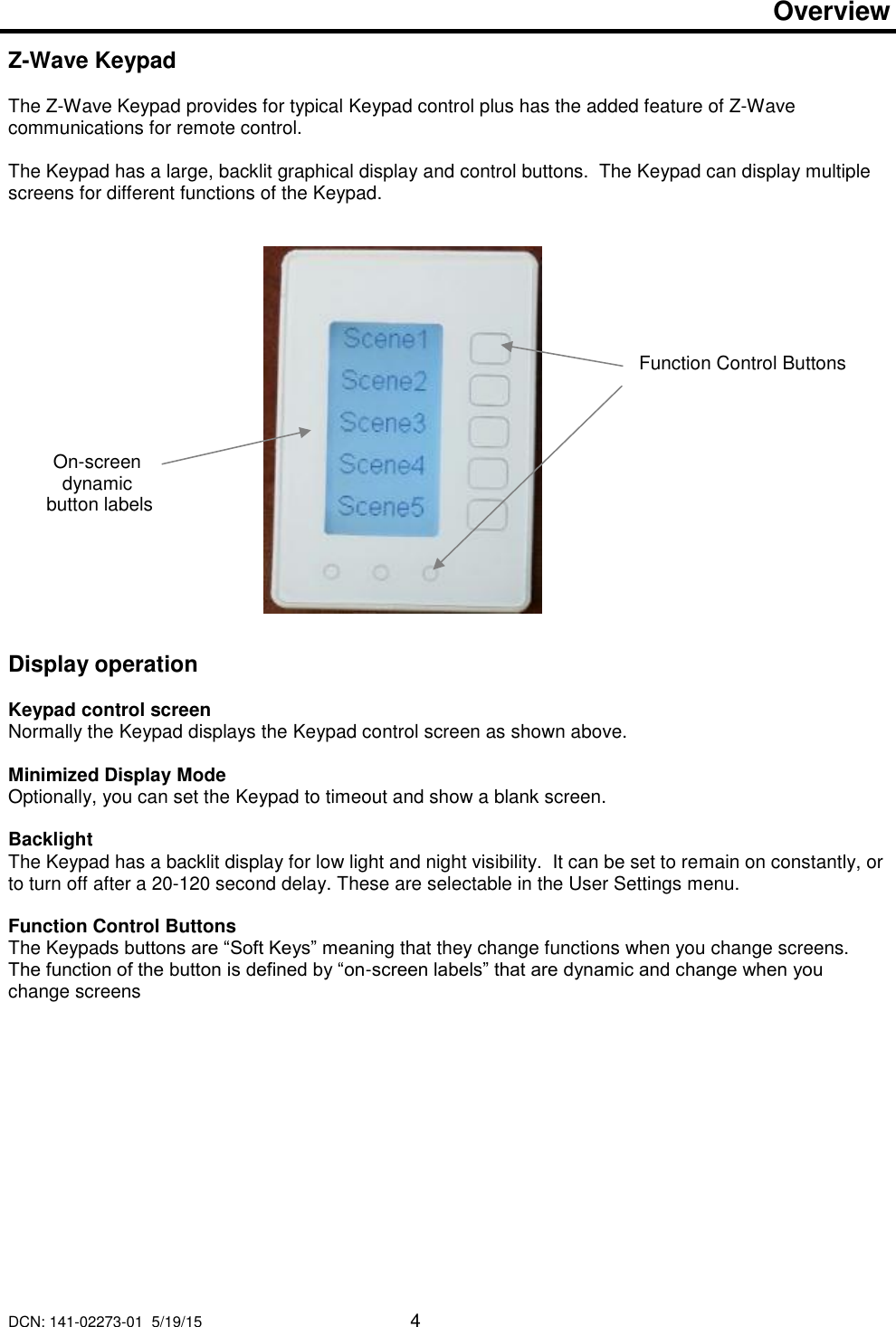
DCN: 141-02273-01  5/19/15     4  Overview   Z-Wave Keypad   The Z-Wave Keypad provides for typical Keypad control plus has the added feature of Z-Wave communications for remote control.  The Keypad has a large, backlit graphical display and control buttons.  The Keypad can display multiple screens for different functions of the Keypad.                      Display operation  Keypad control screen Normally the Keypad displays the Keypad control screen as shown above.    Minimized Display Mode Optionally, you can set the Keypad to timeout and show a blank screen.   Backlight The Keypad has a backlit display for low light and night visibility.  It can be set to remain on constantly, or to turn off after a 20-120 second delay. These are selectable in the User Settings menu.  Function Control Buttons The Keypads buttons are “Soft Keys” meaning that they change functions when you change screens.  The function of the button is defined by “on-screen labels” that are dynamic and change when you change screens   Function Control Buttons On-screen dynamic  button labels
DCN: 141-02273-01  5/19/15     5  Z-Wave® Installation   Z-Wave controllers from various manufacturers may support the Z-Wave Wall Controller Device class used by the RCS Z-WAVE Keypad.  The following procedure will allow the Keypad to be added to a Z-Wave network.  General Programming Procedure (for controllers supporting the Keypad device class):  1. Set your primary controller to Include mode, to add the Keypad as a node on your network (see your controller’s user manual for detailed instructions).  2. In the Keypad’s Main Menu, scroll down to the ZWave Install item.  Select the item.   3. Press the YES button in the ZWave Install screen.  Your controller will indicate the Keypad was successfully added to its network (see your controller’s user manual for details). Also you can check if the Keypad was successfully added to the network by checking the ZHID (Home ID) and ZNID (Node ID) located in the Keypad Info screen.  For other specific tasks such as adding the Keypad to Scenes or Groups, or deleting the Keypad from an existing network, use the Z-Wave Install procedure.  Note: Before adding the Keypad to a Z-Wave Network, check that it does not already belong to one by viewing the Home and Zone ID’s located in the Keypad Info screen.  An un-configured Keypad should show zeros for both the Home and Zone IDs.  Consult your controller’s user manual for details on removing a device from a Z-Wave network.    Inclusion and Exclusion Inclusion or exclusion is started by putting the controller into add node or remove node state and performing the General Programming Procedure outlined above.  As part of the process, the Keypad sends a node information frame at normal power.   Low power inclusion or low power exclusion is not possible.   Power  The Keypad requires 2 AAA Alkaline batteries
DCN: 141-02273-01  5/19/15     6  FCC/IC    INFORMATION TO USER  This device complies with Part 15 of the FCC Rules.  Operation is subject to the following two conditions:  (1) This device may not cause  harmful  interference,  and  (2)  This  device  must  accept  any  interference  received,  including  interference  that  may  cause undesired operation.  This equipment has been tested and found to comply with the limits for Class B Digital Device, pursuant to Part 15 of the FCC Rules.  These limits are designed to provide reasonable protection against harmful interference in a residential installation.  This equipment generates and can radiate radio frequency energy and, if not installed and used in accordance with the instructions, may cause harmful interference to radio communications.  However, there is no guarantee that interference will not occur in a particular installation.  If this equipment does cause harmful interference to radio or television reception, which can be determined by turning the equipment off and on, the user is encouraged to try to correct the interference by one or more of the following measures.    Reorient or relocate the receiving antenna   Increase the separation between the equipment and receiver   Connect the equipment into an outlet on a circuit different from that to which the receiver is connected   Consult the dealer or an experienced radio/TV technician for help  Any changes or modifications not expressly approved by the party responsible for compliance could void the user’s authority to operate the equipment.   This device complies with Industry Canada license-exempt RSS standard(s). Operation is subject to the following two conditions: (1) this device may not cause interference, and (2) this device must accept any interference, including interference that may cause undesired operation of the device.  Le présent appareil est conforme aux CNR d'Industrie Canada applicables aux appareils radio exempts de licence. L'exploitation est autorisée aux deux conditions suivantes : (1) l'appareil ne doit pas produire de brouillage, et (2) l'utilisateur de l'appareil doit accepter tout brouillage radioélectrique subi, même si le brouillage est susceptible d'en compromettre le fonctionnement.

Navigation menu