Ricoh Aficio 340 Users Manual 340/350/450 (NAD) Copy Reference (Europe English)
340 to the manual 11be3a96-d498-453e-b286-aee9180439a8
2015-01-23
: Ricoh Ricoh-Aficio-340-Users-Manual-274649 ricoh-aficio-340-users-manual-274649 ricoh pdf
Open the PDF directly: View PDF  .
.
Page Count: 209 [warning: Documents this large are best viewed by clicking the View PDF Link!]
- SAFETY INFORMATION
- HOW TO READ THIS MANUAL
- WHAT YOU CAN DO WITH THIS MACHINE
- TABLE OF CONTENTS
- MACHINE TYPES
- GUIDE TO COMPONENTS
- OPTIONS
- FUNCTION LIST BASED ON OPTIONS
- OPERATION PANEL
- PANEL DISPLAY
- BASICS
- COPYING
- BASIC PROCEDURE
- SETTING ORIGINALS
- BASIC FUNCTIONS
- SORT/STACK/STAPLE
- BYPASS TRAY
- PROGRAM
- OTHER FUNCTIONS
- PRESET REDUCE/ENLARGE
- ZOOM
- DIRECTIONAL SIZE MAGNIFICATION
- DIRECTIONAL MAGNIFICATION
- MARGIN ADJUSTMENT
- ERASE CENTRE/BORDER
- COMBINE
- SERIES COPIES
- DUPLEX
- COVER/PAPER DESIGNATE
- OHP SLIP SHEET
- POSITIVE/NEGATIVE
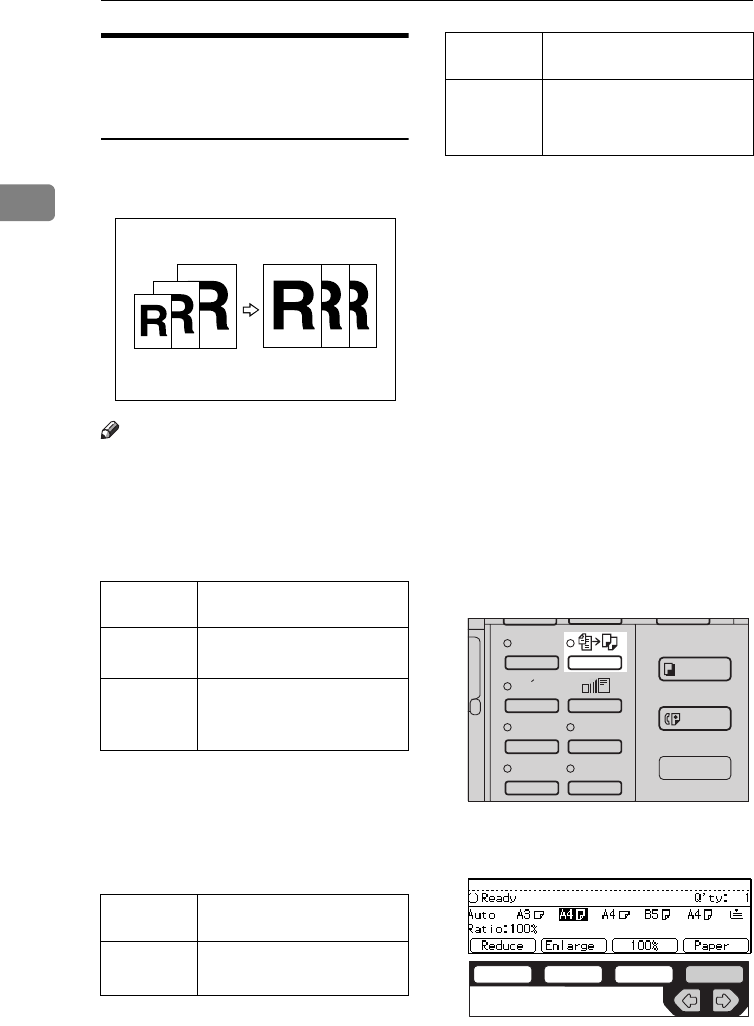
- IMAGE REPEAT
- ARCHIVE FILE
- COMBINATION CHART
- WHAT TO DO IF SOMETHING GOES WRONG
- USER TOOLS
- REMARKS
- SPECIFICATIONS
- MAINFRAME
- DOCUMENT FEEDER (OPTION)
- PAPER TRAY UNIT (OPTION)
- INTERNAL TRAY 2 (1 BIN TRAY) (OPTION)
- 1000-SHEET FINISHER (OPTION)
- 3000-SHEET FINISHER (OPTION)
- PUNCH KIT (OPTION)
- LARGE CAPACITY TRAY (LCT) (OPTION)
- DUPLEX UNIT (OPTION)
- BYPASS TRAY (OPTION)
- 8 MB COPIER MEMORY UNIT (OPTION)
- COPIER HARD DISK (IMAGE ENHANCE KIT)
- INDEX
- ERRATA
Read this manual carefully before you use this product and keep it handy
for future reference.
For safety, please follow the instructions in this manual.
COPY REFERENCE
340/350/450
OPERATING INSTRUCTIONS
ND0A0101

Introduction
This manual contains detailed instructions on the operation and maintenance of this machine. To get
maximum versatility from this machine all operators should carefully read and follow the instructions in
this manual. Please keep this manual in a handy place near the machine.
Please read the Safety Information before using this machine. It contains important information related
to USER SAFETY and PREVENTING EQUIPMENT PROBLEMS.
-Notes:
Some illustrations may be slightly different from your machine.
Certain options may not be available in some countries. For details, please contact your local dealer.
Operator Safety:
This machine is considered a class 1 laser device, safe for office/EDP use. The machine contains two
5-milliwat, 760 – 800 nanometer wavelength, GaAIAs laser diodes. Direct (or indirect reflected) eye
contact with the laser beam might cause serious eye damage. Safety precautions and interlock mech-
anisms have been designed to prevent any possible laser beam exposure to the operator.
The following label is attached on the back side of the machine.
Laser Safety:
The optical housing unit can only be repaired in a factory or at a location with the requisite equipment.
The laser subsystem is replaceable in the field by a qualified Customer Engineer. The laser chassis is
not repairable in the field. Customer engineers are therefore directed to return all chassis and laser sub-
systems to the factory or service depot when replacement of the optical subsystem is required.
Warning:
Use of controls or adjustment or performance of procedures other than those specified in this manual
might result in hazardous radiation exposure.
Notes:
The model names of the machines do not appear in the following pages. Check the type of your ma-
chine before reading this manual. (For details, see ⇒ P.1
“Machine Types”
.)
• Type 1: Aficio 340
• Type 2: Aficio 350
• Type 3: Aficio 450
Certain types might not be available in some countries. For details, please contact your local dealer.
Two kinds of size notation are employed in this manual. With this machine refer to the metric version.
For good copy quality, Ricoh recommends that you use genuine Ricoh toner.
Ricoh shall not be responsible for any damage or expense that might result from the use of parts other
than genuine Ricoh parts in your Ricoh office product.
Power Source
220 – 240 V, 50/60 Hz, 6 A or more
Please be sure to connect the power cord to a power source as above. For details about power source,
see ⇒ P.167
“Power Connection”
.
CLASS 1 LASER PRODUCT
IN ACCORDANCE WITH IEC 825
LASER KLASSE 1 nach IEC 825
i
SAFETY INFORMATION
When using your machine, the following safety precautions should be always be
followed.
Safety During Operation
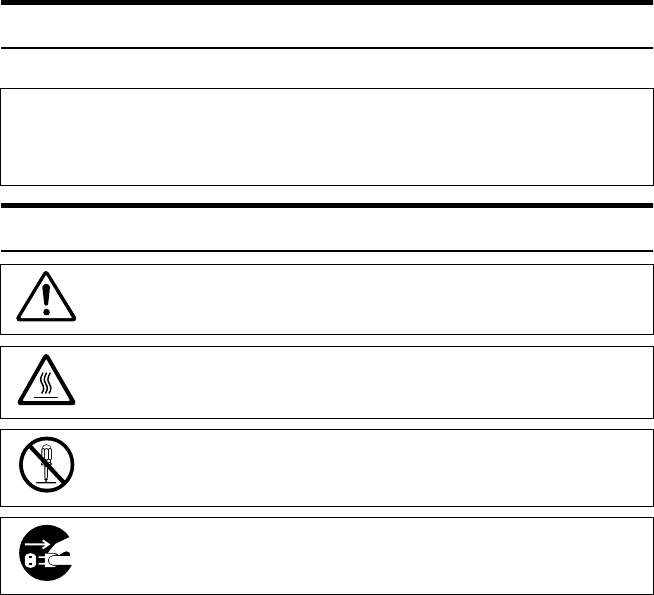
In this manual, the following important symbols are used:
Examples Of Indications
R
WARNING:
Ignoring this warning could cause serious injury or even death.
R
CAUTION:
Ignoring this caution could cause injury or damage to property.
Symbols R mean a situation that requires you take care.
Symbols v mean “Hot surface”.
Do NOT carry out the operation represented by this symbol m.
This example means “Do not take apart”.
Symbols ● mean you MUST perform this operation.
This example means “You must remove the wall plug”.
ii
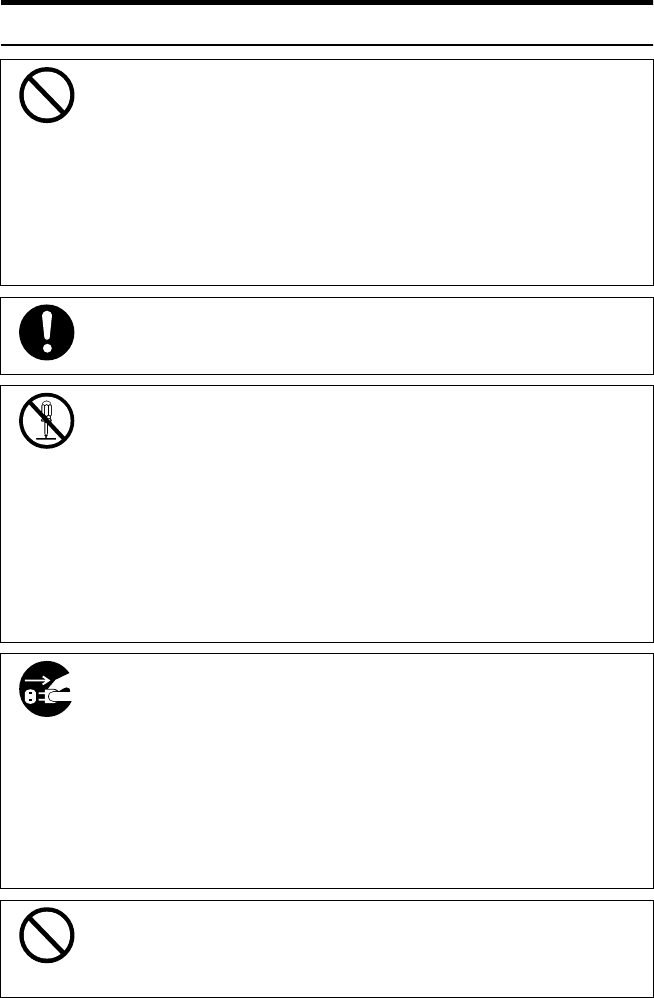
R
WARNING:
•
Only connect the machine to the power source described on
the inside front cover of this manual.
•
Avoid multi-wiring.
•
Do not damage, break or make any modifications to the pow-
er cord. Do not place heavy objects on it, pull it hard or bend
it more than necessary. These actions could cause an elec-
tric shock or fire.
•
Do not plug or unplug the power cord with your hands wet.
Otherwise, an electric shock might occur.
•
Make sure the wall outlet is near the machine and freely ac-
cessible so that in event of an emergency it can be un-
plugged easily.
•
Do not remove any covers or screws other than those spec-
ified in this manual. Some parts of the machine are at a high
voltage and could give you an electric shock. Also, if the ma-
chine has laser systems, direct (or indirect) reflected eye
contact with the laser beam may cause serious eye damage.
When the machine needs to be checked, adjusted, or re-
paired, contact your service representative.
•
Do not take apart or attempt any modifications to this ma-
chine. There is a risk of fire, electric shock, explosion or loss
of sight. If the machine has laser systems, there is a risk of
serious eye damage.
•
If the machine looks damaged or breaks down, smoke is
coming out, there is a strange smell or anything looks un-
usual, immediately turn off the operation and main power
switches then unplug the power cord from the wall. Do not
continue using the machine in this condition. Contact your
service representative.
•
If metal, liquid or foreign matter falls into the machine, turn
off the operation and main power switches, and unplug the
main power cord. Contact your service representative. Do
not keep using the machine with a fault or defect.
•
Do not put any metal objects or containers holding water
(e.g. vases, flowerpots, glasses) on the machine. If the con-
tents fall inside the machine, a fire or electric shock could
occur.

iii
•
Do not incinerate used toner or toner containers. Toner dust
might ignite when exposed to an open flame. Dispose of the
used toner containers according to local regulations for
plastics.
iv
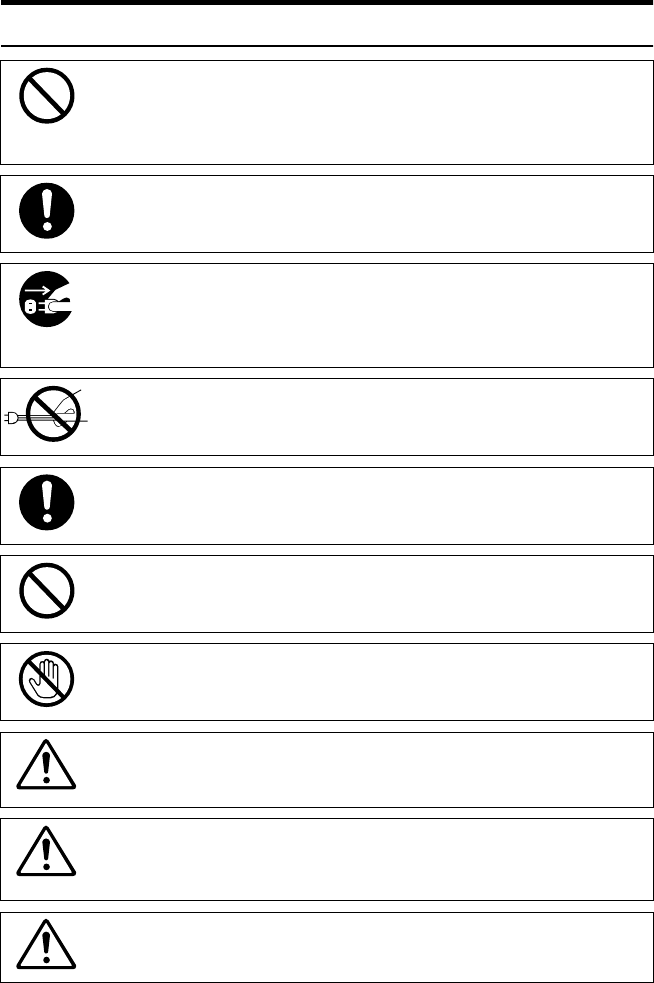
R
CAUTION:
•
Keep the machine away from humidity and dust. A fire or an elec-
tric shock might occur.
•
Do not place the machine on an unstable or tilted surface. If it top-
ples over, it could cause injury.
•
After you move the machine, fix it with the caster fixture. Other-
wise, the machine might move or come down to cause a personal
injury.
•
When you move the machine, unplug the power cord from the
wall outlet to avoid fire or electric shock.
•
When the machine will not be used for a long time, unplug the
power cord.
•
When you pull out the plug from the socket, grip the plug to avoid
damaging the cord and causing fire or electric shock.
•
If you use the machine in a confined space, make sure there is a
continuous air turnover.
•
Do not reuse stapled paper. Do not use aluminum foil, carbon-
containing paper or other conductive paper. Otherwise, a fire
might occur.
•
When removing misfed paper, do not touch the fusing section be-
cause it could be very hot.
•
This machine has been tested for safety using this supplier's
parts and consumables. We recommend you only use these
specified supplies.
•
Do not eat or swallow toner.
•
Keep toner (used or unused) and toner containers out of reach of
children.
•
This equipment is only to be installed by a qualified service per-
sonnel.

v
•
Deliver to collection point for waste products. Do not be disposed
of via domestic refuse collection.

vi
HOW TO READ THIS MANUAL
Symbols
In this manual, the following symbols are used:
R
WARNING:
This symbol indicates a potentially hazardous situation that might result in
death or serious injury when you misuse the machine without following the in-
structions under this symbol. Be sure to read the instructions, all of which are de-
scribed in the Safety Information section.
R
CAUTION:
This symbol indicates a potentially hazardous situation that might result in mi-
nor or moderate injury or property damage that does not involve personal injury
when you misuse the machine without following the instructions under this
symbol. Be sure to read the instructions, all of which are described in the Safety
Information section.
* The statements above are notes for your safety.
Important
If this instruction is not followed, paper might be misfed, originals might be
damaged, or data might be lost. Be sure to read this.
Preparation
This symbol indicates the prior knowledge or preparations required before op-
erating.
Note
This symbol indicates precautions for operation, or actions to take after misop-
eration.
Limitation
This symbol indicates numerical limits, functions that cannot be used together,
or conditions in which a particular function cannot be used.
Reference
This symbol indicates a reference.
[ ]
Keys that appear on the machine's panel display.
{ }
Keys built into the machine's operation panel.
vii
viii
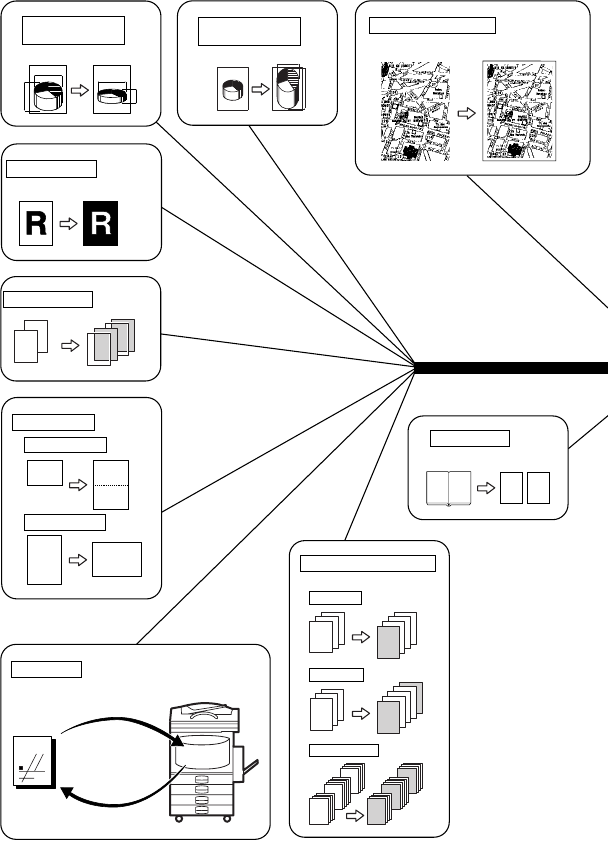
WHAT YOU CAN DO WITH THIS MACHINE
(COPY MODE)
10
5
1
10
5
1
3
2
1
3
2
1
3
2
1
3
2
1*1
*1
Cover / Paper Designate
⇒ Page 91.
Paper Designate
Both Covers
Front Cover
Amm
Bmm
amm
bmm
Directional Size
Magnification(mm)
⇒ Page 69. a%
b%
Directional
Magnification(%)
⇒ Page 71.
2
22
1
2
111*1
OHP Slip Sheet
⇒ Page 96.
Positive / Negative
⇒ Page 98.
Series Copies
⇒ Page 82.
Enhanced Image Copy ⇒ Page 38.
Clear Image Copy
Map
ND0X0400
12 1 2
Image Repeat ⇒ Page 99.
Image Repeat
Double Copies
R
R
R
R
R
RRRR
RRR
*2
Archive File ⇒ Page 102.
Store
Recall
MAP Memory
ix
ND0X0401
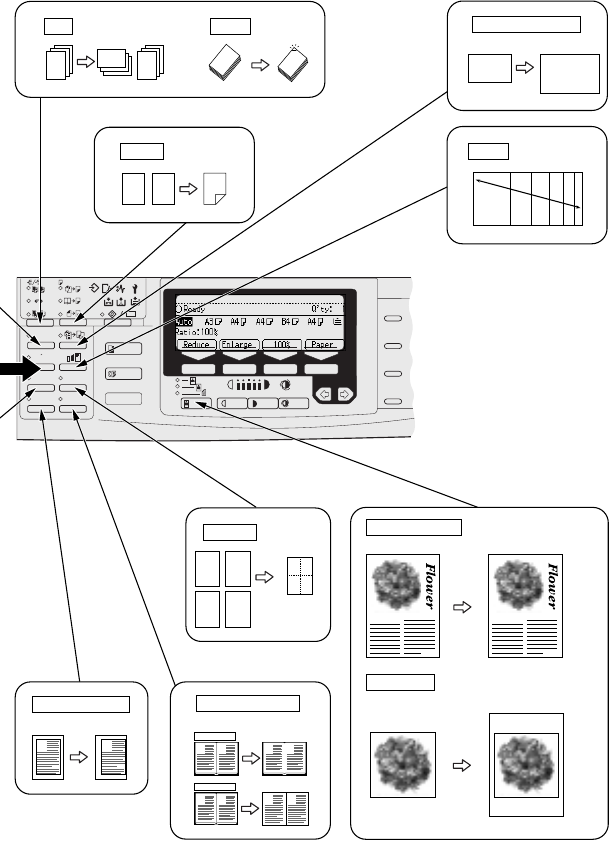
Margin Adjustment
⇒ Page 73.
AA
Combine ⇒ Page 78.
43
12
Erase Centre / Border
⇒ Page 75.
Erase Border
Erase Centre
B
AB
A
B
AB
A
Sort ⇒ Page 45. Staple ⇒ Page 49.
2
13
2
13
2
13
*3 *4*3
RRRRRR
Zoom ⇒ Page 67.
Auto Reduce / Enlarge
⇒ Page 42.
Duplex ⇒ Page 85.
12
1
2
*5
1 2
3 4
A4 A3
*1 Type 1 requires the optional bypass tray.
*2 The optional copier hard disk is required
*3 Type 1 reguires the optional 8MB copier
memory unit.
*4 The optional finisher is required.
*5 Type 1 requires the optional duplex unit,
interchange unit and 8MB copier memory
unit.
Text·Photo Mode ⇒ Page 39.
Photo + Text Clear Image Copy
Photo Mode ⇒ Page 39.
Photo Clear Image Copy
The game of go The game of go
2
2
2
1
1
2
2112233
aa
Enhanced
Image
1
3
Menu
Menu
Meny
2
4
Speed Dial
On Hook Dial
Pause /
Redial
Tone

x
TABLE OF CONTENTS
MACHINE TYPES....................................................................................... 1
GUIDE TO COMPONENTS ........................................................................ 2
Guide............................................................................................................. 5
OPTIONS .................................................................................................... 7
Type 1 ........................................................................................................... 7
Type 2 and Type 3 ........................................................................................ 8
FUNCTION LIST BASED ON OPTIONS.................................................... 9
OPERATION PANEL................................................................................ 12
PANEL DISPLAY...................................................................................... 14
Displays And Key Operations ..................................................................... 14
Display Panel Layout .................................................................................. 16
1.BASICS
STARTING THE MACHINE ...................................................................... 17
Turning On The Power................................................................................ 17
Turning Off The Power................................................................................ 18
CHANGING MODES................................................................................ 19
ORIGINALS............................................................................................... 20
Sizes And Weights Of Recommended Originals......................................... 20
Sizes Difficult To Detect.............................................................................. 21
Original Sizes And Scanning Area/Missing Image Area ............................. 22
COPY PAPER........................................................................................... 23
Recommended Paper Sizes And Types ..................................................... 23
Non-recommended Paper........................................................................... 25
Paper Storage............................................................................................. 26
TONER...................................................................................................... 27
Handling Toner............................................................................................ 27
Toner Storage ............................................................................................. 27
Used Toner ................................................................................................. 27
2.COPYING
BASIC PROCEDURE ............................................................................... 29
SETTING ORIGINALS.............................................................................. 31
Setting Originals On The Exposure Glass .................................................. 31
Setting Originals In The Document Feeder................................................. 32
Using SADF, Mixed Sized, and Thin Paper modes .................................... 33
BASIC FUNCTIONS ................................................................................. 37
Adjusting Copy Image Density.................................................................... 37
Enhanced Image Copy................................................................................ 38
Selecting Original Type Setting................................................................... 39
xi
Selecting Copy Paper ................................................................................. 40
Auto Reduce/Enlarge—Having The Machine Choose The Reproduction
Ratios.......................................................................................................... 42
SORT/STACK/STAPLE............................................................................ 43
Sort—Sorting Into Sets (123, 123, 123)...................................................... 45
Stack—Stacking Together All Copies Of A Page (111, 222, 333) .............. 47
Staple.......................................................................................................... 49
COPYING FROM THE BYPASS TRAY.................................................... 55
When copying onto OHP transparencies or thick paper ............................. 58
PROGRAM—STORING YOUR COPY SETTINGS IN MEMORY ............ 60
Storing Your Settings .................................................................................. 60
Deleting A Program..................................................................................... 61
Recalling A Program ................................................................................... 62
OTHER FUNCTIONS................................................................................ 63
Energy Saver Mode—Saving Energy ......................................................... 63
Interrupt—Temporarily Stopping One Job To Copy Something Else.......... 63
User Codes ................................................................................................. 63
Auto Start—Entering Copy Job Settings During The Warm-up Period....... 64
Original Beeper ........................................................................................... 64
PRESET REDUCE/ENLARGE—REDUCING AND ENLARGING USING
PRESET RATIOS...................................................................................... 65
ZOOM—REDUCING AND ENLARGING IN 1 % STEPS......................... 67
DIRECTIONAL SIZE MAGNIFICATION (MM)—STRETCHING AND
SQUEEZING THE IMAGE INTO THE COPY AREA ................................ 69
DIRECTIONAL MAGNIFICATION (%)—STRETCHING AND SQUEEZING
THE IMAGE IN 1 % STEPS...................................................................... 71
MARGIN ADJUSTMENT—ADJUSTING THE MARGIN .......................... 73
ERASE CENTRE/BORDER—ERASING THE CENTRE AND THE
BORDER................................................................................................... 75
COMBINE—COMBINING ORIGINALS INTO ONE COPY ...................... 78
SERIES COPIES—MAKING ONE-SIDED COPIES FROM VARIOUS
ORIGINALS............................................................................................... 82
Book → 1-Sided—Making One-sided Copies From Two Facing Page Of A
Bound Original (Book)................................................................................. 82
2-Sided→1-Sided—Making One-sided Copies From Two-sided
Originals...................................................................................................... 84
DUPLEX—MAKING TWO-SIDED COPIES.............................................. 85
1-Sided → 2-Sided—Making Two-sided Copies From One-sided
Originals...................................................................................................... 86
Book → 2-Sided—Making Two-Sided Copies From Facing Pages Of A Bound
Original (Book) ............................................................................................ 89
2-Sided → 2-Sided—Making Two-sided Copies From Two-sided
Originals...................................................................................................... 90
COVER/PAPER DESIGNATE—ADDING OR INSERTING SHEETS ...... 91

xii
Front Cover—Copying Or Adding A Front Cover........................................ 91
Both Covers—Copying Or Adding Front And Back Covers ........................ 93
Paper Designate—Copying Designated Pages Of Originals Onto Slip
Sheets......................................................................................................... 94
OHP SLIP SHEET—COPYING OR INSERTING SLIP SHEET................ 96
POSITIVE/NEGATIVE—COPYING IN COMPLEMENTALY COLORS.... 98
IMAGE REPEAT—REPEATING AN IMAGE............................................ 99
Double Copies—Copying The Image Twice On One Page ........................ 99
Image Repeat—Repeating An Image Over The Entire Copy ................... 100
ARCHIVE FILE—STORING THE IMAGES OF YOUR ORIGINALS INTO
MEMORY ................................................................................................ 102
Storing The Images................................................................................... 103
Deleting The Stored Images ..................................................................... 105
Printing A List Of The Stored Images........................................................ 106
Recalling The Stored Images.................................................................... 107
COMBINATION CHART ......................................................................... 108
3.WHAT TO DO IF SOMETHING GOES WRONG
IF YOUR MACHINE DOES NOT OPERATE AS YOU WANT ............... 111
Message.................................................................................................... 111
Display ...................................................................................................... 112
IF YOU CANNOT MAKE CLEAR COPIES............................................. 113
IF YOU CANNOT MAKE COPIES AS YOU WANT ............................... 115
Adjust Image ............................................................................................. 116
Combine.................................................................................................... 117
Duplex....................................................................................................... 118
B
BB
B LOADING PAPER.............................................................................. 119
Loading Paper In The Large Capacity Tray .............................................. 120
D
DD
D ADDING TONER................................................................................ 121
x
xx
x CLEARING MISFEEDS ..................................................................... 124
CHANGING THE PAPER SIZE .............................................................. 132
d
dd
d ADDING STAPLES............................................................................ 134
1000-Sheet Finisher.................................................................................. 134
3000-Sheet Finisher.................................................................................. 136
e
ee
e REMOVING JAMMED STAPLES...................................................... 139
1000-Sheet Finisher.................................................................................. 139
3000-Sheet Finisher.................................................................................. 141
y
yy
y REMOVING PUNCH WASTE ............................................................ 144
4.USER TOOLS (COPY FEATURES)
ACCESSING THE USER TOOLS (COPY FEATURES)......................... 145
Exiting From User Tools............................................................................ 146

xiii
USER TOOLS MENU (COPY FEATURES)............................................ 148
SETTINGS YOU CAN CHANGE WITH THE USER TOOLS.................. 150
1. General Features 1/4............................................................................. 150
1. General Features 2/4............................................................................. 152
1. General Features 3/4............................................................................. 153
1. General Features 4/4............................................................................. 154
2. Adjust Image 1/2.................................................................................... 155
2. Adjust Image 2/2.................................................................................... 157
3. Input/Output 1/2...................................................................................... 160
3. Input/Output 2/2...................................................................................... 162
4. Shortcut Keys 1/1................................................................................... 164
5.REMARKS
DO'S AND DON'TS................................................................................. 165
WHERE TO PUT YOUR MACHINE........................................................ 166
Machine Environment ............................................................................... 166
Power Connection..................................................................................... 167
Access To Machine................................................................................... 168
MAINTAINING YOUR MACHINE ........................................................... 169
Cleaning The Exposure Glass .................................................................. 169
Cleaning The Platen Cover....................................................................... 169
Cleaning The Document Feeder............................................................... 169
6.SPECIFICATION
MAINFRAME........................................................................................... 171
DOCUMENT FEEDER (OPTION)........................................................... 176
PAPER TRAY UNIT (OPTION)............................................................... 177
INTERNAL TRAY 2 (1 BIN TRAY) (OPTION)........................................ 178
1000-SHEET FINISHER (OPTION) ........................................................ 179
3000-SHEET FINISHER (OPTION) ........................................................ 180
PUNCH KIT (OPTION)............................................................................ 182
LARGE CAPACITY TRAY (LCT) (OPTION) .......................................... 183
DUPLEX UNIT (OPTION) ....................................................................... 184
BYPASS TRAY (OPTION)...................................................................... 185
8 MB COPIER MEMORY UNIT (ELECTRIC SORT KIT) (OPTION) ...... 186
COPIER HARD DISK (IMAGE ENHANCE KIT)..................................... 187
INDEX...................................................................................................... 188
xiv

1
MACHINE TYPES
There are three models of this machine. The main differences between them are
memory capacity and copy speed. To make sure which model you have, see the
inside front cover.
Type 1 Type 2 Type 3
Copy speed 35 copies/minute
(A4K, 81/2" ×
11"K)
35 copies/minute
(A4K, 81/2" ×
11"K)
45 copies/minute
(A4K, 81/2" ×
11"K)
Memory capacity 4 MB
(8 MB optional
memory available)
12 MB 12 MB
Fax unit Option Option Option
2
GUIDE TO COMPONENTS
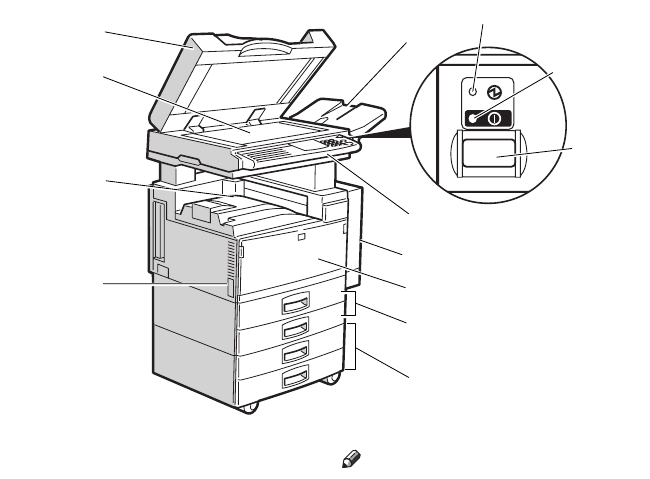
1. Platen cover (option) or Docu-
ment Feeder (ADF) (option)
Lower the platen cover over originals
placed on the exposure glass for copying.
If you have the document feeder, insert a
stack of originals here. They will be fed
automatically.
(The illustration shows the document
feeder.)
2. Exposure glass
Position originals here face down for
copying. See ⇒ P.20 “Originals”.
3. Internal tray
Copied paper is delivered here face
down.
4. Main power switch
Do not touch this switch. This switch is
used only by a service representative
when the optional fax unit is installed.
Note
❒If the machine does not operate after
turning on the operation switch, check
if the main power switch is turned on.
If it is off, turn it on.
5. ADF external tray
Originals are delivered here.
6. Main Power indicator
This indicator lights up when the main
power switch is turned on, and goes off
when the switch is turned off.
7. On indicator
This indicator lights up when the opera-
tion switch is turned on, and goes off
when the switch is turned off.
8. Operation switch
Press this switch to turn the power on
(the On indicator lights up). To turn the
power off, press this switch again (the On
indicator goes off).
1
3
4
2
5
10
11
12
13
9
ND0A02EE
6
7
8
3
9. Operation panel
See ⇒ P.12 “Operation Panel”.
10. Duplex unit (Unit for two-sided
copies)(option for Type 1)
Makes two-sided copies.
11. Front cover
Open to access the inside of the machine.
12. Paper tray
Set paper here. See ⇒ P.119 “
B
Loading
Paper”.
13. Paper tray unit (option)
4
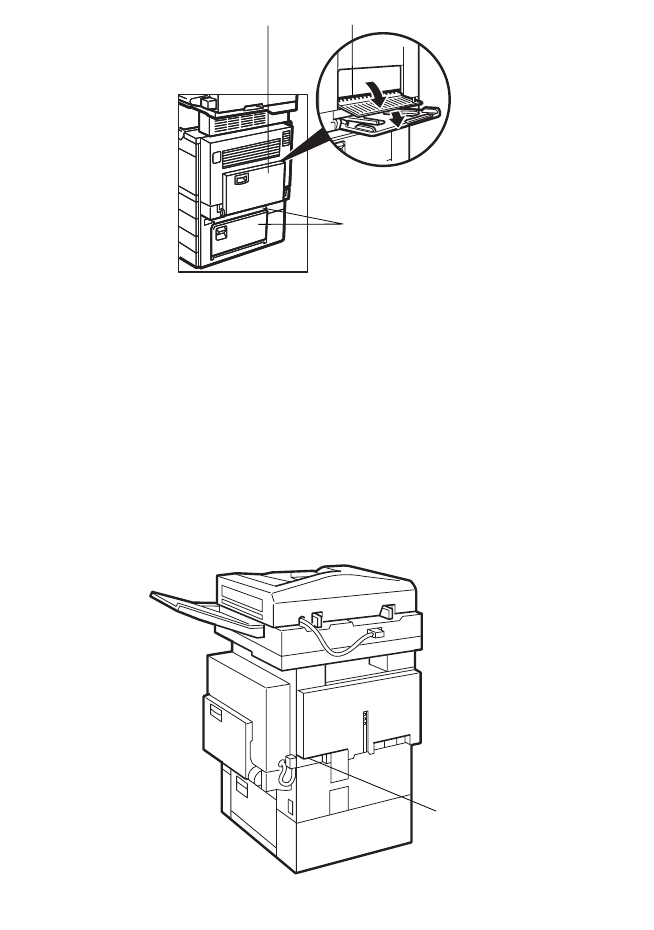
1. Bypass tray (option for Type 1)
Use to copy onto OHP transparencies,
adhesive labels, translucent paper, post
cards, and non-standard size paper. See
⇒ P.55 “Copying From The Bypass Tray”.
2. Right side cover
Open this cover before making 2-sided
copies on B4, 8 1/2" × 14" or larger copy
paper.
3. Lower right cover
Open this cover to remove jammed paper
which fed from the optional paper tray
unit.
1. Ventilation hole
Prevents overheating. Do not obstruct
the ventilation hole by placing or leaning
an object near it. If the machine over-
heats, a fault might occur.
ND6A0101
12
3
ND8A0102
1
Preface2 Page 4 Tuesday, May 19, 1998 1:55 PM
5
Guide
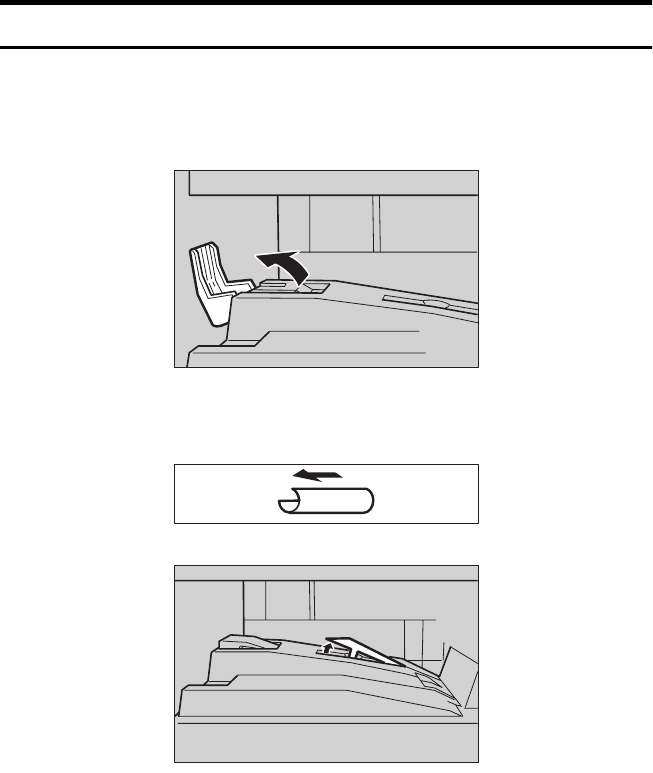
The guides of the internal tray minimize curled copies when they are delivered.
Raise these guides when you make copies on A3, 11" × 17" or thin paper.
❖
❖❖
❖
To copy onto A3, 11"
×
××
×
17" paper
Raise the end fence.
❖
❖❖
❖
If either side of the OHP transparencies or thin paper is curled
Raise the left end of the guide until it clicks.
ND3P0100
ND3P0200
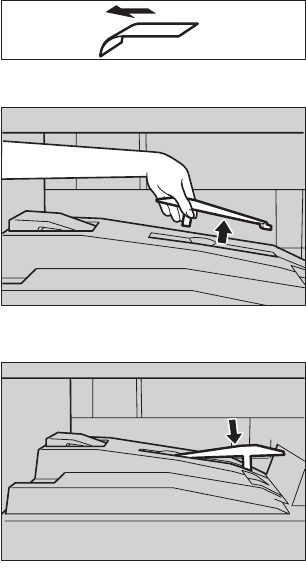
6
❖
❖❖
❖
If the end of the sheet is curled
ARemove the guide.
BReinstall the guide in the opposite direction.
ND3P0300
ND3P0400
7
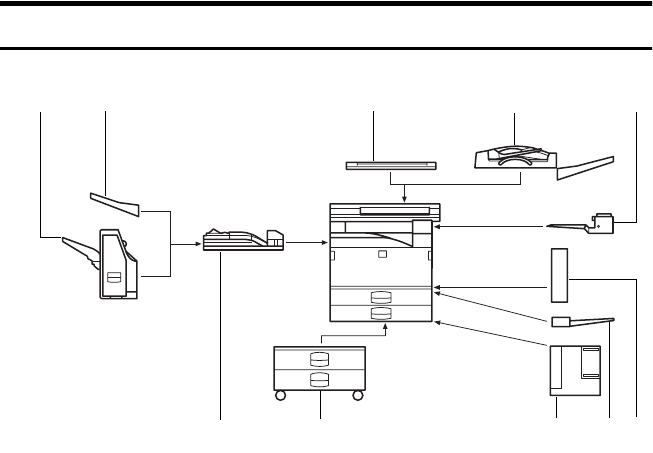
OPTIONS
Type 1
1. 1000-sheet finisher
Sorts, stacks, and staples copies.
2. External tray
If you selected this as the output tray,
copied paper is delivered here face
down. See “15. Output Tray” in the Sys-
tem Settings.
3. Platen cover
Lower this cover over originals for copy-
ing.
4. Document feeder (ADF)
Insert a stack of originals here.
They will be fed automatically.
5. Internal tray 2 (1 bin tray)
If you selected this as the output tray,
copied paper is delivered here face
down. See “15. Output Tray” in the Sys-
tem Settings.
6. Bridge unit
Relays copies to the external tray or fin-
isher.
7. Paper tray unit
Consists of two paper trays.
8. Large Capacity Tray (LCT)
Holds 1,500 sheets of paper.
9. Bypass tray
Use to copy onto OHP transparencies,
adhesive labels, translucent paper, post
cards, and non-standard size paper. See
⇒ P.55 “Copying From The Bypass Tray”.
10. Duplex unit
Use to make two-sided copies.
Other options:
• Interchange unit
• 8 MB copier memory unit (Electric
sort kit)
• Copier hard disk (Image enhance kit)
ND0P01EE
12 3 4 5
109876
8
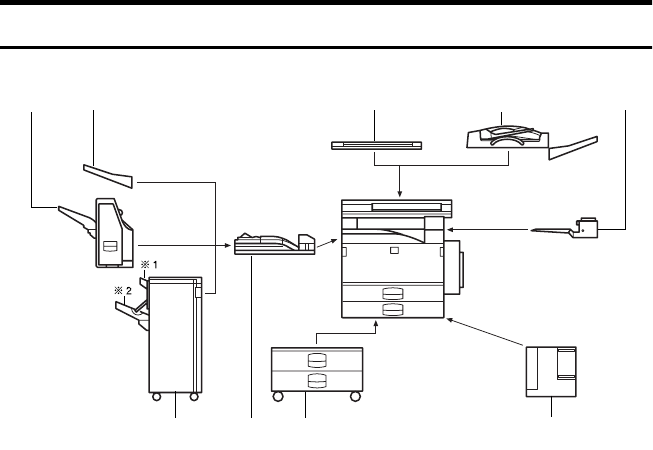
Type 2 and Type 3
1. 1000-sheet finisher
Sorts, stacks, and staples copies.
2. External tray
If you selected this as the output tray,
copied paper is delivered here face
down. See “15. Output Tray” in the Sys-
tem Settings.
3. Platen cover
Lower this cover over originals for copy-
ing.
4. Document feeder (ADF)
Insert a stack of originals here.
They will be fed automatically.
5. Internal tray 2 (1 bin tray)
If you selected this as the output tray,
copied paper is delivered here face
down. See “15. Output Tray” in the Sys-
tem Settings.
6. 3000-sheet finisher (only for Type
3)
Sorts, stacks, staples copies, and makes
punch holes. (The Punch function is op-
tional.)
• 1: Proof tray
• 2: Shift tray
7. Bridge unit
Relays copies to the external tray or fin-
isher.
8. Paper tray unit
Consists of two paper trays.
9. Large Capacity Tray (LCT)
Holds 1,500 sheets of paper.
Other options:
• Copier hard disk (Image enhance kit)
• Punch kit (only for Type 3 with 3000-
sheet finisher)
ND0P02EE
12
678 9
345
9
FUNCTION LIST BASED ON OPTIONS
The function that are available to you depend on your machine configuration
and which options you have. See the table below.
❍…Available
×…Not available
Model Place originals
Type 1
Type 1 with 8 MB copier memory
unit
Type 1 with 8 MB copier memory
unit and copier hard disk
Type 2, Type 3
Type 2, Type 3 with
copier hard disk
on the exposure glass
in the document feeder
Adjusting Image Density ❍❍❍❍❍ ❍ ❍
Selecting Original Type ❍❍❍❍❍ ❍ ❍
Auto Paper Select ❍❍❍❍❍ ❍ ❍
Selecting Copy Paper ❍❍❍❍❍ ❍ ❍
Auto Reduce/Enlarge ❍❍❍❍❍ ❍ ❍
Enhanced Image Copy ❍❍ *1 ❍ *1 ❍❍
Sort ×❍❍❍❍ ❍ ❍
Rotate Sort/Rotate Stack × *2 *2 *2 *2 ❍❍
Shift Sort/Shift Stack × *3 *3 *3 *3 ❍❍
Stapling × *3 *3 *3 *3 ❍❍
Copying from the
Bypass Tray
*4 *4 *4 ❍❍ ❍ ❍
Program ❍❍❍❍❍ ❍ ❍
Reduce/Enlarge ❍❍❍❍❍ ❍ ❍
Zoom ❍❍❍❍❍ ❍ ❍
Directional Size
Magnification (mm)
❍❍❍❍❍ ❍ ❍
Directional Magnification (%) ❍❍❍❍❍ ❍ ❍
Margin Adjustment ❍❍❍❍❍ ❍ ❍
10
*1 Standard setting.
*2 Set the paper of the same size KL in the paper trays.
*3 Finisher required.
*4 Bypass tray required.
*5 Duplex unit and interchange unit required.
*6 Document feeder required.
*7 Only a set of copies can be made.
Erase Centre/Border ❍❍❍❍❍ ❍ ❍
Combine 2 pages → 1-sided ❍❍❍❍❍ ❍ ❍
4 pages → 1-sided ❍❍❍❍❍ ❍ ❍
8 pages → 2-sided × *5 *5 ❍❍ ❍ ❍
4 pages → 2-sided × *5 *5 ❍❍ ❍ ❍
16 pages → booklet × *5 *5 ❍❍ ❍ ❍
Series Cop-
ies
Book → 1-sided ❍❍❍❍❍ ❍ ❍
2-sided → 1-sided *6 *6 *6 *6 *6 ×❍
Duplex 1-sided → 2-sided × *5 *5 ❍❍ ❍ ❍
Book → 2-sided × *5 *5 ❍❍ ❍ ❍
2-sided → 2-sided × *5 *5 ❍❍ ❍ ❍
Cover/Paper Designate *4 *7 *4 *4 ❍❍ ❍ ❍
OHP Slip Sheet *4 *4 *4 ❍❍ ❍ ❍
Positive/Negative ❍❍❍❍❍ ❍ ❍
Repeat Double copies ❍❍❍❍❍ ❍ ❍
Image Repeat ❍❍❍❍❍ ❍ ❍
Archive File ××❍×❍❍ ×
Model Place originals
Type 1
Type 1 with 8 MB copier memory
unit
Type 1 with 8 MB copier memory
unit and copier hard disk
Type 2, Type 3
Type 2, Type 3 with
copier hard disk
on the exposure glass
in the document feeder
11
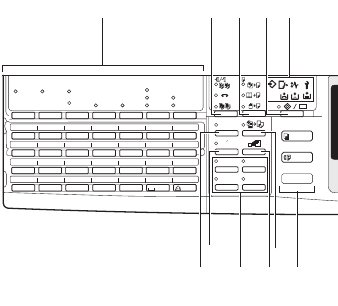
12
OPERATION PANEL
TX File
Status
Immediate
Trans.
Memory
Trans.
Standard
Detail
Super Fine
Commu-
nicating Receive
File Confidential
File
Start
Manual RX TEL
Mode
01 02 03 04 05 06 07
08 01 10 11 12 13 14
15 16 17 18 19 20 21
22 23 24 25 26 27 28
2
2
2
1
1
F1 F2 F3 F4 F5
A B C D E F G
H I J K L M N
OPQRSTU
VWXYZ
2
2112233
Enhanced
Image
1
3
Menu
Menu
Meny
2
4
12345
18
17
1615
14
13
1. Operation panel for facsimile
mode (for machine with optional fax
function)
See the “Facsimile Reference”.
2. {
Sorter
} key
Sort/Rotate Sort/Shift Sort: automatical-
ly sorts copies.
Rotate Stack/Shift Stack: stacks together
copies of each page.
Staple: staples each set of copies together.
3. {
Duplex
} key
Makes two-sided copies. See ⇒ P.85 “Du-
plex—Making Two-Sided Copies”.
4. {
User Tools/Counter
} key
• User Tools
Press to change the default settings
and conditions to meet your re-
quirements.
• Counter
Press to check or print the total
number of copies made.
See ⇒ P.145 “USER TOOLS (COPY FEA-
TURES)”.
5. Indicators
These indicators show errors or the status
of the machine.
See ⇒ P.111 “WHAT TO DO IF SOME-
THING GOES WRONG”.
6. Panel display
Shows operation status, error messages,
and function menus. See ⇒ P.14 “Panel
Display”.
7. {
Program
} key
Press to select the program mode. See ⇒
P.60 “Program—Storing Your Copy Set-
tings In Memory”.
8. {
Clear Modes/Energy Saver
} key
Press to clear the previously entered copy
job settings. Also use to switch to and
from Energy Saver mode. See ⇒ P.63
“Energy Saver Mode—Saving Energy”.
9. {
Interrupt
} key
Press to make interrupt copies during a
copy run. See ⇒ P.63 “Interrupt—Tempo-
rarily Stopping One Job To Copy Something
Else”.
10. Main Power indicator
This indicator lights up when the main
power switch is turned on, and goes off
when the switch is turned off.
11. On indicator
This indicator lights up when the opera-
tion switch is turned on, and goes off
when the switch is turned off.
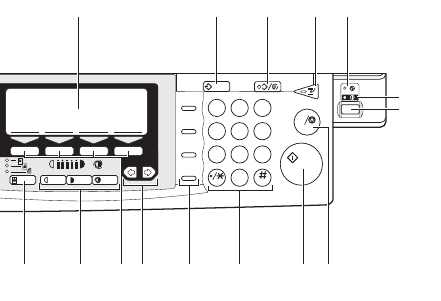
13
23
456
78
0
9
1
C
aa
Speed Dial
On Hook Dial
Pause /
Redial
Tone
678910
11
12
2625242322
212019
C
12. Operation switch
Press this switch to turn the power on
(the On indicator lights up). To turn the
power off, press this switch again (the On
indicator goes off).
13. {
Enhanced Image
} key
Reproduces copies with a better image
quality.
14. {
Menu
} key
Displays the names of available func-
tions.
15. Shortcut keys
Press to use the stored functions you fre-
quently use.
16. {
Zoom
} key
Changes the reproduction ratio in 1 %
steps.
17. {
Auto Reduce/Enlarge
} key
Enlarges or reduces the image automati-
cally according to the specified paper
size.
18. {
Function
} keys
Press to change modes. To use copy func-
tions, press the {
Copy
} key.
19. {
Original Type
} key
Press to select the type of your originals.
20. {
Lighter
} and {
Darker
} keys and
{
Auto Image Density
} key
Adjusts the copy image density.
21. {
Selection
} keys
Press the key under the item you wish to
select.
22. <
<<
<>
>>
> keys (Cursor keys)
Press to select an item on the panel dis-
play.
23. Operation panel for facsimile
mode (for machines with optional
fax function)
See the “Facsimile Reference”.
24. {
Number
} keys
Use to enter the desired number of copies
and data for selected modes.
Use the {
#
} key to enter data in selected
modes.
25. {
Start
} key
Press to start copying. Use to set the Auto
Start. See ⇒ P.64 “Auto Start—Entering
Copy Job Settings During The Warm-up Pe-
riod”.
26. {
Clear/Stop
} key
While entering numbers, press to cancel a
number to have entered. While copying,
press to stop copying.
14
PANEL DISPLAY
The panel display shows operational status, error messages, and function menus.
Important
❒Do not apply a strong shock or force of about 30 N (about 3 kgf) or more to
the panel display. Otherwise, the display might be damaged.
Note
❒When you select or specify an item on the panel display, it is highlighted like
.
❒Keys appearing as cannot be used.
❒By default, the machine is in Copy mode when you switch on. This can be
changed. See “Settings You Can Change With The User Tools” of the System
Settings.
Displays And Key Operations
Note
❒The following illustrations are examples for the machine with the optional
paper tray unit and large capacity tray installed.
❖
❖❖
❖
Copy initial display
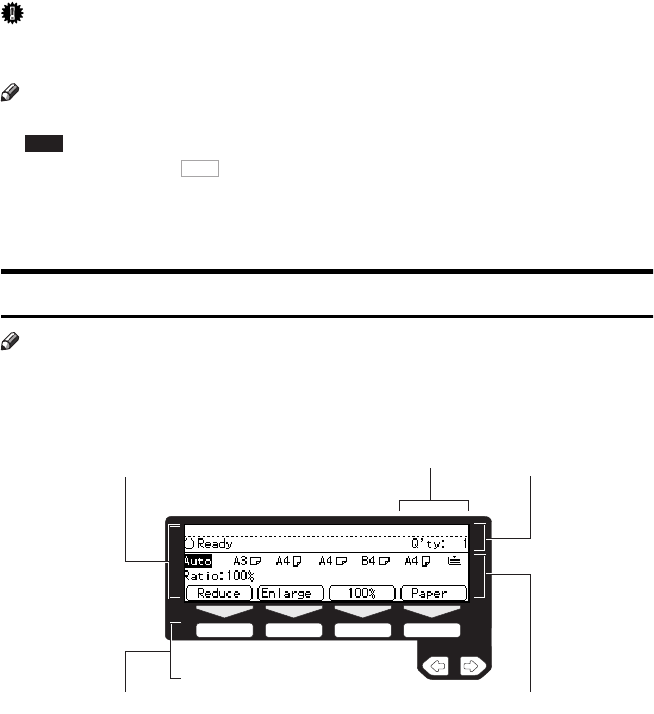
1. The function items for the selected function are displayed.
2. Number of originals set.
3. Displays operational status or messages.
4. These keys correspond to the item on the display.
Press a relevant key to select a function.
• To move the selection to the left, press the < key.
• To move the selection to the right, press the > key.
5. Displays items which can be selected or specified.
Auto
OK
GAMEN00
123
45
15
❖
❖❖
❖
Function menu display
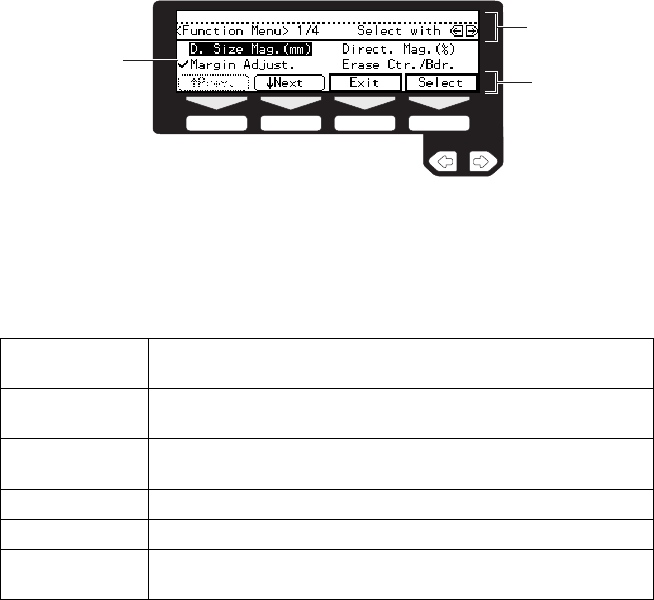
1. When you select a function name, '
''
' mark appears before the name.
2. Displays operational status or message.
3. Displays items which can be selected or specified.
❖
❖❖
❖
Common keys
[
OK
]Sets a selected function or entered value and returns to the previ-
ous display.
[
Cancel
]Cancels a selected function or entered value and returns to the pre-
vious display.
[
[[
[↑
↑↑
↑
Prev.
][
[[
[↓
↓↓
↓
Next
]When there are too many items fit on the display, use these keys
to move between pages.
<> Press to highlight the selection you wish to select.
[
Menu
]Press to return to the previous menu.
[
Exit
]Sets a selected function or entered value and returns to the initial
display.
GAMEN01
1
2
3
16
Display Panel Layout
The basic elements used on the display are shown below. Understanding their
meaning helps you exploit this machine's features quickly and easily.
❖
❖❖
❖
Sample Display for Erasing the Centre/Border
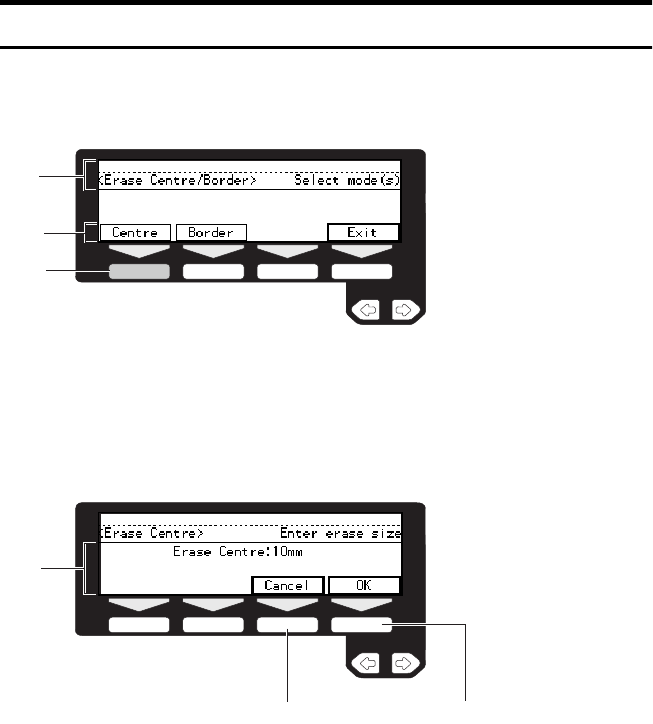
1. Operational status or message.
2. Selectable/specifiable functions are displayed.
3. Screened key means to press it.
kPress the [
Centre
] key.
1. Selectable/specifiable functions are displayed.
2. Cancels the settings and returns to the previous display.
3. Confirms the settings and returns to the previous display.
GAMEN02
1
2
3
GAMEN03
1
23
17
1. BASICS
STARTING THE MACHINE
To start the machine, turn on the op-
eration switch.
Note
❒This machine automatically enters
Energy Saver mode or turns itself
off if you do not use the machine
for a while. See “09. Energy Saver
Mode”, “10. Auto Off Timer” of
the System Settings.
-
--
-Power switches
This machine has two power switch-
es: See ⇒ P.2 “Guide To Components”.
❖
❖❖
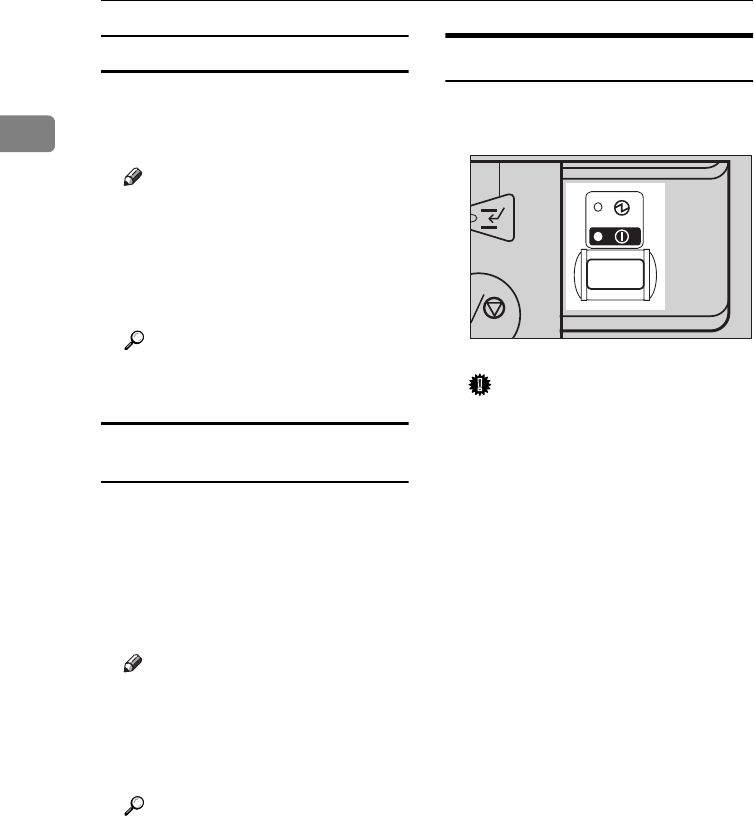
❖
Operation switch (right side of the op-
eration panel)
Turn on this switch to activate the
machine. When the machine has
warmed up, you can make copies
or send faxes.
❖
❖❖
❖
Main power switch (left side of the ma-
chine)
Do not touch the main power
switch. It should be used only by a
service representative when the
optional fax unit is installed.
Important
❒If you leave the main power switch
off for more than about one hour,
all fax files in memory will be lost.
See “Turning Off The Power” of
the Facsimile Reference.
Turning On The Power
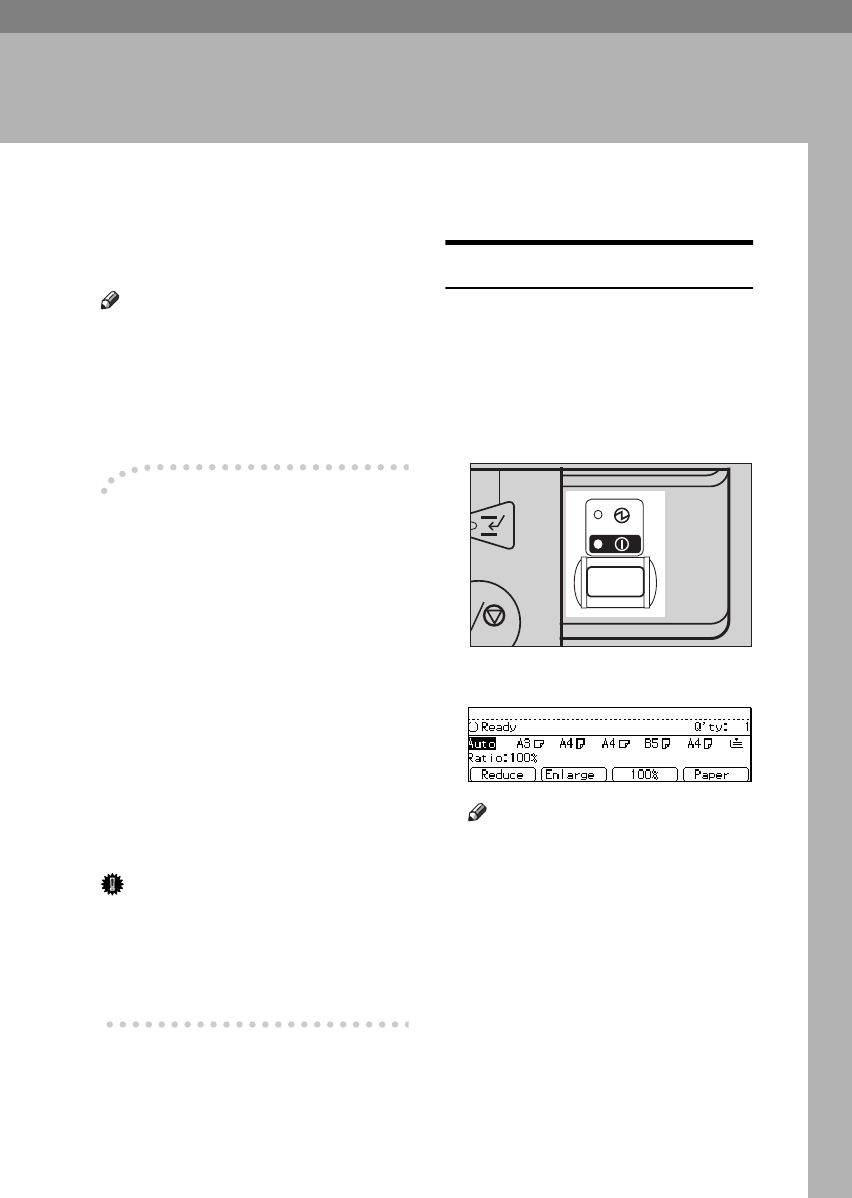
AMake sure that the power cord is
plugged into the wall outlet firm-
ly and the Main Power indicator
is lit.
BPress the operation switch to
make the On indicator light up.
The panel display will come on.
Note
❒During the warm-up period,
you can use the Auto Start func-
tion. See ⇒ P.64 “Auto Start—
Entering Copy Job Settings Dur-
ing The Warm-up Period”.
❒Warm-up period is as follows:
• Type 1 and Type 2: less than
85 seconds
• Type 3: less than 100 seconds
ND1M01EE
BASICS
18
1
When the machine is set for user codes
AEnter your user code using the
{
Number
} keys. Then press the {
#
}
key.
Note
❒To prevent others from making
copies with your user code,
press the {
Clear Modes/Energy
Saver
} key and the {
Clear/Stop
}
key simultaneously after copy-
ing.
Reference
For setting user codes, see ⇒
P.154 “1. General Features 4/4”.
When the
{
Clear Modes/Energy Saver
}
indicator is lit
The machine is in Energy Saver
mode.
APress the {
Clear Modes/Energy Sav-
er
} key.
The machine will return to the
ready condition.
Note
❒The machine will also return to
the ready condition when an
original is set in the document
feeder, or when the platen cover
or document feeder is opened.
Reference
See “08. Low Power Timer” of
the System Settings.
Turning Off The Power
APress the operation switch to
make the On indicator go off.
Important
❒If you want to unplug the pow-
er cord or turn off the main
power switch, make sure that
the remaining memory space
indicates 100 % on the display
for facsimile mode.
❒Fax files stored in memory will
be lost an hour after you turn
the main power switch off or
you unplug the power cord. See
“Turning Off The Power” of the
Facsimile Reference.
ND1M01EE
CHANGING MODES
19
1
CHANGING MODES
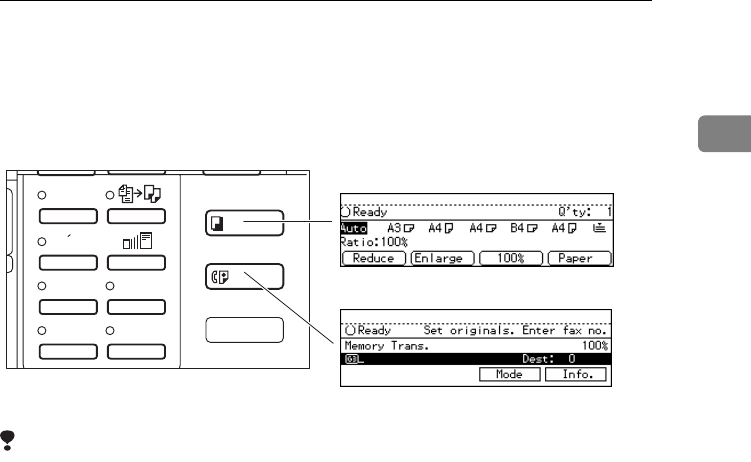
You can use this machine not only as a copier, but optionally as a fax machine as
well. Press the {
Copy
} key to use copy functions, or press the {
Fax
} key to use
facsimile functions.
Limitation
❒You cannot switch modes in any of the following cases:
• When scanning in a fax message for transmission.
• During immediate transmission.
• When accessing the user tools.
• During interrupt copying.
Enhanced
Image
1
3
Menu
Menu
Meny
2
4
Copy Mode
Facsimile Mode
ND0X02EE
BASICS
20
1
ORIGINALS
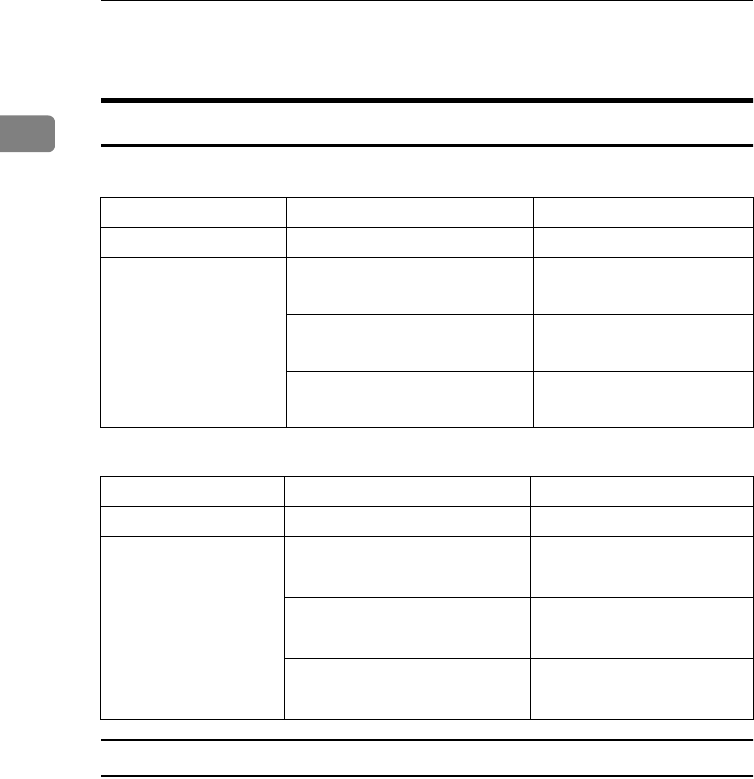
Sizes And Weights Of Recommended Originals
❖
❖❖
❖
Metric version
❖
❖❖
❖
Inch version
Non-recommended originals for the document feeder
Setting the following originals in the document feeder might cause paper mis-
feeds or damage to the originals. Set these originals on the exposure glass.
• Originals other than those specified in ⇒ P.20 “Sizes And Weights Of Recom-
mended Originals”
• Stapled or clipped originals
• Perforated or torn originals
• Curled, folded, or creased originals
• Pasted originals
• Originals with any kind of coating, such as thermal fax paper, art paper, alu-
minum foil, carbon paper, or conductive paper
Where original is set Original Size Original Weight
Exposure glass Up to A3 --
Document feeder 1-sided originals:
A3L – B6KL
52 – 128 g/m2
2-sided originals:
A3L – A5KL
52 – 105 g/m2
Thin Paper mode:
A3L – A5KL
41 – 128 g/m2
Where original is set Original Size Original Weight
Exposure glass Up to 11" × 17" --
Document feeder 1-sided originals:
11" × 17"L – 51/2" × 81/2"KL
14 – 34 lb
2-sided originals:
11" × 17"L – 51/2" × 81/2"KL
14 – 28 lb
Thin Paper mode:
11" × 17"L – 51/2" × 81/2"KL
11 – 34 lb
ORIGINALS
21
1
• Originals with indexes, tags, or other projecting parts
• Sticky originals such as translucent paper
• Thin original that has low stiffness
• Originals of inappropriate weight ⇒ P.20 “Sizes And Weights Of Recommended
Originals”
• Bound originals such as books
• Transparent originals such as OHP transparencies or translucent paper
Sizes Difficult To Detect
It is difficult for the machine to detect the sizes of the following originals, so se-
lect the paper size manually.
• Originals with indexes, tags, or other projecting parts
• Transparent originals such as OHP transparencies or translucent paper
• Dark originals with many letters and drawings
• Originals which partially contain solid image
• Originals which have solid image at their edges
• Originals other than those (with ❍) in the table below. See ⇒ P.21 “Sizes de-
tectable by the Auto Paper Select”.
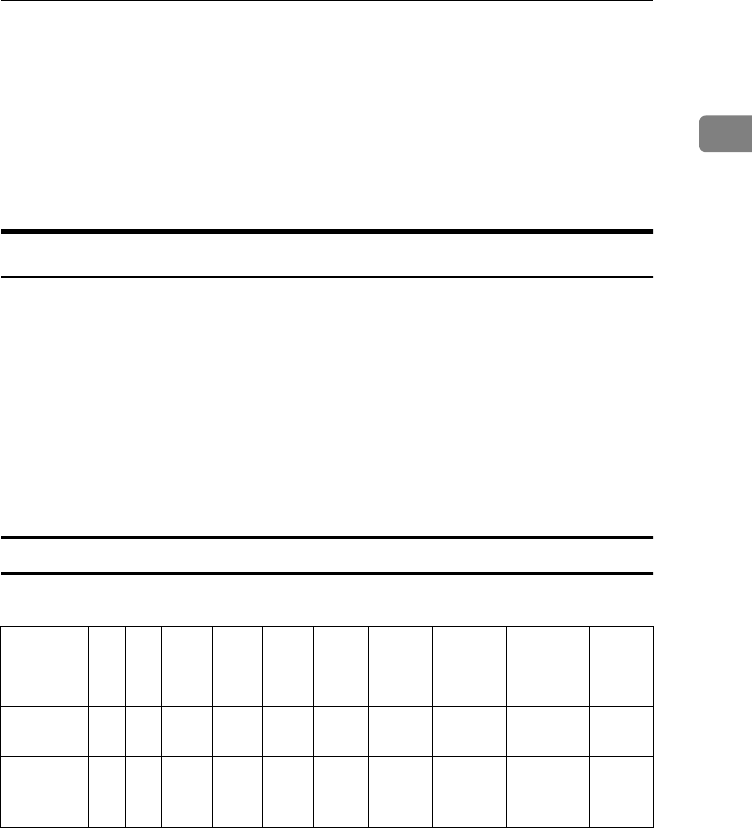
Sizes detectable by the Auto Paper Select
❖
❖❖
❖
Metric version
*1 You can select from 81/2" × 13", 81/4" × 13" and 8" × 13" using the user tool (system
settings). See "24. <F/F4> Size Setting" in the System Settings.
Size A3
L
B4
L
A4
KL
B5
KL
A5
KL
11 " ×
17"L81/2" ×
14"L
81/2" ×
11"KL
51/2" ×
81/2"KL
81/2" ×
13"L
*1
Place of
original
Exposure
glass
❍❍ ❍ ❍ ×× × × × ❍
Docu-
ment
feeder
❍❍❍❍❍ ❍ ×❍×❍
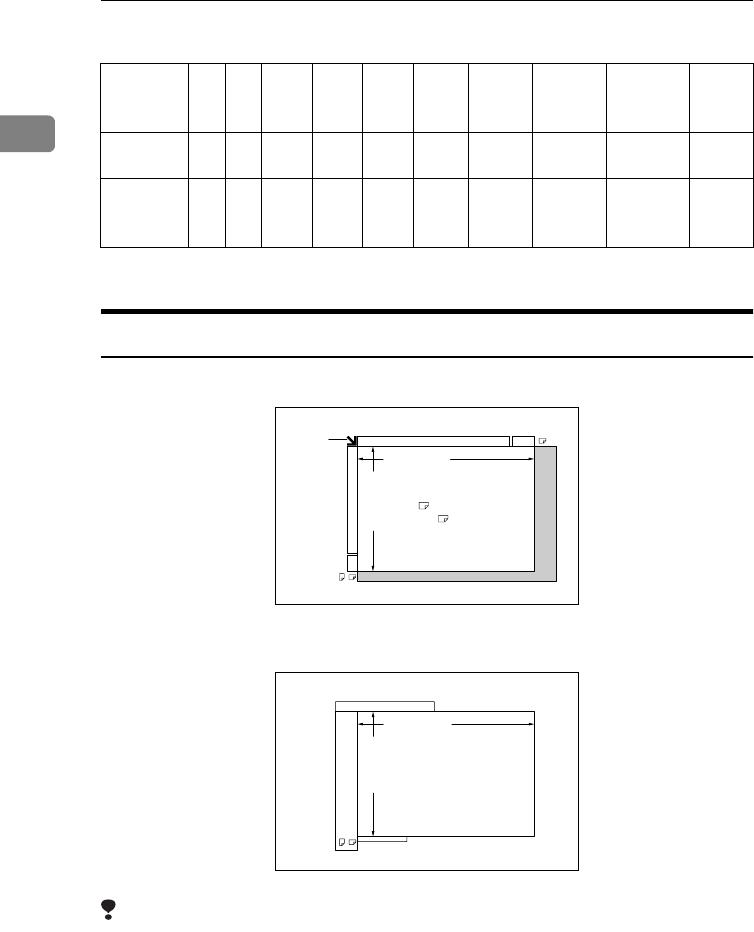
BASICS
22
1
❖
❖❖
❖
Inch version
*1 You can select from 81/2" × 13", 81/4" × 13" and 8" × 13" using the user tool (system
settings). See "24. <F/F4> Size Setting" in the System Settings.
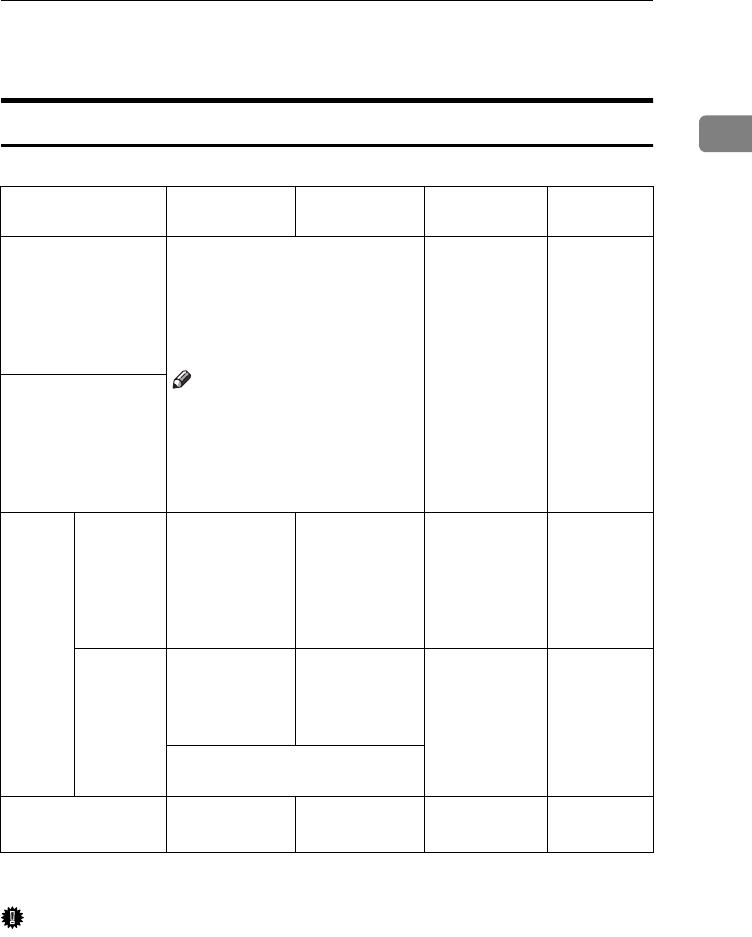
Original Sizes And Scanning Area/Missing Image Area
❖
❖❖
❖
Exposure glass
❖
❖❖
❖
Document feeder
Limitation
❒Even if you correctly set originals in the document feeder or on the exposure
glass, 3 mm margins on all four sides might not be copied.
Size A3
L
B4
L
A4
KL
B5
KL
A5
KL
11 " ×
17"L81/2" ×
14"L
81/2" ×
11"KL
51/2" ×
81/2"KL
81/2" ×
13"L
*1
Place of
original
Exposure
glass
×××××❍❍ ❍ ××
Docu-
ment
feeder
×× ❍××❍❍ ❍ ❍ ❍
A3
A3A4
Horizontal size
Vertical size
Reference
position
Maximum Scanning area
A3 (297x420mm)
11"x17" (279x432mm)
CP01AEE
A3A4
Horizontal size
Vertical size
Maximum Scanning area
(297x432mm)
CP02AEE
COPY PAPER
23
1
COPY PAPER
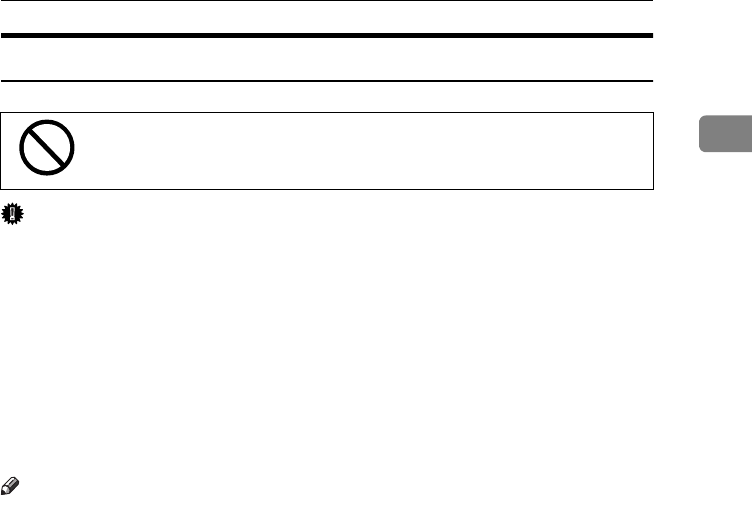
Recommended Paper Sizes And Types
The following limitations apply to each tray:
*1 When you set non-standard size paper in the bypass tray, you have to specify the
size. See ⇒ P.55 “Copying From The Bypass Tray”.
Important
❒If you use damp or curled paper, a misfeed might occur. In such a case, try
turning over the paper stack in the paper tray. If there is no improvement,
change to copy paper with less curl.
Metric version Inch version Paper weight Paper
capacity
Paper tray A3L, B4L, A4KL, B5KL,
A5L, 11" × 17"L, 81/2" × 14"L,
81/2" × 11"KL, 51/2" × 81/2"L,
71/4" × 101/2"L, 8" × 13"L,
81/2" × 13"L, 81/4" × 13"L
Note
❒You have to specify paper
size using the user tools. See
⇒ P.132 “Changing The Paper
Size”.
64 – 105 g/m2,
20 – 28 lb
500 sheets
Paper tray unit
(option)
Bypass
tray
Standard
size
A3L, A4L,
A5L, 81/2" ×
13"L
A3L,
11" × 17"L,
81/2" × 14"L,
81/2" × 11"L,
51/2" × 81/2"L
52 – 157 g/m2,
16 – 42 lb
50 sheets (52
– 90 g/m2,
16 – 20 lb),
25 sheets (91
– 157 g/m2,
20 – 42 lb)
Non-stan-
dard size
*1
Vertical: 100 –
297 mm
Horizontal: 148
– 432 mm
Vertical: 4.0" –
11.7"
Horizontal:
6.0" – 17.0"
52 – 157 g/m2,
16 – 42 lb
1 sheet
Postcards, adhesive labels, trans-
lucent paper
Large capacity tray
(option)
A4K81/2" × 11"K64 – 105 g/m2,
20 – 28 lb
1,500 sheets

BASICS
24
1
Note
❒When you use the bypass tray, it is recommended to set the copy paper direc-
tion to L.
❒Post cards should be fed from the bypass tray.
❒If you load paper of the same size and in the same direction in two or more
trays, the machine automatically shifts to another tray when the tray in use
runs out of paper. This function is called Auto Tray Switch. (If you put recy-
cled paper or special paper in paper trays using the Special Paper Indicate
menu, this function is not available to these trays unless their settings are
identical.) This saves interrupting a copy run to replenish paper even when
you make a large number of copies. You can cancel this setting. See “13. Auto
Tray Switch” and “14. Sp. Paper Ind.” of the System Settings.
Reference
If you want to add paper, see ⇒ P.119 “
B
Loading Paper”.
If you want to change the paper size, see ⇒ P.132 “Changing The Paper Size”.
COPY PAPER
25
1
Non-recommended Paper
R
CAUTION:
Important
❒Do not use paper with any kind of coating such as:
• Thermal fax paper
• Art paper
• Aluminum foil
• Carbon paper
• Conductive paper
Otherwise, a fault might occur.
❒Do not use copy paper that has been already copied on. Otherwise, a fault
might occur.
Note
❒Do not use the following type of paper because a paper misfeed might occur.
• Bent, folded, or creased paper
• Torn paper
• Slippery paper
• Perforated paper
• Rough paper
• Thin paper that has low stiffness
• Paper with much paper dust on its surface
❒If you make a copy on rough grain paper, the copy image might be blurred.
❒Do not use paper which has been copied or printed on.
•
Do not reuse stapled paper. Do not use aluminum foil, carbon-
containing paper or other conductive paper. Otherwise, a fire
might occur.

BASICS
26
1
Paper Storage
Note
❒When storing paper, the following precautions should always be followed:
• Do not store paper where it will be exposed to direct sunlight.
• Avoid storing paper in humid areas (humidity: 70 % or less).
• Store on a flat surface.
❒Keep open reams of papers in the package, and store as you would unopened
paper.
❒Under high temperature and high humidity, or low temperature and low hu-
midity conditions, store papers in a vinyl bag.
TONER
27
1
TONER
Handling Toner
R
WARNING:
R
CAUTION:
R
CAUTION:
Important
❒If you use toner other than that recommended, a fault might occur.
Reference
If you want to add toner, see ⇒ P.121 “
D
Adding Toner”.
Toner Storage
Note
❒When storing toner, the following precautions should always be followed:
• Store toner containers in a cool, dry place free from direct sunlight.
• Do not store toner where it will be exposed to heat.
• Do not eat or swallow toner, and keep it out of reach of children.
• Store on a flat surface.
Used Toner
Note
❒Used toner cannot be re-used.
•
Do not incinerate used toner or toner containers. Toner dust
might ignite when exposed to an open flame. Dispose of the
used toner containers according to local regulations for
plastics.
•
Do not eat or swallow toner.
•
Keep toner (used or unused) and toner containers out of reach of
children.
•
This machine has been tested for safety using this supplier's
parts and consumables. We recommend you only use these
specified supplies.

BASICS
28
1
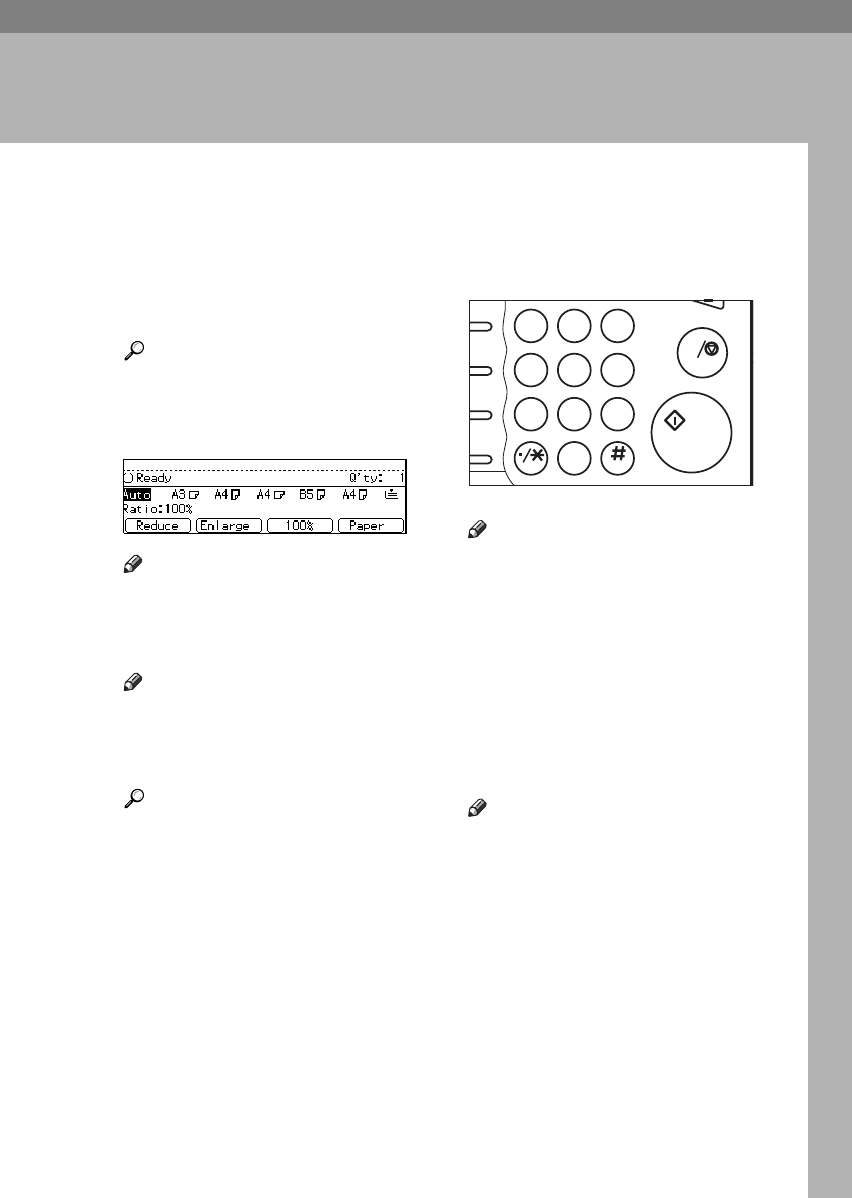
29
2. COPYING
BASIC PROCEDURE
AWhen the machine is set for user
code, enter the user code with the
{
Number
} keys and then press the
{
#
} key.
Reference
See ⇒ P.63 “User Codes”.
BMake sure that the machine is in
Copy mode.
Note
❒If not, press the {
Copy
} key.
CMake sure that there are no previ-
ous settings remaining.
Note
❒To clear settings, press the
{
Clear Modes/Energy Saver
} key.
DSet your originals.
Reference
See ⇒ P.31 “Setting Originals”.
ESet your desired settings.
FEnter the number of copies re-
quired with the {
Number
} keys.
Note
❒The maximum copy quantity
can be set between 1 and 999
(default: 999). See “05. Max.
Copy Q'ty” in ⇒ P.152 “1. Gen-
eral Features 2/4”.
❒To change the number entered,
press the {
Clear/Stop
} key and
enter the new number.
GPress the {
Start
} key.
The machine starts copying.
Note
❒To stop the machine during the
multi-copy run, press the {
Clear/
Stop
} key.
❒To return the machine to the ini-
tial condition after copying,
press the {
Clear Modes/Energy
Saver
} key.
23
456
78
0
9
1
C
e
ed Dial
Hook Dial
u
se /
d
ial
n
e
ND2R02EE

COPYING
30
2
-Auto Reset
The machine returns to its initial con-
dition automatically after your job is
finished, after a certain period of
time. This function is called “Auto
Reset”.
Note
❒You can change the Auto Reset
time. See “11. Auto Reset” in ⇒
P.153 “1. General Features 3/4”.
-
--
-Auto Off
The machine turns itself off automat-
ically after your job is finished, after a
certain period of time. This function is
called “Auto Off”.
Note
❒You can change the Auto Off time.
See “10. Auto Off Timer" in the
System Settings.
❒You can change the default set-
tings for basic functions. See ⇒
P.150 “Settings You Can Change
With The User Tools” and “USER
TOOLS (SYSTEM SETTINGS)” in
the System Settings.
SETTING ORIGINALS
31
2
SETTING ORIGINALS
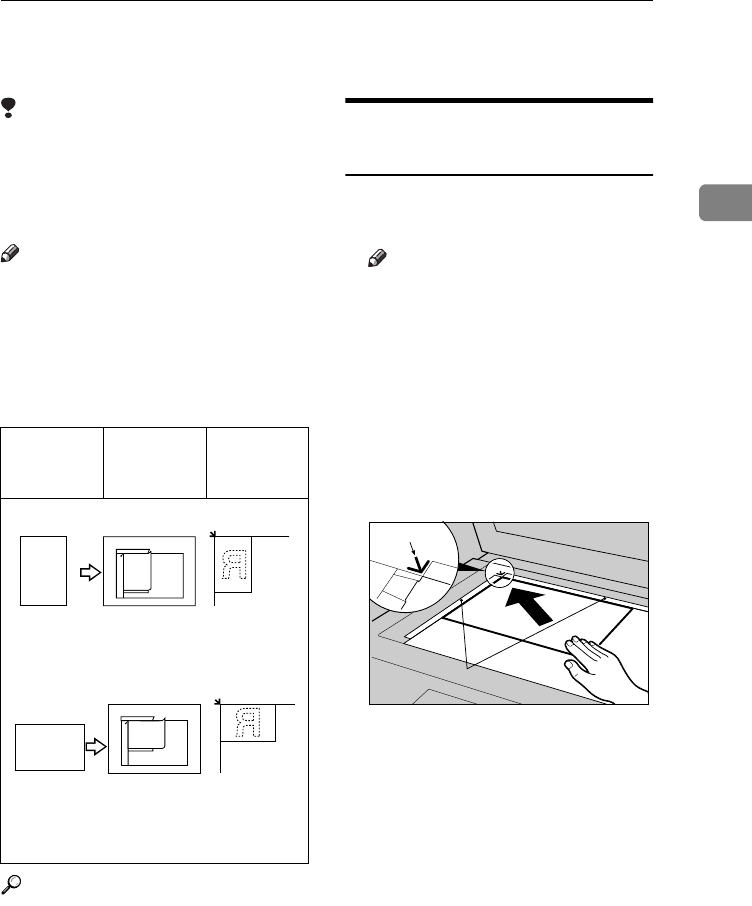
Limitation
❒Set the original after correction flu-
id and ink has completely dried.
Not taking this precaution could
mark the exposure glass and cause
marks to be copied.
Note
❒Basically the originals should be
aligned to the rear left corner.
However, some copy functions
may produce different results de-
pending on the direction of the
originals. For details, see explana-
tions of each function.
Reference
See ⇒ P.20 “Originals”.
Setting Originals On The
Exposure Glass
ALift the platen cover or the docu-
ment feeder.
Note
❒Be sure to open the platen cover
or the document feeder by more
than 30°, otherwise the original
size might not be detected cor-
rectly.
BSet the original face down on the
exposure glass. The original
should be aligned to the rear left
corner.
1: Reference mark
2: Scale
CLower the platen cover or the doc-
ument feeder.
Originals Set in the
document
feeder
Set on the
exposure
glass
set1EE
RR
set2EE
RR
ND1C01EE
1
2
COPYING
32
2
Setting Originals In The
Document Feeder
Note
❒Do not stack originals above the
limit mark.
❒When copying thin originals (41 –
52 g/m2, 11 – 14 lb), select [
DF Set-
ting
] and set to Thin Paper mode,
or set your originals on the expo-
sure glass to avoid damage due to
a multi-sheet feed (if several sheets
are fed together at the same time).
See ⇒ P.35 “Thin paper mode”.
❒The original might become dirty if
it is written with a pencil or similar
tools.
❒For 1-sided originals, you can se-
lect the ADF tray or the ADF exter-
nal tray as an output tray. See “22.
ADF Orig. Ejection” in the System
Settings.
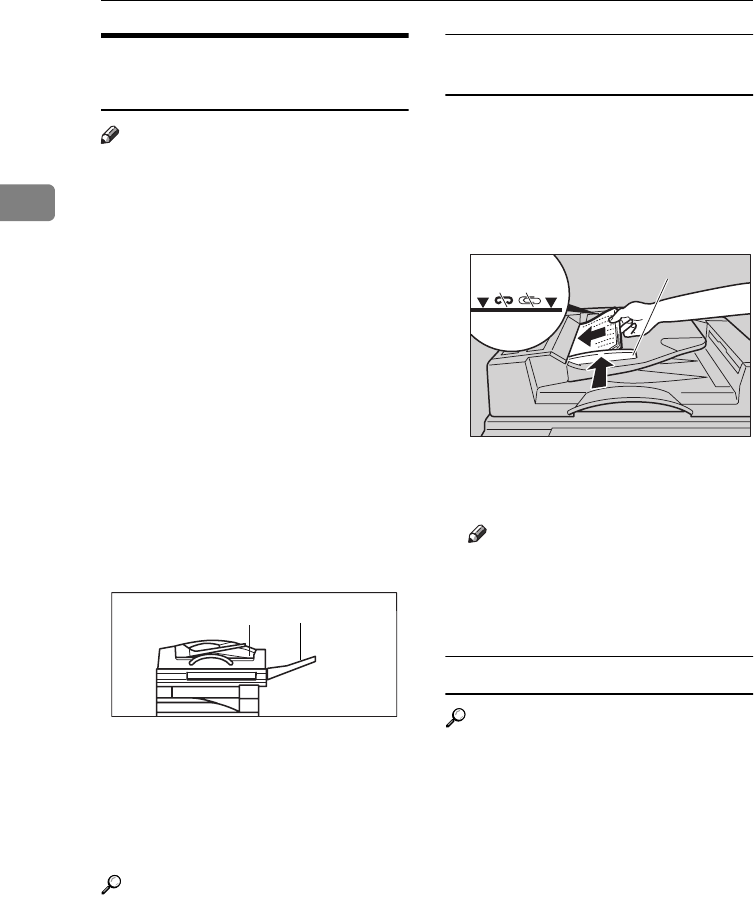
1: ADF tray
2: ADF external tray
❒Copying or scanning speed might
be a little reduced if the ADF tray is
selected as an output tray.
Reference
Regarding originals that the docu-
ment feeder can handle, see ⇒ P.20
“Originals”.
Setting a stack of originals in the
document feeder
AAdjust the guide to the original
size.
BSet the aligned originals face up
into the document feeder.
1: Limit mark
2: Document guide
Note
❒To avoid a multi-sheet feed,
shuffle the originals before set-
ting them in the document feed-
er.
When SADF mode is selected
Reference
See ⇒ P.33 “SADF mode”.
ASet one original face up into the
document feeder. Then, press the
{
Start
} key.
The Auto Feed indicator is lit.
BSet the next original while the
Auto Feed indicator is lit.
ND1D04EE
12
ND1D01EE
12
SETTING ORIGINALS
33
2
The second and subsequent origi-
nals can be fed automatically with-
out pressing the {
Start
} key.
Note
❒You can adjust the time the ma-
chine waits before being ready
for the next original. See “SADF
Auto Reset” in ⇒ P.160 “3. In-
put/Output
1/2”.
Using SADF, Mixed Sized, and
Thin Paper modes
SADF mode
Note
❒If you set one original at a time in
the document feeder, the second
and subsequent originals can be
fed automatically without press-
ing the {
Start
} key.
Limitation
❒Copying or scanning speed might
be a little reduced.
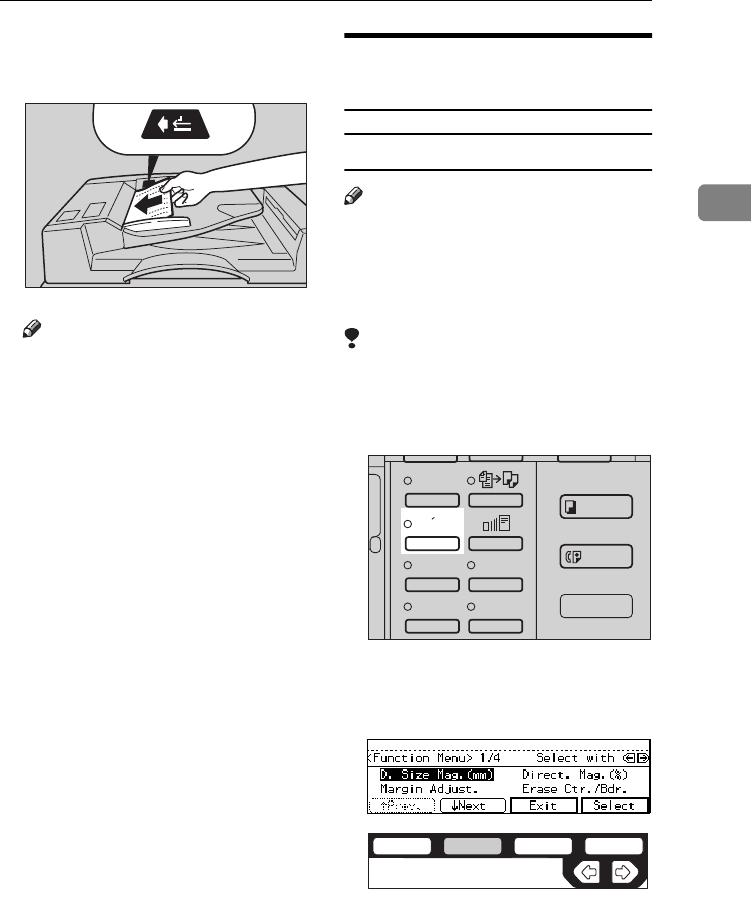
APress the {
Menu
} key.
BPress the [↓
↓↓
↓
Next
] key until [
DF Set-
ting
] is displayed.
ND1D0201
Enhanced
Image
1
3
Menu
Menu
Meny
2
4
ND2L0203
ND2C0102
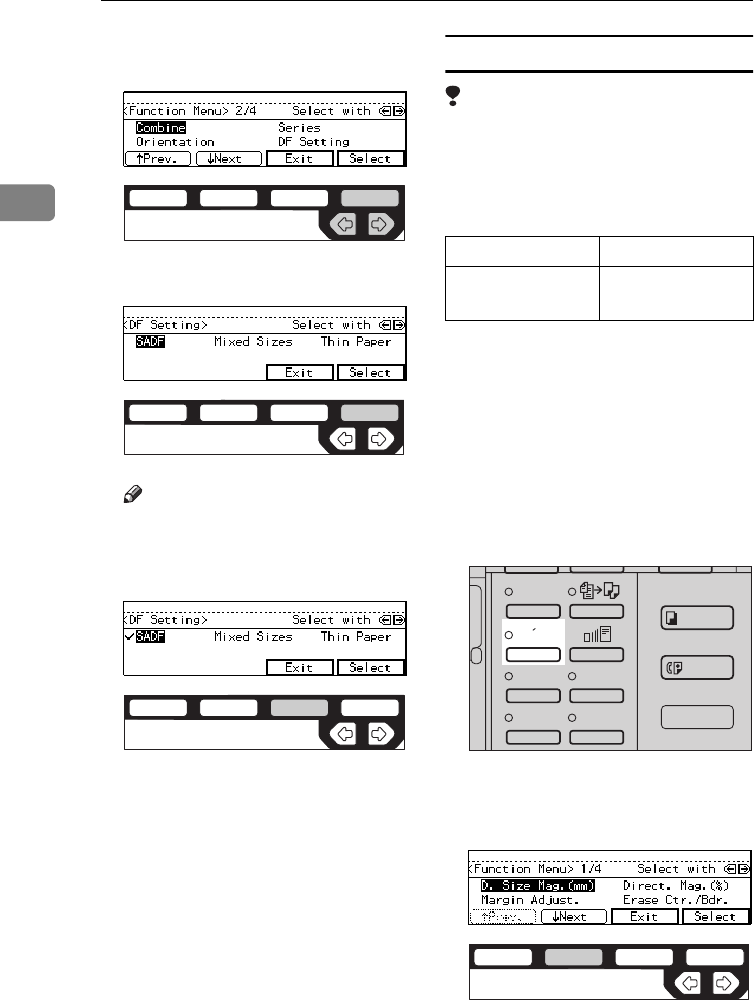
COPYING
34
2
CSelect [
DF Setting
] with the <>
keys, then press the [
Select
] key.
DPress the [
Select
] key.
Note
❒To deselect [
SADF
], press the
[
Select
] key again.
EPress the [
Exit
] key.
Mixed sizes mode
Limitation
❒The weight of originals that can be
set with this function is 52 – 81 g/
m2, 14 – 20 lb.
❒The paper sizes that can be set with
this function are as follows:
❒You can set originals of two differ-
ent sizes at a time.
❒Copying speed and scanning
speed will be reduced.
❒For smaller originals, the copy im-
age might be slanted since the orig-
inals might not be correctly
aligned with the original guide.
APress the {
Menu
} key.
BPress the [↓
↓↓
↓
Next
] key until [
DF Set-
ting
] is displayed.
ND2C0109
ND2C0104
ND2C0103
Metric version B5 – A3
Inch version 51/2" × 81/2" – 11" ×
17"
Enhanced
Image
1
3
Menu
Menu
Meny
2
4
ND2L0203
ND2C0102
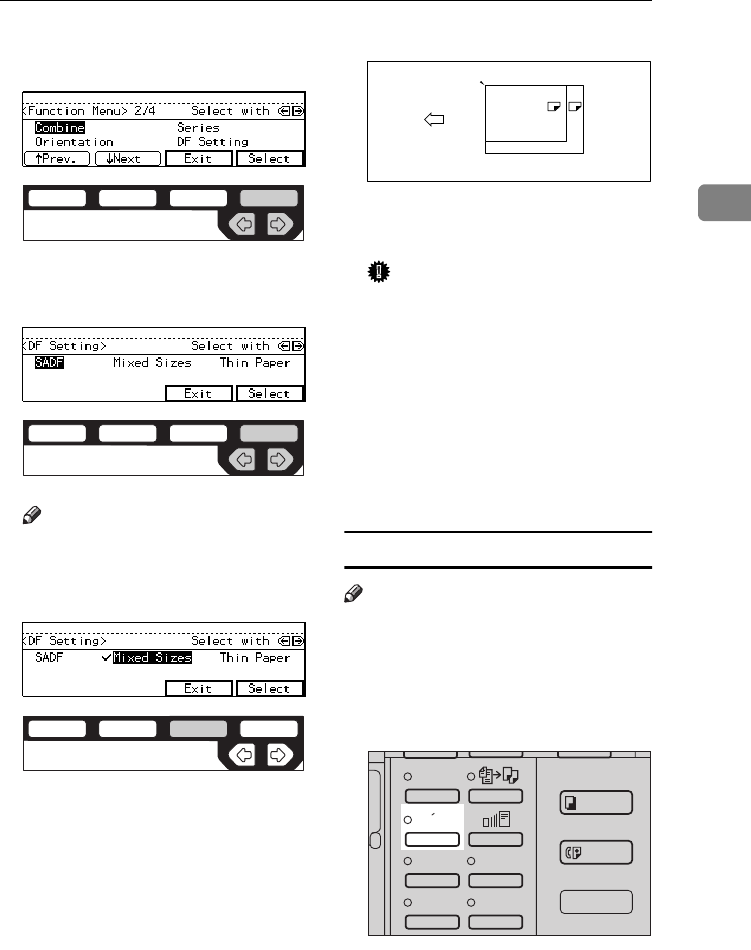
SETTING ORIGINALS
35
2
CSelect [
DF Setting
] with the <>
keys, then press the [
Select
] key.
DSelect [
Mixed Sizes
] with the <>
keys, then press the [
Select
] key.
Note
❒To deselect [
Mixed Sizes
], press
the
[
Select
] key again.
EPress the [
Exit
] key.
FAlign the rear and left edges of
the originals as shown in the il-
lustration.
1: Set into the document feeder
(ADF).
Important
❒If the originals are of different
vertical sizes, put the longer
original on the bottom; other-
wise the original size might not
be detected correctly.
GAdjust the guide to the widest
original size.
HSet the aligned originals face up
into the document feeder.
Thin paper mode
Note
❒Set to Thin Paper mode when you
place thin paper into the document
feeder; otherwise your originals
may be damaged.
APress the {
Menu
} key.
ND2C0109
ND2C0109
ND2C0103
B4 A3
1
CP19AEE
Enhanced
Image
1
3
Menu
Menu
Meny
2
4
ND2L0203
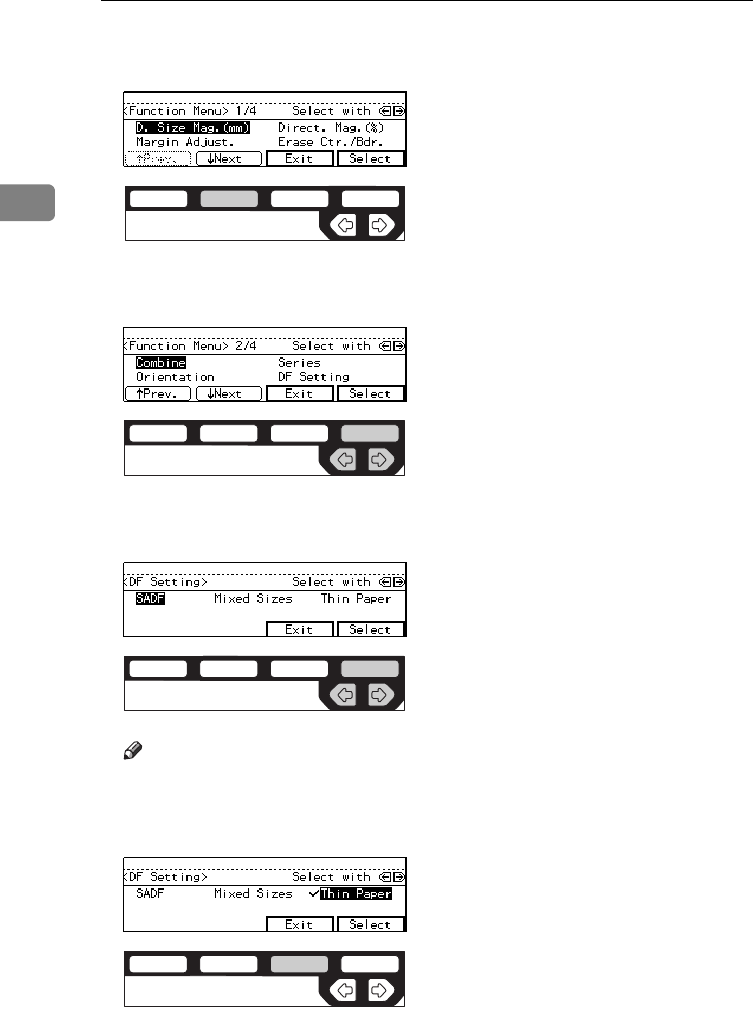
COPYING
36
2
BPress the [↓
↓↓
↓
Next
] key until [
DF Set-
ting
] is displayed.
CSelect [
DF Setting
] with the <>
keys, then press the [
Select
] key.
DSelect [
Thin Paper
] with the <>
keys, then press the [
Select
] key.
Note
❒To deselect [
Thin Paper
], press
the
[
Select
] key again.
EPress the [
Exit
] key.
ND2C0102
ND2C0109
ND2C0109
ND2C0103
BASIC FUNCTIONS
37
2
BASIC FUNCTIONS
The following basic functions are ex-
plained in this section.
❖
❖❖
❖
Adjusting Copy Image Density
Auto and Manual Image Density
❖
❖❖
❖
Enhanced Image Copy
This function provides clearer
copy image.
❖
❖❖
❖
Selecting Original Type Setting
Text, Text·Photo, Photo, Copied
original, Low density original
❖
❖❖
❖
Selecting Copy Paper
Auto Paper Select and Manual Pa-
per Select
❖
❖❖
❖
Auto Reduce/Enlarge
The machine can choose an appro-
priate reproduction ratio based on
the paper and original sizes you se-
lect.
Note
❒You can select functions to be acti-
vated when Auto Reset is turned
on, when Energy Saver is turned
off, or after the machine is pow-
ered on. See ⇒ P.150 “1. General
Features
1/4”.
❒You can change default settings for
basic functions. See ⇒ P.150 “Set-
tings You Can Change With The User
Tools”.
Adjusting Copy Image Density
You can adjust the copy image densi-
ty to match your originals.
There are three types in this function:
❖
❖❖
❖
Auto Image Density
The machine automatically adjusts
the image density.
❖
❖❖
❖
Manual Image Density
If you require darker or lighter
copies, adjust the image density
yourself.
❖
❖❖
❖
Combined Auto and Manual Image
Density
Use when copying originals with a
dirty background (such as news-
papers). You can adjust the fore-
ground density while leaving the
background unchanged.
Reference
You can change the density level
with the user tools. See “12. Densi-
ty Pattern” in ⇒ P.153 “1. General
Features 3/4”.
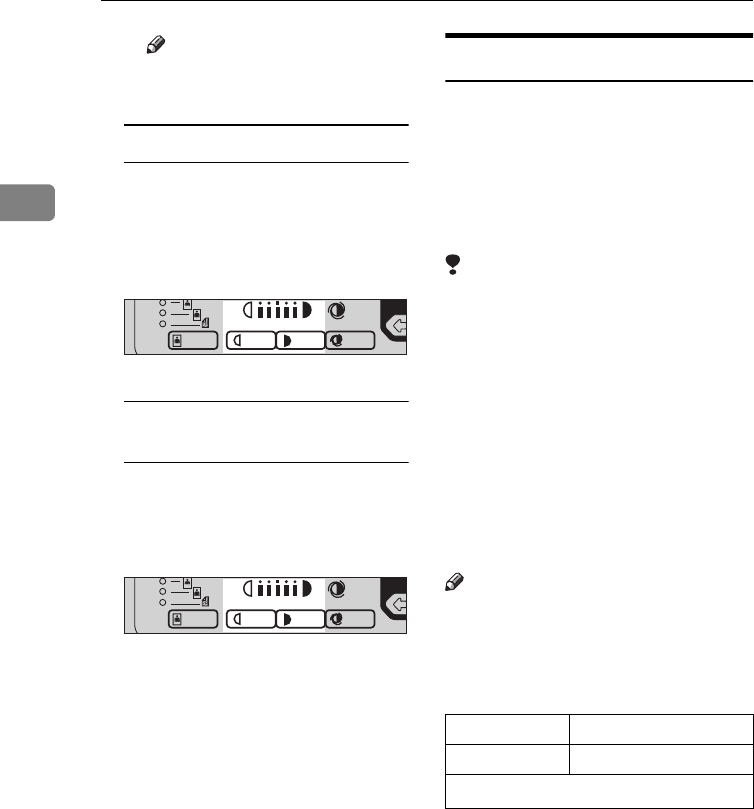
ASelect one of Image Density
modes.
Auto Image Density
AMake sure that the Auto Image
Density indicator is lit.
aa
ND2C0201
COPYING
38
2
Note
❒If not, press the {
Auto Image
Density
} key.
Manual Image Density
APress the {
Auto Image Density
}
key to cancel it.
BPress the {
Lighter
} or {
Darker
}
key to adjust the image densi-
ty.
Combined Auto and Manual
Image Density
AMake sure that the Auto Im-
age Density indicator is lit.
BPress the {
Lighter
} or {
Darker
}
key to adjust the density.
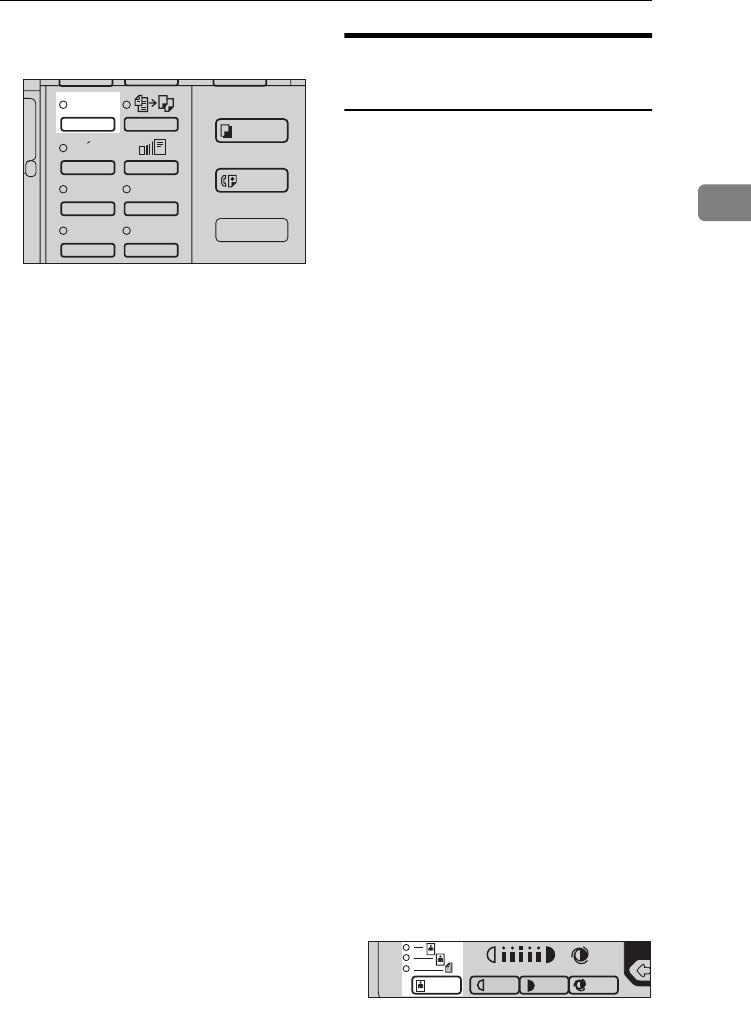
Enhanced Image Copy
This function reproduces copies of
better image quality. It is useful when
copying detailed originals such as
maps.
This function is turned on automati-
cally if you have the optional copier
hard disk.
Limitation
❒The optional copier hard disk is re-
quired to use this image enhanced
feature with the following func-
tions:
• Rotate Copy
• Sort/Stack/Staple
• Combine Copy
• Duplex copy
• Sort involving cover/slip sheets
• Double Copy
•Repeat Copy
Note
❒Copying speed decreases from the
normal speed as follows. Howev-
er, the copying speed remains un-
changed with the optional copier
hard disk.
aa
ND2C0202
aa
ND2C0202
Type 1, Type 2 35 → 30 copies/min
Type3 45 → 40 copies/min
for A4K, 81/2" × 11"K
BASIC FUNCTIONS
39
2
APress the {
Enhanced Image
} key.
Selecting Original Type
Setting
Select one of the following types to
match your originals:
❖
❖❖
❖
Text
Select this mode when your origi-
nals contain only letters (no pic-
tures).
❖
❖❖
❖
Text·Photo
Select Text·Photo when your origi-
nals contains photographs or pic-
tures with letters.
❖
❖❖
❖
Photo
Delicate tones of photographs and
pictures can be reproduced with
this mode.
❖
❖❖
❖
Special original (Copied original)
If your originals are copies (gener-
ation copies), the copy image can
be reproduced sharply and clearly.
To use this mode, activate the En-
hanced Image Copy function first.
❖
❖❖
❖
Special original (Low density original)
Select this mode for originals that
have lighter lines written in pencil,
or for faint copied slips. The faint
lines will be clearly copied.
To use this mode, activate the En-
hanced Image Copy function first.
If you do not select any mode, your
originals will be scanned with the set-
tings suitable for text originals (Text
mode).
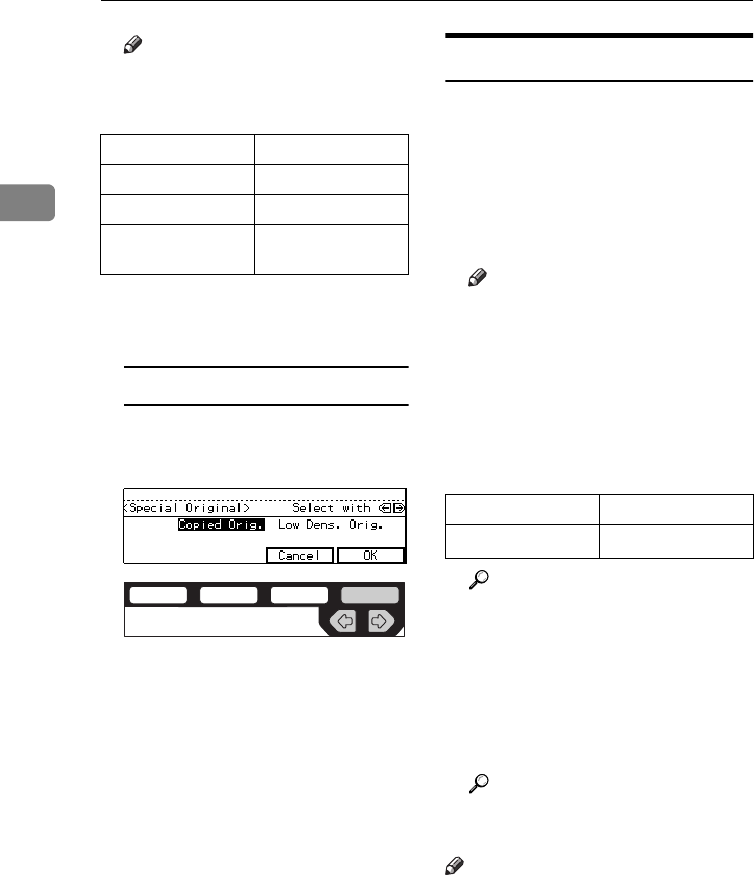
APress the {
Original Type
} key and
select the original type.
Enhanced
Image
1
3
Menu
Menu
Meny
2
4
ND2L0201
aa
ND2C0203
COPYING
40
2
Note
❒Press the {
Original Type
} key to
step through the following
types:
❒To use Special Original mode,
press the {
Enhanced Image
} key
first.
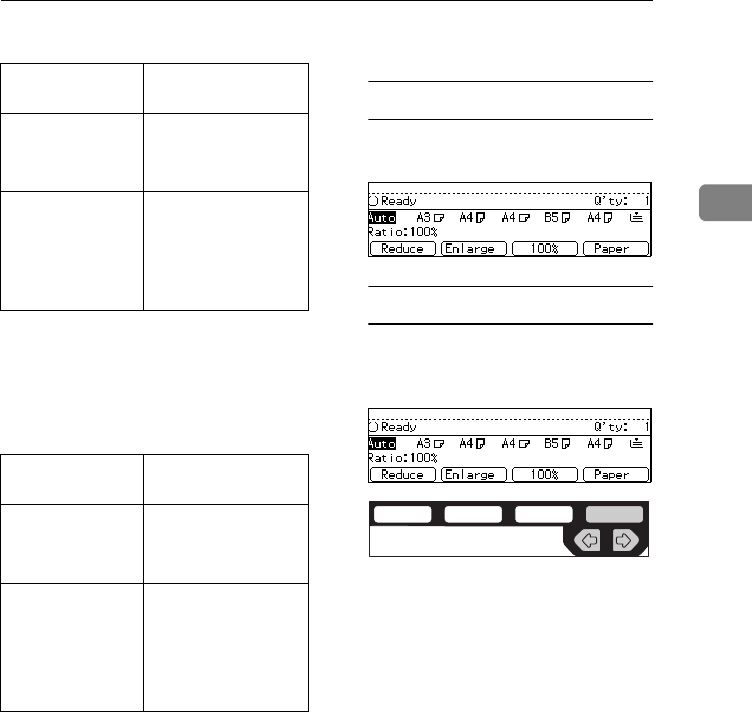
Special Original
ASelect [
Copied Orig.
] or [
Low
Dens. Orig.
] with the <> keys,
then press the [
OK
] key.
Selecting Copy Paper
There are two ways to select copy pa-
per:
❖
❖❖
❖
Auto Paper Select
The machine selects a suitable size
of copy paper automatically based
on the original size and the repro-
duction ratio.
Note
❒When the original is set at a dif-
ferent direction from the copy
paper in the paper tray with
Auto Tray Switch mode ON, the
machine automatically rotates
the original image by 90° to
match the copy paper direction.
This applies to the following pa-
per sizes:
Reference
For Auto Tray Switch, see “13.
Auto Tray Switch” in the Sys-
tem Settings.
❖
❖❖
❖
Manual Paper Select
You can select the desired copy pa-
per size manually. You can also se-
lect the bypass tray.
Reference
See ⇒ P.55 “Copying From The
Bypass Tray”.
Note
❒When you use Auto Paper Select,
refer to the following table for pos-
sible copy paper sizes and direc-
tions. (if the ratio is 100 %)
No indicator lit Text
Top indicator lit Text·Photo
Centre indicator lit Photo
Bottom indicator
lit Special Original
ND2C0109
Metric version A4 KL, B5 KL
Inch version 81/2" × 11" KL
BASIC FUNCTIONS
41
2
❖
❖❖
❖
Metric version
*1 You can select from 81/2" × 13",
81/4" × 13" and 8" × 13" using the
user tool (system settings). See “24.
<F/F4>Size Setting” in the Sys-
tem Settings.
❖
❖❖
❖
Inch version
*1 You can select from 81/2" × 13",
81/4" × 13" and 8" × 13" using the
user tool (system settings). See “24.
<F/F4>Size Setting” in the Sys-
tem Settings.
❒For some originals, the original
size might not be detected correct-
ly. See ⇒ P.21 “Sizes Difficult To
Detect”.
❒When you set special paper, such
as recycled paper, in the paper
tray, you can have the kind of pa-
per shown on the display. See “14.
Sp. Paper Ind.” of the System Set-
tings.
ASelect the copy paper.
Auto Paper Select
AMake sure that the Auto (Auto
Paper Select) is selected.
Manual Paper Select
ASelect the paper tray or bypass
tray by pressing the [
Paper
] or
<>key.
Where original
is set
Paper size and di-
rection
Exposure glass A3 L, B4 L, A4
KL, B5 KL, 81/2"
× 13"L *1
Document feeder A3 L, B4 L, A4
KL, B5 KL,
A5KL, 11" × 17"
L, 81/2" × 11" KL,
81/2" × 13" L *1
Where original
is set
Paper size and di-
rection
Exposure glass 11" × 17" L, 81/2" ×
14" L, 81/2" × 11"
KL
Document feeder A4 KL, 11" × 17"
L, 81/2" × 14" L,
81/2" × 11" KL,
51/2" × 81/2"KL,
81/2" × 13" L *1
ND2C0109
COPYING
42
2
Auto Reduce/Enlarge—Having
The Machine Choose The
Reproduction Ratios
The machine can choose an appropri-
ate reproduction ratio based on the
paper and original sizes you select.
Note
❒When you use Auto Reduce/En-
large, refer to the following table
for possible original sizes and di-
rections:
❖
❖❖
❖
Metric version
*1 You can select from 81/2" × 13",
81/4" × 13" and 8" × 13" using the
user tool (System Settings). See
“24. <F/F4>Size Setting” in the
System Settings.
❖
❖❖
❖
Inch version
*1 You can select from 81/2" × 13",
81/4" × 13" and 8" × 13" using the
user tool (System Settings). See
“24. <F/F4>Size Setsting” in the
System Settings.
❒The reproduction ratios the ma-
chine will select are as follows:
• Type 1, Type 2
Metric version: 25 – 400 %
Inch version: 25 – 400 %
• Type 3
Metric version: 35 – 400 %
Inch version: 32 – 400 %
❒For some originals, the original size
might not be detected correctly. See
⇒ P.21 “Sizes Difficult To Detect”.
❒You can set originals of different
sizes in the document feeder at a
time. See ⇒ P.34 “Mixed sizes mode”.
APress the {
Auto Reduce/Enlarge
} key.
BSelect the paper tray by pressing
the [
Paper
] or <>.
Where origi-
nal is set Original size and direction
Exposure
glass
A3 L, B4 L, A4 KL, B5 KL,
81/2" × 13" L *1
Document
feeder
A3 L, B4 L, A4 KL, B5 KL,
A5 KL, 11" × 17" L, 81/2" ×
11" KL, 81/2" × 13" L *1
Where orig-
inal is set Original size and direction
Exposure
glass 11" × 17" L, 81/2" × 14" L,
81/2" × 11" KL
Document
feeder A4 KL, 11" × 17" L, 81/2" ×
14" L, 81/2" × 11" KL, 51/2" ×
81/2"KL, 81/2" × 13"L *1
Where orig-
inal is set Original size and direction
Enhanced
Image
1
3
Menu
Menu
Meny
2
4
ND2L0202
ND2C0109
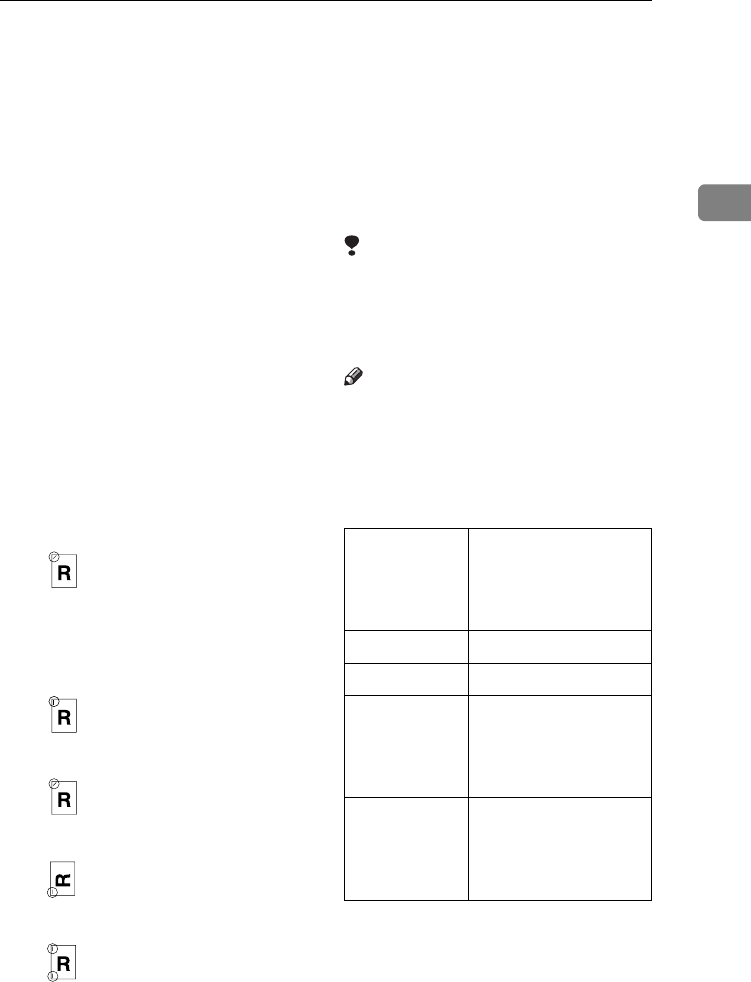
SORT/STACK/STAPLE
43
2
SORT/STACK/STAPLE
Type 1 requires the optional 8 MB copier memory unit to use these functions.
The machine can scan your originals
into memory and automatically sort
the copies.
❖
❖❖
❖
Sort
• Sort
• Rotate Sort
• Shift Sort
(the optional finisher required)
❖
❖❖
❖
Stack
• Rotate Stack
• Shift Stack
(the optional finisher required)
❖
❖❖
❖
Staple (the optional 1000-sheet finish-
er required)
• Top 2
❖
❖❖
❖
Staple (the optional 3000-sheet finish-
er required)
• Top 1
• Top 2
• Top 3
•Double
❖
❖❖
❖
Punch (the optional 3000-sheet finish-
er and punch kit required)
• Makes punch holes in combina-
tion with Sort/Stack/Staple.
Limitation
❒The optional 3000-sheet finisher
and punch kit are for Type 3 only.
❒You cannot use the bypass tray
with this function.
Note
❒The maximum tray capacity is as
follows. When the number of cop-
ies exceeds the tray capacity, re-
move copies from the tray.
❖
❖❖
❖
Metric version
Internal tray 1 • B4 or larger: 250
sheets (80 g/m2)
• A4 or smaller: 500
sheets (80 g/m2)
Internal tray 2 125 sheets (80 g/m2)
External tray 125 sheets (80 g/m2)
1000-sheet fin-
isher • B4 or larger: 500
sheets (80 g/m2)
• A4 or smaller: 1,000
sheets (80 g/m2)
3000-sheet fin-
isher (without
punch)
• Except A4: 1,500
sheets (80 g/m2)
• A4: 3,000 sheets (80
g/m2)
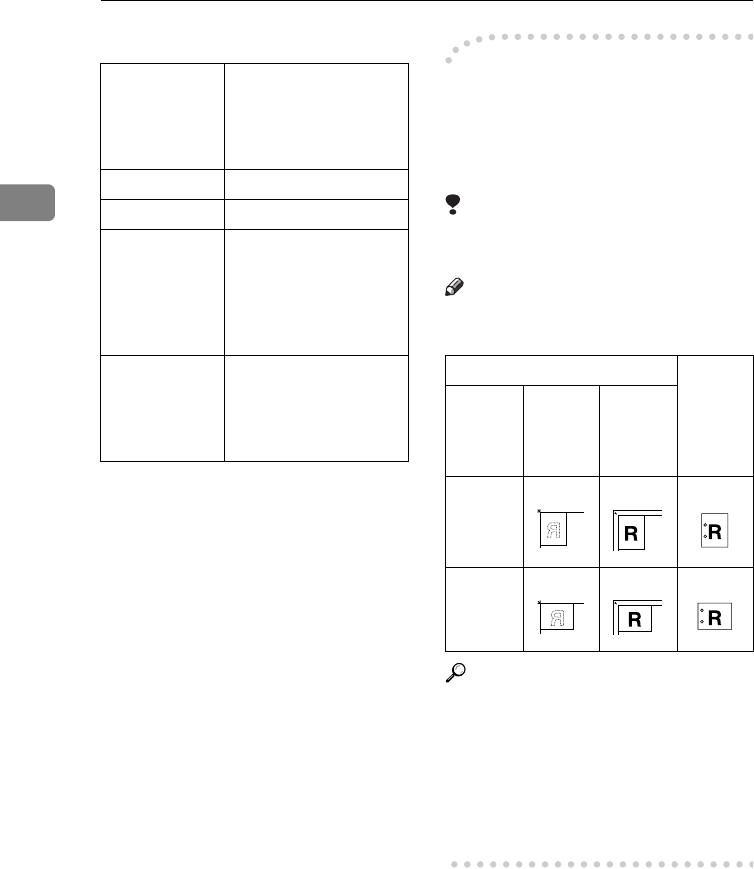
COPYING
44
2
❖
❖❖
❖
Inch version
❒The maximum tray capacity might
be less than the above when you
use the Rotate Sort, Punch, or Sta-
ple function.
❒The maximum tray capacity might
also be reduced when copy paper
is considerably curled.
-Punching (Type 3 only, the
optional 3000-sheet finisher
and punch kit required)
You can make punch holes in combi-
nation with Sort/Stack/Staple.
Limitation
❒You cannot make punch holes
with Rotate Sort or Rotate Stack.
Note
❒Originals orientation and punch
holes position are as follows:
Reference
If the punch waste box is full, see
⇒ P.144 “
y
Removing Punch
Waste”.
For the size and thickness (paper
weight) of paper to which punch-
ing is applicable, see ⇒ P.182
“Punch Kit (Option)”
Internal tray 1 •8
1/2" × 14" or larger:
250 sheets (20 lb)
•8
1/2" × 11" or small-
er: 500 sheets (20 lb)
Internal tray 2 125 sheets (20 lb)
External tray 125 sheets (20 lb)
1000-sheet fin-
isher •8
1/2" × 14" or larger:
500 sheets (20 lb)
•8
1/2" × 11" or small-
er: 1,000 sheets (20
lb)
3000-sheet fin-
isher (without
punch)
•Except 8
1/2" × 11":
1,500 sheets (20 lb)
•8
1/2" × 11": 3,000
sheets (20 lb)
Original setting Punch
hole po-
sition
Expo-
sure
glass
Auto
Docu-
ment
Feeder
K
L
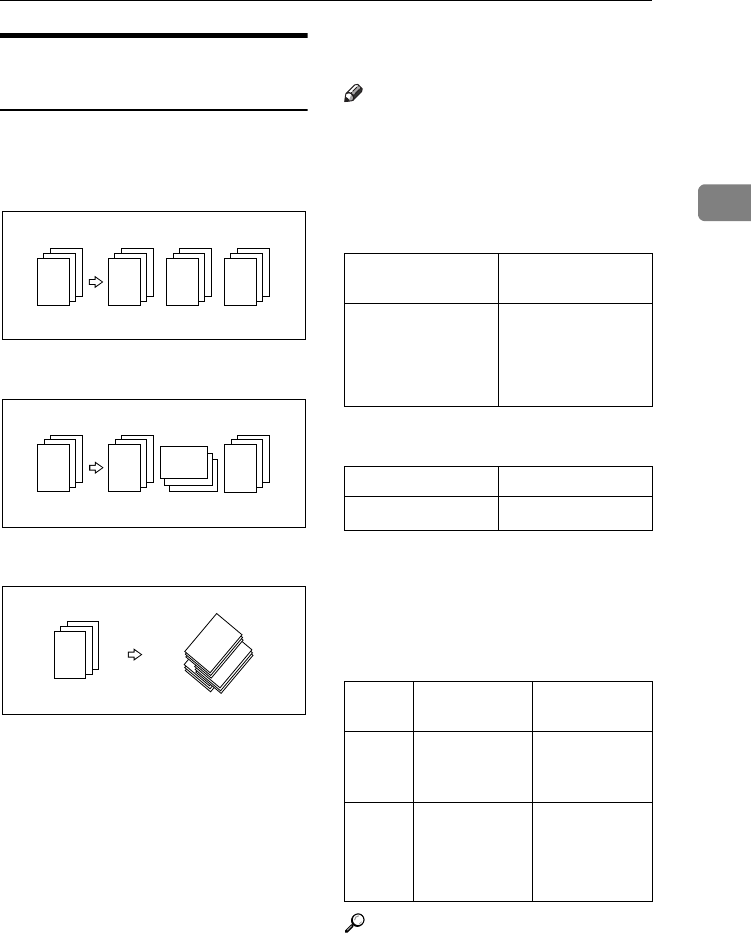
SORT/STACK/STAPLE
45
2
Sort—Sorting Into Sets (123,
123, 123)
Copies can be assembled as sets in se-
quential order.
❖
❖❖
❖
Sort
❖
❖❖
❖
Rotate Sort
❖
❖❖
❖
Shift Sort
There are three types in the Sort func-
tion:
❖
❖❖
❖
Sort
Copies can be assembled as sets in
sequential order.
❖
❖❖
❖
Rotate Sort
Every other copy set is rotated by
90°KL and delivered to the copy
tray.
❖
❖❖
❖
Shift Sort (optional finisher required)
Every other copy set is shifted for
ease of separation. The shift tray of
the finisher provides this function
by sliding from side to side.
Note
❒To switch among Sort, Rotate Sort,
and Shift Sort modes, access the
user tools. See “6. Sort” in ⇒ P.162
“3. Input/Output 2/2”.
❒The paper sizes that can be used in
Sort function are as follows:
❒The paper sizes that can be used in
Rotate Sort function are as follows:
❒To use the Rotate Sort function,
two paper trays identical in size
and different in direction (K L)
are required.
❒The paper sizes that can be used in
Shift Sort function are as follows:
Reference
For the paper capacity of the op-
tional finisher, see ⇒ P.49 “Staple”.
2
132
132
132
13
2
132
132
13
2
13
2
13
3
2
13
2
1
3
2
1
Metric version A3LB4LA4KL
B5KLA5L
Inch version 11" × 17" L, 81/2" ×
14" L, 11" × 81/2"
KL, 51/2" × 81/2"
L
Metric version A4KLB5KL
Inch version 81/2" × 11"KL
1000-sheet
finisher 3000-sheet
finisher
Metric
version A3L, B4L,
A4KL, B5K
A3L, B4L,
A4KL,
B5KL
Inch
version 11" × 17" L,
81/2" × 14" L,
81/2" × 11"
KL
11" × 17" L,
81/2" × 14" L,
81/2" × 11"
KL
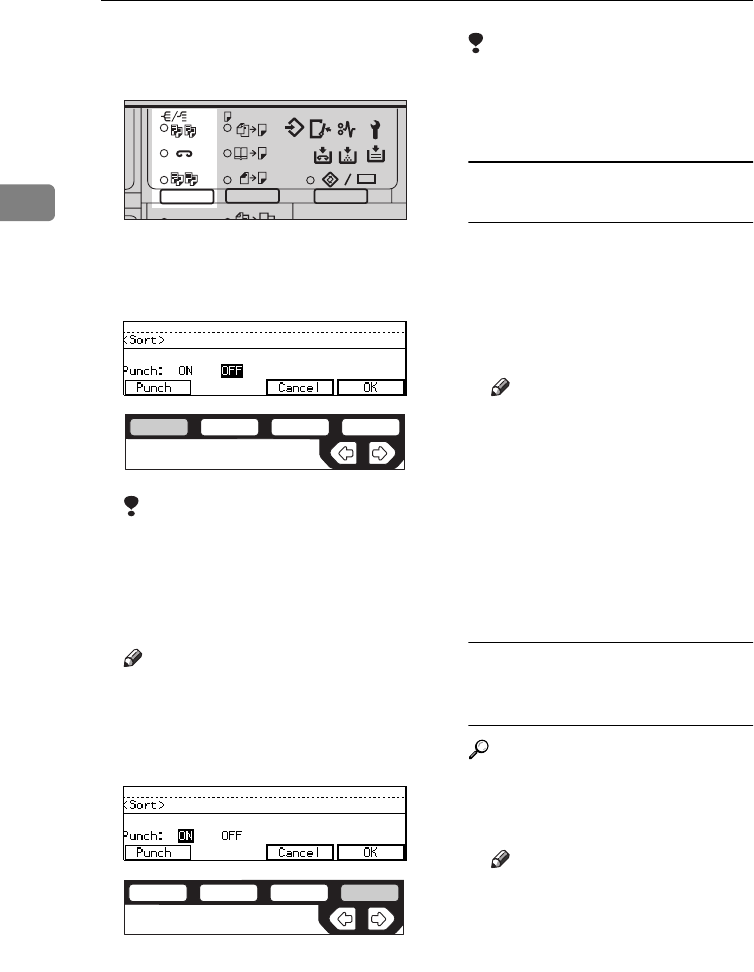
COPYING
46
2
APress the {
Sorter
} key until the
Sort indicator (top) is lit.
BTo make punch holes, press the
[
Punch
] key.
Limitation
❒The optional 3000-sheet finisher
and punch kit are required to
use this function (Type 3 only).
❒You cannot make punch holes
with Rotate Sort.
Note
❒If you do not wish to make
punch holes, go to Step D.
CMake sure that [
ON
] is selected,
then press the [
OK
] key.
DEnter the number of copy sets
with the {
Number
} keys.
Limitation
❒The maximum number of sets is
999.
ESet your originals.
When setting a stack of originals
in the document feeder
ASet a stack of originals in the
document feeder, then press
the {
Start
} key.
After all the originals are
scanned, the copies are deliv-
ered to the tray.
Note
❒The last page should be on
the bottom.
❒If an original is misfed dur-
ing sorted copying, reset
your originals in the docu-
ment feeder according to the
instruction on the display.
The display will indicate the
number of originals you
should return.
When setting an original on the
exposure glass or in the
document feeder
Reference
See ⇒ P.33 “SADF mode”
ASet the original, then press the
{
Start
} key.
Note
❒ Start with the first page to be
copied.
BSet the next original, then
press the {
Start
} key.
2
2
2
1
1
2
2112233
Enhanced
ND2L0101
ND2C0101
ND2C0104
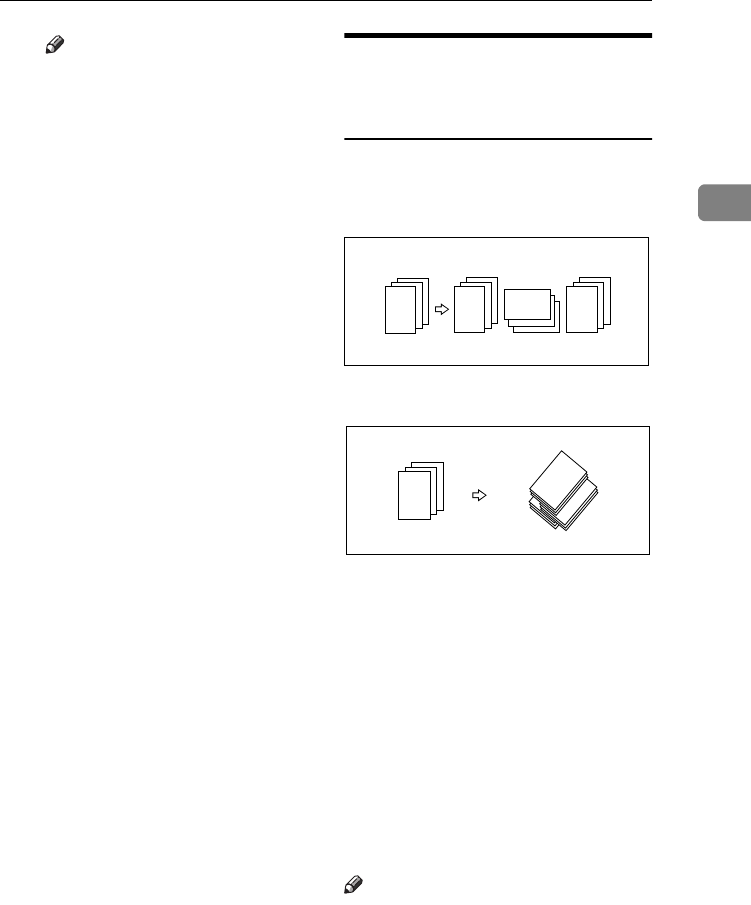
SORT/STACK/STAPLE
47
2
Note
❒Set the original in the same
direction as the first one.
CAfter all originals are scanned,
press the {
#
} key.
The copies are delivered to the
tray.
Stack—Stacking Together All
Copies Of A Page (111, 222,
333)
Copies can be assembled with each
page set.
❖
❖❖
❖
Rotate Stack
❖
❖❖
❖
Shift Stack
There are two types in the Stack func-
tion:
❖
❖❖
❖
Rotate Stack
Every other page set is rotated
90°KL and delivered to the copy
tray.
❖
❖❖
❖
Shift Stack (optional finisher re-
quired)
Every other page set is shifted for
ease of separation. The shift tray of
the finisher provides this function
by sliding from side to side.
Note
❒To select Rotate Stack or Shift
Stack, access the user tools. See “7.
Stack” in ⇒ P.162 “3. Input/Output
2/2”.
❒The sizes that can be used in this
function are as follows:
1
113
33
2
22
23
1
2
13
3
3
32
2
2
1
1
1
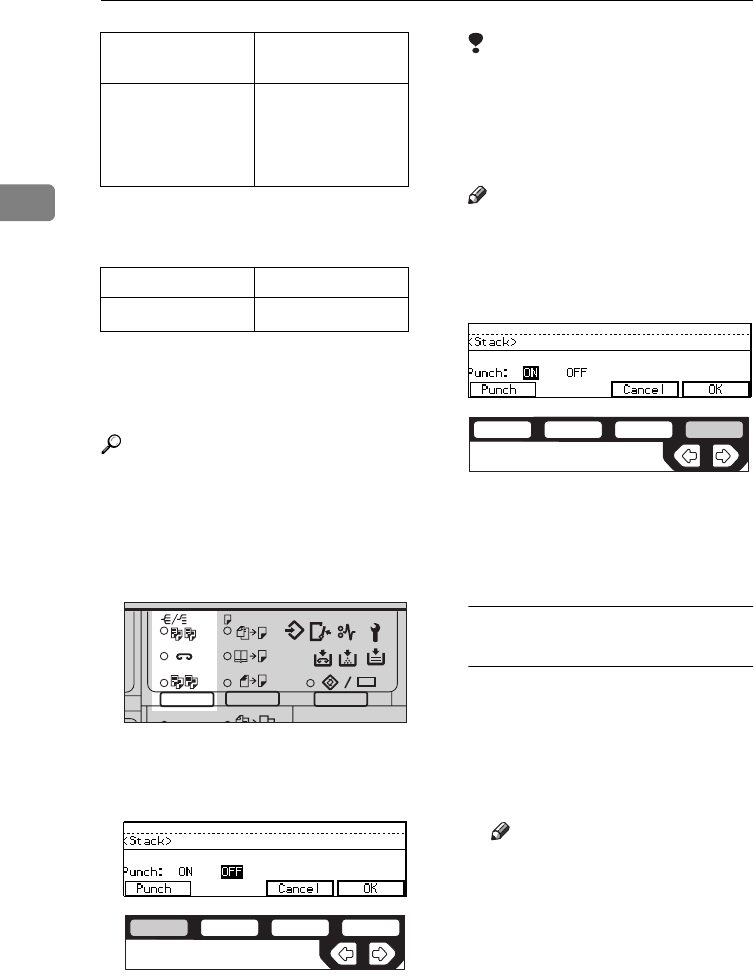
COPYING
48
2❒The paper sizes that can be used in
the Rotate Stack function are as fol-
lows:
❒To use the Rotate Stack function,
two paper trays identical in size
and different in direction (KL)
are required.
Reference
For the maximum tray capacity of
the optional finisher, see ⇒ P.49
“Staple”.
APress the {
Sorter
} key until the
Stack indicator (bottom) is lit.
BTo make punch holes, press the
[
Punch
] key.
Limitation
❒The optional 3000-sheet finisher
and punch kit are required to
use this function (Type 3 only).
❒You cannot make punch holes
with Rotate Stack.
Note
❒If you do not wish to make
punch holes, go to Step D.
CMake sure that [
ON
] is selected.
Then, press the [
OK
] key.
DEnter the number of copies with
the {
Number
} keys.
ESet your originals.
When setting a stack of originals
in the document feeder
ASet a stack of originals in the
document feeder, then press
the {
Start
} key.
After all the originals are
scanned, the copies are deliv-
ered to the tray.
Note
❒The last page should be on
the bottom.
Metric version A3LB4LA4KL
B5KLA5L
Inch version 11" × 17" L, 81/2" ×
14" L, 11" × 81/2"
KL, 51/2" × 81/2"
L
Metric version A4KL, B5KL
Inch version 81/2" × 11"KL
2
2
2
1
1
2
2112233
Enhanced
ND2L0101
ND2C0101
ND2C0104
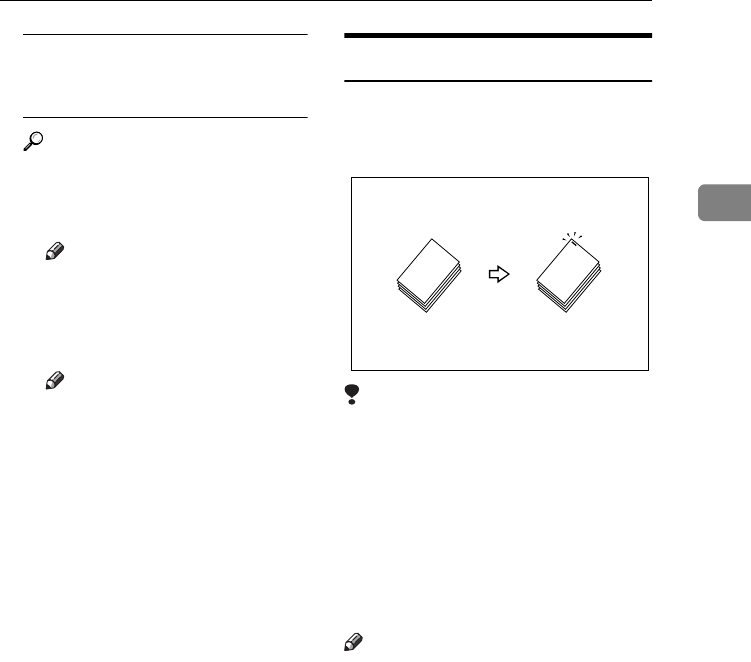
SORT/STACK/STAPLE
49
2
When setting an original on the
exposure glass or in the
document feeder
Reference
See ⇒ P.33 “SADF mode”
ASet the original, then press the
{
Start
} key.
Note
❒ Start with the first page to be
copied.
BSet the next original, then
press the {
Start
} key.
Note
❒Set the original in the same
direction as the first one.
CAfter all originals are scanned,
press the {
#
} key.
The copies are delivered to the
tray.
Staple
The optional finisher is required to use
this function.
Each copy set can be stapled together.
Limitation
❒You cannot use the following pa-
per in this function:
• Post cards
• Translucent paper
• OHP transparencies
• Adhesive labels
• Curled paper
• Low stiffness paper
Note
❒For this mode, the following limi-
tation apply. When the number of
copies exceeds the tray capacity,
copying stops. In this case, remove
the copies from the shift tray and
then resume copying.
COPYING
50
2
❖
❖❖
❖
Metric version
❖
❖❖
❖
Inch version
❒In the following cases, the copies
will be delivered to the shift tray
without stapling.
• When the number of copies for
one set is over the stapler capac-
ity.
• When memory reaches 0 % dur-
ing copying.
• When “Add Staple” is dis-
played during copying.
❒When you select Staple, Sort mode
is automatically selected.
Reference
If you want to add staples, see ⇒
P.134 “
d
Adding Staples”.
When staple is jammed, see ⇒
P.139 “
e
Removing Jammed Sta-
ples”.
1000-sheet
finisher 3000-sheet
finisher
Paper
size A3L, B4L,
A4KL,
B5K
A3L, B4L,
A4KL,
B5KL
Stapler
capacity •A4 or
smaller:
30 sheets
(80 g/m2)
•B4 or
larger: 20
sheets (80
g/m2)
•A4 or
smaller:
50 sheets
(80 g/m2)
•B4 or
larger: 30
sheets (80
g/m2)
(without
punch)
Shift tray
capacity
(A4K)
1,000 sheets
(80 g/m2)
3,000 sheets
(80 g/m2)
1000-sheet
finisher 3000-sheet
finisher
Paper
size 11" × 17"L,
81/2" ×
14"L, 81/2"
× 11"KL
11" × 17"L,
81/2" ×
14"L, 81/2"
× 11"KL
Stapler
capacity •8
1/2" ×
11" or
smaller:
30 sheets
(20 lb)
•8
1/2" ×
14" or
larger: 20
sheets (20
lb)
•8
1/2" ×
11" or
smaller:
50 sheets
(20 lb)
•8
1/2" ×
14" or
larger: 30
sheets (20
lb)
(without
punch)
Shift tray
capacity
(81/2" ×
11"K)
1,000 sheets
(20 lb) 3,000 sheets
(20 lb)
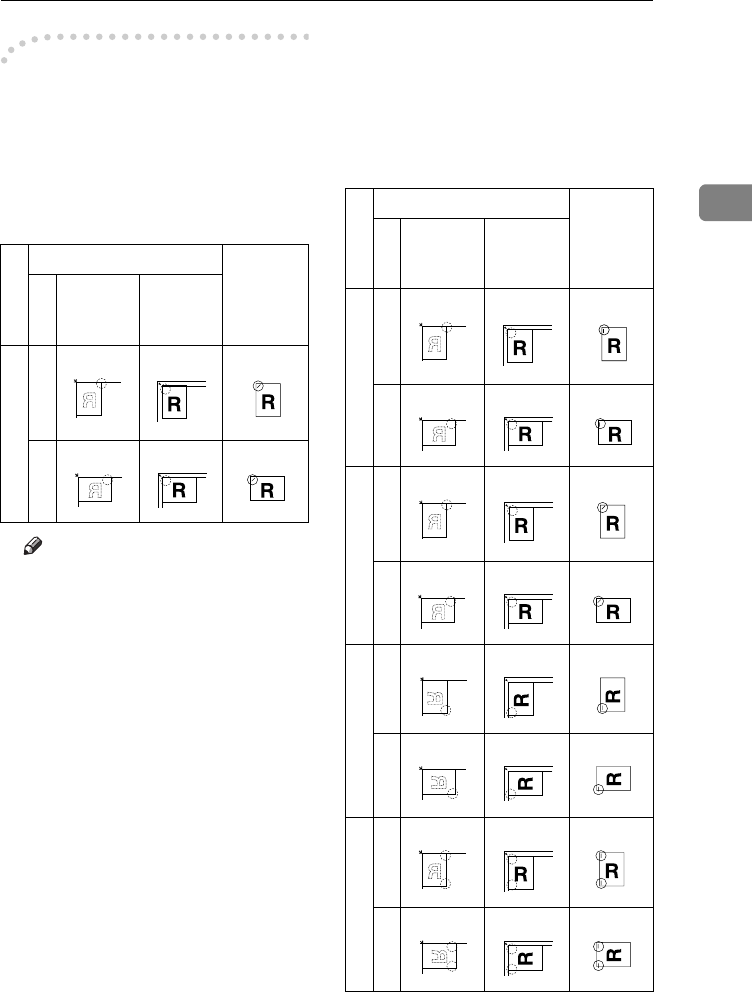
SORT/STACK/STAPLE
51
2
-Stapling position and original
setting
❖
❖❖
❖
1000-sheet finisher
When your machine is equipped
with the 1000-sheet finisher, the
stapling position will be fixed to
‘Top 2’.
Note
❒Original images are not rotated.
❒To staple in combination with
Combine: 2 pages → 1-sided or
4 pages → 2-sided, or with Dou-
ble Copies, select L paper for
K originals, or select K paper
for L originals.
❖
❖❖
❖
3000-sheet finisher
When your machine is equipped
with the 3000-sheet finisher, sta-
pling positions when there is copy
paper that is identical in size and
direction as your original are as
follows:
Original setting Stapling
position
Expo-
sure
glass
Docu-
ment
Feeder
Top 2
K
L
Original setting Stapling
position
Expo-
sure
glass
Docu-
ment
Feeder
Top 1
K
L
Top 2
K
L
Top 3
K
L
Double
K
L
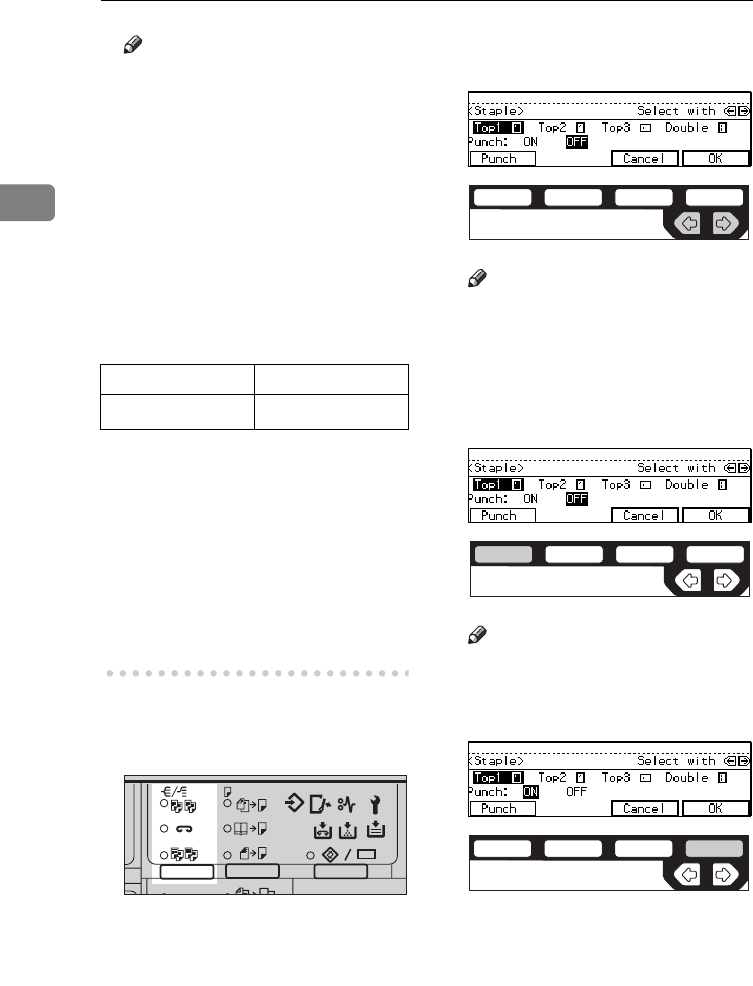
COPYING
52
2
Note
❒You cannot change stapling po-
sitions during copying.
❒When the original image is ro-
tated, the stapling direction
turns by 90°.
❒When you select 1 staple mode
(Top or Bottom), the paper of
which size is the same but the
direction is different from the
originals.
❒The maximum original image
size that can be rotated is as fol-
lows:
❒The copy image can not be ro-
tated if you select [
Top 2
] or
[
Double
].
❒To staple at the Top 2 or Double
position in combination with
Combine: 2 pages → 1-sided or
4 pages → 2-sided, or with Dou-
ble Copies, select L paper for
K originals, or select K paper
for L originals.
APress the {
Sorter
} key until the
Sort (top) and Staple (centre)
indicators are lit.
BSelect one of four stapling posi-
tions.
Note
❒When your machine is
equipped with the 1000-sheet
finisher, this display is not
available. Go to Step E.
CTo make punch holes, press the
[
Punch
] key.
Note
❒If you do not wish to make
punch holes, go to Step D.
DPress the [
OK
] key.
EEnter the number of copy sets
with the {
Number
} keys.
FSet your originals.
Metric version A4
Inch version 81/2" × 11"
2
2
2
1
1
2
2112233
Enhanced
ND2L0101
ND2C0105
ND2C0101
ND2C0104
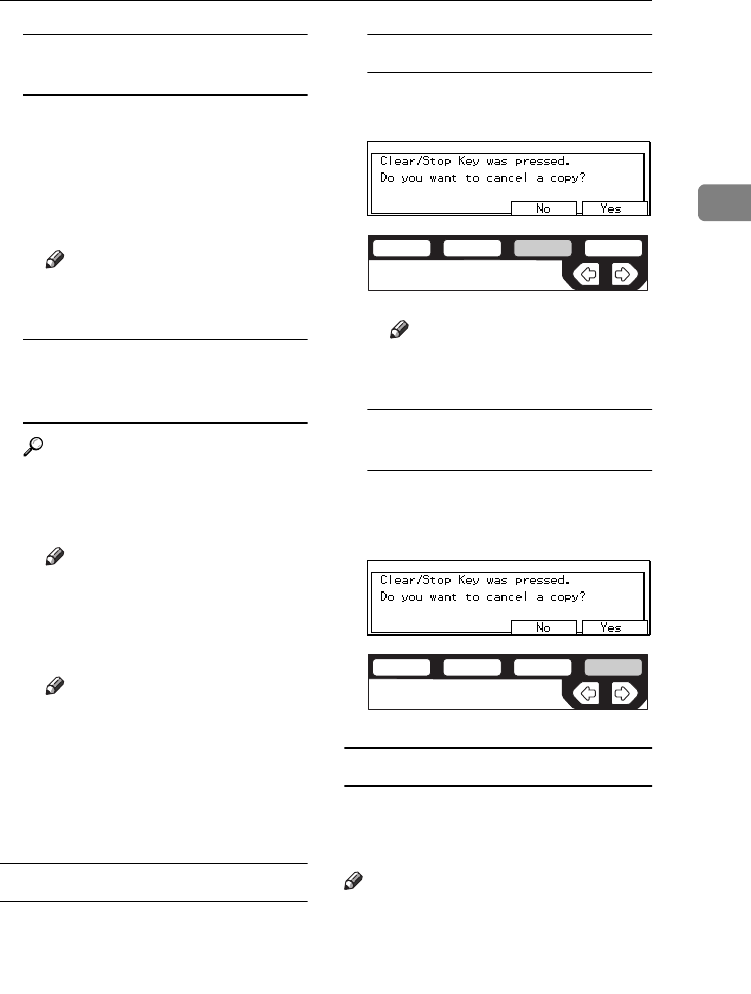
SORT/STACK/STAPLE
53
2
When setting a stack of originals
in the document feeder
ASet a stack of originals in the
document feeder, then press
the {
Start
} key.
After all the originals are
scanned, the copies are deliv-
ered to the tray.
Note
❒The last page should be on
the bottom.
When setting an original on the
exposure glass or in the
document feeder
Reference
See ⇒ P.33 “SADF mode”
ASet the original, then press the
{
Start
} key.
Note
❒ Start with the first page to be
copied.
BSet the next original, then
press the {
Start
} key.
Note
❒Set the original in the same
direction as the first one.
CAfter all originals are scanned,
press the {
#
} key.
The copies are delivered to the
tray.
To stop scanning
When you are using the Sort, Stack, or
Staple function, the originals are
scanned into memory.
APress the {
Clear/Stop
} key.
To resume scanning
APress the [
No
] key.
Scanning is resumed.
Note
❒Scanned images in memory
are not cleared.
To clear scanned images of the
originals
APress the [
Yes
] key.
Scanning is stopped with the
images cleared.
When memory reaches 0 %
Scanning will be stopped if the size of
scanned image data exceeds memory
capacity.
Note
❒There is enough memory to store
approximate 50 originals of A4
size. (Type 1 requires the optional
8 MB copier memory unit.)
❒See ⇒ P.187 “Copier Hard Disk (Im-
age Enhance Kit)” for the number of
ND2C0103
ND2C0104

COPYING
54
2
originals that can be stored with
the optional copier hard disk.
Reference
Scanning will stop when memory
reaches 0 % during sorted copying.
However, you can change this set-
ting so that all the scanned pages
are copied and delivered to the
tray first, then the machine auto-
matically continues scanning the
remaining originals. See “8.
Mem.full-AutoStrt” in ⇒ P.162 “3.
Input/Output 2/2”.
APress the {
Start
} key.
The scanned pages are delivered to
the tray. Then, the image data in
memory is cleared.
BRemove the copies and continue
copying by following the instruc-
tions on the display.
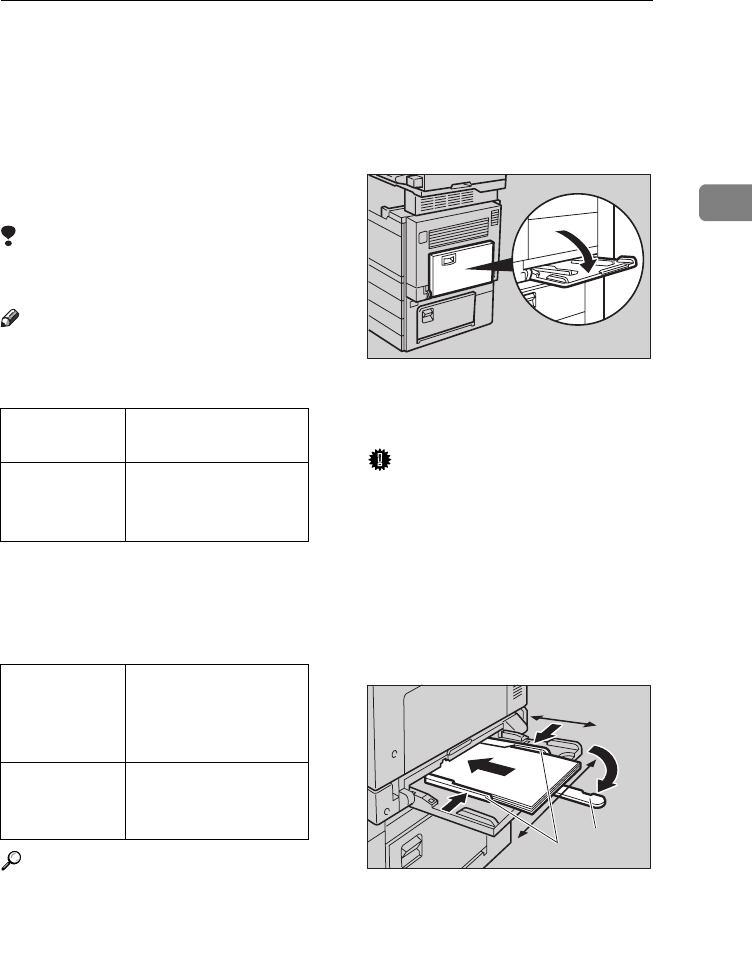
COPYING FROM THE BYPASS TRAY
55
2
COPYING FROM THE BYPASS TRAY
To use this function on Type 1, the optional bypass tray is required.
Use the bypass tray to copy onto OHP
transparencies, adhesive labels, trans-
lucent paper, post cards, and copy pa-
per that cannot be set in the paper tray.
Limitation
❒You cannot use the bypass tray for
the Duplex function.
Note
❒The machine can automatically de-
tect the following sizes as standard
size copy papers:
❒If you do not use the standard size
copy paper, you should input ver-
tical and horizontal dimensions.
The sizes that you can input are as
follows:
Reference
For details about paper capacity of
the bypass tray, see ⇒ P.23 “Copy
Paper”.
AIf Duplex mode is selected, press
the {
Duplex
} key to cancel the
mode.
BOpen the bypass tray.
CAdjust the guides to copy paper
size.
Important
❒If the guides are not flush with
the copy paper, a skew image or
paper misfeeds might occur.
DLightly insert the copy paper face
down until the beeper sounds.
The k indicator on the display is
automatically selected.
1: Horizontal size
2: Vertical size
3: Extender
4: Paper guide
Metric version A3L, A4L, A5L,
81/2" × 13"L
Inch version A3L, 11" × 17"L,
81/2" × 14"L, 81/2" ×
11"L, 51/2" × 81/2"L
Metric version • Vertical: 100 – 297
mm
• Horizontal: 148 –
432 mm
Inch version • Vertical: 4.0" – 11.7"
• Horizontal: 6.0" –
17.0"
ND6H0300
ND6H04EE
3
2
4
1
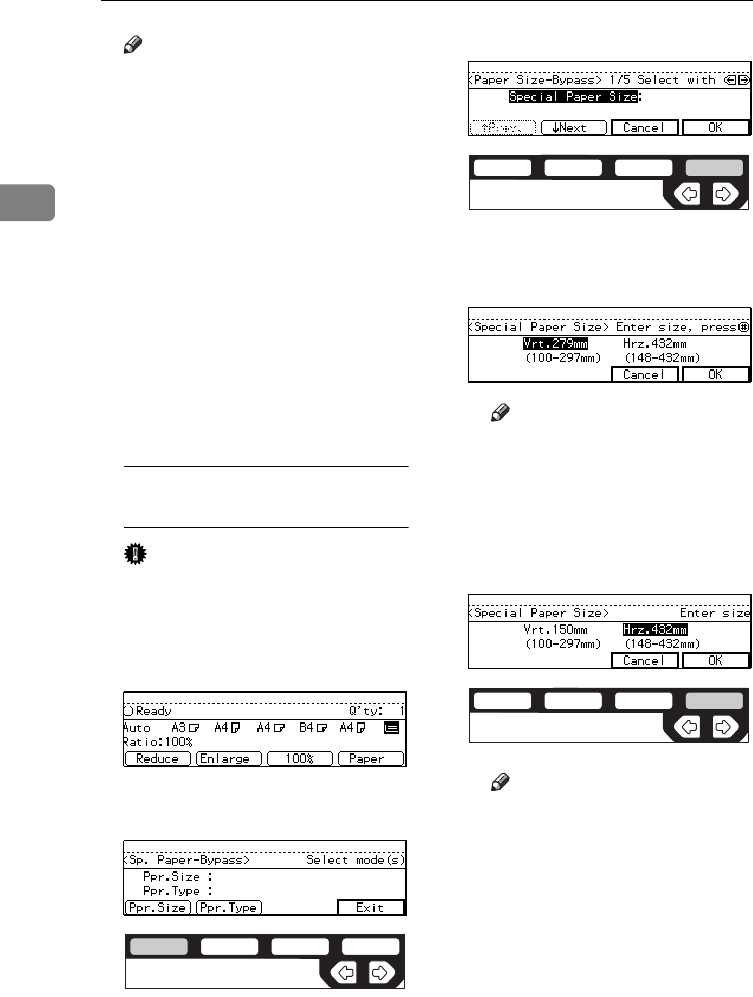
COPYING
56
2
Note
❒Do not stack paper over the lim-
it mark; otherwise a skew image
or paper misfeeds might occur.
❒If the beeper is turned off, light-
ly insert the copy paper until it
stops. See “Settings You Can
Change With The User Tools”
in the System Settings.
❒When the platen cover is open,
set the direction of the copy pa-
per to L.
❒Swing out the extender to sup-
port larger size copy paper larg-
er than A4L, 81/2" × 11"L.
❒Fan paper to get air between the
sheets and avoid a multi-sheet
feed.
When copying onto non-standard
size copy paper
Important
❒You should specify the size of
copy paper to avoid paper mis-
feeds.
AMake sure the k indicator is
selected.
BPress the {
#
} key.
CPress the [
Ppr.Size
] key.
DPress the [
OK
] key.
EEnter the vertical size of the pa-
per with the {
Number
} keys,
then press the {
#
} key.
Note
❒To change the number en-
tered, press the {
Clear/Stop
}
key and enter the new num-
ber.
FEnter the horizontal size of the
paper with the {
Number
} keys,
then press the [
OK
] key.
Note
❒To change the number en-
tered, press the {
Clear/Stop
}
key and enter the new num-
ber.
❒When you specify the paper
size, !appears on the dis-
play to indicate bypass tray
copying.
ND2C0101
ND2C0104
ND2C0104
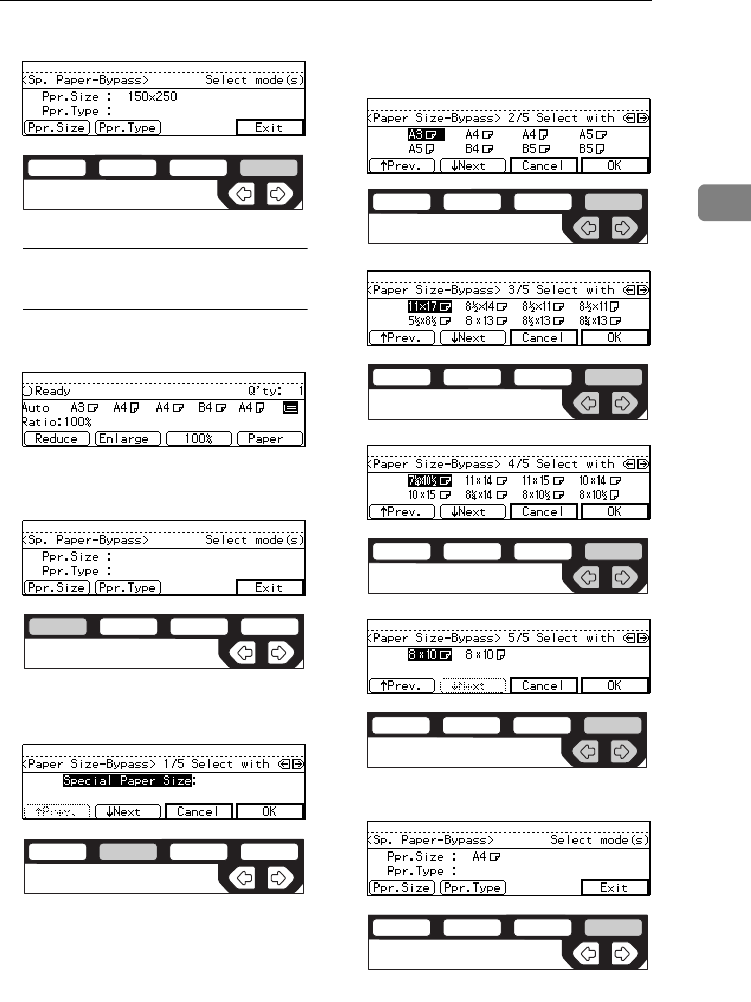
COPYING FROM THE BYPASS TRAY
57
2
GPress the [
Exit
] key.
When copying onto standard size
copy paper
AMake sure the k indicator is
selected.
BPress the {
#
} key.
CPress the [
Ppr.Size
] key.
DPress the [↓
↓↓
↓
Next
] key until your
desired size is displayed.
ESelect the desired size with the
<> keys, then press the [
OK
]
key.
FPress the [
Exit
] key.
ESet your originals, then press the
{
Start
} key.
ND2C0104
ND2C0101
ND2C0102
ND2C0109
ND2C0109
ND2C0109
ND2C0109
ND2C0104
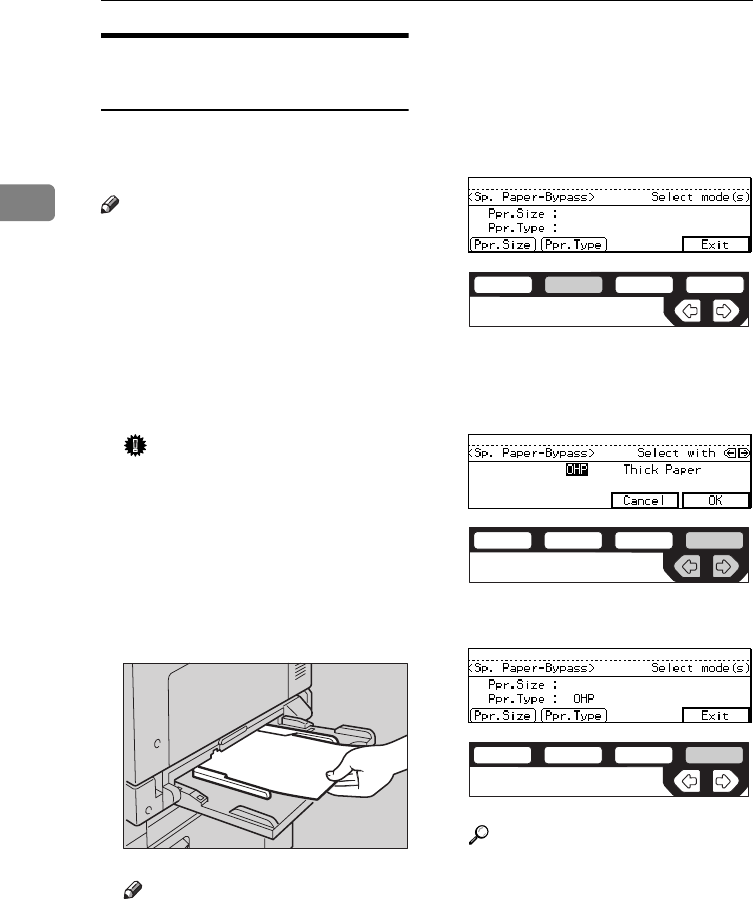
COPYING
58
2
When copying onto OHP
transparencies or thick paper
To make copies onto OHP transpar-
encies or thick paper, you need to
specify the paper type.
Note
❒Select [
Thick Paper
] if the paper
weight is more than 91 g/m2 (20
lb).
AIf Duplex mode is selected, press
the {
Duplex
} key to cancel the
mode.
BOpen the bypass tray, and adjust
the guides to the paper size.
Important
❒If the guides are not flush with
the copy paper, a skew image or
paper misfeeds might occur.
CLightly insert the OHP transpar-
encies or thick paper face down
until the beeper sounds.
The k indicator on the display is
automatically selected.
Note
❒When you set a OHP transpar-
encies, make sure that its front
and back faces are properly po-
sitioned.
❒To avoid paper misfeeds, shuf-
fle a stack of paper before set-
ting it in the tray.
DPress the {
#
} key.
EPress the [
Ppr.Type
] key.
FSelect [
OHP
] or [
Thick Paper
] with
the <> keys. Then, press the
[
OK
] key.
GPress the [
Exit
] key.
Reference
To go on to specify a paper size,
press the [
Ppr.Size
] key.
See ⇒ P.56 “When copying onto
non-standard size copy paper”.
See ⇒ P.57 “When copying onto
standard size copy paper”.
ND5H05EE
ND2C0102
ND2C0109
ND2C0104

COPYING FROM THE BYPASS TRAY
59
2
HSet your originals and press the
{
Start
} key.
Important
❒When copying onto OHP trans-
parencies, remove copied sheets
one by one.
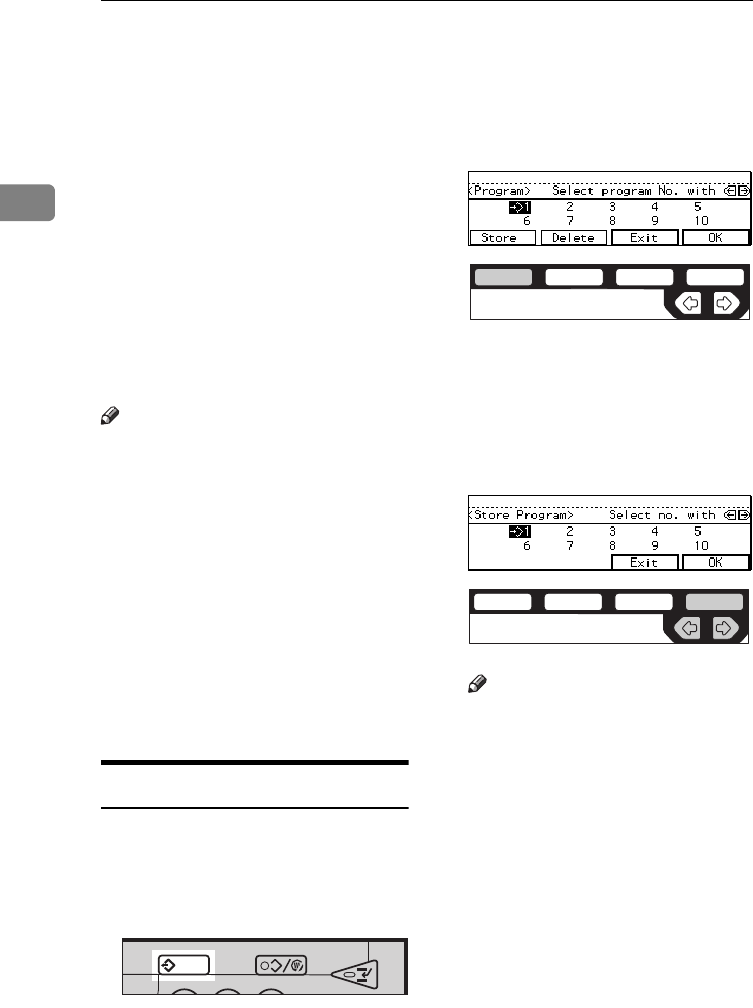
COPYING
60
2
PROGRAM—STORING YOUR COPY
SETTINGS IN MEMORY
You can store frequently used copy
job settings in machine memory, and
recall them for future use.
❖
❖❖
❖
Storing Your Settings
You can store your settings you
frequently use.
❖
❖❖
❖
Deleting A Program
You can delete a stored program.
❖
❖❖
❖
Recalling A Program
You can recall a stored program.
Note
❒You can store up to ten programs.
❒Paper settings are stored based on
paper size. So if you place more
than one paper tray of a same size,
the paper tray prioritized with the
user tools will be selected first. See
“12.Pap.Tray Priority” of the Sys-
tem Settings.
❒Programs are not cleared by turn-
ing the power off or by pressing
the {
Clear Modes/Energy Saver
} key.
They are canceled only when you
delete or overwrite them with an-
other program.
Storing Your Settings
AEdit the copy settings so that all
functions you want to store in this
program are selected.
BPress the {
Program
} key.
CPress the [
Store
] key.
DSelect the program number you
want to store these settings in
with the <> keys. Then, press
the
[
OK
] key.
When the settings are successfully
stored, the m indicator appears.
Note
❒Program numbers with m al-
ready have settings in them.
❒If this program number is al-
ready being used, the machine
will ask you if you wish to over-
write it - press the [
Yes
] or [
No
]
key.
231
eed Dial
ND2R01EE
C
ND2C0101
ND2C0109
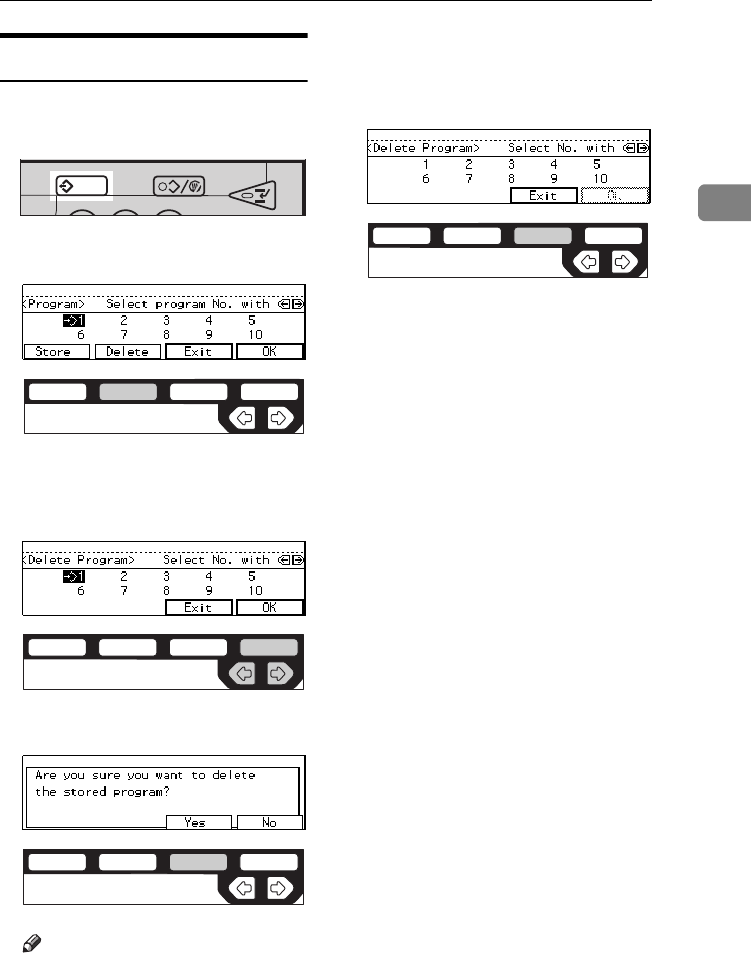
PROGRAM—STORING YOUR COPY SETTINGS IN MEMORY
61
2
Deleting A Program
You can delete a stored program.
APress the {
Program
} key.
BPress the [
Delete
] key.
CSelect the program number you
want to delete with the <> keys.
Then press the [
OK
] key.
DPress the [
Yes
] key.
Note
❒To cancel the deletion, press the
[
No
] key.
ETo delete another program, repeat
steps C and D.
FPress the [
Exit
] key.
231
eed Dial
ND2R01EE
C
ND2C0102
ND2C0109
ND2C0103
ND2C0103
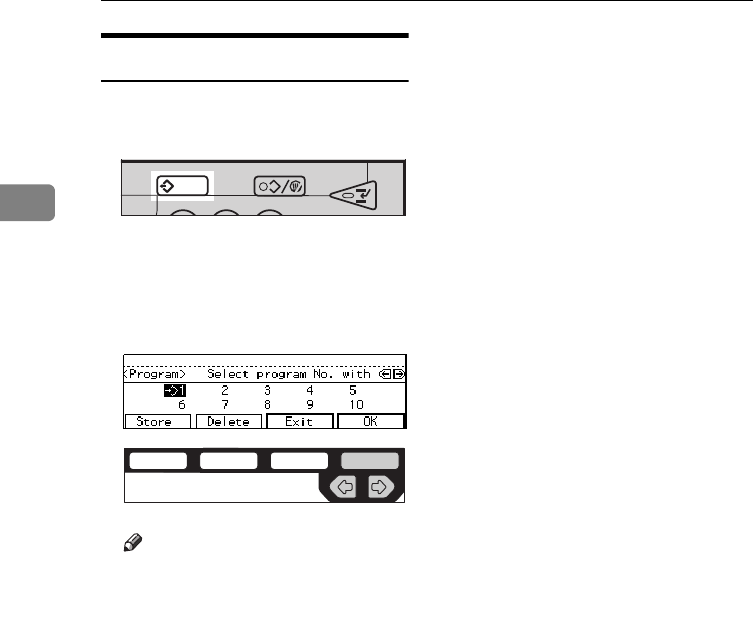
COPYING
62
2
Recalling A Program
You can recall a stored program.
APress the {
Program
} key.
BSelect the program number you
want to recall with the <> keys.
Then, press the [
OK
] key.
The stored settings are displayed.
Note
❒Only programs with m contain
a program.
CSet your originals, then press the
{
Start
} key.
231
eed Dial
ND2R01EE
C
ND2C0109
OTHER FUNCTIONS
63
2
OTHER FUNCTIONS
Energy Saver Mode—Saving
Energy
If you do not operate the machine for
a certain period after copying, or
when you press and hold the {
Clear
Modes/Energy Saver
} key for more than
one second, the display disappears
and the machine enters Energy Saver
mode. When you press the {
Clear
Modes/Energy Saver
} key again, when
the originals are set in the document
feeder, or when the platen cover or
document feeder is opened, the ma-
chine returns to the ready condition.
In Energy Saver mode, the machine
uses less electricity.
The Energy Saver mode makes a two-
step reduction in electricity: one for
the period up to the time set for Low
Power mode, the other for the period
after that time.
Note
❒The period for which the machine
remains in Energy Saver mode (i.e.
the period until the mode is turned
off to return to the ready condi-
tion) varies with the effectiveness
of energy saving.
❒If you press the {
Clear Modes/Energy
Saver
} key during the operation,
the current settings will be cleared.
Reference
See “8. Low Power Timer” of the
System Settings.
Interrupt—Temporarily
Stopping One Job To Copy
Something Else
You can make urgently needed copies
during a multi-copy run.
APress the {
Interrupt
} key.
The key indicator lights.
BRemove the originals currently
set for copying, and set your orig-
inals for interrupt copying. Make
your copies.
CAfter interrupt copying, remove
the originals for interrupt copy-
ing and the copies.
DPress the {
Interrupt
} key again.
The key indicator goes off.
EReset the previous originals.
Then, press the {
Start
} key.
Note
❒The previous copy settings are
recalled and the previous copy
job can be resumed by pressing
the {
Start
} key.
User Codes
If the machine is set to use the User
Code function, operators must input
their user codes before the machine
can be operated. The machine keeps
count of the number of copies made
under each user code.
Note
❒When the machine is set for user
codes, the machine will prompt
COPYING
64
2
you for your user codes after the
operation switch is on or the Auto
Reset comes into effect.
❒To prevent others from making
copies using your user code, press
the {
Clear Modes/Energy Saver
} and
{
Clear/Stop
} keys simultaneously
after copying.
Reference
For setting user codes, see ⇒ P.154
“1. General Features 4/4”.
Auto Start—Entering Copy
Job Settings During The
Warm-up Period
If you press the {
Start
} key during the
warm-up period, the {
Start
} key will
blink, and your copies will be made
as soon as warm-up finishes.
AMake any adjustments to copy
settings during the warm-up peri-
od.
BSet your originals.
CPress the {
Start
} key.
The {
Start
} key indicator alternate-
ly flashes red and green.
Note
❒To cancel Auto Start, press the
{
Clear/Stop
} key.
Original Beeper
The beeper sounds and an error mes-
sage is displayed when you leave
your originals on the exposure glass
for about two seconds after copying.
Note
❒To cancel this function, see “06.
Original Beeper” in ⇒ P.152 “1.
General Features 2/4”.
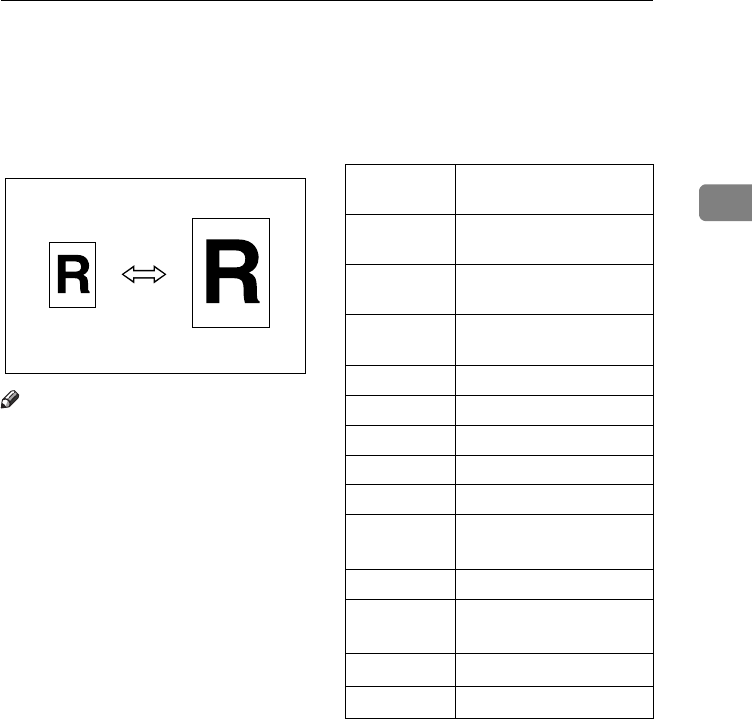
PRESET REDUCE/ENLARGE—REDUCING AND ENLARGING USING PRESET RATIOS
65
2
PRESET REDUCE/ENLARGE—REDUCING
AND ENLARGING USING PRESET RATIOS
You can select a preset ratio for copy-
ing.
Note
❒You can select one of 12 present ra-
tios (5 enlargement ratios, 7 reduc-
tion ratios).
❒You can change the preset ratios to
other ratios you frequently use. See
“08. Reproduction ratio” in⇒
P.152 “1. General Features 2/4”.
❒You can select a ratio regardless of
the size of an original or copy pa-
per. With some ratios, parts of the
image might not be copied or mar-
gins will appear on copies.
❒Copies can be reduced or enlarged
as follows:
❖
❖❖
❖
Metric version
*1 Type 3 only
*2 Type 1 and Type 2 only
Ratio (%)
Original → Copy paper
size
400 (enlarge
area by 16) --
200 (enlarge
area by 4) A5→Α3
141 (enlarge
area by 2) A4→Α3, Α5→Α4
122 F→Α3, Α4→Β4
115 B4→Α3
93 A little reduced.
87 A3→Β4
82 F→Α4, Β4→F
71 (reduce
area by 1/2)
A3→Α4, Α4→Α5
65 A3→F
50 (reduce
area by 1/4)
A3→Α5, F→Α5
35 *1 --
25 *2 --
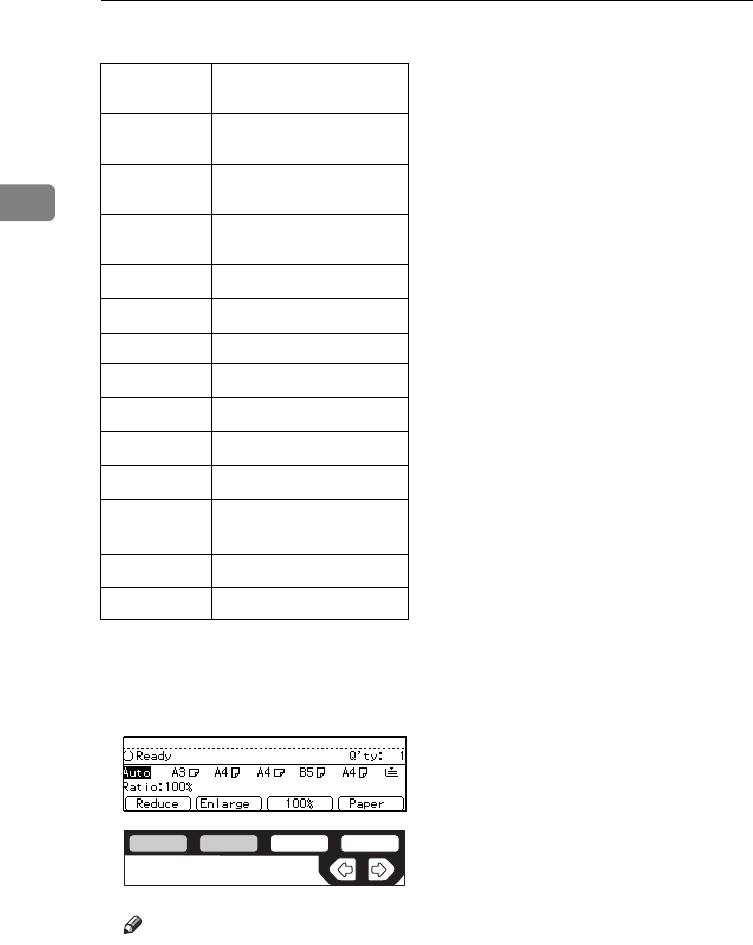
COPYING
66
2
❖
❖❖
❖
Inch version
*1 Type 3 only
*2 Type 1 and Type 2 only
APress the [
Enlarge
] or [
Reduce
] key
to select a ratio.
Note
❒Another preset ratio is dis-
played every time you press the
key.
BSet your originals, then press the
{
Start
} key.
Ratio(%) Original → Copy paper
size
400 (enlarge
area by 16) --
200 (enlarge
area by 4) 51/2" × 81/2"→11" × 17"
155 (enlarge
area by 2) 51/2" × 81/2"→81/2" × 14"
129 81/2" × 11"→11" × 17"
121 81/2" × 14"→11" × 17"
93 A little reduced.
85 F→81/2" × 11"
78 81/2" × 14"→81/2" × 11"
73 11" × 14"→81/2" × 11"
65 11" × 17"→81/2" × 11"
50 (reduce
area by 1/4)11" × 17"→51/2" × 81/2"
32 *1 --
25 *2 --
ND2C0110
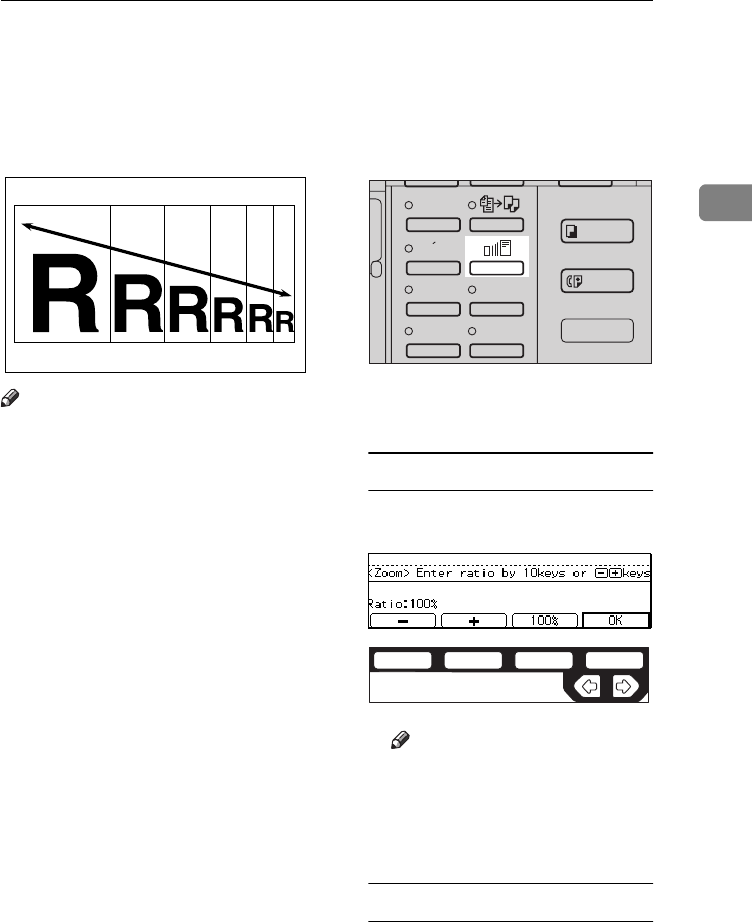
ZOOM—REDUCING AND ENLARGING IN 1 % STEPS
67
2
ZOOM—REDUCING AND ENLARGING IN 1
% STEPS
You can change the reproduction ra-
tio in 1 % steps.
Note
❒The following ratios can be select-
ed:
• Type 1, Type 2
Metric version: 25 – 400 %
Inch version: 25 – 400 %
• Type 3
Metric version: 35 – 400 %
Inch version: 32 – 400 %
❒You can select a ratio regardless of
the size of an original or copy pa-
per. With some ratios, parts of the
image might not be copied or mar-
gins will appear on copies.
❒You can select a preset ratio which
is near the desired ratio, then press
the {
Zoom
} key and adjust the ratio
with the [n] or [o] key.
APress the {
Zoom
} key.
BEnter the ratio.
When using the [n] or [o] key
AEnter the desired reproduction
ratios with the [o] or [n] key.
Note
❒To change the ratio in 1 %
steps, just press the [n] or
[o] key. To change the ratio
in 10 % steps, press and hold
down the [n] or [o] key.
When using the {
Number
} keys
AEnter the desired ratio with the
{
Number
} keys.
Enhanced
Image
1
3
Menu
Menu
Meny
2
4
ND2L0204
ND2C0100

COPYING
68
2
Note
❒To change the ratio entered,
press the {
Clear/Stop
} key
and enter the new ratio.
CSet your originals, then press the
{
Start
} key.
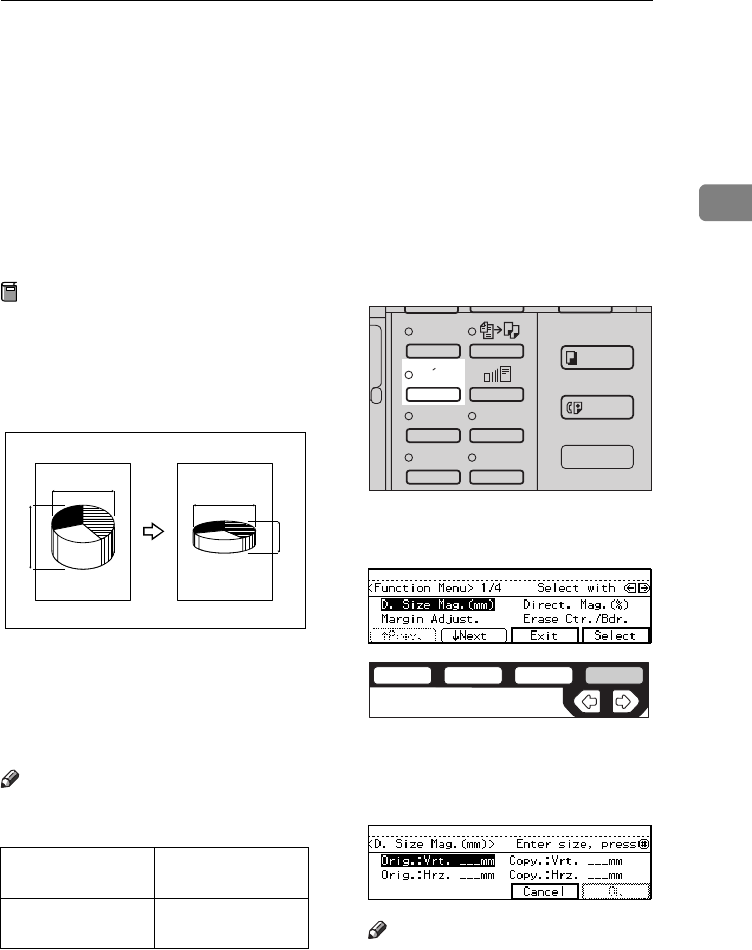
DIRECTIONAL SIZE MAGNIFICATION (MM)—STRETCHING AND SQUEEZING THE
IMAGE INTO THE COPY AREA
69
2
DIRECTIONAL SIZE MAGNIFICATION
(MM)—STRETCHING AND SQUEEZING THE
IMAGE INTO THE COPY AREA
The suitable reproduction ratios will
be automatically selected when you
enter the horizontal and vertical
lengths of the original and copy im-
age you want.
Preparation
Specify the vertical and horizontal
sizes of the original and those of
the copy, as shown in the illustra-
tion.
1: Horizontal original size
2: Vertical original size
3: Horizontal copy size
4: Vertical copy size
Note
❒You can enter sizes within the fol-
lowing ranges:
❒If the calculated ratio is over the
maximum or under the minimum
ratio, it is corrected within the
range of the ratio automatically.
However, with some ratios, parts
of the image might not be copied
or blank margins will appear on
copies.
APress the {
Menu
} key.
BPress the [
Select
] key.
CEnter the vertical size of the origi-
nal with the {
Number
} keys. Then,
press the {
#
} or > key.
Note
❒To change the value entered:
• If you have not pressed the
{
#
} key yet, press the {
Clear/
Metric version 1 – 999 mm (in 1
mm steps)
Inch version 0.1" – 99.9" (in 0.1"
steps)
13
24
CP2M01EE
Enhanced
Image
1
3
Menu
Menu
Meny
2
4
ND2L0203
ND2C0104

COPYING
70
2
Stop
} key and enter the new
value.
• If you have already pressed
the {
#
} key, select the
[
Orig.:Vrt.
] with the <> key
and enter the new value.
DEnter the vertical size of the copy
with the {
Number
} keys. Then,
press the {
#
} or >key.
EEnter the horizontal size of the
original with the {
Number
} keys.
Then, press the {
#
} or >key.
FEnter the horizontal size of the
copy with the {
Number
} keys.
Then, press the [
OK
] key.
GSet your originals, then press the
{
Start
} key.
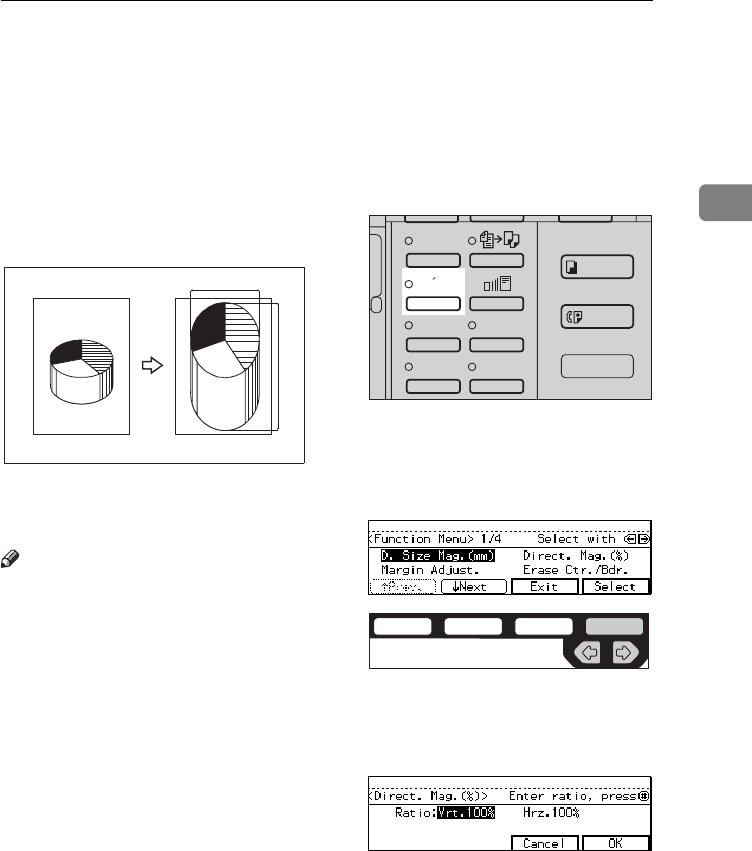
DIRECTIONAL MAGNIFICATION (%)—STRETCHING AND SQUEEZING THE IMAGE IN
1 % STEPS
71
2
DIRECTIONAL MAGNIFICATION (%)—
STRETCHING AND SQUEEZING THE IMAGE
IN 1 % STEPS
Copies can be reduced or enlarged at
different reproduction ratios horizon-
tally and vertically.
1: Horizontal %
2: Vertical %
Note
❒The following ratios can be select-
ed:
• Type 1, Type 2
Metric version: 25 – 400 %
Inch version: 25 – 400 %
• Type 3
Metric version: 35 – 400 %
Inch version: 32 – 400 %
❒You can select a ratio regardless of
the size of an original or copy pa-
per. With some ratios, parts of the
image might not be copied or
blank margins will appear on cop-
ies.
APress the {
Menu
} key.
BSelect the [
Direct. Mag. (%)
] key
with < or > key. Then, press the
[
Select
] key.
CEnter the desired vertical ratio
with the {
Number
} keys. Then,
press the {
#
} key or the > key.
a%
b%
CP2P01EE
Enhanced
Image
1
3
Menu
Menu
Meny
2
4
ND2L0203
ND2C0109
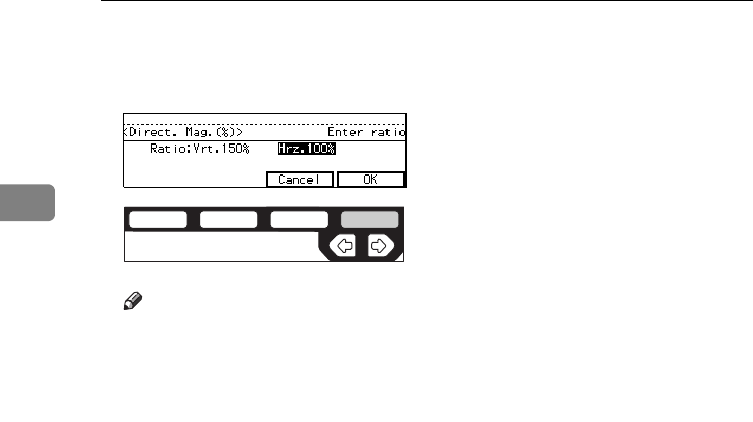
COPYING
72
2
DEnter the desired horizontal ratio
with the {
Number
} keys. Then,
press the [
OK
] key.
Note
❒To change the number entered,
press the {
#
} key or the <>
keys, then enter the new num-
ber.
ESet your originals, then press the
{
Start
} key.
ND2C0104
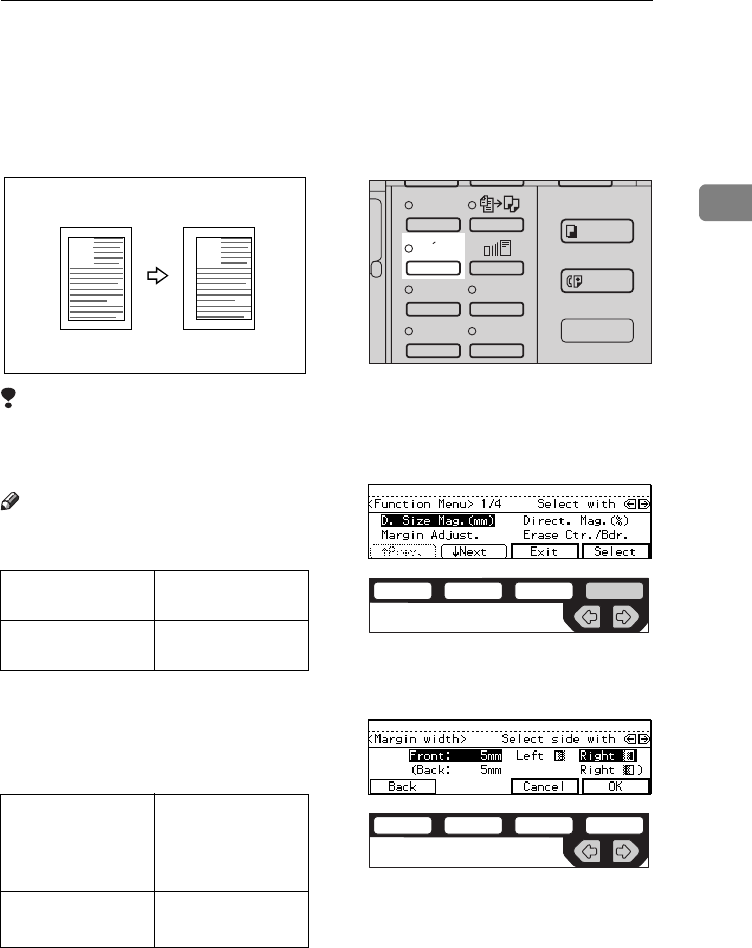
MARGIN ADJUSTMENT—ADJUSTING THE MARGIN
73
2
MARGIN ADJUSTMENT—ADJUSTING THE
MARGIN
You can shift the image either left or
right to make a binding margin.
Limitation
❒If you set too wide margin, areas
you do not want to delete might be
erased.
Note
❒You can change the width of the
binding margin as follows:
❒The margin width default is as fol-
lows. You can change this default
setting with the user tools. See “3.
Marg.Adjust.Front” in ⇒ P.155 “2.
Adjust Image 1/2”.
APress the {
Menu
} key.
BSelect the [
Margin Adjust.
] with the
<> keys. Then, press the [
Select
]
key.
CSelect [
Left
] (left margin) or [
Right
]
(right margin) with the <> keys.
DEnter the desired margin width
with the {
Number
} keys.
Metric version 0 – 30 mm (in 1
mm steps)
Inch version 0" – 1.0" (in 0.1"
steps)
Metric version • Front: 5 mm
Left
• Back: 5 mm
Right
Inch version • Front: 0.2" Left
• Back: 0.2" Right
AA
Enhanced
Image
1
3
Menu
Menu
Meny
2
4
ND2L0203
ND2C0109
ND2C0105
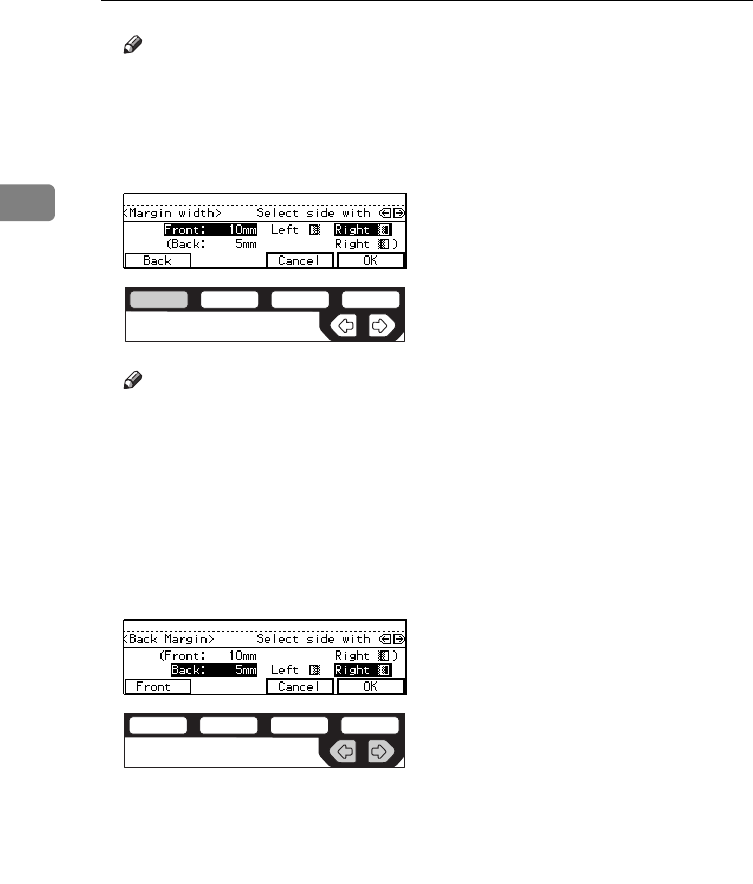
COPYING
74
2
Note
❒To change the value entered,
press the {
Clear/Stop
} key and
enter the new value.
ETo specify a binding margin for
back pages, press the [
Back
] key.
Note
❒You can specify the back margin
only when the Duplex or the
Two-Sided copy with Combine
is selected.
❒If you do not need to specify the
back margin, press the [
OK
] key
and go to Step H.
FSelect [
Left
] (left margin) or [
Right
]
(right margin) with the <> keys.
GEnter the desired margin width
the {
Number
} keys. Then, press
the [
OK
] key.
HSet your originals, then press the
{
Start
} key.
ND2C0101
ND2C0105
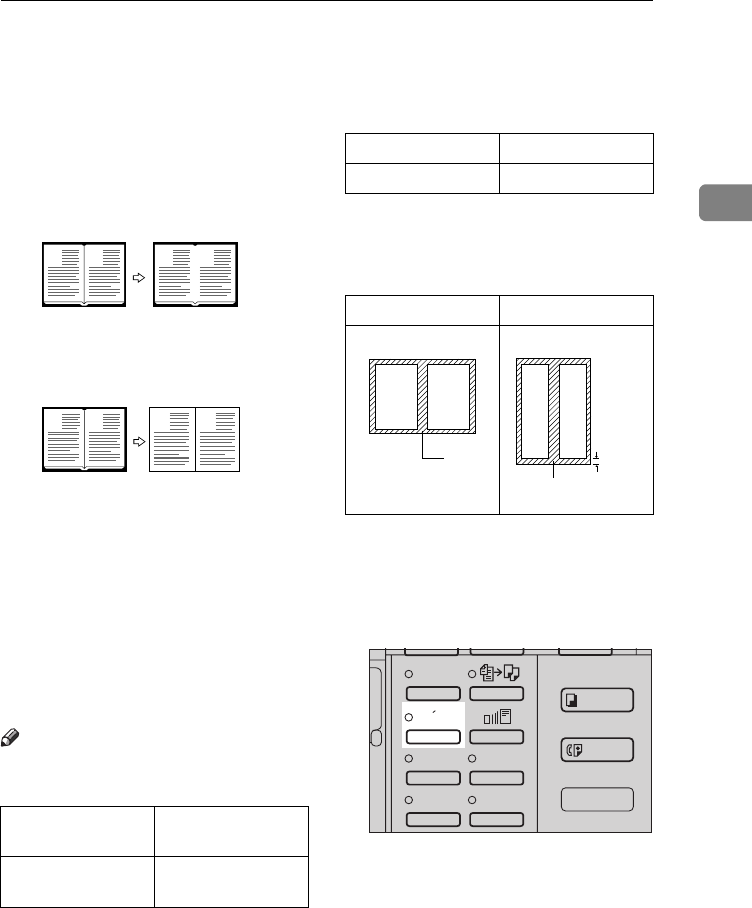
ERASE CENTRE/BORDER—ERASING THE CENTRE AND THE BORDER
75
2
ERASE CENTRE/BORDER—ERASING THE
CENTRE AND THE BORDER
This function erases the centre and/
or all four sides of the original image,
such as book originals.
❖
❖❖
❖
Erase Centre
❖
❖❖
❖
Erase Border
There are two types in this function:
❖
❖❖
❖
Centre
This mode erases the centre mar-
gin of the original image.
❖
❖❖
❖
Border
This mode erases the surrounding
area of the original image.
Note
❒You can change the width of the
erased margin as follows:
❒The default setting of the erased
margin is as follows. You can
change this settings with the user
tools. See “1. Erase Border” and “2.
Erase Centre” in ⇒ P.155 “2. Adjust
Image 1/2”.
❒The position of the margin to be
erased is determined according to
the original size and reproduction
ratio.
1: Erased part
❒You can use the Erase Centre and
Erase Border functions together.
APress the {
Menu
} key.
Metric version 3 – 50 mm (in 1
mm steps)
Inch version 0.1" – 2.0" (in 0.1"
steps)
B
AB
A
CenterEE
B
AB
A
BorderEE
Metric version 10 mm
Inch version 0.4"
L copy paper K copy paper
1
3~50mm
1
Enhanced
Image
1
3
Menu
Menu
Meny
2
4
ND2L0203
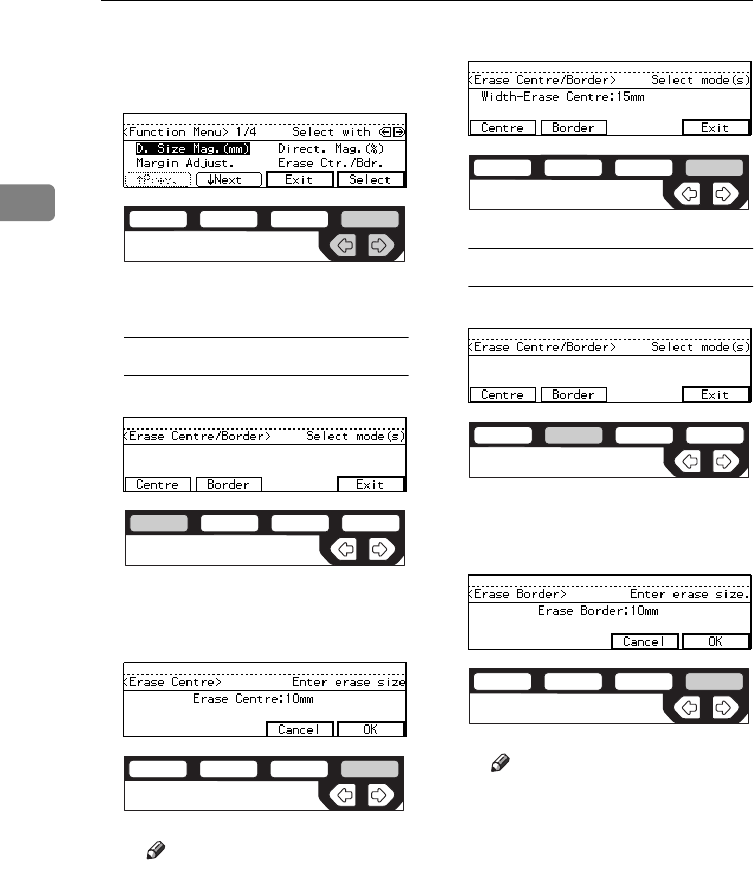
COPYING
76
2
BSelect the [
Erase Ctr./Bdr.
] with the
<> keys. Then, press the [
Select
]
key.
CSelect the part to be erased.
Centre
APress the [
Centre
] key.
BEnter the centre width with the
{
Number
} keys. Then press the
[
OK
] key.
Note
❒To change the value entered,
press the {
Clear/Stop
} key
and enter the new value.
CPress the [
Exit
] key.
Border
APress the [
Border
] key.
BEnter the border width with
the {
Number
} keys. Then press
the [
OK
] key.
Note
❒To change the value entered,
press the {
Clear/Stop
} key
and enter the new value.
ND2C0109
ND2C0101
ND2C0104
ND2C0104
ND2C0102
ND2C0104
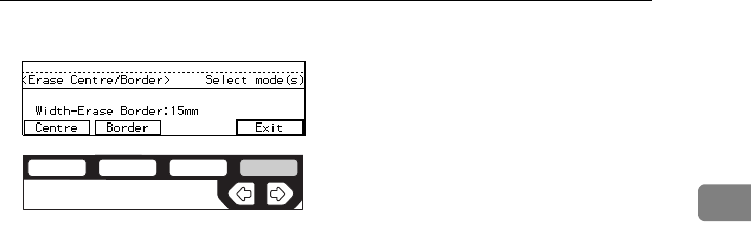
ERASE CENTRE/BORDER—ERASING THE CENTRE AND THE BORDER
77
2
CPress the [
Exit
] key.
DSet your originals, then press the
{
Start
} key.
ND2C0104
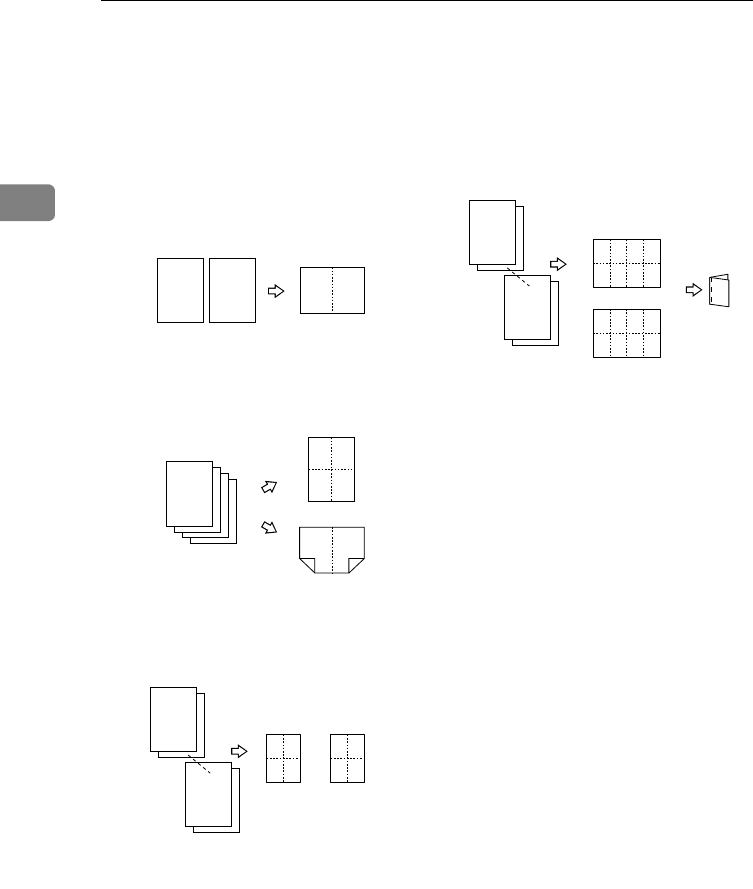
COPYING
78
2
COMBINE—COMBINING ORIGINALS INTO
ONE COPY
The optional document feeder is required to use this function.
You can make 1 sheet of copies from 2
or more one sided originals.
❖
❖❖
❖
2 pages
→
1-sided
❖
❖❖
❖
4 pages
→
1-sided, 4 pages
→
2-sided
❖
❖❖
❖
8 pages
→
2-sided
❖
❖❖
❖
16 pages
→
booklet
1: Front
2: Back
There are five types in this function.
❖
❖❖
❖
2 pages
→
1-sided
This mode makes two facing pages
on one-sided copy.
❖
❖❖
❖
4 pages
→
1-sided
4 one-sided pages are copied on to
1 one-sided sheet.
❖
❖❖
❖
4 pages
→
2-sided (Type 1 requires the
optional 8 MB copier memory unit and
duplex unit.)
4 one-sided paper are copied onto
1 two-sided sheet, 2 original imag-
es on each side.
❖
❖❖
❖
8 pages
→
2-sided (Type 1 requires the
optional 8 MB copier memory unit and
duplex unit.)
8 one-sided pages are copied on to
1 two-sided sheet, 4 original imag-
es on each side.
Combine1
12 12
Combine2
43
12
23
1
4
3
1
4
2
Combine3
2
1
8
7
3
4
1
2
7
8
5
6
12
Combine4
14
13 16
58
12
9
76
11 10
32
1415
2
1
16
15
1
2
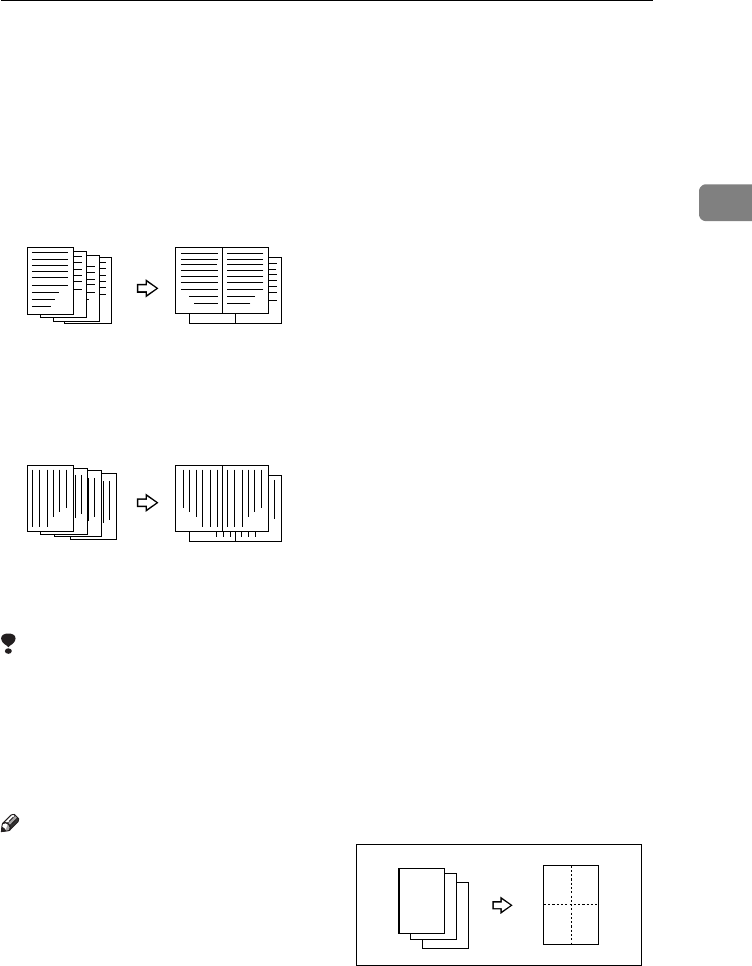
COMBINE—COMBINING ORIGINALS INTO ONE COPY
79
2
❖
❖❖
❖
16 pages
→
booklet (Type 1 requires
the optional 8 MB copier memory unit
and duplex unit.)
This mode makes a booklet copy of
16 pages from 16 one-sided origi-
nals.
Setting Originals (Originals set in the
document feeder)
• Originals reading from left to right
• Originals reading from top to bot-
tom
Limitation
❒You cannot use this function in
Duplex mode.
❒You cannot use the bypass tray
with this function.
❒The machine cannot copy originals
different in size and direction.
Note
❒The number of originals copied
(combined) can be 2, 4, 8, or 16.
❒In this mode, the machine selects
the reproduction ratio automati-
cally. This reproduction ratio de-
pends on the copy paper sizes and
the number of originals.
❒The machine uses ratios in the fol-
lowing range:
• Type 1, Type 2
Metric version: 25 – 400 %
Inch version: 25 – 400 %
• Type 3
Metric version: 35 – 400 %
Inch version: 32 – 400 %
❒If the calculated ratio is under the
minimum ratio, it is corrected
within the range of the ratio auto-
matically. However, with some ra-
tios, parts of the image might not
be copied or blank margins appear
on copies.
❒Separation line between originals
can be printed with the user tools.
See “6. Combine Copy” in⇒ P.157
“2. Adjust Image 2/2”.
❒Even if the direction of originals is
different from that of the copy pa-
per, the machine will automatical-
ly rotate the image by 90° to make
copies properly.
❒You can make copies even if the
number of originals is less than the
number required in the selected
mode. You can also disable this
function with the user tools. See “2.
Comb. Auto Eject” in ⇒ P.160 “3.
Input/Output 1/2”.
❒When the number of originals
placed is less than the number
specified for combining, the last
page (s) will be copied blank as
shown in the illustration.
❒In the 4 pages→2-sided mode or 8
pages→2-sided mode, you can
Combine5
34
12
4
3
2
1
Combine6
3
4
1
2
4
321
3
2
1
3
21
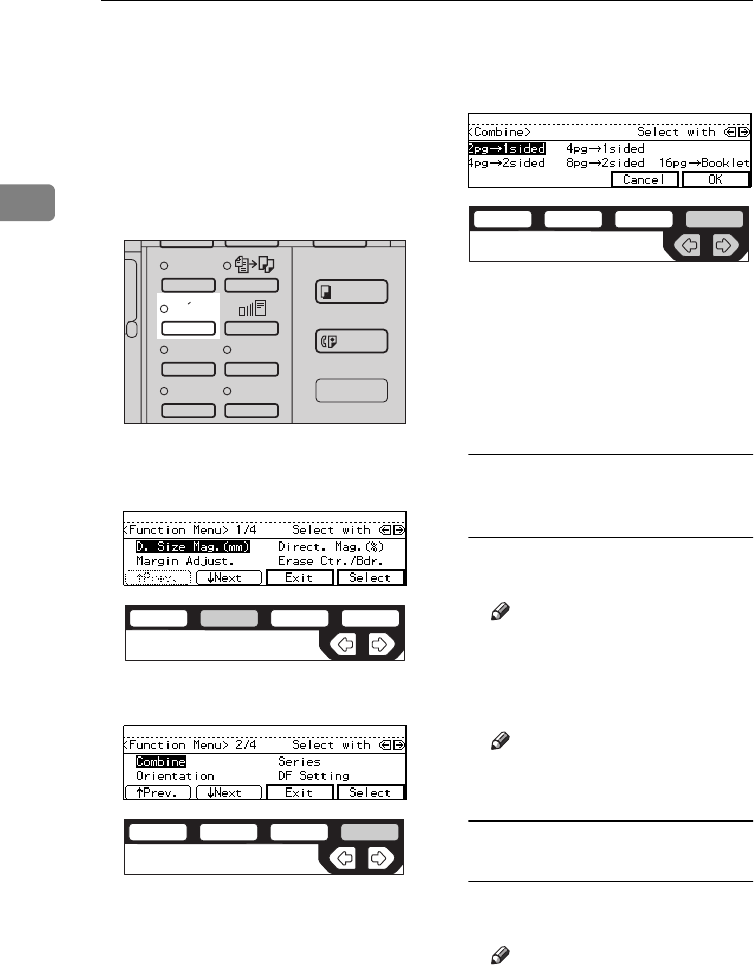
COPYING
80
2
specify the orientation of originals
([
Top to Top
][
Top to Bottom
]). See ⇒
P.88 “Specifying Orientation of
Bound Originals”.
AIf Duplex mode is selected, press
the {
Duplex
} key to cancel the
mode.
BPress the {
Menu
} key.
CPress the [↓
↓↓
↓
Next
] key until the
[
Combine
] is displayed.
DPress the [
Select
] key.
ESelect the desired combine modes
with the <> keys. Then, press
the
[
OK
] key.
FPress the [
Exit
] key.
GPress the [
Paper
] key or <> key
to select the copy paper.
HSet your originals, then press the
{
Start
} key.
When setting an original on the
exposure glass or in the
document feeder
ASet the original, then press the
{
Start
} key.
Note
❒Start with the first page to be
copied.
BSet the next original, then
press the {
Start
} key.
Note
❒To finish copying, press the
{
#
} key to eject the copy.
When setting a stack of originals
in the document feeder
ASet your originals, then press
the {
Start
} key.
Note
❒The last page should be on
the bottom.
Enhanced
Image
1
3
Menu
Menu
Meny
2
4
ND2L0203
ND2C0102
ND2C0104
ND2C0109
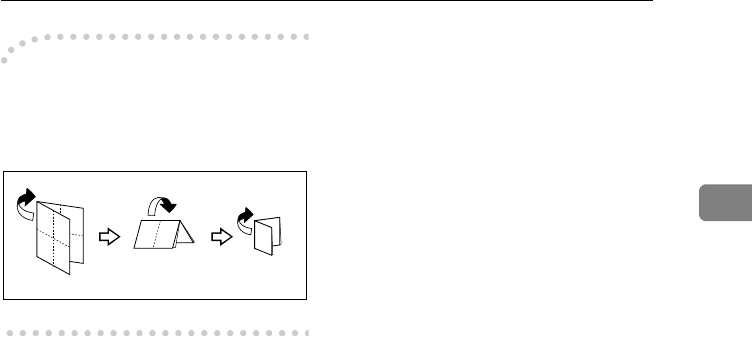
COMBINE—COMBINING ORIGINALS INTO ONE COPY
81
2
-
--
-Making a booklet
If you want to make a booklet from 16
originals, fold copies as shown in the
illustration.
6
3
1
16
9
8
5
1
16
9
1
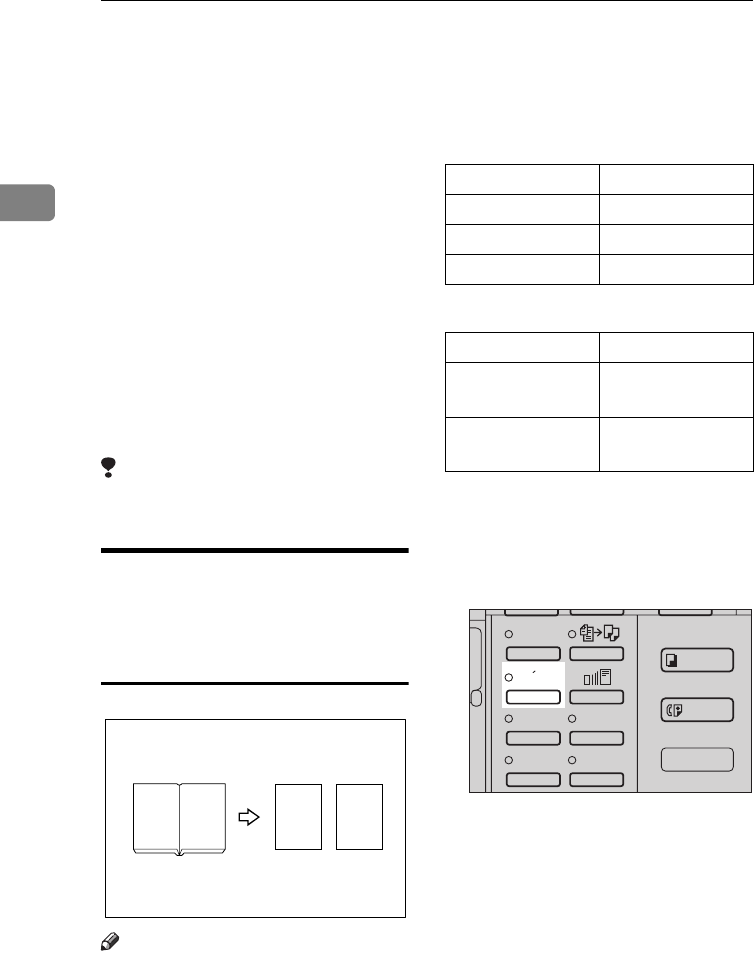
COPYING
82
2
SERIES COPIES—MAKING ONE-SIDED
COPIES FROM VARIOUS ORIGINALS
You can make one-sided copies from
two facing pages of bound (book)
originals and from two-sided origi-
nals.
There are two types in this function:
❖
❖❖
❖
Book
→
1-Sided
You can make one-sided copies
from two facing pages of a bound
original (book).
❖
❖❖
❖
2-Sided
→
1-Sided (The optional doc-
ument feeder is required.)
You can make one-sided copies
from two-sided originals.
Limitation
❒You cannot use this function in
Duplex mode.
Book
→
1-Sided—Making
One-sided Copies From Two
Facing Page Of A Bound
Original (Book)
Note
❒Refer to the following table when
you select original and copy paper
sizes with 100 % ratio:
❖
❖❖
❖
Metric version
❖
❖❖
❖
Inch version
AIf Duplex mode is selected, press
the {
Duplex
} key to cancel the
mode.
BPress the {
Menu
} key.
12
12
Original Copy paper
A3LA4K × 2 sheets
B4LB5K × 2 sheets
A4LA5K × 2 sheets
Original Copy paper
11" × 17"L81/2" × 11"K × 2
sheets
81/2" × 11"L51/2" × 81/2"K × 2
sheets
Enhanced
Image
1
3
Menu
Menu
Meny
2
4
ND2L0203
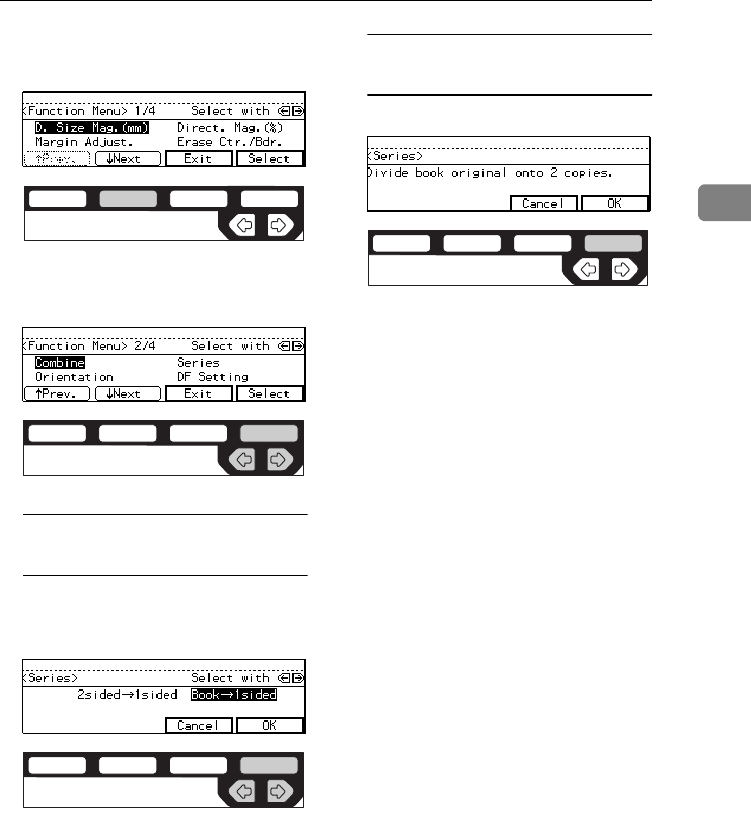
SERIES COPIES—MAKING ONE-SIDED COPIES FROM VARIOUS ORIGINALS
83
2
CPress the [↓
↓↓
↓
Next
] key until [
Series
]
is displayed.
DSelect [
Series
] with the <> keys.
Then, press the [
Select
] key.
With the optional document
feeder
ASelect the [
Book
→
1sided
] with
the <> keys. Then, press the
[
OK
] key.
Without the optional document
feeder
APress the [
OK
] key.
ESet your originals, then press the
{
Start
} key.
ND2C0102
ND2C0109
ND2C0109
ND2C0104
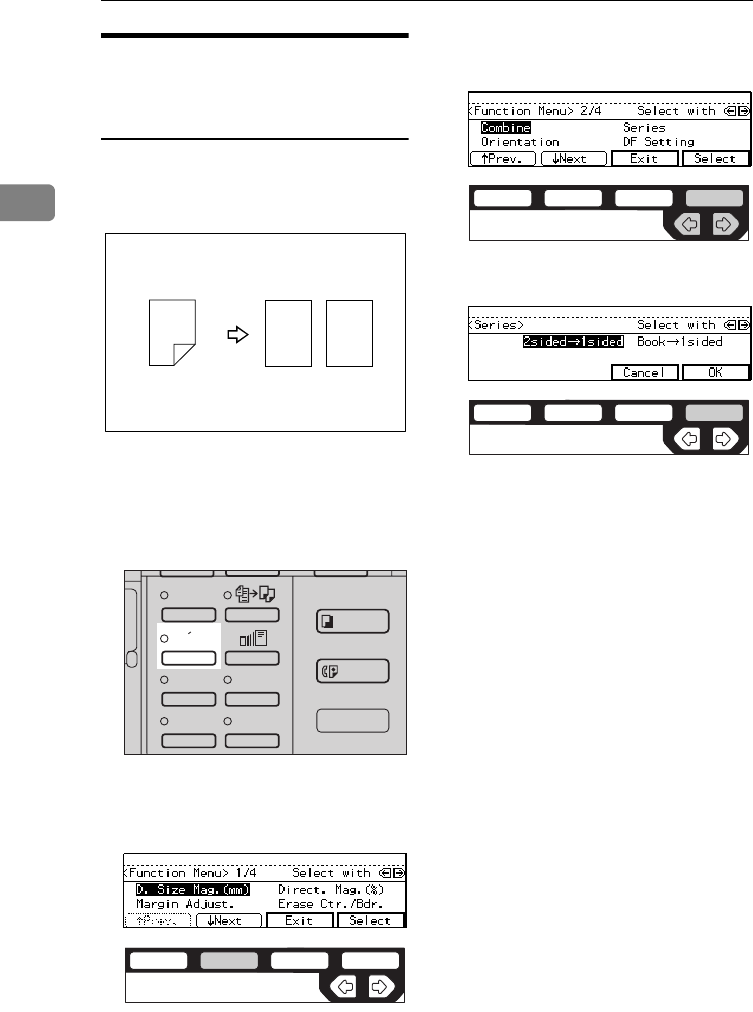
COPYING
84
2
2-Sided
→
1-Sided—Making
One-sided Copies From Two-
sided Originals
The optional document feeder is required
to use this function.
AIf Duplex mode is selected, press
the {
Duplex
} key to cancel the
mode.
BPress the {
Menu
} key.
CPress the [↓
↓↓
↓
Next
] key until [
Series
]
is displayed.
DSelect [
Series
] with the <> keys.
Then, press the [
Select
] key.
EPress the [
OK
] key.
FSet your originals, then press the
{
Start
} key.
12
1
2
Enhanced
Image
1
3
Menu
Menu
Meny
2
4
ND2L0203
ND2C0102
ND2C0109
ND2C0104
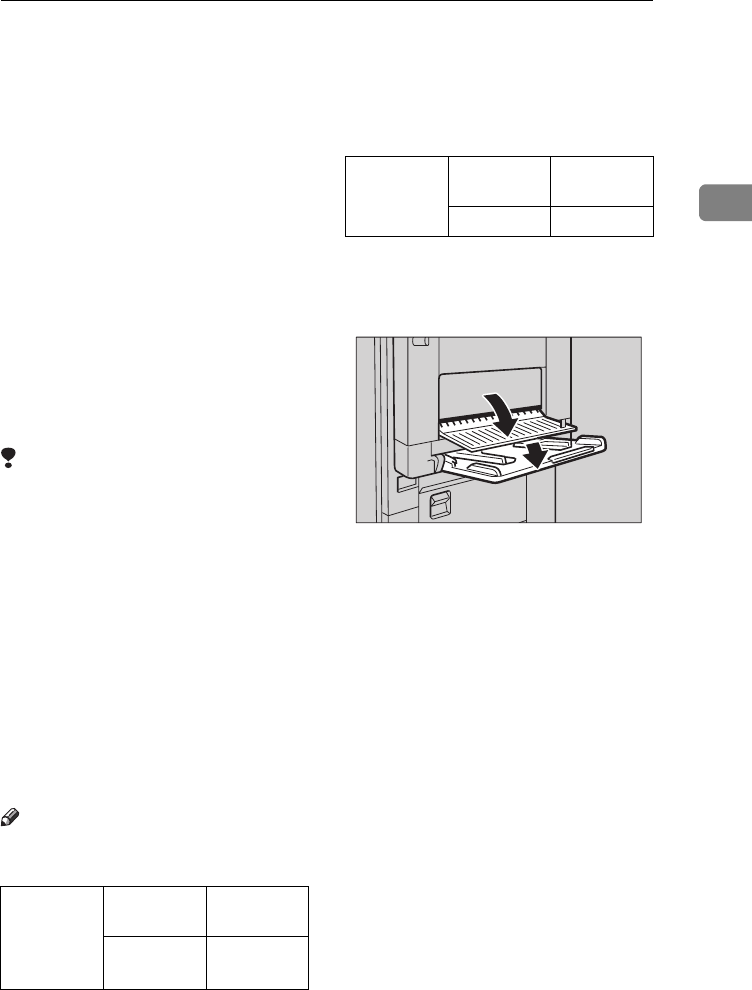
DUPLEX—MAKING TWO-SIDED COPIES
85
2
DUPLEX—MAKING TWO-SIDED COPIES
Type 1 requires the optional duplex unit, interchange unit, and 8 MB copier memory
unit to use this function.
There are three ways in this function:
❖
❖❖
❖
1-sided
→
2-sided
This mode makes two-sided copies
from one-sided originals.
❖
❖❖
❖
Book
→
2-sided
This mode makes two-sided copies
from facing pages of a bound orig-
inal (book).
❖
❖❖
❖
2-sided
→
2-sided
This mode makes two-sided copies
from two-sided originals.
Limitation
❒You cannot use the following copy
paper in this function:
• Paper smaller than A5, 51/2" ×
81/2"
• Translucent paper
• Adhesive labels
• OHP transparencies
•Post cards
❒You cannot use the bypass tray
with this function.
❒The optional copier hard disk is re-
quired to make enhanced-image
copies.
Note
❒The following paper limitations
apply:
❒When you make 2-sided copies on
B4, 81/2" × 14" or larger copy pa-
per, open the right side cover. Also
open the bypass tray, if installed.
Metric ver-
sion Minimum
size A5
Weight 64 – 105 g/
m2
Inch ver-
sion Minimum
size 51/2" × 81/2"
Weight 20 – 28 lb
ND6H0200
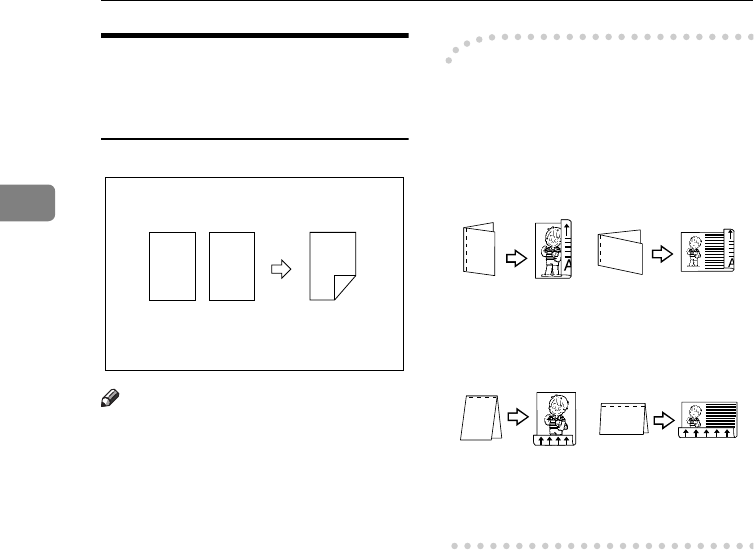
COPYING
86
2
1-Sided → 2-Sided—Making
Two-sided Copies From One-
sided Originals
Note
❒If you set an odd number of 1-sid-
ed originals in the document feed-
er (ADF), the reverse side of the
last page is left blank. You can dis-
able this function to make the de-
livered last page not be blank. See
“1. Duplex Auto Eject” in ⇒ P.160
“3. Input/Output 1/2”.
❒When original images are copied,
the images are shifted by a width
of binding margin. You can adjust
the binding margin or binding po-
sition. You can also change their
default values. See “4. Margin Ad-
just Back” in ⇒ P.155 “2. Adjust Im-
age 1/2”.
-Originals and copy direction
You can select the orientation ([Top to
Top], [Top to Bottom]). See ⇒ P.88
“Specifying Orientation of Bound Origi-
nals”.
•Top to Top
• Top to Bottom
12
2
1
Duplex1
Duplex2
Chapter2 Page 86 Tuesday, May 19, 1998 1:58 PM
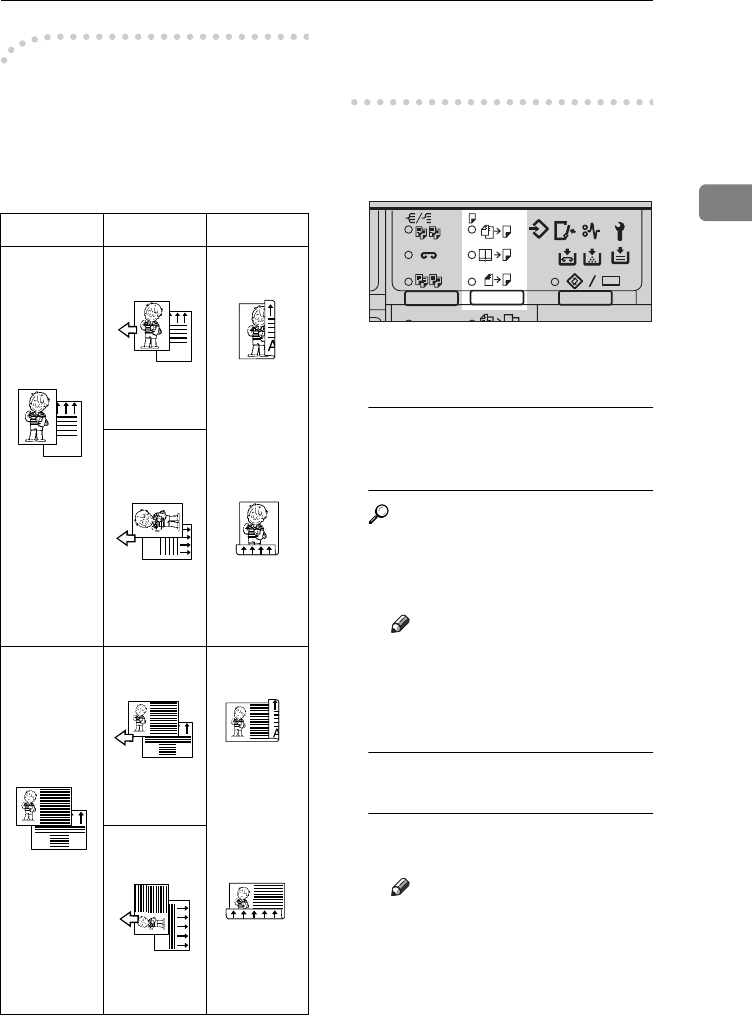
DUPLEX—MAKING TWO-SIDED COPIES
87
2
-Original direction and
completed copies
The resulting copy image will differ
according to the direction in which
you set your original (lengthwise K
or widthwise L).
*1 The illustrations show the directions
of copied images on the front and
back, not the directions of delivery.
APress the {
Duplex
} key until the 1-
Sided→2-Sided indicator (top)
is lit.
BSet your originals.
When setting an original on the
exposure glass or in the
document feeder
Reference
See ⇒ P.33 “SADF mode”
ASet the original, then press the
{
Start
} key.
Note
❒Start with the first page to be
copied.
BSet the next original, then
press the {
Start
} key.
When setting a stack of originals
in the document feeder
ASet your originals, then press
the
{
Start
} key.
Note
❒The last page should be on
the bottom.
Original Orientation Result *1
•[
Top to
Top
]
•[
Top to
Bottom
]
•[
Top to
Top
]
•[
Top to
Bottom
]
Duplex3
ABC
Duplex5
ABC
Duplex9
Duplex10
Duplex6
ABC
Duplex4
BA
Duplex7
BA
Duplex11
Duplex12
Duplex8
BA
2
2
2
1
1
2
2112233
Enhanced
ND2L0102
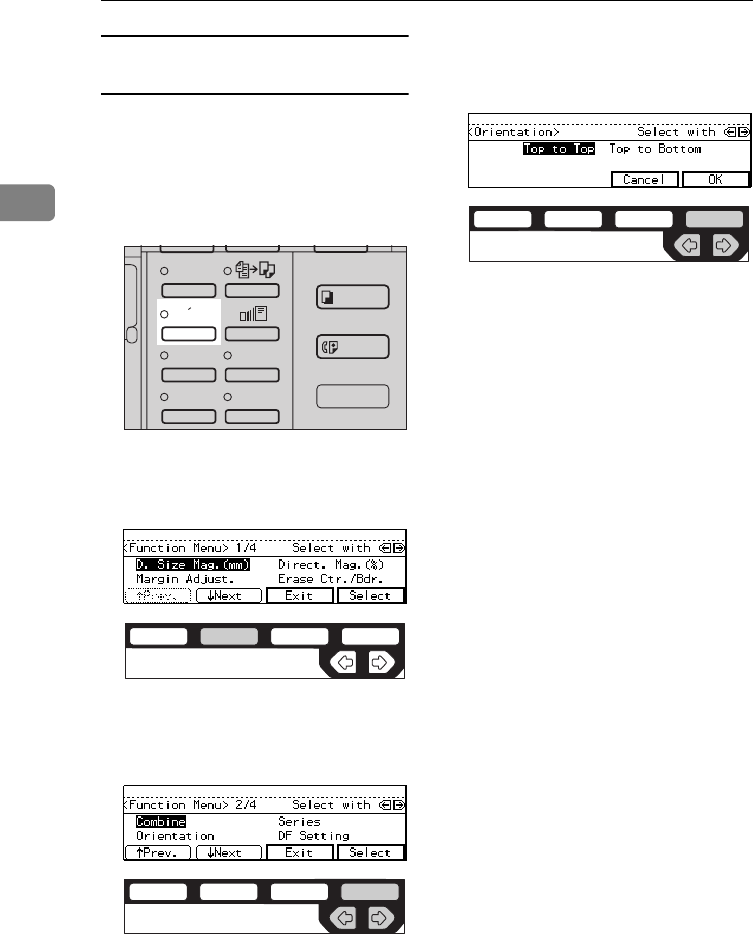
COPYING
88
2
Specifying Orientation of Bound
Originals
You can specify the orientation of
bound originals (how you turn the
pages). The default setting is [
Top to
Top
].
APress the {
Menu
} key.
BPress the [↓
↓↓
↓
Next
] key until [
Orienta-
tion
] is displayed.
CSelect the [
Orientation
] with the
<> keys. Then press the [
Select
]
key.
DSelect the desired orientation
with the <>key. Then, press the
[
OK
] key.
Enhanced
Image
1
3
Menu
Menu
Meny
2
4
ND2L0203
ND2C0102
ND2C0109
ND2C0109
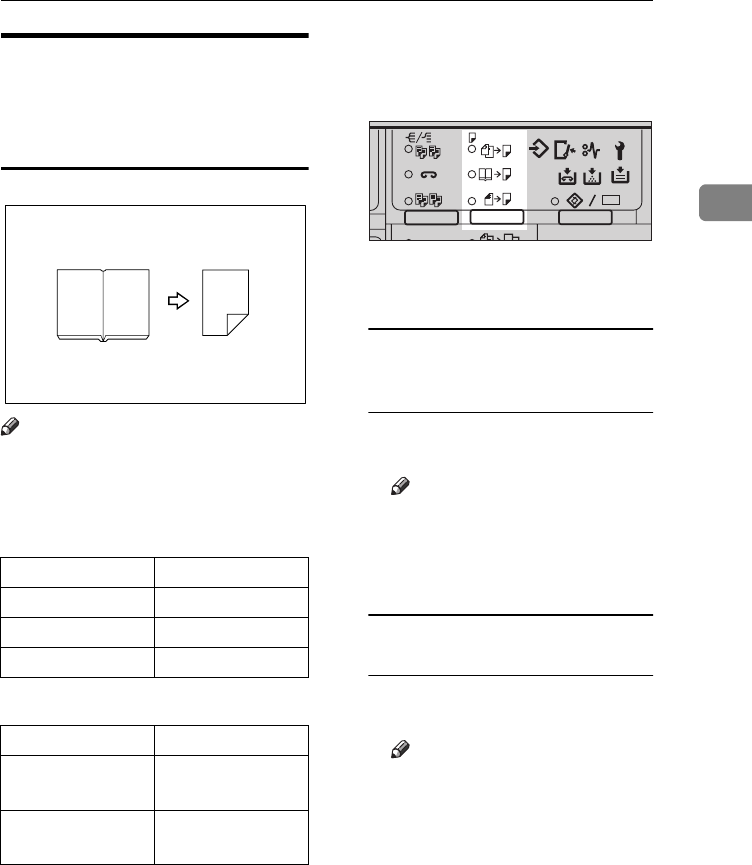
DUPLEX—MAKING TWO-SIDED COPIES
89
2
Book
→
2-Sided—Making
Two-Sided Copies From
Facing Pages Of A Bound
Original (Book)
Note
❒Refer to the following table when
you select original and copy paper
sizes with 100 % ratio:
❖
❖❖
❖
Metric version
❖
❖❖
❖
Inch version
APress the {
Duplex
} key until the
Book→2-Sided indicator (cen-
tre) is lit.
BSet your originals.
When setting an original on the
exposure glass or in the
document feeder
ASet the original, then press the
{
Start
} key.
Note
❒Start with the first page to be
copied.
BSet the next original, then
press the {
Start
} key.
When setting a stack of originals
in the document feeder
ASet your originals, then press
the {
Start
} key.
Note
❒The last page should be on
the bottom.
Original Copy paper
A3LA4 (2-sided)
B4LB5 (2-sided)
A4LA5 (2-sided)
Original Copy paper
11" × 17"L81/2" × 11" (2-sid-
ed)
81/2" × 11"L51/2" × 81/2" (2-sid-
ed)
12
1
2
2
2
2
1
1
2
2112233
Enhanced
ND2L0102
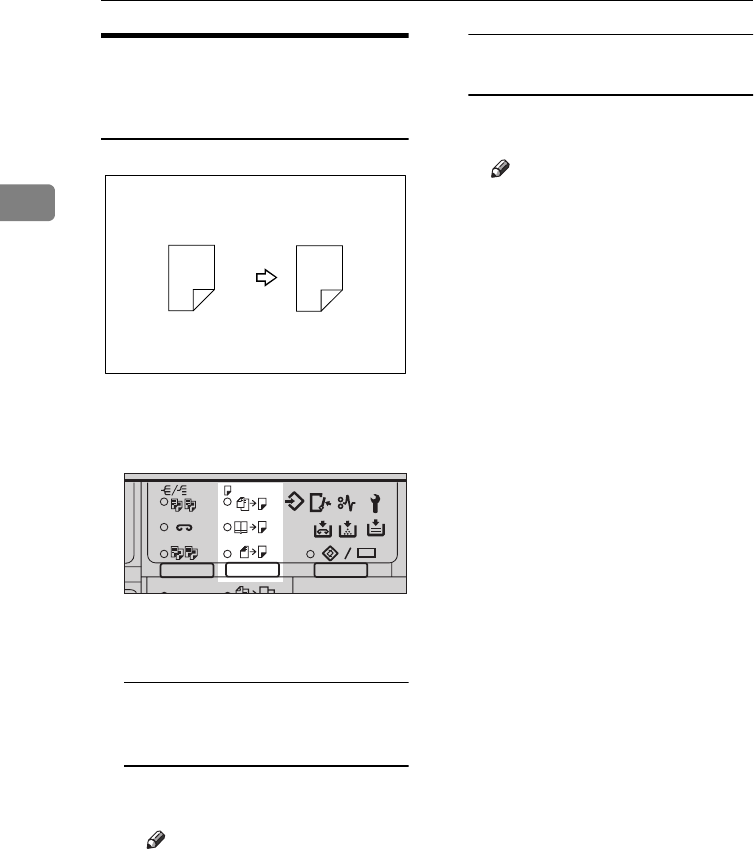
COPYING
90
2
2-Sided
→
2-Sided—Making
Two-sided Copies From Two-
sided Originals
APress the {
Duplex
} key until the 2-
Sided→2-Sided indicator (bot-
tom) is lit.
BSet your originals.
When setting an original on the
exposure glass or in the
document feeder
ASet the original, then press the
{
Start
} key.
Note
❒Start with the first page to be
copied.
BSet the next original, then
press the {
Start
} key.
When setting a stack of originals
in the document feeder
ASet your originals, then press
the {
Start
} key.
Note
❒The last page should be on
the bottom.
1
2
1
2
2
2
2
1
1
2
2112233
Enhanced
ND2L0102
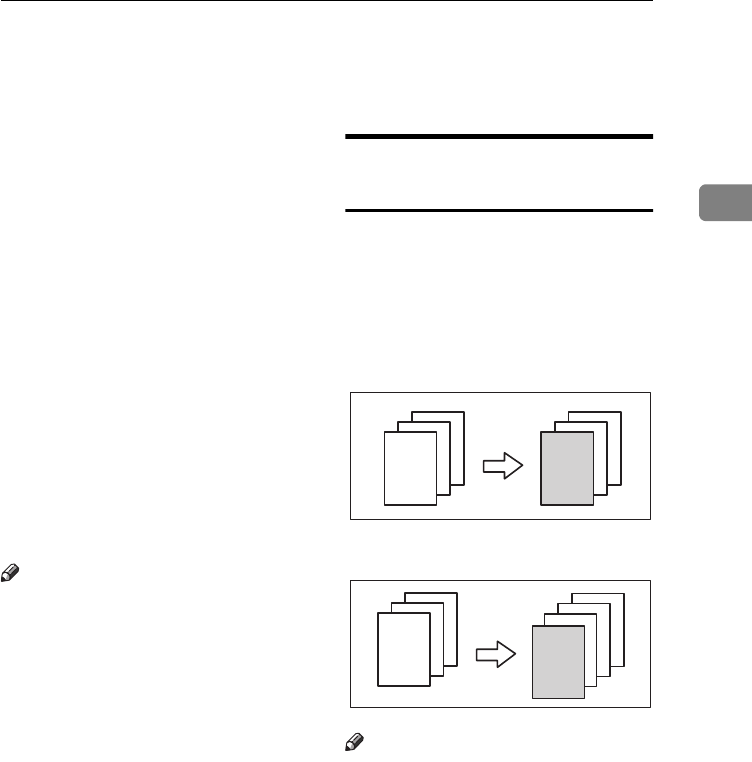
COVER/PAPER DESIGNATE—ADDING OR INSERTING SHEETS
91
2
COVER/PAPER DESIGNATE—ADDING OR
INSERTING SHEETS
In this function, you can add or insert
cover or paper designate.
There are three types in this function:
❖
❖❖
❖
Front Cover (Type 1 requires the op-
tional bypass tray)
The first page of your originals is
copied on a specific paper sheets
for covers.
❖
❖❖
❖
Both Covers (Type 1 requires the op-
tional bypass tray)
The first and last pages of your
originals are copied on specific pa-
per sheets for covers.
❖
❖❖
❖
Paper Designate
Any specified page of your origi-
nals is copied on specific paper
sheets for slip sheet.
Note
❒The cover or slip sheets should be
identical in size and direction with
the copy paper.
❒If Blank Cover mode is selected,
the cover will not be counted as a
copy.
Front Cover—Copying Or
Adding A Front Cover
Type 1 requires the optional bypass tray
to use this function.
The first page of your originals is cop-
ied on a specific paper sheets for cov-
ers.
❖
❖❖
❖
Copy
❖
❖❖
❖
Blank
Note
❒The optional 8 MB copier memory
unit is required to make 2 or more
sets of copies on Type 1.
❒You can specify whether to make a
copy on a sheet for covers. If you
select [
Copy
], the first page will be
copied on the cover sheet. If you
select
[
Blank
], a cover sheet will just
be inserted before the first copy.
3
2
1
3
2
1
3
2
1
3
2
1
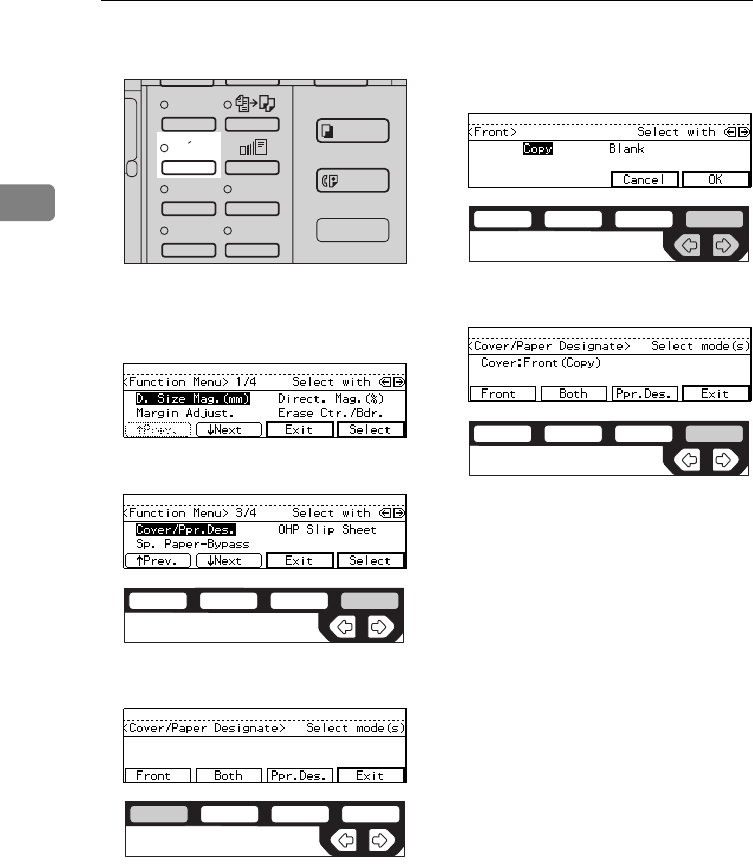
COPYING
92
2
APress the {
Menu
} key.
BPress the [↓
↓↓
↓
Next
] key until [
Cover/
Ppr. Des.
] is displayed.
CPress the [
Select
] key.
DPress the [
Front
] key.
ESpecify whether to copy on a cov-
er sheet with the <> keys. Then,
press the [
OK
] key.
FPress the [
Exit
] key.
GSet cover sheets on the bypass
tray.
HSet your originals, then press the
{
Start
} key.
Enhanced
Image
1
3
Menu
Menu
Meny
2
4
ND2L0203
ND2C0104
ND2C0101
ND2C0109
ND2C0104
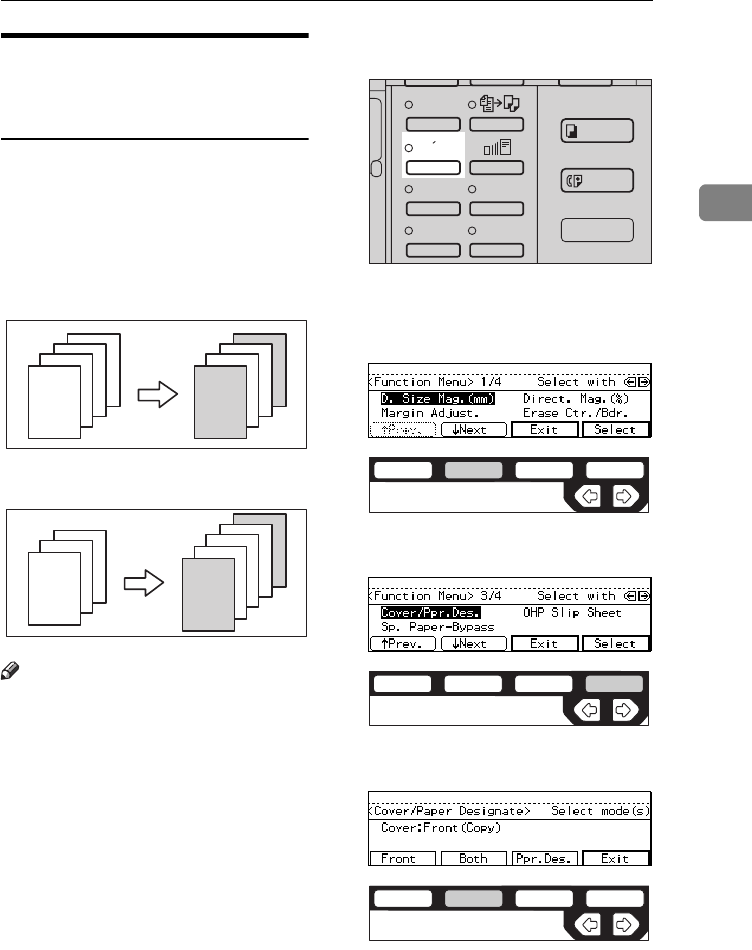
COVER/PAPER DESIGNATE—ADDING OR INSERTING SHEETS
93
2
Both Covers—Copying Or
Adding Front And Back
Covers
Type 1 requires the optional bypass tray
to use this function.
The first and last pages of your origi-
nals are copied on specific paper
sheets for covers.
❖
❖❖
❖
Copy
❖
❖❖
❖
Blank
Note
❒You can specify whether to make a
copy on a cover sheet. If you select
[
Copy
], the first and last pages will
be copied on the cover sheets. If
you select [
Blank
], a cover sheet
will just be inserted before the first
copy and another sheet after the
last copy.
APress the {
Menu
} key.
BPress the [↓
↓↓
↓
Next
] key until [
Cover/
Ppr. Des.
] is displayed.
CPress the [
Select
] key.
DPress the [
Both
] key.
4
3
2
1
4
3
2
1
3
2
1
3
2
1
Enhanced
Image
1
3
Menu
Menu
Meny
2
4
ND2L0203
ND2C0102
ND2C0104
ND2C0102
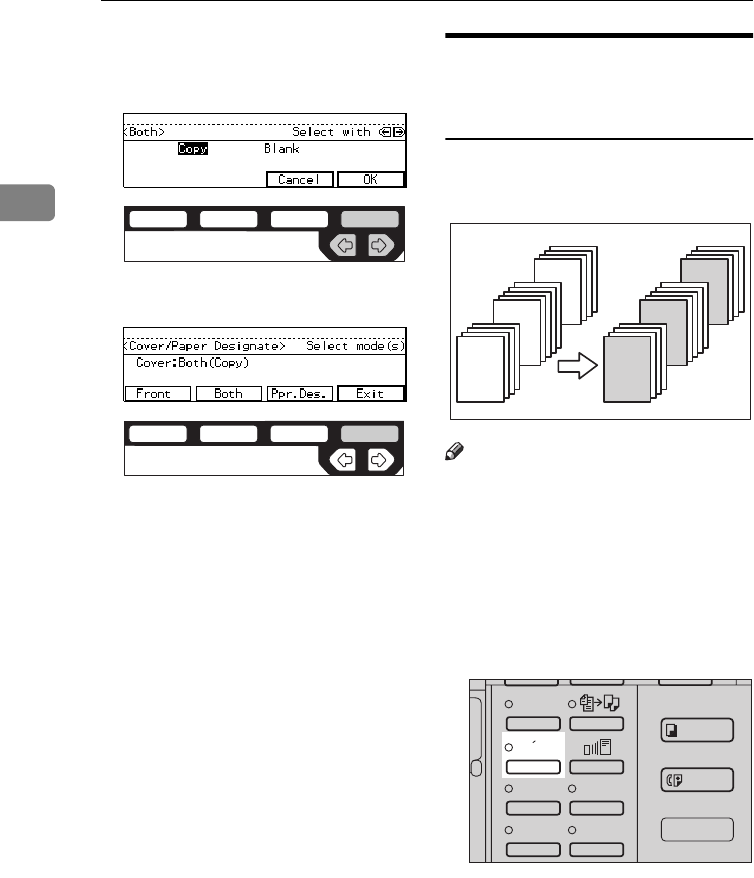
COPYING
94
2
ESpecify whether to copy on a cov-
er sheet with the <> keys. Then,
press the [
OK
] key.
FPress the [
Exit
] key.
GSet cover sheets on the bypass
tray.
HSet your originals, then press the
{
Start
} key.
Paper Designate—Copying
Designated Pages Of Originals
Onto Slip Sheets
Any specified page of your originals
is copied on specific paper sheets for
slip sheet.
Note
❒You can specify up to 10 page
numbers.
❒Before using this function, set the
special paper tray for slip sheets
using the user tools. See “09. Slip
Sheet Tray” in ⇒ P.153 “1. General
Features 3/4”.
APress the {
Menu
} key.
ND2C0109
ND2C0104
10
5
1
10
5
1
Enhanced
Image
1
3
Menu
Menu
Meny
2
4
ND2L0203
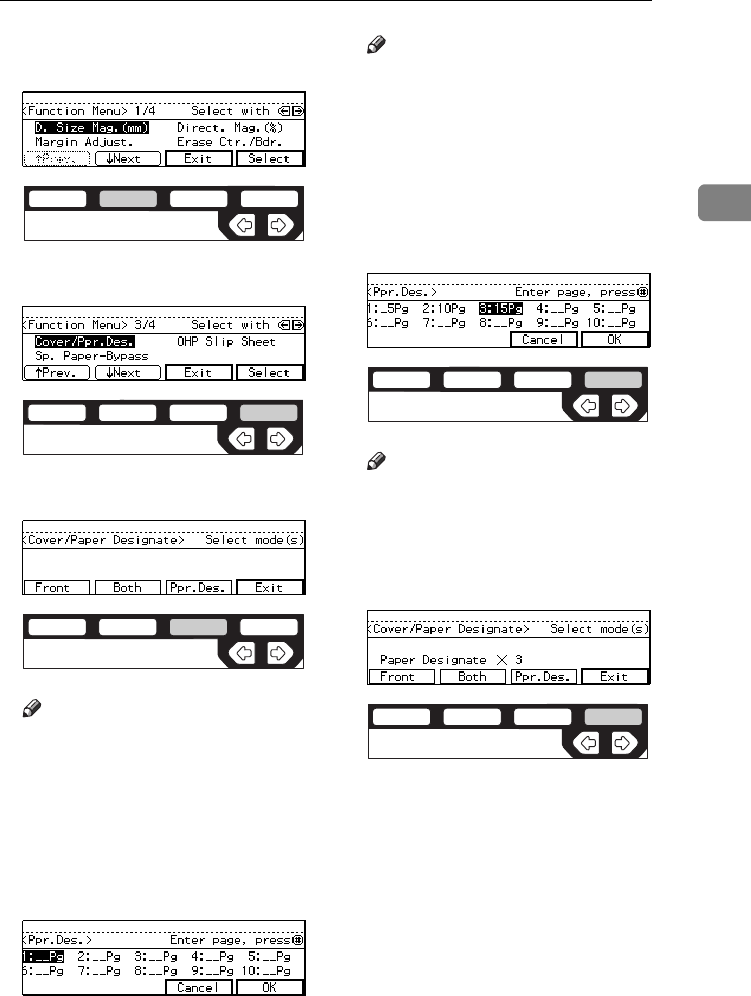
COVER/PAPER DESIGNATE—ADDING OR INSERTING SHEETS
95
2
BPress the [↓
↓↓
↓
Next
] key until [
Cover/
Ppr. Des.
] is displayed.
CPress the [
Select
] key.
DPress the [
Ppr.Des.
] key.
Note
❒If your machine is not equipped
with the bypass tray, the dis-
play above does not appear. Go
to Step E.
EEnter the page number you want
to copy onto a slip sheet with the
{
Number
} keys. Then, press the
{
#
} key.
Note
❒To change the value entered,
press the {
Clear/Stop
} key and
enter the new value.
FTo specify another page number,
repeat Step E.
GWhen you finish specifying the
page number (s), press the [
OK
]
key.
Note
❒To change the number entered,
select the desired item with the
<> keys, then enter the new
number.
HPress the [
Exit
] key.
ISet your originals, then press the
{
Start
} key.
ND2C0102
ND2C0104
ND2C0103
ND2C0104
ND2C0104
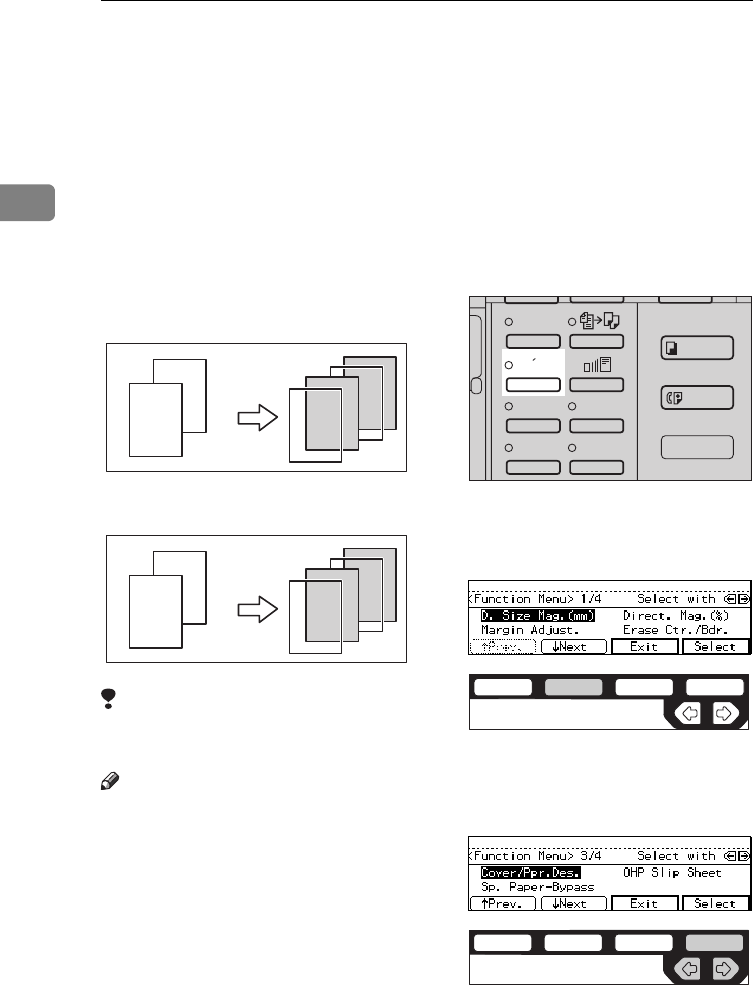
COPYING
96
2
OHP SLIP SHEET—COPYING OR INSERTING
SLIP SHEET
Type 1 requires the optional bypass tray.
Whenever a different original is cop-
ied in OHP Slip Sheet mode, a slip
sheet will be placed after each copy,
or a slip sheet will be fed and the
same original image is copied onto
this slip sheet.
❖
❖❖
❖
Copy
❖
❖❖
❖
Blank
Limitation
❒You cannot use this function in
Duplex mode.
Note
❒Set slip sheets of the same size and
in the same orientation as OHP
transparencies.
❒You can specify whether to make
copies onto the inserted slip sheets.
❒If you do not copy onto a slip sheet,
the sheet is excluded from the
number of copies counted.
AIf Duplex mode is selected, press
the {
Duplex
} key to cancel the
mode.
BPress the {
Menu
} key.
CPress the [↓
↓↓
↓
Next
] key until [
OHP
Slip Sheet
] is displayed.
DSelect the [
OHP Slip Sheet
] with the
<> keys. Then, press the [
Select
]
key.
2
22
1
2
111
22
2
111
Enhanced
Image
1
3
Menu
Menu
Meny
2
4
ND2L0203
ND2C0102
ND2C0109
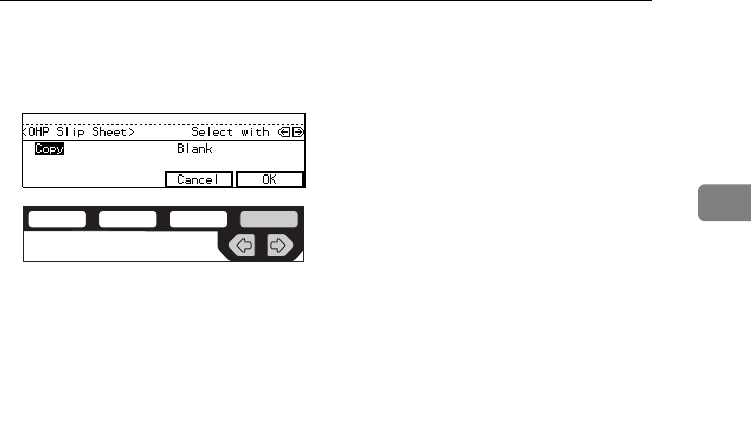
OHP SLIP SHEET—COPYING OR INSERTING SLIP SHEET
97
2
ESpecify whether to copy on a slip
sheet with the <> keys. Then,
press the [
OK
] key.
FSet OHP transparencies in the by-
pass tray.
GSet the slip sheets in the paper
tray, then select this tray pressing
the [
Paper
] key or the <> keys.
HSet your originals, then press the
{
Start
} key.
ND2C0109
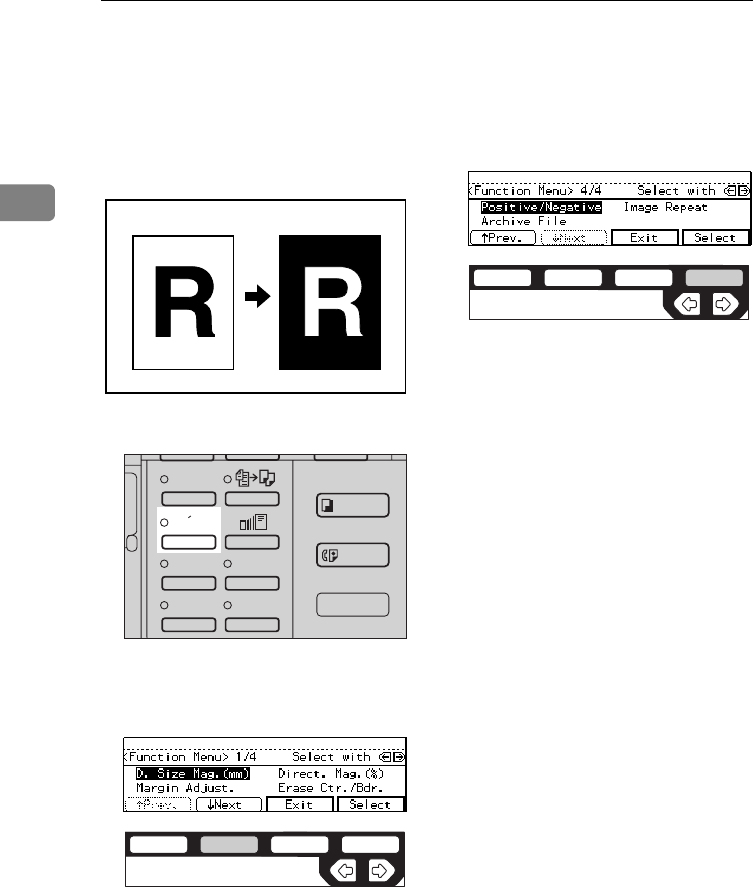
COPYING
98
2
POSITIVE/NEGATIVE—COPYING IN
COMPLEMENTALY COLORS
If you use a black and white original,
black and white areas of the original
are reversed.
APress the {
Menu
} key.
BPress the [↓
↓↓
↓
Next
] key until [
Posi-
tive/Negative
] is displayed.
CPress the [
Select
] key.
DSet your originals, then press the
{
Start
} key.
Enhanced
Image
1
3
Menu
Menu
Meny
2
4
ND2L0203
ND2C0102
ND2C0104
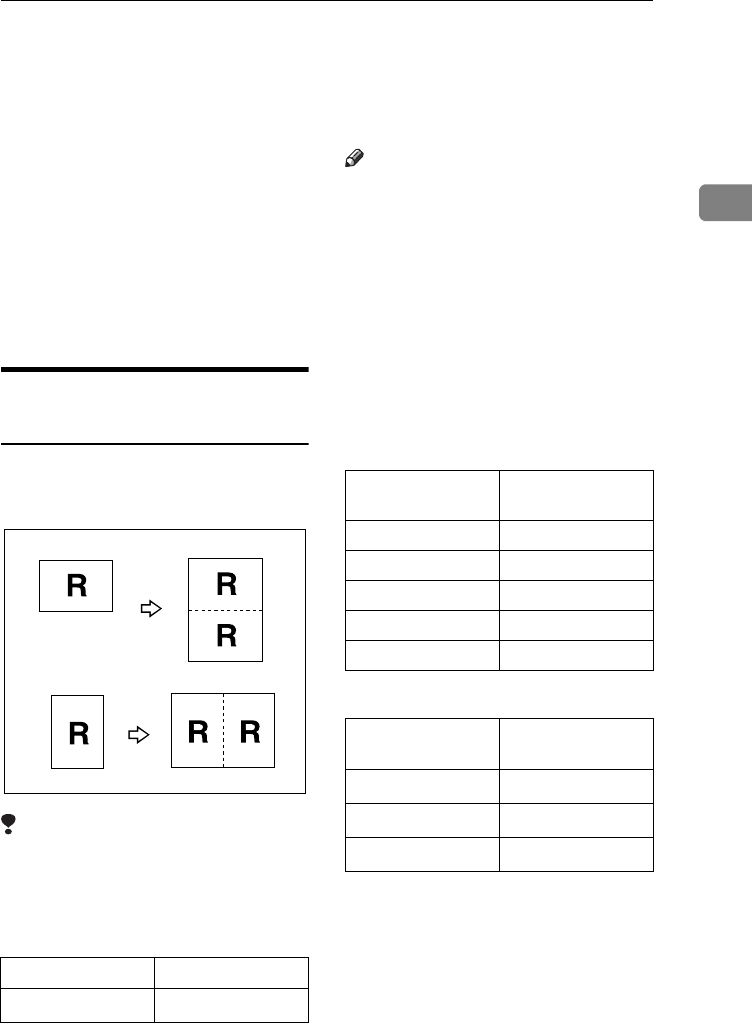
IMAGE REPEAT—REPEATING AN IMAGE
99
2
IMAGE REPEAT—REPEATING AN IMAGE
You can copy the original image re-
peatedly, or make two copies of the
same image on one sheet.
There are two types in this function:
❖
❖❖
❖
Double Copies
The one original image is copied
twice on one copy.
❖
❖❖
❖
Image Repeat
The original image is copied re-
peatedly.
Double Copies—Copying The
Image Twice On One Page
The one original image is copied
twice on one copy as shown in the il-
lustration.
Limitation
❒The following originals cannot be
detected properly on the exposure
glass. Be sure to select the copy pa-
per manually or set the originals in
the optional document feeder.
❒You cannot use the bypass tray for
the Double Copies function.
Note
❒Two copy images appear vertically
on K paper for L originals, and
horizontally on L paper for K
originals.
❒You can insert separate lines be-
tween repeated images. See “5.
Double Copy” in ⇒ P.157 “2. Ad-
just Image 2/2”.
❒Refer to the following table when
you select original and copy paper
sizes with 100 % ratio:
❖
❖❖
❖
Metric version
❖
❖❖
❖
Inch version
Metric version A5L, B6L
Inch version 51/2" × 81/2"L
Original size and
direction
Copy paper size
and direction
A5LA4K
B6LB5K
A4KA3L
A5KA4L
B6KB5L
Original size and
direction
Copy paper size
and direction
51/2" × 81/2"L81/2" × 11"K
51/2" × 81/2"K81/2" × 11"L
81/2" × 11"K11" × 17"L
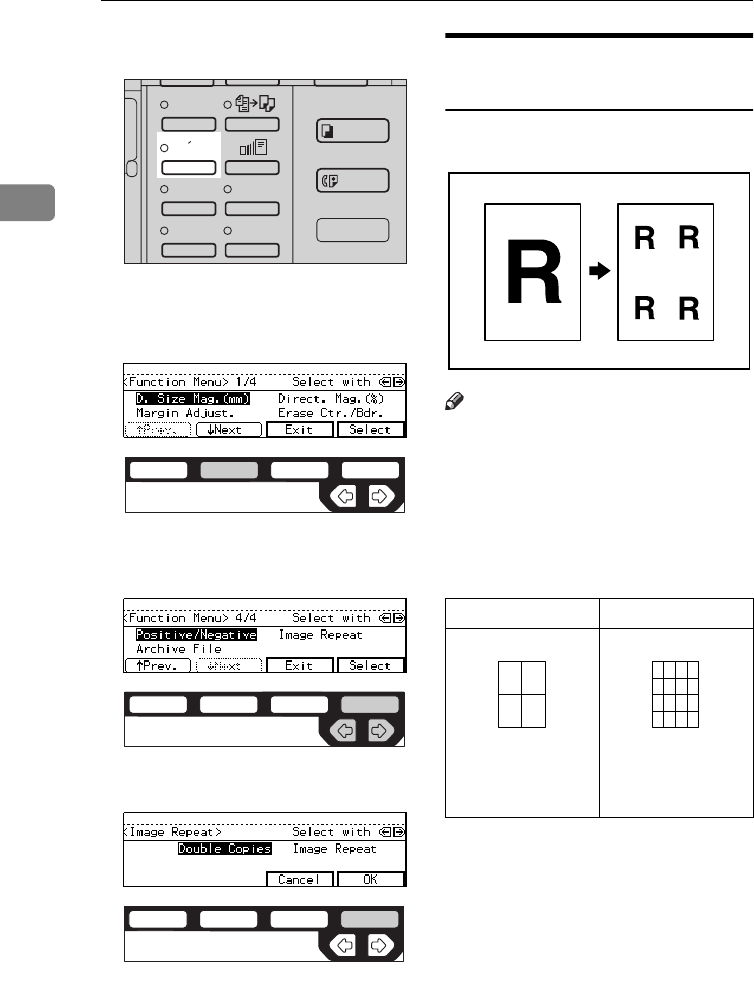
COPYING
100
2
APress the {
Menu
} key.
BPress the [↓
↓↓
↓
Next
] key until [
Image
Repeat
] is displayed.
CSelect [
Image Repeat
] with the <>
keys. Then, press the [
Select
] key.
DPress the [
OK
] key.
ESet your originals, then press the
{
Start
} key.
Image Repeat—Repeating An
Image Over The Entire Copy
The original image is copied repeat-
edly.
Note
❒The number of repeated images
depends on the original size, copy
paper size, and reproduction ratio.
Refer to the following table.
❖
❖❖
❖
Original: A5
K
/Copy paper: A4
K
or Original: A5
L
/Copy paper
A4
L
Enhanced
Image
1
3
Menu
Menu
Meny
2
4
ND2L0203
ND2C0102
ND2C0109
ND2C0104
4 repeats (71 %) 16 repeats (35 %)
Repeat1 Repeat2
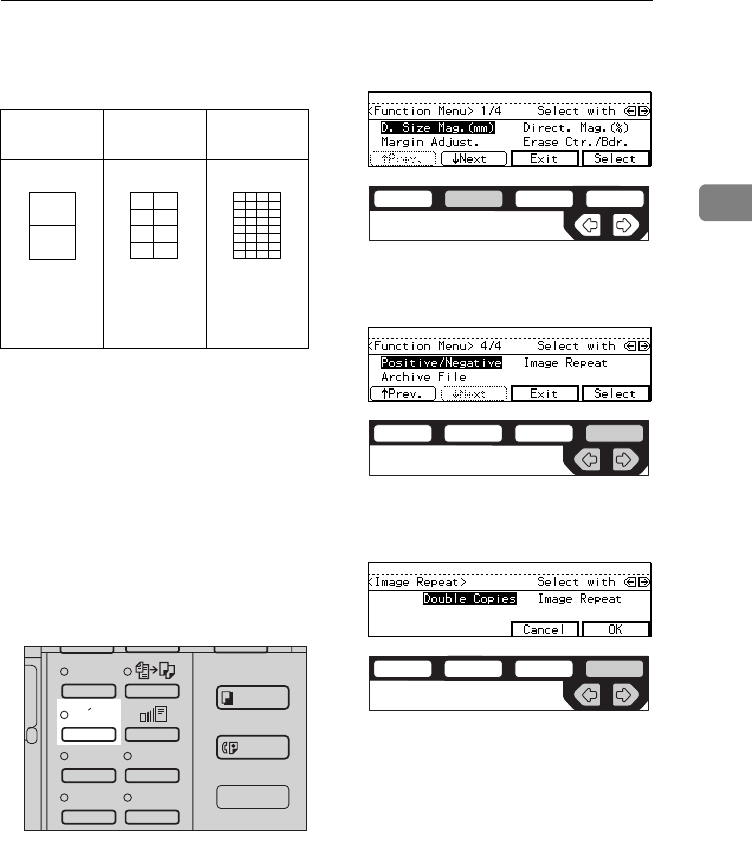
IMAGE REPEAT—REPEATING AN IMAGE
101
2
❖
❖❖
❖
Original: A5
K
/Copy paper: A4
L
or Original: A5
L
/Copy paper
A4
K
❒Part of a repeated image might not
be copied depending on copy pa-
per size, copy paper direction or
reproduction ratio.
❒You can insert separate lines be-
tween repeated images. See “7. Im-
age Repeat” in⇒ P.157 “2. Adjust
Image
2/2”.
ASelect the size of the copy paper
and the reproduction ratio.
BPress the {
Menu
} key.
CPress the [↓
↓↓
↓
Next
] key until [
Image
Repeat
] is displayed.
DSelect [
Image Repeat
] with the <>
keys. Then, press the [
Select
] key.
ESelect [
Image Repeat
] with the <>
keys. Then, press the [
OK
] key.
FSet your original, then press the
{
Start
} key.
2 repeats
(100 %) 8 repeats
(50 %) 32 repeats
(25 %)
Repeat3 Repeat4 Repeat5
Enhanced
Image
1
3
Menu
Menu
Meny
2
4
ND2L0203
ND2C0102
ND2C0109
ND2C0109

COPYING
102
2
ARCHIVE FILE—STORING THE IMAGES OF
YOUR ORIGINALS INTO MEMORY
The optional copier hard disk is required to use this function.
You can store images you frequently
use, and recall and copy them any
time.
There are four types in this function:
❖
❖❖
❖
Storing The Images
Stores image pages you frequently
use.
❖
❖❖
❖
Deleting The Stored Images
Deletes a set of image pages al-
ready stored.
❖
❖❖
❖
Printing A List Of The Stored Images
Makes a combined copy of each
first page of all the stored files (8
pages into one 1-sided, or 16 pages
into one 2-sided).
❖
❖❖
❖
Recalling The Stored Images
Recalls a set of stored image pages
and copies them onto the A4, 81/2"
× 11" copy paper.
Note
❒The maximum capacity is 16 files
or 32 pages. If you store more than
two pages in one file, the maxi-
mum number of files might be less
than 16.
❒Image pages to be stored should be
A4K , 81/2" × 11"K size.
❒The functions that can be stored
are as follows:
• 1-sided copy or 2-sided copy
• Type of originals
• Image density
❒Set your originals on the exposure
glass.
❒The stored images are not cleared
by turning the power off or by
pressing the {
Clear Modes/Energy
Saver
} key. They are canceled only
when you delete or overwrite
them.
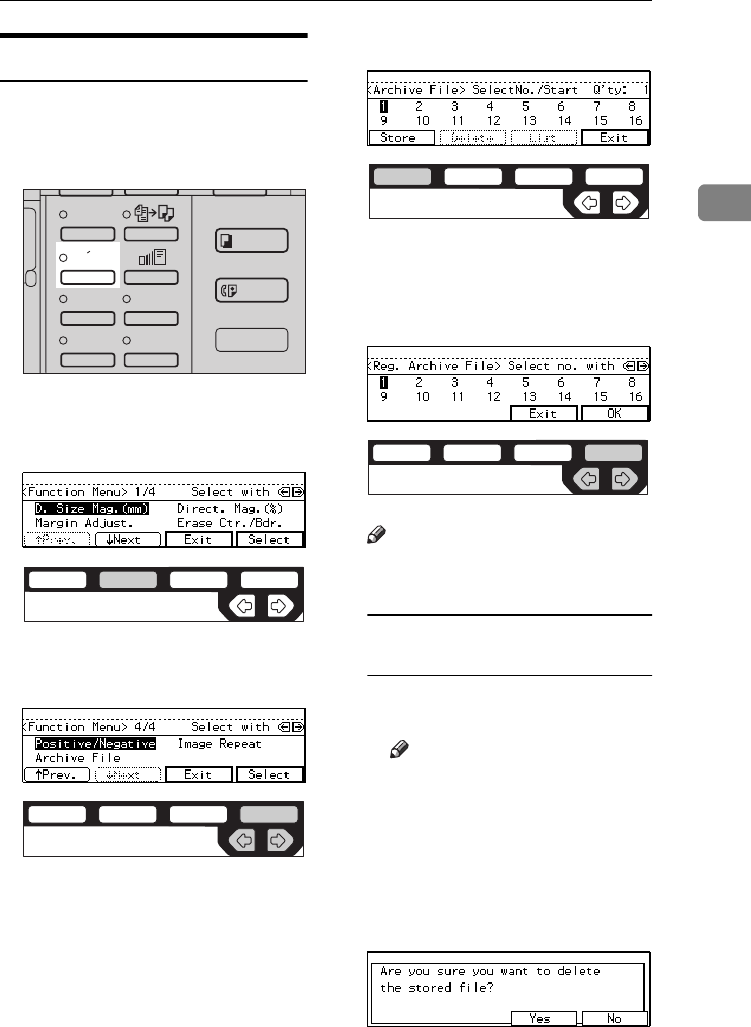
ARCHIVE FILE—STORING THE IMAGES OF YOUR ORIGINALS INTO MEMORY
103
2
Storing The Images
You can store images you frequently
use.
APress the {
Menu
} key.
BPress the [↓
↓↓
↓
Next
] key until [
Archive
File
] is displayed.
CSelect [
Archive File
] with the <>
keys. Then, press the [
Select
] key.
DPress the [
Store
] key.
ESelect the file number you want
to store the images in with the
<> keys. Then, press the [
OK
]
key.
Note
❒File numbers with m already
have images in them.
To overwrite images already
stored
ACheck the stored content, and
select whether to overwrite it.
Note
❒You can check the stored
content by printing a list of
the stored images. See ⇒
P.106 “Printing A List Of The
Stored Images”.
BPress the [
Yes
] key to overwrite
the images, or press the [
No
]
key not to overwrite them.
Enhanced
Image
1
3
Menu
Menu
Meny
2
4
ND2L0203
ND2C0102
ND2C0109
ND2C0101
ND2C0109
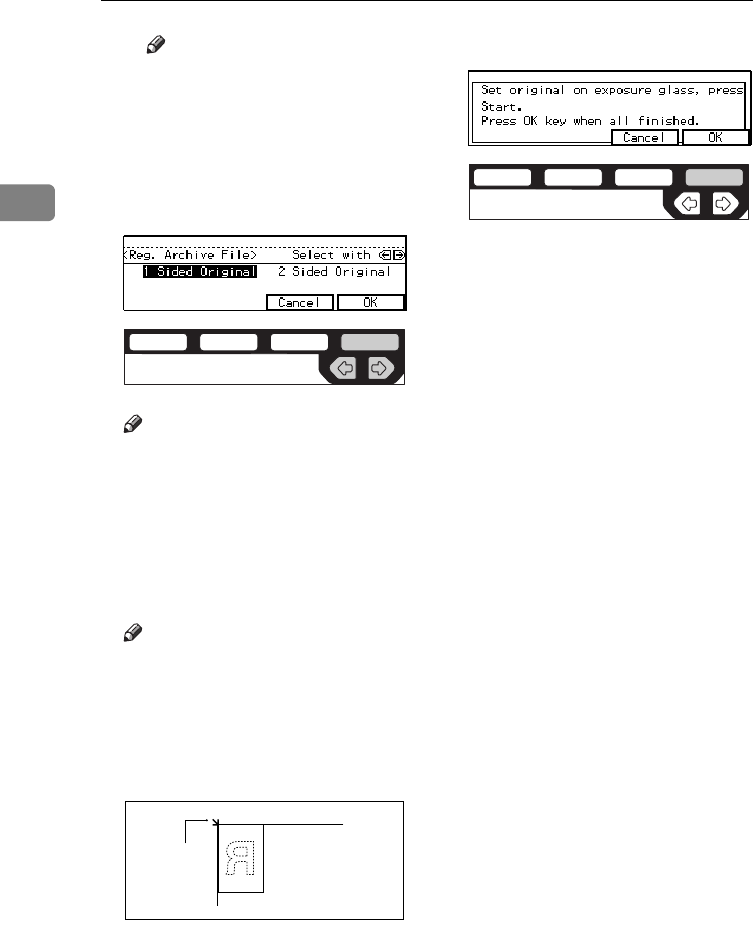
COPYING
104
2
Note
❒When you overwrite with
another images, the previ-
ously stored images will be
lost.
FSelect the type of originals with
the <> keys. Then, press the
[
OK
] key.
Note
❒If you are using Type 1 without
the duplex unit installed, the
display above does not appear.
Go to Step G.
GSet your originals on the exposure
glass, then press the {
Start
} key.
The images will be scanned.
Note
❒If you have more than one orig-
inal pages, repeat the steps
above.
❒Start with the first page of your
originals.
1: Reference position
HPress the [
OK
] key.
ND2C0109
1
CP138BEE
ND2C0104
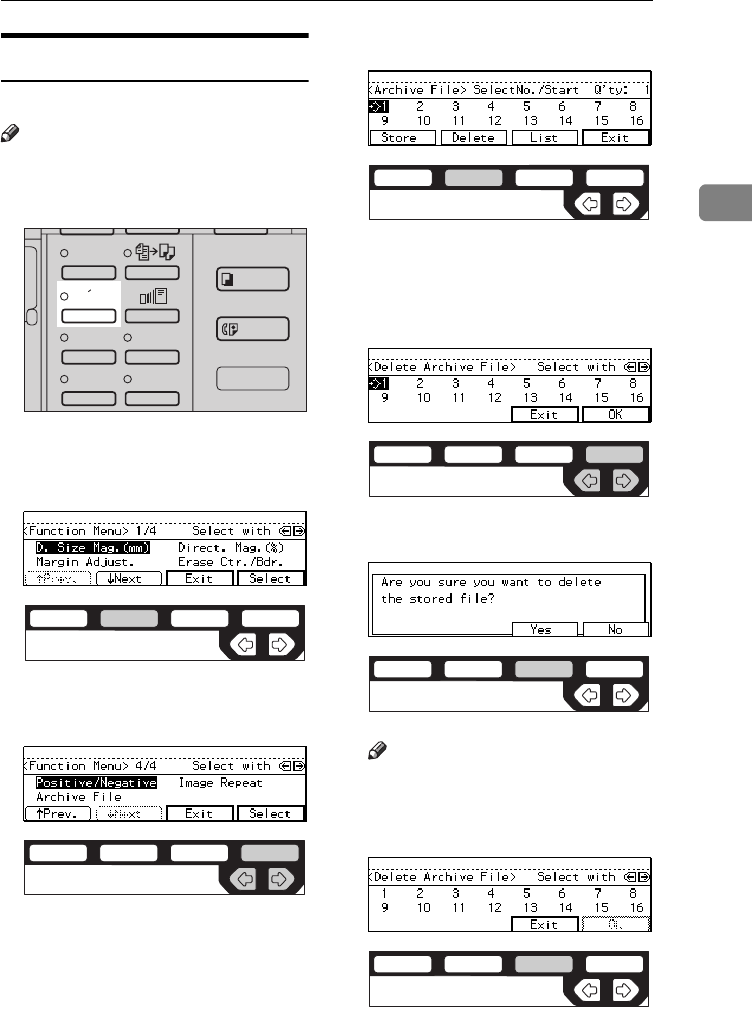
ARCHIVE FILE—STORING THE IMAGES OF YOUR ORIGINALS INTO MEMORY
105
2
Deleting The Stored Images
You can delete images already stored.
Note
❒Images are deleted on a file basis.
APress the {
Menu
} key.
BPress the [↓
↓↓
↓
Next
] key until [
Archive
File
] is displayed.
CSelect [
Archive File
] with the <>
keys. Then, press the [
Select
] key.
DPress the [
Delete
] key.
ESelect the file number you want
to delete the images in with the
<> keys. Then, press the [
OK
]
key.
FPress the [
Yes
] key.
Note
❒To cancel deletion, press the
[
No
] key.
GPress the [
Exit
] key.
Enhanced
Image
1
3
Menu
Menu
Meny
2
4
ND2L0203
ND2C0102
ND2C0109
ND2C0102
ND2C0109
ND2C0103
ND2C0103
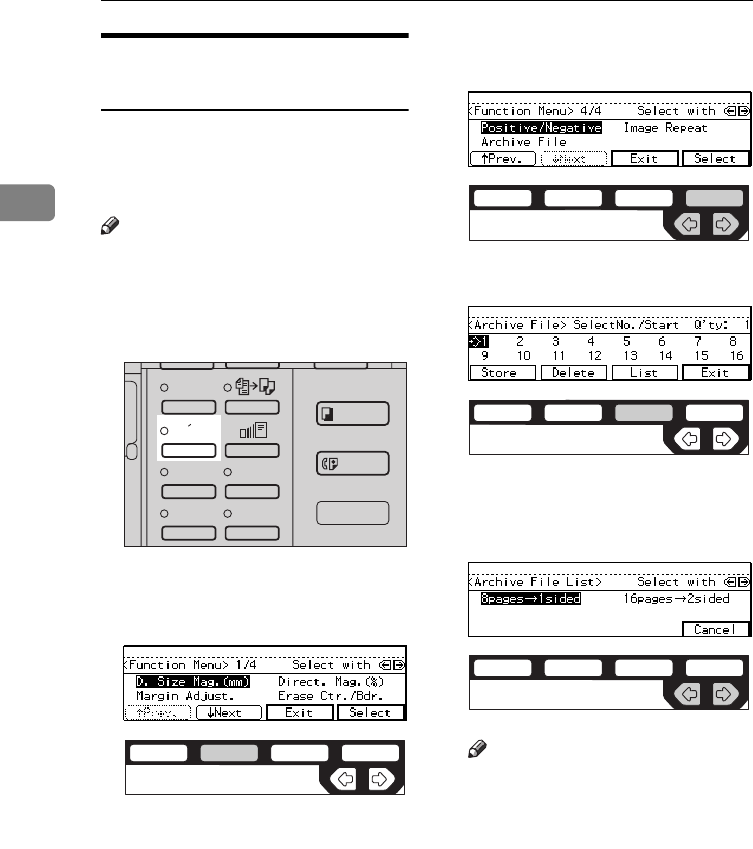
COPYING
106
2
Printing A List Of The Stored
Images
You can make a combined copy of
each first page of all the stored files (8
pages into one 1-sided, or 16 pages
into one 2-sided).
Note
❒If any file number has nothing
stored, its page will be copied in
blank with no image or number.
APress the {
Menu
} key.
BPress the [↓
↓↓
↓
Next
] key until [
Archive
File
] is displayed.
CSelect [
Archive File
] with the <>
keys. Then, press the [
Select
] key.
DPress the [
List
] key.
ESelect the [
8pages
→
1sided
] or
[
16pages
→
2sided
] with the <>
keys.
Note
❒[
16pages
→
2sided
] is not avail-
able, if your machine is Type 1
without the duplex unit.
FPress the {
Start
} key.
Enhanced
Image
1
3
Menu
Menu
Meny
2
4
ND2L0203
ND2C0102
ND2C0109
ND2C0103
ND2C0105
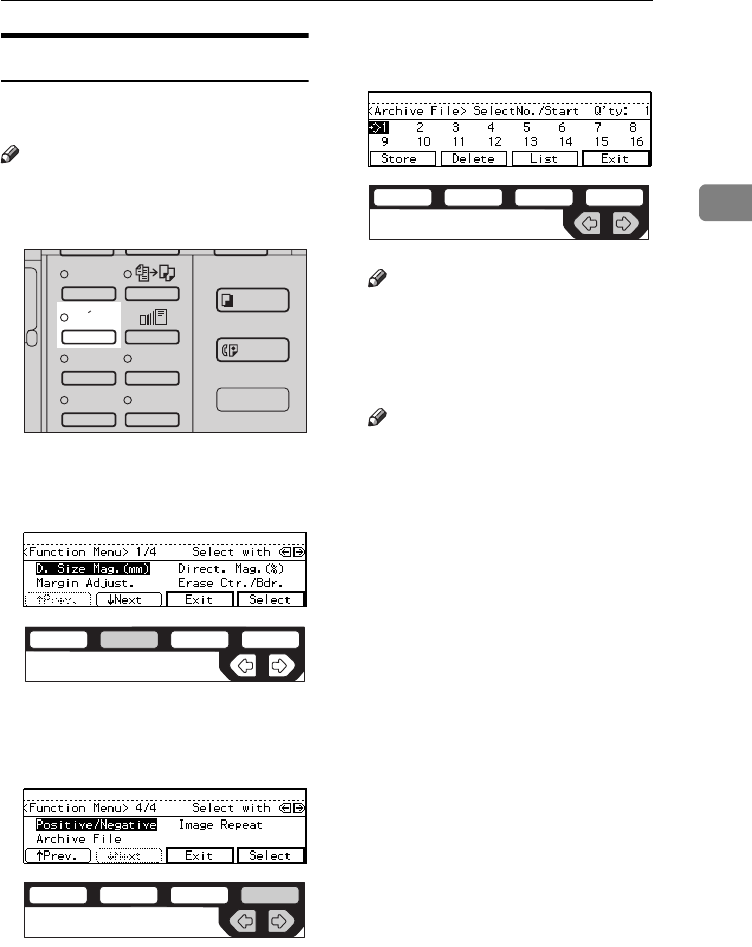
ARCHIVE FILE—STORING THE IMAGES OF YOUR ORIGINALS INTO MEMORY
107
2
Recalling The Stored Images
You can recall stored images to copy
them onto A4, 81/2" × 11" paper.
Note
❒Copies are made on a file basis.
APress the {
Menu
} key.
BPress the [↓
↓↓
↓
Next
] key until the [
Ar-
chive File
] is displayed.
CSelect the [
Archive File
] with the
<> key. Then, press the [
Select
]
key.
DSelect the desired file number
with the <> key.
Note
❒Only files with m contain imag-
es.
EEnter the number of copies with
the {
Number
} keys.
Note
❒The maximum number of cop-
ies is 99.
FPress the {
Start
} key.
Enhanced
Image
1
3
Menu
Menu
Meny
2
4
ND2L0203
ND2C0102
ND2C0109
ND2C0105
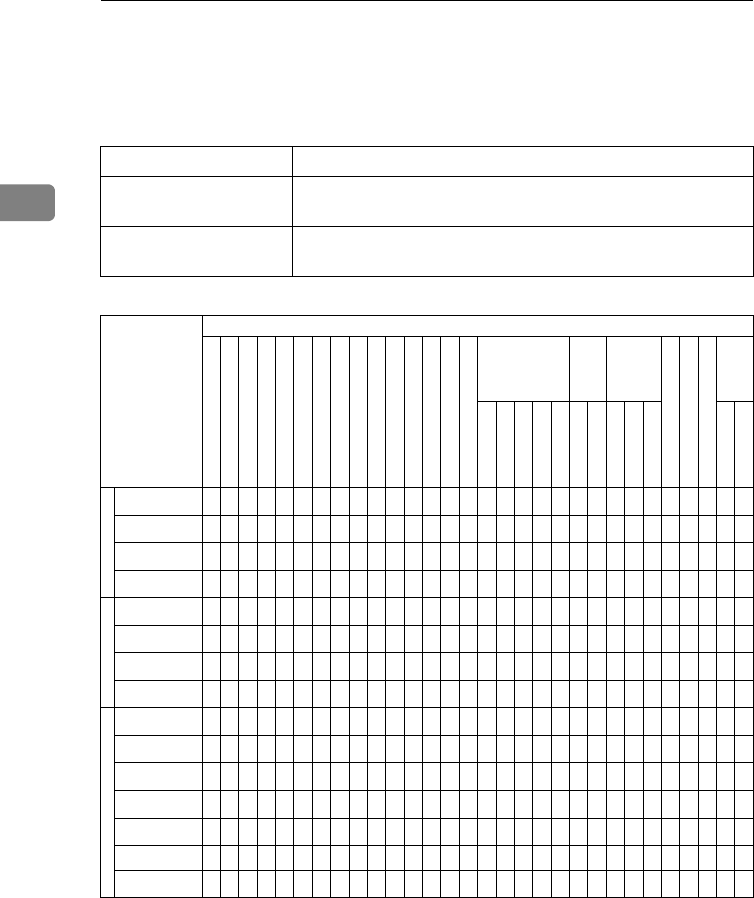
COPYING
108
2
COMBINATION CHART
The combination chart given below shows which modes can be used together.
When you read the chart, please refer to the following table.
The following shows the combinations of functions.
✩means that these modes can be used together.
→means that these modes cannot be used together. The mode
after you select will be the mode you're working in.
×means that these modes cannot be used together. The mode
before you select will be the mode you're working in.
Mode after you Select
Selecting Copy Paper
Auto Paper Select
Auto Reduce/Enlarge
Enhanced Image Copy
Sort
Rotate Sort/Rotate Stack
Shift Sort/Shift Stack
Staple
Copying From The Bypass Tray
Preset Reduce/Enlarge
Zoom
Directional Size Magnification (mm)
Directional Magnification (%)
Margin Adjustment
Erase Centre/Border
Combine
Series Copies
Duplex
Cover/Page Designate
OHP Slip Sheet
Positive/Negative
Image Repeat
2 pages → 1-sided
4 pages → 1-sided
4 pages → 2-sided
8 pages → 2-sided
16 pages → booklet
Book → 1-sided
2-sided → 1-sided
1-sided → 2-sided
Book → 2-sided
2-sided → 2-sided
Double Copies
Image Repeat
Mode before you select
Selecting
Copy Paper
-- ✩✩✩✩✩✩✩✩✩✩✩✩✩✩✩✩✩✩✩✩✩✩✩✩✩✩✩✩✩
Auto Paper Select ✩-- →✩✩✩✩✩→✩✩✩✩✩✩*
2
*
2
*
2
*
2
*
2✩✩✩✩✩→→✩*
2→
Auto Reduce/
Enlarge ✩×-- ✩✩✩✩✩×→→→→✩✩✩✩✩✩✩✩✩✩✩✩✩✩✩✩→
Enhanced Image
Copy ✩✩✩-- *
1
*
1
*
1
*
1✩✩✩✩✩✩✩*
1
*
1
*
1
*
1
*
1✩✩*
1
*
1
*
1
*
3×✩*
1
*
1
Mode before you select
Sort ✩✩✩*
1-- →→→× ✩✩✩✩✩✩✩✩✩✩✩✩✩✩✩✩✩✩✩✩✩
Rotate Sort/
Rotate Stack ✩✩✩*
1→-- →→× ✩✩✩✩✩✩✩✩✩✩✩✩✩✩✩✩→✩✩✩✩
Shift Sort/
Shift Stack ✩✩✩*
1→→-- →× ✩✩✩✩✩✩✩✩✩✩✩✩✩✩✩✩✩✩✩✩✩
Staple ✩✩✩*
1→→→-- ×✩✩✩✩✩✩✩✩✩✩✩✩✩✩✩✩✩✩✩✩✩
Mode before you select
Copying From The
Bypass Tray ✩→→✩→→→→-- ✩✩✩✩✩✩→→→→→✩✩→→→→→✩→✩
Preset Reduce/
Enlarge ✩✩→✩✩✩✩✩✩-- →→→✩✩*
2*
2*
2*
2*
2✩✩✩✩✩✩✩✩*
2✩
Zoom ✩✩→✩✩✩✩✩✩→-- →→✩✩*
2*
2*
2*
2*
2✩✩✩✩✩✩✩✩*
2✩
Directional Size
Magnification (mm) ✩✩→✩✩✩✩✩✩→→-- →✩✩*
2*
2*
2*
2*
2✩✩✩✩✩✩✩✩*
2✩
Directional
Magnification (%) ✩✩→✩✩✩✩✩✩→→→-- ✩✩*
2*
2*
2*
2*
2✩✩✩✩✩✩✩✩*
2✩
Margin Adjustment ✩✩✩✩✩✩✩✩✩✩✩✩✩-- ✩✩✩✩✩✩✩✩✩✩✩✩✩✩✩✩
Erase Centre/
Border ✩✩✩✩✩✩✩✩✩✩✩✩✩✩-- ✩✩✩✩✩✩✩✩✩✩✩✩✩✩✩
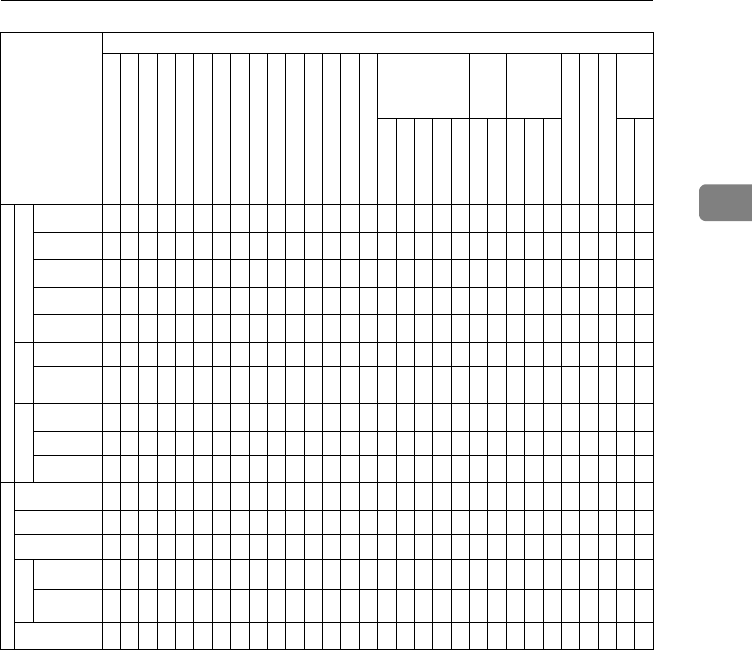
COMBINATION CHART
109
2
*1 Optional copier hard disk is required.
*2 When you select the mode after you select, the machine returns to Auto Reduce/En-
large mode. However, you can select the mode before you select again.
*3 The Paper Designate function is available. The optional copier hard disk is required
to use the Cover function.
Mode before you select
Combine
2 pages → 1-
sided ✩×✩*
1✩✩✩✩×✩✩✩✩✩✩-- →→→→× × × × × × × ✩××
4 pages → 1-
sided ✩×✩*
1✩✩✩✩×✩✩✩✩✩✩→-- →→→×××××××✩××
4 pages → 2-
sided ✩×✩*
1✩✩✩✩×✩✩✩✩✩✩→→-- →→×××××××✩××
8 pages → 2-
sided ✩×✩*
1✩✩✩✩×✩✩✩✩✩✩→→→-- →×××××××✩××
16 pages →
booklet ✩×✩*
1✩✩✩✩×✩✩✩✩✩✩→→→→-- ×××××××✩××
Series Copies
Book → 1-sided ✩✩✩✩✩✩✩✩✩✩✩✩✩✩✩×××××-- →× × × × ✩✩✩✩
2-sided → 1-
sided ✩✩✩✩✩✩✩✩✩✩✩✩✩✩✩×××××→
-- ××××✩✩✩✩
Duplex
1-sided → 2-
sided ✩✩✩✩✩✩✩✩×✩✩✩✩✩✩×××××××-- →→✩×✩✩✩
Book → 2-sided ✩✩✩✩✩✩✩✩×✩✩✩✩✩✩×××××××→
-- →✩×✩✩✩
2-sided → 2-
sided ✩✩✩✩✩✩✩✩×✩✩✩✩✩✩×××××××→→
-- ✩×✩✩✩
Mode before you select
Cover/
Page Designate ✩×✩*
3✩×✩✩×✩✩✩✩✩✩×××××××✩✩✩-- ×✩××
OHP Slip Sheet ✩×✩×✩✩✩✩×✩✩✩✩✩✩×××××✩✩××××-- ✩××
Positive/Negative ✩✩✩✩✩✩✩✩✩✩✩✩✩✩✩✩✩✩✩✩✩✩✩✩✩✩✩-- ✩✩
Image Repeat
Double Copies ✩✩✩*
1✩✩✩✩×✩✩✩✩✩✩×××××✩✩✩✩✩✩×✩-- →
Image Repeat ✩×✩*
1✩✩✩✩✩✩✩✩✩✩✩×××××✩✩✩✩✩✩×✩→--
Interrupt ✩✩✩✩*
1
*
1
*
1
*
1✩✩✩✩✩✩✩*
1
*
1
*
1
*
1
*
1✩✩*
1
*
1
*
1✩✩✩*
1
*
1
Mode after you Select
Selecting Copy Paper
Auto Paper Select
Auto Reduce/Enlarge
Enhanced Image Copy
Sort
Rotate Sort/Rotate Stack
Shift Sort/Shift Stack
Staple
Copying From The Bypass Tray
Preset Reduce/Enlarge
Zoom
Directional Size Magnification (mm)
Directional Magnification (%)
Margin Adjustment
Erase Centre/Border
Combine
Series Copies
Duplex
Cover/Page Designate
OHP Slip Sheet
Positive/Negative
Image Repeat
2 pages → 1-sided
4 pages → 1-sided
4 pages → 2-sided
8 pages → 2-sided
16 pages → booklet
Book → 1-sided
2-sided → 1-sided
1-sided → 2-sided
Book → 2-sided
2-sided → 2-sided
Double Copies
Image Repeat

COPYING
110
2
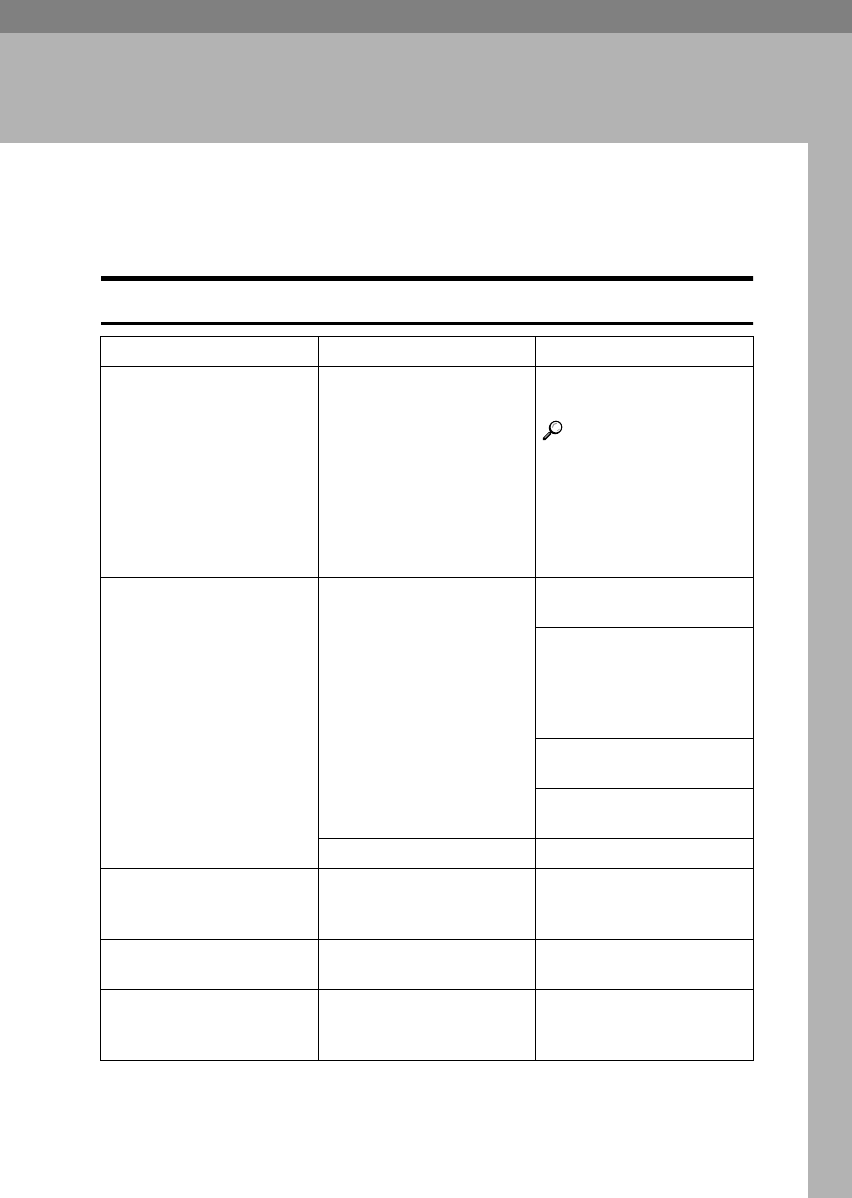
111
3. WHAT TO DO IF SOMETHING
GOES WRONG
IF YOUR MACHINE DOES NOT OPERATE AS
YOU WANT
Message
Machine's Condition Problem/Cause Action
The machine instructs you
to wait.
The machine is warming
up.
Wait for the machine to
warm-up.
Reference
You can use Auto Start
mode during warm-up
period. See ⇒ P.64 “Au-
to Start—Entering Copy
Job Settings During The
Warm-up Period”
The machine cannot detect
the original size.
Improper original is set.
See ⇒ P.21 “Sizes Difficult
To Detect”.
Set non-standard size orig-
inal on the exposure glass.
Input the both horizontal
and vertical sizes of the
non-standard original. See
⇒ P.31 “Setting Originals
On The Exposure Glass”.
Select paper manually, not
in Auto Paper Select mode.
Do not use Auto Reduce/
Enlarge mode.
Original is not set. Set your originals.
The machine instructs you
to check the original direc-
tion.
There is no copy paper that
is the same direction as the
originals.
Set the original in the same
direction as the copy paper.
The machine instructs you
to check paper size.
Improper original size is
set.
Select the proper paper
size.
The machine cannot staple
this size paper.
-- Select the proper paper size
that can be used in Staple
mode. See ⇒ P.49 “Staple”
WHAT TO DO IF SOMETHING GOES WRONG
112
3
Display
You cannot enter the de-
sired copy set number.
The number of copies ex-
ceeds the maximum copy
quantity.
You can change the maxi-
mum copy quantity that
you can make at a time. See
“05. Maximum copy quan-
tity” in ⇒ P.152 “1. General
Features 2/4”
The machine instructs you
to set the duplex tray.
-- Reset the duplex tray cor-
rectly. See ⇒ P.2 “Guide To
Components”.
The machine instructs you
to open the right side cover
of the duplex unit.
The right cover of the du-
plex unit is not open.
When you make 2-sided
copies on B4, 81/2" × 14" or
larger copy paper, open the
right cover of the duplex
unit. See ⇒ P.85 “Duplex—
Making Two-Sided Copies”.
Problem Cause Action
The panel display is off. The machine is in Energy
Saver mode.
Press the {
Clear Modes/Ener-
gy Saver
} key to cancel En-
ergy Saver mode.
The operation switch is
turned off.
Turn on the operation
switch.
Nothing happens when the
operation switch is turned
on.
The main power switch is
turned off.
Turn on the main power
switch. See ⇒ P.2 “Guide To
Components”
Machine's Condition Problem/Cause Action
IF YOU CANNOT MAKE CLEAR COPIES
113
3
IF YOU CANNOT MAKE CLEAR COPIES
Problem Cause Action
Copies appear dirty. The image density is too
dark.
Adjust the image density.
⇒ P.37 “Adjusting Copy Im-
age Density”.
Auto Image Density is not
selected.
Select Auto Image Density.
The reverse side of an orig-
inal image is copied.
The image density is too
dark.
Adjust the image density.
⇒ P.37 “Adjusting Copy Im-
age Density”.
Auto Image Density is not
selected.
Select Auto Image Density.
A shadow appears on cop-
ies if you use the pasted
originals.
The image density is too
dark.
Adjust the image density.
⇒ P.37 “Adjusting Copy Im-
age Density”.
Change the direction of the
original.
Put mending tape on the
pasted part.
The same copy area is dirty
whenever making copies.
The exposure glass, platen
cover, or document feeder
belt is dirty.
Clean them. ⇒ P.169
“Maintaining Your Ma-
chine”.
Copies are too light. The image density is too
light.
Adjust the image density.
⇒ P.37 “Adjusting Copy Im-
age Density”.
Damp or rough grain pa-
per is used.
Use dry paper without
rough grain.
Toner cartridge is almost
empty.
Add toner. ⇒ P.121 “
D
Adding Toner”.
Parts of the image are not
copied.
The original is not set cor-
rectly.
Set originals correctly. ⇒
P.31 “Setting Originals”.
An improper paper size is
selected.
Select the proper paper
size.
Copies are blank. The original is not set cor-
rectly.
Set originals correctly. ⇒
P.31 “Setting Originals”.
WHAT TO DO IF SOMETHING GOES WRONG
114
3
A moire pattern is pro-
duced on copies.
Your original has dot pat-
tern image or many lines.
Place the original on the ex-
posure glass at a slight an-
gle.
Problem Cause Action
R
IF YOU CANNOT MAKE COPIES AS YOU WANT
115
3
IF YOU CANNOT MAKE COPIES AS YOU
WANT
Problem Cause Action
Copies are not stapled. There are jammed staples
in the stapler.
Remove jammed staples.
See ⇒ P.139 “
e
Removing
Jammed Staples”.
Note
❒After removing jammed
staples, staples might
not be ejected the first
few times you try to use
the stapler.
The number of copies ex-
ceeds the capacity of the
stapler.
Check the stapler capacity.
See ⇒ P.49 “Staple”.
Staples are wrongly posi-
tioned.
Originals are not set cor-
rectly.
Set originals correctly. See
⇒ P.49 “Staple”.
Misfeeds occur frequently. Copy paper size setting is
not correct.
Set the proper paper size.
See ⇒ P.132 “Changing The
Paper Size”.
You cannot combine sever-
al functions.
Selected functions cannot
be used together.
Refer to the combination
chart. See ⇒ P.108 “Combi-
nation Chart”.
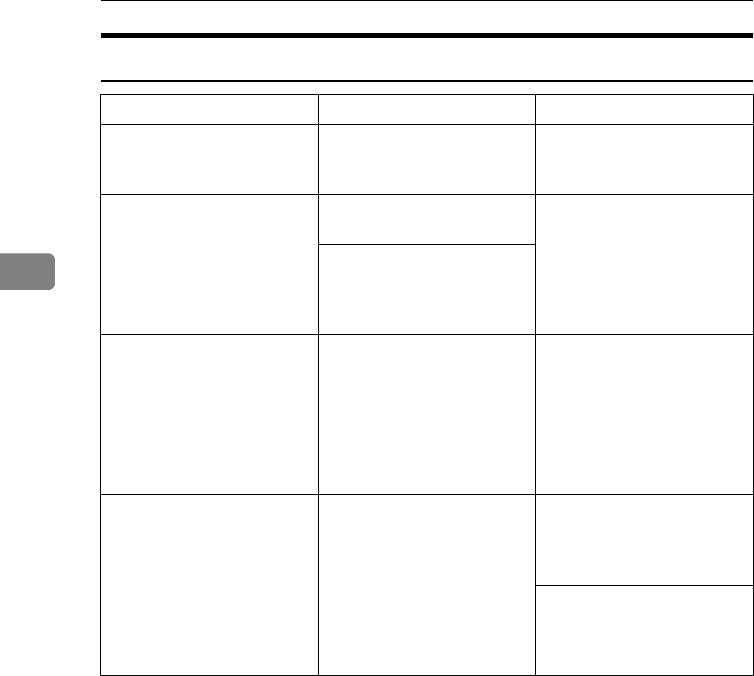
WHAT TO DO IF SOMETHING GOES WRONG
116
3
Adjust Image
Problem Cause Action
In Double Copies mode,
parts of the original image
are not copied.
Combination of original
and copy paper is not cor-
rect.
Select the proper original
and copy paper. See ⇒ P.20
“Originals”.
In Centre/Border mode,
parts of the original image
are not copied.
You set the wide erased
margin.
Set the narrow margin with
the user tools. See “1. Erase
Border” in ⇒ P.155 “2. Ad-
just Image 1/2”. See “2. Erase
Centre” in ⇒ P.155 “2. Ad-
just Image 1/2”.
Your original has narrow
margins on four sides.
In Margin Adjustment
mode, parts of the original
image are not copied.
You set the wide erased
margin.
Set the narrow margin with
the user tools. See “3.
Marg.Adjust.Front” in ⇒
P.155 “2. Adjust Image 1/2”.
See “4. Margin Adjust
Back” in ⇒ P.155 “2. Adjust
Image 1/2”.
In Image Repeat mode, the
original image is not cop-
ied repeatedly.
You selected the same size
copy paper as originals,
and did not select the prop-
er reproduction ratio.
Select copy paper larger
than the originals. See ⇒
P.99 “Image Repeat—Repeat-
ing An Image”.
Select the proper reproduc-
tion ratio. See ⇒ P.99 “Im-
age Repeat—Repeating An
Image”.
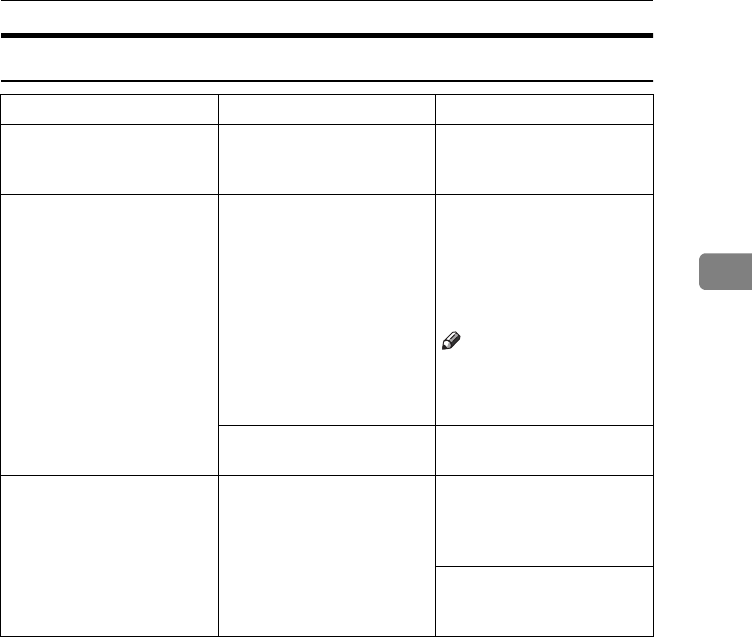
IF YOU CANNOT MAKE COPIES AS YOU WANT
117
3
Combine
Problem Cause Action
You cannot make a booklet
from 16 originals by fold-
ing copies.
Combine Original Booklet
Format is not correct.
Change the setting.⇒ P.78
“Combine—Combining
Originals Into One Copy”
Parts of the image are not
copied.
You specified an improper
reproduction ratio that
does not meet the sizes of
your originals and copy pa-
per.
When you specify a repro-
duction ratio using Manual
Paper Select mode, make
sure the ratio matches your
originals and the copy pa-
per.
Note
❒Select the correct repro-
duction ratio before us-
ing Combine mode.
Your originals are not iden-
tical in size and direction.
Use originals that are iden-
tical in size and direction.
Order of copies is not cor-
rect.
You set originals in the in-
correct order.
When setting a stack of
original in the document
feeder, the last page should
be on the bottom.
If you set an original on the
exposure glass, start with
the first page to be copied.
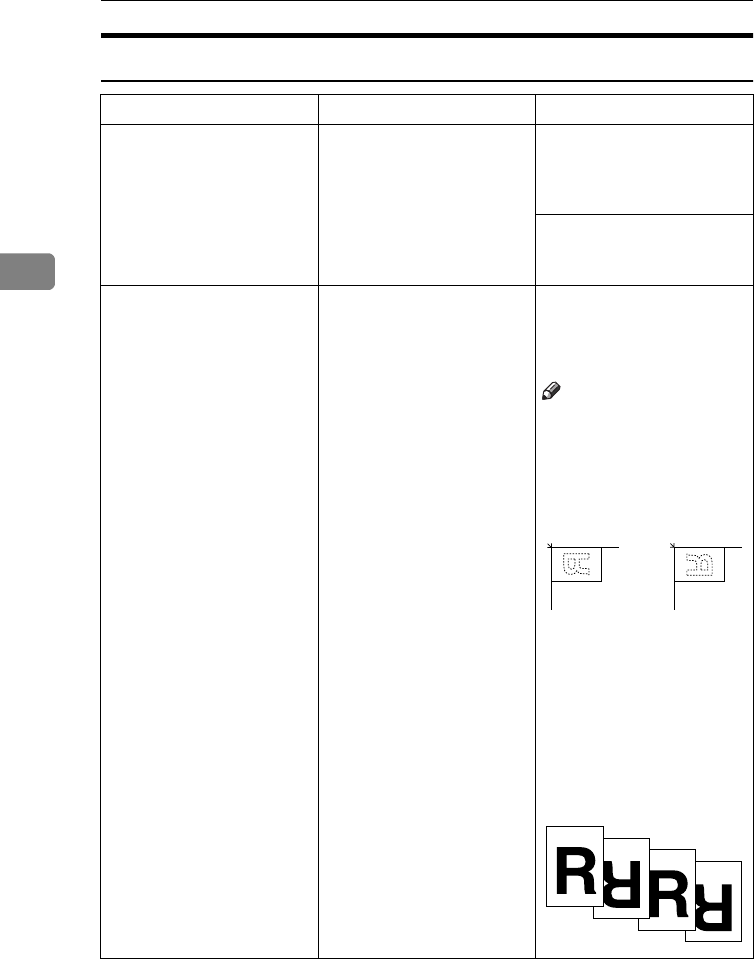
WHAT TO DO IF SOMETHING GOES WRONG
118
3
Duplex
Problem Cause Action
Order of copies is not cor-
rect.
You set originals in the in-
correct order.
When setting a stack of
originals in the document
feeder, the last page should
be on the bottom.
If you set an original on the
exposure glass, start with
the first page to be copied.
Orientation of copies (Top
to Top, or Top to Bottom) is
not correct.
You set originals in an in-
correct direction or the ori-
entation Setting is
incorrect.
Select the correct orienta-
tion, or set originals cor-
rectly. ⇒ P.85 “Duplex—
Making Two-Sided Copies”
Note
❒If you set A3, 11" × 17"
or B4, 81/2" × 14" origi-
nals as shown below, for
example, take one of the
two actions described
below the illustration.
❒Select [
Top to Bottom
] to
make copies in “Top to
Top” orientation. Select
[
Top to Top
] to make cop-
ies in “Top to Bottom”
orientation.
❒Alternate the originals
as shown below when
setting them.

B LOADING PAPER
119
3
B LOADING PAPER
Note
❒If you want to change the paper
size, see ⇒ P.132 “Changing The Pa-
per Size”.
Reference
Regarding paper types and sizes
that can be set, see ⇒ P.23 “Copy
Paper”.
APull out the paper tray until it
stops.
BRemove the back fence.
CSquare the paper and set it in the
tray.
Important
❒Do not stack paper over the lim-
it mark.
Note
❒Shuffle the paper before setting
it in the tray.
❒Make sure that the leading cor-
ners of the paper are under the
corners.
DReinstall the back fence.
EPush the paper tray in until it
stops.
ND5T0802
ND5T0801
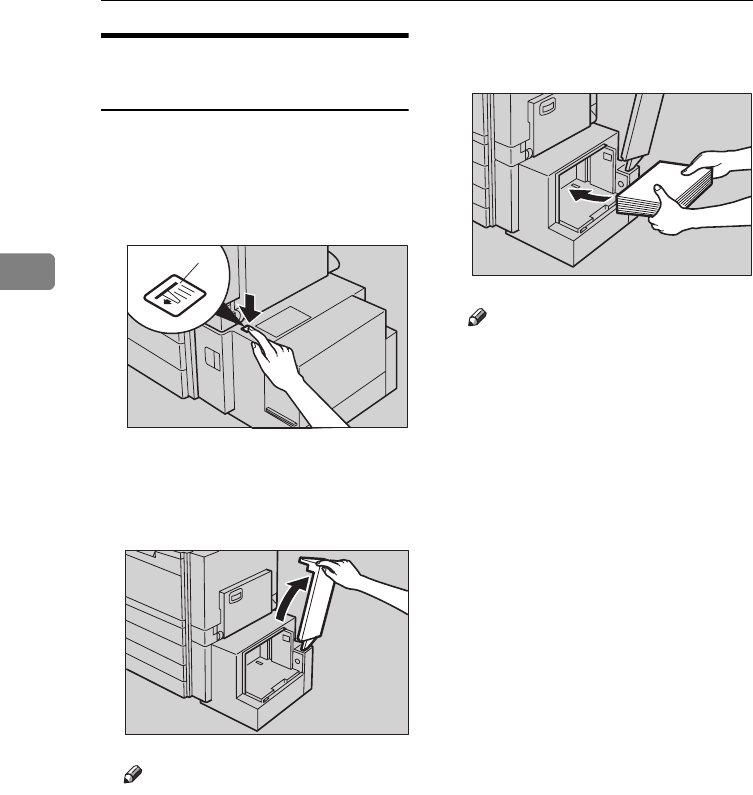
WHAT TO DO IF SOMETHING GOES WRONG
120
3
Loading Paper In The Large
Capacity Tray
APress the {
Down
} key if it is not lit.
The key blinks while the bottom
plate is moving down.
1: Down key
BWhen the key stops blinking and
lights up, open the top cover.
Note
❒Make sure no paper sheet is in-
volved in the feeding part of the
Large Capacity Tray. Remove
the sheet, if any.
CPlace the paper in the tray along
the edge on the left.
Note
❒The Tray contains up to 1,500
sheets.
DClose the top cover.
1
ND6L04EE
ND6L0500
ND6L0600
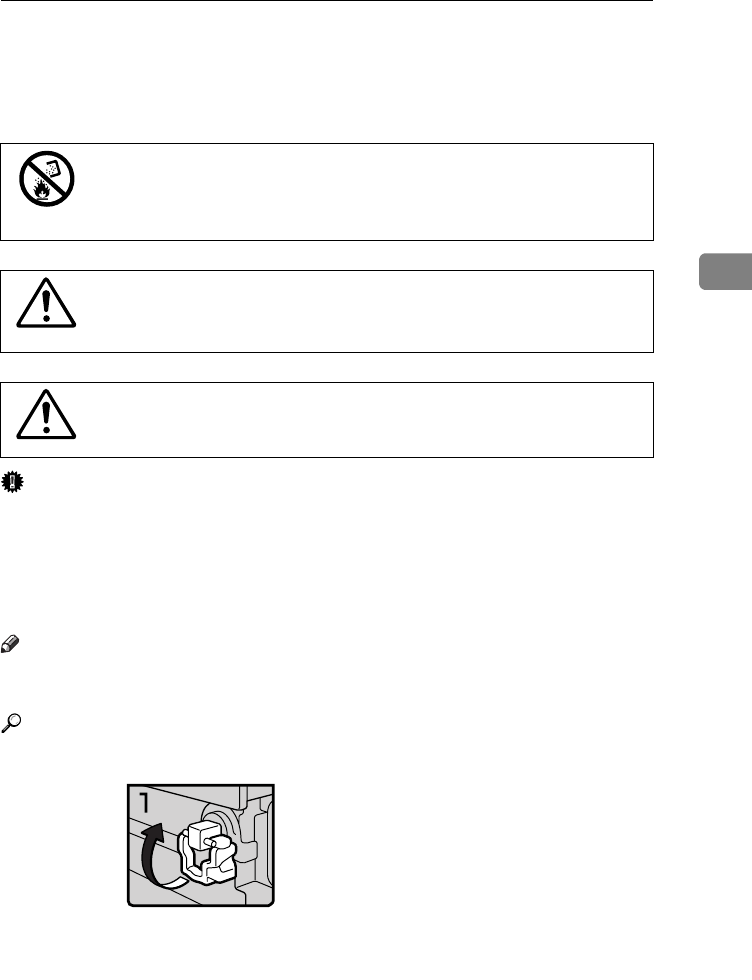
D ADDING TONER
121
3
D ADDING TONER
When D is displayed, it is time to supply toner.
R
WARNING:
R
CAUTION:
R
CAUTION:
Important
❒If you use toner other than that recommended, a fault might occur.
❒When adding toner, do not turn off the operation switch. If you do, your set-
tings are cleared.
❒Always add toner after the machine instructs you to add toner.
❒Do not use used toner. This will damage the machine.
Note
❒You can still make about 50 copies after the D appears, but replace the toner
early to prevent poor copy quality.
Reference
Regarding toner storage, see ⇒ P.27 “Toner Storage”.
•
Do not incinerate used toner or toner containers. Toner dust
might ignite when exposed to an open flame. Dispose of the
used toner containers according to local regulations for
plastics.
•
Do not eat or swallow toner.
•
Keep toner (used or unused) and toner containers out of reach of
children.
•
This machine has been tested for safety using this supplier's
parts and consumables. We recommend you only use these
specified supplies.
• 1: Open the front cover of the machine.
• 2: Lift the green holder.
Toner1
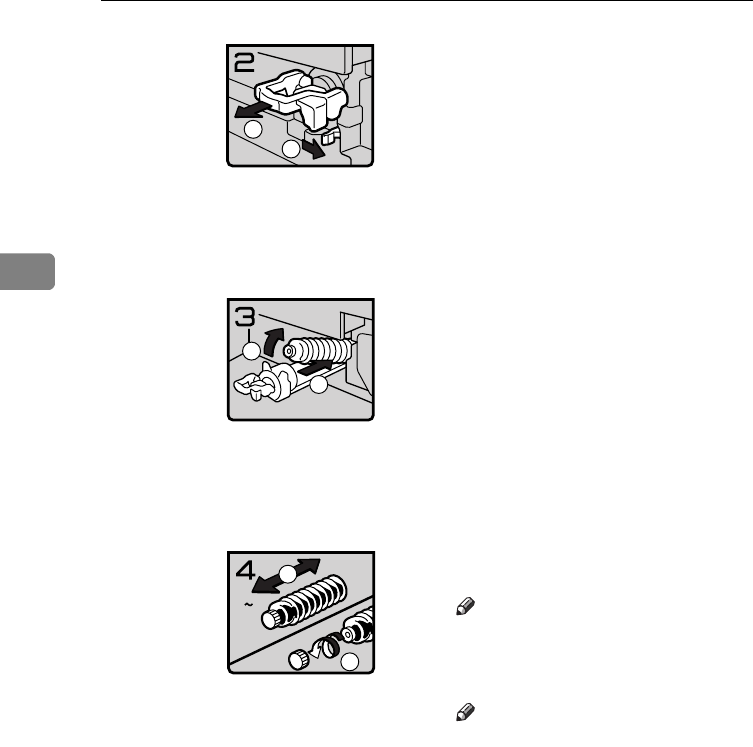
WHAT TO DO IF SOMETHING GOES WRONG
122
3
• 3: Push the green lever, and gently pull
out the holder.
• 4: Press the toner bottle backward to
raise its head, then gently pull out the
bottle.
• 5: Hold a new bottle horizontally and
shake it 5 or 6 times.
Note
❒Do not remove the black cap when
shaking.
• 6: Remove the black cap.
Note
❒Do not remove the inner cap.
Toner2
1
2
Toner3
2
1
Toner4
56
1
2
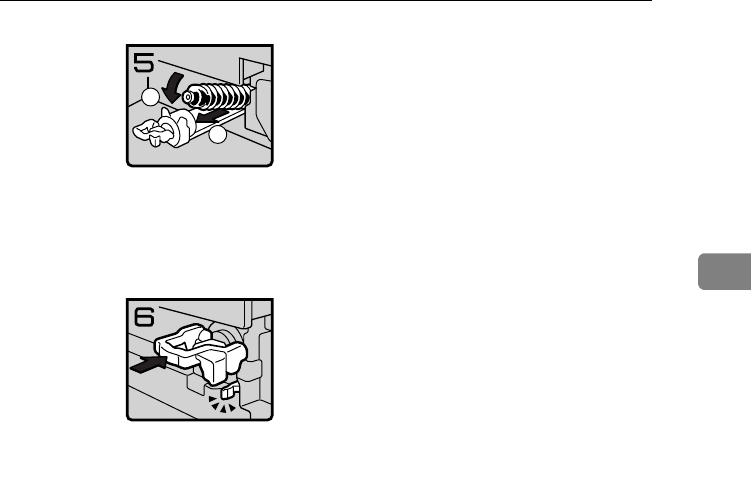
D ADDING TONER
123
3
• 7: Put the toner bottle on the holder,
then press its head forward.
• 8: Push the holder until it clicks.
• 9: Push down the green holder.
• 10: Close the front cover of the ma-
chine.
Toner5
1
2
Toner6
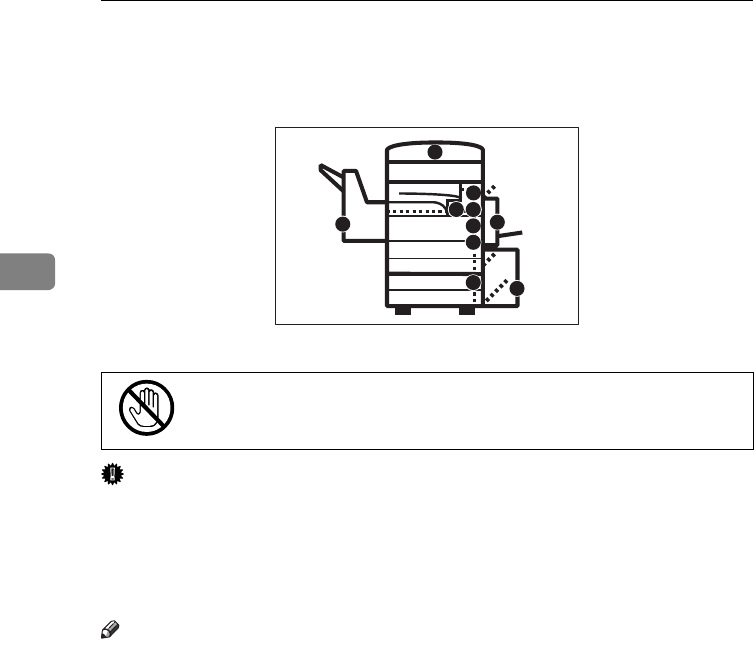
WHAT TO DO IF SOMETHING GOES WRONG
124
3
x CLEARING MISFEEDS
R
CAUTION:
Important
❒When clearing misfeeds, do not turn off the operation switch. If you do, your
copy settings are cleared.
❒To prevent misfeeds, do not leave any torn scraps of paper within the ma-
chine.
❒If paper misfeeds occur repeatedly, contact your service representative.
Note
❒More than one misfed areas may be indicated. In this case, check every appli-
cable area. Refer to the following charts: A, B, C, D, E, R, P, U, Y, Z.
❒You can find a sticker explaining how to remove misfed paper inside of the
front cover, upper side of the finisher.
❒When the machine instructs you to reset originals, reset your originals to the
feeding position.
The display will indicate the number of originals you should return.
•
When removing misfed paper, do not touch the fusing section be-
cause it could be very hot.
P
Y
R
D C Z
A
B
E
U
ND4X0200
Chapter3 Page 124 Tuesday, May 19, 1998 1:59 PM

x CLEARING MISFEEDS
125
3
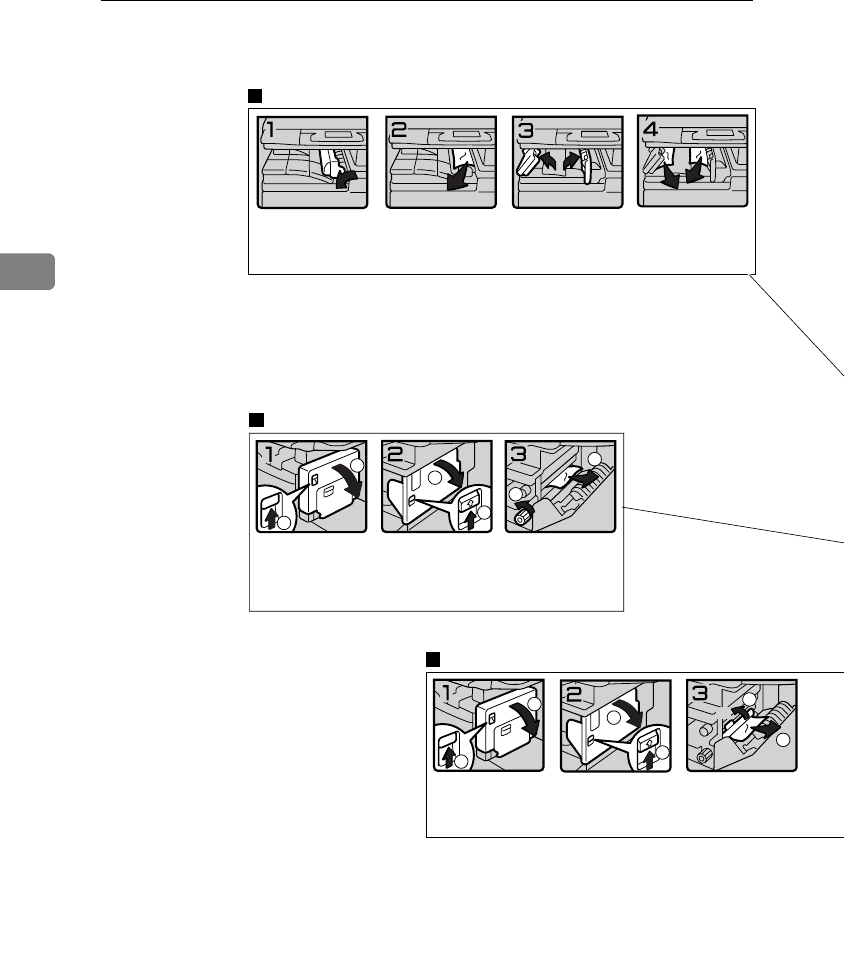
WHAT TO DO IF SOMETHING GOES WRONG
126
3
2
1
1. Open the duplex unit.
1
2
A2
3. Push handle A2 to the
left and remove misfed
paper.
1
2
2. Push up the lever and
open the cover.
1. Open the right cover of
the interchange unit to
the left.
2. Remove misfed paper.
3. Close the cover.
4. If you cannot remove
misfed paper, open the
bottom covers of the
interchange unit.
5. Remove misfed paper.
6. Close the covers.
2
1
1. Open the duplex unit.
1
2
2. Push up the lever and
open the cover.
1
2
B
3. Open the front cover of
the main frame.
4. Turn knob B
counterclockwise and
remove misfed paper.
When D is lit
When B is lit
When A is lit
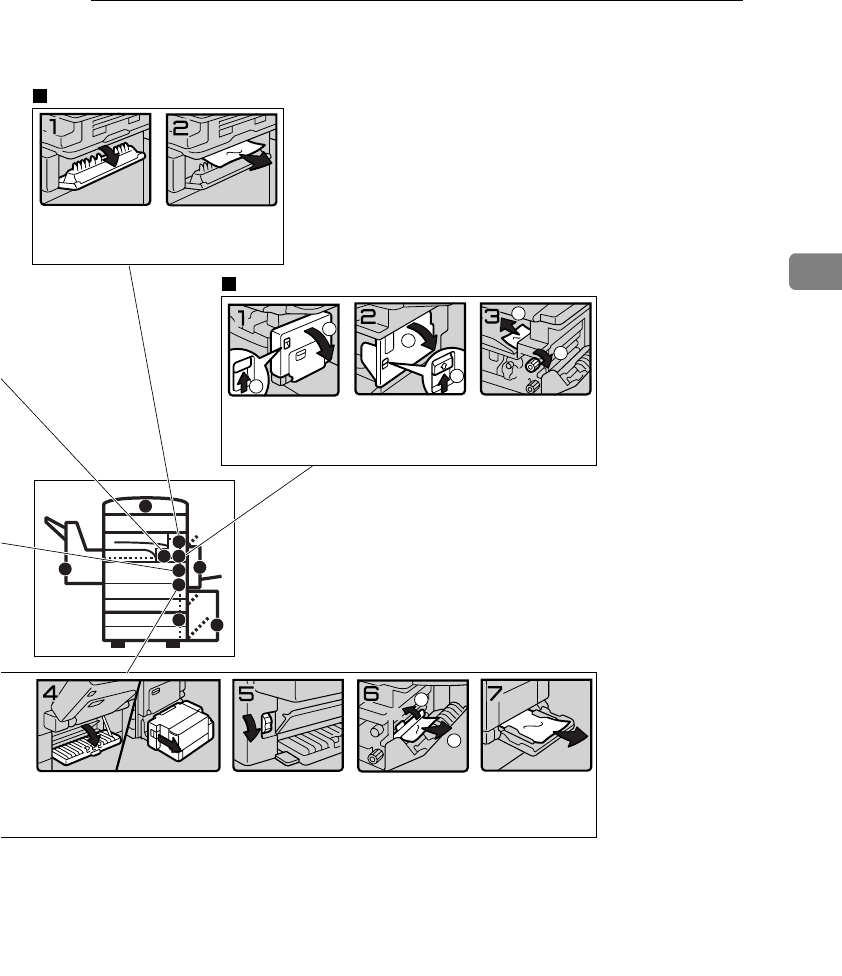
x CLEARING MISFEEDS
127
3
P
Y
R
D C Z
A
B
E
U
4. If you cannot remove misfed paper, open
the cover.
If your machine is equipped with the large
capacity tray, slide it to the right.
A1
5. Turn knob A1 downward.
1
2
A2
6. Push handle A2 to the
left and remove misfed
paper.
7. Open the bypass tray
and remove misfed
paper.
2
1
1. Open the duplex unit.
1
2
2. Push up the lever and
open the cover.
1
2
C
3. Open the front cover of
the main frame.
4. Turn knob C clockwise
and remove misfed
paper.
1. Open the cover. 2. Remove misfed paper.
You can make an enlarged copy of this page and stick it on wall.
When E is lit
When C is lit
ND4X0302
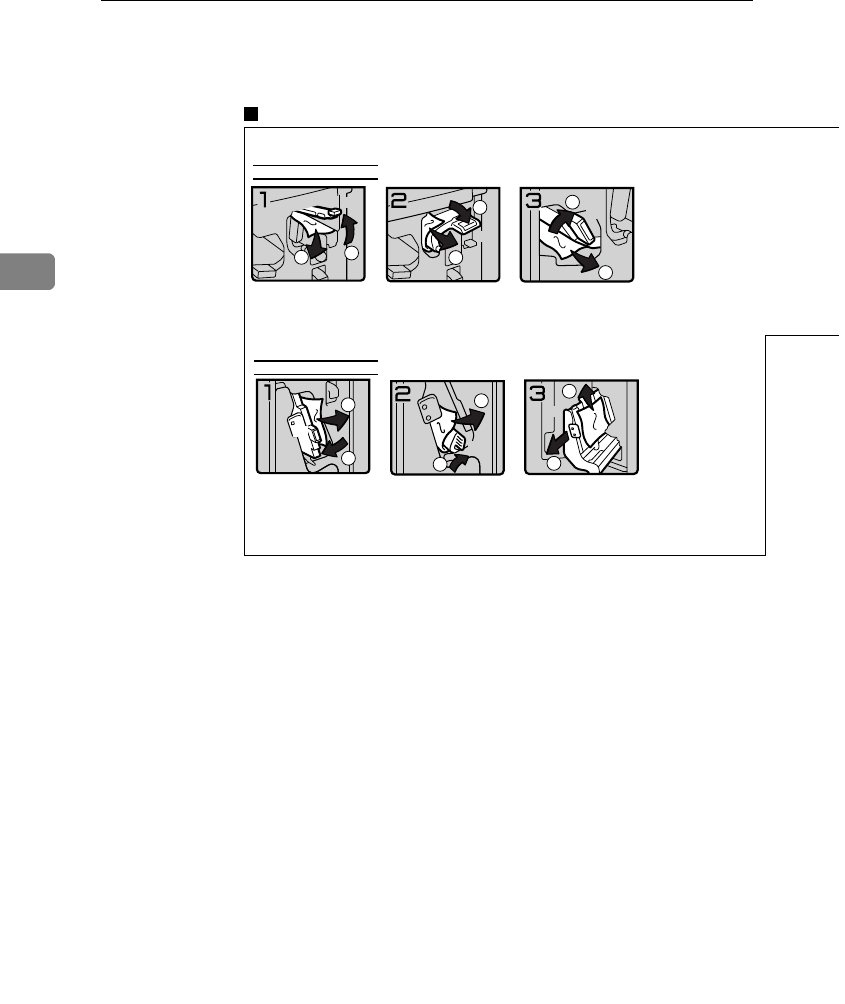
WHAT TO DO IF SOMETHING GOES WRONG
128
31
R1
2
1. Open the front cover of
the finisher.
2. Hold up handle R1 and
remove misfed paper.
1
2
R2
3. If you cannot remove
misfed paper, hold down
handle R2 and remove
misfed paper.
1
2
R3
4. Hold up handle R3 and
remove misfed paper.
When R1, R2, or R3 is lit
1
2
R4
1. Open the front cover of
the finisher.
2. Push handle R4 to the
left and remove misfed
paper.
1
2
R5
3. If you cannot remove
misfed paper, hold up
handle R5 and remove
misfed paper.
1
2
R6
4. Hold handle R6 and pull
out the staple unit, then
remove misfed paper.
3000-sheet finisher
When R4, R5, or R6 is lit
When R is lit
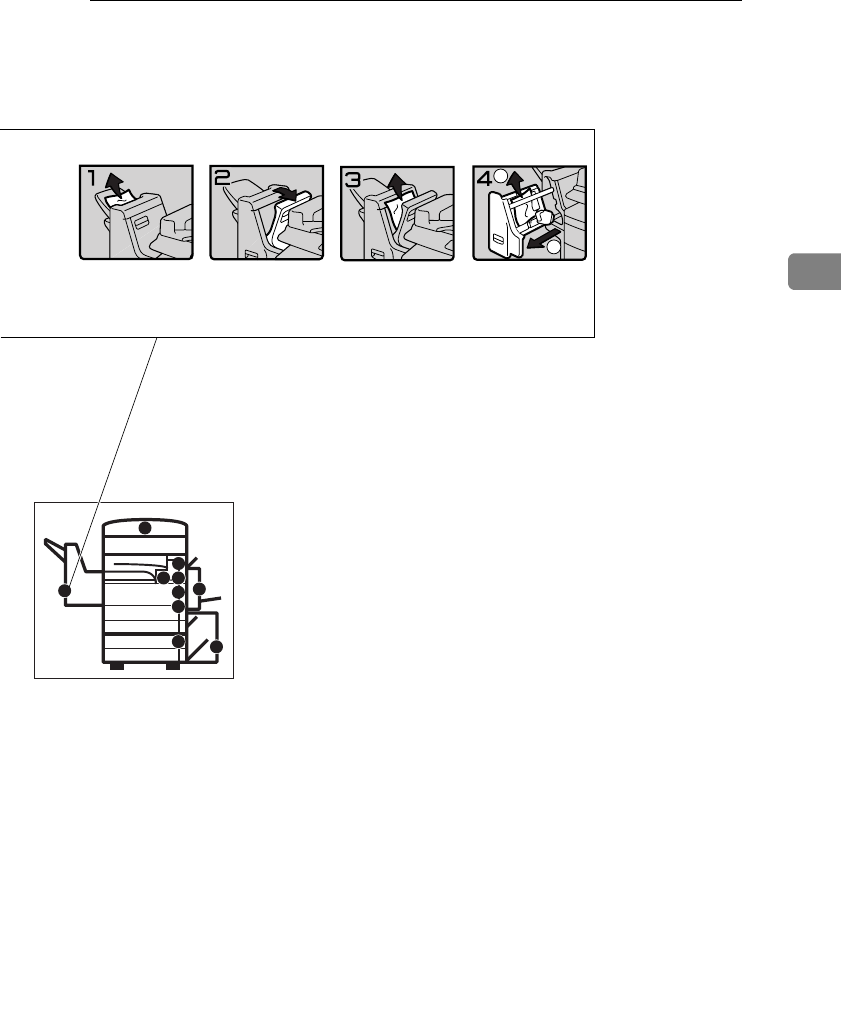
x CLEARING MISFEEDS
129
3
P
Y
R
D C Z
A
B
E
U
1000-sheet finisher
1. Remove misfed paper. 2. If you cannot remove
misfed paper, open the
top cover.
3. Remove misfed paper.
1
2
4. If you cannot remove
misfed paper, pull out
the front cover and
remove misfed paper.
You can make an enlarged copy of this page and stick it on wall.
ND4X0402
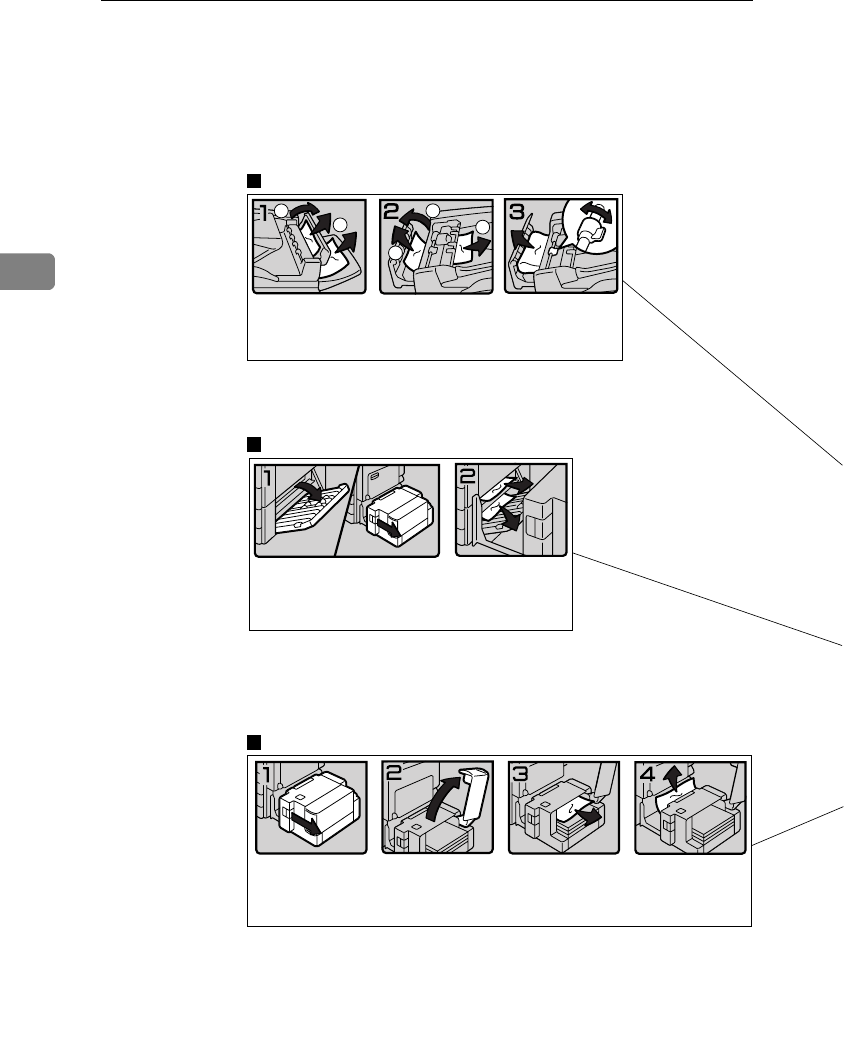
WHAT TO DO IF SOMETHING GOES WRONG
130
3
1. Slide the large capacity
tray to the right.
2. Open the top cover of
the large capacity tray.
3. Remove misfed paper. 4. If you cannot remove
misfed paper, remove
misfed paper from the
left side of the large
capacity tray.
1. Open the right cover of the paper tray unit.
If your machine is equipped with the large
capacity tray, slide it to the right and open
the right cover of the paper tray unit.
2. Remove misfed paper.
12
1. Open the right cover of
the document feeder,
remove misfed originals.
1
2
2
2. Open the left cover of
the document feeder,
remove misfed originals.
3. If the misfed original
does not come out, turn
the lever and remove it.
When P is lit
When Y is lit
When U is lit
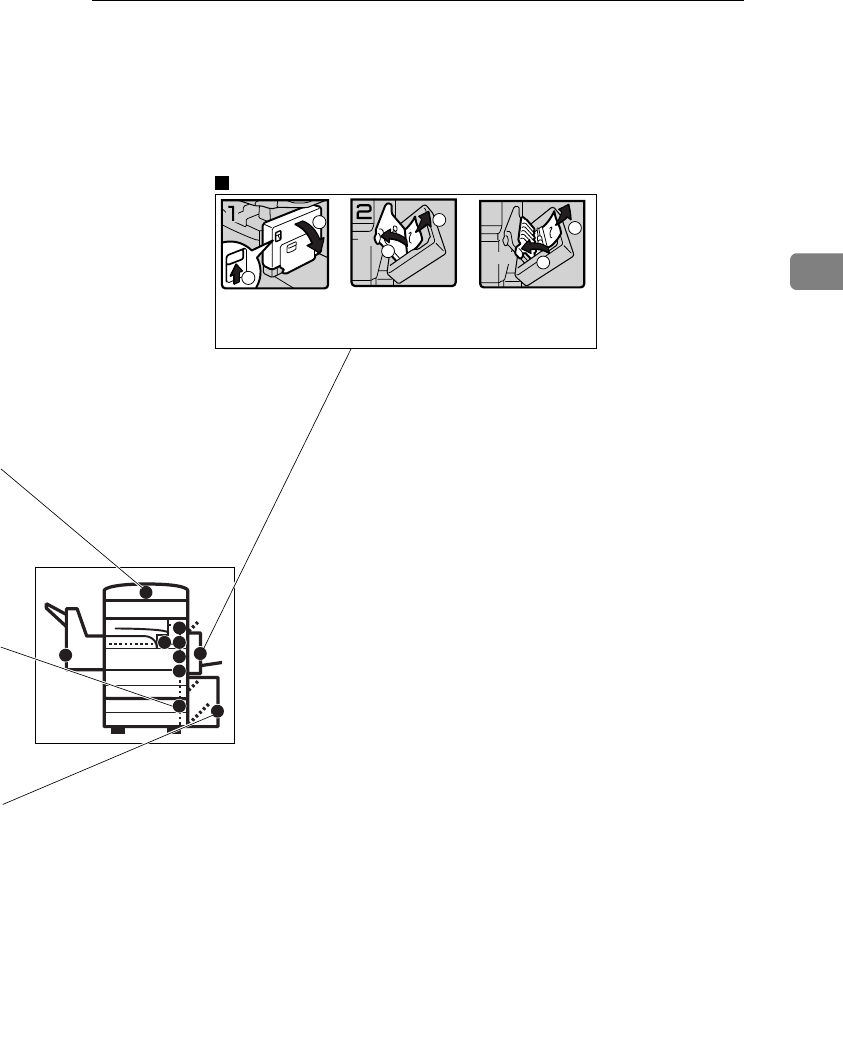
x CLEARING MISFEEDS
131
3
P
Y
R
D C Z
A
B
E
U
You can make an enlarged copy of this page and stick it on wall.
1
2
1. Open the duplex unit. 2. Open cover Z1 and
remove misfed paper.
3. If you cannot find misfed
paper, open cover Z2 and
remove misfed paper.
1
2
Z1
1
2
Z2
When Z is lit
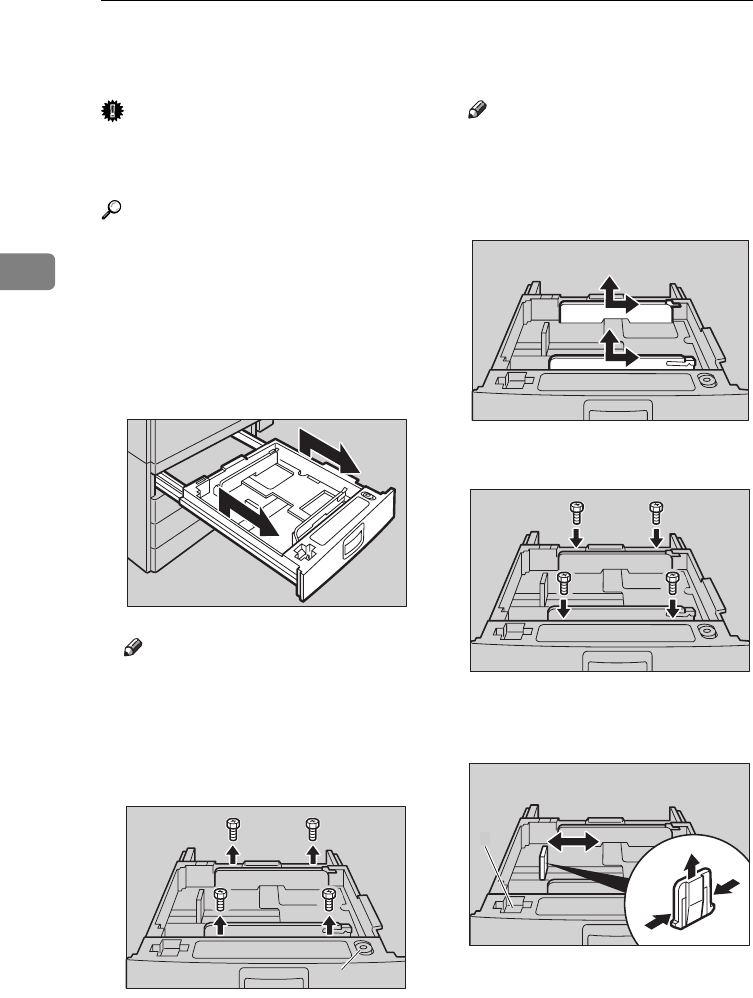
WHAT TO DO IF SOMETHING GOES WRONG
132
3
CHANGING THE PAPER SIZE
Important
❒Make sure to select paper size with
the user tools. Otherwise, misfeeds
might occur.
Reference
For paper sizes, weight, and capac-
ity that can be set in each tray, see
⇒ P.23 “Copy Paper”.
AMake sure that the paper tray is
not being used.
BPull the paper tray, then lift and
remove it.
Note
❒Remove any remaining copy
paper.
CRemove the screws fastening the
side fences using the screwdriver.
1: Screwdriver
Note
❒A screwdriver is contained in
the front area of the top tray.
DRe-position the side fences to the
paper size you want to use.
EFasten the fences with screws.
FAdjust the back fence to the new
paper size.
ND5T0900
ND5T10EE
1
ND5T1100
ND5T1001
ND5T1200
A
Chapter3 Page 132 Tuesday, May 19, 1998 2:00 PM
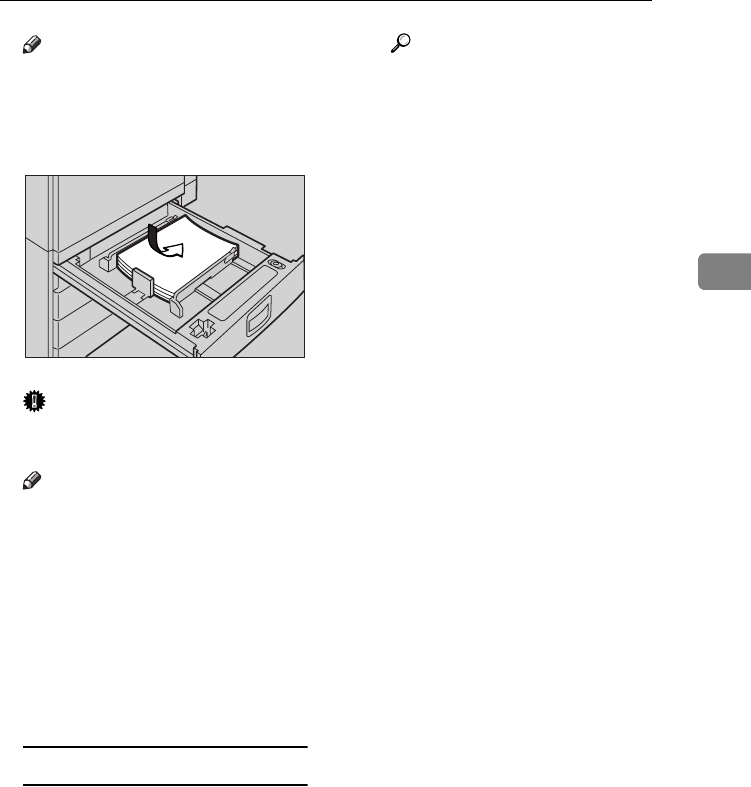
CHANGING THE PAPER SIZE
133
3
Note
❒For 11" × 17" paper, put the back
fence inside A.
G Square the paper and set it in the
tray.
Important
❒Do not stack paper over the lim-
it mark.
Note
❒Shuffle the paper before setting
it in the tray.
❒Make sure the leading corners
of the paper are under the cor-
ners.
HPush the paper tray in until it
stops.
ISelect the paper size with the user
tools.
To adjust the paper size
APress the {
User Tools/Counter
}
key.
BEnter “1” with the {
Number
}
key.
CPress the [↓
↓↓
↓
Next
] key twice.
DEnter “1” and “1” with the
{
Number
} key.
ESelect your desired size. Then,
press the [
OK
] key.
Reference
For details, see “USER
TOOLS (SYSTEM SET-
TINGS)” in the System Set-
tings.
ND5T0801
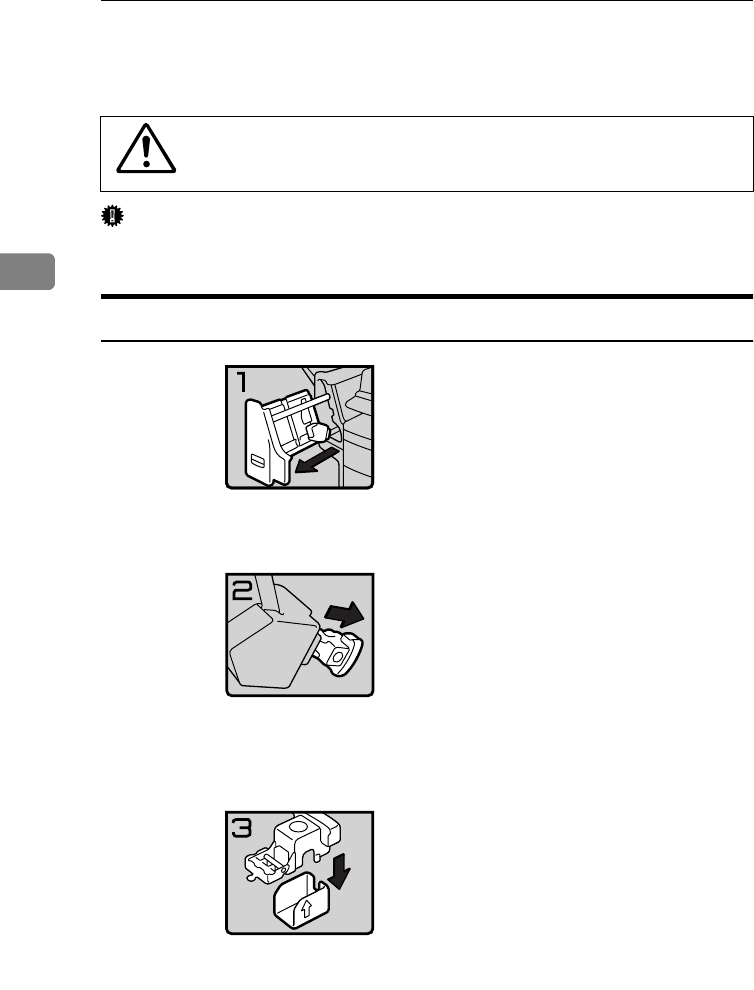
WHAT TO DO IF SOMETHING GOES WRONG
134
3
d ADDING STAPLES
R
CAUTION:
Important
❒If you use a staple cartridge other than that recommended, staple failure or
staple jams might occur.
1000-Sheet Finisher
•
This machine has been tested for safety using this supplier's
parts and consumables. We recommend you only use these
specified supplies.
• 1: Open the front cover.
• 2: Remove the cartridge.
• 3: Take out the empty refill in the ar-
row direction.
fin101EE
fin102EE
fin103EE
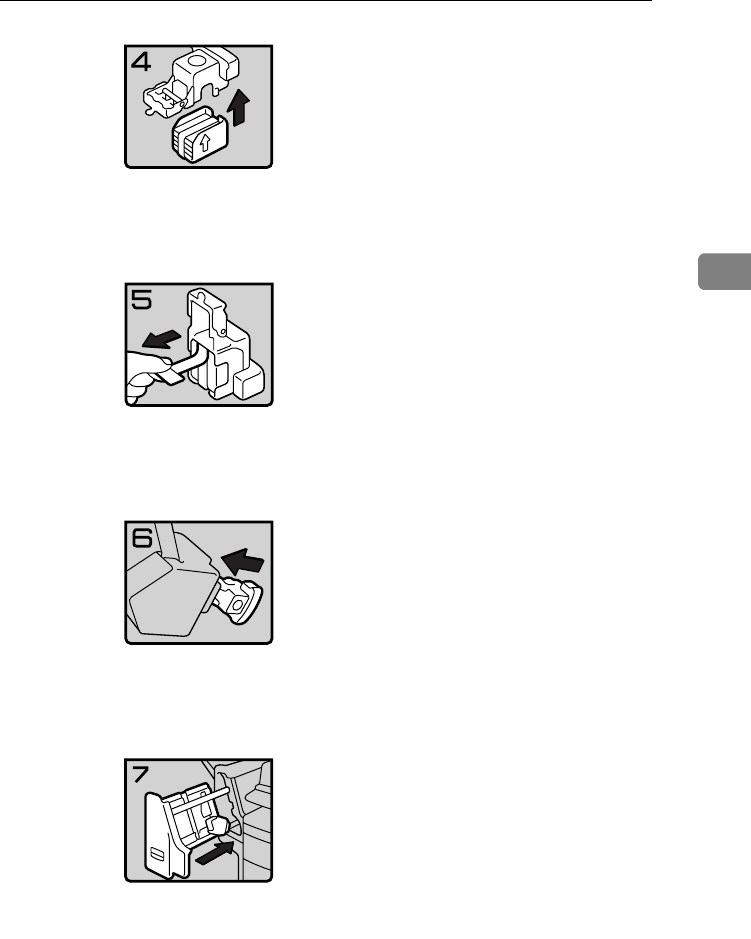
d ADDING STAPLES
135
3
• 4: Push in the new refill until it clicks.
• 5: Pull out the ribbon.
• 6: Reinstall the cartridge.
• 7: Close the front cover.
fin104EE
fin105EE
fin106EE
fin107EE
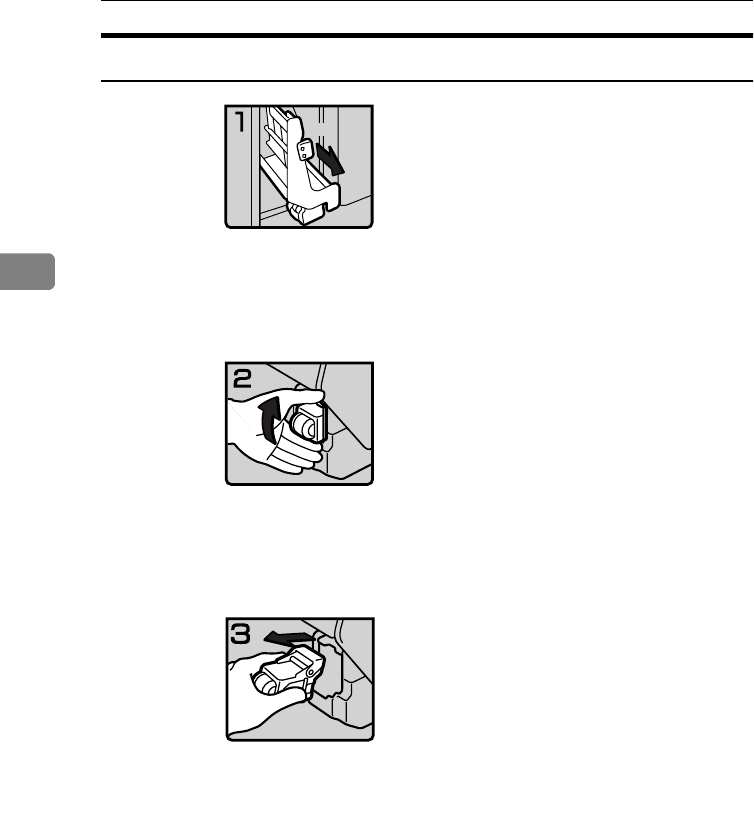
WHAT TO DO IF SOMETHING GOES WRONG
136
3
3000-Sheet Finisher
• 1: Open the front cover of the finisher.
• 2: Pull out the staple unit.
• 3: Lift the cartridge until it clicks.
• 4: Pull out the cartridge gently.
R6
fin301EE
fin302EE
fin303EE
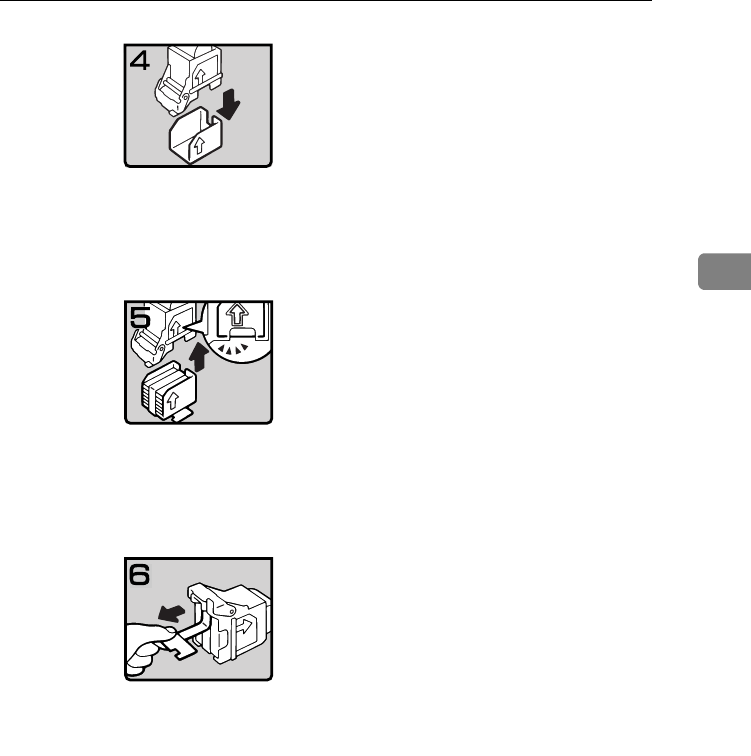
d ADDING STAPLES
137
3
• 5: Take out the empty refill in the direc-
tion of the arrow.
• 6: Align the arrows on the new refill
and the cartridge, then push in the re-
fill until it clicks.
• 7: Pull out the ribbon.
fin304EE
fin305EE
fin306EE
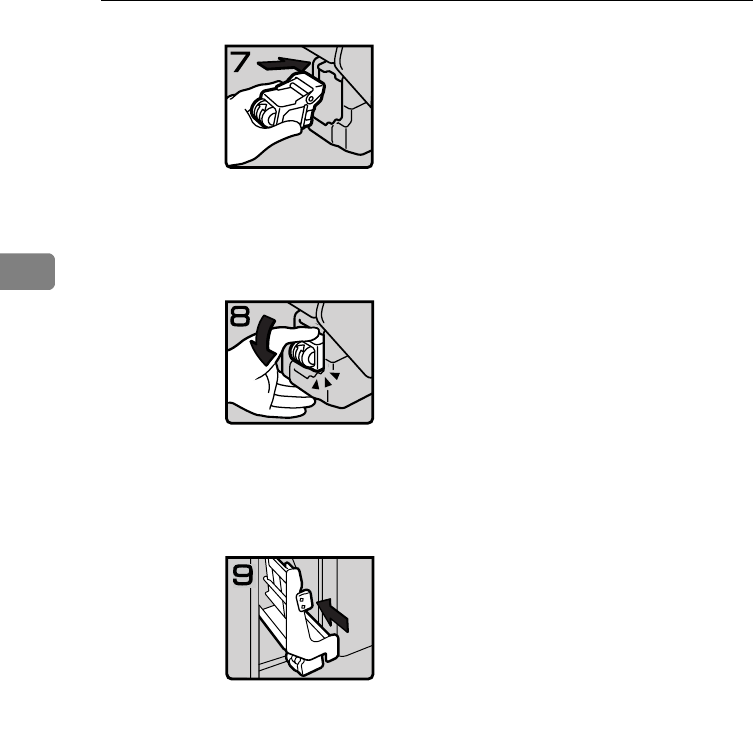
WHAT TO DO IF SOMETHING GOES WRONG
138
3
• 8: Reinstall the cartridge.
• 9: Press down the cartridge until it
clicks.
• 10: Bring the staple unit back into
place.
• 11: Close the front cover of the finisher.
fin307EE
fin308EE
fin309EE
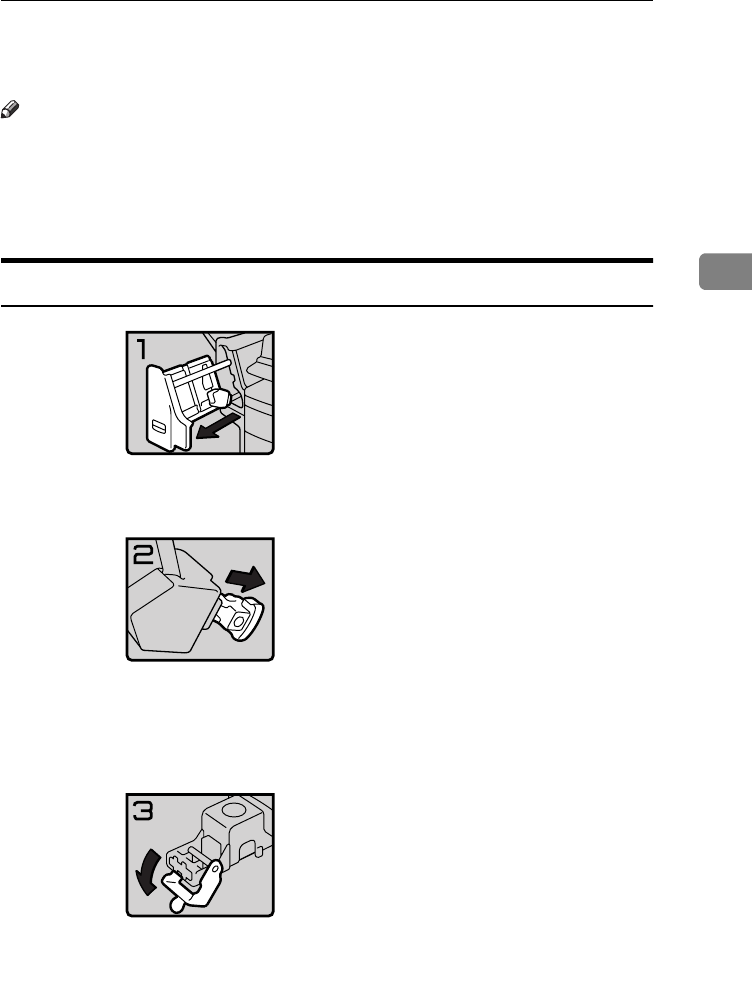
e REMOVING JAMMED STAPLES
139
3
e REMOVING JAMMED STAPLES
Note
❒Staples might be jammed because of curled copies. In this case, try turning the
copy paper over in the tray. If there is no improvement, change the copy pa-
per with less curls.
❒After removing jammed staples, staples might not be ejected the first few
times you try to use the stapler.
1000-Sheet Finisher
• 1: Open the front cover.
• 2: Remove the cartridge.
• 3: Open the face plate.
fin108EE
fin109EE
fin110EE
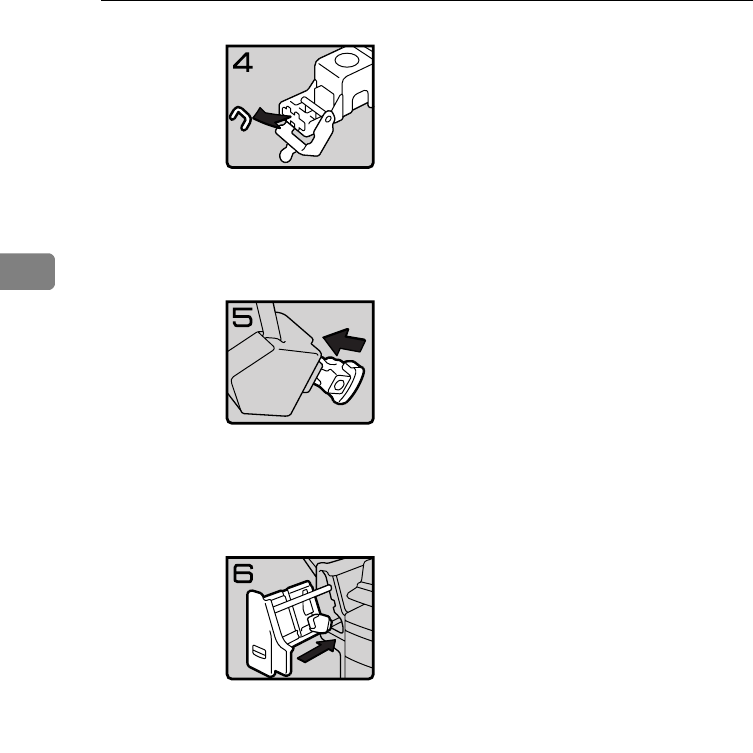
WHAT TO DO IF SOMETHING GOES WRONG
140
3
• 4: Remove the jammed staples.
• 5: Reinstall the cartridge.
• 6: Close the front cover.
fin111EE
fin112EE
fin113EE
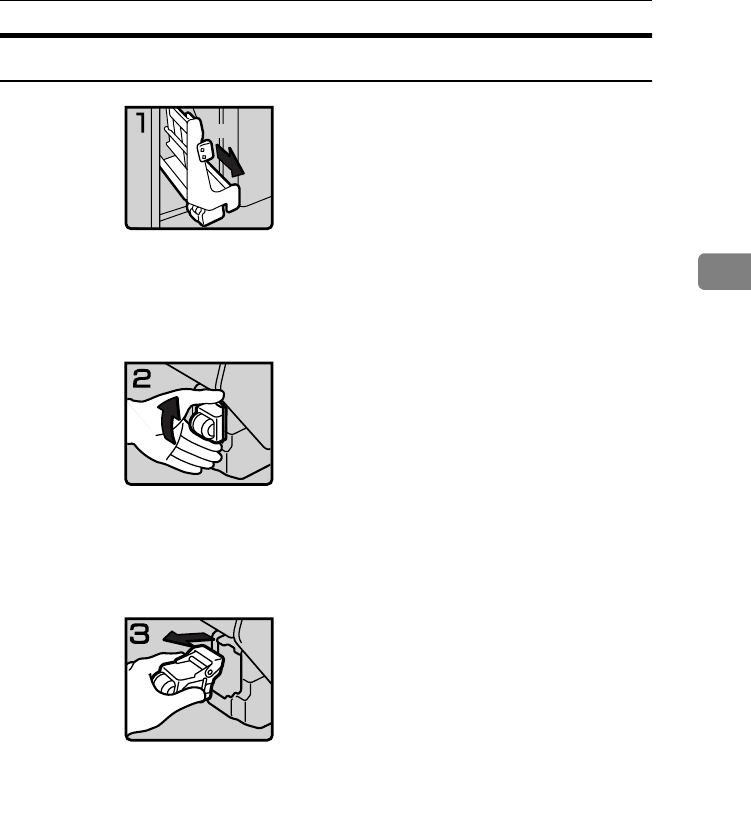
e REMOVING JAMMED STAPLES
141
3
3000-Sheet Finisher
• 1: Open the front cover of the finisher.
• 2: Pull out the staple unit.
• 3: Lift the cartridge until it clicks.
• 4: Pull out the cartridge gently.
fin310EE
R6
fin311EE
fin312EE
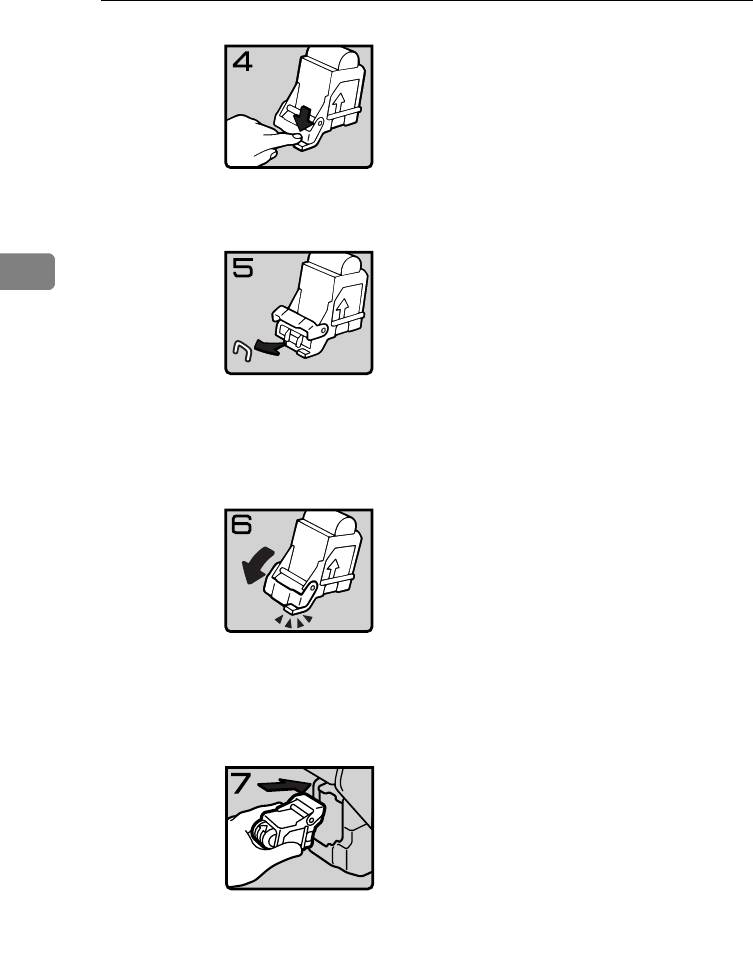
WHAT TO DO IF SOMETHING GOES WRONG
142
3
• 5: Open the face plate by pressing the
lock on the right.
• 6: Remove the jammed staples.
• 7: Close the face plate by pressing it un-
til it clicks.
• 8: Reinstall the cartridge.
fin313EE
fin314EE
fin315EE
fin316EE
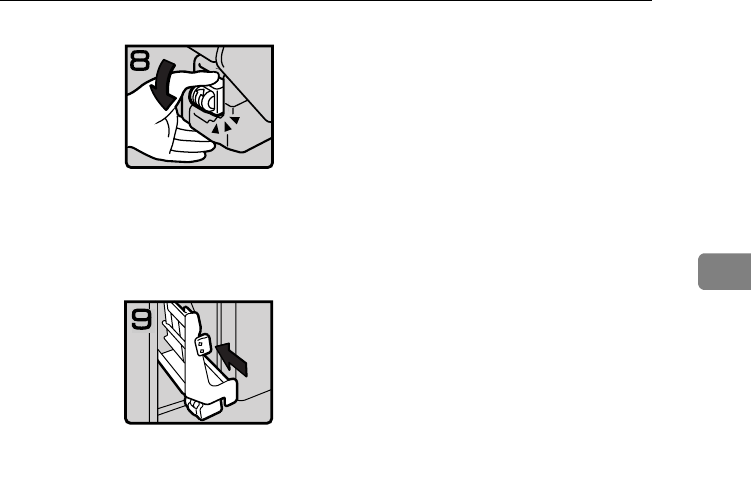
e REMOVING JAMMED STAPLES
143
3
• 9: Press down the cartridge until it
clicks.
• 10: Bring the staple unit back into
place.
• 11: Close the front cover of the finisher.
fin317EE
fin318EE
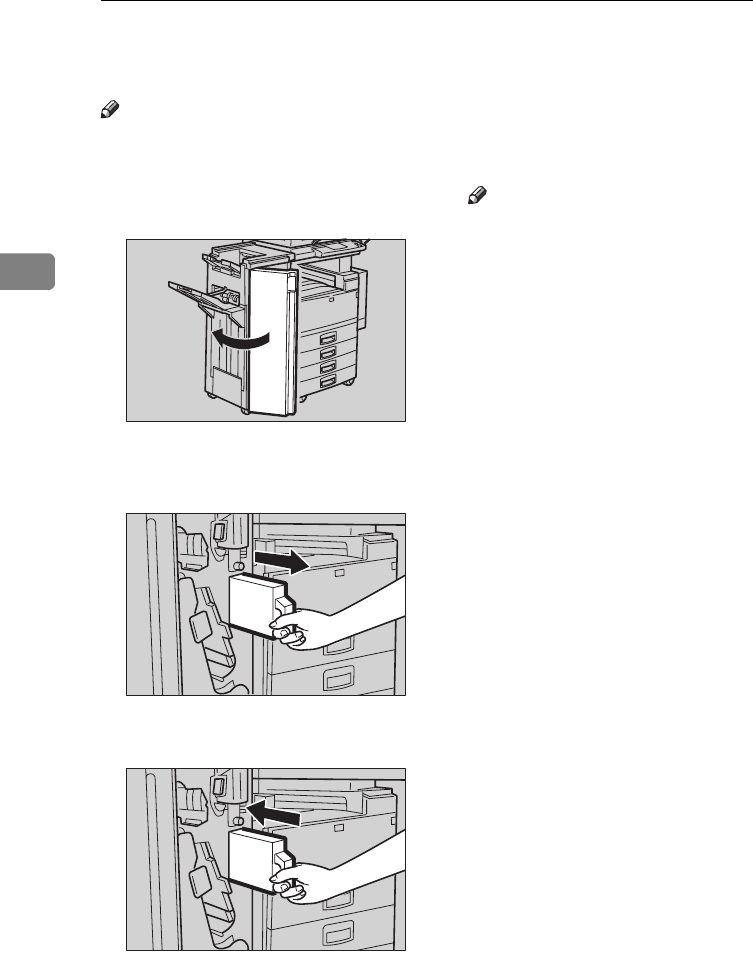
WHAT TO DO IF SOMETHING GOES WRONG
144
3
y REMOVING PUNCH WASTE
Note
❒While the y indicator is lit, you
cannot use the punch function.
AOpen the front cover of the 3000-
sheet finisher.
BPull out the punch waste box and
remove punch waste.
CReinstall the punch waste box.
DClose the front cover of the finish-
er.
The y indicator goes off.
Note
❒If the indicator is still lit, rein-
stall the punch waste box.
ND7B2600
ND7B2700
ND7B2701
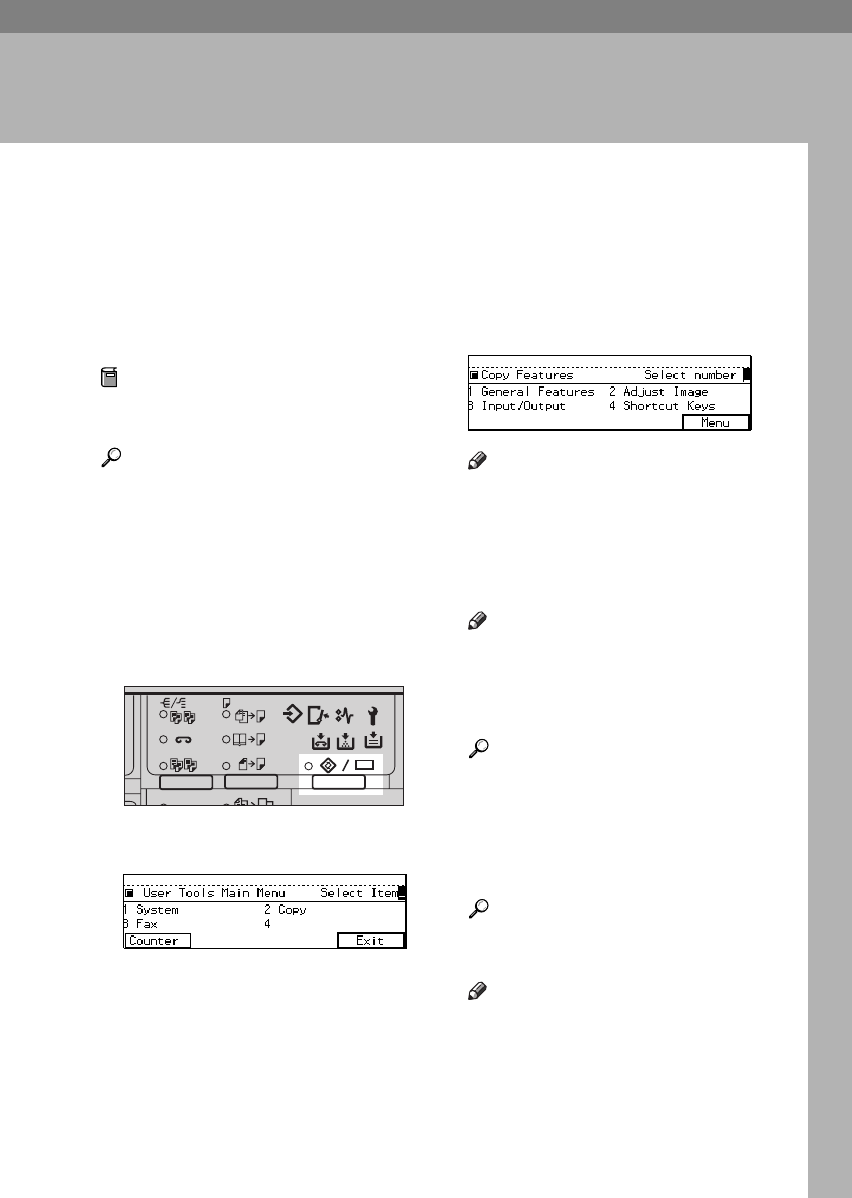
145
4. USER TOOLS (COPY
FEATURES)
ACCESSING THE USER TOOLS (COPY
FEATURES)
This section is for the key operators in
change of this machine. You can
change or set the machine's default
settings.
Preparation
After using the user tools, be sure
to exit from user tools.
Reference
Regarding about the user tools for
system setting, see “Accessing The
User Tools (System Settings)” in
the System Settings.
Regarding the user tools for the fax
mode, see each Operating Instruc-
tions.
APress the {
User Tools/Counter
} key.
BEnter {
2
} with the {
Number
} key.
CEnter the number of the desired
User Tools menu with the {
Num-
ber
} keys.
Note
❒To return to the previous menu,
press the [
Menu
] key.
DSearch for the desired setting
with the [↓
↓↓
↓
Next
] key. Enter its
number with the {
Number
} keys.
Note
❒[↓
↓↓
↓
Next
]: Press to go to the next
page.
❒[↑
↑↑
↑
Prev.
]: Press to go back to the
previous page.
Reference
See ⇒ P.145 “USER TOOLS
(COPY FEATURES)”.
EChange the settings by following
the instructions on the panel dis-
play. Then, press the [
OK
] key.
Reference
See ⇒ P.150 “Settings You Can
Change With The User Tools”.
Note
❒[
OK
] key: Press to set the new
settings and return to the previ-
ous menu.
2
2
2
1
1
2
2112233
Enhanced
ND2L0103
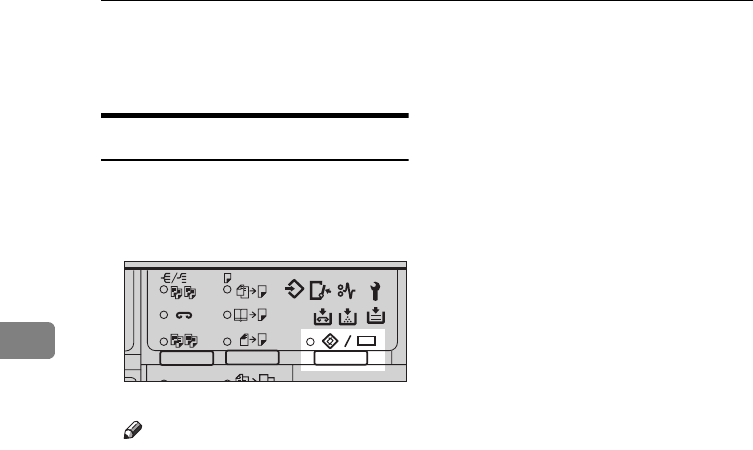
USER TOOLS (COPY FEATURES)
146
4
❒[
Cancel
] key: Press to return to
the previous menu without
changing any data.
Exiting From User Tools
AAfter changing the user tools set-
tings, press the {
User Tools/
Counter
} key.
Note
❒The settings are not canceled
even if the operation switch is
turned off or the {
Clear Modes/
Energy Saver
} key is pressed.
2
2
2
1
1
2
2112233
Enhanced
ND2L0103

ACCESSING THE USER TOOLS (COPY FEATURES)
147
4
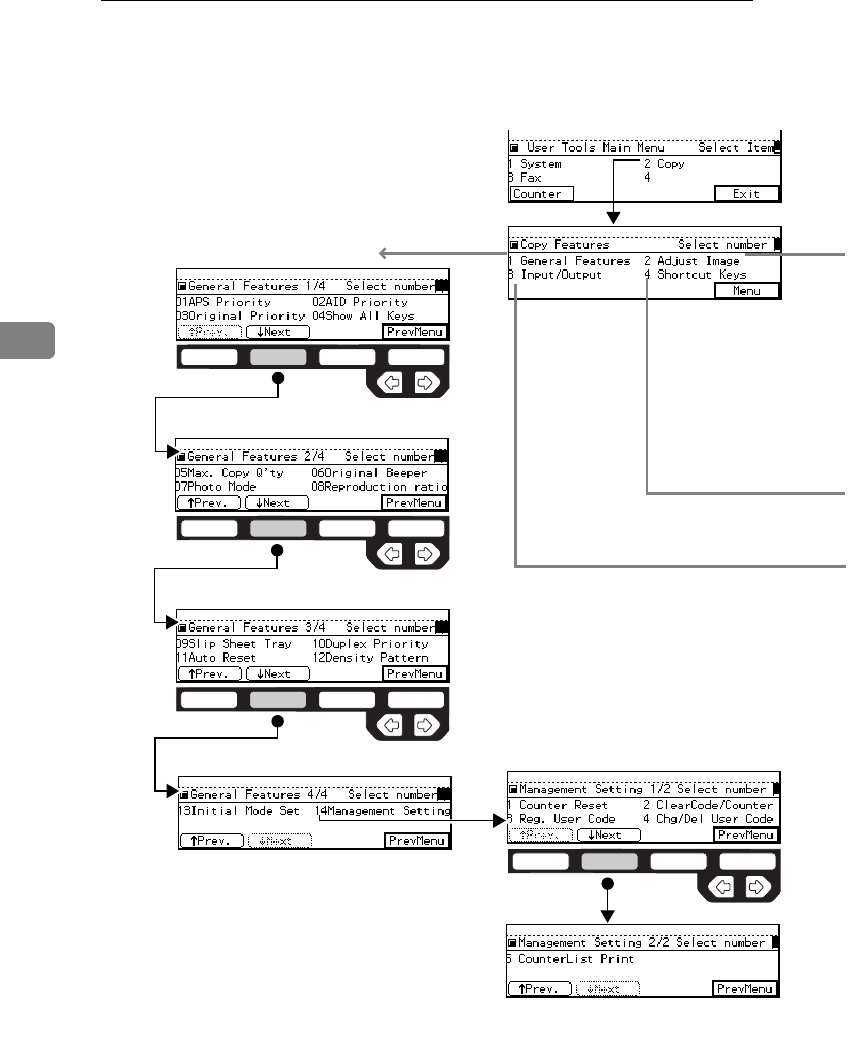
USER TOOLS (COPY FEATURES)
148
4
USER TOOLS MENU (COPY FEATURES)
1 General Features 4/4
1 General Features 1/4
1 General Features 2/4
1 General Features 3/4
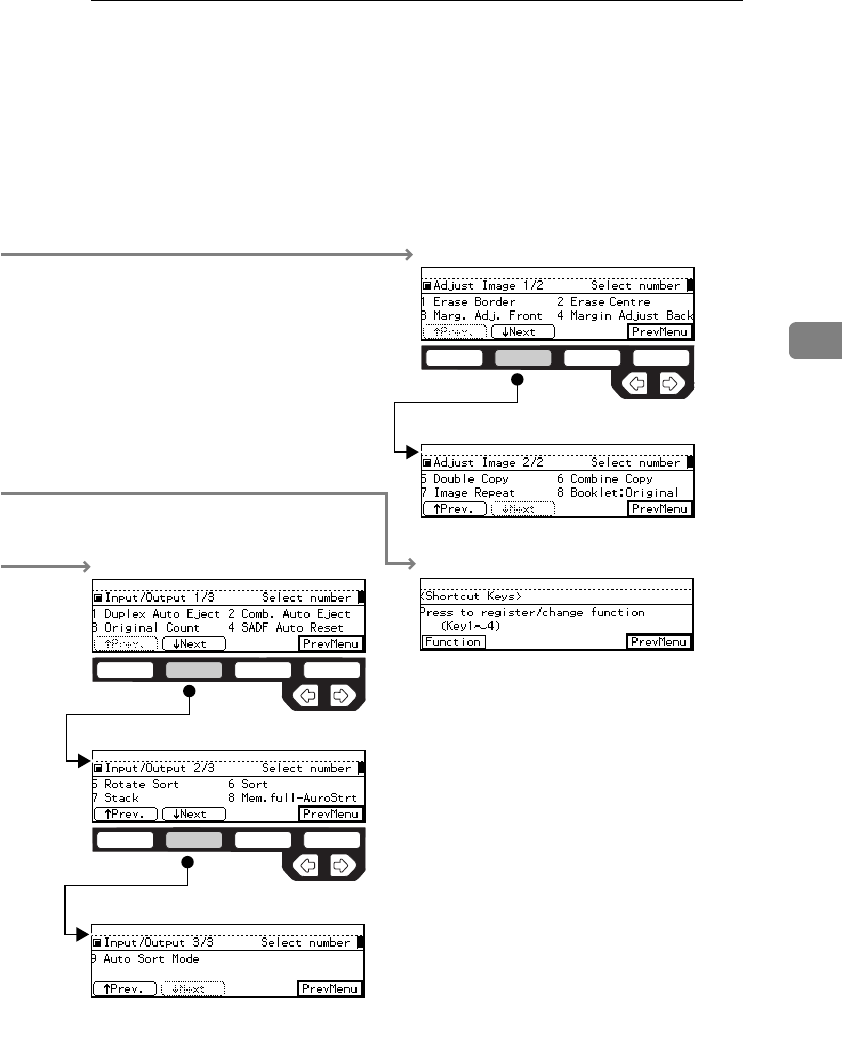
USER TOOLS MENU (COPY FEATURES)
149
4
3 Input / Output 1/3
3 Input / Output 2/3
3 Input / Output 3/3
2 Adjust Image 1/2
2 Adjust Image 2/2
4 Shortcut Keys
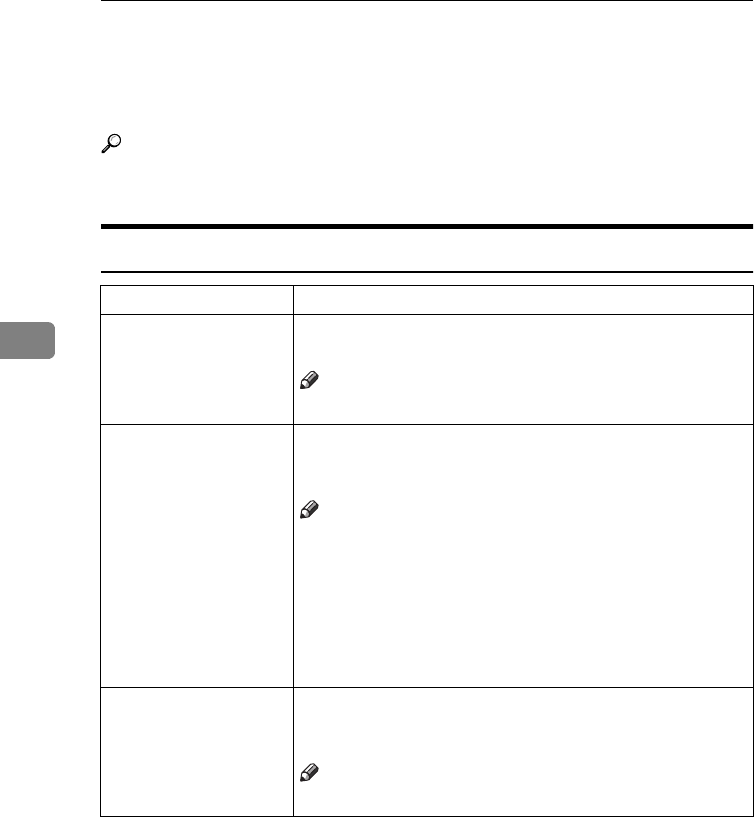
USER TOOLS (COPY FEATURES)
150
4
SETTINGS YOU CAN CHANGE WITH THE
USER TOOLS
Reference
For how to access the user tools, see ⇒ P.145 “Accessing The User Tools (Copy
Features)”.
1. General Features
1
/
4
Menu Description
01. APS Priority As a default setting, Auto Paper Select is selected. You can
cancel this setting.
Note
❒Default: Yes
02. AID Priority In each mode of Text, Text·Photo, Photo, Copied Original,
and Low Density Original, you can specify whether to select
Auto Image Density.
Note
❒Default:
•Text:
Yes
• Text·Photo: No
• Photo: No
• Copied Original: Yes
• Low Density Original: Yes
03. Original Priority As a default setting, Text is selected as originals type. You
can change it to Text·Photo, Photo, Copied Original, or Low
Density Original.
Note
❒Default: Text
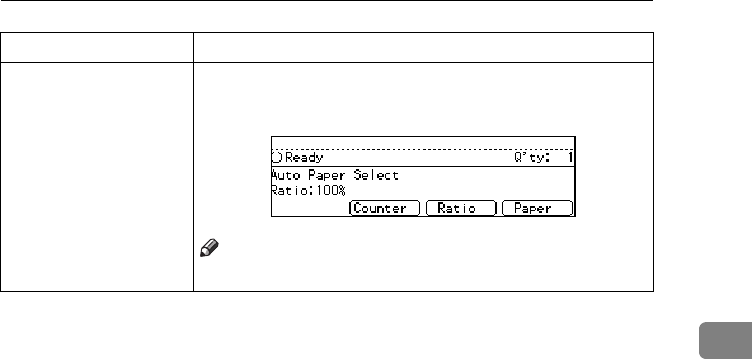
SETTINGS YOU CAN CHANGE WITH THE USER TOOLS
151
4
04. Show All Keys You can specify whether all the keys are displayed. If you
change the default setting to [
No
], the display shows as fol-
lows:
Note
❒Default: Yes
Menu Description
USER TOOLS (COPY FEATURES)
152
4
1. General Features
2
/
4
Menu Description
05. Max. Copy Q'ty The maximum copy quantity can be set between 1 and 999.
Note
❒Default: 999
06. Original Beeper The beeper (key tone) sounds when you forgot to remove
originals after copying.
Note
❒Default: On
❒If the Panel beeper setting is set to Off, (see “System Set-
tings”), the beeper does not sound irrespective of the set-
ting (On or Off) of this Original Beeper function.
07. Photo Mode You can select the image quality when you select Photo
mode with the {
Original Type
} key or Enhanced Image Copy
mode.
Note
❒Default:
• Enhanced image: OFF: Coarse
• Enhanced image: ON: Normal
08. Reproduction ratio Up to 2 reproduction ratios which you frequently use can be
registered.
SETTINGS YOU CAN CHANGE WITH THE USER TOOLS
153
4
1. General Features
3
/
4
Menu Description
09. Slip Sheet Tray You can select a special tray for slip sheets.
Note
❒Default:
• Machine with bypass tray: Bypass
• Machine without bypass tray: None
10. Duplex Priority You can select the type of the Duplex function to be effective
when the machine is turned on, Energy Saver mode is off, or
Auto Reset is on.
Note
❒Default: 1-Sided → 1-Sided
11. Auto Reset The machine returns to its initial condition automatically af-
ter your job is finished. The time can be set from 10 to 180
seconds.
Note
❒Default: 60 seconds
12. Density Pattern You can change density levels.
USER TOOLS (COPY FEATURES)
154
4
1. General Features
4
/
4
Menu Description
13. Initial Mode Set You can select the initial mode or Program No. 10 as the
mode to be effective when modes are cleared.
Note
❒Default: Initial
14. Management Setting
You can change settings for user access limitation copier functions.
Counter Reset You can check the number of copies made under each user
code. You can also reset each user code's counter to 0.
Note
❒If more than one user code is registered, you can view all
the counters using the [↑
↑↑
↑
Prev.
] or [↓
↓↓
↓
Next
] key.
ClearCode/Counter You can delete all user codes or reset all counters to 0.
Reg. User Code You can register user codes.
Note
❒Up to 50 user codes (8 digits or less) can be registered.
Chg/Del User Code You can change or delete user codes.
Note
❒The number of copies made under the old code is added
to that made under the new user code.
❒The number of copies made under the deleted code is
also deleted.
CounterList Print You can print a list of counters shown by user code.
Note
❒To stop the printing, press the [
Cancel
] key.
SETTINGS YOU CAN CHANGE WITH THE USER TOOLS
155
4
2. Adjust Image
1
/
2
Menu Description
1. Erase Border The default setting of the width of the erased margins in the
Erase Border mode can be changed as follows:
• Metric version: 3 – 50 mm in 1 mm steps
• Inch version: 0.1 – 2.0" in 0.1" steps
Note
❒Default:
• Metric version: 10 mm
• Inch version: 0.4"
2. Erase Centre The default setting of the width of the erased margins in the
Erase Centre mode can be changed as follows:
• Metric version: 3 – 50 mm in 1 mm steps
• Inch version: 0.1 – 2.0" in 0.1" steps
Note
❒Default:
• Metric version: 10 mm
• Inch version: 0.4"
3. Marg.Adjust.Front You can adjust the margin width on the front side of copies
in Margin Adjust mode. You can change this setting as fol-
lows:
• Metric version: 0 – 30 mm in 1 mm steps
• Inch version: 0 – 1.0" in 0.1" steps
Note
❒Default:
• Metric version: 5 mm
• Inch version: 0.2"
USER TOOLS (COPY FEATURES)
156
4
4. Margin Adjust Back You can specify a binding margin on the back side of copies
for the following modes: 1-Sided → 2-Sided, Book → 2-Sid-
ed, and 2-Sided → 2-sided.
You can change this setting as follows:
• Metric version: 0 – 30 mm in 1 mm steps
• Inch version: 0 – 1.0" in 0.1" steps
Limitation
❒Type 1 requires the optional duplex unit.
Note
❒Default:
• Metric version: 5 mm
• Inch version: 0.2"
Menu Description
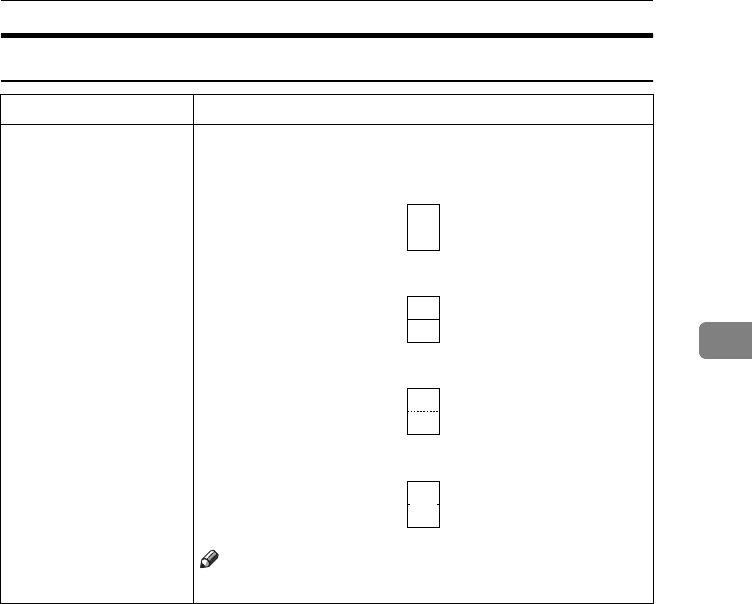
SETTINGS YOU CAN CHANGE WITH THE USER TOOLS
157
4
2. Adjust Image
2
/
2
Menu Description
5. Double Copy You can select a separation line in Double Copy mode from
no line, Solid line, Broken line, or Crop marks.
•None
•Solid
• Broken
• Crop Marks
Note
❒Default: None (no line)
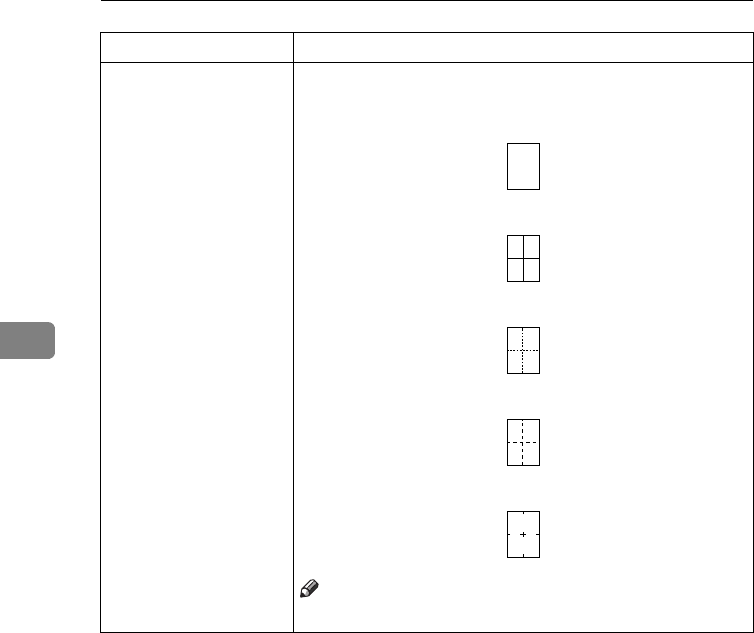
USER TOOLS (COPY FEATURES)
158
4
6. Combine Copy You can select a separation line in Combine mode from no
line, Solid line, Broken line 1, Broken line 2, or Crop marks.
•None
•Solid
• Broken1
• Broken2
• Crop
Note
❒Default: None(no line)
Menu Description
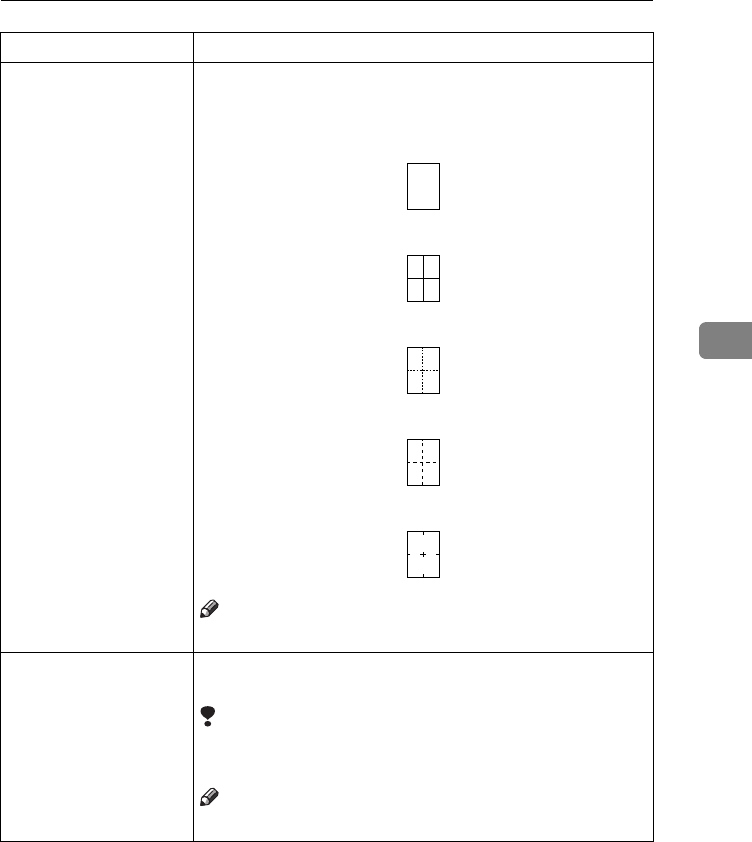
SETTINGS YOU CAN CHANGE WITH THE USER TOOLS
159
4
7. Image Repeat You can select a separation line in Image Repeat mode from
no line, Solid line, Broken line 1, Broken line 2, or Crop
marks.
•None
•Solid
• Broken1
• Broken2
• Crop
Note
❒Default: None (no line)
8. Booklet:Original You can select type of originals for “16 pages → Booklet”.
See ⇒ P.78 “Combine—Combining Originals Into One Copy”.
Limitation
❒Type 1 requires the optional 8 MB copier memory unit
and duplex unit.
Note
❒Default: Portrait
Menu Description
USER TOOLS (COPY FEATURES)
160
4
3. Input/Output
1
/
2
Menu Description
1. Duplex Auto Eject When making two-sided copies from one-sided originals, if
the last original is an odd page, the last copy will be auto-
matically delivered with the reverse side blank. You can
cancel this setting. ⇒ P.85 “Duplex—Making Two-Sided Cop-
ies”
Limitation
❒Type 1 requires the optional duplex unit.
Note
❒ When you set one original at a time in the document
feeder or set an original on the exposure glass, this func-
tion does not come effect.
❒Default: Yes
2. Comb. Auto Eject As a default setting, even if the number of originals in the
optional document feeder is less than the number required
in the selected Combine mode, the lacking number of copies
are automatically made in blank. You can cancel this set-
ting.⇒ P.78 “Combine—Combining Originals Into One Copy”
Limitation
❒When you set one original at a time in the document
feeder or set an original on the exposure glass, this func-
tion does not come effect.
Note
❒Default: Yes
3. Original Count As a default setting, the display shows the copy quantity
you specified and the number of copies made. You can can-
cel this setting, and instead view the number of originals to
be fed in the document feeder and the number of copies
made.
Note
❒Default: No
SETTINGS YOU CAN CHANGE WITH THE USER TOOLS
161
4
4. SADF Auto Reset When you set one original at a time in the optional docu-
ment feeder, the Auto Feed indicator lights for a selected
time after an original is fed to show that the document feed-
er is ready for another original. You can adjust this time
from 3 seconds to 99 seconds in 1 second steps.
Limitation
❒The optional document feeder (ADF) is required.
Note
❒Default: 5 seconds
Menu Description
USER TOOLS (COPY FEATURES)
162
4
3. Input/Output
2
/
2
Menu Description
5. Rotate Sort If you select [
No
] when the paper tray in use runs out of pa-
per, the machine stops allowing you to add paper to the
tray. So you can have all the copies rotate-sorted.
Note
❒Default: No
6. Sort You can select a Sort function. ⇒ P.45 “Sort—Sorting Into
Sets (123, 123, 123)”
Limitation
❒The optional finisher is required to use the Shift Sort
function.
Note
❒Default:
• Machine with finisher: Shift Sort
• Machine without finisher: Sort
7. Stack You can select a Stack function. ⇒ P.47 “Stack—Stacking To-
gether All Copies Of A Page (111, 222, 333)”
Limitation
❒The optional finisher is required to use the Shift Stack
function.
Note
❒Default:
• Machine with finisher: Shift Stack
• Machine without finisher: Rotate Stack
SETTINGS YOU CAN CHANGE WITH THE USER TOOLS
163
4
8. Mem.full-AutoStrt When the memory becomes full while scanning originals,
the machine can make copies of the scanned originals first,
then automatically proceeds to scanning the remaining orig-
inals.
You can enable or disable this function.
• If you select [
No
]
When the memory becomes full, the machine stops its
operation allowing you to remove the copy pages deliv-
ered on the output tray.
• If you select [
Yes
]
You can leave the machine unattended to make all the
copies, but the resulting sorted pages will not be sequen-
tial.
Note
❒Default: No
9. Auto Sort Mode You can specify whether Sort mode is selected when the ma-
chine is turned on or the mode is cleared.
Note
❒Default: No
Menu Description
USER TOOLS (COPY FEATURES)
164
4
4. Shortcut Keys
1
/
1
Menu Description
Shortcut Keys You can register up to four frequently used functions with
shortcut keys.
Note
❒First press the desired shortcut key, then select the func-
tion you want to assign to the key.
165
5. REMARKS
DO'S AND DON'TS
R
CAUTION:
Important
❒Make sure the remaining memory space is 100 %, before you unplug the pow-
er cord.
❒While the machine is unplugged, you can neither send nor receive a fax.
Reference
For details, see the Facsimile Reference.
• Do not touch areas on or around the fusing unit. These areas get hot.
• After making copies continuously, you may feel the exposure glass is heated.
But this is not a malfunction.
• You may feel warm around the ventilation hole. This is caused by exhaust air,
and not a malfunction.
• Do not turn off the operation switch while copying or printing. When turning
off the operation switch, make sure that copying or printing is completed.
• The machine might fail to produce good copy images if there should occur
condensation inside caused by temperature change.
• Do not open the covers of machine while copying or printing. If you do, mis-
feeds might occur.
• Do not move the machine while copying or printing.
• If you operate the machine improperly or a failure occurs on the machine,
your machine settings might be lost. Be sure to take a note of your machine
settings.
• Supplier shall not be liable for any loss or damages resulting from a failure on
the machine, loss of machine settings, and use of the machine.
•
When you move the machine, unplug the power cord from the
wall outlet to avoid fire or electric shock.
•
When the machine will not be used for a long time, unplug the
power cord.
REMARKS
166
5
WHERE TO PUT YOUR MACHINE
Machine Environment
Your machine's location should be carefully chosen because environmental con-
ditions greatly affect its performance.
Optimum environmental conditions
R
CAUTION:
R
CAUTION:
• Temperature: 10 – 32°C (50 – 89.6°F)(humidity to be 50 % at 32°C, 89.6°F)
• Humidity: 15 – 80 % (temperature to be 27°C, 80.6°F at 80 %)
• A strong and level base.
• The machine must be level within 5 mm, 0.2" both front to rear and left to
right.
• To avoid possible build-up of ozone, make sure to locate this machine in a
large well ventilated room that has an air turnover of more than 30 m3/hr/
person.
Environments to avoid
• Locations exposed to direct sunlight or strong light (more than 1,500 lux).
• Locations directly exposed to cool air from an air conditioner or heated air
from a heater. (Sudden temperature changes might cause condensation with-
in the machine.)
• Places where the machine might be subjected to frequent strong vibration.
• Dusty areas.
• Areas with corrosive gases.
•
Keep the machine away from humidity and dust. A fire or an elec-
tric shock might occur.
•
Do not place the machine on an unstable or tilted surface. If it top-
ples over, it could cause injury.
•
If you use the machine in a confined space, make sure there is a
continuous air turnover.
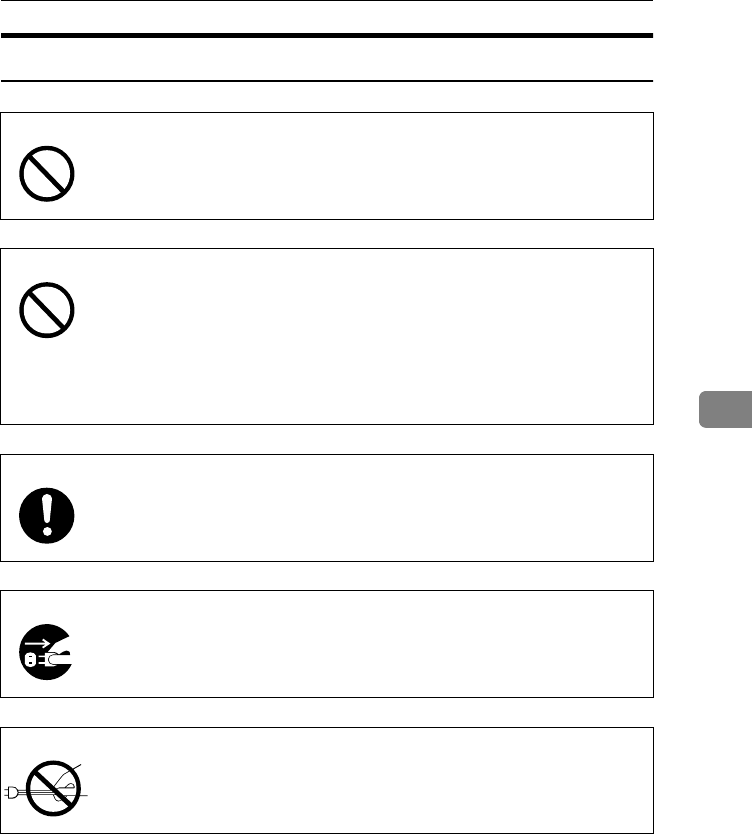
WHERE TO PUT YOUR MACHINE
167
5
Power Connection
R
WARNING:
R
WARNING:
R
WARNING:
R
CAUTION:
R
CAUTION:
• When the main switch is in the Stand-by positions, the optional anti-conden-
sation heaters are on. In case of emergency, unplug the machine's power cord.
• When you unplug the power cord, the anti-condensation heaters turn off.
• Make sure the plug is firmly inserted in the outlet.
• Voltage must not fluctuate more than 10 %.
•
Only connect the machine to the power source described on
the inside front cover of this manual.
•
Avoid multi-wiring.
•
Do not damage, break or make any modifications to the pow-
er cord. Do not place heavy objects on it, pull it hard or bend
it more than necessary. These actions could cause an elec-
tric shock or fire.
•
Do not plug or unplug the power cord with your hands wet.
Otherwise, an electric shock might occur.
•
Make sure the wall outlet is near the machine and freely ac-
cessible so that in event of an emergency it can be un-
plugged easily.
•
When you move the machine, unplug the power cord from the
wall outlet to avoid fire or electric shock.
•
When the machine will not be used for a long time, unplug the
power cord.
•
When you pull out the plug from the socket, grip the plug to avoid
damaging the cord and causing fire or electric shock.
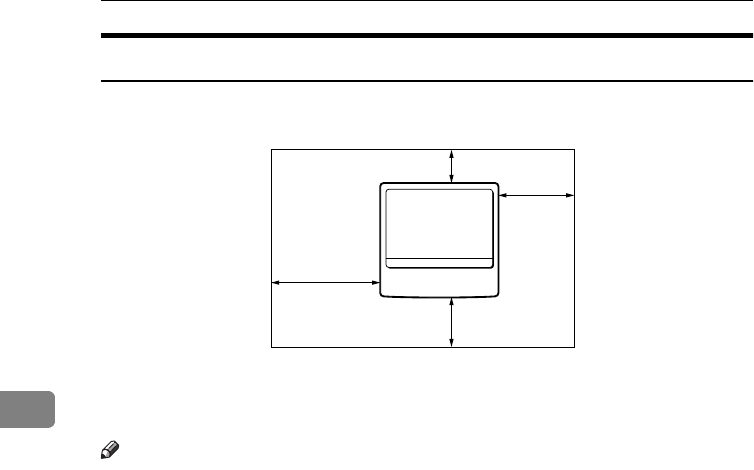
REMARKS
168
5
Access To Machine
Place the machine near the power source, providing clearance as shown.
1. Rear: more than 10 cm (4.0")
2. Right: more than 10 cm (4.0")
3. Front: more than 75 cm (29.6")
4. Left: more than 10 cm (4.0")
Note
❒For the required space when options are installed, please contact your service
representative.
2
1
3
4
CP999EE

MAINTAINING YOUR MACHINE
169
5
MAINTAINING YOUR MACHINE
If the exposure glass, platen covers or
document feeder belt is dirty, you
might not be able to make copies as
you want. Clean them if you find
them dirty.
❖
❖❖
❖
Cleaning the machine
Wipe the machine with a soft,
damp cloth. Then, wipe it with a
dry cloth to remove the water.
Important
❒Do not use chemical cleaner or or-
ganic solvent, such as thinner or
benzene. If they get into the ma-
chine or melt plastic parts, a failure
might occur.
❒Do not clean parts other than those
specified in this manual. Such
parts should be cleaned by your
service representative.
Cleaning The Exposure Glass
Cleaning The Platen Cover
Cleaning The Document
Feeder
ND1C0200
AM1P0100
ND1D0300

REMARKS
170
5

171
6. SPECIFICATION
MAINFRAME
❖
❖❖
❖
Configuration:
Desktop
❖
❖❖
❖
Photosensitivity type:
OPC drum (Φ60)
❖
❖❖
❖
Original scanning:
One-dimensional solid scanning system through CCD
❖
❖❖
❖
Copy process:
Dry electrostatic transfer system
❖
❖❖
❖
Development:
Dry two-component magnetic brush development system
❖
❖❖
❖
Fusing:
Heating roll system
❖
❖❖
❖
Resolution:
400 dpi
❖
❖❖
❖
Exposure glass:
Stationary original exposure type
❖
❖❖
❖
Original reference position:
Rear left corner
❖
❖❖
❖
Warm-up time:
• Type 1, 2: Less than 85 seconds (20°C)
• Type 3: Less than 100 seconds (20°C)
❖
❖❖
❖
Originals:
Sheet/book/objects
❖
❖❖
❖
Maximum original size:
A3L, 11" × 17"L
❖
❖❖
❖
Copy paper size:
•Trays: A3L – A5L, 11" × 17"L – 51/2" × 81/2"L
• Bypass: A3L – A6L, 11" × 17"L – 51/2" × 81/2"L
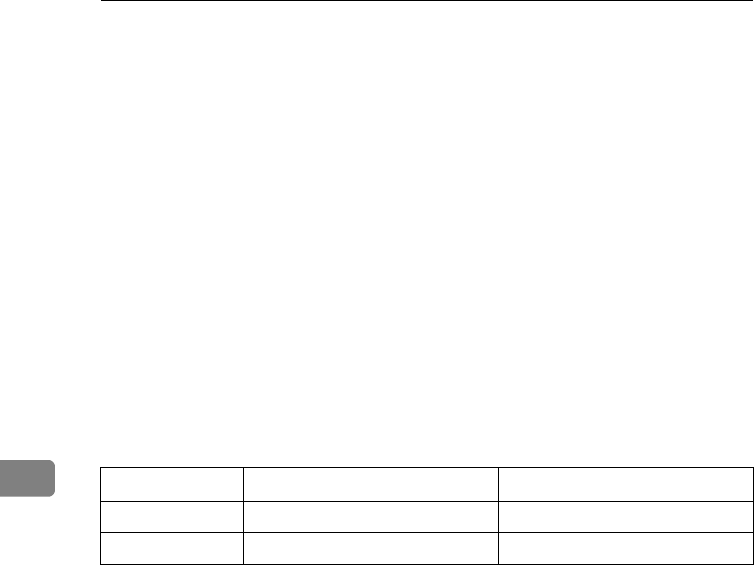
SPECIFICATION
172
6
• Bypass (non-standard size):
Vertical: 100 – 297 mm, 4.0" – 11.7"
Horizontal: 148 – 432 mm, 6.0" – 17.0"
•Duplex: A3L – A5K, 11" × 17"L – 81/2" × 11"K
•LCT: A4K, 81/2" × 11"K
❖
❖❖
❖
Copy paper weight:
• Paper tray: 64 – 105 g/m2 (20 – 28 lb)
• Bypass tray: 52 – 157 g/m2 (16 – 42 lb)
• Duplex unit: 64 – 105 g/m2 (20 – 28 lb)
❖
❖❖
❖
Non-reproduction area:
• Leading edge: 3 ± 2 mm
• Trailing edge: 2 ± 2 mm
• Left edge: 2 ± 1.5 mm
• Right edge: 2 + 2.5/- 1.5 mm
❖
❖❖
❖
First copy time:
(100 %, feeding from 1st or 2nd paper tray, Text·Photo mode, Auto Image
Density)
❖
❖❖
❖
Copying speed: (Type 1 and Type 2)
• 19 copies/minute (A3L, 11" × 17"L)
• 35 copies/minute (A4K, 81/2" × 11"K)
❖
❖❖
❖
Copying speed: (Type 3)
• 22 copies/minute (A3L, 11" × 17"L)
• 45 copies/minute (A4K, 81/2" × 11"K)
A4K81/2" × 11"K
Type 1, 2 3.9 seconds or less 4.0 seconds or less
Type 3 3.2 seconds or less 3.3 seconds or less
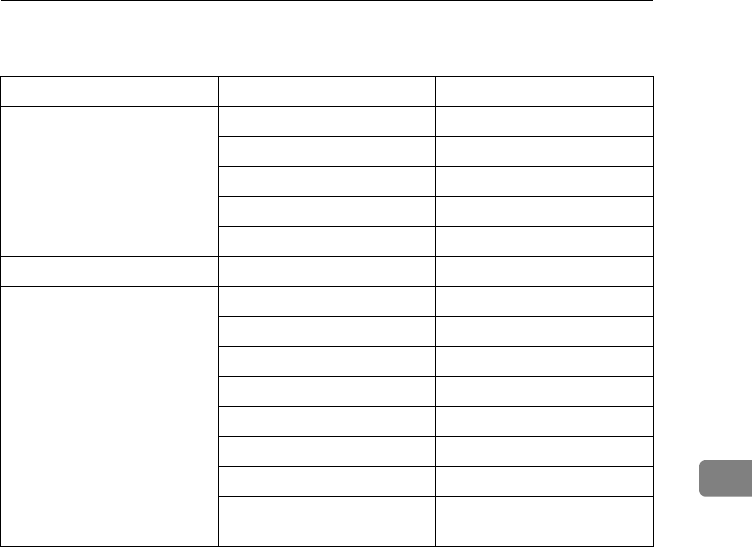
MAINFRAME
173
6
❖
❖❖
❖
Reproduction ratio:
Preset reproduction ratios:
Zoom:
• Type 1, 2
Metric version: 25 – 400 %
Inch version: 25 – 400 %
• Type 3
Metric version: 35 – 400 %
Inch version: 32 – 400 %
❖
❖❖
❖
Continuous copying count:
1 – 999 copies
❖
❖❖
❖
Copy paper capacity:
• 1st and 2nd paper trays: 500 sheets (80 g/m2, 20 lb)
• Bypass tray: 50 sheets (80 g/m2, 20 lb)
Metric version Inch version
Enlargement 400 % 400 %
200 % 200 %
141 % 155 %
122 % 129 %
115 % 121 %
Full Size 100 % 100 %
Reduction 93 % 93 %
87 % 85 %
82 % 78 %
71 % 73 %
65 % 65 %
50 % 50 %
35 % (Type 3 only) 32 % (Type 3 only)
25 % (Type 1 and Type 2
only)
25 % (Type 1 and Type 2
only)
SPECIFICATION
174
6
❖
❖❖
❖
Power consumption:
• Mainframe only
• System
*1 Mainframe with the document feeder, bridge unit, paper tray unit, large capac-
ity tray, copier hard disk, and 1000-sheet finisher.
*2 Mainframe with the document feeder, bridge unit, paper tray unit, large capac-
ity tray, copier hard disk, and 3000-sheet finisher.
❖
❖❖
❖
Dimensions (W
×
D
×
H up to exposure glass):
• Type 1: 600 × 640 × 720 mm, 23.7" × 25.2" × 28.4"
• Type 2, 3: 670 × 640 × 720 mm, 26.4" × 25.2" × 28.4"
❖
❖❖
❖
Space for main frame (W
×
D):
• With duplex unit:
630 × 640 mm, 24.9" × 25.2" (Unit closed)
900 × 640 mm, 35.5" × 25.2" (Unit opened)
• With bypass tray unit:
670 × 640 mm, 26.4" × 25.2" (Unit closed)
850 × 640 mm, 33.5" × 25.2" (Unit opened)
980 × 640 mm, 38.6" × 25.2" (Bypass tray extender is used for large size pa-
per)
Type 1, 2 Type 3
Warm up About 1.05 kW About 1.15 kW
Stand-by About 220 Wh About 240 Wh
Copying About 1.10 kW About 1.20 kW
Maximum Less than 1.5 kW Less than 1.5 kW
Type 1, 2 *1 Type 3 *2
Warm up About 1.05 kW About 1.15 kW
Stand-by About 240 Wh About 280 Wh
Copying About 1.15 kW About 1.25 kW
Maximum Less than 1.5 kW Less than 1.5 kW
MAINFRAME
175
6
❖
❖❖
❖
Noise Emission:
Sound pressure level: The measurement are made according to ISO7779.
*1 for Type 1, 2: Mainframe with the document feeder, 1000-sheet finisher, bridge
unit, paper tray unit, large capacity tray, and copier hard disk.
*2 for Type 3: Mainframe with the document feeder, 3000-sheet finisher, bridge unit,
paper tray unit, large capacity tray, and copier hard disk.
❖
❖❖
❖
Noise Emission:
Sound power level: The measurement are made according to ISO7779.
*1 for Type 1, 2: Mainframe with the document feeder, 1000-sheet finisher, bridge
unit, paper tray unit, large capacity tray, and copier hard disk.
*2 for Type 3: Mainframe with the document feeder, 3000-sheet finisher, bridge unit,
paper tray unit, large capacity tray, and copier hard disk.
❖
❖❖
❖
Weight:
• Type 1: Approx. 67 kg, 147.8 lb
• Type 2, 3: Approx. 75 kg, 165.4 lb
Note
❒Specifications are subject to change without notice.
Mainframe only System *1 *2
Stand-by Type 1, 2 27 dB (A) or less 28 dB (A) or less
Type 3 27 dB (A) or less 28 dB (A) or less
Copying Type 1, 2 52 dB (A) or less 60 dB (A) or less
Type 3 56 dB (A) or less 62 dB (A) or less
Mainframe only System *1 *2
Stand-by Type 1, 2 42 dB (A) or less 44 dB (A) or less
Type 3 42 dB (A) or less 44 dB (A) or less
Copying Type 1, 2 69 dB (A) or less 73 dB (A) or less
Type 3 70 dB (A) or less 74 dB (A) or less

SPECIFICATION
176
6
DOCUMENT FEEDER (OPTION)
❖
❖❖
❖
Mode:
ADF mode, SADF mode
❖
❖❖
❖
Original size:
•A3L – A5KL
• 11" × 17"L – 51/2" × 81/2"KL
❖
❖❖
❖
Original weight:
• 1-sided originals: 52 – 128 g/m2 (14 – 34 lb)
• 2-sided originals: 52 – 105 g/m2 (14 – 28 lb) (Duplex)
• Thin paper mode: 41 – 128 g/m2 (11 – 34 lb)
❖
❖❖
❖
Number of originals to be set:
50 sheets (80 g/m2, 20 lb)
❖
❖❖
❖
Maximum power consumption:
50 W (power is supplied from the main frame.)
❖
❖❖
❖
Dimensions (W
×
D
×
H):
600 × 580 × 150 mm, 23.7" × 22.9" × 5.9"
❖
❖❖
❖
Weight:
Approx. 12 kg, 26.5 lb
Note
❒Specifications are subject to change without notice.

PAPER TRAY UNIT (OPTION)
177
6
PAPER TRAY UNIT (OPTION)
❖
❖❖
❖
Copy paper weight:
64 – 105 g/m2 (20 – 28 lb)
❖
❖❖
❖
Available paper size:
A3L, B4L, A4KL, B5KL, A5L, 11" × 17"L, 81/2" × 14"L, 81/2" ×
11"KL, 5 1/2" × 8 1/2"L, 7 1/4" × 10 1/2"L, 8" × 13"L, 81/2" × 13"L, 8 1/4" ×
13"L
❖
❖❖
❖
Maximum power consumption:
50 W (power is supplied from the main frame.)
❖
❖❖
❖
Paper capacity:
500 sheets (80 g/m2, 20 lb) × 2 trays
❖
❖❖
❖
Dimensions (W
×
D
×
H):
540 × 600 × 270 mm, 21.3" × 23.7" × 10.7"
❖
❖❖
❖
Weight:
Approx. 25 kg, 55.2 lb
Note
❒Specifications are subject to change without notice.

SPECIFICATION
178
6
INTERNAL TRAY 2 (1 BIN TRAY) (OPTION)
❖
❖❖
❖
Number of bins:
1
❖
❖❖
❖
Available paper size:
A3L, B4L, A4KL, B5KL, A5L, 11" × 17"L, 8 1
/2" × 14"L, 8 1
/2" ×
11"KL, 5 1/2" × 8 1/2"L
❖
❖❖
❖
Paper capacity:
125 sheets (80 g/m2, 20 lb)
Note
❒The paper capacity might be less than 125 sheets when copy paper is con-
siderably curled.
❖
❖❖
❖
Copy paper weight:
60 – 105 g/m2 (16 – 28 lb)
❖
❖❖
❖
Maximum power consumption:
15 W (power is supplied from the main frame.)
❖
❖❖
❖
Dimensions (W
×
D
×
H):
470 × 550 × 110 mm, 18.6" × 21.7" × 4.4"
❖
❖❖
❖
Weight:
Approx. 4 kg, 8.9 lb
Note
❒Specifications are subject to change without notice.

1000-SHEET FINISHER (OPTION)
179
6
1000-SHEET FINISHER (OPTION)
❖
❖❖
❖
Paper size:
A3L, B4L, A4KL, B5KL, A5KL, B6L, A6L, 11" × 17"L, 8 1/2" × 14"L,
8 1/2" × 11"KL, 5 1/2" × 8 1/2"L
❖
❖❖
❖
Paper weight:
52 – 157 g/m2, 14 – 42 lb
❖
❖❖
❖
Stack capacity:
• 1,000 sheets (A4K, 81/2" × 11"K or smaller) (80 g/m2, 20 lb)
• 500 sheets (B4, 81/2" × 14" or larger) (80 g/m2, 20 lb)
❖
❖❖
❖
Staple capacity:
• 30 sheets (A4, 81/2" × 11" or smaller) (80 g/m2, 20 lb)
• 20 sheets (B4, 81/2" × 14" or larger) (80 g/m2, 20 lb)
❖
❖❖
❖
Staple paper size:
A3L, B4L, A4KL, B5K, 11" × 17"L, 8 1/2" × 14"L, 8 1/2" × 11"KL
❖
❖❖
❖
Staple paper weight:
64 – 80 g/m2, 17 – 20 lb
❖
❖❖
❖
Staple position:
1 position (upper left)
❖
❖❖
❖
Power consumption:
48 W (power is supplied from the main frame.)
❖
❖❖
❖
Dimensions (W
×
D
×
H):
568 × 520 × 625 mm, 22.4" × 20.5" × 24.6"
❖
❖❖
❖
Weight:
Approx. 21 kg, 46.3 lb

SPECIFICATION
180
6
3000-SHEET FINISHER (OPTION)
Note
❒Optional unit for Type 3.
Shift Tray:
❖
❖❖
❖
Paper size:
A3L, B4L, A4KL, B5KL, 11" × 17"L, 8 1/2" × 14"L, 8 1/2" × 11"KL
❖
❖❖
❖
Paper weight:
52 – 157 g/m2, 14 – 42 lb
❖
❖❖
❖
Stack capacity:
without punch:
• 3,000 sheets (A4K, 81/2" × 11"K) (80 g/m2, 20 lb)
• 1,500 sheets (A3L, B4L, A4L, B5KL, 11" × 17"L, 81/2"× 14"L, 81/2"×
11"L) (80 g/m2, 20 lb)
with punch (the optional punch kit is required):
• 2,500 sheets (A4K, 81/2" × 11"K) (80 g/m2, 20 lb)
• 1,500 sheets (A3L, B4L, A4L, B5KL, 11" × 17"L, 8 1/2" × 14"L, 8 1/2"
× 11"L) (80 g/m2, 20 lb)
Proof Tray:
❖
❖❖
❖
Paper size:
A3L, B4L, A4KL, B5KL, A5KL, B6L, A6L, 11" × 17"L, 8 1/2" × 14"L,
8 1/2" × 11"KL, 8 1/2" × 5 1/2"KL
❖
❖❖
❖
Paper weight:
52 – 157 g/m2, 14 – 42 lb
❖
❖❖
❖
Stack capacity:
without punch:
• 250 sheets (A4, 81/2" × 11" or smaller) (80 g/m2, 20 lb)
• 50 sheets (B4, 81/2" × 14" or larger) (80 g/m2, 20 lb)
with punch (the optional punch kit is required):
• 200 sheets (A4, 81/2" × 11" or smaller) (80 g/m2, 20 lb)
• 50 sheets (B4, 81/2" × 14" or larger) (80 g/m2, 20 lb)
Staple:
❖
❖❖
❖
Staple capacity:
without punch:
• 50 sheets (A4, 81/2" × 11" or smaller) (80 g/m2, 20 lb)
• 30 sheets (B4, 81/2" × 14" or larger) (80 g/m2, 20 lb)
with punch (the optional punch kit is required):
• 40 sheets (A4, 81/2" × 11" or smaller) (80 g/m2, 20 lb)
• 25 sheets (B4, 81/2" × 14" or larger) (80 g/m2, 20 lb)

3000-SHEET FINISHER (OPTION)
181
6
❖
❖❖
❖
Staple paper size:
A3L, B4L, A4KL, B5KL, 11" × 17"L, 8 1/2" × 11"KL
❖
❖❖
❖
Staple paper weight:
64 – 80 g/m2, 17 – 21 lb
❖
❖❖
❖
Staple position:
• 1 staple – 3 positions
• 2 staples – 1 position
❖
❖❖
❖
Power consumption:
48 W (power is supplied from the main frame.)
❖
❖❖
❖
Dimensions (W
×
D
×
H):
625 × 545 × 960 mm, 24.7" × 21.5" × 37.8"
❖
❖❖
❖
Weight:
Approx. 45 kg, 99.3 lb

SPECIFICATION
182
6
PUNCH KIT (OPTION)
Note
❒Optional unit for the 3000-sheet finisher.
❖
❖❖
❖
Paper size (2 holes version):
•L: A3 – A5, 11" × 17" – 81/2" × 11"
•K: A4 – A5, 81/2" × 11"
❖
❖❖
❖
Paper size (3 holes version):
•L: A3, B4, 11" × 17"
•K: A4, B5, 81/2" × 11"
❖
❖❖
❖
Paper weight:
• 2 holes version: 52 g/m2 – 128 g/m2, 14 – 34 lb
• 3 holes version: 52 g/m2 – 105 g/m2, 14 – 28 lb
❖
❖❖
❖
Power consumption:
33.6 W (power is supplied from the 3000-sheet finisher.)
❖
❖❖
❖
Dimensions (W
×
D
×
H):
92 × 463 × 100 mm, 3.7" × 18.3" × 4.0"
❖
❖❖
❖
Weight:
2.4 kg, 5.3 lb

LARGE CAPACITY TRAY (LCT) (OPTION)
183
6
LARGE CAPACITY TRAY (LCT) (OPTION)
❖
❖❖
❖
Paper size:
A4K, 81/2" × 11"K
❖
❖❖
❖
Paper weight:
64 – 105 g/m2, 20 – 28 lb
❖
❖❖
❖
Paper capacity:
1,500 sheets (80 g/m2, 20 lb)
❖
❖❖
❖
Power consumption
Approx. 40 W (power is supplied from the main frame.)
❖
❖❖
❖
Dimensions (W
×
D
×
H):
390 × 500 × 390 mm, 15.4" × 19.7" × 15.4"
❖
❖❖
❖
Weight:
Approx. 17 kg, 37.5 lb

SPECIFICATION
184
6
DUPLEX UNIT (OPTION)
Note
❒Optional unit for Type 1.
❖
❖❖
❖
Paper size:
A3L – A5L, 11" × 17"L – 51/2" × 81/2"L
❖
❖❖
❖
Paper weight:
64 – 105 g/m2, 20 – 28 lb
❖
❖❖
❖
Power consumption (Max):
35 W
❖
❖❖
❖
Dimensions (W
×
D
×
H):
90 × 520 × 400 mm, 3.6" × 20.5" × 15.8"
❖
❖❖
❖
Weight:
Approx. 6 kg, 13.3 lb

BYPASS TRAY (OPTION)
185
6
BYPASS TRAY (OPTION)
This is option for Type 1.
❖
❖❖
❖
Available paper size:
• Standard size (metric version): A3L, A4L, A5L, 81/2" × 13"L
• Standard size (inch version): A3L, 11" × 17"L, 8 1/2" × 14"L, 8 1/2" × 11"L,
51/2" × 81/2"L
• Non-standard size: Vertical (100 – 297 mm, 4.0” – 11.7”), Horizontal (148 –
432 mm, 6.0” – 17.0”)
❖
❖❖
❖
Copy paper weight:
52 – 157 g/m2,16 – 42 lb
❖
❖❖
❖
Dimensions (W
×
D
×
H):
310 × 550 × 75 mm, 12.3” × 21.7” × 3.0"
❖
❖❖
❖
Paper capacity:
• 52 – 90 g/m2, 16 – 20 lb: 50 sheets
• 91 – 157 g/m2, 20 – 42 lb: 25 sheets
❖
❖❖
❖
Weight:
Approx. 3 kg, 6.7 lb

SPECIFICATION
186
6
8 MB COPIER MEMORY UNIT (ELECTRIC
SORT KIT) (OPTION)
This is option for Type 1.
❖
❖❖
❖
Memory capacity:
8 MB
❖
❖❖
❖
Additional functions:
Image rotate, Sort, 2-sided copy

COPIER HARD DISK (IMAGE ENHANCE KIT)
187
6
COPIER HARD DISK (IMAGE ENHANCE KIT)
❖
❖❖
❖
Originals scanned:
100 pages (A4) min.
❖
❖❖
❖
Originals stored for Archive File function:
32 pages (A4) max.
❖
❖❖
❖
Additional function:
Archive file, and sort in enhanced image copy mode

188
INDEX
Numerics
1 bin tray, 7, 8, 178
1000-sheet finisher, 7, 8, 43, 134, 139,
179
3000-sheet finisher, 8, 43, 136, 141, 180
8 MB copier memory unit, 7, 186
A
Access To Machine, 168
Adding Staples, 134
Adding Toner, 121
ADF external tray, 2, 32
ADF tray, 32
Adjusting Copy Image Density, 37
Archive File, 102
Auto Image Density, 37
Auto Image Density key, 13
Auto Off, 30
Auto Paper Select, 41
Auto Reduce/Enlarge, 42
Auto Reduce/Enlarge key, 13
Auto Reset, 30
Auto Start, 64
B
Basic Functions, 37
Both Covers, 93
Bridge unit, 7, 8
Bypass tray, 4, 7, 55, 185
C
Changing The Paper Size, 132
Clear key, 13
Clear Modes/Energy Saver key, 12
Clearing Misfeeds, 124
Combination Chart, 108
Combine, 78
copier hard disk, 7, 8, 187
copy initial display, 14
Copy Paper, 23
Copying From The Bypass Tray, 55
Cover, 91
Cursor keys, 13
D
Deleting A Program, 61
Deleting The Stored Images, 105
Directional Magnification (%), 71
Directional Size Magnification (mm), 69
Do’s And Don’ts, 165
Document feeder (ADF), 2, 7, 8, 32, 169,
176
Double Copies, 99
Duplex, 85
Duplex key, 12
Duplex unit, 3, 7, 184
E
Electric sort kit, 7, 186
Energy Saver, 63
Enhanced Image Copy, 38
Enhanced Image key, 13
Enlarging, 65
Erase Border, 75
Erase Centre, 75
Exposure glass, 2, 20, 22, 31, 169
External tray, 7, 8
F
Fax key, 19
Front Cover, 91
Front cover, 3
Function keys, 13
G
Guide, 5
I
Image enhance kit, 7, 8, 187
Image Repeat, 99, 100
Indicators, 12
Interchange unit, 7
Internal tray, 2
Internal tray 2, 7, 8, 178

189
Interrupt, 63
Interrupt key, 12
J
Jammed Staples, 139
L
Large Capacity Tray (LCT), 7, 8, 120,
183
Lighter and Darker keys, 13
Loading Paper, 119
Lower right cover, 4
M
Machine Environment, 166
Main Power indicator, 2, 12
Main power switch, 2, 17
Mainframe, 171
Maintaining, 169
Manual Image Density, 38
Margin Adjustment, 73
Menu key, 13
Message, 111
Mixed sizes mode, 34
N
Number keys, 13
O
OHP Slip Sheet, 96
On indicator, 2, 12
Operation panel, 3, 12
Operation switch, 2, 13, 17
Options, 7
Original Beeper, 64
Original type, 39
Original Type key, 13
Originals, 20, 31
P
Panel display, 12, 14
Paper Designate, 94
Paper tray, 3
Paper tray unit, 3, 7, 8, 177
Platen cover, 2, 7, 8, 169
Positive/Negative, 98
Power Connection, 167
Preset Reduce/Enlarge, 65
Printing A List Of The Stored Images,
106
Program, 60
Program key, 12
Proof tray, 8
Punch kit, 8, 182
Punch Waste, 144
Punching, 44
R
Recalling A Program, 62
Recalling The Stored Images, 107
Reducing, 65
Remarks, 165
Right side cover, 4
Rotate Sort, 45
Rotate Stack, 47
S
SADF mode, 33
Safety Information, i
Selecting Copy Paper, 40
Selecting Original Type Setting, 39
Selection keys, 13
Series Copies, 82
Shift Sort, 45
Shift Stack, 47
Shift tray, 8
Shortcut key, 13
Sort, 45
Sorter key, 12
SPECIFICATION, 171
Stack, 47
Staple, 49
Start key, 13
Stop, 13
Storing The Images, 103
Storing Your Settings, 60
T
Thin paper mode, 35

190
Toner, 27
U
Unit for two-sided copies, 3
User Codes, 63
User Tools, 145
User Tools/Counter key, 12
V
Ventilation hole, 4
Z
Zoom, 67
Zoom key, 13

Declaration of Conformity
“The Product complies with the requirements of the EMC Directive 89/336/EEC and the Low Voltage
Directive 73/23/EEC.”
In accordance with ISO Standard 7001, this machine uses the following symbols for the main power
switch:
a
aa
a means POWER ON.
c
cc
c means STAND BY.
Copyright © 1998 Ricoh Co., Ltd.

ERRATA
A mistake is found on the inside front cover of this
operating instructions and should be corrected as
follows:
Incorrect
Power Source:
220 - 240 V, 50/60 Hz, 6 A or more
Correct
Power Source:
220 - 240 V, 50/60 Hz, 8 A or more
Printed in China
A2328651

Overseas Affiliates
U.S.A.
RICOH CORPORATION
5 Dedrick Place
West Caldwell, New Jersey 07006
(TEL) 973-882-2000
Netherlands
RICOH EUROPE B.V.
Groenelaan 3 P.O. Box 114
1180 AC - Amstelveen Holland
(TEL) 020-5474111
United Kingdom
RICOH U.K. LTD.
Ricoh House
1 Plane Tree Crescent, Feltham,
Middlesex, TW13 7HG
(TEL) 181-261-4000
Germany
RICOH DEUTSCHLAND GMBH
Mergenthalerallee 38-40,
65760 Eschborn
(TEL) (06196) 906-0
Singapore
RICOH ASIA PACIFIC PTE. LTD.
#15-01/02 The Heeren,
260 Orchard Road,
Singapore 238855
(TEL) 65-830-5888
Spain
RICOH ESPAÑA S.A.
Guitard, 45
08014 Barcelona
(TEL) 490-09-60
Italy
RICOH ITALIA S.p.A.
Via della Metallurgia, 12
(zona Basson) - 37139 VERONA
(TEL) 045-851 00 44
Hong Kong
RICOH HONG KONG LTD.
23/F., China Overseas Building,
139, Hennessy Road,
Wan Chai, Hong Kong
(TEL) 2862-2888
France
RICOH FRANCE S.A.
383 Avenue du Général de Gaulle,
B.P. 307, 92143 Clamart Cedex
(TEL) 01-4094-3838
RICOH COMPANY, LTD.
15-5, 1 Chome, Minami-Aoyama,
Minato-ku, Tokyo
Telephone: Tokyo 3479-3111
Printed in The Netherlands
EE GB A2318600
340/350/450 Operating Instructions
