Ricoh Aficio Sp 5210Sf Troubleshooting
Ricoh-Aficio-Sp-5210Sr-Troubleshooting ricoh-aficio-sp-5210sr-troubleshooting
Ricoh-Aficio-Sp-5200S-Troubleshooting ricoh-aficio-sp-5200s-troubleshooting
2014-07-06
: Ricoh Ricoh-Aficio-Sp-5210Sf-Troubleshooting ricoh-aficio-sp-5210sf-troubleshooting ricoh pdf
Open the PDF directly: View PDF  .
.
Page Count: 152 [warning: Documents this large are best viewed by clicking the View PDF Link!]
- Operating Instructions <Troubleshooting>
- TABLE OF CONTENTS
- Manuals for This Machine
- Notice
- How to Read This Manual
- Model-Specific Information
- 1. When the Machine Does Not Operate As Wanted
- 2. Troubleshooting When Using the Copy/Document Server Function
- 3. Troubleshooting When Using the Facsimile Function
- 4. Troubleshooting When Using the Printer Function
- 5. Troubleshooting When Using the Scanner Function
- 6. Clearing Misfeeds
- 7. Appendix
- INDEX
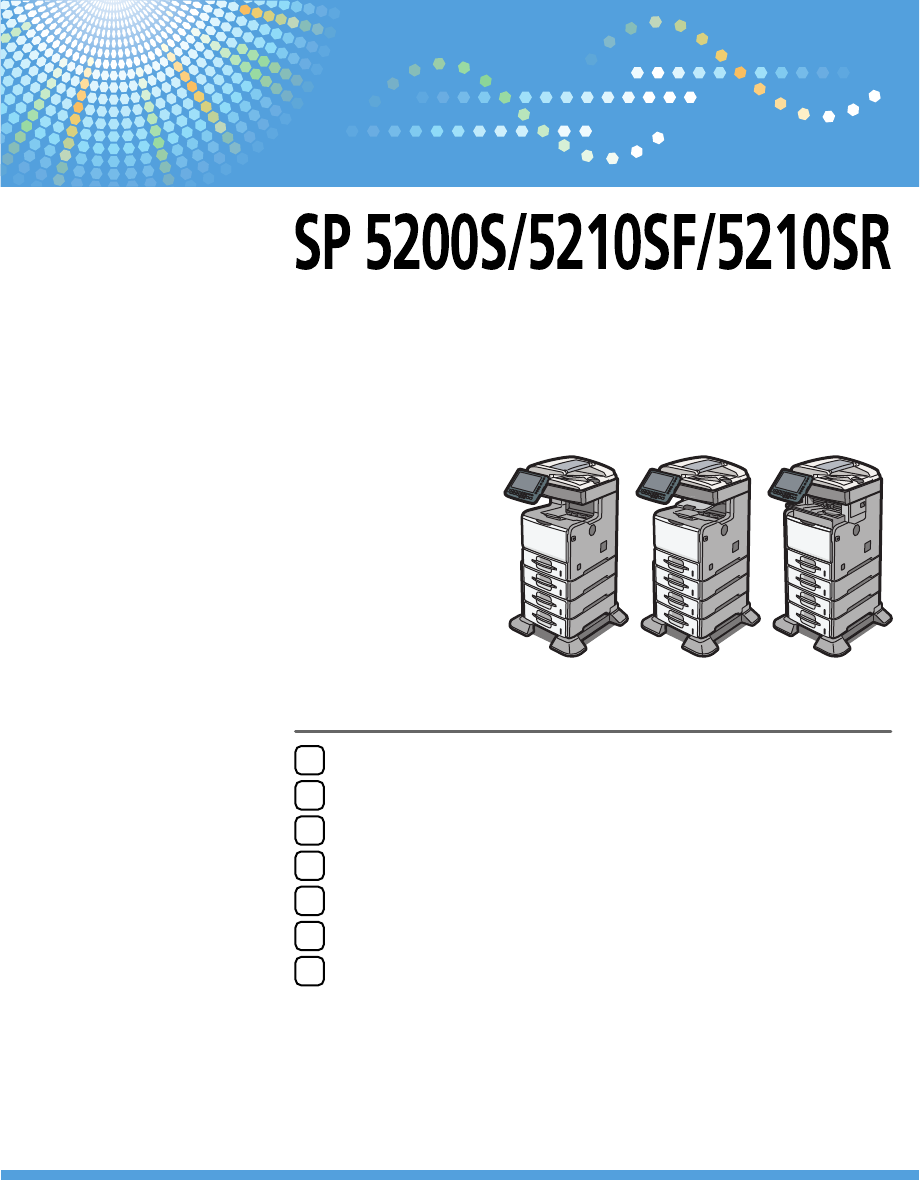
When the Machine Does Not Operate As Wanted
Troubleshooting When Using the Copy/Document Server Function
Troubleshooting When Using the Facsimile Function
Troubleshooting When Using the Printer Function
1
2
3
4
Read this manual carefully before you use this machine and keep it handy for future reference. For safe and correct use, be sure to read the Safety
Information in "Manuals and Safety Information for This Machine" before using the machine.
Troubleshooting When Using the Scanner Function
Clearing Misfeeds
Appendix
5
6
7
Troubleshooting
Operating Instructions

TABLE OF CONTENTS
Manuals for This Machine.................................................................................................................................4
Notice..................................................................................................................................................................7
Important.........................................................................................................................................................7
How to Read This Manual.................................................................................................................................8
Symbols...........................................................................................................................................................8
Machine Types...............................................................................................................................................8
Notes...............................................................................................................................................................9
Names of Major Items...................................................................................................................................9
List of Options.................................................................................................................................................9
Model-Specific Information.............................................................................................................................10
1. When the Machine Does Not Operate As Wanted
Indicators..........................................................................................................................................................11
Panel Tone........................................................................................................................................................12
Checking Machine Status and Settings..........................................................................................................13
When an Indicator to the Right of a Function Key Is Lit.................................................................................16
When You Have Problems Operating the Machine.....................................................................................18
Messages Displayed When Changing the On-screen Language...........................................................23
Adjusting the Image Density............................................................................................................................26
Adjusting Printing Position................................................................................................................................28
2. Troubleshooting When Using the Copy/Document Server Function
Messages Displayed When Using the Copy/Document Server Function..................................................31
When You Cannot Make Clear Copies.........................................................................................................34
When You Cannot Make Copies As Wanted...............................................................................................38
When Memory Is Full..................................................................................................................................45
3. Troubleshooting When Using the Facsimile Function
Adjusting the Volume.......................................................................................................................................47
Messages Displayed When Using the Facsimile Function............................................................................49
When You Cannot Send or Receive Fax Messages As Wanted.................................................................60
When Memory Is Full..................................................................................................................................66
If an Error Report Is Printed..............................................................................................................................67
Turning Off the Main Power / In the Event of Power Failure.......................................................................68
When an Error Occurs Using Internet Fax.....................................................................................................69
Error Mail Notification.................................................................................................................................69
1

Error Report (E-mail)....................................................................................................................................69
Server-Generated Error E-mail...................................................................................................................69
4. Troubleshooting When Using the Printer Function
Messages Displayed When Installing the Printer Driver...............................................................................71
Windows XP Professional or Windows Server 2003/2003 R2.............................................................71
Windows XP Home Edition.........................................................................................................................72
Windows Vista.............................................................................................................................................72
Windows 7...................................................................................................................................................73
Windows Server 2008...............................................................................................................................74
Windows Server 2008 R2..........................................................................................................................75
If USB Connection Fails...................................................................................................................................76
Messages Displayed When Using the Printer Function.................................................................................77
Status Messages..........................................................................................................................................77
Messages Displayed on the Control Panel When Using the Printer Function.........................................78
Other Messages...........................................................................................................................................81
When You Cannot Print...................................................................................................................................91
When the Data In Indicator Does Not Light Up or Flash..........................................................................93
Other Printing Problems...................................................................................................................................96
5. Troubleshooting When Using the Scanner Function
Messages Displayed When Using the Scanner Function...........................................................................105
Messages Displayed on the Control Panel When Using the Scanner Function...................................105
Messages Displayed on the Client Computer.........................................................................................115
When You Cannot Send Scanned Files.......................................................................................................120
When Stored Files Cannot Be Accessed.................................................................................................120
When Stored Files Cannot Be Edited......................................................................................................120
When You Cannot Browse the Network to Send a Scan File...............................................................120
When the TWAIN Driver Cannot Be Started..........................................................................................121
When the Network Delivery Function Cannot Be Used.........................................................................121
When S/MIME Cannot Be Used............................................................................................................121
When You Cannot Send Scan Files Using WSD....................................................................................122
When Scanning Is Not Done As Expected..................................................................................................123
6. Clearing Misfeeds
Removing Jammed Paper..............................................................................................................................125
2

Locating Jammed Paper............................................................................................................................125
When A1 is displayed..............................................................................................................................127
When A2 is displayed..............................................................................................................................128
When B is displayed.................................................................................................................................128
When C is displayed.................................................................................................................................131
When P is displayed..................................................................................................................................133
When R is displayed (Type 3 Only)........................................................................................................135
When Y1 - Y3 is displayed.......................................................................................................................136
When Z1 - Z2 is displayed......................................................................................................................137
Removing Jammed Staples...........................................................................................................................141
7. Appendix
Trademarks.....................................................................................................................................................143
INDEX...........................................................................................................................................................145
3
Manuals for This Machine
Read this manual carefully before you use this machine.
Refer to the manuals that are relevant to what you want to do with the machine.
• Media differ according to manual.
• The printed and electronic versions of a manual have the same contents.
• Adobe® Acrobat® Reader®/Adobe Reader must be installed in order to view the manuals as PDF
files.
• A Web browser must be installed in order to view the html manuals.
Manuals and Safety Information for This Machine (mainly Europe and Asia)
Contains introductions of the manuals and information about safe usage of this machine.
Before using the machine, be sure to read the section of this manual entitled Safety Information to
avoid injury and prevent damage to the machine.
Manuals and Safety Information for This Machine (mainly North America)
Contains introductions of the manuals and information about safe usage of this machine.
Before using the machine, be sure to read the section of this manual entitled Safety Information to
avoid injury and prevent damage to the machine.
This manual is provided in English only.
Quick Installation Guide
Contains procedures for unpacking and installing the machine.
Initial Guide for Scanner and Fax
Explains how to set up the Scanner and Facsimile functions and use their basic features. Details
about these functions that are not included in this manual are provided in Scanner Reference,
Facsimile Reference, and Network and System Settings Reference.
About This Machine
This manual introduces the machine's various functions. It also explains preparation procedures for
using the machine, the control panel, how to install options, how to enter text, how to install the
CD-ROMs provided, and how to replace paper, print cartridge, staples, and other consumables.
Troubleshooting
Provides a guide for resolving common usage-related problems.
Copy and Document Server Reference
Explains Copier and Document Server functions and operations. Also refer to this manual for
explanations on how to place originals.
4

Facsimile Reference
Explains Facsimile functions and operations.
Printer Reference
Explains Printer functions and operations.
Scanner Reference
Explains Scanner functions and operations.
Network and System Settings Reference
Explains how to connect the machine to a network and how to configure and operate the machine
in a network environment. It also explains how to change System Settings and how to register
information in the Address Book.
Security Reference
This manual is for administrators of the machine. It explains security functions that you can use to
prevent unauthorized use of the machine, data tampering, or information leakage. For enhanced
security, we recommend that you first make the following settings:
• Install the Device Certificate.
• Enable SSL (Secure Sockets Layer) Encryption.
• Change the user name and password of the administrator using Web Image Monitor.
For details, see “Setting up the Machine”, Security Reference.
Be sure to read this manual when setting the enhanced security functions, or user and administrator
authentication.
VM Card Extended Feature Settings Device Reference
Explains how to set up the extended features settings with the machine.
VM Card Extended Feature Settings Web Reference
Explains how to set up the extended features settings using Web Image Monitor.
UNIX Supplement
Explains how to set up and use a network printer using UNIX.
To obtain the “UNIX Supplement”, visit our Web site or consult an authorized dealer.
This manual includes explanations of functions and settings that might not be available on this
machine.
This manual is provided in English only.
Other manuals
• Quick Reference Copy Guide
• Quick Reference Printer Guide
• Quick Reference Fax Guide
• Quick Reference Scanner Guide
5
• App2Me Start Guide
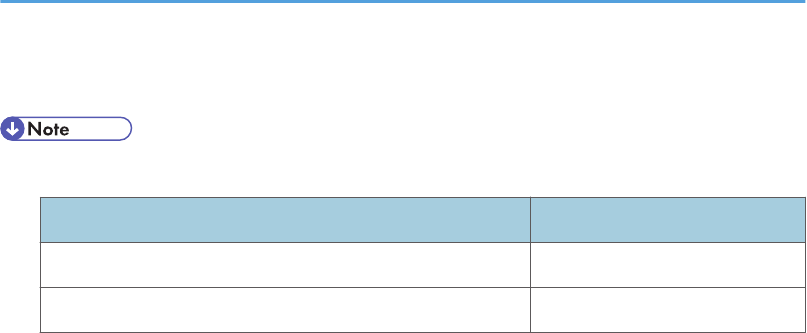
• The following software products are referred to using general names:
Product name General name
DeskTopBinder Lite and DeskTopBinder Professional *1DeskTopBinder
SmartDeviceMonitor for Client 2 SmartDeviceMonitor for Client
*1 Optional
6

Notice
Important
In no event will the company be liable for direct, indirect, special, incidental, or consequential damages
as a result of handling or operating the machine.
For good copy quality, the manufacturer recommends that you use genuine toner from the manufacturer.
The manufacturer shall not be responsible for any damage or expense that might result from the use of
parts other than genuine parts from the manufacturer with your office products.
7
How to Read This Manual
Symbols
This manual uses the following symbols:
Indicates points to pay attention to when using the machine, and explanations of likely causes of paper
misfeeds, damage to originals, or loss of data. Be sure to read these explanations.
Indicates supplementary explanations of the machine's functions, and instructions on resolving user
errors.
This symbol is located at the end of sections. It indicates where you can find further relevant information.
[ ]
Indicates the names of keys on the machine's display or control panels.
(mainly Europe and Asia)
(mainly North America)
Differences in the functions of Region A and Region B models are indicated by two symbols. Read the
information indicated by the symbol that corresponds to the region of the model you are using. For
details about which symbol corresponds to the model you are using, see “Model-Specific Information”.
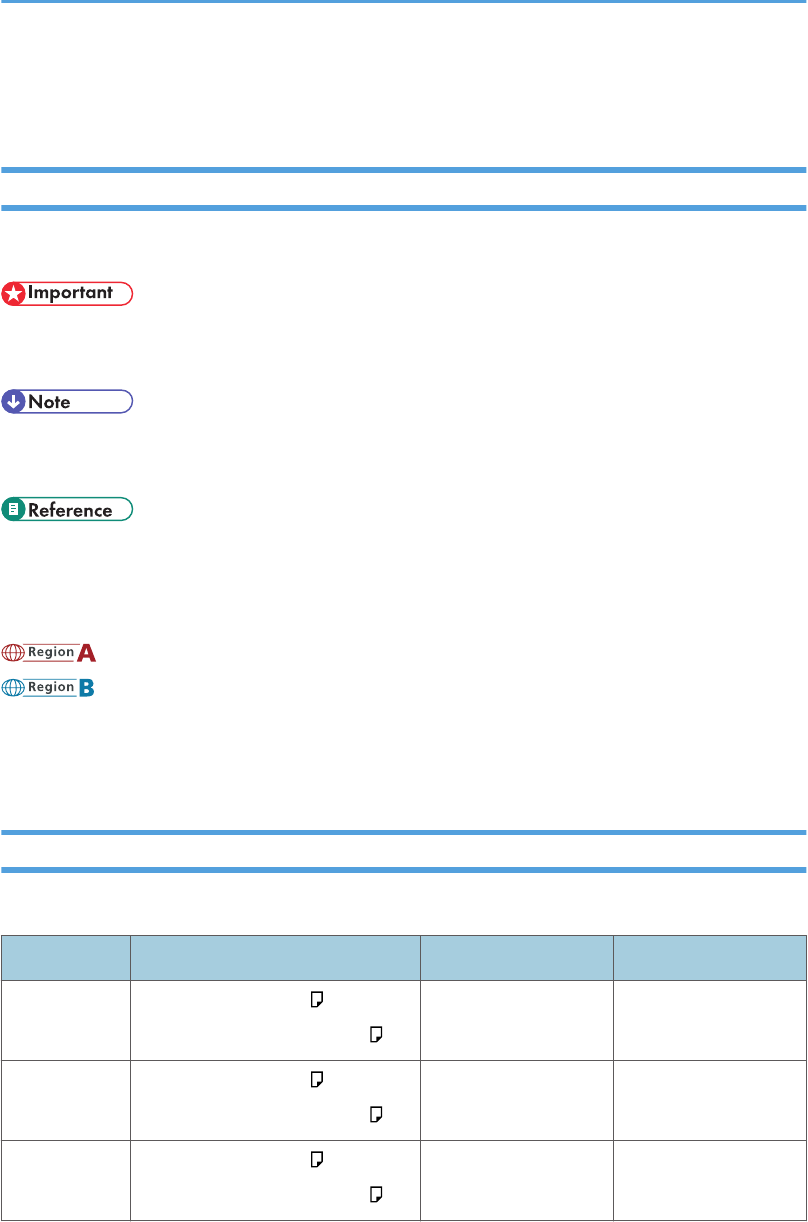
Machine Types
This machine comes in three models with different copy and print speeds, and different units installed.
Machine type Copy/print speed Finisher Internal tray 2
Type 1 45 sheets/minute (A4 )
47 sheets/minute (81/2 × 11 )
Cannot be installed Cannot be installed
Type 2 50 sheets/minute (A4 )
52 sheets/minute (81/2 × 11 )
Cannot be installed Standard
Type 3 50 sheets/minute (A4 )
52 sheets/minute (81/2 × 11 )
Standard Cannot be installed
8
Notes
Contents of this manual are subject to change without prior notice.
Some illustrations in this manual might be slightly different from the machine.
Certain options might not be available in some countries. For details, please contact your local dealer.
Depending on which country you are in, certain units may be optional. For details, please contact your
local dealer.
Names of Major Items
Major items of this machine are referred to as follows in this manual:
• Auto Document Feeder ADF
List of Options
This section provides a list of options for this machine, and how they are referred to as in this manual.
Option list Referred to as
IEEE 802.11a/g Interface Unit Type J
IEEE 802.11g Interface Unit Type K
IEEE 802.11a/g Interface Unit Type J
Wireless LAN board
9
Model-Specific Information
This section explains how you can identify the region your machine belongs to.
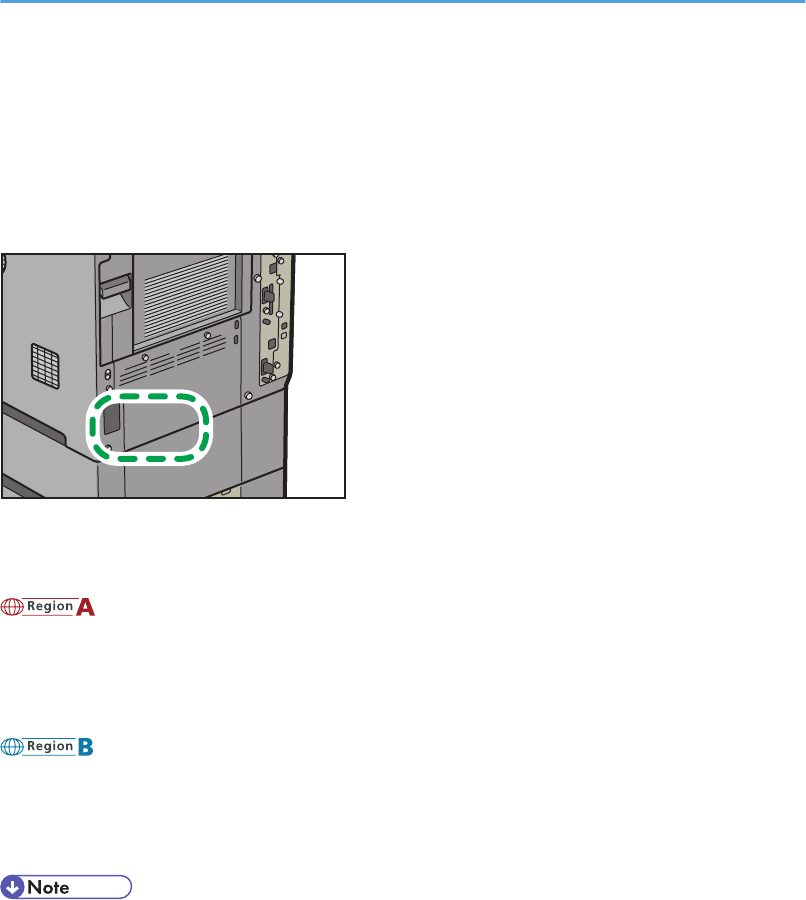
There is a label on the rear of the machine, located in the position shown below. The label contains
details that identify the region your machine belongs to. Read the label.
CFE052
The following information is region-specific. Read the information under the symbol that corresponds to
the region of your machine.
(mainly Europe and Asia)
If the label contains the following, your machine is a region A model:
• CODE XXXX -67, -69
• 220-240V
(mainly North America)
If the label contains the following, your machine is a region B model:
• CODE XXXX -57
• 120-127V
• Dimensions in this manual are given in two units of measure: metric and inch. If your machine is a
Region A model, refer to the metric units. If your machine is a Region B model, refer to the inch
units.
10
1. When the Machine Does Not
Operate As Wanted
This chapter describes basic troubleshooting procedures that are applicable to all functions of this
machine.
Indicators
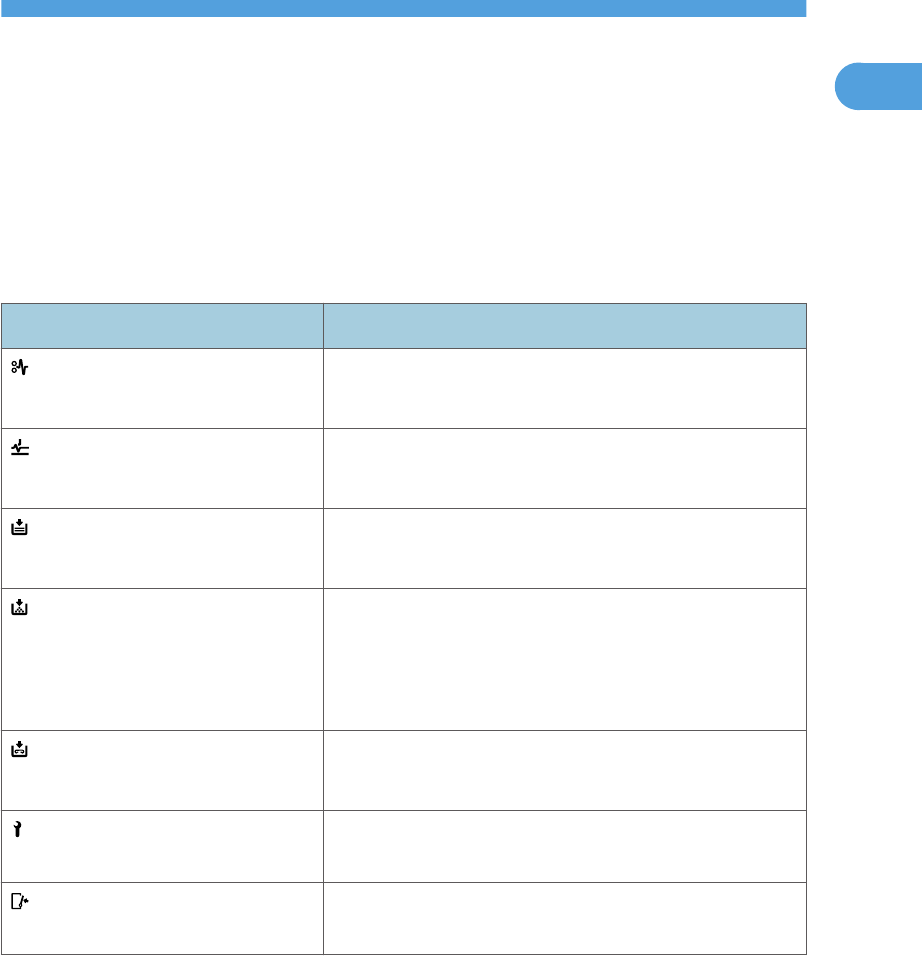
This section describes the indicators displayed when the machine requires the user to remove misfed
paper, to add paper, or to perform other procedures.
Indicator Status
: Paper Misfeed indicator Appears when a paper misfeed occurs.
See p.125 "Removing Jammed Paper".
: Original Misfeed indicator Appears when an original misfeed occurs.
See p.125 "Removing Jammed Paper".
: Load Paper indicator Appears when paper runs out.
See "Loading Paper", About This Machine.
: Replace Print Cartridge indicator Appears when the print cartridge needs to be replaced
soon.
Follow the on-screen instructions.
See "Handling the Print Cartridge", About This Machine.
: Add Staple indicator Appears when staples run out.
See "Adding Staples", About This Machine.
: Service Call indicator Appears when the machine is malfunctioning or requires
maintenance.
: Open Cover indicator Appears when one or more covers of the machine are
open.
11
1

Panel Tone
The following table describes the meaning of the various beep patterns that the machine produces to
alert users about left originals and other machine conditions.
Beep pattern Meaning Causes
Single short beep Panel/screen input
accepted.
A control panel or screen key was
pressed.
Short, then long beep Panel/screen input rejected. An invalid key was pressed on the
control panel or screen, or the entered
password was incorrect.
Single long beep Job completed successfully. A Copier/Document Server Features
job has finished.
Two long beeps Machine has warmed up. After cooling or being switched on, the
machine has fully warmed up and is
ready for use.
Five long beeps Soft alert The initial screen returns when the
machine goes into energy saving mode
and when simplified display is
canceled.
Five long beeps repeated
four times.
Soft alert An original has been left on the
exposure glass or paper is empty.
Five short beeps repeated
five times.
Strong alert The machine requires user attention
because paper has jammed, the toner
needs replenishing, or other problems
have occurred.
• Users cannot mute the machine's beep alerts. When the machine beeps to alert users of a paper
jam or toner request, if the machine's covers are opened and closed repeatedly within a short
space of time, the beep alert might continue, even after normal status has resumed.
• You can select to enable or disable beep alerts. For details about Panel Key Sound, see "General
Features", Network and System Settings Reference.
1. When the Machine Does Not Operate As Wanted
12
1

Checking Machine Status and Settings
You can check the machine's system status.
Maintenance Info
You can check the following items under [Maintenance Info]:
• [Remaining Print Cart.]
Displays the amount of remaining toner.
• [No Staples]
Displays whether there are staples remaining or not.
• [Paper Tray]
Displays the paper type and size loaded into the paper tray.
• [Output Tray Full]
Displays whether the output tray is overloaded.
• [Original Misfeed]
Displays the state of and solutions for original misfeeds.
• [Paper Misfeed]
Displays the state of and solutions for paper misfeeds.
• [Cover Open]
Indicates whether one or more covers of the machine are open.
Data Storage
You can check the following items under [Data Storage]:
• [HDD Remaining Memory]
Displays the amount of available hard disk memory.
• [HDD File(s)]
Displays the total number of jobs stored on the hard disk.
• [Print Job(s)]
Displays the number of jobs for "Hold Print Job(s):", "Stored Print Job(s):", "Locked Print
Job(s):", and "Sample Print Job(s):".
• [Fax TX / RX File(s)]
Displays the number of "Transmission Standby File(s):", "Memory Lock File(s):", "RX Print
Standby File(s):", and other files stored on the hard disk.
• [Memory Erase Status]
Displays the state of the memory data.
Checking Machine Status and Settings
13
1

Machine Address Info
You can check the following items under [Machine Address Info]:
• [Fax No.]
Displays the machine's fax number.
• [H.323 Own Fax No.]
Displays the machine's alias telephone number.
• [SIP User Name]
Displays the machine's SIP user name.
• [Fax E-mail Account]
Displays the machine's fax e-mail account.
• [Machine IPv4 Address]
Displays the machine's IPv4 address.
• [Machine IPv6 Address]
Displays the machine's IPv6 address.
Enquiry
You can check the following items under [Enquiry]:
• [Machine Repairs]
Displays the machine number and contact number which are required for service.
• [Sales Representative]
Displays the sales representative's telephone number.
• [Supply Order]
Displays the contact number for placing supply orders.
• [Supply Details]
Displays the name of toner, staples, etc., used on the machine.
1. On the control panel, press [System Status].
1. When the Machine Does Not Operate As Wanted
14
1
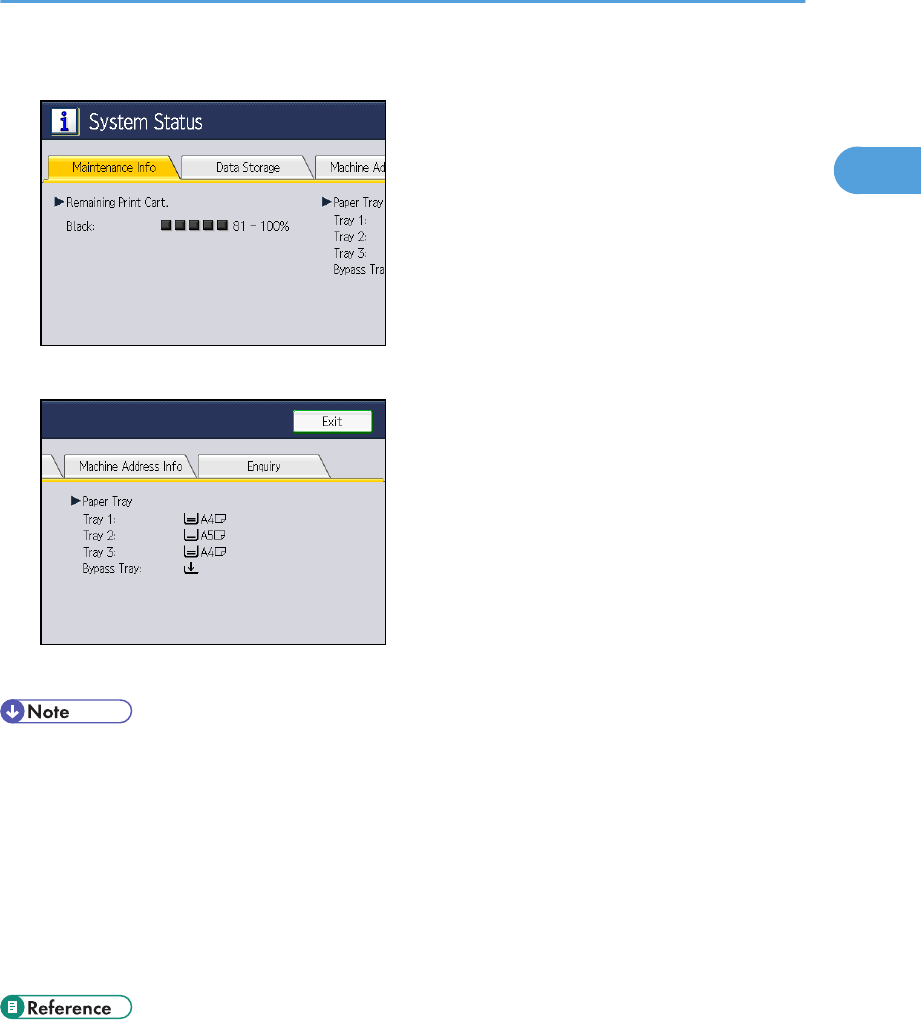
2. Press each tab, and then check the contents.
3. After checking the information, press [Exit].
The previous screen returns.
• [No Staples], [Output Tray Full], [Original Misfeed], [Paper Misfeed], and [Cover Open] appear
on the [Maintenance Info] tab only when these errors occur.
• Depending on the security settings, the [Machine Address Info] tab might not be displayed.
• The contact numbers appear in [Machine Repairs], [Sales Representative], and [Supply Order] on
the [Enquiry] tab only when your sales or service representative enters them.
• [Supply Details] appears on the [Enquiry] tab only when your sales or service representative enters
them.
• For details about how to locate and remove misfeeds, see "Removing Jammed Paper".
• p.125 "Removing Jammed Paper"
Checking Machine Status and Settings
15
1
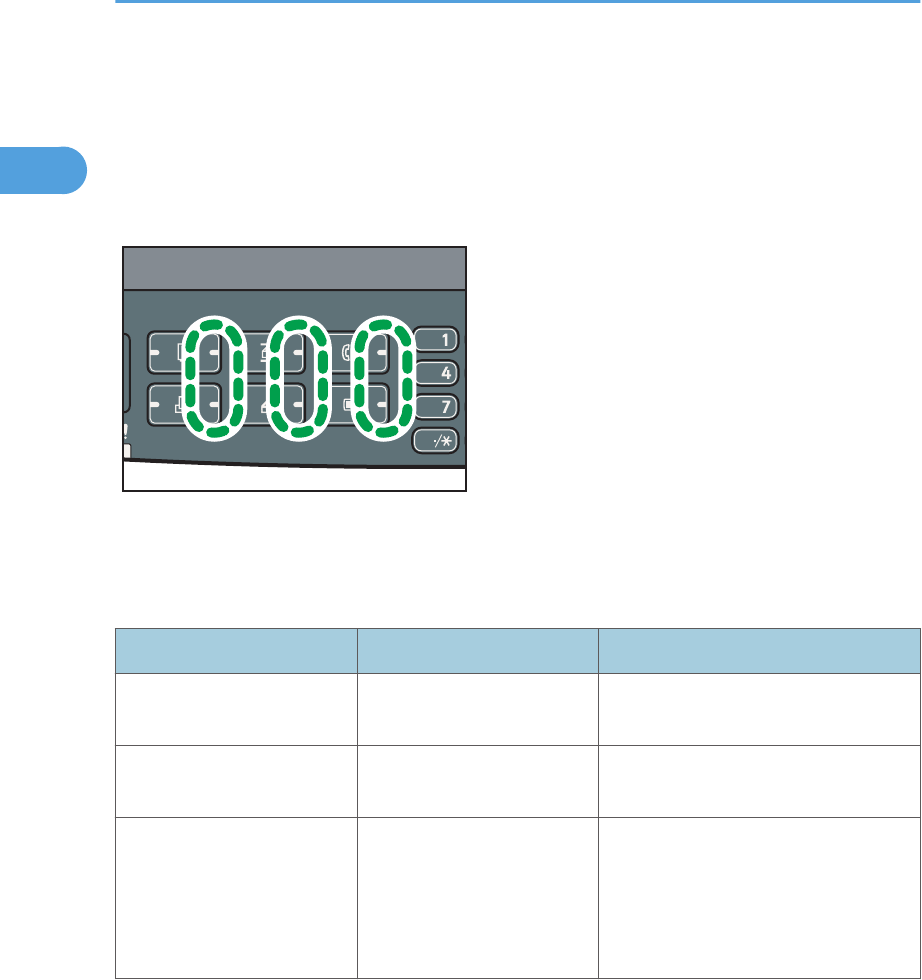
When an Indicator to the Right of a Function
Key Is Lit
When an indicator to the right of a function key lights up, press the corresponding function key. Then,
follow the instructions displayed on the control panel.
CCT002
If an error occurs in the function you are using, check the message that appears on the control panel,
and see "Messages Displayed" for the relevant function.
The following table explains problems that cause the indicator to light.
Problem Causes Solutions
Documents and reports do
not print out.
The paper output tray is full. Remove the prints from the tray.
Documents and reports do
not print out.
There is no paper left. Load paper. See "Loading Paper",
About This Machine.
An error has occurred. The function whose indicator
is lit is defective.
Check the displayed message, and
then take an appropriate action. See
"Messages Displayed" of each
chapter.
You can use other functions normally.
1. When the Machine Does Not Operate As Wanted
16
1
Problem Causes Solutions
The machine is unable to
connect to the network.
A network error has
occurred.
• Check the displayed message,
and then take an appropriate
action. See "Messages
Displayed" of each chapter.
• Check that the machine is
correctly connected to the
network, and that the machine is
correctly set. For details about
how to connect the network, see
"Interface Settings", Network and
System Settings Reference.
• Contact the network
administrator.
• If the indicator is still lit even after
trying to solve the problem as
described here, contact your
service representative.
• p.31 "Messages Displayed When Using the Copy/Document Server Function"
• p.49 "Messages Displayed When Using the Facsimile Function"
• p.71 "Messages Displayed When Installing the Printer Driver"
• p.77 "Messages Displayed When Using the Printer Function"
• p.105 "Messages Displayed When Using the Scanner Function"
When an Indicator to the Right of a Function Key Is Lit
17
1
When You Have Problems Operating the
Machine
This section describes common problems and messages. If other messages appear, follow the
instructions displayed.
• When disconnecting the power cord from the wall outlet, always pull the plug, not the cord.
Pulling the cord can damage the power cord. Use of damaged power cords could result in fire
or electric shock.
Problem Causes Solutions
Although the copier screen
appears when the machine
is turned on using the main
power switch, it cannot be
switched to another screen
by pressing the [Facsimile],
[Printer], or [Scanner] key.
Functions other than the
copier function are not yet
ready.
Wait a little longer.
The machine has just been
turned on and the User Tools
screen is displayed, but the
User Tools menu has items
missing.
Functions other than the
copier function are not yet
ready. Time required varies
by function. Functions
appear in the User Tools
menu when they become
ready for use.
Wait a little longer.
The operation switch
indicator continues blinking
and does not turn off when
pressed.
This occurs in the following
cases:
• The ADF is open.
• The machine is
communicating with
external equipment.
• The hard disk is active.
• Lower the ADF.
• Check if the machine is
communicating with external
equipment.
• Wait a little longer.
Strange noise is heard. The supplies or options are
not properly installed.
Confirm that the supplies or options are
properly installed.
The display is off. The machine is in Energy
Saver mode.
Press the [Energy Saver] key to cancel
Energy Saver mode.
1. When the Machine Does Not Operate As Wanted
18
1

Problem Causes Solutions
The display is off. The operation switch is
turned off.
Turn on the operation switch.
Nothing happens when the
operation switch is turned
on.
The main power switch is
turned off.
Check the cable is securely plugged
into the power outlet and the machine.
Turn on the main power switch.
"Please wait." appears. This message appears when
you turn on the operation
switch.
Wait for a while. If the machine does
not get ready in two minutes, contact
your service representative.
"Please wait." appears. This message appears when
the machine is warming up.
• Wait for a while. If the machine
does not get ready in two
minutes, contact your service
representative.
• Wait until the message
disappears. Do not turn off the
main power switch while the
message is showing.
"Please wait." appears. This message appears when
you change the print
cartridge.
Wait for a while. If the message does
not disappear in 30 seconds, contact
your service representative.
"Toner has been depleted."
appears, even though there
is toner remaining.
The machine is failing to
detect the amount of toner
remaining correctly. The
environment in which the
printer is used can affect the
accuracy of toner detection.
If there is toner remaining, remove and
then reinsert the print cartridge. The
machine will automatically attempt to
reload the toner and printing will be
possible if there is enough toner
remaining.
"Memory is full. Do you
want to store scanned file?"
appears.
The scanned originals
exceed the number of
sheets/pages that can be
stored on the hard disk.
• Press [Yes] to store pages that
have been scanned. Delete
unnecessary files by pressing
[Delete File].
• Press [No] if you are not storing
pages that have been scanned.
Delete unnecessary files by
pressing [Delete File].
The user code entry screen is
displayed.
Users are restricted by User
Code Authentication.
Enter the user code (up to eight digits),
and then press [OK].
When You Have Problems Operating the Machine
19
1
Problem Causes Solutions
The Authentication screen
appears.
Basic Authentication,
Windows Authentication,
LDAP Authentication or
Integration Server
Authentication is set.
Enter your login user name and user
password. See "When the
Authentication Screen is Displayed",
About This Machine.
"Authentication has failed."
appears.
The entered login user name
or login password is not
correct.
Ask the user administrator for the
correct login user name and login
password.
"Authentication has failed."
appears.
The machine cannot perform
authentication.
Contact your administrator.
"You do not have the
privileges to use this
function." continues to be
displayed even though you
have entered a valid user
name.
The logged in user name
does not have permission for
the selected function.
Contact your administrator about the
permission for the required function.
An error message remains,
even if misfed paper is
removed.
• When a misfeed
message appears, it
remains until you open
and close the cover as
required.
• Paper is still jammed in
the tray.
Remove misfed paper, and then open
and close the cover. See p.125
"Removing Jammed Paper".
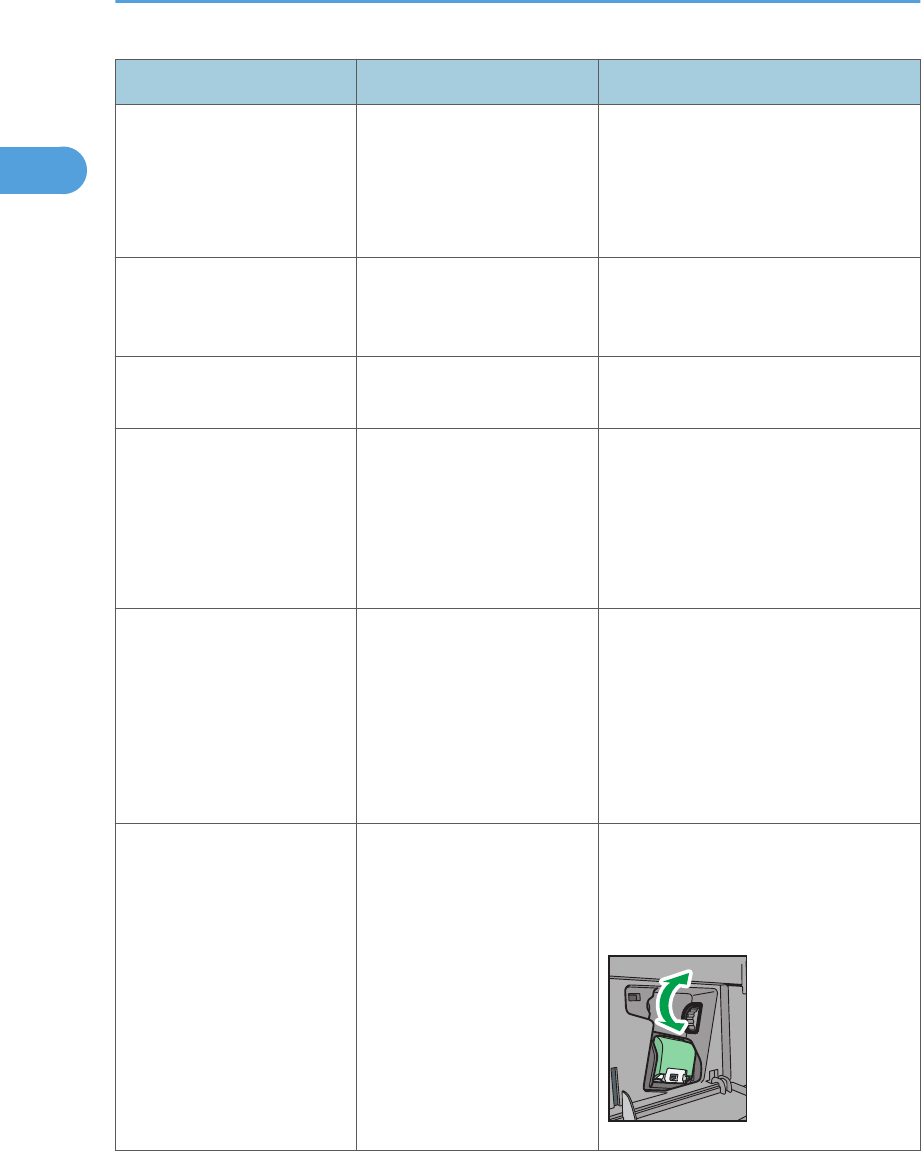
An error message remains,
even if misfed paper is
removed.
Misfed paper in the finisher
has not been removed.
Open the front cover of the finisher,
turn the knob clockwise or
counterclockwise, and then remove the
misfed paper (type 3 only).
CFF041
1. When the Machine Does Not Operate As Wanted
20
1

Problem Causes Solutions
Original images are printed
on the reverse side of the
paper.
You may have loaded the
paper incorrectly.
Load paper correctly. Load paper into
the paper tray with the print side down.
Load paper into the bypass tray with
the print side up.
Misfeeds occur frequently. The tray's side or end fences
may not be set properly.
• Remove misfed paper. See p.
125 "Removing Jammed Paper".
• Check that the side or end fences
are set properly. See "Changing
the Paper Size", About This
Machine.
Misfeeds occur frequently. Paper of undetectable size
has been loaded.
• Remove misfed paper. See p.
125 "Removing Jammed Paper".
• If you load a paper size that is not
selected automatically, you need
to specify the paper size with the
control panel. See "Changing to a
Size That Is Not Automatically
Detected", About This Machine.
Misfeeds occur frequently. There is a foreign object on
the finisher tray.
• Remove misfed paper. See p.
125 "Removing Jammed Paper".
• Do not place anything on the
finisher tray. It may cause a paper
jam.
Misfeeds occur frequently. The friction pad, paper feed
roller, or registration roller
may be dirty.
Clean the pertinent section as
necessary. See "Cleaning the Friction
Pad and Paper Feed Roller" and
"Cleaning the Registration Roller",
About This Machine.
Cannot print in duplex
mode.
"Apply Duplex" is set to [No]
for "Paper Type".
Under "Paper Type" in [Tray Paper
Settings], set "Apply Duplex" to [Yes].
For details, see "Tray Paper Settings",
Network and System Settings
Reference.
When You Have Problems Operating the Machine
21
1

Problem Causes Solutions
Cannot print in duplex
mode.
You have selected a paper
type that cannot be used for
duplex print.
In [Tray Paper Settings], select a paper
type that can be used for duplex print.
For details about the paper types that
can be used, see "Specifications for the
Main Unit", About This Machine.
"Following output tray is full.
Remove paper." appears.
The output tray is full. Remove paper from the output tray to
resume printing. If paper is destined for
the finisher shift tray, to prevent paper
from falling off the tray press the
[Clear/Stop] key to suspend printing,
and then remove the paper. Press
[Continue] on the display panel to
resume printing.
"Turn main Power Switch off"
appears.
The machine does not shut
down normally when the
main power switch is turned
off, and then immediately
turned on.
Turn off the machine. Wait for three
seconds or more after shutting it down,
and then turn it on again.
"Shutting down... Please
wait. Main power will be
turned off automatically."
appears.
The shut down procedure
has begun because the main
power switch was turned off
while the machine was in
standby mode or performing
an operation.
Follow the message that appears and
wait until the machine has shut down.
Do not turn on the main power switch
while this message is displayed. If the
main power switch has been turned on,
follow the message that appears. For
details about turning the main power
switch on and off, see "Turning On/Off
the Power", About This Machine.
Two minutes elapses after
you turn off the main power
switch, but the machine does
not power off.
The machine cannot
complete the shutdown
procedure.
Repeat the shutdown procedure, and
then force power off by disconnecting
the machine's power cord from the
wall outlet.
An error has occurred when
the Address Book is
changed from the display
panel or Web Image
Monitor.
The Address Book cannot be
changed while deleting the
multiple stored documents.
Wait a while, and then retry the
operation.
1. When the Machine Does Not Operate As Wanted
22
1
Problem Causes Solutions
Cannot use Web Image
Monitor to print documents
stored in Document Server.
When print volume limits are
specified, users cannot print
beyond their print volume
limit. Print jobs selected by
users who have reached
their print volume limits will
be canceled.
• For details about specifying print
volume limits, contact your
administrator.
• To view the status of a print job,
see [Print Job History]. In Web
Image Monitor, [Print Job History]
is under [Document Server] in
[Job].
• If you cannot make copies as you want because of paper type, paper size, or paper capacity
problems, use the recommended paper. See "Recommended Paper Sizes and Types", About This
Machine.
• Using curled paper often causes misfeeds, soiled paper edges, or slipped positions while
performing staple or stack printing. When using curled paper, take the stiffness out of the paper
with your hands to straighten out the curl, or load the paper up side down. Also, lay paper on a flat
surface to prevent paper from curling, and do not lean it against the wall.
• p.125 "Removing Jammed Paper"
Messages Displayed When Changing the On-screen Language
This section describes possible solutions for the messages that appear on the control panel when
changing the on-screen language.
• Before turning the main power switch off, see "Turning On/Off the Power", About This Machine.
Message Solutions
"Reboot after card insert
E01"
Turn off the main power switch, and then back on again. If the error
occurs again, contact your sales or service representative.
"Download Error E02"
"Power off on"
Turn off the main power switch, and then back on again. If the error
occurs again, contact your sales or service representative.
"Download Error E03"
"Power off on"
Turn off the main power switch, and then back on again. If the error
occurs again, contact your sales or service representative.
When You Have Problems Operating the Machine
23
1

Message Solutions
"Download Error E04"
"Power off on"
Turn off the main power switch, and then back on again. If the error
occurs again, contact your sales or service representative.
"Download Error E05"
"Power off on"
Turn off the main power switch, and then back on again. If the error
occurs again, contact your sales or service representative.
"Download Error E06"
"Power off on"
Contact your sales or service representative.
"Download Error"
"Power off on E10"
Contact your sales or service representative.
"Download Error"
"Power off on E11"
Turn off the main power switch, and then back on again. If the error
occurs again, contact your sales or service representative.
"Download Error"
"Power off on E12"
Contact your sales or service representative.
"Download Error"
"Power off on E13"
Contact your sales or service representative.
"Download Error"
"Power off on E14"
Turn off the main power switch, and then back on again. If the error
occurs again, contact your sales or service representative.
"Download Error"
"Power off on E15"
Turn off the main power switch, and then back on again. If the error
occurs again, contact your sales or service representative.
"Download Error E19"
"Power off on"
Turn off the main power switch, and then back on again. If the error
occurs again, contact your sales or service representative.
"Download Error E20"
"Power off on"
Turn off the main power switch, and then back on again. If the error
occurs again, contact your sales or service representative.
"Download Error E21"
"Power off on"
Turn off the main power switch, and then back on again. If the error
occurs again, contact your sales or service representative.
"Download Error E22" Turn off the main power switch, and then back on again. If the error
occurs again, contact your sales or service representative.
"Download Error E24"
"Power Off On"
Turn off the main power switch, and then back on again. If the error
occurs again, contact your sales or service representative.
1. When the Machine Does Not Operate As Wanted
24
1
Message Solutions
"Reboot After Card Insert
E32"
Turn off the main power switch, and then back on again. If the error
occurs again, contact your sales or service representative.
"No Valid Data E33" The data in the SD card may be invalid. Contact your sales or service
representative.
"No Valid Data E34" The data in the SD card may be invalid. Contact your sales or service
representative.
"No Valid Data E35" The data in the SD card may be invalid. Contact your sales or service
representative.
"No Valid Version E38" The data in the SD card may be invalid. Contact your sales or service
representative.
"Download Error E42" Turn off the main power switch, and then back on again. If the error
occurs again, contact your sales or service representative.
"Download Error E49"
"Power Off On"
Firmware update is prohibited. Contact your administrator.
"No Valid Data E50" The data in the SD card may be invalid. Contact your sales or service
representative.
When You Have Problems Operating the Machine
25
1
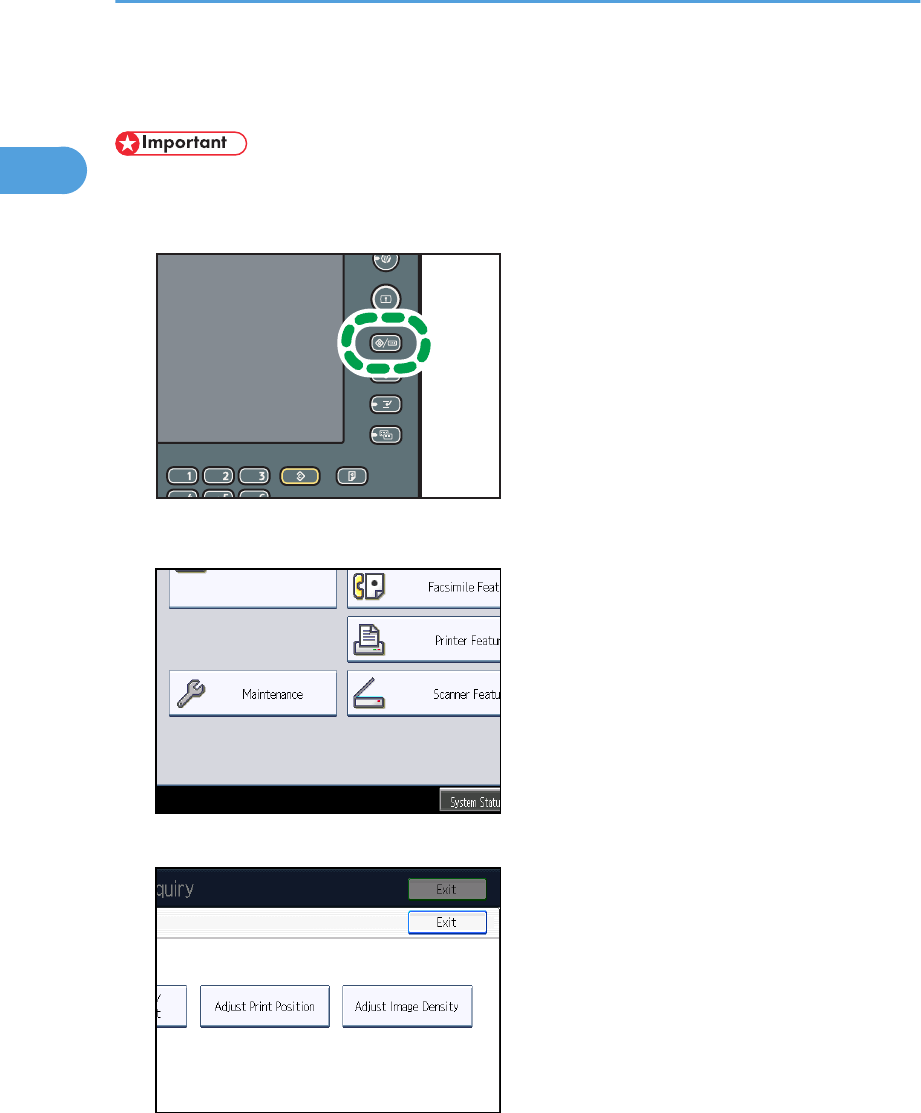
Adjusting the Image Density
• Maximized settings may produce smudged printouts.
1. Press the [User Tools/Counter] key.
CCS003
2. Press [Maintenance].
3. Press [Adjust Image Density].
1. When the Machine Does Not Operate As Wanted
26
1
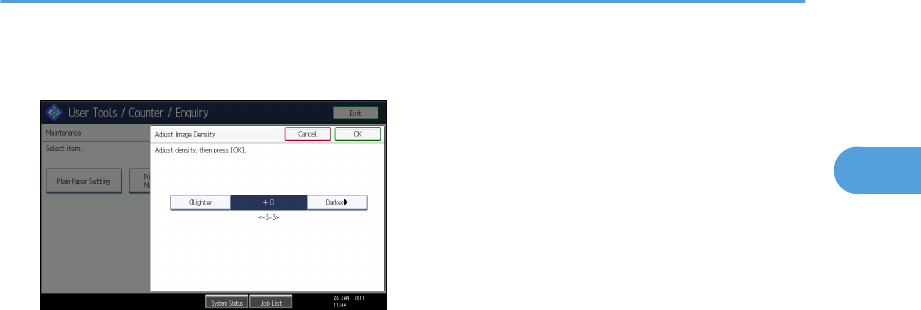
4. Adjust the image density by pressing [Lighter] or [Darker].
You can specify the image density in the range from -3 to +3.
Increasing the value makes the printouts darker and decreasing the value makes the printouts
lighter.
5. Press [OK].
6. Press [Exit] twice.
Adjusting the Image Density
27
1
Adjusting Printing Position
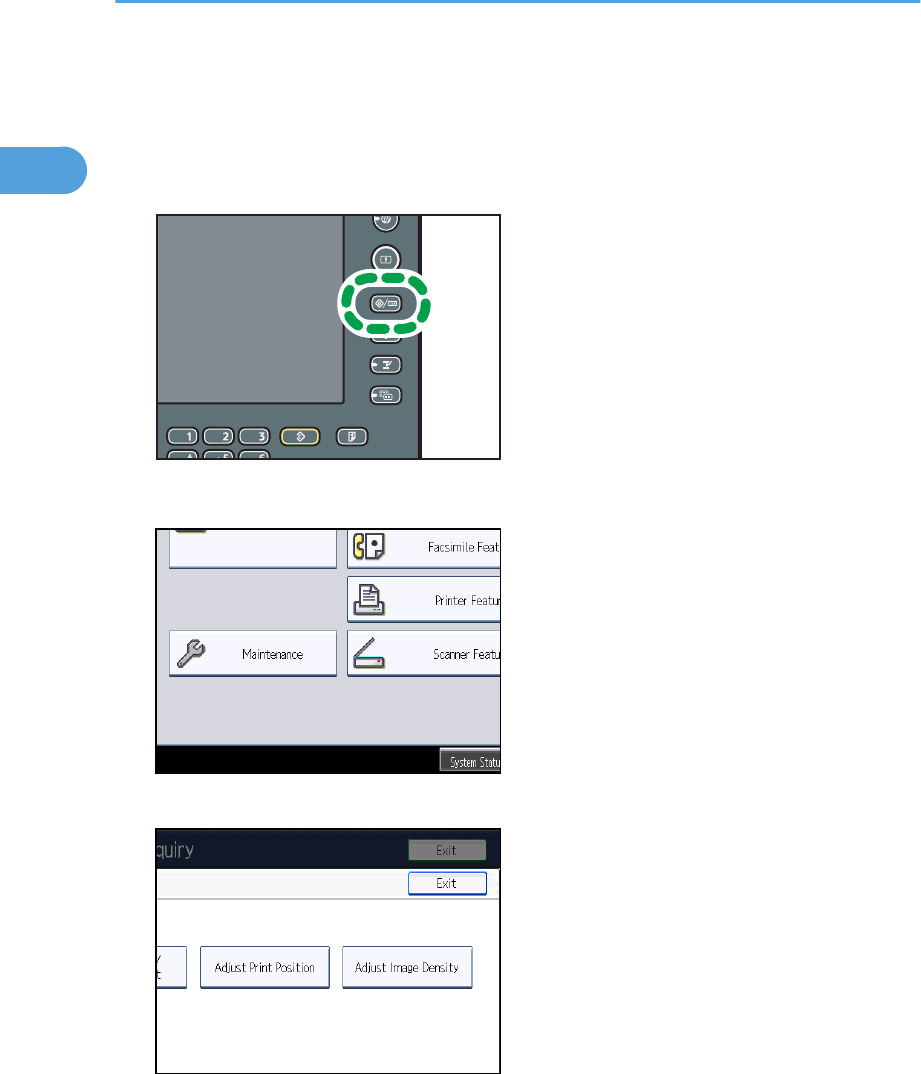
You can adjust the printing position for trays 2-4.
1. Press the [User Tools/Counter] key.
CCS003
2. Press [Maintenance].
3. Press [Adjust Print Position].
1. When the Machine Does Not Operate As Wanted
28
1
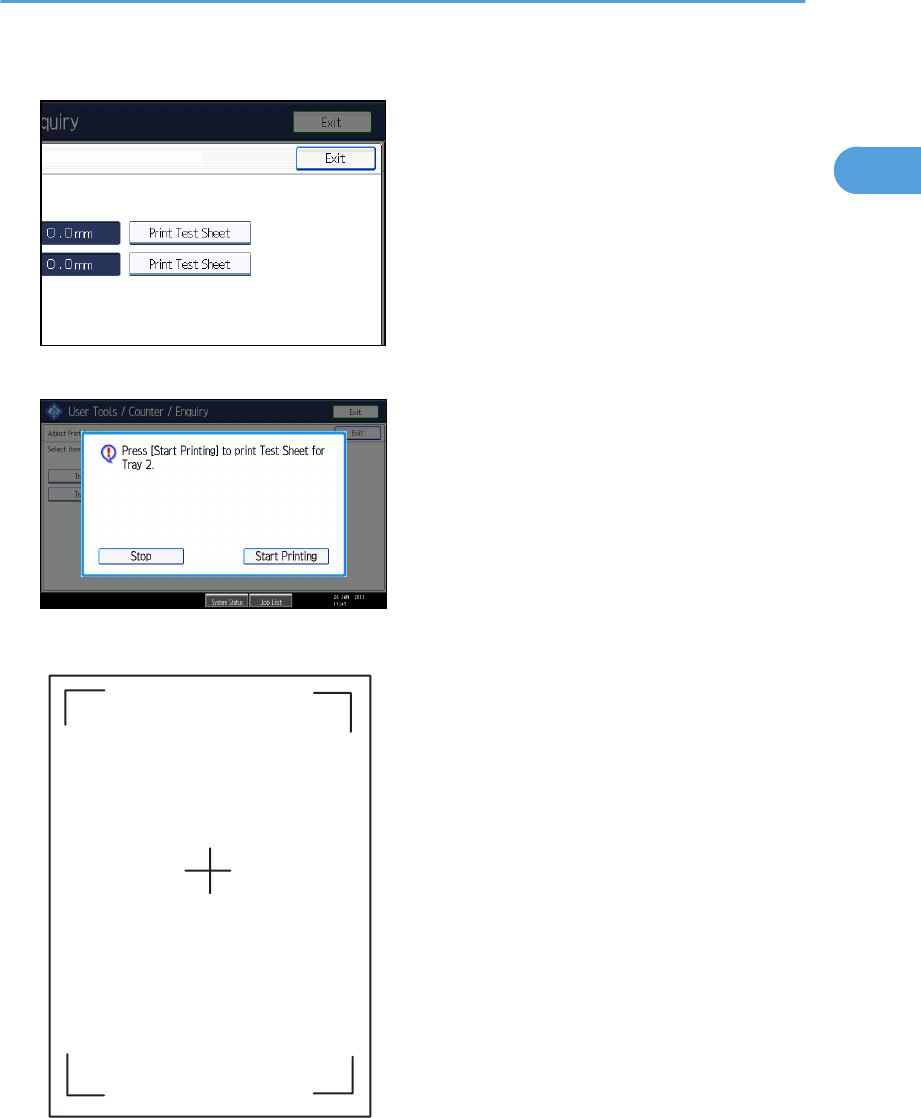
4. Press [Print Test Sheet].
5. Press [Start Printing].
6. Confirm the position of the image on the test sheet, and then adjust the registration value.
Use this sheet to confirm the current print position.
Adjusting Printing Position
29
1
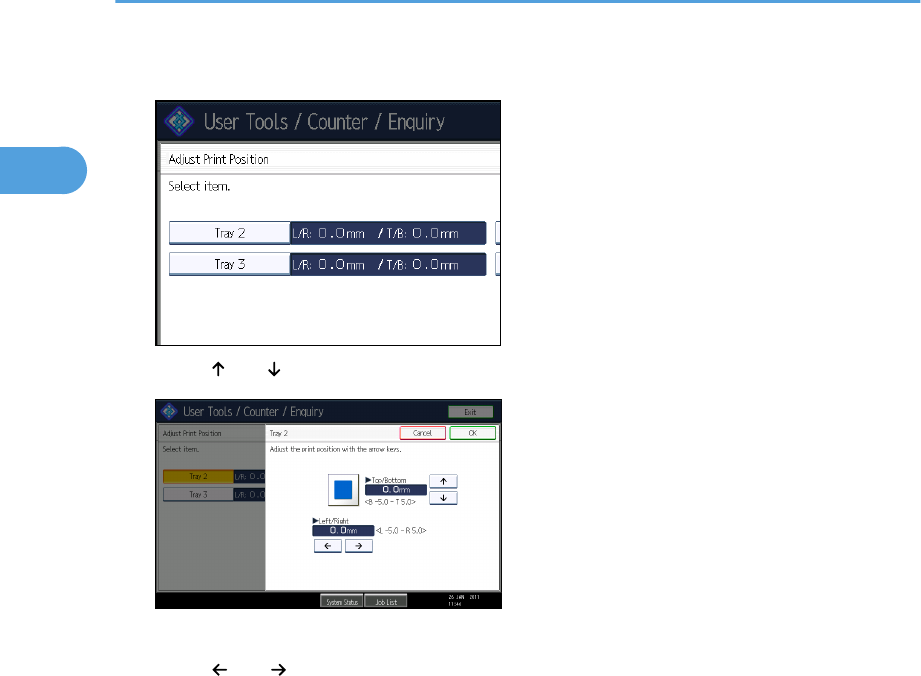
7. Select the tray you want to adjust.
8. Press [ ] or [ ] to specify the vertical position.
You can specify the printing position between -5.0 mm to 5.0 mm in increments of 0.1 mm.
9. Press [ ] or [ ] to specify the horizontal position.
10. Press [OK].
11. Print the test sheet to confirm the adjustment result.
12. Press [Exit] three times.
1. When the Machine Does Not Operate As Wanted
30
1
2. Troubleshooting When Using the
Copy/Document Server Function
This chapter describes likely causes of and possible solutions for Copier and Document Server function
problems.
Messages Displayed When Using the Copy/
Document Server Function
This section describes the machine's main messages. If other messages appear, follow their instructions.
• If you cannot make copies as you want because of the paper type, paper size or paper capacity
problems, use recommended paper. See "Recommended Paper Sizes and Types", About This
Machine.
• For messages that are not listed here, see "When You Have Problems Operating the Machine".
Message Causes Solutions
"Authentication has failed." The entered login user name
or login password is not
correct.
Contact the user administrator.
"Authentication has failed." The machine cannot perform
authentication.
Contact your administrator.
"Cannot staple paper of this
size."
The Staple function cannot
be used with paper size
selected.
Select a proper paper size. See
"Finisher (Type 3 Only)", About This
Machine.
"Check paper size." An irregular paper size is
set.
If you press the [Start] key, the copy
will start using the selected paper.
"Duplex is not available with
this paper size."
A paper size not available in
Duplex mode has been
selected.
Select a proper paper size. See
"Specifications for the Main Unit",
About This Machine.
"Exceeded max. number of
pages per file. Do you want
to store the scanned pages
as 1 file?"
The number of scanned
pages exceeds the capacity
per file of the Document
Server.
Press [Store File] to store scanned
pages as a file. Scanned data is stored
as a file in the Document Server. If you
do not want to store scanned pages,
press [No]. Scanned data is deleted.
31
2

Message Causes Solutions
"Exceeded the maximum
number of sheets that can be
used. Copying will be
stopped."
The number of pages the
user is permitted to copy has
been exceeded.
Contact your administrator.
"File being stored exceeded
max. number of pages per
file. Copying will be
stopped."
The scanned originals have
too many pages to store as
one document.
Press [Exit], and then store again with
an appropriate number of pages.
"Magazine or Booklet mode
is not available due to mixed
image mode."
You selected the
"Magazine" or "Booklet"
function for originals
scanned using different
functions, such as copy and
printer.
Make sure originals for the
"Magazine" or "Booklet" function are
scanned using the same function.
"Maximum number of sets is
n."
(A figure is placed at n.)
The number of copies
exceeds the maximum copy
quantity.
You can change the maximum copy
quantity from [Max. Copy Quantity] in
[General Features] under [Copier /
Document Server Features]. For details
about Max. Copy Quantity, see
"General Features", Copy and
Document Server Reference.
"Original is being scanned
by another function. Switch
to the following function,
then press the Stop key to
cancel scanning or press the
Start key to continue."
A function of the machine
other than the Copier
function is being used such
as the Document Server
function.
Cancel the job in progress. For
example, press [Exit], and then press
the [Document Server] key. Next, press
the [Clear/Stop] key. When the
message "The Clear / Stop key was
pressed. Are you sure you want to stop
scanning?" appears, press [Stop].
"Please wait." The destination list is being
updated from the network
using Web Image Monitor.
Wait until the message disappears. Do
not switch off the power while this
message is displayed. Depending on
the number of destinations to be
updated, there may be some delay
before you can resume operation.
Operations are not possible while this
message is displayed.
2. Troubleshooting When Using the Copy/Document Server Function
32
2
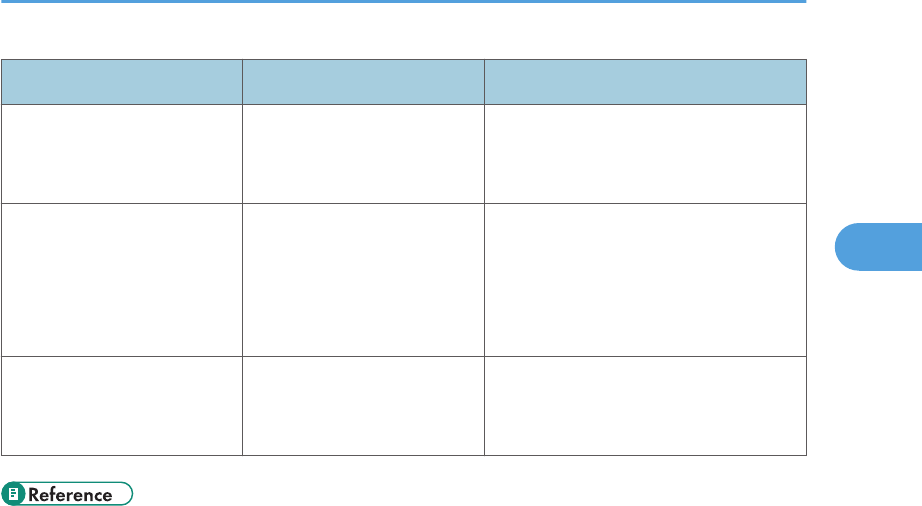
Message Causes Solutions
"Stapling capacity
exceeded."
The number of sheets per set
is over the staple capacity.
Check the stapler capacity. See
"Finisher (Type 3 Only)", About This
Machine.
"The selected file(s)
contained file(s) without
access privileges. Only
file(s) with access privileges
will be deleted."
You have tried to delete files
without the authority to do
so.
Files can be deleted by the person who
created the file. To delete a file which
you are not authorized to delete,
contact the person who created the
file.
"You do not have the
privileges to use this
function."
The logged in user name
does not have permission for
the selected function.
Contact your administrator about
permission for the required function.
• p.18 "When You Have Problems Operating the Machine"
Messages Displayed When Using the Copy/Document Server Function
33
2

When You Cannot Make Clear Copies
This section describes likely causes of and possible solutions for unclear copies.
Problem Causes Solutions
Copies appear dirty. Image density is too high. Adjust the image density settings. See
"Adjusting Copy Image Density", Copy
and Document Server Reference.
Copies appear dirty. Auto Image Density is not
selected.
On the control panel, select [Auto
Density].
Images are smudged. Smudging can occur if a
printed side rubs against
things such as the corner of
the machine.
When removing copies from the output
tray, do so carefully to avoid scuffing
the printed side. If you are making
many copies, remove them in small
batches.
The reverse side of an
original image is copied.
Image density is too high. Adjust the image density settings. See
"Adjusting Copy Image Density", Copy
and Document Server Reference.
The reverse side of an
original image is copied.
Auto Image Density is not
selected.
On the control panel, select [Auto
Density].
The reverse side of an
original image is copied.
The original is thin. On the control panel, select [Auto
Density], or adjust the image density
settings.
See "Adjusting Copy Image Density",
Copy and Document Server Reference.
A shadow appears on
copies if you use pasted
originals.
Image density is too high. • Adjust the image density settings.
See "Adjusting Copy Image
Density", Copy and Document
Server Reference.
• Change the orientation of the
original.
• Put mending tape on the pasted
part.
The same copy area is dirty
whenever making copies.
The exposure glass,
scanning glass, or ADF is
dirty.
Clean them. See "Cleaning the
Machine", About This Machine.
2. Troubleshooting When Using the Copy/Document Server Function
34
2

Problem Causes Solutions
The same copy area is dirty
whenever making copies.
• The original that has
already been printed is
scanned.
• Original Type is set to
[Text / Photo], and an
original with text and
photographs that can
hardly be distinguished
from each other is
loaded.
On the control panel, press
[Generation Copy], and then begin
copying.
Copies are too light. Image density is too light. Adjust the image density settings. See
"Adjusting Copy Image Density", Copy
and Document Server Reference.
Copies are too light. A light copy may result when
you use damp or rough
grain paper.
• Use recommended paper. For
details about recommended
paper, see "Recommended Paper
Sizes and Types", About This
Machine.
• Use paper that has been stored in
the recommended temperature
and humidity conditions. For
details about the proper way to
store paper, see "Paper Storage",
About This Machine.
Parts of images are not
copied.
The original is not set
correctly.
Set originals correctly. See "Placing
Originals", Copy and Document
Server Reference.
Parts of images are not
copied.
The correct paper size is not
selected.
Select the proper paper size.
Parts of images are not
copied.
Even if you place originals
on the exposure glass, or
ADF correctly, margin of a
few millimeters on all four
sides of the original might
not be copied.
Use "Create Margin" function to
reduce the image of its original size.
For details about missing image area,
see "Create Margin", Copy and
Document Server Reference.
When You Cannot Make Clear Copies
35
2
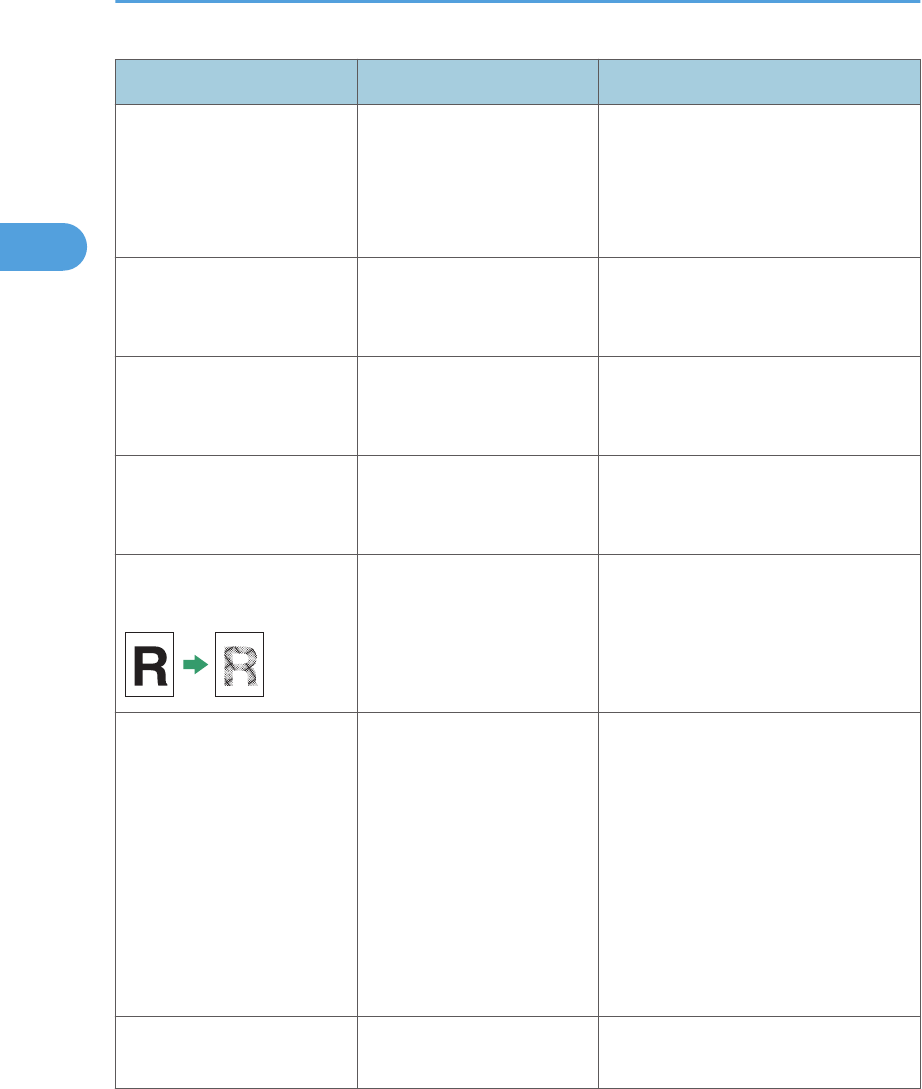
Problem Causes Solutions
Images appear only
partially.
The paper is damp. Use paper that has been stored in the
recommended temperature and
humidity conditions. For details about
the proper way to store it, see "Paper
Storage", About This Machine.
Black lines appear. The exposure glass,
scanning glass, or ADF is
dirty.
Clean them. See "Cleaning the
Machine", About This Machine.
White lines appear. The exposure glass,
scanning glass, or ADF is
dirty.
Clean them. See "Cleaning the
Machine", About This Machine.
Copies are blank. The original is not set
correctly.
When using the exposure glass, face
the originals down. When using the
ADF, face them up.
A moire pattern is produced
on copies.
The original has a dot
pattern image or many lines.
Place the original on the exposure
glass at a slight angle.
Black spots appear on the
copy of a photographic
print.
Because of high humidity,
the photographic print has
stuck to the exposure glass.
Place the print on the exposure glass in
either of the following ways:
• Place an OHP transparency on
the exposure glass, and then
place the print on the OHP
transparency.
• Place the print on the exposure
glass, and then place two or three
sheets of white paper on it. Leave
the ADF open when copying.
White stripes appear on the
OHP.
Fragments of paper are
stuck to the OHP.
Use a dry cloth to wipe any paper
fragments off the back of the OHP.
2. Troubleshooting When Using the Copy/Document Server Function
36
2
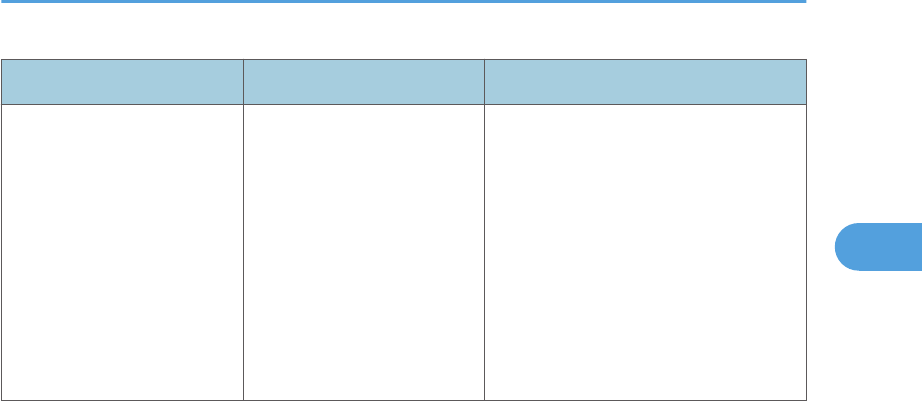
Problem Causes Solutions
The image on the back side
of duplex copies has mottled
blank patches or is
smudged.
Missing patches and
smudges are caused by
moisture leaking from the
paper.
• Do not install the machine in
areas that are susceptible to low
temperatures.
• Use paper that has been stored
where temperature and humidity
conditions meet the limitations we
recommend. For details about the
paper storage conditions we
recommend, see "Paper Storage",
About This Machine.
When You Cannot Make Clear Copies
37
2

When You Cannot Make Copies As Wanted
This section describes likely causes of and possible solutions for unsatisfactory copy results.
Basic
Problem Causes Solutions
Misfeeds occur frequently. The number of sheets loaded
exceeds the capacity of the
machine.
Fan the sheets thoroughly before
loading them.
• When loading paper into the
paper tray, load paper only as
high as the upper limit markings
on the side fences of the paper.
• When loading paper on the
bypass tray, load only as much
paper as can be held between
the guides on the bypass tray.
Misfeeds occur frequently. The paper tray's side fences
are set too tightly.
Push the side fences lightly, and then
reset it.
Misfeeds occur frequently. The paper is damp. Use paper that has been stored in the
recommended temperature and
humidity conditions. See "Paper
Storage", About This Machine.
Misfeeds occur frequently. The paper is too thick or too
thin.
Use recommended paper. See
"Recommended Paper Sizes and
Types", About This Machine.
Misfeeds occur frequently. The copy paper is wrinkled
or has been folded/
creased.
• Use recommended paper. For
details about recommended
paper, see "Recommended Paper
Sizes and Types", About This
Machine.
• Use paper that has been stored in
the recommended temperature
and humidity conditions. For
details about the proper way to
store paper, see "Paper Storage",
About This Machine.
2. Troubleshooting When Using the Copy/Document Server Function
38
2

Problem Causes Solutions
Misfeeds occur frequently. Printed paper is being used. Do not load sheets that have already
been copied or printed onto by
another machine.
Misfeeds occur frequently. Sheets are sticking together. Fan the sheets thoroughly before
loading them. Alternatively, feed the
sheets into the machine one at a time.
Misfeeds occur frequently. The friction pad, paper feed
roller, or registration roller
may be dirty.
Clean the pertinent section as
necessary. See "Cleaning the Friction
Pad and Paper Feed Roller" and
"Cleaning the Registration Roller",
About This Machine.
Copy paper becomes
creased.
The paper is damp. Use paper that has been stored in the
recommended temperature and
humidity conditions. See "Paper
Storage", About This Machine.
Copy paper becomes
creased.
The paper is too thin. Use recommended paper. See
"Recommended Paper Sizes and
Types", About This Machine.
Copies are not stapled. There are jammed staples in
the stapler.
Remove jammed staples. See p.141
"Removing Jammed Staples".
Copies are not stapled. Copy paper is curled. Turn the copy paper over in the tray.
Copies are stapled as
separate batches.
The number of copies is too
great for the stapler to staple
as a single batch.
Check the stapler capacity. See
"Finisher (Type 3 Only)", About This
Machine.
Staples are wrongly
positioned.
Originals are not set
correctly.
Check the correct position to place the
originals. For details about how to
place the originals with stapling, see
"Staple (Type 3 Only)", Copy and
Document Server Reference.
Paper does not output
during printing with stapling.
When you stop printing
while using the staple
function, paper not stapled
during printing may be left in
the staple unit.
Press the [Clear Modes] key, and then
cancel copy settings, including
stapling.
When You Cannot Make Copies As Wanted
39
2

Problem Causes Solutions
You cannot combine several
functions.
Selected functions cannot be
used together.
Check the combination of functions,
and then make the settings again. See
"Function Compatibility", Copy and
Document Server Reference.
When sorting, the pages are
divided into two blocks.
The memory became full in
the middle of sorting and the
pages were delivered in two
blocks.
In [Copier / Document Server
Features], under [Input / Output], set
[Memory Full Auto Scan Restart] to
[Off].
The copy is grayed out or a
text pattern appears in the
background of the copy.
You have copied a copy-
guarded document
protected from unauthorized
copying.
Check the document. For details about
how to prevent unauthorized copying
of the document, see "Preventing an
Unauthorized Copy", About This
Machine.
Images are skewed. The side fences in the paper
feed tray are not set
properly.
Make sure the side fences are set
properly. For details about how to set
the side fences, see "Changing the
Paper Size", About This Machine.
Images are skewed. The paper is feeding in at a
slant.
Load the paper correctly. See "Loading
Paper", About This Machine.
Edges of sheets are creased. The paper is damp. Use paper that has been stored in the
recommended temperature and
humidity conditions. See "Paper
Storage", About This Machine.
Edges of sheets are creased. You are using non-
recommended paper.
Use recommended paper. See
"Recommended Paper Sizes and
Types", About This Machine.
Sheets are feeding in
together, resulting in jams.
Sheets are sticking together. Fan the pages to loosen the paper
before loading it. Alternatively, feed
the paper one sheet at a time.
"Add Staples" message
appears and the Staple
function cannot be used.
The staple cartridge is not set
properly.
Make sure the staple cartridge is set
properly. See "Adding Staples", About
This Machine.
2. Troubleshooting When Using the Copy/Document Server Function
40
2

Edit
Problem Causes Solutions
In "Erase Border", "Erase
Centre", or "Erase Centre /
Border" mode, parts of the
original image are not
copied.
You have entered a wide
erased margin.
Make the margin width narrower. You
can adjust it between 2 99 mm (0.1
3.9 inches).
In "Erase Border", "Erase
Centre", or "Erase Centre /
Border" mode, parts of the
original image are not
copied.
Originals are not scanned
correctly.
Place the originals correctly.
In "Margin Adjustment"
mode, parts of the original
image are not copied.
• You set a wide erased
margin.
• There is a lack of
margin space on the
opposite side of the
binding position.
Set a narrower margin with User Tools.
You can set the width between 0 30
mm (0 1.2 inches).
In "Image Repeat" mode, the
original image is not copied
repeatedly.
You selected copy paper the
same size as the originals, or
you did not select the proper
reproduction ratio.
Select copy paper larger than the
originals or select the proper
reproduction ratio.
Stamp
Problem Causes Solutions
The stamp position is wrong. The paper orientation is
wrong.
Check the paper orientation and stamp
position.
The stamp is not printed on
the back side of sheets when
duplex copying.
The back side stamp position
is incorrect for the paper
size.
Reset the back side stamp position. For
details about Duplex Back Page
Stamping Position, see "Copier and
Document Server Features", Copy and
Document Server Reference.
When You Cannot Make Copies As Wanted
41
2

Combine
Problem Causes Solutions
Copies made with the
"Booklet" or "Magazine"
function cannot be folded
into a book correctly.
You have selected a setting
("Open to Left" or "Open to
Right") that does not match
the orientation of originals.
In [Copier / Document Server
Features], under [Edit], set
[Orientation: Booklet, Magazine]
properly.
When using "Combine",
parts of the image are not
copied.
You specified a
reproduction ratio that does
not match the sizes of the
originals and copy paper.
When you specify a reproduction ratio
using Manual Paper Select mode,
make sure the ratio matches the
originals and the copy paper. Select
the correct reproduction ratio before
using Combine mode. See "One-Sided
Combine", "Two-Sided Combine", or
"Auto Reduce / Enlarge", Copy and
Document Server Reference.
Copies are not in correct
order.
You placed the originals in
the incorrect order.
When inserting a stack of originals into
the ADF, the last page should be on
the bottom.
If you place an original on the
exposure glass, start with the first page
to be copied.
Duplex
Problem Causes Solutions
Cannot print in duplex
mode.
You have loaded thin paper
lighter than 60 g/m2 (16 lb.
Bond), or thick paper
heavier than 163 g/m2 (90
lb. Index).
Change the paper.
Cannot print in duplex
mode.
"Apply Duplex" is set to [No]
for "Paper Type".
In [Tray Paper Settings], under "Paper
Type", set "Apply Duplex" to [Yes]. For
details, see "Tray Paper Settings",
Network and System Settings
Reference.
2. Troubleshooting When Using the Copy/Document Server Function
42
2

Problem Causes Solutions
Cannot print in duplex
mode.
You have selected a paper
type that cannot be used for
duplex copying.
In [Tray Paper Settings], select a paper
type that can be used for duplex print.
For details about the paper types that
can be used, see "Specifications for the
Main Unit", About This Machine.
Copies are not in correct
order.
You placed the originals in
the incorrect order.
When inserting a stack of originals into
the ADF, the last page should be on
the bottom.
If you place an original on the
exposure glass, start with the first page
to be copied.
When using "Duplex", copy
is made top to bottom even
though [Top to Top] is
selected.
You placed the originals in
the wrong orientation.
Place the original in the correct
orientation. See "Duplex Copying",
Copy and Document Server Reference.
Document Server
Problem Causes Solutions
Cannot access file. The file is password
protected.
Contact your administrator.
To delete the files stored in the
Document Server, select [Delete All
Files in Document Server] under
[Administrator Tools] in [System
Settings]. As this will permanently
delete every single file, make sure the
Document Server does not contain any
files you want to keep. For details
about Delete All Files in Document
Server, see "Administrator Tools",
Network and System Settings
Reference.
When You Cannot Make Copies As Wanted
43
2

Problem Causes Solutions
You cannot find out what is
stored in a file.
You may not be able to
ascertain the contents of a
file simply from the file
name.
You can switch the Select File screen
between [List] and [Thumbnails]
display to check the contents of the file.
Check information other than the file
name.
• List display
The file name, date of storage,
and user name are shown.
• Thumbnails display
An image of the stored file
appears.
You can enlarge the image by pressing
[Preview]. See "Checking the Details of
a Stored Document", Copy and
Document Server Reference.
Memory frequently becomes
full.
The Document Server
memory is full.
Delete unnecessary files. On the file
selection display, select unnecessary
files, and then press [Delete File]. If this
does not increase available memory,
do the following.
• Switch to the scanner screen, and
then delete unnecessary files
stored under the scanner function.
• Switch to the printer screen, and
then delete unnecessary files
stored under Sample Print, Locked
Print, Hold Print, or Stored Print.
"Cannot display preview of
this page." appears, and
you cannot check the
thumbnail image.
The image data may have
been corrupted.
Press [Exit] to display the preview
screen without a thumbnail.
If the selected document contains
several pages, press [Switch] on the
"Display Page" area to change the
page, and then a preview of the next
page will appear.
2. Troubleshooting When Using the Copy/Document Server Function
44
2
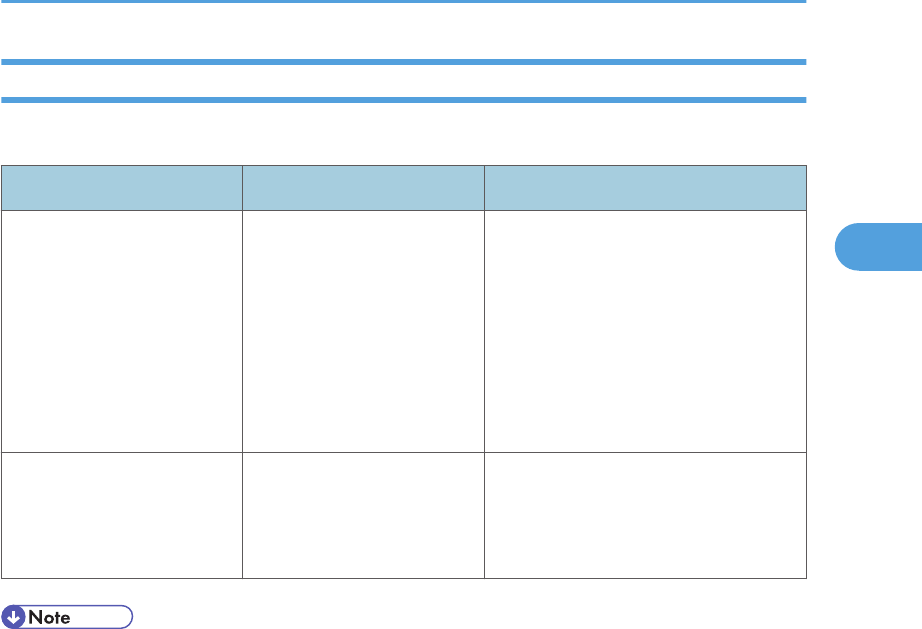
When Memory Is Full
This section describes likely causes of and possible solutions for problems related to full memory.
Message Causes Solutions
"Memory is full. nn originals
have been scanned. Press
[Print] to copy scanned
originals. Do not remove
remaining originals."
"n" in the message
represents a changeable
number.
The scanned originals
exceed the number of pages
that can be stored in
memory.
Press [Print] to copy scanned originals
and cancel the scanning data. Press
[Stop] to cancel the scanning data and
not copy.
"Press [Continue] to scan
and copy remaining
originals."
The machine checked if the
remaining originals should
be copied, after the scanned
originals were printed.
Remove all copies, and then press
[Continue] to continue copying. Press
[Stop] to stop copying.
• If you set [Memory Full Auto Scan Restart] in [Input / Output] of User Tools to [On], even if the
memory becomes full, the memory overflow message will not be displayed. The machine will make
copies of the scanned originals first, and then automatically proceed to scan and to copy the
remaining originals. In this case, the resulting sorted pages will not be sequential. For details about
Memory Full Auto Scan Restart, see "Input / Output ", Copy and Document Server Reference.
When You Cannot Make Copies As Wanted
45
2

2. Troubleshooting When Using the Copy/Document Server Function
46
2
3. Troubleshooting When Using the
Facsimile Function
This chapter describes likely causes of and possible solutions for facsimile function problems.
Adjusting the Volume
This section describes how to adjust the volume.
You can change the volume of the following sounds that the machine makes.
On Hook Mode
Heard when [On Hook] is pressed.
At Transmission
Heard when "Immediate Transmission" is performed.
At Reception
Heard when the machine receives a document.
At Dialing
Heard after pressing the [Start] key, until the line connects to the destination.
At Printing
Heard when a received document is printed.
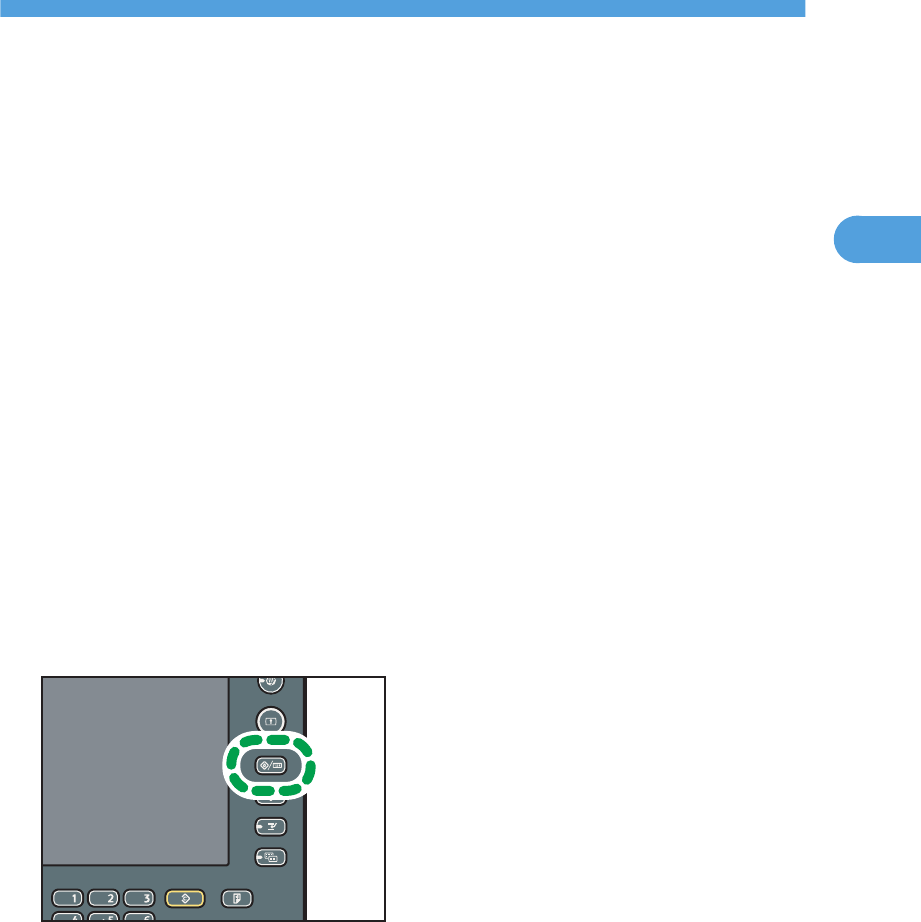
1. Press the [User Tools/Counter] key.
CCS003
2. Press [Facsimile Features].
3. Check that [General Settings] screen appears.
47
3
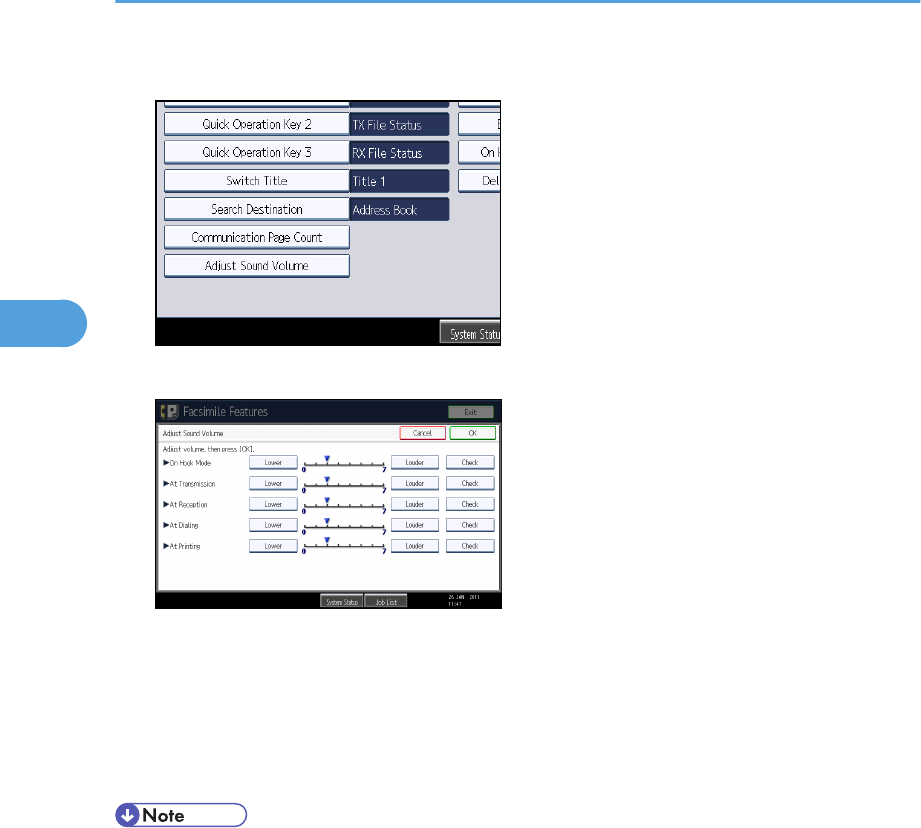
4. Press [Adjust Sound Volume].
5. Press [Lower] or [Louder] to adjust the volume, and then press [OK].
You can hear the actual volume by pressing [Check].
If you press [Cancel], the volume setting is canceled. The screen returns to that of step 4.
You can set the volume level to between 0 and 7.
6. Press the [User Tools/Counter] key.
The standby screen appears.
• You can adjust the On Hook volume when you press [On Hook]. See "On Hook Dial", Facsimile
Reference.
3. Troubleshooting When Using the Facsimile Function
48
3

Messages Displayed When Using the Facsimile
Function
This section describes the machine's main messages. If other messages appear, follow their instructions.
Message Causes Solutions
"Authentication has failed." The entered login user name
or login password is not
correct.
Contact the user administrator.
"Authentication has failed." The machine cannot perform
authentication.
Contact your administrator.
"Cannot find the specified
path. Please check the
settings."
The name of the computer or
folder entered as the
destination is wrong.
Check whether the computer name and
the folder name for the destination are
correct.
"Check whether there are
any network problems."
[13-10]
The alias telephone number
you entered is already
registered on the gatekeeper
by another device.
• In [Facsimile Features], under
[Initial Settings], select [H.323
Settings], and then check that the
alias telephone number is
correctly programmed. You can
also use the Web Image Monitor
for confirmation. See Web Image
Monitor Help.
• Contact the network
administrator.
"Check whether there are
any network problems."
[13-11]
Cannot access gatekeeper. • In [Facsimile Features], under
[Initial Settings], select [H.323
Settings], and then check that
Gatekeeper Address is correctly
programmed. You can also use
the Web Image Monitor for
confirmation. See Web Image
Monitor Help.
• Contact the network
administrator.
Messages Displayed When Using the Facsimile Function
49
3

Message Causes Solutions
"Check whether there are
any network problems."
[13-17]
Registering of user name is
rejected by SIP server.
• In [Facsimile Features], under
[Initial Settings], select [SIP
Settings], and then check that "SIP
Server IP Address" and "SIP User
Name" are correctly
programmed. You can also use
the Web Image Monitor for
confirmation. See Web Image
Monitor Help.
• Contact the network
administrator.
"Check whether there are
any network problems."
[13-18]
Cannot access SIP server. • In [Facsimile Features], under
[Initial Settings], select [SIP
Settings], and then check that "SIP
Server IP Address" is correctly
programmed. You can also use
the Web Image Monitor for
confirmation. See Web Image
Monitor Help.
• Contact the network
administrator.
"Check whether there are
any network problems."
[13-24]
The password registered for
the SIP server is not the same
as the password registered
for this machine.
Contact your administrator.
3. Troubleshooting When Using the Facsimile Function
50
3

Message Causes Solutions
"Check whether there are
any network problems."
[13-25]
In [Effective Protocol], the IP
address is not enabled, or an
incorrect IP address has been
registered.
• In [System Settings], under
[Interface Settings], select
[Effective Protocol], and then
check that "IPv4" is programmed
to "Active". You can also use the
Web Image Monitor for
confirmation. See Web Image
Monitor Help.
• In [System Settings], under
[Interface Settings], select
[Machine IPv4 Address], and
then check that the IP address is
correctly programmed. You can
also use the Web Image Monitor
for confirmation. See Web Image
Monitor Help.
• Contact your administrator.
"Check whether there are
any network problems."
[13-26]
The "Effective Protocol" and
"SIP Server IP Address"
settings are different, or an
incorrect IP address has been
registered.
• In [System Settings], under
[Interface Settings], check that the
IP address is correctly
programmed. You can also use
the Web Image Monitor for
confirmation. See Web Image
Monitor Help.
• Contact your administrator.
Messages Displayed When Using the Facsimile Function
51
3

Message Causes Solutions
"Check whether there are
any network problems."
[14-01]
The DNS server, SMTP
server, or folder specified for
transfer to was not found, or
the destination for Internet
Fax around (not through) the
SMTP server could not be
found.
• In [System Settings], under
[Interface Settings], check that the
DNS server is correctly
programmed. You can also use
the Web Image Monitor for
confirmation. See Web Image
Monitor Help.
• In [System Settings], under [File
Transfer], select [SMTP Server],
and then check that "Server
Name" or "Port No." is correctly
programmed. You can also use
the Web Image Monitor for
confirmation. See Web Image
Monitor Help.
• Check that the folder for transfer is
correctly specified.
• Check that the computer in which
the folder for transfer is specified
is correctly operated.
• Check that the LAN cable is
correctly connected to the
machine.
• Contact the network administrator
of the destinations.
• Contact the network
administrator.
3. Troubleshooting When Using the Facsimile Function
52
3

Message Causes Solutions
"Check whether there are
any network problems."
[14-09]
E-mail transmission was
refused by SMTP
authentication, POP before
SMTP authentication, or login
authentication of the
computer in which the folder
for transfer is specified.
• In [System Settings], under [File
Transfer], select [SMTP
Authentication], [POP before
SMTP], or [Fax E-mail Account],
and then check that "User Name"
and "Password" are correctly
programmed. You can also use
the Web Image Monitor for
confirmation. See Web Image
Monitor Help.
• Check that the user ID and
password for the computer in
which the folder for forwarding is
specified are correctly
programmed.
• Check that the folder for
forwarding is correctly specified.
• Check that the computer in which
the folder for forwarding is
specified is correctly operated.
• Contact the network
administrator.
"Check whether there are
any network problems."
[14-33]
Neither the machine's nor the
administrator's e-mail
address is registered.
• In [System Settings], under [File
Transfer], select [Fax E-mail
Account], and then check that "E-
mail Address" is correctly
programmed. You can also use
the Web Image Monitor for
confirmation. See Web Image
Monitor Help.
• Contact the network
administrator.
Messages Displayed When Using the Facsimile Function
53
3

Message Causes Solutions
"Check whether there are
any network problems."
[15-01]
No POP3/IMAP4 server
address is programmed.
• In [System Settings], under [File
Transfer], select [POP3 / IMAP4
Settings], and then check that
"Server Name" is correctly
programmed. You can also use
the Web Image Monitor for
confirmation. See Web Image
Monitor Help.
• Contact the network
administrator.
"Check whether there are
any network problems."
[15-02]
Cannot log in to the POP3/
IMAP4 server.
• In [System Settings], under [File
Transfer], select [Fax E-mail
Account], and then check that
"User Name" and "Password" are
correctly programmed. You can
also use the Web Image Monitor
for confirmation. See Web Image
Monitor Help.
• Contact the network
administrator.
"Check whether there are
any network problems."
[15-03]
No machine e-mail address
is programmed.
• In [System Settings], under [File
Transfer], check that the machine
e-mail address is correctly
programmed. You can also use
the Web Image Monitor for
confirmation. See Web Image
Monitor Help.
• Contact the network
administrator.
3. Troubleshooting When Using the Facsimile Function
54
3

Message Causes Solutions
"Check whether there are
any network problems."
[15-11]
Cannot find the DNS server
or POP3/IMAP4 server.
• In [System Settings], under
[Interface Settings], check that the
IP address of the DNS Server is
correctly programmed. You can
also use the Web Image Monitor
for confirmation. See Web Image
Monitor Help.
• In [System Settings], under [File
Transfer], select [POP3 / IMAP4
Settings], and then check that
"Server Name" is correctly
programmed. You can also use
the Web Image Monitor for
confirmation. See Web Image
Monitor Help.
• In [System Settings], under [File
Transfer], select [E-mail
Communication Port], and then
check that the port number of the
POP3/IMAP4 server is correctly
programmed. You can also use
the Web Image Monitor for
confirmation. See Web Image
Monitor Help.
• Check that the LAN cable is
correctly connected to the
machine.
• In [System Settings], under [File
Transfer], select [Reception
Protocol], and then check that the
reception protocol is correctly
programmed. You can also use
the Web Image Monitor. See
Web Image Monitor Help.
• Contact the network
administrator.
Messages Displayed When Using the Facsimile Function
55
3

Message Causes Solutions
"Check whether there are
any network problems."
[15-12]
Cannot log in to the POP3/
IMAP4 server.
• In [System Settings], under [File
Transfer], select [Fax E-mail
Account], and then check that
"User Name" and "Password" are
correctly programmed. You can
also use the Web Image Monitor
for confirmation. See Web Image
Monitor Help.
• In [System Settings], under [File
Transfer], check that the user
name and password for POP
before SMTP authentication are
correctly programmed. You can
also use the Web Image Monitor
for confirmation. See Web Image
Monitor Help.
• Contact the network
administrator.
"Connection with LDAP
server has failed. Check the
server status."
A network error has occurred
and connection has failed.
• Try the operation once more. If
the message is still shown, the
network may be crowded.
• In [System Settings], under
[Administrator Tools], check the
settings of LDAP server. For
details, see "Programming the
LDAP server", Network and
System Settings Reference.
"Error occurred, and
transmission was
cancelled."
• Original jammed during
Immediate Transmission.
• A problem occurred in
the machine, or noise
occurred on the
telephone line.
Press [Exit], and then send the
documents again.
"Exceeded max. No. of
display search results.
Max.: n"
(A figure is placed at n.)
The number of search results
has exceeded the maximum
number of items that can be
displayed.
Search again after changing the
search conditions.
3. Troubleshooting When Using the Facsimile Function
56
3

Message Causes Solutions
"Exceeded time limit for
LDAP server search. Check
the server status."
A network error has occurred
and connection has failed.
• Try the operation once more. If
the message is still shown, the
network may be crowded.
• In [System Settings], under
[Administrator Tools], check the
settings of LDAP server. For
details, see "Programming the
LDAP server", Network and
System Settings Reference.
"Functional problem
occurred. Stopped
processing."
The main power switch was
turned off while the machine
was receiving a document by
Internet Fax.
Even if you turn the main power switch
back on immediately, depending on
the mail server, the machine might not
be able to resume reception of the
Internet Fax if the timeout period has
not expired. Wait until the mail server's
timeout period has expired, and then
resume reception of the Internet Fax.
For details, contact your network
administrator.
"Functional problems with
facsimile. Data will be
initialized."
There is a problem with the
fax.
Record the code number shown on the
screen, and then contact your service
representative. Other functions can be
used.
"LDAP server authentication
has failed. Check the
settings."
A network error has occurred
and connection has failed.
Make settings correctly for the user
name and the password for LDAP
server authentication.
"Original is being scanned
by another function. Switch
to the following function,
then press the Stop key to
cancel scanning or press
the Start key to continue."
A function of the machine
other than the Facsimile
function is being used such as
the Document Server
function.
Before sending a file by fax, cancel the
job in progress. For example, press
[Exit], and then press the [Document
Server] key. Next, press the [Clear/
Stop] key. When the message "The
Clear / Stop key was pressed. Are you
sure you want to stop scanning?"
appears, press [Stop].
"Put original back, check it
and press the Start key."
Original jammed during
Memory Transmission.
Press [Exit], and then send the
documents again.
Messages Displayed When Using the Facsimile Function
57
3

Message Causes Solutions
"Remove the paper from
Internal Tray 1."
Internal Tray 1 is full. Remove the paper. If the other tray is
also full, the tray name shown on the
screen changes. Remove paper from
the tray indicated on the display.
"Some invalid destination(s)
contained. Do you want to
select only valid
destination(s)?"
The specified group contains
fax destinations, e-mail
destinations, and/or folder
destinations, either of which
are incompatible with the
specified transmission
method.
In the message that appears at each
transmission, press [Select].
"Some page(s) are near
blank."
The first page of the
document is almost blank.
The original's blank side might have
been scanned. Be sure to place your
originals correctly. For details, see
"Detecting Blank Sheet", Facsimile
Reference.
"The selected file(s)
contained file(s) without
access privileges. Only
file(s) with access privileges
will be deleted."
You tried to delete a
document for which you do
not have permission to
delete.
Only the administrator can delete this
document. Contact your administrator
if you want to delete a document for
which you do not have permission to
delete.
"Updating the destination
list... Please wait. Specified
destination(s) or sender's
name has been cleared."
The destination list is being
updated from the network
using Web Image Monitor.
Wait until the message disappears. Do
not switch off the power while this
message is displayed. Depending on
the number of destinations to be
updated, there may be some delay
before you can resume operation.
Operation is not possible while this
message is displayed.
"You do not have the
privileges to use this
function."
The logged in user name
does not have permission for
the selected function.
Contact your administrator about the
permission for the required function.
• If "Check whether there are any network problems." appears, the machine is not correctly
connected to the network or the settings of the machine are not correct. If you do not need to
connect to a network, you can specify the setting so this message is not displayed, and then the
3. Troubleshooting When Using the Facsimile Function
58
3

[Facsimile] key no longer lights. For details about how to do this, see "Parameter Settings",
Facsimile Reference. If you reconnect the machine to the network, be sure to set "Display" by
configuring the appropriate User Parameter.
• If the paper tray runs out of paper, "There is no paper. Load paper." appears on the screen, asking
you to add paper. If there is paper left in the other trays, you can receive documents as usual, even
if the message appears on the screen. You can turn this function on or off with "Parameter Settings".
For details about how to do this, see "Parameter Settings", Facsimile Reference.
Messages Displayed When Using the Facsimile Function
59
3

When You Cannot Send or Receive Fax
Messages As Wanted
This section describes likely causes of and possible solutions for transmission and reception-related
problems.
Transmission/Reception
Problem Causes Solutions
Both transmission and
reception are impossible.
The modular cord may be
disconnected.
Make sure the modular cord is
correctly connected. See "Connecting
the Machine to a Telephone Line and
Telephone", Network and System
Settings Reference.
Transmission
Problem Causes Solutions
Document appears blank at
the other end.
The original was placed
upside down.
When the original is placed directly on
the exposure glass, the side to be
scanned must face down. When the
original is inserted into the ADF, the
side to be scanned must face up.
Printed or sent images are
spotty.
The exposure glass,
scanning glass, or ADF is
dirty.
Clean them. See "Cleaning the
Machine", About This Machine. Make
sure ink or correction fluid is dry before
placing originals.
Reception is possible, but
transmission is impossible.
There are regions and
telephone exchanges where
a dial tone can not be
detected.
Turn the dial tone detection off in User
Parameters. For details about how to
do this, see "Parameter Settings",
Facsimile Reference.
Transmission failed due to
"maximum e-mail size" error.
If the e-mail size specified
on the machine is too large,
the Internet Fax document
cannot be sent.
In [Facsimile Features], under [Send
Settings], set [Max. E-mail Size] to
[Off], or set the maximum e-mail size to
a larger value. Then, resend the
document.
3. Troubleshooting When Using the Facsimile Function
60
3

Problem Causes Solutions
LAN-Fax Driver does not
work.
The entered login user
name, login password, or
driver encryption key is
incorrect.
Check your login user name, login
password, or driver encryption key,
and then enter them correctly. Contact
your administrator.
LAN-Fax Driver does not
work.
A high security level is set by
the extended security
function.
Contact your administrator.
Although a group
specification was set for the
following, reception was not
possible.
Receiving Station of Transfer
Box, Forwarding,
Forwarding of Special
Sender, Reception Report e-
mail, E-mail TX Results,
routing e-mail received via
SMTP.
The number of specified
destinations exceeds the
maximum number that can
be specified as a group.
A maximum of 500 parties can be
specified for a group. Check if there
are more than the specified numbers
registered in the Address Book. If a
group was registered in another group
or specified as Receiving Stations 1 to
5 for the Transfer Box, transmission is
canceled but an error message does
not appear.
Reception
Problem Causes Solutions
The machine failed to print
received fax documents.
If this happened when the
Receiving File indicator was
lit, low paper or low toner
may have caused printing to
stop.
• Load paper into the tray.
• Add toner.
For details about Substitute Reception,
see "Substitute Reception", Facsimile
Reference.
The machine failed to print
received fax documents.
In [Facsimile Features],
under [Reception Settings],
[Store] has been selected for
[Reception File Setting].
Print the fax documents using a Web
browser or the Print Stored RX File
function. See "Printing Received and
Stored Documents" and "Viewing,
Printing, and Deleting Received Fax
Documents Using Web Image
Monitor", Facsimile Reference.
The machine failed to print
received fax documents.
The paper has run out. Load paper into the tray. See
"Changing the Paper Size", About This
Machine.
When You Cannot Send or Receive Fax Messages As Wanted
61
3

Problem Causes Solutions
While pressing [Manual E-
mail RX], "Cannot receive E-
mails currently." appears
and e-mail cannot be
received.
The machine is receiving an
on-demand e-mail message
(e-mail inquiry from the
administrator).
After the e-mail is received, press
[Manual E-mail RX], and then try
again.
Printing
Problem Causes Solutions
Print is slanted. The paper is fed at a slant. Load the paper correctly. See "Loading
Paper", About This Machine.
Misfeeds occur frequently. The number of feeding into
the paper tray exceeds the
capacity of the machine.
• When loading paper into the
paper tray, load paper only as
high as the upper limit markings
on the side fences of the paper.
• When loading paper on the
bypass tray, load only as much
paper as can be held between
the guides on the bypass tray.
Misfeeds occur frequently. The paper tray's side fences
are set too tightly.
Push the side fences lightly, and then
reset it.
Misfeeds occur frequently. The paper is damp. • Use recommended paper. For
details about recommended
paper, see "Recommended Paper
Sizes and Types", About This
Machine.
• Use paper that has been stored in
the recommended temperature
and humidity conditions. For
details about the proper way to
store paper, see "Paper Storage",
About This Machine.
Misfeeds occur frequently. The paper is too thick or too
thin.
Use recommended paper. See
"Recommended Paper Sizes and
Types", About This Machine.
3. Troubleshooting When Using the Facsimile Function
62
3

Problem Causes Solutions
Misfeeds occur frequently. The paper is wrinkled or has
been folded/creased.
Use recommended paper only and be
sure its storage environment meets the
recommended temperature and
humidity conditions. For details about
recommended paper and the proper
way to store it, see "Recommended
Paper Sizes and Types" and "Paper
Storage", About This Machine.
Misfeeds occur frequently. Printed paper is being used. Do not load sheets that have already
been copied or printed onto by
another machine.
Misfeeds occur frequently. Sheets are sticking together. Fan the sheets thoroughly before
loading them. Alternatively, feed the
sheets into the machine one at a time.
Misfeeds occur frequently. The friction pad, paper feed
roller, or registration roller
may be dirty.
Clean the pertinent section as
necessary. See "Cleaning the Friction
Pad and Paper Feed Roller" and
"Cleaning the Registration Roller",
About This Machine.
Sheets are feeding in
together, resulting in jams.
The pages are sticking
together.
Fan the sheets thoroughly before
loading them. Alternatively, feed the
sheets into the machine one at a time.
Copy paper becomes
creased.
Printed paper is being used. Do not load sheets that have already
been copied or printed onto by
another machine.
Copy paper becomes
creased.
The paper is damp. Use paper that has been stored in the
recommended temperature and
humidity conditions. See "Paper
Storage", About This Machine.
Copy paper becomes
creased.
The paper is too thin. Use recommended paper. See
"Recommended Paper Sizes and
Types", About This Machine.
When You Cannot Send or Receive Fax Messages As Wanted
63
3

Problem Causes Solutions
Edges of sheets are creased. The paper is damp. Use paper that has been stored in the
recommended temperature and
humidity conditions. See "Paper
Storage", About This Machine.
Edges of sheets are creased. You are using non-
recommended paper.
Use recommended paper. See
"Recommended Paper Sizes and
Types", About This Machine.
Images are only partially
printed.
The paper is damp. Use paper that has been stored in the
recommended temperature and
humidity conditions. See "Paper
Storage", About This Machine.
Black lines appear on the
print produced at the
destination.
The exposure glass,
scanning glass, or ADF is
dirty.
Clean them. See "Cleaning the
Machine", About This Machine.
Images are smudged. Smudging can occur if a
printed side rubs against
things such as the corner of
the machine.
When removing copies from the output
tray, do so carefully to avoid scuffing
the printed side. If you are making
many copies, remove them in small
batches.
Background of received
images appears dirty.
Images from the back of the
page appear.
Image density is too high. Ask the sender to adjust the scan
density settings. For details about how
to change the density, see "Density
(Contrast)", Facsimile Reference.
Received image is too light. When using moist, rough, or
processed paper, areas of
print may not be fully
reproduced.
Use recommended paper. See
"Recommended Paper Sizes and
Types", About This Machine.
Received image is too light. The image density has been
set too low.
Ask the sender to increase the scanning
density. For details about how to
change the density, see "Density
(Contrast)", Facsimile Reference.
Received image is too light. The original of the
transmitted fax was printed
on paper that is too thin.
Ask the sender to reprint the original on
thicker paper, and then fax it again.
3. Troubleshooting When Using the Facsimile Function
64
3

Problem Causes Solutions
The image on the back side
of duplex copies has mottled
blank patches or is
smudged.
Missing patches and
smudges are caused by
moisture leaking from the
paper.
• Do not install the machine in
areas that are susceptible to low
temperature.
• Use paper that has been stored
where temperature and humidity
conditions meet the limitations we
recommend. For details about the
paper storage conditions we
recommend, see "Paper Storage",
About This Machine.
Others
Problem Causes Solutions
All fax documents stored in
memory have been lost.
Those documents include
ones stored through
Memory Transmission/
Reception, Memory Lock, or
Substitute Reception.
When about one hour
passes after power to the
machine is turned off, all fax
documents stored in memory
are lost.
If any documents have been lost for this
reason, a Power Failure Report is
automatically printed when the
machine is turned on. If fax documents
stored for Memory Transmission have
been lost, check the destinations and
resend the documents. If fax documents
received through Memory, Memory
Lock or Substitute Reception have been
lost, ask the senders to resend the
documents. See p.68 "Turning Off
the Main Power / In the Event of
Power Failure".
When a correct password is
entered, you cannot print
documents that appear in
the Personal box or
Information box, or
transmit / print out stored
documents.
Documents are locked by a
security function if incorrect
passwords are entered a
certain number of times.
Contact your administrator.
[Prg. Dest.] or [Manual
Entry] does not appear.
This function is made
unavailable by the
enhanced security function.
Contact your administrator.
When You Cannot Send or Receive Fax Messages As Wanted
65
3

Problem Causes Solutions
The following functions are
not available: Forwarding,
Store File in the Information
Box, routing e-mail received
via SMTP.
This function is made
unavailable by the
enhanced security function.
Contact your administrator.
Cannot print JPEG format
files with the Mail to Print
function.
Only JFIF files are printable.
(JFIF is a JPEG subformat.)
Make sure the files you are trying to
print are in JFIF subformat.
When Memory Is Full
This section describes likely causes of and possible solutions for problems related to full memory.
Message Causes Solutions
"Memory is full. Cannot scan
more. Transmission will be
stopped."
The memory is full. If you press [Exit], the machine returns
to standby mode and starts transmitting
the stored pages.
Check the pages that have not been
sent using the Communication Result
Report, and then resend those pages.
3. Troubleshooting When Using the Facsimile Function
66
3

If an Error Report Is Printed
An Error Report is printed if a document cannot be successfully sent or received.
Possible causes include a problem with the machine or noise on the telephone line. If an error occurs
during transmission, resend the original. If an error occurs during reception, ask the sender to resend the
document.
• If an error happens frequently, contact your service representative.
• The "Page" column gives the total number of pages. The "Page not sent" or "Page not received"
column gives the number of pages not sent or received successfully.
• You can display destinations by configuring the appropriate User Parameter. For details about how
to do this, see "Parameter Settings", Facsimile Reference.
• You can display sender names by configuring the appropriate User Parameter. For details about
how to do this, see "Parameter Settings", Facsimile Reference.
If an Error Report Is Printed
67
3
Turning Off the Main Power / In the Event of
Power Failure
The following notes concern power failure and turning off the machine.
• When disconnecting the power cord from the wall outlet, always pull the plug, not the cord.
Pulling the cord can damage the power cord. Use of damaged power cords could result in fire
or electric shock.
• Do not turn off the main power switch while the power indicator is lit or blinking. If you do, the hard
disk and memory may be damaged and failure could result.
• Turn off the main power switch before pulling out the plug. If you pull out the plug with the switch
on, the hard disk and memory may be damaged and failure could result.
• Make sure 100% is shown on the display before you unplug the machine. If a lower value is
shown, some data is currently present in memory.
• Right after a power failure, the internal battery needs to be sufficiently recharged to guard against
future data loss. Keep the machine plugged in and the main power switch on for about 24 hours
after the power loss.
Even if the main power switch is turned off, the contents of the machine memory (for example,
programmed numbers) will not be lost. However, if power is lost for about one hour because the main
power switch is turned off, there is a power cut, or the power cable is removed, contents of the Fax
memory are lost. Lost items will include any fax documents stored in memory using Memory
Transmission/Reception, or Memory Lock.
If a file was deleted from memory, a Power Failure Report is automatically printed as soon as the power
is restored.
This report can be used to identify lost files. If a memory stored for Memory Transmission was lost,
resend it. If a document received by Memory Reception or Substitute Reception was lost, ask the sender
to resend it.
3. Troubleshooting When Using the Facsimile Function
68
3
When an Error Occurs Using Internet Fax
This section describes reports that the machine sends if an Internet Fax error occurs.
Error Mail Notification
The machine sends the Error Mail Notification to the sender when it is unable to successfully receive a
particular e-mail message. A "cc" of this notification is also sent to the administrator's e-mail address
when one is specified.
• If an incoming Internet Fax from another party bypasses the SMTP server, even if reception is not
successful, an Error Mail Notification is not sent to the sender.
• You can select to send Error Mail Notification by configuring the appropriate User Parameter. For
details about how to do this, see "Parameter Settings", Facsimile Reference.
• If Error Mail Notification cannot be sent, the Error Report (E-mail) is printed by the machine.
• If an error occurs when an e-mail is received via SMTP, the SMTP server sends an error e-mail to
the originator of the document.
Error Report (E-mail)
The Error Report (E-mail) is printed by the machine when it is unable to send an Error Mail Notification.
Server-Generated Error E-mail
The transmitting server sends this error e-mail to the originator of e-mail that cannot be transmitted
successfully (due to reasons such as specifying an incorrect e-mail address).
• If an Internet Fax transmission bypasses the SMTP server, even if transmission is not successful, an
error e-mail is not sent from the server.
• After a server-generated error e-mail is printed, the first page of the sent document is printed.
When an Error Occurs Using Internet Fax
69
3

3. Troubleshooting When Using the Facsimile Function
70
3

4. Troubleshooting When Using the
Printer Function
This chapter describes likely causes of and possible solutions for printer function problems.
Messages Displayed When Installing the
Printer Driver
This section describes what to do if a message appears when installing the printer driver.
Message number 58 or 34 indicates that the printer driver cannot be installed using Auto Run. Install the
printer driver using [Add Printer] or [Install Printer].
Message number 58 appears if there is a newer version of the printer driver already installed.
Windows XP Professional or Windows Server 2003/2003 R2
This section describes the procedure under Windows XP Professional or Windows Server 2003/2003
R2.
1. On the [start] menu, click [Printers and Faxes].
2. Click [Add a printer].
3. Follow the instructions in Add Printer Wizard.
If the printer driver is on a CD-ROM, the location of the driver is as follows:
• PCL 5e
32bit-driver: "\x86\DRIVERS\PCL5e\XP_VISTA\(language)\DISK1"
64bit-driver: "\X64\DRIVERS\PCL5e\X64\(language)\DISK1"
• PCL 6
32bit-driver: "\x86\DRIVERS\PCL6\XP_VISTA\MUI\DISK1"
64bit-driver: "\X64\DRIVERS\PCL6\X64\MUI\DISK1"
• PostScript® 3TM
32bit-driver: "\x86\DRIVERS\PS\XP_VISTA\MUI\DISK1"
64bit-driver: "\X64\DRIVERS\PS\X64\MUI\DISK1"
If the installer starts, click [Cancel] to quit.
4. Specify a port.
71
4
• Available ports vary according to your Windows operating system or the type of interface. For
details, see "Confirming the Connection Method", Printer Reference.
• The PCL6 printer driver is installed in the language of your operating system.
Windows XP Home Edition
This section describes the procedure under Windows XP Home Edition.
1. On the [start] menu, click [Control Panel].
2. Click [Printers and Other Hardware].
3. Click [Printers and Faxes].
4. Click [Add a printer].
5. Follow the instructions in Add Printer Wizard.
If the printer driver is on a CD-ROM, the location of the driver is as follows:
• PCL 5e
32bit-driver: "\x86\DRIVERS\PCL5e\XP_VISTA\(language)\DISK1"
64bit-driver: "\X64\DRIVERS\PCL5e\X64\(language)\DISK1"
• PCL 6
32bit-driver: "\x86\DRIVERS\PCL6\XP_VISTA\MUI\DISK1"
64bit-driver: "\X64\DRIVERS\PCL6\X64\MUI\DISK1"
• PostScript 3
32bit-driver: "\x86\DRIVERS\PS\XP_VISTA\MUI\DISK1"
64bit-driver: "\X64\DRIVERS\PS\X64\MUI\DISK1"
If the installer starts, click [Cancel] to quit.
6. Specify a port.
• Available ports vary according to your Windows operating system or the type of interface. For
details, see "Confirming the Connection Method", Printer Reference.
• The PCL6 printer driver is installed in the language of your operating system.
Windows Vista
This section describes the procedure under Windows Vista.
1. On the Start menu, click [Control Panel].
4. Troubleshooting When Using the Printer Function
72
4
2. Click [Hardware and Sound].
3. Click [Printers].
4. Click [Add a printer].
5. Follow the instructions in Add Printer Wizard.
If the printer driver is on a CD-ROM, the location of the driver is as follows:
• PCL 5e
32bit-driver: "\x86\DRIVERS\PCL5e\XP_VISTA\(language)\DISK1"
64bit-driver: "\X64\DRIVERS\PCL5e\X64\(language)\DISK1"
• PCL 6
32bit-driver: "\x86\DRIVERS\PCL6\XP_VISTA\MUI\DISK1"
64bit-driver: "\X64\DRIVERS\PCL6\X64\MUI\DISK1"
• PostScript 3
32bit-driver: "\x86\DRIVERS\PS\XP_VISTA\MUI\DISK1"
64bit-driver: "\X64\DRIVERS\PS\X64\MUI\DISK1"
If the installer starts, click [Cancel] to quit.
6. Specify a port.
• Available ports vary according to your Windows operating system or the type of interface. For
details, see "Confirming the Connection Method", Printer Reference.
• The PCL6 printer driver is installed in the language of your operating system.
Windows 7
This section describes the procedure under Windows 7.
1. On the Start menu, click [Control Panel].
2. Click [Hardware and Sound].
3. Click [Devices and Printers].
4. Click [Add a printer].
5. Follow the instructions in Add Printer Wizard.
If the printer driver is on a CD-ROM, the location of the driver is as follows:
• PCL 5e
32bit-driver: "\x86\DRIVERS\PCL5e\XP_VISTA\(language)\DISK1"
64bit-driver: "\X64\DRIVERS\PCL5e\X64\(language)\DISK1"
Messages Displayed When Installing the Printer Driver
73
4

• PCL 6
32bit-driver: "\x86\DRIVERS\PCL6\XP_VISTA\MUI\DISK1"
64bit-driver: "\X64\DRIVERS\PCL6\X64\MUI\DISK1"
• PostScript 3
32bit-driver: "\x86\DRIVERS\PS\XP_VISTA\MUI\DISK1"
64bit-driver: "\X64\DRIVERS\PS\X64\MUI\DISK1"
If the installer starts, click [Cancel] to quit.
6. Specify a port.
• Available ports vary according to your Windows operating system or the type of interface. For
details, see "Confirming the Connection Method", Printer Reference.
• The PCL6 printer driver is installed in the language of your operating system.
Windows Server 2008
This section describes the procedure under Windows Server 2008.
1. On the [Start] menu, click [Control Panel].
2. Click [Hardware and Sound].
3. Click [Printers].
4. Click [Add a printer].
5. Follow the instructions in Add Printer Wizard.
If the printer driver is on a CD-ROM, the location of the driver is as follows:
• PCL 5e
32bit-driver: "\x86\DRIVERS\PCL5e\XP_VISTA\(language)\DISK1"
64bit-driver: "\X64\DRIVERS\PCL5e\X64\(language)\DISK1"
• PCL 6
32bit-driver: "\x86\DRIVERS\PCL6\XP_VISTA\MUI\DISK1"
64bit-driver: "\X64\DRIVERS\PCL6\X64\MUI\DISK1"
• PostScript 3
32bit-driver: "\x86\DRIVERS\PS\XP_VISTA\MUI\DISK1"
64bit-driver: "\X64\DRIVERS\PS\X64\MUI\DISK1"
If the installer starts, click [Cancel] to quit.
6. Specify a port.
4. Troubleshooting When Using the Printer Function
74
4
• Available ports vary according to your Windows operating system or the type of interface. For
details, see "Confirming the Connection Method", Printer Reference.
• The PCL6 printer driver is installed in the language of your operating system.
Windows Server 2008 R2
This section describes the procedure under Windows Server 2008 R2.
1. On the [Start] menu, click [Control Panel].
2. Click [Hardware].
3. Click [Devices and Printers].
4. Click [Add a printer].
5. Follow the instructions in Add Printer Wizard.
If the printer driver is on a CD-ROM, the location of the driver is as follows:
• PCL 5e
32bit-driver: "\x86\DRIVERS\PCL5e\XP_VISTA\(language)\DISK1"
64bit-driver: "\X64\DRIVERS\PCL5e\X64\(language)\DISK1"
• PCL 6
32bit-driver: "\x86\DRIVERS\PCL6\XP_VISTA\MUI\DISK1"
64bit-driver: "\X64\DRIVERS\PCL6\X64\MUI\DISK1"
• PostScript 3
32bit-driver: "\x86\DRIVERS\PS\XP_VISTA\MUI\DISK1"
64bit-driver: "\X64\DRIVERS\PS\X64\MUI\DISK1"
If the installer starts, click [Cancel] to quit.
6. Specify a port.
• Available ports vary according to your Windows operating system or the type of interface. For
details, see "Confirming the Connection Method", Printer Reference.
• The PCL6 printer driver is installed in the language of your operating system.
Messages Displayed When Installing the Printer Driver
75
4

If USB Connection Fails
This section describes how to troubleshoot a problem related to USB connections.
Problem Causes Solutions
The machine is not
automatically recognized.
The USB cable is not
connected properly.
Disconnect the USB cable, and then
turn off the main power switch. Turn on
the main power switch again. When
the machine has fully booted up,
reconnect the USB cable.
Windows has already
configured the USB settings.
Check whether the computer
has identified the machine as
an unsupported device.
Open Windows' Device Manager,
and then, under [Universal Serial Bus
controllers], remove any conflicting
devices. Conflicting devices have a [!]
or [?] icon by them. Take care not to
accidentally remove required devices.
For details, see Windows Help.
The machine does not
recognize the USB
connection even when a
USB cable is inserted.
If the USB cable is
connected while the
machine is off, the machine
might not recognize the USB
connection.
Press the operation switch, and then
disconnect the USB cable. When the
machine has returned to the ready
condition, reconnect the USB cable.
4. Troubleshooting When Using the Printer Function
76
4
Messages Displayed When Using the Printer
Function
This section describes the principal messages that appear on the display panel, error logs or reports. If
other messages appear, follow their instructions.
Status Messages
This section describes the machine status messages.
Message Status
"Hex Dump Mode" In Hex Dump mode, the machine receives data in hexadecimal format.
Turn off the main power switch after printing, and then turn it back on.
"Job Suspended..." Printing was temporarily stopped by SmartDeviceMonitor for Client.
You can resume printing via [My Job List] in SmartDeviceMonitor for
Client, or via the Web Image Monitor. To resume printing via Web
Image Monitor, check with your system administrator first.
"Offline" The machine is offline. To start printing, switch the machine online by
pressing [ Online].
"Please wait." This message might appear for a second or two while the machine is
preparing, performing initial adjustments, or adding toner. Wait a
while.
"Printing..." The machine is printing. Wait a while.
"Ready" This is the default ready message. The machine is ready for use. No
action is required.
"Resetting job..." The machine is resetting the print job. Wait until "Ready" appears on
the display panel.
"Setting change..." The machine is changing settings. You cannot use the control panel
while this message is displayed. Wait a while.
"Waiting for print data..." The machine is waiting for the next data to print. Wait a while.
Messages Displayed When Using the Printer Function
77
4

Messages Displayed on the Control Panel When Using the Printer Function
This section describes likely causes of and possible solutions for the error messages that appear on the
control panel.
• Before turning the main power switch off, see "Turning On/Off the Power", About This Machine.
Message Causes Solutions
"Authentication has failed." The entered login user name
or login password is not
correct.
Ask the user administrator for the
correct login user name and login
password.
"Authentication has failed." The machine cannot perform
authentication.
Contact your administrator.
"Cannot connect with the
wireless card. Turn the main
power switch off, then check
the card."
• The wireless LAN
board was not inserted
when the machine was
turned on.
• The wireless LAN
board was pulled out
after the machine was
turned on.
• The settings are not
updated although the
unit is detected.
Turn off the main power switch, and
then check the wireless LAN board is
inserted correctly. And then, turn on the
main power switch again. If the
message appears again, call your
service representative.
"Cannot display files from
the selected memory
device."
The memory device used
cannot be recognized.
For details about the recommended
memory devices for the Direct printing
function from removable memory
devices, contact your sales or service
representative. The USB flash memory
that features password protection or
other security features may not work
normally.
"Hardware Problem:
Ethernet"
An error has occurred in the
Ethernet interface.
Turn off the main power switch, and
then back on again. If the message
appears again, contact your service
representative.
4. Troubleshooting When Using the Printer Function
78
4

Message Causes Solutions
"Hardware Problem: HDD" An error has occurred in the
hard disk.
Turn off the main power switch, and
then back on again. If the message
appears again, contact your service
representative.
"Hardware Problem: USB" An error has occurred in the
USB interface.
Turn off the main power switch, and
then back on again. If the message
appears again, contact your service
representative.
"Hardware Problem:
Wireless Board"
Access to the wireless board
in which the wireless LAN
board is inserted is possible,
but an error was detected.
Turn off the main power switch, and
then check the wireless board is
inserted correctly. And then, turn on the
main power switch again. If the
message appears again, contact your
service representative.
"Hardware Problem:
Wireless Card"
• The installed wireless
LAN card is not
compatible with this
machine.
• An error has occurred
in the wireless LAN
card.
Turn off the main power switch, and
then check the wireless card. And then,
turn on the main power switch again. If
the message appears again, contact
your service representative.
"Load following paper in n.
To cancel job, press [Job
Reset]."
(A figure is placed at n.)
The printer driver settings are
incorrect or the tray does not
contain paper of the size
selected in the printer driver.
Check that the printer driver settings
are correct, and then load paper of the
size selected in the printer driver into
the input tray. For details about how to
change the paper size, see "Changing
the Paper Size", About This Machine.
"More than one file cannot
be selected with this file
type."
A non-JPEG file has been
selected.
Multiple non-JPEG files cannot be
selected at one time in the Direct
printing function from removable
memory devices. Select files
separately.
Messages Displayed When Using the Printer Function
79
4

Message Causes Solutions
"Paper size and type are
mismatched. Select another
tray from the following and
press [Continue]. To cancel
job, press [Job Reset]. Paper
size and type can also be
changed in User Tool."
The printer driver settings are
incorrect or the tray does not
contain paper of the size or
type selected in the printer
driver.
Check that the printer driver settings
are correct, and then load paper of the
size selected in the printer driver into
the input tray. For details about how to
change the paper size, see "Changing
the Paper Size", About This Machine.
"Paper size of n is
mismatched. Select another
tray from the following and
press [Continue].Paper type
can also be changed in User
Tools."
(A tray name is placed at n.)
The size of the paper in the
tray does not match the
paper size specified in the
printer driver.
Select a tray containing paper that is
the same size as the specified paper
size.
"Problem: Printer Font Error" An error has occurred in the
font settings.
Contact your service representative.
"The selected file(s)
contained file(s) without
access privileges. Only
file(s) with access privileges
will be deleted."
You have tried to delete files
without the authority to do
so.
Files can be deleted by the person who
created the file. To delete a file which
you are not authorized to delete,
contact the person who created the
file.
"The same paper tray
cannot be set for the main
sheets and slip sheets
([Designate]). Check the
setting."
The tray selected for other
pages is the same as the one
for slip sheets.
Reset the job. Be sure the tray you
select for slip sheets is not providing
paper for other pages.
"The size of the selected
file(s) is too large."
The total size of the selected
file(s) exceeds 1 GB.
File(s) with a total size that exceeds 1
GB cannot be printed.
• When the total size of the multiple
files that are selected exceeds 1
GB, select files separately.
• Print by using a function other
than the Direct printing function
from removable memory devices.
4. Troubleshooting When Using the Printer Function
80
4

Message Causes Solutions
"Updating the destination
list... Please wait. Specified
destination(s) or sender's
name has been cleared."
The destination list is being
updated from the network
using Web Image Monitor.
Wait until the message disappears. Do
not switch off the power while this
message is displayed. Depending on
the number of destinations to be
updated, there may be some delay
before you can resume operation.
Operations are not possible while this
message is displayed.
"You do not have the
privileges to use this
function."
The logged in user name
does not have permission for
the selected function.
Contact your administrator about the
permission for the required function.
Other Messages
This section describes likely causes of and possible solutions for the error messages that are printed on
the error logs or reports.
Message Causes Solutions
"86: Error" Parameters of the control
code are invalid.
Check the print settings.
"91: Error" Printing was canceled by the
auto job cancel function due
to a command error.
Check that the data is valid.
"92: Error" Printing was canceled
because [Job Reset] or the
[Clear/Stop] key was
selected on the machine's
control panel.
Perform the print operation again if
necessary.
"98: Error" The machine could not
access Hard disk correctly.
Turn off the main power switch, and
then back on again. If the message
appears frequently, contact your
service representative.
Messages Displayed When Using the Printer Function
81
4

Message Causes Solutions
"99: Error" This data cannot be printed.
The specified data is either
corrupt or not supported by
the Direct printing function
from removable memory
devices.
Check that the data is valid. For details
about the kinds of data supported by
the Direct printing function from
removable memory devices, see
"Direct Printing from a Removable
Memory Device", Printer Reference.
"Address Book is currently in
use by another function.
Authentication has failed."
The machine currently
cannot perform
authentication because the
Address Book is being used
by another function.
Wait a while, and then retry the
operation.
"Auto-registration of user
information has failed."
Automatic registration of
information for LDAP
Authentication or Windows
Authentication failed
because the Address Book is
full.
Contact your administrator.
"Cannot store data of this
size."
The paper size exceeded
the capacity of the
Document Server.
Reduce the paper size of the file that
you want to send to a size that the
Document Server can store. Custom
size files can be sent but not stored
afterward.
"Classification Code is
incorrect."
The classification code has
not been entered, or the
classification code has been
entered incorrectly.
Enter the correct classification code.
"Classification Code is
incorrect."
The classification code is not
supported with the printer
driver.
Select Optional for classification code.
For details about how to specify
classification code settings, see
"Configuring Classification Codes",
Printer Reference.
"Collate has been
cancelled."
Collate was canceled. Turn off the main power switch, and
then back on again. If the message
appears again, contact your sales or
service representative.
4. Troubleshooting When Using the Printer Function
82
4

Message Causes Solutions
"Compressed Data Error." The printer detected corrupt
compressed data.
• Check the connection between
the computer and the printer.
• Check that the program you used
to compress the data is
functioning correctly.
"Data storage error." You tried to print a Sample
Print, Locked Print, Hold
Print, or Stored Print file, or
to store a file in the
Document Server when the
hard disk was
malfunctioning.
Contact your service representative.
"Document Server is not
available to use. Cannot
store."
You cannot use the
Document Server function.
Contact your administrator.
"Duplex has been
cancelled."
Duplex printing was
canceled.
• Select the proper paper size for
the duplex function. See
"Specifications for the Main Unit",
About This Machine.
• In [Tray Paper Settings], under
"Paper Type", set "Apply Duplex"
to [Yes] for the paper tray that
can be used for duplex print. For
details, see "Tray Paper Settings",
Network and System Settings
Reference.
"Error has occurred." A syntax error, etc.,
occurred.
Check that the PDF file is valid.
"Exceeded max. capacity of
Document Server. Cannot
store."
The hard disk became full
after a file was stored.
Delete some of the files stored in the
Document Server or reduce the size
that you want to send.
"Exceeded max. number of
files of Document Server.
Cannot store."
The maximum file capacity
of the Document Server was
exceeded.
Delete some of the files stored in the
Document Server.
Messages Displayed When Using the Printer Function
83
4

Message Causes Solutions
"Exceeded max. number of
files to print for temporary /
stored jobs."
While printing a Sample
Print, Locked Print, Hold
Print, or Stored Print file, the
maximum file capacity was
exceeded.
Delete unneeded files stored in the
machine.
"Exceeded max. number of
pages of Document Server.
Cannot store."
The maximum page
capacity of the Document
Server was exceeded.
Delete some of the files stored in the
Document Server or reduce the number
of pages that you want to send.
"Exceeded max. number of
pages to print for
temporary / stored jobs."
While printing a Sample
Print, Locked Print, Hold
Print, or Stored Print file, the
maximum page capacity
was exceeded.
Delete unneeded files stored in the
machine.
Reduce the number of pages to print.
"Exceeded max. pages.
Collate is incomplete."
The number of pages
exceeds the maximum
number of sheets that you
can use Collate with.
Reduce the number of pages to print.
"Exceeded the maximum unit
count for Print Volume Use.
The job has been
cancelled."
The number of pages the
user is permitted to print has
been exceeded.
Contact your administrator.
"Failed to obtain file system." PDF direct printing could not
be performed because the
file system could not be
obtained.
Turn off the main power switch, and
then back on again. If the message
appears again, contact your service
representative.
"File system is full." PDF file does not print out
because the capacity of the
file system is full.
Delete all unnecessary files from the
hard disk, or decrease the file size sent
to the machine.
"HDD is full." The hard disk became full
while printing a Sample
Print, Locked Print, Hold
Print, or Stored Print file.
Delete unneeded files stored in the
machine.
Alternatively, reduce the data size of
the Sample Print, Locked Print, Hold
Print, or Stored Print file.
4. Troubleshooting When Using the Printer Function
84
4

Message Causes Solutions
"HDD is full." When printing with the
PostScript 3 printer driver,
the hard disk capacity for
fonts and forms has been
exceeded.
Delete unneeded forms or fonts
registered in the machine.
"I/O buffer overflow." An input buffer overflow
occurred.
• In [Printer Features], under
[System], set [Memory Usage] to
[Font Priority].
• In [Printer Features], under [Host
Interface], select [I/O Buffer],
and then set the maximum buffer
size to a larger value.
• Reduce the number of files being
sent to the machine.
"Information for user
authentication is already
registered for another user."
The user name for LDAP or
Integration Server
authentication was already
registered in a different
server with a different ID,
and a duplication of the user
name occurred due to a
switching of domains
(servers), etc..
Contact your administrator.
Messages Displayed When Using the Printer Function
85
4

Message Causes Solutions
"Insufficient Memory" A memory allocation error
occurred.
PCL 5e
• On the printer driver's [Print
Quality] tab, select a lower
resolution in the "Resolution"
area.
• In [Printer Features], under
[System], set [Memory
Usage] to [Font Priority].
PCL 6
• On the printer driver's
[Detailed Settings] tab, click
[Print Quality] in the
"Menu:", and then select a
lower resolution in the
"Resolution:" list.
• On the printer driver's
[Detailed Settings] tab, click
[Print Quality] in the
"Menu:", and then select
"Raster" in the "Vector/
Raster:" list. In some cases, it
will take a long time to
complete a print job.
• In [Printer Features], under
[System], set [Memory
Usage] to [Font Priority].
PostScript 3
• On the printer driver's
[Detailed Settings] tab, click
[Print Quality] in the
"Menu:", and then select a
lower resolution in the
"Resolution:" list.
• In [Printer Features], under
[System], set [Memory
Usage] to [Font Priority].
4. Troubleshooting When Using the Printer Function
86
4

Message Causes Solutions
"Memory Retrieval Error" A memory allocation error
occurred.
Turn off the main power switch, and
then back on again. If the message
appears again, replace the RAM.
"No response from the
server. Authentication has
failed."
A timeout occurred while
connecting to the server for
LDAP authentication or
Windows Authentication.
Check the status of the server.
"Print overrun." Images were discarded
while printing.
PCL 5e
On the printer driver's [Print
Quality] tab, select a lower
resolution in the "Resolution" area.
PCL 6
On the printer driver's [Detailed
Settings] tab, click [Print Quality]
in the "Menu:", and then select a
lower resolution in the
"Resolution:" list.
PostScript 3
On the printer driver's [Detailed
Settings] tab, click [Print Quality]
in the "Menu:", and then select a
lower resolution in the
"Resolution:" list.
"Printing privileges have not
been set for this document."
The PDF document you have
tried to print has no
privileges to print.
Contact the owner of the document.
"Receiving data failed." Data reception was aborted. Resend the data.
"Selected ppr. size is not
supported. Job was
cancelled."
Job reset is automatically
performed if the specified
paper size is incorrect.
Specify the correct paper size, and
then print the file again.
"Sending data failed." The machine received a
command to stop
transmission from the printer
driver.
Check if the computer is working
correctly.
Messages Displayed When Using the Printer Function
87
4

Message Causes Solutions
"Staple has been cancelled." Stapling printing was
canceled.
Check the paper orientation, paper
quantity, print orientation, and staple
position. Certain settings can produce
print results that might not be as
expected.
"The entered password is
incorrect."
The password of the
encrypted PDF file has been
entered incorrectly.
Enter the correct password.
"The print job has been
cancelled because capture
file(s) could not be stored:
Exceeded max. memory."
The hard disk became full
after a file was stored.
Delete the files stored in the Document
Server or reduce the file size to be sent.
"The print job has been
cancelled because capture
file(s) could not be stored:
Exceeded max. number of
files."
The maximum file capacity
of the Document Server was
exceeded.
Delete the files stored in the Document
Server.
"The print job has been
cancelled because capture
file(s) could not be stored:
Exceeded max. number of
pages per file."
The maximum page
capacity of the Document
Server was exceeded.
Delete some of the files stored in the
Document Server or reduce the number
of pages that you want to send.
"You do not have a privilege
to use this function. This job
has been cancelled."
The entered login user name
or login password is not
correct.
Check that the user name and
password are correct.
"You do not have a privilege
to use this function. This job
has been cancelled."
The logged in user is not
allowed to use the selected
function.
Contact your administrator.
"You do not have a privilege
to use this function. This
operation has been
cancelled."
The logged in user does not
have the privileges to
register programs or change
the paper tray settings.
Contact your administrator.
If printing does not start, contact your service representative.
4. Troubleshooting When Using the Printer Function
88
4
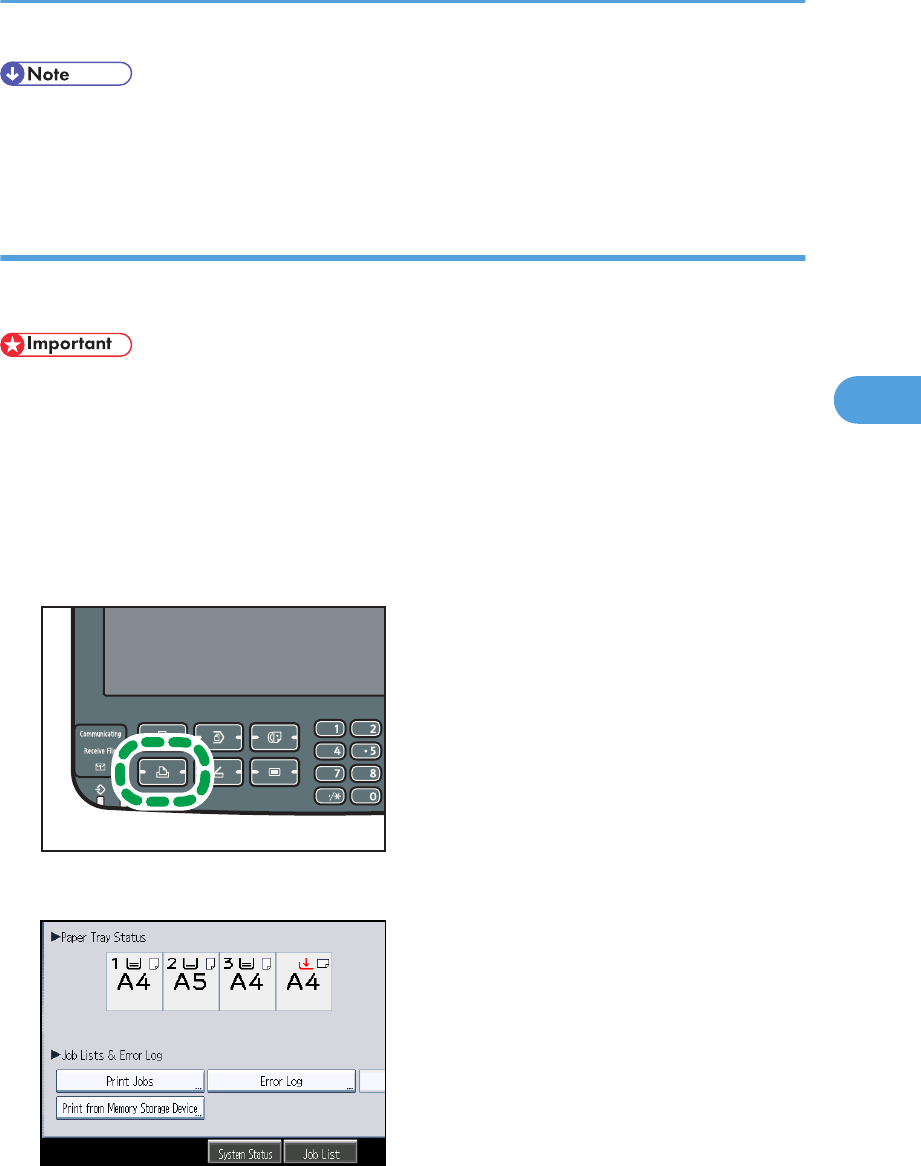
• The contents of errors may be printed on the Configuration Page. Check the Configuration Page in
conjunction with the error log. For details about how to print the Configuration Page, see "List / Test
Print", Printer Reference.
Checking the Error Log
If files could not be stored due to printing errors, identify the cause of the errors by checking the error log
on the control panel.
• The most recent 30 errors are stored in the error log. If a new error is added when there are 30
errors already stored, the oldest error is deleted. However, if the earliest error is a Sample Print,
Locked Print, Hold Print, or Stored Print error, it is not deleted. The error is stored separately until the
number of errors reaches 30.
• If the main power switch is turned off, the log is deleted.
• You cannot view [Error Log] on the simplified display.
1. Press the [Printer] key to display the printer screen.
CCT001
2. Press [Error Log].
An error log list appears.
Messages Displayed When Using the Printer Function
89
4

3. Press the desired job list, and then press [Details].
A detailed error log appears.
4. Troubleshooting When Using the Printer Function
90
4
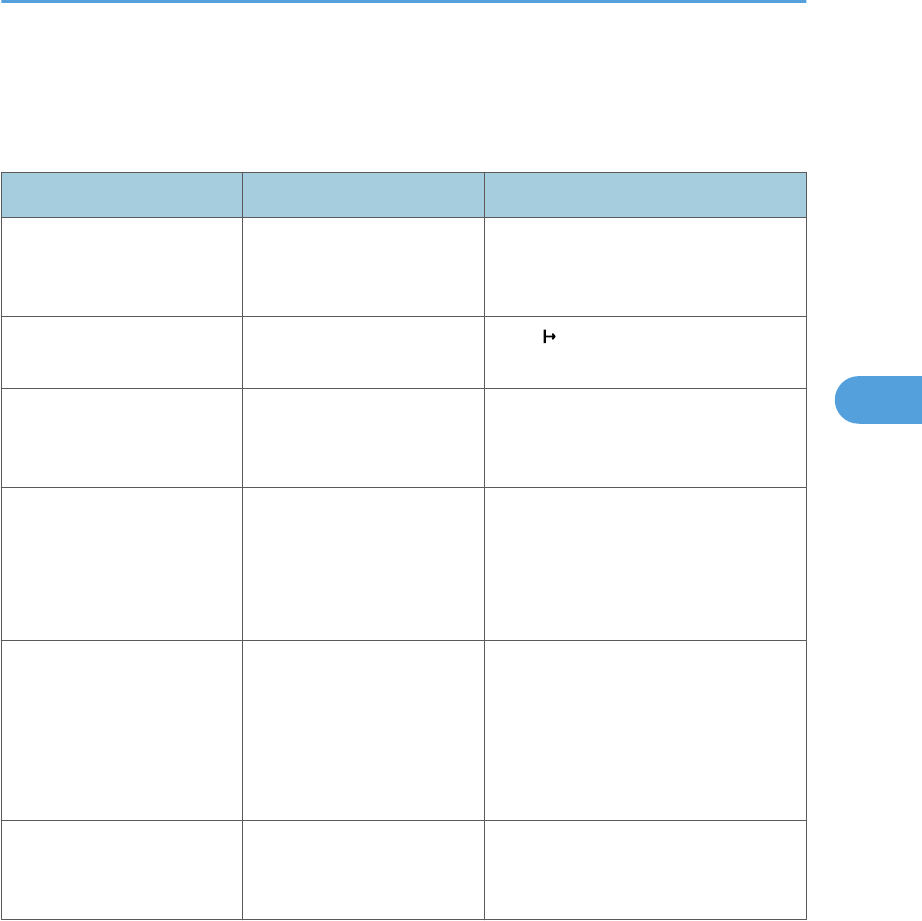
When You Cannot Print
This section describes what to do if printing does not start even after performing a printing operation.
Problem Causes Solutions
Printing does not start. The power is off. Check the cable is securely plugged
into the power outlet and the machine.
Turn on the main power switch.
Printing does not start. The machine is set to
"Offline".
Press [ Online].
Printing does not start. The cause is displayed on
the screen of the control
panel.
Check the error message or warning
status on the display panel, and then
take the required action.
Printing does not start. The interface cable is not
connected correctly.
Connect the interface cable securely. If
it has a fastener, fasten that securely as
well. See "Connecting to the Interface",
Network and System Settings
Reference.
Printing does not start. The correct interface cable is
not being used.
The type of interface cable you should
use depends on the computer. Be sure
to use the correct one. If the cable is
damaged or worn, replace it. See
"Connecting to the Interface", Network
and System Settings Reference.
Printing does not start. The interface cable was
connected after the machine
was switched on.
Connect the interface cable before
turning on the main power switch.
When You Cannot Print
91
4

Problem Causes Solutions
Printing does not start. If the machine is using
wireless LAN, failure to print
might result from a weak
wireless signal.
In [System Settings], under [Interface
Settings], select [Wireless LAN], and
then press [Wireless LAN Signal] to
check signal status. If signal quality is
poor, move the machine to a location
where radio waves can pass or
remove objects that might cause
interference.
(You can check signal status only when
using wireless LAN in the infrastructure
mode.)
Printing does not start. If the machine is using
wireless LAN, SSID settings
are incorrect.
Check using the machine's display
panel that the SSID is correctly set. See
"Wireless LAN", Network and System
Settings Reference.
Printing does not start. If the machine is using
wireless LAN, the receiver's
MAC address may be
preventing communication
with the access point.
Check access point settings when in the
infrastructure mode. Depending on the
access point, client access may be
limited by MAC address. Also, check
there are no problems in transmission
between access point and wired
clients, and between access point and
wireless clients.
Printing does not start. The login user name, login
password, or driver
encryption key is invalid.
Check the login user name, login
password, or driver encryption key.
Printing does not start. Advanced encryption has
been set using the Extended
Security function.
Check the settings of the Extended
Security function with the administrator.
4. Troubleshooting When Using the Printer Function
92
4

Problem Causes Solutions
Data In indicator does not
light up or flash.
If the Data In indicator does
not light up or flash even
after the print job starts, the
machine has not received
the data.
• When the machine is connected
to a computer via a cable, check
the computer print port settings
are correct. For details, see p.
93 "When the Data In Indicator
Does Not Light Up or Flash".
• When it is networked with a
computer, contact your
administrator.
[List / Test Print] is disabled. A mechanical error might
have occurred.
Contact your service representative.
Printing does not start when
using the extended wireless
LAN in Ad-hoc mode.
The correct Communication
mode is not set.
• Turn off the main power switch,
and then back on again. See
"Turning On/Off the Power",
About This Machine.
• In [System Settings], under
[Interface Settings], select
[Wireless LAN], and then set
[Communication Mode] to
[802.11 Ad-hoc Mode] and
[Security Method] to [Off]. Then
at the other side, set [SSID
Setting] and [Ad-hoc Channel] to
the same values.
If printing does not start, contact your service representative.
When the Data In Indicator Does Not Light Up or Flash
When the Data In indicator does not light up or flash after starting a print job, data is not being sent to
the machine.
When the machine is connected to the computer using the interface cable
This section describes how to check the print port when the Data In indicator does not light up or blink.
Check if the print port setting is correct.
When You Cannot Print
93
4

For Windows XP Professional or Windows Server 2003/2003 R2
1. Click the [start] button, and then click [Printers and Faxes].
2. Click the icon of the machine. On the [File] menu, click [Properties].
3. Click the [Ports] tab.
4. In the [Print to the following port(s)] list, confirm the correct port is selected.
For Windows XP Home Edition
1. Click the [start] button, and then click [Control Panel].
2. Click [Printers and Other Hardware].
3. Click [Printers and Faxes].
4. Click the icon of the machine. On the [File] menu, click [Properties].
5. Click the [Ports] tab.
6. In the [Print to the following port(s)] list, confirm the correct port is selected.
For Windows Vista
1. Click the Start button, and then click [Control Panel].
2. Click [Hardware and Sound].
3. Click [Printers].
4. Click the icon of the machine. On the [Organize] menu, click [Properties].
5. Click the [Ports] tab.
6. In the [Print to the following port(s)] list, confirm the correct port is selected.
For Windows 7
1. Click the Start button, and then click [Control Panel].
2. Click [Hardware and Sound].
3. Click [Devices and Printers].
4. Right click the icon of the machine. On the context menu, click [Printer properties].
5. Click the [Ports] tab.
6. In the [Print to the following port(s)] list, confirm the correct port is selected.
For Windows Server 2008
1. Click the [Start] button, and then click [Control Panel].
2. Click [Hardware and Sound].
3. Click [Printers].
4. Click the icon of the machine. On the [Organize] menu, click [Properties].
5. Click the [Ports] tab.
6. In the [Print to the following port(s)] list, confirm the correct port is selected.
4. Troubleshooting When Using the Printer Function
94
4

For Windows Server 2008 R2
1. Click the [Start] button, and then click [Control Panel].
2. Click [Hardware].
3. Click [Devices and Printers].
4. Right click the icon of the machine. On the context menu, click [Printer properties].
5. Click the [Ports] tab.
6. In the [Print to the following port(s)] list, confirm the correct port is selected.
Network connection
Contact the network administrator.
When You Cannot Print
95
4

Other Printing Problems
This section describes likely causes of and possible solutions for problems that can occur when printing
from a computer.
When you cannot print clearly
Problem Causes Solutions
The printed image is
smudged.
Settings for thick paper have
not been made when
printing on thick paper in the
bypass tray.
PCL 5e
On the printer driver's [Paper]
tab, select [Bypass Tray] in the
"Input Tray:" list. Then in the
"Type:" list, select [Thick 1 (106 to
130 g/m2)] [Thick 3 (164 to
220 g/m2)].
PCL 6
On the printer driver's [Detailed
Settings] tab, click [Paper] in the
"Menu:", and then select [Bypass
Tray] in the "Input Tray:" list. Then
in the "Paper Type:" list, select
[Thick 1 (106 to 130 g/m2)]
[Thick 3 (164 to 220 g/m2)].
PostScript 3
On the printer driver's [Detailed
Settings] tab, click [Paper] in the
"Menu:", and then select [Bypass
Tray] in the "Input Tray:" list. Then
in the "Paper Type:" list, select
[Thick 1 (106 to 130 g/m2)]
[Thick 3 (164 to 220 g/m2)].
The printed image is faded
over the entire page.
The paper is damp. Use paper that has been stored in the
recommended temperature and
humidity conditions. See "Paper
Storage", About This Machine.
The printed image is faded
over the entire page.
The paper is unsuitable. Use recommended paper. Printing on
coarse or treated paper might result in
faint print image. See "Recommended
Paper Sizes and Types", About This
Machine.
4. Troubleshooting When Using the Printer Function
96
4

Problem Causes Solutions
Images smudge when
rubbed. (Toner is not fixed.)
The specified paper type
and the paper that is
actually loaded might be
different. For example, thick
paper might be loaded but
not specified as the paper
type.
PCL 5e
On the printer driver's [Paper]
tab, select a proper paper type in
the [Type:] box.
PCL 6
On the printer driver's [Detailed
Settings] tab, click [Paper] in the
"Menu:", and then select a proper
paper type in the "Paper Type:"
list.
PostScript 3
On the printer driver's [Detailed
Settings] tab, click [Paper] in the
"Menu:", and then select a proper
paper type in the "Paper Type:"
list.
Images smudge when
rubbed. (Toner is not fixed.)
The fusing unit is
deteriorated or damaged.
Replace the unit. See "Replacing
Machine Parts", About This Machine.
The printed image is different
from the image on the
computer's display.
Printing will be performed by
the machine's graphic
processing function.
Only when using PCL 6
On the printer driver's [Detailed
Settings] tab, click [Print Quality]
in the "Menu:", and then select
[Raster] in the "Vector/Raster:"
list.
When printing graphics, the
output and the screen are
different.
If the printer driver is
configured to use the
graphics command, the
graphics command from the
machine is used to print.
If you want to print accurately, set the
printer driver to print without using the
graphics command. See the printer
driver Help.
Images are smudged. Smudging can occur if a
printed side rubs against
things such as the corner of
the machine.
When removing copies from the output
tray, do so carefully to avoid scuffing
the printed side. If you are making
many copies, remove them in small
batches.
Other Printing Problems
97
4

Problem Causes Solutions
Lines of garbled or
unwanted alphanumeric
characters appear.
An incorrect printer
language might have been
selected.
Select the correct printer driver, and
then print the file again.
Images are cut off, or excess
is printed.
You may be using paper
smaller than the size
selected in the application.
Use the same size paper as that
selected in the application. If you
cannot load paper of the correct size,
use the reduction function to reduce the
image, and then print. See the printer
driver Help.
Photo images are coarse. Some applications print at
lower resolution.
Use the application's settings to specify
a higher resolution.
A solid line is printed as a
dashed line or appears
blurred.
Dither patterns do not match. Only when using PostScript 3
On the printer driver's [Detailed
Settings] tab, click [Print Quality]
in the "Menu:", and then change
the "Dithering" setting.
Fine lines are fuzzy, of
inconsistent thickness, or do
not appear.
Super fine lines have been
specified in the application.
Only when using PostScript 3
On the printer driver's [Detailed
Settings] tab, click [Print Quality]
in the "Menu:", and then change
the "Dithering" setting.
If the problem continues after you
change the dithering settings, use the
settings of the application in which the
image was created to change thickness
of the lines.
4. Troubleshooting When Using the Printer Function
98
4

When paper is not fed properly
Problem Causes Solutions
Paper is not fed from the
selected tray.
When you are using a
Windows operating system,
printer driver settings
override those settings using
the display panel.
PCL 5e
On the printer driver's [Paper]
tab, select the desired input tray in
the "Input Tray:" list.
PCL 6
On the printer driver's [Detailed
Settings] tab, click [Paper] in the
"Menu:", select the desired input
tray in the "Input Tray:" list.
PostScript 3
On the printer driver's [Detailed
Settings] tab, click [Paper] in the
"Menu:", select the desired input
tray in the "Input Tray:" list.
Images are printed at a
slant.
The paper is feeding in at a
slant.
Load the paper correctly. See "Loading
Paper", About This Machine.
Misfeeds occur frequently. The number of sheets loaded
exceeds the capacity of the
machine.
• When loading paper into the
paper tray, load paper only as
high as the upper limit markings
on the side fences of the paper.
• When loading paper on the
bypass tray, load only as much
paper as can be held between
the guides on the bypass tray.
Misfeeds occur frequently. The paper tray's side fences
are set too tightly.
Push the side fences lightly, and then
reset them.
Misfeeds occur frequently. The paper is damp. Use paper that has been stored in the
recommended temperature and
humidity conditions. See "Paper
Storage", About This Machine.
Misfeeds occur frequently. The paper is too thick or too
thin.
Use recommended paper. See
"Recommended Paper Sizes and
Types", About This Machine.
Other Printing Problems
99
4

Problem Causes Solutions
Misfeeds occur frequently. The paper is wrinkled or has
been folded/creased.
• Use recommended paper. For
details about recommended
paper, see "Recommended Paper
Sizes and Types", About This
Machine.
• Use paper that has been stored in
the recommended temperature
and humidity conditions. For
details about the proper way to
store paper, see "Paper Storage",
About This Machine.
Misfeeds occur frequently. Printed paper is being used. Do not load sheets that have already
been copied or printed onto by
another machine.
Misfeeds occur frequently. Sheets are sticking together. Fan the sheets thoroughly before
loading them. Alternatively, feed the
sheets into the machine one at a time.
Misfeeds occur frequently. The friction pad, paper feed
roller, or registration roller
may be dirty.
Clean the pertinent section as
necessary. See "Cleaning the Friction
Pad and Paper Feed Roller" and
"Cleaning the Registration Roller",
About This Machine.
Sheets are feeding in
together, resulting in jams.
Sheets are sticking together. Fan the sheets thoroughly before
loading them. Alternatively, feed the
sheets into the machine one at a time.
Printed paper becomes
creased.
The paper is damp. Use paper that has been stored in the
recommended temperature and
humidity conditions. See "Paper
Storage", About This Machine.
Printed paper becomes
creased.
The paper is too thin. Use recommended paper. See
"Recommended Paper Sizes and
Types", About This Machine.
Edges of sheets are creased. The paper is damp. Use paper that has been stored in the
recommended temperature and
humidity conditions. See "Paper
Storage", About This Machine.
4. Troubleshooting When Using the Printer Function
100
4

Problem Causes Solutions
Edges of sheets are creased. You are using non-
recommended paper.
Use recommended paper. See
"Recommended Paper Sizes and
Types", About This Machine.
Duplex printing is
malfunctioning.
You have loaded thin paper
lighter than 60 g/m2 (16 lb.
Bond), or thick paper
heavier than 163 g/m2 (90
lb. Index).
Change the paper.
Duplex printing is
malfunctioning.
"Apply Duplex" is set to [No]
for "Paper Type".
In [Tray Paper Settings], under "Paper
Type" set "Apply Duplex" to [Yes]. For
details, see "Tray Paper Settings",
Network and System Settings
Reference.
Duplex printing is
malfunctioning.
You have selected a paper
type that cannot be used for
duplex print.
In [Tray Paper Settings], select a paper
type that can be used for duplex print.
For details about the paper types that
can be used, see "Specifications for the
Main Unit", About This Machine.
The image on the back side
of duplex prints has mottled
blank patches or is
smudged.
Missing patches and
smudges are caused by
moisture leaking from the
paper.
• Do not install the machine in
areas that are susceptible to low
temperature.
• Use paper that has been stored
where temperature and humidity
conditions meet the limitations we
recommend. For details about the
paper storage conditions we
recommend, see "Paper Storage",
About This Machine.
White stripes appear on the
OHP.
Fragments of paper are
stuck to the OHP.
Use a dry cloth to wipe any paper
fragments off the back of the OHP.
Other Printing Problems
101
4

Other printing problems
Problem Causes Solutions
It takes a long time to
complete a print job.
"Sleep mode" might be set.
(The machine status after the
Auto Off operation is
referred to as "Sleep
mode".)
The machine requires time to warm up
if it has been in "Sleep mode". In
[System Settings], under [Timer
Settings], select [Auto Off Timer], and
then specify the time to elapse before
Auto Off.
It takes a long time to
complete a print job.
Photographs and other data
intensive pages take a long
time for the machine to
process, so simply wait
when printing such data.
If the Data In indicator is blinking, data
has been received by the printer. Wait
for a moment.
Changing the following settings with
the printer driver may help speed up
printing:
PCL 6
On the printer driver's [Detailed
Settings] tab, click [Print Quality]
in the "Menu:", and then select a
lower resolution in the
"Resolution:" list.
PostScript 3
On the printer driver's [Detailed
Settings] tab, click [Print Quality]
in the "Menu:", and then select a
lower resolution in the
"Resolution:" list.
Images are printed in the
wrong orientation.
The feed orientation you
selected and the feed
orientation selected in the
printer driver's option setup
might not be the same.
Set the machine's feed orientation and
the printer driver's feed orientation
accordingly. See the printer driver
Help.
When using Windows XP/
Vista/7, and Windows
Server 2003/2003
R2/2008/2008 R2,
optional components
connected to the machine
are not recognized.
Bidirectional communication
is not working.
Set up optional devices on the
Properties of the printer. See the printer
driver Help.
4. Troubleshooting When Using the Printer Function
102
4

Problem Causes Solutions
When using Windows XP/
Vista/7, and Windows
Server 2003/2003
R2/2008/2008 R2,
combined printing, booklet
printing, or Auto Reduce /
Enlarge printing does not
come out as expected.
The correct application or
printer driver settings are not
made.
Make sure the application's paper size
and orientation settings match those of
the printer driver. If a different paper
size and orientation are set, select the
same size and orientation.
A print instruction was issued
from the computer, but
printing did not start.
User Authentication may
have been set.
Contact your administrator.
PDF files do not print out/
cannot perform PDF direct
print.
PDF files are password-
protected.
To print password-protected PDF files,
enter the password in the [PDF Menu]
or on Web Image Monitor. For details,
see "PDF Menu", Printer Reference, or
Web Image Monitor Help.
PDF files do not print out/
cannot perform PDF direct
print.
PDF files cannot be printed if
they are print-disabled in
PDF file security setting.
Change the PDF file security setting.
PDF direct print produces
strange or malformed
characters.
Fonts were not embedded. Embed fonts in the PDF file you want to
print, and then print.
If the problem cannot be solved, contact your service representative.
Other Printing Problems
103
4

4. Troubleshooting When Using the Printer Function
104
4

5. Troubleshooting When Using the
Scanner Function
This chapter describes likely causes of and possible solutions for scanner function problems.
Messages Displayed When Using the Scanner
Function
This section describes the principal messages that appear on the display panel and the client computer.
If other messages appear, follow their instructions.
Messages Displayed on the Control Panel When Using the Scanner Function
This section describes likely causes of and possible solutions for the error messages that appear on the
control panel. If a message not described here appears, act according to the message.
Message Causes Solutions
"Authentication has failed." The entered login user name
or login password is not
correct.
Contact the user administrator.
"Authentication has failed." The machine cannot perform
authentication.
Contact your administrator.
"Authentication with the
destination has failed. Check
settings. To check the current
status, press [Scanned Files
Status]."
The entered user name or
password was invalid.
• Check that the user name and
password are correct.
• Check that the ID and password
for the destination folder are
correct.
• A password of 128 or more
characters may not be
recognized.
"Cannot communicate with
PC. Contact the
administrator."
WSD (Device) protocol or
WSD (Scanner) protocol is
disabled.
Contact your administrator.
"Cannot find the specified
path. Please check the
settings."
The destination computer
name or folder name is
invalid.
Check whether the computer name and
the folder name for the destination are
correct.
105
5

Message Causes Solutions
"Cannot find the specified
path. Please check the
settings."
An antivirus program or a
firewall is preventing the
machine connecting to your
computer.
• Antivirus programs and firewalls
can prevent client computers from
establishing connection with this
machine.
• To prevent an antivirus
application blocking the
connection, register the facsimile
program in the antivirus
program's exclusion list. For
details about the procedure for
excluding a program, see your
antivirus application's Help.
• To prevent a firewall blocking the
connection, register the machine's
IP address in the firewall's IP
address exclusion settings. For
details about the procedure for
excluding an IP address, see your
firewall's Help.
"Cannot start scanning
because communication was
failed."
Scan Profile is not set on the
client computer.
Set Scan Profile. For details about how
to do this, see "Changing a Scan
Profile", Scanner Reference.
"Cannot start scanning
because communication was
failed."
The [Take no action] setting
has been selected on the
client computer, forcing the
client computer to remain
inactive when it receives
scan data.
Open scanner properties, click the
[Events] tab, and then select [Start this
program] as the computer's response
on receipt of scan data. For details, see
your operating system's Help.
"Cannot start scanning.
Check the setting(s) on the
PC."
The Scan Profile might be
incorrectly configured.
Check the Scan Profile configuration.
5. Troubleshooting When Using the Scanner Function
106
5

Message Causes Solutions
"Cannot write on the
memory storage device.
Check the memory storage
device and machine
settings."
The memory device is faulty,
or the file name contains a
character that cannot be
used.
• Check to see if the memory device
is defective.
• Check the memory device. It
might be unformatted, or its
format might be incompatible with
this machine.
• Check the file name set at the time
of scanning. For details about the
characters that can be used in file
names, see "Specifying the File
Name", Scanner Reference.
"Cannot write on the
memory storage device
because remaining free
space is insufficient."
The memory device is full
and scan data cannot be
saved. Even if the memory
device appears to have
sufficient free space, data
might not be saved if the
maximum number of files
that can be saved is
exceeded.
• Replace the memory device.
• If the document is scanned as
single-page or divided multiple
pages, data already written to the
memory device is saved as is.
Replace the memory device, and
then press [Retry] to save the
remaining data, or press [Cancel]
to redo the scan.
"Cannot write on the
memory storage device
because the device is write-
protected."
The memory device is write-
protected.
Unlock the write-protection on the
memory device.
"Captured file exceeded
max. number of pages per
file. Cannot send the
scanned data."
The maximum number of
pages per file has been
exceeded.
Reduce the number of pages in the
transmitted file, and then resend the
file. See "Storage function", Scanner
Reference.
"Connection with LDAP
server has failed. Check the
server status."
A network error has
occurred and connection
has failed. Try the operation
once more.
• Try the operation once more. If
the message is still shown, the
network may be crowded.
• In [System Settings], under
[Administrator Tools], check the
settings of LDAP server. For
details, see "Programming the
LDAP server", Network and
System Settings Reference.
Messages Displayed When Using the Scanner Function
107
5

Message Causes Solutions
"Contains invalid
character(s). Please re-
enter."
The file name contains a
character that cannot be
used.
Check the file name specified at the
time of scanning. The file name
specified in the Sending Scan Files to
Folders function cannot contain the
following characters:
\ / : * ? " < > |
The file name cannot start or end with a
period ".".
"Could not send the data
because the PC timed out
before it was sent."
A time out occurred when
using WSD Scanner. Time
outs occur when too much
time passes between
scanning an original and
sending its data. The
followings are likely causes
of time outs:
• Too many originals per
set.
• Misfed originals.
• Transmission of other
jobs.
• Reduce the number of originals,
and then scan again.
• Remove any misfed original, and
then scan again.
• Use Scanner Journal to check
there are no jobs awaiting
transmission, and then scan
again.
"Destinations to which
encrypted files will be sent
contain users without
certificates or with invalid
certificates. Check the
destinations."
The destination's S/MIME
certificates are invalid or
cannot be found.
Contact your administrator.
"Destinations to which
encrypted files will be sent
contain users that could not
be verified by the
certificates. Check the
destinations."
S/MIME certificates are
valid, but the Certificate
Authority could not be found
for the destination.
Contact your administrator.
"Entered user code is not
correct. Please re-enter."
You have entered an
incorrect user code.
Check the authentication settings, and
then enter a correct user code.
5. Troubleshooting When Using the Scanner Function
108
5

Message Causes Solutions
"Exceeded max. E-mail size.
Sending E-mail has been
cancelled. Check [Max. E-
mail Size] in Scanner
Features."
The file size per page has
reached the maximum e-
mail size specified in
[Scanner Features].
• In [Scanner Features], under
[Send Settings], increase the size
of [Max. E-mail Size].
• In [Scanner Features], under
[Send Settings], set [Divide &
Send E-mail] to [Yes (per Page)]
or [Yes (per Max. Size)].
"Exceeded max. No. of
results to display. Max.: n"
(A figure is placed at n.)
Search results have
exceeded the max.
displayable number.
Search again after changing the
search conditions.
"Exceeded max. data
capacity. Check scanning
resolution, then press Start
key again."
The scanned data exceeded
maximum data capacity.
Specify the scan size and resolution
again. Note that it may not be possible
to scan very large originals at a high
resolution. See "Relationship between
Resolution and Scan Size", Scanner
Reference.
"Exceeded max. data
capacity. Check the
scanning resolution, then
reset original(s)."
The scanned original
exceeded maximum data
capacity.
Specify the scan size and resolution
again. Note that it may not be possible
to scan very large originals at a high
resolution. See "Relationship between
Resolution and Scan Size", Scanner
Reference.
"Exceeded max. number of
alphanumeric characters for
the path."
The maximum number of
specifiable alphanumeric
characters in a path has
been exceeded.
Check the maximum number of
characters which can be entered for
the path, and then enter it again. See
"Values of Various Set Items for
Transmission/Storage/Delivery
Function", Scanner Reference.
"Exceeded max. number of
alphanumeric characters."
The maximum enterable
number of alphanumeric
characters has been
exceeded.
Check the maximum number of
characters which can be entered, and
then enter it again. See "Values of
Various Set Items for Transmission/
Storage/Delivery Function", Scanner
Reference.
Messages Displayed When Using the Scanner Function
109
5

Message Causes Solutions
"Exceeded max. number of
file name. Cannot scan.
Check Start No."
Scanning is impossible
because the first digit in the
serial number assigned to
single-page files is too large,
making subsequent numbers
unassignable.
Press [Send File Type / Name] on the
scanner screen, and then press
[Change] to the right of the entry box.
Use the number keys to specify a
smaller number as the first digit in the
serial number.
"Exceeded max. number of
file name. Cannot send the
data. Check Start No."
Sending scanned files is
impossible because the first
digit in the serial number
assigned to single-page files
is too large, making
subsequent numbers
unassignable.
Press [Send File Type / Name] on the
scanner screen, and then press
[Change] to the right of the entry box.
Use the number keys to specify a
smaller number as the first digit in the
serial number.
"Exceeded max. number of
files which can be sent at the
same time. Reduce the
number of the selected files."
The number of files
exceeded the maximum
number possible.
Reduce the number of files, and then
send them again.
"Exceeded max. number of
files which can be used in
Document Server at the
same time."
The maximum number of
files that can be stored in the
Document Server has been
exceeded.
Check the files stored by the other
functions, and then delete unneeded
files. For details about how to delete
files, see "Deleting a Stored
Document", Copy and Document
Server Reference.
"Exceeded max. number of
pages per file. Do you want
to store the scanned pages
as 1 file?"
The file being stored has
exceeded the maximum
number of pages for one file.
Specify whether to store the data or
not. Scan the pages that were not
scanned, and then store them as a new
file. See "Storing Files Using the
Scanner Function", Scanner Reference.
"Exceeded max. number of
standby files. Try again after
the current file is sent."
The maximum number of
standby files was exceeded.
There are 100 files waiting in the
sending queue for e-mail, Scan to
Folder, or delivery functions. Wait until
files have been sent.
"Exceeded max. number of
stored files. Cannot send the
scanned data as capturing
files is unavailable."
Too many files are waiting to
be delivered.
Try again after they have been
delivered.
5. Troubleshooting When Using the Scanner Function
110
5

Message Causes Solutions
"Exceeded max. page
capacity per file. Press
[Send] to send the scanned
data, or press [Cancel] to
delete."
The number of scanned
pages exceeded maximum
page capacity.
Select whether to send the data so far.
"Exceeded max. page
capacity per file. Press
[Write] to write the scanned
data to the memory storage
device, or press [Cancel] to
delete."
The scan could not be
completed because the
maximum number of pages
that can be scanned by this
machine was exceeded
during writing to the
Memory device.
Reduce the number of documents to be
written to the memory device, and then
try again.
"Exceeded maximum
number of file to store.
Delete all unnecessary files."
Too many files are waiting to
be delivered.
Please try again after they have been
delivered.
"Exceeded time limit for
LDAP server search. Check
the server status."
A network error has
occurred and connection
has failed.
• Try the operation once more. If
the message is still shown, the
network may be crowded.
• In [System Settings], under
[Administrator Tools], check the
settings of LDAP server. For
details, see "Programming the
LDAP server", Network and
System Settings Reference.
"Invalid certificates or no S/
MIME certificates were
found."
The destination's S/MIME
certificates are invalid or
cannot be found.
Contact your administrator.
"LDAP server authentication
has failed. Check the
settings."
The user name and
password differ from those
set for LDAP Authentication.
In [System Settings], under
[Administrator Tools], check the settings
of LDAP server. For details, see
"Programming the LDAP server",
Network and System Settings
Reference.
Messages Displayed When Using the Scanner Function
111
5

Message Causes Solutions
"Memory is full. Cannot
scan. The scanned data will
be deleted."
Because of insufficient hard
disk space, the first page
could not be scanned.
Try one of the following measures:
• Wait for a while, and then retry
the scan operation.
• Reduce the scan area or scanning
resolution. See "Scan Settings" of
Various Scan Settings, Scanner
Reference.
• Delete unneeded stored files. See
"Deleting a Stored File", Scanner
Reference.
"Memory is full. Do you
want to store scanned file?"
Because there is not enough
free hard disk space in the
machine for storing in the
Document Server, only some
of the pages could be
scanned.
Specify whether to use the data or not.
"Memory is full. Press [Write]
to write the current scanned
data to the memory storage
device, or press [Cancel] to
delete."
The scan could not be
completed because there
was insufficient hard disk
memory at the time of saving
to the memory device.
Select whether or not to save the
scanned document to the memory
device.
"Memory is full. Scanning
has been cancelled. Press
[Send] to send the scanned
data, or press [Cancel] to
delete."
Because there is not enough
free hard disk space in the
machine for delivering or
sending by e-mail while
storing in the Document
Server, only some of the
pages could be scanned.
Specify whether to use the data or not.
"Memory storage device not
detected. Insert the device."
There is no memory device
inserted.
Insert a memory device, or check to
see whether the memory device is
properly inserted in the media slot.
"No paper. Load paper of
one of the following sizes."
No paper is set in the
specified paper tray.
Load paper of the sizes listed in the
message. See "Loading Paper", About
This Machine.
"Now loading WSD...
Please wait."
WSD scanner function is
being prepared.
Wait a while.
5. Troubleshooting When Using the Scanner Function
112
5

Message Causes Solutions
"Only one memory storage
device can be used in one
time. Please remove all other
memory storage devices to
resume writing."
Only one memory device
can be connected at a time.
Insert one memory device only in the
media slot.
"Original is being scanned
by another function. Switch
to the following function,
then press the Stop key to
cancel scanning or press the
Start key to continue."
A function of the machine
other than the Scanner
function is being used such
as the Copier function.
Cancel the job in progress.
For example, press [Exit], and then
press the [Copy] key. Next, press the
[Clear/Stop] key. When the message
"The Clear / Stop key was pressed.
Are you sure you want to stop
scanning?" appears, press [Stop].
"Output buffer is full.
Sending the data has been
cancelled. Please try again
later."
Too many jobs are in
standby state, and sending
was canceled.
Retry sending after sending jobs in
standby state completes.
"SMTP authentication E-mail
address and Administrator
E-mail address mismatch."
The SMTP authentication e-
mail address and the
administrator's e-mail
address do not match.
Contact your administrator.
"Scanner journal is full.
Please check Scanner
Features."
"Print & Delete Scanner
Journal" in [Scanner
Features] is set to [Do not
Print: Disable Send], and
Scanner Journal is full.
Print or delete Scanner Journal. For
details, see "General Settings",
Scanner Reference.
"Selected file is currently in
use. File name cannot be
changed."
You cannot change the
name of a file whose status
is "Waiting..." or that is
being edited with
DeskTopBinder.
Cancel transmission ("Waiting..." status
cleared) or the DeskTopBinder setting,
and then change the file name.
"Selected file is currently in
use. Password cannot be
changed."
You cannot change the
password of a file whose
status is "Waiting..." or that is
being edited with
DeskTopBinder.
Cancel transmission ("Waiting..." status
cleared) or the DeskTopBinder setting,
and then change the password.
Messages Displayed When Using the Scanner Function
113
5

Message Causes Solutions
"Selected file is currently in
use. User name cannot be
changed."
You cannot change the
sender's name whose status
is "Waiting..." or that is
being edited with
DeskTopBinder.
Cancel transmission ("Waiting..." status
cleared) or the DeskTopBinder setting,
and then change the user name.
"Sending the data has
failed. The data will be
resent later."
A network error has
occurred and a file was not
sent correctly.
Wait until sending is retried
automatically after the preset interval. If
sending fails again, contact the
network administrator.
"Some invalid destination(s)
contained. Do you want to
select only valid
destination(s)?"
The specified group contains
e-mail destinations and Scan
to Folder destinations, either
of which are incompatible
with the specified
transmission method.
In the message that appears at each
transmission, press [Select].
"Some of selected files are
currently in use. They could
not be deleted."
You cannot delete a file
which is waiting to be
transmitted ("Waiting..."
status displayed) or whose
information is being
changed with
DeskTopBinder.
Cancel transmission ("Waiting..." status
cleared) or the DeskTopBinder setting,
and then delete the file.
"Some page(s) are near
blank. To cancel, press the
Stop key."
The first page of the
document is almost blank.
The original's blank side might have
been scanned. Be sure to place your
originals correctly.
"The entered file name
contains invalid character(s).
Enter the file name again
using any of the following 1
byte characters. " 0 to 9 ", "
A to Z ", " a to z ", " . - _""
The file name contains a
character that cannot be
used.
Check the file name set at the time of
scanning. For details about characters
that can be used in file names, see
"Specifying the File Name", Scanner
Reference.
"The selected file(s)
contained file(s) without
access privileges. Only
file(s) with access privileges
will be deleted."
You have tried to delete files
without the authority to do
so.
The files can be deleted by the file
administrator. To delete a file which
you are not authorized to delete,
contact your administrator.
5. Troubleshooting When Using the Scanner Function
114
5

Message Causes Solutions
"Transmission has failed.
Insufficient memory in the
destination hard disk. To
check the current status,
press [Scanned Files
Status]."
Transmission has failed.
There was not enough free
space on the hard disk of the
SMTP server, FTP server, or
client computer at the
destination.
Allocate sufficient space.
"Transmission has failed. To
check the current status,
press [Scanned Files
Status]."
While a file was being sent,
a network error occurred
and the file could not be sent
correctly.
If the same message appears again
after scanning again, the cause could
be a mixed network, or else network
settings were changed during WSD
scanner transmission. Check with your
system administrator.
"Updating the destination list
has failed. Try again?"
A network error has
occurred.
Check whether the server is connected.
"Updating the destination
list... Please wait. Specified
destination(s) or sender's
name has been cleared."
A specified destination or
sender's name was cleared
when the destination list in
the delivery server was
updated.
Specify the destination or sender's
name again.
"Updating the destination
list... Please wait. Specified
destination(s) or sender's
name has been cleared."
The destination list is being
updated from the network
using Web Image Monitor.
Wait until the message disappears. Do
not switch off the power while this
message is displayed. Depending on
the number of destinations to be
updated, there may be some delay
before you can resume operation.
Operations are not possible while this
message is displayed.
"You do not have the
privileges to use this
function."
The logged in user name
does not have permission for
the selected function.
Contact your administrator about the
permission for the required function.
Messages Displayed on the Client Computer
This section describes likely causes of and possible solutions for the main error messages displayed on
the client computer when using the TWAIN driver. If a message not described here appears, act
according to the message.
Messages Displayed When Using the Scanner Function
115
5

Message Causes Solutions
"Any of Login User Name,
Login Password or Driver
Encryption Key is incorrect."
The entered login user
name, password, or driver
encryption key was invalid.
• Check the login user name, login
password, and driver encryption
key.
• Permission to use this function has
not been granted. Contact your
administrator.
"Call Service"
"Please call your service
representative."
An unrecoverable error has
occurred in the machine.
Contact your service representative.
"Cannot add any more
scanning mode."
The maximum number of
registerable scan modes has
been exceeded.
The maximum number of modes that
can be stored is 100. Delete unneeded
modes.
"Cannot connect to the
scanner. Check the network
Access Mask settings in User
Tools."
An access mask is set. Contact the network or scanner
administrator.
"Cannot find "XXX" scanner
used for the previous scan.
"YYY" will be used instead."
("XXX" and "YYY" indicate
scanner names.)
The main power switch of
the previously used scanner
is not set to "On".
Check whether the main power switch
of the scanner used for the previous
scan is turned on.
"Cannot find "XXX" scanner
used for the previous scan.
"YYY" will be used instead."
("XXX" and "YYY" indicate
scanner names.)
The machine is not
connected to the network
correctly.
• Check that the previously used
scanner is connected to the
network correctly.
• Cancel the Personal Firewall of
the client computer. For details,
see Windows Help.
• Use an application such as telnet
to make sure SNMPv1 or
SNMPv2 is set as the machine's
protocol. See "Remote
Maintenance Using telnet",
Network and System Settings
Reference.
• Select the scanner used for the
previous scan.
5. Troubleshooting When Using the Scanner Function
116
5

Message Causes Solutions
"Cannot specify any more
scanning area."
The maximum number of
registerable scan areas has
been exceeded.
The maximum number of scanning
areas that can be stored is 100. Delete
unneeded scanning areas.
"Clear Misfeed(s) in ADF." A paper misfeed has
occurred inside the ADF.
Remove jammed originals, and then
insert them again. For details, see p.
125 "Removing Jammed Paper".
Check whether the originals are
suitable to be scanned by the machine.
"Communication error has
occurred on the network."
A communication error has
occurred on the network.
Check whether the client computer can
use the TCP/IP protocol.
"Error has occurred in the
scanner driver."
An error has occurred in the
driver.
• Check whether the network cable
is connected correctly to the client
computer.
• Check whether the Ethernet board
of the client computer is
recognized correctly by
Windows.
• Check whether the client
computer can use the TCP/IP
protocol.
"Error has occurred in the
scanner."
The application-specified
scan conditions have
exceeded the setting range
of the machine.
• Check whether the scanning
settings made with the application
exceed the setting range of the
machine.
• Disable the client computer's own
firewall. For details, see Windows
Help.
"Fatal error has occurred in
the scanner."
An unrecoverable error has
occurred in the machine.
An unrecoverable error has occurred
in the machine. Contact your service
representative.
Messages Displayed When Using the Scanner Function
117
5

Message Causes Solutions
"Insufficient memory. Close
all other applications, then
restart scanning."
Memory is insufficient. • Close all the unnecessary
applications running on the client
computer.
• Uninstall the TWAIN driver, and
then reinstall it after restarting the
computer.
"Insufficient memory. Reduce
the scanning area."
Scanner memory is
insufficient.
• Reset the scan size.
• Lower the resolution.
• Set with no compression. See
TWAIN driver Help.
The problem may be due to the
following cause:
• Scanning cannot be performed if
large values are set for brightness
when using halftone or high
resolution. See "Relationship
between Resolution and Scan
Size", Scanner Reference.
"Invalid Winsock version.
Please use version 1.1 or
higher."
You are using an invalid
version of Winsock.
Install the operating system of the
computer or copy Winsock from the
operating system CD-ROM.
"No User Code is registered.
Consult your system
administrator."
Access is restricted with user
codes.
Contact your administrator of the
machine.
"No response from the
scanner."
The machine or client
computer is not connected to
the network correctly.
Check whether the machine or client
computer is connected to the network
correctly.
"No response from the
scanner."
The network is crowded. Wait for a while, and then try to
reconnect.
5. Troubleshooting When Using the Scanner Function
118
5

Message Causes Solutions
"Scanner is in use for other
function. Please wait."
A function of the machine
other than the Scanner
function is being used such
as the Copier function.
• Wait for a while, and then
reconnect.
• Cancel the job in progress.
For example, press [Exit], and
then press the [Copy] key. Next,
press the [Clear/Stop] key. When
the message "The Clear / Stop
key was pressed. Are you sure
you want to stop scanning?"
appears, press [Stop].
"Scanner is not available on
the specified device."
The TWAIN scanner function
cannot be used on this
machine.
Contact your service representative.
"Scanner is not available.
Check the scanner
connection status."
The machine's main power
switch is off.
Turn on the main power switch.
"Scanner is not available.
Check the scanner
connection status."
The machine is not
connected to the network
correctly.
• Check whether the machine is
connected to the network
correctly.
• Deselect the personal firewall
function of the client computer.
For details, see Windows Help.
• Use an application such as telnet
to make sure SNMPv1 or
SNMPv2 is set as the machine's
protocol. See "Remote
Maintenance Using telnet",
Network and System Settings
Reference.
"Scanner is not ready.
Check the scanner and the
options."
The ADF cover is open. Check whether the ADF cover is
closed.
"The name is already in use.
Check the registered
names."
You tried to register a name
that is already in use.
Use another name.
Messages Displayed When Using the Scanner Function
119
5

When You Cannot Send Scanned Files
This section describes likely causes of and solutions for problems related to network delivery and
sending e-mail.
When Stored Files Cannot Be Accessed
This section describes likely causes of and possible solutions for job access-related problems.
Problem Causes Solutions
The stored file is locked and
is not accessible.
The file, which is password
protected, is locked because
the password was
incorrectly entered ten times.
Contact your administrator.
When Stored Files Cannot Be Edited
This section describes likely causes of and possible solutions for stored files being unable to be edited.
Problem Causes Solutions
Stored files cannot be
deleted. File names and
passwords cannot be
changed. Files cannot be
redelivered.
Limits have been imposed
using the available extended
security function.
Contact your administrator.
When You Cannot Browse the Network to Send a Scan File
This section describes likely causes of and possible solutions for the network browsing failing to operate
when files are sent.
Problem Causes Solutions
The network cannot be
browsed when specifying
the destination folder.
The following machine
settings may not be correct:
• IP address
• Subnet Mask
Check the settings. See "Interface
Settings", Network and System Settings
Reference.
5. Troubleshooting When Using the Scanner Function
120
5

When the TWAIN Driver Cannot Be Started
This section describes likely causes of and possible solutions for the TWAIN driver-related problems.
Problem Causes Solutions
The Scanner Properties
dialog box cannot be
displayed.
Advanced encryption has
been specified in the
extended security setting.
For details about the extended security
setting, contact your administrator.
When the Network Delivery Function Cannot Be Used
This section describes likely causes of and possible solutions for the network delivery function problems.
Problem Causes Solutions
Cannot use the network
delivery function.
The delivery software may
be an old version or a
security setting may be
specified.
Contact your administrator.
Cannot use the network
delivery function.
The network delivery
function setting is not correct.
Specify it correctly. See "Network
Settings Required to Use the Network
Delivery Scanner", Network and
System Settings Reference.
When S/MIME Cannot Be Used
This section describes likely causes of and possible solutions for S/MIME-related problems.
Problem Causes Solutions
If several destinations are
selected for the
broadcasting sequence, the
data is sent over twice.
Encrypted e-mails are sent to
the destinations for which S/
MIME authentication is set,
and plain text e-mails are
sent to the destinations for
which S/MIME
authentication is not set.
Make sure S/MIME-authentication
destinations are separate from plain
text destinations.
Contact your administrator. For details
about destination settings.
When You Cannot Send Scanned Files
121
5
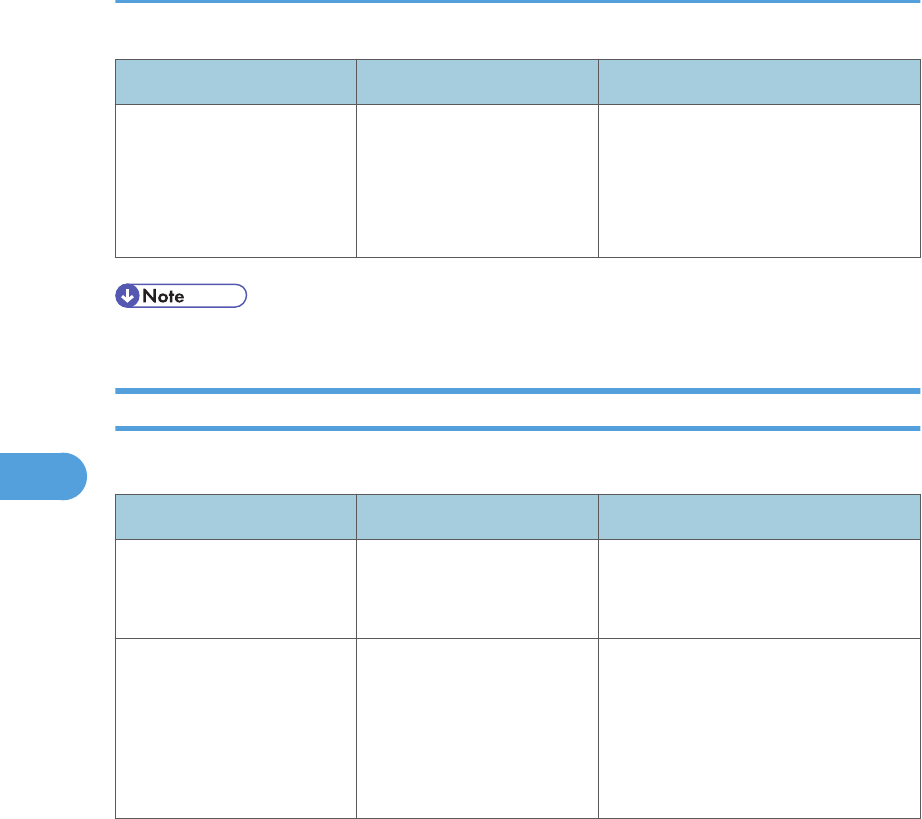
Problem Causes Solutions
When putting a signature on
an e-mail using S/MIME,
an e-mail address for
"Sender" is not set for
"From".
When S/MIME is applied,
the administrator appears in
the "From" field, and the
sender appears in the
"Reply-to" field.
Contact your administrator.
• Using S/MIME makes e-mail larger than when not using S/MIME.
When You Cannot Send Scan Files Using WSD
This section describes likely causes of and possible solutions for sending scan files using WSD.
Problem Causes Solutions
The WSD scanner function
cannot be used.
Scan Profile is not set on the
client computer.
Set Scan Profile. For details about how
to do this, see "Changing a Scan
Profile", Scanner Reference.
The WSD scanner function
cannot be used.
The [Take no action] setting
has been selected on the
client computer, forcing the
client computer to remain
inactive when it receives
scan data.
Open scanner Properties, click the
[Events] tab, and then select [Start this
program] as the computer's response
on receipt of scan data. For details, see
your operating system's Help.
5. Troubleshooting When Using the Scanner Function
122
5

When Scanning Is Not Done As Expected
This section describes causes and remedies when scan results are not as expected.
Problem Causes Solutions
The scanned image is dirty. The exposure glass,
scanning glass, or ADF is
dirty.
Clean them. See "Cleaning the
Machine", About This Machine.
The image is distorted or out
of position.
The original was moved
during scanning.
Do not move the original during
scanning.
The image is distorted or out
of position.
The original was not pressed
flat against the exposure
glass.
Make sure the original is pressed flat
against the exposure glass.
The scanned image is upside
down.
The original was placed
upside down.
Place the original in the correct
orientation. See "Setting of Original
Feed Type", Scanner Reference.
No image results from
scanning.
The original was placed
with the front and back
reversed.
When the original is placed directly on
the exposure glass, the side to be
scanned must face down. When the
original is inserted into the ADF, the
side to be scanned must face up.
Images are scanned in
rotated.
If you set the original with its
top edge backward and
save full color/gray scale
images as a TIFF or JPEG
file, they are scanned in
rotated.
When placing an original directly on
the exposure glass, align its top edge
flush against the left side of the
exposure glass.
When inserting a stack of originals into
the ADF, insert them top edge leading
in. For details, see "Setting of Original
Feed Type", Scanner Reference.
When Scanning Is Not Done As Expected
123
5

Problem Causes Solutions
The scanned image contains
white spaces.
• If you scan originals
using functions other
than the network
TWAIN scanner
function, certain paper
size and resolution
settings may produce
scanned images that
are larger than the
specified size because
of margins being
added to the sides.
• If the File Format
Converter (optional) is
installed, the margins
may become wider.
Scanning at a higher resolution may
reduce the margins.
The scanned image is
grayed out or a text pattern
appears in the background.
You have scanned a copy
guarded document
protected from unauthorized
copying.
Check the document. For details about
how to prevent unauthorized copying
of the document, see "Preventing an
Unauthorized Copy", About This
Machine.
After an original is scanned,
the following settings are
canceled:
Destination, Sender, E-mail
text, Subject, and File name
To prevent the scanned data
being sent to the wrong
destination, this machine has
a function that cancels the
settings once the scanned
data is sent.
Contact your service representative.
5. Troubleshooting When Using the Scanner Function
124
5
6. Clearing Misfeeds
This chapter describes what to do when paper or originals misfeed (become jammed inside the
machine).
Removing Jammed Paper
This section describes how to locate and remove jammed paper.
• The inside of the machine could be very hot. Do not touch the parts with a label indicating the
"hot surface." Otherwise, an injury might occur.
• Some of this machine's internal components get very hot. For this reason, take care when
removing misfed paper. Not doing so could result in burns.
• When clearing misfeeds, do not turn off the operation switch. If you do, your copy settings will be
lost.
• To prevent misfeeds, do not leave any torn scraps of paper inside the machine.
• Contact your service representative if misfeeds occur frequently.
• When removing jammed sheets, take care to touch only those areas explicitly indicated in the
manual.
• Do not remove the fusing unit. Doing so will result in loss of print quality.
• If the error message remains displayed even after you remove misfed paper, open and close the
front cover.
• If a detailed removal instruction appears on the right of the screen, follow it.
• You can also use the procedure indicated in [System Status] to remove jammed paper.
Locating Jammed Paper
A misfeed has occurred in the place corresponding to the letter displayed on the control panel.
125
6
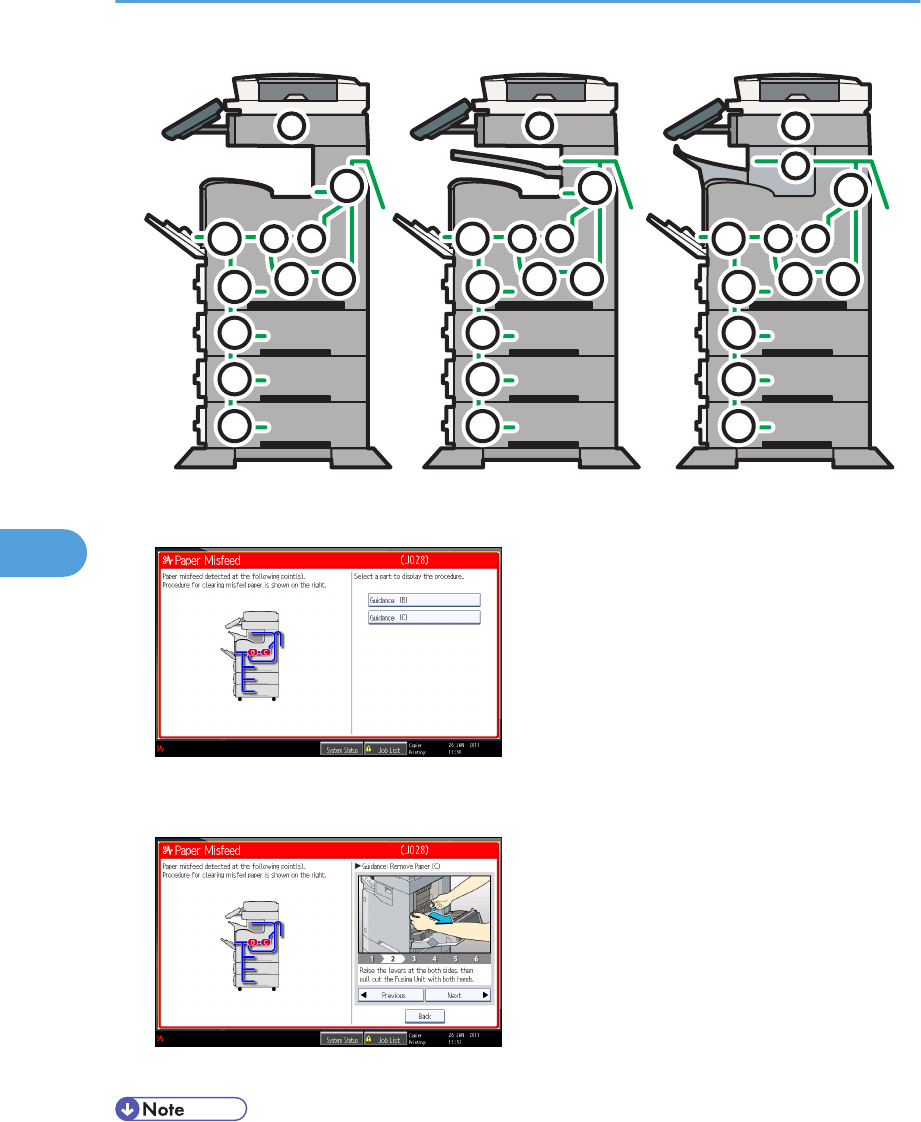
CFF001
Y1
A2 B
Z1
C
P
Z2 Z1
A1
Y2
Y3
Y1
A2 B
Z1
C
P
R
Z2 Z1
A1
Y2
Y3
Y1
A2 B
Z1
C
P
Z2 Z1
A1
Y2
Y3
Type 1Type 1 Type 2Type 2 Type 3Type 3
1. Press the key of the section from where you want to remove the jammed paper.
2. After each step is complete, press [Next]. To go back to the previous step, press
[Previous].
3. When all jammed paper is removed, restore the machine to the original state.
• More than one misfeed may be indicated. When this happens, check all the areas indicated.
• If there is no misfed paper in the first area you check, see the other areas that are indicated.
6. Clearing Misfeeds
126
6
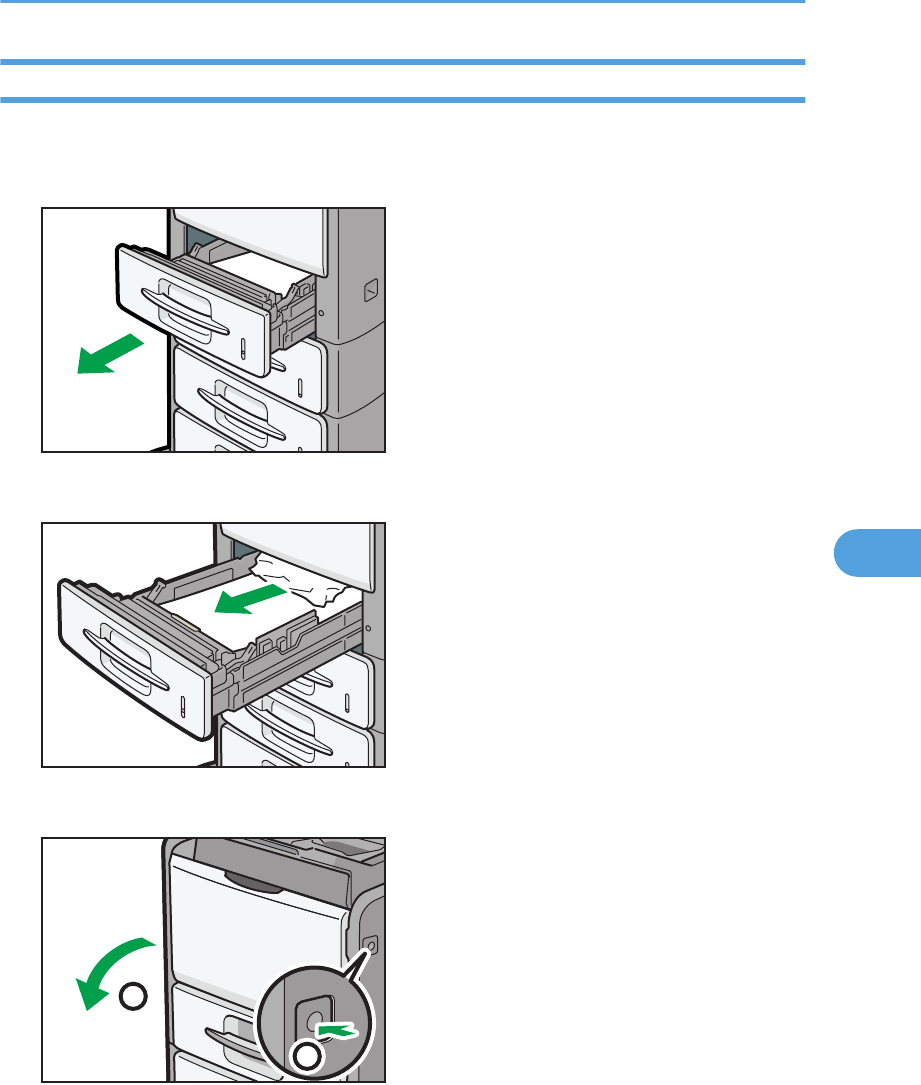
When A1 is displayed
This section describes how to remove misfeeds from location “A1”.
1. Carefully pull out tray 1 until it stops.
CFF002
2. Remove the misfed paper, and then carefully push tray 1 fully in.
CFF003
3. Push the button on the right side of the machine to open the front cover.
CFF004
1
2
4. Close the front cover.
Removing Jammed Paper
127
6
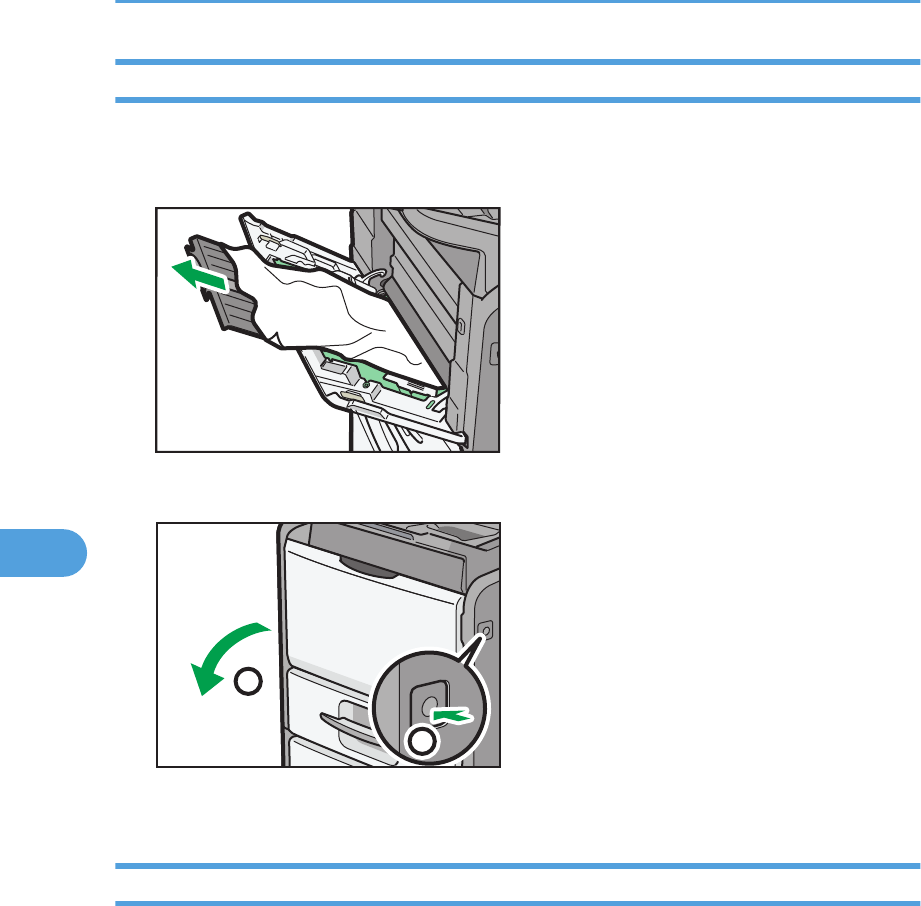
When A2 is displayed
This section describes how to remove misfeeds from location “A2”.
1. Remove the misfed paper, and then close the bypass tray.
CFF005
2. Push the button on the right side of the machine to open the front cover.
CFF004
1
2
3. Close the front cover.
When B is displayed
This section describes how to remove misfeeds from location “B”.
6. Clearing Misfeeds
128
6
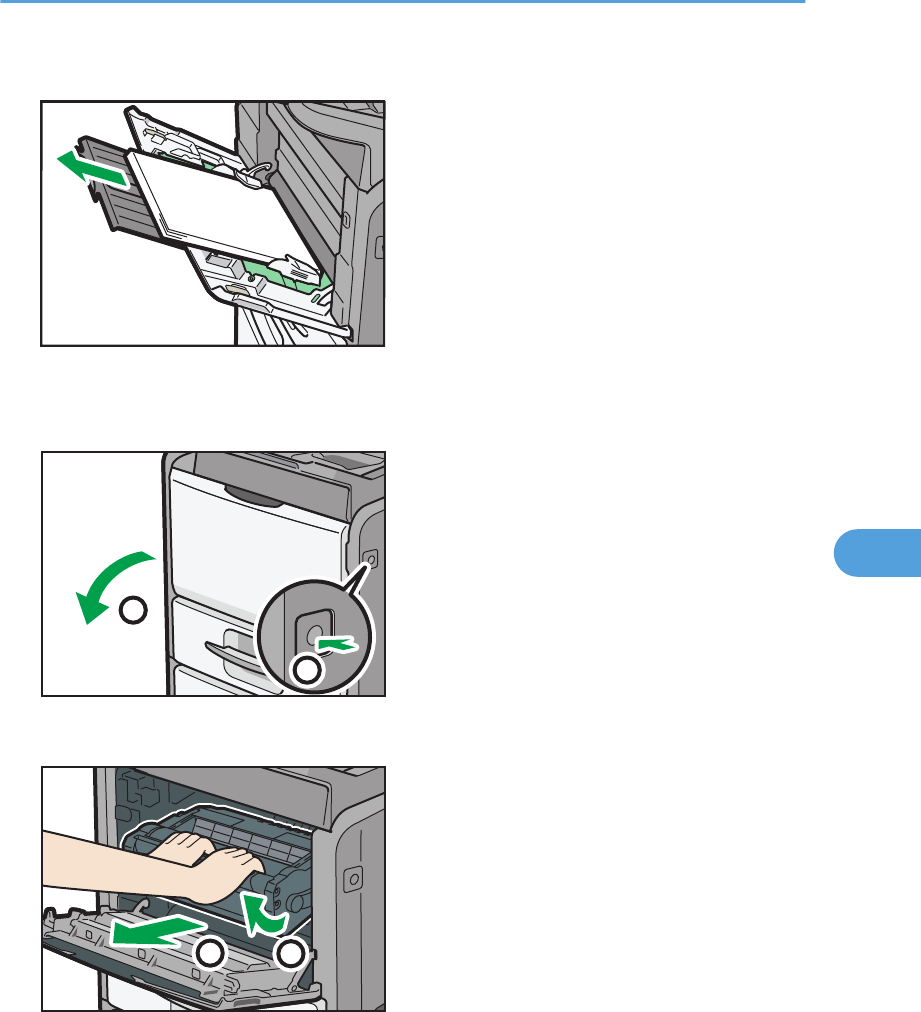
1. Remove any paper from the bypass tray.
CFF006
2. Close the bypass tray.
3. Push the button on the right side of the machine to open the front cover.
CFF004
1
2
4. Hold the print cartridge's front handle to lift and pull it out.
CFF008
1
2
Removing Jammed Paper
129
6
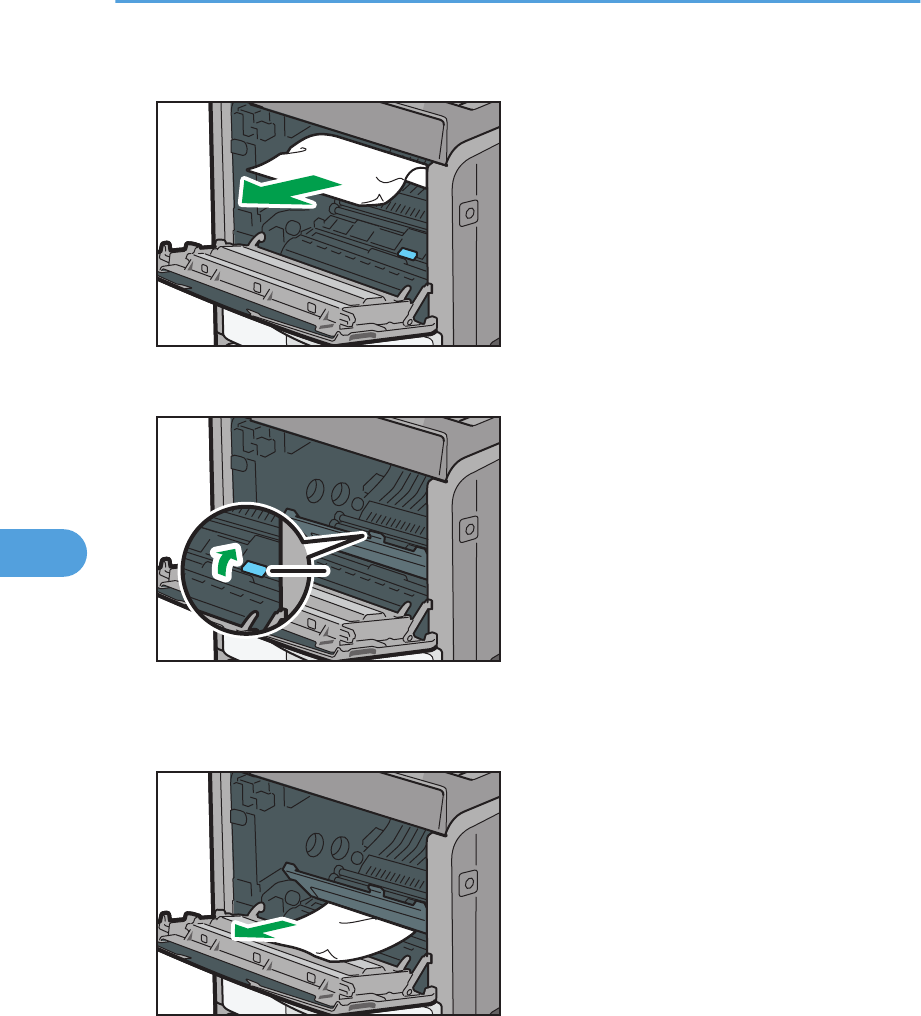
5. Remove the misfed paper.
CFF009
6. Raise the lever B.
11
CFF010
1. Lever B
7. Remove the misfed paper, and then lower the lever B.
CFF011
8. Return the print cartridge to its original position.
9. Close the front cover.
6. Clearing Misfeeds
130
6
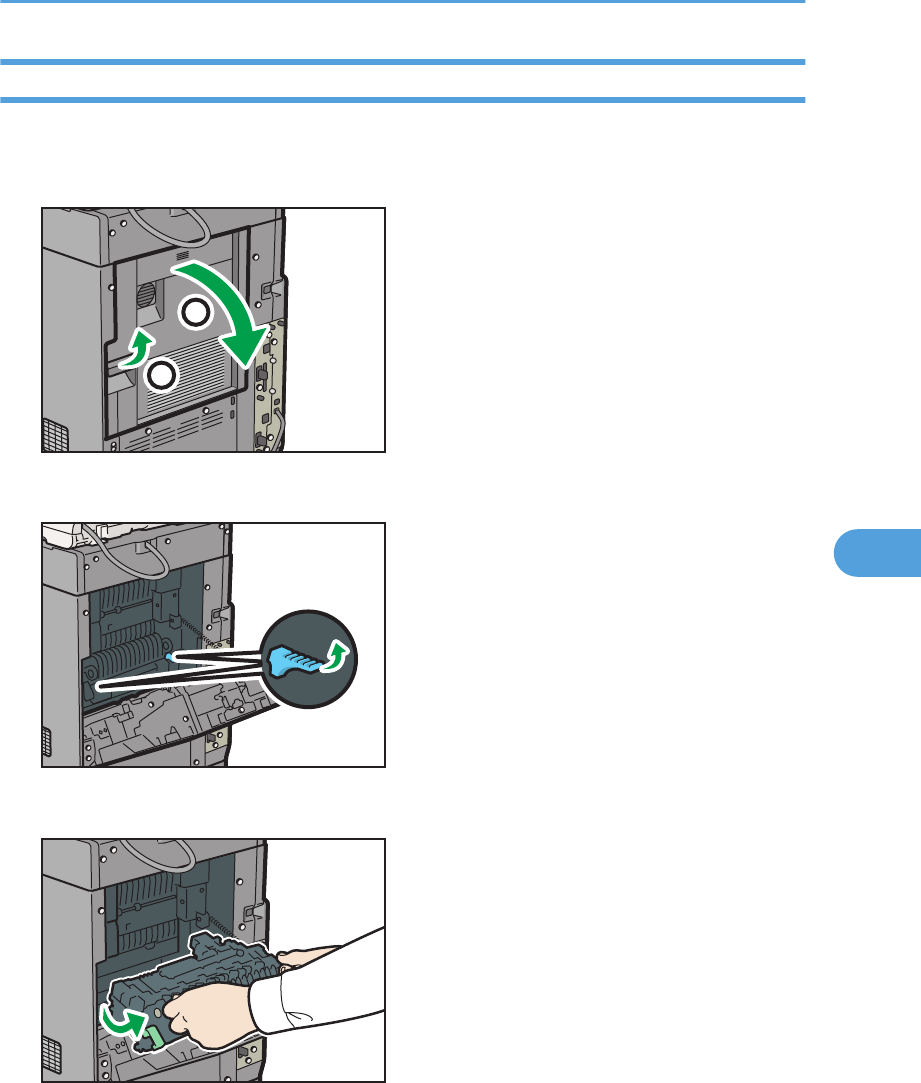
When C is displayed
This section describes how to remove misfeeds from location “C”.
1. Pull up on the lever to open the rear cover.
1
2
CFF012
2. Release the lock of the fusing unit.
CFF013
3. Pull out the fusing unit.
CFF014
Removing Jammed Paper
131
6
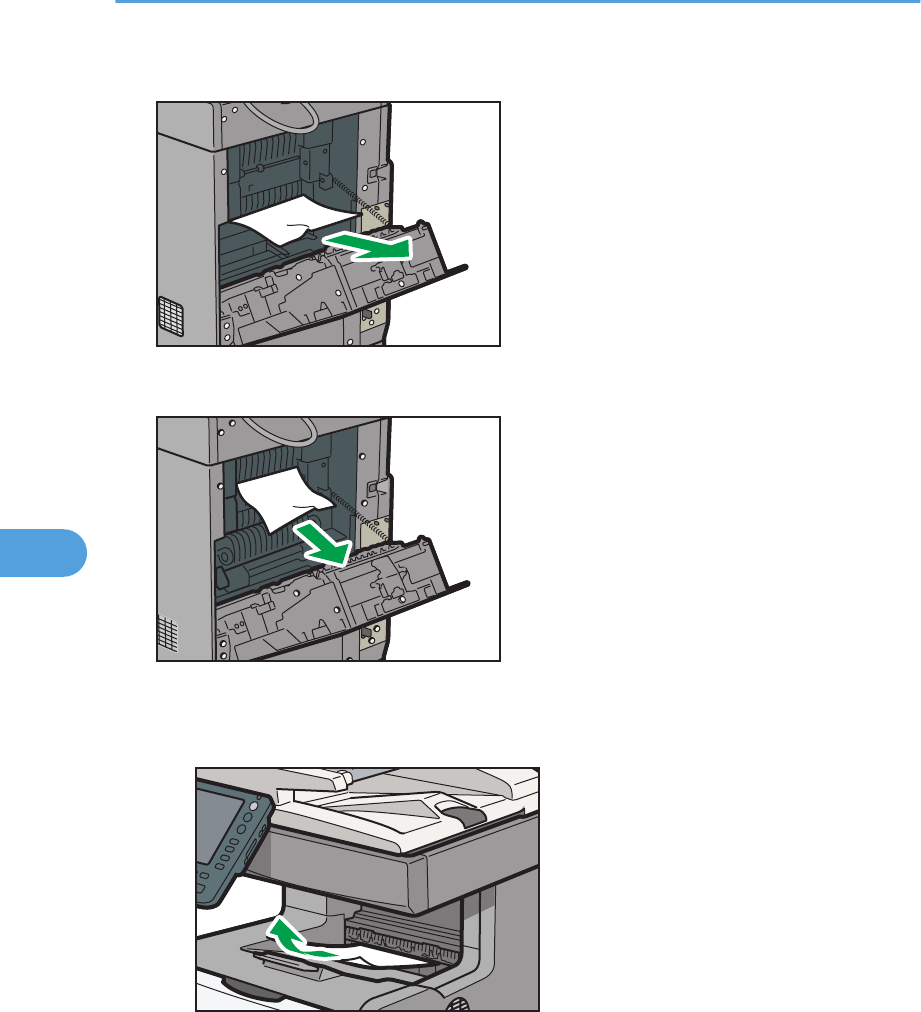
4. Remove the misfed paper, and then return the fusing unit to its original position.
CFF015
5. Remove the misfed paper.
CFF016
6. Remove the misfed paper from the paper exit.
• Type 1
CFF017
• Type 2
6. Clearing Misfeeds
132
6
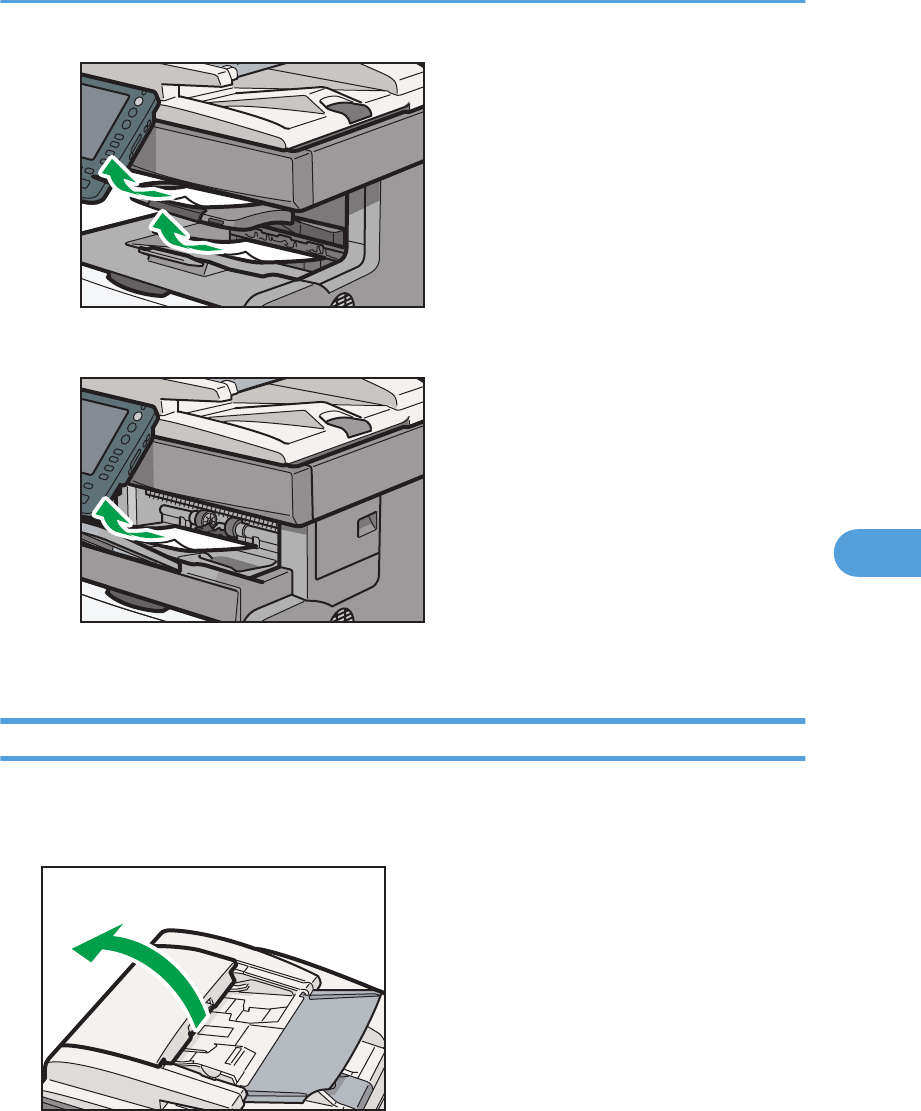
CFF018
• Type 3
CFF019
7. Close the rear cover.
When P is displayed
This section describes how to remove misfeeds from location “P”.
1. Open the upper cover of the ADF.
CFF020
Removing Jammed Paper
133
6
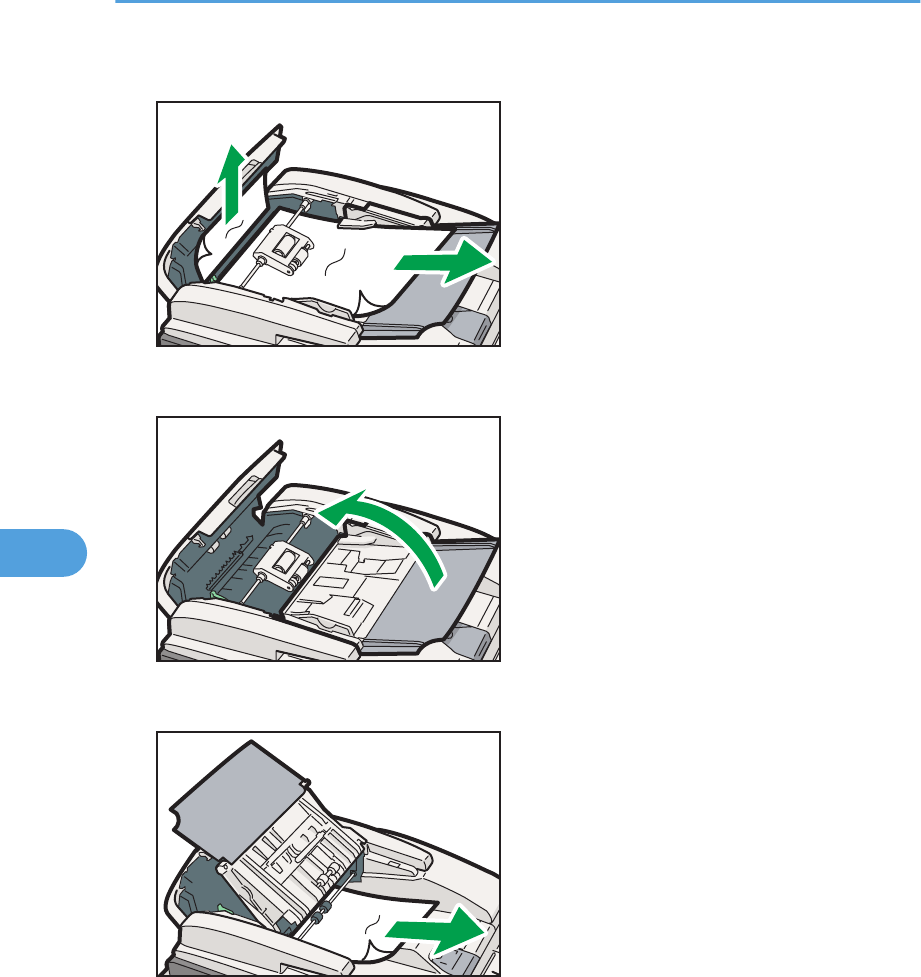
2. Remove the misfed paper.
CFF021
3. Open the right cover of the ADF.
CFF022
4. Remove the misfed paper.
CFF023
5. Close the right and upper cover of the ADF.
6. Clearing Misfeeds
134
6
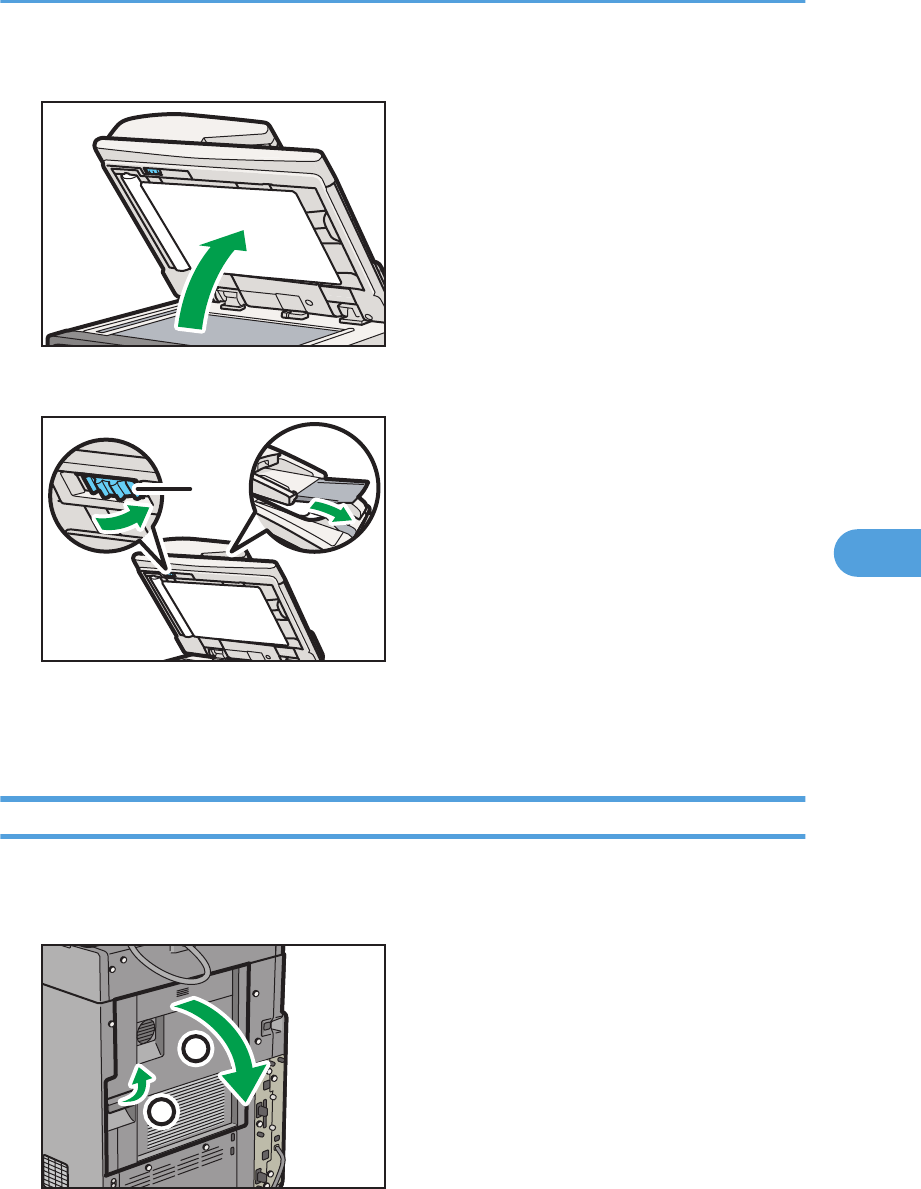
6. Lift the ADF.
CFF024
7. Turn the knob P, and then remove the misfed paper.
1
CFF025
1. Knob P
8. Lower the ADF.
When R is displayed (Type 3 Only)
This section describes how to remove misfeeds from location “R”.
1. Pull up on the lever to open the rear cover.
1
2
CFF012
Removing Jammed Paper
135
6
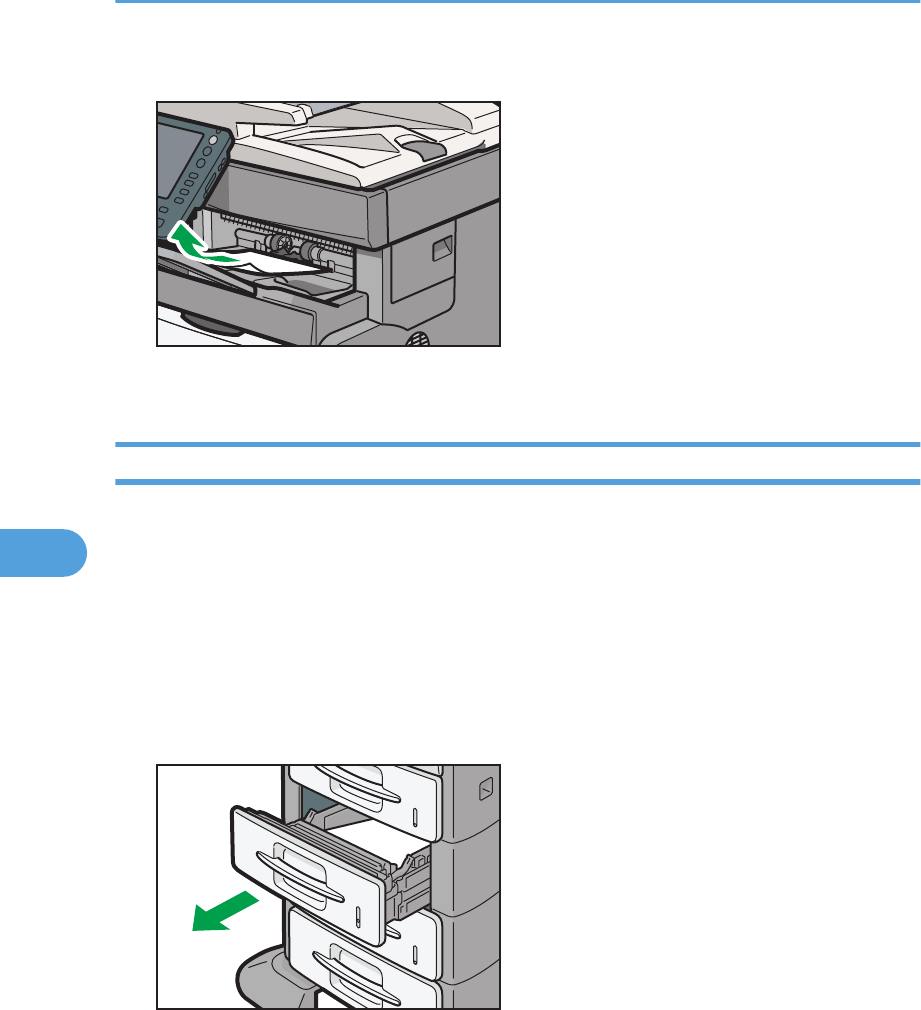
2. Remove the misfed paper from the paper exit.
CFF019
3. Close the rear cover.
When Y1 - Y3 is displayed
“Y1”, “Y2”, and “Y3” indicate a paper jam has occurred in the following optional trays:
• “Y1”: Tray 2
• “Y2”: Tray 3
• “Y3”: Tray 4
The following example explains how to remove a paper jam in tray 2.
The same procedure can be used for paper in trays 3 and 4.
1. Carefully pull out tray 2 until it stops.
CFF026
6. Clearing Misfeeds
136
6
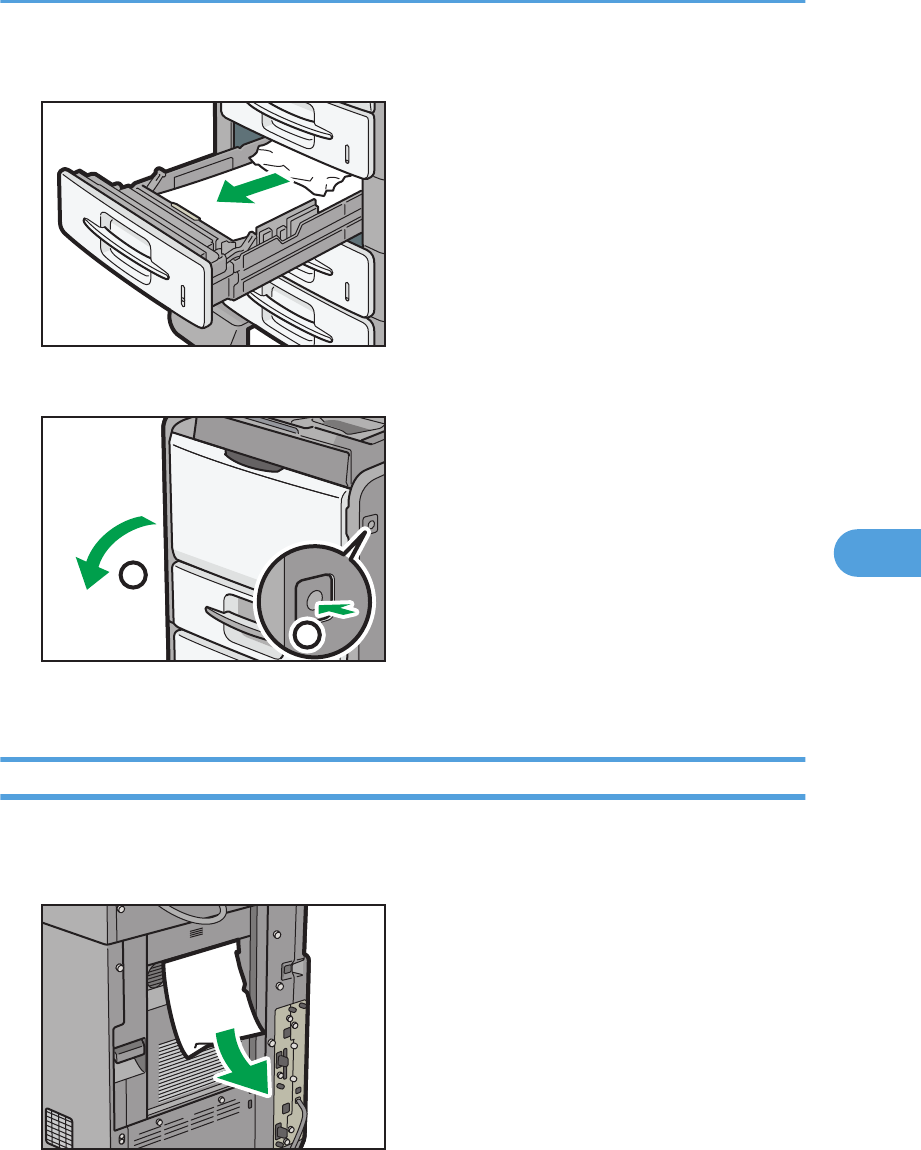
2. Remove the misfed paper, and then carefully push tray 2 fully in.
CFF027
3. Push the button on the right side of the machine to open the front cover.
CFF004
1
2
4. Close the front cover.
When Z1 - Z2 is displayed
This section describes how to remove misfeeds from location “Z1” - “Z2”.
1. Remove the misfed paper from the rear side of the machine.
CFF028
Removing Jammed Paper
137
6
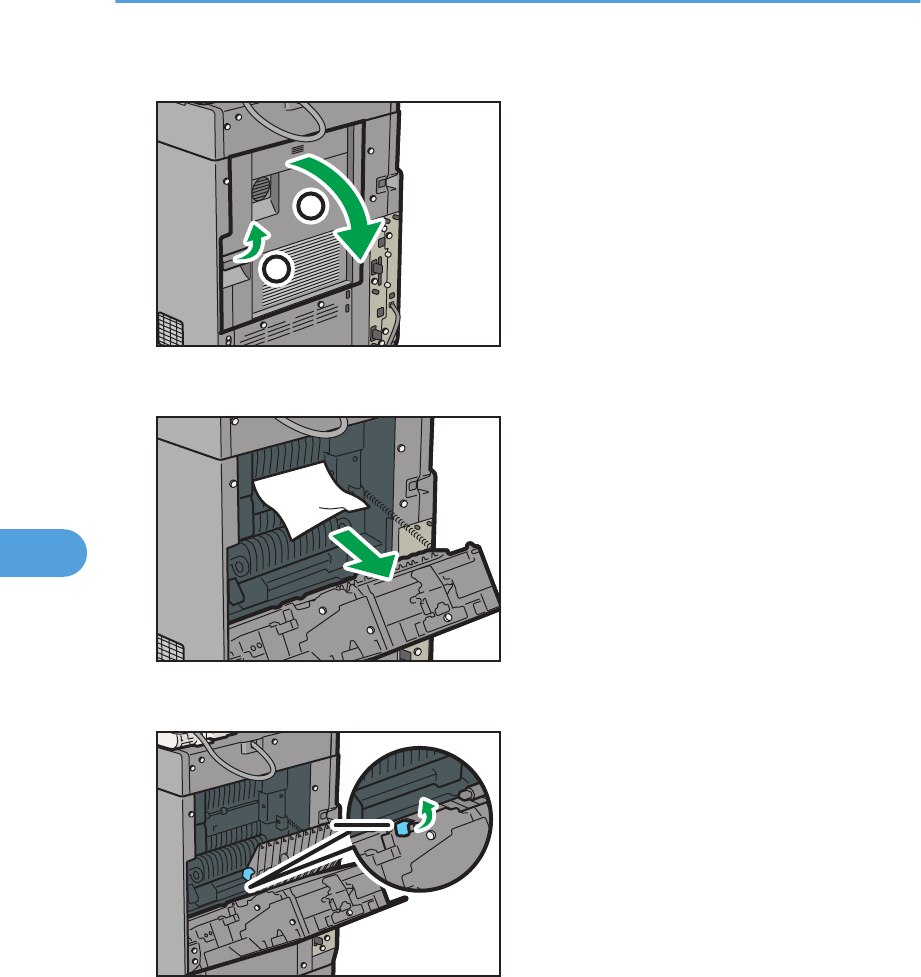
2. Pull up on the lever to open the rear cover.
1
2
CFF012
3. Remove the misfed paper.
CFF029
4. Lift the guide board Z1.
CFF030
11
1. Guide board Z1
6. Clearing Misfeeds
138
6
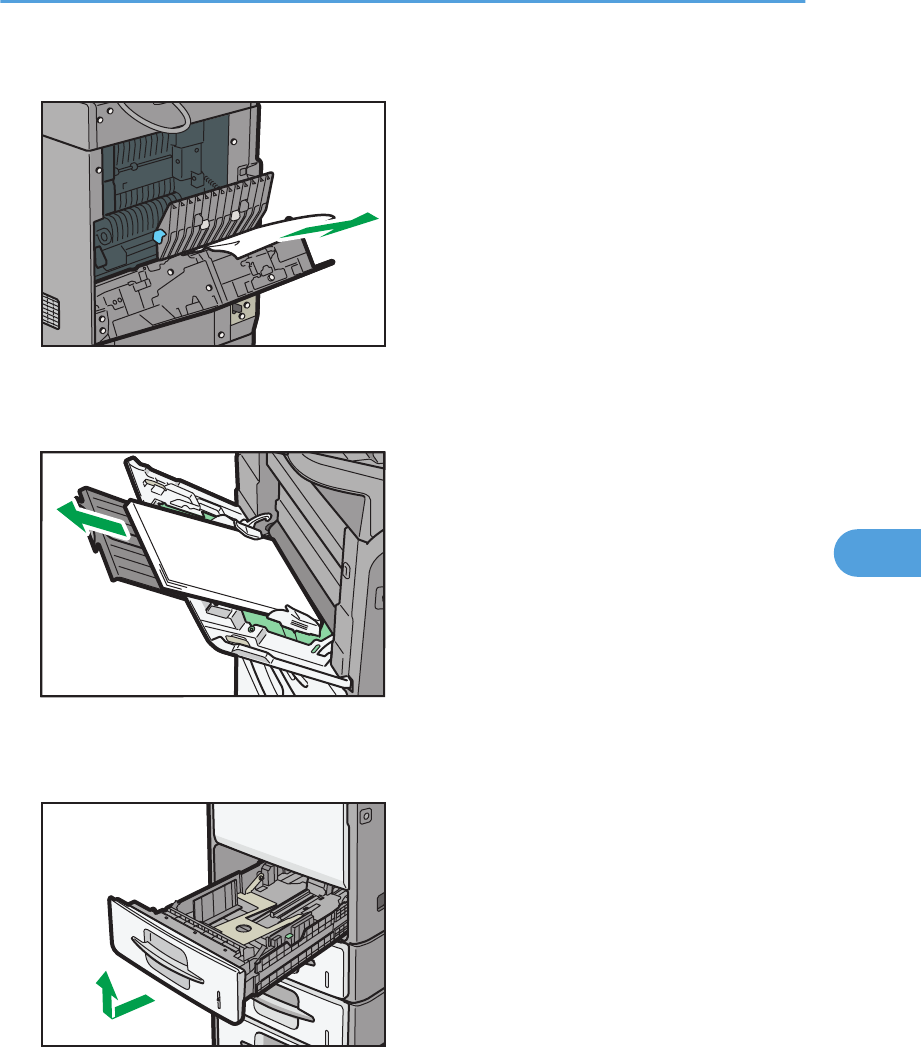
5. Remove the misfed paper, and then lower the guide board Z1.
CFF031
6. Close the rear cover.
7. Remove any paper from the bypass tray.
CFF006
8. Close the bypass tray.
9. Pull tray 1 out completely.
CFF032
Removing Jammed Paper
139
6
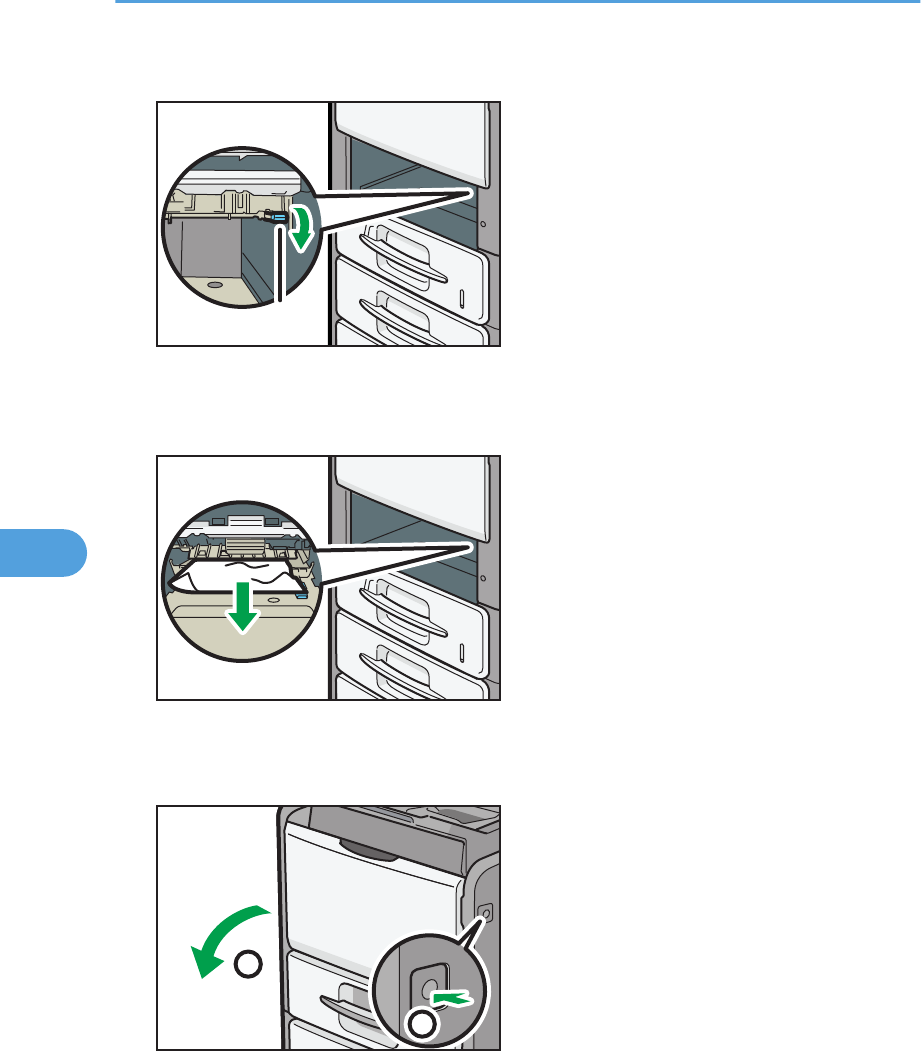
10. Lower the Z2 lever.
11
CFF033
1. Z2 lever
11. Remove the misfed paper, and then return the Z2 lever to its original position.
CFF034
12. Carefully push tray 1 fully in.
13. Push the button on the right side of the machine to open the front cover.
CFF004
1
2
14. Close the front cover.
6. Clearing Misfeeds
140
6
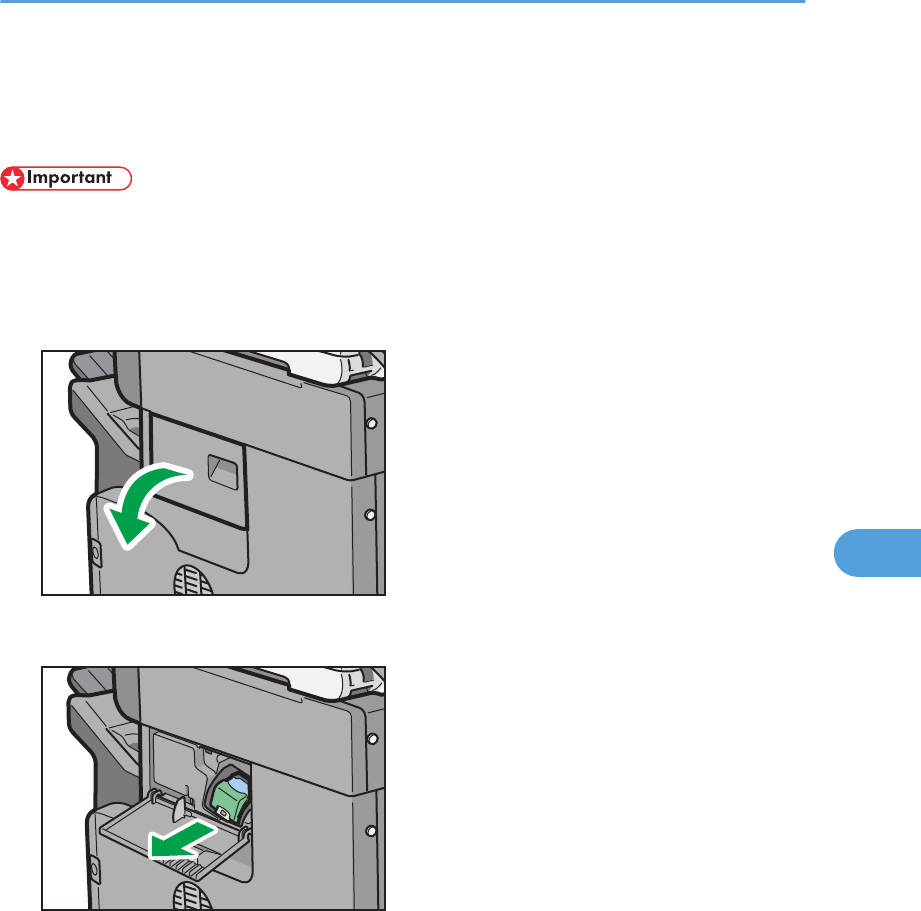
Removing Jammed Staples
This section describes how to remove jammed staples.
• Curled paper may cause staples to jam. To avoid this, turn paper over in the tray.
• When using Type 3, after removing jammed staples, staples will not be ejected the first few times
you try to use the stapler.
1. Open the finisher cover on the right side of the machine.
CFF035
2. Hold the lever, and then gently pull out the cartridge.
CFF036
Removing Jammed Staples
141
6
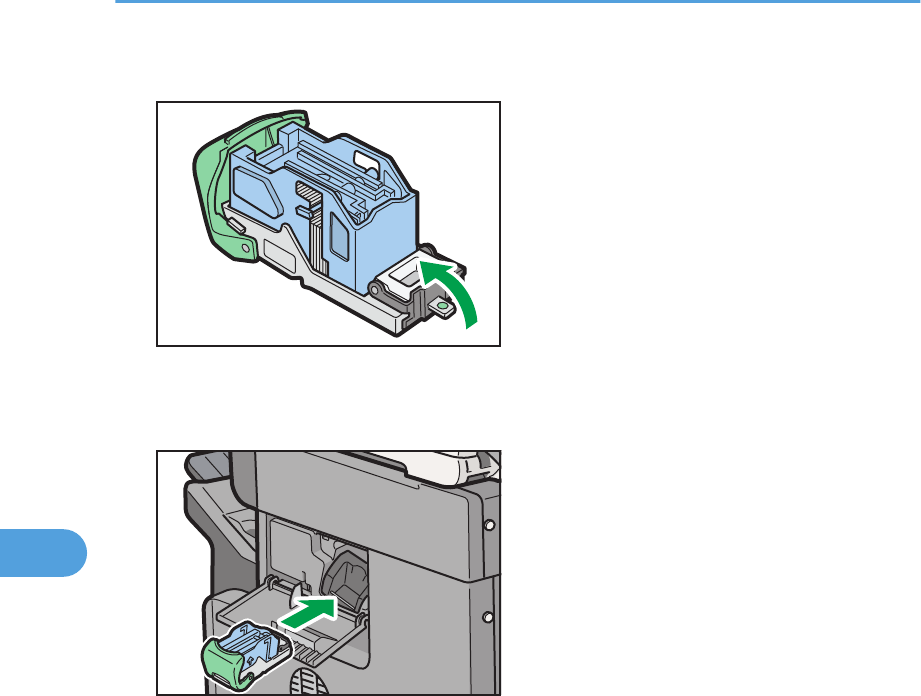
3. Open the face plate of the cartridge, and then remove any jammed staples.
CCT030
4. Return the face plate to its original position.
5. Hold the lever, and then push in the cartridge until it clicks.
CFF037
6. Close the finisher cover on the right side of the machine.
6. Clearing Misfeeds
142
6

7. Appendix
Trademarks
Adobe, Acrobat, PostScript, PostScript 3, and Reader are either registered trademarks or trademarks of
Adobe Systems Incorporated in the United States and/or other countries.
PCL® is a registered trademark of Hewlett-Packard Company.
UNIX is a registered trademark in the United States and other countries, licensed exclusively through X/
Open Company Limited.
Microsoft®, Windows®, Windows Server®, and Windows Vista® are either registered trademarks or
trademarks of Microsoft Corporation in the United States and/or other countries.
Other product names used herein are for identification purposes only and might be trademarks of their
respective companies. We disclaim any and all rights to those marks.
The proper names of the Windows operating systems are as follows:
• The product names of Windows XP are as follows:
Microsoft® Windows® XP Professional Edition
Microsoft® Windows® XP Home Edition
Microsoft® Windows® XP Media Center Edition
Microsoft® Windows® XP Tablet PC Edition
• The product names of Windows Vista are as follows:
Microsoft® Windows Vista® Ultimate
Microsoft® Windows Vista® Business
Microsoft® Windows Vista® Home Premium
Microsoft® Windows Vista® Home Basic
Microsoft® Windows Vista® Enterprise
• The product names of Windows 7 are as follows:
Microsoft® Windows® 7 Home Premium
Microsoft® Windows® 7 Professional
Microsoft® Windows® 7 Ultimate
Microsoft® Windows® 7 Enterprise
• The product names of Windows Server 2003 are as follows:
Microsoft® Windows Server® 2003 Standard Edition
Microsoft® Windows Server® 2003 Enterprise Edition
• The product names of Windows Server 2003 R2 are as follows:
143
7

Microsoft® Windows Server® 2003 R2 Standard Edition
Microsoft® Windows Server® 2003 R2 Enterprise Edition
• The product names of Windows Server 2008 are as follows:
Microsoft® Windows Server® 2008 Standard
Microsoft® Windows Server® 2008 Enterprise
• The product names of Windows Server 2008 R2 are as follows:
Microsoft® Windows Server® 2008 R2 Standard
Microsoft® Windows Server® 2008 R2 Enterprise
7. Appendix
144
7

INDEX
A
ADF...........................................................................9
Adjusting the volume.............................................47
Auto Document Feeder...........................................9
C
Cannot browse the network to send a scan file120
Cannot make clear copies....................................34
Cannot make copies as wanted...........................38
Cannot print...........................................................91
Cannot send or receive fax messages as wanted...
................................................................................60
Cannot send scanned files..................................120
Checking machine status and settings.................13
Checking the error log..........................................89
Clearing misfeeds................................................125
Combine.................................................................38
Control panel................................................78, 105
Copy function........................................................31
D
Data storage..........................................................13
Document Server...................................................38
Document Server function.....................................31
Duplex....................................................................38
E
Edit..........................................................................38
Enquiry...................................................................13
Error log.................................................................89
Error mail notification............................................69
Error occurs using Internet Fax.............................69
Error report (e-mail)..............................................69
F
Facsimile function..................................................49
H
How to read this manual.........................................8
I
If an error report is printed....................................67
If USB connection fails..........................................76
Image density........................................................26
In the event of power failure.................................68
Indicators................................................................11
Item...........................................................................9
L
List of Options...........................................................9
Locating jammed paper......................................125
M
Machine address info...........................................13
Machine types.........................................................8
Maintenance info..................................................13
Manuals for this machine........................................4
Memory is full........................................................45
Messages displayed.......................31, 49, 77, 105
Messages displayed on the client computer.....115
Messages displayed on the control panel when
using the printer function.......................................78
Messages displayed on the control panel when
using the scanner function..................................105
Messages Displayed When Changing the On-
screen Language...................................................23
Messages displayed when installing the printer
driver......................................................................71
Model-specific information...................................10
N
Names of Major Items............................................9
Network connection..............................................93
Network delivery function cannot be used.......121
Notes........................................................................9
Notice.......................................................................7
O
Other messages.....................................................81
Other printing problems........................................96
P
Panel tone..............................................................12
Printer function.......................................................77
Printing....................................................................60
Printing position.....................................................28
Problems operating the machine..........................18
R
Reception...............................................................60
Removing jammed paper...................................125
145

Removing jammed staples..................................141
S
Scanner function..................................................105
Scanning is not done as expected.....................123
Server-Generated error e-mail............................69
Stamp.....................................................................38
Status messages.....................................................77
Stored files cannot be accessed........................120
Stored files cannot be edited.............................120
Symbols....................................................................8
T
Trademarks..........................................................143
Transmission...........................................................60
Transmission/Reception.......................................60
Turning off the main power...................................68
TWAIN.................................................................115
TWAIN driver cannot be started.......................121
W
When A1 is displayed........................................127
When A2 is displayed........................................128
When an indicator to the right of a function key is
lit.............................................................................16
When B is displayed...........................................128
When C is displayed..........................................131
When memory is full..............................................66
When P is displayed...........................................133
When paper is not fed properly...........................96
When R is displayed (type 3 only)....................135
When S/MIME cannot be used........................121
When the data in indicator does not light up or
flash........................................................................93
When the machine is connected to the computer
using the interface cable.......................................93
When Y1 - Y3 is displayed................................136
When you cannot print clearly.............................96
When you cannot send scan files using WSD..122
When Z1 - Z2 is displayed................................137
Windows 7............................................................73
Windows Server 2003.........................................71
Windows Server 2003 R2...................................71
Windows Server 2008.........................................74
Windows Server 2008 R2...................................75
Windows Vista.......................................................72
Windows XP Home Edition...................................72
Windows XP Professional.....................................71
146

MEMO
147

MEMO
148 EN
GB
EN
US
EN
AU
M052-7007
© 2011
Troubleshooting
Operating Instructions
M052-7007EN US
