Ricoh SP 1000S User Manual To The C85a8293 169b 432c 9856 58fbfc73b97a
User Manual: Ricoh SP 1000S to the manual
Open the PDF directly: View PDF  .
.
Page Count: 35
- Security
- Environment
- Software use license
- Installation
- Location conditions
- Safety information
- Rules for use symbols
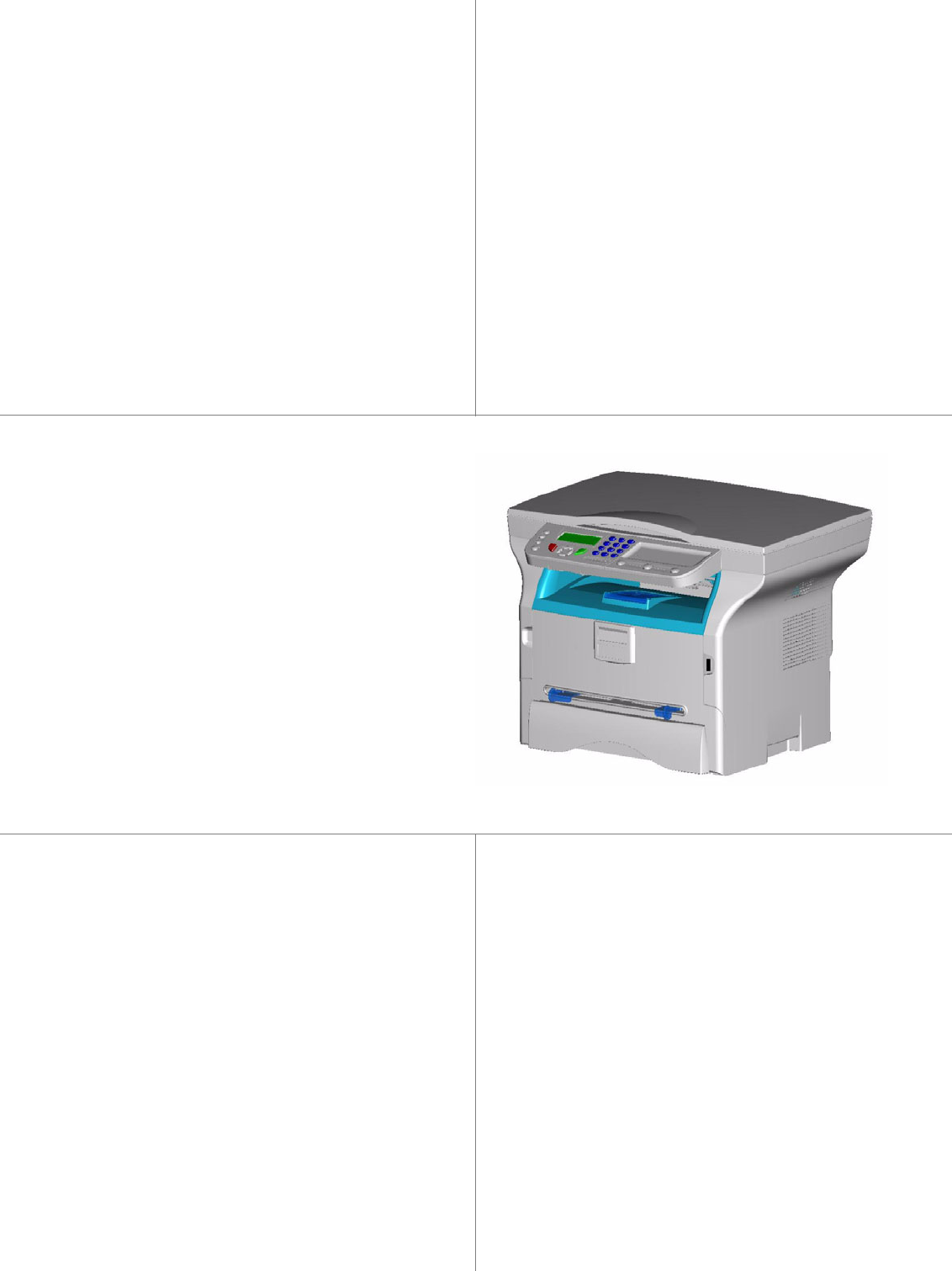
- Terminal description
- Command panel
- Packaging contents
- Device installation
- Loading paper
- Handling of paper
- Handling the unit
- Feed cassette paper insertion
- Cartridge installation
- Paper delivery stop
- Starting your device
- Paper insertion in the manual input tray
- Copy
- Parameters/ Setup
- USB memory key
- PC Features
- Maintenance
TELECOM
Read this manual carefully before you use this machine and keep it handy for future reference.
For safe and correct use, be sure to read the Safety Information in this manual before using the machine.
Operating Instructions
LASER MFP
SP 1000S

SP 1000S
- I -
Contents
Contents
Security 1
Security directives 1
Laser safety 1
For Europe/Asia 1
For North America 2
Declaration of conformity 2
Notice to Users in EEA Countries 2
Symbols for the main power switch 2
Positions of Warning and Caution labels
on the machine 2
Environment 4
Batteries and rechargeable batteries 4
The product 4
Users in the EU, Switzerland and Norway 4
All Other Users 4
Software use license 5
Definition 5
License 5
Property 5
Duration 5
Warranty 5
Responsibility 5
Development 5
Registered trademarks 6
Notice 6
Installation 7
Location conditions 7
Cautions of use 7
Safety information 8
Safety During Operation 8
Power Supply 9
Rules for use symbols 9
Terminal description 10
Command panel 11
Presentation 11
Accessing terminal functions 11
Packaging contents 12
Device installation 12
Loading paper 12
Loading paper in the paper tray 12
Handling of paper 12
Humidity control 12
Handling the unit 12
Operator shocks 12
Moving the unit 12
Handling the Toner Cartridge 12
Feed cassette paper insertion 13
Cartridge installation 13
Paper delivery stop 14
Starting your device 14
Device connection 14
Paper insertion in the manual input tray 14
Copy 15
Simple copy 15
Sophisticated copy 15
Special setup for the copy 15
Resolution setup 15
Zoom setup 16
Analysis origin setup 16
Contrast setup 16
Luminosity setup 16
Paper type setup 16
Paper tray selection 16
Flat-bed analysis margins setup 17
Left and right printing margins setup 17
Top and bottom printing margins setup 17
Format paper setup 17
Parameters/Setup 18
Language 18
Technical Parameters 18
Printing the functions guide 19
Print the list of setups 19
Lock the machine 19
Lock the keyboard 19
Read the counters 19
Scanned pages counter 19
Printed pages counter 19
Display the consumables status 19
Calibrate your scanner 19
USB memory key 20
Use of the USB memory key 20
Print your documents 20
Print the list of files located in the key 20
Print the files located in the key 20
Delete your files located in the key 20
Analyse the USB memory key content 21
Save a document on a USB memory key 21
PC Features 22
Introduction 22
Configuration requirements 22
Installation 22
Install the software on your PC 22
Connections 24
USB Connection 24
Uninstall the software from your PC 24
Multifunction Terminal's Supervision 25
Checking the connection between the PC
and the multifunction machine 25
MF Director 25
Graphical presentation 25
Utilities and applications activation 25
MF Monitor 26
Graphical presentation 26
Display the consumable status 26
Scan To 26
Companion Suite Pro LL functionalities 26
Document analysis 26
Analysis with Scan To 26
Analysis from a TWAIN compatible software 27
Character recognition software (OCR) 27
Printing 27
Printing with the multifunction machine 27
Maintenance 28
Service 28
General information 28
Toner cartridge replacement 28
Issues with smart cards 29
Cleaning 29
Scanner reading system cleaning 29
Printer cleaning 29
Printer external cleaning 29
Printer issues 29
Error messages 29

SP 1000S
- 1 -
1 - Security - Certification - Environment - Licence
Security
Security directives
Before turning on your device, check that the outlet that you are going to plug it into conforms to the indications shown
on the information plate (voltage, current, power network frequency) located on your device. This device shall be
connected to a single phase power network. The device shall not be installed on bare ground.
Batteries and rechargeable batteries, packaging and electric and electronic equipment (EEE), shall be thrown away,
as specified by the Instructions of the ENVIRONMENT chapter of this manual.
Because of the device model, the power connector is the only way to disconnecting the device from the power network,
that is why it is imperative to apply the following safety measures: your device shall be connected to a power outlet
located nearby. The outlet shall be easily accessible.
Your device is delivered with a grounded power cord. It is imperative to connect a grounded connector to a grounded
outlet connected to the building earthing.
For installation conditions and safe use precautions, refer to chapter Installation, page 7.
Laser safety
For Europe/Asia
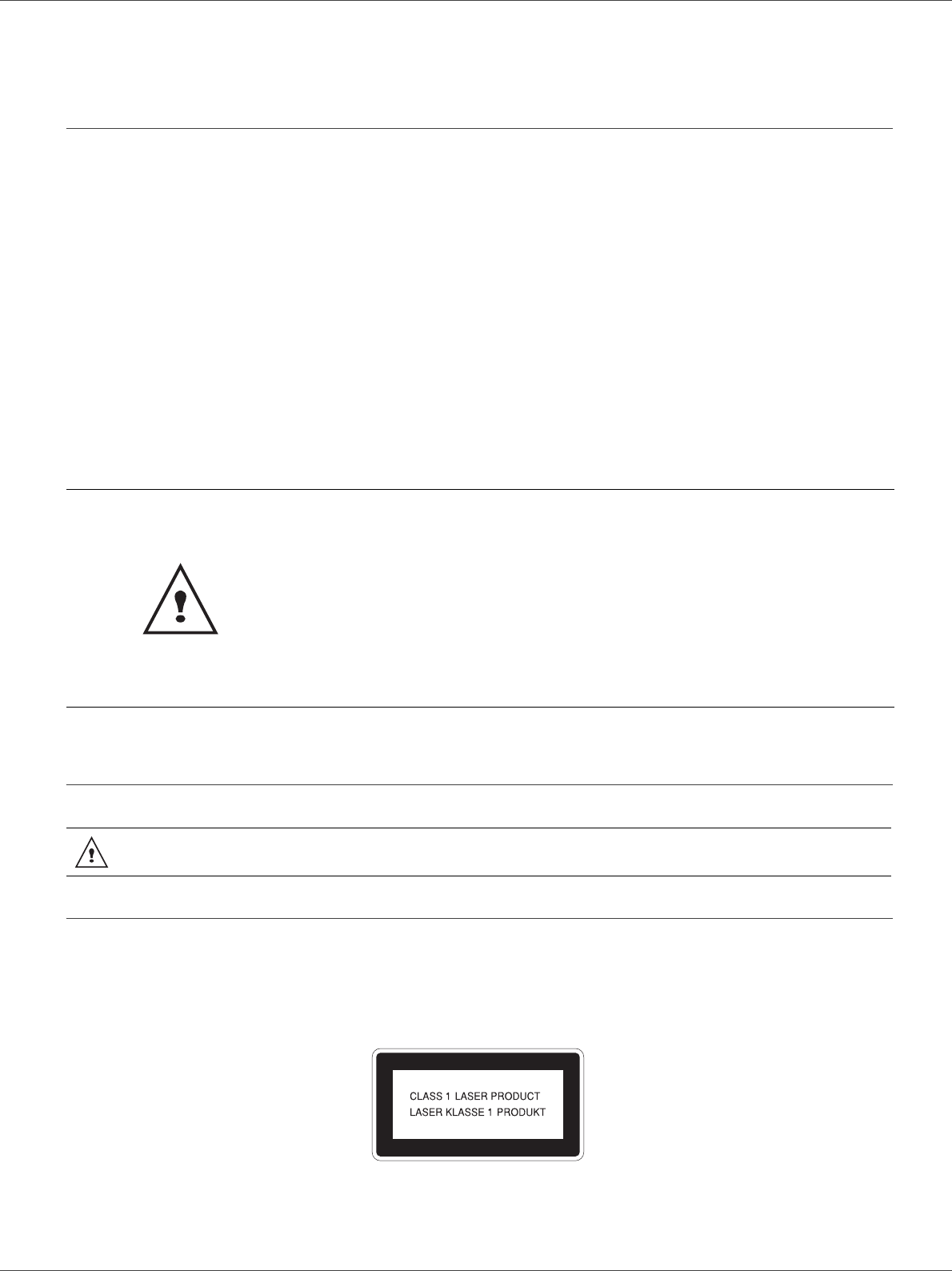
This machine is considered a class 1 laser device, safe for office/EDP use. The machine contains 1 class 3B laser
diode, 10.72 milliwatt, 760-780 nanometer wavelength for each emitter.
Direct (or indirect reflected ) eye contact with the laser beam might cause serious eye damage. Safety precautions and
interlock mechanisms have been designed to prevent any possible laser beam exposure to the operator.
The following label is attached on the rear side of the machine.
Repairs-maintenance: Repairs and maintenance should only be carried out by a
qualified technician. No user serviceable parts inside the machine. To reduce the risk
of electrical shock, you shall not proceed with these operations yourself, because by
opening or removing the lids, you could expose yourself to two hazards:
- The laser beam can cause irreversible eye damage.
- Avoid contact with powered parts because it can lead to electrical shock with
unfortunate consequences.
CAUTION Use of controls or adjustments or performance of procedures other than those specified in the
Operating Instructions might result in hazardous radiation exposure.
SP 1000S
- 2 -
1 - Security - Certification - Environment - Licence
For North America
CDRH Regulations.
This equipment complies with requirements of 21 CFR subchapter J for class 1 laser products. This equipment contains
1 class 3B laser diode, 10.72 milliwatt, 760-780 nanometer wavelength for each emitter.
This equipment does not emit hazardous light, since the beam is totally enclosed during all customer modes of
operation and maintenance.
Declaration of conformity
Notice to Users in EEA Countries
This product complies with the essential requirements and provisions of Directive 1999/5/EC of the European
Parliament and of the Council of 9 March 1999 on radio equipment and telecommunications terminal equipment and
the mutual recognition of their conformity.
Symbols for the main power switch
In accordance with IEC 60417, this machine uses the following symbols for the main power switch:
- means POWER ON.
- means POWER OFF.
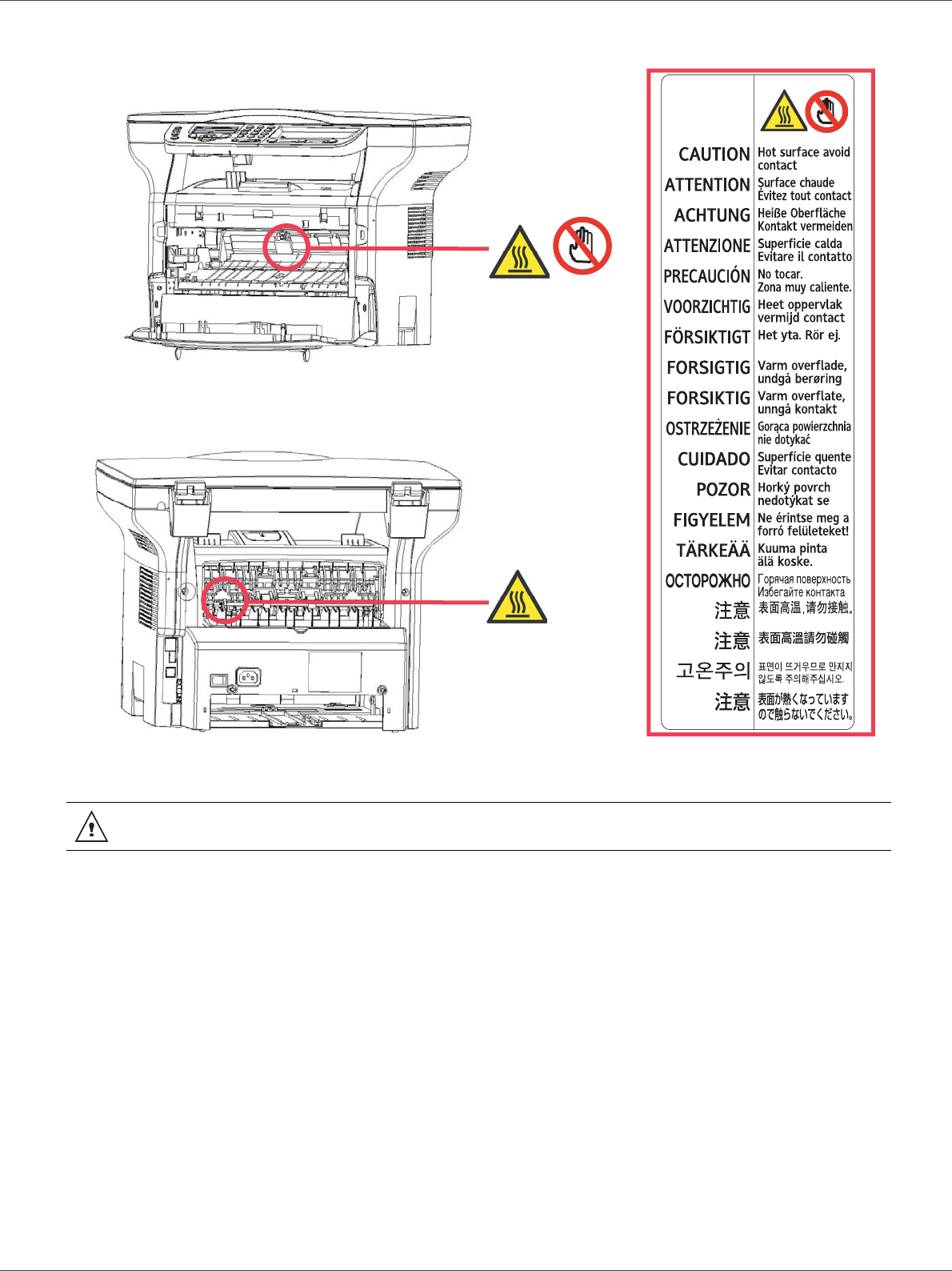
Positions of Warning and Caution labels on the machine
This machine has labels for WARNING and CAUTION at the positions shown below. For safety, please
follow the instructions and handle the machine as indicated.
SP 1000S
- 4 -
1 - Security - Certification - Environment - Licence
Environment
The preservation of the environment is of importance to the manufacturer. The manufacturer wishes to service the
installations with respect to the environment and has chosen to integrate the environmental performance in the whole
lifecycle of its products, throughout manufacturing, release, use and disposal.
Batteries and rechargeable batteries
If your product contains batteries or rechargeable batteries, these shall be disposed of at the designated
collecting centers.
The product
Users in the EU, Switzerland and Norway
Our Products contain high quality components and are designed to facilitate recycling.
Our products or product packaging are marked with the symbol below.
The symbol indicates that the product must not be treated as municipal waste. It must be disposed of
separately via the appropriate return and collection systems available. By following these instructions you
ensure that this product is treated correctly and help to reduce potential impacts on the environment and
human health, which could otherwise result from inappropriate handling. Recycling of products helps to
conserve natural resources and protect the environment.
For more detailed information on collection and recycling systems for this product, please contact the shop
where you purchased it, your local dealer or sales/service representatives.
All Other Users
If you wish to discard this product, please contact your local authorities, the shop where you bought this
product, your local dealer or sales/service representatives.

SP 1000S
- 5 -
1 - Security - Certification - Environment - Licence
Software use license
CAREFULLY READ ALL THE TERMS AND CONDITIONS OF THE PRESENT LICENSE BEFORE OPENING THE
SEALED ENVELOPE CONTAINING THE SOFTWARE. OPENING THIS ENVELOPE INDICATES THAT YOU
ACCEPT THESE TERMS AND CONDITIONS.
In case you should not accept the terms of this license, the CD-ROM packaging should be returned to the retailer
unopened, along with the other components of the product.
Definition
The Software designates programs and associated documentation.
License
- This license allows you to use this Software on personal computers on a local network. You only have permission to
use this Software to print on one multifunction machine; you can not lend the Software or authorize anyone to use it.
- You are allowed to make a back up copy.
- This license is non-exclusive and non-transferable.
Property
The manufacturer or its providers hold the Software property right. You only become the owner of the CD-ROM. You
shall not modify, adapt, decompile, translate, create any derived piece, rent or sell the Software or the documentation.
Any rights not explicitly approved are reserved by the manufacturer or its providers.
Duration
This license remains valid until cancelled. You can cancel it by destroying the program and the documentation as well
as any other copies of them. This license will automatically be canceled in case you do not respect the terms of this
license. If the license is rendered invalid, you agree to destroy all copies of the program and the associate
documentation.
Warranty
The Software is provided "as is" with no warranties what so ever, whether expressed or implied, including without
limitation, any warranties of merchantability or fitness for a particular purpose; all the risks concerning the results and
performance of this Software are assumed by the buyer. In case the program should appear defective, all the repair
and service expenses will be covered by the buyer.
Nevertheless, the license holder benefits from the following warranty: we guarantee that the CD-ROM on which the
Software is recorded is free from hardware or manufacturing faults if used in normal conditions, the guarantee is valid
for ninety (90) days from the delivery date, the copy of the receipt being the proof of purchase. In case of a CD-ROM
fault that due to accident or misuse, the CD-ROM will not be replaced as per the warranty.
Responsibility
If the CD-ROM is not working properly, send it to the retailer together with a copy of the receipt. It is the retailer's sole
responsibility to replace the CD-ROM. Nobody, not even the manufacturer who is involved in the creation, realization,
merchantability and delivery of this program would be responsible for direct, indirect or immaterial damages, such as,
but not limited to, loss of information, loss of time, execution loss, loss of revenue, loss of customers, due to the use or
inability to use the program.
Development
With a constant concern for improvement, the manufacturer reserves the right to modify the Software specifications
without any notice. In case of modification, your user right does not give you access to free updates.

SP 1000S
- 6 -
1 - Security - Certification - Environment - Licence
Registered trademarks
Companion Suite Pro is a registered trademark of Sagem Communication.
Adobe® and the Adobe® products referred to here are registered trademarks of Adobe Systems Incorporated.
PaperPort9SE is a registered trademark of ScanSoft.
Microsoft® Windows® 98, Microsoft® Windows® Millennium®, Microsoft® Windows NT®, Microsoft® Windows
2000®, Microsoft® Windows XP®, and any other Microsoft® product referred to here are registered trademarks of
Microsoft Corporation registered and/or used in the United States and/or in other countries.
All the other brands or products referred to as examples or in order to give additional information are registered
trademarks of their respective owners.
The screenshots presented in this operating instructions have been created with Windows XP. If you use another
operating system, the screenshots displayed may be different from the ones presented in this booklet.
Notice
Do not copy or print any item for which reproduction is prohibited by law.
Copying or printing the following items is generally prohibited by local law: bank notes, revenue stamps, bonds, stock
certificates, bank drafts, checks, passports, driver's licenses.
The preceding list is meant as a guide only and is not inclusive. We assume no responsibility for its completeness or
accuracy.
If you have any questions concerning the legality of copying or printing certain items, consult with your legal advisor.

SP 1000S
- 7 -
2 - Installation
Installation
Location conditions
By choosing an appropriate location, you preserve the longevity of the machine. Check that the selected location has
the following characteristics:
- Choose a well ventilated location.
- Make sure not to obstruct the ventilation grids located on the left and right sides of the device. During the
installation, make sure to place the machine thirty centimeters away from the surrounding objects so all the lids
can be easily opened.
- Make sure that this location does not present any ammonia nor any other organic gasses emission hazard.
- The ground outlet (refer to the security notices presented in the Security chapter) to which you plan to connect
the machine shall be located close to this one and have an easy access.
-Make sure that the machine is not directly exposed to sun light.
- Make sure not to place the machine in an area exposed to an air flow generated by an air conditioning, heating or
ventilation system, nor in an area subject to big temperature or humidity jumps.
- Choose a solid and horizontal surface on which the machine will not be exposed to intense vibrations.
-Keep the machine away from any object that could obstruct its ventilation ports.
- Do not place the machine close to hangings or any other flammable objects.
- Choose a location where the water and other splashes of liquid are limited.
- Make sure that this location is dry, clean and dust free.
Cautions of use
Take into account the important precautions below when using the machine.
Running environment:
- Temperature : 10 °C to 27 °C with an ambient humidity included between 15 to 80% (up to 32°C with an ambient
humidity included between 15 to 54%).
Terminal:
The section below describes the precautions to be taken when using the machine:
- Never turn the machine off and never open the lids while printing.
- Never use gas or flammable liquids, or objects generating magnetic field close to the machine.
- When you unplug the power cord, always hold the connector without pulling the cord. A damaged cord presents
a potential fire hazard or an electric shock hazard.
- Never touch the power cord with wet hands. You risk getting an electric shock.
- Always unplug the power cord before moving the machine. Otherwise, you could risk having the cord damaged
and create a fire hazard or an electric shock hazard.
- Always unplug the power cord when you plan not to use the machine for a long period of time.
- Never put objects on the power cord, never pull it and never fold it. This could cause a fire hazard or an electric
shock hazard.
- Always make sure that the machine is not sitting on the power cord or any other electric device communication
cables. Make sure also that neither cord nor cable is introduced to the machine inner mechanism. This would
expose you to a machine malfunction risk or to a fire hazard.
- Make sure that the printer is unplugged from the power outlet before connecting or disconnecting an interface
cable to the printer (use a shielded interface cable).
- Never try to remove any fixed pane or hood. The machine contains high voltage circuits. Any contact with these
circuits can cause an electric shock risk.
- Never try to modify the machine. This could cause a fire hazard or an electric shock hazard.
- Always make sure that paper clips, staples or other small metallic items do not get inside the machine via the
ventilation ports or other ports. Such items create fire hazards or electric shock hazards.
- Prevent water and any other liquid from spilling on the machine or near to it. Any contact of the machine with water
SP 1000S
- 8 -
2 - Installation
or liquid can cause a fire hazard or an electric shock hazard.
- If liquid or metallic item gets accidentally inside the machine, turn it off immediately, unplug the power cord and
contact your retailer. Otherwise, you would face a fire hazard or an electric shock hazard.
- In case of heat, smoke, unusual smell or abnormal noise emissions, turn the machine off, unplug the power cord
immediately and contact your retailer. Otherwise, you would face a fire hazard or an electric shock hazard.
- Avoid using the machine during an "electric storm", this can cause an electric shock hazard due to lightning.
Paper for printing: if you use paper already printed by your machine or another printer, the printing quality may not be
optimal.
Safety information
When using your product, the following safety precautions should always be followed.
Safety During Operation
In this information slip, the following important symbols are used:
WARNING
- Connect the power cord directly into a wall outlet and never use an extension cord.
- Disconnect the power plug (by pulling the plug, not the cable) if the power cable or plug becomes frayed or
otherwise damaged.
- To avoid hazardous electric shock or laser radiation exposure, do not remove any covers or screws other than
those specified in the Operating Instructions.
- Turn off the power and disconnect the power plug (by pulling the plug, not the cable) if any of the following
conditions exists:
• You spill something into the product.
• You suspect that your product needs service or repair.
• Your product’s cover has been damaged.
- Do not incinerate spilled toner or used toner. Toner dust might ignite when exposed to an open flame.
- Disposal can take place at our authorized dealer or at appropriate collection sites.
- Dispose of the used toner cartridge (or bottle) in accordance with the local regulation.
CAUTION
- Protect the product from dampness or wet weather, such as rain, snow, and so on.
- Unplug the power cord from the wall outlet before you move the product. While moving the product, you should
take care that the power cord will not be damaged under the product.
- When you disconnect the power plug from the wall outlet, always pull the plug (not the cable).
- Do not allow paper clips, staples, or other small metallic objects to fall inside the product.
- Keep toner (used or unused), toner cartridge (or bottle), ink (used or unused) or ink cartridge out of reach of
children.
CAUTION
Make sure to place the machine in well ventilated premises. When operating, the printer generates
a small amount of ozone. An unpleasant smell can come from the printer if it is used intensively in
not well ventilated premises. For a secure use, make sure you place the machine in well ventilated
premises.
WARNING: Indicates a potentially hazardous situation which, if instructions are not followed, could result in
death or serious injury.
CAUTION: Indicates a potentially hazardous situation which, if instructions are not followed, may result in
minor or moderate injury or damage to property.
SP 1000S
- 9 -
2 - Installation
- Be careful not to cut yourself on any sharp edges when you reach inside the product to remove misfed sheets of
paper or masters.
- For environmental reasons, do not dispose of the product or expended supply wastes at household waste
collection point. Disposal can take place at our authorized dealer or at appropriate collection sites.
- Our products are engineered to meet the high standards of quality and functionality, and we recommend that you
only use the expendable supplies available at an authorized dealer.
Power Supply
The socket-outlet shall be installed near the product and shall be easily accessible.
Rules for use symbols
WARNING
Indicates important safety notes.
Ignoring these notes could result in serious injury or death. Be sure to read these notes. They can be found in the
“Safety Information” section of this manual.
CAUTION
Indicates important safety notes.
Ignoring these notes could result in moderate or minor injury, or damage to the machine or to property. Be sure to read
these notes. They can be found in the “Safety Information” section of this manual.
Important
Indicates points to pay attention to when using the machine, and explanations
of likely causes of paper misfeeds, damage to originals, or loss of data. Be sure to read these explanations.
Note
Indicates supplementary explanations of the machine's functions, and instructions on resolving user errors.
SP 1000S
- 10 -
2 - Installation
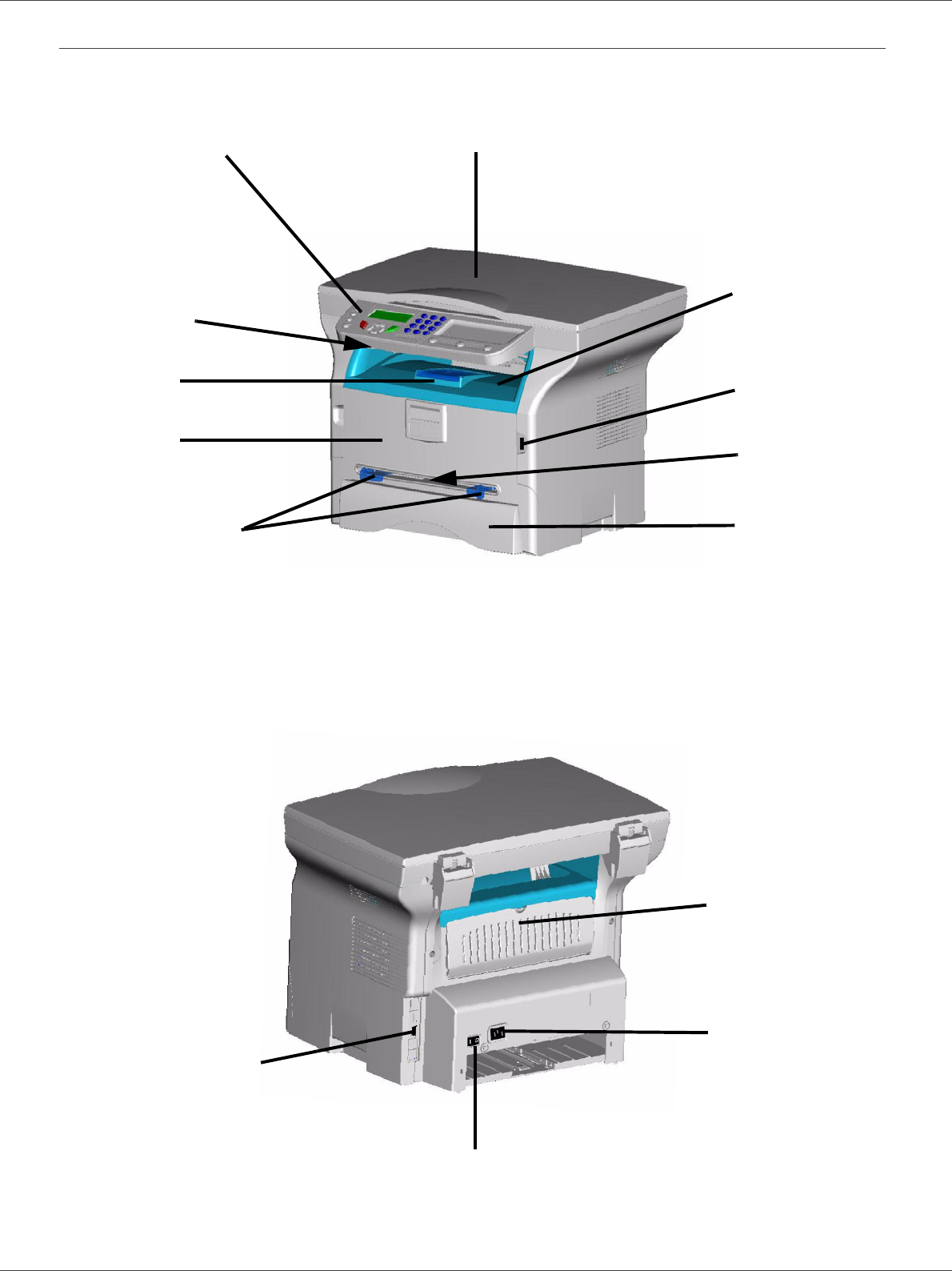
Terminal description
Front side
Back side
Scanner cover
Command panel
Paper output
Paper tray
Master USB
Manual paper feed
setup guides
(USB key)
Smart card
insertion point
Fold-down
stopper for
paper delivery connection
Manual
input tray
Front cover
Slave USB connection
(for PC)
Power supply cord
connection
Paper jam cover
On/Off switch
SP 1000S
- 11 -
2 - Installation
Command panel
Presentation
Accessing terminal functions
All terminal functions and settings are available via the menu and are associated to a specific menu command. For
example, CONTRAST copy settings are identified in the menu with the command 844.
Two methods are available to access menu items : a step by step method or a shortcut method.
To access the CONTRAST settings with the Step by step method :
1Press on to access the menu.
2Use the or buttons to browse the menu and select 8-ADVANCED FCT. Confirm with OK.
3Use the or buttons to browse the ADVANCED FUNCTIONS menu and select 84-COPY. Confirm with OK.
4Use the or buttons to browse the COPY menu and select 844-CONTRAST. Confirm with OK.
To access the CONTRAST settings with the shortcut method :
1Press on to access the menu.
1Enter 844 with the alphanumerical keypad to directly access the CONTRAST item.
ABC
PQRS
DEF
12
3456789101112
13
14
15
19
18
17
16
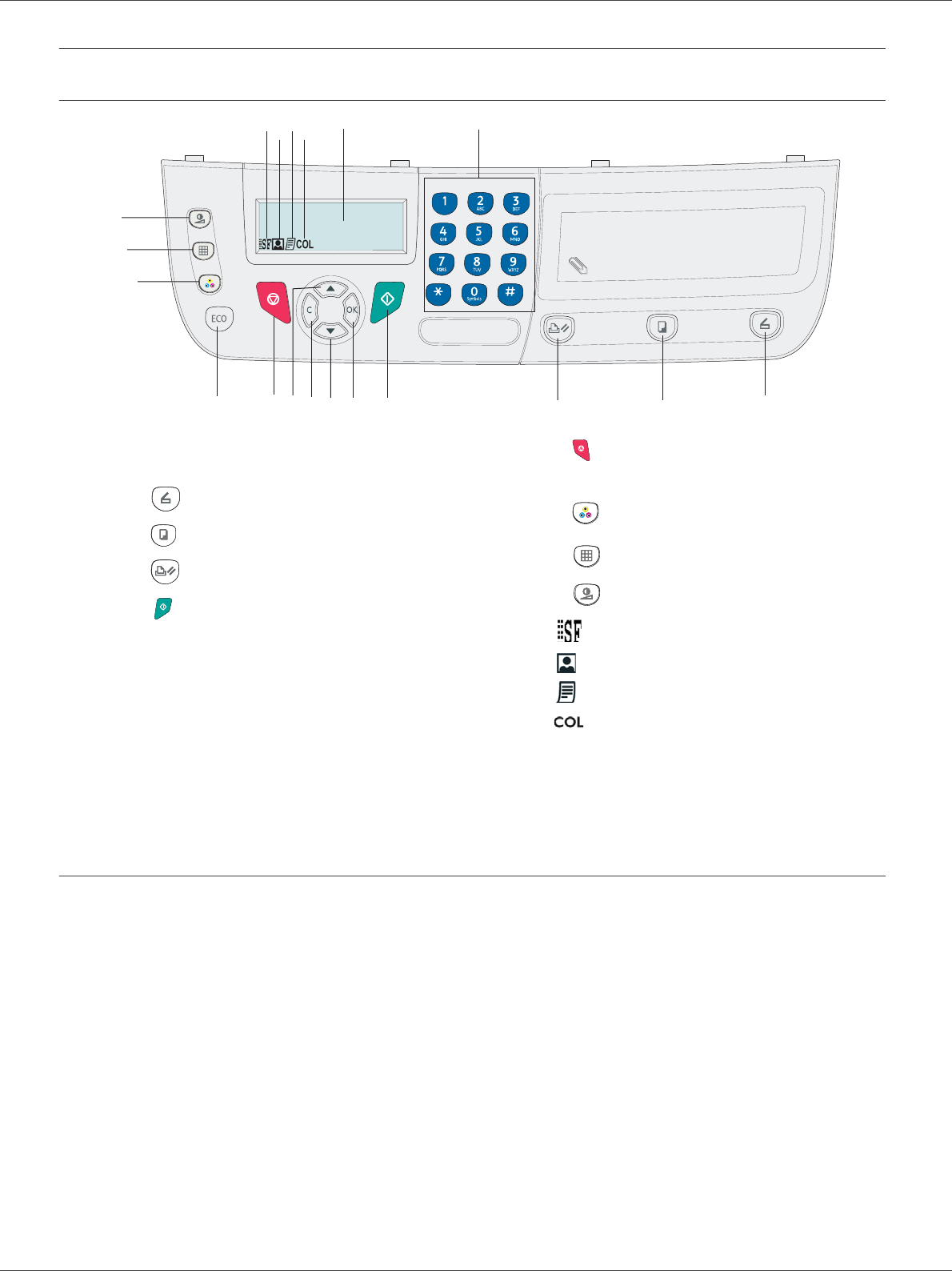
1. Screen.
2. Alphanumerical keypad.
3. Button : document analysis to the PC.
4. Button : local copy.
5. Button : stops the current PC printing.
6. Button : Validation.
7. Button OK: confirms the displayed selection.
8. Button : menu access and navigation down the
menus.
9. Button C: back to the previous menu and input
correction.
10. Button : navigation up the menus.
11. Button : stops the current operation.
12. Button ECO: sets up the activation delay.
13. Button : colour analysis mode selection.
14. Button : analysis resolution setup.
15. Button : contrast setup.
16. Icon :
resolution
"Copy
:
Quality text"
.
17. Icon : resolution "
Photo
".
18. Icon : resolution "Copy :
Auto
".
19. Icon : color mode.
SP 1000S
- 12 -
2 - Installation
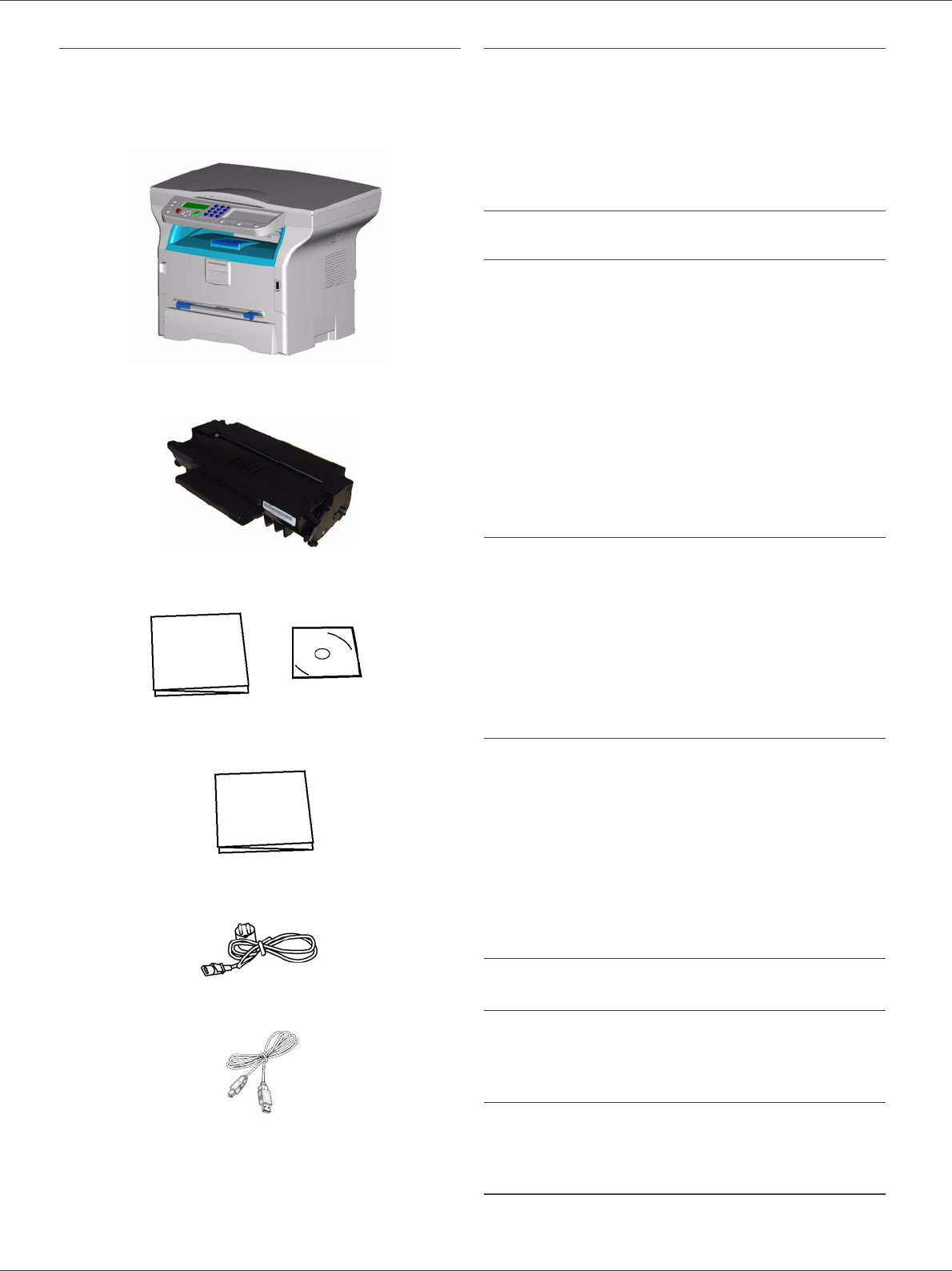
Packaging contents
The packaging contains the items listed below:
Multifunction device
1 toner cartridge
1 installation guide and 1 PC installation CD ROM
1 Safety Guide, Command Guide (For Europe only)
1 power cord
1 USB cord
Device installation
1Unpack the device.
2Install the device respecting the security notices
stated at the beginning of this booklet.
3Remove all stickers from the machine.
4Remove the plastic protection film from the screen.
Loading paper
Loading paper in the paper tray
(1) Paper to be used must be inserted face down, and
abutting the side fence and back fence. Not abutting
the paper may cause feed failure, skewing or paper
jams.
(2) Amount of loaded paper must not exceed the loading
mark. If the loading mark is exceeded, this may cause
feed failure, skewing, or paper jams.
(3) Adding paper to the pile may cause double feeding,
and should be avoided.
(4) When withdrawing the cassette from the main unit,
always hold it with both hands.
Handling of paper
(1) Curling must be corrected before loading.
(2) Curls must not exceed 10 mm.
(3) Care must be taken with storage to prevent feed faults
and image defects due to leaving the paper in
conditions of high humidity.
Adding paper to the pile, or splitting the pile may cause
feeding problems, and must be avoided.
Humidity control
(1) Paper which has become damp, or paper which has
been left unused for a very long time, must not be
used.
(2) After opening the paper, it must be kept in a plastic
bag.
(3) Paper with waved ends, paper which is creased, paper
with crumples, and any other non-normal paper must
not be used.
Handling the unit
Operator shocks
During printing, shocks must not be applied to the paper
feed cassette, tray, cover, and other parts of the machine.
Moving the unit
When moving the unit on a desk, it must be lifted, and not
dragged.
Handling the Toner Cartridge
(1) Must not be stood on the side, or held upside down.
(2) Must not be shaken strongly.
SP 1000S
- 13 -
2 - Installation
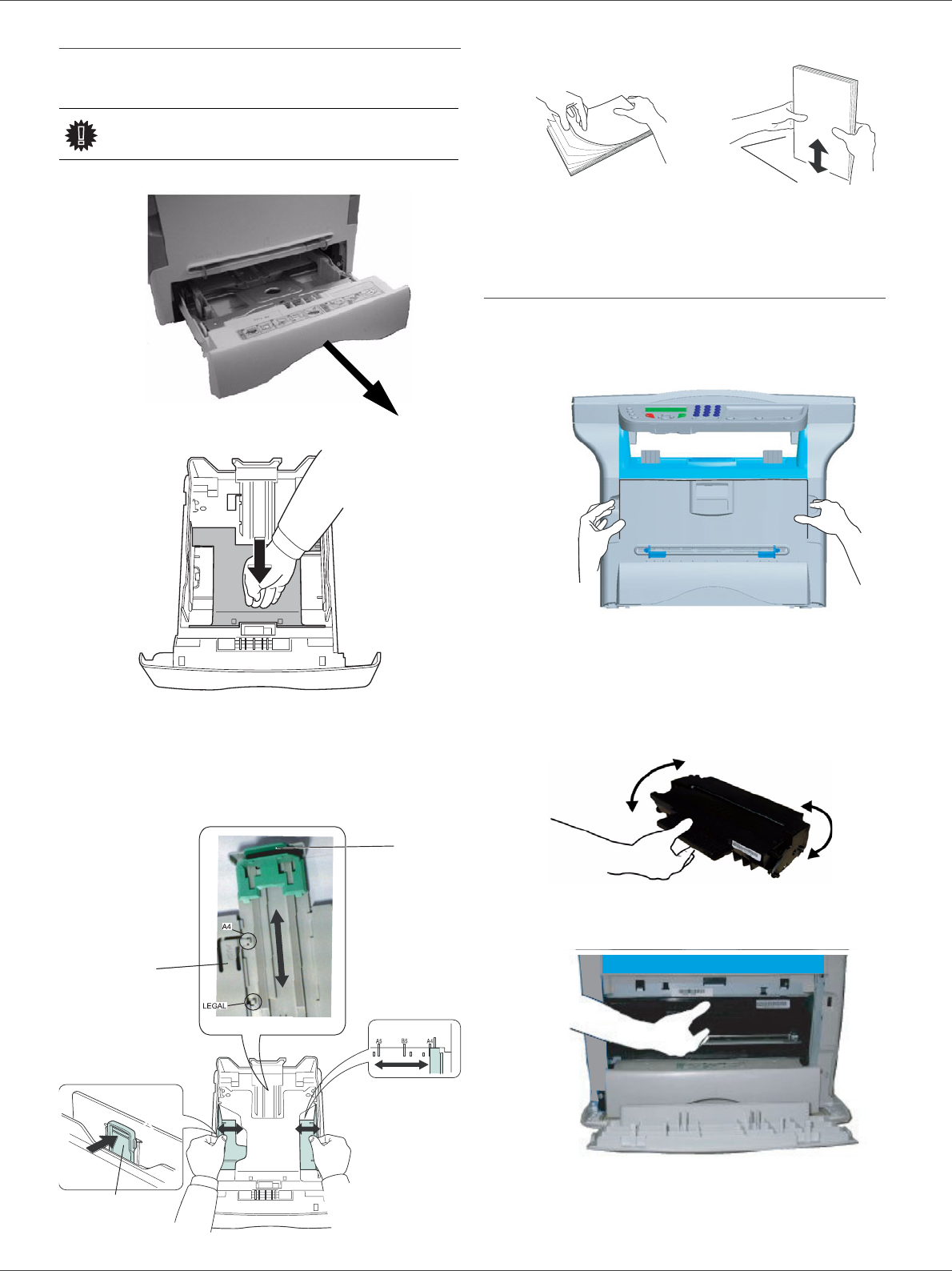
Feed cassette paper insertion
Your device accepts a number of formats and types of
papers.
1Remove the paper feed cassette completely.
2Push the lower panel down until it clicks.
3Setup the back side feed cassette stop by pushing
the "PUSH" lever (A).
Then adjust the lateral paper guides to the paper
format by pushing lever (B) located on the left
guide. Adjust the length paper guide to the paper
format by pushing lever (C).
4Take a paper stack, pull the paper off and align it
on a flat surface.
5Put the paper stack in the feed cassette
(200 sheets for 80 g/m² paper for instance).
6Put the feed cassette back in its location.
Cartridge installation
1Stand in front of the machine.
2Push the left and right sides of the cover and pull it
at the same time towards you.
3Remove the starter toner cartridge from its bag.
Gently roll the cartridge 5 or 6 times to distribute the
toner evenly inside the cartridge.
Thoroughly rolling the cartridge will assure the
maximum copies per cartridge.
Hold it by its handle.
4Insert the cartridge in its slot by pushing it until it
clicks (last move down) as shown on the picture
below.
5Close the cover.
Important See chapter Specifications for the
various formats and types of paper.
PUSH
B
A
C
8
7¼5½
SP 1000S
- 14 -
2 - Installation
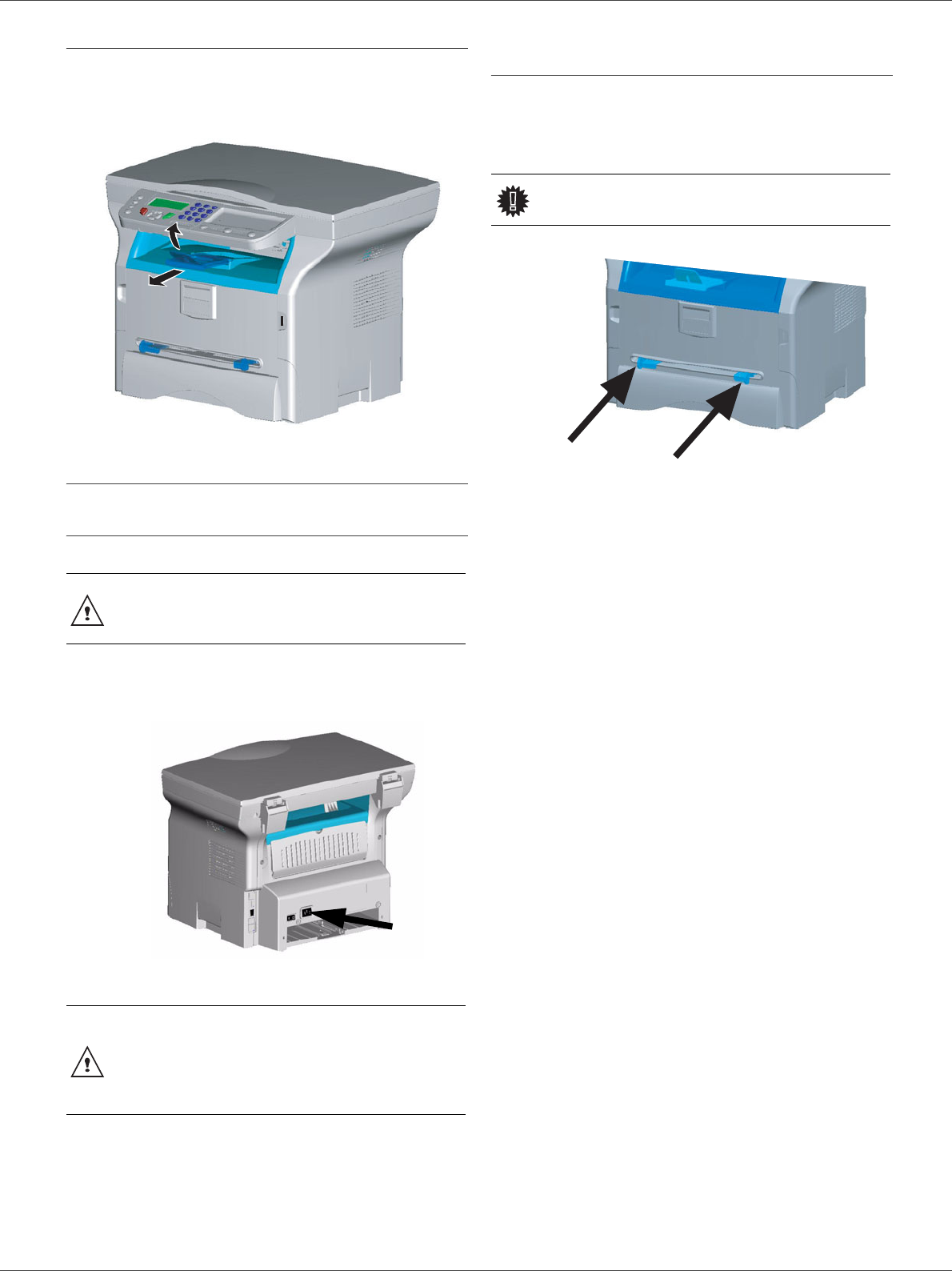
Paper delivery stop
Adjust the paper delivery stop, depending on the format of
the document to be printed. Do not forget to raise the flap
to prevent the sheets from falling down.
Starting your device
Device connection
1Connect the power cord to the device.
2Make sure that the On/Off switch is off (O position).
Plug the power cord to outlet on the wall.
3Press the On/Off button to turn on the device
(I position).
4By default, the machine is set to operate in English.
To modify this parameter, refer to Language,
page 18.
Paper insertion in the manual input
tray
The manual input tray allows you to use various paper
formats with greater weightings than the one used in the
paper feed cassette.
Only one sheet or envelope can be fed at a time.
1Spread the manual feed guides to the maximum.
2Insert a sheet or an envelope in the manual input
tray.
3Adjust the paper guides against the right and left
edges of the sheet or the envelope.
4Print making sure that the chosen paper format
corresponds to the selected format on the printer.
Note: When using envelopes
• Feeding can be done only through the manual feed.
• Recommended area should be the area which
excludes 15 mm from the leading edge, 10 mm from
and both the left and right edges, and the rear edge.
• A few crinkled lines may be given in solid print at the
part of being overlapped.
• Envelopes which are not recommended may lead to
improper printing.
• Curled envelope after printing should be fixed
manually.
• Small crumples on the edge of the wide side of
envelopes. Smearing, or less clear printing may
appear on the reverse side.
• Set envelope by pressing the folding line of four edges
properly after releasing air inside.
• Set envelope in a proper position after aligning in case
it is bent or warped.
• Paper conditioning is not allowed. And it should be
used under normal office environment.
WARNING Before plugging the power cord, it is
imperative to refer to the Security
directives, page 1.
WARNING
The power cord is used as a 230 V
power unit cut off. As a precaution,
the outlet shall be located close to
the device and be of easy access in
case of danger.
Important See chapter Specifications for the
various formats and types of paper.
SP 1000S
- 15 -
3 - Copy
Copy
Your machine has the function to make one or more
copies.
You can also setup several parameters in order to make
copies at your will.
Simple copy
In this case, the default parameters are applied.
1Place the document to be copied face down on the
glass, respecting the indications around the glass.
2Press the button twice. The copy is made
using the default parameters.
Sophisticated copy
The sophisticated copy allows to do custom setups for the
current copy.
1Place the document to be copied face down on the
glass, respecting the indications around the glass.
2Press the button.
3Enter the number of copies that you want and
confirm with the OK button.
4Choose the paper tray AUTOMATIC or MANUAL
with the buttons or , then confirm with the OK
button.
5Choose with the buttons or the printing
option (see examples below) depending on the
copy mode that you want:
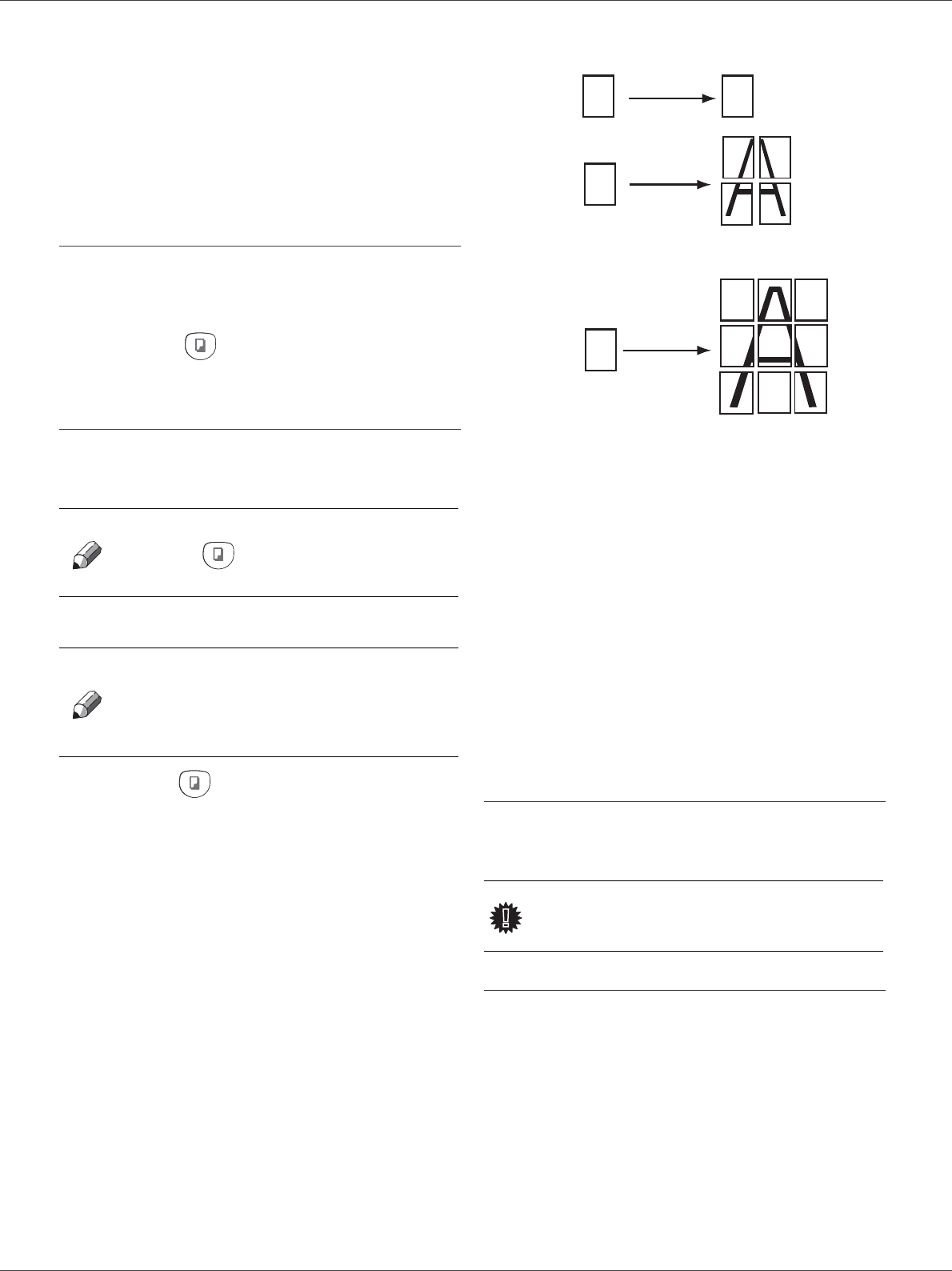
- Poster mode (flat-bed scanner): 1 Page to 1,
1 Page to 4 or 1 page to 9.
Confirm with the OK button.
6Adjust the desired zoom level, from 25% TO 400%
with the buttons or , confirm with the OK
button (only available in 1 Page to 1 copy mode).
7Adjust the desired origin values with the
alphanumerical keyboard buttons or then
confirm with the OK button.
8Choose the resolution depending on the printing
quality that you want DRAFT, AUTO, QUALITY
TEXT or PHOTO with the buttons or , then
confirm with the OK button.
9Adjust the contrast level with the buttons or ,
then confirm with the OK button.
10 Adjust the desired brightness level with the buttons
or , then confirm with the OK button.
11 Choose the paper type NORMAL, THICK with the
buttons or , then confirm with the OK button.
Special setup for the copy
Setups done through this menu become the device
default setups after you confirm.
Resolution setup
The RESOLUTION parameter allows you to setup the
photocopy resolution.
841 - ADVANCED FCT/COPY/RESOLUTION
1Choose the resolution with the buttons or
according to the following table:
Note
You can start copy by pressing
button at any time in below
steps.
Note
After step 1, you can directly enter
the number of copies with the
alphanumerical keypad and press
the OK button to validate. Then
refer to step 4.
Important When the quality of the printing is not
satisfying, you can proceed to a
calibration with MENU 80.
A
A
A
A
Analyzed sheet Output
1Pageto1
1Pageto4
1Pageto9
SP 1000S
- 16 -
3 - Copy
2Confirm your choice by pressing the OK button.
Zoom setup
The ZOOM parameter allows you to reduce or enlarge an
area of a document by choosing the origin and the zoom
level to apply to the document, from 25 to 400 %.
842 - ADVANCED FCT/COPY/ZOOMING
1Enter the desired zoom level with the
Alpanumerical keyboard or choose among
predefined values with the buttons and .
2Confirm your choice by pressing the OK button.
Analysis origin setup
If you want, you can change the origin of the scanner.
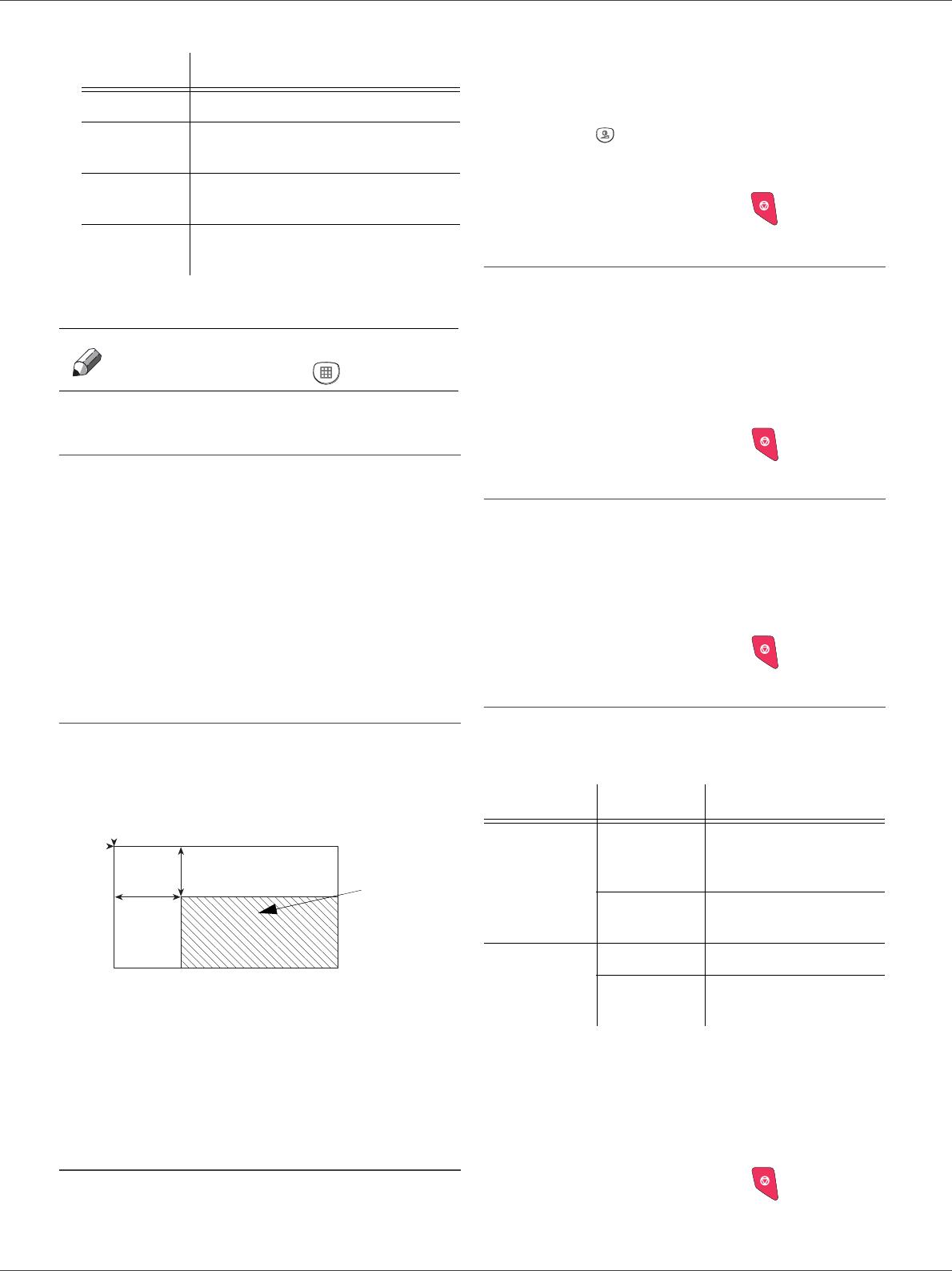
By entering new values for X and Y in mm (X < 210 and
Y < 280), you move the analysed area as shown on the
diagram below.
843 - ADVANCED FCT/COPY/ORIGIN
1Select the X and Y coordinates with the buttons
or .
2Setup the desired coordinates with the digital
keyboard or the buttons and , confirm your
choice by pressing on the OK button.
Contrast setup
The CONTRAST parameter allows to choose the
photocopy contrast.
844 - ADVANCED FCT/COPY/CONTRAST
1Setup the desired level of contrast with the buttons
and , confirm by pressing the OK button.
2You can also directly setup the desired contrast
with the button, press several times on this
button until the desired setup without using the
Menu 844.
3Quit this menu by pressing the button.
Luminosity setup
The LUMINOSITY parameter allows to lighten or darken
your original document.
845 - ADVANCED FCT/COPY/LUMINOSITY
1Setup the desired brightness with the buttons
and .
2Confirm your choice by pressing the OK button.
3Quit this menu by pressing the button.
Paper type setup
851 - ADVANCED FCT/SCAN. & PRINT/PAPER
TYPE
1Select the paper NORMAL or THICK that you use
with the buttons and .
2Confirm your setup by pressing the OK button.
3Quit this menu by pressing the button.
Paper tray selection
The Automatic selection can have two meanings
depending on the paper format defined on the paper
trays. The following table describes the different cases.
852 - ADVANCED FCT/SCAN. & PRINT/TRAY
PAPER
1Select the default paper tray to use, AUTOMATIC
or MANUAL, with the buttons and .
2Confirm by pressing the OK button.
3Quit this menu by pressing the button.
Parameter Signification
DRAFT Low resolution.
AUTO Standard resolution for documents
containing text and graphics.
QUALITY
TEXT Optimal resolution for documents
containing text.
PHOTO Optimal resolution for documents
containing photographies.
Note You can also setup the resolution
by pressing the button.
y
DEBUT FEUILLE
FIN FEUILLE
x
Analysed area
BEGIN. OF SHEET
END OF SHEET
Default tray Tray used for copy
Same paper
format in the
trays
AUTOMATIC
Selection between the
main tray and the
manual tray.
MANUAL The manual tray is
used.
Different paper
format in the
trays
AUTOMATIC The main tray is used
MANUAL The manual tray is
used.

SP 1000S
- 17 -
3 - Copy
Flat-bed analysis margins setup
If you want to, you can offset the lateral margins of the
document to the left or right during the analysis with your
flat-bed scanner.
853 - ADVANCED FCT/SCAN. & PRINT/
FLATBED MARG
1Setup the left / right margins offsets (by 0.5 mm
steps) with the buttons and .
2Confirm by pressing the OK button.
3Quit this menu by pressing the button.
Left and right printing margins setup
If you want to, you can offset the lateral margins of the
document to the left or right during printing.
854 - ADVANCED FCT/SCAN. & PRINT/
PRINTER MARG
1Setup the left / right margins offsets (by 0.5 mm
steps) with the buttons and .
2Confirm by pressing the OK button.
3Quit this menu by pressing the button.
Top and bottom printing margins setup
If you want to, you can offset the lateral margins of the
document towards the top or the bottom during printing.
855 - ADVANCED FCT/SCAN. & PRINT/TOP
PRINT.
1Setup the top / bottom margins offsets (by 0.5 mm
steps) with the buttons and .
2Confirm by pressing the OK button.
3Quit this menu by pressing the button.
Format paper setup
This menu allows you to define the default paper format
of the manual tray and the main tray. You can also setup
the default scanning width.
856 - ADVANCED FCT/SCAN. & PRINT/
PAPER FORMAT
1Select the paper tray for which you want to define
a default paper format with the buttons and .
2Confirm by pressing the OK button.
3Choose the paper format with the buttons or
according to the following table:.
4Confirm by pressing the OK button.
5Quit this menu by pressing the button.
Paper tray Available paper format
MAN. TRAY A5, A4, Legal and Letter
AUTO. TRAY A5, A4, Legal and Letter
SCANNER LTR/LGL and A4

SP 1000S
- 18 -
4 - Parameters/Setup
Parameters/
Setup
You can setup your machine as you like depending on the
use. You will find in this chapter description of the
functions.
You can print the functions guide and the available setup
of your multifunction machine.
Language
This setting enables you to choose the menu language of
your choice. By default, the multifunction machine is set
to English.
To select the language:
203 - SETUP / GEOGRAPHICAL / LANGUAGE
1Press , enter 203 using the keypad. Confirm with
OK.
2Select the required language using and ,
then press the OK button to confirm.
3To exit this menu, press .
Technical Parameters
As delivered your machine is preset by default. However,
you may adjust it to meet your requirements by resetting
the technical parameters.
To set the technical parameters:
29 - SETUP / TECHNICALS
1Select the desired parameter and confirm with OK.
2With the buttons
or
, modify the parameter
settings by following the table below and press OK.
Parameter Signification
8 - Eco energy Choosing the printer standby
delay: the printer will switch to
standby after a delay (in minutes)
of NON-operation or during the
period of time of your choice.
79 - Toner
Management This parameter helps you manage
the consumable. When set to WITH
[0-10%], you can only replace the
toner cartridge when the toner has
reached the threshold.
If ever you need to replace the
toner cartridge before the toner
near end, set the parameter to
WITH [0-100%] and proceed with
the toner cartridge replacement
(see chapter Maintenance, page
28).
Disabling the toner management
(parameter set to WITHOUT) is
strongly not recommended as you
may spill toner in your print
mechanism. When set to WITHOUT,
the screen displays TONER ? %.
80 - Toner save Makes printing lighter to save toner
cartridge ink.
93 - Replace format Page format change. This
parameter allows you to print a
LETTER format document on A4
pages using the LETTER/A4
setting.
SP 1000S
- 19 -
4 - Parameters/Setup
Printing the functions guide
51 - PRINT / FUNCTIONS LIST
1Press on
and enter 51 with the alphanumerical
keypad. The printing of the functions guide starts.
Print the list of setups
To print the list of setups:
54 - PRINT / SETUP
1Press on
, enter 54 with the alphanumerical
keypad.
The printing of the list of setups starts.
Lock the machine
This function prevents non-authorized people from
accessing the machine. An access code will be required
every time someone wants to use the device. After each
use, the device will lock automatically.
Before that you have to enter a lock code.
811 - ADVANCED FCT / LOCK / LOCKING CODE
1Press on
, enter 811 with the alphanumerical
keyboard.
2Enter your lock code (4 digits) with the keyboard,
confirm with OK.
3Enter again your lock code (4 digits) with the
keyboard, confirm with OK.
4Quit this menu by pressing the button.
Lock the keyboard
Everytime you use your machine, you will have to enter
your code.
812 - ADVANCED FCT / LOCK / LOCK KEYBD.
1Press on
, enter 812 with the keyboard.
2Enter the lock code and confirm with OK.
3With the buttons
or
, choose WITH and
confirm with OK.
4Quit this menu by pressing the button.
Read the counters
This function allows you to view the activity counters for
your machine at any time.
According to your needs, you can read the counters for:
• scanned pages,
• printed pages.
Scanned pages counter
To view the number of pages scanned on your machine:
823 - ADVANCED FCT / COUNTERS / SCANNED
PAGE
1Press on
, enter 823 with the keyboard.
2The number of scanned pages appears on the
screen.
3Quit this menu by pressing the button.
Printed pages counter
To view the number of pages printed on your machine:
824 - ADVANCED FCT / COUNTERS / PRINTED PG
1Press on
, enter 824 with the keyboard.
2The number of printed pages appears on the
screen.
3Quit this menu by pressing the button.
Display the consumables status
You can read at any time the remaining toner in the
cartridge. This level appears in percentage.
86 - ADVANCED FCT / CONSUMABLES
1Press on
, enter 86 with the keyboard.
2The available toner percentage appears on the
screen.
3Quit this menu by pressing the button.
Calibrate your scanner
You can do this operation when the quality of photocopied
documents is not satisfactory anymore.
80 - ADVANCED FCT / CALIBRATION
1Press on
, enter 80 with the keyboard, confirm
with OK.
2The scanner is triggered and a calibration is done
automatically.
3At the end of the calibration, the machine comes
back to the screen saver.
Important The printing is not possible on A5
paper format.
Important The printing is not possible on A5
paper format.
Important If a code is already registered, enter
the old code before typing the new
one.
SP 1000S
- 20 -
5 - USB memory key
USB memory key
You can connect a USB memory Key on the front side of
your machine. The files stored in TXT, TIFF and JPEG
formats will be analysed and you will be able to use the
following actions:
- print the stored files contained in your USB memory
key1,
- delete the files contained in your USB memory key,
- run an analysis on the contents of the inserted USB
memory key,
- digitalise a document on your USB memory key,
Use of the USB memory key
Print your documents
You can print the stored files or a list of the files located in
the USB memory key.
Print the list of files located in the key
To print the list of files located in the key:
01 - MEDIA / PRINT DOC. / LIST
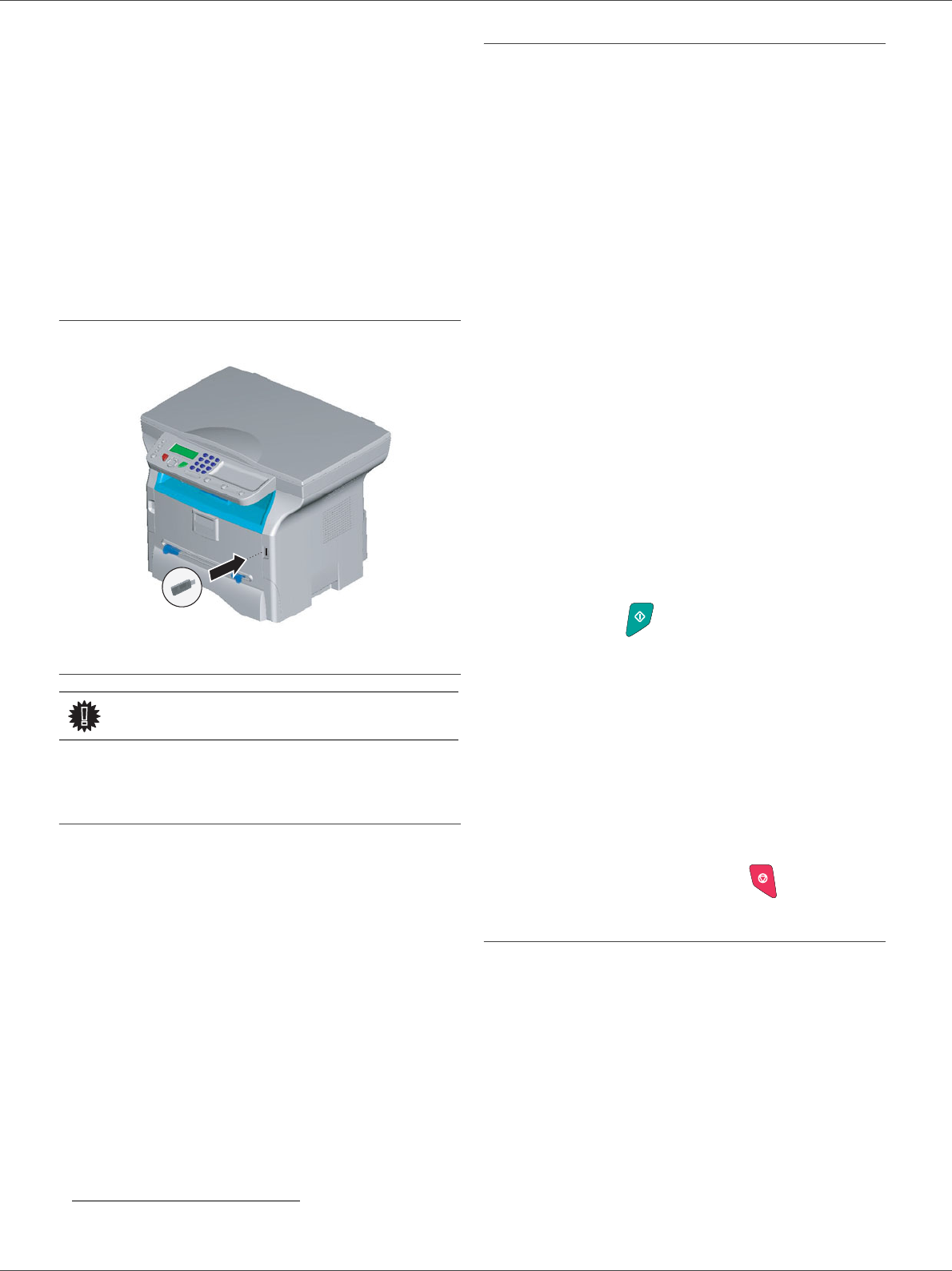
1Insert the USB memory key on the front side of the
machine respecting the way of insertion.
2 ANALYSE MEDIA appears on the screen.
3Select PRINT DOC. with the or buttons and
confirm with OK.
4Select LIST with the or buttons and confirm
with OK.
5The list is shown in a table with the following
information:
- the analyzed files are indexed in an incremental
1 by 1 order,
- the files name with their extension,
- the date of the files last save,
- the files size in Kbytes.
Print the files located in the key
To print the files located in the key:
01 - MEDIA / PRINT DOC. / FILE
1Insert the USB memory key on the front side of the
machine respecting the way of insertion.
2 ANALYSE MEDIA appears on the screen.
3Select PRINT DOC. with the or buttons and
confirm with OK.
4Select FILE with the or buttons and confirm
with OK.
5You have three possibilities to print your files:
-ALL, to print all the files located in the USB
memory key.
Select ALL with the or buttons and
confirm with OK. The printing is started
automatically.
-SERIES, to print several files located in the USB
memory key.
Select SERIES with the or buttons and
confirm with OK.
FIRST FILE and the first indexed file appears
on the screen, select with the or buttons
the file to print and confirm with OK. A star (Ä)
appears on the left side of the file.
LAST FILE appears on the screen, select with
the or buttons the other files to print and
confirm with OK.
Press the button.
-COPIES NUMBER appears on the screen,
enter the desired number of copies with the
alphanumerical keypad and confirm with OK to
start printing.
-SELECTION, to print only one file located in the
USB memory key.
Select with the or buttons the file to print
and confirm with OK. COPIES NUMBER
appears on the screen, enter the desired
number of copies with the alphanumerical
keypad and confirm with OK to start printing.
6Quit this menu by pressing the button.
Delete your files located in the key
You can delete files located in your USB memory key.
06 - MEDIA / DELETE / MANUAL
1Insert your USB memory key on the front side of
your machine respecting the way of insertion.
2 ANALYSE MEDIA appears on the screen.
3Select DELETE with the or buttons and
confirm with OK.
4Select MANUAL with the or buttons and
confirm with OK.
1. It may be possible that some TIFF files of your USB
memory key cannot be printed due to data format limitation.
Important The printing is not possible on A5
paper format.

SP 1000S
- 21 -
5 - USB memory key
5You have three possibilities to delete your files:
-ALL, to delete all the files located in the USB
memory key.
Select ALL with the or buttons and
confirm with OK.
You come back to the previous menu.
-SERIES, to delete several files located in the
USB memory key.
Select SERIES with the or buttons and
confirm with OK.
FIRST FILE and the first indexed file appears
on the screen, select with the or buttons
the file to delete and confirm with OK. A star (Ä)
appears on the left of the file.
LAST FILE appears on the screen, select with
the or buttons the other files to delete and
confirm with OK.
Press the button.
You come back to the previous menu
-SELECTION, to delete only one file located in
the USB memory key.
Select with the or buttons the file to delete
and confirm with OK.
You come back to the previous menu.
6Quit this menu by pressing the button.
Analyse the USB memory key content
After a period of inactivity, your machine will return to the
main menu. To view the USB memory key again please
proceed as follows:
07 - MEDIA / ANALYSE MEDIA
1Press on , enter 07 with the keyboard.
2The USB memory key analysis is started.
3You can print or delete the detected files located in
your USB memory key. Refer to the previous
chapters.
Save a document on a USB memory
key
This function allows you to digitise and save a document
directly in a USB memory key.
1Place the document to be copied face down on the
glass.
2Insert the USB memory key in the USB connector
of your multifunction device.
The USB memory key analysis is started.
When the analysis is finished, the MEDIA menu is
displayed.
3Select SCAN TO with the or buttons then
confirm with the OK button.
4Choose the COLOUR between BLACK&WHITE and
COLOUR with the or buttons and the button
OK.
5With the alphanumerical keypad, give a name to
the scan file (up to 20 characters) and confirm with
OK.
6Choose the scan format between IMAGE and PDF,
and confirm to start the scan and the recording of
the document.
IMAGE allows to have the same kind of file as a
photo. PDF is a format for the digital documents
creation.
The beginning button immediately starts the scan
and sends a file to the support with the parameters
defined in the analysis format.
With the IMAGE format, if you have selected
BLACK&WHITE the picture will be saved in TIFF format,
if you have selected COLOUR the picture will be saved in
JPEG format.
Important
You can also access this function in
two other ways:
• by pressing the button of
the machine deck then by
selecting SCAN-TO-MEDIA.
By pressing the
button from the
screen saver then by typing 03 on
the alphanumerical keypad.
SP 1000S
- 22 -
6 - PC Features
PC Features
Introduction
The Companion Suite Pro software allows the connection
of a personal computer with a compatible multifunction
machine.
From the PC, you can:
- manage the multifunction machine, allowing you to
set it up according to your needs,
- print your documents on the multifunction machine
from your usual applications,
- scan colour, grey scale or black and white
documents and edit them on your PC, or process
them into text using the character recognition
software (OCR),
Configuration requirements
The minimum configuration requirements for your
personal computer are:
Supported operation systems:
- Windows 98SE,
- Windows Millennium,
- Windows 2000 with at least Service Pack 3,
- Windows XP (Home and Pro).
Processor:
- 500 MHz for Windows 98SE,
- 800 MHz for Windows Me or 2000,
- 1 GHz for Windows XP (Home and Pro),
- CD-ROM drive,
- a free USB port,
- 600 Mbytes of available disk space for the
installation.
RAM memory:
- 128 Mbytes minimum for Windows 98SE, Me, and
2000,
- 192 Mbytes minimum for Windows XP (Home and
Pro).
Installation
Install the software on your PC
Turn your PC on. Open an ADMINISTRATOR session if
working in Windows 2000 and XP environments.
1Open the CD-ROM drive, insert the installation CD-
ROM and close the drive.
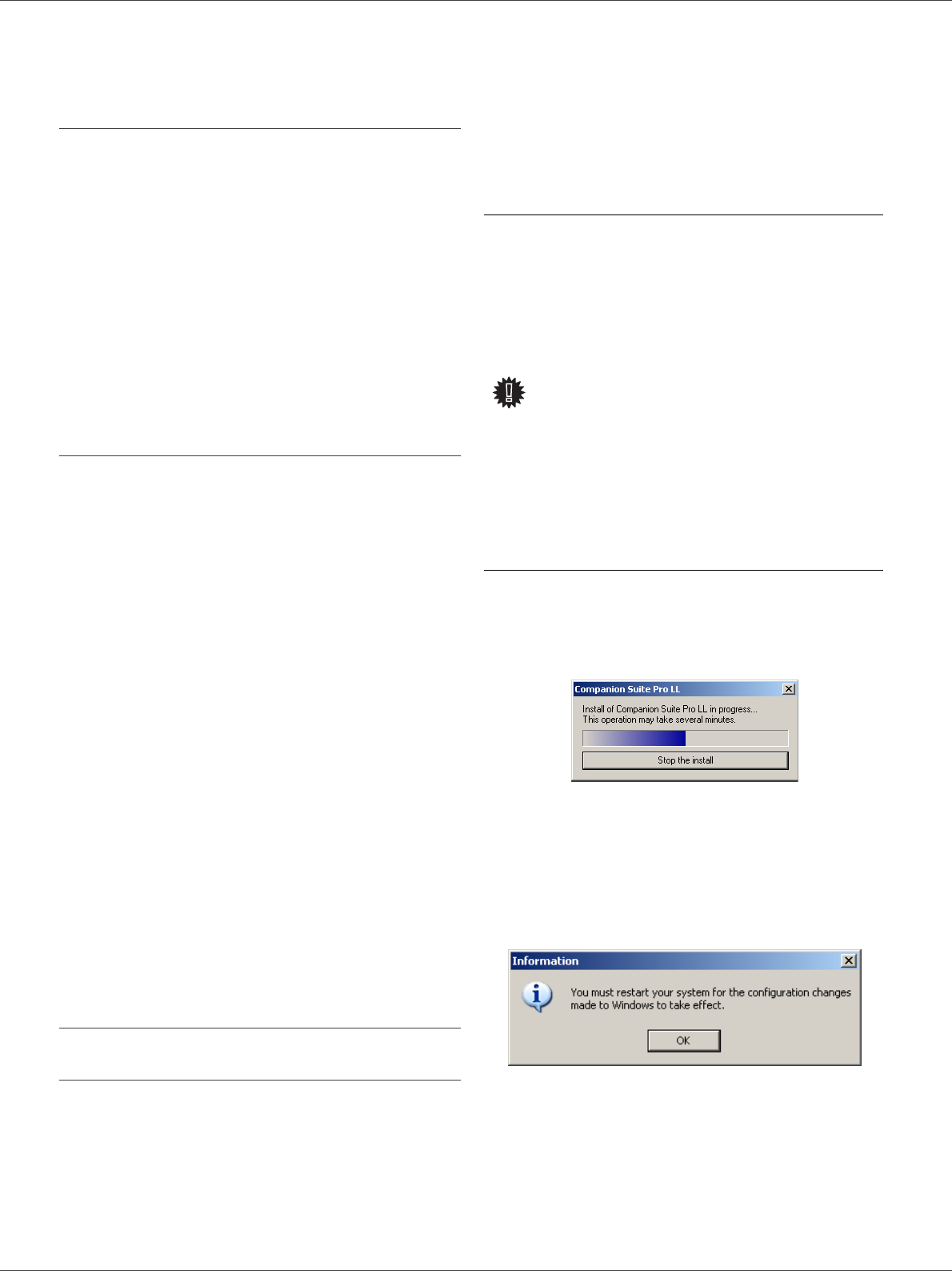
2An installation procedure is automatically run (Auto
run).
3A screen titled COMPANION SUITE PRO LL appears.
This screen allows you to install and uninstall the
software, access the product's user guides or
browse the CD-ROM contents.
4Place your cursor on INSTALL PRODUCTS and
confirm with left-click of the mouse.
5The INSTALL PRODUCTS screen appears.
Place your cursor on ALL PRODUCTS and confirm by
left-click with the mouse.
The multifunction machine components only appear
if your Windows Installer version is older than 2.0.
The installation resumes, a progress bar appears.
You can stop the program's installation by clicking on the
STOP THE INSTALL button.
After search and analysis of the PC components and the
multifunction machine's components, you need to restart
your PC for the modifications to take effect.
Click on the OK button.
Important
The ALL PRODUCTS installation
copies on your hard disk the
software required for the good
execution of the Companion Suite
Pro kit, which is:
- Companion Suite Pro (machine
management software, printer
drivers, scanner, ...),
- PaperPort.
If you already installed a part of the
software available in the CD-ROM,
then use the CUSTOM installation,
select the software that you want to
install on your hard drive and
confirm your choice.
This Product doesn't have the
network and WiFi printer function.
SP 1000S
- 23 -
6 - PC Features
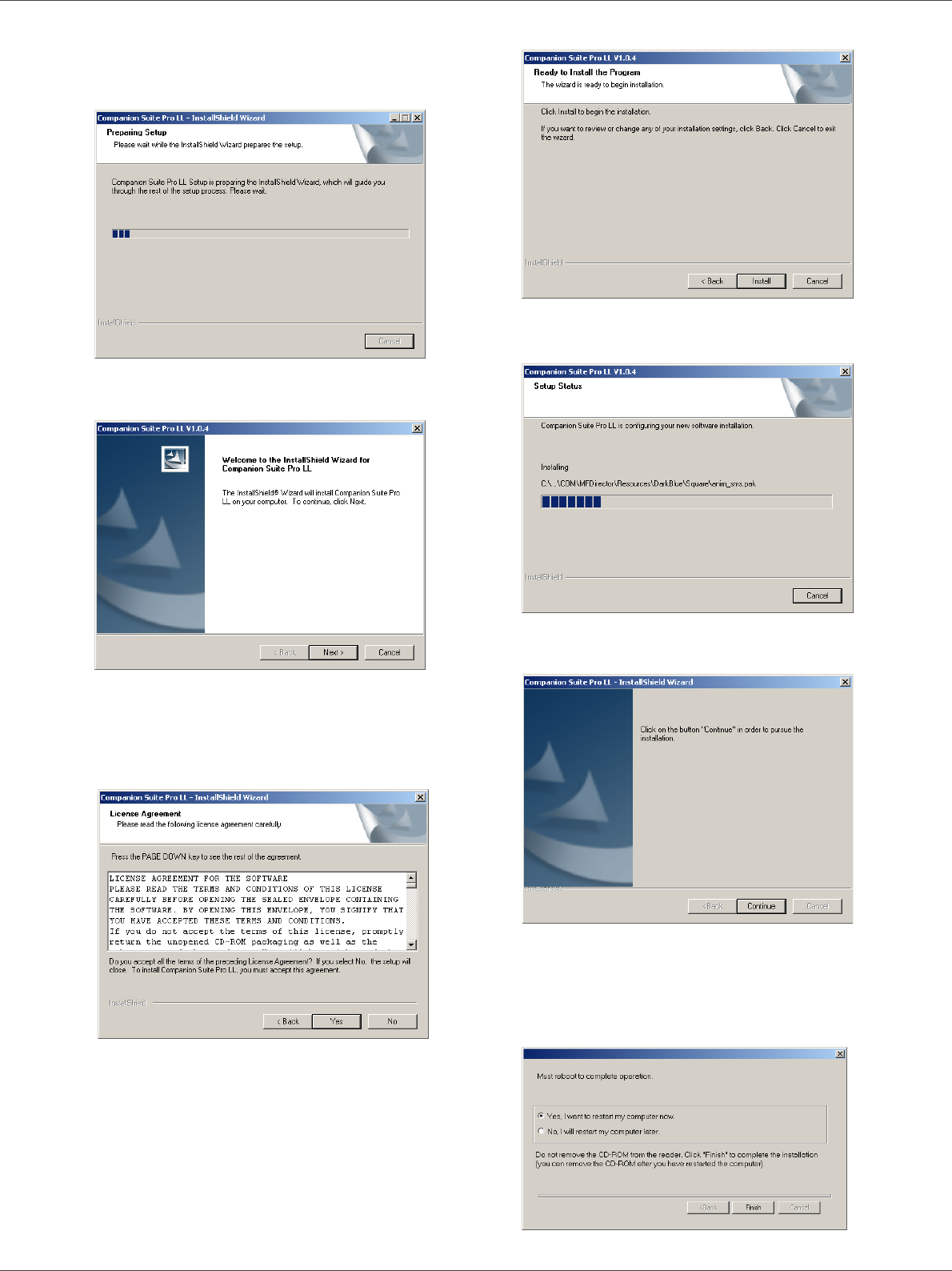
6After restart, the InstallShield Wizard screen shows
the progress of the assistant preparation.
You can stop the procedure at any time by clicking
on the CANCEL button.
7When the assistant finishes, the welcome screen
appears.
8Click on the NEXT button to launch the installation
of the COMPANION SUITE PRO kit on your PC.
9Before the files are copied on your hard drive, you
need to accept the proposed license agreement,
use the scroll bar to read the agreement entirely.
10 Click on the YES button.
11 Click on the NEXT button.
12 The final installation is ready to be executed.
13 Click on the INSTALL button.
14 A screen informs you of the installation progress.
15 The Companion Suite Pro software is installed on
your PC.
16 Click on the CONTINUE button to copy the utilities
and PaperPort SE software that come along with
the kit.
17 At the end of the installation, you need to restart
your PC to update the system files.
SP 1000S
- 24 -
6 - PC Features
18 Select your choice and click on the FINISH button.
19 Your "Companion Suite Pro" kit is successfully
installed on your PC.
You can start the multifunction machine's management
software from the menu START > PROGRAMS
> COMPANION SUITE > COMPANION SUITE PRO LL
> MF DIRECTOR or by clicking on the icon MF DIRECTOR
located on your desktop.
Connections
Make sure that your multifunction machine is powered off.
USB Connection
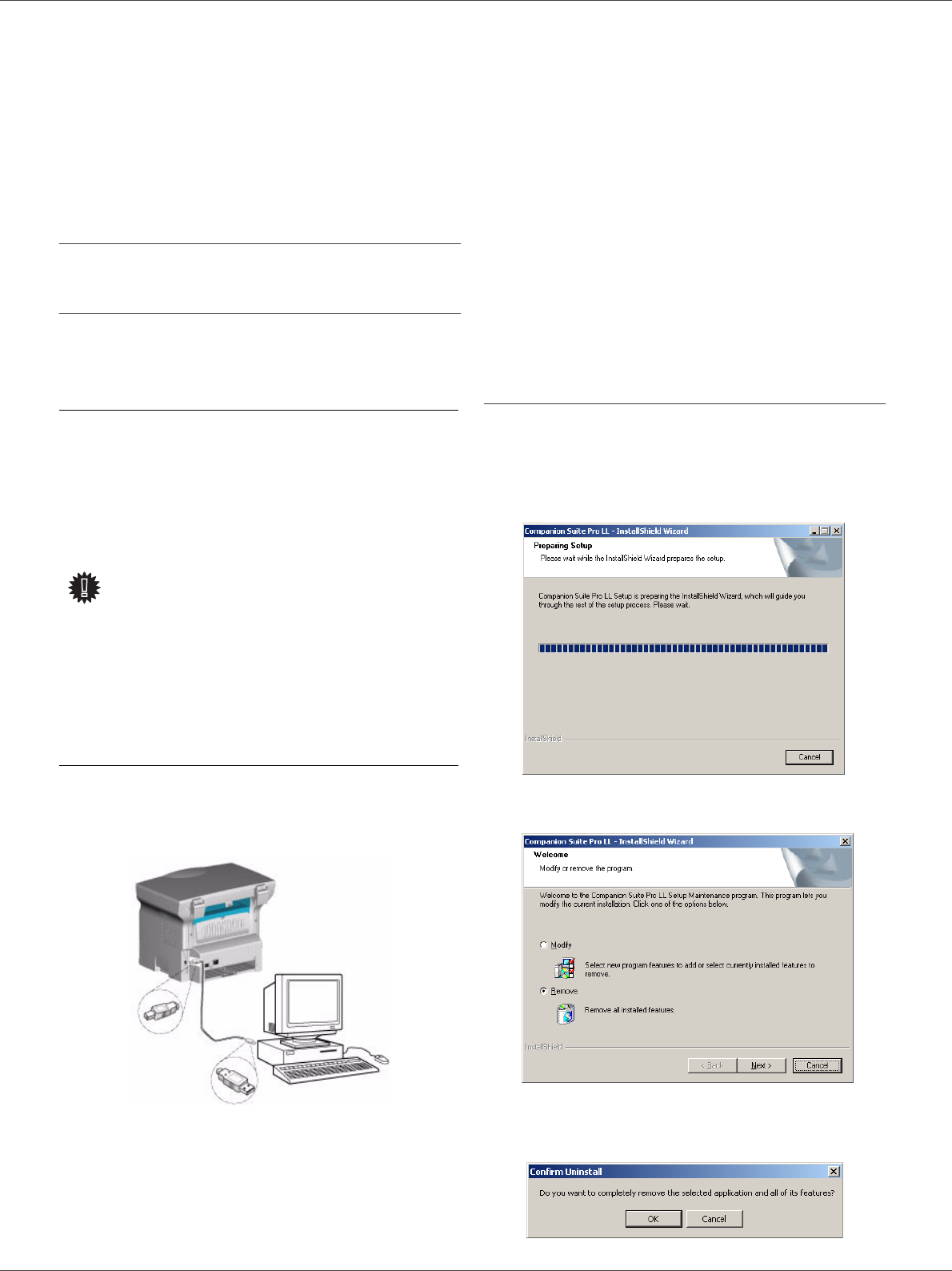
The connection between the PC and the machine
requires a USB 2.0 shielded cable no more than 3 meters
long.
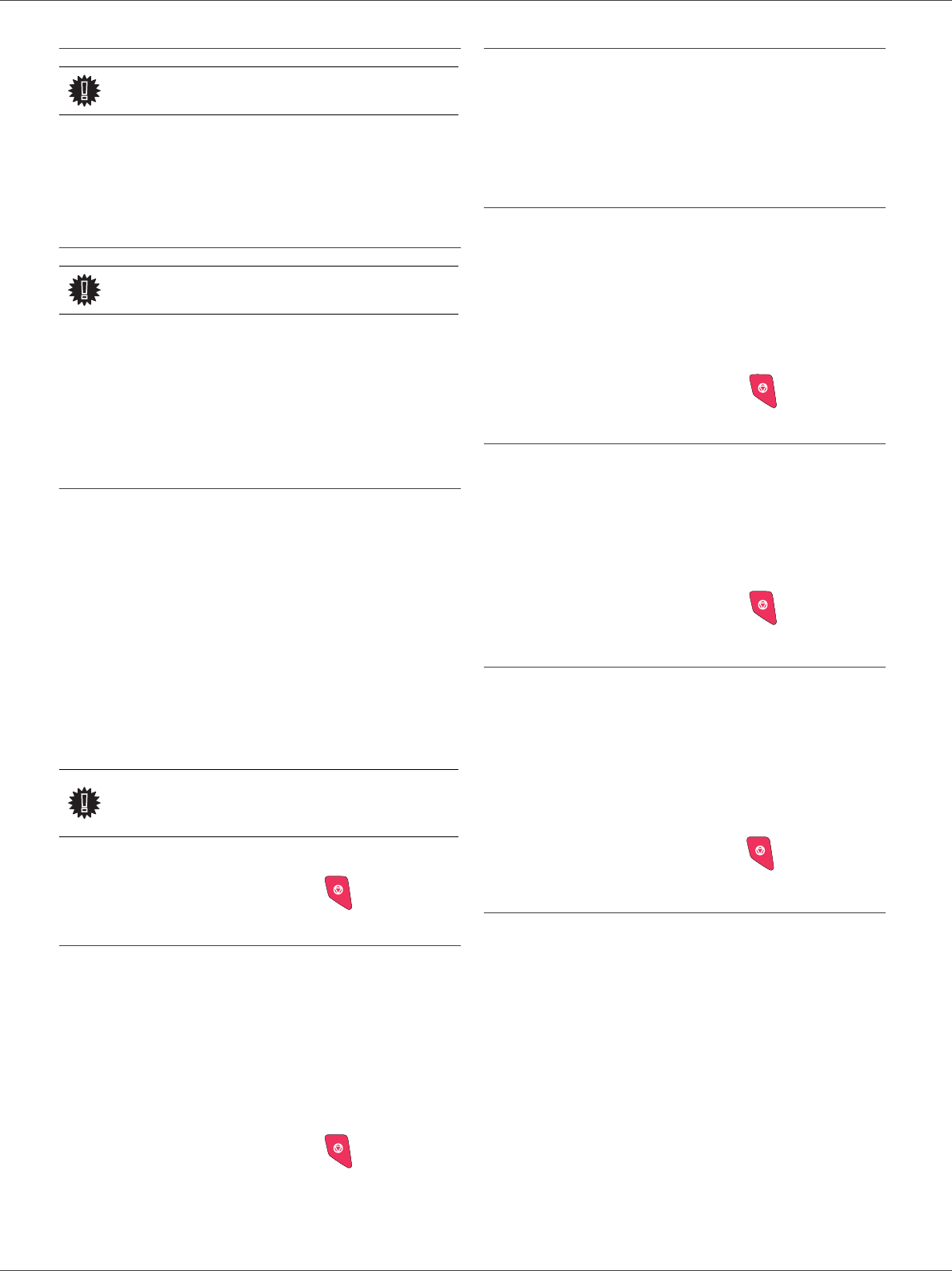
1Locate your USB cable connectors and connect as
shown below on the picture.
2Power on your multifunction machine.
The ADD HARDWARE assistant window appears.
3Click on the NEXT button to finish the installation.
4Select FIND THE APPROPRIATE DRIVER FOR MY
HARDWARE (RECOMMENDED). Click on the NEXT
button.
5Select the location where the system has to look for
the driver. Only the CD-ROM DRIVES checkbox has
to be selected if Windows asks you where to look
for the drivers. Click on the NEXT button. The
search takes a few moments.
6A window informs you that the driver has been
located. Click on the NEXT button.
7A screen informs you that the software has been
installed. Click on the FINISH button.
8If the ADD HARDWARE assistant window appears on
more time, go back step 3 and follow the
instructions. All in all, you will have to follow step 3
through 7 three times. .
You can now use the multifunction machine to print your
documents.
Uninstall the software from your PC
Run the programs removal from the menu START
> PROGRAMS > COMPANION SUITE > COMPANION SUITE
PRO LL > UNINSTALL.
1A preparation screen appears.
2Click on the REMOVE button and confirm your
choice by clicking on the NEXT button.
3A confirmation screen appears. Click on OK button
to continue the COMPANION SUITE PRO LL program
removal.
Important
It is recommended to install the
Companion Suite Pro software
first and then to connect the USB
cable to your machine.
If you connect the USB cable before
installing the Companion Suite Pro
software the recognition system
(plug and play) identifies
automatically that new hardware has
been added. To start your machine
drivers installation, follow the
instructions on screen. If a window
asking about the location of the
drivers pops up, then indicate the
installation CD-ROM. When you use
this procedure, only printing function
is activated.
SP 1000S
- 25 -
6 - PC Features
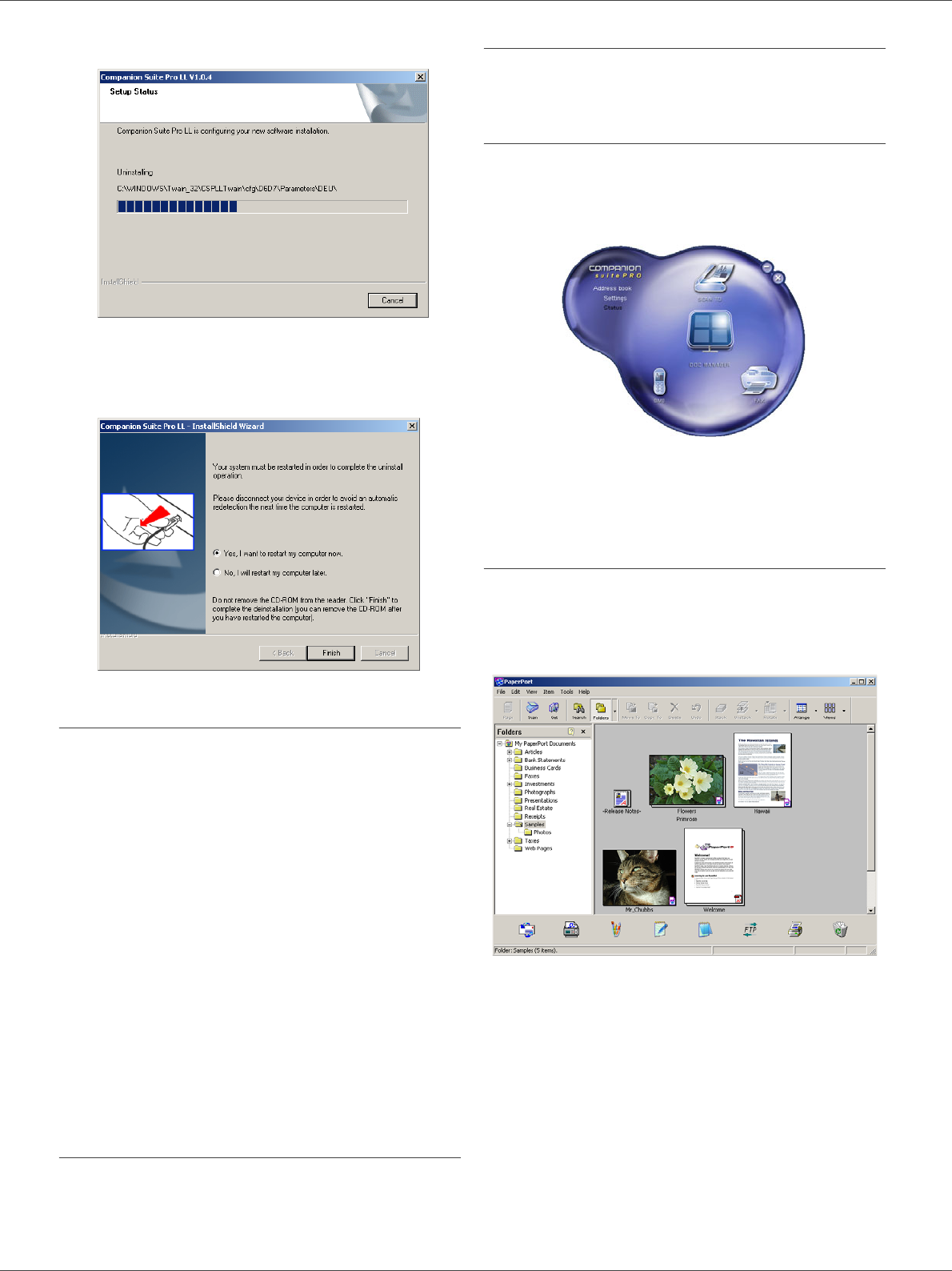
4A preparation screen appears. You can cancel the
removal by clicking on CANCEL.
5You need to restart your system at the end of the
procedure. Close all open programs, select YES,
I WANT TO RESTART MY COMPUTER NOW and click on
the FINISH button.
Multifunction Terminal's Supervision
The software that you have installed contains two
multifunction machine management applications,
MF DIRECTOR and MF MONITOR, which allow you to:
- check whether the multifunction machine is
connected to your PC,
- monitor the multifunction machine activities,
- monitor the status of the multifunction machine
consumables from the PC,
- quickly access the graphic editor applications, OCR
etc.
To manage the multifunction machine, run the MF
Director application by clicking on the icon located on your
desktop or from the menu START > PROGRAMS
> COMPANION SUITE > COMPANION SUITE PRO LL > MF
DIRECTOR.
Checking the connection between the PC
and the multifunction machine
To check if the connection between the devices is good,
run the MF MONITOR software from the icon located on the
desktop and check that the same information is displayed
on the multifunction machine (for instance the date).
MF Director
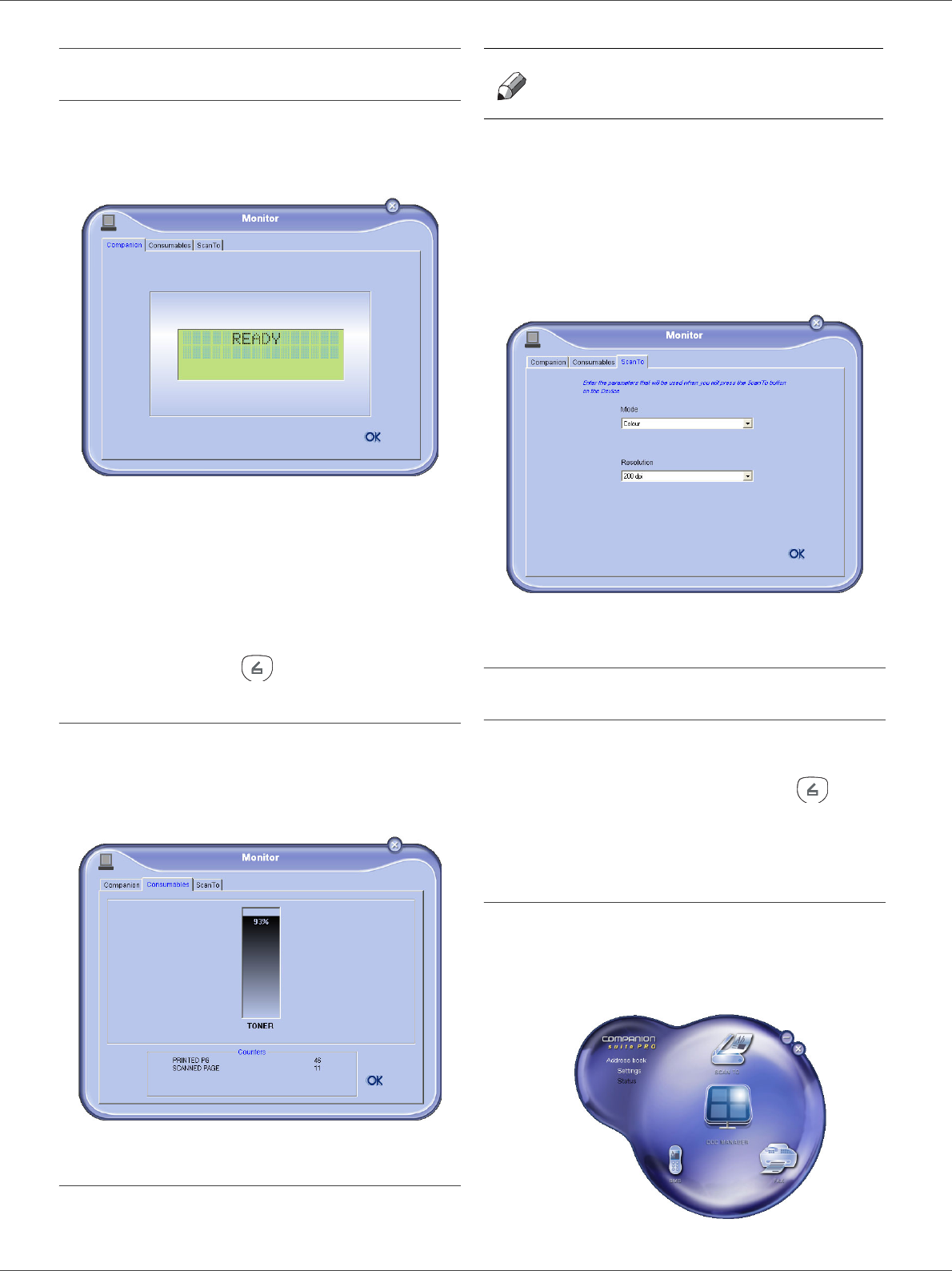
This graphical Interface allows you to run the utilities and
the software to manage your multifunction machine.
Graphical presentation
Run the application by clicking on the MF Director icon
located on your desktop or from the menu START
> PROGRAMS > COMPANION SUITE > COMPANION SUITE
PRO LL > MF DIRECTOR.
By default, MF DIRECTOR is displayed with dark blue
rounded shape. You can modify its shape and colour by
right-clicking with the mouse.
Utilities and applications activation
The COMPANION SUITE PRO graphical interface allows you
to run the following utilities and software:
-get HELP from the current documentation,
-run the PaperPort software (Doc Manager).
To run a software or utility contained in the COMPANION
SUITE PRO kit, place the cursor on it and double-click with
the mouse.
SP 1000S
- 26 -
6 - PC Features
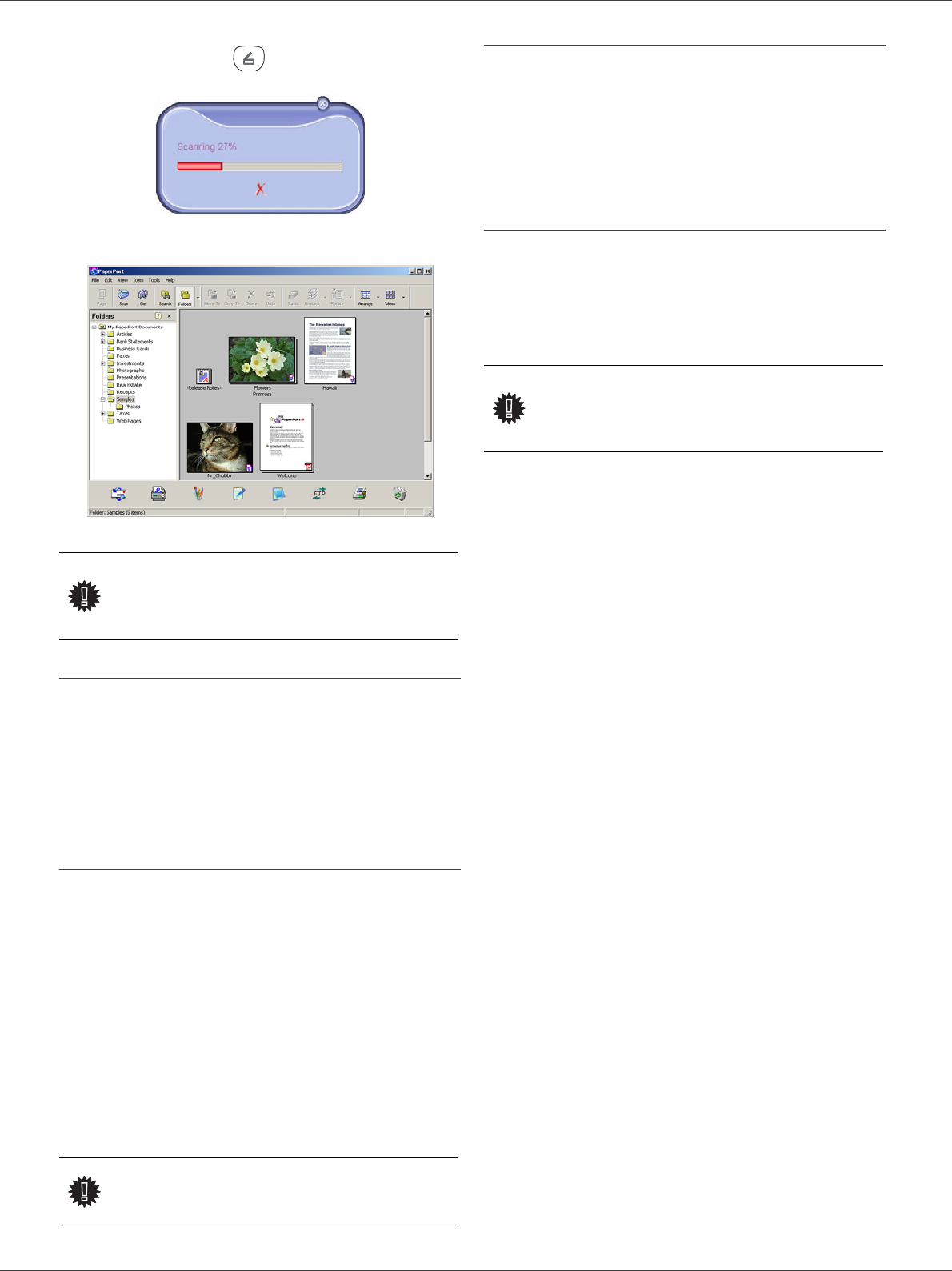
MF Monitor
Graphical presentation
Run the application by clicking on the MF Monitor icon
located on your desktop or from the menu START
> PROGRAMS > COMPANION SUITE > COMPANION SUITE
PRO LL > MF MONITOR.
From this screen you can monitor the information or
configure your multifunction machine from the tabs:
-COMPANION: Presents the multifunction machine
screen.
-CONSUMABLES: Displays the consumables status.
-SCAN TO: Scan Mode and Resolution parameters
setup, these parameters will be taken into account
when clicking on the button from the machine.
Display the consumable status
The following information will be available from the
Consumables tab:
- current consumables status,
- number of printed pages,
- number of scanned pages.
Scan To
The setup of this tab, becomes the default setup for the
scanner.
1Select the Scan To tab.
2Select one of the possible choices:
- colour,
- grayscale,
- black and white.
3Select the scanner resolution (72 dpi to 4800 dpi).
4Confirm your choices by clicking on the OK button.
Companion Suite Pro LL
functionalities
Document analysis
The document analysis can be carried out in two ways:
• either by the SCAN TO function (application accessible
from the MF Director window or from the button
from the machine),
• or directly from a TWAIN standard compatible
application.
Analysis with Scan To
Run the application by clicking on the MF Director icon
located on your desktop or from the menu START
> PROGRAMS > COMPANION SUITE > COMPANION SUITE
PRO LL > MF DIRECTOR.
Note The function SCAN TO can only be
used if the application is running. If
this is not the case, activate it.
SP 1000S
- 27 -
6 - PC Features
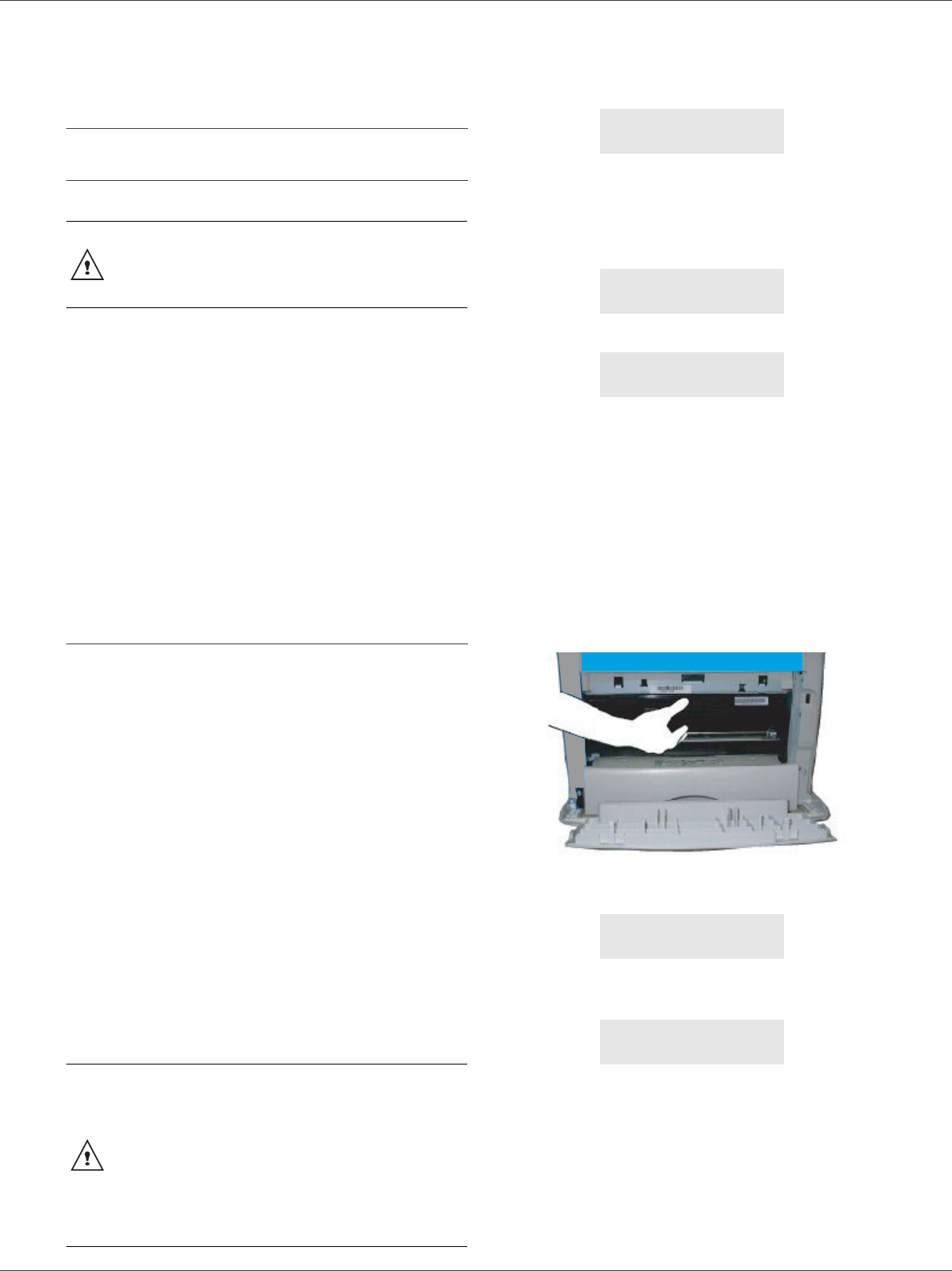
1Left-click with the mouse on the SCAN TO graphical
image or click the button from your machine.
2You can follow the ongoing digitisation on a screen.
3At the end of the digitisation, the scanned picture
appears in the PaperPort window.
Analysis from a TWAIN compatible software
1Run the picture editor application and then run the
acquisition command.
The document analysis window appears.
2Setup the parameters (contrast, resolution, ...)
before starting the digitisation.
3Once the document is digitised, you can archive it
or edit it.
Character recognition software (OCR)
The character recognition function allows to create a
usable data file for desktop applications from a hardcopy
document or from a picture.
The character recognition only works for printed
characters, such as printer outputs or typed text.
Nevertheless you can request for a handwritten text block
to be kept intact (a signature for instance) by outlining it.
Given your machine environment and the character
recognition from your machine, the OCR is done with a
Drag&drop of a document from the PaperPort to the
Notepad icon.
Printing
You can print your documents via the USB connection .
During the installation of the software, the LASER PRO LL
printer driver will be installed automatically onto your pc.
This will allow you to print your documents on the
machine via the USB connection.
Printing with the multifunction machine
To print a document with the machine from your PC is like
printing a document in Windows (use the PRINT command
from the FILE menu of the currently open application on
the screen). Select the LASER PRO LL printer to print via
the USB connection.
Important
If the PaperPort software is not
installed on your hard drive, the
scanned picture will appear on your
desktop in TIFF format.
Important For more details about the usage of
this software, check the on-line help
of the product.
Important
The LASER PRO LL printer becomes
the default printer when the
Companion Suite Pro software is
installed.
SP 1000S
- 28 -
7 - Maintenance
Maintenance
Service
General information
To ensure that your machine is kept in the best
conditions, it is recommended that you periodically clean
the inner parts.
Please respect the following rules while using this
machine:
- Do not leave the scanner cover open.
- Do not try to lubricate the device.
- Do not close the scanner cover violently or do not
apply vibrations to the machine.
- Do not open the cartridge access cover while printing.
- Do not try to disassemble the machine
- Do not use paper which would has stayed in the tray
for too long.
Toner cartridge replacement
Three toner cartridge replacement procedures can be
used depending on the TONER MANAGEMENT setting.
•TONER MANAGEMENT setting set to WITH [0-10%] : the
replacement of the cartridge can be perfomed only
when the message Toner near end is displayed. At
the end of replacement, validation with the smart card
is required.
•TONER MANAGEMENT setting set to WITH [0-100%] :
the replacement of the cartridge can be perfomed at
any time. At the end of replacement, validation with the
smart card is required.
•TONER MANAGEMENT setting set to WITHOUT : the
replacement of the cartridge can be perfomed at any
time and no validation with the smart card is
necessary. When set to WITHOUT, the screen displays
TONER ? %.
To set the TONER MANAGEMENT setting, select 2979 -
SETUP / TECHNICALS / TONER MANAGEMENT and
choose the setting.
Your machine comes with a current consumable
management system. It tells you if your toner cartridge is
close to its end of cycle. The following message will
appear on your machine screen.
To quit this screen, press OK.
To replace the toner cartridge, proceed as shown below.
When the following message is displayed on the screen:
1Press OK.
2Stand in front of the device.
3Push on the left and right sides of the cover and pull
it towards you.
4Raise and remove the toner cartridge from the
machine.
5Unpack the new cartridge.
Gently roll the cartridge 5 or 6 times to distribute the
toner evenly inside the cartridge. Thoroughly rolling
the cartridge will assure the maximum copies per
cartridge.
Insert it into the slot as indicated in the diagram
below.
6Close the cover.
The following message appears:
7Press OK.
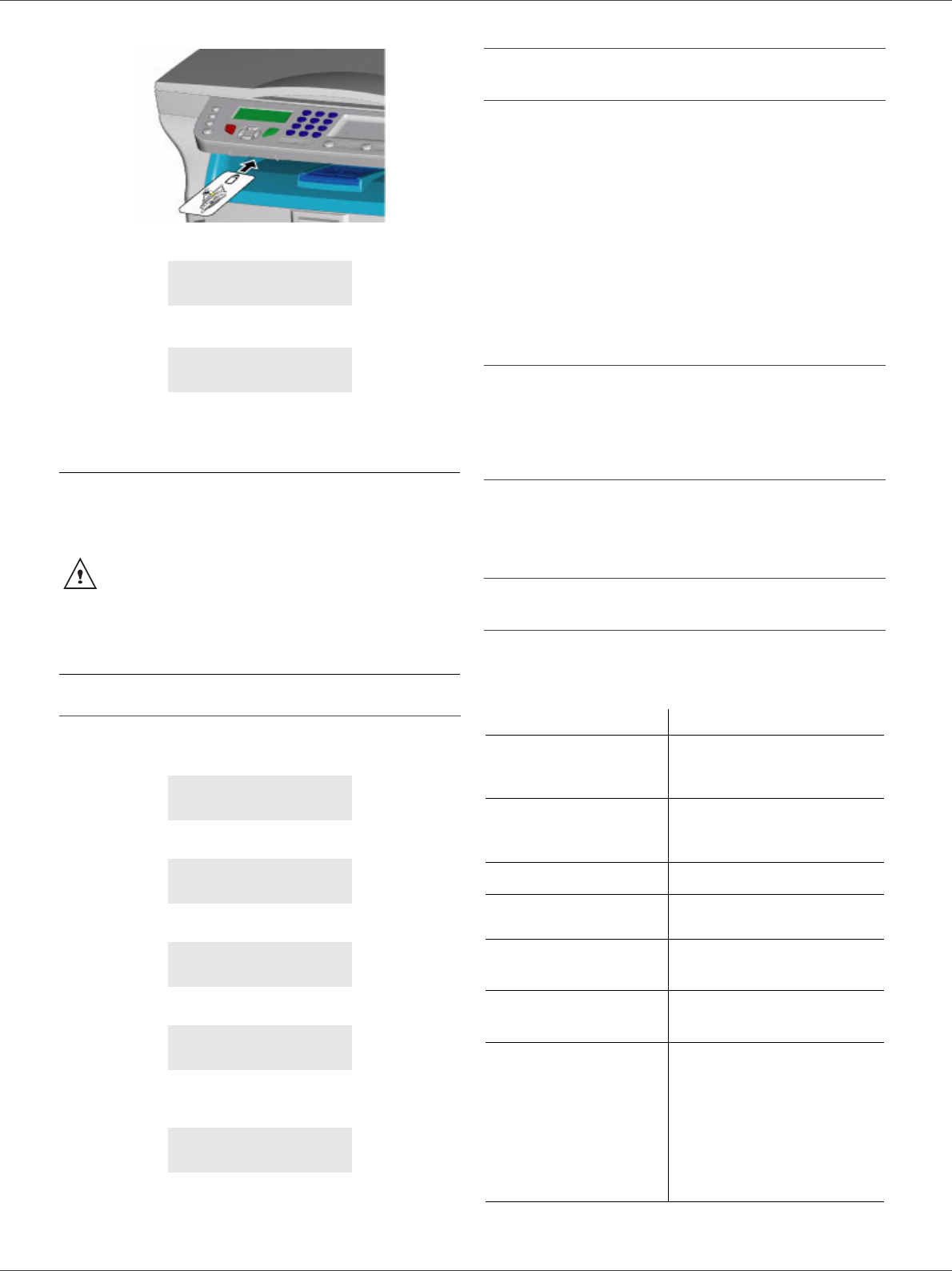
8When this message appears,
insert the smart card provided with the new toner
cartridge as shown on the picture below.
CAUTION
For your safety, it is imperative to
refer to the safety information
presented in chapter Security,
page 1.
CAUTION
This procedure applies when the
setting TONER MANAGEMENT is set to
WITH [0-10%].
When set to With [0-100%], follow the
procedure from step 2.
When set to WITHOUT, follow the
procedure from step 2 to step 7.
TONER NEAR
END
TONER EMPTY
REPLACE <OK>
OPEN FRONT COVER
REPLACE TONER
HAVE YOU CHANGED
THE TONER? <OK>
INSERT THE
TONER CARD
SP 1000S
- 29 -
7 - Maintenance
9A wait message appears.
The smart card is read.
Remove the smart card from the reader, your
machine is ready to print again.
Issues with smart cards
If you use a smart card that has already been used, the
machine will display:
then,
If you use a defective smart card, the machine will display:
then,
If the C button is pressed while the smart card is being
read, the machine displays:
Cleaning
Scanner reading system cleaning
When one or more vertical lines appear on the copies,
clean the glass of the scanner.
1Open the scanner cover until it is standing in
vertical position.
2Wipe the glass with a soft lint-free cloth soaked with
mild alcohol.
3Close the scanner cover.
4Make a copy to check that the symptoms have
disappeared.
Printer cleaning
Dust, dirtiness and paper debris on the external and
internal surfaces of the printer can affect its operation. We
advise that it is cleaned regularly.
Printer external cleaning
Clean the external part of the printer with a soft cloth
soaked in mild detergent.
Printer issues
Error messages
When the printer encounters any of the problems
described below, the corresponding message is shown
on the machine display.
PLEASE
WAIT
NEW TONER
REMOVE CARD
CAUTION
To continue the printing of your
documents when the message
TONER NEAR END is displayed, set
the TONER MANAGEMENT setting to
WITHOUT.
Caution : this procedure is not
recommended as disabling toner
management (parameter set to
WITHOUT) can lead to toner being
spilled in your print mechanism.
PLEASE
WAIT
REMOVE CARD
ALREADY USED
PLEASE
WAIT
UNKNOWN CARD
REMOVE CARD
ACTION CANCELLED
REMOVE CARD
Message Action
CHECK TONER Check the presence of a
toner cartridge in the
machine.
TONER NEAR END Indicates that your
consumable will need
changing soon.
REPLACE PAPER Add paper in tray.
HEATING Message displayed when
starting the machine.
CLOSE COVER
PRINTER
The printer front cover is
open, close it.
TONER EMPTY
REPLACE <OK>
Replace the toner cartridge.
PAPER JAM
REMOVE TONER
A sheet of paper is jammed in
the machine. Take out the
toner cartridge and remove
the jammed paper sheet.
Take out the paper tray and
remove the jammed paper
sheet. Then open and close
the Front cover.
SP 1000S
- 30 -
7 - Maintenance
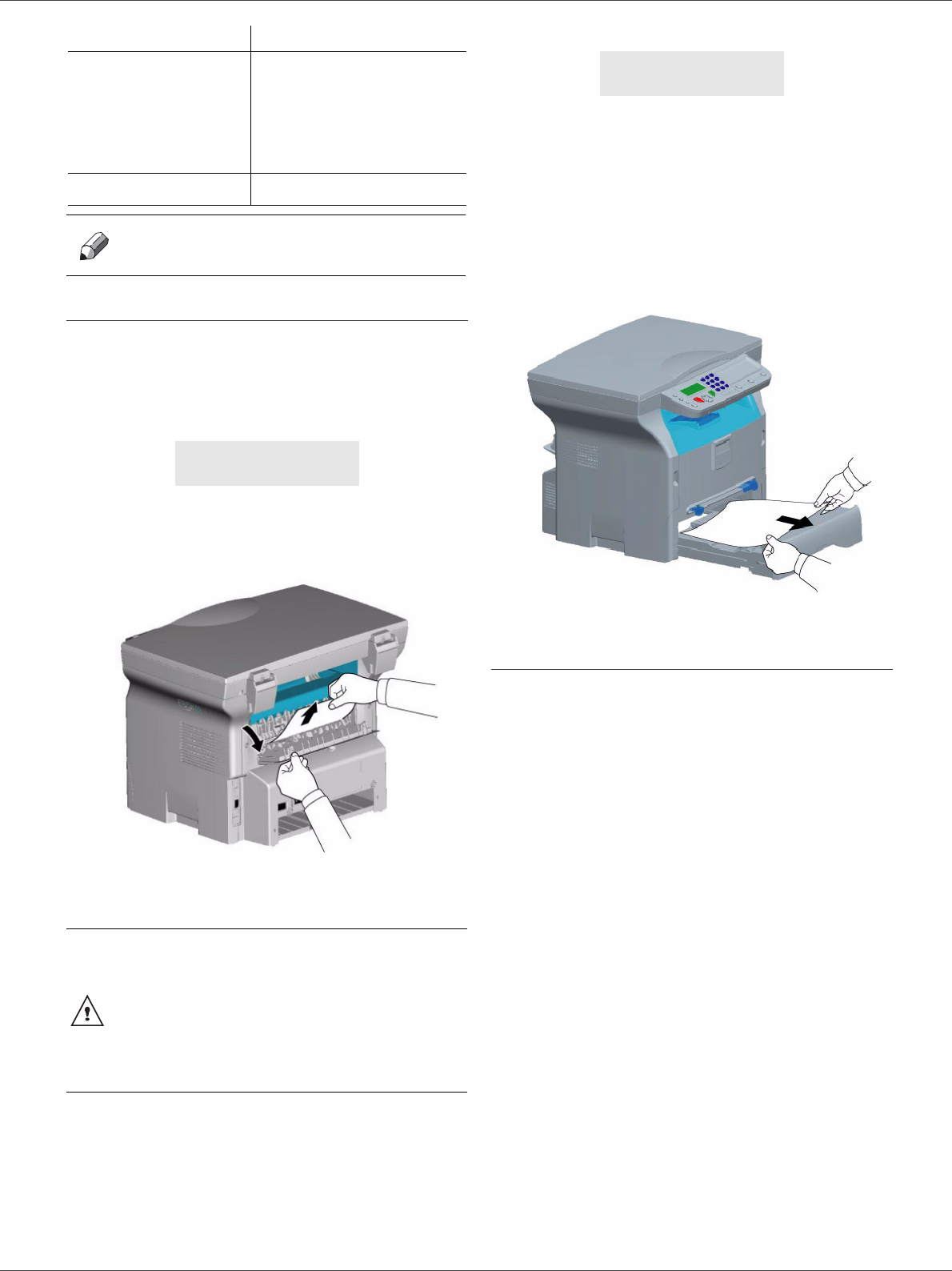
Paper jam
When printing, a sheet of paper may get stuck in the
printer or the paper tray and cause a paper jam.
In case of a paper jam in the machine, the following
message appears:
1Open the paper jam cover located at the back of
the machine.
2Remove the jammed sheet of paper and close the
cover.
3Open and close the Front cover.
The printer starts again automatically.
In case of paper jam, the following message appears:
1Remove the toner cartridge and check if a sheet is
jammed.
2Remove the sheet of paper which causes the paper
jam.
3Put the toner cartridge in the machine, or remove
the paper tray and remove the sheet of paper which
causes the paper jam.
4Check that the paper sheets in the paper tray are
correctly placed.
5Replace the paper tray in the machine.
Miscellaneous issues
When turning on the terminal, nothing is displayed on
the screen.
Check the connection between the power cord and the
outlet.
PAPER JAM
EXTERNAL TRAY
A sheet of paper is jammed in
the machine. Open the paper
jam cover. Remove the
jammed paper sheet. Then
open and close the Front
cover.
PAPER EMPTY Add paper in the paper tray.
Note After one of the error messages
listed above, it may happen that
the printing job is cancelled.
PAPER JAM
EXTERNAL TRAY
CAUTION
The fusion unit can reach a very high
temperature during the operation. To
prevent any harm, do not touch this
area.
For details, refer to Positions of
Warning and Caution labels on the
machine, page 2.
Message Action
PAPER JAM
REMOVE TONER

Specifications
Physical specifications
Electrical specifications
Environmental specifications
Peripheral specifications
Printer
Copier
Scanner
Printing supports
PC connection
Specifications are subject to changes for improvement without notice.
Dimensions: 344 x 447 x 386 mm
Weight: 11,6 kg
Power supply: Single phase 220-240 V - 50/60 Hz - 4.5 A
Electric consumption: 10 W typical in powersave
13 W typical in standby
340 W average during printing (900W peak)
Operating temperature: 10 °C to 27 °C with an ambient humidity included between 15 to
80% (up to 32°C with an ambient humidity included between 15 to
54%)
Type: Laser (on normal paper)
Resolution: 600 dpi
Speed: 16 ppm maximum
Preheating time: 21 sec.
First page out time: 13 sec.
Type: Autonomous Black and White
Copy speed: 16 ppm maximum
Resolution: 600 dpi
Multiple copies: 99 pages maximum
Zoom range: 25 % to 400 %
Type: Color scanner
Color depth: 36 bits
Resolution: 600 dpi (optical)
2400 dpi (interpolated)
Software compatibility: TWAIN
Maximum paper format: Letter
Main paper tray capacity: 250 sheets maximum (60 g/m²), 200 sheets maximum (80 g/m²)
Output tray capacity: 50 sheets
Main tray paper format: A4, A5, Legal, Letter
60 to 105 g/m² paper
Paper format for manual printing: A4, A5, Legal, Letter, B5, exec, A6
52 to 160 g/m² paper
Slave USB 2.0 port (PC connection)
Master USB 2.0 port (reader, USB memory key reader)
Operating System: Windows 98 SE, 2000, ME, XP
B279-8651
