Ruckus Outdoor AP 106.0 User Guide 106 0 Rev A 20170620 1
Ruckus Outdoor AP 106.0 User Guide OutdoorAP_106_0_UserGuide-RevA-20170620-1
2017-06-21
User Manual: Ruckus Ruckus Outdoor AP 106.0 User Guide
Open the PDF directly: View PDF  .
.
Page Count: 124 [warning: Documents this large are best viewed by clicking the View PDF Link!]
- Copyright Notice and Proprietary Information
- About This Guide
- Safety Warnings
- Related Documentation
- Contents
- Introduction
- Navigating the Web Interface
- Configuration
- Configuring the AP for Management by ZoneDirector
- Configuring the AP for Management by a SmartZone Controller
- Configuring the Access Point for Standalone Operation or Management by FlexMaster
- Configuring Device Settings
- Configuring Internet Settings
- Configuring Local Subnets
- Configuring Wireless Settings
- Configuring Ethernet Ports
- Configuring Hotspot Service
- Administration
- Managing the Access Point
- Viewing Current Device Settings
- Viewing Current Internet Connection Settings
- Viewing Current Local Subnet Settings
- Viewing Common Wireless Settings
- Viewing Associated Wireless Clients
- Changing the Administrative Login Settings
- Enabling Other Management Access Options
- Working with Event Logs and Syslog Servers
- Upgrading the Firmware
- Rebooting the AP and Cable Modem
- Resetting the AP to Factory Defaults
- Running Diagnostics
- Where to Find More Information
- Managing the Access Point
- Appendix A: Support for Bluetooth Low Energy Devices
- Appendix B: Configuring Link Aggregation (LACP) for AP Backhaul

Outdoor Access Point Release 106.0
User Guide
Part Number: 800-71621-001 Rev A
Published: 20 June 2017
www.ruckuswireless.com

Copyright Notice and Proprietary
Information
Copyright 2017. Ruckus Wireless, Inc. All rights reserved.
No part of this documentation may be used, reproduced, transmitted, or translated, in
any form or by any means, electronic, mechanical, manual, optical, or otherwise, without
prior written permission of Ruckus Wireless, Inc. (“Ruckus”), or as expressly provided
by under license from Ruckus.
Destination Control Statement
Technical data contained in this publication may be subject to the export control laws
of the United States of America. Disclosure to nationals of other countries contrary to
United States law is prohibited. It is the reader’s responsibility to determine the applicable
regulations and to comply with them.
Disclaimer
THIS DOCUMENTATION AND ALL INFORMATION CONTAINED HEREIN (“MATERIAL”)
IS PROVIDED FOR GENERAL INFORMATION PURPOSES ONLY. RUCKUS AND ITS
LICENSORS MAKE NO WARRANTY OF ANY KIND, EXPRESS OR IMPLIED, WITH
REGARD TO THE MATERIAL, INCLUDING, BUT NOT LIMITED TO, THE IMPLIED
WARRANTIES OF MERCHANTABILITY, NON-INFRINGEMENT AND FITNESS FOR A
PARTICULAR PURPOSE, OR THAT THE MATERIAL IS ERROR-FREE, ACCURATE OR
RELIABLE. RUCKUS RESERVES THE RIGHT TO MAKE CHANGES OR UPDATES TO
THE MATERIAL AT ANY TIME.
Limitation of Liability
IN NO EVENT SHALL RUCKUS BE LIABLE FOR ANY DIRECT, INDIRECT, INCIDENTAL,
SPECIAL OR CONSEQUENTIAL DAMAGES, OR DAMAGES FOR LOSS OF PROFITS,
REVENUE, DATA OR USE, INCURRED BY YOU OR ANY THIRD PARTY, WHETHER
IN AN ACTION IN CONTRACT OR TORT, ARISING FROM YOUR ACCESS TO, OR USE
OF, THE MATERIAL.
Trademarks
Ruckus Wireless, Ruckus, the bark logo, BeamFlex, ChannelFly, Dynamic PSK,
FlexMaster, Simply Better Wireless, SmartCell, SmartMesh, SmartZone, Unleashed,
ZoneDirector and ZoneFlex are trademarks of Ruckus Wireless, Inc. in the United States
and other countries. All other product or company names may be trademarks of their
respective owners.
2
Outdoor Access Point Release 106.0 User Guide
2

About This Guide
This guide describes how to configure and manage Release 100.4 Ruckus Wireless
Outdoor Access Points (APs). This guide is written for those responsible for managing
network equipment. Consequently, it assumes that the reader has basic working
knowledge of local area networking, wireless networking, and wireless devices.
NOTE By downloading this software and subsequently upgrading Ruckus Wireless
APs to base image 100.0.0 and later, please be advised that:
•The ZoneDirector periodically connects to Ruckus and Ruckus collects the
ZoneDirector serial number, software version and build number. Ruckus transmits a
file back to the ZoneDirector and this is used to display the current status of the
ZoneDirector Support Contract.
•The AP may send a query to Ruckus containing the AP's serial number. This allows
your AP to autonomously connect with a wireless LAN controller operated by your
choice of cloud service provider. Ruckus may transmit the Fully Qualified Domain
Name (FQDN) or IP address of the controller that the AP will subsequently attempt
to join back to the AP.
•Please be advised that this information may be transferred and stored outside of your
country of residence where data protection standards may be different.
NOTE This guide assumes that the Ruckus Wireless Outdoor APs have already been
installed as described in the corresponding Quick Setup Guide, Getting Started Guide,
Mounting Guide or Installation Guide. Refer to the Quick Setup Guide, Getting Started
Guide, Mounting Guide or Installation Guide that shipped with your product for
model-specific instructions.
NOTE If release notes are available for your product and the information there differs
from the information in this guide, follow the instructions in the release notes.
Most user guides and release notes are available in Adobe Acrobat Reader Portable
Document Format (PDF) or HTML on the Ruckus Wireless Support website:
https://support.ruckuswireless.com/documents.
3
Outdoor Access Point Release 106.0 User Guide
3

Safety Warnings
WARNING! Only trained and qualified personnel should be allowed to install, replace,
or service this equipment. The professional installer is responsible for the proper
installation and configuration of this AP. The AP installation must comply with local
regulatory requirements, especially with those regulating operation near military and/or
weather radar systems.
WARNING! Installation of this equipment must comply with local and national electrical
codes.
WARNING! Do not operate your wireless device near unshielded blasting caps or in
an explosive environment unless the device has been modified to be especially qualified
for such use.
WARNING! In order to comply with FCC radio frequency (RF) exposure limits, antennas
should be located at a minimum of 7.9 inches (20 cm) or more from the body of all
persons.
WARNING! Ruckus Wireless strongly recommends that you wear eye protection before
mounting the AP.
CAUTION! Make sure that you form a 80mm - 130mm (3”-5”) drip loop in any cable
that is attached to the AP or the building. This will prevent water from running along the
cable and entering the AP or the building where the cable terminates.
CAUTION! Be sure that grounding is available and that it meets local and national
electrical codes. For additional lightning protection, use lightning rods and lightning
arrestors.
NOTE Allowable external antenna types and antenna gains may be limited by local
regulatory requirements.
4
Outdoor Access Point Release 106.0 User Guide
4

Related Documentation
In addition to this User Guide, each Ruckus Wireless AP documentation set includes
the following:
•Quick Setup Guide/Getting Started Guide/Mounting Guide/Installation Guide: Provides
essential installation and configuration information to help you get the AP up and
running within minutes.
•Online Help: Provides instructions for performing tasks using the AP's web interface.
Online help is accessible from within the web interface.
•Release Notes: Provide information about the current software release, including new
features, enhancements, and known issues.
NOTE For information on configuration and management of Ruckus Wireless access
points supported by SmartZone (SZ) or ZoneDirector (ZD) controllers, or FlexMaster
server, refer to their respective user documents.
5
Outdoor Access Point Release 106.0 User Guide
5

Contents
Copyright Notice and Proprietary Information.............................................................................2
About This Guide........................................................................................................................3
Safety Warnings.........................................................................................................................4
Related Documentation..............................................................................................................5
1 Introduction
Overview of the Ruckus Wireless AP.....................................................................................8
Installing the Access Point.....................................................................................................8
Controller Discovery and Standalone Operation....................................................................9
Getting to Know the Access Point Features........................................................................10
7781-CM.......................................................................................................................10
7782.............................................................................................................................16
7782-E..........................................................................................................................18
7782-N..........................................................................................................................21
7782-S..........................................................................................................................23
T300.............................................................................................................................25
T300e............................................................................................................................28
T301n...........................................................................................................................32
T301s............................................................................................................................35
T610.............................................................................................................................38
T610s............................................................................................................................43
T710.............................................................................................................................46
T710s............................................................................................................................51
2 Navigating the Web Interface
Navigating the Web Interface..............................................................................................56
When Using a Dual-Band AP.........................................................................................57
3 Configuration
Configuring the AP for Management by ZoneDirector..........................................................58
Configuring the AP for Management by a SmartZone Controller..........................................58
Configuring the Access Point for Standalone Operation or Management by
FlexMaster.....................................................................................................................58
Configuring Device Settings...........................................................................................59
Configuring Internet Settings.........................................................................................61
Configuring Local Subnets............................................................................................67
6
Outdoor Access Point Release 106.0 User Guide

Configuring Wireless Settings........................................................................................69
Configuring Ethernet Ports............................................................................................87
Configuring Hotspot Service..........................................................................................93
4 Administration
Managing the Access Point...............................................................................................100
Viewing Current Device Settings..................................................................................100
Viewing Current Internet Connection Settings..............................................................100
Viewing Current Local Subnet Settings........................................................................101
Viewing Common Wireless Settings............................................................................102
Viewing Associated Wireless Clients............................................................................103
Changing the Administrative Login Settings.................................................................104
Enabling Other Management Access Options..............................................................105
Working with Event Logs and Syslog Servers..............................................................111
Upgrading the Firmware..............................................................................................113
Rebooting the AP and Cable Modem..........................................................................115
Resetting the AP to Factory Defaults...........................................................................116
Running Diagnostics....................................................................................................117
Where to Find More Information........................................................................................118
Appendix A: Support for Bluetooth Low Energy Devices
Appendix B: Configuring Link Aggregation (LACP) for AP Backhaul
Outdoor Access Point Release 106.0 User Guide
7

Introduction 1
Overview of the Ruckus Wireless AP
Congratulations on your purchase of a Ruckus Wireless access point!
Ruckus Wireless APs are the industry's most easy to use, yet robust and feature-rich
Wi-Fi APs designed to bring power and simplicity together for large-scale outdoor
deployments.
Your Ruckus Wireless AP uses BeamFlex, a patented antenna technology from Ruckus
Wireless that allows wireless signals to navigate around interference, extend wireless
signal range, and increase speeds and capacity for wireless networks. The BeamFlex
antenna system consists of an array of high-gain directional antenna elements that allow
Ruckus Wireless APs to find quality signal paths in a changing environment, and sustain
the baseline performance required for supporting data, audio and video applications.
Your Ruckus Wireless AP can be deployed in standalone mode with or without a
FlexMaster (FM) manager, or as part of the Ruckus Wireless Smart WLAN system, in
which it can be managed by ZoneDirector (ZD), SmartCell Gateway (SCG), SmartZone
(SZ), and virtual SmartZone (vSZ) controllers.
NOTE For more information on the Ruckus Wireless system, including ZoneDirector,
SmartZone, FlexMaster, BeamFlex, and other Ruckus Wireless technologies, visit
www.ruckuswireless.com
Installing the Access Point
This User Guide assumes that the Ruckus Wireless outdoor APs have already been
installed and have already been initially configured as described in the corresponding
Quick Setup Guide, Getting Started Guide, Mounting Guide or Installation Guide.
NOTE DO NOT connect the AP to your live network when first connecting the AP to
an administrative computer. If you connect it to a live network with an active DHCP
server, then the AP can acquire a new IP address from DHCP and you will be unable to
access it via the default IP address (192.168.0.1). If the AP has a new IP address, then
reset the AP to the factory configuration as described in the corresponding mounting or
installation guide.
Because of different mounting and wiring procedures, each outdoor AP model has its
own Quick Setup Guide, Getting Started Guide, Mounting Guide or Installation Guide.
Refer to the guide(s) that shipped with your product for model-specific installation
instructions. These documents are available from support.ruckuswireless.com.
8
Outdoor Access Point Release 106.0 User Guide
8
Controller Discovery and Standalone Operation
Ruckus Wireless Access Points can operate in either standalone mode, be managed
by FlexMaster server, or be managed by any of the Ruckus controller products.
How Standalone APs Learn Controller Addresses
If your AP will be managed by a controller, you will need some way to ensure that the
AP can discover the controller on the network. There are several different ways to do
this, and the specific controller user documents contain more details on discovery for
that particular controller product family.
This section provides a brief overview of the options available for controller discovery.
Ruckus Cloud
Ruckus APs discover Ruckus Cloud controllers by querying the Ruckus Cloud AP
Registrar (ap-registrar.ruckuswireless.com) via HTTPS to learn the Ruckus Cloud address.
APs will search for a Ruckus Cloud controller more frequently after initial boot up, and
less frequently after the first 14 days.
Standalone APs will query the Registrar with the following frequency:
Table 1: How often APs query the Registrar to learn Ruckus Cloud controller addresses
AP UptimeQuery Frequency
< 1 hour15 seconds
1 hours ~ 48 hours5 minutes
2 days ~ 14 days1 hour
14 days ~ forever12 hours
SmartZone
APs discover SmartZone controllers using any of the following methods:
•mDNS discovery on local IP subnet
•DHCP Option 43 sub-option 6
•DHCPv6 Option 17 sub-option 6
•DHCPv6 Option 52
•DNS entry named "ruckuscontroller.<local domain>"
•AP CLI command "set scg ip"
ZoneDirector
APs discover ZoneDirector controllers using any of the following methods:
9
Outdoor Access Point Release 106.0 User Guide
Introduction
Controller Discovery and Standalone Operation

•IP subnet broadcast
•DHCP Option 43 sub-option 3
•DHCPv6 Option 17 sub-option 3
•DHCPv6 Option 52
•DNS entry named "zonedirector.<local domain>"
•AP CLI command "set director ip"
Getting to Know the Access Point Features
This section identifies the physical features of each Ruckus Wireless AP model that is
discussed in this guide. Ruckus Wireless recommends that you become familiar with
these features.
NOTE This guide does not include information on Ruckus Wireless Indoor APs, or the
7731 or P300 Wireless Bridges. For information on those Ruckus AP models, along with
Ruckus Wireless ZoneDirector and SmartZone controllers, FlexMaster, and other product
lines, refer to their respective user documentation available from
support.ruckuswireless.com.
This release supports the following outdoor AP models:
•7781-CM on page 10
•7782 on page 16
•7782-E on page 18
•7782-N on page 21
•7782-S on page 23
•T300 on page 25
•T300e on page 28
•T301n on page 32
•T301s on page 35
•T610 on page 38
•T610s on page 43
•T710 on page 46
•T710s on page 51
7781-CM
The 7781-CM is a Dual Band 802.11n Outdoor Access Point with integrated DOCSIS
3.0 Cable Modem.
NOTE The 100.x AP base images support standalone mode and FlexMaster (FM)
WLAN manager operation. The SmartZone-compatible images only support SCG, vSCG,
and SZ controllers. The ZD-compatible images only support ZD controllers.
Outdoor Access Point Release 106.0 User Guide
10
Introduction
Getting to Know the Access Point Features
NOTE The 7781-CM requires a minimum of AP base image 100.0.0 and later to operate,
or SCG 1.1.1 and later, vSCG 2.5 and later, RuckOS 3.2 and later, or ZoneDirector 9.5.1
and later to operate.
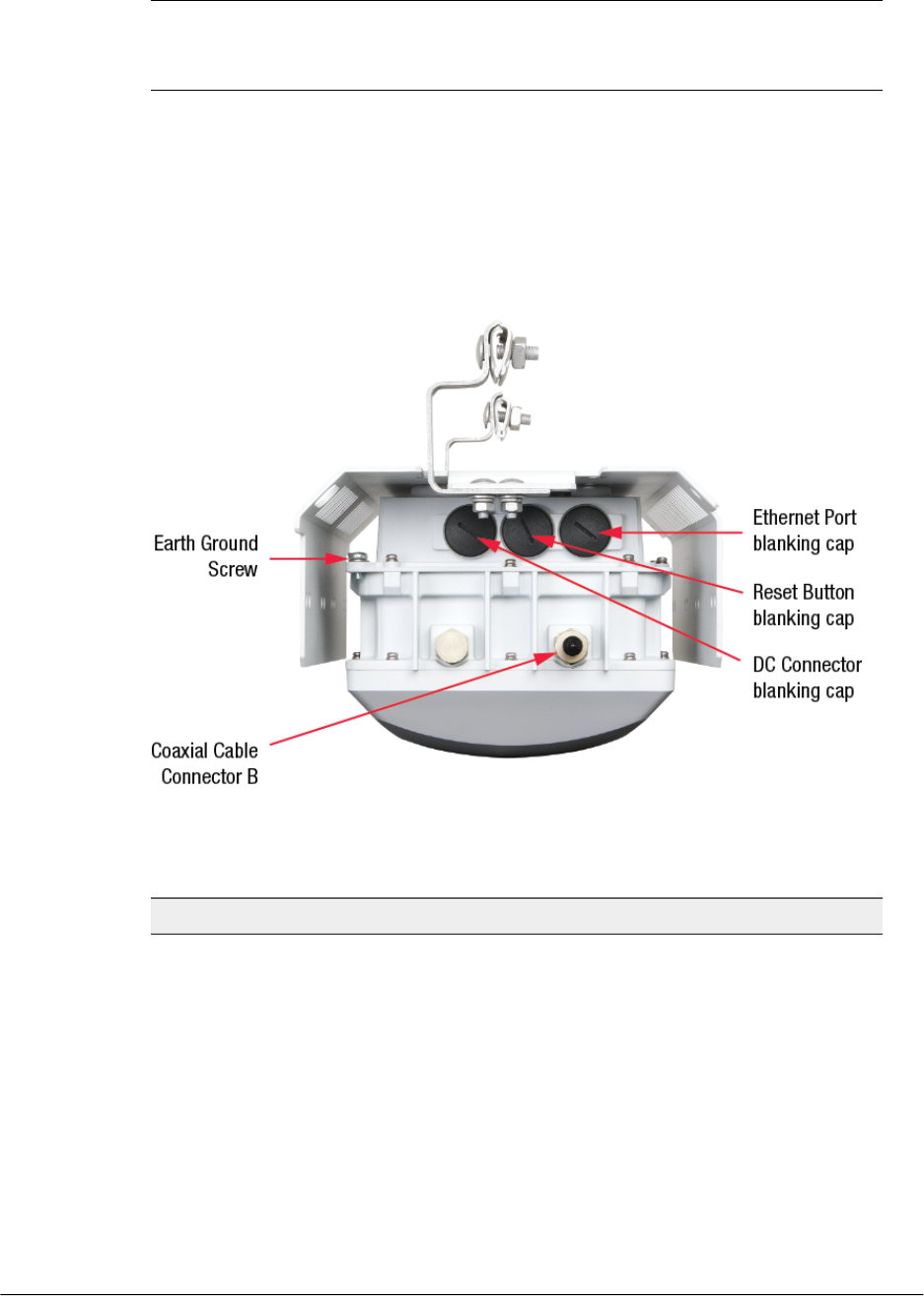
The following figures identify the 7781-CM AP with integrated Cable Modem AP
(7781-CM) external features.
•The 901-7781-US01 and 901-7781-WW01 DOCSIS 7781-CM and the
901-7781-JP21 JCTEA DOCSIS 7781-CM include a shroud and cable clamps to
mount the 7781-CM on strand support cables.
•The 901-7781-WW11 EuroDOCSIS 7781-CM does not include a shroud or cable
clamps, and are mounted using customer-supplied mounting brackets.
Figure 1: 7781-CM connectors
Table 2: 7781-CM connectors
DescriptionLabel
RJ-45 port that supports
10/100/1000Mbps connections and
provides 802.3af-compliant (15.4W) Power
over Ethernet (PoE) output power to
external devices. PoE output (and internal
CM heater, if equipped) are only supported
when the 7781-CM receives Power Over
Cable (POC) from the HFC cable plant.
Ethernet Port (under blanking cap)
11
Outdoor Access Point Release 106.0 User Guide
Introduction
Getting to Know the Access Point Features
DescriptionLabel
Refer to the 7781-CM Cable Modem
Access Point Installation Guide to access
the reset button and either reboot the AP
or reset the AP to factory defaults.
Reset Button (under blanking cap)
In addition to the power supplied by the
coaxial cable from the cable modem
termination system (CMTS) equipment, the
7781-CM can also be DC powered for
configuration before field deployment.
DC Connector (under blanking cap)
Connects to the CMTS at the headend
using a tap on the plant, and provides AC
POC to the 7781-CM. For more
information, refer to the 7781-CM Cable
Modem Access Point Installation Guide.
Coaxial Cable Connector B
Outdoor Access Point Release 106.0 User Guide
12
Introduction
Getting to Know the Access Point Features

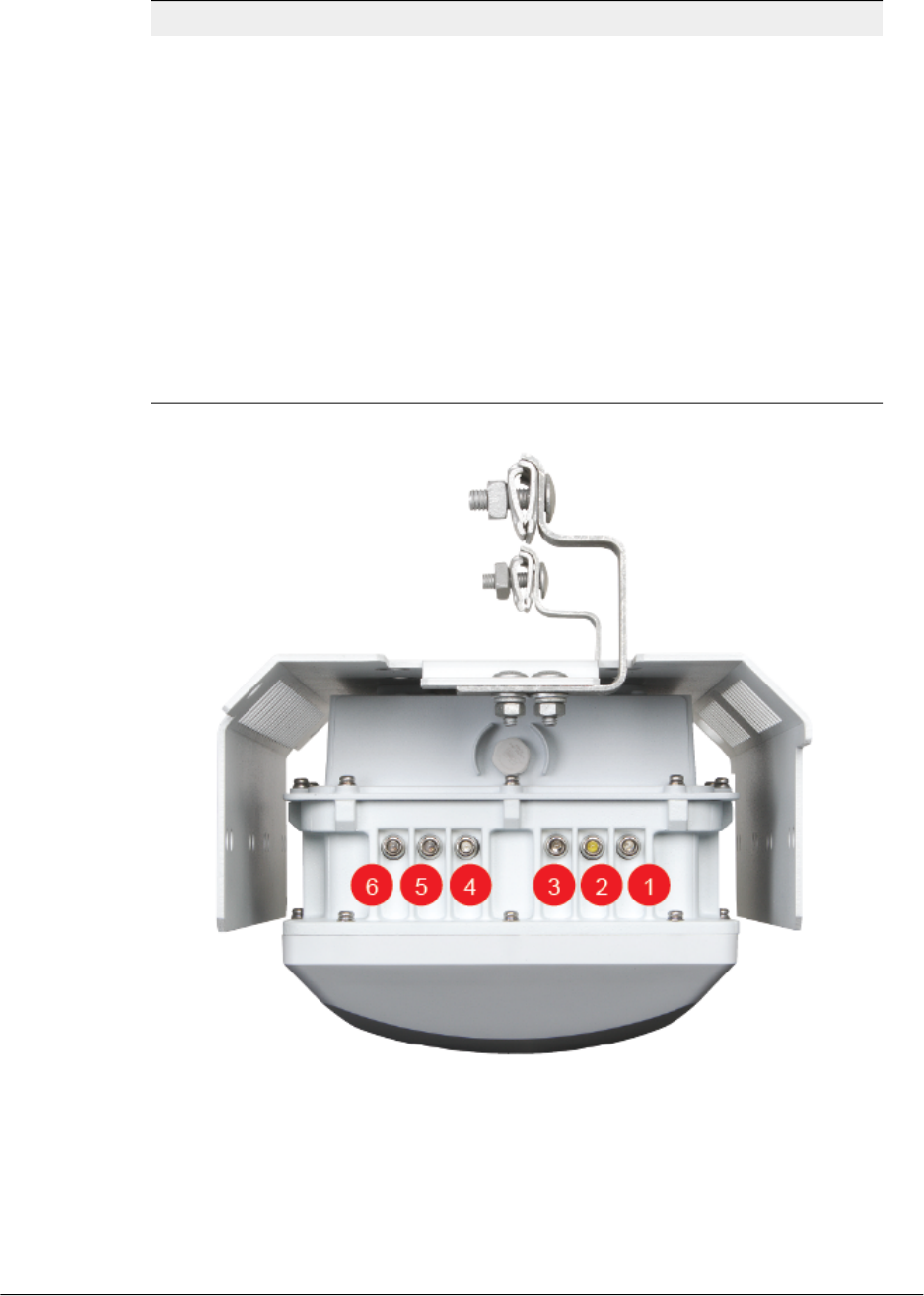
Figure 2: 7781-CM LEDs
Reading the 7781-CM LEDs
The six dual-purpose LEDs are used both by the CM part and the AP part of the
7781-CM:
•When LED 1 (green LED) is lit, the LEDs are in Access Point mode.
•When LED 2 (white LED) is lit, the LEDs are in Cable Modem mode.
While the 7781-CM is booting up, the LEDs are in CM mode. Once bootup is completed,
the LEDs alternate between CM and AP modes.
NOTE The 7781-CM LEDs turn off after a while. This is normal operation.
LED Boot Sequence
1. All LEDs blink for a few seconds.
2. LED 2 (white) stays solid on.
3. LEDs 3, 4, 5 and 6 (blue, middle green, yellow and red) blink in sequence.
4. LEDs 4, 5 and 6 (middle green, yellow and red) blink together for a few seconds.
5. LED 3 (blue) goes solid when the link to the AP is established.
6. LED 6 (red) flashes as CM tries to acquire downstream.
•LED 6 (red) goes solid when downstream is acquired.
•LED 3 (blue) flashes to indicate communication across the AP link.
7. LED 5 (yellow) comes on solid when upstream acquired.
8. LED 4 (middle green) on indicates that cable modem came on-line successfully.
LED Online/Steady State
•LED 1 (green) on indicates AP mode.
•LED 2 (white) on indicates CM mode.
•LEDs 3, 4, 5 and 6 (blue, middle green, yellow and red) are on.
The LEDs alternate between CM and AP modes.
NOTE The 7781-CM LEDs turn off after a while. This is normal operation.
Reading LEDs in Access Point Mode
In AP mode, LED 1 (green LED) is lit.
NOTE The LEDs do not indicate whether the AP is in standalone mode or if ZoneDirector
is managing the AP. To check if ZoneDirector is managing the AP, log into the
ZoneDirector web interface, go to the Monitor > Access Points page, and then search
13
Outdoor Access Point Release 106.0 User Guide
Introduction
Getting to Know the Access Point Features

for the AP's MAC address. If you are unable to find the AP, then it is very likely in
standalone mode. If you have multiple ZoneDirector devices on the network, make sure
you check each one of them.
For Cable Operators, APs will typically be in ZoneDirector mode after initial boot. If the
AP is unable to reach the ZoneDirector on initial boot, it remains in standalone mode.
The following table provides a summary of AP mode LED behavior.
Table 3: 7781-CM LED behavior in AP Standalone and ZoneDirector modes
AP ZoneDirector
Mode
AP Standalone
Mode
StateLED
On = AP Mode.On = AP Mode.Solid Green1
Off = Not AP Mode.Off = Not AP Mode.OFF2
If AP is RAP, at least
one MAP is
associated. If AP is
MAP it is associated
with a RAP. Signal
strength is weak.
At least one 5GHz
wireless client is
associated with the
access point and
signal strength is
weak.
Solid Blue3
5GHz WLAN is up
but no clients.
5GHz WLAN is up
but no clients.
Flashing Green4
If AP is RAP, at least
one MAP is
associated. If AP is
MAP it is associated
with a RAP. Signal
strength is strong.
At least one 5GHz
wireless client is
associated with the
access point and
signal strength is
strong.
Solid Green
At least one 2.4GHz
wireless client is
associated with the
access point and
signal strength is
weak.
At least one 2.4GHz
wireless client is
associated with the
access point and
signal strength is
weak.
Solid Yellow5
Outdoor Access Point Release 106.0 User Guide
14
Introduction
Getting to Know the Access Point Features

AP ZoneDirector
Mode
AP Standalone
Mode
StateLED
2.4GHz WLAN is up
but no clients.
2.4GHz WLAN is up
but no clients.
Flashing Red6
At least one 2.4GHz
wireless client is
associated with the
access point and
signal strength is
strong.
At least one 2.4GHz
wireless client is
associated with the
access point and
signal strength is
strong.
Solid Red
Reading LEDs in Cable Modem Mode
In CM mode, LED 2 (white LED) is always lit. Refer to the following table for a summary
of CM mode LED behavior.
Table 4: 7781-CM LED behavior in CM mode
MeaningStateLED
Off = Not CM Mode.OFF1
On = CM Mode.Solid White2
LinkSolid Blue3
On lineSolid Green4
Upstream acquiredSolid Yellow5
Searching for downstreamFlashing Red6
Downstream acquiredSolid Red
Powering Options
The 7781-CM supports both DC power or AC power over cable (POC). Normally 12
VDC power is only used at the depot or when debugging. 40 to 90 VAC POC is only
used when the 7781-CM is mounted on a cable strand and powered via an F-type
coaxial cable connected to the HFC cable plant.
The customer-ordered 1.5A 12 VDC power supply part number is 902-0169-xxyy, where
xx = Country and yy = revision.
NOTE The 7781-CM does not provide PoE output or support internal heater operation
when powered by 12 VDC.
15
Outdoor Access Point Release 106.0 User Guide
Introduction
Getting to Know the Access Point Features

Cable Modem Heater
The 901-7781-US01, 901-7781-JP21 and 901-7781-WW01 7781-CM includes a built-in
heater for the cable modem that permits operation at extremely low temperatures. The
heater is typically on below -10° C (14° F). The heater is powered by POC only. When
the 7781-CM is powered by 12 VDC, the heater is disabled.
The 901-7781-WW11 EuroDOCSIS 7781-CM does not include a built-in heater.
7781-CM Operation
Refer to the 7781-CM Cable Modem Access Point Installation Guide for information on
Cable Modem configuration and operation.
7782
The 7782 is a carrier-class dual-band 2.4/5GHz 802.11n Access Point designed for
high-density outdoor applications.
NOTE The standalone AP 100.x base images support standalone mode and FlexMaster
(FM) WLAN manager operation. The SmartZone-compatible AP images only support
SCG, vSCG, and SZ controllers. The ZD-compatible images only support ZD controllers.
NOTE The 7782 requires a minimum of AP base image 100.0 and later to operate, or
SCG 1.1.1 and later, vSCG 2.5 and later, SZ 3.2 and later, or ZD 9.5.1 and later to
operate.
The following figure identifies the connectors and LEDs on the 7782 Omni AP. The table
below describes the LEDs and connectors.
Outdoor Access Point Release 106.0 User Guide
16
Introduction
Getting to Know the Access Point Features
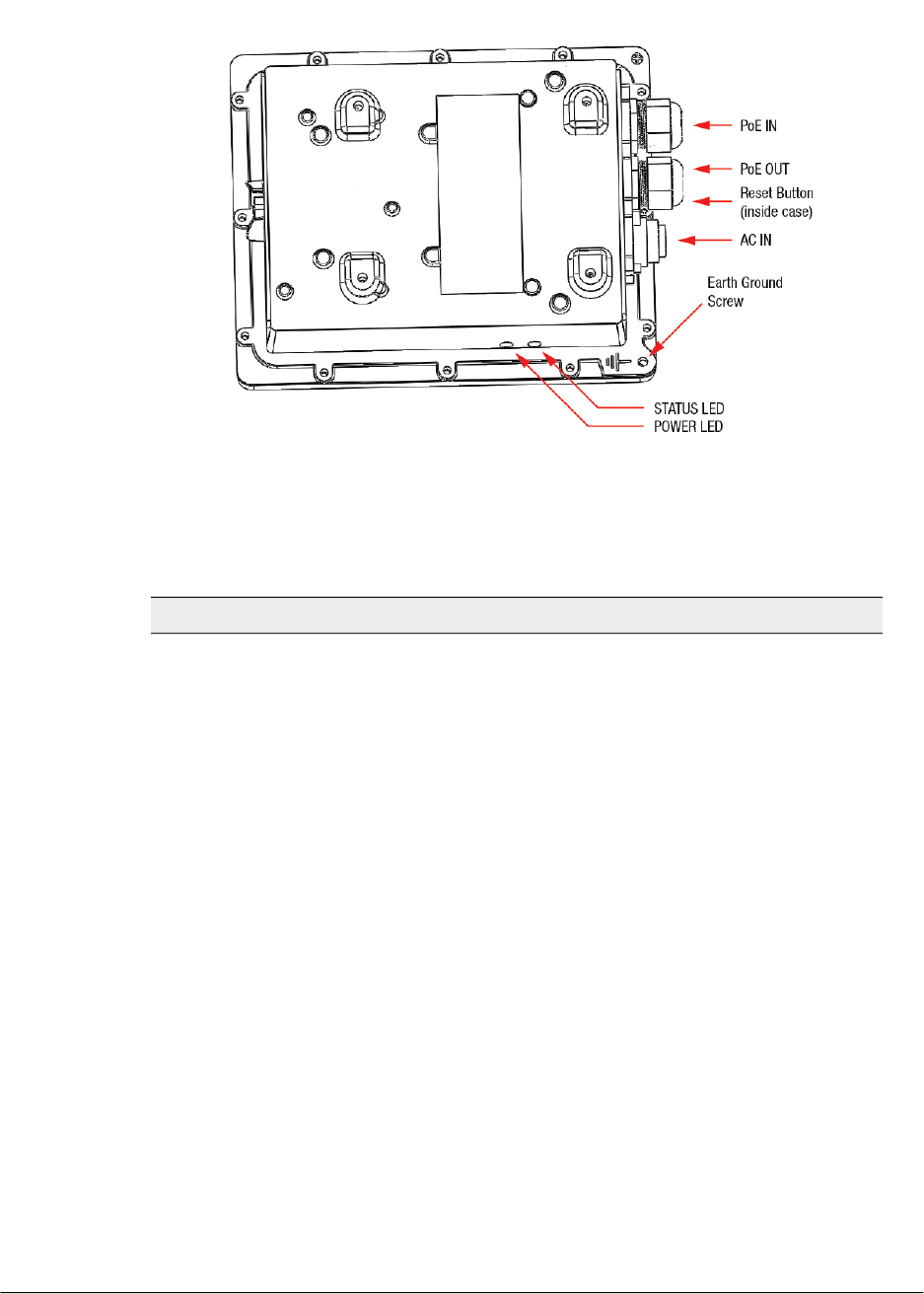
Figure 3: 7782 connectors and LEDs - bottom view
Table 5: 7782 LED and connector descriptions
DescriptionLabel
Supports 10/100/1000Mbps connections, connects
to the network and receives 802.at Power over
Ethernet (PoE) from the Ruckus Wireless 60W PoE
injector.
PoE IN RJ45 data connector
Supports 10/100/1000Mbps connections and PoE
out. If the AP is powered using AC or the Ruckus
Wireless PoE injector (ordered separately), then this
port can supply 802.3af (up to 25W) PoE to a
connected PoE-capable device (for example, a
3G/4G small cell radio or an IP-based surveillance
camera). For devices requiring more than 15.4W,
use short (less than 10 feet or 3m) Ethernet cables.
In high-temperature environments, the amount of
power available is to be determined.
PoE OUT RJ45 data connector
This button is inside the PoE OUT cable gland. Refer
to the 7782 Outdoor Access Point Installation Guide
to access the reset button and reset the AP.
Reset button
You can use AC to supply power to the AP, in
addition to using PoE.
AC IN power connector
17
Outdoor Access Point Release 106.0 User Guide
Introduction
Getting to Know the Access Point Features

DescriptionLabel
When the AP is operating in standalone mode:
•Amber: The WLAN service is up and at least one
wireless client is associated with the AP.
•Flashing amber: The WLAN service is up and no
wireless clients are currently associated with the
AP.
When the AP is being managed by Ruckus Wireless
ZoneDirector:
•Green: The AP is part of a mesh network (either
as Root AP or Mesh AP) and is connected to an
uplink with good signal. If mesh networking is
disabled but the WLAN service is available, the
Status LED is also green.
•Fast flashing green: The AP is part of a mesh
network (as Mesh AP) and is connected to an
uplink with fair signal.
•Slow flashing green: This Mesh AP is searching
for an uplink or is attempting to establish
communication with ZoneDirector.
•Off: Mesh networking is disabled and the WLAN
service is unavailable.
STATUS LED
•Off: No power is available, or the AP is not
connected to a power source.
•Red: The AP is powering on.
•Green: The AP is connected to a power source
and has completed its power-on sequence.
POWER LED
7782-E
The 7782-E is a carrier-class dual-band 2.4/5GHz 802.11n Access Point with external
antenna connectors designed for high-density outdoor applications.
NOTE The 100.x AP base images support standalone mode and FlexMaster (FM)
WLAN manager operation. The RuckOS-compatible images only support SCG, vSCG,
and SZ controllers. The ZD-compatible images only support ZD controllers.
NOTE The 7782-E requires a minimum of AP base image 100.0 and later to operate,
or SCG 1.1.1 and later, vSCG 2.5 and later, RuckOS 3.2 and later, or ZD 9.5.1 and later
to operate.
Outdoor Access Point Release 106.0 User Guide
18
Introduction
Getting to Know the Access Point Features
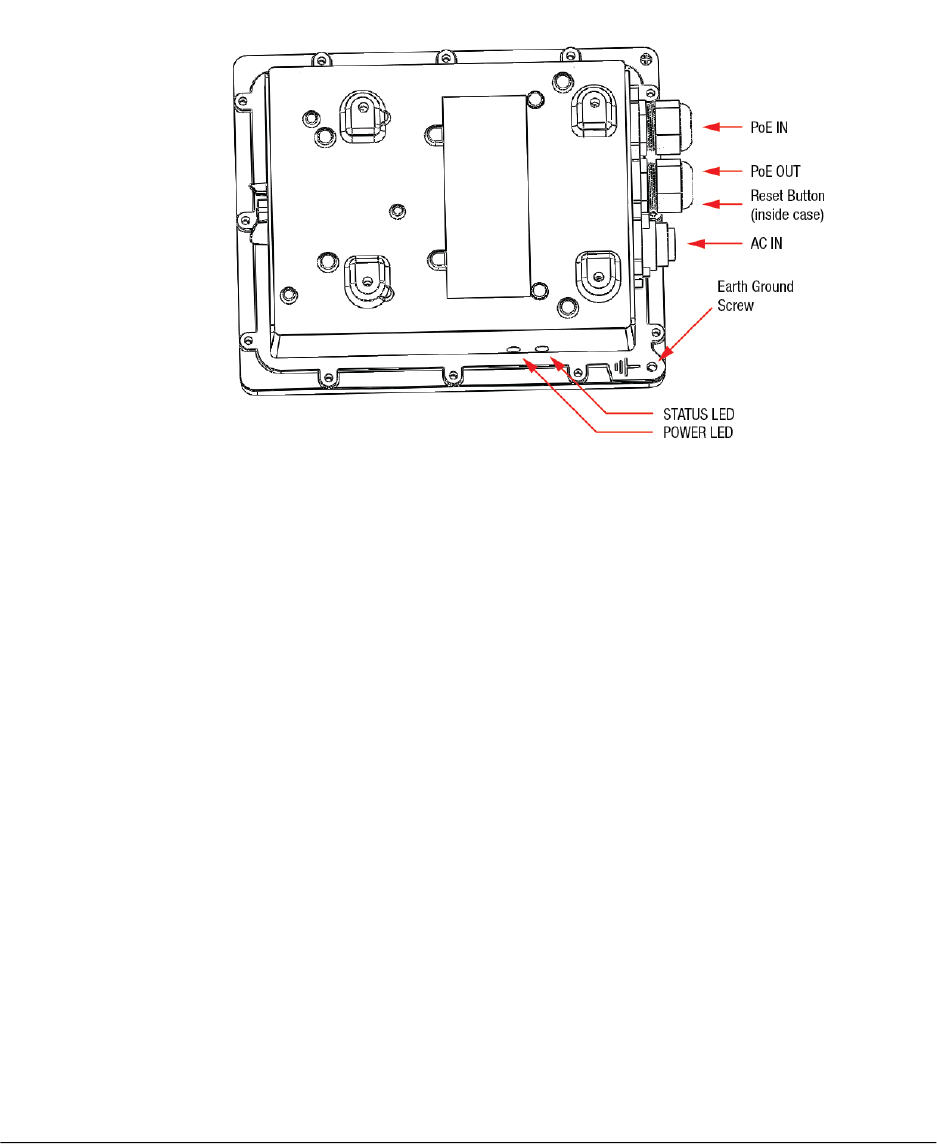
The following figures identify the connectors and LEDs on the bottom and top of the
7782-E External Antenna AP, respectively.
If you want to extend the range of your wireless network, then you can connect external
high gain antennas to the standard N-type radio frequency (RF) antenna connectors on
the top panel of the AP. The antennas must have a gain of less than 9dBi to comply with
FCC and CE regulations.
19
Outdoor Access Point Release 106.0 User Guide
Introduction
Getting to Know the Access Point Features
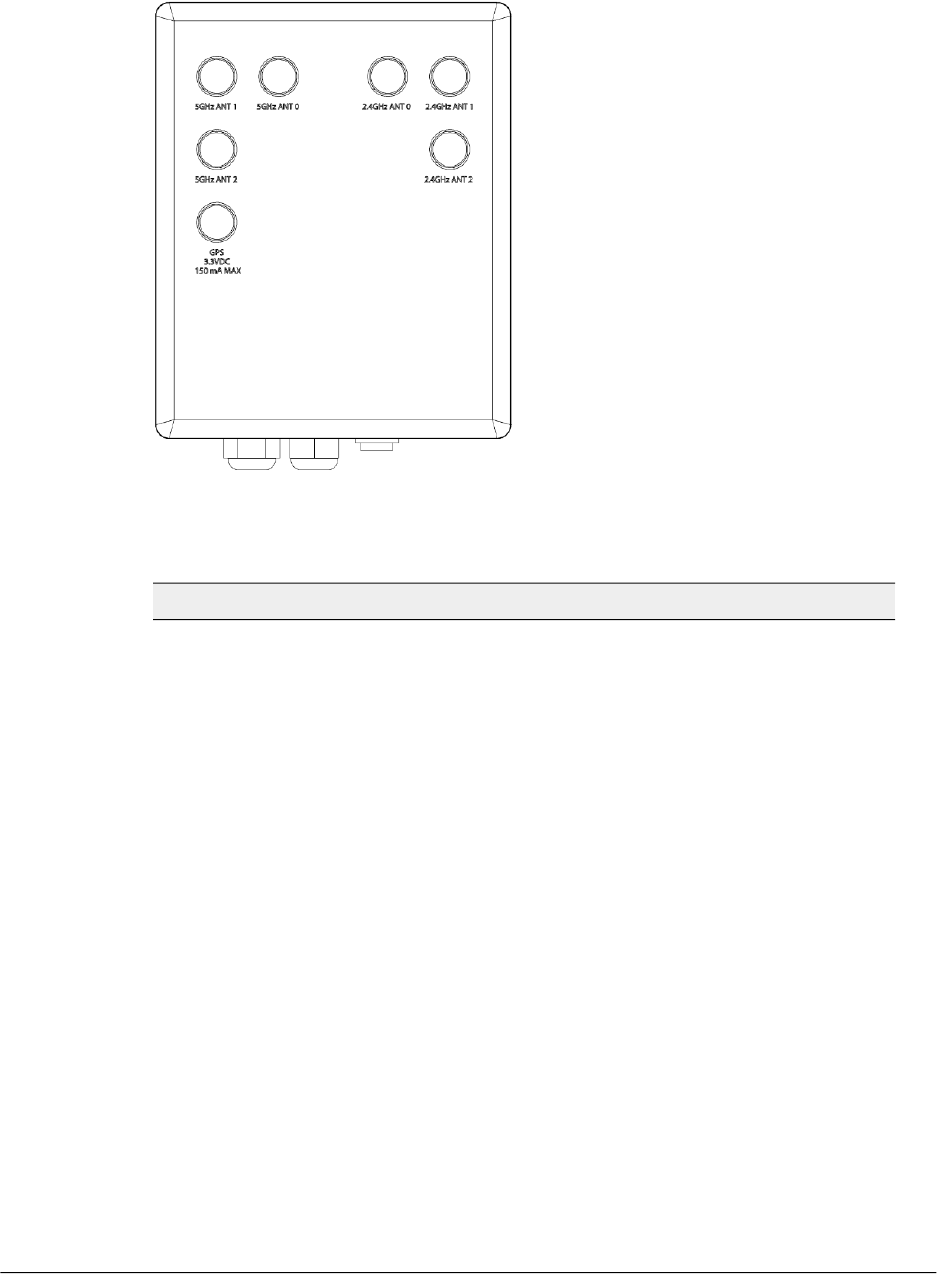
Figure 4: 7782-E connectors and LEDs - bottom view
Figure 5: 7782-E AP top-panel N-type connectors
Table 6: 7782-E top-panel N-type connectors
DescriptionLabel
These 5GHz 50-ohm female connectors
can be used with up to three external
antennas for operator-defined coverage
areas and point-to-point deployments.
•When you are connecting two 5GHz
antennas to the AP, use the ANT 0 and
ANT 2 5GHz connectors.
•When you are connecting three 5GHz
antennas to the AP, use the all three
ANT 0, ANT 1 and ANT 2 5GHz
connectors.
5GHz connectors: ANT 0, ANT 1 and ANT
2
Outdoor Access Point Release 106.0 User Guide
20
Introduction
Getting to Know the Access Point Features

DescriptionLabel
These 2.4GHz 50-ohm female connectors
can be used with up to three external
antennas for operator-defined coverage
areas and point-to-point deployments.
•When you are connecting two 2.4GHz
antennas to the AP, use the ANT 0 and
ANT 2 2.4GHz connectors.
•When you are connecting three 2.4GHz
antennas to the AP, use the all three
ANT 0, ANT 1 and ANT 2 2.4GHz
connectors.
2.4GHz connectors: ANT 0, ANT 1 and
ANT 2
This 50-ohm female N-type connector is
used for a standard powered external GPS
antenna. The factory-supplied GPS
antenna kit complies with all 7782-E AP
requirements. If you are installing a
customer-supplied antenna and extension
cable, then keep the cable short or use
low-loss cable to avoid excess signal
attenuation. The 7782-E supplies 3.3 VDC
to the GPS antenna; make sure that a
customer-supplied GPS antenna does not
require more than 150mA.
GPS connector
7782-N
The 7782-N is a carrier-class dual-band 2.4/5GHz 802.11n Access Point with narrow
beam sector antenna designed for high-density outdoor applications.
NOTE The 100.x AP base images support standalone mode and FlexMaster (FM)
WLAN manager operation. The RuckOS-compatible images only support SCG, vSCG,
and SZ controllers. The ZD-compatible images only support ZD controllers.
NOTE The 7782-N requires a minimum of AP base image 100.0.0 and later to operate,
or SCG 1.1.1 and later, vSCG 2.5 and later, RuckOS 3.2 and later, or ZD 9.5.1 and later
to operate.
The following figure identifies the connectors and LEDs on the 7782-N 30-Degree Narrow
Sector AP. The table below describes the LEDs and connectors.
21
Outdoor Access Point Release 106.0 User Guide
Introduction
Getting to Know the Access Point Features
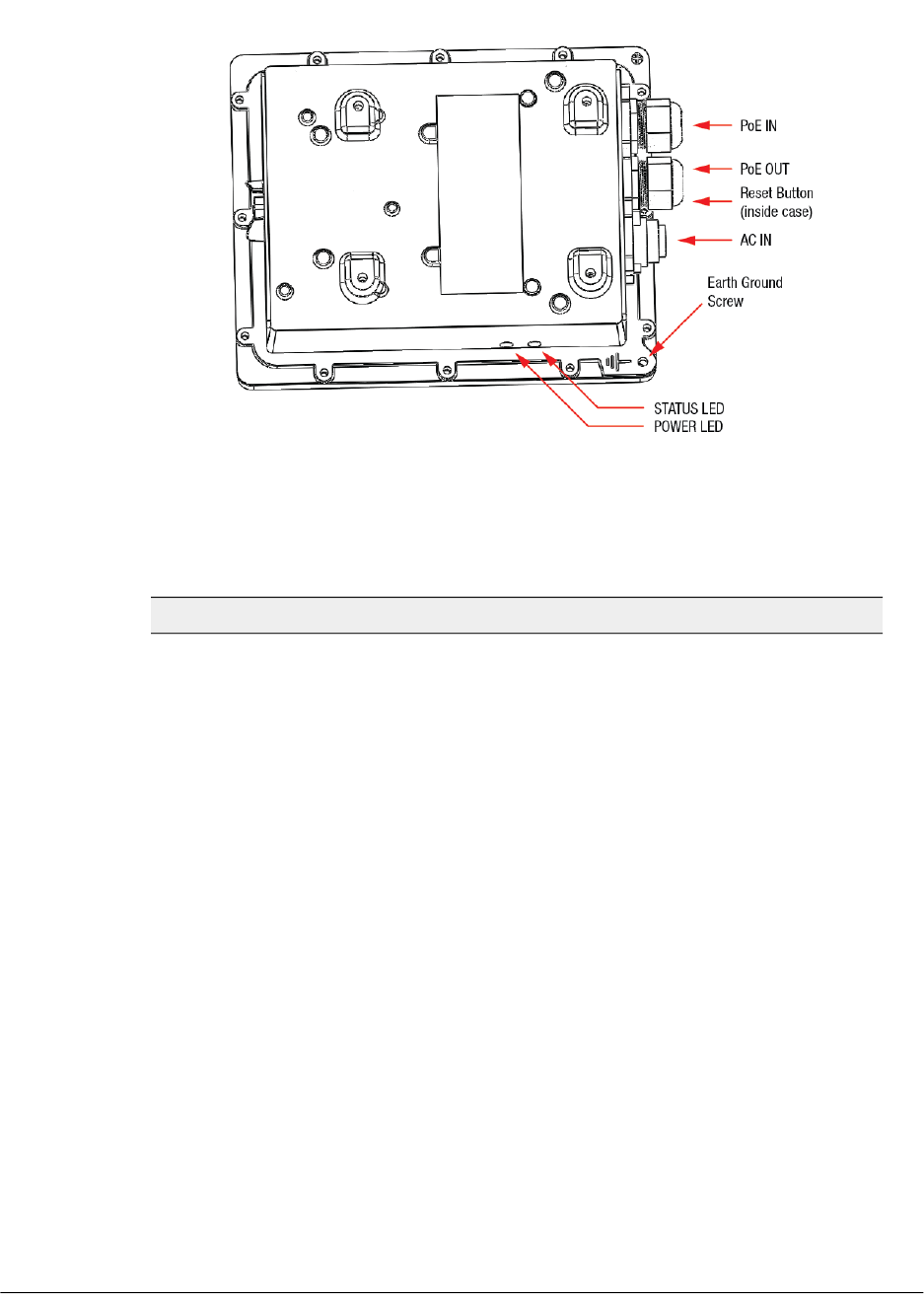
Figure 6: 7782-N connectors and LEDs - bottom view
Table 7: 7782-N LED and connector descriptions
DescriptionLabel
Supports 10/100/1000Mbps connections, connects to
the network and receives 802.at Power over Ethernet
(PoE) from the Ruckus Wireless 60W PoE injector.
PoE IN RJ45 data connector
Supports 10/100/1000Mbps connections and PoE out.
If the AP is powered using AC or the Ruckus Wireless
PoE injector (ordered separately), then this port can supply
802.3af (up to 25W) PoE to a connected PoE-capable
device (for example, a 3G/4G small cell radio or an
IP-based surveillance camera). For devices requiring more
than 15.4W, use short (less than 10 feet or 3m) Ethernet
cables. In high-temperature environments, the amount of
power available is to be determined.
PoE OUT RJ45 data
connector
This button is inside the PoE OUT cable gland. Refer to
the 7782 Outdoor Access Point Installation Guide to
access the reset button and reset the AP.
Reset button
You can use AC to supply power to the AP, in addition
to using PoE.
AC IN power connector
Outdoor Access Point Release 106.0 User Guide
22
Introduction
Getting to Know the Access Point Features

DescriptionLabel
When the AP is operating in standalone mode:
•Amber: The WLAN service is up and at least one
wireless client is associated with the AP.
•Flashing amber: The WLAN service is up and no
wireless clients are currently associated with the AP.
When the AP is being managed by Ruckus Wireless
ZoneDirector:
•Green: The AP is part of a mesh network (either as
Root AP or Mesh AP) and is connected to an uplink
with good signal. If mesh networking is disabled but
the WLAN service is available, the Status LED is also
green.
•Fast flashing green: The AP is part of a mesh network
(as Mesh AP) and is connected to an uplink with fair
signal.
•Slow flashing green: This Mesh AP is searching for an
uplink or is attempting to establish communication
with ZoneDirector.
•Off: Mesh networking is disabled and the WLAN
service is unavailable.
STATUS LED
•Off: No power is available, or the AP is not connected
to a power source.
•Red: The AP is powering on.
•Green: The AP is connected to a power source and
has completed its power-on sequence.
POWER LED
7782-S
The 7782-S is a carrier-class dual-band 2.4/5GHz 802.11n Access Point with wide
beam sector antenna designed for high-density outdoor applications.
NOTE The 100.x AP base images support standalone mode and FlexMaster (FM)
WLAN manager operation. The RuckOS-compatible images only support SCG, vSCG,
and SZ controllers. The ZD-compatible images only support ZD controllers.
NOTE The 7782-S requires a minimum of AP base image 100.0.0 and later to operate,
or SCG 1.1.1 and later, vSCG 2.5 and later, RuckOS 3.2 and later, or ZD 9.5.1 and later
to operate.
The following figure identifies the connectors and LEDs on the 7782-S 120-Degree
Sector AP. The table below describes the LEDs and connectors.
23
Outdoor Access Point Release 106.0 User Guide
Introduction
Getting to Know the Access Point Features
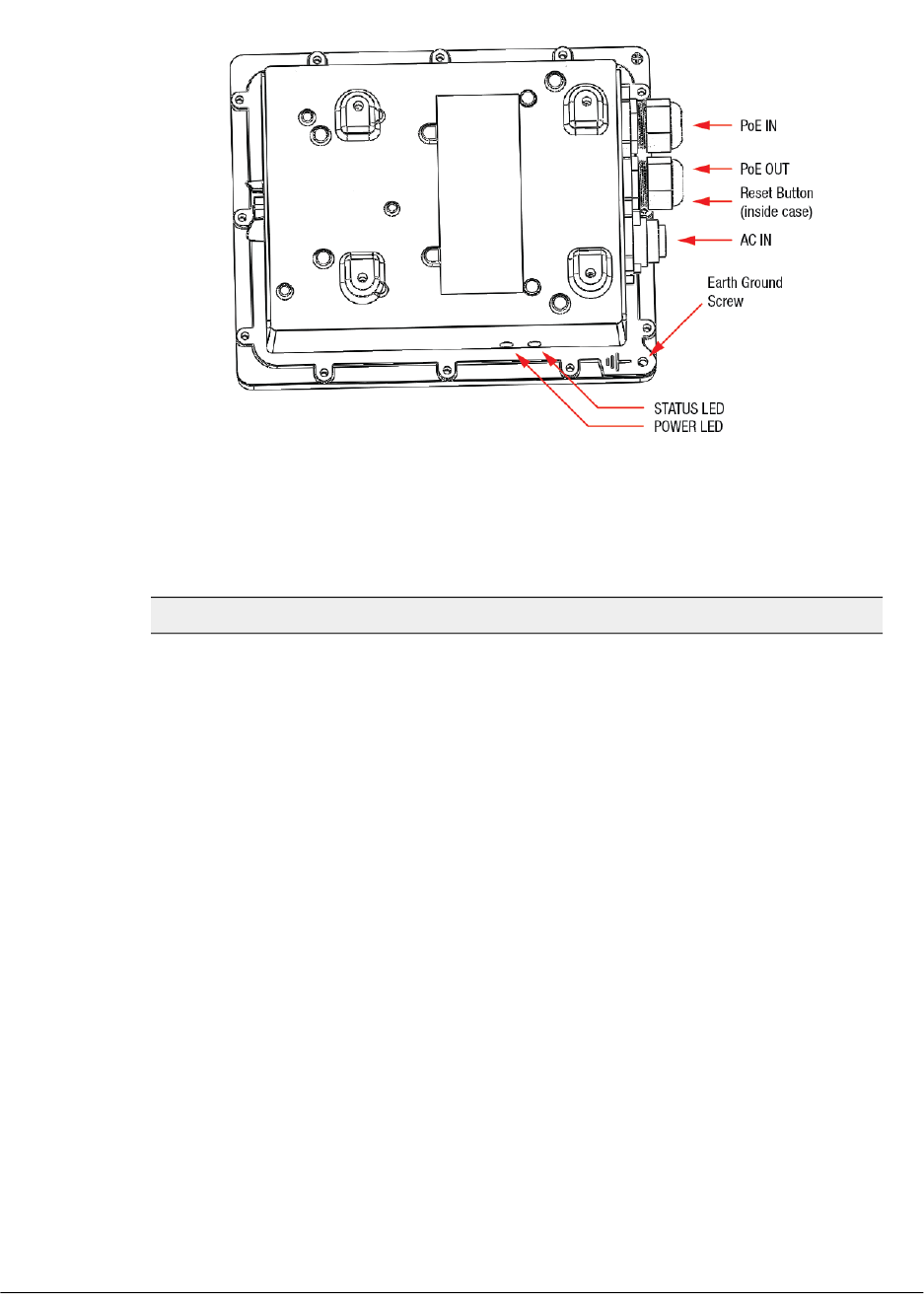
Figure 7: 7782-S connectors and LEDs - bottom view
Table 8: 7782-S LED and connector descriptions
DescriptionLabel
Supports 10/100/1000Mbps connections, connects to the
network and receives 802.at Power over Ethernet (PoE)
from the Ruckus Wireless 60W PoE injector.
PoE IN RJ45 data
connector
Supports 10/100/1000Mbps connections and PoE out. If
the AP is powered using AC or the Ruckus Wireless PoE
injector (ordered separately), then this port can supply
802.3af (up to 25W) PoE to a connected PoE-capable
device (for example, a 3G/4G small cell radio or an IP-based
surveillance camera). For devices requiring more than
15.4W, use short (less than 10 feet or 3m) Ethernet cables.
In high-temperature environments, the amount of power
available is to be determined.
PoE OUT RJ45 data
connector
This button is inside the PoE OUT cable gland. Refer to the
7782 Outdoor Access Point Installation Guide to access
the reset button and reset the AP.
Reset button
You can use AC to supply power to the AP, in addition to
using PoE.
AC IN power connector
Outdoor Access Point Release 106.0 User Guide
24
Introduction
Getting to Know the Access Point Features

DescriptionLabel
When the AP is operating in standalone mode:
•Amber: The WLAN service is up and at least one
wireless client is associated with the AP.
•Flashing amber: The WLAN service is up and no wireless
clients are currently associated with the AP.
When the AP is being managed by Ruckus Wireless
ZoneDirector:
•Green: The AP is part of a mesh network (either as Root
AP or Mesh AP) and is connected to an uplink with good
signal. If mesh networking is disabled but the WLAN
service is available, the Status LED is also green.
•Fast flashing green: The AP is part of a mesh network
(as Mesh AP) and is connected to an uplink with fair
signal.
•Slow flashing green: This Mesh AP is searching for an
uplink or is attempting to establish communication with
ZoneDirector.
•Off: Mesh networking is disabled and the WLAN service
is unavailable.
STATUS LED
•Off: No power is available, or the AP is not connected
to a power source.
•Red: The AP is powering on.
•Green: The AP is connected to a power source and has
completed its power-on sequence.
POWER LED
T300
The T300 is a dual-band 802.11ac outdoor access point designed for high density public
venues such as airports, conventions centers, plazas & malls, and other dense urban
environments.
NOTE The T300 requires a minimum of AP base image 100.0.0 and later to operate,
or SCG 2.5.1 and later, vSCG 3.0 and later, RuckOS 3.2 and later, or ZD 9.8.1 and later
to operate. DO NOT connect the T300 AP to a Ruckus Wireless Controller with ZD 9.8.0
or earlier, or to SCG 2.5.0 or earlier.
The following figure identifies the LEDs and connectors on the AP. The table below
describes these LEDs and other elements.
25
Outdoor Access Point Release 106.0 User Guide
Introduction
Getting to Know the Access Point Features
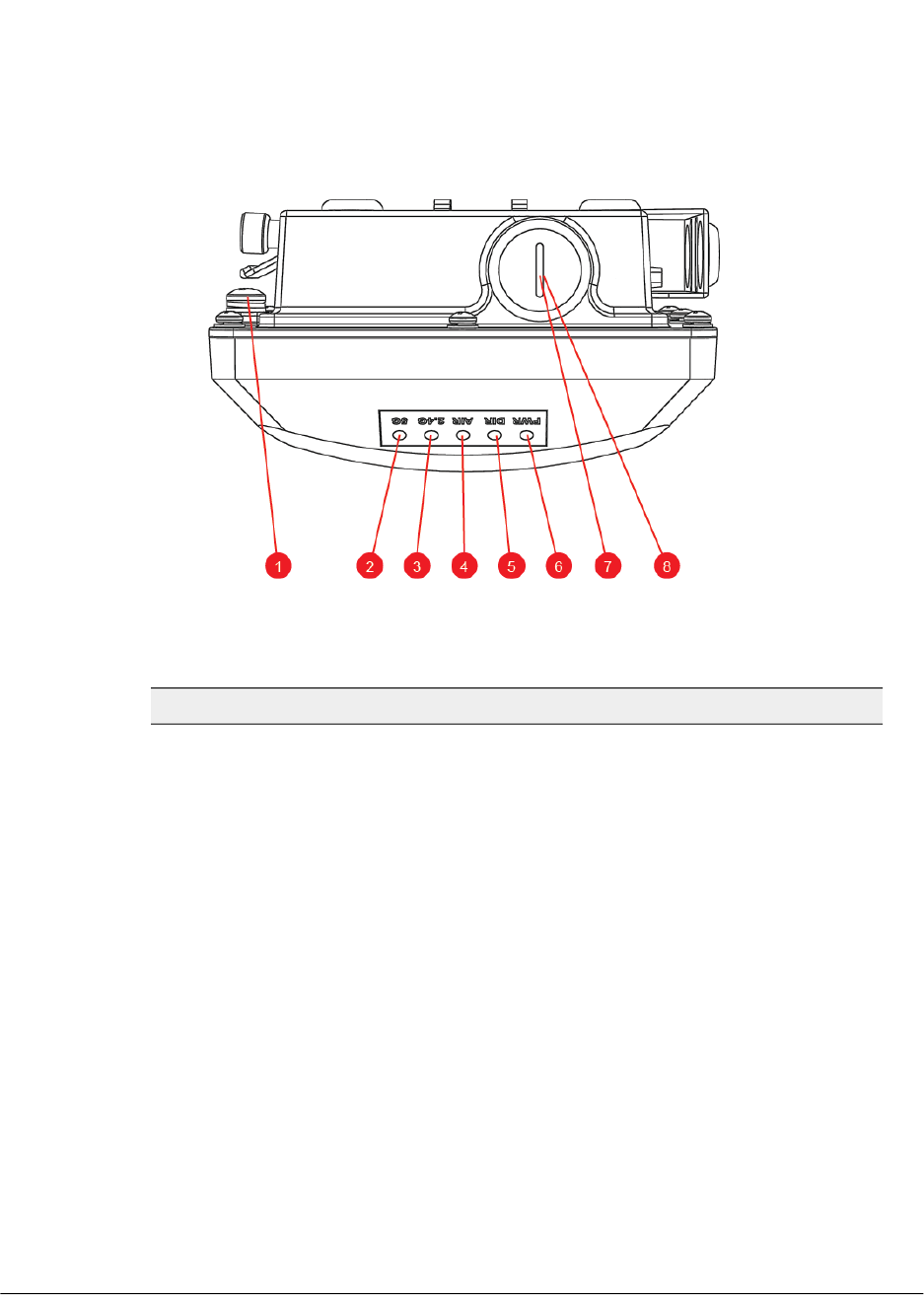
Figure 8: T300 LEDs and other elements
Table 9: T300 LED and other element descriptions
DescriptionLabelNo.
Use this screw to attach an earth ground to
the AP as required by local regulations.
Earth ground screw1
Outdoor Access Point Release 106.0 User Guide
26
Introduction
Getting to Know the Access Point Features

DescriptionLabelNo.
•Off: The WLAN service is down.
•Amber: The WLAN is up, but no clients or
downlink MAPs are associated/connected.
•Green: The WLAN is up and at least one
client is associated. No downlink MAPs
are connected.
•Slow flashing green (one flash every two
seconds): The WLAN is up and at least
one downlink MAP is connected. No
clients are associated.
•Fast flashing green (two flashes every
second): The WLAN is up, at least one
downlink MAP is connected, and at least
one client is associated.
5G LED2
•Off: The WLAN service is down.
•Green: The WLAN is up and at least one
client is associated.
•Amber: The WLAN is up. No clients are
associated.
2.4G LED3
•Off: The AP is operating in standalone
mode or operating as a root AP (RAP) or
a non-mesh AP.
•Green: The AP is functioning as a Mesh
AP (MAP), and the wireless signal to its
uplink AP is good.
•Fast flashing green (two flashes every
second): The AP is functioning as a Mesh
AP (MAP), and the wireless signal to its
uplink AP is fair.
•Slow flashing green (one flash every two
seconds): Mesh networking is enabled,
but the AP is still searching for a mesh
uplink.
AIR LED4
27
Outdoor Access Point Release 106.0 User Guide
Introduction
Getting to Know the Access Point Features

DescriptionLabelNo.
•Off: The AP is not being managed by a
Ruckus Wireless controller (standalone
mode).
•Green: The AP is being managed by a
Ruckus Wireless controller.
•Slow flashing green (one flash every two
seconds): The AP is being managed by a
Ruckus Wireless controller, but is currently
unable to communicate with the controller.
•Fast flashing green (two flashes every
second): The AP is being managed by a
Ruckus Wireless controller and is currently
receiving configuration settings
(provisioning) or an image update.
DIR LED5
•Off: Off.
•Red: Boot up in process.
•Flashing Green: No routable IP address.
•Green: On.
PWR LED6
Supports 10/100/1000Mbps connections,
and receives Power over Ethernet (PoE).
NOTE The T300 can be powered by any
802.3af PSE device. Refer to the Ruckus
Wireless T300 data sheet for recommended
PoE accessories.
PoE IN RJ45 data
connector
7
This button resets the AP to its factory
defaults, and is mounted under the
RESET/PoE IN RJ-45 waterproof gland.
RESET button8
T300e
The T300e is a dual-band 802.11ac outdoor access point with external antenna
connectors.
NOTE The 100.x AP base images support standalone mode and FlexMaster (FM)
WLAN manager operation. The RuckOS-compatible images only support SCG, vSCG,
and SZ controllers. The ZD-compatible images only support ZD controllers.
NOTE The T300 requires a minimum of AP base image 100.0.0 and later to operate,
or SCG 2.5.1 and later, vSCG 3.0 and later, RuckOS 3.2 and later, or ZD 9.8.1 and later
Outdoor Access Point Release 106.0 User Guide
28
Introduction
Getting to Know the Access Point Features
to operate. DO NOT connect the T300 AP to a Ruckus Wireless Controller with ZD 9.8.0
or earlier, or to SCG 2.5.0 or earlier.
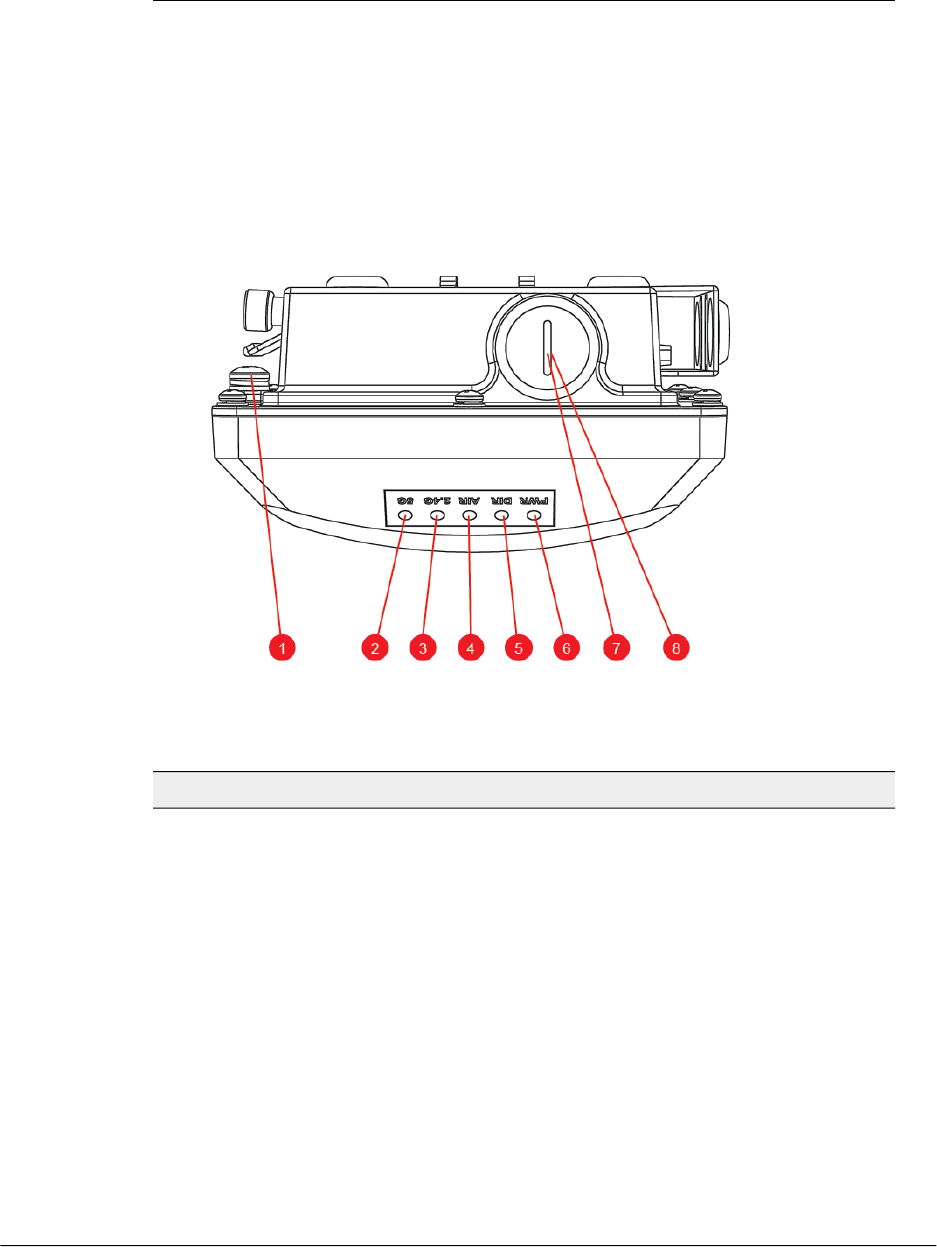
The following figure identifies the LEDs and connectors on the AP. The table below
describes these LEDs and other elements.
Figure 9: T300 LEDs and other elements
Table 10: T300 LED and other element descriptions
DescriptionLabelNo.
Use this screw to attach an earth ground to
the AP as required by local regulations.
Earth ground screw1
29
Outdoor Access Point Release 106.0 User Guide
Introduction
Getting to Know the Access Point Features

DescriptionLabelNo.
•Off: The WLAN service is down. Amber:
The WLAN is up, but no clients or
downlink MAPs are associated/connected.
•Green: The WLAN is up and at least one
client is associated. No downlink MAPs
are connected. Slow flashing green (one
flash every two seconds): The WLAN is up
and at least one downlink MAP is
connected. No clients are associated.
•Fast flashing green (two flashes every
second): The WLAN is up, at least one
downlink MAP is connected, and at least
one client is associated.
5G LED2
•Off: The WLAN service is down.
•Green: The WLAN is up and at least one
client is associated.
•Amber: The WLAN is up. No clients are
associated.
2.4G LED3
•Off: The AP is operating in standalone
mode or operating as a root AP (RAP) or
a non-mesh AP.
•Green: The AP is functioning as a Mesh
AP (MAP), and the wireless signal to its
uplink AP is good.
•Fast flashing green (two flashes every
second): The AP is functioning as a Mesh
AP (MAP), and the wireless signal to its
uplink AP is fair.
•Slow flashing green (one flash every two
seconds): Mesh networking is enabled,
but the AP is still searching for a mesh
uplink.
AIR LED4
Outdoor Access Point Release 106.0 User Guide
30
Introduction
Getting to Know the Access Point Features

DescriptionLabelNo.
•Off: The AP is not being managed by a
Ruckus Wireless controller (standalone
mode).
•Green: The AP is being managed by a
Ruckus Wireless controller. Slow flashing
green (one flash every two seconds): The
AP is being managed by a Ruckus
Wireless controller, but is currently unable
to communicate with the controller.
•Fast flashing green (two flashes every
second): The AP is being managed by a
Ruckus Wireless controller and is currently
receiving configuration settings
(provisioning) or an image update.
DIR LED5
•Off: Off.
•Red: Boot up in process.
•Flashing Green: No routable IP address.
•Green: On.
PWR LED6
Supports 10/100/1000Mbps connections,
and receives Power over Ethernet (PoE).
NOTE The T300 can be powered by any
802.3af PSE device. Refer to the Ruckus
Wireless T300 data sheet for recommended
PoE accessories.
PoE IN RJ45 data
connector
7
This button resets the AP to its factory
defaults, and is mounted under the
RESET/PoE IN RJ-45 waterproof gland.
RESET button8
The following figure identifies the 5GHz RF connectors on the AP. The table below
describes these RF connectors. If you want to extend the range of your wireless network,
then you can connect external high gain antennas to the standard N-type radio frequency
(RF) antenna connectors on the top panel of the AP. The antennas must have a gain of
less than 9dBi to comply with FCC and CE regulations.
31
Outdoor Access Point Release 106.0 User Guide
Introduction
Getting to Know the Access Point Features
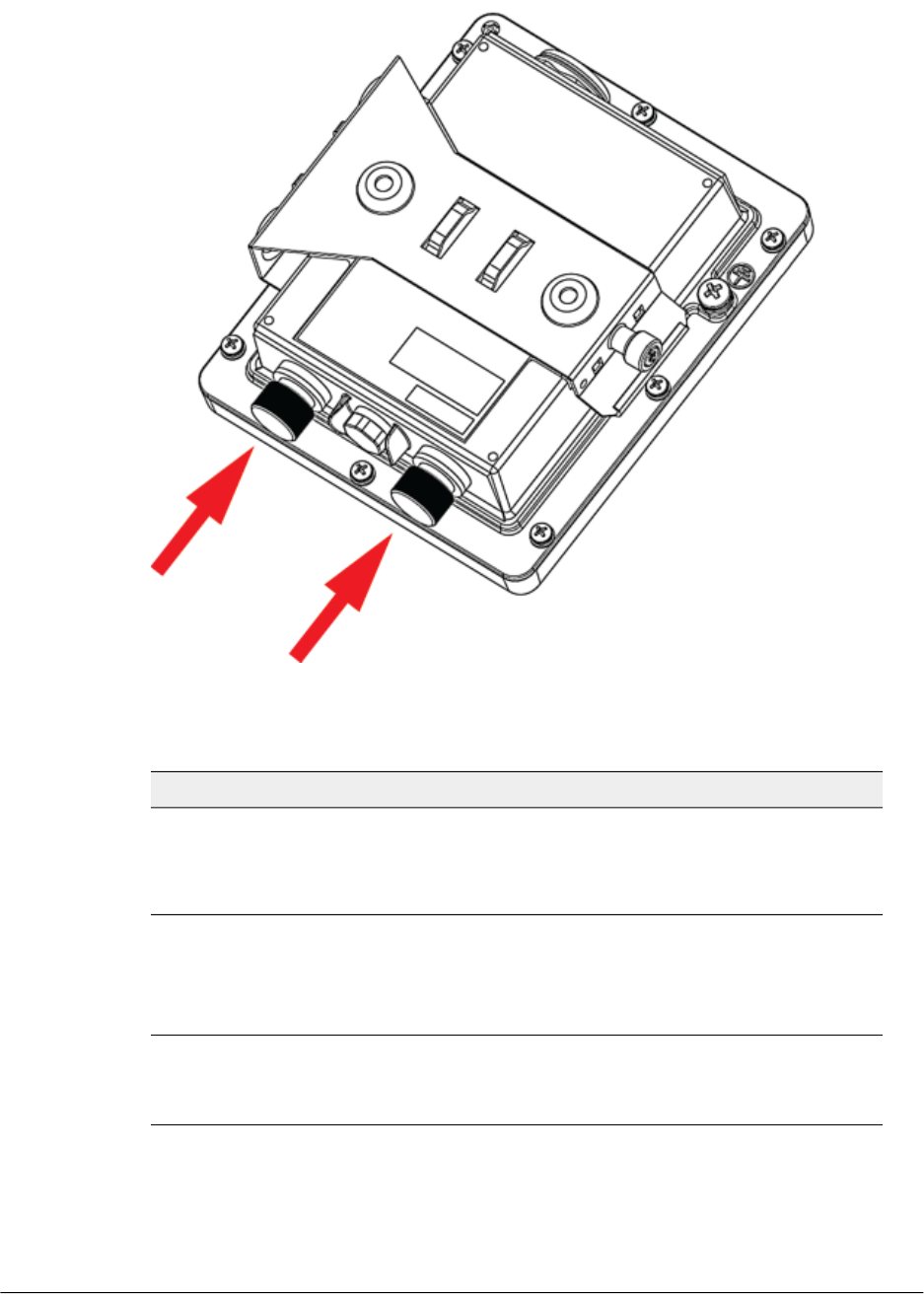
Figure 10: T300e RF connectors
Table 11: T300e N-type RF connectors
DescriptionLabel
These 5GHz 50-ohm female connectors
can be used with up to two external
antennas for operator-defined coverage
areas and point-to-point deployments.
5GHz connectors
T301n
The T301n is a dual-band 802.11ac outdoor access point with narrow beam sector
antenna designed for high density outdoor applications.
NOTE The 100.x AP base images support standalone mode and FlexMaster (FM)
WLAN manager operation. The RuckOS-compatible images only support SCG, vSCG,
and SZ controllers. The ZD-compatible images only support ZD controllers.
Outdoor Access Point Release 106.0 User Guide
32
Introduction
Getting to Know the Access Point Features
NOTE The T301n requires a minimum of AP base image 100.0.0 and later to operate,
or SCG 2.5.1 and later, vSCG 3.0 and later, RuckOS 3.2 and later, or ZD 9.8.1 and later
to operate. DO NOT connect the T301n AP to a Ruckus Wireless Controller with ZD
9.8.0 or earlier, or to SCG 2.5.0 or earlier.
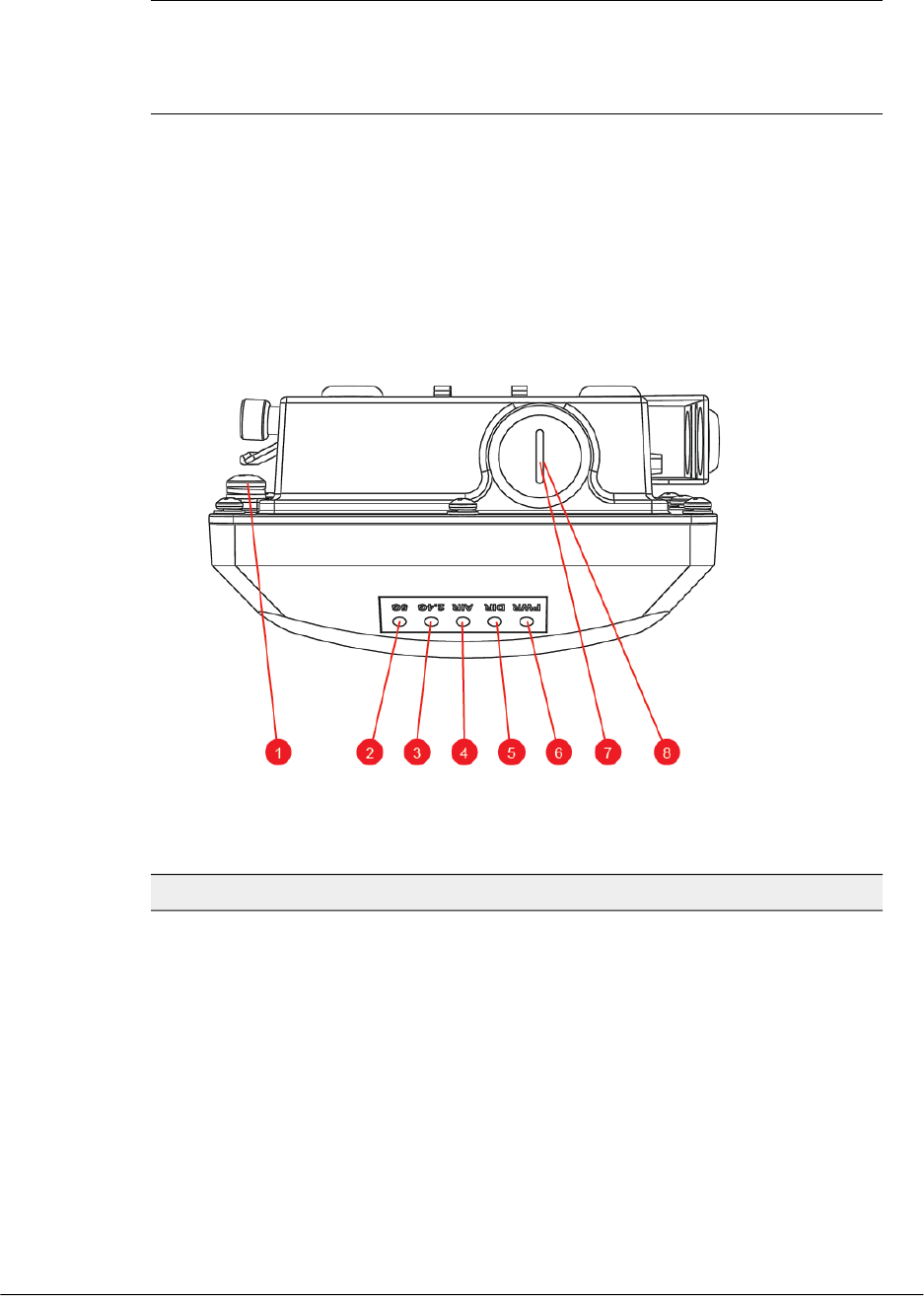
The following figure identifies the LEDs and connectors on the AP. The table below
describes these LEDs and other elements.
Figure 11: T301n LEDs and other elements
Table 12: T301n LED and other element descriptions
DescriptionLabelNo.
Use this screw to attach an earth ground to
the AP as required by local regulations.
Earth ground
screw
1
33
Outdoor Access Point Release 106.0 User Guide
Introduction
Getting to Know the Access Point Features

DescriptionLabelNo.
•Off: The WLAN service is down. Amber:
The WLAN is up, but no clients or downlink
MAPs are associated/connected.
•Green: The WLAN is up and at least one
client is associated. No downlink MAPs
are connected. Slow flashing green (one
flash every two seconds): The WLAN is up
and at least one downlink MAP is
connected. No clients are associated.
•Fast flashing green (two flashes every
second): The WLAN is up, at least one
downlink MAP is connected, and at least
one client is associated.
5G LED2
•Off: The WLAN service is down.
•Green: The WLAN is up and at least one
client is associated.
•Amber: The WLAN is up. No clients are
associated.
2.4G LED3
•Off: The AP is operating in standalone
mode or operating as a root AP (RAP) or
a non-mesh AP.
•Green: The AP is functioning as a Mesh
AP (MAP), and the wireless signal to its
uplink AP is good.
•Fast flashing green (two flashes every
second): The AP is functioning as a Mesh
AP (MAP), and the wireless signal to its
uplink AP is fair.
•Slow flashing green (one flash every two
seconds): Mesh networking is enabled, but
the AP is still searching for a mesh uplink.
AIR LED4
Outdoor Access Point Release 106.0 User Guide
34
Introduction
Getting to Know the Access Point Features

DescriptionLabelNo.
•Off: The AP is not being managed by a
Ruckus Wireless controller (standalone
mode).
•Green: The AP is being managed by a
Ruckus Wireless controller. Slow flashing
green (one flash every two seconds): The
AP is being managed by a Ruckus
Wireless controller, but is currently unable
to communicate with the controller.
•Fast flashing green (two flashes every
second): The AP is being managed by a
Ruckus Wireless controller and is currently
receiving configuration settings
(provisioning) or an image update.
DIR LED5
•Off: Off.
•Red: Boot up in process.
•Flashing Green: No routable IP address.
•Green: On.
PWR LED6
Supports 10/100/1000Mbps connections,
and receives Power over Ethernet (PoE).
NOTE The T301n can be powered by any
802.3af PSE device. Refer to the Ruckus
Wireless T301n data sheet for recommended
PoE accessories.
PoE IN RJ45 data
connector
7
This button resets the AP to its factory
defaults, and is mounted under the
RESET/PoE IN RJ-45 waterproof gland.
RESET button8
T301s
The T301s is a dual-band 802.11ac outdoor access point with wide beam sector antenna
designed for high density outdoor applications.
NOTE The 100.x AP base images support standalone mode and FlexMaster (FM)
WLAN manager operation. The RuckOS-compatible images only support SCG, vSCG,
and SZ controllers. The ZD-compatible images only support ZD controllers.
NOTE The T301s requires a minimum of AP base image 100.0.0 and later to operate,
or SCG 2.5.1 and later, vSCG 3.0 and later, RuckOS 3.2 and later, or ZD 9.8.1 and later
35
Outdoor Access Point Release 106.0 User Guide
Introduction
Getting to Know the Access Point Features
to operate. DO NOT connect the T301s AP to a Ruckus Wireless Controller with ZD
9.8.0 or earlier, or to SCG 2.5.0 or earlier.
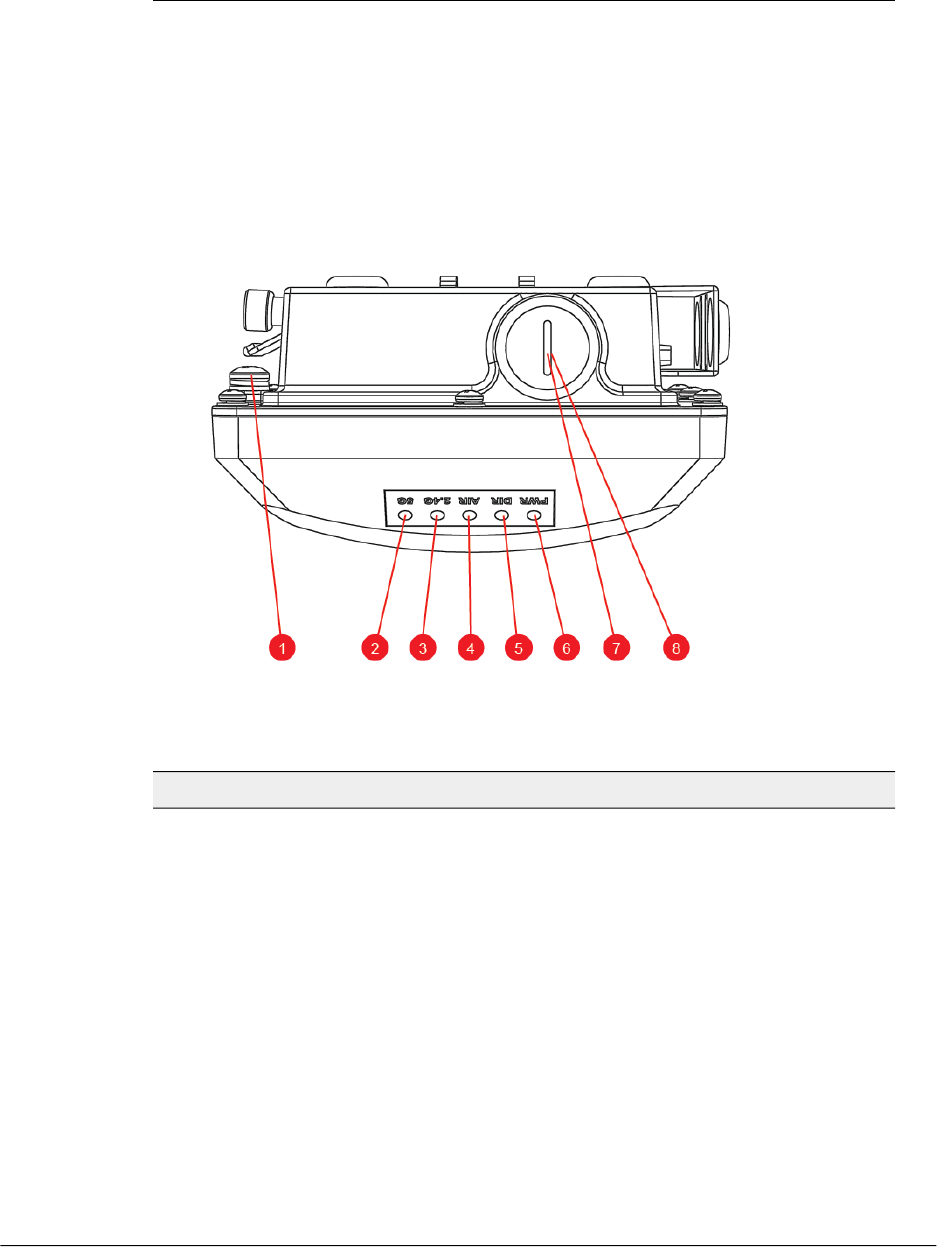
The following figure identifies the LEDs and connectors on the AP. The table below
describes these LEDs and other elements.
Figure 12: T301s LEDs and other elements
Table 13: T301s LED and other element descriptions
DescriptionLabelNo.
Use this screw to attach an earth ground to
the AP as required by local regulations.
Earth ground screw1
Outdoor Access Point Release 106.0 User Guide
36
Introduction
Getting to Know the Access Point Features

DescriptionLabelNo.
•Off: The WLAN service is down. Amber:
The WLAN is up, but no clients or downlink
MAPs are associated/connected.
•Green: The WLAN is up and at least one
client is associated. No downlink MAPs
are connected. Slow flashing green (one
flash every two seconds): The WLAN is up
and at least one downlink MAP is
connected. No clients are associated.
•Fast flashing green (two flashes every
second): The WLAN is up, at least one
downlink MAP is connected, and at least
one client is associated.
5G LED2
•Off: The WLAN service is down.
•Green: The WLAN is up and at least one
client is associated.
•Amber: The WLAN is up. No clients are
associated.
2.4G LED3
•Off: The AP is operating in standalone
mode or operating as a root AP (RAP) or
a non-mesh AP.
•Green: The AP is functioning as a Mesh
AP (MAP), and the wireless signal to its
uplink AP is good.
•Fast flashing green (two flashes every
second): The AP is functioning as a Mesh
AP (MAP), and the wireless signal to its
uplink AP is fair.
•Slow flashing green (one flash every two
seconds): Mesh networking is enabled,
but the AP is still searching for a mesh
uplink.
AIR LED4
37
Outdoor Access Point Release 106.0 User Guide
Introduction
Getting to Know the Access Point Features

DescriptionLabelNo.
•Off: The AP is not being managed by a
Ruckus Wireless controller (standalone
mode).
•Green: The AP is being managed by a
Ruckus Wireless controller. Slow flashing
green (one flash every two seconds): The
AP is being managed by a Ruckus
Wireless controller, but is currently unable
to communicate with the controller.
•Fast flashing green (two flashes every
second): The AP is being managed by a
Ruckus Wireless controller and is currently
receiving configuration settings
(provisioning) or an image update.
DIR LED5
•Off: Off.
•Red: Boot up in process.
•Flashing Green: No routable IP address.
•Green: On.
PWR LED6
Supports 10/100/1000Mbps connections,
and receives Power over Ethernet (PoE).
NOTE The T301s can be powered by any
802.3af PSE device. Refer to the Ruckus
Wireless T301s data sheet for recommended
PoE accessories.
PoE IN RJ45 data
connector
7
This button resets the AP to its factory
defaults, and is mounted under the
RESET/PoE IN RJ-45 waterproof gland.
RESET button8
T610
The T610 is a carrier grade dual-band concurrent 802.11ac Wave 2 outdoor access
point with 4x4:4 spatial streams, 11ac Wave 2 MU-MIMO support, and dual GbE ports.
The T610 supports PoE in, 160/80+80 MHz channelization, and LACP Ethernet port
aggregation.
NOTE The T610 requires a minimum of standalone AP base image 104.1 and later, or
SmartZone 3.4.2 and later, or ZoneDirector 9.13.3 and later to operate.
Outdoor Access Point Release 106.0 User Guide
38
Introduction
Getting to Know the Access Point Features
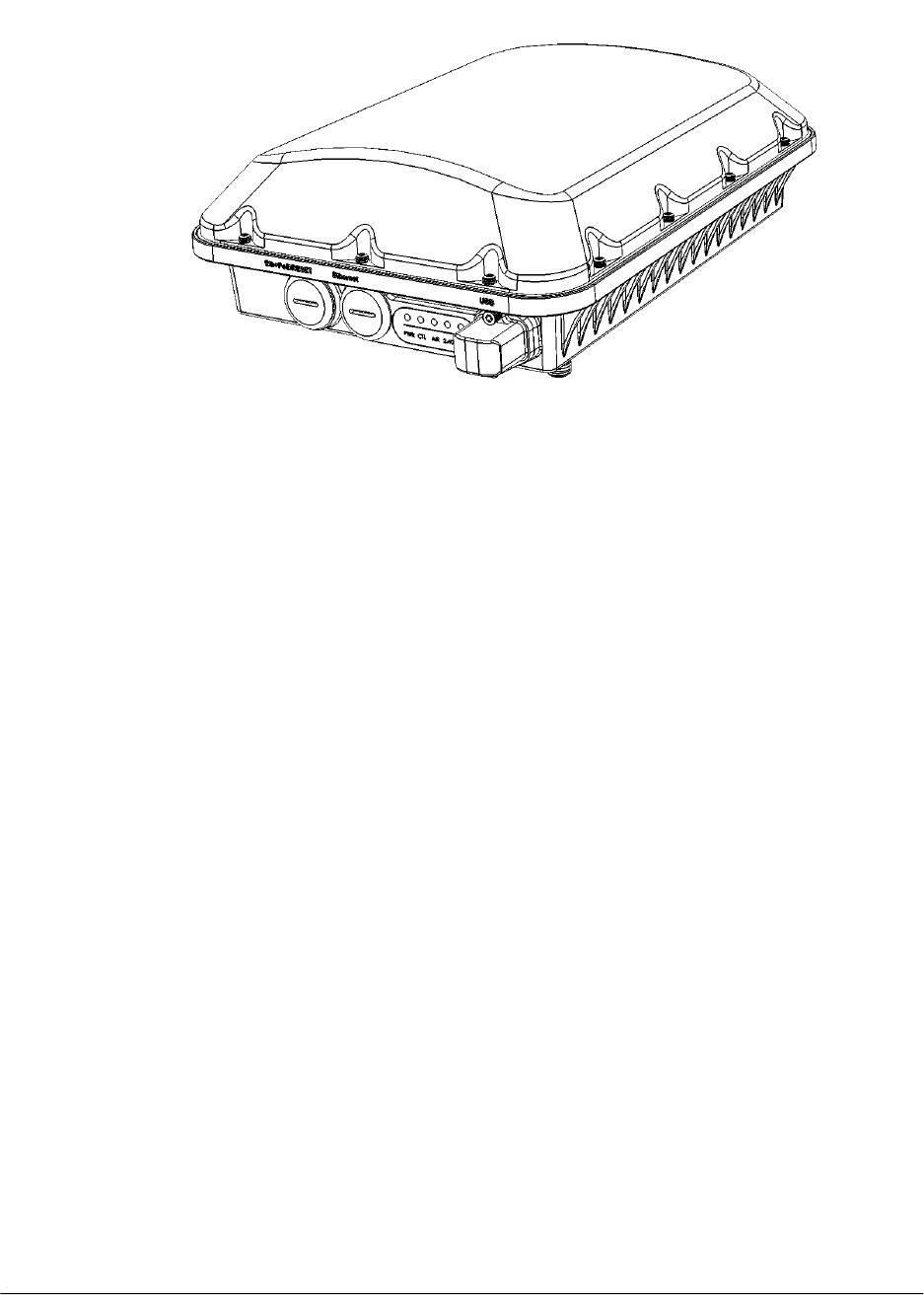
Figure 13: T610 Top view
The T610 can use the link aggregation control protocol (LACP) to control the bonding
of two 1Gbps physical Ethernet ports together to form a single logical channel. Refer to
Appendix B: Configuring Link Aggregation (LACP) for AP Backhaul on page 121 for
instructions on bonding the two Ethernet ports using LACP.
The following figure identifies the LEDs and connectors on the AP. The table below
describes these LEDs and other elements.
39
Outdoor Access Point Release 106.0 User Guide
Introduction
Getting to Know the Access Point Features
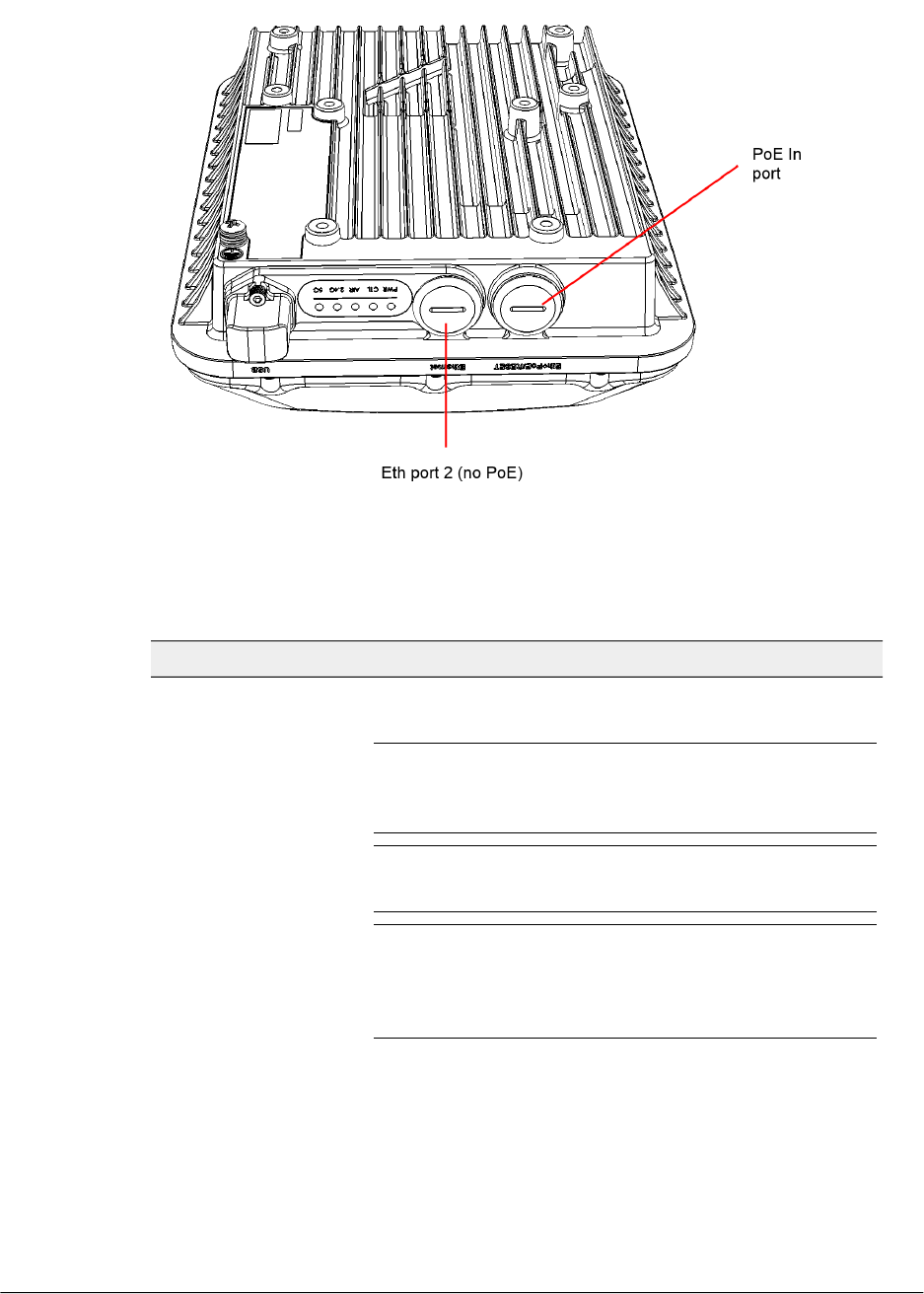
Figure 14: T610 bottom view
Table 14: T610 LED and other element descriptions
DescriptionLabel
RJ-45 Ethernet port: Supports 10/100/1000Mbps
connections, and receives Power over Ethernet (PoE).
CAUTION! Do not use any PoE injector not tested and
approved by Ruckus Wireless to power the T610 Access
Point.
CAUTION! Do not plug PoE IN power into the non-PoE
port.
CAUTION! If using a PoE switch to supply power to the
T610, 30W MUST be reserved for the T610 on the switch.
Failure to ensure a 30W supply may result in unpredictable
operation of the access point.
Reset button: This button resets the AP to its factory defaults,
and is mounted under the Eth 1/PoE IN/RESET RJ-45
waterproof gland.
Eth 1/PoE IN/RESET
Outdoor Access Point Release 106.0 User Guide
40
Introduction
Getting to Know the Access Point Features

DescriptionLabel
RJ-45 Ethernet Port: Supports 10/100/1000Mbps
connections (no PoE).
Eth Port 2
•Off: Off.
•Red: Boot up in process.
•Flashing Green: No routable IP address.
•Green: On.
PWR
Controller LED:
•Off: The AP is not being managed by a Ruckus Wireless
controller (standalone mode).
•Green: The AP is being managed by a Ruckus Wireless
controller.
•Slow flashing green (one flash every two seconds): The
AP is being managed by a controller, but is currently
unable to communicate with the controller.
•Fast flashing green (two flashes every second): The AP is
being managed by a controller and is currently receiving
configuration settings (provisioning) or an image update.
CTL
AIR LED:
•Off: The AP is operating in standalone mode or operating
as a root AP (RAP) or a non-mesh AP.
•Green: The AP is functioning as a Mesh AP (MAP), and
the wireless signal to its uplink AP is good.
•Fast flashing green (two flashes every second): The AP is
functioning as a Mesh AP (MAP), and the wireless signal
to its uplink AP is fair.
•Slow flashing green (one flash every two seconds): Mesh
networking is enabled, but the AP is still searching for a
mesh uplink.
AIR
2.4 GHz radio LED:
•Off: The WLAN service is down.
•Green: The WLAN is up and at least one client is
associated.
•Amber: The WLAN is up. No clients are associated.
2.4G
41
Outdoor Access Point Release 106.0 User Guide
Introduction
Getting to Know the Access Point Features
DescriptionLabel
5 GHz radio LED:
•Off: The WLAN service is down.
•Amber: The WLAN is up, but no clients or downlink MAPs
are associated/connected.
•Green: The WLAN is up and at least one client is
associated. No downlink MAPs are connected.
•Slow flashing green (one flash every two seconds): The
WLAN is up and at least one downlink MAP is connected.
No clients are associated.
•Fast flashing green (two flashes every second): The WLAN
is up, at least one downlink MAP is connected, and at
least one client is associated.
5G
USB port for IoT devices, Zigbee dongle, 4G/LTE dongle,
etc.
USB
T610 Power Modes
The following table lists the T610's power modes and the corresponding feature set
under the different power modes. When both power sources are available on an AP,
then DC power will take priority and override PoE power. When the AP is connected to
a PoE switch the max power requested by the AP is captured in the second column,
and rest of the columns describe the operational capability for each mode.
NOTE The dBm transmit power values below are per chain.
Table 15: T610 Power Modes
160/
80+80
USB1G Eth
Port
1G Eth
(PoE)
Port
2.4 GHz
Radio
5 GHz
Radio
Power
Level
PoE
Mode
N/ADisabledDisabledEnabled2 x 4
18 dBm
4 x 4
20 dBm
12.95 W802.3af
EnabledEnabledEnabled4 x 4
22 dBm
4 x 4
20 dBm
25.0 W802.3at/
injector
Outdoor Access Point Release 106.0 User Guide
42
Introduction
Getting to Know the Access Point Features
T610s
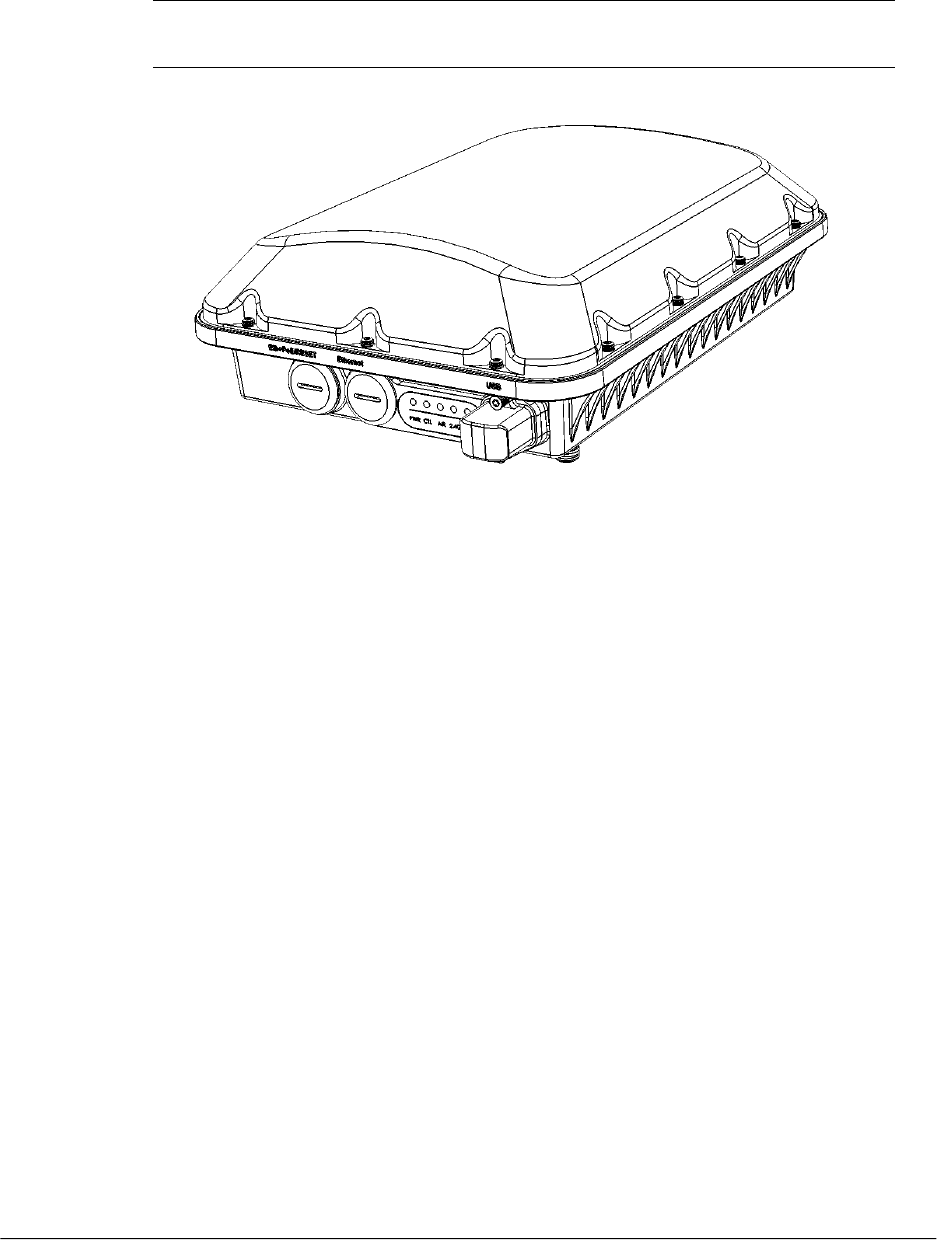
The T610s is the 120-degree sector antenna variant of the T610 outdoor AP.
NOTE The T610s requires a minimum of standalone AP base image 104.1 and later,
or SmartZone 3.4.2 and later, or ZoneDirector 9.13.3 and later to operate.
Figure 15: T610s Top view
The T610s can use the link aggregation control protocol (LACP) to control the bonding
of two 1Gbps physical Ethernet ports together to form a single logical channel. Refer to
Appendix B: Configuring Link Aggregation (LACP) for AP Backhaul on page 121 for
instructions on bonding the two Ethernet ports using LACP.
The following figure identifies the LEDs and connectors on the AP. The table below
describes these LEDs and other elements.
43
Outdoor Access Point Release 106.0 User Guide
Introduction
Getting to Know the Access Point Features
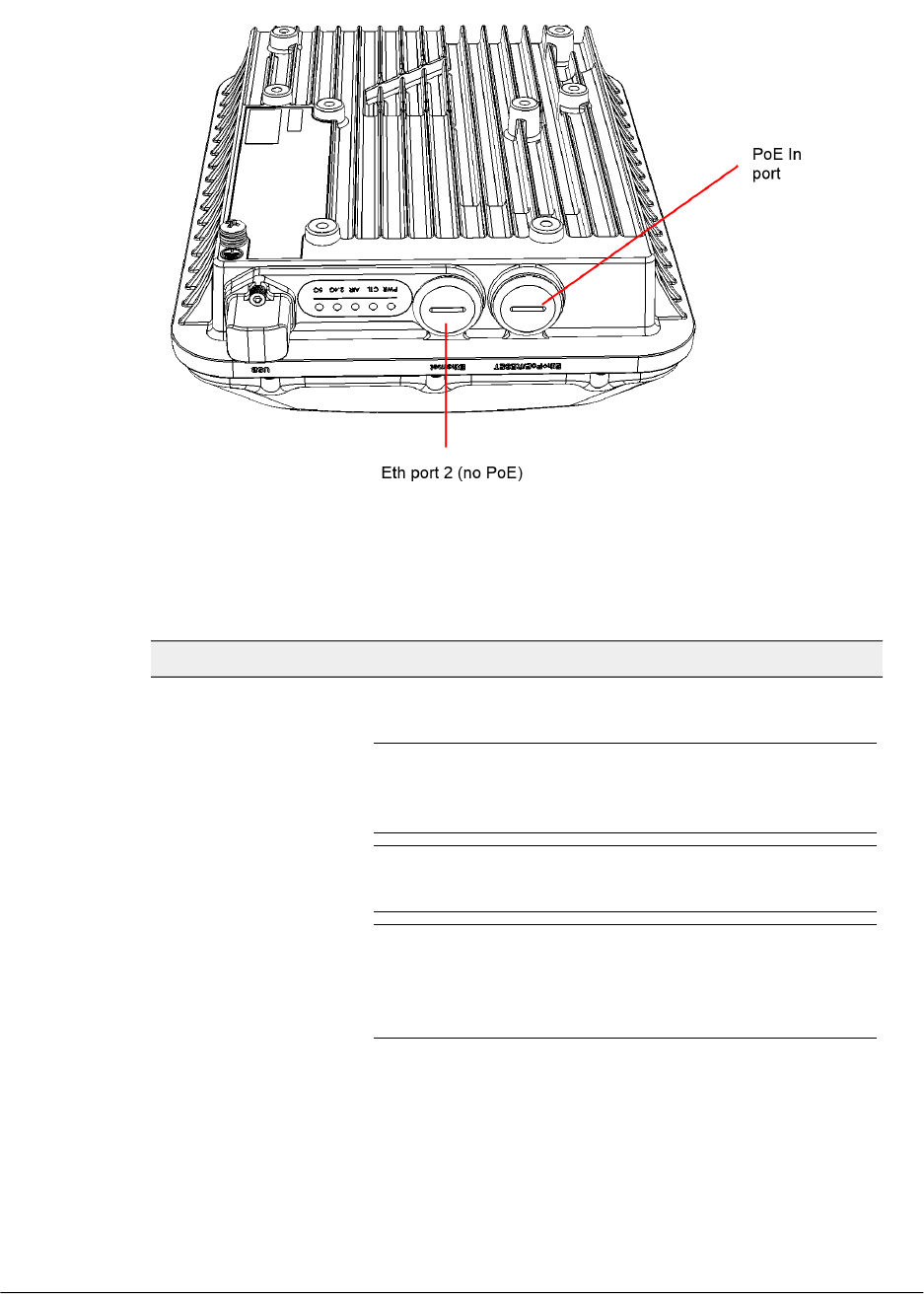
Figure 16: T610s bottom view
Table 16: T610s LED and other element descriptions
DescriptionLabel
RJ-45 Ethernet port: Supports 10/100/1000Mbps
connections, and receives Power over Ethernet (PoE).
CAUTION! Do not use any PoE injector not tested and
approved by Ruckus Wireless to power the T610s Access
Point.
CAUTION! Do not plug PoE IN power into the non-PoE
port.
CAUTION! If using a PoE switch to supply power to the
T610s, 30W MUST be reserved for the T610s on the switch.
Failure to ensure a 30W supply may result in unpredictable
operation of the access point.
Reset button: This button resets the AP to its factory defaults,
and is mounted under the Eth 1/PoE IN/RESET RJ-45
waterproof gland.
Eth 1/PoE IN/RESET
Outdoor Access Point Release 106.0 User Guide
44
Introduction
Getting to Know the Access Point Features

DescriptionLabel
RJ-45 Ethernet Port: Supports 10/100/1000Mbps
connections (no PoE).
Eth Port 2
•Off: Off.
•Red: Boot up in process.
•Flashing Green: No routable IP address.
•Green: On.
PWR
Controller LED:
•Off: The AP is not being managed by a Ruckus Wireless
controller (standalone mode).
•Green: The AP is being managed by a Ruckus Wireless
controller.
•Slow flashing green (one flash every two seconds): The
AP is being managed by a controller, but is currently
unable to communicate with the controller.
•Fast flashing green (two flashes every second): The AP is
being managed by a controller and is currently receiving
configuration settings (provisioning) or an image update.
CTL
AIR LED:
•Off: The AP is operating in standalone mode or operating
as a root AP (RAP) or a non-mesh AP.
•Green: The AP is functioning as a Mesh AP (MAP), and
the wireless signal to its uplink AP is good.
•Fast flashing green (two flashes every second): The AP is
functioning as a Mesh AP (MAP), and the wireless signal
to its uplink AP is fair.
•Slow flashing green (one flash every two seconds): Mesh
networking is enabled, but the AP is still searching for a
mesh uplink.
AIR
2.4 GHz radio LED:
•Off: The WLAN service is down.
•Green: The WLAN is up and at least one client is
associated.
•Amber: The WLAN is up. No clients are associated.
2.4G
45
Outdoor Access Point Release 106.0 User Guide
Introduction
Getting to Know the Access Point Features
DescriptionLabel
5 GHz radio LED:
•Off: The WLAN service is down.
•Amber: The WLAN is up, but no clients or downlink MAPs
are associated/connected.
•Green: The WLAN is up and at least one client is
associated. No downlink MAPs are connected.
•Slow flashing green (one flash every two seconds): The
WLAN is up and at least one downlink MAP is connected.
No clients are associated.
•Fast flashing green (two flashes every second): The WLAN
is up, at least one downlink MAP is connected, and at
least one client is associated.
5G
USB port for IoT devices, Zigbee dongle, 4G/LTE dongle,
etc.
USB
T610s Power Modes
The following table lists the T610's power modes and the corresponding feature set
under the different power modes. When both power sources are available on an AP,
then DC power will take priority and override PoE power. When the AP is connected to
a PoE switch the max power requested by the AP is captured in the second column,
and rest of the columns describe the operational capability for each mode.
NOTE The dBm transmit power values below are per chain.
Table 17: T610s Power Modes
160/
80+80
USB1G Eth
Port
1G Eth
(PoE)
Port
2.4 GHz
Radio
5 GHz
Radio
Power
Level
PoE
Mode
N/ADisabledDisabledEnabled2 x 4
18 dBm
4 x 4
20 dBm
12.95 W802.3af
EnabledEnabledEnabled4 x 4
22 dBm
4 x 4
20 dBm
25.0 W802.3at/
injector
T710
The T710 is a carrier grade dual-band concurrent 802.11ac Wave 2 outdoor access
point with 4x4:4 spatial streams, dual GbE ports and an SFP fiber interface. The T710
Outdoor Access Point Release 106.0 User Guide
46
Introduction
Getting to Know the Access Point Features
supports PoE in, PoE out, Ethernet port aggregation, and hot-swappable SFP fiber optic
module.
NOTE The T710 requires a minimum of standalone AP base image 104.0 and later, or
SmartZone 3.4 and later, or ZoneDirector 9.13 and later to operate.
The T710 can use the link aggregation control protocol (LACP) to control the bonding
of two 1Gbps physical Ethernet ports together to form a single logical channel. Refer to
Appendix B: Configuring Link Aggregation (LACP) for AP Backhaul on page 121 for
instructions on bonding the two Ethernet ports using LACP.
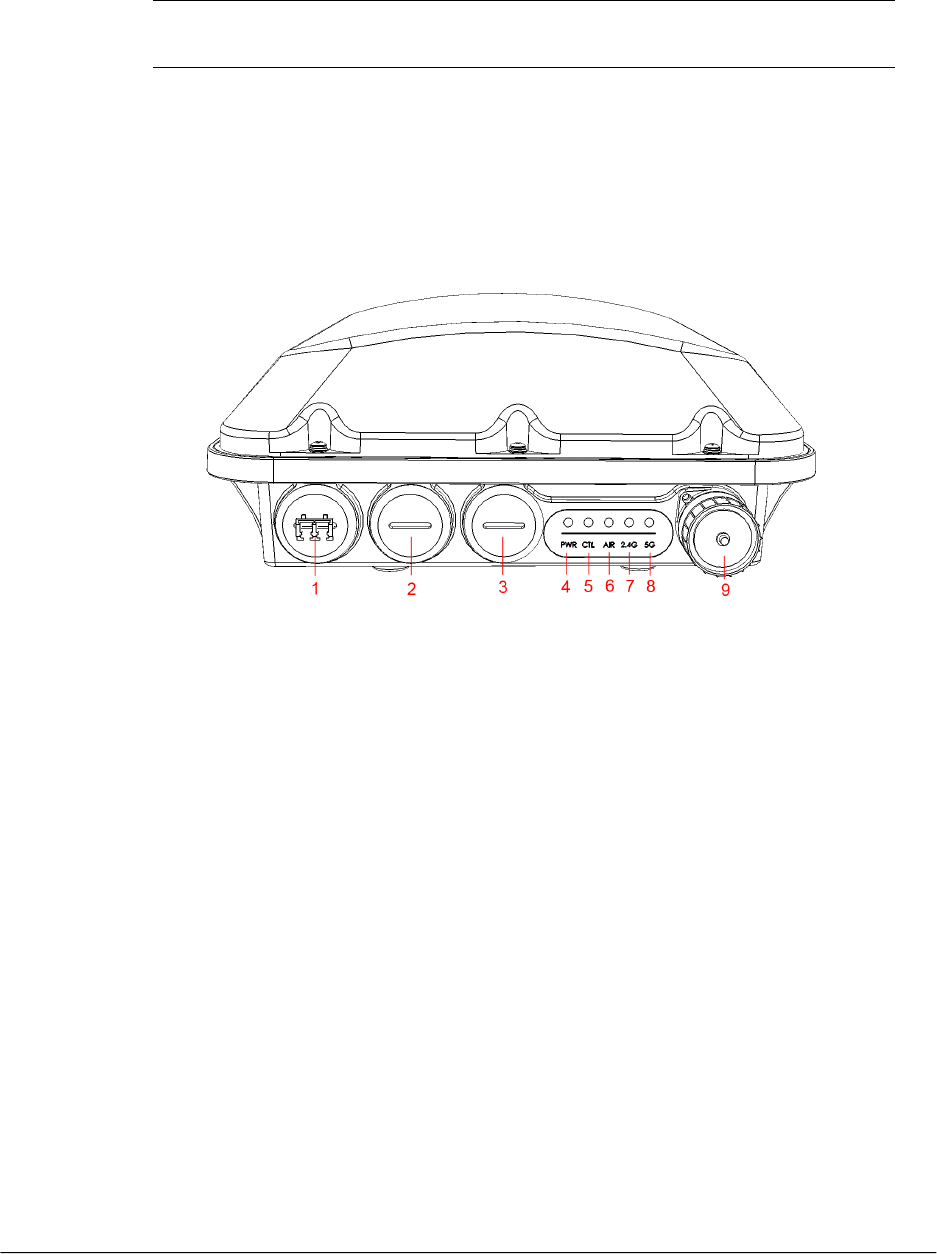
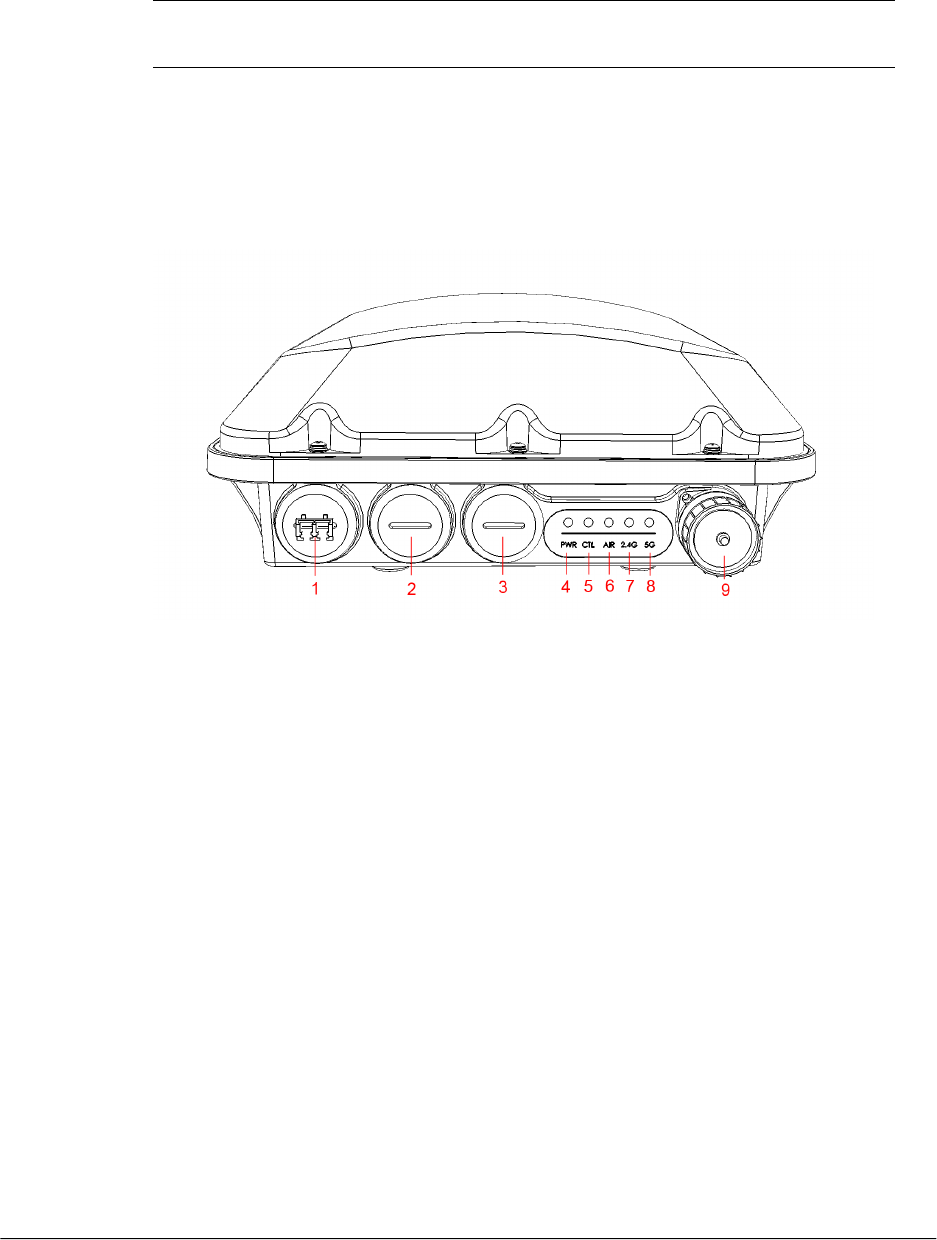
The following figure identifies the LEDs and connectors on the AP. The table below
describes these LEDs and other elements.
47
Outdoor Access Point Release 106.0 User Guide
Introduction
Getting to Know the Access Point Features

Figure 17: T710 LEDs and other elements
Table 18: T710 LED and other element descriptions
DescriptionLabelNo.
SFP Fiber port: To connect to fiber backhaul,
plug an SFP Optic module into the Fiber port.
The SFP module is hot-swappable and can
be removed with fingers or simple tools.
NOTE Recommended modules specified to
work with this system are: Finisar GPON
FTGN2117P2TUN, Finisar EPON
FTEN2217P1CUN-BC, Finisar 1000BaseLX
FTLF1318P3BTL, Xavi XO-3901 GPON ONT.
NOTE The fiber cable must be a single
diameter cable, not a zipcord.
SFP1
PoE IN RJ-45 Ethernet port: Supports
10/100/1000Mbps connections, and receives
Power over Ethernet (PoE).
CAUTION! Do not use any PoE injector not
tested and approved by Ruckus Wireless to
power the T710 Access Point.
CAUTION! Do not plug PoE IN power into
the PoE OUT port.
CAUTION! If using PoE OUT, it is
MANDATORY to use the custom Ruckus
supplied PoE injector (part #902-0180-XX00),
or to use AC power.
CAUTION! If using a PoE switch to supply
power to the T710, 30W MUST be reserved
for the T710 on the switch. Failure to ensure
a 30W supply may result in unpredictable
operation of the access point. Additionally, if
using a PoE switch, the T710's PoE OUT port
cannot be used to power additional devices.
Reset button: This button resets the AP to its
factory defaults, and is mounted under the
PoE IN/RESET RJ-45 waterproof gland.
PoE IN/RESET2
Outdoor Access Point Release 106.0 User Guide
48
Introduction
Getting to Know the Access Point Features

DescriptionLabelNo.
PoE OUT RJ-45 Ethernet port: Supports
10/100/1000Mbps connections. If using AC
power or the custom Ruckus PoE injector, the
PoE OUT port can be used to power
additional devices.
PoE OUT3
•Off: Off.
•Red: Boot up in process.
•Flashing Green: No routable IP address.
•Green: On.
PWR4
Controller LED:
•Off: The AP is not being managed by a
Ruckus Wireless controller (standalone
mode).
•Green: The AP is being managed by a
Ruckus Wireless controller.
•Slow flashing green (one flash every two
seconds): The AP is being managed by a
controller, but is currently unable to
communicate with the controller.
•Fast flashing green (two flashes every
second): The AP is being managed by a
controller and is currently receiving
configuration settings (provisioning) or an
image update.
CTL5
AIR LED:
•Off: The AP is operating in standalone
mode or operating as a root AP (RAP) or
a non-mesh AP.
•Green: The AP is functioning as a Mesh
AP (MAP), and the wireless signal to its
uplink AP is good.
•Fast flashing green (two flashes every
second): The AP is functioning as a Mesh
AP (MAP), and the wireless signal to its
uplink AP is fair.
•Slow flashing green (one flash every two
seconds): Mesh networking is enabled, but
the AP is still searching for a mesh uplink.
AIR6
49
Outdoor Access Point Release 106.0 User Guide
Introduction
Getting to Know the Access Point Features

DescriptionLabelNo.
2.4 GHz radio LED:
•Off: The WLAN service is down.
•Green: The WLAN is up and at least one
client is associated.
•Amber: The WLAN is up. No clients are
associated.
2.4G7
5 GHz radio LED:
•Off: The WLAN service is down.
•Amber: The WLAN is up, but no clients or
downlink MAPs are associated/connected.
•Green: The WLAN is up and at least one
client is associated. No downlink MAPs
are connected.
•Slow flashing green (one flash every two
seconds): The WLAN is up and at least
one downlink MAP is connected. No
clients are associated.
•Fast flashing green (two flashes every
second): The WLAN is up, at least one
downlink MAP is connected, and at least
one client is associated.
5G8
AC power connector: Assemble the AC power
connector as described in the
T710 Quick Setup Guide.
AC9
T710 PoE Power Considerations
Please take note of the following Power Over Ethernet (PoE) considerations:
•The T710 does NOT support 802.3af PoE power. Power must be supplied using
either the Ruckus supplied PoE injector, or an 802.3at PoE switch/injector, or AC
power.
•If using the PoE OUT port on the T710/T710s, it is MANDATORY to use the custom
Ruckus supplied 60W PoE injector (part #902-0180-XX00), or to use AC power.
•If using a PoE switch to supply power to the T710, the PoE switch must be capable
of supporting a PoE+ (802.3at) powered device. It is recommended to reserve 30W
for the T710 on the switch, to account for inefficiencies and losses.
Outdoor Access Point Release 106.0 User Guide
50
Introduction
Getting to Know the Access Point Features
T710s
The T710s is the sector antenna variant of the T710.
NOTE The T710s requires a minimum of standalone AP base image 104.0 and later
to operate, or SmartZone 3.4 and later, or ZoneDirector 9.13 and later to operate.
The T710s can use the link aggregation control protocol (LACP) to control the bonding
of two 1Gbps physical Ethernet ports together to form a single logical channel. Refer to
Appendix B: Configuring Link Aggregation (LACP) for AP Backhaul on page 121 for
instructions on bonding the two Ethernet ports using LACP.
The following figure identifies the LEDs and connectors on the AP. The table below
describes these LEDs and other elements.
51
Outdoor Access Point Release 106.0 User Guide
Introduction
Getting to Know the Access Point Features

Figure 18: T710s LEDs and other elements
Table 19: T710s LED and other element descriptions
DescriptionLabelNo.
SFP Fiber port: To connect to fiber backhaul,
plug an SFP Optic module into the Fiber port.
The SFP module is hot-swappable and can
be removed with fingers or simple tools.
NOTE Recommended modules specified to
work with this system are: Finisar GPON
FTGN2117P2TUN, Finisar EPON
FTEN2217P1CUN-BC, Finisar 1000BaseLX
FTLF1318P3BTL, Xavi XO-3901 GPON ONT.
NOTE The fiber cable must be a single
diameter cable, not a zipcord.
SFP1
PoE IN RJ-45 Ethernet port: Supports
10/100/1000Mbps connections, and receives
Power over Ethernet (PoE).
CAUTION! Do not use any PoE injector not
tested and approved by Ruckus Wireless to
power the T710s Access Point.
CAUTION! Do not plug PoE IN power into
the PoE OUT port.
CAUTION! If using PoE OUT, it is
MANDATORY to use the custom Ruckus
supplied PoE injector (part #902-0180-XX00),
or to use AC power.
CAUTION! If using a PoE switch to supply
power to the T710s, 30W MUST be reserved
for the T710 on the switch. Failure to ensure
a 30W supply may result in unpredictable
operation of the access point. Additionally, if
using a PoE switch, the T710's PoE OUT port
cannot be used to power additional devices.
Reset button: This button resets the AP to its
factory defaults, and is mounted under the
PoE IN/RESET RJ-45 waterproof gland.
PoE IN/RESET2
Outdoor Access Point Release 106.0 User Guide
52
Introduction
Getting to Know the Access Point Features

DescriptionLabelNo.
PoE OUT RJ-45 Ethernet port: Supports
10/100/1000Mbps connections. If using AC
power or the custom Ruckus PoE injector,
the PoE OUT port can be used to power
additional devices.
PoE OUT3
•Off: Off.
•Red: Boot up in process.
•Flashing Green: No routable IP address.
•Green: On.
PWR4
Controller LED:
•Off: The AP is not being managed by a
Ruckus Wireless controller (standalone
mode).
•Green: The AP is being managed by a
Ruckus Wireless controller.
•Slow flashing green (one flash every two
seconds): The AP is being managed by a
controller, but is currently unable to
communicate with the controller.
•Fast flashing green (two flashes every
second): The AP is being managed by a
controller and is currently receiving
configuration settings (provisioning) or an
image update.
CTL5
AIR LED:
•Off: The AP is operating in standalone
mode or operating as a root AP (RAP) or
a non-mesh AP.
•Green: The AP is functioning as a Mesh
AP (MAP), and the wireless signal to its
uplink AP is good.
•Fast flashing green (two flashes every
second): The AP is functioning as a Mesh
AP (MAP), and the wireless signal to its
uplink AP is fair.
•Slow flashing green (one flash every two
seconds): Mesh networking is enabled,
but the AP is still searching for a mesh
uplink.
AIR6
53
Outdoor Access Point Release 106.0 User Guide
Introduction
Getting to Know the Access Point Features

DescriptionLabelNo.
2.4 GHz radio LED:
•Off: The WLAN service is down.
•Green: The WLAN is up and at least one
client is associated.
•Amber: The WLAN is up. No clients are
associated.
2.4G7
5 GHz radio LED:
•Off: The WLAN service is down.
•Amber: The WLAN is up, but no clients or
downlink MAPs are associated/connected.
•Green: The WLAN is up and at least one
client is associated. No downlink MAPs
are connected.
•Slow flashing green (one flash every two
seconds): The WLAN is up and at least
one downlink MAP is connected. No
clients are associated.
•Fast flashing green (two flashes every
second): The WLAN is up, at least one
downlink MAP is connected, and at least
one client is associated.
5G8
AC power connector: Assemble the AC power
connector as described in the
T710s Quick Setup Guide.
AC9
T710 PoE Power Considerations
Please take note of the following Power Over Ethernet (PoE) considerations:
•The T710 does NOT support 802.3af PoE power. Power must be supplied using
either the Ruckus supplied PoE injector, or an 802.3at PoE switch/injector, or AC
power.
•If using the PoE OUT port on the T710/T710s, it is MANDATORY to use the custom
Ruckus supplied 60W PoE injector (part #902-0180-XX00), or to use AC power.
•If using a PoE switch to supply power to the T710, the PoE switch must be capable
of supporting a PoE+ (802.3at) powered device. It is recommended to reserve 30W
for the T710 on the switch, to account for inefficiencies and losses.
Outdoor Access Point Release 106.0 User Guide
54
Introduction
Getting to Know the Access Point Features

55
Outdoor Access Point Release 106.0 User Guide
Introduction
Getting to Know the Access Point Features
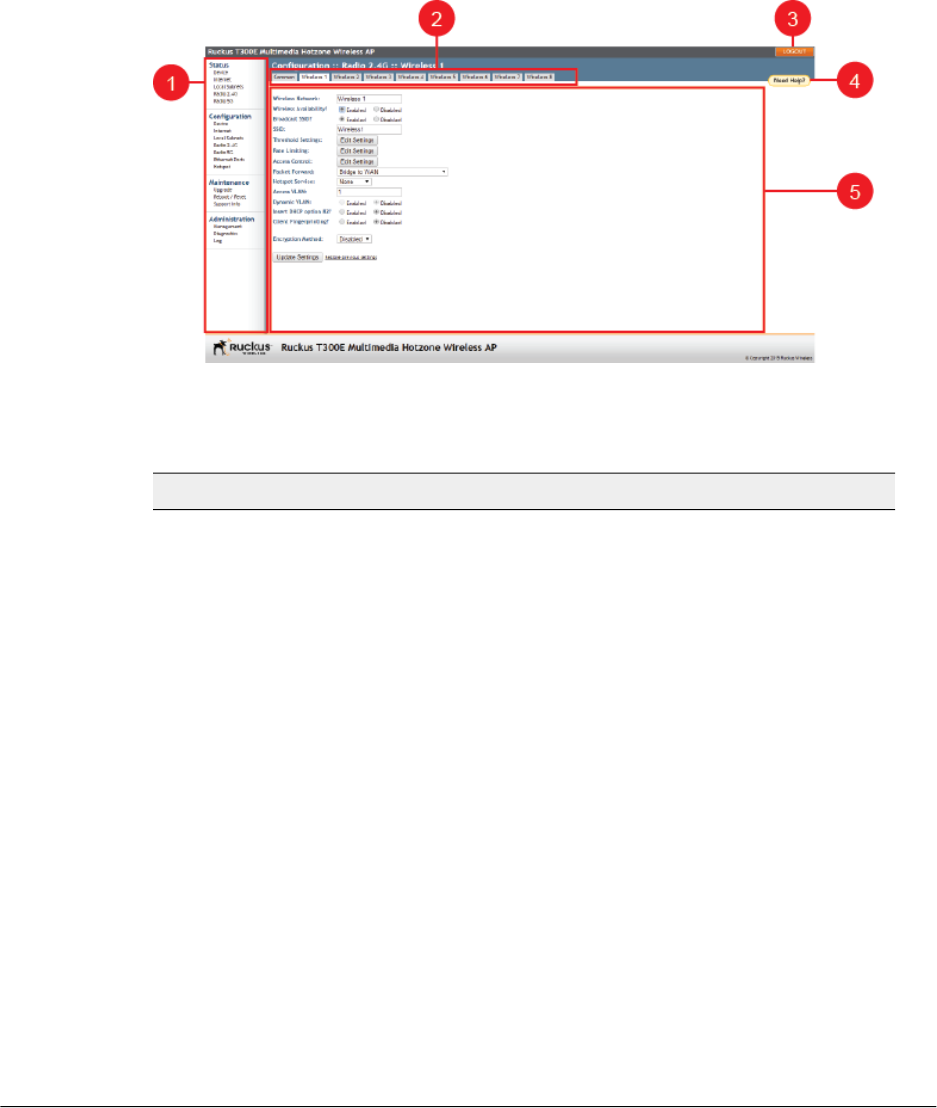
Navigating the Web Interface 2
Navigating the Web Interface
You manage the AP through a web browser-based interface that you can access from
any networked computer.
Figure 19: Elements of the Ruckus Wireless AP Web Interface
Table 20: Ruckus Wireless AP web interface elements
DescriptionElementNo.
Under each category (Status,
Configuration, etc.) are options that,
when clicked, open the related
workspace in the area to the right.
Menu1
Contains additional options for the
configuration page. For example, the
Configuration > Wireless page includes
one tab for common wireless
configuration and eight tabs, one for
each of the available WLANs.
Tabs2
Click this button to log out of the AP.LOGOUT Button3
Click this button to open a help window
with information related specifically to
the options currently displayed in the
workspace.
Help Button4
56
Outdoor Access Point Release 106.0 User Guide
56
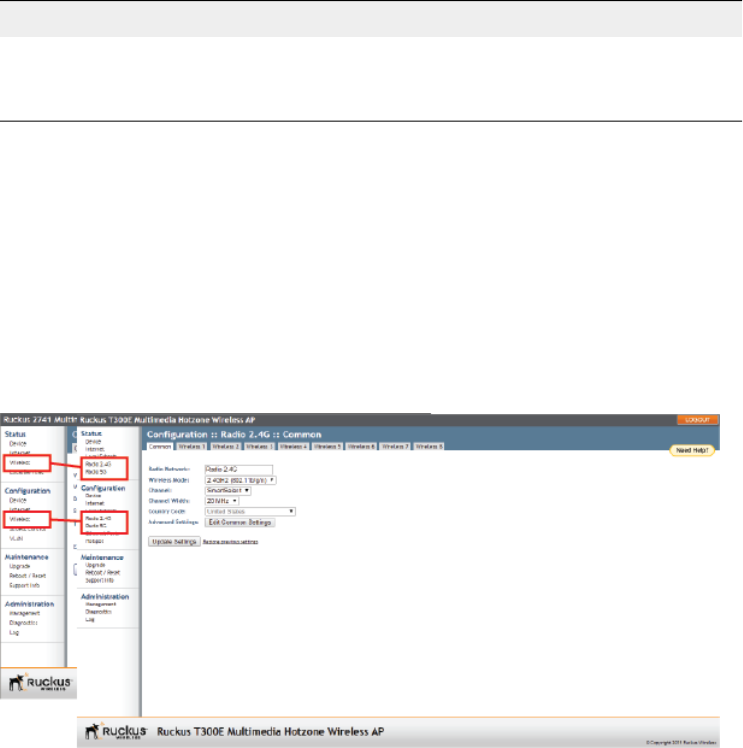
DescriptionElementNo.
This large area displays features, options
and indicators relevant to your menu bar
choices.
Workspace5
When Using a Dual-Band AP
If your Ruckus Wireless AP model is dual-band, then note that elements on the web
interface menu are slightly different from single-band Ruckus Wireless AP models.
Dual-band APs have one 2.4GHz radio (for 802.11b/g/n clients) and one 5GHz radio
(for 802.11a/n/ac clients). The wireless settings for these two radios need to be configured
separately, which is why the dual-band AP web interface has the Radio 2.4G and Radio
5G menu items, instead of a single Wireless menu item in single-band models.
The following figure highlights the differences between single-band and dual-band Ruckus
Wireless AP menus.
Figure 20: Menu items are slightly different in single-band APs (left) and dual-band APs (right)

Configuration 3
Configuring the AP for Management by ZoneDirector
When your Ruckus Wireless network is managed by a ZoneDirector controller, you can
manage APs using the controller rather than individually logging into each AP's web
interface.
If ZoneDirector is installed on the network, then follow the instructions in the ZoneDirector
User Guide and connect the AP to your network. The AP finds the ZD, and then
downloads the ZD-compatible AP firmware from the ZD controller.
NOTE The AP must have some way of obtaining an IP address (IPv4 DHCP or IPv6
Auto Configuration).
Configuring the AP for Management by a SmartZone
Controller
When your Ruckus Wireless network is managed by a SmartZone controller, you can
manage APs using the controller rather than individually logging into each AP's web
interface.
If SmartZone controllers are installed on the network, then follow the instructions in the
SmartZone Admin Guide to configure the controller, and then connect the AP to your
network. The AP finds the SZ controller and then downloads the SZ-compatible AP
firmware from the controller.
NOTE The AP must have some way of obtaining an IP address (IPv4 DHCP or IPv6
Auto Configuration).
Configuring the Access Point for Standalone
Operation or Management by FlexMaster
If the AP is to be run in a standalone mode or is to be managed by a FlexMaster manager,
then continue with this section.
This section provides instructions for configuring Ruckus Wireless APs in a standalone
configuration or when the AP is to be managed by a FlexMaster manager.
In this section:
•Configuring Device Settings on page 59
•Configuring Internet Settings on page 61
58
Outdoor Access Point Release 106.0 User Guide
58
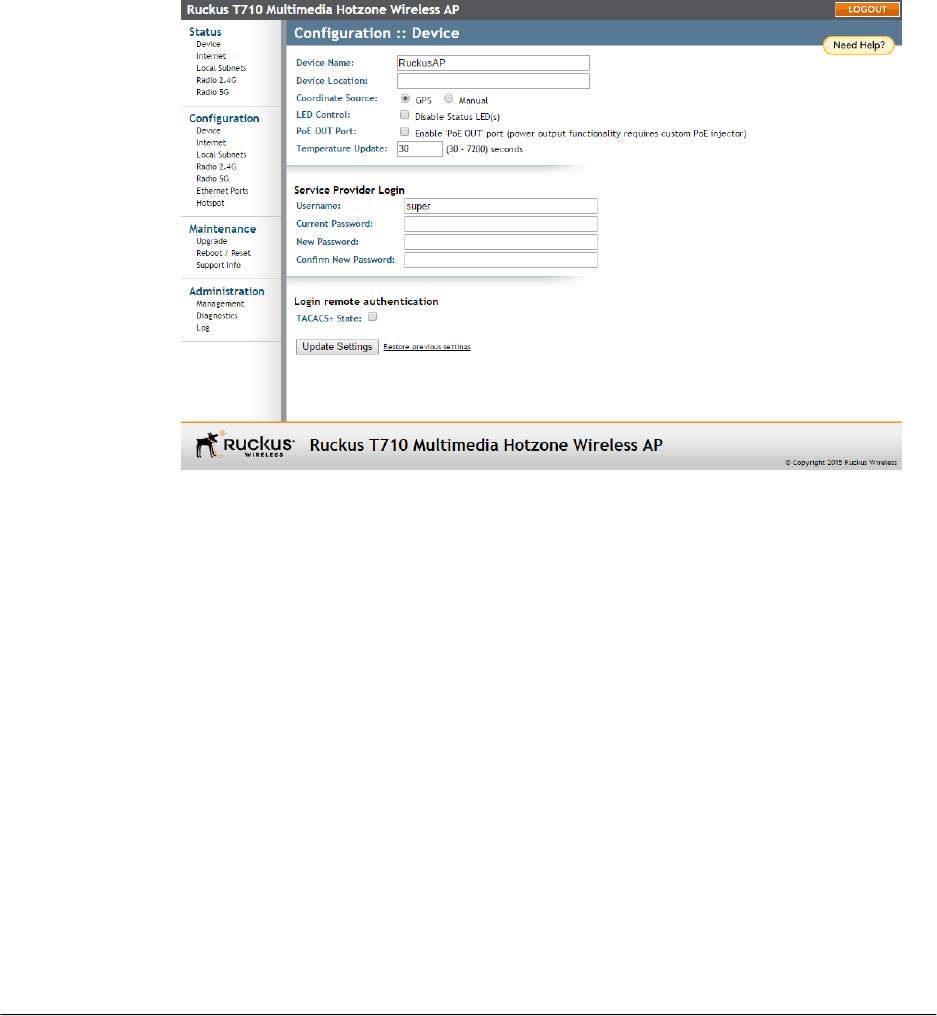
•Configuring Local Subnets on page 67
•Configuring Wireless Settings on page 69
•Configuring Ethernet Ports on page 87
•Configuring Hotspot Service on page 93
Configuring Device Settings
Device settings refer to the device name, location, service provider login, and other
settings. (Some settings are only available on certain AP models.)
To configure the AP device settings:
1. Go to Configuration > Device.
Figure 21: The Configuration > Device page
2. In Device Name, type a new name for the device or leave as is to accept the default
device name (RuckusAP). The device name identifies this AP among other devices
on the network.
3. Configure the following optional settings as desired:
•Enter Device Location to keep track of the physical location of the AP.
•If the AP has a GPS antenna, then select the method of entering the GPS
coordinates. In Coordinate Source, select GPS to have the GPS antenna
automatically determine and enter the GPS coordinates, or select Manual to enter
the GPS coordinates manually.
59
Outdoor Access Point Release 106.0 User Guide
Configuration
Configuring the Access Point for Standalone Operation or Management by FlexMaster

NOTE If you selected Manual, then enter GPS Coordinates to record the physical
location of the AP.
•Under LED Control (specific models only), check the Disable Status LED(s) box
to turn off the status LEDs. This can be useful when the AP is installed in a public
location, to avoid drawing attention to the AP.
•Enable Internal Heater and PoE OUT Port (specific models only) if needed.
•In Temperature Update (specific models only), enter the interval (in seconds) to
report the internal temperature of the device.
4. Under Service Provider Login, change the login information as required:
•Username: Type the name that you want to use for logging into the web interface.
The default user name is super.
•Current Password: When you are changing the password, enter the existing
password here.
•New Password: When you are changing the password, enter the new password
The default password is sp-admin. The password must consist of six to 32
alphanumeric characters only.
•Confirm New Password: Retype the new password to confirm.
5. Under Login remote authentication, click the TACACS+ State box to enable the
TACACS+ server interface, if required.
NOTE Terminal Access Controller Access-Control System Plus (TACACS+) is an
AAA protocol used to authenticate administrator login to this device. Users can be
authenticated/authorized to monitor, operate or configure this device. Default is
disabled. Administrators can be assigned any of the following three administration
privilege levels:
•Super Admin (Perform all configuration and management tasks)
•Operator Admin (Change settings affecting single APs only)
•Monitoring Admin (Monitoring and viewing operation status only)
If the TACACS+ server state is enabled, then configure the TACACS+ server
parameters:
•TACACS+ server: IPv4 or IPv6 server address.
•TACACS+ port: 49 is the default, but it can be set to any available TCP port.
•TACACS+ Service: Login name.
•Share Key: TACACS+ Password.
•Confirm Share Key: retype the TACACS+ Password.
6. Click Update Settings to save and apply your changes.
Outdoor Access Point Release 106.0 User Guide
60
Configuration
Configuring the Access Point for Standalone Operation or Management by FlexMaster
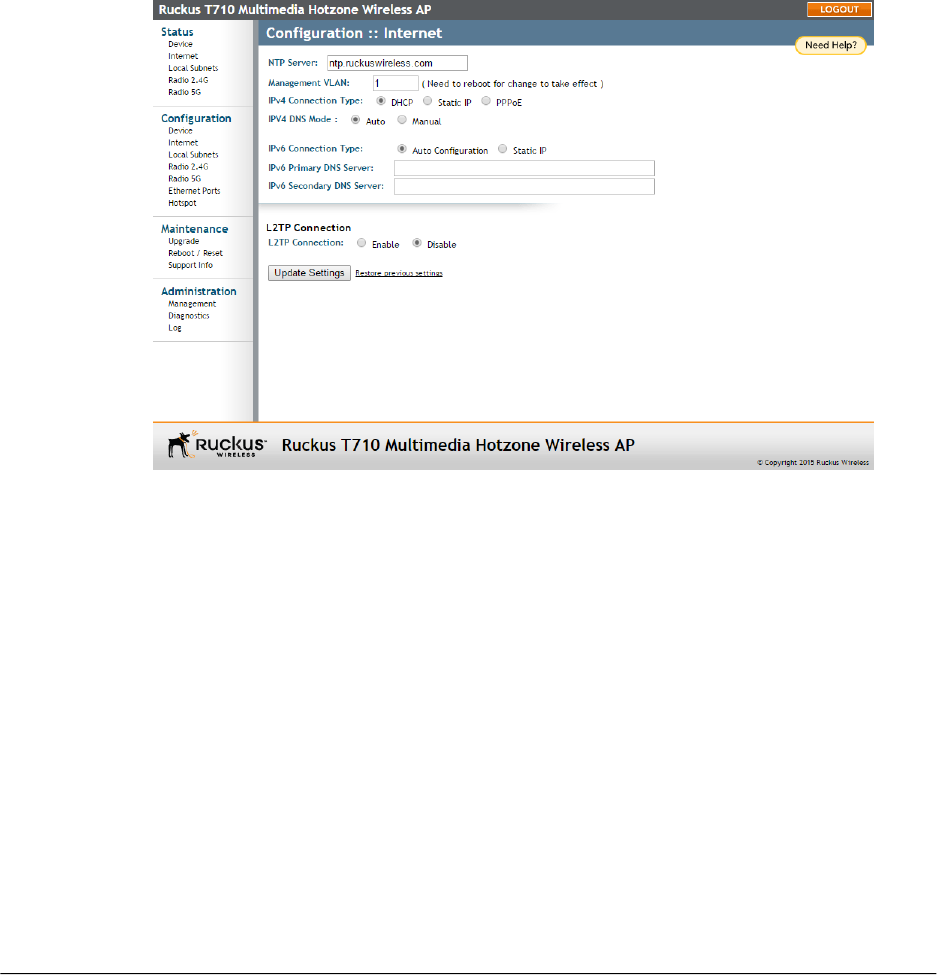
Configuring Internet Settings
Internet settings define how the AP connects to your local area network and to the
Internet.
This section describes how to view and configure the AP's Internet settings.
Topics discussed include:
•VLAN Settings Overview on page 61
•Configuring an NTP Server on page 62
•Configuring the Management VLAN on page 62
•Default IP Addressing Behavior on page 62
•Obtaining and Assigning an IP Address on page 62
•Configuring L2TP Connection Settings on page 66
Figure 22: The Configuration > Internet page
VLAN Settings Overview
A Ruckus Wireless AP is in many ways like a network switch that supports virtual LAN
segmentation on both its wired and wireless interfaces.
Like many advanced switches, Ruckus APs conform to the IEEE 802.1Q standard --
the standard that defines virtual LANs. In an 802.1Q switch, the concept of VLANs is
always present. If a packet arrives without an 802.1Q header, it is assigned to the native
VLAN or untag VLAN.
61
Outdoor Access Point Release 106.0 User Guide
Configuration
Configuring the Access Point for Standalone Operation or Management by FlexMaster

Each of the AP's wireless interfaces can be assigned a single VLAN. When a packet
enters the AP through its wireless interface, the packet is assigned to the Access VLAN
configured on the Configuration > Wireless page (by default, 1).
AP Ethernet ports however, can be configured to pass all VLAN traffic (Trunk Ports) or
multiple specific VLANs (General ports).
The VLAN displayed in the web interface shows the AP's view of the VLAN environment;
when a packet arrives at an AP's Ethernet port, the port's VLAN configuration helps
determine if the packet is accepted or not (VLAN membership), and assigns a default
VLAN (untagged VLAN) if the packet contains no 802.1Q header.
In general, if your network has VLANs deployed already, you should apply VLAN
configuration to Ruckus APs so that the configuration across the network is consistent.
Configuring an NTP Server
A network time protocol (NTP) server should be configured to ensure that the AP
maintains the correct time. The default Ruckus Wireless NTP Server
(ntp.ruckuswireless.com) can be used if you do not have an NTP server on your network.
If you want the AP to use a different NTP server, you can do so by going to Configuration
> Internet, entering the host name in NTP Server at the top of the page, and then clicking
Update Settings.
Configuring the Management VLAN
CAUTION! Changing the Management VLAN causes you to be immediately
disconnected from the web interface if the computer you are using is not on the same
VLAN. Do not change the Management VLAN unless your admin PC is on the same
VLAN, or you are disconnected and unable to connect again without factory resetting
the AP.
If you want to place this AP's management traffic into a management VLAN, enter the
VLAN ID in the Management VLAN field and click Update Settings.
Default IP Addressing Behavior
By default, the AP is configured to automatically obtain an IPv4 address from a DHCP
server on the network.
If the AP does not detect a DHCP server, it automatically assigns itself the static IP
address 192.168.0.1 (or 192.168.100.2 for Cable Modem APs) to make it easier for you
to configure and deploy it on your network.
For IPv6, the Auto Configuration setting serves the same purpose as DHCP. The default
static IPv6 address is fc00::1.
Obtaining and Assigning an IP Address
There are three methods of assigning IP addresses to the AP:
•DHCP/Auto Configuration on page 63
Outdoor Access Point Release 106.0 User Guide
62
Configuration
Configuring the Access Point for Standalone Operation or Management by FlexMaster
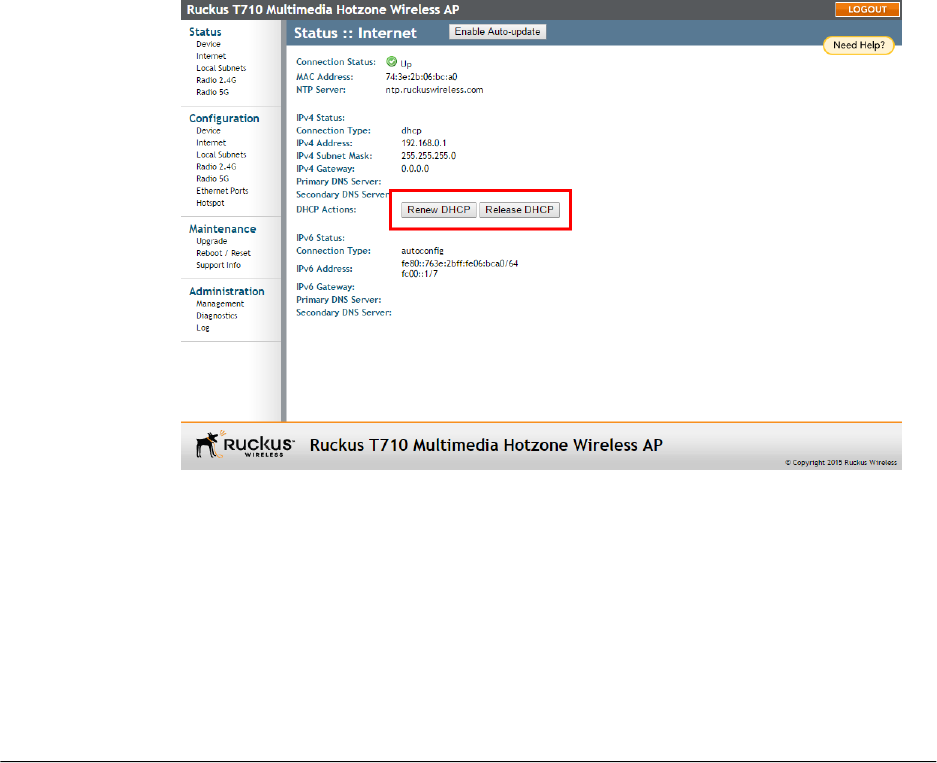
•Configuring a Static IP on page 65
•PPPoE on page 65
DHCP/Auto Configuration
If you leave the AP at its default configuration, then it attempts to obtain an IPv4 address
from a DHCP server on the network.
In an IPv6 network environment, the AP attempts to obtain an IPv6 address from an
IPv6 Auto Configuration server.
Refer to the following:
•Renewing and Releasing DHCP on page 63
•Configuring IPv4 Auto or Manual Configuration on page 64
•Configuring IPv6 Auto Configuration on page 64
Renewing and Releasing DHCP
This task should be performed only if you have access to the DHCP server or have some
way to determine what IP address has been assigned to the AP. It serves as a
troubleshooting technique when IP addresses to one or more networked devices prove
to be unusable or in conflict with others, or when the AP loses its DHCP-assigned IP
address for some reason.
1. Go to Status > Internet.
Figure 23: Renew or Release DHCP
2. Review the current settings.
63
Outdoor Access Point Release 106.0 User Guide
Configuration
Configuring the Access Point for Standalone Operation or Management by FlexMaster

3. If the current Connection Type is dhcp, then you are able to see the currently-assigned
IP address and subnet mask listed below.
•To force the AP to release its DHCP-assigned IP address, click Release DHCP.
This disconnects the user from web interface as the system reverts to its default
IP address. Log in to the device using the default IP address (192.168.0.1 (or
192.168.100.2 for Cable Modem APs) and click Renew DHCP to request a new
lease from the DHCP server.
•Click Renew DHCP to request a new IP address lease from the DHCP server.
NOTE The IP address may or may not change depending on the lease time
offered to this device.
4. Click Update Settings to save your changes.
Configuring IPv4 Auto or Manual Configuration
If you leave the AP at its default configuration, it attempts to obtain an IPv4 address from
a DHCP server on the network.
1. Go to Configuration > Internet.
2. In IPv4 Connection Type, select DHCP.
3. In IPv4 DNS Mode, select Auto or Manual.
•When you select Auto, the AP automatically searches for an IPv4 DNS server.
•When you select Manual, also make the following entries:
•IPv4 Primary DNS Server: The IP address of the primary Domain Name
System (DNS) server.
•IPv4 Secondary DNS Server: The IP address of the secondary DNS server.
4. Click Update Settings to save your changes
Configuring IPv6 Auto Configuration
In an IPv6 network environment, the AP attempts to obtain an IPv6 address from an
IPv6 Auto Configuration server.
1. Go to Configuration > Internet.
2. In IPv6 Connection Type, select Auto Configuration.
3. In IPv6 Primary DNS Server, enter the IP address of the primary IPv6 DNS server.
4. In IPv6 Secondary DNS Server, enter the IP address of the secondary IPv6 DNS
server.
5. Click Update Settings to save your changes
Outdoor Access Point Release 106.0 User Guide
64
Configuration
Configuring the Access Point for Standalone Operation or Management by FlexMaster

Configuring a Static IP
Unless you are able to determine the IP address assigned to the AP by the DHCP/Auto
Configuration server, it can be useful for anyone needing administrative access to
configure a static IP address.
1. Go to Configuration > Internet.
NOTE You can configure static addresses for IPv4, IPv6 or both. The AP maintains
both sets of IP address settings if both are configured.
2. In IPv4 Connection Type or IPv6 Connection Type, select Static IP.
3. When the Internet Connection Settings options appear, you can make changes to
the following settings:
•(IPv6 only) IPv6 Primary DNS Server: The IP address of the primary IPv6 DNS
server.
•(IPv6 only) IPv6 Secondary DNS Server: The IP address of the secondary IPv6
DNS server.
•IPv4/IPv6 Address: Enter the static IP address that you want to assign to the
AP in either IPv4 (dot-decimal) or IPv6 (colon-separated) format.
•IPv4 Subnet Mask or IPv6 Prefix Length: Enter the subnet mask or prefix length
for the network.
•IPv4/IPv6 Gateway: Enter the gateway IP address of the Internet interface.
4. (IPv4 only) In IPv4 DNS Mode, select Auto or Manual.
•When you select Auto, the AP automatically searches for an IPv4 DNS server.
•When you select Manual, also make the following entries:
•IPv4 Primary DNS Server: The IP address of the primary DNS server.
•IPv4 Secondary DNS Server: The IP address of the secondary DNS server.
5. Click Update Settings to save your changes.
PPPoE
Point to Point Protocol over Ethernet (PPPoE) is a Layer 2 protocol which uses the PPP
(Point to Point) protocol to connect a client system to a server system over a one to one
network link.
All traffic for a PPPoE connected client must go through the PPPoE server to reach the
client. A PPPoE server can therefore be used to route, NAT, firewall, and perform QoS
traffic shaping.
If a PPPoE server is used to distribute Internet access to subscribers, the AP can be
configured with a PPPoE username and password to authenticate with the PPPoE server.
PPPoE is available only for the IPv4 connection type; PPPoE is not supported in IPv6
environments.
65
Outdoor Access Point Release 106.0 User Guide
Configuration
Configuring the Access Point for Standalone Operation or Management by FlexMaster
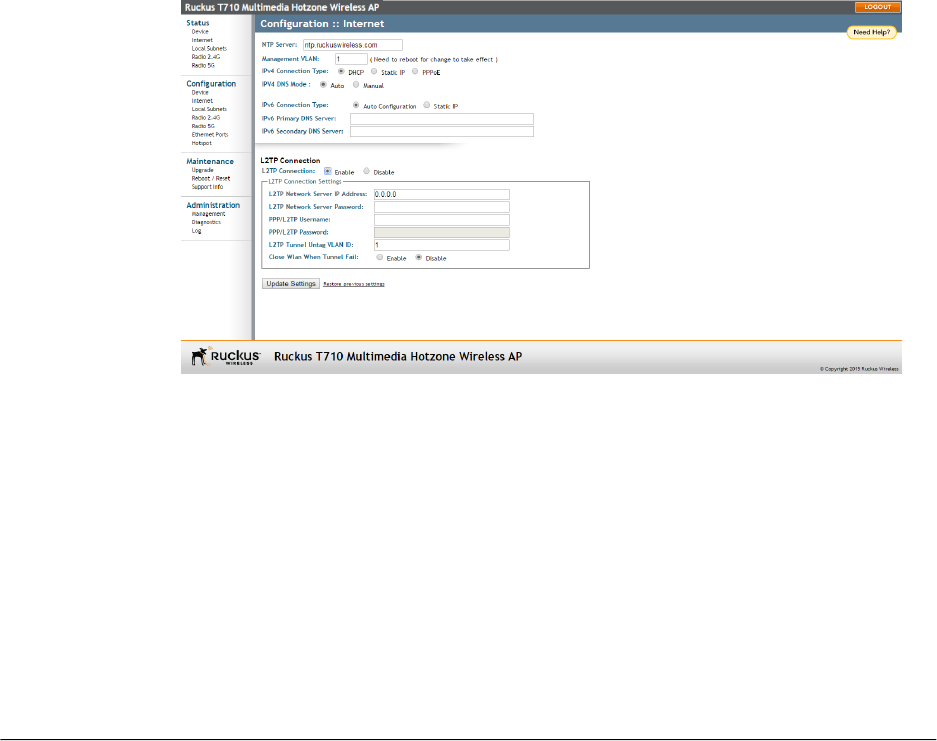
1. Go to Configuration > Internet.
2. Under IPv4 Connection Type, select PPPoE.
3. Enter a PPPoE Username.
4. Enter a PPPoE Password.
5. Retype the password in PPPoE Password Confirmation.
6. Click Update Settings to save your changes.
Configuring L2TP Connection Settings
You can implement transparent bridging with Ruckus Wireless APs by using L2TP (Layer
2 Tunneling Protocol) tunneling. By tunneling traffic from a Ruckus Wireless AP to a
centralized data center, access controllers with policy enforcement software can apply
rules and services. In a typical WLAN implementation, these rules include a captive portal
to authenticate users' credentials.
In the case of L2TP, the Ruckus Wireless AP functions as a remote bridge. As such, it
forwards traffic into PPP sessions over the L2TP tunnel. This implementation ensures
that you have complete visibility into MAC addresses of users, as individual Wi-Fi clients
are essentially placed (bridged) onto the ISP's core network.
1. Go to Configuration > Internet.
2. In L2TP Connection, click Enable.
Figure 24: L2TP Connection
3. In L2TP Network Server IP Address, type the IP address of the L2TP network
server (LNS) to which the device connects.
4. In L2TP Network Server Password, type the L2TP server password.
Outdoor Access Point Release 106.0 User Guide
66
Configuration
Configuring the Access Point for Standalone Operation or Management by FlexMaster

5. If your network requires PPP authentication, configure the following fields for L2TP/PPP
authentication:
•PPP/L2TP Username: Type your PPP user name.
•PPP/L2TP Password: Type the password for the account.
•L2TP Tunnel Untag VLAN ID: Enter the Untag VLAN ID for the L2TP tunnel.
6. In Close WLAN When Tunnel Fail, select Enable if you want to disable the WLAN
when the tunnel connection is lost. This prevents clients from remaining seemingly
connected to the WLAN but without Internet connectivity.
7. Click Update Settings to save your changes.
Configuring Local Subnets
Ruckus Wireless APs can be configured to provide routing/network address translation
(NAT) functionality using the Local Subnets feature.
When a Local Subnet is enabled, the standalone AP serves as a gateway router that
can manage its own subnets, providing DHCP server and DNS cache functions for both
wired and wireless clients. These clients can be assigned private IP addresses from a
user-defined address pool. Traffic from the client station in private address space appears
on the outside as if generated by the AP itself. In this way, the AP performs Layer 3
packet forwarding not only for Hotspot/WISPr usage, but for standard usage as well.
Up to four IP subnets can be configured per AP, each with its own VLAN and address
range which cannot conflict with one another.
1. Go to Configuration > Local Subnets. The Local Subnet 1 through Local Subnet
4 tabs allow you to configure each of the four subnets independently.
67
Outdoor Access Point Release 106.0 User Guide
Configuration
Configuring the Access Point for Standalone Operation or Management by FlexMaster
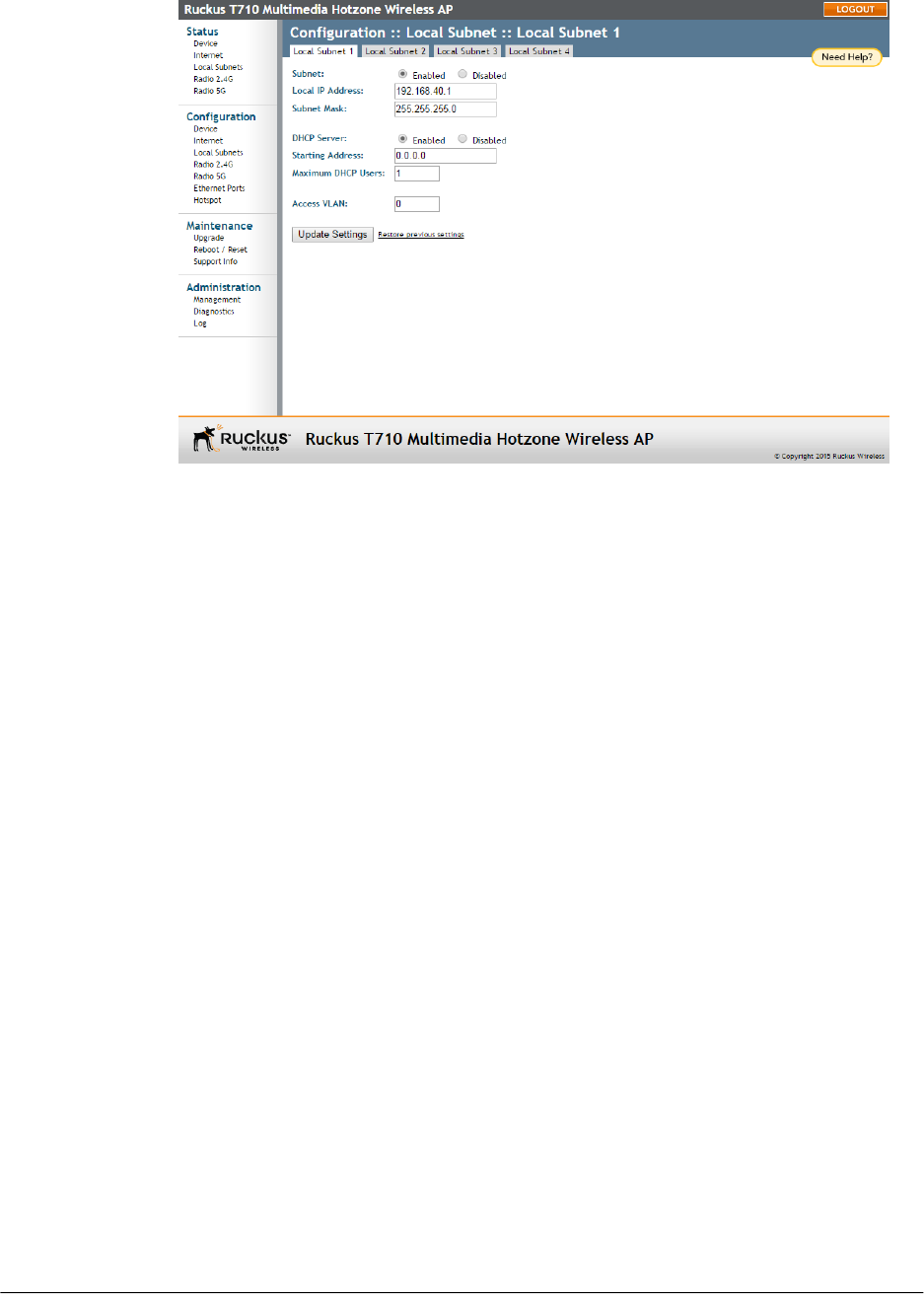
Figure 25: Configuring local subnets and enabling router mode
2. Click Enabled next to Subnet. The local subnet configuration options appear.
3. In Local IP Address, enter an IP address for the gateway. The default address for
Subnet 1 is 192.168.40.1. This address can be used to access the AP's web interface
for configuration and monitoring from devices connected to this subnet.
4. In Subnet Mask, typically you would want to leave the setting at its default value
(255.255.255.0) for a Class C subnet with an address pool of up to 254 addresses.
An error appears if you enter an invalid IP/netmask combination.
5. In DHCP Server, click Enabled if you want to enable DHCP for this subnet. Starting
Address and Maximum DHCP Users fields appear.
6. In Starting Address, enter an address in the same subnet as the Local IP Address
(for example, 192.168.40.2).
7. In Maximum DHCP Users, enter the maximum number of clients that can be
assigned addresses by DHCP in this subnet (valid values are 1-253 if the default
subnet mask is used).
8. In Access VLAN, enter a VLAN ID to segment client traffic arriving from this subnet
from other network traffic. (Example: If you use the default 192.168.40.1 address
range, you might want to use "40" as the VLAN for this subnet.)
9. Click Update Settings to save your changes. The local subnet is created immediately
and can now be applied to WLANs or Ethernet ports from their respective configuration
pages.
Outdoor Access Point Release 106.0 User Guide
68
Configuration
Configuring the Access Point for Standalone Operation or Management by FlexMaster
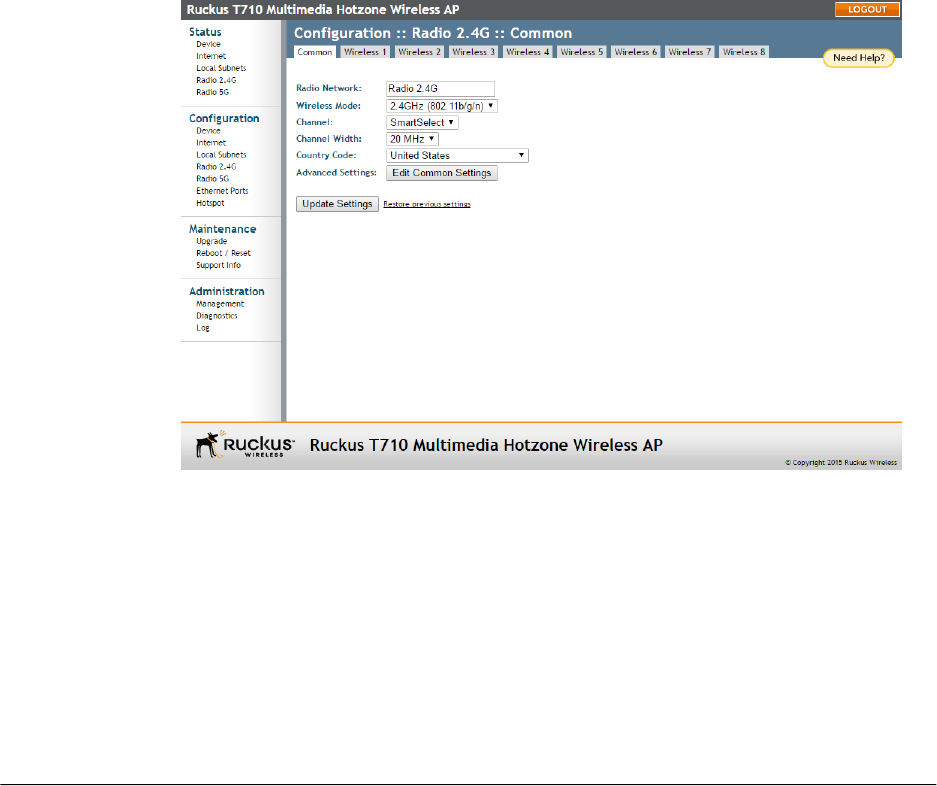
Configuring Wireless Settings
This section describes how to configure the wireless settings of the AP.
There are two types of wireless settings that you need to configure:
•Configuring Common Wireless Settings on page 69: Includes the wireless mode,
country code, and advanced wireless settings, such as the wireless transmit power
and wireless protection mode. These settings are applied to all WLANs.
•Configuring Wireless # (WLAN Number) Settings on page 74: The Wireless # (WLAN
number) tabs (Wireless 1 through Wireless 8 on the 2.4GHz radio and Wireless 9
through Wireless 16 on the 5GHz radio) provide settings for customizing each WLAN
individually.
Configuring Common Wireless Settings
Common wireless settings are settings that are applied to all WLANs.
On single-radio APs, go to Configuration > Wireless. On dual-radio APs, you configure
these settings for the 2.4GHz and 5GHz radios independently by going to Configuration
> Radio 2.4G or Configuration > Radio 5G.
1. Go to Configuration > Wireless/Radio 2.4G/Radio 5G. The Configuration >
Wireless > Common page appears.
Figure 26: Typical Configuration > Radio 2.4G > Common page
2. Make changes to the common wireless settings listed in the table below.
69
Outdoor Access Point Release 106.0 User Guide
Configuration
Configuring the Access Point for Standalone Operation or Management by FlexMaster

Table 21: Common Wireless Settings
DescriptionSetting
(Dual-radio APs only) Allows you to change the name of the
2.4GHz and 5GHz radios (default: Radio 2.4G and Radio 5G).
Radio Network
On single radio APs: The wireless mode options include the
following:
•Auto-Select: Allows both 802.11g- and 802.11b-compliant
devices to connect to the network. This is the default
setting.
•2.4GHz 54Mbps (For faster 802.11g devices only): Allows
only 802.11g-compliant devices to join the network.
•2.4GHz 11Mbps (For slower 802.11b devices only): Allows
only 802.11b-compliant devices to join the network.
On dual-radio 802.11n/ac APs:
On dual radio 802.11n/ac APs, the wireless mode is
determined by radio; that is, for the 2.4GHz radio, the mode
is automatically set to 2.4GHz (802.11b/g/n), while for the
5GHz radio, the mode is automatically set to 5GHz
(802.11a/n/ac).
Wireless Mode
This option lets you select the channel used by the network.
You can choose SmartSelect, or choose a specific channel.
If you choose SmartSelect, then the AP automatically selects
the best channel (encountering the least interference) to
transmit the signal.
Channel
On 802.11n/ac APs, the option to choose 40 MHz channel
width theoretically provides double the data capacity of a 20
MHz channel. However, more channel width means fewer
channels available, and more interference with other wireless
signals. On 802.11ac APs, the option to choose 80 MHz
channel width theoretically provides four times the data
capacity of a 20 MHz channel. However, more channel width
means fewer channels available, and more interference with
other wireless signals.
Channel Width
Outdoor Access Point Release 106.0 User Guide
70
Configuration
Configuring the Access Point for Standalone Operation or Management by FlexMaster

DescriptionSetting
This option (if enabled) lets you select your country or region
code.
CAUTION! Selecting the incorrect country or region may
result in violation of applicable laws. If you purchased the AP
in the United States of America, you do not need to set the
country code manually. Ruckus Wireless devices that are
sold in the USA are preconfigured with the correct country
code and this setting is non-configurable.
Country Code
Refer to Reviewing Common Advanced Settings on page 73.Advanced Settings
NOTE This option only appears if you are using a Ruckus
Wireless AP with external antenna ports, such as the 7782-E
or the T300e AP.
Some Ruckus Wireless APs provide external antenna port(s),
in case you want to attach external antenna(s) to extend the
range of your wireless network. To enable the AP to use the
external antenna(s), select the Enabled option in this section.
This option is disabled by default.
External Antenna
NOTE This option only appears if you are using a Ruckus
Wireless AP with external antenna ports, such as the 7782-E
or the T300e AP.
Set the external antenna gain as required to comply with local
and regional regulations.
External Antenna
Gain
71
Outdoor Access Point Release 106.0 User Guide
Configuration
Configuring the Access Point for Standalone Operation or Management by FlexMaster

DescriptionSetting
(Some APs only.) If you are using AeroScout RFID Tags in
your organization to locate assets or personnel, then you can
use your Ruckus Wireless AP to relay location or presence
data from the AeroScout Tags to the AeroScout Engine via
Wi-Fi. To enable the AP to relay AeroScout data, select
Enabled. To check the status of the AeroScout
communication agent (which relays location data from
AeroScout Tags to the AeroScout Engine), go to the
Status > Wireless page. Refer to
Viewing Common Wireless Settings on page 102 for more
information. For other AeroScout-related configuration, refer
to the AeroScout documentation that was shipped with your
AeroScout Tag and AeroScout Engine.
NOTE If ZoneDirector exists on the network, you can enable
AeroScout RFID tag detection on all its managed APs at once.
Refer to the ZoneDirector User Guide for more information.
AeroScout RFID
(Some APs only.) If you are using an Ekahau Real Time
Location System (RTLS) in your organization, then you can
use your Ruckus Wireless AP to relay location or presence
data to the Ekahau Real Time Location System RTLS
Controller (ERC).
•Select Enabled to support Ekahau RFID tag detection.
•If you have enabled Ekahau, then complete the following:
•ERC IP Address: Enter an IP address for the Ekahau
Real Time Location System RTLS Controller.
•ERC port: 65538 is the default, but it can be set to any
available TCP port used by the Ekahau Real Time
Location System RTLS Controller.
For other Ekahau-related configuration, refer to the Ekahau
documentation that was shipped with your Ekahau Real Time
Location System RTLS Controller.
NOTE If ZoneDirector exists on the network, you can enable
Ekahau RFID tag detection on all its managed APs at once.
Refer to the ZoneDirector User Guide for more information.
Ekahau RFID
3. Click Update Settings to save your changes.
Outdoor Access Point Release 106.0 User Guide
72
Configuration
Configuring the Access Point for Standalone Operation or Management by FlexMaster
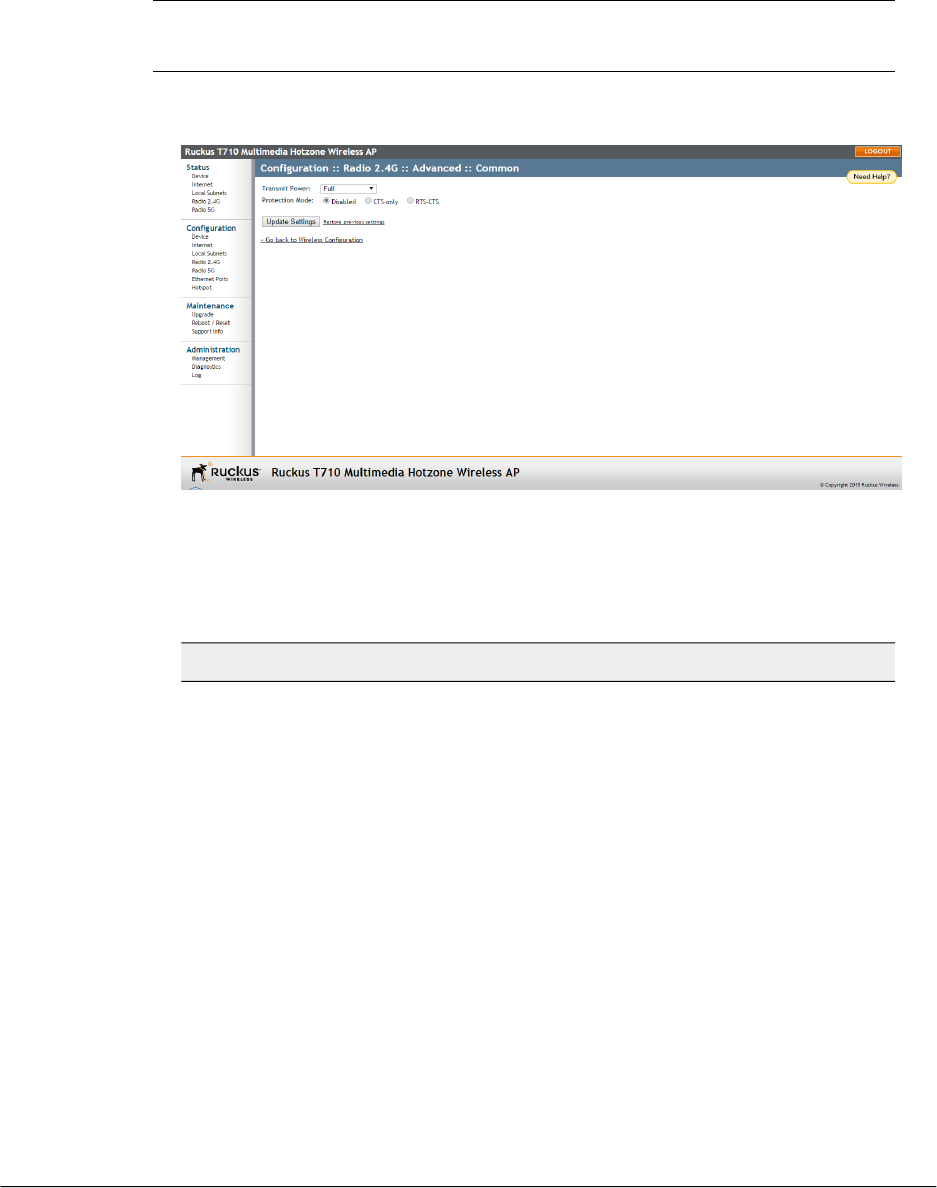
Reviewing Common Advanced Settings
Advanced wireless settings should only be changed by an experienced administrator.
Incorrect settings can severely impact wireless performance. It is recommended that
the default settings be retained for best performance.
NOTE To fully benefit from the AP's capabilities, it is advisable not to change these
values unless absolutely necessary.
1. On the Configuration > Wireless/Radio 2.4G/Radio 5G page, click Edit Common
Settings. The Configuration > Wireless > Advanced > Common page appears.
Figure 27: The Configuration > Wireless > Advanced > Common page
2. Configure the advanced settings listed in the following table as required.
Table 22: Advanced wireless common settings
DescriptionOption
The default setting is Full. Select the level
of transmit power from the drop-down
menu. This option sets the maximum
transmit power level relative to the
predefined power (this value differs
according to the current country code).
Transmit Power
(Only available in certain countries
selected using the Country Code option.)
Select Enable to activate the optional
5.8GHz channels (disabled by default).
5.8 GHz Channels
73
Outdoor Access Point Release 106.0 User Guide
Configuration
Configuring the Access Point for Standalone Operation or Management by FlexMaster

DescriptionOption
(Disabled by default.) When you activate
protection, you control how 802.11
devices know when they should
communicate with another device. This
is important in a mixed environment of
both 802.11b and 802.11g/n/ac clients.
CAUTION! Activating this option (and
configuring the settings) boosts the
interoperability of 802.11b and
802.11g/n/ac devices but severely
decreases performance.
•CTS-only: Choose this option to force
all destination devices to acknowledge
their ability to receive data when a
transmission is initiated. Use this
option for compliance with the Wi-Fi
Alliance certification.
•RTS-CTS: Choose this option to force
both sending and receiving devices
to confirm a data exchange on both
ends before proceeding.
Protection Mode
3. Click Update Settings to save and apply the changes.
Configuring Wireless # (WLAN Number) Settings
The AP provides up to eight wireless LANs per radio that can be individually configured
to provide different kinds of services for different wireless clients, traffic types, or user
groups.
Each WLAN can be configured with separate security settings, VLANs, access controls
and rate limiting policies, among other settings.
1. Go to Configuration > Wireless/Radio 2.4G/Radio 5G. The Configuration >
Wireless > Common page appears.
2. Click one of the eight Wireless # (WLAN number) tabs. The selected Configuration
> Wireless > Wireless # (WLAN number) page appears.
Outdoor Access Point Release 106.0 User Guide
74
Configuration
Configuring the Access Point for Standalone Operation or Management by FlexMaster
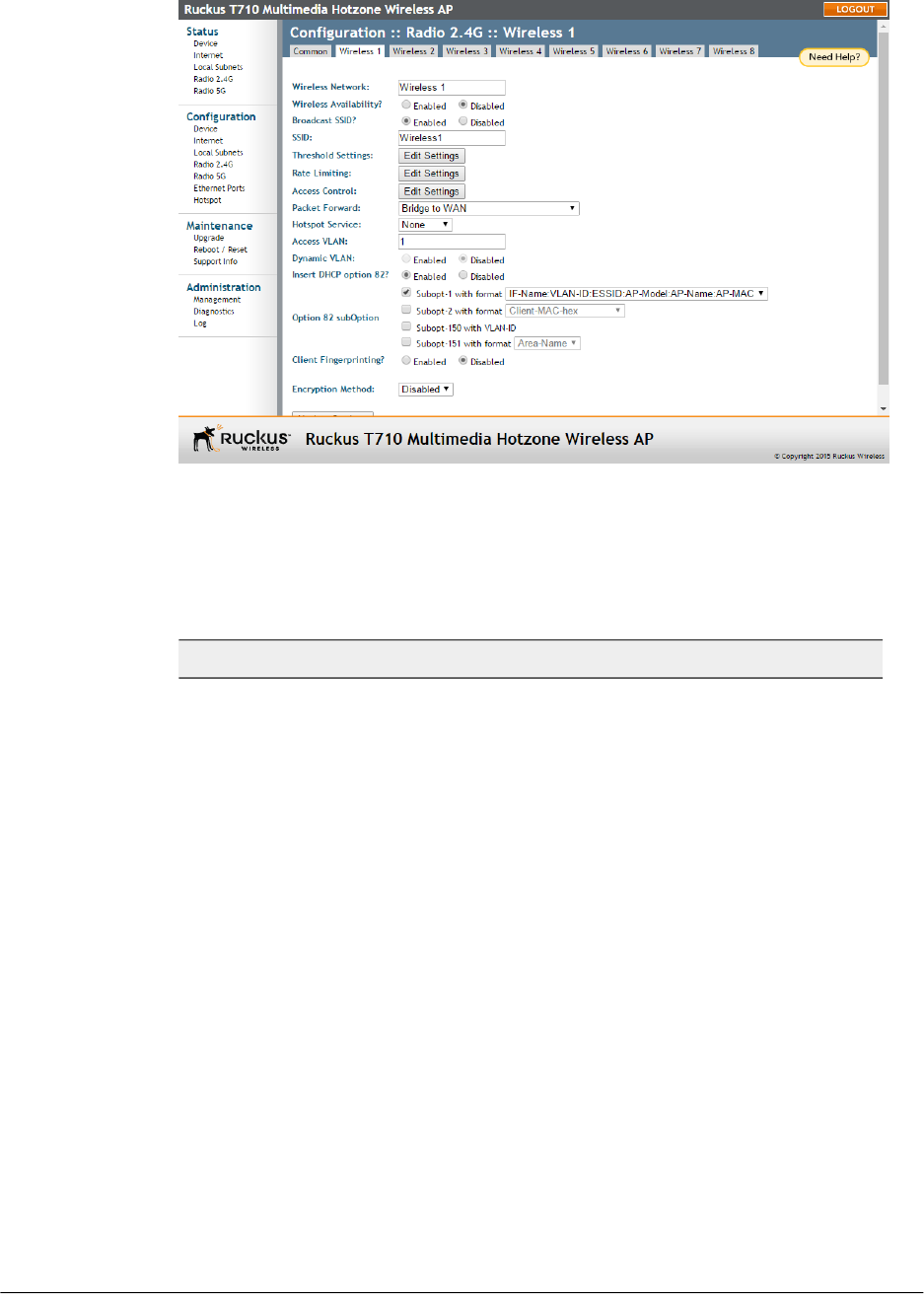
Figure 28: Typical Configuration > Wireless > Wireless # (WLAN number) page
3. Review the WLAN options listed in the table below, and then make changes as
required.
Table 23: WLAN options
DescriptionOption
This wireless network name is only used for management, and
is not visible to wireless clients.
Wireless Network
This option controls whether or not the wireless network is
available to users (Enabled or Disabled).
Wireless
Availability
This option controls whether or not (Enabled or Disabled) the
WLAN SSID is visible to anyone looking for wireless networks.
Disabling (hiding) the SSID requires the user to use the correct
SSID before they can connect to your network.
Broadcast SSID
This is the publicly-broadcast name of your wireless network.
SSIDs can contain up to 32 alphanumeric characters and are
case-sensitive. The maximum SSID length can only contain
between 2 and 32 characters, including characters from ! (char
33) to ~ (char 126).
SSID
75
Outdoor Access Point Release 106.0 User Guide
Configuration
Configuring the Access Point for Standalone Operation or Management by FlexMaster

DescriptionOption
This button opens a page where you can configure the
Protection Mode you activated on the
Configuration > Wireless > Advanced > Wireless # (WLAN number)
page. If Protection Mode is not active, ignore this option. For
more information, refer to Setting Threshold Options on page 83.
Threshold Settings
This button opens a page where you can configure upload and
download limits per station. For more information, refer to
Rate Limiting on page 85.
Rate Limiting
This button opens a page where you can configure access
controls for the WLAN. For more information, refer to
Controlling Access to the Wireless Network on page 85.
Access Control
•Isolated: Selecting Isolated causes the traffic from this WLAN
to terminate at the AP.
•Bridge to WAN: The default setting, Bridge to WAN forwards
packets arriving on this WLAN to the WAN (uplink) port and
eventually to their external destinations using Layer 2
forwarding.
•Local Subnet NAT and Route to WAN: This setting allows
routing of wireless packets to their destinations using Layer
3 network address translation (NAT).
•Bridge to L2TP Tunnel: Uses Layer 2 Tunneling Protocol
to deliver packets encapsulated with an L2TP header in UDP
datagrams.
Packet Forward
Select a Hotspot configuration from the list to enable Hotspot
service on this WLAN, after you have configured it from the
Configuration > Hotspot page. Refer to
Configuring Hotspot Service on page 93.
Hotspot Service
This option appears if you have selected
Local Subnet NAT and Route to WAN under
Packet Forwarding, and allows you to choose which subnet
this WLAN's traffic is part of. You must have previously
configured a subnet from the Configuration > Local Subnets
page before it becomes available here.
Local Subnet
Enter a VLAN ID to segment all traffic arriving from this WLAN
to a specified VLAN. Default is 1.
Access VLAN
Outdoor Access Point Release 106.0 User Guide
76
Configuration
Configuring the Access Point for Standalone Operation or Management by FlexMaster

DescriptionOption
This setting is available only with WPA encryption and 802.1X
authentication. Dynamic VLAN allows the dynamic assignment
of VLANs to clients based on RADIUS attributes. Enable this
option only if your RADIUS server is configured to segment
clients using dynamic VLAN.
Dynamic VLAN
When this option is enabled on an SSID, additional information
is encapsulated in DHCP option 82 and inserted into DHCP
request packets. Current format of option 82 is:
Circuit ID sub-option:
WLAN:<IFNAME>:<VLAN>:<SSID>:<MODEL>:
<HOSTNAME>:<DEVMAC>
This option supports the ability for a service provider to allocate
IP addresses intelligently by considering information on the origin
of the IP allocation request.
Insert DHCP
Option 82
When this option is enabled the AP attempts to identify client
devices by their operating system, device type and host name,
if available.
Client
Fingerprinting
By default, all data exchanges on your wireless network are not
encrypted, but you can select an encryption method in this
option, and use the extra workspace features that appear to
fine-tune the encryption settings.
CAUTION! Ruckus Wireless strongly recommends using WPA
as the encryption method as WEP has been proven to be easily
circumvented. For more information, see either
Using WEP on page 77 or Using WPA on page 79.
Encryption Method
4. When you are finished, click Update Settings to save and apply the changes. A
confirmation message appears at the top of this page.
Using WEP
Wired Equivalent Privacy (WEP) is a security algorithm for 802.11 wireless networks
designed to provide data confidentiality comparable to that of a wired network.
WEP uses a pre-shared key for encrypting data frames that is shared among all users
of the wireless network. For this reason and others, WEP has been discredited as a
security mechanism and should be avoided in favor of WPA if at all possible.
77
Outdoor Access Point Release 106.0 User Guide
Configuration
Configuring the Access Point for Standalone Operation or Management by FlexMaster
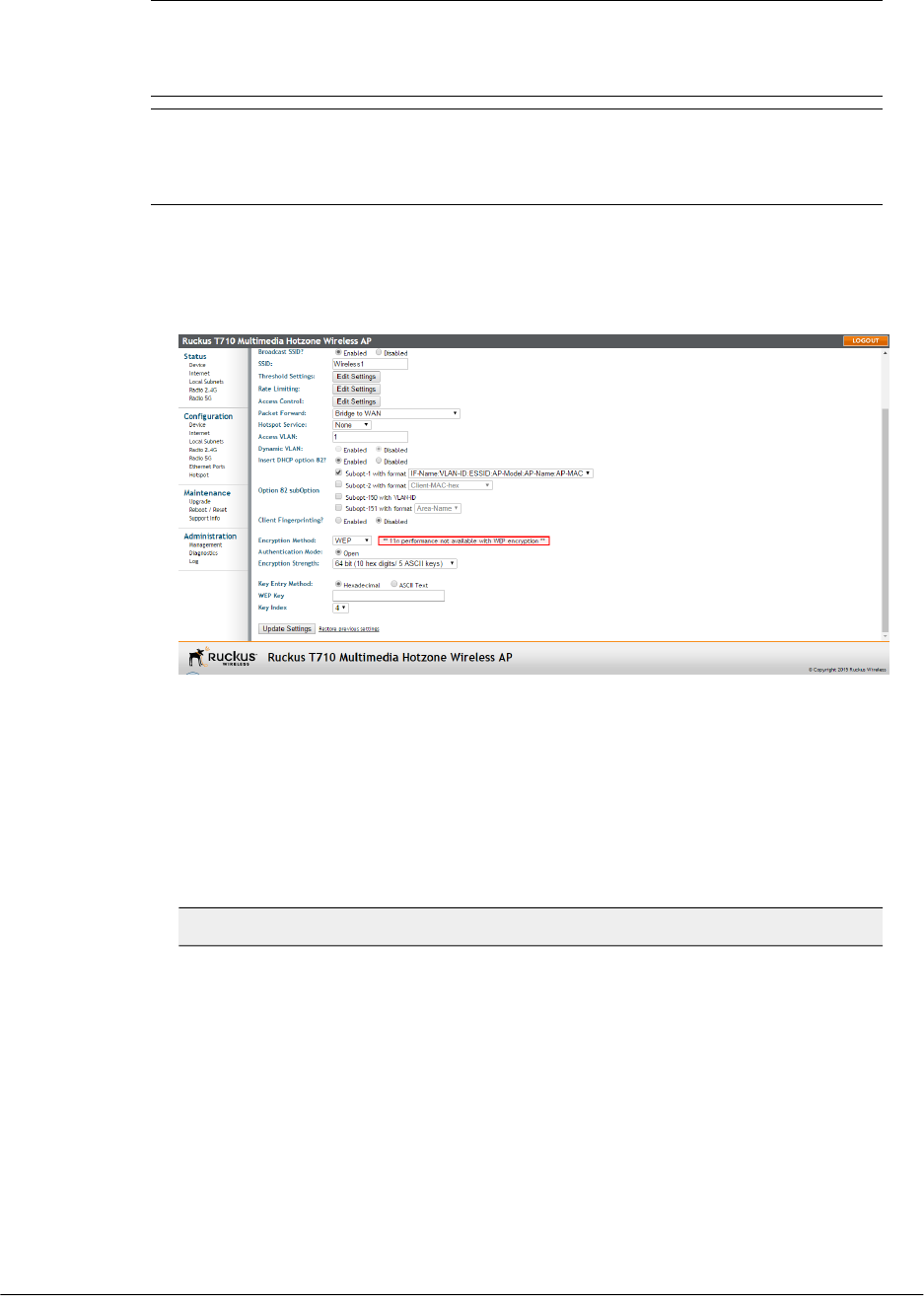
NOTE WEP encryption has been proven to be easily circumvented. Therefore, Ruckus
Wireless recommends using WPA whenever possible, and only use WEP if your client
devices do not support WPA.
NOTE Using WEP encryption limits the performance of this WLAN to 802.11g rates,
and other WLANs are unaffected. If you select WEP encryption for a WLAN, wireless
devices that are capable of faster 802.11n transfer rates are limited to 802.11g rates.
1. Go to Configuration > Wireless/Radio 2.4G/Radio 5G. The Configuration >
Wireless > Common page appears.
2. Click the Wireless # (WLAN number) tab that you want to configure. The selected
Configuration > Wireless > Wireless # (WLAN number) page appears.
Figure 29: WEP settings
3. In the Encryption Method menu, select WEP. An additional set of WEP-specific
encryption options appears.
4. Review the encryption settings listed in the table below, and then make changes as
required.
Table 24: WEP Options
DescriptionEncryption Setting
Open is the only authentication mode
available with WEP encryption.
Authentication Mode
Outdoor Access Point Release 106.0 User Guide
78
Configuration
Configuring the Access Point for Standalone Operation or Management by FlexMaster

DescriptionEncryption Setting
•64 bit: Specify the key with 10
hexadecimal digits or 5 ASCII
characters.
•128 bit: Specify the key with 26
hexadecimal digits or 13 ASCII
characters. The 128-bit cryptography
is stronger privacy protection for your
network and is recommended if you
use WEP.
Encryption Strength
•Hexadecimal: The encryption key
only accepts hexadecimal characters
(0-9, A-F).
•ASCII Text: The encryption key
accepts ASCII characters.
Key Entry Method
Enter the key manually according to the
Key Entry Method and Encryption
Strength settings.
WEP Key
Choose the index, from “1” to “4”, that
the WEP key is to be stored in.
Key Index
5. Click Update Settings to save and apply the changes. A confirmation message
appears at the top of the page.
Using WPA
Wi-Fi Protected Access (WPA) and Wi-Fi Protected Access II (WPA2) are two security
protocols developed by the Wi-Fi Alliance in response to the weaknesses of WEP.
Selecting WPA as the Encryption Method allows you to choose WPA version, WPA
Authentication and WPA Algorithm. This section discusses WPA-PSK (pre-shared key).
For information on WPA-Enterprise (WPA-802.1X), see Customizing 802.1X Settings on
page 82.
WPA-PSK (also known as WPA-Personal) allows automatic key generation based on a
single passphrase. WPA-PSK provides strong security for small and medium organizations
and does not require a RADIUS server, but may not be supported on older wireless
devices. In some cases, the older devices can be upgraded with adapters to take
advantage of WPA-PSK.
When you configure the WLAN with WPA-PSK, wireless users are not able to connect
to your WLAN unless their devices support WPA-PSK and are configured with the same
passphrase.
79
Outdoor Access Point Release 106.0 User Guide
Configuration
Configuring the Access Point for Standalone Operation or Management by FlexMaster
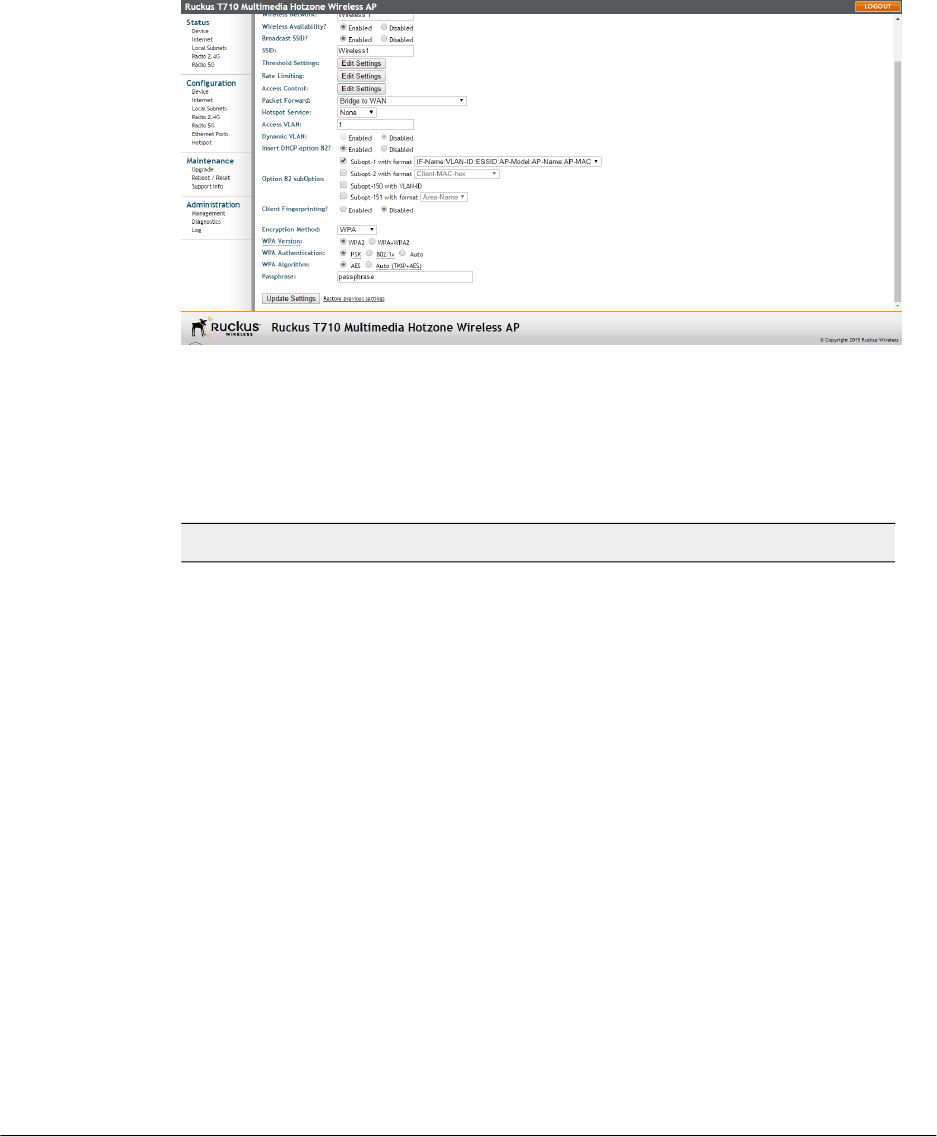
1. Go to Configuration > Wireless/Radio 2.4/Radio 5G. The Configuration > Wireless
> Common page appears.
2. Click the Wireless # (WLAN number) tab that you want to configure. The selected
Configuration > Wireless > Wireless # (WLAN number) page appears.
3. Click the Encryption Method menu, and select WPA. An additional set of
WPA-specific options appear.
Figure 30: WPA settings
4. Review the encryption settings listed in the following table, and then make changes
as required.
Table 25: WPA Encryption settings
DescriptionEncryption Setting
Your options are WPA2 or WPA-WPA2.
•WPA2 provides stronger wireless
security than WPA (Wi-Fi Protected
Access) and is the recommended
option. However, older wireless clients
may not be compatible with WPA2.
For example, WPA2 support on
Windows XP requires a Microsoft
patch and is only available on
Windows XP with Service pack 2 or
later.
•WPA+WPA2 allows both WPA and
WPA2 devices to operate on the same
WLAN.
WPA Version
Outdoor Access Point Release 106.0 User Guide
80
Configuration
Configuring the Access Point for Standalone Operation or Management by FlexMaster

DescriptionEncryption Setting
•PSK (Pre-Shared Key) mode is
suitable for home or personal use.
•802.1x mode uses a RADIUS server
to verify user identity.
•Auto mode offers both options to the
wireless client.
For more information on how to configure
the 802.1X mode, refer to
Customizing 802.1X Settings on page 82.
WPA Authentication
•AES: AES (Advanced Encryption
Standard) replaces TKIP (Temporal
Key Integrity Protocol) as the default
(and recommended) encryption
algorithm for modern wireless LANs.
Temporal Key Integrity Protocol is an
older encryption algorithm that
provides stronger security than a
shared WEP key, but not as strong as
the newer AES algorithm.
•Auto (TKIP+AES): Auto allows both
encryption algorithms to be used on
the same WLAN. When Auto is
selected, the wireless client decides
whether TKIP or AES is used. Note
however that allowing TKIP reduces
the performance of the WLAN (as
broadcast packets are limited to
slower transfer rates), and is therefore
not recommended.
WPA Algorithm
Enter a new passphrase between 8 and
32 characters long, using any
combination of printable characters
(letters, numbers, hyphens and
underscores).
Passphrase
5. Click Update Settings to save and apply the changes. A confirmation message
appears at the top of the page.
81
Outdoor Access Point Release 106.0 User Guide
Configuration
Configuring the Access Point for Standalone Operation or Management by FlexMaster
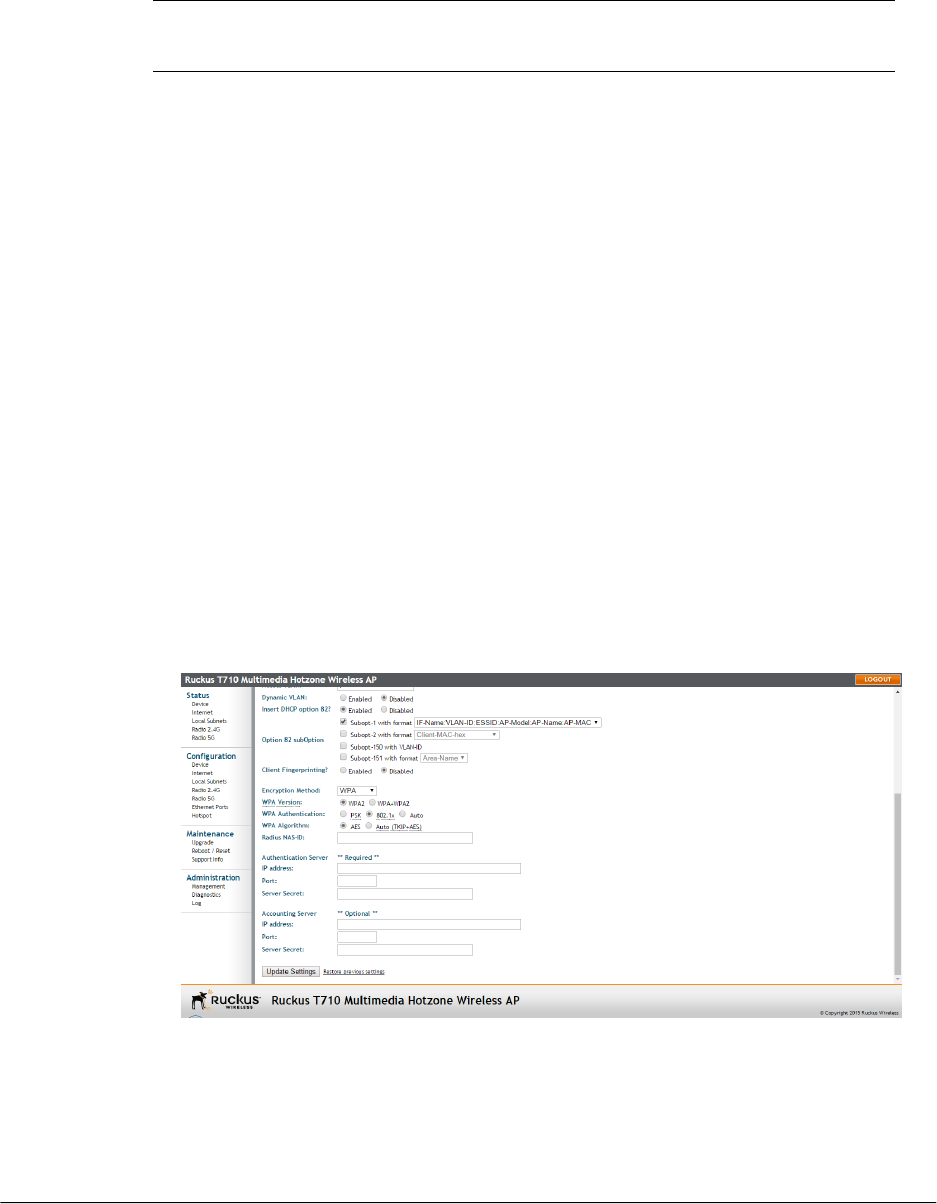
Customizing 802.1X Settings
If you choose WPA as the encryption method, then you have the option to set up the
AP to act as an 802.1X proxy, using external authentication sources such as a RADIUS
server.
NOTE Do not customize these options unless you are an experienced network
administrator or are under the guidance of an IT/support professional.
In 802.1X authentication, the supplicant sends access request messages along with
credentials, such as user name/password or digital certificate, to an authenticator, which
forwards the credentials to the authentication server for verification. The supplicant (client
device) remains in an unauthorized state until verification has been received. In
unauthorized state, only 802.1X traffic is allowed; all other traffic, such as DHCP and
HTTP traffic, is dropped. For its wireless interfaces, the AP can serve as the authenticator
communicating between the supplicant and the authentication server.
1. Go to Configuration > Wireless/Radio 2.4G/Radio 5G. The Configuration >
Wireless > Common page appears.
2. Click a Wireless # (WLAN number) tab to configure. The selected Configuration >
Wireless > Wireless # (WLAN number) page appears.
3. In the Encryption Method menu, select WPA. The basic set of WPA-specific
encryption options appears on the page.
4. In WPA Authentication select the required WPA authentication type:
•WPA2 provides stronger wireless security than WPA (Wi-Fi Protected Access)
and is the recommended option. However, older wireless clients may not be
compatible with WPA2. For example, WPA2 support on Windows XP requires a
Microsoft patch and is only available on Windows XP with Service pack 2 or later.
•WPA+WPA2 allows both WPA and WPA2 devices to operate on the same WLAN.
5. Select 802.1x as the WPA Authentication mode. Additional options appear.
Outdoor Access Point Release 106.0 User Guide
82
Configuration
Configuring the Access Point for Standalone Operation or Management by FlexMaster

Figure 31: 802.1X settings
6. In WPA Algorithm select one of the following:
•AES: AES (Advanced Encryption Standard) replaces TKIP (Temporal Key Integrity
Protocol) as the default (and recommended) encryption algorithm for modern
wireless LANs.
•Auto (TKIP+AES): Auto allows both encryption algorithms to be used on the same
WLAN. When Auto is selected, the wireless client decides whether TKIP or AES
is used. Note however that allowing TKIP reduces the performance of the WLAN
(as broadcast packets are limited to slower transfer rates), and is therefore not
recommended.
7. Configure the following settings to customize your 802.1X authentication:
•Radius NAS-ID: Enter the Network ID assigned to your AP in the RADIUS server
Client list.
•Authentication Server (required): Enter the information needed to establish a
connection between the AP and the RADIUS server.
•Accounting Server (optional): Enter the information needed to establish this
connection.
8. Click Update Settings to save and apply the changes. A confirmation message
appears at the top of this page.
NOTE Ruckus Wireless APs do not support arbitrary rate values for 802.1X clients
(if client rate limiting attributes are configured on the RADIUS server). Ruckus Wireless
APs support only those WLAN rate limiting values that can be set using the AP web
interface. If the rate returned by the RADIUS server does not match one of these
values exactly, it is approximated.
Setting Threshold Options
Threshold options consist of Beacon Interval, Data Beacon Rate and RTS/CTS Threshold.
The following options allow you to fine-tune the "Protection Mode" behavior, set previously
on the Configuration > Wireless > Advanced > Common page. After activating a
Protection Mode, you can open each Wireless tab and customize the threshold settings,
which determine what is put into effect and when.
CAUTION! Do not customize these options unless you are an experienced network
administrator or are under the guidance of an IT/support professional.
1. Go to Configuration > Wireless or Configuration > Radio 2.4G or Configuration
> Radio 5G. The Configuration > Wireless > Common page appears.
2. Click the tab for the Wireless # (WLAN number) that you want to configure. The
Configuration > Wireless > Wireless [#] page appears.
83
Outdoor Access Point Release 106.0 User Guide
Configuration
Configuring the Access Point for Standalone Operation or Management by FlexMaster
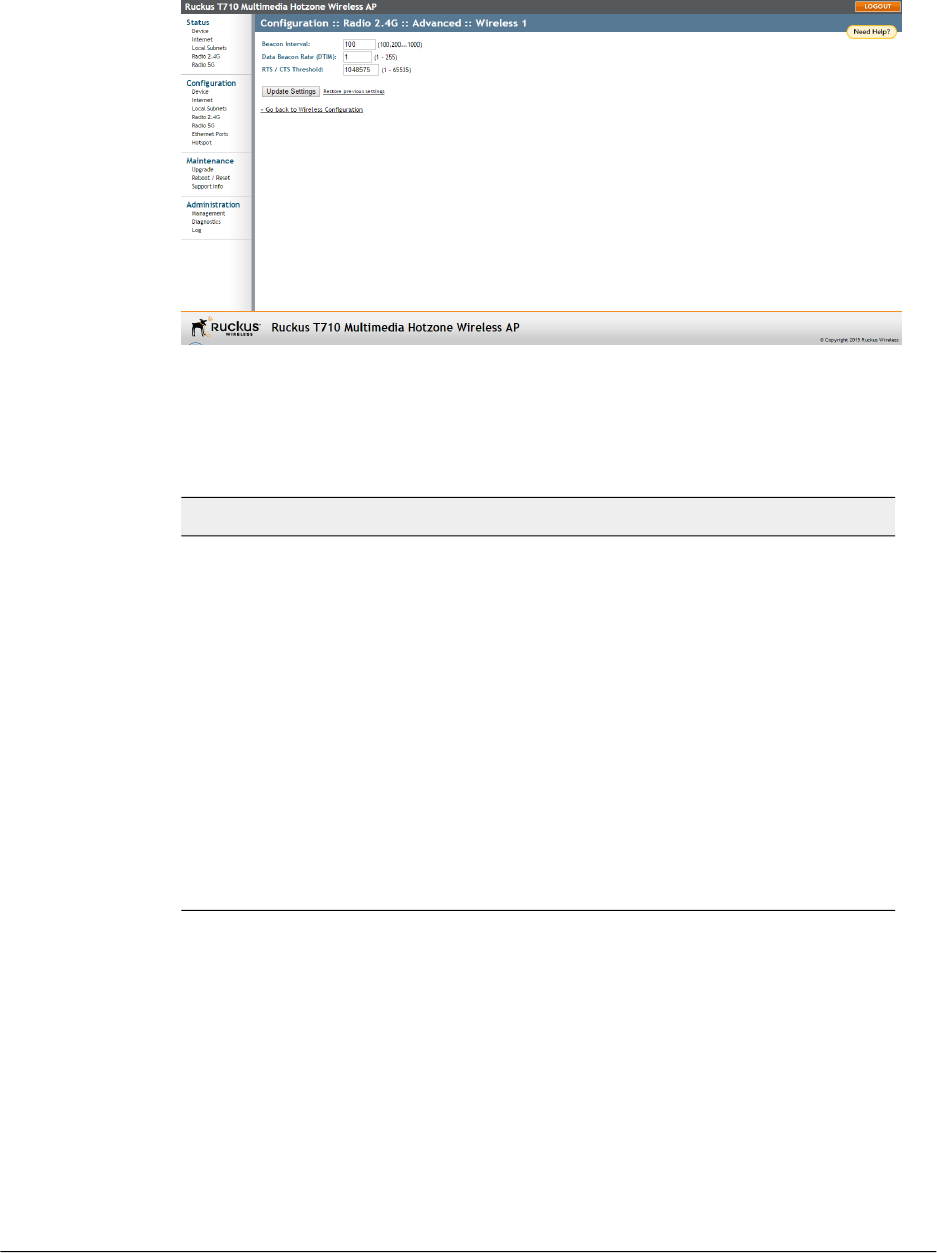
3. Look for Threshold Settings, and then click Edit Settings. The Configuration >
Wireless > Advanced > Wireless [#] page appears.
Figure 32: Threshold settings
4. Review the options listed in the following table, and then make any needed changes.
Table 26: Threshold options
DescriptionOption
(The default value is 100.) The value indicates the frequency
interval of the beacon in milliseconds. A beacon is a broadcast
packet sent by the AP to synchronize the wireless network.
Beacon Interval
(The default value is 1.) The value indicates the interval of the
Delivery Traffic Indication Message (DTIM). This is a
countdown field that the device uses to inform its clients of
the next window for listening to broadcast or multicast
messages.
Data Beacon Rate
(DTIM)
(The default value is 65535.) This option determines at what
packet length the RTS/CTS function is triggered. A lower
threshold may be necessary in an environment with excessive
signal noise or hidden nodes, but may result in some
performance degradation.
RTS/CTS Threshold
5. Click Update Settings to save and apply the changes. A confirmation message
appears at the top of the page.
You have completed configuring the threshold options. To reopen the previous page,
click the Go back to Wireless Configuration link.
Outdoor Access Point Release 106.0 User Guide
84
Configuration
Configuring the Access Point for Standalone Operation or Management by FlexMaster
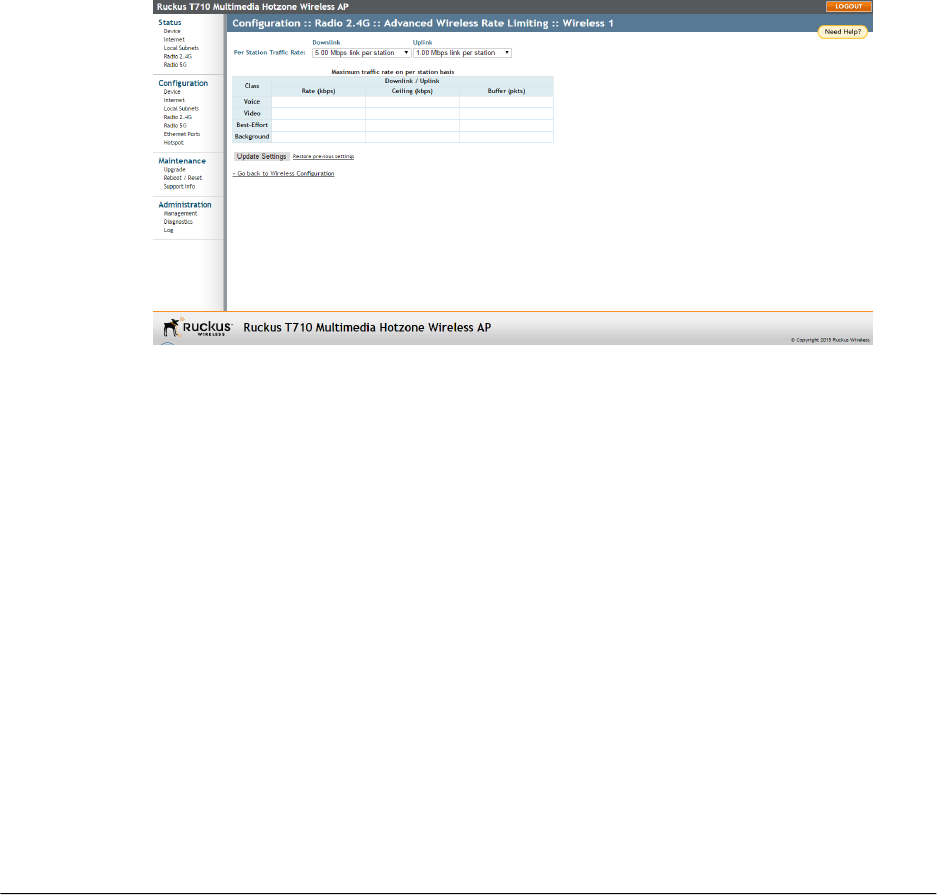
Rate Limiting
Use Rate Limiting settings to control per-client traffic limits.
1. Go to Configuration > Wireless or Configuration > Radio 2.4G or Configuration
> Radio 5G.
2. Select the WLAN number that you want to configure from the tabs at the top of the
page.
3. Click the Edit Settings button next to Rate Limiting. The Rate Limiting page
appears.
4. Set the maximum Downlink and Uplink rate per station.
5. The table under the Downlink and Uplink selections updates to show the maximum
transfer rate per station for each traffic type.
6. Click Update Settings to save your changes.
You have completed configuring the rate limiting options. To reopen the previous page,
click the Go back to Wireless Configuration link.
Figure 33: Limit per station traffic rates on a specific WLAN
Controlling Access to the Wireless Network
Access Control Lists (ACLs) allow you to specify which stations are allowed to join
(associate with) your wireless networks.
Access controls can be configured for each WLAN from its respective Wireless # (WLAN
number) tab.
Access Control List (ACL) Options
Configure ACL options to allow or deny WLAN access to specific clients by MAC address.
The Access Control page contains the following options:
•Disable WLAN access restrictions: The MAC-address-based restrictions on which
stations can join the WLAN are disabled, so any station can join. If the WLAN uses
85
Outdoor Access Point Release 106.0 User Guide
Configuration
Configuring the Access Point for Standalone Operation or Management by FlexMaster
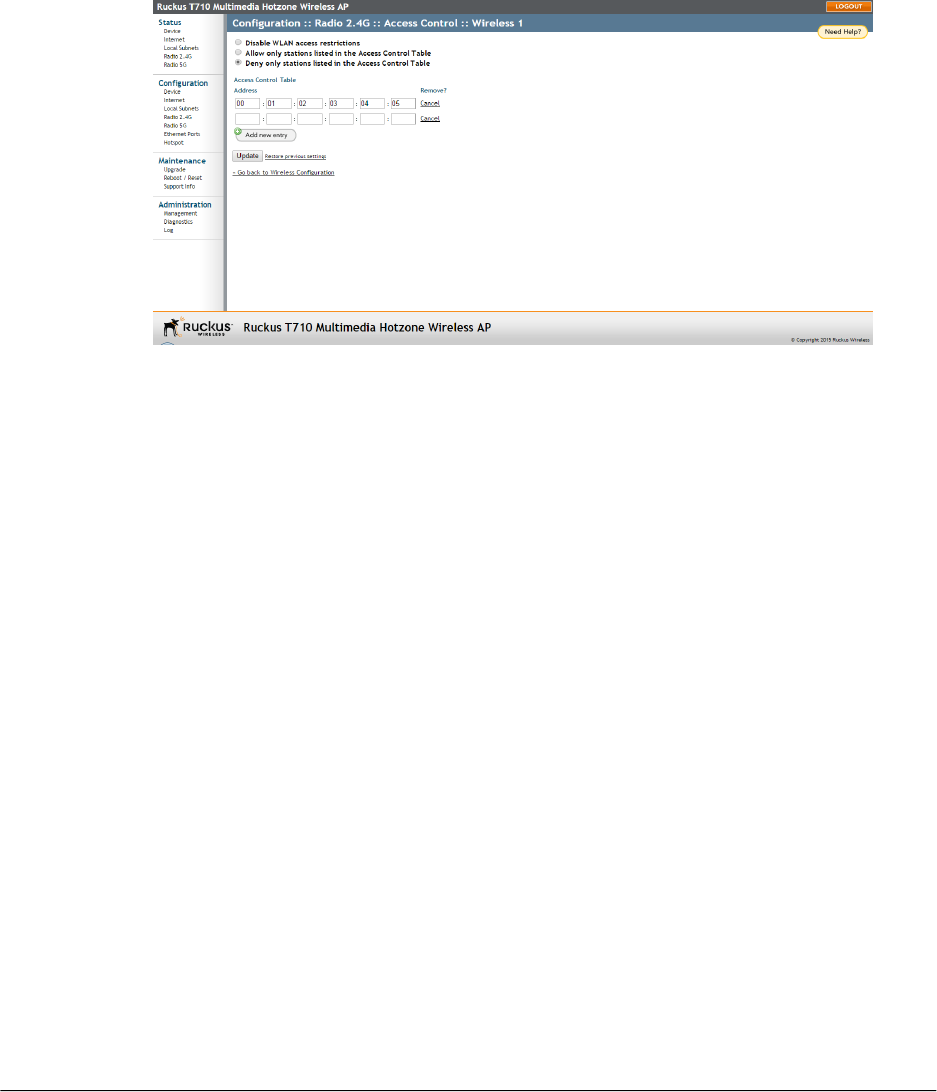
encryption, then the station must still supply the correct encryption passphrase. When
this option is selected, the Access Controls table is hidden.
•Allow only stations listed in the Access Control Table: Only stations entered into
the access-controls table are allowed, but all others are disallowed. To add MAC
addresses, see Changing Access Controls for a WLAN on page 86.
•Deny only stations listed in the Access Control Table: Stations entered into the
access-controls table are disallowed but all others are allowed. To add MAC
addresses, see Changing Access Controls for a WLAN on page 86.
Figure 34: Access Control page
Changing Access Controls for a WLAN
Change access controls by adding MAC addresses to the Access Control Table.
By default, the Disable WLAN access restrictions option is selected, which allows any
wireless station to gain access to the wireless network. If you want to change this setting,
follow the instructions below.
1. Go to Configuration > Wireless/Radio 2.4G/Radio 5G.
2. Click the Wireless # (WLAN number) tab for which you want to configure the access
control settings.
3. Click the Edit Settings button next to Access Control.
4. Select the radio button for the desired access control (allow or deny). The Access
Controls Table appears.
Outdoor Access Point Release 106.0 User Guide
86
Configuration
Configuring the Access Point for Standalone Operation or Management by FlexMaster
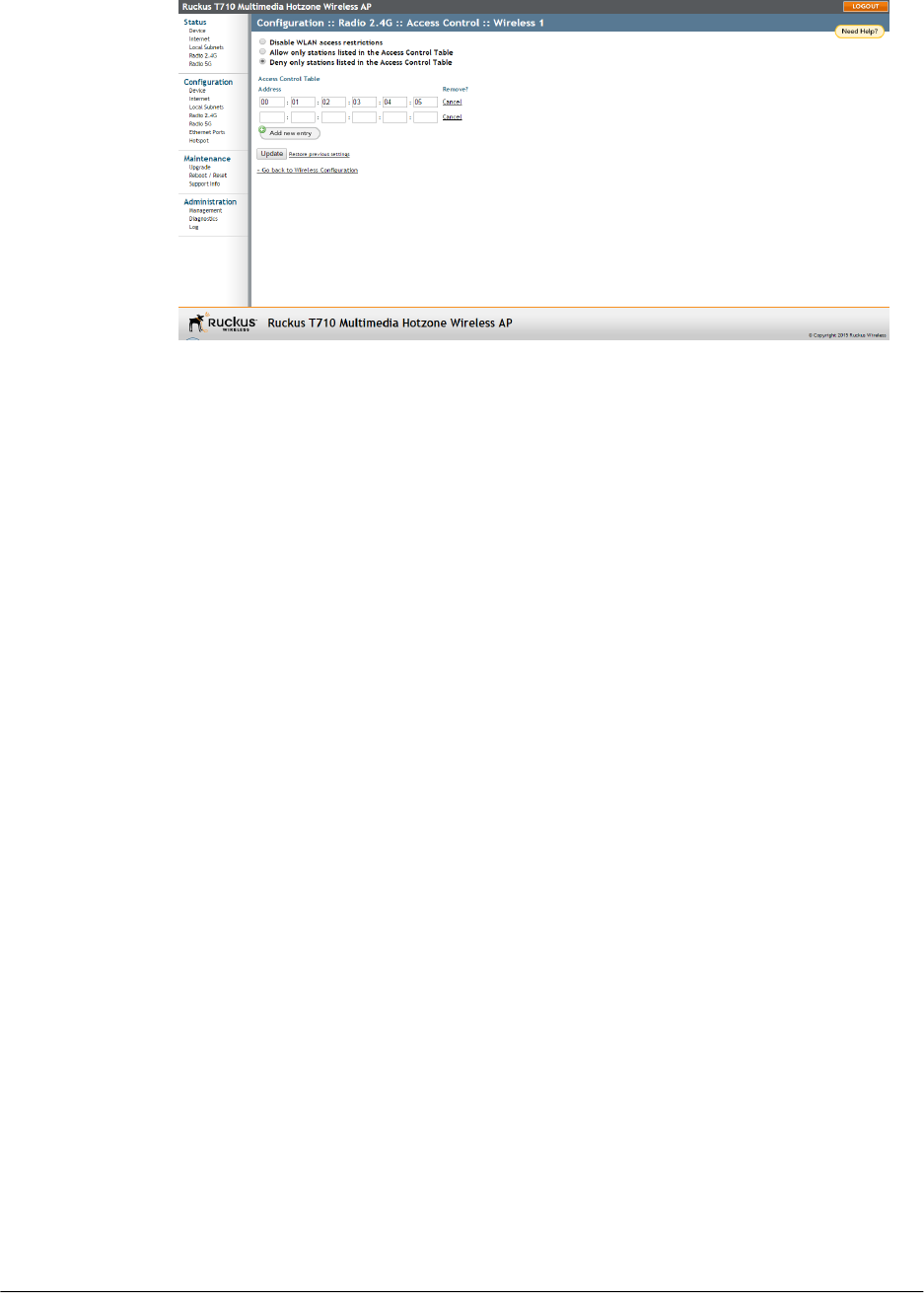
Figure 35: Access control settings
5. To add a MAC address to the Access Control table, click the Add new entry button.
6. Fill out the Address text boxes: Six text boxes appear in which you enter the desired
MAC address, in hexadecimal digit form, two characters in each box. Allowable
hex-digit characters are 0-9, a-f, and A-F.
7. Click Update to save your changes. Assuming all parameters you entered are
acceptable, that row is added to the table. You have completed adding an entry to
the MAC address table.
8. If you have additional MAC addresses you want included, then click Add new entry,
and then repeat these steps until you have entered all the stations you want. There
is a limit of 128 rows.
Removing a MAC Address
To remove a MAC address from the ACL table, click the Cancel button in the Remove
column, and then click Update.
The ACL table refreshes, and the MAC address that you deleted disappears from the
table.
Configuring Ethernet Ports
The Ethernet Ports configuration page allows you to define how the AP's Ethernet ports
behave.
You can disable ports entirely, define trunking and packet forwarding behavior, configure
802.1X authentication settings, and individually configure VLAN settings for each port
from this page.
1. Go to Configuration > Ethernet Ports.
87
Outdoor Access Point Release 106.0 User Guide
Configuration
Configuring the Access Point for Standalone Operation or Management by FlexMaster
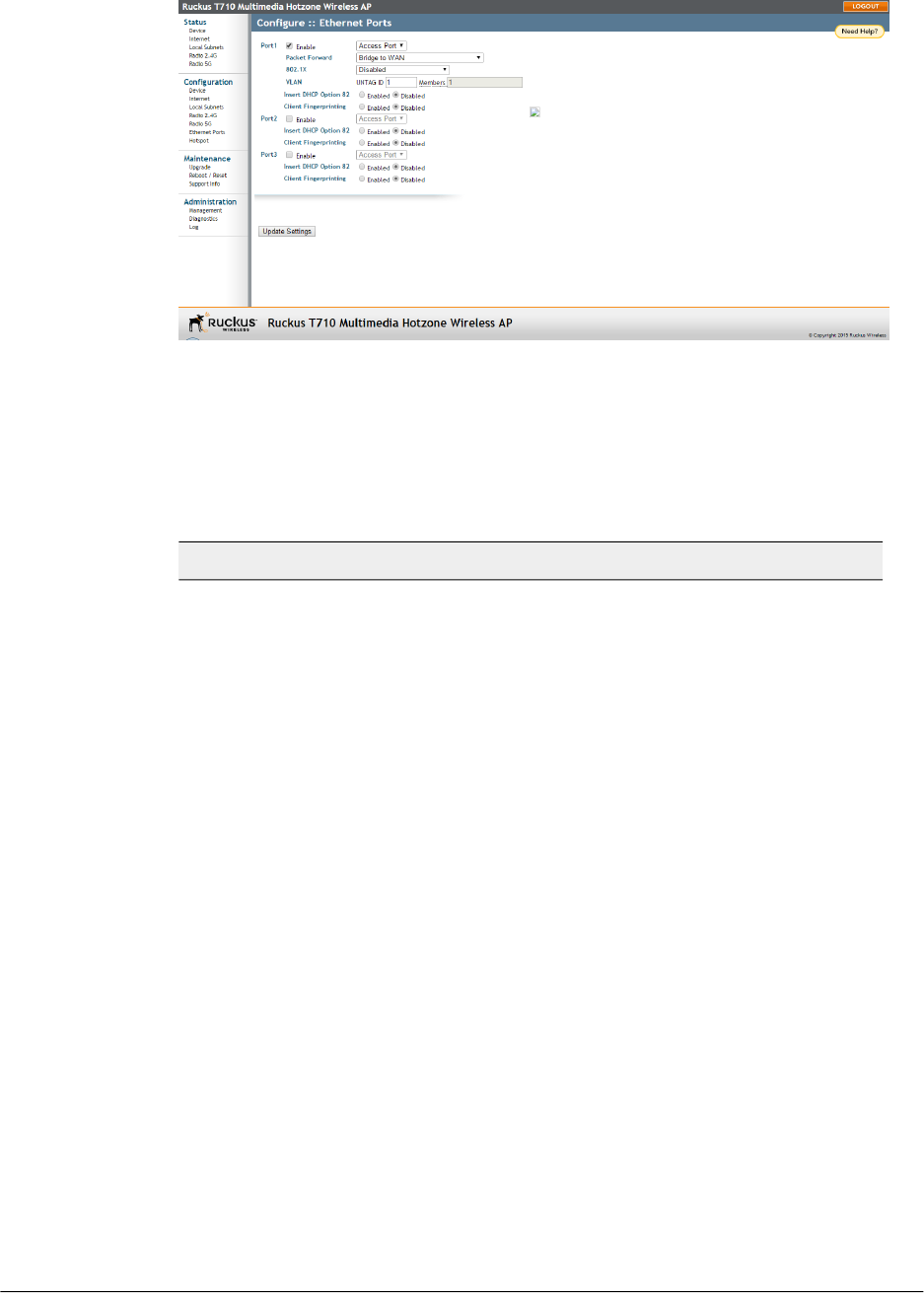
Figure 36: The Configuration > Ethernet Ports page
2. Review the following table and make changes as needed for each of the ports labeled
Port1 through Port4 (depending on AP model), which correspond to the AP's Ethernet
ports.
Table 27: Configuring Ethernet ports
DescriptionSetting
All Ethernet ports are enabled by default. Unchecking this box next
to a port disables that port entirely. If you do not want to provide
wired access through the AP, uncheck (clear) the Enable box next
to each LAN port.
Enable
See Setting Ethernet Port Type on page 90 for more detailed
information.
•Trunk port: This port passes all VLAN traffic.
•Access Port: This port provides network access.
•General Port: User-defined VLAN membership.
Port Type
Outdoor Access Point Release 106.0 User Guide
88
Configuration
Configuring the Access Point for Standalone Operation or Management by FlexMaster

DescriptionSetting
Isolated: Selecting Isolated causes the traffic from this port to
terminate at the AP.
Bridge to WAN: The default setting, Bridge to WAN forwards packets
arriving on this port to the WAN (uplink) port and eventually to their
external destinations using Layer 2 forwarding.
Local Subnet NAT and Route to WAN: This setting allows routing
of packets to their destinations using Layer 3 network address
translation (NAT).
Bridge to L2TP Tunnel: Uses Layer 2 Tunneling Protocol to deliver
packets encapsulated with an L2TP header in UDP datagrams.
Packet
Forward
This option appears if you have selected
Local Subnet and Route to WAN under Packet Forwarding, and
you have selected Access Port as the port type. This option allows
you to select which subnet this port's traffic is part of. You must have
previously configured a subnet from the
Configuration > Local Subnets page before it becomes available
here.
Local Subnet
Configure the port as an 802.1X authenticator or supplicant. The
following options are available:
•Disabled: No 802.1X controls are applied to this port.
•Authenticator (Port-based): Only one of the attached MAC hosts
must be authorized for all hosts to be granted access to the
network.
•Authenticator (MAC-based): Each MAC host is individually
authenticated.
•Supplicant: The port acts as a supplicant to an upstream
authenticator. Configure a port as Supplicant if the port is a Trunk
Port used to connect the AP to a LAN switch.
See Working with 802.1X on Wired Ethernet Ports on page 92 for
more information.
802.1X
Untag ID: Enter a valid VLAN ID in this field to segment traffic arriving
on this port to a specific VLAN. Default is 1. Valid VLAN entries are
1-4094.
Members: Displays the VLAN membership of the port. (Membership
is configurable only for the General port type.)
Refer to VLAN Settings Overview on page 61 for more information.
VLAN
89
Outdoor Access Point Release 106.0 User Guide
Configuration
Configuring the Access Point for Standalone Operation or Management by FlexMaster

DescriptionSetting
When this option is enabled for an Ethernet port, additional
information is encapsulated in DHCP option 82 and inserted into
DHCP request packets.
Current format of option 82 is:
Circuit ID sub-option: ETH:<IFNAME>:<VLAN>:N/A:
<MODEL>:<HOSTNAME>:<DEVMAC>
This option supports the ability for a service provider to allocate IP
addresses intelligently by considering information on the origin of the
IP allocation request.
Insert DHCP
Option 82
When this option is Enabled, the AP attempts to identify client devices
by their operating system, device type and host name, if available.
Client
Fingerprinting
3. Review the following table and make changes as needed for all of the Ethernet ports.
Table 28: All Ethernet port options
DescriptionSetting
Enter the authentication server IP address, port, and
server secret for all Ethernet ports. Only available if 802.1X
Authenticator are enabled (includes any packet forward
selection).
Authentication Server
(required)
Enter the accounting server IP address, port, and server
secret for all Ethernet ports. Only available if 802.1X
Authenticator are enabled (includes any packet forward
selection).
Accounting Server
(optional)
Enter the 802.1X supplicant user name and password for
all Ethernet ports. Only available if 802.1X Trunk port and
Supplicant are enabled (includes any packet forward
selection).
Supplicant User Name
and Supplicant
Password
4. Click Update Settings to save your changes.
Setting Ethernet Port Type
Configure the Ethernet port type to define the port's VLAN behavior.
Ruckus Wireless AP Ethernet ports can be configured as one of the following port types:
•Trunk Port on page 91
•Access Port on page 91
Outdoor Access Point Release 106.0 User Guide
90
Configuration
Configuring the Access Point for Standalone Operation or Management by FlexMaster

•General Port on page 91
Trunk Port
Trunk Ports forward and receive tagged and untagged frames and are used for bridging
switch ports together.
The Trunk port is a member of all VLANs that exist on the switch, and all VLAN-tagged
traffic arriving on the port is seen. If an untagged frame is received on a Trunk port, the
frame is associated with the Untag VLAN (also known as the native VLAN, by default,
1).
If a port is configured as a Trunk port, the Untag ID field can be used to define the Untag
VLAN--the VLAN that the switch uses for forwarding and filtering when a frame arrives
without an 802.1Q header.
Access Port
Access Ports are used to provide network access.
Traffic arriving on different Access Ports can be segmented into different logical networks
(VLANs) using the Untag VLAN ID field. Access Ports are members of only one VLAN--the
VLAN that is configured in the Untag VLAN field.
General Port
The General Port can be configured to support multiple tagged VLANs and one untagged
VLAN.
As Trunk Ports by definition include all VLANs as members, the General Port is the only
port type for which membership is user configurable for multiple VLANs.
Working with Port-Based VLANs
The AP provides options for segmenting all incoming traffic (both wireless and wired
Ethernet traffic) into specific VLANs.
There are two ways to segment incoming traffic into VLANs:
•Each of the wireless interfaces (SSIDs) can be configured with a specific Access
VLAN ID: (Configuration > Wireless > Wireless # (WLAN number) > Access VLAN).
•Each of the LAN ports can be configured with an Untag VLAN ID (Configuration >
Ethernet Ports > VLAN > Untag ID).
For Ethernet ports, the behavior of the Untag VLAN ID depends on the Port Type selected.
If the port is configured as a Trunk port, it includes all VLANs (1-4094) in its membership.
The VLAN Untag ID field (default = 1) can be used to redefine the Native VLAN for the
port.
If the Ethernet port is configured as an Access Port, it can be configured with only one
Untag VLAN ID and its membership includes only that one VLAN.
If the Ethernet port is configured as a General Port, it can be configured to include multiple
VLANs in its membership and one Untag VLAN.
91
Outdoor Access Point Release 106.0 User Guide
Configuration
Configuring the Access Point for Standalone Operation or Management by FlexMaster
Working with 802.1X on Wired Ethernet Ports
This section provides an overview of the 802.1X (WPA-Enterprise) settings for AP Ethernet
ports.
802.1X authentication consists of the following three components:
•Supplicant: The supplicant sends access request messages along with credentials,
such as user name/password or digital certificate, to an authenticator, which forwards
the credentials to the authentication server for verification.
•Authenticator: The authenticator challenges the identity of the supplicant, then passes
its credentials to the AAA server. If the credentials are accepted the supplicant is
allowed access.
•Authentication Server (AAA Server): The AAA server verifies the supplicant's credentials
and permits or rejects its request for access.
For wired 802.1X, a Ruckus AP's Ethernet port can be configured as either an
Authenticator or as a Supplicant, depending on which port type is selected. The following
tables describe the 802.1X roles available by port type.
Table 29: Authenticator support by port type
General PortAccess PortTrunk Port
XXXPort-based mode
XMAC-based mode
Table 30: Supplicant support by port type
General PortAccess PortTrunk Port
XSupplicant
The following considerations apply:
•A single port cannot be configured as both an Authenticator and Supplicant at the
same time.
•Only one port per AP can be configured as a Supplicant.
•If the AP is connecting to a switch port with 802.1X authentication enabled, the AP's
port type should be configured as a Trunk Port and its role should be configured as
Supplicant. The switch port should be configured as a Trunk port in Port-based
Authenticator mode.
•If there are multiple devices connected to an AP port (through a downstream switch),
the port can be configured as either Port-based or MAC-based Authenticator. In
Port-based mode, only one of the attached MAC hosts must be authorized for all
hosts to be granted access to the network. In MAC-based mode, each MAC host is
individually authenticated.
•If a Trunk Port is configured as a Supplicant, a user name and password must be
entered to authenticate the port to the 802.1X-aware LAN switch.
Outdoor Access Point Release 106.0 User Guide
92
Configuration
Configuring the Access Point for Standalone Operation or Management by FlexMaster
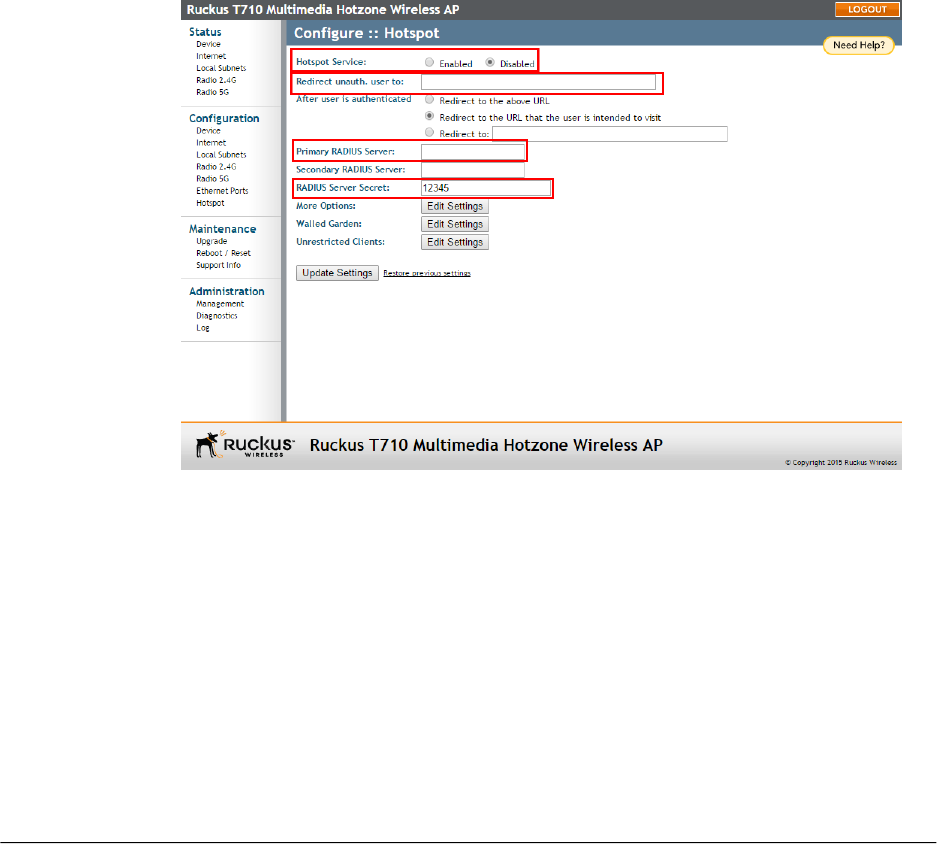
•If an Access Port is configured as an Authenticator, the administrator must define
the RADIUS server that the Authenticator communicates with. All Ethernet ports of
a single AP are configured with the same RADIUS server.
Enable MAC authentication bypass
If MAC authentication bypass is enabled, the port first attempts to authenticate the
attached device by MAC address, and if that fails, it tries to authenticate the device using
802.1X.
Configuring Hotspot Service
Hotspot service can be deployed on standalone Ruckus Wireless APs through the web
interface.
At a minimum, you must configure a login redirect URL and a RADIUS server to which
users are authenticated. Additional options and controls are provided on subsequent
pages.
1. Go to Configuration > Hotspot.
Figure 37: Minimum configuration settings for providing Hotspot service
2. Click Enabled next to Hotspot Service.
3. Review the settings in the following table, and make changes as needed.
93
Outdoor Access Point Release 106.0 User Guide
Configuration
Configuring the Access Point for Standalone Operation or Management by FlexMaster

Table 31: Hotspot configuration settings
DescriptionSetting
Redirect unauthenticated users to the
specified URL (login page).
Redirect unauth. user to
Select where you want to redirect the
user after successful authentication.
•Redirect to the above URL: return to
the login URL configured above.
•Redirect to the URL the user intended
to visit: upon successful
authentication, go directly to the URL
that the user originally entered
(typically the browser's home page).
•Redirect to: specify a URL to which
users are redirected after
authentication. This can be used to
redirect users to a “Login Successful”
page, or a page that offers connection
time information or a Logout button.
After user is authenticated
Enter the IP address of the primary
RADIUS server against which users are
authenticated (required).
Primary RADIUS Server
Enter the IP address of the secondary
RADIUS server, if one is available
(optional).
Secondary RADIUS Server
Enter the shared secret for
communication with the RADIUS server
(required).
RADIUS Server Secret
4. Click Update Settings to save your changes.
You have completed the minimum settings for providing Hotspot service on this AP.
Additional configuration options are available using the Edit Settings buttons on the
page: Customizing Hotspot Optional Settings on page 94.
Customizing Hotspot Optional Settings
Optional Hotspot settings include a number of options for fine-tuning your Hotspot
service, such as maximum session time, grace period, accounting update interval, and
so on.
1. Go to Configuration > Hotspot.
Outdoor Access Point Release 106.0 User Guide
94
Configuration
Configuring the Access Point for Standalone Operation or Management by FlexMaster
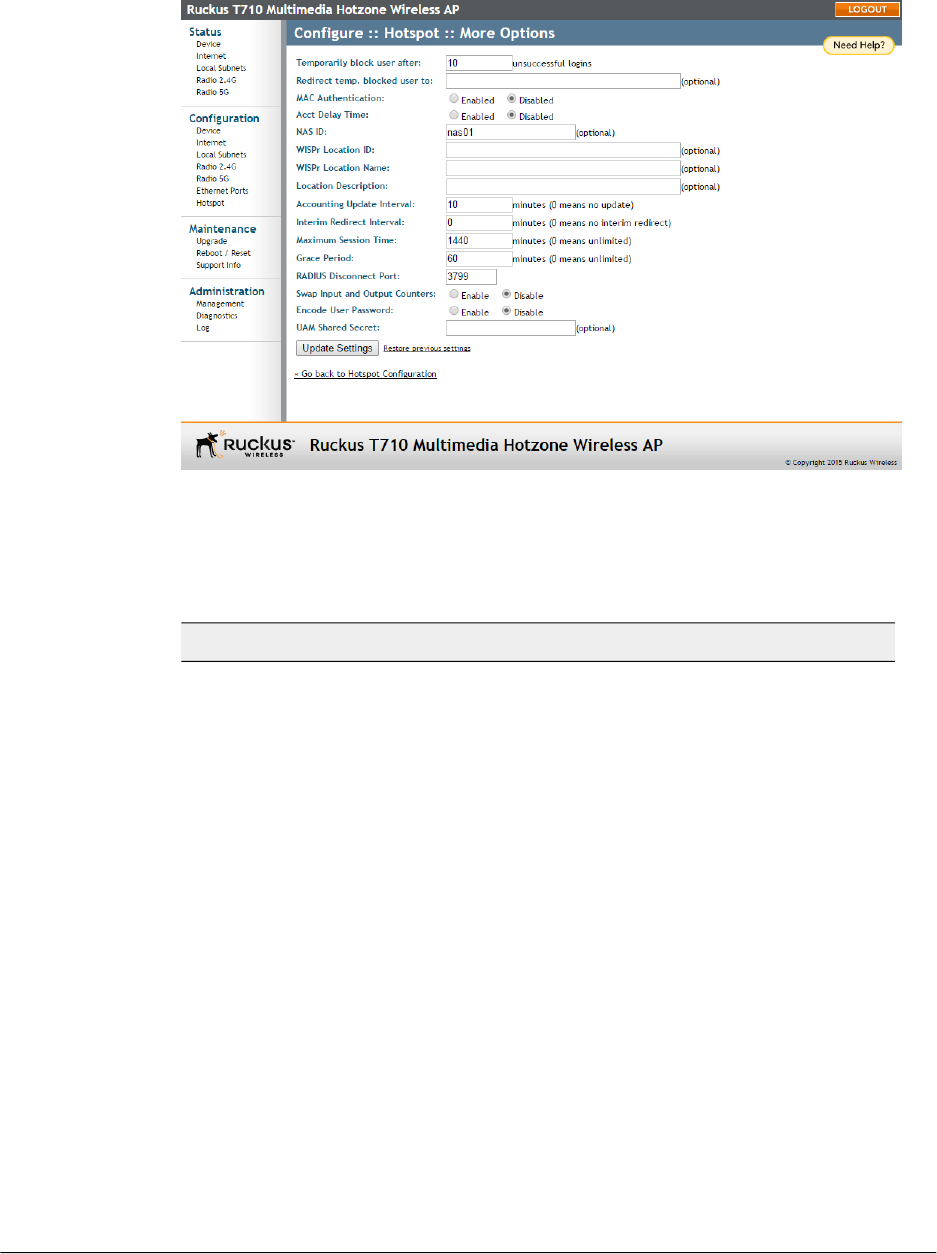
2. Click the Edit Settings button next to More Options. The More Options page
appears.
Figure 38: Configuring optional Hotspot options
3. Configure the following Hotspot options as required:
Table 32: Optional Hotspot settings
DescriptionSetting
Specify the maximum number of repeated authentication
failures allowed.
Temporarily block
user after __
unsuccessful login
attempts
Enter a redirect URL to which blocked users are redirected.Redirect temp.
blocked user to
If enabled, the Hotspot service attempts to authenticate users
based on their MAC addresses if the local Hotspot
authentication has failed. An optional MAC authentication
password can be entered. If no password is specified, the
system uses the client's MAC address as the password.
MAC Authentication
95
Outdoor Access Point Release 106.0 User Guide
Configuration
Configuring the Access Point for Standalone Operation or Management by FlexMaster

DescriptionSetting
This attribute indicates how many seconds the client has been
trying to send this record, and can be subtracted from the
time of arrival on the server to find the approximate time of
the event generating this Accounting-Request. When enabled,
this attribute appears in accounting request packets with a
starting value of “0”, incremented each retry packet. When
disabled, this attribute is not included in any accounting
request packet.
Acct Delay Time
Specify the Network Access Server identifier of this device.
The NAS-ID attribute is sent in RADIUS access and
accounting request messages. It can also be used as location
identification when NAS-IP-Address cannot be used for this
purpose.
NAS ID
Specify the Hotspot location identifier. This value is provided
in the RADIUS access and accounting requests. It is
recommended that the value is in the form of
“isocc=<ISO_Country_Code>,
cc=<E.164_Country_Code>,
ac=<E.164_Area_Code>, network=<SSID/ZONE>”
.
WISPr Location ID
Specify the hotspot location and operator's name. This value
is provided in the RADIUS access and accounting requests.
It is recommended that the value is in the form of
“<HOTSPOT_OPERATOR_NAME>,<Location>”
.
WISPr Location
Name
Specify the description of location. This value is provided in
the HTTP redirection.
Location Description
Specify the interval for RADIUS accounting requests.Accounting Update
Interval
Specify the interval after which users are redirected to the
login URL.
Interim Redirect
Interval
Enter the maximum session time in minutes.Maximum Session
Time
Specify the maximum time that a user may disconnect from
the Hotspot service and return without the need to login again.
Grace Period
Outdoor Access Point Release 106.0 User Guide
96
Configuration
Configuring the Access Point for Standalone Operation or Management by FlexMaster

DescriptionSetting
UDP port to listen to for accepting RADIUS disconnect
requests.
RADIUS Disconnect
Port
Swap the value of input counters (packets, octets and giga
words) and output counters in RADIUS accounting requests.
This option is mainly for backward compatibility with existing
ChilliSpot deployments.
Swap Input and
Output Counters
Encode user password with challenge string, if UAM secret
is not specified; otherwise, encode user password with both
challenge string and UAM secret.
Encode User
Password
The UAM Shared Secret is the shared secret between this
AP and the HTTP server for the Redirection URL. This setting
is optional.
UAM Shared Secret
4. Click Update Settings to save your changes.
Creating a Hotspot Walled Garden
You can use the Hotspot Walled Garden rules to designate network destinations (host
address or subnet) that users can access without going through authentication.
A Walled Garden is a limited environment to which an unauthenticated user is given
access for the purpose of setting up an account. After the account is established, the
user is allowed out of the Walled Garden.
URLs are resolved to an IP address (up to four). Users may not be able to click through
to other URLs presented on a page, if that page is hosted on a server with a different
IP address. Avoid using common URLs that are translated into many IP addresses (such
as www.yahoo.com), as users may be redirected to reauthenticate when they navigate
through the page.
1. Go to Configuration > Hotspot.
2. Click Walled Garden/Edit Settings.
3. Click Add new entry. A field entitled Walled Garden Host appears.
97
Outdoor Access Point Release 106.0 User Guide
Configuration
Configuring the Access Point for Standalone Operation or Management by FlexMaster
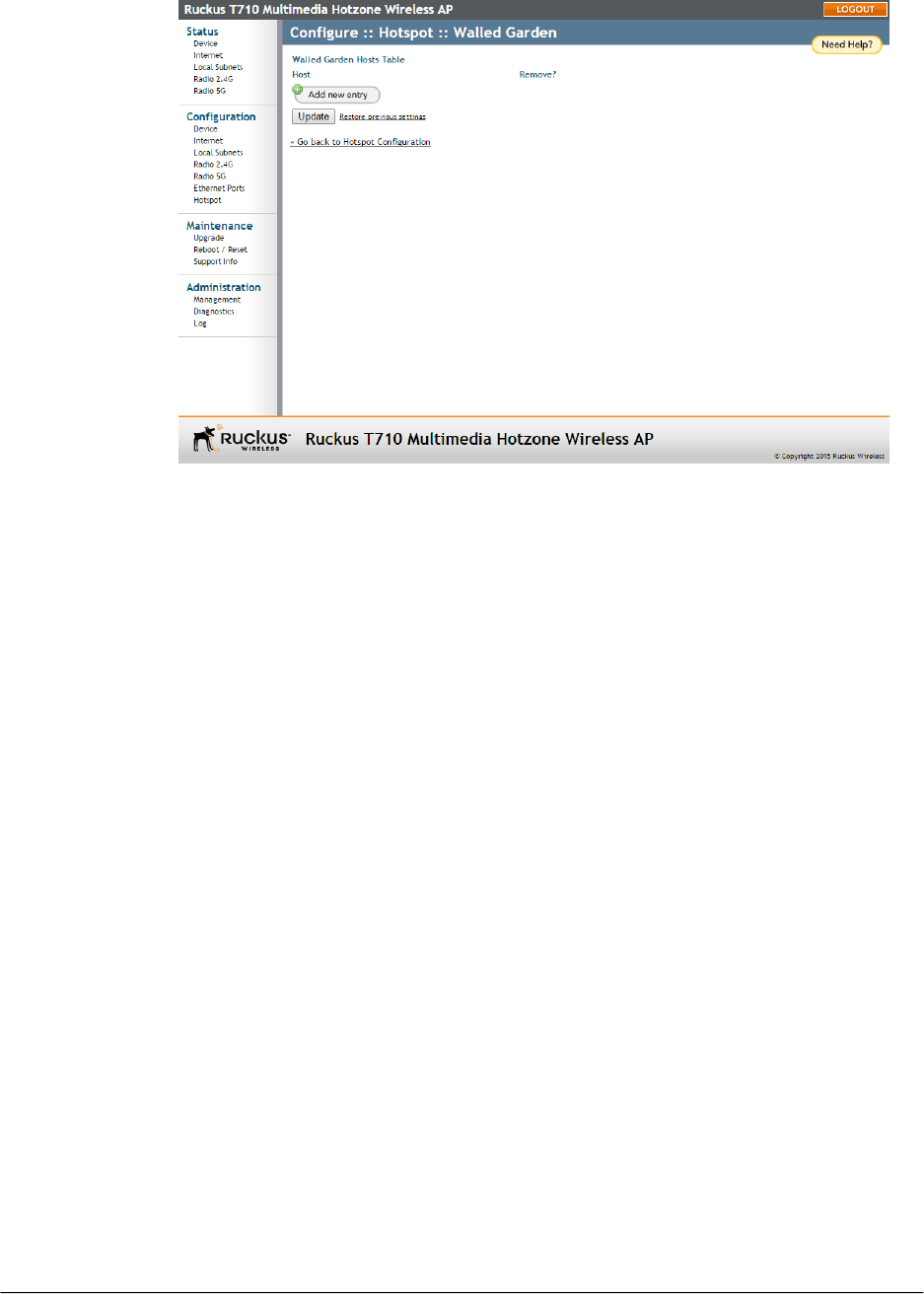
Figure 39: The Walled Garden hosts table
4. In Walled Garden Host, enter a host name, IP address, network segment (for
example, 192.168.1.0/24) or a domain name. If a domain name is entered, it is
resolved every five minutes.
5. Click Update to save your entry.
You can create up to 64 entries in the Walled Garden Hosts table.
Removing Hotspot Walled Garden Entries
Use the following procedure to remove entries from the hotspot Walled Garden table.
1. Click the check box next to the entry you want to remove, under the Remove?
column.
2. Click Update. The entry is removed from the list.
Allowing Unrestricted Hotspot Access by MAC Address
This setting allows specific client MAC addresses to access the hotspot WLAN without
requiring authentication.
MAC addresses listed in this table are allowed to bypass authentication to the hotspot
WLAN.
1. Go to Configuration > Hotspot.
2. Click Unrestricted Clients/Edit Settings.
3. Click Add new entry, and enter the MAC address of a client in the fields provided.
Outdoor Access Point Release 106.0 User Guide
98
Configuration
Configuring the Access Point for Standalone Operation or Management by FlexMaster
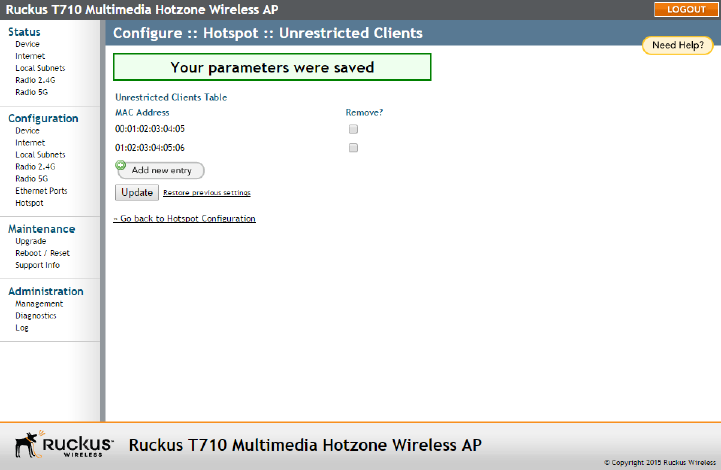
Figure 40: Configuring Hotspot unrestricted clients table
4. Click Update to save your changes.
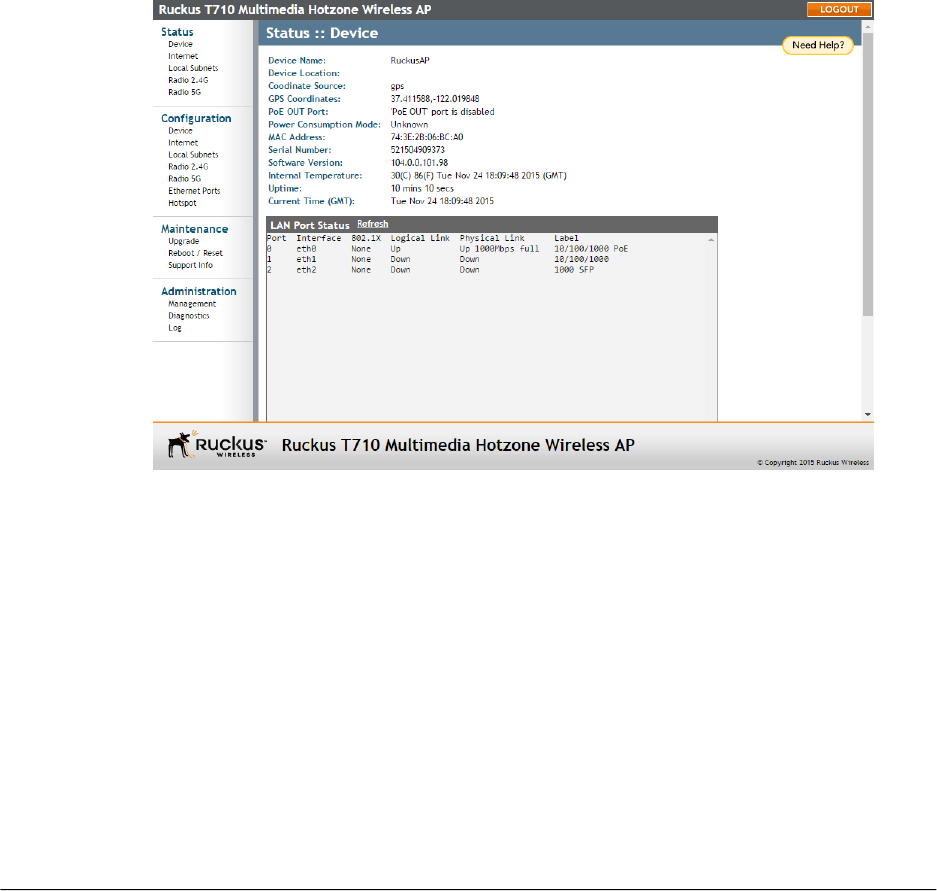
Administration 4
Managing the Access Point
This section provides instructions for managing standalone Ruckus Wireless APs using
the AP web interface.
For information on managing your Ruckus Wireless network using SmartZone or
ZoneDirector controller, or FlexMaster server, refer to the relevant User Guide, available
from the Ruckus Wireless Support website: support.ruckuswireless.com.
Viewing Current Device Settings
The Status > Device page displays a general overview of the AP's current status,
including device name, MAC address, serial number, current software (image) version,
and so on.
Figure 41: The Status > Device page
Viewing Current Internet Connection Settings
The Status - Internet page displays information on the AP's network settings; that is,
the settings that allow the AP to communicate with your local network and the Internet.
100
Outdoor Access Point Release 106.0 User Guide
100
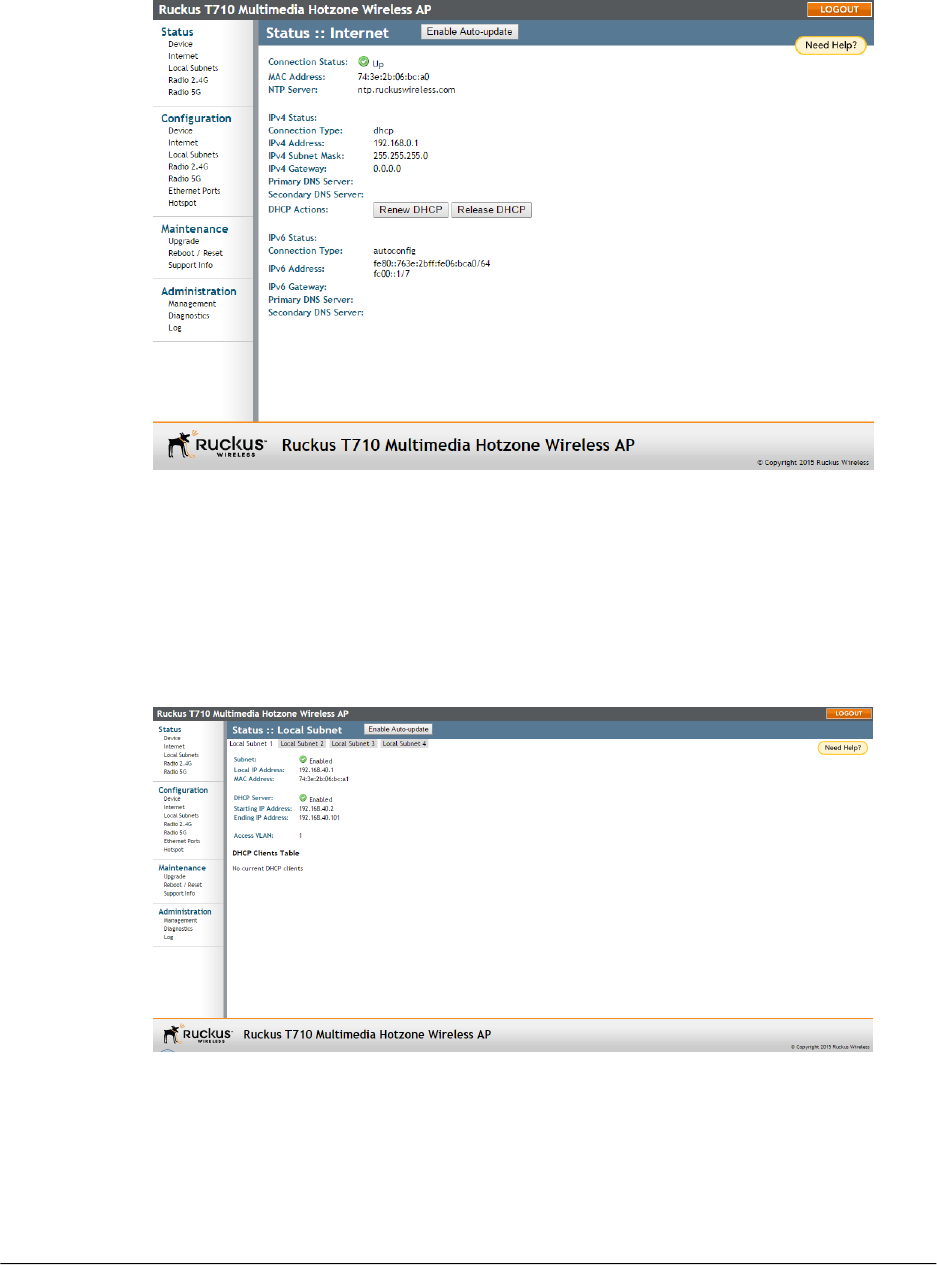
Information includes IP address, gateway, DNS server, NTP server and connection type
(method of obtaining an IP address -- DHCP or static IP).
Figure 42: The Status > Internet page
Viewing Current Local Subnet Settings
The Status > Local Subnets page can be used to view the router (local subnet)
configurations and list of any clients connected to those subnets.
If you want to make changes to any of these settings, then go to Configuration > Local
Subnets. Refer to Configuring Local Subnets on page 67 for more information.
101
Outdoor Access Point Release 106.0 User Guide
Administration
Managing the Access Point
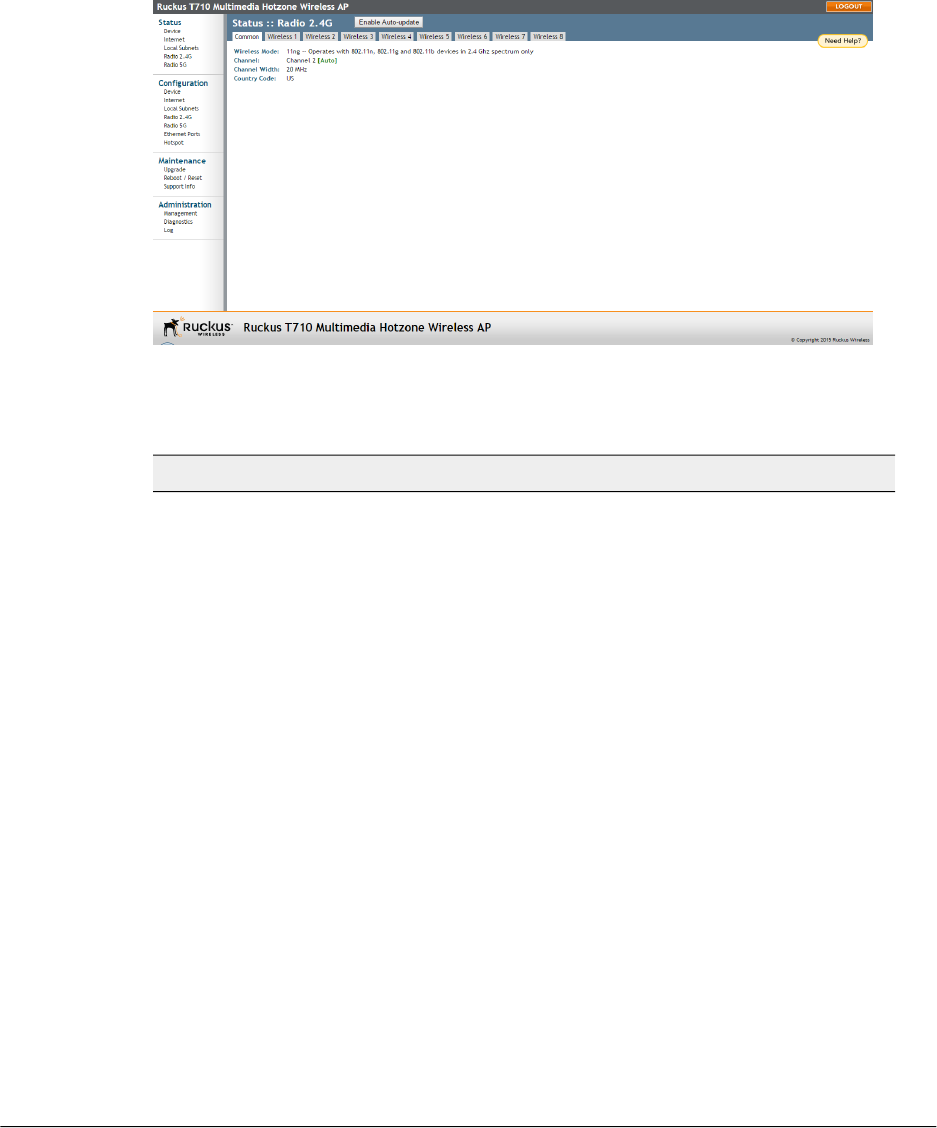
Figure 43: The Status > Local Subnet page
Viewing Common Wireless Settings
If you want to view the current common wireless settings that the AP is using, go to the
Status > Wireless page (on dual-band APs, go to Status > 2.4G or Status > 5G).
The following table lists the descriptions of each common wireless setting.
Figure 44: The Status > Wireless (Radio 2.4G/5G) > Common page
Table 33: Common Wireless settings
DescriptionSetting
Shows the wireless mode that the AP is
currently using. Possible values include:
•Auto Select: (For 802.11b/g APs only)
Allows both 802.11g- and
802.11b-compliant devices to connect
to the network. This is the default
setting.
•2.4GHz 54 Mbps: Allows 11g devices
only.
•2.4GHz 11 Mbps: Allows 11b devices
only.
•11ng: Operates with 802.11n, 802.11g
and 802.11b devices in the 2.4Ghz
spectrum only.
•11na: Operates with 802.11n and
802.11a devices in the 5GHz spectrum
only.
Wireless Mode
Outdoor Access Point Release 106.0 User Guide
102
Administration
Managing the Access Point

DescriptionSetting
Shows the wireless channel that the AP is
currently using. If you set the wireless
channel to SmartSelect, this field shows
the value Channel # [SmartSelect].
Channel
11n/ac devices only. Displays whether the
channel width is set to 20MHz or 40MHz.
Channel Width
Shows the country code that the AP has
been set to use.
CAUTION! Verify that the AP is using the
correct country code to make sure it uses
only the allowed radio channels in your
region. Selecting the incorrect country code
may result in violation of applicable laws.
Country Code
Shows Enabled if you enabled AeroScout
RFID tag detection. The default setting is
Disabled.
AeroScout RFID tag detection (some APs)
Shows Up if the communication agent on
the AP is able to relay location data from
AeroScout Tags to the AeroScout Engine.
If the communication agent is unable to
relay data or AeroScout tag detection is
disabled, this field shows Down.
AeroScout Engine communication daemon
(some APs)
Shows Enabled if you have enabled Ekahau
RFID tag detection. Default is disabled.
Ekahau Engine communication daemon
(some APs)
Ekahau Real Time Location System RTLS
Controller IP address.
ERC IP (some APs)
TCP port used by the Ekahau Real Time
Location System RTLS Controller.
ERC Port (some APs)
If you want to make changes to any of these settings, go to the Configuration > Wireless
page. Refer to Configuring Wireless Settings on page 69 for more information.
Viewing Associated Wireless Clients
A usage-monitoring capability has been built into the AP to help you monitor wireless
clients that are associated with your wireless network.
1. Go to Status > Wireless. The Status > Wireless page appears.
103
Outdoor Access Point Release 106.0 User Guide
Administration
Managing the Access Point
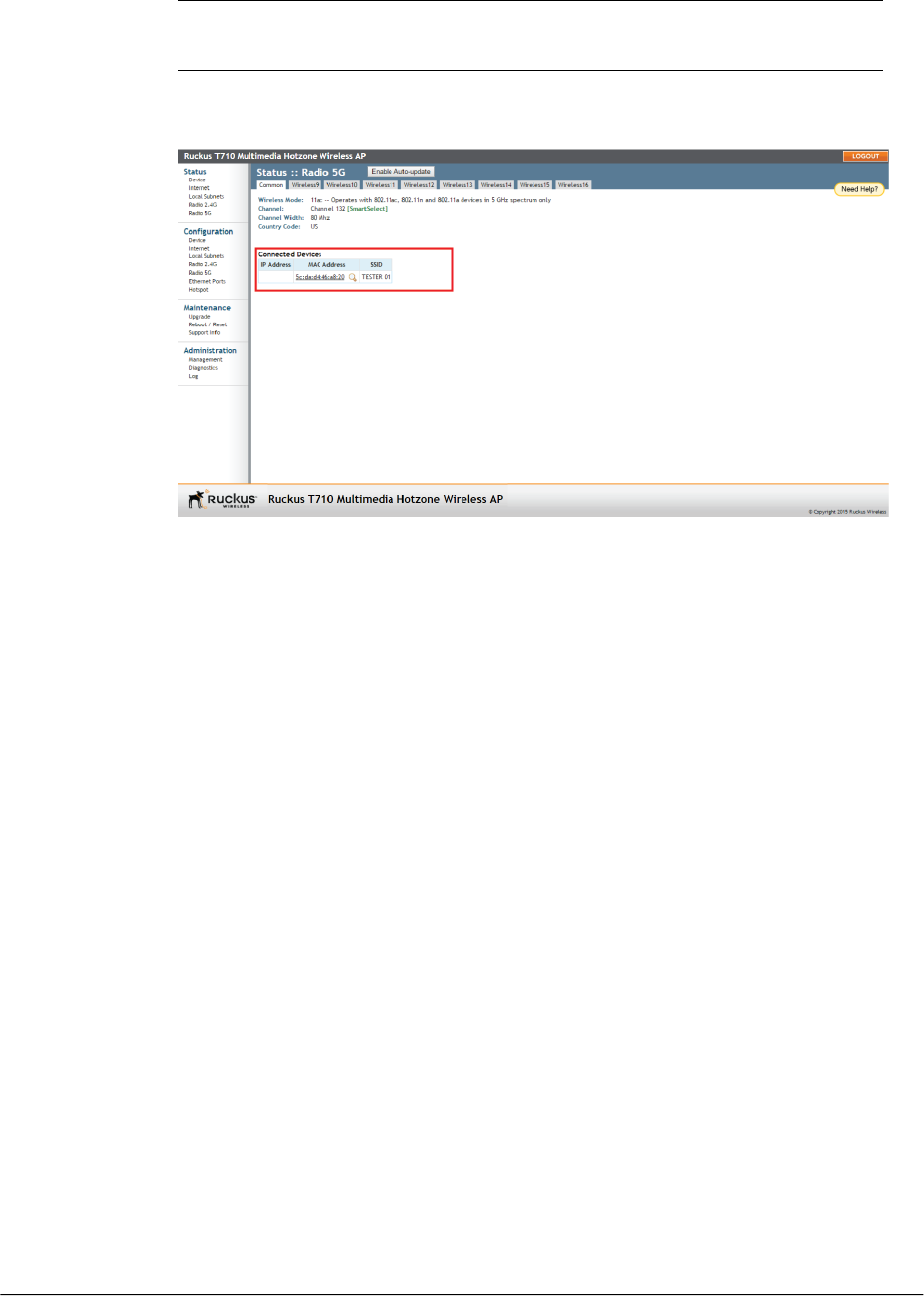
NOTE If you are using a dual-band Ruckus Wireless AP, go to Status > Radio 2.4G
or Status > Radio 5G.
2. Click any of the Wireless # (WLAN number) tabs. Wireless clients that are associated
with this particular wireless LAN appear under Connected Devices.
Figure 45: Viewing connected devices
Changing the Administrative Login Settings
Configure admin settings using the Configuration > Device page.
The default user name is super and the default password is sp-admin. To prevent
unauthorized users from logging in to the web interface using these default administrator
login settings, Ruckus Wireless recommends that you change the default web interface
password immediately after your first login.
1. Go to Configuration > Device.
Outdoor Access Point Release 106.0 User Guide
104
Administration
Managing the Access Point
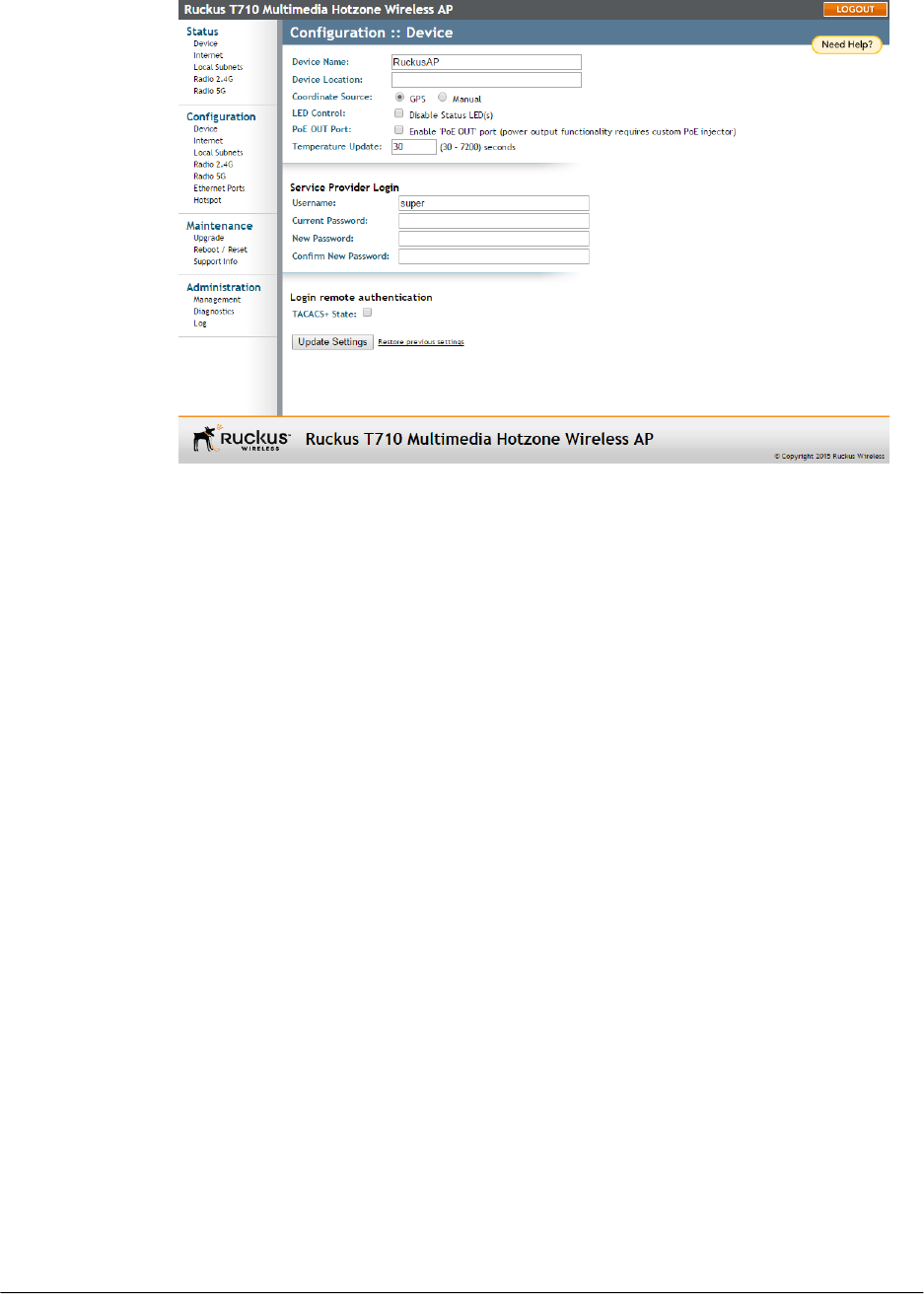
Figure 46: The Configuration > Device page
2. Under Service Provider Login, change the default administrator login settings.
•In Username, type a new user name to log in to the web interface. The default
user name is super.
•In Current Password, enter the existing password.
•In New Password, type a new password to replace the default password
sp-admin. The password must consist of six to 32 alphanumeric characters only.
•In Confirm New Password, retype the new password.
3. Click Update Settings. The message Your parameters were saved appears. You
have completed changing the default login settings. The next time you log in to the
web interface, make sure you use these updated login settings.
Enabling Other Management Access Options
In addition to managing the AP via a web browser through HTTPS, several other
management access options are available on the AP. These options include management
access via HTTP, Telnet, and SSH.
You can also view and set up the connection to a Ruckus Wireless FlexMaster server
under the TR-069/SNMP Management Choice options. If your Ruckus Wireless device
is to be managed by FlexMaster, then the FlexMaster information (server URL and contact
interval) is preconfigured before you receive your Ruckus wireless device.
105
Outdoor Access Point Release 106.0 User Guide
Administration
Managing the Access Point
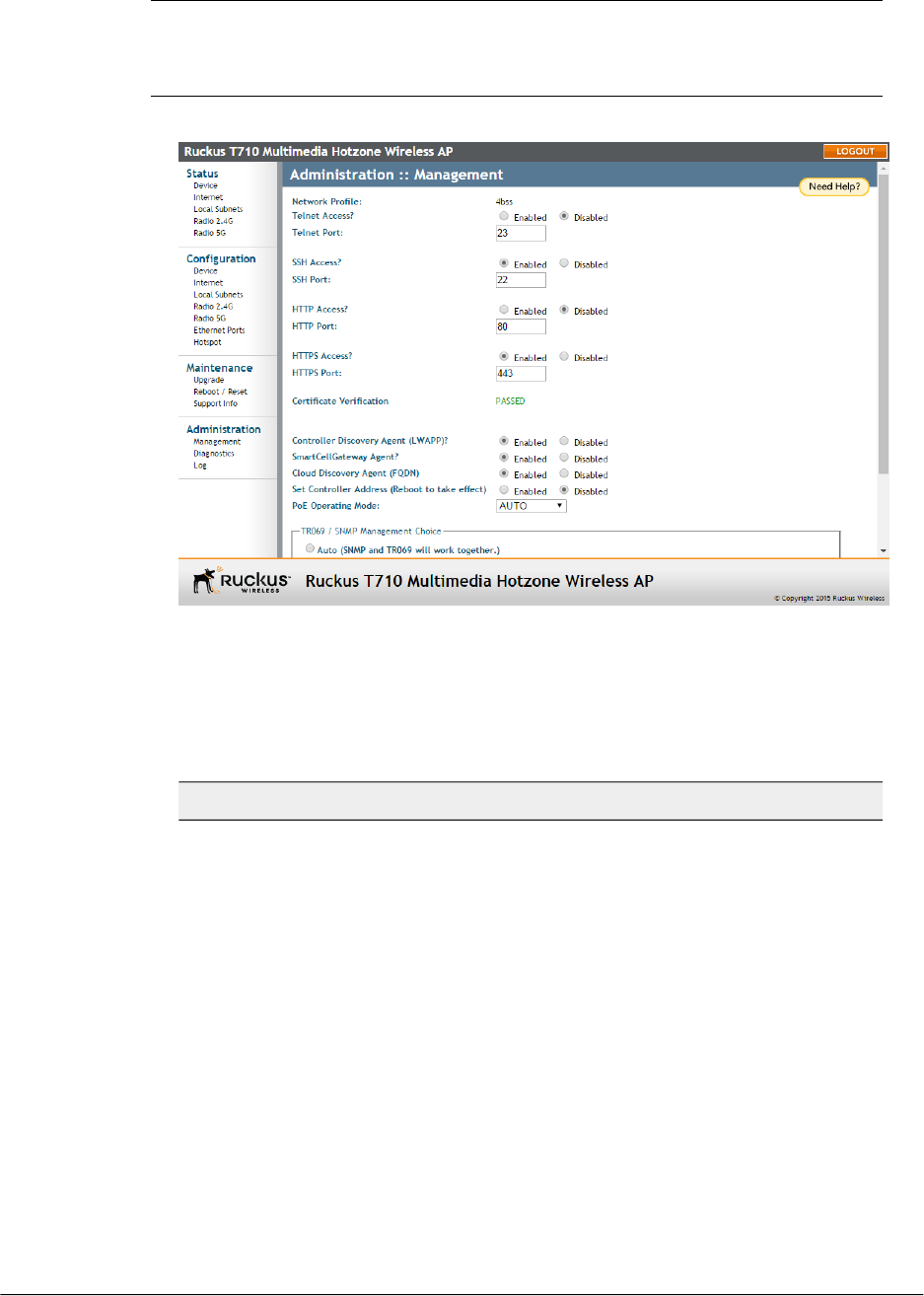
NOTE If you are configuring the AP to be managed by FlexMaster, remember to point
it to the FlexMaster server after you configure the management access options. For more
information, refer to Pointing the AP to FlexMaster on page 110.
1. Go to Administration > Management. The Management page appears.
Figure 47: The Administration > Management page
2. Review the access options listed in the following table, and then make changes as
needed.
Table 34: Management Access Options
DescriptionOption
By default, this option is disabled
(inactive).
Telnet Access
This field lists the default Telnet port of
23 — only if Telnet is active. You can
manually change this port number, if
required.
Telnet Port
By default, this option is enabled (active).SSH Access
Outdoor Access Point Release 106.0 User Guide
106
Administration
Managing the Access Point

DescriptionOption
This field lists the default SSH port of
22—only if SSH is active. You can
manually change this port number if
required.
SSH Port
This option is disabled by default.HTTP Access
This field lists the default HTTP port of
80, if HTTP has been activated. You can
manually change this port number if
required.
HTTP Port
By default this option is enabled. This
connection mode requires a security
certificate, a copy of which has been
pre-installed in the device.
HTTPS Access
This field lists the default HTTPS port of
443—only if HTTPS has been activated.
You can manually change this port
number if required.
HTTPS Port
This notes whether the security certificate
linked to the HTTPS settings has been
passed or not.
Certification Verification
•Enabled (default) -- Lightweight
Access Point Protocol controller
discovery on.
•Disabled -- LWAPP controller
discovery off.
Controller Discovery Agent (LWAPP)
•Enabled (default) -- Ruckus
SmartZone (SZ) and SmartCell
Gateway (SCG) controller discovery
on.
•Disabled -- SZ/SCG discovery off.
SmartCell Gateway Agent
•Enabled (default) -- Fully Qualified
Domain Name cloud discovery on;
requires enabled LWAPP controller
discovery Enabled.
•Disabled -- FQDN cloud discovery off.
Cloud Discovery Agent (FQDN)
107
Outdoor Access Point Release 106.0 User Guide
Administration
Managing the Access Point

DescriptionOption
•Enabled -- The AP uses an IP address
to search for the primary and/or
secondary controller. When Set
Controller Address is Enabled, enter
the required primary controller IP
address and the optional secondary
controller IP address.
•Disabled (default) -- The AP does not
use IP address(es) to search for
controllers.
Set Controller Address
AUTO = allow the AP to decide if it is to
operate off of 802.3at or 802.3af power
over Ethernet, or 802.3af PoE = force the
AP to operate off of 802.3af power over
Ethernet. Default = AUTO.
PoE Operating Mode (some APs)
3. If you want to use TR-069 or SNMP to manage the AP, then configure the settings
listed in the following table.
Table 35: TR-069 and SNMP Management Options
DescriptionOption
Enables the Ruckus Wireless device to
be managed by either SNMP server,
Ruckus Wireless ZoneDirector, or Ruckus
Wireless FlexMaster.
Auto
Only allow SNMP management.SNMP only
Only allow FlexMaster management.FlexMaster only
URL of server providing DHCP.DHCP Discovery
URL of the FlexMaster server.FlexMaster Server URL
This information is automatically
generated by the AP and used for
authentication with FlexMaster. Change
this value only if you want the AP to
connect to another access control server
(ACS).
Digest-authentication
Username/Digest-authentication
password
Outdoor Access Point Release 106.0 User Guide
108
Administration
Managing the Access Point
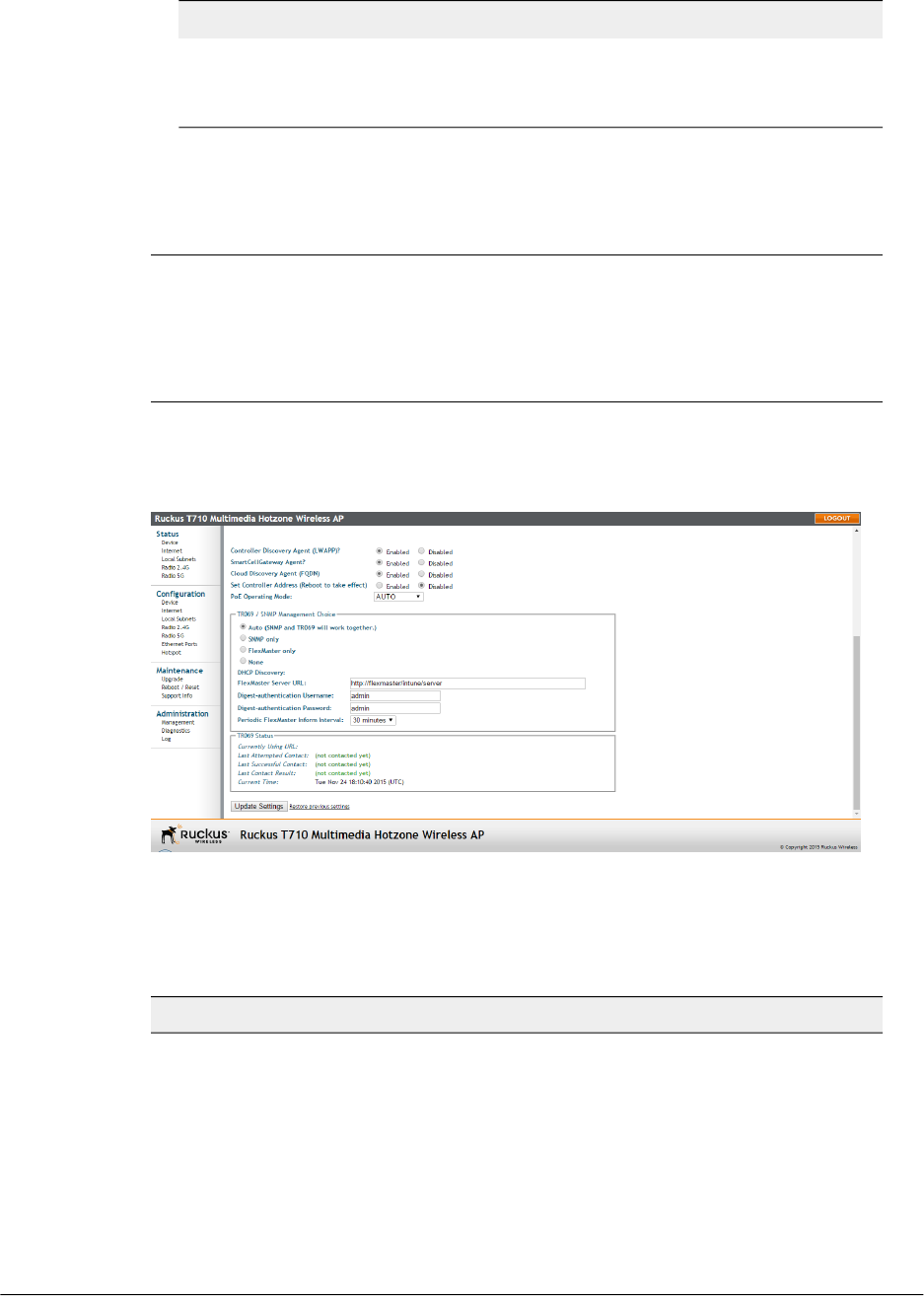
DescriptionOption
Interval at which the device should
attempt to contact FlexMaster. Default =
15 minutes.
Periodic FlexMaster Inform Interval
4. Click Update Settings to save your changes. A confirmation message appears at
the top of the page.
You have completed configuring the management access options.
NOTE Remember to open any relevant firewall ports between the AP and the firmware
upgrade/management server. For example, if HTTPS is used for firmware upgrades,
open TCP port 443 on the firewall to allow connections through port 443. If FlexMaster
server is used, open TCP ports 80 and 443 for HTTP/HTTPS communications, and TCP
port 8082 for AP wake-up commands.
Viewing FlexMaster Management Status
If you configure the AP to be managed by FlexMaster, you can view the TR-069 Status
section on the Administration > Management page.
Figure 48: TR-069 status information
The following table lists the TR-069 status information that the AP provides.
Table 36: TR-069 status information
DescriptionStatus Information
Shows the FlexMaster server IP address
or URL with which the AP is currently
registered.
Currently Using URL
109
Outdoor Access Point Release 106.0 User Guide
Administration
Managing the Access Point

DescriptionStatus Information
Shows the date and time of the AP's last
attempt to contact FlexMaster. Date and
time are specified in GMT (or UTC), which
are accurate if a Network Time Protocol
(NTP) server is configured.
Last Attempted Contact
Shows the date and time of the AP’s last
successful contact with FlexMaster.
Last Successful Contact
Shows the result of the last attempt to
contact FlexMaster (success or failure, and
failure error code if applicable).
Last Contact Result
Shows the current date and time as known
to the AP. This timestamp is accurate if an
NTP server is configured on the AP. If there
is no NTP server configured, this timestamp
is useful as a reference for comparison of
the timestamps for
Last attempted contact and
Last successful contact.
Current Time
Pointing the AP to FlexMaster
Your Ruckus Wireless device is required to “call home” to register with your FlexMaster;
FlexMaster does not initiate initial contact.
To register successfully with FlexMaster, your Ruckus Wireless device must know the
FlexMaster server’s URL, thus entered on the device. You need TCP ports 80 and 443
between APs and FlexMaster when traversing Layer 3/firewall boundaries.
1. Go to Administration > Management.
2. Under TR-069/SNMP Management Choice, click Auto.
3. In FlexMaster Server URL, type the URL of the FlexMaster server.
4. Toggle the Periodic FlexMaster Inform Interval drop-down list to select how
frequently the device checks the FlexMaster server for any pending configuration
changes available for that Ruckus Wireless unit. On the FlexMaster side, this field is
referred to as the Periodic Inform Interval.
5. Click Update Settings to save your changes.
After the AP registers with FlexMaster, this Administration > Management page will
show the communication status between the AP and FlexMaster.
Outdoor Access Point Release 106.0 User Guide
110
Administration
Managing the Access Point
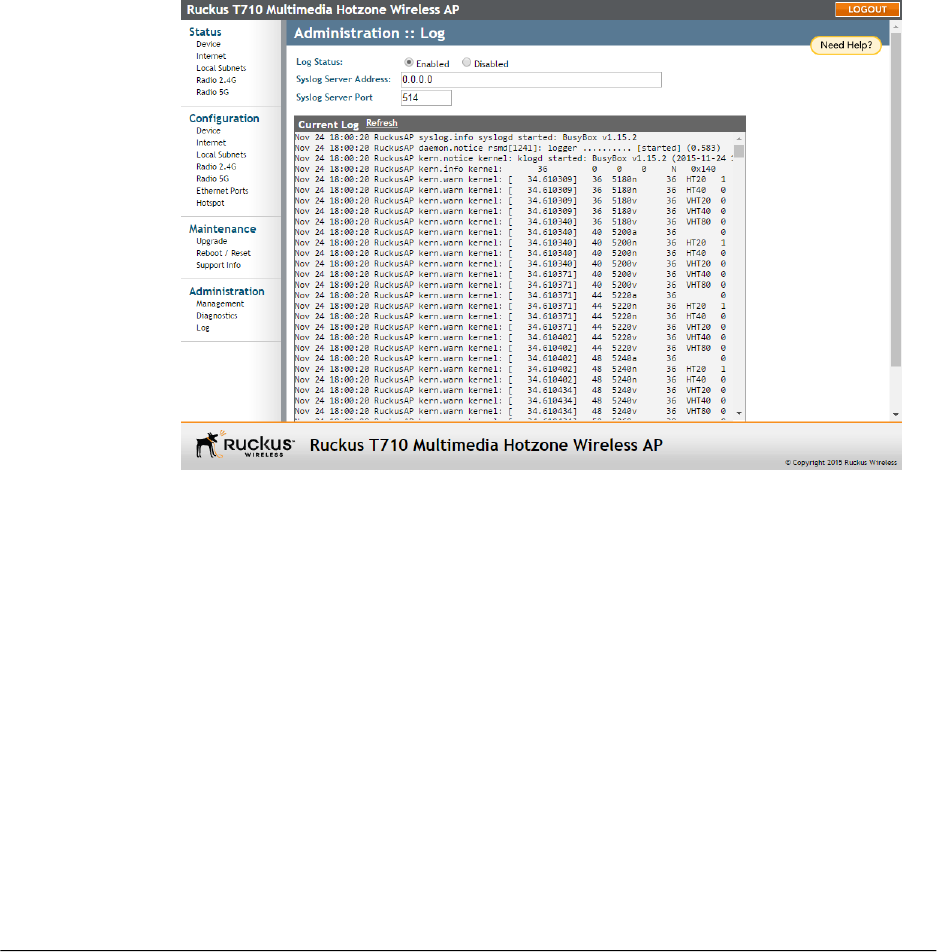
Working with Event Logs and Syslog Servers
AP event logs can be viewed in your browser, or set for automatic delivery to a syslog
server.
Both the Maintenance > Support Info and Administration > Log pages can be used
to view the AP's current log file text. You can use the former to send the log to Ruckus
Wireless support or save it to a local file, and use the latter to configure automatic delivery
of log files to a syslog server.
Enabling Logging and Sending Event Logs to a Syslog Server
If you have a syslog server on the network, you can configure the AP to send the device
logs to the server. Enable logging (if disabled) and configure the AP to send logs to the
syslog server.
1. Go to Administration > Log. The Administration > Log page appears.
Figure 49: The Administration > Log page
2. Look for Log Status, and then click Enabled.
3. After enabling logging, configure the following options:
•Syslog Server Address: To enable the AP to send messages to a syslog server
as they appear, enter the IP address of the syslog server.
•Syslog Server Port: By default, the syslog port number is 514. If the syslog server
is using a different port, enter that port number in this field.
4. Click Update Settings to save and apply your changes.
111
Outdoor Access Point Release 106.0 User Guide
Administration
Managing the Access Point

Sending a Copy of the Log File to Ruckus Wireless Support
The Support Info log consists of the configuration and run-time status of the AP and can
be useful for troubleshooting.
You have three options for sending a copy of the current log file to Ruckus Wireless
Support:
•Save a copy to your local PC, then attach it to an e-mail message and send it to
support.
•Set up a connection to an FTP site.
•Set up a connection to a TFTP site.
1. Go to Maintenance > Support Info. The Maintenance > Support Info page
appears.
2. To upload a copy of the support info file to an FTP or TFTP server, click the Transfer
Method TFTP or FTP option.
3. In Server Address, enter the FTP or TFTP server IP address.
4. In Filename, enter a name for the file that you are saving.
NOTE Remember to add a .TXT file extension to the file name, especially if you are
using Internet Explorer as your web Admin "host."
5. If you selected the FTP option, then also enter a Username and Password.
6. Click Upload Now.
Saving a Copy of the Log File to Your Computer
You can save a copy of the current log to your own computer, if needed.
1. Go to Maintenance > Support Info. The Maintenance > Support Info workspace
appears.
2. Click the Transfer Method Save to Local Computer option. Up to three links appear
next to Download (supportinfo.txt, cmsupportinfo.txt and/or tr069info.txt).
3. Click the supportinfo.txt link. A new window (or tab) opens with the content of the
log file displayed.
NOTE The cmsupportinfo.txt file includes support information for an AP with integral
cable modem (such as 7781CM), and the tr069info.txt file includes support information
for an AP being managed by FlexMaster.
4. Choose Save As or Save Page As from your browser's File menu.
5. When the "Save as..." dialog box appears, find a convenient location on your local
computer to save the file, and change the file extension from .html to .txt.
6. Click Save to save the log file to your computer.
Outdoor Access Point Release 106.0 User Guide
112
Administration
Managing the Access Point
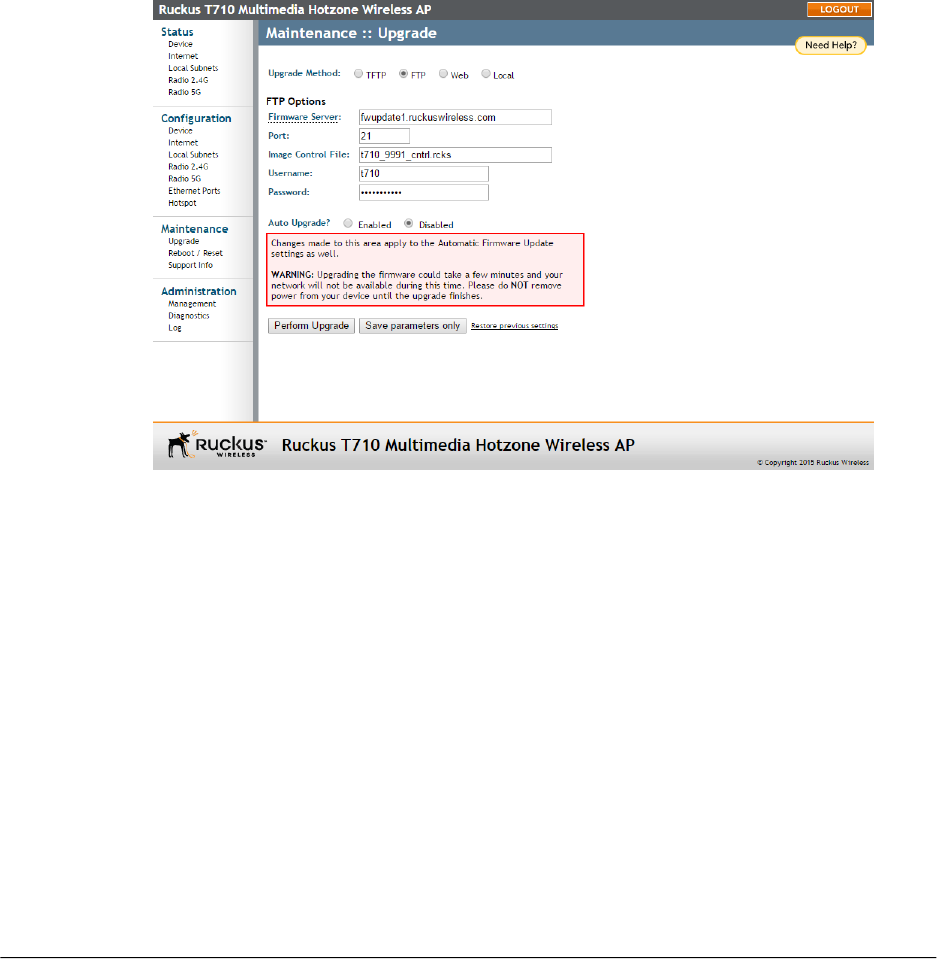
Upgrading the Firmware
You can use the web interface to check for software updates/upgrades for the firmware
image built into the AP.
You can then apply these updates to the device in one of two ways: (1) manual updating
on an as-needed basis or (2) automating a regularly scheduled update.
Before starting, decide which option you want to take:
•Automate a regularly scheduled update.
•Run a one-time manual update right now.
By default, the automatic upgrade option is disabled.
To upgrade the firmware image, go to Maintenance > Upgrade. When the Maintenance
> Upgrade options appear, decide which upgrade method to use.
Figure 50: The Maintenance > Upgrade page
Each of the upgrade options listed on the Upgrade page are discussed in the following
sections.
•Upgrading Manually via FTP or TFTP on page 114
•Upgrading Manually via the Web on page 114
•Upgrading Manually via Local File on page 114
•Scheduling Automatic Upgrades on page 114
113
Outdoor Access Point Release 106.0 User Guide
Administration
Managing the Access Point

Upgrading Manually via FTP or TFTP
Use this procedure to manually upgrade the AP using FTP or TFTP.
1. In the Upgrade Method options, click FTP (default) or TFTP.
2. Click the host name field, and then type the URL of the server. Or click the IP address
field, and then type the IP address of the server. Remember to start the URL with
ftp://.
CAUTION! Do not change any of the Image Control File, Username or Password
entries.
3. Click Perform Upgrade. A status bar appears during the upgrade process.
After the upgrade is completed, you must manually reboot the AP.
Upgrading Manually via the Web
Use this procedure to manually upgrade the AP via the web.
1. In the Upgrade Method options, click Web.
2. If instructed to choose a different URL than the default value, type the URL of the
download website in URL. Remember to start the URL with http://.
3. Click Perform Upgrade. A status bar appears during the upgrade process.
After the upgrade is completed, you must manually reboot the AP.
Upgrading Manually via Local File
If you have downloaded an AP firmware image, use this procedure to manually upgrade
to the new image using the local file.
1. In the Upgrade Method, select Local.
2. Click Choose File and locate the file on your local computer.
3. Select the file and click Open.
4. Click Perform Upgrade. Status messages appear during the upgrade and reboot
process.
Scheduling Automatic Upgrades
Use this procedure to set the AP to automatically search for and install the latest firmware
at a specified interval.
1. In the Upgrade Method options, click the button for your preferred choice.
2. Enter the appropriate information in the Host name or IP address field.
NOTE Do not change any of the Image Control File, Username or Password
entries.
3. Verify that the Auto Upgrade option is set to Enabled.
Outdoor Access Point Release 106.0 User Guide
114
Administration
Managing the Access Point

4. Toggle the Interval to Check for Software Upgrade drop-down list to select your
preferred interval.
5. Choose whether to reboot immediately after upgrading, or schedule the reboot for
a specific time of day using the Schedule Reboot Time After Upgrade list. Choosing
Any Time (the default value) results in the AP performing a reboot immediately after
the automatic upgrade is successful.
6. You have two options at this point:
•Click Perform Upgrade, which starts the process and the clock. The next upgrade
occurs at the selected interval.
•Click Save parameters only. The clock starts right away, and the actual upgrade
occurs at the first effective interval.
After you click one of these two options, a status bar appears during the upgrade
process.
When the upgrade is complete, the AP automatically reboots at the time you specified
in Step 5.
Rebooting the AP and Cable Modem
You can use the web interface to prompt the AP to reboot, which restarts the AP without
changing any of the current settings. If your AP is equipped with an integral cable modem
(such as a 7781CM), then you can use the AP web interface to prompt the CM to reboot,
which restarts the CM without changing any of the current settings.
NOTE Please note that rebooting the AP or CM disrupts network communications in
any currently active WLANs.
1. Go to Maintenance > Reboot/Reset. The Maintenance > Reboot/Reset page
appears.
115
Outdoor Access Point Release 106.0 User Guide
Administration
Managing the Access Point
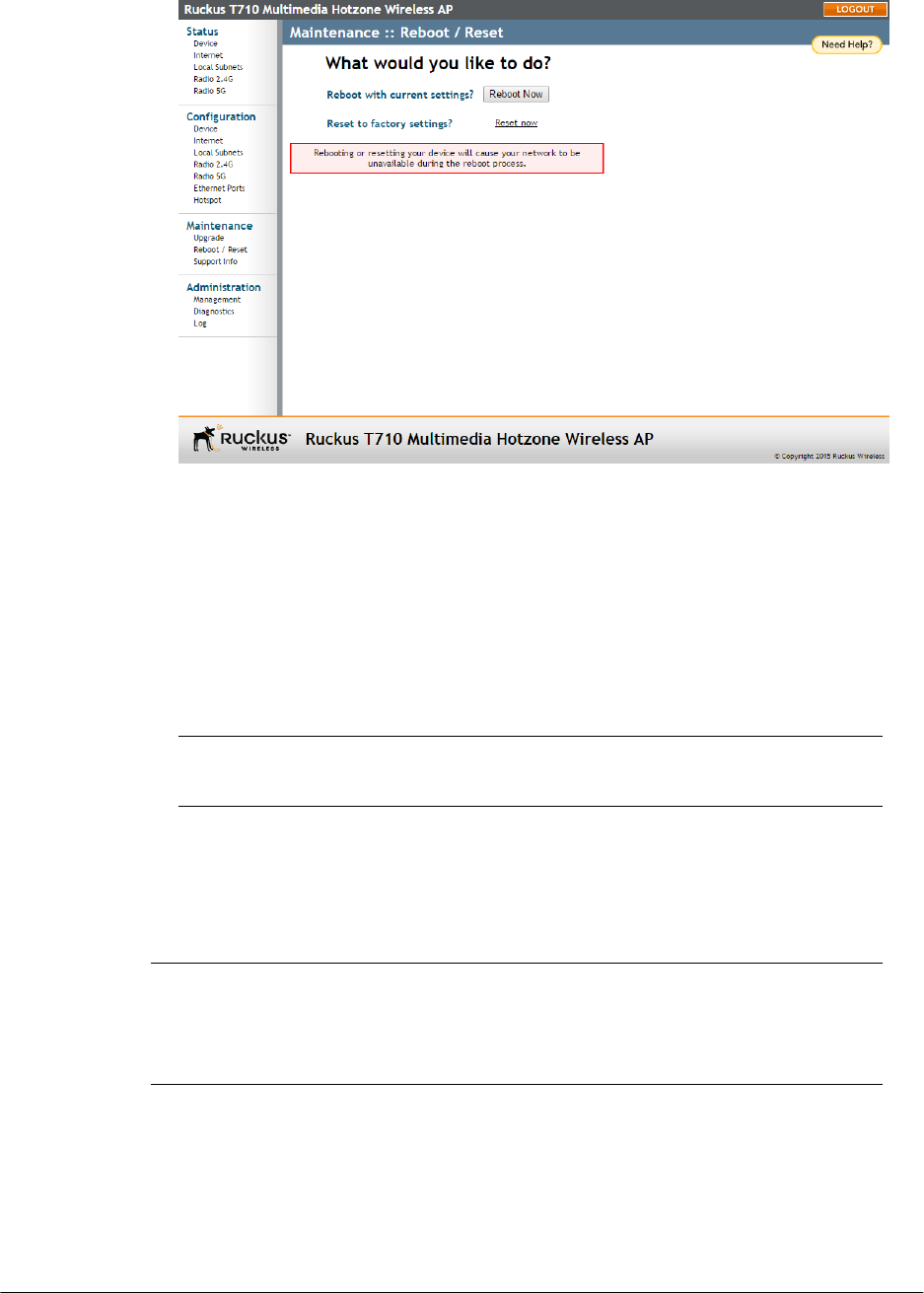
Figure 51: The Maintenance > Reboot/Reset screen
2. To reboot the AP, click Reboot AP with current settings/Reboot Now. After a brief
pause, you are logged out of the AP.
3. To reboot the CM, click Reboot Cable Modem/Reboot Now. After a brief pause,
you are logged out of the AP.
4. After approximately one minute, you should be able to log back into the AP, which
verifies that the reboot was successful. You can also check the LEDs on the AP to
verify the status of the device.
NOTE The 7781CM AP with integral cable modem can also be remotely reset using
the OID and CLI commands described in the 7781CM Installation Guide.
Resetting the AP to Factory Defaults
You can use the web interface to restore an inoperative AP to its factory default settings,
which completely erases the configuration currently active in the device. Note that this
disrupts all wireless network communications through this device.
CAUTION! DO NOT reset the AP to factory defaults unless you are directed to do so
by Ruckus Wireless support staff or by a network administrator. Do this only if you are
able to immediately reconnect the restored AP to your computer, to reconfigure it for
Wi-Fi network use — as detailed in Configuring Wireless Settings on page 69.
Outdoor Access Point Release 106.0 User Guide
116
Administration
Managing the Access Point
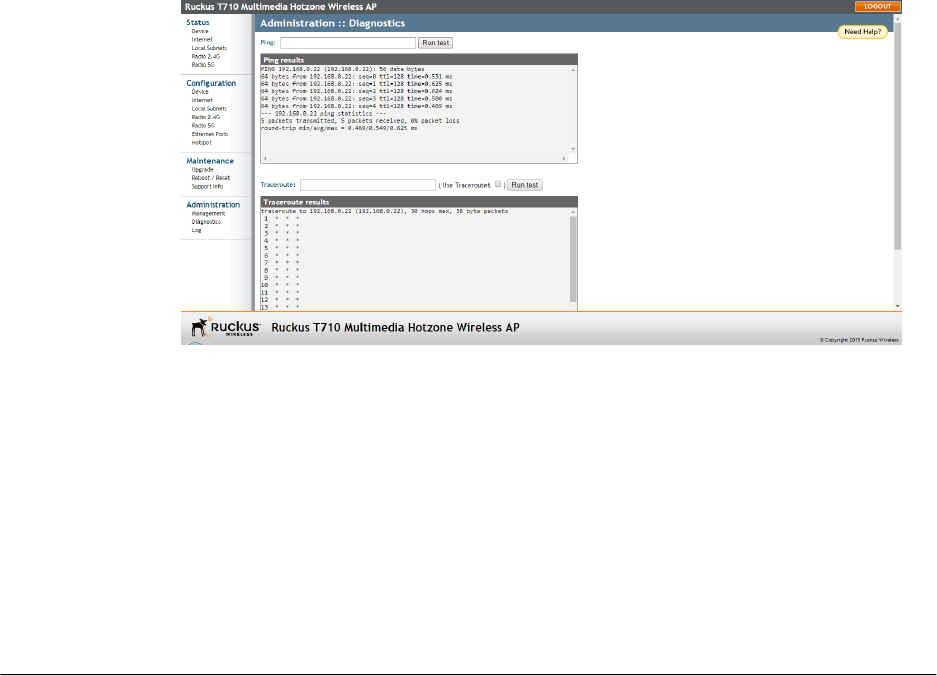
1. Go to Maintenance > Reboot/Reset. The Maintenance > Reboot/Reset page
appears.
2. Click Reset now (next to Reset the AP to factory settings).
3. When the confirmation warning appears, read the message and click OK if you are
certain that you want to restore the AP to factory defaults.
After a brief pause, you are automatically logged out of the AP. You must now disconnect
the AP from the switch (and the network) and reconnect it to your computer, as described
in the associated AP Installation Guide. At this time, you can restore the network settings,
then replace it in your site for full network use.
Running Diagnostics
Two network connection diagnostic tools, ping and traceroute, have been built into the
AP to help you check network connections from the web interface.
1. Go to Administration > Diagnostics. The Administration > Diagnostics page
appears. Two options are available:
•Ping
•Traceroute
2. Click the text field by the option you want to activate, and type the network address
of a site you wish to connect to.
3. Click Run test.
4. The results appear in the text field below each option.
117
Outdoor Access Point Release 106.0 User Guide
Administration
Managing the Access Point

Figure 52: Running Ping and Traceroute tools
Where to Find More Information
If you have questions that this User Guide does not address, visit the Ruckus Wireless
Support Portal at http://support.ruckuswireless.com.
The Support Portal hosts the latest versions of user documentation. You can also find
answers to frequently asked questions (FAQs) for each Ruckus Wireless product type.
Outdoor Access Point Release 106.0 User Guide
118
Administration
Where to Find More Information

119
Outdoor Access Point Release 106.0 User Guide
Administration
Where to Find More Information

Appendix A: Support for Bluetooth Low
Energy Devices
Some Ruckus Wireless APs, such as the T610, support customer-supplied, low-power
(1W or less), Bluetooth Low Energy (BLE) devices, such as BLE beacons.
The BLE devices plug into a USB port on the AP, and the AP can be configured to turn
power to the USB port either on or off.
The Ruckus Wireless APs with USB ports supporting BLE devices can provide power
to the BLE device. The BLE devices perform whatever tasks they are designed to do
without interference from or control (other than supplying USB power) by the Ruckus
Wireless network equipment.
120
Outdoor Access Point Release 106.0 User Guide
120

Appendix B: Configuring Link Aggregation
(LACP) for AP Backhaul
LACP provides a means of aggregating multiple Ethernet ports into one logical link,
thereby increasing the maximum uplink throughput beyond the limits of a single port.
Some Ruckus APs, including the R610, R710, R720, T610, and T710, can use link
aggregation control protocol (LACP) as defined in the 802.1ax (formerly 802.3ad) standard
to control the bonding of two 1Gbps physical Ethernet ports together to form a single
2Gbps logical link.
The following APs support LACP:
•R610
•R710
•R720
•T610/T610s
•T710/T710s
Link Aggregation and When To Use It
Beginning with 802.11ac "Wave 2," some higher capacity APs such as the R710 have
become capable of passing wireless traffic in excess of 1Gbps. This only occurs in
extreme cases, such as during concurrent dual-band operation over the widest possible
channels and highest possible modulation and coding scheme (MCS) rates in each band,
with all traffic flowing in the same direction. In such cases, a single Gigabit Ethernet
backhaul will saturate and limit the AP's capacity to less than 1Gbps.
To alleviate this backhaul limitation, link aggregation can be used to bond multiple Gigabit
Ethernet links into a single, high capacity logical link. The AP's link partner, typically an
Ethernet switch, must also support LACP and be configured to use this feature.
Wi-Fi client capabilities and data demands should be considered before deploying LACP
for AP backhaul. For the vast majority of enterprise WLANs, single Gigabit backhaul for
APs is more than sufficient.
Configuring LACP
LACP is configurable via the AP CLI on T710. The set bond command is used with the
following syntax:
set bond <profile> {options}
+++++++++++++++++++++++++++++++++++++++++++++++++++++
** <profile>: bond0, ...
** options:
- lacp-rate [0,1], 0 for slow, 1 for fast
- xmit-hash [0,1,2], 0 for L(ayer2), 1 for L3+4, 2
121
Outdoor Access Point Release 106.0 User Guide
121

for L2+3
- {add|delete} <ethX>
+++++++++++++++++++++++++++++++++++++++++++++++++++++
Profile (profile) – “bond0” is the only valid profile name.
Options:
•LACP rate (lacp-rate) defines the rate at which the AP asks its link partner (usually
the switch) to transmit LACP control packets (LACPDUs). A faster rate allows the link
end-points to respond quicker to any changes on the physical interface (for instance,
failover in case of one of the ports is disconnected) at the expense of more overhead.
The slow (default) rate is adequate for the vast majority of Enterprise WLAN cases.
•Slow (lacp-rate 0) (default) requests link partner to transmit LACPDUs every 30
seconds.
•Fast (lacp-rate 1) requests link partner to transmit LACPDUs every one second.
•Transmit hash (xmit-hash) defines how the AP chooses to distribute packets between
the two physical Ethernet links which comprise the bonded link. Network topology
and expected traffic flows should be considered when choosing which transmit hash
option to use so as to spread traffic as evenly as possible between the two physical
links.
•Layer 2 (xmit-hash 0) (default) uses the source & destination MAC addresses in the
packet to determine which physical link the packet is sent over. This is a fully-compliant
802.3ad option.
•Layer 3 & Layer 4 (xmit-hash 1) uses source & destination IP addresses as well as
source & destination ports. This policy uses upper layer protocol information, when
available, to generate the hash. This allows packets destined for a particular network
peer to be distributed across both physical links, although a single connection is
limited to one of the physical links.
For fragmented packets, layer 4 information is omitted.
This algorithm is not fully 802.3ad compliant.
•Layer 2 & Layer 3 (xmit-hash 2) uses source & destination MAC addresses as well
as source & destination IP addresses. This algorithm places all traffic to a particular
network peer on the same physical link. For non-IP traffic, the formula is the same
as for the layer2 transmit hash policy. This policy is intended to provide a more
balanced distribution of traffic than layer2 alone, especially in environments where a
layer3 gateway device is required to reach most destinations. This algorithm is 802.3ad
compliant.
•Add or Delete (add|delete) are used to explicitly define which physical Ethernet ports
(ethx) are part of the bond interface (bond0). At a bare minimum, to enable LACP on
the AP this option must be used to add both physical ports to the bond interface.
Outdoor Access Point Release 106.0 User Guide
122
Appendix B: Configuring Link Aggregation (LACP) for AP Backhaul
Examples
Enable with defaults:
:set bond bond0 add eth0
:set bond bond0 add eth1
Enable and modify LACP rate & distribution algorithm:
:set bond bond0 add eth0
:set bond bond0 add eth1
:set bond bond0 xmit-hash 1
:set bond bond0 lacp-rate 1
Apply VLANs untag ID to bonded interface:
:set interface bond0 type trunk untag 777
Caveats
•As of this writing, the controller and AP web UIs do not expose LACP settings or
configuration. If an AP is configured via AP CLI to bond its Ethernet ports, then any
per-Ethernet port settings in the web UI are ignored by the AP.
•Link aggregation between Ethernet and SFP port is not supported.

Copyright © 2017. Ruckus Wireless, Inc.
350 West Java Drive, Sunnyvale, CA
www.ruckuswireless.com
