Ruckus ZoneDirector Upgrade Guide, V10.0 Zone Director 10.0 (GA) ZD Guide 10 0 Rev A 20171129
2017-11-29
User Manual: Ruckus ZoneDirector 10.0 (GA) ZD Upgrade Guide
Open the PDF directly: View PDF  .
.
Page Count: 10

Supporting ZoneDirector 10.0
SOFTWARE UPGRADE GUIDE
Ruckus ZoneDirector
Upgrade Guide
Part Number: 800-71771-001 Rev A
Publication Date: 29 November 2017
Copyright Notice and Proprietary Information
Copyright 2017 Brocade Communications Systems, Inc. All rights reserved.
No part of this documentation may be used, reproduced, transmitted, or translated, in any form or by any means, electronic, mechanical,
manual, optical, or otherwise, without prior written permission of or as expressly provided by under license from Brocade.
Destination Control Statement
Technical data contained in this publication may be subject to the export control laws of the United States of America. Disclosure to
nationals of other countries contrary to United States law is prohibited. It is the reader’s responsibility to determine the applicable regulations
and to comply with them.
Disclaimer
THIS DOCUMENTATION AND ALL INFORMATION CONTAINED HEREIN (“MATERIAL”) IS PROVIDED FOR GENERAL INFORMATION
PURPOSES ONLY. BROCADE and RUCKUS WIRELESS, INC. AND THEIR LICENSORS MAKE NO WARRANTY OF ANY KIND, EXPRESS
OR IMPLIED, WITH REGARD TO THE MATERIAL, INCLUDING, BUT NOT LIMITED TO, THE IMPLIED WARRANTIES OF
MERCHANTABILITY, NON-INFRINGEMENT AND FITNESS FOR A PARTICULAR PURPOSE, OR THAT THE MATERIAL IS ERROR-FREE,
ACCURATE OR RELIABLE. BROCADE and RUCKUS RESERVE THE RIGHT TO MAKE CHANGES OR UPDATES TO THE MATERIAL AT
ANY TIME.
Limitation of Liability
IN NO EVENT SHALL BROCADE or RUCKUS BE LIABLE FOR ANY DIRECT, INDIRECT, INCIDENTAL, SPECIAL OR CONSEQUENTIAL
DAMAGES, OR DAMAGES FOR LOSS OF PROFITS, REVENUE, DATA OR USE, INCURRED BY YOU OR ANY THIRD PARTY, WHETHER
IN AN ACTION IN CONTRACT OR TORT, ARISING FROM YOUR ACCESS TO, OR USE OF, THE MATERIAL.
Trademarks
Ruckus Wireless, Ruckus, the bark logo, BeamFlex, ChannelFly, Dynamic PSK, FlexMaster, Simply Better Wireless, SmartCell, SmartMesh,
SmartZone, Unleashed, ZoneDirector and ZoneFlex are trademarks of Ruckus Wireless, Inc. in the United States and in other countries.
Brocade, the B-wing symbol, MyBrocade, and ICX are trademarks of Brocade Communications Systems, Inc. in the United States and in
other countries. Other trademarks may belong to third parties.
Ruckus ZoneDirector Upgrade Guide
2 Part Number: 800-71771-001 Rev A

Contents
ZoneDirector Upgrade Paths......................................................................................................................................................................... 4
Upgrading ZoneDirector and ZoneFlex APs...................................................................................................................................................4
Importing an AP Firmware Bundle................................................................................................................................................................. 5
Performing an Upgrade with Smart Redundancy...........................................................................................................................................6
Enabling Secured AP Image Upgrade............................................................................................................................................................6
Verifying the Upgrade.................................................................................................................................................................................... 6
Upgrade FAQs.............................................................................................................................................................................................. 9
Do I Need a Valid Support Contract to Upgrade Firmware?....................................................................................................................9
Is My Controller Supported by the Firmware Upgrade?........................................................................................................................ 10
Is My Access Point Supported by the Firmware Upgrade?................................................................................................................... 10
How Do I Get Support?........................................................................................................................................................................10
Ruckus ZoneDirector Upgrade Guide
Part Number: 800-71771-001 Rev A 3
ZoneDirector Upgrade Paths
To upgrade directly to ZoneDirector build 10.0.0.0.1424, you must be running ZoneDirector 9.12 GA or a later release. If you are running an
earlier release, you must first upgrade to at least the 9.12 GA build before upgrading to this release.
Upgrading ZoneDirector and ZoneFlex APs
Consult the Ruckus Support website on a regular basis for updates that can be applied to your Ruckus network devices.
After downloading an update package to a convenient folder on your administrative PC, you can complete the network upgrade (of both
ZoneDirector and the APs) by completing the following steps. The full network upgrade is successive in sequence. After ZoneDirector is
upgraded, it contacts each active AP, upgrades it, and restores it to service. The APs use FTP to download firmware updates from
ZoneDirector. If you have an access control list (ACL) or firewall between ZoneDirector and the AP, make sure that FTP traffic is allowed to
ensure that the AP can successfully download the firmware update.
NOTE
Upgrading ZoneDirector and the APs temporarily disconnects them (and any associated clients) from the network. To minimize
network disruption, Ruckus Wireless recommends performing the upgrade procedure at an off-peak time.
1. Back up your existing configuration.
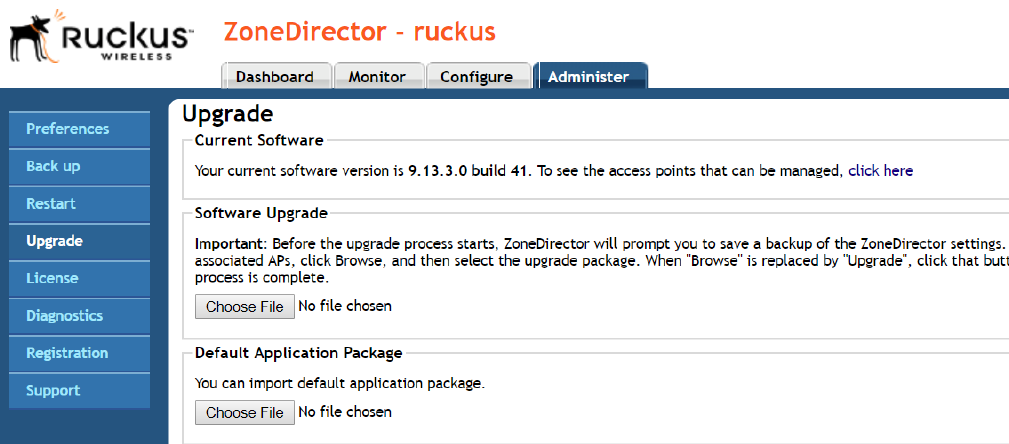
2. Select Administer > Upgrade.
A screen similar to the following figure displays. The graphical user interface (GUI) may differ depending on your current software
version.
FIGURE 1 Upgrade Page
3. In the Software Upgrade area, click Choose File.
4. Browse to the location where you saved the upgrade package, and click Open.
When the upgrade file name appears in the text field, the Choose File button becomes the Upgrade button.
Ruckus ZoneDirector Upgrade Guide
4 Part Number: 800-71771-001 Rev A
5. Click Upgrade and ZoneDirector logs out of the Web User Interface (WebUI), runs the upgrade, and restarts. When the upgrade
process is complete, the Status LED on ZoneDirector is steadily lit. You may now log in to the WebUI as Administrator.
Importing an AP Firmware Bundle
When Ruckus introduces a new AP model, an AP firmware bundle (also known as a patch) is made available for download from the Ruckus
Support website. Download the AP firmware bundle to a local computer, import it into ZoneDirector, and the new AP model is now
supported.
Beginning in ZoneDirector 10.0 and later releases, the AP firmware bundle allows administrators to import a new Access Point (AP) model
patch file to ZoneDirector without requiring a full upgrade of the ZoneDirector firmware. In this way, new APs can be introduced without the
need to wait for the next ZoneDirector firmware release.
NOTE
Upgrading ZoneDirector to a new release deletes all imported AP firmware bundles. Install the required AP firmware bundles only
after upgrading ZoneDirector firmware.
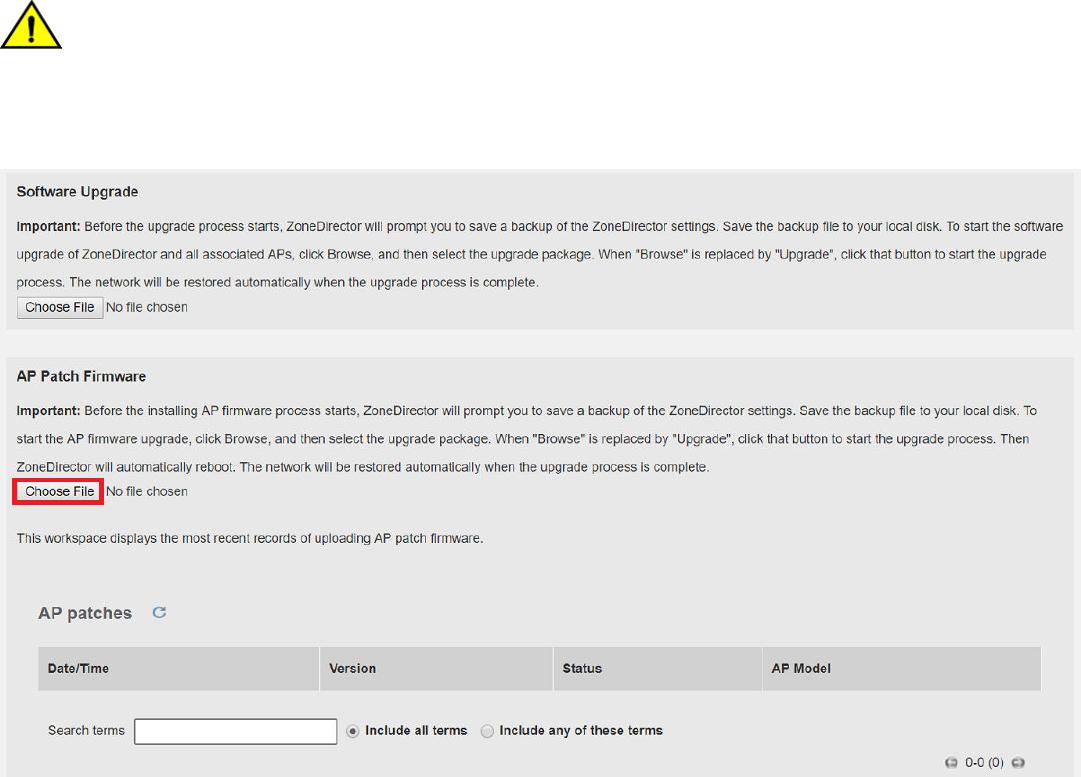
The steps required for importing an AP firmware bundle are similar to the steps in Upgrading ZoneDirector and ZoneFlex APs on page 4.
CAUTION
Importing an AP firmware bundle automatically reboots the ZoneDirector to affect the patch, temporarily disconnecting APs (and
any associated clients) from the network. To minimize network disruption, Ruckus Wireless recommends performing the upgrade
procedure at an off-peak time.
FIGURE 2 Importing an AP Firmware Bundle
Importing an AP Firmware Bundle
Ruckus ZoneDirector Upgrade Guide
Part Number: 800-71771-001 Rev A 5
Performing an Upgrade with Smart Redundancy
If you have two ZoneDirectors in a Smart Redundancy configuration, the upgrade procedure is similar for the active and standy
ZoneDirectors. However, the active and standby ZoneDirectors will reverse roles during an upgrade.
To upgrade both ZoneDirectors in a Smart Redundancy configuration, complete the following steps.
1. Log in to the active ZoneDirector. Do not attempt to manually upgrade the standby ZoneDirector before the active unit. If you do
so, some configuration options may be lost during the upgrade process. Be sure to begin the upgrade process from either the
Web User Interface (WebUI) of the active ZoneDirector or the shared Management Interface (if configured).
2. Select Administer > Upgrade.
3. In the Software Upgrade area, click Browse. The Browse dialog box appears.
4. Browse to the location where you saved the upgrade package, and click Open.
When the upgrade file name appears in the text field, the Browse button becomes the Upgrade button.
5. Click Upgrade. The standby ZoneDirector is upgraded first.
When the standby ZoneDirector upgrade is complete, the standby ZoneDirector reboots and becomes active (begins accepting
AP requests), while the original active ZoneDirector becomes the standby and begins its own upgrade process.
All APs are now associated to the original standby ZoneDirector (which is now the active ZoneDirector), and begin upgrading AP
firmware to the new version.
Each AP reboots after upgrading.
Enabling Secured AP Image Upgrade
Beginning with ZoneDirector release 9.13, AP firmware image upgrades can be performed using HTTPS by way of TCP port 11443 rather
than FTP. In the WebUI, select the check box next to Enable secured AP image upgrade to enable HTTPS upgrade. If HTTPS upgrade is
not supported, AP image upgrades fall back to FTP.
Verifying the Upgrade
After you have performed a ZoneDirector upgrade or AP firmware bundle installation, it is important to verify that the ZoneDirector and APs
are running the expected software versions. Version details for both the ZoneDirector and AP installed versions can be found in the
ZoneDirector Web User Interface (WebUI). If you prefer to use the command line interface (CLI), use SSH to access the ZoneDirector or AP.
The following steps include both WebUI and CLI steps, but it is recommended that you verify that both the ZoneDirector and the APs are
running the appropriate installed system versions.
Performing an Upgrade with Smart Redundancy
Ruckus ZoneDirector Upgrade Guide
6 Part Number: 800-71771-001 Rev A
The following steps contain a WebUI and a CLI option, select just one of the options in each step.
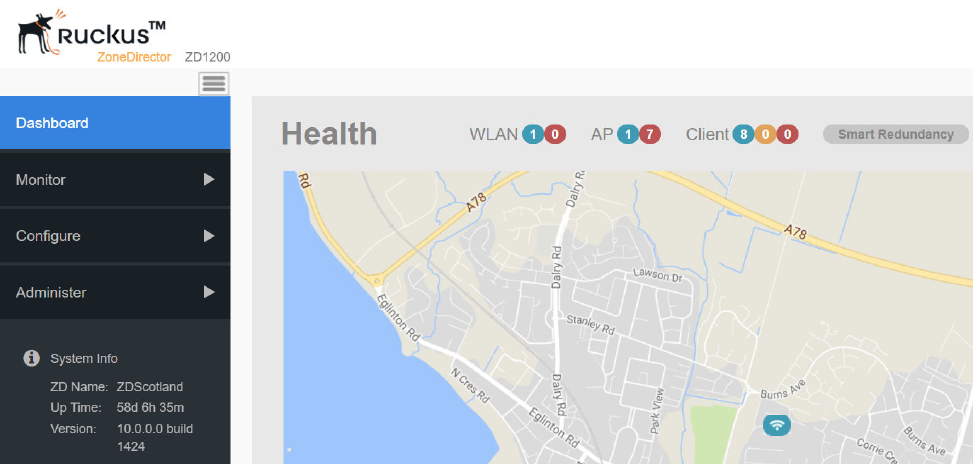
1. To verify the version number, choose one of the following bulleted options.
• Open the ZoneDirector WebUI. Select Dashboard, and verify the version number under the System Info heading.
FIGURE 3 Verifying the Installed Software Version in ZoneDirector WebUI
• To verify the installed version using the ZoneDirector CLI, use the show sysinfo command.
ruckus# show sysinfo
System Overview:
Name= ZDScotland
IP Address= 192.168.0.2
MAC Address= 24:C9:A1:3F:3E:70
Uptime= 58d 6h 35m
Model= ZD1200
Licensed APs= 6
Serial Number= 241426000023
Version= 10.0.0.0 build 1424
Verifying the Upgrade
Ruckus ZoneDirector Upgrade Guide
Part Number: 800-71771-001 Rev A 7
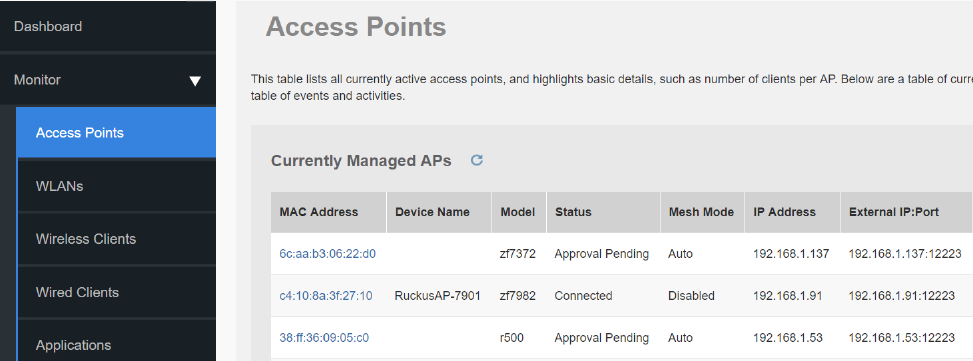
2. To display information about all active APs, choose one of the following bulleted options.
• From the ZoneDirector WebUI, select Monitor > Access Points to display information about all active APs.
FIGURE 4 Displaying the Active APs in ZoneDirector WebUI
• To verify the installed version using the AP CLI, login, enter your password if prompted, and enter the get version command
as shown in the following output.
login as:
Please login: admin
password:
Copyright (c) 2017 Ruckus Wireless, Inc. All rights Reserved.
** Ruckus R710 Multimedia Hotzone Wireless AP: 261503606647
Warning: AP is in ZoneDirector-Managed mode
Current or latest ZoneDirector: 192.168.0.2 / 24:c9:a1:3f:3e:70
Any configuration changes made in CLI may conflict
with the ZoneDirector's management and
will cause undefined results.
rkscli:
rkscli: get version
Ruckus R710 Multimedia Hotzone Wireless AP
Version: 10.0.0.0.1424
OK
Verifying the Upgrade
Ruckus ZoneDirector Upgrade Guide
8 Part Number: 800-71771-001 Rev A
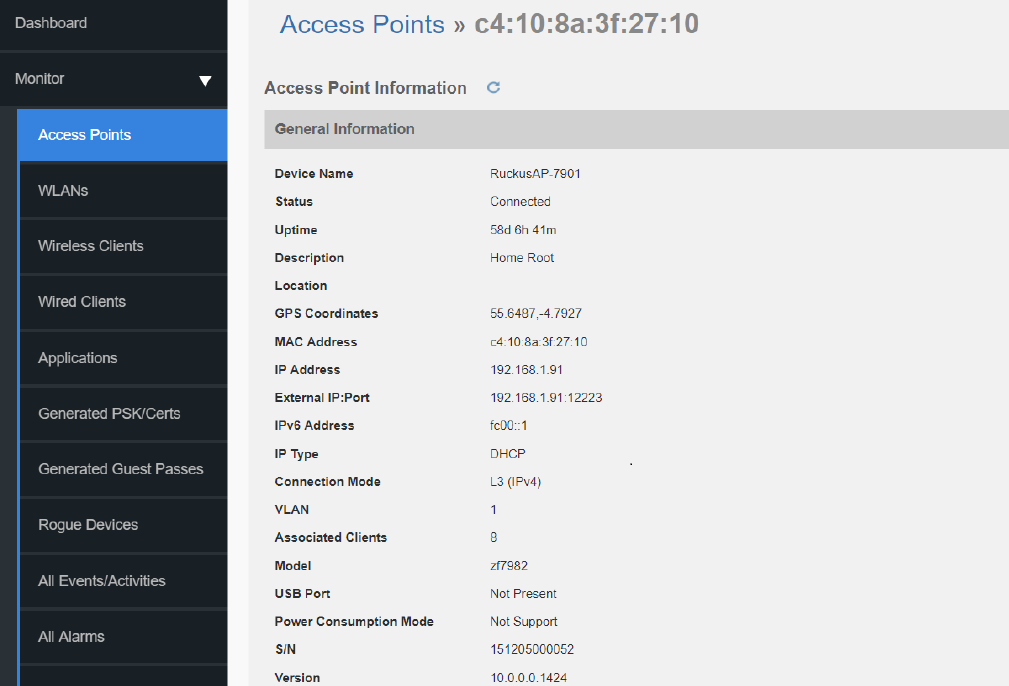
3. (WebUI only). Click one of the highlighted AP MAC addresses. The installed version information is displayed under the Access
Points screen similar to the following figure.
FIGURE 5 Displaying the Installed AP Information in ZoneDirector WebUI
Upgrade FAQs
•Do I Need a Valid Support Contract to Upgrade Firmware?
•Is My Controller Supported by the Firmware Upgrade?
•Is My Access Point Supported by the Firmware Upgrade?
•How Do I Get Support?
Do I Need a Valid Support Contract to Upgrade Firmware?
You must have a valid support contract to upgrade or downgrade the ZoneDirector software. If you do not have a valid support contract,
contact your reseller to purchase an appropriate support contract. After downloading and installing the software, select Administer >
Support from the WebUI for information on activating your support contract.
Upgrade FAQs
Do I Need a Valid Support Contract to Upgrade Firmware?
Ruckus ZoneDirector Upgrade Guide
Part Number: 800-71771-001 Rev A 9

NOTE
By downloading the ZoneDirector software and subsequently upgrading ZoneDirector to version 10.0, be advised that the
ZoneDirector will periodically connect to Ruckus, and Ruckus will collect the ZoneDirector serial number, software version, and
build number. Ruckus will transmit a file back to the ZoneDirector that will be used to display the current status of the
ZoneDirector support contract. Any information collected from the ZoneDirector may be transferred and stored outside of your
country of residence where data protection standards may be different.
Is My Controller Supported by the Firmware Upgrade?
This guide supports the following ZoneDirector models:
• ZoneDirector 1200
• ZoneDirector 3000
• ZoneDirector 5000
For information about the specific models and modules supported in a ZoneDirector model, refer to the appropriate hardware installation
guide.
Is My Access Point Supported by the Firmware Upgrade?
TABLE 1 Supported Access Point models
Access Point Access Point Access Point Access Point Access Point
C110 R510 T300 T710 ZF7781CM
H500 R600 T300e T710s ZF7782
H510 R610 T301n ZF7055 ZF7782-E
R300 R700 T301s ZF7352 ZF7782-N
R310 R710 T610 ZF7372 ZF7782-S
R500 R720 T610s ZF7372-E ZF7982
How Do I Get Support?
For product support information and details on contacting the Ruckus Customer Services and Support Team, go directly to the Support
Portal using https://support.ruckuswireless.com, or go to https://www.ruckuswireless.com and select Support.
Upgrade FAQs
Is My Controller Supported by the Firmware Upgrade?
Ruckus ZoneDirector Upgrade Guide
10 Part Number: 800-71771-001 Rev A
