Runco Cl 610 Users Manual Cl610 Cl610LT Cw_manual
CL-610 to the manual 5c239398-b430-46b3-81f2-0565f1277067
2015-02-06
: Runco Runco-Cl-610-Users-Manual-525778 runco-cl-610-users-manual-525778 runco pdf
Open the PDF directly: View PDF  .
.
Page Count: 76
- TWO YEAR LIMITED WARRANTY
- Safety Precautions
- 1. Introduction
- 2. Controls and Functions
- 3. Installation
- 3.1 Remote Control
- 3.2 Quick Setup
- 3.3 Installation Considerations
- 3.4 Mounting the CL-610
- 3.5 Connections to the CL-610
- 3.6 Turning On the Power
- 3.7 Changing the OSD Language
- 3.8 Adjusting the Picture Orientation
- 3.9 Zoom and Focus Adjustments
- 3.10 Installing and Adjusting the CineWide Anamorphic Lens
- 4. Operation
- 4.1 Selecting Video Memory
- 4.2 Selecting an Aspect Ratio
- 4.3 Selecting An Input Source
- 4.4 Using Picture-In-Picture and Picture-By-Picture (PIP/PBP)
- 4.5 Turning Off the Power
- 4.6 Using the On-Screen Menus
- 5. Maintenance and Troubleshooting
- 6. Serial Communications
- 7. Specifications
- Appendix A. Personalizing the ISF Splash Screen on the CL-610
OWNER’S OPERATING MANUAL
CL-610 Series
Digital Light Processing
TM
Projectors
CL-610
CL-610LT
CL-610 CineWide
TM
CL-610LT CineWide
TM

Runco CL-610 Series Owner’s Operating Manual iii
PRELIMINARY
TWO YEAR LIMITED WARRANTY
For Projectors, Video Processors and Controllers
Congratulations on your purchase of a Runco video product and welcome to the Runco family! With proper installation, setup
and care, you should enjoy many years of unparalleled video performance.
This is a LIMITED WARRANTY as defined in the Magnuson-Moss Warranty Act. Please read it carefully and retain it with your
other important documents.
SERVICE LABOR: Runco will pay for service labor by Runco Authorized Service Center when needed as a result of
manufacturing defect for a period of two (2) years from the effective date of delivery to the end user (excluding the lamp).
PARTS (not including the lamp): Runco will provide new or rebuilt replacement parts for the parts that fail due to defects in
materials or workmanship for a period of two (2) years from the effective date of delivery to the end user. Such replacement
parts are then subsequently warranted for the remaining portion (if any) of the original warranty period.
PROJECTOR LAMP: Runco will pay for service labor by a Runco Authorized Service Center when needed as a result of a
manufacturing defect for a period of six (6) months or 1000 hours, whichever comes first, from the effective date of delivery to
the end user. In addition, Runco will provide a new or rebuilt replacement lamp for the lamp that fails due to defects in materials
or workmanship for a period of six (6) months or 1000 hours, whichever comes first, from the effective date of delivery to the
end user. Such replacement lamps are then subsequently warranted for the remaining portion (if any) of the original warranty
period.
This Limited Warranty only covers failure due to defects in materials and workmanship that occur during normal use and does
not cover normal maintenance. This Limited Warranty does not cover cabinets or any appearance items; failure resulting from
accident, misuse, abuse, neglect, mishandling, misapplication, faulty or improper installation or setup adjustments; improper
maintenance, alteration, improper use of any input signal; damage due to lightning or power line surges, spikes and
brownouts; damage that occurs during shipping or transit; or damage that is attributed to acts of God. In the case of remote
control units, damage resulting from leaking, old, damaged or improper batteries is also excluded from coverage under this
Limited Warranty.
CAUTION: THIS LIMITED WARRANTY ONLY COVERS VIDIKRON PRODUCTS PURCHASED FROM VIDIKRON AUTHORIZED
DEALERS. ALL OTHER PRODUCTS ARE SPECIFICALLY EXCLUDED FROM COVERAGE UNDER THIS WARRANTY.
MOREOVER, DAMAGE RESULTING DIRECTLY OR INDIRECTLY FROM IMPROPER INSTALLATION OR SETUP IS
SPECIFICALLY EXCLUDED FROM COVERAGE UNDER THIS LIMITED WARRANTY. IT IS IMPERATIVE THAT INSTALLATION
AND SETUP WORK BE PERFORMED ONLY BY AN AUTHORIZED VIDIKRON DEALER TO PROTECT YOUR RIGHTS UNDER
THIS WARRANTY. THIS WILL ALSO ENSURE THAT YOU ENJOY THE FINE PERFORMANCE OF WHICH YOUR VIDIKRON
PRODUCT IS CAPABLE WHEN INSTALLED AND CALIBRATED BY VIDIKRON AUTHORIZED PERSONNEL.
Runco limits its obligations under any implied warranties under state laws to a period not to exceed the warranty period. There
are no express warranties. Runco also excludes any obligation on its part for incidental or consequential damages related to
the failure of this product to function properly. Some states do not allow limitations on how long an implied warranty lasts, and
some states do not allow the exclusion or limitation of incidental or consequential damages. So the above limitations or
exclusions may not apply to you. This warranty gives you specific legal rights, and you may also have other rights that vary from
state to state.
WHAT IS COVERED UNDER THE TERMS OF THIS LIMITED WARRANTY:
WHAT IS NOT COVERED UNDER THE TERMS OF THIS LIMITED WARRANTY:
RIGHTS, LIMITS AND EXCLUSIONS:

iv Runco CL-610 Series Owner’s Operating Manual
PRELIMINARY
This warranty begins on the effective date of delivery to the end user. For your convenience, keep the original bill of sale as
evidence of the purchase date.
Please fill out and mail your warranty registration card. It is imperative that Runco knows how to reach you promptly if we
should discover a safety problem or product update for which you must be notified.
Repairs made under the terms of this Limited Warranty covering your Runco video product will be performed at the location of
the product, during usual working hours, providing location of product is within normal operating distance from a Runco
Authorized Service Center. In some instances it may be necessary for the product to be returned to the Runco factory for
repairs. If, solely in Runco’s judgment, location of product to be repaired is beyond normal operating distance of the closest
Runco Authorized Service Center, or the repair requires the unit be returned to the Runco factory, it is the owner’s
responsibility to arrange for shipment of the product for repair. These arrangements must be made through the selling Runco
Dealer. If this is not possible, contact Runco directly for a Return Authorization number and shipping instructions. Runco will
return product transportation prepaid in the United States, unless no product defect is discovered. In that instance, shipping
costs will be the responsibility of the owner.
© Copyright 2006 Runco International. This document contains proprietary information protected by copyright, trademark and
other intellectual property laws. All rights are reserved. No part of this manual may be reproduced by any mechanical,
electronic or other means, in any form, without prior written permission of the manufacturer.
Reflection, Enhanced GEN3, DHD, Vivix, Virtual Cinema, CineWide, AutoScope, O-Path, CinOptx, LiveLink, CSMS, SuperOnyx
and VirtualWide are trademarks of Runco International.
All other trademarks and registered trademarks used in this document are the property of their respective owners.
Runco International products are manufactured under one or more of the following patents: US. Patent 6755540 and Other
Patents Pending.
EFFECTIVE WARRANTY DATE:
IMPORTANT -- WARRANTY REGISTRATION:
CONTACT A VIDIKRON AUTHORIZED SERVICE CENTER TO OBTAIN SERVICE:
COPYRIGHT AND TRADEMARKS:

Runco CL-610 Series Owner’s Operating Manual v
PRELIMINARY
To locate the name and address of the nearest Runco Authorized Service Center, or for additional information about this
Limited Warranty, please call or write:
RUNCO INTERNATIONAL, INC.
Attn: Customer Service Department
2900 Faber Street
Union City, CA 94587
Ph: (510) 324-7777
Fax: (510) 324-9300
Toll Free: (800) 23-RUNCO
RUNCO VIDEO-PRODUCT INFORMATION
RETAIN THIS INFORMATION FOR YOUR RECORDS
_________________________________________________________ ________________________________________
Model Purchased Date
____________________________________________________________________________________________________________
Serial Number
____________________________________________________________________________________________________________
Runco Authorized Dealer Name
____________________________________________________________________________________________________________
Address
____________________________________________ __________________ ________________________
City State/Province Postal Code
____________________________________________ _______________________________________________________
Phone Fax
ADDITIONAL INFORMATION:
vi Runco CL-610 Series Owner’s Operating Manual
PRELIMINARY
Thank you for your purchase of this quality Runco video projector! It has been designed to provide you with the quality of video
that is expected in a home theater. For the best performance, please read this manual carefully as it is your guide through the
menus and operation.
This equipment has been tested and found to comply with the limits for a Class B digital device, pursuant to Part 15 of the FCC
Rules. These limits are designed to provide reasonable protection against harmful interference in a residential installation.
1. Read these instructions.
2. Keep these instructions.
3. Heed all warnings.
4. Do not use this equipment near water, outdoors or otherwise exposed to the elements.
5. Clean only with a dry cloth.
6. Do not block any ventilation openings.
7. Do not install near any heat sources such as radiators, heat registers, stoves, or other apparatus (including amplifiers) that
produce heat.
8. Do not defeat the safety feature of the polarized or grounding type plug. A polarized type plug has two blades with one
wider than the other. A grounding type plug has two blades and a third grounding prong. The third prong is provided for
your safety. If the provided plug does not fit into your outlet, consult an electrician for the replacement of the obsolete
outlet.
9. The 12V trigger only outputs DC 12V signal for triggering. Do not connect to any other power input or output. This could
cause damage to this unit.
10. Only use accessories specified by Runco International.
11. Keep the packing material in case the equipment should ever need to be shipped.
12. Unplug this projector during lightning storms or when it will not be used for an extended period of time.
13. The lamp becomes extremely hot during operation. Allow the projector to cool down for approximately 45 minutes prior to
removing the lamp assembly for replacement. Do not operate lamps beyond the rated lamp life. Excessive operation of
lamps beyond rated life could cause them to explode in rare occasions.
14. Refer all servicing to qualified service personnel. Servicing is required when the projector has been damaged in any way,
objects have fallen or spilled into the projector, the projector has been exposed to rain or moisture, does not operate
normally, or has been dropped.
Safety Precautions
WARNING
This symbol is intended to alert the user to the presence of
uninsulated “dangerous voltage” within the product’s enclosure
that may be of sufficient magnitude to constitute a risk of electric
shock.
This symbol is intended to alert the user to the presence of
important operating and maintenance (servicing) instructions in the
literature accompanying the appliance.
CAUTION
RISK OF ELECTRIC SHOCK
DO NOT OPEN
CAUTION:
TO REDUCE THE RISK OF ELECTRIC SHOCK
DO NOT REMOVE COVER (OR BACK)
NO USER SERVICEABLE PARTS INSIDE.
REFER SERVICING TO QUALIFIED
SERVICE PERSONNEL.

Runco CL-610 Series Owner’s Operating Manual vii
1Table of Contents
PRELIMINARY
TWO YEAR LIMITED WARRANTY ................................................................................. iii
Safety Precautions ......................................................................................................... vi
1. Introduction ...............................................................................................................1
About This Manual .......................................................................................................1
Target Audience .....................................................................................................1
If You Have Comments About This Manual... ..........................................................1
Textual and Graphic Conventions ...........................................................................1
Using This Manual ........................................................................................................2
Description, Features and Benefits ...............................................................................3
Key Features and Benefits ......................................................................................4
Parts List ................................................................................................................4
2. Controls and Functions ............................................................................................5
CL-610 at a Glance ......................................................................................................5
Front/Side/Top View ...............................................................................................5
Rear/Side/Bottom View ..........................................................................................6
Lens Controls and Status Indicators .............................................................................7
CL-610 Connector Panel ..............................................................................................8
CL-610 Remote Control .............................................................................................10
3. Installation ...............................................................................................................13
Remote Control ..........................................................................................................13
Notes on Batteries ................................................................................................13
Notes on Remote Control Operation.....................................................................13
Quick Setup ...............................................................................................................14
Installation Considerations ..........................................................................................15
Installation Type ....................................................................................................15
Ambient Light .......................................................................................................15
Throw Distance.....................................................................................................16
Vertical and Horizontal Position.............................................................................17
Folded Optics .......................................................................................................17
Other Considerations ............................................................................................18

Table of Contents
viii Runco CL-610 Series Owner’s Operating Manual
PRELIMINARY
Mounting the CL-610 .................................................................................................18
Floor Mounting (Upright) .......................................................................................18
Ceiling Mounting (Inverted)....................................................................................18
Adjusting the Projector Height or Projection Angle ................................................18
Connections to the CL-610 ........................................................................................19
Connector Panel Access.......................................................................................19
Connecting Source Components to the CL-610 ...................................................19
RS-232 Controller Connection ..............................................................................23
Connecting 12-volt Trigger Output to External Theater Equipment........................24
Connecting to AC Power ......................................................................................24
Turning On the Power ................................................................................................25
Changing the OSD Language .....................................................................................25
Adjusting the Picture Orientation ................................................................................25
Zoom and Focus Adjustments ....................................................................................25
Installing and Adjusting the CineWide Anamorphic Lens .............................................26
Remove the Projector Front Jewelry .....................................................................26
Installing the Anamorphic Lens .............................................................................26
Adjusting the Anamorphic Lens ............................................................................27
4. Operation .................................................................................................................29
Selecting Video Memory .............................................................................................29
Selecting an Aspect Ratio ..........................................................................................29
Selecting An Input Source ..........................................................................................29
Using Picture-In-Picture and Picture-By-Picture (PIP/PBP) .........................................29
Turning Off the Power ................................................................................................30
Using the On-Screen Menus ......................................................................................30
Main Menu............................................................................................................32
Picture Adjustment ..............................................................................................32
Aspect Ratio ........................................................................................................37
Installation.............................................................................................................40
Option ..................................................................................................................40
Set Up ..................................................................................................................42
ISF Calibration ......................................................................................................46
5. Maintenance and Troubleshooting ........................................................................49
Lamp Replacement ....................................................................................................49
Troubleshooting Tips ..................................................................................................50

Table of Contents
Runco CL-610 Series Owner’s Operating Manual ix
PRELIMINARY
6. Serial Communications ..........................................................................................53
RS-232 Connection and Port Configuration ...............................................................53
Serial Command Syntax .............................................................................................53
7. Specifications ..........................................................................................................57
CL-610 Specifications ................................................................................................57
CL-610 Dimensions ...................................................................................................59
APPENDIX A. Personalizing the ISF Splash Screen on the CL-610 ........................A-1


Runco CL-610 Series Owner’s Operating Manual xi
1List of Figures
PRELIMINARY
2-1. CL-610 Front/Side/Top View ........................................................................................5
2-2. CL-610 Rear/Bottom/Side View ...................................................................................6
2-3. CL-610 Lens Controls and Status Indicators ................................................................7
2-4. CL-610 Connector Panel..............................................................................................8
2-5. CL-610 Remote Control .............................................................................................10
3-1. Estimating Throw Distance .........................................................................................16
3-2. Projector Placement ...................................................................................................17
3-3. Folded Optics.............................................................................................................17
3-4. HDMI/DVI Source Connections ..................................................................................19
3-5. RGB Connections ......................................................................................................20
3-6. Progressive Component Video Connections...............................................................21
3-7. Composite, S-Video and Component Video Connections...........................................22
3-8. RS-232 Control System Connection...........................................................................23
3-9. Connecting the 12-Volt Trigger Output to Other Equipment........................................24
3-10. Anamorphic Lens Mounting Assembly - Exploded View ...........................................26
4-1. CL-610 OSD Menu Structure .....................................................................................31
4-2. Typical PLUGE Pattern for Adjusting Brightness .........................................................33
4-3. Typical Gray Bar Pattern for Adjusting Contrast ..........................................................34
4-4. Typical Color Bar Pattern for Adjusting Color Saturation and Tint................................34
4-5. Typical Test Pattern for Adjusting Sharpness..............................................................36
7-1. CL-610 Dimensions....................................................................................................59

List of Figures
xii Runco CL-610 Series Owner’s Operating Manual
PRELIMINARY
Notes:
Runco CL-610 Series Owner’s Operating Manual 1
PRELIMINARY
1.1
About This Manual
This Owner’s Manual describes how to install, set up and operate the Runco Reflection
CL-610 family of Digital Light Processing™ Projectors:
•CL-610
• CL-610LT (Long Throw)
• CL-610/CineWide™
• CL-610LT/CineWide
Throughout this manual, all four projector models are referred to collectively as the
“CL-610.” Except where noted, the features and functions described in this manual are
common to all versions of this product.
Target AudienceRunco has prepared this manual to help home theater installers and end users get the
most out of the CL-610.
Runco has made every effort to ensure that this manual is accurate as of the date it was
printed. However, because of ongoing product improvements and customer feedback, it
may require updating from time to time. You can always find the latest version of this and
other Runco product manuals on-line, at www.Runco.com.
If You Have Comments
About This Manual...
Runco welcomes your comments about this manual. Send them to info@vidikron.com.
Textual and Graphic
Conventions
Text Conventions: The following conventions are used in this manual, in order to clarify
the information and instructions provided:
• Remote and built-in keypad button identifiers are set in upper-case bold type; for
example, “Press EXIT to return to the previous menu.”
• Computer input (commands you type) and output (responses that appear on-screen) is
shown in monospace (fixed-width) type; for example: “To change the aspect ratio to
Letterbox, type x063x <Enter>.”
• All keys with functional names are initial-capped, set in bold type and enclosed in angle
brackets. These keys are the following: <Enter>, <Spacebar>, <Control>,
<Esc> and <Tab>.
•<Enter> indicates that you may press either the RETURN or ENTER key on your
keyboard if it has both keys.
In addition to these conventions, underlining, boldface and/or italics are occasionally used
to highlight important information, as in this example:
1. Introduction
A carriage return must be used after each command or string.
Note
Introduction
2 Runco CL-610 Series Owner’s Operating Manual
PRELIMINARY
Graphic Conventions: These symbols appear in numerous places throughout the
manual, to emphasize points that you must keep in mind to avoid problems with your
equipment or injury:
1.2
Using This Manual
Use the following table to locate the specific information you need in this manual.
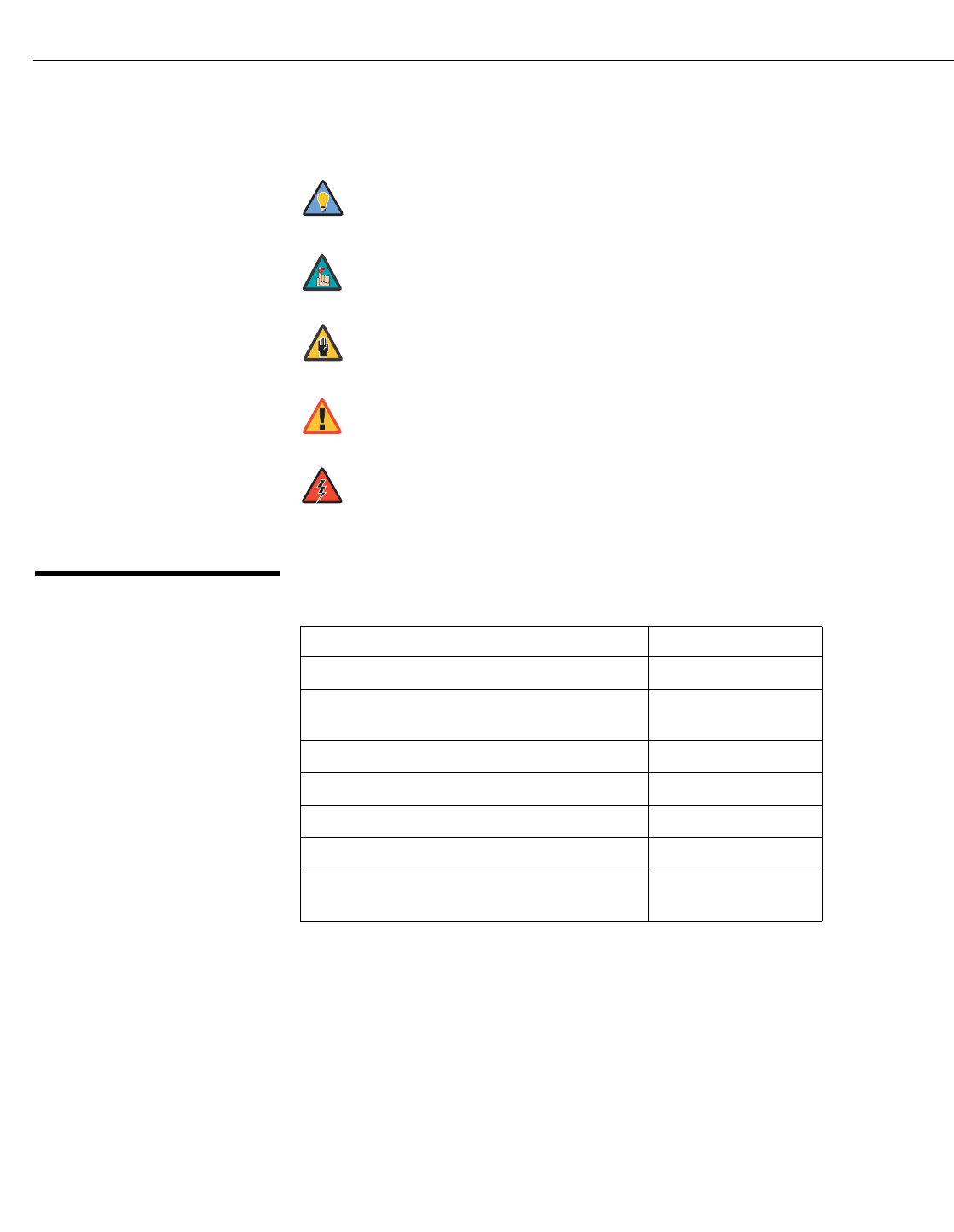
TIPS highlight time-saving short cuts and helpful guidelines for using
certain features.
NOTES emphasize text with unusual importance or special
significance. They also provide supplemental information.
CAUTIONS alert users that a given action or omitted action can
degrade performance or cause a malfunction.
WARNINGS appear when a given action or omitted action can result
in damage to the equipment, or possible non-fatal injury to the user.
DANGER appears when a given action can cause severe injury or
death.
Tip
Note
Caution
WARNING
DANGER!
If you need... ... Turn to page:
Information about obtaining service iv
General information about the CL-610 Series DLP
Projectors
3
Installation instructions 13
First-time configuration instructions 25
Advanced configuration instructions 42
Troubleshooting tips 50
Specifications for the CL-610 Series DLP Projec-
tors
57
Introduction
Runco CL-610 Series Owner’s Operating Manual 3
PRELIMINARY
1.3
Description, Features
and Benefits
The CL-610 Series DLP Projectors offer the astounding picture quality and versatility
heretofore associated with more expensive projectors. Their 1280 x 720 native resolution
DLP light engine incorporates all-new technology for bright, pristine high-definition
images.
With throw distances of 1.37 – 1.82:1 on the CL-610 and 1.87 – 2.47:1 on the
longer-throw CL-610LT, both units offer the performance and installation flexibility custom
home theater enthusiasts have come to expect from Runco — all at a superb price and
packaged with outstanding build quality.
Advanced Runco Vivix™ digital video processing is engineered into these all-new
projection systems to achieve improved image quality even from standard video sources,
in addition to artifact-free scaling of higher resolution formats.
The CL-610's illumination system incorporates Runco's exclusive Selectable Lamp
Intensity Control™ (SLIC™), which provides two light intensity levels to allow maximum
flexibility for screen size, ambient light conditions, brightness and contrast balance, and
lamp life preservation. It also has a newly-refined cooling system, which increases
efficiency and reduces noise levels.
The CL-610 has been engineered to comply with Imaging Science Foundation™ (ISF)
standards for maximum home theater image quality. Runco's sophisticated parameters
for white balance and color gamut control have also been implemented for precise
balance of gray scale and color.
For uncompromising widescreen reproduction of movies originally filmed in the “scope”
(2.35:1) format, the CL-610 can be equipped with Runco’s patent-pending CineWide™
technology, a combination of software, electronics and high-quality anamorphic optics.
CineWide maintains constant vertical height on the screen just as in a movie theater.
When a viewer transitions from 1.78:1 (16:9) program material to 2.35:1, the image simply
gets wider while full height is maintained.
Discrete IR and RS-232 control make custom installation seamless, while discrete source
and aspect ratio selection accommodate any automation control system.
CineWide requires the use of a 2.35:1 or similar aspect ratio superwide
format screen.
Note

Introduction
4 Runco CL-610 Series Owner’s Operating Manual
PRELIMINARY
Key Features and Benefits The CL-610 offers these key features and benefits:
• Native Resolution: 1280 x 720 (16:9 Native Aspect Ratio)
• DLP system using high-performance Digital Micromirror Device (DMD)
• 6-segment, 5x color wheel produces wide dynamic range and rich grayscale
• Picture in Picture / Picture by Picture functions allow you to display two inputs on the
screen at the same time
• HDMI Input with High-bandwidth Digital Content Protection (HDCP)
• HDTV Compatible
Parts List Your CL-610 is shipped with the following items. If any items are missing or damaged,
please contact your Runco dealer or Runco Customer Service at (800) 23RUNCO.
• CL-610 DLP Projector
• Remote Control Unit and two (2), AAA-size batteries
• AC Power Cords (North America, Europe, Asia)
• Source Connection Cables:
•Composite Video
•S-Video
• Component Video
• RGB (DB15HD-to-5 x BNC)
•HDMI to HDMI
• HDMI to DVI
• Warranty information and registration card
• Runco CL-610 Series Owner’s Operating Manual (this document)
Optional Accessories:
• CineWide™ technology (secondary anamorphic lens and motorized mount)
• Ceiling mount kit
➤
➤
Runco CL-610 Series Owner’s Operating Manual 5
PRELIMINARY
2.1
CL-610 at a Glance
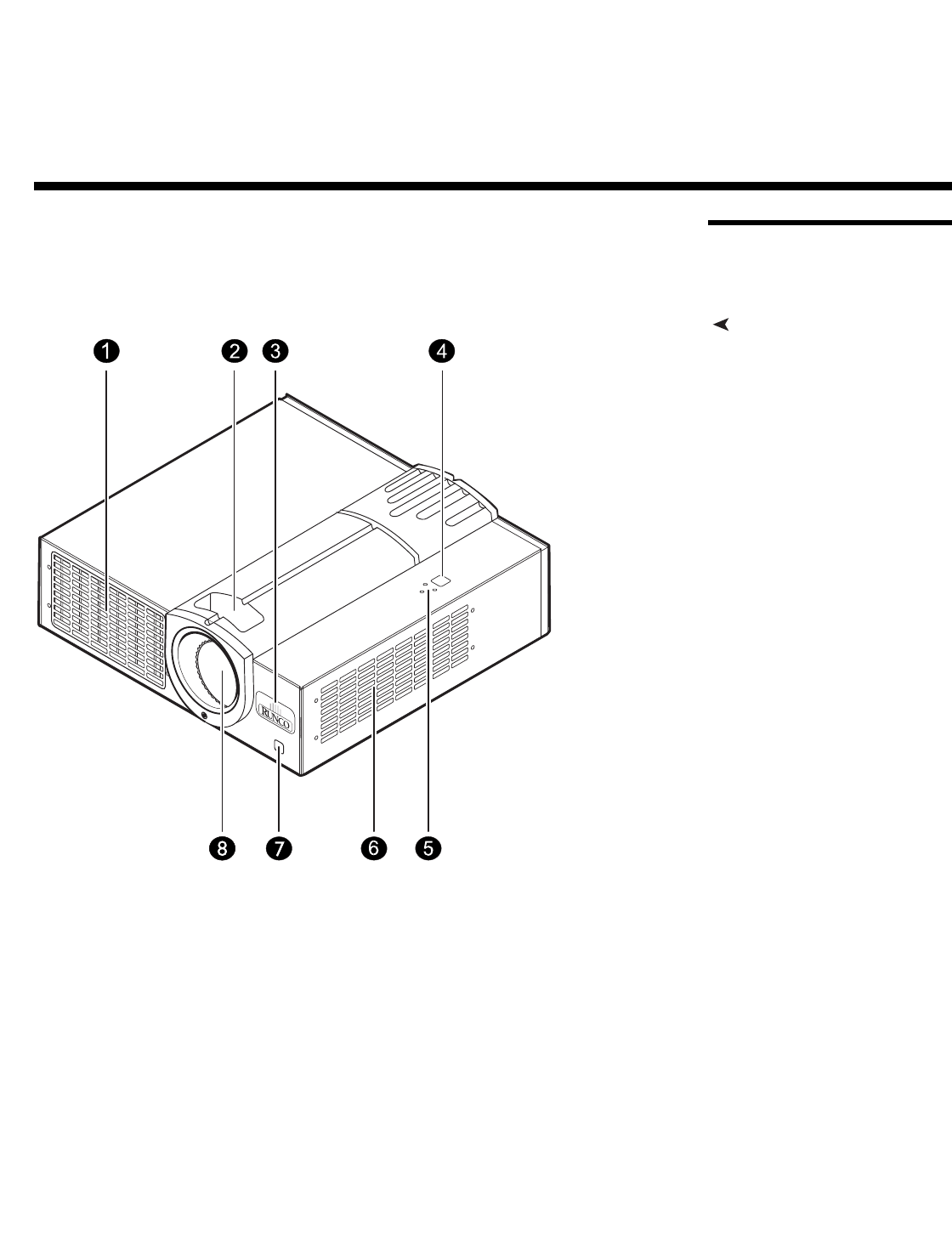
Figure 2-1 and Figure 2-2 show the key CL-610 components.
Front/Side/Top View
Figure 2-1. CL-610 Front/Side/Top View
1. EXHAUST VENT
2. FOCUS RING / ZOOM RING ACCESS
Adjust the size and focus of the image.
3. RUNCO LOGO
The logo can be rotated to match the projector orientation: inverted (ceiling-mounted)
or upright. To rotate the logo, grip it at the sides, pull it away from the projector and
rotate it 180 degrees.
4. TOP IR SENSOR
5. STATUS LEDs
Refer to Lens Controls and Status Indicators on page 7 for more information.
2. Controls and Functions
Controls and Functions
6 Runco CL-610 Series Owner’s Operating Manual
PRELIMINARY
6. INTAKE VENT
7. FRONT IR SENSOR
8. PROJECTION LENS
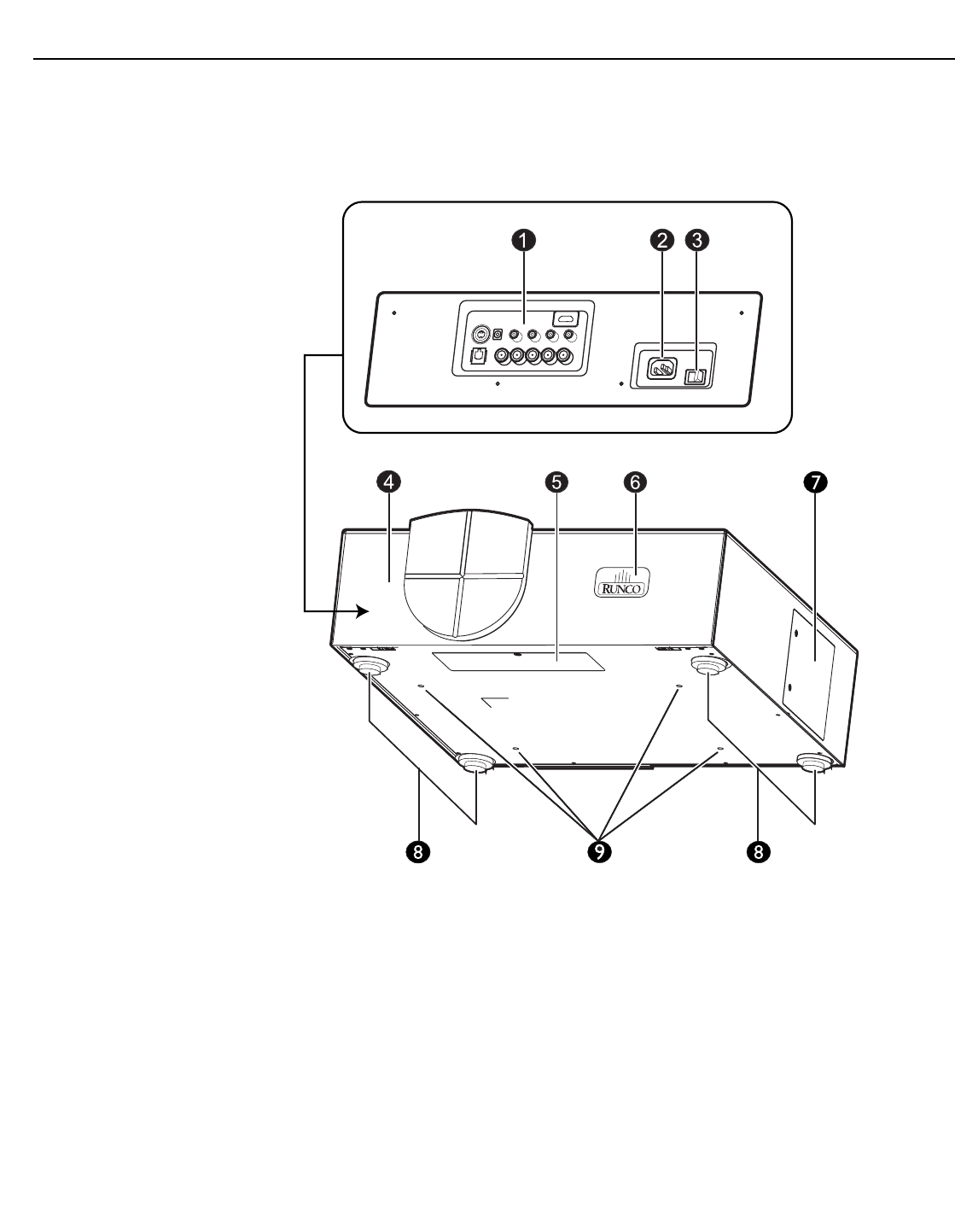
Rear/Side/Bottom View
Figure 2-2. CL-610 Rear/Bottom/Side View
1. CONNECTOR PANEL
Refer to CL-610 Connector Panel on page 8 for more information.
2. AC POWER INPUT (100 to 240 VAC)
Connect the CL-610 to power here.
3. AC POWER SWITCH
Disconnects or applies power to the CL-610.
4. CABLE ACCESS DOOR
Open to access connectors.
5. CABLE OPENING
Pass cables through this opening.
➤
Controls and Functions
Runco CL-610 Series Owner’s Operating Manual 7
PRELIMINARY
6. RUNCO LOGO
The logo can be rotated to match the projector orientation: inverted (ceiling-mounted)
or upright. To rotate the logo, grip it at the sides, pull it away from the projector and
rotate it 180 degrees.
7. LAMP MODULE COVER
Remove this cover to access the lamp compartment.
8. FRONT/REAR ADJUSTERS
Use these to adjust the projector height or projection angle.
9. CEILING MOUNT HOLES
Use these to attach the ceiling bracket to the projector.
2.2
Lens Controls and
Status Indicators
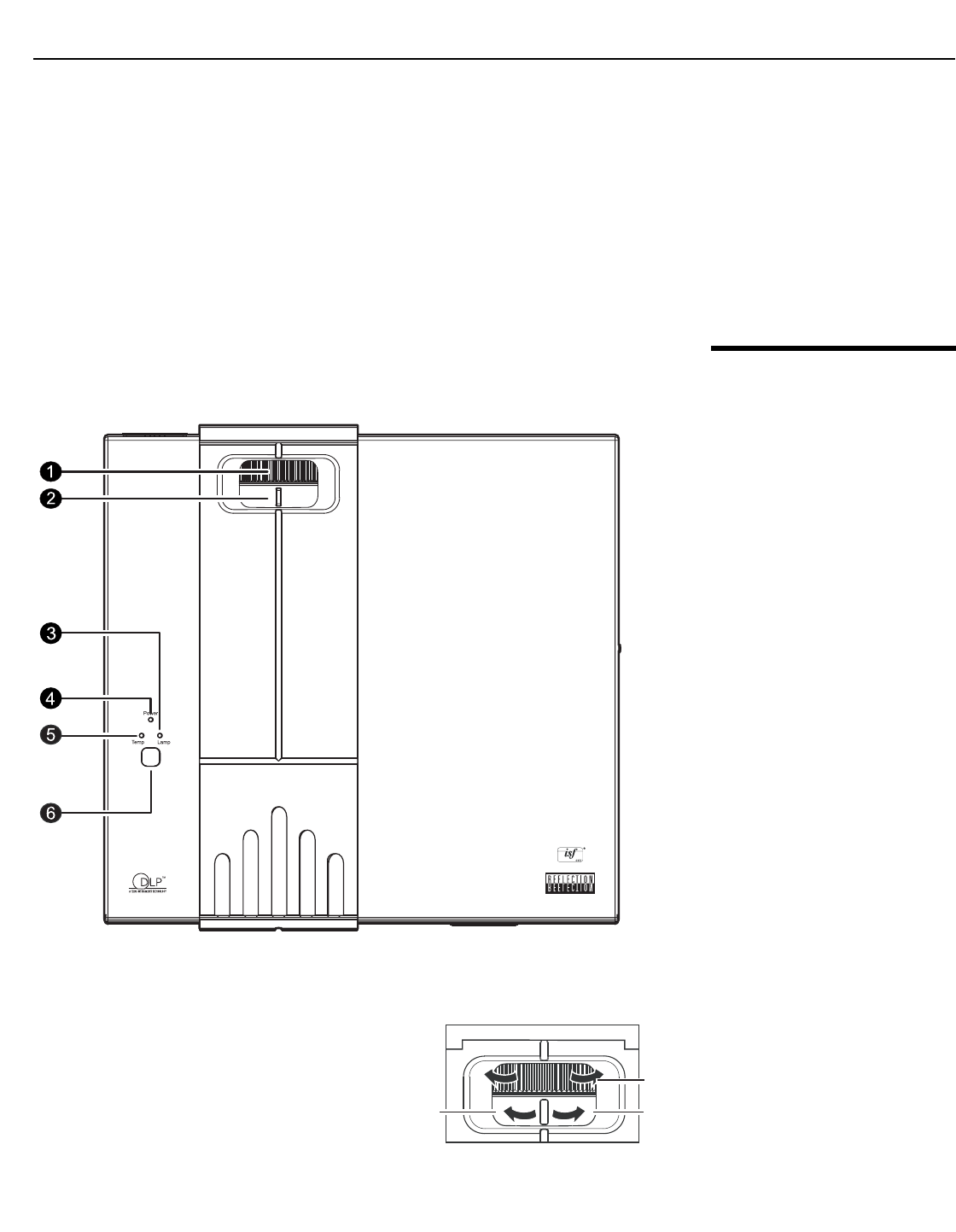
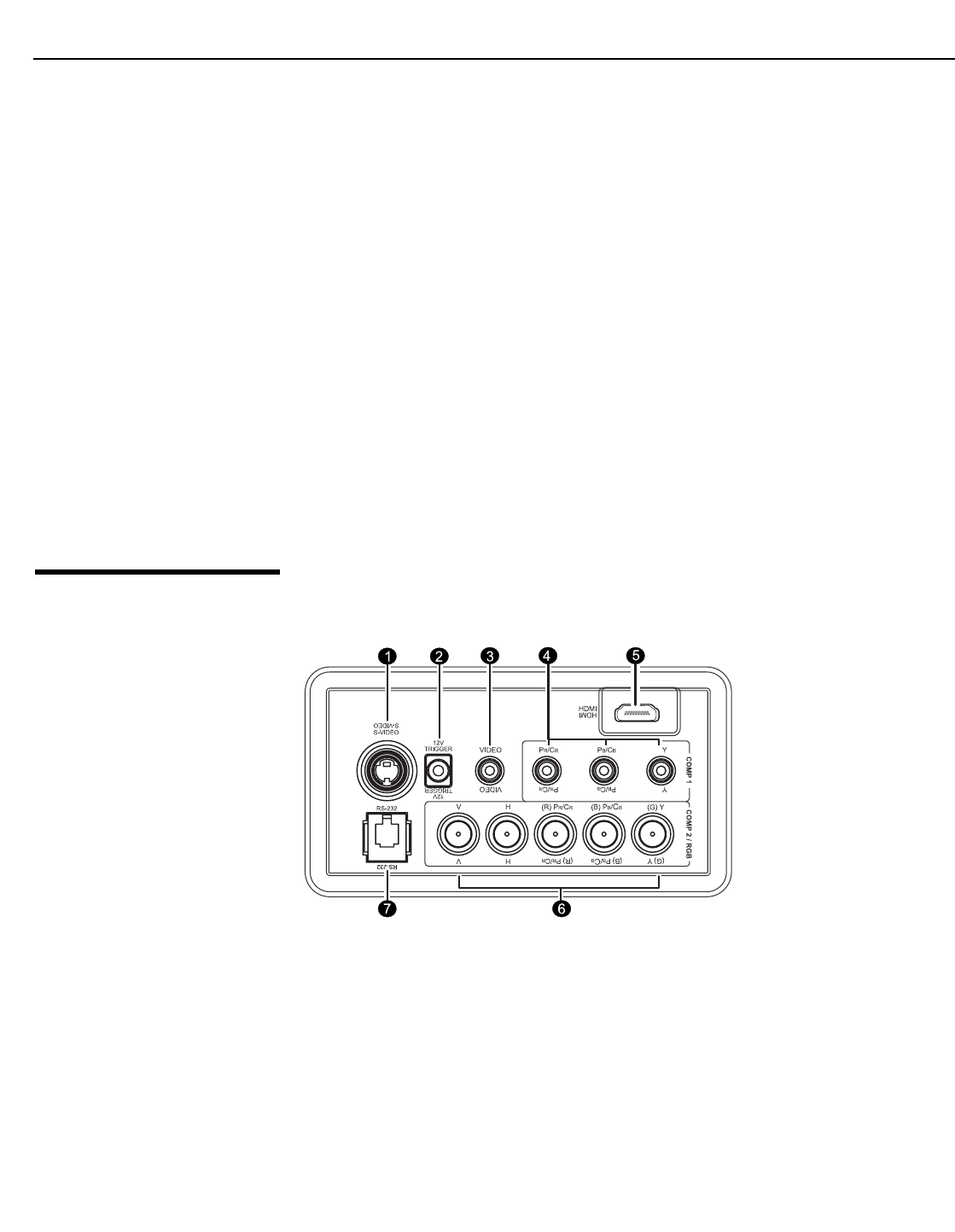
Figure 2-4 shows the CL-610 lens controls and status indicator LEDs. .
Figure 2-3. CL-610 Lens Controls and Status Indicators
1. FOCUS RING
Rotate the ring to focus the projected
image.
2. ZOOM RING
Rotate the ring to adjust the projected
image size.
Focus
Zoom out Zoom in
Controls and Functions
8 Runco CL-610 Series Owner’s Operating Manual
PRELIMINARY
3. LAMP LED
Indicates lamp status as follows:
• Off during normal operation
• Red when the lamp has exceeded its usage life or developed a problem
• Flashes red when the fans are not working or the lamp cover is open
4. POWER/STANDBY LED
Indicates power status as follows:
• Orange when the projector is in standby mode
• Flashes orange for 45 seconds after the projector is turned on to indicate that the
lamp is warming up
• Green during normal operation
• Flashes green for 110 seconds after the projector is turned off to indicate that the
lamp is cooling down
5. TEMP LED
Indicates fan status and internal temperature as follows:
• Off during normal operation
• Red when internal temperature is too high
• Flashes red when the fans are not working or the lamp cover is open
2.3
CL-610 Connector
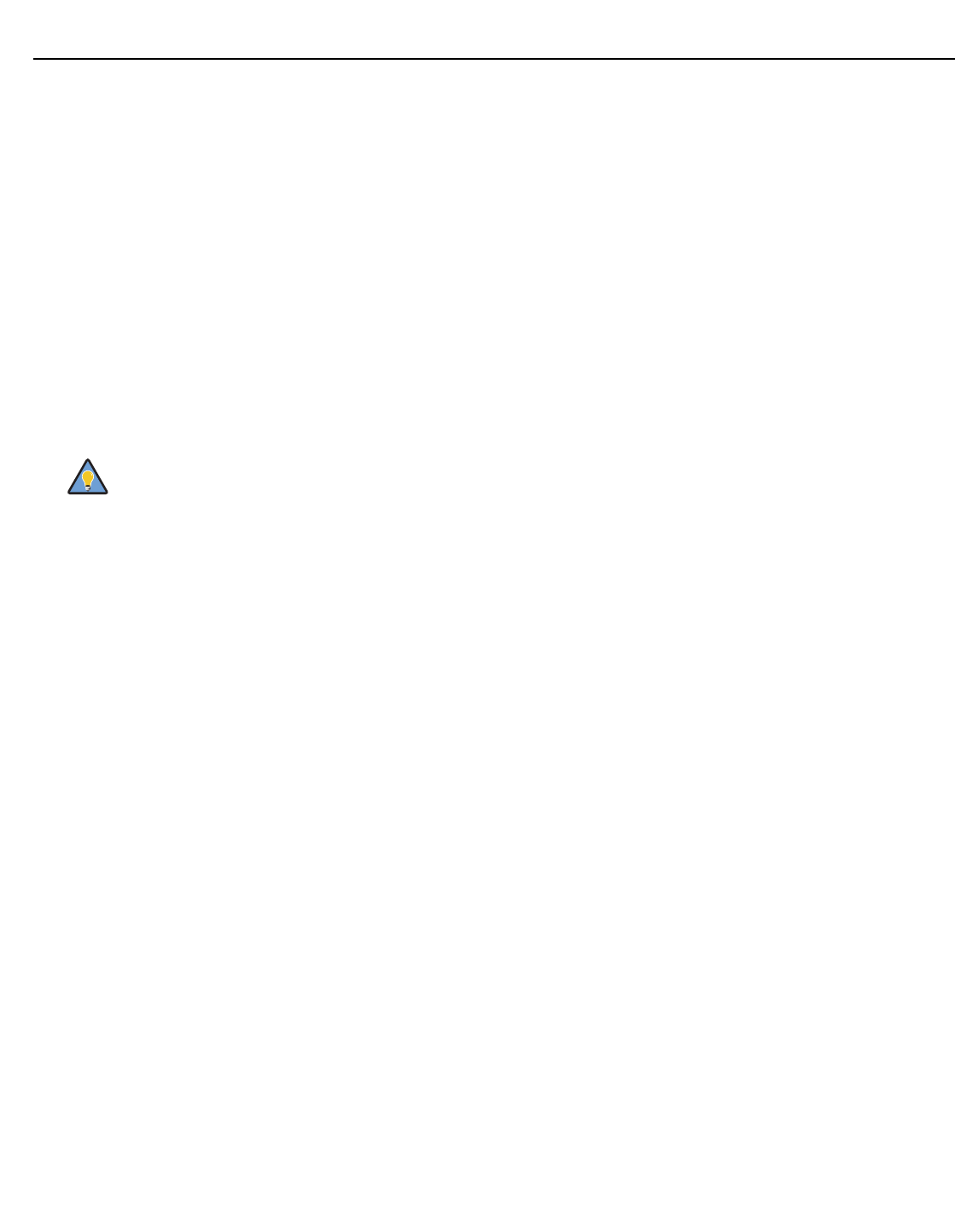
Panel
Figure 2-4 shows the CL-610 connector panel.
Figure 2-4. CL-610 Connector Panel
Controls and Functions
Runco CL-610 Series Owner’s Operating Manual 9
PRELIMINARY
1. S-VIDEO
A standard S-Video input for connecting a DVD player, satellite receiver or Super VHS
(S-VHS) VCR.
2. 12-VOLT (250 mA) TRIGGER OUTPUT (3.5-mm, mini phono jack)
Connection for 12-volt trigger-activated equipment such as retractable screens or
screen masking.
3. COMPOSITE VIDEO INPUT
Standard composite video input for connecting a VCR, laser disc player or other
composite video source.
4. COMP 1 (RCA connectors)
Standard Definition (480i/576i) Component (YPrPb) input. This is the input for
component video from sources such as DVD players.
5. HDMI (Digital)
HDCP-compliant digital video input for connecting a DVD player or HD tuner with a
DVI or HDMI output.
6. COMP 2 / RGB
Five (5) BNCs for connecting either RGB or component (YPbPr) high-definition
television signals. (The CL-610 automatically detects the signal format.)
7. RS-232 CONTROL PORT
A female, RJ-11 connector for interfacing with a PC or home theater
automation/control system.
For best results, do not run your DVD player in progressive mode.
Tip
Controls and Functions
10 Runco CL-610 Series Owner’s Operating Manual
PRELIMINARY
2.4
CL-610 Remote
Control
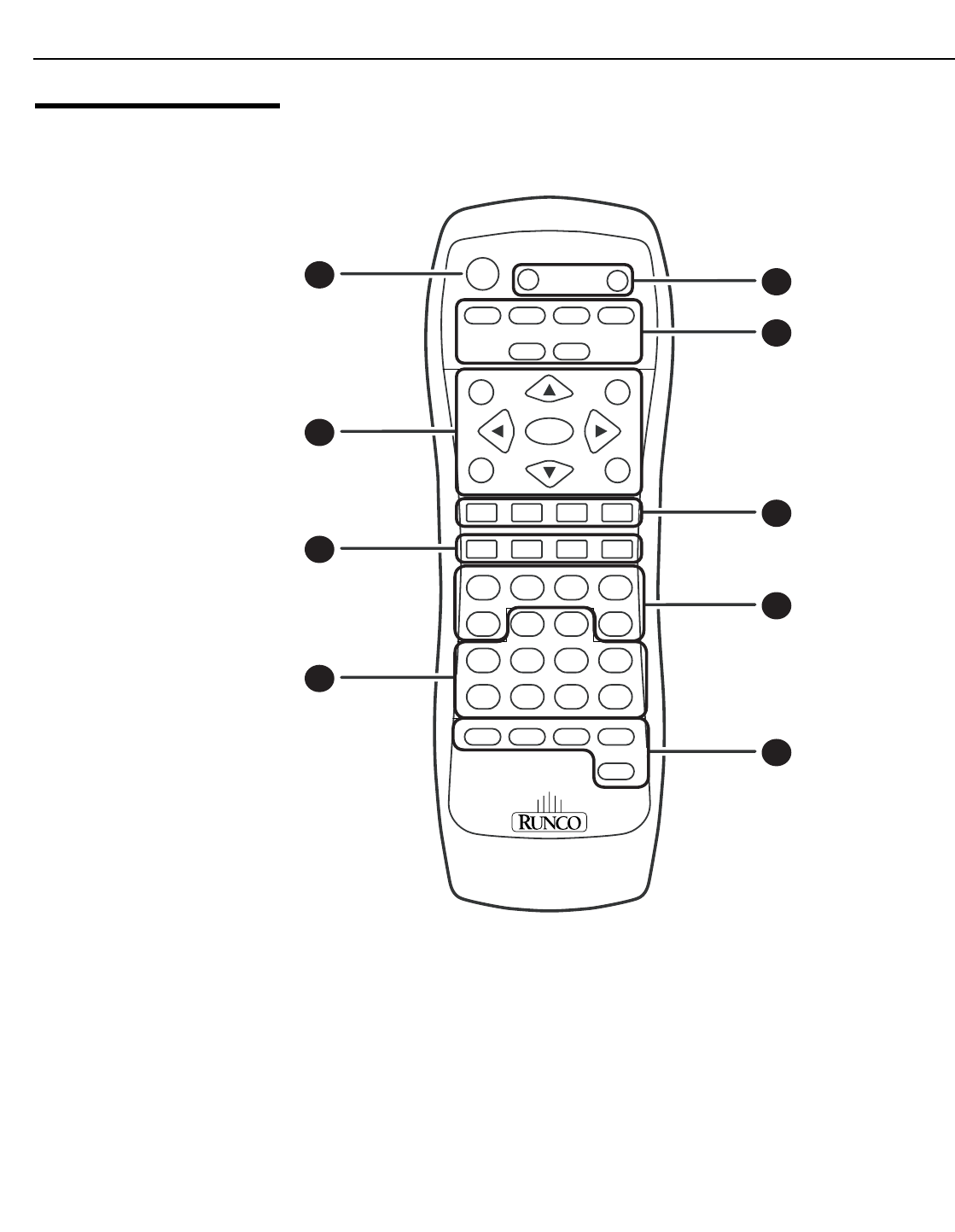
Figure 2-5 shows the CL-610 remote control, and the paragraphs that follow describe its
functionality.
Figure 2-5. CL-610 Remote Control
1. LIGHT
Press to illuminate the buttons.
2. ON / OFF
Use these buttons to turn the projector on or off.
FOCUS LENSZOOM
LIGHT OFF
ON
VID S-VID COMP1
RGBHD
INFO RVR
ENTER
EXIT MENU
BRT CONT COL TNT
HDMI
COMP2
MEM1 FACT
ISF
DAY
ISF
NIGHT
ANA
16X9 VWIDELBOX
4X3
CINEMA VCINE
PBP PIP PIP+ACT
PIP-
2
1
5
46
3
9
80
7
1
4
6
8
2
3
5
7
9

Controls and Functions
Runco CL-610 Series Owner’s Operating Manual 11
PRELIMINARY
3. Source Selection Buttons:
VID
Press to select Composite video input as the source.
S-VID (S-Video)
Press to select the S-Video input as the source.
COMP1 (SD Component)
Press to select Component 1 (SD 480i/576i) video input as the source.
COMP2 (HD Component)
Press to select Component 2 (HD 480p/576p/720p/1080i) video input as the source.
RGBHD
Press to select the Component 2 RGB input.
HDMI
Press to select the HDMI input.
4. INFO
Displays active source and aspect ratio information.
Cursor Keys ( , , , )
Use these buttons to select items or settings, adjust settings or switch display
patterns.
RVR
Not applicable to this projector.
EXIT
Press to save menu item setting(s), exit the current menu and return to the previous
one.
ENTER
Press to select a highlighted menu item or confirm a changed setting.
MENU
Press this button to show or hide the on-screen display (OSD) controls.
5. Picture Adjustment Buttons:
BRT (Brightness)
Press to adjust black level.
CONT (Contrast)
Press to adjust white level.
COL (Color)
Press to adjust color intensity.
TNT (Tint)
Press to adjust color hues.

Controls and Functions
12 Runco CL-610 Series Owner’s Operating Manual
PRELIMINARY
6. Memory Preset Buttons:
MEM1
Press to recall settings for the current input from the “Memory 1” memory preset.
ISF NIGHT
Press to recall settings for the current input from the “ISF Night” memory preset.
ISF DAY
Press to recall settings for the current input from the “ISF Day” memory preset.
FACT
Press to recall the factory-default settings for the current input.
7. Aspect Ratio Selection Buttons
Use these buttons to select an aspect ratio directly, as follows:
ANA 16:9 (Anamorphic)
For viewing 16:9 DVDs or HDTV programs in their native aspect ratio.
4X3 (Standard 4:3)
Scales the input signal to fit 4:3 display mode in the center of the screen.
LBOX (Letterbox)
For viewing LaserDisc movies or non-anamorphic DVDs on a 16:9 screen.
VWIDE (VirtualWide)
Enlarges a 4:3 image horizontally in a NON-linear fashion to fit 16:9 full screen display.
CINEMA
For viewing 2.35:1 source material.
VCINE (CL-610/CineWide and CL-610LT/CineWide only)
Selects the Virtualwide 2.35 aspect ratio, used for viewing 16:9 source material on a
2.35:1 screen.
8. 0 - 9
Use these keys to enter menu passcodes.
9. Picture-In-Picture (PIP) / Picture-By-Picture (PBP) Controls:
PBP
Press to activate PBP mode.
ACT
Press to switch to the active window in PIP or PBP mode.
PIP
Press to activate PIP mode.
PIP+
Press to enlarge the PIP window.
PIP-
Press to shrink the size of the PIP window.
Runco CL-610 Series Owner’s Operating Manual 13
PRELIMINARY
3.1
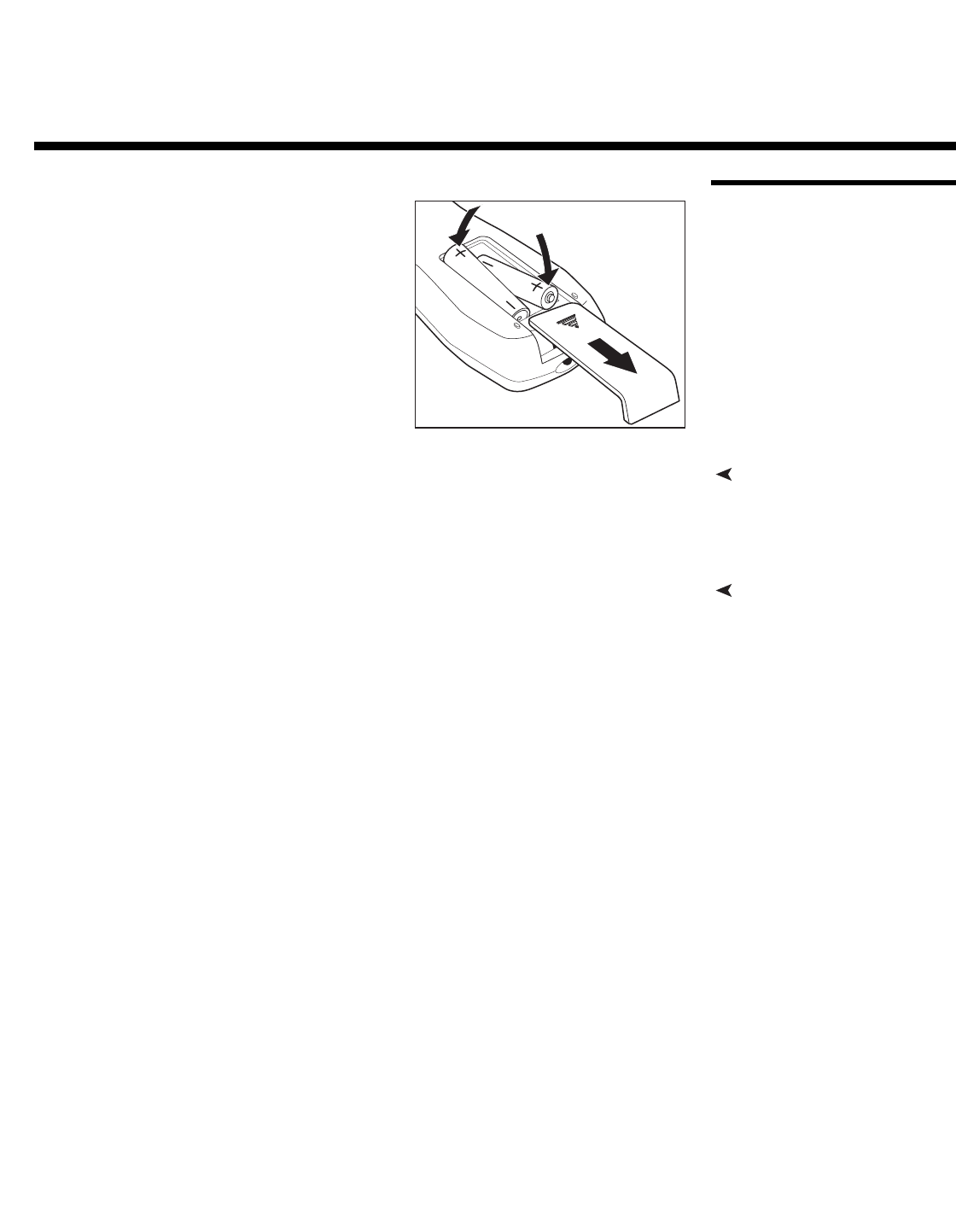
Remote Control
To install batteries in the remote control, push the
battery cover and slide it off. Install the two AAA
batteries with the correct polarity and then
replace the cover.
Notes on Batteries• Make sure that the battery polarities are correct when installing the batteries.
• Do not mix an old battery with a new one or different types of batteries.
• If you will not use the remote control for a long time, remove the batteries to avoid
damage from battery leakage.
Notes on Remote Control
Operation
• Make sure that there is nothing obstructing the infrared beam between the remote
control and the IR receiver on the projector.
• If the effective range of the remote control decreases, or it stops working, replace the
batteries with new ones.
• The remote control may fail to operate if the infrared remote sensor is exposed to bright
sunlight or fluorescent lighting.
• Ambient conditions may possibly impede the operation of the remote control. If this
happens, point the remote control at the projector, and repeat the operation.
• The Ø icon appears on the screen when you press a button for an unavailable function.
3. Installation
Installation
14 Runco CL-610 Series Owner’s Operating Manual
PRELIMINARY
3.2
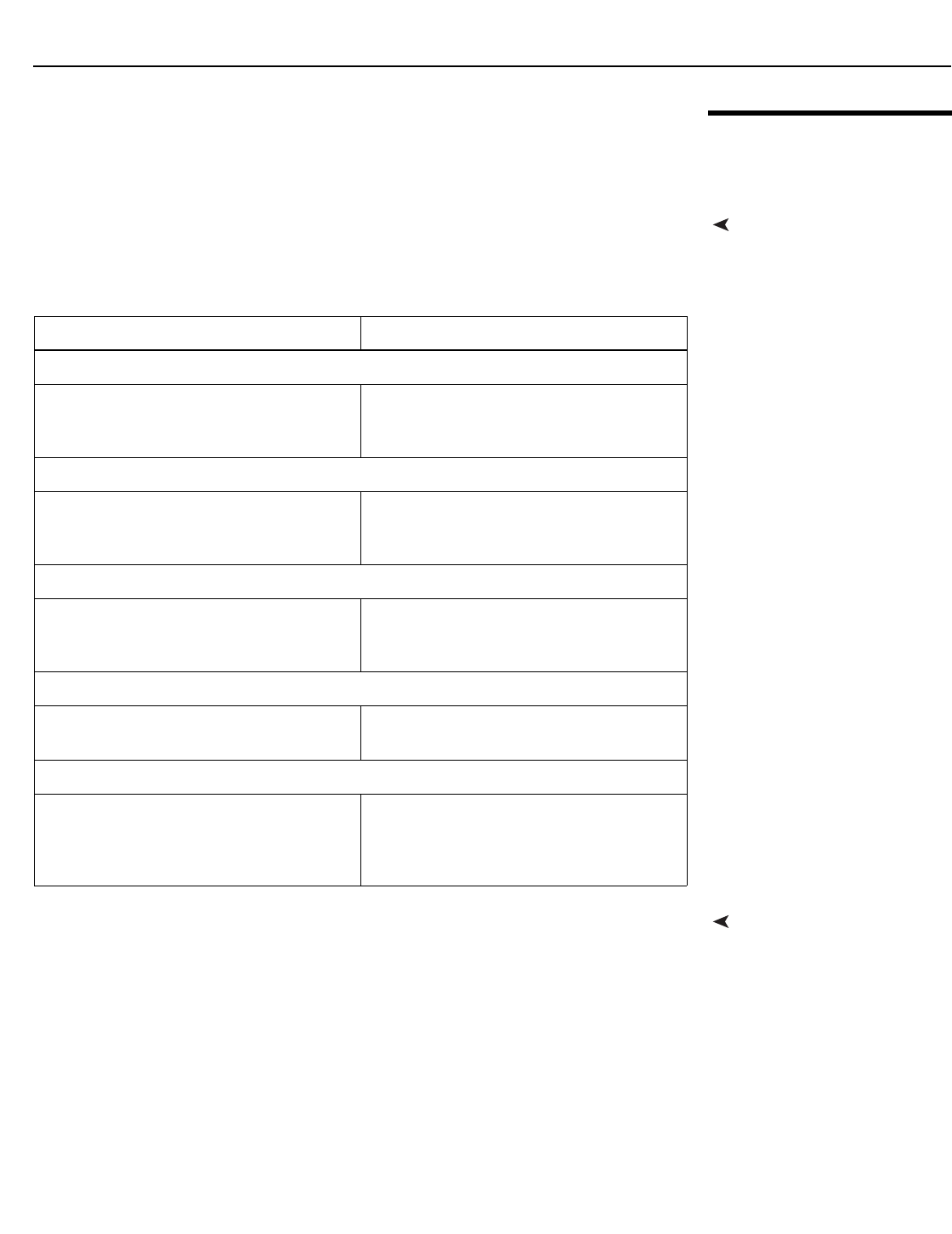
Quick Setup
Table 3-1 gives a quick overview of the CL-610 installation process. The sections
following this one provide detailed instructions.
Installation should be performed by a qualified custom video
installation specialist.
Table 3-1. Installation Overview
Step Procedure For Details, Refer to
page...
1Choose a location for the projector 15
2Mount the projector 18
3Connect signal sources to the CL-610 19
4Connect external controller to RS-232 port (optional) 23
5Connect 12-volt trigger output to retractable screen or
other, +12-volt trigger-activated equipment (optional)
24
6Apply power to the projector 24
7Change the OSD Language (optional) 25
8For rear-screen and/or ceiling-mount installations, select
the proper picture orientation
25
9Primary lens adjustments: projected image size (zoom) and
focus
25
10 Install CineWide anamorphic lens
(CL-610/CineWide and CL-610LT/CineWide only)
26
11 CineWide lens adjustments: position, angle, geometry and
focus
27
12
Projector calibration: adjust the following for each input;
save settings when finished:
• Aspect ratio
• Brightness
• Contrast
• Color level
• Tint
• Input position
37 through 43
Note
Installation
Runco CL-610 Series Owner’s Operating Manual 15
PRELIMINARY
3.3
Installation
Considerations
Proper installation of your projector will ensure the quality of your display. Whether you are
installing a projector temporarily or permanently, you should take the following into
account to ensure your projector performs optimally.
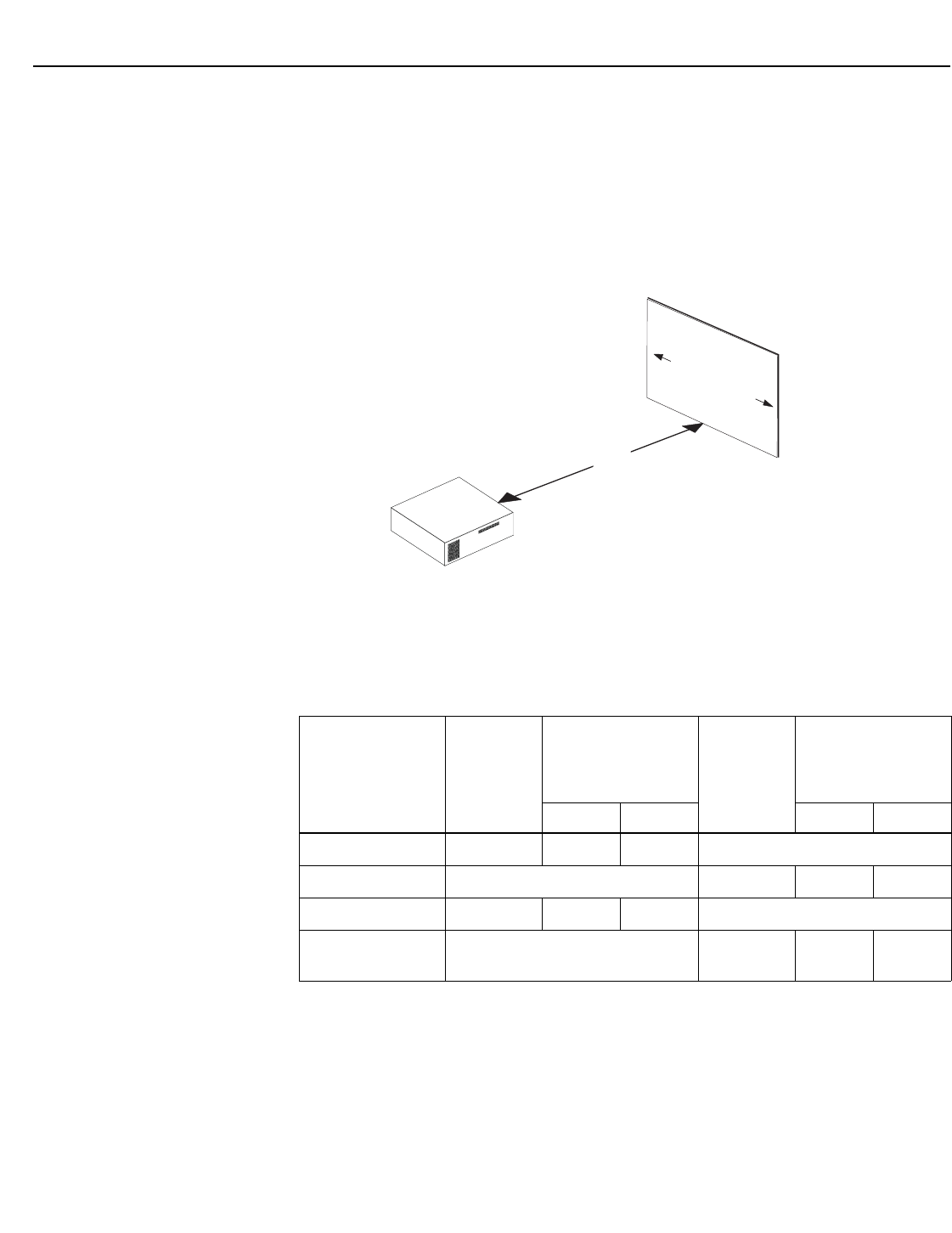
Installation TypeChoose the installation type that best suits your needs: front or rear screen, floor mount or
inverted mount. Table 3-2 compares these various installation methods.
Ambient LightIn general, minimize or eliminate light sources directed at the screen. Contrast ratio in your
images will be noticeably reduced if light directly strikes the screen, such as when a shaft
of light from a window or floodlight falls on the image. Images may then appear washed
out and less vibrant.
Table 3-2. Projector Installation Options
Advantages Considerations
Front Screen, Floor Mount Installation
• Easy to set up
• Can be moved or changed quickly
• Easy to access
• Shares floor space with audience
Front Screen, Inverted Mount (ceiling) Installation
• Does not take up audience space
• Projector is unobtrusive
• Projector cannot be accidentally moved
• Installation is more permanent
• Projector access is more difficult
Rear Screen, Floor Mount Installation
• Projector is completely hidden
• Projector is easily accessed
• Usually good ambient light rejection
• Requires separate room
• Installation cost is usually higher
Rear Screen, Inverted Mount (ceiling) Installation
• Projector is completely hidden
• Usually good ambient light rejection
• Requires separate room
• Installation cost is usually higher
Rear Screen, Floor Mount with Mirror
• Projector is completely hidden
• Usually good ambient light rejection
• Requires less space behind screen than
other rear screen installations
• Requires separate room
• Installation cost is usually higher
Installation
16 Runco CL-610 Series Owner’s Operating Manual
PRELIMINARY
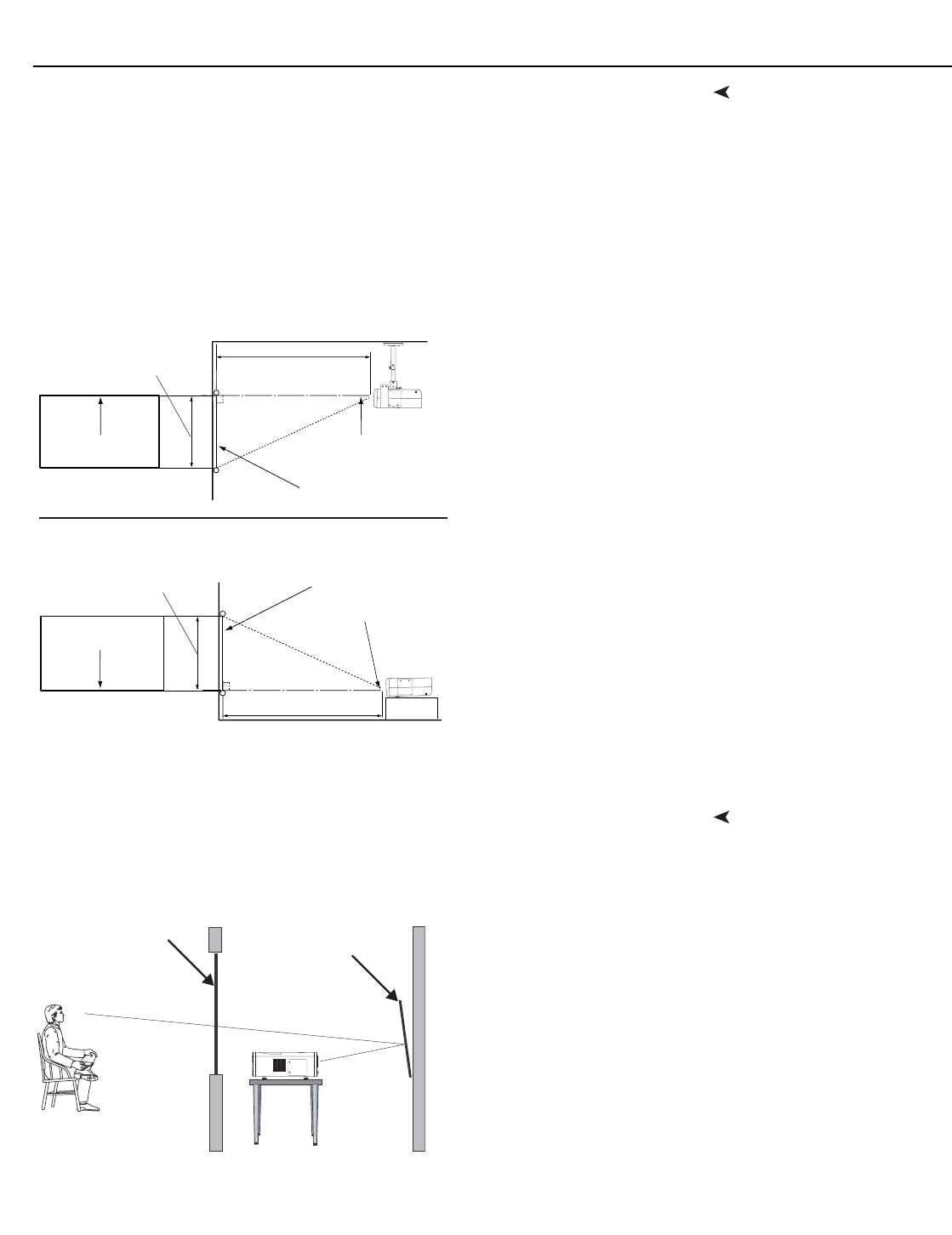
Throw Distance Throw distance is the distance measured from the front of the projector to the screen.
This is an important calculation in any projector installation as it determines whether or not
you have enough room to install your projector with a desired screen size and if your
image will be the right size for your screen.
You can quickly estimate the throw distance by taking the width of the screen and
multiplying it by the lens throw ratio; see Figure 3-1. The result of this calculation tells you
roughly how far back the projector should be positioned from the screen in order to
project a focused image large enough to fill the screen.
Figure 3-1. Estimating Throw Distance
Table 3-3 lists the throw ratios for the CL-610 Series.
➤
Table 3-3. Throw Ratios for the CL-610 Series
Projector Model
Throw Ratio
with Primary
Lens Only
Throw Range in
inches, with
72.6x40.8-inch
(1.78:1) Screen
Throw Ratio
with Primary
Lens and
Anamorphic
Lens
Throw Range in
inches, with
96x40.8-inch (2.35:1)
Screen
Minimum Maximum Minimum Maximum
CL-610 1.37 - 1.82 99.46 132.13 (n/a)
CL-610/CineWide (n/a) 1.55 - 1.82 148.80 174.72
CL-610LT 1.87 - 2.47 135.76 179.32 (n/a)
CL-610LT/
CineWide (n/a) 1.87 - 2.47 179.52 237.12
Estimating Throw Distance
Throw Distance (TD) = Screen Width (w) x Lens Throw Ratio
Screen width (w)
TD
Installation
Runco CL-610 Series Owner’s Operating Manual 17
PRELIMINARY
Vertical and Horizontal
Position
Proper placement of the projector relative to the screen will yield a rectangular,
perfectly-centered image that completely fills the screen.
Ideally, the projector should be positioned perpendicular to the screen and in such a way
that the lens center is aligned with either the top or bottom edge of the screen area, and
centered horizontally.
The top of the projected image is even with the lens center when the projector is inverted
(ceiling-mounted). Likewise, the bottom of the projected image is aligned with the lens
center when the projector is upright (as in a floor installation). See Figure 3-2.
Figure 3-2. Projector Placement
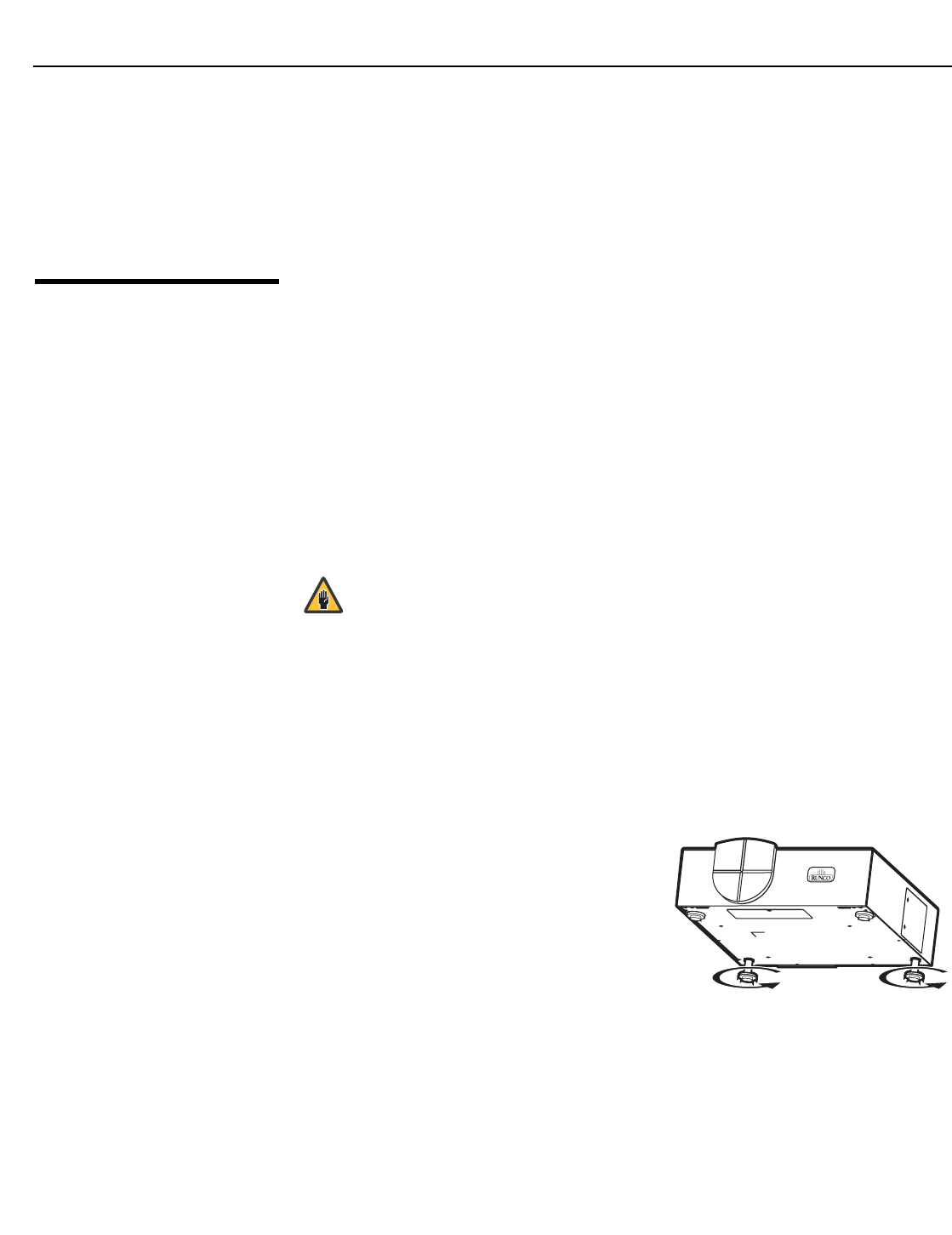
Folded OpticsIn rear-screen applications where space behind the projector is limited, a mirror may be
used to fold the optical path, as shown in Figure 3-3. The position of the projector and
mirror must be accurately set. If you are considering this type of installation, contact your
dealer for assistance.
Figure 3-3. Folded Optics
Screen
Height Projection Distance
Ceiling
x
Lens Center
Lens Center
Ceiling Installation
Screen
Height
Floor
Lens Center
Projection Distance
Floor Installation
Lens Center
x
Screen
Mirror
Installation
18 Runco CL-610 Series Owner’s Operating Manual
PRELIMINARY
Other Considerations Other considerations and tips that can help improve your installation:
• Keep the ambient temperature constant and below 35°C (95°F). Keep the projector
away from heating and/or air conditioning vents. Changes in temperature may cause
drifts in the projector circuitry, which may affect performance.
• Keep the projector away from devices that radiate electromagnetic energy such as
motors and transformers. Common sources of these include slide projectors,
speakers, power amplifiers and elevators.
3.4
Mounting the CL-610
There are several methods for mounting the projector. Depending on your chosen
installation, one method may be more suitable than another.
Floor Mounting (Upright) In typical front and rear screen installations, the projector can be placed upright on a
secure and level surface such as a table or cart. Carts are useful when moving a projector
during a presentation or from site to site. If possible, lock the wheels when it’s in position
to prevent it from being moved during a presentation.
Ceiling Mounting
(Inverted)
For fixed installations, and for those that want the projector out of sight or have a limited
space for projector and audience, you can invert the CL-610 and suspend it from the
ceiling using a specially-designed ceiling mount fixture.
The projector can also be inverted and placed in an enclosure above and behind the
viewing area. Install four feet on the inside bottom surface of the enclosure on which the
projector can rest. A variety of materials can be used for this purpose (for example, rubber
crutch tips or turntable feet).
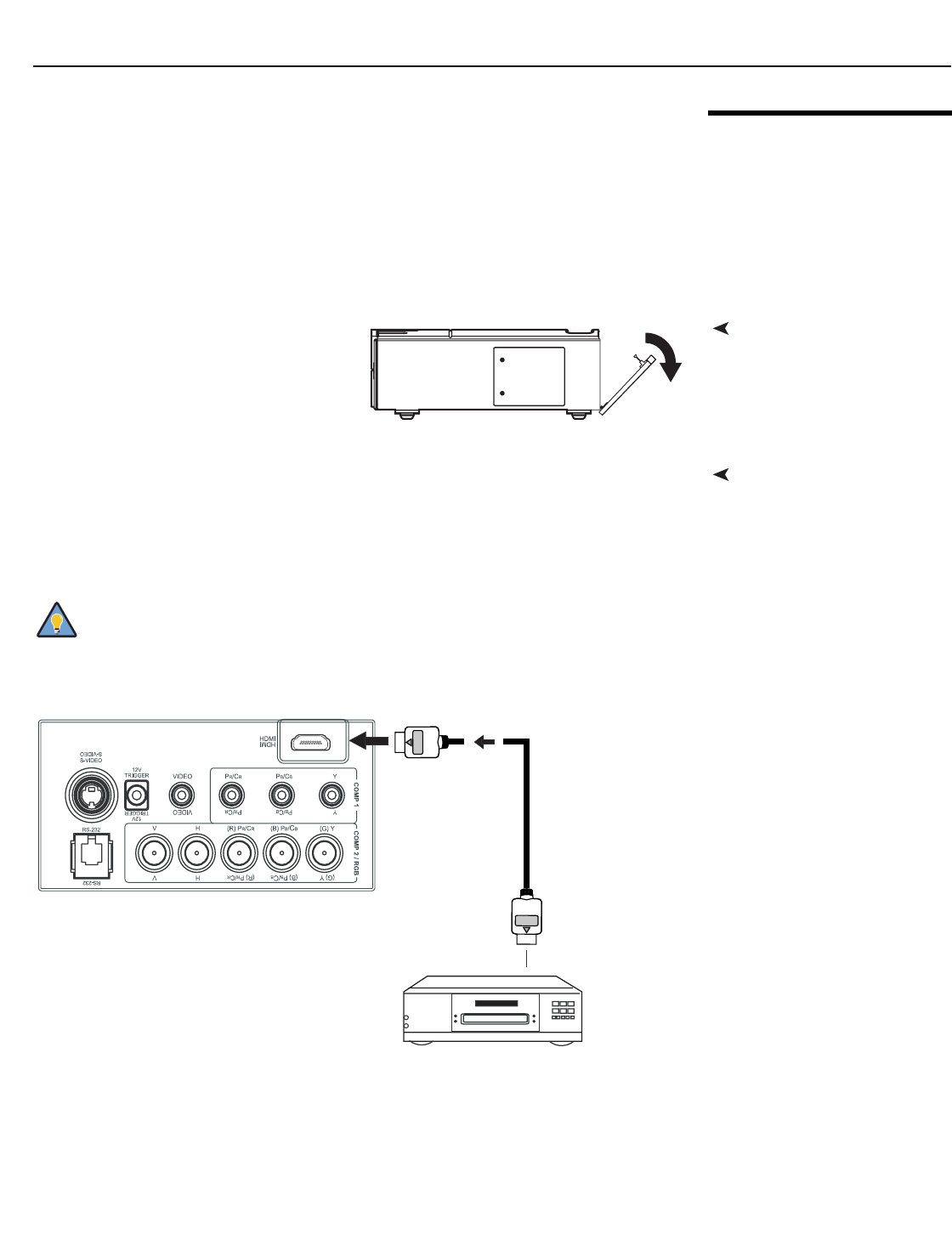
Adjusting the Projector
Height or Projection Angle
If the screen is significantly higher or lower than the projector, you can also tilt the
projector at a slight angle. In a ceiling installation, you do this by adjusting the ceiling
mount.
For a floor installation, turn the four adjustable
feet on the bottom of the projector to adjust
the projector height and/or projection angle.
If you do this, you may need to make
keystone adjustments or vertically shift the
image using the on-screen display (OSD)
controls, to compensate. For detailed
instructions, refer to Using the On-Screen
Menus on page 30.
➤
➤
➤
Use only the Runco-approved ceiling mount kit designed for your
projector. Install the mount kit according to the instructions
provided with it.
Caution
➤
Installation
Runco CL-610 Series Owner’s Operating Manual 19
PRELIMINARY
3.5
Connections to the
CL-610
Proceed as follows to connect the CL-610 to your video sources, external controller(s) – if
present – and AC power.
When connecting your equipment:
• Turn off all equipment before making any connections.
• Use the correct signal cables for each source.
• Ensure that the cables are securely connected. Tighten the thumbscrews on
connectors that have them.
Connector Panel AccessTo access the connector panel, press
the door release button so it pops out.
Turn the knob clockwise or
counter-clockwise and pull gently on it
to open the door.
Connecting Source
Components to the
CL-610
Connect your video sources to the CL-610 as shown and described in the sections that
follow.
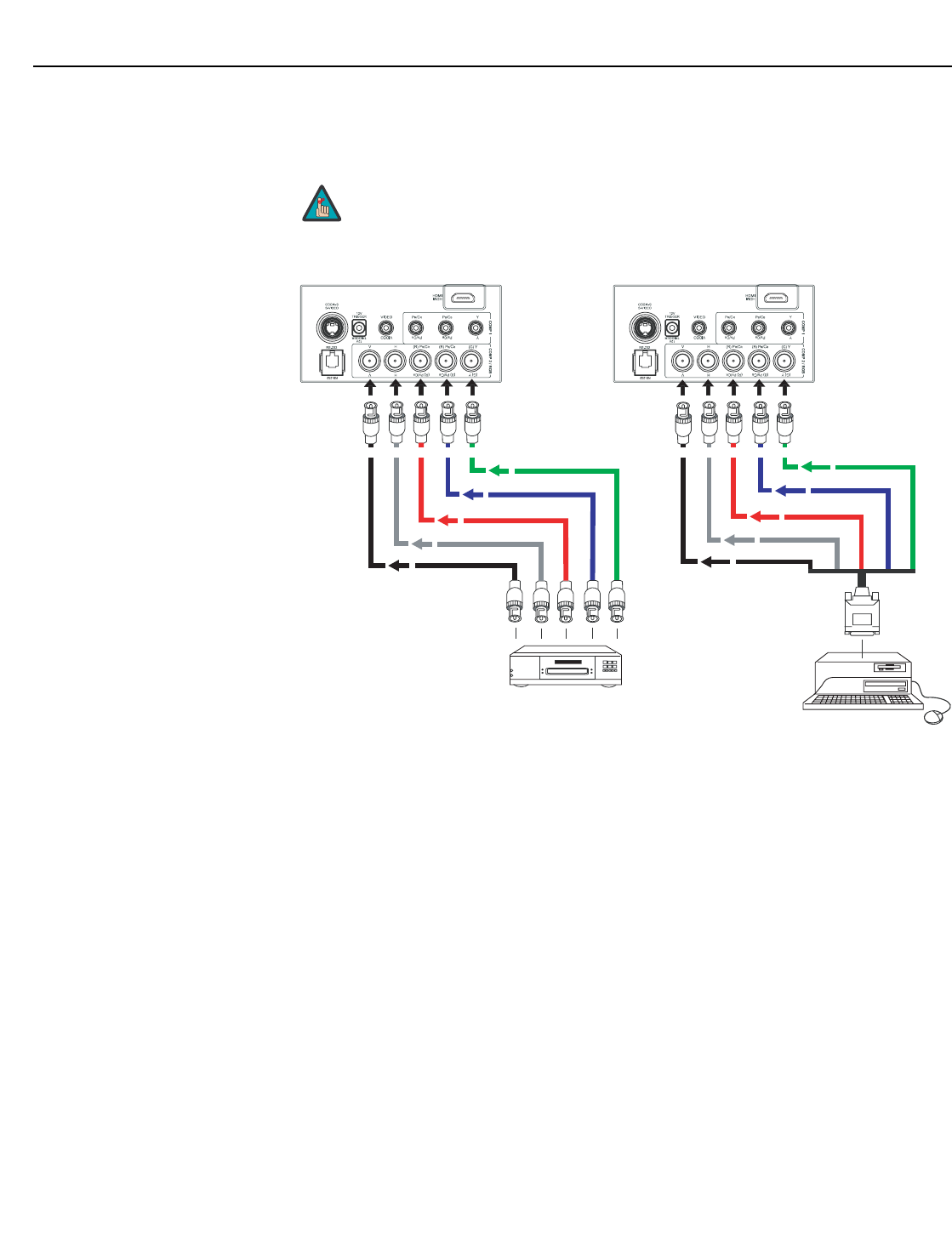
HDMI/DVI Connections: See Figure 3-4. With an HDMI source, use the included
HDMI-to-HDMI cable; with a DVI source, use the included DVI-to-HDMI cable.
Figure 3-4. HDMI/DVI Source Connections
Use the HDMI input whenever possible. This ensures the highest
video quality because the signal is carried in the digital domain
throughout the entire signal path, from source component output
into the projector.
Tip
HDMI or DVI Source
(DVD Player or HD Set Top Box)
Installation
20 Runco CL-610 Series Owner’s Operating Manual
PRELIMINARY
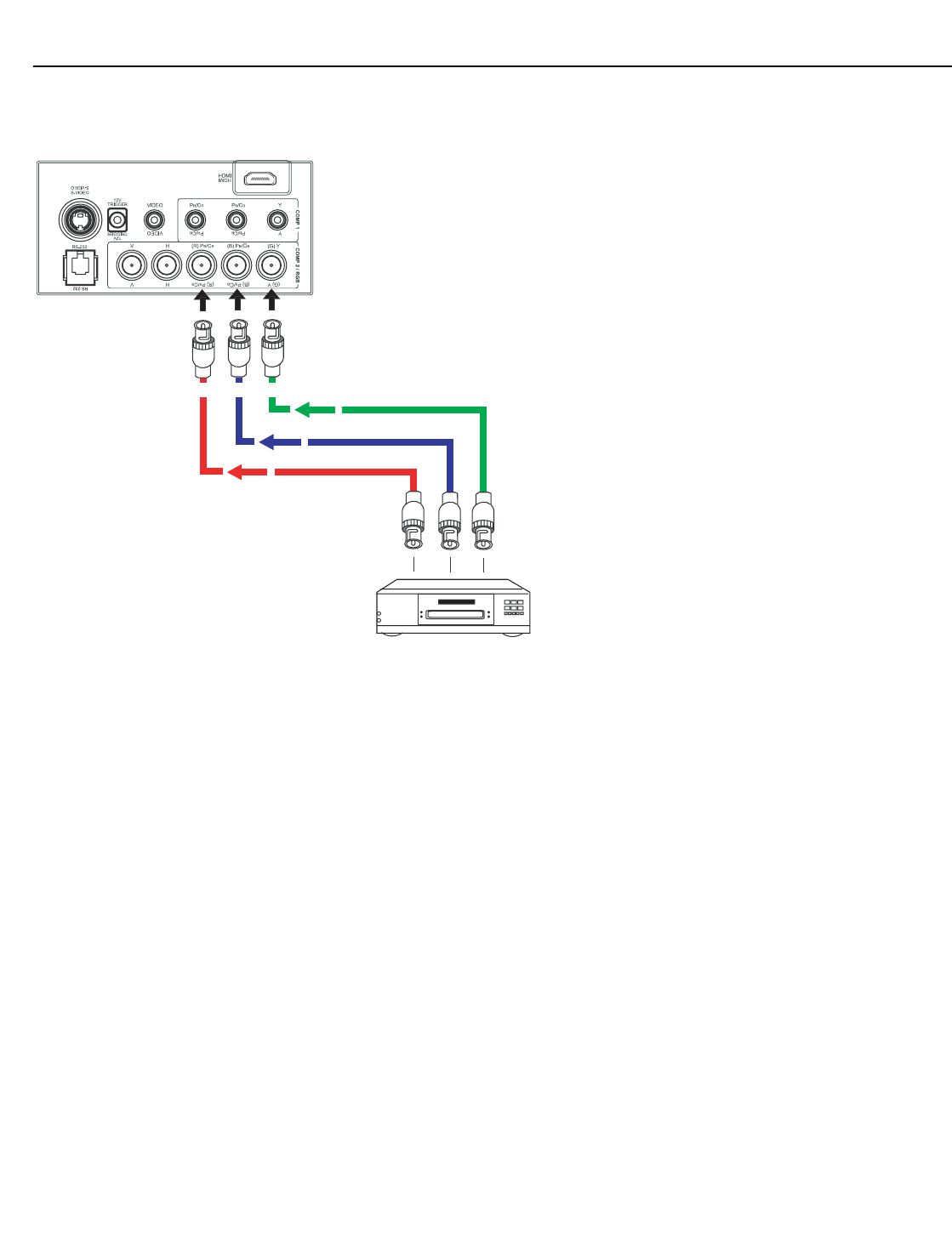
RGB Connections: Connect your personal computer or other RGB source (DVD player
or HD set top box) to the COMP 2/RGB input; see Figure 3-5. You can use the included
DB15HD-to-5 x BNC cable if your RGB source has a 15-pin, VGA-type connector.
Figure 3-5. RGB Connections
The CL-610 supports the following computer resolutions:
1024x768, 800x600 and 640x480.
Note
DVD Player or
HD Set Top Box
Vert Horiz Red Blue Green Vert Horiz Red Blue Green
Personal
Computer
Installation
Runco CL-610 Series Owner’s Operating Manual 21
PRELIMINARY
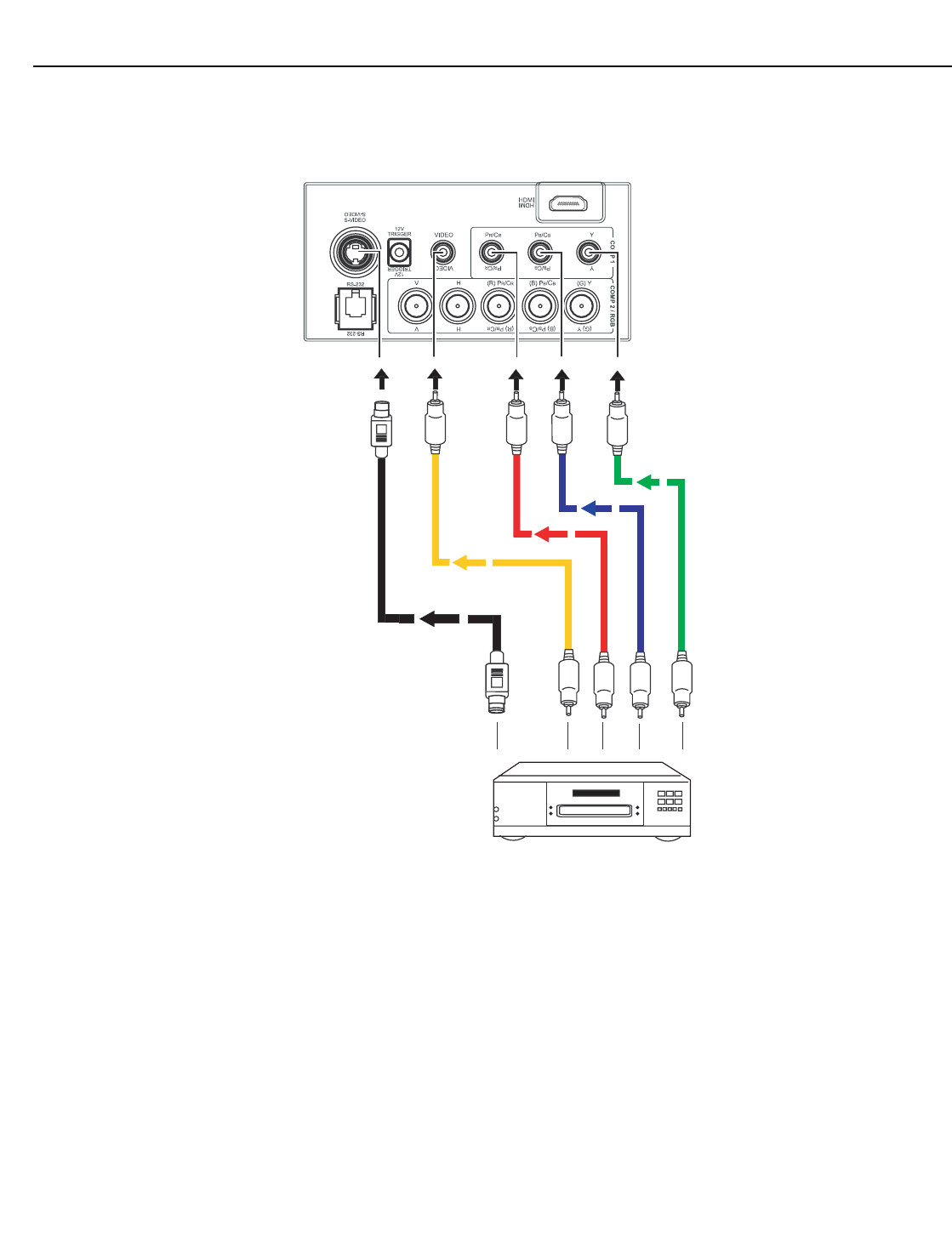
Progressive Component Video Connections: Connect your progressive component
source (DVD player or HD set top box) to the COMP 2/RGB input as shown in Figure 3-6.
Figure 3-6. Progressive Component Video Connections
DTV or Progressive
Component (YPbPr)
Source
Pr Pb Y
Installation
22 Runco CL-610 Series Owner’s Operating Manual
PRELIMINARY
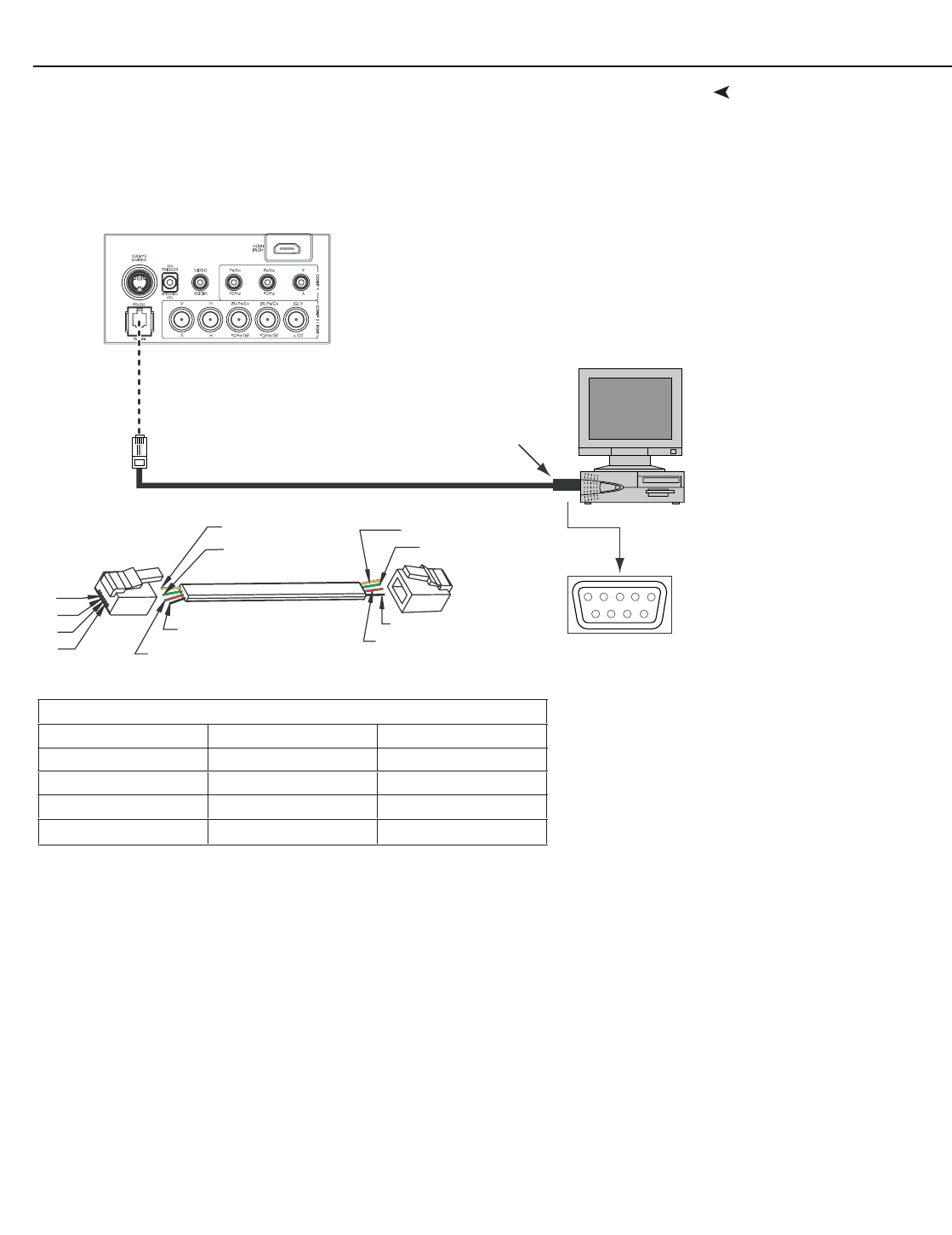
Composite/S-Video/Component Video Connections: Use the included cables to
connect your composite, S-Video and SD (480i) component video sources to the CL-610
as shown in Figure 3-7.
Figure 3-7. Composite, S-Video and Component Video Connections
DTV Source,
DVD Player, VCR,
Satellite Receiver
etc.
Installation
Runco CL-610 Series Owner’s Operating Manual 23
PRELIMINARY
RS-232 Controller
Connection
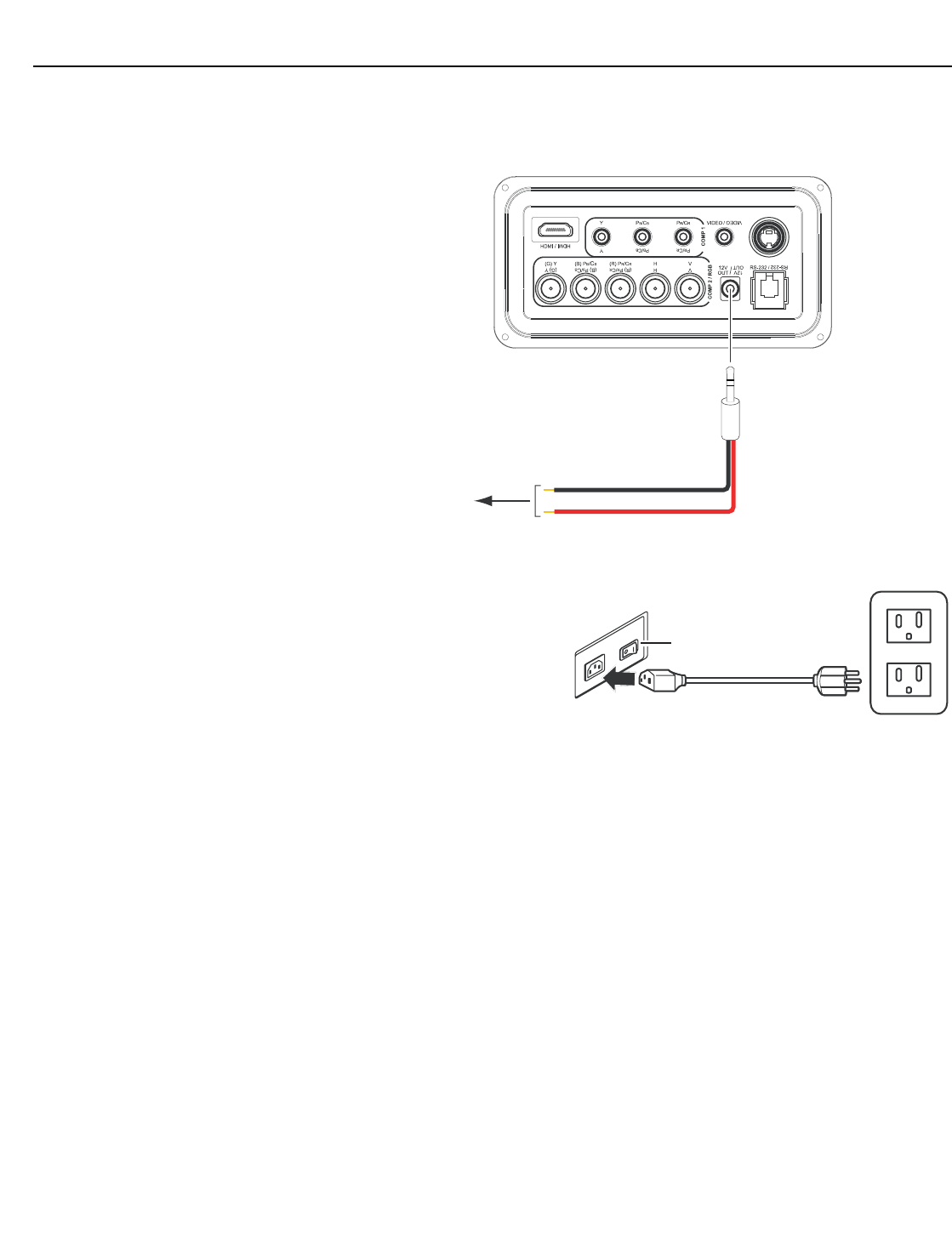
Connect a PC or home theater control/automation system (if present) to the RS-232 port
on the CL-610; see Figure 3-8. Use a standard, 4-wire RJ-11 telephone cable, wired
straight-through.
For more information about using this connection, refer to Serial Communications on
page 53.
Figure 3-8. RS-232 Control System Connection
12345
7
89 6
D-Sub 9-pin female
RJ-11 Male
RJ-11 to
D-Sub 9-pin Adapter
(not included)
1
2
3
4
Yel l ow Yellow
Red Red
Black
Green
Green
Black
RS-232 Adapter Wiring
D-Sub 9-pin female 4-pin RJ-11 Function
2 2 Transmit Data
3 3 Receive Data
5 1, 4 Ground
1, 4, 6, 7, 8, 9 -- Not Connected
Installation
24 Runco CL-610 Series Owner’s Operating Manual
PRELIMINARY
Connecting 12-volt
Trigger Output to External
Theater Equipment
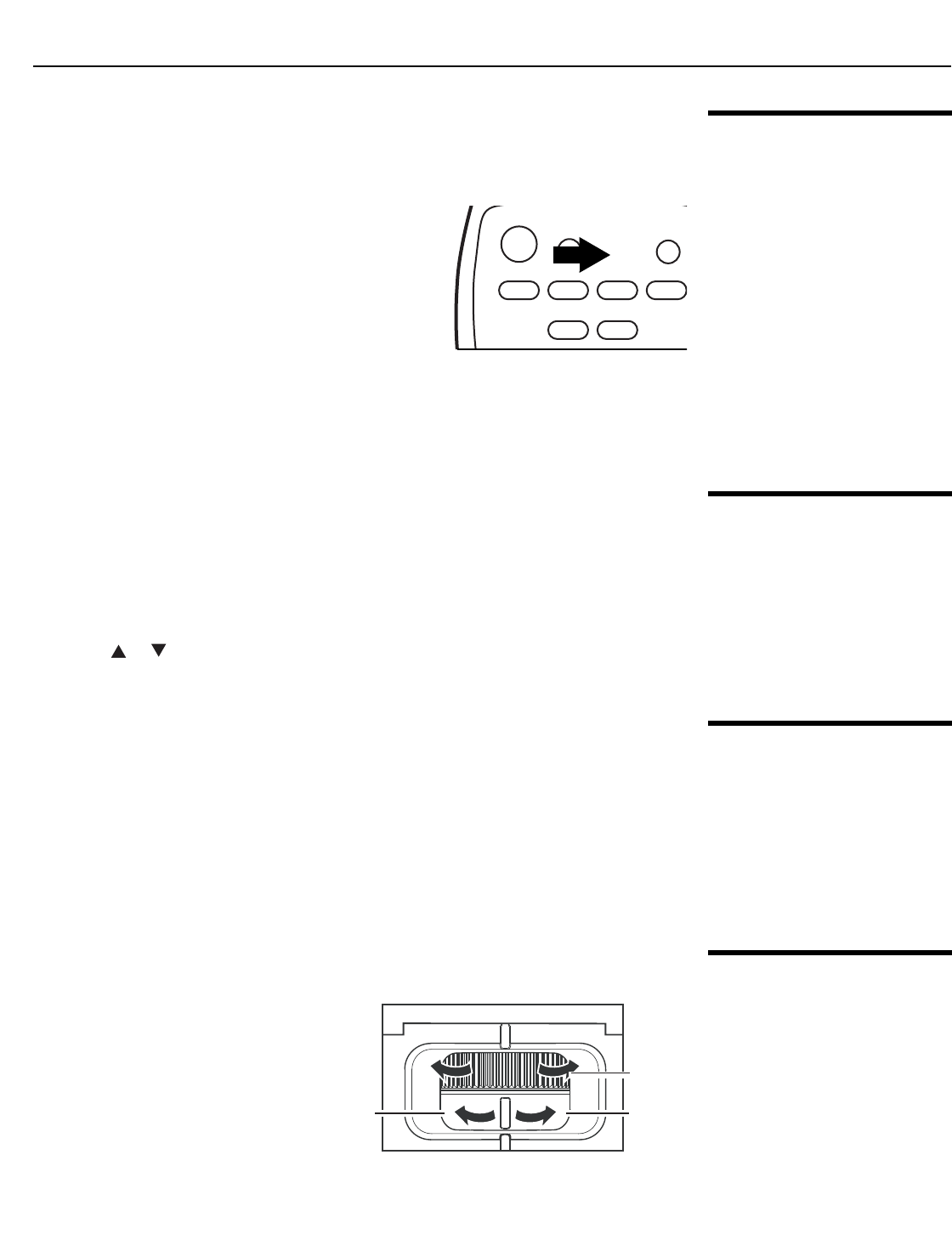
If your home theater contains a retractable screen, screen mask or other 12-volt
trigger-activated equipment, use the cable supplied with the CL-610 to connect it to the
12-volt trigger output as shown in Figure 3-9.
Figure 3-9. Connecting the 12-Volt Trigger Output to Other Equipment
Connecting to AC Power The CL-610 ships with various
types of AC power cords. Choose
the one that is appropriate to your
locale.
Plug the female end of the power
cord into the AC receptacle on the
rear of the projector (AC 100V ~
240V). Then, connect the other end
to your AC power source.
➤
S-VID /
S-VID
to other,
12-volt
trigger-activated equipment
(screen, screen mask etc.) Red = +12V (Tip)
Black = Ground (Sleeve)
3.5-mm
mini plug
➤
Power
switch
Installation
Runco CL-610 Series Owner’s Operating Manual 25
PRELIMINARY
3.6
Turning On the Power
1. Turn on your source components.
2. Turn on the main power switch at the rear of the projector. The POWER LED lights
orange. The LAMP and TEMP LEDs light red briefly, then go out.
3. Press the ON button on the remote control to turn
on the CL-610. The POWER LED flashes orange
to indicate that it is warming up.
4. When the projector is ready for use, the POWER
LED lights green.
5. “Searching...” appears on the screen before the
CL-610 identifies the input signal and remains there
until a valid signal is detected.
6. If an incompatible input signal exceeds the range of the projector, a “No signal
supported” message appears on the screen. This message remains on the screen
until you change the input signal.
3.7
Changing the OSD
Language
The CL-610 OSD language is initially set to English, but can also display the menus in
French, Spanish, Italian or German. To change the OSD language:
1. Press MENU.
2. Select Installation from the Main Menu and press ENTER.
3. Select Language from the Installation Menu and press ENTER.
4. Press or to highlight the desired language. (The change takes effect
immediately.)
3.8
Adjusting the Picture
Orientation
By default, the CL-610 is configured for a “floor/front” installation, in which the projector is
installed upright and in front of the screen. If it is installed behind the screen and/or
mounted on a ceiling, you must change the picture orientation. To do this:
1. Press MENU on the remote control.
2. Select Installation from the Main Menu and press ENTER.
3. Select Picture Orientation from the Installation Menu and press ENTER.
4. Choose Floor Rear, Ceiling Front or Ceiling Rear to match the installation method.
3.9
Zoom and Focus
Adjustments
The CL-610 gives you a great deal of control over the picture size and focus.
Adjust the projected image size with
the zoom ring on the lens. To focus
the image, rotate the focus ring on
the lens.
LIGHT
OFFON
VID S-VID COMP1
RGBHD HDMI
COMP2
Focus
Zoom out Zoom in
Installation
26 Runco CL-610 Series Owner’s Operating Manual
PRELIMINARY
3.10
Installing and
Adjusting the
CineWide Anamorphic
Lens
If you are installing a CineWide-equipped projector, proceed as follows to install and
adjust the anamorphic lens.
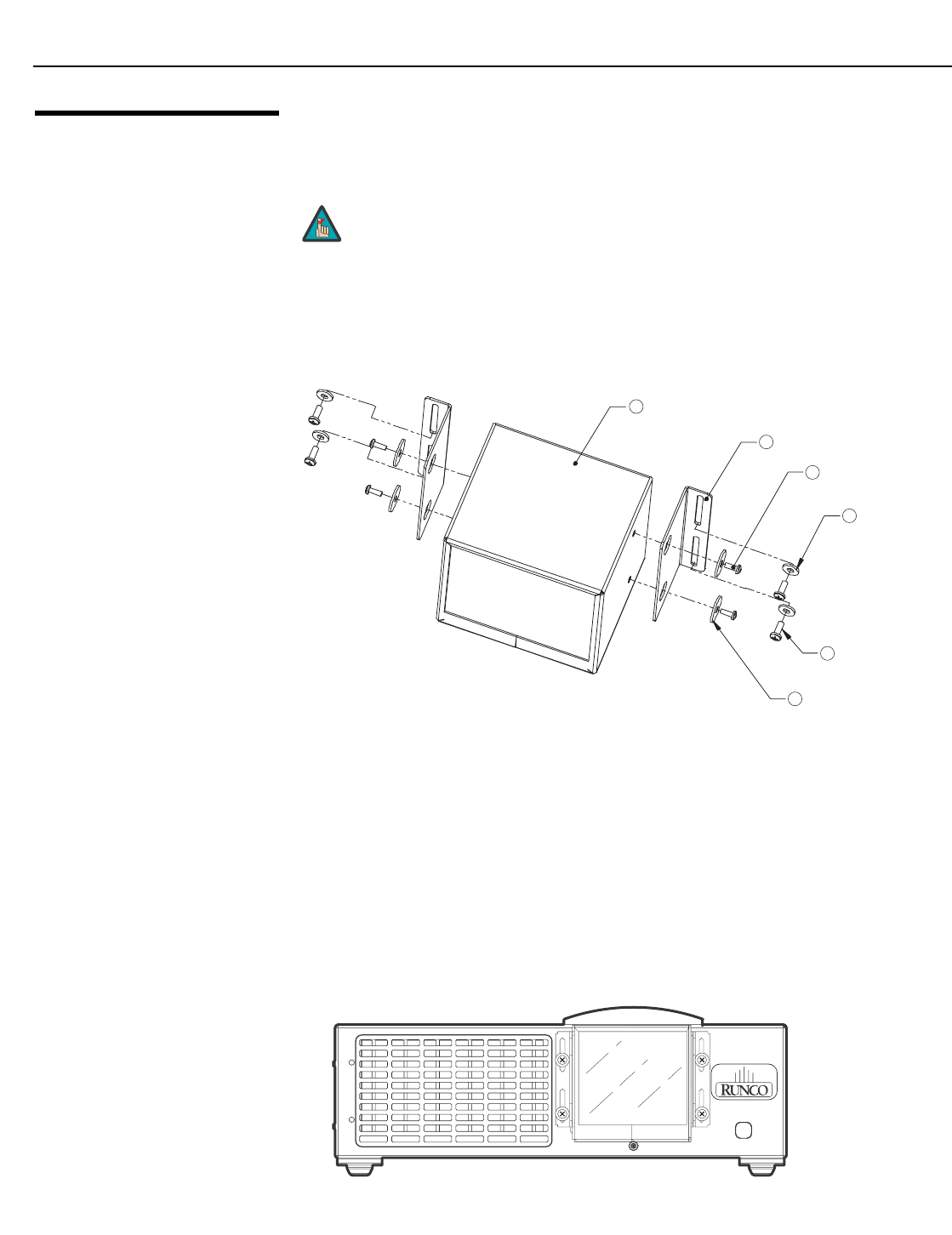
The Anamorphic lens mount kit consists of everything shown in Figure 3-10. If any items
are missing or damaged, please contact your Runco dealer or Runco Customer Service at
(800) 23RUNCO.
Figure 3-10. Anamorphic Lens Mounting Assembly - Exploded View
Remove the Projector
Front Jewelry
Loosen the small Phillips screw (directly below the lens) holding the jewelry in place. Then,
remove the jewelry.
Installing the Anamorphic
Lens
1. Use the Pitch Adjustment Screws (item #3) and Washers (item #6) to attach the
Mounting Brackets (item #2) to the Anamorphic Lens (item #1). (Do not fully tighten
the screws yet.)
2. Use the four Y-Adjustment Screws (item #5) and Washers (item #4) to attach the
Anamorphic Lens assembly to the front of the projector. (Again, do not fully tighten
the screws yet.)
It is extremely important that the primary lens is properly
adjusted before you install the anamorphic lens. Ensure that
the image from the primary lens is perfectly centered on the
screen.
Note
3 Pitch Adjustment Screw,
4-40 x 5/16" (4x)
6 Fender Washer (4x)
2 Mounting Bracket (2x)
4 Washer (4x)
5 Y-Adjustment Screw,
Phillips Pan-Head,
6-32 x 3/8" (4x)
1 Anamorphic Lens
➤
➤
Installation
Runco CL-610 Series Owner’s Operating Manual 27
PRELIMINARY
Adjusting the Anamorphic
Lens
Height (Y) Adjustment:
1. Project a white field on the screen.
2. Ensure that the four Y-Adjustment Screws are loose enough to allow movement of
the lens assembly.
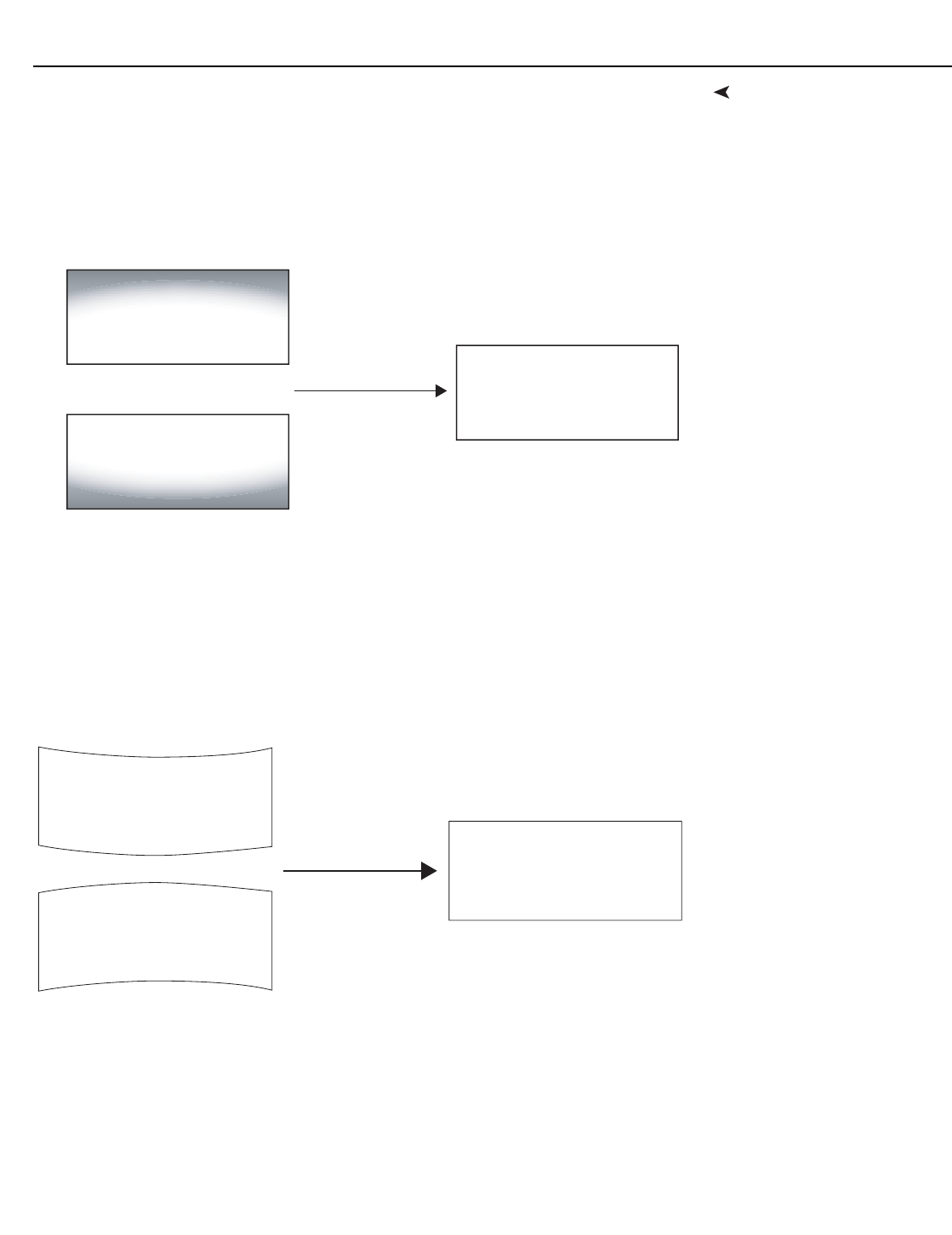
3. Slowly move the anamorphic lens into place so that there are no shadows on the top
or bottom of the screen:
4. When the height is properly set, tighten the Y-Adjustment Screws to secure the lens in
place.
Adjusting the Pitch (Angle): Next, angle the lens to even out any top-to-bottom
pincushion distortion. To do this, loosen the Pitch Adjustment Screws on either side of the
lens to allow it to pivot freely. Then, adjust the anamorphic lens angle so that the projected
image is rectangular:
The anamorphic lens will almost always be angled with respect to the projector; this is
normal.
Once the proper lens angle has been set, firmly tighten the Pitch Adjustment Screws to
secure the lens in place.
Too High
Too Low
Correct position
Correct Lens Angle
Incorrect Lens Angle
Installation
28 Runco CL-610 Series Owner’s Operating Manual
PRELIMINARY
To avoid clipping the corners of the image, position the anamorphic
lens as close as possible to the primary lens.
There may be some pincushion distortion even after the lens is
properly adjusted, especially at shorter throw distances. If this is the
case, Runco recommends that you slightly over-scan the image
into the screen frame area to mask the distortion.
Tip
Note
Runco CL-610 Series Owner’s Operating Manual 29
PRELIMINARY
4.1
Selecting Video
Memory
• Press the MEM1 button on the remote control
to recall settings for the current input from the
“Memory 1” memory preset.
• Press ISF NT (Night) to recall settings for the current input from the “ISF Night”
memory preset.
• Press ISF DAY to recall settings for the current input from the “ISF Day” memory
preset.
Press FACT to recall the factory-default settings for the current input. An on-screen
confirmation message appears. Press FACT again to confirm.
4.2
Selecting an Aspect
Ratio
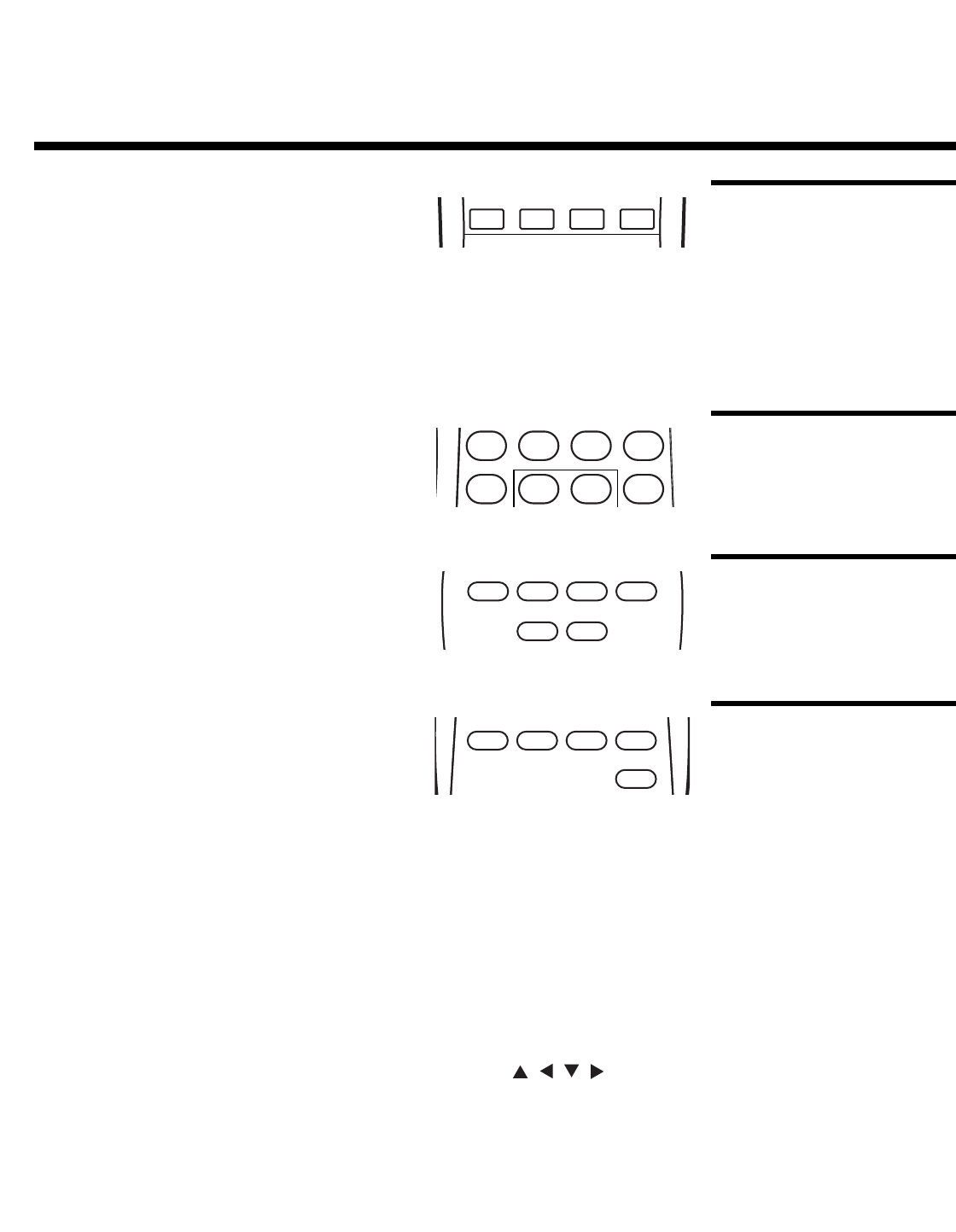
Use these buttons to select the appropriate aspect
ratio for the type of program material being viewed.
For more information on aspect ratios, refer to Table
4-1.
4.3
Selecting An Input
Source
When you turn on the CL-610, it switches to the last
selected input and looks for a valid signal.
Use these buttons on the remote control to select an
input source directly.
4.4
Using
Picture-In-Picture and
Picture-By-Picture
(PIP/PBP)
For PIP and PBP purposes, there are two groups of
inputs separated by their display modes:
• Video (SD) group: Video, S-Video and
Component 1 inputs.
• Graphic (HD) group: HDMI and Component 2/RGB inputs.
PIP and PBP show one input from the Graphic group within or beside one input from the
Video group respectively.
• Press PBP to enable the PBP function. Press PBP again to switch the screens left to
right. Press PBP again to turn PBP off.
• Press ACTIVE to switch to the active window. (You can only switch inputs in the active
window.)
• Press PIP to enable the PIP function. Press PIP again to switch the main window.
Press PIP again to turn PIP off.
• To adjust the size of the PIP window, press PIP+ or PIP-.
• Adjust the position of the PIP window with the arrow buttons ( , , , ).
4. Operation
MEM1 FACT
ISF
DAY
ISF
NIGHT
ANA
16X9 VWIDELBOX
4X3
CINEMA VCINE
2
1
VID S-VID COMP1
RGBHD HDMI
COMP2
PBP PIP PIP+ACT
PIP-
Operation
30 Runco CL-610 Series Owner’s Operating Manual
PRELIMINARY
4.5
Turning Off the Power
1. Press the OFF button to turn off the projector.
2. The POWER LED blinks green and the fans will
speed up for a quick cool-down. The projector will
not accept any commands during the cool-down
period.
3. After approximately three minutes, the fans will
stop running and the POWER LED lights solid
orange.
4. You can turn the projector back on after approximately two minutes.
4.6
Using the On-Screen
Menus
• Press the MENU button on the remote control to display the Main Menu. To select a
menu item, use the UP and DOWN buttons on the remote control to highlight it. Press
ENTER or to confirm your selection.
• Use the arrow buttons to select menu items or change settings.
• Press EXIT to return to the previous menu.
• Press MENU to turn off the OSD menu. (When the Main Menu is displayed, pressing
EXIT also turns off the menu.)
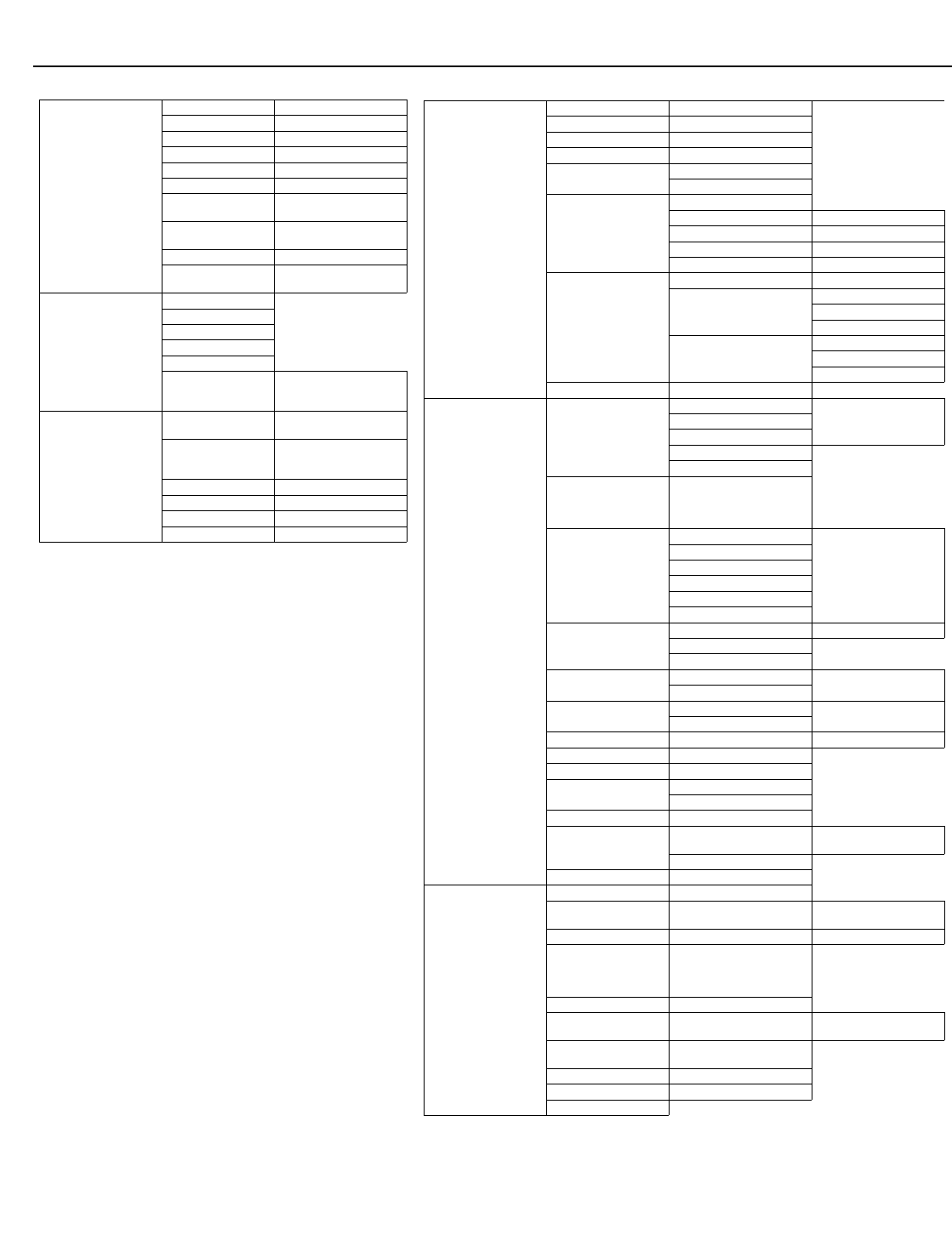
The CL-610 OSD menus are arranged hierarchically, as shown in Figure 4-1. Depending
on the selected input source and signal characteristics, some menu options may not be
available.
LIGHT
OFFON
VID S-VID COMP1
RGBHD HDMI
COMP2
Operation
Runco CL-610 Series Owner’s Operating Manual 31
PRELIMINARY
Figure 4-1. CL-610 OSD Menu Structure
Option
Reset Image Settings Yes / No
Sleep Timer 0, 10, 20, 30 ... 180 minutes
Lamp Hours (read only)
OSD Timer 0, 3, 6, 9 ... 60 seconds
OSD Position Horizontal
Vertical
PC & HD Adjust (480p
and higher-res. signals
only)
Auto
Frequency 0, +1, +2, +3 ... +17
Phase 0, +1, +2, +3 ... +31
H. Position -30, -29 ... 0 ... +29, +30
V. Position -28, -27 ... 0 ... +29, +30
PIP/PBP Set Up
(not available when used
with the SDC-1)
PIP/PBP Enable On / Off
PIP Set Up
PIP Off
Graphic in Video
Video in Graphic
PBP Set Up
PBP Off
Graphic by Video
Video by Graphic
DNR 0, +1, +2, +3 ... +15
Set Up
White Balance
Gamma
Red / Green / BlueGain
Offset
Store Color Temp. 4
Store Color Temp. 5
Gamma Selection
2.8, 2.5, 2.2, 1.0,
RUNCO Enhance 1,
RUNCO Enhance 2 or ISF
Day
SD Enhance
H Enhance
0, +1, +2, +3 ... +127
V Enhance
Chroma Enhance
H Threshold
V Threshold
Chroma Threshold
Image Over Scan
Total 0, +1, +2, +3 ... +15
Horizontal
Vertical
Image Shift Horizontal -30, -29, ... 0 ... +29, +30
Vertical
Amplitude Adjust Horizontal -60, -59 ... 0 ... +59, +60
Vertical
Horizontal Masking 0, +1, +2, +3 ... +100 (CineWide versions only)
Video Black Level 0 IRE or 7.5 IRE
Lamp Power 250W or 200W
Remote Control Primary
Secondary
Reset Lamp Timer Yes / No
Fan Control Mode Auto Normal,
Auto Hi. Altitude or Manual
Fan Speed (Manual Mode)
Return to User OSD
ISF
Calibration
Reset Picture Adjust Yes / No
Picture Adjust Brightness, Contrast, Color
etc. (see above)
White Balance Gamma, Gain, Offset etc. (see above)
Gamma Selection
2.8, 2.5, 2.2, 1.0,
RUNCO Enhance 1,
RUNCO Enhance 2 or ISF
Day
Blue Image On / Off
ICC Adjust NTSC / HDTV / PAL R / G / B / Y / C / M
Intensity / Sat. / Hue
Store Settings Memory 1, ISF Night or
ISF Day
Splash Screen Timer +5, +6, +7 ... +60 seconds
ISF Enable On / Off
Return to User OSD
Video
S-Video
Component1
Component2
RGB-HD
HDMI
Brightness 0 ... 60
Contrast 0 ... 32
Color 0 ... 64
Tint 0 ... 30
Sharpness -14 ... 0 ... +20
Filter 0, 1, 2 or 3
Color Temperature 0, 1 (5400 K), 2 (6500K), 3
(8500 K), 4 or 5 (Custom)
ICC Selection Standard, NTSC, HDTV or
PAL
Store Image Settings Memory 1
Restore Image
Settings
Memory 1, ISF Night or ISF
Day
Aspect Ratio
Anamorphic (16:9)
Standard (4:3)
Letterbox
Virtual Wide
Cinema
Virtual Cinema
(available only on CL-610
projectors equipped with
the CineWide option)
Installation
Language English, French, Spanish,
German or Italian
Picture Orientation
Floor Front, Floor Rear,
Ceiling Front or Ceiling
Rear
Keystone Adjust -14, -13 ... 0 ... +13, +14
Background Color Blue or White
RS-232 Baud Rate 9600, 38400 or 115200
Blue Image On / Off
Operation
32 Runco CL-610 Series Owner’s Operating Manual
PRELIMINARY
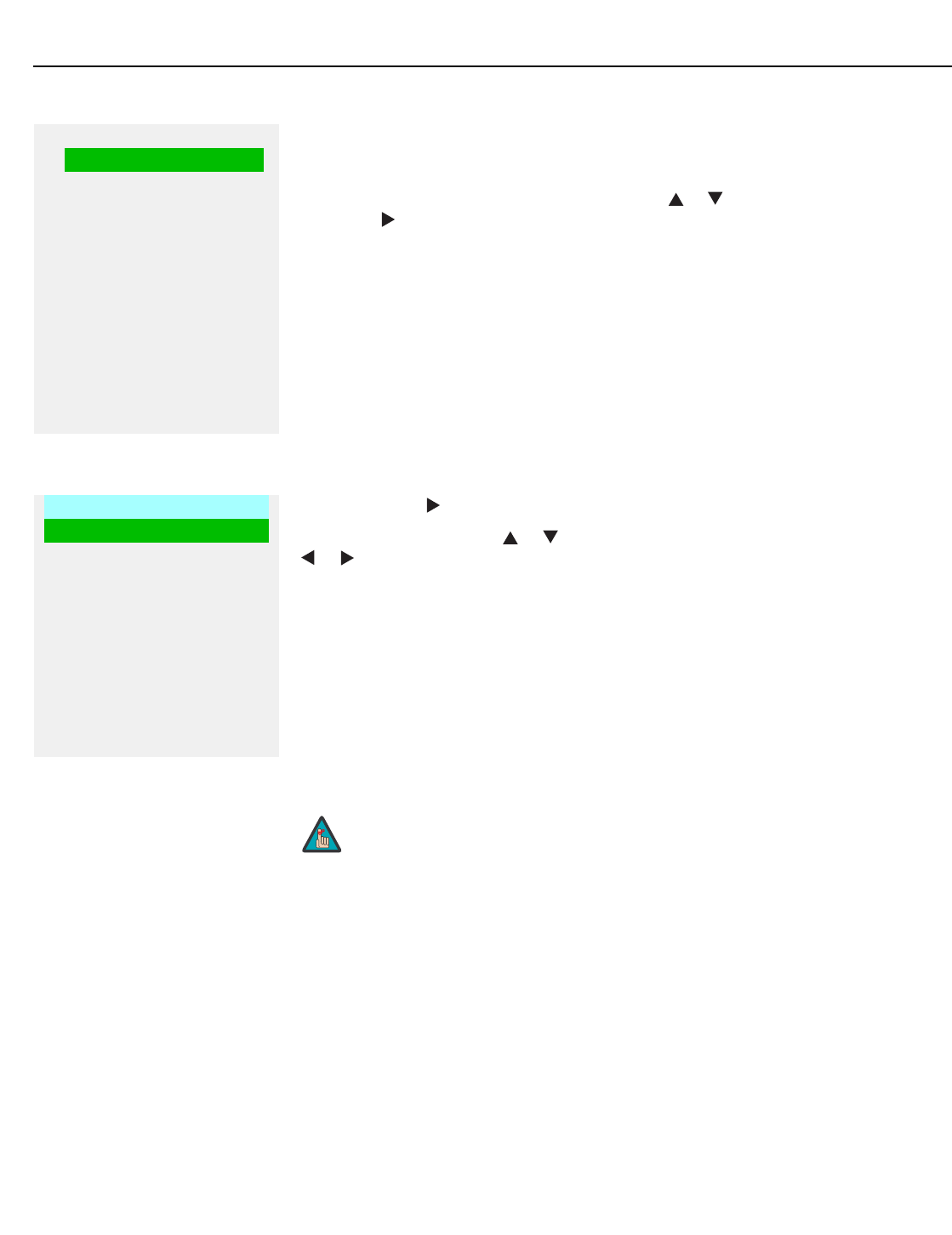
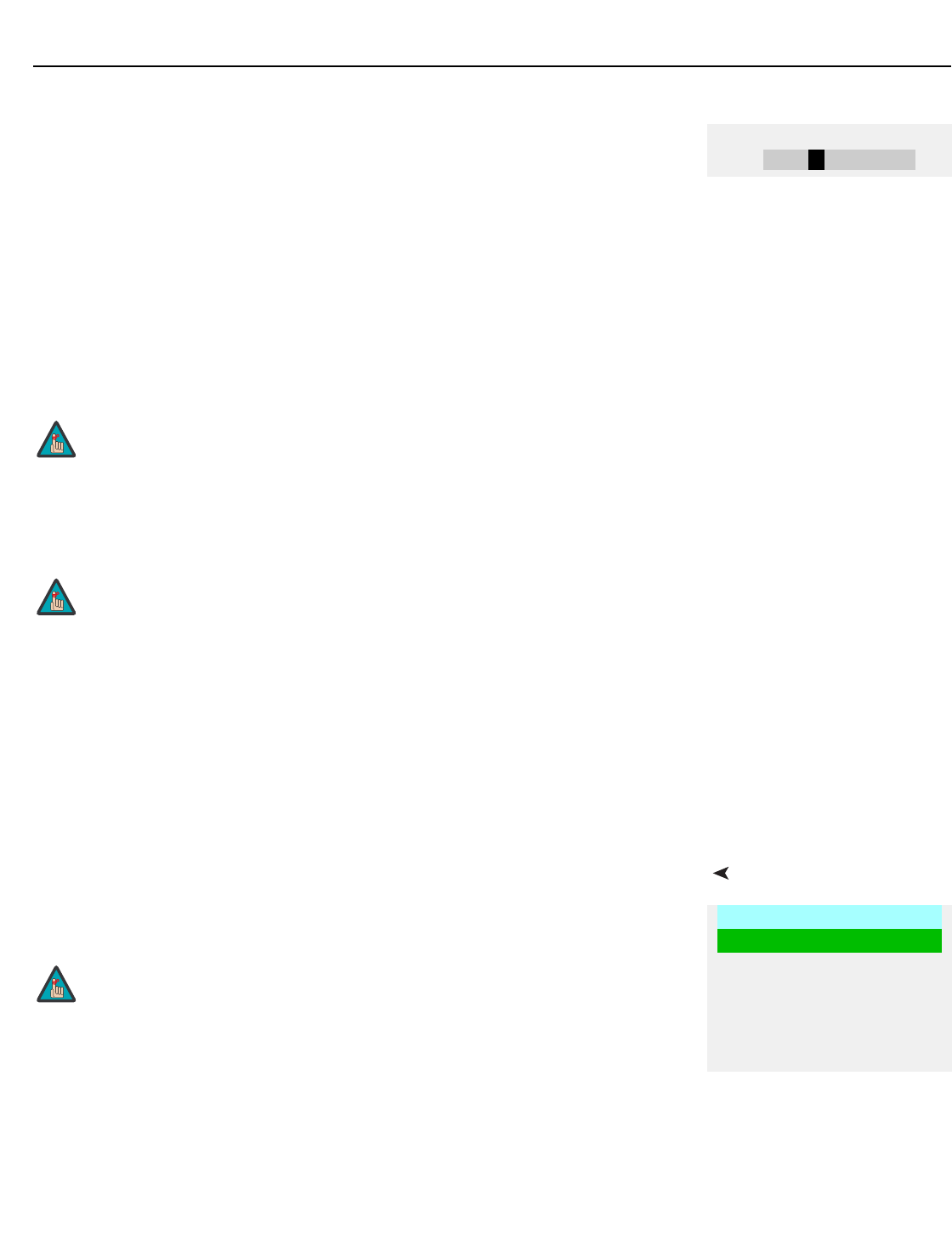
Main Menu The Main Menu is the starting point for accessing all projector functions.
(The Set Up and ISF Calibration menus are hidden and not accessible until you enter a
passcode.)
The active source is indicated by an arrow (>) to its left; in the example at left, Video is the
active source. To select a different source, use the or button to highlight it and press
ENTER or .
Picture Adjustment Use the controls in the Adjustment Menu to calibrate your CL-610 for optimum picture
quality. To access the Adjustment menu, press MENU, highlight the active source and
press ENTER or .
To adjust a setting, use the or button to highlight it and press ENTER. Use the
or button to change the setting. When finished, press EXIT.
The CL-610 has been designed to incorporate setup and calibration standards
established by the Imaging Science Foundation (ISF). The ISF has developed carefully
crafted, industry-recognized standards for optimal video performance and has
implemented a training program for technicians and installers to use these standards to
obtain optimal picture quality from Runco video display devices. Accordingly, Runco
recommends that setup and calibration be performed by an ISF certified installation
technician.
All signal types require separate processing. Therefore, you need to calibrate each input
separately.
Runco CL-610
>Video
S-Video
Component1
Component2
RGB-HD
HDMI
- - - - - - - - - - - - - - - - -
Aspect Ratio
Installation
Option
Set Up
ISF Calibration
➤
Adjustment
Brightness
Contrast
Color
Tint
Sharpness
Filter
Color Temperature
ICC Selection
Store Image Settings
Restore Image Settings
➤
When you change a picture quality setting, save the change to a
preset afterwards. Otherwise, the change will be lost when a
different input is selected. (Picture quality settings are saved for
each input and resolution separately.) For information about saving
settings, refer to Store Image Settings on page 37.
Note
Operation
Runco CL-610 Series Owner’s Operating Manual 33
PRELIMINARY
Although it may be possible to obtain satisfactory picture quality using the naked eye and
regular program material, Runco recommends using the following calibration tools for best
results:
• External test pattern source -- Ovation Multimedia, Digital Video Essentials or AVIA test
DVD or equivalent.
• A blue filter (provided with many test DVDs), for color level and tint adjustments.
Connect your test pattern source to the input that you are calibrating and proceed as
follows. Perform the adjustments in the order listed here.
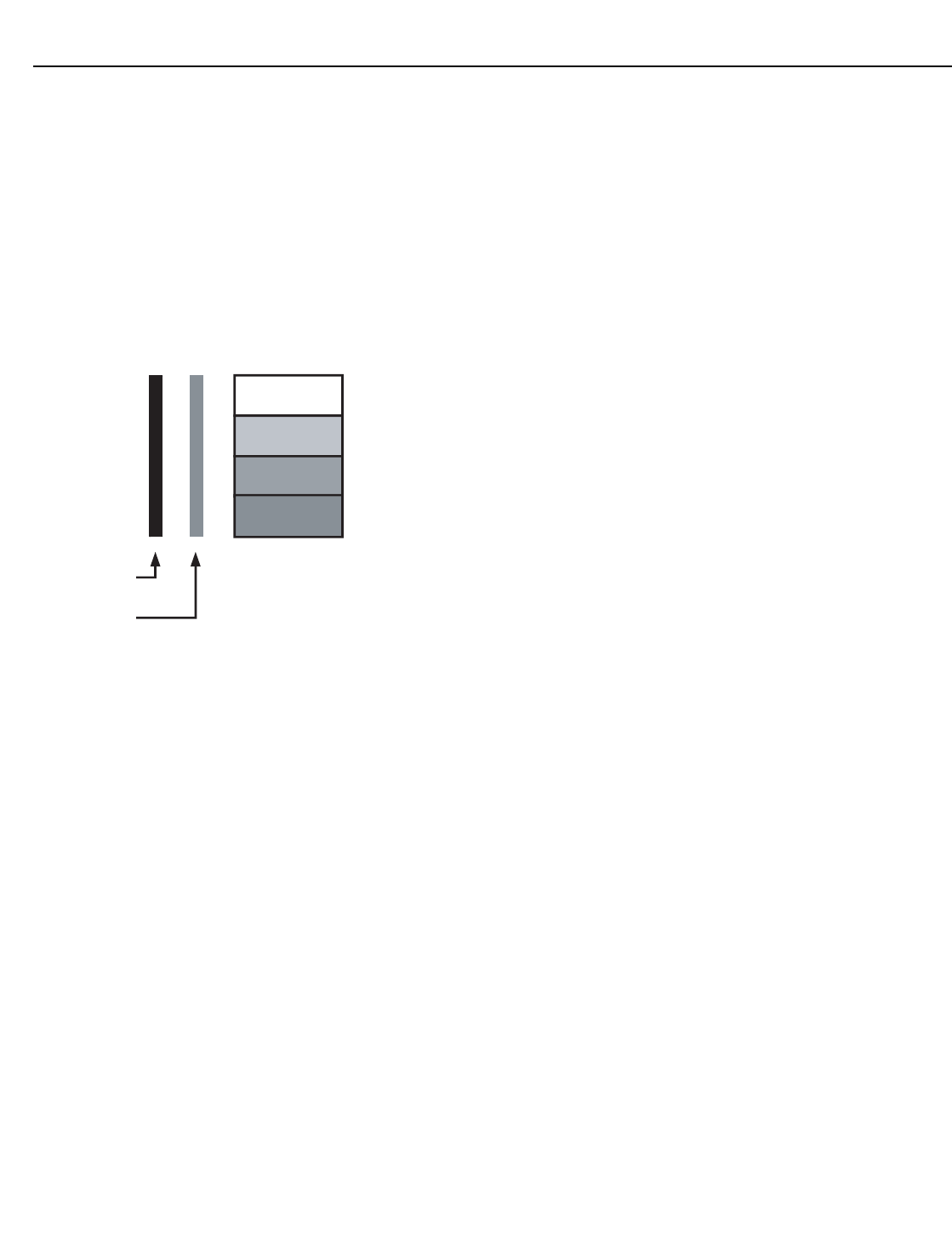
Brightness: On your external test pattern source, select a PLUGE pattern. (PLUGE is an
acronym for “Picture Line-Up Generation Equipment.”) Figure 4-2 shows a typical PLUGE
pattern.
Figure 4-2. Typical PLUGE Pattern for Adjusting Brightness
PLUGE patterns vary but generally consist of some combination of black, white and gray
areas against a black background. The example above includes two vertical bars and four
shaded boxes.
Select Brightness from the Adjustment menu and press ENTER. Adjust the brightness so
that:
• The darkest black bars disappear into the background.
• The dark gray areas are barely visible.
• The lighter gray areas are clearly visible.
• The white areas are a comfortable level of true white.
• The image contains only black, gray and white (no color).
Below Black
A
bove Black
Operation
34 Runco CL-610 Series Owner’s Operating Manual
PRELIMINARY
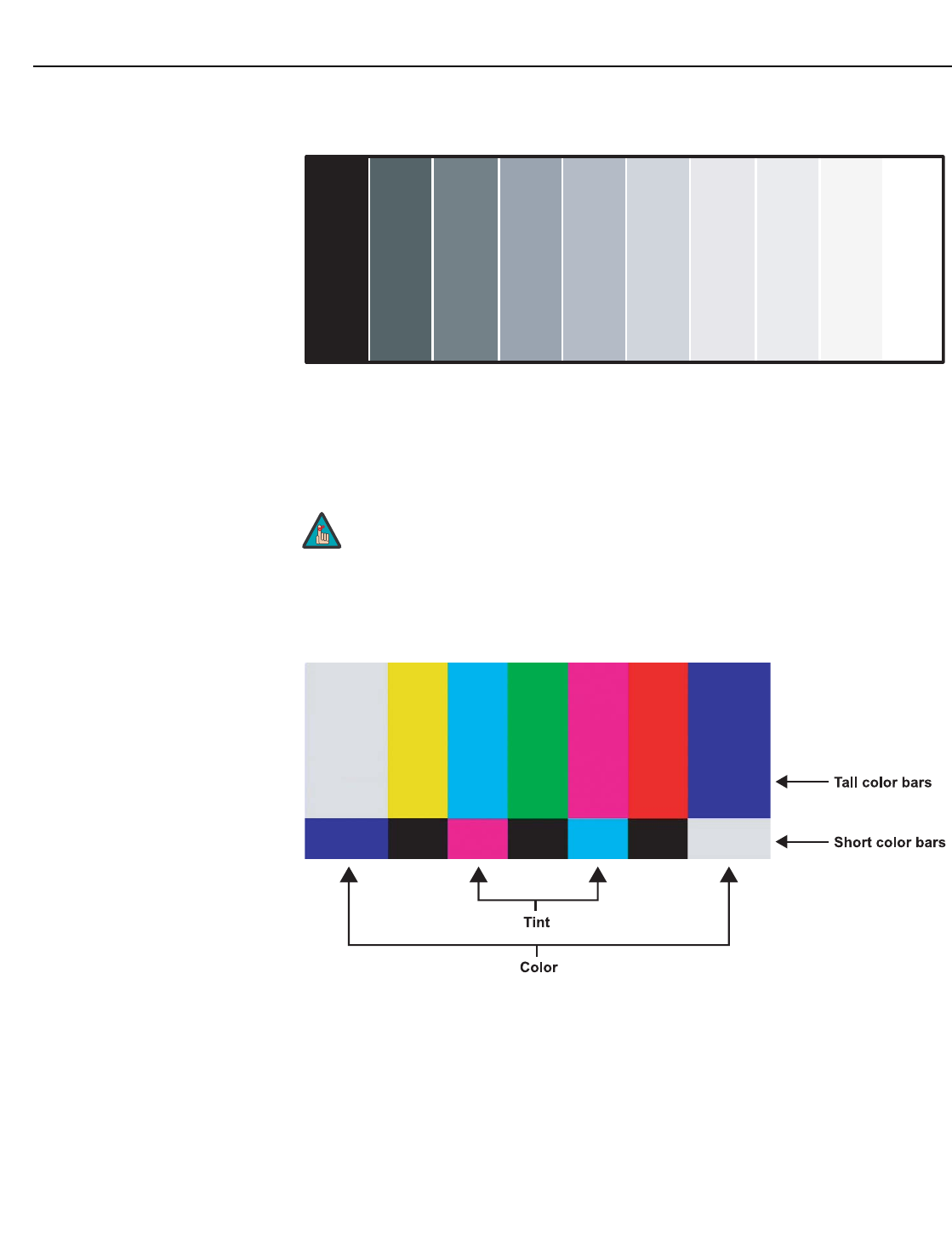
Contrast: On your external test pattern source, select a stepped, gray-bar pattern like the
one shown in Figure 4-3.
Figure 4-3. Typical Gray Bar Pattern for Adjusting Contrast
Select Contrast from the Adjustment menu and press ENTER. Adjust the contrast to a
point just below which the white rectangle starts to increase in size.
Color Saturation: On your external test pattern source, select a color bar pattern like the
one shown in Figure 4-4.
Figure 4-4. Typical Color Bar Pattern for Adjusting Color Saturation and Tint
Brightness and contrast controls are interactive. A change to one
may require a subtle change to the other in order to achieve the
optimum setting.
Note
gray
yellow
cyan
green
magenta
red
blue
Operation
Runco CL-610 Series Owner’s Operating Manual 35
PRELIMINARY
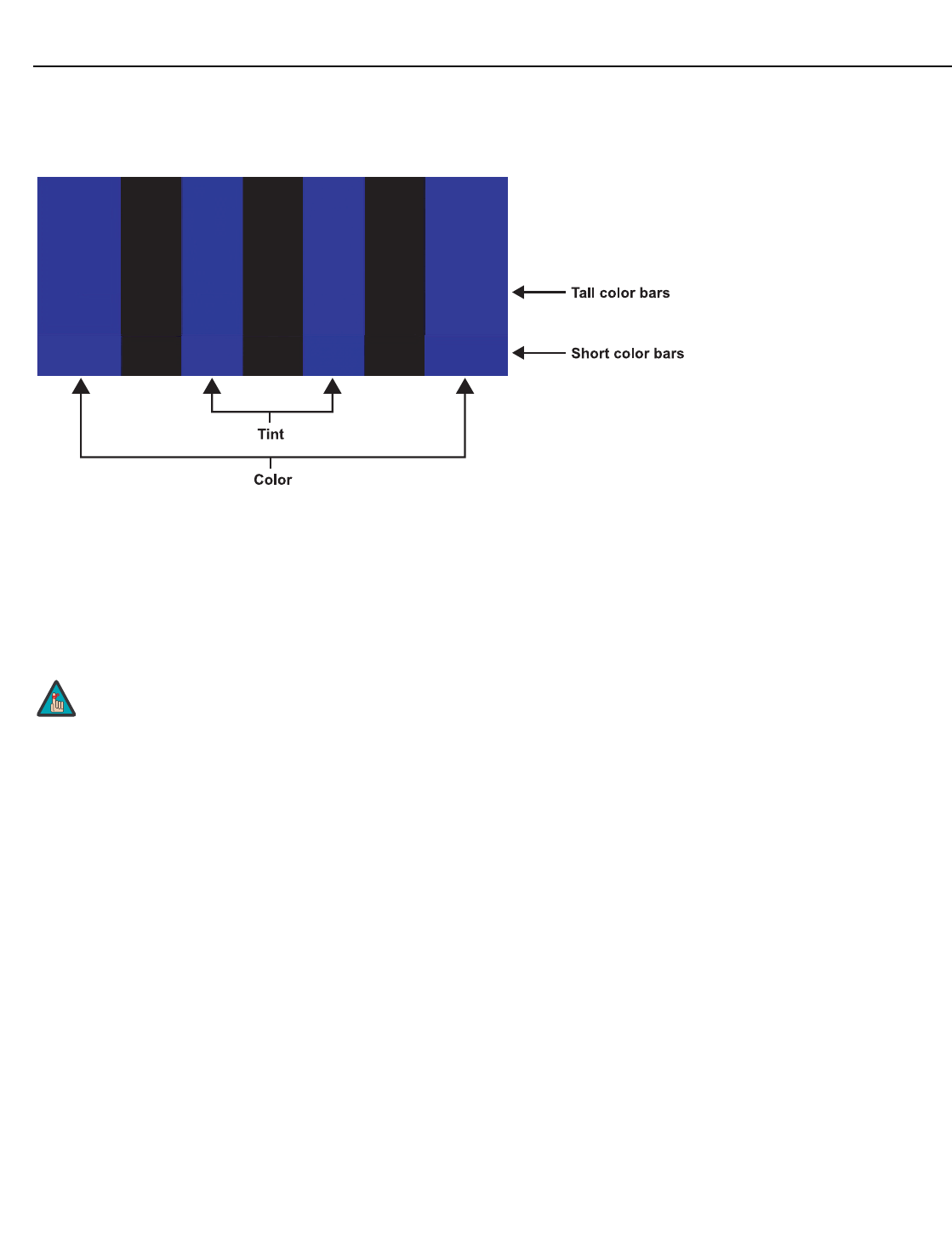
Select Color from the Adjustment menu and press ENTER. While looking at the color bar
pattern through a blue filter, adjust the color saturation level until the outermost (gray and
blue) color bars appear to be a single shade of blue:
Tint: Tint or “hue” is essentially the ratio of red to green in the color portion of the image.
When tint is decreased, the image appears redder; when it is increased the image
appears greener. To set the tint, select Tint from the Adjustment menu and press ENTER.
While looking at the color bar pattern through a blue filter, adjust the tint level until the cyan
and magenta color bars (on either side of the green bar) appear to be a single shade of
blue.
Like the brightness and contrast controls, the color and tint controls
are interactive. A change to one may require a subtle change to the
other in order to achieve the optimum setting.
gray
yellow
cyan
green
magenta
red
blue
Note
Operation
36 Runco CL-610 Series Owner’s Operating Manual
PRELIMINARY
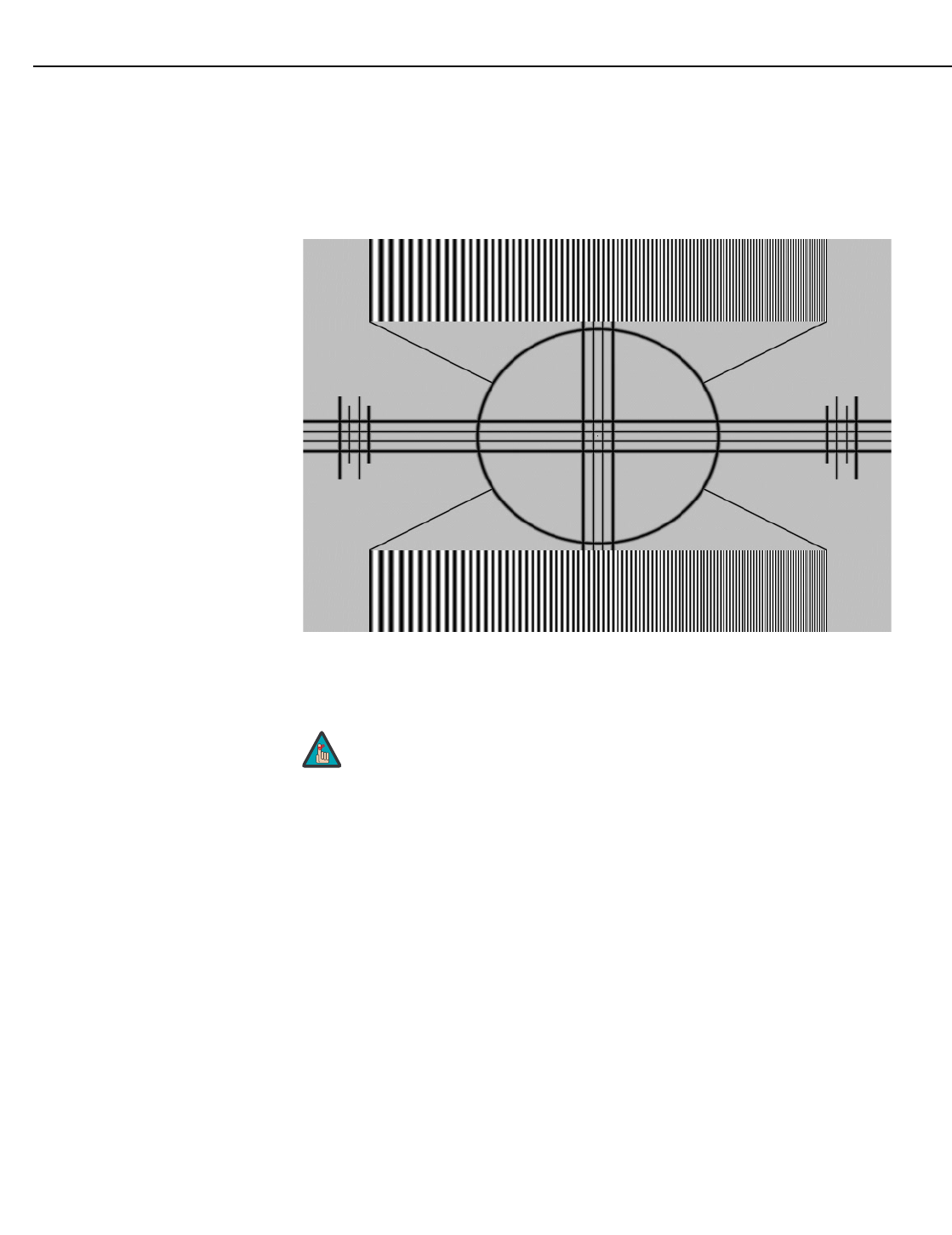
Sharpness: “Sharpness” is the amount of high-frequency detail in the image. To adjust
sharpness, select Sharpness from the Adjustment menu and press ENTER. On your
external test pattern source, select a pattern like the one shown in Figure 4-5. Adjust as
needed, looking for white edges around the transitions from black to gray and
differently-sized lines in the “sweep” patterns at the top and bottom. Lower the sharpness
setting to eliminate them.
Figure 4-5. Typical Test Pattern for Adjusting Sharpness
Filter: The Filter setting controls the behavior of the Sharpness control. The available
settings depend on the vertical resolution of the input signal, as follows:
•With a 480i signal, you can apply the sharpness control to either the input signal (1),
the output signal (2), both (3) or neither (0).
•With a 480p or higher-resolution signal, the sharpness control is applied only to the
output signal and only when you set the Sharpness Filter to “on” (1).
The Sharpness setting has no effect if the Sharpness Filter (see
below) is set to 0.
Note
Operation
Runco CL-610 Series Owner’s Operating Manual 37
PRELIMINARY
Color Temperature: The CL-610 has six memory settings for Color Temperature. Four
of these settings are factory set to default as follows:
• 0 -- Original lamp color temperature
• 1 -- 5400 kelvins
• 2 -- 6500 kelvins
• 3 -- 8500 kelvins
•4 -- Custom
•5 -- Custom
Custom 4 and 5 memory are installer-adjustable and can be used to create custom
settings. There are nine adjustable “white balance” parameters available for the Custom 4
and 5 settings (three each for red, green and blue). These are described later in this
section; refer to Set Up on page 42.
ICC Selection: Use the ICC Selection menu to select the color space that is appropriate
for the source signal, to achieve optimal color balance.
If you select NTSC, HDTV or PAL, you can make further adjustments to individual color
space characteristics in the ICC Adjust sub-menu under the ISF Calibration menu,
described later in this section. (The Standard color space is factory-set and not
adjustable.)
Store Image Settings: Once the desired adjustments have been entered, select Store
Image Settings to save these settings into the “Memory 1” memory location.
Restore Image Settings: To recall stored custom image quality settings, select Restore
Image Settings and choose “Memory 1,” “ISF Night” or “ISF Day.”
Aspect Ratio To change the aspect ratio (size and shape) of the projected image, select Aspect Ratio
from the Main Menu and press ENTER. Select the appropriate aspect ratio for your
screen size and the type of program material being viewed; refer to Table 4-1.
Color Temperature
2 - +
You must enter a passcode in order to enter the Set Up menu.
The International Color Consortium (ICC) is a group of imaging
product vendors that promotes and develops cross-platform,
vendor-neutral color measurement and management standards.
Note
Note
Aspect Ratio
Anamorphic (16:9)
Standard (4:3)
Letterbox
Virtual Wide
Cinema
Virtual Cinema
When you change the aspect ratio, save the change to a preset
afterwards. Otherwise, the change will be lost when a different
input is selected. (The aspect ratio is saved for each input and
resolution separately.)
Note
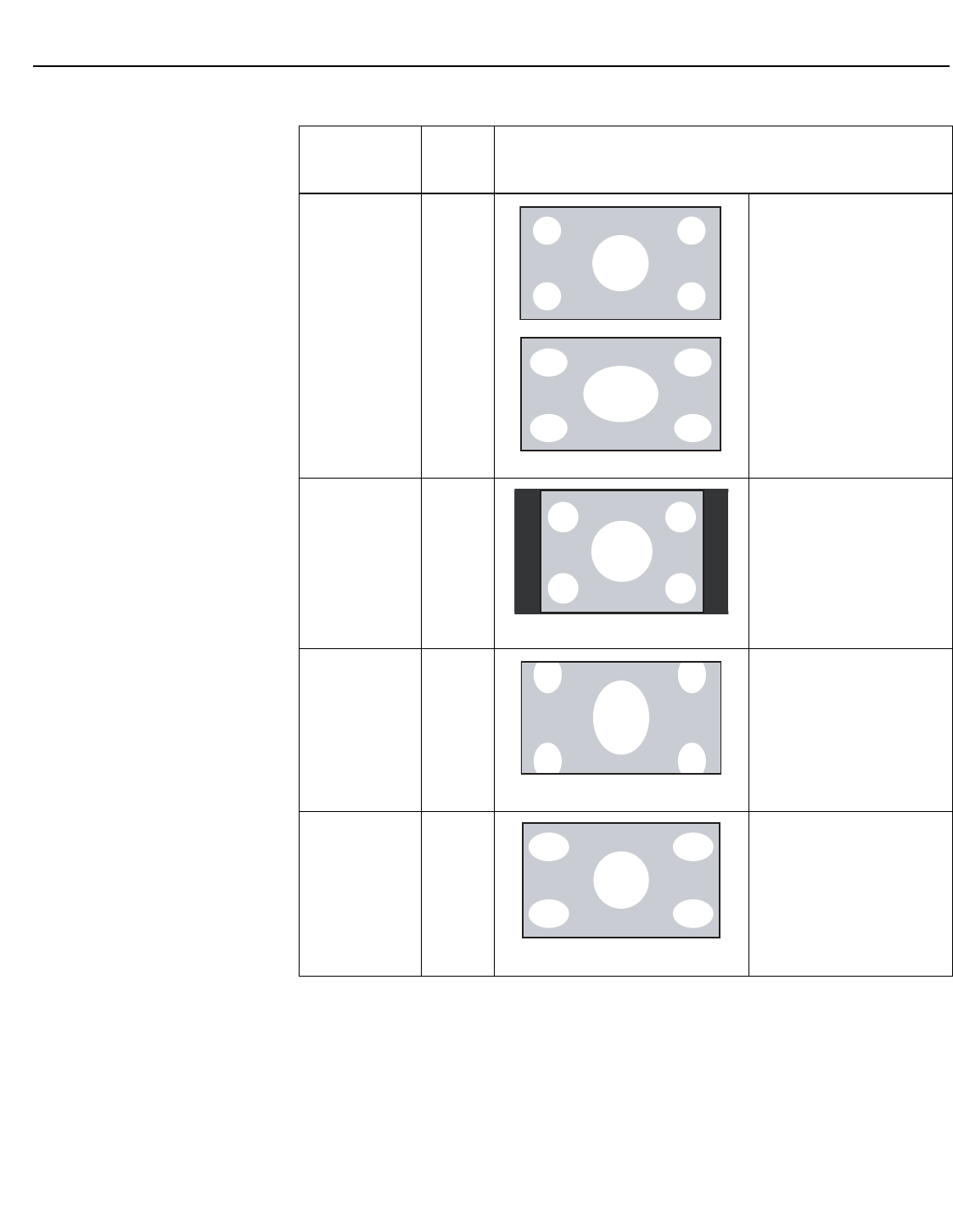
Operation
38 Runco CL-610 Series Owner’s Operating Manual
PRELIMINARY
Table 4-1. Aspect Ratio Settings
Aspect Ratio
Remote
Control
Key
Description
Anamorphic ANA Select Anamorphic to view
16:9 DVDs and HDTV
programs in their native
aspect ratio. 4:3 images are
stretched horizontally to fit a
16:9 screen.
Standard 4:3 4X3 Standard 4:3 scales the
input signal to fit in the
center of the 16:9 screen.
4:3 is the aspect ratio used
by computer monitors,
standard television
programming and most
VHS video cassettes.
Letterbox LBOX In Letterbox mode, the
image is stretched vertically;
the top and bottom
portions are “blanked off.”
Letterbox is best suited for
viewing LaserDisc movies
or non-anamorphic DVDs
on a 16:9 screen.
VirtualWide VWIDE VirtualWide scales a 4:3
image NON-linearly (more
on the sides than in the
center) to fit a 16:9 screen.
4:3 Image on
16:9 Screen
16:9 Image on
16:9 Screen
Active Image
Area (4:3)
Letterbox Image on
16:9 Screen
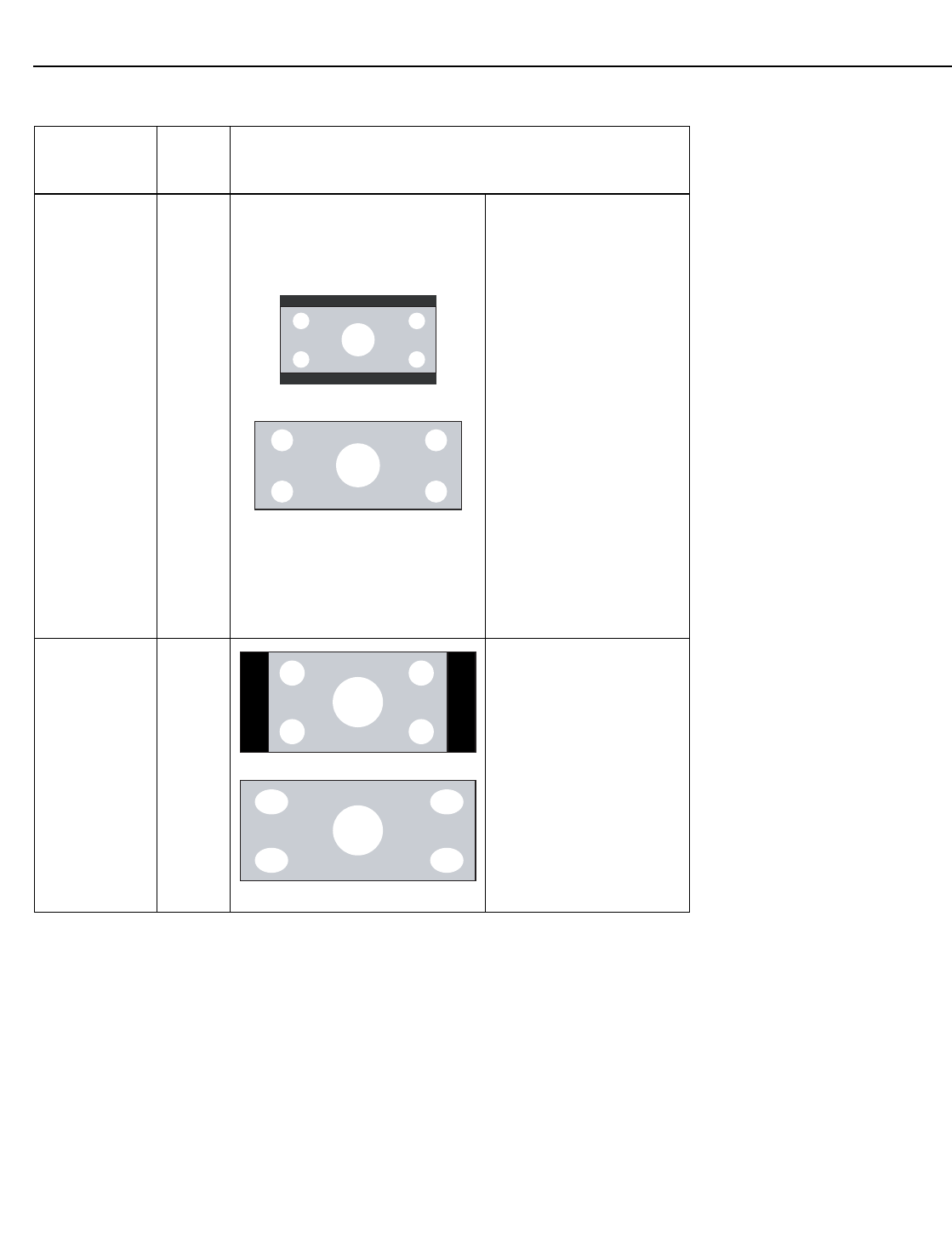
Operation
Runco CL-610 Series Owner’s Operating Manual 39
PRELIMINARY
Cinema CINEMA Select Cinema to view 2.35
source material in its native
aspect ratio.
With a 16:9 screen and a
non-CineWide projector (no
anamorphic lens), the upper
and lower portions of the
screen are masked, but the
geometry of the active
image area is unchanged.
With a 2.35:1 screen and a
CineWide-equipped
projector, the projector
enlarges the 2.35:1 image
so that the active image
area fills the 16:9 chip
surface, eliminating the
black bars. The secondary
anamorphic lens then
vertically compresses the
image to fit a 2.35:1 screen.
Virtual Cinema VCINE A 16:9 image is scaled
NON-linearly (more on the
sides than in the center) to
fit a 2.35:1 screen.
Virtual Cinema is available
only on the
CL-610/CineWide and
CL-610LT/CineWide.
Table 4-1. Aspect Ratio Settings (continued)
Aspect Ratio
Remote
Control
Key
Description
2.35:1 Image on
16:9 Screen
(without CineWide)
2.35:1 Image on
2.35:1 Screen
(with CineWide)
16:9 Image on
2.35:1 Screen
16:9 Image on
2.35:1 Screen with
Virtual Cinema
16:9 Image on
2.35:1 Screen
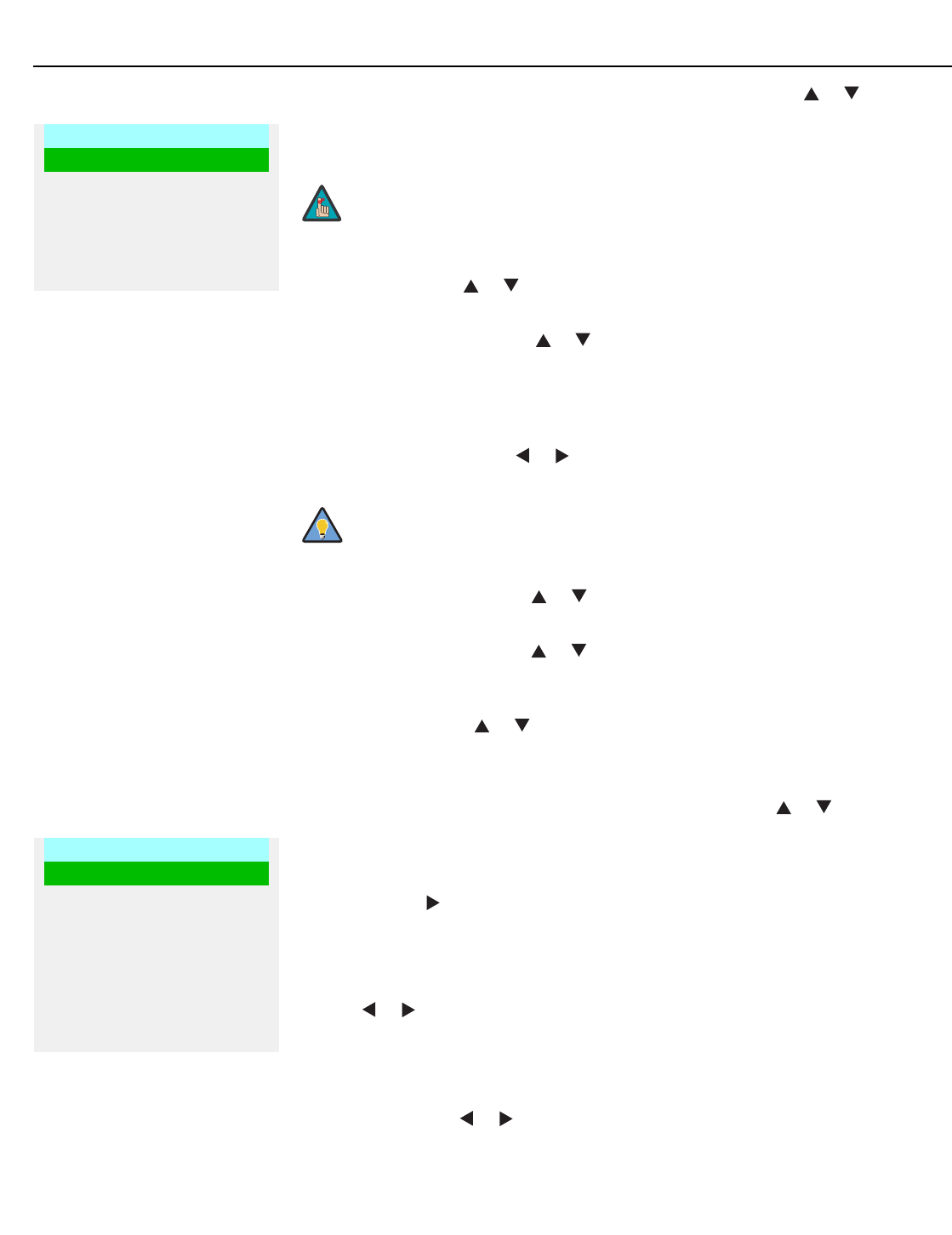
Operation
40 Runco CL-610 Series Owner’s Operating Manual
PRELIMINARY
Installation To access the Installation adjustments, press MENU, then press the or button to
highlight Installation and press ENTER. The Installation sub-menu, shown at left, appears.
Press EXIT to return to the previous menu or press MENU to close all menus.
Language: Press the or button to select from the available languages: English,
French, Spanish, German and Italian.
Picture Orientation: Press the or button to change the orientation of the projected
image. The CL-610 can be installed on a ceiling or in a rear-screen configuration with one
or more mirrors. There are four settings: Floor Front, Ceiling Front, Floor Rear and Ceiling
Rear.
Keystone Adjust: To correct distortion resulting from the angle of projection, select
Keystone Adjust and use the or button to make the image rectangular.
Background Color: Press the or button to select the image Background Color
(blue or white). The Background Color appears when no incoming signal is present.
RS-232 Baud Rate: Press the or button to select the projector’s RS-232 Baud
Rate. This function is used to change the transfer rate of the RS-232 connection. (This
setting must match the data rate of the device connected to the RS-232 input.)
Blue Image: Press the or button to turn the Blue Image Off or On. This feature
removes all red and green color information from the image (simulating a blue filter), and is
useful for color-calibrating the projector or other video components.
Option To access the Option adjustments, press MENU, then press the or button to
highlight Option and press ENTER. The Installation sub-menu will then appear (see
above). Press EXIT to return to the previous menu or press MENU to close all menus.
Reset Image Settings: To restore the default image settings for the current input source
ONLY, press the button to highlight “Yes,” then press ENTER.
Sleep Timer: The Sleep Timer automatically puts the projector into standby mode after
the amount of time you specify here. (A warning appears on-screen one minute before this
is to occur.)
Use the or button to set the timer for anywhere from 10 minutes to 3 hours, in
10-minute increments. To disable the Sleep Timer, set it to 0.
Lamp Hours: To find out how long the projector lamp has been in use, select Lamp
Hours and press ENTER.
OSD Timer: Use the or button to set the OSD Timer. This timer controls how long
the menus remain on-screen after selecting them. Select from 0 to 60 seconds, in
3-second increments. When you set the OSD to 0, the menus remain on-screen until you
hide them by pressing MENU.
Installation
Language
Picture Orientation
Keystone Adjust
Background Color
RS-232 Baud Rate
Blue Image
➤
When you change a setting in the Installation menu, the change
takes effect immediately; you do not need to press ENTER
afterwards. (Press EXIT to return to the previous menu or MENU
to exit.)
Runco recommends that the keystone feature not be used unless
absolutely necessary, as it may cause artifacts in the image.
Note
Tip
Option
Reset Image Settings
Sleep Timer
Lamp Hours
OSD Timer
OSD Position
PC & HD Adjust
PIP/PBP Set Up
DNR
➤
Operation
Runco CL-610 Series Owner’s Operating Manual 41
PRELIMINARY
To adjust the horizontal and vertical position of the OSD, select OSD Position and press
ENTER. Then, press the or button to select Horizontal or Vertical and use the
or button to adjust.
PC & HD Adjust: Use the settings in the PC & HD Adjust menu to fine-tune 480p and
higher-resolution signals for optimum picture quality.
•Auto: Adjusts the phase, frequency and position automatically.
•Freq. Adjusts the frequency of the signal.
•Phase: Adjust the phase if the image (usually from an RGB source) shows shimmer or
“noise.” Pixel phase adjusts the phase of the pixel sampling clock relative to the
incoming signal. The effect of this control is similar to that of a tracking control on a
VCR.
For best results, use a good test pattern such as a smooth gray consisting of a clear
pattern of black and white pixels, or a similar “half on, half off” graphic image. (You may
find that you can stabilize the image at more than one point. Use either setting in this
case.)
• H. Pos.: Adjusts the horizontal position of the image.
• V. Pos.: Adjusts the vertical position of the image.
PIP/PBP Set Up: Select PIP/PBP Set Up from the Option menu to change the PIP/PBP
settings.
• PIP/PBP Enable: Press the or button to select PIP/PBP Enable, then press
ENTER. Press the or button to select Off or On, then press ENTER.
•PIP Set Up: Press the or button to select PIP Set Up, then press ENTER. Press
the or button to select PIP Off, Graphic in Video or Video in Graphic, then press
ENTER.
• PBP Set Up: Press the or button arrows to select PBP Set Up, then press
ENTER. Press the or button to select PBP Off, Graphic by Video or Video by
Graphic, then press ENTER.
DNR: Use the or button to adjust the Digital Noise Reduction (DNR). DNR is useful
for clearing up noisy images from interlaced SD sources. Adjust as desired, keeping in
mind that reducing noise (which reduces high frequencies) may also soften the image.
To adjust the image position with a 480i source, use the Image
Shift controls in the Set Up menu (see page 43).
Note
Operation
42 Runco CL-610 Series Owner’s Operating Manual
PRELIMINARY
Set Up To access advanced picture quality adjustments, use the up- or down-arrow keys to
highlight Set Up and press ENTER. Use the number buttons on the remote to enter the
Set Up menu passcode when prompted and press ENTER again. Then, press MENU on
the remote control.
White Balance: To remove any trace of color from the white areas of the projected
image, choose White Balance from the Set Up menu and press ENTER.
• Gamma: “Gamma” is a global setting that determines how gray shades are displayed
between minimum input (black) and maximum input (white) for all signals. A good
gamma setting helps to optimize blacks and whites while ensuring smooth transitions
for the “in-between” values utilized in other grays. Unlike “Brightness” and “Contrast”
controls, the overall tone of your images can be lightened or darkened without
changing the extremes and all images will be more vibrant while still showing good
detail in dark areas.
In all but the most unusual situations, the appropriate “Gamma Selection” (see below)
will produce accurate colors and a satisfying contrast level. However, it is sometimes
necessary to adjust the red, blue and green gamma curves individually. To do this,
select Gamma from the White Balance sub-menu and use the left- and right-arrow
buttons to manipulate the on-screen slidebars.
•Gain: Use the Gain controls to correct color imbalances in the bright areas of the
image. A good way to do this is to use a test pattern consisting mostly of solid white
areas, such as an 80 IRE “window” pattern. If the white areas contain traces of red,
green or blue, decrease the Gain for that color.
•Offset: Use the Offset controls in the White Balance sub-menu to correct color
imbalances in the dark areas of the image. A good way to do this is to use a test
pattern consisting mostly of dark gray areas, such as a 30 IRE “window” pattern. If the
gray areas contain traces of red, green or blue, decrease the Offset for that color.
• Store Color Temp.4/Store Color Temp.5: When you are finished adjusting the
Gamma, Gain and Offset, select Store Color Temp.4 or Store Color Temp.5 to store
your settings. To recall them, set the Color Temperature to +4 or +5 in the Image
Adjustment menu (refer to Picture Adjustment on page 32).
Gamma Selection: The normal gamma setting of 2.2 is correct for almost all signals and
conditions. If excess ambient light washes out the image and it becomes difficult or
impossible to see details in dark areas, lower the gamma setting to compensate. This will
improve contrast while maintaining good details for blacks. Conversely, if the image is
washed out and unnatural, with excessive detail in black areas, increase the setting.
Again, good gamma improves contrast while maintaining good details for blacks and
whites.
Set Up
White Balance
Gamma Selection
SD Enhance
Image Over Scan
Image Shift
Amplitude Adjust
Horizontal Masking
Video Black Level
Lamp Power
Remote Control
Reset Lamp Timer
Fan Control
Return to User OSD
➤
You only need to enter the Set Up menu passcode the first time
you select that menu after turning on the projector.
Note

Operation
Runco CL-610 Series Owner’s Operating Manual 43
PRELIMINARY
SD Enhance: The SD Enhance menu gives you options for improving the quality of
standard-definition, 480i images. (For 480p and higher-definition images, the controls in
this menu are disabled.) Keep in mind that these controls add frequencies that are not
present in the original signal, and may make images appear “noisy” if misused.
• H Enhance/V Enhance: These controls can improve the apparent horizontal and/or
vertical resolution of the image.
• Chroma Enhance: This control adds chroma (color information) to the input signal
and can make colors appear more vibrant and saturated.
• H Threshold/V Threshold/Chroma Threshold: Set these to +11 or higher to
activate the enhancement controls described above. Generally, the higher the
threshold, the more noticeable the enhancements you make will be.
Image Over Scan: Image Over Scan pushes the outside edge of the active picture area
of the video signal out beyond the edge of the display area.
Some television programs are produced based on the assumption that older television
sets may not display the outer edges of the broadcast picture area. Over scan effectively
trims away these inactive, outer edges and enlarges the remaining portion of the image to
fill the display area.
Use the on-screen slidebar to select the desired amount of over scan.
For HDTV, DVDs and other video sources, Image Over Scan is generally not necessary or
desirable.
Image Shift: The Image Shift menu allows you to precisely center the image on the
screen. (These controls are available only with a 480i source signal.)
• Horizontal: This control moves the image right or left within the area of available pixels.
• Vertical: This option moves the image up or down within the area of available pixels.
Amplitude Adjust: The Amplitude Adjust menu allows you to fine-tune the
currently-selected image aspect ratio by stretching it horizontally or vertically, in small
increments. This can be useful if your projector is equipped with an anamorphic lens.
The Horizontal control adjusts the image width while keeping the height constant.
Similarly, the Vertical control adjusts the image height while keeping the width constant.
Horizontal Masking (CL-610/CineWide and CL-610LT/CineWide only): To achieve
the proper image geometry with the secondary anamorphic lens, select Horizontal
Masking from the Set Up menu. Then, use the or button to change the native aspect
ratio of the display, in small increments.
1. To adjust the image position with a 480p or higher-resolution
source, use the PC & HD Adjust controls in the Option menu,
described on page 41.
2. The values shown represent where the approximate center of the
image lies in relation to the total number of pixels available
horizontally or vertically. This varies widely according to the
signal; watch the image while adjusting.
Note

Operation
44 Runco CL-610 Series Owner’s Operating Manual
PRELIMINARY
Video Black Level: This control compensates for incoming elevated black levels present
in certain video signals, and ensures that blacks in the display are neither “crushed”
(where dark grays appear black) nor excessively elevated (where blacks appear dark
gray). By default, the projector automatically determines the best setting according to the
type of incoming video signal:
•0 IRE: Used for DVD output with “enhanced black,” SECAM, most PAL standards and
Japanese NTSC.
•7.5 IRE: Used for most NTSC video signals.
For some types of video, you may want to override the setting. Generally, if black appears
crushed when brightness = 30, choose “0 IRE.” If black appears excessively elevated, use
“7.5 IRE.”
Lamp Power: Select Lamp Power from the Set Up Menu to adjust the lamp output level.
You can choose to run the lamp as bright as possible (250W; this is the default setting) or
you can choose the lower (200W) setting. Generally, lower lamp output can prolong the
life of the lamp, but decreases brightness.
Remote Control: The Remote Control menu shows you the primary and secondary
infrared (IR) codes to which the CL-610 will respond. The Primary IR code is permanently
set to +20. The secondary IR code is also +20.
You can change the secondary IR code if either:
• Another device in the theater (a DVD player, for example) is responding to commands
from the CL-810 remote control in ways that are unpredictable or undesirable.
• You have multiple CL-610 projectors and want to control them independently, as
opposed to broadcasting commands from a single remote to all of them. In this
scenario, you can use multiple remotes programmed to use different IR codes. Or, you
can use a single remote and change the IR code as needed to address a specific
projector.
When you change the secondary IR code, the remote sends that code instead of the
primary IR code.
To simultaneously change the secondary IR code and synchronize that remote with a
projector, point the remote at the projector, then press and hold and simultaneously
for five seconds. The Remote Control edit window, shown at right, appears. Type a new,
two-digit code.
The procedure for changing the secondary IR code on the remote only is the same,
except that you point the remote away from the projector.
The Remote Control menu is read-only and need not be visible in
order to change the secondary IR code.
Note
Operation
Runco CL-610 Series Owner’s Operating Manual 45
PRELIMINARY
Reset Lamp Timer: When you replace the projector lamp (refer to Lamp Replacement
on page 49), you should also reset the lamp timer. To do this, select Reset Lamp Timer
from the Set Up menu. Press the right-arrow key on the remote to highlight “Yes,” then
press ENTER to confirm the reset.
Fan Control: Select Fan Control from the Set Up Menu to control the operation of the
projector’s cooling fan.
•Mode: In most cases, the default Fan Control Mode (Auto Normal) will maintain the
correct operating temperature. If the lamp frequently turns off due to overheating, or in
certain high-altitude operating environments, you may need to change this setting to
Auto Hi. Altitude or Manual.
•Fan Speed: If you set the Fan Mode to Manual, select Fan Speed and use the
on-screen slidebar to adjust the speed.
After changing either of these settings, press EXIT to return to the previous menu.
Return to User OSD: To exit the Set Up menu, use the up- or down-arrow keys to
highlight Return to User OSD and press ENTER.
To return to the Set Up menu, select it from the Main Menu, press ENTER twice, then
press MENU on the remote control. (You do not need to re-enter the passcode.)
Reset the Lamp Timer ONLY after you replace the lamp. Otherwise,
the reported “Lamp Hours” will be inaccurate.
Do not exceed the recommended lamp life of 2000 hours. An old
lamp becomes increasingly fragile and prone to sudden failure.
Note
WARNING
Operation
46 Runco CL-610 Series Owner’s Operating Manual
PRELIMINARY
ISF Calibration To access the ISF Calibration menu, select ISF Calibration from the Main Menu and press
ENTER. Use the number buttons on the remote control to enter the ISF Calibration menu
passcode when prompted and press ENTER again. Then, press MENU on the remote
control.
Reset Picture Adjust: To restore the ISF default image settings for the current input
source ONLY, press the button to highlight “Yes” then press ENTER.
Picture Adjust: These settings are described in the Picture Adjustment section
(page 32).
White Balance / Gamma Selection: These settings are described in the previous
section, Set Up.
Blue Image: This setting is described in the Installation section (refer to page 40).
ICC Adjust: Use the ICC Adjust controls to customize the stored NTSC, HDTV and/or
PAL color space characteristics. To do this, select the color space to modify. Then, select
a component color (Red, Green, Blue, Yellow, Cyan or Magenta).
For each component color, you can adjust the following:
• Intensity: This slidebar adjusts the intensity – also known as luminance – of a given
color.
•Sat. This slidebar adjusts the color saturation level – the amount of that color in a video
image. Lower settings produce less saturated colors; a setting of “0” removes that
color from the image entirely. If the saturation is too high, that color will be
overpowering and unrealistic.
•Hue: This slidebar adjusts the red/green color hue for true color reproduction of video
signals. For best results, adjust tint while displaying an external color bars test pattern
(see Figure 4-4). Otherwise, it is recommended that Hue remain at its default setting.
When you have finished customizing the color space, select Store Setting and press
ENTER.
ISF Calibration
Reset Picture Adjust
Picture Adjust
White Balance
Gamma Selection
Blue Image
ICC Adjust
Store Settings
Splash Screen Timer
ISF Enable
Return to User OSD
➤
This menu should be used by ISF-certified technicians only.
Note
Operation
Runco CL-610 Series Owner’s Operating Manual 47
PRELIMINARY
Store Settings: For each input, the CL-610 lets you store image quality settings as
presets that you can recall at a later time. You can create up to three presets per input
and resolution.
To store image quality settings to a preset:
1. Select Picture Adjust from the ISF Calibration menu.
2. Select Color Temperature from the Picture Adjust menu.
3. Use the or button to set the color temperature to “4” or “5.” Make a note of
your selection.
4. Press EXIT.
5. Adjust brightness and contrast as described in the Picture Adjustment section
(page 32). Exit the Picture Adjustment menu when finished.
6. Select White Balance from the ISF Calibration menu. Adjust the grayscale as required
(refer to White Balance on page 42).
7. From the White Balance menu, select “Store Color Temp. 4” or “Store Color Temp. 5”
(depending on your selection in Step 3) and press ENTER.
8. From the ISF Calibration menu, select Save ISF Settings and choose “Save ISF Night”
to store your settings.
9. Repeat Steps 1 through 8 for the “Save ISF Day” preset.
To recall stored custom image quality settings, select Restore Image Settings from the
Picture Adjustment menu (refer to Picture Adjustment on page 32) and choose
“Memory 1,” “ISF Night” or “ISF Day.” Or, simply use the corresponding buttons on the
remote control.
Splash Screen Timer: Use the or button to set the Splash Screen Timer. This timer
controls how long the startup (ISF and Runco logo) image stays on-screen after you turn
on the projector. Select from 5 to 60 seconds, in one-second increments. When finished,
press EXIT.
ISF Enable: Select ISF Enable from the ISF Calibration menu to control the display of the
ISF logo on the CL-610 splash screen upon power-up.
You can personalize the CL-610 splash screen with the projector owner’s name and/or
the installer’s name. For instructions, refer to Appendix A.
Return to User OSD: To exit the ISF Calibration menu, use the up- or down-arrow keys
to highlight Return to User OSD and press ENTER.
To return to the ISF Calibration menu, select it from the Main Menu, press ENTER twice,
then press MENU on the remote control. (You do not need to re-enter the passcode.)
When you change a setting, save the change to a preset
afterwards. Otherwise, the change will be lost when a different
input is selected. (Most settings are saved for each input and
resolution separately.)
The first time you perform this procedure, store the current white
balance settings in both color temperatures (4 and 5). This will give
you a convenient starting point for color temperature 5, should you
wish to use it for the other preset.
Note
Tip

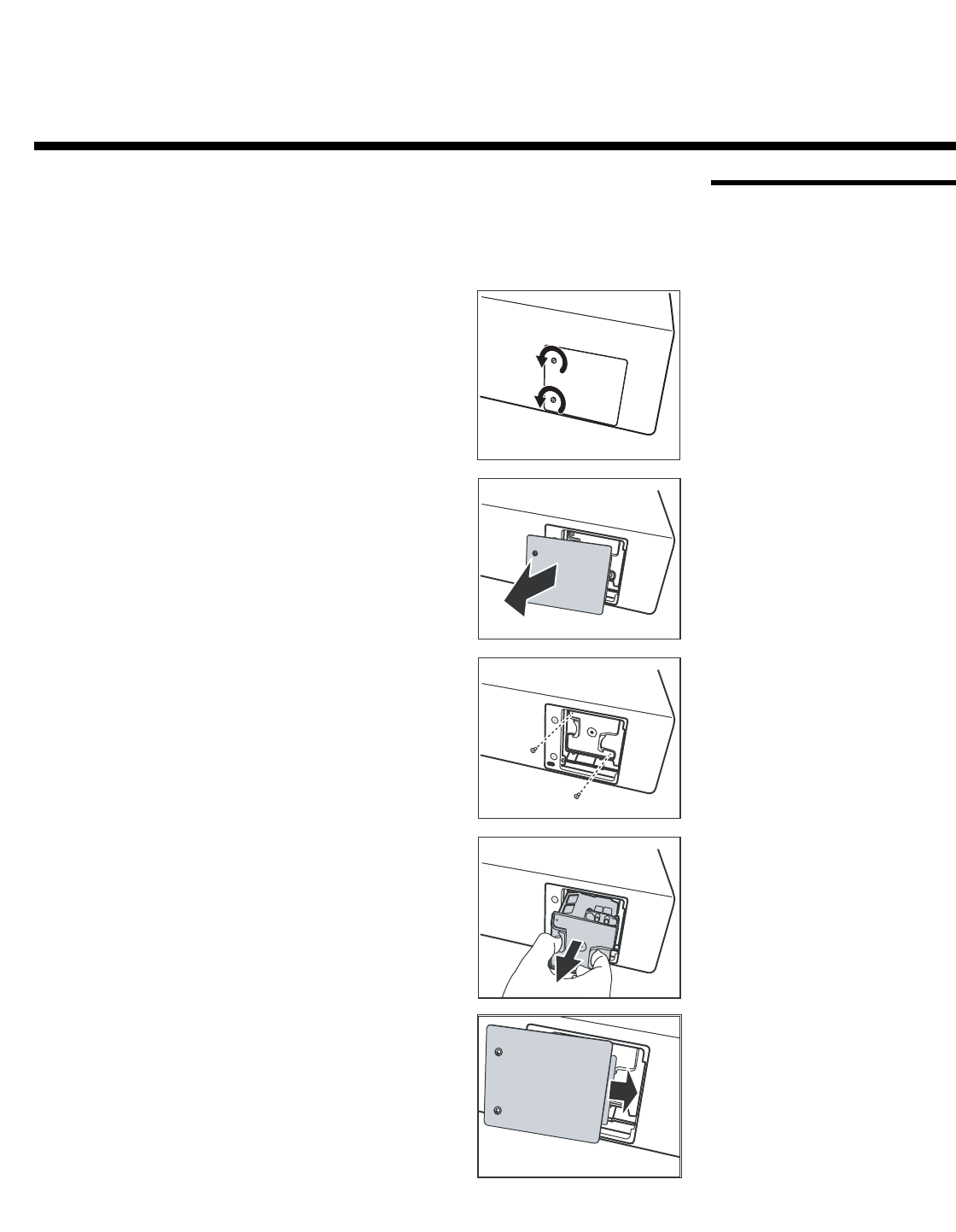
Runco CL-610 Series Owner’s Operating Manual 49
PRELIMINARY
5.1
Lamp Replacement
The lamp should be replaced when it reaches the end of its life (typically 2000 hours), or
sooner if a noticeable degradation in brightness occurs. Contact your Runco dealer to
obtain a replacement lamp.
1. Turn off the projector and unplug the power cord.
Allow the projector to cool down for
approximately 45 minutes prior to removing
the lamp assembly for replacement.
2. Remove the two screws from the lamp cover.
3. Remove the lamp cover.
4. Remove the two lamp assembly mounting screws.
5. Grasp the lamp assembly handle and pull gently,
removing the lamp module from the projector
housing.
6. Install the new lamp module and replace the two
screws you removed in Step 4.
7. Replace the lamp cover at the top first and secure it
with the two screws you removed in Step 2.
8. Turn on the power and select Reset Lamp Timer
from the Set Up menu to reset the lamp timer (refer
to Reset Lamp Timer on page 45).
5Maintenance and Troubleshooting
Maintenance and Troubleshooting
50 Runco CL-610 Series Owner’s Operating Manual
PRELIMINARY
5.2
Troubleshooting Tips
Table 5-1 provides some general guidelines for troubleshooting problems you may
encounter with the CL-610. If the suggested solutions fail to resolve the problem or if you
encounter an issue not described here, please contact Runco Technical Support.
Table 5-1. Troubleshooting Chart
Symptom Possible Cause(s) Solution
The projector does not turn
on.
• The CL-610 is not plugged
in or the AC outlet is not
active.
• The main power switch (at
the rear of the projector) is
off.
• Lamp cover is not securely
attached.
• Ensure that the CL-610 is
plugged in and that the AC
outlet is active.
• Turn on the power switch.
• Securely attach the lamp
cover.
The projector does not turn
back on after it was powered
off.
• The projector will not turn
on for two minutes after
power-off, to protect the
lamp.
• Wait until the CL-610
completes its cool-down
(POWER LED lights solid
orange).
The remote control does not
work correctly.
• The batteries have run out. • Replace the batteries.
The projector is on and OSD
menus appear, but there is no
video image on-screen.
• Incorrect source selection.
• Source component is not
turned on.
• Source component is
connected incorrectly or
not at all.
• Select the correct source.
• Turn on the source.
• Check cable connection
from source component to
projector.
A projected image from a
DVD is split or otherwise
scrambled.
• DVD player is connected
to the Component input
and set to progressive
scan mode.
• Turn off progressive scan
on the DVD player.
Image is blurred. • The lens is not correctly
focused.
• Adjust the focus by turning
the focus ring.
Image is too bright and/or
lacks definition in the bright
areas of the image.
• Contrast is set too high. • Lower the contrast setting.
Image appears “washed out”
and/or dark areas appear too
bright.
• Brightness is set too high. • Lower the brightness
setting.
Colors in the image are
swapped; for example, reds
appear blue or vice versa.
• The Red/Pr, Green/Y or
Blue/Pb outputs from the
source are connected to
the wrong inputs on the
CL-610.
• Ensure that the source
outputs are connected to
the correct CL-610 input.
TEMP and LAMP LEDs are
both flashing red.
• The lamp cover is open.
• Fans are not working
properly.
• Close the lamp cover.
• Please contact your Runco
dealer for assistance.
Maintenance and Troubleshooting
Runco CL-610 Series Owner’s Operating Manual 51
PRELIMINARY
LAMP LED lights solid red. • The lamp has failed or
exceeded its usage life.
• Replace the lamp with a
new one.
TEMP LED lights solid red. • CL-610 internal
temperature is too high.
• Power off the CL-610 and
allow it to cool down.
Ensure that the intake and
exhaust vents are not
blocked. Turn the
projector back on. If the
problem persists, please
contact your Runco dealer
for assistance.
Table 5-1. Troubleshooting Chart (continued)
Symptom Possible Cause(s) Solution

Runco CL-610 Series Owner’s Operating Manual 53
PRELIMINARY
6.1
RS-232 Connection
and Port Configuration
To interface the CL-610 with a home theater automation/control system or a PC running
terminal emulation software:
1. Connect it to your control system or PC as shown in Figure 3-8.
2. Start a terminal session on your PC using a terminal-emulation program, such as
HyperTerminal.
3. Configure the RS-232 controller or PC serial port as follows: no parity, eight data bits,
one stop bit and no flow control. Set the baud rate to match that of the projector
(115200, 38400 or 9600).
4. Press <Enter>. You should see a command prompt (>) in the terminal window.
5. Type a command from among those listed in Table 6-1 and press <Enter>. For
example, to change the aspect ratio to Letterbox, type x063x <Enter>.
6.2
Serial Command
Syntax
Serial commands to the CL-610 take the following form:
• Commands are in ASCII format.
• Commands are not case-sensitive; X001X and x001x are equivalent.
• A carriage return MUST follow each command.
6. Serial Communications
The CL-610 will not accept serial commands for 30 seconds after it
is turned on or off.
Table 6-1. Serial Commands
Code Function
x001x Power On
x002x Power Off
x003x Menu
x004x Enter
x005x Exit
x006x Up (arrow key)
x007x Down (arrow key)
x008x Left (arrow key)
x009x Right (arrow key)
x011x Show active source and aspect ratio information
x021x Keypad 1
Note
Serial Communications
54 Runco CL-610 Series Owner’s Operating Manual
PRELIMINARY
x022x Keypad 2
x023x Keypad 3
x024x Keypad 4
x025x Keypad 5
x026x Keypad 6
x027x Keypad 7
x028x Keypad 8
x029x Keypad 9
x030x Keypad 0
x031x Store image settings to Memory 1
x032x Store image settings to ISF Night
x033x Store image settings to ISF Day
x046x Restore image settings from Memory 1
x047x Restore image settings from ISF Night
x048x Restore image settings from ISF Day
x049x Load default of current source
x051x Single source, full-screen
x052x PIP - graphics on video
x053x PIP - video on graphics
x054x PBP - graphics by video
x055x PBP - video by graphics
x056x PIP - increase sub-window size
x057x PIP - decrease sub-window size
x058x Set PIP/PBP active window
x061x Anamorphic (16:9) aspect ratio
x062x Standard (4:3) aspect ratio
x063x Letterbox aspect ratio
x064x VirtualWide aspect ratio
x065x Cinema aspect ratio
x066x Virtual Cinema aspect ratio
x071x RS-232 baud rate = 9600
x072x RS-232 baud rate = 38400
Table 6-1. Serial Commands (continued)
Code Function
Serial Communications
Runco CL-610 Series Owner’s Operating Manual 55
PRELIMINARY
x073x RS-232 baud rate = 115200
x081x Image orientation = floor front
x082x Image orientation = ceiling front
x083x Image orientation = floor rear
x084x Image orientation = ceiling rear
x091x Lamp Power = 200W
x092x Lamp Power = 250W
x121x OSD Language = English
x122x OSD Language = French
x123x OSD Language = Spanish
x124x OSD Language = German
x125x OSD Language = Italian
x131x Switch to Composite input
x132x Switch to S-Video input
x133x Switch to RGB-HD input
x134x Switch to DVI input (HDMI)
x135x Switch to Component 1 input
x136x Switch to Component 2 input
x156x Background Color = Grey
x157x Background Color = Blue
x158x Background Color = White
x161x Un-freeze Image
x162x Freeze Image
x181x Toggle Blue Image on/off
Table 6-1. Serial Commands (continued)
Code Function

Runco CL-610 Series Owner’s Operating Manual 57
PRELIMINARY
7.1
CL-610 Specifications
Table 7-1 lists the CL-610 specifications.
7. Specifications
Table 7-1. CL-610 Specifications
Projector Type: Digital Light Processing (DLP), Single-Chip DMD
Native Resolution: 1280 x 720 (16:9)
Aspect Ratios: 4:3, Letterbox, 16:9 Anamorphic, VirtualWide, Cinema,
Virtual Cinema
Video Standards: NTSC, PAL, SECAM
DTV Compatibility: 480p, 576p, 720p, 1080i
Scan Frequency: Horizontal: 15 - 80 kHz
Vertical: 50 - 100 Hz
Picture Size (16:9 Screen): Recommended Width: 72 in. (1.83 m) to 96 in. (2.44 m)
Capable of screen widths between 48 in. (1.22 m) and 200 in.
(5.08 m)
Throw Distance
(Factor x Screen Width):
Refer to Table 3-3
Horizontal and Vertical Lens
Shift:
None; electronic image shift via OSD controls
Video Inputs: (1) Composite Video, (1) S-Video, (1) RGB/Component Video
(5xBNC), (1) RCA Component Video, (1) HDMI
Control Options: - Discrete IR remote
- Built-in keypad
- Serial commands via RS-232
RS-232 Communication
Parameters:
9600, 38400 or 115200 bps, no parity, 8 data bits, 1 stop bit,
no flow control
12V Output: Max. 0.25 Amps, active when projector is turned on;
Tip = +12V; Sleeve = Ground

Specifications
58 Runco CL-610 Series Owner’s Operating Manual
PRELIMINARY
Brightness and Contrast: Cinema Standards Measurement System (CSMS)
Specifications
- Brightness: 14.5 to 21.6 foot-Lamberts (fL)
- Contrast Ratio: 200:1 to 220:1
These measurements are taken from the projector in a controlled,
home theater environment. All measurements are made to
ANSI/NAPM IT7.228-1997 specifications using the Photo Research
PR-650 SpectraColorimeter and Minolta LS-100 Luminance Meter,
Video Essentials test DVD and a 1.3 gain, 72-inch wide screen. The
projector is calibrated to a color temperature of 6,500K and has a
minimum of 150 hours of usage.
The foot-Lambert (fL) is the unit of measurement used in commercial
movie theaters to express image brightness at the screen surface. The
Society of Motion Picture and Television Engineers (SMPTE) specifies
16 fL as the target image brightness for film-based projectors using an
open gate (without film in the projector). More importantly, today
SMPTE specifies 12 fL as the target image brightness in Digital
Cinema theaters. The foot-Lambert measurement is dependent on
screen size, screen gain and projector light output.
Home Theater Calibration Specifications
- Light Output: 442 to 587 ANSI Lumens
- Contrast Ratio: 200:1 to 220:1
These specifications are obtained by calibrating the projector as
described above for CSMS measurements.
Industry-Standard Specifications
- Light Output: 1250 ANSI Lumens
- Contrast Ratio: 1500:1 to 3100:1
These are typical projector brightness and contrast specifications
found in most companies’ sales literature. Runco includes these
measurements in its literature to allow for direct comparison with other
manufacturers’ projectors. These measurements are typically taken at
9,000K to 13,000K to get expected performance data when the
projector is used in professional, commercial and industrial displays.
Lamp: 250 Watts
Estimated Lamp Life: 2000 hours
Power Requirements: 100 to 240 VAC (auto-sensing), 50/60 Hz, 310 Watts
Operating Environment: 41°F to 95°F (5°C to 35°C), 20% to 80% humidity
(non-condensing)
Dimensions: See Figure 7-1
Weight (without lens): 34 lbs. (15.42 kg)
Regulatory Approvals: Complies with FCC, CE C-Tick
Limited Warranty: Projector: Two (2) years parts and labor from the date of
delivery to the end user.
Lamp: 1000 hours or six (6) months, whichever comes first.
Specifications are subject to change without notice.
Table 7-1. CL-610 Specifications (continued)
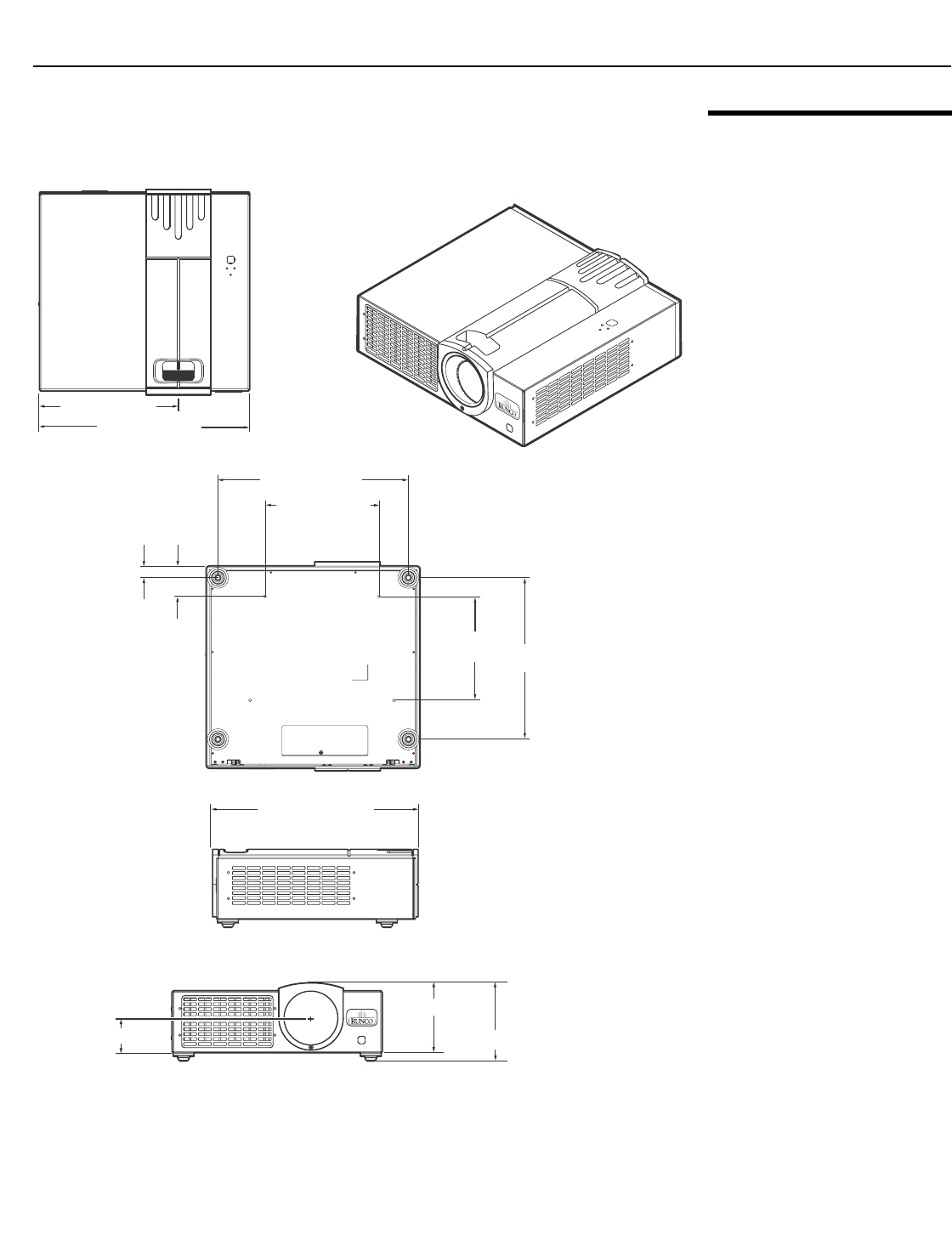
Specifications
Runco CL-610 Series Owner’s Operating Manual 59
PRELIMINARY
7.2
CL-610 Dimensions
Figure 7-1 shows the CL-610 dimensions.
Figure 7-1. CL-610 Dimensions
16.31 in. (414.27 mm)
5.56 in. (141.22 mm)
6.12 in. (155.45 mm)
2.66 in. (67.53 mm)
11.0 in. (279.4 mm)
16.5 in. (419.10 mm)
14.80 in. (376.0 mm)
8.86 in. (225.0 mm)
8.07 in.
(205 mm) 12.57 in.
(319.15 mm)
0.91 in. (23 mm)
2.36 in.
(60 mm)

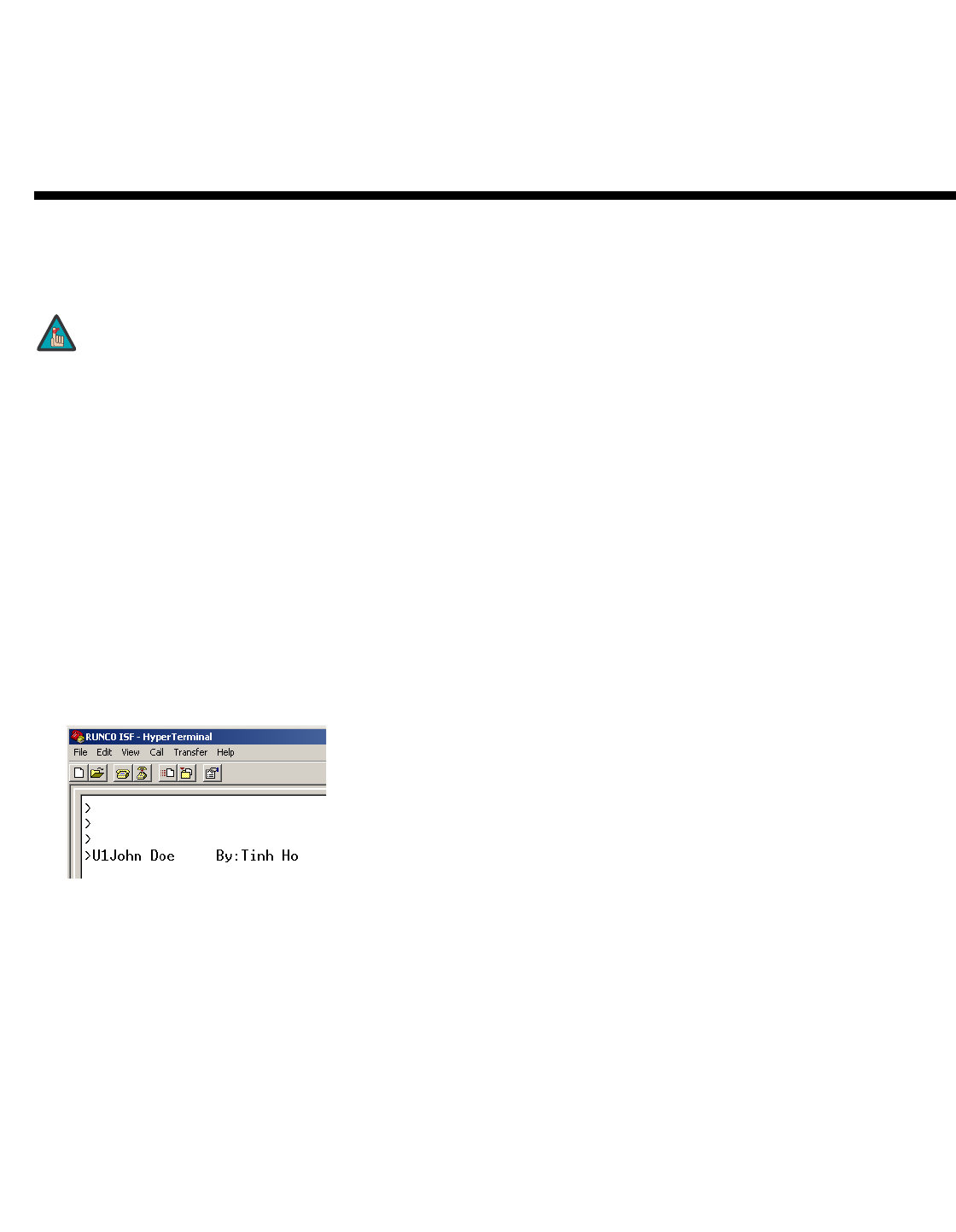
Runco CL-610 Series Owner’s Operating Manual A-1
This Appendix describes how to personalize the ISF splash screen on the Runco CL-610
Series DLP Projectors.
1. Connect a PC to the CL-610 RS-232 port and establish a serial connection; refer to
RS-232 Connection and Port Configuration on page 53 if you need instructions.
2. Press MENU on the projector remote control. Use the up- or down-arrow keys to
highlight ISF Calibration and press ENTER. Use the number buttons on the remote
control to enter the ISF Calibration menu passcode, then press ENTER again.
3. Press MENU on the projector remote control. Then, select Splash Screen Timer
from the ISF Calibration menu.
4. Use the left- or right-arrow buttons to set the Splash Screen Timer. This timer controls
how long the startup (Runco/ISF logo) image stays on-screen after you turn on the
projector. The range is from 5 to 60 seconds in 1-second increments. For this
procedure, set it to 30 seconds and press EXIT.
5. In the HyperTerminal window, at the command prompt (>), type U1 followed by the
customer name, four or five spaces and the ISF calibrator name:
6. Press <Enter>.
7. Press MENU on the projector remote control. Then, select ISF Calibration from the
Main menu.
8. Select ISF Enable from the ISF Calibration menu and set it to On.
Appendix A. Personalizing the ISF Splash
Screen on the CL-610
Only ISF-trained and -certified technicians should attempt this
procedure!
Note

Runco CL-810 Owner’s Operating Manual
Runco International • 2900 Faber Street • Union City, CA 94587 • Ph (510) 324-7777 / (800) 23RUNCO / Fax (510) 324-9300
www.runco.com
RUMA-011115
rev 10-24-06 v2.0
SERIAL NUMBER
