SALUS North America AKL01PRF ZigBee Zone Pump Wiring Center User Manual

SALUS North America, Inc. ZigBee Zone Pump Wiring Center

User manual

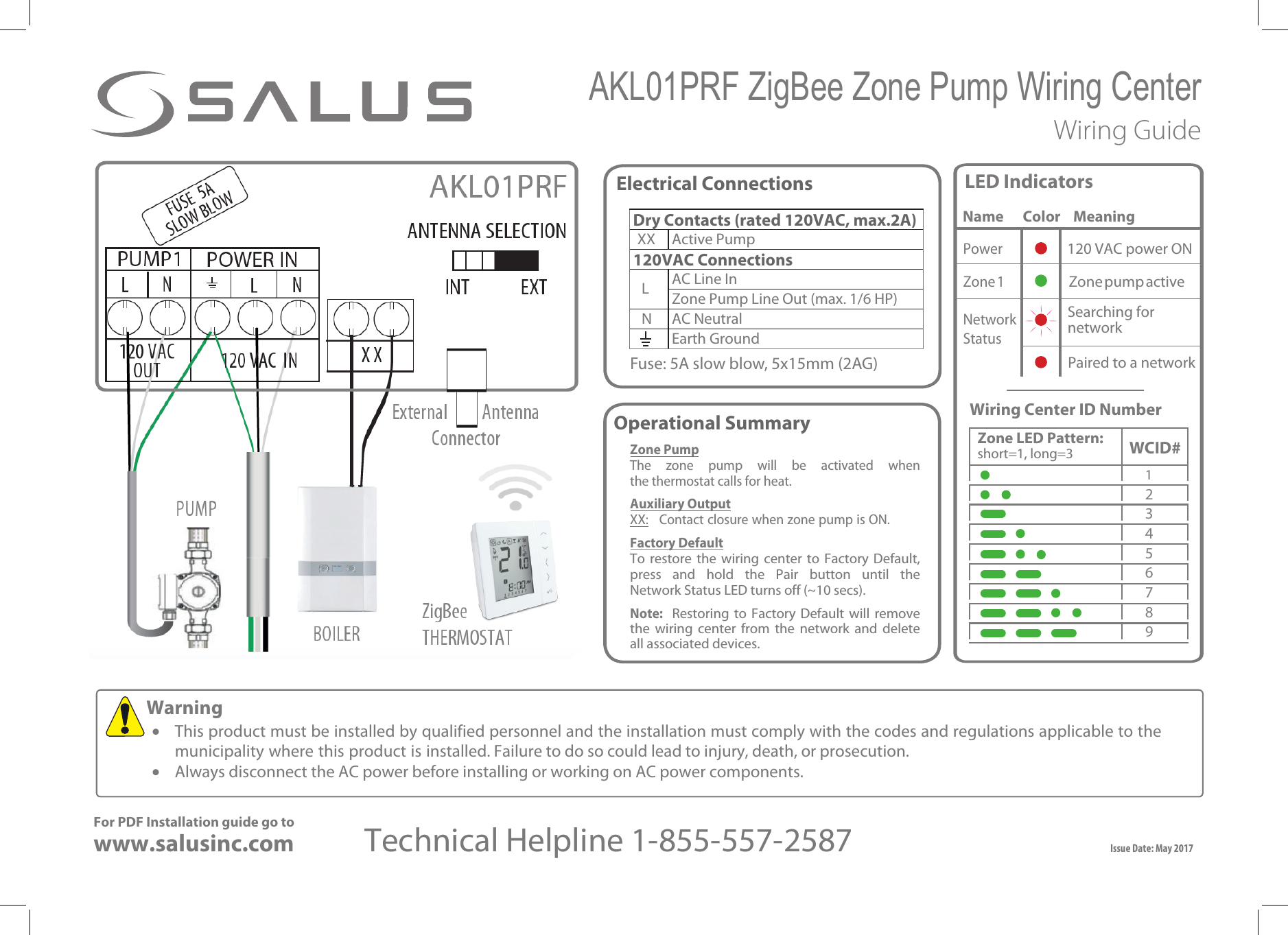
AKL01PRF ZigBee Zone Pump Wiring Center Wiring GuideFuse: 5A slow blow, 5x15mm (2AG)Electrical ConnectionsDry Contacts (rated 120VAC, max.2A)XX Active Pump120VAC ConnectionsLAC Line InZone Pump Line Out (max. 1/6 HP)N AC NeutralEarth GroundIssue Date: May 2017   For PDF Installation guide go towww.salusinc.com Technical Helpline 1-855-557-2587    Warning•This product must be installed by qualified personnel and the installation must comply with the codes and regulations applicable to themunicipality where this product is installed. Failure to do so could lead to injury, death, or prosecution.•Always disconnect the AC power before installing or working on AC power components.LED IndicatorsName      Color    MeaningPower120 VAC power ON Zone 1     Zone pump activeNetworkStatusSearching for networkPaired to a networkZone PumpThe zone pump will be activated when the thermostat calls for heat.Auxiliary OutputXX:   Contact closure when zone pump is ON.Factory DefaultTo  restore  the  wiring center to  Factory  Default, press  and  hold  the  Pair  button  until the Network Status LED turns off (~10 secs).Note: Restoring  to  Factory  Default  will remove the  wiring  center  from  the  network  and  delete all associated devices.WCID#Zone LED Pattern:short=1, long=3123456789Operational Summary Wiring Center ID Number
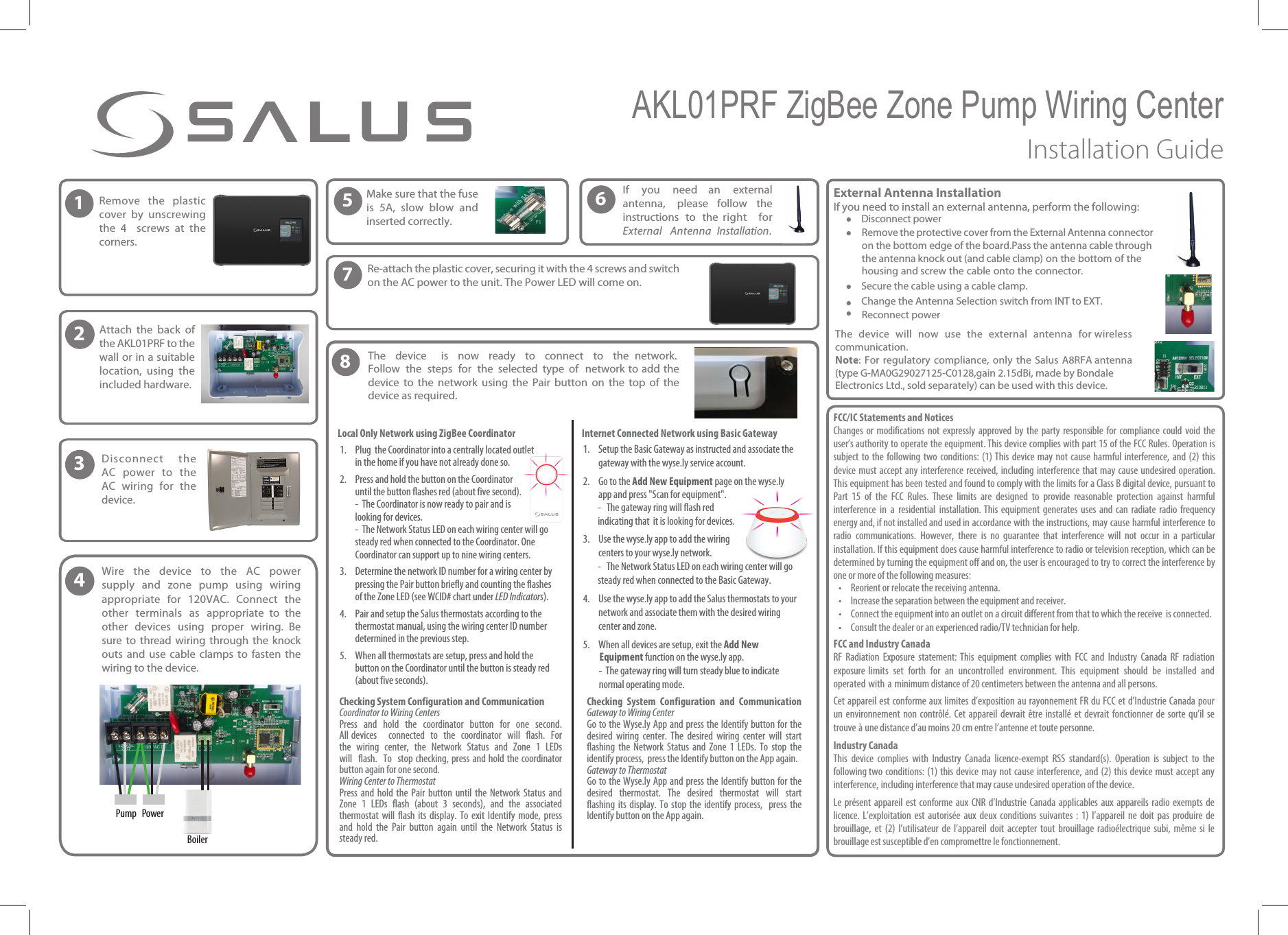
1Remove the plasticcover by unscrewing the 4  screws at the corners.2Attach the back ofthe AKL01PRF to the wall or in a suitable location, using the included hardware.3Disconnect theAC power to the AC wiring for the device.4 Wire  the  device  to  the  AC  power supply  and  zone  pump  using  wiring appropriate  for  120VAC.  Connect  the other  terminals  as  appropriate  to  the other  devices  using  proper  wiring.  Be sure  to  thread  wiring  through  the  knock outs and use cable clamps to fasten the wiring to the device.5Make sure that the fuse is 5A, slow blow and inserted correctly.7Re-attach the plastic cover, securing it with the 4 screws and switchon the AC power to the unit. The Power LED will come on. PowerPumpBoilerAKL01PRF ZigBee Zone Pump Wiring Center Installation GuideExternal Antenna Installation  If you need to install an external antenna, perform the following:•Disconnect power•Remove the protective cover from the External Antenna connector on the bottom edge of the board.Pass the antenna cable through the antenna knock out (and cable clamp) on the bottom of the housing and screw the cable onto the connector.•Secure the cable using a cable clamp.•Change the Antenna Selection switch from INT to EXT.•Reconnect power The device will now use the external antenna for wireless communication.Note: For regulatory compliance, only the Salus A8RFA antenna (type G-MA0G29027125-C0128,gain 2.15dBi, made by Bondale Electronics Ltd., sold separately) can be used with this device.FCC/IC Statements and NoticesChanges or modifications not  expressly  approved by the party responsible  for  compliance could void the user’s authority to operate the equipment. This device complies with part 15 of the FCC Rules. Operation is subject to the following two conditions: (1) This device may not cause harmful interference, and (2) this device must accept any interference received, including interference that may cause undesired operation. This equipment has been tested and found to comply with the limits for a Class B digital device, pursuant to Part  15  of  the  FCC  Rules. These  limits  are  designed  to  provide  reasonable  protection  against  harmful interference  in  a  residential  installation. This  equipment  generates  uses  and  can  radiate  radio  frequency energy and, if not installed and used in accordance with the instructions, may cause harmful interference to radio  communications.  However,  there  is  no  guarantee  that  interference  will  not  occur  in  a  particular installation. If this equipment does cause harmful interference to radio or television reception, which can be determined by turning the equipment off and on, the user is encouraged to try to correct the interference by one or more of the following measures:• Reorient or relocate the receiving antenna.• Increase the separation between the equipment and receiver.• Connect the equipment into an outlet on a circuit different from that to which the receive  is connected.• Consult the dealer or an experienced radio/TV technician for help. FCC and Industry CanadaRF  Radiation  Exposure  statement:  This  equipment  complies  with  FCC  and  Industry  Canada  RF  radiation exposure  limits  set  forth  for  an  uncontrolled  environment.  This  equipment  should  be  installed  and operated with a minimum distance of 20 centimeters between the antenna and all persons.Cet appareil est conforme aux limites d’exposition au rayonnement FR du FCC et d’Industrie Canada pour un environnement non contrôlé. Cet appareil devrait être installé et devrait fonctionner de sorte qu’il se trouve à une distance d’au moins 20 cm entre l’antenne et toute personne.Industry CanadaThis  device  complies  with  Industry  Canada  licence-exempt  RSS  standard(s).  Operation  is  subject  to  the following two conditions: (1) this device may not cause interference, and (2) this device must accept any interference, including interference that may cause undesired operation of the device.Le  présent  appareil  est  conforme  aux  CNR  d’Industrie  Canada  applicables  aux  appareils  radio  exempts  de licence. L’exploitation  est  autorisée  aux  deux  conditions  suivantes  :  1) l’appareil  ne  doit  pas  produire  de brouillage,  et  (2)  l’utilisateur  de  l’appareil  doit  accepter  tout  brouillage  radioélectrique  subi,  même  si  le brouillage est susceptible d’en compromettre le fonctionnement.6If you need  an external antenna, please  follow  the instructions  to  the  right for External Antenna Installation.81. Plug  the Coordinator into a centrally located outletin the home if you have not already done so.2. Press and hold the button on the Coordinator until the button flashes red (about five second).-  The Coordinator is now ready to pair and is looking for devices.-  The Network Status LED on each wiring center will go steady red when connected to the Coordinator. One Coordinator can support up to nine wiring centers.3. Determine the network ID number for a wiring center by pressing the Pair button briefly and counting the flashes of the Zone LED (see WCID# chart under LED Indicators).4. Pair and setup the Salus thermostats according to the thermostat manual, using the wiring center ID number determined in the previous step.5. When all thermostats are setup, press and hold the button on the Coordinator until the button is steady red (about five seconds).1. Setup the Basic Gateway as instructed and associate the gateway with the wyse.ly service account.2. Go to the "EE/FX&RVJQNFOU page on the wyse.ly app and press "Scan for equipment".- The gateway ring will flash red indicating that  it is looking for devices.3. Use the wyse.ly app to add the wiring centers to your wyse.ly network.- The Network Status LED on each wiring center will go steady red when connected to the Basic Gateway.4. Use the wyse.ly app to add the Salus thermostats to your network and associate them with the desired wiring center and zone.5. When all devices are setup, exit the "EE /FX&RVJQNFOU function on the wyse.ly app.-  The gateway ring will turn steady blue to indicate normal operating mode. The EFWJDF  JT OPX rFBEZ UP DPOOFDU UP UIF OFUXPSL 'PMMPX UIF TUFQT GPS the  selected  type  of  OFUXPSL UP BEE UIF EFWJDF UP UIF OFUXPSL  using  the  Pair  button  on  the  top  of  the device as required.Internet Connected Network using Basic Gateway$IFDLJOH 4ZTUFN $POGJHVSBUJPO BOE $PNNVOJDBUJPOCoordinator to Wiring CentersPress  and  hold  the  coordinator  button  for  one  second. All devices   connected  to  the  coordinator  will  flash.  For the wiring center, the Network Status and Zone 1 LEDs will flash. To  stop checking, press and hold the coordinator button again for one second.Wiring Center to ThermostatPress  and hold the  Pair button  until  the Network  Status  and Zone  1  LEDs  flash  (about  3  seconds),  and  the  associated thermostat  will  flash its  display.  To exit Identify  mode,  press and  hold  the  Pair  button  again  until  the  Network  Status  is steady red.$IFDLJOH 4ZTUFN $POGJHVSBUJPO BOE $PNNVOJDBUJPO (BUFXBZUP8JSJOH$FOUFSGo to the Wyse.ly App and press the Identify button for the desired  wiring  center.  The  desired  wiring  center  will  start flashing  the  Network  Status  and  Zone  1  LEDs. To  stop  the identify process,  press the Identify button on the App again.Gateway to ThermostatGo to the Wyse.ly App and press the Identify button for the desired  thermostat.  The  desired  thermostat  will  start flashing its  display.  To  stop  the  identify  process,    press  the Identify button on the App again.Local Only Network using ZigBee Coordinator

Navigation menu