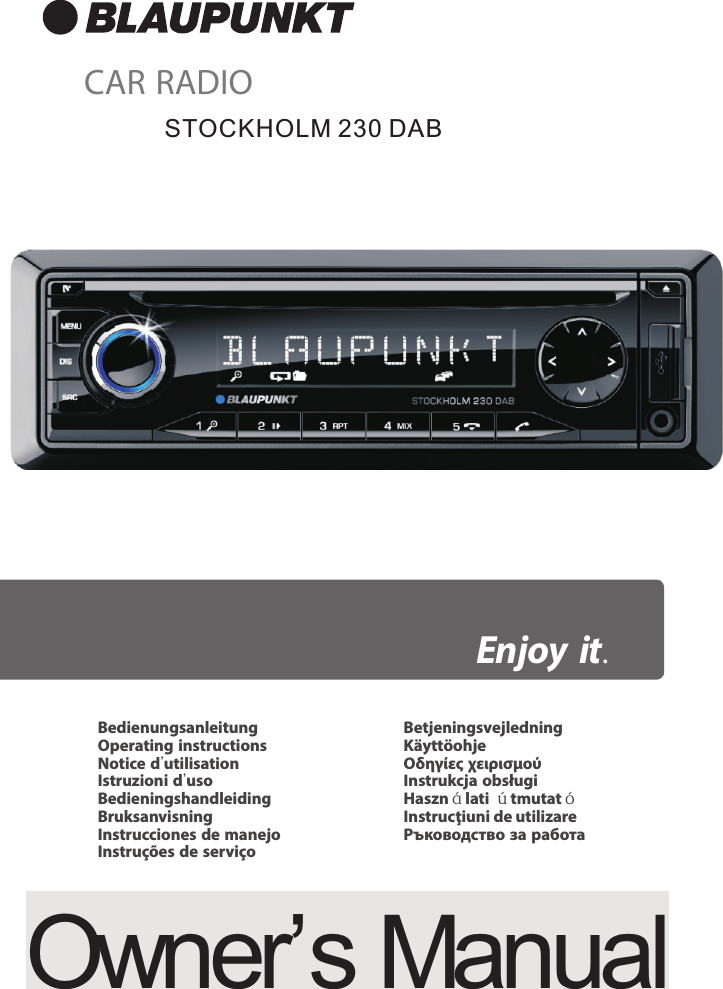
SCE MULTIMEDIA STOCKHOLM230 CAR RADIO User Manual

SCE MULTIMEDIA COMPANY LIMITED CAR RADIO

User Manual

Owner’s Manual   CAR RADIOEnjoy it.BedienungsanleitungOperating instructionsNotice d'utilisationIstruzioni d'usoBedieningshandleidingBruksanvisningInstrucciones de manejoInstruções de serviçoBetjeningsvejledningKäyttöohjeΟδηγίες χειρισμούInstrukcja obsługiHasználati útmutatóInstrucţiuni de utilizareРъководство за работаSTOCKHOLM 230 DAB
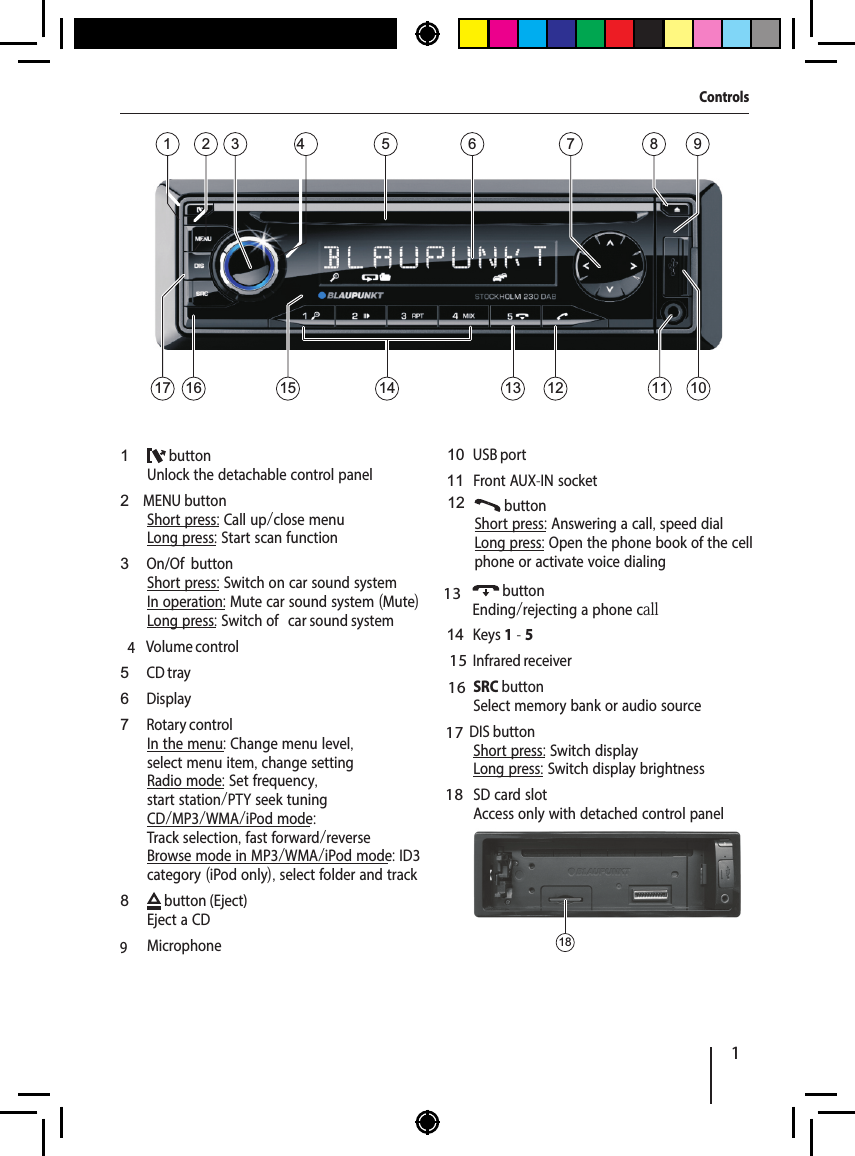
11   button Unlock the detachable control panel2 MENU button Short press: Call up/close menuLong press: Start scan function3  On/Of  button Short press: Switch on car sound systemIn operation: Mute car sound system (Mute)Long press: Switch of  car sound system4  Volume control5  CD tray6  Display7  Rotary controlIn the menu: Change menu level, select menu item, change settingRadio mode: Set frequency, start station/PTY seek tuningCD/MP3/WMA/iPod mode: Track selection, fast forward/reverseBrowse mode in MP3/WMA/iPod mode: ID3 category (iPod only), select folder and track8   button (Eject) Eject a CD9  Microphone 10  USB port11  Front AUX-IN socket12  button Ending/rejecting a phone call   button Short press: Answering a call, speed dialLong press: Open the phone book of the cell phone or activate voice dialing14  Keys 1 - 5  Infrared receiver SRC button Select memory bank or audio source DIS button Short press: Switch displayLong press: Switch display brightness  SD card slotAccess only with detached control panel18Controls153 5 621 812131617 144711 1091315161718
2ENGLISHSafety notesThe car sound system was manufactured accord-ing to the state of the art and established safety guidelines. Even so, dangers may occur if you do not observe the safety notes in these instructions.These instructions contain important informa-tion to easily and safely install and operate the car sound system. • Read these instructions carefully and com-pletely before using the car sound system. • Keep the instructions at a location so that they are always accessible to all users. • Always pass on the car sound system to third parties together with these instructions.In addition, observe the instructions of the devices used in conjunction with this car sound system.Symbols usedThese instructions employ the following symbols:DANGER!Warns about injuriesCAUTION!Warns about damaging the CD driveDANGER!Warns about high volumeThe CE mark conf rms the compliance with EU directives.  Identif es a sequencing step • Identif es a listingRoad safetyObserve the following notes about road safety: • Use your device in such a way that you can always safely control your vehicle. In case of doubt, stop at a suitable location and operate your device while the vehicle is standing. • Remove or attach the control panel only while the vehicle is standing. • Always listen at a moderate volume to pro-tect your hearing and to be able to hear acous-tic warning signals  (e.g.  police sirens).  During mute phases  (e.g.  when changing the audio source),  changing the volume is not audible. Do not increase the volume during this mute phase.General safety notesObserve the following notes to protect yourself against injuries: • Do not modify or open the device. The device contains a Class 1 laser that can cause injuries to your eyes. • Do not increase the volume during mute phases, e.g. when changing the audio source. Changing the volume is not audible during a mute phase. Do not increase the volume dur-ing mute phases, e.g. when changing the audio source.Use as directedThis car sound system is intended for installation and operation in a vehicle with 12 V vehicle sys-tem voltage and must be installed in a DIN slot. Observe the performance limits in the technical data. Repairs and installation, if necessary, should be performed by a specialist.Installation instructionsYou may only install the car sound system your-self if you are experienced in installing car sound systems and are very familiar with the electrical system of the vehicle.  For this purpose,  observe the installation instructions at the end of these instructions.Safety notesHereby, SCE MULTIMEDIA COMPANY LIMITED, declares that this BR230 is in compliance with the essential requirements and other relevant provisions of Directive
3Safety notes | Cleaning notes | Disposal notes | Scope of delivery | Placing the device in operationDeclaration of conformityThe Blaupunkt AudioVision GmbH  &  Co.  KG de-clares that the car sound system complies with the basic requirements and the other relevant regulations of the directive 2004/108/EEC and the car sound system complies with the basic requirements and the other relevant regulations of the directive 1999/5/EC.The declaration of conformity can be found on the Internet under www.blaupunkt.com.Cleaning notesSolvents, cleaning and scouring agents as well as dashboard spray and plastics care product may contain ingredients that will damage the surface of the car sound system. • Use only a dry or slightly moistened cloth for cleaning the car sound system. • If necessary,  clean the contacts of the control panel regularly using a soft cloth moistened with cleaning alcohol.Disposal notesDo not dispose of your old unit in the house-hold trash!Use the return and collection systems available to dispose of the old device.Scope of deliveryThe scope of delivery includes:1 Car sound system1 Operating/installation instructions1 Case for the control panel1 Support frame1 Antenna connection adapterExtended scope of delivery1 Handheld remote control (incl. battery)1 Connecting cable chamber A1 Connecting cable chamber BOptional equipment (not part of the scope of delivery)Use only accessories approved by Blaupunkt. Information is available from your Blaupunkt specialised dealer or on the Internet under www.blaupunkt.com.Placing the device in operationCaution!Transport securing screwsBefore the startup of the car sound system, ensure that the transport securing screws are removed (see the chapter "Installation instructions").Attaching/detaching the control panelThe car sound system is equipped with a detach-able control panel (release panel) to protect your equipment against theft. In the delivery state, the control panel is in the supplied case. To start oper-ating the radio after installation, you must f rst at-tach the control panel (see the section "Attaching the control panel" in this chapter).Always take the control panel with you when leav-ing the vehicle. The car sound system is worthless to a thief without this control panel.CautionDamage to the control panelNever drop the control panel.Transport the control panel so that it is protected against impacts and the contacts cannot become dirty.Do not expose the control panel to direct sunlight or another heat source.Avoid direct skin contact with the control panel's electrical contacts.
4Placing the device in operationAttaching the control panel  Push the control panel into the bracket at the right edge of the device.   Push the control panel carefully into the left bracket until it clicks into place.Removing the control panel  Press the  button1   to unlock the control panel.The left side of the control panel detaches from the device and is secured by the bracket against falling out.  Move the control panel slightly to the left until it disengages from the right bracket.  Carefully remove the control panel from the left bracket.Note:The car sound system automatically switches of  as soon as the control panel is removed.Display language For the car sound systerm, you can defi ne whether the language for messages on the display is English or German. The setting is performed in the user menu (see the chapter  "User settings",  section  "Mak-ing settings in the  "DISPLAY"  menu",  menu item " LANGUAGE").Setting the reception areaThis car sound system is designed for operation in dif erent regions with dif erent frequency ranges and station technologies.  The factory default of the reception area is  "EUROPE".  In addition,  the reception areas  "USA",  "SOUTH AMERICA"  and " THAILAND" are available.Note:If you operate the car sound system outside of Europe, you may f rst have to set a suitable re-ception area in the user menu (see the chapter "User settings", section "Making settings in the "TUNER" menu", menu item "TUNER AREA").Switching on/of Switching on/of   with the On/Of  button  For switch-on, press the On/Of  button3.The car sound system switches on.  To switch of  the device, press and hold down the On/Of  button3 for longer than 2 sec-onds.The car sound system switches of .Note:If you switch on the car sound system while the vehicle ignition is switched of ,  it auto-matically switches of  after 1 hour to preserve the vehicle battery.Switching on/of   via vehicle ignitionThe car sound system will switch of /on simulta-neously with the ignition if the device is correctly connected to the vehicle's ignition as shown in the installation instructions and you did not switch the device of  by pressing the On/Of  button 3.VolumeAdjusting the volumeYou can adjust the volume in steps from 0 (of  ) to 50 (maximum).  Turn the volume control4  to  change  the volume.Note:If a telephone or navigation system is con-nected with the car sound system as de-scribed in the installation instructions  (pin 2 of chamber A),  the car sound system is muted in case of a telephone call or naviga-tion announcement so that you can hear the playback of the telephone or navigation sys-tem undisturbed. During muting, the display shows "TELEPHONE".Muting the car sound system (Mute)  Brief y press the On/Of   button 3 to mute the car sound system or to reactivate the pre-vious volume.While it is muted, the display shows "MUTE".
5Placing the device in operation | Traf  c information | Radio modeDisplay brightnessYou can manually switch the display brightness between daytime mode and night-time mode or switch automatically with the driving lights of the vehicle.Note:The manual or automatic switching of the display brightness is selected in the user menu  (see the chapter  "User settings", section  "Making settings in the  "DISPLAY" menu", menu item "DIMMER").  Press the DIS button   for approx. 2 seconds to start scanning.Switching demo mode on/of The demo mode shows the functions of the car sound system as scrolling text on the display. By pressing any button, the demo mode is interrupt-ed and you can operate the device. The demo mode can be switched on and of  in the user menu (see the chapter "User settings", section "Making settings in the  "VARIOUS"  menu",  menu item "DEMO MODE").Traf  c informationIn the reception area "EUROPE", an FM station can identify traf  c reports by means of an RDS signal. If priority for traf  c reports is switched on, a traf-f c report is automatically switched through, even if the car sound system is currently not in radio mode.If priority is switched on,  the display shows the trafi  c jam symbol  ( ).  "TRAFFIC"  is displayed during a switched-through traf ic announcement.The priority is activated and deactivated in the user menu  (see the chapter  "User settings",  sec-tion "Making settings in the "TUNER" menu", menu item "TRAFFICINFO").Notes: • The volume is increased for the duration of the switched-through traf ic announce-ment. You can adjust the minimum volume for traf  c announcements (see the chapter "User settings", section "Making settings in the "VOLUME" menu", menu item "TRAFFIC VOL"). • To cancel a switched-through traf  ic  an-nouncement, press the SRC button .Radio modeRDSMany FM stations broadcast an RDS  (Radio Data System) signal in addition to their programme in the reception area "EUROPE" that allows the follow-ing additional functions: • The station name is shown on the display. • The car sound system recognises traf  ic  an-nouncements and news broadcasts and can automatically switch them through in other operating modes (e.g. in CD mode). • Alternate frequency: If RDS is activated, the car sound system automatically selects the best receivable frequency for the station that is cur-rently set. • Regional: At certain times, some radio stations divide their programme into regional pro-grammes providing dif erent content.  If  the REGIONAL function is activated, the car sound system changes only to those alternate frequen-cies on which the same regional programme is being broadcast.The functions RDS and REGIONAL are activated and deactivated in the user menu (see the chap-ter  "User settings",  section  "Making settings in the  "TUNER"  menu",  menu items  "RDS"  and " REGIONAL").Note:If you adjust a dif erent reception area than "EUROPE", RDS is automatically switched of . The station name continues to be shown on the display. If you want to use radio stations with RDS features in your region,  switch on RDS in the user menu.17
6ENGLISHRadio modeChanging to radio mode or selecting a memory bankThe following memory banks are available in the dif erent reception areas:Region Memory banksEUROPE FM1, FM2, FMT, MW, LWUSA FM1, FM2, FMT, AM, AMTSOUTH AMERICA FM1, FM2, FMT, AM, AMTTHAILAND FM1, FM2, FMT, AM, AMT  Press the SRC button 16  repeatedly until the desired memory bank is displayed.Notes: • Up to 5 stations can be stored in each memory bank. • You can disable certain memory banks that you do not want to use  (see chapter "User settings",  section  "Making settings in the "TUNER" menu", menu item "BAND S  ELECTION").  Deactivated memory banks are skipped during the source selection with the SRC button .Tuning into a stationThere are various ways of tuning into a station:Notes: • For the reception area "EUROPE": In the FM waveband, only traf  ic information stations are tuned into if the priority for traf  c infor-mation ( ) is switched on.  • The sensitivity of seek tuning can be ad-justed  (see the chapter  "User settings", section  "Making settings in the  "TUNER" menu", menu item "SENSITIVITY").The manual station tuning is automatically exited approx.  15 seconds after the last fre-quency change, and the station seek tuning is Storing stations or calling stored stations  Select the desired memory bank.  If necessary, set the desired station.  Press the station button 1 - 5  for approx. 2 seconds to store the current station under the button.- or -  Brief y press the station button 1 - 5  to call up the stored station.Scanning stationsWith the scan function, you can scan either every receivable station or every stored station of the current waveband.Note:You can adjust the scan time for each station (see the chapter "User settings", section "Mak-ing settings in the  "VARIOUS"  menu",  menu item "SCAN TIME").Scanning all receivable stations of the waveband  Press the MENU button 2 for approx. 2 sec-onds to start scanning.During the scan,  the display alternately dis-plays  "SCAN"  and the current frequency as well as memory bank or station name.   Brief y press the MENU  button 2  to  con-tinue listening to the station that is currently being scanned.Starting station seek tuning   Turn rotary control 7  one  notch  counter-clockwise or clockwise to start station seek tuning.The display briefly  shows  "SEARCH AUTO". The radio tunes into the next receivable sta-tion.Tuning into stations manually  Press the rotary button 7 once  to activate manual station tuning.The display brief y shows "SEARCH MANUAL".  Turn the rotary control 7 to change the fre-quency in increments.Note:
7Radio modeStoring stations automatically (Travelstore)With Travelstore, you can automatically search for and store the 5 FM stations of fering the strongest reception in the region in one memory bank. Any previously stored stations in this memory bank are deleted in the process.With Travelstore,  you can store 5 FM stations in the FMT memory bank in all reception areas.  In the reception areas "USA", "SOUTH AMERICA" and "THAILAND",  you can also store 5 AM stations in the AMT memory bank.  Select a memory bank of the desired wave-band, e.g. FM1 or AM.  Press the SRC button 16  for approx.  2 sec-onds.The tuner starts the automatic station seek tuning;  the display shows  "FM TSTORE"  or "AM TSTORE". After the storing is completed, the radio plays the station at memory location 1 of the FMT or AMT level.Notes: • For the reception area  "EUROPE":  If the priority for traf  ic information is switched on ( ), only traf  ic information stations are stored. • If the FMT or AMT memory bank is deac-tivated  (see the chapter  "User settings", section  "Making settings in the  "TUNER" menu", menu item "BAND SELECTION"), it is automatically reactivated if you initiate the Travelstore function.PTYIn the reception areas "EUROPE" and "USA", an FM station can transmit its current programme type, e.g. CULTURE, POP, JAZZ, ROCK, SPORT or SCIENCE. Hence, the PTY function allows a targeted search for broadcasts of a certain programme type, e.g. for rock or sports broadcasts. Note that PTY is not supported by all stations.Note:The PTY function is only available if it has been activated (see the chapter "User settings", sec-tion "Making settings in the "TUNER" menu", menu item "PTY"). Selecting a programme typeTo select a programme type.  read the section "Making settings in the  "TUNER"  menu",  menu item "PTY TYPES" in the chapter "User settings".Note:In the reception area "EUROPE", you can adjust the language in which the programme types are displayed (see the chapter "User settings", section  "Making settings in the  " TUNER" menu", menu item "PTY LANGUAGE").Searching for stationsPrerequisite: PTY function is switched on.  Press the rotary control 7 twice. The display brief y shows "SEARCH PTY".  Turn rotary control 7  one  notch  counter-clockwise or clockwise to start the PTY seek tuning.During the seek tuning,  "SEARCH"  and the currently selected programme type are shown on the display.As soon as a station with the desired pro-gramme type is found, it remains being tuned into.Notes: • If no station with the selected programme type is found, "NO PTY" is brief ly displayed and 2 beeps can be heard.  The radio will then retune to the station that it played last.Scanning all stored stations of the waveband  Press the rotary control 7 for approx. 2 sec-onds to start the scanning.During the scan,  the display alternately dis-plays the current frequency as well as memo-ry bank and location or station name.   Brief y press the rotary control 7 to continue listening to the station that is currently being scanned.
8ENGLISH • If the tuned radio station or another sta-tion on the broadcasting network broad-casts your selected programme type at a later point in time,  the car sound system will automatically switch from the cur-rently tuned station or from the current audio source (e.g. CD) to the station whose programme type matches the one you se-lected. Note that this function is not sup-ported by all stations.Conf guring the display  Press the DIS button 17 to toggle between these displays:Display MeaningABCDEF Station nameFM1 P1 89.90 Memory bank/memory location/frequencyFM1 P1 08:40 Memory bank/memory location/timeCD/MP3/WMA/iPod modeBasic informationCD/MP3/WMA modeThis car sound system can be used to play audio CDs  (CDDA)  and CD-R/RWs with audio,  MP3 or WMA f les as well as MP3 or WMA f iles on USB data carriers and SD(HC)/MMC memory cards.Notes: • To ensure proper functioning, use only CDs with the Compact-Disc logo. • Blaupunkt cannot guarantee the f lawless function of copy-protected CDs and all CD blanks, USB data carriers and memory cards available on the market.Note the following information when preparing an MP3/WMA data carrier: • Naming of tracks and directories: –Max. 32 characters without the f ile exten-sion  ".mp3"  or  ".wma"  (the use of more characters reduces the number of tracks and folders that the car sound system can recognise) –No umlauts or special characters • CD formats:  audio CD  (CDDA),  CD-R/RW, Ø: 12 cm • CD data formats: ISO 9669 Level 1 and 2, Joliet • CD burn speed: Max. 16x (recommended) • USB format /   fil e system:  Mass storage device/ FAT16/32 • Memory card file  s  ystem: FAT16/32 • File extension of audio f iles: – .MP3 for MP3 f iles – .WMA for WMA f iles • WM A  files only without Digital Rights Manage-ment (DRM) and created with Windows Media Player version 8 or later • MP3 ID3 tags: Version 1 and 2 • Bitrate for creating audio f iles: –MP3: 32 to 320 kbps –WMA: 32 to 192 kbps • Maximum number of f iles and directories: Up to 30,000 files/500 directories depending on the data structureiPod modeYou can connect numerous iPod and iPhone mod-els to the car sound system via the USB port in the front of the device and the USB port at the rear and control the audio playback from the car sound system.Notes: • Blaupunkt cannot guarantee the f lawless function of all iPod and iPhone models. • If an iPhone and iPod are connected at the same time, the devices are charged via the USB ports. If two iPhones are connected at the same time, charging is not possible.Use a suitable adapter cable to connect your iPod or iPhone with the USB port of the car sound sys-tem.Radio mode | CD/MP3/WMA/iPod mode
9Changing to CD/MP3/WMA/iPod mode  Press the SRC button 16  repeatedly until the desired audio source is displayed: • "CD": Inserted CD. • "SD(HC)": Inserted memory card • "USB FRONT"  or  "USB REAR":  USB data carrier connected to the front or rear. • "IPOD FRONT"  or  "IPOD REAR":  iPod con-nected to the front or rear • "AUX": Connected external audio source.Notes: • The respective audio source can be select-ed only if a corresponding CD is inserted or a corresponding device is connected. • A connected iPod is initially selected un-der "USB" and, as soon as the iPod is recog-nised, under "IPOD". • If the car sound system f   irst has to read the data of a connected device or data car-rier before the playback, the display shows "READING".  The duration of the reading depends on the data volume and design of the device or data carrier. If the device or data carrier is defective or the trans-ferred data cannot be played back, a corre-sponding message appears on the display (e.g. "CD ERROR").Inserting/ejecting a CDInserting a CDRisk of severe damage to the CD drive! Noncircular contoured CDs (shape CDs) and CDs with a diameter of 8 cm (mini CDs) must not be used.We accept no responsibility for any damage to the CD drive that may occur as a result of the use of unsuitable CDs.Note:You must not hinder or assist the drive as it automatically draws in the CD.  Insert the CD with its printed side up into the CD tray5  until you feel a slight resistance.The drive automatically draws in the CD and checks its data.  Afterwards,  the playback starts in CD or MP3 mode. Note:If the inserted CD cannot be played back, "CD ERROR" is brief y displayed and the CD is au-tomatically ejected after approx. 2 seconds.Ejecting a CDNote:You must not hinder or assist the drive as it ejects the CD.  Press the  button 8 to eject an  inserted CD.Notes: • If a CD is ejected and not removed,  the drive will automatically draw it back in again after approx. 10 seconds. • You can also eject CDs while the car sound system is switched of  or whilst another au-dio source is activated. Connecting/removing a USB data carrierNote:You can connect USB data carriers to the USB port at the front of the device as well as the rear USB port.Connecting a USB data carrier  Switch of  the car  sound  system so that the data carrier will be correctly registered.  First, pull the protective cap of the USB port : to the front until it moves out of the port and fold it to the right to connect a data car-rier to the USB port at the front of the device.  Connect the USB data carrier.  Turn on the car sound system.CD/MP3/WMA/iPod mode
10If the USB data carrier is initially selected as audio source, the data are read f irst.Notes: • If the connected USB data carrier cannot be seen, "USB ERROR" is brief ly displayed. • The time required for reading in the data depends on the design and size of the USB data carrier.Removing a USB data carrier  Switch of  the car  sound  system so that the data carrier will be correctly unregistered.  Disconnect the USB data carrier.  After you pulled of  the data carrier from the USB port at the front of the device, close the protective cap of the USB p:ort .Inserting/removing the memory cardInserting the memory card  Detach the control panel.  Insert the memory card with its labelled side up and its contacts f irst into the card slot  until it clicks into place.  Attach the control panel.After switch-on,  the device automatically selects the inserted memory card as audio source. The data of the memory card are be-ing read.  Afterwards,  the playback starts in MP3 mode.Notes: • If the inserted memory card cannot be played, "SD ERROR" is brief ly displayed. • The time required for reading the card depends on the design and size of the memory card.Removing the memory card  Detach the control panel.  Push on the memory card until it disengages.  Pull the memory card out of the card slot   .  Attach the control panel.CD/MP3/WMA/iPod modeENGLISHSelecting tracks  Turn rotary control 7  one  notch  counter-clockwise or clockwise to change to the pre-vious/next track.Notes: • If you turn rotary control 7  several notches counter-clockwise or clockwise, you jump forward or reverse by the corre-sponding number of tracks. • If the current track plays longer than 3 seconds and you turn rotary control 7 by one notch counter-clockwise or clockwise, the tracks starts playing again.Fast searching  Press the rotary control 7 once.The display brief y shows "CUE/REVIEW".  Turn the rotary control7 until  the  desired position has been reached. Note:If you press the rotary control 7 twice, the display brief y shows  "TRACK SELECT".  By turning the rotary control 7,  you select a dif erent track. Interrupting playback  Press the 3 button    to  interrupt  the playback ("PAUSE") or to continue it.Scanning all tracksThe scan function scans all available tracks.  Press the rotary control 7 for approx. 2 sec-onds to start the scan, or brief ly to continue playing the currently scanned track.During the scan,  the display alternately dis-plays  "SCAN"  and the current track number or f le name. Note:The scan time can be adjusted (see the chap-ter  "User settings",  section  "Making settings in the  "VARIOUS"  menu",  menu item  "SCAN TIME").
11Playing tracks in random order  Press the 5 MIX button   to change among the playback modes:Opera-tionDisplay MeaningCD/iPod MIX ALL Mixing tracksMP3/WMAMIX FOLDER Mixing tracks of the current folderMIX ALL Mixing tracks of the data carrierGen.MIX OFF Regular playbackIf the MIX function is switched on,  the icon MIX (mix all tracks) or MIX  (mix tracks of current folder) is shown on the display.Repeatedly playing individual tracks or directories  Press the 4 RPT button 14 to change among the playback modes:Opera-tionDisplay MeaningCD/iPod REPEAT TRACK Repeating tracksMP3/WMAREPEAT TRACK Repeating tracksREPEAT FOLDER Repeating foldersGen.REPEAT OFF Regular playbackIf the REPEAT function is switched on, the icon   (repeat  tracks)  or   (repeat folders) is shown on the display.Conf guring the display  Press the DIS button 16 once or several times to toggle between these displays:Opera-tionDisplay / icon MeaningCD TRACK 01  00:15Track num-ber and play-ing timeTRACK 01  03:37Track number and durationTRACK 01  08:40Track number and timeMP3/WMA/iPodABCDEF /  File name ²ABCDEF /  Track name ¹ABCDEF /  Artist ¹ABCDEF /  Album ¹ABCDEF /  Genre ³PLAY TIME  00:15 Playing timeTOTAL TIME  03:37 Track dura-tionALL INFO /  All informa-tion as scroll-ing text ¹  Track name, artist and album name must be stored as ID3 tag to be able to display them.² The file name is displayed only in MP3/WMA mode.³ The genre information is available only on iPod mode.Note:With every track change,  the filie name is brief y shown in MP3/WMA mode and the track name in iPod mode before the display switches to the def ned display.CD/MP3/WMA/iPod mode14
12ENGLISHCD/MP3/WMA/iPod modeBrowse mode in iPod modeIn iPod mode, you can select and play the tracks via the categories "ARTISTS", "ALBUMS", "GENRES" or "PLAYLISTS".  Press the 2 ID3 button   to  call  up  the Browse mode in the iPod mode.The display shows the  icon. The f rst category, "ARTISTS", is displayed.Notes: • Press the 2 ID3  button   for  approx. 2 seconds to directly call up the "PLAYLISTS" category. • The browse mode remains switched on for 5 minutes without conf rming a selection. • You can exit the browse mode at any time by pressing the 2 ID3 button> .  Turn the rotary control 7  to  select  the category  "ALBUMS" , "GENRES"  or "PLAYLISTS" .  Press the rotary control 7  to  display  the available folders of the category.The f rst folder of the selected category is shown on the display  (e.g.  "JAZZ"  in the " GENRES" category).Note:To return to the list of categories,  turn the rotary control 7  until  the  "<<<"  option  is selected and press the rotary control 7.  Turn the rotary control7 to select a dif er-ent folder.  Press the rotary control 7  to  display  the available tracks of the folder.The f rst track of the folder is shown on the display.Note:To return to the folder list, turn the rotary con-trol    7  until the "<<<" option is selected and press the rotary control 7.  Turn the rotary control7 to select a diff er-ent track.Browse modeIn Browse mode, you can directly search for and select a certain track on the MP3/WMA data carrier or iPod without interrupting the current playback.Browse mode in MP3/WMA modeIn MP3/WMA mode,  you can select and play a track from a directory of the data carrier.  Briefl y press the 1 button  to call up the browse mode in MP3/WMA mode.The  f irst or current folder on the data carrier and the  icon are displayed.Notes: • The     f irst folder is displayed only if the browse mode has been called for the f rst time after inserting or connecting the data carrier.  Afterwards,  the current folder is displayed whenever the browse mode is called. • The browse mode remains switched on for 5 minutes without conf rming a selection. • You can exit the browse mode at any time by pressing the 1 LIST button .  Turn the rotary control7 to select a dif er-ent folder.  Press the rotary control 7  to  display  the tracks of the selected folder.The f rst track of the folder and the  icon are shown on the display.Note:To return to the folder list, turn the rotary con-trol 7  until the "<<<" option is selected and press the rotary control 7.  Turn the rotary control7 to select a dif er-ent track.  Press the rotary control 7 to play the track.The playback starts.  You are exiting the browse mode.
13CD/MP3/WMA/iPod mode | Bluetooth®  Press the rotary control 7 to play the track.The playback starts.  You are exiting the browse mode.Searching by track names (not in iPod mode)On MP3/WMA data carriers, you can f nd a track based on its f le name and start the playback.  Press the 1      button  for approx. 2 sec-onds to start the search function.You can now enter a file name with up to 16 characters:Notes: • You do not have to enter the complete f le name. You can enter only the f irst charac-ters of the f le name and select the desired track from the list of tracks found. • You can exit the search function at any time by brief y pressing the 1   button .  Turn the rotary control 7 to select a charac-ter for the respective position.  Press the rotary control 7 to go to the next position.  Press the 1   button  for approx. 2 sec-onds to start the search.All tracks corresponding to the f le name en-tered are listed.  If necessary,  turn the rotary control 7  to select a track.  Press the rotary control 7 to start the play-back.Bluetooth® You can connect the car sound systerm via Bluetooth® with other Bluetooth®-ready devices, such as cell phones or MP3 players. This allows you to use the car sound system with its integrated microphone as hands-free system for connected cell phones and control the audio output of other Bluetooth® devices and play them back via the loudspeakers of the car sound system (Bluetooth® streaming).Note:You can also connect an external microphone for hands-free calling (see the chapter "Instal-lation instructions").Bluetooth® technology is a wireless connection of short range.  For this reason,  Bluetooth® devices must be located near the car sound system (in the vehicle) to establish and maintain a connection.To establish a Bluetooth® connection,  you must f rst pair the car sound system and the Bluetooth® device.  When you pair the devices,  a Bluetooth® connection is subsequently established automati-cally. This connection remains in ef ect as long as the Bluetooth® device is within range. If the con-nection is interrupted,  e.g.  because you moved the cell phone outside the range, the connection is automatically re-established as soon as you are back within range. You can connect only one cell phone and stream-ing device with the car sound system at a time. If you connect a new device with the car sound system, the connection to a currently connected device may automatically be interrupted.  How-ever, the car sound system leaves up to 5 different Bluetooth® devices paired,  and you can quickly and easily connect any of these devices with the car sound system again. Bluetooth® menuIn the Bluetooth® menu, you find all the functions for pairing, connecting and managing Bluetooth® devices.
14ENGLISHCalling the Bluetooth® menu  Brief y press the MENU 2  button  to  open the user menu.  Turn the rotary control7  until  the  "BLUE-TOOTH" menu item is selected.  Press the rotary control 7 to open the Blue-tooth® menu.  Turn the rotary control7 until  the  desired menu item is selected.  Perform the setting  (see the following sec-tions).  Brief y press the MENU button 2 to exit the menu.Notes: • The Bluetooth® menu is automatically ex-ited approx. 60 seconds after the last but-ton activation and you are returned to the display of the current audio source. • To go back to the next higher-level menu, turn the rotary control 7 until the "<<<" option is selected and press the rotary con-trol   7. • If a Bluetooth® process is running  (e.g. re-establishing the connection to the last connected device),  the functions of the Bluetooth® menu are blocked.  If you at-tempt to open the Bluetooth® menu dur-ing this time, "LINK BUSY" brief ly appears on the display.  If you want to cancel the Bluetooth® process and open the Blue-tooth® menu, press the  button .Pairing and connecting a deviceNote:You can pair up to 5 Bluetooth® devices with this car sound system. Before you can pair a sixth device, you must f irst unpair one of the 5 already paired devices (see ch.  "Additional functions in the Bluetooth® menu",  section "Managing paired devices").If you should attempt to pair a sixth Blue-tooth® device,  "PHONE LIST FULL – PLEASE DELETE ENTRIES FROM LIST" is displayed.Pairing and connecting a cell phoneNote:If a connection with a cell phone currently ex-ists,  this connection is automatically discon-nected if you pair and connect another cell phone.  In the Bluetooth® menu, select the "PAIRING" menu item.  Press the rotary control 7 to open the menu.The "MOBILE PHONE" menu item is selected.  Press the rotary control 7 to  register a  cell phone.The display shows  "PAIRING"  and the Blue-tooth® symbol  is f ashing. The car sound system can now be recognised by a Blue-tooth® cell phone for approx. 2 minutes and connected.  Search the car sound system from your cell phone (Bluetooth® name: "ST230 BT"). As soon as the car sound system is located by the cell phone and is to be connected, the display brief y shows "ENTER PIN" and the cur-rently stored PIN (by default "1234").  Establish the connection from your cell phone.  Enter the PIN displayed by the car sound system.The display may show "PAIRED",  followed by "CONNECTED", as soon as the car sound sys-tem and the cell phone are paired and con-nected.Notes:If no connection can be established, the dis-play brief y shows "CONNECT FAILED".Pairing and connecting a Bluetooth® streaming deviceNote:If a connection with a streaming device cur-rently exists, this connection is automatically disconnected if you pair and connect another streaming device.Bluetooth®
15  In the Bluetooth® menu, select the "PAIRING" menu item.  Press the rotary control 7 to open the menu.The "MOBILE PHONE" menu item is selected.  Turn the rotary control7  to  select  the "STREAMING" menu item.  Press the rotary control 7  to  register  a streaming device.The display shows the currently stored PIN  (default  "1234").  If required,  enter the PIN of the streaming device:  Turn the rotary control 7 to select a digit for the respective position.  Press the rotary control 7 to go to the next position.Notes: • To return to the previous position for the PIN entry, turn the rotary control 7 until the "<<<" option is selected, and press the rotary control 7. • Not all streaming devices require the entry of a PIN on the car sound system. For some streaming devices,  you have to enter the PIN of the car sound system instead.  For these devices, press only the rotary control 7 repeatedly until you reach beyond the last position,  thereby conf rming the cur-rent PIN,  and then enter this PIN on the streaming device.The display shows  "PAIRING"  and the Blue-tooth® symbol  is f ashing. The car sound sys-tem can now be recognised by the streaming device for approx. 2 minutes and connected.  Search the car sound system from your stream-ing device (Bluetooth® name: "ST230 BT") and establish the connection. Enter the PIN of the car sound system, if necessary.The display may show "PAIRED",  followed by "CONNECTED", as soon as the car sound sys-tem and the streaming device are paired and connected.Notes: • If no connection can be established,  the display brief y shows "CONNECT FAILED". • After switch-on,  the car sound system automatically attempts to reconnect the device connected last.  If the connection attempt fails,  the display brief ly  shows "CONNECTION LOST". If necessary, attempt to re-establish the connection from the streaming device.Telephone functionsAnswering/rejecting an incoming phone callWith an incoming call,  the display alternately shows "INCOMING CALL" and the number of the caller.  The current audio source is muted and a ring tone is played via the loudspeakers of the car sound system.Note:If the number of the caller is not being trans-mitted,  the display shows  "PRIVATE NUM-BER"  instead of the number.  If the number of the caller is stored together with a name, the name of the entry and the number are displayed  (see the section  "Storing a phone number in the car sound system" in this chap-ter).  Press the  button  to answer the call."CALL"  and the duration of the ongoing call are displayed.  Press the  button to reject the call or to end the current call.The display shows "CALL END".Notes: • During the call, you can adjust the volume with the volume control 4 or mute the device with a short press of the On/Of  button3  . • You can adjust the volume for the call play-back in the user menu  (see the chapter "User settings", section "Making settings in the "VOLUME" menu", menu item "HANDS-FREE VOL").Bluetooth®
16ENGLISHMaking a call  In the Bluetooth® menu, select the "DIAL NEW NUMBER" menu item.  Press the rotary control 7 to open the entry menu.You can now enter a phone number with up to 20 digits:  Turn the rotary control 7 to select a digit for the respective position.  Press the rotary control 7 to go to the next position.Note:To return to the previous position in the en-try menu, turn the rotary control 7 until the "<<<" option is selected, and press the rotary control 7.  Press the  button   to call the number entered."CALLING"  and the dialed number are alter-nately shown on the display.As soon as your calling party answers the call, the display shows "CALL" and the time of the current phone call.Upon ending the call,  the display brief ly shows "CALL END".Calling an entry in the phone bookNote:This function is available only if the phone book of the connected cell phone was trans-ferred to the car sound system (see the chap-ter "Phone book functions").  In the Bluetooth® menu,  select the "PHONE-BOOK" menu item.  Press the rotary control 7 to open the phone book.The display shows the f rst phone book entry.Note:If the phone book has not yet been trans-ferred,  the display briefl y shows  "PHONE-BOOK NOT AVAILABLE".  Turn the rotary control7 to select a dif er-ent entry.  Press the rotary control 7 or the   but-ton = to call the number."CALLING"  and the dialed number are alter-nately shown on the display.Note:You can also call an entry in the phone book via speed dial (see the section "Speed dial for phone book entries" in this chapter).Making a call with voice dialNote:This function is only available if the connected cell phone supports voice dial.  In the Bluetooth® menu,  select the  "VOICE DIAL" menu item.  Press the rotary control 7 or the   but-ton = to activate voice recognition.The car sound system is muted and the dis-play shows "SPEAK NOW".  Say the name of the desired calling partner.Notes: • If no Bluetooth® connection is established when voice recognition is activated, the display briefl y shows  "VOICE DIAL FAILED – NO BT CONNECTION". • If the spoken name is not being recognised or the time for the voice recognition has already expired, the display brief y shows "DIAL FAILED". • You can cancel the voice recognition by pressing the button. • Please note that the duration of the voice recognition is limited and depending on the respective cell phone. • You can also activate the voice recognition via speed dial (see the section "Speed dial for voice dial" in this chapter).Bluetooth®
17Storing a phone number in the car sound systemYou can store phone numbers in the car sound system and make calls using the speed dial (see the following section).A phone number is stored for the currently con-nected telephone and is available only for this tel-ephone. The car sound system can store up to f ive numbers for up to five paired devices.  Enter the phone number as described in the section "Making a call".  Press the desired memory button 1-5 for approx. 2 seconds to store only the number.- or -  Press the rotary control 7 for approx. 2 sec-onds to enter a name for the entry.You can now enter a name with up to 15 char-acters:  Turn the rotary control 7 to select a charac-ter for the respective position.  Press the rotary control 7 to go to the next position.Note:To return to the previous position in the en-try menu, turn the rotary control 7 until the "<<<" option is selected, and press the rotary control 7.  Press the desired memory button 1-5  for approx. 2  seconds  to  store  the number and name.The display brief y shows  "NUMBER SAVED". Afterwards,  you are returned to the Blue-tooth® menu and the  "DIAL NEW NUMBER" menu item.Notes: • A number previously stored on the memo-ry button is replaced. • If a telephone is unpaired,  the numbers stored for this telephone are automatically deleted.Speed dial for any phone number or for the number dialed last or a stored numberWith speed dial, you can make a call without f rst having to select the corresponding function in the Bluetooth® menu.To call the number dialed last,  press the  button .The display shows the number dialed last.Note:If no cell phone is currently connected,  the Bluetooth® menu is opened.  The  "PAIRING" menu item is selected.  Press the  button  to call the number."CALLING"  and the dialed number are alter-nately shown on the display.To call a stored number,  press the  button .  Press a memory button 1  - 5  to  call  the number stored.Note:If no number is stored under the selected memory button,  the display brief ly  shows "NO NUMBER".  Press the  button  to call the number."CALLING"  and the dialed number are alter-nately shown on the display.To call any number,  press the  button .  Press the On/Of  button 3 to open the entry menu and enter a number (enter the phone number as described in the section "Making a call").  Press the  button  to call the number."CALLING"  and the dialed number are alter-nately shown on the display.Bluetooth®
18ENGLISHSpeed dial for phone book entriesNote:This function is only available • if the phone book of the connected cell phone was transferred to the car sound system (see the chapter "Phone book func-tions"). • if the speed dial is set for phone book en-tries (see the chapter "Additional functions in the Bluetooth® menu", section  "Setting the button function for speed dial").To select an entry of the phone book with the speed dial and call it,  press the  button   for  approx.  2  sec-onds.The display shows the f rst phone book entry.  If necessary, select another entry as described in the section "Calling an entry in the phone book".  Press the  button  to call the number."CALLING"  and the dialed number are alter-nately shown on the display.Speed dial for voice dialNote:This function is only available • if the connected cell phone supports voice dial. • if the speed dial is set for voice dial (see the chapter "Additional functions in the Blue-tooth® menu", section "Setting the button function for speed dial").To activate the voice recognition with the speed dial,  press the  button  for approx. 2  sec-onds.The car sound system is muted and the dis-play shows "SPEAK NOW".  Say the name of the desired calling partner.Bluetooth® streaming modeStarting the Bluetooth® streaming mode  Press the SRC  16   button  repeatedly  until "BT-STREAM" appears on the display.The playback starts.Notes: • The Bluetooth® streaming mode can be se-lected only if a suitable streaming device is connected. • If the connection to the streaming device is lost during playback, the display brief y shows  "CONNECTION LOST"  and the car sound system changes to the previous au-dio source.Selecting tracks  Turn rotary control 7  one  notch  counter-clockwise or clockwise to change to the pre-vious/next track.Interrupting playback  Press the 3 button    to  interrupt  the playback ("PAUSE") or to continue it.Phone book functionsTransferring the phone book of the cell phone to the car sound systemYou can transfer the phone book of the connected cell phone to the car sound system to call entries of the phone book using the car sound system.Notes: • The car sound system accepts only entries from the memory of the telephone and not from the SIM card inserted in the tel-ephone. • The transfer does not delete the phone book from the cell phone.The car sound system can store the phone books of the paired telephones with a total of up to 960 entries. If several numbers are stored on the tel-ephone for one contact (e.g. landline, cell phone number, of  ce number and similar), each number is stored as a separate entry by the car sound sys-tem.Bluetooth®
19"PHONEBOOK DOWNLOADING – PLEASE Bluetooth®Each entry consists of a name and a number, each up to 20 characters on digits.Note:Do not switch of  the car sound system while transferring the phone book. If you do or if the power supply of the car sound system should be interrupted for any reason, you have to re-start the transfer.  In the Bluetooth® menu,  select the  "DOWN-LOAD P–BOOK" menu item.  Press the rotary control 7.The display shows "CONFIRM".  Press the rotary control 7 again.WAIT" appears on the display.After the download is complete, the display brief y shows "DOWNLD COMPLETE".Notes: • To cancel the transfer, press the but-ton <. • If the transfer of the phone book fails, the display brief y shows  "DOWNLOAD FAILED". • If the transfer of the phone book exceeds the storage capacity of the car sound sys-tem,  the display brief y shows  "PHONE-BOOK FULL". The phone book entries trans-ferred so far remain stored. • If you supplemented or changed entries on your cell phone since the last transfer, you can update the phone book on the car sound system by transferring it again. If the storage capacity of the car sound system is exceeded in the process, f rst delete the already transferred phone book  (see the next section) or unpair another cell phone, if necessary, so that its phone book is also deleted from the car sound system (see the chapter "Additional functions in the Blue-tooth® menu",  section  "Managing paired devices"). • If you insert a CD during an ongoing trans-fer,  the playback does not start until the transfer is completed.Deleting the phone book of the cell phone from the car sound systemYou can delete the phone book of the connected cell phone.Note:The telephone remains connected.  In the Bluetooth® menu,  select the  "DELETE P–BOOK" menu item.  Press the rotary control 7.The display shows "CONFIRM".  Press the rotary control 7 again.Additional functions in the Bluetooth® menuChanging the Bluetooth® PINThe factory-set Bluetooth® PIN of the car sound system is  "1234";  e.g.  it must be entered on the cell phone when pairing a cell phone. This PIN can be changed.  In the Bluetooth® menu, select the "PIN EDIT" menu item.  Press the rotary control 7 to open the entry menu.You can now enter the PIN:  Turn the rotary control 7 to select a digit for the respective position.  Press the rotary control 7 to go to the next position.Note:To return to the previous position in the entry menu,  turn the rotary control 7 until the  "<<<"  option is selected,  and press the rotary control 7.
20ENGLISHManaging paired devicesIn the Bluetooth® menu,  you can manage the paired Bluetooth® devices  (cell phones and streaming devices such as MP3 player).In the device lists for cell phones and streaming devices, the Bluetooth® names or addresses of the paired devices are displayed. You can do the fol-lowing: • Disconnecting the connection to the currently connected Bluetooth® device • Establishing a connection to one of the paired Bluetooth® devices • Unpairing Bluetooth® devices  In the Bluetooth® menu, select the menu item "PHONE LIST" or "STREAMING LIST".  Press the rotary control 7 to open the menu.The f rst device on the list is displayed.Note:If no device is paired, "EMPTY LIST" is brief y displayed.  Turn the rotary control 7 to select a dif erent device or the "DELETE ALL" option.You have the following options:To connect the displayed device,  press the  button .As soon as the device is connected,  "CON-NECTED"  is brief y displayed and you are re-turned to the Bluetooth® menu. Note:If no connection can be established,  the display brief y shows  "CONNECT FAILED".  If the device is already connected,  the display brief y shows "CONNECT EXIST".To disconnect the connection to the displayed device,  press the  button .The display brief y shows  "DISCONNECTED" and you are returned to the Bluetooth® menu. Note:If the device was not connected, the display brief y shows "NO CONNECTION".To unpair the displayed device,  press the  button   for  approx.  2  sec-onds.The display brief ly shows "DELETED" and you are returned to the Bluetooth® menu.Note:If a telephone is unpaired, the numbers stored for this telephone and a phone book trans-ferred from this cell phone are automatically deleted.To unpair all the cell phones or streaming devices,  select the "DELETE ALL" menu item.  Press the rotary control 7.The display shows "CONFIRM".  Press the rotary control 7 or the   but-ton  again.The display brief y shows "EMPTY LIST".Setting the button function for speed dialYou can select whether the long press of the  button   opens  the  phone  book  or  activates voice dial.  In the Bluetooth® menu, select the "SOFTKEY" menu item.Next to "SOFTKEY", the current "P–BOOK" set-ting for phone book or "VOICE" for voice dial is displayed.  Press the rotary control 7  to  change  the setting.  Turn the rotary control 7  to  change  be-tween the settings.  Press the rotary control 7  to  conf irm  the setting.Bluetooth®
21ENGLISHBluetooth®Pandora OperationThis car sound system can be support to play Pandora vie iPod/iPone device. Connect an iPod touch or iPone device (required, sold separately) to the USB port10, using the USB sync cable included with your iPone device.Control for Pandora requires       An iPone device with a reliable data         connection, or an iPone touch that is        connected to wireless internet,       The Pandora App installed on the        iPone/iPod device.    An active account with Pandora,        Sign up at  Changing stations       Press button1 to display the Stations        Menu.      Rotate the volume knob button 3  or        button 7^/ to choose to sort           channels by data or alphateically.        Press the button 3 or button 7> to         confirm the selection.       Rotate the volume knob button 3  or         button 7^/ to choose the channels.Note:       Stations must be created on your account  prior to connecting your iPone/ipod device to the head unit.Press the digit 1 to desplay the Stations Menu. Choose “Shuffle” from the stations menu to shuffle songs from all of your stations.Skipping Tracks    Press the button 7> to skip the current     song.Play/pause    Press the digit 2 to temporarily the •••   ••  • • • • www.pandora.comThumbs Up     Press the button 7 ^ to tell Pandora     you like the current  track, Pandora      will play more tracks with similar     qualites.Thumbs Down    Press the button 7>  to tell Pandora     you do not like the current track.     Pandora will not play the current track     again, and will avoid playiing tracks     with similar qualities.Device Compatibility    Refer to  www,pandora.com/everywhere/moble     for devices compatible with Pandora mobile application.Troubleshooting    Note:    Pandora is an internet service, carrier      data charges may apply.Android phone MP3 control Android phone MP3 conrol is based on Blaupunkt-specific Android Application. The Android App will be distributed by Blaupunkt via Android PlayStore. If installed on Android phone, music files stored on the phone can be conrolled by the radio via standard browsing feature and played via the car radio speakers. To get acces to the music library of the phone the installed App has to be started first at the cellphone, before selecting the music from the radio. This car sound system must connected to the android phone by Bluetooth.The display shows the               icon. the songs name is dispays.
ENGLISHSelecting tracks  Turn rotary control 7  one  notch  counter-clockwise or clockwise to change to the pre-vious/next track.Notes: • If you turn rotary control 7  several notches counter-clockwise or clockwise, you jump forward or reverse by the corre-sponding number of tracks. • If the current track plays longer than 3 seconds and you turn rotary control 7 by one notch counter-clockwise or clockwise, the tracks starts playing again.Fast searching  Press the rotary control 7 once.The display brief y shows "CUE/REVIEW".  Turn the rotary control7 until  the  desired position has been reached. Note:If you press the rotary control 7 twice, the display brief y shows  "TRACK SELECT".  By turning the rotary control 7,  you select a dif erent track. Interrupting playback  Press the 3 button    to  interrupt  the playback ("PAUSE") or to continue it.Scanning all tracksThe scan function scans all available tracks.  Press the rotary control 7 for approx. 2 sec-onds to start the scan, or brief ly to continue playing the currently scanned track.During the scan,  the display alternately dis-plays  "SCAN"  and the current track number or f le name. Note:The scan time can be adjusted (see the chap-ter  "User settings",  section  "Making settings in the  "VARIOUS"  menu",  menu item  "SCAN TIME"). Browse in android phoneYou can directly search for and select a certain   select a certain trackt rack on the android phone  data carrier without Brief y press the  digit 1 button > to call up the browse mode in andriod phone.The display shows the icon. The f rst or current folder on the data carrier and the  icon are displayed.Notes: • The   f  irst folder is displayed only if the browse mode has been called for the f rst time after inserting or connecting the data carrier.  Afterwards,  the current folder is displayed whenever the browse mode is called. • The browse mode remains switched on for 5 minutes without conf rming a selection. • You can exit the browse mode at any time by pressing the 1 button  Turn the rotary control7 to select a dif er-ent folder.  Press the rotary control 7  to  display  the tracks of the selected folder.The f rst track of the folder and the  icon are shown on the display.Note:To return to the folder list, turn the rotary con-trol 7  until the "<<<" option is selected and press the rotary control 7.  Turn the rotary control7 to select a dif er-ent track.  Press the rotary control 7 to play the track.The playback starts.  You are exiting the browse mode.interrupting the current playback.22.
Starting station seek tuning   Turn rotary control 7  one  notch  counter-clockwise or clockwise to start station seek tuning.The display brief y shows  "SEARCH AUTO". The radio tunes into the next receivable sta-tion.Tuning into stations manually  Press the rotary button 7 once  to activate manual station tuning.The display brief y shows "SEARCH MANUAL".  Turn the rotary control 7 to change the fre-quency in increments.DAB Tuner Tuning into a stationStoring stations or calling stored stations  Select the desired memory bank.  If necessary, set the desired station.  Press the station button 1 - 5 > for approx. 2 seconds to store the current station under the button.- or -  Brief y press the station button 1 - 5 > to call up the stored station.Scanning stationsWith the scan function, you can scan either every receivable station or every stored station of the current waveband.Note:You can adjust the scan time for each station (see the chapter "User settings", section "Mak-ing settings in the  "VARIOUS"  menu",  menu item "SCAN TIME").Scanning all receivable stations of the waveband  Press the MENU button 2 for approx. 2 sec-onds to start scanning.During the scan,  the display alternately dis-plays  "SCAN"  and the current frequency as well as memory bank or station name.   Brief y press the MENU  button 2  to  con-tinue listening to the station that is currently being scanned.Scanning all stored stations of the waveband  Press the rotary control 7 for approx. 2 sec-onds to start the scanning.During the scan,  the display alternately dis-plays the current frequency as well as memo-ry bank and location or station name.   Brief y press the rotary control 7 to continue listening to the station that is currently being scanned.PTYIn the reception areas "EUROPE" and "USA", DBAstation can transmit its current programme type, e.g. CULTURE, POP, JAZZ, ROCK, SPORT or SCIENCE. Hence, the PTY function allows a targeted search for broadcasts of a certain programme type, e.g. for rock or sports broadcasts. Note that PTY is not supported by all stations.Note:The PTY function is only available if it has been activated (see the chapter "User settings", sec-tion "Making settings in the "TUNER" menu", menu item "PTY"). 21
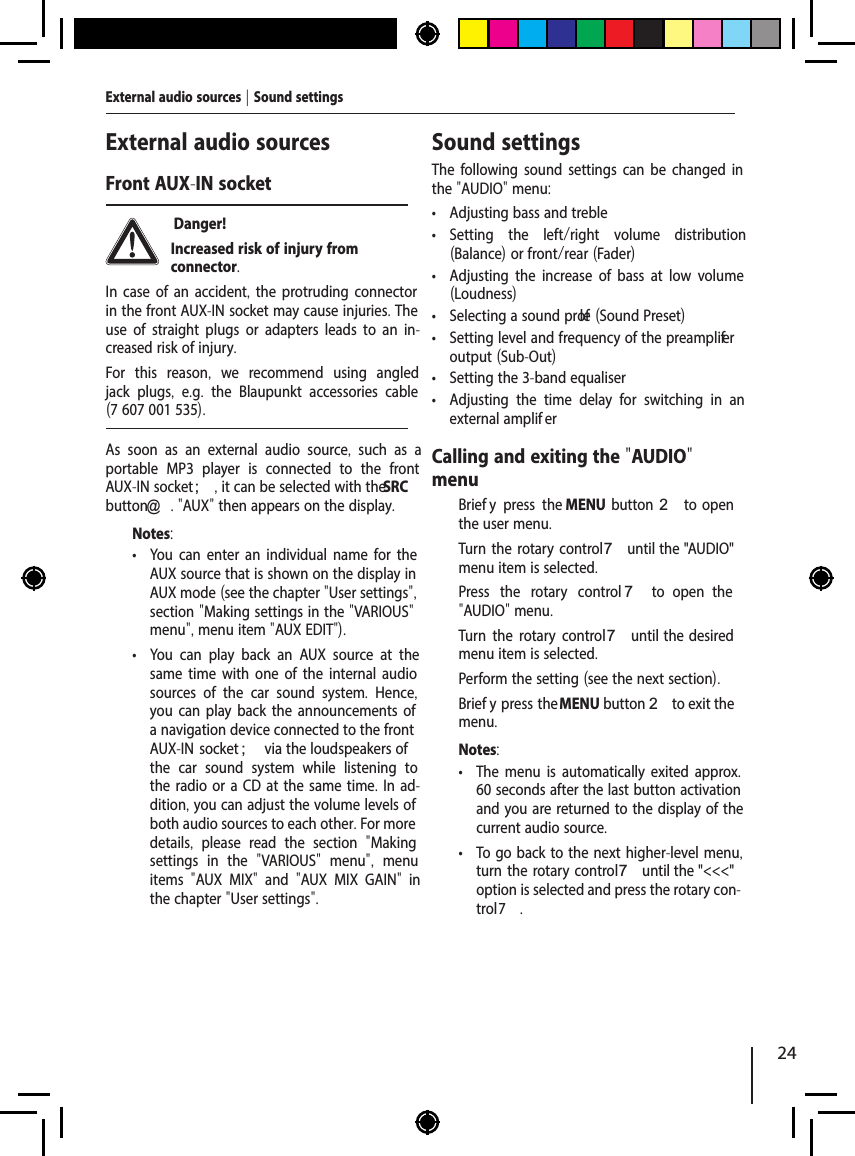
24External audio sourcesFront AUX-IN socket Danger! Increased risk of injury from connector.In case of an accident, the protruding connector in the front AUX-IN socket may cause injuries. The use of straight plugs or adapters leads to an in-creased risk of injury.For this reason,  we recommend using angled jack plugs,  e.g.  the Blaupunkt accessories cable (7 607 001 535).As soon as an external audio source,  such as a portable MP3 player is connected to the front AUX-IN socket ;, it can be selected with the SRC button@  . "AUX" then appears on the display.Notes: • You can enter an individual name for the AUX source that is shown on the display in AUX mode (see the chapter "User settings", section "Making settings in the "VARIOUS" menu", menu item "AUX EDIT"). • You can play back an AUX source at the same time with one of the internal audio sources of the car sound system.  Hence, you can play back the announcements of a navigation device connected to the front AUX-IN socket ; via the loudspeakers of the car sound system while listening to the radio or a CD at the same time. In ad-dition, you can adjust the volume levels of both audio sources to each other. For more details,  please read the section  "Making settings in the  "VARIOUS"  menu",  menu items  "AUX MIX"  and  "AUX MIX GAIN"  in the chapter "User settings".Sound settingsThe following sound settings can be changed in the "AUDIO" menu: • Adjusting bass and treble • Setting the left/right volume distribution (Balance) or front/rear (Fader) • Adjusting the increase of bass at low volume (Loudness) • Selecting a sound pr olef (Sound Preset) • Setting level and frequency of the preamplif er output (Sub-Out) • Setting the 3-band equaliser • Adjusting the time delay for switching in an external amplif erCalling and exiting the "AUDIO" menu  Brief y press the MENU  button 2  to  open the user menu.  Turn the rotary control 7 until the "AUDIO" menu item is selected.  Press the rotary control 7  to  open  the "AUDIO" menu.  Turn the rotary control 7 until  the  desired menu item is selected.  Perform the setting (see the next section).  Brief y press the MENU button 2 to exit the menu.Notes: • The menu is automatically exited approx. 60 seconds after the last button activation and you are returned to the display of the current audio source. • To go back to the next higher-level menu, turn the rotary control 7 until the "<<<" option is selected and press the rotary con-trol 7.External audio sources | Sound settings
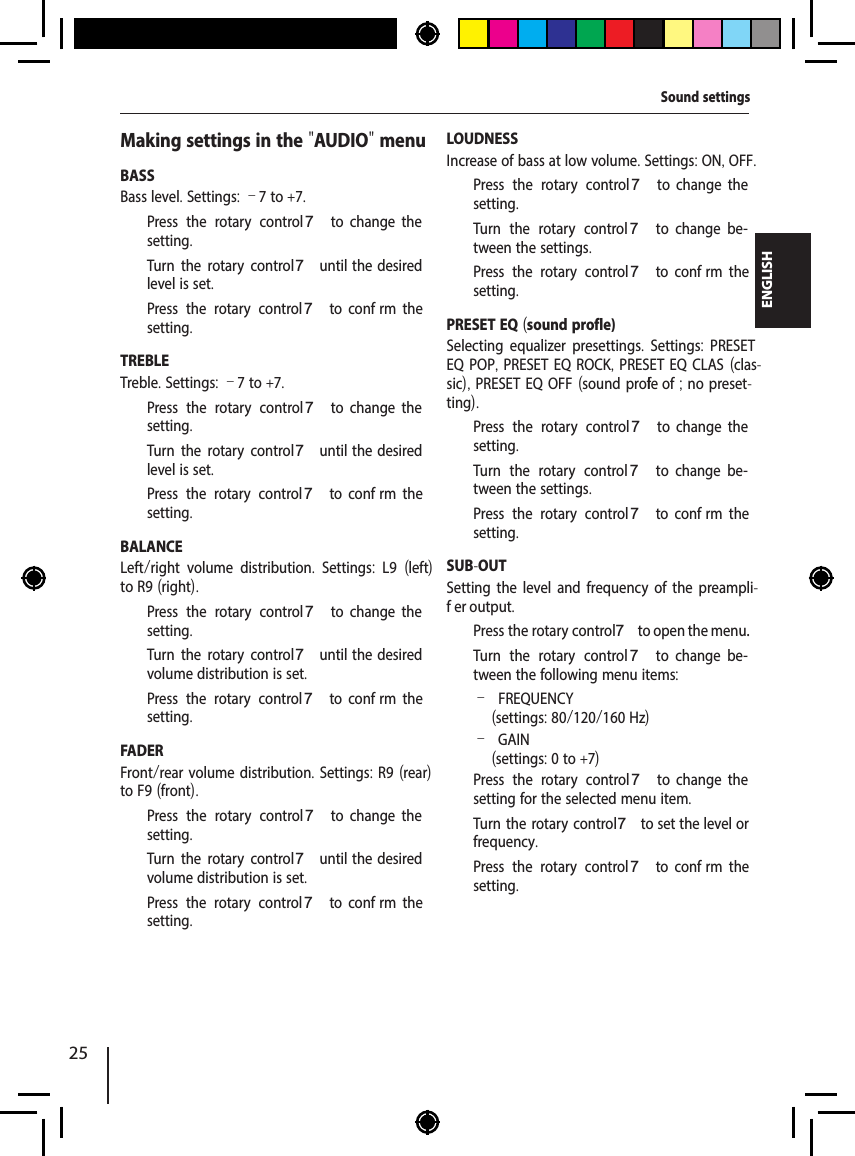
25ENGLISHMaking settings in the "AUDIO" menuBASSBass level. Settings: –7 to +7.  Press the rotary control 7  to  change  the setting.  Turn the rotary control 7 until  the  desired level is set.  Press the rotary control 7  to  conf rm  the setting.TREBLETreble. Settings: –7 to +7.  Press the rotary control 7  to  change  the setting.  Turn the rotary control 7 until  the  desired level is set.  Press the rotary control 7  to  conf rm  the setting.BALANCELeft/right volume distribution.  Settings:  L9  (left) to R9 (right).  Press the rotary control 7  to  change  the setting.  Turn the rotary control 7 until  the  desired volume distribution is set.  Press the rotary control 7  to  conf rm  the setting.FADERFront/rear volume distribution. Settings: R9 (rear) to F9 (front).  Press the rotary control 7  to  change  the setting.  Turn the rotary control 7 until  the  desired volume distribution is set.  Press the rotary control 7  to  conf rm  the setting.LOUDNESSIncrease of bass at low volume. Settings: ON, OFF.  Press the rotary control 7  to  change  the setting.  Turn the rotary control 7  to  change  be-tween the settings.  Press the rotary control 7  to  conf rm  the setting.PRESET EQ (sound prof le)Selecting equalizer presettings.  Settings:  PRESET EQ POP, PRESET EQ ROCK, PRESET EQ CLAS (clas-sic), PRESET EQ OFF (sound prof le of ; no preset-ting).  Press the rotary control 7  to  change  the setting.  Turn the rotary control 7  to  change  be-tween the settings.  Press the rotary control 7  to  conf rm  the setting.SUB-OUTSetting the level and frequency of the preampli-f er output.  Press the rotary control 7 to open the menu.  Turn the rotary control 7  to  change  be-tween the following menu items: –FREQUENCY (settings: 80/120/160 Hz) –GAIN(settings: 0 to +7)  Press the rotary control 7  to  change  the setting for the selected menu item.  Turn the rotary control 7 to set the level or frequency.  Press the rotary control 7  to  conf rm  the setting.Sound settings
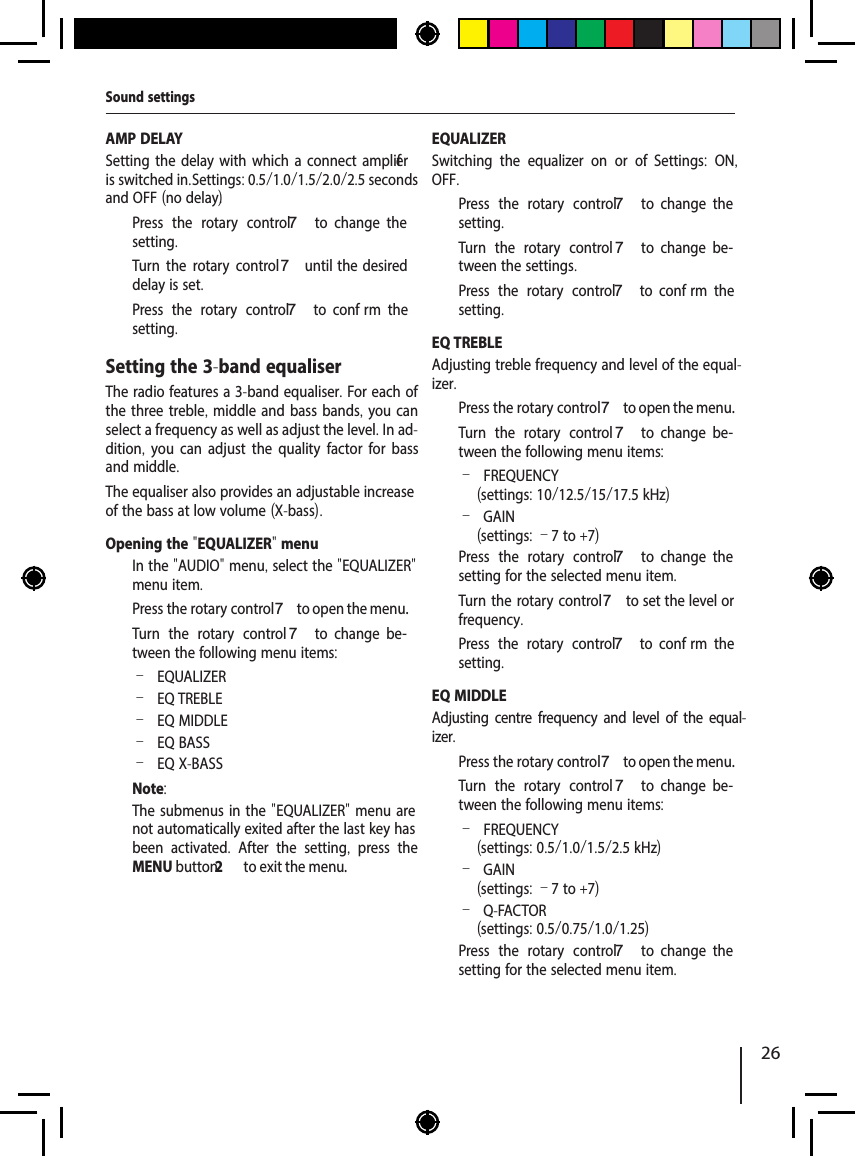
26AMP DELAYSetting the delay with which a connect amplif er is switched in. Settings: 0.5/1.0/1.5/2.0/2.5 seconds and OFF (no delay).  Press the rotary control 7  to  change  the setting.  Turn the rotary control7 until  the  desired delay is set.  Press the rotary control 7  to  conf rm  the setting.Setting the 3-band equaliserThe radio features a 3-band equaliser. For each of the three treble, middle and bass bands, you can select a frequency as well as adjust the level. In ad-dition,  you can adjust the quality factor for bass and middle. The equaliser also provides an adjustable increase of the bass at low volume (X-bass).Opening the "EQUALIZER" menu  In the "AUDIO" menu, select the "EQUALIZER" menu item.  Press the rotary control 7 to open the menu.  Turn the rotary control 7  to  change  be-tween the following menu items: –EQUALIZER –EQ TREBLE –EQ MIDDLE –EQ BASS –EQ X-BASSNote:The submenus in the "EQUALIZER" menu are not automatically exited after the last key has been activated.  After the setting,  press the MENU button2  to exit the menu.EQUALIZERSwitching the equalizer on or of .  Settings:  ON, OFF.  Press the rotary control 7  to  change  the setting.  Turn the rotary control 7  to  change  be-tween the settings.  Press the rotary control 7  to  conf rm  the setting.EQ TREBLEAdjusting treble frequency and level of the equal-izer.  Press the rotary control 7 to open the menu.  Turn the rotary control 7  to  change  be-tween the following menu items: –FREQUENCY (settings: 10/12.5/15/17.5 kHz) –GAIN (settings: –7 to +7)  Press the rotary control 7  to  change  the setting for the selected menu item.  Turn the rotary control7 to set the level or frequency.  Press the rotary control 7  to  conf rm  the setting.EQ MIDDLEAdjusting centre frequency and level of the equal-izer.  Press the rotary control 7 to open the menu.  Turn the rotary control 7  to  change  be-tween the following menu items: –FREQUENCY (settings: 0.5/1.0/1.5/2.5 kHz) –GAIN (settings: –7 to +7) –Q-FACTOR(settings: 0.5/0.75/1.0/1.25)  Press the rotary control 7  to  change  the setting for the selected menu item.Sound settings
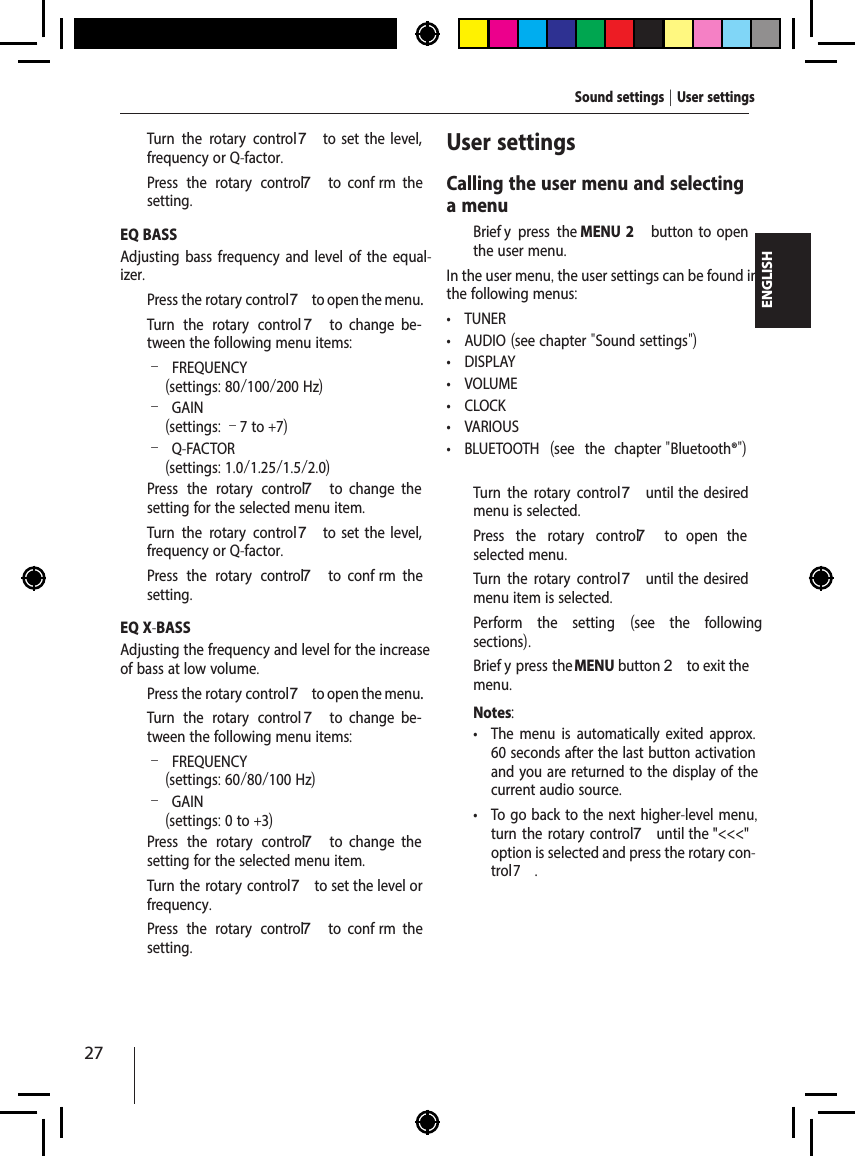
27ENGLISH  Turn the rotary control7  to  set  the  level, frequency or Q-factor.  Press the rotary control 7  to  conf rm  the setting.EQ BASSAdjusting bass frequency and level of the equal-izer.  Press the rotary control 7 to open the menu.  Turn the rotary control 7  to  change  be-tween the following menu items: –FREQUENCY (settings: 80/100/200 Hz) –GAIN(settings: –7 to +7) –Q-FACTOR(settings: 1.0/1.25/1.5/2.0)  Press the rotary control 7  to  change  the setting for the selected menu item.  Turn the rotary control7  to  set  the  level, frequency or Q-factor.  Press the rotary control 7  to  conf rm  the setting.EQ X-BASSAdjusting the frequency and level for the increase of bass at low volume.  Press the rotary control 7 to open the menu.  Turn the rotary control 7  to  change  be-tween the following menu items: –FREQUENCY (settings: 60/80/100 Hz) –GAIN(settings: 0 to +3)  Press the rotary control 7  to  change  the setting for the selected menu item.  Turn the rotary control7 to set the level or frequency.  Press the rotary control 7  to  conf rm  the setting.User settingsCalling the user menu and selecting a menu  Brief y press the MENU 2  button  to  open the user menu.In the user menu, the user settings can be found in the following menus: • TUNER • AUDIO (see chapter "Sound settings") • DISPLAY • VOLUME • CLOCK • VARIOUS • BLUETOOTH  (see the chapter "Bluetooth®")  Turn the rotary control7 until  the  desired menu is selected.  Press the rotary control 7  to  open  the selected menu.  Turn the rotary control7 until  the  desired menu item is selected.  Perform the setting  (see the following sections).  Brief y press the MENU button 2 to exit the menu.Notes: • The menu is automatically exited approx. 60 seconds after the last button activation and you are returned to the display of the current audio source. • To go back to the next higher-level menu, turn the rotary control 7 until the "<<<" option is selected and press the rotary con-trol 7.Sound settings | User settings
28Making settings in the "TUNER" menuTRAFFICINFO (traf  c information)(only for reception area EUROPE)Only possible in FM radio mode: Switching prior-ity for traf  c announcements on or of . Settings: ON, OFF.  Press the rotary control 7  to  change  the setting.  Turn the rotary control 7  to  change  be-tween the settings.  Press the rotary control 7  to  conf rm  the setting.If priority is switched on for traf  c information, the display shows the icon .BAND SELECTIONActivating or deactivating memory banks. Memory banks that can be deactivated: Region Memory banksEUROPE FM2, FMT, MW, LWUSA FM2, FMT, AM, AMTSOUTH AMERICA FM2, FMT, AM, AMTTHAILAND FM2, FMT, AM, AMTSettings in each case: ON, OFF.  Press the rotary control 7 to open the menu.  Turn the rotary control7 until  the  desired memory bank is set.  Press the rotary control 7  to  change  the setting.  Turn the rotary control 7 to toggle between the settings ON (activate memory bank) and OFF (deactivate memory bank).  Press the rotary control 7  to  conf rm  the setting.Deactivated memory banks are skipped during the source selection with the SRC button@ .Notes: • In the factory default,  all AM memory banks are deactivated. • If a memory bank is deactivated, the sta-tions stored in this memory bank are re-tained.REGIONAL(only for reception area EUROPE)Only possible in FM radio mode:  Switching REGIONAL function on or of . Settings: ON, OFF.  Press the rotary control 7  to  change  the setting.  Turn the rotary control 7  to  change  be-tween the settings.  Press the rotary control 7  to  conf rm  the setting.SENSITIVITYSetting the sensitivity of station seek tuning. Set-tings: LO (–; low), HI (+; high).  Press the rotary control 7  to  change  the setting.  Turn the rotary control 7  to  change  be-tween the settings.  Press the rotary control 7  to  conf rm  the setting.RDSSwitching the RDS function on or of . Settings: ON, OFF.  Press the rotary control 7  to  change  the setting.  Turn the rotary control 7  to  change  be-tween the settings.  Press the rotary control 7  to  conf rm  the setting.Note:If the reception area "USA", "SOUTH AMERICA" or  "THAILAND"  is selected,  RDS is automati-cally switched of . The station name continues to be shown on the display.User settings
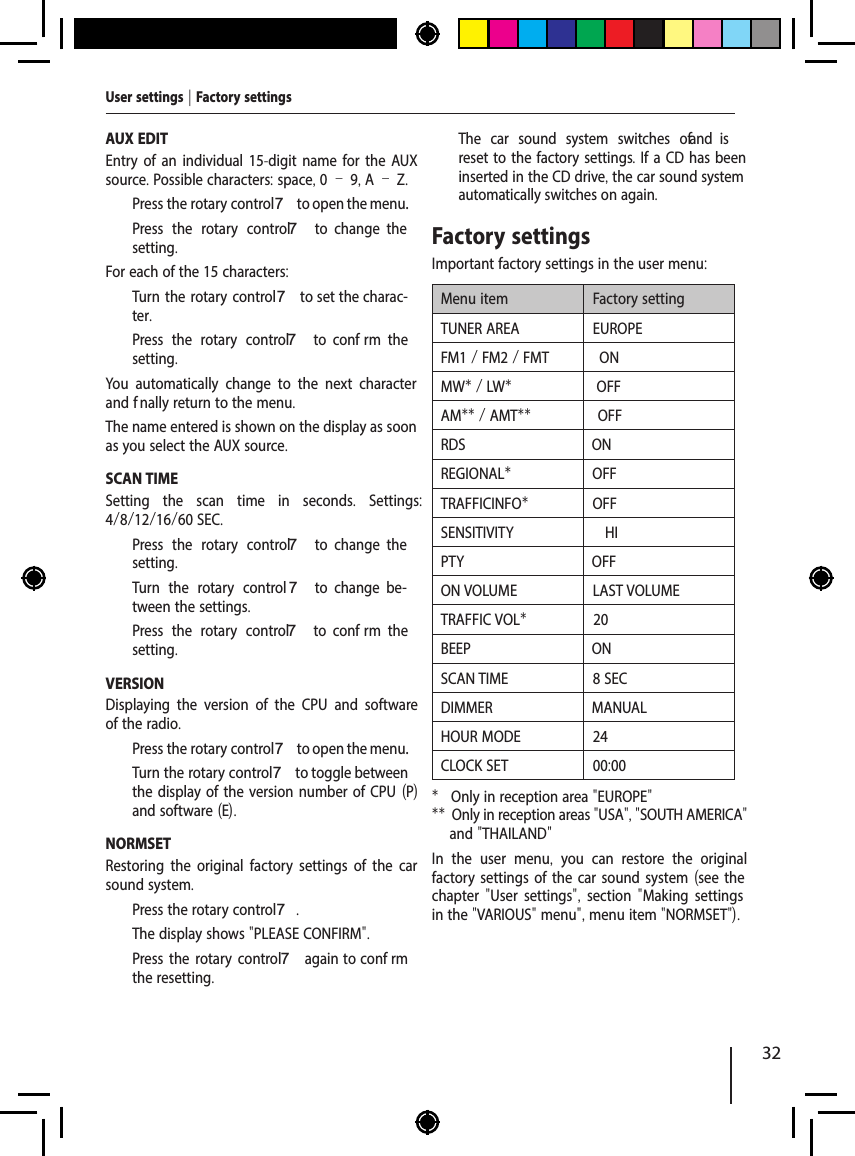
29ENGLISHPTYSwitching the PTY function on or of . Settings: ON, OFF.  Press the rotary control 7  to  change  the setting.  Turn the rotary control 7  to  change  be-tween the settings.  Press the rotary control 7  to  conf rm  the setting.PTY TYPESOnly possible with activated PTY function: Select a programme type.Note:As soon as a programme type has been select-ed,  this programme type is shown as menu item in the menu instead of "PTY TYPES".  Press the rotary control 7  to  change  the setting.  Turn the rotary control 7  to  change  be-tween the available programme types.  Press the rotary control 7  to  conf rm  the selected programme type.PTY LANGUAGE(only for reception area EUROPE)Only possible with activated PTY function: Select a language for the display of the programme types. Settings: ENGLISH, DEUTSCH (German), FRANCAIS (French).  Press the rotary control 7 to open the menu.  Press the rotary control 7  to  change  be-tween the languages.  Turn the rotary control 7  to  select  a  lan-guage.  Press the rotary control 7 to conf rm the se-lected language.TUNER AREA (reception area)Select the reception area for the radio reception. Settings:  EUROPE,  USA,  SOUTH AMERICA,  THAI-LAND.  Press the rotary control 7 to open the menu.  Turn the rotary control 7  to  change  be-tween the reception areas.  Press the rotary control 7 to select a recep-tion area.The display shows "PLEASE CONFIRM".  Press the rotary control 7  to  conf rm  the selected reception area.Making settings in the "DISPLAY" menuDIMMERSelect automatic or manual switching of the dis-play brightness for day or night.  Settings:  AUTO (display brightness is automatically switched by switching the driving lights on or of ),  MANUAL (display brightness can be switched manually).  Press the rotary control 7  to  change  the setting.  Turn the rotary control 7  to  change  be-tween the settings.  Press the rotary control 7  to  conf rm  the setting.Automatic switching of the display brightness is possible only If your car sound system is installed as described in the installation instructions and your vehicle features the corresponding connection. SCROLLINGSelect the display of scrolling text (e.g. when dis-playing MP3 f le names with more than 15 charac-ters) either as single display or continued display. Settings: 1X (single display), ON (continued display).  Press the rotary control 7  to  change  the setting.  Turn the rotary control 7  to  change  be-tween the settings.  Press the rotary control 7  to  conf rm  the setting.User settings
30LANGUAGESelect the language for the display.  Settings: ENGLISH, DEUTSCH (German).  Press the rotary control 7  to  change  the setting.  Turn the rotary control 7  to  change  be-tween the settings.  Press the rotary control 7  to  conf rm  the setting.Making settings in the "VOLUME" menuON VOLUMESetting the power-on volume. Settings:  ON VOL-UME (power-on volume; 1–50) or LAST VOLUME (volume set last before switching of   the car sound system). Danger! High volumeThe power-on volume can be unex-pectedly high if the LAST VOLUME setting is se-lected and a high volume was set the last time the radio was switched of .Always set the device to a moderate volume.  Press the rotary control 7 to open the menu.  Turn the rotary control 7 to switch between the menu items  "LAST VOLUME"  and  "ON V  OLUME" (power-on volume).Upon selecting "LAST VOLUME":  Press the rotary control 7  to  conf rm  the setting.Upon selecting "ON VOLUME":  Press the rotary control 7  to  change  the setting.  Turn the rotary contr7ol  to set the volume.  Press the rotary control 7  to  conf rm  the setting.TRAFFIC VOL (traf  ic information volume)(reception area EUROPE only)Setting the minimum volume for traf  c announce-ments. Settings: 1 – 50.  Press the rotary control 7  to  change  the setting.  Turn the rotary contr7ol  to set the volume.  Press the rotary control 7  to  conf rm  the setting.HANDSFREE VOLAdjusting the level for handsfree volume. Settings: –5 to +5.  Press the rotary control 7  to  change  the setting.  Turn the rotary control7  to  set  the  level adjustment.  Press the rotary control 7  to  conf rm  the setting.BEEP (button beep)Switching the conf rmation beep on or of . Settings: ON, OFF.Note:When storing radio stations,  a conf rma-tion beep sounds even if the OFF setting is selected.  Press the rotary control 7  to  change  the setting.  Turn the rotary control 7  to  change  be-tween the settings.  Press the rotary control 7  to  conf rm  the setting.User settings
31ENGLISHMaking settings in the "CLOCK" menuPERM CLOCKSwitch the permanent display of the time on or of . Settings: ON, OFF.  Press the rotary control 7  to  change  the setting.  Turn the rotary control 7  to  change  be-tween the settings.  Press the rotary control 7  to  conf rm  the setting.If the permanent display of the time is switched on, the time is shown on the display. The display of the respective audio source is shown only after pressing a button. Approximately 15 seconds af-ter the button is pressed last, the time is displayed again.HOUR MODESelecting the 12 or 24-hour time. Settings: 12, 24.  Press the rotary control 7  to  change  the setting.  Turn the rotary control 7  to  change  be-tween the settings.  Press the rotary control 7  to  conf rm  the setting.SETSetting the time.   Press the rotary control 7  to  change  the setting.  Turn the rotary control 7  clockwise  to  set the hours.  Turn the rotary control 7 counter-clockwise to set the minutes.  Press the rotary control 7  to  conf rm  the time set.Note:When you set the time in 12-hour mode (HOUR MODE 12), an "AM" is displayed before the time for the time before noon or a "PM" for the time after noon.Making settings in the "VARIOUS" menuDEMO MODESwitching the demo mode on or of .  Settings: ON, OFF.  Press the rotary control 7  to  change  the setting.  Turn the rotary control 7  to  change  be-tween the settings.  Press the rotary control 7  to  conf rm  the setting.In demo mode, the features of the radio are shown as scrolling text on the display.MIX AUXSwitching the combined playback of the AUX source with another audio source on or of . Settings: ON, OFF.  Press the rotary control 7  to  change  the setting.  Turn the rotary control 7  to  change  be-tween the settings.  Press the rotary control 7  to  conf rm  the setting.With the AUX MIX ON setting,  an audio source connected to the front AUX-IN socket ; is played back simultaneously with the respective active internal audio source of the car sound system (e.g. radio or CD).AUX MIX GAIN (AUX MIX Level)Adjusting the level of the AUX source with com-bined playback of the AUX source and another audio source (AUX MIX ON). Settings: –5 to +5.  Press the rotary control 7  to  change  the setting.  Turn the rotary control7  to  set  the  level adjustment.  Press the rotary control 7  to  conf rm  the setting.This setting allows raising or lowering the level of the AUX source to adjust it to the level of the other active audio source.User settings
32AUX EDITEntry of an individual 15-digit name for the AUX source. Possible characters: space, 0 – 9, A – Z.  Press the rotary control 7 to open the menu.  Press the rotary control 7  to  change  the setting.For each of the 15 characters:  Turn the rotary control7 to set the charac-ter.  Press the rotary control 7  to  conf rm  the setting.You automatically change to the next character and f nally return to the menu.The name entered is shown on the display as soon as you select the AUX source.SCAN TIMESetting the scan time in seconds.  Settings: 4/8/12/16/60 SEC.  Press the rotary control 7  to  change  the setting.  Turn the rotary control 7  to  change  be-tween the settings.  Press the rotary control 7  to  conf rm  the setting.VERSIONDisplaying the version of the CPU and software of the radio.  Press the rotary control 7 to open the menu.  Turn the rotary control 7 to toggle between the display of the version number of CPU (P) and software (E).NORMSETRestoring the original factory settings of the car sound system.  Press the rotary control 7.The display shows "PLEASE CONFIRM".  Press the rotary control 7 again to conf rm the resetting.The car sound system switches of   and  is reset to the factory settings. If a CD has been inserted in the CD drive, the car sound system automatically switches on again.Factory settingsImportant factory settings in the user menu:Menu item Factory settingTUNER AREA EUROPEFM1 / FM2 / FMT ONMW* / LW*OFFAM** / AMT** OFFRDS ONREGIONAL*OFFTRAFFICINFO*OFFSENSITIVITY HIPTY OFFON VOLUME LAST VOLUMETRAFFIC VOL*20BEEP ONSCAN TIME 8 SECDIMMER MANUALHOUR MODE 24CLOCK SET 00:00*  Only in reception area "EUROPE"**  Only in reception areas "USA", "SOUTH AMERICA" and "THAILAND"In the user menu,  you can restore the original factory settings of the car sound system (see the chapter  "User settings",  section  "Making settings in the "VARIOUS" menu", menu item "NORMSET").User settings | Factory settings
33ENGLISHUseful informationWarrantyWe provide a manufacturer's warranty for prod-ucts bought within the European Union. For de-vices purchased outside the European Union, the warranty terms issued by our respective responsi-ble domestic agency are valid. The warranty terms can be called up from www.blaupunkt.com. ServiceIn some countries,  Blaupunkt of ers a repair and pick-up service.Information about the availability of this service in your country can be found at www.blaupunkt.com.If you want to take advantage of this service, you may request a pick-up service for your car sound system via the Internet.Technical dataVoltage supplyOperating voltage:  10.5 – 14.4 VCurrent consumptionIn operation:  < 10 A10 sec. after switch-of :  < 3.5 mAAmplif er Output power:  4 x 22 watts sine at 14.4 V at 4 ohms.  4 x 50 watts max. powerTunerWavebands in Europe/Thailand:FM:  87.5 – 108 MHzAM (MW):  531 – 1,602 kHzLW (Europe only):  153 – 279 kHzWavebands in the US:FM:  87.7 – 107.9 MHzAM (MW):  530 – 1,710 kHzWavebands in South America:FM:  87.5 – 107.9 MHzAM (MW):  530 – 1,710 kHzFM frequency response:  30 – 15,000 HzCDFrequency range:  20 – 20,000 HzPre-amp out4 channels:  2 VInput sensitivityFront AUX-IN:  300 mV / 10 kΩDimensions and weightW x H x D:  178 x 50 x 160 mmWeight:  approx. 1.70 kgSubject to changesUseful information | Technical data
  FCC WARNING  This device complies with Part 15 of the FCC Rules. Operation is subject to the following two conditions: (1) This device may not cause harmful interference, and (2) this device must accept any interference received, including interference that may cause undesired operation.  NOTE 1: Any changes or modifications to this unit not expressly approved by the party responsible for compliance could void the user's authority to operate the equipment.

Navigation menu