SKYPINE ELECTRONICS CNE6923A Car Navigation & Entertainment System User Manual 1

SKYPINE ELECTRONICS (SHEN ZHEN) CO., LTD. Car Navigation & Entertainment System 1

User Manual

ContentsPrecautions …………………………………………… 1Opening Logo ………………………………………… 2System Setup Menu, Controls and Indicators ……. 3Main MenuControls and IndicatorsTFT Monitor Operation Instruction...………………... 4Image setting Power ON/OFF (Radio Panel)Playing source selectionVolume adjustment (Radio Panel)Aux-In ModeCamera ModeSystem Reset………………………………….… 5Mute……………………………………………… 5Audio Control Menu ……………………………….… 5 Accessing the Equalizer settingSetup Audio AdjustmentAccessing the General Setup Menu…………...         6Accessing the Video Setup MenuAccessing the Miscellaneous Menu……...…...          7Accessing the Navigation MenuTuner (FM/AM) Operation …………………………..          7Select FM/AM Band………………...…………..          8Auto TuningManual TuningStoring StationRecalling a StationAuto Store (AS)…………………………………… 8Program Scan (PS)……………………………….        9DX and LOC Station Seeking (LOC)DVD Player Operation ………………….……………… 9 - 11Insert/Eject Disc (Radio Panel)Reset the Loading MechanismAccessing DVD ModeUsing the touch Screen ControlsStopping and Pausing PlaybackFast Forward/Fast ReverseDisc SettingChanging Subtitle LanguageDVD Playback InformationDisc Symbol and General Disc InformationCD/MP3/WMA/JPEG Operation ………………………… 11 - 12CD player user interfacePlaying CD filesMP3/WMA DisciPod Operation …………………………………………... 12 - 13Accessing iPod ModePlayback of Video on iPodUSB Operation ……………………………………………. 13Bluetooth Operation ………………………………………. 13 - 17Accessing Bluetooth ModeBluetooth user interfacePhonebookBluetooth SetupAuto ConnectMaking a phone callIncoming Call and End CallTelephone and Information
Specifications …………………………………………….. 18Multi – Information ……………………………………….. 18 - 23Functional IconsDigital ClockWarning DisplayOutside TemperatureBarometerElevationAdjustment setting Fuel EconomyCompassRangeSpeedNotes and InformationTire Pressure Monitor System (TPMS) ………………… 24 - 28Normal Mode DisplayAbnormal Mode Display Warning IndicatorPressure High/Low First StagePressure High/Low Second StageAccessing the Tire Exchange Mode Front and Rear Tire Exchange Mode (Parallel Change)Front and Rear Tire Exchange Mode (Cross Change)Spare Tire Exchange ModeSignal LossSystem Check ModeInformationPeriodic Maintenance …………………………………..     28Steering Wheel Remote Control ……………………….    29Navigation ……………………………………………….. 30 - 42Understanding Map PageAcquiring SatellitesAbout GPS Satellite SignalsFinding your Destination using AddressFinding your Destination using IntersectionFinding your Destination using Recent DestinationFinding your Destination using POI NearbyFinding your Destination using POIUsing Longitude / LatitudeUsing Quick MenuUsing My FavoriteUsing Route InfoVoice SettingVolume SettingGPS StatusTrack Up / North Up SettingAuto / Day / Night Mode Setting\POI Display SettingAboutUsing Detail2D / 3D ViewQuick MenuAlternative RouteScaleNotes………………………………………………………..43ForewordThank you for selecting Multi–Media System as your new entertainment system.This owner’s manual will add to your understanding and full enjoyment of the numerous fine features of this system.It contains information prepared to acquaint you with the proper way to operate and maintain your Multi-Media System for most pleasure.This system reserves the right to make changes in design and specifications.This owner’s manual has been written in compliance with existing laws and regulations, but some contents may contradict with recent / new amendments of the laws and regulations.This device complies with Part 15 of the FCC Rules.Operation is subject to the following two conditions:(1) this device may not cause harmful interference, and(2) this device must accept any interference received, including interference that may cause undesired operation.Statement:The changes or modifications not expressly approved by the party responsible for compliance could void the user's authority to operate the equipment. This equipment complies with FCC RF radiation exposure limits set forth for an uncontrolled environment. This equipment should be installed and operated with a minimum distance of 20 centimeters between the radiator and your body.Throughout this owner’s manual the words WARNING and CAUTION appear.These serve as reminders for utmost care. Failure to follow instructions could result in damage to your Multi-Media System or to your vehicle.WARNINGIndicates a strong possibility of severe personal injury or death if instructions are not followed.CAUTIONMeans hazards or unsafe practice that could cause minor personal injury or damage to your vehicle.You will also see other important symbols:Note InformationGives helpful information
PrecautionsTo avoid the risk of injury or accident, read the following precautions before operating the unit.On safetyComply with your local traffic rules and regulations.• While driving)Do not use the System Setup feature while driving, or perform any other function which could divert your attention from the road.)avoid watching or operating the monitor. Park your car in a safe place to watch the monitor and operate the unit.• While operating avoid)avoid inserting your hands, fingers or foreign object into the unit while the monitor is   functioning. It may cause injury or damage to the unit.)Keep small articles out of the reach of children.   • If your car was parked in direct sunlight resulting in a considerable rise in temperature inside the car, allow the unit to cool off before operating it.• When you connect the back camera:)When you drive, watch the surroundings carefully for your safety. Do not depend on the back camera exclusively.• When backing up you car, be sure to look back for your safety.Do not touch the liquid crystal fluid if the LCD is damaged or broken. The liquid crystal  fluid may be hazardous to your health or fatal. If the liquid crystal fluid from the LCD  contacts your body or clothing, wash it off with soap immediately Moisture condensationWhen the unit’s temperature falls (as in winter), the liquid crystal display will become darker than usual. Normal brightness will return after using the monitor for a while.To maintain high sound qualityAvoid contact of Liquid materials ( juice, soft drinks, coffee ) onto the unit  or discs unless permitted by the manufacturer of the system.Playable discsThe following types of discs/files are compatible:• CD-ROM (ISO), CD-R, CD-RW, DVD+R/RW, DVD-R/RW• CD-DA, DVD Video • MP3 data• WMA data• JPG images • WMV format• AVI format• MPG formatThe following types of discs/files are not compatible:• WMA files that are protected by DRM (Digital Rights Management)• WMA lossless format• Discs recorded with Track At Once or packet writing• MP3 PRO format• MP3 playlists• WAV formatSome recordable DVDs and CDs may be incompatible with this unit, depending on media type and recording method. NOTE:It is especially important that you read the WARNINGS and NOTES in this manual.1DVD Region ManagementSome DVD discs can be played only in certain playback modes according to the format of the software. As the unit plays discs according to their formats, some functions may not work as intended. Be sure to read the instructions provided with each disc. This player has been designed to play back DVD software that has been encoded for specific region areas. It cannot play back DVD software encoded for other region areas than the region areas for which it has been designed. Features• TFT Panel, all-in-one highly integrated entertainment system• Built-in DVD Player, Radio automotive specification slot loading mechanism• Built-in FM/AM Tuner Radio • Digital 6.95”(16:9) TFT color monitor, contrast and brightness adjustment • Built-in 40W X 4 output amplifier, 4.1 channel surround sound output.• All functions can be operated via Smart Touch screen.• Built-in iPod Control and Navigation system• Powerful Graphic User Interface and software update ability.Opening LOGOfig. 1LOGO will appear 5 seconds after ignition “ON” and standby for about 15 seconds before the Car Info display or Multi – Information display shows.NOTE:•After displaying the opening logo, Car info is the default display on the screen. Even if the last source selected is Disc (MP3/DVD), Navigation (NAVI), Radio Menu or iPod /USB.)Reminders:• Multi-Info will display automatically when you turn the radio panel “OFF”• Touch the clock on the upper center to enter STANDBY MODE.( When the Radio is ON )• The Multi-Media System can also be controlled via the steering wheel remote control.2WARNING!1. Connect the unit to a 12-volt negative ground system only.2. Never install this unit during vehicle operation it could interfere with safe driving conditions.3. To reduce the risk of a traffic accident (except when using for rear view video  camera) never use the video display function while driving the vehicle. This may be in violation of local laws.4. Never disassemble or adjust the unit without the assistance of a professional.For details, please consult your local car stereo specialty shop.5. To prevent injury from shock or fire, never expose this unit to moisture or water.6. Never use irregular discs, the only recommended disc size is a 12cm round disc.7. To prevent damage to the mechanism inside this unit, avoid impact to the TFT  monitor.8. Do not change the fuse on the power wire without professional guidance / assistance.Using an improper fuse may damage the unit and result in a fire.
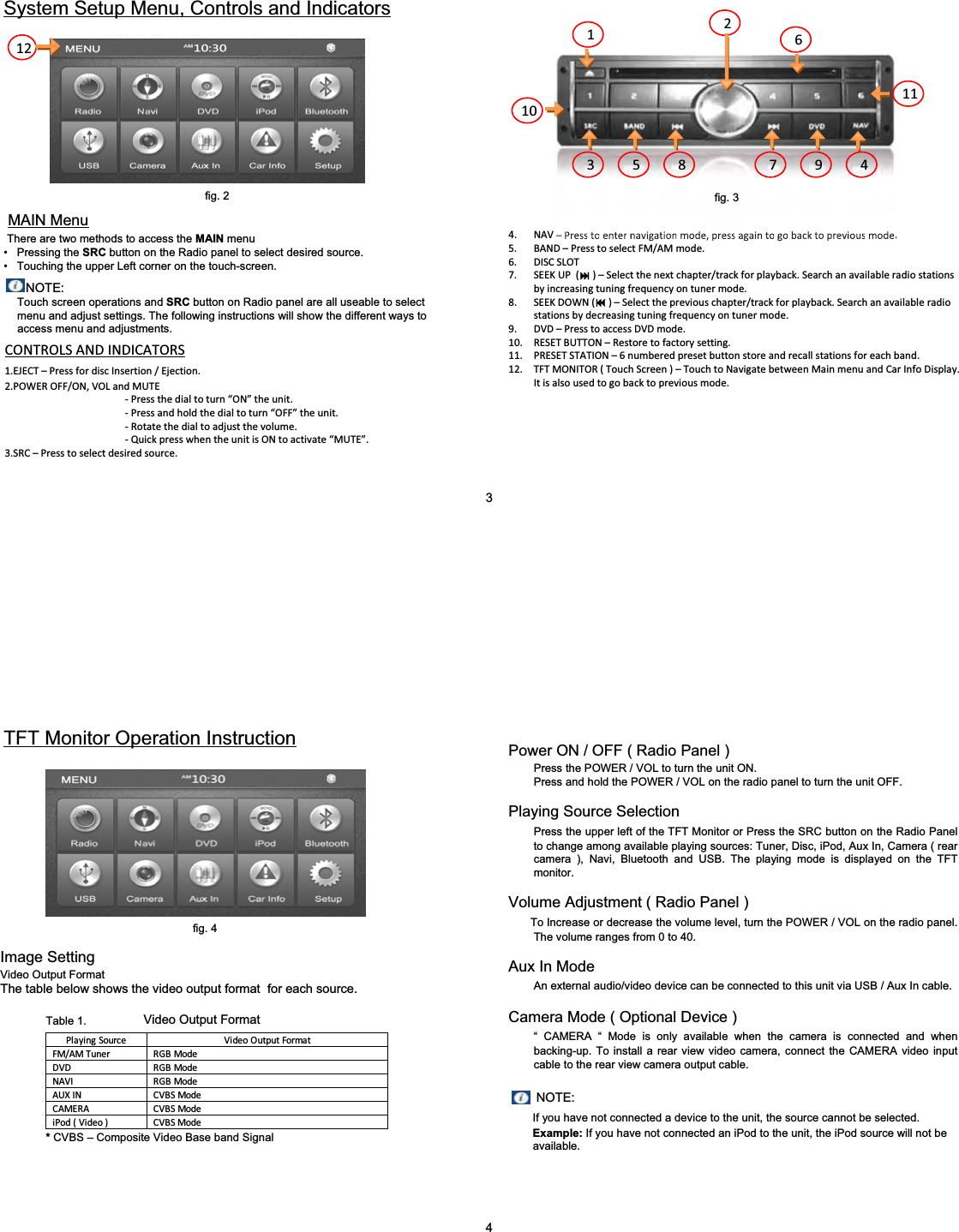
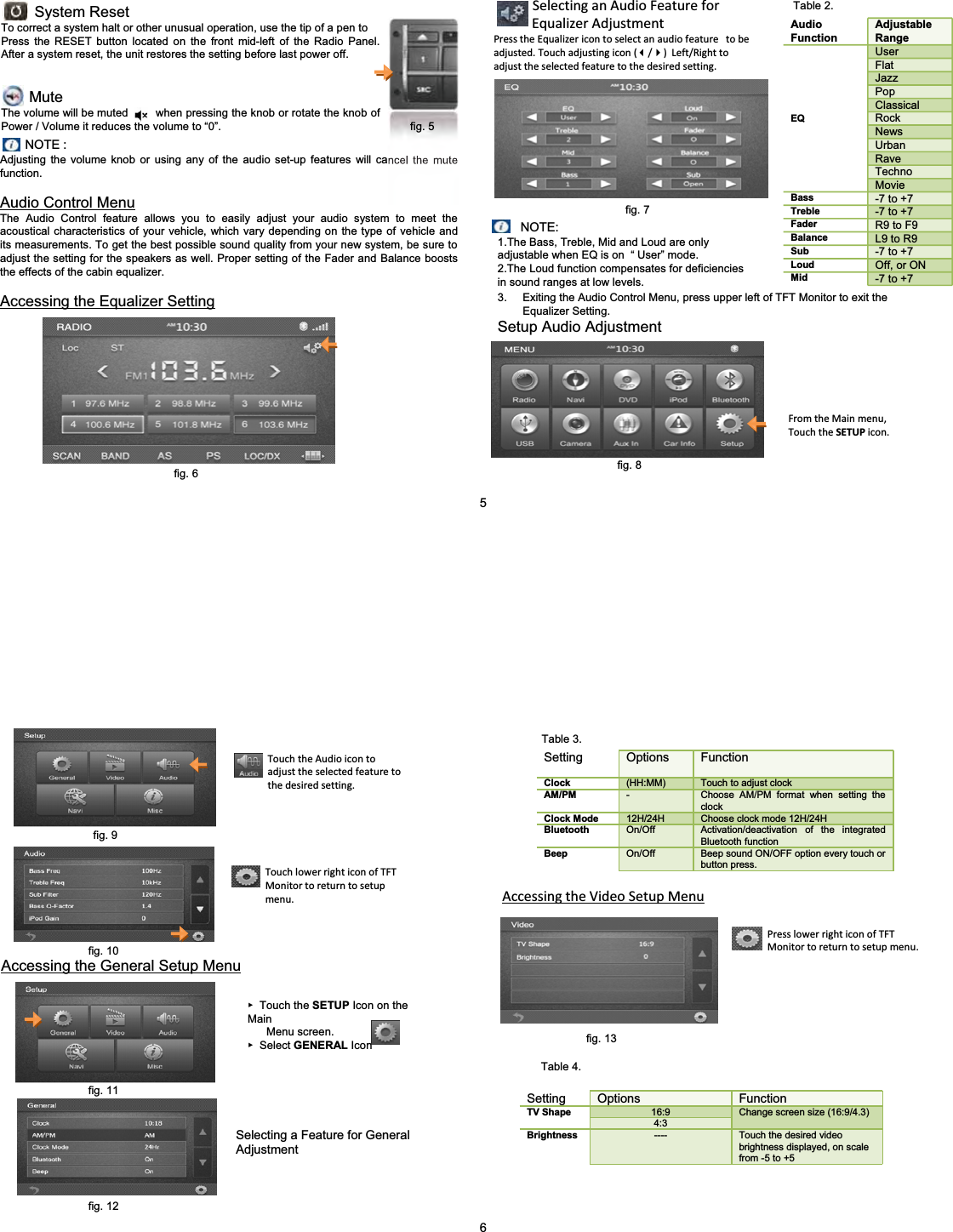
NOTE: Touch screen operations and SRC button on Radio panel are all useable to select menu and adjust settings. The following instructions will show the different ways to access menu and adjustments.System Setup Menu, Controls and Indicatorsfig. 2MAIN MenuThere are two methods to access the MAIN menu• Pressing the SRC button on the Radio panel to select desired source.• Touching the upper Left corner on the touch-screen.CONTROLSANDINDICATORS1.EJECT–PressfordiscInsertion/Ejection.2.POWEROFF/ON,VOLandMUTEͲPressthedialtoturn“ON” theunit.ͲPressandholdthedialtoturn“OFF” theunit.ͲRotatethedialtoadjustthevolume.ͲQuickpresswhentheunitisONtoactivate“MUTE”.3.SRC–Presstoselectdesiredsource.4. NAV–Presstoenternavigationmode,pressagaintogobacktopreviousmode.5. BAND–PresstoselectFM/AMmode.6. DISCSLOT7. SEEKUP()– Selectthenextchapter/trackforplayback.Searchanavailable radiostationsbyincreasingtuningfrequencyontunermode.8. SEEKDOWN()– Selectthepreviouschapter/trackforplayback.Searchanavailableradiostationsbydecreasingtuningfrequencyontunermode.9. DVD–PresstoaccessDVDmode.10. RESETBUTTON– Restoretofactorysetting.11. PRESETSTATION–6numberedpresetbuttonstoreandrecallstationsforeachband.12. TFTMONITOR(TouchScreen)–TouchtoNavigatebetweenMainmenuandCarInfoDisplay.Itisalsousedtogobacktopreviousmode.123 45678 91011123fig. 3PlayingSource VideoOutputFormatFM/AMTuner RGBModeDVD RGBModeNAVI RGBModeAUXIN CVBSModeCAMERA CVBSModeiPod(Video)CVBSModeTFT Monitor Operation InstructionImage SettingVideo Output FormatThe table below shows the video output format  for each source.Video Output Format*CVBS – Composite Video Base band SignalPower ON / OFF ( Radio Panel )Press the POWER / VOL to turn the unit ON.Press and hold the POWER / VOL on the radio panel to turn the unit OFF.Playing Source SelectionPress the upper left of the TFT Monitor or Press the SRC button on the Radio Panel to change among available playing sources: Tuner, Disc, iPod, Aux In, Camera ( rear camera ), Navi, Bluetooth and USB. The playing mode is displayed on the TFT monitor.Volume Adjustment ( Radio Panel )To Increase or decrease the volume level, turn the POWER / VOL on the radio panel. The volume ranges from 0 to 40.Aux In ModeAn external audio/video device can be connected to this unit via USB / Aux In cable.Camera Mode ( Optional Device )“ CAMERA “ Mode is only available when the camera is connected and when backing-up. To install a rear view video camera, connect the CAMERA video input cable to the rear view camera output cable.NOTE:If you have not connected a device to the unit, the source cannot be selected. Example: If you have not connected an iPod to the unit, the iPod source will not be  available.4fig. 4Table 1.
System ResetTo correct a system halt or other unusual operation, use the tip of a pen toPress the RESET button located on the front mid-left of the Radio Panel. After a system reset, the unit restores the setting before last power off.MuteThe volume will be muted        when pressing the knob or rotate the knob of Power / Volume it reduces the volume to “0”. NOTE :Adjusting the volume knob or using any of the audio set-up features will cancel the mute function.Audio Control MenuThe Audio Control feature allows you to easily adjust your audio system to meet the acoustical characteristics of your vehicle, which vary depending on the type of vehicle and its measurements. To get the best possible sound quality from your new system, be sure to adjust the setting for the speakers as well. Proper setting of the Fader and Balance boosts the effects of the cabin equalizer.Accessing the Equalizer SettingSelectinganAudioFeatureforEqualizerAdjustmentPresstheEqualizericontoselectanaudiofeaturetobeadjusted.Touchadjustingicon(/)Left/Righttoadjusttheselectedfeaturetothedesiredsetting.3. Exiting the Audio Control Menu, press upper left of TFT Monitor to exit the Equalizer Setting. Setup Audio AdjustmentFromtheMainmenu,TouchtheSETUP icon.Audio FunctionAdjustable RangeUserFlatJazzPopClassicalRockNewsUrbanRaveTechnoEQMovieBass -7 to +7Treble -7 to +7Fader R9 to F9Balance L9 to R9Sub -7 to +7Loud Off, or ONMid -7 to +7NOTE:1.The Bass, Treble, Mid and Loud are only adjustable when EQ is on  “ User” mode.2.The Loud function compensates for deficiencies in sound ranges at low levels.5fig. 5fig. 6fig. 7fig. 8Table 2.Accessing the General Setup MenuSelecting a Feature for General AdjustmentٓTouch the SETUP Icon on the MainMenu screen. ٓSelect GENERAL Icon TouchtheAudioicontoadjusttheselectedfeaturetothedesiredsetting.Setting Options FunctionClock (HH:MM) Touch to adjust clockAM/PM -Choose AM/PM format when setting the clockClock Mode 12H/24H Choose clock mode 12H/24HBluetooth On/Off Activation/deactivation of the integrated Bluetooth functionBeep On/Off Beep sound ON/OFF option every touch or button press.Setting Options Function16:9TV Shape4:3Change screen size (16:9/4.3)Brightness ---- Touch the desired video brightness displayed, on scale from -5 to +56TouchlowerrighticonofTFTMonitortoreturntosetupmenu. AccessingtheVideoSetupMenuPresslowerrighticonofTFTMonitortoreturntosetupmenu.fig. 9fig. 10fig. 11Table 3.fig. 13Table 4.fig. 12
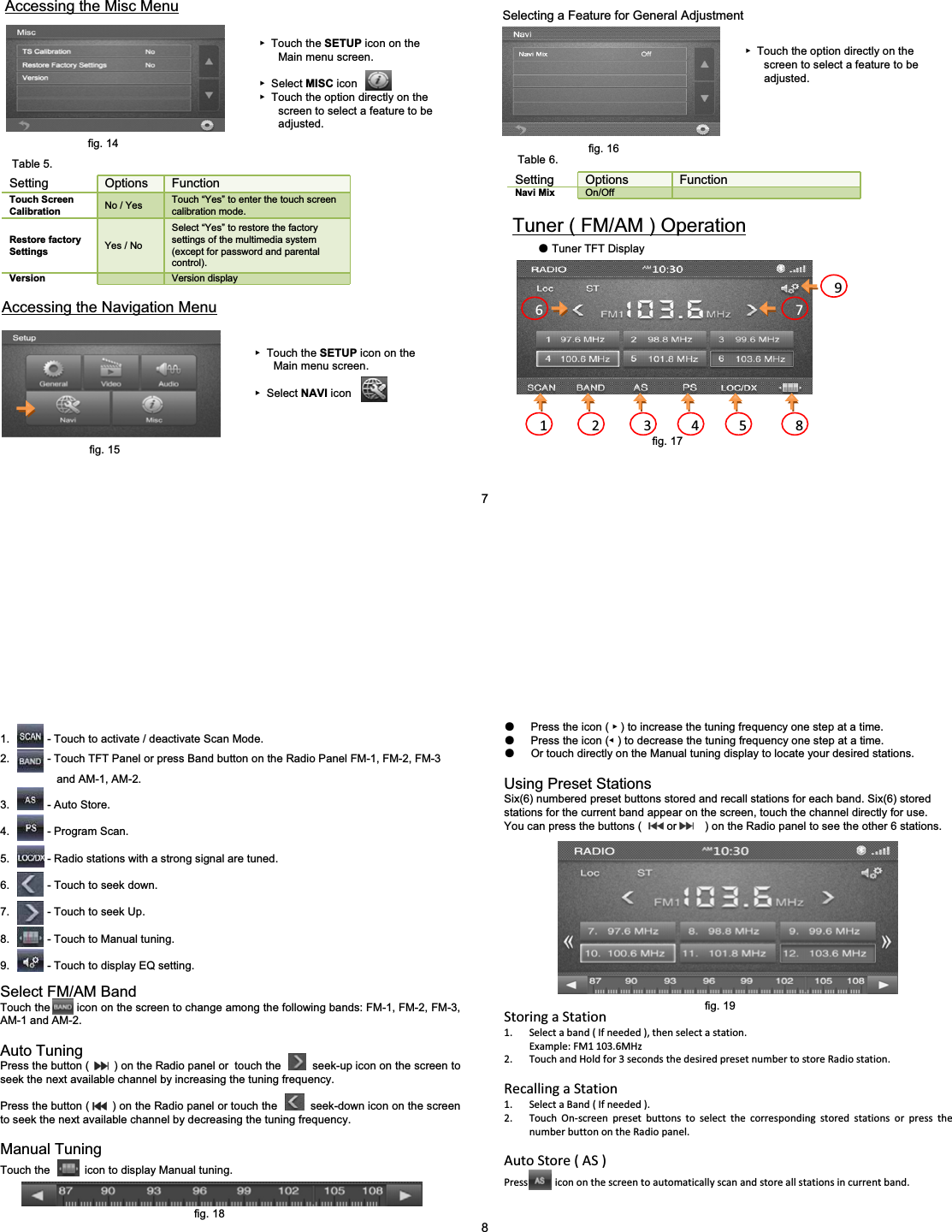
ٓTouch the SETUP icon on the Main menu screen.ٓSelect MISC iconٓTouch the option directly on the screen to select a feature to be adjusted.Accessing the Misc MenuSetting Options FunctionTouch Screen Calibration No / Yes Touch “Yes” to enter the touch screen calibration mode.Restore factory Settings Yes / NoSelect “Yes” to restore the factory settings of the multimedia system (except for password and parental control).Version Version displayAccessing the Navigation MenuٓTouch the SETUP icon on the Main menu screen.ٓSelect NAVI iconSelecting a Feature for General AdjustmentٓTouch the option directly on the screen to select a feature to be adjusted.Setting Options FunctionNavi Mix On/OffTuner ( FM/AM ) OperationƽTuner TFT Display1 2 3 4 5 86 797fig. 14Table 5.fig. 15fig. 16Table 6.fig. 17Select FM/AM BandTouch the        icon on the screen to change among the following bands: FM-1, FM-2, FM-3, AM-1 and AM-2.Auto TuningPress the button (        ) on the Radio panel or  touch the     seek-up icon on the screen to seek the next available channel by increasing the tuning frequency.Press the button (       ) on the Radio panel or touch the       seek-down icon on the screen to seek the next available channel by decreasing the tuning frequency.Manual TuningTouch the           icon to display Manual tuning.1. - Touch to activate / deactivate Scan Mode.2. - Touch TFT Panel or press Band button on the Radio Panel FM-1, FM-2, FM-3   and AM-1, AM-2.3. - Auto Store.4. - Program Scan.5. - Radio stations with a strong signal are tuned.6. - Touch to seek down.7. - Touch to seek Up.8. - Touch to Manual tuning.9. - Touch to display EQ setting.ƽPress the icon ( ٓ) to increase the tuning frequency one step at a time.ƽPress the icon (ٝ) to decrease the tuning frequency one step at a time.ƽOr touch directly on the Manual tuning display to locate your desired stations.Using Preset StationsSix(6) numbered preset buttons stored and recall stations for each band. Six(6) stored stations for the current band appear on the screen, touch the channel directly for use.You can press the buttons (        or         ) on the Radio panel to see the other 6 stations.StoringaStation1. Selectaband(Ifneeded),thenselectastation.Example:FM1103.6MHz2. TouchandHoldfor3secondsthedesiredpresetnumbertostoreRadiostation.RecallingaStation1. SelectaBand(Ifneeded).2. TouchOnͲscreenpresetbuttonstoselectthecorrespondingstoredstationsorpressthenumberbuttonontheRadiopanel.AutoStore(AS)Pressicononthescreentoautomaticallyscanandstoreallstationsincurrentband.8fig. 18fig. 19
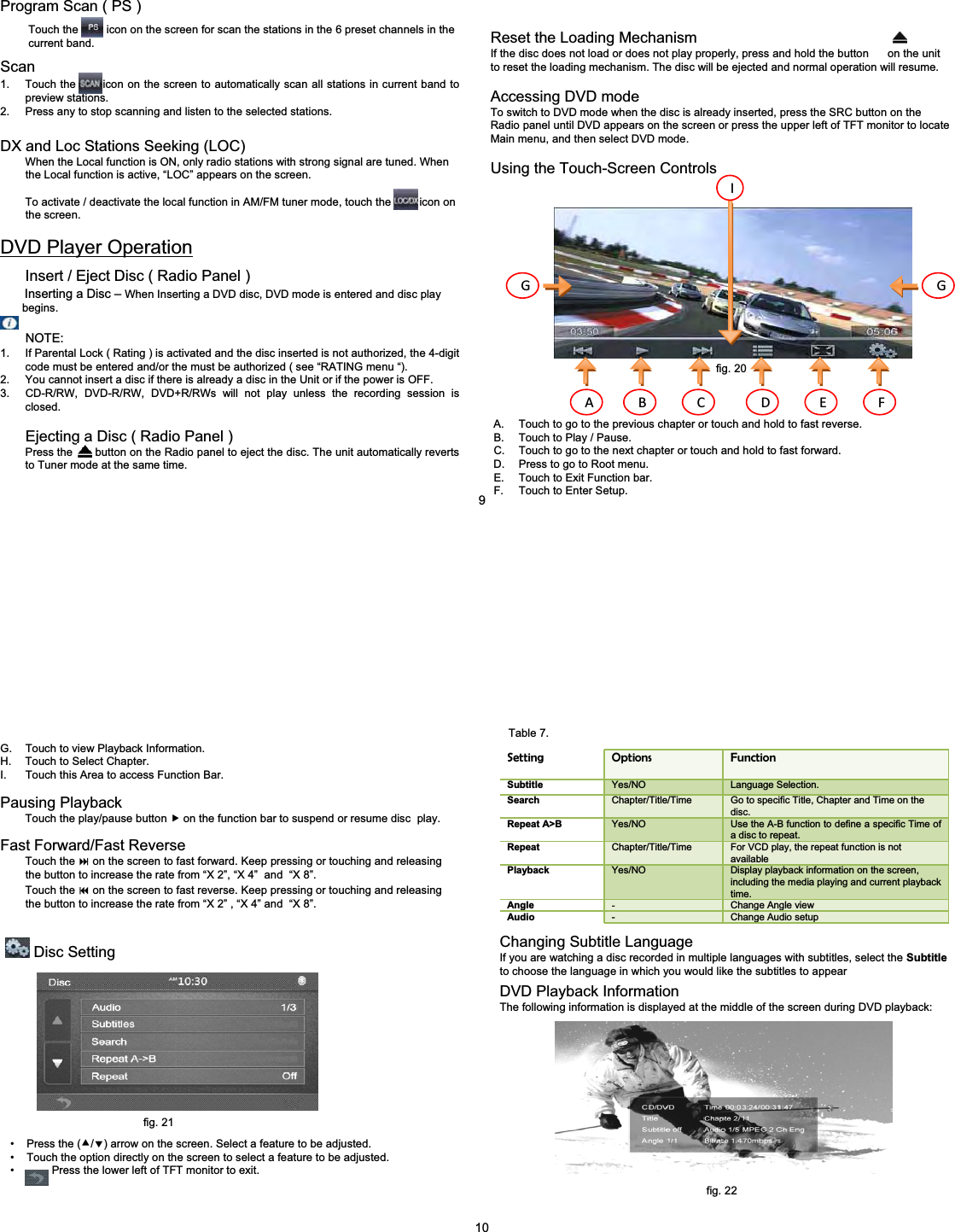
Reset the Loading MechanismIf the disc does not load or does not play properly, press and hold the button      on the unit to reset the loading mechanism. The disc will be ejected and normal operation will resume.Accessing DVD modeTo switch to DVD mode when the disc is already inserted, press the SRC button on the Radio panel until DVD appears on the screen or press the upper left of TFT monitor to locate Main menu, and then select DVD mode.Using the Touch-Screen ControlsA. Touch to go to the previous chapter or touch and hold to fast reverse.B. Touch to Play / Pause.C. Touch to go to the next chapter or touch and hold to fast forward.D. Press to go to Root menu.E. Touch to Exit Function bar.F. Touch to Enter Setup.A B C D E FG GIProgram Scan ( PS )Touch the         icon on the screen for scan the stations in the 6 preset channels in the  current band.Scan1. Touch the       icon on the screen to automatically scan all stations in current band to preview stations.2. Press any to stop scanning and listen to the selected stations.DX and Loc Stations Seeking (LOC)When the Local function is ON, only radio stations with strong signal are tuned. When   the Local function is active, “LOC” appears on the screen.To activate / deactivate the local function in AM/FM tuner mode, touch the         icon on the screen.DVD Player OperationInsert / Eject Disc ( Radio Panel )Inserting a Disc – When Inserting a DVD disc, DVD mode is entered and disc play begins.NOTE:1. If Parental Lock ( Rating ) is activated and the disc inserted is not authorized, the 4-digit code must be entered and/or the must be authorized ( see “RATING menu “).2. You cannot insert a disc if there is already a disc in the Unit or if the power is OFF.3. CD-R/RW, DVD-R/RW, DVD+R/RWs will not play unless the recording session is closed.Ejecting a Disc ( Radio Panel )Press the       button on the Radio panel to eject the disc. The unit automatically reverts to Tuner mode at the same time.9fig. 20G. Touch to view Playback Information.H. Touch to Select Chapter.I. Touch this Area to access Function Bar.Pausing PlaybackTouch the play/pause button fon the function bar to suspend or resume disc  play.Fast Forward/Fast ReverseTouch the on the screen to fast forward. Keep pressing or touching and releasing   the button to increase the rate from “X 2”, “X 4” and  “X 8”.Touch the on the screen to fast reverse. Keep pressing or touching and releasing  the button to increase the rate from “X 2” , “X 4” and  “X 8”.Disc Setting• Press the (c/d) arrow on the screen. Select a feature to be adjusted.• Touch the option directly on the screen to select a feature to be adjusted.• Press the lower left of TFT monitor to exit.Setting Options FunctionSubtitle Yes/NO Language Selection.Search Chapter/Title/Time Go to specific Title, Chapter and Time on the disc.Repeat A>B Yes/NO Use the A-B function to define a specific Time of a disc to repeat.Repeat Chapter/Title/Time For VCD play, the repeat function is not availablePlayback Yes/NO Display playback information on the screen, including the media playing and current playback time.Angle -Change Angle viewAudio -Change Audio setupChanging Subtitle LanguageIf you are watching a disc recorded in multiple languages with subtitles, select the Subtitle to choose the language in which you would like the subtitles to appearDVD Playback InformationThe following information is displayed at the middle of the screen during DVD playback:10fig. 21fig. 22Table 7.
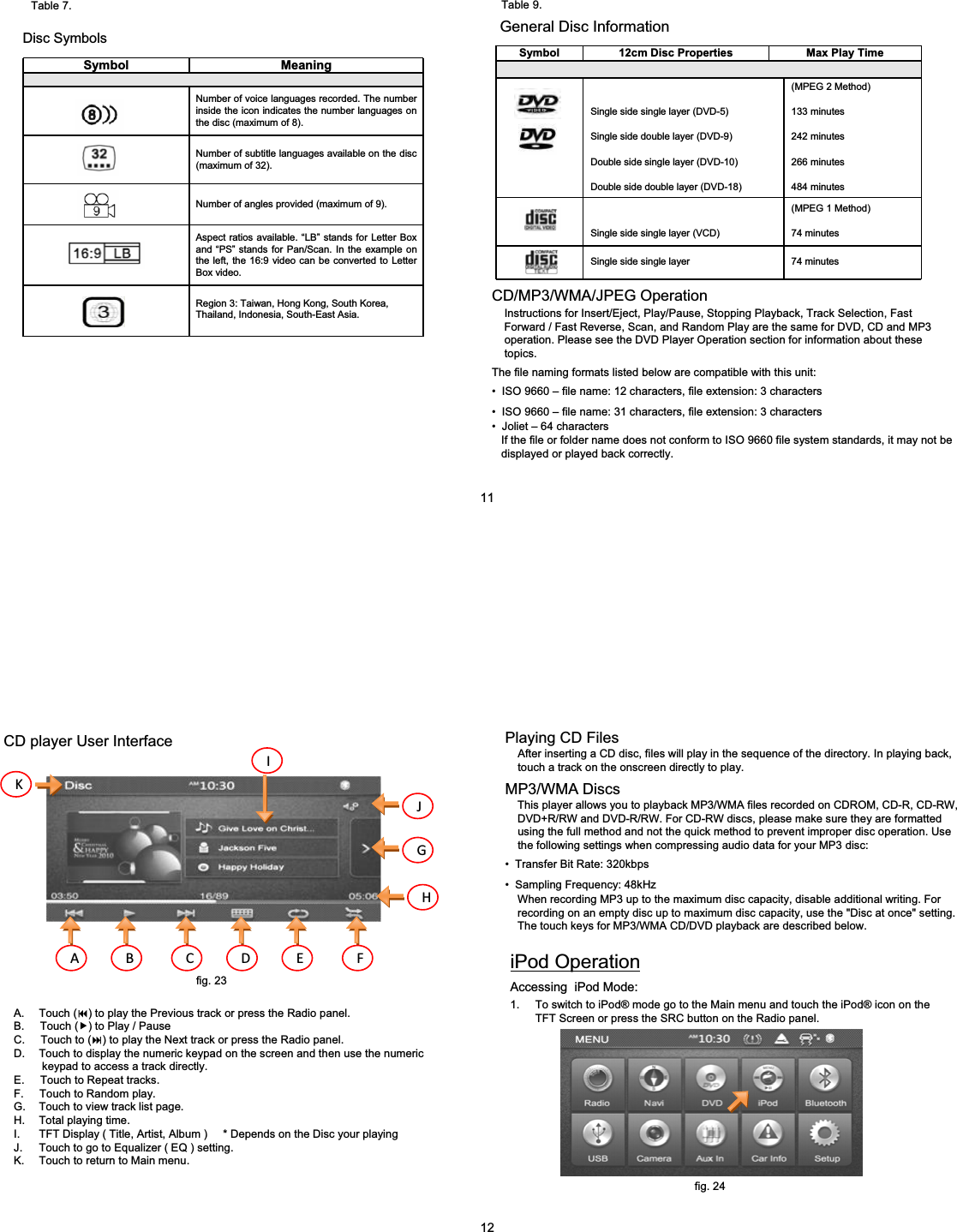
Symbol MeaningNumber of voice languages recorded. The number inside the icon indicates the number languages on the disc (maximum of 8).Number of subtitle languages available on the disc (maximum of 32).Number of angles provided (maximum of 9).Aspect ratios available. “LB” stands for Letter Box and “PS” stands for Pan/Scan. In the example on the left, the 16:9 video can be converted to Letter Box video.Region 3: Taiwan, Hong Kong, South Korea, Thailand, Indonesia, South-East Asia.Disc SymbolsSymbol 12cm Disc Properties Max Play TimeSingle side single layer (DVD-5)Single side double layer (DVD-9)Double side single layer (DVD-10)Double side double layer (DVD-18)(MPEG 2 Method)133 minutes242 minutes266 minutes484 minutesSingle side single layer (VCD)(MPEG 1 Method)74 minutesSingle side single layer 74 minutesGeneral Disc InformationCD/MP3/WMA/JPEG OperationInstructions for Insert/Eject, Play/Pause, Stopping Playback, Track Selection, Fast  Forward / Fast Reverse, Scan, and Random Play are the same for DVD, CD and MP3 operation. Please see the DVD Player Operation section for information about these topics.The file naming formats listed below are compatible with this unit:• ISO 9660 – file name: 12 characters, file extension: 3 characters• ISO 9660 – file name: 31 characters, file extension: 3 characters• Joliet – 64 charactersIf the file or folder name does not conform to ISO 9660 file system standards, it may not be   displayed or played back correctly.11Table 7. Table 9.CD player User InterfaceA. Touch () to play the Previous track or press the Radio panel.B.     Touch (f) to Play / PauseC.     Touch to () to play the Next track or press the Radio panel.D. Touch to display the numeric keypad on the screen and then use the numeric keypad to access a track directly.E.     Touch to Repeat tracks.F.     Touch to Random play.G. Touch to view track list page.H. Total playing time.I. TFT Display ( Title, Artist, Album )     * Depends on the Disc your playingJ. Touch to go to Equalizer ( EQ ) setting.K. Touch to return to Main menu.A B C D E FGHIJKPlaying CD FilesAfter inserting a CD disc, files will play in the sequence of the directory. In playing back, touch a track on the onscreen directly to play.MP3/WMA DiscsThis player allows you to playback MP3/WMA files recorded on CDROM, CD-R, CD-RW, DVD+R/RW and DVD-R/RW. For CD-RW discs, please make sure they are formatted using the full method and not the quick method to prevent improper disc operation. Use the following settings when compressing audio data for your MP3 disc:• Transfer Bit Rate: 320kbps• Sampling Frequency: 48kHzWhen recording MP3 up to the maximum disc capacity, disable additional writing. For recording on an empty disc up to maximum disc capacity, use the "Disc at once" setting.The touch keys for MP3/WMA CD/DVD playback are described below.iPod OperationAccessing  iPod Mode:121. To switch to iPod® mode go to the Main menu and touch the iPod® icon on the TFT Screen or press the SRC button on the Radio panel.fig. 23fig. 24
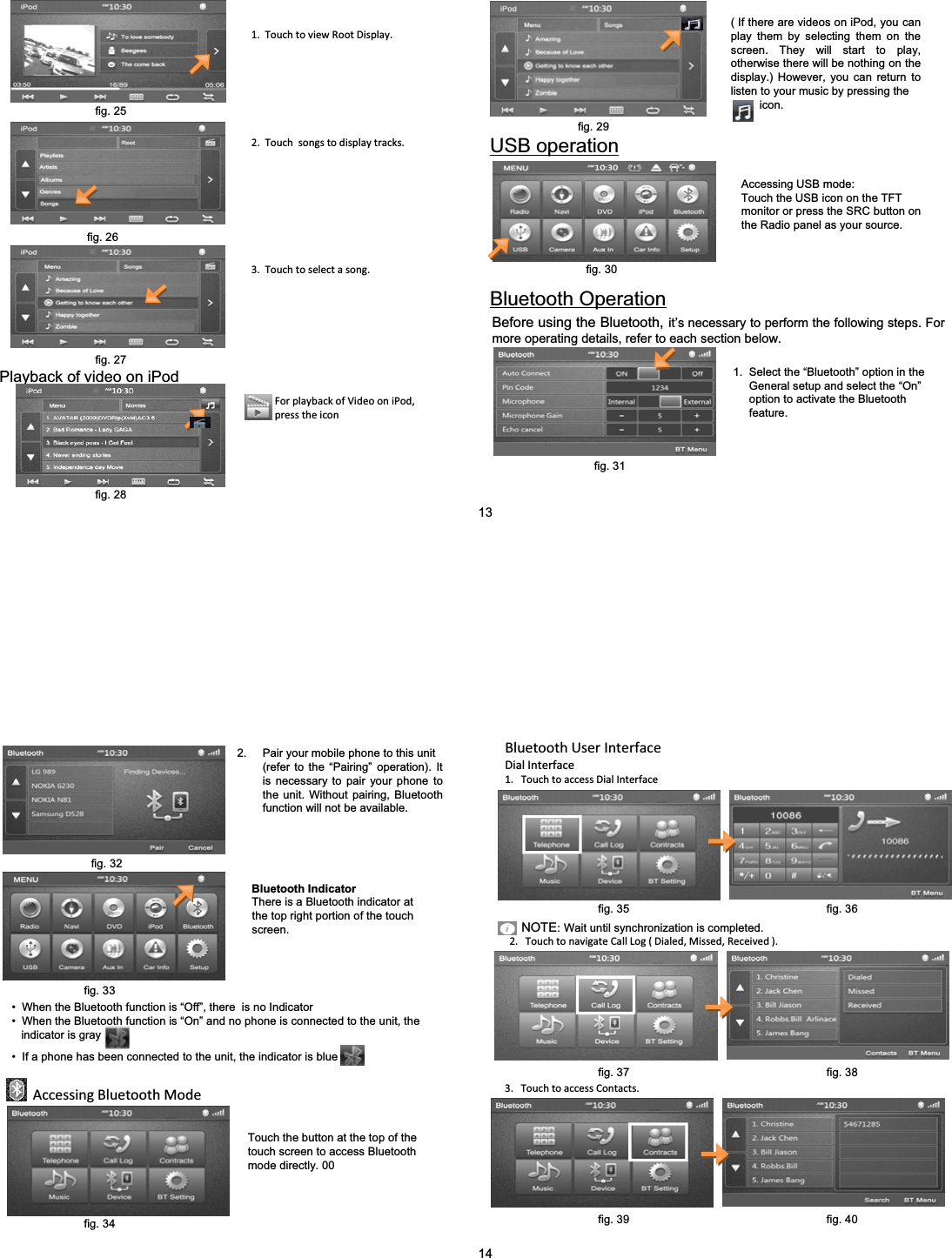
( If there are videos on iPod, you can play them by selecting them on the screen. They will start to play, otherwise there will be nothing on the display.) However, you can return to listen to your music by pressing theicon.1.TouchtoviewRootDisplay.2.Touchsongstodisplaytracks.3.Touchtoselectasong.Playback of video on iPodForplaybackofVideooniPod,presstheiconUSB operationAccessing USB mode:Touch the USB icon on the TFT monitor or press the SRC button on the Radio panel as your source.Bluetooth OperationBefore using the Bluetooth, it’s necessary to perform the following steps. For more operating details, refer to each section below.1.  Select the “Bluetooth” option in the General setup and select the “On”option to activate the Bluetooth feature.13fig. 28fig. 27fig. 26fig. 25fig. 29fig. 30fig. 312. Pair your mobile phone to this unit (refer to the “Pairing” operation). It is necessary to pair your phone to the unit. Without pairing, Bluetooth function will not be available.Bluetooth IndicatorThere is a Bluetooth indicator at     the top right portion of the touch  screen.• When the Bluetooth function is “Off”, there  is no Indicator• When the Bluetooth function is “On” and no phone is connected to the unit, the indicator is gray• If a phone has been connected to the unit, the indicator is blueAccessingBluetoothModeTouch the button at the top of the  touch screen to access Bluetooth mode directly. 00BluetoothUserInterfaceDialInterface1.TouchtoaccessDialInterface2.TouchtonavigateCallLog(Dialed,Missed,Received).NOTE:Wait until synchronization is completed.3.TouchtoaccessContacts.14fig. 32fig. 33fig. 34fig. 35 fig. 36fig. 37 fig. 38fig. 39 fig. 40
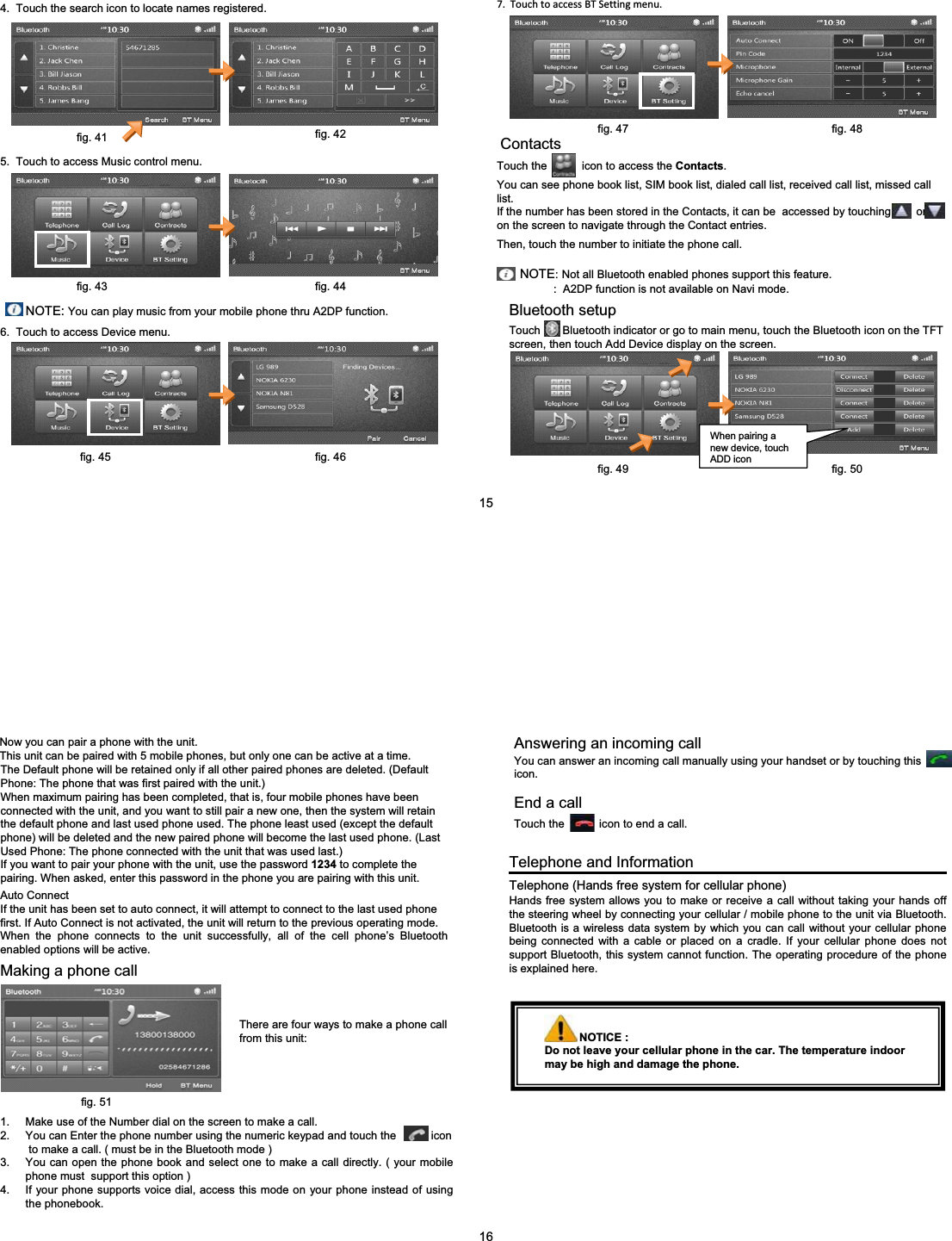
4.  Touch the search icon to locate names registered.5.  Touch to access Music control menu.NOTE: You can play music from your mobile phone thru A2DP function.6.  Touch to access Device menu.7.TouchtoaccessBTSettingmenu.ContactsTouch the           icon to access the Contacts.You can see phone book list, SIM book list, dialed call list, received call list, missed call list.If the number has been stored in the Contacts, it can be  accessed by touching        or         on the screen to navigate through the Contact entries. Then, touch the number to initiate the phone call.NOTE:Not all Bluetooth enabled phones support this feature.:  A2DP function is not available on Navi mode.Bluetooth setupTouch       Bluetooth indicator or go to main menu, touch the Bluetooth icon on the TFT  screen, then touch Add Device display on the screen.When pairing a new device, touch ADD iconfig. 41 fig. 42fig. 43 fig. 4415fig. 45 fig. 46fig. 47 fig. 48fig. 49 fig. 50Telephone and InformationTelephone (Hands free system for cellular phone)Hands free system allows you to make or receive a call without taking your hands off the steering wheel by connecting your cellular / mobile phone to the unit via Bluetooth. Bluetooth is a wireless data system by which you can call without your cellular phone being connected with a cable or placed on a cradle. If your cellular phone does not support Bluetooth, this system cannot function. The operating procedure of the phone is explained here.Now you can pair a phone with the unit.This unit can be paired with 5 mobile phones, but only one can be active at a time.The Default phone will be retained only if all other paired phones are deleted. (Default Phone: The phone that was first paired with the unit.)When maximum pairing has been completed, that is, four mobile phones have been connected with the unit, and you want to still pair a new one, then the system will retain the default phone and last used phone used. The phone least used (except the default phone) will be deleted and the new paired phone will become the last used phone. (Last Used Phone: The phone connected with the unit that was used last.)If you want to pair your phone with the unit, use the password 1234 to complete the pairing. When asked, enter this password in the phone you are pairing with this unit.Auto ConnectIf the unit has been set to auto connect, it will attempt to connect to the last used phone first. If Auto Connect is not activated, the unit will return to the previous operating mode.When the phone connects to the unit successfully, all of the cell phone’s Bluetooth enabled options will be active.Making a phone callThere are four ways to make a phone call from this unit:1. Make use of the Number dial on the screen to make a call.2. You can Enter the phone number using the numeric keypad and touch the           iconto make a call. ( must be in the Bluetooth mode )3. You can open the phone book and select one to make a call directly. ( your mobile phone must  support this option )4. If your phone supports voice dial, access this mode on your phone instead of using the phonebook.Answering an incoming call You can answer an incoming call manually using your handset or by touching this          icon.End a callTouch the           icon to end a call.NOTICE :Do not leave your cellular phone in the car. The temperature indoor may be high and damage the phone.16fig. 51
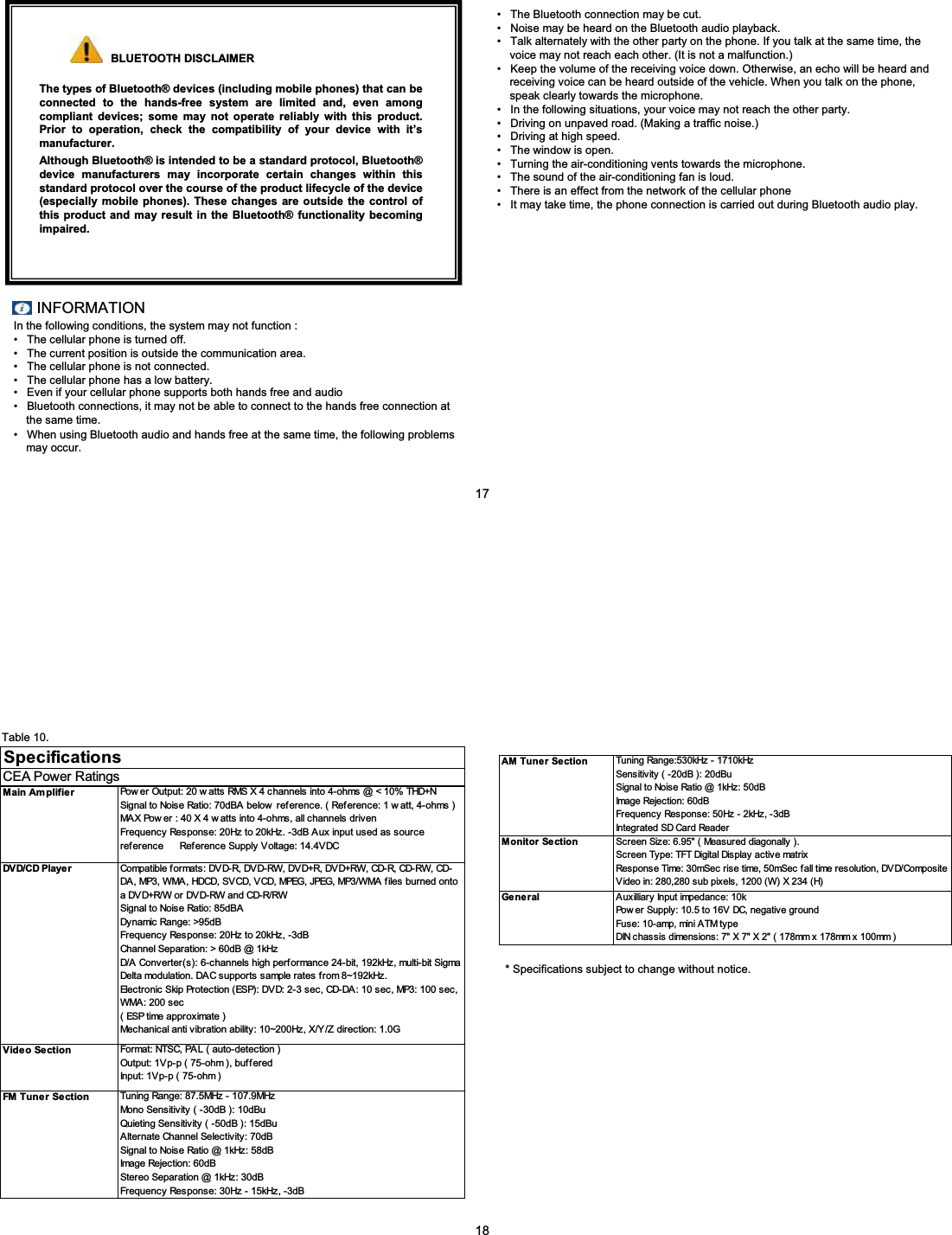
Although Bluetooth® is intended to be a standard protocol, Bluetooth®device manufacturers may incorporate certain changes within thisstandard protocol over the course of the product lifecycle of the device (especially mobile phones). These changes are outside the control of this product and may result in the Bluetooth® functionality becoming impaired.The types of Bluetooth® devices (including mobile phones) that can be connected to the hands-free system are limited and, even among compliant devices; some may not operate reliably with this product. Prior to operation, check the compatibility of your device with it’s manufacturer.BLUETOOTH DISCLAIMERINFORMATIONIn the following conditions, the system may not function : • The cellular phone is turned off.• The current position is outside the communication area.• The cellular phone is not connected.• The cellular phone has a low battery.• Even if your cellular phone supports both hands free and audio• Bluetooth connections, it may not be able to connect to the hands free connection at the same time.• When using Bluetooth audio and hands free at the same time, the following problems may occur.• The Bluetooth connection may be cut.• Noise may be heard on the Bluetooth audio playback.• Talk alternately with the other party on the phone. If you talk at the same time, the   voice may not reach each other. (It is not a malfunction.)• Keep the volume of the receiving voice down. Otherwise, an echo will be heard and  receiving voice can be heard outside of the vehicle. When you talk on the phone, speak clearly towards the microphone.• In the following situations, your voice may not reach the other party.• Driving on unpaved road. (Making a traffic noise.)• Driving at high speed.• The window is open.• Turning the air-conditioning vents towards the microphone.• The sound of the air-conditioning fan is loud.• There is an effect from the network of the cellular phone• It may take time, the phone connection is carried out during Bluetooth audio play.17CEA Power RatingsSpecificationsTuning Range: 87.5MHz - 107.9MHz                                                                      Mono Sensitivity ( -30dB ): 10dBu                                                                          Quieting Sensitivity ( -50dB ): 15dBu                                                                      Alternate Channel Selectivity: 70dB                                                                       Signal to Noise Ratio @ 1kHz: 58dB                                                                       Image Rejection: 60dB                                                                                            Stereo Separation @ 1kHz: 30dB                                                                           Frequency Response: 30Hz - 15kHz, -3dBFM Tuner SectionPow er Output: 20 w atts RMS X 4 channels into 4-ohms @ < 10% THD+N           Signal to Noise Ratio: 70dBA below  reference. ( Ref erence: 1 w att, 4-ohms )    MAX Pow er : 40 X 4 w atts into 4-ohms, all channels driven                                 Frequency Response: 20Hz to 20kHz. -3dB Aux input used as source ref erence      Ref erence Supply Voltage: 14.4VDCCompatible f or mats : DV D-R, DV D-RW, DV D+R, DV D+RW, CD-R, CD-RW, CD-DA, MP3, WMA, HDCD, SVCD, VCD, MPEG, JPEG, MP3/WMA files burned onto a DVD+R/W or DVD-RW and CD-R/RW                                                                  Signal to Noise Ratio: 85dBA                                                                                  Dynamic Range: >95dB                                                                                          Frequency Response: 20Hz to 20kHz, -3dB                                                          Channel Separation: > 60dB @ 1kHz                                                                     D/A Converter(s): 6-channels high performance 24-bit, 192kHz, multi-bit Sigma Delta modulation. DAC supports sample rates from 8~192kHz.                             Electronic Skip Protection (ESP): DVD: 2-3 sec, CD-DA: 10 sec, MP3: 100 sec, WMA: 200 sec                                                                                                        ( ESP time approximate )                                                                                         Mechanical anti vibration ability: 10~200Hz, X/Y/Z direction: 1.0GFormat: NTSC, PAL ( auto-detection )                                                                    Output: 1Vp-p ( 75-ohm ), buffered                                                                       Input: 1Vp-p ( 75-ohm )Main Am plifierDV D/CD Playe rVideo SectionAM Tuner SectionMonitor SectionGe ne r alTuning Range:530kHz - 1710kHz                                                                           Sensitivity ( -20dB ): 20dBu                                                                                    Signal to Noise Ratio @ 1kHz: 50dB                                                                       Image Rejection: 60dB                                                                                            Frequency Response: 50Hz - 2kHz, -3dB                                                              Integrated SD Card ReaderScreen Size: 6.95" ( Measured diagonally ).                                                          Screen Type: TFT Digital Display active matrix                                                       Response Time: 30mSec rise time, 50mSec f all time resolution, DV D/Composite Video in: 280,280 sub pixels, 1200 (W) X 234 (H)Auxilliary Input impedanc e: 10k                                                                              Pow er Supply: 10.5 to 16V DC, negative ground                                                   Fuse: 10-amp, mini ATM type                                                                                 DIN chassis dimensions: 7" X 7" X 2" ( 178mm x 178mm x 100mm )* Specifications subject to change without notice.18Table 10.
Periodic Maintenance RequiredZOutside Temperature ^Compass[Barometer _Range\Elevation `Speed]Adjust (Adjustment) aFuel EconomyMulti-Information Display10987654321After the display of the opening LOGO for about 15 seconds, Vehicle Information replacesit as the DEFAULT display, the last source will have audio only.XDigital ClockYWarning DisplayTire Pressure Monitor SystemFunctional icon: You can Select Functions to adjust / set, exiting and return to previous selection.Digital Clock:Indicates the time.Changing the clock settings, from main menu touch the Setup icon to display generalsetup menu. ¼Page 8Warning Display (See Page 29 - 31)•NOTE :Outside Temperature: The outside temperature is read every five (5) minutes.Barometer: This display shows the atmospheric pressure at the present location,values are read every five(5) minutes.Touching the RESET function will not reset the indication hPaElevation: The current elevation in units is 100m (400ft) as shown. Theelevation is read every five(5) minutes.To adjust the elevation: Touch the elevation icon on the screen, then adjustby touching icon or .The adjusment icon increases by 100m (400ft)  every time you lightly touch theicon. Continuous touching of the icon for about two (2) seconds or more, will result in the indication to fast-forward. Then the setting changes to the elevation selected.The adjustment icon decreases by 100m (400ft) every time you lightly touch theicon. Continuous touching of the icon for about two (2) seconds or more, will result in the indication to fast-forward. Then the setting changes to the elevation selected.19fig. 52fig. 53NOTE:• The elevation is determined from changes in atmospheric pressure. Depending on weather conditions, the indicated elevation may differ from the actual elevation. Variations in atmospheric pressure can cause different elevation to be shown even in the same location. Use the indication as a guide only.Fuel Economy: The average value of the fuel consumption is read every 5 minutes.Resetting the average fuel consumption:• Touch the                           icon on the screen.• Touch the “RESET” icon on the screen.• Value shown “ --,- “ km/L.NOTE :• When the average fuel consumption cannot be calculated,   “- -,-“will be shown.• The average and momentary fuel consumption change will depend on the driving  condition (road condition, driving behavior, etc.). The indication may differ from the actual fuel consumption. Therefore, it is recommended to use the indication only as reference.Compass: This compass shows the direction of the vehicle.NOTE:• This system uses the earth’s magnetic field, and so may not show the correct direction depending on the traffic condition or in the following places where the earth’s magnetic field is disrupted.¾Car parks located in buildings and tunnels.¾Expressways and undergrounds cables.¾Areas along railroadsAdjust (adjustment)Every time the “Adjust” icon is touched lightly, the display will change into two selections :Touching the ADJUST icon will display compass VARIANCE as default, to search CALIBRATION, touch the icon        or        . 1. COMPASS SETTING2. BAROMETER SETTINGTouching the ADJUST icon will display Barometer ADJUST, to search Barometer DEFAULT, touch the icon        or       . 20fig. 54fig. 55 fig. 56fig. 57 fig. 58
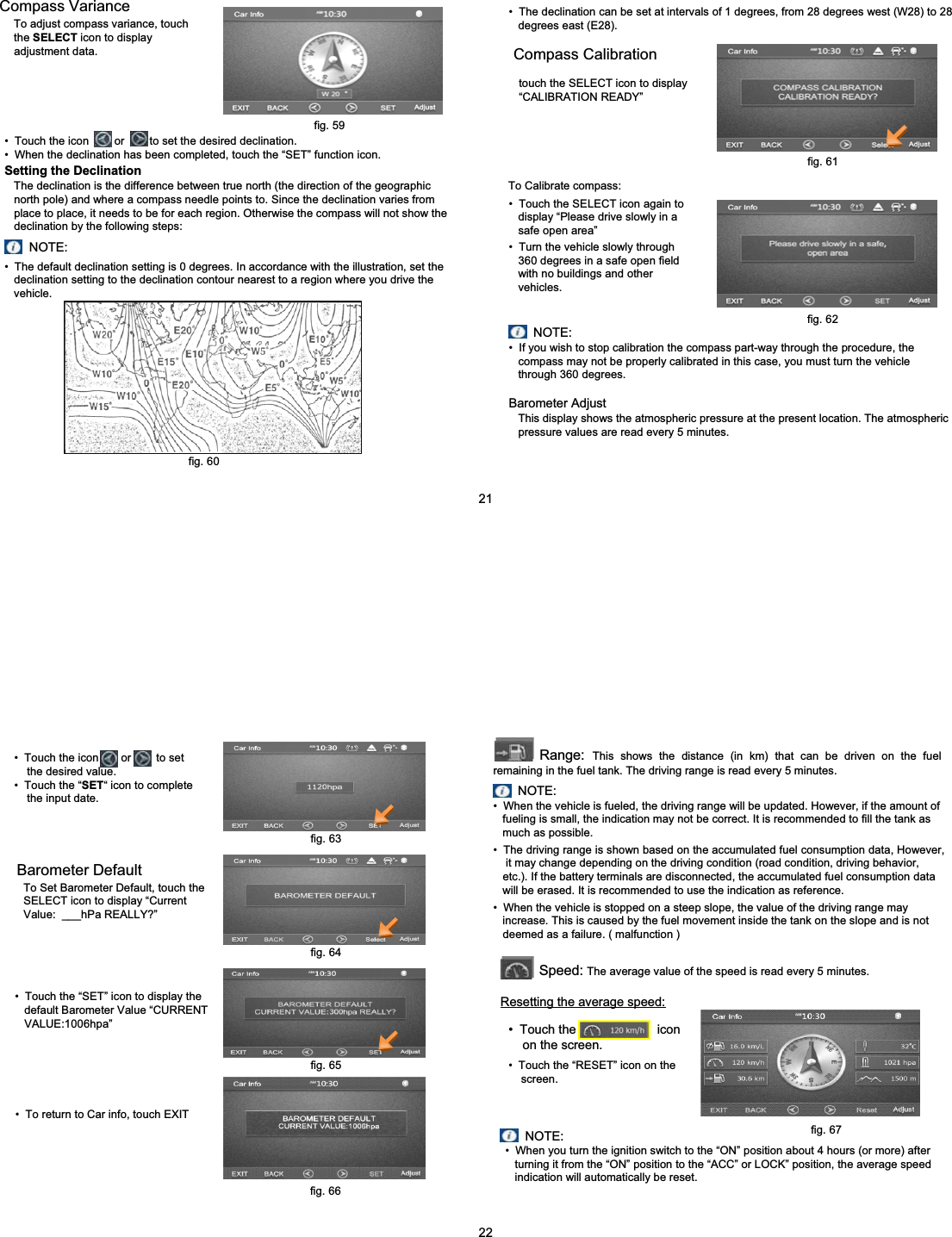
Compass VarianceTo adjust compass variance, touch   the SELECT icon to displayadjustment data.• Touch the icon        or        to set the desired declination.• When the declination has been completed, touch the “SET” function icon.Setting the DeclinationThe declination is the difference between true north (the direction of the geographic  north pole) and where a compass needle points to. Since the declination varies from  place to place, it needs to be for each region. Otherwise the compass will not show the declination by the following steps:NOTE:• The default declination setting is 0 degrees. In accordance with the illustration, set the declination setting to the declination contour nearest to a region where you drive the vehicle.• The declination can be set at intervals of 1 degrees, from 28 degrees west (W28) to 28 degrees east (E28).Compass Calibrationtouch the SELECT icon to display “CALIBRATION READY”• Touch the SELECT icon again to display “Please drive slowly in a safe open area”• Turn the vehicle slowly through 360 degrees in a safe open field with no buildings and other vehicles.• If you wish to stop calibration the compass part-way through the procedure, the compass may not be properly calibrated in this case, you must turn the vehicle through 360 degrees.NOTE:Barometer AdjustThis display shows the atmospheric pressure at the present location. The atmospheric pressure values are read every 5 minutes.fig. 59To Calibrate compass:fig. 61fig. 62fig. 6021• Touch the icon       or        to set the desired value.• Touch the “SET“ icon to complete the input date.Barometer DefaultTo Set Barometer Default, touch the SELECT icon to display “Current Value:  ___hPa REALLY?”• Touch the “SET” icon to display the default Barometer Value “CURRENT VALUE:1006hpa”• To return to Car info, touch EXITRange: This shows the distance (in km) that can be driven on the fuel remaining in the fuel tank. The driving range is read every 5 minutes.NOTE:• When the vehicle is fueled, the driving range will be updated. However, if the amount of fueling is small, the indication may not be correct. It is recommended to fill the tank as much as possible.• The driving range is shown based on the accumulated fuel consumption data, However, it may change depending on the driving condition (road condition, driving behavior, etc.). If the battery terminals are disconnected, the accumulated fuel consumption data  will be erased. It is recommended to use the indication as reference.• When the vehicle is stopped on a steep slope, the value of the driving range may increase. This is caused by the fuel movement inside the tank on the slope and is not deemed as a failure. ( malfunction )Speed: The average value of the speed is read every 5 minutes.Resetting the average speed:• Touch the                       icon on the screen.• Touch the “RESET” icon on the screen.NOTE:• When you turn the ignition switch to the “ON” position about 4 hours (or more) after turning it from the “ON” position to the “ACC” or LOCK” position, the average speed indication will automatically be reset.fig. 63fig. 64fig. 65fig. 66fig. 6722
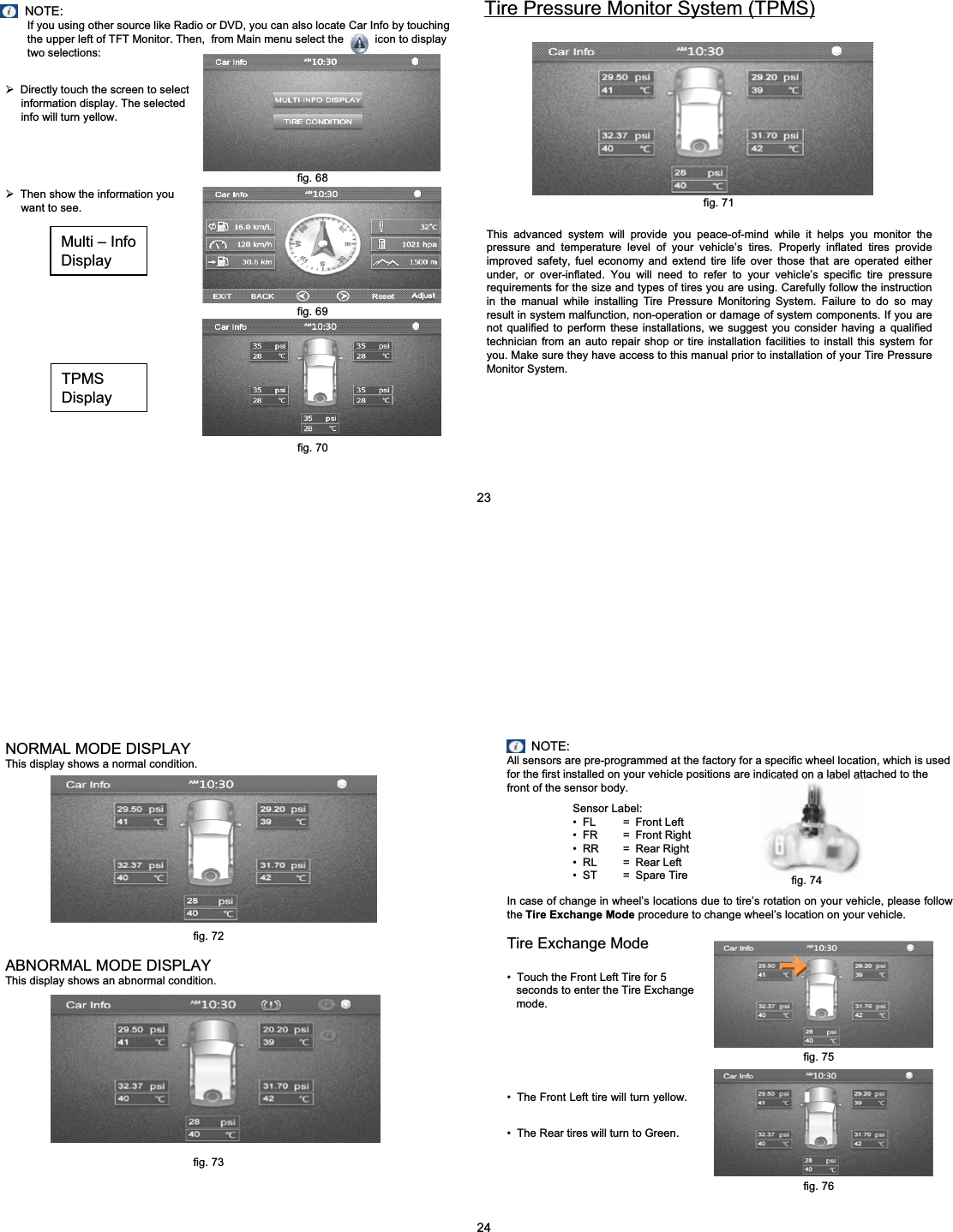
NOTE:If you using other source like Radio or DVD, you can also locate Car Info by touching  the upper left of TFT Monitor. Then,  from Main menu select the          icon to display two selections:¾Directly touch the screen to select information display. The selected info will turn yellow.¾Then show the information you want to see.TPMSDisplayMulti – InfoDisplayTire Pressure Monitor System (TPMS)This advanced system will provide you peace-of-mind while it helps you monitor the pressure and temperature level of your vehicle’s tires. Properly inflated tires provide improved safety, fuel economy and extend tire life over those that are operated either under, or over-inflated. You will need to refer to your vehicle’s specific tire pressure requirements for the size and types of tires you are using. Carefully follow the instruction in the manual while installing Tire Pressure Monitoring System. Failure to do so may result in system malfunction, non-operation or damage of system components. If you are not qualified to perform these installations, we suggest you consider having a qualified technician from an auto repair shop or tire installation facilities to install this system for you. Make sure they have access to this manual prior to installation of your Tire Pressure Monitor System.fig. 71fig. 68fig. 6923fig. 70NORMAL MODE DISPLAYThis display shows a normal condition.ABNORMAL MODE DISPLAYThis display shows an abnormal condition.NOTE:All sensors are pre-programmed at the factory for a specific wheel location, which is used for the first installed on your vehicle positions are indicated on a label attached to the front of the sensor body.Sensor Label:• FL = Front Left• FR = Front Right• RR = Rear Right• RL = Rear Left• ST = Spare TireIn case of change in wheel’s locations due to tire’s rotation on your vehicle, please follow the Tire Exchange Mode procedure to change wheel’s location on your vehicle.Tire Exchange Mode• Touch the Front Left Tire for 5 seconds to enter the Tire Exchange mode.• The Front Left tire will turn yellow.• The Rear tires will turn to Green.24fig. 76fig. 72fig. 74fig. 75fig. 73
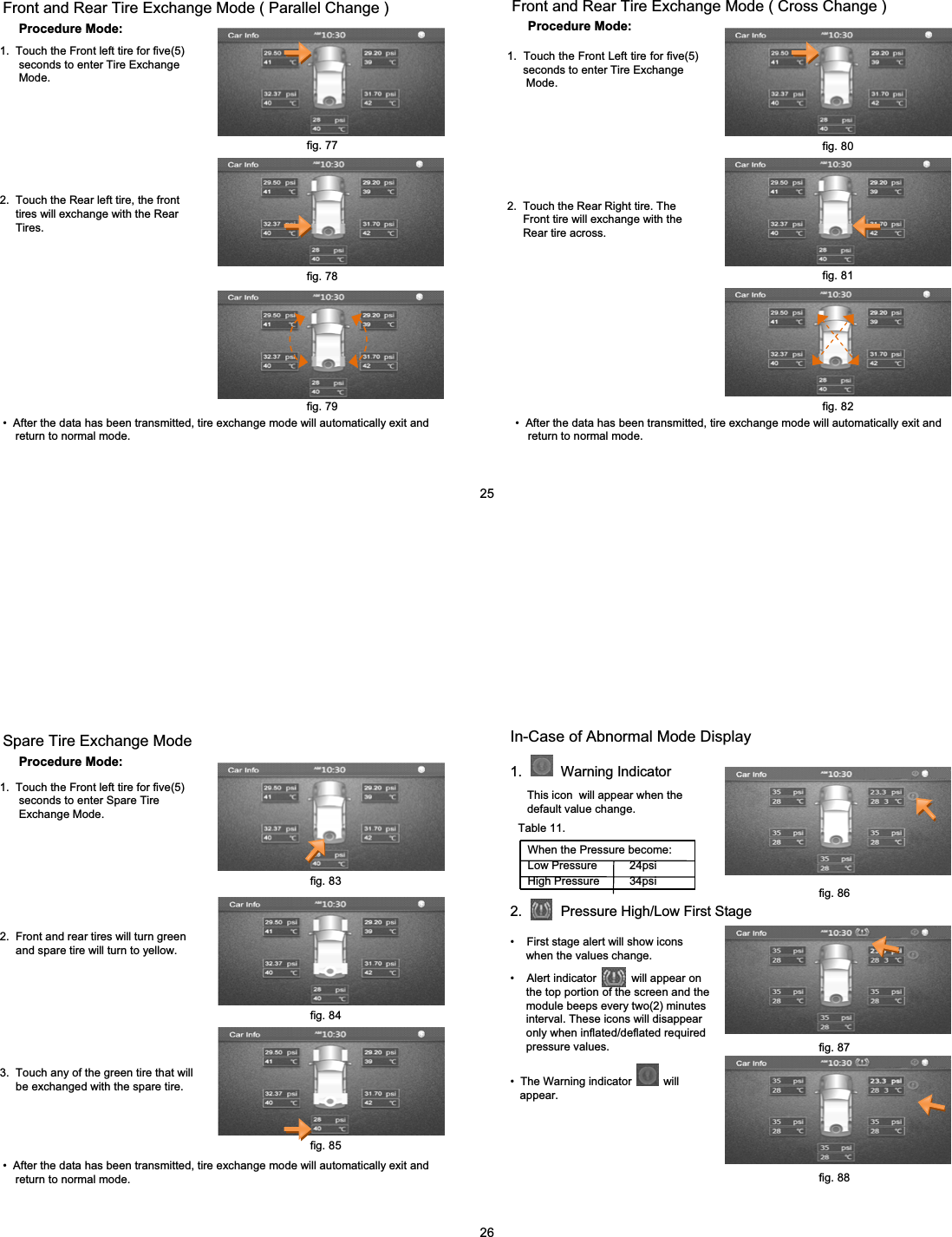
Procedure Mode:Front and Rear Tire Exchange Mode ( Parallel Change )1.  Touch the Front left tire for five(5) seconds to enter Tire Exchange Mode.2.  Touch the Rear left tire, the front tires will exchange with the Rear    Tires.• After the data has been transmitted, tire exchange mode will automatically exit and  return to normal mode. Procedure Mode:Front and Rear Tire Exchange Mode ( Cross Change )1.  Touch the Front Left tire for five(5)  seconds to enter Tire Exchange   Mode.2.  Touch the Rear Right tire. The Front tire will exchange with theRear tire across.• After the data has been transmitted, tire exchange mode will automatically exit and  return to normal mode. fig. 77fig. 78fig. 79fig. 80fig. 81fig. 8225Procedure Mode:Spare Tire Exchange Mode1.  Touch the Front left tire for five(5) seconds to enter Spare TireExchange Mode.2.  Front and rear tires will turn green and spare tire will turn to yellow.3.  Touch any of the green tire that willbe exchanged with the spare tire.• After the data has been transmitted, tire exchange mode will automatically exit and  return to normal mode. In-Case of Abnormal Mode Display1.          Warning IndicatorThis icon  will appear when the default value change.When the Pressure become:Low Pressure    24psi High Pressure  34psi2.          Pressure High/Low First Stage• First stage alert will show icons when the values change. • Alert indicator           will appear on the top portion of the screen and the  module beeps every two(2) minutes  interval. These icons will disappear only when inflated/deflated required pressure values.• The Warning indicator          will appear.26fig. 83fig. 84fig. 85fig. 86fig. 87fig. 88Table 11.
• Tire symbol will turn color “RED”.• Tire pressure value turned “YELLOW”.Pressure Range:Low  Pressure  24psi up to 19psiHigh  Pressure  34psi up to 41psi3.          Pressure High/Low Second Stage• Second stage alert will show icons when the value change.• Alert indicator           will appear on the top portion of the screen and the module beeps every 2 minutes.     These icon will disappear only when inflated/deflated to required pressure values.• Tire symbol will turn RED.• Tire pressure value will also turn RED.Pressure Range:Low  18psi below  “ALERT PRESSURE”High 42psi Above “ALERT PRESSURE”WARNING!¾Always adapt the tire pressure accordingly when the vehicle load changes.¾If the Tire Pressure Monitor System (TPMS) indicator icons appear on the screen, slow down immediately and avoid any severe braking or steering maneuvers. As soon  as you do so safely, stop and check the tires.¾It is the driver’s responsibility to ensure that the tire pressures are correct. Check the tires regularly.¾Under certain conditions (poor road surface) the tire pressure indication may not light up immediately.¾Please ask your nearest MITSUBISHI dealer or workshop whether run flat tires can be used on your vehicle.SIGNAL LOSSLoss of signal = the system does not  receive the signal of a sensor.NOTE:in case of loss signal, you will see the tire pressure and temperature is blank.The display will update Twenty(20) minutes after the system experiences signal loss.27fig. 91fig. 89fig. 90Table 12.fig. 92Table 13.Service reminder: After a certain mileage, a Periodic Maintenance Required reminder will appear in the screen each time the ignition is switched ON.Precaution:1Please be careful when replacing tires, carelessness might cause damage to your TPMS SENSOR located inside.When servicing please be guided the service center staff, they may not familiar with tire pressure monitor system (TPMS) except MITSUBISHI DEALER and Qualified Workshop.Periodic Maintenance Resetting the displayYour dealer or qualified workshop resets the “Periodic Maintenance Required” after each service.NOTE:Only Mitsubishi Dealers and qualified workshop are authorized to disable the PERIODIC MAINTENANCE REQUIRED display. The first service maintenance warning will display after the 1st 1000km and the next service interval display will be every 5000km.If the PERIODIC MAINTENANCE REQUIRED appears on the screen and you want to  proceed in any menu source.¾Touch the icons on top of the screen, select your desired icon (TPMS,   Bluetooth and Clock)¾To go to other Menu, touch the upper left portion of the screen to enter the  Main menu or press the SRC button  on the Radio panel to select your  desired menu.28fig. 93fig. 95fig. 96fig. 94
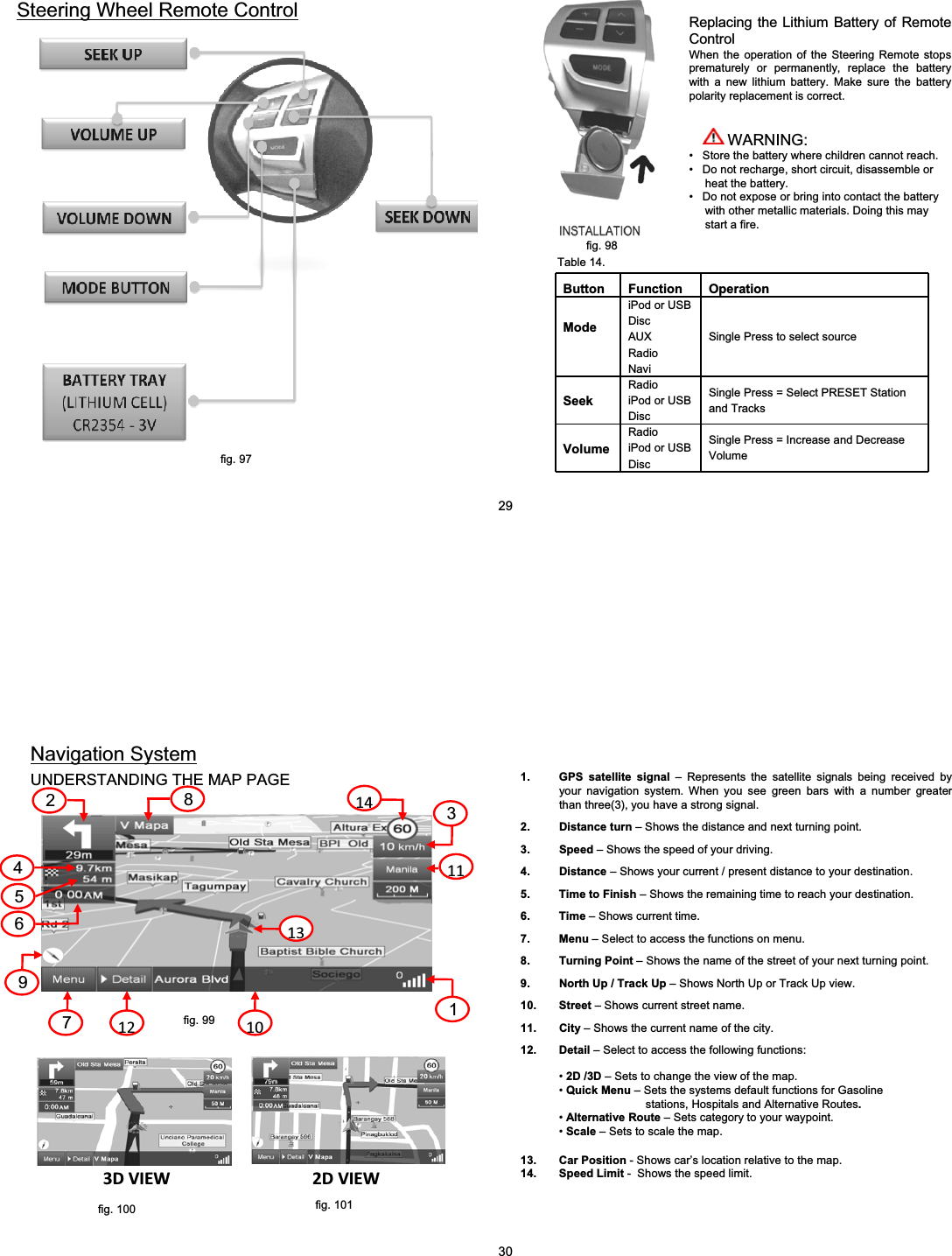
Steering Wheel Remote ControlButton Function OperationModeiPod or USBDiscAUXRadioNaviSingle Press to select sourceSeekRadioiPod or USBDiscSingle Press = Select PRESET Station and TracksVolumeRadioiPod or USBDiscSingle Press = Increase and Decrease Volume29fig. 97fig. 98Table 14.Replacing the Lithium Battery of Remote ControlWhen the operation of the Steering Remote stops prematurely or permanently, replace the battery with a new lithium battery. Make sure the battery polarity replacement is correct.WARNING:• Store the battery where children cannot reach.• Do not recharge, short circuit, disassemble or heat the battery.• Do not expose or bring into contact the battery with other metallic materials. Doing this may start a fire.3DVIEW 2DVIEW1012345867911121314UNDERSTANDING THE MAP PAGEfig. 99Navigation System1. GPS satellite signal – Represents the satellite signals being received by your navigation system. When you see green bars with a number greater than three(3), you have a strong signal.2. Distance turn – Shows the distance and next turning point.3. Speed – Shows the speed of your driving.4. Distance – Shows your current / present distance to your destination.5. Time to Finish – Shows the remaining time to reach your destination.6. Time – Shows current time.7. Menu – Select to access the functions on menu.8. Turning Point – Shows the name of the street of your next turning point.9. North Up / Track Up – Shows North Up or Track Up view.10. Street – Shows current street name.11. City – Shows the current name of the city.12. Detail – Select to access the following functions:13. Car Position - Shows car’s location relative to the map.14. Speed Limit - Shows the speed limit.•2D /3D – Sets to change the view of the map.•Quick Menu – Sets the systems default functions for Gasoline stations, Hospitals and Alternative Routes.•Alternative Route – Sets category to your waypoint.•Scale – Sets to scale the map.30fig. 100 fig. 101
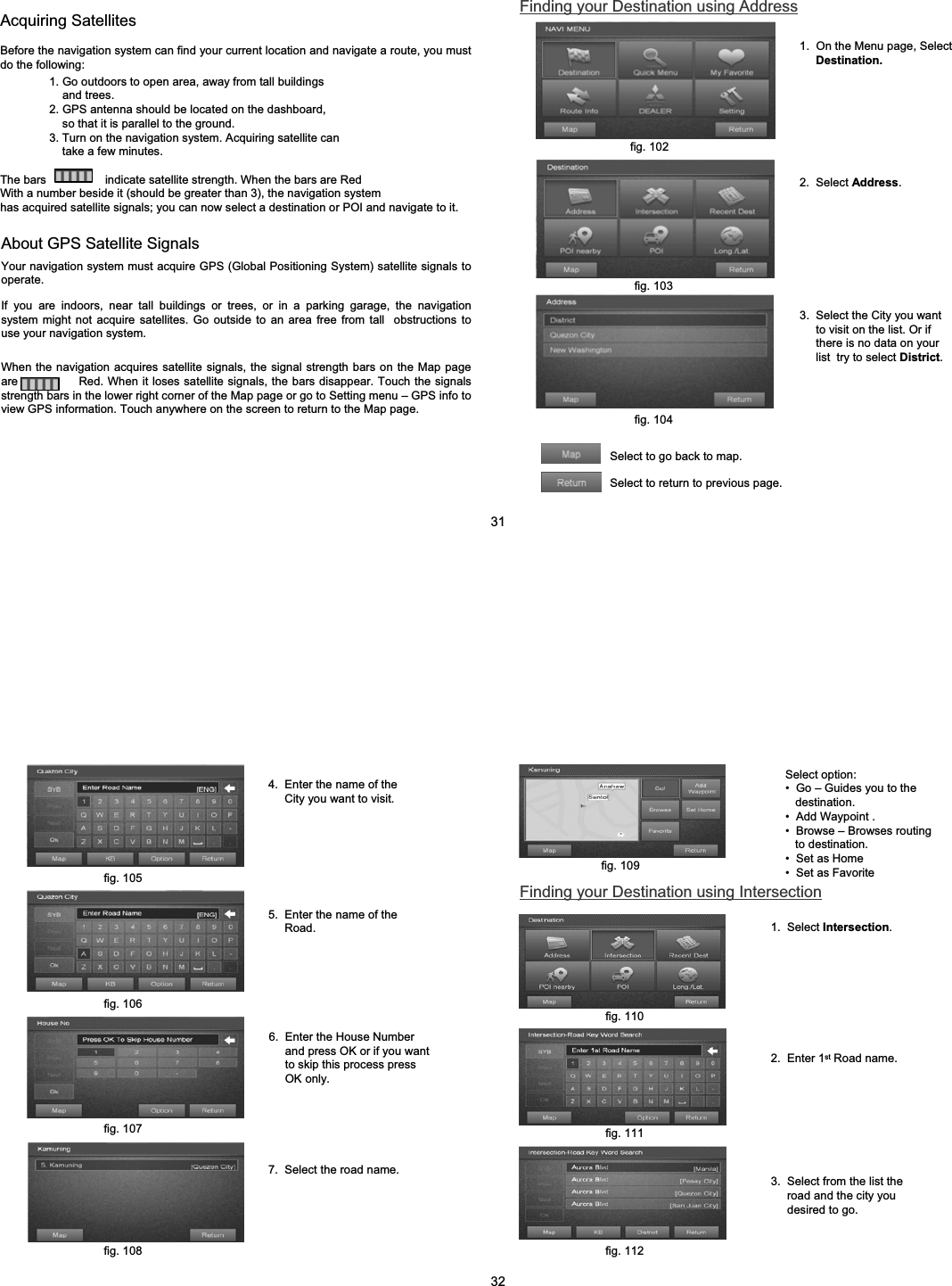
Acquiring SatellitesBefore the navigation system can find your current location and navigate a route, you must do the following:1. Go outdoors to open area, away from tall buildingsand trees.2. GPS antenna should be located on the dashboard, so that it is parallel to the ground.3. Turn on the navigation system. Acquiring satellite cantake a few minutes.The bars                  indicate satellite strength. When the bars are RedWith a number beside it (should be greater than 3), the navigation systemhas acquired satellite signals; you can now select a destination or POI and navigate to it.About GPS Satellite SignalsYour navigation system must acquire GPS (Global Positioning System) satellite signals to operate.If you are indoors, near tall buildings or trees, or in a parking garage, the navigation system might not acquire satellites. Go outside to an area free from tall  obstructions to use your navigation system.When the navigation acquires satellite signals, the signal strength bars on the Map page are               Red. When it loses satellite signals, the bars disappear. Touch the signals strength bars in the lower right corner of the Map page or go to Setting menu – GPS info to view GPS information. Touch anywhere on the screen to return to the Map page.Finding your Destination using Address1.  On the Menu page, Select  Destination.2.  Select Address.3.  Select the City you want to visit on the list. Or if there is no data on your list  try to select District.Select to go back to map.Select to return to previous page.fig. 102fig. 103fig. 104314.  Enter the name of the City you want to visit.5.  Enter the name of the Road.6.  Enter the House Number and press OK or if you want to skip this process press OK only.7.  Select the road name.Select option:• Go – Guides you to the destination. •Add Waypoint .• Browse – Browses routing to destination.• Set as Home• Set as FavoriteFinding your Destination using Intersection2.  Enter 1st Road name.3.  Select from the list the road and the city you desired to go.1.  Select Intersection.fig. 105fig. 106fig. 107fig. 108fig. 109fig. 110fig. 111fig. 11232
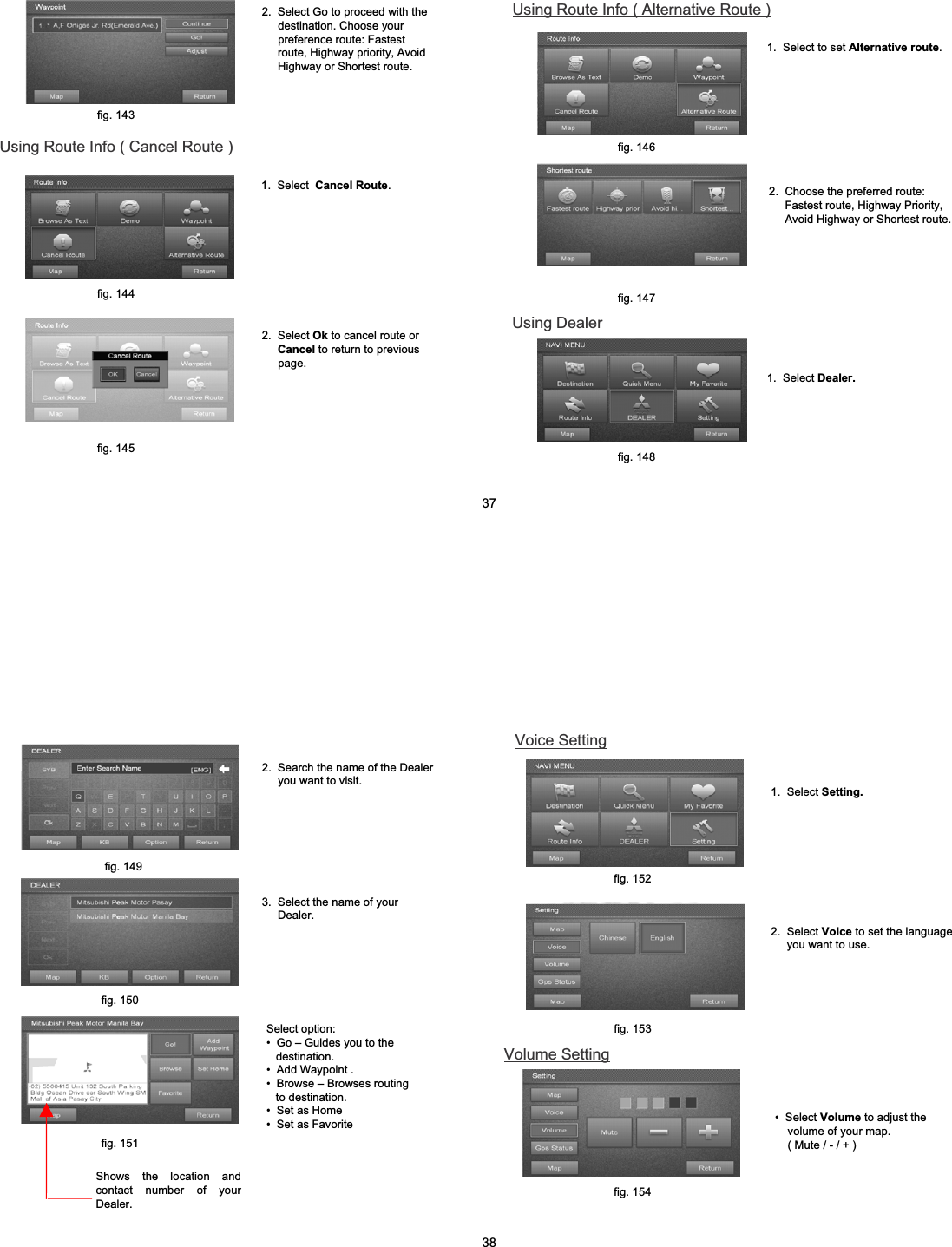
Finding your Destination using Recent DestinationFinding your Destination using POI nearbyfig. 113fig. 114fig. 115fig. 116fig. 117fig. 118fig. 119Select option:• Go – Guides you to the destination. • Add Waypoint .• Browse – Browses routing to destination.• Set as Home• Set as Favorite1.  Select Recent Destination.Select option:• Go – Guides you to the destination. • Add Waypoint .• Browse – Browses routing to destination.• Set as Home• Set as Favorite• Delete – Delete recent destination.1.  Select POI nearby.fig. 1204.  Then select the street orroads that crosses on this road.2.  From the list choose the places you recently passed by.2.  Select POI category ( POI nearby map, POI nearby dest. or POI nearby home. )3.  Select the POI category. For more choices select next and previous or use the scroll bar. Example ( Transportation )33fig. 121fig. 122fig. 123fig. 124Finding your Destination using POIfig. 125fig. 126fig. 127Select option:• Go – Guides you to the  destination. • Add Waypoint .• Browse – Browses routing to destination.• Set as Home• Set as Favoritefig. 1285.  Enter the name of the place you want to visit based on your categories.6.  Then select the name of the place. 4.  From the list select your preferred category. Select option:• Go – Guides you to the destination. • Add Waypoint .• Browse – Browses routing to destination.• Set as Home• Set as Favorite2.  Enter and search the name of the place or establishments you want to visit. 1.  Select POI ( Point of Interest ).3.  From the list, select the name of the place containing the word you recently entered.34
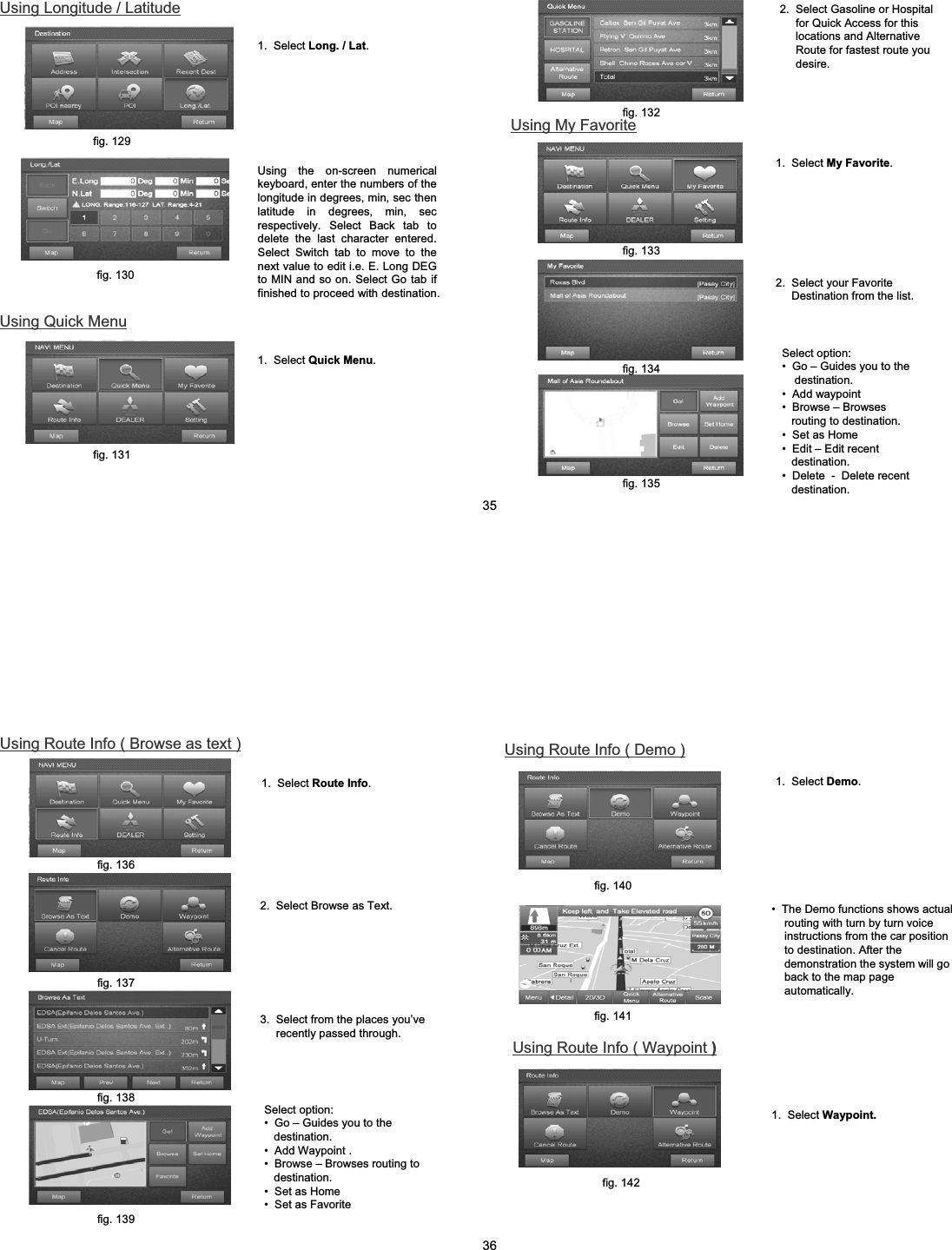
Using Longitude / Latitudefig. 129fig. 130Using Quick Menufig. 131Using the on-screen numerical keyboard, enter the numbers of the longitude in degrees, min, sec then latitude in degrees, min, sec respectively. Select Back tab to delete the last character entered. Select Switch tab to move to the next value to edit i.e. E. Long DEG to MIN and so on. Select Go tab if finished to proceed with destination.1.  Select Long. / Lat.1.  Select Quick Menu.2.  Select Gasoline or Hospital for Quick Access for this locations and Alternative Route for fastest route you desire.Using My Favorite2.  Select your Favorite Destination from the list.Select option:• Go – Guides you to the destination.• Add waypoint• Browse – Browses   routing to destination.• Set as Home• Edit – Edit recent destination.• Delete  - Delete recent destination.fig. 132fig. 133fig. 134fig. 1351.  Select My Favorite.352.  Select Browse as Text.Using Route Info ( Browse as text )1. Select Route Info.fig. 136fig. 1373.  Select from the places you’ve recently passed through.Select option:• Go – Guides you to the destination. • Add Waypoint .• Browse – Browses routing to destination.• Set as Home• Set as Favoritefig. 138fig. 139• The Demo functions shows actual  routing with turn by turn voice instructions from the car position to destination. After the demonstration the system will go back to the map page automatically.Using Route Info ( Demo )1.  Select Demo.fig. 140fig. 141Using Route Info ( Waypoint )1.  Select Waypoint.fig. 14236
1.  Select  Cancel Route.2.  Select Ok to cancel route or Cancel to return to previous page.2.  Select Go to proceed with the destination. Choose your preference route: Fastest route, Highway priority, Avoid Highway or Shortest route.Using Route Info ( Cancel Route )fig. 143fig. 144fig. 1452.  Choose the preferred route: Fastest route, Highway Priority, Avoid Highway or Shortest route.Using Dealer1.  Select Dealer.Using Route Info ( Alternative Route )1.  Select to set Alternative route.fig. 146fig. 147fig. 148373.  Select the name of your Dealer.Select option:• Go – Guides you to the destination. • Add Waypoint .• Browse – Browses routing to destination.• Set as Home• Set as FavoriteShows the location and contact number of your Dealer. 2.  Search the name of the Dealer you want to visit.fig. 149fig. 1512.  Select Voice to set the language you want to use.Volume Setting• Select Volume to adjust the  volume of your map. ( Mute / - / + )fig. 150Voice Setting 1.  Select Setting.fig. 152fig. 153fig. 15438
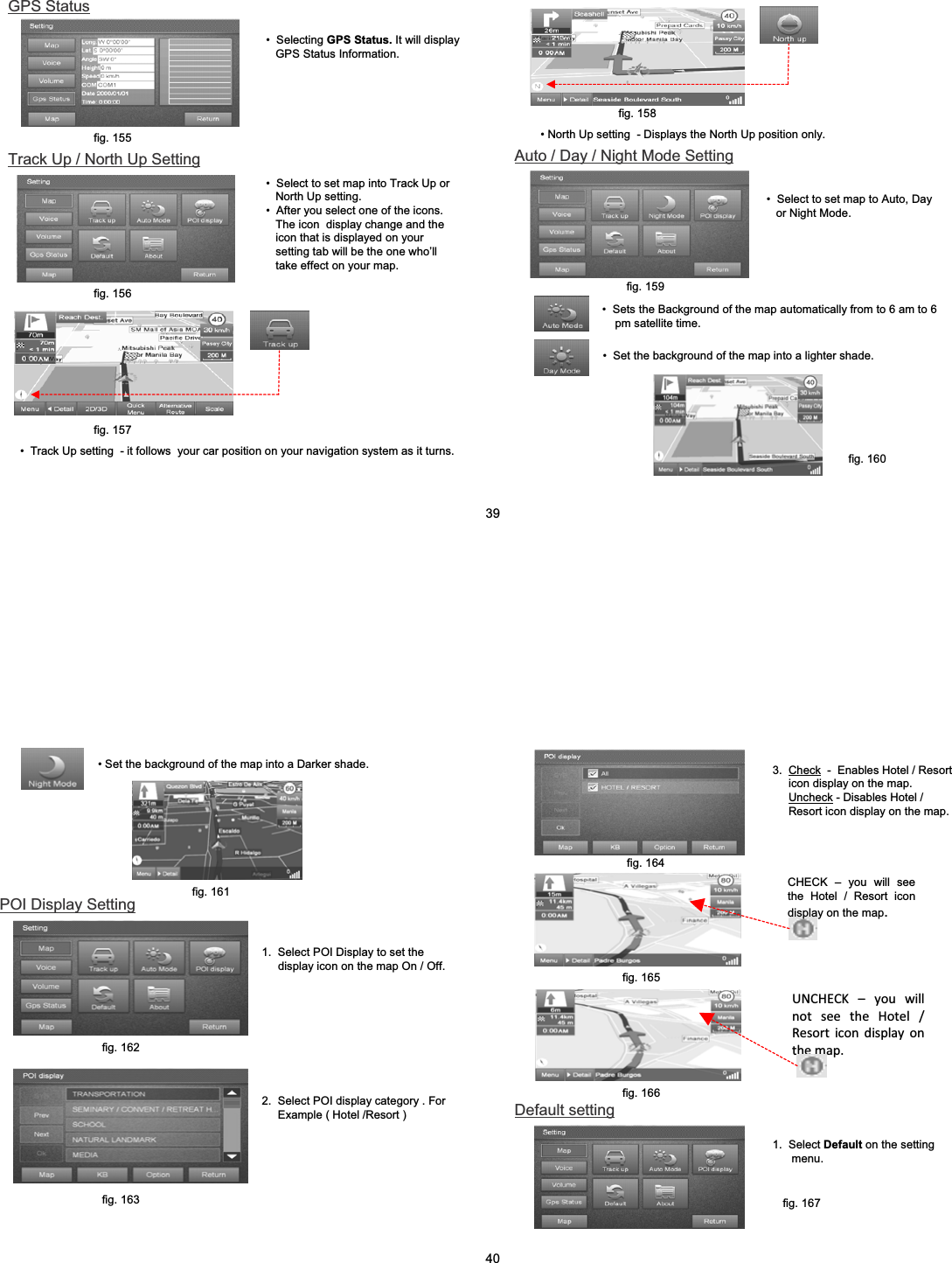
Track Up / North Up Setting• Select to set map into Track Up or North Up setting.• After you select one of the icons. The icon  display change and the icon that is displayed on your setting tab will be the one who’ll take effect on your map.• Track Up setting  - it follows  your car position on your navigation system as it turns.• Selecting GPS Status. It will display GPS Status Information.GPS Statusfig. 155fig. 156fig. 157• North Up setting  - Displays the North Up position only.fig. 158Auto / Day / Night Mode Settingfig. 159• Select to set map to Auto, Day or Night Mode.• Sets the Background of the map automatically from to 6 am to 6pm satellite time.• Set the background of the map into a lighter shade.fig. 16039• Set the background of the map into a Darker shade.fig. 1612.  Select POI display category . For Example ( Hotel /Resort )POI Display Setting1.  Select POI Display to set the display icon on the map On / Off.fig. 162fig. 163CHECK – you will see the Hotel / Resort icon display on the map.3.  Check - Enables Hotel / Resort icon display on the map.Uncheck - Disables Hotel / Resort icon display on the map.fig. 164fig. 165 UNCHECK–youwillnotseetheHotel/Resorticondisplayonthemap.1.  Select Default on the setting menu.Default settingfig. 165fig. 166fig. 16740
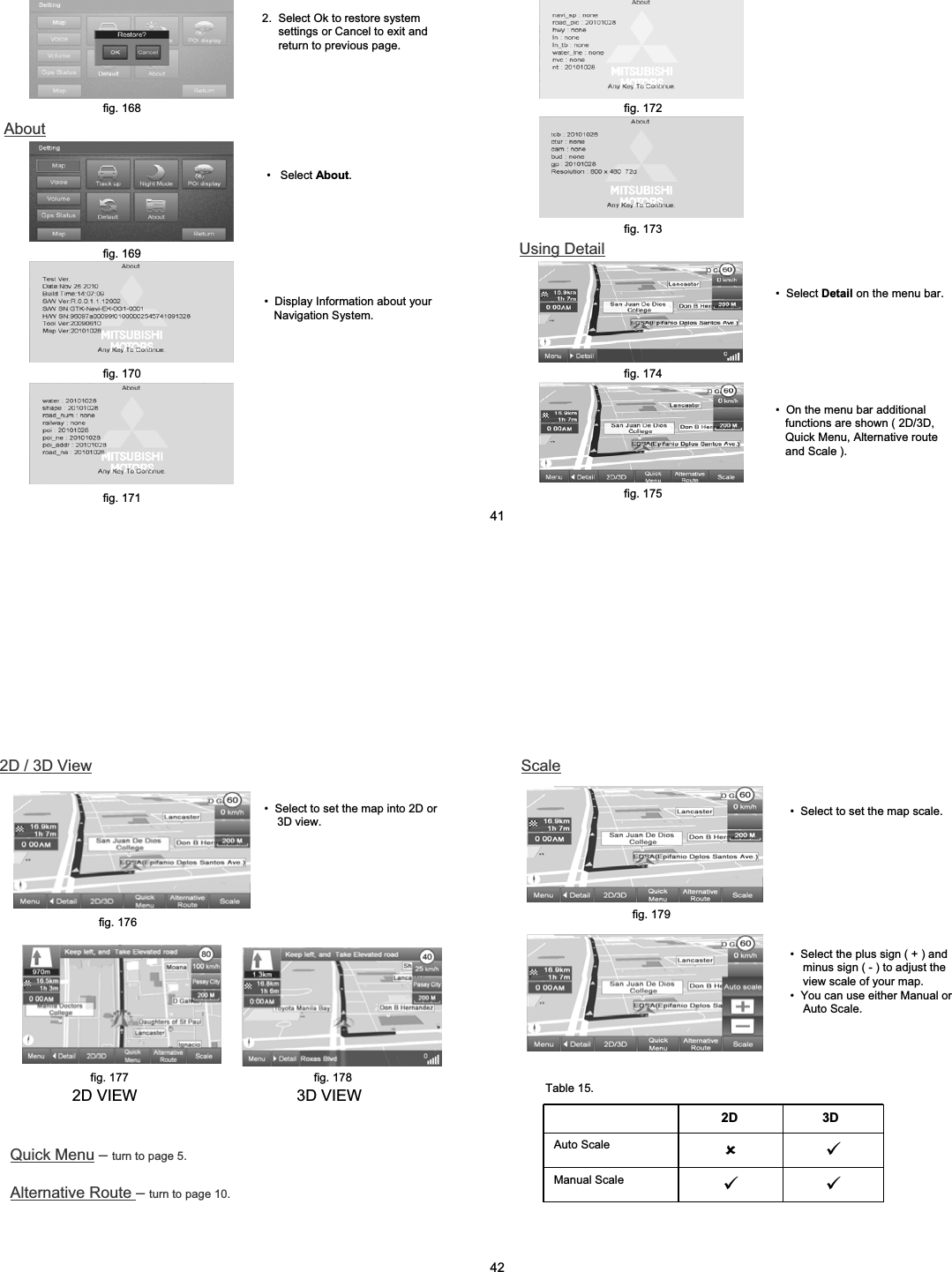
• Select About.2.  Select Ok to restore system settings or Cancel to exit and return to previous page.fig. 168Aboutfig. 169• Display Information about your Navigation System.fig. 170fig. 171Using Detailfig. 172fig. 173• On the menu bar additional functions are shown ( 2D/3D, Quick Menu, Alternative route  and Scale ). fig. 174• Select Detail on the menu bar.fig. 17541• Select to set the map into 2D or 3D view.3D VIEW2D VIEWfig. 176fig. 177 fig. 178Quick Menu –turn to page 5.Alternative Route –turn to page 10.Scale2D / 3D View• Select to set the map scale.fig. 179• Select the plus sign ( + ) and minus sign ( - ) to adjust the view scale of your map.• You can use either Manual or Auto Scale.2D 3DAuto Scale 89Manual Scale 99Table 15.42

Navigation menu