SKYPINE ELECTRONICS CNE8121CL All in one DVD Player User Manual
SKYPINE ELECTRONICS (SHEN ZHEN) CO., LTD. All in one DVD Player Users Manual
Users Manual
2-DIN DVD MULTIMEDIA STATION WITH
BUILT-IN NAVIGATION & 6.2" TOUCH PANEL CONTROL
STATION MULTIMÉDIA DVD 2-DIN AVEC COMMANDE
ÉCRAN TACTILE DE 6,2 pouces
ESTACIÓN DVD MULTIMEDIA DOBLE DIN CON PANEL
DE CONTROL TÁCTIL DE 6,2 pulgadas
DVD MULTIMEDIA STATION WITH BUILT-IN NAVIGATION &
7" TOUCH PANEL CONTROL
STATION MULTIMÉDIA DVD AVEC COMMANDE
ÉCRAN TACTILE DE 7 pouces
ESTACIÓN DVD MULTIMEDIA CON PANEL DE CONTROL
TÁCTIL DE 7 pulgadas
NX501E
N
Z
501E
Owner’s manual & Installation manual
Mode d’emploi et manuel d’installation
Manual de instrucciones y de instalación
NX_NZ501E 欧洲版说明书.indd 1 2010-12-27 13:50:26
NX_NZ501E 欧洲版说明书.indd 2 2010-12-27 13:50:26
NX501E/NZ501E 3
English
English
Owner’s Manual
Contents
1. FEATURES ·················································································································5
2. PRECAUTIONS ··········································································································6
3. CAUTIONS ON HANDLING·······················································································8
Operation Panel ··········································································································8
USB Port ·····················································································································8
Cleaning ······················································································································8
Handling Discs ············································································································9
4. PANEL CONTROLS ·································································································10
NX501E Functions of Buttons ···················································································10
NZ501E Functions of Buttons ···················································································11
5. REMOTE CONTROL································································································13
Functions of Remote Control Buttons ······································································14
6. MAIN MENU OPERATIONS ····················································································16
Front Zone Source ····································································································16
Rear Zone Source ·····································································································16
7. DVD SYSTEM ··········································································································17
DVD Video Features ··································································································17
Discs ·························································································································17
About the registered marks, etc. ··············································································18
8. DVD VIDEO PLAYER OPERATIONS ·······································································19
Change DVD System Settings ··················································································19
Watching to a disc ····································································································19
Operate the DVD Player menu ··················································································20
Operate the Video files Player menu ·········································································22
9. DVD AUDIO PLAYER OPERATIONS ······································································24
Showing CD Player mode screen ·············································································24
Operate the CD Player menu ····················································································24
Listening To MP3/WMA ····························································································25
10. USB AUDIO OPERATIONS ···················································································28
Notes on using USB memories ·················································································28
Select USB Audio mode ···························································································28
Playing MP3/WMA files in USB memory ··································································29
11. USB VIDEO OPERATIONS ····················································································31
Notes on using USB memories ·················································································31
Select USB Video mode ···························································································31
Playing video files in USB memory ···········································································31
USB Video Menu Operations ····················································································32
12. iPod/iPhone OPERATIONS ···················································································33
Notes on using Apple iPod/iPhone ···········································································33
Controlling the iPod/iPhone ······················································································33
Selecting the iPod Video mode·················································································35
13. Bluetooth AUDIO PLAYER OPERATIONS ···························································37
Selecting the Bluetooth Audio mode ········································································37
Bluetooth audio player settings ················································································37
Registering your Bluetooth audio player (Pairing)·····················································37
Selecting the Bluetooth audio player ········································································38
Controlling the Bluetooth audio player ·····································································38
14. Bluetooth TELEPHONE OPERATIONS ································································39
Select the BT Phone mode ·······················································································39
Bluetooth Telephone settings ···················································································39
Register your cellular phone (Pairing) ·······································································40
Select the cellular phone ··························································································40
Obtaining the Phone Book data ···············································································41
NX_NZ501E 欧洲版说明书.indd 3 2010-12-27 13:50:27
4 NX501E/NZ501E
English
Owner’s Manual
Telephone operations ································································································41
15. RADIO OPERATIONS ····························································································43
16. RDS Operations ··································································································44
17. DVB-T Operations ·································································································47
18. AUX 1 / AUX 2 OPERATIONS ···············································································48
19. CAMERA OPERATIONS ························································································48
20. REAR SOURCE OPERATIONS ·············································································49
DVD Video in Rear ····································································································49
AUX 1 in Rear ············································································································50
AUX 2 in Rear ············································································································50
iPod Video in Rear ····································································································50
21. SETTING OPERATIONS ························································································51
General Setup Menu ·································································································51
Video Setup Menu ····································································································51
Audio Setup Menu ····································································································51
Navigation Setup Menu ····························································································52
Others Setup Menu ···································································································52
Set the Anti-Theft code ·····························································································52
22. MONITOR OFF ······································································································53
23. TROUBLESHOOTING ···························································································54
GENERAL ··················································································································54
DVD PLAYER ············································································································54
USB DEVICE ·············································································································55
Bluetooth ··················································································································55
TV/VTR (When connecting an optional TV tuner, etc.) ··············································56
24. ERROR DISPLAY ···································································································56
25. SPECIFICATIONS ··································································································57
INSTALLATION /WIRE CONNECTION GUIDE ···························································59
NX_NZ501E 欧洲版说明书.indd 4 2010-12-27 13:50:27
NX501E/NZ501E 5
English
English
Owner’s Manual
1. FEATURES
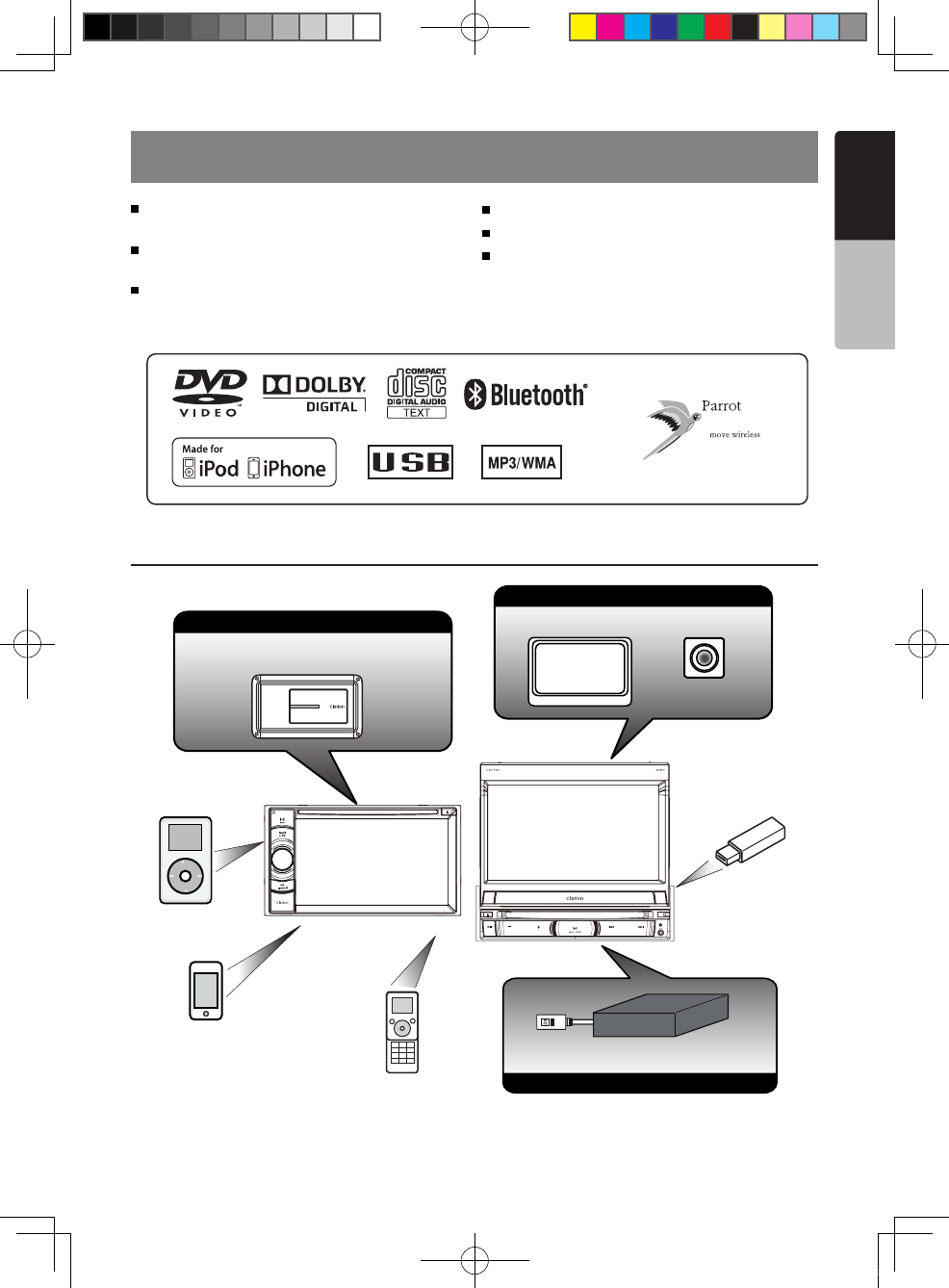
Double Din 6.2” Touch Panel Control
(NX501E)
Motorized 7” Touch Panel Control
(NZ501E)
DVD Video/CD-DA/MP3/WMA
Playback Capability
Built-In Bluetooth®
OEM Steering Wheel Remote Ready
Compatible with iPod® / iPhone® via USB
Expanding Systems
NOTE:
The items listed outside the frames are the commercial products generally sold.
Expanding visual features
Rear Monitor
iPod
Rear Vision Camera
Expanding audio features
External Power
Amplifier
iPhone
USB
Memory
Bluetooth
Telephone
DVB-T Tuner (DTX501E)
Black
Radio Antenna Jack
4-Channel Amplifier
Subwoofer 1
Subwoofer 2
Line Out
Rear R
Line Out
Rear L
Line Out
Front R
Line Out
Video Out
Front L
Video in
Audio/R
Audio/L
Camera
Yellow
White
White
Red
Red
Red
White
Yellow
Purple
Gray
Gray
Red
Black
Black
Black
Black
White
Steering Wheel
Remote Control Terminal
Yellow
Monitor
Yellow
White
Red
Red
Rear zone out R
Rear zone out L
Red
White
Green
GPS
Antenna
External
Microphone
Connection
iPod/iPhone
MIC
SWI
CAMERA
VISUAL OUT
VISUAL IN
DVB-T Tuner (DTX501E)
DTV
CCA-748 (sold separately)
Rear Vision Camera
Expanding DVB-T tuner features
NX_NZ501E 欧洲版说明书.indd 5 2010-12-27 13:50:28
6 NX501E/NZ501E
English
Owner’s Manual
2. PRECAUTIONS
• For your safety, the driver should not watch any video sources and/or operate the controls while driving. Please
note that watching and operating any video sources while driving are prohibited by law in some countries. Also,
while driving, keep the volume to a level at which external sounds can be heard.
• When using the navigation system, follow the precautions listed below. After reading this manual, be sure to
keep it in a handy place (such as the glove box of your car).
• This navigation system should not be used to replace your own judgment. No itinerary suggested by this
navigation system should ever override any highway regulations, your own judgment, or a knowledge of safe
driving practices. Do not follow the navigation system’s suggested itinerary if it would cause you to perform a
dangerous or illegal act, place you in a dangerous situation, or take you into an area you consider unsafe.
• The advice provided by the navigation system is to be regarded as a suggestion only. There may be times when
the navigation system displays the vehicle’s location incorrectly, fails to suggest the shortest route, or fails to
direct you to your desired destination. In such instances, rely on your own driving judgment, taking into account
the driving conditions at the time.
• Do not use the navigation system to locate emergency services. The database does not contain a complete
listing of emergency services such as police stations, fire halls, hospitals and walk-in clinics. Please show
discretion and ask for directions in such instances.
• As the driver, you alone are responsible for your driving safety.
• In order to avoid a trafc accident, do not operate the system while driving.
• In order to avoid a trafc accident, operate the system only when the vehicle is stopped at a safe place and
the parking brake is on.
• In order to avoid a traffic accident or traffic offense, remember that actual road conditions and traffic
regulations take precedence over the information contained on the navigation system.
• The software may contain inaccurate or incomplete information due to the passage of time, changing
circumstances, and the sources of information used. Please respect current traffic conditions and regulations
at all times while driving.
• Where actual road conditions and highway regulations differ from the information contained on the navigation
system, abide by the highway regulations.
• Keep the amount of time spent viewing the screen while driving to a strict minimum.
• The navigation system does not provide, nor represent in any way information on: traffic and highway
regulations; technical aspects of the vehicle including weight, height, width, load and speed limits; road
conditions including grade, percentage of incline and surface conditions; obstacles such as the height and width
of bridges and tunnels; and other current driving or road conditions. Always rely on your own judgment when
driving a car, taking into account current driving conditions.
• Do not disassemble or modify this unit. It may cause an accident, re, or electric shock.
• Do not use this unit when a trouble exists, such as no screen content appears or no sound is audible. It may
cause an accident, fire, or electric shock. For that case, consult your authorized dealer or a nearest Clarion
service center.
• In case of a problem, such as any material has been entered in the unit, the unit gets wet, or smoke or strange
smells come out of the unit, etc., stop using this unit immediately, and consult your authorized dealer or a
nearest Clarion service center.
Using it in that condition may cause an accident, fire, or electric shock.
• Use a fuse with the same specication only when replacing the fuse.
Using a fuse with a different specification may causes a fire.
• For the installation of this unit or a change in the installation, ask your authorized dealer or a nearest Clarion
service center for safety. Professional skills and experiences are required to do so.
WARNING
NX_NZ501E 欧洲版说明书.indd 6 2010-12-27 13:50:28
NX501E/NZ501E 7
English
English
Owner’s Manual
1.When the inside of the car is very cold and
the player is used soon after switching on the
heater, moisture may form on the disc (DVD/
CD) or the optical parts of the player and
proper playback may not be possible. If
moisture forms on the disc (DVD/CD), wipe it
off with a soft cloth. If moisture forms on the
optical parts of the player, do not use the
player for about one hour. The condensation
will disappear naturally allowing normal
operation.
2.Driving on extremely bumpy roads which
cause severe vibration may cause the sound
to skip.
3.This unit uses a precision mechanism. Even
in the event that trouble arises, never open
the case, disassemble the unit, or lubricate
the rotating parts.
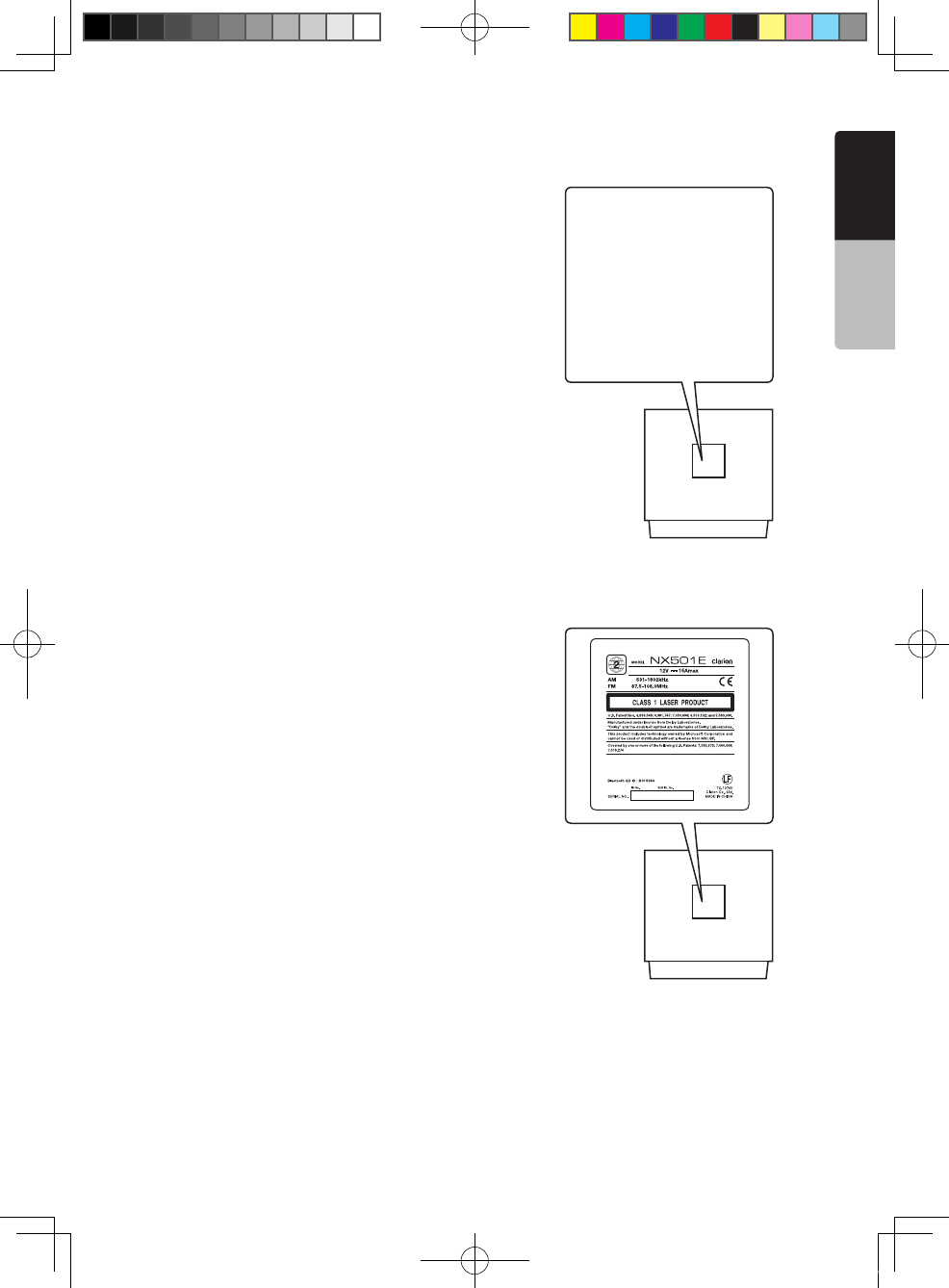
CAUTIONS:
This appliance contains a laser system and is
classified as a "CLASS 1 LASER PRODUCT".
To use this model properly, read this owner's
Manual carefully and keep this manual for
your future reference. In case of any trouble
with this player, please contact your nearest
"AUTHORIZED service station". To prevent
direct exposure to the laser beam, do not try
to open the enclosure.
NX_NZ501E 欧洲版说明书.indd 7 2010-12-27 13:50:29
Warning: Changes or modifications to this unit not expressly approved by the
party responsible for compliance could void the user’s authority to operate
the equipment.
This equipment complies with FCC RF radiation exposure limits set forth for an
uncontrolled environment. This equipment should be installed and operated
with a minimum distance of 20 centimeters between the radiator and your
body.
8 NX501E/NZ501E
English
Owner’s Manual
3. CAUTIONS ON HANDLING
Operation Panel
• The operation panel will operate properly in a
temperature range of 0˚ to 60˚ C.
• Do not allow any liquids on the set from drinks,
umbrellas etc. Doing so may damage the internal
circuitry.
• Do not disassemble or modify the set in any way.
Doing so may result in damage.
• Subjecting the operation panel to shocks may result
in breakage, deformation or other damage.
• Do not let cigarettes burn the display.
• If a problem should occur, have the set inspected at
your store of purchase.
• Do not insert objects or poke in the space between
the operation panel and the main unit when the panel
is tilted.
• The remote control unit may not work if the remote
control sensor is exposed to direct sunlight.
• In extremely cold weather, the display movement
may slow down and the display may darken, but this
is not a malfunction. The display will work normally
when the e temperature increases.
• Small black and shiny spots inside the liquid crystal
panel are normal for LCD products.
For a longer service life, be sure to read the following cautions.
Cleaning
• Cleaning the cabinet
Use a soft, dry cloth and gently wipe off the dirt. For
tough dirt, apply some neutral detergent diluted in
water to a soft cloth, wipe off the dirt gently, then
wipe again with a dry cloth.
Do not use benzene, thinner, car cleaner, etc., as
these substances may damage the cabinet or cause
the paint to peel. Also, leaving rubber or plastic
products in contact with the cabinet for long periods
of time may cause stains.
• Cleaning the liquid crystal panel
The liquid crystal panel tends to collect dust, so wipe
it off occasionally with a soft cloth. The surface is
easily scratched, so do not rub it with hard objects.
USB Port
• The USB memory stick may stick out when inserted,
so it may cause danger during driving. In such cases,
you can use a commercial USB extension cable, etc.,
but use it safely under your own judgment.
• The USB memory sticks must be recognized as “USB
mass storage class” to work properly. Some models
may not operate correctly.
When the memorized data is lost or damaged by any
chance, Clarion shall not be liable for any damage.
When using an USB memory stick, we recommend
that you backup your data stored on it before by
using a personal computer etc.
• Data les may be broken when using USB memory
sticks in the following situation:
When disconnecting the USB memory stick or
turning the power off during writing or reading data.
When affected by static electricity or electric noise.
Connect/disconnect the USB memory stick when it
is not accessed.
• Some USB memory sticks cannot be inserted to the
main unit because of their shape. In such cases, use
a commercial USB extension cable to connect them.
• Connecting with the computer is not covered.
• Music files (MP3, WMA, etc.) stored in the USB
memory stick can be played back.
NX_NZ501E 欧洲版说明书.indd 8 2010-12-27 13:50:29
NX501E/NZ501E 9
English
English
Owner’s Manual
Handling Discs
Handling
• New discs may have some roughness around the
edges. If such discs are used, the player may not
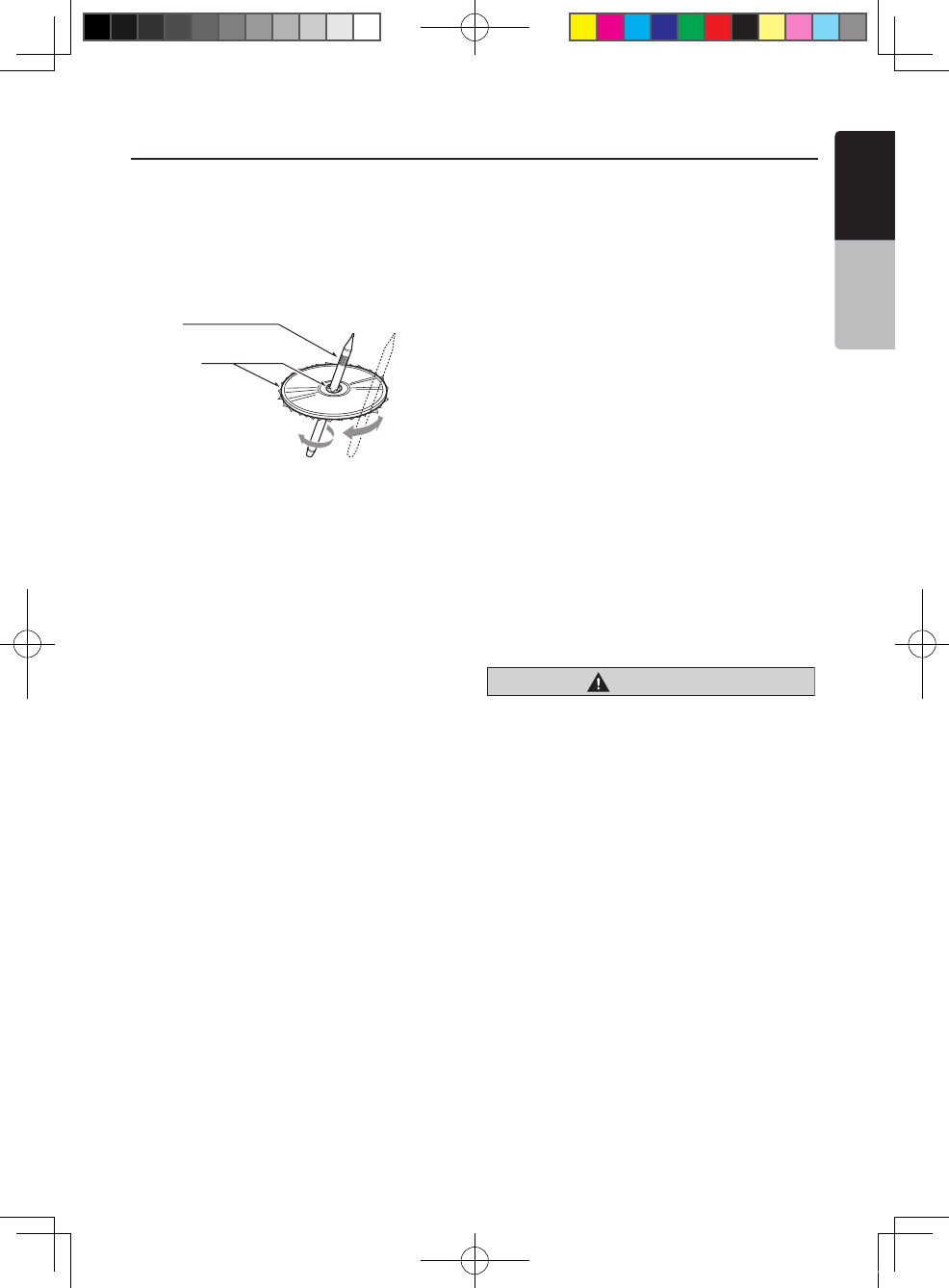
work or the sound may skip. Use a ball-point pen or
the like to remove any roughness from the edge of
the disc.
• Never stick labels on the surface of the disc or mark
the surface with a pencil or pen.
• Never play a disc with any cellophane tape or other
glue on it or with peeling off marks. If you try to play
such a disc, you may not be able to get it back out of
the DVD player or it may damage the DVD player.
• Do not use discs that have large scratches, are
misshapen, cracked, etc. Use of such discs may
cause misoperation or damage.
• To remove a disc from its storage case, press down
on the center of the case and lift the disc out, holding
it carefully by the edges.
• Do not use commercially available disc protection
sheets or discs equipped with stabilizers, etc. These
may damage the disc or cause breakdown of the
internal mechanism.
Storage
• Do not expose discs to direct sunlight or any heat
source.
• Do not expose discs to excess humidity or dust.
• Do not expose discs to direct heat from heaters.
Cleaning
• To remove ngermarks and dust, use a soft cloth and
wipe in a straight line from the center of the disc to
the circumference.
• Do not use any solvents, such as commercially
available cleaners, anti-static spray, or thinner to
clean discs.
• After using special disc cleaner, let the disc dry off
well before playing it.
On Discs
• Exercise a good precaution when loading a disc. The
operation panel will close automatically when leaving
it open for a while.
• Never turn off the power and remove the unit from
the car with a disc loaded.
Ball-point pen
Roughness
CAUTION
For your safety, the driver should
not insert or eject a disc, opening
the operation panel while driving.
NX_NZ501E 欧洲版说明书.indd 9 2010-12-27 13:50:29
10 NX501E/NZ501E
English
Owner’s Manual
4. PANEL CONTROLS
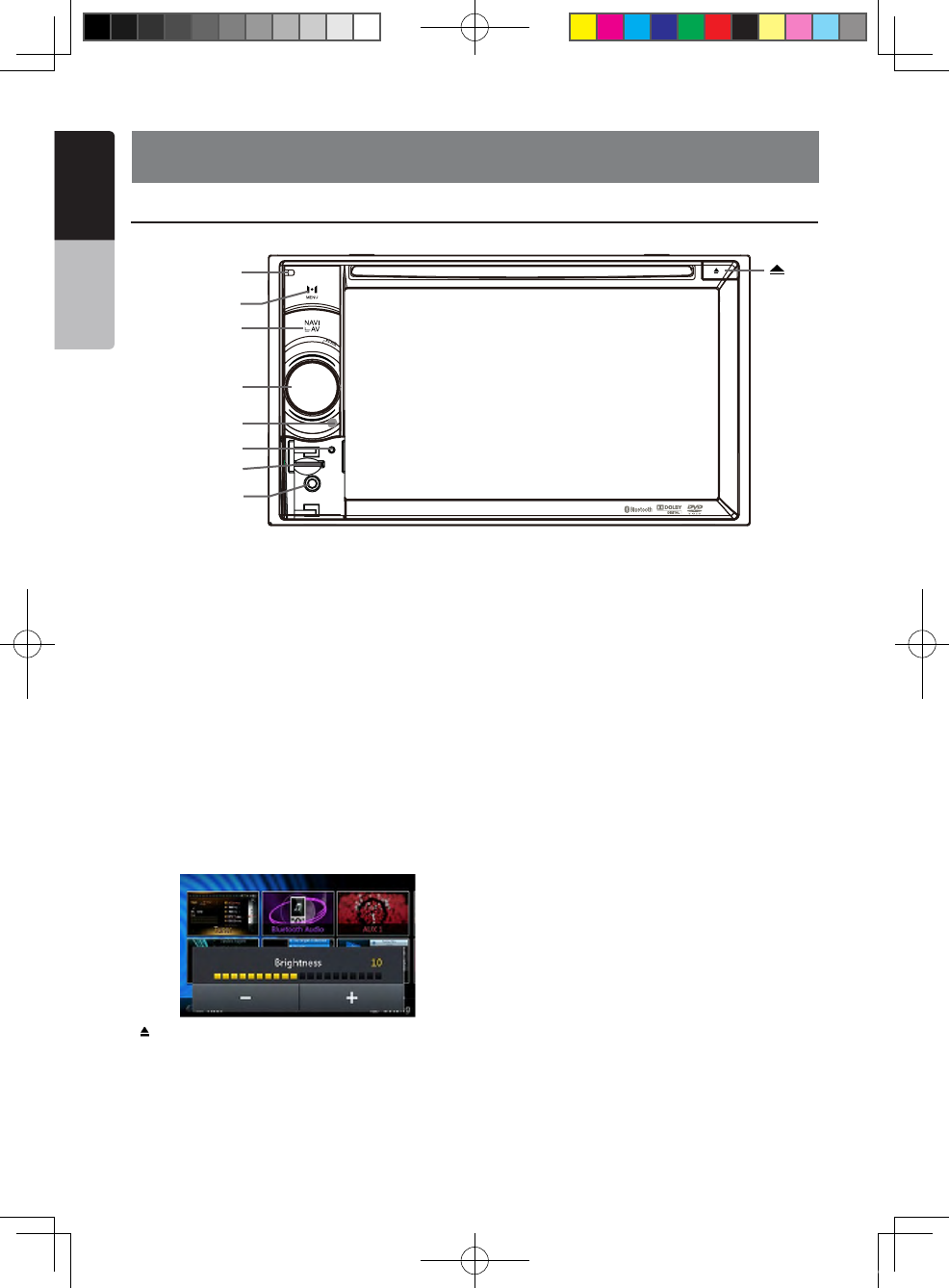
NX501E Functions of Buttons
Note: Be sure to read this chapter while referring to front
diagram “PANEL CONTROLS”.
[PWR/VOL] Knob
• Press this key to power on the system in power off
mode.
When the power is already turn on, it moves to the
current position by Navigation mode automatically.
• Keep pressing this key more than 2 second to turn
off the system when system is in power on mode.
• Rotate the knob to increase or decrease the volume.
[NAVI/AV] Button
• Press this button to enter navigation mode; press
again to return current source.
• Press and hold this button for 3 seconds to display
the brightness setting panel.
[]Eject
• Press to eject disc from unit.
[MENU] Button
• Press this button to display main menu, press again
to return current source.
• Press and hold this button for 3 seconds to turn off
the monitor. Press any place of the screen to turn
on the monitor again.
[RESET] Button
• Press this button to hardware reset the unit.
Note: When the [RESET] button is pressed, frequencies
of radio stations, titles, etc. stored in memory are
cleared.
[microSD]
• Insert a microSD in this.
Note: The microSD card is only for navigation. Please
don’t remove it, otherwise, the navigation function will be
disabled.
[AUX IN]
AUX 1 Connector.
[Microphone]
• Internal microphone for use during Bluetooth
phone calls. Sensitivity can be adjusted from
the Settings menu.
[IR] SENSOR
• Receiver for the remote control unit (operating
range: 30 degree in all directions).
[ ]
[Microphone]
[MENU]
[NAVI/AV]
[PWR/VOL]
[RESET]
[microSD]
[AUX IN]
[IR]
NX_NZ501E 欧洲版说明书.indd 10 2010-12-27 13:50:29
NX501E/NZ501E 11
English
English
Owner’s Manual
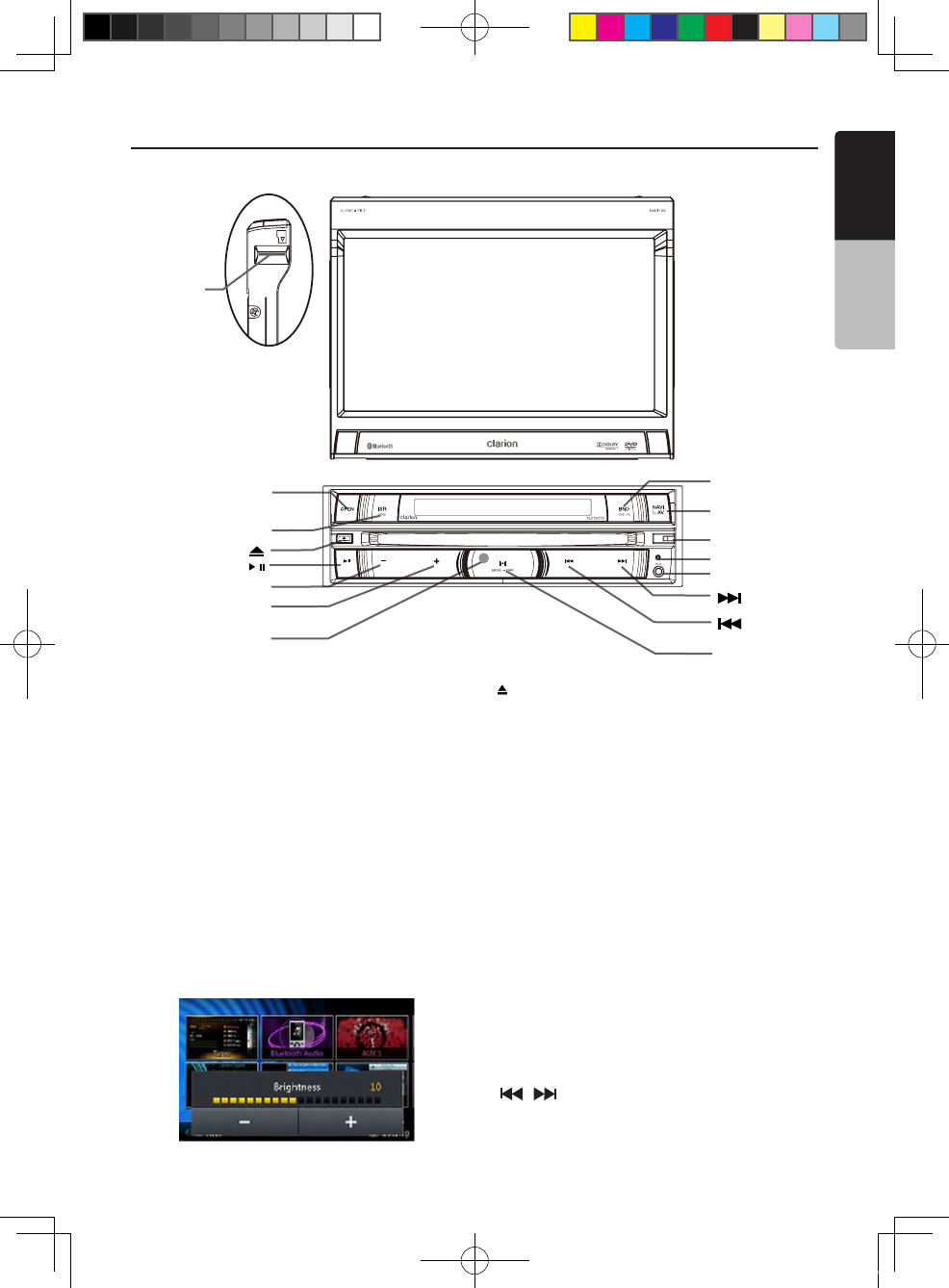
NZ501E Functions of Buttons
[ ]
[ ]
[OPEN]
[ISR/SEND]
[ / ]
[-]
[+]
[ IR ]
[BAND/END PS]
[NAVI/AV]
[Microphone]
[RESET]
[AUX IN]
[ ]
[ MENU/PWR ]
[microSD]
Note: Be sure to read this chapter while referring to front
diagram “PANEL CONTROLS”.
[MENU/PWR] Key
• Press this key to power on the system in power off
mode.
• Keep pressing this key more than 2 second to turn
off the system when system is in power on mode.
• Press this button to display main menu, press again
to return current source when system is in power on
mode.
[NAVI/AV] Button
• Press this button to enter navigation mode; press
again to return current source.
• Press and hold this button for 3 seconds to display
the brightness setting panel.
[]Eject
• Press to eject disc from unit.
[Microphone]
• Internal microphone for use during Bluetooth
phone calls. Sensitivity can be adjusted from
the Settings menu.
[RESET] Button
• Press this button to hardware reset the unit.
Note: When the [RESET] button is pressed, frequencies
of radio stations, titles, etc. stored in memory are
cleared.
[microSD]
• Insert a microSD in this.
Note: The microSD card is only for navigation. Please
don’t remove it, otherwise, the navigation function will be
disabled.
[AUX IN]
AUX 1 Connector.
[ , ] Buttons
• Press to search previous or next station or channel in
Tuner modes.
NX_NZ501E 欧洲版说明书.indd 11 2010-12-27 13:50:30
12 NX501E/NZ501E
English
Owner’s Manual
• Press to search previous or next track or chapter in
CD, MP3/WMA, iPod and DVD video modes.
• Press and hold to fast forward or fast backward by
2x, 4x, 8x or 16x step in CD, MP3 /WMA and DVD
video mode.
• Press and hold to fast forward or fast backward in
iPod music.
• Press and hold to enter manual seek status in Tuner
mode, then press briefly to seek station by step.
[ ] Button
• Press to play, pause or scan audio or video.
• Press shortly to scan.
• Press and hold one time Audio or video le will be
paused, if then press briefly, file will be resumed to
play.
[+][-] Buttons
• Press to Increase and decrease volume.
[OPEN] Button
• Use this button to open/close TFT panel.
[MENU/PWR ] Button
• Press this button to display main menu, press again
to return current source.
• Press this button to turn on the power.
• Keep pressing this knob more than 2 second to turn
off the power
[BAND/END PS] Button
• Press this button to enter AM/FM tuner mode from
any source.
• Once in AM/FM tuner mode, you can press it to
change bands between FM1, FM2, FM3, AM bands.
• Press to stop Preset Scan.
[ISR/SEND] Button
ISR Function:
When in tuner mode, press and hold this button for
3 seconds to save current station and band to ISR
memory, and at the same time, the tuner will enter ISR
mode with current station.
Note:
In ISR mode, the tuning operation is disabled. Press this
button again to quit ISR mode.
When in the other mode but not tuner mode, press
this key will go to ISR memory station directly, it likes a
shortcut. Press this key again to go back to previous
mode.
SEND Function:
Only be available when there is a coming call. Press
this key to accept the coming call or end a call.
[IR] SENSOR
• Receiver for the remote control unit (operating
range: 30 degree in all directions).
NX_NZ501E 欧洲版说明书.indd 12 2010-12-27 13:50:30
NX501E/NZ501E 13
English
English
Owner’s Manual
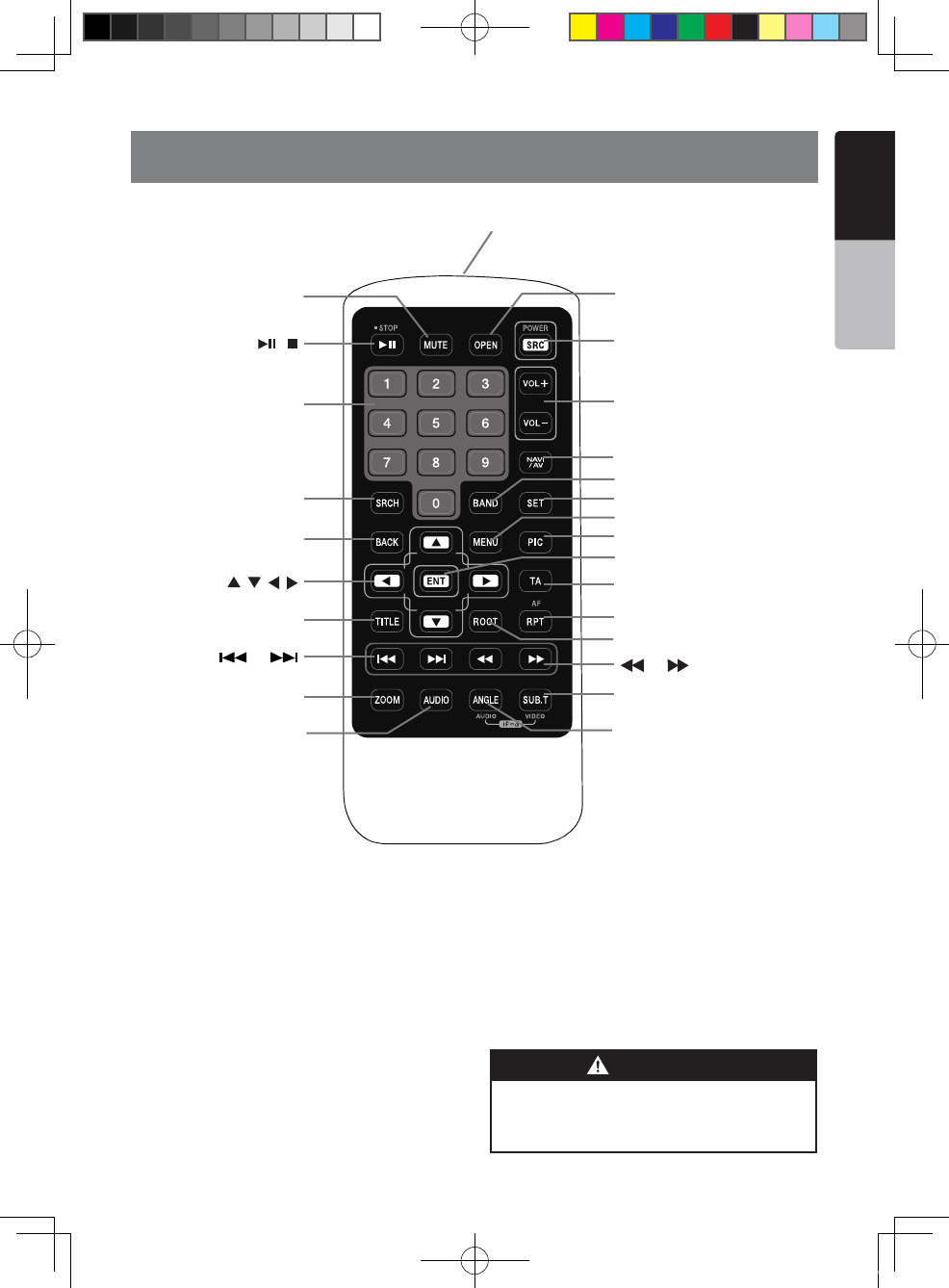
5. REMOTE CONTROL
Replacing the batteries
1.Press the retention tab and pull out the
battery tray and remove the old battery.
2. Insert the new CR2025 battery and slide
the battery tray back in the remote control
the same direction that you removed it.
Please ensure the tray is inserted in the
correct direction.
Note:
Using batteries improperly can cause them to
explode. Take note of the following points:
• When replacing batteries, replace both batteries
with new ones.
• Do not short-circuit, disassemble or heat batteries.
• Do not dispose of batteries into re or ames.
• Dispose of spent batteries properly.
Signal transmitter
Operating rang : 30°in all directions
[ / ]
[ 0-9 ]
[SRCH]
[BACK]
[ , , , ]
[TITLE]
[ ], [ ]
[ZOOM]
[MUTE]
[AUDIO]
[POWER / SRC]
[VOLUME]
[SET]
[PIC]
[TA]
[RPT]
[ ], [ ]
[SUB.T]
[OPEN]
[ANGLE]
[NAV/ AV]
[MENU]
[BAND]
[ROOT]
[ENT]
Lithium (CR) battery contain
Perchlorate
Dispose of discharged batteries properly.
WARNING
NX_NZ501E 欧洲版说明书.indd 13 2010-12-27 13:50:30
14 NX501E/NZ501E
English
Owner’s Manual
[ / ] Button
• Press this button to play or pause video and audio
media.
• Press this button more than 1 second to stop video
and audio media.
[MUTE] Button
• Mute or Unmute the speaker.
• The symbol on upper right area of the screen
indicates that speaker is muted.
[POWER/SRC] Button
• Press this button to move the focus to next available
source item on main menu.
• Press this button to power on when the unit is power
off.
• Press this button more than 1 second to power off
when the unit is power on.
[0 - 9] Buttons
• Use in the Key Pad screen to select the radio or
DVB-T channels.
• Use to select the track in the track list screen.
• Press to enter DVD video chapters/titles in the Key
Pad screen.
[VOLUME] Buttons
• Increase and decrease volume.
[NAVI/AV] Button
• Press this button to switch between current source
and current position on navigation map.
[SRCH] Button
• Press this button to open chapter or title search
window while playing DVD.
[BAND] button
• Switch to next band alternately.
[SET] Button
• Press this button to open the Audio setting menu in
any mode.
[BACK] Button
• Press this button to quit main menu if current screen
is main menu.
[ ], [ ], [ ], [ ] Buttons
• Press this button for cursor movement in main menu
or Setting mode.
• From the main menu, you can select your desired
source or change your settings.
[MENU] Button
• Press this button to enter the MAIN MENU or return
current resource.
[PIC] Button
• Press this button to change your monitor brightness.
[ENT] Button
• Press to x the entered data in the Key Pad screen
or enter the item the cursor is on.
[TA] Button
• Press to TA On/Off.
[TITLE] Button
• Press to go to the title menu on the DVD.
[ROOT] Button
• Press to go to the root menu on the DVD.
[RPT] Button
• Press to perform chapter repeat / title repeat / repeat
off while playing DVD mode.
• Press to perform track repeat/repeat off while playing
CD.
• Press to perform repeat track /repeat folder/ repeat
off while playing MP3/WMA, or video files on disc.
• Press to perform repeat track /repeat folder/ repeat
off while playing MP3/WMA, or video files in USB
memory.
• Press for AF On/Off.
[ ], [ ] Buttons
• Press to seek the next available higher or lower
station in Tuner mode.
• Press to select the next higher or lower chapter
number in DVD video mode.
• Press to select the next higher or lower track in DVD
Audio, USB Video, USB Audio mode.
• Press for movement of background source in
Navigation mode.
[ ], [ ]Buttons
• Press to manually select the next higher or lower
station in Tuner modes.
• Press to perform fast-forward or fast-backward
searching. Press again to change the speed to 2x,
4x, 8x or 16x.
• Press for movement of background source in
Navigation mode.
Functions of Remote Control Buttons
You can use the remote control unit to control the NX501E and NZ501E.
Note:
• The wireless remote control operation may not be optimal in direct sunlight.
NX_NZ501E 欧洲版说明书.indd 14 2010-12-27 13:50:30
NX501E/NZ501E 15
English
English
Owner’s Manual
Functions of Remote Control Buttons
[ZOOM] Button
• Press to turn on and zoom in while playing DVD. You
can zoom in up to 3x. (No all DVD disc supports this
function).
[AUDIO] Button
• Press to switch the AUDIO channel of the disc while
playing DVD.
[SUB-T] Button
• Press to switch next available subtitle while playing
DVD.
• Press to display Video menu in iPod mode.
[ANGLE] Button
• Press to switch the different ANGLE while playing
DVD. (No all DVD disc supports this function)
• Press to display Audio menu in iPod mode.
[OPEN] Button
• Press this button to OPEN or CLOSE the motorized
screen. Please ensure there are no obstructions
before starting the operation.(NZ501E only)
NX_NZ501E 欧洲版说明书.indd 15 2010-12-27 13:50:30
16 NX501E/NZ501E
English
Owner’s Manual
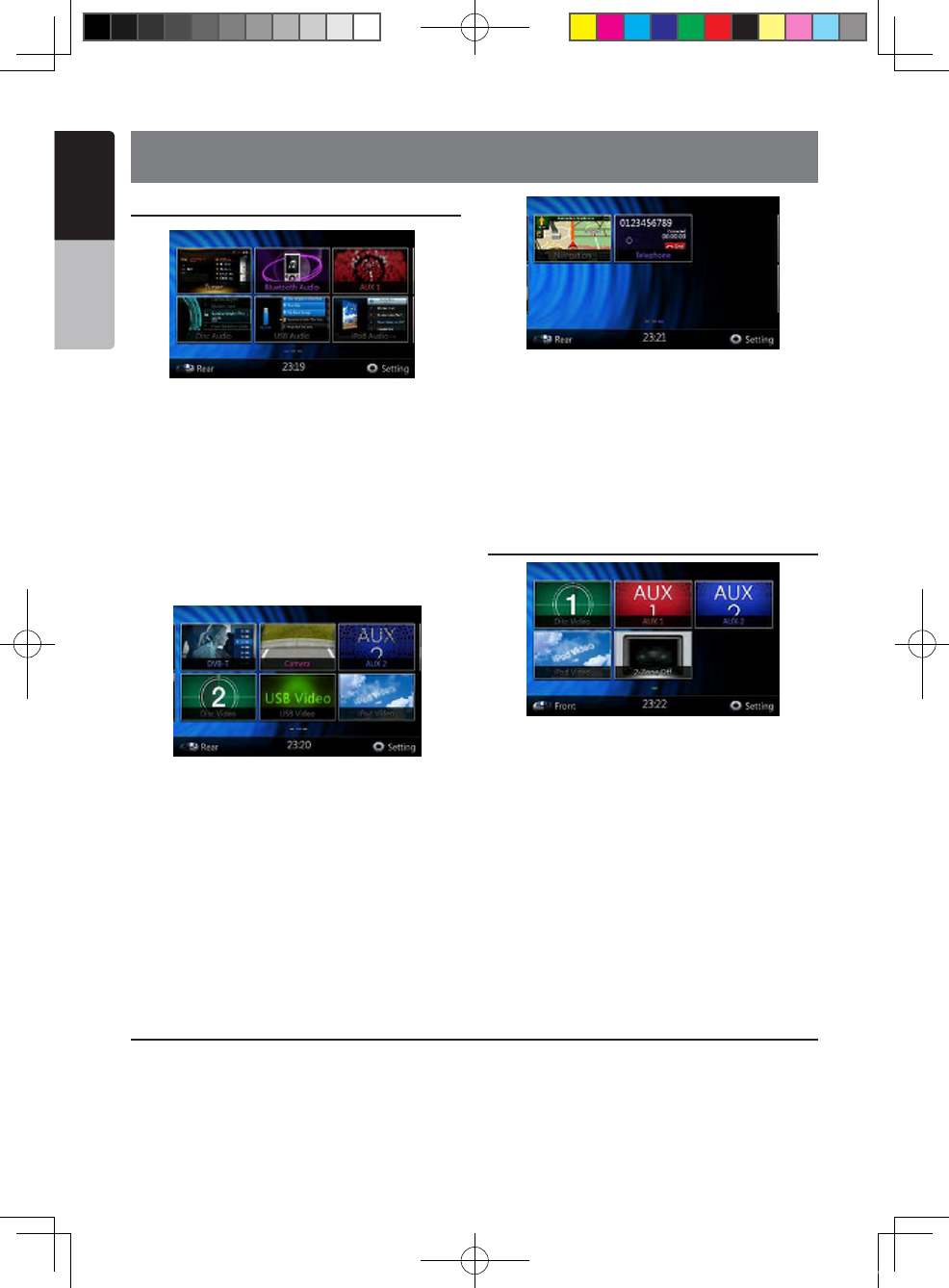
Front Zone Source
[Tuner]-Press the button to display the Tuner mode.
[Disc Audio]-Press the button to display the Disc
Audio mode.
[Bluetooth Audio]-Press the button to display the
Bluetooth Audio mode.
[USB Audio]-Press the button to display the USB
Audio mode.
[AUX 1]- Press the button to display the AUX 1 mode.
[iPod Audio]-Press the button to display the iPod
Audio mode.
[DVB-T]-Press the button to display the DVB-T mode.
[Disc Video]-Press the button to display the Disc
Video mode.
[Camera]-Press the button to display the Camera
mode.
[USB Video]-Press the button to display the USB
Video mode.
[AUX 2]-Press the button to display the AUX 2 mode.
[iPod Video]-Press the button to display the iPod
Video mode.
[Navigation]-Press the button to display the
Navigation mode.
[Telephone]-Press the button to display the Telephone
mode.
[Rear Button]-Press the button to display the rear
menu.
[Setting Button]-Press the button to display the
setting menu.
Rear Zone Source
[Rear Disc Video]-Press the button to display the
Rear Disc Audio mode.
[Rear AUX 1]-Press the button to display the Rear
AUX 1 mode
[Rear iPod Video]-Press the button to display the
Rear iPod Video mode.
[Rear AUX 2]-Press the button to display the rear AUX
2 mode.
[2-Zone Off]-Press the button to closed the rear
activity.
[Front Button]-Press the button to display the front
main menu.
[Setting Button]-Press the button to display the
setting menu.
6. MAIN MENU OPERATIONS
Scrolling the menu
Press screen and scrolling to right or left it will switch
to next or previous page of mainmenu.
Moving the menu position
1. Press any quadrate icon on mainmenu more than
2 seconds, the icon will float on mainmenu.
2. Scrolling the floating icon to any position you
want.
NX_NZ501E 欧洲版说明书.indd 16 2010-12-27 13:50:30
NX501E/NZ501E 17
English
English
Owner’s Manual
This unit provides the following functions in addition to
the high image quality and sound quality of DVD video.
Note:
• The functions described in this section,for example,
the recorded language,subtitles, angles, etc. differ
depending on the DVD video disc.
Refer to the instructions provided with the DVD
video.
• Some disc functions may operate differently from
described in this manual.
Multi-sound function
DVD video can store up to 8 languages for one film;
select the language of your preference.
• The languages stored on the disc are indicated by
the icon shown below.
Multi-angle function
A DVD video that is filmed from multiple angles allows
you to select the angle of choice.
• The number of recorded angles are indicated by the
icon shown below.
Subpicture (subtitles) function
A DVD video can record subtitles for up to 32
languages and you can select the language of the
subtitles you wish to see.
• The number of recorded subtitle languages are
indicated by the icon shown below.
Multi-story function
When a DVD video contains more than one story for
a film, you can select the story you wish to enjoy.
The operation procedures vary with the disc; observe
the instructions for selecting a story provided during
playback.
Menu screens
Menu can be called up during DVD video playback to
perform menu setting.
• Example showing menu display
Playable discs
This DVD video player can play the following discs.
About CD Extra discs
A CD Extra disc is a disc in which a total of two
sessions have been recorded. The first session is
Audio session and the second session is Data session.
Your personally-created CDs with more than second
data sessions recorded cannot be played on this DVD
video player.
Note:
• When you play a CD Extra disc, only the rst session
will be recognized.
About playing a CD-R/CD-RW disc (MP3, WMA)
This player can play CD-R/CD-RW discs previously
recorded in music CD format (MP3, WMA).
7. DVD SYSTEM
DVD video is a high-quality digital video source that provides crisp and clear images. One 12 cm disc contains
either one film or four hours of music.
DVD Video Features
Discs
Playable discs
CD TEXTDVD video discs Audio CDs
Playable media files
MP3/WMA
NX_NZ501E 欧洲版说明书.indd 17 2010-12-27 13:50:31
18 NX501E/NZ501E
English
Owner’s Manual
About playing a DVD-R/RW or DVD+R/RW disc
This player cannot play DVD-R/RW and DVD+R/ RW
discs previously recorded in video CD format.
However, MP3/WMA files recorded on DVD-R/ RW and
DVD+R/RW discs can be played.
Discs that cannot be played back
This DVD video player cannot play back DVD-Audio,
DVD-RAM, Photo CDs, etc.
Note:
• It may also not be possible to play back CDs
recorded on a CD-R unit and CD-RW unit. (Cause:
disc characteristics, cracks, dust/dirt, dust/dirt on
player’s lens, etc.)
• If a CD-R or CD-RW disc that has not been nalized
is played, it will take a long time to start playing.
Also, it may not be possible to play depending on its
recording conditions.
• You cannot play SuperAudio CDs Playback of the
CD player is not supported even if it is a hybrid disc.
About MP3/WMA playback
This unit can play back CD-R/CD-RW, DVD-R/ RW
and DVD+R/RW discs on which MP3/WMA music data
have been recorded.
For a detailed information, see the section entitled
“Listening to MP3/WMA”.
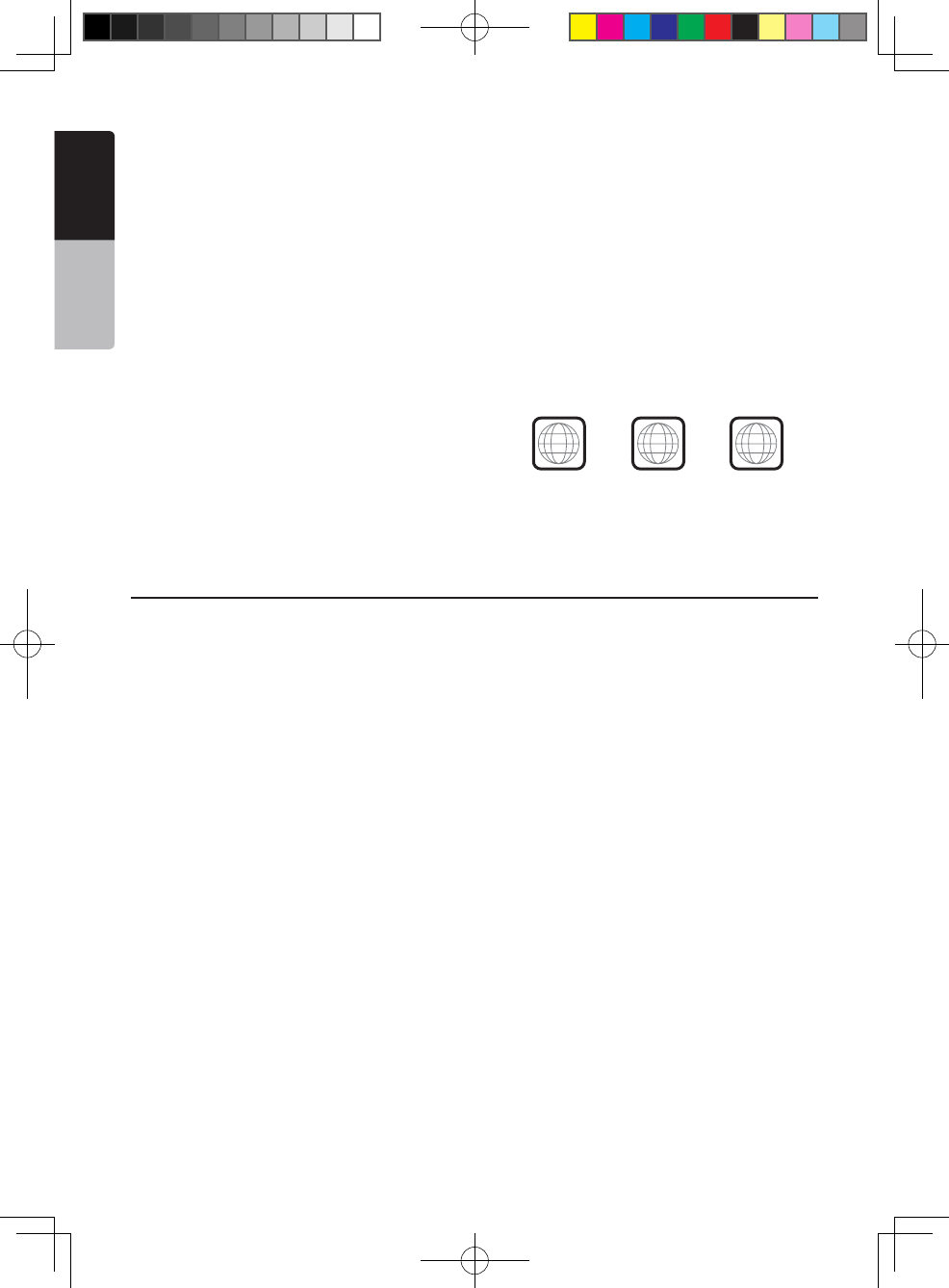
Note on region numbers
The DVD video system assigns a region number to
DVD video players and DVD discs by sales area.
DVD video players sold in the Europe can play back
DVD discs with the region number “ALL”, “2” or any
combination of numbers that also incorporate a “2”.
The DVD video region number is marked on the disc
jacket as shown below.
• This product incorporates copyright protection
technology that is protected by U.S. patents and
other intellectual property rights. Use of this copyright
protection technology must be authorized by Rovi
Corporation, and is intended for home and other
limited viewing uses only unless otherwise authorized
by Rovi Corporation. Reverse engineering or
disassembly is prohibited.
• Manufactured under license from Dolby
Laboratories.“Dolby”, “Pro Logic” and the double-D
symbol are trademarks of Dolby Laboratories.
• “Made for iPod,” and “Made for iPhone” mean
that an electronic accessory has been designed to
connect specifically to iPod, or iPhone, respectively,
and has been certified by the developer to meet Apple
performance standards.
Apple is not responsible for the operation of this device
or its compliance with safety and regulatory standards.
Please note that the use of this accessory with iPod or
iPhone may affect wireless performance. iPhone and
iPod are trademarks of Apple Inc., registered in the U.S.
and other countries.
• The Bluetooth® word mark and logos are owned by
the Bluetooth® SIG, Inc. and any use of such marks
by Clarion Co.,Ltd. is under license. Other trademarks
and trade names are those of their respective owners.
About the registered marks, etc.
ALL
46
2
2
NX_NZ501E 欧洲版说明书.indd 18 2010-12-27 13:50:31
NX501E/NZ501E 19
English
English
Owner’s Manual
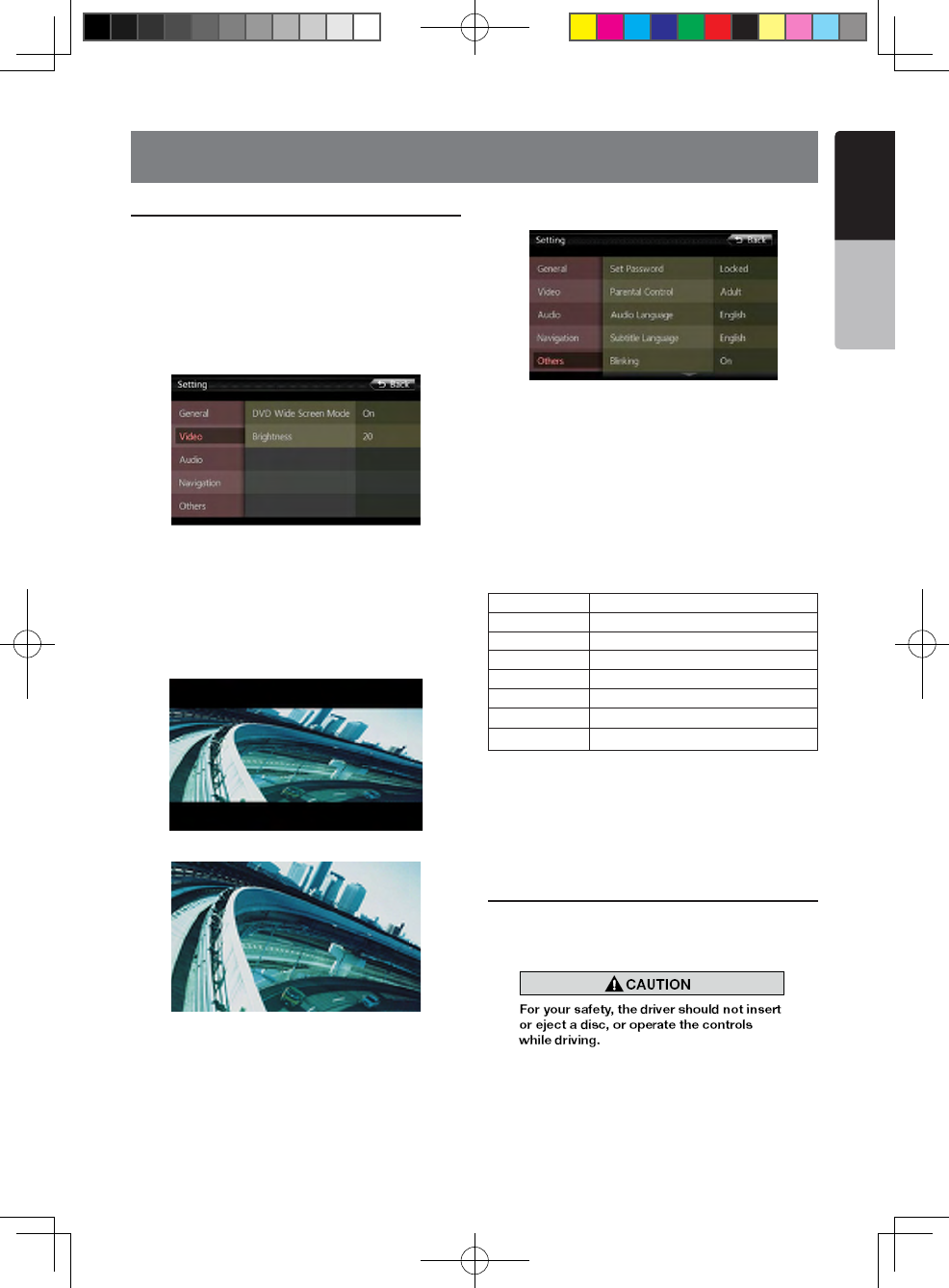
Change DVD System Settings
Note: If the set up operation is performed in the
middle of DVD video play, the disc will restart from the
beginning.
Selecting DVD Set Up Menu
1. Press the [Setting] button on the Main Menu to
access the Video set up menu.
2. Press [Video] button. The video menu is displayed.
Setting up the Screen Size
Press the [DVD Wide Screen Mode] button to turn on
or turn off the DVD wide screen mode.
The factory default setting is “On”
Note: Not all DVD disc supports this function.
DVD Wide Screen Mode On
DVD Wide Screen Mode Off
Setting up the password for parental level
control
The factory default pass code is “0000”.
1. In Main Menu press [Setting] button. Press [Others]
button on the display. Touch the [Set Password] ----
and a numerical key pad will appear.
Input the old password,and touch the [OK] key,or
input "4356" to reset password.
Input a new password,and touch the [OK] key.
Input the same new password again,and touch the
[OK] key.
Note: When a disc with view restrictions is inserted, you
will be prompted to input this password. The disc will not
be viewable until the correct password is entered.
Set rating for parental level control
1. Select Others screen while in Setting mode. Press
[Parental Control] button. Press the desired rating for
level control. Use this table to set the parental level.
Kid Safe Kid Safe
G General Audiences
PG Parental Guidance Suggested
PG-13 Parents Strongly Cautioned
PG-R Parental Guidance Restricted
R Restricted
NC-17 No One 17 And Under Admitted
Adult Only Adult
• The contents that the parental level restricts vary
with the country code.
Note: The rating can be selected only under the
password unlocked status, and the limits can be set only
under the password locked status.
Watching to a disc
1. To load a disc:
Insert the disc into the center of the insertion slot the
label side facing up.
Note:
• Never insert foreign objects into the disc insertion slot.
• If the disc is not inserted easily, there may be another
disc in the mechanism or the unit may require service.
• 8cm (single play) discs cannot be used.
8. DVD VIDEO PLAYER OPERATIONS
NX_NZ501E 欧洲版说明书.indd 19 2010-12-27 13:50:31
20 NX501E/NZ501E
English
Owner’s Manual
2. Disc starts playing automatically.
Ejecting a disc
1. To eject a disc press eject [ ] button. The play
mode then switches to the Tuner mode.
If the disc is left in the ejected position for 15 seconds,
the disc is automatically reloaded. In this case, the
play mode will remain in the Tuner mode.
Note: If you force a disc into before auto reloading, it
may damage a disc.
Showing DVD Player mode screen
After disc is loaded, the play mode is automatically
engaged.
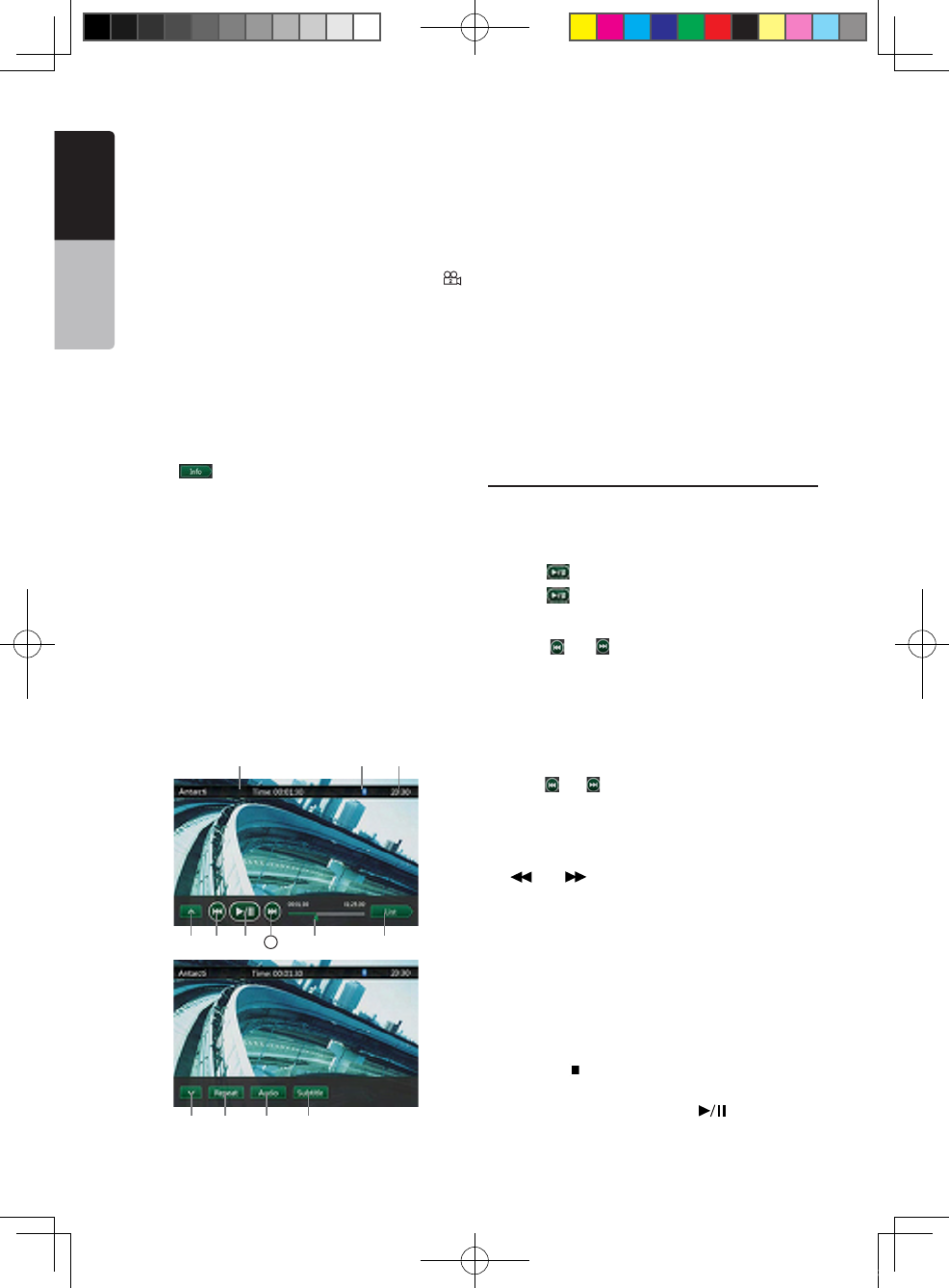
Touch any place of the screen to display DVD Video
menu touch the screen again to return the playback
screen. The display will return to the playback screen,
if you do not touch the screen for 10 seconds.
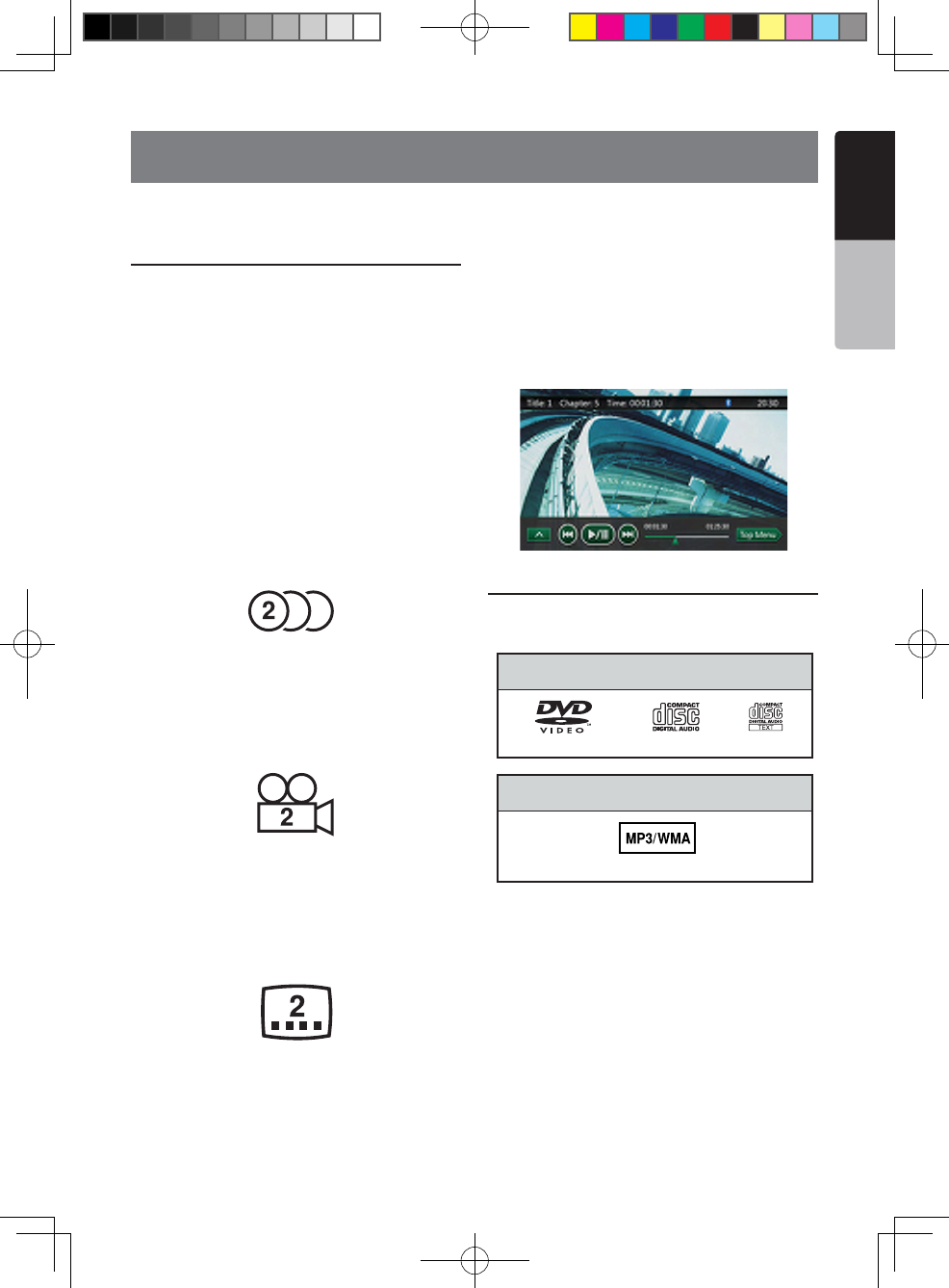
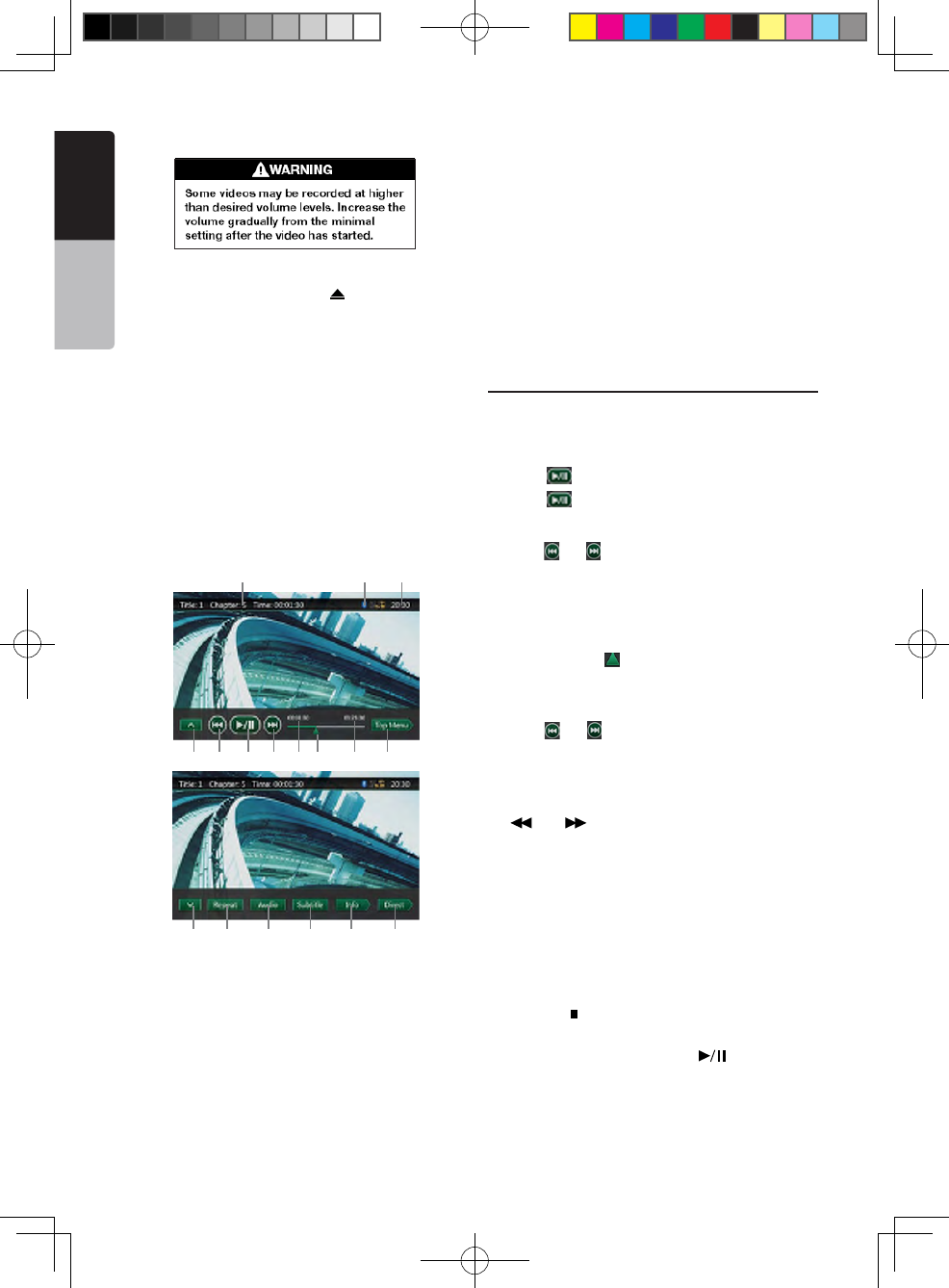
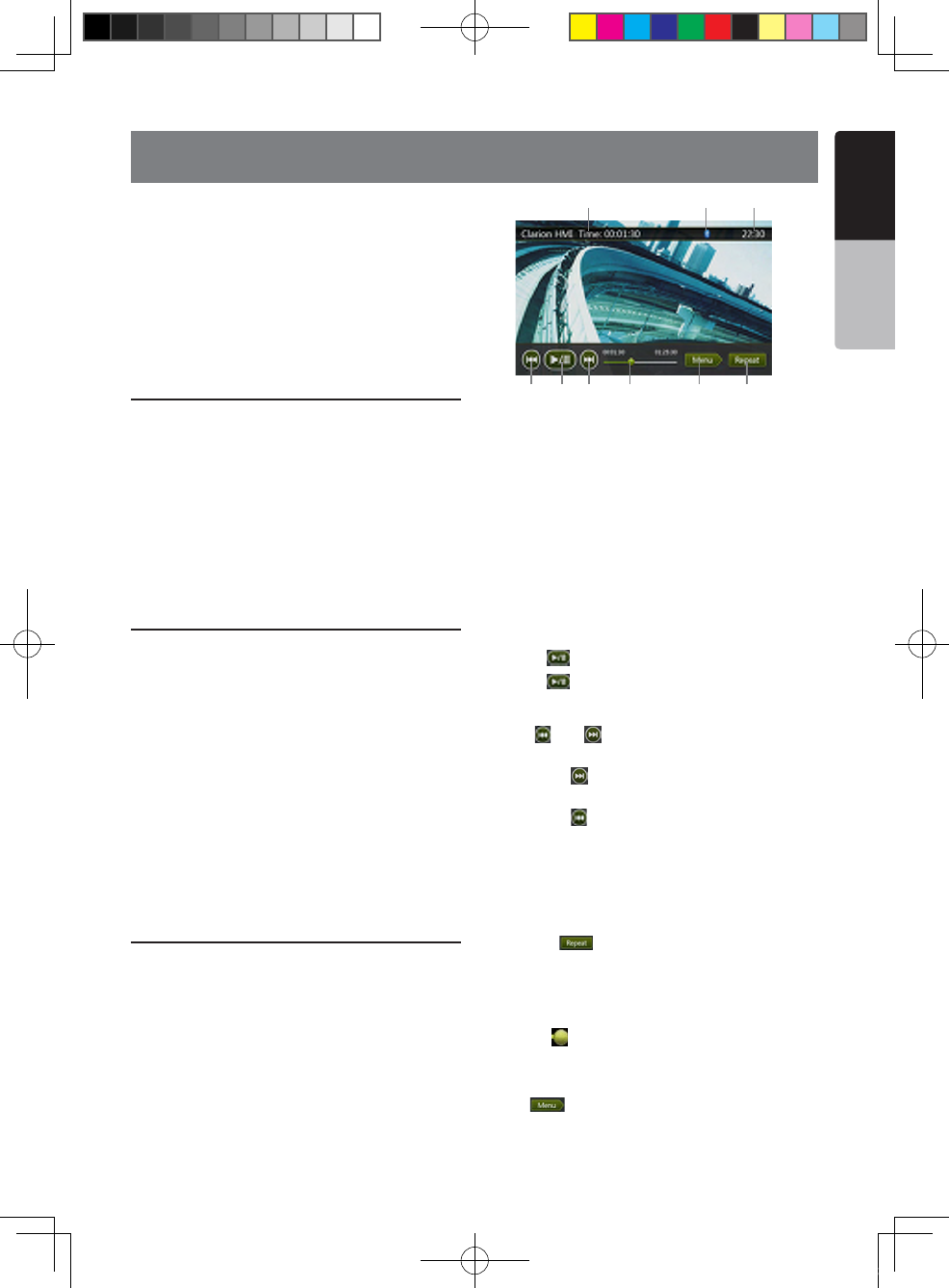
1 - Next page Buttons
2 - Previous Track /Fast Backward Button
3 - Play/Pause Button
4 - Next Track/Fast Forward Button
5 - Elapsed playing time
6 - Seek bar
7 - Total time
8 - Top Menu Button
9- System time
10- Bluetooth status
11- DVD playback info
12- Previous page Button
13- Repeat switching Button
14- Audio Channel switching Button
15- Subtitle switching Button
16- INFO Button
17- Direct chapter or title searching Button
Operate the DVD Player menu
You can select the button items displayed in the DVD
menu by directly touching it.
Play/Pause Playback
1. Touch [ ] button to pause during playback.
2. Touch [ ] button again to resume playback.
Skip (Search) a Chapter
1. Press [ ] or [ ] button during playback.
Chapters are skipped down or up from current
locations, as many times as the button is pressed, and
playback starts.
Skip use seek bar
Press the triangle [ ] on seek bar and drag it to any
position where you want to start playback.
Fast Forward/Fast Backward
1. Press [ ] or [ ] button and hold 2 seconds to start
fast backward or fast forward during playback. The
playback speed starts at 2x, then will increase to 4x,
8x, and 16x. Release the button will continue playing
with normal speed.
2. [] or [ ] button on remote control can also
be used to start fast backward or fast forward during
playback.
Note:
• No audio is reproduced during fast forward and fast
backward operation.
• The fast forward and fast backward speed may differ
depending on the disc.
Stop Playback
1. Press the [ ] button on remote control more than 1
second. Playback is stopped.
2. To resume playback, press the [ ] button.
Playback resumes from start of the disc.
Search with a Chapter/Title Number
You can locate the beginning of a scene using the
chapter numbers or title numbers recorded on the DVD
1 2 3 4 5 6 7 8
9
1011
12 13 14 15 16 17
NX_NZ501E 欧洲版说明书.indd 20 2010-12-27 13:50:31
NX501E/NZ501E 21
English
English
Owner’s Manual
Video disc.
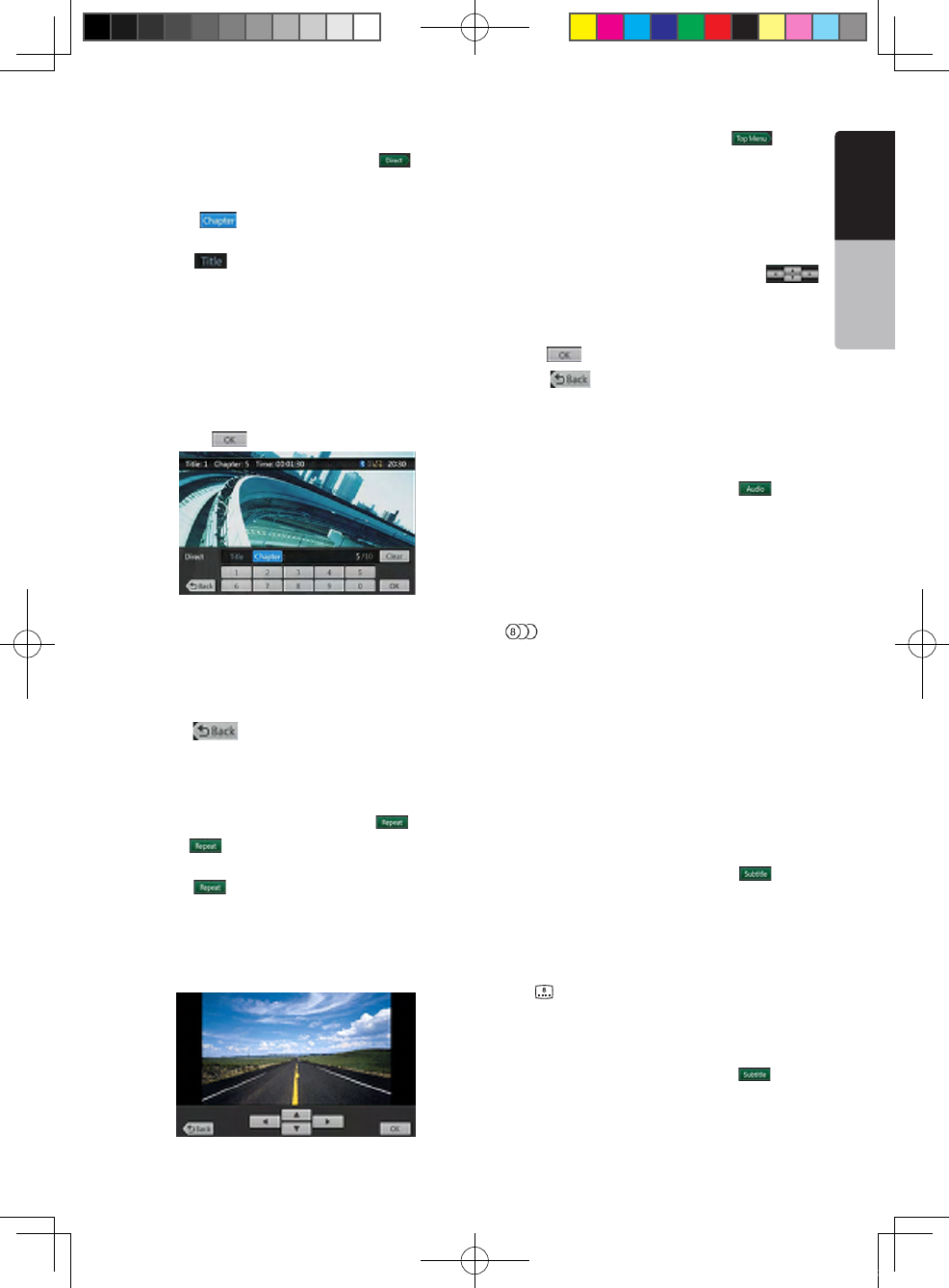
1. Showing the DVD Video menu, touch [ ] button.
The Key Pad screen appears with the chapter/Title
number input mode.
Touching [ ] button turns the Key Pad to the
chapter number input mode.
Touching [ ] button turns the Key Pad to the title
number input mode.
• Title
A large segment to divide the data area of the disc.
• Chapter
A small segment to divide the data area of the disc.
2. Input the number of the title/chapter that you want
to play with the [0] to [9] key.
3. Touch the [ ] button.
Playback starts from the scene of the input title
number or chapter number.
NOTE:
If the input title/chapter number does not exist or
searching with a title/chapter number is not allowed, the
screen image will not change.
4. Touch [ ] button to close the key pad.
Repeat Playback
This operation plays back chapters recorded on the
DVD-Video repeatedly.
1. Showing the DVD Video menu, touch [ ] button.
2. Touch [ ] button once for Chapter Repeat, again
for Title Repeat.
3. Press [ ] button again to turn off the repeat
playback.
Using the Title Menu
On DVD discs containing two or more titles, you can
select from the title menu for playback.
1. Showing the DVD Video menu, touch [ ] button
during playback.
The title menu screen appears.
*Depending on the disc, the title menu may not be
called.
2. Touch the title menu screen.
3. Select the items in the title menu screen by
directional buttons.
*Depending on the disc, items may not be selected
with the directional buttons.
4. Touch [ ] button to fix on the selected item.
5. Touch [ ] button.
Switching Audio
On discs in which two or more audios or audio
languages have been recorded, you can switch among
the audio languages during playback.
1. Showing the DVD Video menu, touch [ ] button
during playback.
• Each time you touch the button, you can switch
among audio languages.
• It may take time to switch among audios.
Depending on the disc, up to 8 kinds of audios may
be recorded. For details, see the mark of the disc:
(Indicates that 8 audios have been recorded).
When the power is turned on and when the disc
is changed to a new one, the language set as the
factory default is selected. If that language has not
been recorded on disc the language is specified on
the disc.
Depending on the disc, switching may be completely
impossible or impossible on some scenes.
Switching Subtitles
On DVD discs in with two or more subtitle languages
have been recorded, you can switch among the
subtitle languages during playback.
1. Showing the DVD Video menu, touch [ ] button
to select a subtitle during playback. Each time you
touch the key, you can switch among subtitles.
• It may take time to switch among subtitles.
Depending on the disc, up to 32 kinds of subtitles
may be recorded. For details, see the mark of the
disc: ( Indicates that 8 kinds of subtitles have been
recorded).
Depending on the disc, switching may be completely
impossible or impossible on some scenes.
2. To turn off subtitles, repeat touching [ ] button
until subtitles are turned off.
Switching angles
On DVD discs in with video images have been
NX_NZ501E 欧洲版说明书.indd 21 2010-12-27 13:50:32
22 NX501E/NZ501E
English
Owner’s Manual
recorded in two or more angles, you can switch among
the angles during playback.
1. Touch [Angle] key on the remote control during
playback. Each time you touch the key, you can switch
among angles.
• It may take time to switch among angles.
• Depending on the disc, up to 9 angles may be
recorded. For details, see the mark of the disc: (
Indicates multi-angle).
• Depending on the disc, angles may switch smoothly
or switch with a momentary still image.
• Depending on the disc, switching may be completely
impossible or impossible on some scenes.
• Depending on the disc, scenes recorded in two or
more angles may be played back.
Displaying the playback status
Touch [ ] button on DVD Player mode screen,
Playback status is displayed on screen.
Play disc video files
This system can play video files (MP4, etc) stored on
disc.
Showing video files Player mode screen
1. After disc with video files is loaded, touch [DVD
Video] button on MAIN MENU to show video files
player mode screen.
2. Touch the screen of the playing video file to display
Video files player menu touch the screen again to
return the playback screen. The display will return to
the playback screen, if you do not touch the screen for
10 seconds.
1 2 3 4 5 6
7
89
10 11 12 13
1 - Next page Button
2 - Previous Track /Fast Backward Button
3 - Play/Pause Button
4 - Next Track/Fast Forward Button
5 - Elapsed playing time /Seek bar
6 - List Mode Button
7 - System time
8 - Bluetooth status
9 - Playback info
10 - Previous Row Buttons
11 - Repeat Button
12 - Audio Button
13 - Subtitle Button
Operate the Video files Player menu
You can select the button items displayed in the Video
files player menu by directly touching it.
Play/Pause Playback
1. Touch [ ] button to pause during playback.
2. Touch [ ] button again to resume playback.
Switch to Previous/next file
1. Press [ ] or [ ] button during playback to play
previous /next file
Skip using seek bar
Press the triangle on seek bar and drag it to any
position where you want to start playback.
Fast Forward /Fast Backward
1. Press [ ] or [ ] button and hold 2 seconds to start
fast backward or fast forward during playback. The
playback speed starts at 2x, then will increase to 4x,
8x, and 16x. Release the button will continue playback
with normal speed.
2. [] or [ ] button on remote control can also
be used to start fast backward or fast forward during
playback.
Note:
• No audio is reproduced during fast forward and fast
backward operation.
• The fast forward and fast backward speed may differ
depending on the disc.
Stop Playback
1. Press the [ ] button on remote control more than 1
second. Playback is stopped.
2. To resume playback, press the [ ] button.
Playback resumes from start of the folder which
playing track is in.
NX_NZ501E 欧洲版说明书.indd 22 2010-12-27 13:50:32
NX501E/NZ501E 23
English
English
Owner’s Manual
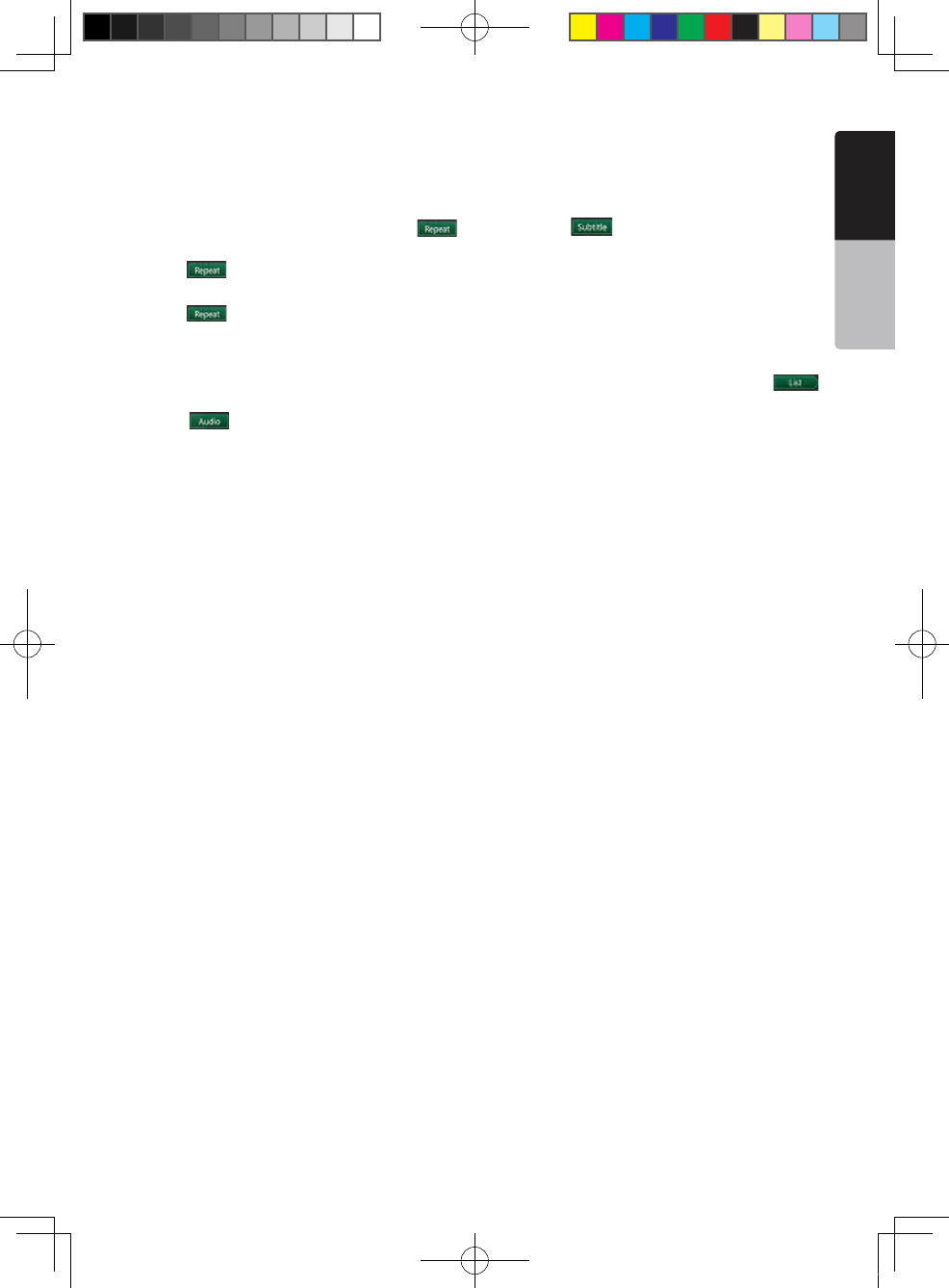
Repeat Playback
This operation plays back video files recorded on the
disc repeatedly.
The repeat set as the factory default is Repeat Folder.
1. Showing the video files player menu, touch [ ]
button.
2. Touch[ ] button once for Repeat off, again for
Repeat Track.
3. Press [ ] button again for Repeat Folder.
Switching Audio
Some video files will have two or more audio channels;
you can switch among the audio channels during
playback.
1. Touch [ ] button during playback.
• Each time you touch the button, you can switch
among audio languages.
• It may take time to switch among audios.
Depending on the disc, switching may be impossible.
Switching Subtitles
Some video files will have two or more subtitles have
been recorded; you can switch among these subtitles
during playback.
1. Touch the [ ] button to select a subtitle during
playback.
• Each time you touch the key, you can switch among
subtitles.
• It may take time to switch among subtitles.
Depending on the disc, switching may be impossible.
Video files list
Showing the Video files player menu; touch the [
] button to display video files list screen.
Video files list operations is almost same as Disc
Audio player mode. Please refer to DVD Audio Player
Operations.
NX_NZ501E 欧洲版说明书.indd 23 2010-12-27 13:50:33
24 NX501E/NZ501E
English
Owner’s Manual
Listening to a disc/Ejecting a disc
Please refer to Disc Video Player Operations -watching
to a disc and Ejecting a disc.
Showing CD Player mode screen
1. After disc is loaded, the play mode is automatically
engaged.
2. If disc have been loaded you can touch [Disc
Audio] button on main menu to display CD player
mode screen.
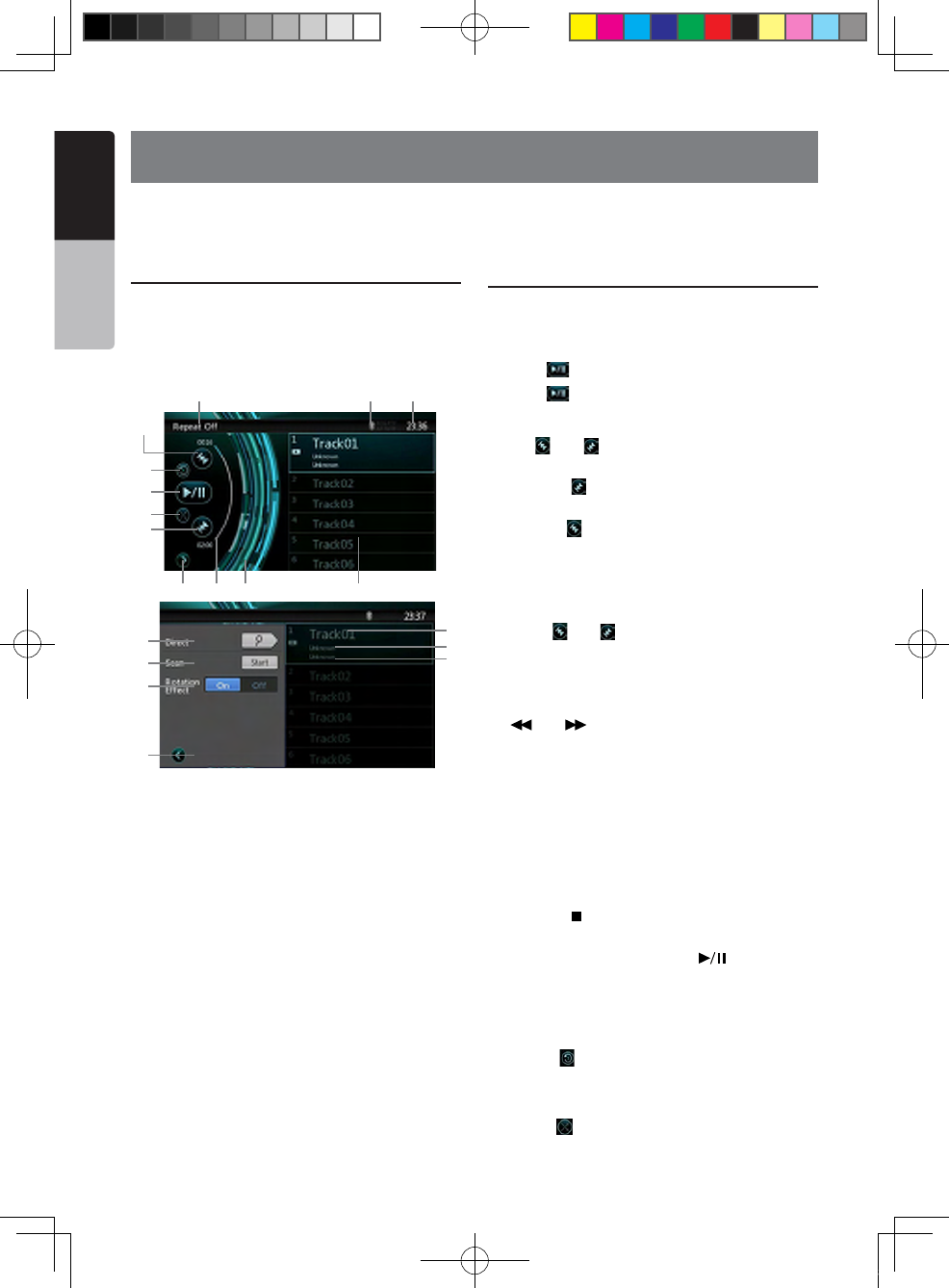
1 - Open option menu Button
2 - Elapsed playing time indicator
3 - Rotation effect
4 - Audio files or CD tracks.
5 - System time
6 - Bluetooth status
7 - Play back status
8 - Previous Track /Fast Backward Button
9 - Repeat Button
10 - Play/Pause Button
11 - Shuffle Button
12 - Next Track/Fast Forward Button
13 - Direct Searching Button
14 - Scan Start/Stop Button
15 - Rotation Effect On/Off Button
16 - Song Title
17 - Artist Information
18 - Album Information
19 - Close option menu Button
Operate the CD Player menu
You can select the button items displayed in the CD
player menu by directly touching it in list.
Play/Pause Playback
1. Touch [ ] button to pause during playback.
2. Touch [ ] button again to resume playback.
Switch to Previous/next file or track
Press [ ] or [ ] button during playback to play
previous /next file.
• Pressing [ ] button starts playback from the
beginning of the next track.
•Pressing [ ] button starts playback from the
beginning of the current track. When this button is
pressed again within 5 seconds, playback starts from
the beginning of previous track.
Fast Forward /Fast Backward
1. Press [ ] or [ ] button and hold more than 2
seconds to start fast backward or fast forward during
playback. The playback speed starts at 2x, then will
increase to 4x, 8x, and 16x .Release the button will
continue playback with normal speed.
2. [] or [ ] button on remote control can also
be used to start fast backward or fast forward during
playback.
Note:
• No audio is reproduced during fast forward and fast
backward operation.
• The fast forward and fast backward speed may differ
depending on the disc.
Stop Playback
1. Press the [ ] button on remote control more than 1
second. Playback is stopped.
2. To resume playback, press the [ ] button.
Playback resumes from start of disc.
Repeat Playback
The repeat set as the factory default is Repeat Track.
Touch the [ ] button once for Repeat off, again for
Repeat Track.
Shuffle Playback
1. Touch [ ] button to shuffle the tracks during
playback.
9. DVD AUDIO PLAYER OPERATIONS
1 2 3
5
67
8
4
9
10
11
12
13
14
15
19
16
17
18
NX_NZ501E 欧洲版说明书.indd 24 2010-12-27 13:50:33
NX501E/NZ501E 25
English
English
Owner’s Manual
2. Touch this button again to turn off the feature.
Selecting a track on the Track List Screen
This function allows you to select tracks from a
displayed list.
1. Touch the track title on the display list. The selected
track will start playing.
2. When the desired track is not displayed, press and
flick the track list up or down.
3. Touch the desired track title key. The corresponding
track is started playback.
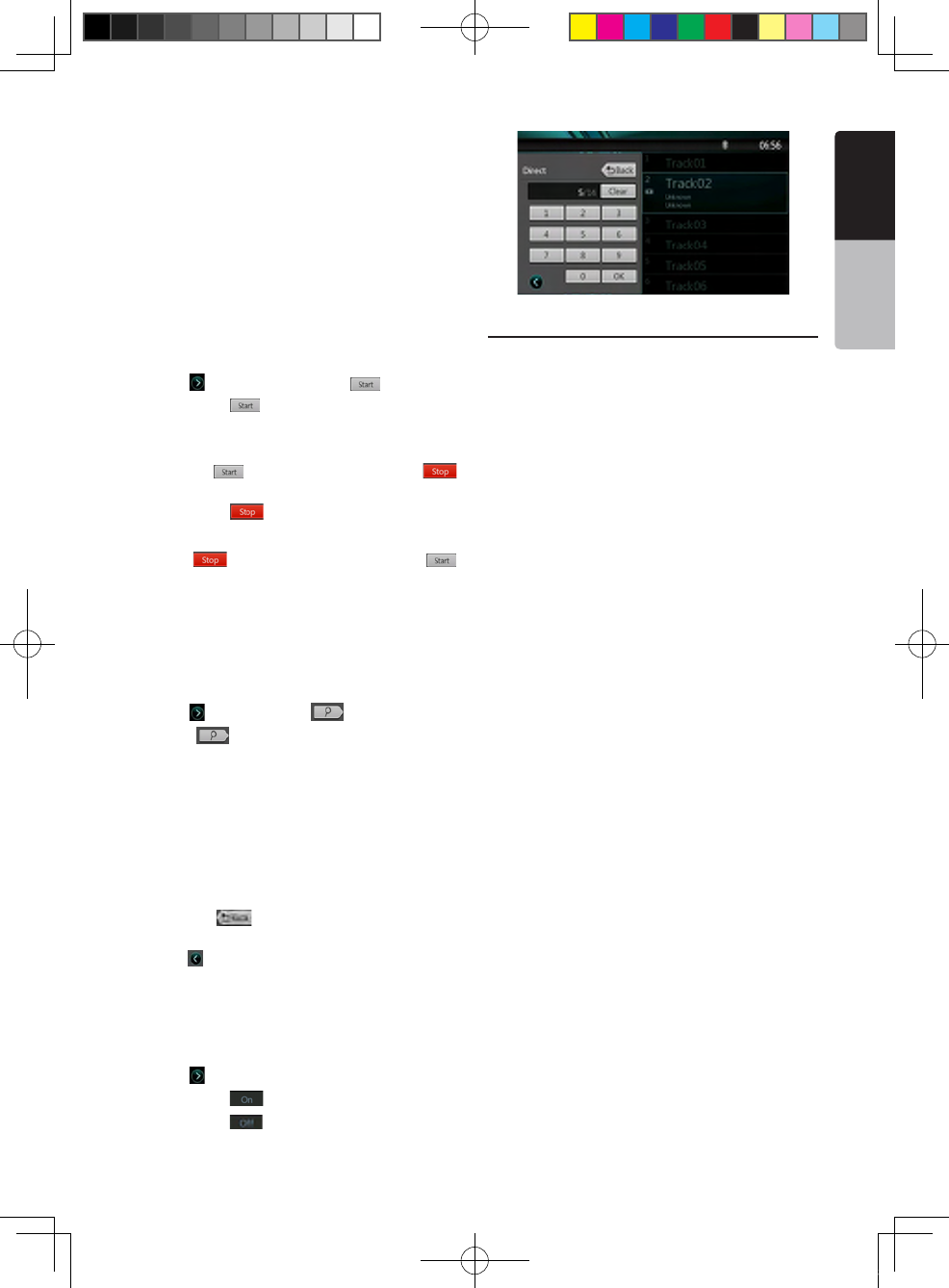
Scanning the Tracks
1. Touch [ ] button to show [Scan ] button.
2. Touch [Scan ] button during playback.
• It will play from next track, and each track will display
for 10 seconds.
• The [Scan ] button will switch to [Scan ]
button.
3. Touch [Scan ] button.
• It will continue playback from current track.
• [Scan ] button will switch to [Scan ]
button.
*The function will scan all tracks orderly in current
folder once. After Scan stopped playback will continue.
Searching with the Track Number
This operation allows searching using the track
numbers recorded on the CDs.
1. Touch [ ] Button to show [ ] button.
1. Touch [ ] button .The numerical keypad will
appear on the screen.
2. Input the track number that you want to play back
with [0] to [9] key.
Playback starts from the track of the input track
number.
• If the input track number does not exist or searching
with track number is not allowed, the screen image will
not change.
• Touch the [ ] button will close the numerical
keypad.
• Touch [ ] Button will close the option window and
display playback screen.
Rotation Effect On/Off
This operation allows turn on/turn off rotation effect.
The factory default is On.
1. Touch [ ] Button to show [Rotation effect] button
2. Press button [ ] will turn on the Rotation effect.
3. Press button [ ] will turn off the Rotation effect.
Listening To MP3/WMA
This unit is an ID3 Tag compatible model.
This unit supports the ID3 TAGs of the Version 2.4, 2.3,
1.1 and 1.0.
In displaying, this unit gives priority to the Version 2.3
and 2.4 TAGs.
What is MP3/WMA?
MP3 is an audio compression method and classified
into audio layer 3 of MPEG standards.
WMA is an audio compression method developed by
Microsoft Corporation.
These audio compression methods have penetrated
into PC users and become a standard format.
These features compress the original audio data to
about 10 percent of its initial size with a high sound
quality. This means that about 10 music CDs can be
recorded on a CD-R disc or CD-RW disc to allow a
long listening time without having to change CDs.
Note: Some CDs recorded on CD-R/RW mode may not
be usable.
Displaying MP3/WMA TAG titles
Tag information such as title, artist and album title
can be displayed for MP3/WMA file containing Tag
information.
Precautions when creating MP3 disc
• File extensions
1. Always add a file extension “.MP3” or “.mp3” to
an MP3 le, and “.WMA” or “.wma” to a WMA le by
using single byte letters. If you add a file extension
other than specified or forget to add these file
extension, the file cannot be played. In addition, if you
use upper case and lower case letters (capital and
small letters) mixed for file extensions, normal play
may not be possible.
2. Files other than MP3/WMA data cannot be played.
Playing files with a format not supported will be
skipped, and the scan, random and repeat playback
mode may be canceled.
• File and Disc Not Supported
Files and discs with following extensions are not
supported: *.AAC, *.DLF, *.M3U, *.PLS, *.MP3 PRO
NX_NZ501E 欧洲版说明书.indd 25 2010-12-27 13:50:33
26 NX501E/NZ501E
English
Owner’s Manual
files, files with DRM, open session discs.
• Logical format (File system)
1. When writing an MP3/WMA file on a disc, please
select “ISO9660 level 1 or level 2(without including
expansion format)” as the writing software format.
Normal playback may not be possible if the disc is
recorded on another format.
2. The folder name and file name can be displayed
as the title during MP3/WMA play but the title must
be within 31 single byte alphabetical letters and
numerals for the folder name and file name (including
an extension). Entering more letters or numerals than
specified may cause an incorrect display.
• Entering File and Folder Names
Names using the code list characters are the only
file names and folder names that can be entered and
displayed. Using any other character will cause the file
and folder names to be displayed incorrectly.
• Electronic Shock Protection
10 seconds for CD-DA (CDA)
45 seconds for MP3 recorded at 44.1 kHz, 128 kbps
90 seconds for WMA recorded at 44.1 kHz, 128 kbps
• Folder structure
1. A disc with a folder having more than 8 hierarchical
levels will conflict with the ISO9660 and playback will
be impossible.
• Number of les or folders
1. The maximum allowable number of folders is 255
(including root directory); the maximum allowable
number of files is 512 (max. 255 per folder). This
represents the maximum number of tracks that can be
played back.
2. Tracks are played in the order that they were
recorded onto a disc. (Tracks might not always be
played in the order displayed on the PC).
• Some noise may occur depending on the type of
encoder software used while recording.
• In case of a track recorded at VBR (variable bit
rate), the display for the play time of the track may be
slightly different from the actual play time. Also, the
recommended value of VBR ranges from 32 kbps to
320 kbps.
• After disc selection, the play mode is automatically
engaged.
Playing MP3 folders
When selected for play, files and folders (Folder
Search, File Search or Folder Select) are accessed
in the order in which they were written to the media.
As a result, the order in which they are expected to
be played may not match the order in which they are
actually played.
You may be able to set the order in which MP3/WMA
files are to be played by assigning file names beginning
with play sequence numbers such as “01” to “99”.
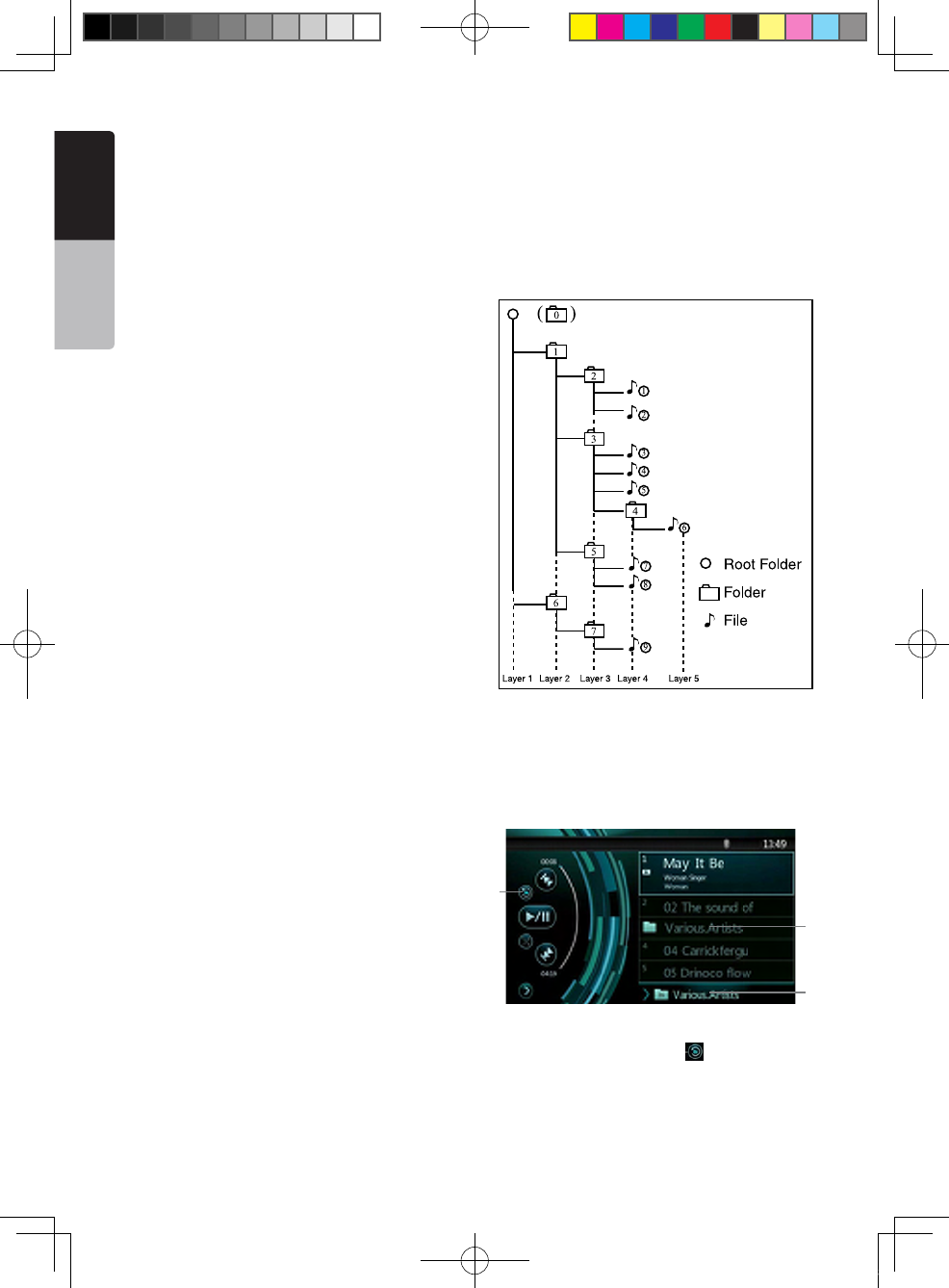
For example, a medium with the following folder/ file
hierarchy is subject to Folder Search, File Search or
Folder Select.
See the diagram below.
The player will only recognize three folder levels and
does not display folders containing other folders. In
the example above, the unit will display folders 2,3, 5
and 7, but 1 and 6 since they do not contain others.
Playback MP3/WMA menu
1. Repeat Playback
While playing MP3/WMA touch button can switch
between Repeat Track Repeat Folder and Repeat Off.
2. Folder
Touch the folder title on the display list, the file list will
display files and folders in selected folder.
1
2
3
NX_NZ501E 欧洲版说明书.indd 26 2010-12-27 13:50:33
NX501E/NZ501E 27
English
English
Owner’s Manual
3. Current Folder
• Showing title of current folder.
• The number on the folder symbol is the number of
files and folders number in current folder.
• Touch the title of current folder, play list will show
files and folders in upper folder.
Stop Playback
1. Press the [ ] button on remote control more than 1
second. Playback is stopped.
2. To resume playback, press the [ ] button.
Playback resumes from start of the folder which
playing track is in.
Other operations about playing MP3/WMA are almost
same as CD Player mode.
NX_NZ501E 欧洲版说明书.indd 27 2010-12-27 13:50:34
28 NX501E/NZ501E
English
Owner’s Manual
10. USB AUDIO OPERATIONS
This system can play audio files (MP3/WMA) stored in
an USB memory which is recognized as “USB Mass
Storage Class device”. You can use your USB memory
as an audio device by simply copying desired audio
files into it.
Note:
• This system will not operate or may operate improperly
with some USB memory.
• Files protected with any DRM cannot be played.
Notes on using USB memories
General notes
• When no support les, the le list display nothing.
Notes on the MP3/WMA les
• This system can play the MP3/WMA les stored in
the USB memory.
• Set the Sampling Frequency to:
For MP3 les:
• MPEG1 Layer3: 32, 44.1, or 48 kHz
• MPEG2 Layer3: 16, 22.05, or 24 kHz
• MPEG2.5 Layer3: 8, 11.025, or 12 kHz
For WMA les: 32, 44.1, or 48 kHz
• Set the Bit Rate to:
For MP3 les:
• MPEG1 Layer3: 32 to 320 kbps (VBR)
• MPEG2 Layer3: 16 to 160 kbps (VBR)
• MPEG2.5 Layer3: 16 to 160 kbps (VBR)
For WMA les: 32, 48, 64, 80, 96, 128, 160, or 192
kbps
• Add the following file extension using single byte
characters:
• For MP3 les: “.MP3” or “.mp3”
• For WMA les: “.WMA” or “.Wma”
Notes on the folder structure
• The folder hierarchy must be within 8 hierarchical
levels. Otherwise, playback may be impossible.
• The maximum allowable number of folders is 512
(including root directory and folders with no MP3/
WMA file).
• The maximum allowable number of les in a folder is
255.
• You can store the MP3 les, WMA les together in a
folder.
• The system may become slow if the les or folders
exceed the limitation above.
Notes on the Tag titles
The limitations on the Tag titles are same as those in
DVD Audio Player mode.
Select USB Audio mode
Connect your USB memory with MP3/WMA files to the
USB connector. The system will automatically detect
the connected device, and the [USB Audio] button on
main menu will be enabled.
• When an USB memory is already connected
Touch [USB Audio] button to select the USB Audio
mode.
The system changes to the USB Audio mode and
starts playback from the previous position or from the
beginning.
NOTE:
If you reconnect the same device that you
disconnected last, the system will play back where it
left off.
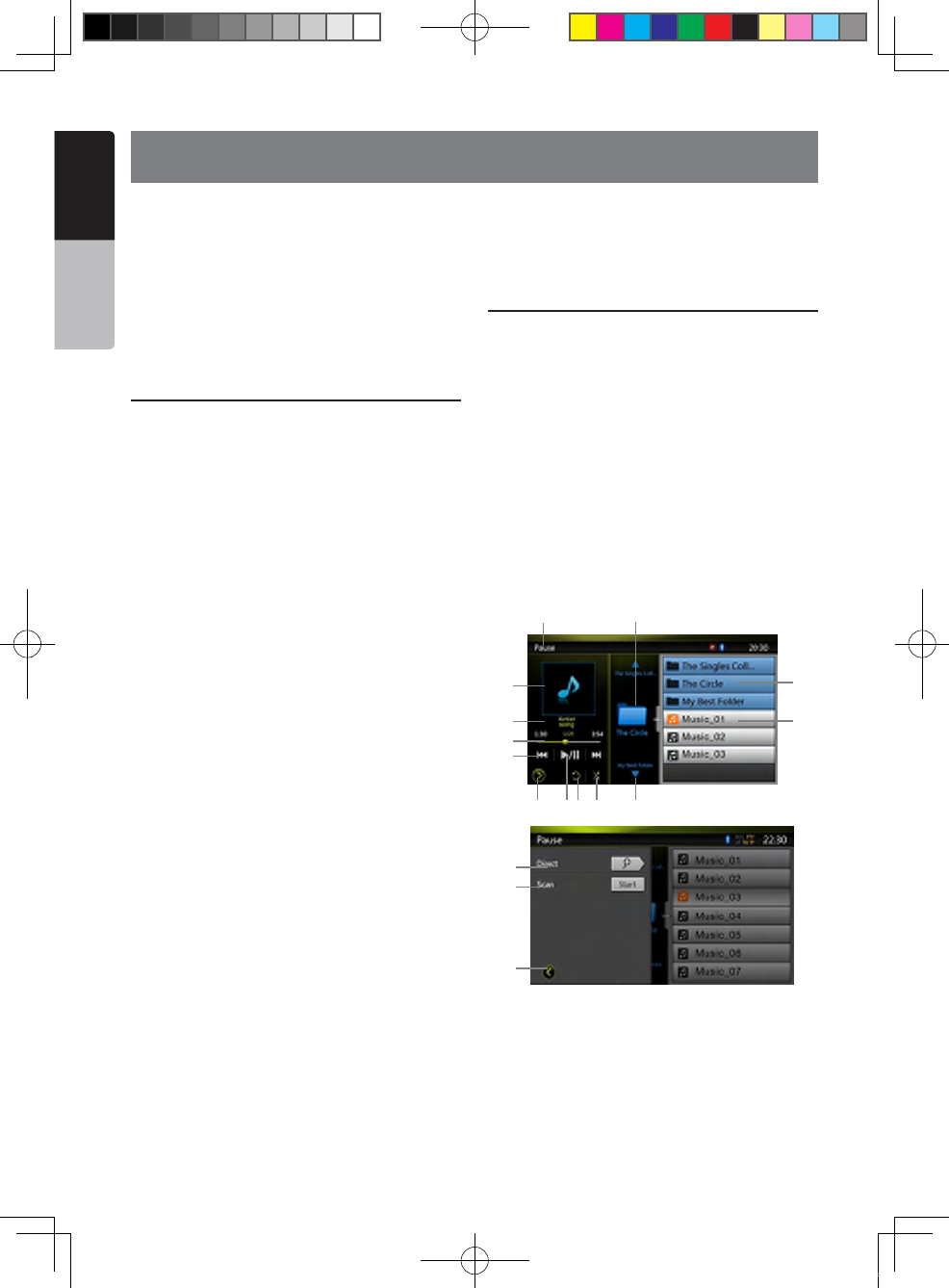
1 -Open option menu Button
2- Play/Pause Button
3- Repeat Button
4- Shuffle Button
5- Next Track/Fast Forward Button
6- MP3/WMA files in list
1 3 4 5
2
6
7
89
10
11
13
12
14
16
15
NX_NZ501E 欧洲版说明书.indd 28 2010-12-27 13:50:34
NX501E/NZ501E 29
English
English
Owner’s Manual
7- Folders in list
8- Folders browse control
9- Playback status info
10- Album Art
11-Current ID3 info area
12- Elapsed playing time indicator/Seek bar
13- Previous Track /Fast Backward Button
14- Direct Button
15- Scan Button
16- Close option menu Button
Playing MP3/WMA files in USB memory
Play/Pause Playback
1. Touch [ ] button to pause during playback.
2. Touch [ ] button again to resume playback.
Switch to Previous/next file
Press [ ] or [ ] button during playback to play
previous /next file.
• Pressing [ ] button starts playback from the
beginning of the next track.
• Pressing [ ] button starts playback from the
beginning of the current track; when this button is
pressed again within about 5 seconds, playback starts
from the beginning of previous track.
Fast Forward /Fast Backward
1. Press [ ] or [ ] button and hold more than 2
seconds to start fast backward or fast forward during
playback. The playback speed starts at 2x, then will
increase to 4x, 8x, and 1 6x .Release the button will
continue playback with normal speed.
2. [] or [ ] button on remote control can also
be used to start fast backward or fast forward during
playback.
Note:
• No audio is reproduced during fast forward and fast
backward operation.
• The fast forward and fast backward speed may differ
depending on the audio files.
Stop Playback
1. Press the [ ] button on remote control more than 1
second. Playback is stopped.
2. To resume playback, press the [ ] button.
Playback resumes from start of the folder which
playing track is in.
Repeat Playback
The repeat set as the factory default is Repeat Folder.
Touch the [ ] button once for Repeat Track, again for
Repeat Folder.
Note: The repeat in all USB files function is not available.
Shuffle Playback
1. Touch [ ] button to shuffle the tracks in playing
folder during playback.
2. Touch this button again to turn off the feature.
Album Art work
If current audio file contains album art image in ID3,
the picture will be displayed in this area.
ID3 info area
This area display ID3 info of playing file: song title,
artist information, album information, number of
current file/total number in current folder, elapsed
playing time/total time of current file.
Skip use seek bar
Press on seek bar and drag it to any position where
you want to start playback.
Select a folder on display list
Touch the folder title on the display list, the display list
will display files and folders in selected folder.
Selecting a track on the display List
This function allows you to select tracks from a
displayed list.
1. Touch the track title on the display list. The selected
track will start playing.
2. When the desired track is not displayed, press and
flick the track list up or down.
3. Touch the desired track title key. The corresponding
track is started playback.
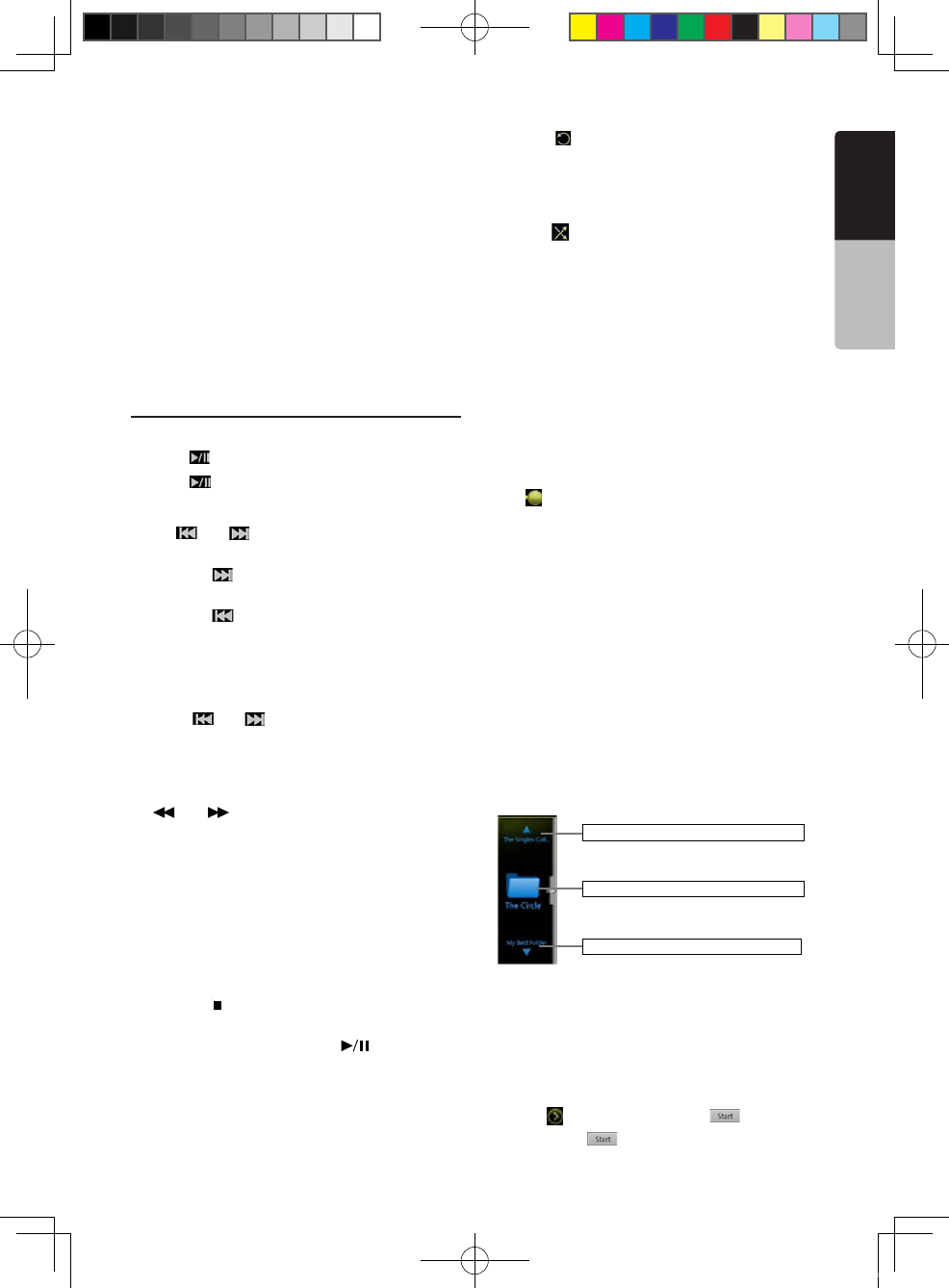
Folders browse control
This area is same as the mouse touch panel of
notebook computer. Flick up and down in this area will
browse previous or next folder in current folder. Flick
left or right will enter this folder or back to the father
folder.
Scanning the Tracks
1. Touch [ ] Button to show [Scan ] button.
2. Touch [Scan ] button during playback.
Show the title of previous folder.
Show the title of current folder.
Show the title of next folder.
NX_NZ501E 欧洲版说明书.indd 29 2010-12-27 13:50:34
30 NX501E/NZ501E
English
Owner’s Manual
• It will play from next track, and each track will display
for 10s.
• The [Scan ] button will switch to [Scan ]
button.
3. Touch [Scan ] button.
• It will continue playback from current track.
• [Scan ] button will switch to [Scan ]
button.
*The function will scan all tracks orderly in current
folder once .After Scan stopped playback will continue.
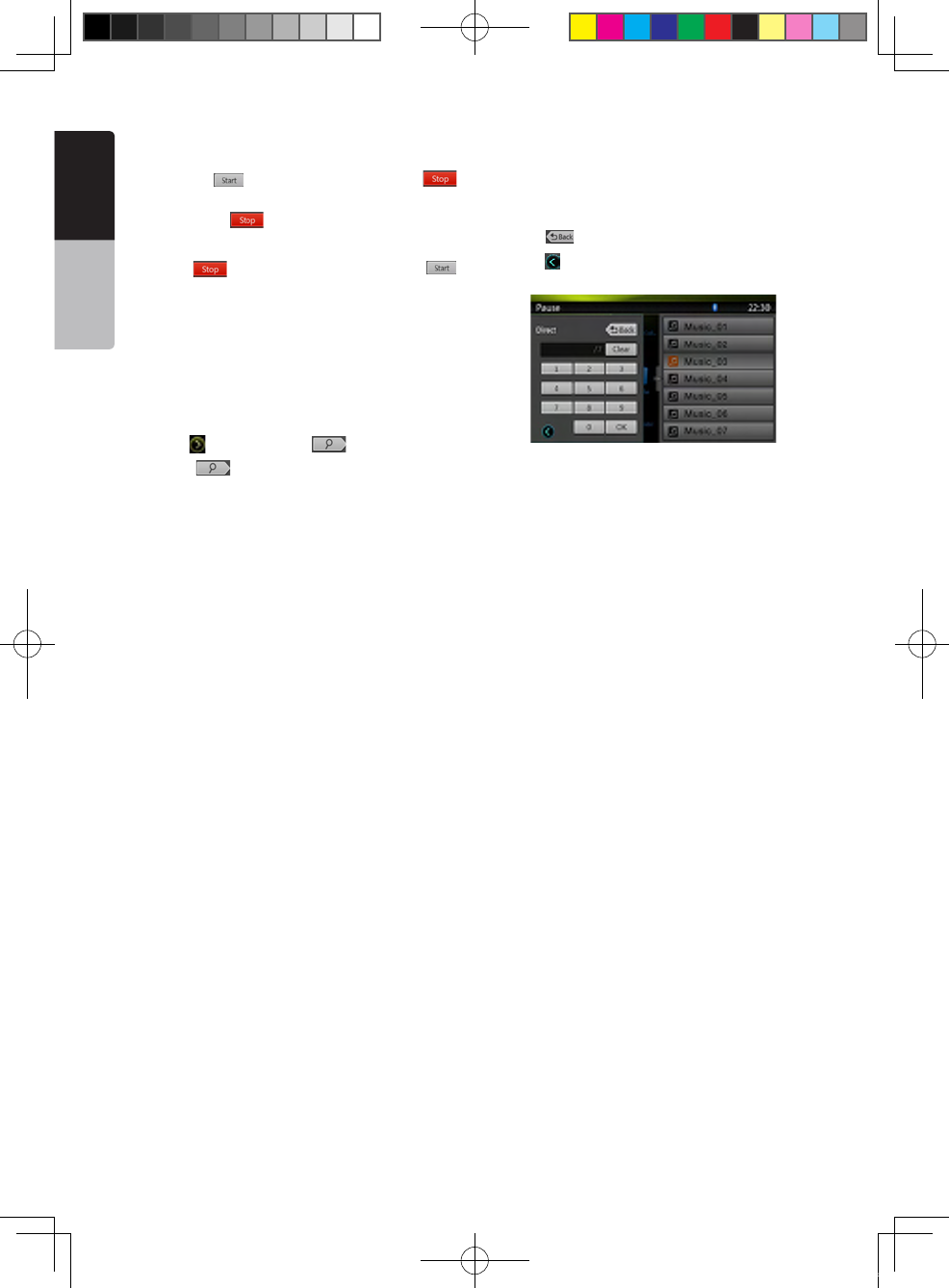
Searching with the Track Number
This operation allows searching using the track
numbers in playing folder.
1. Touch [ ] Button to show [ ] button.
1. Touch [ ] button .The numerical keypad will
appear on the screen.
2. Input the track number that you want to play back
with [0] to [9] key.
Playback starts from the track of the input track
number.
• If the input track number does not exist or searching
with a track number is not allowed, the screen image
will not change.
• Touch [ ] button will close the numerical keypad.
• Touch [ ] Button will close the option window and
display playback screen.
NX_NZ501E 欧洲版说明书.indd 30 2010-12-27 13:50:34
NX501E/NZ501E 31
English
English
Owner’s Manual
11. USB VIDEO OPERATIONS
This system can play USB video files (MP4, etc) stored
in an USB memory which is recognized as “USB Mass
Storage Class device” You can use your USB memory
as an audio device by simply copying desired audio
files into it.
Note:
• This system will not operate or may operate improperly
with some USB memory.
• Files protected with any DRM cannot be played.
Notes on using USB memories
General notes
When no support files, the file list display nothing.
Notes on the folder structure
The limitations on the folder structure are same as
those in USB Audio Player mode.
Notes on the Tag titles
The limitations on the Tag titles are same as those in
DVD Audio Player mode.
Select USB Video mode
Connect your USB memory with video files to the USB
connector. The system will automatically detect the
connected device, and the [USB Video] button on
main menu will be enabled.
• When an USB memory is already connected
Touch [USB Video] button on main menu to select the
USB Video mode.
The system changes to the USB Video mode and
starts playback from the previous position or from the
beginning.
NOTE: If you reconnect the same device that you
disconnected last, the system will play back where it left
off.
Playing video files in USB memory
If the video is playing, touch the screen of the playing
video to display Operation buttons.
* The display will return to the playback screen, if you
do not touch the screen for 10 seconds.
1- Previous Track Button
2- Play/Pause Button
3- Next Track Button
4- Elapsed playing time indicator/Seek bar
5- Menu Button (Go to list menu mode)
6- Repeat Button
7- System time
8- Bluetooth status
9- Playback info
Play/Pause Playback
2. Touch [ ] button to Pause playback.
3. Touch [ ] button to resume playback.
Switch to Previous/next file
Press [ ] or [ ] button during playback to play
previous /next file.
• Pressing [ ] button starts playback from the
beginning of the next track.
• Pressing [ ] button starts playback from the
beginning of the current track; when this button is
pressed again within about 5 seconds, playback starts
from the beginning of previous track.
Repeat Playback
* The repeat set as the factory default is Repeat Folder.
Touch the [ ] button once for Repeat Track, again
for Repeat Folder.
Note: The repeat in all USB files function is not available.
Skip use seek bar
Press the on seek bar and drag it to any position
where you want to start playback.
Switch to USB Video Menu
Press [ ] button playback will be paused, and the
screen will switch to USB Video Menu.
1 2 3 4 5 6
789
NX_NZ501E 欧洲版说明书.indd 31 2010-12-27 13:50:35
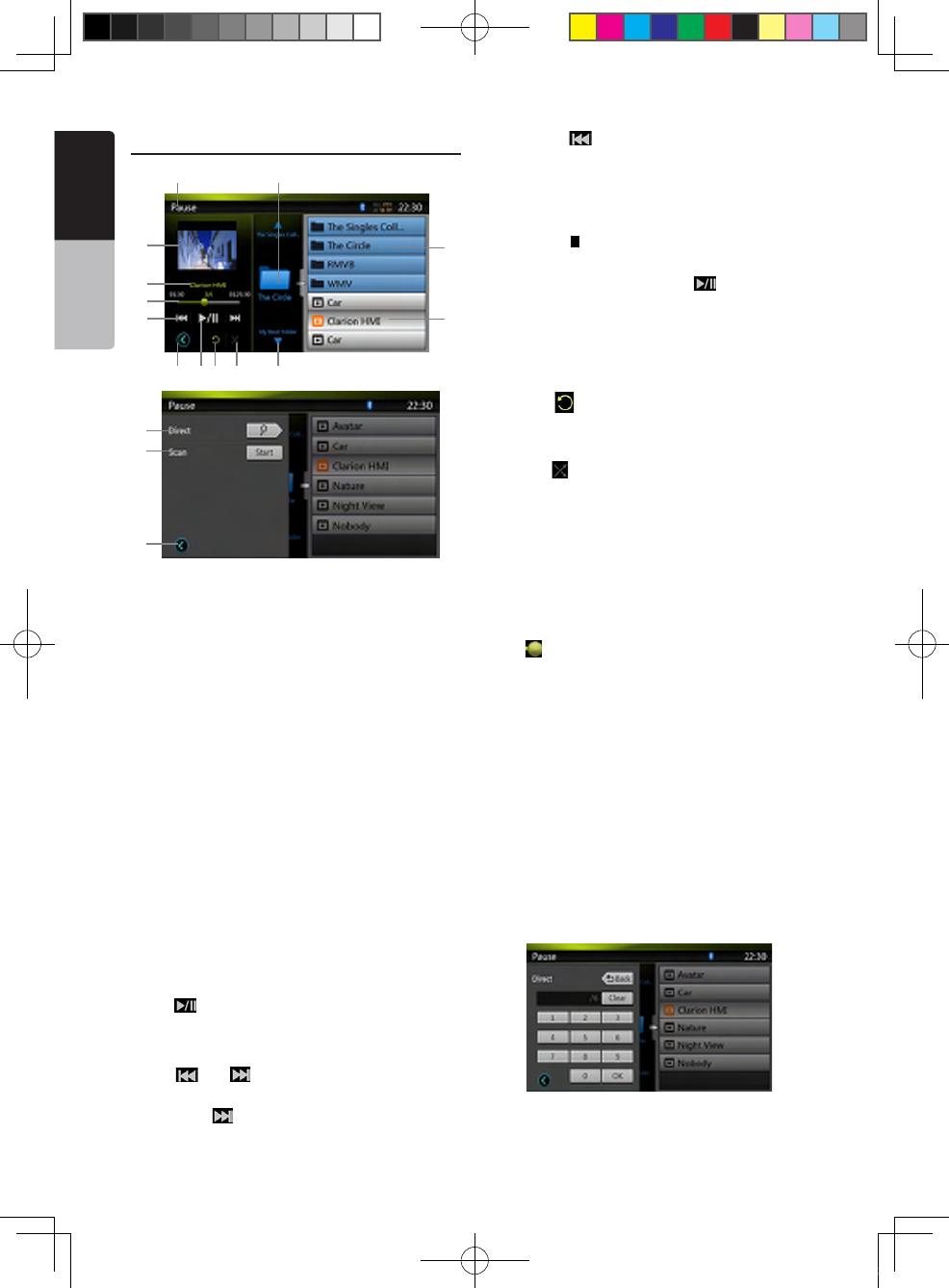
32 NX501E/NZ501E
English
Owner’s Manual
USB Video Menu Operations
1 - Open option menu button
2 - Play/Pause Button
3 - Repeat Button
4 - Shuffle Button
5 - Next Track/Fast Forward Button
6 - Video files in list
7 - Folders in list
8 - Folders area
9 - Playback status info
10 - Album Art
11 - Current file info area
12 - Elapsed playing time indicator/Seek bar
13 - Previous Track /Fast Backward Button
14 - Direct Button
15 - Scan Button
16 - Close option menu button
Play/Pause Playback
On USB Video menu screen, playback status is pause.
Touch [ ] button to resume playback. The screen will
go to video screen automatically.
Switch to Previous/next file
Press [ ] or [ ] button during playback to play
previous /next file.
• Pressing [ ] button starts playback from the
beginning of the next track.
• Pressing [ ] button starts playback from the
beginning of the current track; when this button is
pressed again within about 5 seconds, playback starts
from the beginning of previous track.
Stop Playback
1. Press the [ ] button on remote control more than 1
second. Playback is stopped.
2. To resume playback, press the [ ] button.
Playback resumes from the first valid media file of the
folder.
Repeat Playback
* The repeat set as the factory default is Repeat Folder.
Touch the [ ] button once for Repeat Track, again for
Repeat Folder.
Shuffle Playback
1. Touch [ ] button to shuffle the tracks in playing
folder during playback.
2. Touch this button again to turn off the feature.
Current file info area
This area displays info of current video le: le name,
number of current file/total number in current folder,
Elapsed playing time/total time of current file.
Skip use seek bar
Press on seek bar and drag it to any position where
you want to start playback.
Select a folder on display list
This operation is same as this in USB Audio mode.
Selecting a track on the display List
This operation is same as this in USB Audio mode.
Folders area
This operation is same as this in USB Audio mode.
Scanning the Tracks
This operation is same as this in USB Audio mode.
Searching with the Track Number
This operation is same as this in USB Audio mode.
14
16
15
1 3 4 5
2
6
7
89
10
11
13
12
NX_NZ501E 欧洲版说明书.indd 32 2010-12-27 13:50:35
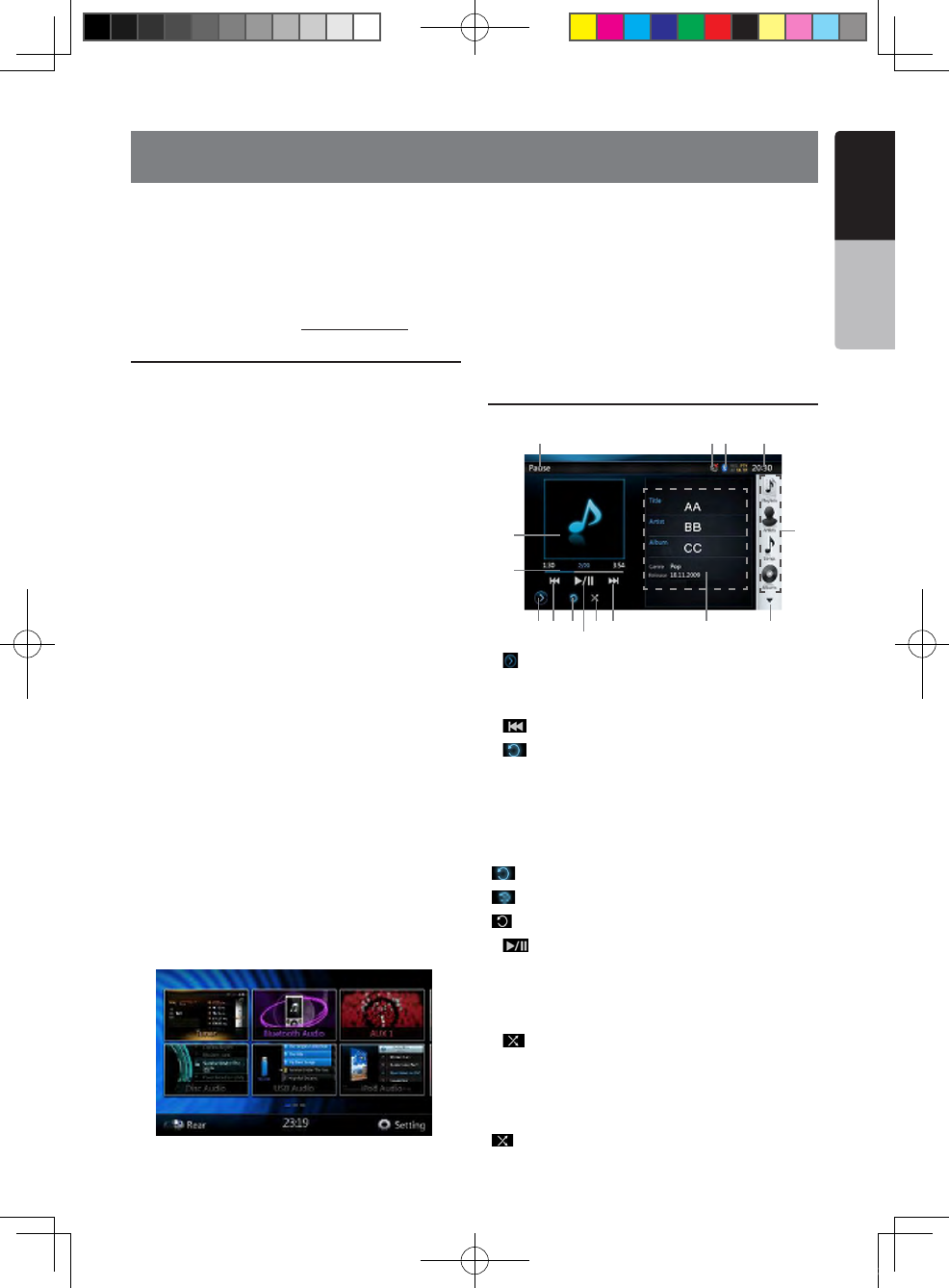
NX501E/NZ501E 33
English
English
Owner’s Manual
12. iPod/iPhone OPERATIONS
iPod/iPhone can be connected by the special
connector cable (CCA-748) separately sold.
Note:
• This system will not operate or may operate improperly
with unsupported versions.
• For detailed information on the playable iPod/iPhone
models, see our home page: www.clarion.com
Notes on using Apple iPod/iPhone
• Do not connect an iPod/iPhone to this unit with a
headphone connected to the iPod/ iPhone.
• After the iPod/iPhone has been connected to this
unit, the buttons of iPod buttons are disabled for
operation in the Music mode. In the Video mode, do
not operate the buttons of iPod.
• When in the iPod mode, a special iPod/iPhone
control screen is displayed different from the main
screens for other modes.
• When in the iPod mode, the screen image input from
the AUX terminal is output to the rear monitor.
• When no data is present, the title display will remain
blank.
• The iPod/iPhone is used with the equalizer function
turned OFF.
• Set the language setting of iPod/iPhone to English
before connecting your iPod/iPhone. Some characters
of the other languages may not be displayed correctly
in this system.
Precautions on battery consumption:
If the iPod/iPhone is connected to this unit when the
internal battery of iPod/iPhone has run down, this
function may not operate correctly. You must connect
the iPod/iPhone after charging the battery if it has run
down.
Selecting the iPod Audio mode
Connect your iPod/iPhone to the USB connector via
CCA-748 cable. The system will automatically detect
the connected device and the iPod Audio button will
be enabled for operation on the Main Menu screen.
The playback starts after a while, from where the iPod/
iPhone has been paused.
• When iPod/iPhone is already connected
Touch the [iPod Audio] button on the Main Menu
screen. The system changes to the iPod mode, and
starts playback from the previous position.
Press [MENU] button on Operational Panel to return
to the Main Menu.
Controlling the iPod/iPhone
iPod audio mode screen
1.[ ]Settings Button
Displays the Options screen. You can specify play
modes and other settings from this screen.
2.[ ]Previous Track Button
3.[ ]Repeat Button
Use to repeat the selected track.
Press once to start a single track repeat. Press again
to activate a repeat all. To turn repeat off, press same
button again. Repeat symbols are displayed in the info
window in the upper left area of the screen.
[]: All repeat.
[]:1-Track repeat.
[]: Repeat off.
4.[ ]Play/Pause Button
Use to control playback and pause.
(1). Touch the key during playback. Playback pauses.
(2). To resume playback touch the key again.
5.[ ]Shuffle Button
Use to switch the shuffle mode on or off. When
enabled, this function performs playback of tracks
in random order, regardless of the order in which they
are recorded.
[]: Shufe Off.
1 2 5 6 7 8
101213
34
11
8
14
15
NX_NZ501E 欧洲版说明书.indd 33 2010-12-27 13:50:35
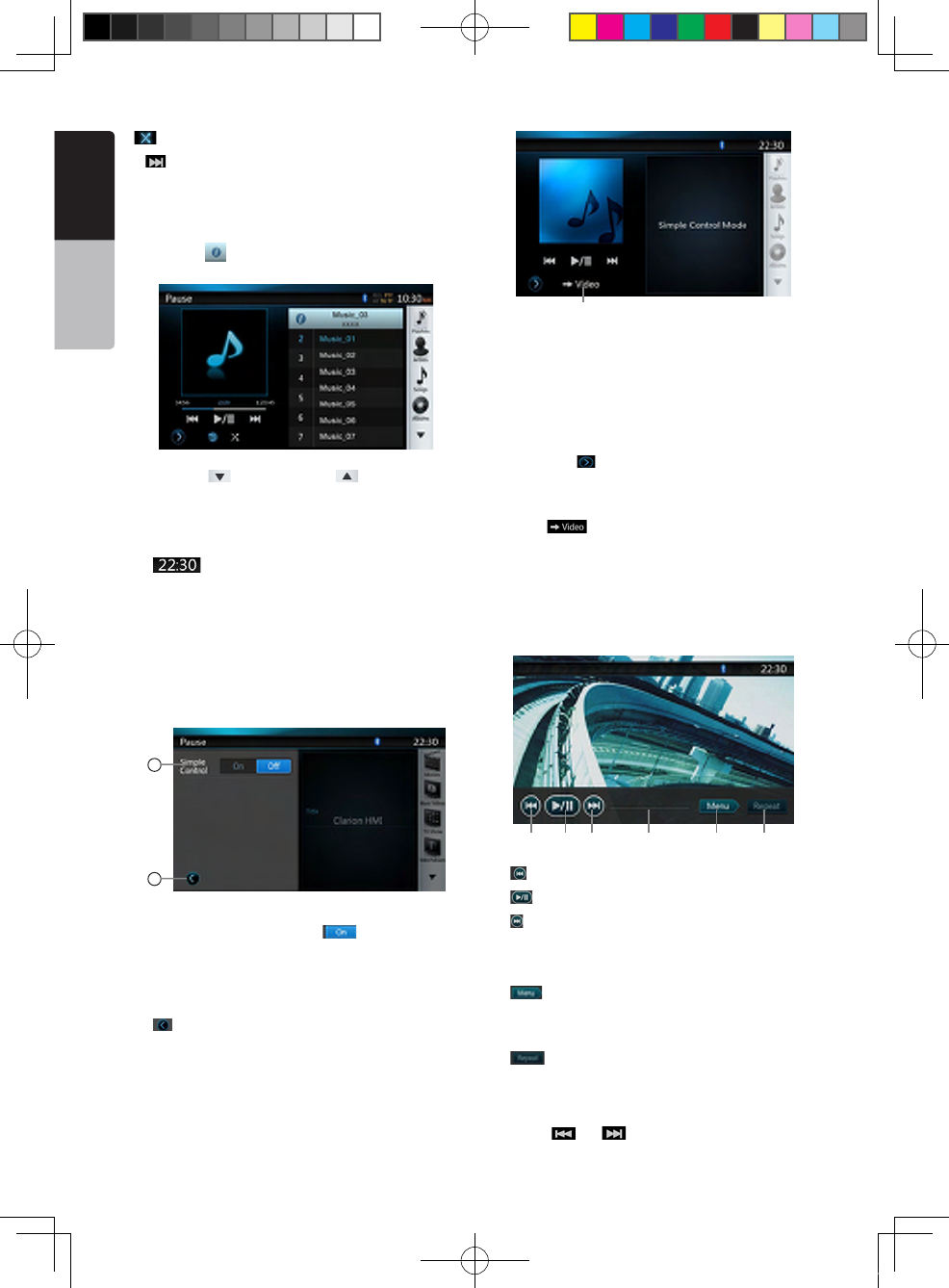
34 NX501E/NZ501E
English
Owner’s Manual
[]: Song Shufe.
6.[ ]Next Track Button
7.ID3 Information
Touch the area of the ID3 Information to display the
current play list.
Touch the [ ] icon can return to ID3 information
display.
8.Next Page[ ] / Previous Page[ ] Button
9.Category List
Select different category songs to play. The category is
same as the iPod/iPhone.
10.[ ]System Time
11.Bluetooth Status
12.MUTE Status
13.Playback Status
14.Art Work
15.Progress bar
iPod audio settings mode screen
16
17
16.Simple Control:
If the Simple Control is set to [ ]. The screen will
become to Simple Control Mode. It can also display
the video of iPod/iPhone regardless it is iPod Audio
or iPod Video mode. But only “Previous Track” “Play/
Pause” and “Next Track” can be operated.(Refer to 17)
17.[ ]Close the Settings Page
18
18.Display video of iPod/iPhone.
Follow operation steps to display video of iPod/iPhone
in Simple Control Mode.
• Connect the iPod to USB connector via CCA-748
cable.
• Select iPod Audio mode.
• Press the [ ] button on iPod audio mode screen
to display Settings page.
• Set the Simple Control to “On”.
• Press button.
• Set iPod Video settings TV Out to “ON” in iPod.
• Now play video from iPod
• Video of iPod will display on the screen.
• iPhone and iPod Touch are not supported with
video output in Simple Mode.
19 2120 22 23 24
19.[ ]Previous files
20.[ ]Play or Pause video
21.[ ]Next files
22.Progress bar
The “Progress bar” is not available on this screen.
23.[ ]Menu:
Press the Menu button can display the Simple
Control Mode.
24.[ ]Repeat
The “Repeat” Button can’t operate on this screen.
Skipping a track (Simple Control Mode)
Press the [ ] or [ ] button during playback. Tracks
are skipped, as many times as the button is pressed,
NX_NZ501E 欧洲版说明书.indd 34 2010-12-27 13:50:36
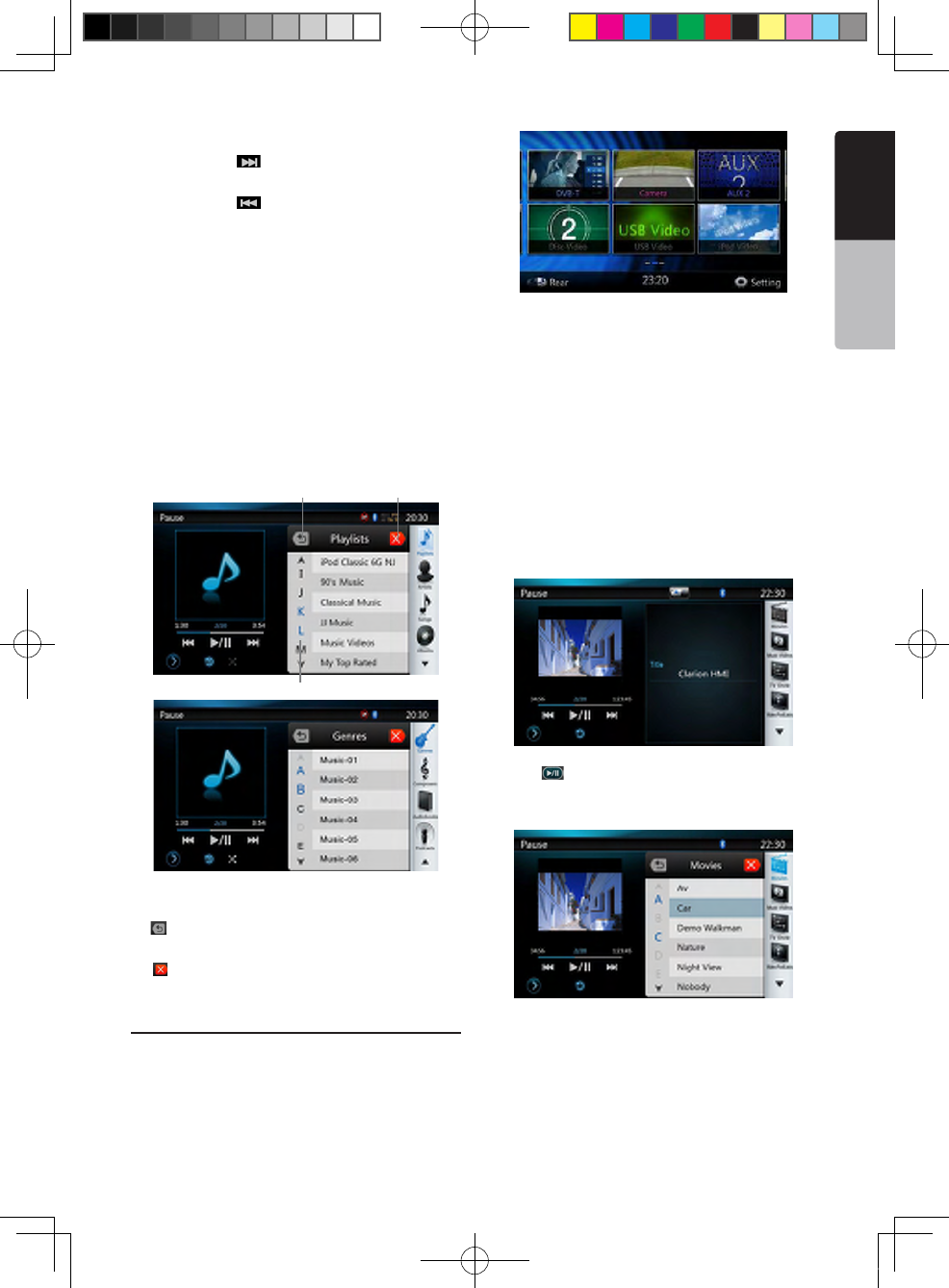
NX501E/NZ501E 35
English
English
Owner’s Manual
and playback starts.
• Pressing the [ ] button starts playback from the
beginning of the next track.
• Pressing the [ ] button starts playback from the
beginning of the current track.
When this button is pressed again within about 2
seconds, playback starts from the beginning of the
previous track.
Note: In Simple Control Mode, the best way is to control
the iPod just on iPod.
Selecting a list item from a list screen
(1). Touch the list screen and flick up or down to scroll
the list.
(2). Touch a desired list item on the screen to display
the corresponding list of tracks.
(3). Touch the desired track name on the list to play it.
iPod audio List mode screen
25.Return to the Previous Level Folder
[ ] If the list is in root, press the button can close
the list.
26.[ ]Closed the List
27.Search with the first alphabet in current list.
Selecting the iPod Video mode
Connect your iPod/iPhone to the USB connector via
CCA-748 cable. The system will automatically detect
the connected device and the iPod Video button will
be enabled for operation on the Main Menu screen.
• When an iPod/iPhone is already connected
Touch the [iPod Video] button on the Main Menu
screen. The system changes to the iPod Video mode,
and starts playback from the previous position.
Press [MENU] button on Operational Panel to return
to the Main Menu.
• Viewing video data in the iPod/iPhone (only for the
iPod/iPhone with video features)
When you connect an iPod/iPhone with video features
by using the optional CCA-748 cable, you can enjoy
the video data and slide show data stored in the iPod/
iPhone and show them on the display of this unit (and
the rear monitor if connected).
• iPod Video ID3 mode screen
Press [ ] button to display iPod Video play mode
screen.
iPod Video List mode screen
25 26
27
NX_NZ501E 欧洲版说明书.indd 35 2010-12-27 13:50:37
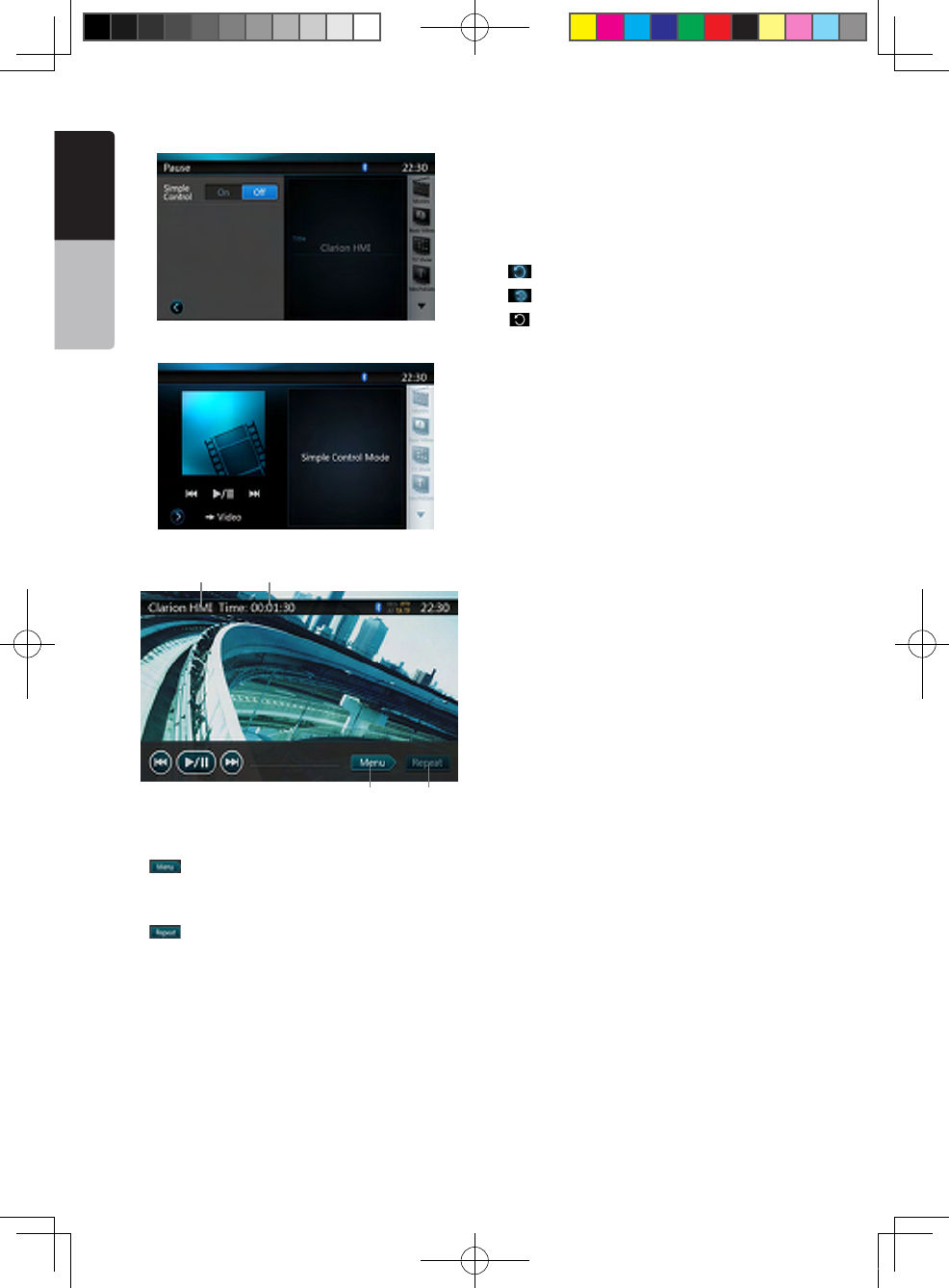
36 NX501E/NZ501E
English
Owner’s Manual
•iPod Video Settings mode screen.
•iPod Video Simple Control Mode Screen
• iPod Video play mode screen.
1. iPod Video Title.
2. Elapsed playing time.
3. [ ]Menu:
Press the Menu button can display the iPod Video
mode screen.
4. [ ]Repeat Button:
Use to repeat the selected track.
Press once to start a single track repeat. Press
again to activate a repeat all. To turn repeat off,
press same button again. Repeat symbols are
displayed in the info window in the upper left area of
the screen.
In iPod Video mode screen, there are three repeat
icons :
[]: Repeat All.
[]: Repeat 1 Track.
[]: Repeat off.
Note:
The operation keys in iPod video mode are as same as
iPod Audio mode. Please refer to the iPod Audio Mode
operation key.
Note:
Video playback is not available on all iPod/ iPhone
devices. Please contact your Clarion dealer for details.
An optional connection cable or accessory may be
required for this feature.
Note:
• “AUDIO ONLY” is displayed when the automobile is
moving.
• Image data may not be played back according to the
status of the iPod/iPhone
• The volume setting of video data is relatively lower than
audio data. Be sure to lower the volume setting before
switching to the other mode.
• Do not select the categories with no track registered
from the iPod menu screen. The iPod/iPhone may be
frozen. If the iPod/iPhone is frozen, reset the iPod/iPhone
by following the procedure described in the instruction
manual of the iPod/iPhone.
• Audio may be played back slightly out of
synchronization with video images.
3 4
1 2
NX_NZ501E 欧洲版说明书.indd 36 2010-12-27 13:50:37
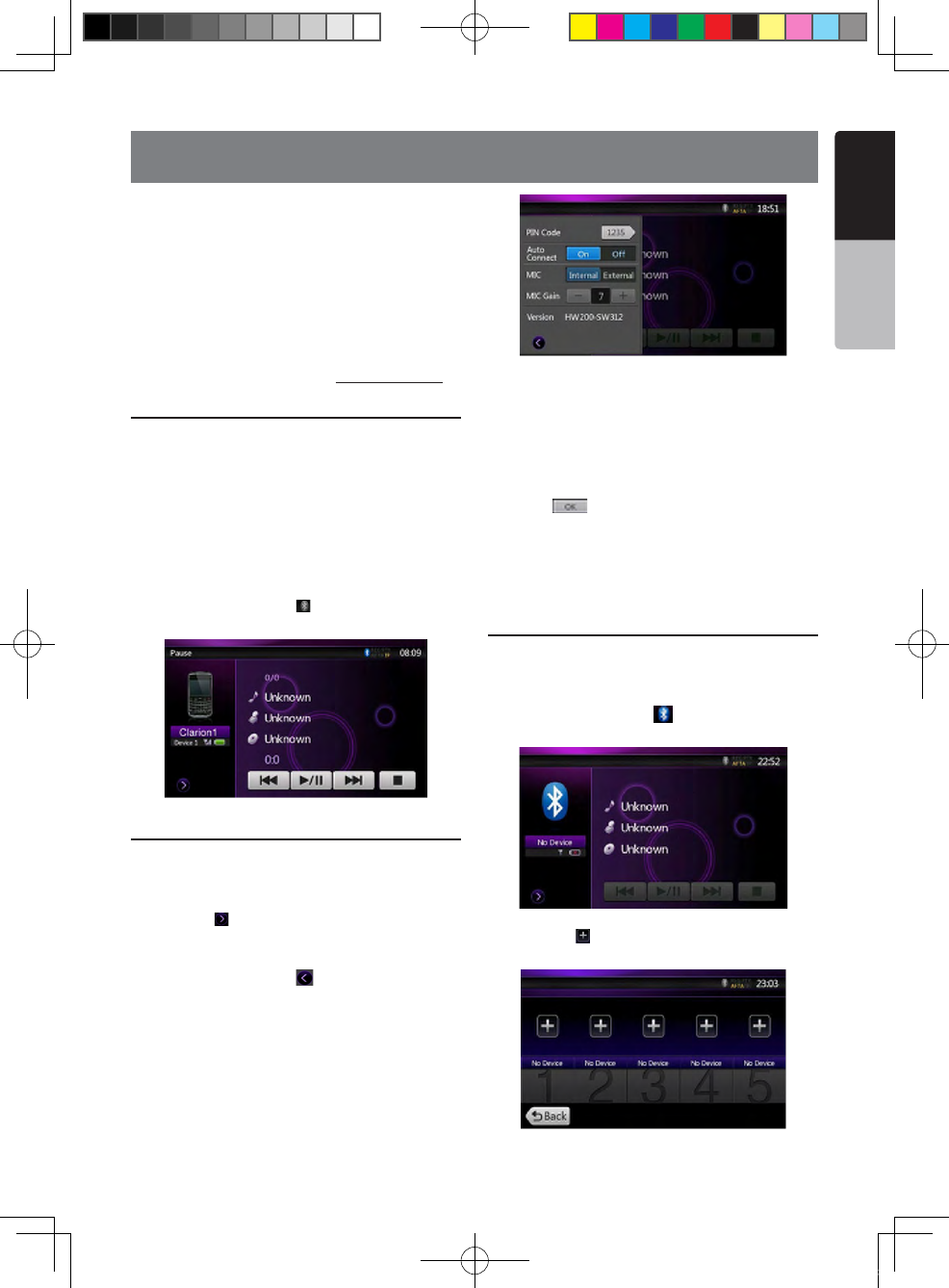
NX501E/NZ501E 37
English
English
Owner’s Manual
13. Bluetooth AUDIO PLAYER OPERATIONS
Some Bluetooth cellular phones have audio features,
and some portable audio players support the
Bluetooth feature. These devices will be called as
“Bluetooth audio players” in this manual. This system
can play audio data stored in a Bluetooth audio player.
Note:
•This system will not operate or may operate improperly
with some Bluetooth audio players.
• For detailed information on the playable Bluetooth
audio players, see our home page: www.clarion.com
Selecting the Bluetooth Audio mode
1. Press [MENU] button on Operational Panel to return
to the Main Menu.
2. Touch the [Bluetooth Audio] key to select the
Bluetooth Audio mode.
The system changes to the Bluetooth mode. If the
connection with a Bluetooth audio player has been
already established, you may select the Music
function.
• When the connection with a Bluetooth audio player
has been established, the [ ] icon is displayed at the
top of the screen.
Bluetooth audio player settings
Conrming Bluetooth Information and setting Pass Key
You can confirm various information concerning about
the Bluetooth Interface features.
1. Touch the [ ] key to display the information on the
screen.
2. When you finish confirming the Bluetooth
information, touch the [ ] key to return to the
previous screen.
If you want to change the Pin Code setting of this unit,
perform the following steps.
• The factory default setting is “1234”.
3. Touch the text box of the Pin Code item to display
the Ten-Key Pad screen.
4. Enter your desired 4-digit PIN number, and then
touch the [ ] key.
Note:
MIC Gain is disabled in Bluetooth Audio mode settings.
Registering your Bluetooth audio player
(Pairing)
You can register up to 5 Bluetooth audio players.
1. Turn on the power of the Bluetooth audio player you
wish to register.
2. Touch the Device key [ ] to display the Device
Select screen.
3. Touch the [ ] key to display the Inquiring Device
screen.
NX_NZ501E 欧洲版说明书.indd 37 2010-12-27 13:50:38
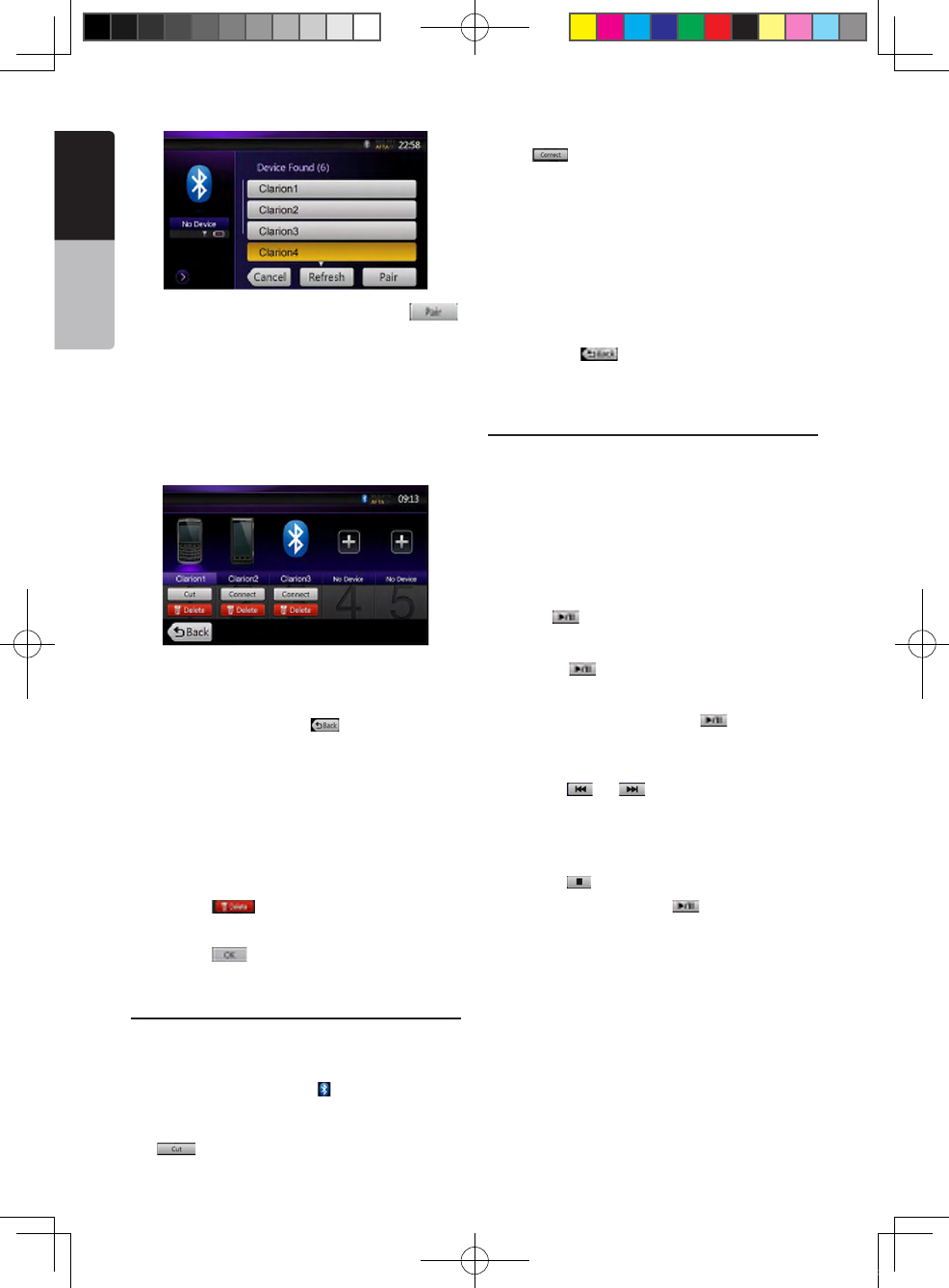
38 NX501E/NZ501E
English
Owner’s Manual
4. Touch your desired Device and press the[ ]
key to register for the Bluetooth audio player..
5. If entering the Pass Key code is prompted on your
Bluetooth audio player, enter the Pass Key code set
to this unit.
• You can change the Pass key setting of this unit
from the BT Info screen.
• You also can add the favorite icon to the connected
device. There are 10 favorite icons for selection.
When the pairing operation completes, the registered
Bluetooth audio player is set as the current device,
after selecting the favorite icon, the display return to
the device list screen. Press [ ] button, the display
will return to the Bluetooth audio mode screen.
Note:
• You cannot register the same Bluetooth audio player
which is already registered.. If you wish to change the
Device key registered, once delete the corresponding
Bluetooth audio player from the previous Device key, and
then register it again to your desired Device key.
• To delete the Bluetooth audio player registration
1. Touch the [ ] key to delete the device.
A confirmation screen is displayed.
2. Touch the [ ] key to confirm delete.
Selecting the Bluetooth audio player
To change the current Bluetooth audio player to the
other device which is already registered, perform the
following operation.
1. Touch the Device key to [ ] display the Device
Select screen.
2. Touch the currently connected device, then press
the [ ] key to disconnect the active device.
3. Touch the desired Device key you wish to use.
Press [ ] key to select it as your active device.
The corresponding cellular phone is set as current
telephone.
• If the power of the cellular phone is not turned on,
turn it on.
• The cellular phone may prompt to acknowledge the
Bluetooth connection or ask to enter the Pass Key
code of this unit.
Perform these operations according to the message
displayed.
4. Touch the [ ] key to return to the previous
screen.
Controlling the Bluetooth audio player
Note:
• Occasionally, depending on the environment, playback
sounds may be fragmented, or switch noises may be
generated.
Playing a music
After the connection with a Bluetooth audio player is
established, the play mode is automatically engaged.
• When playback is not started for some devices,
touch the [ ] key manually.
Pausing playback
1. Touch the [ ] key during playback.
Playback pauses.
2. To resume playback, touch the [ ] key. Playback
resumes.
Skipping a track (searching)
3. Press the [ ] or [ ] button during playback.
Tracks are skipped, as many as the times the button is
pressed, and playback starts.
Stopping playback
4. Press the [ ] button during playback.
Tracks are stopped, press the [ ] button to playback
the first Track.
NX_NZ501E 欧洲版说明书.indd 38 2010-12-27 13:50:38
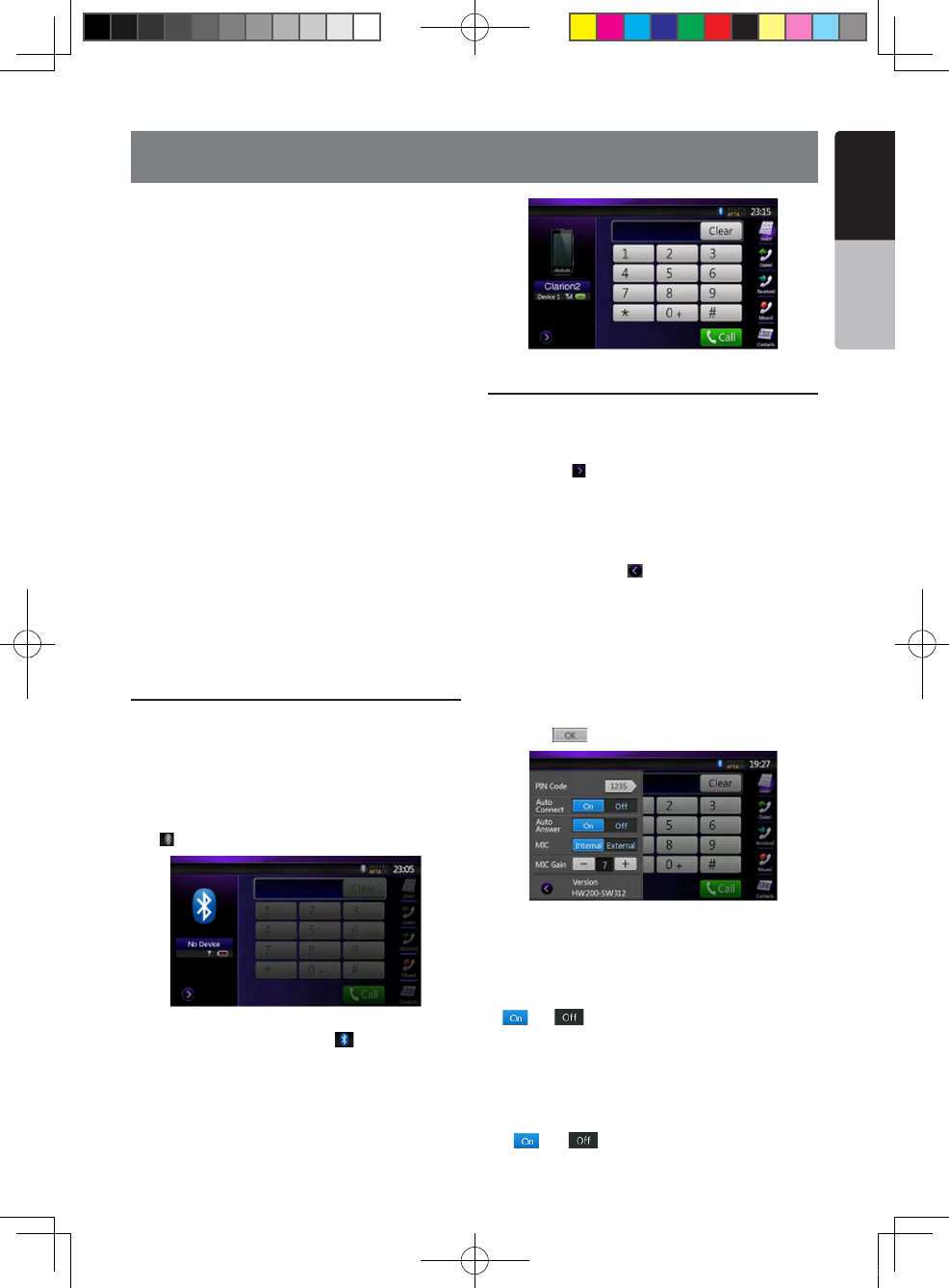
NX501E/NZ501E 39
English
English
Owner’s Manual
When the connection with your Bluetooth cellular
phone is established, the following functions are
available on this unit:
• Listening to your telephone calls on the car speakers.
• Answering to an incoming call.
• Making a call using the Ten-Key pad screen.
• Making a call using the Phone Book data in the
selected cellular phone.
• Making a call using the History data of the dialed/
received calls.
Note:
• Some cellular phones may not be able to transfer the
Phone Book data to head unit.
• The Phone Book data transmission may take a long
time. The operations of sending calls are disabled
during the data transmission.
• You can talk with other party by using the internal
microphone. When it is hard to hear for the other party
in accordance with the communication condition or the
used telephone, please use the optional microphone
(RCB-199), and set the Microphone Select setting to
“External”. The sound will be improved, but noises
may still be heard depending on the communication
condition.
Select the BT Phone mode
1. Press [MENU] button on Operational Panel to return
to the Main Menu.
2. Touch the [Bluetooth Telephone] key to select the
Bluetooth Telephone mode.
The Telephone screen is displayed.
• When no Bluetooth Telephone connected, the
icon[ ] is displayed at the top of the screen.
• When the connection with a Bluetooth Telephone
has been established, the icon [ ] and signal level
indicator are displayed at the top of the screen.
Bluetooth Telephone settings
Conrming Bluetooth Information and setting Pass Key
You can confirm various information concerning the
Bluetooth Interface features.
1. Touch the [ ] key to display the information on the
screen.
2. Perform setting for the desired item. See the
following sections for detail.
3. When you finish confirming the Bluetooth
information, touch the [ ] key to return to the previous
screen.
If you want to change the Pass Key setting of this unit,
perform the following steps.
1. Touch the text box of the Pass Key item to display
the Ten-Key Pad screen.
• The factory default setting is “1234”.
2. Enter your desired 4-digit PIN number, and then
touch the [ ] key.
Setting Automatic Connection
The system automatically reconnects the cellular
phone after the connection is lost or the system is
restarted.
• The factory default setting is “OFF”. Touch the
[] or [ ] key of the Automatic Connection item
to set the function ON or OFF.
Setting Automatic Answer
If a call comes in, answer automatically after 5
seconds.
• The factory default setting is “OFF”. Touch the
[] or [ ] key of the Automatic Answer item
14. Bluetooth
TELEPHONE OPERATIONS
NX_NZ501E 欧洲版说明书.indd 39 2010-12-27 13:50:38
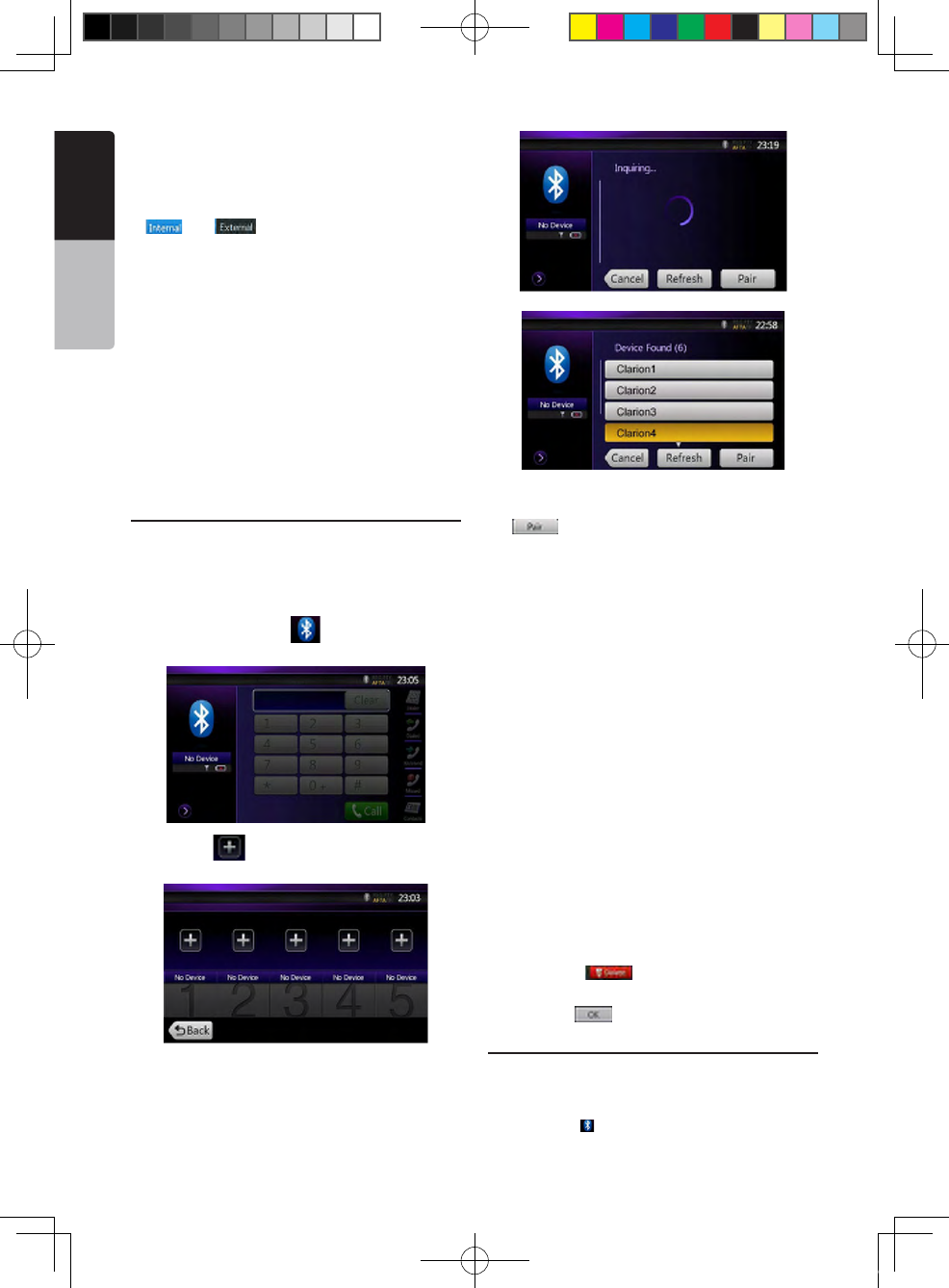
40 NX501E/NZ501E
English
Owner’s Manual
to set the function ON or OFF.
Selecting Microphone
You can select the microphone to be used.
• The factory default setting is “Internal”. Touch the
[] or [ ] key of the Microphone Select
item to set the function.
Setting Microphone Gain
You can adjust the input level of the microphone in 16
levels.
• The factory default setting is “7”.
•Touch the level indicator button of the Microphone
Gain item to adjust the input level.
Note:
• The input level of the microphone can be affected by its
surroundings. Adjust the level if the person on the other
end of the telephone has a reception problem.
Register your cellular phone (Pairing)
You can register up to 5 cellular phones. The
registering method is as same as “Registering your
Bluetooth audio player”
1. Turn on the power of the cellular phone you wish to
register.
2. Touch the Device key [ ] to display the Device
Select screen.
3. Touch the [ ] key to display the Inquiring Device
screen.
4. Touch your desired Cellular key to select the key
for the cellular phone to be registered. And press
the[ ] key to register for the Bluetooth audio
player.
• You cannot select the Cellular key of which another
cellular phone is already registered. Select a blank
Cellular key.
5. If entering the Pass Key code is prompted on your
cellular phone, enter the Pass Key code set in this unit.
• You can change the Pass key setting of this unit
from the BT Info screen under the
Telephone Settings screen.
• You can also add the favorite icon to the connected
device. There are 10 favorite icons for selecting.
When the pairing operation completes, the registered
cellular phone is set as the current telephone, and
the display returns to the Telephone screen.
Note:
• You cannot register the same cellular phone which is
already registered. If you wish to change the Cellular key
registered, once delete the corresponding cellular phone
from the current Cellular key, and then register it again to
your desired Cellular key.
• To delete the cellular phone registration
1.Touch the [ ] key to delete the device. A
confirmation screen is displayed.
2.Touch the [ ] key to confirm delete.
Select the cellular phone
To change the current cellular phone to the other
device which is already registered, perform the
following operation.
1. Touch the [ ] key to display the Device Select
screen.
NX_NZ501E 欧洲版说明书.indd 40 2010-12-27 13:50:39
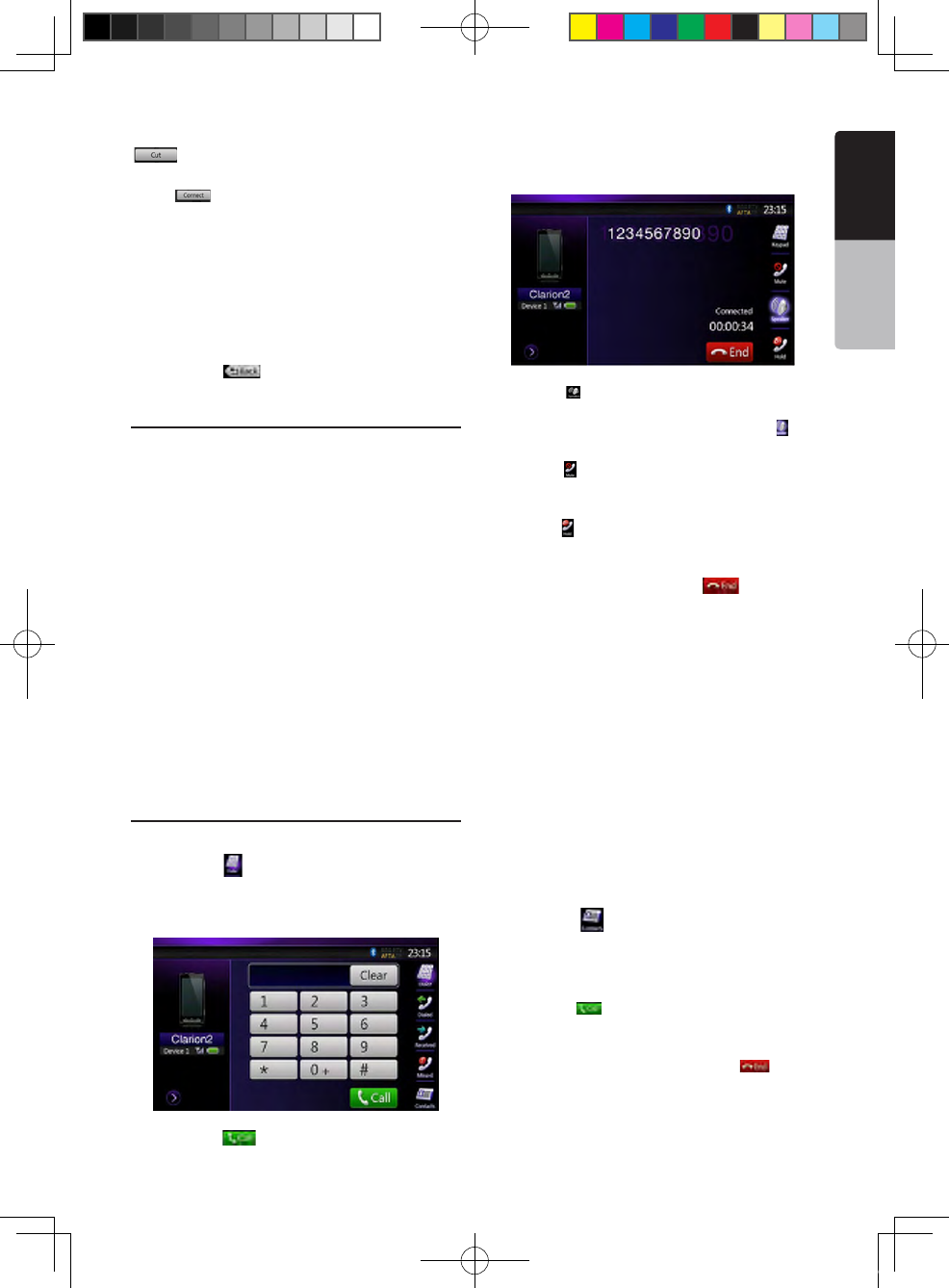
NX501E/NZ501E 41
English
English
Owner’s Manual
2. Touch the currently connected device, then press
[ ] key to disconnect the active device.
3. Touch the desired Device key you wish to use.
Press [ ] key to select it as your active device.
The corresponding cellular phone is set as the current
telephone.
• If the power of the cellular phone is not turned on,
turn it on.
• The cellular phone may prompt to acknowledge the
Bluetooth connection or to enter the Pass Key code
of this unit. Perform these operations according to the
message displayed.
4. Touch the [ ] key to return to the previous
screen.
Obtaining the Phone Book data
Sending the Phone Book data from the cellular phone
enables you to make a call using the Phone Book
function from this unit.
1. Perform the Object Push transfer operation of the
Phone Book data on the current cellular phone.
For details of the operation, see the operation manual
of the cellular phone.
Note:
• Some cellular phones may not be able to transfer the
Phone Book data.
• Some cellular phones cannot transfer the Phone
Book data when the hands-free mode is set or it is also
registered in the Bluetooth mode. In those cases, disable
these functions from the cellular phone before performing
the Object Push transfer.
• Some cellular phones may transfer Phone Book data
automatically.
Telephone operations
Making a call using the Ten-Key pad
1. Touch the [ ] key to display the Ten-Key pad
screen.
2. Enter the telephone number by using the Ten-Key
pad displayed on the screen.
3. Touch the [ ] (Send) key to call the entered
number.
• The following Telephone Interrupt screen is displayed
during phone call.
• Touch the [ ] key to talk by using the cellular phone
and canceling the hands-free function (Private Mode).
To return to the hands-free mode, touch the [ ] key
again.
•Touch the [ ] key to mute the microphone.Now you
can hear the other side, but the other side cannot hear
your side.
•Touch the [ ] key to hold the current phone call, now
you can answer to the other incoming call. Touch again
to talk with previous call
4. When the call is finished, touch [ ] key to hang
up.
Note:
• Depending on some special cellular phone, the
Telephone Interrupt screen may be closed and the
connection with this system may be disconnected when
entering the Private mode.
Making a call using the Phone Book
You can use the Phone Book data obtained from the
cellular phone to make a call from this unit.
Note:
• Before using this function, the Phone Book data
must be sent from the cellular phone.
• Only the Phone Book items with at least one
telephone number registered in the captured Phone
Book data are displayed on the Phone Book screen.
1. Touch the [ ] key to display the Phone Book
screen.
2. Touch the desired Name key you wish to dial.
• Flick the list up and down to scroll the list.
3. Touch the [ ] key to call the specified number.
The Telephone Interrupt screen is displayed, and
calling starts.
• When the call is finished, touch the [ ] key to
hang up.
Making a call using the History
The system will memorize the Dialed/Received calls
NX_NZ501E 欧洲版说明书.indd 41 2010-12-27 13:50:39
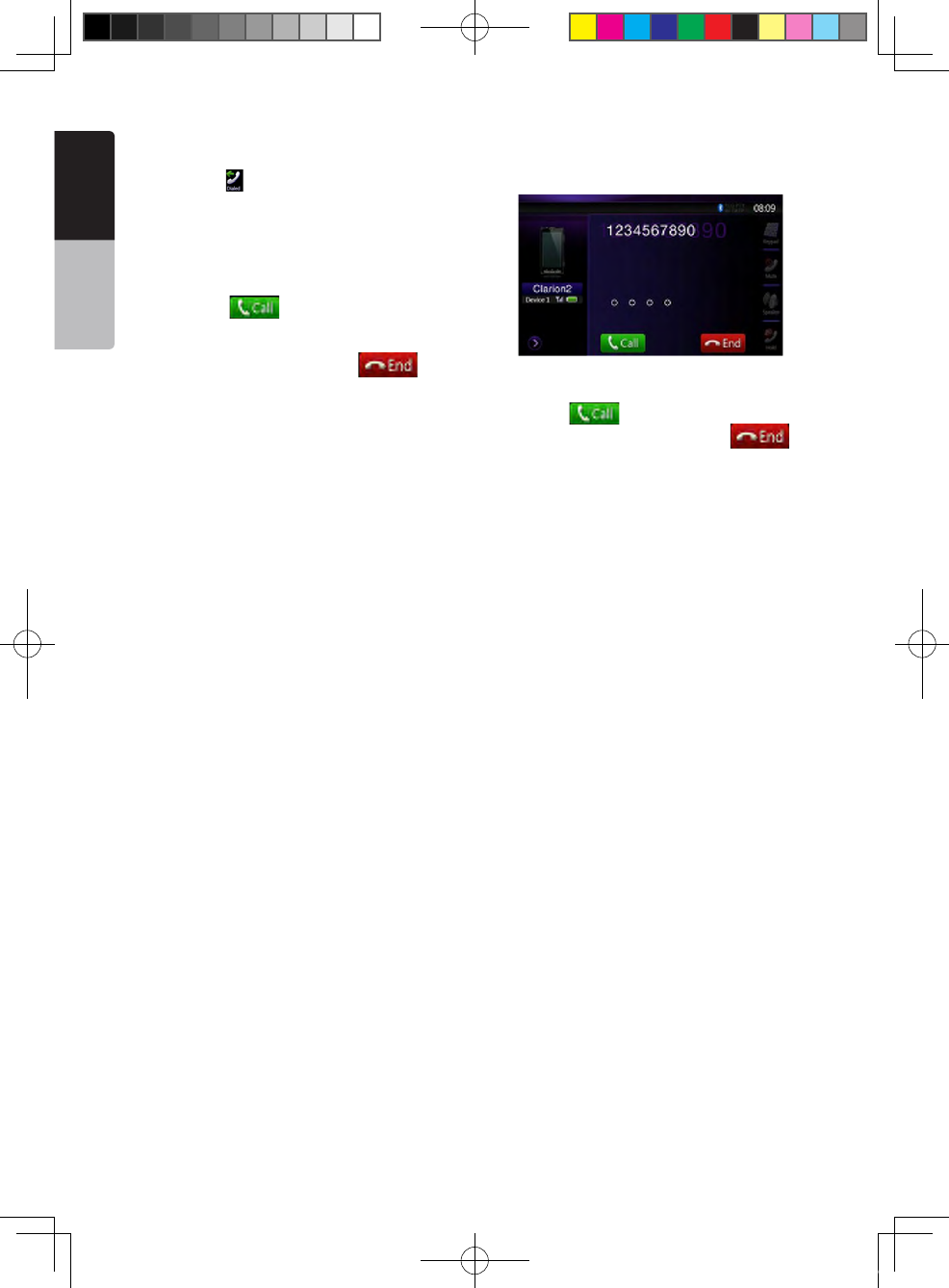
42 NX501E/NZ501E
English
Owner’s Manual
record data in the memory. You can confirm it and use
it to make a call from this unit.
1. Touch the [ ] key. The History List screen is
displayed.
• The items are sorted by Dialed, Missed and Received
calls.
• Flick the list up and down to scroll the list.
2. Touch the desired History item key you wish to dial.
3. Touch the [ ] key to call the specified
number. The Telephone Interrupt screen is displayed,
and calling starts.
• When the call is nished, touch the [ ] key to
hang up.
Answering to an incoming call
When a call comes in, the following Telephone
Interrupt screen appears.
You can answer to the incoming call on this system by
the following operation.
1. Touch the [ ] key to answer the call.
2. When the call is finished, touch the [ ] key
to hang up.
NX_NZ501E 欧洲版说明书.indd 42 2010-12-27 13:50:39
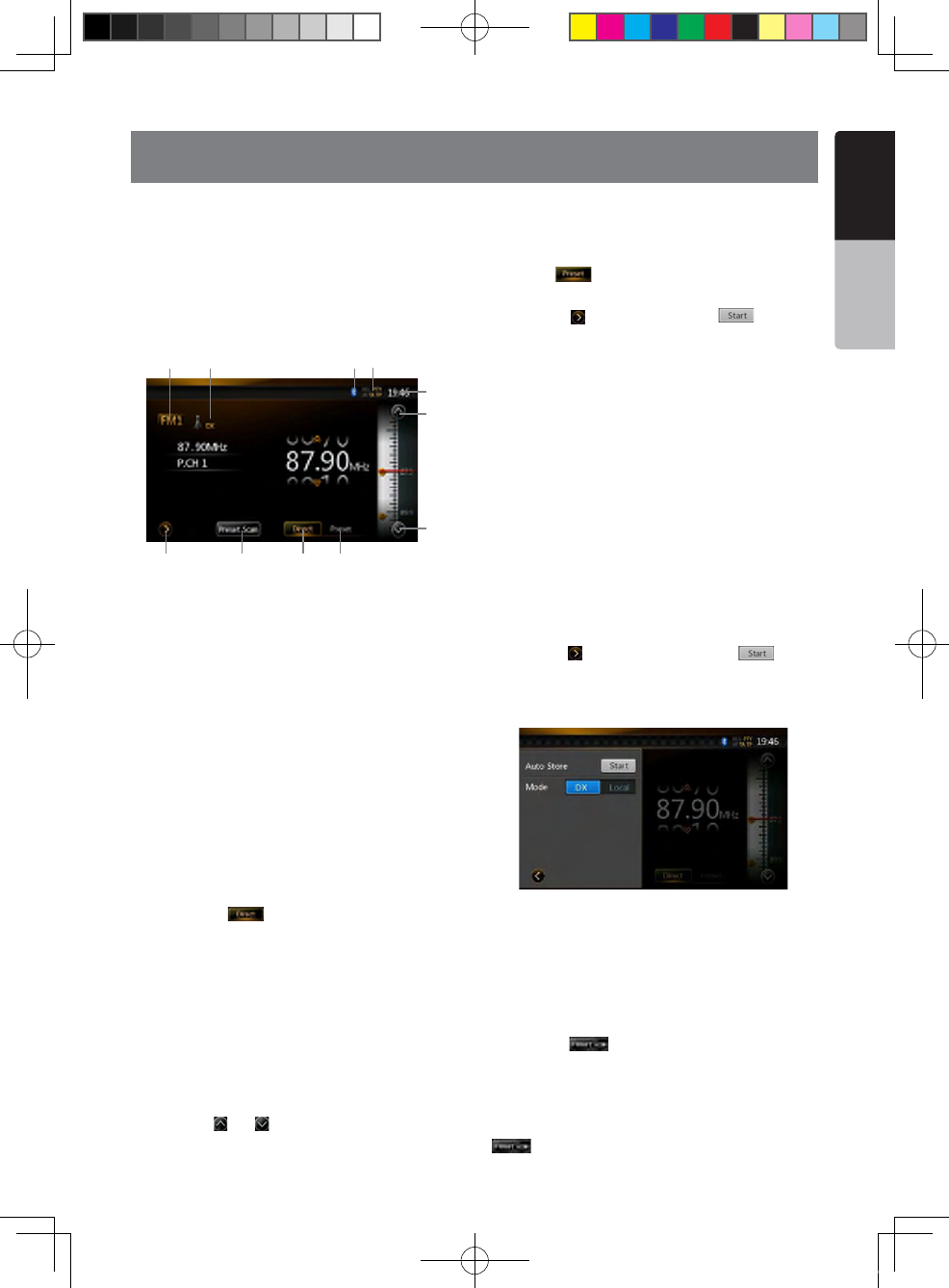
NX501E/NZ501E 43
English
English
Owner’s Manual
15. RADIO OPERATIONS
Listening to the Radio
1. Touch the [Tuner] button on the Main menu display.
The tuner mode screen is displayed.
2. Press the [FM1/2/3/AM] button or touch the [Band]
key on remote control to select the radio band. Each
time the button is pressed, the radio reception band
changes in the following order: FM1->FM2->FM3->AM
->FM1...
1.Preset Scan Button
2.Direct Button
3.Preset List Button
4.Frequencies Display
5.Tune Up
6.Tune Down
7.Band Display
8.LOC/DX Display
9.Bluetooth Display
10.RDS Station Display
11.System Time
Seek Tuning
1. Press the [FM1/2/3/AM] button to select the radio
band (FM or AM).
2. Touch the [ ] key, and then flick the BIG
Frequency up and down to search for next available
station.
• When ick the frequency up, the station is searched
in the direction of higher frequency.
• When flick the frequency down, the station is
searched in the direction of lower frequency.
Step Tuning
Press the [FM1/2/3/AM] button to select the radio
band (FM or AM).
2. Touch the [ ] or [ ] key in frequency panel to tune
up or down by one step.
Recalling a preset station
Press the [FM1/2/3/AM] button to select the desire
band (FM or AM) on the tuner.
Touch the [ ] key, Press the preset station (1 to 6)
on preset list.
3. Press the [ ] key, then press the [ ] button to
auto search and store the stations.
Manual memory
1. Touch the desired Band key to select the band you
wish to store.
2. Tune to a station you want to store using the seek
tuning, step tuning, or preset tuning.
3. Touch and hold the desired Preset key you want to
store for about 3 seconds.
Auto Store
The Auto Store is a function for storing up to 6 stations
that are automatically searched in sequentially. If the
number of receivable stations cannot reach to 6, the
previous stored station remains.
1. Touch the [FM1/2/3/AM] key to select the desired
band. (FM or AM)
2. Press the [ ] key, and then press the [ ] key to
start the Auto Store.
A beep sounds and the stations with good reception
are stored automatically to the preset list.
Preset Scan
The Preset Scan receives the stations stored in the
preset memory in order. This function is useful when
searching for the desired station in memory.
1. Touch the [FM1/2/3/AM] key to select the desired
band. (FM or AM)
2. Touch the [ ] key to start the Preset Scan.
The unit starts scanning each station for 10 seconds
sequentially. But the station stored is not a valid
station; the scanning time is only 2 seconds.
3. When the desired station is tuned in, touch the
[] key again to stay in that station.
1 32
8 9
4
6
5
11
710
NX_NZ501E 欧洲版说明书.indd 43 2010-12-27 13:50:39
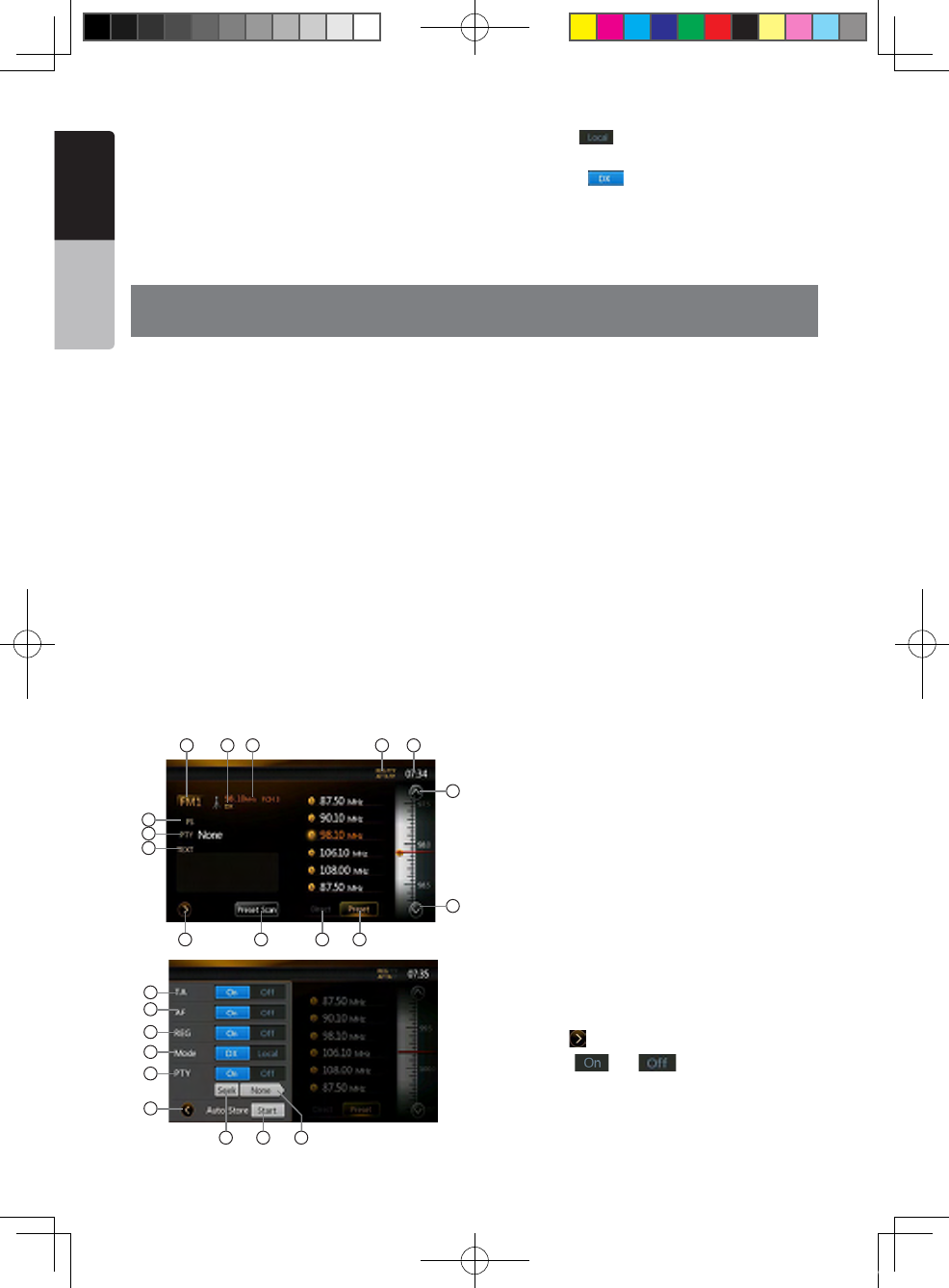
44 NX501E/NZ501E
English
Owner’s Manual
LOC/DX Setting
The DX / LOC setting changes the tuner sensitivity in
order to separate closely spaced stations. This feature
is useful in areas that have many radio stations in close
proximity.
1. Touch the [ ] key to switch to LOCAL tuner
sensitivity.
2. Touch the [ ] key to switch to DX tuner
sensitivity.
16. RDS OPERATIONS
This unit has a built in RDS decoder system that
supports broadcast stations transmitting RDS data.
This system can display the name of the broadcast
station being received (PS), and can automatically
switch to the broadcast station with the best reception
as you move long distances (AF switching). Also, if a
traffic announcement or program type information is
broadcast from an RDS station, no matter what mode
you are in, this broadcast is received. Additionally, if
EON information is received, this information enables
automatic renewal of other preset stations on the same
network and interruption of traffic announcement and/
or chosen program type from other stations (TP). This
function is not available in some areas.
“AF”: Alternative Frequency
“PS”: Program Service Name
“PTY”: Program Type
“TP”: Traffic Program
• The RDS interrupt does not function during AM (MW/
LW) radio reception.
1. Band Display
2. LOC/DX Display
3. Frequencies Display
4. RDS Station Display
5. Time Display
6. PS Name Display
7. Program Type Display
8. Radio text Display
9. Setting Button
10. Preset Scan Button
11. Direct Button
12. Preset List Button
13. Tune Down
14. Tune Up
15. TA Setting
16. AF Setting
17. REG Setting
18. LOC/DX Mode Setting
19. PTY Setting
20. Return Button
21. PTY Seek
22. Auto Store
23. Program Type Display
AF (Alternative Frequency) function
The AF function switches to a different frequency
on the same network in order to maintain optimum
reception.
Switching ON/OFF the AF function
1. Touch the [ ] key.
2. Touch the [ ] or [ ] key of the AF item to
turn the function on or off.
• When the AF function is ON, “AF” will be displayed
at the top of the screen.
• If the reception of the current broadcast station
10 1211
4 5
9
13
14
1 2 3
7
6
8
16
15
17
18
19
20
2221 23
NX_NZ501E 欧洲版说明书.indd 44 2010-12-27 13:50:40
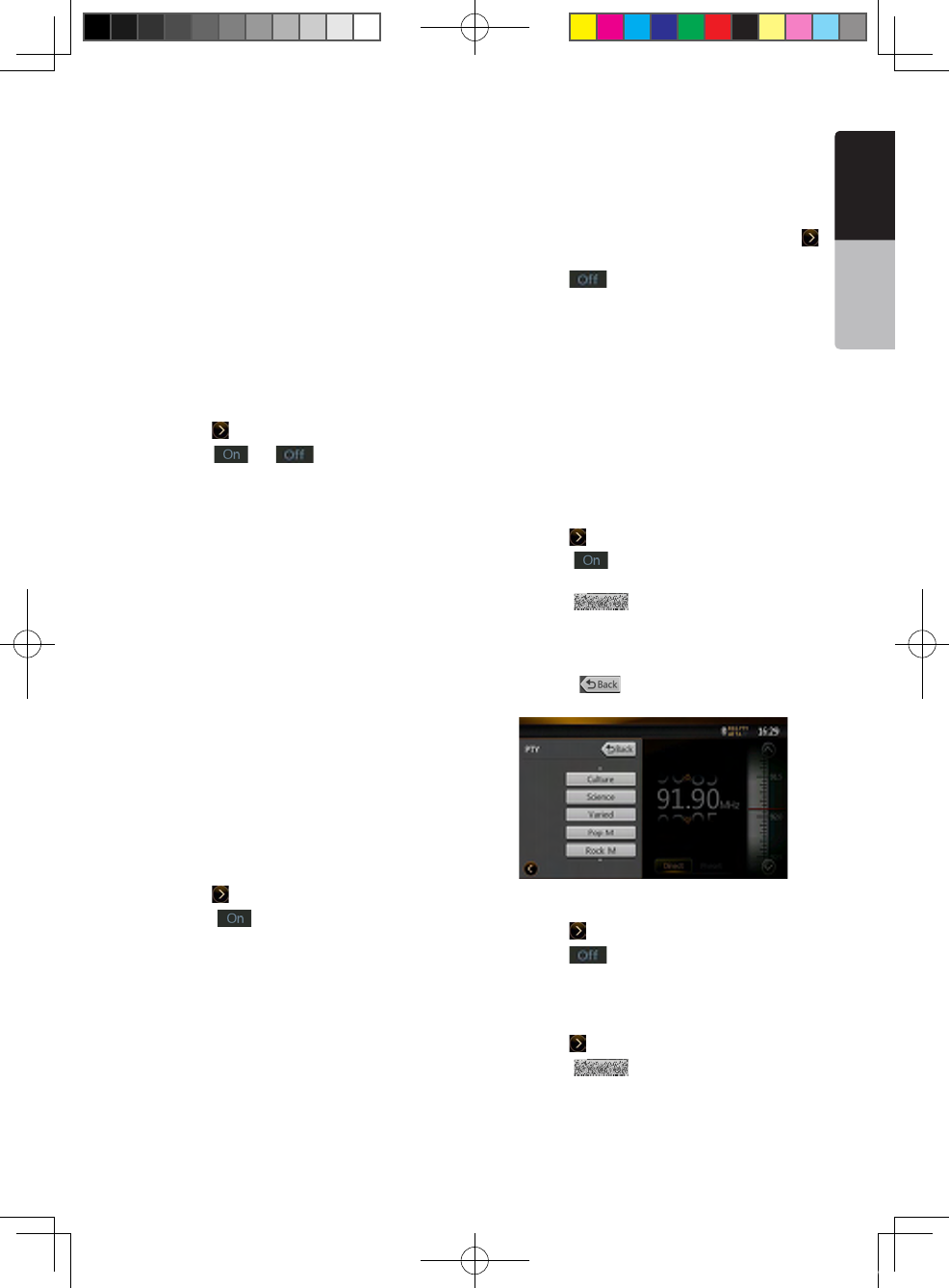
NX501E/NZ501E 45
English
English
Owner’s Manual
deteriorates durably, “AF” indication will blink, and
this unit searches for the same program on another
frequency.
REG (Regional Program) function
When the REG function is ON, the optimum regional
station can be received. When this function is OFF, if
the regional station area is switched as you drive, a
regional station for that region is received.
Note:
• This function is disabled when a national station such
as BBC R2 is being received.
• The REG function ON/OFF setting is enabled only
when the AF function is ON.
Switching ON/OFF the REG function
1. Touch the [ ] key.
2. Touch the [ ] or [ ] key of the REG item to
turn the function on or off.
Manually tuning a regional station in the same network
Note:
• This function can be used when a regional broadcast
of the same network is received.
• This function is enabled only when the AF function is
ON and the REG function is OFF.
1. Touch the [FM1/2/3/AM] key to select the band.
2. Touch your desired Preset key to call out a
regional station.
3. Each time you touch the same Preset key; this unit
switches from a local station to the other on the
same network.
TA (Traffic Announcement) function
When a traffic announcement broadcast starts during
the TA standby mode, the traffic announcement
broadcast is received as top priority regardless of
the function mode, so you can listen to it. The Traffic
Program (TP) automatic tuning is also available.
Setting TA standby mode
1. Touch the [ ] key.
2. Touch the [ ] key of the TA item to set the TA
standby mode.
“TA” will be displayed at the top of the screen, and
the system will automatically search for a TP station
(TP SEEK). When an RDS broadcast station with trafc
announcement program is received, “TP” will be
displayed at the top of the screen.
Note:
• If no TP station is received, this system continues the
search operation. Performing the above procedure again
makes the “TA” go off, and stops TP station searching.
●Canceling a Trafc Announcement broadcast
Touch the [Cancel] key while a Traffic Announcement
broadcast is being received. The Traffic Announcement
broadcast reception is canceled, and the system goes
into the TA standby mode.
●Canceling TA standby mode
1. When “TA” is displayed on the screen, touch the [
] key.
2. Touch the [ ] key of the TA item.
“TA” on the screen goes off, and the TA standby mode
is canceled.
PTY (Program Type) function
This function enables you to listen to a broadcast of
the specified program type when the broadcast starts,
even if the system operates in a mode other than the
Tuner mode.
• Some countries do not yet have PTY broadcast.
• In the TA standby mode, a TP station has priority
over a PTY broadcast station.
Selecting PTY
1. Touch the [ ] key.
2. Touch the [ ] key of the PTY item to enter the
PTY standby mode.
3. Touch the [ ] key (program type display) to
display the PTY Select screen.
4. Touch your desired PTY Preset key to select the
program type.
5. Touch the [ ] key to return to the previous
screen.
Canceling PTY standby mode
1. Touch the [ ] key.
2. Touch the [ ] key of the PTY item.
“PTY” goes off, and the PTY standby mode is
canceled.
PTY seek
1. Touch the [ ] key.
2. Touch the [ ] key (program type display) to
display the PTY Select screen.
3. Touch your desired PTY Preset key to select the
program type.
4. Touch a Seek key, the system seeks a PTY
NX_NZ501E 欧洲版说明书.indd 45 2010-12-27 13:50:40
46 NX501E/NZ501E
English
Owner’s Manual
broadcast moving up the frequencies.
• If no station with the selected PTY broadcast can be
received, the unit returns to the previous mode.
• The 32 types of PTY listed below can be selected.
PTY item
ENGLISH Contents
None None
News News
Affairs Current Affairs
Info Information
Sports Sport
Educate Education
Drama Drama
Culture Culture
Science Science
Varied Varied
Pop M Pop Music
Rock M Rock Music
Easy M Easy Listening Music
Light M Light Classical Music
Classics Serious Classical Music
Other M Other Music
Weather Weather
Finance Finance
Children Children’s Programs
Social Social Affairs
Religion Religion
Phone In Phone In
Travel Travel
Leisure Leisure
Jazz Jazz Music
Country Country Music
Nation M National Music
Oldies Oldies Music
Folk M Folk Music
Document Documentary
Test Test
Alarm Alarm
Emergency broadcast
If an emergency broadcast is received, all the function
mode operations are stopped. “Alarm” appears on the
screen and the emergency broadcast can be heard.
Volume setting of TA and emergency broadcast
(Alarm)
The volume for TA, Alarm and PTY interrupts can be
set during TA or Alarm.
• The factory default setting is “15”.
1. Use the [VOL +] and [VOL –] buttons to set the
volume to the desired level (00 to 40) during a TA or
Alarm.
• When the TA or Alarm ends, the volume returns to
the level before the interrupt.
NX_NZ501E 欧洲版说明书.indd 46 2010-12-27 13:50:40
NX501E/NZ501E 47
English
English
Owner’s Manual
17. DVB-T OPERATIONS
If DTX501E sold separately connect to unit, you can watch TV program and operate DTX501E.
Please read the user manual of DTX501E for the operation of DVB-T mode.
This function is available when DTX501E is connected.
NOTE:
For your safety, the unit has a safety function, which turns off the picture when car is moving, so only the audio can be
heard. The picture can be only watched, when the car is stopped and parking brake is applied.
Switching to DVB-T mode
• Press [DVB-T] button on Main Menu to select desired mode (when unit is reading). The LCD will display the
external video. If there is no DVB-T signal, it will show you blank screen.
• Press [Menu] button on Operational Panel to return to the Main Menu.
NX_NZ501E 欧洲版说明书.indd 47 2010-12-27 13:50:40
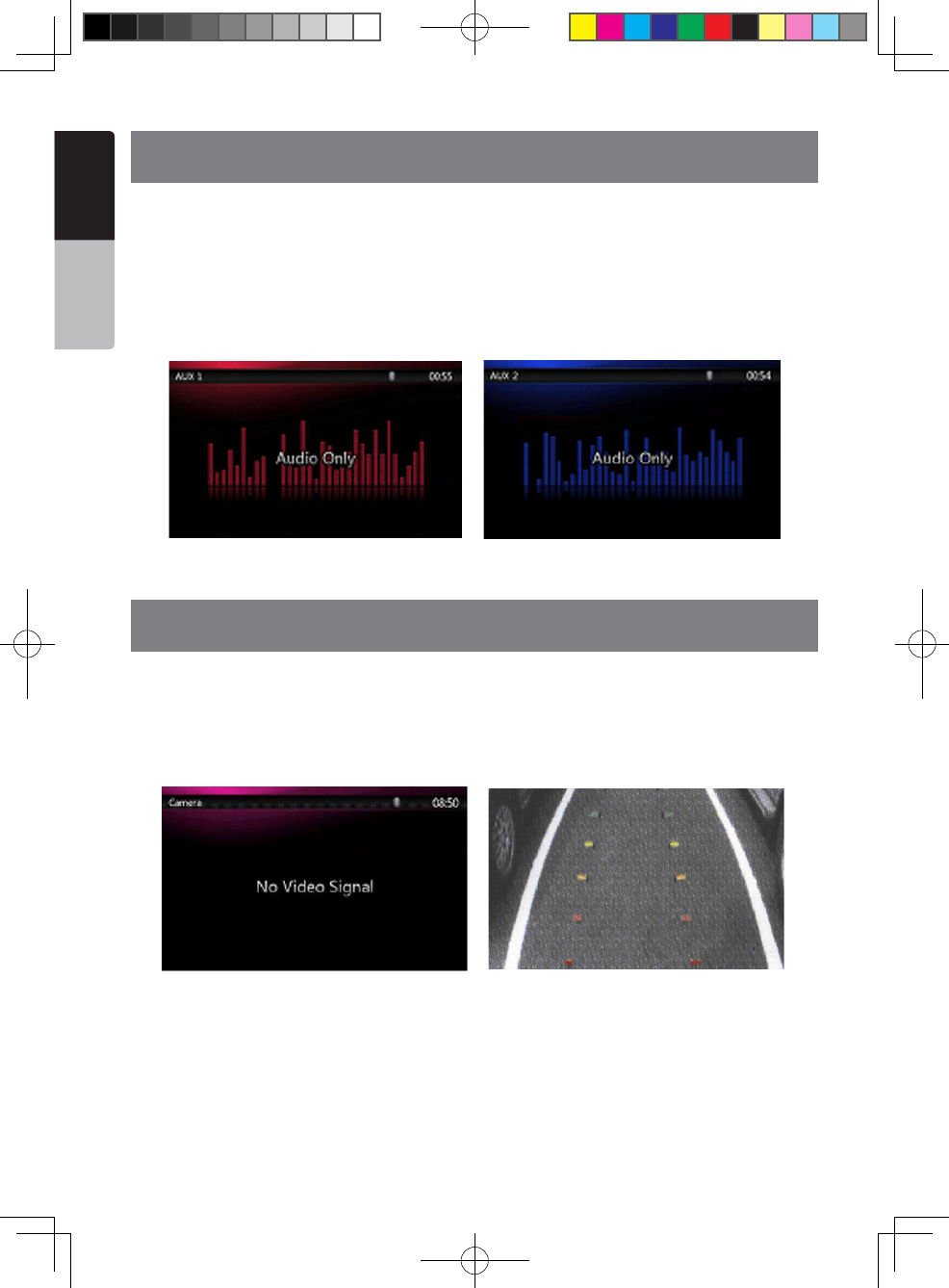
48 NX501E/NZ501E
English
Owner’s Manual
18. AUX 1 / AUX 2 OPERATIONS
External peripheral devices, including a game console, camcorder, iPod/iPhone, etc. can be connected to the AUX
1 or AUX 2 connector on the front or back of this unit using the A/V media cables.
Switching to AUX IN / AV IN mode
• Press [AUX 1] or [AUX 2] button on Main Menu to select desired mode (when unit is connected). If the external
device connected to AUX 1or AUX 2 input have audio signal, the unit will broadcast audio of external device.
• Press [Menu] button on Operational Panel to return to the Main Menu.
You cannot directly control external devices connected to AUX 1or AUX 2 input.
19. CAMERA OPERATIONS
Switching to Camera mode
Press [Camera] button on Main Menu to select desired mode.
The LCD will display the external camera video. The screen will display “No Video Signal” menu, if a valid camera
is not connect to this head unit.
Press Menu button on Operational Panel to return to the Main Menu.
Note:
If the reverse cable is connected correctly to the car, the center unit to switch to camera mode automatically when the
car is in reverses.
NX_NZ501E 欧洲版说明书.indd 48 2010-12-27 13:50:41
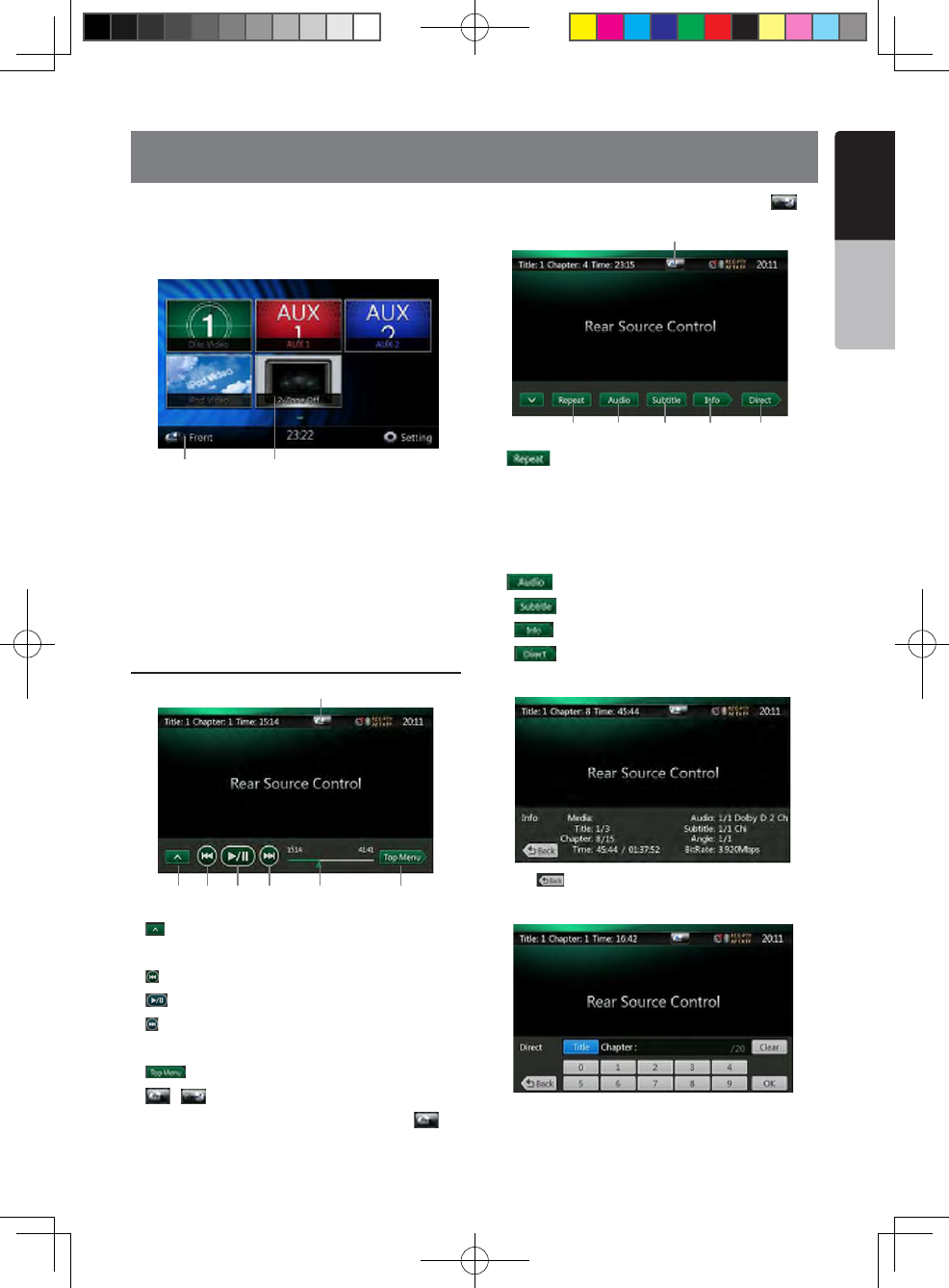
NX501E/NZ501E 49
English
English
Owner’s Manual
20. REAR SOURCE OPERATIONS
If rear monitors are installed in the rear seat and
connected to the rear zone AV output, passengers in
the back seats can watch the DVD/iPod Video/AUX1/
AUX2 video separately from front source.
1.Press the button to access the rear source menu.
2.Press the button again to back to front source menu.
Multi-Zone Operation
Independent sources can be played simultaneously
on the unit. For example, a FM/AM console can be
playback on the front screen while DVD video is
available to rear passengers. But now you can’t select
DVD video in front.
DVD Video in Rear
1.[ ]: Next Row Buttons
Press the button can display the hidden button.
2.[ ]: Previous chapter.
3.[ ]: Play or Pause video.
4.[ ]: Next chapter.
5. Elapsed playing time indicator.
6.[ ]Top Menu Button
7.[ ]/[ ]:Front/Rear switching button
If the screen displays Rear Source, press [ ] to
switch to Front Source.
If the screen displays Front Source, Press [ ] to
switch to Rear Source.
8. [ ]:Repeat switching Button
Use to repeat the Title or Chapter.
Press once to start Chapter repeat. Press again to
activate Title repeat. To turn repeat off, press same
button again. Repeat symbols are displayed in the
info window in the upper left area of the screen.
9. [ ]:Audio Channel switching Button
10. [ ]:Subtitle switching Button
11. [ ]:INFO Button
12. [ ]:Direct chapter or title searching Button
DVD Video Rear Source Control Info mode.
Press [ ] button to return.
DVD Video Rear Source Control Direct mode.
NOTE: More detail please refer to DVD Video Front
source.
1 2
1 2
7
3 4 5 6
8 9
7
10 11 12
NX_NZ501E 欧洲版说明书.indd 49 2010-12-27 13:50:41
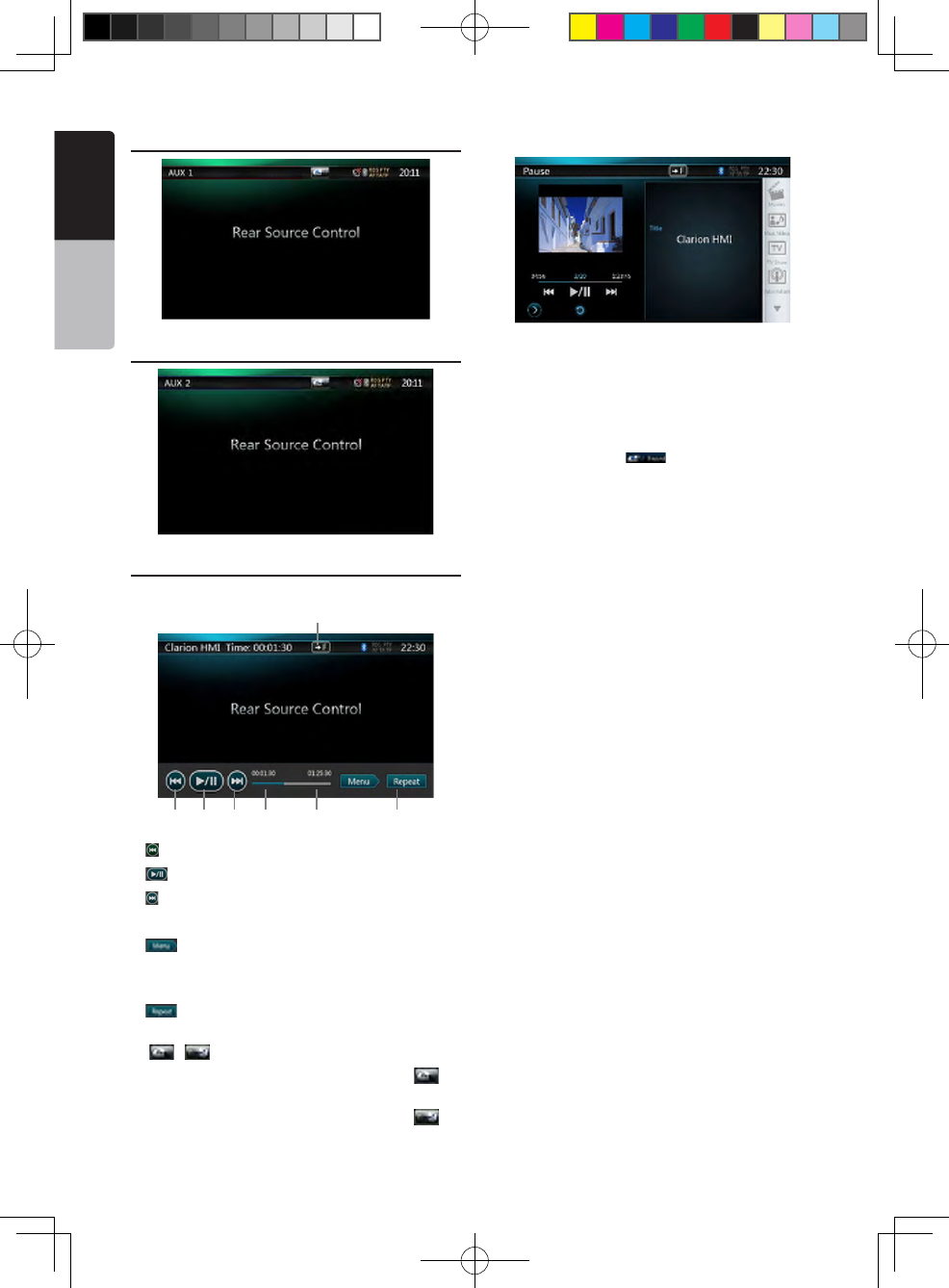
50 NX501E/NZ501E
English
Owner’s Manual
AUX 1 in Rear
AUX 2 in Rear
iPod Video in Rear
iPod Video Rear Source Control Play Mode
1 2
7
3 4 5 6
1.[ ]: Previous le.
2.[ ]: Play or Pause video.
3.[ ]: Next le.
4.Elapsed playing time indicator.
5.[ ]Menu:
Press the Menu button can display the iPod Video
Rear Source mode screen.
6.[ ]Repeat Button(Same as iPod function of front
source )
7. [ ]/[ ]:Front/Rear button
If the screen displays Rear Source, press [ ] to
switch to Front Source.
If the screen displays Front Source, Press [ ] to
switch to Rear Source.
iPod Video Rear Source ID3 Mode
NOTE:
If the source is selected as the front, the source in rear
can’t be selected.
If the source is selected as the rear, the source in front
can’t be selected.
Press the Front Button to access the front main
menu but the rear source will keep running.
Remote Control in Rear
Remote Control is always available for the front source,
however, it is available for the rear source if the screen
displays Rear Source Control of DVD Video or iPod
Video.
NX_NZ501E 欧洲版说明书.indd 50 2010-12-27 13:50:41
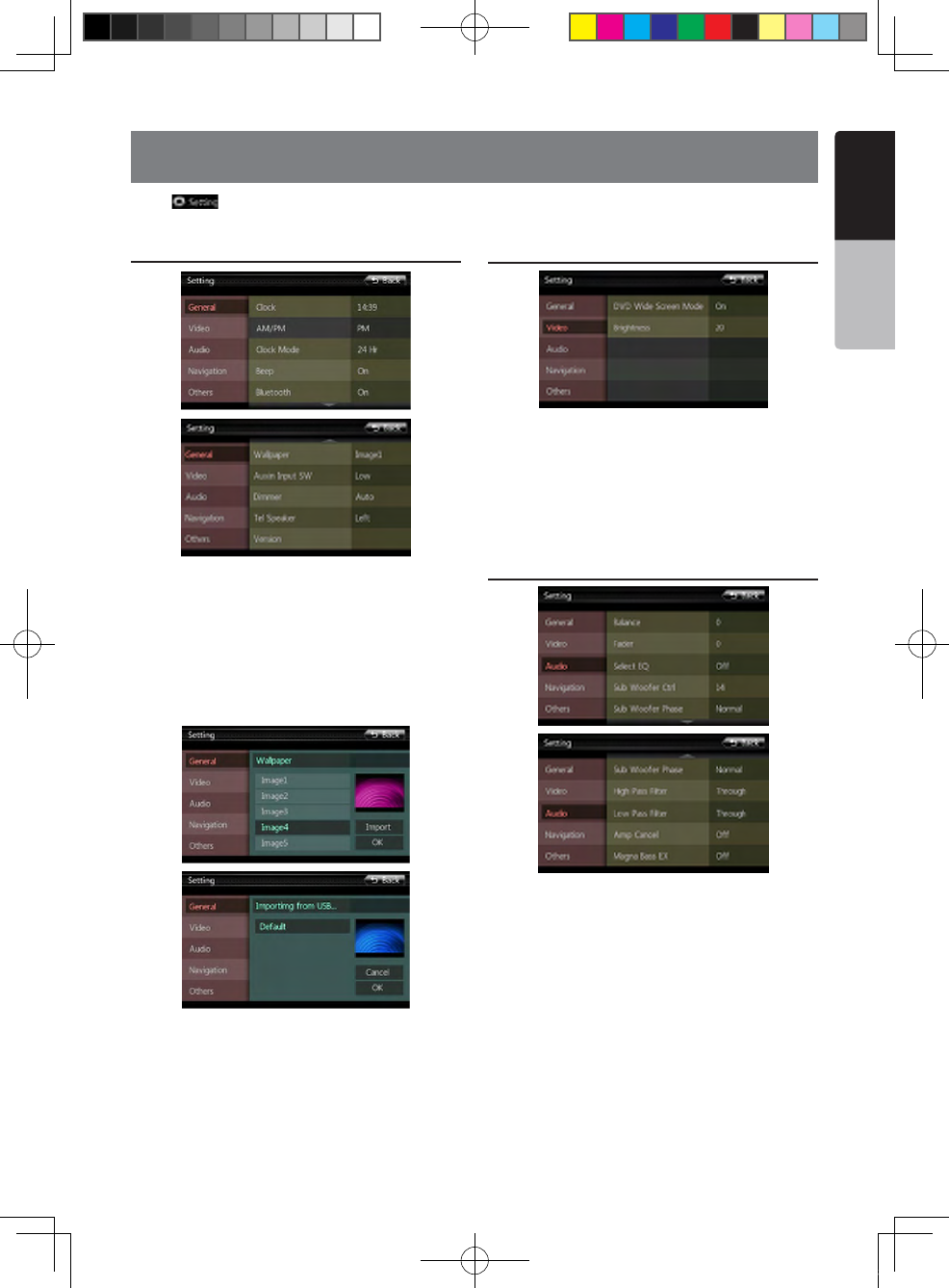
NX501E/NZ501E 51
English
English
Owner’s Manual
21. SETTING OPERATIONS
Press [ ] button on the Main menu screen.
The Setting menu screen will be displayed.
General Setup Menu
Clock: Set system clock.
AM/PM: Set AM or PM when current time mode is
12HR mode.
Clock Mode: Set the time display mode.
Beep: Turn on or turn off the beep confirmation sound.
Bluetooth: Set the Bluetooth ON or OFF.
Wallpaper: Choose the desired wallpaper.
Auxin Input SW: Auxin input switch, including Low,
Mid, High.
Dimmer: There are three options, Day, Night and Auto.
Tel Speaker: There are two options, Left and Right.
For example, if current setting is Left, when BT phone
is coming in, only left speaker can hear the phone.
Anti-Theft: Set the Anti-Theft code.(See next page)
Version: Display the software version information.
Video Setup Menu
This menu includes: DVD Wide Screen Mode;
Brightness.
DVD Wide Screen Mode: Set the DVD wide screen
mode on or off.
Brightness: Set brightness value from 0 to 20.
Audio Setup Menu
This menu includes: Balance, Fader, Select EQ, Sub
Woofer Ctrl, Sub Woofer Phase, High Pass Filter, low
Pass Filter, Amp Cancel and Magna Bass EX.
Balance: Choose the desired volume for left and right
speaker.
Fader: Choose the desired volume for front and rear
speaker.
Select EQ: Choose the desired mode: Bass Boost,
Impact, Excite, Custom and OFF.
Sub Woofer Ctrl: Choose the desired sub woofer gain
from 0 to 14.
Sub Woofer Phase: Choose the sub woofer phase
normal or reverse.
NX_NZ501E 欧洲版说明书.indd 51 2010-12-27 13:50:43
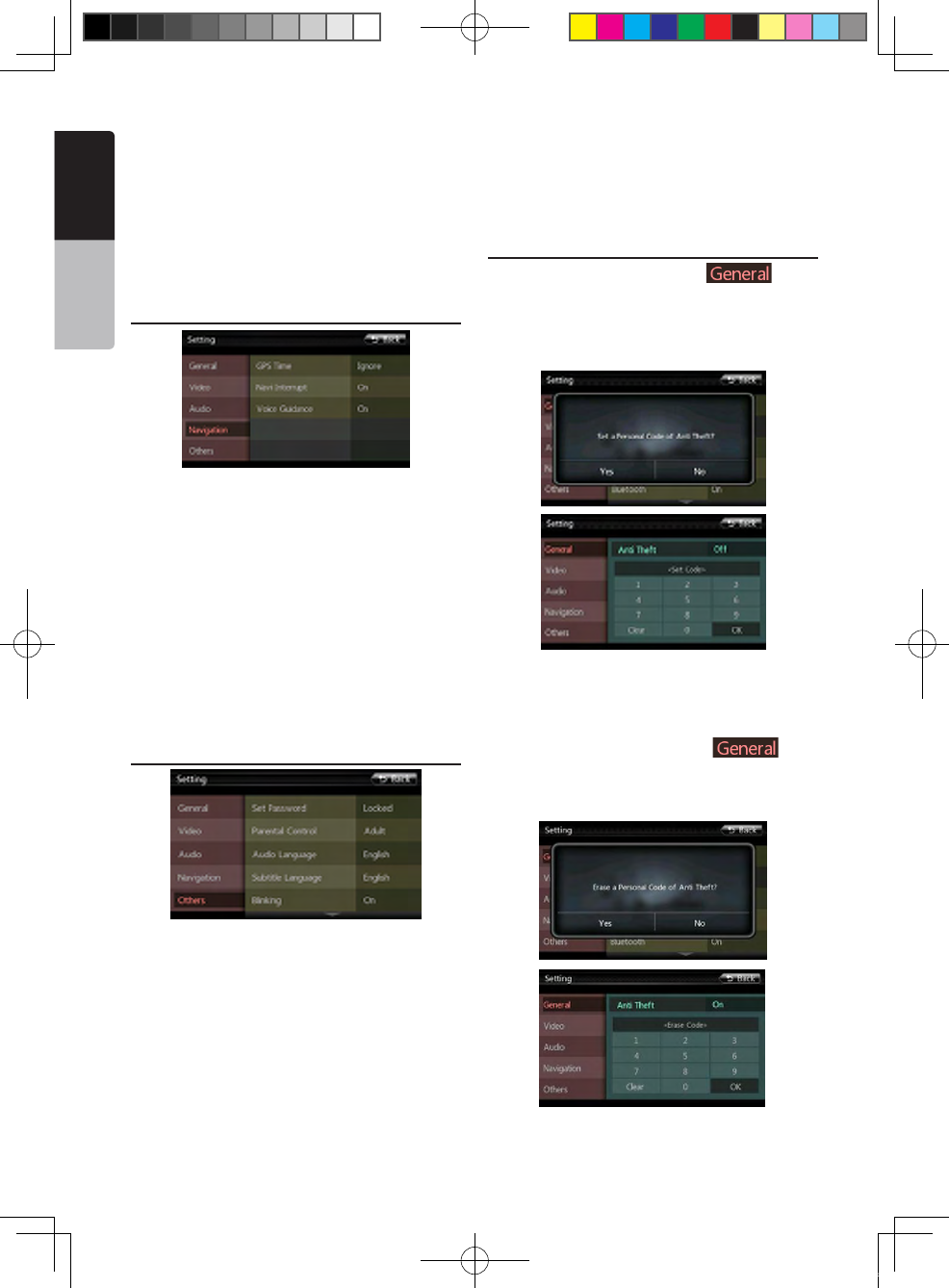
52 NX501E/NZ501E
English
Owner’s Manual
High Pass Filter: Choose the high pass filter
through/55Hz/85Hz/120Hz.
Low Pass Filter: Choose the low pass filter
through/62Hz/95Hz/135Hz.
Amp Cancel: Choose the amplifier audio output on or
off.
Magna Bass EX: Choose the loudness on or off.
Navigation Setup Menu
This menu includes: GPS Time, Navi Interrupt, and
Voice Guidance
GPS Time: Set the system time to be synchronized
with GPS local time or not.
Navi Interrupt: There are three choose: On/Popup/
Off. “On”: The navigation screen will cover to AV
screen when reaching some key point. “Popup”: When
small turn info window will pop up in the top of the
AV screen to indicate the key point. “Off”: Turn off this
function.
Voice Guidance: Enable or disable the navigation
voice guidance.
Others Setup Menu
This menu include: Set Password; Parental control,
Audio Language,Subtitle Language,Blinking, TS
Calibrate, and Load Factory.
Set password: Set the password for DVD parental
control.
Parental control: Set the rating of the age. It contains
Kid Safe/G/PG/PG- 13/PG-R/R/NC- 17/Adult.
Audio Language:Set the Language for DVD Audio.
Subtitle Language:Set the Language for DVD subtitle.
Blinking: Choose the blinking ON or OFF.
TS Calibrate: The function of it is to select the Touch
Screen Calibrate YES or NO.
Load Factory: The function is to select to load factory
default or not.
Set the Anti-Theft code
1. If your unit is unlocked, hold the [ ] button
more then 2 seconds, then the Anti-Theft setting mode
will display. Users can change anti-theft code. Click
[Yes], the numerical keypad is displayed. Enter the
new password twice, then anti-theft code is set and
your unit is secured.
When the Anti-theft is “On”, you need enter correct
Anti-theft code to turn the unit on. If you enter wrong
code three times, the unit is locked, and must be
unlocked by the professionals.
2. If your unit is secured, hold the [ ] more
then 2 seconds, then the Anti-Theft setting mode will
display. The numerical keypad is displayed, enter the
right code to unlock.
NX_NZ501E 欧洲版说明书.indd 52 2010-12-27 13:50:44
NX501E/NZ501E 53
English
English
Owner’s Manual
22. MONITOR OFF
Long Press Menu button on Operational Panel for 3 seconds, it will show “Monitor off……Touch the screen to
return” and then the head unit will turn off the TFT screen. Touch any place of the screen, the TFT screen will turn
on again.
NX_NZ501E 欧洲版说明书.indd 53 2010-12-27 13:50:44
54 NX501E/NZ501E
English
Owner’s Manual
23. TROUBLESHOOTING
GENERAL
DVD PLAYER
Problem Cause Measure
Power does not turn on. (No
sound is produced.)
Fuse is blown.
Replace with a fuse of the same
amperage. If the fuse blows again,
consult your store of purchase.
Incorrect wiring. Consult your installation center.
Nothing happens when buttons
are pressed.
Display is not accurate.
The microprocessor has
malfunctioned due to noise, etc.
Press the reset button with a thin rod.
Note:
When the Reset button is pressed, turn
off the power.
* When the Reset button is pressed,
frequencies of radio stations, titles, etc.
stored in memory are cleared.
The remote control unit does
not work.
Direct rays of the sun fall on the
light-receptive part of the remote
control unit.
When direct rays of the sun fall on
the light-receptive part of the remote
control unit, it may not work.
The battery of the remote control
unit is dead or there is no battery in
the remote control unit.
Check the battery of the remote control
unit.
Problem Cause Measure
Disc cannot be loaded.
A disc is already loaded. Eject the disc before loading the new
one.
There is foreign matter already in
the disc slot.
Remove the foreign matter, or consult a
service station.
Sound skips or is noisy.
Disc is dirty. Clean the disc with a soft cloth.
Disc is heavily scratched or
warped. Replace with a disc in good condition.
Sound is bad directly after
power is turned on.
Condensation may form on the
internal lens when the car is parked
in a humid place.
Let dry for about 1 hour with the power
on.
Video images are not
displayed. The parking brake is not engaged. Check that the parking brake is
engaged.
Disc cannot play with the
display “PARENTAL
VIOLATION” shown.
Feature exceeds set parental level.
Release the view limitation or change
the parental level.
See the subsection “Setting up the
parental level”
NX_NZ501E 欧洲版说明书.indd 54 2010-12-27 13:50:44
NX501E/NZ501E 55
English
English
Owner’s Manual
USB DEVICE
Problem Cause Measure
USB device cannot be inserted.
The USB device has been inserted
with wrong direction.
Reversing the connection direction
of the USB device, try it again.
The USB connector is broken. Replace with a new USB device.
USB device is not recognized.
The USB device is damaged. Disconnect the USB device and
reconnect. If the device is still not
recognized, try replacing with a
different USB device.
Connectors are loose.
No sound heard and no file display
on file list
No MP3/WMA file is stored in the
USB device.
Store these files properly in the
USB device.
Sound skips or is noisy. MP3/WMA files are not encoded
properly.
Use MP3/WMA files encoded
properly.
The video of iPod/iPhone image is
disturbed
The TV Signal setting of the iPod/
iPhone is not set correctly.
Set the TV Signal setting (NTSC/
PAL) of the iPod/iPhone
correctly.
Bluetooth
Problem Cause Measure
Cannot pair the Bluetooth enable
device with the car audio system.
The device does not support the
profiles required for the system. Use another device to connect.
The Bluetooth function of the
device is not enabled.
Refer to the user manual of the
device for how to enable the
function.
The audio quality is poor after
connection with a Bluetooth
enabled device.
The microphone is not correctly
positioned.
Use optional external microphone
and adjust the position of it.
The Bluetooth reception is poor.
Move the device closer to the
car audio system or remove any
obstacle between the device and
the system.
NX_NZ501E 欧洲版说明书.indd 55 2010-12-27 13:50:44
56 NX501E/NZ501E
English
Owner’s Manual
TV/VTR (When connecting an optional TV tuner, etc.)
Problem Cause Measure
The image is not
displayed.
The parking brake is not
engaged. Check that the parking brake is engaged.
The display is dark.
The brightness control is too
low. Adjust the brightness properly.
The operating condition is
not good.
The temperature inside the vehicle may be 0 or
lower. Set to an appropriate temperature (25 or so)
and check it again.
The headlight of the vehicle
is lit
The display is made dark at night to prevent the
glare (When the headlight of the vehicle is lit in the
daytime, the display gets dark).
When the VTR is
connected, the image is
disturbed.
Improper NTSC/PAL setting Set the AUTO/PAL/NTSC properly according to the
VTR.
There are red, green, and
blue points in display. --------------------
This is not a failure, but a phenomenon peculiar
to a liquid crystal panel (The liquid crystal panel is
produced according to technology with very high
precision. Note that, though there are effective
pixels of 99.99% or more, pixel missing or normally
lit pixels account for 0.01%).
24. ERROR DISPLAY
If an error occurs, one of the following displays is displayed.
Take the measures described below to solve the problem.
DVD PLAYER
Display Cause Measure
Invalid Disc A disc is caught inside the DVD deck and
is not ejected.
This is a failure of DVD deck’s
mechanism and consult your store
of purchase.
Invalid Disc A disc cannot be played due to scratches,
etc.
Replace with a non-scratched,
non-warped disc.
Invalid Disc A disc is loaded upside- down inside the
DVD deck and does not play.
Eject the disc then reload it
properly.
PARENTAL VIOLATION Parental level error Set the correct Parental level.
Disc Region incorrect Region code error Eject the disc, and replace correct
region code disc.
If an error display other than the ones described above appears, press the Reset button. If the problem persists,
turn off the power and consult your store of purchase.
* When the Reset button is pressed, frequencies of radio stations, titles, etc. stored in memory are cleared.
NX_NZ501E 欧洲版说明书.indd 56 2010-12-27 13:50:44
NX501E/NZ501E 57
English
English
Owner’s Manual
25. SPECIFICATIONS
FM Tuner
Frequency Range: 87.5MHz to 108.0MHz
Usable Sensitivity: 8 dBµV
50dB Quieting Sensitivity: 14 dBµV
Alternate Channel Selectivity: 70 dB
Stereo Separation:
25dB(1kHz)
Frequency Response: 30 Hz to 14kHz
AM Tuner
Frequency Range: 531 kHz to 1602 kHz
Usable Sensitivity: 30 dBµV
DVD Player System
Digital Versatile Disc System with CDDA capable
Usable discs:
DVD video disc, Compact disc
Frequency Response: 20 Hz to 20 kHz
Sound/Noise Ratio: 95 dbA (1W Ref)
Dynamic Range: 95 dB (1 kHz)
Distortion: 0.05%
Video system: NTSC/PAL
Audio/Video Input
Audio input voltage: ≤ 2 Vrms
Video input voltage : 1.0 Vp-p@75
Audio input sensitivity (at 2V output)
High : 325mVrms
Mid : 650mVrms
Low : 1.3Vrms
Audio/Video output
Video output voltage: 1.0Vp-p @75
NX501E Screen Size: 6.2” wide type
Pixels: 1,152,000
Resolution: 800 x 480 x 3 (RGB)
NZ501E Screen Size: 7” wide type
Pixels: 1,152,000
Resolution: 800 x 480 x 3 (RGB)
Bluetooth
Specication: Bluetooth Ver 2.1+EDR
Prole: HFP1.5(Hands Free Profile)
HSP1.0 (Headset Profile)
A2DP (Advanced Audio Distribution Profile)
AVRCP1.2,1.3,1.4 (AV Remote Control Profile)
Power Class: 2
MP3 mode
Bit rate: 32 kbps to 192 kbps
Sampling rate: 11.025kHz, 22.5kHz, 32kHz,
44.1kHz, 48kHz
WMA mode
Bit rate: 64 kbps to 192 kbps
Sampling rate: 11.025kHz, 22.5kHz, 32kHz,
44.1kHz, 48kHz
USB
Specication: USB 1.1/2.0 (FS)
Playable audio format:
MP3(.mp3): MPEG 2/Audio Layer-3
WMA(.wma): Ver 7/8/9.1/9.2
General
Power source voltage:
14.4 VDC (10.5 to 15.8V allowable)
Ground: Negative
Current consumption: 4.0 A @1 W
Auto Antenna Rated Current: 500 mA less
Note:
• Specications comply with JEITA Standards.
• Specications and design are subject to change
without notice for further improvement.
NX_NZ501E 欧洲版说明书.indd 57 2010-12-27 13:50:45
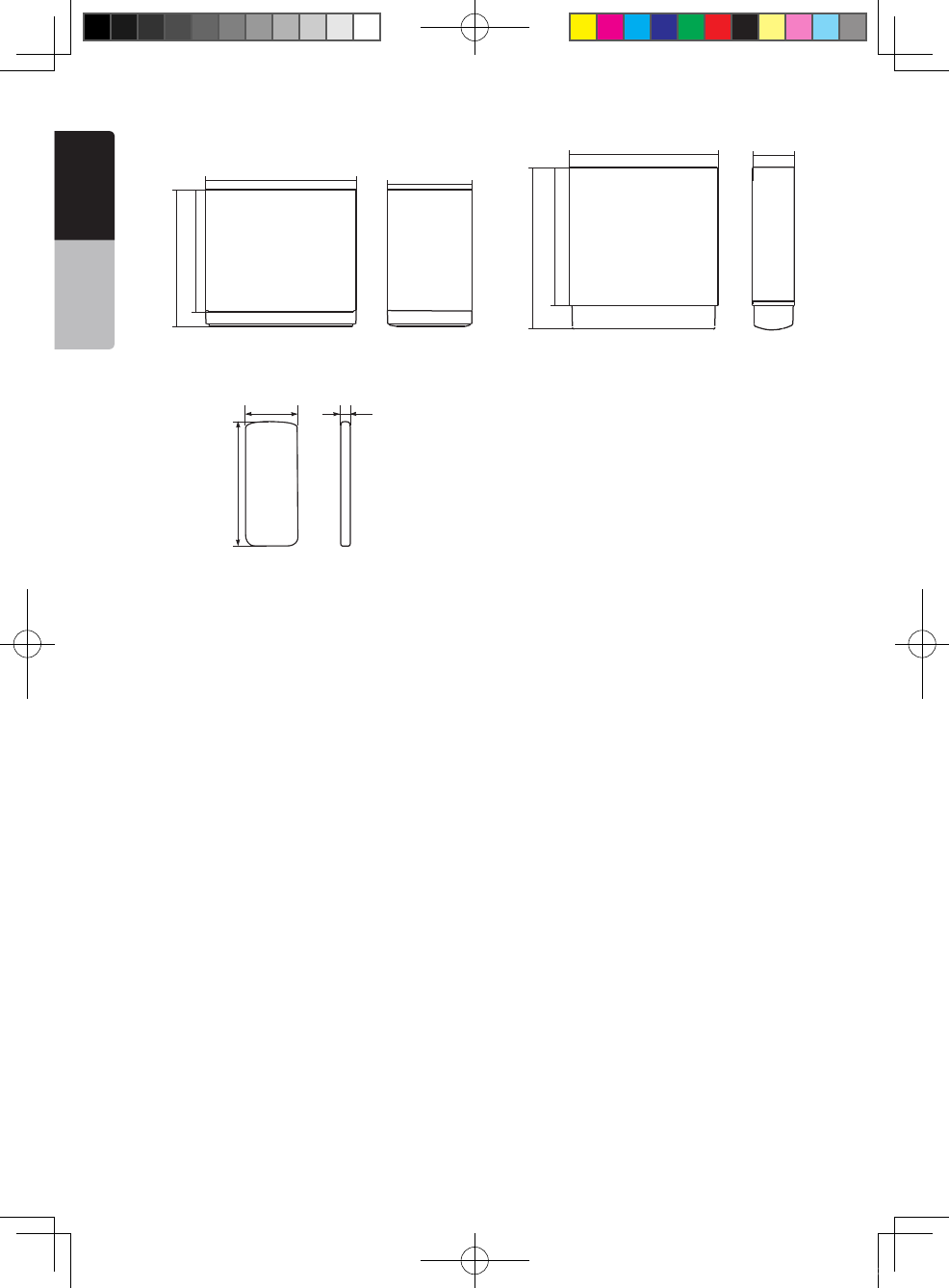
58 NX501E/NZ501E
English
Owner’s Manual
NX501E dimensions:
NX501E weight: 2.4kg
NZ501E dimensions:
NZ501E weight: 2.4kg
Remote Control dimensions:
Remote Control weight:
50g (including battery)
52mm
124mm
12mm
178mm
163mm
145mm
100mm
178mm
195mm
165mm
50mm
NX_NZ501E 欧洲版说明书.indd 58 2010-12-27 13:50:45
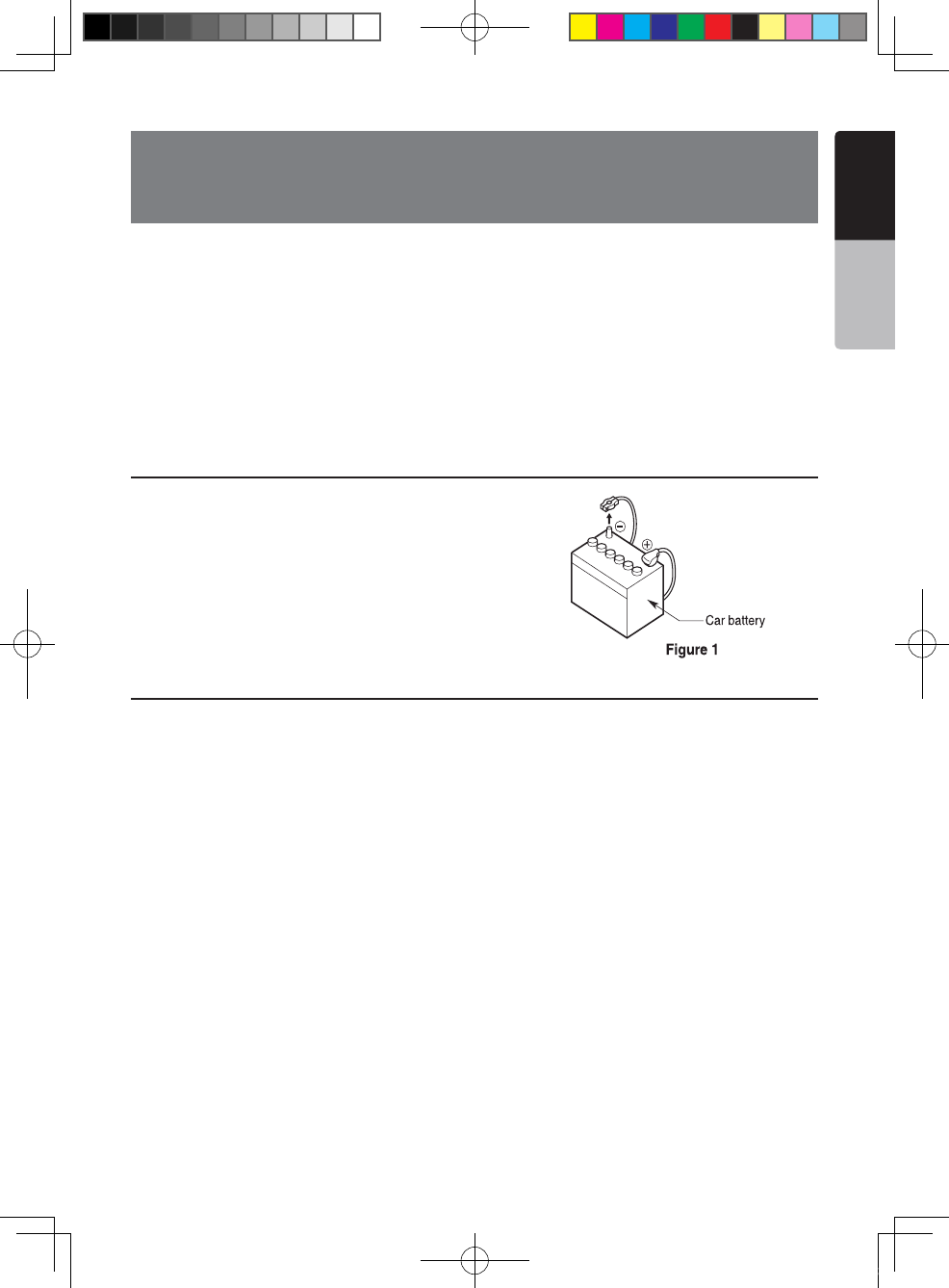
NX501E/NZ501E 59
English
English
Owner’s Manual
26. INSTALLATION /WIRE
CONNECTION GUIDE
1. Before Starting
1.This set is exclusively for use in cars with a negative ground
12V power supply.
2.Read these instructions carefully.
3.Be sure to disconnect the battery “-” terminal
before starting. This is to prevent short circuits during
installation. (Figure 1)
2. Package Contents
Main unit ................................................... 1
Wiring harness .......................................... 1
GPS antenna ............................................ 1
Clamp for GPS antenna's cable ............... 3
Double face tape for GPS Antenna .......... 1
Remote control unit .................................. 1
Battery (CR2025) ...................................... 1
(Installed in remote control)
Trim ring ................................................... 1
Cleaning cloth........................................... 1
Warranty Card .......................................... 1
Owner’s manual and
Installation manual.................................... 2
Electro tap ................................................ 2
2DIN trim ring 200mm wide
(NX501E only) ........................................... 1
Mounting Bracket key
(NZ501E only) ........................................... 2
Flush mount bolts
(NX501E) ................................................... 8
(NZ501E) ................................................... 4
Hexagon Head Screw
(NX501E) ................................................... 8
(NZ501E) ................................................... 5
AV cable ................................................... 1
Line out cable (NX501E only) ................... 1
Line in cable (NX501E only) ...................... 1
Rear Zone out cable (NX501E only) ......... 1
SWI cable (NX501E only) .......................... 1
DTV cable (NX501E only).......................... 1
External Microphone cable
(NX501E only) ........................................... 1
CONTENTS
1. Before Starting ..............................................................................................59
2. Package Contents .........................................................................................59
3. General Cautions...........................................................................................60
4. Cautions On Installation ................................................................................60
5. Installing The Main Unit .................................................................................61
6. Cautions On Wiring .......................................................................................63
7. Wire Connections .......................................................................................... 64
NX_NZ501E 欧洲版说明书.indd 59 2010-12-27 13:50:45
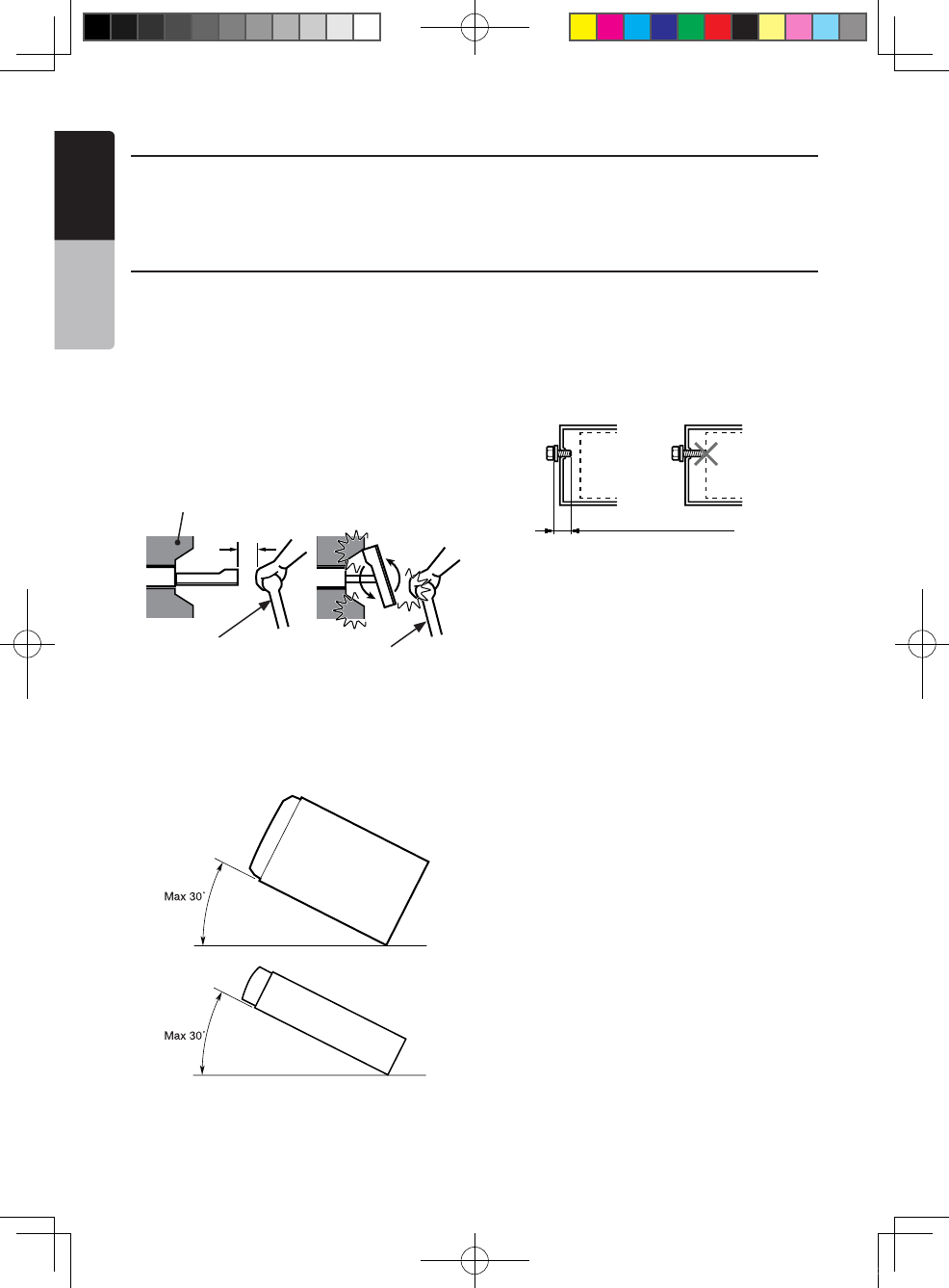
60 NX501E/NZ501E
English
Owner’s Manual
3. General Cautions
1. Do not open the case. There are no user- serviceable
parts inside. If you drop anything into the unit during
installation, consult your dealer or an authorized
Clarion service center.
2. Use a soft, dry cloth to clean the case. Never use
a rough cloth, thinner, benzine, or alcohol etc. For
tough dirt, apply a little cold or warm water to a soft
cloth and wipe off the dirt gently.
4. Cauti
ons on Install
ation
1. Prepare all articles necessary for installing the
source unit before starting.
2. This model features an operation panel that slides
forward.
On some types of cars, the operation panel may
make contact with the dashboard or gearshift
lever, in which cause it cannot be installed. Before
installing, check that the unit will not hamper
operation of the gearshift lever or obstruct your view
before selecting the installation location. (Figure 2)
3. Install the unit within 30° of the horizontal plane.
(Figure 3)
4. If you have to do any work on the car body, such as
drilling holes, consult your car dealer beforehand.
5. Use the enclosed screws for installation. Using other
screws can cause damage. (Figure 4)
Chassis Chassis
Damage
Max. 8 mm (M5 screw)
Figure 4
NX501E
NZ501E
Figure 3
NZ501E
Figure 2
Gearshift lever
(Check that it does not
touch the LCD)
Dashboard
Gearshift lever
NX_NZ501E 欧洲版说明书.indd 60 2010-12-27 13:50:45
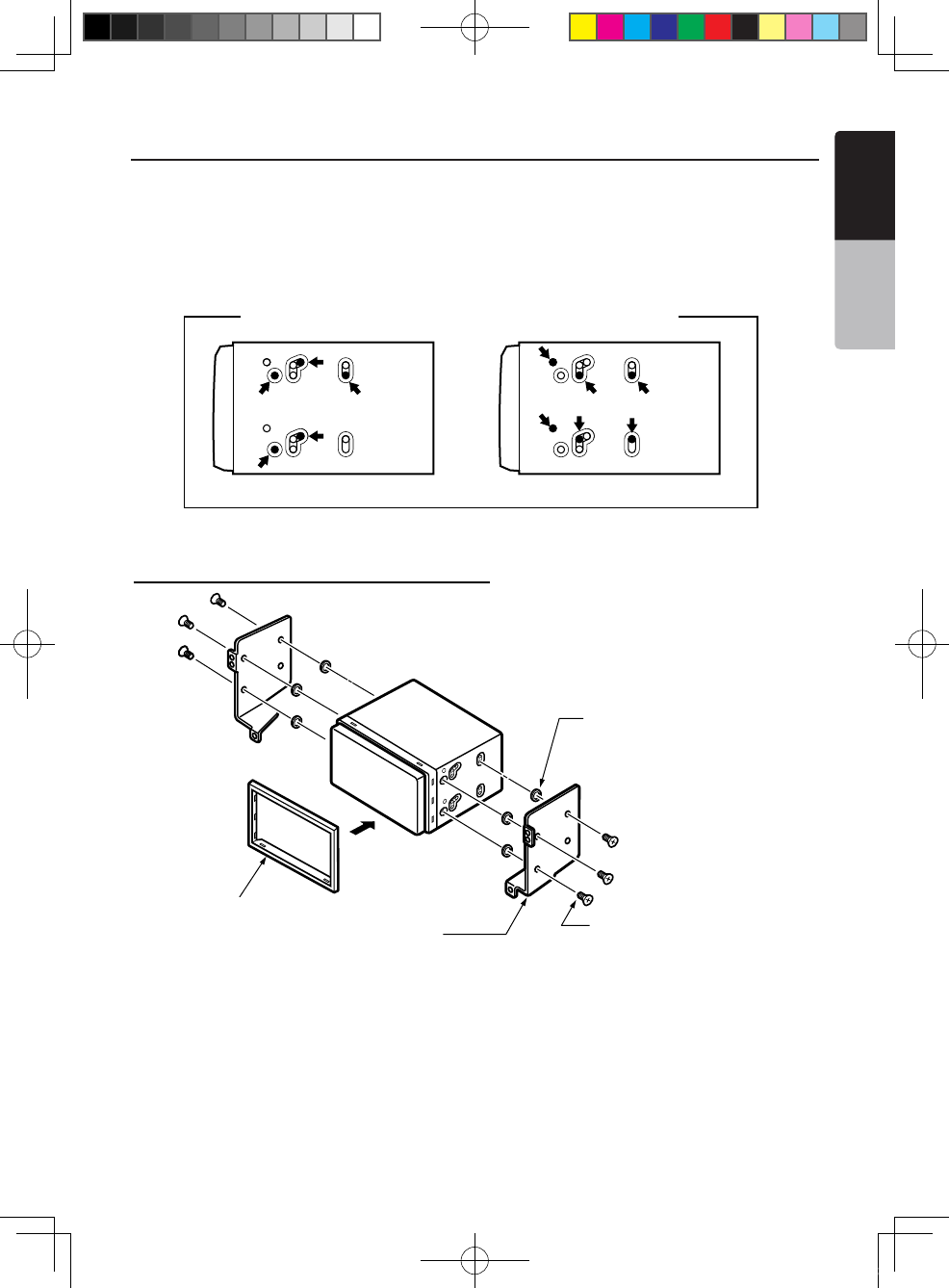
NX501E/NZ501E 61
English
English
Owner’s Manual
5. Installing the Main Unit
This unit is designed for fixed installation in the
dashboard.
1. When installing the main unit in NISSAN vehicles,
use the parts attached to the unit and follow the
instructions in Figure 6.
When installing the main unit in TOYOTA vehicles,
use the parts attached to the vehicle and follow the
instructions in Figure 7.
2. Wire as shown in Section 7.
3. Reassemble and secure the unit in the dashboard
and set the face panel and center panel.
For NISSAN vehicle For TOYOTA vehicle
Mounting Screw Holes (Side View of the Main Unit)
Figure 5
Installing the Main Unit in NISSAN Vehicle
Note:
* 1: Position the face panel with its wide edge at the bottom. Fit the edge
into the groove of the main unit.
6-Flat head screw
(M5 8)
(attached to the main unit)
6-Spacer (thickness: 1 mm)
Main Unit
Mounting bracket
(1 pair for the left and right sides)
Figure 6
6- Spacer (thickness: 1mm)
6- Flat head screws
(M5x8)
(Attached to the main unit)
Trim ring
NX_NZ501E 欧洲版说明书.indd 61 2010-12-27 13:50:45
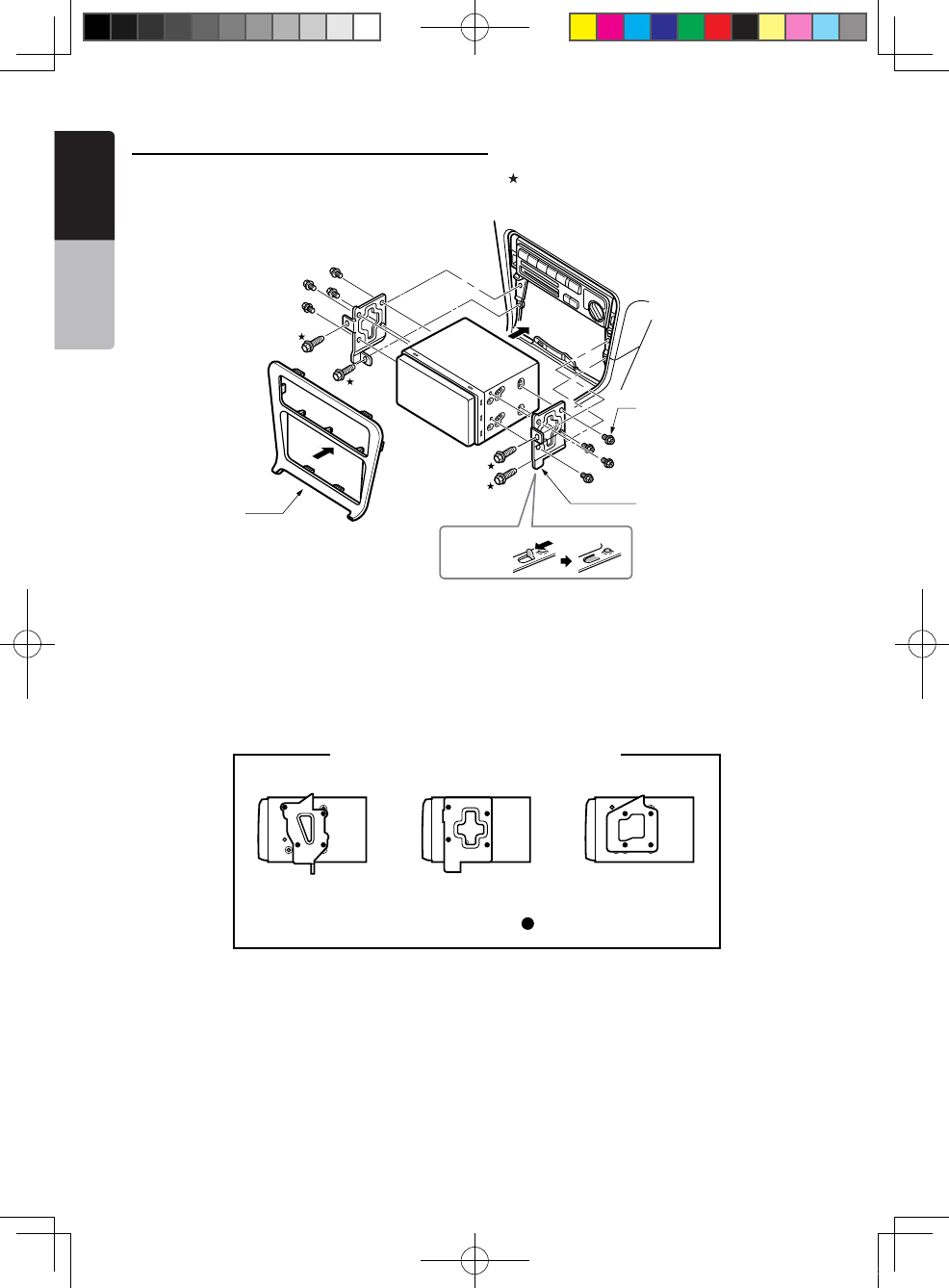
62 NX501E/NZ501E
English
Owner’s Manual
Installing the Main Unit in TOYOTA Vehicle
Install by using parts attached to the vehicle. (Screws marked are attached to the vehicle.)
*2. Some panel openings are too small for the unit
depending on the vehicle type and model. In such
a case, trim the upper and lower sides of the panel
frame by about 0.5 to 1.5 mm so the unit can be
inserted smoothly.
*3. If a hook on the installation bracket interferes with
the unit, bend and flatten it with a nipper or similar
tool.
* 3
Figure 7
Main Unit
8-Hexagonal screw
(M5 8)
Mounting bracket
(1 pair for the left
and right sides)
Center Panel
(* 2 )
8- Hexagonal screws
(M5x8)
Figure 7
Mounting bracket
(1 pair for the left and
right sides)
Vehicles other than NISSAN and TOYOTA
In some cases the center panel may require modification. (Trimming, filing, etc.)
• Removing the Main Unit
When the main unit is to be removed, disassemble it in the reverse of the order in
“INSTALLING THE MAIN UNIT”.
3elpmaxE1elpmaxE Example 2
Affix the screws to the marks.
Typical Mounting Brackets
NX_NZ501E 欧洲版说明书.indd 62 2010-12-27 13:50:45
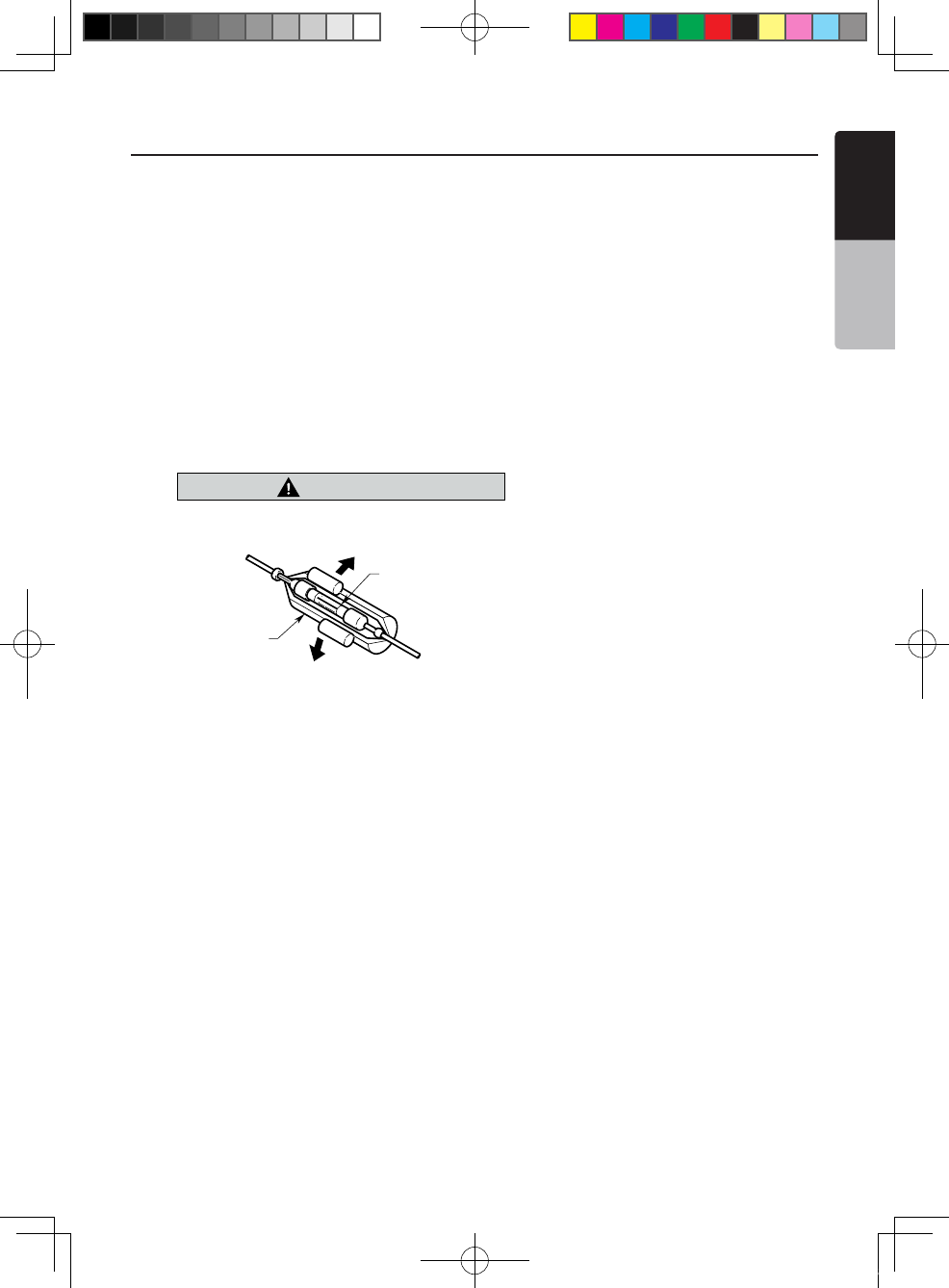
NX501E/NZ501E 63
English
English
Owner’s Manual
6. Cautions on Wiring
1. Be sure to turn the power off before wiring.
2. Be particularly careful where you route the wires.
Keep them well away from the engine, and exhaust pipe, etc. Heat may
damage the wires.
3. If the fuse should blow, check to see if the wiring is correct.
If a fuse is blown, replace it with a new one of the same amperage rating as
the original (15A FUSE).
4. To replace the fuse, remove the old fuse on the back of the unit and insert the
new one. (Figure 8)
NOTE:
There are various types of fuse holder. Do not let the battery side touch other metal
parts.
CAUTION
caution
After the connection, fix the cord by a clamp
or insulation tape for protection.
Fuse (15A FUSE)
Fuse holder
Figure 8
Figure 8
NX_NZ501E 欧洲版说明书.indd 63 2010-12-27 13:50:46
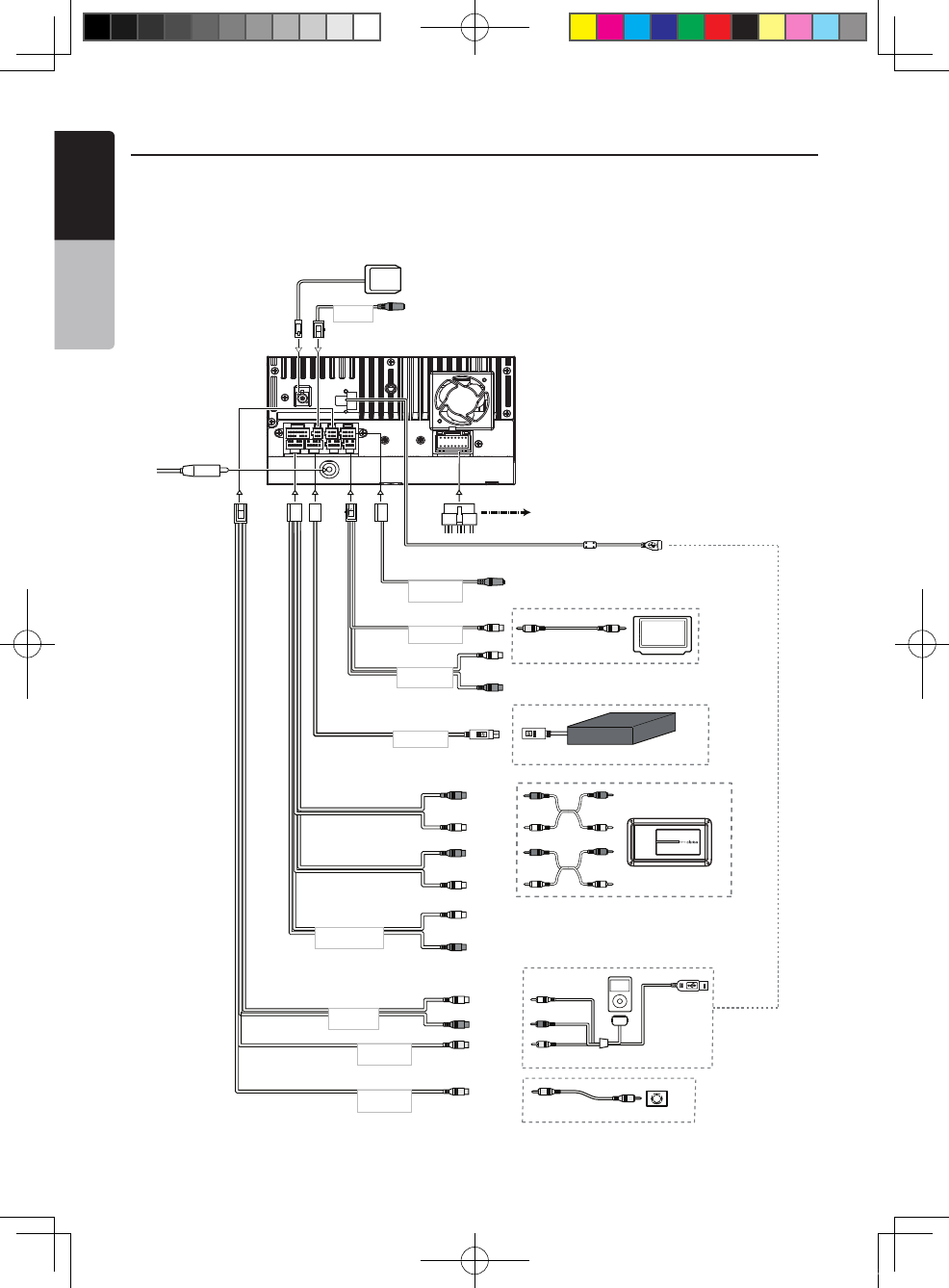
64 NX501E/NZ501E
English
Owner’s Manual
Green
White
Red
English
Video In
Audio/L
Audio/R
Steering Wheel
Remote Control Terminal
Yellow
RearZone
Monitor
Yellow
Yellow
GPS
Antenna
External
Microphone
Connection
Radio Antenna
Gray
Black
Black
Black
Black
Video Out
4-Channel Amplifier
Subwoofer 1
Subwoofer 2
Line Out
Rear
R
Line Out
Rear
L
Line Out
Front
R
Line Out
Front
L
Purple
Gray
Black
White
Red
White
Red
White
Red
CAMERA
VISUAL IN
SWI
VIDEO OUT
DTV
2 ZONE OUT
Black
Red
White
Red
EX MIC
DVB-T Tuner (DTX501E)
iPod/iPhone
CCA-748 (sold separately)
Video Out Rear Vision Camera
SUB WOOFER
AUX IN 2
7. Wire Connections
Note:
• Before installing, be sure to disconnect the negative cable of the car battery.
• In the optional devices, the RCA cables and the Connector cables are separately-sold items.
Refer to
page 66
NX501E
NX_NZ501E 欧洲版说明书.indd 64 2010-12-27 13:50:46
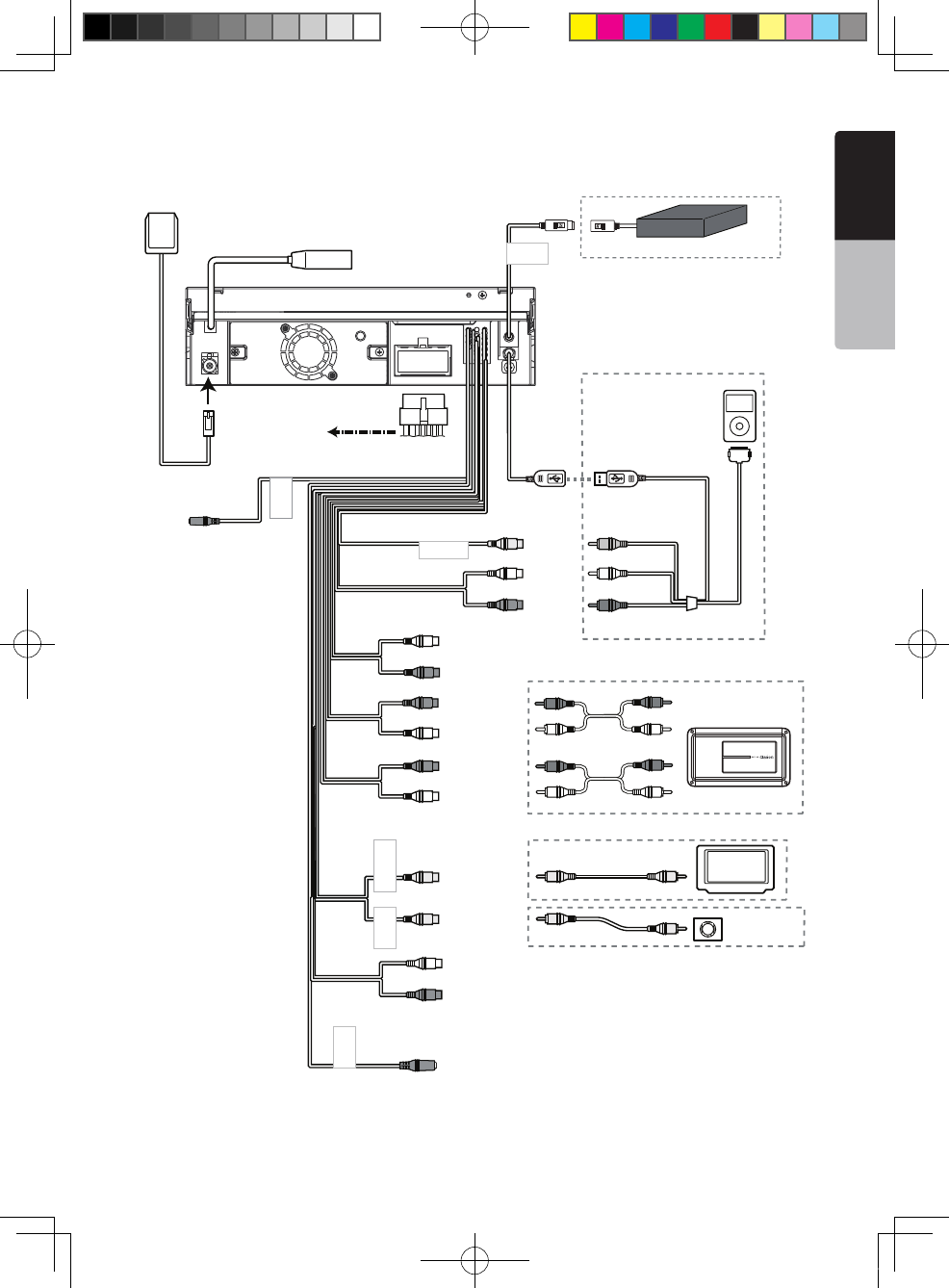
NX501E/NZ501E 65
English
English
Owner’s Manual
Black
Radio Antenna Jack
4-Channel Amplifier
Subwoofer 1
Subwoofer 2
Line Out
Rear R
Line Out
Rear L
Line Out
Front R
Line Out
Video Out
Front L
Video in
Audio/R
Audio/L
Camera
Yellow
White
White
Red
Red
Red
White
Yellow
Purple
Gray
Gray
Red
Black
Black
Black
Black
White
Steering Wheel
Remote Control Terminal
Yellow
Monitor
Yellow
White
Red
Red
Rear zone out R
Rear zone out L
Red
White
Green
GPS
Antenna
External
Microphone
Connection
iPod/iPhone
MIC
SWI
CAMERA
VISUAL OUT
VISUAL IN
DVB-T Tuner (DTX501E)
DTV
CCA-748 (sold separately)
Rear Vision Camera
NZ501E
Refer to
page 66
NX_NZ501E 欧洲版说明书.indd 65 2010-12-27 13:50:47
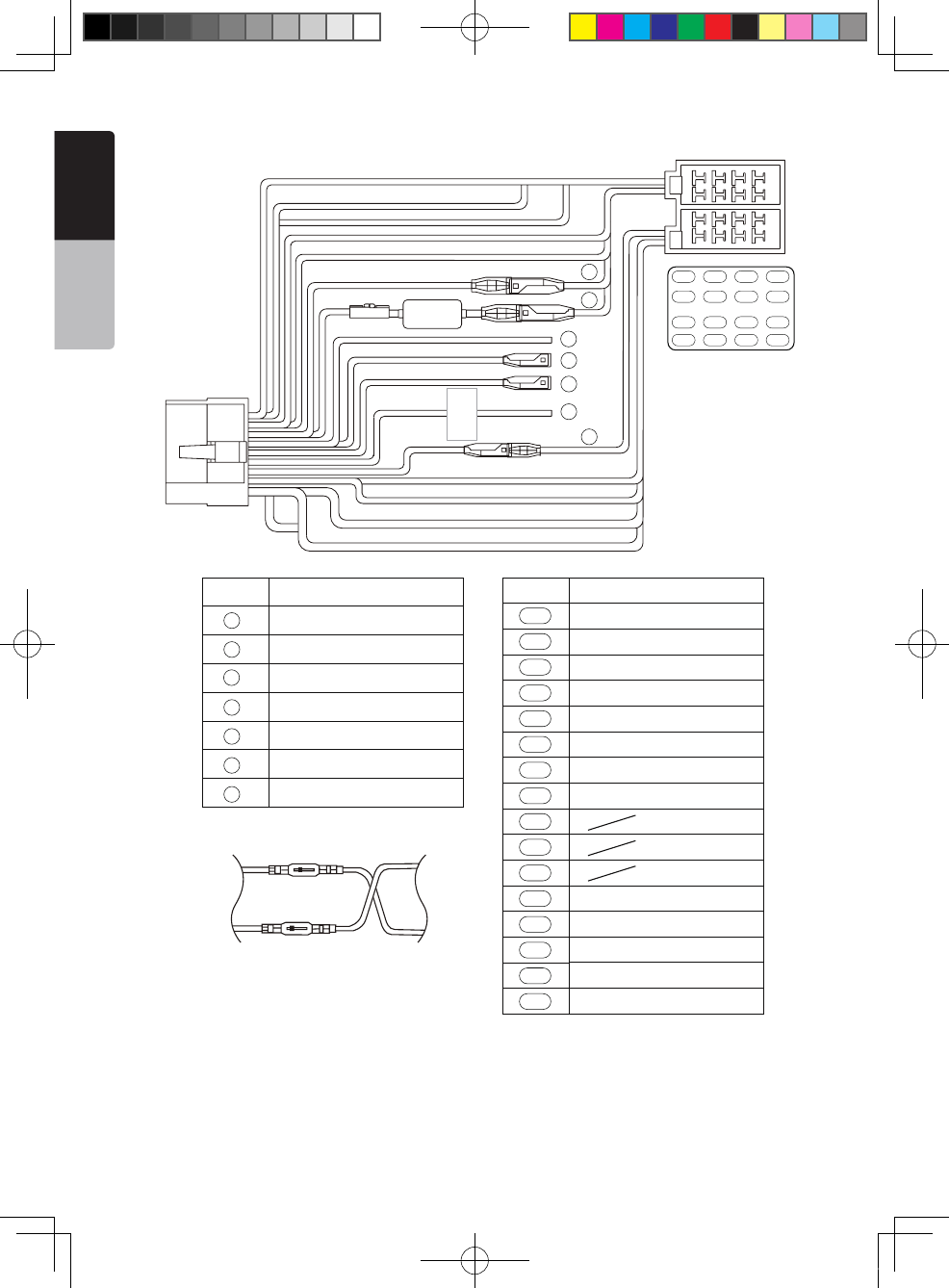
66 NX501E/NZ501E
English
Owner’s Manual
See next page for how to connect the parking brake cord.
See next page for how to connect the parking brake cord.
Note:
*1: Connecting the PHONE INTERRUPT terminal
The phone interrupt will mute the audio if the lead receives a negative or ground signal.
15A
A-1
A-2
A-3
A-4
A-5
A-6
A-7
A-8
B-1
B-2
B-3
B-4
B-5
B-6
B-7
B-8
Description
No.
A-1
A-2
A-3
A-4
A-5
A-6
A-7
A-8
B-1
B-2
B-3
B-4
B-5
B-6
B-7
B-8
Rear right-
Rear right+
Rear left-
Rear left+
Front left-
Front left+
Front right+
Front right-
GND
Illumination
Auto antenna
+12V accessory
+12V main power
+12V main power (Yellow)
Auto antenna(Blue)
Phone interrupt(Brown)
Parking(Grass-green)
Remote(Blue/White)
Reverse(Purple/White)
+12V accessory(Red)
No. Description
3
4
5
6
7
2
1
3
4
5
6
7
2
1
aW!!!! gninr !!! !
b gnikraP ekar tefas y
detcennoc eb tsum ecived
lpmoc rof po ete oitare n
Yellow
Red
Yellow
Red
For VW and Audi: Change wiring as above
NX_NZ501E 欧洲版说明书.indd 66 2010-12-27 13:50:47

NX501E/NZ501E 67
English
English
Owner’s Manual
Connecting the parking brake cord
Connect the cord to parking brake lamp ground in the meter panel.
Note:
• Connecting the parking brake cord to lamp ground allows you to watch iPod/iPhone video/DVD video/AV input when
the parking brake is engaged.
• When the parking brake cord is not connected, the monitor will not show any video sources.
• If “AUDIO ONLY” appears on the screen just after turning on the ACC power of the car, release the parking brake
while confirming safety, and then engage the parking brake again.
Connecting the accessories
• Connecting to the external amplier
The external amplifiers can be connected to the 6 channel RCA output connections. Ensure that the connectors
are not grounded or shorted to prevent damage to the unit.
• Connecting to iPod/iPhone device
The iPod/iPhone device can be connected to dedicated iPod/iPhone connection on the main unit. For detailed
information, refer to the instruction sheet or manual for the iPod/iPhone cable.
Note:
• This unit may not support all functions of all iPod/iPhone devices.
• The iPod/ iPhone connection will charge your iPod/iPhone unless the iPod/iPhone battery is completely depleted. If
the specified cord of the cellular phone is connected to the phone interrupt cord of the main unit, the audio mute is
activated when cellular phone in use.
• Connecting to SIRIUS Satellite Radio Receiver
When SIRIUS Satellite Radio Receiver is to be connected, use the dedicated connector. For detailed
information,refer to the instruction manual of the SIRIUS Satellite Radio Receiver.
NX_NZ501E 欧洲版说明书.indd 67 2010-12-27 13:50:47
Clarion Co., Ltd.
All Rights Reserved. Copyright © 2011: Clarion Co., Ltd.
Printed in China / Imprime au Chiné / Impreso en China
2011/01 NX501E/NZ501E
English:
Declaration of conformity
We Clarion declares that this model NX501E/
NZ501E is following the provision of Directive
1999/5/EC with the essential requirements and
the other relevant regulations.
Français:
Déclaration de conformité
Nous, Clarion, déclarons que ce modèle
NX501E/NZ501E est conforme aux exigences
essentielles et aux autres dispositions pertinentes
de la directive 1999/5/CE.
Deutsch:
Konformitätserklärung
Wir, Clarion, erklären, dass dieses Modell
NX501E/NZ501E den Bestimmungen der
Richtlinie 1999/5/EG im Hinblick auf die
grundlegenden Anforderungen und andere
relevante Bestimmungen entspricht.
Italiano:
Dichiarazione di conformità
Clarion dichiara che il presente modello NX501E/
NZ501E è conforme ai requisiti essenziali e alle
altre disposizioni pertinenti stabiliti dalla direttiva
1999/5/CE.
Nederlands:
Conformiteitsverklaring
Clarion verklaart dat het model NX501E/NZ501E
in overeenstemming is met de essentiële eisen
en andere relevante voorschriften van de
bepalingen van Richtlijn 1999/5/EC.
Español:
Declaración de conformidad
Clarion declara que este modelo NX501E/
NZ501E cumple con los requisitos esenciales
y otras disposiciones aplicables descritos en la
Directiva 1999/5/CE.
Svenska:
Intyg om överensstämmelse
Härmed intygar Clarion att denna modell
NX501E/NZ501E uppfyller kraven i direktiv
1999/5/EG gällande väsentliga egenskaper och
övriga relevanta bestämmelser.
Polski:
Deklaracja zgodności
Firma Clarion niniejszym oświadcza, że model
NX501E/NZ501E jest zgodny z istotnymi
wymogami oraz innymi odpowiednimi
postanowieniami Dyrektywy 1999/5/WE
Ελληνικά:
Δήλωση συμμόρφωσης
Εμείς στην Clarion δηλώνουμε ότι αυτό το
μοντέλο NX501E/NZ501E τηρεί τις διατάξεις της
Οδηγίας 1999/5/ΕΚ σχετικά με τις ουσιώδεις
α π αι τ ήσ ε ις κα ι τ ο υ ς ά λλ ο υς σ χ ε τι κ ο ύ ς
κανονισμούς.
Italy
Dichiarazione di conformità:
Io mandatario nell' UE: Clarion Europe S.A.S.
Z.I. du Pré à Varois, Route de Pompey, 54670
Custines, Francia Dichiaro che il prodotto
NX501E/NZ501E è conforme al DM 28-08-1995
ottemperando alle prescrizioni dei DM 25-06-
1985 e DM 27-08-1987.
Ministerial authorization FI DM 27-08-1987 nº of
protocol: 0092830 date 28/12/2009
Clarion Europe S.A.S.
Z.I. du Pré à Varois, Route de Pompey, 54670 Custines, FRANCE
NX_NZ501E 欧洲版说明书.indd 68 2010-12-27 13:50:47