SKYPINE ELECTRONICS CNE8239DCL ALL IN ONE DVD PLAYER User Manual
SKYPINE ELECTRONICS (SHEN ZHEN) CO., LTD. ALL IN ONE DVD PLAYER
User Manual

DVD MULTIMEDIA STATION WITH BUILT-IN
NAVIGATION & 6.2” TOUCH PANEL CONTROL
NX404
Owner’s manual
ALL IN ONE DVD PLAYER

1
NX404
English
English Owner’s Manual
English Owner’s Manual
Contents
1. FEATURES ........................................................................................................... 3
Expanding Systems ..............................................................................................3
2. PRECAUTIONS .................................................................................................... 4
3. CAUTIONS ON HANDLING.................................................................................7
Operation Panel ....................................................................................................7
USB Port ...............................................................................................................7
Cleaning ................................................................................................................7
Handling Discs ......................................................................................................8
4.Operational Panel ..............................................................................................10
Functions of Buttons ...........................................................................................10
5. REMOTE CONTROL..........................................................................................11
Functions of Remote Control Buttons ................................................................12
6. MAIN MENU.......................................................................................................14
7. DVD Video Player Operations .........................................................................15
Discs ...................................................................................................................15
Change DVD System Settings ............................................................................16
Watching to a disc ..............................................................................................16
Operate the DVD Player menu ............................................................................ 17
Operate the Video files Player menu...................................................................19
Switching Subtitles .............................................................................................19
Video files list ......................................................................................................19
Play DivX Video-On-Demand file ............................................................................ 19
Playable disc video files ...................................................................................... 20
8. CD ......................................................................................................................21
Listening to a disc/Ejecting a disc ......................................................................21
Showing CD Player mode screen .......................................................................21
Operate the CD Player menu ..............................................................................21
Listening to compressed audio ..........................................................................22
Tag display function ............................................................................................22
9. USB Audio Operations ....................................................................................24
Notes on using USB memories ...........................................................................24
Select USB Audio mode .....................................................................................24
Playing Audio files in USB memory ....................................................................25
Notes on using USB memories ...........................................................................26
Select USB Video mode .....................................................................................26
Playing video files in USB memory .....................................................................26
Playable Video file ............................................................................................... 26
10. USB Video Operations .................................................................................... 26
11. iPod/iPhone Operations .................................................................................28
Notes on using Apple iPod/iPhone ..................................................................... 28
iPod Audio ID3 Info .............................................................................................28
iPod audio playlist mode screen ......................................................................... 29
iPod Video Menu Operations .............................................................................. 30
iPod Video ID3 mode screen ..............................................................................30
iPod Video List mode screen ..............................................................................31
iPod Video Simple Control Mode Screen ...........................................................31
iPod Video play mode screen .............................................................................31
iPod Audio Bluetooth mode ................................................................................32
12. PANDORA OPERATIONS ...............................................................................33
Selecting the Pandora mode ..............................................................................33
Pandora Bluetooth mode .................................................................................... 34
13. Bluetooth AUDIO PLAYER OPERATIONS .....................................................35
Selecting the Bluetooth Audio mode ..................................................................35

2NX404
English
English Owner’s Manual
English Owner’s Manual
Bluetooth audio player settings ..........................................................................35
Registering your Bluetooth audio player (Pairing)...............................................35
Selecting the Bluetooth audio player .................................................................. 36
Controlling the Bluetooth audio player ...............................................................36
14. Bluetooth
TELEPHONE OPERATIONS ............................................................37
Select the BT Phone mode .................................................................................37
Bluetooth Telephone settings .............................................................................37
Registering your cellular phone (Pairing) ............................................................38
Select the cellular phone ....................................................................................38
Obtaining the Phone Book data .........................................................................38
Telephone operations .........................................................................................38
15. Tuner Operations ............................................................................................40
16. HDMI Operation ..............................................................................................41
Select a device for HDMI connect ......................................................................41
Select HDMI source ...........................................................................................41
HDMI for iPhone .................................................................................................41
HDMI for Android(No HID profile) .......................................................................42
HDMI for Android(HID profile) .............................................................................42
Other or Any device is not connected ................................................................42
HDMI Mode .........................................................................................................42
17. AUX .................................................................................................................43
18. Camera In Operations ....................................................................................43
19. Rear Source Operation...................................................................................44
DVD Video in Rear ..............................................................................................44
DVD Video Rear Source Control Info mode. ......................................................44
DVD Video Rear Source Control Direct mode. ..................................................44
iPod Video in Rear ..............................................................................................45
iPod Video Rear Source Control Play Mode ....................................................... 45
iPod Video Rear Source ID3 Mode .....................................................................45
20. Setting Operation ............................................................................................ 46
General Setup Menu ...........................................................................................46
Video Setup Menu ..............................................................................................46
Audio Setup Menu ..............................................................................................47
Navigation Setup Menu ......................................................................................47
Others Setup Menu ............................................................................................. 47
Set the Anti-Theft code ....................................................................................... 48
21. TROUBLESHOOTING .....................................................................................49
GENERAL ............................................................................................................49
DVD PLAYER ......................................................................................................49
USB DEVICE .......................................................................................................50
Bluetooth ............................................................................................................50
TFT screen ..........................................................................................................51
22. ERROR DISPLAY.............................................................................................52
DVD PLAYER ......................................................................................................52
23. SPECIFICATIONS ............................................................................................ 53
24. WIRE CONNECTION GUIDE ...........................................................................55
3
NX404
English
English Owner’s Manual
English Owner’s Manual
1. FEATURES
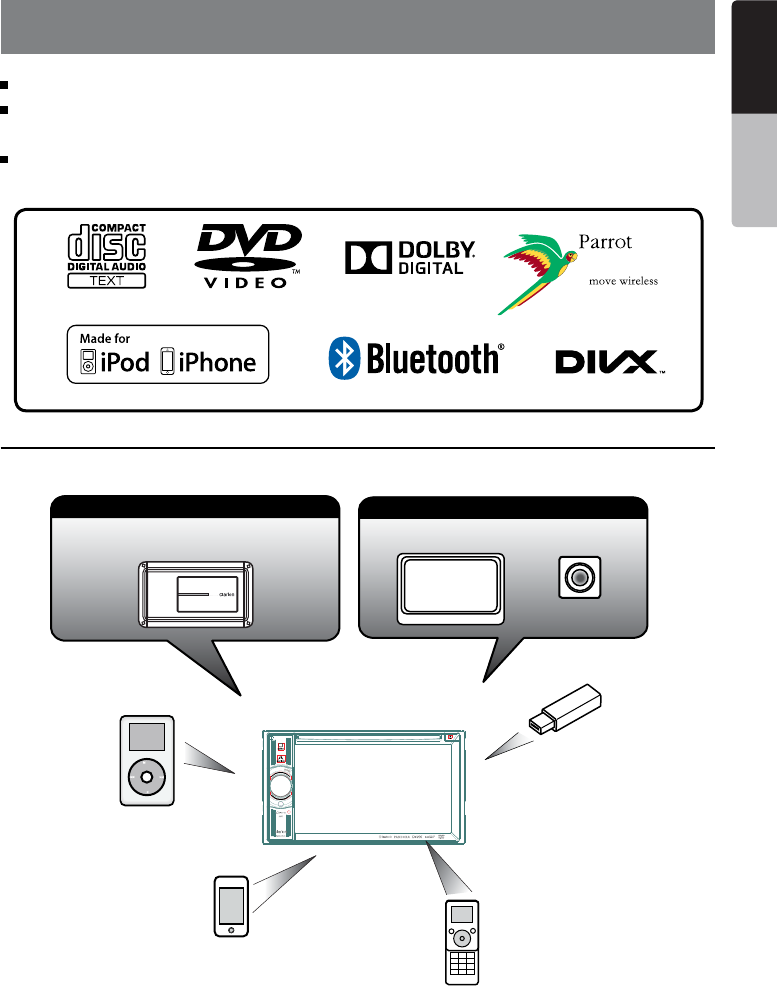
Expanding Systems
NOTE:
The items listed outside the frames are the commercial products generally sold.
flac Compatible with ID3-TAG Display
Built-in Parrot Bluetooth
®
Handsfree (HFP) and Audio Streaming (A2DP &
AVRCP)
Front-Panel Auxiliary Input and 2ch RCA Output with Subwoofer Control
iPod
Expanding visual features
Rear monitor Rear Vision Camera
Expanding audio features
External Power
Amplier
iPhone
USB
Memory
Bluetooth
Telephone

4NX404
English
English Owner’s Manual
English Owner’s Manual
2. PRECAUTIONS
• Foryoursafety,thedrivershouldnotwatchanyvideosourcesand/oroperatethecontrolswhiledriving.
Please note that watching and operating any video sources while driving are prohibited by law in some
countries.Also,whiledriving,keepthevolumetoalevelatwhichexternalsoundscanbeheard.
•Donotdisassembleormodifythisunit.Itmaycauseanaccident,re,orelectricshock.
•Donotusethisunitwhenatroubleexists,suchasnoscreencontentappearsornosoundis
audible.Itmaycauseanaccident,re,orelectricshock.Forthatcase,consultyourauthorized
dealer or a nearest Clarion service center.
•Incaseofaproblem,suchasanymaterialhasbeenenteredintheunit,theunitgetswet,or
smokeorstrangesmellscomeoutoftheunit,etc.,stopusingthisunitimmediately,andconsult
yourauthorizeddealeroranearestClarionservicecenter.
Usingitinthatconditionmaycauseanaccident,re,orelectricshock.
•Useafusewiththesamespecicationonlywhenreplacingthefuse.
Using a fuse with a different specification may causes a fire.
•Fortheinstallationofthisunitorachangeintheinstallation,askyourauthorizeddealerora
nearest Clarion service center for safety. Professional skills and experiences are required to do
so.
•Whenusingthenavigationsystem,followtheprecautionslistedbelow.Afterreadingthismanual,
be sure to keep it in a handy place.
•Thisnavigationsystemshouldnotbeusedtoreplaceyourownjudgment.Noitinerarysuggested
bythisnavigationsystemshouldeveroverrideanyhighwayregulations,yourownjudgment,ora
knowledge of safe driving practices. Do not follow the navigation system’s suggested itinerary if it
wouldcauseyoutoperformadangerousorillegalact,placeyouinadangeroussituation,ortake
you into an area you consider unsafe.
•Theadviceprovidedbythenavigationsystemistoberegardedasasuggestiononly.Theremay
betimeswhenthenavigationsystemdisplaysthevehicle’slocationincorrectly,failstosuggest
theshortestroute,orfailstodirectyoutoyourdesireddestination.Insuchinstances,relyonyour
owndrivingjudgment,takingintoaccountthedrivingconditionsatthetime.
•Donotusethenavigationsystemtolocateemergencyservices.Thedatabasedoesnotcontain
acompletelistingofemergencyservicessuchaspolicestations,rehalls,hospitalsandwalk-in
clinics. Please show discretion and ask for directions in such instances.
•Asthedriver,youaloneareresponsibleforyourdrivingsafety.
•Inordertoavoidatrafcaccident,donotoperatethesystemwhiledriving.
•Inordertoavoidatrafcaccident,operatethesystemonlywhenthevehicleisstoppedatasafe
place and the parking brake is on.
•Inordertoavoidatrafcaccidentortrafcoffense,rememberthatactualroadconditionsand
traffic regulations take precedence over the information contained on the navigation system.
•Thesoftwaremaycontaininaccurateorincompleteinformationduetothepassageoftime,
changingcircumstances,andthesourcesofinformationused.Pleaserespectcurrenttrafc
conditions and regulations at all times while driving.
•Whereactualroadconditionsandhighwayregulationsdifferfromtheinformationcontainedon
thenavigationsystem,abidebythehighwayregulations.
•Keeptheamountoftimespentviewingthescreenwhiledrivingtoastrictminimum.
WARNING

5
NX404
English
English Owner’s Manual
English Owner’s Manual
•Thenavigationsystemdoesnotprovide,norrepresentinanywayinformationon:trafcand
highwayregulations;technicalaspectsofthevehicleincludingweight,height,width,loadand
speedlimits;roadconditionsincludinggrade,percentageofinclineandsurfaceconditions;
obstacles such as the height and width of bridges and tunnels; and other current driving or road
conditions.Alwaysrelyonyourownjudgmentwhendrivingacar,takingintoaccountcurrent
driving conditions.
6NX404
English
English Owner’s Manual
English Owner’s Manual
1.When the inside of the car is very cold and
the player is used soon after switching on the
heater, moisture may form on the disc (DVD/
CD) or the optical parts of the player and
proper playback may not be possible. If
moisture forms on the disc (DVD/CD), wipe it
o with a soft cloth. If moisture forms on the
optical parts of the player, do not use the
player for about one hour. The condensation
will disappear naturally allowing normal
operation.
2.Driving on extremely bumpy roads which
cause severe vibration may cause the sound
to skip.
3.This unit uses a precision mechanism. Even
in the event that trouble arises, never open
the case, disassemble the unit, or lubricate
the rotating parts.
NX404
7
NX404
English
English Owner’s Manual
English Owner’s Manual
3. CAUTIONS ON HANDLING
Operation Panel
•Theoperationpanelwilloperateproperlyina
temperature range of 0˚ to 60˚ C.
•Donotallowanyliquidsonthesetfrom
drinks,umbrellasetc.Doingsomaydamage
the internal circuitry.
•Donotdisassembleormodifythesetinany
way. Doing so may result in damage.
•Subjectingtheoperationpaneltoshocks
mayresultinbreakage,deformationorother
damage.
•Donotletcigarettesburnthedisplay.
•Ifaproblemshouldoccur,havetheset
inspected at your store of purchase.
•Theremotecontrolunitmaynotworkifthe
remote control sensor is exposed to direct
sunlight.
*Remote control unit is sold separately.
•Inextremelycoldweather,thedisplay
movement may slow down and the display
maydarken,butthisisnotamalfunction.
The display will work normally when the
temperature increases.
•Smallblackandshinyspotsinsidetheliquid
crystal panel are normal for LCD products.
For a longer service life, be sure to read the following cautions.
Cleaning
• Cleaningthecabinet
Useasoft,dryclothandgentlywipeoff
thedirt.Fortoughdirt,applysomeneutral
detergentdilutedinwatertoasoftcloth,wipe
offthedirtgently,thenwipeagainwithadry
cloth.
Donotusebenzene,thinner,carcleaner,etc.,
as these substances may damage the cabinet
orcausethepainttopeel.Also,leavingrubber
or plastic products in contact with the cabinet
for long periods of time may cause stains.
• Cleaningtheliquidcrystalpanel
Theliquidcrystalpaneltendstocollectdust,
so wipe it off occasionally with a soft cloth.
Thesurfaceiseasilyscratched,sodonotrub
it with hard objects.
USB Port
•TheUSBmemorystickmaystickoutwhen
inserted,soitmaycausedangerduring
driving.Insuchcases,youcanusea
commercialUSBextensioncable,etc.,but
use it safely under your own judgement.
•TheUSBmemorysticksmustberecognized
as “USB mass storage class” to work
properly. Some models may not operate
correctly.
When the memorized data is lost or
damaged by any chance, Clarion shall not
be liable for any damage.
WhenusinganUSBmemorystick,we
recommend that you backup your data stored
on it before by using a personal computer etc.
•DatalesmaybebrokenwhenusingUSB
memorysticksinthefollowingsituation:
When disconnecting the USB memory stick or
turning the power off during writing or reading
data. When affected by static electricity or
electric noise. Connect/disconnect the USB
memory stick when it is not accessed.
•SomeUSBmemorystickscannotbeinserted
to the main unit because of their shape. In
suchcases,useacommercialUSBextension
cable to connect them.
•Connectingwiththecomputerisnotcovered.
•Musicles(MP3,WMA,etc.)storedinthe
USB memory stick can be played back.
8NX404
English
English Owner’s Manual
English Owner’s Manual
Handling Discs
Handling
•Newdiscsmayhavesomeroughness
aroundtheedges.Ifsuchdiscsareused,
the player may not work or the sound
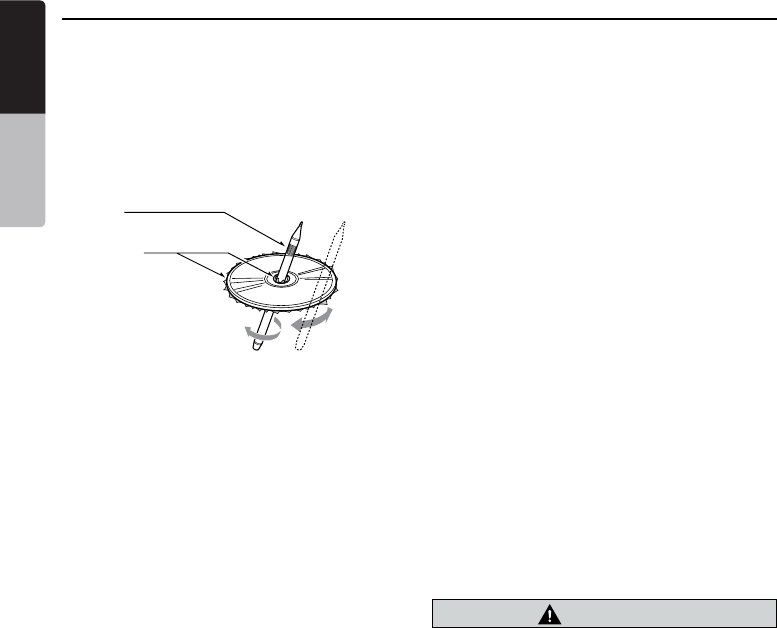
may skip. Use a ball-point pen or the like
to remove any roughness from the edge
of the disc.
Ball-point pen
Roughness
Never stick labels on the surface of the
disc or mark the surface with a pencil or
pen.
•Neverplayadiscwithanycellophane
tape or other glue on it or with peeling off
marks.Ifyoutrytoplaysuchadisc,you
may not be able to get it back out of the
DVD player or it may damage the DVD
player.
•Donotusediscsthathavelarge
scratches,aremisshapen,cracked,
etc. Use of such discs may cause
missoperation or damage.
•Toremoveadiscfromitsstoragecase,
press down on the center of the case
andliftthediscout,holdingitcarefully
by the edges.
•Donotusecommerciallyavailabledisc
protection sheets or discs equipped with
stabilizers,etc.Thesemaydamagethe
disc or cause breakdown of the internal
mechanism.
Storage
•Donotexposediscstodirectsunlightor
any heat source.
•Donotexposediscstoexcesshumidity
or dust.
•Donotexposediscstodirectheatfrom
heaters.
Cleaning
•Toremovengermarksanddust,use
a soft cloth and wipe in a straight
line from the center of the disc to the
circumference.
•Donotuseanysolvents,suchas
commerciallyavailablecleaners,anti-
staticspray,orthinnertocleandiscs.
•Afterusingspecialdisccleaner,letthe
disc dry off well before playing it.
On Discs
•Exerciseagoodprecautionwhenloading
a disc. The operation panel will close
automatically when leaving it open for a
while.
•Neverturnoffthepowerandremovethe
unit from the car with a disc loaded.
CAUTION
For your safety, the driver should not
insert or eject a disc, opening the
operation panel while driving.

9
NX404
English
English Owner’s Manual
English Owner’s Manual
•
This product incorporates copyright protection
technology that is protected by U.S. patents
and other intellectual property rights. Use of this
copyrightprotectiontechnologymustbeauthorized
byRoviCorporation,andisintendedforhomeand
other limited viewing uses only unless otherwise
authorizedbyRoviCorporation.
Reverse engineering or disassembly is prohibited.
Use of this product by the customer is restricted to
play program materials to which the Rovi copyright
protection process has been applied.
•
Manufactured under license from Dolby
Laboratories.“Dolby”,“ProLogic”andthedouble-D
symbol are trademarks of Dolby Laboratories.
•
"MadeforiPod,"and"MadeforiPhone"mean
that an electronic accessory has been designed to
connectspecicallytoiPod,oriPhone,respectively,
and has been certified by the developer to meet
Apple performance standards. Apple is not
responsible for the operation of this device or its
compliance with safety and regulatory standards.
Please note that the use of this accessory with iPod
or iPhone may affect wireless performance. iPhone
andiPodaretrademarksofAppleInc.,registeredin
the U.S. and other countries.
•
The Bluetooth® word mark and logos are owned
by the Bluetooth®SIG,Inc.Andanyuseofsuch
marksbyClarionCo.,Ltd.isunderlicense.Other
trademarks and trade names are those of their
respective owners.
• DivX®,DivXCertied® and associated logos
are trademarks of Rovi Corporation or its
subsidiaries and are used under license.
DivX Certified® to play DivX®video,including
premium content. Covered by one or more
ofthefollowingU.S.patents:7,295,673;
7,460,668;7,515,710;7,519,274
ABOUTDivXVIDEO:DivX® is a digital video
formatcreatedbyDivX,LLC,asubsidiaryof
Rovi Corporation.
This is an official DivX Certified® device that
has passed rigorous testing to verify that it
plays DivX video. Visit divx.com for more
information and software tools to convert your
files into DivX videos.
ABOUTDivXVIDEO-ON-DEMAND:ThisDivX
Certified® device must be registered in order
to play purchased DivX Video-on-Demand
(VOD) movies To obtain your registration
code,locatetheDivXVODsectioninyour
device setup menu. Go to vod.divx.com for
more information on how to complete your
registration.
About the registered marks, etc.
10 NX404
English
English Owner’s Manual
English Owner’s Manual
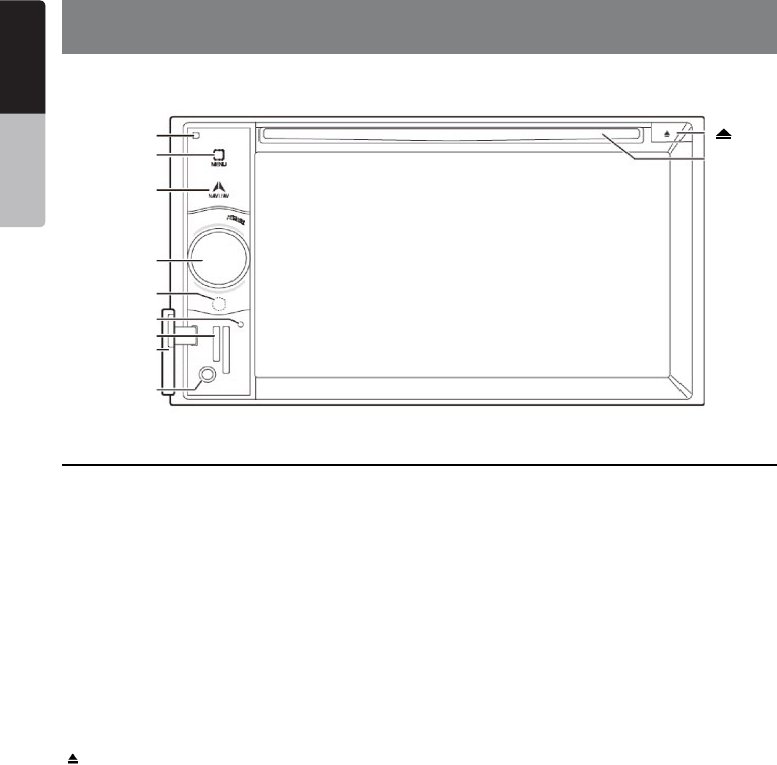
4.Operational Panel
Functions of Buttons
[Microphone]
[MENU]
[NAVI/AV]
[IR]
[Cover]
[AUX IN]
[REST]
[micro SD slot]
[POWER/VOL]
[Disc slot]
[ ]
[POWER/VOL] Knob
• Press this button to turn on the power.
• When the power is already on, it moves to the
Navigation mode. If Navigation mode is displayed, it
moves to the Navigation menu.
• Keep pressing this button more than 2 second to
turn off the power.
• Turn this button to left or right to decrease or
increase the volume of the system.
[NAVI/AV] Button
• Press this button to display NAVI, press again to
return current source.
• Press and hold this button for 2 seconds to display
the Dimmer setting menu.
[] Eject
• Press to eject disc from unit.
[MENU] Button
• Press this button to display main menu; press again
to return current source.
• Press and hold this button for 2 seconds to turn off
the monitor. Press any place of the screen to turn on
the monitor again.
[RESET] Button
• Press this button to hardware reset the unit.
Note: When the [RESET] button is pressed, frequencies
of radio stations, titles, etc. stored in memory are
cleared.
[micro SD slot ]
Insert a micro SD Card for MAP here. The micro SD
card for MAP is sold separately.
Note: The micro SD card is only for navigation. Please
don’t insert micro SD card for other purpose. After
insertion of micro SD card for MAP, don’t remove it;
otherwise, the navigation function will be disabled.
[AUX IN]
AUX 1 Connector.
[Microphone]
This is used for Bluetooth phone.
[IR] SENSOR
•Receiver for the remote control unit (operating range:
30 degree ins all directions).
*Remote control unit is sold separately.
11
NX404
English
English Owner’s Manual
English Owner’s Manual
5. REMOTE CONTROL
Replacing the batteries
1.Press the retention tab and pull out the
battery tray and remove the old battery.
2. Insert the new CR2025 battery and slide
the battery tray back in the remote control
the same direction that you removed it.
Please ensure the tray is inserted in the
correct direction.
Note:
Using batteries improperly can cause them to
explode. Take note of the following points:
• When replacing batteries, replace both batteries
with new ones.
• Do not short-circuit, disassemble or heat batteries.
• Do not dispose of batteries into re or ames.
• Dispose of spent batteries properly.
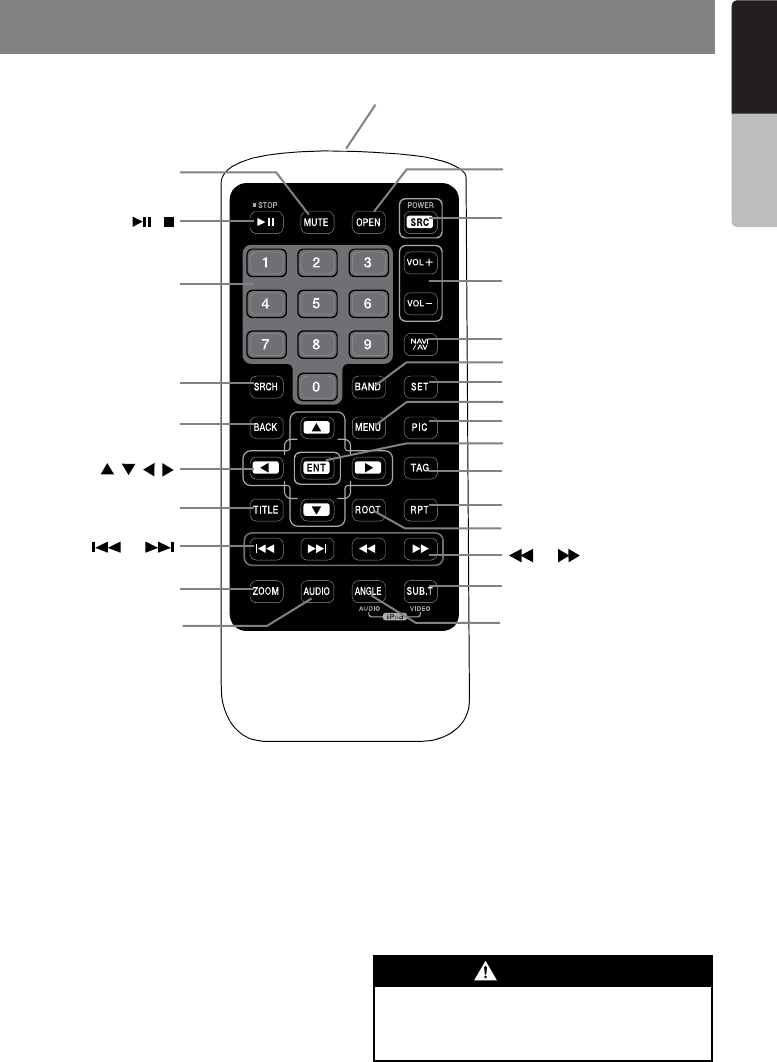
Signal transmitter
Operating range : 30°in all directions
[ / ]
[ 0-9 ]
[SRCH]
[BACK]
[ , , , ]
[TITLE]
[ ], [ ]
[ZOOM]
[MUTE]
[AUDIO]
[POWER / SRC]
[VOLUME]
[SEL]
[PIC]
[TAG]
[RPT]
[ ], [ ]
[SUB.T]
[OPEN]
[ANGLE]
[NAV/ AV]
[MENU]
[BAND]
[ROOT]
[ENT]
Lithium batteries contain
Perchlorate
Dispose of discharged batteries properly.
WARNING
*Remote control unit is sold separately.

12 NX404
English
English Owner’s Manual
English Owner’s Manual
[ / ] Button
• Press this button to play or pause video and audio
media.
• Press this button more than 1 second to stop video
and audio media.
[MUTE] Button
• Mute or Unmute the speaker.
• The symbol on upper right area of the screen
indicates that speaker is muted.
[POWER/SRC] Button
• Press this button to move the focus to next available
source item on main menu.
• Press this button to power on when the unit is power
off.
• Press this button more than 1 second to power off
when the unit is power on.
[0 - 9] Buttons
• Use in the Key Pad screen to select the radio.
• Use to select the track in the track list screen.
• Press to enter DVD video chapters/titles in the Key
Pad screen.
[VOLUME] Buttons
• Increase and decrease volume.
[NAVI/AV] Button
• Press this button to switch between current source
and current position on navigation map.
[SRCH] Button
• Press this button to open chapter or title search
window while playing DVD.
[BAND] button
• Switch to next band alternately.
[SET] Button
• Press this button to open the Audio setting menu in
any mode.
[BACK] Button
• Press this button to quit main menu if current screen
is main menu.
[ ], [ ], [ ], [ ] Buttons
• Press this button for cursor movement in main menu
or Setting mode.
• From the main menu, you can select your desired
source or change your settings.
[MENU] Button
• Press this button to enter the MAIN MENU or return
current resource.
[PIC] Button
• Press and hold this button to change your monitor
Dimmer.
[ENT] Button
• Press to x the entered data in the Key Pad screen
or enter the item the cursor is on.
[TAG] Button
•The button is not effective.
[TITLE] Button
• Press to go to the title menu on the DVD.
[ROOT] Button
• Press to go to the root menu on the DVD.
[RPT] Button
• Press to perform chapter repeat / title repeat / repeat
off while playing DVD mode.
• Press to perform track repeat/repeat off while playing
CD.
• Press to perform repeat track /repeat folder/ repeat
off while playing MP3/WMA, or video les on disc.
• Press to perform repeat track /repeat folder/ repeat
off while playing MP3/WMA, or video les in USB
memory.
[ ], [ ] Buttons
• Press to seek the next available higher or lower
station in Tuner mode.
• Press to select the next higher or lower chapter
number in DVD video mode.
• Press to select the next higher or lower track in DVD
Audio, USB Video, USB Audio mode.
• Press for movement of background source in
Navigation mode.
[ ], [ ]Buttons
• Press to manually select the next higher or lower
station in Tuner modes.
• Press to perform fast-forward or fast-backward
searching. Press again to change the speed to 2x,
4x, 8x or 16x.
Functions of Remote Control Buttons
You can use the remote control unit to control the NX403A.
*Remote control unit is sold separately.
Note:
• The wireless remote control operation may not be optimal in direct sunlight.

13
NX404
English
English Owner’s Manual
English Owner’s Manual
• Press for movement of background source in
Navigation mode.
[ZOOM] Button
• Press to turn on and zoom in while playing DVD. You
can zoom in up to 3x. (No all DVD disc supports this
function).
[AUDIO] Button
• Press to switch the AUDIO channel of the disc while
playing DVD.
[SUB-T] Button
• Press to switch next available subtitle while playing
DVD.
• Press to display Video menu in iPod mode.
[ANGLE] Button
• Press to switch the different ANGLE while playing
DVD. (No all DVD disc supports this function)
• Press to display Audio menu in iPod mode.
[OPEN] Button
• The button is not effective.
14 NX404
English
English Owner’s Manual
English Owner’s Manual
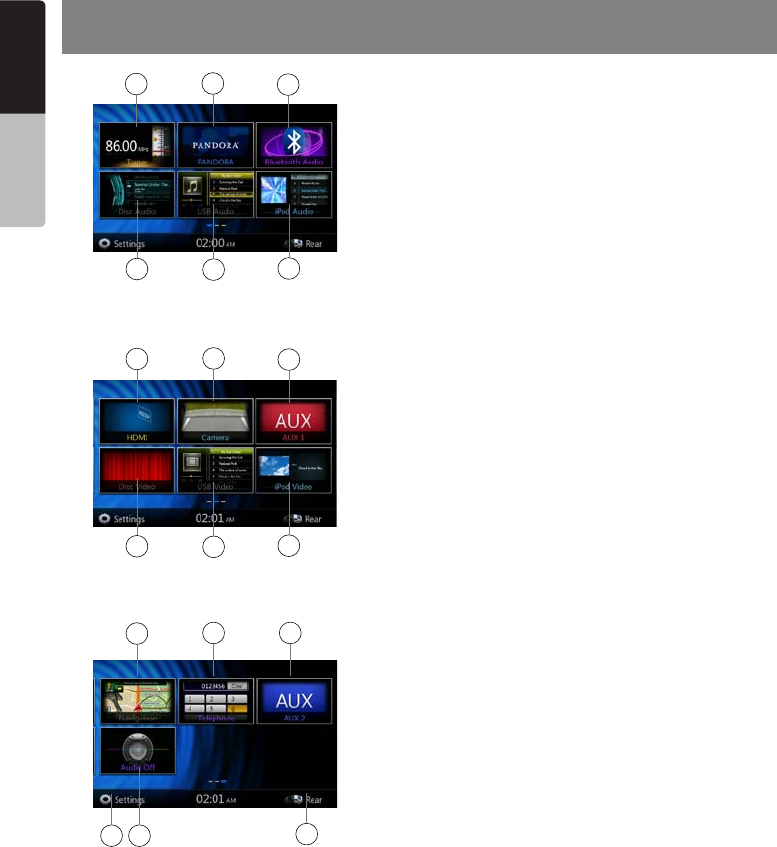
6. MAIN MENU
1 - Tuner---Press the button to display the Tuner mode.
2 - Pandora---Press the button to display the Pandora
mode.
3 - Bluetooth Audio--- Press the button to display the
Bluetooth Audio mode.
4 - Disc Audio---Press the button to display the Disc
Audio mode.
5 - USB Audio---Press the button to display the USB
Audio mode.
6 - iPod Audio---Press the button to display the iPod
Audio mode.
7 - HDMI---Press the button to display the HDMI
mode.
8 - Camera---Press the button to display the Camera
mode.
9 - AUX1 ---Press the button to display the AUX1
mode.
10 - Disc Video---Press the button to display the Disc
Video mode.
11 - USB Video---Press the button to display the USB
Video mode.
12 - iPod Video---Press the button to display the iPod
Video mode.
13 - Navigation---Press the button to display the
Navigation mode.
14 - Telephone--- Press the button to display the
Telephone mode.
15 - AUX2 ---Press the button to display the AUX2
mode.
16 - Setting Button---Press the button to display the
Setting menu.
17 - Audio off---Press the button to make audio source
voice off.
18 - Rear---Press the button to display the Rear mode.
Scrolling the menu
Press screen and scrolling to right or left it will switch to
next or previous page of main menu.
Moving the menu position
1. Press any quadrate icon on main menu more than 2
seconds,theiconwilloatonmainmenu.
2.Scrollingtheoatingicontoanypositionyouwant.
1
7
4
10
16
2
8
5
11
3
9
6
12
13 14 15
17 18
15
NX404
English
English Owner’s Manual
English Owner’s Manual
7. DVD Video Player Operations
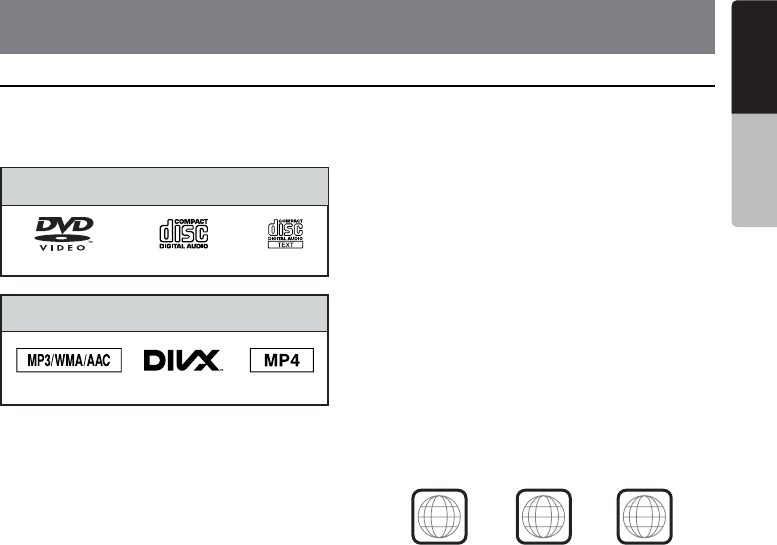
Playable discs
This DVD video player can play the following
discs.
Playable discs
CD TEXTDVD video discs Audio CD
Playablemediales
MP3/WMA/AAC DivX
About CD Extra disc
A CD Extra disc is a disc in which a total of two
sessions have been recorded. The rst session
is Audio session and the second session is Data
session.
Your personally-created CDs with more than
second data sessions recorded cannot be played
on this DVD video player.
Note:
•
WhenyouplayaCDExtradisc,onlytherst
sessionwillberecognized.
About playing a CD-R/CD-RW disc (MP3,
WMA)
This player can play CD-R/CD-RW discs
previously recorded in music CD format (MP3,
WMA).
About playing a DVD-R/RW or DVD+R/RW
disc
MP3/WMA les recorded on DVD-R/ RW and
DVD+R/RW discs can be played.
Discs that cannot be played back
This DVD video player cannot play back DVD-
Audio, DVD-RAM, Photo CDs, etc.
Note:
•
I
t may also not be possible to play back CDs
recorded on a CD-R unit and CD-RW unit.
(Cause:disccharacteristics,cracks,dust/dirt,
dust/dirtonplayer’slens,etc.)
•
If a CD-R or CD-RW disc that has not been
nalizedisplayed,itwilltakealongtimeto
startplaying.Also,itmaynotbepossibleto
play depending on its recording conditions.
•
You cannot play SuperAudio CD Playback of
the CD player is not supported even if it is a
hybrid disc.
About MP3/WMA playback
This unit can play back CD-R/CD-RW, DVD-R/
RW and DVD+R/RW discs on which MP3/WMA
music data have been recorded.
For a detailed information, see the section
entitled “Listening to compressed audio”.
Note on region numbers
The DVD video system assigns a region number
to DVD video players and DVD discs by sales
area. DVD video players sold in Asia can play
back DVD discs with the region number “ALL”,
“3” or any combination of numbers that also
incorporate a “3”.
The DVD video region number is marked on the
disc jacket as shown below.
3
ALL
134
Asia
Discs
MP4
16 NX404
English
English Owner’s Manual
English Owner’s Manual
Change DVD System Settings
Note:
If the setup operation is performed in the middle of DVD
video play, the disc will restart from the beginning.
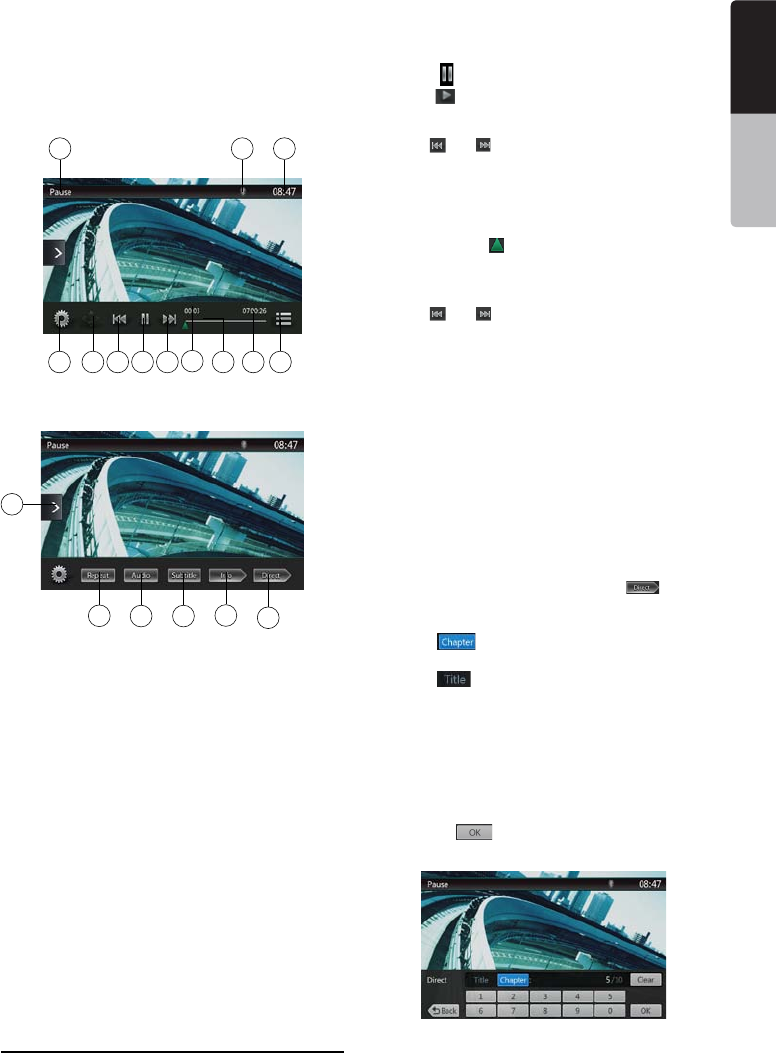
Selecting DVD Setup Menu
1. Press the [Settings] button on the Main Menu to
access the Video setup menu.
2. Press [Video] button. The video menu is displayed.
Setting up the Screen Size
Press the [DVD Wide Screen Mode] button to turn on
or turn off the DVD wide screen mode.
The factory default setting is “off”
Note: Not all DVD disc support this function.
Setting up the password for parental level
control
The factory default pass code is “0000”.
1.In Main Menu press [Settings] button. Press
[Others] button on the display. Touch the [Set
Password] ---- and a numerical key pad will appear.
Input a new password and come again. The password
is set.
Note:
When a disc with view restrictions is inserted, you will
be prompted to input this password. The disc will not be
viewable until the correct password is entered.
Set rating for parental level control
1.Select Others screen while in Setting mode. Press
[Parental Control] button. Press the desired rating for
level control. Use this table to set the parental level.
Kid Safe Kid Safe
G General Audiences
PG Parental Guidance Suggested
PG-13 Parents Strongly Cautioned
PG-R Parental Guidance Restricted
R Restricted
NC-17 No One 17 And Under Admitted
Adult Only Adult
• The contents that the parental level restricts vary
with the country code.
Note: The rating can be selected only under the
password unlocked status, and the limits can be set only
under the password locked status.
Watching to a disc
1. To load a disc:
Insert the disc into the center of the insertion slot the
label side facing up.
CAUTION
For your safety, the driver should not
insert or eject a disc, opening the
operation panel while driving.
Note:
• Never insert foreign objects into the disc insertion slot.
• If the disc is not inserted easily, there may be another
disc in the mechanism or the unit may require service.
• 8cm (single play) discs cannot be used.
2. Disc starts playing automatically.
WARNING
Some videos may be recorded at higher
than desired volume levels. Increase the
volume gradually from the minimal setting
after the video has started.
Ejecting a disc
1. To eject a disc press eject [ ] button. The play
mode then switches to the Tuner mode.
If the disc is left in the ejected position for 10
seconds, the disc is automatically reloaded. In this
case, the play mode will remain in the Tuner mode.
Note: If you force a disc into before auto reloading, it
may damage a disc.Change DVD System Settings
17
NX404
English
English Owner’s Manual
English Owner’s Manual
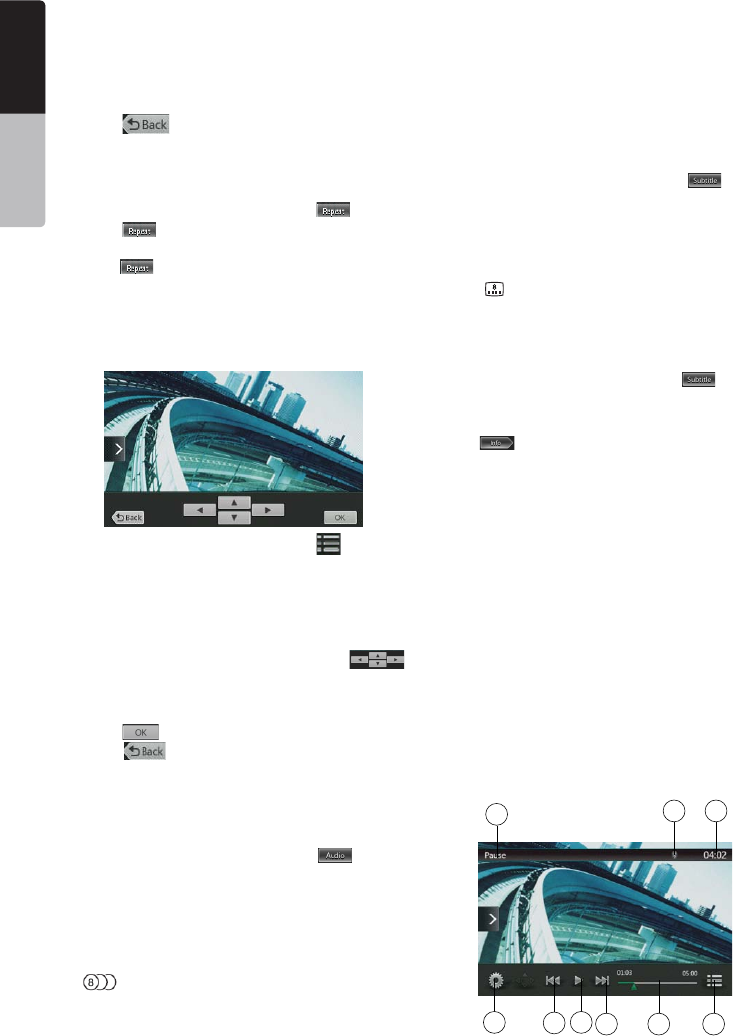
Showing DVD Player mode screen
-After disc is loaded, the play mode is automatically
engaged.
Touch any place of the screen to display DVD Video
menu touch the screen again to return the playback
screen. The display will return to the playback screen,
if you do not touch the screen for 10 seconds.
1 - Option Button
2 - Show Cursor keys Button
3 - Previous Chapter /Fast Backward Button
4 - Play/Pause Button
5 - Next Chapter /Fast Forward Button
6 - Elapsed playing time
7 - Seek bar
8 - Total time
9 - Menu List Button
10 - System time
11 - Bluetooth status
12 - DVD playback info
13 - Shortcut Button
14 - Repeat Switching Button
15 - Audio Channel switching Button
16 - Subtitle switching Button
17 - Info Button
18 - Direct chapter or title searching Button
Operate the DVD Player menu
You can select the button items displayed in the DVD
menu by directly touching it.
Play/Pause Playback
1. Touch [ ] button to pause during playback.
2. Touch [] button again to resume playback.
Skip (Search) a Chapter
1. Press [ ] or [ ] button during playback.
Chapters are skipped down or up from current
locations, as many times as the button is pressed, and
playback starts.
Skip use seek bar
Press the triangle [ ] on seek bar and drag it to any
position where you want to start playback.
Fast Forward/Fast Backward
1. Press [ ] or [ ] button and hold 2 seconds to
start fast backward or fast forward during playback.
The playback speed starts at 2x, then will increase
to 4x, 8x, and 16x. Release the button will continue
playing with normal speed.
Note:
• No audio is reproduced during fast forward and fast
backward operation.
• The fast forward and fast backward speed may differ
depending on the disc.
Search function
You can locate the beginning of a scene using the
chapter numbers or title numbers recorded on the
DVD Video disc.
1. Showing the DVD Video menu, touch [] button.
The Key Pad screen appears with the chapter/Title
number input mode.
Touching [] button turns the Key Pad to the
chapter number input mode.
Touching [] button turns the Key Pad to the title
number input mode.
• Title
A large segment to divide the data area of the disc.
• Chapter
A small segment to divide the data area of the disc.
2. Input the number of the title/chapter that you want
to play with the [0] to [9] key.
3. Touch the [] button.Change DVD System
Settings
13
14 15 16 17 18
101112
1 2 3 5 67 8 94
18 NX404
English
English Owner’s Manual
English Owner’s Manual
Playback starts from the scene of the input title
number or chapter number.
NOTE:
*If the input title/chapter number does not exist or
searching with a title/chapter number is not allowed,
the screen image will not change.
4. Touch [] button to close the key pad.
Repeat Playback
This operation plays back chapters recorded on the
DVD-Video repeatedly.
1. Showing the DVD Video menu, touch [] button.
2. Touch [] key once for Repeat Chapter, again
for Repeat Title.
3. Press [] button again to turn off the repeat
playback.
Using the Title Menu
On DVD discs containing two or more titles, you can
select from the title menu for playback.
1. Showing the DVD Video menu, touch [ ] button
during playback.
* Depending on the disc, the title menu may not be
called.
2. Touch the title menu screen. And touch the Show
Cursor keys Button.
3. Select the items in the title menu screen by
directional buttons.
* Depending on the disc, items may not be selected
with the directional buttons.
4. Touch [] button to x on the selected item.
5. Touch [] button.
Switching Audio
On discs in which two or more audios or audio
languages have been recorded, you can switch among
the audio languages during playback.
1. Showing the DVD Video menu, touch [] button
during playback.
• Each time you touch the button, you can switch
among audio languages.
• It may take time to switch among audios.
Depending on the disc, up to 8 kinds of audios may
be recorded. For details, see the mark of the disc:
(Indicates that 8 audios have been recorded).
When the power is turned on and when the disc
is changed to a new one, the language set as the
factory default is selected. If that language has not
been recorded on disc the language is specied on
the disc.
Depending on the disc, switching may be
completely impossible or impossible on some
scenes.
Switching Subtitles
On DVD discs in with two or more subtitle languages
have been recorded, you can switch among the
subtitle languages during playback.
1. Showing the DVD Video menu, touch [] button
to select a subtitle during playback. Each time you
touch the key, you can switch among subtitles.
• It may take time to switch among subtitles.
Depending on the disc, up to 32 kinds of subtitles
may be recorded. For details, see the mark of the
disc: ( Indicates that 8 kinds of subtitles have
been recorded).
Depending on the disc, switching may be
completely impossible or impossible on some
scenes.
2. To turn off subtitles, repeat touching [] button
until subtitles are turned off.
Displaying the playback status
Touch [ ] button on DVD Player mode screen,
Playback status is displayed on screen.
Play MP4/DivX video files
This system can play video les (AVI/MP4, etc.) stored
on disc.
Note:
DivX Certied® to play DivX® video, including premium
content.
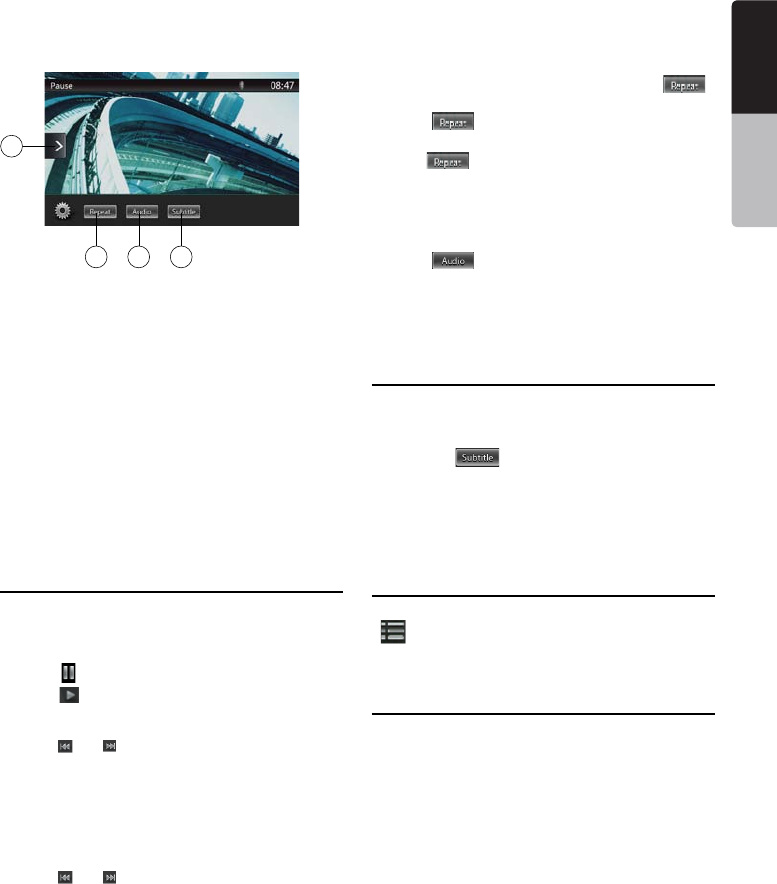
Showing video files Player mode screen
1. After disc with video les is loaded, touch [Disc
Video] button on MAIN MENU to show video les
player mode screen.
2. Touch the screen of the playing video le to display
Video les player menu touch the screen again to
return the playback screen. The display will return to
the playback screen, if you do not touch the screen
for 10 seconds.
1234 5 6
78
9
19
NX404
English
English Owner’s Manual
English Owner’s Manual
1 - Option Button
2 - Previous Track /Fast Backward Button
3 - Play/Pause Button
4 - Next Track/Fast Forward Button
5 - Elapsed playing time /Seek bar
6 - List Mode Button
7 - System time
8 - Bluetooth status
9 - Playback info
10 - Shortcut Button
11 - Repeat Button
12 - Audio Button
13 - Subtitle Button
Operate the Video files Player menu
You can select the button items displayed in the Video
les player menu by directly touching it.
Play/Pause Playback
1. Touch [ ] button to pause during playback.
2. Touch [ ] button again to resume playback.
Switch to Previous/next file
1. Press [ ] or [ ] button during playback to play
previous /next le
Skip using seek bar
Press the triangle on seek bar and drag it to any
position where you want to start playback.
Fast Forward /Fast Backward
1. Press [ ] or [ ] button and hold 2 seconds to start
fast backward or fast forward during playback. The
playback speed starts at 2x, then will increase to
4x, 8x, and 16x. Release the button will continue
playback with normal speed.
Note:
*No audio is reproduced during fast forward and fast
backward operation.
*The fast forward and fast backward speed may differ
depending on the disc.
Repeat Playback
This operation plays back video les recorded on the
disc repeatedly.
The repeat set as the factory default is Repeat all.
1. Showing the video les player menu, touch []
button.
2. Touch [] button once for Repeat Track, again
for Repeat Folder.
3.Press [] button again for Repeat All.
Switching Audio
Some video les will have two or more audio channels;
you can switch among the audio channels during
playback.
1. Touch [] button during playback.
• Each time you touch the button, you can switch
among audio languages.
• It may take time to switch among audios.
Depending on the disc, switching may be impossible.
Switching Subtitles
Some video les will have two or more subtitles have
been recorded; you can switch among these subtitles
during playback.
1. Touch the [] button to select a subtitle during
playback.
• Each time you touch the key, you can switch among
subtitles.
• It may take time to switch among subtitles.
Depending on the disc, switching may be impossible.
Video files list
Showing the Video les player menu; touch the
[] button to display video les list screen.
Video les list operations is almost same as Disc Audio
player mode. Please refer to CD Player Operations.
Play DivX Video-On-Demand file
You must complete a one-time registration process
in order to play a purchased DivX movie on your DivX
device.
Registration is not needed to play free DivX movies
you create or download.
Get DivX Registration Code and Register
your device
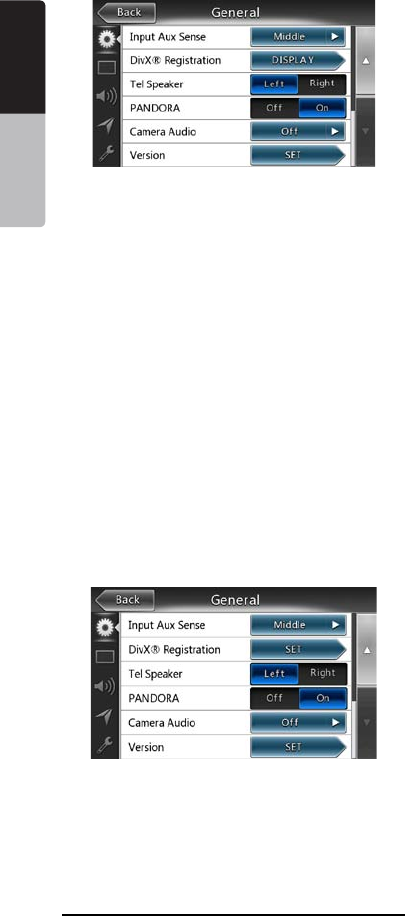
1. Press the [Settings] button on the Main Menu to
access [General] setup menu.
2. Press [General] setup button, and press [DISPLAY]
key on the right side of “DivX® Registration”. You will
nd “10 digit DivX registration code on the screen.
11 12 13
10
20 NX404
English
English Owner’s Manual
English Owner’s Manual
3. Enter this code in DivX Player to create a
“Registration video” disc on your PC.Once this
“Registration video” disc has played on this device,
registration is done, and you can enjoy some
purchased DivX movies on your device.
For detail please visit “http://www.divx.com/vod”
4. Press [OK] to close the pop-up window.
Note:
After you register your device, this setting menu is
changed to “DivX® Deregistration”
Deregister your device
Even after you have nished registration, you
can deregister your device if you will not watch
purchased movies on this device anymore.
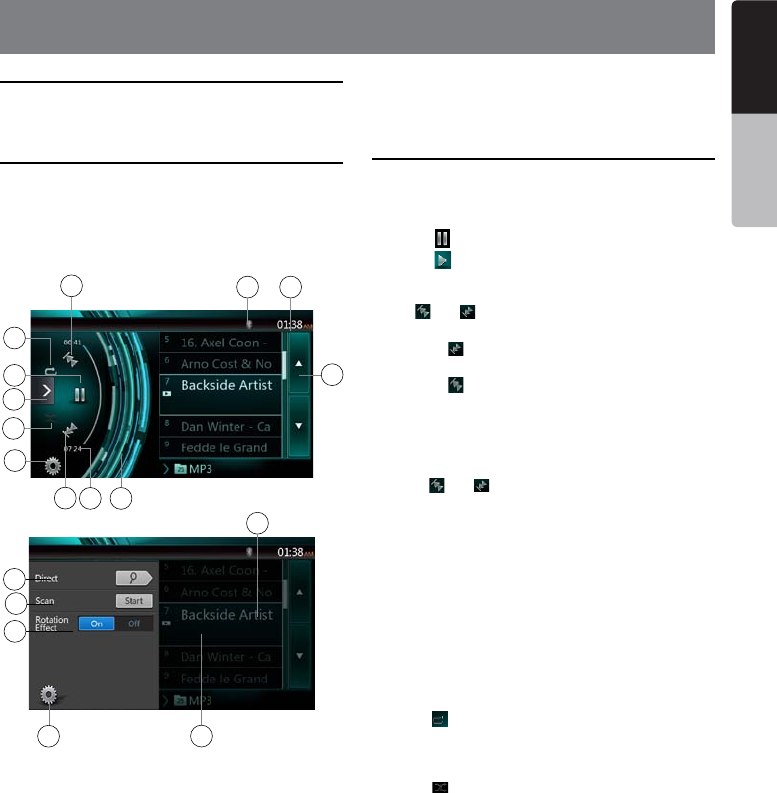
1. Press the [Settings] button on the Main Menu to
access [General] setup menu.
2. Press [General] setup button, and press [SET] key
on the right side of “DivX® Deregistration”. You will
be asked if you want to deregister this device, then
press [YES] in the pop-up screen.
3. Note 10 digit “Deregistration code” in the pop-up
screen. Keep this code until you deregister this
device on your PC.
4. Deregister this device by using the “Deregistration
code” on your PC.
For detail please visit “http://www/divx.com/vod”
Playable disc video files
This system can play video les stored on disc.
*.avi les
• format: Divx 4/5/6
• Picture size: 720 x 480
• Audio format: MP3
• Audio sampling frequency: 32/44.1/48 KHz
*.mp4 les:
• format: MPEG4 Visual Simple @L1
• Picture size: 720 x 480
• Audio format: AAC
• Audio sampling frequency: 32/44.1/48 KHz
*.mpg les
• format: MPEG2
• Picture size: 720 x 480
• Audio format: MP3
• Audio sampling frequency: 32/44.1/48 KHz
*.divx les
• format: Divx 3.11/4/5/6
• Picture size: 720 x 480
• Audio format: MP3
• Audio sampling frequency: 32/44.1/48 KHz
21
NX404
English
English Owner’s Manual
English Owner’s Manual
Listening to a disc/Ejecting a disc
Please refer to Disc Video Player Operations -watching
to a disc and Ejecting a disc.
Showing CD Player mode screen
1. After disc is loaded, the play mode is automatically
engaged.
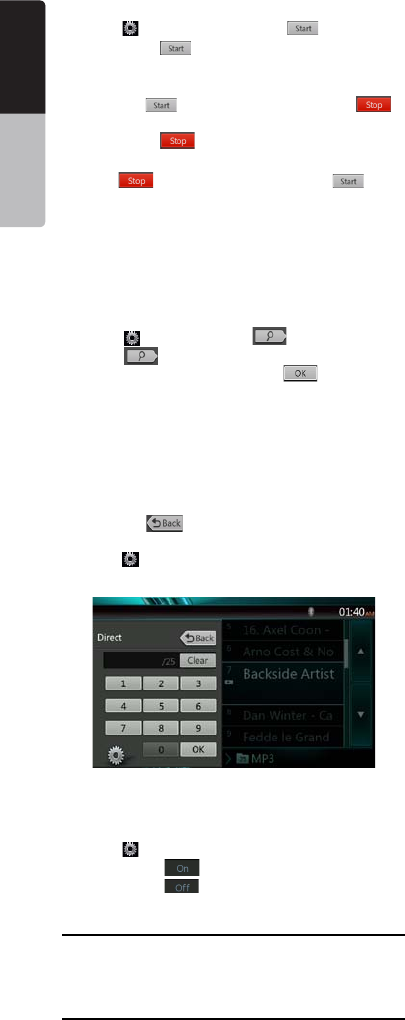
2. If disc have been loaded you can touch [Disc Audio]
button on main menu to display CD player mode
screen.
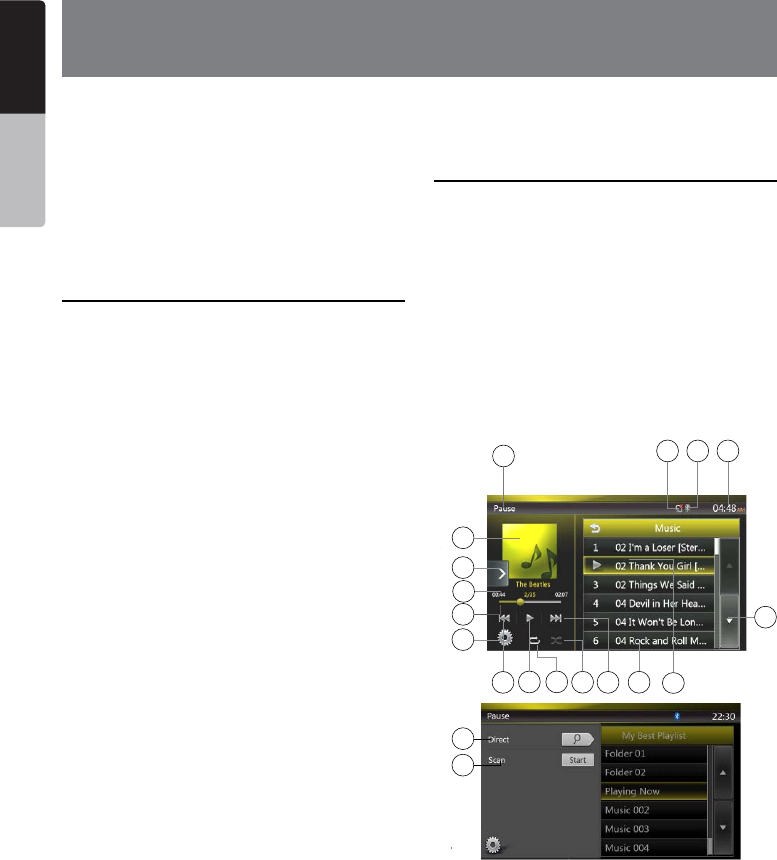
1 - Option Button
2 - Elapsed playing time indicator
3 - Rotation effect
4 - Page Turning
5 - System time
6 - Bluetooth status
7 - Repeat Button
8 - Previous Track /Fast Backward Button
9 - Shortcut Button.
10 - Play/Pause Button
11 - Next Track/Fast Forward Button
12 - Shufe Button
13 - Direct Searching Button
14 - Scan Start/Stop Button
15 - Rotation Effect On/Off Button
16 - Song Title
17 - Artist/album Information
18 - Close option menu Button
Operate the CD Player menu
You can select the button items displayed in the CD
player menu by directly touching it in list.
Play/Pause Playback
1. Touch [ ] button to pause during playback.
2. Touch [] button again to resume playback.
Switch to Previous/next file or track
Press [ ] or [ ] button during playback to play
previous /next le.
• Pressing [] button starts playback from the
beginning of the next track.
• Pressing [] button starts playback from the
beginning of the current track. When this button is
pressed again within 5 seconds, playback starts
from the beginning of previous track.
Fast Forward /Fast Backward
1. Press [ ] or [ ] button and hold more than
2 seconds to start fast backward or fast forward
during playback. The playback speed starts at 2x,
then will increase to 4x, 8x, and 16x. Release the
button will continue playback with normal speed.
Note:
* No audio is reproduced during fast forward and fast
backward operation.
* The fast forward and fast backward speed may differ
depending on the disc.
Repeat Playback
* The repeat set as the factory default is Repeat All.
Touch [] button switch between Repeat Folder
Repeat All and Repeat Track.
Shuffle Playback
1. Touch [ ] button to shufe the tracks during
playback.
2. Touch this button again to turn off the feature.
Selecting a track on the Track List Screen
This function allows you to select tracks from a
displayed list.
1. Touch the track title on the display list. The selected
track will start playing.
2. When the desired track is not displayed, press and
ick the track list up or down.
3. Touch the desired track title key. The corresponding
track is started playback.
8. CD
7
4
9
10
12
1
13
14
15
3
211
17
18
6
16
85
22 NX404
English
English Owner’s Manual
English Owner’s Manual
Scanning the Tracks
1. Touch [ ] button to show [Scan ] button.
2. Touch [Scan ] button during playback.
• It will play from next track, and each track will
display for 10 seconds.
• The [Scan ] button will switch to [Scan ]
button.
3. Touch [Scan ] button.
• It will continue playback from current track.
• [Scan ] button will switch to [Scan ]
button.
* The function will scan all tracks orderly in current
folder once. After Scan stopped playback will
continue.
Searching with the Track Number
This operation allows searching using the track
numbers recorded on the CDs.
1. Touch [] Button to show [ ] button.
2. Touch [] button .The numerical keypad will
appear on the screen and touch [ ] button.
3. Input the track number that you want to play back
with [0] to [9] key and touch [OK] key.
Playback starts from the track of the input track
number.
• If the input track number does not exist or searching
with track number is not allowed, the screen image
will not change.
• Touch the [] button will close the numerical
keypad.
• Touch [] Button will close the option window and
display playback screen.
Rotation Effect On/Off
This operation allows turn on/turn off rotation effect.
The factory default is On.
1. Touch [] Button to show [Rotation effect] button
2. Press button [] will turn on the Rotation effect.
3. Press button [] will turn off the Rotation effect.
Listening to compressed audio
This system can play audio les stored on disc.
MP3/ WMA/ AAC
Tag display function
This unit is an ID3 Tag compatible model.
This unit supports the ID3 TAGs of the Version 2.4, 2.3,
1.1 and 1.0.
In displaying, this unit gives priority to the Version 2.3
and 2.4 TAGs.
Note:
• Some CDs recorded on CD-R/RW mode may not be
usable.
Displaying MP3/WMA/AAC TAG titles
Tag information can be displayed for compressed
audio le containing Tag information.
MP3: title, artist, album
WMA: title, artist
AAC: can not display tag information.
Precautions when creating MP3 disc
• File extensions
1. Always add a le extension “.MP3” or “.mp3” to
an MP3 le, and “.WMA” or “.wma” to a WMA and
“.m4a” to a AAC le by using single byte letters.
If you add a le extension other than specied or
forget to add these le extension, the le cannot be
played. In addition, if you use upper case and lower
case letters (capital and small letters) mixed for le
extensions, normal play may not be possible.
2. Files other than MP3/WMA/AAC data cannot be
played.
Playing les with a format not supported will be
skipped, and the scan, random and repeat playback
mode may be canceled.
• File and Disc Not Supported
Files and discs with following extensions are not
supported: *.AAC, *.DLF, *.M3U, *.PLS, *.MP3 PRO
les, les with DRM, open session discs.
• Logical format (File system)
1. When writing an MP3/WMA/AAC le on a disc,
please select “ISO9660 level 1 or level 2 (without
including expansion format)” as the writing software
format. Normal playback may not be possible if the
disc is recorded on another format.
2. The folder name and le name can be displayed as
the title during MP3/WMA/AAC play .
• Entering File and Folder Names
Names using the code list characters are the only
le names and folder names that can be entered and
displayed. Using any other character will cause the le
and folder names to be displayed incorrectly.
• Folder structure
1. A disc with a folder having more than 8 hierarchical
levels will conict with the ISO9660 and playback
will be impossible.
• Number of les or folders
1. The maximum allowable number of folders is 200
(including root directory); the maximum allowable
number of les is 1500 (max. 200 per folder). This
represents the maximum number of tracks that can
be played back.
23
NX404
English
English Owner’s Manual
English Owner’s Manual
2. Tracks are played in the order that they were
recorded onto a disc. (Tracks might not always be
played in the order displayed on the PC).
• Some noise may occur depending on the type of
encoder software used while recording.
• In case of a track recorded at VBR (variable bit rate),
the display for the play time of the track may be
slightly different from the actual play time. Also, the
recommended value of VBR ranges from 32 kbps to
320 kbps.
• After disc selection, the play mode is automatically
engaged.
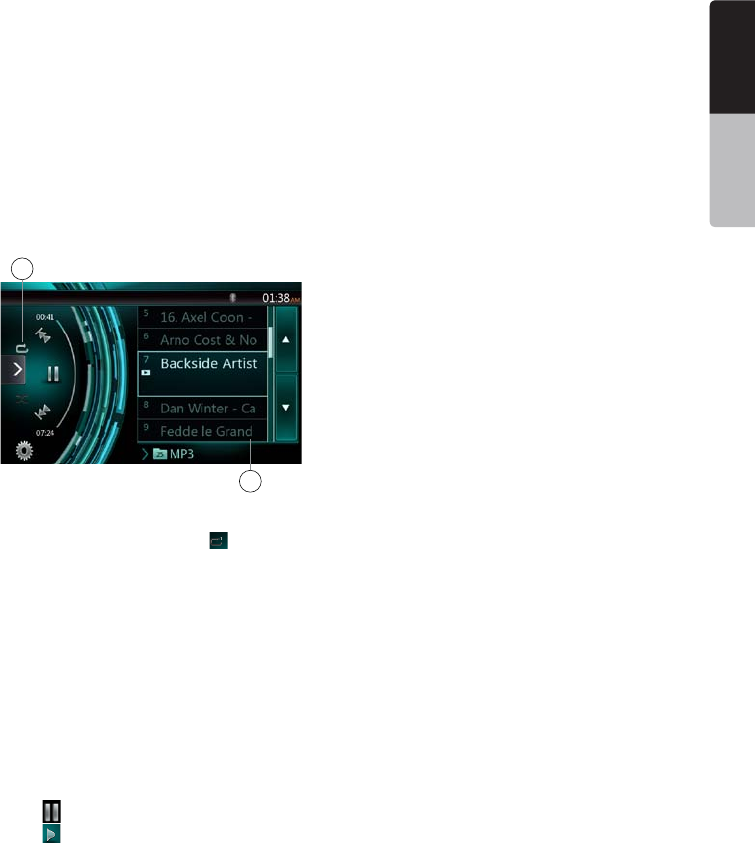
Playback MP3/WMA/AAC menu
1. Repeat Playback
While playing MP3/WMA/AAC touch button can
switch between Repeat Folder, Repeat All and Repeat
Track, Repeat Folder and Repeat All.
2.Current Folder
• Showing title of current folder.
• The number on the folder symbol is the number of
les and folders number in current folder.
• Touch the title of current folder, play list will show
les and folders in upper folder.
*Other operations about playing MP3/WMA/AAC are
almost same as CD Player mode.
Stop Playback
1. Touch [ ] button to stop playback.
2. Touch [ ] button again to resume playback.
Playback resumes from start of the folder which
playing track is in.
•Other operations about playing MP3/WMA/AAC are
almost same as CD Player mode.
1
2
24 NX404
English
English Owner’s Manual
English Owner’s Manual
This system can play audio les (MP3/WMA/AAC/
FLAC) stored in an USB memory which is recognized
as “USB Mass Storage Class device”. You can use
your USB memory as an audio device by simply
copying desired audio les into it.
Note:
• This system will not operate or may operate improperly
with some USB memory.
• Files protected with any DRM cannot be played.
Notes on using USB memories
General notes
• When no support les, the le list display nothing.
Notes on the Audio les
• This system can play the MP3/WMA/AAC/FLAC les
stored in the USB memory.
MP3 les:
• format: MPEG1/2 Audio layer3
• bit rate: 8k ~ 320kbps
• sampling frequency: 8/12/16/24/32/44.1/48KHz
• le extension: . mp3
WMA les:
• format: Windows media Audio standard L3
prole
• bit rate: 32 ~ 192KHz
• sampling frequency: 32/44.1/48 KHz
• le extension: .wma
AAC les
• format: Advanced Audio Coding LC-AAC,HE-
AAC
• sampling frequency: 32/44.1/48 KHz
• le extension: . m4a
FLAC les
• format: Free Lossless Audio Codec
• quantization bit rate: 16 or 24 bits
• sampling frequency: 44.1~192 KHz
• le extension: . ac
Notes on the folder structure
• The folder hierarchy must be within 8 hierarchical
levels. Otherwise, playback may be impossible.
• The maximum allowable number of folders is 65535
(including root directory and folders with no MP3
les, WMA AAC/FLAC le).
• The maximum allowable number of les in a folder
is 65535.
• You can store the MP3 les, WMA AAC/FLAC
together in a folder.
• The system may become slow if the les or folders
exceed the limitation above.
Notes on the Tag titles
The limitations on the Tag titles are same as those in
DVD Audio Player mode.
Select USB Audio mode
Connect your USB memory with MP3 les, WMA AAC/
FLAC les to the USB connector. The system will
automatically detect the connected device, and the
[USB Audio] button on main menu will be enabled.
• When an USB memory is already connected
Touch [USB Audio] button to select the USB Audio
mode.
The system changes to the USB Audio mode and
starts playback from the previous position or from the
beginning.
Note:
If you reconnect the same device that you disconnected
last, the system will play back where it left off.
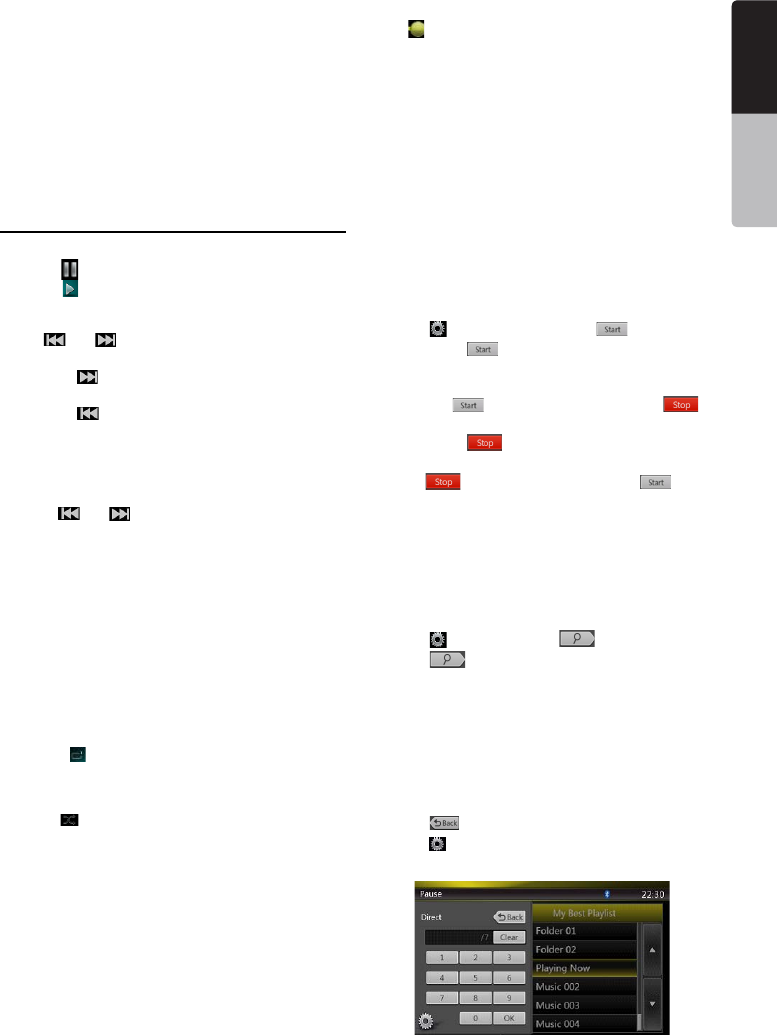
1. Option Button
2. Play/Pause Button
3. Previous Track /Fast Backward Button
4. Next Track/Fast Forward Button
5. Repeat Button
6. Shufe Button
7. MP3 les, WMA les in list
8. Folders in list
9. Page Turning
9. USB Audio Operations
18
19
14
1
5648
2
3
15
9
101112
13
16
17
7
25
NX404
English
English Owner’s Manual
English Owner’s Manual
10. System time
11. Bluetooth status
12. Mute status
13. Playback status info
14. Album Art
15. Shortcut Button
16. Current ID3 info area
17. Elapsed playing time indicator/Seek bar
18. Direct Button
19. Scan Button
Playing Audio files in USB memory
Play/Pause Playback
1. Touch [ ] button to pause during playback.
2. Touch [] button again to resume playback.
Switch to Previous/next file
Press [ ] or [ ] button during playback to play
previous /next le.
• Pressing [] button starts playback from the
beginning of the next track.
• Pressing [] button starts playback from the
beginning of the current track; when this button is
pressed again within about 5 seconds, playback
starts from the beginning of previous track.
Fast Forward /Fast Backward
Press [ ] or [ ] button and hold more than
2 seconds to start fast backward or fast forward
during playback. The playback speed starts at 2x,
then will increase to 4x, 8x, and 16x .Release the
button will continue playback with normal speed.
Note:
*No audio is reproduced during fast forward and fast
backward operation.
*The fast forward and fast backward speed may differ
depending on the audio les.
Repeat Playback
* The repeat set as the factory default is Repeat All.
Touch the [] button once for Repeat Track, again for
Repeat Folder, Repeat All.
Shuffle Playback
1. Touch [ ] button to shufe the tracks in playing
folder during playback.
2. Touch this button again to turn off the feature.
Album Art work
If current audio le contains album art image in ID3,
the picture will be displayed in this area.
ID3 info area
This area display ID3 info of playing le: song title,
artist information, album information, number of
current le/total number in current folder, elapsed
playing time/total time of current le.
Skip use seek bar
Press on seek bar and drag it to any position where
you want to start playback.
Select a folder on display list
Touch the folder title on the display list, the display list
will display les and folders in selected folder.
Selecting a track on the display List
This function allows you to select tracks from a
displayed list.
1. Touch the track title on the display list. The selected
track will start playing.
2. When the desired track is not displayed, press and
ick the track list up or down.
3. Touch the desired track title key. The corresponding
track is started playback.
Scanning the Tracks
1. Touch [ ] Button to show [Scan ] button.
2. Touch [Scan ] button during playback.
• It will play from next track, and each track will
display for 10s seconds.
• The [Scan ] button will switch to [Scan ]
button.
3. Touch [Scan ] button.
• It will continue playback from current track.
• [Scan ] button will switch to [Scan ]
button.
* The function will scan all tracks orderly in current
folder once .After Scan stopped playback will
continue.
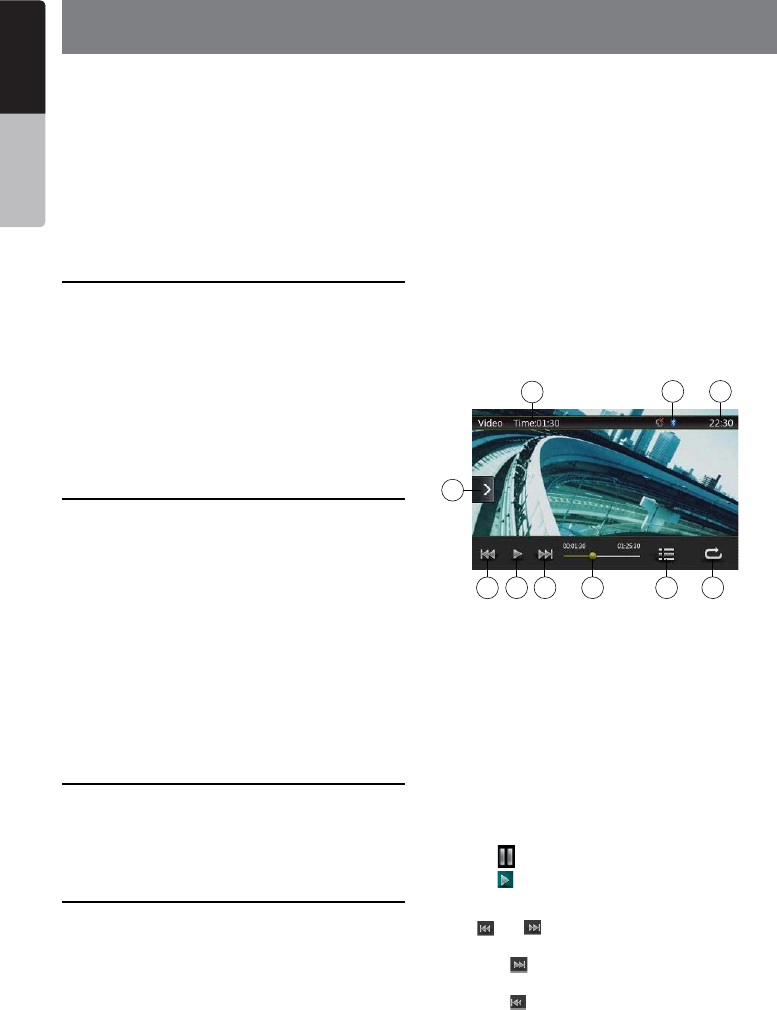
Searching with the Track Number
This operation allows searching using the track
numbers in playing folder.
1. Touch [] Button to show [ ] button.
2. Touch [] button .The numerical keypad will
appear on the screen.
3. Input the track number that you want to play back
with [0] to [9] key and touch [OK] key.
Playback starts from the track of the input track
number.
• If the input track number does not exist or searching
with a track number is not allowed, the screen image
will not change.
• Touch [] button will close the numerical keypad.
• Touch [] Button will close the option window and
display playback screen.
26 NX404
English
English Owner’s Manual
English Owner’s Manual
10. USB Video Operations
This system can play USB video les (MP4, 3GP etc.)
stored in an USB memory which is recognized as
“USB Mass Storage Class device”. You can use your
USB memory as an audio device by simply copying
desired audio les into it.
Note:
• This system will not operate or may operate improperly
with some USB memory.
• Files protected with any DRM cannot be played.
Notes on using USB memories
General notes
When no support les, the le list display nothing.
Notes on the folder structure
The limitations on the folder structure are same as
those in USB Audio Player mode.
Notes on the Tag titles
The limitations on the Tag titles are same as those in
DVD Audio Player mode.
Select USB Video mode
Connect your USB memory with video les to the USB
connector. The system will automatically detect the
connected device, and the [USB Video] button on
main menu will be enabled.
• When an USB memory is already connected
Touch [USB Video] button on main menu to select the
USB Video mode.
The system changes to the USB Video mode and
starts playback from the previous position or from the
beginning.
Note: If you reconnect the same device that you
disconnected last, the system will play back where it
left off.
Playing video files in USB memory
If the video is playing, touch the screen of the playing
video to display Operation buttons.
* The display will return to the playback screen, if you
do not touch the screen for 10 seconds.
Playable Video file
*.mp4 les
• format: MPEG4 Visual
MPEG4 AVC (H.264)
• Picture size: 1280 X 720 (MPEG4 Visual)
1920 x 1080 (MPEG4 AVC)
• Audio format: AAC
• Audio sampling frequency: 32/44.1/48 KHz
*.m4v les
• format: MPEG4 Visual
MPEG4 AVC (H.264)
• Picture size: 720 x 480
• Audio format: AAC
• Audio sampling frequency: 32/44.1/48 KHz
*.mpg les
• format: MPEG2
• Picture size: 720 x 480
• Audio format: MP3
• Audio sampling frequency: 32/44.1/48 KHz
*.3gp les
• format: MPEG4 Visual
H.263
• Audio format: AAC, AMR
• Audio sampling frequency: 8/16/32/44.1/48 KHz
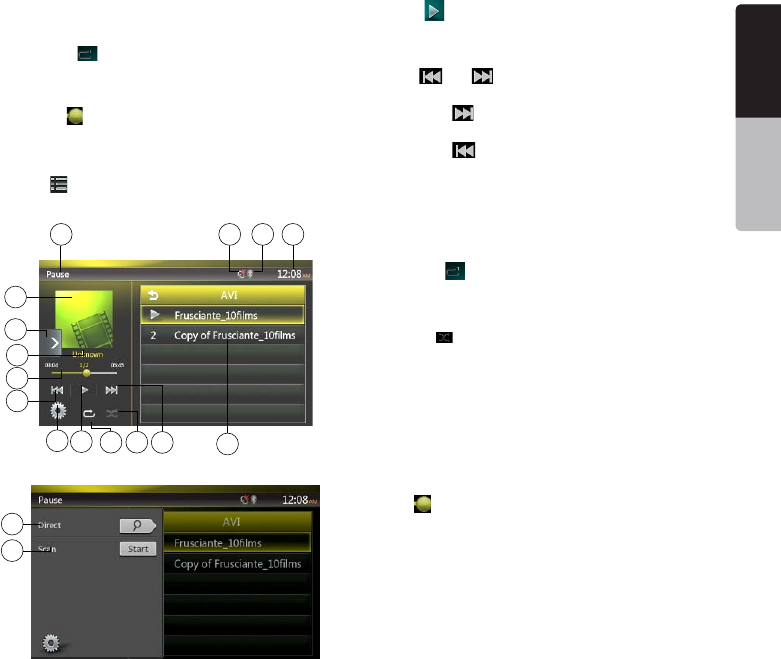
1 - Previous Track /Fast Backward Button
2 - Play/Pause Button
3 - Next Track/Fast Forward Button
4 - Elapsed playing time indicator/Seek bar
5 - Menu List
6 - Repeat Button
7 - System time
8 - Bluetooth status
9 - Playback info
10 - Shortcut Button
Play/Pause Playback
1. Touch [ ] button to Pause playback.
2. Touch [] button to resume playback.
Switch to Previous/next file
Press [ ] or [ ] button during playback to play
previous /next le.
• Pressing [] button starts playback from the
beginning of the next track.
• Pressing [] button starts playback from the
beginning of the current track; when this button is
pressed again within about 5 seconds, playback
starts from the beginning of previous track.
10
1234
98 7
56
27
NX404
English
English Owner’s Manual
English Owner’s Manual
Repeat Playback
* The repeat set as the factory default is Repeat All.
Touch the [] button once for Repeat Track, again
for Repeat Folder, again for Repeat All.
Skip use seek bar
Press the on seek bar and drag it to any position
where you want to start playback.
Switch to USB Video Menu
Press [ ] button playback will be paused, and the
screen will switch to USB Video List.
1 - Option Button
2 - Play/Pause Button
3 - Previous Track /Fast Backward Button
4 - Next Track/Fast Forward Button
5 - Repeat Button
6 - Shufe Button
7 - Video les in list
8 - System time
9 - Bluetooth status
10 - Mute status
11 - Playback status info
12 - Album Art
13 - Shortcut Button
14 - Current le info area
15 - Elapsed playing time indicator/Seek bar
16 - Direct Button
17 - Scan Button
Play/Pause Playback
*On USB Video menu screen, playback status is
pause.
Touch [] button to resume playback. The screen
will go to video screen automatically.
Switch to Previous/next file
Press [ ] or [ ] button during playback to play
previous /next le.
• Pressing [] button starts playback from the
beginning of the next track.
• Pressing [] button starts playback from the
beginning of the current track; when this button is
pressed again within about 5 seconds, playback
starts from the beginning of previous track.
Repeat Playback
* The repeat set as the factory default is Repeat All.
Touch the [] button once for Repeat Track, again for
Repeat Folder, again for Repeat All.
Shuffle Playback
1. Touch [ ] button to shufe the tracks in playing
folder during playback.
2. Touch this button again to turn off the feature.
Current file info area
This area displays info of current video le: le name,
number of current le/total number in current folder,
Elapsed playing time/total time of current le.
Skip use seek bar
Press on seek bar and drag it to any position where
you want to start playback.
Select a folder on display list
This operation is same as this in USB Audio mode.
Selecting a track on the display List
This operation is same as this in USB Audio mode.
Scanning the Tracks
This operation is same as this in USB Audio mode.
Searching with the Track Number
This operation is same as this in USB Audio mode.
12
3
5647
2
1
13
8910
11
14
15
16
17
28 NX404
English
English Owner’s Manual
English Owner’s Manual
11. iPod/iPhone Operations
iPod/iPhone can be connected by using the
connector cable supplied with the iPod/iPhone, but in
this case, you can enjoy its audio sound only. To enjoy
video movies stored in the iPod/iPhone with video
displaying them on this unit, it is required to use the
special connector cable (CCA-748-600) separately
sold.
However the new products such as iPhone 5,
iPod touch® (5th generation) and iPod nano®
(7th generation) only can connect 10-pin cable
(no video signal output),so these new products
cannot displaying video in video mode.
Note:
• This system will not operate or may operate improperly
with unsupported versions.
• For detailed information on the playable iPod/iPhone
models, see our home page: www.clarion.com
Notes on using Apple iPod/iPhone
• Do not connect an iPod/iPhone to this unit with a
headphone connected to the iPod/ iPhone.
• After the iPod/iPhone has been connected to this
unit, the buttons of iPod buttons are disabled for
operation in the Music mode. In the Video mode, do
not operate the buttons of iPod.
• When in the iPod mode, the screen image input
from the AUX terminal is output to the rear monitor.
• When no data is present, the title display will remain
blank.
• Set the language setting of iPod/iPhone to English
before connecting your iPod/iPhone. Some
characters of the other languages may not be
displayed correctly in this system.
• Precautions on battery consumption:
If the iPod/iPhone is connected to this unit when the
internal battery of iPod/iPhone has run down, this
function may not operate correctly. You must connect
the iPod/iPhone after charging the battery if it has run
down.
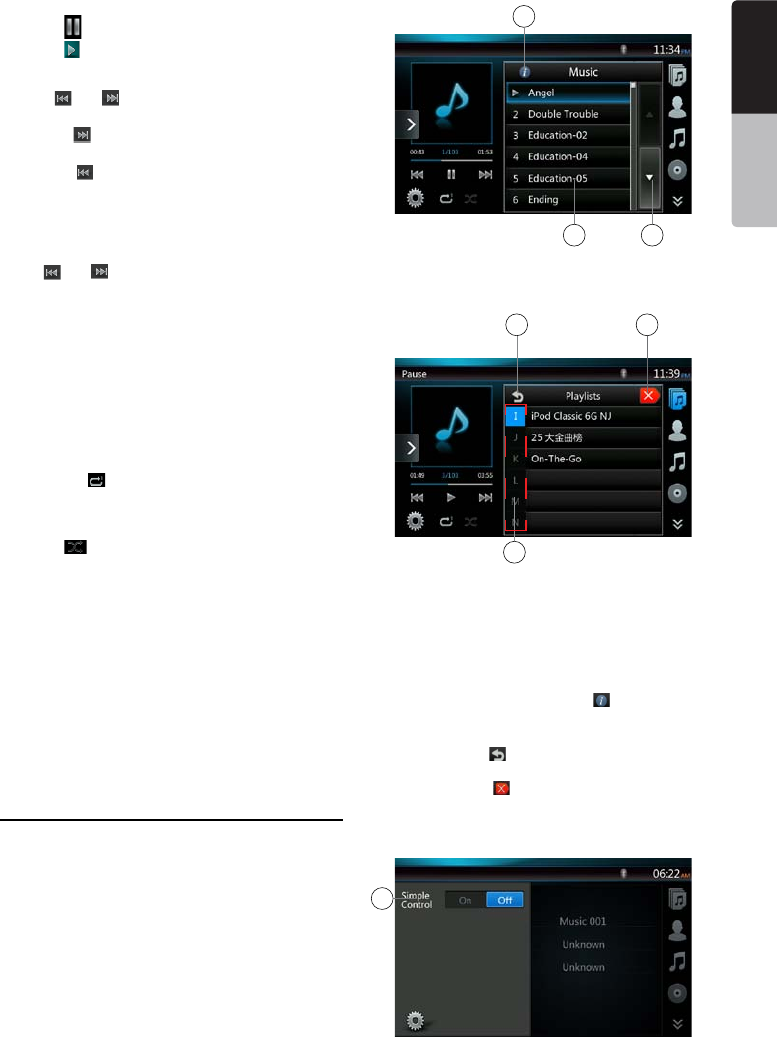
iPod Audio Menu Operations
Connect your iPod/iPhone to the USB connector.
The system will automatically detect the connected
device and the iPod Audio button will be enabled for
operation on the Main Menu screen.
The playback starts after a while, from where the iPod/
iPhone has been paused.
• When iPod/iPhone is already connected
Touch the [] key on the Main Menu
screen. The system changes to the iPod mode, and
starts playback from the previous position.
Press MENU button on Operational Panel to return to
the Main Menu.
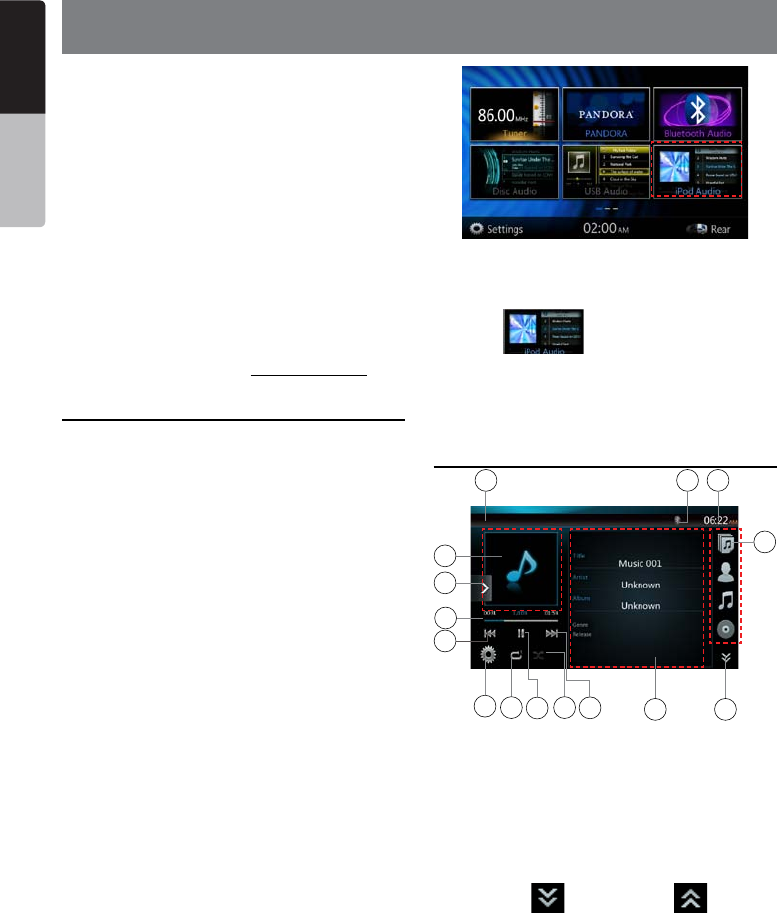
iPod Audio ID3 Info
1 - Option Button
2 - Repeat Button
3 - Shufe Button
4 - Previous Track /Fast Backward Button
5 - Play/Pause Button
6 - Next Track/Fast Forward Button
7 - ID3 Information
8 - Next Page[ ] / Previous Page[ ] Button
9 - Category List
10 - System Time
11 - Bluetooth Status
12 - Playback Status
13 - Art Work
14 - Shortcut Button
15 - Progress bar
13
5367
21
14
1011
12
15
4
9
8
29
NX404
English
English Owner’s Manual
English Owner’s Manual
Play/Pause Playback
1. Touch [ ] button to pause during playback.
2. Touch [] button again to resume playback.
Switch to Previous/next file
• Press [ ] or [ ] button during playback to play
previous /next le.
• Pressing [] button starts playback from the
beginning of the next track.
• Pressing [] button starts playback from the
beginning of the current track; when this button is
pressed again within about 5 seconds, playback
starts from the beginning of previous track.
Fast Forward /Fast Backward
Press [ ] or [ ] button and hold more than 2
seconds to start fast backward or fast forward during
playback.
Note:
*No audio is reproduced during fast forward and fast
backward operation.
*The fast forward and fast backward speed may differ
depending on the audio les.
Repeat Playback
* depend on iPod.
1. Touch the [] button once for Repeat Track, again
for Repeat All.
Shuffle Playback
1. Touch [ ] button to shufe the tracks in playing
folder during playback.
2. Touch this button again to turn off the feature.
Album Art work
If current audio le contains album art image in ID3,
the picture will be displayed in this area.
ID3 info area
This area display ID3 info of playing le: song title,
artist information, album information (Genre, playlist
and release time).
Category List
Select different category songs to play. The
category is same as the iPod/iPhone.
iPod audio playlist mode screen
1 - Switch to Information Button
2 - Playing List
3 - Page Turning
4 - Back to father folder
5 - Close the list mode
6 - Search with the rst alphabet in current list
iPod audio List mode screen
• In the ID3 information mode screen, press the ID3
info area to switch the playing list, and in the playing
list mode screen, press the button [] can back to
the father folder. If the list is in root, press it can close
the list.
• Press the button[ ] can back to the father folder. If
the list is in root, press it can close the list.
• Press the button [ ] to close the List and back to
the ID3 information mode.
Simple Control Mode
2
1
4
6
1
5
3
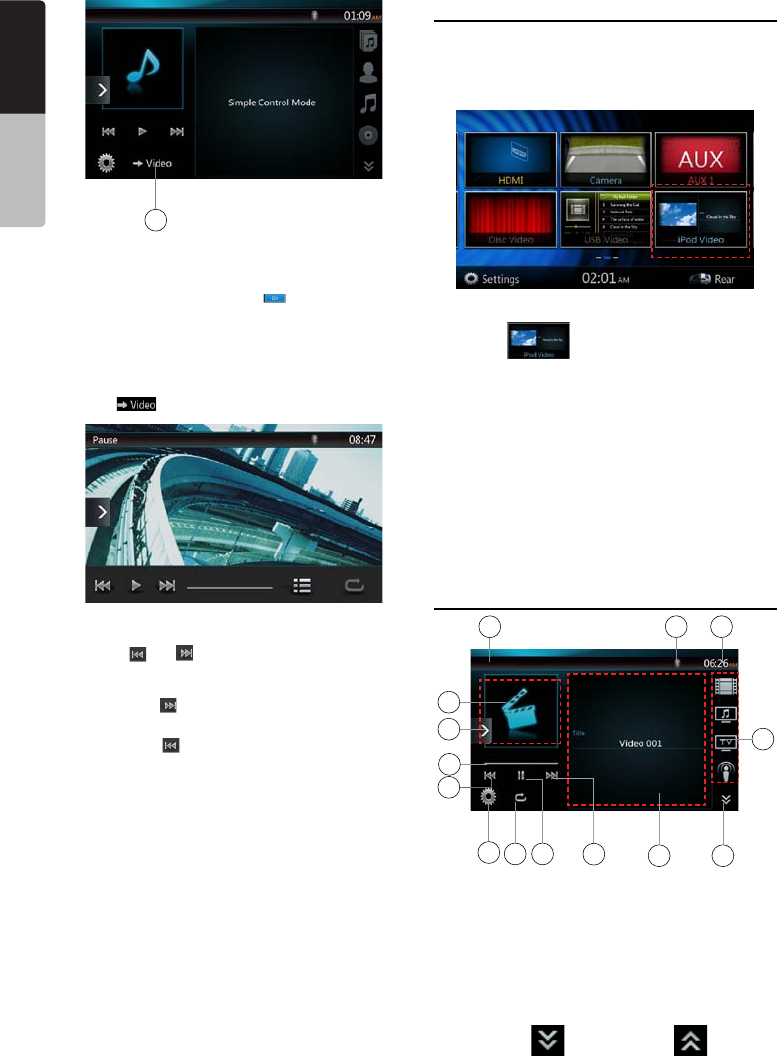
30 NX404
English
English Owner’s Manual
English Owner’s Manual
1 - Simple Control Button
2 - Video Mode Button
• If the Simple Control is set to [] in option menu,
the screen will become Simple Control Mode. It can
also display the video of iPod/iPhone regardless it is
iPod Audio or iPod Video mode. But only “Previous
Track”、“Play/Pause” and “Next Track” can be
operated.
• Press []the video will play from iPod.
Skipping a track (Simple Control Mode)
Press the [ ] or [ ] button during playback. Tracks
are skipped, as many times as the button is pressed,
and playback starts.
• Pressing the [] button starts playback from the
beginning of the next track.
• Pressing the [] button starts playback from the
beginning of the current track.
When this button is pressed again within about 5
seconds, playback starts from the beginning of the
previous track.
Note: In Simple Control Mode, the best way is to control
the iPod just on iPod.
Selecting a list item from a list screen
(1). Touch the list screen and ick up or down to scroll
the list.
(2). Touch a desired list item on the screen to display
the corresponding list of tracks.
(3). Touch the desired track name on the list to play it.
iPod Video Menu Operations
Connect your iPod/iPhone to the USB connector.
The system will automatically detect the connected
device and the iPod Video button will be enabled for
operation on the Main Menu screen.
• When an iPod/iPhone is already connected
Touch the [] key on the Main Menu screen.
The system changes to the iPod Video mode, and
starts playback from the previous position.
Press MENU button on Operational Panel to return to
the Main Menu.
• Viewing video data in the iPod/iPhone (only for the
iPod/iPhone with video features)
When you connect an iPod/iPhone with video features
by using the optional connector cable for iPod/iPhone
with video, you can enjoy the video data and slide
show data stored in the iPod/iPhone and show them
on the display of this unit (and the rear monitor if
connected).
iPod Video ID3 mode screen
1 - Option Button
2 - Repeat Button
3 - Previous Track Button
4 - Play/Pause Button
5 - Next Track Button
6 - Playing File Title
7 - Category List
8 - Next Page[ ] / Previous Page[ ] Button
2
12
456
21
13
910
11
14
3
7
8
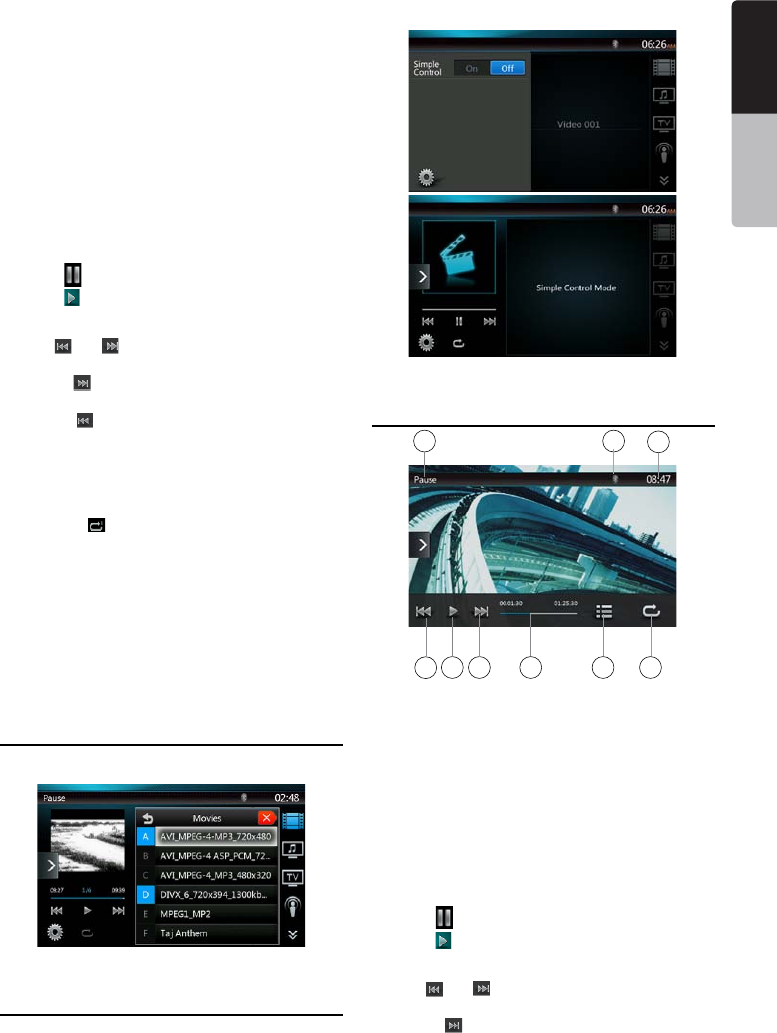
31
NX404
English
English Owner’s Manual
English Owner’s Manual
9 - System Time
10 - Bluetooth Status
11 - Playback Status
12 - Art Work
13 - Shortcut Button
14 - Progress bar
Note:
This icon shows only when 2-Zone on. This icon is in
some screen pictures and none in other some pictures.
It is better to be same setting in a manual. (Also, Navi
icon shows owned by setting. (There is no Navi icon
screen in this manual))
Play/Pause Playback
1. Touch [ ] button to pause during playback.
2. Touch [] button again to resume playback.
Switch to Previous/next file
• Press [ ] or [ ] button during playback to play
previous /next le.
• Pressing [] button starts playback from the
beginning of the next track.
• Pressing [] button starts playback from the
beginning of the current track.
Repeat Playback
* The repeat set as the factory default is depend on
iPod/iPhone.
1. Touch the [] button once for Repeat One, again
for Repeat All, again for Repeat Off.
Album Art work
If current audio le contains album art image in ID3,
the picture will be displayed in this area.
ID3 info area
The area is display the title of the playing le.
Category List
Select different category songs to play. The
category is same as the iPod/iPhone.
iPod Video List mode screen
This operation is same as this in iPod Audio mode.
iPod Video Simple Control Mode Screen
This operation is same as this in iPod Audio mode.
iPod Video play mode screen
1 - Previous Track /Fast Backward Button
2 - Play/Pause Button
3 - Next Track/Fast Forward Button
4 - Progress bar
5 - Menu List Button
6 - Repeat Button
7 - System time
8 - Bluetooth status
9 - Playback Info
Play/Pause Playback
1. Touch [ ] button to pause during playback.
2. Touch [] button again to resume playback.
Switch to Previous/next Track
• Press [ ] or [ ] button during playback to play
previous /next track.
• Pressing [] button starts playback from the
beginning of the next track.
34 5
2
1
7
8
9
6
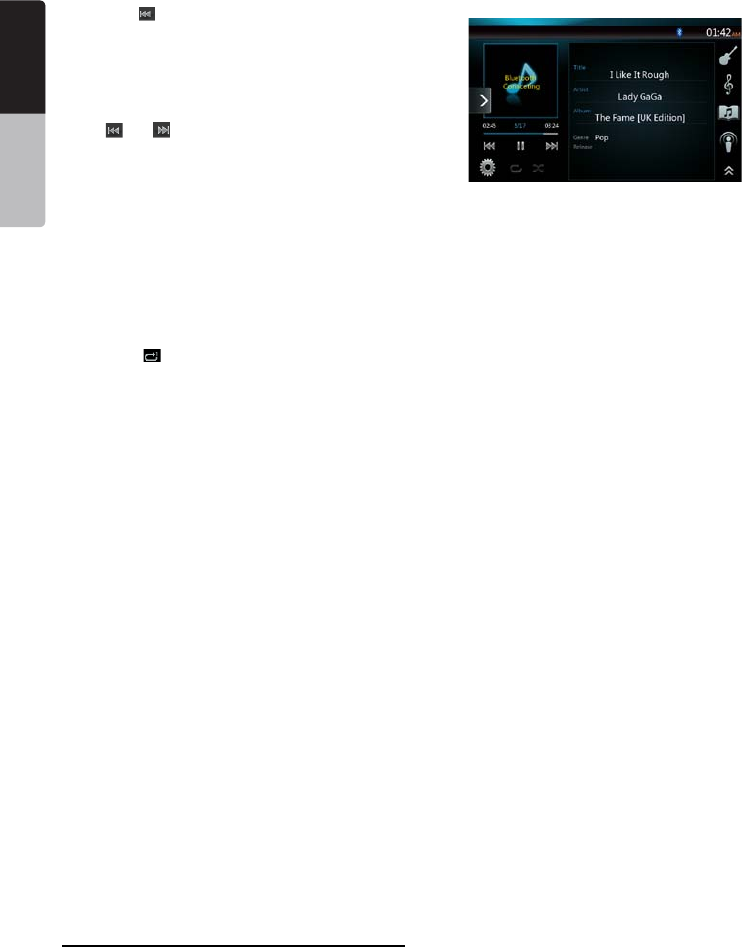
32 NX404
English
English Owner’s Manual
English Owner’s Manual
• Pressing [ ] button starts playback from the
beginning of the current track; when this button is
pressed again within about 5 seconds, playback
starts from the beginning of previous track.
beginning of the current track.
Fast Forward /Fast Backward
Press [ ] or [ ] button and hold more than 2
seconds to start fast backward or fast forward during
playback. Release the button will continue playback
with normal speed.
Note:
*No audio is reproduced during fast forward and fast
backward operation.
*The fast forward and fast backward speed may differ
depending on the audio les.
Repeat Playback
* The repeat set as the factory default is Repeat Off.
Touch the [] button once for Repeat One, again
for Repeat All, again for Repeat Off.
Note:
The operation in iPod video mode are as same as iPod
Audio mode. Please refer to the iPod Audio Mode
operation.
Note:
Video playback is not available on all iPod/ iPhone
devices. Please contact your Clarion dealer for details.
An optional connection cable or accessory may be
required for this feature.
Note:
• “AUDIO ONLY” is displayed when the automobile is
moving.
• Image data may not be played back according to the
status of the iPod/iPhone
• The volume setting of video data is relatively lower than
audio data. Be sure to lower the volume setting before
switching to the other mode.
• Do not select the categories with no track registered
from the iPod menu screen. The iPod/iPhone may be
frozen. If the iPod/iPhone is frozen, reset the iPod/
iPhone by following the procedure described in the
instruction manual of the iPod/iPhone.
• Audio may be played back slightly out of
synchronization with video images.
iPod Audio Bluetooth mode
When your iPod/iPhone have connected via bluetooth
to this unit,you can also enter iPod Audio mode.The
operation is same as the normal iPod Audio mode.
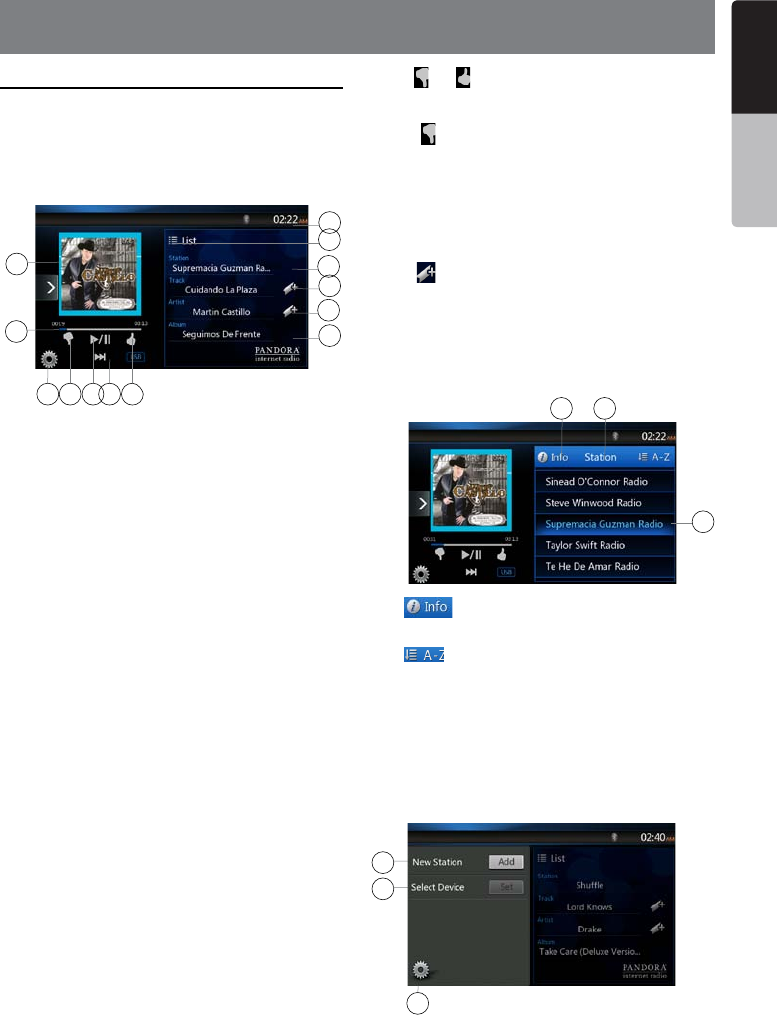
33
NX404
English
English Owner’s Manual
English Owner’s Manual
12. PANDORA OPERATIONS
Selecting the Pandora mode
1. Turn on Pandora function of your iPod.
2. Connect your iPod to the unit.
3. When iPod/iPhone is already connected, touch the
[Pandora] icon on the Main Menu screen.
• Pandora mode ID 3 Information Screen
1 - Art Work
2 - Progress bar
3 - Settings Button
4 - Thumbs-down
Press this button Thumbs-down current track and play
next track.
5 - Play/Pause Button
Use to control playback and pause.
(1). Touch the key during playback. Playback pauses.
(2). To resume playback touch the key again.
6 - Next track Button
7 - Thumbs-up
8 - System time
9 - List Button
Press this button to show List Screen
10 - Current station name
11 - Current title.
Touch icon to store current title to track favorites list.
12 - Current artist.
Touch icon to store current artist to artist favorites list.
13 - Current album name.
•Skipping a track (Pandora mode)
Press [] button during playback, tracks are skipped
and starts playback from the beginning of the next
track.
Note:
• Some track are not able to be skipped.
• If skip limit has been reached(Skip 6 tracks in
1H),this fuction will not available.
•Track rating
Press [ ] or [ ] button to thumbs-down or Thumbs-
up current track, and the button will light.
Note:
•Press [ ] button will skip to next track (skip limit has
not been reached).
•Some track is not able to be rated (i.e. audio ads
and shared station content). The thumbs buttons will
disable.
•Bookmarking
Touch [ ] button to store current title or artist to track
favorites list.
Note:
•Some track are not able to be bookmarked (i.e. audio
ads). In this case the bookmark buttons will disable.
• Pandora mode Station List
1 - [ ]button
Press this button to display ID 3 Information Screen.
2 - [ ]button
Press this button to sort the list by rst letter,press
again to sort the list by date.
3 - Station list,touch to select station play.
When the desired station is not displayed, press and
ick the station list up or down.
• Pandora mode Setting screen
4 5 76
2
3
11
12
9
110
13
8
1
2
3
1 2
3
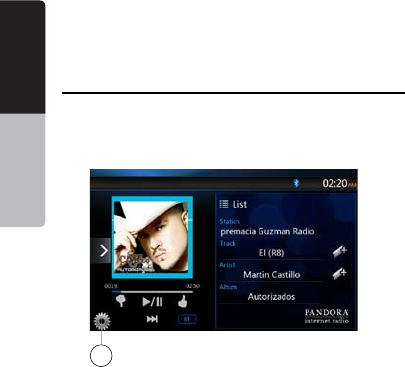
34 NX404
English
English Owner’s Manual
English Owner’s Manual
1 - Add a new Station
2 - Select a device
3 - Close the setting screen
Pandora Bluetooth mode
When your mobile phone have connected to the unit
via bluetooth.You can also enter the Pandora mode.
The operation is same as the normal Pandora mode.
1 - BT mode
When connected via bluetooth.This icon will change
from USB to BT
1
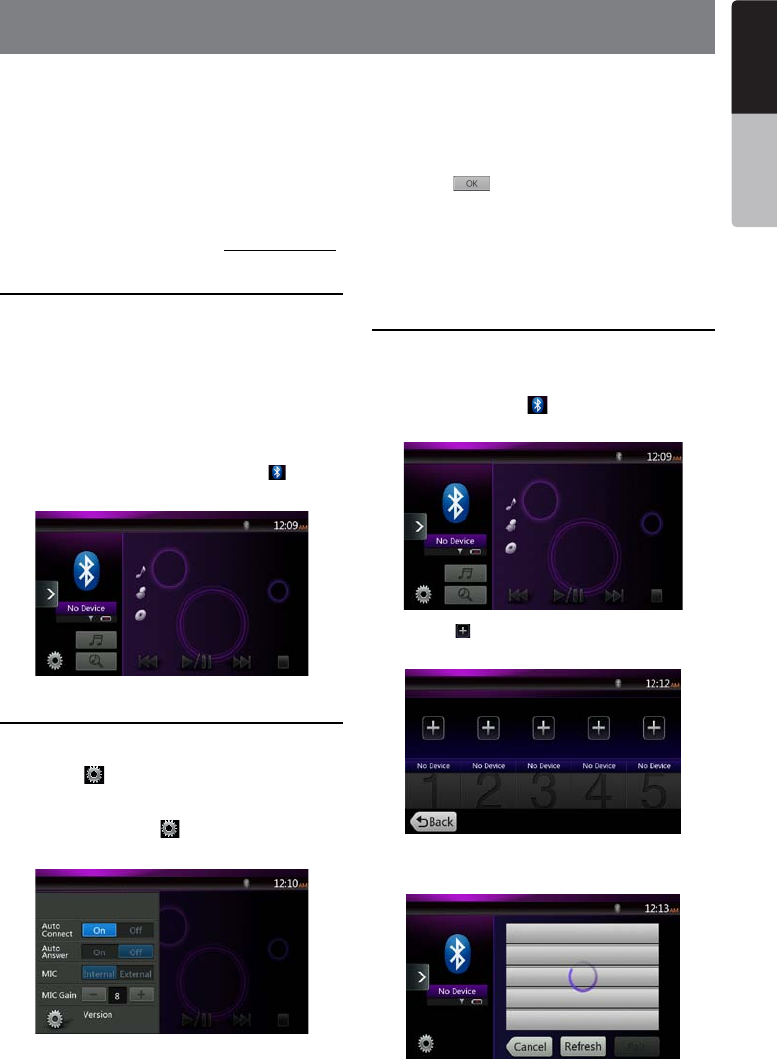
35
NX404
English
English Owner’s Manual
English Owner’s Manual
13. Bluetooth AUDIO PLAYER OPERATIONS
Some Bluetooth cellular phones have audio features,
and some portable audio players support the
Bluetooth feature. These devices will be called as
“Bluetooth audio players” in this manual. This system
can play audio data stored in a Bluetooth audio player.
Note:
• This system will not operate or may operate improperly
with some Bluetooth audio players.
• For detailed information on the playable Bluetooth
audio players, see our home page: www.clarion.com
Selecting the Bluetooth Audio mode
1. Touch the [Bluetooth Audio] key to select the
Bluetooth Audio mode.
The system changes to the Bluetooth mode. If the
connection with a Bluetooth audio player has been
already established, you may select the Music
function.
2. Press MENU button on Operational Panel to return
to the Main Menu.
• When the connection with blue icon a Bluetooth
audio player has been established, the [] icon is
displayed at the top of the screen.
Bluetooth audio player settings
You can conrm various information concerning about
the Bluetooth Interface features.
1. Touch the [] button to display the information on
the screen.
2. When you nish conrming the Bluetooth
information, touch the [] button to return to the
previous screen.
If you want to change the Pin Code setting of this unit,
perform the following steps.
• The factory default setting is “1234”.
3. Touch the text box of the Pin Code item to display
the Ten-Key Pad screen.
4. Enter your desired 4-digit PIN number, and then
touch the [] key.
Note:
This model is not supported External MIC.
T2 sample is ENABLED. .
Registering your Bluetooth audio player
(Pairing)
You can register up to 5 Bluetooth audio players.
1. Turn on the power of the Bluetooth audio player you
wish to register.
2. Touch the Device key [] to display the Device
Select screen.
3. Touch the [ ] button to display the Inquiring Device
screen.
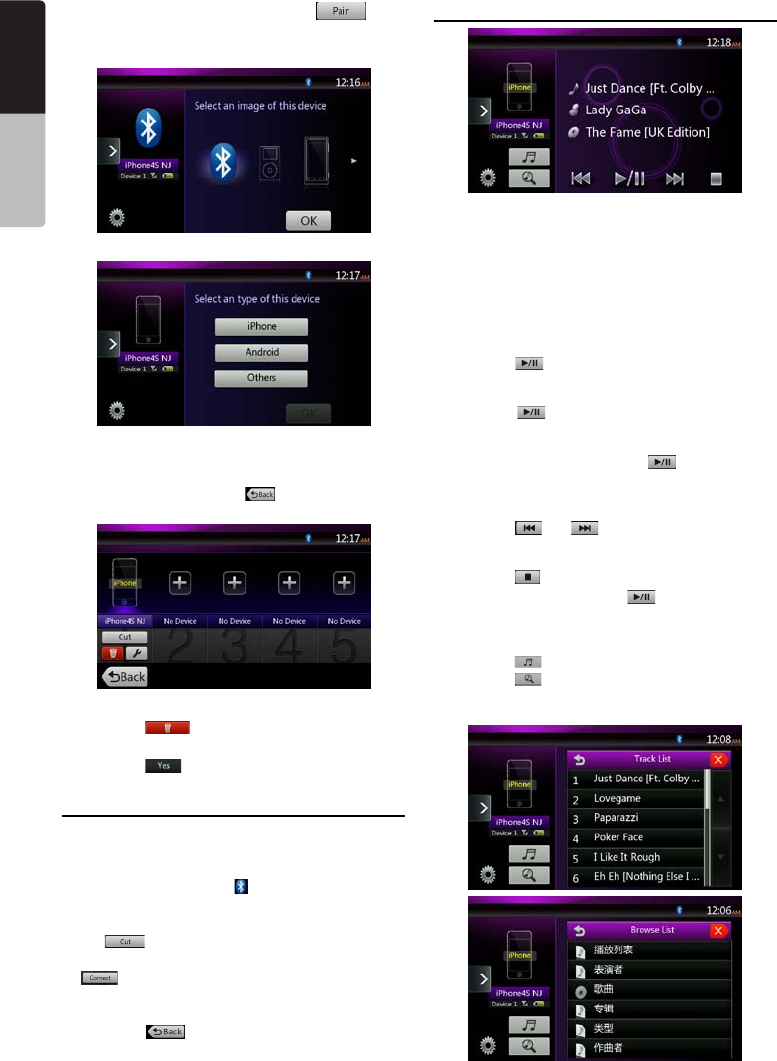
36 NX404
English
English Owner’s Manual
English Owner’s Manual
4. Touch your desired Device and press [
] button to register for the Bluetooth audio player.
Then select an image of this device.
And select a type of this device.
When the pairing operation completes, the registered
Bluetooth audio player is set as the current device,
after selecting the favorite icon, the display return to
the device list screen. Press [] button, the display
will return to the Bluetooth audio mode screen.
• To delete the Bluetooth audio player registration
1. Touch the [ ] button to delete the device.
A conrmation screen is displayed.
2. Touch the [ ] button to conrm delete.
Selecting the Bluetooth audio player
To change the current Bluetooth audio player to the
other device which is already registered, perform the
following operation.
1. Touch the Device key to [] display the Device
Select screen.
2. Touch the currently connected device, then press
the [] button to disconnect the active device.
3. Touch the desired Device key you wish to use. Press
[] button to select it as your active device.
The corresponding cellular phone is set as current
telephone.
4. Touch the [] button to return to the previous
screen.
Controlling the Bluetooth audio player
Note:
• Occasionally, depending on the environment, playback
sounds may be fragmented, or switch noises may be
generated.
Playing a music
After the connection with a Bluetooth audio player is
established, the play mode is automatically engaged.
• When playback is not started for some devices,
touch the [] button manually.
Pausing playback
1. Touch the [ ] button during playback.
Playback pauses.
2. To resume playback, touch the [ ] key. Playback
resumes.
Skipping a track (searching)
3. Press the [ ] or [ ] button during playback.
Stopping playback
4. Press the [ ] button during playback.
Tracks are stopped, press the [] button to
playback the rst Track.
Show track list
5. Press the [ ] button to show the current track list.
Press the [] button to show all of the lists.And
you can playback any tracks by touch the items in
the list.
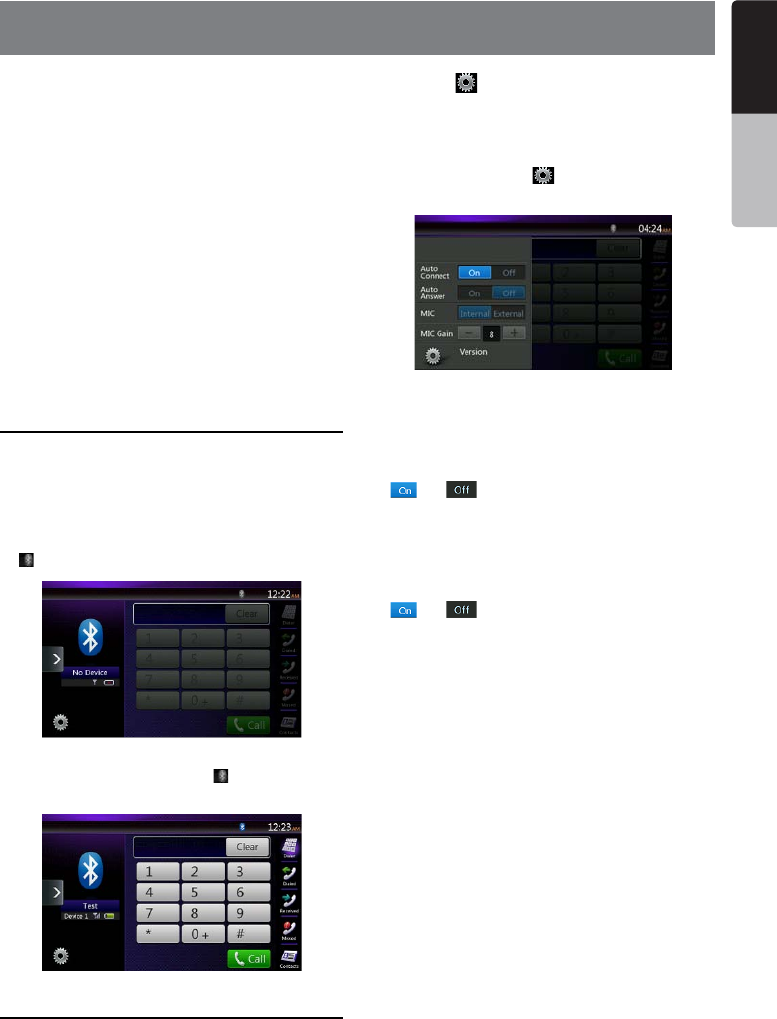
37
NX404
English
English Owner’s Manual
English Owner’s Manual
When the connection with your Bluetooth cellular
phone is established, the following functions are
available on this unit:
• Listening to your telephone calls on the car
speakers.
• Answering to an incoming call.
• Making a call using the Ten-Key pad screen.
• Making a call using the Phone Book data in the
selected cellular phone.
• Making a call using the History data of the dialed/
received calls.
Note:
• Some cellular phones may not be able to transfer the
Phone Book data to head unit.
• The Phone Book data transmission may take a long
time. The operations of sending calls are disabled
during the data transmission.
Select the BT Phone mode
1. Touch the [Bluetooth Telephone] key to select the
Bluetooth Telephone mode.
The Telephone screen is displayed.
2. Press MENU button on Operational Panel to return
to the Main Menu.
• When no Bluetooth Telephone connected, the icon
[] is displayed at the top of the screen.
• When the connection with a Bluetooth Telephone
has been established, the icon [] and signal level
indicator are displayed at the top of the screen.
Bluetooth Telephone settings
You can conrm various information concerning about
the Bluetooth Interface features.
1. Touch the [] button to display the information on
the screen.
2. Perform setting for the desired item. See the
following sections for detail.
3. When you nish conrming the Bluetooth
information, touch the [] key to return to the
previous screen.
Setting Automatic Connection
The system automatically reconnects the cellular
phone after the connection is lost or the system is
restarted.
• The factory default setting is “ON”. Touch the
[] or [ ] button of the Automatic Connection
item to set the function ON or OFF.
Setting Automatic Answer
If a call comes in, answer automatically after
5 seconds.
• The factory default setting is “OFF”. Touch the
[] or [ ] button of the Automatic Answer item
to set the function ON or OFF.
Setting Microphone Gain
You can adjust the input level of the microphone in
16 levels.
• Touch the level indicator button of the Microphone
Gain item to adjust the input level.
Note:
• The input level of the microphone can be affected by
its surroundings. Adjust the level if the person on the
other end of the telephone has a reception problem.
14. Bluetooth
TELEPHONE OPERATIONS
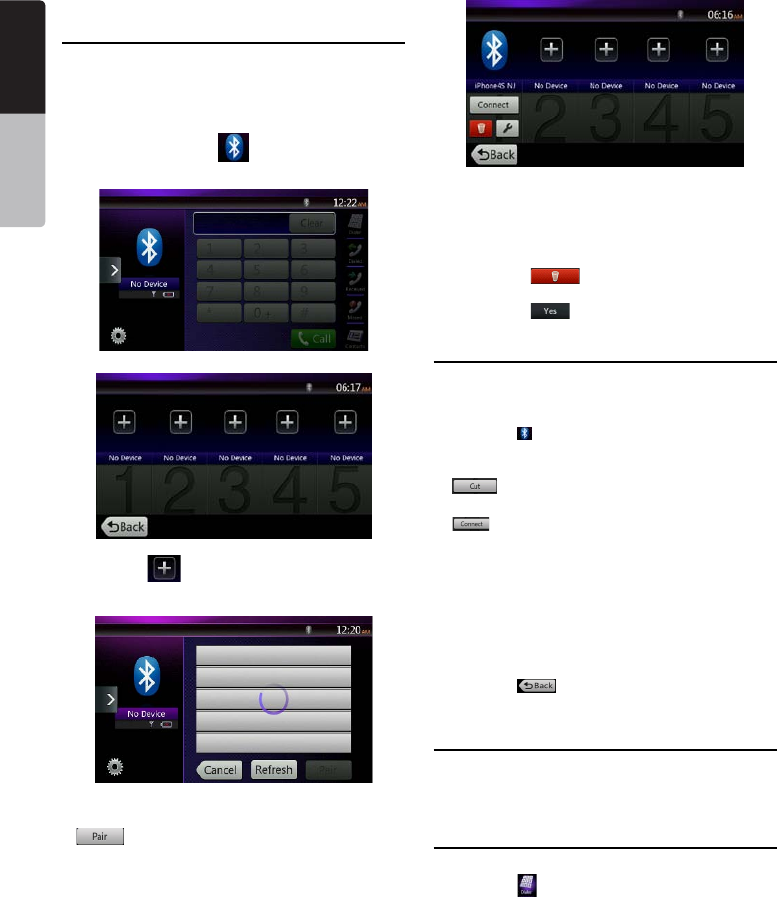
38 NX404
English
English Owner’s Manual
English Owner’s Manual
Registering your cellular phone
(Pairing)
You can register up to 3 cellular phones. The
registering method is as same as “Registering your
Bluetooth audio player”.
1. Turn on the power of the cellular phone you wish to
register.
2. Touch the Device key [] to display the Device
Select screen.
3. Touch the [ ] key to display the Inquiring Device
screen.
4. Touch your desired Cellular key to select the key
for the cellular phone to be registered, and press[
] button to register for the Bluetooth cellular
phone.
• You cannot select the Cellular button of which
another cellular phone is already registered.
Select a blank Cellular button.
5. If entering the Pass Key code is prompted on your
cellular phone, enter the Pass Key code set in this
unit.
• You can change the Pass key setting of this
unit from the Bluetooth Info screen under the
Telephone Settings screen.
When the pairing operation completes, the
registered cellular phone is set as the current
telephone, and the display returns to the
Telephone screen.
• To delete the cellular phone registration
1. Touch the [ ] key to delete the device.
A conrmation screen is displayed.
2. Touch the [ ] key to conrm delete.
Select the cellular phone
To change the current cellular phone to the other
device which is already registered, perform the
following operation.
1. Touch the [] key to display the Device Select
screen.
2. Touch the currently connected device, then press
[] key to disconnect the active device.
3. Touch the desired Device key you wish to use. Press
[] key to select it as your active device. The
corresponding cellular phone is set as the current
telephone.
• If the power of the cellular phone is not turned on,
turn it on.
• The cellular phone may prompt to acknowledge the
Bluetooth connection or to enter the Pass Key code
of this unit. Perform these operations according to
the message displayed.
4. Touch the [] key to return to the previous
screen.
Obtaining the Phone Book data
Sending the Phone Book data from the cellular phone
enables you to make a call using the Phone Book
function from this unit.
Telephone operations
Making a call using the Ten-Key pad
1. Touch the [ ] key to display the Ten-Key pad
screen.
2. Enter the telephone number by using the Ten-Key
pad displayed on the screen.
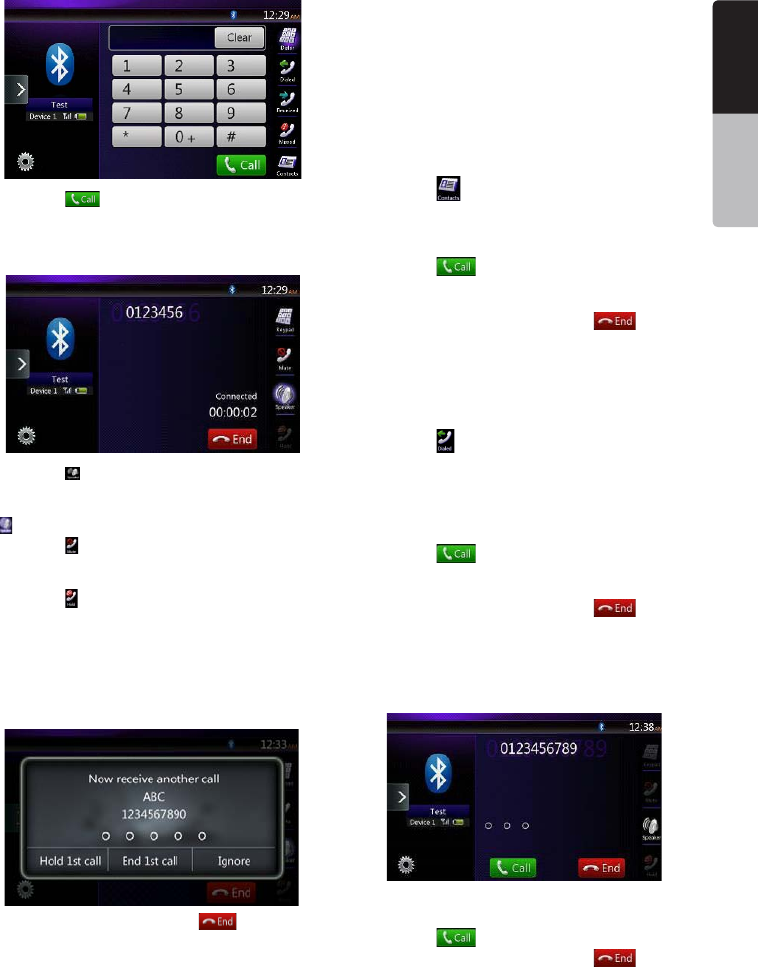
39
NX404
English
English Owner’s Manual
English Owner’s Manual
3. Touch the [ ] (Send) key to call the entered
number.
• The following Telephone Interrupt screen is
displayed during phone call.
• Touch the [ ] key to talk by using the cellular phone
and canceling the hands-free function (Private
Mode). To return to the hands-free mode, touch the
[] key again.
• Touch the [] key to mute the microphone. Now
you can hear the other side, but the other side
cannot hear your side.
• Touch the [] key to hold the current phone call,
now you can answer to the other incoming call.
Touch again to talk with previous call
If during a call with a third-party call, you can keep
the current call to answer a third party or hang up
the current call to answer a third party. You can also
ignore the third-party calls.
4. When the call is nished, touch [ ] key to hang
up.
Note:
• Depending on some special cellular phone, the
Telephone Interrupt screen may be closed and the
connection with this system may be disconnected
when entering the Private mode.
Making a call using the Phone Book
You can use the Phone Book data obtained from the
cellular phone to make a call from this unit.
Note:
• Before using this function, the Phone Book data must
be sent from the cellular phone.
• Only the Phone Book items with at least one telephone
number registered in the captured Phone Book data
are displayed on the Phone Book screen.
1. Touch the [] key to display the Phone Book
screen.
2. Touch the desired Name key you wish to dial.
• Flick the list up and down to scroll the list.
3. Touch the [] key to call the specied number.
The Telephone Interrupt screen is displayed, and
calling starts.
• When the call is nished, touch the [] key to
hang up.
Making a call using the History
The system will memorize the Dialed/Received calls
record data in the memory. You can conrm it and use
it to make a call from this unit.
1. Touch the [] key. The History List screen is
displayed.
• The items are sorted by Dialed, Missed and
Received calls.
• Flick the list up and down to scroll the list.
2. Touch the desired History item key you wish to dial.
3. Touch the [] key to call the specied number.
The Telephone Interrupt screen is displayed, and
calling starts.
• When the call is nished, touch the [] key to
hang up.
Answering to an incoming call
When a call comes in, the following Telephone
Interrupt screen appears.
You can answer to the incoming call on this system by
the following operation.
1. Touch the [] key to answer the call.
2. When the call is nished, touch the [] key to
hang up.
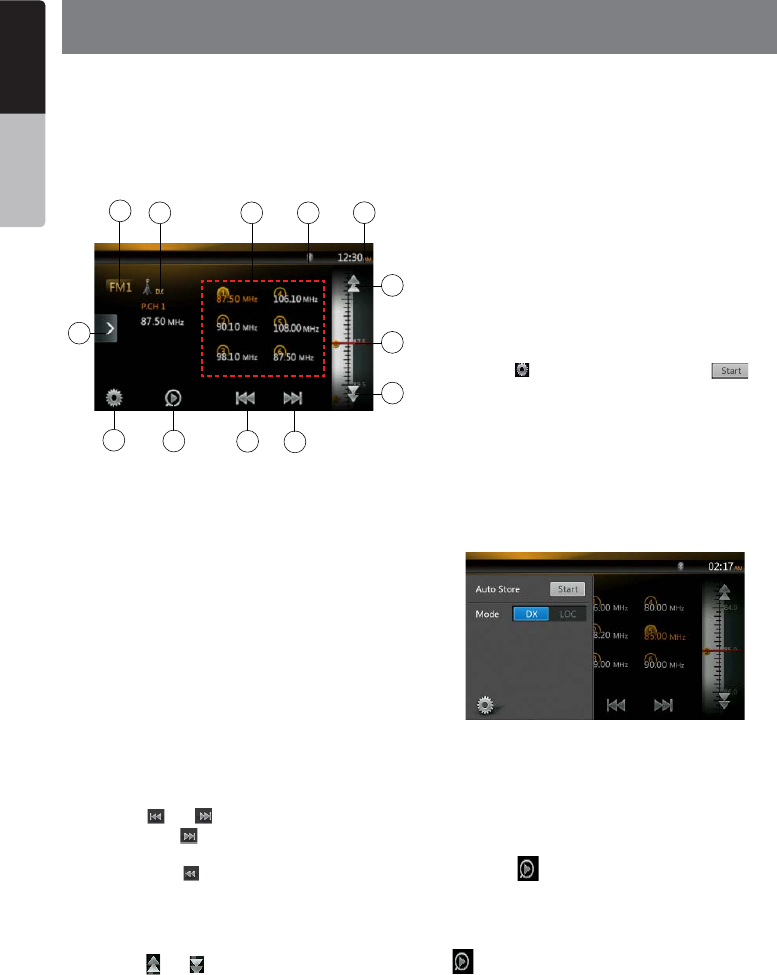
40 NX404
English
English Owner’s Manual
English Owner’s Manual
15. Tuner Operations
Listening to the Tuner
1. Touch the Tuner button on the Main menu display.
The tuner mode screen is displayed.
2. Press the [FM1/FM2/FM3/AM] button to select the
radio band. Each time the button is pressed, the
radio reception band changes in the following order:
FM1->FM2->FM3->AM -> FM1...
1. Preset Scan Button
2. Seek Down
3. Seek Up
4. Step Down
5. Step Up
6. Frequencies Display
7. System time
8. Bluetooth status
9. Preset List
10. DX/Local Display
11. Band Button
12. Shortcut Button
13. Option Button
Seek Tuning
1. Press the [FM1/2/3/AM] button to select the radio
band (FM or AM).
2. Touch the [] or [ ] button
• When Press the [] button, the station is searched
in the direction of higher frequency.
• When Press the [] button, the station is searched
in the direction of lower frequency.
Step Tuning
1. Press the [FM1/2/3/AM] button to select the radio
band (FM or AM).
2. Touch the [] or [ ] button in frequency menu to
tune up or down by one step.
Recalling a preset station
1. Press the [FM1/2/3/AM] button to select the desire
band (FM or AM) on the tuner.
2. Press the preset station (1 to 6) on Preset List.
Manual memory
1. Touch the desired Band key to select the band you
wish to store.
2. Tune to a station you want to store using the seek
tuning, step tuning, or preset tuning.
3. Touch and hold the desired Preset key you want to
store for about 2 seconds.
Auto Store
The Auto Store is a function for storing up to 6 stations
that are automatically searched in sequentially. If the
number of receivable stations cannot reach to 6, the
previous stored station remains.
1. Touch the [FM1/2/3/AM] button to select the
desired band. (FM or AM)
2. Press the [] button, and then press the [ ]
button to start the Auto Store.
A beep sounds and the stations with good reception
are stored automatically to the preset list.
Notes:
1. After auto store, the previous stored stations will be
overwritten.
2. The unit has 4 bands, but FM3 and AM can store by
AS function.
Preset Scan
The Preset Scan receives the stations stored in the
preset memory in order. This function is useful when
searching for the desired station in memory.
1. Touch the [FM1/2/3/AM] Button to select the desired
band. (FM or AM)
2. Touch the [] button to start the Preset Scan.
The unit starts scanning each station for 10 seconds
sequentially. But the station stored is not a valid
station; the scanning time is only 2 seconds.
3. When the desired station is tuned in, touch the
[] button again to stay in that station.
DX/Local Setting
The DX / Local setting changes the tuner sensitivity in
order to separate closely spaced stations. This feature
is useful in areas that have many radio stations in
close proximity.
113
12
7
11 8910
23
4
6
5
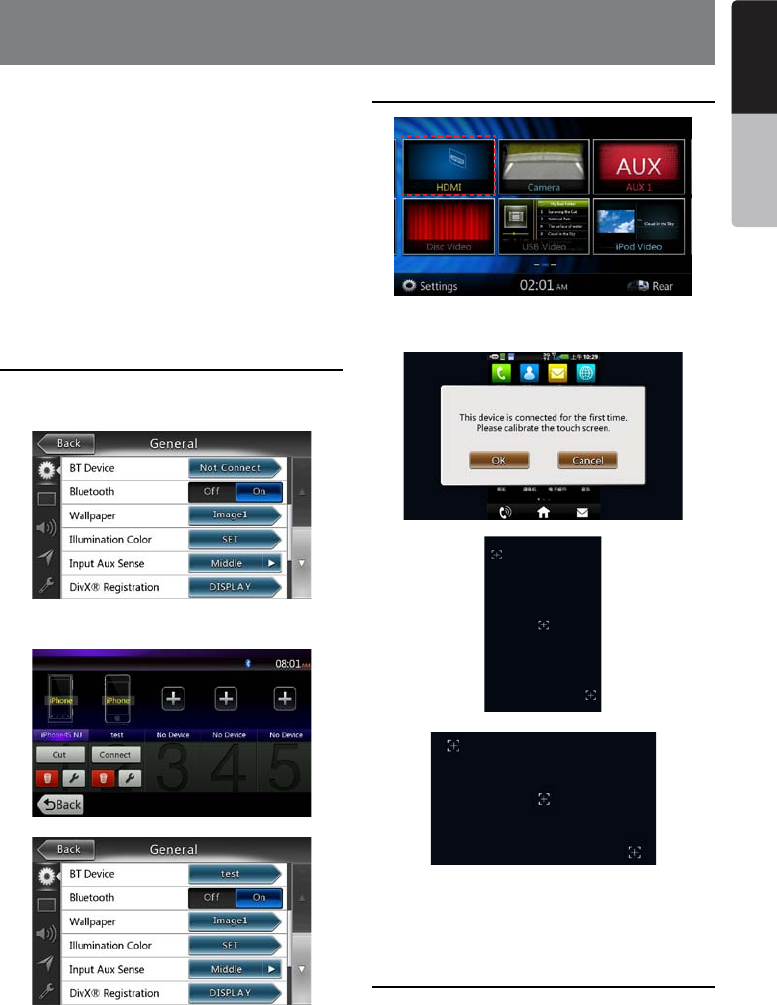
41
NX404
English
English Owner’s Manual
English Owner’s Manual
Switching to HDMI mode
Note:Make sure your mobile phone has installed the
SkyMirror app. Before using the HDMI function,you
should connect your mobile phone to the unit via
BT.Then connect your mobile phone to the HDMI via
USB.
Touch the HDMI button on the Main menu display.
The HDMI mode screen is displayed.If it is new
mobile phone, our system will inform mobile phone
APP enter calibration mode automatically. If the
user delete the phone in the list, we should also
delete the mac address, which means this phone
is new one again.
Select a device for HDMI connect
Setting screen
push [Not Connect],select a device to connnect.
Connected device name
Select HDMI source
When a device is connected for the rst time.The
calibration will show up automatically.
Note:During the calibration,the buttons on the mobile
phone can not work.Calibration time is set to 30
seconds.When time is out,the buttons on the mobile
phone will be useful again.
HDMI for iPhone
16. HDMI Operation
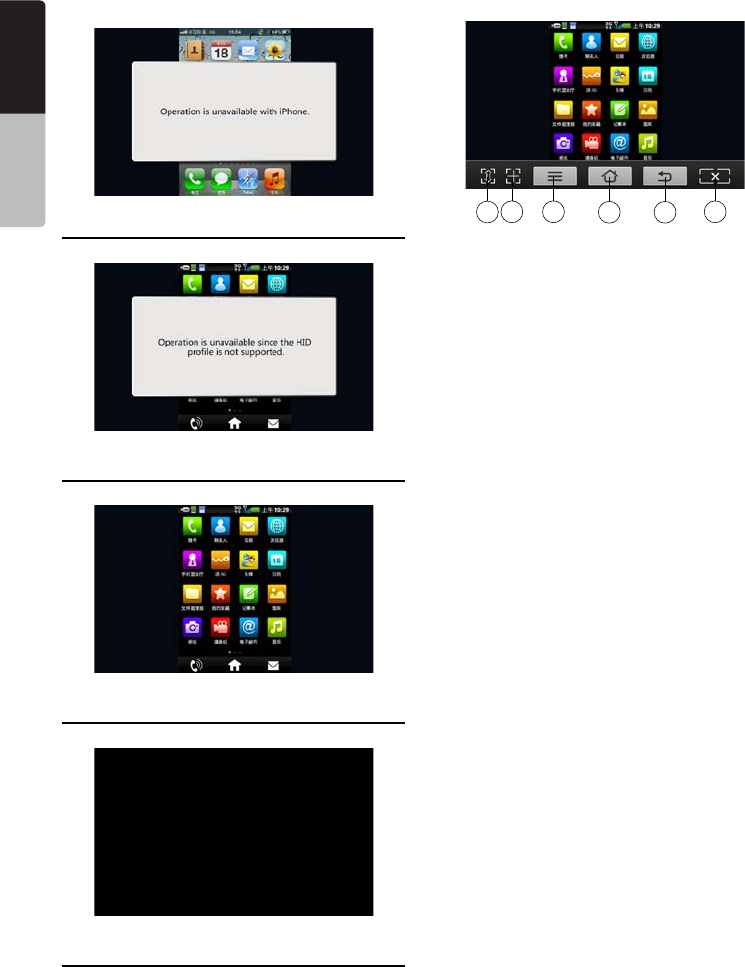
42 NX404
English
English Owner’s Manual
English Owner’s Manual
HDMI for Android(No HID profile)
HDMI for Android(HID profile)
Other or Any device is not connected
HDMI Mode
1 - Pad move Button
Press this button to switch the operation pad up or
down.
2 - Calibration Button
Press this button to recalibrate the screen.
3 - Menu Button
This button is same as Android OS’s.
4 - Home Button
This button is same as Android OS’s.
5 - Back Button
This button is same as Android OS’s.
6 - Hide Button
Press this button to hide the operation pad.
4
32 6
5
1
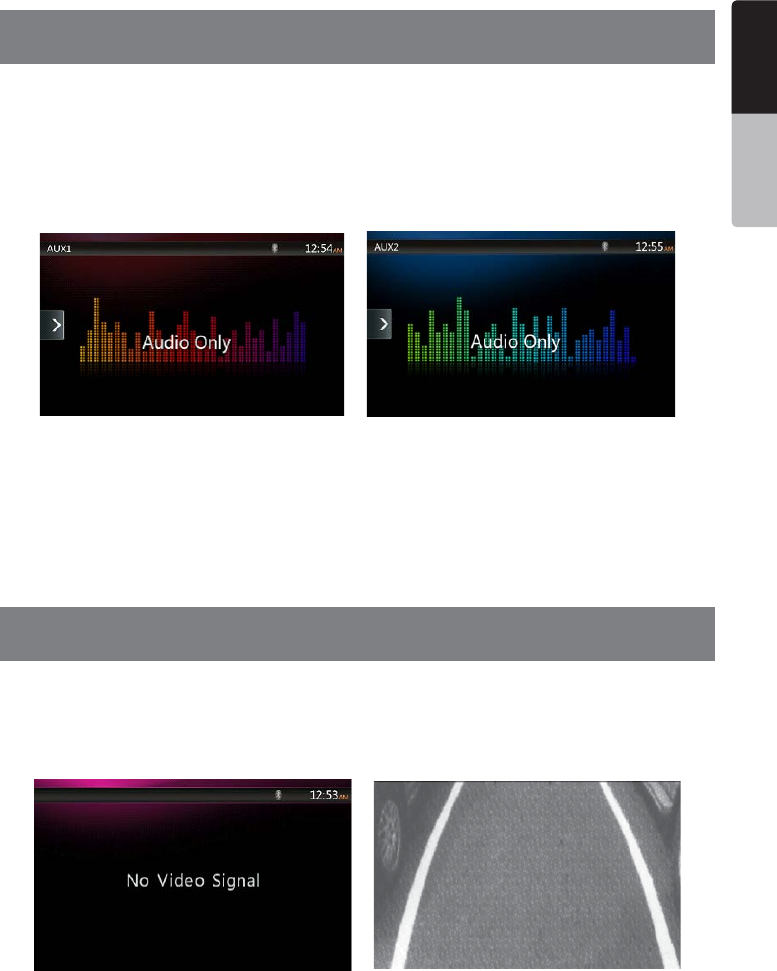
43
NX404
English
English Owner’s Manual
English Owner’s Manual
17. AUX
External peripheral devices, including a game console, camcorder, navigation unit, iPod/iPhone, etc. can be
connected to the AUX connector on the front or back of this unit using the A/V media cables.
Switching to AUX IN
Press [AUX1] /[AUX2] button on Main Menu to select desired mode (when unit is reading). If the external device
connected to AUX input have audio signal, the unit will broadcast audio of external device. Press Menu button on
Operational Panel to return to the Main Menu.
You cannot directly control external devices connected to AUX input.
18. Camera In Operations
Switching to Camera mode
Press [Camera] button on Main Menu to select desired mode.
The LCD will display the external camera video. The screen will display “No Video Signal” message, if a valid
camera is not connect to this head unit.
Press MENU button on Operational Panel to return to the Main Menu.
Note:
If the reverse cable is connected correctly to the car, the head unit to go to camera mode automatically when the car
is in reverses.
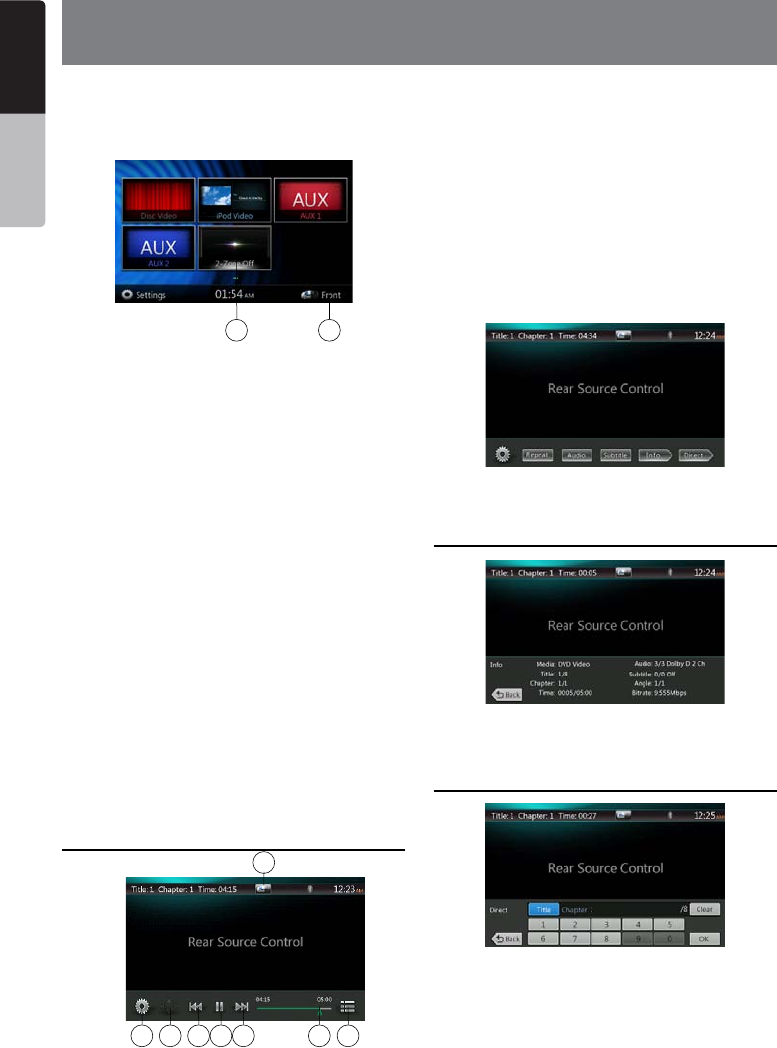
44 NX404
English
English Owner’s Manual
English Owner’s Manual
If a monitor is installed in the rear zone and connected
to the rear zone AV output, passengers in the back
seat can watch the DVD/iPod Video/AUX1/ AUX2
video separately from front source.
1. Press the button to access the front source.
2. Press the button to close the rear source.
Multi-Zone Operation
Independent sources can be played simultaneously
on the unit. For example, a FM/AM console can be
playback on the front screen while DVD video is
available to rear passengers. But now can’t select
DVD video in front.
Access Rear-Zone
1. Touch the Rear button on Main Menu to access the
Rear Source.
2. Select a source to play.
Exit Rear-Zone
Touch the 2-Zone off button to close the Rear Source.
Note:
1. If the source is selected as the front, the source in
rear can’t be selected.
2. If the source is selected as the rear, the source in
front can’t be selected.
3. Press the Front Button to access the main menu but
not close the Rear Source.
DVD Video in Rear
1 - Option Button
2 - Show Cursor keys Button
3 - Previous Chapter /Fast Backward Button
4 - Play/Pause Button
5 - Next Chapter /Fast Forward Button
6 - Elapsed playing time
7 - Menu List Button
8 - Front/Rear button
If the screen displays Rear Source, press Front/Rear
button to switch to Front Source.
If the screen displays Front Source, Press Front/Rear
button to switch to Rear Source.
DVD Video Rear Source Control Info
mode.
PressBACKbuttontoreturn.
DVD Video Rear Source Control Direct
mode.
NOTE: More detail please refer to DVD Video Front
source.
19. Rear Source Operation
12
8
1 2 3 4 5 6 7
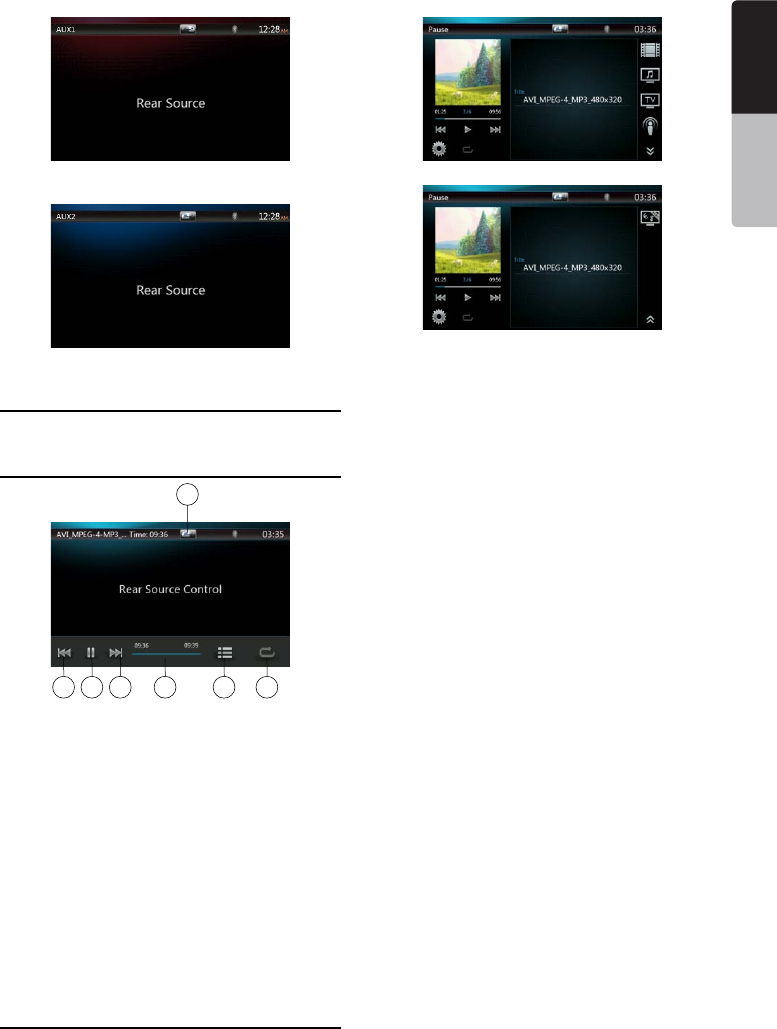
45
NX404
English
English Owner’s Manual
English Owner’s Manual
AUX1
AUX2
iPod Video in Rear
iPod Video Rear Source Control Play
Mode
1 - Previous Track /Fast Backward Button
2 - Play/Pause Button
3 - Next Track/Fast Forward Button
4 - Progress bar
5 - Menu List Button:
Press the Menu button can display the iPod Video
Rear Source mode screen.
6 - Repeat Button:
Same as iPod function of front source
7 - Front/Rear button
If the screen displays Rear Source, press to switch to
Front Source.
If the screen displays Front Source, Press to switch to
Rear Source.
iPod Video Rear Source ID3 Mode
NOTE:
If the source is selected as the front, the source in rear
can’t be selected.
If the source is selected as the rear, the source in front
can’t be selected.
Press the Front Button to access the front main menu
but the rear source will keep running.
1 2 3 4 5 6
7
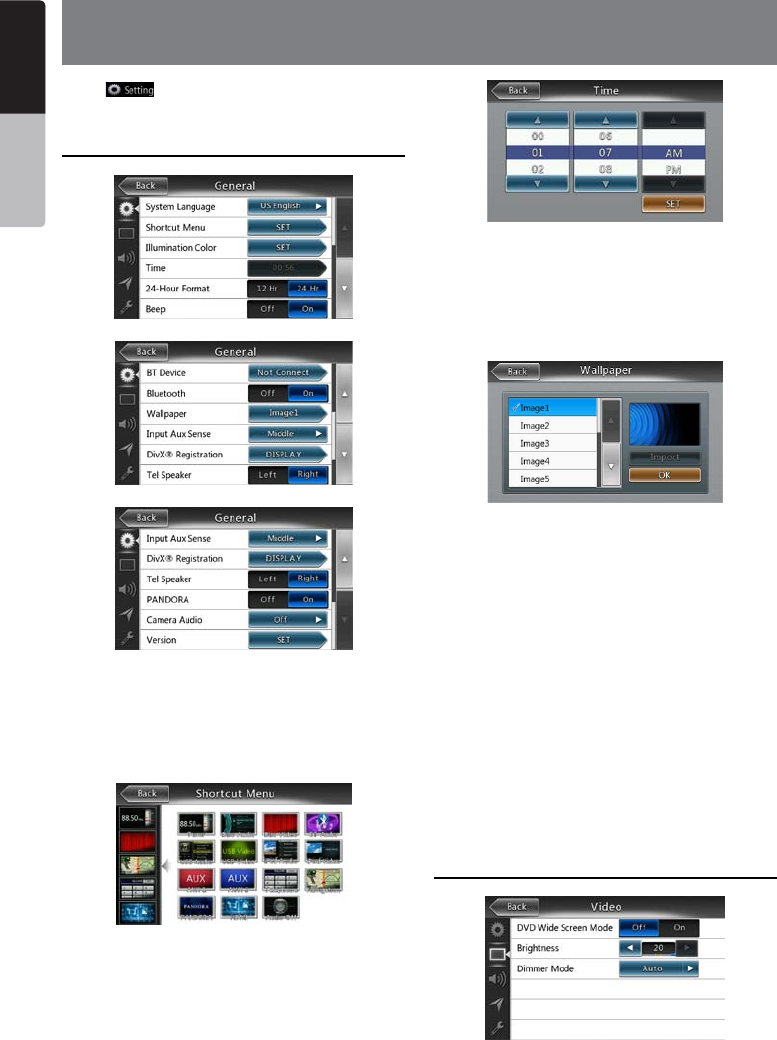
46 NX404
English
English Owner’s Manual
English Owner’s Manual
20. Setting Operation
Press [ ] button on the Main menu screen.
The Setting menu screen will be displayed.
General Setup Menu
System Language: Set the Language for system
screen.
Illumination Color: Set the illumination color on the
panel.
Select menu to be able to select from Shortcut
menu and drag it to left side area.
Time: Set system clock.
24-Hour Format: Set the time display mode.
Beep: Turn on or turn off the beep conrmation sound.
Bluetooth: Set the Bluetooth On or Off.
Wallpaper: Choose the desired wallpaper.
Input Aux Sense: AUX input switch, including Low,
Middle, High.
DivX® Registration: Display the information about
DivX® registration.
Tel Speaker: Therearetwooptions,LeftandRight.
Forexample,ifcurrentsettingisRight,whenBT
phoneiscomingin,onlyrightspeakercanhearthe
phone.
Pandora:Therearetwooptions,OnandOff.
Camera Audio:Therearethreeoptions,Off,Onand
Mute.
Version: Display the software version information.
Note:
• Time and 24-Hour Format can be adjusted when set
the system time not to be synchronized with GPS local
time.
Video Setup Menu
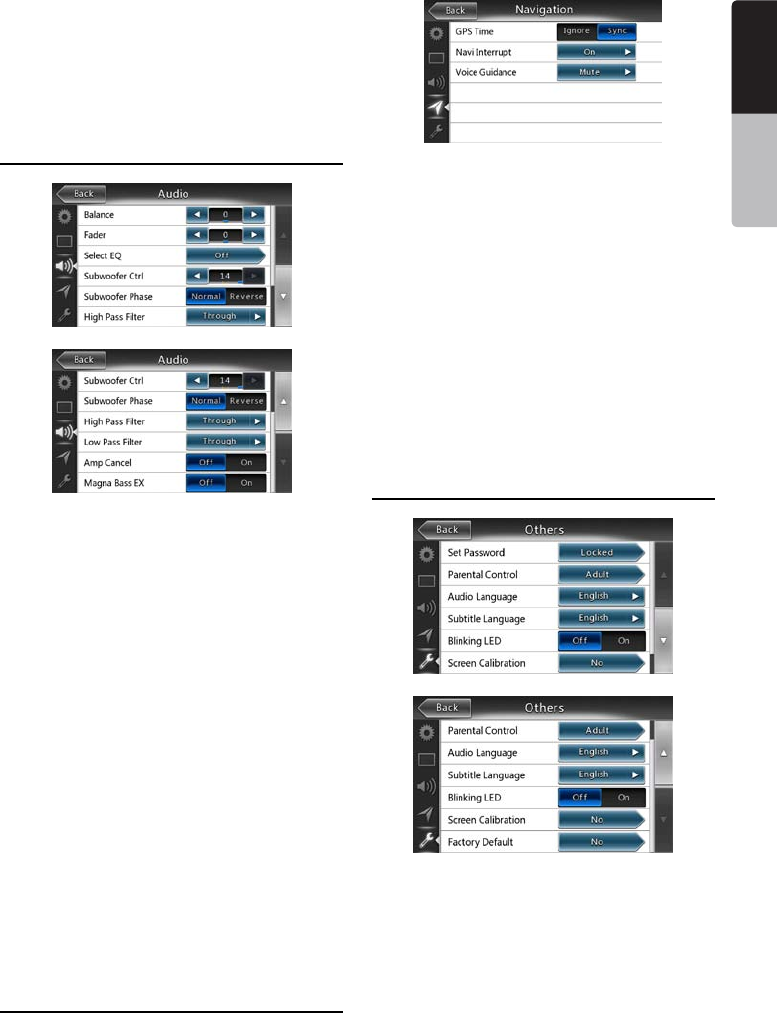
47
NX404
English
English Owner’s Manual
English Owner’s Manual
This menu includes: DVD Wide Screen Mode;
Dimmer. Dimmer Mode
DVD Wide Screen Mode: Set the DVD wide screen
mode On or Off.
Dimmer: Set Dimmer value from 0 to 20.
Dimmer Mode: There are three options, Day, Night
and Auto.
Audio Setup Menu
This menu includes: Balance, Fader, Beat EQ, Sub
Woofer Ctrl, Sub Woofer Phase, High Pass Filter Low
Pass Filter, Line Out and Magna Bass EX.
Balance: Choose the desired volume for left and right
speaker.
Fader: Choose the desired volume for front and rear
speaker.
Beat EQ: Choose the desired mode: Bass Boost,
Impact, Excite, Custom and OFF.
Subwoofer Ctrl: Choose the desired subwoofer gain
from 0 to 14.
Subwoofer Phase: Choose the Subwoofer Phase
normal or reverse.
High Pass Filter: Choose the frequency about the
high pass lter or enable. The frequencies include
60Hz, 90Hz and 120Hz.
Low Pass Filter: Choose the frequency about the low
pass lter or enable. The frequencies include 60Hz,
90Hz and 120Hz.
Amp Cancel: Choose the amplier audio output on
or off.
Magna Bass EX: Choose the loudness On or Off.
Note:
Optional cable (sold separately) is necessary when you
use Audio line out.
Navigation Setup Menu
This menu includes: GPS Time, Navi Interrupt, Voice
Guidance.
GPS Time: Set the system time to be synchronized
with GPS local time or not.
Navi Interrupt: There are three choices: On/Popup/
Off. “On”: The navigation screen will cover to AV
screen when reaching some key point. “Popup”: When
small turn info window will pop up in the top of the
AV screen to indicate the key point. “Off”: Turn off this
function.
Voice Guidance: There are three choose: On/Mute/
Off.
On: Interrupt function of voice guidance is on. While
interrupting no attenuate function of AV sound.
Mute: Interrupt function of voice guidance is on. While
interrupting attenuate function sound is on.
Off:disable the navigation voice guidance.
Others Setup Menu
This menu include: Set Password; Parental Control;
Audio Language; Subtitle Language; Screen
Calibration and Factory Default.
Set Password: Set the password for DVD parental
control.
Parental Control: Set the rating of the age. It contains
Kid Safe/G/PG/PG- 13/PG-R/R/NC- 17/Adult.
48 NX404
English
English Owner’s Manual
English Owner’s Manual
Audio Language: Set the Language for DVD Audio.
Subtitle Language: Set the Language for DVD subtitle.
Blinking LED: Set blinking LED On or Off.
Screen Calibrate: The function of it is to select the TS
Calibrate YES or NO.
Factory Default: The function is to select to load
factory default or not.
Set the Anti-Theft code
1. If your unit is unlocked, hold the [ ] button
more than 2 seconds, then the Anti-Theft setting
mode will display. Users can change anti-theft
code.
Touch [YES], the numerical keypad is displayed.
Enter the new password twice, then anti-theft code
is set and your unit is secured.
When the Anti-theft is “On”, you need enter correct
Anti-theft code to turn the unit on. If you enter
wrong code three times, the unit is locked, and must
be unlocked by the professionals.
2. If your unit is secured, hold the [ ] button more
than 2 seconds, then the Anti-Theft setting mode
will display. The numerical keypad is displayed,
enter the right code to unlock.
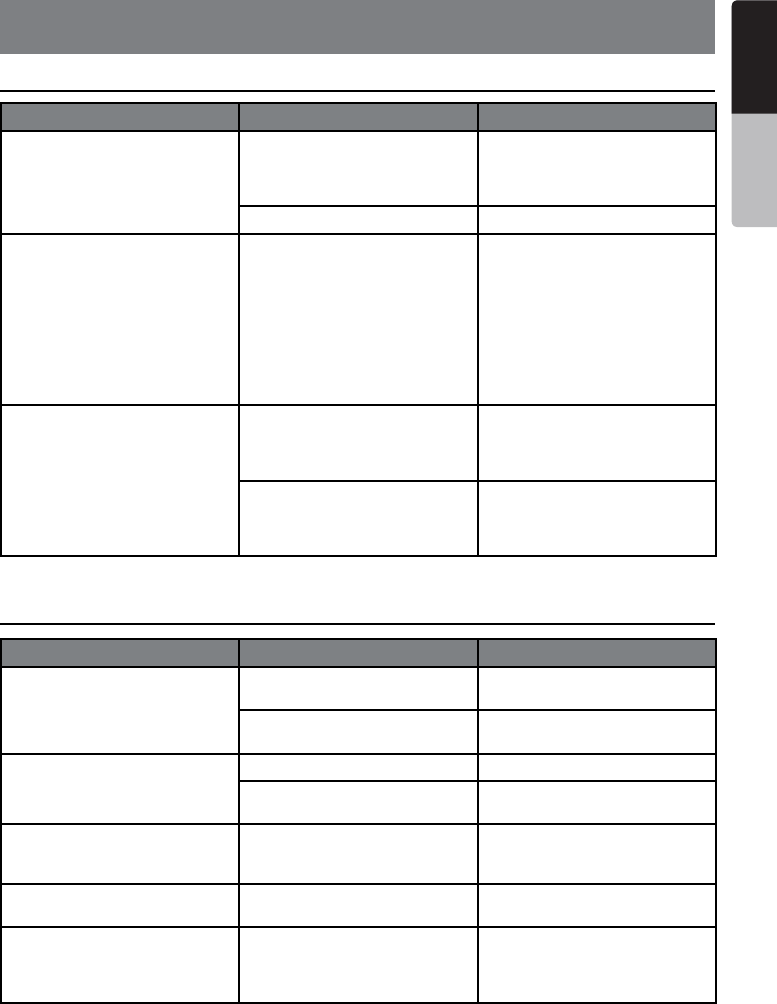
49
NX404
English
English Owner’s Manual
English Owner’s Manual
21. TROUBLESHOOTING
GENERAL
DVD PLAYER
Problem Cause Measure
Power does not turn on. (No
sound is produced.)
Fuse is blown. Replace with a fuse of the
same amperage. If the fuse
blows again, consult your store
of purchase.
Incorrect wiring. Consult your installation center.
Nothing happens when buttons
are pressed.
Display is not accurate.
The microprocessor has
malfunctioned due to noise,
etc.
Press the reset button with a
thin rod.
Note:
When the Reset button is
pressed, turn o the ACC
power.
* When the Reset button is
pressed, frequencies of radio
stations, titles, etc. stored in
memory are cleared.
The remote control unit does
not work.
Direct rays of the sun fall on
the light-receptive part of the
remote control unit.
When direct rays of the sun fall
on the light-receptive part of
the remote control unit, it may
not work.
The battery of the remote
control unit is dead or there is
no battery in the remote control
unit.
Check the battery of the remote
control unit.
Problem Cause Measure
Disc cannot be loaded. A disc is already loaded. Eject the disc before loading
the new one.
There is foreign matter already
in the disc slot.
Remove the foreign matter, or
consult a service station.
Sound skips or is noisy. Disc is dirty. Clean the disc with a soft cloth.
Disc is heavily scratched or
warped.
Replace with a disc in good
condition.
Sound is bad directly after
power is turned on.
Condensation may form on the
internal lens when the car is
parked in a humid place.
Let dry for about 1 hour with the
power on.
Video images are not
displayed.
The parking brake is not
engaged.
Check that the parking brake is
engaged.
Disc cannot play with
the display “PARENTAL
VIOLATION” shown.
Feature exceeds set parental
level.
Release the view limitation or
change the parental level.
See the subsection “Setting up
the parental level”
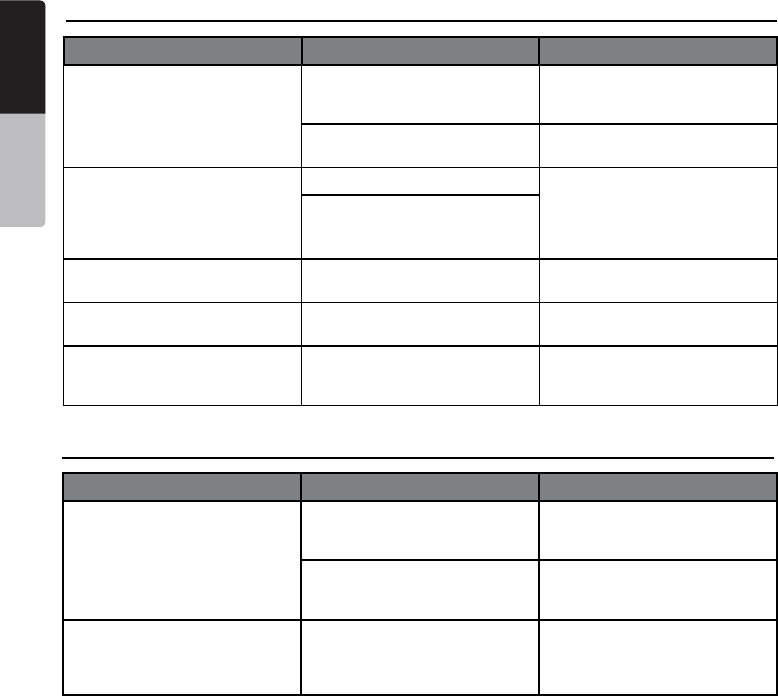
50 NX404
English
English Owner’s Manual
English Owner’s Manual
USB DEVICE
Problem Cause Measure
USB device cannot be inserted. The USB device has been
inserted with wrong direction.
Reversing the connection
direction of the USB device, try
it again.
The USB connector is broken. Replace with a new USB
device.
USB device is not recognized. The USB device is damaged. Disconnect the USB device
and reconnect. If the device
is still not recognized, try
replacing with a dierent USB
device.
Connectors are loose.
No sound heard with the
display “NO FILE” shown.
No MP3/WMA le is stored in
the USB device.
Store these les properly in the
USB device.
Sound skips or is noisy. MP3/WMA les are not
encoded properly.
Use MP3/WMA les encoded
properly.
The video image of iPod/
iPhone is disturbed.
The TV Signal setting of the
iPod/iPhone is not set correctly.
Set the TV Signal setting
(NTSC/PAL) of the iPod/iPhone
correctly.
Bluetooth
Problem Cause Measure
Cannot pair the Bluetooth
enable device with the car
audio system.
The device does not support
the proles required for the
system.
Use another device to connect.
The Bluetooth function of the
device is not enabled.
Refer to the user manual of the
device for how to enable the
function.
The audio quality is poor after
connection with a Bluetooth
enabled device.
The Bluetooth reception is
poor.
Move the device closer to the
car audio system or remove
any obstacle between the
device and the system.
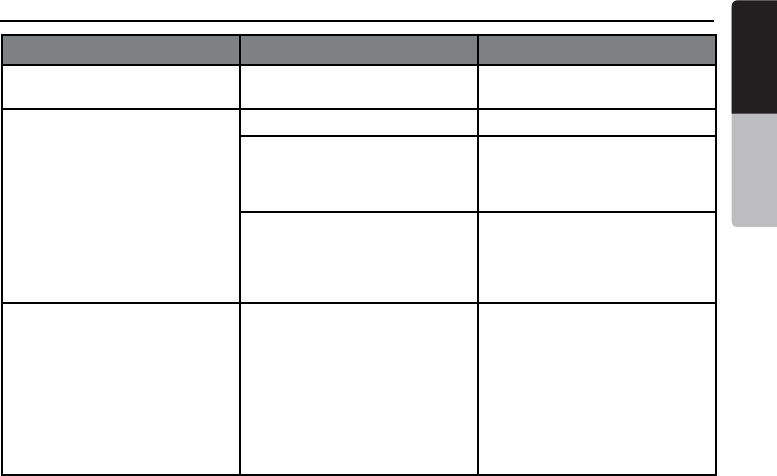
51
NX404
English
English Owner’s Manual
English Owner’s Manual
TFT screen
Problem Cause Measure
The image is not displayed. The parking brake is not
engaged.
Check that the parking brake is
engaged.
The display is dark. The Dimmer control is too low. Adjust the Dimmer properly.
The operating condition is not
good.
The temperature inside the
vehicle may be 0°C or lower. Set
to an appropriate temperature
(25°C or so) and check it again.
The headlight of the vehicle
is lit
The display is made dark
at night to prevent the glare
(When the headlight of the
vehicle is lit in the daytime, the
display gets dark).
There are red, green, and blue
points in display.
-------------------- This is not a failure, but a
phenomenon peculiar to a
liquid crystal panel (The liquid
crystal panel is produced
according to technology with
very high precision. Note that,
though there are eective
pixels of 99.99% or more, pixel
missing or normally lit pixels
account for 0.01%).
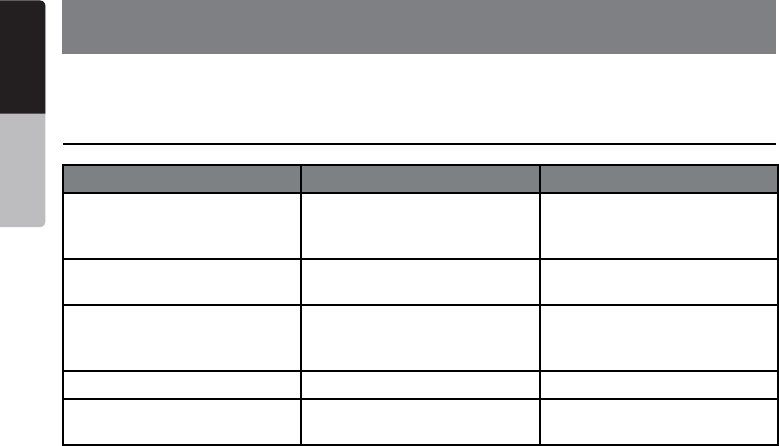
52 NX404
English
English Owner’s Manual
English Owner’s Manual
22. ERROR DISPLAY
If an error occurs, one of the following displays is displayed.
Take the measures described below to solve the problem.
DVD PLAYER
Display Cause Measure
BAD DISC A disc is caught inside the DVD
deck and is not ejected.
This is a failure of DVD deck’s
mechanism and consult your
store of purchase.
BAD DISC A disc cannot be played due to
scratches, etc.
Replace with a non-scratched,
non-warped disc.
BAD DISC A disc is loaded upside- down
inside the DVD deck and does
not play.
Eject the disc then reload it
properly.
PARENTAL VIOLATION Parental level error Set the correct Parental level.
Disc Region incorrect Region code error Eject the disc, and replace
correct region code disc.

53
NX404
English
English Owner’s Manual
English Owner’s Manual
23. SPECIFICATIONS
FM Tuner
Frequency Range: 87.5 MHz to 108.0 MHz
Usable Sensitivity: 8 dBµV
50dB Quieting Sensitivity: 14 dBµV
Alternate Channel Selectivity: 70 dB
Stereo Separation:
25 dB (1 kHz)
Frequency Response: 30 Hz to 14 kHz
AM Tuner
Frequency Range: 531 kHz to 1,629 kHz
Usable Sensitivity: 30 dBµV
DVD Player System
Digital Versatile Disc System with CDDA capable
Usable discs:
DVD video disc, Compact disc
Frequency Response: 20 Hz to 20 kHz
Sound/Noise Ratio: 95 dbA (1 W Ref)
Dynamic Range: 95 dB (1 kHz)
Distortion: 0.05%
Video system: NTSC/PAL
Audio/Video Input
Audio input voltage: ≤ 2 Vrms
Video input voltage: 1.0 Vp-p@75
Audio input sensitivity (at 2 V output)
High: 325 mVrms
Mid: 650 mVrms
Low: 1.3 Vrms
Audio/Video output
Video output voltage: 1.0 Vp-p @75
Screen Size: 6.2” wide type
Pixels: 1,152,000
Resolution: 800 x 480 x 3 (RGB)
Bluetooth
Specication: Bluetooth Ver 2.1+EDR
Prole: HFP1.5(Hands Free Prole)
HSP1.0 (Headset Prole)
A2DP (Advanced Audio Distribution Prole)
AVRCP1.2,1.3,1.4 (AV Remote Control Prole)
Power Class: 2
USB
Specication: USB 1.1/2.0 (FS)
Playable Audio format:
MP3,WMA,AAC,FLAC
Playable Video format:
AVI,MP4,MPG/MPEG,3gp
General
Power source voltage:
14.4 VDC (10.8 to 15.6 V allowable)
Ground: Negative
Current consumption: 4.0 A @1 W
Auto Antenna Rated Current: 500 mA less
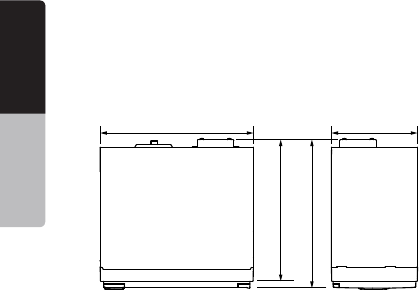
54 NX404
English
English Owner’s Manual
English Owner’s Manual
NX404 dimensions:
NX404 weight: 2.4 kg
mm001mm871
165mm
172mm
Note:
• Specications comply with JEITA Standards.
• Specications and design are subject to change without notice for further improvement.
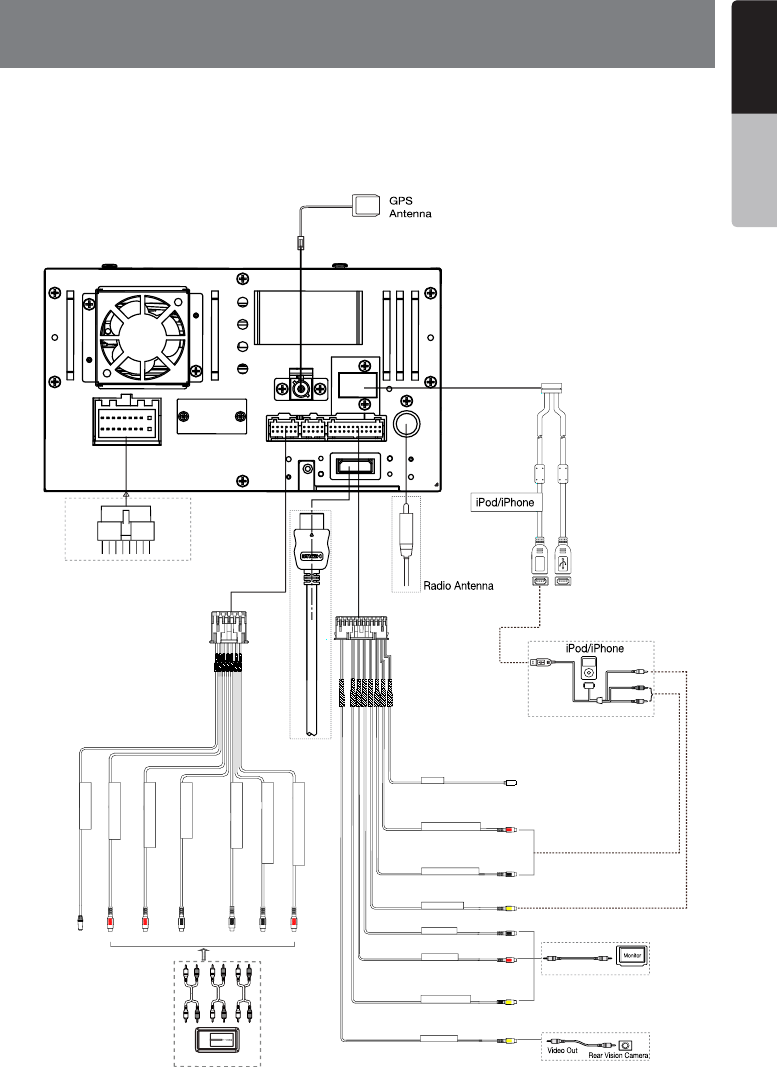
55
NX404
English
English Owner’s Manual
English Owner’s Manual
24. WIRE CONNECTION GUIDE
Note:
• Before installing, be sure to disconnect the negative cable of the car battery.
• In the optional devices, the RCA cables and the Connector cables are separately-sold
items.
NX404
CAMERA_VIDEO
REAR_VIDEO_OUT
REAR_RCH
REAR_LCH
R_AUX2_VIDEO
R_AUX2_AUDIO_LCH
EXT MIC
Red
Red
White
White
Yellow
Yellow
Yellow
CCA-750(sold separately)
4-Channel Amplifier
Red Red RedWhite White White
WHHEL_KEY_IN
RCH_4.2CH_FRONT
RCH_4.2CH_SUROUND
LCH_4.2CH_FRONT
LCH_4.2CH_SUROUND
LCH_4.2CH_SUBWOOFER/RL
RCH_4.2CH_SUBWOOFER/RR
R_AUX2_AUDIO_RCH
HDMI CABLE
For Rear zone
Refer to
page 56
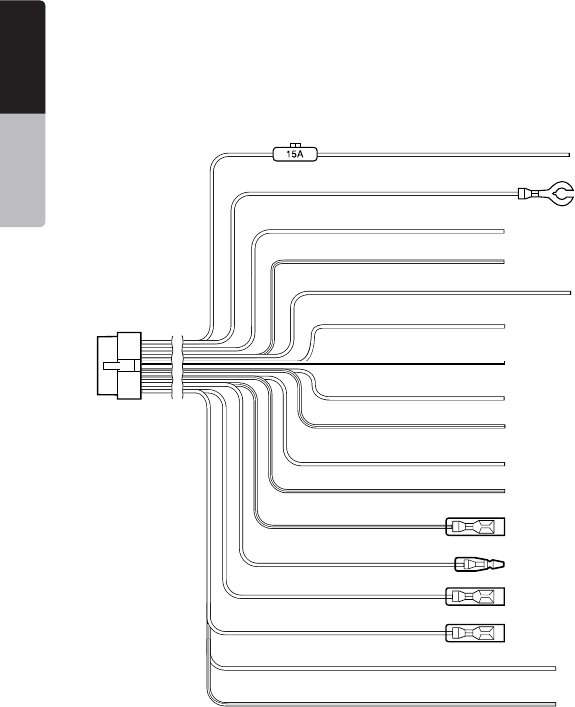
56 NX404
English
English Owner’s Manual
English Owner’s Manual
Ye llow
Black
Purple
Purple Bla/ck
Grass-green
Gray
Gray Bla/ck
White
White Bla/ck
Green
Green Blac/k
Blue White/
Orange White/
Red
Brown
Blue
+12Vmainpower
Ground
Rear right +
Rearright -
Parkingbrake cord
Purple Whit/eReverse gear cord
Frontright +
Frontright -
Front left+
Front left-
Rear left+
Rear left-
Amplifierturnon cord-
Illumination
+12V accessory
Phone interrupt
Auto antenna
Note:
*1: Connecting the PHONE INTERRUPT terminal
The phone interrupt will mute the audio if the lead receives a negative or ground signal.

FCC NOTE:
This device complies with Part 15 of the FCC Rules.
Operation is subject to the following two conditions: (1) this device may not cause
harmful interference, and (2) this device must accept any interference received,
including interference that may cause undesired operation.
THE MANUFACTURER IS NOT RESPONSIBLE FOR ANY RADIO OR TV
INTERFERENCE CAUSED BY UNAUTHORIZED MODIFICATIONS OR CHANGE
TO THIS EQUIPMENT. SUCH MODIFICATIONS OR CHANGE COULD VOID AND
CHANGE ANNTENA WHICH THE MANUFACTURER PROVIDES.
IT IS THE USER'S AUTHORITY TO OPERATE THE EQUIPMENT.
This equipment has been tested and found to comply with the limits for a Class B
digital device, pursuant to part 15 of the FCC Rules. These limits are designed to
provide reasonable protection against harmful interference in a resi dential installation.
This equipment generates, uses and can radiate radio frequenc y energy and, if not
installed and used in accordance with the in structions, may cause harmful interference
to radio communications. However, there is no guarantee that interference will not
occur in a particular insta llation. If this equipment does cause harmful interference to
radio or television reception, which can be determined by turning the equipment off
and on, the user is encouraged to try to corr ect the interference by one or more of the
following measures:
-- Reorient or relocate the receiving antenna.
-- Increase the separation between the equipment and receiver.
-- Connect the equipment into an outlet on a circuit different from that to which the
receiver is connected.
-- Consult the dealer or an experien ced radio/TV technician for help.
To maintain compliance with FCC’s RF exposure guidelines, this equipment should be
installed and operated with a minimum distance of 20cm between the radiator and your
body.