SKYPINE ELECTRONICS CNE8415BSMHLR Smart High Line User Manual part 2

SKYPINE ELECTRONICS (SHEN ZHEN) CO., LTD. Smart High Line part 2

Contents

User manual part 2

Ryou move from one GSM transmit-ter / receiver area (GSM cell) intoanother and no channels are free.Ryou use a SIM card which is not compat-ible with the available network.Ryou are using a mobile phone with "Twin-card" and the mobile phone with the sec-ond SIM card is already logged into thenetwork.Function restrictionsYou will not be able to use the telephone,will no longer be able to use the telephone,or you may have to wait before using it, inthe following situations:Rif the mobile phone is not switched onRwhen the "Bluetooth®" function isswitched off in the mobile phoneRif the mobile phone is not logged into amobile phone networkThe telephone automatically tries to logon to a network. If no network is availa-ble, you will not be able to make a "999"or "112" emergency call.RIf you switch off the smart high lineradio during a call in hands-free mode,the call is transferred to the mobilephone."999" or "112" emergency callMaking emergency calls without entering aPIN is only possible using the mobilephone.The following conditions must be fulfilledin order to make a 112 emergency call:Rthe mobile phone must be switched on.Ra network must be available.Ra valid and operational SIM card must beinserted in the mobile phone.Rthe PIN must have been entered.If you cannot make an emergency call, youmust arrange rescue measures yourself.The 999 emergency call number is a publicservice. Any misuse is punishable by law.Bluetooth® interface telephonyConditionsTo use Bluetooth® interface telephony inconjunction with the smart high line radio,you need a Bluetooth®-capable mobilephone.Not all mobile phones available on themarket are equally suitable. For moreinformation on suitable mobile phones andon connecting the Bluetooth mobile phoneto the smart high line radio, contact yoursmart Centre.The battery of the mobile phone shouldalways be kept sufficiently charged inorder to prevent malfunctions.In preparation for telephoning via theBluetooth® interface, you should check thefollowing items on your mobile phone (seethe mobile phone operating instructions):XHands-Free ProfileThe mobile phone must support Hands-Free Profile 1.0 or above.iSome displays depend on the supportedversion of the Hands-free Profile.XBluetooth® visibilityOn certain mobile phones, the deviceitself must be made "visible" for otherdevices, as well as activating the Blue-tooth® function (see the mobile phoneoperating instructions).XBluetooth® device nameEvery Bluetooth® device has its own Blue-tooth® device name. This device name isfreely definable, but can be identicalfor all devices from the same manufac-turer. It is therefore recommended thatyou change this name so that you can eas-ily recognise your mobile phone (see themobile phone operating instructions).54 >> smart high line radio.
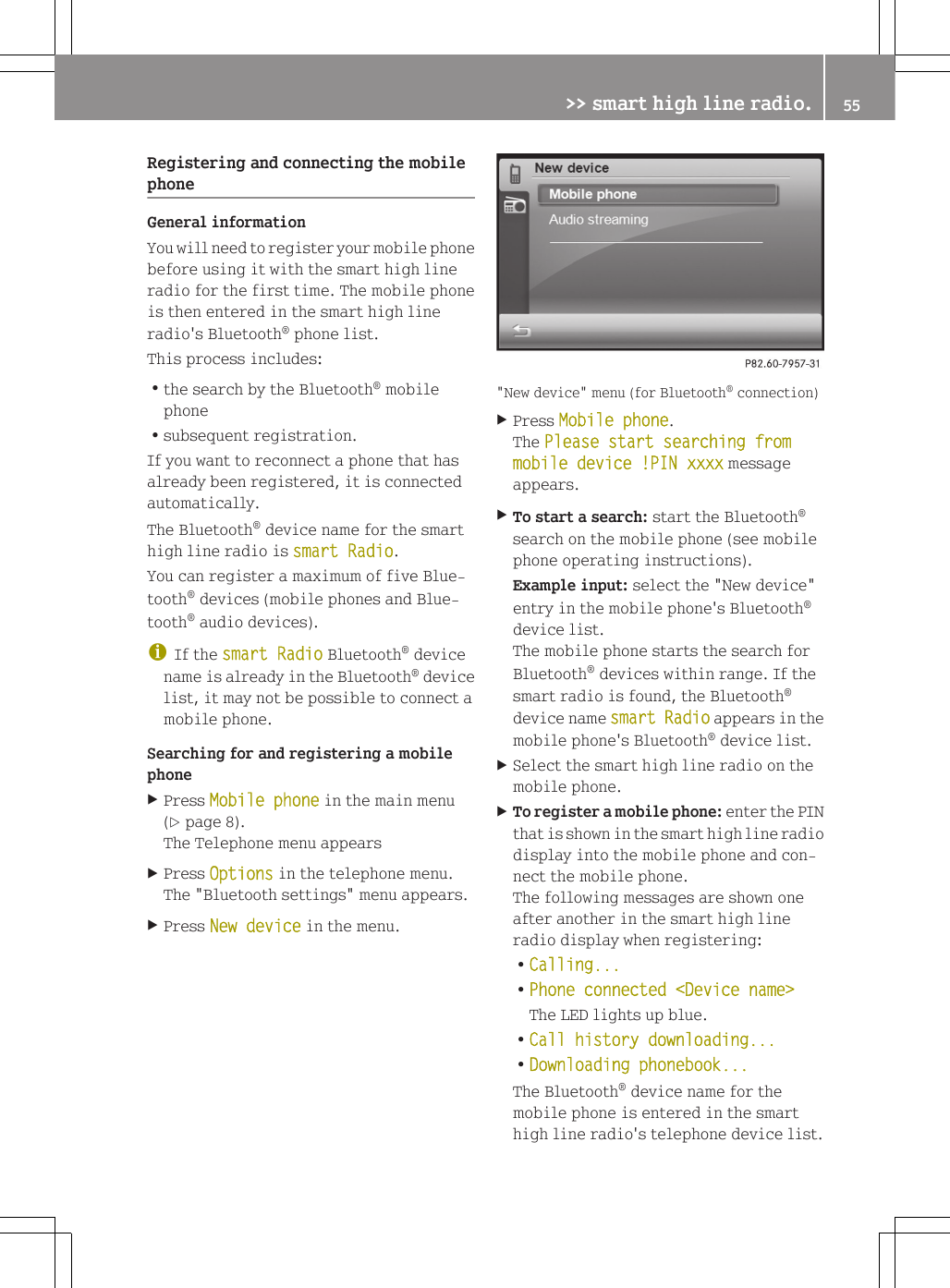
Registering and connecting the mobilephoneGeneral informationYou will need to register your mobile phonebefore using it with the smart high lineradio for the first time. The mobile phoneis then entered in the smart high lineradio's Bluetooth® phone list.This process includes:Rthe search by the Bluetooth® mobilephoneRsubsequent registration.If you want to reconnect a phone that hasalready been registered, it is connectedautomatically.The Bluetooth® device name for the smarthigh line radio is smart Radio.You can register a maximum of five Blue-tooth® devices (mobile phones and Blue-tooth® audio devices).iIf the smart Radio Bluetooth® devicename is already in the Bluetooth® devicelist, it may not be possible to connect amobile phone.Searching for and registering a mobilephoneXPress Mobile phone in the main menu(Y page 8).The Telephone menu appearsXPress Options in the telephone menu.The "Bluetooth settings" menu appears.XPress New device in the menu."New device" menu (for Bluetooth® connection)XPress Mobile phone.The Please start searching from mobile device !PIN xxxx messageappears.XTo start a search: start the Bluetooth®search on the mobile phone (see mobilephone operating instructions).Example input: select the "New device"entry in the mobile phone's Bluetooth®device list.The mobile phone starts the search forBluetooth® devices within range. If thesmart radio is found, the Bluetooth®device name smart Radio appears in themobile phone's Bluetooth® device list.XSelect the smart high line radio on themobile phone.XTo register a mobile phone: enter the PINthat is shown in the smart high line radiodisplay into the mobile phone and con-nect the mobile phone.The following messages are shown oneafter another in the smart high lineradio display when registering:RCalling...RPhone connected <Device name>The LED lights up blue.RCall history downloading...RDownloading phonebook...The Bluetooth® device name for themobile phone is entered in the smarthigh line radio's telephone device list.>> smart high line radio. 55Z
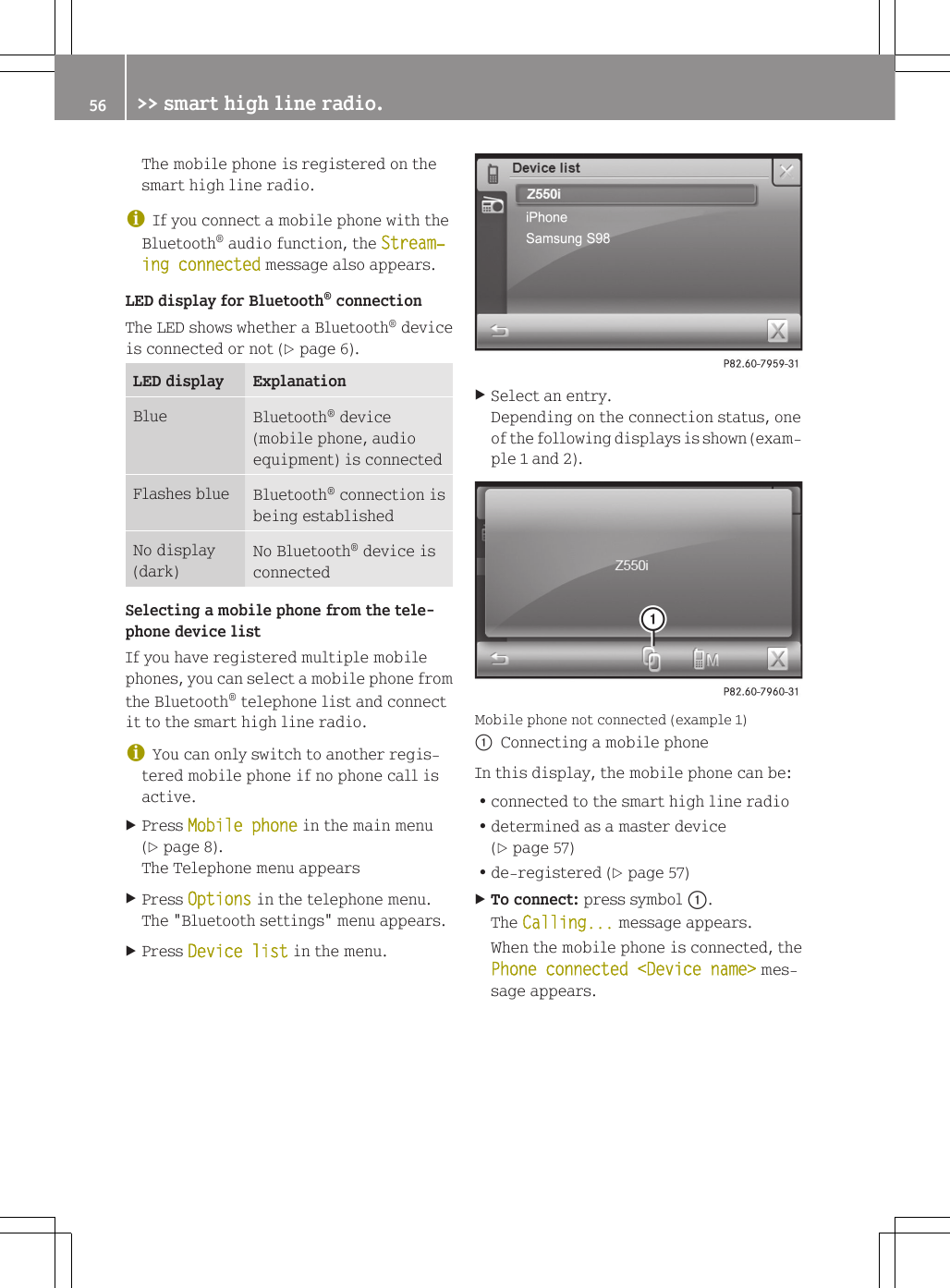
The mobile phone is registered on thesmart high line radio.iIf you connect a mobile phone with theBluetooth® audio function, the Stream‐ing connected message also appears.LED display for Bluetooth® connectionThe LED shows whether a Bluetooth® deviceis connected or not (Y page 6).LED display ExplanationBlue Bluetooth® device(mobile phone, audioequipment) is connectedFlashes blue Bluetooth® connection isbeing establishedNo display(dark)No Bluetooth® device isconnectedSelecting a mobile phone from the tele-phone device listIf you have registered multiple mobilephones, you can select a mobile phone fromthe Bluetooth® telephone list and connectit to the smart high line radio.iYou can only switch to another regis-tered mobile phone if no phone call isactive.XPress Mobile phone in the main menu(Y page 8).The Telephone menu appearsXPress Options in the telephone menu.The "Bluetooth settings" menu appears.XPress Device list in the menu.XSelect an entry.Depending on the connection status, oneof the following displays is shown (exam-ple 1 and 2).Mobile phone not connected (example 1):Connecting a mobile phoneIn this display, the mobile phone can be:Rconnected to the smart high line radioRdetermined as a master device(Y page 57)Rde-registered (Y page 57)XTo connect: press symbol :.The Calling... message appears.When the mobile phone is connected, thePhone connected <Device name> mes-sage appears.56 >> smart high line radio.
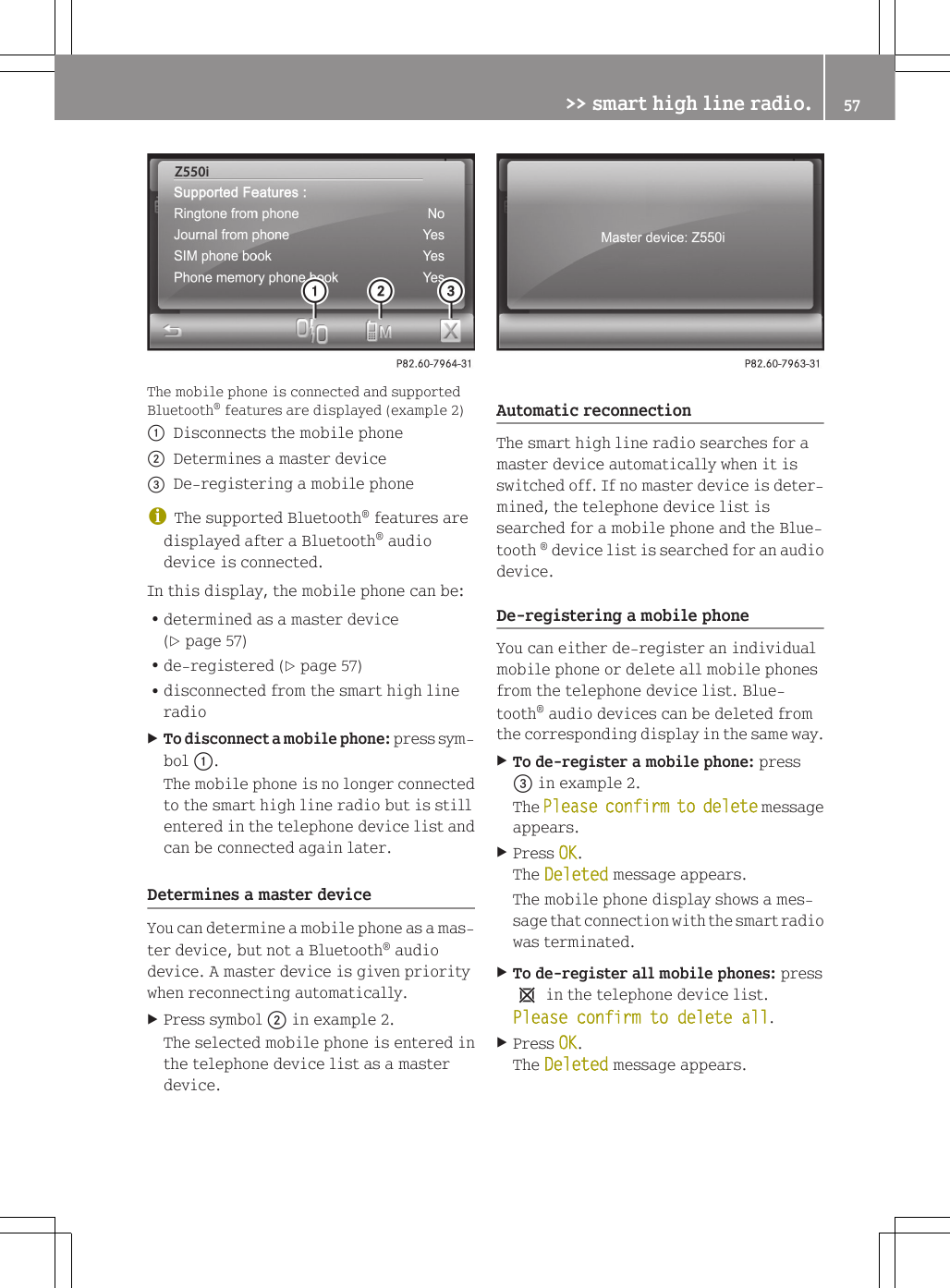
The mobile phone is connected and supportedBluetooth® features are displayed (example 2):Disconnects the mobile phone;Determines a master device=De-registering a mobile phoneiThe supported Bluetooth® features aredisplayed after a Bluetooth® audiodevice is connected.In this display, the mobile phone can be:Rdetermined as a master device(Y page 57)Rde-registered (Y page 57)Rdisconnected from the smart high lineradioXTo disconnect a mobile phone: press sym-bol :.The mobile phone is no longer connectedto the smart high line radio but is stillentered in the telephone device list andcan be connected again later.Determines a master deviceYou can determine a mobile phone as a mas-ter device, but not a Bluetooth® audiodevice. A master device is given prioritywhen reconnecting automatically.XPress symbol ; in example 2.The selected mobile phone is entered inthe telephone device list as a masterdevice.Automatic reconnectionThe smart high line radio searches for amaster device automatically when it isswitched off. If no master device is deter-mined, the telephone device list issearched for a mobile phone and the Blue-tooth ® device list is searched for an audiodevice.De-registering a mobile phoneYou can either de-register an individualmobile phone or delete all mobile phonesfrom the telephone device list. Blue-tooth® audio devices can be deleted fromthe corresponding display in the same way.XTo de-register a mobile phone: press= in example 2.The Please confirm to delete messageappears.XPress OK.The Deleted message appears.The mobile phone display shows a mes-sage that connection with the smart radiowas terminated.XTo de-register all mobile phones: press1 in the telephone device list.Please confirm to delete all.XPress OK.The Deleted message appears.>> smart high line radio. 57Z
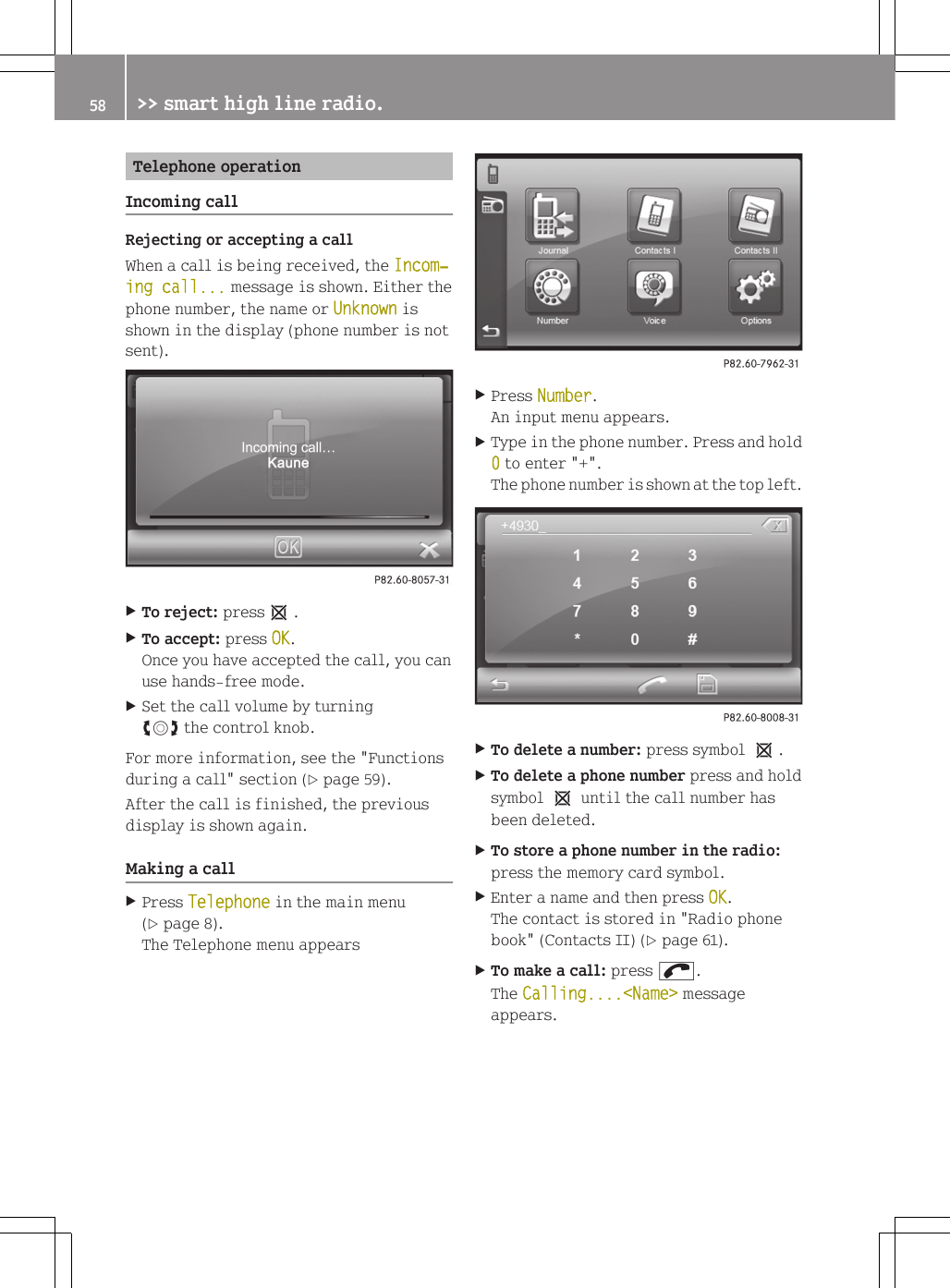
Telephone operationIncoming callRejecting or accepting a callWhen a call is being received, the Incom‐ing call... message is shown. Either thephone number, the name or Unknown isshown in the display (phone number is notsent).XTo reject: press1.XTo accept: press OK.Once you have accepted the call, you canuse hands-free mode.XSet the call volume by turningcVd the control knob.For more information, see the "Functionsduring a call" section (Y page 59).After the call is finished, the previousdisplay is shown again.Making a callXPress Telephone in the main menu(Y page 8).The Telephone menu appearsXPress Number.An input menu appears.XType in the phone number. Press and hold0 to enter "+".The phone number is shown at the top left.XTo delete a number: press symbol 1.XTo delete a phone number press and holdsymbol 1 until the call number hasbeen deleted.XTo store a phone number in the radio:press the memory card symbol.XEnter a name and then press OK.The contact is stored in "Radio phonebook" (Contacts II) (Y page 61).XTo make a call: press ;.The Calling....<Name> messageappears.58 >> smart high line radio.
Functions available during a callTransferring a hands-free call to themobile phoneThe display shows either the phone numberor the nameThe following information is shown in thedisplay during a call:Rtype of connection (hands-free, mobilephone)Rname or phone number of the callerRcall durationXPress the symbol on the bottom right.You are now conducting the call using themobile phone. Call active: Mobile phone is shown in the display.XTo return to the call using the hands-free system: press the symbol again.Setting the call volumeOption 1XTurn cVd the control knob.Option 2XCall up the "Volume settings" menu andset the volume for telephone calls(Y page 17).To end a callXPress 1.The call is ended and the previous dis-play appears.Voice dialIf the connected mobile phone supports the"Voice dial" function, you can select con-tacts with a voice tag by saying the rele-vant name. The mobile phone then takesover the contact selection and makingcalls.XTo switch on voice dial: press Voice inthe telephone menu.Voice dial is activated. The Please speak now! prompt appears.XTo make a call: Say the voice tag for thecontact.If the voice tag exists and the mobilephone recognises it, the call is made.The Calling...<Name> messageappears.If there is no voice tag or the system doesnot recognise it, the Voice dial failed! message appears.XTo deactivate voice dial: press 1.>> smart high line radio. 59Z
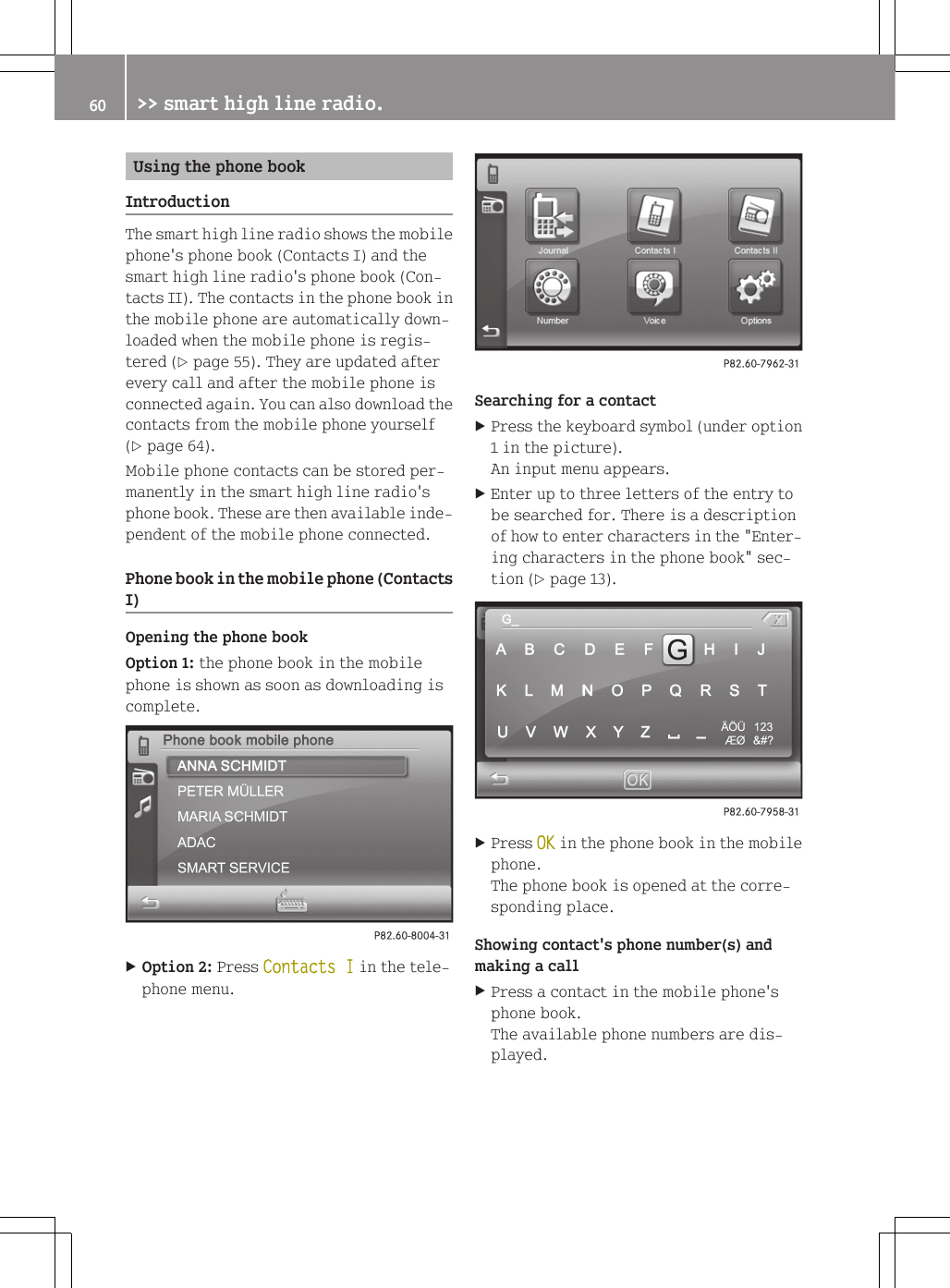
Using the phone bookIntroductionThe smart high line radio shows the mobilephone's phone book (Contacts I) and thesmart high line radio's phone book (Con-tacts II). The contacts in the phone book inthe mobile phone are automatically down-loaded when the mobile phone is regis-tered (Y page 55). They are updated afterevery call and after the mobile phone isconnected again. You can also download thecontacts from the mobile phone yourself(Y page 64).Mobile phone contacts can be stored per-manently in the smart high line radio'sphone book. These are then available inde-pendent of the mobile phone connected.Phone book in the mobile phone (ContactsI)Opening the phone bookOption 1: the phone book in the mobilephone is shown as soon as downloading iscomplete.XOption 2: Press Contacts I in the tele-phone menu.Searching for a contactXPress the keyboard symbol (under option1 in the picture).An input menu appears.XEnter up to three letters of the entry tobe searched for. There is a descriptionof how to enter characters in the "Enter-ing characters in the phone book" sec-tion (Y page 13).XPress OK in the phone book in the mobilephone.The phone book is opened at the corre-sponding place.Showing contact's phone number(s) andmaking a callXPress a contact in the mobile phone'sphone book.The available phone numbers are dis-played.60 >> smart high line radio.
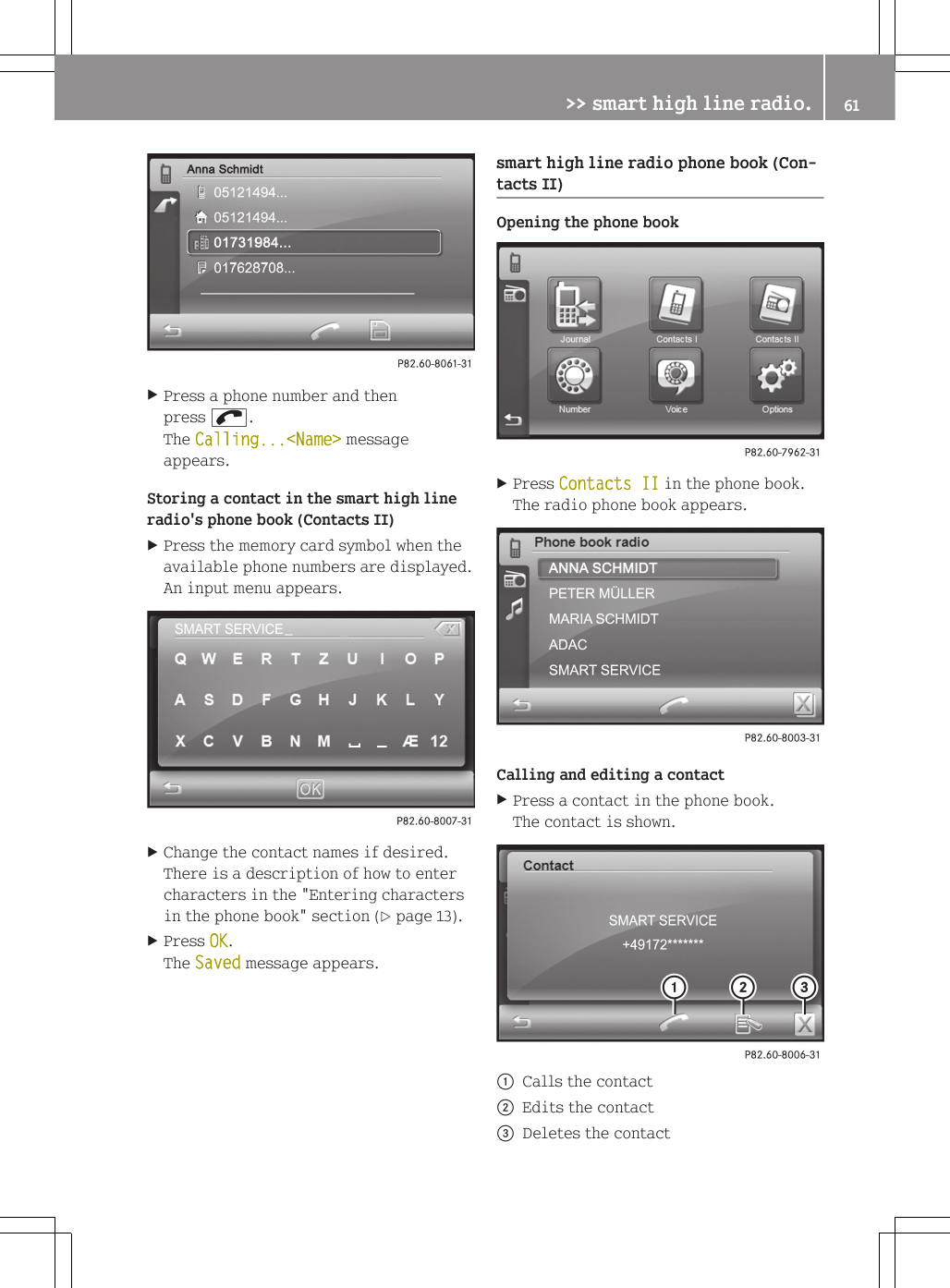
XPress a phone number and thenpress ;.The Calling...<Name> messageappears.Storing a contact in the smart high lineradio's phone book (Contacts II)XPress the memory card symbol when theavailable phone numbers are displayed.An input menu appears.XChange the contact names if desired.There is a description of how to entercharacters in the "Entering charactersin the phone book" section (Y page 13).XPress OK.The Saved message appears.smart high line radio phone book (Con-tacts II)Opening the phone bookXPress Contacts II in the phone book.The radio phone book appears.Calling and editing a contactXPress a contact in the phone book.The contact is shown.:Calls the contact;Edits the contact=Deletes the contact>> smart high line radio. 61Z
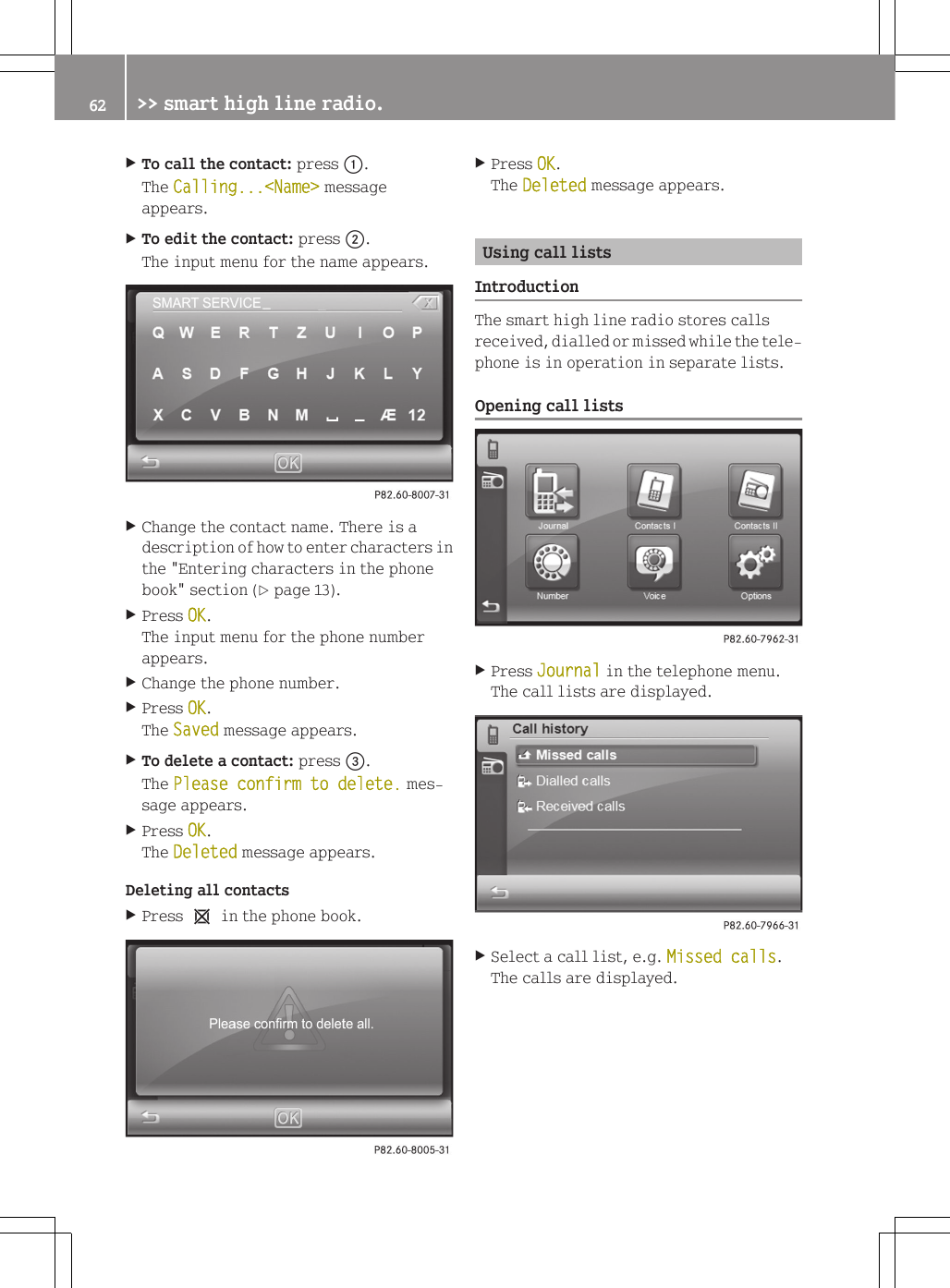
XTo call the contact: press :.The Calling...<Name> messageappears.XTo edit the contact: press ;.The input menu for the name appears.XChange the contact name. There is adescription of how to enter characters inthe "Entering characters in the phonebook" section (Y page 13).XPress OK.The input menu for the phone numberappears.XChange the phone number.XPress OK.The Saved message appears.XTo delete a contact: press =.The Please confirm to delete. mes-sage appears.XPress OK.The Deleted message appears.Deleting all contactsXPress 1 in the phone book.XPress OK.The Deleted message appears.Using call listsIntroductionThe smart high line radio stores callsreceived, dialled or missed while the tele-phone is in operation in separate lists.Opening call listsXPress Journal in the telephone menu.The call lists are displayed.XSelect a call list, e.g. Missed calls.The calls are displayed.62 >> smart high line radio.
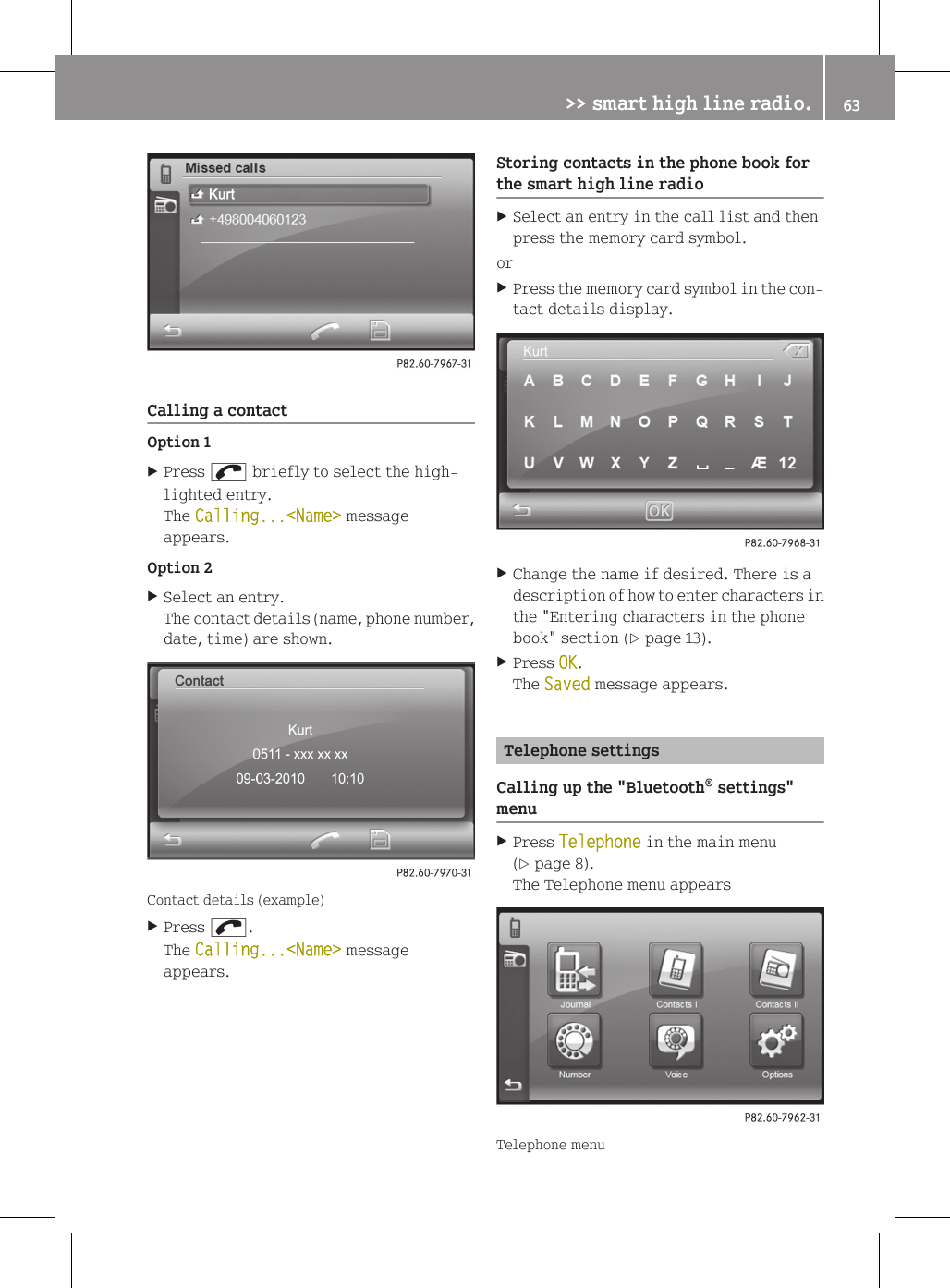
Calling a contactOption 1XPress ; briefly to select the high-lighted entry.The Calling...<Name> messageappears.Option 2XSelect an entry.The contact details (name, phone number,date, time) are shown.Contact details (example)XPress ;.The Calling...<Name> messageappears.Storing contacts in the phone book forthe smart high line radioXSelect an entry in the call list and thenpress the memory card symbol.orXPress the memory card symbol in the con-tact details display.XChange the name if desired. There is adescription of how to enter characters inthe "Entering characters in the phonebook" section (Y page 13).XPress OK.The Saved message appears.Telephone settingsCalling up the "Bluetooth® settings"menuXPress Telephone in the main menu(Y page 8).The Telephone menu appearsTelephone menu>> smart high line radio. 63Z
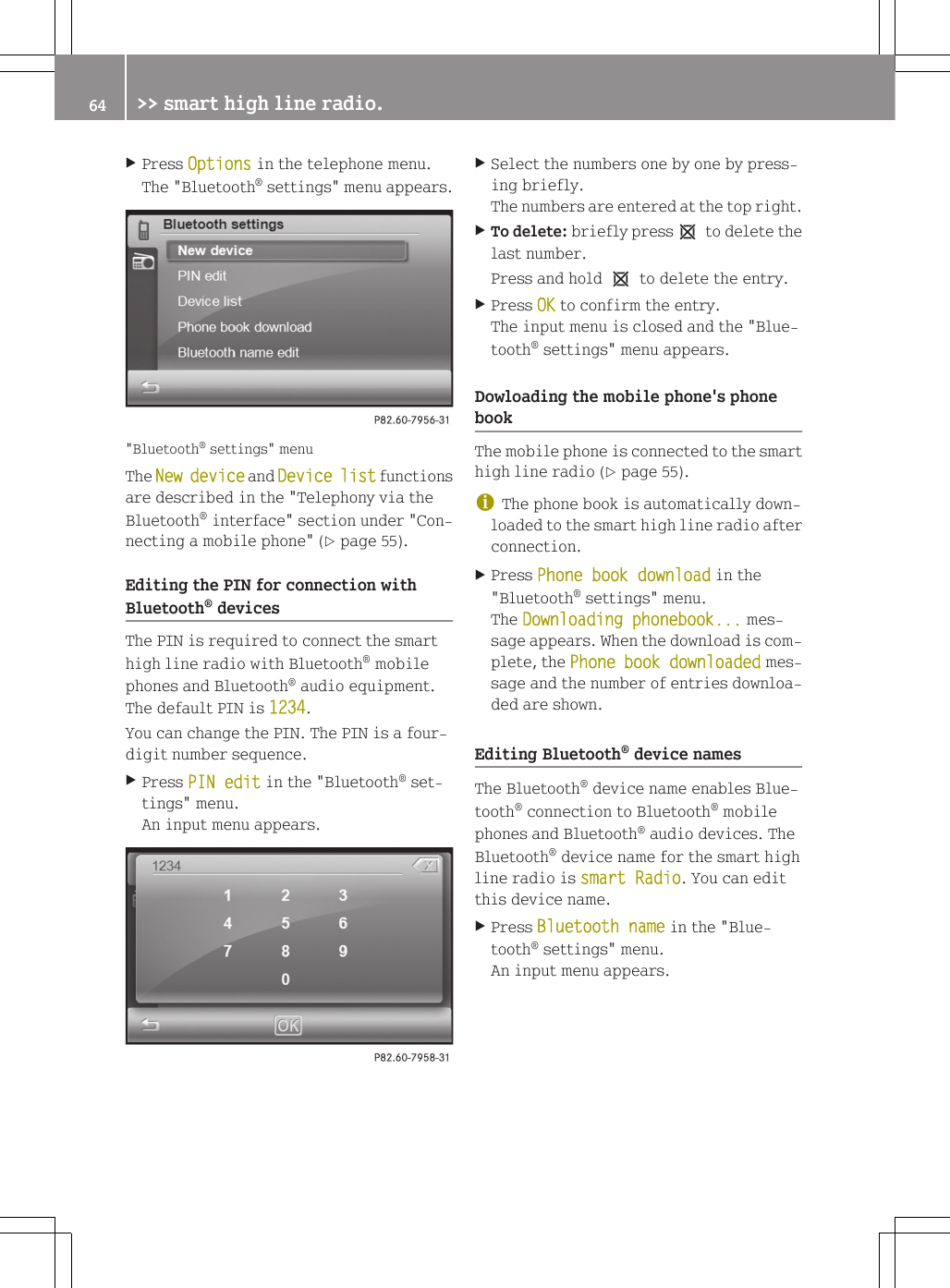
XPress Options in the telephone menu.The "Bluetooth® settings" menu appears."Bluetooth® settings" menuThe New device and Device list functionsare described in the "Telephony via theBluetooth® interface" section under "Con-necting a mobile phone" (Y page 55).Editing the PIN for connection withBluetooth® devicesThe PIN is required to connect the smarthigh line radio with Bluetooth® mobilephones and Bluetooth® audio equipment.The default PIN is 1234.You can change the PIN. The PIN is a four-digit number sequence.XPress PIN edit in the "Bluetooth® set-tings" menu.An input menu appears.XSelect the numbers one by one by press-ing briefly.The numbers are entered at the top right.XTo delete: briefly press1 to delete thelast number.Press and hold 1 to delete the entry.XPress OK to confirm the entry.The input menu is closed and the "Blue-tooth® settings" menu appears.Dowloading the mobile phone's phonebookThe mobile phone is connected to the smarthigh line radio (Y page 55).iThe phone book is automatically down-loaded to the smart high line radio afterconnection.XPress Phone book download in the"Bluetooth® settings" menu.The Downloading phonebook... mes-sage appears. When the download is com-plete, the Phone book downloaded mes-sage and the number of entries downloa-ded are shown.Editing Bluetooth® device namesThe Bluetooth® device name enables Blue-tooth® connection to Bluetooth® mobilephones and Bluetooth® audio devices. TheBluetooth® device name for the smart highline radio is smart Radio. You can editthis device name.XPress Bluetooth name in the "Blue-tooth® settings" menu.An input menu appears.64 >> smart high line radio.
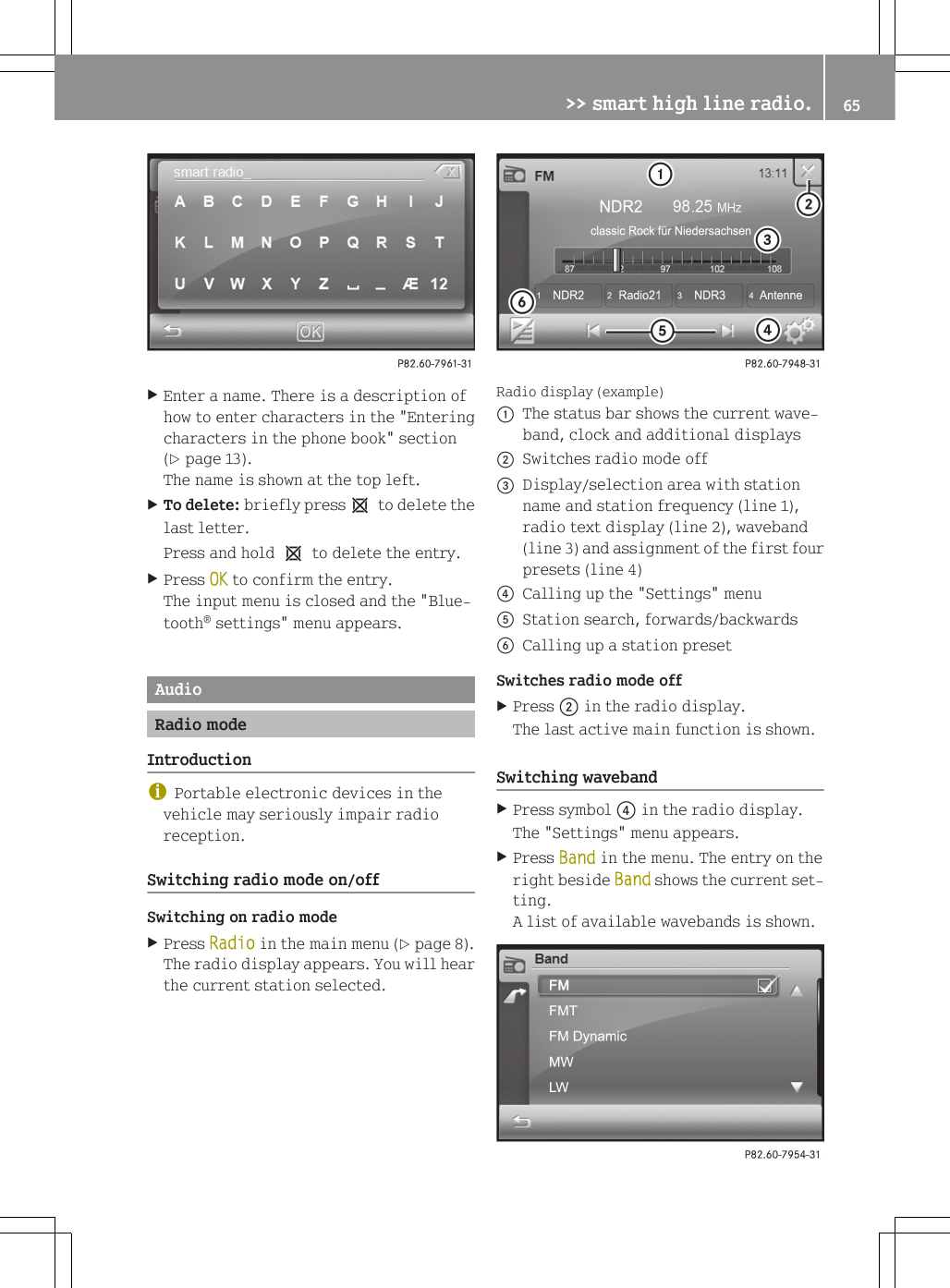
XEnter a name. There is a description ofhow to enter characters in the "Enteringcharacters in the phone book" section(Y page 13).The name is shown at the top left.XTo delete: briefly press1 to delete thelast letter.Press and hold 1 to delete the entry.XPress OK to confirm the entry.The input menu is closed and the "Blue-tooth® settings" menu appears.AudioRadio modeIntroductioniPortable electronic devices in thevehicle may seriously impair radioreception.Switching radio mode on/offSwitching on radio modeXPress Radio in the main menu (Y page 8).The radio display appears. You will hearthe current station selected.Radio display (example):The status bar shows the current wave-band, clock and additional displays;Switches radio mode off=Display/selection area with stationname and station frequency (line 1),radio text display (line 2), waveband(line 3) and assignment of the first fourpresets (line 4)?Calling up the "Settings" menuAStation search, forwards/backwardsBCalling up a station presetSwitches radio mode offXPress ; in the radio display.The last active main function is shown.Switching wavebandXPress symbol ? in the radio display.The "Settings" menu appears.XPress Band in the menu. The entry on theright beside Band shows the current set-ting.A list of available wavebands is shown.>> smart high line radio. 65Z
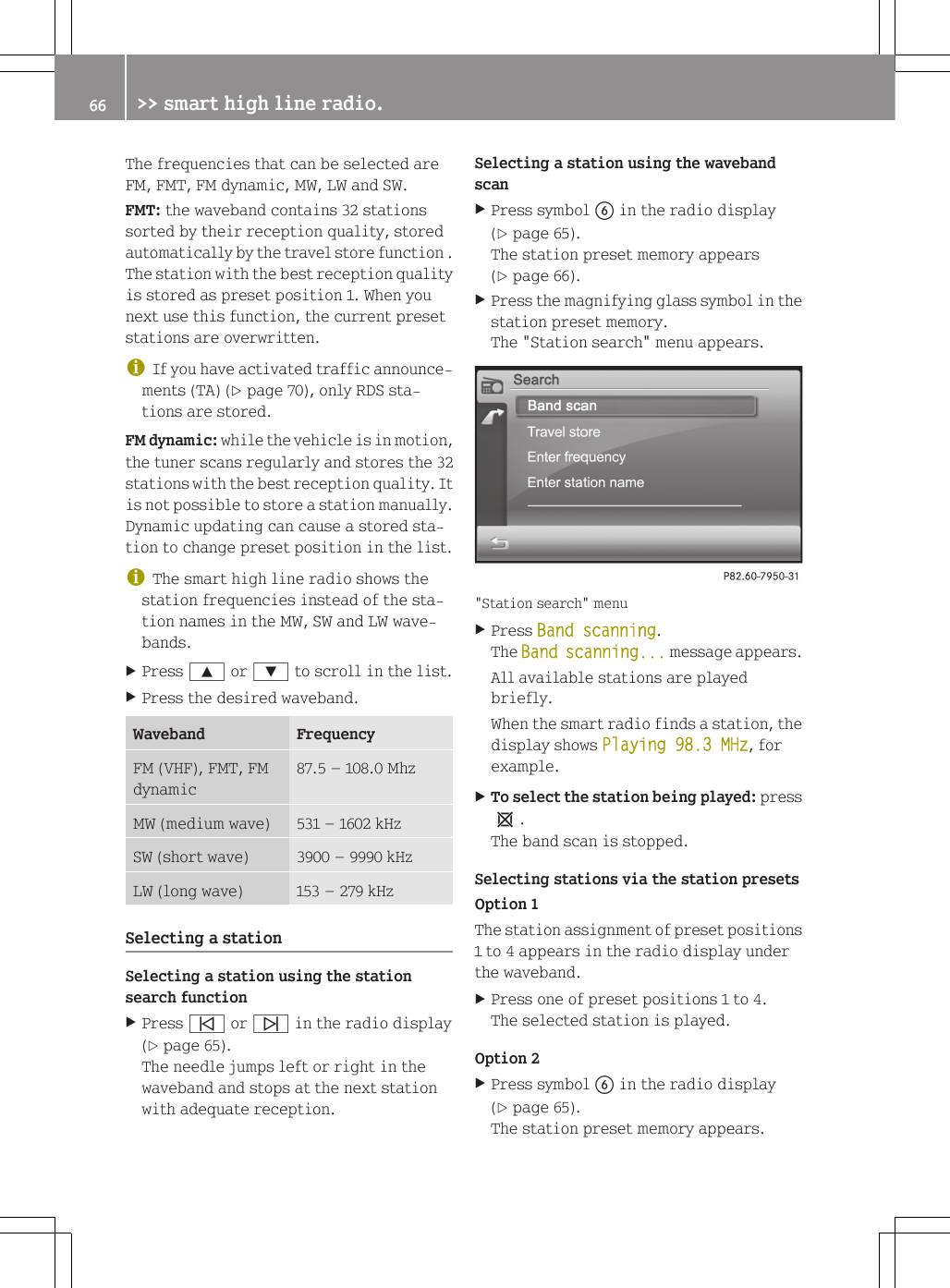
The frequencies that can be selected areFM, FMT, FM dynamic, MW, LW and SW.FMT: the waveband contains 32 stationssorted by their reception quality, storedautomatically by the travel store function .The station with the best reception qualityis stored as preset position 1. When younext use this function, the current presetstations are overwritten.iIf you have activated traffic announce-ments (TA) (Y page 70), only RDS sta-tions are stored.FM dynamic: while the vehicle is in motion,the tuner scans regularly and stores the 32stations with the best reception quality. Itis not possible to store a station manually.Dynamic updating can cause a stored sta-tion to change preset position in the list.iThe smart high line radio shows thestation frequencies instead of the sta-tion names in the MW, SW and LW wave-bands.XPress 9 or : to scroll in the list.XPress the desired waveband.Waveband FrequencyFM (VHF), FMT, FMdynamic87.5 – 108.0 MhzMW (medium wave) 531 – 1602 kHzSW (short wave) 3900 – 9990 kHzLW (long wave) 153 – 279 kHzSelecting a stationSelecting a station using the stationsearch functionXPress û or ü in the radio display(Y page 65).The needle jumps left or right in thewaveband and stops at the next stationwith adequate reception.Selecting a station using the wavebandscanXPress symbol B in the radio display(Y page 65).The station preset memory appears(Y page 66).XPress the magnifying glass symbol in thestation preset memory.The "Station search" menu appears."Station search" menuXPress Band scanning.The Band scanning... message appears.All available stations are playedbriefly.When the smart radio finds a station, thedisplay shows Playing 98.3 MHz, forexample.XTo select the station being played: press1.The band scan is stopped.Selecting stations via the station presetsOption 1The station assignment of preset positions1 to 4 appears in the radio display underthe waveband.XPress one of preset positions 1 to 4.The selected station is played.Option 2XPress symbol B in the radio display(Y page 65).The station preset memory appears.66 >> smart high line radio.
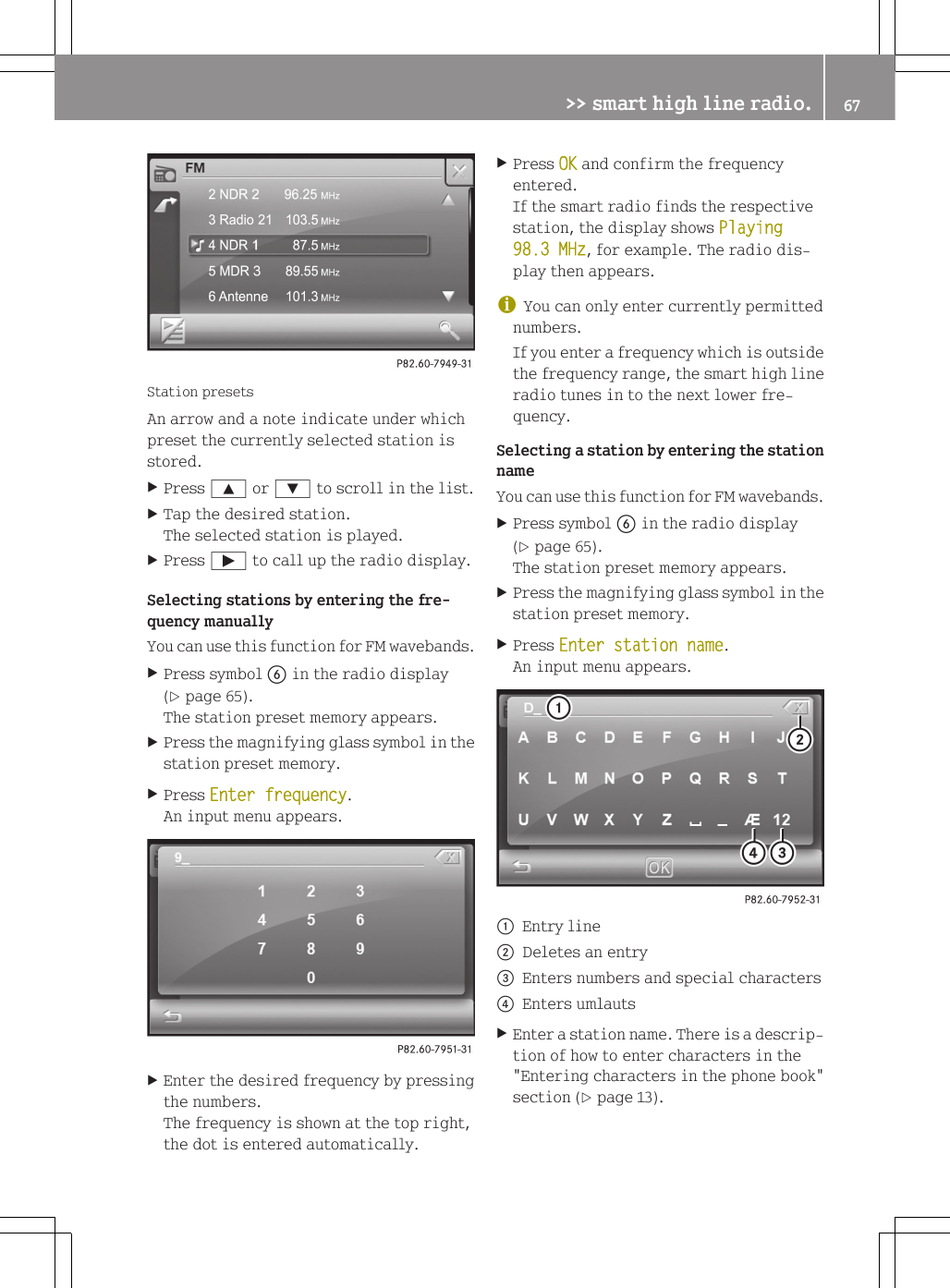
Station presetsAn arrow and a note indicate under whichpreset the currently selected station isstored.XPress 9 or : to scroll in the list.XTap the desired station.The selected station is played.XPress Ì to call up the radio display.Selecting stations by entering the fre-quency manuallyYou can use this function for FM wavebands.XPress symbol B in the radio display(Y page 65).The station preset memory appears.XPress the magnifying glass symbol in thestation preset memory.XPress Enter frequency.An input menu appears.XEnter the desired frequency by pressingthe numbers.The frequency is shown at the top right,the dot is entered automatically.XPress OK and confirm the frequencyentered.If the smart radio finds the respectivestation, the display shows Playing 98.3 MHz, for example. The radio dis-play then appears.iYou can only enter currently permittednumbers.If you enter a frequency which is outsidethe frequency range, the smart high lineradio tunes in to the next lower fre-quency.Selecting a station by entering the stationnameYou can use this function for FM wavebands.XPress symbol B in the radio display(Y page 65).The station preset memory appears.XPress the magnifying glass symbol in thestation preset memory.XPress Enter station name.An input menu appears.:Entry line;Deletes an entry=Enters numbers and special characters?Enters umlautsXEnter a station name. There is a descrip-tion of how to enter characters in the"Entering characters in the phone book"section (Y page 13).>> smart high line radio. 67Z
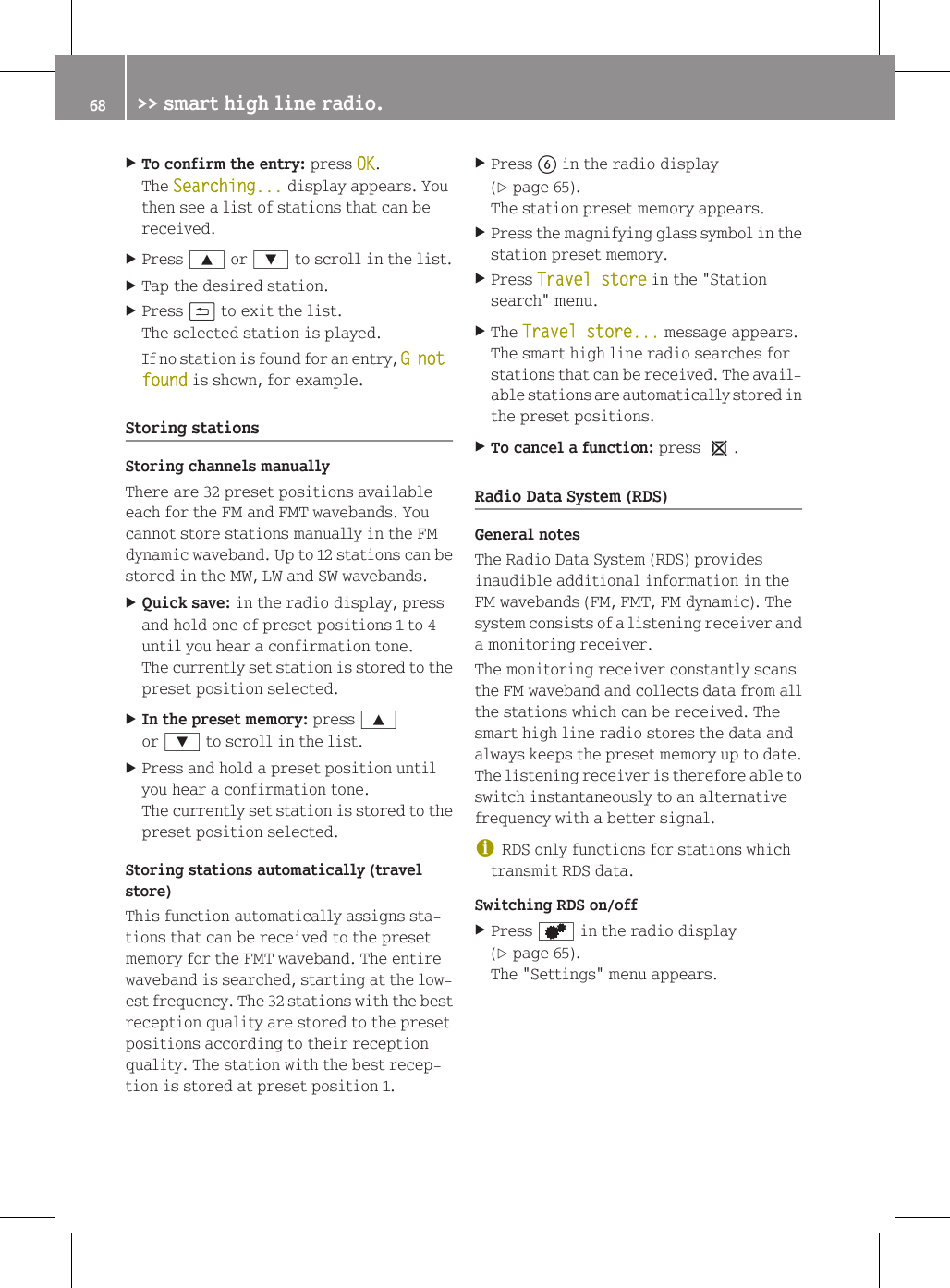
XTo confirm the entry: press OK.The Searching... display appears. Youthen see a list of stations that can bereceived.XPress 9 or : to scroll in the list.XTap the desired station.XPress & to exit the list.The selected station is played.If no station is found for an entry, G not found is shown, for example.Storing stationsStoring channels manuallyThere are 32 preset positions availableeach for the FM and FMT wavebands. Youcannot store stations manually in the FMdynamic waveband. Up to 12 stations can bestored in the MW, LW and SW wavebands.XQuick save: in the radio display, pressand hold one of preset positions 1 to 4until you hear a confirmation tone.The currently set station is stored to thepreset position selected.XIn the preset memory: press 9or : to scroll in the list.XPress and hold a preset position untilyou hear a confirmation tone.The currently set station is stored to thepreset position selected.Storing stations automatically (travelstore)This function automatically assigns sta-tions that can be received to the presetmemory for the FMT waveband. The entirewaveband is searched, starting at the low-est frequency. The 32 stations with the bestreception quality are stored to the presetpositions according to their receptionquality. The station with the best recep-tion is stored at preset position 1.XPress B in the radio display(Y page 65).The station preset memory appears.XPress the magnifying glass symbol in thestation preset memory.XPress Travel store in the "Stationsearch" menu.XThe Travel store... message appears.The smart high line radio searches forstations that can be received. The avail-able stations are automatically stored inthe preset positions.XTo cancel a function: press 1.Radio Data System (RDS)General notesThe Radio Data System (RDS) providesinaudible additional information in theFM wavebands (FM, FMT, FM dynamic). Thesystem consists of a listening receiver anda monitoring receiver.The monitoring receiver constantly scansthe FM waveband and collects data from allthe stations which can be received. Thesmart high line radio stores the data andalways keeps the preset memory up to date.The listening receiver is therefore able toswitch instantaneously to an alternativefrequency with a better signal.iRDS only functions for stations whichtransmit RDS data.Switching RDS on/offXPress d in the radio display(Y page 65).The "Settings" menu appears.68 >> smart high line radio.
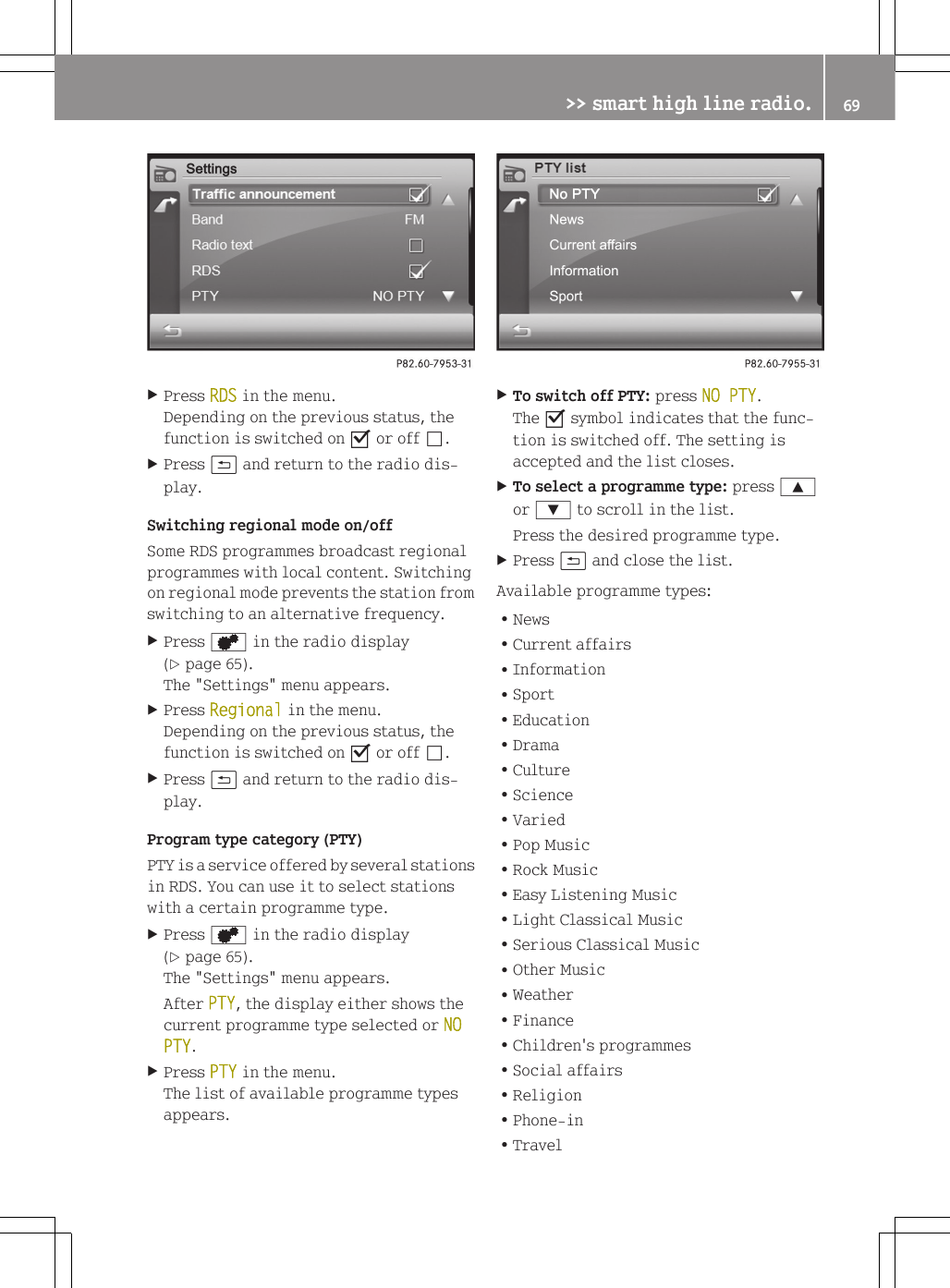
XPress RDS in the menu.Depending on the previous status, thefunction is switched on O or off ª.XPress & and return to the radio dis-play.Switching regional mode on/offSome RDS programmes broadcast regionalprogrammes with local content. Switchingon regional mode prevents the station fromswitching to an alternative frequency.XPress d in the radio display(Y page 65).The "Settings" menu appears.XPress Regional in the menu.Depending on the previous status, thefunction is switched on O or off ª.XPress & and return to the radio dis-play.Program type category (PTY)PTY is a service offered by several stationsin RDS. You can use it to select stationswith a certain programme type.XPress d in the radio display(Y page 65).The "Settings" menu appears.After PTY, the display either shows thecurrent programme type selected or NO PTY.XPress PTY in the menu.The list of available programme typesappears.XTo switch off PTY: press NO PTY.The O symbol indicates that the func-tion is switched off. The setting isaccepted and the list closes.XTo select a programme type: press 9or : to scroll in the list.Press the desired programme type.XPress & and close the list.Available programme types:RNewsRCurrent affairsRInformationRSportREducationRDramaRCultureRScienceRVariedRPop MusicRRock MusicREasy Listening MusicRLight Classical MusicRSerious Classical MusicROther MusicRWeatherRFinanceRChildren's programmesRSocial affairsRReligionRPhone-inRTravel>> smart high line radio. 69Z
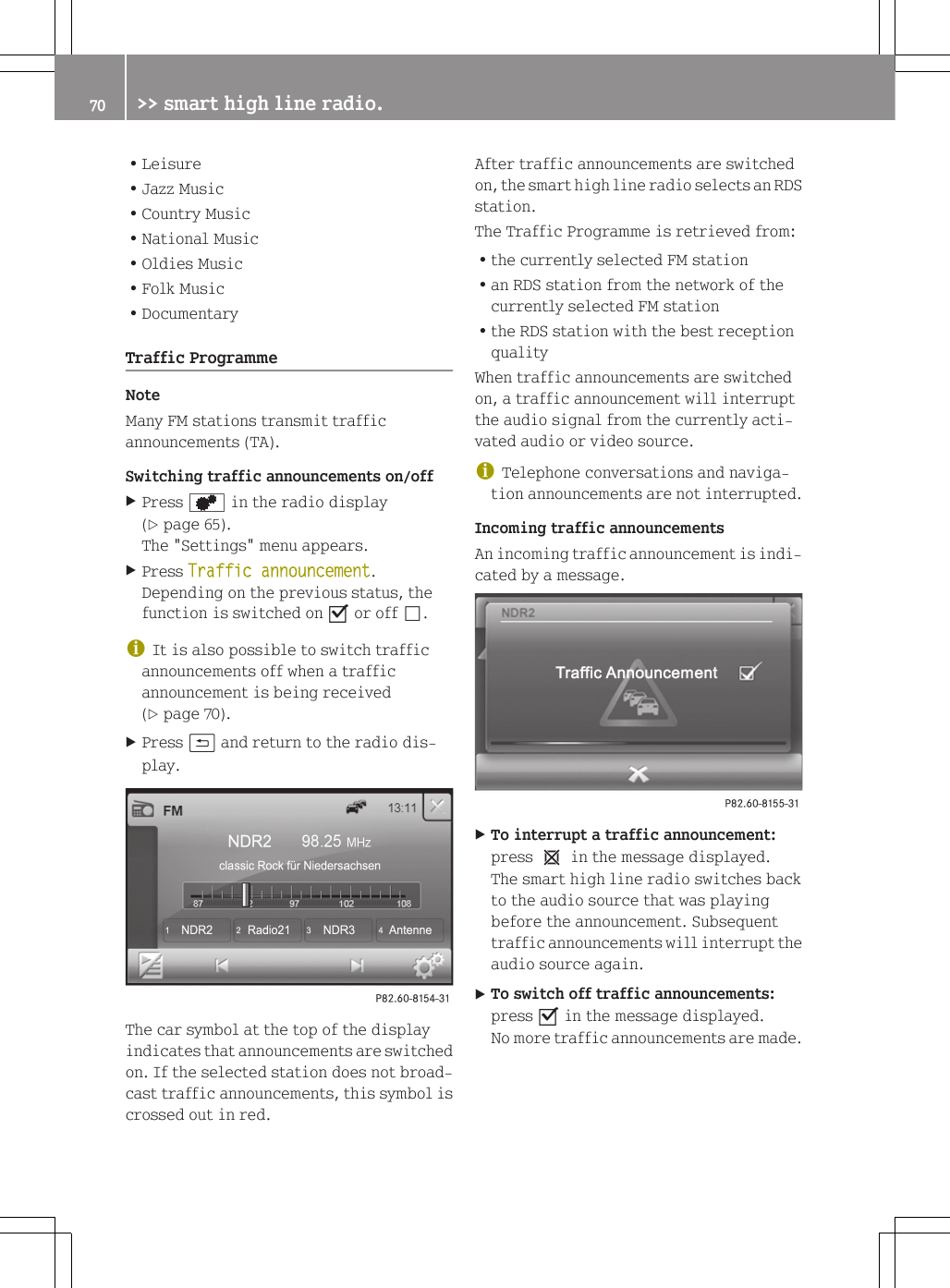
RLeisureRJazz MusicRCountry MusicRNational MusicROldies MusicRFolk MusicRDocumentaryTraffic ProgrammeNoteMany FM stations transmit trafficannouncements (TA).Switching traffic announcements on/offXPress d in the radio display(Y page 65).The "Settings" menu appears.XPress Traffic announcement.Depending on the previous status, thefunction is switched on O or off ª.iIt is also possible to switch trafficannouncements off when a trafficannouncement is being received(Y page 70).XPress & and return to the radio dis-play.The car symbol at the top of the displayindicates that announcements are switchedon. If the selected station does not broad-cast traffic announcements, this symbol iscrossed out in red.After traffic announcements are switchedon, the smart high line radio selects an RDSstation.The Traffic Programme is retrieved from:Rthe currently selected FM stationRan RDS station from the network of thecurrently selected FM stationRthe RDS station with the best receptionqualityWhen traffic announcements are switchedon, a traffic announcement will interruptthe audio signal from the currently acti-vated audio or video source.iTelephone conversations and naviga-tion announcements are not interrupted.Incoming traffic announcementsAn incoming traffic announcement is indi-cated by a message.XTo interrupt a traffic announcement:press 1 in the message displayed.The smart high line radio switches backto the audio source that was playingbefore the announcement. Subsequenttraffic announcements will interrupt theaudio source again.XTo switch off traffic announcements:press O in the message displayed.No more traffic announcements are made.70 >> smart high line radio.
Radio textNotesThis function is available in FM radiomode.Radio text is additional information thatis shown in the radio display, e.g. infor-mation about the current programme.The radio text is switched off in the stand-ard setting.Switching radio text on/offXPress d in the radio display(Y page 65).The "Settings" menu appears.XPress Radio text in the menu.Depending on the previous status, thefunction is switched on O or off ª.XPress & and return to the radio dis-play.If the station supports radio text andinformation is available, this is shownwhen the function is switched on. Longertext information is shown as scrollingtext.Reception settingsSwitching stereo information on/offXPress d in the radio display(Y page 65).The "Settings" menu appears.XPress Stereo in the menu.Depending on the previous status, thefunction is switched on O or off ª.XPress & and return to the radio dis-play.Noise suppressionThis function suppresses interferencenoises, e.g. as a result of poor reception,by reducing the treble.XPress d in the radio display(Y page 65).The "Settings" menu appears.XPress Hicut in the menu.A settings menu appears.XPress = or Ì to select a valuebetween 0 (no lowering) and 7 (high low-ering).XPress OK and confirm the entry.XPress & and return to the radio dis-play.Setting the sensitivityBy setting the sensitivity, you affect therange of available channels when you usethe following functions:RStation search (Y page 66)RBand scan (Y page 66)RTravel storeAt high sensitivity, you only receive sta-tions with high reception quality. At lowsensitivity, you also receive stations withlow reception quality.XPress d in the radio display(Y page 65).The "Settings" menu appears.XPress Sensitivity in the menu.A settings menu appears.XPress = or Ì to select a valuebetween 1 (low) and 6 (high).XPress OK and confirm the entry.XPress & and return to the radio dis-play.Music modeSafety noteGRisk of accidentOnly when the vehicle is stationary shouldyou:Rload a discReject a disc>> smart high line radio. 71Z
There is a risk of being distracted from theroad and traffic conditions if this is donewhile the vehicle is in motion.General notesA maximum of 20,000 tracks or music filesare played.If a data medium is divided into severalpartitions, only the first partition foundis played.Inserting and removing a CD/DVDNotesIf the CD/DVD has a printed side, this mustface upwards when the CD/DVD is inserted.If neither side is printed, the side to beplayed should face downwards. CDs/DVDswith copy protection may not be able to beplayed by the system.iIf a medium contains other files inaddition to music files, the loading timebefore the first track starts to play maybe longer.Inserting a CD/DVDXPress the 8 button on the front panel.The front panel is folded down and uncov-ers the disc slot.If the eject button, positionF(Y page 8), is lit up in orange, a CD/DVD has already been inserted. If this isthe case, remove the CD/DVD first.XInsert a CD/DVD into the disc slot.The smart high line radio draws the CD/DVD in.The Disc reading... message appears.If the CD/DVD is a permissible datamedium and was inserted correctly,playback starts.XPress the 8 button on the front panel.The front panel raises and closes thedisc slot.iThe front panel moves up automaticallyafter one minute.Removing the CD/DVDXPress the 8 button on the front panel.The front panel is folded down and uncov-ers the disc slot.The eject button lights up orange if thereis a CD/DVD in the disc slot.XPress the eject button, positionF(Y page 6).XRemove the CD/DVD from the disc slot.XPress the 8 button on the front panel.The front panel raises and closes thedisc slot.iThe front panel moves up automaticallyafter one minute.Inserting and ejecting an SD/MMC mem-ory cardGeneral notesThe smart high line radio supports SDHCmemory cards, SD memory cards and MMCmemory cards.RSDHC (SanDisk High Capacity)RSD (SanDisk)RMMC (Multimedia Card)SD memory cards feature the followinglogo:This logo is a registered trademark of San-Disk Corporation. The logo is shown on theleft beside the SD/MMC memory card slot(visible when you fold the display down).iDo not insert any SD-WLAN cards or par-titioned SD cards, since these either72 >> smart high line radio.
obstruct the opening/closing of the frontpanel or do not fit in the slot.iNot all SD/MMC memory cards aredesigned for the temperatures which maybe reached in the vehicle.Due to the wide range of SD/MMC memorycards available on the market, playbackcannot be guaranteed for all brands ofSD/MMC memory card.A maximum of 20,000 tracks or music filesare played. If the SD/MMC memory card isdivided into several partitions, only thefirst partition found is played.A partition must not be larger than 32 GB.Inserting an SD/MMC memory cardXPress the 8 button on the front panel.The front panel is folded down and uncov-ers the slot for the SD/MMC memory card(on the right beside the SD logo).XInsert an SD/MMC memory card into theslot. The side with the contacts must facedownwards and point towards the slot.XPress the 8 button on the front panel.The front panel moves up and closes theSD/MMC memory card slot.Removing the SD/MMC memory cardXPress the 8 button on the front panel.The front panel is folded down and uncov-ers the slot for the SD/MMC memory card(on the right beside the SD logo).XPress the SD/MMC memory card.The SD/MMC memory card is ejected.XRemove the SD/MMC memory card.XPress the 8 button on the front panelagain.The front panel moves up and closes theSD/MMC memory card slot.iPod® modeSupported iPod® variantsiiPod® is a registered trademark ofApple Inc., Cupertino, California, USA.The following iPod® versions are suppor-ted:RiPod® classic 120 GBRiPod® classicRiPod® nano 4GRiPod® nano 3GRiPod® touch 3GRiPod® touch 2GRiPod® touchRiPod® 5GConnecting an iPod®To connect an iPod® to the USB port in theglove compartment, you will need a USB-HID cable from the accessories range. Youcan obtain further information from yoursmart Centre.iNever leave an iPod® in the vehicle asextreme temperatures (e.g. if subjectedto direct sunlight or to extremely lowoutside temperatures) may prevent itfrom functioning correctly (see the sep-arate operating instructions of therespective device). smart does not takeresponsibility for any damage to exter-nal devices.XConnect the iPod® to the correspondingport.iConnecting an iPod which has beenexcessively discharged can result in anextended initialisation period.Operation via a USB/AUX portUSB/AUX portThe ports are in the glove compartment onthe left-hand side.>> smart high line radio. 73Z
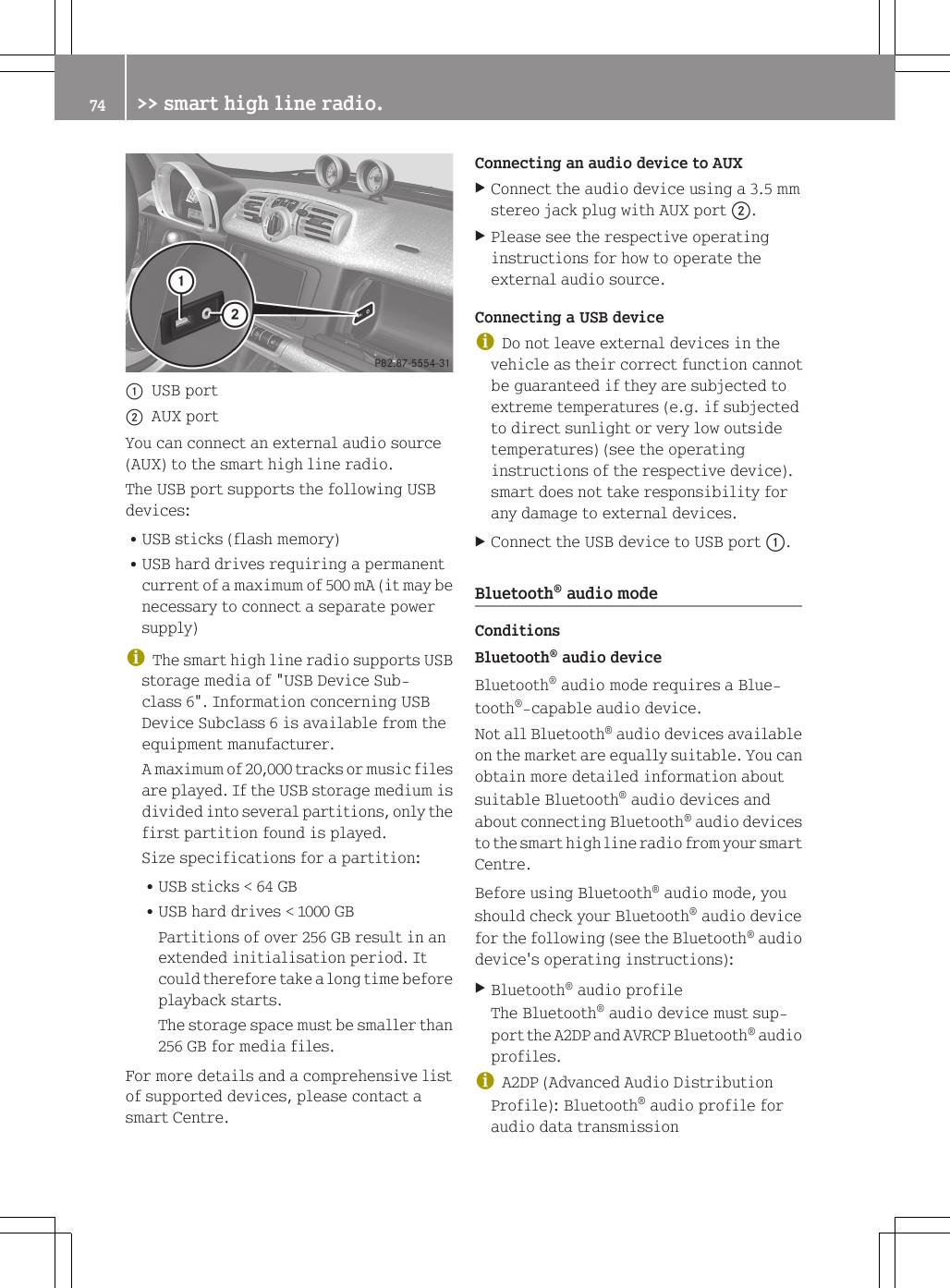
:USB port;AUX portYou can connect an external audio source(AUX) to the smart high line radio.The USB port supports the following USBdevices:RUSB sticks (flash memory)RUSB hard drives requiring a permanentcurrent of a maximum of 500 mA (it may benecessary to connect a separate powersupply)iThe smart high line radio supports USBstorage media of "USB Device Sub-class 6". Information concerning USBDevice Subclass 6 is available from theequipment manufacturer.A maximum of 20,000 tracks or music filesare played. If the USB storage medium isdivided into several partitions, only thefirst partition found is played.Size specifications for a partition:RUSB sticks < 64 GBRUSB hard drives < 1000 GBPartitions of over 256 GB result in anextended initialisation period. Itcould therefore take a long time beforeplayback starts.The storage space must be smaller than256 GB for media files.For more details and a comprehensive listof supported devices, please contact asmart Centre.Connecting an audio device to AUXXConnect the audio device using a 3.5 mmstereo jack plug with AUX port ;.XPlease see the respective operatinginstructions for how to operate theexternal audio source.Connecting a USB deviceiDo not leave external devices in thevehicle as their correct function cannotbe guaranteed if they are subjected toextreme temperatures (e.g. if subjectedto direct sunlight or very low outsidetemperatures) (see the operatinginstructions of the respective device).smart does not take responsibility forany damage to external devices.XConnect the USB device to USB port :.Bluetooth® audio modeConditionsBluetooth® audio deviceBluetooth® audio mode requires a Blue-tooth®-capable audio device.Not all Bluetooth® audio devices availableon the market are equally suitable. You canobtain more detailed information aboutsuitable Bluetooth® audio devices andabout connecting Bluetooth® audio devicesto the smart high line radio from your smartCentre.Before using Bluetooth® audio mode, youshould check your Bluetooth® audio devicefor the following (see the Bluetooth® audiodevice's operating instructions):XBluetooth® audio profileThe Bluetooth® audio device must sup-port the A2DP and AVRCP Bluetooth® audioprofiles.iA2DP (Advanced Audio DistributionProfile): Bluetooth® audio profile foraudio data transmission74 >> smart high line radio.
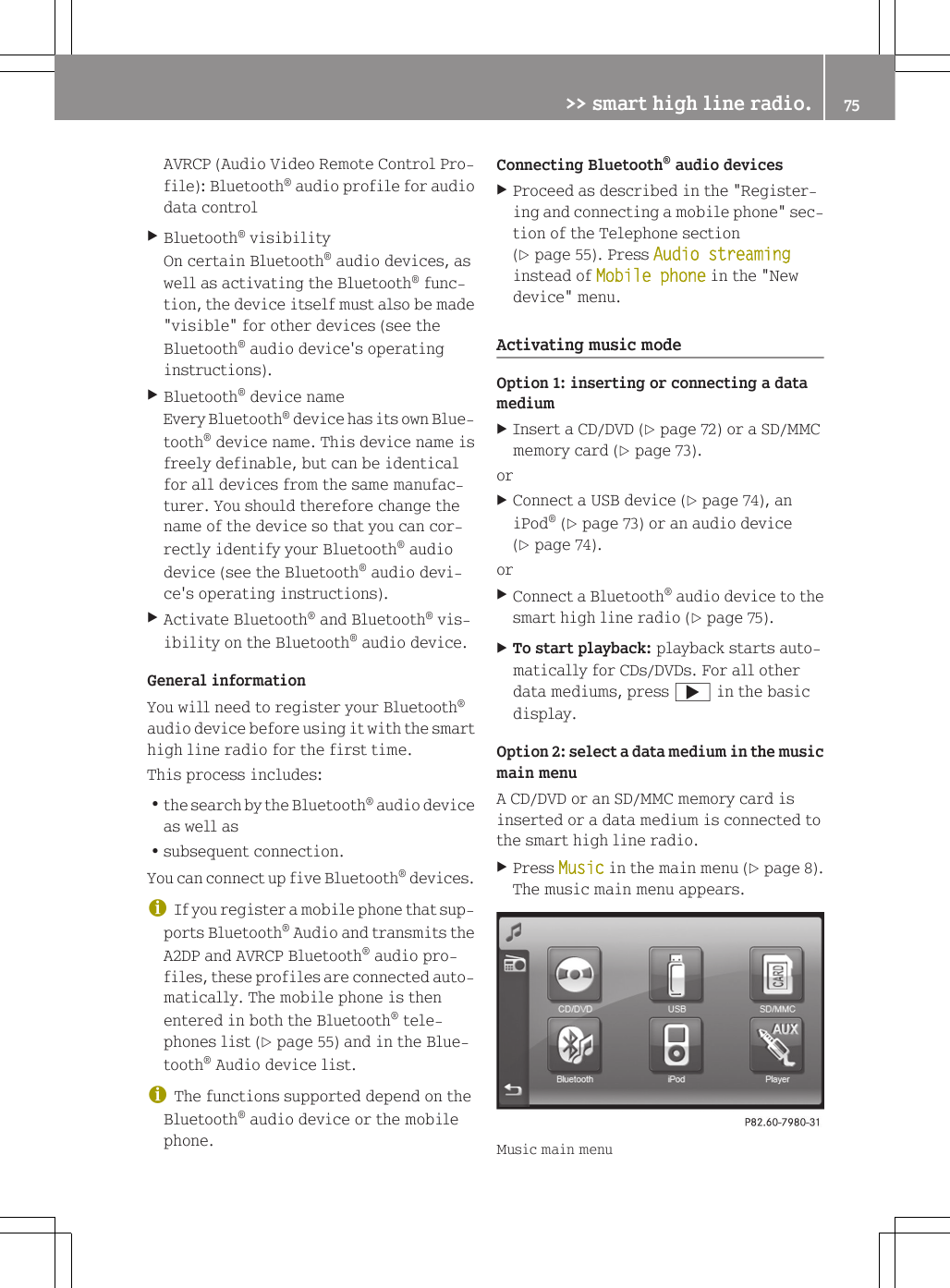
AVRCP (Audio Video Remote Control Pro-file): Bluetooth® audio profile for audiodata controlXBluetooth® visibilityOn certain Bluetooth® audio devices, aswell as activating the Bluetooth® func-tion, the device itself must also be made"visible" for other devices (see theBluetooth® audio device's operatinginstructions).XBluetooth® device nameEvery Bluetooth® device has its own Blue-tooth® device name. This device name isfreely definable, but can be identicalfor all devices from the same manufac-turer. You should therefore change thename of the device so that you can cor-rectly identify your Bluetooth® audiodevice (see the Bluetooth® audio devi-ce's operating instructions).XActivate Bluetooth® and Bluetooth® vis-ibility on the Bluetooth® audio device.General informationYou will need to register your Bluetooth®audio device before using it with the smarthigh line radio for the first time.This process includes:Rthe search by the Bluetooth® audio deviceas well asRsubsequent connection.You can connect up five Bluetooth® devices.iIf you register a mobile phone that sup-ports Bluetooth® Audio and transmits theA2DP and AVRCP Bluetooth® audio pro-files, these profiles are connected auto-matically. The mobile phone is thenentered in both the Bluetooth® tele-phones list (Y page 55) and in the Blue-tooth® Audio device list.iThe functions supported depend on theBluetooth® audio device or the mobilephone.Connecting Bluetooth® audio devicesXProceed as described in the "Register-ing and connecting a mobile phone" sec-tion of the Telephone section(Y page 55). Press Audio streaminginstead of Mobile phone in the "Newdevice" menu.Activating music modeOption 1: inserting or connecting a datamediumXInsert a CD/DVD (Y page 72) or a SD/MMCmemory card (Y page 73).orXConnect a USB device (Y page 74), aniPod® (Y page 73) or an audio device(Y page 74).orXConnect a Bluetooth® audio device to thesmart high line radio (Y page 75).XTo start playback: playback starts auto-matically for CDs/DVDs. For all otherdata mediums, press ; in the basicdisplay.Option 2: select a data medium in the musicmain menuA CD/DVD or an SD/MMC memory card isinserted or a data medium is connected tothe smart high line radio.XPress Music in the main menu (Y page 8).The music main menu appears.Music main menu>> smart high line radio. 75Z
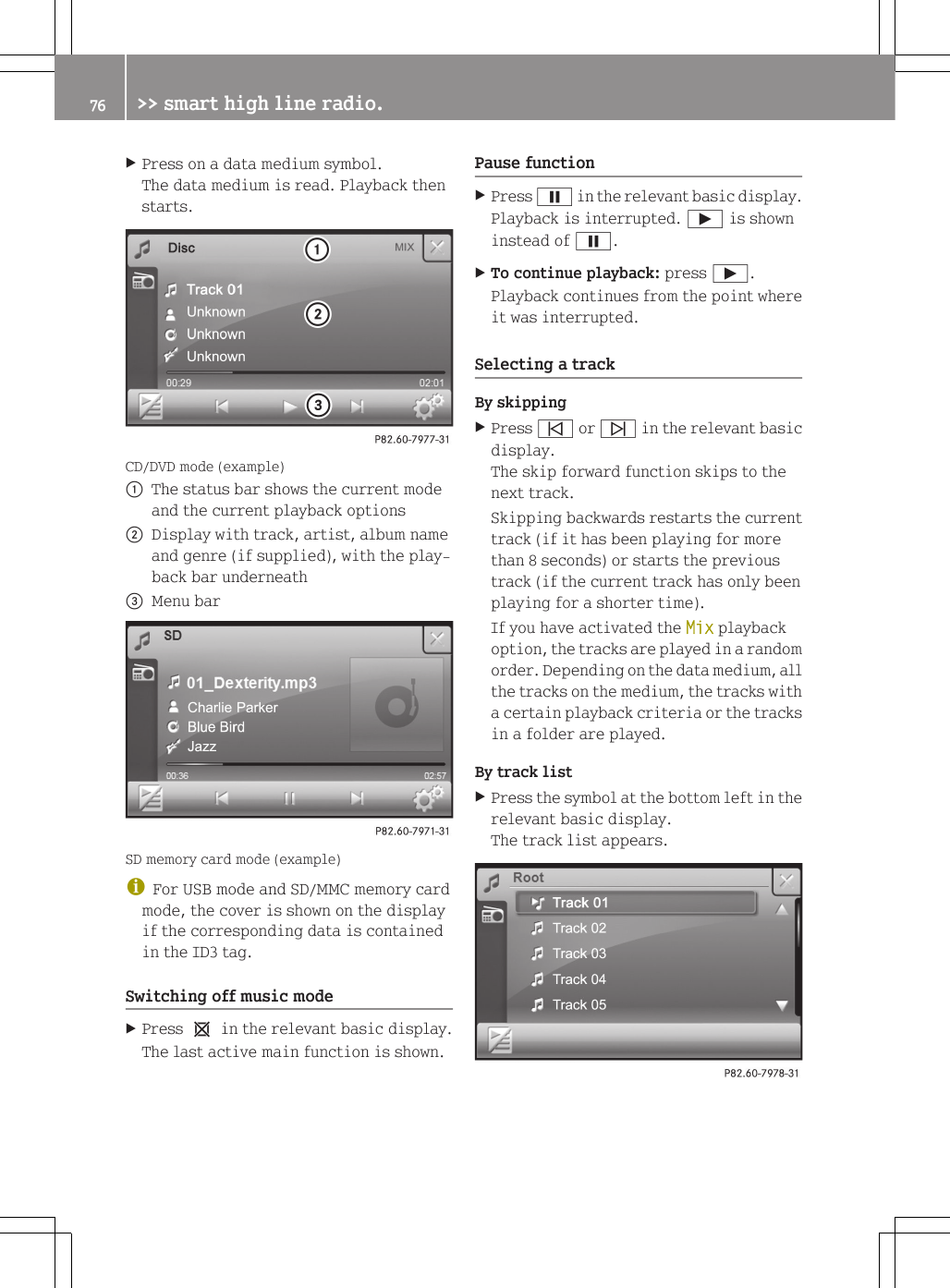
XPress on a data medium symbol.The data medium is read. Playback thenstarts.CD/DVD mode (example):The status bar shows the current modeand the current playback options;Display with track, artist, album nameand genre (if supplied), with the play-back bar underneath=Menu barSD memory card mode (example)iFor USB mode and SD/MMC memory cardmode, the cover is shown on the displayif the corresponding data is containedin the ID3 tag.Switching off music modeXPress 1 in the relevant basic display.The last active main function is shown.Pause functionXPress Ë in the relevant basic display.Playback is interrupted. Ì is showninstead of Ë.XTo continue playback: press Ì.Playback continues from the point whereit was interrupted.Selecting a trackBy skippingXPress û or ü in the relevant basicdisplay.The skip forward function skips to thenext track.Skipping backwards restarts the currenttrack (if it has been playing for morethan 8 seconds) or starts the previoustrack (if the current track has only beenplaying for a shorter time).If you have activated the Mix playbackoption, the tracks are played in a randomorder. Depending on the data medium, allthe tracks on the medium, the tracks witha certain playback criteria or the tracksin a folder are played.By track listXPress the symbol at the bottom left in therelevant basic display.The track list appears.76 >> smart high line radio.
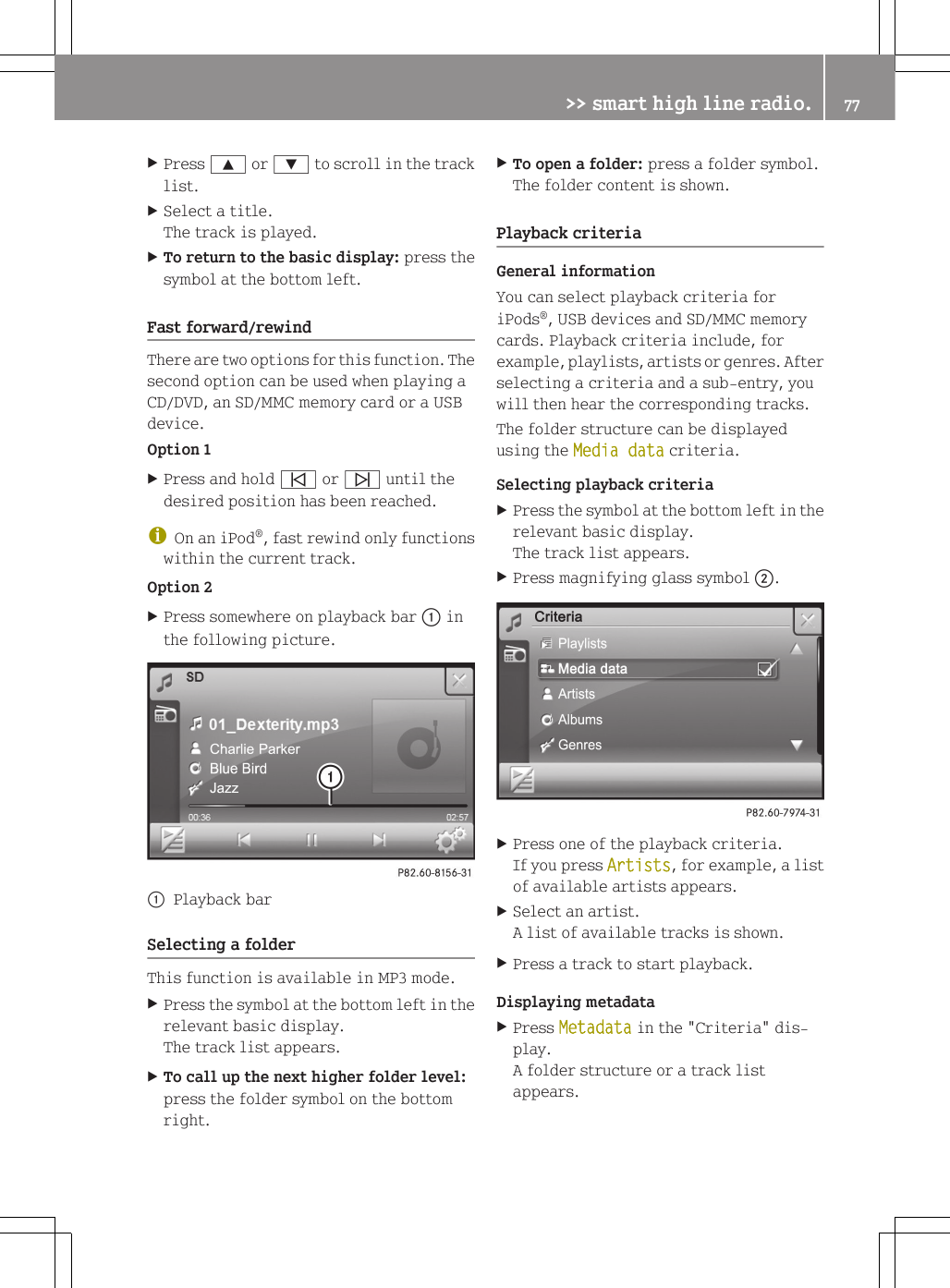
XPress 9 or : to scroll in the tracklist.XSelect a title.The track is played.XTo return to the basic display: press thesymbol at the bottom left.Fast forward/rewindThere are two options for this function. Thesecond option can be used when playing aCD/DVD, an SD/MMC memory card or a USBdevice.Option 1XPress and hold û or ü until thedesired position has been reached.iOn an iPod®, fast rewind only functionswithin the current track.Option 2XPress somewhere on playback bar : inthe following picture.:Playback barSelecting a folderThis function is available in MP3 mode.XPress the symbol at the bottom left in therelevant basic display.The track list appears.XTo call up the next higher folder level:press the folder symbol on the bottomright.XTo open a folder: press a folder symbol.The folder content is shown.Playback criteriaGeneral informationYou can select playback criteria foriPods®, USB devices and SD/MMC memorycards. Playback criteria include, forexample, playlists, artists or genres. Afterselecting a criteria and a sub-entry, youwill then hear the corresponding tracks.The folder structure can be displayedusing the Media data criteria.Selecting playback criteriaXPress the symbol at the bottom left in therelevant basic display.The track list appears.XPress magnifying glass symbol ;.XPress one of the playback criteria.If you press Artists, for example, a listof available artists appears.XSelect an artist.A list of available tracks is shown.XPress a track to start playback.Displaying metadataXPress Metadata in the "Criteria" dis-play.A folder structure or a track listappears.>> smart high line radio. 77Z
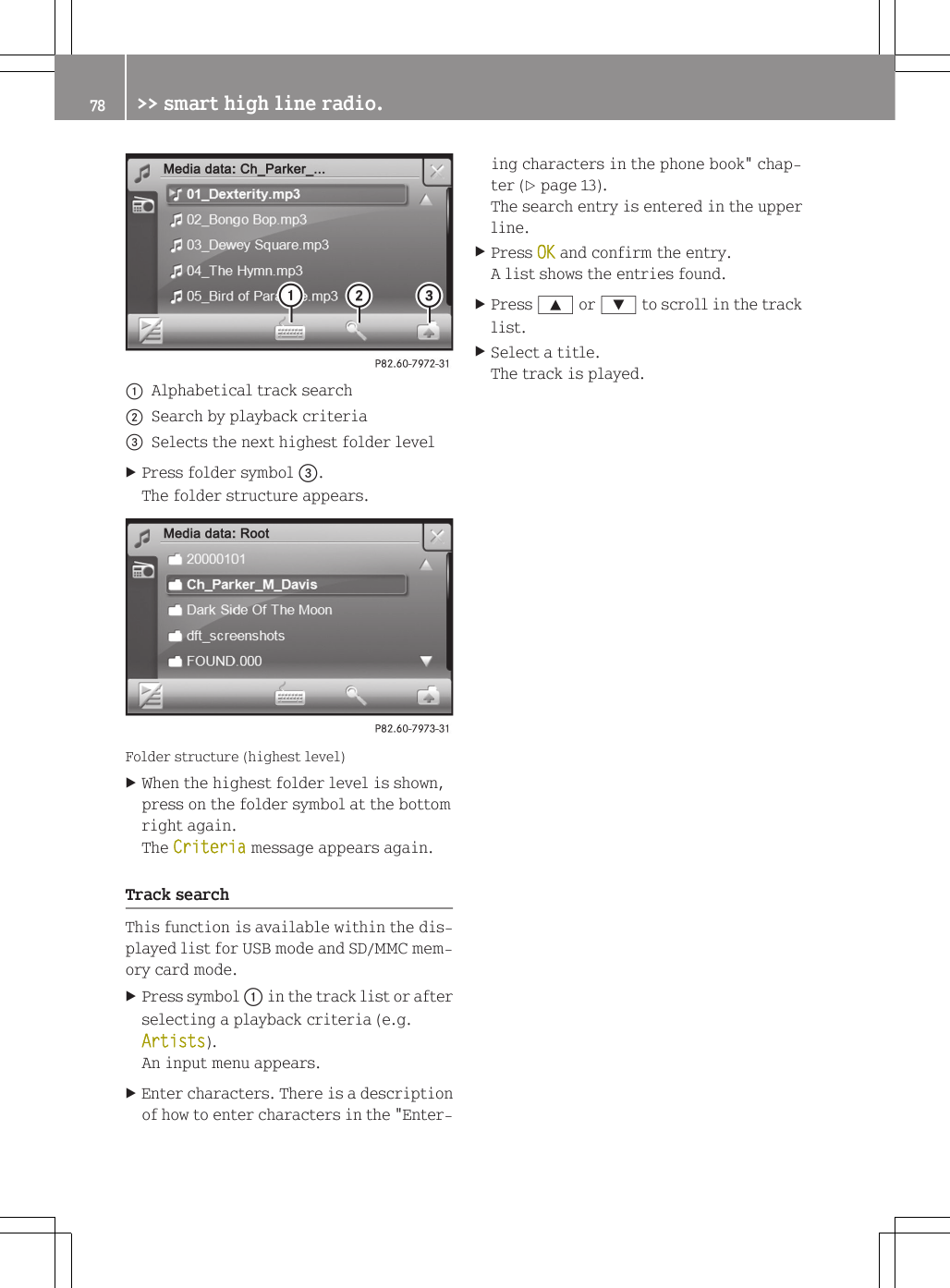
:Alphabetical track search;Search by playback criteria=Selects the next highest folder levelXPress folder symbol =.The folder structure appears.Folder structure (highest level)XWhen the highest folder level is shown,press on the folder symbol at the bottomright again.The Criteria message appears again.Track searchThis function is available within the dis-played list for USB mode and SD/MMC mem-ory card mode.XPress symbol : in the track list or afterselecting a playback criteria (e.g.Artists).An input menu appears.XEnter characters. There is a descriptionof how to enter characters in the "Enter-ing characters in the phone book" chap-ter (Y page 13).The search entry is entered in the upperline.XPress OK and confirm the entry.A list shows the entries found.XPress 9 or : to scroll in the tracklist.XSelect a title.The track is played.78 >> smart high line radio.
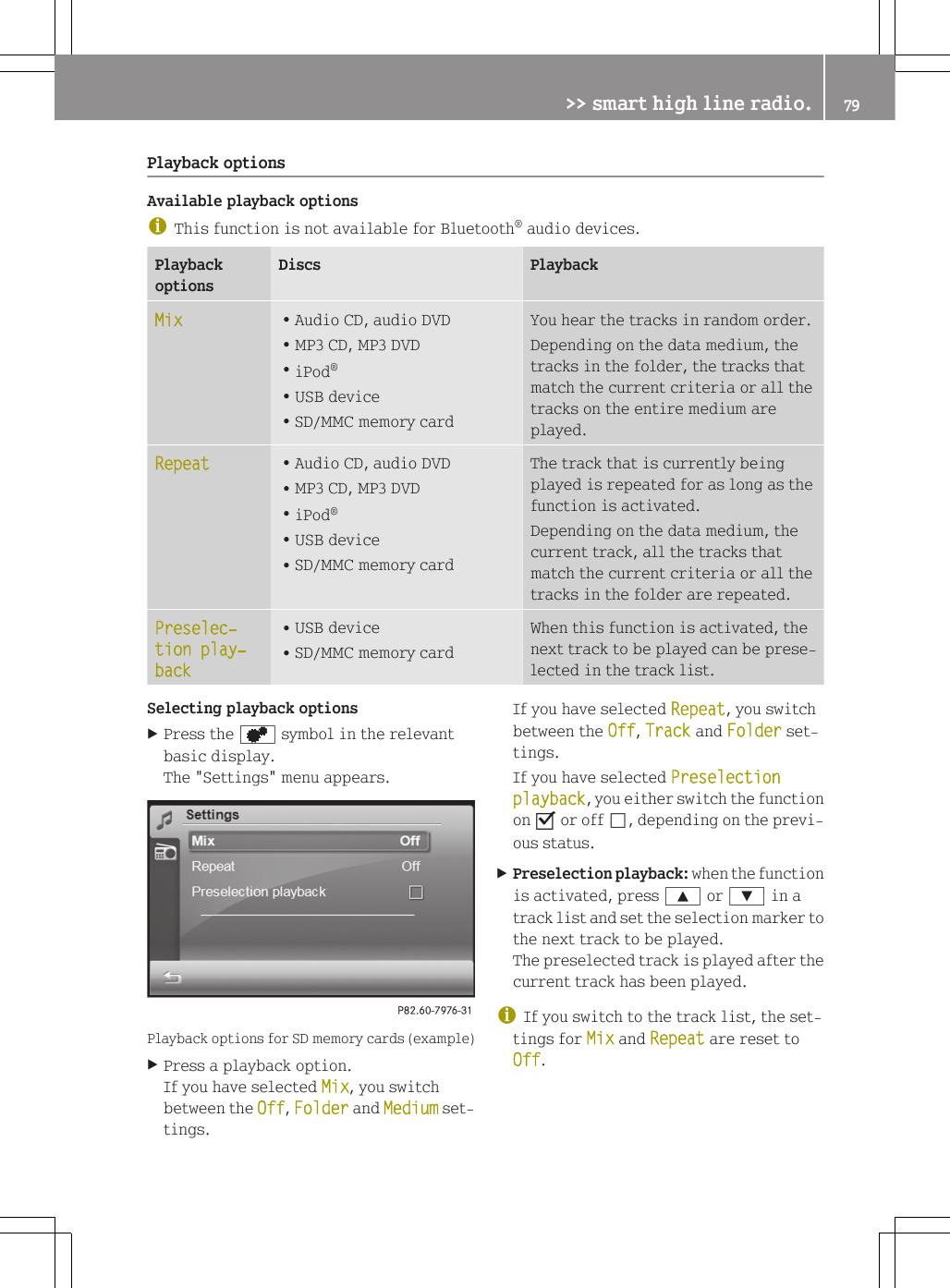
Playback optionsAvailable playback optionsiThis function is not available for Bluetooth® audio devices.PlaybackoptionsDiscs PlaybackMix RAudio CD, audio DVDRMP3 CD, MP3 DVDRiPod®RUSB deviceRSD/MMC memory cardYou hear the tracks in random order.Depending on the data medium, thetracks in the folder, the tracks thatmatch the current criteria or all thetracks on the entire medium areplayed.Repeat RAudio CD, audio DVDRMP3 CD, MP3 DVDRiPod®RUSB deviceRSD/MMC memory cardThe track that is currently beingplayed is repeated for as long as thefunction is activated.Depending on the data medium, thecurrent track, all the tracks thatmatch the current criteria or all thetracks in the folder are repeated.Preselec‐tion play‐backRUSB deviceRSD/MMC memory cardWhen this function is activated, thenext track to be played can be prese-lected in the track list.Selecting playback optionsXPress the d symbol in the relevantbasic display.The "Settings" menu appears.Playback options for SD memory cards (example)XPress a playback option.If you have selected Mix, you switchbetween the Off, Folder and Medium set-tings.If you have selected Repeat, you switchbetween the Off, Track and Folder set-tings.If you have selected Preselection playback, you either switch the functionon O or off ª, depending on the previ-ous status.XPreselection playback: when the functionis activated, press 9 or : in atrack list and set the selection marker tothe next track to be played.The preselected track is played after thecurrent track has been played.iIf you switch to the track list, the set-tings for Mix and Repeat are reset toOff.>> smart high line radio. 79Z
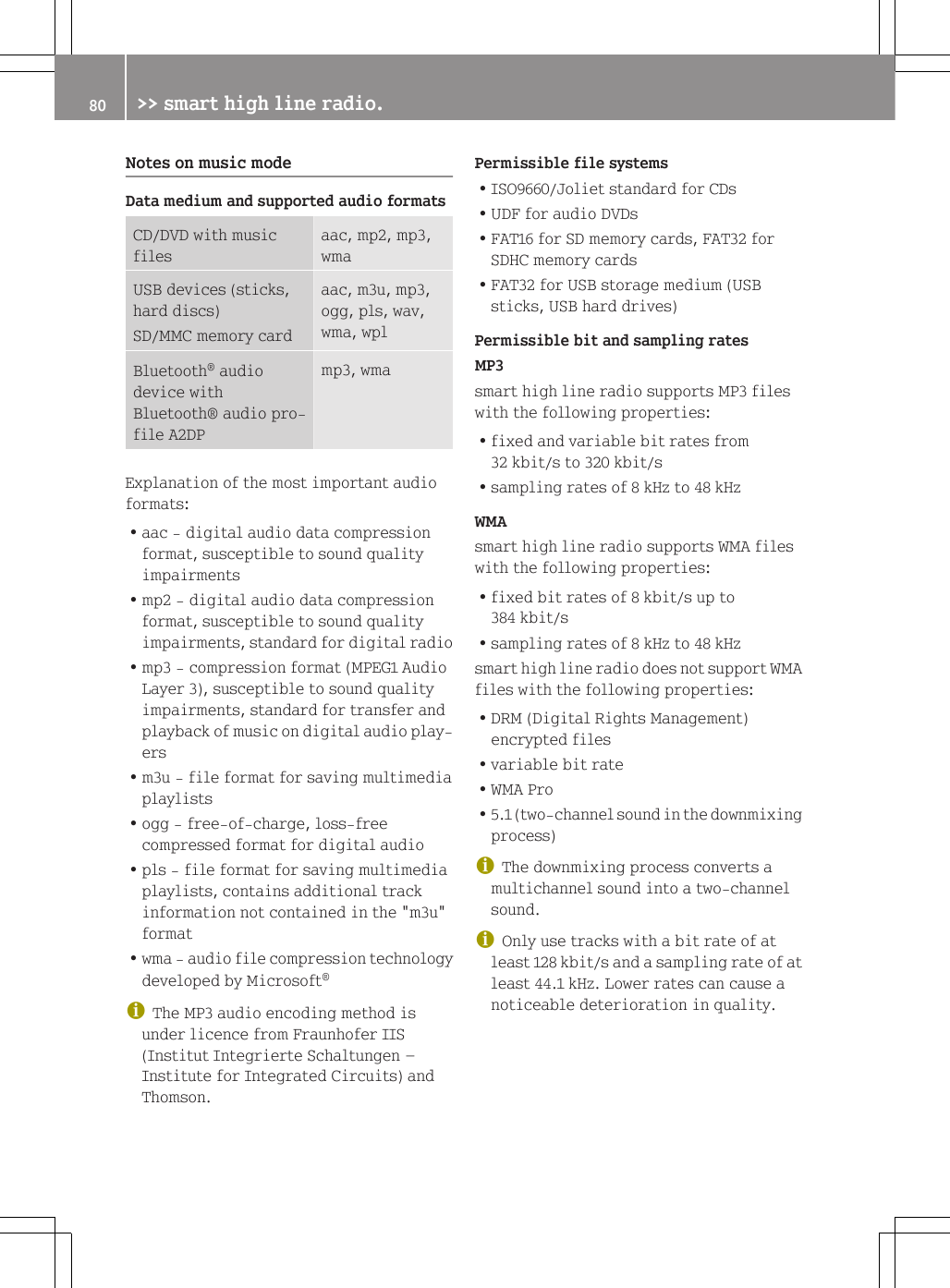
Notes on music modeData medium and supported audio formatsCD/DVD with musicfilesaac, mp2, mp3,wmaUSB devices (sticks,hard discs)SD/MMC memory cardaac, m3u, mp3,ogg, pls, wav,wma, wplBluetooth® audiodevice withBluetooth® audio pro-file A2DPmp3, wmaExplanation of the most important audioformats:Raac - digital audio data compressionformat, susceptible to sound qualityimpairmentsRmp2 - digital audio data compressionformat, susceptible to sound qualityimpairments, standard for digital radioRmp3 - compression format (MPEG1 AudioLayer 3), susceptible to sound qualityimpairments, standard for transfer andplayback of music on digital audio play-ersRm3u - file format for saving multimediaplaylistsRogg - free-of-charge, loss-freecompressed format for digital audioRpls - file format for saving multimediaplaylists, contains additional trackinformation not contained in the "m3u"formatRwma - audio file compression technologydeveloped by Microsoft®iThe MP3 audio encoding method isunder licence from Fraunhofer IIS(Institut Integrierte Schaltungen –Institute for Integrated Circuits) andThomson.Permissible file systemsRISO9660/Joliet standard for CDsRUDF for audio DVDsRFAT16 for SD memory cards, FAT32 forSDHC memory cardsRFAT32 for USB storage medium (USBsticks, USB hard drives)Permissible bit and sampling ratesMP3smart high line radio supports MP3 fileswith the following properties:Rfixed and variable bit rates from32 kbit/s to 320 kbit/sRsampling rates of 8 kHz to 48 kHzWMAsmart high line radio supports WMA fileswith the following properties:Rfixed bit rates of 8 kbit/s up to384 kbit/sRsampling rates of 8 kHz to 48 kHzsmart high line radio does not support WMAfiles with the following properties:RDRM (Digital Rights Management)encrypted filesRvariable bit rateRWMA ProR5.1 (two-channel sound in the downmixingprocess)iThe downmixing process converts amultichannel sound into a two-channelsound.iOnly use tracks with a bit rate of atleast 128 kbit/s and a sampling rate of atleast 44.1 kHz. Lower rates can cause anoticeable deterioration in quality.80 >> smart high line radio.
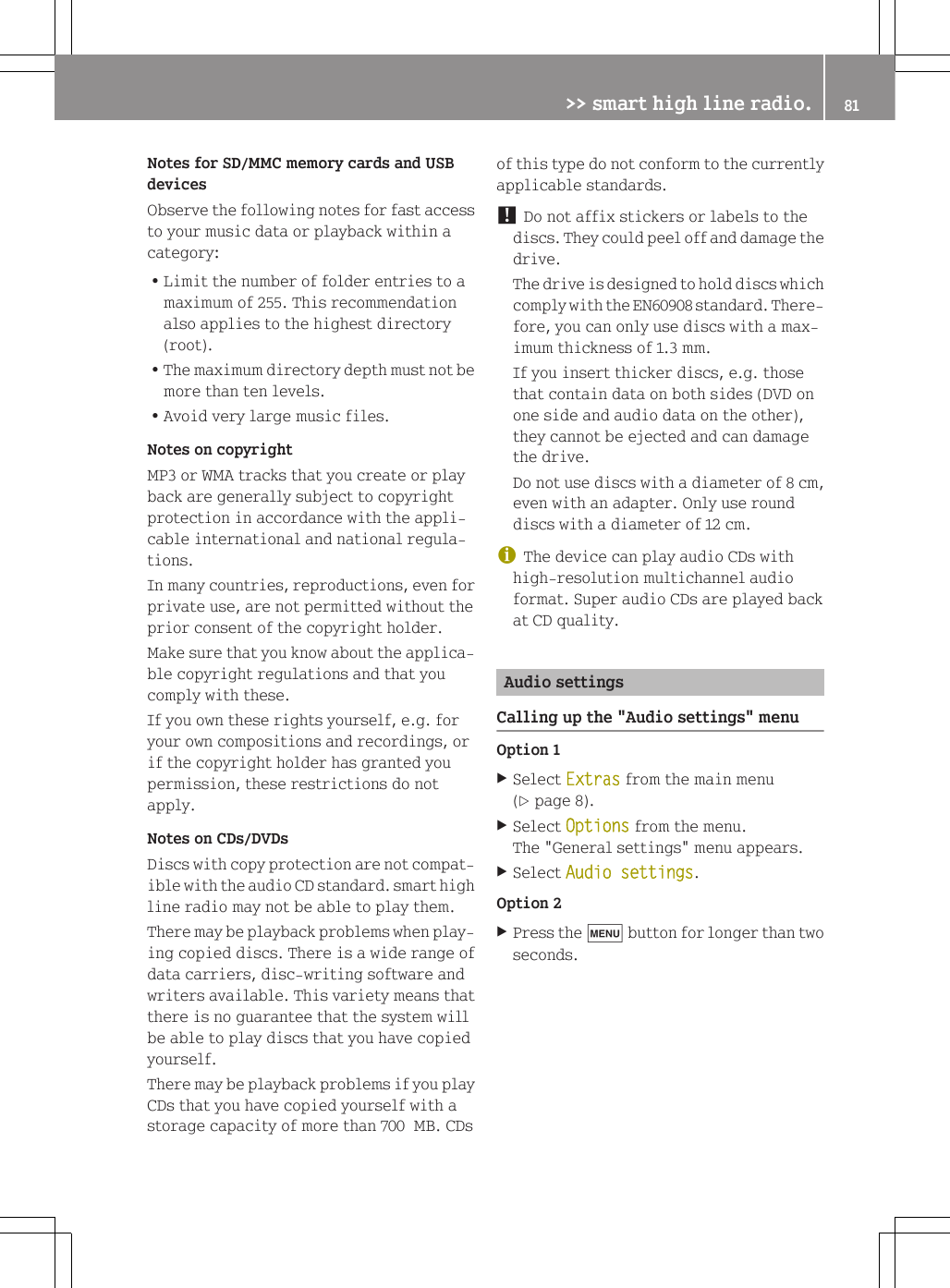
Notes for SD/MMC memory cards and USBdevicesObserve the following notes for fast accessto your music data or playback within acategory:RLimit the number of folder entries to amaximum of 255. This recommendationalso applies to the highest directory(root).RThe maximum directory depth must not bemore than ten levels.RAvoid very large music files.Notes on copyrightMP3 or WMA tracks that you create or playback are generally subject to copyrightprotection in accordance with the appli-cable international and national regula-tions.In many countries, reproductions, even forprivate use, are not permitted without theprior consent of the copyright holder.Make sure that you know about the applica-ble copyright regulations and that youcomply with these.If you own these rights yourself, e.g. foryour own compositions and recordings, orif the copyright holder has granted youpermission, these restrictions do notapply.Notes on CDs/DVDsDiscs with copy protection are not compat-ible with the audio CD standard. smart highline radio may not be able to play them.There may be playback problems when play-ing copied discs. There is a wide range ofdata carriers, disc-writing software andwriters available. This variety means thatthere is no guarantee that the system willbe able to play discs that you have copiedyourself.There may be playback problems if you playCDs that you have copied yourself with astorage capacity of more than 700  MB. CDsof this type do not conform to the currentlyapplicable standards.! Do not affix stickers or labels to thediscs. They could peel off and damage thedrive.The drive is designed to hold discs whichcomply with the EN60908 standard. There-fore, you can only use discs with a max-imum thickness of 1.3 mm.If you insert thicker discs, e.g. thosethat contain data on both sides (DVD onone side and audio data on the other),they cannot be ejected and can damagethe drive.Do not use discs with a diameter of 8 cm,even with an adapter. Only use rounddiscs with a diameter of 12 cm.iThe device can play audio CDs withhigh-resolution multichannel audioformat. Super audio CDs are played backat CD quality.Audio settingsCalling up the "Audio settings" menuOption 1XSelect Extras from the main menu(Y page 8).XSelect Options from the menu.The "General settings" menu appears.XSelect Audio settings.Option 2XPress the t button for longer than twoseconds.>> smart high line radio. 81Z
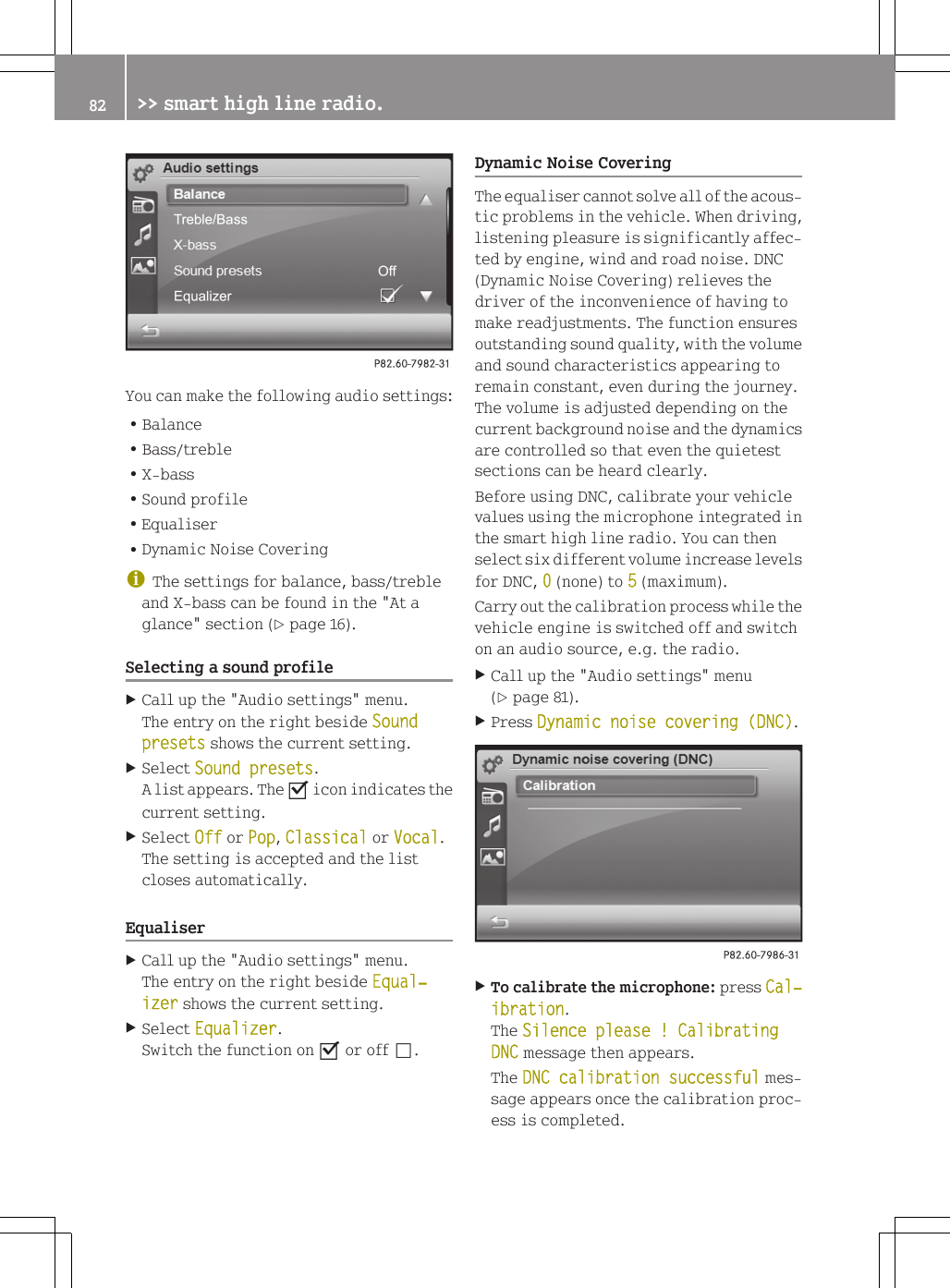
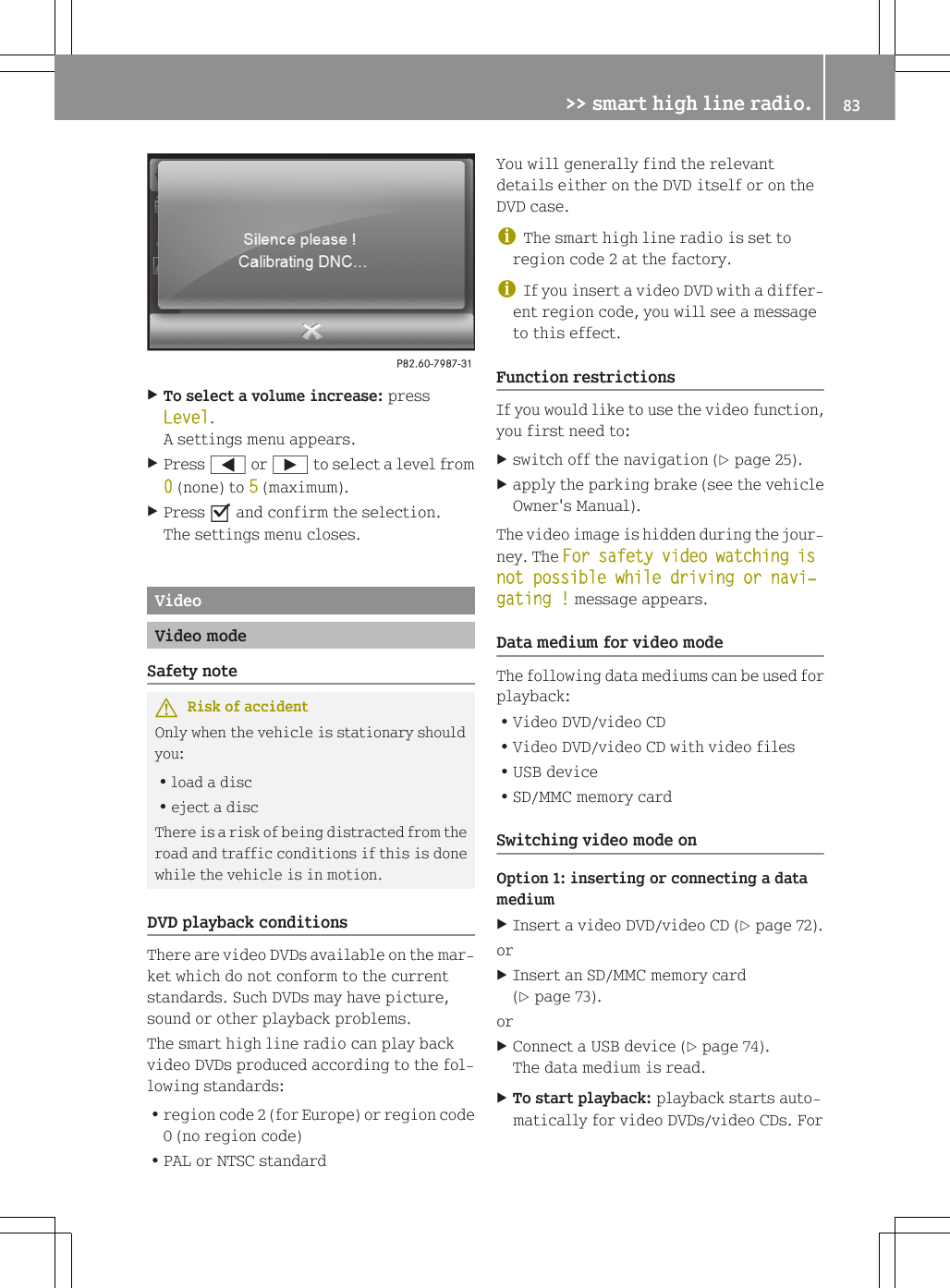
You can make the following audio settings:RBalanceRBass/trebleRX-bassRSound profileREqualiserRDynamic Noise CoveringiThe settings for balance, bass/trebleand X-bass can be found in the "At aglance" section (Y page 16).Selecting a sound profileXCall up the "Audio settings" menu.The entry on the right beside Sound presets shows the current setting.XSelect Sound presets.A list appears. The O icon indicates thecurrent setting.XSelect Off or Pop, Classical or Vocal.The setting is accepted and the listcloses automatically.EqualiserXCall up the "Audio settings" menu.The entry on the right beside Equal‐izer shows the current setting.XSelect Equalizer.Switch the function on O or off ª.Dynamic Noise CoveringThe equaliser cannot solve all of the acous-tic problems in the vehicle. When driving,listening pleasure is significantly affec-ted by engine, wind and road noise. DNC(Dynamic Noise Covering) relieves thedriver of the inconvenience of having tomake readjustments. The function ensuresoutstanding sound quality, with the volumeand sound characteristics appearing toremain constant, even during the journey.The volume is adjusted depending on thecurrent background noise and the dynamicsare controlled so that even the quietestsections can be heard clearly.Before using DNC, calibrate your vehiclevalues using the microphone integrated inthe smart high line radio. You can thenselect six different volume increase levelsfor DNC, 0 (none) to 5 (maximum).Carry out the calibration process while thevehicle engine is switched off and switchon an audio source, e.g. the radio.XCall up the "Audio settings" menu(Y page 81).XPress Dynamic noise covering (DNC).XTo calibrate the microphone: press Cal‐ibration.The Silence please ! Calibrating DNC message then appears.The DNC calibration successful mes-sage appears once the calibration proc-ess is completed.82 >> smart high line radio.
XTo select a volume increase: pressLevel.A settings menu appears.XPress = or Ì to select a level from0 (none) to 5 (maximum).XPress O and confirm the selection.The settings menu closes.VideoVideo modeSafety noteGRisk of accidentOnly when the vehicle is stationary shouldyou:Rload a discReject a discThere is a risk of being distracted from theroad and traffic conditions if this is donewhile the vehicle is in motion.DVD playback conditionsThere are video DVDs available on the mar-ket which do not conform to the currentstandards. Such DVDs may have picture,sound or other playback problems.The smart high line radio can play backvideo DVDs produced according to the fol-lowing standards:Rregion code 2 (for Europe) or region code0 (no region code)RPAL or NTSC standardYou will generally find the relevantdetails either on the DVD itself or on theDVD case.iThe smart high line radio is set toregion code 2 at the factory.iIf you insert a video DVD with a differ-ent region code, you will see a messageto this effect.Function restrictionsIf you would like to use the video function,you first need to:Xswitch off the navigation (Y page 25).Xapply the parking brake (see the vehicleOwner's Manual).The video image is hidden during the jour-ney. The For safety video watching is not possible while driving or navi‐gating ! message appears.Data medium for video modeThe following data mediums can be used forplayback:RVideo DVD/video CDRVideo DVD/video CD with video filesRUSB deviceRSD/MMC memory cardSwitching video mode onOption 1: inserting or connecting a datamediumXInsert a video DVD/video CD (Y page 72).orXInsert an SD/MMC memory card(Y page 73).orXConnect a USB device (Y page 74).The data medium is read.XTo start playback: playback starts auto-matically for video DVDs/video CDs. For>> smart high line radio. 83Z
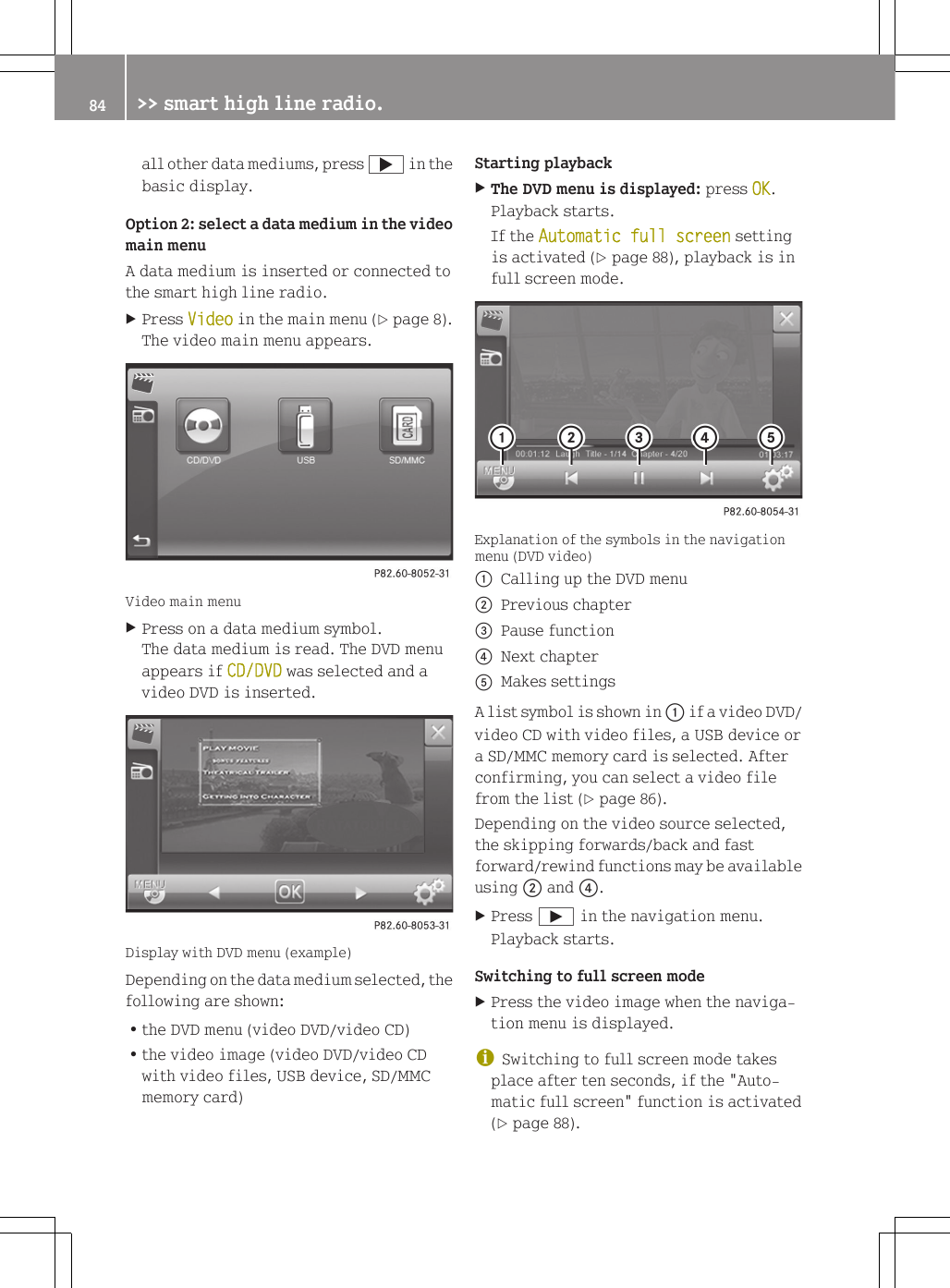
all other data mediums, press ; in thebasic display.Option 2: select a data medium in the videomain menuA data medium is inserted or connected tothe smart high line radio.XPress Video in the main menu (Y page 8).The video main menu appears.Video main menuXPress on a data medium symbol.The data medium is read. The DVD menuappears if CD/DVD was selected and avideo DVD is inserted.Display with DVD menu (example)Depending on the data medium selected, thefollowing are shown:Rthe DVD menu (video DVD/video CD)Rthe video image (video DVD/video CDwith video files, USB device, SD/MMCmemory card)Starting playbackXThe DVD menu is displayed: press OK.Playback starts.If the Automatic full screen settingis activated (Y page 88), playback is infull screen mode.Explanation of the symbols in the navigationmenu (DVD video):Calling up the DVD menu;Previous chapter=Pause function?Next chapterAMakes settingsA list symbol is shown in : if a video DVD/video CD with video files, a USB device ora SD/MMC memory card is selected. Afterconfirming, you can select a video filefrom the list (Y page 86).Depending on the video source selected,the skipping forwards/back and fastforward/rewind functions may be availableusing ; and ?.XPress Ì in the navigation menu.Playback starts.Switching to full screen modeXPress the video image when the naviga-tion menu is displayed.iSwitching to full screen mode takesplace after ten seconds, if the "Auto-matic full screen" function is activated(Y page 88).84 >> smart high line radio.
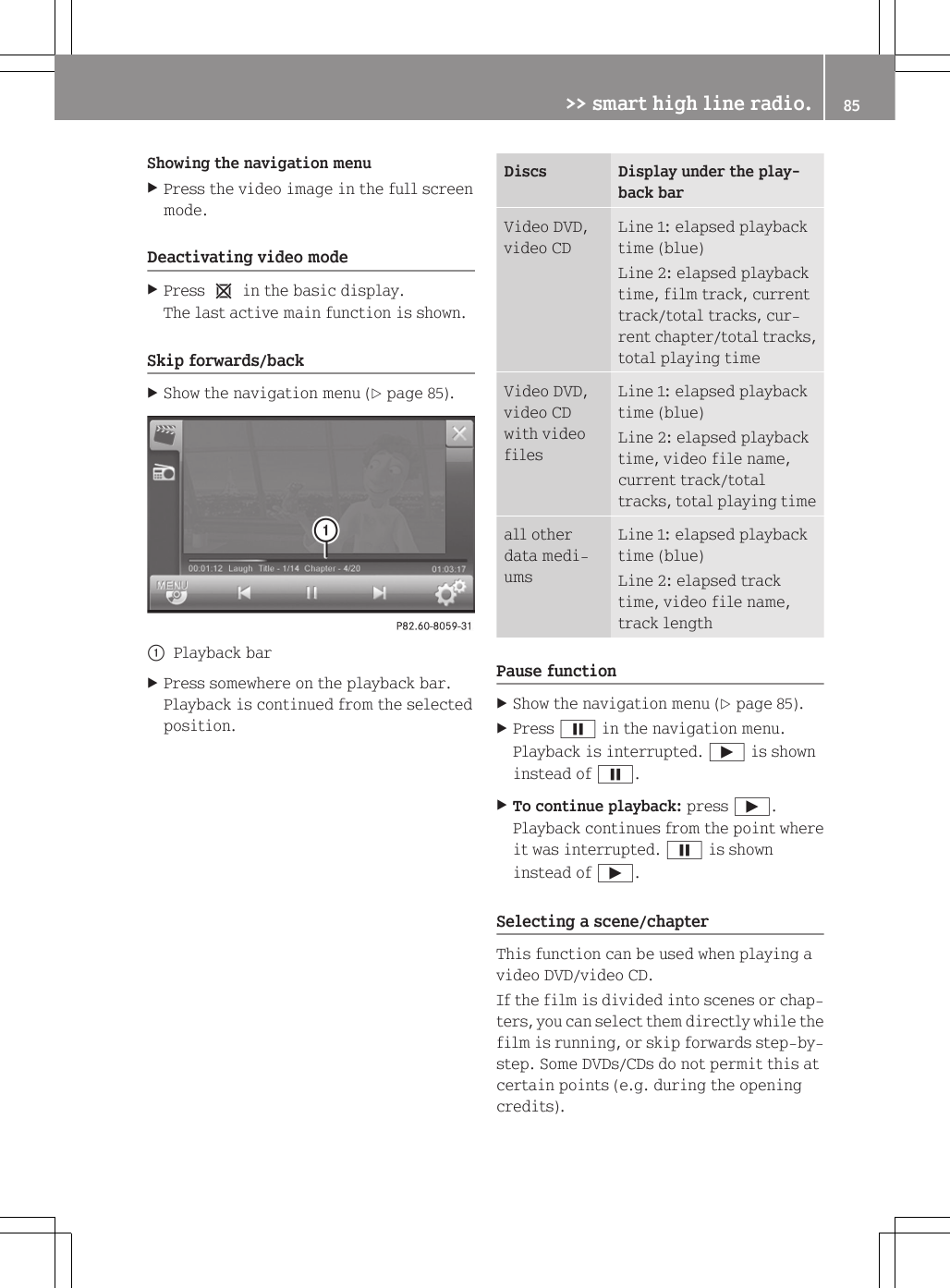
Showing the navigation menuXPress the video image in the full screenmode.Deactivating video modeXPress 1 in the basic display.The last active main function is shown.Skip forwards/backXShow the navigation menu (Y page 85).:Playback barXPress somewhere on the playback bar.Playback is continued from the selectedposition.Discs Display under the play-back barVideo DVD,video CDLine 1: elapsed playbacktime (blue)Line 2: elapsed playbacktime, film track, currenttrack/total tracks, cur-rent chapter/total tracks,total playing timeVideo DVD,video CDwith videofilesLine 1: elapsed playbacktime (blue)Line 2: elapsed playbacktime, video file name,current track/totaltracks, total playing timeall otherdata medi-umsLine 1: elapsed playbacktime (blue)Line 2: elapsed tracktime, video file name,track lengthPause functionXShow the navigation menu (Y page 85).XPress Ë in the navigation menu.Playback is interrupted. Ì is showninstead of Ë.XTo continue playback: press Ì.Playback continues from the point whereit was interrupted. Ë is showninstead of Ì.Selecting a scene/chapterThis function can be used when playing avideo DVD/video CD.If the film is divided into scenes or chap-ters, you can select them directly while thefilm is running, or skip forwards step-by-step. Some DVDs/CDs do not permit this atcertain points (e.g. during the openingcredits).>> smart high line radio. 85Z
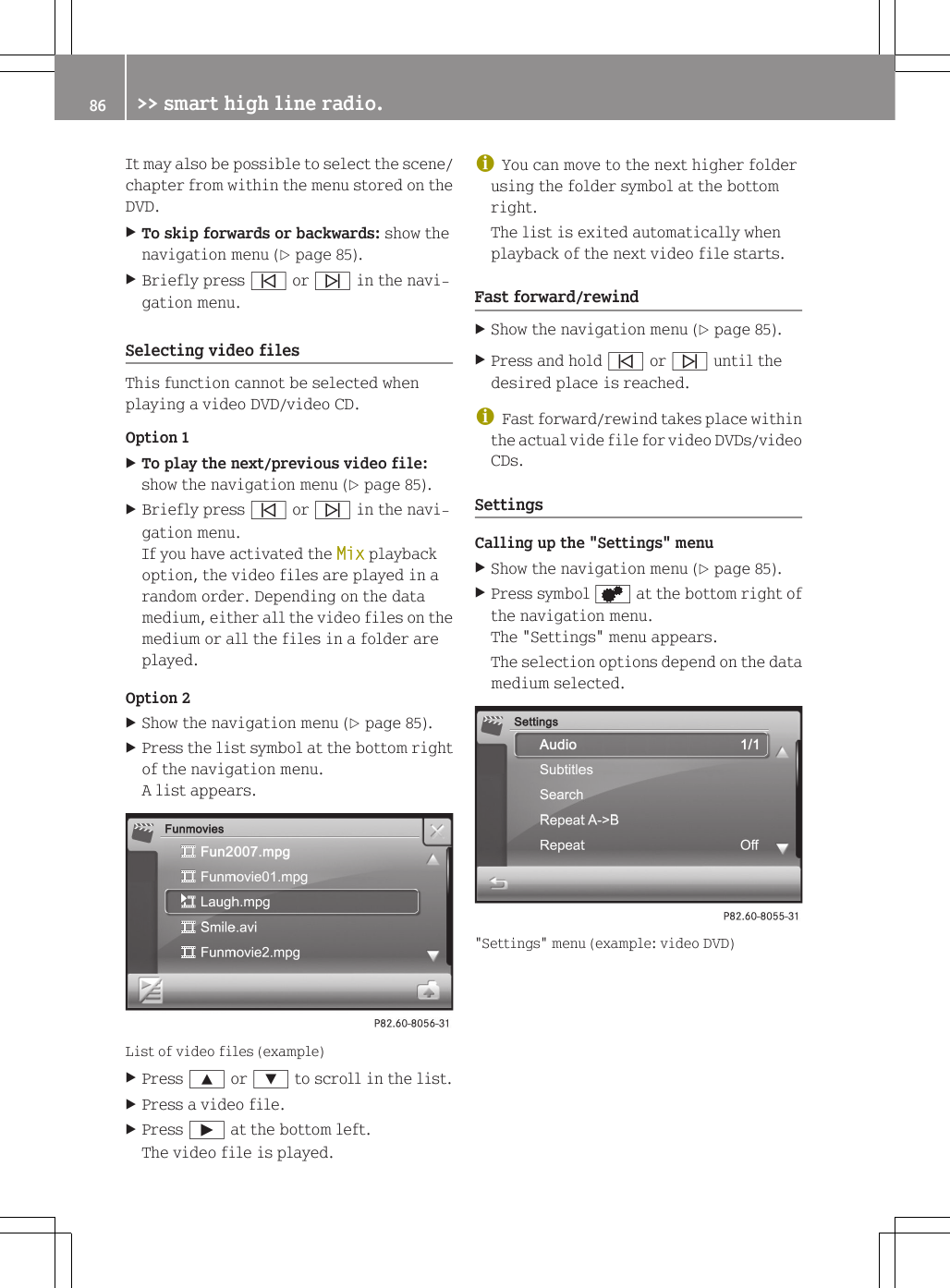
It may also be possible to select the scene/chapter from within the menu stored on theDVD.XTo skip forwards or backwards: show thenavigation menu (Y page 85).XBriefly press û or ü in the navi-gation menu.Selecting video filesThis function cannot be selected whenplaying a video DVD/video CD.Option 1XTo play the next/previous video file:show the navigation menu (Y page 85).XBriefly press û or ü in the navi-gation menu.If you have activated the Mix playbackoption, the video files are played in arandom order. Depending on the datamedium, either all the video files on themedium or all the files in a folder areplayed.Option 2XShow the navigation menu (Y page 85).XPress the list symbol at the bottom rightof the navigation menu.A list appears.List of video files (example)XPress 9 or : to scroll in the list.XPress a video file.XPress Ì at the bottom left.The video file is played.iYou can move to the next higher folderusing the folder symbol at the bottomright.The list is exited automatically whenplayback of the next video file starts.Fast forward/rewindXShow the navigation menu (Y page 85).XPress and hold û or ü until thedesired place is reached.iFast forward/rewind takes place withinthe actual vide file for video DVDs/videoCDs.SettingsCalling up the "Settings" menuXShow the navigation menu (Y page 85).XPress symbol d at the bottom right ofthe navigation menu.The "Settings" menu appears.The selection options depend on the datamedium selected."Settings" menu (example: video DVD)86 >> smart high line radio.
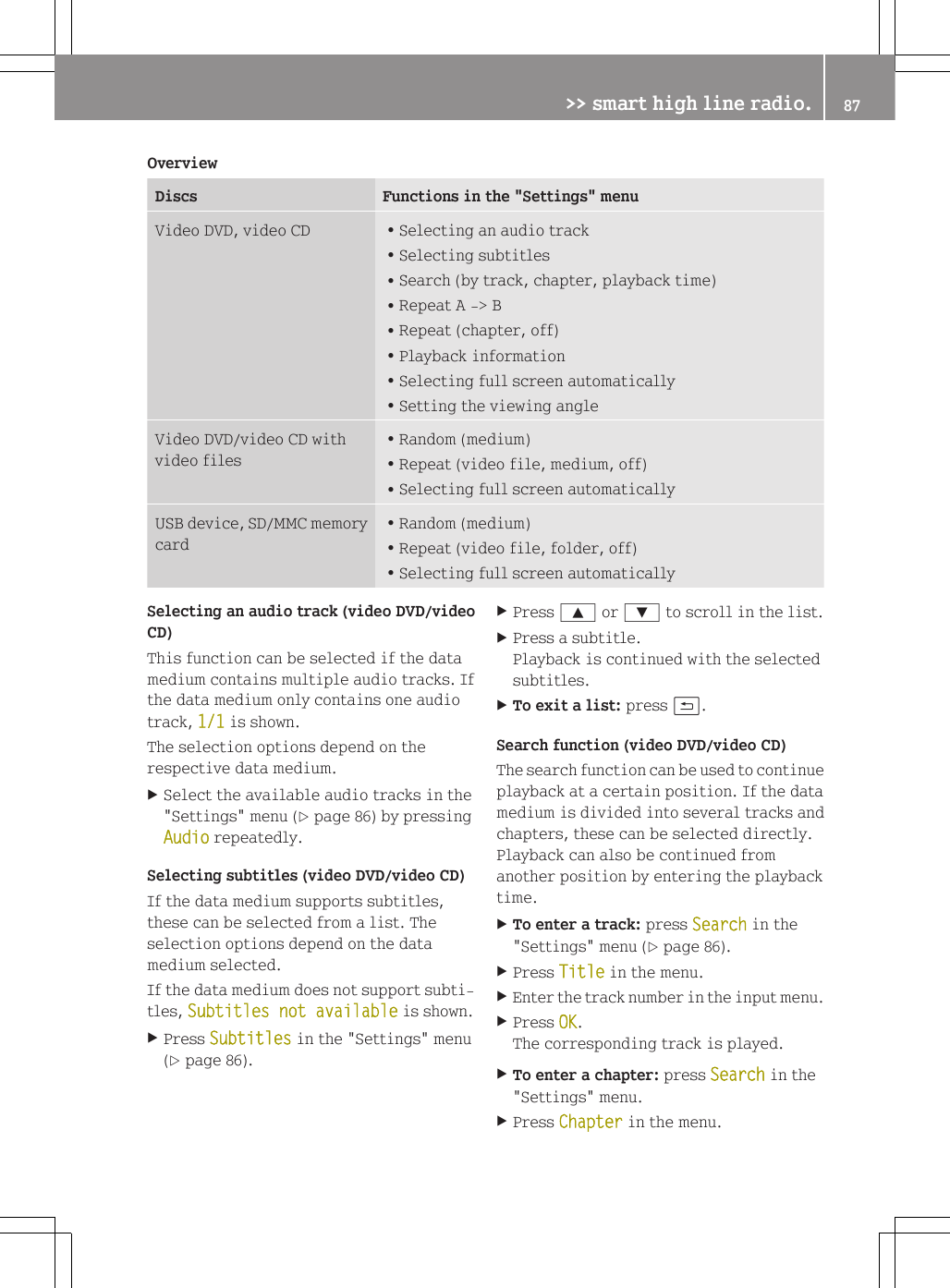
OverviewDiscs Functions in the "Settings" menuVideo DVD, video CD RSelecting an audio trackRSelecting subtitlesRSearch (by track, chapter, playback time)RRepeat A -> BRRepeat (chapter, off)RPlayback informationRSelecting full screen automaticallyRSetting the viewing angleVideo DVD/video CD withvideo filesRRandom (medium)RRepeat (video file, medium, off)RSelecting full screen automaticallyUSB device, SD/MMC memorycardRRandom (medium)RRepeat (video file, folder, off)RSelecting full screen automaticallySelecting an audio track (video DVD/videoCD)This function can be selected if the datamedium contains multiple audio tracks. Ifthe data medium only contains one audiotrack, 1/1 is shown.The selection options depend on therespective data medium.XSelect the available audio tracks in the"Settings" menu (Y page 86) by pressingAudio repeatedly.Selecting subtitles (video DVD/video CD)If the data medium supports subtitles,these can be selected from a list. Theselection options depend on the datamedium selected.If the data medium does not support subti-tles, Subtitles not available is shown.XPress Subtitles in the "Settings" menu(Y page 86).XPress 9 or : to scroll in the list.XPress a subtitle.Playback is continued with the selectedsubtitles.XTo exit a list: press &.Search function (video DVD/video CD)The search function can be used to continueplayback at a certain position. If the datamedium is divided into several tracks andchapters, these can be selected directly.Playback can also be continued fromanother position by entering the playbacktime.XTo enter a track: press Search in the"Settings" menu (Y page 86).XPress Title in the menu.XEnter the track number in the input menu.XPress OK.The corresponding track is played.XTo enter a chapter: press Search in the"Settings" menu.XPress Chapter in the menu.>> smart high line radio. 87Z
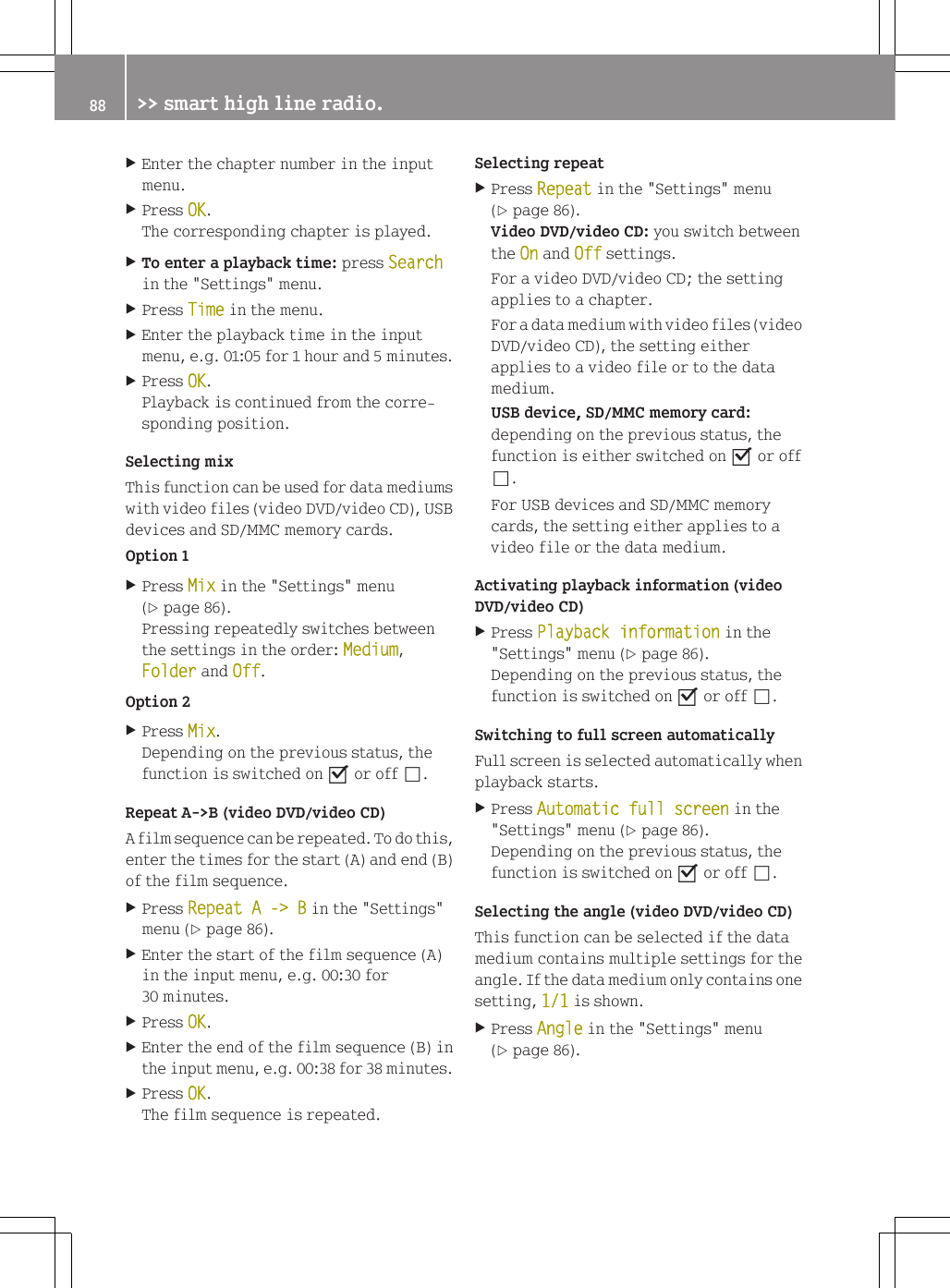
XEnter the chapter number in the inputmenu.XPress OK.The corresponding chapter is played.XTo enter a playback time: press Searchin the "Settings" menu.XPress Time in the menu.XEnter the playback time in the inputmenu, e.g. 01:05 for 1 hour and 5 minutes.XPress OK.Playback is continued from the corre-sponding position.Selecting mixThis function can be used for data mediumswith video files (video DVD/video CD), USBdevices and SD/MMC memory cards.Option 1XPress Mix in the "Settings" menu(Y page 86).Pressing repeatedly switches betweenthe settings in the order: Medium,Folder and Off.Option 2XPress Mix.Depending on the previous status, thefunction is switched on O or off ª.Repeat A->B (video DVD/video CD)A film sequence can be repeated. To do this,enter the times for the start (A) and end (B)of the film sequence.XPress Repeat A -> B in the "Settings"menu (Y page 86).XEnter the start of the film sequence (A)in the input menu, e.g. 00:30 for30 minutes.XPress OK.XEnter the end of the film sequence (B) inthe input menu, e.g. 00:38 for 38 minutes.XPress OK.The film sequence is repeated.Selecting repeatXPress Repeat in the "Settings" menu(Y page 86).Video DVD/video CD: you switch betweenthe On and Off settings.For a video DVD/video CD; the settingapplies to a chapter.For a data medium with video files (videoDVD/video CD), the setting eitherapplies to a video file or to the datamedium.USB device, SD/MMC memory card:depending on the previous status, thefunction is either switched on O or offª.For USB devices and SD/MMC memorycards, the setting either applies to avideo file or the data medium.Activating playback information (videoDVD/video CD)XPress Playback information in the"Settings" menu (Y page 86).Depending on the previous status, thefunction is switched on O or off ª.Switching to full screen automaticallyFull screen is selected automatically whenplayback starts.XPress Automatic full screen in the"Settings" menu (Y page 86).Depending on the previous status, thefunction is switched on O or off ª.Selecting the angle (video DVD/video CD)This function can be selected if the datamedium contains multiple settings for theangle. If the data medium only contains onesetting, 1/1 is shown.XPress Angle in the "Settings" menu(Y page 86).88 >> smart high line radio.
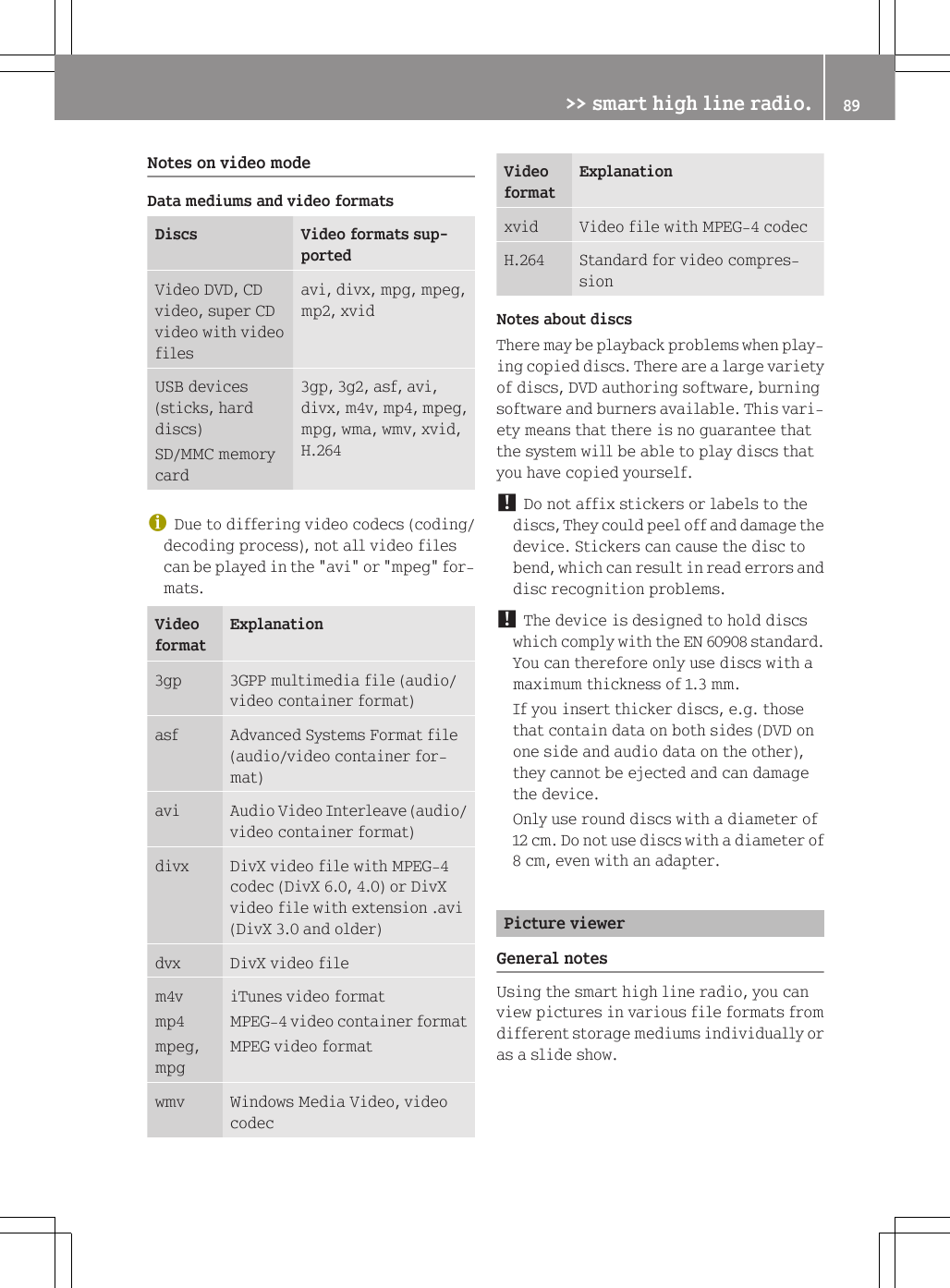
Notes on video modeData mediums and video formatsDiscs Video formats sup-portedVideo DVD, CDvideo, super CDvideo with videofilesavi, divx, mpg, mpeg,mp2, xvidUSB devices(sticks, harddiscs)SD/MMC memorycard3gp, 3g2, asf, avi,divx, m4v, mp4, mpeg,mpg, wma, wmv, xvid,H.264iDue to differing video codecs (coding/decoding process), not all video filescan be played in the "avi" or "mpeg" for-mats.VideoformatExplanation3gp 3GPP multimedia file (audio/video container format)asf Advanced Systems Format file(audio/video container for-mat)avi Audio Video Interleave (audio/video container format)divx DivX video file with MPEG-4codec (DivX 6.0, 4.0) or DivXvideo file with extension .avi(DivX 3.0 and older)dvx DivX video filem4vmp4mpeg,mpgiTunes video formatMPEG-4 video container formatMPEG video formatwmv Windows Media Video, videocodecVideoformatExplanationxvid Video file with MPEG-4 codecH.264 Standard for video compres-sionNotes about discsThere may be playback problems when play-ing copied discs. There are a large varietyof discs, DVD authoring software, burningsoftware and burners available. This vari-ety means that there is no guarantee thatthe system will be able to play discs thatyou have copied yourself.! Do not affix stickers or labels to thediscs, They could peel off and damage thedevice. Stickers can cause the disc tobend, which can result in read errors anddisc recognition problems.! The device is designed to hold discswhich comply with the EN 60908 standard.You can therefore only use discs with amaximum thickness of 1.3 mm.If you insert thicker discs, e.g. thosethat contain data on both sides (DVD onone side and audio data on the other),they cannot be ejected and can damagethe device.Only use round discs with a diameter of12 cm. Do not use discs with a diameter of8 cm, even with an adapter.Picture viewerGeneral notesUsing the smart high line radio, you canview pictures in various file formats fromdifferent storage mediums individually oras a slide show.>> smart high line radio. 89Z
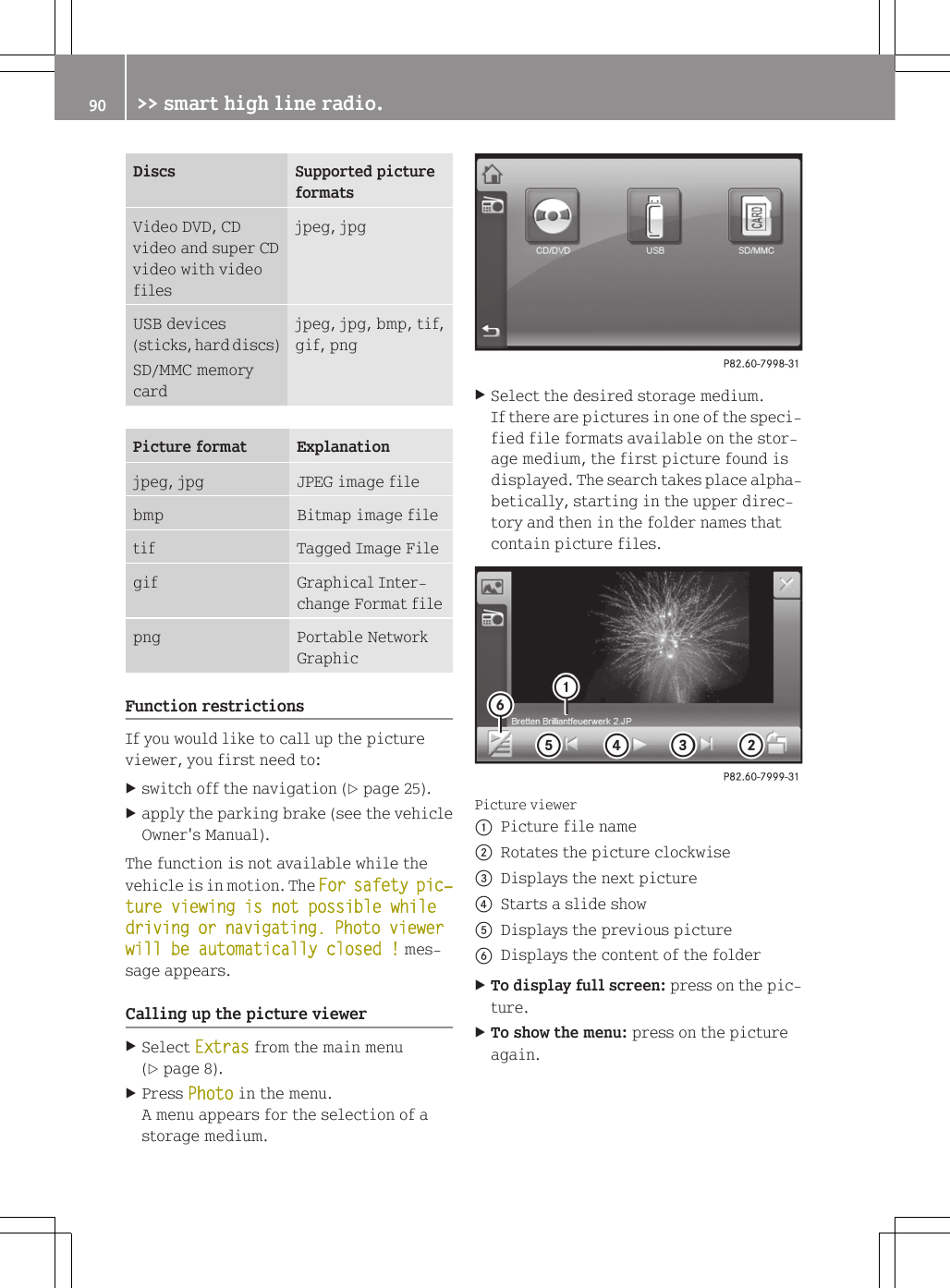
Discs Supported pictureformatsVideo DVD, CDvideo and super CDvideo with videofilesjpeg, jpgUSB devices(sticks, hard discs)SD/MMC memorycardjpeg, jpg, bmp, tif,gif, pngPicture format Explanationjpeg, jpg JPEG image filebmp Bitmap image filetif Tagged Image Filegif Graphical Inter-change Format filepng Portable NetworkGraphicFunction restrictionsIf you would like to call up the pictureviewer, you first need to:Xswitch off the navigation (Y page 25).Xapply the parking brake (see the vehicleOwner's Manual).The function is not available while thevehicle is in motion. The For safety pic‐ture viewing is not possible while driving or navigating. Photo viewer will be automatically closed ! mes-sage appears.Calling up the picture viewerXSelect Extras from the main menu(Y page 8).XPress Photo in the menu.A menu appears for the selection of astorage medium.XSelect the desired storage medium.If there are pictures in one of the speci-fied file formats available on the stor-age medium, the first picture found isdisplayed. The search takes place alpha-betically, starting in the upper direc-tory and then in the folder names thatcontain picture files.Picture viewer:Picture file name;Rotates the picture clockwise=Displays the next picture?Starts a slide showADisplays the previous pictureBDisplays the content of the folderXTo display full screen: press on the pic-ture.XTo show the menu: press on the pictureagain.90 >> smart high line radio.
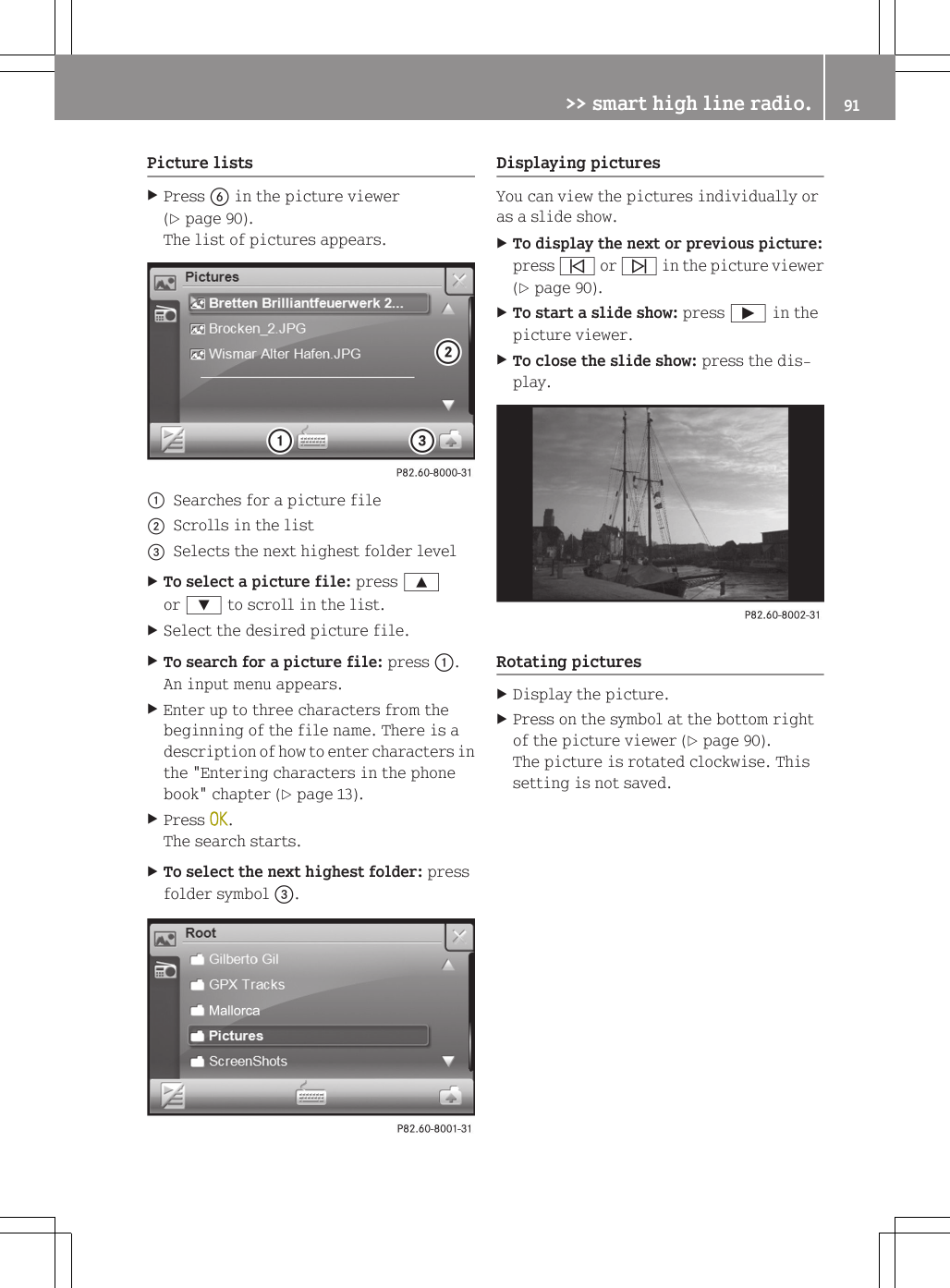
Picture listsXPress B in the picture viewer(Y page 90).The list of pictures appears.:Searches for a picture file;Scrolls in the list=Selects the next highest folder levelXTo select a picture file: press 9or : to scroll in the list.XSelect the desired picture file.XTo search for a picture file: press :.An input menu appears.XEnter up to three characters from thebeginning of the file name. There is adescription of how to enter characters inthe "Entering characters in the phonebook" chapter (Y page 13).XPress OK.The search starts.XTo select the next highest folder: pressfolder symbol =.Displaying picturesYou can view the pictures individually oras a slide show.XTo display the next or previous picture:press û or ü in the picture viewer(Y page 90).XTo start a slide show: press Ì in thepicture viewer.XTo close the slide show: press the dis-play.Rotating picturesXDisplay the picture.XPress on the symbol at the bottom rightof the picture viewer (Y page 90).The picture is rotated clockwise. Thissetting is not saved.>> smart high line radio. 91Z
92
This equipment should be installed and operated with a minimum distance of 20 centimeters between the radiator andPublication detailsInternetFurther information about smart vehiclesand about Daimler AG can be found on thefollowing websites:www.smart.comwww.daimler.comEditorial officeYou are welcome to forward any queries orsuggestions you may have regarding thismanual to the technical documentationteam at the following address:Daimler AG, HPC: R822,D-70546 Stuttgart, GermanyNot to be reprinted, translated or other-wise reproduced, in whole or in part, with-out the written permission of Daimler AG.As at 06.04.2010This device complies with Part 15 of the FCC Rules. Operation is subject to the following two conditions:(1) this device may not cause harmful interference,  and (2) this device must accept any interference received,including interference that may cause undesired operation.Warning:  Changes or modifications to this unit not expressly approved by the party responsible for compliance could void the user’s authority to operate the equipment.This equipment complies with FCC RF radiation exposure limits set forth for an uncontrolled environment.your body.
É45158483825ËÍwww.smart.com smart - A Daimler brand   4515848382Order no. 6522 6814 02Part no. 451 584 83 82Edition ÄJ 2010/Ma

Navigation menu